

2
en-us
Table of Contents
Use and care manual
How to use these instructions 3
9 Safety Definitions 3
IMPORTANT SAFETY PRECAUTIONS 4
Proposition 65Warning: 6
7
Environmental protection 7
Saving energy 7
Disposing in an environmentally responsible manner 7
Getting to know your appliance 8
Contents of package 8
Assembly and components 9
Displays and controls 10
Function selector positions 10
Symbols 10
Colors and display 11
Automatic door opening 11
Additional information ( and ) 11
Accessories 12
Switching the appliance on and off 12
Main switch 12
Sleep mode 13
Activating the appliance 13
Setting up the appliance 13
Initial settings 13
Setting water hardness 14
Water filter 14
Operation with or without water filter 14
Inserting the water filter 15
Filling the bean container 15
Preparing beverages 16
Beverage selection 16
Preparing coffee using freshly ground beans 17
Preparing two cups at the same time 17
Preparing coffee using ground coffee 18
Preparing coffee with milk 18
Preparing milk froth and warm milk 19
Preparing hot water 20
Setting the grinding level 20
Changing bean type 20
Individual beverages 21
Child lock 22
Activating the child lock 22
Deactivating the child lock 22
General settings 23
Setting the milk container weight 25
Messages 25
o
Home Connect 26
Setting Up 26
Home Connect settings 28
Remote Start 29
Remote Diagnostics 29
Information on Data Protection 29
Declaration of Conformity 29
Wi-Fi
®
Module 29
Daily care and cleaning 30
Daily care 30
Cleaning the milk system 30
Cleaning the brewing unit 32
Service programs 33
Cleaning 34
Descaling 34
Cleaning and descaling 34
Fill the water tank with fresh water 35
Emptying program 35
AQUA-STOP pledge 36
Technical specifications 36
Simple troubleshooting 37
Additional information on products, accessories,
replacement parts and services, as well as the Use and
care manual and the Installation instructions can be
found at www.gaggenau.com and in the online shop
www.gaggenau.com/zz/store
3
Safety Definitions en-us
How to use these instructions
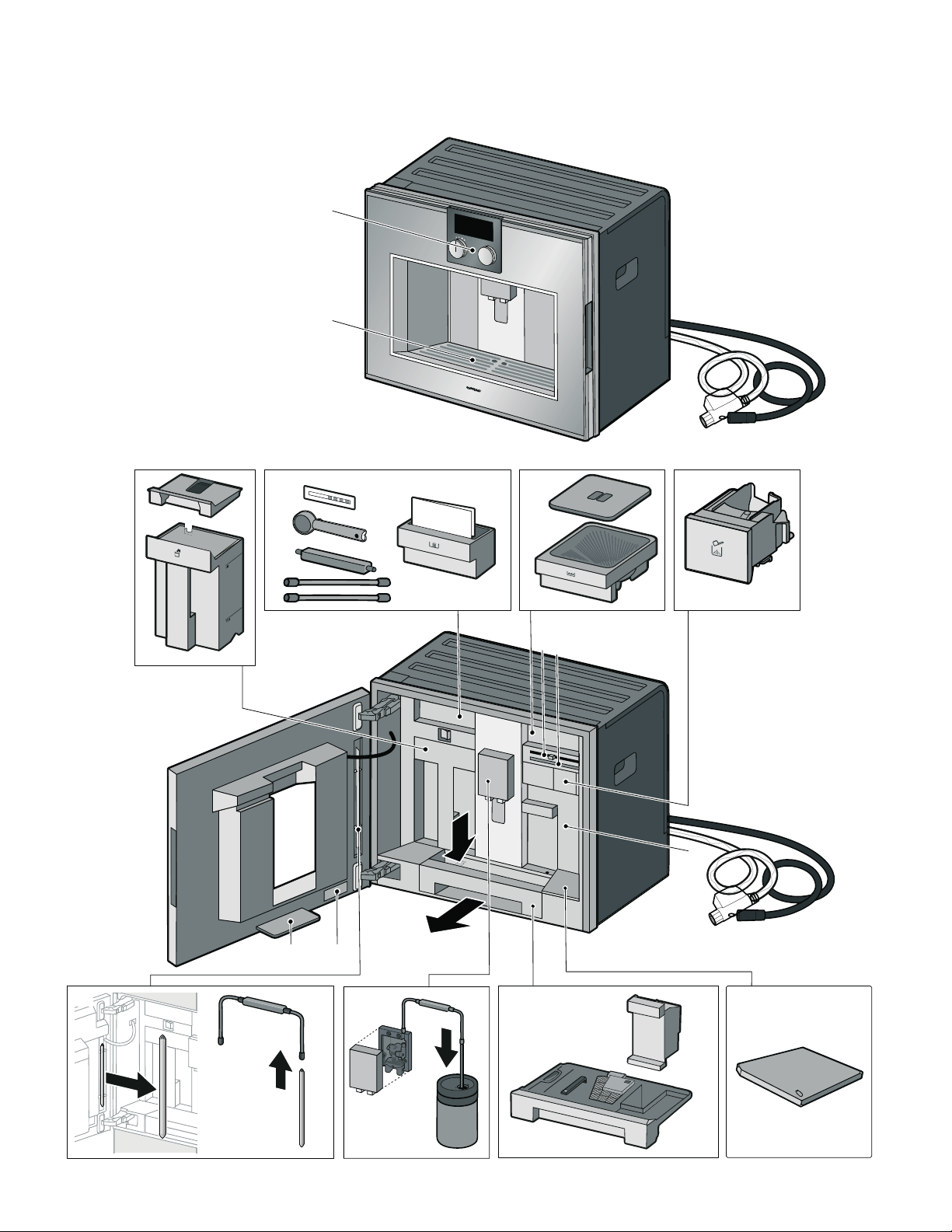
You can open up the front cover of this instruction
manual. There you will find illustrations of the appliance
with each part numbered. These numbers will be referred
to throughout the text.
Example: brewing unit (15)
These instructions also show display texts and symbols in
a special way. This enables you to clearly see where we
refer to texts or symbols that are marked or displayed on
the appliance.
--------
The appliance comes with a quick reference guide where
you can find the most important functions at a glance. It
can be stored in the accessory drawer of the appliance.
Pay special attention to the important safety instructions in
the “Important Safety Precautions” section.
9 Safety Definitions
Safety Definitions
9 WARNING
This indicates that death or serious injuries may
occur as a result of non-observance of this
warning.
9 CAUTION
This indicates that minor or moderate injuries may
occur as a result of non-observance of this
warning.
NOTICE
This indicates that damage to the appliance or property
may occur as a result of non-compliance with this
advisory.
Note: This alerts you to important information and/or
tips.
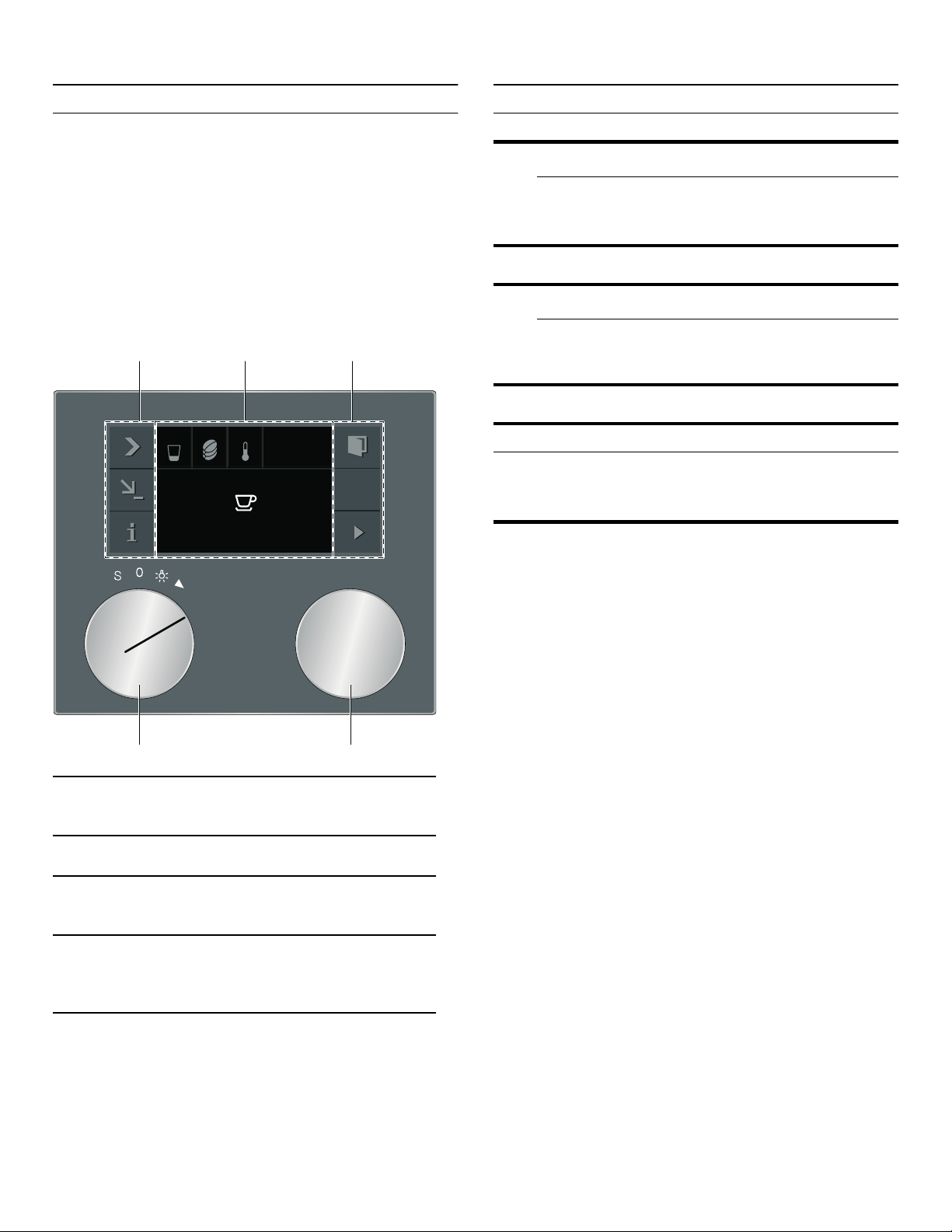
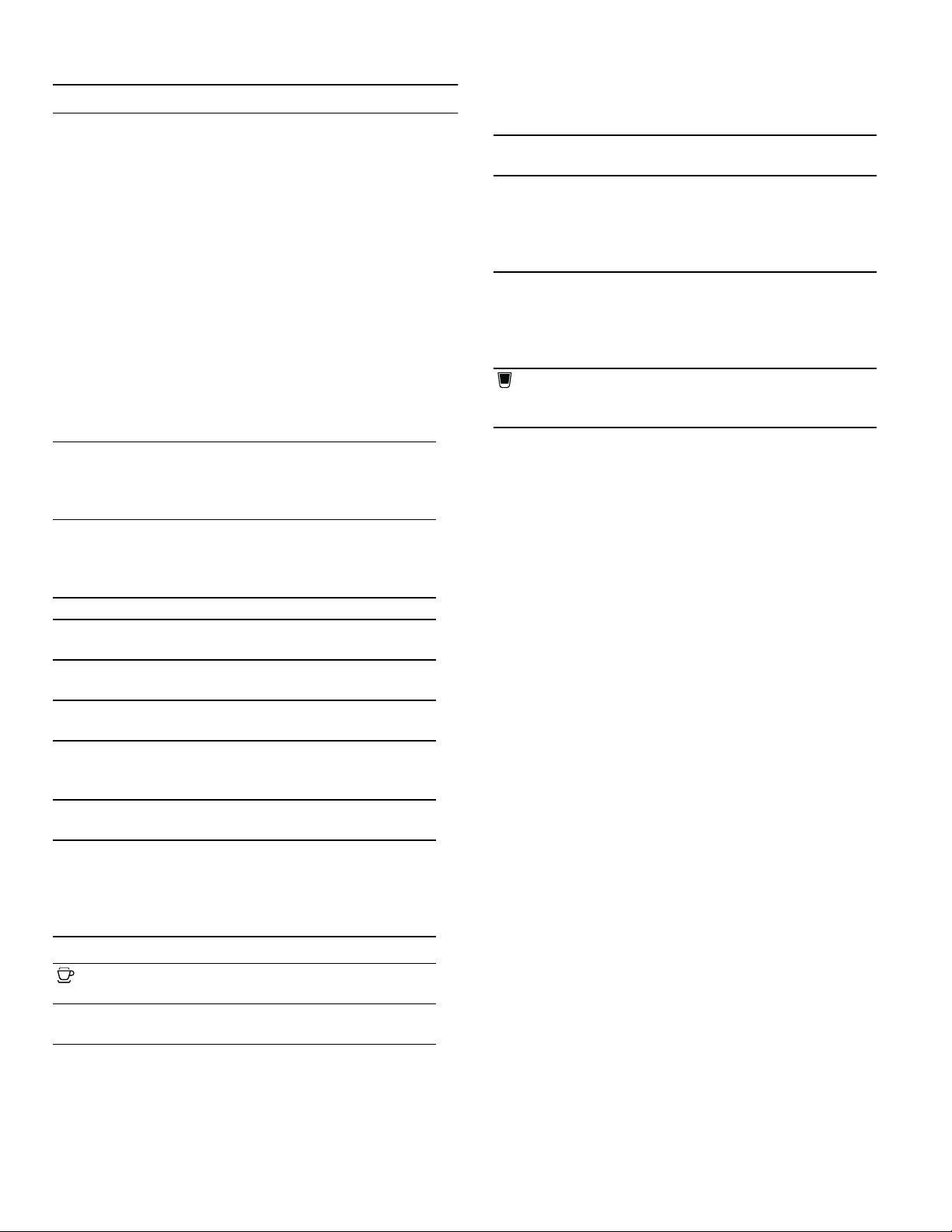
1 Control panel These areas are touch-sensi-
tive. Touch a symbol to select
the applicable function.
2 Display The display shows current set-
tings and options, for example.
3 Rotary selector With the rotary selector you
can select the desired bever-
age and make other settings.
4 Program selec-
tor
With the program selector you
can call up your saved favour-
ite beverages or the basic set-
tings.
(VSUHVVR
[
[

9 IMPORTANT SAFETY PRECAUTIONS
READ AND SAVE THESE INSTRUCTIONS
4
IMPORTANT SAFETY PRECAUTIONS
READ AND SAVE THESE INSTRUCTIONS
When using electrical appliances, basic
safety precautions should always be
followed, including the following:
1. Please read and follow the operating
instructions carefully and keep them for
later reference. If the unit is transferred
to another party, please be sure to
include these instructions.
2. Check the appliance after unpacking it.
Do not connect the appliance if it has
been damaged in transit.
3. Do not touch hot surfaces. Use handles
or knobs.
4. Be sure that all components are
assembled and fastened properly.
5. To protect against fire, electric shock
and injury to persons, do not immerse
cord, plugs, or body in water or in any
other liquid. See Use and Care Guide
for cleaning.
6. Close supervision is necessary when
the appliance is used by or near
children.
7. Unplug from outlet when not in use and
before cleaning. Allow to cool before
putting on or taking off parts, and
before cleaning the appliance.
8. Do not operate any appliance with a
damaged cord or plug or after it
malfunctions, or has been damaged in
any manner. Return appliance to the
nearest authorized service facility.
9. The use of accessories attachments
not recommended by the appliance
manufacturer may result in fire, electric
shock or injury to persons.
10. Do not use outdoors or in a damp area.
11. Do not let cord hang over edge of table
or countertop, or touch hot surfaces.
12. Do not place unit or components on or
near a cooktop or range, or in a heated
oven.
13. This appliance must not be used by
children without adult supervision or by
disabled persons without assistance.
14. If water is leaking from the inlet hose,
turn off the tap at once. When
connecting or working on the water
pipe, disconnect the appliance from
the mains power supply.
15. Always attach plug to appliance first,
then plug cord into the wall outlet. To
disconnect, turn control to “off”, then
remove plug from wall outlet.
16. Do not use appliance for anything other
than its intended use.
17. Save these instructions.
18. Please note the special information on
cleaning in the instructions.
IMPORTANT: This appliance is designed for
domestic and not commercial use.
Use indoors at room temperature only.
Protect the appliance against freezing or
it will be damaged.
Supervise children to ensure that they do
not play with the appliance.
5
9 IMPORTANT SAFETY PRECAUTIONS
READ AND SAVE THESE INSTRUCTIONS
9 WARNING
To reduce risk of fire and electric shock:!
Installation
Connect and operate the appliance
only according to the rating plate
specifications.
Use appliance only with transformer
which is identified as Type
8001010566.
Do not connect the appliance to or
operate it by means of a time switch
or remote control socket.
The unit must not be operated with
an extension cord.
Use the Coffeemaker only if power
cord and appliance show no signs of
damage.
Should a problem occur, pull the
plug and disconnect from the power
immediately.
Never immerse the appliance or
power cable in water or any liquid.
Avoid spillage on the connector.
Grounding
This appliance may only be
connected to a power supply with
120 Volt AC via a correctly installed
receptacle with ground.
Repairs
To avoid potential hazards, repairs
must only be carried out by
authorized repair service personnel.
If the power cord of this appliance is
damaged, it must be replaced by a
original replacement power cord,
which can be purchased from our
Customer Service Department.
9 WARNING
To avoid the risk of injury:!
Do not drink or come into contact
with cleaning or descaling materials.
Keep cleaning materials and
descaling tablets out of the reach of
children. They may be toxic.
9 CAUTION
To avoid the risk of scalding:
Please note that the beverages are
very hot when dispensed.
Do not use chemically softened
water!
9 CAUTION
Risk of scalding (Home Connect)
If an unattended remote start takes
place, third parties might be scalded
if they reach under the coffee
dispenser during drinks dispensing.
You should therefore make sure that
with an unattended remote start
there is no risk to other people, in
particular not to children, or to
property.
9 CAUTION
To avoid the risk of suffocation:
Do not allow children to play with
packaging material. Store small
parts safely as they can be a choke
hazard.
9 IMPORTANT SAFETY PRECAUTIONS
READ AND SAVE THESE INSTRUCTIONS
6
9 CAUTION
To avoid the risk of injury:
Keep children away from the
appliance and power cable.
9 CAUTION
To avoid the risk of injury:
Do not reach into the grinding unit.
Be careful not to pinch your fingers
when closing the door. A misuse of
the appliance can potentially lead to
injury.
9 CAUTION
To avoid the risk of burns:
The beverage outlet gets very hot.
After use, allow to cool down first
before touching. After use, the
heating element surfaces and
warming plate can retain heat. Wait
until cool before touching.
Freshly prepared beverages are very
hot. Leave to cool a little as
necessary.
9 CAUTION
To avoid the risk of influence electronic
implants:
The appliance contains permanent
magnets that may influence
electronic implants such as
pacemakers or insulin pumps.
Persons wearing electronic implants
must maintain a minimum distance of
4 inches from the front of the
appliance and from the following
parts upon removal: milk container,
milk system, water tank and brewing
unit.
Proposition 65Warning:
This product may contain a chemical
known to the State of California, which
can cause cancer or reproductive harm.
Therefore, the packaging of your product
may bear the following label as required
by California:
&DQFHUDQG5HSURGXFWLYH+DUPZZZ3:DUQLQJVFDJRY
67$7(2)&$/,)251,$352326,7,21:$51,1*
:$51,1*

7
Environmental protection en-us
7
Environmental protection
Environmental protection
Saving energy
▯ If the appliance is not being used, switch it off.
▯ Set the interval for automatic switch-off to the lowest
value.
▯ If possible, do not interrupt coffee or milk froth
dispensing. Stopping a process prematurely results in
higher energy consumption and the drip tray fills up
more quickly.
▯ Descale the appliance regularly to avoid a build-up of
limescale. Limescale residue results in higher energy
consumption.
Disposing in an environmentally
responsible manner
Dispose of packaging in an environmentally responsible
manner.
Please ask your dealer about current means of disposal.
8
en-us Getting to know your appliance
Getting to know your appliance
Getting to know your appliance
Use this section to familiarize yourself with your new
appliance. The control panel and the individual operating
controls are explained. You will also be informed about
the accessories.
Further information about the appliance, such as how to
change the opening angle of the door, can be found in
the enclosed installation instructions.
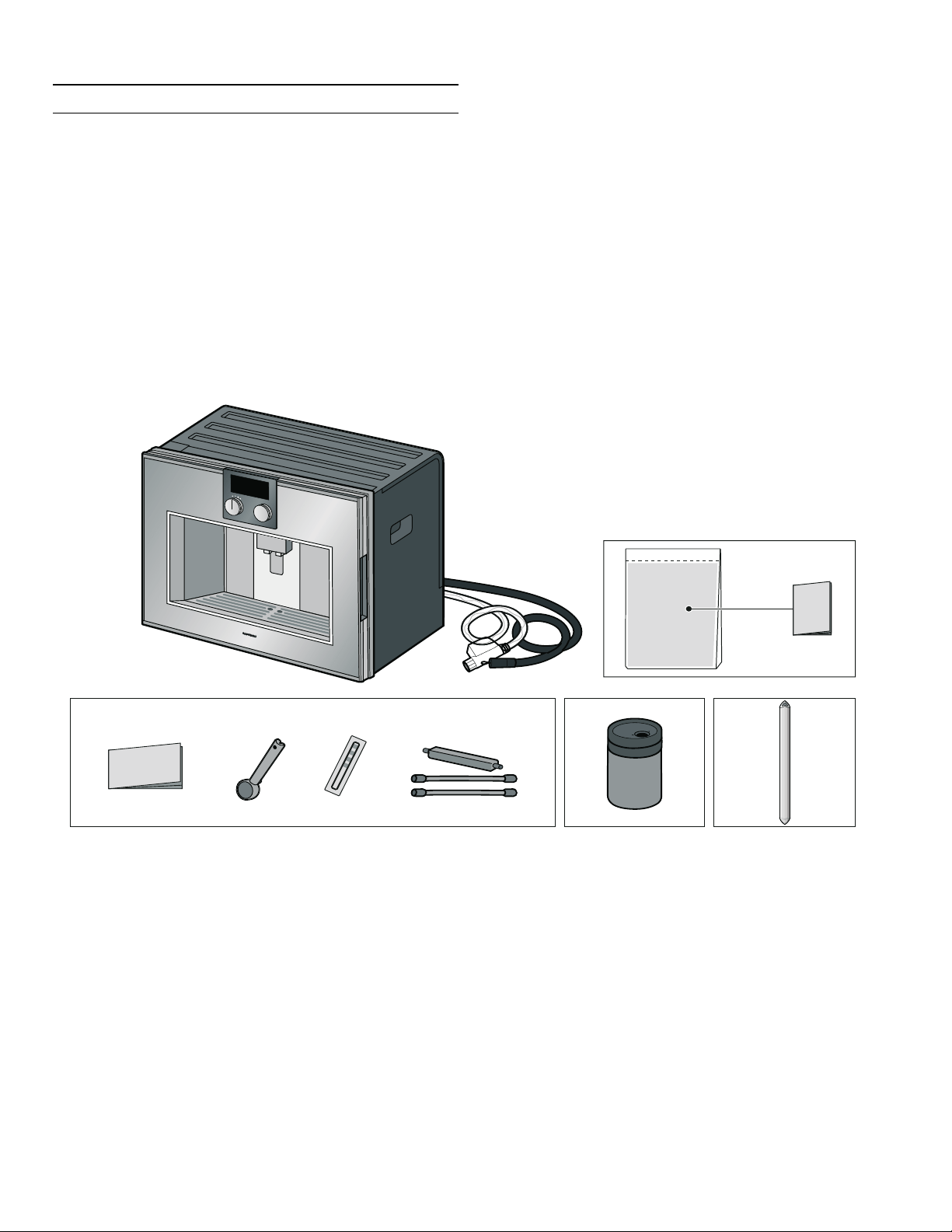
Contents of package
(For use)
9
Getting to know your appliance en-us
Assembly and components
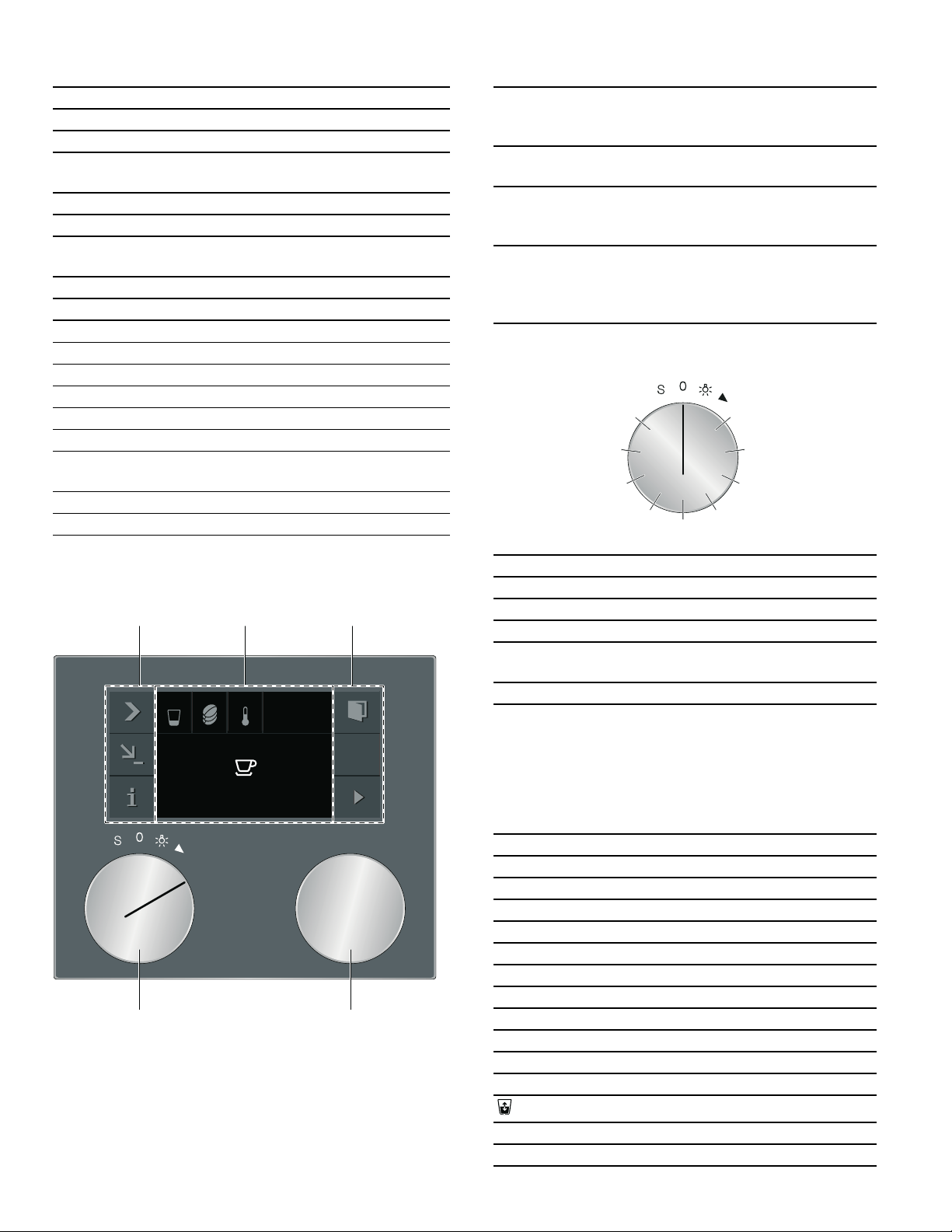
10
en-us Getting to know your appliance
Displays and controls
--------
Function selector positions
Symbols
The following overview outlines the most common
symbols you will come across when operating the
appliance.
--------
1 Display and controls
2 Shelf, e.g. for a cup
3 Water tank with lid
4 Accessory drawer (for quick reference guide
and accessories)
5 Bean container
6 Grinding level adjustment
7 Magnetic holder (for milk hoses' connecting ele-
ment)
8 Ground coffee drawer
9 Protective cover (for brewing unit)
10 Collecting tray
11 Rating plate
12 Holder (for milk tube)
13 Drip tray
14 Drain filter
15 Coffee residue container
16 Beverage dispenser and milk system, height-
adjustable
17 Milk container
18 Shelf (scales) for milk container, removable
(VSUHVVR
[
[
1 Control panel These areas are touch-sensi-
tive. Touch a symbol to select
the applicable function.
2 Display The display shows current set-
tings and options, for example.
3 Rotary selector With the rotary selector you
can select the desired bever-
age and make other settings.
4 Function selec-
tor
You can use the function
selector to call up beverages
or the favorite drinks you have
saved.
Position Function
0 Off position
@ Light
2 Beverage selection
3- 10 Memory locations for individual bever-
ages
S Service programs/General settings
Symbol Function
I Start
Ø Stop
' Cancel
™ Confirm/save settings
C Selection arrow
! Open the door
E Network connection (Home Connect)
( Launching additional information
* Calling up additional tips
% Edit settings
‡ Save individual beverage
Quick capacity selection
2x 2x beverage
0 Child lock

11
Getting to know your appliance en-us
Colors and display
Colors
The various colors serve to guide you in the various
adjustment situations.
Appearance
The symbols, values and displays may change, depending
on the situation.
Automatic door opening
When you touch the ! symbol, the appliance door
springs open and you can open it fully with the handle
recess at the side.
Automatic door opening does not work when the child
lock is activated or in the event of a power failure. You
can open the door manually with the handle recess at the
side.
Additional information ( and )
By touching the ( symbol, you can call up additional
information.
During operation, you will, for example, receive
information regarding the number of beverages already
dispensed.
If the function selector is set to S, you will, for example,
receive information about when the appliance needs to
be descaled or cleaned or when the water filter needs
changing. You can use this information to start up a
service program that is due soon, for example.
The ) symbol appears for important action prompts.
New messages are also displayed for several seconds on
the display. These messages disappear automatically
after a few seconds, or must be confirmed with ™. A list
of messages can be displayed by touching the ) symbol.
The message disappears when the required action has
been carried out.
Orange First settings
Main functions, messages
Blue Basic settings
Cleaning
White Adjustable values
Standard Values and symbols which have just
been selected will be displayed in a
larger font.
Reduced dis-
play screen
After a short while, the amount of
information shown on the display
will be reduced and only the most
important information will remain.
This function is activated in the
basic settings ex works and can be
deactivated.
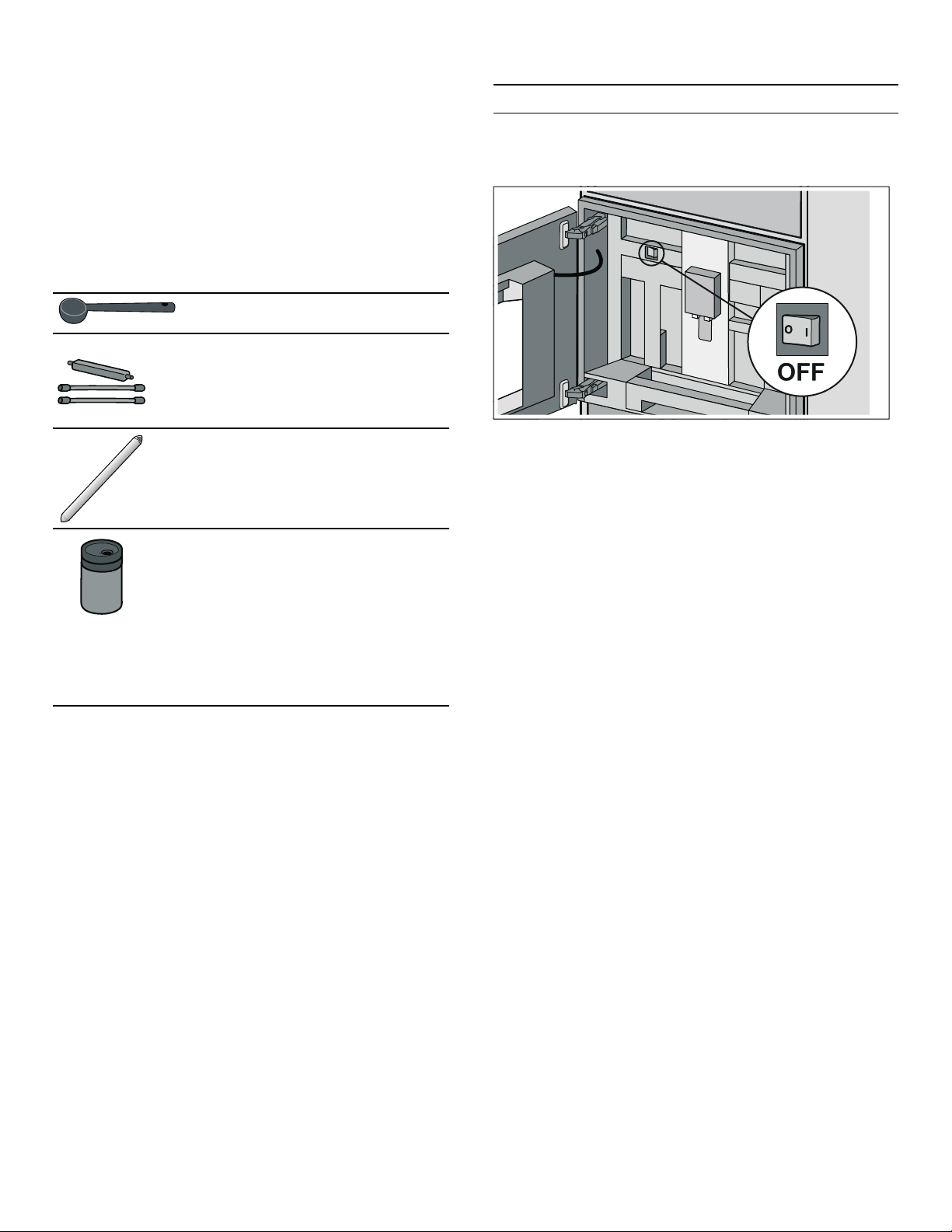
12
en-us Switching the appliance on and off
Accessories
The fully automatic espresso machine has a drawer for
storing accessories such as the quick reference guide or
measuring spoon inside the appliance. After opening the
door, you can use the magnetic holder and the clip for the
individual parts, such as the milk hose set. The holder for
the milk tube is situated on the inside of the door.
The appliance is equipped with the following
accessories as standard:
The following accessories can be reordered by
contacting our customer service:
▯ Water filter (order no.: 12008246)
▯ Cleaning tablets (order no.: 00311823)
▯ Descaling tablets (order no.: 00311820)
▯ Care set (order no.: 00576331)
▯ Milk container (order no.: 11019259)
▯ Door hinge restrictor 92° opening angle
(order no.: 00636455)
▯ Bean container (order no.: 11015223)
▯ Water inlet hose extension (order no.: 11019575)
Switching the appliance on and off
Switching the appliance on and off
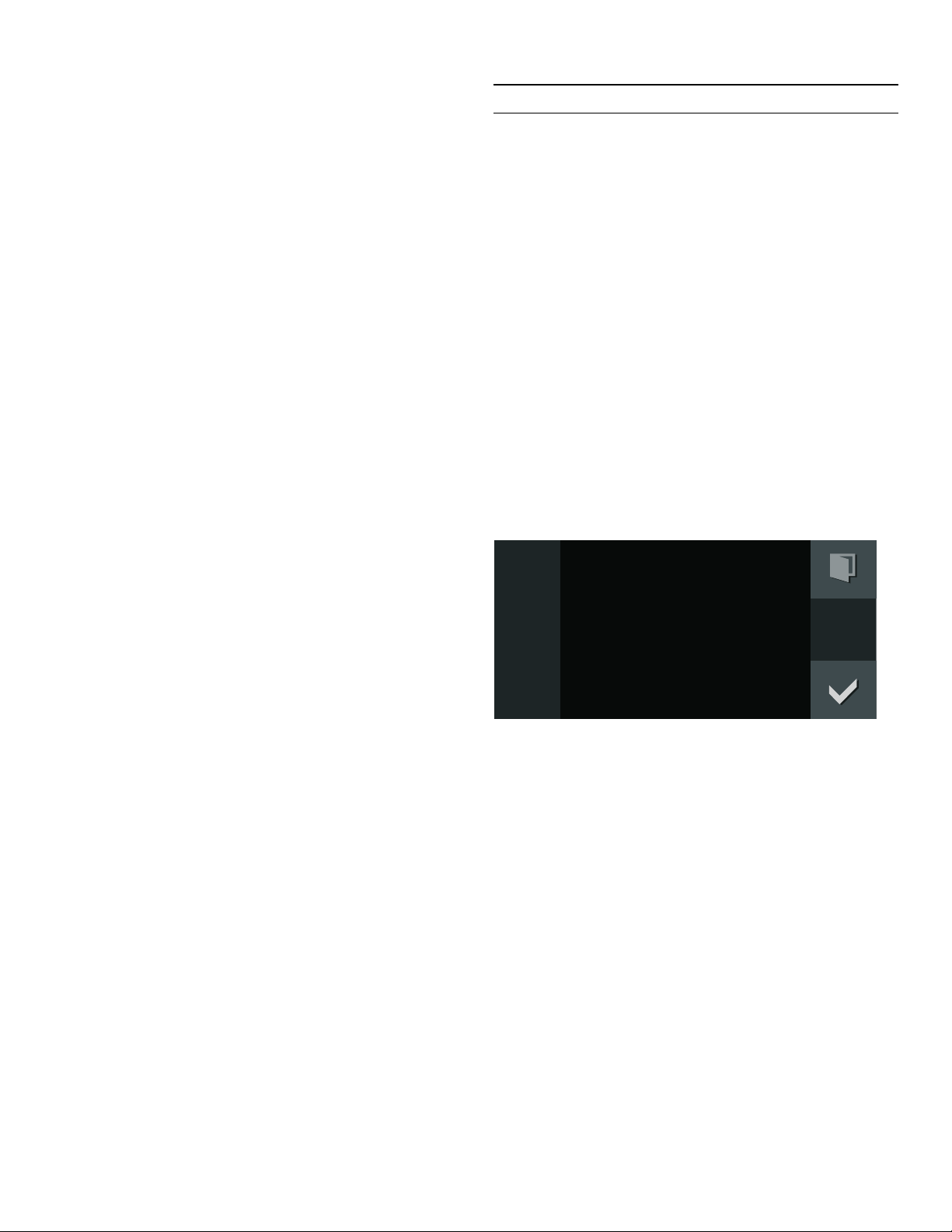
Main switch
The main switch is used to switch the appliance on and
off.
If the appliance is switched off at the main switch, the
power supply is interrupted.
The appliance is programmed so that it switches to
"Standby" mode automatically after about 30 minutes.
This timespan can be changed. ~ "General settings"
on page 23
The appliance rinses automatically when it is switched on
at the main switch. Exception: The appliance was only
switched off a few minutes beforehand.
Notes
▯ Do not press the main switch during operation. If you
want to manually switch off the appliance, you must
first set the function selector to 0 so that it rinses
automatically. Then switch off the appliance using the
main switch.
▯ The appliance is equipped with a sensor. If a milk
container is present, this will be correspondingly
shown on the display when switching to the energy
saving mode (function selector set to 0). If there is
milk in the container, please keep in the refrigerator.
Measuring spoon
For adding ground coffee.
Milk hose set
For connecting the milk con-
tainer.
Milk tube
For inserting into the milk con-
tainer, milk cartons and milk bot-
tles or for running a service
program.
Milk container
Capacity 17oz (0.5liters).
The milk container has been
designed especially for use
together with this fully automatic
coffee machine. It is intended
solely for use in the household
and for storing milk in the refrig-
erator.
13
Setting up the appliance en-us
Sleep mode
The appliance goes into sleep mode if the function
selector is turned to 0 or if the child lock is activated.
Activating the appliance
In order to leave sleep mode, or to activate the display
when it has been switched off, turn the function selector.
Now you can set the desired function. Read the
appropriate chapters to learn how to set functions.
Notes
▯ If the drip tray is not in place, the appliance cannot be
switched on and no water flows out of the beverage
dispenser.
The message "Insert trays" appears.
▯ If "Standby screen = off" is selected in the factory
setting, you must turn the function selector to exit the
standby mode.
Setting up the appliance
Setting up the appliance
Note: Only use the appliance in frost-free rooms. If the
appliance was transported or stored at temperatures
below 32 °F (0 °C), you must wait for at least 3 hours
before using it.
Before the appliance can be switched on and used, it
must be assembled and connected according to the
enclosed installation instructions.
Initial settings
Notes
▯ The query appears automatically when first switched
on after connection to a power outlet.
▯ You can change the settings at any time. ~ "General
settings" on page 23
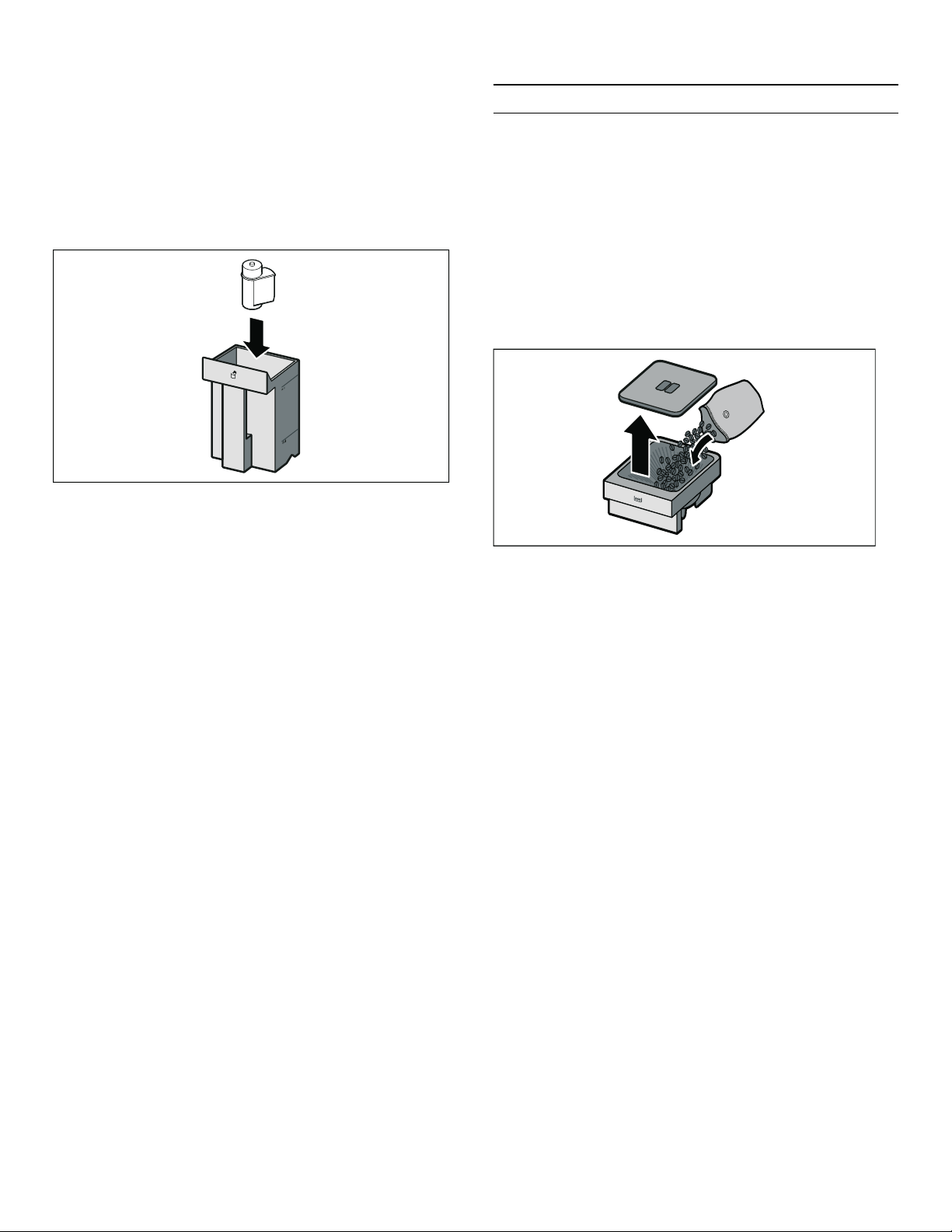
1. Switch on the appliance at the main switch.
The preset language appears on the display.
2. Use the rotary selector to select the required display
language.
3. Press ™ to confirm.
The temperature unit appears in the display.
4. Use the rotary selector to select the required
temperature unit.
5. Press ™ to confirm.
The preset capacity unit appears on the display.
6. Use the rotary selector to select the required capacity
unit.
7. Press ™ to confirm.
The preset weight unit appears on the display.
8. Use the rotary selector to select the required weight
unit.
9. Press ™ to confirm.
The display shows "Initial set-up complete". Confirm
with ™. The appliance is now ready to use.
Note: When the language is changed, the system is
restarted; this process takes a few seconds.
'HXWVFK
6SUDFKH

14
en-us Water filter
Setting water hardness
It is important to set the water hardness correctly, so that
the appliance indicates accurately when the descaling
program should be run. The preset water hardness is
level 4. If a water softening unit is installed in the
household, select the "Water softening unit" setting. You
can check the water hardness using the enclosed test
strip or by asking your local water supplier.
1. Briefly immerse the enclosed test strip in fresh tap
water, leave it to drip off and read off the result after
one minute.
2. Rotate function selector to S.
3. Use the rotary selector to select "General settings"
and touch the ™ symbol.
4. Use the rotary selector to select "Water hardness".
5. Touch the % symbol.
6. Using the rotary selector, set the measured water
hardness.
7. Press ™ to confirm.
The setting is saved. Touch ' in order to exit the general
settings.
The table shows the allocation of the levels to the
different degrees of water hardness:
Water filter
Water filter
Operation with or without water filter
You can use the appliance with or without a water filter.
To ensure that the descaling display of the appliance
functions correctly, you must state in the general settings
whether a water filter is used.
1. Rotate function selector to S.
2. Select "General settings" using the rotary selector.
3. Touch the ™ symbol.
4. Select "Water filter" using the rotary selector.
5. Touch the % symbol.
6. Use the rotary selector to select either "Available"
(with water filter) or "Not available" (without water
filter).
7. Press ™ to confirm.
For the setting "Available", the rinse program starts.
Proceed according to the information on the display.
8. Touch the ' symbol to exit the general settings menu.
A water filter lessens limescale deposits and reduces
impurities in the water. The appliance also does not need
to be descaled so often.
Level Water hardness
g/gal (US)
1 1.0426- 7.2985
2 8.3412- 14.597
3 15.64- 21.896
4 22.938- 31.279
15
Filling the bean container en-us
Inserting the water filter
New water filters must always be rinsed after being fitted.
1. Rotate the function selector to S.
2. Select "Change water filter" using the rotary selector.
3. Touch the ™ symbol.
4. Fit the water filter in the water tank.
5. Remove the milk hose from the milk container and
close the door.
6. Touch the ™ symbol.
The water runs through the filter to rinse it. After the
rinsing process, confirm with ™ . The appliance is again
ready for use.
Rinsing the filter also activates the setting for the
"Change water filter" display. When the display "Please
change water filter" is shown, or at the latest after two
months, the filter is no longer effective. It needs to be
replaced for reasons of hygiene and so that the appliance
does not become calcified (which could damage the
appliance).
Replacement filters can be obtained from customer
service. ~ "Accessories" on page 12
Note: If you leave the appliance for a prolonged period
without using it (for example when on vacation), it is best
to rinse the existing filter before preparing beverages. To
do this, simply dispense a cup of hot water.
Filling the bean container
Filling the bean container
Using your appliance, you can prepare coffee using
freshly ground coffee beans or ground coffee. Only fill
the ground coffee shortly before preparing the beverage.
~ "Preparing coffee using ground coffee"
on page 18
1. Open the door.
2. Pull the bean container out, remove the lid and fill the
container with beans. Replace the lid and insert the
bean container again.
Note: Coffee beans that have been glazed,
caramelized, or that contain other sugary additives
block the brewing unit. Only use pure bean mixtures
that are suitable for use in fully automatic espresso
machines.
3. Close the door.
16
en-us Preparing beverages
Preparing beverages
Prepari ng beverages
Beverage selection
Notes
▯ The integrated fan switches on each time a beverage
is dispensed and switches off again after a few
minutes.
▯ The very first cup of coffee dispensed will not develop
the full aroma. The same applies if the machine has
not been used for some time.
▯ The appliance is preprogrammed with the standard
factory settings for optimal operation.
▯ After setting up the appliance, you will achieve a
suitably thick and stable "crema" only after the first
few cups have been dispensed.
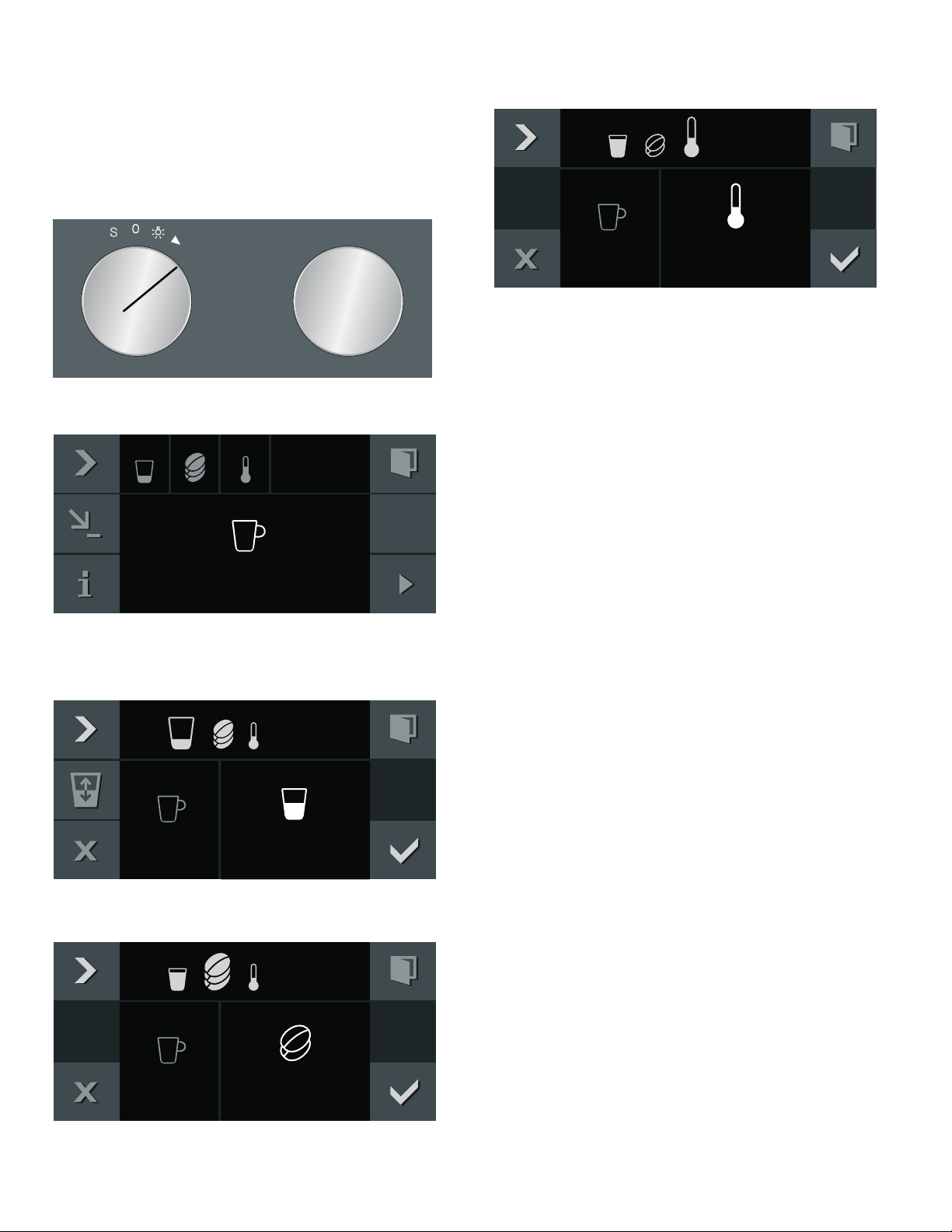
--------
You may be able to select further options depending on
your choice of beverage:
--------
Aroma function "Extra strong"
The longer the coffee is brewed, the more bitter
substances and undesired aromas are released. This has
a negative effect on the taste and makes the coffee less
easily digestible. Your appliance therefore has a special
"Aroma" function for very strong coffee. The machine
dispenses half of the required quantity and then grinds
and brews fresh beans for the other half, so only the
pleasant-tasting and easily digestible aromas are
released.
The "Aroma" function "Extra strong" or "Extra
strong 3ˆ 2x" is only available for certain settings. The
coffee is prepared in two stages for this setting. Wait
until the process is fully completed.
„ Ristretto Concentrated espresso. Best
served in small, thick-walled
cups. Preheat cups with hot
water.
„ Espresso Concentrated coffee. Best
served in small, thick-walled
cups. Preheat cups with hot
water.
… Coffee Coffee
Americano Y espresso, is topped up with
Z hot water.
s Hot water For preparing hot beverages,
e.g. tea, or to preheat cups.
t Milk froth For preparing speciality white
coffees.
u Warm milk As a beverage or as an ingredi-
ent in certain coffee bever-
ages.
w Cafe Latte ½ coffee + ½ milk; best served
in a wide-rimmed cup.
† Latte Macchi-
ato
A specialty drink, served in a
glass featuring three layers: at
the bottom hot milk, in the mid-
dle espresso, and at the top
milk froth.
Flat White Espresso with frothed milk.
Cappuccino Y espresso + Y milk + Y milk
froth; best served in a cup.
v Espresso
Macchiato
Espresso finished with milk
froth.
´
´
¦ Capacity Small - Medium - Large - Extra
large
ˆ Strength Very mild - Mild - Medium -
Strong - Very strong - Extra
strong etc., not available for
milk froth, warm milk and hot
water
p Temperature Hot - Very hot - Extra hot not
available for milk froth and
warm milk. Different tempera-
tures can be selected for hot
water.
Mixing ratio Setting for the proportion of
milk, only available for coffee
beverages with milk.
17
Preparing beverages en-us
Preparing coffee using freshly ground
beans
The appliance must be switched on. The bean container
must be filled.
1. Rotate function selector to position 2.
2. Use the rotary selector to select the desired beverage,
e.g. coffee.
3. Place a cup under the beverage dispenser.
4. Touch the C symbol.
5. Set the size using the rotary selector.
6. Touch the C symbol.
7. Set the strength using the rotary selector.
8. Touch the C symbol.
9. Set the temperature using the rotary selector.
10. Press ™ to confirm the settings.
11. Start with I.
The beverage is brewed and then dispensed into the cup.
Notes
▯ While the beverage is dispensed, the & symbol is
displayed. Touch this symbol to stop the beverage
being prepared.
▯ Using the ‡ symbol, you can save the current
beverage: Touch the ‡ symbol, turn the function
selector to a free memory location and save the entry.
~ "Individual beverages" on page 21
Preparing two cups at the same time
You have the option of dispensing two beverages
simultaneously:
1. Select the beverage and use the rotary selector to
adopt settings such as temperature if desired.
2. Touch the symbol 2x.
3. Place two cups, or similar, underneath the beverage
dispenser.
4. Start with I.
The selected beverage is brewed and then dispensed
into the cups.
Note: The coffee is prepared in two stages. Wait until the
process is fully completed.
&RIIHH
[
[
0HGLXP
0LOG
+RW
18
en-us Preparing beverages
Preparing coffee using ground coffee
The appliance must be switched on.
Important: Remove cups or glasses before opening the
door, as they may fall otherwise.
1. Rotate function selector to position 2.
2. Open the door.
3. Using the measuring spoon, fill a maximum of two
level spoonfuls of ground coffee into the ground
coffee drawer. Close the ground coffee drawer.
Note: Do not fill the ground coffee drawer with beans
or instant coffee.
4. Close the door.
5. Use the rotary selector to select the desired beverage
(beverages made from ground coffee are identified
with the x symbol).
6. Place a cup under the beverage dispenser.
7. Touch the C symbol.
8. Set the size using the rotary selector.
9. Touch the C symbol.
10. Set the temperature using the rotary selector.
11. Press ™ to confirm the settings.
12. Start with I.
The beverage is brewed and then dispensed into the cup.
For another cup of coffee, pour in more ground coffee
and repeat the process.
Notes
▯ While the beverage is dispensed, the & symbol is
displayed. Touch this symbol to stop the beverage
being prepared.
▯ If coffee is not dispensed within 90seconds, the
brewing chamber empties itself automatically to
prevent an overflow.
▯ The "Aroma" function is unavailable when using
ground coffee. Similarly, it is not possible to dispense
two cups at once when using ground coffee.
Preparing coffee with milk
9 WARNING
Risk of burns!
The milk system becomes very hot. After use,
always let it cool down before you touch it.
You can transfer the milk into the supplied milk container
or into a milk jug, for example, or draw the milk directly
from a carton. ~ "Setting the milk container weight"
on page 25
Important: Remove cups or glasses before opening the
door, as they may fall otherwise.
Using the milk container:
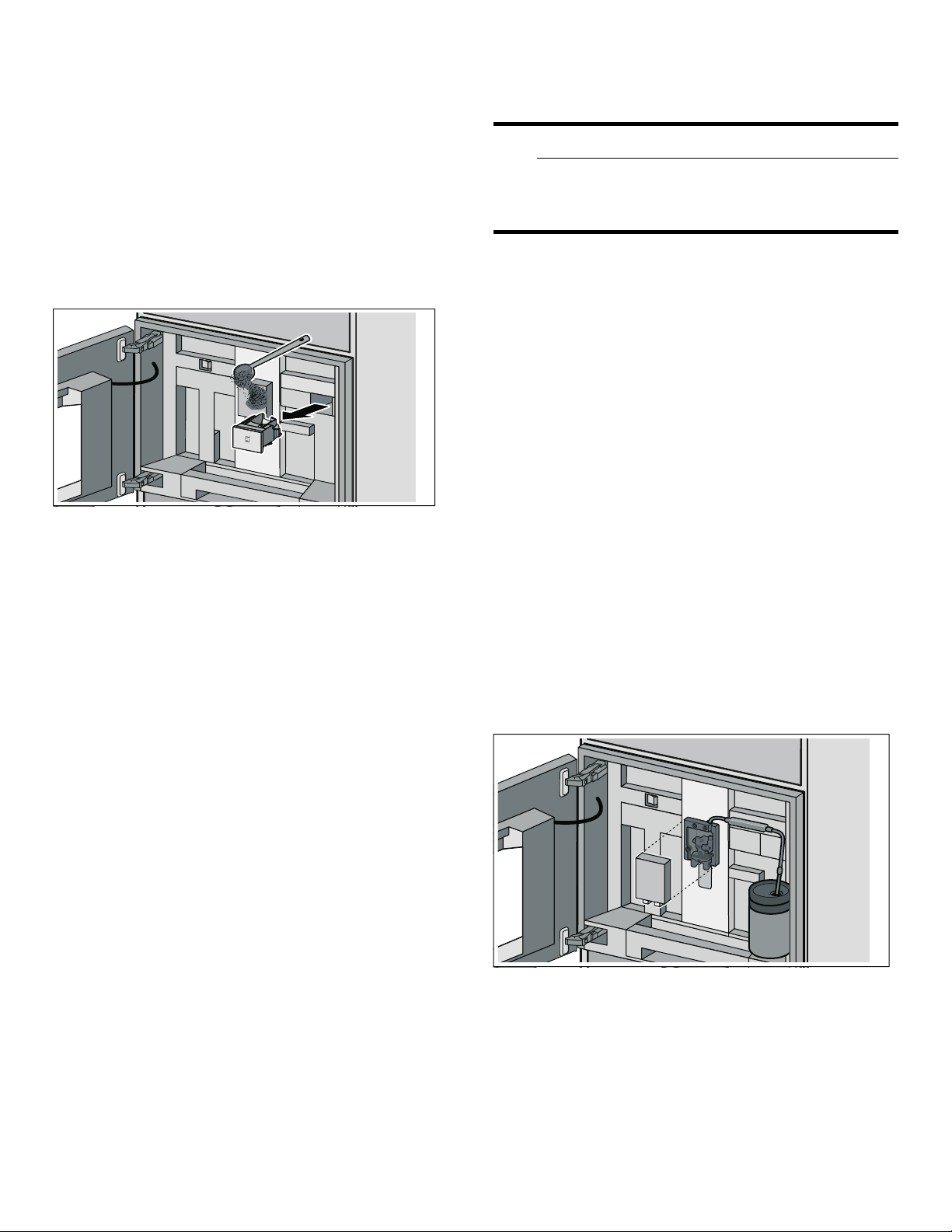
▯ Open the door.
▯ Push the beverage dispenser down completely.
▯ Remove the cover of the beverage dispenser towards
the front.
▯ Attach a milk hose from the milk system to the
beverage dispenser and feed it outward through the
opening at the top.
▯ Attach the connecting element of the milk system to
the magnetic holder (on the inside of the appliance).
▯ Place the milk container on the right next to the
beverage dispenser. Connect the milk tube to the milk
hose and then guide the milk tube into the milk
container. The end of the milk tube must be immersed
in the milk.
▯ Close the door.

19
Preparing beverages en-us
Using a milk carton or other container:
▯ Open the door.
▯ Push the beverage dispenser down completely.
▯ Remove the cover of the beverage dispenser towards
the front.
▯ Feed the milk system's milk hose outward through the
opening at the top.
▯ Attach the magnetic holder to the appliance.
▯ Place the full milk carton on the right next to the
beverage dispenser. Connect the milk tube to the milk
hose and then guide the milk tube into the milk carton.
The end of the milk tube must be immersed in the
milk.
▯ Close the door.
To prepare a beverage:
The appliance must be switched on. The bean container
must be filled.
1. Rotate function selector to position 2.
2. Using the rotary selector, select a coffee beverage
with milk. To select a beverage made using ground
coffee, you must first fill the ground coffee drawer.
3. Place a cup or glass under the beverage dispenser.
4. Start with I.
- or -
Touch the C symbol first, then set the size or strength,
for example, using the rotary selector and confirm with
™.
The milk is drawn in and prepared, after which the coffee
is brewed.
Notes
▯ While the beverage is dispensed, the & symbol is
displayed. Touch this symbol to stop the beverage
being prepared.
▯ Using the ‡ symbol, you can save the current
beverage: Touch the ‡ symbol, turn the function
selector to a free memory location and save the entry.
~ "Individual beverages" on page 21
▯ Dried-on milk residues are difficult to remove, so
always clean the milk system after every use.
~ "Cleaning the milk system" on page 30
Preparing milk froth and warm milk
9 WARNING
Risk of burns!
The milk system becomes very hot. After use,
always let it cool down before you touch it.
To prepare a beverage:
The appliance must be switched on.
1. Rotate function selector to position 2.
2. Connect the milk hose. ~ "Preparing coffee with
milk" on page 18
3. Select "Milk froth" or "Warm milk" with the rotary
selector.
4. Place a cup or glass under the beverage dispenser.
5. Touch the C symbol.
6. Set the size using the rotary selector.
7. Press ™ to confirm the settings.
8. Start with I.
The milk is drawn in and subsequently flows into the cup
or the glass.
Notes
▯ While the beverage is dispensed, the & symbol is
displayed. Touch this symbol to stop the beverage
being prepared.
▯ Using the ‡ symbol, you can save the current
beverage: Touch the ‡ symbol, turn the function
selector to a free memory location and save the entry.
~ "Individual beverages" on page 21
▯ Dried-on milk residues are difficult to remove, so
always clean the milk system after every use.
~ "Cleaning the milk system" on page 30
20
en-us Preparing beverages
Preparing hot water
9 WARNING
Risk of burns!
The milk system becomes very hot. After use,
always let it cool down before you touch it.
The appliance must be switched on.
1. Remove the milk tube from the milk container.
2. Rotate function selector to position 2.
3. Select "Hot water" with the rotary selector.
4. Place a cup or glass under the beverage dispenser.
5. Touch the C symbol.
6. Set the size using the rotary selector.
7. Touch the C symbol.
8. Set the temperature using the rotary selector.
9. Press ™ to confirm.
10. Start with I.
The water is heated and then flows into the cup or glass.
Notes
▯ While the beverage is dispensed, the & symbol is
displayed. Touch this symbol to stop the beverage
being prepared.
▯ Using the ‡ symbol, you can save the current
beverage: Touch the ‡ symbol, turn the function
selector to a free memory location and save the entry.
~ "Individual beverages" on page 21
Setting the grinding level
9 WARNING
Risk of injury!
Do not reach into the grinding unit.
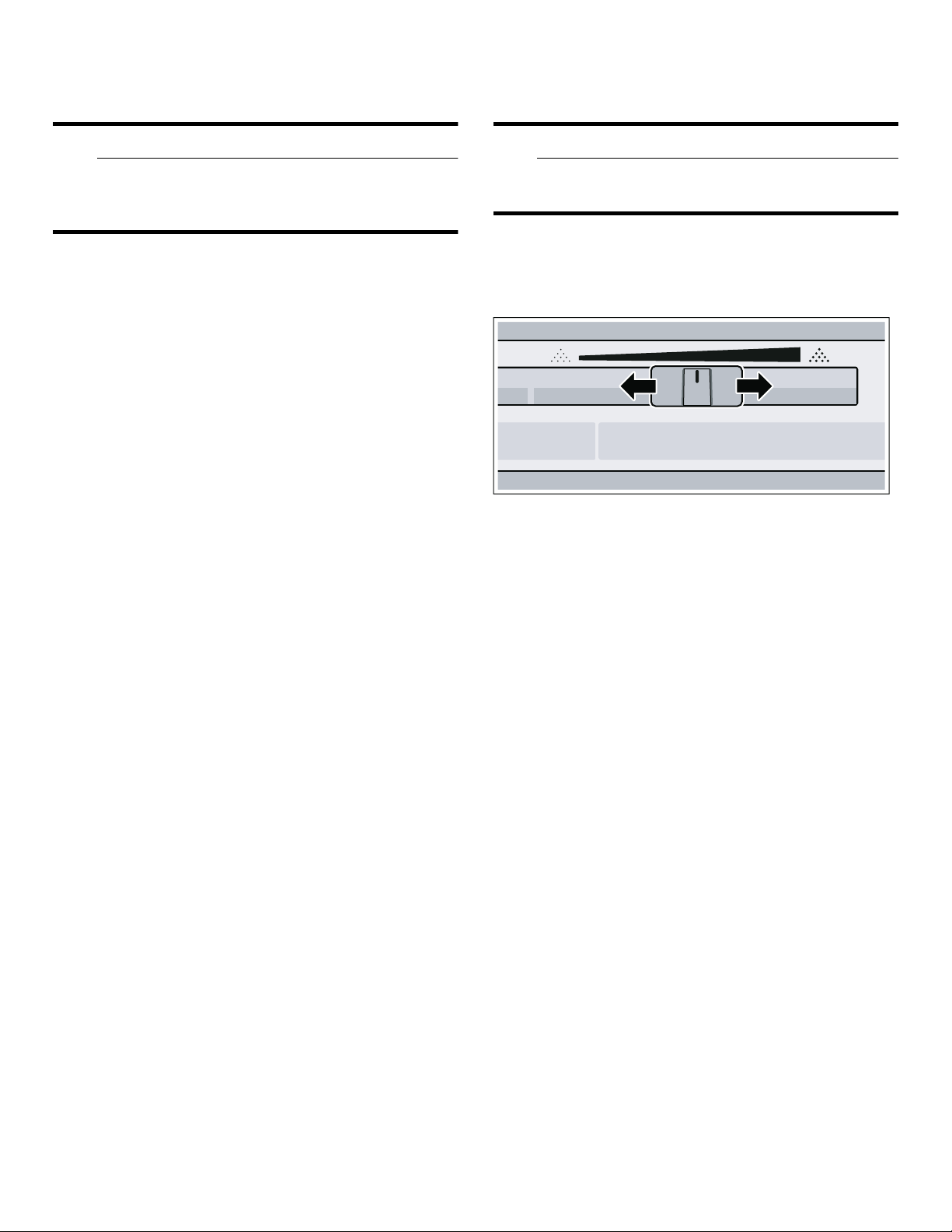
Using the slider for the grinding level, the desired
fineness of the ground coffee can be set between a fine
grinding level (left) and a coarser grinding level (right).
Notes
▯ The effects of the new grinding setting will only
become apparent after the second cup of coffee.
▯ For dark roast coffee beans, choose a finer grinding
level; for lighter beans, choose a coarser grinding
level.
▯ If the display shows the message "Set coarser
grinding level", the coffee beans are being ground too
finely. Set a coarser grinding level; to do so, slide the
slider to the right.
▯ Only make small changes to the grinding level setting.
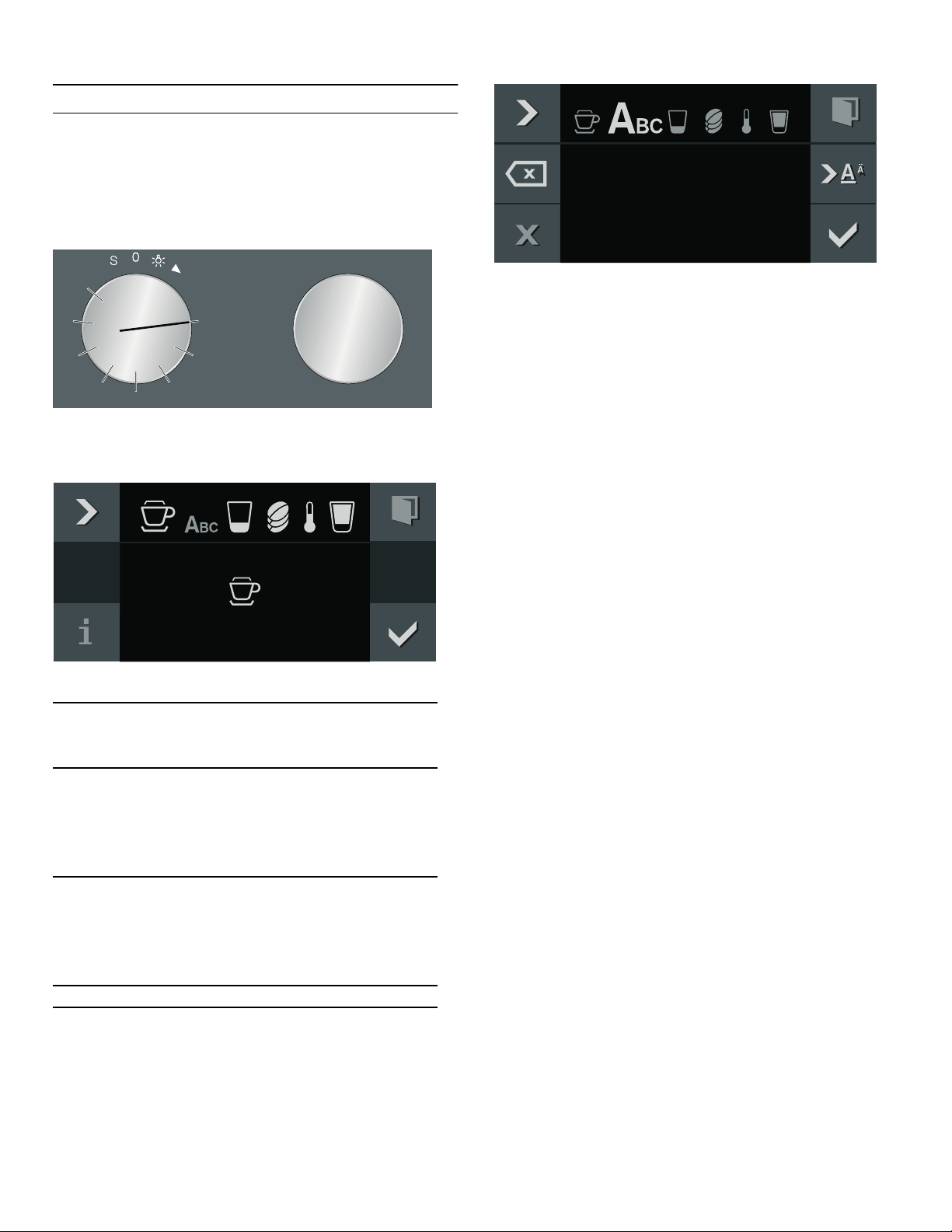
Changing bean type
If you are using a new type of bean, the Empty grind
function allows you to run the grinding unit until empty of
your previous bean type.
The appliance must be switched on.
1. Remove the bean container and empty out the beans.
2. Add the new beans and reinsert the bean container.
The message "New type of coffee beans in bean
container?" appears.
3. Press ™ to confirm.
The grinding unit is then emptied of your previous bean
type in two grinding stages.
Note: This message always appears when the bean
container is inserted. If you do not want to empty the
grinding unit, e.g. when only refilling with beans, confirm
with '.
21
Individual beverages en-us
Individual beverages
Individual beverages
You can define and store instructions for up to
8different individual beverages.
1. Turn the function selector to one of the 8memory
locations.
2. Use the C symbol to select the desired beverage,
capacity, strength, temperature and coffee-milk ratio
and use the rotary selector to save the settings.
3. Enter the name of the beverage in "ABC".
4. Save with ™ or cancel and exit the menu with '.
5. Start with I.
Depending on the beverage selected, the beans will be
ground first, then the milk prepared and finally the coffee
brewed.
Notes
▯ While the beverage is dispensed, the & symbol is
displayed. Touch this symbol to stop the beverage
being prepared.
▯ For entering a name, Latin characters, certain special
characters and numbers are available.
▯ To change an existing memory location, touch the %
symbol and save a new setting.
▯ If a memory location is selected which is already
occupied, the settings will be overwritten.
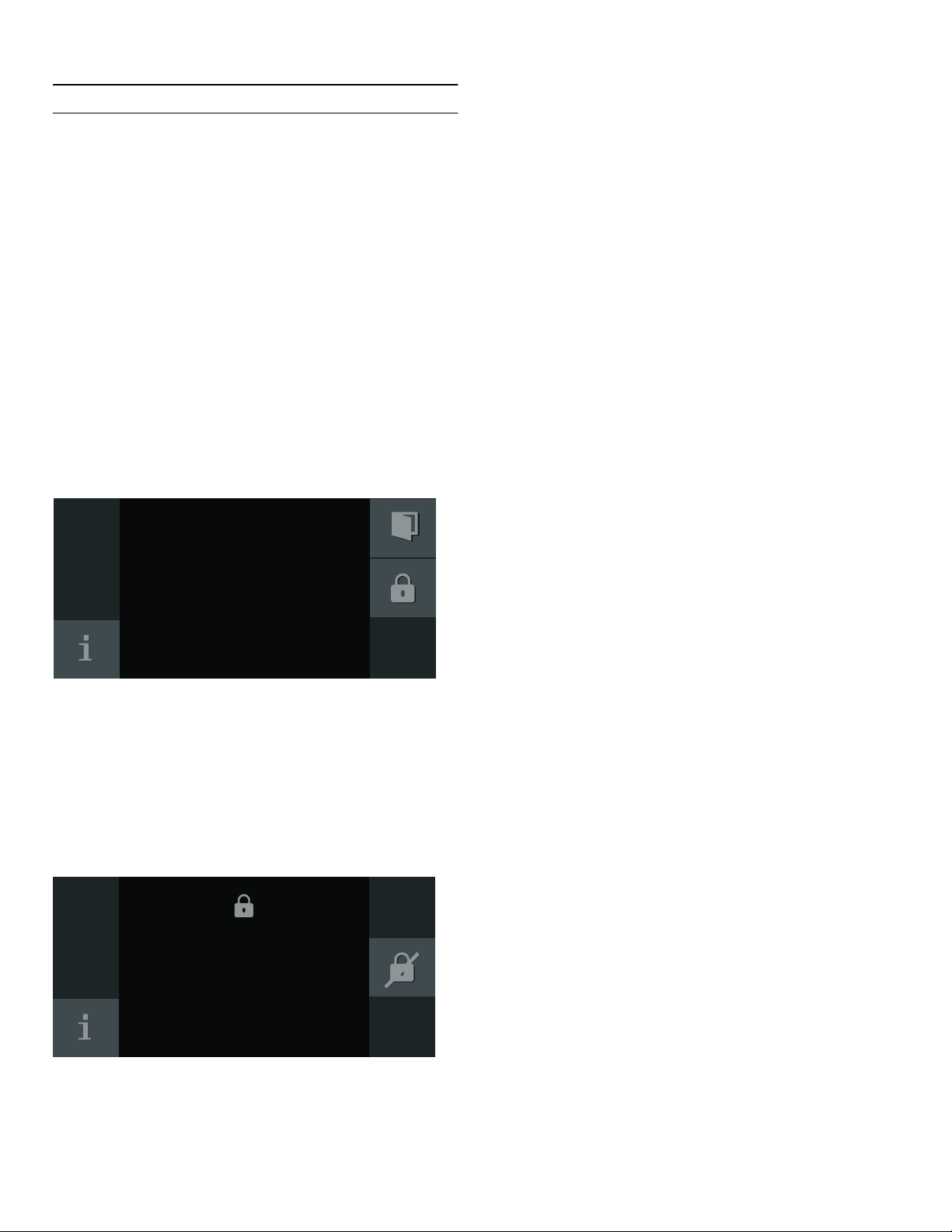
Rotary
selector
Select letters
A new word always begins with a capi-
tal letter.
4 Press briefly: Moves the cursor to the
right
Press and hold: Shifts to umlauts and
special characters
Press twice: Adds a line break
5 Press briefly: Moves the cursor to the
right
Press and hold: Shifts to normal char-
acters
Press twice: Adds a line break
l Delete letters
&DSSXFFLQR
7RPV
&DSSXFFLQB
22
en-us Child lock
Child lock
Child lock
The appliance has a child lock to prevent children
operating it accidentally.
Notes
▯ You must set the child lock to "Available" in the
general settings. ~ "General settings"
on page 23
▯ If there is a power failure while the child lock is
activated, the child lock may be deactivated when
power is restored.
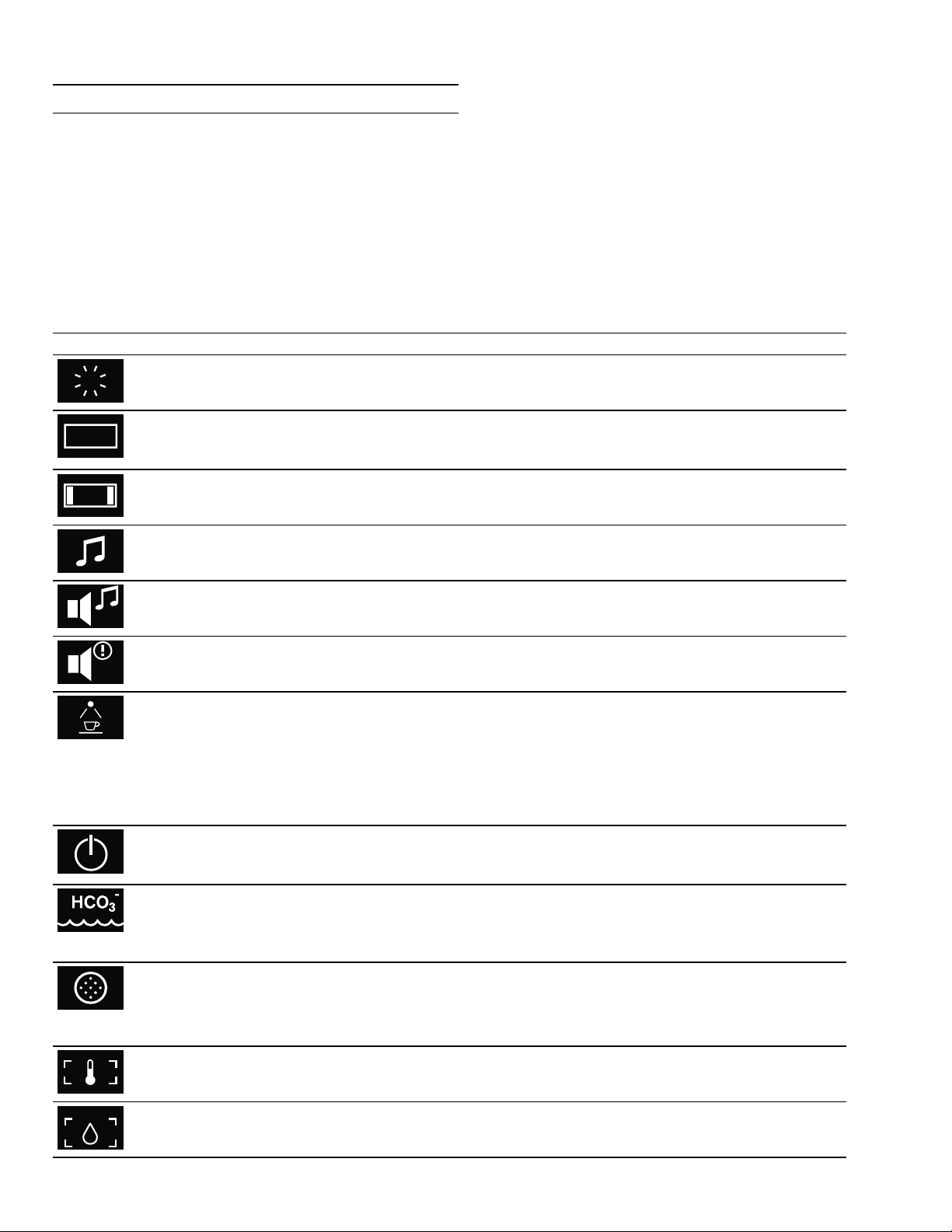
Activating the child lock
Prerequisite:
The function selector is set to 0.
Touch the 0 symbol for at least 6seconds.
The child lock is activated. The 0 symbol is shown at the
top of the display.
Deactivating the child lock
Prerequisite:
The function selector is set to 0.
Touch the 1 symbol for at least 6 seconds.
This deactivates the child lock. You can set the appliance
as normal.
23
General settings en-us
General settings
General settings
In the general settings, you can adapt your appliance
individually.
1. Set the program selector to S.
2. Select "General setting" with the rotary selector.
3. Touch the ™ symbol.
4. Set the required general setting with the rotary
selector.
5. Touch the % symbol.
6. Set the general setting with the rotary selector.
7. Save with ™ or cancel with ' and quit the current
general setting.
8. Turn the program selector to 0 to quit the general
setting menu.
Changes are saved.
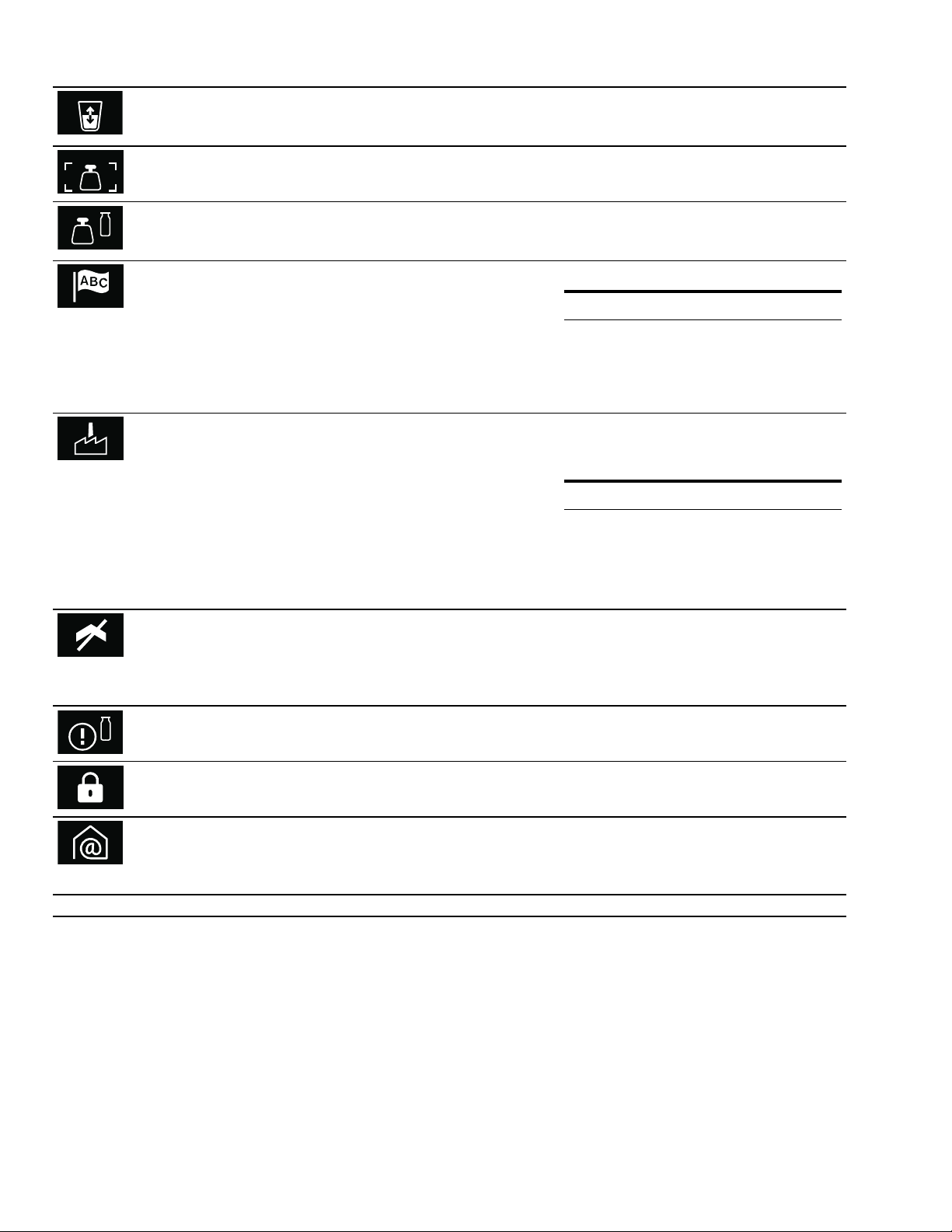
Basic setting Possible settings Explanation
Brightness Stages 1, 2, 3, 4, 5*, 6, 7, 8 Setting display brightness
Display screen Minimized*/Standard When ‘Minimized’ is set, only the most
important details are displayed after a
short time.
Touchpad color Gray*/White Select the color of symbols on the
touchpads
Touchpad tone Tone 1*/Tone 2/Off Select the signal tone when touching a
touchpad
Touchpad volume Levels 1, 2, 3, 4, 5*, 6, 7, 8 Sets the volume of the touchpad tone
Signal volume Levels 1, 2, 3, 4, 5*, 6, 7, 8 Sets the volume of the signal tone
Light settings Lighting options 1*-7 Û Light off
Ú Light on
~ Light only on when a beverage is
being dispensed
Other setting options will appear if you
touch the % symbol.
Standby after 5minutes - 3hours Setting for the time, after which the
appliance automatically rinses and
switches to "Standby" mode.
Water hardness 1-4*, water-softening system Briefly immerse the enclosed test strip
in fresh tap water, leave it to drip off
and read off the result after one min-
ute. Set the measured water hardness.
Water filter Available/Not available* Available: Operate the appliance with a
water filter.
Not available: Operate the appliance
without a water filter.
Temperature format °C / °F* Set the temperature unit
Capacity unit ml/fl.oz.* Set the capacity unit
24
en-us General settings
--------
Capacity +/-5ml (0,2fl.oz.) to 60 ml (2fl.oz.) Adjust the capacity to individual cup
sizes. First select the beverage and
then set the capacity.
Unit of weight g / oz* Set the unit of weight
Milk container
weight
Standard*/Individual Setting of weight detection.
~ "Setting the milk container
weight" on page 25
Language German* / French / Italian / Span-
ish / Portuguese / Dutch / Danish /
Swedish / Norwegian / Finnish /
Greek / Turkish / Russian / Polish /
Czech / Slovenian / Slovakian /
Arabic / Hebrew / Japanese /
Korean / Thai / Chinese / English
US / English
Select language for the text display
Note:
When the language is changed, the sys-
tem is restarted; this procedure takes a
few seconds.
Then the General settings menu is
closed.
Factory settings Reset to factory settings Confirm the question "Delete all set-
tings and reset to factory settings?"
with ™ or cancel with '.
Note:
Individual beverages will also be delet-
ed if the appliance is reset to factory
settings.
After resetting the factory settings, you
will see the "Initial settings" menu.
Demo mode On/Off* For presentation purposes only. The
setting "Off" must be activated for nor-
mal operation. The setting is only pos-
sible in the first 3 minutes after
switching on the appliance.
Milk container
reminder
30* minutes - 6 hours Setting for the time, after which the
reminder appears.
Child lock Not available*/Available Available: The child lock can be acti-
vated. ~ "Child lock" on page 22
Home Connect Settings for connection to the home
network and mobile devices.
Different setting options will be dis-
played depending on the connection
status. ~ "Home Connect settings"
on page 28
* Factory settings
25
General settings en-us
Setting the milk container weight
Using the weight, the appliance detects the quantity of
milk in the milk container to ensure that there is always
sufficient milk to dispense a Latte Macchiato, for
example. If there is too little milk in the container, a
corresponding message will be displayed.
The weight of the supplied empty milk container and that
of an empty milk carton (approx. 30g) are already saved
under "Standard". The appliance automatically detects
whether the milk container or a milk carton is being used.
However, you can also save the weight of your own milk
container or a milk carton (if the weight of this deviates
from the standard value) under the "Individual" setting.
Note: The container with milk must not exceed the
maximum weight of 4.4 lbs (2 kg).
1. Rotate function selector to S.
2. Select "General settings" using the rotary selector.
3. Touch the ™ symbol.
4. Select "Milk container weight" with the rotary selector.
5. Touch the % symbol.
6. Select "Standard" (preset milk container weight) or
"Individual" (own weight entry for the milk container)
using the rotary selector.
7. Press ™ to confirm.
8. For the "Standard" setting, the appliance automatically
reverts to the selection layer of the "General settings"
or
For the "Individual" setting, an individual milk
container can now also be weighed and the weight
saved.
9. Check whether the area for the milk container behind
the door is free, confirm with ™.
10. Place an empty container, e.g. a milk jug, into the
area, confirm with ™.
11. Close the door.
The weight of the container is determined and then
displayed.
12. Press ™ to confirm.
The changes are saved.
13. Touch the ' symbol to leave the "General settings"
menu.
Messages
Depending on the setting in "General settings" or when
dispensing a beverage with milk, various reminders or
messages may be shown on the display:
"Reminder: Is the
milk still fresh?"
Appears after a set time.
~ "General settings"
on page 23
Please check whether the milk in the
milk container is fresh.
"Reminder:
Place milk in the
refrigerator"
Appears when the appliance is
switched off.
"Milk container
connected?"
Message appears after selection of
a beverage with milk. Please check
and confirm.
"Not enough milk
for the selected
beverage"
Message appears when there is not
enough milk in the milk container.

26
en-us Home Connect
o
Home Connect
Home Connect
This appliance can be networked and also controlled
remotely using a mobile device. The Home Connect app
offers extra functions that complement the networked
appliance perfectly. If the appliance is not connected to
your home network, it can be operated as usual via the
display.
The availability of the Home Connect function depends
on the availability of Home Connect services in your
country. Home Connect services are not available in
every country. You can find more information on this at
www.home-connect.com.
Notes
▯ Ensure that you follow the safety instructions in this
instruction manual and that you comply with these
even when you are away from home and are operating
the appliance via the Home Connect app. You must
also follow the instructions in the Home Connect app.
▯ Operating the appliance directly from the appliance
always takes priority. It is not possible to operate the
appliance using the Home Connect app during this
time.
▯ Refer to the Home Connect documents supplied for
more information.
Setting Up
To configure settings via Home Connect, you will need to
have installed the Home Connect app on a mobile device.
Your appliance will also need to be connected to your
home network and to the Home Connect app. You can
choose between the following connection types:
▯ Connection to LAN cable or via WLAN: first set up the
app. Then connect the appliance to the home network.
Notes
▯ The appliance detects when a LAN cable is connected
to the appliance. The appliance should be connected
to Home Connect via WLAN. Switch to WLAN in the
basic settings.
▯ The app will guide you through the entire registration
process. In case of doubt, follow the instructions in
the app.
Installing the app
Install the Home Connect app on your mobile device (e.g.
tablet PC or smartphone).
1. On your mobile device, go to the App Store (Apple
devices) or the Google Play Store (Android devices).
2. Enter the search term "Home Connect".
3. Select the Home Connect app and install it on your
mobile device.
4. Launch the app and set up Home Connect access.
The app will guide you through the registration
process.
Connecting the appliance to your home network (LAN)
The appliance must be connected to your home network
using a LAN cable.
The network connection will be established automatically
when the appliance is connected to the mains electricity
supply for the first time and put into operation.
Follow the instructions in the app.
Connecting the appliance to your home network (WLAN
with WPS)
Requirements:
▯ Your router must have a WPS button. You will find
information about this in the manual for your router.
▯ You need to be able to access your router.
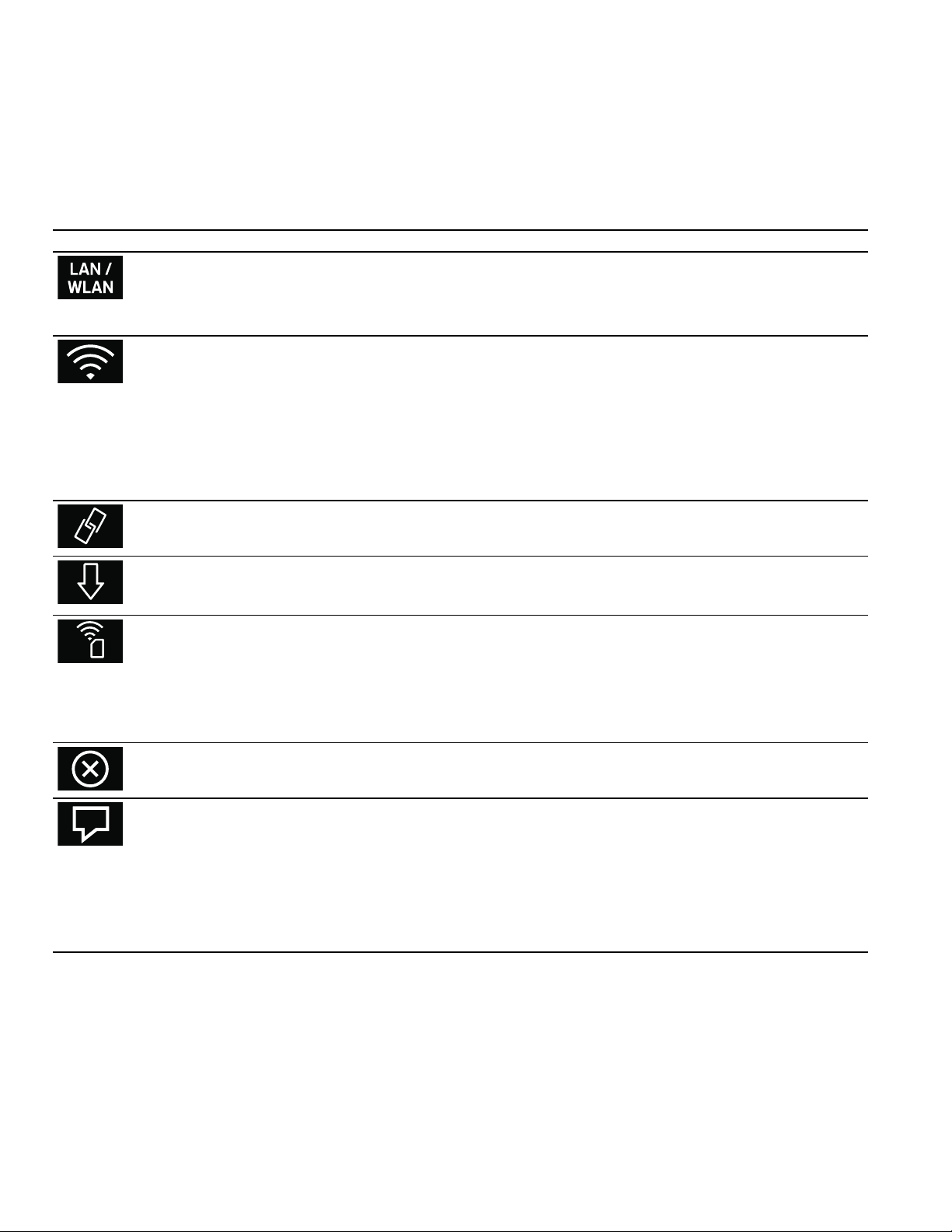
1. In the basic settings, select ¯ "Home Connect".
2. Touch the % symbol.
3. Turn the rotary selector to "WLAN".
4. Confirm by touching the ™ symbol.
A message about the WPS function will appear.
5. Touch the ™ symbol to continue.
6. Turn the rotary selector to "Automatic (WPS)".
7. Touch the ™ symbol to start the connection process.
8. Press the WPS button on the home network router
within the next 2 minutes.
If the display shows "Network connection successful",
the connection process is complete.
9. Touch the ™ symbol to continue.
"Connect to app" appears.
10. Touch the % symbol.
"Add mobile device" appears.
11. Touch the ™ symbol to confirm.
Follow the instructions in the app.
If the display shows "Network connection successful",
the connection process is complete. Follow the
instructions in the app.

27
Home Connect en-us
Connecting the appliance to your home network (WLAN
without WPS)
1. In the basic settings, select ¯ "Home Connect".
2. Touch the % symbol.
3. Turn the rotary selector to "Wi-Fi".
4. Confirm by touching the ™ symbol.
A message about the WPS function will appear.
5. Touch the ™ symbol to continue.
6. Turn the rotary selector to "Manual".
7. Touch the ™ symbol to start the connection process.
The appliance will set up its own "Home Connect"
WLAN network to which the tablet or smartphone
must be connected.
8. Follow the instructions in the app.
9. Touch the ™ symbol to continue.
"Connect to app" appears.
10. Touch the % symbol.
"Add mobile device" appears.
11. Touch the ™ symbol to confirm.
Follow the instructions in the app.
If the display shows "Network connection successful",
the connection process is complete. Follow the
instructions in the app.
28
en-us Home Connect
Home Connect settings
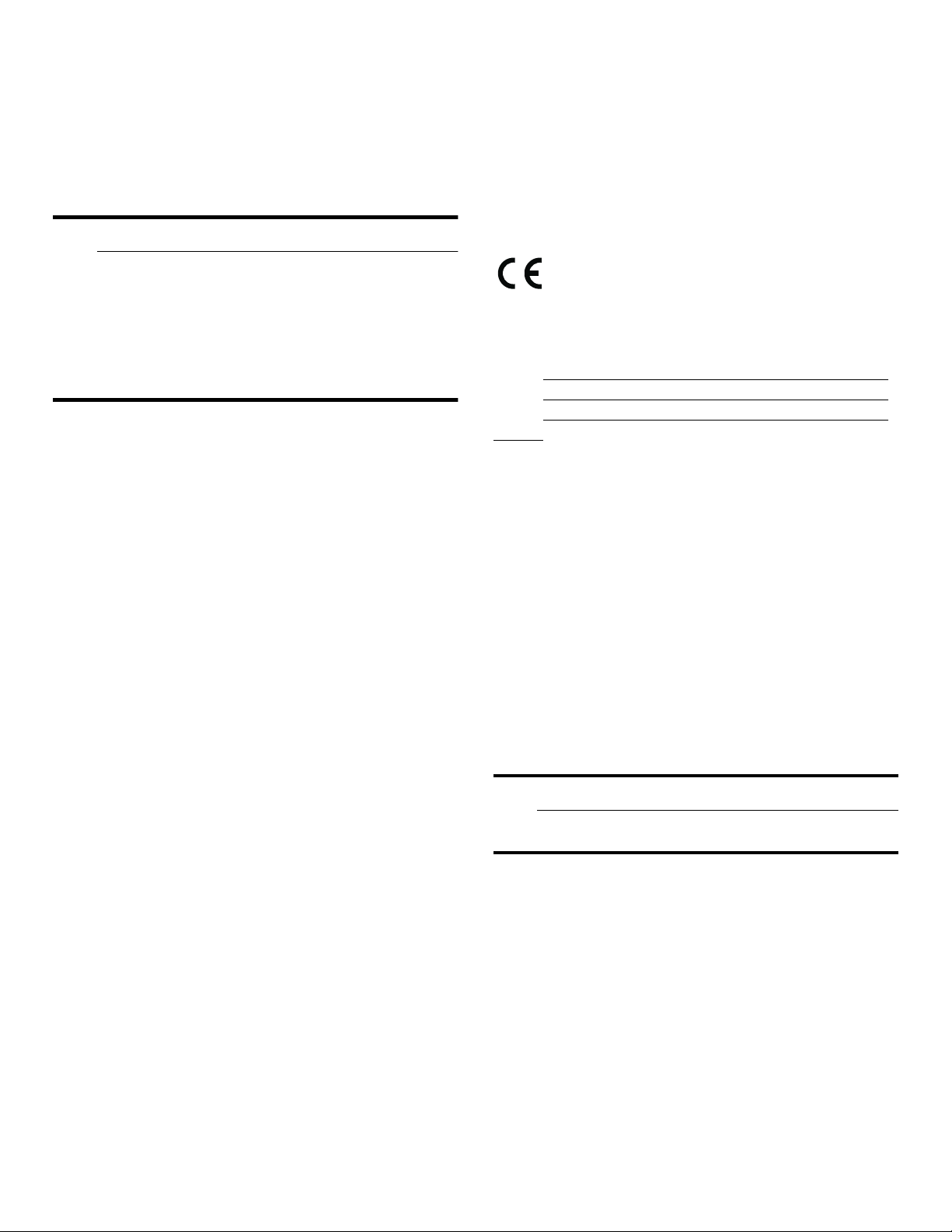
Home Connect can be adapted to your specific needs at
any time.
Note: You will find the Home Connect settings in the
basic settings for your appliance. Which settings the
display shows will depend on whether Home Connect
has been set up and whether the appliance is connected
to your home network.
--------
Basic setting Possible settings Explanation
Connection type LAN/WLAN You can switch between connection types (LAN cable
and WLAN).
Follow the instructions for setting up the relevant con-
nection type.~ "Setting Up" on page 26
Connecting Connect/disconnect Switch the network connection on or off as required
(e.g. for holiday).
Network information is retained after the appliance is
switched off.After switching on the appliance, you will
need to wait for a few seconds while it reconnects to
the network.
In networked standby mode, the appliance requires
max. 2 W.
Connect to app Start the connection process between the app and the
appliance.
Software update As soon as a new software version is available, a mes-
sage appears in the display. You can install the new
software in the Home Connect menu Í.
Remote start Activate/deactivate Access the appliance's functions via the Home Con-
nect app.
When activated, the dispensing of drinks can be
started via the app.
When deactivated, only the appliance's operating sta-
tuses will be displayed in the app.
Delete network set-
tings
All network settings can be deleted from the appliance
at any time.
Appliance informa-
tion
The display shows:
▯ MAC address COM module
▯ Serial number of the appliance
▯ Software version
You can view more information – such as the SSID
(network name), although this depends on the connec-
tion type – by touching the arrow button.
29
Home Connect en-us
Remote Start
Remote start must be activated in order to start and
operate your appliance via the Home Connect app. If
remote start is deactivated, only the operating modes of
the appliance can be displayed in the Home Connect app
and the appliance settings configured.
9 WARNING
Risk of scalding (Home Connect)!
If an unattended remote start takes place, third
parties might be scalded if they reach under the
coffee dispenser during drinks dispensing. You
should therefore make sure that with an
unattended remote start there is no risk to other
people, in particular not to children, or to property.
Remote Diagnostics
Customer Service can use Remote Diagnostics to access
your appliance if you contact them, have your appliance
connected to the Home Connect server and if Remote
Diagnostics is available in the country in which you are
using the appliance
Note: For further information and details about the
availability of Remote Diagnostics in your country, please
visit the Service/Support section of your local website:
www.home-connect.com
Information on Data Protection
When your appliance is connected to a WLAN network
that is connected to the Internet for the first time, your
appliance transmits the following categories of data to
the Home Connect server (initial registration):
▯ Unique appliance identification (consisting of
appliance codes as well as the MAC address of the
installed Wi-Fi communication module).
▯ Security certificate of the Wi-Fi communication
module (to ensure a secure data connection).
▯ The current software and hardware version of your
appliance.
▯ Status of any previous resetting to factory settings.
This initial registration prepares the Home Connect
functions for use and is only required when you want to
use these Home Connect functions for the first time.
Note: Ensure that the Home Connect functions can be
used only in conjunction with the Home Connect app.
Information on data protection can be accessed in the
Home Connect app.
Declaration of Conformity
Gaggenau Hausgeräte GmbH hereby declares that the
appliance with Home Connect functionality meets the
basic requirements and other relevant provisions of
Directive 2014/53/EU.
A detailed RED Declaration of Conformity can be found
online at www.gaggenau.com among the additional
documents on the product page for your appliance.
2.4GHz band: max. 100mW
5GHz band: max. 100mW
Wi-Fi
®
Module
FCC/IC Statements
Model: COM2
FCC ID: 2AHES-COM2
IC ID: 21152-COM2
The Home Connect module is a communication device
designed to provide communication between appliances
and smart devices.
This module is integrated at the factory, under direct
control of BSH Home Appliances Corporation, and is not
user servicable or upgradable.
FCC COMPLIANCE STATEMENT
9 CAUTION
Changes or modifications not expressly approved
could void your authority to use this equipment.
This device complies with Part 15of the FCC Rules.
Operation to the following two conditions:
1. This device may not cause harmful interference, and
2. This device must accept any interference received,
including interference that may cause undesired
operation.
INDUSTRY CANADA STATEMENT
This device complies with Industry Canada license-
exempt RSS standard(s).
Operation is subject to the following two conditions:
1. This device may not cause interference, and
2. This device must accept any interference, including
interference that may cause undesired operation of
the device.
y
BE BG CZ DK DE EE IE EL
ES FR HR IT CY LV LT LU
HU MT NL AT PL PT RO SI
SK FI SE UK NO CH TR
5 GHz WLAN (Wi-Fi): For indoor use only

30
en-us Daily care and cleaning
Daily care and cleaning
Daily care and cleaning
Daily care
Every time the appliance is switched on or switched to 0,
it rinses automatically. Exception: The appliance was only
switched off a few minutes beforehand or no coffee
beverage was dispensed before it was switched to 0.
9 WARNING
Risk of electric shock!
Before cleaning the appliance, switch it off using
the main switch. Never immerse the appliance in
water. Do not use a steam cleaner.
9 CAUTION
Surface damage!
▯ Do not use any cleaning agents containing
alcohol or spirits.
▯ Do not use abrasive cloths or cleaning agents.
▯ Always remove any residues of limescale,
coffee, milk and descaling solution immediately.
This residue may cause corrosion to form.
▯ New sponge cloths may contain salts. Salts can
cause rust film on stainless steel and must
therefore always be washed out thoroughly
before use.
Notes
▯ The drip tray and coffee residue container should be
emptied and cleaned every day in order to prevent
deposits.
▯ Clean the drip tray with the filter regularly.
▯ Immediately remove residues from the shelf to avoid
stains.
▯ If the appliance has not been used for a prolonged
period of time (e.g. while you are on holiday), clean
the entire appliance thoroughly, including the milk
system, ground coffee drawer and brewing unit before
using.
1. Wipe the housing with a soft, damp cloth.
2. Remove the shelf, open the door and pull out the drip
tray to the front.
3. Press down the lever in the drip tray and pull out the
drip tray forwards.
4. Remove the filter from the drip tray.
5. Empty, clean and dry individual parts.
6. Rinse out the water tank with clear, fresh water.
7. Remove the ground coffee drawer, clean it under
running water and dry it thoroughly.
8. Wipe out the inside of the appliance (drip tray holder
and ground coffee drawer) and the collecting tray and
dry them.
9. Insert the filter in the drip tray and snap into place.
10. Insert the dry parts, such as the ground coffee drawer.
9 CAUTION
Not all of the appliance's components can be
cleaned in the dishwasher.
Cleaning the milk system
The milk system is automatically cleaned with a short jet
of steam directly after preparing a milky beverage.
Important: Clean the milk system manually on a weekly
basis, or more frequently if required. ~ "Cleaning the
milk system manually" on page 31
9 WARNING
Risk of burns!
The beverage dispenser gets very hot. After use,
always let it cool down before you touch it.
Not dishwasher-safe:
Shelf
Accessory drawer
Water tank with lid
Beverage dispenser cover
Metallic connecting element
Bean container with lid
Ground coffee drawer
Protective cover for brewing unit
Brewing unit
Milk container
Dishwasher- safe:
Max.
140 °F
(Max.
60 °C)
Collecting tray
Drip tray
Coffee residue container
Milk hoses
Milk tube
Individual parts of the beverage dispenser
Measuring spoon
Individual parts of the milk container lid
Shelf for the milk container
31
Daily care and cleaning en-us
Cleaning the milk system automatically
1. Rotate function selector to S.
2. Use the rotary selector to select "Clean milk frothing
system".
3. Touch the ™ symbol.
The cleaning program starts. The notes on the display
guide you through the program.
4. Open the door.
5. Remove the milk tube from the milk container, wipe it
down and insert the end of the milk tube into the hole
on the coffee residue container.
6. Close the door.
7. Touch the I symbol.
The program runs for approx. 1 minute.
8. Touch the ™ symbol.
The program has finished.
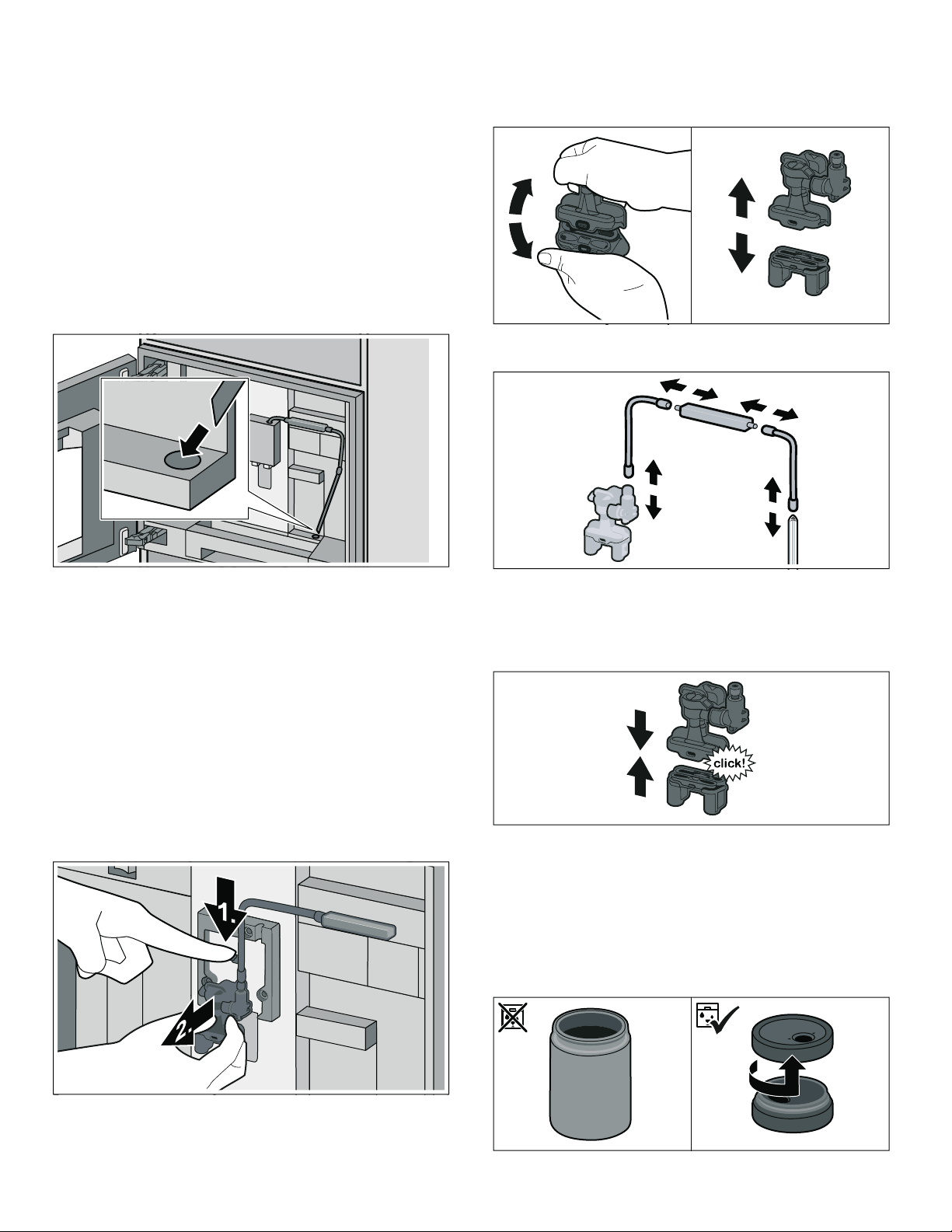
Cleaning the milk system manually
Take the milk system apart to clean it:
1. Push the beverage dispenser down completely and
pull the cover forward to remove.
2. Press the snap lever to the left of the beverage
dispenser downwards and pull the beverage
dispenser straight forwards.
3. Detach the milk hose, dismantle the top and bottom
sections of the beverage dispenser.
4. Separate the milk hoses, connecting element and milk
tube.
5. Clean the individual parts with a detergent solution
and a soft cloth.
6. Rinse all parts with clean water and dry.
7. Put the individual parts back together again (see also
quick reference guide).
8. Firmly attach the beverage dispenser from the front to
the three connections.
9. Replace the cover.
Cleaning the milk container
For reasons of hygiene, the milk container should be
cleaned regularly. Only the individual parts of the lid are
suitable for dishwasher use. Clean the stainless steel
milk container by hand using a gentle cleaning agent.
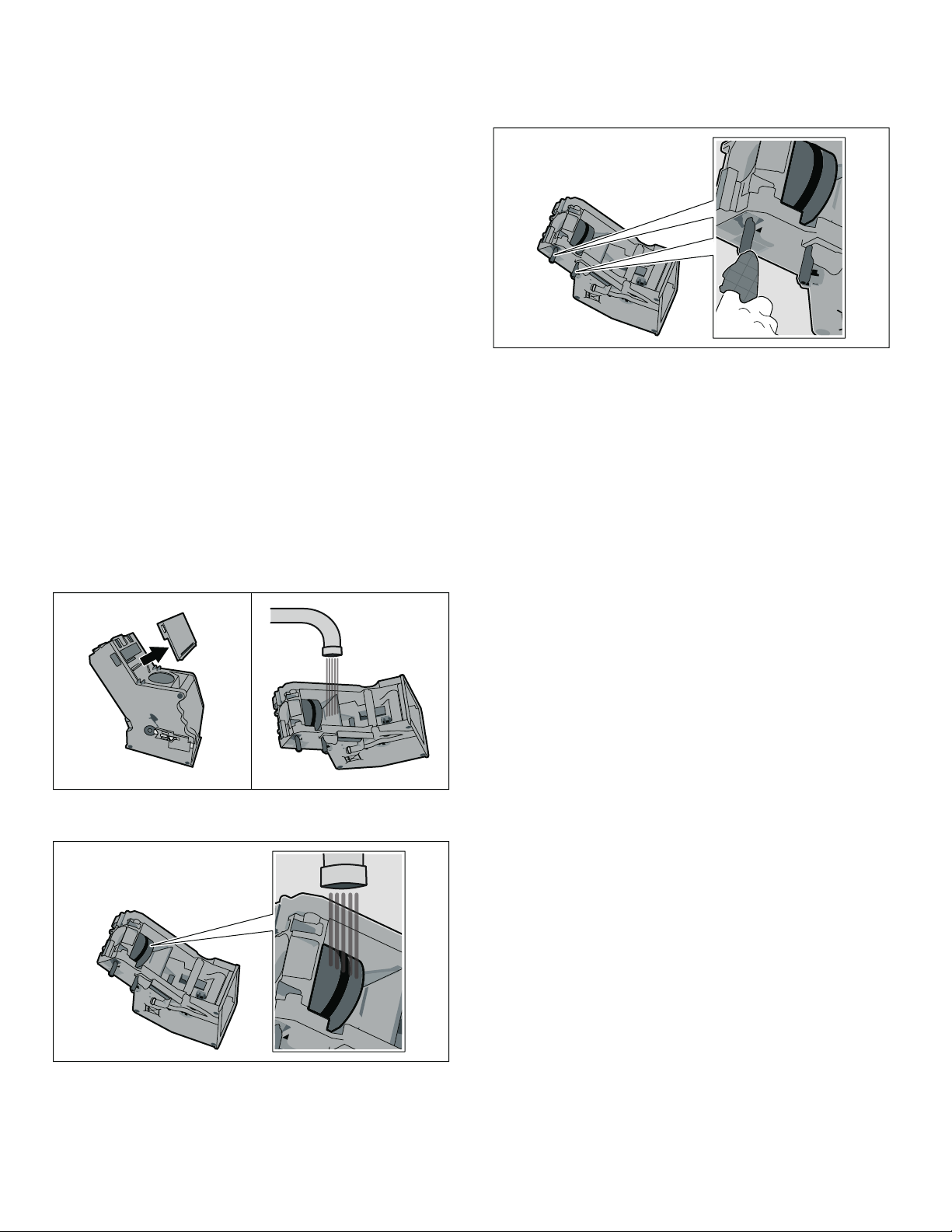
32
en-us Daily care and cleaning
Cleaning the brewing unit
(See also the quick reference guide)
Notes
▯ Regularly clean the brewing unit by hand in addition to
the automatic cleaning program.
▯ Do not use dishwashing liquid or other cleaning
agents to clean the brewing unit and do not put the
brewing unit in the dishwasher.
1. Rotate function selector to 0.
2. Open the door.
3. Switch off the appliance using the main switch.
4. Remove the protective cover of the brewing unit.
5. Remove the coffee residue container.
6. Slide the red latch on the brewing unit all the way to
the left to ô.
7. Press the eject lever right down.
The brewing unit will be released.
8. Take hold of the brewing unit by the recessed grips
and carefully remove it.
9. Clean the brewing unit thoroughly under running
water.
10. Remove the cover and clean the filter under running
water.
11. Thoroughly clean the connecting taps on the brewing
unit.
12. Clean the interior of the appliance thoroughly, taking
care to remove any coffee residues.
13. Allow the brewing unit and the interior of the
appliance to dry.
14. Refit the cover.
15. Push the brewing unit all the way into the appliance
and press on the middle until it audibly clicks into
place.
Important: The red latch must be right over at the left
in position ô before inserting.
16. Press the eject lever all the way up and push the red
latch right over to the right to ó.
17. Insert the coffee residue container.
18. Replace the protective cover.
19. Close the door.

33
Service programs en-us
Service programs
Service programs
(See also the quick reference guide)
Every so often – the exact frequency depends on usage
and water hardness – one of the following messages will
appear on the display in place of the coffee selection:
▯ Please change water filter
▯ Please clean
▯ Please descale
▯ Please clean and descale
Then the ) warning symbol lights up.
The water filter should be changed immediately at this
point and the appliance cleaned or descaled using the
appropriate program. Otherwise the appliance may be
damaged.
You can also start the service programs at any time
without having to wait for a reminder to appear on the
display. Set the function selector to S, and select and run
the desired program.
Notes
▯ Caution! Do not drink or come into contact with
cleaning or descaling materials. Keep cleaning
materials and descaling tablets out of the reach of
children. They may be toxic.
▯ Important: If the appliance is not descaled when it is
supposed to be, the message "Appliance locked
Descaling required urgently" will appear. Immediately
perform the descaling process in accordance with the
instructions. If the appliance is locked, it can only be
operated again once the descaling process has been
carried out.
▯ Warning! For each of the service programs, use
descaling and cleaning agents as described in the
instructions and observe the (relevant) safety
information.
▯ Do not drink the liquids.
▯ Never use citric acid, vinegar or any vinegar- based
agents to descale the appliance.
▯ For cleaning and descaling, only use the tablets
intended for this purpose. The tablets were specially
developed for this appliance and new stocks can be
ordered through our customer service.
~ "Accessories" on page 12
▯ Never insert descaling tablets or other agents into the
grounds compartment.
▯ Never interrupt the service program.
▯ Prior to starting a service program, remove, clean and
reinsert the brewing unit. Rinse the milk system.
▯ At the end of a service program, wipe down the
appliance using a soft, damp cloth to immediately
remove any residue of the descaling solution. This
residue may cause corrosion to form.
▯ New sponge cloths may contain salts. Salts can cause
rust film on stainless steel and must therefore be
washed out thoroughly before use.
▯ If one of the service programs is interrupted, e.g. by a
power outage, proceed as follows:
1. Touch the ™ symbol.
2. Remove the milk tube from the milk container and
wipe it down. Insert the end of the milk tube into the
hole in the coffee residue container.
3. Touch the I symbol.
The programme starts and rinses the
appliance.Duration: approx. 2 minutes.
4. Touch the ™ symbol.
▯ Caution! Do not drink the descale solution.
Using a water filter increases the intervals until a
descaling program needs to be performed.
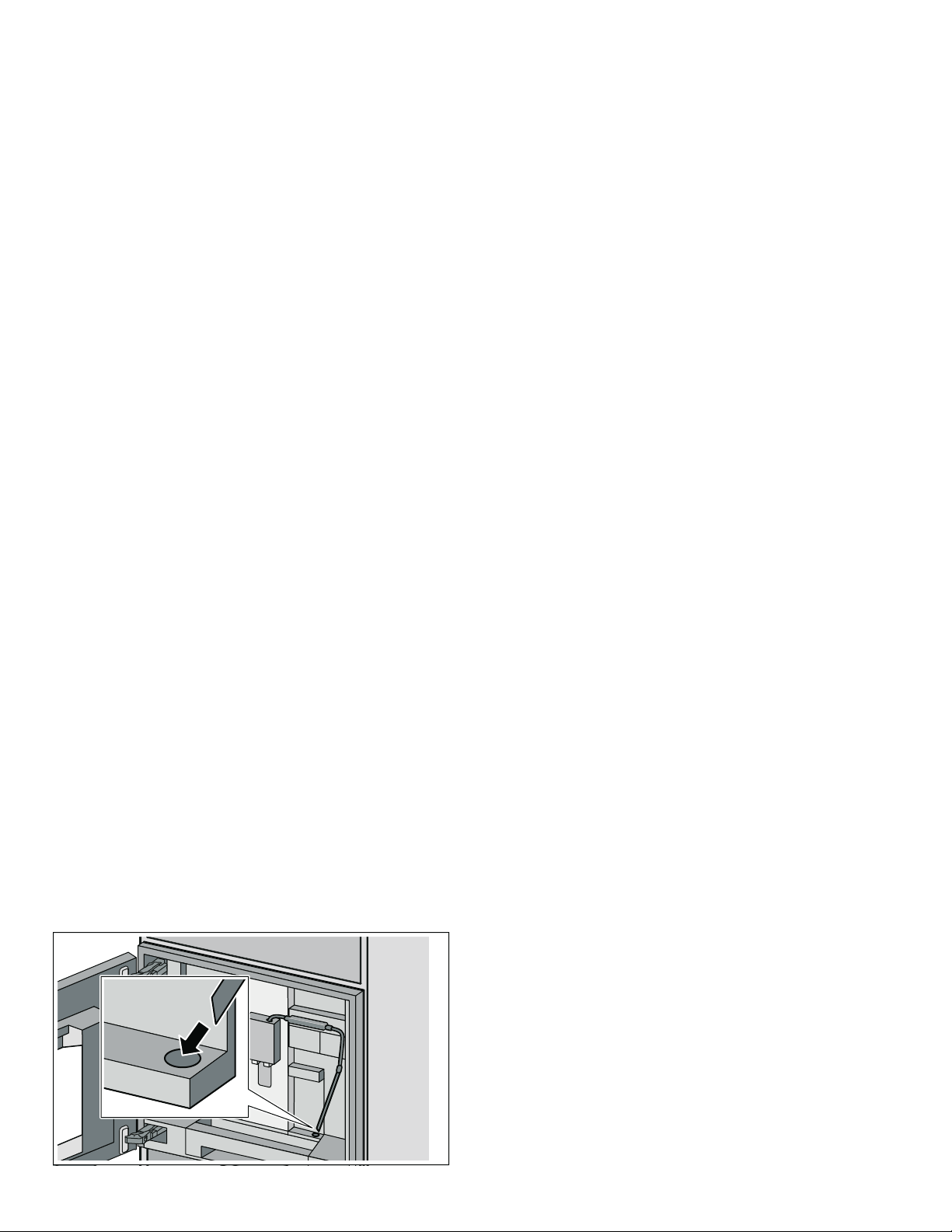
34
en-us Service programs
Cleaning
Duration: approx. 5 minutes
Clean the brewing unit before the start of the service
program. ~ "Cleaning the brewing unit" on page 32
1. Rotate function selector to S.
2. Select "Cleaning program" using the rotary selector.
3. Touch the ™ symbol.
The cleaning program starts. The notes on the display
guide you through the program.
4. Empty the drip tray with the filter and the coffee
residue container. Clean and reinsert.
5. Place a cleaning tablet into the ground coffee drawer
and close the drawer again.
6. Close the door.
7. Touch the I symbol.
The program will run for approx. 5 minutes.
8. Touch the ™ symbol.
The cleaning program is complete.
The appliance is ready for use.
Descaling
Duration: approx. 21 minutes
1. Rotate function selector to S.
2. Select "Descaling program" using the rotary selector.
3. Touch the ™ symbol.
The descaling program starts. The notes on the
display guide you through the program.
4. Empty the drip tray with the filter and the coffee
residue container. Clean and reinsert.
5. Remove the water filter (if there is one) and touch the
™ symbol.
6. Pour lukewarm water into the empty water tank up to
the "calc" mark (17 oz/0.5l) and then dissolve a
descaling tablet in it.
7. Remove the milk tube from the milk container, wipe it
down and insert the end of the milk tube into the hole
on the coffee residue container.
8. Close the door.
9. Touch the I symbol.
The program will run for approx. 19 minutes.
Note: If there is too little descaling solution in the
water tank, the message "Fill water tank with water
and descaler" appears. Fill the empty water tank with
lukewarm water up to the "calc" mark (17 oz/0.5l) and
then dissolve a descaling tablet in it. Press ™ to
confirm. The program will continue.
10. If a water filter is used, reinsert it now.
11. Touch the I symbol.
The program will run for approx. 2 minutes and rinse
the appliance.
The program has finished.
12. Touch the ™ symbol.
The appliance is ready to use.
Cleaning and descaling
Duration: approx. 26 minutes
The cleaning and descaling program combines the
individual cleaning and descaling functions. If the two
programs are due at about the same time, your fully
automatic espresso machine will automatically suggest
running this combined service program.
Clean the brewing unit before the start of the service
program. ~ "Cleaning the brewing unit" on page 32
1. Rotate function selector to S.
2. Select "Cleaning and descaling program" using the
rotary selector.
3. Touch the ™ symbol.
The cleaning and descaling program starts. The notes
on the display guide you through the program.
4. Empty the drip tray with the filter and the coffee
residue container. Clean and reinsert.
5. Place a cleaning tablet into the ground coffee drawer
and close the drawer again.
6. Remove the water filter (if there is one) and touch the
™ symbol.
7. Pour lukewarm water into the empty water tank up to
the "calc" mark (17 oz/0.5l) and then dissolve a
descaling tablet in it.
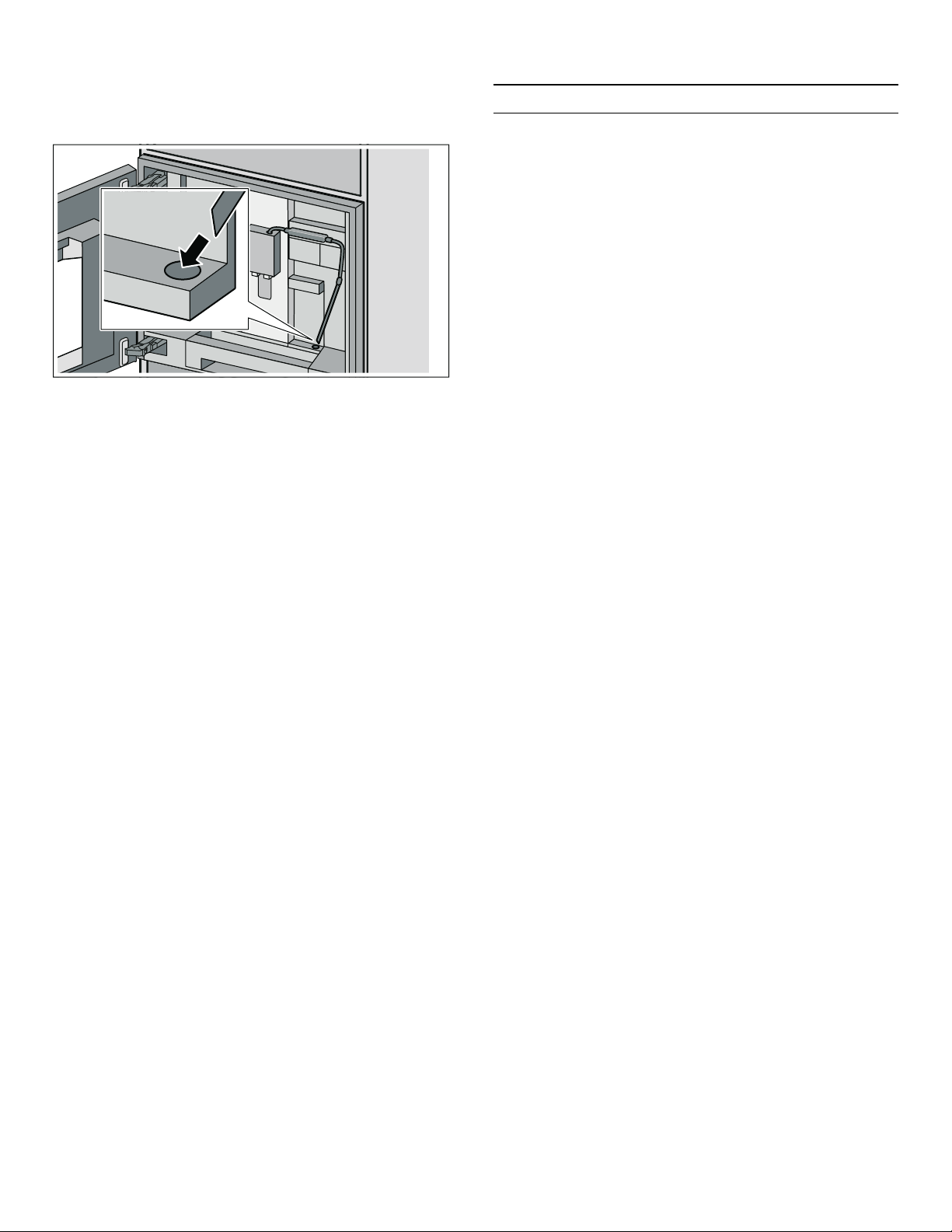
35
Emptying program en-us
8. Remove the milk tube from the milk container, wipe it
down and insert the end of the milk tube into the hole
on the coffee residue container.
9. Close the door.
10. Touch the I symbol.
The program will run for approx. 19 minutes.
Note: If there is too little descaling solution in the
water tank, the message "Fill water tank with water
and descaler" appears. Fill the empty water tank with
lukewarm water up to the "calc" mark (17 oz/0.5l) and
then dissolve a descaling tablet in it. Press ™ to
confirm. The program will continue.
11. If a water filter is used, reinsert it now.
12. Touch the I symbol.
The program will run for approx. 7 minutes and rinse
the appliance.
The program has finished.
13. Touch the ™ symbol.
The appliance is ready to use.
Fill the water tank with fresh water
If the appliance is not used for a few days, the water in
the water tank should be replaced. The appliance must
be ready for use.
1. Rotate function selector to S.
2. Select "Fresh water replenishment" using the rotary
selector.
3. Touch the ™ symbol.
4. Touch the I symbol.
The tank is emptied and filled with fresh water. Fresh
water replenishment has finished.
5. Touch the ™ symbol.
The appliance is ready for use.
Emptying program
Emptying program
The emptying program is a service program which is
used to remove coffee bean residue and to prevent
damage caused by frost during transportation and
storage. The appliance must be ready for use.
1. Rotate function selector to S.
2. Select "Emptying program" with the rotary selector.
3. Touch the ™ symbol.
4. Empty the bean container and reinsert it.
5. If present, remove the milk container.
6. Close the door.
The emptying program runs for approx. 2 minute.
7. Remove the brewing unit and clean it thoroughly.
8. Clean the drip tray, coffee residue container, milk
system and milk hose set thoroughly, then reinsert
them.
9. Close the door.
10. Touch the ™ symbol.
The emptying program is finished.
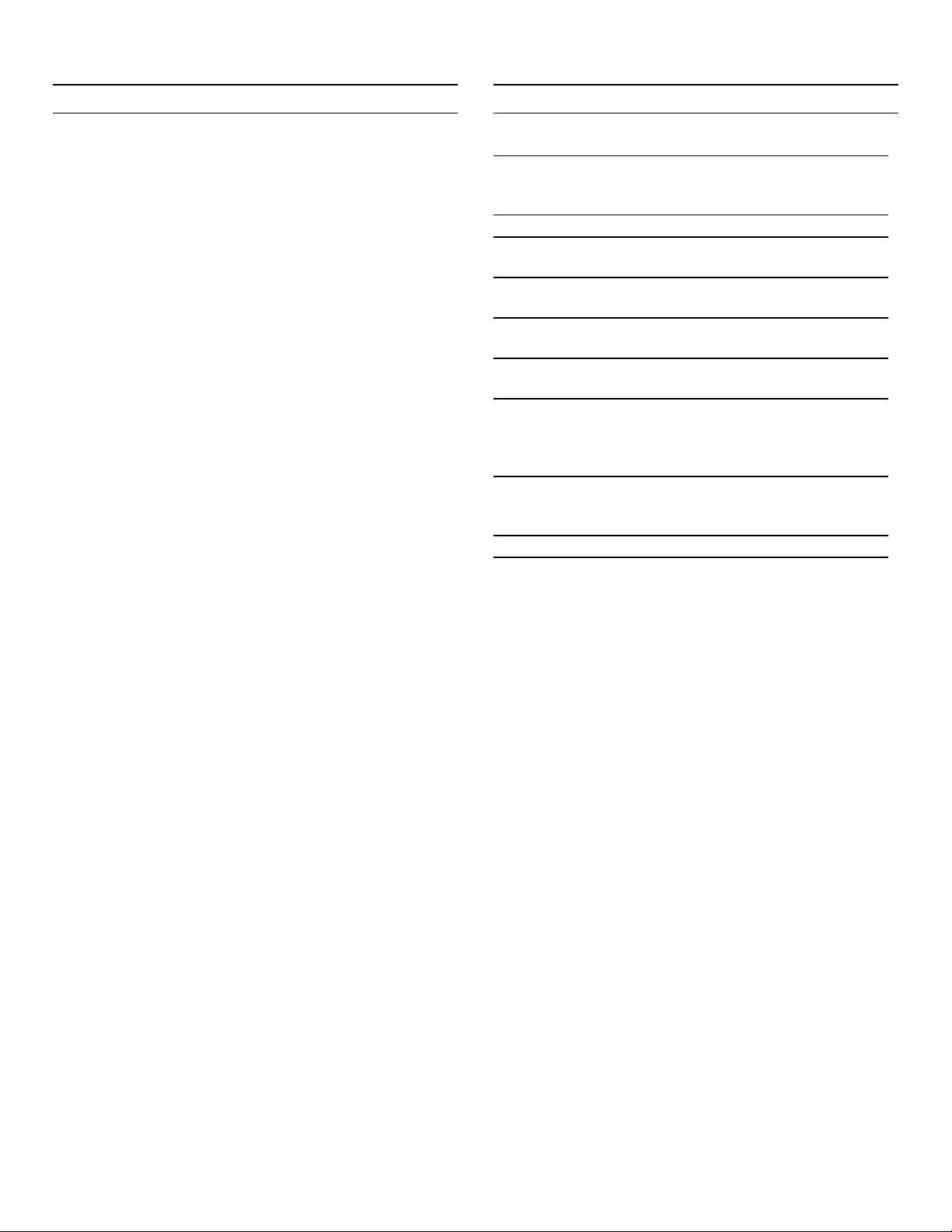
36
en-us Emptying program
AQUA-STOP pledge
In addition to the standard warranty provided by BSH,
BSH will also compensate customers for damage caused
by a specific fault in the Aqua-Stop system giving rise to a
valid warranty claim. Compensation will be provided
under the following conditions:
1. If water damage is caused by defect in materials or
workmanship in the Aqua-Stop system, BSH will
compensate customers reasonable and verifiable
damages.
2. A condition of all warranty claims is the appliance with
Aqua-Stop must have been installed and connected
correctly in accordance with all instructions; this also
includes a properly installed Aqua-Stop extension
(genuine accessories). The warranty does not cover
defective feed lines or fittings leading to the Aqua-
Stop connection at the tap.
Technical specifications
Power connection with
transformer type 8001010566
(voltage - frequency)
120V AC - 60 Hz
Power rating 1600W
Maximum static pump pres-
sure
19bar
Maximum water tank capacity
(without filter)
81.15oz (2.4l)
Maximum capacity of the cof-
fee bean container
17.64oz (500g)
Length of power cable
(Power socket - transformer)
39" (1m)
Dimensions
(appliance without trans-
former)
H x W x D
17.91x 23.23x 17.48"
(455x 590x 444 mm)
Weight, empty
(appliance without trans-
former)
46- 49lb (21- 22kg)
Type of grinding unit Ceramic
37
Simple troubleshooting en-us
Simple troubleshooting
Simple troubleshooti ng
Problem Cause Remedial action
The personally selected capacity is
not reached. Coffee dispensing
slows to a trickle or stops com-
pletely.
The grinding level is too fine.
The ground coffee is too fine.
Adjust the grinding level to a coarser set-
ting. Use coarser ground coffee.
The appliance is heavily calci-
fied.
Descale the appliance as described in the
instructions. ~ "Service programs"
on page 33
The brewing unit is soiled. Clean the brewing unit. ~ "Cleaning
the brewing unit" on page 32
The hot water is milky or tastes of
milk or coffee.
The milk hose has not been
removed.
Remove the milk hose from the milk con-
tainer.
Milk or coffee residue in the
beverage dispenser.
Clean the beverage dispenser.
The coffee has no crema. Unsuitable type of coffee. Use a type of coffee with a higher propor-
tion of robusta beans.
The beans are no longer
freshly roasted.
Use fresh beans.
The grinding level was not
suitable for the coffee beans.
Set a finer grinding level.
The coffee is too "acidic". The grinding level is too
coarse. The ground coffee is
too coarse.
Adjust the grinding level to a finer setting.
Use finer ground coffee.
Unsuitable type of coffee. Change the type of coffee.
The coffee is too bitter. The grinding level is too fine.
The ground coffee is too fine.
Adjust the grinding level to a coarser set-
ting. Use coarser ground coffee.
Unsuitable type of coffee. Change the type of coffee.
The coffee tastes burnt. The brewing temperature is
too high.
Reduce the temperature. ~ "Preparing
beverages" on page 16
The grinding level is too fine.
The ground coffee is too fine.
Adjust the grinding level to a coarser set-
ting. Use coarser ground coffee.
Unsuitable type of coffee. Change the type of coffee.
The coffee is too weak. Coffee strength selected is
too weak.
Use stronger coffee. ~ "Preparing
beverages" on page 16
Ground coffee drawer
blocked with ground coffee.
Remove the ground coffee drawer, clean
and dry it thoroughly.
The quality of the milk foam varies. The quality of the milk froth
depends on the type of milk or
the plant-based alternative
used.
Optimise the result by selecting your milk
or plant-based alternative as appropriate.
The ground coffee gets stuck in the
ground coffee drawer.
The ground coffee sticks
together.
Do not compact the ground coffee in the
ground coffee drawer.
The ground coffee drawer is
damp.
Remove the ground coffee drawer, clean
and dry it thoroughly.
The water filter does not stay in posi-
tion in the water tank.
The water filter is not fitted
correctly.
Firmly press the water filter straight down
into the tank connection.
The bean container sticks when
inserted.
There are beans in the hous-
ing.
Remove beans.
The coffee residue are not compact
and are too wet.
The grinding level is set too
fine or coarse, or not enough
ground coffee has been used.
Set a coarser or finer grinding level or
use 2 level measuring spoons of ground
coffee.
38
en-us Simple troubleshooting
The grinding level adjustment is
stiff.
Too many beans in the grind-
ing unit.
Dispense a beverage made from coffee
beans. Only make any subsequent
changes to the grinding level in small
steps.
The brewing unit cannot be inserted. Brewing unit in the wrong
position.
Insert the brewing unit as described in
the instructions. ~ "Cleaning the
brewing unit" on page 32
Brewing unit is locked. Unlock brewing unit. ~ "Cleaning the
brewing unit" on page 32
The protective cover of the brewing
unit cannot be properly attached.
Brewing unit is not locked. Lock the brewing unit.~ "Cleaning the
brewing unit" on page 32
There is water under the drip tray. This is condensation. Do not insert the drip tray without the
cover.
Display screen "Milk container con-
nected?" despite connected milk
container.
Container is outside the range
of the sensor.
Position the container at the right edge
Material, e.g. milk carton, is
not recognized.
Confirm the display query with "Yes" or
use the supplied milk container.
No milk dispensed despite filled
milk container.
The milk tube is not inserted
deep enough in the milk con-
tainer.
Insert the milk tube down to the bottom of
the milk container.
The milk container is empty, but no
message is displayed.
The shelf (scales) for the milk
container is soiled.
Remove shelf. Clean the shelf and the
area underneath thoroughly.
Display screen "High or low volt-
age".
Voltage is too high or too low. Contact electricity or grid provider. Have
the power supply checked by an expert.
Display screen "Let appliance cool
down".
Appliance is too hot. Switch off appliance for 30 minutes.
Display screen "Error: E0510". The appliance has encoun-
tered an error.
Proceed according to the display screen.
Display screen shows "Fill coffee
beans". The appliance does not
grind the beans despite filled bean
container.
Beans do not drop into the
grinding unit (beans that are
too oily may stick to the bean
container).
Gently tap the bean container. Possibly
change the type of coffee. When the bean
container is empty, wipe it with a dry
cloth.
Display screen shows "Remove
brewing unit and clean by hand".
Brewing unit soiled. Clean the brewing unit.
Too much ground coffee in
the brewing unit.
Clean the brewing unit. Add no more than
two level measuring spoons of ground
coffee.
The brewing unit mechanism
is stiff.
Clean the brewing unit. ~ "Cleaning
the brewing unit" on page 32
Display screen "Refill with still water
or remove filter".
Water tank wrongly inserted. Insert water tank correctly.
Carbonated water in the water
tank.
Fill the water tank with fresh tap water.
Float is stuck in the water
tank.
Remove the tank and clean thoroughly.
New water filter not rinsed
according to instructions, or
water filter spent or defective.
Rinse the water filter according to the
instructions and then switch on, or use a
new water filter.
Air in the water filter. Immerse the water filter in water until no
more air bubbles escape; insert the filter
again.
Problem Cause Remedial action

39
Simple troubleshooting en-us
Display screen "Clean trays and
replace"
Drip tray and filter are soiled. Clean and dry the drip tray and filter thor-
oughly.
Outlet in the drip tray is
blocked.
Thoroughly clean outlet.
The siphon is blocked. Thoroughly clean siphon.
Display screen "Insert trays" despite
being inserted.
Inside of appliance (tray
holder) soiled.
Clean the inside.
The coffee residue container
was not fully inserted.
Push the coffee residue container all the
way in.
Very frequent display that descaling
is necessary.
Water is too hard. Insert water filter and configure settings
accordingly in the menu.
The water tank is not filled automati-
cally.
Float is stuck in the water
tank.
Remove the tank and clean thoroughly.
Tap is turned off. Turn on the tap.
The water tank is not inserted
correctly.
Insert the water tank to the stop.
Filter on AquaStop blocked. Clean the filter on the Aqua-Stop regu-
larly.
See installation instructions.
Display screen "Switch off appli-
ance"
Appliance is too warm. Let the appliance cool down.
Brewing unit soiled. Clean the brewing unit.
Display screen "Contact customer
service".
The appliance has encoun-
tered an error.
Please contact the hotline.
Display screen "Communication
module not detected Connection not
possible".
Technical fault. Switch the appliance off and on at the
main switch.
Home Connect is not working cor-
rectly.
Go to www.home-connect.com
Display screen "Connection to home
network interrupted".
Router is switched off or LAN
cable not connected.
Switch on router or connect LAN cable.
Display screen "Connection to
server interrupted".
Technical problem. Only operate within the home network.
If you are unable to solve the problem, always call the hotline.
Problem Cause Remedial action

*DJJHQDX
%6++RPH$SSOLDQFH&RUSRUDWLRQ
0DLQ6WUHHW6XLWH
,UYLQH&$
ZZZJDJJHQDXFRPXV
%6++RPH$SSOLDQFHV
*DJJHQDX+DXVJHUlWH*PE+
&DUO:HU\6WUDH
0QFKHQ
*(50$1<
*8001214772*
8001214772 (001215)
en-us