TV/VCR
User's G ude
Changing Entertainment. _in.
|mportant |nformation
WARNING
To reduce the risk of fire or
electric shock, do not expose
this product to rain or moisture.
_ °::d(Ucebthc_ _.iSNko°fueele_trrivCiSch°_ e d: rt°_re_T_e°,ve
Refer servicing to qualified service personnel.
_b This symbol indicates
"dangerous voltage" inside
the product that presents a
risk of electric shock or
_hL This symbol indicates
important instructions
accompanying the product.
personal injury.
Caution: To prevent electric shock, match wide blade of
plug to wide slot, fully insert.
Attention: Pour _viter leschocs electriques, introduire
la lame la plus large de la fiche dans la borne
correspondante de la prise et pousser jusq_ au fond.
Refer to the identification/rating label located on the back panel of your
product for its proper operating voltage.
FCCRegulations state that unauthorized changes or modifications to this
equipment may void the user's authority to operate it.
Caution: Using video games or any external accessory with fixed
images for extended periods of time can cause them to be
permanently imprinted on the picture tube (or projection TV picture
tubes). ALSO, some network/program Iogos, phone numbers, etc.
may cause similar damage. This damage is not covered by your
warranty.
Cable TV Installer: This reminder isprovided to call your attention to
Article 820-40 of the National Electrical Code (Section 54 of the Canadian
Electrical Code, Part 1) which provides guidelines for proper grounding and,
in particular, specifies that the cable ground shall be connected to the
grounding system of the building as close to the point of cable entry as
practical.
Product Registration
Please fill out the product registration card and return it immediately. Returning the card allows us to contact
you if needed.
Keep your sales receipt to obtain warranty parts and service and for proof of purchase. Attach it here and record
the serial and model numbers in case you need them. The numbers are located on the back of the television.
Model No.
Serial No.
Purchase Date:
Dealer/Add ress/Phone:
Introduction
Key Features Overview
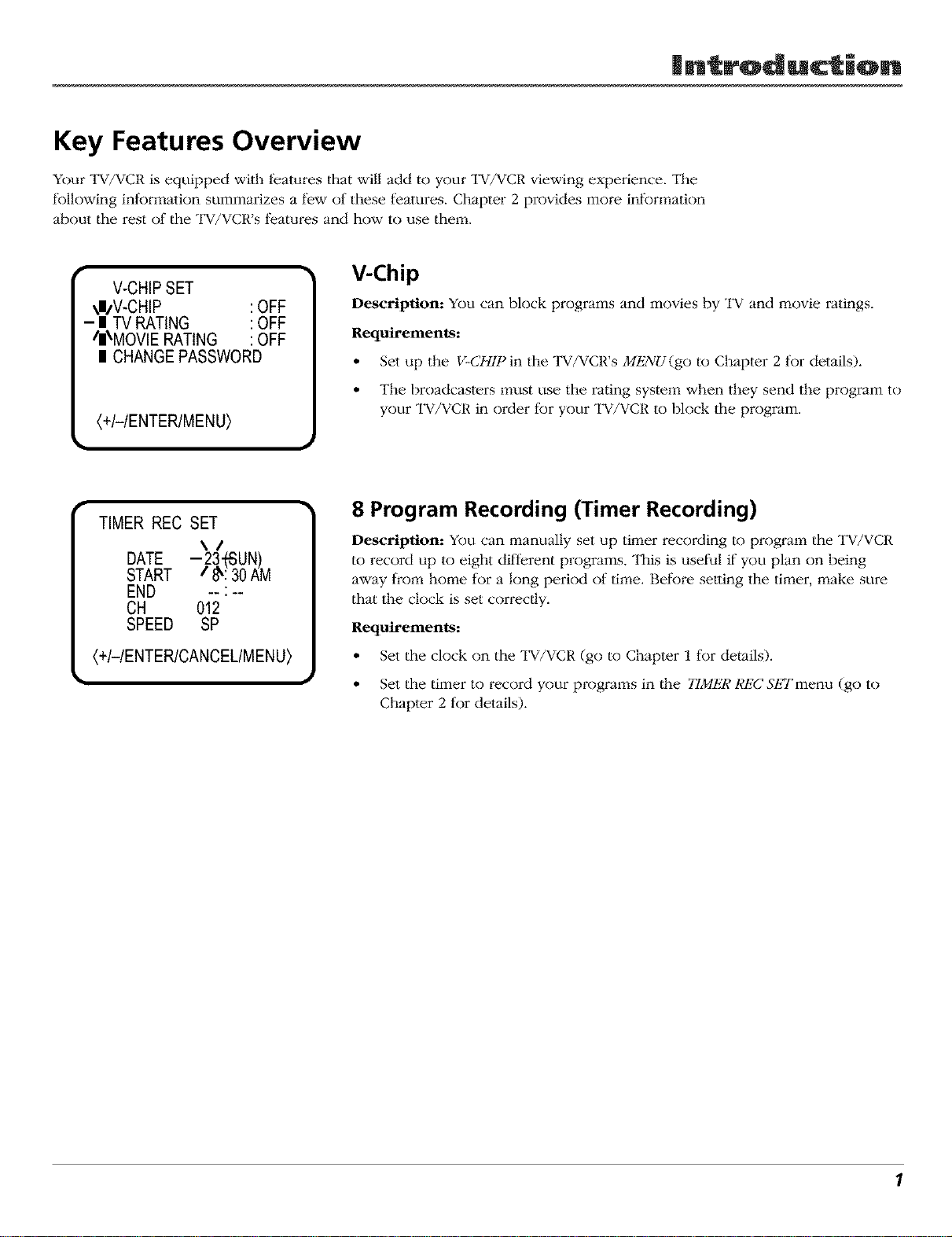
Your TV/VCR is equipped with features that will add to your TV/VCR viewing experience. "II_e
following intk)rmation summarizes a few of these features. Chapter 2 provides more infurmation
about the rest of the TV/VCR's features and how to use them.
V-CHIP SET
_I/V-CHIP :OFF
- II TV RATING :OFF
/II\MOVlE RATING :OFF
II CHANGE PASSWORD
(+!HENTERIMENU)
V-Chip
Description: You <'anblock programs and movies by TV and movie ratings.
Requirements:
• Set up the V-CHIP in the TV/VCR's MENU(go to Chapter 2 for details).
• The broadcasters must use the rating system when they send the program to
your TV/VCR in order for your TV/VCR to block the program.
TIMER REC SET
\/
DATE -23"('SUN)
START / _: 30 AM
END -- :--
CH 012
SPEED SP
(+!-IENTERICANCELIMENU)
]
8 Program Recording (Timer Recording)
Description: You can manually set up tilz_er recording to program the TV/VCR
to record up to eight different programs. This is useful if yot.i plan on being
away from home for a long period of time. Before setting the timer, make sure
that the clock is set correctly.
Requirements:
• Set the clock on the TV/VCR (go to Chapter 1 for details).
• Set the timer to record yot r progl ares in dae TIMER REC 57_'Tmenu (go to
Chapter 2 for details).
1

(This page intentionally left blank)

of ¢ontonts
Introduction
Key Features Overview .................................................................................................... 1
V-Chip .......................................................................................................................... 1
8 Program Recording (Timer Recording) .................................................................. 1
Chapter 1: Connections & Setup
Things to Consider Before You Connect ......................................................................... 6
Protect Against Power Surges ................................................................................... 6
Protect Components from Overheating ................................................................... 6
Position Cables Properly to Avoid Audio Interference ............................................ 6
Important Stand and BaseSafety Information ........................................................ 6
Use Indirect Light ....................................................................................................... 6
Connection Pictures ................................................................................................... 6
Choose Your Connection .................................................................................................. 7
TV/VCR Only ...................................................................................................................... 8
TV/VCR + Stereo ............................................................................................................... 9
Plug in the TV/VCR ......................................................................................................... 10
Put Batteries in the Remote ........................................................................................... 10
Turn on the TV/VCR ........................................................................................................ 10
TV/VCR Setup .................................................................................................................. 10
Setting the Clock ...................................................................................................... 11
Setting Up Your Channels ........................................................................................ 12
VCR Basics ....................................................................................................................... 14
Playing a Tape ........................................................................................................... 14
Automatic Rewind ................................................................................................... 14
Basic Recording ........................................................................................................ 14
Checking the Safety Tab .......................................................................................... 14
The Buttons on the Remote Control ............................................................................. 15
Chapter 2: Using the TV/VCR's Features
V=Chip .............................................................................................................................. 18
How V-Chip Works ................................................................................................... 18
Setting the Password ............................................................................................... 18
V-Chip TV Rating ...................................................................................................... 19
Blocking Specific Content Themes .......................................................................... 20
V-Chip Movie Rating ................................................................................................ 20
Turning On V-Chip Ratings ...................................................................................... 21
Changing the Password ........................................................................................... 21
Recording Features ......................................................................................................... 22
Recording Speeds ..................................................................................................... 22
Recording Pause ....................................................................................................... 22
Types of Recording ................................................................................................... 22
One-Touch Recording (OTR) .................................................................................... 23
Timer Recording ....................................................................................................... 23
3
of ¢ontonts
Picture Search Options ................................................................................................... 25
Tracking ........................................................................................................................... 25
Time Counter .................................................................................................................. 26
Channel Banner .............................................................................................................. 26
Sleep Timer ..................................................................................................................... 27
Using Closed Captioning ................................................................................................ 27
Chapter 3: Using the TV/VCR's Menu System
How to Use Your TV/VCR's Menu System ..................................................................... 30
Menus ....................................................................................................................... 30
Setting the On/Off Timer ......................................................................................... 30
Picture Menu ................................................................................................................... 31
Audio Menu .................................................................................................................... 31
Setting Second Audio Program (SAP) ........................................................................... 32
System Set=up Menu ...................................................................................................... 32
Additional Features in the Menu .................................................................................. 32
Chapter 4: Other Information
Troubleshooting .............................................................................................................. 34
Care and Cleaning .......................................................................................................... 36
Front Panel ...................................................................................................................... 36
RCA TruFlat TV/VCR Limited Warranty .......................................................................... 37
Index ................................................................................................................................ 41
4

Chapter 1
Connections & Setup
Chapter Overview:
• Things to Consider Before You Connect
• Choose Your Connection
• Connections
• Plug in the TV/VCR
• Put Batteries in the Remote
• Turn on theTV/VCR
• TV/VCR Setup
• VCR Basics
• Buttons on the Remote Control
Changing
Graphics contained within this publication ara fi_r representation only.

Connections Setup
Things to Consider Before You Connect
Protect Against Power Surges
• Connect all co1:r_ponents bel_re you plug any of their power cords into the wall outlet.
• Turn off"the TV/VCR and/or component before you connect or disconnect any cables.
• Make sure all antennas and cables are properly grounded. RelE.r to the Impor "rant
SalE.guards sheet packed with your TV/VCR.
Protect Components from Overheating
• Don't block ventilation holes on any of lhe components. Arrange the components so that
air can circulate freely.
• Don't stack components.
• When you place components in a stand, make sure you allow adequate ventilation.
• If you connect an audio receiver or amplifier, place it on the top shelf so the heated air
from it won't flow around olher components.
Position Cables Properly to Avoid Audio Interference
• Insert each cable firmly into the designated jack.
• If you place components above lhe IW/VCR, route all cables down lhe side of the back of
the TV/VCR instead of straight down lhe middle of lhe back of the TV/VCR.
• If your antenna uses 300-ohm twin lead cables, do not coil the cables. Also, keep lhe twin
lead cables away from audio/video cables.
Important Stand and Base Safety Information
Choose the location for your TV/VCR carefully. Place the TV/VCR on a stand or base that is of
adequate size and strength to prevent the TV/VCR fi'om being accidentally tipped over, pushed
off, or pulled off'. This could cause personal injury and/or damage the TV/VCR. Refer to the
Important SalE.guards sheet packed wilh your TV/VCR.
Use Indirect Light
Don't place the TV/VCR where sunlight or room lighting will be directed toward the screen.
Use soft or indirect lighting.
Connection Pictures
Audio/video cables are usually bundled together. For better visibility, the connection pictures in
this book show each cable separately (audio left, audio right, and video).
6 Chapter1
Connections Setup
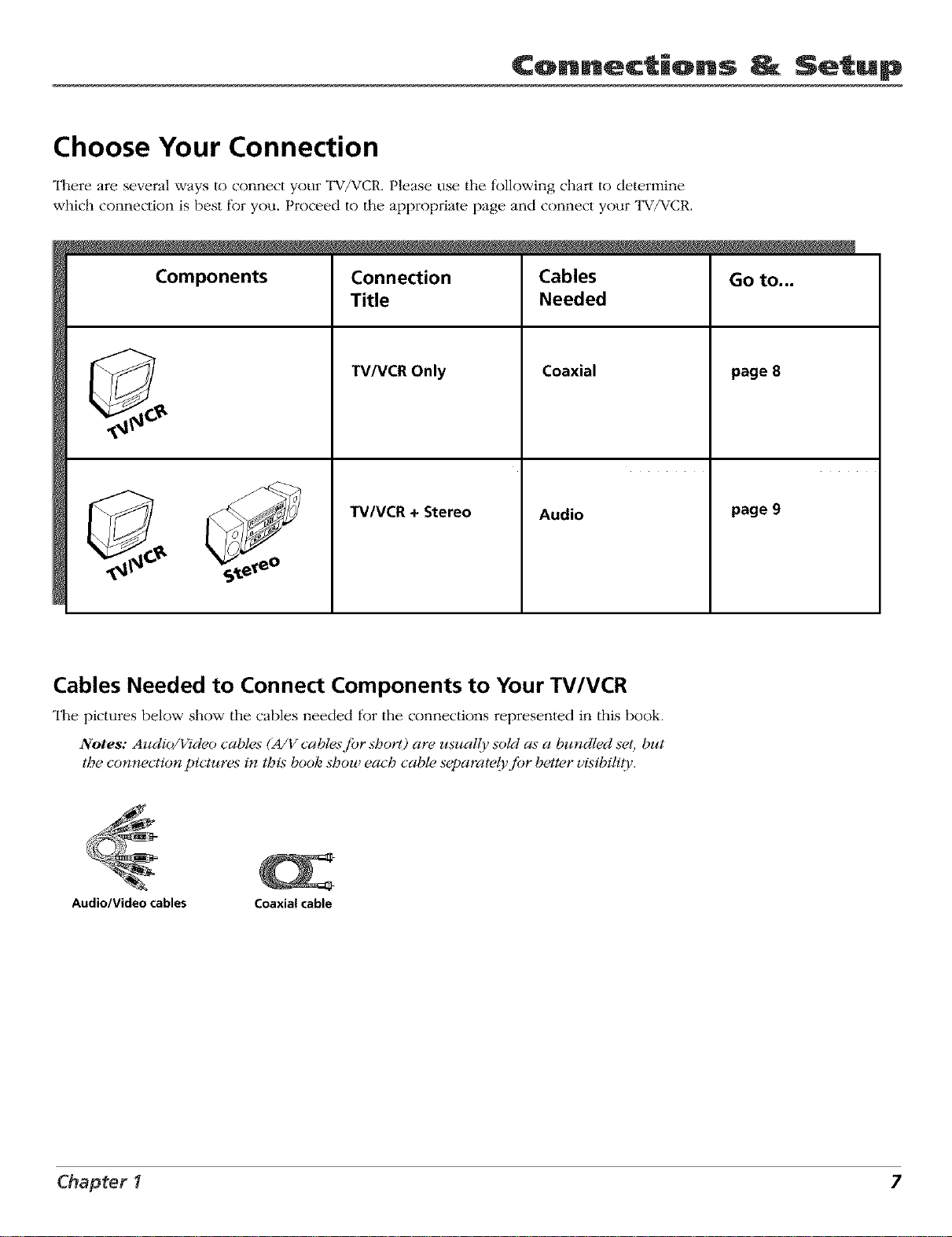
Choose Your Connection
"II_ere are several ways to connect your TV/VCR. Please use the following chart to determine
which connection is best for you. Proceed to the appropriate page and connect your TV/VCR.
Components Connection Cables
Title Needed
TV/VCR Only
TV/VCR + Stereo
Coaxial
Audio
Go to...
page 8
page 9
Cables Needed to Connect Components to Your TV/VCR
"II_e pictures below show the cables needed for the connections represented in this book.
Notes: Audio/Vtdeo cables (A/V cablesriar short) are usually soM as a bundled set but
the connection pictures i,7 this book shou each cable separate{Friar better visibilit g.
Audio/Video cables Coaxial cable
Chapter I 7
Connections _ Setup
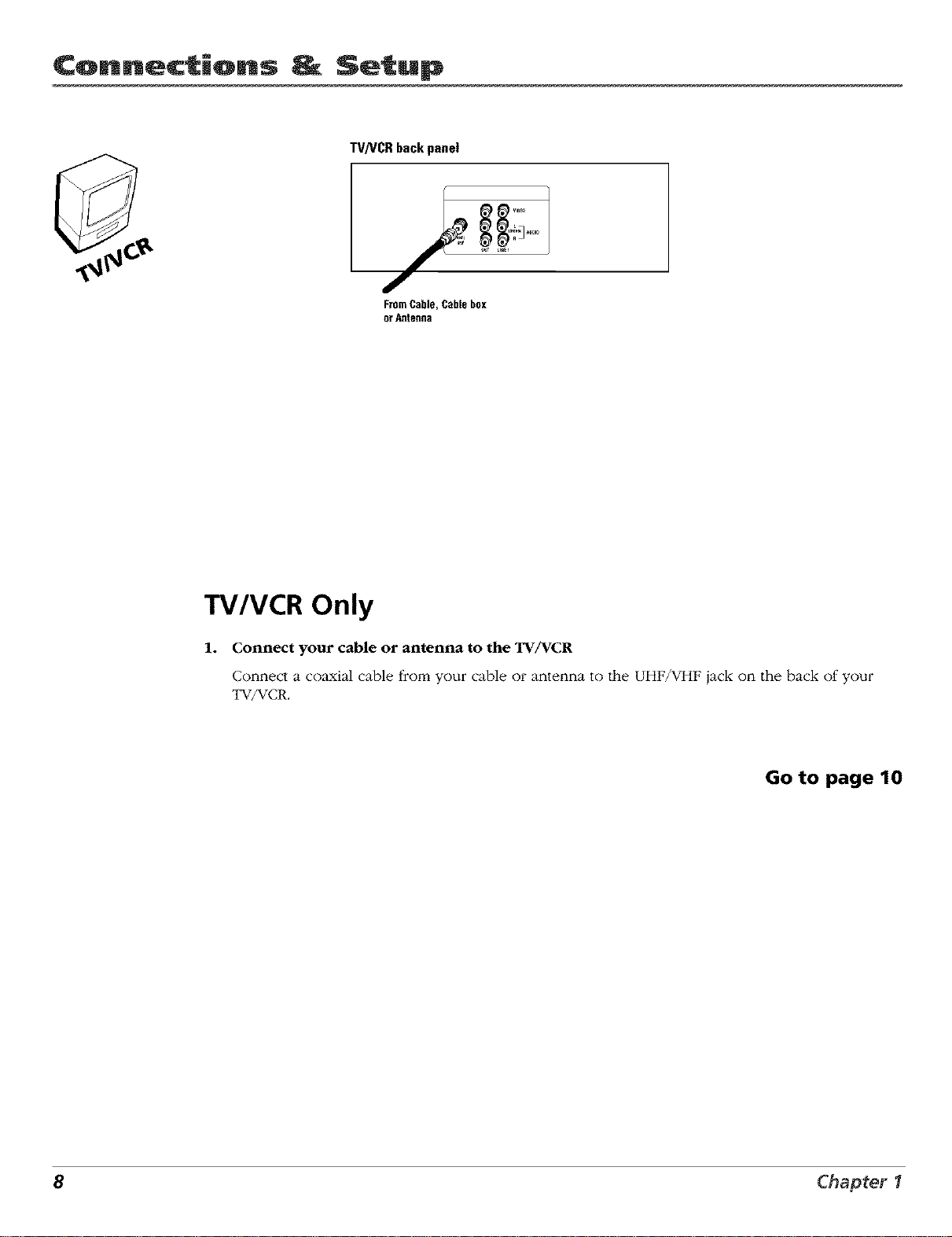
TV]VCRbackpanel
FromCable, Cable box
or Antenna
TV/VCR Only
1. Connect your cable or antenna to the TV/VCR
Connect a coaxial cable from your cable or antenna to d_e UHF/VHF jack on the back of your
TV/VCR.
Go to page 10
8 Chapter 1

Connections _ Setup
TV/VCR back panel
FromCable, Cablebox
Ot Antenna
®
STEREOback panel
TV/VCR + Stereo
1. Connect your TV/VCR to the stereo
Connect the audio cables. Connect the audio cables to the AUDIO L (MONO) and R OUT jacks
on the back of the TV/VCR and to the AUDIO 1N jacks on the stere().
2. Connect your cable or antenna to the TV/VCR
Connect a coaxial cable from your cable or antenna to the UHF/VHF jack on d_e back of your
TV/VCR.
Go to page 10
Chapter I 9
Connections _ Setup
Plug in the TV/VCR
Plug the end of |he power cord into the wall outlet. Match the wide blade of the plug wi|h the
wide slot in fl_e outlet. Insert the plug completely into the outlet.
Put Batteries in the Remote
1. Remove the battery compamnent cover on |he remote.
2. Insert new ba|lefies. Match the polarities (+ and -) on |he ba|tefies with |he
diagram on the remote.
3. Put the battery compartment cover back on the remote.
Turn on the TV/VCR
Press POWER on front of the TV/VCR or press ON-OFF on the remote. The
POWER indicator on the front of the TV/VCR will light when the TV/VCR is on.
TR_CKING
o
_Na
Use the arrow buttons and the
ENTER button to move through
the menu system.
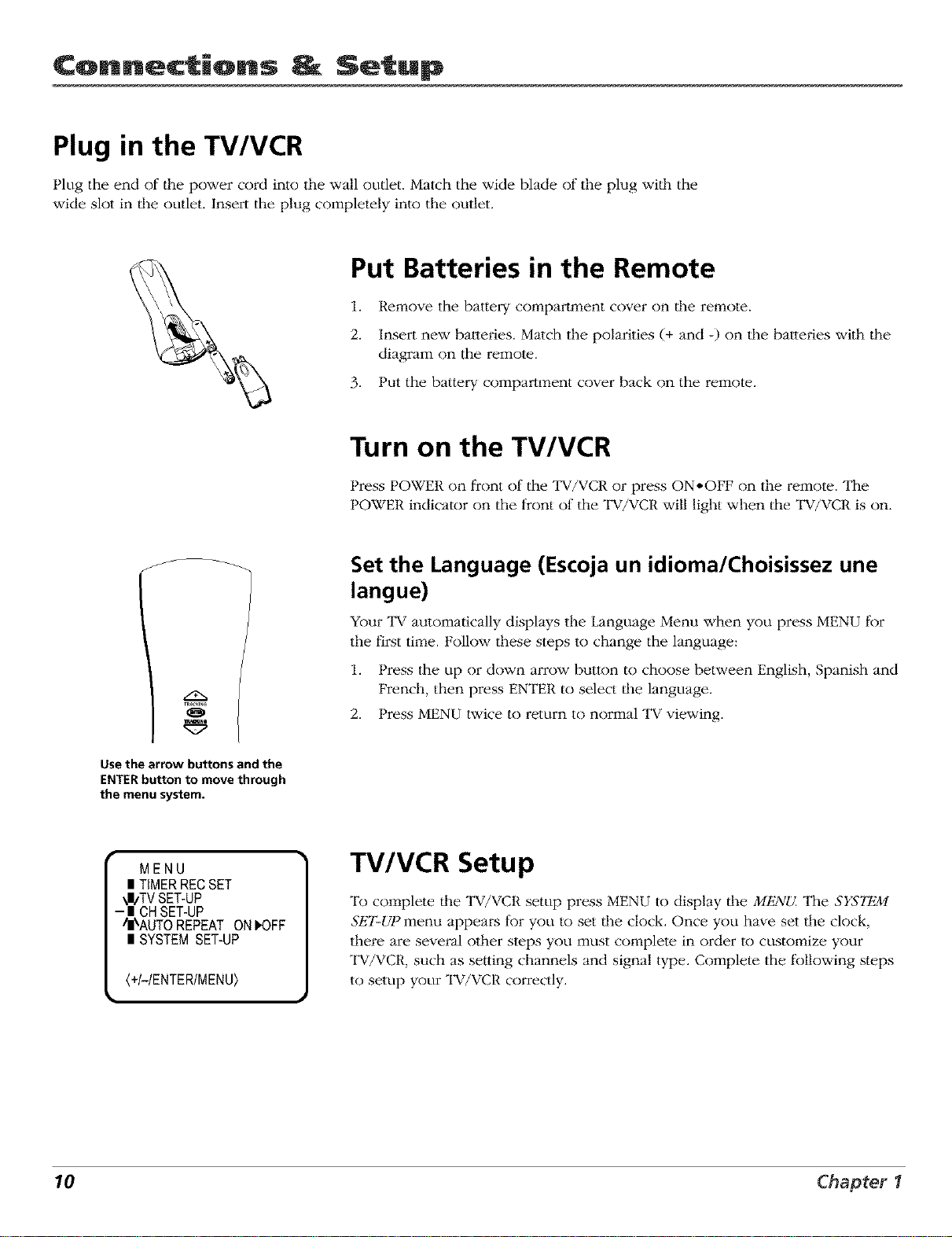
Set the Language (Escoja un idioma/Choisissez une
langue)
Your TV automatically displays the Language Menu when you press MENU fi)r
the first time. Follow these steps to change the language:
1. Press the up or down arrow button to choose between English, Spanish and
French, then press ENTER to select ll_e language.
2. Press MENU twice to return to m)rmal TV viewing.
MENU
| TIMERRECSET
_I_TVSET-UP
- | CHSET-UP
/|\AUTO REPEAT ON I,OFF
I SYSTEM SET-UP
<+I-IENTERIMENU>
TV/VCR Setup
To complete |he TV/VCR setup press MENU Io display |he MENU. The SYST_
Sk'T-Ut)menu appears for you to set llle clock. Once you have set ll_e clock,
there are several olher steps you must complete in order to customize your
TV/VCR, such as setting channels and signal type. Complete the following steps
to setup your TV/VCR correctly.
10 Chapter 1
Connections Setup
\ ,,SYSTEMSET-UP
- CLOCKSET
CLOCKSET \ ,'
• MONTH- 3-
CLOCKSET
MONTH 3
DAY 26{MON)
YEAR 2004,!
TIME %30
(+I-IENTERICANCELIMENU)
]
]
1
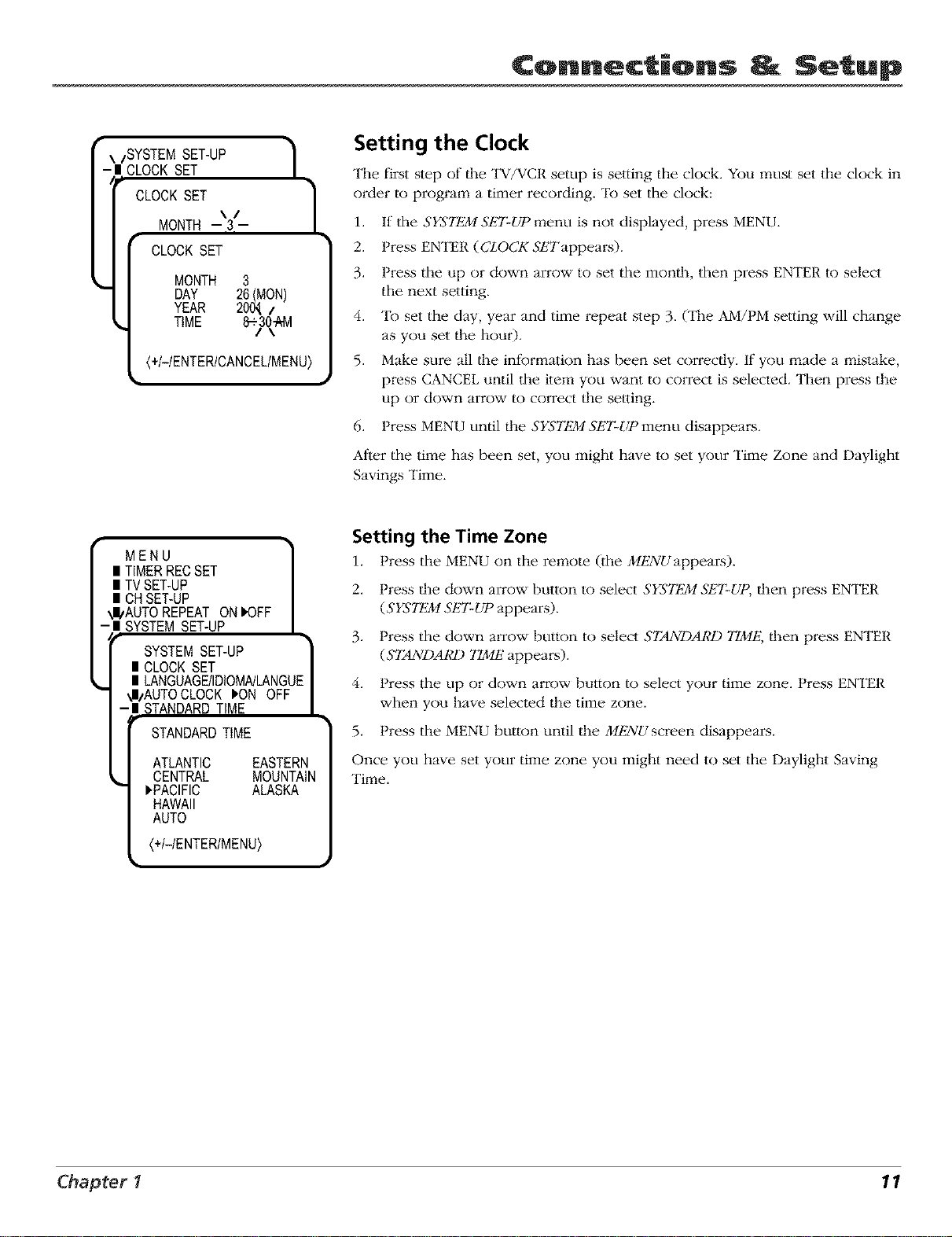
Setting the Clock
The first slep of |he TV/VCR setup is setting the clock. You must set the clock in
order to program a timer recording. To set the clock:
1. If the SYS'Tt_LMSET-UP menu is not displayed, press MENU.
2. Press ENTER (CLOCK Sk'Tappears).
3. Press the up or down arrow to set the month, then press ENTER to select
the next setting.
4. To set the day, year and time repeat step 3. (The AM/PM setting will change
as you set the hour).
5. Make sure all lhe informalion has been set correclly. If you made a mistake,
press CANCEL until [he item you want to correct is selected. Then press the
up or down arrow to correct tim selling.
6. Press MENU until lhe SYS'Tt_ZffSk'7:UP menu disappeai:s.
After the time has been set, you might have to set your Time Zone and Daylight
Savings Time.
MENU
II TIMERRECSET /
II TVSET-UP |
| CHSET-UP /
_I/AUTOREPEATONIK)FF |
SYSTEMSET-UP |
SYSTEMSET-UP
| CLOCKSET |
| LANGUAGE/IDIOMNLANGUEI
!I/AUTOCLOCK i_ONOFF |
| STANDARDTIME /
STANDARDTIME
ATLANTIC EASTERN
CENTRAL MOUNTAIN
I_PACIFIC ALASKA
HAWAII
AUTO
(+/-/ENTER/MENU)
Setting the Time Zone
1. Press the MENU on the remote Qhe MENUappears).
2. Press lhe down arrow button to select SYS'Tt_LMSk'7:UP, lhen press ENTER
(SYS'Tt_LMSET-UP appears).
3. Press the down arrow button to select STANDARD TIME, lhen press ENTER
(STANDARD TIME appears).
4. Press the up or down arrow button to select your time zone. Press ENTER
when you have selected tim time zone.
5. Press the MENU button until lhe M!_2VUscreen disappears.
Once you have set your time zone you might need to set the Daylight Saving
Time.
Chapter I 11
Connections Setup
SYSTEMSET-UP "_1
| CLOCKSET
II LANGUAGE/IDIOMNLANGUE
II AUTOCLOCK _'ONOFF
_II/STANDARDTIME
-I DAYLIGHTSAVINGTiME
t DAYLIGHTSAVINGTIME
,.. I_ON
OFF
AUTO
(+I-IENTERIMENU)
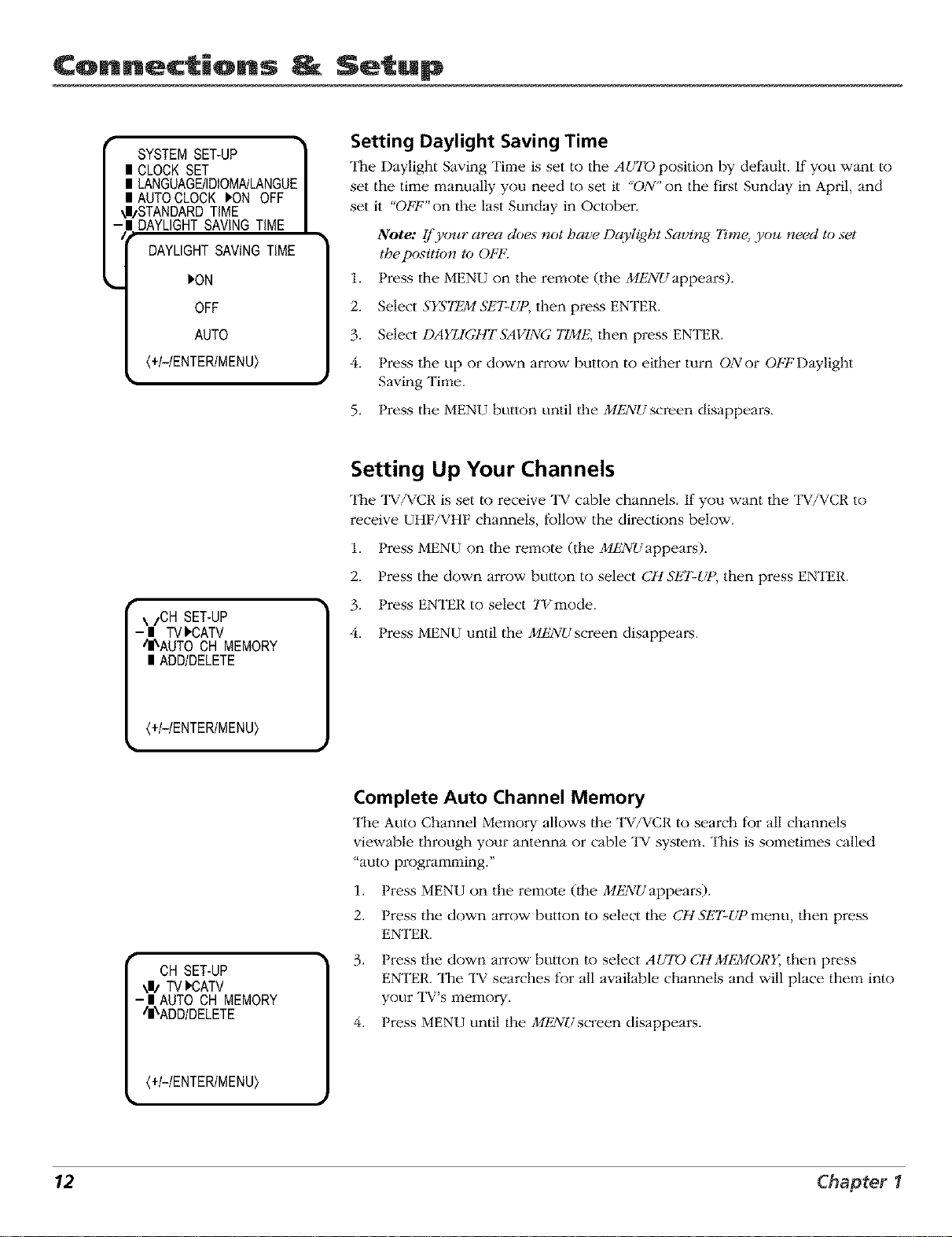
Setting Daylight Saving Time
"II_e Daylight Saving Time is set to the AUTO position by default. If you want to
set the time _:qanually you need to set il "ON" on the first Sunday in April, and
set it "OFF" on lhe last Sunday in October.
Note: If your area does not have DaTlight Saving 7_me,you need to set
the position to OFF.
1. Press the MENU on the remote (the MENUappears).
2. Select SYST_ 5_T-L1_,then press ENTER.
3. Select DAYIdGHTSAVING TIME, then press ENTER.
4. Press the up or down arrow button to either turn ONor OFFDaylight
Saving Time.
5. Press the MENU button until the MENUscreen disappears.
\/CH SET-UP
- I TV)CATV
I_AUTO CH MEMORY
I ADD/DELETE
(+I-IENTERIMENU)
Setting Up Your Channels
The TV/VCR is set to receiw: TV cable channels. If you want the TV/VCR to
receive UHF/VHF channels, lk)llow the directions below.
1. Press MENU on llle re1:qote (lhe MENUappears).
2. Press the down arrow button to select CHSET-UP, then press ENTER.
3. Press ENTER to select TVmode.
4. Press MENU until the MENUscreen disappears.
CH SET-UP
\_ TV)CATV
-| AUTOCH MEMORY
/|\ADD/DELETE
(+I-IENTERIMENU)
Complete Auto Channel Memory
The Auto Channel Memory allows dm TV/VCR to search for all channels
viewable through your antenna or cable TV syste_:q. This is sometimes called
"auto programming."
1. Press MENU on the remote (the MENUappears).
2. Press the down arrow button to select ll_e CH Sk'I:UP menu, ll_en press
ENTER.
,
Press the down arrow button to select AUTO CHM_ORY, then press
ENTER. The TV searches for all available channels and will place them into
your TV's _:_mmory.
4. Press MENU until the M/_2VUscreen disappears.
12 Chapter 1
Connections Setup
ADD CH003
(O-91+I-IENTERIMENU)
1
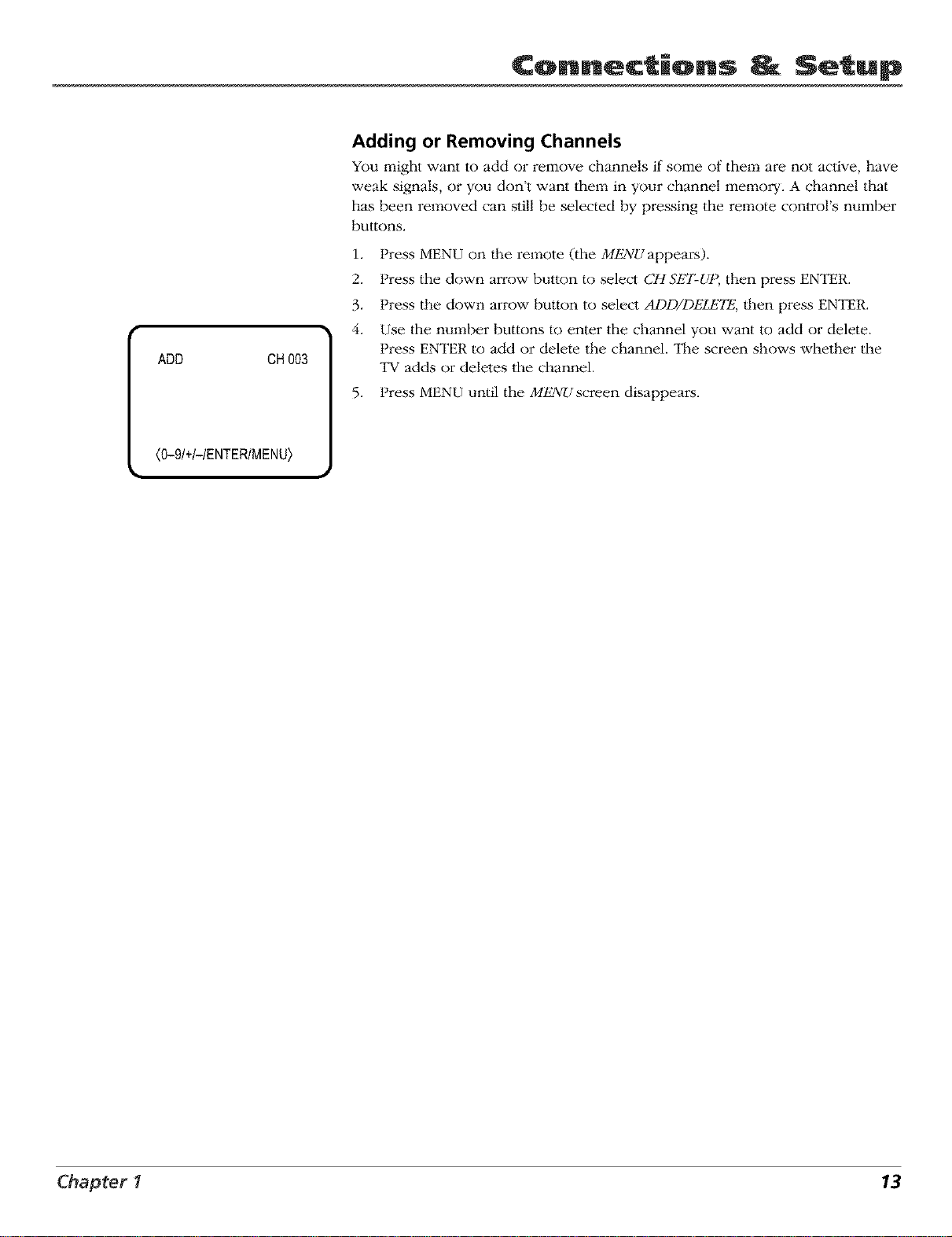
Adding or Removing Channels
You might want to add or remove channels if some of them are not aclive, have
weak signals, or you don't want them in your channel memory. A channel that
has been removed can still be selected by pressing the remote control's number
buttons.
1. Press MENU on |he remote (the MENU appears).
2. Press the down arrow button to select CHSt'2T-UP, then press ENTER.
3. Press the down arrow button to select ADD/DELETE, lhen press ENTER.
4. Use the number buttons to enter the channel you want to add or delete.
Press ENTER to add or delete the channel. "II_escreen shows whether the
TV adds or deletes the channel.
5. Press MENU until the MENUscreen disappears.
Chapter I 13
Connections Setup
VCR Basics
Now that you've finished the initial setup, you can watch TV. You can also begin using your
VCR. In order to begin, you must first understand some basic concepts.
TRACKING
+/_
,0,0,0
0 o0 o0
Playback
buttons
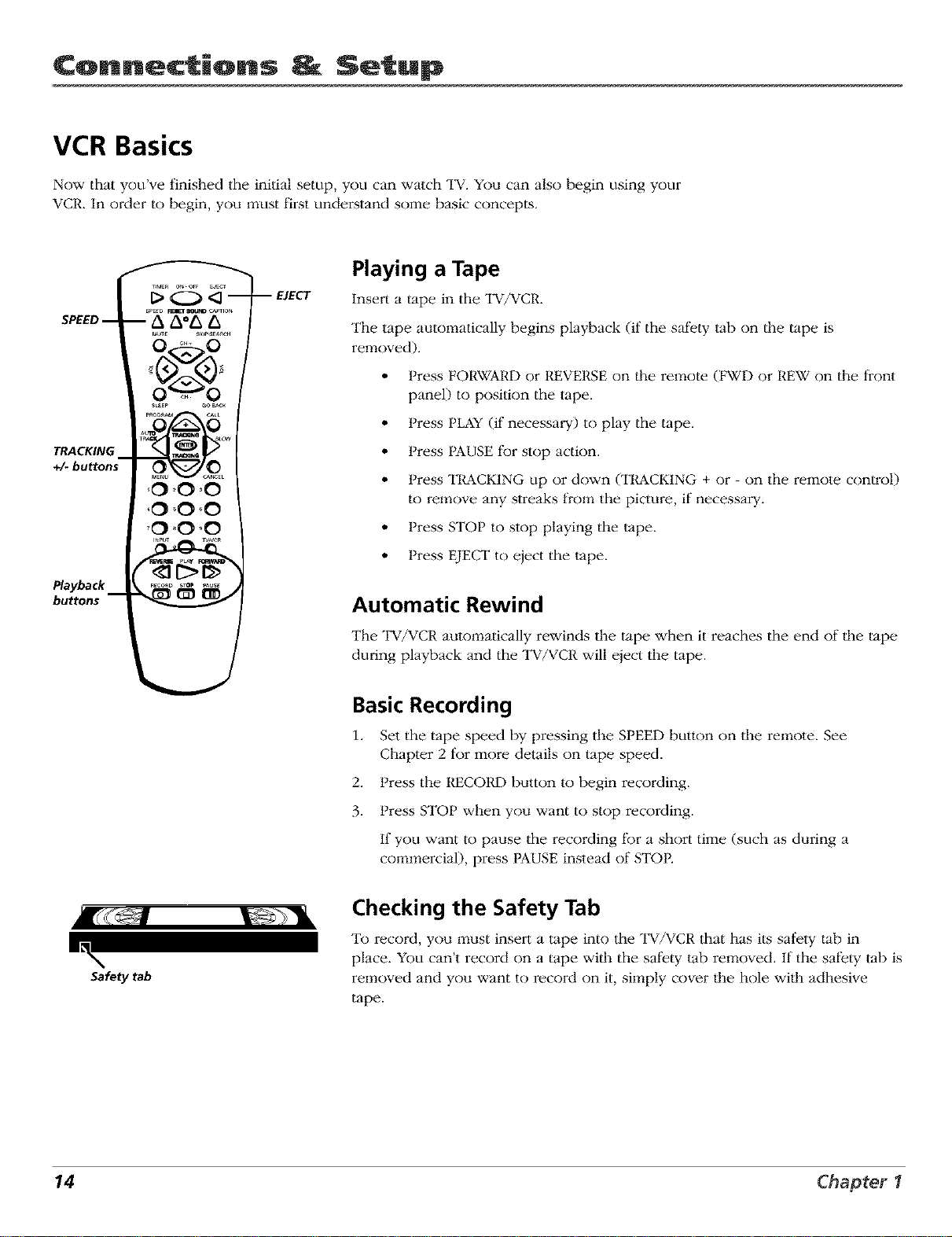
Playing a Tape
Insert a tape in the TV/VCR.
The tape automatically begins playback (if the safety "tabon lhe tape is
removed).
• Press FORWARD or I/EVERSE on lhe remote (I_%VDor REW on the front
panel) to position the tape.
• Press PLAY(if necessary) to play the tape.
• Press PAUSE for stop action.
• Press TRACKING up or down (TRACKING + or - on the remote conlrol)
to remove any streaks from the picture, if necessary.
• Press STOP to stop playing the "tape.
• Press EJECT to eject the "tape.
Automatic Rewind
The TV/VCR automatically rewinds the tape when it reaches the end of the tape
during playback and the TV/VCR will eject the tape.
Basic Recording
1. Set the tape speed by pressing the S1EEl-) button on the remote. See
Chapter 2 for more details on tape speed.
2. Press the RECOI_) button to begin recording.
3. Press STOP when you want to stop recording.
If you want to pause the recording tBr a short time (such as during a
commercial), press PAUSE instead of STOP.
mL
\
Safety tab
Checking the Safety Tab
To record, you must insert a tape into the TV/VCR that has its safety tab in
place. You can't record on a tape wilh the safety tab removed. If the safety tab is
removed and you want to record on it, simply cover lhe hole wilh adhesive
tape.
14 Chapter 1
Connections Setup
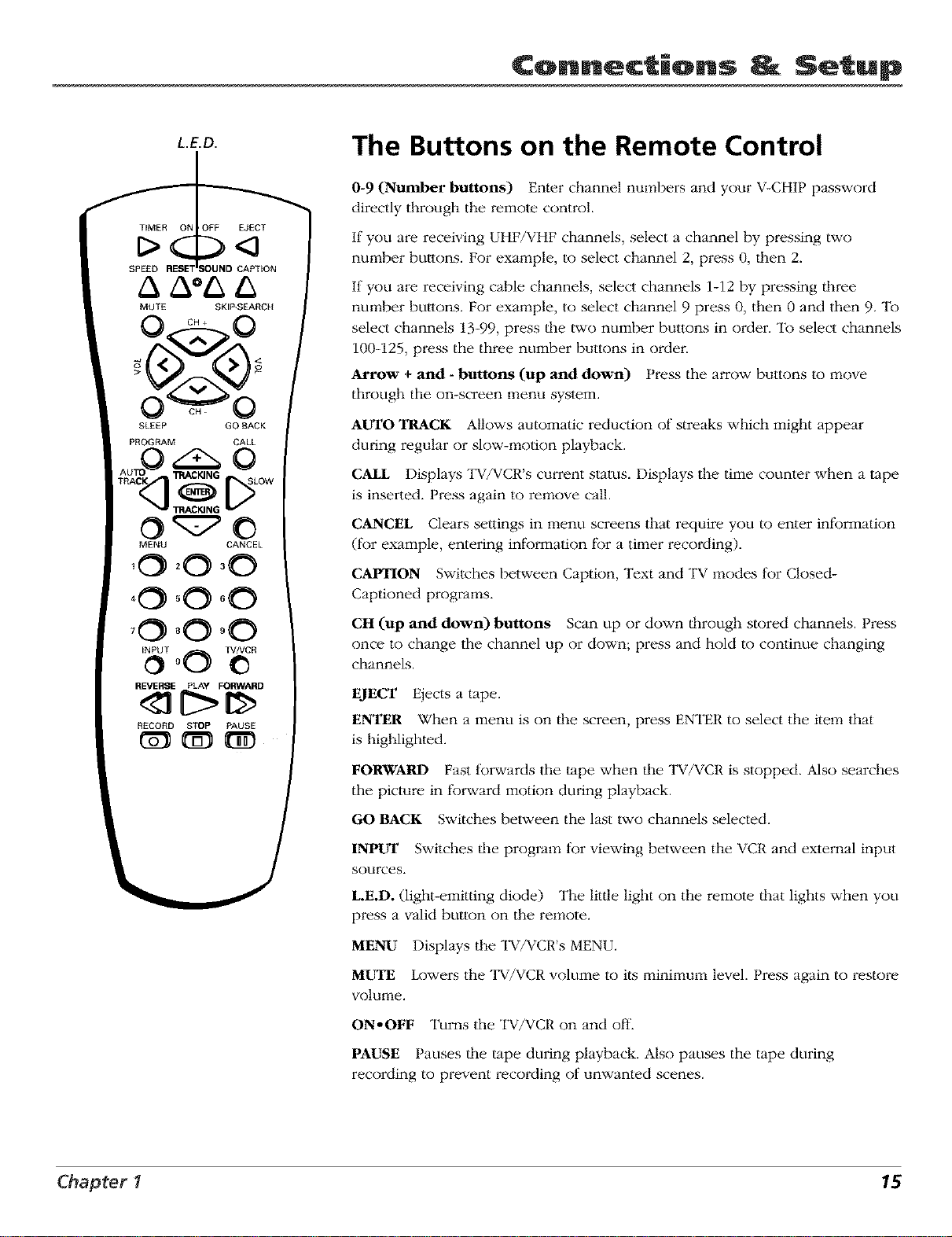
L.E.D.
TIMER ON OFF EJECT
SPEED RESET SOUND CAPTION
MUTE SKIP-SEARCH
SLEEP GO BACK
PROGRAM CALL
Ao o o
TRACK I_CKING SLOW
MENU CANCEL
,0 o0 o0
,0 o0 o0
1ST O0 TV/VCR_)
REVERSE PLAY FORWARD
RECORD STOP PAUSE
The Buttons on the Remote Control
0-9 (Number buttons) Enter channel numbers and your V-CHIP password
directly through the remote control.
If you are receiving UHF/VHF channels, select a channel by pressing two
number buttons. For example, to select channel 2, press 0, ll_en 2.
If you are receiving cable channels, select channels 1-12 by pressing lllme
number bultons. For example, to select channel 9 press 0, then 0 and then 9. To
select channels 13-99, press llle two number buttons in order. To select channels
100-125, press the three number buttons in ordei:
Arrow + and - buttons (up and down) Press the arrow buttons to move
through the on-screen menu system.
AUTO TRACK Allows automatic reduction of streaks which might appear
during regular or slow-motion playback.
CALL Displays TV/VCR's cmwent status. Displays the time counter when a "tape
is inserted. Press again to remove call.
CANCEL Clears settings in menu screens that require you to enter information
(for example, entering information for a timer recording).
CAPTION Switches between Caption, Text and TV modes for Closed-
Captioned programs.
CII (up and down) buttons Scan up or down through stored channels. Press
once to change the channel up or down; press and hold to continue changing
channels.
EJECT Ejects a tape.
ENTER When a menu is on ll_e screen, press ENTER to select the item that
is highlighted.
FORWARD Fast forwards the "tape when the TV/VCR is stopped. Also searches
the picture in forward motion during playback.
GO BACK Switches between the last two channels selected.
INPUT Swilches |he program for viewing between the VCR and external input
sources.
L.E.D. (light-emilting diode) The little light on the remote |hat lights when you
press a valid button on tile remote.
MENU Displays the TV/VCR's MENU.
MUTE Lowers the TV/VCR volume to its minimum level. Press again to restore
volume.
ON-OFF Turns the TV/VCR on and off.
PAUSE Pauses lhe tape during playback. Also pauses the tape during
recording to prevent recording of unwanted scenes.
Chapter 1 15

Connections Setup
TIMER ON • OFF EJECT
SPEED RESET SOUND CAPTION
MUTE SKIP-SEARCH
SLEEP GO BACK
PROGRAM CALL
TRACK TRACKING SLOW
qT oD
MENU CANCEL
,0 o0 o0
,0 00 00
INPUT TV/VCR
o00 o
REVERSE PLAY FORWARD
RECORD STOP PAUSE
PLAY Plays a tape.
PRO(;1RAM Press to confirm the programmed tinqer and ON/OFF tinqer.
RECORD Starts TV/VCR recording.
RESET Resets video functions to factory settings. Also used to reset the time
counter.
REVERSE Rewinds the tape when the TV/VCR is stopped. Also searches the
picture in reverse during playback.
SKIP/SEARCH During playback, press to advance from 30 seconds up to 3
nqinutes.
SLEEP Sets TV/VCR to automatically turn ott". Each time you press SLEEP, dm
clock will count down 10 nqinutes, starting at 120 nqinutes. Continue to press
SLEEP until you reach 0 to cancel.
SLOW Press in playback mode to play "tape in slow motion.
SOUND Switches sound between mono and stereo, and SAP when receiving
broadcasts in stereo or SAP.
SPEED (Tape Speed) Selects a recording speed (SLP or SP).
STOP Stops functions such as record, play, rewind, last forward, and pause.
TIMER Used to set TV/VCR to start recording at a preset tinqe.
TRACKING + and - Otp and down) Allows the manual reduction of streaks
which may appear on the picture during regular or slow-molion playback.
Reduces picture "filter" during stop-action (paused) playback.
'rv/V(2R Switches between TV nqode and VCR nqode.
¥OE Otp and down) buttons Decrease or increase the TV/VCR volunqe.
16 Chapter 1

Chapter 2
Using the TV/VCR's
Features
Chapter Overview:
• V-Chip
• Recording Features
• Picture Search Options
• Tracking
• Time Counter
• Channel Banner
• Sleep Timer
• Using Closed Captioning
Changing
iin.
Graphics contained u ithin this publication are fi_r representation only. 17
Using the "T NCR Foaturos
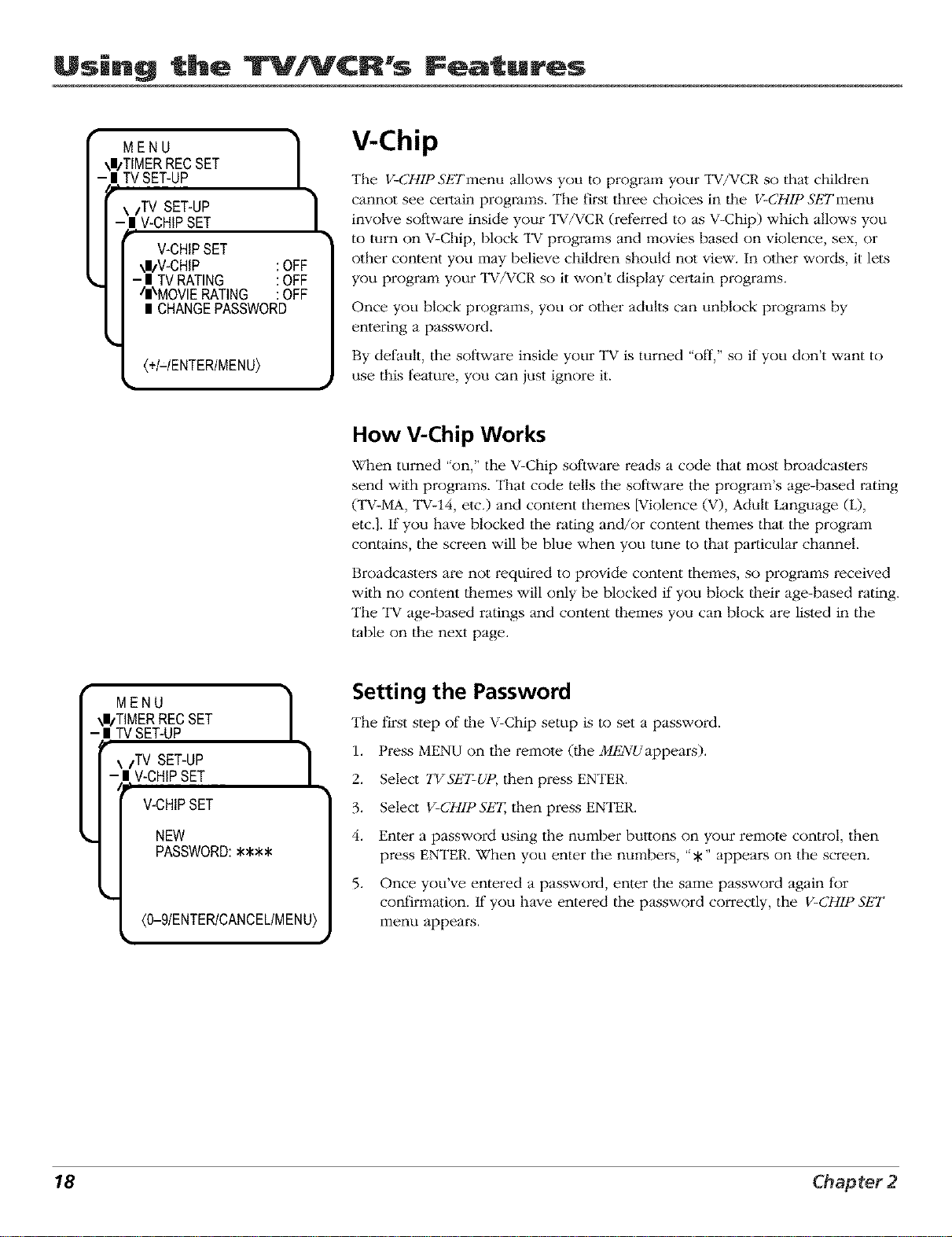
MENU ]
\l/TIMER RECSET
- IITVSET-UP
SET-UP ]-_II/TVcHIPSET
i
3
V-CHIPSET
_i/V-CHIP : OFF
- l TVRATING :OFF
In'MOVIERATING :OFF
l CHANGEPASSWORD
{+/-/ENTER/MENU}
i
V-Chip
The V-CHIP SETmenu allows you to program your TV/VCR so that children
cannot see certain programs. "II_efii:st three choices in ll]e V-CHIP SETmenu
involve soliware inside your TV/VCR (referred to as V-Chip) which allows you
to turn on V-Chip, block "IV programs and movies based on violence, sex, or
other content you may believe children should not view. In other words, it lets
you program your TV/VCR so it won't display certain programs.
Once you block programs, you or other adults can unblock programs by
entering a password.
By default, the software inside your TV is turned "off," so if you don't want to
use this feature, you can just ignore it.
How V-Chip Works
When turned "on," the V-Chip software reads a code that most broadcasters
send with programs. That code tells lhe software the program's age-based rating
(TV-MA, TV-14, etc.) and content themes [Violence (V), Adult Language (L),
etc.]. If you have blocked the rating and/or content themes that the program
contains, the screen will be blue when you tune to that particular channel.
Broadcaste_:s are not required to provide content themes, so programs received
wilh no content tl]emes will only be blocked if you block tl]eir age-based rating.
The "IV age-based ratings and content tl]emes you can block are listed in the
table on the next page.
MENU 1
\I_TIMERRECSET
- I "IVSET-UP
\/TV SET-UP
l V-CHIPSET
V-CHIPSET
NEW
PASSWORD:****
(0-9/ENTER/CANCEL/MENU}
_, •
Setting the Password
The first step of d_e V-Chip setup is to set a password.
1. Press MENU on the remote 0he M!;2NUappears).
2. Select "I37Sk'7:UP, then press ENTER.
3. Select V-CHIP Sk"I; then press ENTER.
4. Enter a password using the number buttons on your remote control, then
press ENTER. When you enter the numbers, "*" appears on the screen.
5. Once you've entered a password, enter the same password again for
confirmation. If you have entered the password correctly, the V-CHIP SET
menu appears.
18 Chapter 2

Using the TVNCR's IFoaturos
Age-Based Description and Content Themes for Age-Based Ratings
Rating
TV-MA Mature Audience Only. Spucifically designed to bu viewed by adults and may bu unsuitable f_)r children
under i7. It contains one or more of the following content themes: crude indecent language (L), explicit
sexual activity (S), or graphic violence (V).
Parents Strongly Cautioned. Contains some material that many pamms would find unsuitable fbr children
TV-14 under 14. Parents are strongly urged to exercise greater care in monitoring this program and are cautioned
against letting children undur the age of i4 watch unattended. This program contains one or more of the
following content themes: intensely suggestive dialogue (D), strong coarse language (L), intense sexual
situations (S), or intense violence (V).
Parental Guidance Suggested. Contains material that parents may find unsuitable ff)r younger children. Many
TV-PG parents may want to watch it with their younger children. The program contains one or more of the following
content themes: some suggestive dialogue (D), infrequent coarse language (L), some sexual situations (S), or
moderate violence (V).
TV-G GeneralAudience. Most parents would find this program suitable fbr all ages. It contains
lit!le or no sexual dialogue (D) or situations (S), no strong language (L), and little
or no violence (V).
Directed to children 7 years and older. Designed for children ages 7 and above, it may be more
TV-Y7 appropriate fbr children who have acquired the developmental skills needed to distinguish between make-
believe and reality. Themes and elements in this program may include mild fantasy violence (FV) or comedic
violence, or may frighten children under the age of 7.
TV-Y All children. Themes and elements in this program are designed fbr a young audience, including children
from ages 2-6. It is not expected to fiighten younger children.
MENU ]
\|tTIMER REC SET
- | TV SET-UP
\ ITV SET-UP
| V-CHIP SET
/
,.-_' •
V-CHIP SET
_/V-CHIP : OFF
- II TV RATING : OFF
/|\MOVIE RATING : OFF
| CHANGE PASSWORD
(+/-/ENTER/MENU}
V-Chip TV Rating
The V-Chip TVRating lets you decide which TV programs can and cannot be
viewed.
To set TV programming limits:
1. Press MENU on the remote 0he M!_2NUappears).
2. Select TVSET-UP, then press ENTER.
3. Select V-CHIP SP;';t, then press ENTER.
4. Enter your password using the number buttons on your remote control,
then press ENTER 0he V-CHIP SETmenu appears).
5. Select TVRATING, then press ENTER.
6. Press the up or down arrow butlon to display the lowest rating you don't
want the child to watch. For example, if you would want your child to
watch "I_-G and loweL select TV-PG.
7. Press ENTER to confirm llle rating you have chosen.
8. Press the MENU bulton until the M!_2NUscreen disappears.
Note: If you are viewing a TV-PG program and you have blocked the
TV-PG Rating, the screen turns blue.
Chapter 2 19

Using the "Ir NCR Foaturos
Content Themes
D Sexually explicit dialogue
L Adult language
S Sexualsituations
V Violence
FV Fantasy Violence
TV-Y All Children
Blocking Specific Content Themes
You can block programs based on |heir content. (Content is represented by the
D, L, S, V, FV and TV-Y on your screen. See the beginning of lllis section for
details.) When you [)lock a content theme for a particular radng, you
automatically [)hock that content theme for higher rated programs as well.
For example, if you do not want your child to watch programs that have adult
language (L) rated TV-PG or highei, then you could [)lock out all programming
TV-PG and above containing adult language.
To [)lock program content:
1. Determine the lowest level of content you don't want the child to watch.
2. Press MENU on the remole 0he MENUappears).
3. Select TVSET-UP, then press ENTER.
4. Select V-CHIP SET, then press ENTER.
5. Enter your password, then press ENTER Qhe V-CHIP SETmenu appears).
6. Select TVRATING. If you have selected a rating limil that contains content
you can [)lock, dm screen displays Call to Set Contents.
7. Press CALL on the remote 0he RATING SET screen appears).
8. Press the down arrow to select the content you want to [)lock. Press ENTER
to turn ONthe content.
9. Press the MENU button until the MENUscreen disappears.
Notes: Broadcasters are not required toprovide conterzt themes or age-
based ratings. Programs received with no content themes will only be
blocked if you block their age-based rating.
You must remember to turn on V-CHIP fi_r rating limits to take effect.
MENU
\I_TIMER RECSET
- II TV SET-UP
k/TV SET-UP
| V-CHIP SET
V-CHIP SET
II V-CHIP
\ll/TV RATING
- II MOVIE RATING
1
1
OFF
TV-PG
PG-13
Ill\CHANGEPASSWORD
(+MENTER/MENU)
_, •
V-Chip Movie Rating
You set rrlovie rating limits by blocking rrlovies rated above a specified level.
To access the MOVIE RATING menu:
1. Press MENU on the remole 0he MENUappears).
2. Select TVSET:UP, then press ENTER.
3. Select V-CHIP SET, then press ENTER.
4. Enter your password, then press ENTER Qhe V-CHIP SETmenu appears).
5. Select MOVIE RATING, then press ENTER.
6. Press the up or down arrow button to display the lowest rating you don't
want the child to watch. (In the example, you would want to select PG-13
since the highest rating you want the child to watch is PG).
7. Press ENTER to confirm tlle rating you have chosen.
8. Press the MENU button until the MENUscreen disappears.
20 Chapter 2

Using the T"VNCR Foaturos
MENU 1
\I_TIMERRECSET
l TVSET-UP
/TV SET-UP |
\
! V-CHIPSET
/
\/V-CHIP SET
-I V-CHIP
/I\TV RATING
l MOVIERATING
: ON
:TV-PG
: PG-13
l CHANGEPASSWORD
(+/-/ENTER/MENU)
Turning On V-Chip Ratings
Once you have selected _e TV m_ing and movie rating you want to [)lock, you
must turn the V-CHIP on to set the ratings.
To turn on lhe V-CHIP:
1. Press MENU on the remote ([he MENUappears).
2. Select TVSt]'T-UP, then press ENTER.
3. Select V-CHIP St]'T,lhen press ENTER.
4. Enter your password, then press ENTER (the V-CHIP Sk'Tmenu appears).
5. Select V-CHIP, then press ENTER (051 appears next to V-CHIP).
6. Press the MENU bulton until the MENUscreen disappears.
11
\l/TIMER RECSET
l TVSET-UP
p,
\/TV SET-UP
V-CHIPSET
'ON/OFF TIMER
V-CHIPSET
I V-CHIP :ON /
l TVRATING :TV-PG/
•,L'MOVIERATING :PG-13|
CHANGEPASSWORD /
V-CHIPSET
I V-CHIP : ON
I TVRATING :TV-PG
I MOVIERATING : PG-13
l CHANGEPASSWORD
(0-9/ENTER/CANCEL/MENU}
Changing the Password
If you want [o change die password after it has been set:
1. Press MENU on the remote 0he M/_2VUappears).
2. Select TVSk"I:UP, then press ENTER.
3. Select V-CHIP St]"I;then press ENTER.
4. Enter your original password using the number buttons on your remote
control, then press ENTER.
5. Select C_Gt]'PA£5'WORI), then press ENTER.
6. Enter a new password using die number buttons on your remote control,
then press ENTER.
7. Once you've entered a password, enter the same password again for
confirmation.
8. Press the MENU bulton until the M/_2VUscreen disappears.
Chapter2 21
Using the "IFVNCR Foaturos
Recording Features
The VCR provides several different ways to record programs from tl_e TV. "II_e following pages
explain how to use the types of recording feature.
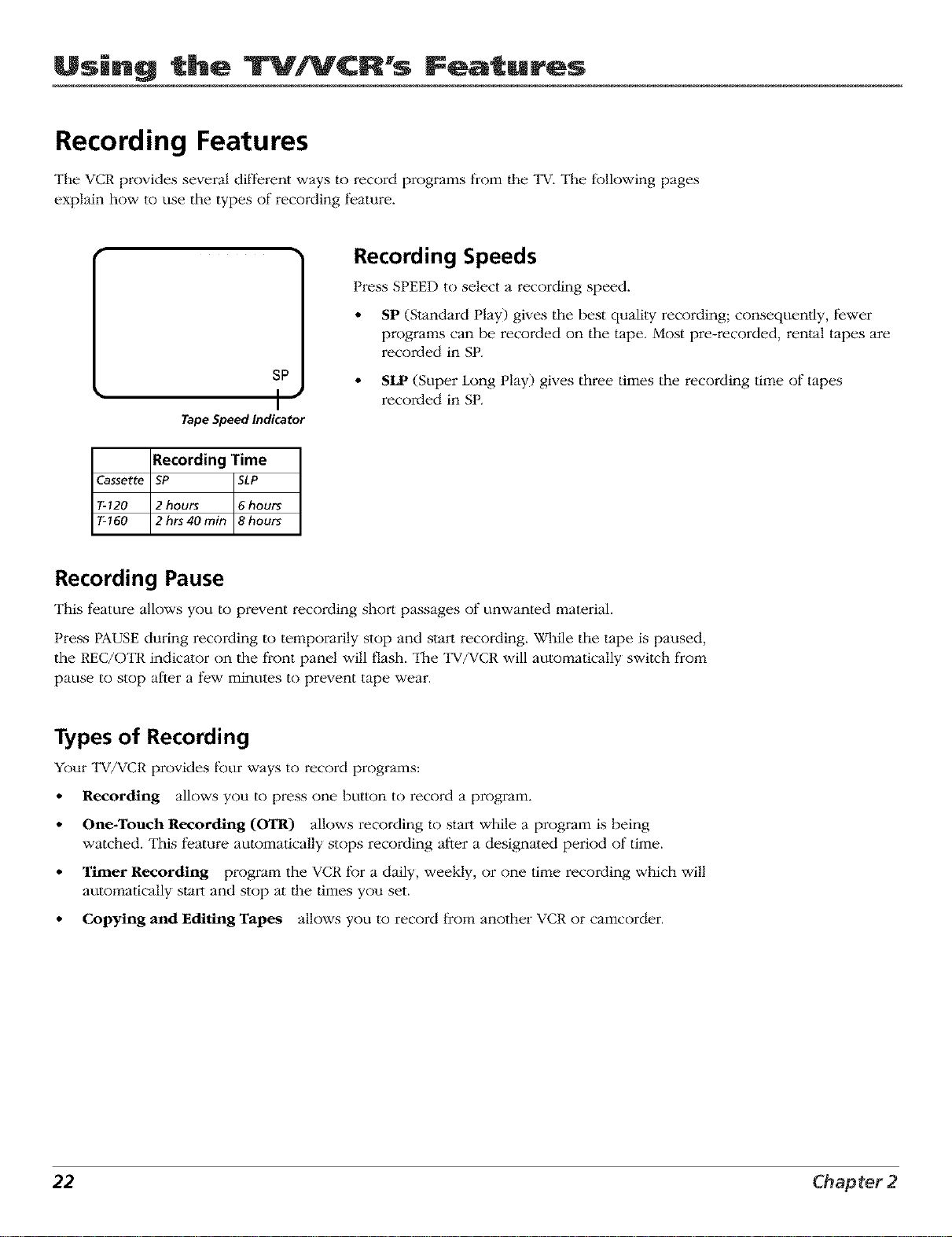
SP
I"
Tape Speed Indicator
Recording Time
Ca_ette SP SLP
_120 2 hou_ 6 hou_
_160 2 h_ 40min 8 hou_
Recording Speeds
Press SPEED to select a recording speed.
• SP (Standard Play) gives the best quality recording; consequently, fewer
programs can be recorded on the tape. Most pre-recorded, rental tapes are
recorded in SP.
• SIP (Super Long Play) gives three times the recording time of tapes
recorded in SP.
Recording Pause
This feature allows you to prevent recording short passages of unwanted material.
Press PAUSE during recording to temporarily stop and start recording. While the tape is paused,
the REC/OTR indicator on the t)'ont panel will flash. The TV/VCR will automatically switch from
pause to stop after a few minutes to prevent tape wear.
Types of Recording
Your TV/VCR provides four ways to record programs:
• Recording allows you to press one button to record a program.
• One-Touch Recording (OTR) allows recording to start while a program is being
watched. This feature automatically stops recording after a designated period of time.
• Thner Recording program the VCR for a daily, weekly, or one time recording which will
automatically start and stop at tl_e times you set.
• Copying and Editing Tapes allows you to record from another VCR or camcorder.
22 Chapter 2
Using the Foaturos
One-Touch Recording (OTR)
Use OTR to quickly record the remaining portion of a program being watched. OTR is a great
way to capture tile end of a sporting event that has run into overtime or a live broadcast that
runs long.
OTR works in 30-minute increments. You can capture the last 30, 60, 90, etc. minutes of
programming (depending on tile lenglh of your tape, hip to five hours).
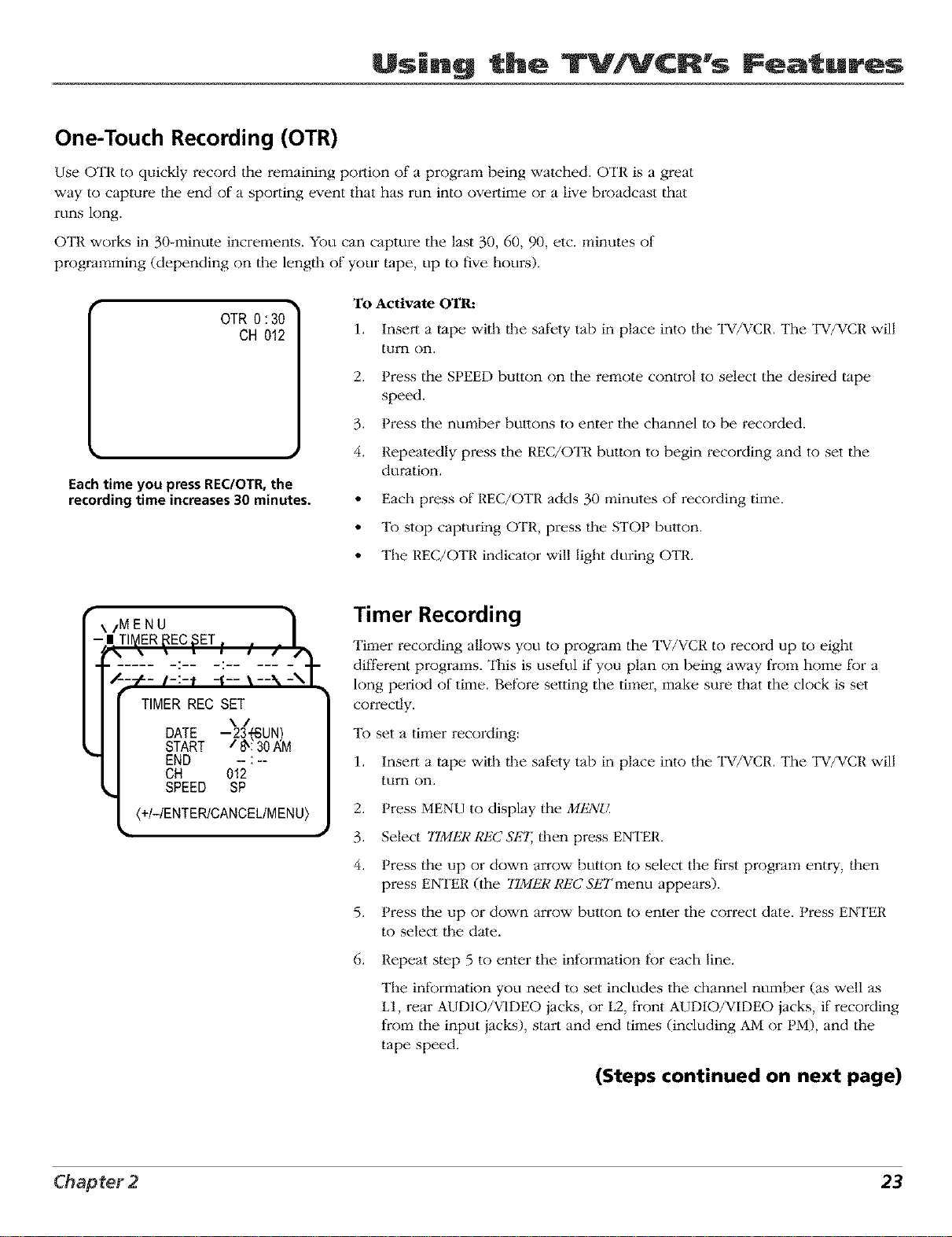
• OTR 0 :30•
CH 012
Eachtime you pressREC/OTR,the
recording time increases30 minutes.
To Activate OTR:
1. Insert a tape with llle safety tab in place into the TV/VCR. The TV/VCR will
tUITt on.
2. Press the SPEED button on the rel:qote control to select the desired tape
speed.
3. Press the nm:qber butlons to enter the channel to be recorded.
4. Repeatedly press the REC/OTR button to begin recording and to set the
duration.
• Each press of REC/OTR adds 30 l:qinutes of recording time.
• To stop capturing OTR, press tlle STOP button.
• TILe REC/OTR indicator will light during OTR.
x/MENU
TIMER REC SET
DATE
START
END
CH
SPEED
Timer Recording
Timer recording allows you to program the TV/VCR to record up to eight
different programs. This is useful if you plan on being away from home for a
long period of time. Before setting the timer, make sure tlLat the clock is set
correctly.
To set a tilvqer recording:
1. Insert a tape with tlle safety tab in place into the TV/VCR. The TV/VCR will
tUITt on.
2. Press MENU to display the MENU.
3. Select TIMER REC SE?I dmn press ENTER.
4. Press the up or down arrow button to select the t]rs[ program entry, dmn
press ENTER (lhe TIMER REC SETraenu appears).
5. Press the up or down arrow button to enter the correct date. Press ENTER
to select the date.
6. Repeat step 5 to enter the intormation for each line.
The information you need to set includes the channel number (as well as
L1, rear AUDIO/VIDEO jacks, or L2, front AUDIO/VIDEO jacks, if recording
from the input iacks), start and end times (including AM or PM), and the
tape speed.
(Steps continued on next page)
Chapter 2 23

Using the "T NtR Foaturos
7. Review the intk)rmation to make sum it is correct, and dmn press ENTER to save. If you
have made a mistake press CANCEL until the ilem you want to change is selected, then use
the up or down arrow button to enter dm correct intk)rmation.
8. Repeat steps 4-7 for additional programs.
9. Press lhe TIMER button (the TIMER REC indicator on the "lW/VCR's front panel lights) To
cancel timer recording press the TIMER bulton again (the TIMER t{EC indicator goes out).
Note: 7be VCR cannot be used while the TIMER REC indicator is lit. If you want to use
the VCR, press the TIMER button to deactivate.
Copying and Editing Tapes
Use another VCR or cm:qcorder as the playback VCR and the TV/VCR as dm recording VCR.
Note: 7be unauthorized recordi*_ of television programs and other materials may
infringe upon the rights of others.
1. Insert a tape wilh the safely tab in place into the TV/VCR. The TV/VCR will turn on.
2.
Press lhe INPUT button to tune the TV/VCR to lhe AUDIO/VIDEO input iacks on llle back
of the TV/VCR. LINE 1 appears on-screen. Press the INPUT button again to tune the
TV/VCR to the AUDIO/VIDEO input iacks on llle front of the TV/VCR. LINE 2 appears
on-screen.
3. Insert the tape you want to copy into the playback VCR or camcorder.
4. Start the playback VCR or camcorder playing. If the tape was not recorded on the playback
VCR, streaks may appear and you may need to adjust the tracking. When you reach the
place you want to begin copying, place the playback VCR or camcorder in play pause.
5. Press RECORD and PLAY simultaneously on the TV/VCR, lhen press PAUSE.
6. Press PAUSE on bolh the VCR or camcorder and the TV/VCR's remote at the same time to
begin copying the tape.
7.
Edit segments dmt you don't want to copy by pressing PAUSE on the "lW/VCR's remote to
pause the tape. Then, locate the next segment you want to copy on the playback VCR or
camcorder by using FORWARD, REVERSE, or PLAY. Press PAUSE on the playback VCR or
camcorder. Press PAUSE at the same time on both llle VCR or camcorder and the TV/VCR's
remote to resume copying.
8. Press STOP on both the VCR or camcorder and llle TV/VCR's remote when you're finished.
24 Chapter 2

Using the Foaturos
Picture Search Options
"II_e most basic way to search during playback is using the FORWAlg) or REVERSE buttons. This
section contains several other options available for searching a tape.
Tape
Speed
SP
LP
SLP
Speed Search Times
Press Once Press Twice
3X 5X
7X 9X
9X 15X
Speed Search
Speed search allows you to advance or reverse the lape at an increased speed
by pressing lhe FORWARD or REVERSE button twice. See the speed search
times for each "tape speed. Press PLAY to return to nomqal viewing speed.
Skip Search
Each time you press SFJP-SEARCH during playback the tape advances 30 seconds. You can
press the button up to six times consecutively to move 180 seconds (3 minutes) ahead.
Tracking
Your TV/VCR has automatic tracking which removes streaks and "noise" from the picture.
Automatic tracking is activated when you insert a tape or turn on the VCR. Occasionally you
may need to manually adiust tracking, especially if llle tape was recorded on a different VCR.
Use the T1LACFJNG +/- buttons to remove streaks and noise. You can also use tracking when
pausing a tape to reduce the noise of the stilled picture.
When manually adjusting the picture, automatic tracking is turned olt'. To turn automatic
tracking back on press the AUTO TRACK button.
Tracking has no effect when recording- only during playback.
Chapter 2 25
Using the "T N(R Foaturos
8:40AM THU CH 012
r_
00:30:00 SP
/1\'
Hours Minutes Seconds
Time Counter
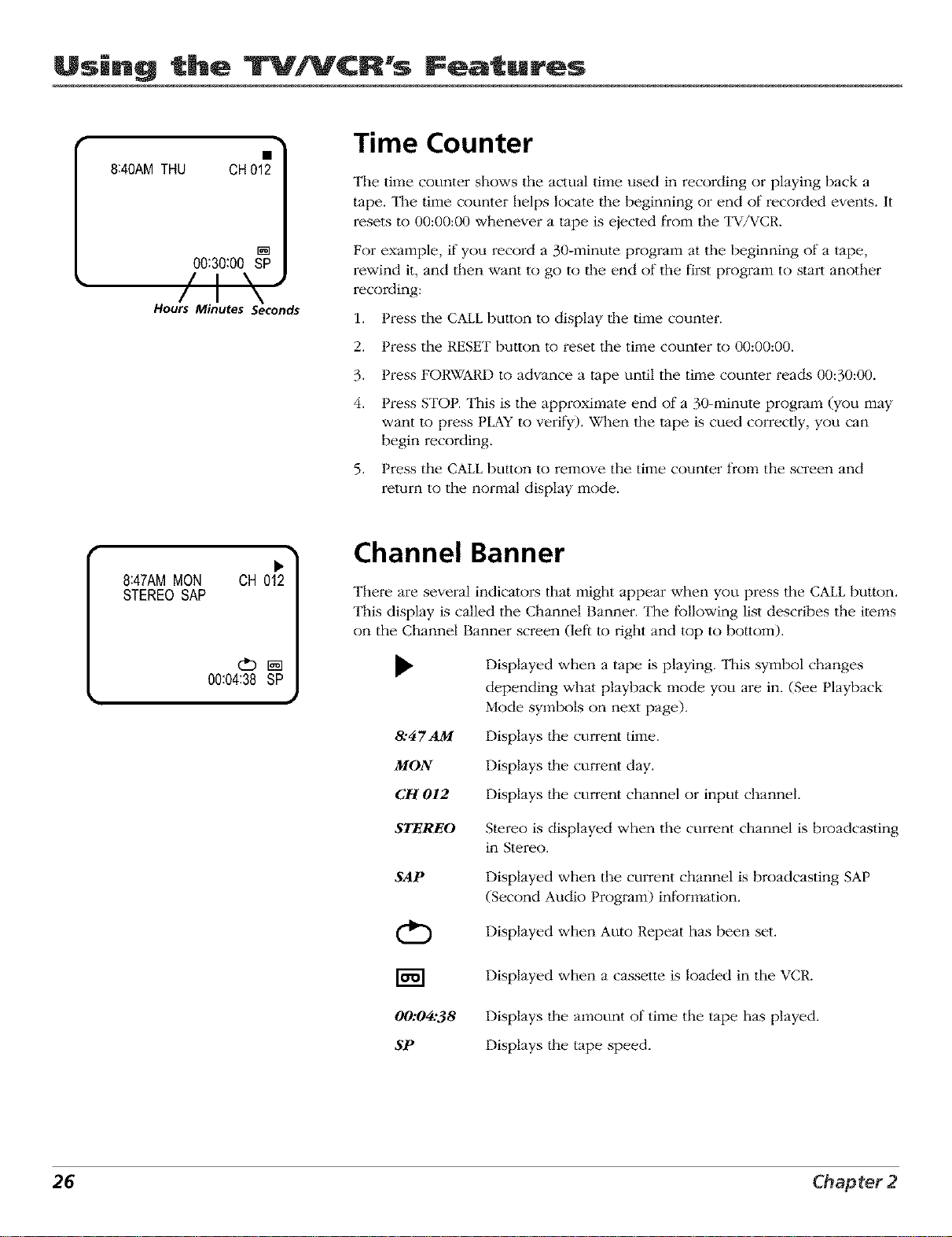
The time counter shows the aclual dine used in recording or playing back a
tape. "II_e time counter helps locate tlle beginning or end of recorded events. It
resets to 00:00:00 whenever a tape is ejecled from the TV/VCR.
For example, if you record a 30-minute program at the beginning of a tape,
rewind it, and then want to go to dm end of the first program to start another
recording:
1. Press the CALL butlon to display tlle time counter.
2. Press the RESET button to reset the time counter to 00:00:00.
3. Press FORWARD to advance a tape until the time counter reads 00:30:00.
4. Press STOP. This is the approximate end of a 30-minute program (you may
want Io press PLAY to verify). When the "tape is cued correctly, you can
begin recording.
5. Press the CALL button to remove the time counter from the screen and
return to the normal display mode.
8:47AM MON CH 012
STEREO SAP
00:04:38 SP
ChannelBanner
There are several indicators that might appear when you press the CALL button.
This display is called the Channel Banner. The following list describes the items
on the Channel Banner screen (let't to right and top to bottom).
&47AM
MON
CH 012
STEREO
SAP
(D
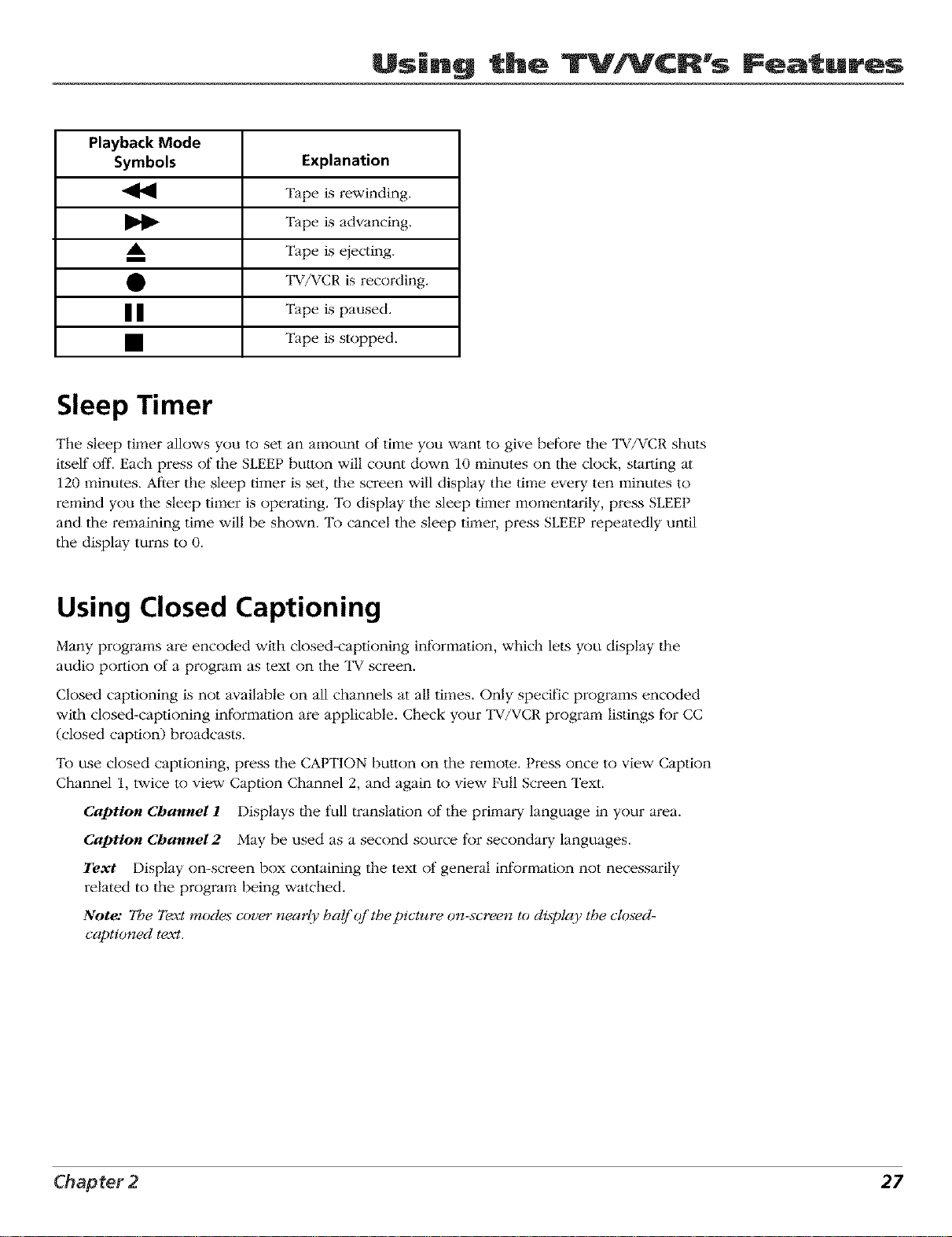
Displayed when a tape is playing. This symbol changes
depending what playback mode you are in. (See Playback
Mode symbols on next page).
Displays dm current time.
Displays tlle current day.
Displays tlle current channel or input channel.
Stereo is displayed when the current channel is broadcasting
in Stere().
Displayed when the current channel is broadcasting SAP
(Second Audio Program) information.
Displayed when Auto Repeat has been set.
Displayed when a cassette is loaded in the VCR.
00:04:38
SP
Displays d_e amount of time the tape has played.
Displays ll_e tape speed.
26 Chapter 2
Using the TVNCR Foaturos
Playback Mode
Symbols Explanation
Tape is rewinding.
Tape is advancing.
_k Tape is ejecting.
i
• TV/VCR is recording.
| | Tape is paused.
• Tape is stopped.
Sleep Timer
The sleep timer allows you to set an amount of time you want to give before llle "IV/VCR shuts
itself oil'. Each press of the SLEEP bulton will count down 10 minutes on the clock, starting at
120 minutes. Afler the sleep timer is set, lhe screen will display the time every ten minutes to
remind you the sleep timer is operating. To display lhe sleep timer momentarily, press SLEEP
and the remaining time will be shown. To cancel the sleep timer, press SLEEP repeatedly until
the display turns to 0.
Using Closed Captioning
Many programs are encoded wilh closed-captioning information, which lets you display llle
audio portion of a program as text on the "IV screen.
Closed captioning is not available on all channels at all times. Only specific programs encoded
wilh closed-captioning information are applicable. Check your "IV/VCR program listings for CC
(closed caption) broadcasts.
To use closed captioning, press the CAPTION buuon on the remote.. Press once to view Caption
Channel 1, twice to view Caption Channel 2, and again to view Full Screen Text.
Caption Chamzel 1 Displays llle full translation of the primary language in your area.
Caption Chamzel 2 May be used as a second source for secondary languages.
Text Display on-screen box containing the text of general information not necessarily
related to the program being watched.
Note: The Text modes cover near{): half of the picture on-screen to display the closed-
captioned text.
Chapter 2 27

(This page intentionally left blank)

Chapter
Using the TV/VCR's
Menu System
Chapter Overview:
• How to Use the TV/VCR's Menu System
• Setting the On/Off Timer
• Picture Menu
• Audio Menu
• Setting Second Audio Program
• System Set-up Menu
• Additional Features in the Menu
Changing Entertainment. _m.
Graphics contained within this publication ara fi_r representation only. 29

Using the lr ¢R's enu Sys o
How to Use Your TV/VCR's Menu System
You use dm buttons on the remote to access dm menu syste1:q and 1:qake changes to dm
settings.
The following pages explain how to use the different types of _:qenus to adiust the features of
your TV/VCR.
MENU 1
_I/TIMER REC SET
- | TV SET-UP
linCH SET-UP
| AUTO REPEAT ON IK)FF
I SYSTEM SET-UP
(+/-/ENTER/MENU)
Menus
The first _:qenu is called dm MENU. Press MENU on the remote to bring up the
MENU.
Menus take you to another _:qenu or a con_ol panel. To select a choice in a
menu:
• Press the up or down arrow button to select a menu ite_:q.Press the ENTER
button to activate dm selection.
Exiting a menu
To exit a menu:
• Press MENU on the remote until the MENUscreen disappears.
MENU "I
_I/TIMERRECSET
- | TVSET-UP
TV SET-UP
_I/V-CHIPSET
)|, ON/OFFTIMER
\/ON/OFF TIMER
-| ONTIMER
t \ !2:00AM CH001
SUN-SAT CANCEL
ON/OFFTIMER
| ONTIMER
7:00AM CH012\ z
MON-FRI -SET-
/ \
| OFFTIMER
12:00AM CANCE
(+I-IENTER/CANCEL/MENU)
Setting the On/Off Timer
The ON/OFf" TIMER 1:qenu lets you set a timer to automatically turn the TV/VCR
on and o1_"automatically.
Note: When you set the ON TIMH¢you must set the OFf" T1MfJ¢ as well or
the TV/VCR will automatically turn cff approximate{v one hour later
after the TV/VCR h&_turned on.
To set the ON TIMER:
1. Press MENU to display the MENIZ
2. Select TVSk"I:UP, then press ENTER.
3. Select ON/OFf" _IIMH¢,then press ENTER.
4. Select ON TIMER, dmn press ENTER to begin selling the timer.
5. Press the up or down arrow button to set llle desired hour. Press ENTER to
select llle hour Qhe AM/PM setting will change as well).
6. Repeat step 4 to enter the desired minute, channel and day of the week.
7. Press the up or down arrow button to select the Sk'Tmode to set the ON
TIMf2¢, lhen press ENTER.
8. Press MENU until llle Mf2VUscreen disappears.
30 Chapter 3
Using the T YVCR% enu Sys o
ON/OFFTIMER
I ONTIMER
7:00AM CH012
MON-FRI SET
| OFF TIMER \ /
12:00AM -SET-
/ \
(+/-/ENTEPJCANCEL/MENU)
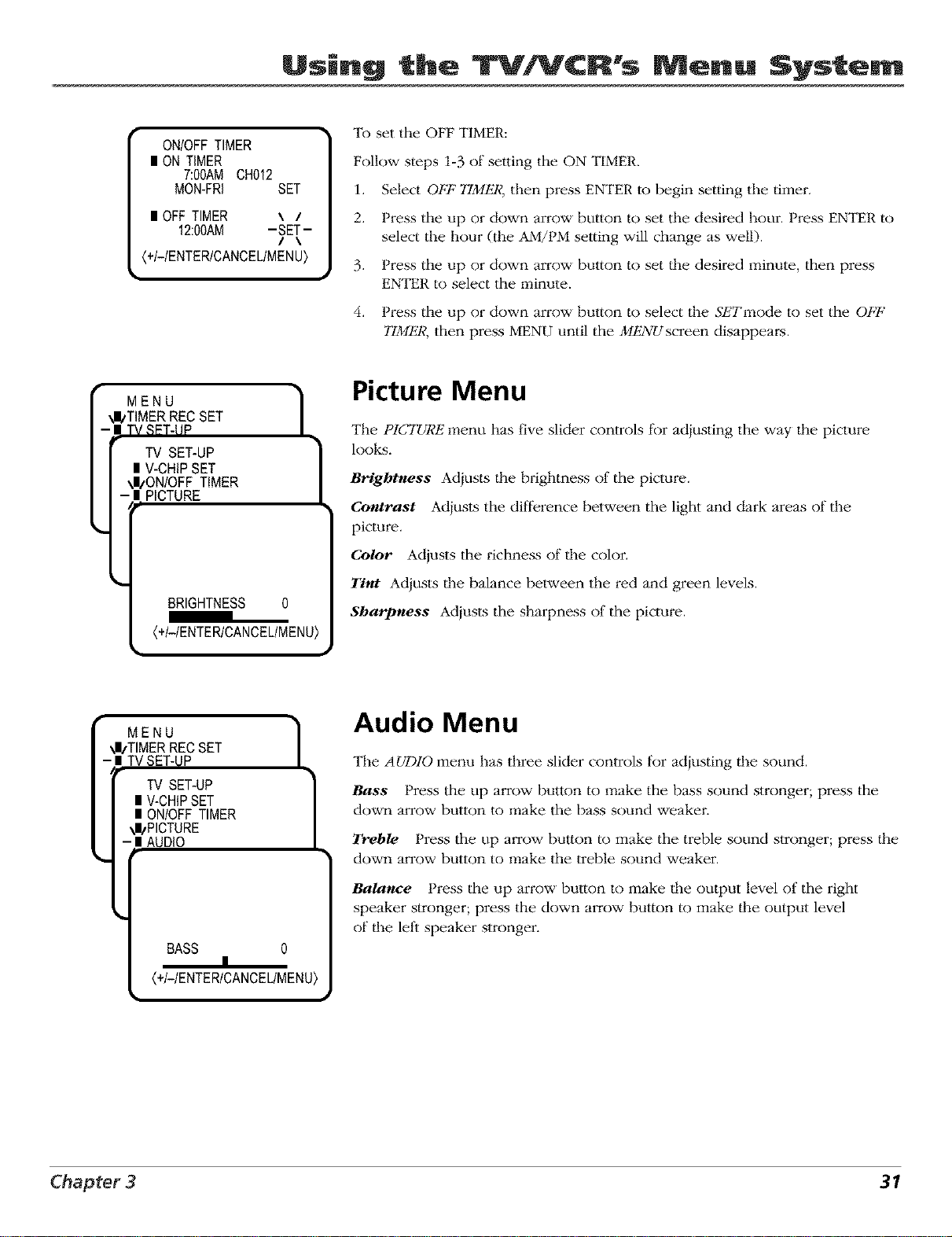
To set the OFF TIMER:
Follow steps 1-3 of setting the ON TIMER.
1. Select OFI_"TIMER, then press ENTER to begin setting the timer.
2. Press the up or down arrow button to set the desired hour. Press ENTER to
select the hour (the AM/PM setting will change as well).
3. Press the up or down arrow button to set ll_e desired minute, then press
ENTER to select the minute.
4. Press the up or down arrow button to select the Sk'Tmode to set the OFP
TIMI_2R,then press MENU until the MENUscreen disappears.
MENU 1
_I/TIMER REC SET
TV £gTd IP
TV SET-UP
I V-CHIPSET
\I/ON/OFF TIMER
PICTURE
BRIGHTNESS 0
(+I-/ENTERICANCEUMENU
Picture Menu
The PICTURE menu has five slider controls for adiusting the way llle picture
looks.
Brightness Adiusts llle brightness of the picture.
Contrast Adiusts the difference between the light and dark areas of the
picture.
Color Adjusts the richness of llle color.
Tint Adiusts llle balance between the red and green levels.
Sk,arpness Adiusts the sharpness of the picture.
• 1
MENU
_I/TIMERRECSET
- | TVSET-UP
TV SET-UP ]
| V-CHIPSET
| ON/OFFTIMER
_I/PICTURE
| AUDIO
BASS 0
|
(+/-/ENTER/CANCEL/MENU)
m
Audio Menu
The AUDIO menu has three slider controls for adiusting llle sound.
Bass Press the up arrow button to make the bass sound stronger; press the
down arrow button to make the bass sound weake_:
Trehle Press the up arrow butlon to make the treble sound stronger; press dm
down arrow button to make the treble sound weaker.
Balance Press the up arrow button to make the output level of the right
speaker stronger; press the down arrow button to make ll_e output level
of the left speaker stronger.
Chapter 3 31
Using the lr ¢R s enu Sys o
MENU 1\I_TIMER RECSET
I TV SET-UP
TV SET-UP
| V-CHIPSET
| ON/OFF TIMER
| PICTURE
_II/AUDIO
-| SAP _ON OFF
/\
(+/-/ENTER/MENU)
Setting Second Audio Program (SAP)
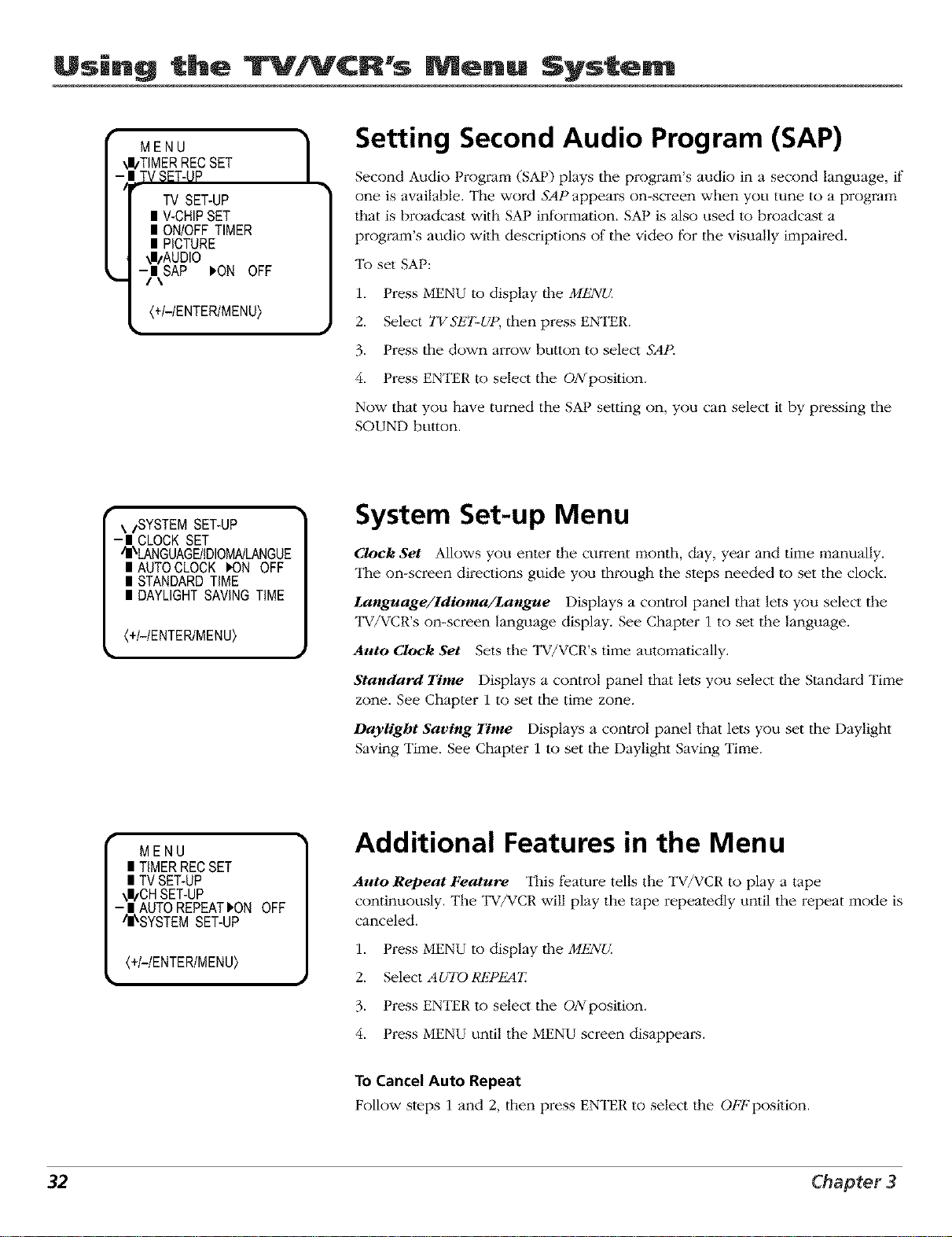
Second Audio Program (SAP) plays the program's audio in a second language, if
one is available. The word SAP appears on-screen when you tune to a program
tl_at is broadcast with SAP information. SAP is also used to broadcast a
program's audio with descriptions of the video for the visually impaired.
To set SAP:
1. Press MENU to display |he MENU
2. Select TVS2_7"-UP, then press ENTER.
3. Press the down arrow button to select sA,r_
4. Press ENTER to select the ON position.
Now that you have turned the SAP setting on, you can select it by pressing the
SOUND button.
\/SYSTEM SET-UP
-I CLOCKSET
/I\LANGUAGF_JIDIOMNLANGUE
I AUTOCLOCKION OFF
I STANDARDTiME
I DAYLIGHTSAVINGTiME
(+I-IENTERIMENU)
System Set-up Menu
Clock Set Allows you enter the current month, day, year and time manually.
The on-screen directions guide you through the steps needed to set the clock.
Language/Idloma/Langue Displays a control panel that lets you select the
TV/VCR's on-screen language display. See Chapter 1 to set the language.
Auto Clock Set Sets the TV/VCR's time automatically.
Standard Time Displays a control panel that lets you select tlle Standard Time
zone. See Chapter 1 to set the time zone.
Daylight Saving Time Displays a control panel that lets you set the Daylight
Saving Time. See Chapter 1 to set the Daylight Saving Time.
MENU
II TIMERRECSET
uTVSET-UP
\I/CH SET-UP
- II AUTOREPEAT).ONOFF
/II\SYSTEMSET-UP
(+I-IENTERIMENU)
Additional Features in the Menu
Auto Repeat Feature This feature tells the TV/VCR to play a tape
continuously. The TV/VCR will play the tape repeatedly until the repeat mode is
canceled.
1. Press MENU to display |he MENL2
2. Select AUTO RP2P_T
3. Press ENTER to select the ON position.
4. Press MENU until the MENU screen disappears.
To Cancel Auto Repeat
Follow steps 1 and 2, then press ENTER to select the OFF position.
32 Chapter 3
Chapter 4
Other Information
Chapter Overview:
• Troubleshooting
• Care and Cleaning
• Front Panel
• Limited Warranty
• Accessory Order Form
• Index
Changing Entertainment. _in.
Graphics contained within this publication araj2_r representation only. 33
Other |nfor ation
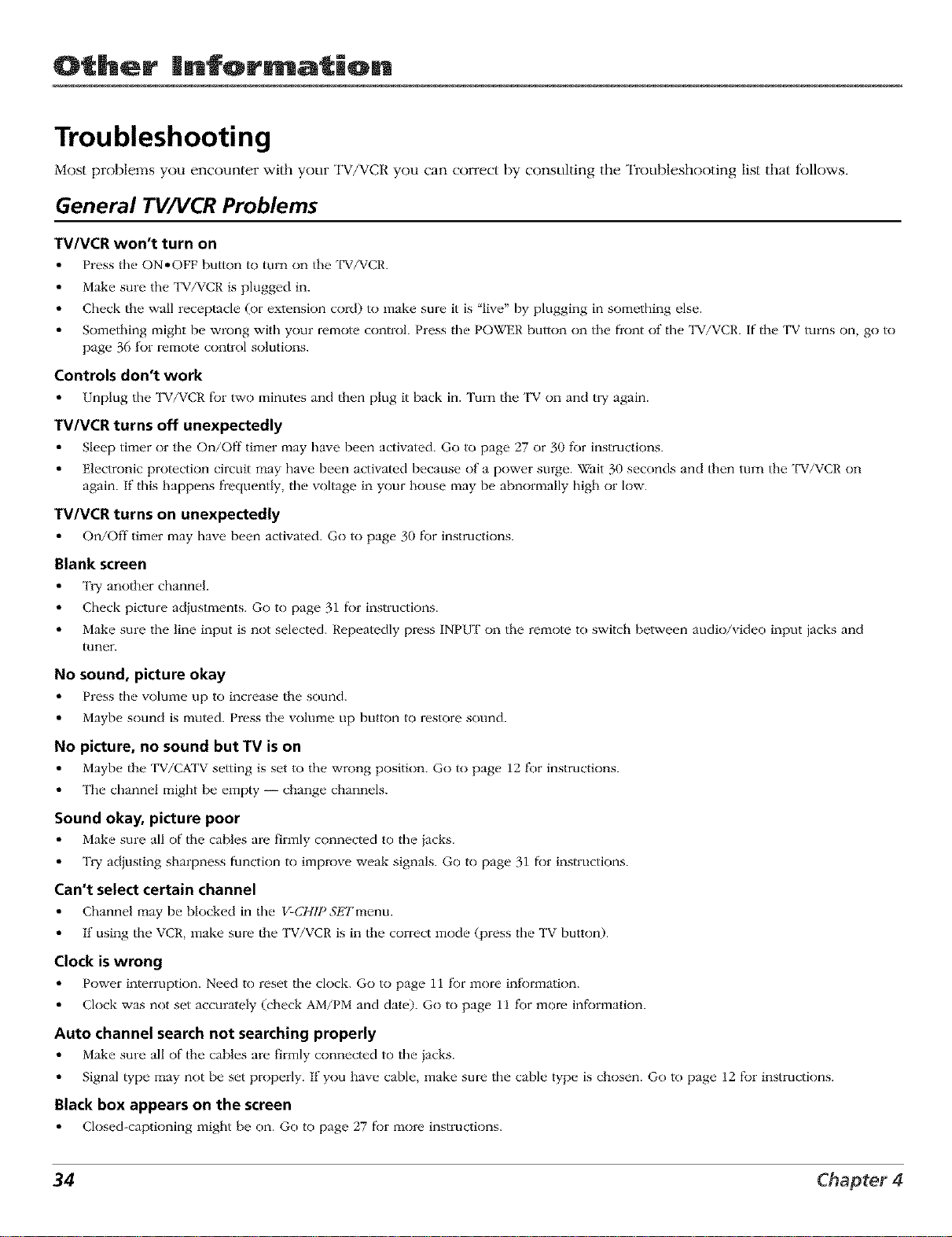
Troubleshooting
Most problems you encounter with your TV/VCR you can correct by consulting the Troubleshooting list that follows.
General TV/VCR Problems
TV/VCR won't turn on
Press the ON,OFF button to turn on the TV/VCR.
Make sme the TV/VCR is plugged in.
Check the wall receptacle (or extension coM) to make sure it is "live" by plugging in something else.
Something might be wrong with your remote control Press the POWER button on the front of the TV/VCR. if the TV turns on, go to
page 36 fk)r remote control solutions.
Controls don't work
Unplug the TV/VCR for two minutes and then plug it back in. Turn the TV on and tWagain.
TV/VCR turns off unexpectedly
Sleep timer or the On/Off timer may have been activated. Go to page 27 or 30 for insmJctions.
Electronic protection circuit may have been activated because of a power surge. Wait 30 seconds and then turn the TV/VCR on
again. If this happens frequently, the voltage in your house may be abnormally high or low.
TV/VCR turns on unexpectedly
On/Off timer may have been activated. Go to page 30 f_)r insmJctions.
Blank screen
T1T another channel
Check picture adjustments. Go to page 31 for instructions.
Make sure the line input is not selected. Repeatedly press INPUT on the remote to switch between audio/video input jacks and
tuner.
No sound, picture okay
Press the' volume, up to increase' the sotmd.
Maybe sound is muted. Press the volume up button to restore sound.
No picture, no sound butTV is on
Maybe the TV/CATV setting is set to file wrong position. Go to page 12 _:)r instructions.
The channel might be empty -- change channels.
Sound okay, picture poor
Make sme all of the cables arc f_rmly connected to the iacks.
TW adiusting sharpness function to improve weak signals. Go to page 31 for instructions.
Can't select certain channel
Channel may be blocked in the V-CHIP S/'Fl'menu.
If using the VCR, make sure the TV/VCR is in the correct mode (press the TV button).
Clock is wrong
Power interruption. Need to reset the clock. Go to page 11 f_r more inf_)rma_ion.
Clock was not set accmatcly (check AM/PM and date). Go to page 11 fbr more information.
Auto channel search not searching properly
Make sme all of the cables arc firmly connected to the jacks.
Signal type may not be set properly. If'you have cable make sure the cable type is chosen. Go to page 12 for instructions.
Black box appears on the screen
Closed-captioning might be on. Go to page 27 for more instructions.
34 Chapter4
Other |nfor ation
Troubleshooting
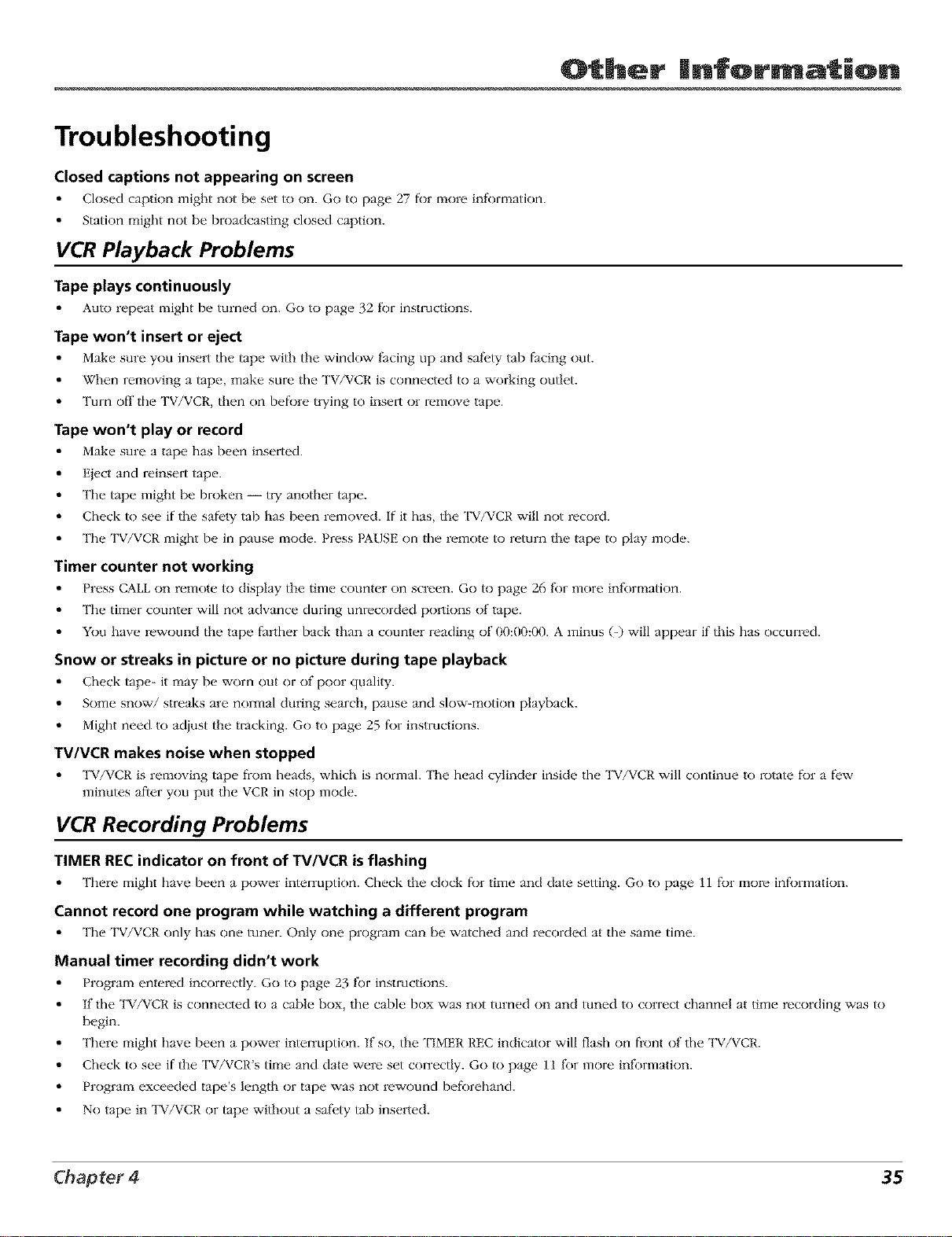
Closed captions not appearing on screen
Closed caption might not be set to on. Go to page 27 for more inf_)rmation.
Station might not be broadcasting closed caption.
VCR Playback Problems
Tape plays continuously
Auto repeat might be turned on. Go to page 32 R)r instructions.
Tape won't insert or eject
Make sure you insert the tape with the window facing up and safbty tab facing out.
When removing a tape make sure the TV/VCR is connected to a working outlet.
Turn off the TV/VCR then on before tlTing to insert or remove tape.
Tape won't play or record
Make sure a tape has I)c_n inserted.
Eject and reinsert tap(,.
The tape might be broken -- tlT another tape.
Check to so(' if the safety tab has been rcmov(,d, if it has the TV/VCR will not record.
The TV/VCR might bc in pause mode. Press PAUSE on the r(,moW to return the tape to play mode.
Timer counter not working
Press CALL on r(,motc to display the time counter on screen. Go to page 26 f_:)rmore inf_)rmation.
The timer counter will not advance during unrecorded pol_ions of tape.
You haw rewound the tape farther back than a counWr reading of O0:OrO:O0.A minus (-) will appear if this has occurred.
Snow or streaks in picture or no picture during tape playback
Check tap(*- it may b(, worn out or of poor quality.
Some snow/streaks are normal during search, pause and slow-motion playback.
Might need to adjust the tracking. Go to page 25 for instructions.
TV/VCR makes noise when stopped
TV/VCR is removing tape fl-om beads, which is normal. The head cylinder inside the TV/VCR will continue to rotate for a few
minutes after you put the VCR in stop mode.
VCR Recording Problems
TIMER REC indicator on front of TV/VCR is flashing
There might have b(,cn a power interruption. Check the clock for time and date setting. Go to page 11 for more information.
Cannot record one program while watching a different program
The TV/VCR only has one tuner. Only one program can be watched and recorded at the same time.
Manual timer recording didn't work
Program entered incorrectly. Go to page 23 for instructions.
If the TV/VCR is connected to a cable box, the cable box was not turned on and tuned to con-ect channel at time recording was to
begin.
There might have been a power interruption. If so, the TIMER REC indicator will flash on front of tile TV/VCR.
Check to see if the TV/VCR's time and date were set correctly. Go to page 11 fbr more information.
Program exceeded tape's length or tape was not rewound befbrehand.
No tape in TV/VCR or tape without a safbty tab inserted.
Chapter 4 35

Other |nfor ation
The Remote Control Doesn't Work
Something might be between the remote and the remote sensor on the component. Make sure there is a clear path.
Maybe the remote isn't aimed directly at the TV/VCR.
Maybe batteries in remote are weak, dead or installed incorrectly. Put new batteries in the remote. (Note, if you remove the batteries,
you may have to reprogram the remote to operate other components.)
You might need to drain the remote's microprocessor: remove batteries and press the number 1 button for at least 60 seconds.
Release the 1 button, replace the batteries, and (if necessa W) program the remote again.
Problems with V-Chip
The rating limits don't work
You must tmn on the settings. Go to the MENU (prvss MENU on your rvmotv), select I/-CH1PSE7 selc'ct I/-(,_lp "ON".
I don't remember my password and I want to unlock the TV/VCR
If"you fbrget yot]r password, simultaneously press VOLUME down on the TV/VCR front panel and the 0 number button on the
r_.'mote for a few seconds. '['l_is res_'ts the.' password and you can _.,ntvr a n_'w one'.
Care and Cleaning
CAUTION: Turn OFF your TV/VCR before cleaning.
You can clean the TV/VCR as required, using a soft lint-free cloth. Be sure to occasionally dust the ventilation slots in the
cabinet to help assure adequate ventilation.
The TWs screen may be cleaned with a soft, lint-free cloth as well. Take care not to scratch or mar the screen. If
necessary, you may use a cloth dampened with warm water. Never use strong cleaning agents, such as ammonia-
based cleaners, or abrasive powder. These types of cleaners will damage the TV.
While cleaning do not spray liquid directly on tlle screen, or allow liquid to run down the screen and inside the "I_/VCR.
Also, avoid placing drinks or vases with water on top of the TV/VCR. This could increase the risk of fire or shock hazard or
damage to the TV/VCR.
Caution= Using video games or any external accessory with fixed images lk)r extended periods of time can cause them to
be permanently imprinted on the picture tube (or projection "1_ picture tubes). ALSO, some network/program logos, phone
nmnbers, etc. may cause similar damage. This damage is not covered by your warranty.
Front Panel
If you can't find your remote control you can use the buttons on your TV/VCR to operate many of the TV/VCR's features.
POWER Turns the TV/VCR on or off'.
REC/OTR Indicator Lights when lhe One-Touch recording has been set.
TIMER REE Indicator Lights when a timer program has been set and a tape with the salk.ly tab is in llle "lW/VCR. Also
flashes when there has been a power interruption.
POWER Indicator Lights when the TV/VCR is on.
STEREO HEADPHONE Connect headphones (not supplied) to this iack to receive stereo sound.
VOL v Decreases the volmne.
VOL ^ Increases the volume.
36 Chapter 4
Other |nfor ation
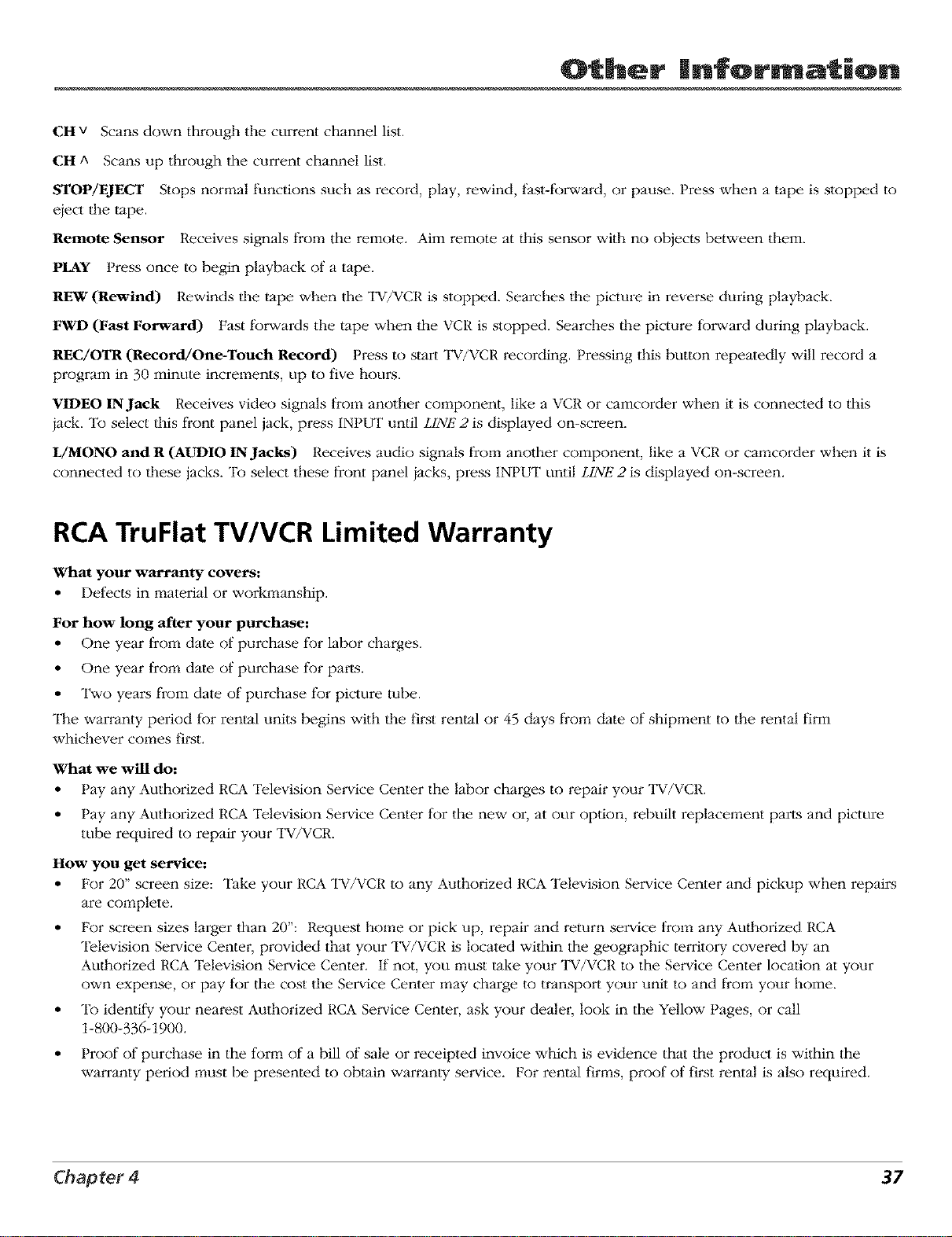
CH v Scans down through the current channel list.
CH ^ Scans up through the current channel list.
STOP/EJECT Stops nomqal functions such as record, play, rewind, fast-forward, or pause. Press when a tape is stopped to
eiect the tape.
Remote Sensor Receives signals fro_:q the remote. Aim remote at this sensor with no objects between them.
PLAY Press once to begin playback of a tape.
REW {Rewind) Rewinds the tape when the TV/VCR is stopped. Searches the picture in reverse during playback.
FWD (Fast Forward) Fast forwards the tape when the VCR is stopped. Searches the picture forward during playback.
REC/OTR (Record/One-Touch Record) Press to start TV/VCR recording. Pressing this button repeatedly will record a
program in 30 minute increments, up to five hours.
VIDEO IN Jack Receives video signals from another component, like a VCR or camcorder when il is connected to this
iack. To select this front panel jack, press INPUT until LINE 2 is displayed on-screen.
L/MONO and R (AUDIO IN Jacks) Receives audio signals from another component, like a VCR or camcorder when it is
connected to these jacks. To select these front panel iacks, press INPUT until LINE2 is displayed on-screen.
RCA TruFlat TV/VCR Limited Warranty
What your warranty covers:
• Del)cts in material or workmanship.
For how long after your purchase:
• One year l¥om date of purchase for labor charges.
• One year from date of purchase for parts.
• Two years from dale of purchase for picture tube.
The warranty period for rental units begins with the first rental or 45 days from date of shipment to the rental firm
whichever comes first.
What we will do:
• Pay any Authorized RCA Television Service Center the labor charges to repair your "IW/VCR.
• Pay any Authorized RCA Television Service Center for the new or, at our option, rebuilt replacement parts and picture
tube required to repair your TV/VCR.
How yon get service:
• For 20" screen size: "Fake your RCA TV/VCR to any Authorized RCA Television Service Center and pickup when repairs
are complete.
• For screen sizes larger than 20": Request home or pick up, repair and return service from any Authorized RCA
"Pelevision Service Center, provided that your TV/VCR is located within the geographic territoly covered by an
Authorized RCA "Pelevision Service Center. If not, you must take your "IW/VCR to the Service Center location at your
own expense, or pay for the cost the Service Center may charge to transport your uni_ to and from your home.
• To identify your nearest Authorized RCA Service Center, ask your dealer, look in the Yellow Pages, or call
1-800-336-1900.
• Proof of purchase in the form of a bill of sale or receipted invoice which is evidence that the product is within the
warranty period must be presented to obvain warranty service. For rental firms, proof of first rental is also required.
Chapter 4 37
Other |nfor ation
What your warranty does not cover:
• Cuslomer instruction. (Your Owner's Manual describes how to install, adiust , and operate your television. Any
addilional infortnation should be obtained from your dealer.)
• Installation and related adjustments.
• Signal reception problems not caused by your TV/VCR.
• Damage from misuse or neglect.
• Cleaning of audio/video heads.
• Batteries.
• A TV/VCR that has been modified or incorporated into other products or used for institutional or other commercial
purposes.
• Images burnt onto the screen.
• Acts of nature, such as but not limited to lightning damage.
• A "IW/VCR purchased or serviced outside the U.S.A.
Product Registration:
• Please complete and mail the Product Registration Card packed with your set. It will make it easier to contact you
should i_ever be necessary. The return of the card is not required for warranty coverage.
Limitation of Warranty:
• THE WARRANTY STATED ABOVE IS THE ONLY WARRANTY APPLICABLE TO THIS PRODUCT. ALL OTHER
WARRANTIES, EXPRESS OR IMPLIED (INCLUDING ALL IMPLIED WARRANTIES OF MERCHANTABILITY OR
FITNESS FOR A PARTICULAR PURPOSE) ARE HEREBY DISCLAIMED. NO VERBAL OR WRITTEN INFORMATION
GIVEN BY THOMSON MULTIMEDIA INC., ITS AGENTS OR EMPLOYEES SHALL CREATE A GUARANTY OR IN
ANY WAY INCREASE THE SCOPE OF THIS WARRANTY.
REPAIR OR REPLACEMENT AS PROVIDED UNDER THIS WARRANTY IS THE EXCLUSIVE REMEDY OF THE
CONSUMER. THOMSON MULTIMEDIA INC. SHALL NOT BE LIABLE FOR INCIDENTAL OR CONSEQUENTIAL
DAMAGES RESULTING FROM THE USE OF THIS PRODUCT OR ARISING OUT OF ANY BREACH OF ANY
EXPRESS OR IMPLIED WARRANTY ON THIS PRODUCT. THIS DISCLAIMER OF WARRANTIES AND LIMITED
WARRANTY ARE GOVERNED BY THE LAWS OF THE STATE OF INDIANA. EXCEPT TO THE EXTENT
PROHIBITED BY APPLICABLE LAW, ANY IMPLIED WARRANTY OF MERCHANTABILITY OR FITNESS FOR A
PARTICULAR PURPOSE ON THIS PRODUCT IS LIMITED TO THE APPLICABLE WARRANTY PERIOD SET FORTH
ABOVE.
How state law relates to this warranty:
• Some states do not allow the exclusion nor limitation of incidental or consequential damages, or limitations on how
long an implied warranty lasts, so the above limitations or exclusions may not apply to you.
• This warranty gives you specific legal rights, and you also may have odmr rights that vary from state to state.
If you purchased your product outside the United States:
• This warranty does not apply. Con'tact your dealer for wmTanty infortnation.
Service calls which do not involve defective materials or workmanship are not covered by this warranty. Costs
of such service calls are the sole responsibility of the purchaser.
38 Chapter 4
Other |nfor ation
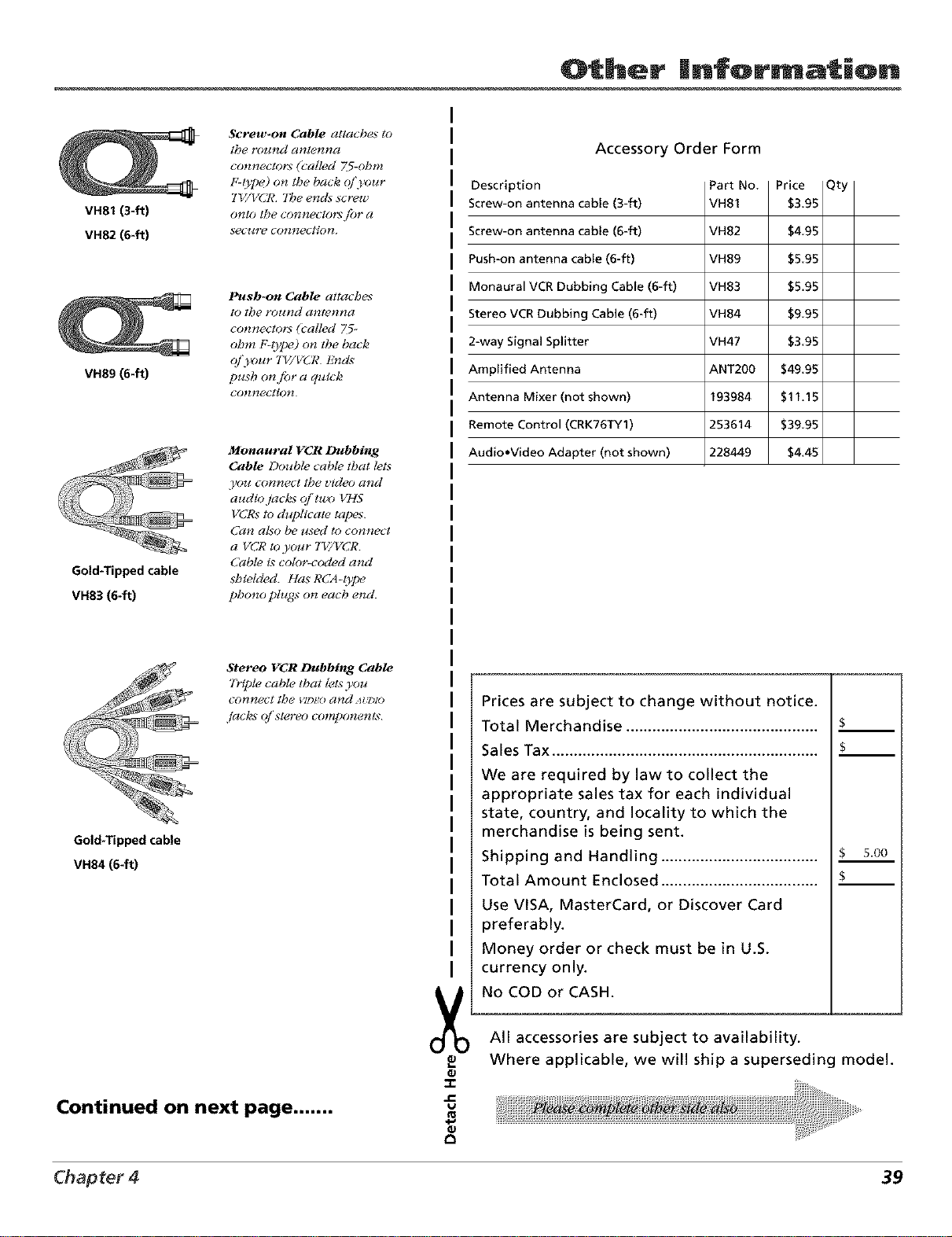
VH81 (3-ft)
VH82 (640
Screw-on Cable attaches to
the rotated anlenna
co!_neclors (called 75-ohm
F-thpe)on the hack o/'your
TV/VCR The enda screw
onto tile connectom fiJr a
sec*_re co*lnectio*L
VH89 (8-ft)
Push-on Cable attaches
to the round antenna
connectors (called Z5-
ohm F-type) on the bacl_
cff'3*mr TV/VC7? En&
push on fiJr a quicla
Co!_nectJo!_
Gold*Tipped cable
VH83 (640
Monaural VCR Dubbing
Cable Double cable that lets
you cormect the video a_d
audio jack_ qi'tz_-) VHS
VCRs to duplicate taj)es
(]a_ also be t_xed to connect
a V('R loyour 717/VCR.
Cable is col(mcoded and
shieMed. Ha_¢ RCA-t}!)e
phono plugs on each e_d.
Stereo VCR Dubbing Cable
7D_le cable that lets }'ou
COllt"leCt the VI1)t_(I (#_d At:rllO
jacla_ (if'stereo com])one_ts
Gold-Tipped cable
VH84 (6-ft)
Continued on next page .......
Accessory Order Form
Description
Screw-on antenna cable (3-ft)
icrew-on antenna cable (6-ft)
_ush-on antenna cable (6-ft)
Monaural VCR Dubbing Cable (6-ft)
;tereo VCR Dubbing Cable (6-ft)
Z-way Signal Splitter
_rnp[ified Antenna
_,ntenna Mixer (not shown)
lemote Control (CRK76TY1)
_,udio,Video Adapter (not shown)
VH82
VH89
VH83
VH84
VH47
ANT200
193984
253614
228449
$4.95
$5.95
$5.95
$9.95
$3.95
$49.95
$11.15
$39.95
$4.45
.c
_J
Prices are subject to change without notice.
Total Merchandise ............................................ $
Sales Tax .............................................................. $__
We are required by law to collect the
appropriate sales tax for each individual
state, country, and locality to which the
merchandise is being sent.
Shipping and Handling ..................................... $ 50o
Total Amount Enclosed ..................................... $-_
Use VISA, MasterCard, or Discover Card
?referably.
Money order or check must be in U.S.
currency only.
No COD or CASH.
All accessories are subject to availability.
Where applicable, we will ship a superseding model.
Chapter 4 39

Other |nfor ation
Charge your order on your VISA,
MasterCard, or Discover Card by
filling in below
USE YOUR CREDIT CARD
IMPORTANT: Copy complete account number I_------V_[
from your VISA card 1
v-v-v-v1v-v-v1V-Vl-]v-v1-1
My card expires: _
IMPORTANT: Copy complete account number
from your MasterCard
Copy Number
above your
llame on
Mas/erCard
My card _
expires:
IMPORTANT: Copy complete account number
from your Discover Card
My card expires: _
AUTHORIZED SIGNATURE
(Credit card order will not be processed without signature)
Print or type your name and
address clearly.
A complete and correct
order will save you days
of waiting.
Name:
Street:
City:
State:
Daytime phone number:
Apt:
Zip:
Please make sure that both sides of this form
have been filled out completely.
• Allow 4 weeks for delivery.
• All accessories are subject to availability.
• Prices are subject to change.
o
Ila
,,C
tJ
tt3
Splitter VH47
2-way Signal Splitter
Helps _,ou connect a second TV
or VCR.
Amplified Antenna
AIh)ws )_)u to quiclaly switch
from the antenna signal to the
cable or satellile signal without
discon_ecting the a_tenna
ANT200
CRKg6TY1
Remote Control
7his is tbc remolc, conlrol lhat
came packed with your TV/
VCR. Replace,meres or spares
can be ordered a_ needed.
To Order
To place your order by phone, have. your Visa,
MasterCard or Discover Card ready and call the toll-free
number listed below.
Use this nmnber only to place an order for accessory
items listed on this order form.
1-800-338-0376
To place your order by mail, detach and mail the
completed order form wi_h credi_ card infurmation,
money order or check in US currency (made payable to
Thomson multimedia Inc.) to the following address:
Video Accessories
PO Box 8419
Ronks, PA 17573
40 Chapter 4
A
Accessories 39
Add/Remove Channels 13
Age-Based Ratings 19
Arrow buttons 15
AUDIO jacks 8
Audio menu 31
Audio/Video
cable 7
Auto
Channel Memory 12
repeat 32
AI.JTO TRACK button 15
Automatic
rewind 14
tracking 25
B
Basic
mcording 14
Index
Batteries fbr the remote i0
Block
Specific Content Themes 20
Buttons, remote control 15
C
Cables
Audio/Video 7
coaxial 7
CALL button 15
CANCEL button 15
CAPTION button 15
CH + button 15
CH - button 15
Channel Banner 26
Choosing a connection 7
Cleaning the TV/VCR 36
Clock
set 11
Closed Captioning 27
Coaxial cable 7
Connection
_/VCR + Stereo 9
_/VCR Only 8
Content Themes 19
Contrast Functk:m 31
Controls
Front panel 36
Copying tapes 24
D
Daylight Saving Time 12
E
Editing tapes 24
EJECT button 15
ENTER button 15
F
FORWARI) button 15
Front panel 36
jacks 37
6
GO BACK button 15
I
INPI/T button 15
J
Jacks
front panel 37
L
LE.I). button 15
Language i0
M
Menu
Audio 31
On/Off'timer 30
Picture 31
System Set-up 32
MENU button 15
MI.JTE button 15
N
Number buttons 15
o
ON,OFF button 15
On/Off Timer 30
One-Touch Recording 23
p
PAUSE button 15
Picture
adjusting 31
Menu 31
Picture search optk:ms 25
PLAY button 16
PROGRAM button 16
R
Rating Limits
movies 20
TV 19
RECORD button 16
Recording
Basic 14
One-Touch 23
pause 22
speeds 22
Timer 23
Remote
batteries 10
REVERSE button 16
$
Safc_y tab 14
Search
Skip 25
Speed 25
Second Audio Program (SAP)
32
Set
Off Timer 31
On 'timer N)
One-Toud_ Recording 23
Timer Recording 23
Setting
channels 12
SKIP/SEARCH button 16
SLEI_2P button 16
Sleep Timer 27
SLOW button 16
SLP Speed 22
SOUND button 16
SP Speed 22
Speed
SLP 22
SP 22
SPEED button 16
Speed Search
LP 25
SLP 25
SP 25
STOP button 16
Stopping
One-Toud_ Recording 23
Timer Recording 24
System Setmp Menu 32
T
Time counter 26
Time Zone 11
TIMER button 16
Timer Recording 23
Tracking
automatic 25
manual 25
'['RACKING buttons 16
Troubleshooting 34
TV/VCR + Stereo
connection 9
TV/VCR button 16
TV/VCR Only
connection g
TV/VCRsetup 10
Types of Recording 22
u
UHF/VHF jack 8
V
V-Chip 18
Age-Based Ratings 19
Blocking Movies 20
Movie Rating 19
Password 18
TV Rating 19
VIDEO jacks 8
VOL + button 16
VOL- button 16
w
Warranty 37
buttons 15
RESET button 16
Chapter4 41

Visit the RCA web site at www.rca.com
Please do not send any products to the Indianapolis address listed in this manual or on the carton. This will only
add delays in service for your product.
Thomson multimedia Inc.
10330 North Meridian Street
Indianapolis, IN 46290
©2001 Thomson multimedia Inc.
Trademark(s)® Registered
Marca(s) Registrada(s)
Printed in Thailand
TOCOM 15776370
11.IOMSON
THOMSON