User'sGuide
IMPORTANT: Before using this product, make sure you read the safety
instructions in the online Notices.
For information on contacting Epson, see the online Notices.

Contents
2
NotationsUsedinThisGuide7
UsingtheManualtoSearchforInformation..................................8
SearchingbyKeyword...................................................................................................................8
JumpingDirectlyfromBookmarks............................................................................................8
PrintingOnlythePagesYouNeed............................................................................................8
GettingtheLatestVersionoftheDocuments.................................9
ListofFunctions10
IntroductiontoYourProjector14
ProjectorFeatures............................................................................15
QuickandEasySetup..................................................................................................................15
EasyWirelessProjection.............................................................................................................15
ProjectorPartsandFunctions........................................................17
ProjectorParts-Front..................................................................................................................17
ProjectorParts-Rear....................................................................................................................18
ProjectorParts-Base...................................................................................................................19
ProjectorParts-ControlPanel.................................................................................................20
ProjectorParts-RemoteControl............................................................................................21
SettingUptheProjector23
ProjectorPlacement........................................................................24
ProjectorSetupandInstallationOptions.............................................................................25
ProjectionDistance.......................................................................................................................25
ProjectorConnections.....................................................................27
ConnectingtoaComputer........................................................................................................27
ConnectingtoaComputerforVGAVideoandAudio..............................................27
ConnectingtoaComputerforUSBVideoandAudio...............................................28
ConnectingtoaComputerforHDMIVideoandAudio...........................................29
ConnectingtoVideoSources...................................................................................................29
ConnectingtoanHDMIVideoSource............................................................................30
ConnectingtoaCompositeVideoSource.....................................................................30
ConnectingtoExternalUSBDevices.....................................................................................31
USBDeviceProjection...........................................................................................................31
ConnectingtoaUSBDevice...............................................................................................31
DisconnectingaUSBDevice...............................................................................................32
ConnectingtoaDocumentCamera......................................................................................32
ConnectingtoExternalDevices...............................................................................................32
ConnectingtoaVGAMonitor............................................................................................32
ConnectingtoExternalSpeakers......................................................................................33
ConnectingaMicrophone...................................................................................................34
InstallingBatteriesintheRemoteControl....................................35
RemoteControlOperation..............................................................36
OpeningtheLensCover..................................................................37
UsingBasicProjectorFeatures38
TurningOntheProjector................................................................39
HomeScreen...................................................................................................................................40
TurningOfftheProjector................................................................42
SettingtheDateandTime..............................................................43
SelectingtheLanguagefortheProjectorMenus.........................45
ProjectionModes.............................................................................46
ChangingtheProjectionModeUsingtheRemoteControl..........................................46
ChangingtheProjectionModeUsingtheMenus............................................................46
DisplayingaTestPattern................................................................48
AdjustingtheImageHeight............................................................49
ImageShape.....................................................................................50
AutoV-Keystone............................................................................................................................50
CorrectingtheImageShapewiththeHorizontalKeystoneSlider.............................50

Contents
3
CorrectingtheImageShapewiththeKeystoneButtons..............................................51
CorrectingtheImageShapewithQuickCorner...............................................................52
ResizingtheImagewiththeZoomRing........................................54
FocusingtheImageUsingtheFocusRing.....................................55
SelectinganImageSource..............................................................56
ImageAspectRatio..........................................................................58
ChangingtheImageAspectRatio..........................................................................................58
AvailableImageAspectRatios.................................................................................................58
ProjectedImageAppearancewithEachAspectMode..................................................59
AdjustingImageQuality(ColorMode)..........................................61
ChangingtheColorMode.........................................................................................................61
AvailableColorModes.................................................................................................................61
SettingAutoIris.............................................................................................................................61
ControllingtheVolumewiththeVolumeButtons.......................63
AdjustingProjectorFeatures64
ProjectingTwoImagesSimultaneously........................................65
UnsupportedInputSourceCombinationsforSplitScreenProjection.....................67
SplitScreenProjectionRestrictions........................................................................................67
ProjectingaPCFreePresentation..................................................68
SupportedPCFreeFileTypes...................................................................................................68
PrecautionsonPCFreeProjection.........................................................................................68
StartingaPCFreeSlideShow..................................................................................................69
StartingaPCFreeMoviePresentation.................................................................................70
PCFreeDisplayOptions.............................................................................................................71
ShuttingOfftheImageandSoundTemporarily..........................73
StoppingVideoActionTemporarily..............................................74
ZoomingIn/ZoomingOutofImages(E-Zoom).............................75
ZoomingIntoImages..................................................................................................................75
ZoomingOutofImages..............................................................................................................75
SavingaUser'sLogoImage............................................................77
SavingaUserPattern......................................................................78
ColorDifferenceCorrectionwhenProjectingfromMultiple
Projectors..........................................................................................79
SettingtheProjectorID..............................................................................................................79
SelectingtheProjectorYouwanttoOperate....................................................................79
MatchingMultiple-ProjectorDisplayQuality.....................................................................80
ProjectorSecurityFeatures.............................................................82
PasswordSecurityTypes............................................................................................................82
SettingaPassword..................................................................................................................82
SelectingPasswordSecurityTypes...................................................................................83
EnteringaPasswordtoUsetheProjector.....................................................................84
LockingtheProjector'sButtons...............................................................................................84
UnlockingtheProjector'sButtons....................................................................................85
InstallingaSecurityCable..........................................................................................................85
UsingtheProjectoronaNetwork87
WiredNetworkProjection...............................................................88
ConnectingtoaWiredNetwork..............................................................................................88
SelectingWiredNetworkSettings..........................................................................................88
WirelessNetworkProjection...........................................................91
InstallingtheWirelessLANModule.......................................................................................91
SelectingWirelessNetworkSettingsManually..................................................................92
SelectingWirelessNetworkSettingsinWindows............................................................94
SelectingWirelessNetworkSettingsinMac.......................................................................95
SettingUpWirelessNetworkSecurity...................................................................................95
SupportedClientandCACertificates..............................................................................97
UsingaQRCodetoConnectaMobileDevice...................................................................97
UsingaUSBKeytoConnectaWindowsComputer........................................................98
WirelessNetworkProjectionfromaMobileDevice(Screen
Mirroring)..........................................................................................99

Contents
4
SelectingScreenMirroringSettings.......................................................................................99
ConnectingUsingScreenMirroringwiththeMiracastFunction.............................101
ConnectingUsingScreenMirroringinWindows10...............................................101
ConnectingUsingScreenMirroringinWindows8.1..............................................102
SecureHTTP....................................................................................104
ImportingaWebServerCertificateUsingtheMenus..................................................104
SupportedWebServerCertificates................................................................................105
MonitoringandControllingtheProjector106
EpsonProjectorManagement......................................................107
ControllingaNetworkedProjectorUsingaWebBrowser........108
WebControlOptions.................................................................................................................109
RegisteringDigitalCertificatesfromaWebBrowser.................112
SettingUpProjectorNetworkE-MailAlerts...............................113
NetworkProjectorE-mailAlertMessages.........................................................................113
SettingUpMonitoringUsingSNMP.............................................115
UsingESC/VP21Commands........................................................116
ESC/VP21CommandList.........................................................................................................116
CableLayouts...............................................................................................................................116
PJLinkSupport...............................................................................118
CrestronConnectedSupport........................................................119
SettingUpCrestronConnectedSupport...........................................................................119
ControllingaNetworkedProjectorUsingCrestronConnected...............................119
CrestronConnectedOperationWindow.....................................................................121
CrestronConnectedToolsWindow...............................................................................122
SettingProjectorEventSchedules...............................................124
AdjustingtheMenuSettings127
UsingtheProjector'sMenus.........................................................128
UsingtheDisplayedKeyboard.....................................................129
AvailableTextUsingtheDisplayedKeyboard.................................................................129
ImageQualitySettings-ImageMenu.........................................130
InputSignalSettings-SignalMenu.............................................131
ProjectorFeatureSettings-SettingsMenu................................132
ProjectorSetupSettings-ExtendedMenu.................................134
ProjectorNetworkSettings-NetworkMenu..............................137
NetworkMenu-ScreenMirroringSettings......................................................................138
NetworkMenu-BasicMenu..................................................................................................139
NetworkMenu-WirelessLANMenu..................................................................................140
NetworkMenu-WiredLANMenu.......................................................................................143
NetworkMenu-NotificationsMenu...................................................................................144
NetworkMenu-OthersMenu...............................................................................................145
NetworkMenu-ResetMenu..................................................................................................146
ProjectorSetupSettings-ECOMenu..........................................147
ProjectorInformationDisplay-InfoMenu.................................149
InfoMenu-ProjectorInfoMenu..........................................................................................149
EventIDCodeList.................................................................................................................150
ProjectorResetOptions-ResetMenu.........................................152
CopyingMenuSettingsBetweenProjectors(BatchSetup)......153
TransferringSettingsFromaUSBFlashDrive.................................................................153
TransferringSettingsFromaComputer............................................................................154
BatchSetupErrorNotification.........................................................................................155
MaintainingtheProjector156
ProjectorMaintenance..................................................................157
CleaningtheLens...........................................................................158
CleaningtheProjectorCase..........................................................159
AirFilterandVentMaintenance..................................................160

Contents
5
CleaningtheAirFilterandVents..........................................................................................160
ReplacingtheAirFilter.............................................................................................................160
ProjectorLampMaintenance.......................................................163
ReplacingtheLamp...................................................................................................................163
ResettingtheLampTimer.......................................................................................................166
SolvingProblems167
ProjectionProblems......................................................................168
ProjectorIndicatorStatus.............................................................169
UsingtheProjectorHelpDisplays................................................172
SolvingImageorSoundProblems...............................................173
SolutionsWhenNoImageAppears.....................................................................................173
SolutionsWhenImageisIncorrectUsingtheUSBDisplayFunction.....................173
SolutionsWhen"NoSignal"MessageAppears...............................................................174
DisplayingFromaLaptop..................................................................................................174
DisplayingFromaMacLaptop........................................................................................174
SolutionsWhen"NotSupported"MessageAppears....................................................174
SolutionsWhenOnlyaPartialImageAppears................................................................175
SolutionsWhentheImageisnotRectangular................................................................175
SolutionsWhentheImageContainsNoiseorStatic.....................................................175
SolutionsWhentheImageisFuzzyorBlurry..................................................................176
SolutionsWhentheImageBrightnessorColorsareIncorrect.................................176
SolutionstoSoundProblems.................................................................................................177
SolutionsWhenImageFileNamesarenotDisplayedCorrectlyinPCFree.........177
SolvingProjectororRemoteControlOperationProblems.......178
SolutionstoProjectorPowerorShut-OffProblems......................................................178
SolutionstoProblemswiththeRemoteControl............................................................178
SolutionstoPasswordProblems...........................................................................................179
SolutionWhen"TheBatterythatSavesYourClockSettingsisRunningLow"
MessageAppears........................................................................................................................179
SolvingNetworkProblems...........................................................180
SolutionsWhenWirelessAuthenticationFails................................................................180
SolutionsWhenYouCannotAccesstheProjectorThroughtheWeb...................180
SolutionsWhenNetworkAlertE-MailsarenotReceived............................................180
SolutionsWhentheImageContainsStaticDuringNetworkProjection...............181
SolutionsWhenYouCannotConnectUsingScreenMirroring.................................181
SolutionsWhentheImageorSoundContainsStaticDuringScreenMirroring
Connection....................................................................................................................................181
Appendix183
OptionalAccessoriesandReplacementParts.............................184
Screens............................................................................................................................................184
Cables..............................................................................................................................................184
Mounts............................................................................................................................................184
ForWirelessConnection..........................................................................................................184
ExternalDevices..........................................................................................................................185
ReplacementParts......................................................................................................................185
ScreenSizeandProjectionDistance............................................186
SupportedMonitorDisplayResolutions.....................................192
ProjectorSpecifications................................................................194
ConnectorSpecifications.........................................................................................................198
ExternalDimensions......................................................................199
USBDisplaySystemRequirements..............................................203
ListofSafetySymbolsandInstructions......................................204
Glossary..........................................................................................206
Notices............................................................................................208
FCCComplianceStatement....................................................................................................208
Indicationofthemanufacturerandtheimporterinaccordancewith
requirementsofEUdirective..................................................................................................209
RestrictionofUse........................................................................................................................209
OperatingSystemReferences................................................................................................209
Trademarks....................................................................................................................................209

NotationsUsedinThisGuide
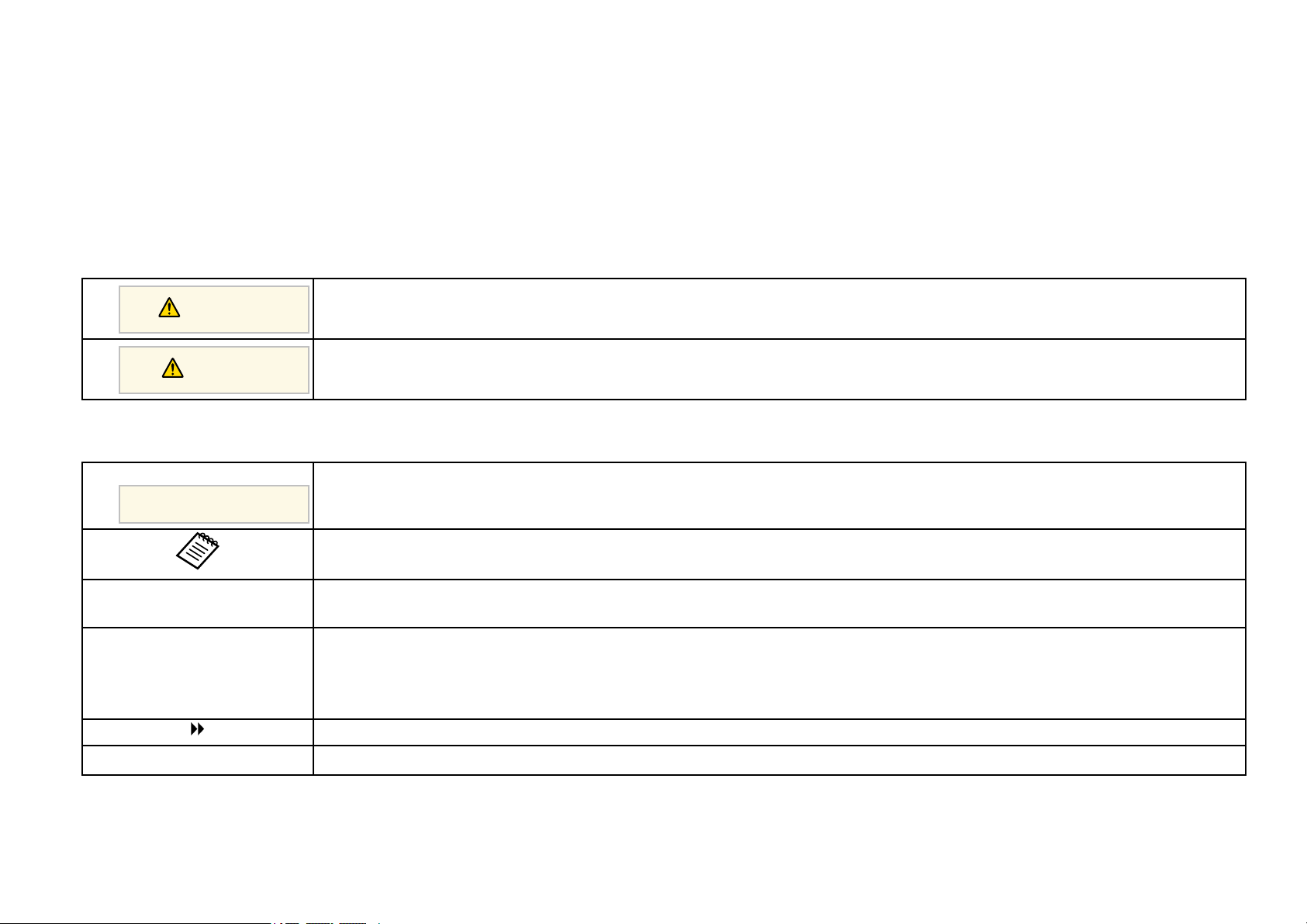
SafetySymbols
The projectorand itsmanuals use graphicalsymbols andlabels to indicatecontent thattells you howto usethe projector safely.
Read andcarefully followthe instructions thatare markedwith these symbolsand labelsto avoid injuryto personsor damageto property.
Warning
This symbolindicatesinformationthat,ifignored,couldpossiblyresultinpersonalinjuryorevendeath.
Caution
This symbolindicatesinformationthat,ifignored,couldpossiblyresultinpersonalinjuryorphysicaldamageduetoincorrecthandling.
GeneralInformationNotations
Attention
This labelindicatesproceduresthatmayresultindamageorinjuryifsufficientcareisnottaken.
This labelindicatesadditionalinformationthatmaybeusefultoknow.
[Button name]Indicates thenameofthebuttonsontheremotecontrolortheprojector.
Example: [Esc]button
Menu/SettingnameIndicates projectormenuandsettingnames.
Example:
Select theImagemenu
sImage>Advanced
This labelindicateslinkstotherelatedpages.
s
This labelindicatestheprojector'scurrentmenulevel.
ggRelatedLinks
•"Using theManual to Searchfor Information"p.8
•"Getting theLatest Version ofthe Documents"p.9
UsingtheManualtoSearchforInformation
8
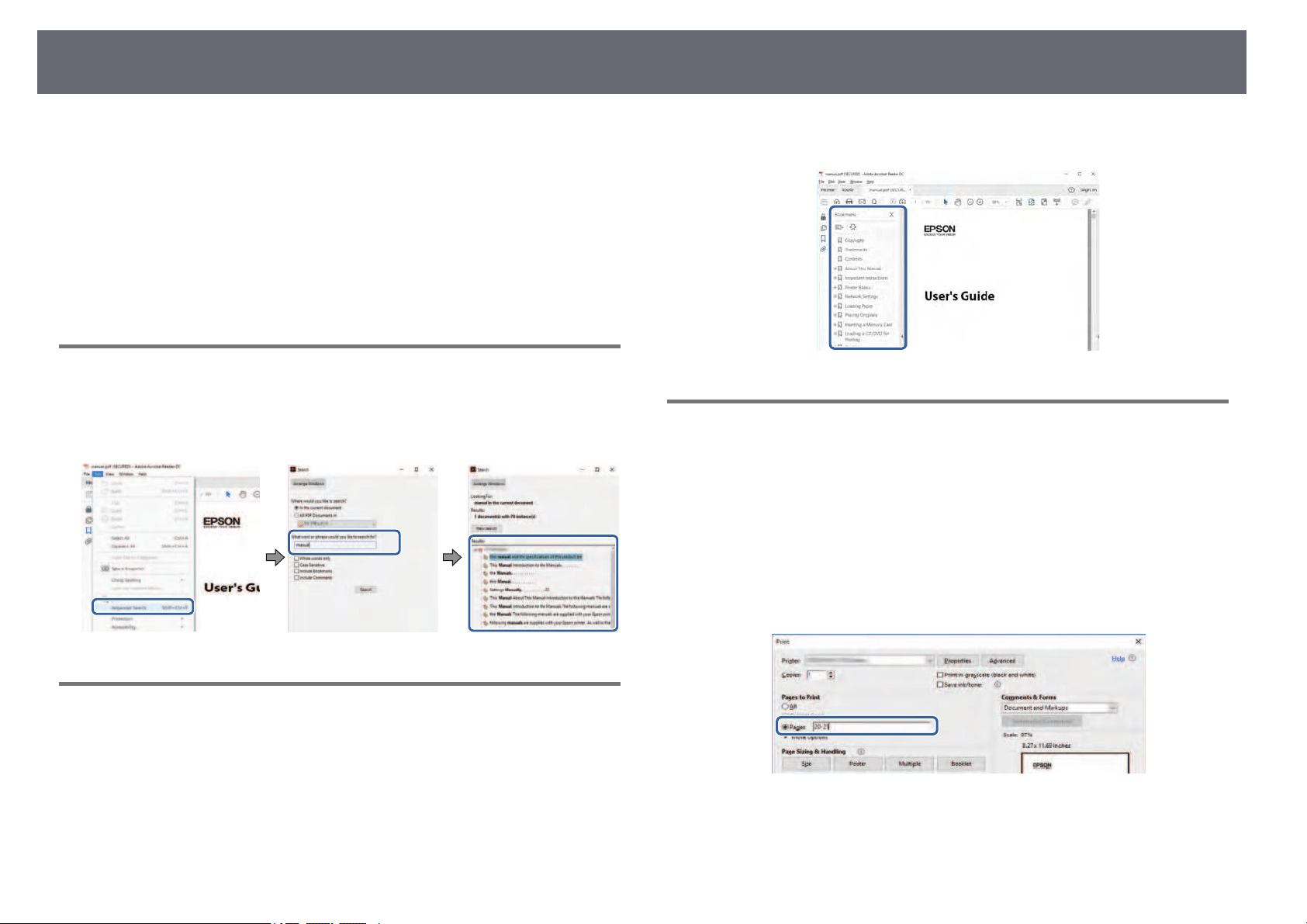
The PDFmanual allowsyou to searchfor informationyou are lookingfor by
keyword, orjump directlyto specific sectionsusing thebookmarks. You can
also printonly thepages you need.This sectionexplains how touse aPDF
manual thathas beenopened in AdobeReader Xon your computer.
ggRelatedLinks
•"Searching byKeyword" p.8
•"Jumping Directlyfrom Bookmarks" p.8
•"Printing Onlythe Pages YouNeed" p.8
SearchingbyKeyword
Click Edit> Advanced Search.Enter thekeyword (text) forinformation you
want tofind inthe search window,and thenclick Search. Hitsare displayed
as alist. Clickone of thedisplayed hitsto jump tothat page.
JumpingDirectlyfromBookmarks
Click atitle tojump to thatpage. Click+or >toview thelower level titlesin
that section.To returnto the previouspage, performthe following operation
on yourkeyboard.
•Windows: Holddown Alt,and then press ←.
•Mac OS:Hold downthe command key,and thenpress ←.
PrintingOnlythePagesYouNeed
You canextract andprint only thepages youneed. Click Printin the File
menu, andthen specifythe pages youwant toprint in Pagesin Pages to
Print.
•To specifya seriesof pages, entera hyphenbetween the startpage andthe
end page.
Example: 20-25
•To specifypages thatare not inseries, dividethe pages withcommas.
Example: 5,10, 15


ListofFunctions
EB‑‑992F/EB‑‑982W/EB‑‑W49/EB‑‑FH52/EB‑‑W52/EB‑‑W51/EB‑‑FH06/EB‑‑W06
The followingtable liststhe functions supportedby eachprojector model. Supportedfunctions areindicated by a"✓" mark.
EB-992FEB-982WEB-W49EB-FH52EB-W52EB-W51EB-FH06EB-W06
ResolutionFull HDWXGAWXGAFull HDWXGAWXGAFull HDWXGA
1920×10801280×8001280×8001920×10801280×8001280×8001920×10801280×800
Wired LAN✓✓✓-----
Wireless LAN(built-in)✓--✓✓---
Wireless LAN(optional)-✓✓--✓✓✓
Screen Mirroring✓--✓----
HDMI1/HDMI2 ports✓✓✓✓--✓-
HDMI port----✓✓-✓
Computer1/Computer2 ports✓✓✓-----
Computer port---✓✓✓✓✓
Video port✓✓✓✓✓✓✓✓
USB-A port✓✓✓✓✓✓✓✓
USB-B port✓✓✓✓✓✓✓✓
L-Audio-R ports✓✓✓✓✓✓✓✓
Audio 1/Audio2ports✓✓✓-----
Mic port✓✓------
Monitor Outport✓✓✓-----
Audio Outport✓✓✓-----
RS-232C port✓✓✓-----
Lens cover✓✓✓✓✓✓✓✓
Horizontal keystoneslider✓✓✓✓✓✓✓✓
Zoom ring✓✓✓✓✓✓✓✓
Document camera(optional)✓✓✓✓✓✓✓✓

EB-992FEB-982WEB-W49EB-FH52EB-W52EB-W51EB-FH06EB-W06
Beep (Poweron/Poweroff)✓✓✓✓✓✓✓✓
Date &Timesetting✓--✓----
Schedule Settings✓--✓----
Auto V-Keystone✓✓✓✓✓✓✓✓
PC Free✓✓✓✓✓✓✓✓
Power Consumption(3levels)✓✓✓-----
Power Consumption(2levels)---✓✓✓✓✓
Batch Setup(USBflashdrive)✓✓✓✓✓✓✓✓
Batch Setup(USBcable)✓✓✓✓✓✓✓✓
User's LogoProtection✓✓✓✓✓✓✓✓
Network Protection✓✓✓✓✓✓✓✓
Schedule Protection✓--✓----
Screen MirroringProtection✓--✓----
Epson iProjection✓✓✓✓✓✓✓✓
Epson ProjectorManagement✓✓✓✓✓✓✓✓
Epson WebControl✓✓✓✓✓✓✓✓
Mail Notification✓✓✓✓✓✓✓✓
SNMP✓✓✓✓✓✓✓✓
Secure HTTP(HTTPS)✓--✓----
ESC/VP21 Commands✓✓✓✓✓✓✓✓
PJLink✓✓✓-----
Crestron Connected✓✓✓-----
EB‑‑972/EB‑‑118/EB‑‑X49/EB‑‑E20/EB‑‑X51/EB‑‑E10/EB‑‑X06/EB‑‑E01/EB‑‑X500/VS260
The following table lists the functions supported by each projector model. Supported functions are indicated by a "✓" mark.

EB-972EB-118EB-X49EB-E20EB-X51EB-E10EB-X06EB-E01EB-X500
VS260
ResolutionXGAXGAXGAXGAXGAXGAXGAXGAXGAXGA
1024×7681024×7681024×7681024×7681024×7681024×7681024×7681024×7681024×7681024×768
Wired LAN✓✓✓-------
Wireless LAN(built-in)----------
Wireless LAN(optional)✓✓✓-✓-✓-✓-
Screen Mirroring----------
HDMI1/HDMI2 ports✓✓--------
HDMI port--✓✓✓✓✓✓✓✓
Computer1/Computer2
ports
✓✓✓✓------
Computer port----✓✓✓✓✓✓
Video port✓✓✓✓✓-✓-✓-
USB-A port✓✓✓-✓-✓-✓-
USB-B port✓✓✓✓✓✓✓✓✓✓
L-Audio-R ports✓✓✓✓✓-✓-✓-
Audio 1/Audio2ports✓✓✓✓------
Mic port✓✓--------
Monitor Outport✓✓✓✓------
Audio Outport✓✓✓✓------
RS-232C port✓✓✓✓------
Lens cover✓✓✓✓✓-✓-✓-
Horizontal keystoneslider✓✓✓✓✓-✓-✓-
Zoom ring✓✓✓-✓-✓-✓-
Document camera
(optional)
✓✓✓-✓-✓-✓-
Beep (Poweron/Poweroff)✓✓✓-✓-✓-✓-
Date &Timesetting----------
Schedule Settings----------

EB-972EB-118EB-X49EB-E20EB-X51EB-E10EB-X06EB-E01EB-X500
VS260
Auto V-Keystone✓✓✓-✓-✓-✓-
PC Free✓✓✓-✓-✓-✓-
Power Consumption(3
levels)
✓✓--------
Power Consumption(2
levels)
--✓✓✓✓✓✓✓✓
Batch Setup(USBflash
drive)
✓✓✓-✓-✓-✓-
Batch Setup(USBcable)✓✓✓✓✓✓✓✓✓✓
User's LogoProtection✓✓✓✓✓✓✓✓✓✓
Network Protection✓✓✓-✓-✓-✓-
Schedule Protection----------
Screen MirroringProtection----------
Epson iProjection✓✓✓-✓-✓-✓-
Epson Projector
Management
✓✓✓-✓-✓-✓-
Epson WebControl✓✓✓-✓-✓-✓-
Mail Notification✓✓✓-✓-✓-✓-
SNMP✓✓✓-✓-✓-✓-
Secure HTTP(HTTPS)----------
ESC/VP21 Commands✓✓✓-✓-✓-✓-
PJLink✓✓✓-------
Crestron Connected✓✓✓-------

ProjectorFeatures
15
This projectorcomes withthese special features.Refer tothese sections for
more details.
ggRelatedLinks
•"Quick andEasy Setup" p.15
•"Easy WirelessProjection" p.15
QuickandEasySetup
•Direct PowerOn featureto turn onthe projectoras soon asyou plugit in.
•Auto PowerOn featureto turn onthe projectorwhen the projectordetects
an imagesignal fromthe port youspecified asthe AutoPowerOn source.
•Home screenfeature toeasily select aninput sourceand useful functions.
•Automatic verticalkeystone correctionalways displays arectangular screen
(Auto V-Keystone).
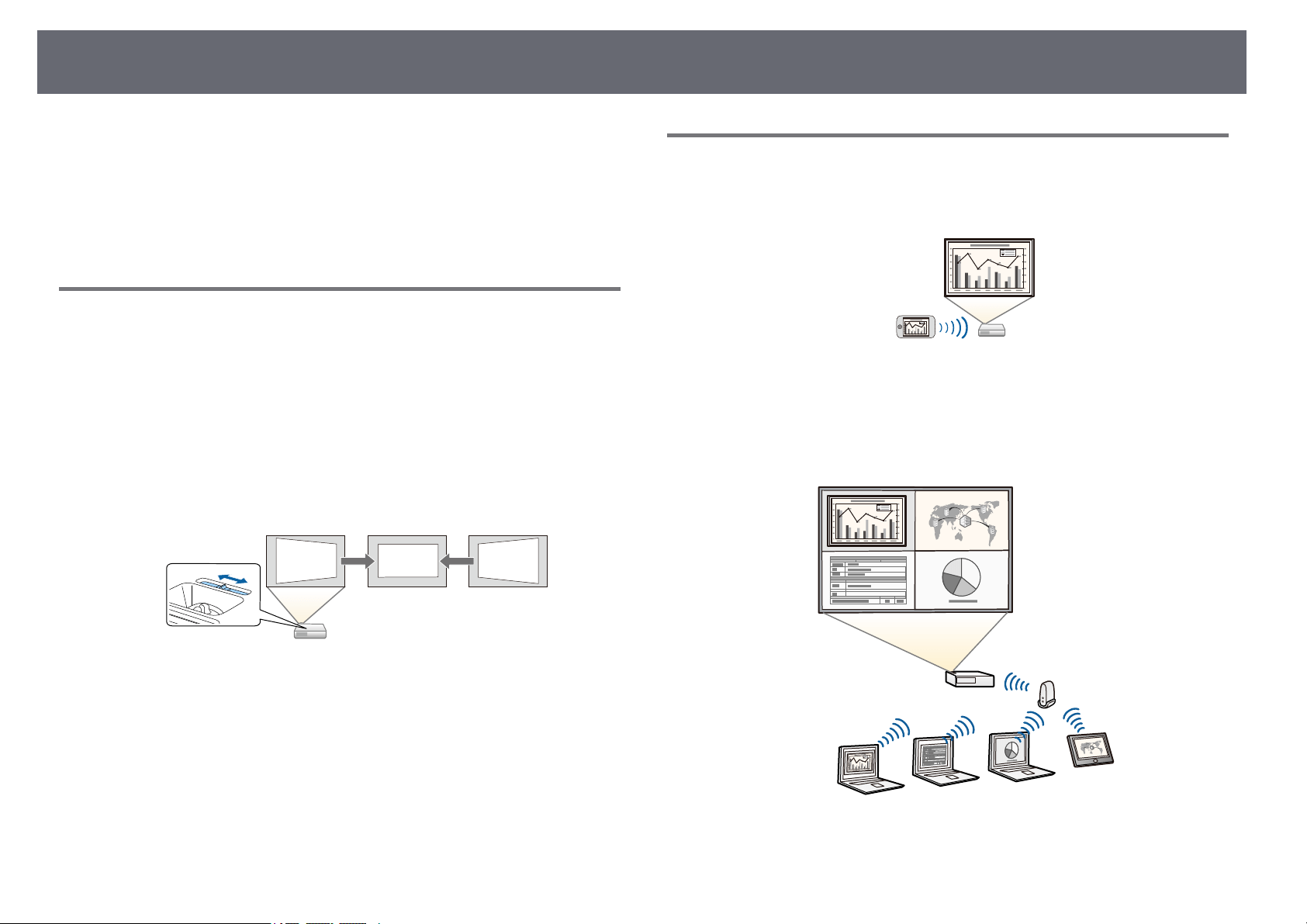
•Horizontal keystoneslider allowsyou to quicklycorrect horizontal
distortion inthe projectedimage.
ggRelatedLinks
•"Auto V-Keystone"p.50
•"Projector SetupSettings - ExtendedMenu" p.134
•"List ofFunctions" p.10
•"Turning Onthe Projector" p.39
•"Correcting theImage Shape withthe HorizontalKeystone Slider" p.50
EasyWirelessProjection
•Screen Mirroringto connectyour projector andmobile devicewirelessly
using Miracasttechnology.
•Epson iProjection(Windows/Mac) toproject up tofour imagesat the same
time bysplitting theprojected screen. Youcan projectimages from
computers onthe network,or from smartphonesor tabletdevices.
See theEpson iProjection OperationGuide (Windows/Mac) fordetails.

ProjectorFeatures
16
a
•Youcandownloadthenecessarysoftwareandmanualsfromthe
following Web site:
http://www.epson.com/support
•Epson iProjection(iOS/Android) toconnect your projectorand mobile
device wirelesslyusing theapp available onthe AppStore or GooglePlay.
a
Any feesincurredwhencommunicatingwiththeAppStoreor
Google Playaretheresponsibilityofthecustomer.
•Epson iProjection(Chromebook) toconnect your projectorand
Chromebook devicewirelessly usingthe app availableon theChrome Web
Store.
a
Any feesincurredwhencommunicatingwiththeChromeWebStore
are theresponsibilityofthecustomer.
ggRelatedLinks
•"List ofFunctions" p.10
•"Using theProjector on aNetwork" p.87
ProjectorPartsandFunctions
17
The followingsections explainthe projector partsand theirfunctions.
All ofthe featuresin this guideare explainedusing illustrations ofEB-992F
unless otherwisementioned.
ggRelatedLinks
•"Projector Parts- Front" p.17
•"Projector Parts- Rear" p.18
•"Projector Parts- Base" p.19
•"Projector Parts- Control Panel"p.20
•"Projector Parts- Remote Control"p.21
•"List ofFunctions" p.10
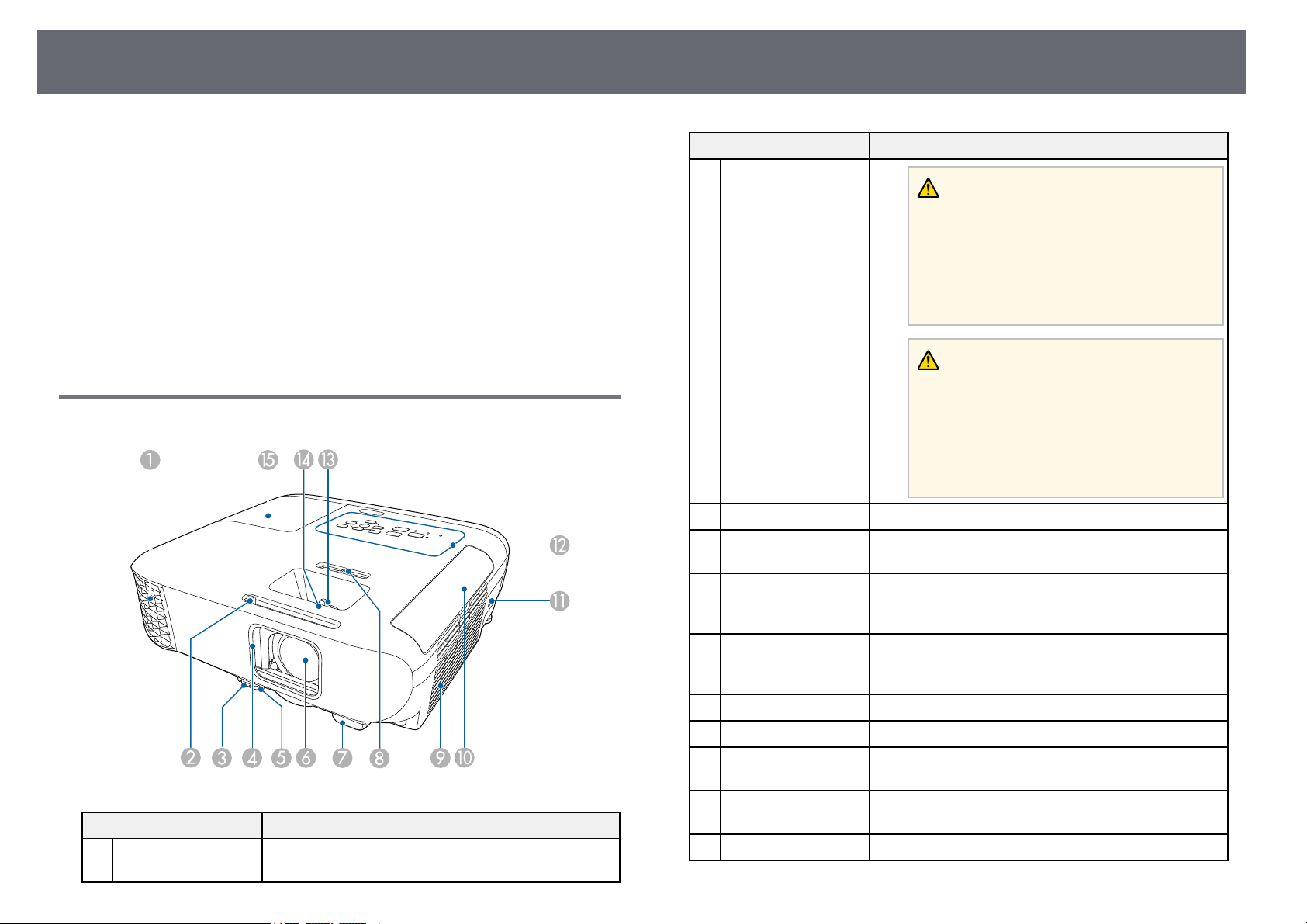
ProjectorParts-Front
NameFunction
Air exhaustventExhaust ventforairusedtocooltheprojector
internally.
NameFunction
Warning
Do notlookintothevents.Ifthelamp
explodes, gasesmayescapeandsmall
fragments ofglassmaybescatteredwhich
could causeaninjury.Contactadoctorifany
fragments ofbrokenglassareinhaledorget
into theeyesormouth.
Caution
While projecting,donotputyourfaceor
hands neartheairexhaustvent,anddonot
place objectsthatmaybecomewarpedor
damaged byheatnearthevent.Hotairfrom
the airexhaustventcouldcauseburns,
warping, oraccidentstooccur.
B
A/V MuteslideleverSlide the knobtoopenandclosethelenscover.
C
Foot releaseleverPress thefootreleaselevertoextendandretractthe
front adjustablefoot.
D
Lens coverClose whennotusingtheprojectortoprotectthelens.
By closingitduringprojectionyoucanhidetheimage
and thesound.
E
Front adjustablefootWhen theprojectorissetuponasurfacesuchasa
desk, extendthefoottoadjustthepositionofthe
image.
F
LensImages areprojectedfromhere.
G
Remote receiverReceivessignalsfromtheremotecontrol.
H
Horizontal keystone
slider
Corrects horizontaldistortionintheprojectedimage.
I
Air intakevent(air
filter)
Takes inairtocooltheprojectorinternally.
J
Air filtercoverOpen toaccesstheairfilter.
ProjectorPartsandFunctions
18
NameFunction
K
Security slotThe securityslotiscompatiblewiththeMicrosaver
Security SystemmanufacturedbyKensington.
L
Control panelOperates theprojector.
M
Zoom ringAdjuststheimagesize.
N
Focus ringAdjuststheimagefocus.
The shapemayvarydependingonthemodelofyour
projector.
O
Lamp coverOpen toaccesstheprojector'slamp.
ggRelatedLinks
•"Projector IndicatorStatus" p.169
•"List ofFunctions" p.10
•"Resizing theImage with theZoom Ring"p.54
•"Focusing theImage Using theFocus Ring"p.55
•"Correcting theImage Shape withthe HorizontalKeystone Slider" p.50
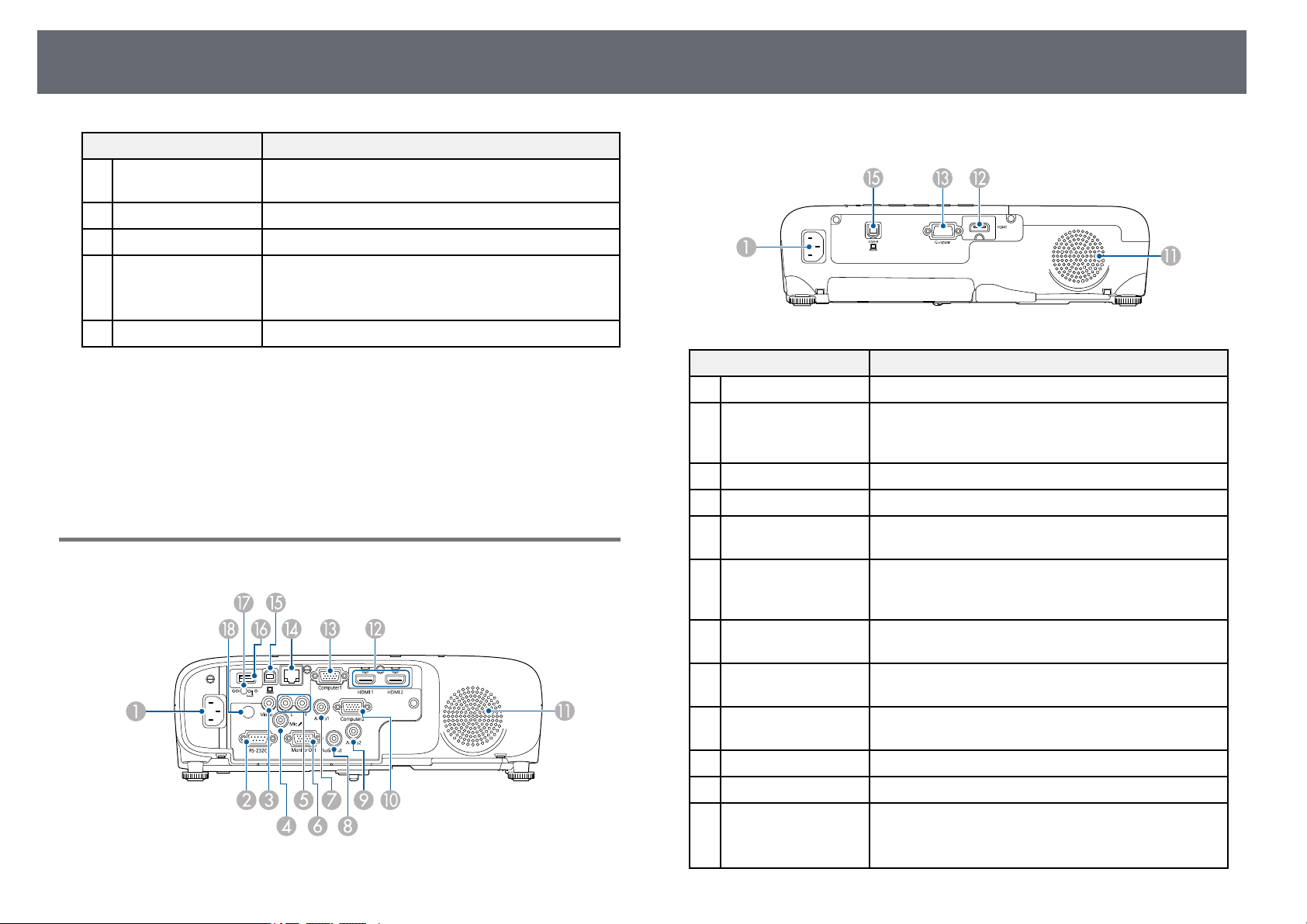
ProjectorParts-Rear
EB‑‑E01/VS260
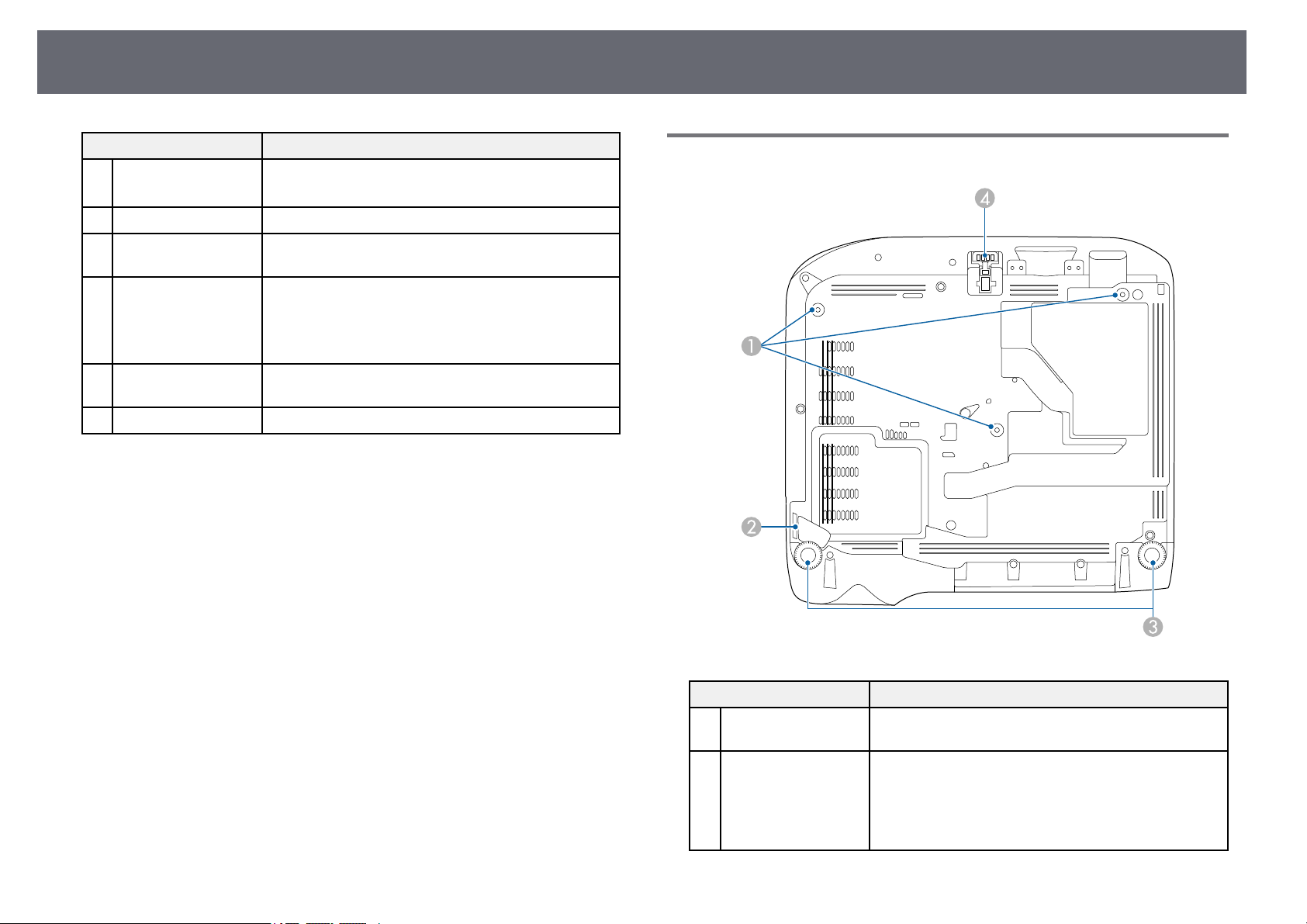
NameFunction
Power inletConnects thepowercordtotheprojector.
B
RS-232C portConnects anRS-232Ccabletocontroltheprojector
from acomputer.(Youdonotneedtousethisport
normally.)
C
Video portInputs compositevideosignalsfromvideosources.
D
Mic portInputs audiofromthemicrophone.
E
L-Audio-R portsInputs audiofromequipmentconnectedtotheVideo
port.
F
Monitor OutportOutputs analogRGBsignalsinputfromtheComputer1
port toanexternalmonitor.Youcannotoutputsignals
input fromotherports.
G
Audio 1portInputs audiofromequipmentconnectedtothe
Computer1 port.
H
Audio OutportOutputs audiofromthecurrentinputsourceorMic
port toanexternalspeaker.
I
Audio 2portInputs audiofromequipmentconnectedtothe
Computer2 port.
J
Computer2 portInputs imagesignalsfromacomputer.
K
SpeakerOutputs audio.
L
HDMI1, HDMI2
ports
HDMI port
Inputs videosignalsfromHDMIcompatiblevideo
equipment andcomputers.
This projectoriscompatiblewithHDCP.
ProjectorPartsandFunctions
19
NameFunction
M
Computer port
Computer1 port
Inputs imagesignalsfromacomputer.
N
LAN portConnects aLANcabletoconnecttoanetwork.
O
USB-B portConnects aUSBcabletothecomputertoproject
computer images.
P
USB-A portConnects aUSBmemorydeviceoradigitalcamera
and projectsmoviesorimagesusingPCFree.
Connects theoptionaldocumentcamera.
Connects thewirelessLANmodule.
Q
Wireless LANmodule
fixing screw
Secures thewirelessLANmodulecover.
R
Remote receiverReceivessignalsfromtheremotecontrol.
ggRelatedLinks
•"List ofFunctions" p.10
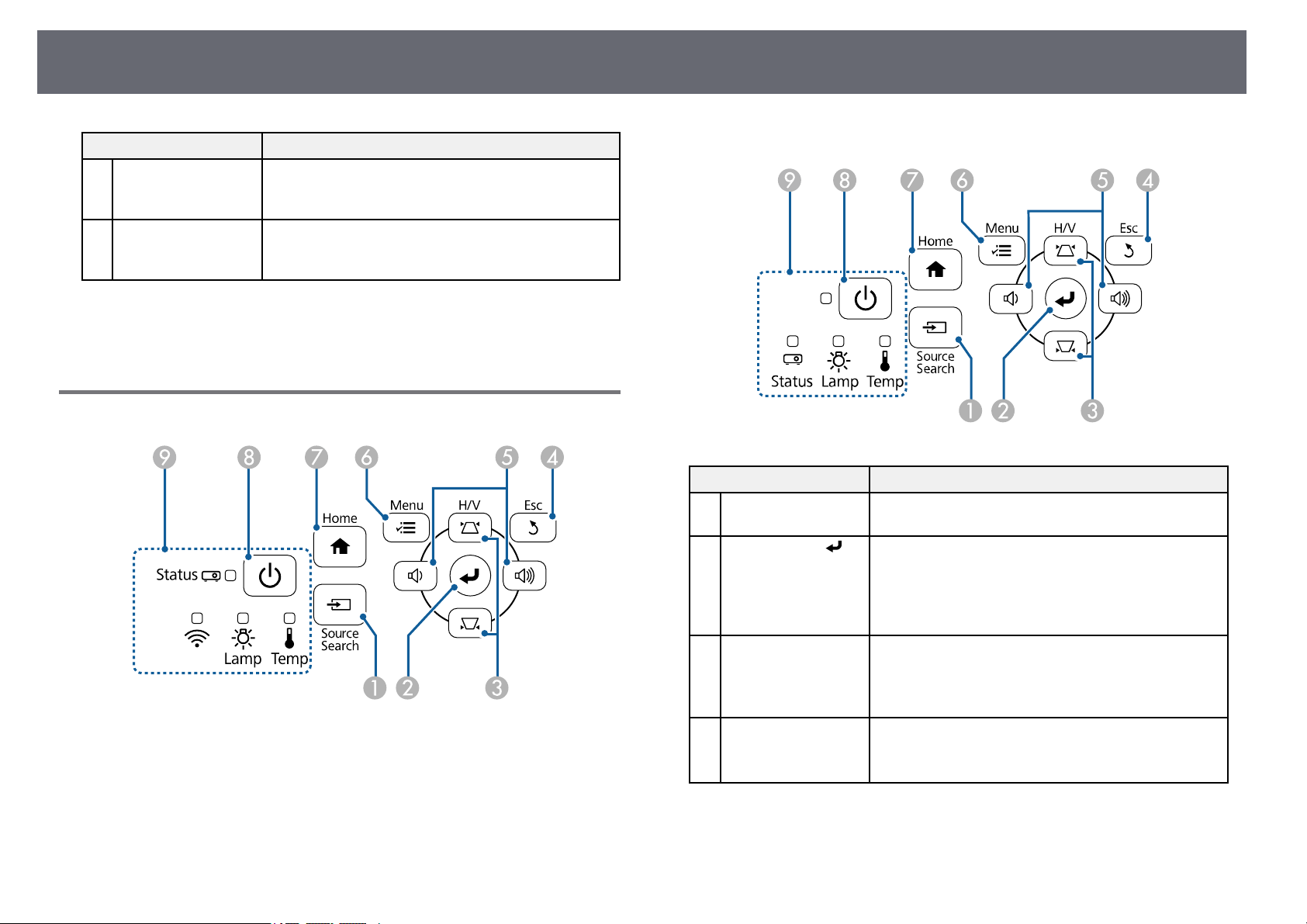
ProjectorParts-Base
NameFunction
Ceiling mountfixing
points (threepoints)
Attach theoptionalceilingmountherewhen
suspending theprojectorfromaceiling.
B
Security cable
attachment point
Pass acommerciallyavailablewirelockthroughhere
and lockitinplace.
You canalsoattachtheoptionalsafetywirehereto
prevent theprojectorfromfallingfromtheceilingor
wall.
ProjectorPartsandFunctions
20
NameFunction
C
Rear feetWhen theprojectorissetuponasurfacesuchasa
desk, turntoextendandretractthefeettoadjustthe
horizontal tilt.
D
Front adjustablefootWhen theprojectorissetuponasurfacesuchasa
desk, extendthefoottoadjustthepositionofthe
image.
ggRelatedLinks
•"Installing aSecurity Cable" p.85
ProjectorParts-ControlPanel
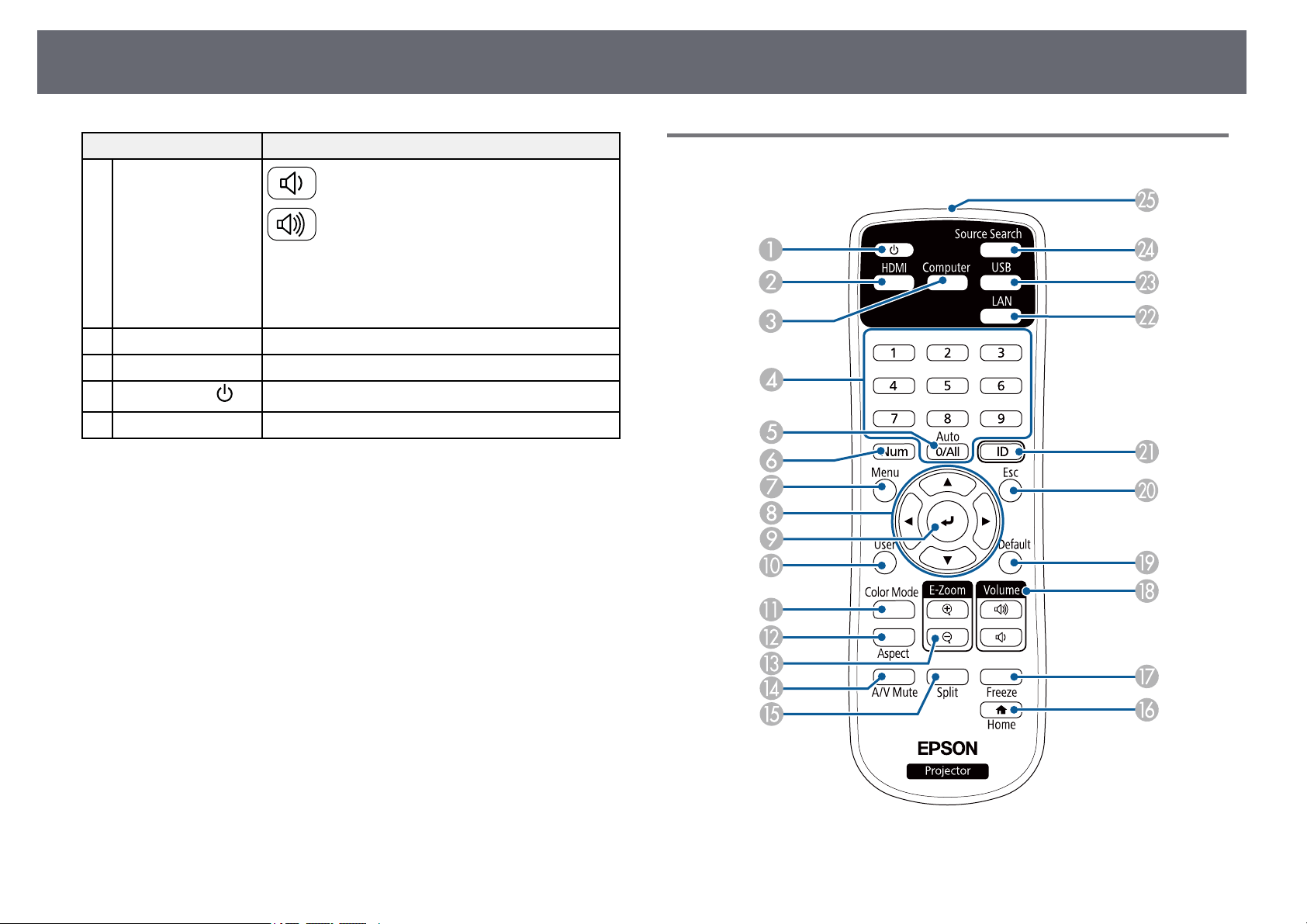
EB‑‑E20/EB‑‑E10/EB‑‑E01/VS260
NameFunction
[Source Search]
button
Switches tothenextinputsource.
B
[Enter] button[]Enters thecurrentselectionandmovestothenextlevel
while displayingtheprojector'smenuorhelp.
Optimizes Tracking,Sync.,and Positioninthe
projector's Signalmenuwhileprojectingananalog
RGB signalfromtheComputerport.
C
Keystone adjustment
buttons andarrow
buttons
Displays theKeystonescreenallowingyoutocorrect
keystone distortion.
Selects menuitemswhiledisplayingtheprojector's
menu orhelp.
D
[Esc] buttonStops thecurrentfunction.
Moves backtothepreviousmenulevelwhile
displaying theprojector'smenu.
ProjectorPartsandFunctions
21
NameFunction
E
Volume buttonsand
arrow buttons
: Decreasesthevolume.
: Increasesthevolume.
Corrects keystonedistortioninthehorizontaldirection
when theKeystonescreenisdisplayed.
Selects menuitemswhiledisplayingtheprojector's
menu orhelp.
F
[Menu] buttonDisplays andclosestheprojector'smenu.
G
[Home] buttonDisplays andclosestheHomescreen.
H
Power button[]
Turns theprojectoronoroff.
I
IndicatorsIndicates theprojector'sstatus.
ggRelatedLinks
•"Input SignalSettings - SignalMenu" p.131
•"Home Screen"p.40
•"Projector IndicatorStatus" p.169
•"Correcting theImage Shape withthe KeystoneButtons" p.51
ProjectorParts-RemoteControl
ProjectorPartsandFunctions
22
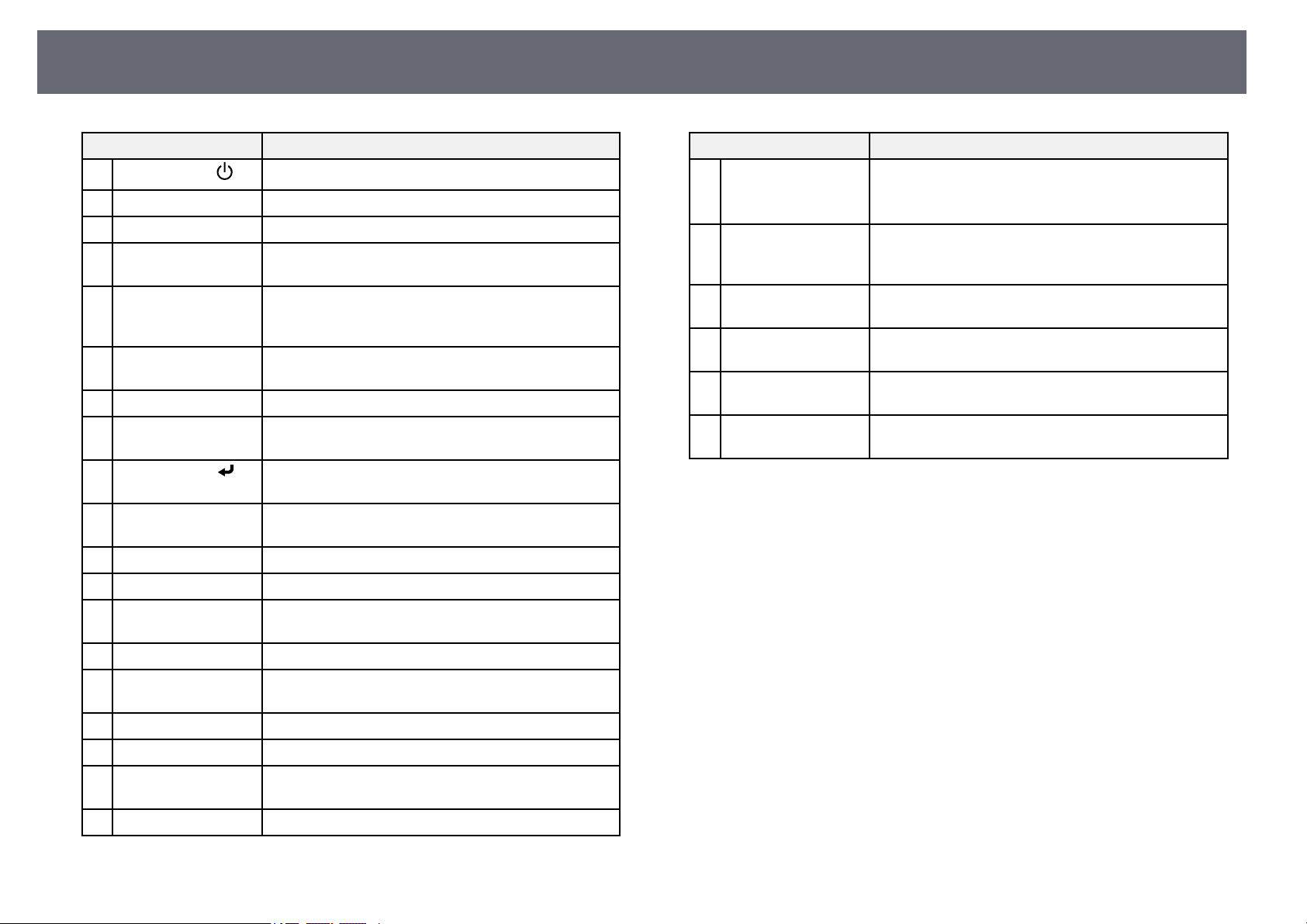
NameFunction
Power button[]
Turns theprojectoronoroff.
B
[HDMI] buttonSwitches theimagesourcebetweentheHDMIports.
C
[Computer] buttonSwitches theimagesourcetotheComputerports.
D
Numeric buttonsEnters numbersintheprojector'smenuwhileholding
down the[Num]button.
E
[Auto] buttonOptimizes Tracking,Sync.,and Positioninthe
projector's Signalmenuwhileprojectingananalog
RGB signalfromtheComputerports.
F
[Num] buttonHold downthisbuttontoenternumbersusingthe
numeric buttons.
G
[Menu] buttonDisplays andclosestheprojector'smenu.
H
Arrow buttonsSelects menuitemswhiledisplayingtheprojector's
menu.
I
[Enter] button[]Enters thecurrentselectionandmovestothenextlevel
while displayingtheprojector'smenu.
J
[User] buttonPerformssettingsassignedintheUserButtonsetting
in theprojector'sSettingsmenu.
K
[Color Mode]buttonChanges thecolormode.
L
[Aspect] buttonChanges theaspectmode.
M
[E-Zoom] +/–
buttons
Resizes theprojectedimage.
N
[A/V Mute]buttonTurnsthevideoandaudioonorofftemporarily.
O
[Split] buttonProjects two imagesfromdifferentimagesources
simultaneously bysplittingtheprojectedscreen.
P
[Home] buttonDisplays andclosestheHomescreen.
Q
[Freeze] buttonPauses orresumesimages.
R
[Volume] up/down
buttons
Adjusts thespeakervolume.
S
[Default] buttonReturnstheselectedsettingtoitsdefaultvalue.
NameFunction
T
[Esc] buttonStops thecurrentfunction.
Moves backtothepreviousmenulevelwhile
displaying theprojector'smenu.
U
[ID] buttonHold downthisbuttonandpressthenumericbuttons
to selecttheIDfortheprojectoryouwanttooperate
using theremotecontrol.
V
[LAN] buttonSwitchestheimagesourcebetweenthenetwork
connected devices.
W
[USB] buttonSwitchestheimagesourcebetweentheUSBDisplay
and USB-Aport.
X
[Source Search]
button
Switches tothenextinputsource.
Y
Remote controllight
emitting area
Outputs remotecontrolsignals.
ggRelatedLinks
•"Image AspectRatio" p.58
•"Adjusting ImageQuality (Color Mode)"p.61
•"Input SignalSettings - SignalMenu" p.131
•"Projector SetupSettings - ExtendedMenu" p.134
•"Home Screen"p.40
•"Projecting TwoImages Simultaneously" p.65
•"Connecting toa Computer forUSB Videoand Audio" p.28
•"Projecting aPC Free Presentation"p.68
•"Using theProjector on aNetwork" p.87

ProjectorPlacement
24
You canplace theprojector on almostany flatsurface to projectan image.
You canalso installthe projector ina ceilingmount if youwant touse it ina
fixed location.An optionalceiling mount isrequired whensuspending the
projector froma ceiling.
Note thefollowing pointswhen selecting aprojector location:
•Place theprojector ona sturdy, levelsurface orinstall it usinga compatible
mount.
•Leave plentyof spacearound and underthe projectorfor ventilation, and
do notplace iton top ofor nextto anything thatcould blockthe vents.
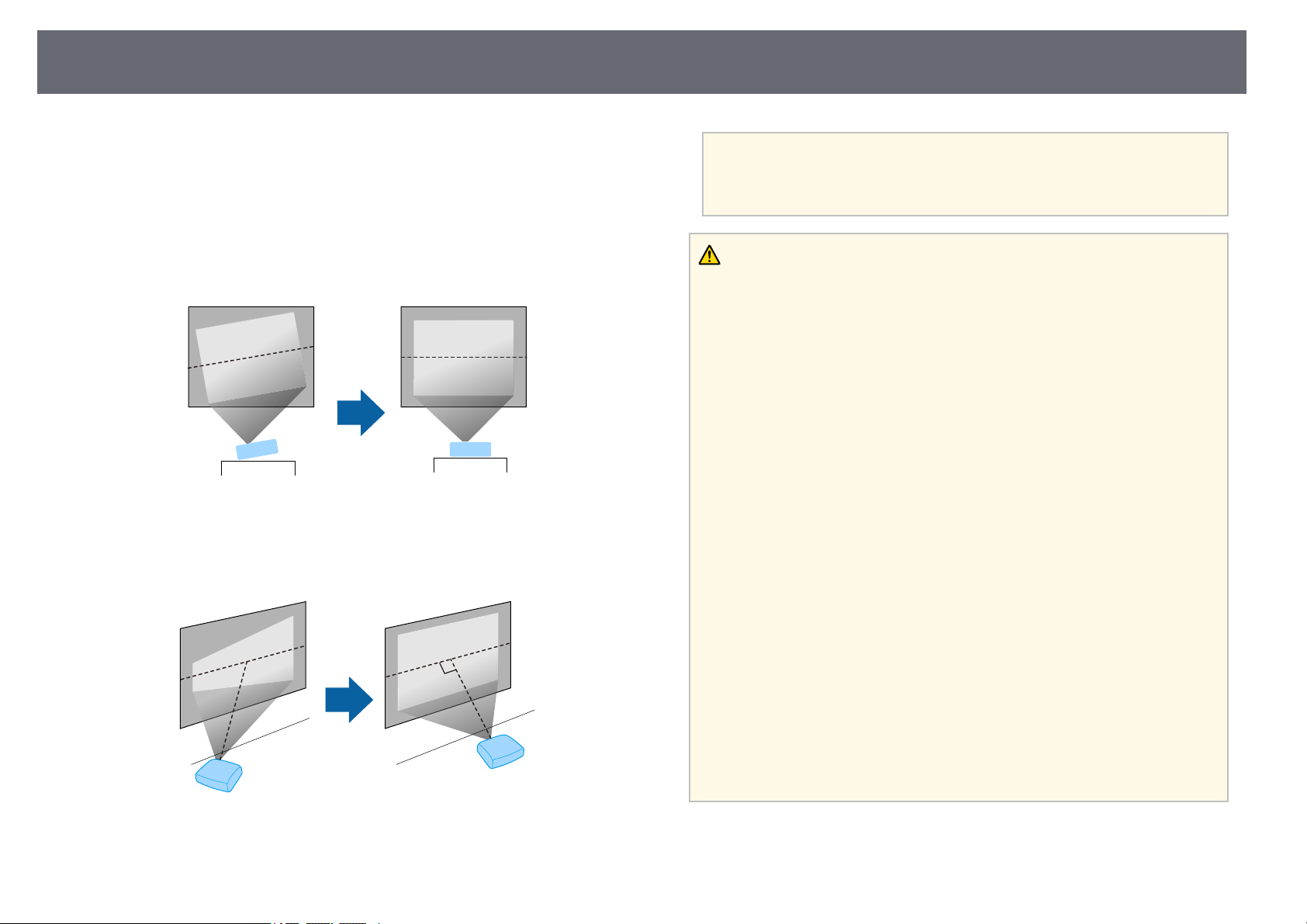
•Place theprojector soit squarely facesthe screen,not at anangle.
a
If youcannotinstalltheprojectorsquarelyfacingthescreen,correct
any resultingkeystonedistortionusingtheprojectorcontrols.Forthe
best qualityimages,werecommendadjustingtheinstallationposition
of theprojectortoachievethecorrectimagesizeandshape.
Warning
•Youmustinstallaceilingmountwhensuspendingtheprojectorfromaceiling.
If youdonotinstalltheprojectorcorrectly,itcouldfallandcausedamageor
injury.
•Donotuseadhesivesontheceilingmountfixingpointstopreventthescrews
from loosening,oruselubricants,oils,orsimilarsubstancesontheprojector;the
projector casemaycrackcausingittofallfromitsceilingmount.Thiscould
cause seriousinjurytoanyoneundertheceilingmountandcoulddamagethe
projector.
•Failuretoinstalltheceilingmountandprojectormaycausetheprojectortofall.
After installingthespecificEpsonmountthatsupportsyourprojector,make
sure yousecurethemounttoalloftheprojector'sceilingmountfixingpoints.
Also, securetheprojectorandthemountsusingwirethatisstrongenoughto
hold theirweight.
•Donotinstalltheprojectorinalocationsubjecttohighlevelsofdustor
humidity, orinalocationsubjecttosmokeorsteam.Otherwise,itcouldcausea
fire orelectricshocktooccur.Theprojector'scasecouldalsodeteriorateandbe
damaged causingtheprojectortofallfromthemount.
Examplesofenvironmentsthatcouldcausetheprojectortofallduetocase
deterioration
•Locationssubjecttoexcessivesmokeorairborneoilparticles,suchasfactories
or kitchens
•Locationscontainingvolatilesolventsorchemicals,suchasfactoriesor
laboratories
•Locationswheretheprojectorcouldbesubjectedtodetergentsorchemicals,
such asfactoriesorkitchens
•Locationsinwhicharomaoilsareoftenused,suchasrelaxationrooms
•Neardevicesthatproduceexcessivesmoke,airborneoilparticles,orfoamat
events
ProjectorPlacement
25
Warning
•Donotcovertheprojector'sairintakeorairexhaustvents.Iftheventsare
covered, theinternaltemperaturecouldriseandcauseafire.
•Donotuseorstoretheprojectorinlocationswhereitwillbesubjecttodustor
dirt. Otherwise,thequalityoftheprojectedimagemaydecline,ortheairfilter
may becomeclogged,resultinginamalfunctionorfire.
•Donotinstalltheprojectoronanunstablesurfaceorinalocationbeyondthe
weight specificationsoftheprojector.Otherwise,itcouldfallortopplecausing
an accidentandinjury.
•Wheninstallingtheprojectorinahighposition,takemeasurestopreventfalling
by usingwirestoensuresafetyinanemergency,suchasanearthquake,andto
prevent accidents.Ifitisnotinstalledcorrectly,itcouldfallcausinganaccident
and injury.
•Donotinstallinlocationswheresaltdamagecouldoccur,orinlocationssubject
to corrosivegassuchassulphuricgasfromhotsprings.Otherwise,corrosion
could causetheprojectortofall.Itcouldalsocausetheprojectortomalfunction.
Attention
•Donotoperatetheprojectoronitsside.Thismaycausetheprojectorto
malfunction.
•Ifyouareusingtheprojectorataltitudesabove1,500m,setthe HighAltitude
ModesettingtoOnintheprojector'smenutoensuretheprojector'sinternal
temperature isregulatedproperly.
sExtended>Operation>HighAltitudeMode
•Trynottosetuptheprojectorinlocationssubjecttohighhumidityanddust,or
in locationssubjecttosmokefromfiresortobaccosmoke.
ggRelatedLinks
•"Projector Setupand Installation Options"p.25
•"Projection Distance"p.25
•"Image Shape"p.50
•"Projector SetupSettings - ExtendedMenu" p.134
ProjectorSetupandInstallationOptions
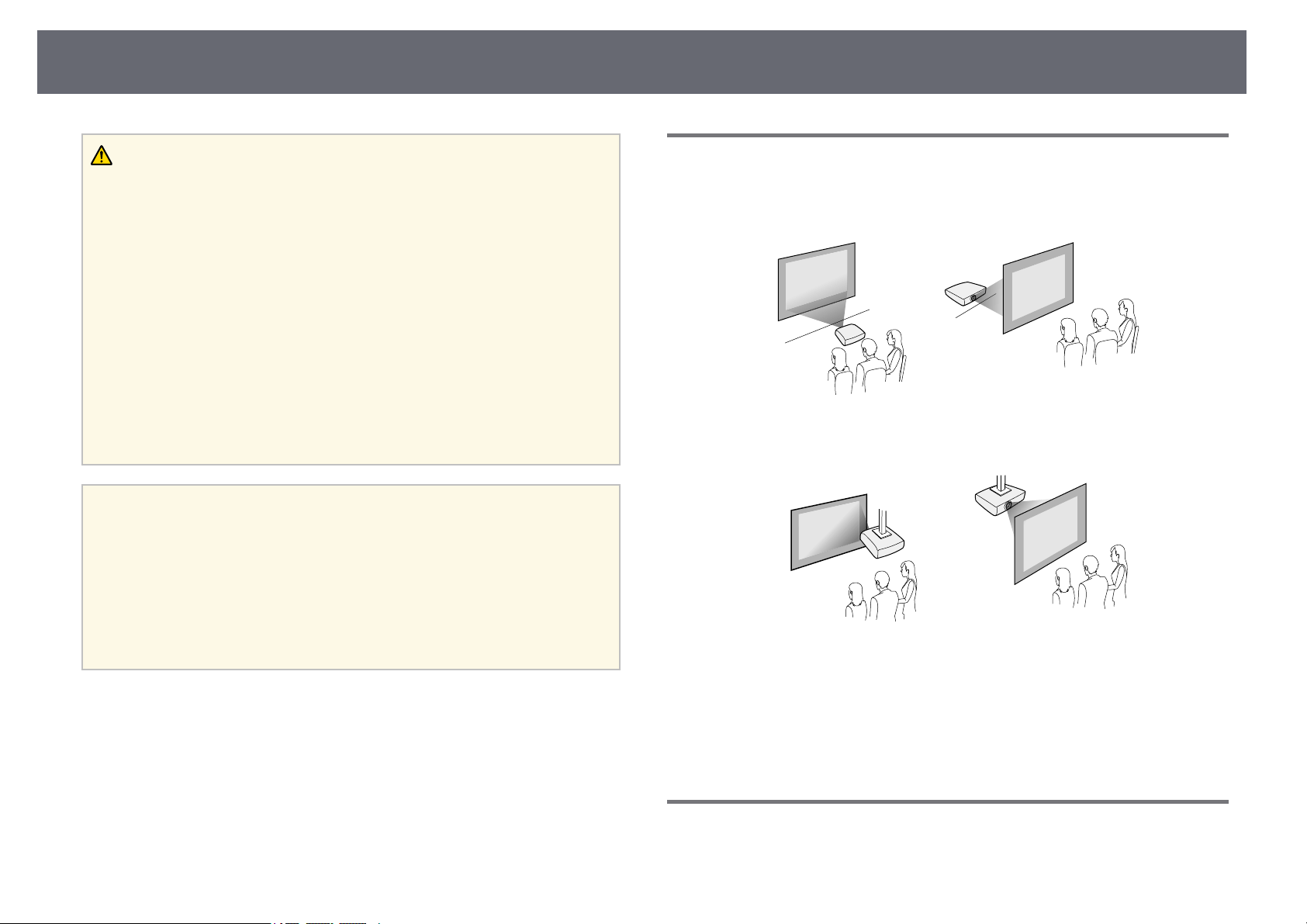
You canset upor install yourprojector inthe following ways:
Front/Rear
Front Ceiling/RearCeiling
Make sureyou selectthe correct Projectionoption in theprojector's
Extended menuaccording tothe installation methodbeing used.
ggRelatedLinks
•"Projection Modes"p.46
ProjectionDistance
The distanceat whichyou place theprojector fromthe screen determinesthe
approximate sizeof theimage. The imagesize increasesthe farther the
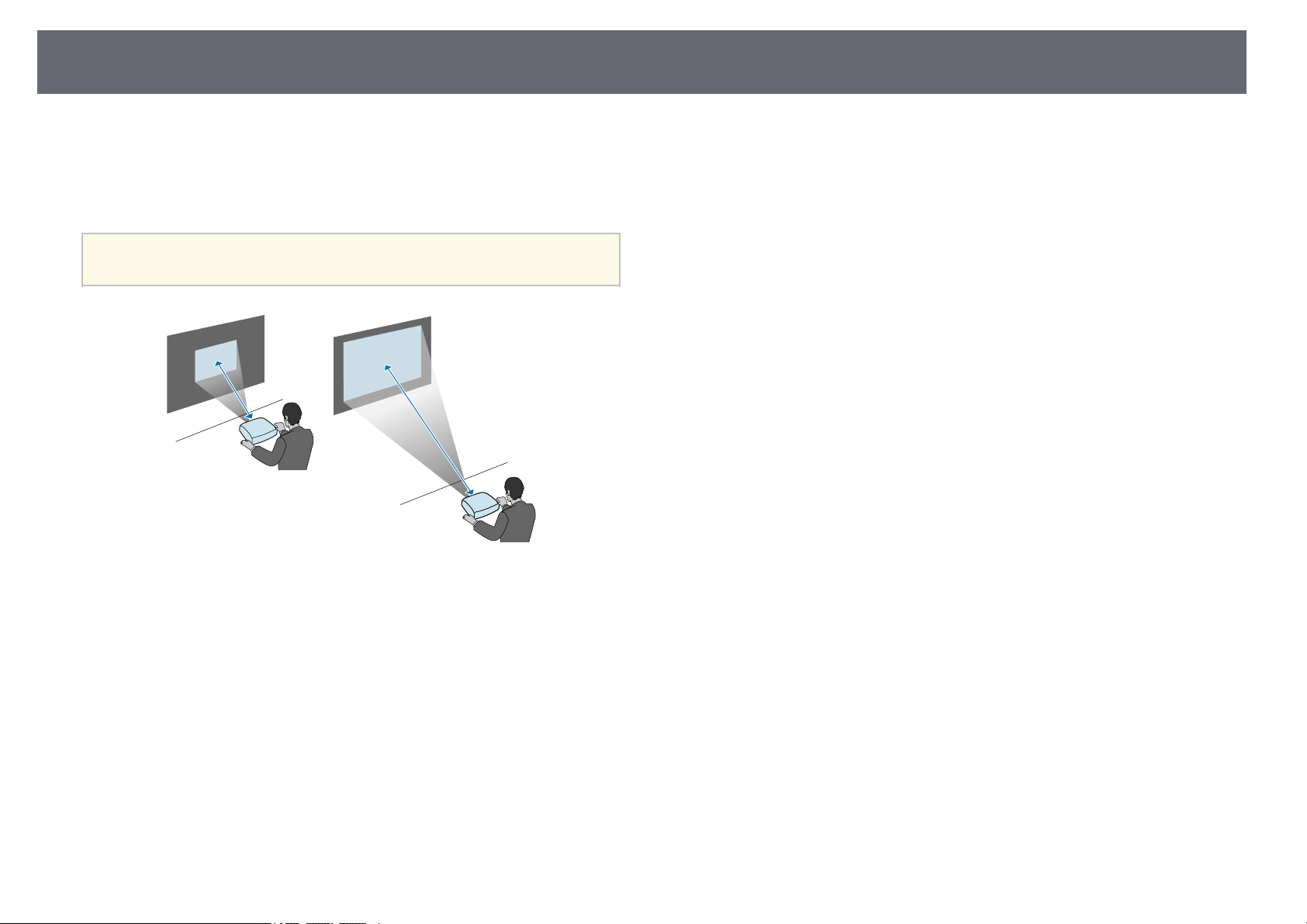
ProjectorPlacement
26
projector isfrom thescreen, but canvary dependingon the zoomfactor,
aspect ratio,and othersettings.
See theAppendix fordetails about howfar toplace the projectorfrom the
screen basedon thesize of theprojected image.
a
When correctingkeystonedistortion,yourimageisslightlysmaller.
ggRelatedLinks
•"Screen Sizeand Projection Distance"p.186
ProjectorConnections
27
See thesesections toconnect the projectorto avariety of projectionsources.
Attention
Check theshapeandorientationoftheconnectorsonanycableyouplanto
connect. Donotforceaconnectorintoaportifitdoesnotfit.Thedeviceoryour
projector couldbedamagedorcouldmalfunction.
a
See theQuickStartGuideforalistofcablessuppliedwithyour
projector. Purchaseoptionalorcommerciallyavailablecableswhen
necessary.
ggRelatedLinks
•"Connecting toa Computer" p.27
•"Connecting toVideo Sources" p.29
•"Connecting toExternal USB Devices"p.31
•"Connecting toa Document Camera"p.32
•"Connecting toExternal Devices" p.32
ConnectingtoaComputer
Follow theinstructions inthese sections toconnect acomputer to the
projector.
ggRelatedLinks
•"Connecting toa Computer forVGA Videoand Audio" p.27
•"Connecting toa Computer forUSB Videoand Audio" p.28
•"Connecting toa Computer forHDMI Videoand Audio" p.29
ConnectingtoaComputerforVGAVideoandAudio
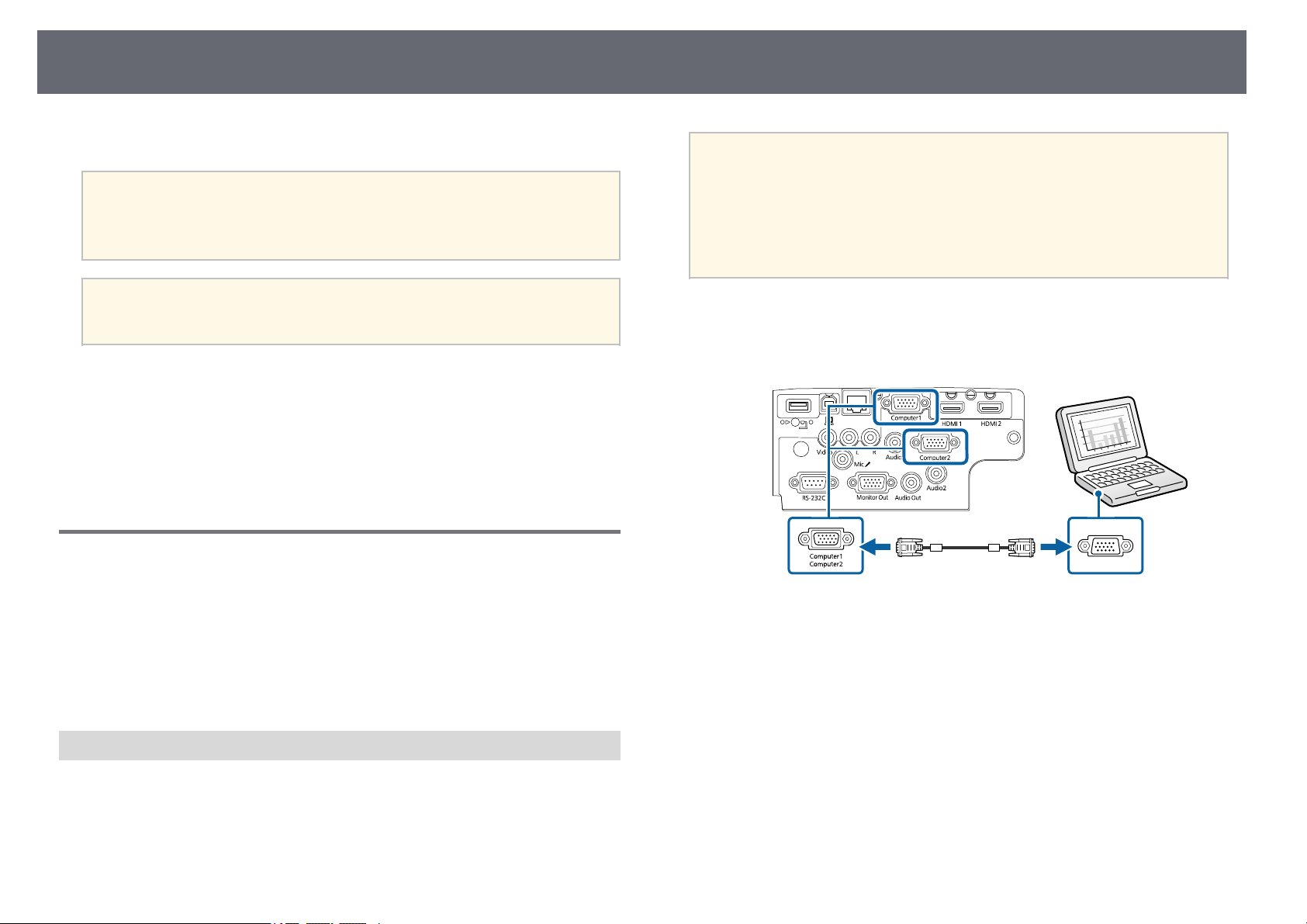
You canconnect theprojector to yourcomputer usinga VGA computer
cable.
You canplay soundthrough the projector'sspeaker systemby connecting a
commercially available3.5 mmstereo mini-jack audiocable.
a
•ToconnectacomputerthatdoesnothaveaVGAvideoport,you
need anadapterthatallowsyoutoconnecttotheprojector'sVGA
video port.
•Youcanalsosettheportusedforaudioinputintheprojector's
Extendedmenu.
sExtended>A/VSettings>AudioSettings>AudioOutput
•Makesuretheaudiocableislabeled "No resistance".
a
Connect theVGA computercable to yourcomputer's monitorport.
b
Connect theother endto a Computerport on theprojector.
c
Tighten thescrews onthe VGA connector.
d
Connect theaudio cableto your laptop's headphone oraudio-out jack,
or yourdesktop's speakeror audio-out port.
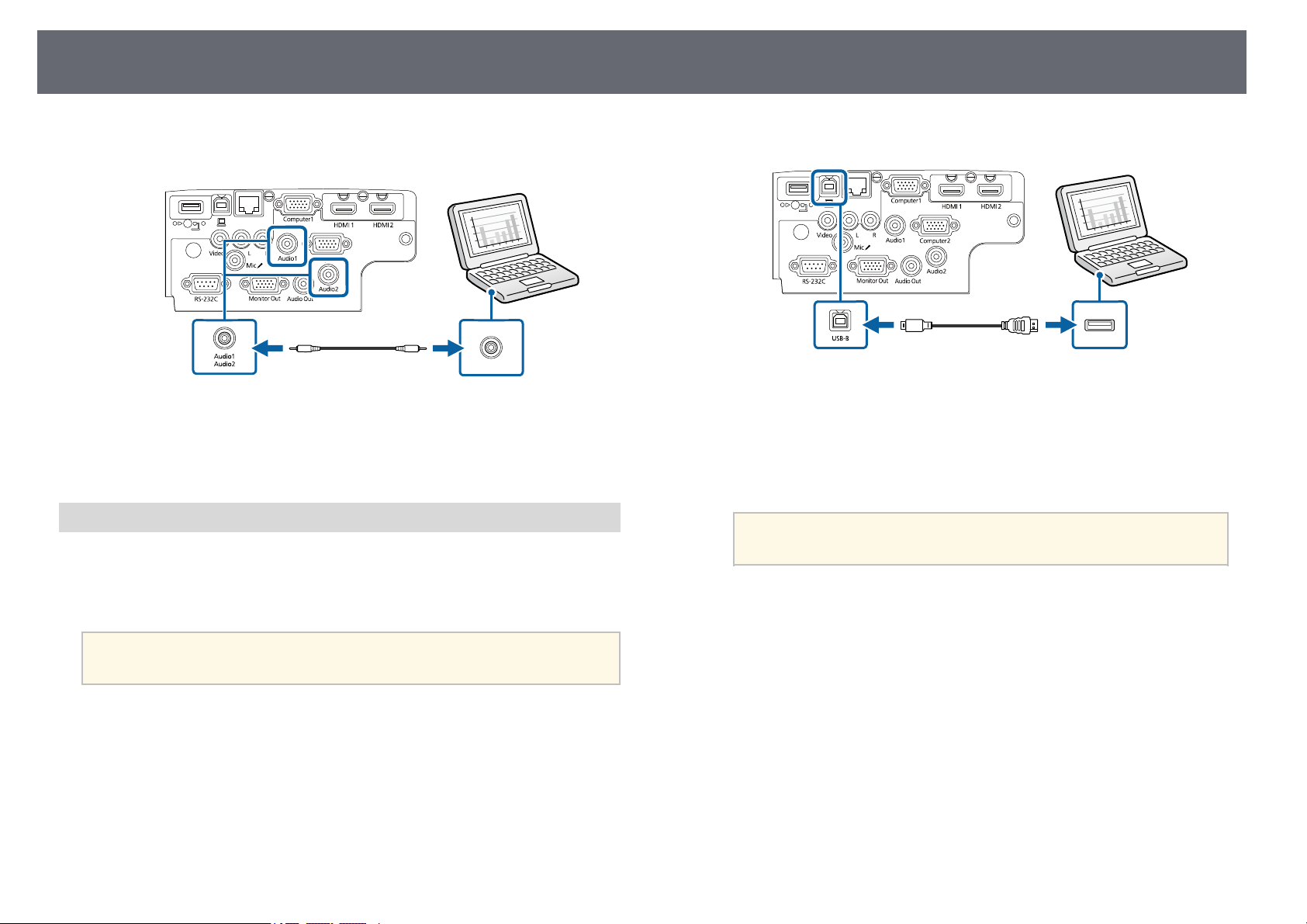
ProjectorConnections
28
e
Connect theother endto the Audioport thatcorresponds to the
Computer portyou areusing.
ggRelatedLinks
•"Projector SetupSettings - ExtendedMenu" p.134
•"List ofFunctions" p.10
ConnectingtoaComputerforUSBVideoandAudio
If yourcomputer meetsthe system requirements,you cansend video and
audio outputto theprojector through thecomputer's USBport. This function
is calledUSB Display.Connect the projectorto yourcomputer using aUSB
cable.
a
•IfyouuseaUSBhub,theconnectionmaynotoperatecorrectly.
Connect theUSBcabledirectlytotheprojector.
a
Connect thecable toyour projector'sUSB-B port.
b
Connect theother endto any availableUSB porton your computer.
c
Turn onthe projectorand your computer.
d
Do oneof thefollowing to installthe EpsonUSB Display software:
a
You onlyneedtoinstallthissoftwarethefirsttimeyouconnect
the projectortothecomputer.
•Windows: SelectRun EMP_UDSE.EXEin the dialogbox thatis
displayed toinstall theEpson USB Displaysoftware.
•Mac: TheEpson USB Displaysetup folder isdisplayed onyour
screen. SelectUSB DisplayInstaller andfollow theon-screen
instructions toinstall theEpson USB Displaysoftware. Ifthe USB
Display Setupfolder is notdisplayed automatically,double-click
EPSON_PJ_UD>USB DisplayInstaller.
e
Follow anyon-screen instructions.
Do notdisconnect theUSB cable orturn offthe projector untilthe
projector displaysan image.
The projectordisplays theimage from yourcomputer's desktopand outputs
sound ifyour presentationcontains audio.
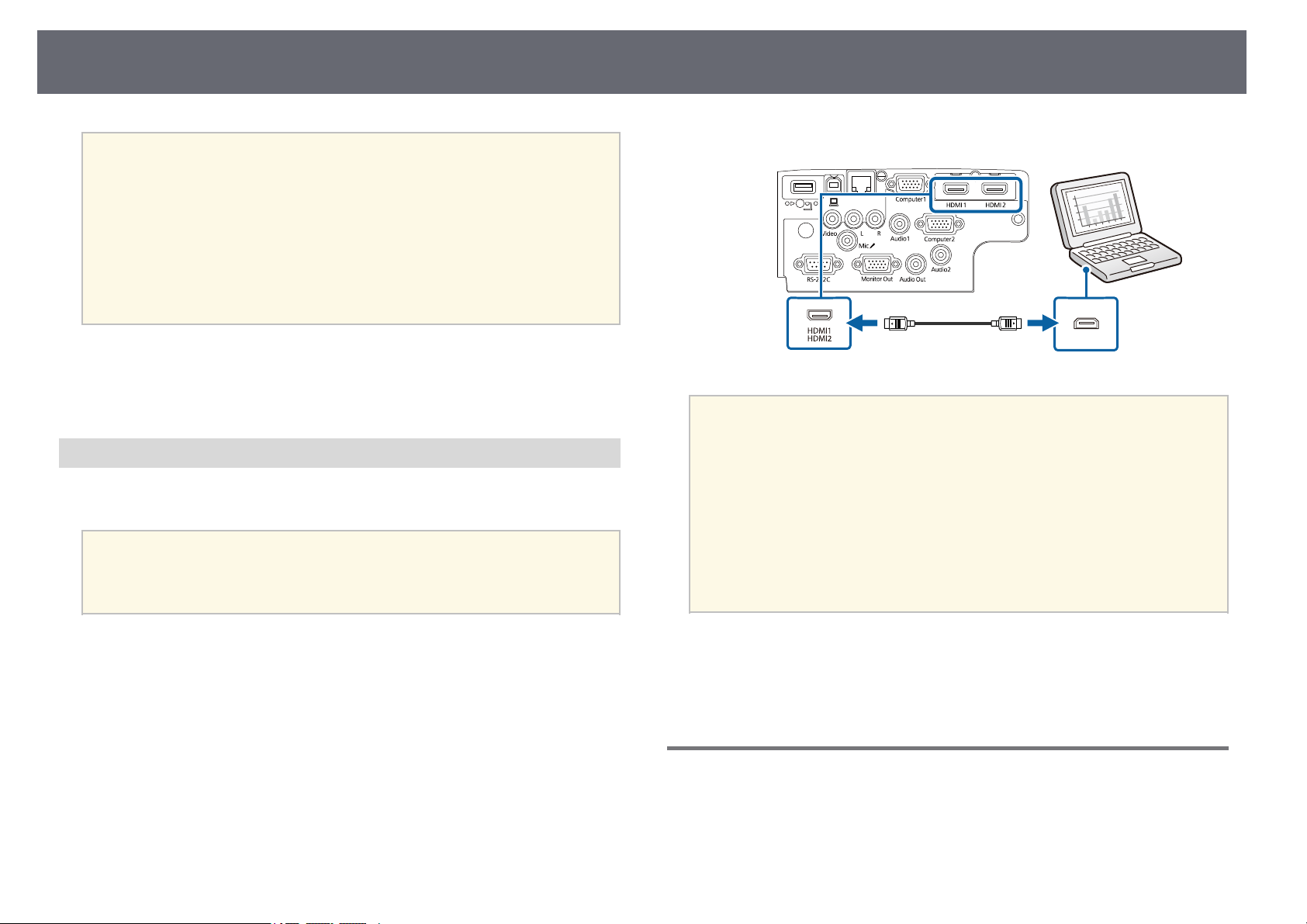
ProjectorConnections
29
a
•Iftheprojectordoesnotprojectanyimages,dooneofthefollowing:
•Windows:Click AllPrograms>EPSONProjector>EpsonUSB
Display>EpsonUSBDisplayVer.x.xx.
•Mac:Double-clicktheUSBDisplayicon intheApplicationfolder.
•Whenyoufinishprojection,dooneofthefollowing:
•Windows:DisconnecttheUSBcable.Youdonotneedtooperate
SafelyRemoveHardware.
•Mac:SelectDisconnectfrom theUSBDisplayiconmenuonthe
menu barorDock,andthendisconnecttheUSBcable.
ggRelatedLinks
•"USB DisplaySystem Requirements" p.203
•"List ofFunctions" p.10
ConnectingtoaComputerforHDMIVideoandAudio
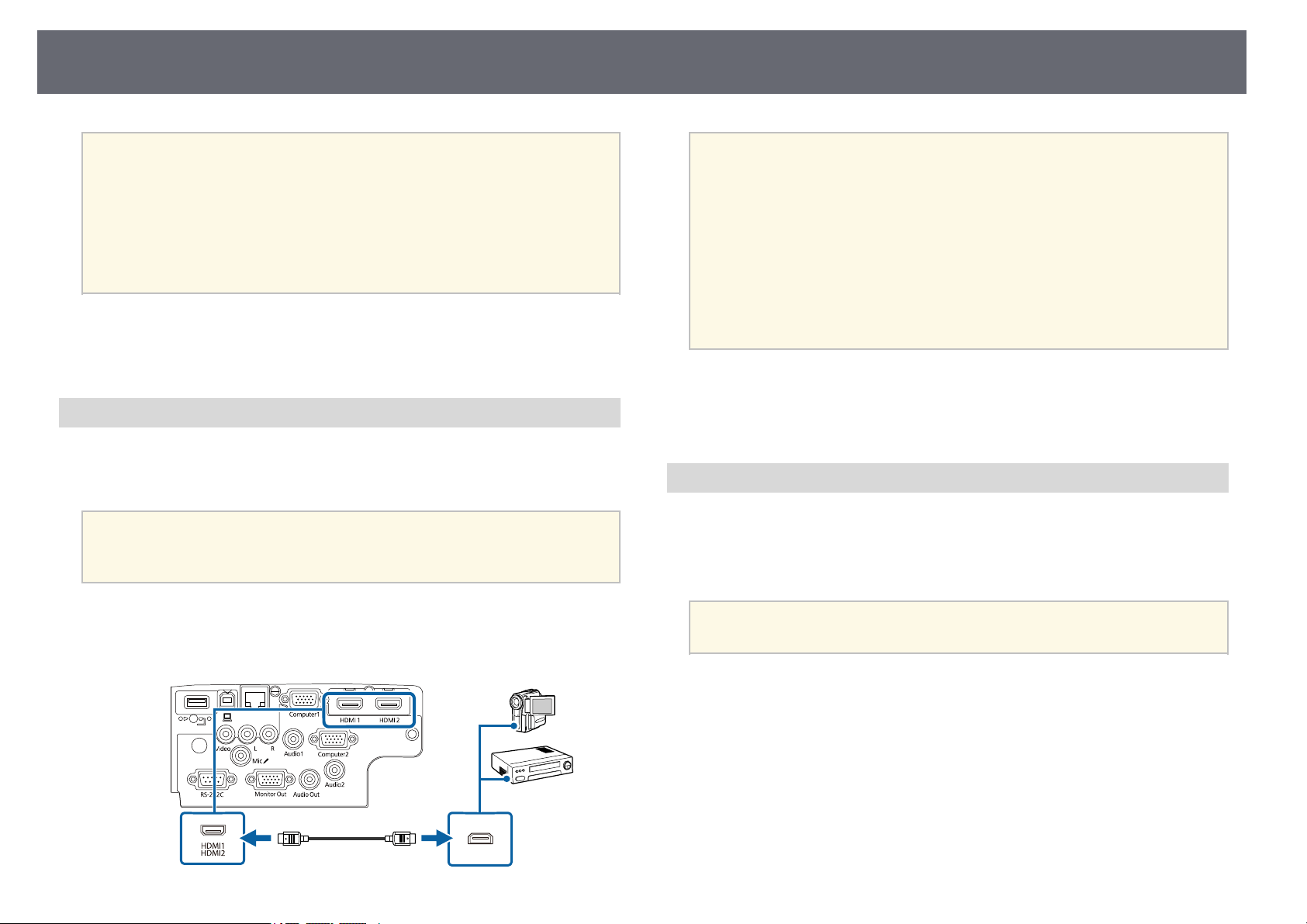
If yourcomputer hasan HDMI port,you canconnect it tothe projectorusing
an HDMIcable andsend the computer'saudio withthe projected image.
a
To connectaMacthatdoesnothaveanHDMIport,youneedan
adapter thatallowsyoutoconnecttotheprojector'sHDMIport.
Contact Appleforcompatibleadapteroptions.OlderMaccomputers
(2009 andearlier)maynotsupportaudiothroughtheHDMIport.
a
Connect theHDMI cableto your computer's HDMI outputport.
b
Connect theother endto the projector's HDMI port.
a
If youhaveproblemshearingaudiothroughtheHDMIconnection,
connect oneendofacommerciallyavailable3.5mmstereomini-jack
audio cabletotheprojector'sAudio portandtheotherendtoyour
computer's audiooutport.Selecttheaudioinputportyouconnected
to intheprojector'sExtendedmenu.
sExtended>A/VSettings>AudioSettings>HDMIAudio
Output
sExtended>A/VSettings>AudioSettings>HDMI1Audio
Output
sExtended>A/VSettings>AudioSettings>HDMI2Audio
Output
ggRelatedLinks
•"Projector SetupSettings - ExtendedMenu" p.134
•"List ofFunctions" p.10
ConnectingtoVideoSources
Follow theinstructions inthese sections toconnect videodevices to the
projector.
ProjectorConnections
30
a
•Iftheportonthedeviceyouconnecthasanunusualshape,usethe
cable suppliedwiththedeviceoranoptionalcabletoconnecttothe
projector.
•Thecablediffersdependingontheoutputsignalfromtheconnected
video devices.
•Somevideodevicesarecapableofoutputtingdifferenttypesof
signals. Seeyourvideodevicemanualtoconfirmwhattypeofsignals
can beoutput.
ggRelatedLinks
•"Connecting toan HDMI VideoSource" p.30
•"Connecting toa Composite VideoSource" p.30
ConnectingtoanHDMIVideoSource
If yourvideo sourcehas an HDMIport, youcan connect itto theprojector
using anHDMI cableand send theimage source'saudio with theprojected
image.
Attention
Do notturnonthevideosourcebeforeconnectingittotheprojector.Doingso
could damagetheprojector.
a
Connect theHDMI cableto your videosource's HDMIoutput port.
b
Connect theother endto the projector's HDMI port.
a
If youhaveproblemshearingaudiothroughtheHDMIconnection,
connect oneendofacommerciallyavailable3.5mmstereomini-jack
audio cabletotheprojector'sAudio portandtheotherendtoyour
video source'saudiooutport.Selecttheaudioinputportyou
connected tointheprojector'sExtendedmenu.
sExtended>A/VSettings>AudioSettings>HDMIAudio
Output
sExtended>A/VSettings>AudioSettings>HDMI1Audio
Output
sExtended>A/VSettings>AudioSettings>HDMI2Audio
Output
ggRelatedLinks
•"Projector SetupSettings - ExtendedMenu" p.134
•"List ofFunctions" p.10
ConnectingtoaCompositeVideoSource
If yourvideo sourcehas a compositevideo port,you can connectit tothe
projector usinga RCA-stylevideo or A/Vcable.
You canplay soundthrough the projector'sspeaker systemby connecting a
commercially availableRCA audiocable.
a
Make suretheaudiocableislabeled"Noresistance".
a
Connect thecable withthe yellow connectorto yourvideo source's
yellow videooutput port.
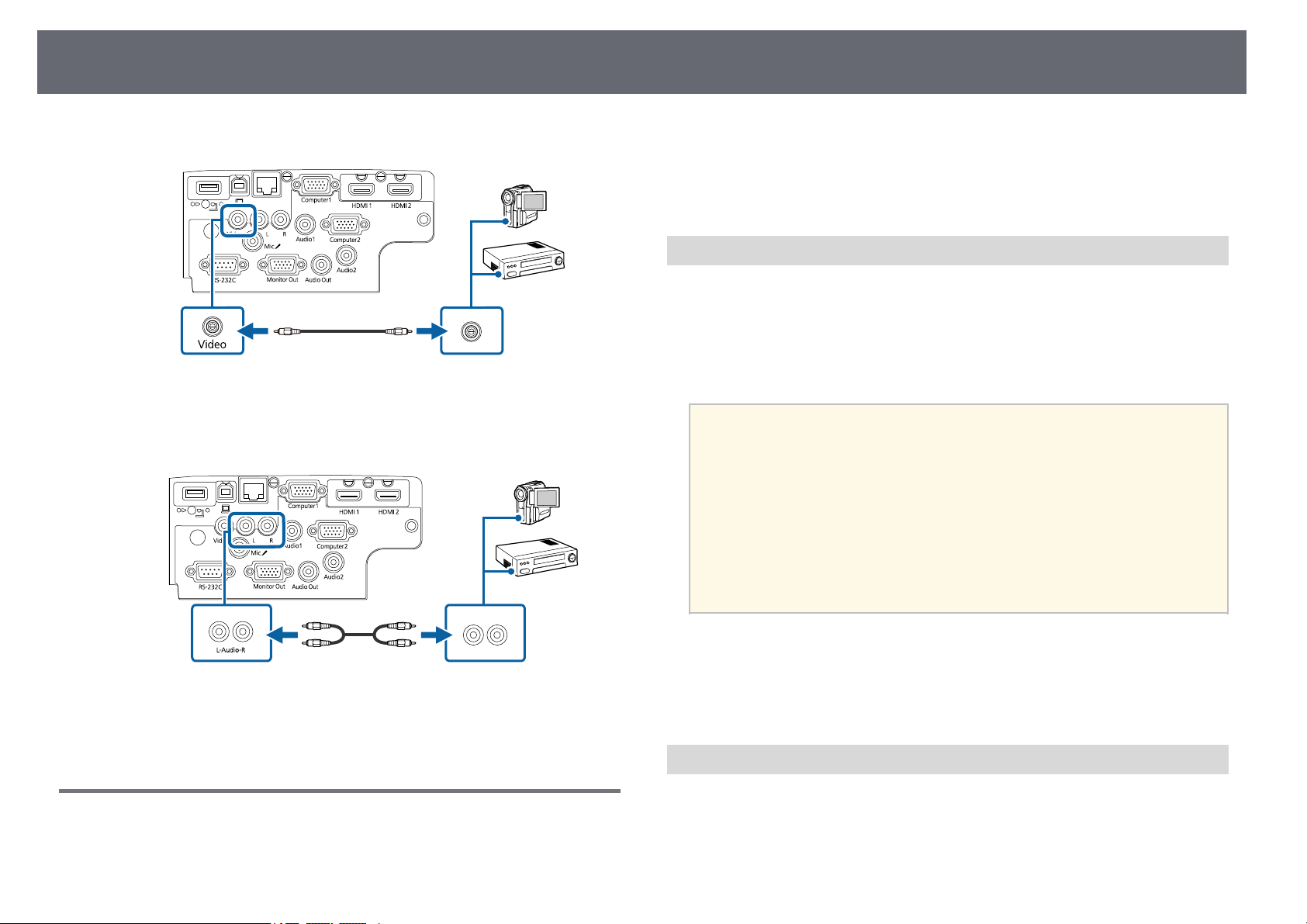
ProjectorConnections
31
b
Connect theother endto the projector's Video port.
c
Connect theaudio cableto your videosource's audio-outports.
d
Connect theother endto the projector's L-Audio-R ports.
ggRelatedLinks
•"List ofFunctions" p.10
ConnectingtoExternalUSBDevices
Follow theinstructions inthese sections toconnect externalUSB devices to
the projector.
ggRelatedLinks
•"USB DeviceProjection" p.31
•"Connecting toa USB Device"p.31
•"Disconnecting aUSB Device" p.32
USBDeviceProjection
You canproject imagesand other contentwithout usinga computer orvideo
device byconnecting anyof these devicesto yourprojector:
•USB flashdrive
•Digital cameraor smartphone
•USB harddrive
a
•DigitalcamerasorsmartphonesmustbeUSB-mounteddevices,not
TWAIN-compliant devices,andmustbeUSBMassStorageClass-
compliant.
•USBharddrivesmustmeettheserequirements:
•USBMassStorageClass-compliant(notallUSBMassStorage
Class devicesaresupported)
•FormattedinFAT16/32
•Self-poweredbytheirownACpowersupplies(bus-poweredhard
drives arenotrecommended)
•Avoidusingharddriveswithmultiplepartitions
You canproject slideshows from imagefiles ona connected USBdevice.
ggRelatedLinks
•"List ofFunctions" p.10
•"Projecting aPC Free Presentation"p.68
ConnectingtoaUSBDevice
You canconnect yourUSB device tothe projector'sUSB-A port anduse it to
project imagesand othercontent.
a
If yourUSB devicecame with apower adapter,plug the deviceinto an
electrical outlet.
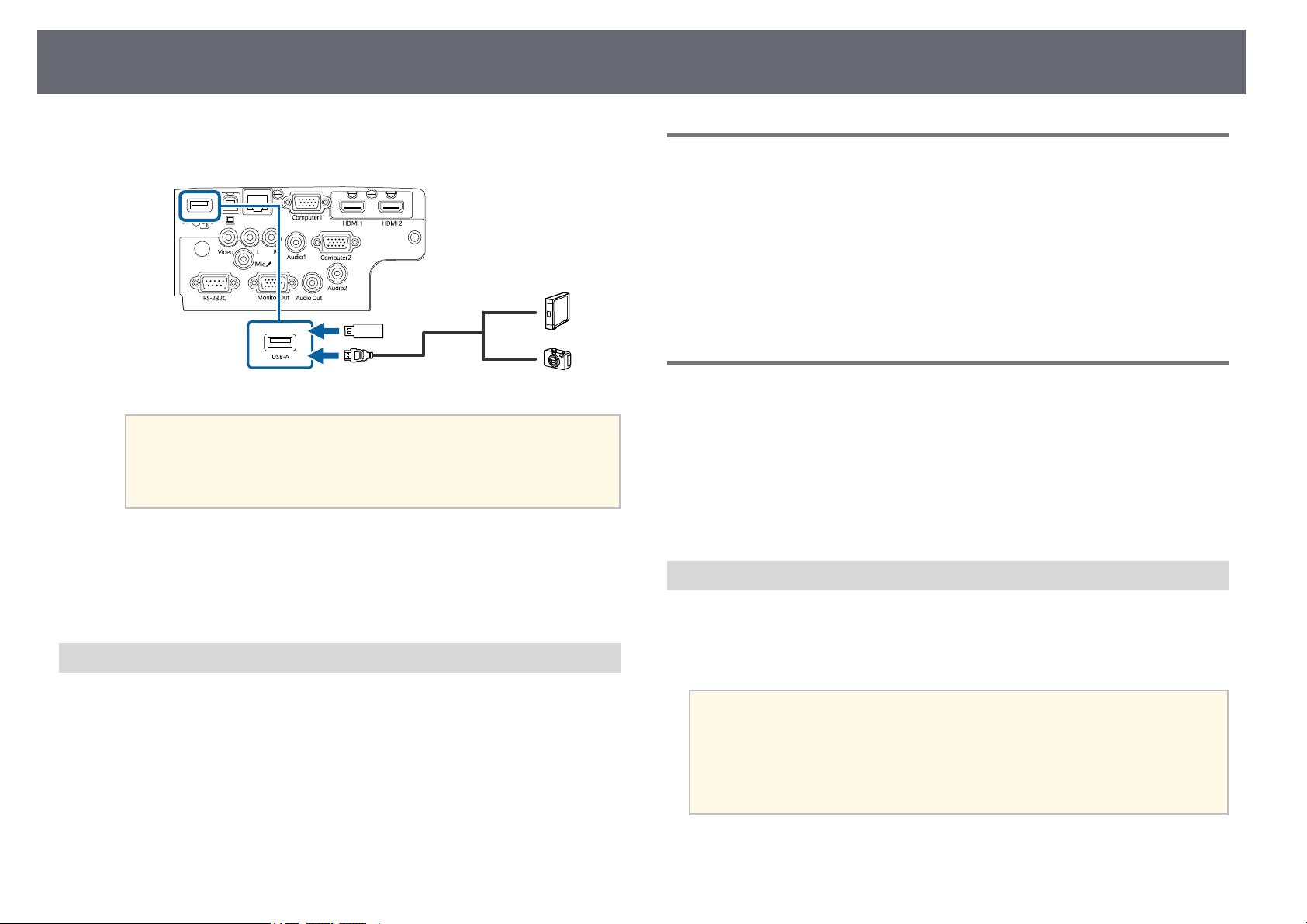
ProjectorConnections
32
b
Connect theUSB cableor USB flashdrive tothe projector's USB-Aport
as shown.
Attention
•UsetheUSBcablesuppliedwithorspecifiedforusewiththedevice.
•DonotconnectaUSBhuboraUSBcablelongerthan3meters,orthe
device maynotoperatecorrectly.
c
Connect theother endto your device,if necessary.
ggRelatedLinks
•"List ofFunctions" p.10
DisconnectingaUSBDevice
When youhave finishedpresenting with aconnected USBdevice, disconnect
the devicefrom theprojector.
a
Turn offand unplugthe device, ifnecessary.
b
Disconnect theUSB devicefrom the projector.
ConnectingtoaDocumentCamera
You canconnect adocument camera toyour projectorto projectimages
viewed bythe camera.
The connectionmethod variesdepending on yourEpson documentcamera
model. Seethe documentcamera manual fordetails.
ggRelatedLinks
•"List ofFunctions" p.10
ConnectingtoExternalDevices
Follow theinstructions inthese sections toconnect externaldevices to the
projector.
ggRelatedLinks
•"Connecting toa VGA Monitor"p.32
•"Connecting toExternal Speakers" p.33
•"Connecting aMicrophone" p.34
ConnectingtoaVGAMonitor
If youconnected theprojector to acomputer usinga Computer port,you can
also connectan externalmonitor to theprojector. Thislets you seeyour
presentation onthe externalmonitor even whenthe projectedimage is not
visible.
a
•Ifyouwanttooutputimagestoanexternalmonitorwhenthe
projector isturnedoff,selectAlwaysOnastheA/VOutputsetting
in theprojector'sExtendedmenu.
sExtended>A/VSettings>A/VOutput
•Monitorsthatusearefreshrateoflessthan60Hzmaynotbeableto
display imagescorrectly.
a
Make sureyour computeris connected tothe projector'sComputer
port.
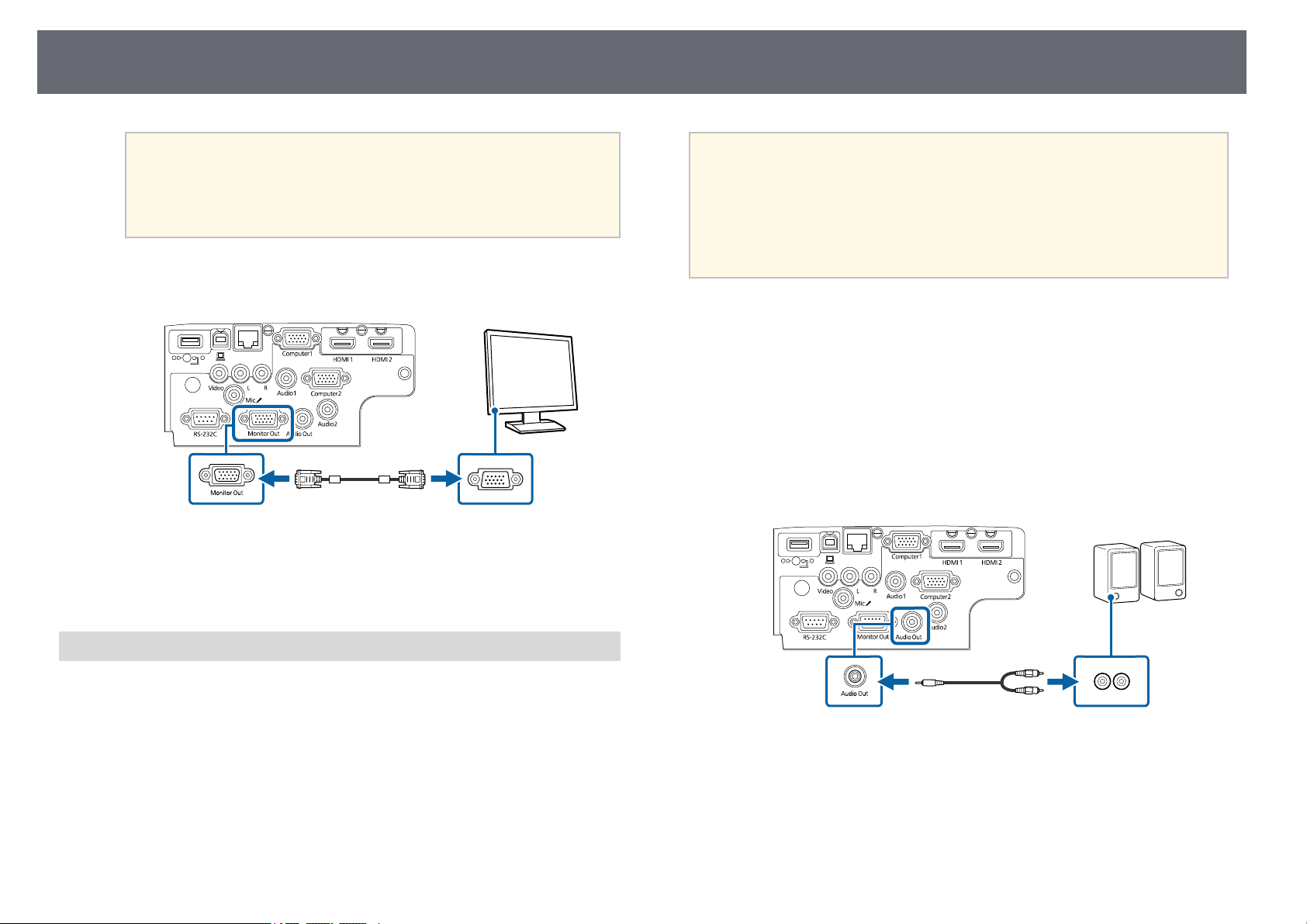
ProjectorConnections
33
a
•Iftherearetwocomputerports,makesureyouusethe
Computer1 port.
•OnlyanalogRGBsignalsfromtheComputer1portcanbe
output toanexternalmonitor.Youcannotoutputsignals
input fromotherports.
b
Connect theexternal monitor'scable toyour projector's MonitorOut
port.
ggRelatedLinks
•"Projector SetupSettings - ExtendedMenu" p.134
•"List ofFunctions" p.10
ConnectingtoExternalSpeakers
To enhancethe soundfrom your presentation,you canconnect the projector
to externalself-powered speakers.You can controlthe volumeusing the
projector's remotecontrol.
a
•Ifyouwanttooutputaudiofromtheexternalspeakerswhenthe
projector isturnedoff,selectAlwaysOnastheA/VOutputsetting
in theprojector'sExtendedmenu.
sExtended>A/VSettings>A/VOutput
•Youcanalsoconnecttheprojectortoanamplifierwithspeakers.
•Theprojector'sbuilt-inspeakersystemisdisabledwhenyouconnect
external speakers.
a
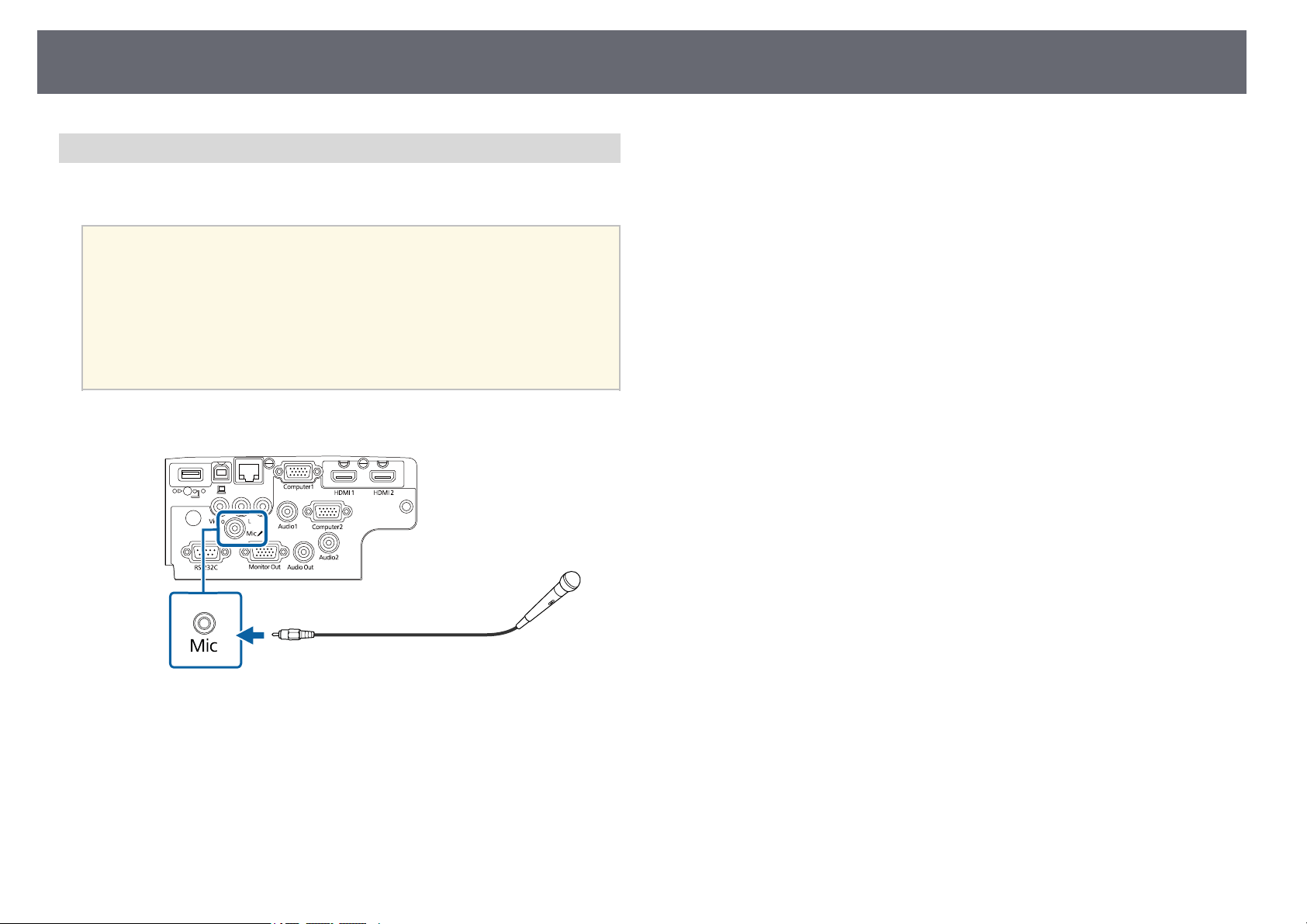
Make sureyour computeror video sourceis connectedto the projector
with bothaudio andvideo cables asnecessary.
b
Locate theappropriate cableto connect yourexternal speakers,such as
a stereomini-jack-to-pin-jack cable,or another typeof cableor adapter.
c
Connect oneend ofthe cable toyour externalspeakers as necessary.
d
Connect thestereo mini-jackend of thecable toyour projector'sAudio
Out port.
ggRelatedLinks
•"Projector SetupSettings - ExtendedMenu" p.134
•"List ofFunctions" p.10
ProjectorConnections
34
ConnectingaMicrophone
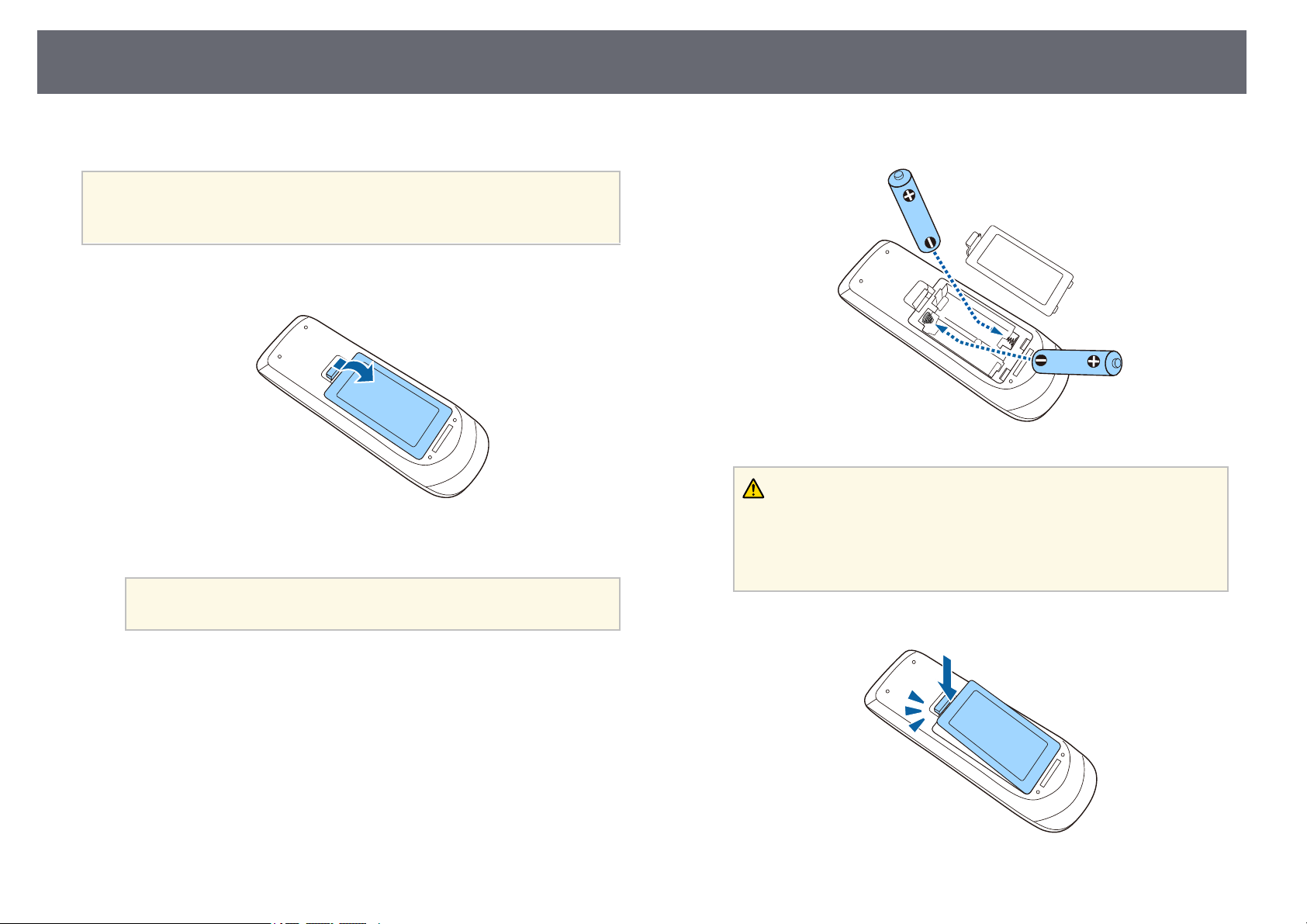
You canconnect amicrophone to theprojector's Mic portto provideaudio
support duringpresentations.
a
•Plug-in-powerisnotsupported.
•Ifyouwanttooutputaudiofromamicrophonewhentheprojector
is turnedoff,selectAlwaysOnastheA/VOutputsettinginthe
projector's Extendedmenu.
sExtended>A/VSettings>A/VOutput
•Adjust MicInputLevelifthemicrophoneaudioisdifficulttohear,
or ifitistooloudresultinginacracklingsound.
sSettings>MicInputLevel
a
Connect themicrophone cableto the projector's Micport.
b
Turn onthe microphone,if necessary.
ggRelatedLinks
•"Projector SetupSettings - ExtendedMenu" p.134
•"Projector FeatureSettings - SettingsMenu" p.132
•"List ofFunctions" p.10
InstallingBatteriesintheRemoteControl
35
The remotecontrol usesthe two AAbatteries thatcame with theprojector.
Attention
Make sure you read the safety instructions in the online Notices before handling
the batteries.
a
Remove thebattery coveras shown.
b
Remove theold batteries,if necessary.
a
Dispose ofusedbatteriesaccordingtolocalregulations.
c
Insert thebatteries withthe + and– endsfacing asshown.
Warning
Check thepositionsofthe(+)and(–)marksinsidethebatteryholderto
ensure thebatteriesareinsertedthecorrectway.Ifthebatteriesarenotused
correctly, theycouldexplodeorleakcausingafire,injury,ordamagetothe
product.
d
Replace thebattery coverand press itdown untilit clicks intoplace.
RemoteControlOperation
36
The remotecontrol letsyou control theprojector fromalmost anywhere in
the room.
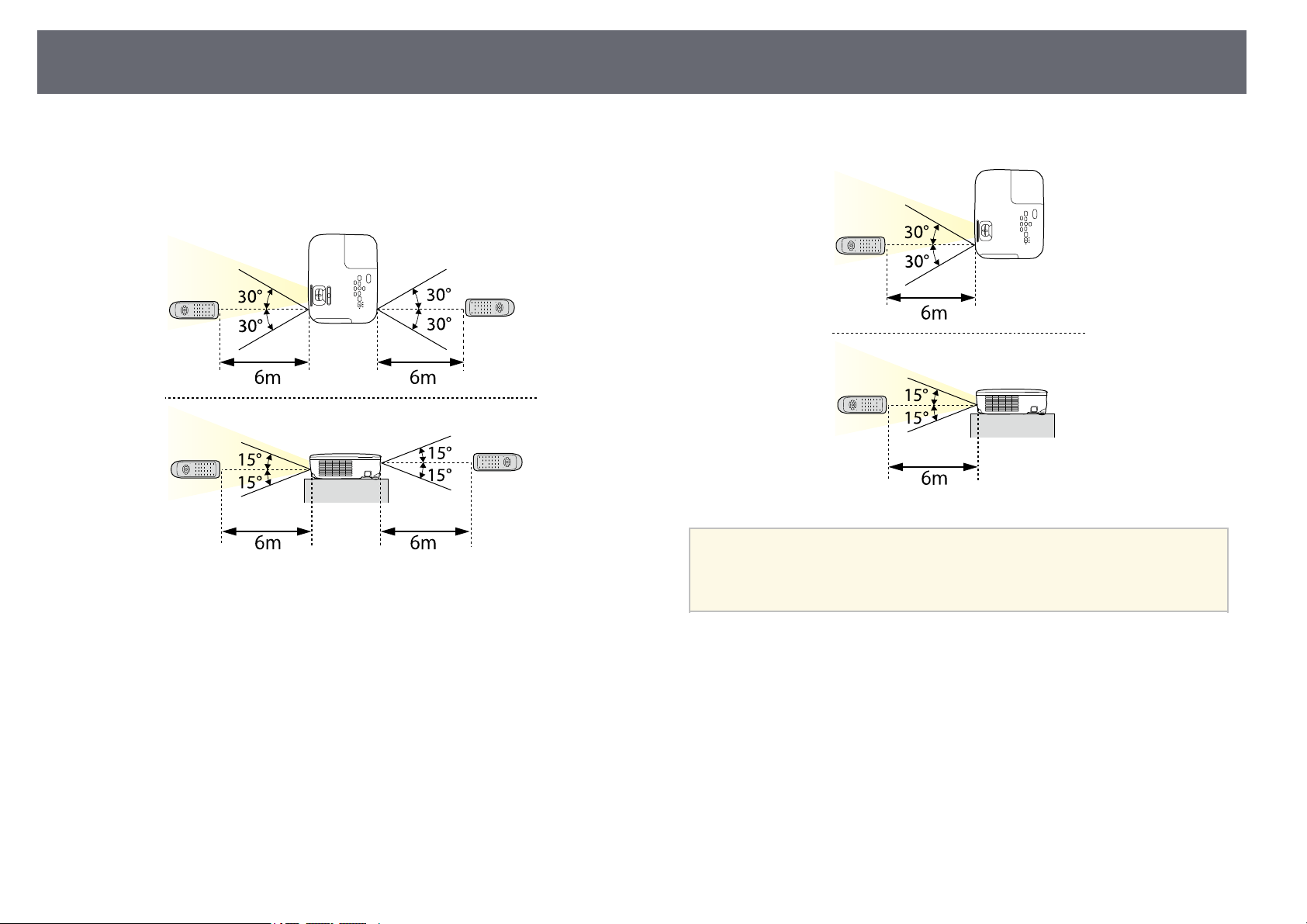
Make surethat youaim the remotecontrol atthe projector's receiverswithin
the distanceand angleslisted here.
EB‑‑E20/EB‑‑E10/EB‑‑E01/VS260
a
Avoid usingtheremotecontrolinconditionswithbrightfluorescent
lights orindirectsunlight,ortheprojectormaynotrespondto
commands. Ifyouarenotgoingtousetheremotecontrolforalong
time, removethebatteries.
OpeningtheLensCover
37
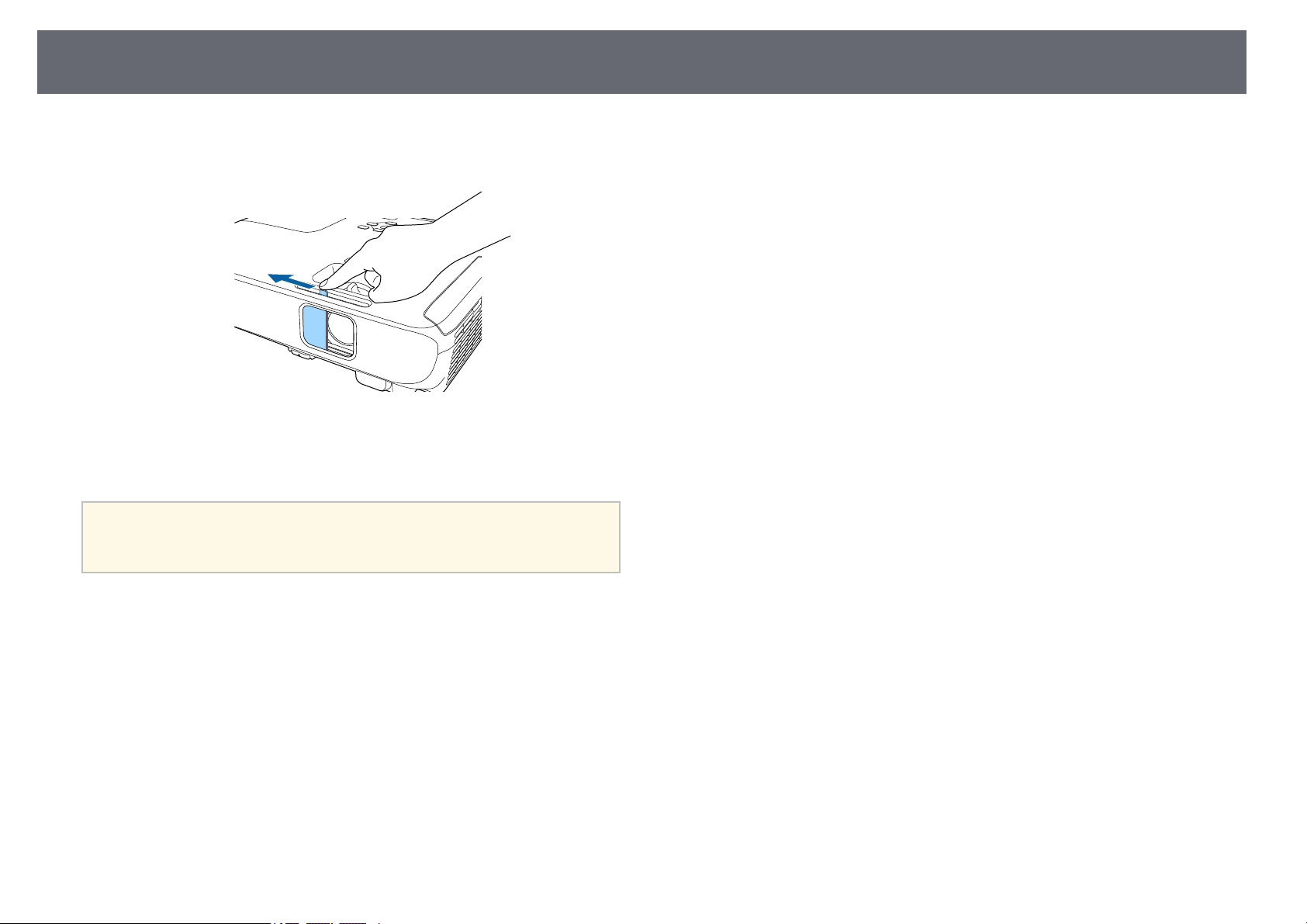
a
To openthe projector'slens cover, slidethe A/VMute slidelever until
it clicks.
b
To coverthe lensor temporarily turnoff theprojected image and
sound, closethe lenscover.
a
The projector'spowerautomaticallyturnsoff30minutesafterA/V
Mute isenabled.Youcandisablethisfeature.
sECO>LensCoverTimer
ggRelatedLinks
•"List ofFunctions" p.10

UsingBasicProjectorFeatures
Follow theinstructions inthese sections touse yourprojector's basic features.
ggRelatedLinks
•"Turning Onthe Projector" p.39
•"Turning Offthe Projector" p.42
•"Setting theDate and Time"p.43
•"Selecting theLanguage for theProjector Menus"p.45
•"Projection Modes"p.46
•"Displaying aTest Pattern" p.48
•"Adjusting theImage Height" p.49
•"Image Shape"p.50
•"Resizing theImage with theZoom Ring"p.54
•"Focusing theImage Using theFocus Ring"p.55
•"Selecting anImage Source" p.56
•"Image AspectRatio" p.58
•"Adjusting ImageQuality (Color Mode)"p.61
•"Controlling theVolume with theVolume Buttons"p.63
TurningOntheProjector
39
Turn onthe computeror video equipmentyou wantto use afteryou turnon
the projector.
a
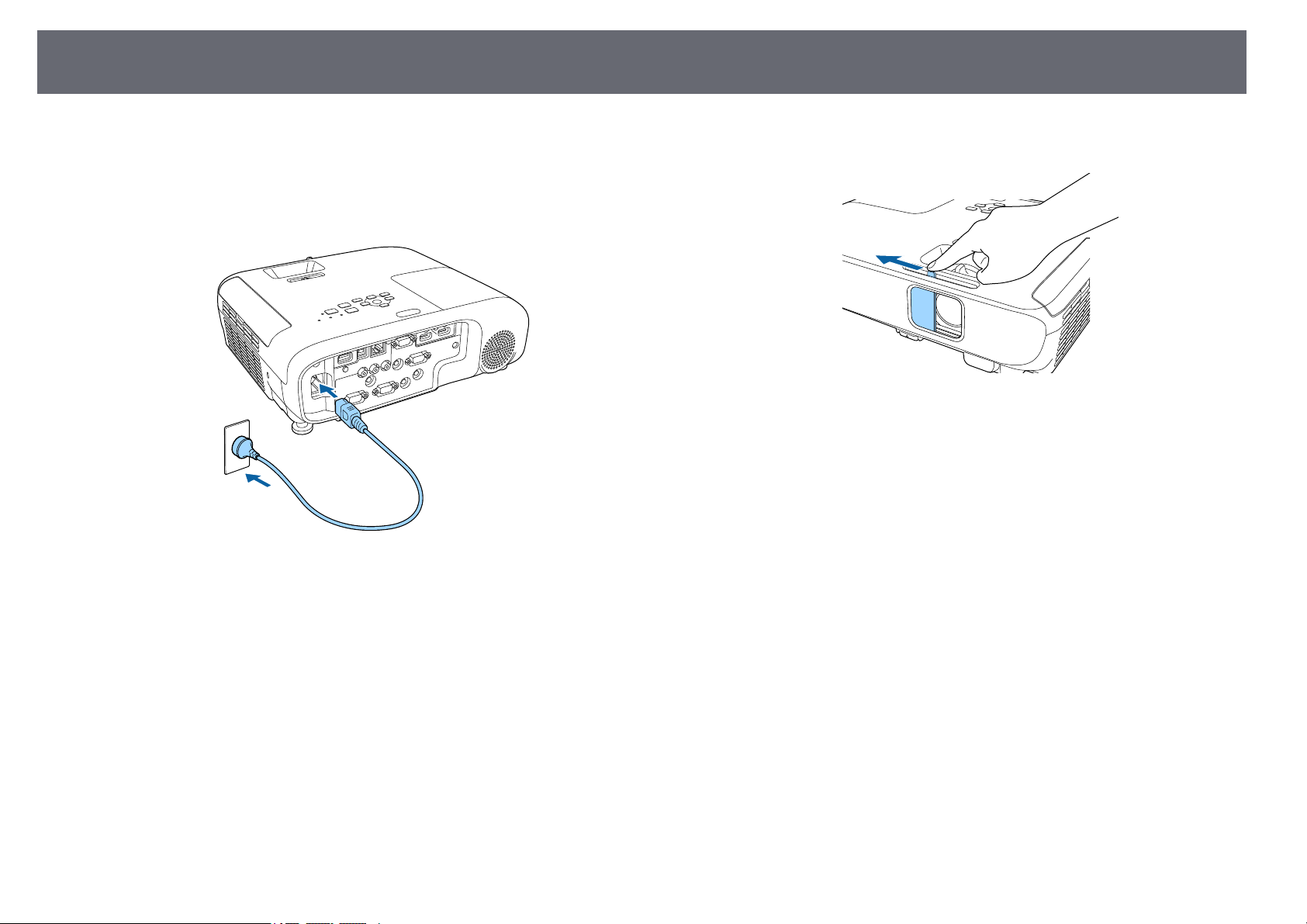
Connect thepower cordto the projector's power inletand plugit into
an electricaloutlet.
The projector'spower indicatorturns blue. Thisindicates thatthe
projector isreceiving power,but is notyet turnedon (it isin standby
mode).
b
Press thepower buttonon the controlpanel orremote control toturn
on theprojector.
The projectorbeeps andthe status indicatorflashes blueas the
projector warmsup. Oncethe projector iswarmed up,the status
indicator stopsflashing andturns blue.
c
Open theprojector's lenscover.
Try thefollowing ifyou do notsee aprojected image.
•Verify thelens coveris open allthe way.
•Turn onthe connectedcomputer or videodevice.
•Change thescreen outputfrom the computerwhen usinga laptop
computer.
•Insert aDVD orother video media,and pressplay (if necessary).
•Press the[Source Search] buttonon thecontrol panel orremote controlto
detect thesource.
•Press thebutton forthe desired videosource onthe remote control.
•If theHome screenis displayed, selectthe sourceyou want toproject.
TurningOntheProjector
40
Warning
•Neverlookintotheprojectorlenswhenthelampison.Thiscandamageyour
eyes andisespeciallydangerousforchildren.
•Whenturningontheprojectoratadistanceusingtheremotecontrol,makesure
there isnoonelookingintothelens.
•Duringprojection,donotblockthelightfromtheprojectorwithabookorother
objects. Ifthelightfromtheprojectorisblocked,theareaonwhichthelight
shines becomeshotwhichcouldcauseittomelt,burn,orstartafire.Also,the
lens maygethotduetothereflectedlightwhichcouldcausetheprojectorto
malfunction. Tostopprojection,usetheA/VMutefunction,orturnoffthe
projector.
•Amercurylampwithhighinternalpressureisusedastheprojector'slight
source. Ifthelampissubjectedtovibrationsorshocks,orifitisusedforan
overly extendedlengthoftime,thelampmaybreakoritmaynotturnon.Ifthe
lamp explodes,gasesmayescapeandsmallfragmentsofglassmaybescattered
which couldcauseaninjury.Besuretoobservetheinstructionsbelow.
•Donotdisassembleordamagethelamporsubjectittoanyimpacts.
•Donotbringyourfaceclosetotheprojectorwhileitisinuse.
•Particularcareshouldbetakenwhentheprojectorisinstalledtoaceiling,as
small piecesofglassmayfalldownwhenthelampcoverisremoved.When
cleaning theprojectororreplacingthelampyourself,beverycarefulnotto
allow suchpiecesofglasstogetintotheeyesormouth.
If thelampbreaks,ventilatetheareaimmediately,andcontactadoctorifany
fragments ofbrokenglassareinhaledorgetintotheeyesormouth.
a
•WhentheDirectPowerOnsetting issettoOnintheprojector's
Extendedmenu,theprojectorturnsonassoonasyouplugitin.
Note thattheprojectoralsoturnsonautomaticallyincasessuchas
recovery fromapoweroutage.
sExtended>Operation>DirectPowerOn
•Ifyouselectaspecificportasthe AutoPowerOnsettinginthe
projector's Extendedmenu,theprojectorturnsonassoonasit
detects asignalorcableconnectionfromthatport.
sExtended>Operation>AutoPowerOn
ggRelatedLinks
•"Home Screen"p.40
•"Projector SetupSettings - ExtendedMenu" p.134
•"List ofFunctions" p.10
HomeScreen
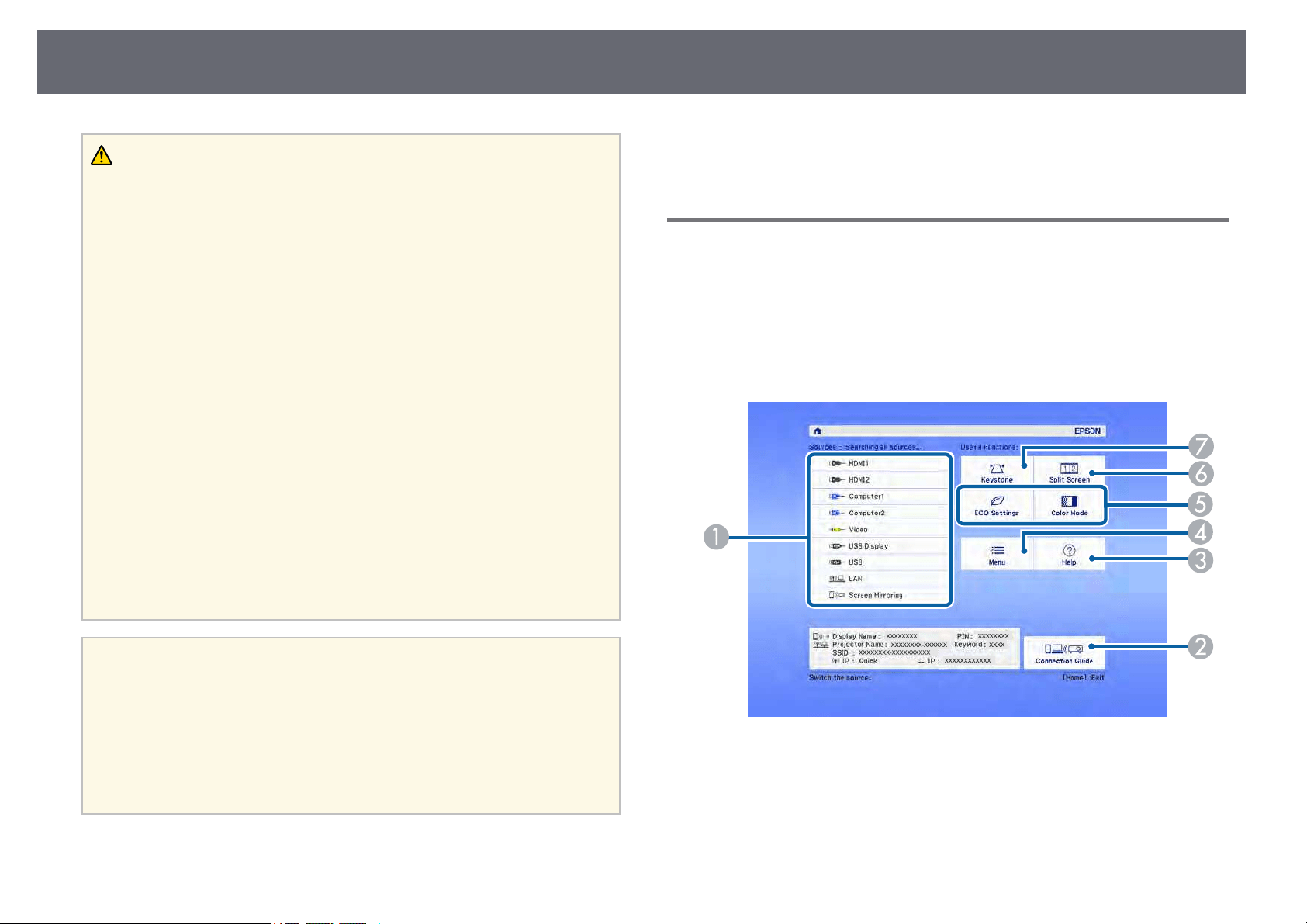
The Homescreen featureallows you toeasily selectan image sourceand
access usefulfunctions. Youcan display theHome screenby pressing the
[Home] buttonon thecontrol panel orremote control.The Home screenis
also displayedwhen youturn on theprojector andno signal isbeing input.
Press thearrow buttonson the controlpanel orremote control toselect a
menu item,and thenpress [Enter].
Selects thesourceyouwanttoproject.
B
Displays theConnectionGuide.Youcanselectthewirelessconnectionmethods
according tothedevicesyouareusing,suchassmartphonesorcomputers.
C
Displays theHelpscreen.
D
Displays theprojector'smenu.

TurningOntheProjector
41
E
Performs menuoptionsassignedtoHomeScreenintheprojector's Extended
menu.
F
Projects twoimagesfromdifferentimagesourcessimultaneouslybysplitting
the projectedscreen.
G
Corrects theshapeofanimagethatisanunevenrectangle.
a
The Homescreendisappearsafter10minutesofinactivity.
ggRelatedLinks
•"Image Shape"p.50
•"Projector SetupSettings - ExtendedMenu" p.134
•"List ofFunctions" p.10
•"Using theProjector's Menus" p.128
•"Using theProjector Help Displays"p.172
•"Projecting TwoImages Simultaneously" p.65
TurningOfftheProjector
42
Turn offthe projectorafter use.
a
•Turnoffthisproductwhenitisnotinusetoprolongthelifeofthe
projector. Lamplifevariesdependingonthemodeselected,
environmental conditions,andusage.Brightnessdecreasesovertime.
•Sincetheprojectorsupportsthedirectshutdownfeature,itcanbe
turned offdirectlyusingthebreaker.
a
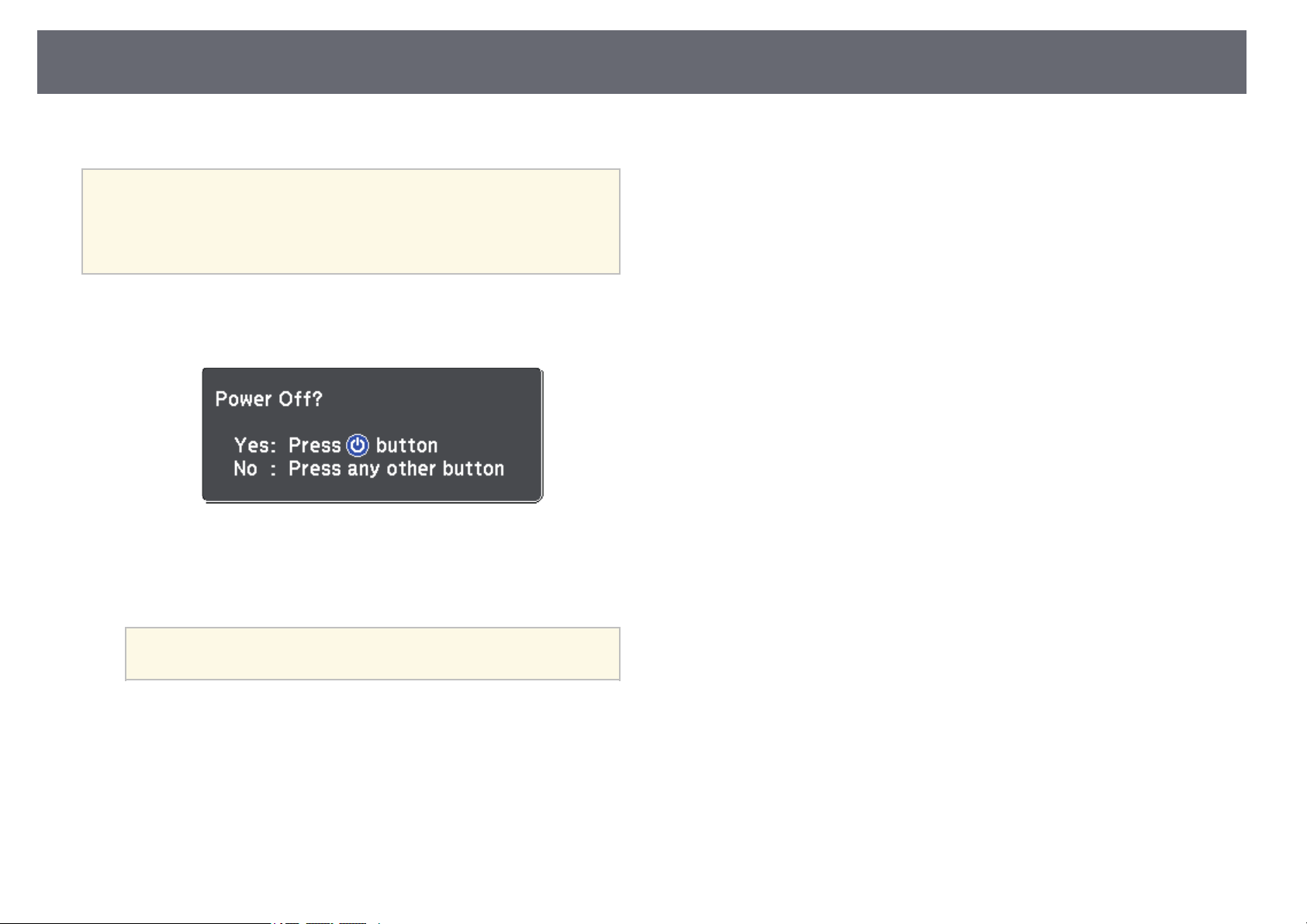
Press thepower buttonon the controlpanel orremote control.
The projectordisplays ashutdown confirmation screen.
b
Press thepower buttonagain. (To leaveit on,press any otherbutton.)
The projectedimage disappears,the projector beepstwice, andthe
status indicatorturns off.
a
With Epson'sInstantOfftechnology,thereisnocool-down
period soyoucanpackuptheprojectorfortransportrightaway.
c
To transportor storethe projector, makesure thepower indicator is
blue (butnot flashing)and the statusindicator isoff, then unplugthe
power cord.
d
Close theprojector's lenscover.
ggRelatedLinks
•"List ofFunctions" p.10
SettingtheDateandTime
43
You canset thedate and timefor theprojector.
a
Turn onthe projector.
b
Press the[Menu] buttonon the controlpanel orremote control.
c
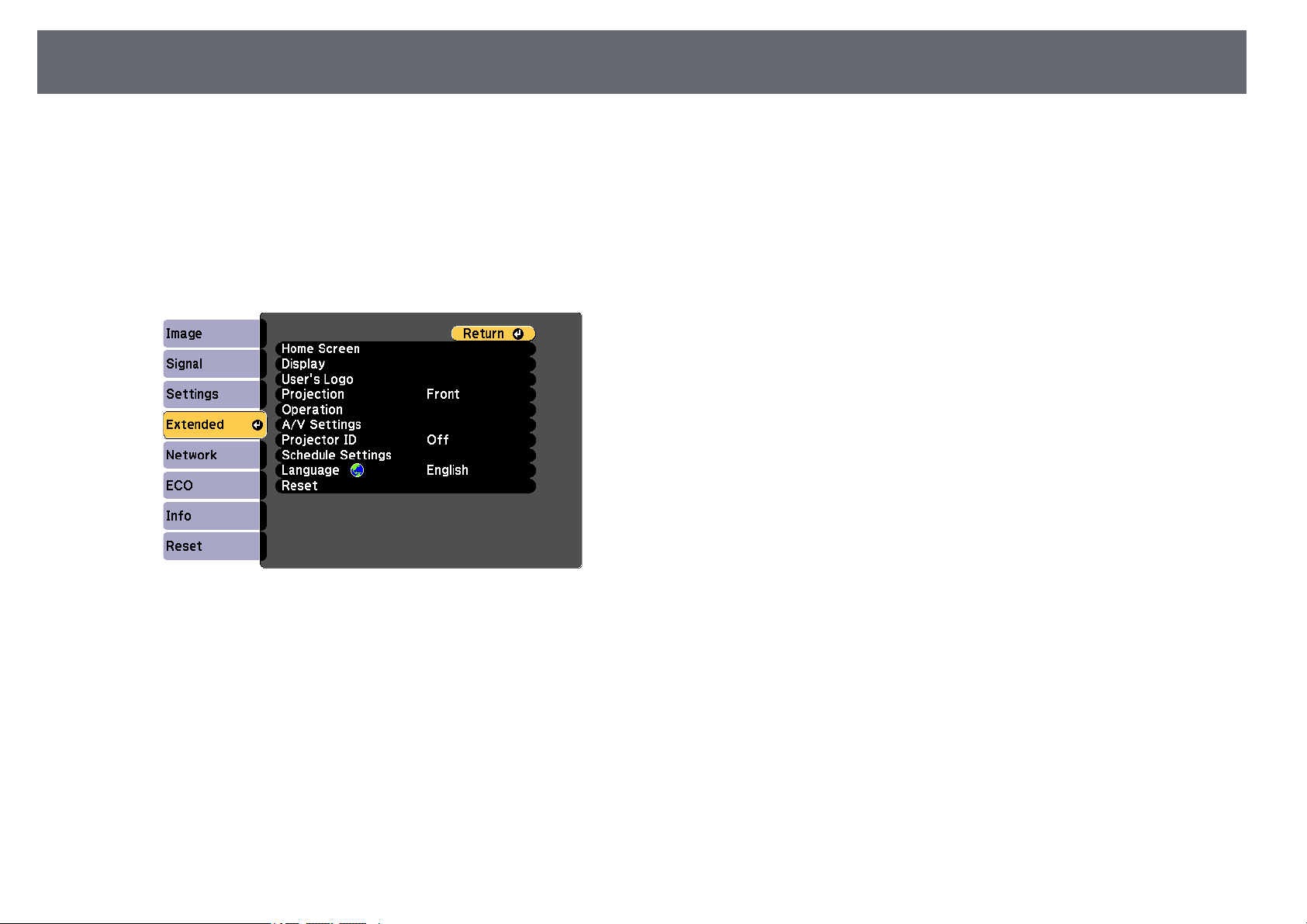
Select theExtended menuand press [Enter].
d
Select theOperation settingand press [Enter].
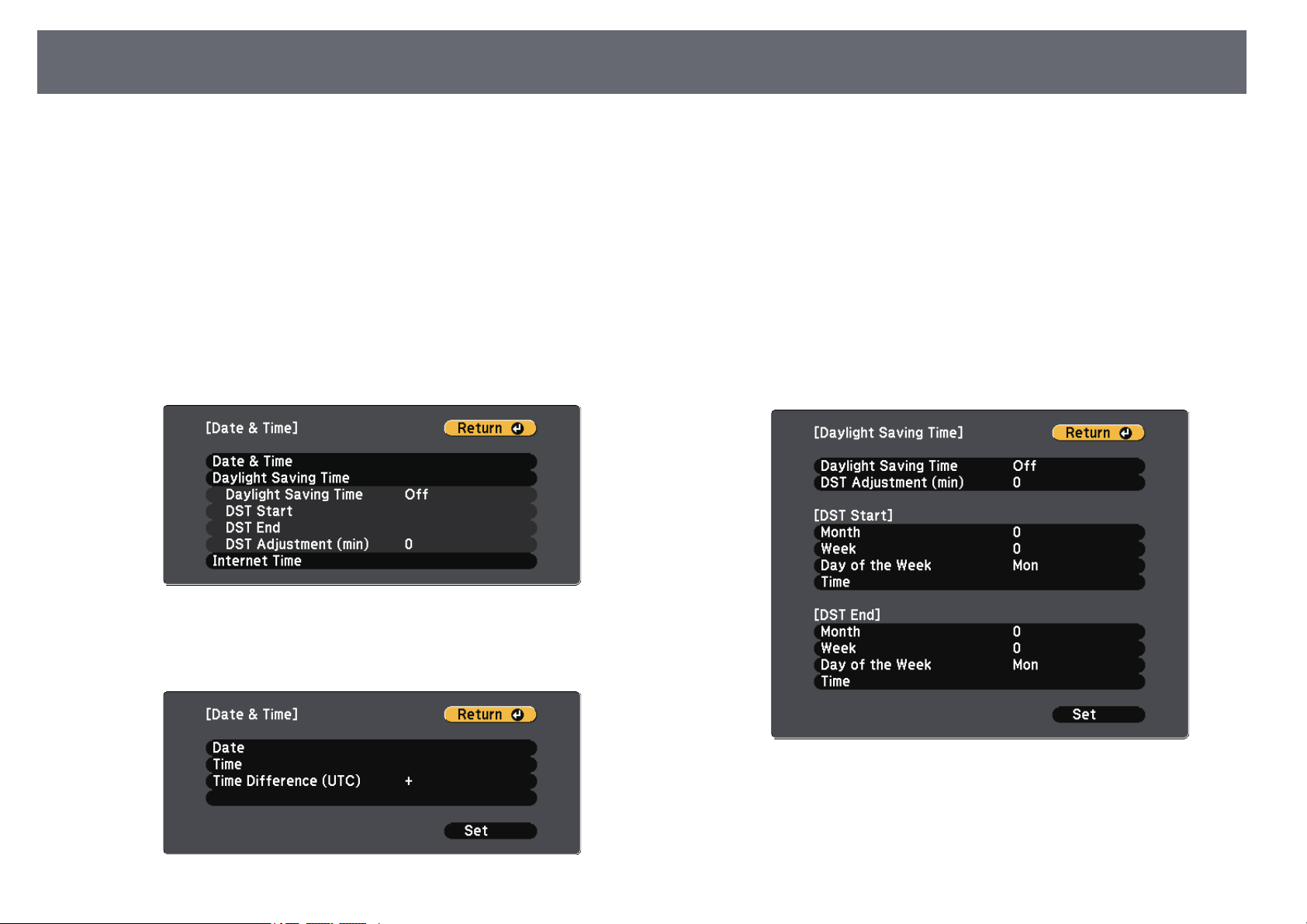
e
Select theDate &Time settingand press [Enter].
You seethis screen:
f
Select theDate &Time settingand press [Enter].
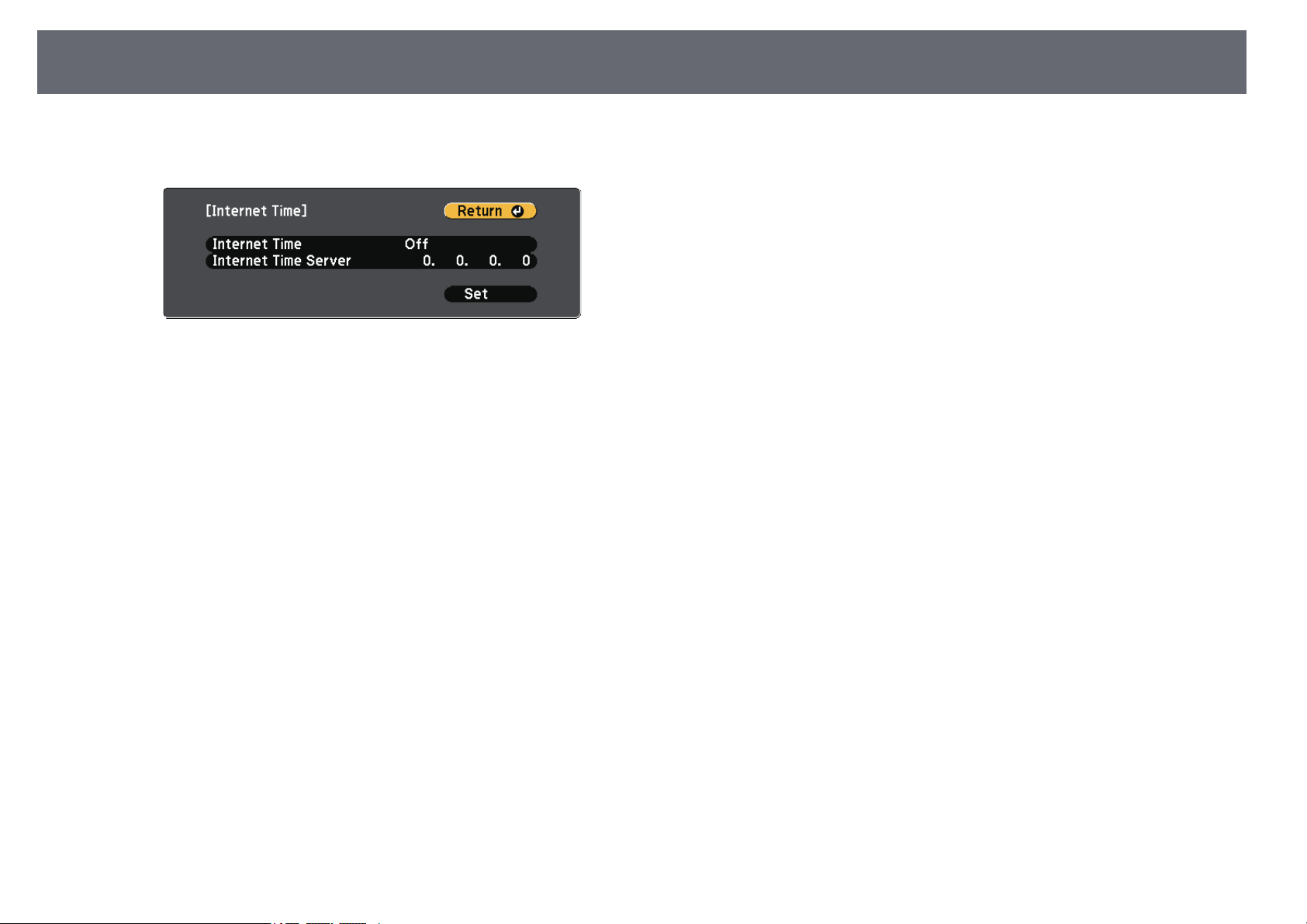
You seethis screen:
g
Select Date,press [Enter], anduse thedisplayed keyboard toenter
today's date.
h
Select Time,press [Enter], anduse thedisplayed keyboard toenter the
current time.
i
Select TimeDifference (UTC),press [Enter], andset thetime
difference fromCoordinated UniversalTime.
j
When youare finished,select Set andpress [Enter].
k
To activatedaylight savingtime, select theDaylight SavingTime
setting andpress [Enter]. Thenselect settings.
l
When youare finished,select Set andpress [Enter].
SelectingtheLanguagefortheProjectorMenus
45
If youwant toview the projector'smenus andmessages in anotherlanguage,
you canchange the Languagesetting.
a
Turn onthe projector.
b
Press the[Menu] buttonon the controlpanel orremote control.
c
Select theExtended menuand press [Enter].
d
Select theLanguage settingand press [Enter].
e
Select thelanguage youwant to useand press[Enter].
f
Press [Menu]or [Esc] toexit the menus.
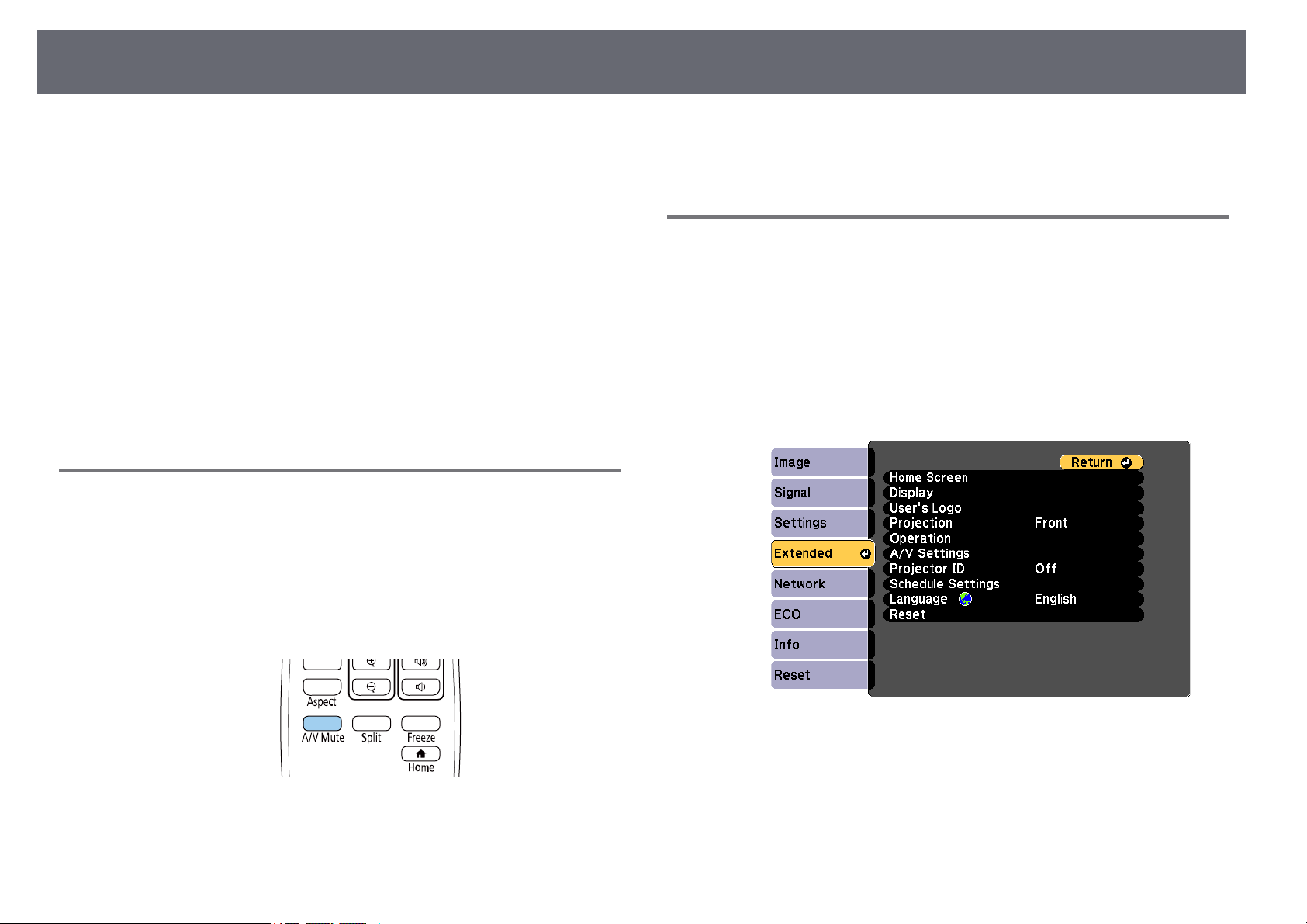
ProjectionModes
46
Depending onhow youpositioned the projector,you mayneed to changethe
projection modeso yourimages project correctly.
•Front letsyou projectfrom atable in frontof thescreen.
•Front/Ceiling flipsthe imageover top-to-bottom toproject upside-down
from aceiling orwall mount.
•Rearflipsthe imagehorizontally to projectfrom behinda translucent
screen.
•Rear/Ceilingflipsthe imageover top-to-bottom andhorizontally toproject
from aceiling orwall mount andbehind atranslucent screen.
ggRelatedLinks
•"Changing theProjection Mode Usingthe RemoteControl" p.46
•"Changing theProjection Mode Usingthe Menus"p.46
•"Projector Setupand Installation Options"p.25
ChangingtheProjectionModeUsingtheRemote
Control
You canchange theprojection mode toflip theimage over top-to-bottom.
a
Turn onthe projectorand display animage.
b
Hold downthe [A/VMute] button onthe remotecontrol for 5seconds.
The imagedisappears brieflyand reappears flippedtop-to-bottom.
c
To changeprojection backto the originalmode, holddown the [A/V
Mute] buttonfor 5secondsagain.
ChangingtheProjectionModeUsingtheMenus
You canchange theprojection mode toflip theimage over top-to-bottom
and/or left-to-rightusing theprojector menus.
a
Turn onthe projectorand display animage.
b
Press the[Menu] buttonon the controlpanel orremote control.
c
Select theExtended menuand press [Enter].
d
Select Projectionand press [Enter].
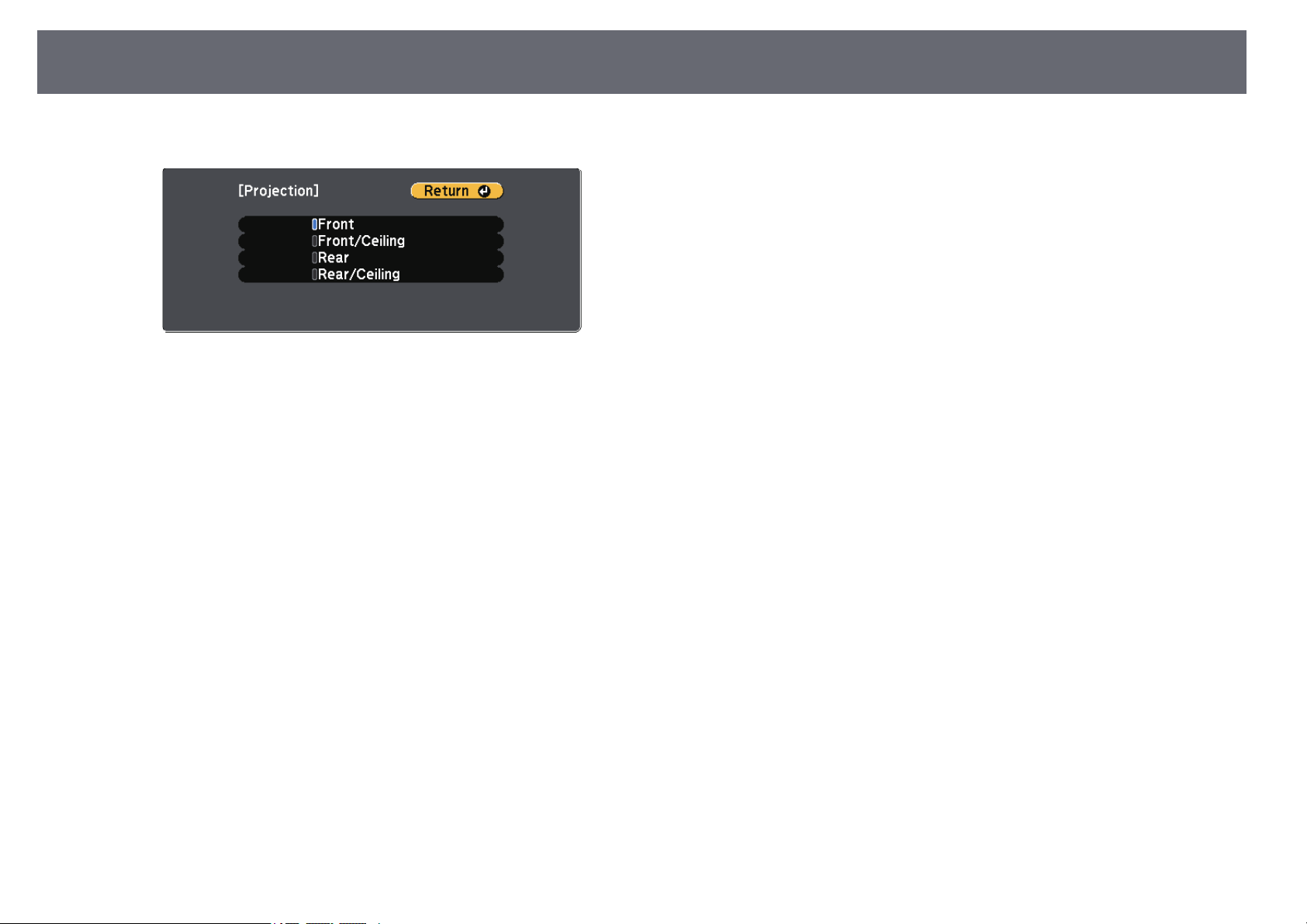
ProjectionModes
47
e
Select aprojection modeand press [Enter].
f
Press [Menu]or [Esc] toexit the menus.
DisplayingaTestPattern
48
You candisplay atest pattern toadjust theprojected image without
connecting acomputer orvideo device.
a
To setmenuitemsthatcannotbesetwhilethetestpatternisbeing
displayed ortofine-tunetheprojectedimage,projectanimagefrom
the connecteddevice.
a
Turn onthe projector.
b
Press the[Menu] buttonon the controlpanel orremote control.
c
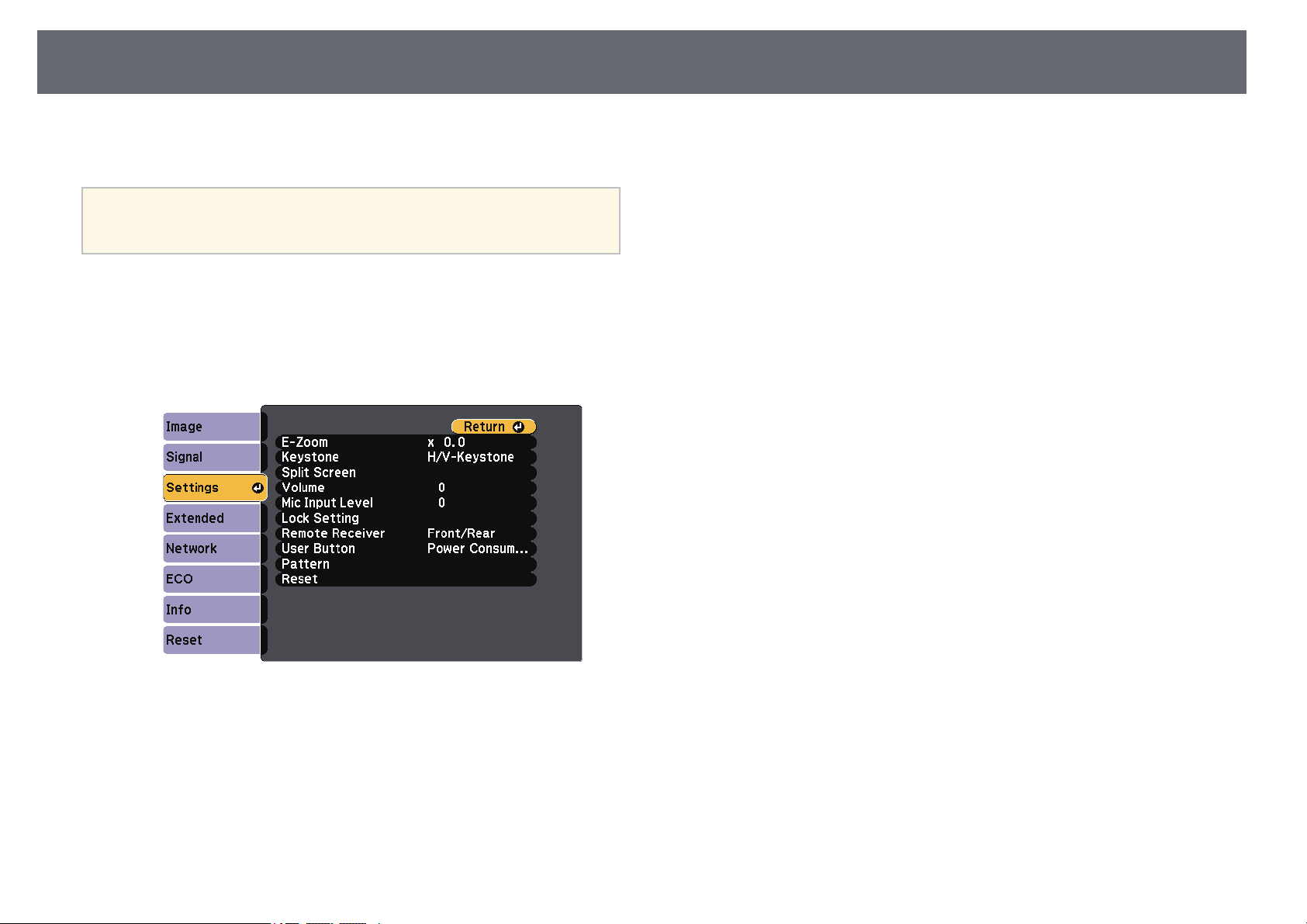
Select theSettings menuand press [Enter].
d
Select Pattern> TestPattern,and press [Enter].
The testpattern isdisplayed.
e
Adjust theimage asnecessary.
f
Press [Esc]to clearthe test pattern.
AdjustingtheImageHeight
49
If youare projectingfrom a tableor otherflat surface andthe imageis too
high orlow, youcan adjust theimage heightusing the projector'sadjustable
feet.
The largerthe angleof tilt, theharder itbecomes to focus.Locate the
projector sothat itonly needs tobe tiltedat a smallangle.
a
Turn onthe projectorand display animage.
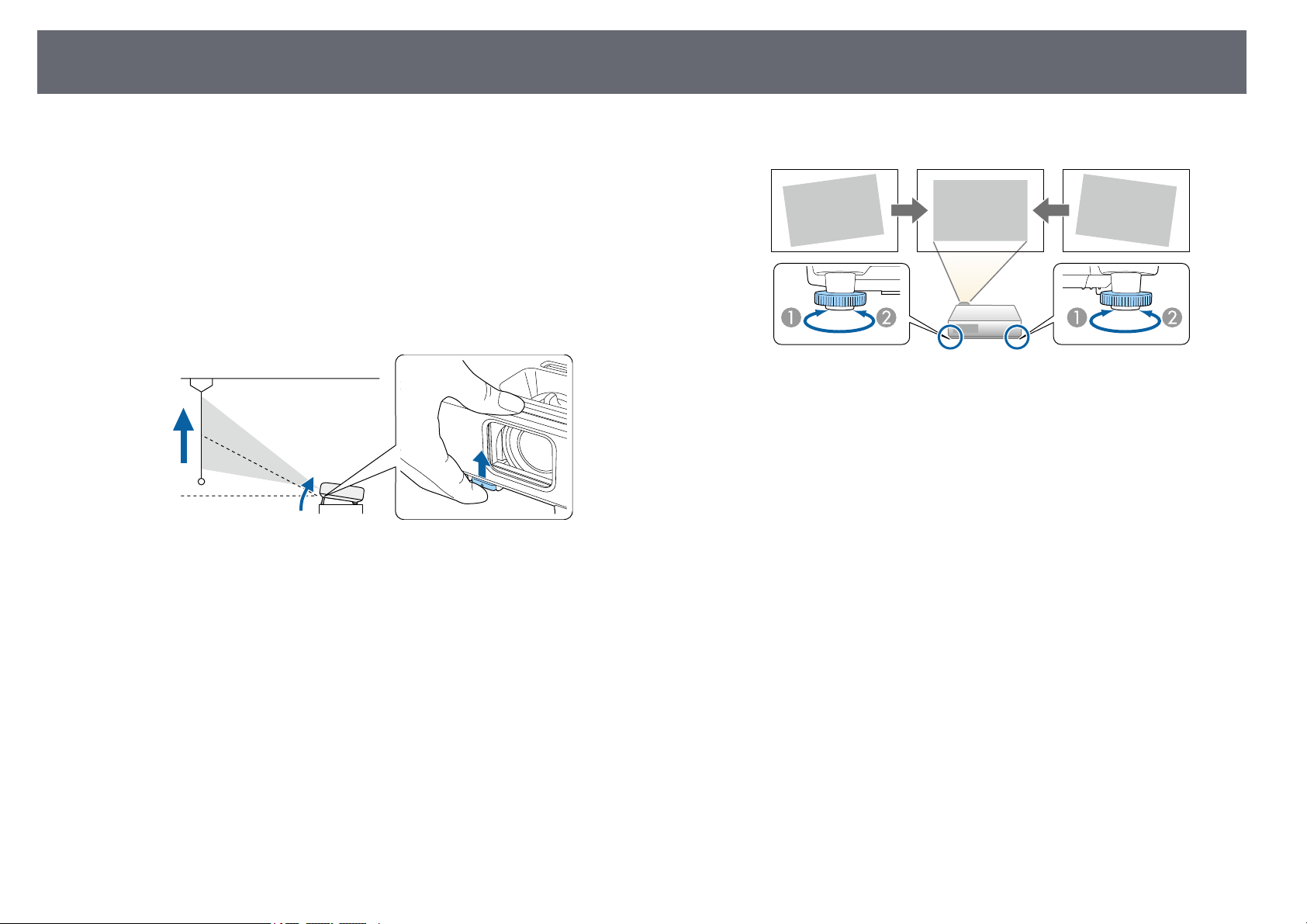
b
To adjustthe frontfoot, pull upon thefoot release leverand liftthe
front ofthe projector.
The footextends fromthe projector.
You canadjust theposition up toapproximately 12degrees.
c
Release thelever tolock the foot.
d
If theimage istilted, rotate therear feetto adjust theirheight.
Extend therearfoot
B
Retract therearfoot
If theprojected imageis unevenly rectangular,you needto adjust theimage
shape.
ggRelatedLinks
•"Image Shape"p.50
ImageShape
50
You canproject aneven, rectangular imageby placingthe projector directly
in frontof thecenter of thescreen andkeeping it level.If youplace the
projector atan angleto the screen,or tiltit up ordown, oroff to theside, you
may needto correctthe image shape.
After correction,your imageis slightly smaller.
For thebest qualityimages, we recommendadjusting theinstallation position
of theprojector toachieve the correctimage sizeand shape.
ggRelatedLinks
•"Auto V-Keystone"p.50
•"Correcting theImage Shape withthe HorizontalKeystone Slider" p.50
•"Correcting theImage Shape withthe KeystoneButtons" p.51
•"Correcting theImage Shape withQuick Corner"p.52
AutoV-Keystone
When theprojector ismoved or tilted,Auto V-Keystoneautomatically
corrects anyvertical keystonedistortion.
AutoV-Keystonecan correct theprojected imagedistortion inthese
conditions:
•Projection angleis about30º up ordown
•The Projectionsetting isset to Frontin the projector'sExtended menu
a
•IfyoudonotwanttousetheAutoV-Keystonefunction, setAuto
V-KeystonetoOffintheprojector'smenu.
sSettings>Keystone>H/V-Keystone>AutoV-Keystone
ggRelatedLinks
•"Projection Modes"p.46
•"Projector SetupSettings - ExtendedMenu" p.134
•"Projector FeatureSettings - SettingsMenu" p.132
•"List ofFunctions" p.10
CorrectingtheImageShapewiththeHorizontal
KeystoneSlider
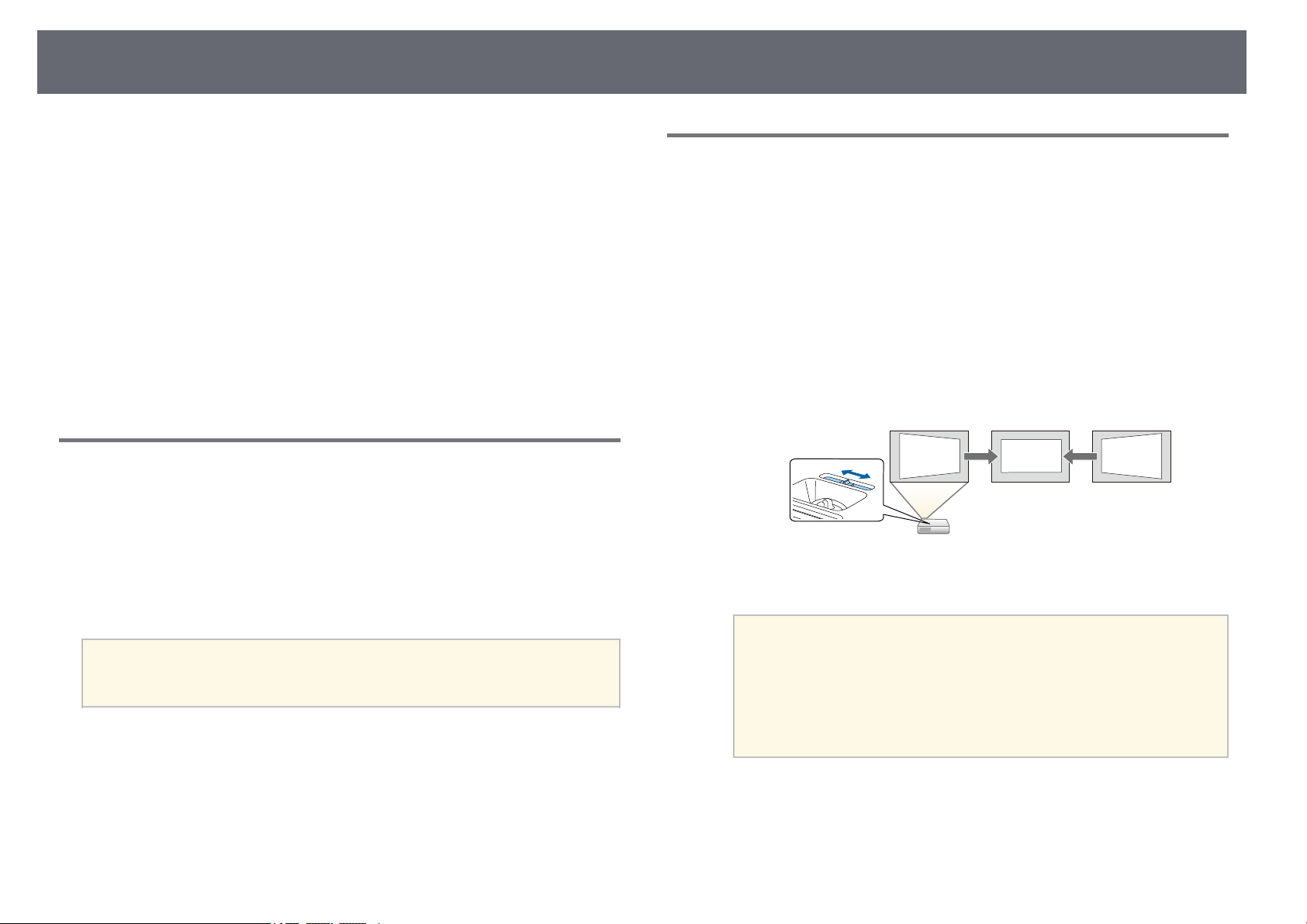
You canuse theprojector's horizontal keystoneslider tocorrect the shapeof
an imagethat isan uneven horizontalrectangle, suchas when theprojector is
placed tothe sideof the projectionarea. (Availableonly for modelsthat have
the horizontalkeystone slider.)
You canmake effectivecorrections when theprojection angleis about 30º
right orleft.
a
Turn onthe projectorand display animage.
b
Adjust theslider untilthe image isan evenrectangle.
After correction,your imageis slightly smaller.
a
•Whenyouusethehorizontalkeystoneslider,setH-Keystone
Adjuster toOnintheprojector'sSettingsmenu.
sSettings>Keystone>H/V-Keystone>H-Keystone
Adjuster
•Youcanalsocorrecttheshapeoftheimageinthehorizontal
direction intheprojector'sSettingsmenu.
sSettings>Keystone>H/V-Keystone
ggRelatedLinks
•"Projector FeatureSettings - SettingsMenu" p.132
•"List ofFunctions" p.10
ImageShape
51
CorrectingtheImageShapewiththeKeystone
Buttons
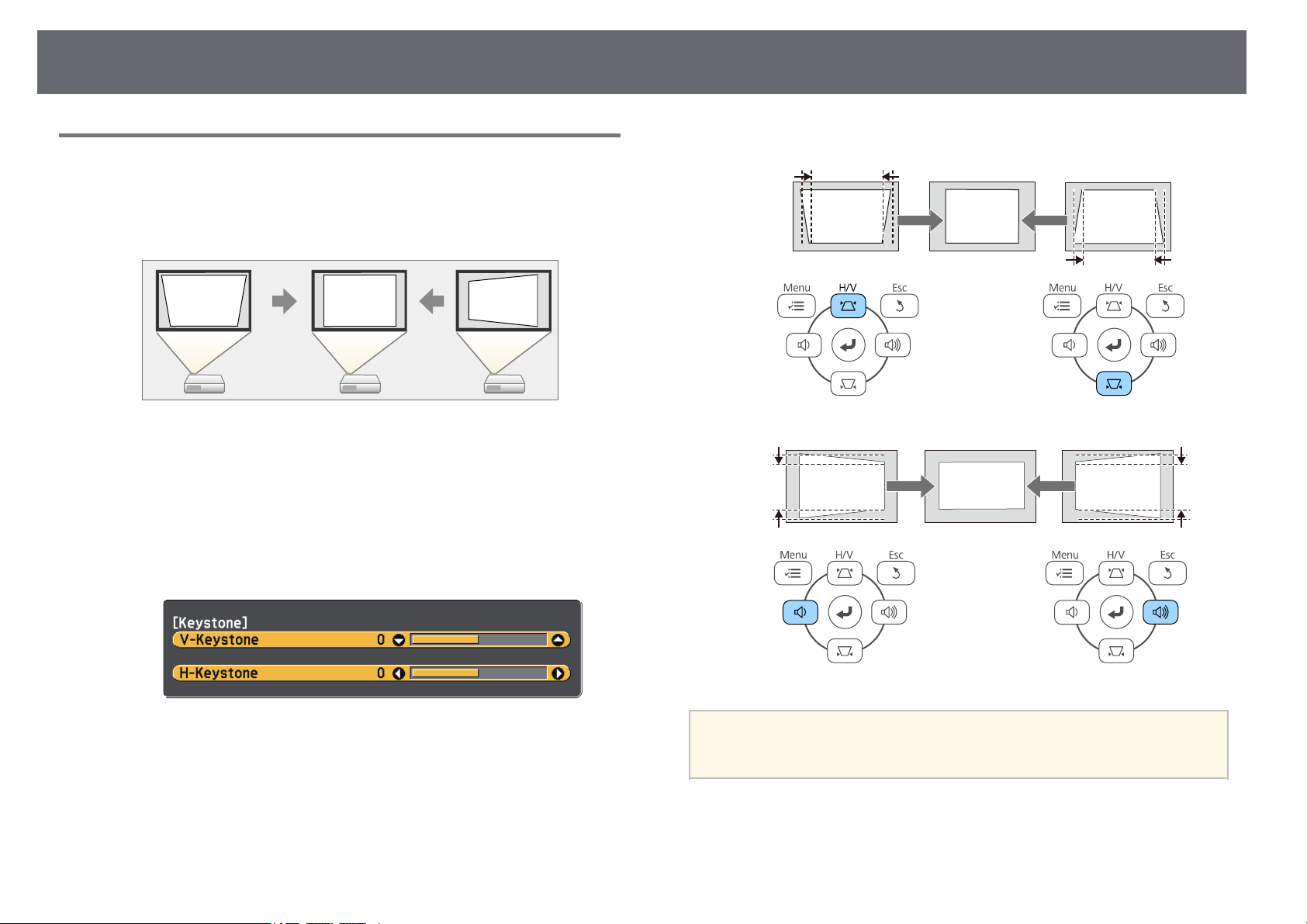
You canuse theprojector's keystone correctionbuttons tocorrect the shape
of animage thatis unevenly rectangular.
You canuse keystonebuttons to correctimages upto 30º right,left, up,or
down.
a
Turn onthe projectorand display animage.
b
Press oneof thekeystone adjustment buttonson thecontrol panel to
display theKeystone adjustmentscreen.
c
Press akeystone buttonto adjust theimage shape.
a
•Iftheprojectorisinstalledoutofyourreach,youcanalsocorrectthe
shape oftheimageusingtheremotecontrol.
sSettings>Keystone>H/V-Keystone
ggRelatedLinks
•"Projector FeatureSettings - SettingsMenu" p.132
ImageShape
52
CorrectingtheImageShapewithQuickCorner
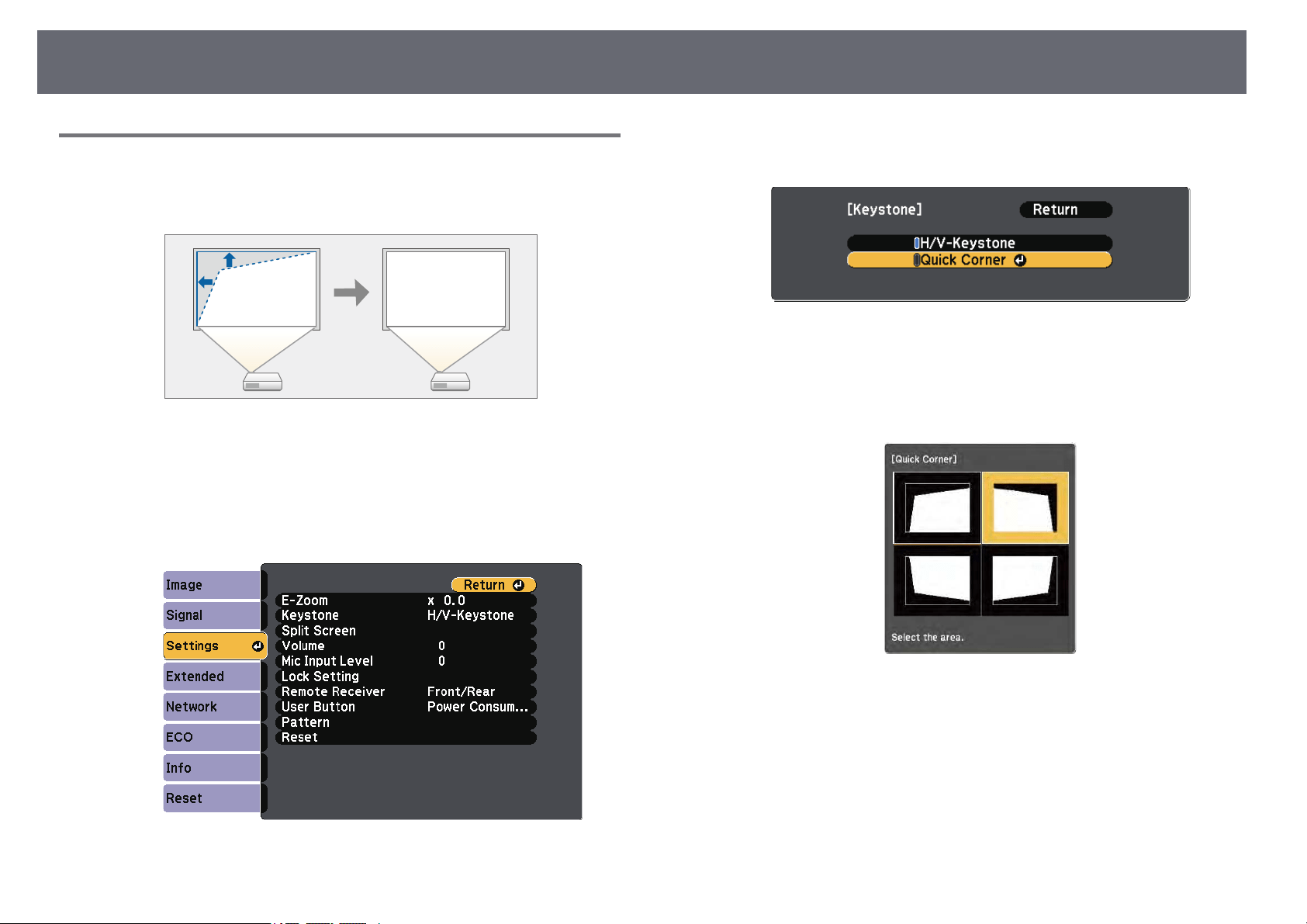
You canuse theprojector's QuickCornersetting tocorrect the shapeand size
of animage thatis unevenly rectangular.
a
Turn onthe projectorand display animage.
b
Press the[Menu] buttonon the controlpanel orremote control.
c
Select theSettings menuand press [Enter].
d
Select Keystoneand press [Enter].
e
Select QuickCorner andpress [Enter]. Thenpress [Enter] againif
necessary.
You seethe areaselection screen.
f
Use thearrow buttonsto select thecorner ofthe image youwant to
adjust. Thenpress [Enter].
g
Press thearrow buttonsto adjust theimage shapeas necessary.
To returnto thearea selection screen,press [Enter].
ImageShape
53
a
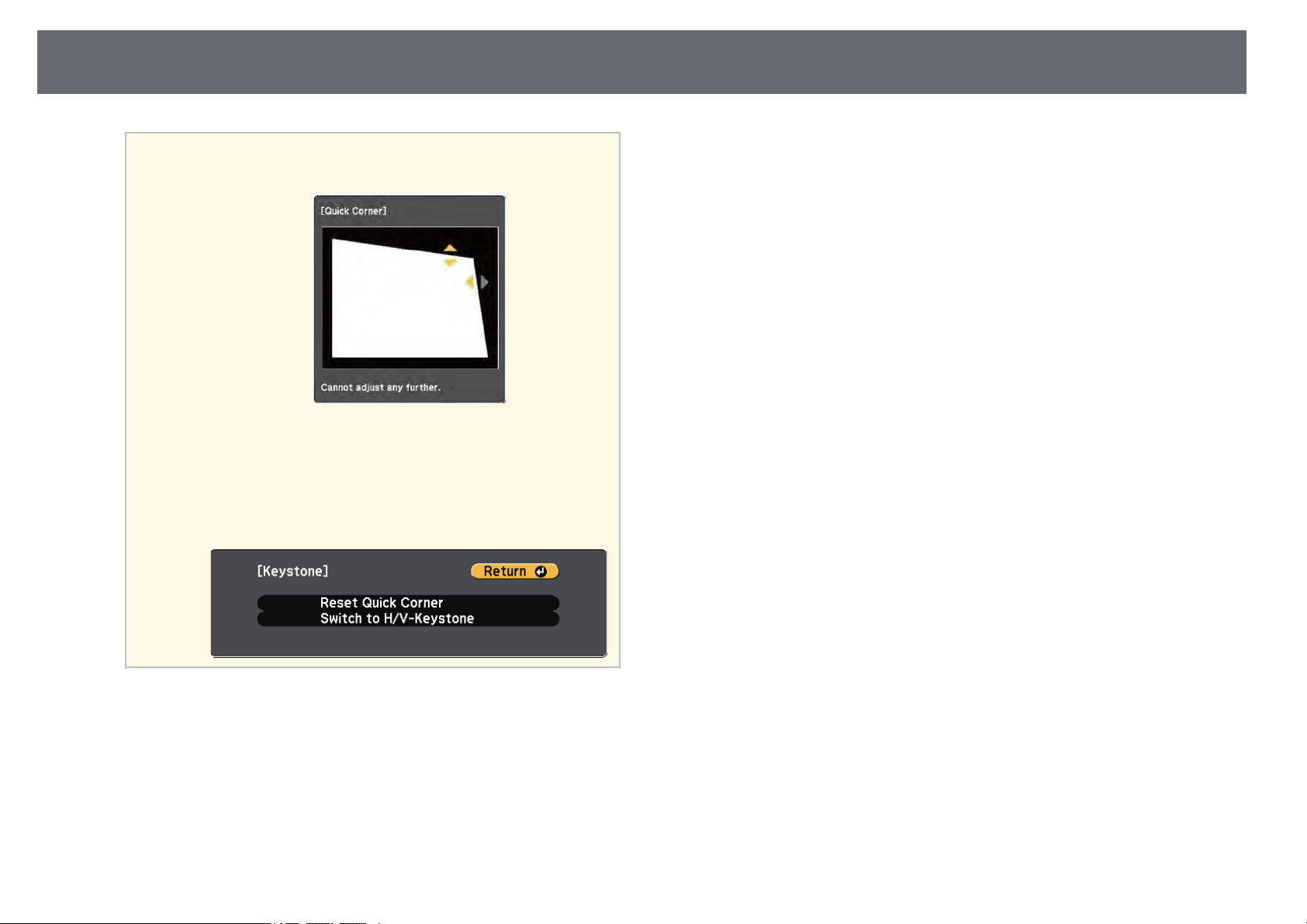
•Ifyouseethisscreen,youcannotadjusttheshapeanyfurther
in thedirectionindicatedbythegraytriangle.
•ToresettheQuickCornercorrections,holddown [Esc]for
about 2secondswhiletheQuickCorneradjustmentscreenis
displayed, andselectResetQuickCorner.SelectSwitchto
H/V-Keystonetoswitchtheimageshapecorrectionmethodto
H/V-Keystone.
h
Repeat steps6 and7 as neededto adjustany remaining corners.
i
When youare finished,press [Esc].
The Keystonesetting isnow set toQuick Cornerin theprojector's Settings
menu. Thenext timeyou press thekeystone adjustmentbuttons on the
control panel,the areaselection screen isdisplayed.
ggRelatedLinks
•"Projector FeatureSettings - SettingsMenu" p.132
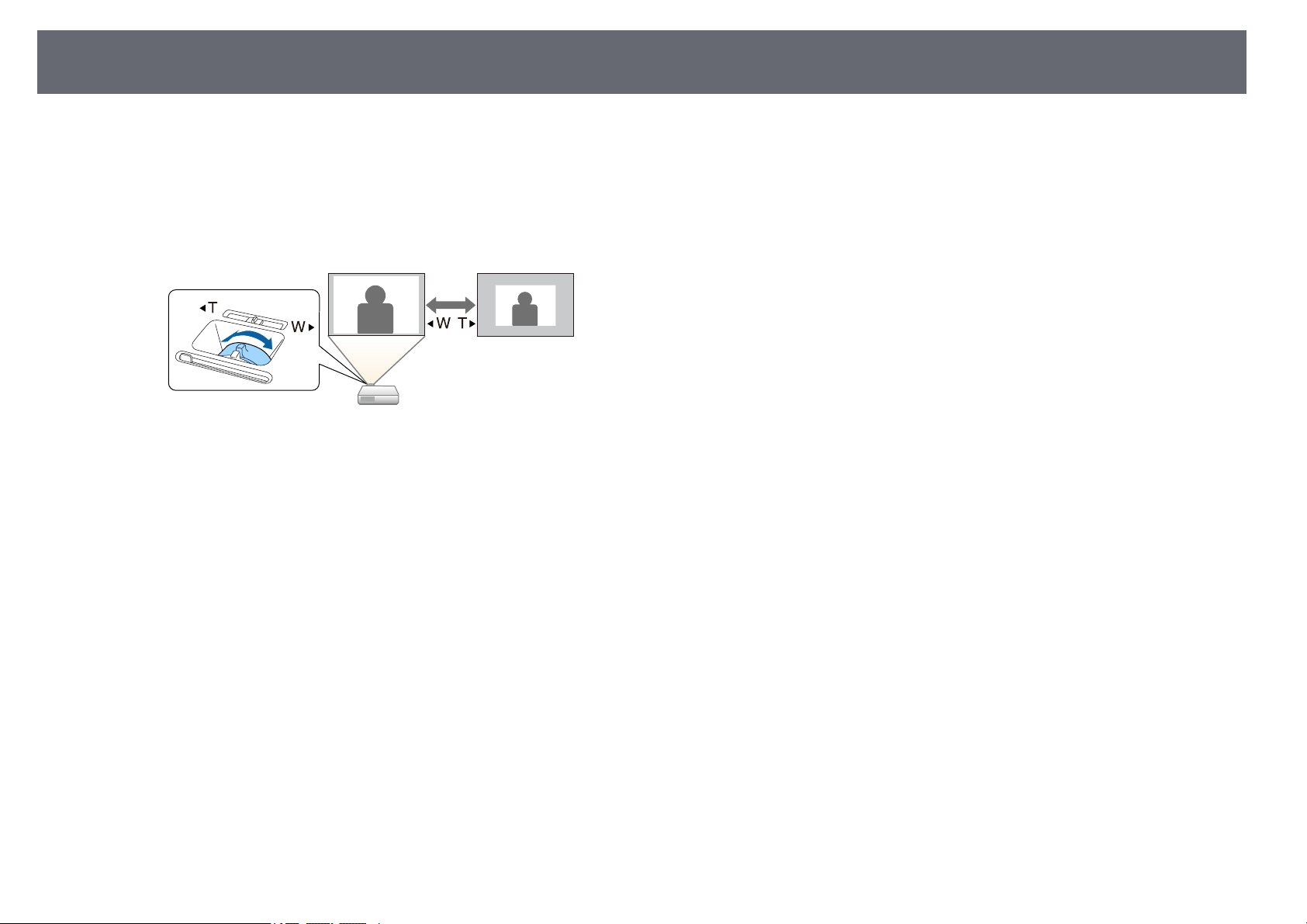
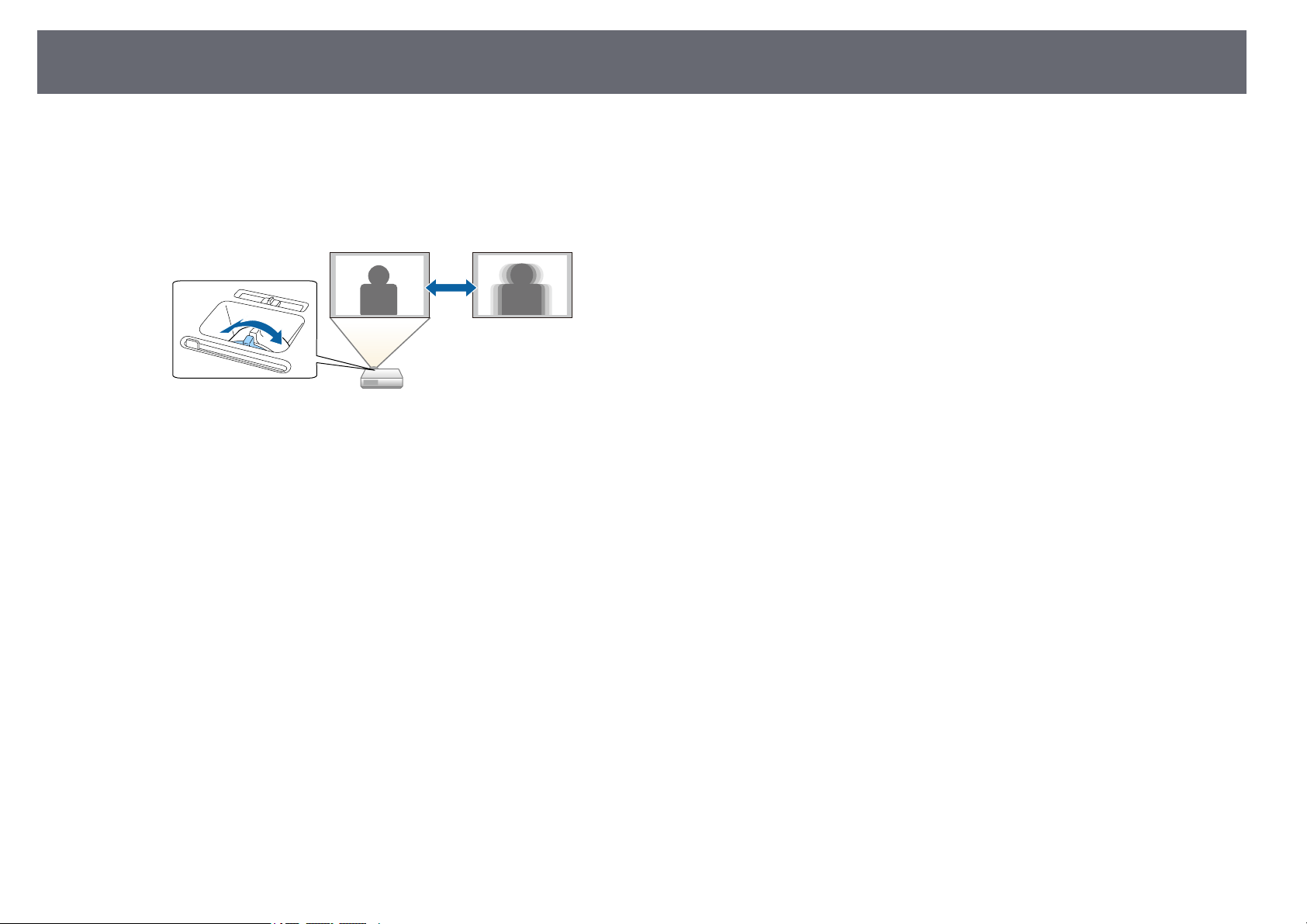
FocusingtheImageUsingtheFocusRing
55
You cancorrect thefocus using thefocus ring.
a
Turn onthe projectorand display animage.
b
Rotate thefocus ringto adjust thefocus.
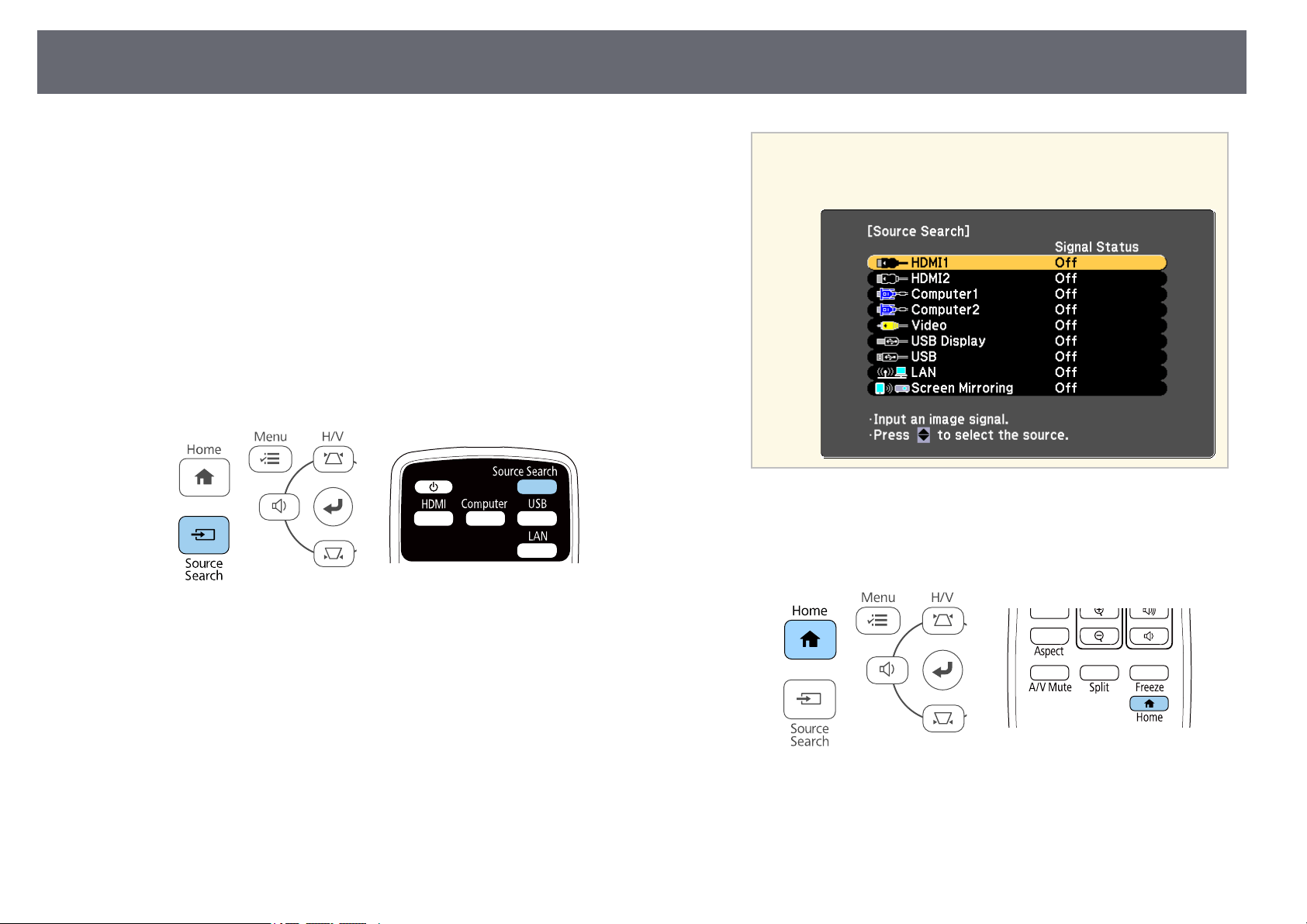
SelectinganImageSource
56
When multipleimage sourcesare connected tothe projector,such as a
computer andDVD player,you can switchfrom oneimage source tothe
other.
Available sourcesvary dependingon the projectormodel.
a
Make surethe connectedimage source youwant touse is turnedon.
b
For videoimage sources,insert a DVDor othervideo media andpress
play.
c
Do oneof thefollowing:
•Press the[Source Search] buttonon thecontrol panel orremote
control untilyou seethe image fromthe sourceyou want.
a
This screenisdisplayedwhennoimagesignalisdetected.
Check thecableconnectionsbetweentheprojectorandimage
source.
•Press thebutton forthe source youwant onthe remote control.If
there ismore thanone port forthat source,press the buttonagain to
cycle throughthe sources.
•Press the[Home] buttonon the controlpanel orremote control.
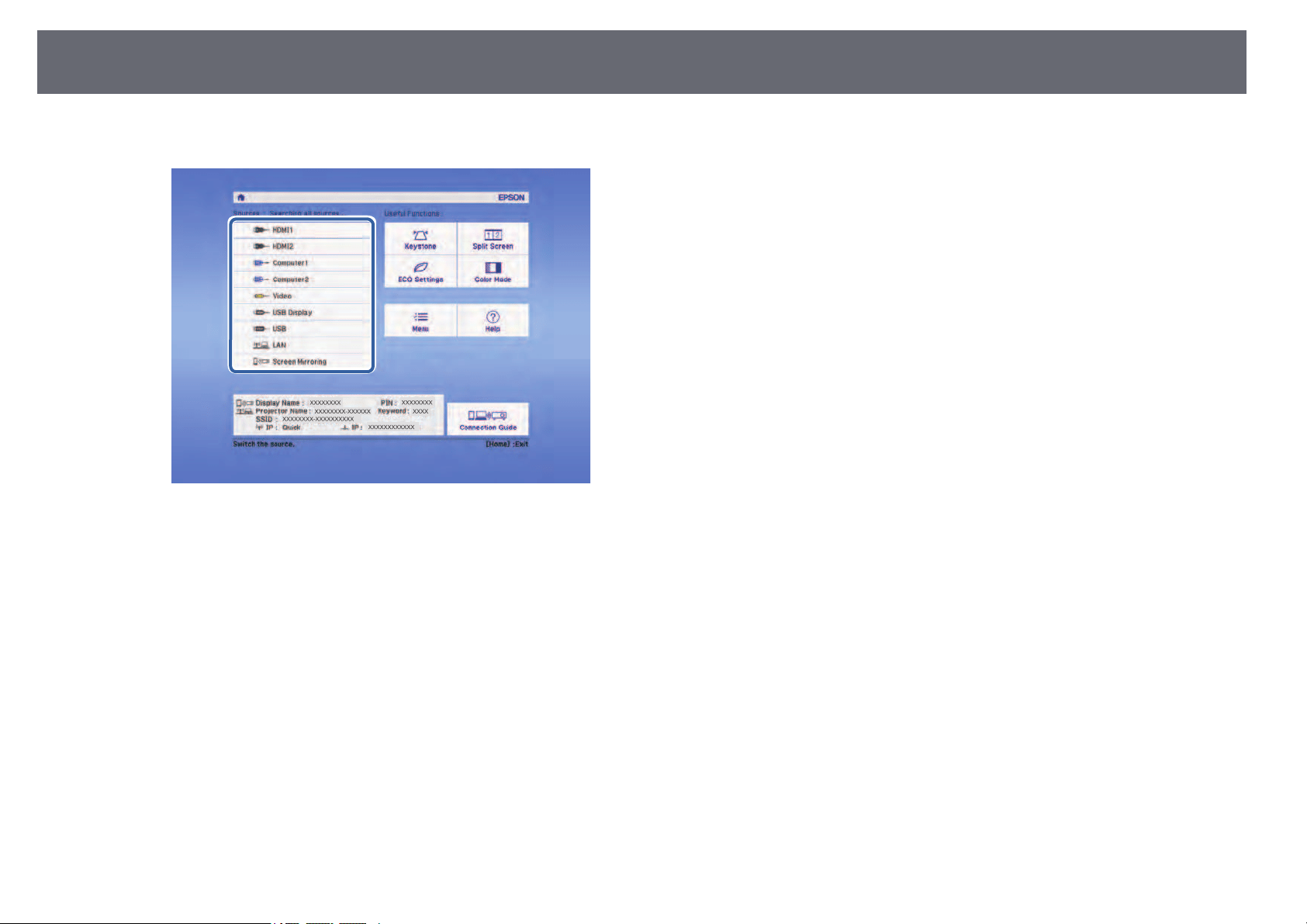
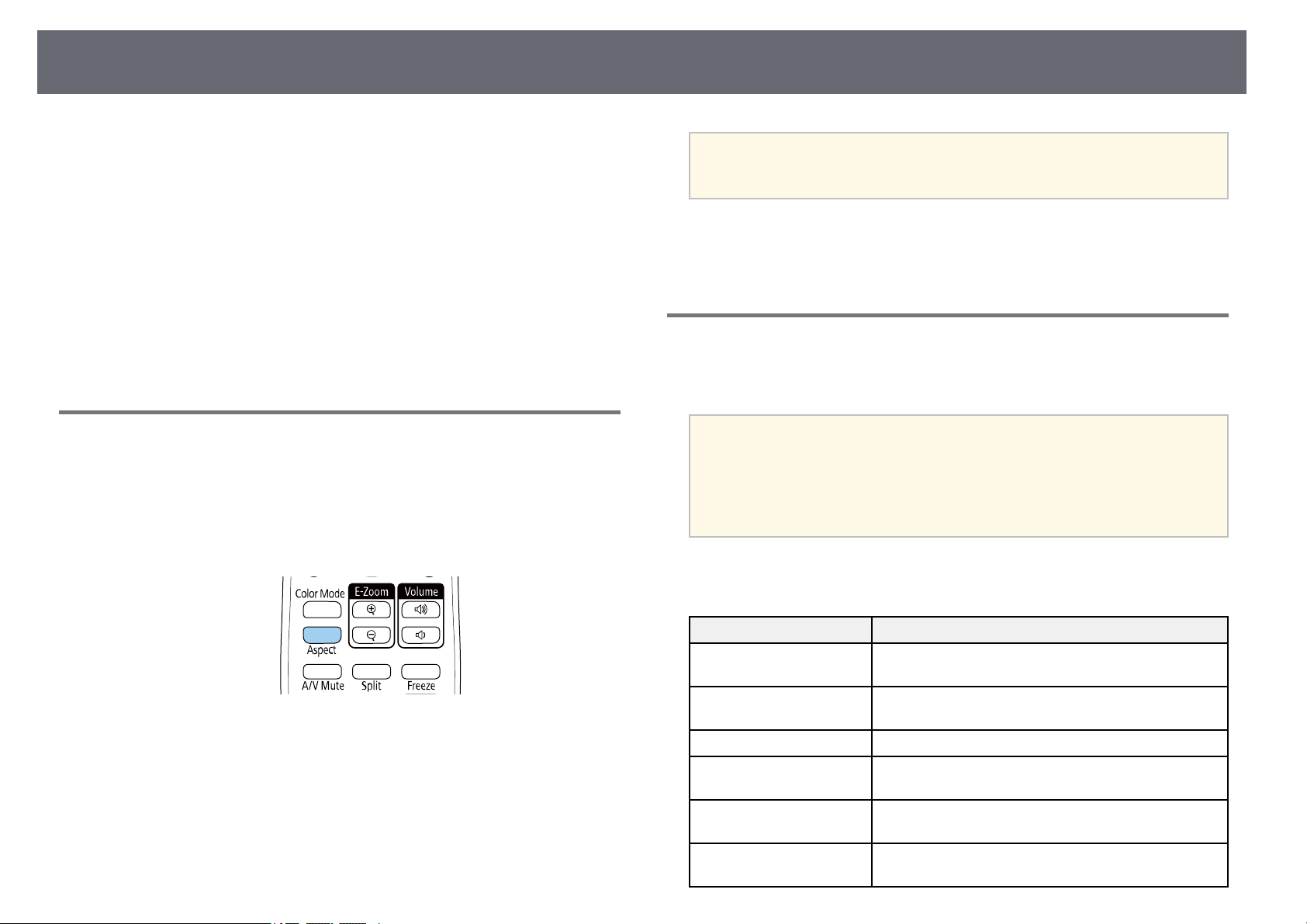
ImageAspectRatio
58
The projectorcan displayimages in differentwidth-to-height ratioscalled
aspect ratios.Normally, theinput signal fromyour videosource determines
the image'saspect ratio.However, for certainimages youcan change the
aspect ratioto fityour screen.
If youalways wantto use aparticular aspectratio for acertain videoinput
source, youcan selectit using theprojector's Signalmenu.
ggRelatedLinks
•"Changing theImage Aspect Ratio"p.58
•"Available ImageAspect Ratios" p.58
•"Projected ImageAppearance with EachAspect Mode"p.59
•"Input SignalSettings - SignalMenu" p.131
ChangingtheImageAspectRatio
You canchange theaspect ratio ofthe displayedimage.
a
Turn onthe projectorand switch tothe imagesource you wantto use.
b
Press the[Aspect] button onthe remotecontrol.
The shapeand sizeof the displayedimage changes,and the nameof the
aspect ratioappears brieflyon the screen.
c
To cyclethrough theavailable aspect ratiosfor yourinput signal, press
the [Aspect]button repeatedly.
a
To displayimageswithoutblackbars,setResolutiontoWideor
Normalintheprojector’sSignalmenuaccordingtothecomputer’s
resolution.
ggRelatedLinks
•"Input SignalSettings - SignalMenu" p.131
AvailableImageAspectRatios
You canselect thefollowing image aspectratios, dependingon the input
signal fromyour imagesource.
a
•Theavailableaspectratiosettingvariesdependingontheinput
signal.
•Notethatusingtheaspectratiofunctionoftheprojectortoreduce,
enlarge, orsplittheprojectedimageforcommercialpurposesorfor
public viewingmayinfringeupontherightsofthecopyrightholder
of thatimagebasedoncopyrightlaw.
Forprojectorswith aresolution ofFullHD(1920 ×1080) orWXGA (1280
×800)
Aspect modeDescription
AutoAutomatically setstheaspectratioaccordingtothe
input signalandtheResolutionsetting.
NormalDisplays imagesusingthefullprojectionareaand
maintains theaspectratiooftheimage.
16:9 *Converts theaspectratiooftheimageto16:9.
FullDisplays imagesusingthefullsizeoftheprojection
area, butdoesnotmaintaintheaspectratio.
ZoomDisplays imagesusingthefullwidthoftheprojection
area andmaintainstheaspectratiooftheimage.
NativeDisplays imagesasis(aspectratioandresolutionare
maintained).
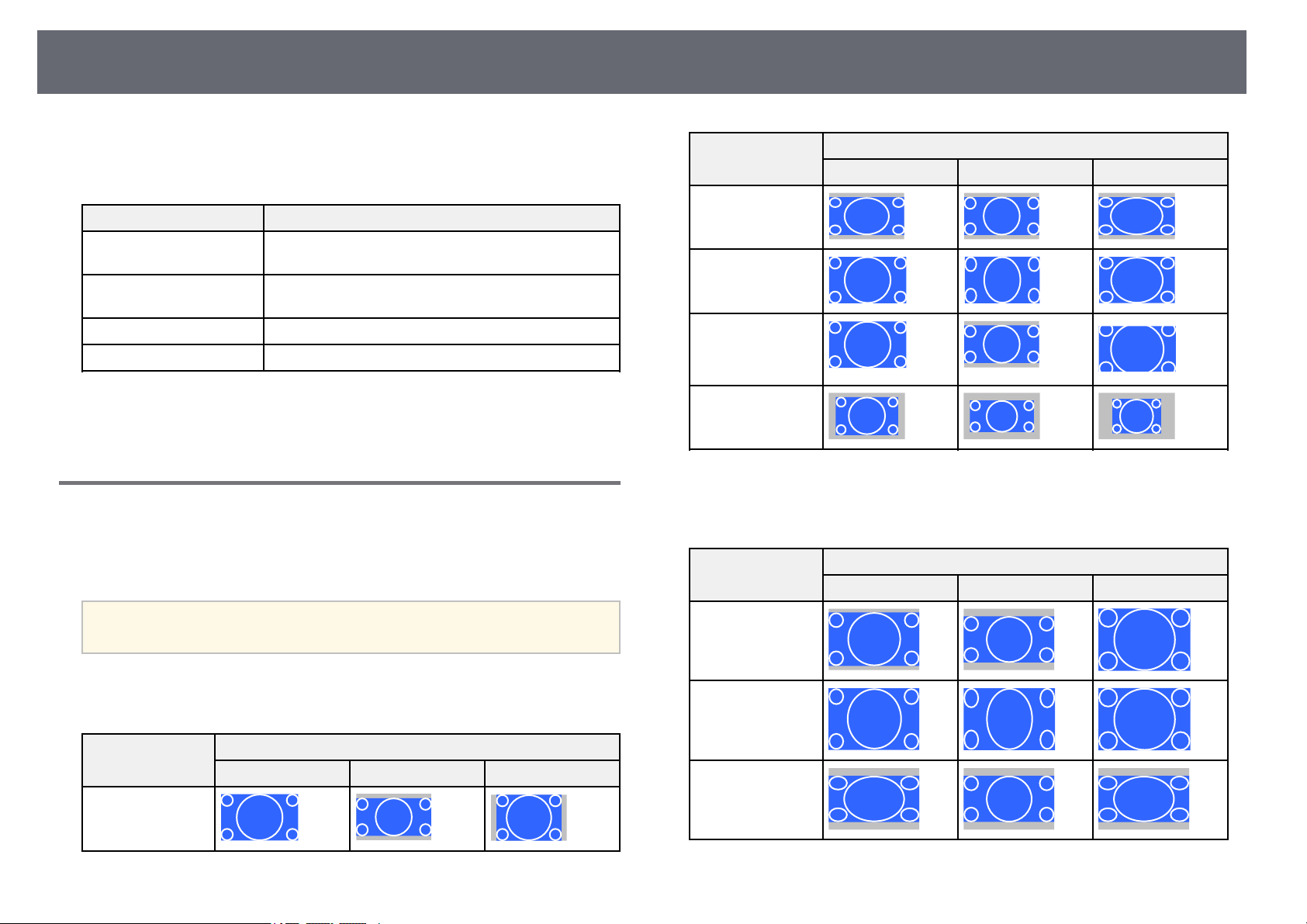
ImageAspectRatio
59
* Availableonly forprojectors with aresolution ofWXGA (1280 ×800).
Forprojectorswith aresolution ofXGA(1024× 768)
Aspect modeDescription
AutoAutomatically setstheaspectratioaccordingtothe
input signalandtheResolutionsetting.
NormalDisplays imagesusingthefullprojectionareaand
maintains theaspectratiooftheimage.
4:3Converts theaspectratiooftheimageto4:3.
16:9Converts theaspectratiooftheimageto16:9.
ggRelatedLinks
•"List ofFunctions" p.10
ProjectedImageAppearancewithEachAspectMode
Black bandsand croppedimages may projectin certainaspect ratios,
depending onthe aspectratio and resolutionof yourinput signal. Seethe
following tableto confirmthe position ofblack bandsand cropped images.
a
The imageforNativevariesdependingontheinputsignal.
Forprojectorswith aresolution ofFull HD(1920 ×1080)orWXGA (1280
×800)
Aspect modeAspectratioforinputsignals
16:1016:94:3
Normal
Auto
Aspect modeAspectratioforinputsignals
16:1016:94:3
16:9 *
Full
Zoom
Native
* Availableonly forprojectors with aresolution ofWXGA (1280 ×800).
Forprojectorswith aresolution ofXGA(1024× 768)
Aspect modeAspectratioforinputsignals
16:1016:94:3
Normal
Auto
4:3
16:9

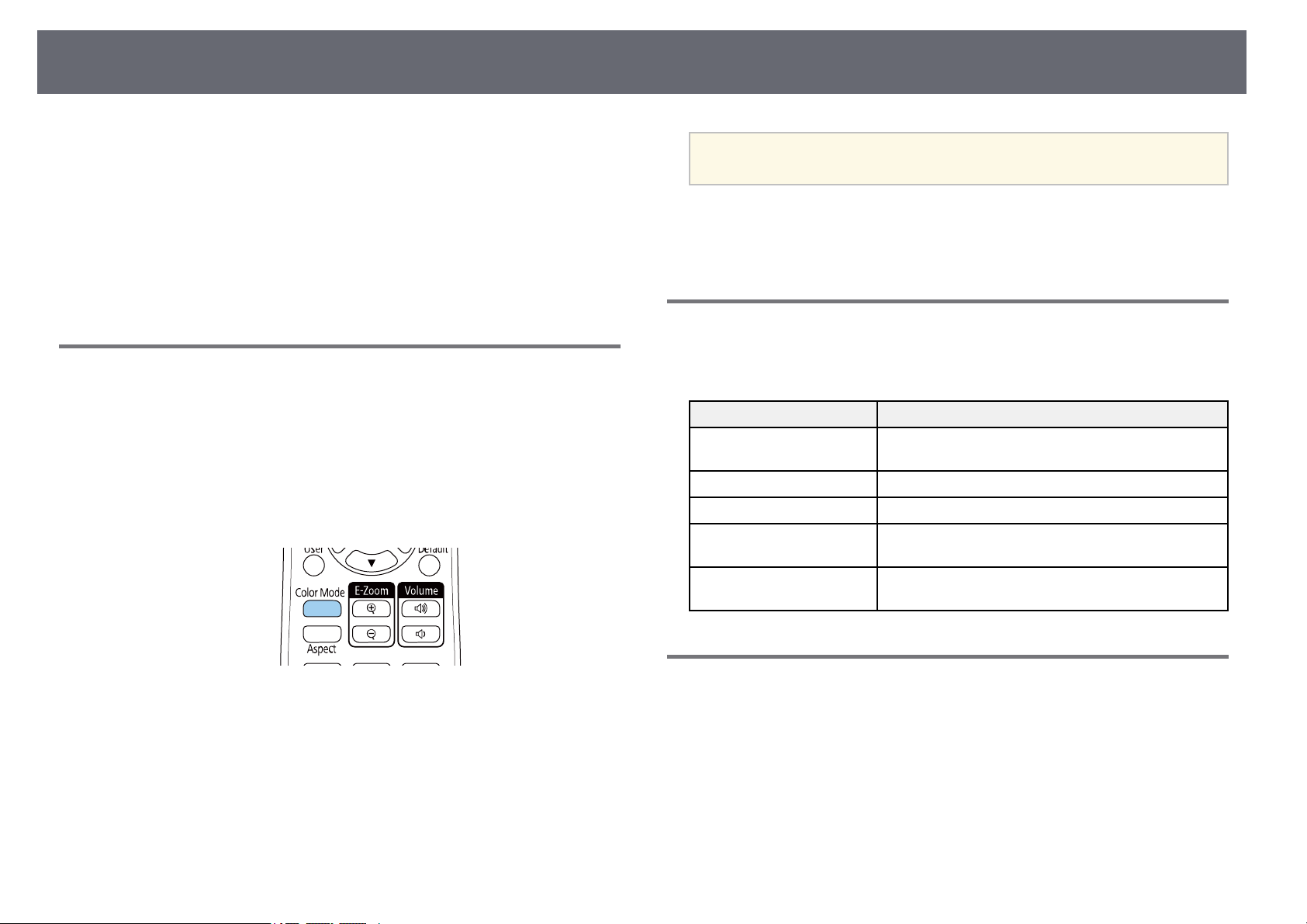
AdjustingImageQuality(ColorMode)
61
The projectoroffers differentcolor modes toprovide optimumbrightness,
contrast, andcolor fora variety ofviewing environmentsand image types.
You canselect themode designed tomatch yourimage and environment,or
experiment withthe availablemodes.
ggRelatedLinks
•"Changing theColor Mode" p.61
•"Available ColorModes" p.61
•"Setting AutoIris" p.61
ChangingtheColorMode
You canchange theprojector's Color Modeusing the remotecontrol to
optimize theimage foryour viewing environment.
a
Turn onthe projectorand switch tothe imagesource you wantto use.
b
Press the[Color Mode] buttonon theremote control tochange the
Color Mode.
The nameof theColor Mode appearsbriefly on thescreen andthen
image appearancechanges.
c
To cyclethrough allof the availablecolor modesfor your inputsignal,
press the[Color Mode] buttonrepeatedly.
a
You canalsosettheColorModesettingintheprojector's Image
menu.
ggRelatedLinks
•"Image QualitySettings - ImageMenu" p.130
AvailableColorModes
You canset theprojector to usethese colormodes, dependingonthe input
source youare using:
Color modeDescription
DynamicThis isthebrightestmode.Bestforprioritizing
brightness.
PresentationBest forprojectingvividimages.
CinemaBest forenjoyingcontentsuchasmovies.
sRGBBest forfaithfullyreproducingthecolorofthesource
image.
BlackboardBest forprojectingimagesdirectlyonagreen
chalkboard.
SettingAutoIris
You canturn onAuto Iristoautomatically optimizethe imagebased on the
brightness ofthe content.
This settingis availablefor Dynamic orCinema colormodes.
a
Turn onthe projectorand switch tothe imagesource you wantto use.
b
Press the[Menu] buttonon the controlpanel orremote control.
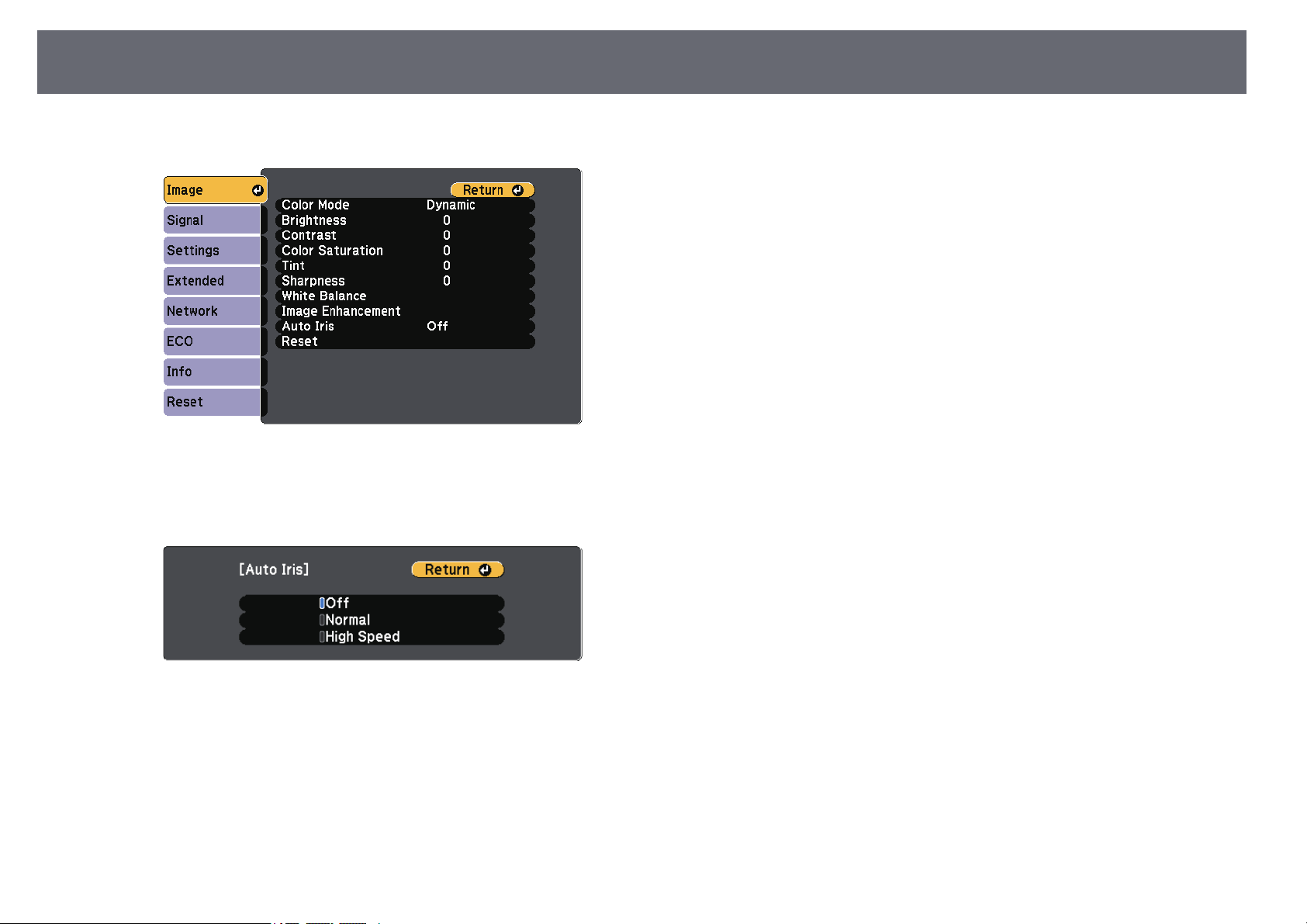
AdjustingImageQuality(ColorMode)
62
c
Select theImage menuand press [Enter].
d
Select AutoIris andpress [Enter].
e
Choose oneof thefollowing options andpress [Enter]:
•Normalforstandard brightnessadjustment.
•HighSpeedto adjustbrightness as soonas thescene changes.
f
Press [Menu]or [Esc] toexit the menus.
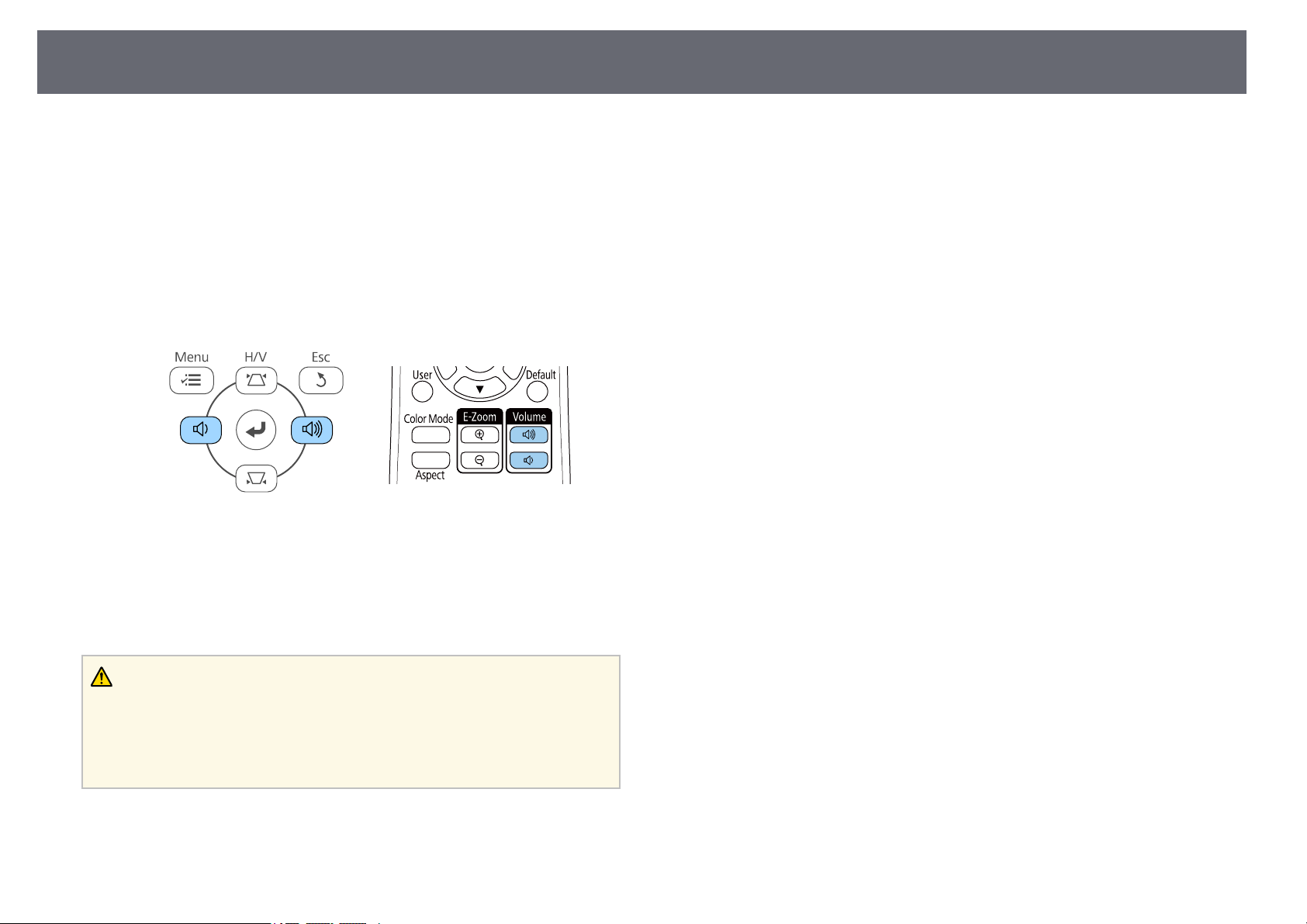
ControllingtheVolumewiththeVolumeButtons
63
The volumebuttons controlthe projector's internalspeaker system.
You canalso controlthe volume ofany externalspeakers you connectedto
the projector.
You mustadjust thevolume separately foreach connectedinput source.
a
Turn onthe projectorand start apresentation.
b
To loweror raisethe volume, pressthe [Volume] buttonson the
control panelor remotecontrol as shown.
A volumegauge appearson the screen.
c
To setthe volumeto a specificlevel foran input source,select Volume
in theprojector's Settingsmenu.
Caution
Do notstartapresentationatahighvolumesetting.Suddenloudnoisesmaycause
hearing loss.
Always lowerthevolumebeforepoweringoff,sothatyoucanpoweronandthen
gradually increasethevolume.
ggRelatedLinks
•"Projector FeatureSettings - SettingsMenu" p.132

AdjustingProjectorFeatures
Follow theinstructions inthese sections touse yourprojector's adjustment features.
ggRelatedLinks
•"Projecting TwoImages Simultaneously" p.65
•"Projecting aPC Free Presentation"p.68
•"Shutting Offthe Image andSound Temporarily"p.73
•"Stopping VideoAction Temporarily" p.74
•"Zooming In/ZoomingOut of Images(E-Zoom)" p.75
•"Saving aUser's LogoImage" p.77
•"Saving aUser Pattern" p.78
•"Color DifferenceCorrection when Projectingfrom MultipleProjectors" p.79
•"Projector SecurityFeatures" p.82
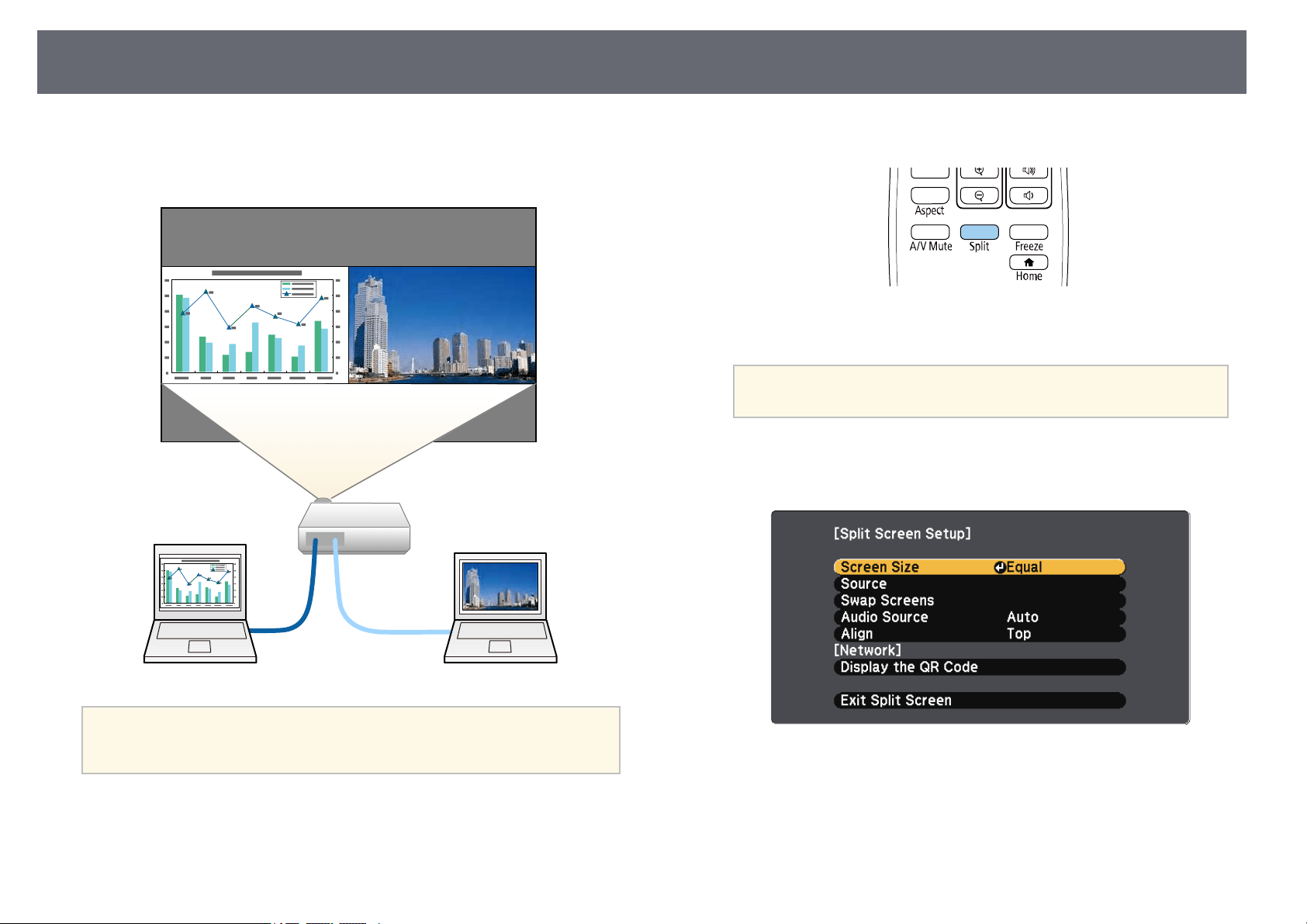
ProjectingTwoImagesSimultaneously
65
You canuse thesplit screen featureto simultaneouslyproject two images
from differentimage sources.You can controlthe splitscreen feature using
the remotecontrol orthe projector menus.
a
•Whileusingthesplitscreenfeature,otherprojectorfeaturesmaynot
be availableandsomesettingsmaybeautomaticallyappliedtoboth
images.
a
Press the[Split] button onthe remotecontrol.
The currentlyselected inputsource moves tothe leftof the screen.
a
You canperformthesameoperationsfromSplitScreeninthe
projector's Settingsmenu.
b
Press the[Menu] button.
You seethis screen:
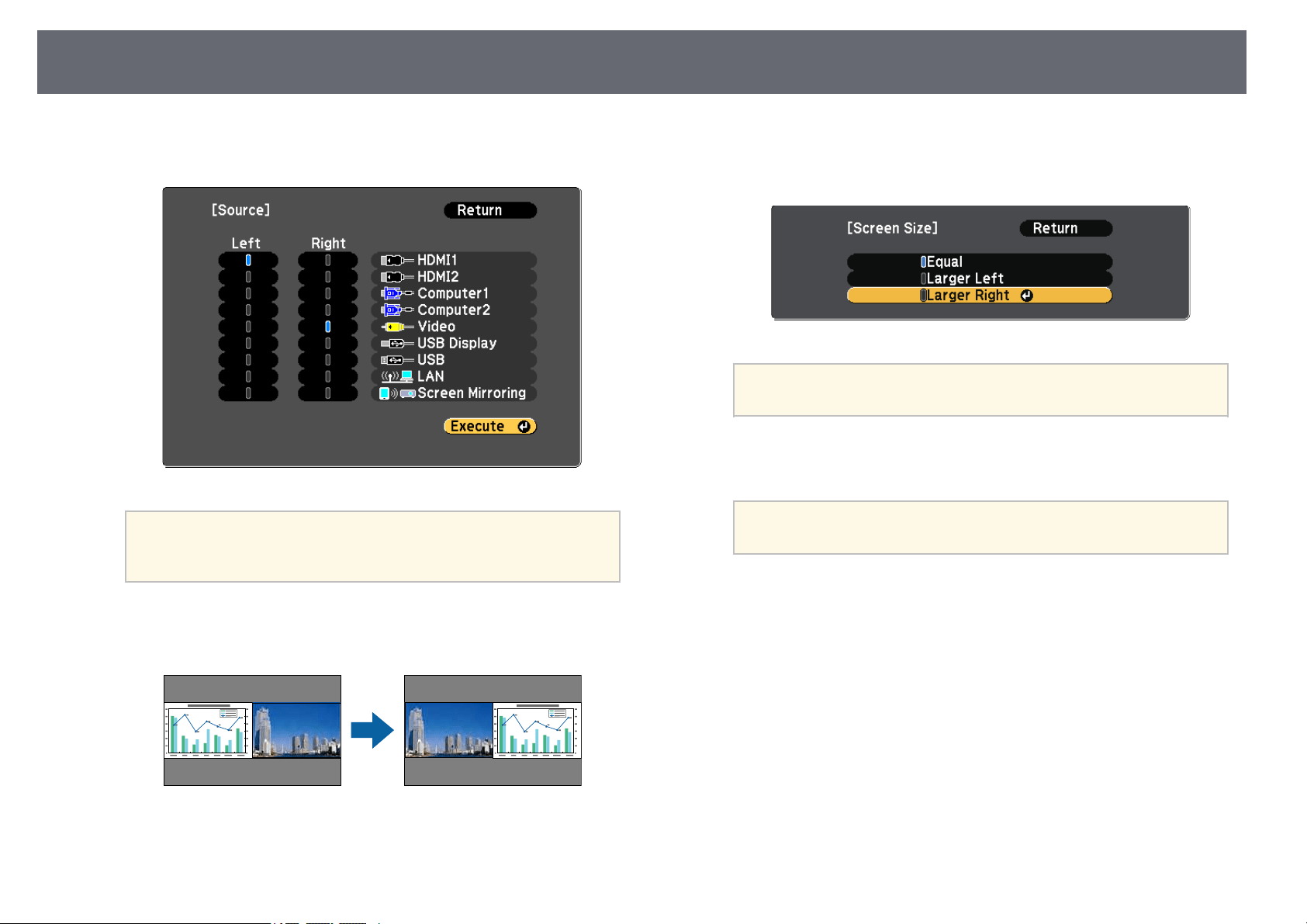
ProjectingTwoImagesSimultaneously
66
c
To selectan inputsource for theother image,select the Sourcesetting,
press [Enter],select the inputsource, select Execute,and press [Enter].
a
•Youcanonlyselectinputsourcesthatcanbecombined.
•Whileusingthesplitscreenfeature,theSourcescreen appears
when youchangetheinputsourcefromtheremotecontrol.
d
To switchimages, selectSwap Screensand press [Enter].
The projectedimages onthe left andright areswapped.
e
To enlargeone imagewhile reducing theother image,select Screen
Size, press[Enter], selecta size, andpress [Enter]. Toexit themenu,
press [Menu].
a
Depending onthevideoinputsignals,theimagesmaynot
appear atthesamesizeevenifyouselectEqual.
f
To selectthe audio,select AudioSource,press [Enter],select an audio
option, andpress [Enter]. Toexit themenu, press [Menu].
a
Select Autotohearaudiofromthelargestscreenortheleft
screen.
g
To alignthe projectedimages, select Align,press [Enter], selectthe
setting, andpress [Enter] again.To exitthe menu, press[Menu].
h
To exitthe splitscreen feature, press[Split] or [Esc].
ggRelatedLinks
•"Unsupported InputSource Combinations forSplit ScreenProjection" p.67
•"Split ScreenProjection Restrictions" p.67
•"List ofFunctions" p.10

ProjectingTwoImagesSimultaneously
67
UnsupportedInputSourceCombinationsforSplit
ScreenProjection
These inputsource combinationscannot be projectedon asplit screen.
•Computer1 andComputer2
•Computer1/Computer2 andVideo
•HDMI1/HDMI2 and ScreenMirroring
•HDMI1 andHDMI2
•USB Displayand USB/LAN
•USB andLAN
ggRelatedLinks
•"List ofFunctions" p.10
SplitScreenProjectionRestrictions
Operatingrestrictions
The followingoperations cannotbe performed duringsplit screenprojection.
•Setting theprojector's menu
•E-Zoom
•Switching theaspect mode(the aspect modeis setto Normal)
•Operations usingthe [User] buttonon theremote control
•Auto Iris
Imagerestrictions
•If youmake adjustmentssuch as Brightness,Contrast, ColorSaturation,
Tint, andSharpness intheprojector's Imagemenu, you canapply them
only tothe imageon the left.Default adjustmentsare applied tothe image
on theright. Adjustmentsthat affect theentire projectedimage such as
ColorModeand ColorTemp.are appliedfor both leftand rightimages.
•Even ifyou makeadjustments for NoiseReduction andDeinterlacing in
the projector'sImage menu,NoiseReduction isset to0 and Deinterlacing
is setto Offfor the imageon theright.
sImage> ImageEnhancement> NoiseReduction
sImage> ImageEnhancement> Deinterlacing
•Even ifyou setDisplay Backgroundto Logo inthe projector'sExtended
menu, theblue screenappears when noimage signalis being input.
ggRelatedLinks
•"Image AspectRatio" p.58
•"Adjusting ImageQuality (Color Mode)"p.61
•"Projector FeatureSettings - SettingsMenu" p.132
•"Projector SetupSettings - ExtendedMenu" p.134
•"Image QualitySettings - ImageMenu" p.130
•"Zooming In/ZoomingOut of Images(E-Zoom)" p.75
•"Setting AutoIris" p.61
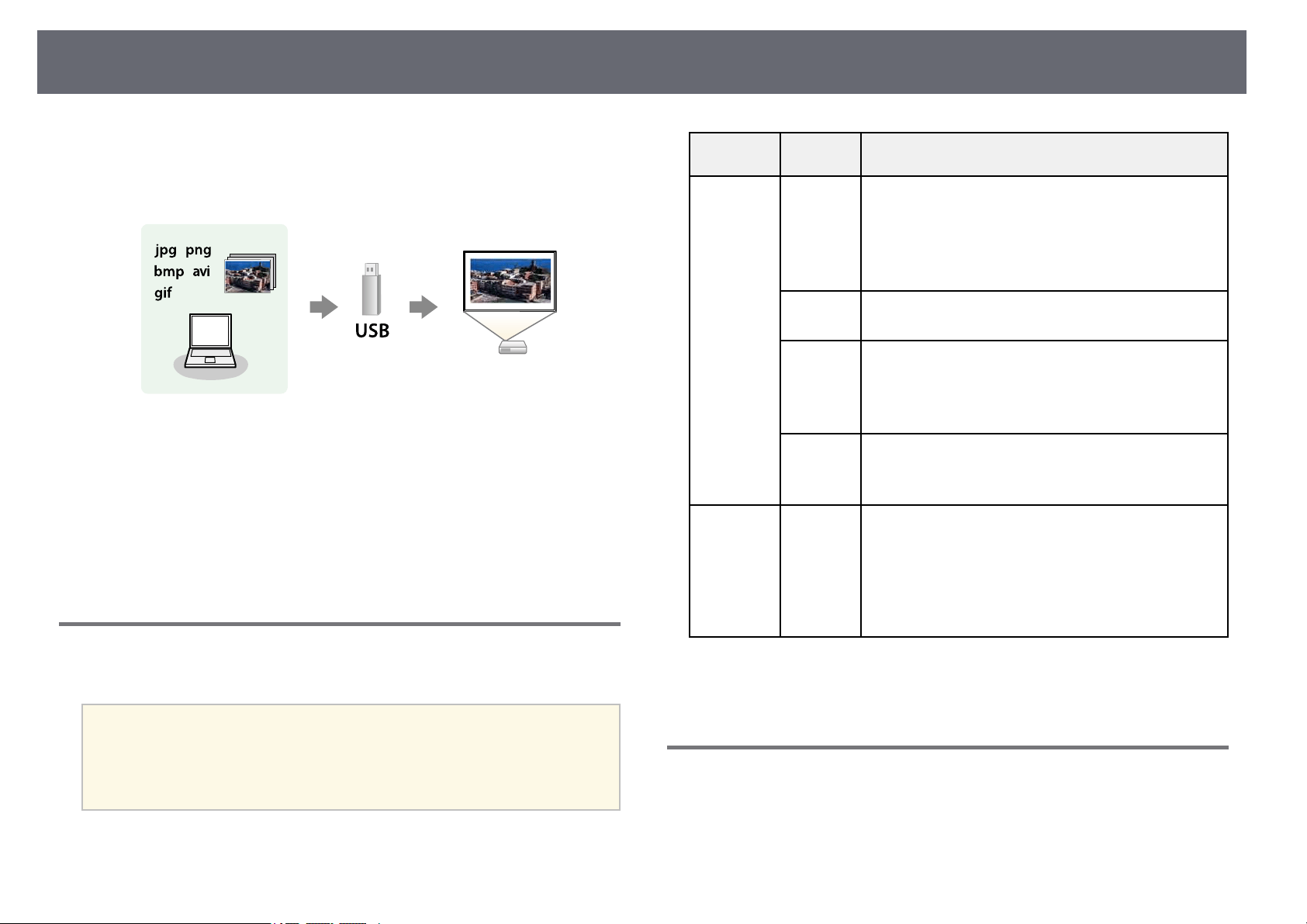
ProjectingaPCFreePresentation
68
You canuse yourprojector's PC Freefeature wheneveryou connect aUSB
device thatcontains compatiblepresentation files. Thislets youquickly and
easily displaya presentationand control itusing theprojector's remote
control.
ggRelatedLinks
•"Supported PCFree File Types"p.68
•"Precautions onPC Free Projection"p.68
•"Starting aPC Free SlideShow" p.69
•"Starting aPC Free MoviePresentation" p.70
•"PC FreeDisplay Options" p.71
•"List ofFunctions" p.10
SupportedPCFreeFileTypes
You canproject thesetypes of filesusing theprojector's PC Freefeature.
a
•Forbestresults,placeyourfilesonmediathatisformattedin
FAT16/32.
•Ifyouhavetroubleprojectingfrommediaformattedfornon-
Windows filesystems,tryformattingthemediaforWindows
instead.
File contentsFile type
(extension)
Details
Image.jpgMakesurethefileisnot:
•CMYKformat
•Progressiveformat
•Highlycompressed
•Above8192×8192resolution
.bmpMakesurethefileisnot:
•Above1280×800resolution
.gifMake surethefileisnot:
•Above1280×800resolution
•Animated
•Interlaced
.pngMakesurethefileisnot:
•Above1280×800resolution *
•Interlaced
Movie.avi
(Motion
JPEG)
Supports onlyAVI1.0.
Make surethefileisnot:
•SavedwithanaudiocodecotherthanPCMor
ADPCM
•Above1280×720resolution
•Largerthan2GB
* Whenyou usea projector witha resolutionof Full HD,you canproject a
file witha maximumresolution of 1920× 1080.
PrecautionsonPCFreeProjection
Note thefollowing precautionswhen using PCFree features.
•You cannotuse aUSB key forPC Free features.
•Do notdisconnect theUSB storage devicewhile itis being accessed;
otherwise, PCFree maynot operate correctly.
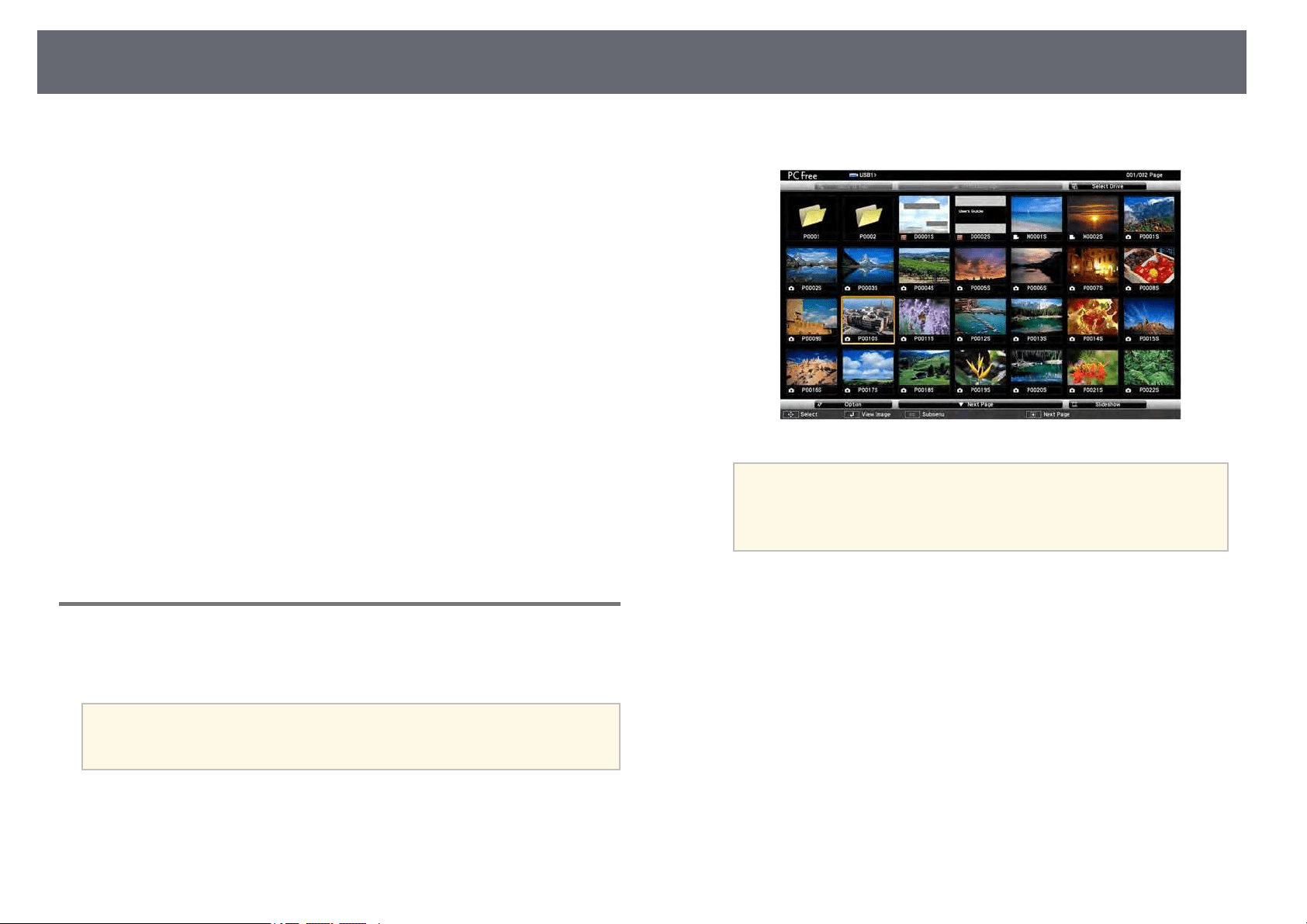
ProjectingaPCFreePresentation
69
•You maynot beable to usethe securityfeatures on certainUSB storage
devices withPC Freefeatures.
•When connectinga USBdevice that includesan ACadapter, connect the
AC adapterto anelectrical outlet whenyou usethe device withyour
projector.
•Some commerciallyavailable USBcard readers maynot becompatible with
the projector.
•The projectorcan recognizeup to 5cards insertedinto the connectedcard
reader atone time.
•You cannotcorrect keystonedistortion while projectingin PCFree, so
correct theimage shapebefore you beginyour presentation.
•You canuse thefollowing functions whileprojecting inPCFree.
•Freeze
•A/V Mute
•E-Zoom
ggRelatedLinks
•"Stopping VideoAction Temporarily" p.74
•"Shutting Offthe Image andSound Temporarily"p.73
•"Zooming In/ZoomingOut of Images(E-Zoom)" p.75
StartingaPCFreeSlideShow
After connectinga USBdevice to theprojector, youcan switch tothe USB
input sourceand startyour slide show.
a
•YoucanchangethePCFree operationoptionsoraddspecialeffects
by highlightingOptionatthebottomofthescreenandpressing
[Enter].
a
Press the[USB] button onthe remotecontrol.
The PCFree file listscreen isdisplayed.
a
•IftheSelectDrive screenisdisplayed,pressthearrowbuttons
to selectthedriveandpress[Enter].
•TodisplayimagesontheotherUSBdrive,highlightSelect
Driveat thetopofthefilelistscreenandpress[Enter].
b
Do oneof thefollowing to locateyour files:
•If youneed todisplay files insidea subfolderon your device,press
the arrowbuttons tohighlight the folderand press[Enter].
•To moveback upa folder levelon yourdevice, highlight Backto
Topandpress [Enter].
c
Do oneof thefollowing:
•To displayan individualimage, press thearrow buttonsto highlight
the imageand press [Enter].(Press the [Esc]button toreturn to the
file listscreen.)
•To displaya slideshow of allthe imagesin afolder, press thearrow
buttons tohighlight theSlideshow optionat the bottomof thescreen
and press[Enter].
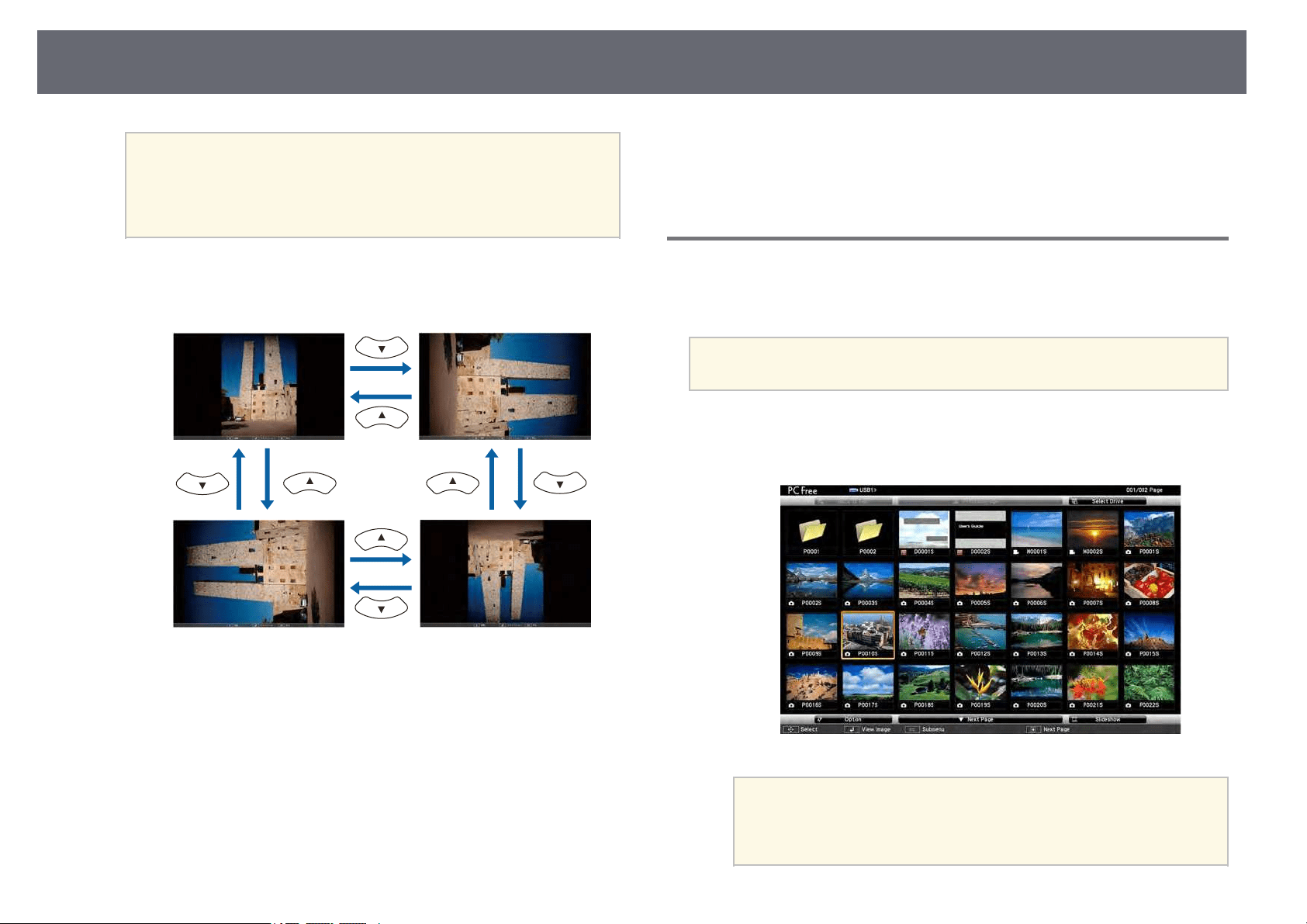
ProjectingaPCFreePresentation
70
a
•Youcanchangetheimageswitchingtimebyhighlighting
Optionatthebottomofthescreenandpressing[Enter].
•Ifanyfilenamesarelongerthanthedisplayareaorinclude
unsupported symbols,thefilenamesmaybeshortenedor
changed onlyonthescreendisplay.
d
While projecting,use thefollowing commands tocontrol thedisplay:
•To rotatea displayedimage, press theup ordown arrow button.
•To moveto thenext or previousimage, pressthe left orright arrow
button.
e
To stopthe display,follow the on-screeninstructions orpress the [Esc]
button.
You returnto thefile list screen.
f
Turn offthe USBdevice, if necessary,and thendisconnect the device
from theprojector.
ggRelatedLinks
•"PC FreeDisplay Options" p.71
•"Connecting toa USB Device"p.31
StartingaPCFreeMoviePresentation
After connectinga USBdevice to theprojector, youcan switch tothe USB
input sourceand startyour movie.
a
•YoucanchangethePCFree operationoptionsbyhighlighting
Option atthe bottom ofthescreenandpressing[Enter].
a
Press the[USB] button onthe remotecontrol.
The PCFree file listscreen isdisplayed.
a
•IftheSelectDrive screenisdisplayed,pressthearrowbuttons
to selectthedriveandpress[Enter].
•TodisplaymoviefilesontheotherUSBdrive,highlight Select
Driveat thetopofthefilelistscreenandpress[Enter].
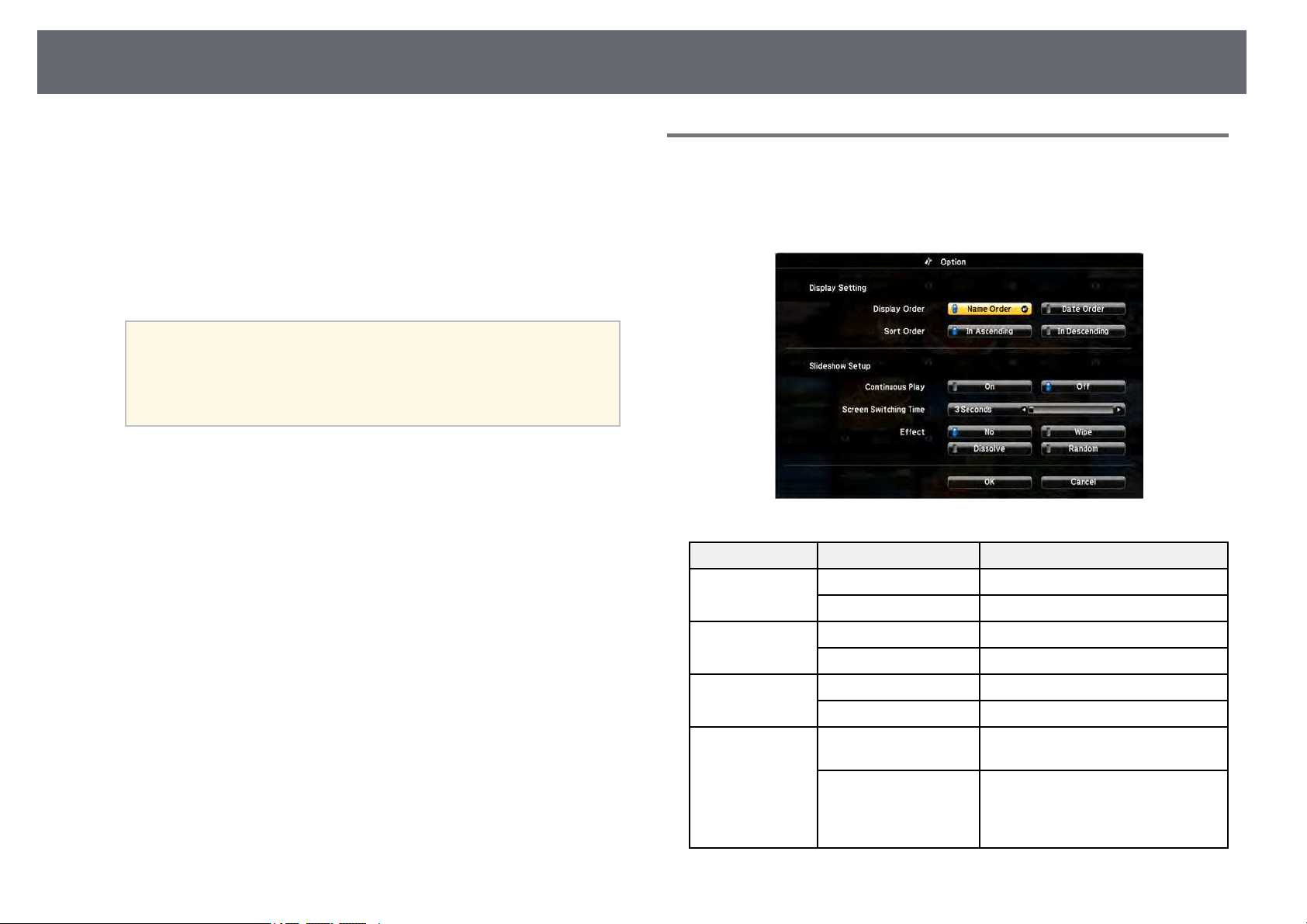
ProjectingaPCFreePresentation
71
b
Do oneof thefollowing to locateyour files:
•If youneed todisplay files insidea subfolderon your device,press
the arrowbuttons tohighlight the folderand press[Enter].
•To moveback upa folder levelon yourdevice, highlight Backto
Topandpress [Enter].
c
To playback amovie, press thearrow buttonsto highlight thefile and
press [Enter].
a
•Ifanyfilenamesarelongerthanthedisplayareaorinclude
unsupported symbols,thefilenamesmaybeshortenedor
changed onlyonthescreendisplay.
•Ifyouwanttoplaybackallthemoviesinafolderinsequence,
select theSlideshowoptionatthebottomofthescreen.
d
To stopmovie playback,press the [Esc]button, highlight Exit,and
press [Enter].
You returnto thefile list screen.
e
Turn offthe USBdevice, if necessary,and thendisconnect the device
from theprojector.
ggRelatedLinks
•"PC FreeDisplay Options" p.71
•"Connecting toa USB Device"p.31
PCFreeDisplayOptions
You canselect thesedisplay options whenusing PCFree. To accessthis
screen, highlightOption atthe bottom ofthe PC Freefile listscreen and press
[Enter].
SettingOptionsDescription
Display OrderName OrderDisplays filesinnameorder
Date OrderDisplays filesindateorder
Sort OrderIn AscendingSorts filesinfirst-to-lastorder
In DescendingSorts filesinlast-to-firstorder
Continuous PlayOnDisplays aslideshowcontinuously
OffDisplays aslideshowonce
Screen Switching
Time
NoDoesnotdisplaythenextfile
automatically
1 Secondto60SecondsDisplays filesfortheselectedtime
and switchestothenextfile
automatically; highresolutionimages
may switchataslightlyslowerrate
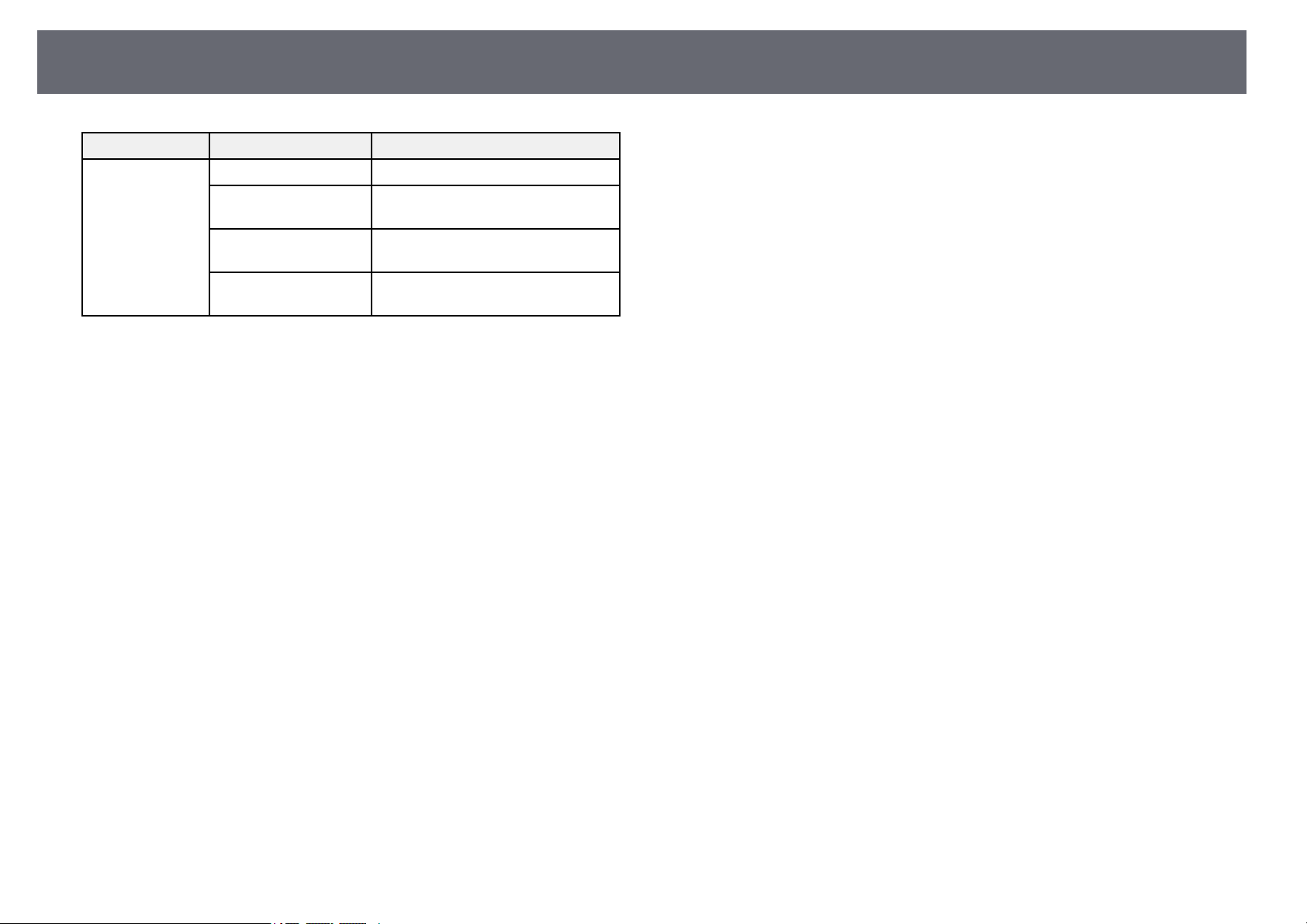
ProjectingaPCFreePresentation
72
SettingOptionsDescription
EffectNoNoeffect
WipeTransitions betweenimagesusinga
wipe effect
DissolveTransitionsbetweenimagesusinga
dissolve effect
RandomTransitionsbetweenimagesusinga
random varietyofeffects
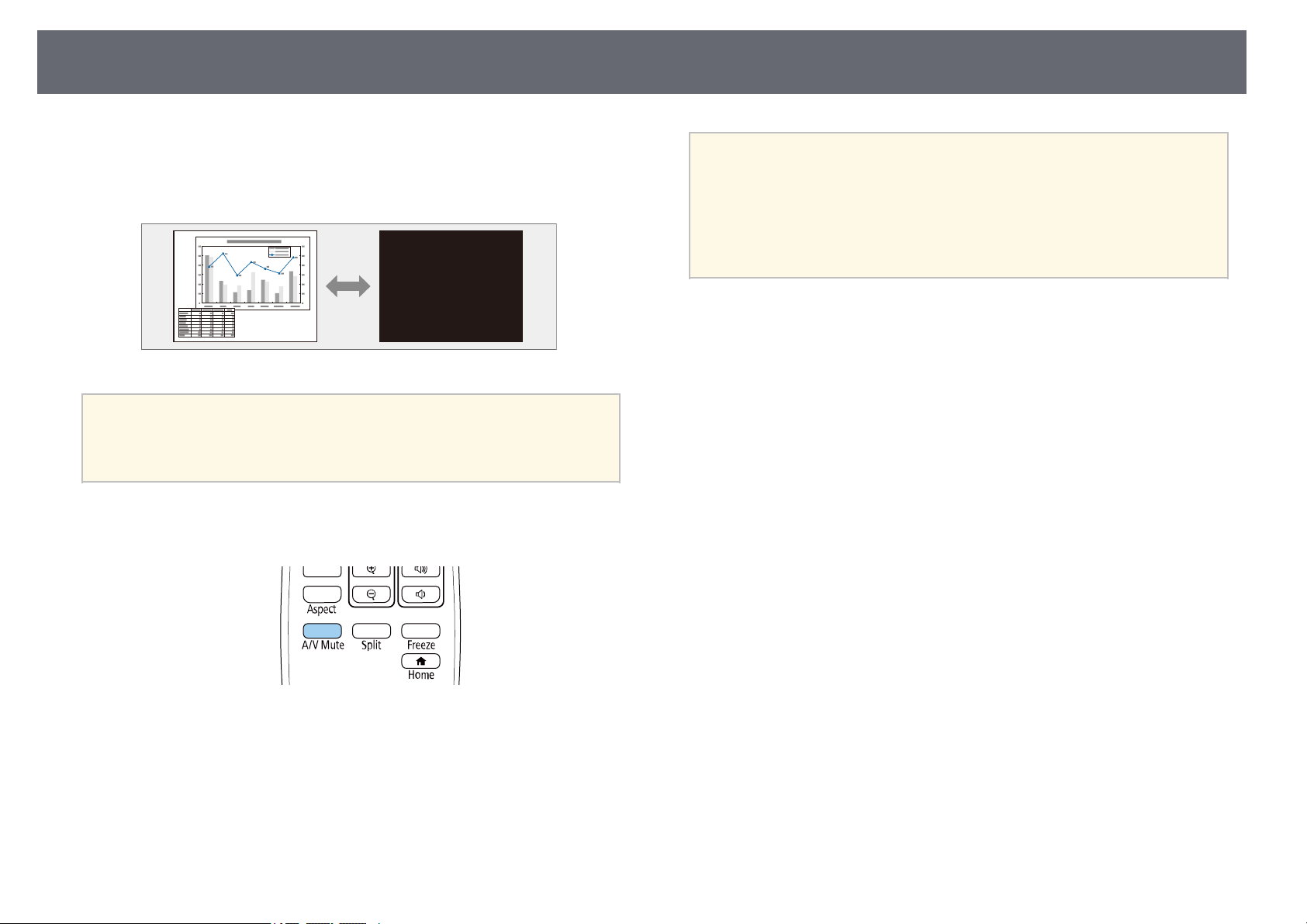
ShuttingOfftheImageandSoundTemporarily
73
You cantemporarily turnoff the projectedimage andsound if youwant to
redirect youraudience's attentionduring a presentation.Any soundor video
action continuesto run,however, so youcannot resumeprojection at the
point thatyou stoppedit.
a
If youwanttodisplayanimagesuchasacompanylogoorpicture
when the[A/VMute]buttonispressed,youcanselectthescreen
displayed intheA/VMutesettingintheprojector'sExtendedmenu.
sExtended>Display>A/VMute
a
Press the[A/V Mute] buttonon theremote controlto temporarily stop
projection andmute anysound.
b
To turnthe imageand sound backon, press[A/V Mute] again.
a
•YoucanalsostopprojectionusingtheA/VMuteslideleveronthe
projector.
•Theprojector'spowerautomaticallyturnsoff30minutesafterA/V
Mute isenabled.Youcandisablethisfeature.
sECO>A/VMuteTimer
•ThelampisstilloperatingduringA/VMute,sothelamphours
continue toaccumulate.
ggRelatedLinks
•"Projector SetupSettings - ExtendedMenu" p.134
•"Projector SetupSettings - ECOMenu" p.147

StoppingVideoActionTemporarily
74
You cantemporarily stopthe action ina videoor computer presentationand
keep thecurrent imageon the screen.Any soundor video actioncontinues to
run, however,so youcannot resume projectionat thepoint that youstopped
it.
a
Press the[Freeze] buttonon the remotecontrol tostop the video
action.
b
To restartthe videoaction in progress,press [Freeze] again.
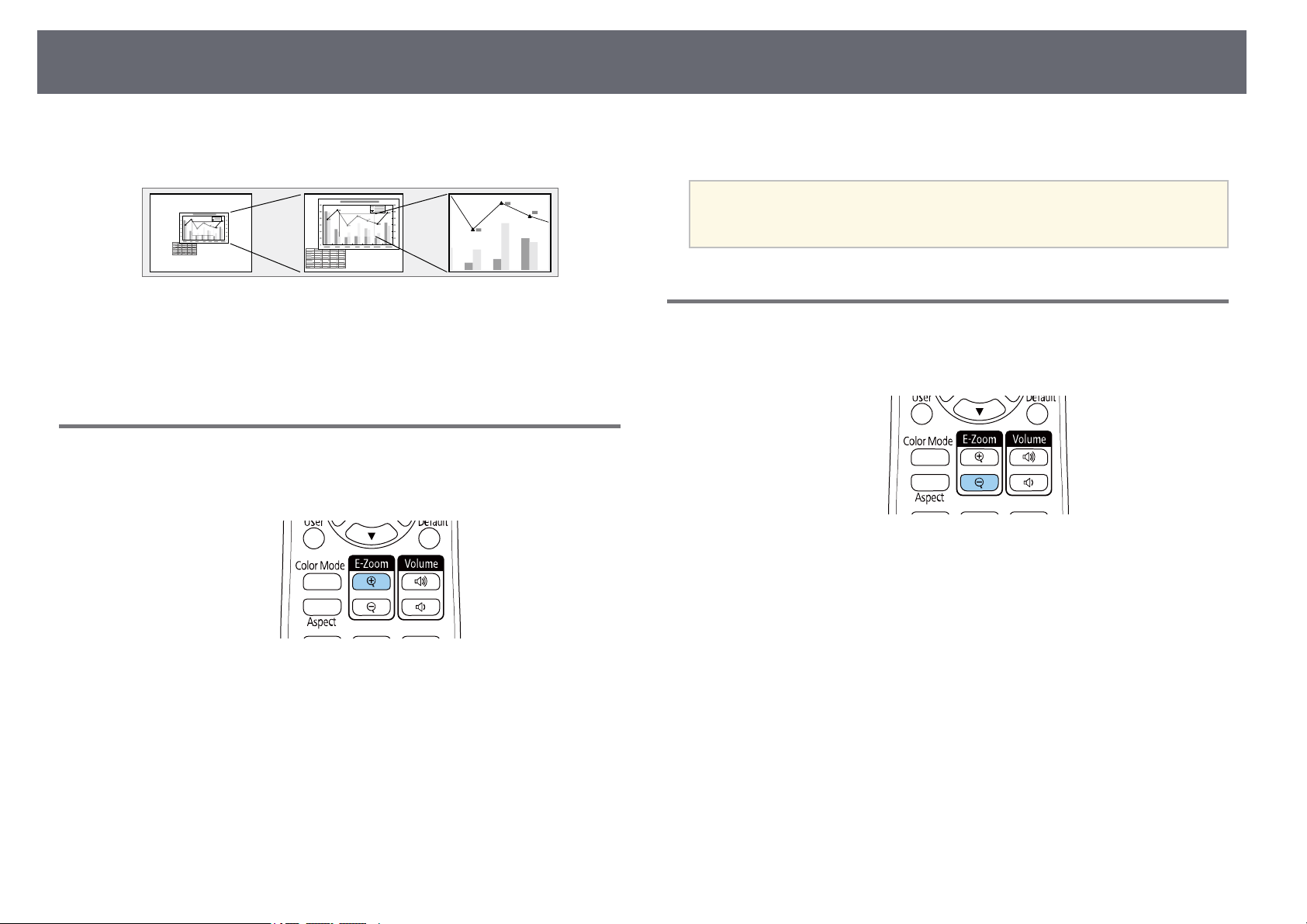
ZoomingIn/ZoomingOutofImages(E-Zoom)
75
You canzoom inor zoom outof theprojected image usingthe [E-Zoom]
button onthe remotecontrol.
ggRelatedLinks
•"Zooming IntoImages" p.75
•"Zooming Outof Images" p.75
ZoomingIntoImages
a
Press the[E-Zoom] +button on theremote control.
The projectedimage isenlarged focusing aroundthe centerof the
image. Youcan enlargethe image betweenone tofour times in25
incremental steps.
b
Use thefollowing buttonson the remotecontrol toadjust the zoomed
image:
•Press the[E-Zoom] +button repeatedly tozoom intothe image.
•To panaround thezoomed image, usethe arrowbuttons.
•To zoomout ofthe image, pressthe [E-Zoom]– button.
•To returnto theoriginal image size,press the [Default]button.
a
When projectingimagesfromanEpsondocumentcamera,youcan
enlarge theimagefromonetoeighttimesitssizein57incremental
steps usingthe[E-Zoom]+buttononthedocumentcamera.
ZoomingOutofImages
a
Press the[E-Zoom] -button on theremote control.
The projectedimage isreduced. You canreduce theimage between
100% to50% inincremental steps.
b
Use thefollowing buttonson the remotecontrol toadjust the zoomed-
out image:
•Press the[E-Zoom] -button repeatedly tozoom outof the projected
image.
•To movethe zoomed-outimage in theprojection area,use the arrow
buttons.
•To zoominto theimage, press the[E-Zoom] + button.
•To returnto theoriginal image size,press the [Default]button.

ZoomingIn/ZoomingOutofImages(E-Zoom)
76
a
When projectingimagefromanEpsondocumentcamera,youcanalso
reduce theimageusingthe[E-Zoom]-buttononthedocument
camera.
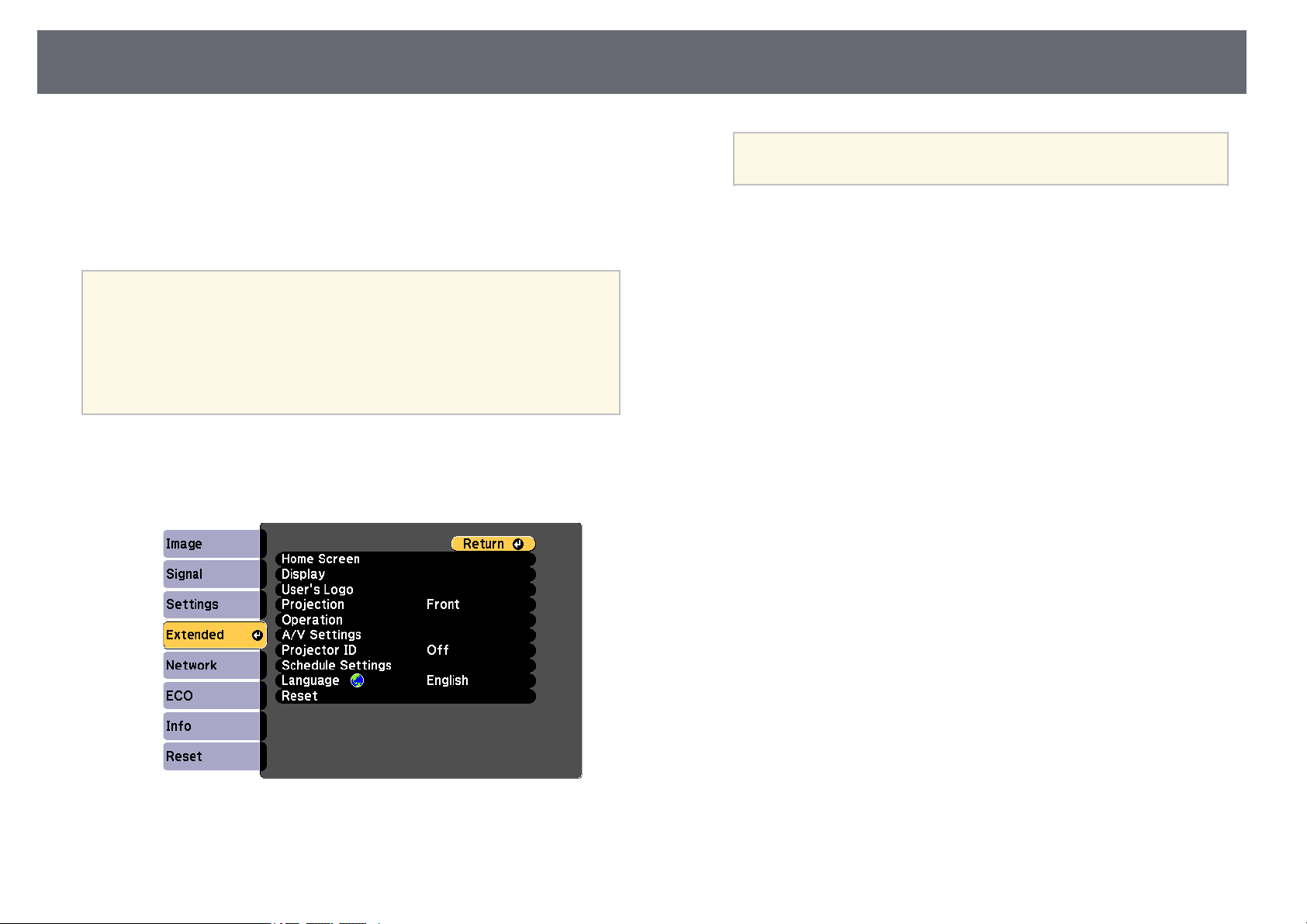
SavingaUser'sLogoImage
77
You cansave animage on theprojector anddisplay it wheneverthe projector
turns on.You canalso display theimage whenthe projector isnot receiving
an inputsignal. Thisimage is calledthe user'slogo screen.
You canselect aphoto, graphic, orcompany logoas the user'slogo, whichis
useful inidentifying theprojector's owner tohelp detertheft. You canprevent
changes tothe user'slogo by settingup passwordprotection.
a
•IftheUser'sLogoProtectionsetting inthePasswordProtection
setting menuissettoOn,settoOffbeforesavingtheuser'slogo.
•Whenyoucopythemenusettingsfromoneprojectortoanother
using thebatchsetupfeature,user'slogoisalsocopied.Donot
register theinformationthatyoudonotwanttosharebetween
multiple projectorsasauser'slogo.
•YoucannotsavecontentthatisprotectedbyHDCP.
a
Display theimage youwant to projectas theuser's logo.
b
Press the[Menu] button,select the Extendedmenu,and press [Enter].
c
Select User'sLogo >Start Settingand press [Enter].
You seea promptasking if youwant touse the displayedimage asa
user's logo.
a
Adjustments suchasKeystone,E-Zoom,or Aspectare
temporarily canceledwhenyouselectUser'sLogo.
d
Select Yesand press [Enter].
e
Check thedisplayed image,and then selectYes tosave itas the user's
logo.
The user'slogo isoverwritten and acompletion messageis displayed.
f
Press [Esc]to exitthe message screen.
g
Select theExtended menuand press [Enter].
h
Select Displayand press [Enter].
i
Select whenyou wantto display theUser's Logoscreen:
•To displayit wheneverthere is noinput signal,select Display
Background andset itto Logo.
sExtended> Display >Display Background
•To displayit wheneveryou turn theprojector on,select Startup
Screen andset itto On.
sExtended> Display >Startup Screen
•To displayit wheneveryou press the[A/V Mute] button,select A/V
Muteandset itto Logo.
sExtended> Display >A/V Mute
To preventanyone fromchanging the User'sLogo settings withoutfirst
entering apassword, setthe User's LogoProtection settingto Oninthe
PasswordProtectionsetting menuandset thepassword.
ggRelatedLinks
•"Shutting Offthe Image andSound Temporarily"p.73
•"Selecting PasswordSecurity Types" p.83
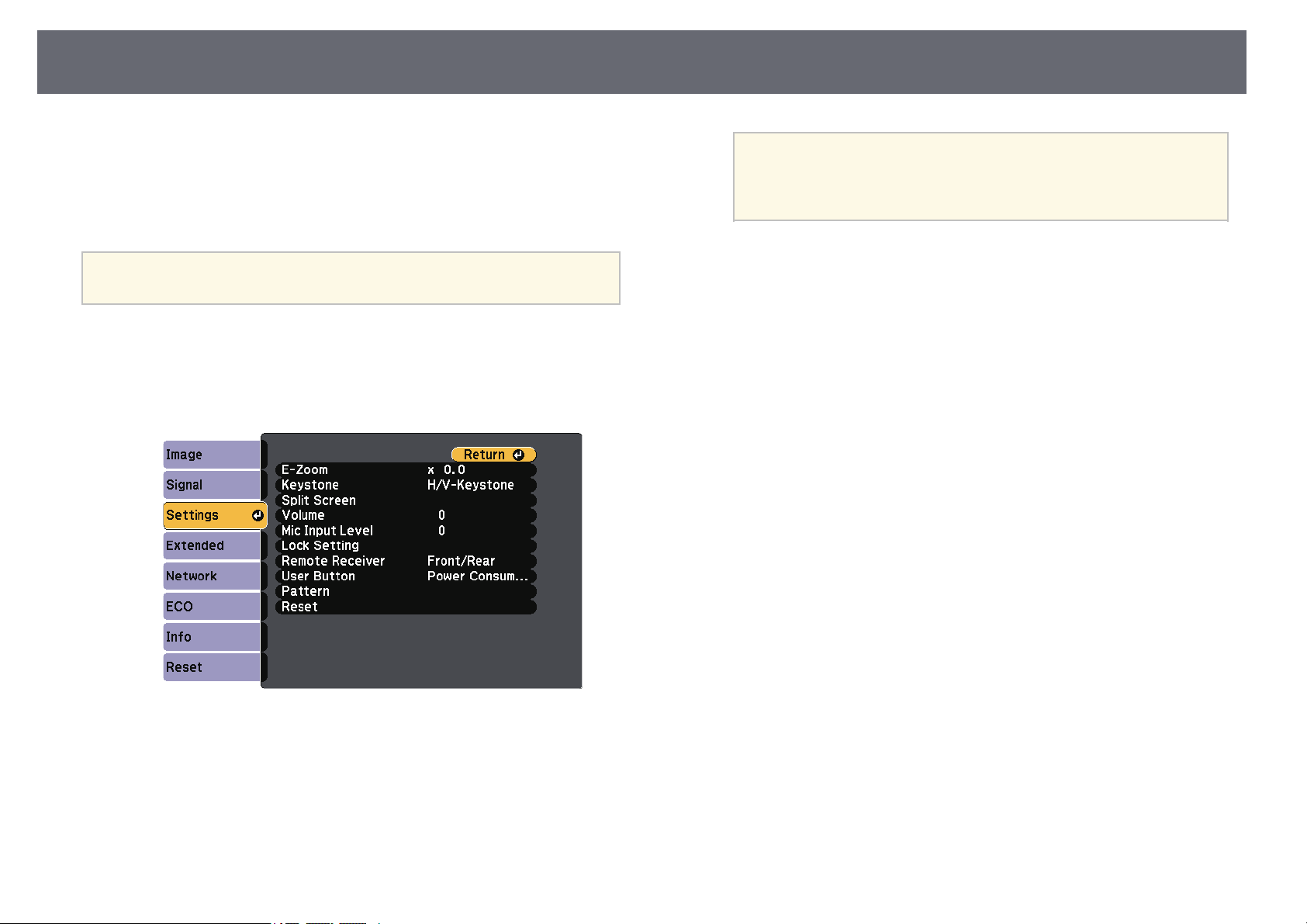
SavingaUserPattern
78
There arefour typesof patterns pre-registeredin theprojector, such asruled
lines andgrid patterns.You can projectthese patternsto aid inpresentations
using thePattern Displaysettings.
You canalso savethe image thatis currentlybeing projected asa User
Pattern.
a
Once yousaveaUserPattern,thepatterncannotbereturnedtothe
factory default.
a
Project theimage youwant to saveas theUser Pattern, andthen press
the [Menu]button onthe control panelor remotecontrol.
b
Select theSettings menuand press [Enter].
c
Select Pattern> UserPatternand press[Enter].
You seea promptasking if youwant touse the displayedimage asa
User Pattern.
a
•AdjustmentssuchasKeystone, E-Zoom,orAspect are
temporarily cancelledwhenyouselectUserPattern.
•YoucannotsavedigitalimagesprotectedbyHDCPtechnology
as aUserPattern.
d
Select Yesand press [Enter].
You seea promptasking if youwant tosave the imageas theUser
Pattern.
e
Select Yesand press [Enter].
You seea completionmessage.
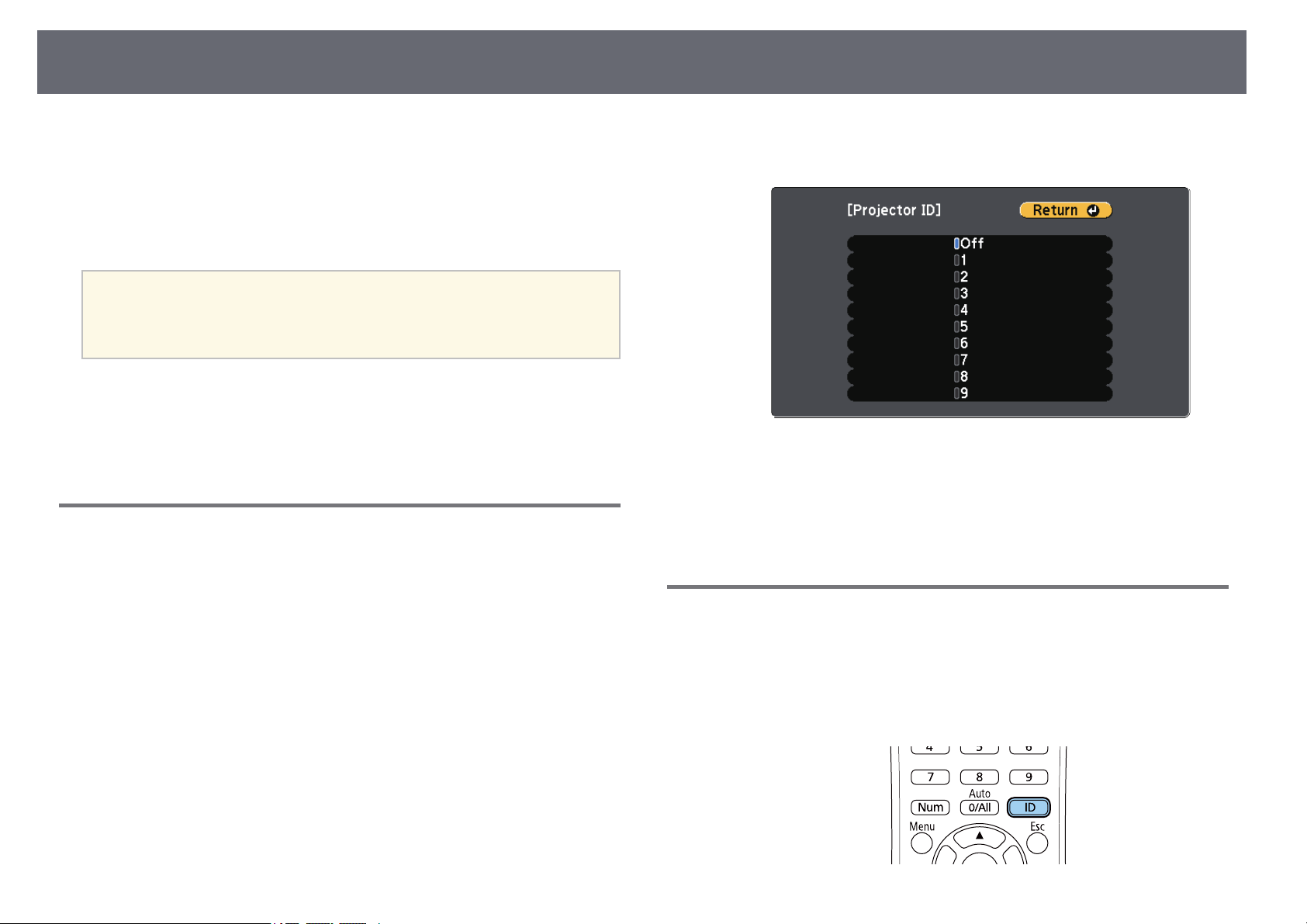
ColorDifferenceCorrectionwhenProjectingfromMultipleProjectors
79
When liningup multipleprojectors to projectimages, youcan correct the
brightness andcolor toneof each projector'simage sothat the imagesmatch
closely.
You canset aunique projector IDfor eachprojector tooperate them
individually usinga remotecontrol, and thencorrect thebrightness and color
for eachprojector.
a
•Insomecasesthebrightnessandcolortonemaynotmatch
completely evenaftercorrection.
•Ifbrightnessandcolortonedifferencesbecomemorenoticeableover
time, repeattheadjustments.
ggRelatedLinks
•"Setting theProjector ID" p.79
•"Selecting theProjector You wantto Operate"p.79
•"Matching Multiple-ProjectorDisplay Quality" p.80
SettingtheProjectorID
To controlmultiple projectorsfrom a remotecontrol, giveeach projector a
unique ID.
a
Press the[Menu] button,select the Extendedmenu,and press [Enter].
b
Select ProjectorID andpress [Enter].
c
Use thearrow buttonsto select theidentification numberyou want to
use forthe projector.Then press [Enter].
d
Press [Menu]or [Esc] toexit themenus.
e
Repeat thesesteps forall the otherprojectors youwant tooperatefrom
one remotecontrol.
SelectingtheProjectorYouwanttoOperate
After settingthe projector'sID, select theID forthe projector youwant to
operate usingthe remotecontrol.
a
Aim theremote controlat the targetprojector andpress the [ID]
button.
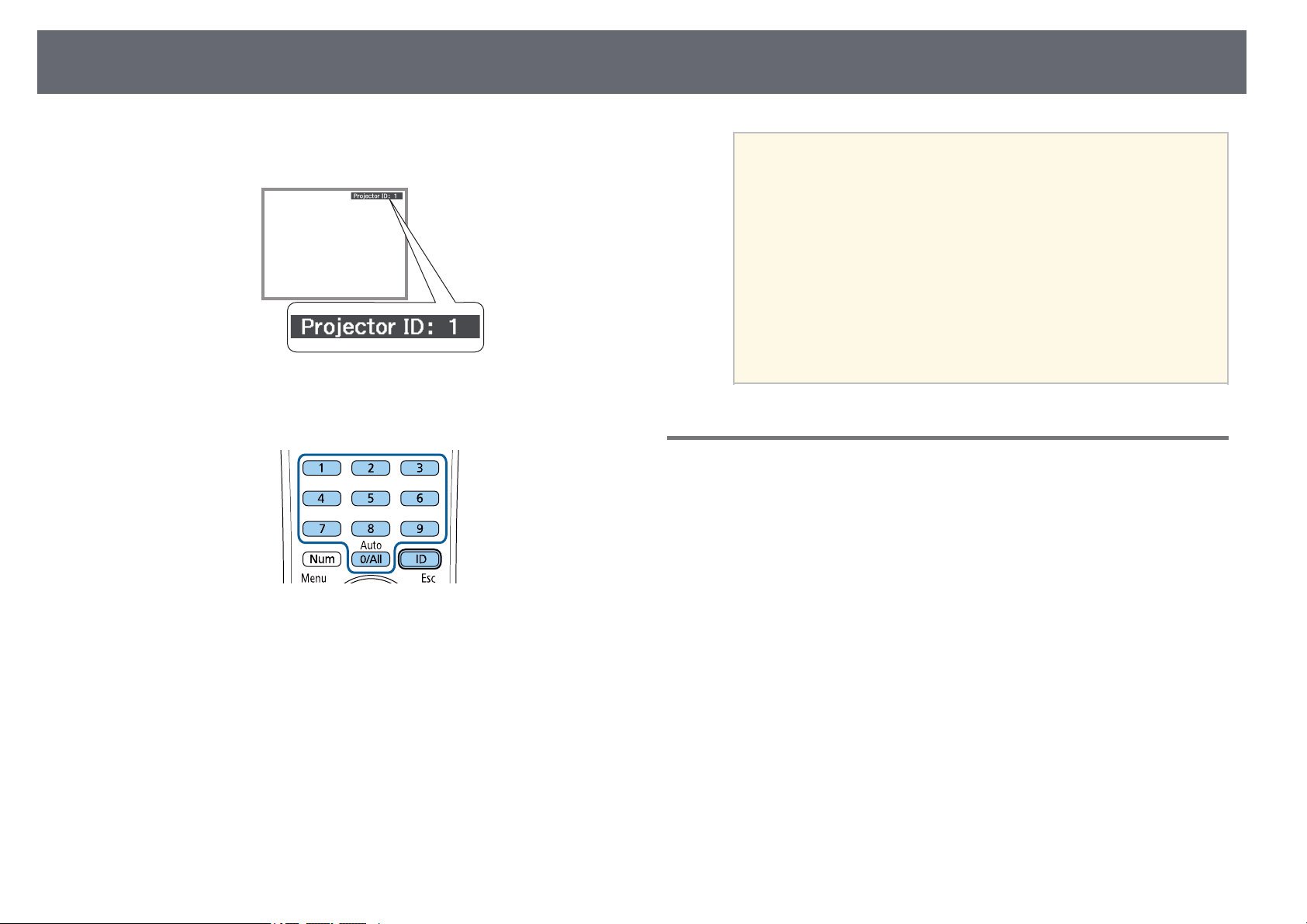
ColorDifferenceCorrectionwhenProjectingfromMultipleProjectors
80
The currentProjector IDis displayed onthe projectedscreen. It
disappears afterabout 3seconds.
b
While holdingthe [ID] button,press thenumber button thatmatches
the IDof theprojector you wantto operate.
The projectoryou wantto operate isselected.
a
•Whenyouselect[0/All] ontheremotecontrol,youcan
operate allprojectorsregardlesstheProjectorIDsetting.
•Whenyousetthe ProjectorIDsettingtoOff,youcanoperate
the projectorusingtheremotecontrolwhicheverIDyouselect
on theremotecontrol.
•TheprojectorIDsettingissavedintheremotecontrol.Evenif
the remotecontrolbatteriesareremovedtoreplacethemand
so on,thesavedIDsettingisretained.However,ifthebatteries
are leftoutoftheremotecontrolforanextendedperiod,the
ID returnstoitsdefaultsetting(0/All).
•Whenyouusemultipleremotecontrolsatthesametime,you
may notbeabletooperateprojectorsasintendeddueto
infrared interference.
MatchingMultiple-ProjectorDisplayQuality
You canmatch thedisplay quality ofmultiple projectorsthat will projectnext
to eachother.
a
Turn onall theprojectors on whichyou wantto match thedisplay
quality.
b
Set IDnumbers oneach projector.
c
Make sureall theprojectors are usingthe sameColor Mode setting.
d
Select theremote controlID to matchthe firstprojector.
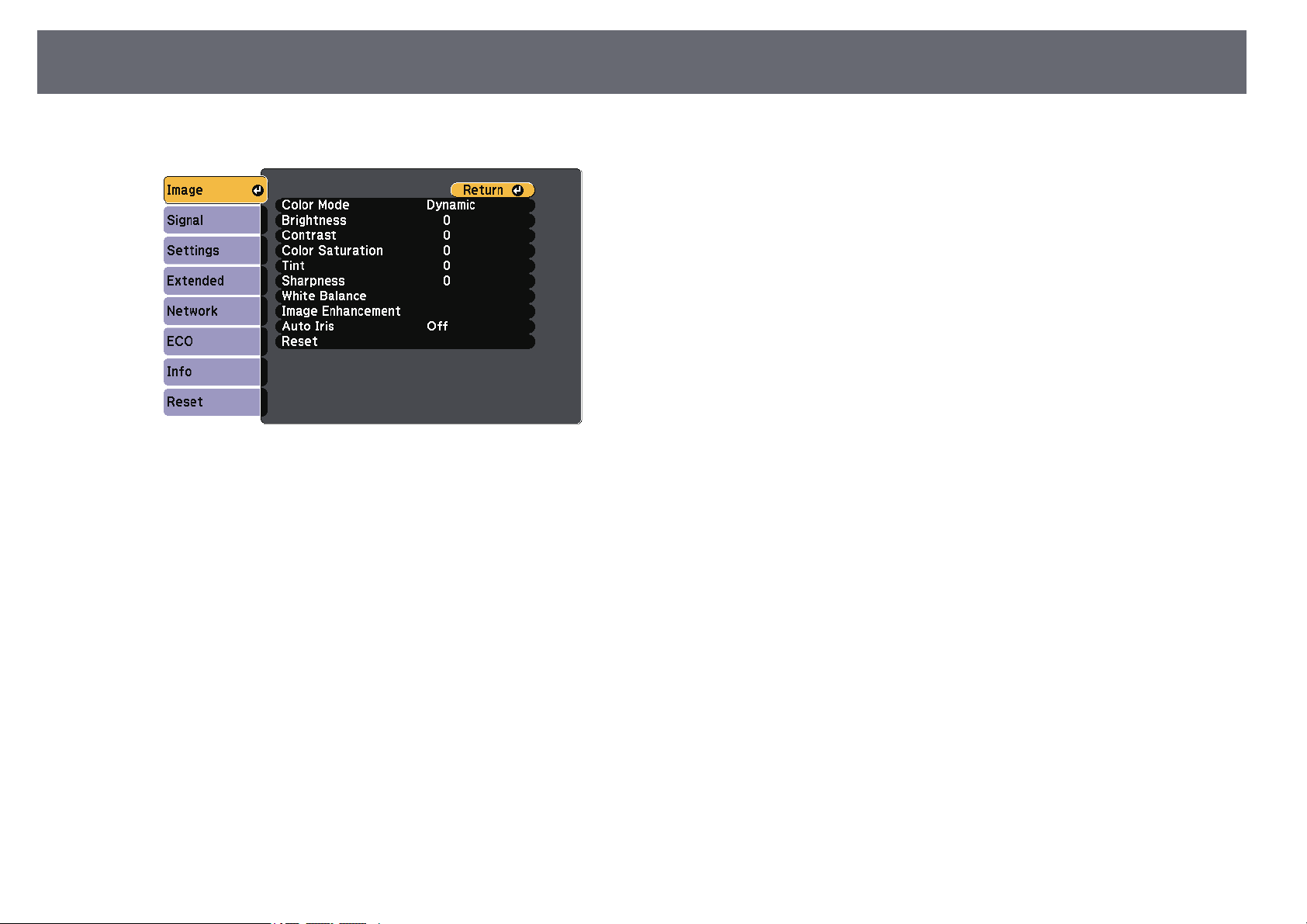
ColorDifferenceCorrectionwhenProjectingfromMultipleProjectors
81
e
Press the[Menu] button,select the Imagemenu,and press [Enter].
f
Select settingsas necessary.
g
Select theremote controlID to matchthe nextprojector, then repeat
Image menuadjustments asnecessary to matchthe projectors' displays.
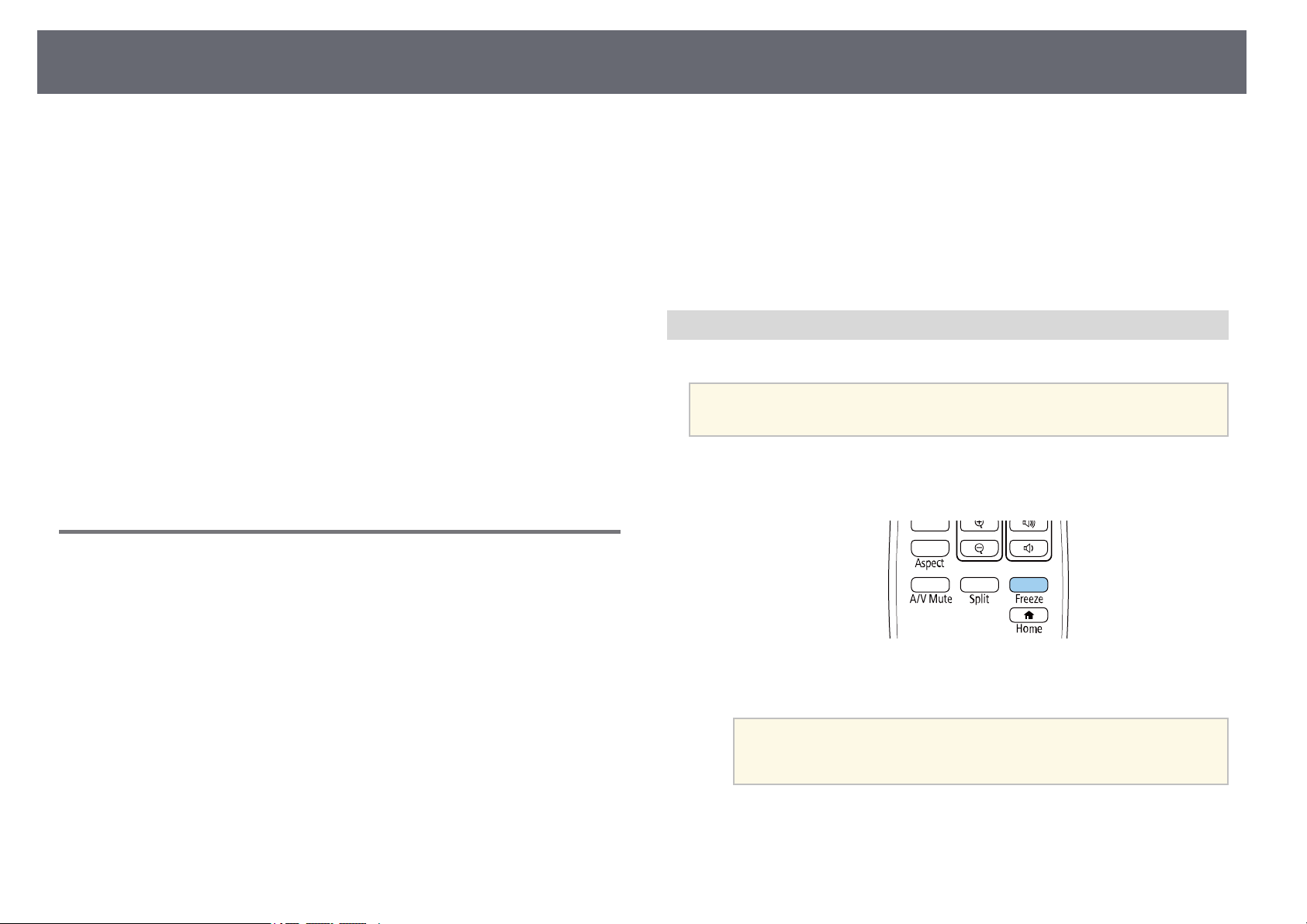
ProjectorSecurityFeatures
82
You cansecure yourprojector to detertheft orprevent unintended useby
setting upthe followingsecurity features:
•Password securityto preventpeople who donot knowthe password from
using theprojector, andprevent changes tothe startupscreen and other
settings.
This actsas ananti-theft function asthe projectorcannot be usedeven ifit
is stolen,and youcan limit whocan usethe projector.
•Button locksecurity toblock operation ofthe projectorusing the buttons
on thecontrol panel.
This isuseful atevents or showswhen youwant to deactivateall buttons
during projectionor atschools when youwant tolimit button operation.
•Security cablingto physicallysecure the projectorin place.
ggRelatedLinks
•"Password SecurityTypes" p.82
•"Locking theProjector's Buttons" p.84
•"Installing aSecurity Cable" p.85
PasswordSecurityTypes
You canset upthe following typesof passwordsecurity using oneshared
password:
•PowerOnProtection passwordprevents anyonefrom using theprojector
without firstentering apassword. When pluggingthe powercord and
turning onthe projectorat first time,you mustenter the correctpassword.
This alsoapplies toDirectPowerOnand AutoPowerOn.
•User'sLogoProtection passwordprevents anyone fromchanging the
custom screendisplayed whenthe projector turnson, whenno signal is
being input,or whenyou use theA/V Mute feature.The customscreen
discourages theftby identifyingthe projector's owner.
•NetworkProtectionpassword preventsanyone from changingthe
projector's Networksettings.
•ScheduleProtectionpassword preventsanyone from changingthe
projector's schedulesettings.
•ScreenMirroringProtec. passwordprevents anyonefrom changing the
projector's ScreenMirroring settings.
ggRelatedLinks
•"Setting aPassword" p.82
•"Selecting PasswordSecurity Types" p.83
•"Entering aPassword to Usethe Projector"p.84
•"List ofFunctions" p.10
SettingaPassword
To usepassword security,you must seta password.
a
The defaultpasswordissetto"0000".Changethistoyourown
password.
a
Hold downthe [Freeze]button on theremote controlfor about 5
seconds.
You seethe PasswordProtection setting menu.
a
If PasswordProtectionisalreadyactivated,youmustenterthe
correct passwordtodisplaythePasswordProtectionsetting
menu.
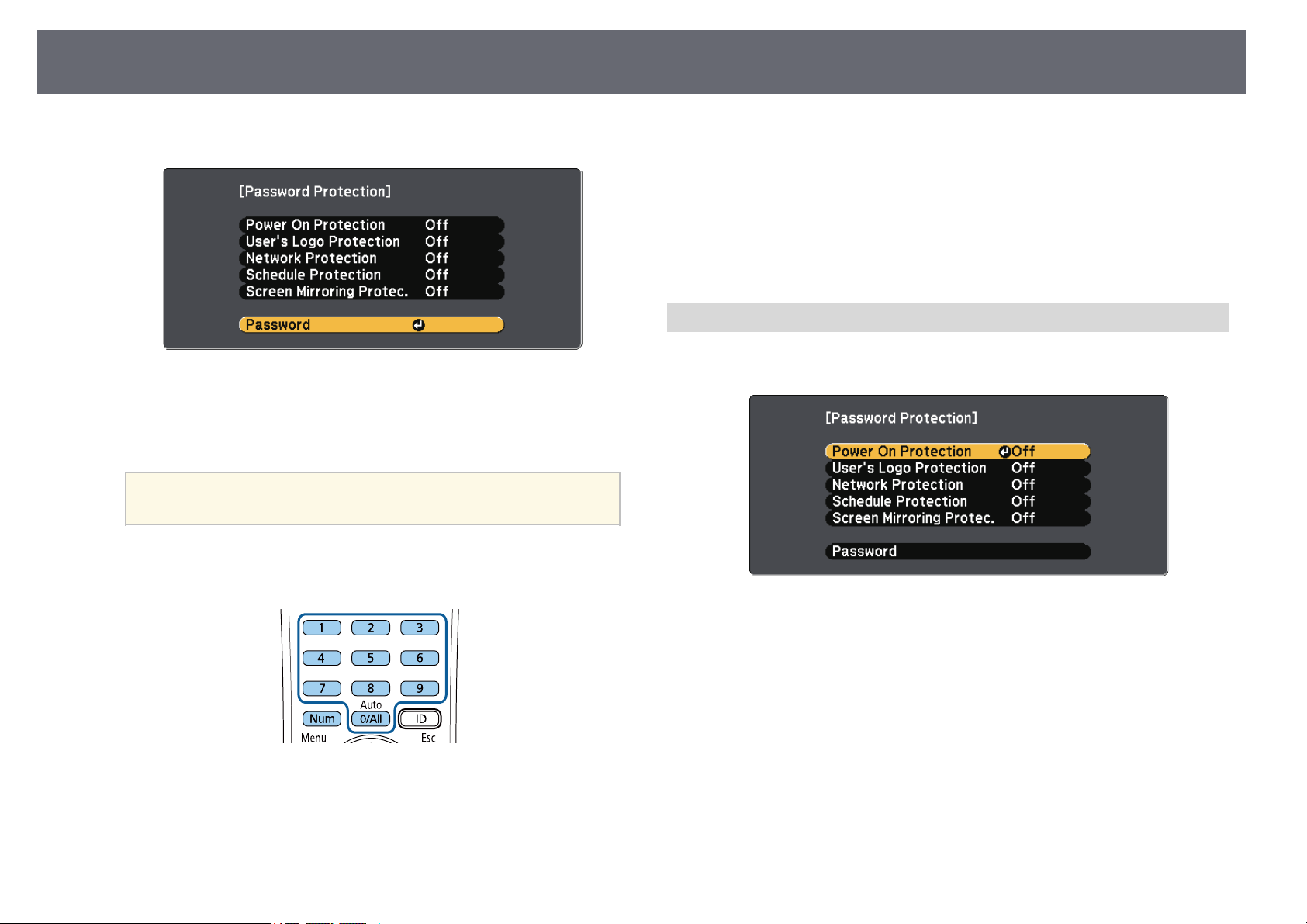
ProjectorSecurityFeatures
83
b
Select Passwordand press [Enter].
You seethe prompt "Changethe password?".
c
Select Yesand press [Enter].
a
If youselectNo,thePasswordProtectionsettingmenuis
displayed again.
d
Hold downthe [Num]button on theremote controland use the
numeric buttonsto seta four-digit password.
The passworddisplays as**** as itis entered.A confirmation promptis
displayed whenyou enterthe fourth digit.
e
Enter thepassword again.
You seethe message"Password accepted". Ifyou enterthe password
incorrectly, amessage isdisplayed prompting youto re-enterthe
password.
f
Press [Esc]to returnto the menu.
g
Make anote ofthe password andkeep itin a safeplace.
SelectingPasswordSecurityTypes
After settinga password,you see thismenu, allowingyou to selectthe
password securitytypes youwant to use.
If youdo notsee this menu,hold downthe [Freeze] buttonon theremote
control for5 secondsuntil the menuappears.
•To preventunauthorized useof the projector,select Onas the PowerOn
Protectionsetting.
•To preventchanges tothe User's Logoscreen orrelated display settings,
select Onas the User'sLogoProtection setting.
•To preventchanges tonetwork settings, selectOn asthe Network
Protectionsetting.
•To preventchanges tothe projector's schedulesettings, selectOn asthe
ScheduleProtectionsetting.
•To preventchanges tothe projector's ScreenMirroring settings,select On as
the ScreenMirroring Protec.setting.
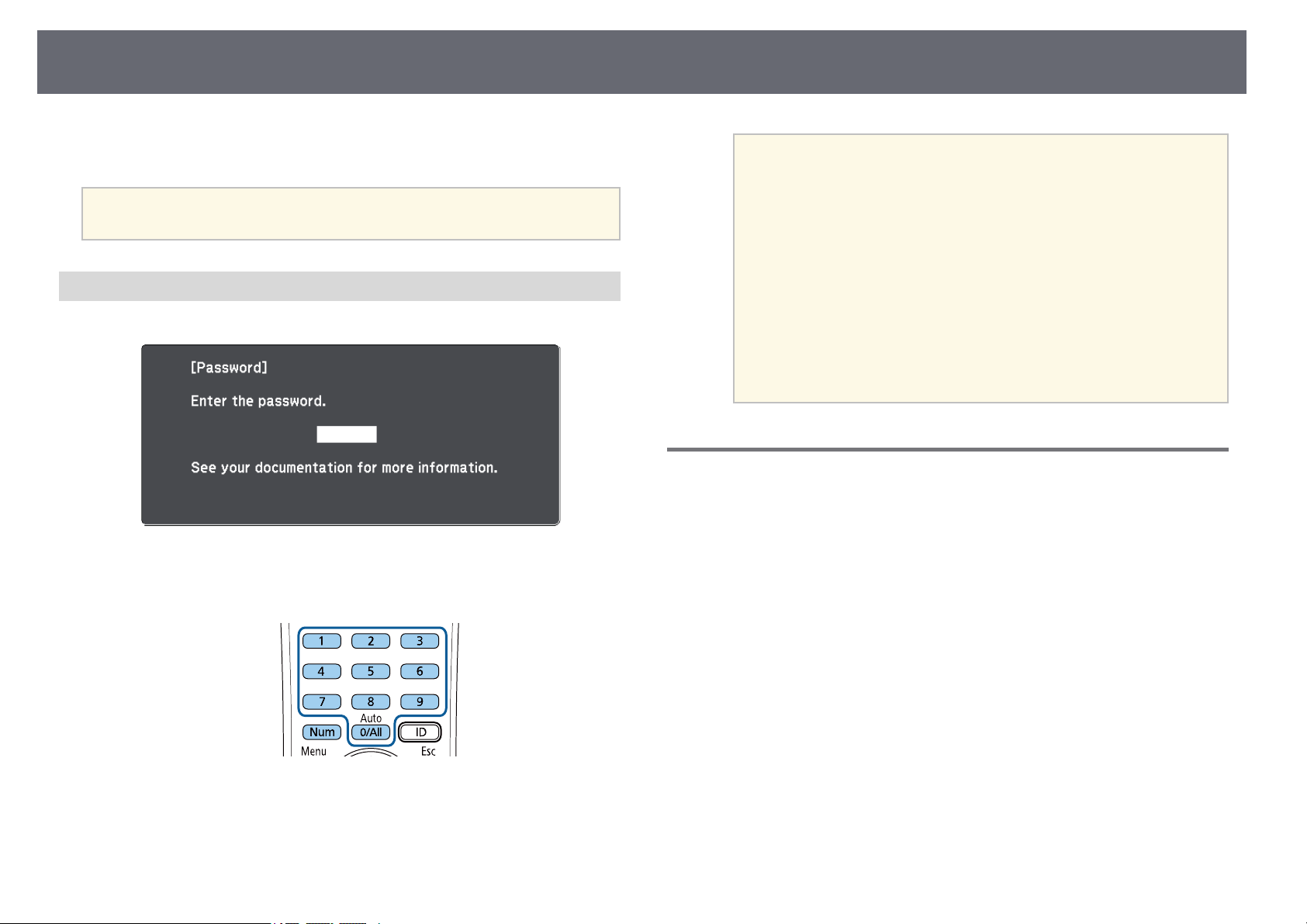
ProjectorSecurityFeatures
84
You canattach thepassword protect stickerto theprojector as anadditional
theft deterrent.
a
Be suretokeeptheremotecontrolinasafeplace;ifyouloseit,youwill
not beabletoenterthepassword.
EnteringaPasswordtoUsetheProjector
When thepassword screenis displayed, enterthe correctpassword.
a
Hold downthe [Num]button on theremote controlwhile you enter
the passwordusing thenumeric buttons.
The passwordscreen closes.
b
If thepassword isincorrect, you seea messageand a promptto try
again. Enterthe correctpassword to proceed.
Attention
•Ifanincorrectpasswordisenteredthreetimesinsuccession,themessage
"The projector'soperationwillbelocked."isdisplayedforapproximately
5 minutes,andtheprojectorswitchestostandbymode.Ifthishappens,
disconnect thepowerplugfromtheelectricaloutlet,reinsertit,andturn
the projectorbackon.Theprojectordisplaysthepasswordentryscreen
again sothatyoucanenterthecorrectpassword.
•Ifyouhaveforgottenthepassword,makeanoteofthe"RequestCode:
xxxxx" numberthatappearsonthescreenandcontactEpsonforhelp.
•Ifyoucontinuetorepeattheaboveoperationandinputthewrong
password 30timesinsuccession,themessage"Theprojector'soperation
will belocked.ContactEpsonasdescribedinyourdocumentation."is
displayed andtheprojectordoesnotacceptanymorepasswordentries.
Contact Epsonforhelp.
LockingtheProjector'sButtons
You canlock thebuttons on thecontrol panelto prevent anyonefrom using
the projector.The projectorcan still beoperated usingthe remote control.
a
Press the[Menu] buttonon the controlpanel orremote control.
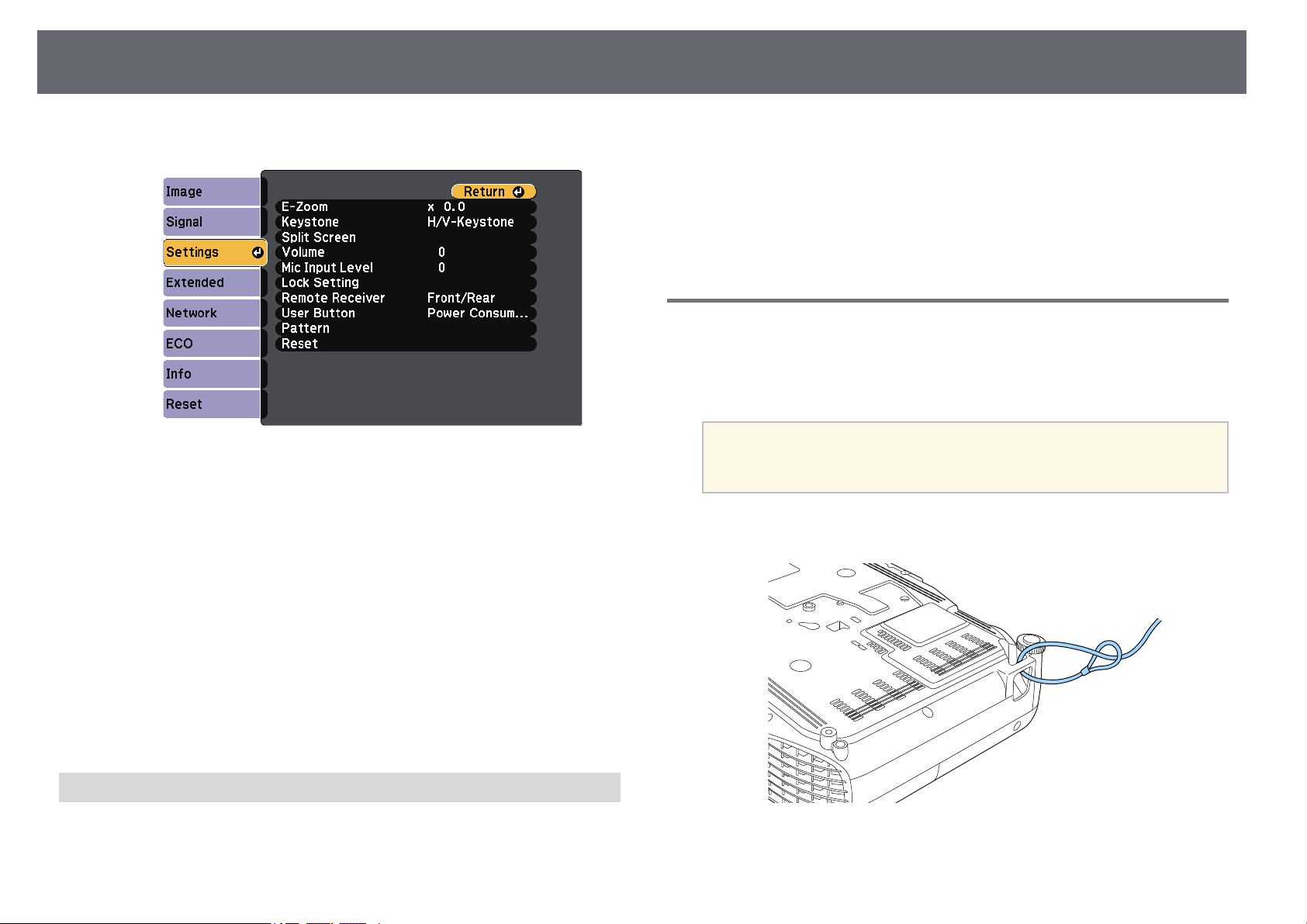
ProjectorSecurityFeatures
85
b
Select theSettings menuand press [Enter].
c
Select LockSetting >Control PanelLock, andpress [Enter].
d
Select oneof theselock types andpress [Enter]:
•To lockall ofthe projector'sbuttons, select FullLock.
•To lockall buttonsexcept the powerbutton, selectPartial Lock.
You seea confirmationprompt.
e
Select Yesand press [Enter].
The ControlPanel Locksetting takes effect.
ggRelatedLinks
•"Unlocking theProjector's Buttons" p.85
UnlockingtheProjector'sButtons
If theprojector's buttonshave been locked,do oneof the followingto unlock
them.
•Hold downthe [Enter] buttonon thecontrol panelfor 7 seconds.A
message isdisplayed andthe lock isreleased.
•Select Offas the ControlPanel Locksetting in theprojector's Settings
menu.
sSettings> LockSetting> ControlPanel Lock
ggRelatedLinks
•"Projector FeatureSettings - SettingsMenu" p.132
InstallingaSecurityCable
You caninstall thesecurity cable onthe projectorto deter theft.
•Use thesecurity sloton the projectorto attacha Kensington Microsaver
Security system.
a
For moredetailsontheMicrosaverSecuritySystem,visitthe
Kensington Website.
https://www.kensington.com/
•Use thesecurity cableattachment point onthe projectorto attach awire
cable andsecure itto a roomfixture orheavy furniture.

ProjectorSecurityFeatures
86
a
You canuseacommerciallyavailabletheft-preventionwirelock.See
the documentationsuppliedwiththewirelockforlocking
instructions.

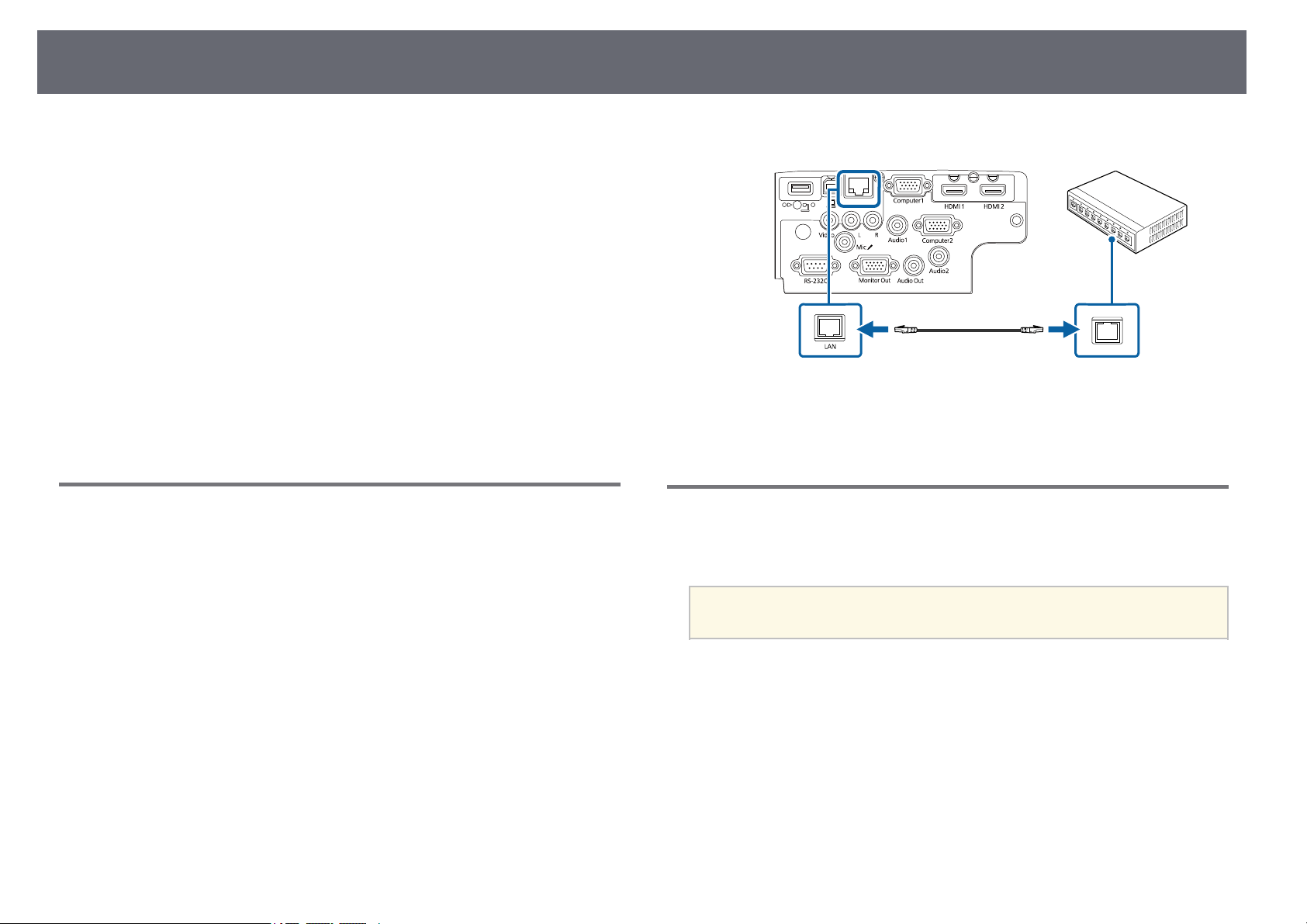
WiredNetworkProjection
88
You can send images to your projector through a wired network. To do this,
connect the projector to your network, and then set up your projector and
computer for network projection.
After connecting and setting up the projector as described here, download
and install Epson iProjection (Windows/Mac) from the following Web site.
epson.com/support/
Epson iProjection software sets up your computer for network projection. It
also allows you to hold interactive meetings by projecting user's computer
screens over a network. See the Epson iProjection Operation Guide
(Windows/Mac) for instructions.
ggRelated Links
•"Connecting toa Wired Network"p.88
•"Selecting WiredNetwork Settings" p.88
•"List ofFunctions" p.10
ConnectingtoaWiredNetwork
To connectthe projectorto a wiredlocal areanetwork (LAN), usea 100Base-
TX or10Base-T networkcable. To ensureproper datatransmission, use a
Category 5shielded cableor better.
a
Connect oneend ofthe network cableto yournetwork hub, switch,or
router.
b
Connect theother endof the cableto theprojector's LAN port.
ggRelatedLinks
•"List ofFunctions" p.10
SelectingWiredNetworkSettings
Before youcan projectfrom computers onyour network,you needtoselect
network settingson theprojector.
a
Make sureyoualreadyconnectedtheprojectortoyourwirednetwork
using theLANport.
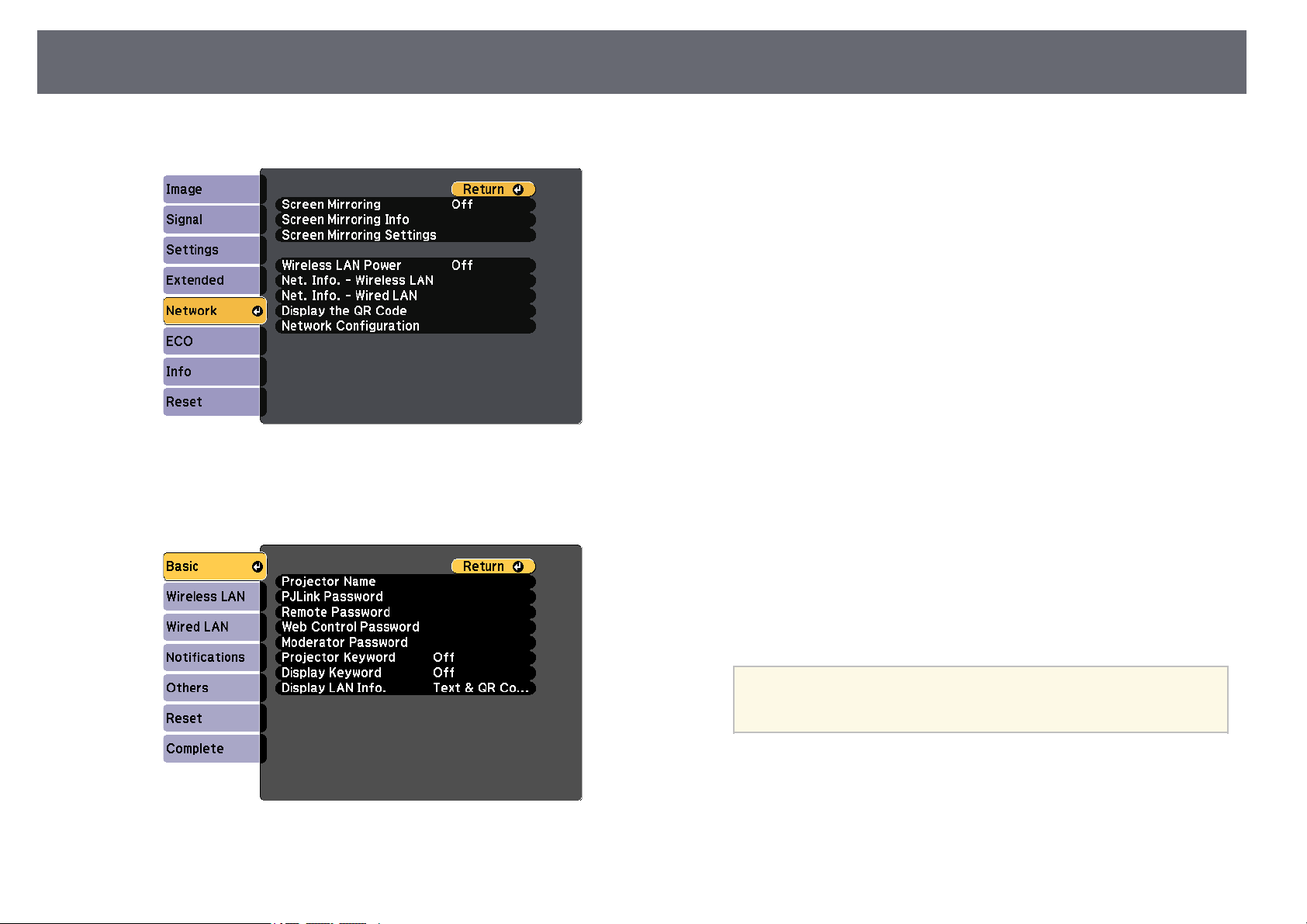
WiredNetworkProjection
89
a
Press the[Menu] button,select the Networkmenu, and press[Enter].
b
Select NetworkConfiguration andpress [Enter].
c
Select theBasic menuand press [Enter].
d
Select thebasic optionsas necessary.
•ProjectorNamelets youenter a nameup to16 alphanumeric
characters longto identifythe projector overthe network.
•PJLinkPasswordlets you entera passwordup to 32alphanumeric
characters longfor usingthe PJLink protocolfor projectorcontrol.
•RemotePasswordlets youenter a passwordup to8 alphanumeric
characters longfor accessingthe projector usingthe BasicControl.
(User nameis EPSONREMOTE;default password isguest.)
•WebControlPassword letsyou enter apassword upto 8
alphanumeric characterslong foraccessing the projectorover the
Web. (Username is EPSONWEB;default passwordis admin.)
•ModeratorPasswordlets you entera four-digitnumber password
for accessingthe projectoras a moderatorusing EpsoniProjection.
(No passwordis setby default.)
•ProjectorKeywordlets you turnon asecurity password toprevent
access tothe projectorby anyone notin theroom with it.You must
enter adisplayed, randomizedkeyword from acomputer using
Epson iProjectionto accessthe projector andshare thecurrent
screen.
•DisplayKeywordlets youselect whether todisplay aprojector
keyword onthe projectedimage when accessingthe projectorusing
Epson iProjection.
•DisplayLANInfo. letsyou setthe display formatfor theprojector's
network information.
a
Use thedisplayedkeyboardtoenternumbersandcharacters.
Press thearrowbuttonsontheremotecontroltohighlight
characters andpress[Enter]toselectthem.
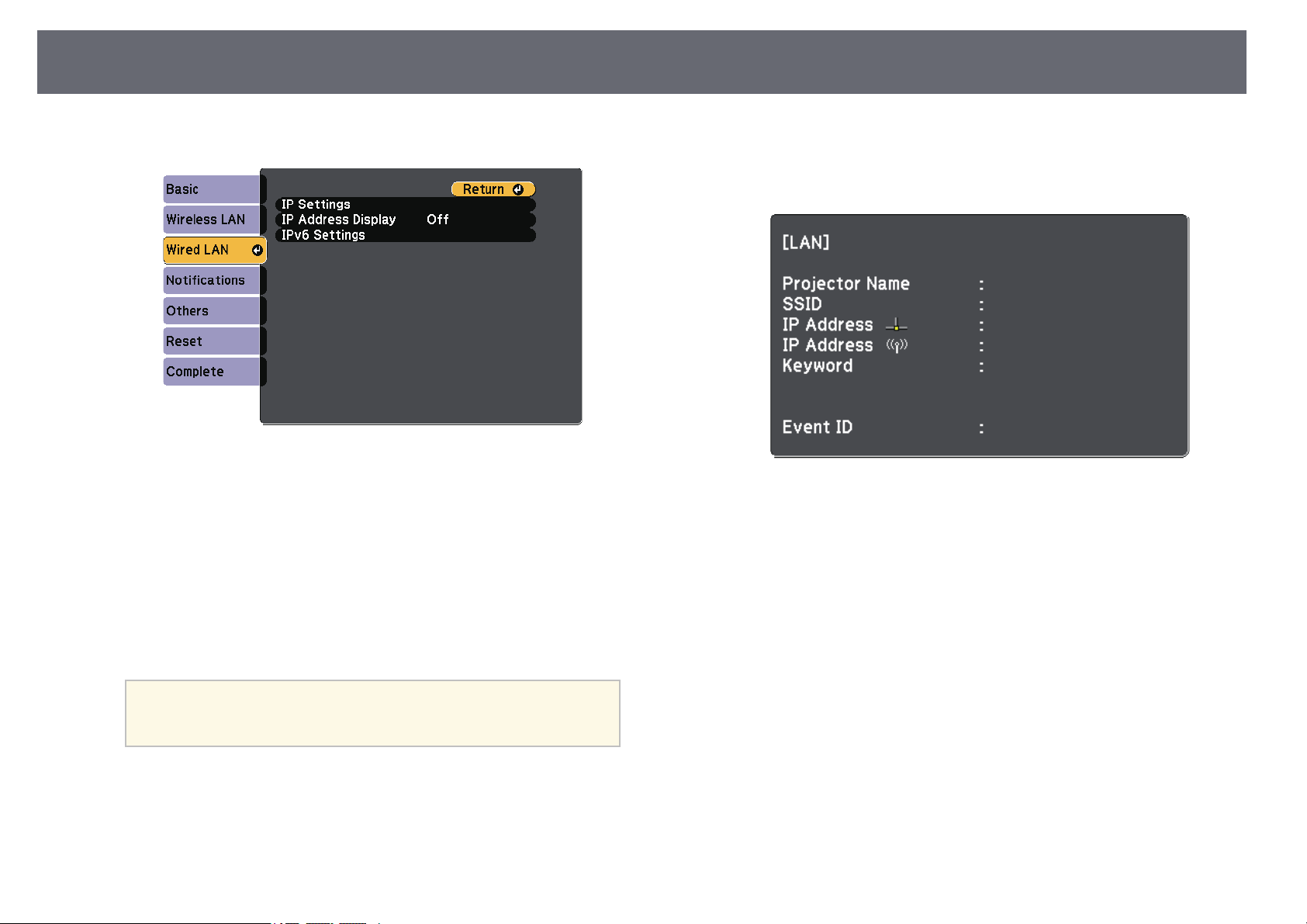
WiredNetworkProjection
90
e
Select theWired LANmenu and press[Enter].
f
Assign theIP settingsfor your networkas necessary.
•If yournetwork assignsaddresses automatically, selectIP Settingsto
set theDHCP settingto On.
•If youmust setaddresses manually, selectIP Settingsto setthe
DHCPsettingto Off,and then enterthe projector's IPAddress,
SubnetMask,and GatewayAddressas necessary.
•If youwant toconnect the projectorto thenetwork using IPv6,select
IPv6Settingsto set theIPv6 settingto On,and then setthe Auto
Configuration andUse TemporaryAddress settingsas necessary.
a
To highlightthenumbersyouwantfromthedisplayedkeyboard,
press thearrowbuttonsontheremotecontrol.Toselecta
highlighted number,press[Enter].
g
To preventthe IPaddress from beingdisplayed onthe LAN standby
screen andHome screen,set the IPAddress Displaysetting toOff.
h
When youfinish selectingsettings, select Completeand follow theon-
screen instructionsto saveyour settings andexit themenus.
i
Press the[LAN] button onthe remotecontrol.
The wirednetwork settingscomplete when yousee thecorrect IP
address onthe LANstandby screen.
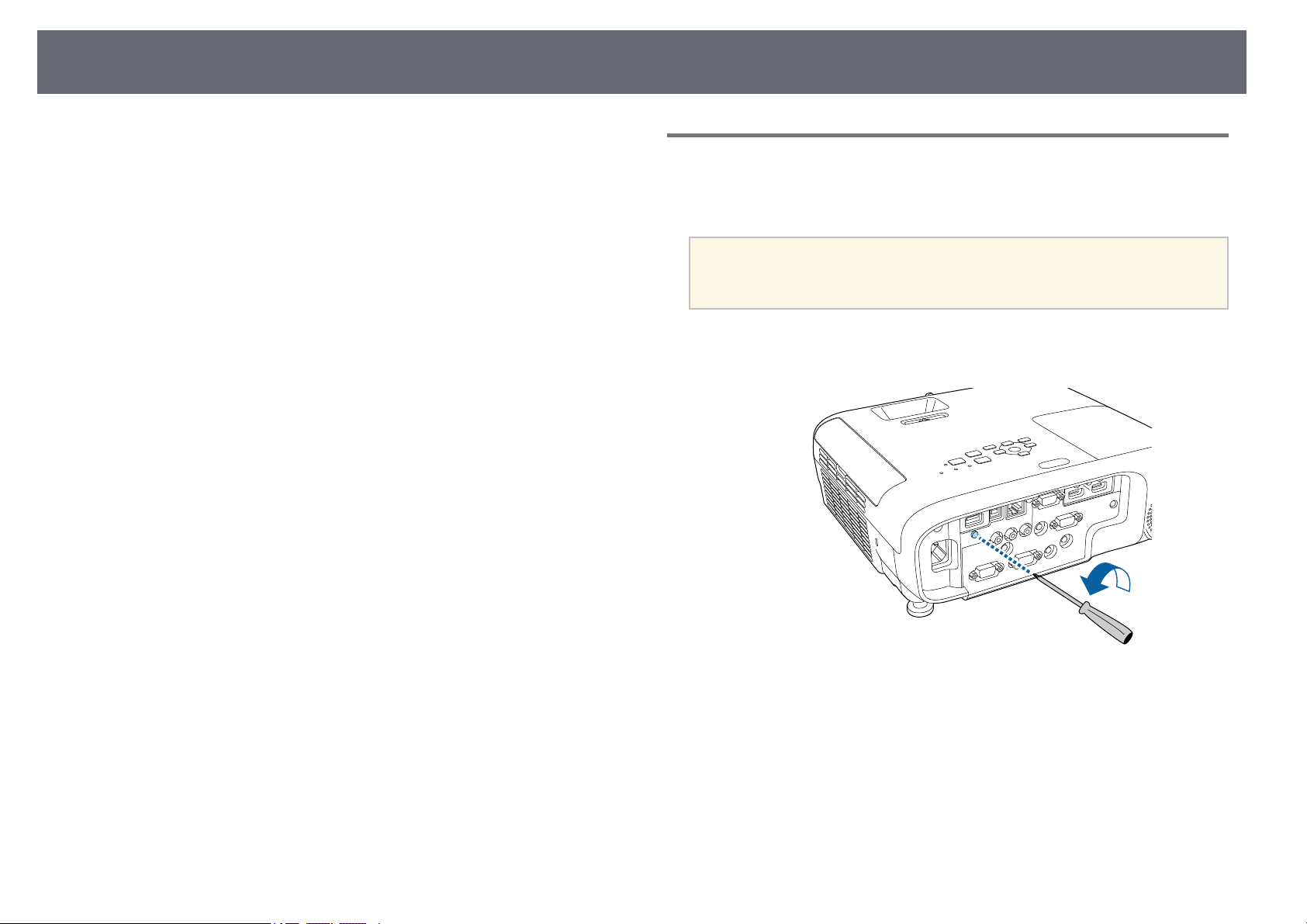
WirelessNetworkProjection
91
You cansend imagesto your projectorthrough awireless network.
•To dothis, youmust install theEpson 802.11b/g/nwireless LAN module,
and thenset upyour projector andcomputer forwireless projection.
•Some modelshave built-inwireless LAN modules.You don'tneed to install
the Epson802.11b/g/n wirelessLAN module.
You canconnect theprojector to yourwireless networkby configuring the
connection manuallyusing theprojector's Network menus.
After installingthe wirelessLAN module andsetting upthe projector,
download andinstall thenecessary network software.Use thefollowing
software anddocumentation toset up andcontrol wirelessprojection.
•Epson iProjection(Windows/Mac) softwareallows you tohold interactive
meetings byprojecting thecomputer screens ofusers overa network. See
the EpsoniProjection OperationGuide (Windows/Mac) forinstructions.
•Epson iProjection(iOS/Android) appallows you toproject fromiOS or
Android devices.
You candownload EpsoniProjection from theApp Storeor Google Play.
Any feesincurred whencommunicating with theApp Storeor Google Play
are theresponsibility ofthe customer.
•Epson iProjection(Chromebook) appallows you toproject from
Chromebook devices.
You candownload EpsoniProjection from theChrome WebStore. Any fees
incurred whencommunicating withthe Chrome WebStore arethe
responsibility ofthe customer.
ggRelatedLinks
•"Installing theWireless LAN Module"p.91
•"Selecting WirelessNetwork Settings Manually"p.92
•"Selecting WirelessNetwork Settings inWindows" p.94
•"Selecting WirelessNetwork Settings inMac" p.95
•"Setting UpWireless Network Security"p.95
•"Using aQR Code toConnect aMobile Device" p.97
•"Using aUSB Key toConnect aWindows Computer" p.98
•"List ofFunctions" p.10
InstallingtheWirelessLANModule
To usethe projectorover a wirelessnetwork, installthe Epson 802.11b/g/n
wireless LANmodule. Donot install anyother typeof wireless LANmodule.
Attention
Never removethemodulewhileitsindicatorisblueorflashing,orwhileyouare
projecting wirelessly.Thiscoulddamagethemoduleorlosedata.
a
Use across-head screwdriverto remove thescrew thatsecures the
wireless LANmodule cover.
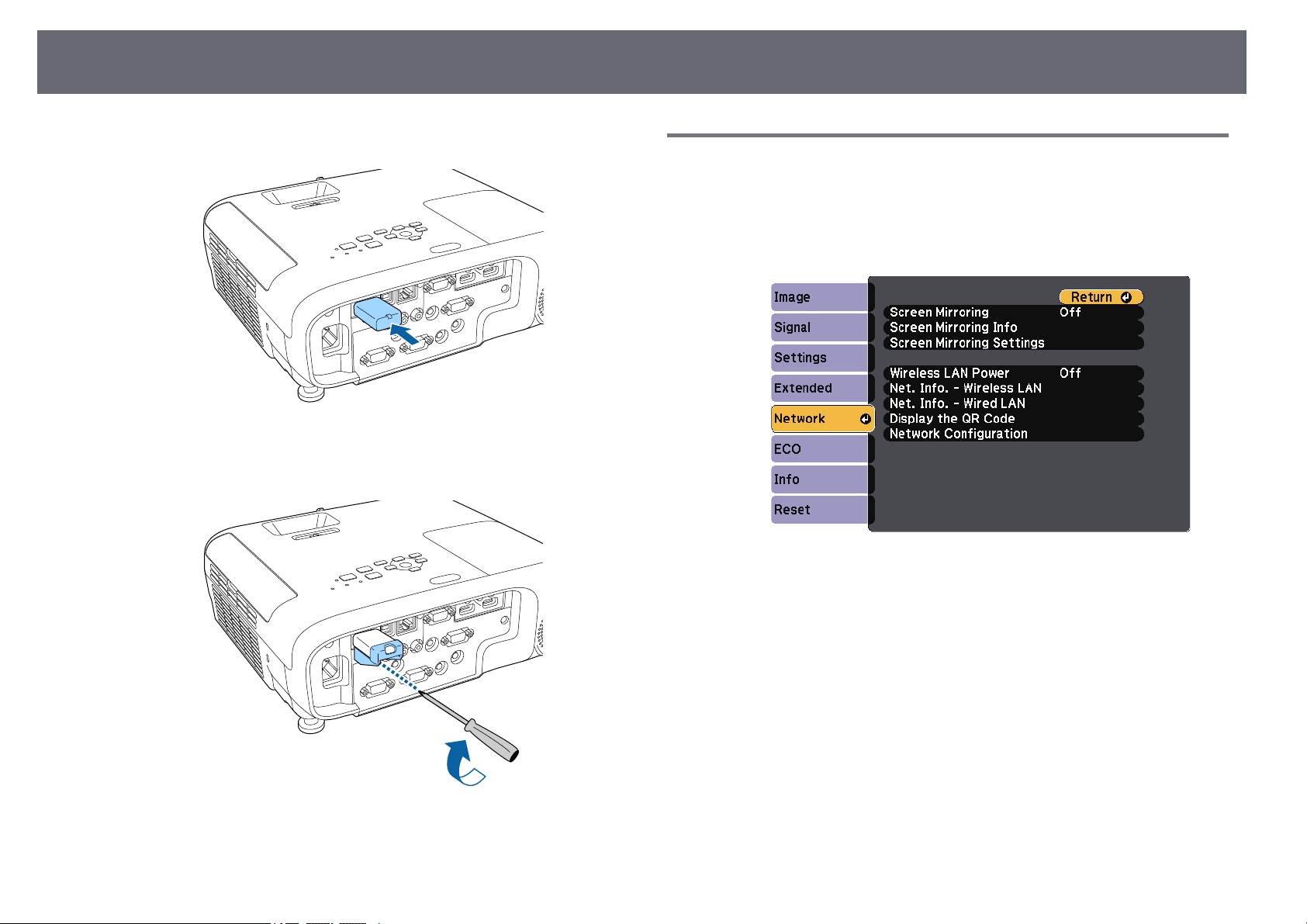
WirelessNetworkProjection
92
b
Connect thewireless LANmodule to theUSB-A port.
c
Attach thewireless LANmodule cover, andsecure itin place withthe
screw.
ggRelatedLinks
•"List ofFunctions" p.10
SelectingWirelessNetworkSettingsManually
Before youcan projectfrom your wirelessnetwork, youneed to select
network settingsfor theprojector.
a
Press the[Menu] button,select the Networkmenu, and press[Enter].
b
Select Onas the WirelessLAN Powersetting.
c
Select NetworkConfiguration andpress [Enter].
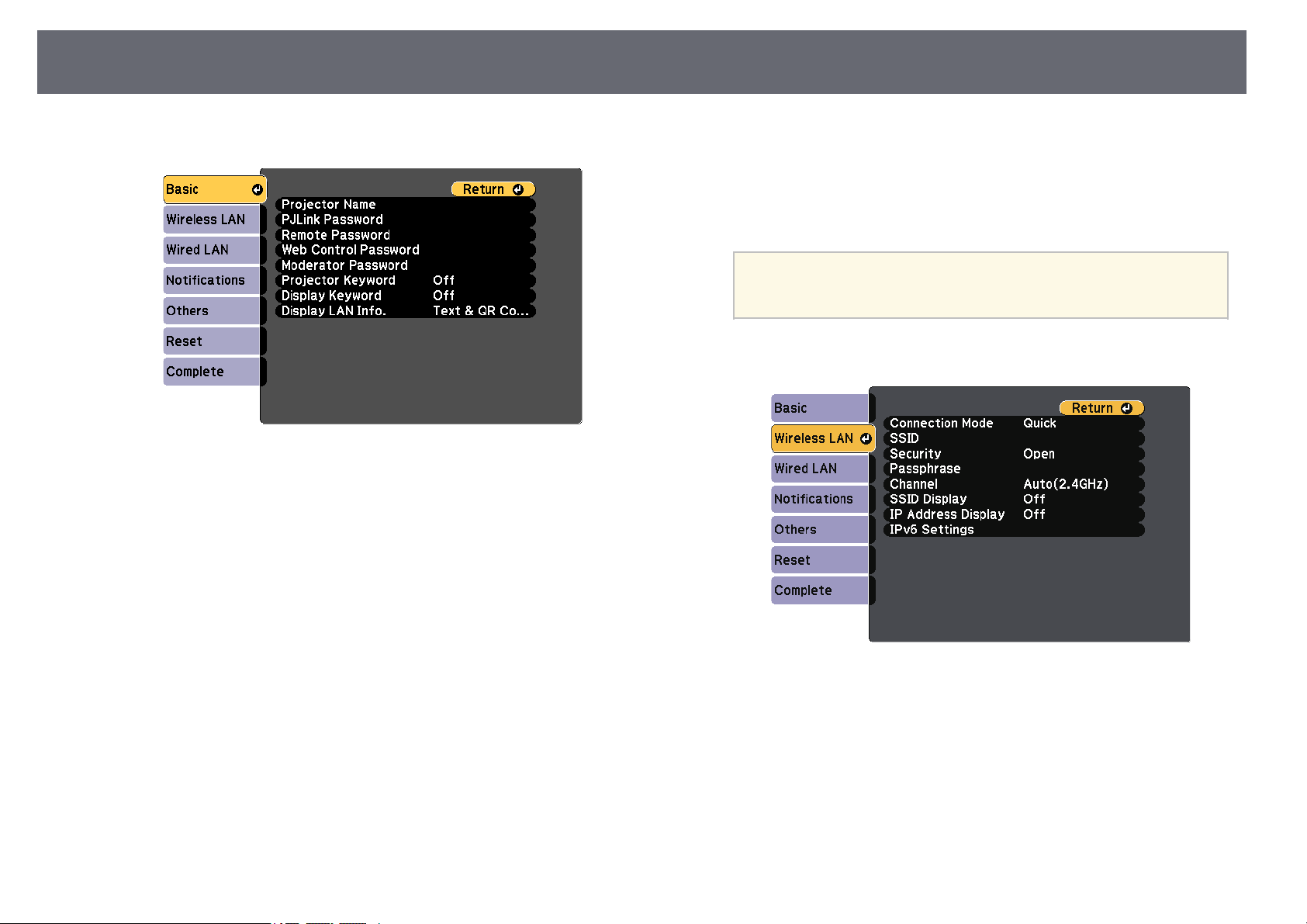
WirelessNetworkProjection
93
d
Select theBasic menuand press [Enter].
e
Select thebasic optionsas necessary.
•ProjectorNamelets youenter a nameup to16 alphanumeric
characters longto identifythe projector overthe network.
•PJLinkPasswordlets you entera passwordup to 32alphanumeric
characters longfor usingthe PJLink protocolfor projectorcontrol.
•RemotePasswordlets youenter a passwordup to8 alphanumeric
characters longfor accessingthe projector usingthe BasicControl.
(User nameis EPSONREMOTE;default password isguest.)
•WebControlPassword letsyou enter apassword upto 8
alphanumeric characterslong foraccessing the projectorover the
Web. (Username is EPSONWEB;default passwordis admin.)
•ModeratorPasswordlets you entera four-digitnumber password
for accessingthe projectoras a moderatorusing EpsoniProjection.
(No passwordis setby default.)
•ProjectorKeywordlets you turnon asecurity password toprevent
access tothe projectorby anyone notin theroom with it.You must
enter adisplayed, randomizedkeyword from acomputer using
Epson iProjectionto accessthe projector andshare thecurrent
screen.
•DisplayKeywordlets youselect whether todisplay aprojector
keyword onthe projectedimage when accessingthe projectorusing
Epson iProjection.
•DisplayLANInfo. letsyou setthe display formatfor theprojector's
network information.
a
Use thedisplayedkeyboardtoenternumbersandcharacters.
Press thearrowbuttonsontheremotecontroltohighlight
characters andpress[Enter]toselectthem.
f
Select theWireless LANmenu and press[Enter].
g
Select theConnection Modesetting.
•Quick letsyou connectto multiplesmartphones, tablets, or
computers directlyusing wirelesscommunication.
•Advancedletsyou connectto smartphones, tablets,or computers
over awireless networkaccess point.
h
If youselected the Advancedconnection mode,select SearchAccess
Point toselect theaccess point youwant toconnect to.
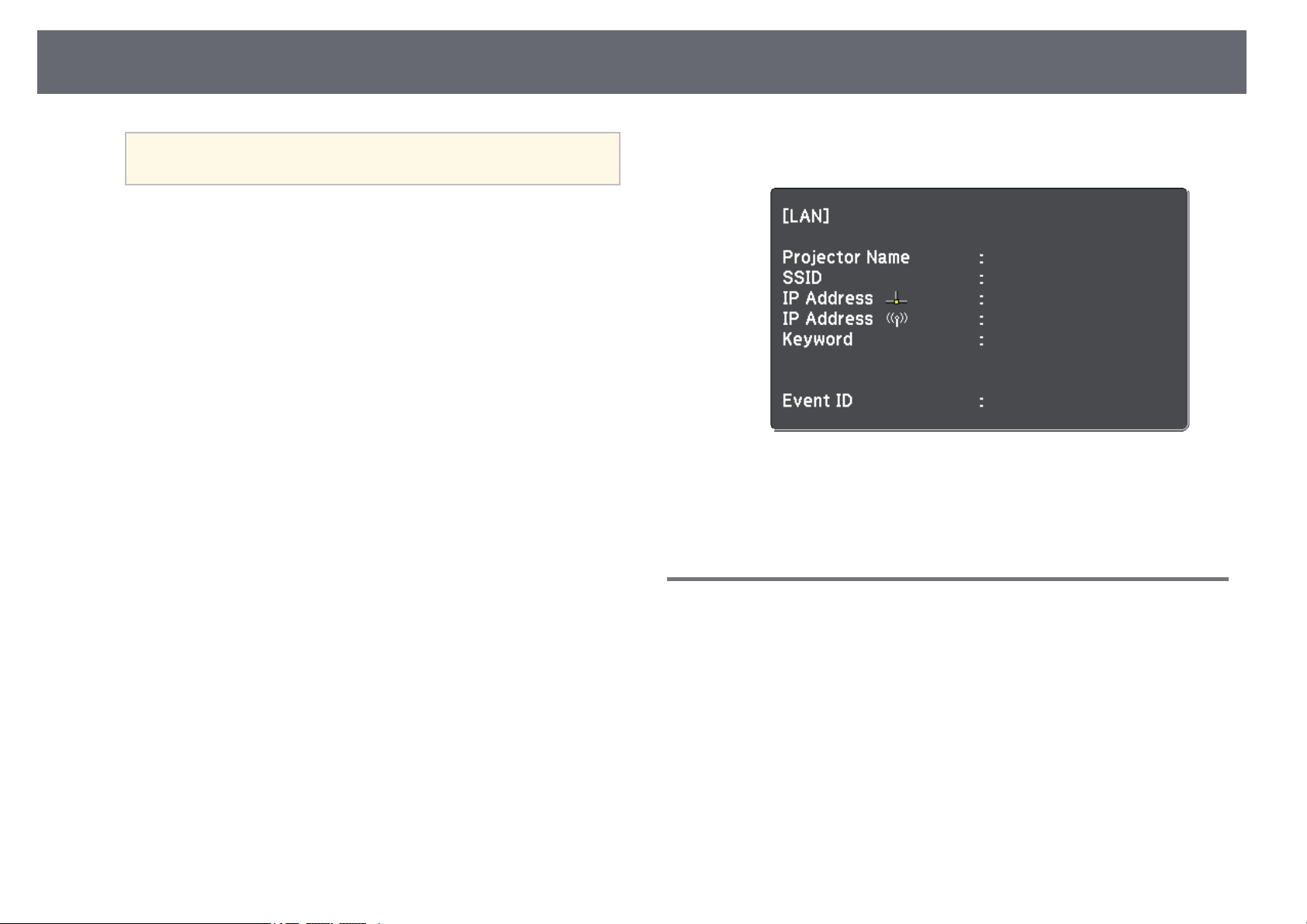
WirelessNetworkProjection
94
a
If youneedtoassigntheSSIDmanually,selectSSIDtoenterthe
SSID.
i
For theAdvanced connectionmode, assignthe IP settingsfor your
network asnecessary.
•If yournetwork assignsaddresses automatically, selectIP Settingsto
set theDHCP settingto On.
•If youmust setaddresses manually, selectIP Settingsto setthe
DHCPsettingto Off,and then enterthe projector's IPAddress,
SubnetMask,and GatewayAddressas necessary.
•If youwant toconnect the projectorto thenetwork using IPv6,select
IPv6Settingsto set theIPv6 settingto On,and then setthe Auto
Configuration andUse TemporaryAddress settingsas necessary.
j
To preventthe SSIDor IP addressfrom beingdisplayed on theLAN
standby screenand Homescreen, set theSSID Displaysetting or theIP
AddressDisplaysetting toOff.
k
When youfinish selectingsettings, select Completeand follow theon-
screen instructionsto saveyour settings andexit themenus.
l
Press the[LAN] button onthe remotecontrol.
The wirelessnetwork settingsare complete whenyou seethe correct IP
address onthe LANstandby screen.
When youhave finishedmaking wireless settingsfor yourprojector, you need
to selectthe wirelessnetwork on yourcomputer. Thenstart the network
software tosend imagesto your projectorthrough awireless network.
SelectingWirelessNetworkSettingsinWindows
Before connectingto theprojector, select thecorrect wirelessnetwork on your
computer.
a
To accessyour wirelessutility software, clickthe networkicon on the
Windows taskbar.
b
When connectingin Advanced connectionmode, selectthe network
name (SSID)of thenetwork the projectoris connectingto.
c
Click Connect.
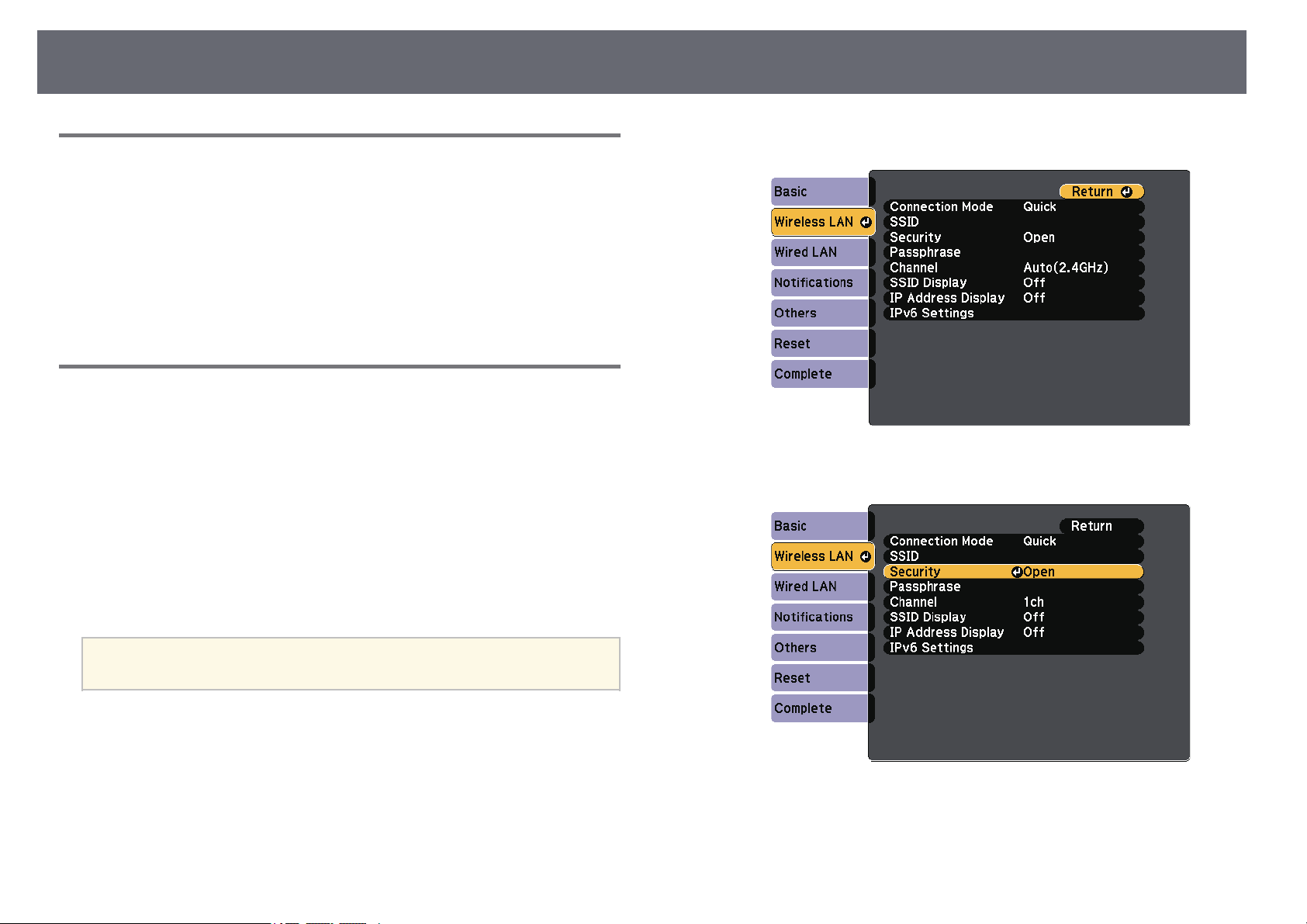
WirelessNetworkProjection
95
SelectingWirelessNetworkSettingsinMac
Before connectingto theprojector, select thecorrect wirelessnetwork in Mac.
a
Click theWi-Fi iconon the menubar atthe top ofthe screen.
b
When connectingin Advanced connectionmode, makesure Wi-Fi is
turned onand selectthe network name(SSID) ofthe network the
projector isconnecting to.
SettingUpWirelessNetworkSecurity
You canset upsecurity for yourprojector touse on awireless network.Set up
one ofthe followingsecurity options tomatch thesettings used onyour
network:
•WPA2-PSK security
•WPA3-PSK security*
•WPA2/WPA3-PSK security*
•WPA3-EAP security*
•WPA2/WPA3-EAP security*
* Availableonly forthe Advanced connectionmode.
a
Contact yournetworkadministratorforguidanceonenteringthe
correct information.
a
If youwant toset up theWPA3-EAP or WPA2/WPA3-EAPsecurity,
make sureyour digitalcertificate file iscompatible withprojector
registration andplaced directlyon the USBstorage device.
b
Press the[Menu] button,select the Networkmenu, and press[Enter].
c
Select NetworkConfiguration andpress [Enter].
d
Select theWireless LANmenu and press[Enter].
e
Select theSecurity settingand press [Enter].
f
Select thesecurity settingsto match yournetwork settings.
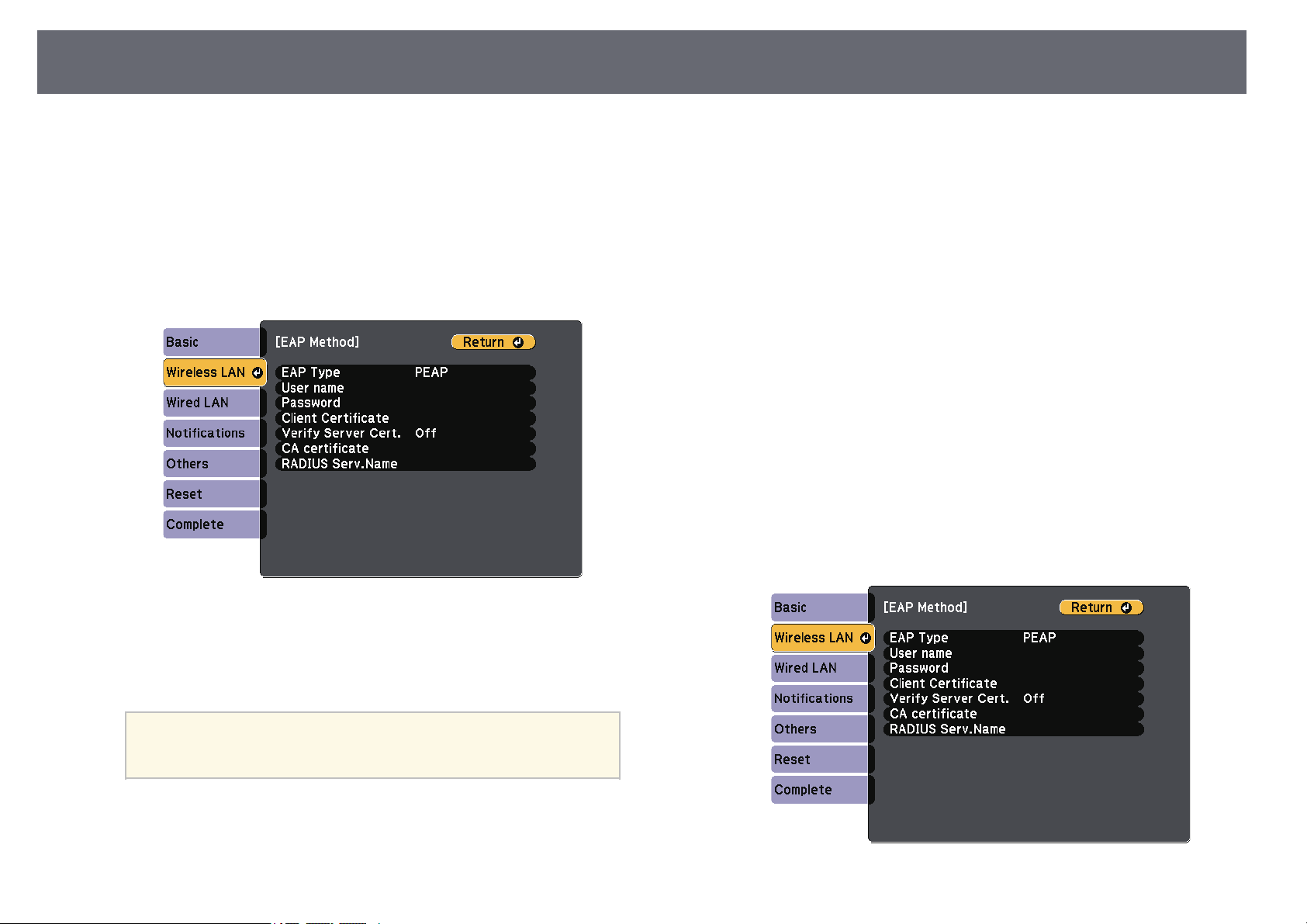
WirelessNetworkProjection
96
g
Do oneof thefollowing according tothe securityyou selected.
•WPA3-PSK orWPA2/WPA3-PSK: Select Passphrase,press [Enter],
and entera passphrasefrom 8 to63 characterslong. To entermore
than 32characters, useyour Web browser.Then goto step 16.
•WPA3-EAPorWPA2/WPA3-EAP: Select EAPMethod and press
[Enter].
h
Select theprotocol forauthentication as theEAP Typesetting.
i
To importyour certificate,select the certificatetype andpress [Enter].
•ClientCertificatefor the PEAP-TLSor EAP-TLS type
•CAcertificatefor all EAPtypes
a
You canalsoregisterthedigitalcertificatesfromyourWeb
browser. However,besuretoregisterjustonceorthecertificate
may notinstallcorrectly.
j
Select Registerand press [Enter].
k
Follow theon-screen instructionsto connect aUSB storagedevice to
the projector'sUSB-A port.
l
Press [Enter]to display thecertificate list.
m
Select thecertificate toimport using thedisplayed list.
A messageis displayedprompting you toenter thepassword for the
certificate.
n
Enter apassword andpress [Enter].
The certificateis importedand a completionmessage appears.
o
Select yourEAP settings asnecessary.
•Usernamelets youenter a username usingup to 64alphanumeric
characters. Toenter morethan 32 characters,use yourWeb browser.
When importinga clientcertificate, the namethe certificatewas
issued tois automaticallyset.
•Password letsyou entera password usingup to64 alphanumeric
characters forauthentication whenusing the PEAPor EAP-FAST
type. Toenter morethan 32 characters,use yourWeb browser.
•VerifyServerCert. letsyou selectwhether or notto verifythe server
certificate whena CAcertificate has beenset.
•RADIUSServ.Namelets you enterthe servername to beverified.
WirelessNetworkProjection
97
p
When youhave finishedmaking settings, selectComplete andfollow
the on-screeninstructions tosave your settingsand exitthe menus.
ggRelatedLinks
•"Supported Clientand CA Certificates"p.97
•"Network Menu- Wireless LANMenu" p.140
SupportedClientandCACertificates
You canregister thesetypes of digitalcertificates.
ClientCertificate(PEAP-TLS/EAP-TLS)
SpecificationDescription
FormatPKCS#12
ExtensionPFX, P12
EncryptionRSA
HashesMD5/SHA-1/SHA-256/SHA-384/SHA-512
Key length512/1024/2048/4096 bit
Password *Up to64alphanumericcharacters;required
CACertificate(PEAP/PEAP-TLS/EAP-TLS/EAP-FAST)
SpecificationDescription
FormatX509v3
ExtensionDER/CER/PEM
EncryptionRSA
HashesMD5/SHA-1/SHA-256/SHA-384/SHA-512
Key length512/1024/2048/4096 bit
EncodingBASE64/Binary
* Youcan seta password usingup to64 alphanumeric characters.However,
you needto useyour Web browserto entermore than 32characters.
UsingaQRCodetoConnectaMobileDevice
After selectingthe wirelessnetwork settings foryour projector,you can
display aQR codeon the screenand useit to connecta mobiledevice using
the EpsoniProjection (iOS/Android)app.
a
•MakesureyouhaveinstalledthelatestversionofEpsoniProjection
on yourdevice.
•YoucandownloadEpsoniProjectionforfreefromtheAppStoreor
Google Play.AnyfeesincurredwhencommunicatingwiththeApp
Store orGooglePlayaretheresponsibilityofthecustomer.
•WhenusingEpsoniProjectioninQuick connectionmode,we
recommend makingsecuritysettings.
a
Press the[LAN] button onthe remotecontrol.
The QRcode isdisplayed on theprojected surface.
a
•IfyoudonotseetheQRcode,setthe DisplayLANInfo.
setting toText&QRCodeintheprojector'sNetworkmenu.
sNetwork> NetworkConfiguration>Basic>Display
LANInfo.
•TohidetheQRcode,press[Esc].
•WhentheQRcodeishidden,press[Enter]todisplaythecode.
b
Start EpsoniProjection onyour mobile device.
c
Read theprojected QRcode using EpsoniProjection toconnect it to
the projector.
a
To correctlyreadtheQRcode,makesureyoufacethescreen
squarely andcloselyenoughsothattheprojectedcodefitsinto
the guideofthemobiledevice'sQRcodereader.Ifyouaretoo
far fromthescreen,thecodemaynotberead.
When aconnection isestablished, select Contentsmenu from, and
then selectthe fileyou want toproject.

WirelessNetworkProjection
98
UsingaUSBKeytoConnectaWindowsComputer
You canset upyour USB flashdrive asa USB keyto quicklyconnect the
projector toa wirelessLAN supported Windowscomputer. Aftercreating the
USB key,you canquickly project imagesfrom thenetwork projector.
a
Set upthe USBkey using EpsoniProjection (Windows/Mac)software.
a
See theEpsoniProjectionOperationGuide(Windows/Mac)for
instructions.
b
Make surethe wirelessLAN module isinstalled orbuilt into your
projector.
c
Turn onthe projector.
d
Press the[LAN] button onthe remotecontrol.
The LANstandby screenis displayed. Verifythat anSSID and IP
address aredisplayed.
e
Do oneof thefollowing to connectthe USBkey.
•Connect theUSB keyto the projector's USB-Aport. (Models witha
built-in wirelessLAN module.)
•Remove thewireless LANmodule from theprojector andinsert the
USB keyinto thesame port usedfor thewireless LAN module.
(Models withthe optionalwireless LAN moduleinstalled.)
You seea projectedmessage that thenetwork informationupdate is
complete.
f
Remove theUSB key.
If yourprojector needsthe wireless LANmodule, reinsertthe wireless
LAN moduleinto theprojector. (Models withthe optionalwireless
LAN moduleinstalled.)
g
Connect theUSB keyto a USBport onyour computer.
h
Follow theon-screen instructionsto install thenecessary application.
a
•IftheWindowsFirewallmessageisdisplayed,clickYesto
disable thefirewall.
•Youneedadministratorauthoritytoinstallthesoftware.
•Ifitisnotinstalledautomatically,double-click
MPPLaunch.exeintheUSBkey.
After afew minutes,your computer imageis displayedby the projector.
i
When youhave finishedprojecting wirelessly, selectthe SafelyRemove
Hardware optionin theWindows taskbar, andthen removethe USB
key fromyour computer.
a
You mayneedtorestartyourcomputertoreactivateyour
wireless LANconnection.
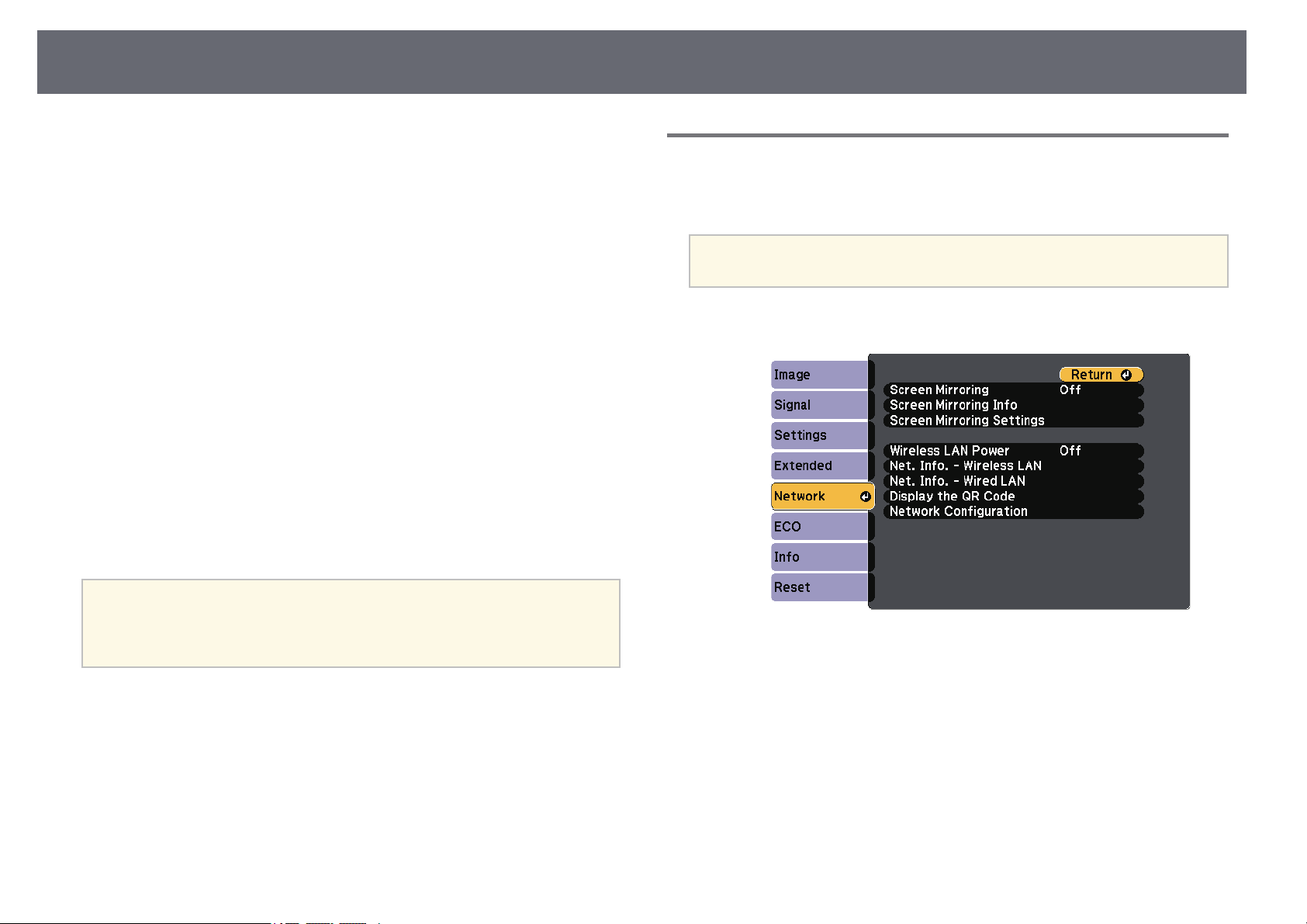
WirelessNetworkProjectionfromaMobileDevice(ScreenMirroring)
99
You cansend imageto your projectorfrom mobiledevices such aslaptops,
smartphones, andtablets usingMiracast technology.
If yourdevice supportsMiracast, you donot needto install anyadditional
software. Whenusing aWindows computer, makesure thenecessary adapter
for theMiracast connectionis available.
Note thefollowing limitationswhen using ScreenMirroring features.
•You cannotplay aninterlaced image.
•You cannotplay multi-channelaudio over 3ch(channel 3).
•You cannotproject imageswith a resolutionabove 1920× 1080 anda frame
rate above30 fps.
•You cannotplay 3Dvideo.
•You maynot beable to viewcontents withcopyright protection witha
Miracast connectiondepending onyour device.
•Do notchange theprojector's Screen MirroringSettings during Screen
Mirroring projection.Doing somay cause theprojector todisconnect and it
may takea whileto re-connect.
sNetwork> ScreenMirroringSettings
•Do notturn offthe projector directlyby thebreaker during Screen
Mirroring projection.
a
Mobile deviceswithAndroidinstalledorWindows8.1orlaterinstalled
mainly supportMiracast.
Support forMiracastvariesdependingonthemobiledevice.Seeyour
mobile devicemanualfordetails.
ggRelatedLinks
•"Selecting ScreenMirroring Settings" p.99
•"Connecting UsingScreen Mirroring withthe MiracastFunction" p.101
•"List ofFunctions" p.10
SelectingScreenMirroringSettings
You mustselect ScreenMirroring settings foryour projectorto projectimages
from yourmobile device.
a
If yousetaScreenMirroringProtec.password,turnoffyourScreen
MirroringProtec.password first.
a
Press the[Menu] button,select the Networkmenu, and press[Enter].
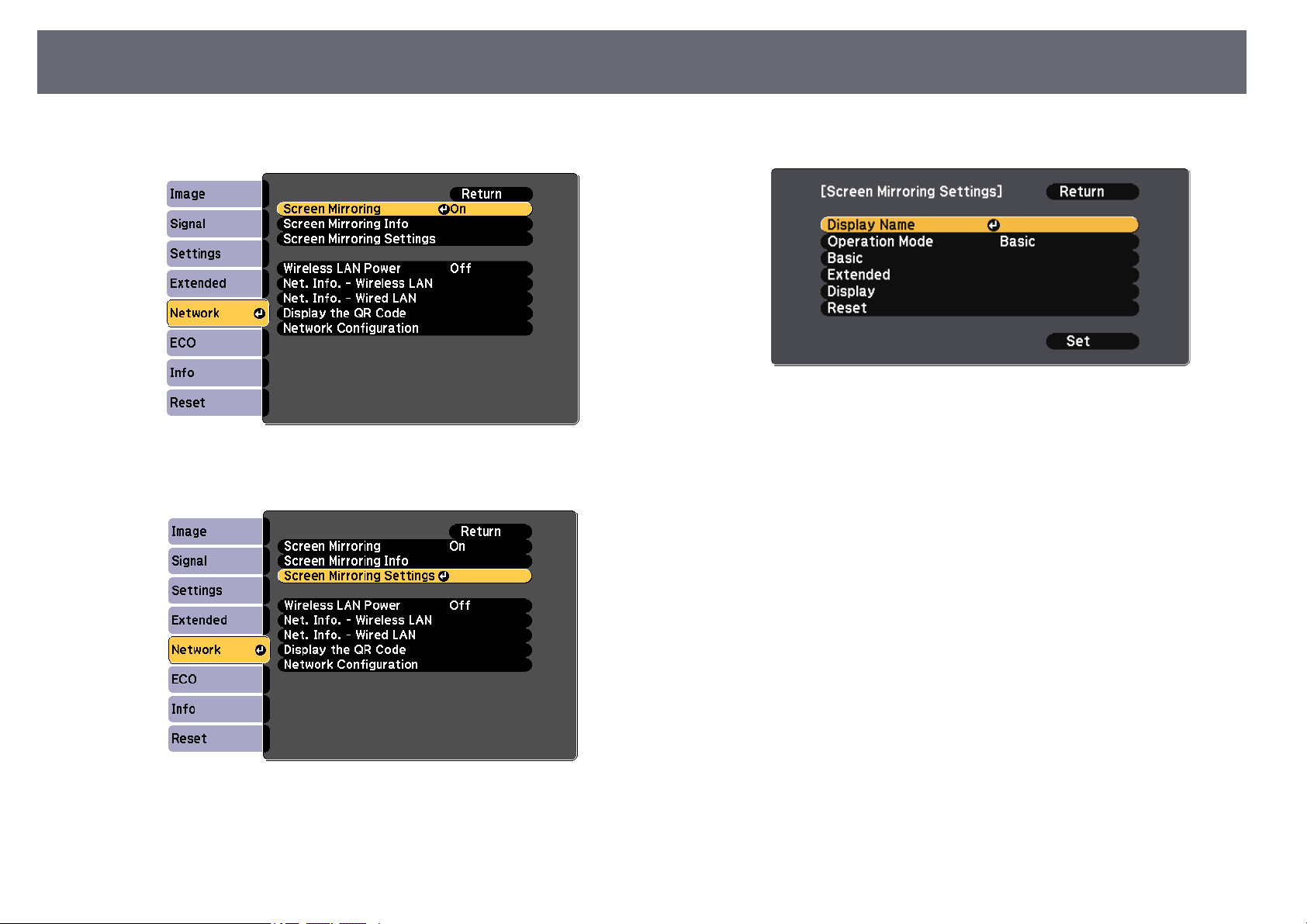
WirelessNetworkProjectionfromaMobileDevice(ScreenMirroring)
100
b
Select Onas the ScreenMirroring setting.
c
Select ScreenMirroring Settingsand press [Enter].
d
Set theDisplay Namesetting as necessary.
e
Select theOperation Modesetting.
•Basicletsyou connectwith basic options.
•Extended letsyou connectwith advanced options.
f
Select theBasic settingas necessary.
•WirelessLANSys. letsyou selectthe type ofwireless LANsystem
the projectoris connectingto.
•AdjustImageQuality letsyou adjust thescreen mirroring
speed/quality. Selecta smallnumber to improvethe qualityand
select largenumber toincrease the speed.
•ConnectionModelets youselect the securitytype. Availableonly for
the Basicoperation mode.
g
For theExtended operationmode, select theExtended setting.
•MeetingModelets you selectthe typeof meeting.Select
InterruptionsOKto connect toanother mobiledevice during
Screen Mirroringprojection orNo Interruptionstoexclusively
connect toone device.
•Channelletsyou selectthe wireless channelused byScreen
Mirroring.

WirelessNetworkProjectionfromaMobileDevice(ScreenMirroring)
101
h
Select theDisplay settingas necessary.
•DisplayPINCode letsyou displaythe PIN codeon theprojected
image whileprojecting inputsources other thanScreen Mirroring.
•DisplayDeviceName letsyou displaythe newly connecteddevice
name onthe projectedimage while projectinginput sourcesother
than ScreenMirroring.
i
When youfinish selectingsettings, select Setandfollow theon-screen
instructions tosave yoursettings and exitthe menus.
j
Press the[Home] buttonon the remotecontrol. Thesettings are
complete whenyou seethe Display Nameon the Homescreen.
ConnectingUsingScreenMirroringwiththeMiracast
Function
If yourmobile devicesuch as asmartphone supportsMiracast, you can
connect itto theprojector wirelessly andproject images.You can playaudio
through theprojector's speakersystem by connectingusing ScreenMirroring.
a
Select ScreenMirroring Settingson yourprojector as necessary.
b
Press the[LAN] button onthe remotecontrol to switchto theScreen
Mirroring source.
You seethe ScreenMirroring standby screen.
c
On yourmobile device,use your Miracastfunction tosearch for the
projector.
You seea listof available devices.
d
Select theprojector's DisplayName from thelist.
e
If yousee thePIN entry screenon yourmobile device, enterthe PIN
code displayedon theScreen Mirroring standbyscreen orat the bottom
right ofthe projectedimage.
The projectordisplays theimage from yourmobile device.
a
It maytakesometimeuntiltheconnectionisestablished.While
connecting, donotdisconnecttheprojector'spowercord.Doing
so maycauseyourdevicetofreezeormalfunction.
Depending onthemobiledevice,youmayneedtodeleteadevice
when connecting.Followtheon-screeninstructionsonyour
device.
ggRelatedLinks
•"Connecting UsingScreen Mirroring inWindows 10"p.101
•"Connecting UsingScreen Mirroring inWindows 8.1"p.102
ConnectingUsingScreenMirroringinWindows10
You canset upyour computer forwireless projectionand play audiothrough
the projector'sspeaker systemby connecting usingScreen Mirroring.
a
Select ScreenMirroring Settingson yourprojector as necessary.
b
Press the[LAN] button onthe remotecontrol to switchto theScreen
Mirroring source.
You seethe ScreenMirroring standby screen.
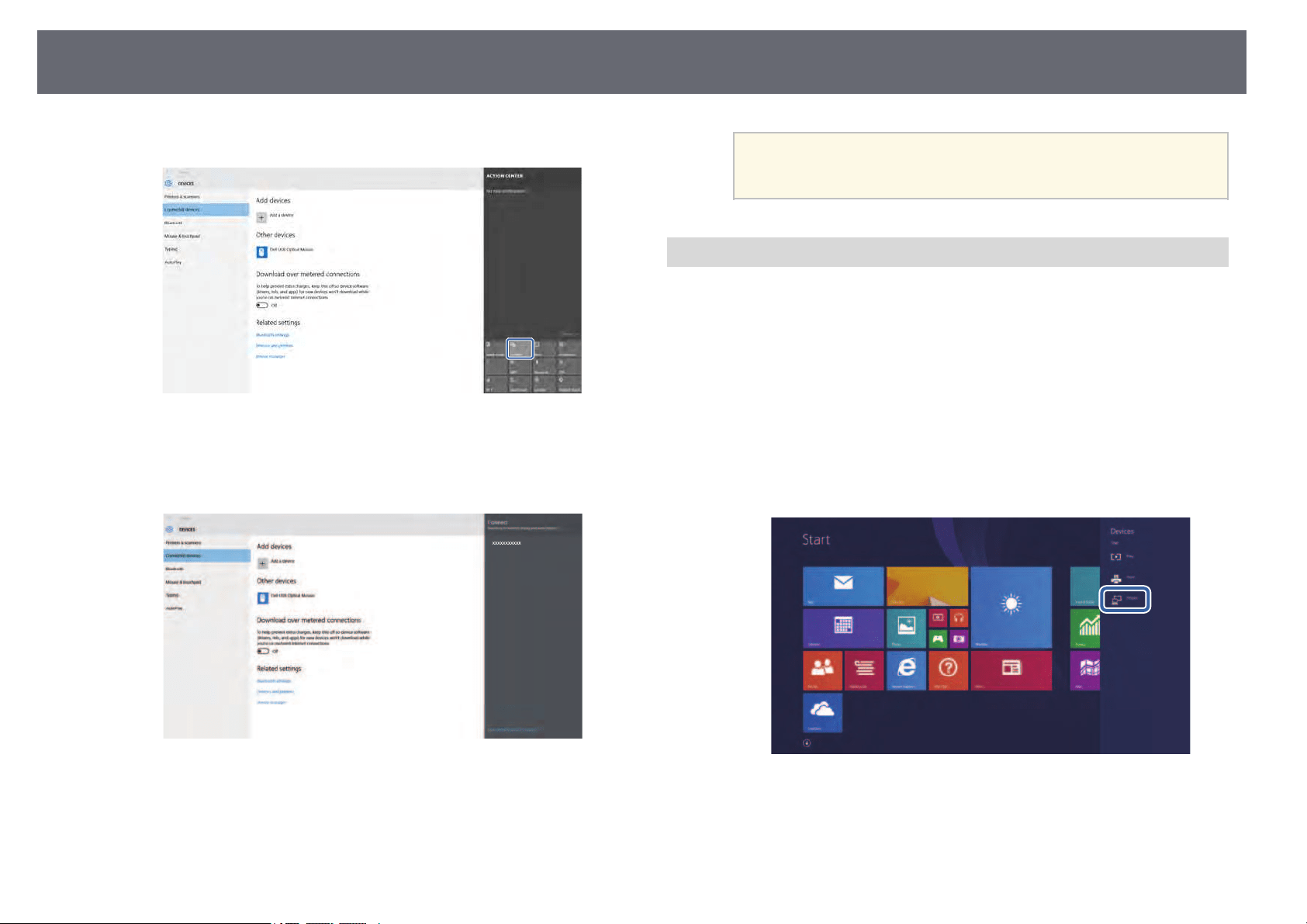
WirelessNetworkProjectionfromaMobileDevice(ScreenMirroring)
102
c
Display ActionCenter, and thenselect Connect.
You seea listof available devices.
d
Select theprojector's DisplayName from thelist.
e
If yousee thePIN entry screenon yourcomputer, enter thePIN code
displayed onthe ScreenMirroring standby screenor atthe bottom
right ofthe projectedimage.
The projectordisplays theimage from yourcomputer.
a
It maytakesometimeuntiltheconnectionisestablished.While
connecting, donotdisconnecttheprojector'spowercord.Doing
so maycauseyourdevicetofreezeormalfunction.
ConnectingUsingScreenMirroringinWindows8.1
You canset upyour computer forwireless projectionfrom Charms in
Windows 8.1.You canplay audio throughthe projector'sspeaker system by
connecting usingScreen Mirroring.
a
Select ScreenMirroring Settingson yourprojector as necessary.
b
Press the[LAN] button onthe remotecontrol to switchto theScreen
Mirroring source.
You seethe ScreenMirroring standby screen.
c
On yourcomputer, select Devicesfrom Charms andselect Project.
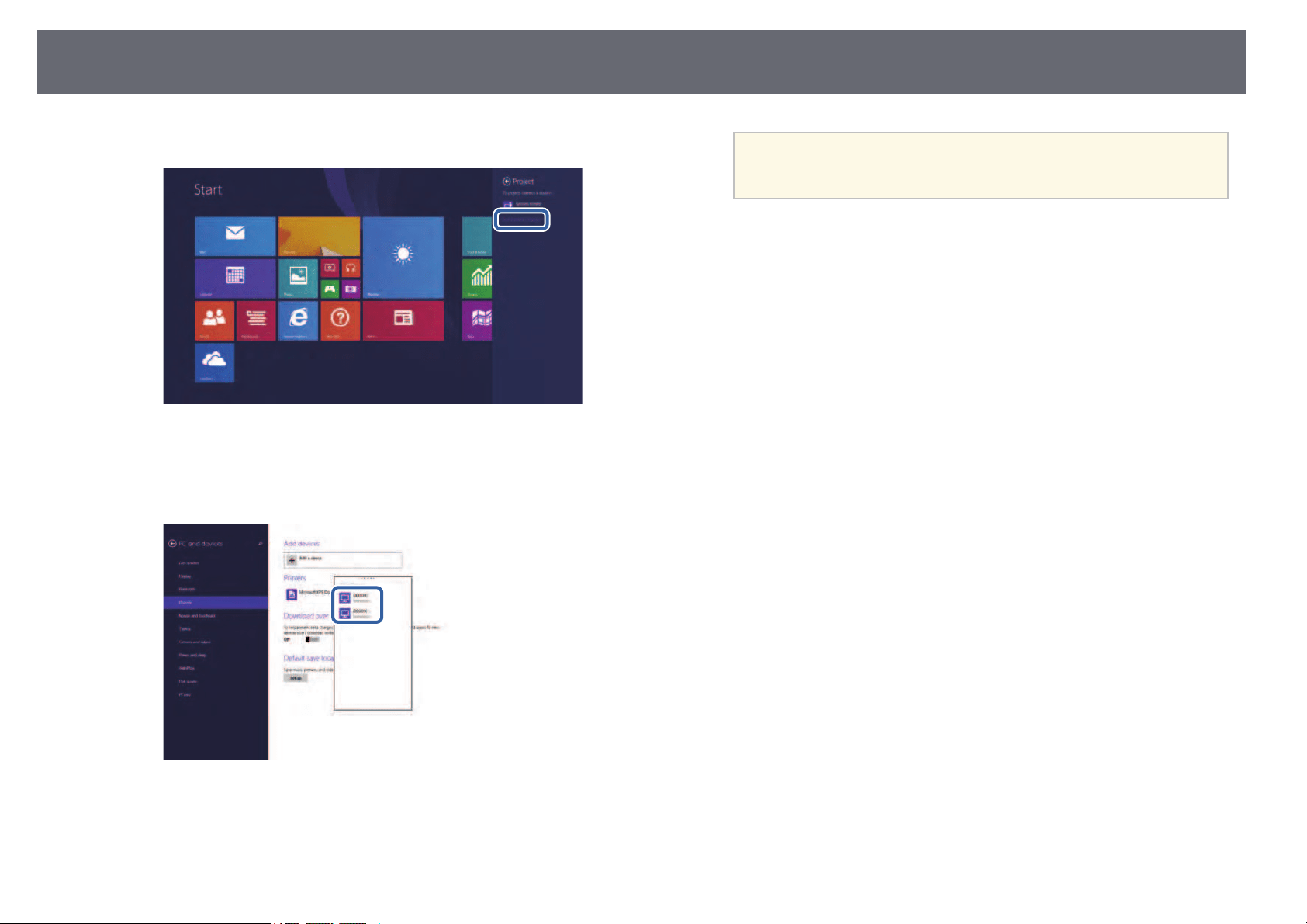
WirelessNetworkProjectionfromaMobileDevice(ScreenMirroring)
103
d
Select Adda wirelessdisplay.
You seea listof available devices.
e
Select theprojector's DisplayName from thelist.
f
If yousee thePIN entry screenon yourcomputer, enter thePIN code
displayed onthe ScreenMirroring standby screenor atthe bottom
right ofthe projectedimage.
The projectordisplays theimage from yourcomputer.
a
It maytakesometimeuntiltheconnectionisestablished.While
connecting, donotdisconnecttheprojector'spowercord.Doing
so maycauseyourdevicetofreezeormalfunction.
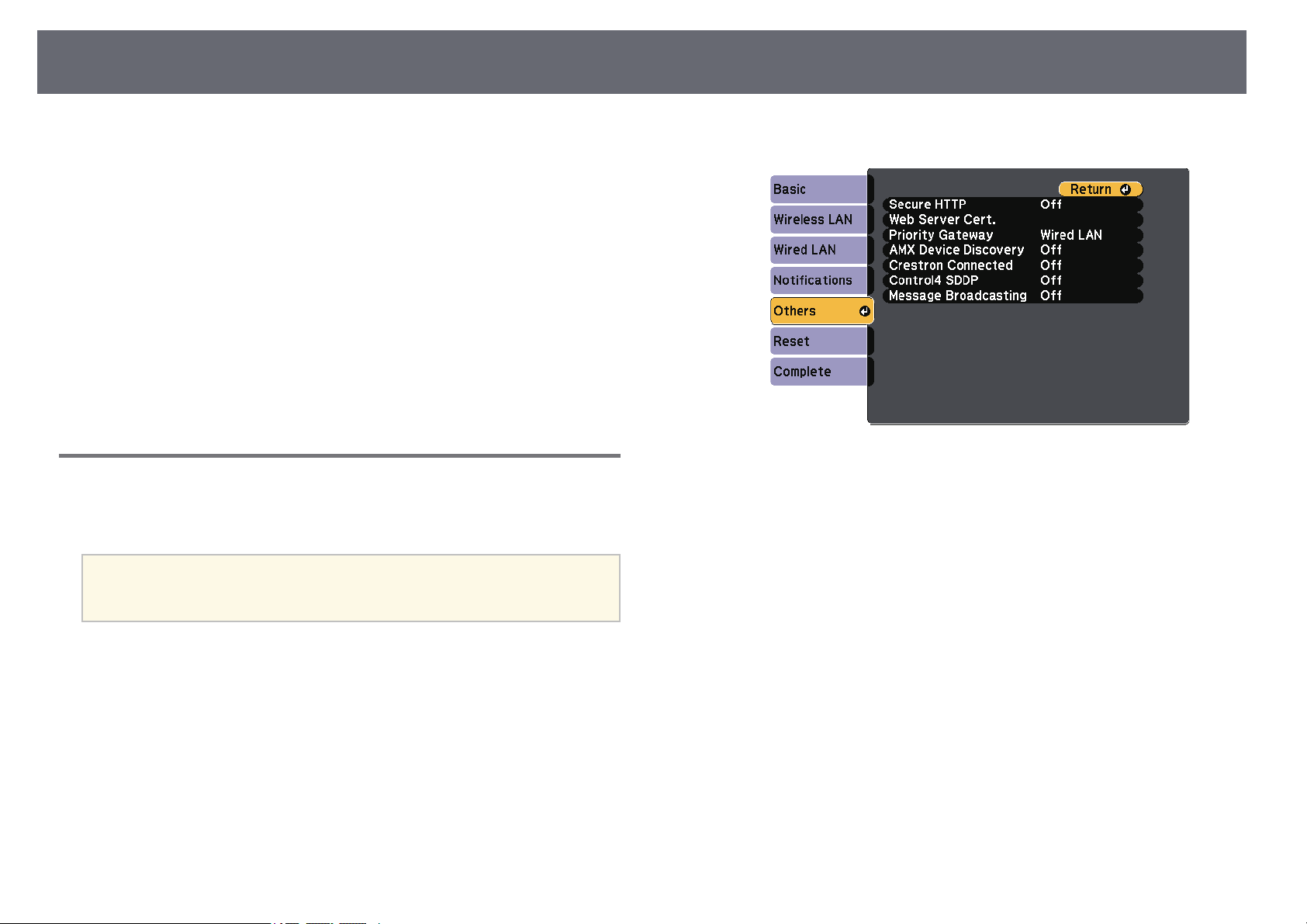
SecureHTTP
104
You canuse theHTTPS protocol toincrease securitybetween the projector
and aWeb browsercommunicating with it.To dothis, you createa server
certificate, installit onthe projector, andturn onthe SecureHTTPsetting in
the projectormenus toverify the reliabilityof theWeb browser.
sNetwork> NetworkConfiguration> Others>Secure HTTP
Even ifyou donot install aserver certificate,the projector automatically
creates aself-signed certificateand allows communication.However, because
the self-signedcertificate cannotverify reliability froma Webbrowser, you
see awarning aboutthe server's reliabilitywhen youaccess the projectorfrom
a Webbrowser. Thiswarning does notprevent communication.
ggRelatedLinks
•"Importing aWeb Server CertificateUsing theMenus" p.104
•"List ofFunctions" p.10
ImportingaWebServerCertificateUsingtheMenus
You cancreate yourWeb server certificate,and importit using theprojector
menus anda USBflash drive.
a
You canalsoregisterthedigitalcertificatesfromyourWebbrowser.
However, besuretoregisterjustonceorthecertificatemaynotinstall
correctly.
a
Make sureyour digitalcertificate file iscompatible withprojector
registration anddirectly placedon the USBstorage device.
b
Press the[Menu] button,select the Networkmenu, and press[Enter].
c
Select NetworkConfiguration andpress [Enter].
d
Select theOthers menuand press [Enter].
e
Set theSecure HTTPsetting to On.
f
Select WebServer Cert.and press [Enter].
g
Select Registerand press [Enter].
h
Follow theon-screen instructionsto connect aUSB storagedevice to
the projector'sUSB-A port.
i
Press [Enter]to display thecertificate list.
j
Select thecertificate toimport using thedisplayed list.
A messageis displayedprompting you toenter thepassword for the
certificate.
k
Enter apassword andpress [Enter].
The certificateis importedand a completionmessage appears.
SecureHTTP
105
ggRelatedLinks
•"Supported WebServer Certificates" p.105
SupportedWebServerCertificates
You canregister thesetypes of digitalcertificates.
WebServerCertificate (SecureHTTP)
SpecificationDescription
FormatPKCS#12
ExtensionPFX, P12
EncryptionRSA
HashesMD5/SHA-1/SHA-256/SHA-384/SHA-512
Key length512/1024/2048/4096 bit
Common nameNetworkhostname
OrganizationOptional
Password *Up to64alphanumericcharacters;required
* Youcan seta password usingup to64 alphanumeric characters.However,
you needto useyour Web browserto entermore than 32characters.

MonitoringandControllingtheProjector
Follow theinstructions inthese sections tomonitor andcontrol the projectorover anetwork.
ggRelatedLinks
•"Epson ProjectorManagement" p.107
•"Controlling aNetworked Projector Usinga WebBrowser" p.108
•"Registering DigitalCertificates from aWeb Browser"p.112
•"Setting UpProjector Network E-MailAlerts" p.113
•"Setting UpMonitoring Using SNMP"p.115
•"Using ESC/VP21Commands" p.116
•"PJLink Support"p.118
•"Crestron ConnectedSupport" p.119
•"Setting ProjectorEvent Schedules" p.124

EpsonProjectorManagement
107
Epson Projector Management software (Windows only) lets you monitor and
control your projector through the network. See the Epson Projector
Management Operation Guide for instructions.
You can download Epson Projector Management from the following Web
site.
epson.com/support/
ggRelated Links
•"List ofFunctions"
p.10
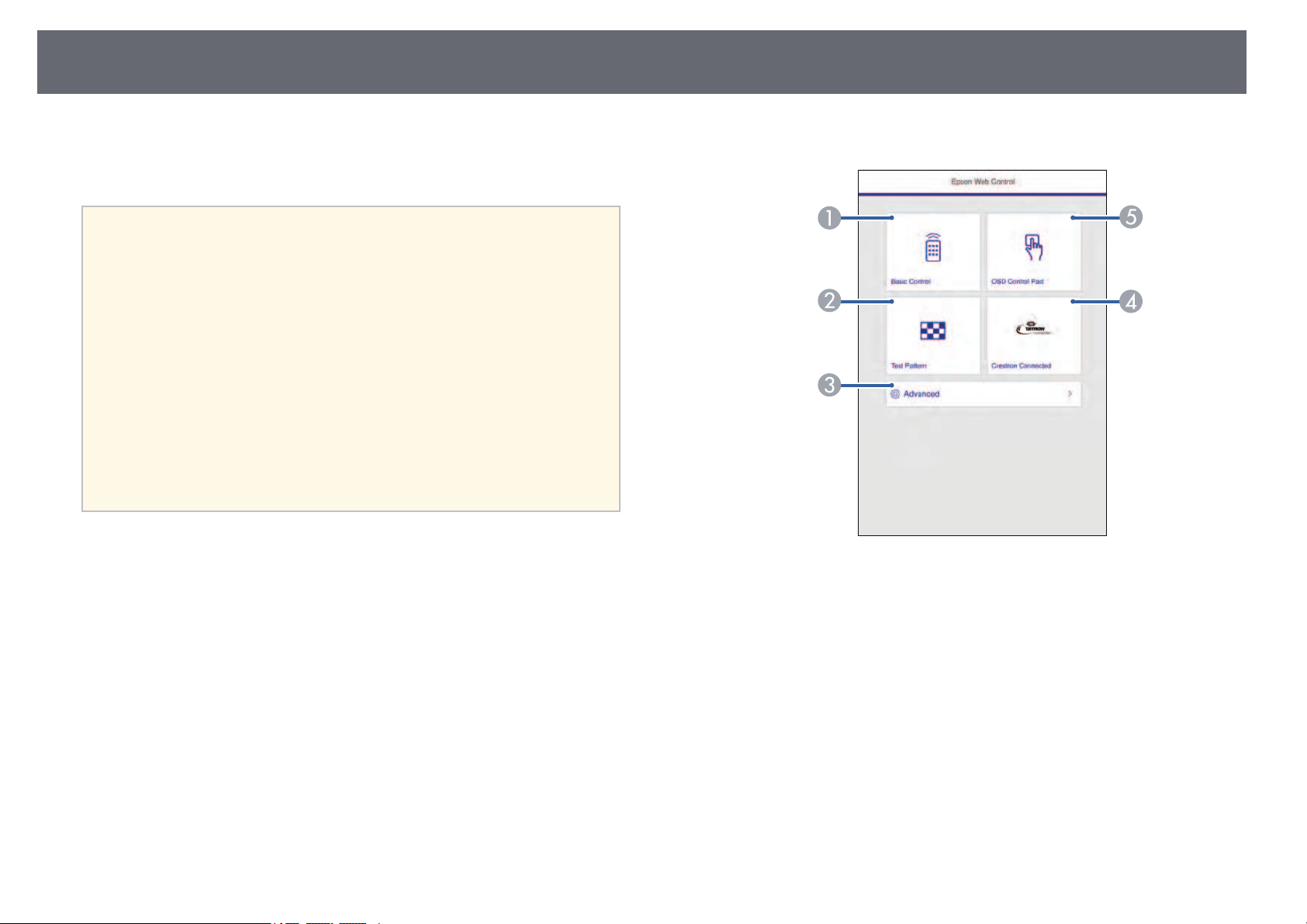
ControllingaNetworkedProjectorUsingaWebBrowser
108
Once youhave connectedyour projector toyour network,you can select
projector settingsand controlprojection using acompatible Webbrowser.
This letsyou accessthe projector remotely.
a
•Makesurethecomputerandprojectorareconnectedtothenetwork.
When projectingimagesusingawirelessLAN,connectinAdvanced
connection mode.
•YoucanusethefollowingWebbrowsers.
•InternetExplorer11orlater(Windows)
•MicrosoftEdge(Windows)
•Safari(Mac,iOS)
•Chrome(Android)
•WhileusingtheWebbrowser,donotconnectusingaproxyserver.
You cannotselectalloftheprojectormenusettingsorcontrolall
projector functionsusingaWebbrowser.
•IfyousetStandbyModeto CommunicationOn,youcanuseaWeb
browser toselectsettingsandcontrolprojectioneveniftheprojector
is instandbymode(whenthepowerisoff).
sECO>StandbyMode>StandbyMode
a
Make surethe projectoris turned on.
b
Make sureyour computeror device isconnected tothe same network
as theprojector.
c
Start yourWeb browseron the computeror device.
d
Go tothe EpsonWeb Control screenby entering theprojector's IP
address intothe browser's addressbox. Whenentering anIPv6 address,
wrap theaddress with[ and ].
You seethe EpsonWeb Control screen.
Controls theprojectorremotely.
B
Displays atestpattern.
C
Sets detailedprojectorsettings.
D
Opens theCrestronConnectedoperationwindow.Availableonlywhen
you settheCrestronConnectedsystem.
E
Operates theprojector'smenusettingswithyourfingerormouse.
e
Select theoption correspondingto the projectorfunction youwant to
control.
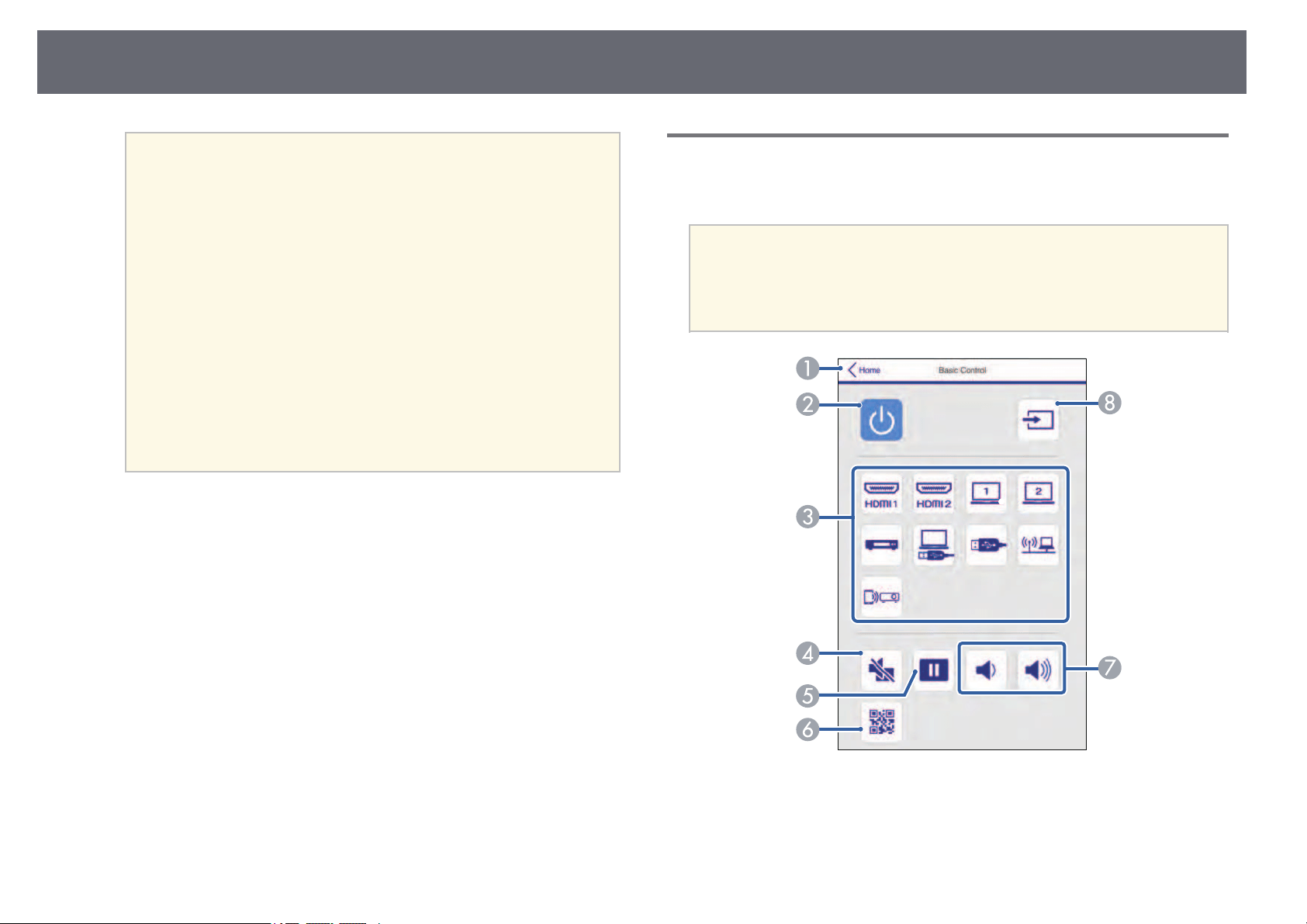
ControllingaNetworkedProjectorUsingaWebBrowser
109
a
•Youmayneedtologintoaccesssomeoftheoptionsonthe
Epson WebControlscreen.Ifyouseealoginwindow,enter
your usernameandpassword.
•Whenaccessingthe BasicControloption,theusernameis
EPSONREMOTEandthedefaultpasswordisguest.
•Whenaccessingotheroptions,theusernameis
EPSONWEBandthedefaultpasswordisadmin.
•YoucanchangethepasswordinWebControlPasswordin
the projector'sNetworkmenu.
sNetwork> NetworkConfiguration>Basic>Web
ControlPassword
•YoucanonlyselectthefollowingsettingsfromAdvanced.
•MonitorPassword(upto16alphanumericcharacters)
•IPv6Settings(manual)
•HTTPport(portnumberusedforWebControlexceptfor
80 [default],843,3620,3621,3625,3629,4352,4649,5357,
10000, 10001,41794)
ggRelatedLinks
•"Web ControlOptions" p.109
•"Projector SetupSettings - ECOMenu" p.147
•"Network Menu- Basic Menu"p.139
•"List ofFunctions" p.10
WebControlOptions
BasicControl
a
•Ifyouseealoginwindow,enteryourusernameandpassword.(The
user nameisEPSONREMOTEandthedefaultpasswordisguest.)
•YoucanchangethepasswordinRemotePasswordintheprojector's
Networkmenu.
sNetwork> NetworkConfiguration>Basic>RemotePassword
Returns totheEpsonWebControlscreen.
B
Turns theprojectoronoroff.
C
Selects theinputsource.
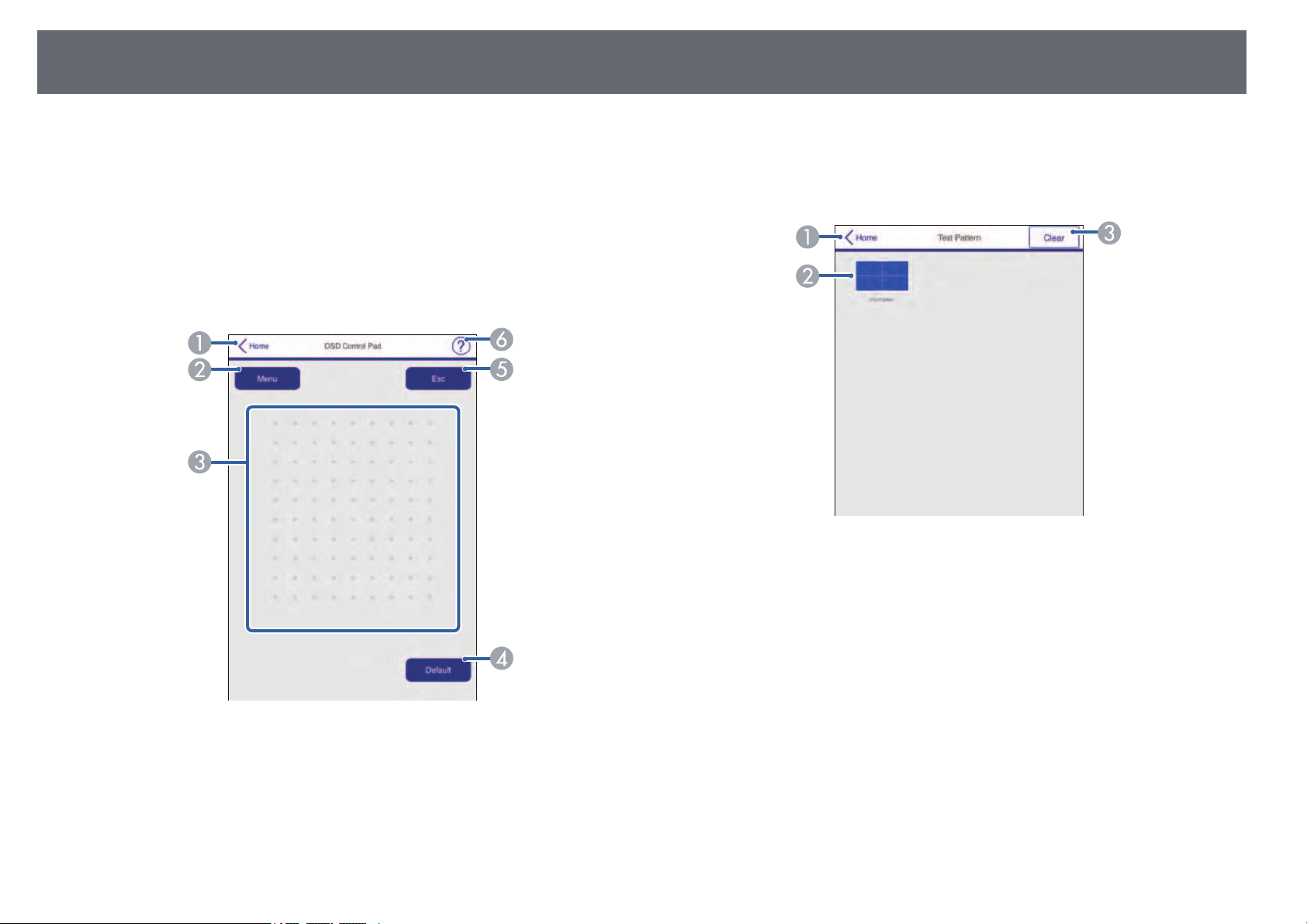
ControllingaNetworkedProjectorUsingaWebBrowser
110
D
Turns thevideoandaudioonorofftemporarily.
E
Pauses orresumesimages.
F
Displays theQRcode.
G
Adjusts thespeakervolume.
H
Searches forsources.
OSDControlPad
Returns totheEpsonWebControlscreen.
B
Displays theprojector'ssettingmenus.
C
Use yourfingerormousetonavigatethemenus.
D
Resets theselectedsettingtoitsdefaultvalue.
E
Returns tothepreviousmenu.
F
Displays helptopics.
TestPattern
Returns totheEpsonWebControlscreen.
B
Displays availabletestpatterns;selecttoprojectatestpattern.
C
Turns offtestpatterndisplay.
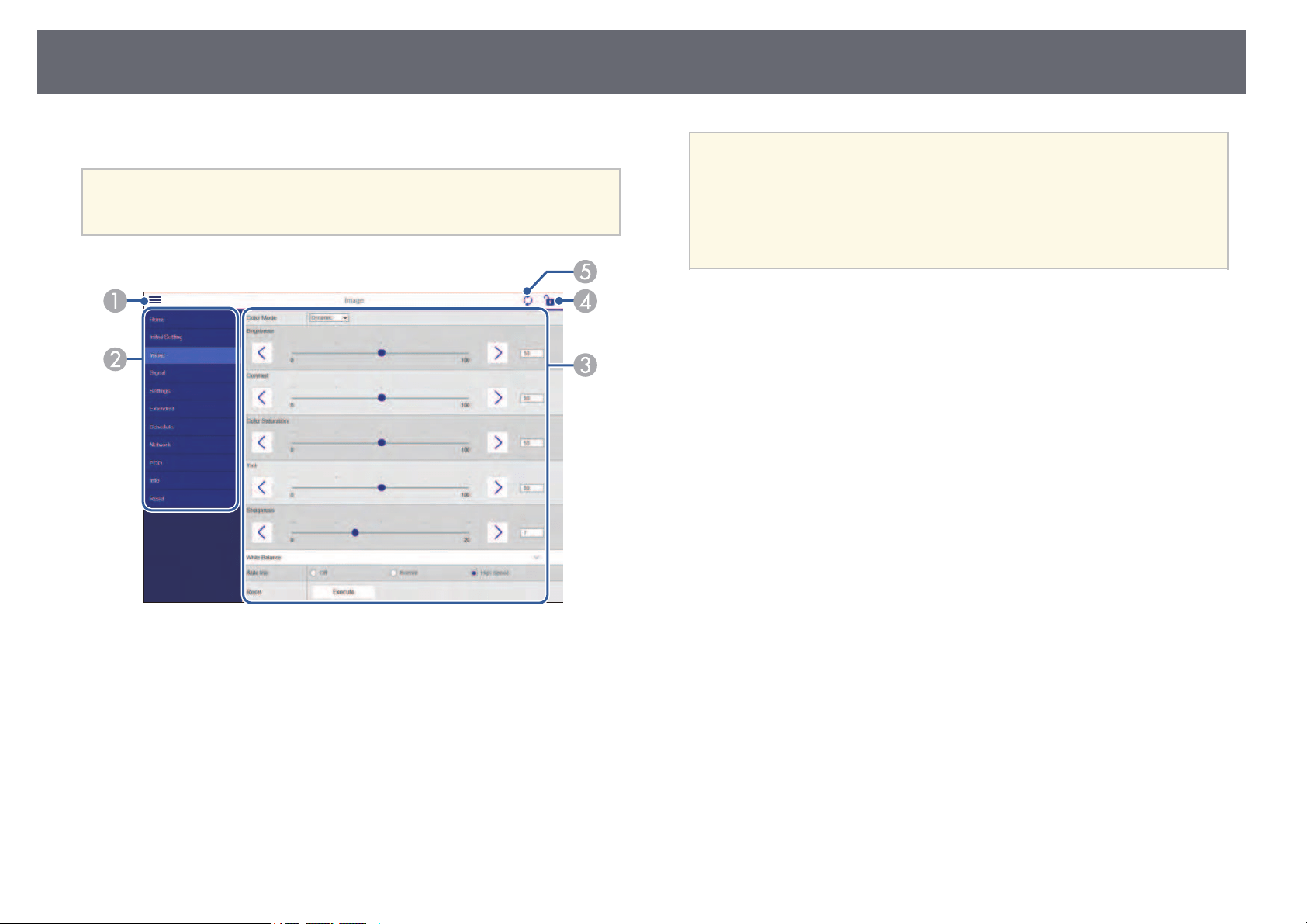
ControllingaNetworkedProjectorUsingaWebBrowser
111
Advanced
a
If thedefaultWebControlPasswordisset,ascreenpromptingto
change thepasswordappearsbeforeyoucanviewtheAdvancedscreen.
Follow theon-screeninstructionstochangethepassword.
Opens themenus.
B
Displays themenunameyouselected.
C
Specifies theprojectorsettings.
D
Lock/unlock theprojectorsettings.
E
Updates theprojectorsettings.
a
You cannotchangethefollowingsettingsusingEpsonWebControl.
•UserButton
•User's Logo
•HDMIEQSetting
•Language
•ResetLampHours
ggRelatedLinks
•"List ofFunctions" p.10

RegisteringDigitalCertificatesfromaWebBrowser
112
You canregister thedigital certificates onthe projectorto provide securityfor
your presentationfiles.
a
You canalsoregisterthedigitalcertificatesintheprojector'sNetwork
menu. However,besuretoregisterjustonceorthecertificatemaynot
install correctly.
sNetwork> NetworkConfiguration>WirelessLAN>EAP
Method>ClientCertificate
sNetwork> NetworkConfiguration>WirelessLAN>EAP
Method>CAcertificate
sNetwork> NetworkConfiguration>Others> WebServer
Certificate
a
Make sureyour digitalcertificate file iscompatible withprojector
registration.
b
Make surethe projectoris turned on.
c
Start yourWeb browseron a computeror deviceconnected to the
network.
d
Go tothe EpsonWeb Control screenby entering theprojector's IP
address intothe browser's addressbox.
You seethe EpsonWeb Control screen.
e
Select Advanced.
a
•YoumayneedtologinbeforeyouseetheAdvanced screen.If
a loginscreenisdisplayed,enteryourusernameand
password. (TheusernameisEPSONWEBandthedefault
password isadmin.)
•YoucanchangethepasswordinWebControlPasswordin
the projector'sNetworkmenu.
sNetwork> NetworkConfiguration>Basic>Web
ControlPassword
f
Under Network,select Certificate.
g
Select thecertificate fileyou want toregister.
h
Enter thepassword inthe Password box,and thenclick Set.
i
When youfinish registeringthe certificate, clickApply tofinalize your
changes andcomplete theregistration.
ggRelatedLinks
•"List ofFunctions" p.10
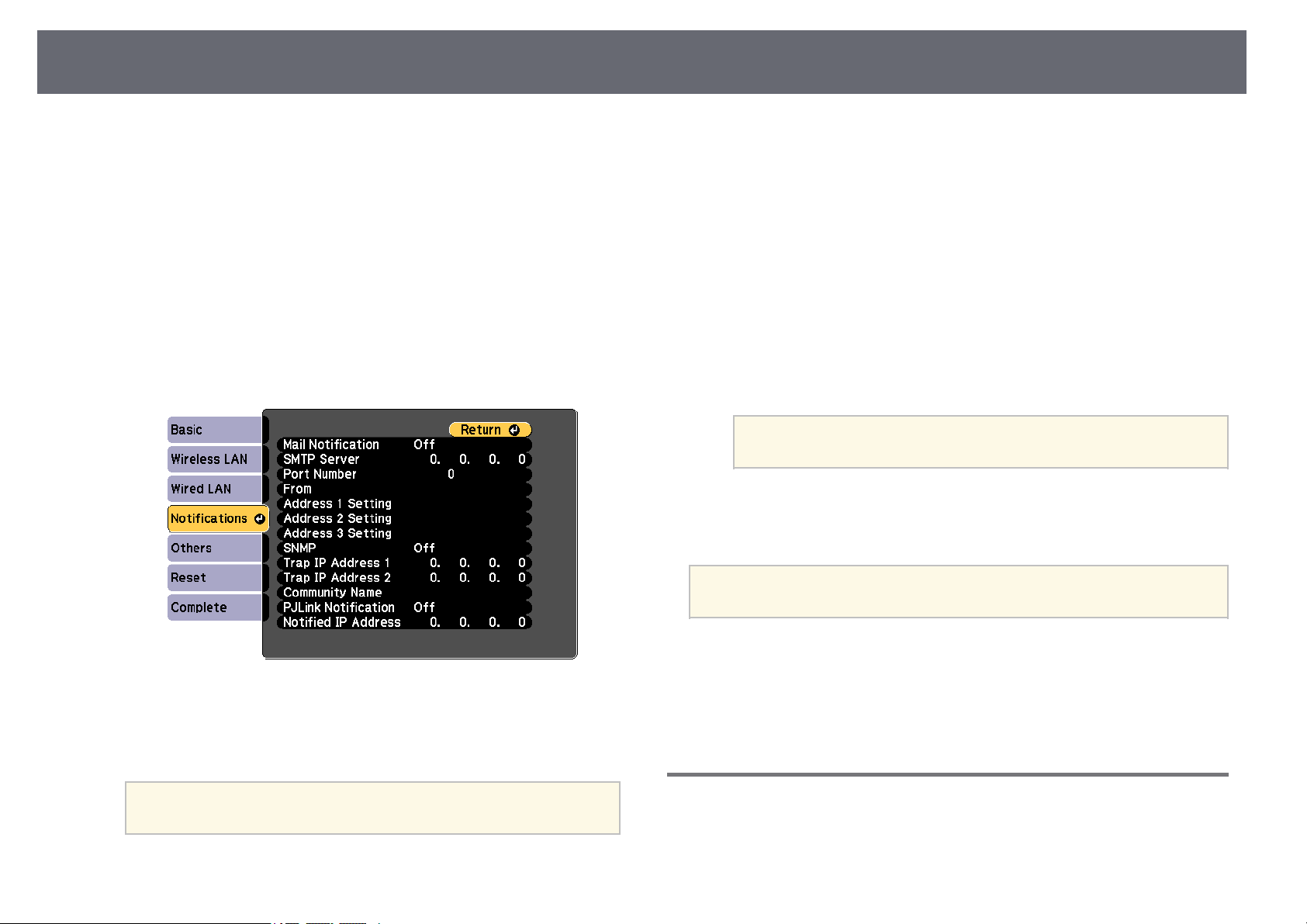
SettingUpProjectorNetworkE-MailAlerts
113
You canset upthe projector tosend youan e-mail alertover thenetwork if
there isa problemwith the projector.
If youset the StandbyMode settingto CommunicationOn, youcan receive
the e-mailalerts evenif the projectoris instandby mode (whenthe poweris
off).
sECO> StandbyMode> StandbyMode
a
Press the[Menu] button,select the Networkmenu, and press[Enter].
b
Select NetworkConfiguration andpress [Enter].
c
Select theNotifications menuand press [Enter].
d
Set theMail Notificationsetting toOn.
e
Enter theIP addressfor the SMTPServer option.
a
Do notuse"127.x.x.x"(wherexisanumberfrom0to255)for
the SMTPServer.
f
Select anumber forthe SMTP serverPort Number,from 0to 65535
(default is25).
g
Select atype of Authenticationof SMTPserver.
h
Enter aUser Namefor theSMTP server.
i
Enter aPassword forthe SMTP serverauthentication.
j
Enter thee-mail addressto be indicatedas thesender in From.
k
Choose anaddress field,enter the e-mailaddress, andselect the alerts
you wantto receive.Repeat for upto threeaddresses.
a
Your e-mailaddresscanbeupto64alphanumericcharacters
long. Toentermorethan32characters,useyourWebbrowser.
l
When youfinish selectingsettings, select Completeand follow theon-
screen instructionsto saveyour settings andexit themenus.
a
If acriticalproblemcausesaprojectortoshutdown,youmaynot
receive ane-mailalert.
ggRelatedLinks
•"Network ProjectorE-mail Alert Messages"p.113
•"Projector SetupSettings - ECOMenu" p.147
•"List ofFunctions" p.10
NetworkProjectorE-mailAlertMessages
When aproblem occurswith a projectoron thenetwork, and youselected to
receive e-mailalerts, youreceive an e-mailcontaining thefollowing
information:

SettingUpProjectorNetworkE-MailAlerts
114
•The emailaddress setin From asthe mailsender
•EpsonProjectorin the subjectline
•The nameof theprojector experiencing aproblem
•The IPaddress ofthe affected projector
•Detailed informationabout theproblem
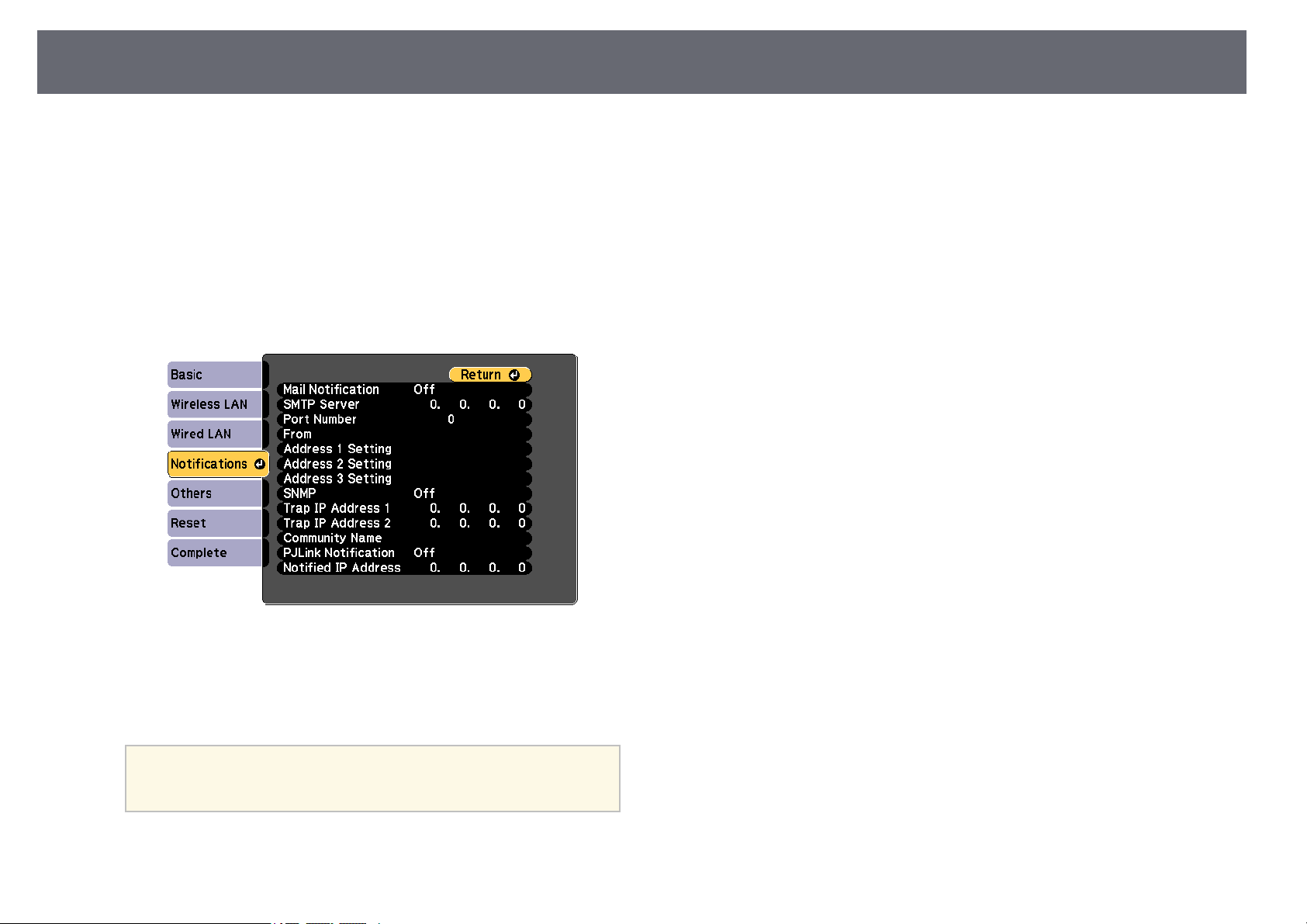
SettingUpMonitoringUsingSNMP
115
Network administratorscan installSNMP (Simple NetworkManagement
Protocol) softwareon networkcomputers so theycan monitorprojectors. If
your networkuses thissoftware, you canset upthe projector forSNMP
monitoring.
a
Press the[Menu] button,select the Networkmenu, and press[Enter].
b
Select NetworkConfiguration andpress [Enter].
c
Select theNotifications menuand press [Enter].
d
Set theSNMP settingto On.
e
Enter upto twoIP addresses toreceive SNMPnotifications, using 0to
255 foreach addressfield.
a
Do notusetheseaddresses:224.0.0.0through255.255.255.255
(where xisanumberfrom0to255).Thisprojectorsupports
SNMP agentversion1(SNMPv1).
f
Enter theSNMP CommunityName up to32 alphanumericcharacters
long.
g
When youfinish selectingsettings, select Completeand follow theon-
screen instructionsto saveyour settings andexit themenus.
ggRelatedLinks
•"List ofFunctions" p.10
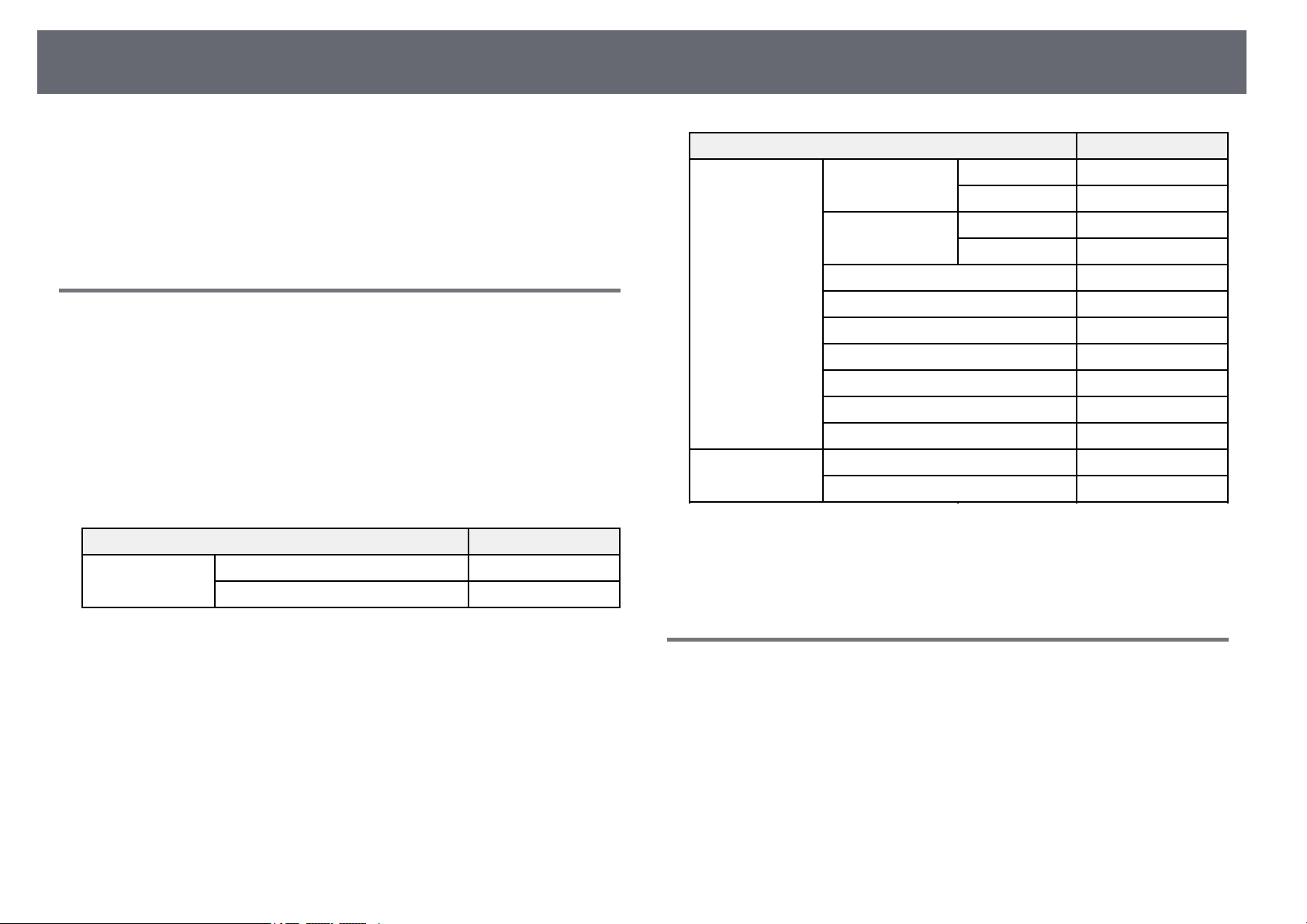
UsingESC/VP21Commands
116
You cancontrol theprojector from anexternal deviceusing ESC/VP21.
ggRelatedLinks
•"ESC/VP21 CommandList" p.116
•"Cable Layouts"p.116
•"List ofFunctions" p.10
ESC/VP21CommandList
When thepower ONcommand is transmittedto theprojector, the power
turns onand itenters warm-up mode.When theprojector's power hasturned
on, acolon ":"(3Ah) is returned.
When acommand isinput, the projectorexecutes thecommand and returnsa
":", andthen acceptsthe next command.
If thecommand beingprocessed terminates abnormally,an errormessage is
output anda ":"is returned.
The followingcommands areavailable.
ItemCommand
Power On/OffOnPWR ON
OffPWR OFF
ItemCommand
Signal selectionComputer1AutoSOURCE1F
RGBSOURCE 11
Computer2AutoSOURCE2F
RGBSOURCE 21
HDMI1SOURCE 30
HDMI2SOURCE A0
VideoSOURCE 41
USB DisplaySOURCE 51
USBSOURCE 52
LANSOURCE 53
Screen MirroringSOURCE56
A/V MuteOn/OffOnMUTE ON
OffMUTE OFF
Add aCarriage Return(CR) code (0Dh)to theend of eachcommand and
transmit.
Contact Epsonfor moredetails.
CableLayouts
Serialconnection
•Connector shape:D-Sub 9-pin(male)
•Projector inputport name:RS-232C
•Cable type:Crossover (nullmodem) cable
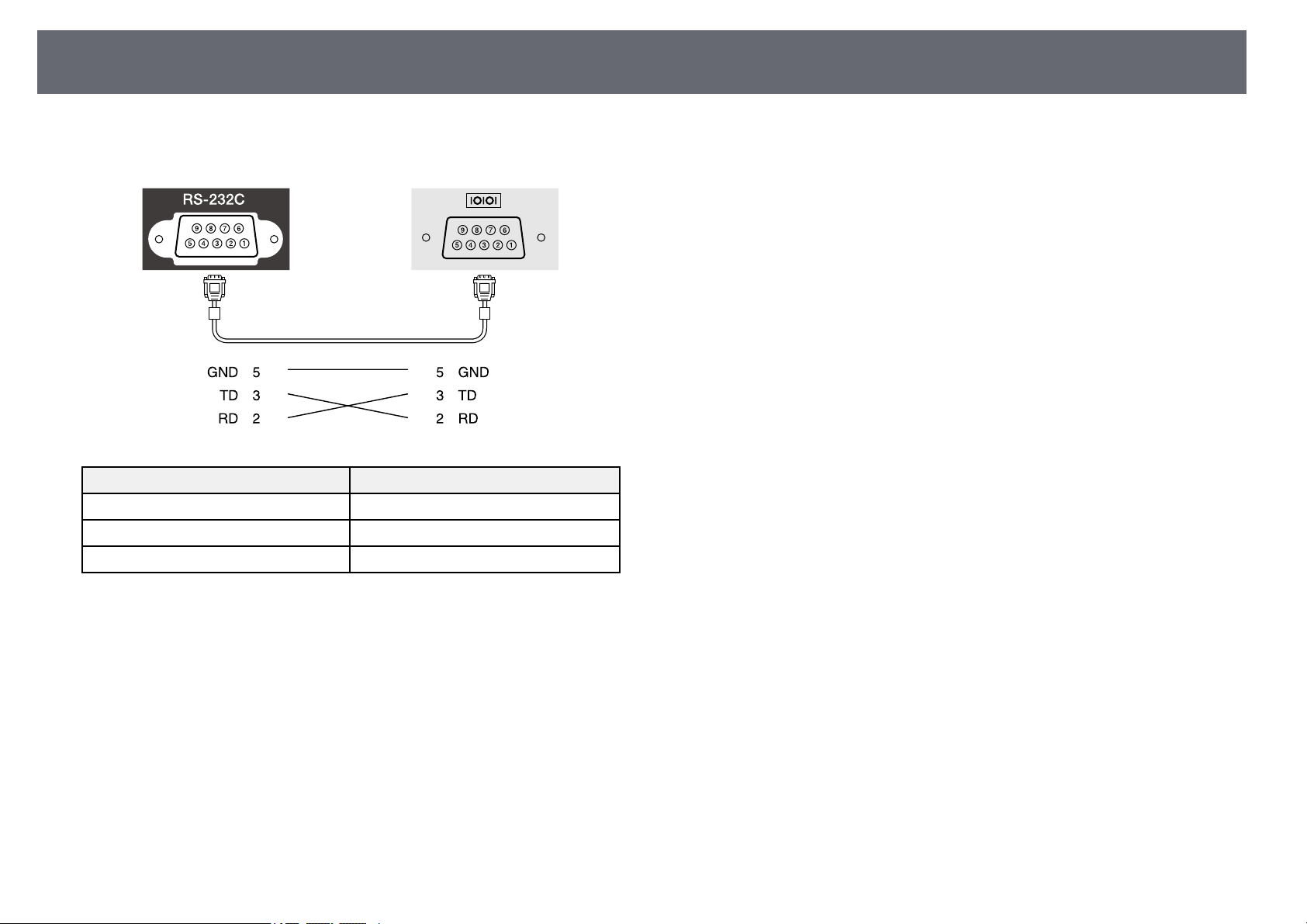
UsingESC/VP21Commands
117
In thefollowing illustration,the projector sideis shownon the left,and the
computer sideon theright:
Signal nameFunction
GNDSignal wireground
TDTransmit data
RDReceive data
Communicationsprotocol
•Default baudrate setting:9600 bps
•Data length:8 bit
•Parity: None
•Stop-bit: 1bit
•Flow control:None
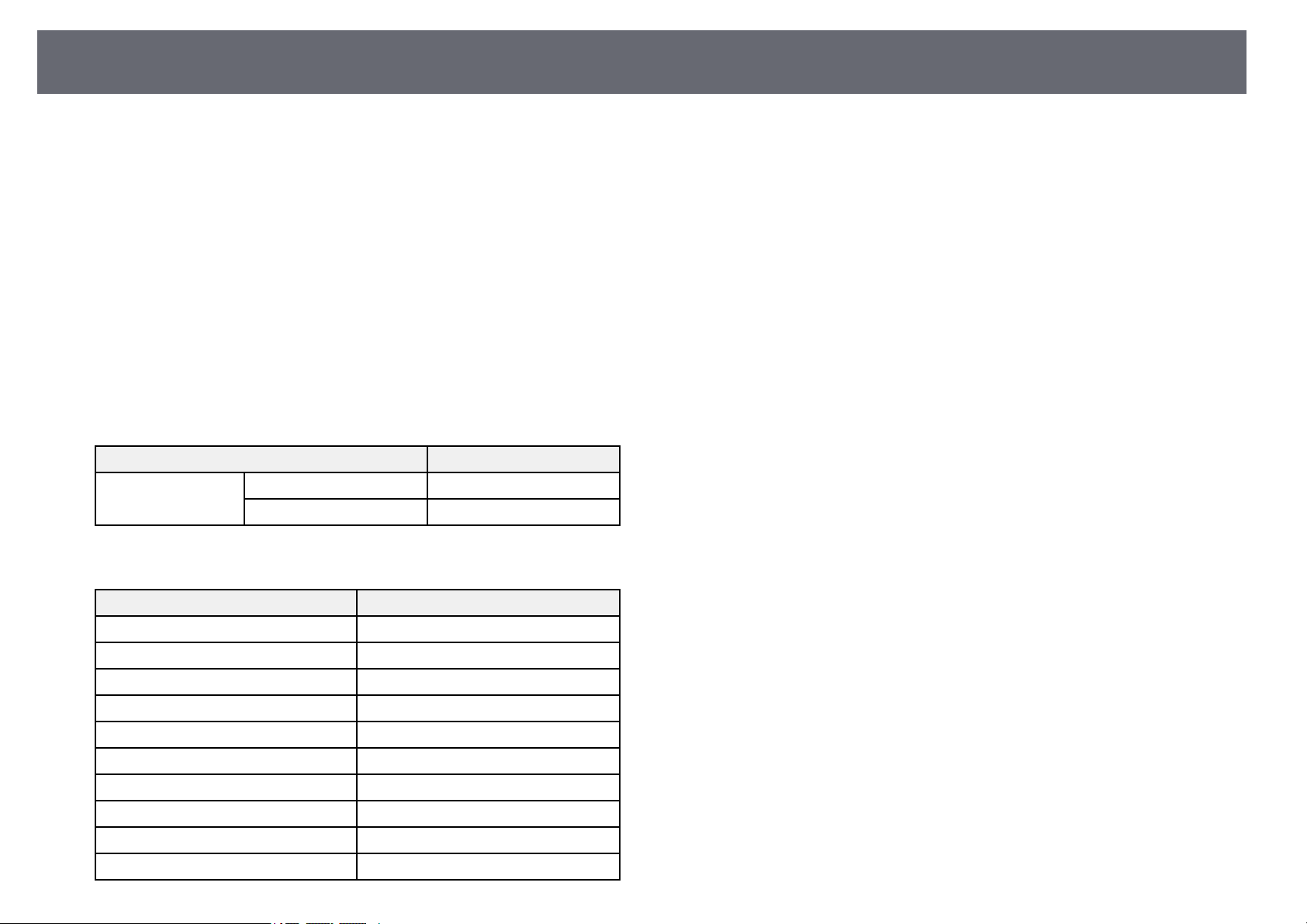
PJLinkSupport
118
PJLink wasestablished bythe JBMIA (JapanBusiness Machineand
Information SystemIndustries Association)as a standardprotocol for
controlling network-compatibleprojector's aspart of theirefforts to
standardize projectorcontrol protocols.
The projectorcomplies withthe PJLink Class2standard establishedby the
JBMIA.
The portnumber usedfor the PJLinksearch functionis 4352 (UDP).
You needto makenetwork settings beforeyou canuse PJLink.
It complieswith allcommands except forthe followingcommands defined by
PJLink Class2,and agreementwas confirmed bythe PJLinkstandard
adaptability verification.
http://pjlink.jbmia.or.jp/english/
•Non-compatible commands
FunctionPJLink command
Mute settingsImage mutingsetAVMT 11
Audio mutingsetAVMT 21
•Input portsand correspondinginput source number
Input portnameInputsourcenumber
Computer111
Computer212
Video21
HDMI32
HDMI132
HDMI233
USB41
LAN52
USB Display53
Screen Mirroring57
•Manufacturer namedisplayed for"Manufacture name informationquery"
EPSON
•Model namedisplayed for"Product name informationquery"
•EPSON 992F
•EPSON 982W
•EPSON 972
•EPSON 118
•EPSON W49
•EPSON X49
ggRelatedLinks
•"List ofFunctions" p.10
•"Using theProjector on aNetwork" p.87
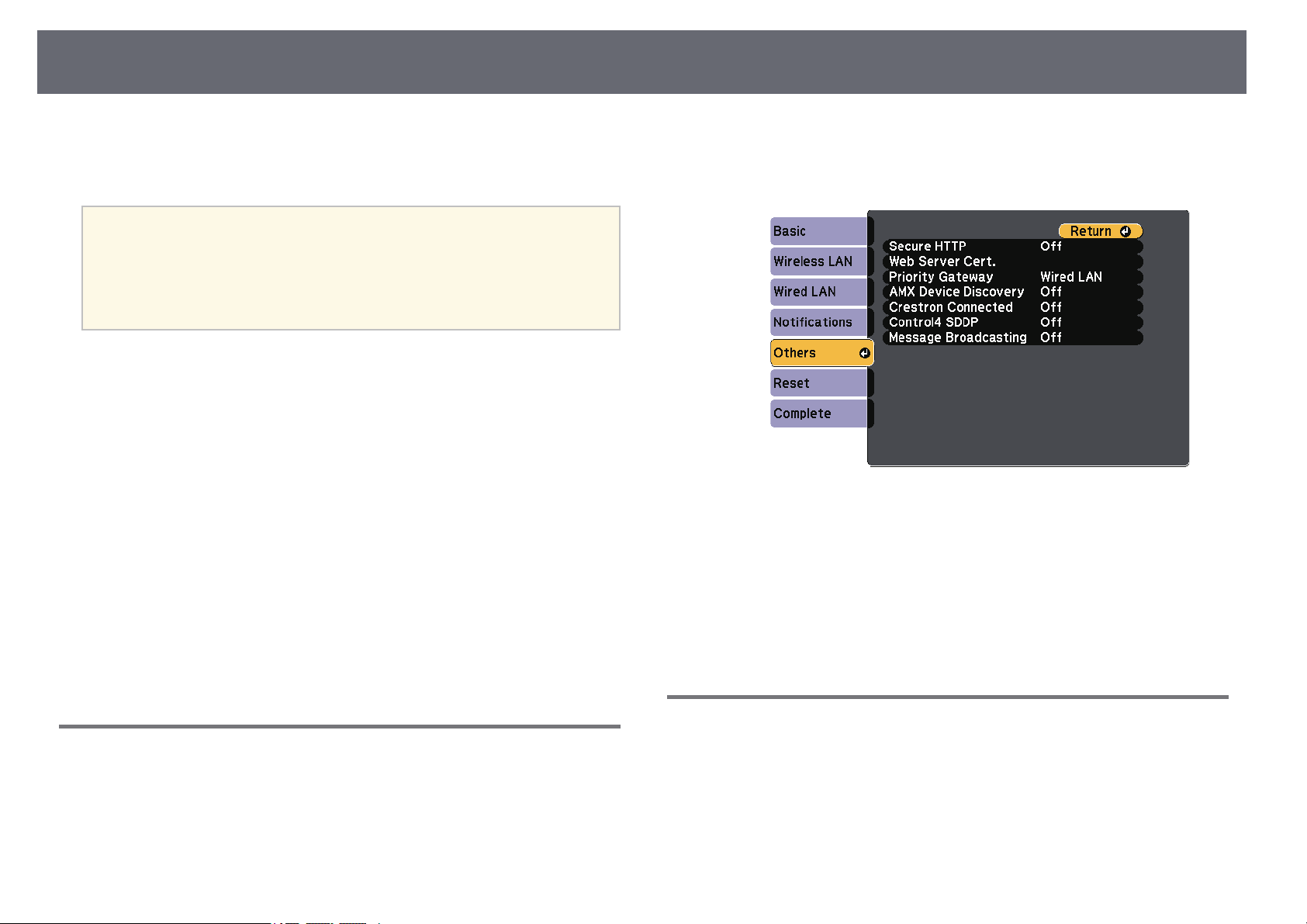
CrestronConnectedSupport
119
If youare usingthe Crestron Connectednetwork monitoringand control
system, youcan setup your projectorfor useon the system.Crestron
Connected letsyou controland monitor yourprojector usinga Web browser.
a
•YoucannotusetheMessageBroadcastingfeatureinEpsonProjector
Management whenyouuseCrestronConnected.
•Ifyousetthe StandbyModesettingtoCommunicationOn,youcan
control theprojectoreveniftheprojectorisinstandbymode(when
the powerisoff).
sECO>StandbyMode>StandbyMode
For additionalinformation onCrestron Connected, visitthe CrestronWeb
site.
https://www.crestron.com/products/line/crestron-connected
To monitordevices inthe system, youcan useCrestron RoomView Express
or CrestronFusion providedby Crestron. Youcan communicatewith the
help deskand sendemergency messages. Seethe followingWeb site for
details.
http://www.crestron.com/getroomview
This manualdescribes howto perform operationson yourcomputer using a
Web browser.
ggRelatedLinks
•"Setting UpCrestron Connected Support"p.119
•"Controlling aNetworked Projector UsingCrestron Connected"p.119
•"Projector SetupSettings - ECOMenu" p.147
•"List ofFunctions" p.10
SettingUpCrestronConnectedSupport
To setup yourprojector for monitoringand controlusing a Crestron
Connected system,make sureyour computer andprojector areconnected to
the network.If youare connecting wirelessly,set upthe projector usingthe
Advanced networkconnection mode.
a
Press the[Menu] button,select the Networkmenu, and press[Enter].
b
Select NetworkConfiguration andpress [Enter].
c
Select theOthers menuand press [Enter].
d
Set theCrestron Connectedsetting to Onto allowthe projector tobe
detected.
e
When youhave finishedselecting settings, selectComplete andfollow
the on-screeninstructions tosave your settingsand exitthe menus.
f
Turn offthe projector,and then turnit onagain to enablethe setting.
ControllingaNetworkedProjectorUsingCrestron
Connected
Once youhave setup your projectorto useCrestron Connected, youcan
control andmonitor projectionusing a compatibleWeb browser.
a
Start yourWeb browseron a computerconnected tothe network.
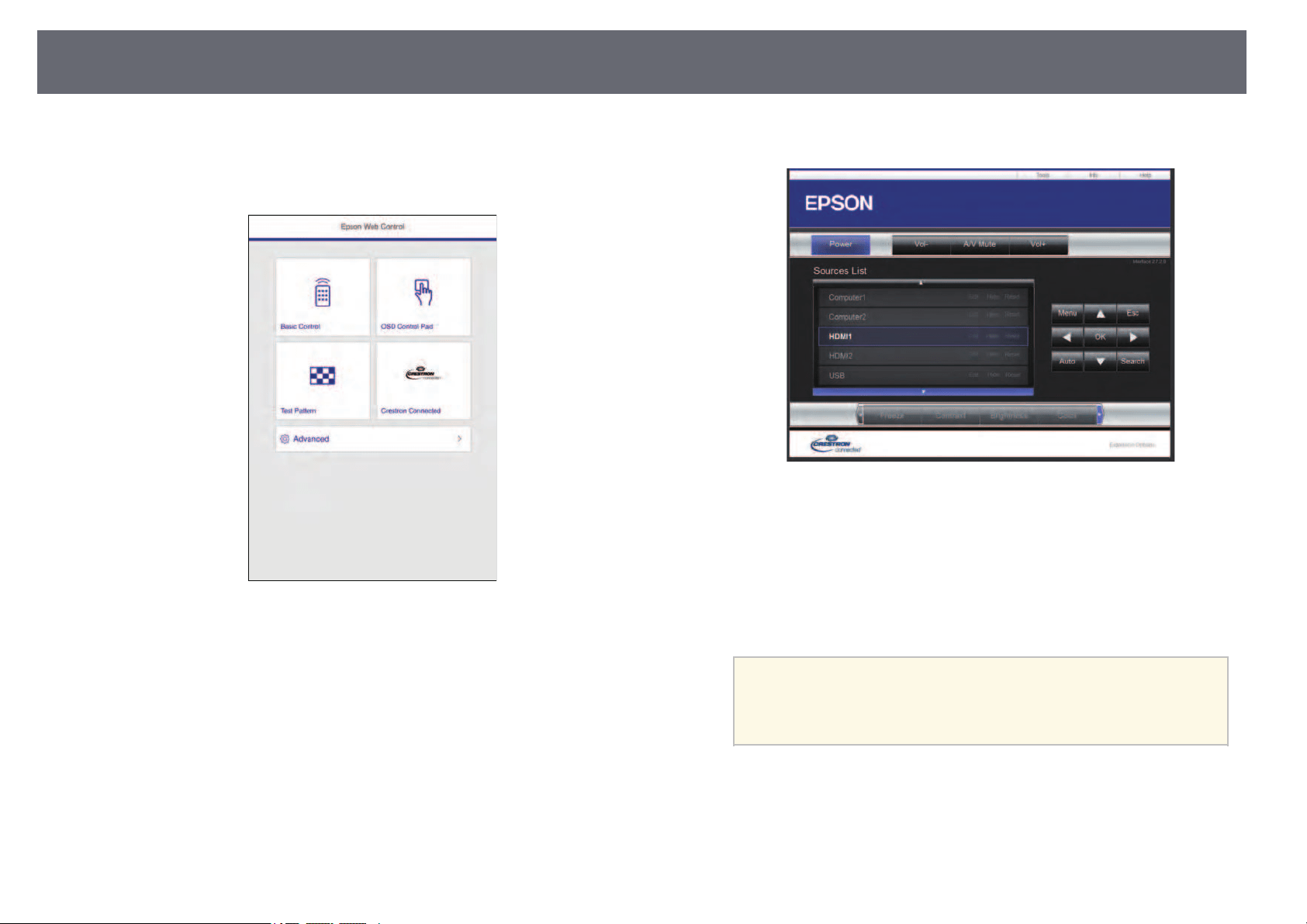
CrestronConnectedSupport
120
b
Type theprojector's IPaddress into thebrowser's addressbox andpress
the computer'sEnter key.
You seethe EpsonWeb Control screen.
c
Select CrestronConnected.
You seethis screen:
d
Select theinput sourcethat you wantto controlin the SourcesList box.
You canscroll throughavailable sources usingthe upand down arrows
in thebox.
e
To controlprojection remotely,click the on-screenbuttons that
correspond tothe projector'sremote control buttons.You canscroll
through buttonoptions atthe bottom ofthe screen.
a
These on-screenbuttonsdonotdirectlycorrespondtothe
projector's remotecontrolbuttons:
•OKacts asthe[Enter]button
•Menudisplaystheprojector's menu
f
To viewinformation aboutthe projector, clickthe Infotab.
g
To changethe projector,Crestron Control, andpassword settings,click
the Toolstab, select settingson thedisplayed screen,andthen click
Send.
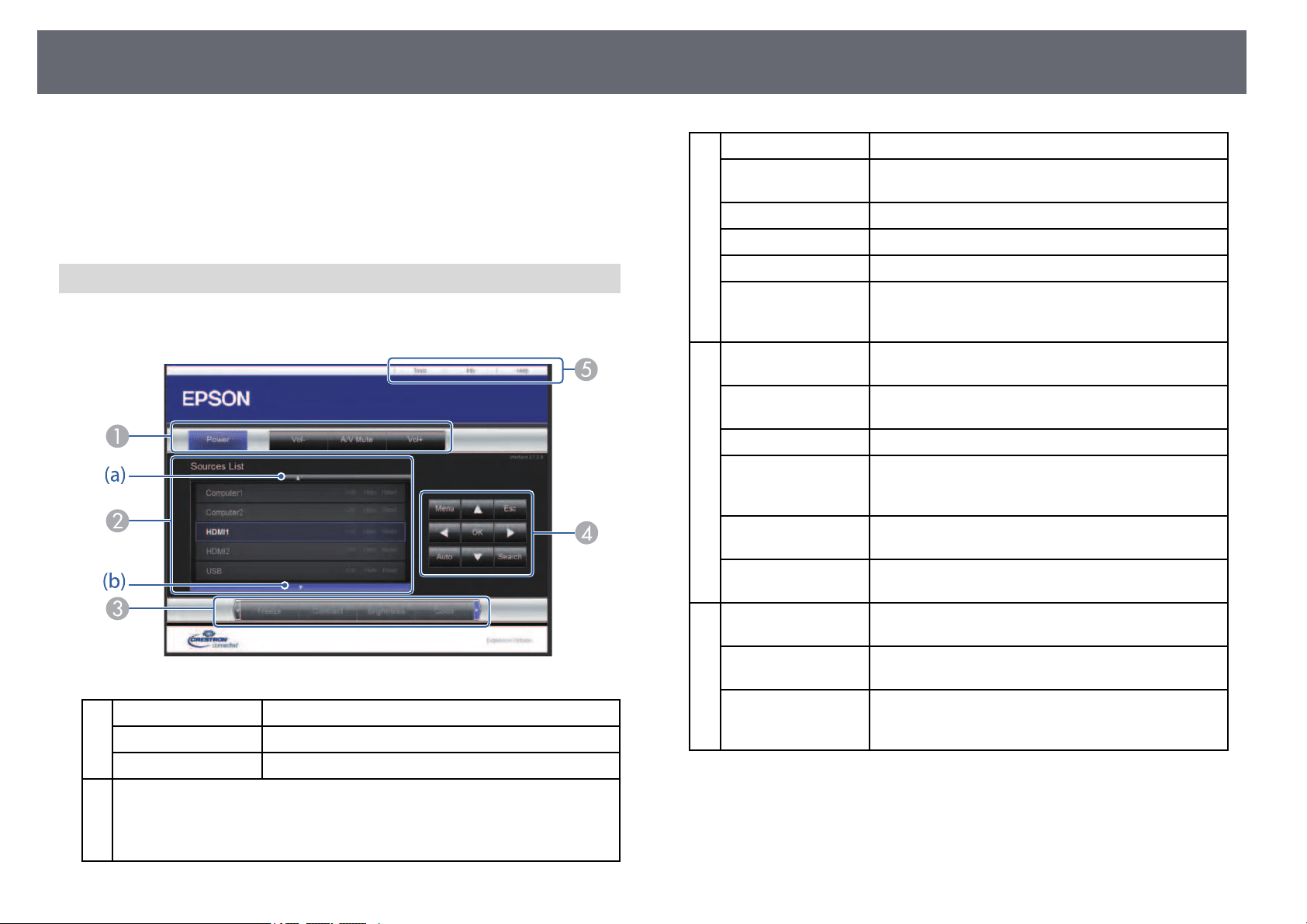
CrestronConnectedSupport
121
h
When youfinish selectingsettings, click Exitto exit theprogram.
ggRelatedLinks
•"Crestron ConnectedOperation Window" p.121
•"Crestron ConnectedTools Window" p.122
CrestronConnectedOperationWindow
Settings onthe operationwindow let youcontrol theprojector and adjustthe
projection image.
PowerTurns theprojectoronoroff.
Vol-/Vol+Adjusts thevolume.
A/V MuteTurns thevideoandaudioonoroff.
B
Switches totheimagefromtheselectedinputsource.Todisplayinputsources
that arenotshowninSourcesList,click(a)or(b)toscrollupordown.The
current videosignalinputsourceisdisplayedinblue.
You canchangethesourcenameifnecessary.
C
FreezeImagesarepausedorreleased.
ContrastAdjuststhedifferencebetweenlightandshadeinthe
images.
BrightnessAdjuststheimagebrightness.
ColorAdjusts the colorsaturation for theimages.
SharpnessAdjusts theimagesharpness.
ZoomEnlarges orreducestheimagewithoutchangingthe
projection size.Clickthearrowbuttonstochangethe
position ofanenlargedimage.
D
Arrow buttonsPerforms thesameoperationsasthearrowbuttonson
the remotecontrol.
OKPerforms thesameoperationas[Enter]ontheremote
control.
MenuDisplays andclosestheprojector'smenu.
AutoOptimizesTracking, Sync.,andPositioninthe
projector's Signalmenuwhileprojectingananalog
RGB signalfromComputer1orComputer2port.
SearchChanges tothenextinputsourcethatissendingan
image.
EscPerforms thesameoperationasthe[Esc]buttononthe
remote control.
E
ToolsChanges settingsintheprojectorthatiscurrently
connected.
InfoDisplaysinformationontheprojectorthatiscurrently
connected.
HelpDisplays theHelpDeskwindow.Usedtosend
messages to,andreceivemessagesfrom,the
administrator usingCrestronRoomViewExpress.
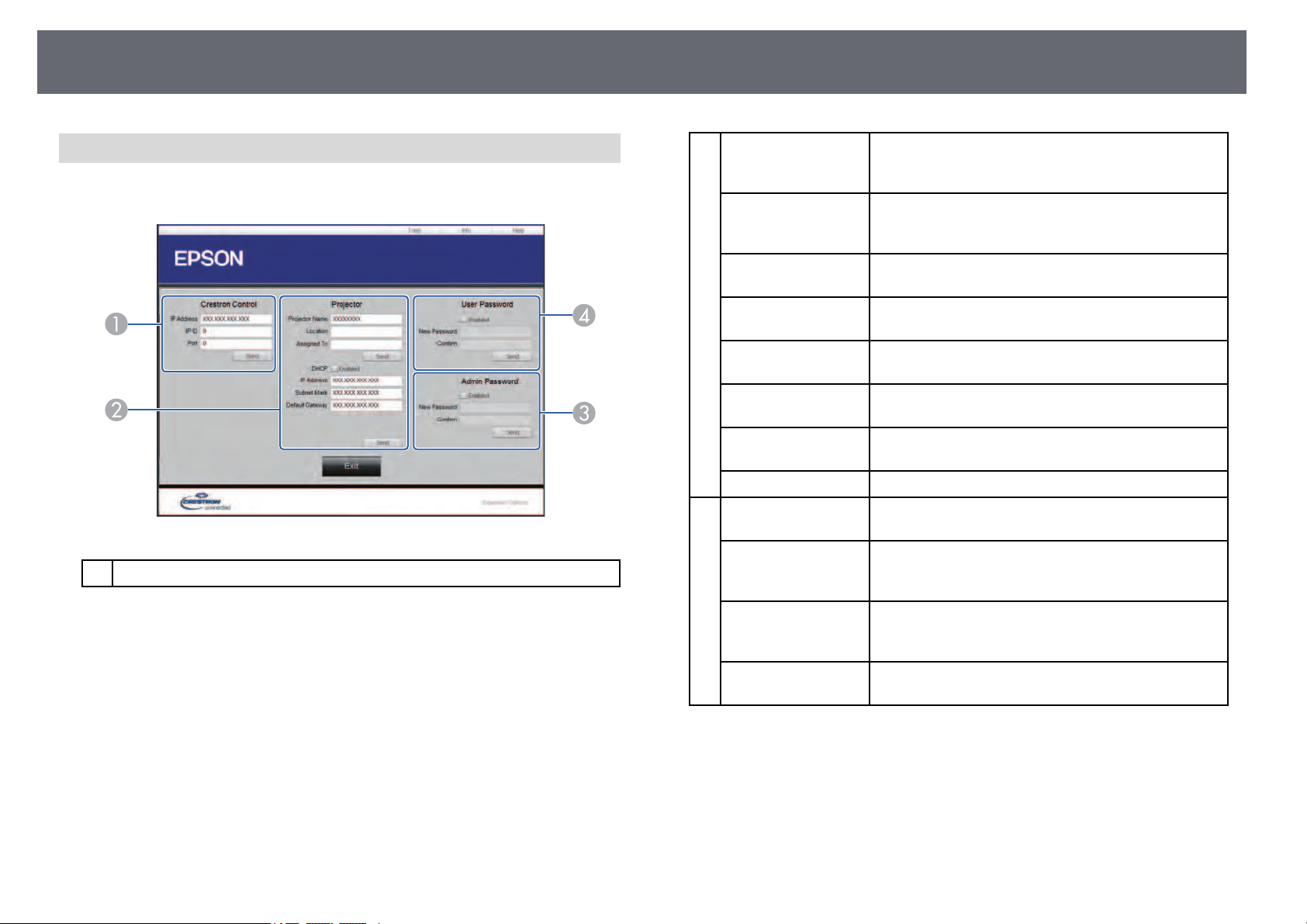
CrestronConnectedSupport
122
CrestronConnectedToolsWindow
Settings onthe Tools windowlet youcustomize various projectorsetup
features.
Make settingsforCrestroncentralcontrollers.
B
Projector NameEnter anametodifferentiatetheprojectorthatis
currently connectedfromotherprojectorsonthe
network. (upto16alphanumericcharacters)
LocationEnter an installationlocationnamefor the projector
that iscurrentlyconnectedonthenetwork.(upto32
alphanumeric charactersandsymbols)
Assigned ToEnter ausernamefortheprojector.(upto32
alphanumeric charactersandsymbols)
DHCPSelect touseDHCP.YoucannotenteranIPaddressif
DHCP isenabled.
IP AddressEntertheIPaddresstoassigntothecurrently
connected projector.
Subnet MaskEnterasubnetmaskforthecurrentlyconnected
projector.
Default GatewayEnter thegatewayaddressforthecurrentlyconnected
projector.
SendClick toconfirmthechangesmadetotheProjector.
C
Enabled (Admin
Password)
Select torequireapasswordtoopentheToolswindow.
New PasswordEnterthenewpasswordwhenchangingthepassword
to opentheToolswindow.(upto26alphanumeric
characters)
ConfirmEnter thesamepasswordasyouenteredinNew
Password. Ifthepasswordsarenotthesame,anerror
is displayed.
SendClick toconfirmthechangesmadetotheAdmin
Password.
CrestronConnectedSupport
123
D
Enabled (User
Password)
Select torequireapasswordtoopentheoperation
window onthecomputer.
New PasswordEnterthenewpasswordwhenchangingthepassword
to opentheoperationwindow.(upto26alphanumeric
characters)
ConfirmEnter thesamepasswordasyouenteredinNew
Password. Ifthepasswordsarenotthesame,anerror
is displayed.
SendClick toconfirmthechangesmadetotheUser
Password.
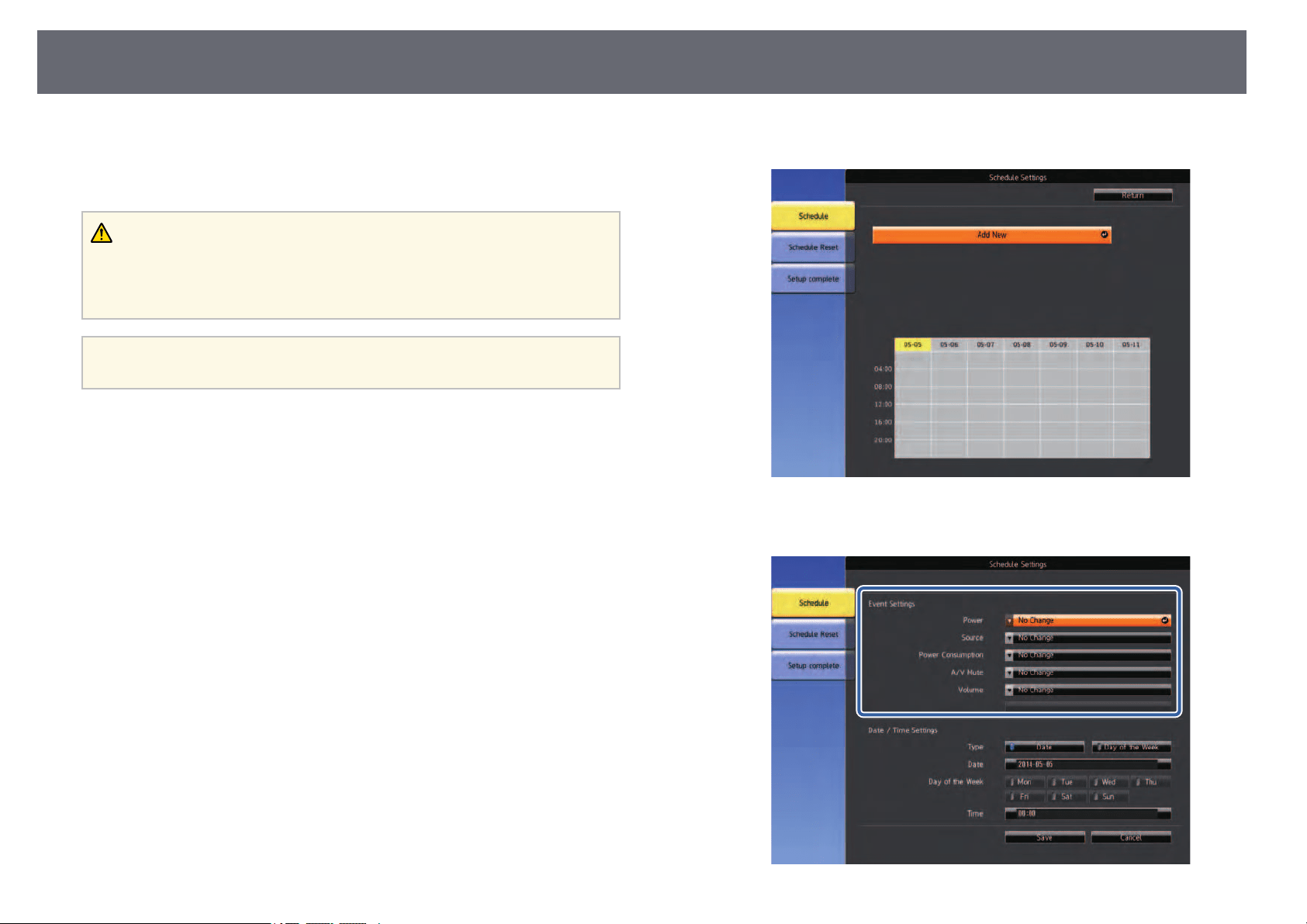
SettingProjectorEventSchedules
124
You canschedule upto 30 eventsto occurautomatically on yourprojector,
such asturning theprojector on oroff orswitching the inputsource. The
projector performsthe selectedevents on thespecified dateand time inthe
schedule youset up.
Warning
Do notplaceflammableobjectsinfrontofthelens.Ifyouscheduletheprojector
to turnonautomatically,flammableobjectsinfrontofthelenscouldcatchona
fire.
a
•IfyousetaScheduleProtectionpassword,turnoffyour Schedule
Protectionpassword first.
a
Set thedate andtime in theDate&Time menu.
sExtended> Operation >Date &Time
b
Press the[Menu] button,select the Extendedmenu,and press [Enter].
c
Select ScheduleSettings andpress [Enter].
d
Select Scheduleand press [Enter].
e
Select AddNew andpress [Enter].
f
Select theevent detailsyou want toperform.
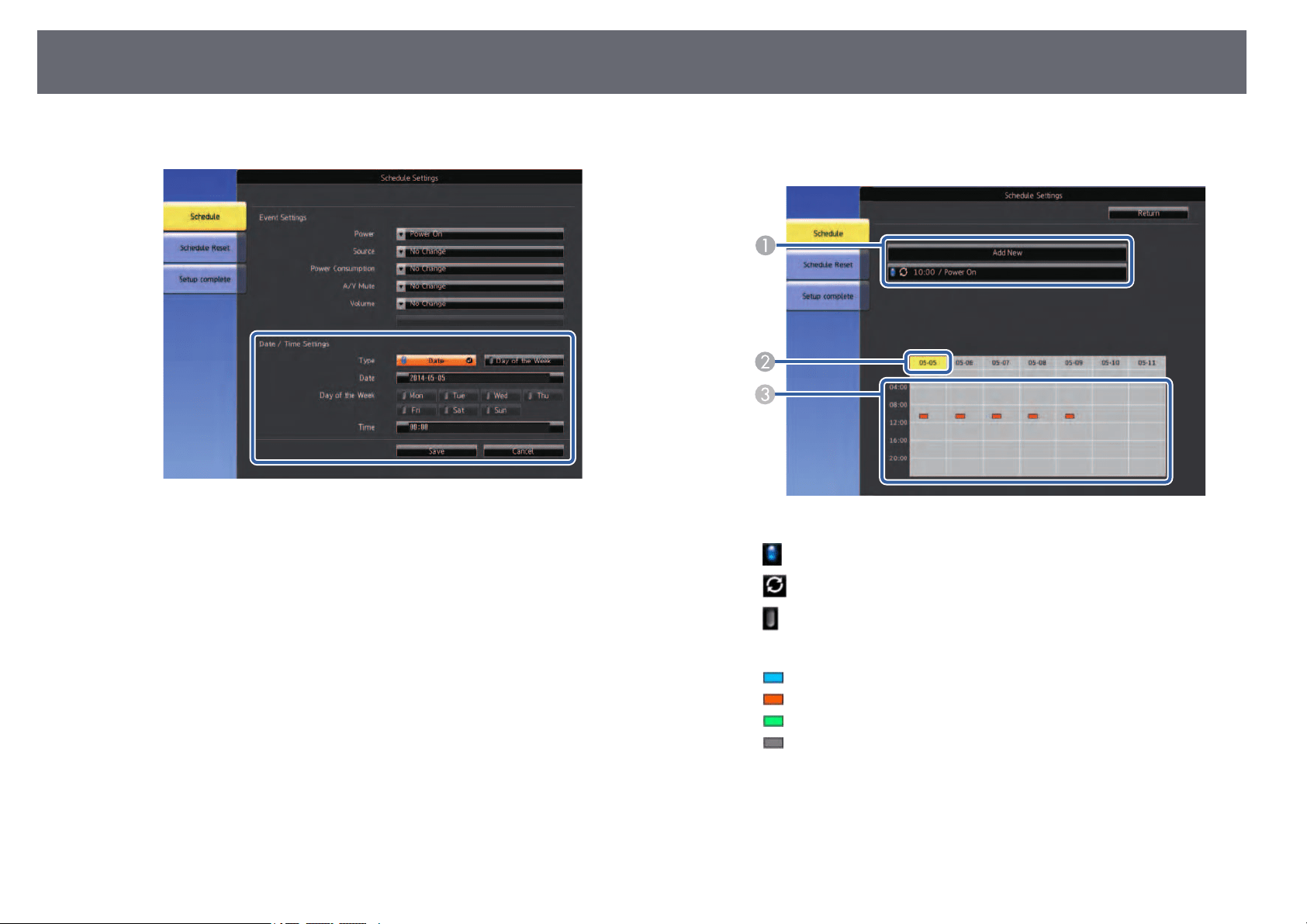
SettingProjectorEventSchedules
125
g
Select thedate andtime at whichyou wantthe event tooccur.
h
Select Saveand press [Enter].
The scheduledevents aredisplayed on thescreen withicons indicating
the eventstatus.
: validschedule
: regularschedule
: invalidschedule
B
The datecurrentlyselected(highlightedinyellow)
C
: onetimeschedule
: regularschedule
: standbyschedule(turnscommunicationonoroffduringstandby)
: invalidschedule
i
To edita scheduledevent, select theschedule andpress [Esc].
j
Select anoption fromthe menu displayed.
•OnorOff letsyou enable ordisable theselected event.

SettingProjectorEventSchedules
126
•Edit letsyou changethe event detailsor dateand time.
•Clear letsyou removethe scheduled eventfrom alist.
k
Select Complete,then select Yes.
To deleteall scheduledevents, select ScheduleReset.
ggRelatedLinks
•"List ofFunctions" p.10
•"Setting theDate and Time"p.43
•"Setting aPassword" p.82

AdjustingtheMenuSettings
Follow theinstructions inthese sections toaccess theprojector menu systemand changeprojector settings.
ggRelatedLinks
•"Using theProjector's Menus" p.128
•"Using theDisplayed Keyboard" p.129
•"Image QualitySettings - ImageMenu" p.130
•"Input SignalSettings - SignalMenu" p.131
•"Projector FeatureSettings - SettingsMenu" p.132
•"Projector SetupSettings - ExtendedMenu" p.134
•"Projector NetworkSettings - NetworkMenu" p.137
•"Projector SetupSettings - ECOMenu" p.147
•"Projector InformationDisplay - InfoMenu" p.149
•"Projector ResetOptions - ResetMenu" p.152
•"Copying MenuSettings Between Projectors(Batch Setup)"p.153
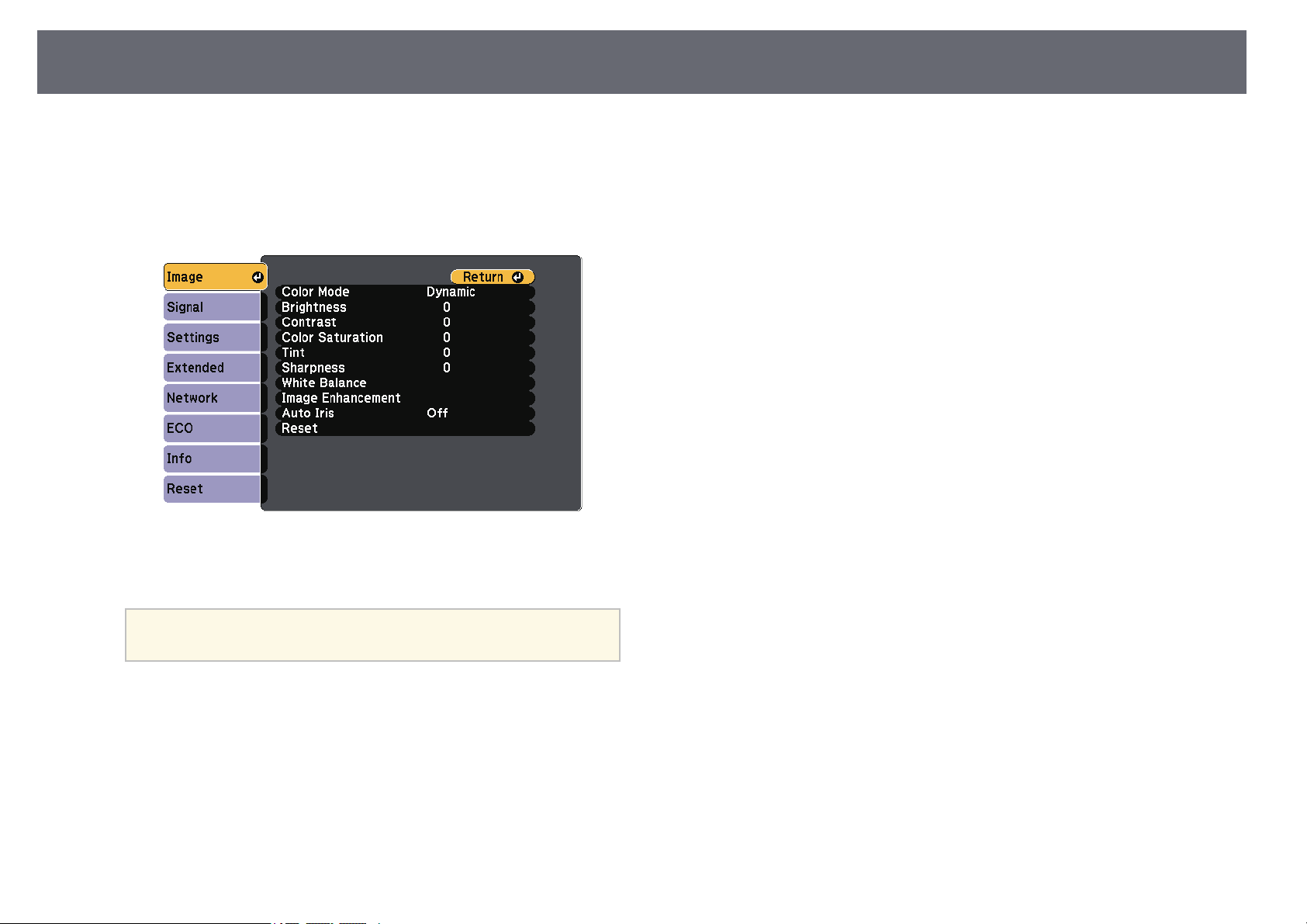
UsingtheProjector'sMenus
128
You canuse theprojector's menus toadjust thesettings that controlhow your
projector works.The projectordisplays the menuson thescreen.
a
Press the[Menu] buttonon the controlpanel or remotecontrol.
You seethe menuscreen displaying theImage menusettings.
b
Press theup ordown arrow buttonsto movethrough the menuslisted
on theleft. Thesettings for eachmenu aredisplayed on theright.
a
The availablesettingsdependonthecurrentinputsource.
c
To changesettings inthe displayed menu,press [Enter].
d
Press theup ordown arrow buttonto movethrough the settings.
e
Change thesettings usingthe buttons listedon thebottom of themenu
screens.
f
To returnall themenu settings totheir defaultvalues, select Reset.
g
When youfinish changingsettings on amenu, press[Esc].
h
Press [Menu]or [Esc] toexit themenus.
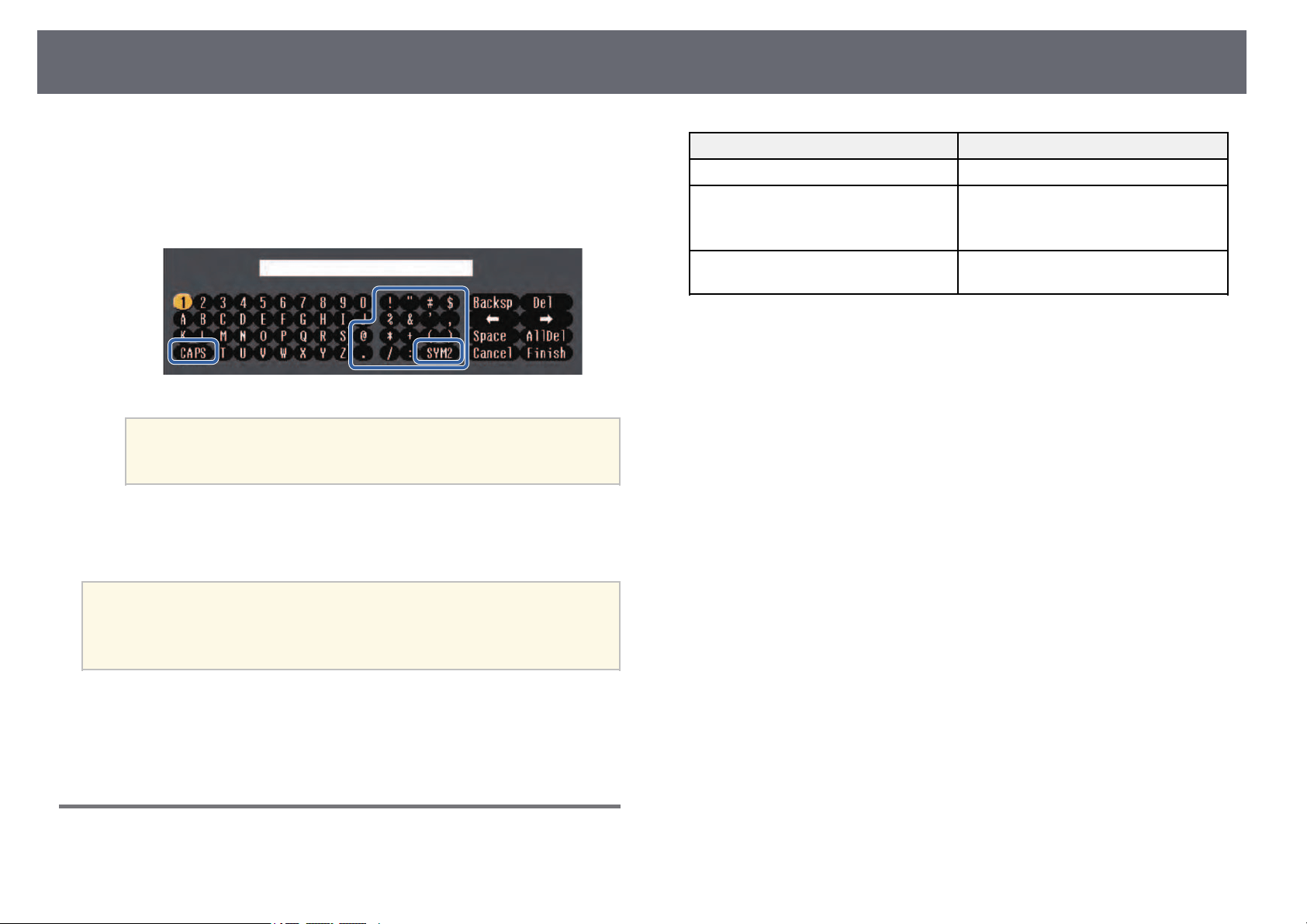
UsingtheDisplayedKeyboard
129
You canuse thedisplayed keyboard toenter numbersand characters.
a
Use thearrow buttonson the controlpanel or remotecontrol to
highlight thenumber orcharacter you wantto enterand press the
[Enter] button.
a
Each timeyouselecttheCAPSkey,thecharacterschange
between uppercaseandlowercase.Eachtimeyouselectthe
SYM1/2key,thesymbolsenclosedbytheframechange.
b
After enteringthe text,select Finish onthe keyboardto confirm your
entries. SelectCancel tocancel entering text.
a
You canselectprojectorsettingsandcontrolprojectionoveranetwork
using aWebbrowserfromyourcomputer.
Some symbolscannotbeenteredusingthedisplayedkeyboard.Use
your Webbrowsertoenterthetext.
ggRelatedLinks
•"Available TextUsing the DisplayedKeyboard" p.129
•"Controlling aNetworked Projector Usinga WebBrowser" p.108
AvailableTextUsingtheDisplayedKeyboard
You canenter thefollowing text whenusing thedisplayed keyboard.
Text typeDetails
Numbers0123456789
AlphabetABCDEFGHIJKLMNOPQRSTUVWXY
Z
abcdefghijklmnopqrstuvwxyz
Symbols! "#$%&'()*+,-./:;<=>?@[\]
^ _`{|}~
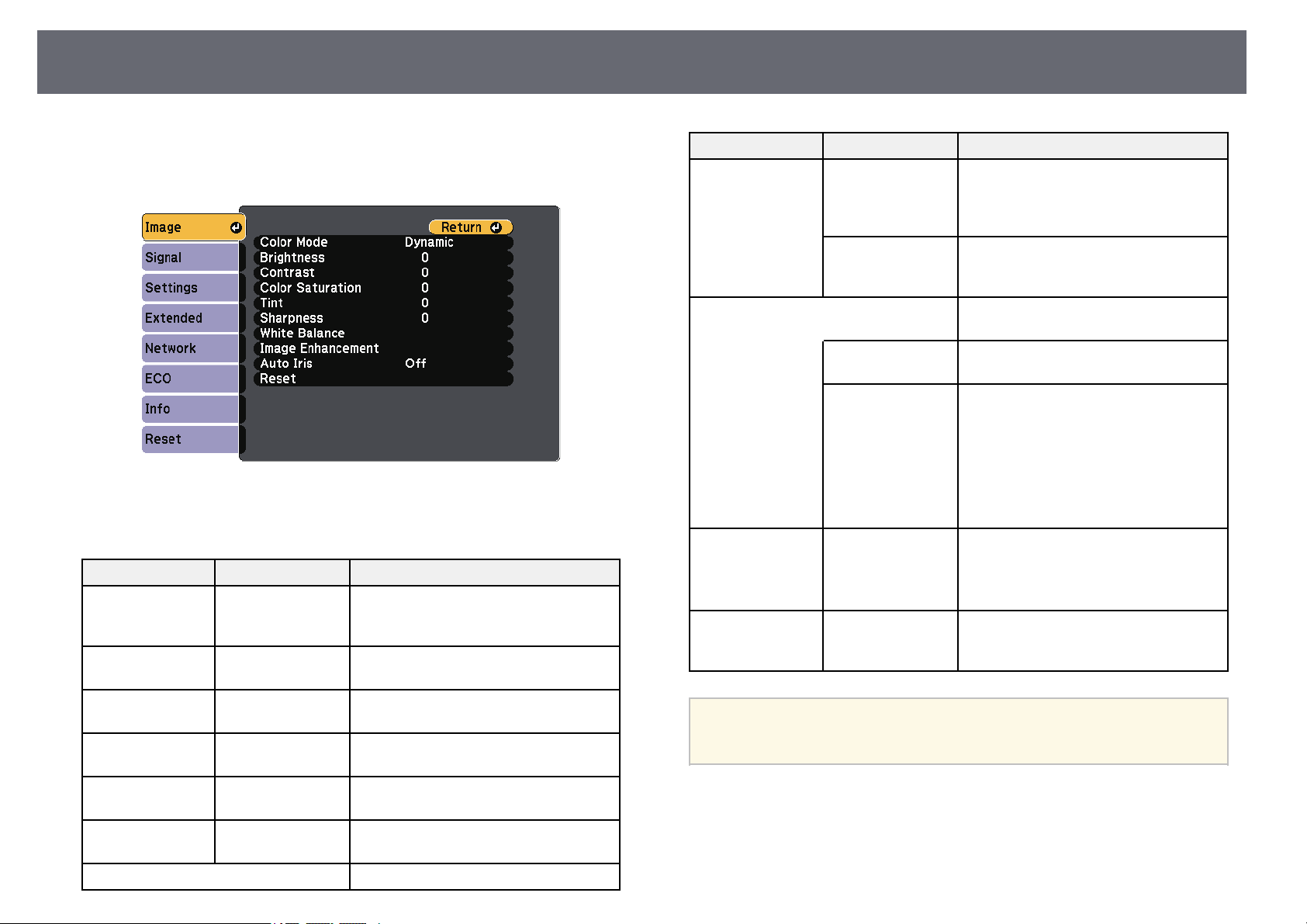
ImageQualitySettings-ImageMenu
130
Settings onthe Imagemenulet youadjust the qualityof yourimage for the
input sourceyou arecurrently using. Theavailable settingsdepend onthe
currently selectedinput source.
To changesettings foran input source,make surethe source isconnected and
select thatsource.
SettingOptionsDescription
Color ModeSee thelistof
available color
modes
Adjusts thevividnessofimagecolorsfor
various imagetypesandenvironments.
BrightnessVaryinglevels
available
Lightens ordarkenstheoverallimage.
ContrastVarying levels
available
Adjusts thedifferencebetweenlightand
dark areasoftheimage.
Color SaturationVarying levels
available
Adjusts theintensityoftheimagecolors.
TintVarying levels
available
Adjusts thebalanceofgreentomagenta
tones intheimage.
SharpnessVaryinglevels
available
Adjusts thesharpnessorsoftnessof
image details.
White BalanceAdjusts theoveralltintoftheimage.
SettingOptionsDescription
Color Temp.ColorTemp.: setsthecolortemperature
according tothecolormodeyouselected.
Higher valuestinttheimageblueand
lower valuestinttheimagered.
CustomCustom: adjuststheindividualR(red),G
(green), andB(blue)componentsofthe
offset andgain.
Image
Enhancement
Adjusts theperceivedresolutionofthe
image:
Noise ReductionNoiseReduction: reducesflickeringin
analog images.
Deinterlacing
(For interlaced
signal
[480i/576i/1080i]
input)
Deinterlacing: setswhetherornotto
convert interlaced-to-progressivesignals
for certainvideoimagetypes.
•Off:forfast-movingvideoimages.
•Video:formostvideoimages.
•Film/Auto:formovies,computer
graphics, andanimation.
Auto IrisOff
Normal
High Speed
Adjusts theprojectedluminancebased
on theimagebrightness.
Available whentheColorModeissetto
DynamicorCinema.
Reset—Resetsalladjustmentvaluesonthe
Imagemenufortheselectedcolormode
to theirdefaultsettings.
a
•TheBrightnesssetting doesnotaffectlampbrightness.Tochange
the lampbrightnessmode,usethePowerConsumptionsettingin
the projector'sECOmenu.
ggRelatedLinks
•"Available ColorModes" p.61
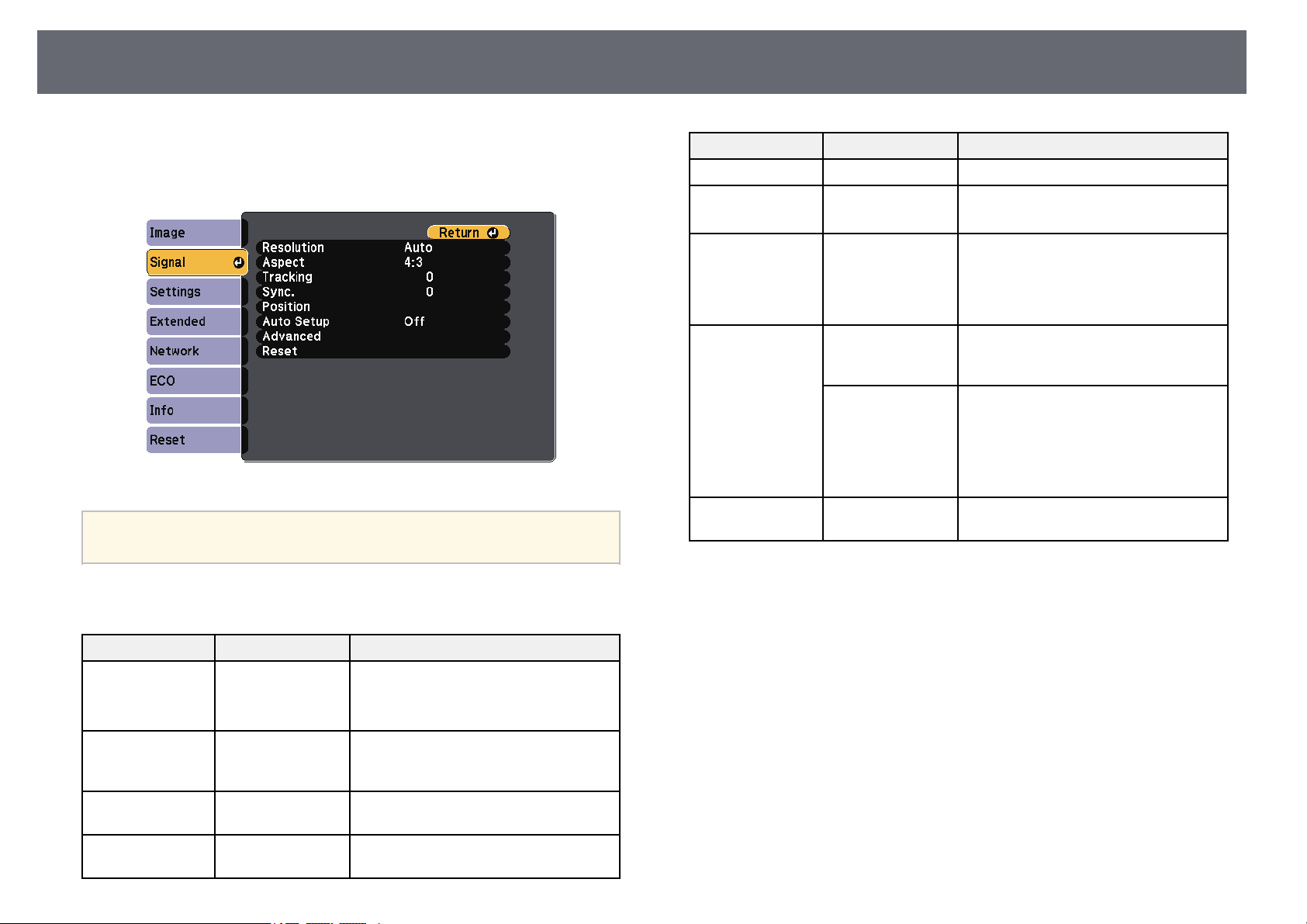
InputSignalSettings-SignalMenu
131
Normally theprojector automaticallydetects and optimizesthe inputsignal
settings. Ifyou needto customize thesettings, youcan use theSignal menu.
The availablesettings dependon the currentlyselected inputsource.
a
You canrestorethedefaultsettingsoftheTracking,Sync.,and
Positionsettingsbypressingthe[Auto]buttonontheremotecontrol.
To changesettings foran input source,make surethe source isconnected and
select thatsource.
SettingOptionsDescription
ResolutionAuto
Wide
Normal
Sets theinputsignalresolutionifnot
detected automaticallyusingtheAuto
option.
AspectSee thelistof
available aspect
ratios.
Sets theaspectratio(width-to-height
ratio) fortheselectedinputsource.
TrackingVaryinglevels
available
Adjusts thesignaltoeliminatevertical
stripes incomputerimages.
Sync.Varyinglevels
available
Adjusts thesignaltoeliminatefuzziness
or flickeringincomputerimages.
SettingOptionsDescription
Position—Adjuststheimagelocationonthescreen.
Auto SetupOn
Off
Automatically optimizescomputerimage
quality (whenOn).
OverscanAuto
Off
4%
8%
Changes theprojectedimageratioto
make theedgesvisiblebyaselectable
percentage orautomatically.
AdvancedVideoRangeVideo Range:setsthevideorangeto
match thesettingofthedeviceconnected
to theHDMIport.
Video SignalVideoSignal:specifiesthesignaltype
from theinputsourcesconnectedtothe
Video ports.Ifinterferenceappearsorno
image appearswhensettoAuto,select
the appropriatesignalaccordingtothe
connected equipment.
Reset—Resetsalladjustmentvaluesonthe
Signalmenu totheirdefaultsettings.
ggRelatedLinks
•"Available ImageAspect Ratios" p.58
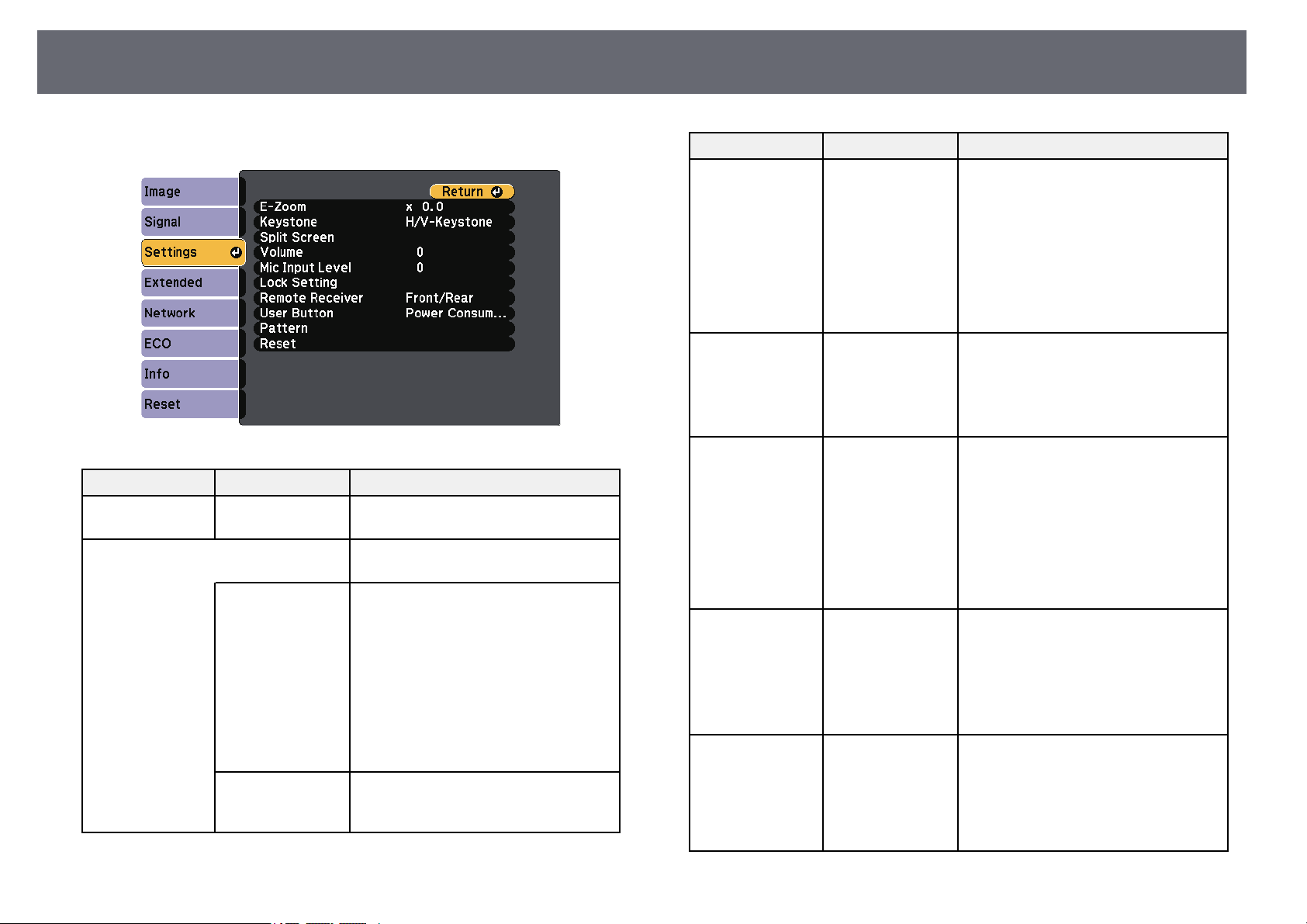
ProjectorFeatureSettings-SettingsMenu
132
Options onthe Settingsmenulet youcustomize various projectorfeatures.
SettingOptionsDescription
E-ZoomVaryinglevels
available
Adjusts thesizeoftheprojectedimage.
KeystoneAdjusts imageshapetorectangular
(horizontally andvertically).
H/V-KeystoneH/V-Keystone: Selecttomanually
correct horizontalandverticalsides.
AutoV-Keystone: Turnsautomatic
correction onoroff.(Availableonlyfor
models thatsupporttheAutoV-
Keystonefunction.)
H-KeystoneAdjuster: TurnsH-
KeystoneAdjusteron oroff.(Available
only formodelsthathavethehorizontal
keystone slider.)
Quick CornerQuickCorner: Selecttocorrectimage
shape andalignmentusinganon-screen
display.
SettingOptionsDescription
Split ScreenScreenSize
Source
Swap Screens
Audio Source
Align
Display theQR
Code
Exit SplitScreen
Divides theviewingareahorizontallyand
displays twoimagesside-by-side(press
[Esc] tocancelsplitscreendisplay).
VolumeVarying levels
available
Adjusts thevolumeofprojector’sspeaker
system.
You canalsoadjustthevolumeof
external speakers.
Setting valuesaresavedforeachsource.
Mic InputLevelVarying levels
available
Adjusts theinputlevelfroma
microphone.
When MicInputLevelisturnedup,the
volume oftheotherconnecteddeviceis
turned down;whenitisturneddown,
the volumeoftheotherconnecteddevice
is turnedup.
(Available onlyformodelsthathavethe
Mic port.)
Lock SettingControl PanelLockControls projectorbuttonlockingto
secure theprojector:
FullLock: locksallbuttons.
PartialLock: locksallbuttonsexceptthe
power button.
Off: nobuttonslocked.
Remote ReceiverFront/Rear
Front
Rear
Off
Limits receptionofremotecontrol
signals bytheselectedreceiver;Offturns
off allreceivers.
Options varydependingonthenumber
of remotereceiversequippedonthe
projector.
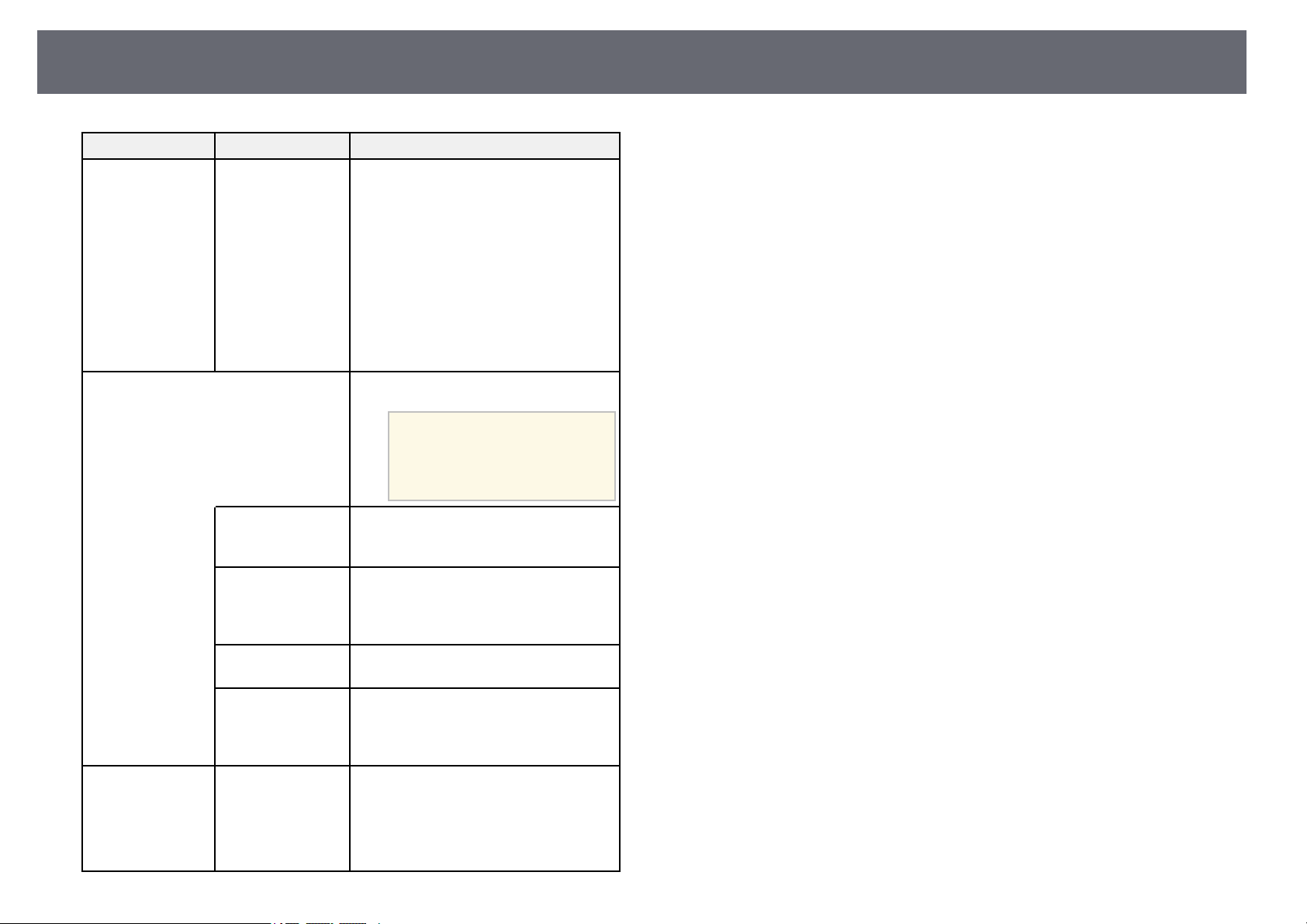
ProjectorFeatureSettings-SettingsMenu
133
SettingOptionsDescription
User ButtonPower
Consumption
Info
Deinterlacing
Test Pattern
Resolution
Mic InputLevel
Pattern Display
Display theQR
Code
Assigns amenuoptiontothe[User]
button ontheremotecontrolforone-
touch access.
MicInputLevelisavailableonlyfor
models thathavetheMicport.
DisplaytheQRCodeis availableonly
for modelsthatsupportnetwork
projection.
PatternSelects variouspatterndisplayoptions.
Attention
If apatternisdisplayedfora
long time,aresidualimagemay
be visibleinprojectedimages.
Pattern DisplayPatternDisplay:letsyoudisplaythe
selected patterntypeonthescreentoaid
in presentation.
Pattern TypePatternType:selectfromPatterns1to 4
or UserPattern.Patterns1to4display
patterns pre-registeredintheprojector,
such asruledlinesorgridpatterns.
User PatternUserPattern:capturesaprojectedscreen
and savesitasapatternfordisplay.
Test PatternTestPattern:displaysatestpatternto
assist infocusingandzoomingtheimage
and correctingimageshape(pressthe
[Esc] buttontocancelpatterndisplay).
Reset—Resetsalladjustmentvaluesonthe
Settingsmenutotheirdefaultsettings,
except forthefollowing:
•E-Zoom
•UserButton
ggRelatedLinks
•"List ofFunctions" p.10
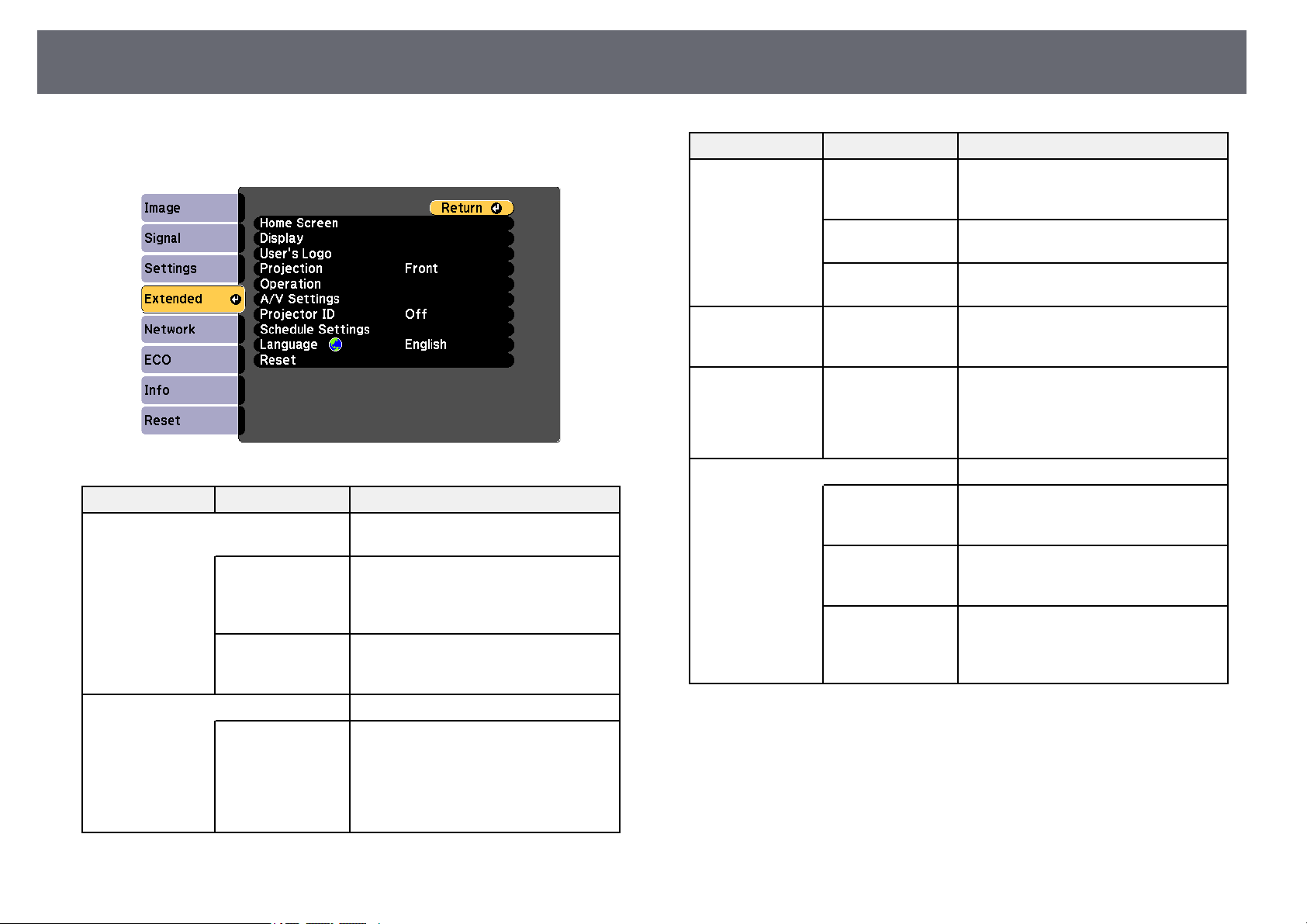
ProjectorSetupSettings-ExtendedMenu
134
Settings onthe Extended menulet youcustomize variousprojector setup
features.
SettingOptionsDescription
Home ScreenSelects theprojector'sHomescreen
display options:
Home ScreenAuto
Disp.
HomeScreenAutoDisp.: selectwhether
or nottodisplaytheHomescreen
automatically whenthereisnoinput
signal whenturningontheprojector.
Custom Function1
Custom Function2
CustomFunction1/CustomFunction
2: selecttosetfunctionsandthedisplay
as thecustomizedHomescreen.
DisplaySelects variousdisplayoptions:
MessagesMessages: settoOntodisplaymessages
such asinputsourcename,colormode
name, aspectratio,nosignalmessage,or
high temperaturewarningonyour
projected image.SettoOffifyoudonot
want todisplaymessages.
SettingOptionsDescription
Display
Background
DisplayBackground: setsthescreen
color orlogotodisplaywhennosignalis
received.
Startup ScreenStartupScreen:settoOntodisplaya
logo whentheprojectorstartsup.
A/V MuteA/VMute:setsthescreencolororlogo
to displaywhenA/VMuteisturnedon.
User's Logo—Creates ascreenthattheprojector
displays toidentifyitselfandenhance
security.
ProjectionFront
Front/Ceiling
Rear
Rear/Ceiling
Selects thewaytheprojectorfacesthe
screen sotheimageisorientedcorrectly.
OperationSelectsvariousoperationoptions:
Direct PowerOnDirectPowerOn:letsyouturnonthe
projector bypluggingitinwithout
pressing thepowerbutton.
High Altitude
Mode
HighAltitudeMode: regulatesthe
projector’s operatingtemperatureat
altitudes above1500m.
Auto SourceSearchAutoSourceSearch:setto Ontodetect
the inputsignalautomaticallyand
project imageswhenthereisnoinput
signal.

ProjectorSetupSettings-ExtendedMenu
135
SettingOptionsDescription
Auto PowerOnAutoPowerOn:selecttheimagesource
from whichyouwanttoautomatically
start projection.Whentheprojector
detects theinputsignalfromtheselected
image source,itprojectsautomaticallyin
standby mode.
The followingimagesourcesareavailable
for thisfeature:
•HDMI1
•HDMI
•Computer1
•Computer
•USBDisplay
HDMI EQSettingHDMIEQSetting:AdjusttheHDMI
input signalleveldependingonthe
devices connectedtotheHDMIport.If
there isalotofinterferenceintheimage,
or ifaproblemsuchasnoimagebeing
projected occurs,changethesetting.
If noimagesaredisplayedusinga
thumb-sized mediastreamingdevice,
select 1.
AdvancedLogSaveDestination: setsthelocation
in whichtosaveerrorandoperationlog
files. (Availableonlyformodelsthathave
a USB-Aport.)
BatchSetupRange: selectAlltocopyall
of theprojectormenusettingsusingthe
batch setupfeature.SelectLimited,ifyou
do notwanttocopythefollowing
settings:
•PasswordProtectionsettings
•Networkmenusettings
SettingOptionsDescription
Date &TimeDate &Time:adjuststheprojector's
system timeanddatesettings.
(Available onlyformodelsthatsupport
the Schedulefunction.)
•DaylightSavingTime:settoOnto
activate daylightsavingtime.
•InternetTime:settoOntoupdatethe
time automaticallythroughanInternet
time server.
A/V SettingsSelects variousaudioandvideooutput
settings:
A/V OutputA/VOutput:setto AlwaysOntooutput
audio andimagestoexternaldevices
when theprojectorisinstandbymode.
Audio SettingsAudioOutput: selectstheaudioinput
port whenprojectingimagesfrom
anything exceptforHDMIports.
(Available onlyformodelsthathave
multiple audioinputports.)
HDMIAudioOutput/HDMI1 Audio
Output/HDMI2AudioOutput: selects
the audioinputportwhenprojecting
images fromHDMIports.(Optionsvary
depending onthenumberofHDMI
ports ontheprojector.)
Projector IDOff
1 through9
Assigns anIDfortheprojectorwhenyou
use multipleprojectors.
Schedule SettingsTo Schedule
Settings menu
Schedules projectoreventstooccur
automatically atselecteddatesandtimes.
(Available onlyformodelsthatsupport
the Schedulefunction.)
LanguageVarious languages
available
Select thelanguageforprojectormenu
and messagedisplays.
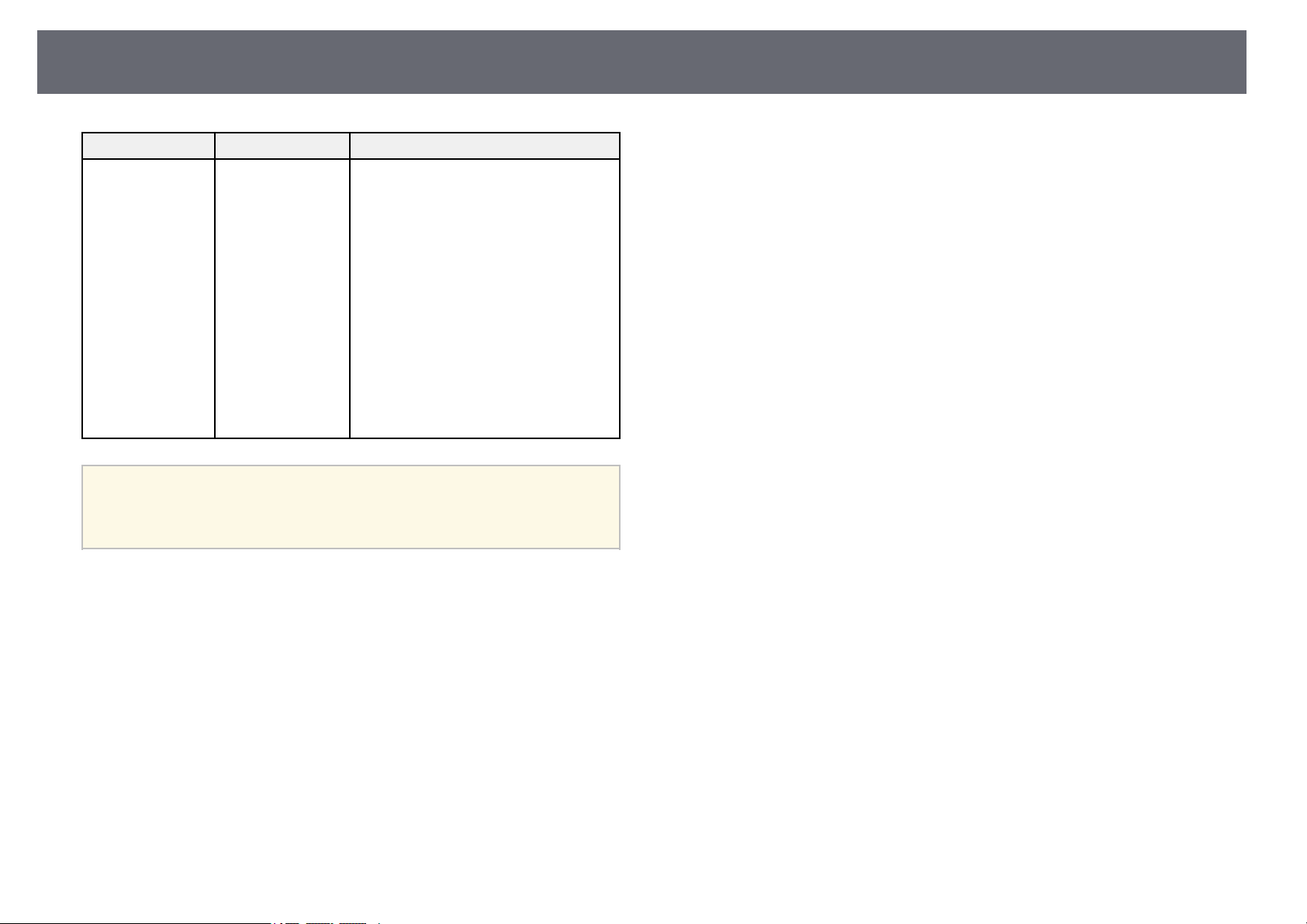
ProjectorSetupSettings-ExtendedMenu
136
SettingOptionsDescription
Reset—Resetsalladjustmentvaluesonthe
Extendedmenutotheirdefaultsettings,
except forthefollowing:
•User'sLogo
•Projection
•HighAltitudeMode
•AutoSourceSearch
•HDMIEQSetting
•Date&Time
•A/VOutput
•ProjectorID
•ScheduleSettings
•Language
a
When yousetUser'sLogoProtectiontoOninthe Password
Protectionscreen, youcannotchangesettingsrelatedtouser'slogo
display (DisplayBackground,StartupScreen, A/VMuteinthe
Displaysetting).SetUser'sLogoProtectiontoOfffirst.
ggRelatedLinks
•"List ofFunctions" p.10
•"Selecting PasswordSecurity Types" p.83
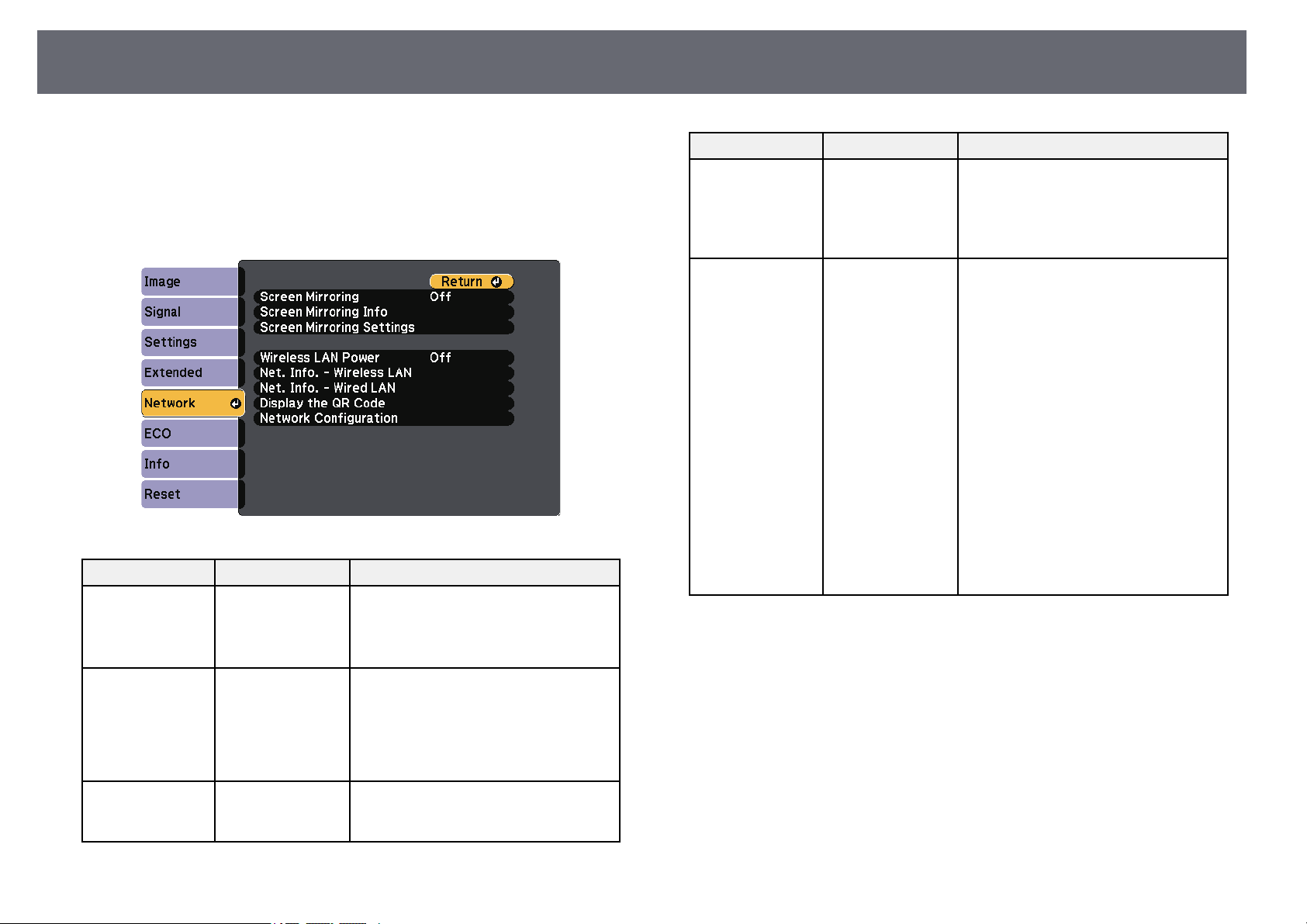
ProjectorNetworkSettings-NetworkMenu
137
Settings onthe Networkmenulet youview network informationand setup
the projectorfor controllingover a network.
This menuis availableonly for modelsthat supportnetwork projection.
When youset NetworkProtection to Onin the PasswordProtection screen,
you cannotchange thenetwork settings. SetNetwork Protectionto Offfirst.
SettingOptionsDescription
Screen Mirroring*On
Off
Configures yourScreenMirroring
settings.
Select OntoprojectwiththeScreen
Mirroring features.
Screen Mirroring
Info *
Display Name
MAC Address
Region Code
Channel
Connected Device
Displays ScreenMirroringstatusand
details.
Available whenyouhavesetScreen
Mirroringto On.
Screen Mirroring
Settings *
To Screen
Mirroring Settings
menu
Configures yourScreenMirroring
settings.
SettingOptionsDescription
Wireless LAN
Power
On
Off
Configures yourwirelessLANsettings.
Select Ontoprojectimagesviaawireless
LAN. Ifyoudonotwanttoconnectvia
wireless LAN,turnitofftoprevent
unauthorized accessbyothers.
Net. Info.-
Wireless LAN
Connection Mode
Wireless LANSys.
Antenna Level
Projector Name
SSID
DHCP
IP Address
Subnet Mask
Gateway Address
MAC Address
Region Code
IPv6
Displays wirelessnetworkstatusand
details. (Availableonlyformodelsthat
support wirelessLANprojection.)
Available whenyouhavesetWireless
LANPowertoOn.
The followingsettingsaredisplayed
when youselecttheIPv6option.
•IPv6Address(Manual)
•IPv6Address
•PrefixLength
•GatewayAddress
•IPv6Address(Auto)
•TemporaryAddress
•Link-localAddress
•StatelessAddress
•StatefulAddress
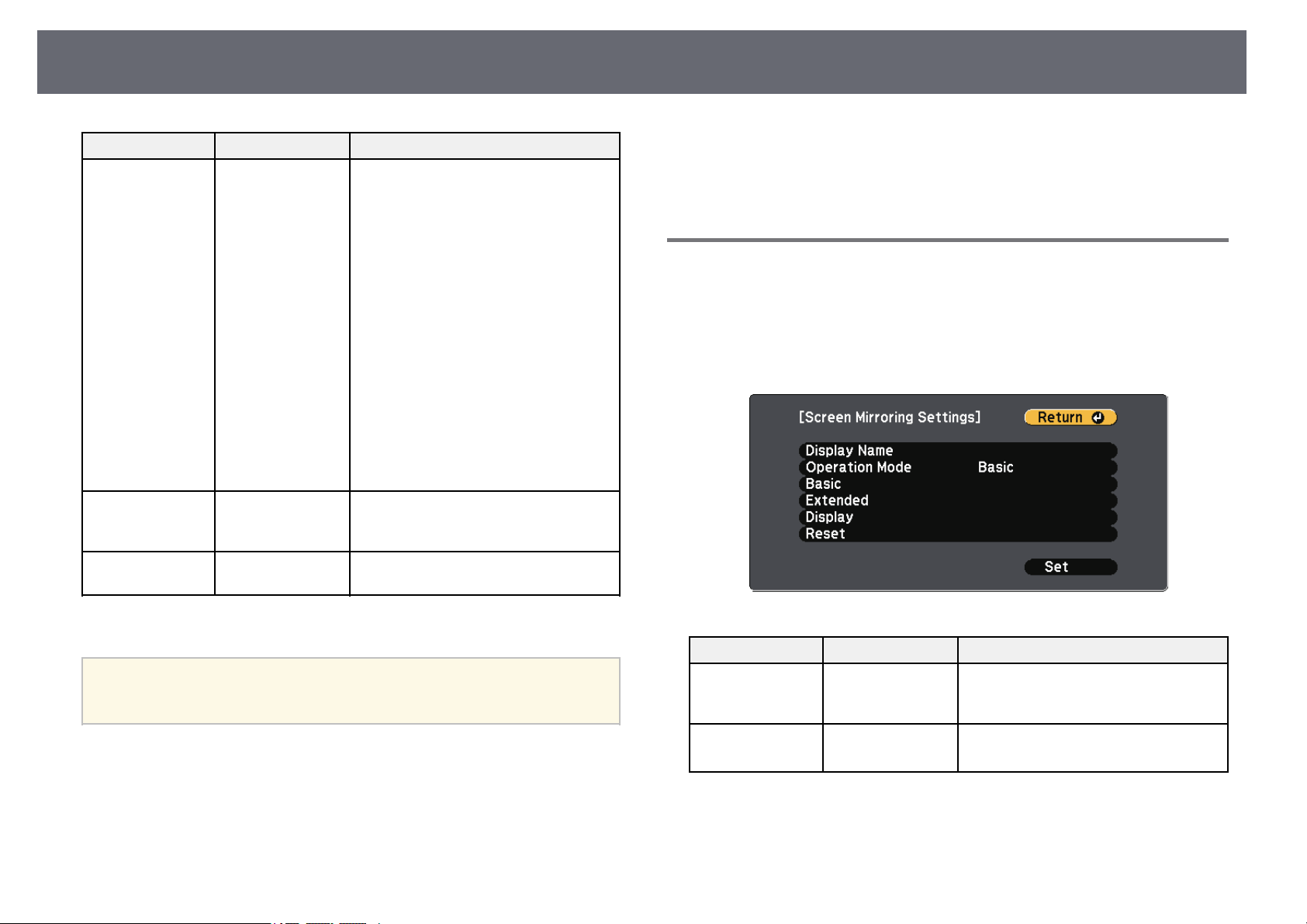
ProjectorNetworkSettings-NetworkMenu
138
SettingOptionsDescription
Net. Info.-Wired
LAN
Projector Name
DHCP
IP Address
Subnet Mask
Gateway Address
MAC Address
IPv6 Address
(Manual)
IPv6 Address
(Auto)
Displays wirednetworkstatusand
details. (Availableonlyformodelsthat
support wiredLANprojection.)
The followingsettingsaredisplayed
when youselecttheIPv6Address
(Manual)or IPv6Address(Auto)
option.
•IPv6Address(Manual)
•IPv6Address
•PrefixLength
•GatewayAddress
•IPv6Address(Auto)
•TemporaryAddress
•Link-localAddress
•StatelessAddress
•StatefulAddress
Display theQR
Code
—DisplaysaQRcodeforconnectingwith
iOS orAndroiddevicesusingtheEpson
iProjection app.
Network
Configuration
To additional
network menus
Configures yournetworksettings.
* Availableonly formodels that supportScreen Mirroring.
a
Once youhaveconnectedyourprojectortoyournetwork,youcan
select projectorsettingsandcontrolprojectionusingacompatibleWeb
browser. Thisallowsyoutoaccesstheprojectorremotely.
ggRelatedLinks
•"Network Menu- Screen MirroringSettings" p.138
•"Network Menu- Basic Menu"p.139
•"Network Menu- Wireless LANMenu" p.140
•"Network Menu- Wired LANMenu" p.143
•"Network Menu- Notifications Menu"p.144
•"Network Menu- Others Menu"p.145
•"Network Menu- Reset Menu"p.146
•"List ofFunctions" p.10
•"Selecting PasswordSecurity Types" p.83
NetworkMenu-ScreenMirroringSettings
Settings onthe ScreenMirroringSettings menulet youselect the Screen
Mirroring settings.
sNetwork> ScreenMirroringSettings
This menuis availableonly for modelsthat supportScreen Mirroring.
SettingOptionsDescription
Display NameUpto32
alphanumeric
characters
Enter anametoidentifytheprojector
when searchingfortheprojectorusing
the screenmirroringfeature.
Operation ModeBasic
Extended
Select Extendedtoconnectwith
advanced options.
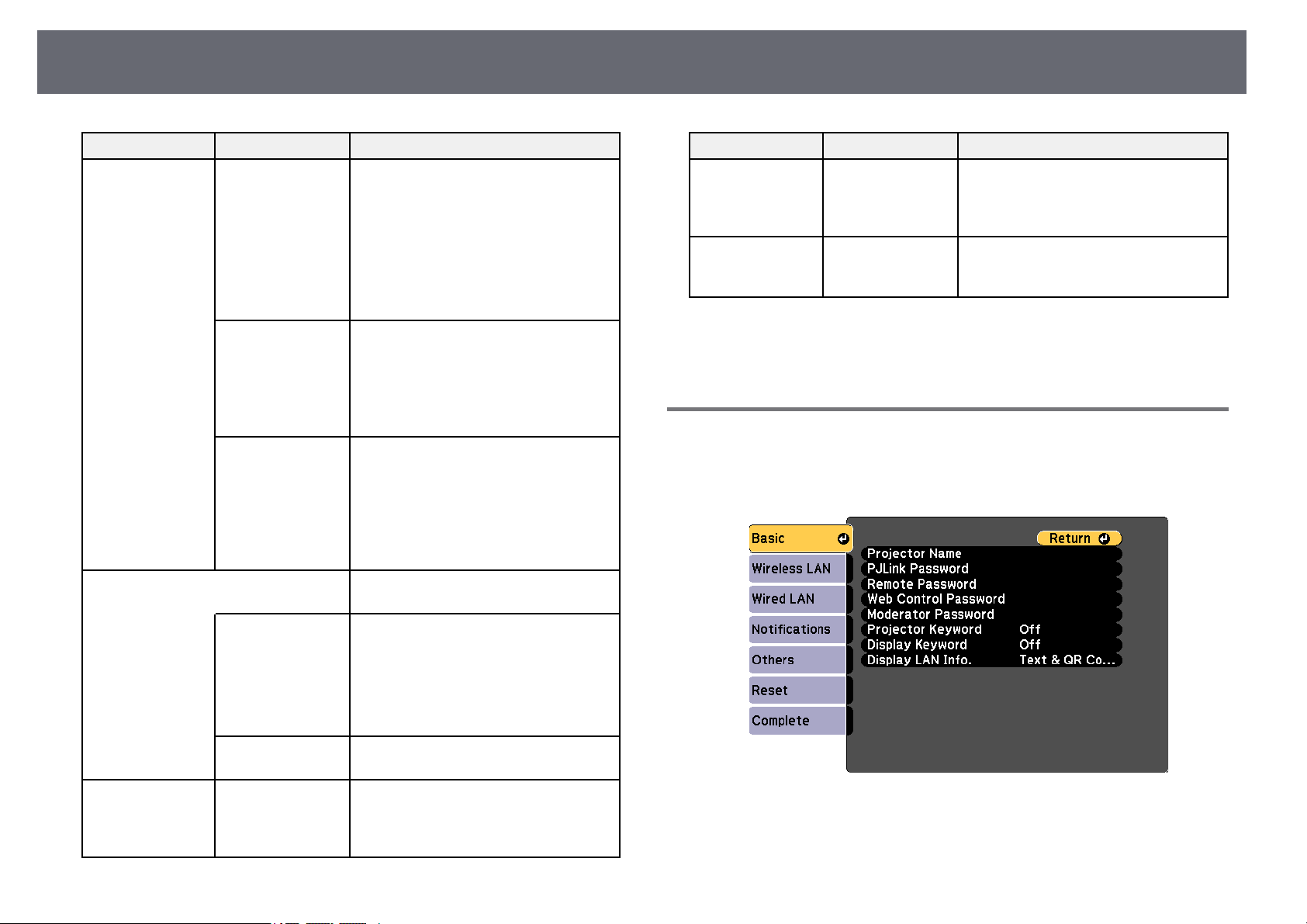
ProjectorNetworkSettings-NetworkMenu
139
SettingOptionsDescription
BasicWireless LANSys.Sets thecommunicationmethodbetween
the projectorandthemobiledevice.
You canselectthefollowingmethods:
•802.11a/g/n/ac(Wi-Fi5)
•802.11a/g/n(Wi-Fi4)
•802.11g/n(Wi-Fi4)
The availablemethodsvarydepending
on countriesandregions.
Adjust Image
Quality
Adjusts thescreenmirroring
speed/quality.
When youwanttoincreaseimage
quality, selectasmallnumber.Whenyou
want toincreaseprocessingspeed,select
a largenumber.
Connection ModeSelects thesecuritytypewhenyou
connect tothenetworkwirelessly.Select
PINtoimprovetheconnectionsecurity.
If yourmobiledevicesupportsonlythe
PBC connection,selectPIN/PBC.
Available whenyouhavesetOperation
ModetoBasic.
ExtendedAvailable whenyouhavesetOperation
ModetoExtended.
Meeting ModeSelects thetypeofmeeting.
•InterruptionsOK:letsyouconnectto
another mobiledeviceduringScreen
Mirroring projection.
•NoInterruptions:letsyouexclusively
connect toonedevice.
ChannelSelectsthewirelesschannelusedby
Screen Mirroring.
DisplayDisplay PINCodeSet toOntodisplaytheeight-digitPIN
code ontheprojectedimagewhen
projecting inputsourcesotherthan
Screen Mirroring.
SettingOptionsDescription
Display Device
Name
Set toOntodisplaythenewlyconnected
device nameontheprojectedimage
when projectinginputsourcesotherthan
Screen Mirroring.
Reset—Resetsalladjustmentvaluesonthe
ScreenMirroringSettingsmenu totheir
default settings.
ggRelatedLinks
•"List ofFunctions" p.10
NetworkMenu-BasicMenu
Settings onthe Basicmenulet youselect the basicnetwork settings.
sNetwork> NetworkConfiguration> Basic
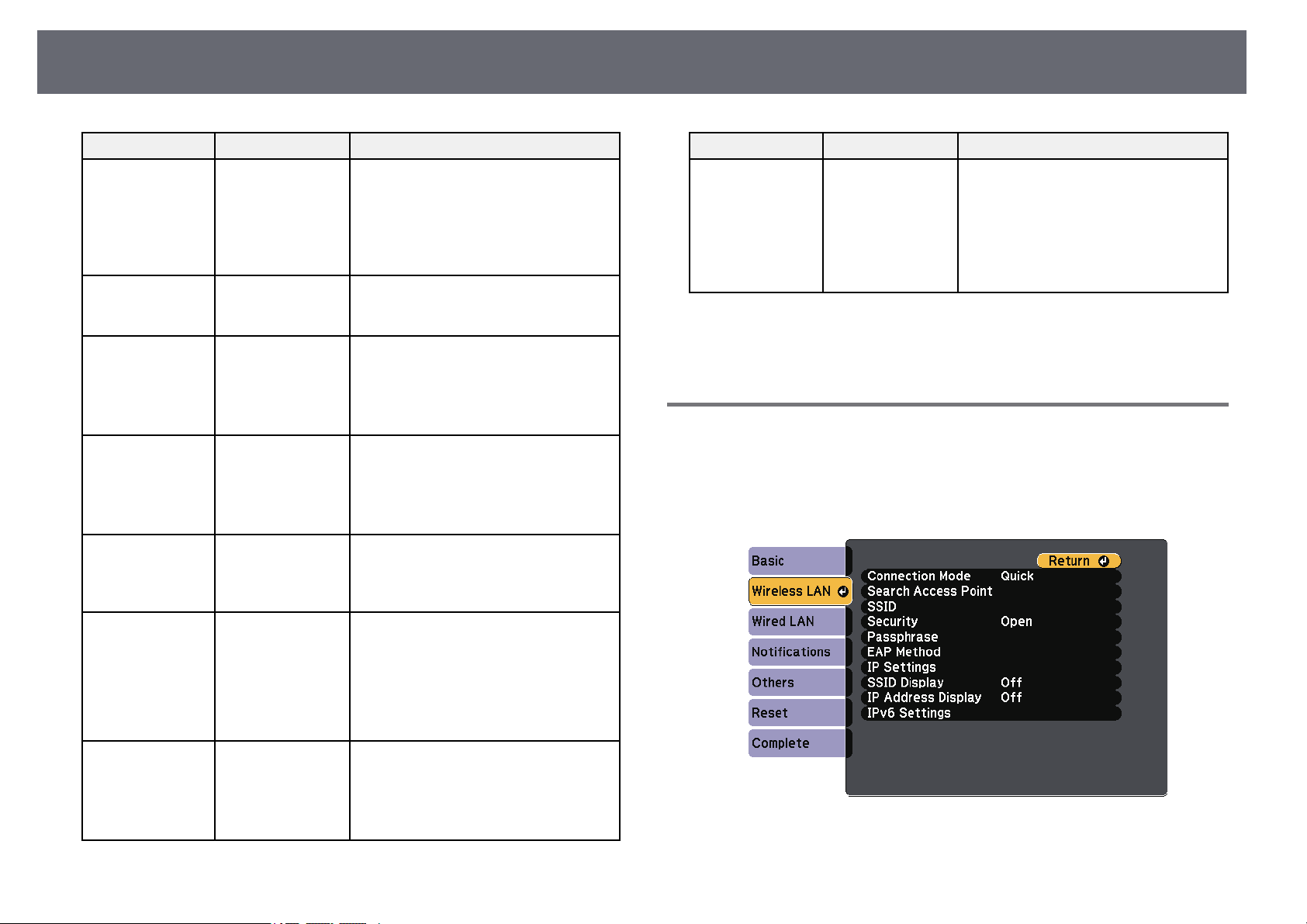
ProjectorNetworkSettings-NetworkMenu
140
SettingOptionsDescription
Projector NameUpto16
alphanumeric
characters
(do notuse"*+,
/ :;<=>?[\]`|
spaces)
Enter anametoidentifytheprojector
over thenetwork.
PJLink PasswordUpto32
alphanumeric
characters
Enter apasswordforusingthePJLink
protocol forprojectorcontrol.
Remote PasswordUpto8
alphanumeric
characters
(do notuse*:
spaces)
Enter apasswordforaccessingthe
projector usingtheBasicControl.(User
name isEPSONREMOTE;default
password isguest.)
Web Control
Password
Up to8
alphanumeric
characters
(do notuse*:
spaces)
Enter apasswordforaccessingthe
projector overtheWeb.(Usernameis
EPSONWEB; defaultpasswordis
admin.)
Moderator
Password
Four-digit numberEnter apasswordforaccessingthe
projector asamoderatorusingEpson
iProjection. (Nopasswordissetby
default.)
Projector KeywordOn
Off
Set toOntoenableasecuritypassword
to preventaccesstotheprojectorby
anyone notinthesameroomasthe
projector. Youmustenteradisplayed,
randomized keywordfromacomputer
using EpsoniProjectiontoaccessthe
projector andsharethecurrentscreen.
Display KeywordOn
Off
Set toOntodisplayaprojectorkeyword
on theprojectedimagewhenaccessing
the projectorusingEpsoniProjection.
Available whenProjectorKeywordisset
to On.
SettingOptionsDescription
Display LANInfo.Text &QRCode
Text
Set thedisplayformatfortheprojector's
network information.
By simplyreadingtheQRcodewith
Epson iProjection,youcanconnectthe
mobile devicetotheprojectorthrougha
network. ThedefaultvalueisText&QR
Code.
ggRelatedLinks
•"List ofFunctions" p.10
NetworkMenu-WirelessLANMenu
Settings onthe WirelessLANmenu letyou select thewireless LANsettings.
sNetwork> NetworkConfiguration> WirelessLAN
This menuis availableonly for modelsthat supportwireless LAN projection.
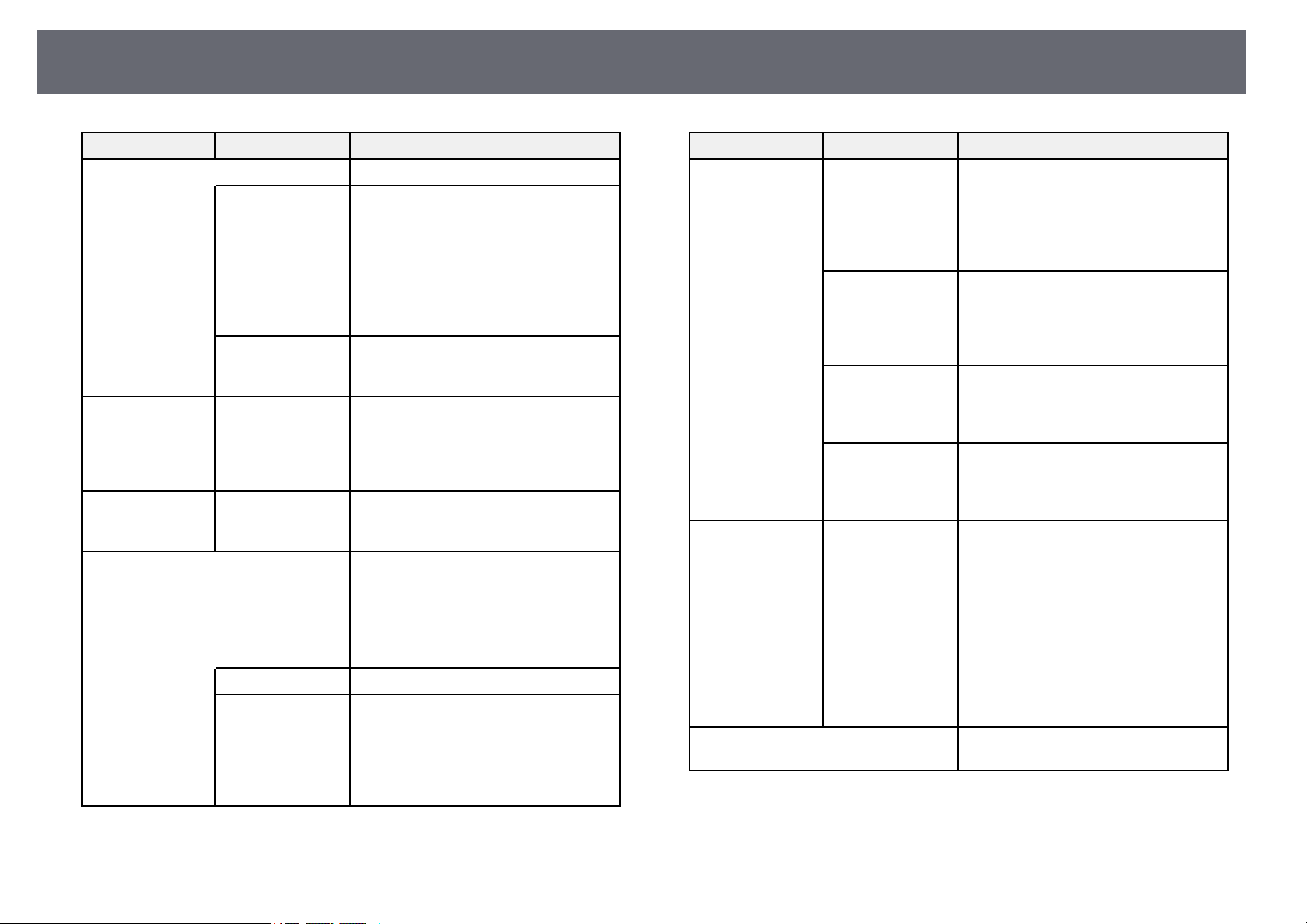
ProjectorNetworkSettings-NetworkMenu
141
SettingOptionsDescription
Connection ModeSelect thetypeofwirelessconnection:
QuickQuick:letsyouconnecttomultiple
smartphones, tablets,orcomputers
directly usingwirelesscommunication.
When youselectQuickconnection
mode, theprojectoractsasaneasyaccess
point. (Werecommendlimitingthe
number ofdevicestosixorlessto
maintain theprojectionperformance.)
AdvancedAdvanced: letsyouconnecttomultiple
smartphones, tablets,orcomputersover
a wirelessnetworkaccesspoint.
Search AccessPointTo SearchViewSearch foravailablewirelessnetwork
access pointsinAdvancedconnection
mode. Dependingontheaccesspoint
settings, theymaynotbedisplayedinthe
list.
SSIDUp to32
alphanumeric
characters
Sets theSSID(networkname)ofthe
wireless LANsystemtheprojectoris
connecting to.
SecuritySelects thetypeofsecurityusedonthe
wireless network.
When settingsecurity,followthe
instructions fromtheadministratorof
the networksystemyouwanttoconnect
to.
OpenSecurity isnotset.
WPA2-PSKCommunicationisperformedusing
WPA2 security.UsesAESmethodfor
encryption. Whenestablishinga
connection fromacomputertothe
projector, enterthevaluesetinthe
passphrase.
SettingOptionsDescription
WPA3-PSKCommunicationisperformedusing
WPA3 security.UsesAESmethodfor
encryption. Whenestablishinga
connection fromacomputertothe
projector, enterthevaluesetinthe
passphrase.
WPA2/WPA3-PSKConnects inWPA2/WPA3personal
mode. Encryptionmethodisselected
automatically accordingtotheaccess
point settings.Setapassphrasewhichis
the samefortheaccesspoint.
WPA3-EAPConnectsinWPA3enterprisemode.
Encryption methodisselected
automatically accordingtotheaccess
point settings.
WPA2/WPA3-EAPConnects inWPA2/WPA3enterprise
mode. Encryptionmethodisselected
automatically accordingtotheaccess
point settings.
PassphraseVarious
passphrases from8
to 32characters
(when entering
from aWeb
browser: various
passphrases from8
to 63characters)
For WPA2-PSK,WPA3-PSKand
WPA2/WPA3-PSKsecurity,selects the
pre-shared passphraseusedonthe
network.
When thepassphraseisenteredandthe
[Enter] buttonispressed,thevalueisset
and displayedasanasterisk(*).
We recommendchangingthepassphrase
periodically forsecurity.Ifthenetwork
settings areinitialized,itreturnstothe
initial passphrase.
EAP MethodSet theEAPsettingsforWPA3-EAPand
WPA2/WPA3-EAPsecurity.

ProjectorNetworkSettings-NetworkMenu
142
SettingOptionsDescription
EAP TypeEAPType: selectstheprotocolfor
authentication.
•PEAP:authenticationprotocolwidely
used inWindowsServer.
•PEAP-TLS:authenticationprotocol
used inWindowsServer.Selectthis
when usingaclientcertificate.
•EAP-TLS:authenticationprotocol
widely usedtouseaclientcertificate.
•EAP-FAST:selectthiswhenthese
authentication protocolsareused.
User nameUser name:Enterupto64alphanumeric
characters. Youcanenterupto32
alphanumeric charactersintheprojector
menu. Toentermorethan32characters,
use yourWebbrowser.Youcanentera
domain namebyaddingitbeforethe
user nameandseparatingthemwitha
backslash (domain\username).
When importingaclientcertificate,the
name thecertificatewasissuedtois
automatically set.
PasswordPassword:Enterapasswordupto64
alphanumeric charactersfor
authentication whenEAPTypeissetto
PEAPorEAP-FAST.Youcanenterup
to 32alphanumericcharactersinthe
projector menu.Toentermorethan32
characters, useyourWebbrowser.After
you enterthepasswordandselectSet,
the passwordisdisplayedasanasterisk
(*).
Client CertificateClientCertificate:importstheclient
certificate whenEAPTypeissetto
PEAP-TLSorEAP-TLS.
Verify ServerCert.VerifyServerCert.: SettoOntoverify
the servercertificatewhenaCA
certificate hasbeenset.
SettingOptionsDescription
CA certificateCA certificate:importstheCA
certificate.
RADIUS
Serv.Name
RADIUSServ.Name: Entertheserver
name youwanttoverify.Youcanenter
up to64alphanumericcharacters.To
enter morethan32characters,useyour
Web browser.
ChannelVariouschannels
available
In Quickconnectionmode,selectsthe
frequency band(channel)usedbythe
wireless LAN.
IP SettingsDHCP
IP Address
Subnet Mask
Gateway Address
DHCP: settoOnifyournetworkassigns
addresses automatically;settoOffto
manually enterthenetwork'sIP
Address, SubnetMask,and Gateway
Addressusing0to255foreachaddress
field.
Do notusetheseaddresses:0.0.0.0,
127.x.x.x, 192.0.2.xor224.0.0.0through
255.255.255.255 (wherexisanumber
from 0to255)forIPAddress,
255.255.255.255 or0.0.0.0through
254.255.255.255 forSubnetMask,and
0.0.0.0, 127.x.x.xor224.0.0.0through
255.255.255.255 forGatewayAddress.
SSID DisplayOn
Off
Select whethertodisplaytheSSIDonthe
network standbyscreenandHome
screen.
IP AddressDisplayOn
Off
Select whethertodisplaytheIPaddress
on thenetworkstandbyscreenand
Home screen.
IPv6 SettingsSelecttheIPv6settingsifyouwantto
connect theprojectortothenetwork
using IPv6:
IPv6IPv6:settoOnifyouwanttoconnect
the projectortothenetworkusingIPv6.
IPv6 issupportedtomonitorandcontrol
the projectoroveranetworkusingEpson
Web ControlandPJLink.
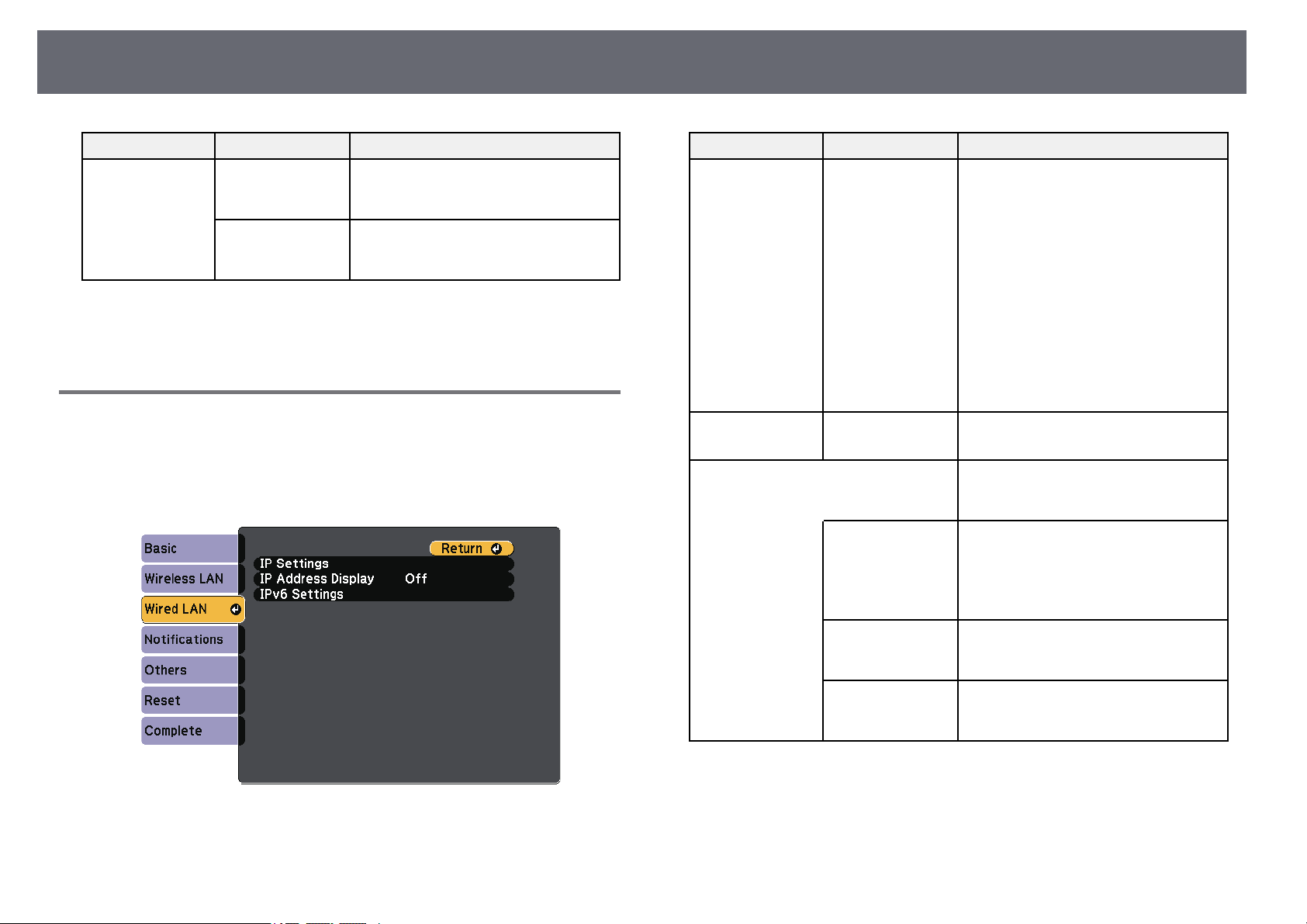
ProjectorNetworkSettings-NetworkMenu
143
SettingOptionsDescription
Auto ConfigurationAutoConfiguration:settoOntoassign
addresses automaticallyaccordingtothe
Router Advertisement.
Use Temporary
Address
UseTemporaryAddress: settoOnif
you wanttouseatemporaryIPv6
address.
ggRelatedLinks
•"List ofFunctions" p.10
NetworkMenu-WiredLANMenu
Settings onthe WiredLANmenu letyou select thewired LANsettings.
sNetwork> NetworkConfiguration> WiredLAN
This menuis availableonly for modelsthat supportwired LAN projection.
SettingOptionsDescription
IP SettingsDHCP
IP Address
Subnet Mask
Gateway Address
DHCP: settoOnifyournetworkassigns
addresses automatically;settoOffto
manually enterthenetwork'sIP
Address, SubnetMask,and Gateway
Addressusing0to255foreachaddress
field.
Do notusetheseaddresses:0.0.0.0,
127.x.x.x, 192.0.2.xor224.0.0.0through
255.255.255.255 (wherexisanumber
from 0to255)forIPAddress,
255.255.255.255 or0.0.0.0through
254.255.255.255 forSubnetMask,and
0.0.0.0, 127.x.x.xor224.0.0.0through
255.255.255.255 forGatewayAddress.
IP AddressDisplayOn
Off
Select whethertodisplaytheIPaddress
on thenetworkstandbyscreen.
IPv6 SettingsSelecttheIPv6settingsifyouwantto
connect theprojectortothenetwork
using IPv6:
IPv6IPv6:settoOnifyouwanttoconnect
the projectortothenetworkusingIPv6.
IPv6 issupportedtomonitorandcontrol
the projectoroveranetworkusingEpson
Web ControlandPJLink.
Auto ConfigurationAutoConfiguration:settoOntoassign
addresses automaticallyaccordingtothe
Router Advertisement.
Use Temporary
Address
UseTemporaryAddress: settoOnif
you wanttouseatemporaryIPv6
address.
ggRelatedLinks
•"List ofFunctions" p.10
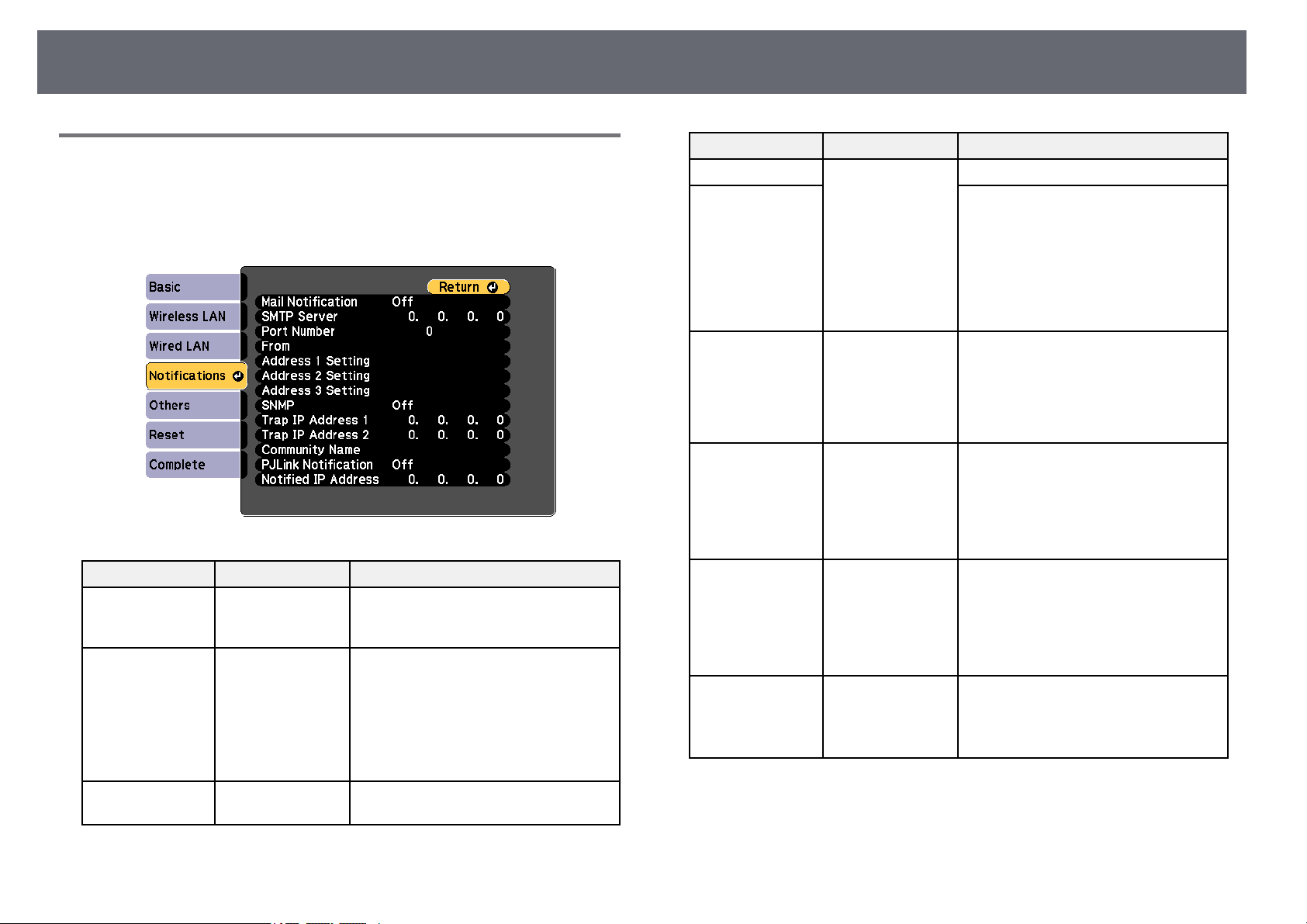
ProjectorNetworkSettings-NetworkMenu
144
NetworkMenu-NotificationsMenu
Settings onthe Notificationsmenulet youreceive an emailnotification ifa
problem orwarning occursin the projector.
sNetwork> NetworkConfiguration> Notifications
SettingOptionsDescription
Mail NotificationOn
Off
Set toOntosendanemailtothepreset
addresses whenaproblemorwarning
occurs withaprojector.
SMTP ServerIP addressEnter theIPaddressfortheprojector's
SMTP serverusing0to255foreach
address field.
Do notusetheseaddresses:127.x.x.x,
192.0.2.x or224.0.0.0through
255.255.255.255 (wherexisanumber
from 0to255).
Port Number0 to 65535(default
is 25)
Select anumberfortheSMTPserver
Port Number.
SettingOptionsDescription
FromUpto32
alphanumeric
characters
Up to64
alphanumeric
characters fromthe
Web browser
(do notuse"(),:;
< >[\]spaces)
Enter theemailaddressofthesender.
Address 1Setting
Address 2Setting
Address 3Setting
Enter thee-mailaddress,andselectthe
alerts youwanttoreceive.Repeatforup
to threeaddresses.
SNMPOn
Off
Set toOntomonitortheprojectorusing
SNMP. Tomonitortheprojector,you
need toinstalltheSNMPmanager
program onyourcomputer.SNMP
should bemanagedbyanetwork
administrator.
Trap IPAddress1
Trap IPAddress2
IP addressEnter uptotwoIPaddressestoreceive
SNMP notifications,using0to255for
each addressfield.
Do notusetheseaddresses:127.x.x.xor
224.0.0.0 through255.255.255.255
(where xisanumberfrom0to255).
Community NameUpto32
alphanumeric
characters
(do notusespaces
and anysymbols
other than@)
Set theSNMPcommunityname.
PJLink NotificationOn
Off
Enables ordisablesthePJLink
notification function.
Available onlyformodelsthatsupport
wired LANprojection.
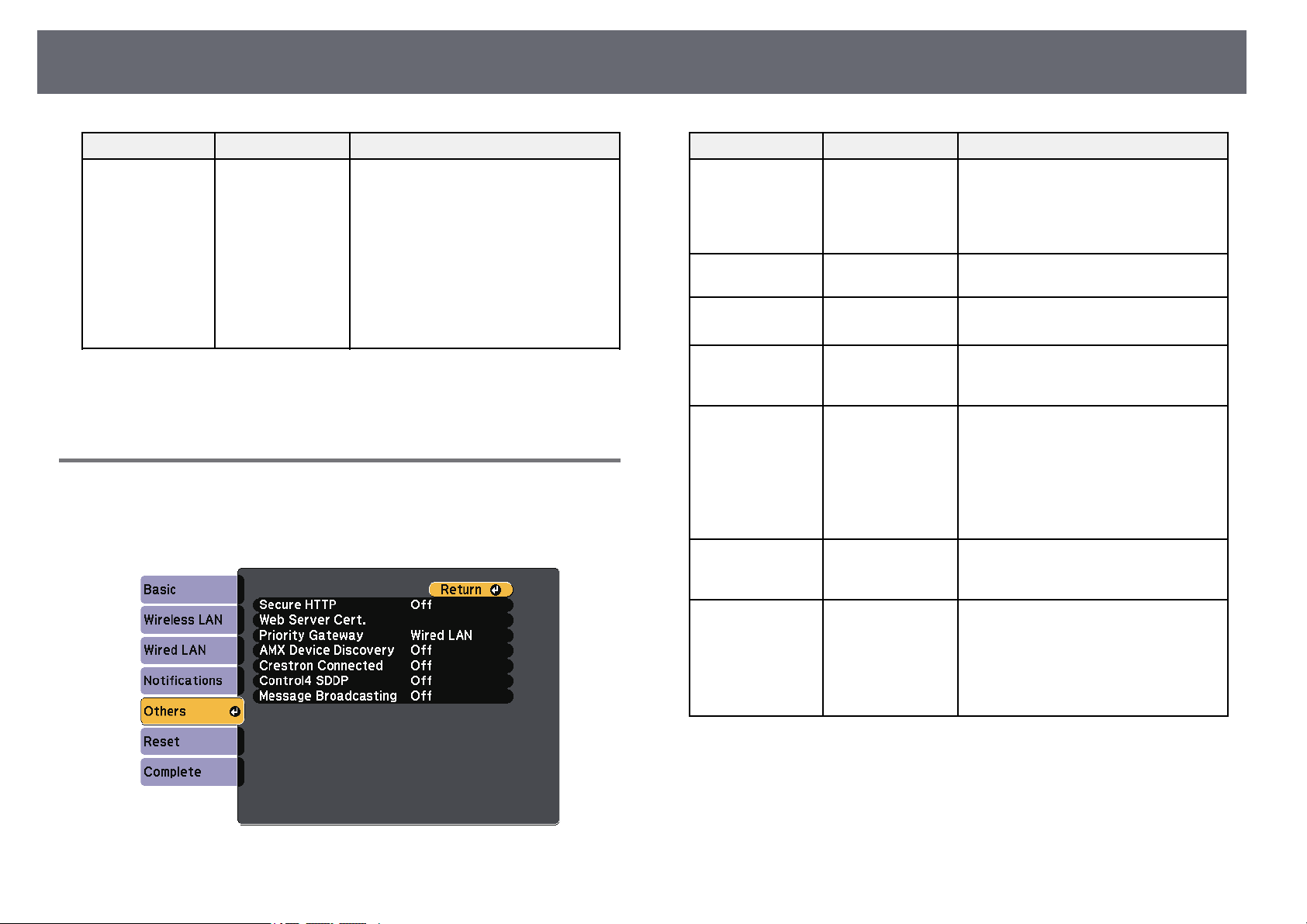
ProjectorNetworkSettings-NetworkMenu
145
SettingOptionsDescription
Notified IPAddressIP addressEnter theIPaddresstoreceivethe
projector's operatingstatuswhenthe
PJLink notificationfunctionisenabled.
Enter theaddressesusing0to255for
each addressfield.
Do notusetheseaddresses:127.x.x.xor
224.0.0.0 through255.255.255.255
(where xisanumberfrom0to255).
Available onlyformodelsthatsupport
wired LANprojection.
ggRelatedLinks
•"List ofFunctions" p.10
NetworkMenu-OthersMenu
Settings onthe Othersmenulet youselect other networksettings.
sNetwork> NetworkConfiguration> Others
SettingOptionsDescription
Secure HTTPOn
Off
To strengthensecurity,communication
between theprojectorandcomputerin
Web controlisencrypted.Whensetting
security withWebcontrol,itis
recommended tosetthistoOn.
Web ServerCert.—Imports theWebservercertificatefor
secure HTTP.
Priority Gateway*Wired LAN
Wireless LAN
You cansettheprioritygateway.
AMX Device
Discovery *
On
Off
Set toOnwhenyouwanttoallowthe
projector tobedetectedbyAMXDevice
Discovery.
Crestron
Connected *
On
Off
Set toOnonlywhenmonitoringor
controlling theprojectoroverthe
network usingCrestronConnected.
Enabling CrestronConnecteddisables
the EpsonMessageBroadcastingfeature
in theEpsonProjectorManagement
software.
Control4 SDDP*On
Off
Set toOntoallowdeviceinformationto
be acquiredusingControl4Simple
Device DiscoveryProtocol(SDDP).
Message
Broadcasting
On
Off
Set toOntoreceivethemessage
delivered byEpsonProjector
Management. SeetheEpsonProjector
Management OperationGuidefordetails.
Available onlywhenCrestron
ConnectedissettoOff.
* Availableonly formodels that supportwired LANprojection.
ggRelatedLinks
•"Crestron ConnectedSupport" p.119
•"List ofFunctions" p.10
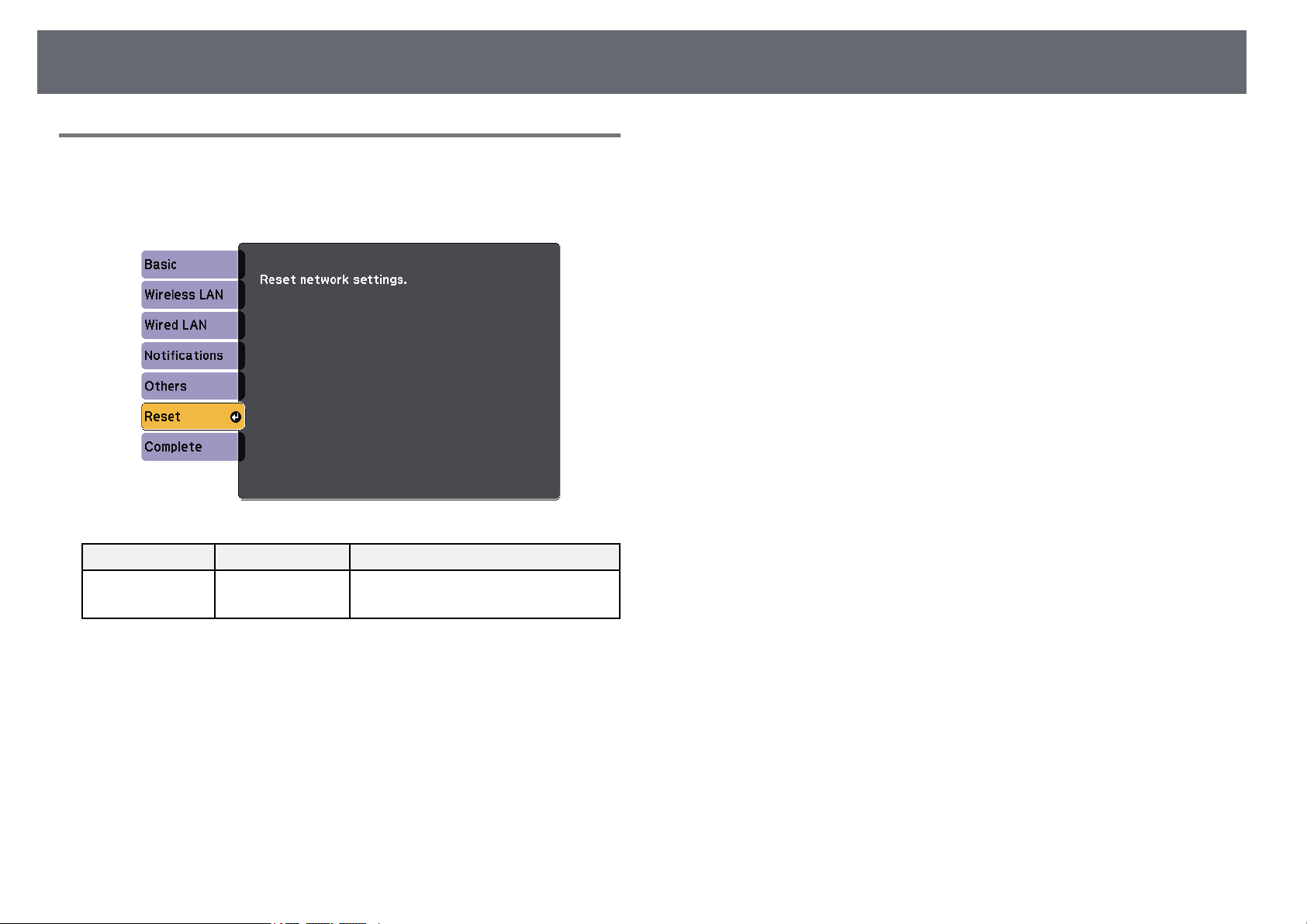
ProjectorNetworkSettings-NetworkMenu
146
NetworkMenu-ResetMenu
Settings onthe Resetmenulet youreset all ofthe networksettings.
sNetwork> NetworkConfiguration> Reset
SettingOptionsDescription
Reset network
settings.
Yes
No
Select Yestoresetallnetworksettings.
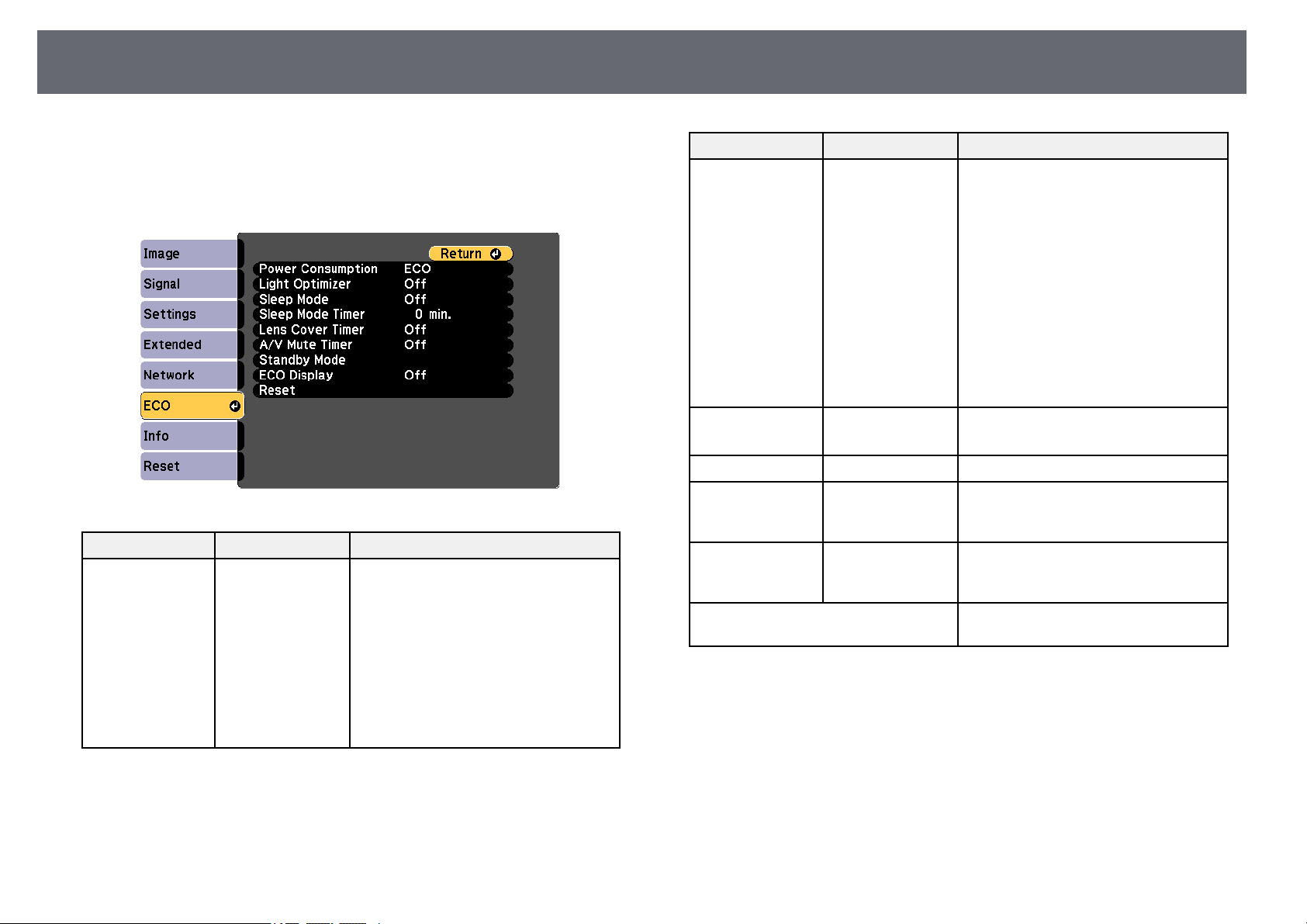
ProjectorSetupSettings-ECOMenu
147
Settings onthe ECOmenulet youcustomize projector functionsto save
power.
When youselect apower-saving setting, aleaf iconappears next tothe menu
item.
SettingOptionsDescription
Power
Consumption
High
Medium
ECO
Selects thebrightnessmodeofthe
projector lamp.Youcannotselect
settings whenyouuseyourprojectorat
high altitudeorinlocationssubjectto
high temperatures.
Select ECOtoreducelampbrightness
and fannoise,andtosavepowerand
lamp life.
Options varydependingontheprojector
model.
SettingOptionsDescription
Light OptimizerOn
Off
When settoOn,thelampbrightnessis
adjusted accordingtotheprojected
image. Thishelpstoreducethepower
consumption byloweringthelamp
brightness accordingtothescenebeing
projected.
The settingisstoredforeachColor
Mode.
This itemisenabledwhen:
•PowerConsumptionis settoHighor
Medium.
•AutoIrisissetto Off.
sImage>AutoIris
Sleep ModeOn
Off
Automatically turnsofftheprojector
after anintervalofinactivity(whenOn).
Sleep ModeTimer1 to 30minutesSets theintervalforSleepMode.
Lens CoverTimerOn
Off
Automatically turnsofftheprojector
after 30minutesifthelenscoveris
closed (whenOn).
A/V MuteTimerOn
Off
Automatically turnsofftheprojector
after 30minutesifA/VMuteisenabled
(when On).
Standby Mode*Available whenyouhavesetA/VOutput
to WhileProjecting.
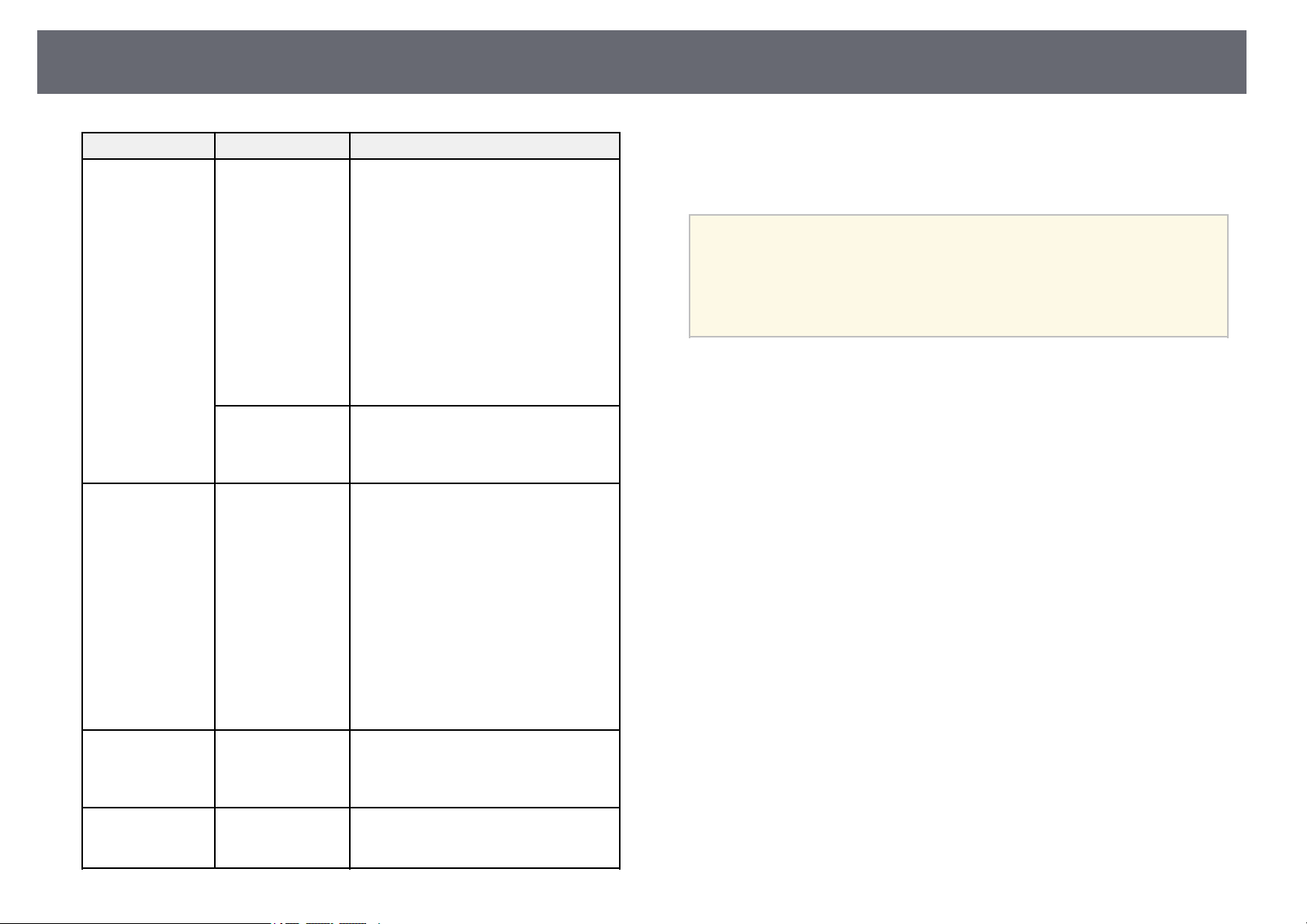
ProjectorSetupSettings-ECOMenu
148
SettingOptionsDescription
Standby ModeCommunicationOnindicatesthatthe
projector canbemonitoredovera
network whentheprojectorisinstandby
mode. Enablethissettingtoallowthe
following operationstooccurwhenthe
projector isinstandbymode:
•Monitorandcontroltheprojectorover
a network
CommunicationOnisautomatically
selected whenA/VOutputissetto
AlwaysOn.
sExtended>A/VSettings>A/V
Output
PortSelects the porttousefromWiredLAN
or WirelessLANwhiletheStandby
ModesettingissettoCommunication
On.
Standby Mode**Communication
On
Communication
Off
CommunicationOnindicatesthatthe
projector canbemonitoredovera
network whentheprojectorisinstandby
mode. Enablethissettingtoallowthe
following operationstooccurwhenthe
projector isinstandbymode:
•Monitorandcontroltheprojectorover
a network
CommunicationOnisautomatically
selected whenA/VOutputissetto
AlwaysOn.
sExtended>A/VSettings>A/V
Output
ECO DisplayOn
Off
Displays aleaficoninthebottomleft
corner oftheprojectedscreentoindicate
the power-savingstatuswhenthelamp
brightness changes(whenOn).
Reset—ResetsalladjustmentvaluesontheECO
menu totheirdefaultsettings,exceptfor
StandbyMode.
* Availableonly formodels that supportwired LANand wireless LAN
projection.
** Availableonly formodels that supportwireless LANprojection.
a
•WhentheSleepModeTimersettingisenabled,thelampdimsfora
short timebeforethetimerlimitisreachedandtheprojectorturns
off.
•WhentheLensCoverTimerorA/VMuteTimersettings are
enabled, thelampuseslesspowerwhenthelenscoverisclosedor
A/VMuteis activated.
ggRelatedLinks
•"Projector SetupSettings - ExtendedMenu" p.134
•"List ofFunctions" p.10
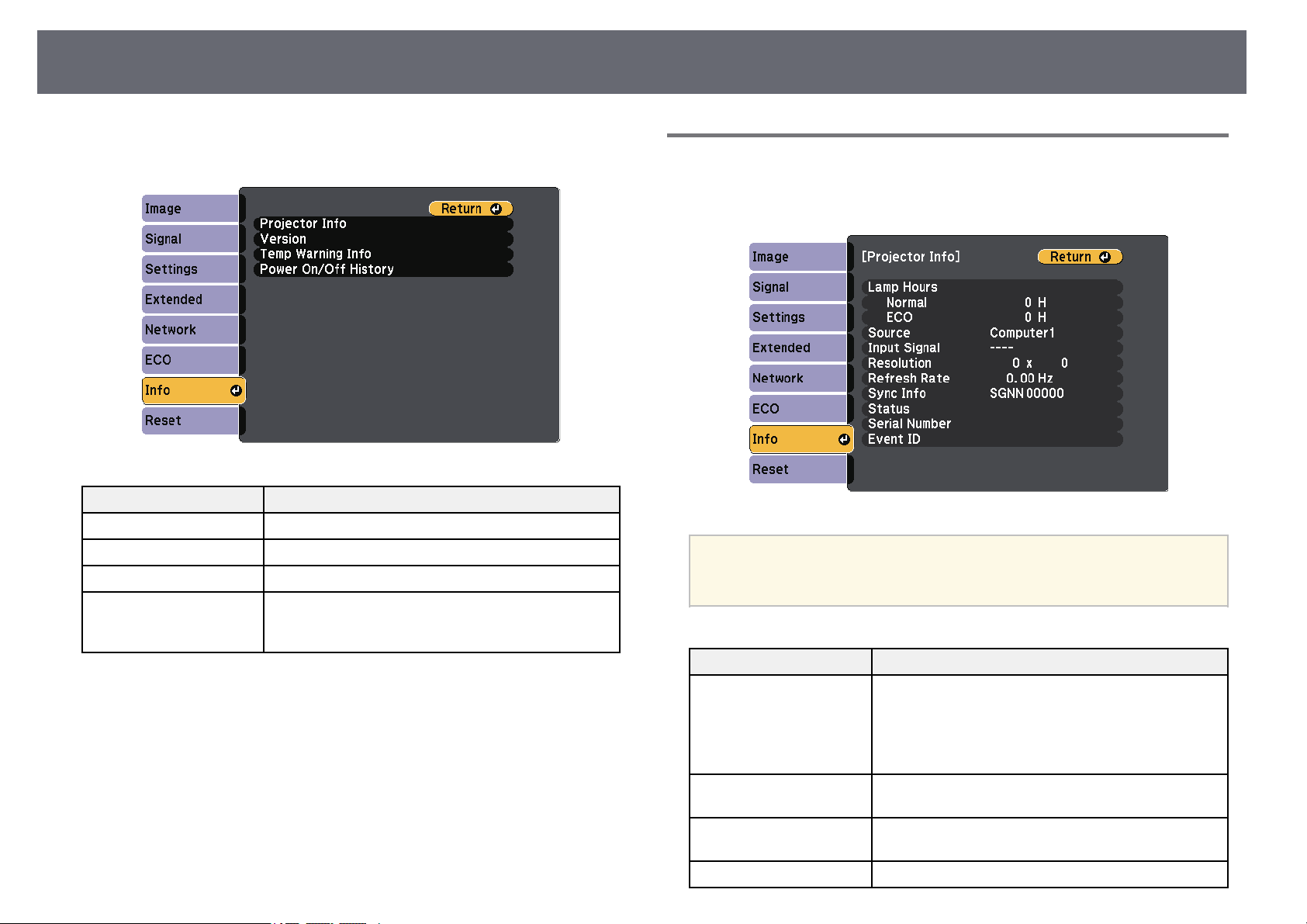
ProjectorInformationDisplay-InfoMenu
149
You candisplay informationabout the projectorand versionby viewing the
Infomenu.However, youcannot change anysettings inthe menu.
Information itemDescription
Projector InfoDisplays theprojectorinformation.
VersionDisplays theprojector'sfirmwareversion.
Temp WarningInfoDisplays varioushightemperaturewarnings.
Power On/OffHistoryDisplaystheprojector'spoweronandpoweroff
history. (Availableonlyformodelsthatsupportthe
Schedule function.)
ggRelatedLinks
•"Info Menu- Projector InfoMenu" p.149
•"List ofFunctions" p.10
InfoMenu-ProjectorInfoMenu
You candisplay informationabout the projectorand inputsources by viewing
the ProjectorInfo menuin the projector'sInfo menu.
a
The availablesettingsdependonthecurrentinputsource.
The lampusagetimerdoesnotregisteranyhoursuntilyouhaveused
the lampforatleast10hours.
Information itemDescription
Lamp HoursDisplays thenumberofhours(H)thelamphasbeen
used ineachPowerConsumptionmode;ifthe
information isdisplayedinyellow,obtainagenuine
Epson replacementlampsoon.
sECO>PowerConsumption
SourceDisplays thenameoftheporttowhichthecurrent
input sourceisconnected.
Input SignalDisplays theinputsignalsettingofthecurrentinput
source.
ResolutionDisplays theresolutionofthecurrentinputsource.
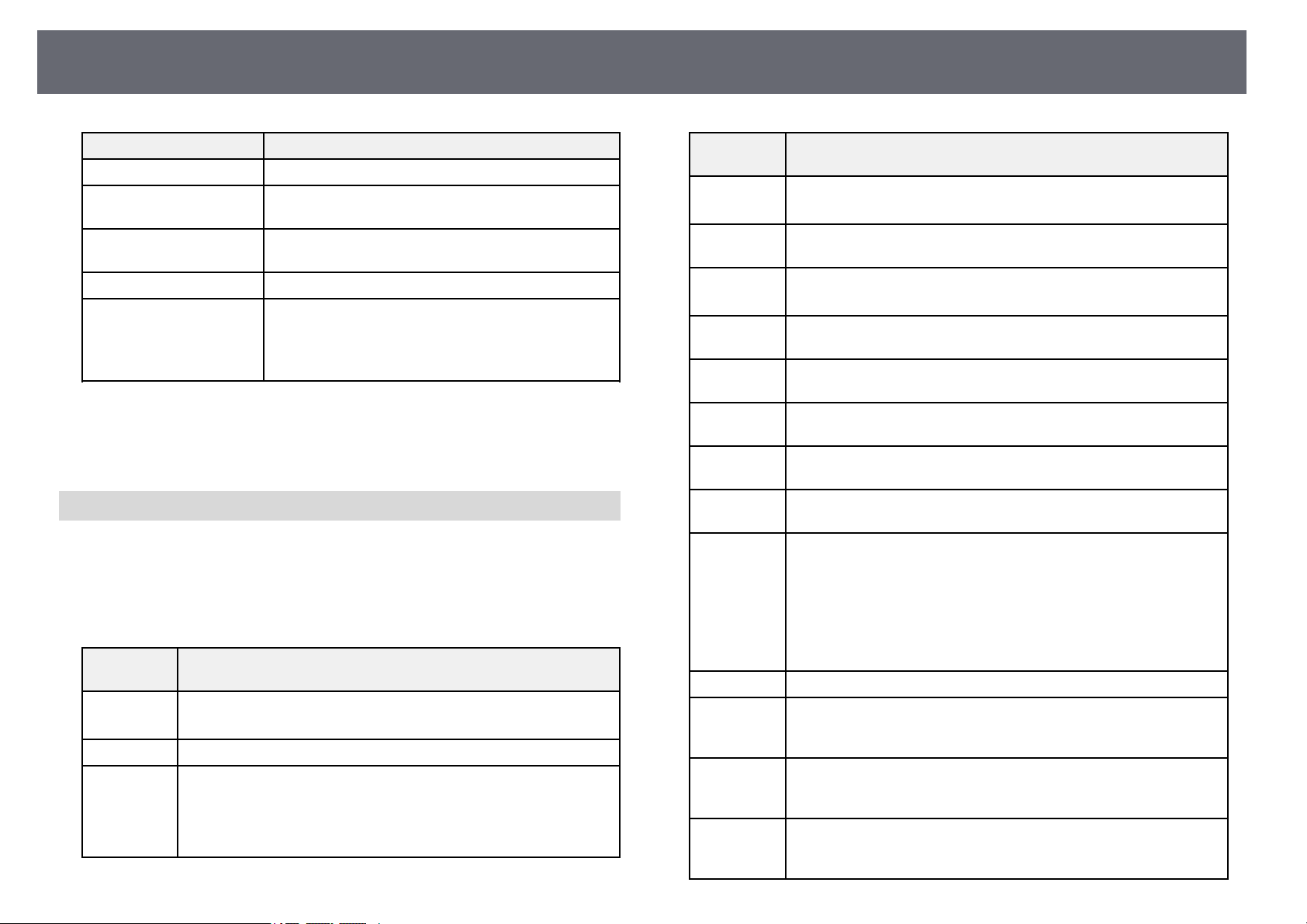
ProjectorInformationDisplay-InfoMenu
150
Information itemDescription
Refresh RateDisplays therefreshrateofthecurrentinputsource.
Sync InfoDisplaysinformationthatmaybeneededbyaservice
technician.
StatusDisplaysinformationaboutprojectorproblemsthat
may beneededbyaservicetechnician.
Serial NumberDisplaystheprojector'sserialnumber.
Event IDDisplays theEventIDnumbercorrespondingtoa
network problem;seethelistofEventIDcodes.
(Available onlyformodelsthatsupportnetwork
projection.)
ggRelatedLinks
•"Event IDCode List" p.150
•"List ofFunctions" p.10
EventIDCodeList
If theEvent IDoption on theProjector Infomenu displays acode number,
check thislist ofEvent ID codesfor thesolution to theprojector problem
associated withthe code.
If youcannot resolvethe problem, contactyour networkadministrator or
Epson fortechnical support.
Event ID
code
Cause andsolution
0432
0435
The networksoftwaredidnotstart.Turntheprojectoroffandthen
on again.
0433Cannot displaythetransferredimages.Restartthenetworksoftware.
0434
0481
0482
0485
Unstable networkcommunication.Checkthenetwork
communication status,waitafewmoments,andtryconnectingto
the networkagain.
Event ID
code
Cause andsolution
0483
04FE
The networksoftwarequitunexpectedly.Checkthenetwork
communication status,thenturntheprojectoroffandthenonagain.
0484Communication withcomputerwasdisconnected.Restartthe
network software.
0479
04FF
A projectorsystemerrorhasoccurred.Turntheprojectoroffand
then onagain.
0891Cannot findanaccesspointwiththesameSSID.Setyourcomputer,
access point,andprojectortothesameSSID.
0892The WPA/WPA2/WPA3authenticationtypedoesnotmatch.Make
sure thewirelessnetworksecuritysettingsarecorrect.
0893The TKIP/AESencryptiontypedoesnotmatch.Makesurethe
wireless networksecuritysettingsarecorrect.
0894Communication withanunauthorizedaccesspointwas
disconnected. Contactyournetworkadministrator.
0895Communication withaconnecteddevicewasdisconnected.Check
your deviceconnectionstatus.
0898Failed toacquireDHCP.MakesuretheDHCPserverisoperating
correctly. IfyouarenotusingDHCP,settheDHCPsettingtoOffin
the projector'sNetworkmenu.
sNetwork> NetworkConfiguration>WirelessLAN>IP
Settings>DHCP
sNetwork> NetworkConfiguration>WiredLAN> IPSettings
> DHCP
0899Other communicationerrors.
089AThe EAPauthenticationtypedoesnotmatchthenetwork.Checkthe
wireless LANsecuritysettingsandmakesurethatthesecurity
certificate isinstalledcorrectly.
089BEAPserverauthenticationfailed.CheckthewirelessLANsecurity
settings andmakesurethatthesecuritycertificateisinstalled
correctly.
089CEAPclientauthenticationfailed.CheckthewirelessLANsecurity
settings andmakesurethatthesecuritycertificateisinstalled
correctly.
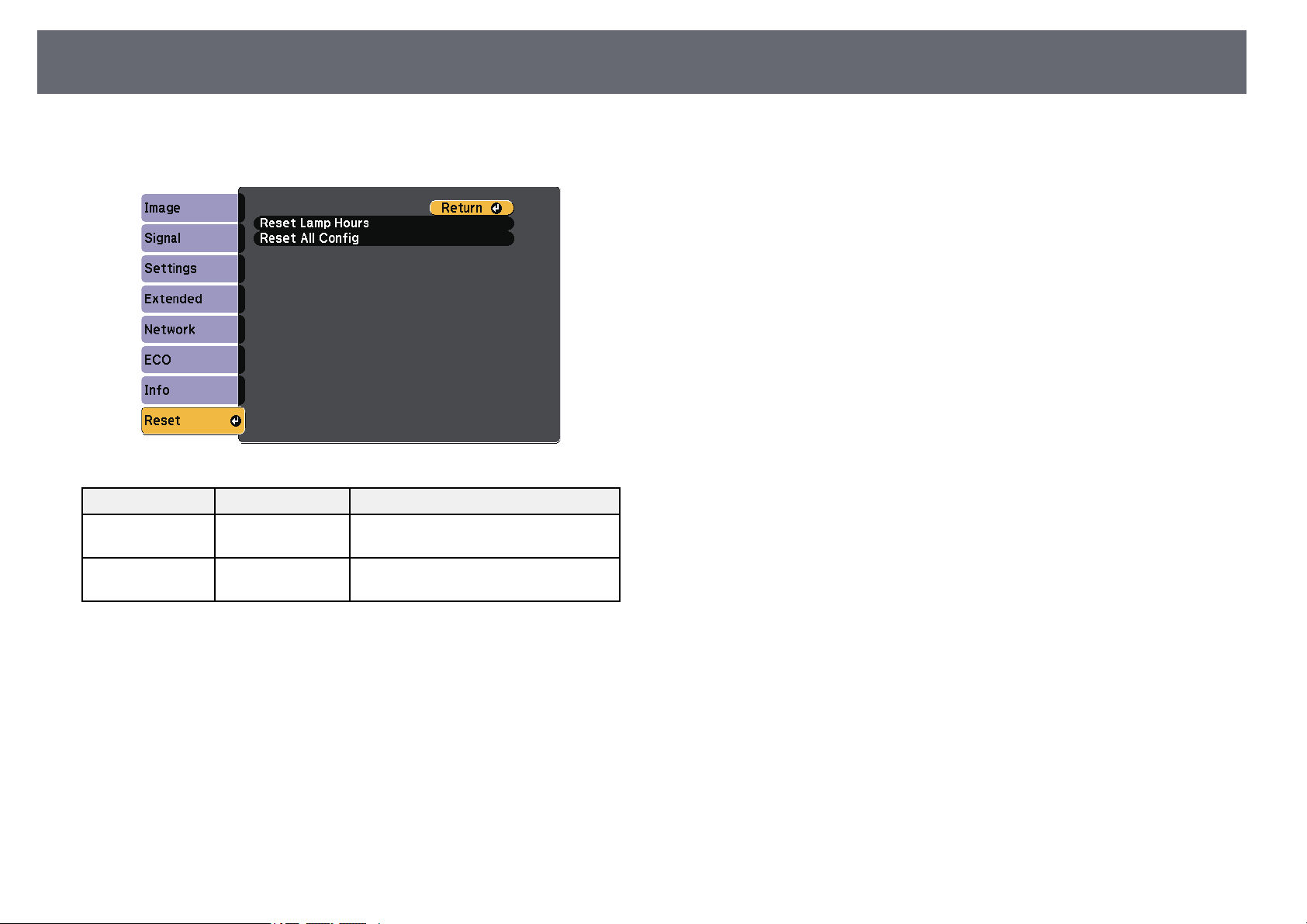
ProjectorResetOptions-ResetMenu
152
You canreset mostof the projectorsettings totheir default valuesusing the
Resetmenu.
SettingOptionsDescription
Reset LampHours—Reset theprojector'slampusagetimerto
zero whenyoureplacethelamp.
Reset AllConfig—Resetsmostoftheprojectorsettingsto
their defaultvalues.
You cannotreset thefollowing settings usingthe ResetAllConfig option:
•E-Zoom
•User'sLogo
•Display Background*
•Startup Screen*
•A/V Mute*
•Schedule Settings
•Language
•Date& Time
•Network menuitems
•Lamp Hours
•Password
* Onlywhen youset the User'sLogo Protectionsettingto Oninthe
PasswordProtectionsetting menu.
CopyingMenuSettingsBetweenProjectors(BatchSetup)
153
After selectingthe projector'smenu settings forone projector,you can usethe
following methodsto copythe settings toother projectors,as long asthey are
the samemodel.
•by usinga USBflash drive (Availableonly formodels that havea USB-A
port.)
•by connectinga computerand projector usinga USBcable
•by usingEpson ProjectorManagement (Available onlyfor modelsthat have
a LANport.)
Menu settingssuch asthe following arenot copiedto the otherprojector.
•Networkmenusettings (exceptfor the Notificationsmenuand theOthers
menu)
•LampHoursand Statusfromthe ProjectorInfomenu
a
•Performbatchsetupbeforeadjustingtheimagesettingssuchas
keystone distortioncorrection.Sinceimageadjustmentvaluesare
also copiedtoanotherprojector,theadjustmentsyoumadebefore
performing thebatchsetupareoverwrittenandtheprojectedscreen
you adjustedmaychange.
•Whencopyingthemenusettingsfromoneprojectortoanother,
user's logoisalsocopied.Donotregistertheinformationthatyoudo
not wanttosharebetweenmultipleprojectorsasauser'slogo.
•MakesureBatchSetupRangeis settoLimitedifyoudonotwantto
copy thefollowingsettings:
•PasswordProtectionsettings
•Networkmenusettings(exceptfortheNotificationsmenuand
the Othersmenu)
sExtended>Operation>Advanced>BatchSetupRange
Caution
Epson takesnoresponsibilityforbatchsetupfailuresandassociatedrepaircosts
due topoweroutages,communicationerrors,orotherproblemsthatmaycause
such failures.
ggRelatedLinks
•"Transferring SettingsFrom a USBFlash Drive"p.153
•"Transferring SettingsFrom a Computer"p.154
•"List ofFunctions" p.10
TransferringSettingsFromaUSBFlashDrive
You cancopy menusettings from oneprojector toanother ofthesame model
using aUSB flashdrive.
a
The USBflashdrivemustuseaFATformatandnotincorporateany
security function.Deleteanyfilesonthedrivebeforeusingitforbatch
setup orthesettingsmaynotbesavedcorrectly.
a
Disconnect thepower cordfrom the projector,and checkthat all ofthe
projector's indicatorshave turnedoff.
b
Connect anempty USBflash drive directlyto theprojector's USB-A
port.
c
Hold downthe [Esc]button on theremote controlor the controlpanel
and connectthe powercord to theprojector.
d
When allof theprojector's indicatorsturn on, releasethe [Esc]button.
The indicatorsstart flashingand the batchsetup fileis written tothe
USB flashdrive. Whenwriting is finished,the projectorturns off.
Caution
Do notdisconnectthepowercordortheUSBflashdrivefromtheprojector
while thefileisbeingwritten.IfthepowercordorUSBflashdriveis
disconnected, theprojectormaynotstartcorrectly.
e
Remove theUSB flashdrive.
CopyingMenuSettingsBetweenProjectors(BatchSetup)
154
a
The filenameforthebatchsetupfileisPJCONFDATA.bin.If
you needtochangethefilename,addtextafterPJCONFDATA
using onlyalphanumericcharacters.Ifyouchangethe
PJCONFDATA sectionofthefilename,theprojectormaynotbe
able torecognizethefilecorrectly.
f
Disconnect thepower cordfrom the projectorto whichyou want to
copy settings,and checkthat all ofthe projector'sindicators have
turned off.
g
Connect theUSB flashdrive containing thesaved batchsetup file tothe
projector's USB-Aport.
h
Hold downthe [Menu]button on theremote controlor the control
panel andconnect thepower cord tothe projector.
i
When allof theprojector's indicatorsturn on, releasethe [Menu]
button.
When allof theindicators start flashing,the settingsare being written.
When writingis finished,the projector turnsoff.
Caution
Do notdisconnectthepowercordortheUSBflashdrivefromtheprojector
while thefileisbeingwritten.IfthepowercordorUSBflashdriveis
disconnected, theprojectormaynotstartcorrectly.
j
Remove theUSB flashdrive.
TransferringSettingsFromaComputer
You cancopy menusettings from oneprojector toanother ofthesame model
by connectingthe computerand projector witha USBcable.
a
You canusethisbatchsetupmethodwiththefollowingoperating
system versions:
•Windows7andlater
•OSX10.11.xandlater
a
Disconnect thepower cordfrom the projector,and checkthat all ofthe
projector's indicatorshave turnedoff.
b
Connect aUSB cableto the computer's USBport andto the projector's
USB-B port.
c
Hold downthe [Esc]button on theremote controlor the controlpanel
and connectthe powercord to theprojector.
d
When allof theprojector's indicatorsturn on, releasethe [Esc]button.
The computerrecognizes theprojector as aremovable disk.
e
Open theremovable diskicon or folder,and savethe batch setupfile to
the computer.
a
The filenameforthebatchsetupfileisPJCONFDATA.bin.If
you needtochangethefilename,addtextafterPJCONFDATA
using onlyalphanumericcharacters.Ifyouchangethe
PJCONFDATA sectionofthefilename,theprojectormaynotbe
able torecognizethefilecorrectly.
f
Eject theUSB device(Windows) or dragthe removabledisk icon tothe
Trash (Mac).
g
Disconnect theUSB cable.
The projectorturns off.
h
Disconnect thepower cordfrom the projectorto whichyou want to
copy settings,and checkthat all ofthe projector'sindicators have
turned off.
CopyingMenuSettingsBetweenProjectors(BatchSetup)
155
i
Connect theUSB cableto the computer's USBport andto the
projector's USB-Bport.
j
Hold downthe [Menu]button on theremote controlor the control
panel andconnect thepower cord tothe projector.
k
When allof theprojector's indicatorsturn on, releasethe [Menu]
button.
The computerrecognizes theprojector as aremovable disk.
l
Copy thebatch setupfile (PJCONFDATA.bin) thatyou savedto your
computer tothe toplevel folder ofthe removabledisk.
a
Do notcopyanyfilesorfoldersotherthanthebatchsetupfileto
the removabledisk.
m
Eject theUSB device(Windows) or dragthe removabledisk icon tothe
Trash (Mac).
n
Disconnect theUSB cable.
When allof theindicators start flashing,the settingsare being written.
When writingis finished,the projector turnsoff.
Caution
Do notdisconnectthepowercordfromtheprojectorwhilethefileisbeing
written. Ifthepowercordisdisconnected,theprojectormaynotstart
correctly.
ggRelatedLinks
•"Batch SetupError Notification" p.155
BatchSetupErrorNotification
The projector'sindicators notifyyou if anerror occursduring a batchsetup
operation. Checkthe statusof the projector'sindicators andfollow the
instructions describedin thetable here.
Indicator statusProblemandsolutions
•Lamp:Orange-flashing
fast
•Temp:Orange-flashing
fast
The batchsetupfilemaybecorrupt,ortheUSBflash
drive orUSBcablemaynotbeconnectedcorrectly.
Disconnect theUSBflashdriveortheUSBcable,
unplug andthenplugintheprojector'spowercord,and
then tryagain.
•Power:Blue-flashing
fast
•Status:Blue-flashing
fast
•Lamp:Orange-flashing
fast
•Temp:Orange-flashing
fast
Writing thesettingsmayhavefailedandanerrormay
have occurredintheprojector'sfirmware.
Stop usingtheprojector,removethepowerplugfrom
the electricaloutlet.ContactEpsonforhelp.
ggRelatedLinks
•"Projector IndicatorStatus" p.169


ProjectorMaintenance
157
You mayneed toclean the projector'slens periodically,and clean theair filter
and airvents toprevent the projectorfrom overheatingdue to blocked
ventilation.
The onlyparts youshould replace arethe lamp,air filter, andremote control
batteries. Ifany otherpart needs replacing,contact Epsonor an authorized
Epson servicer.
Warning
Before cleaninganypartoftheprojector,turnitoffandunplugthepowercord.
Never openanycoverontheprojector,exceptasspecificallyexplainedinthis
manual. Dangerouselectricalvoltagesintheprojectorcaninjureyouseverely.
CleaningtheLens
158
Clean theprojector's lensperiodically, or wheneveryou noticedust or
smudges onthe surface.
•To removedust orsmudges, gently wipethe lenswith lens-cleaning paper.
•To removestubborn smudges,moisten a soft,lint-free clothwith lens
cleaner andgently wipethe lens. Donot sprayany liquid directlyon the
lens.
Warning
Do notusealenscleanerthatcontainsflammablegas.Thehighheatgenerated
by theprojectorlampmaycauseafire.
Attention
Do notuseglasscleaneroranyharshmaterialstocleanthelensanddonot
subject thelenstoanyimpacts;otherwise,itcouldbedamaged.Donotuse
canned air,orthegasesmayleaveaflammableresidue.

CleaningtheProjectorCase
159
Before cleaningthe projectorcase, turn offthe projectorand unplug the
power cord.
•To removedust ordirt, use asoft, dry,lint-free cloth.
•To removestubborn dirt,use a softcloth moistenedwith water andmild
soap. Donot sprayliquid directly onthe projector.
Attention
Do notusewax,alcohol,benzene,paintthinner,orotherchemicalstocleanthe
projector case.Thesecandamagethecase.Donotusecannedair,orthegases
may leaveaflammableresidue.
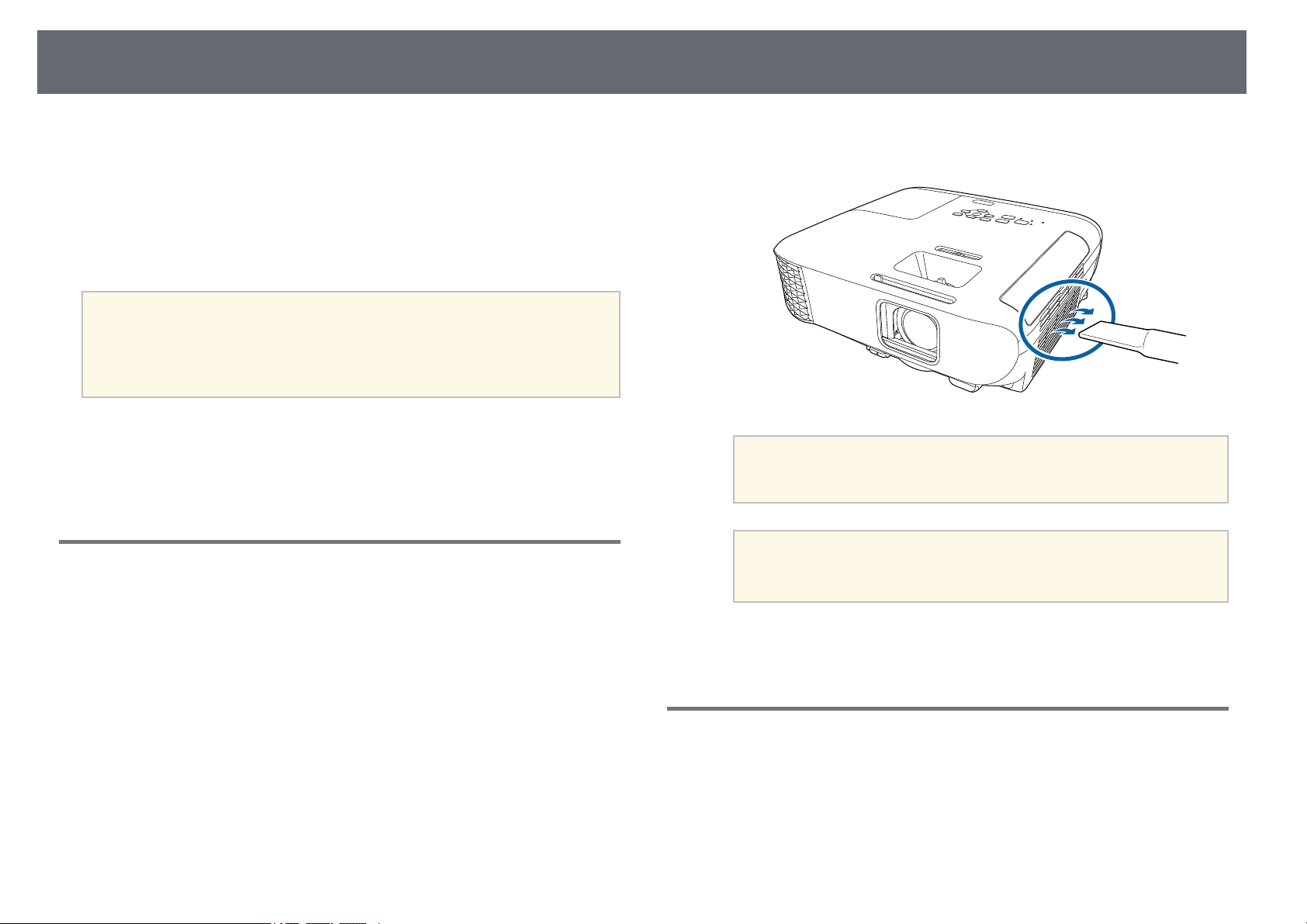
AirFilterandVentMaintenance
160
Regular filtermaintenance isimportant to maintainingyour projector.Clean
the airfiler whena message appearstelling youthe temperature insidethe
projector hasreached ahigh level. Itis recommendedthat you cleanthese
parts overa 10,000‑hour*or 6,000‑hour* period.Clean themmore often than
this ifyou usethe projector ina particularlydusty environment.
* See"Projector Specifications"in the Appendixfor theair filter maintenance
period bymodel.
Attention
If regularmaintenanceisnotperformed,yourEpsonprojectorwillnotifyyou
when thetemperatureinsidetheprojectorhasreachedahighlevel.Donotwait
until thiswarningappearstomaintainyourprojectorfilterasprolongedexposure
to hightemperaturesmayreducethelifeofyourprojectororlamp.
ggRelatedLinks
•"Cleaning theAir Filter andVents" p.160
•"Replacing theAir Filter" p.160
•"List ofFunctions" p.10
CleaningtheAirFilterandVents
Clean theprojector's airfilter or ventsif theyget dusty, orif yousee a
message tellingyou toclean them.
a
Turn offthe projectorand unplug thepower cord.
b
Gently removethe dustusing a smallvacuum designedfor computers
or avery softbrush (such asa paintbrush).
a
You canremovetheairfiltersothatyoucancleanbothsides.Do
not rinsetheairfilterinwater,oruseanydetergentorsolventto
clean it.
Attention
Do notusecannedair.Thegasesmayleaveaflammableresidueorpush
dust anddebrisintotheprojector'sopticsorothersensitiveareas.
c
If dustis difficultto remove orthe airfilter is damaged,replace theair
filter.
ReplacingtheAirFilter
You needto replacethe air filterin thefollowing situations:
•After cleaningthe airfilter, you seea messagetelling you toclean orreplace
it.
•The airfilter istorn or damaged.
You canreplace theair filter whilethe projectoris mounted tothe ceilingor
placed ona table.
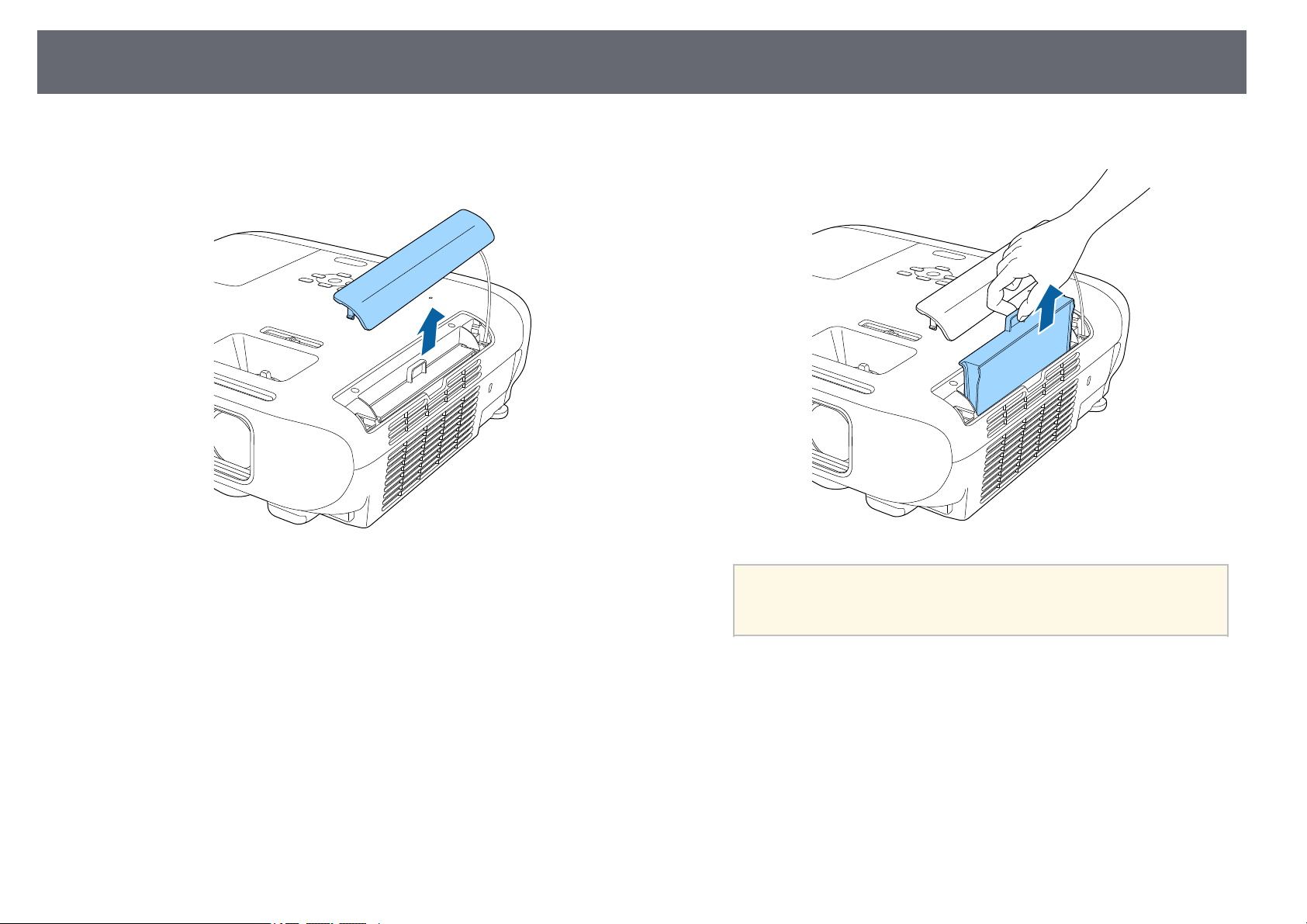
AirFilterandVentMaintenance
161
a
Turn offthe projectorand unplug thepower cord.
b
Open theair filtercover.
c
Pull theair filterout of theprojector.
a
Dispose ofusedairfiltersaccordingtolocalregulations.
•Filterframe:ABS
•Filter:Polyurethanefoam
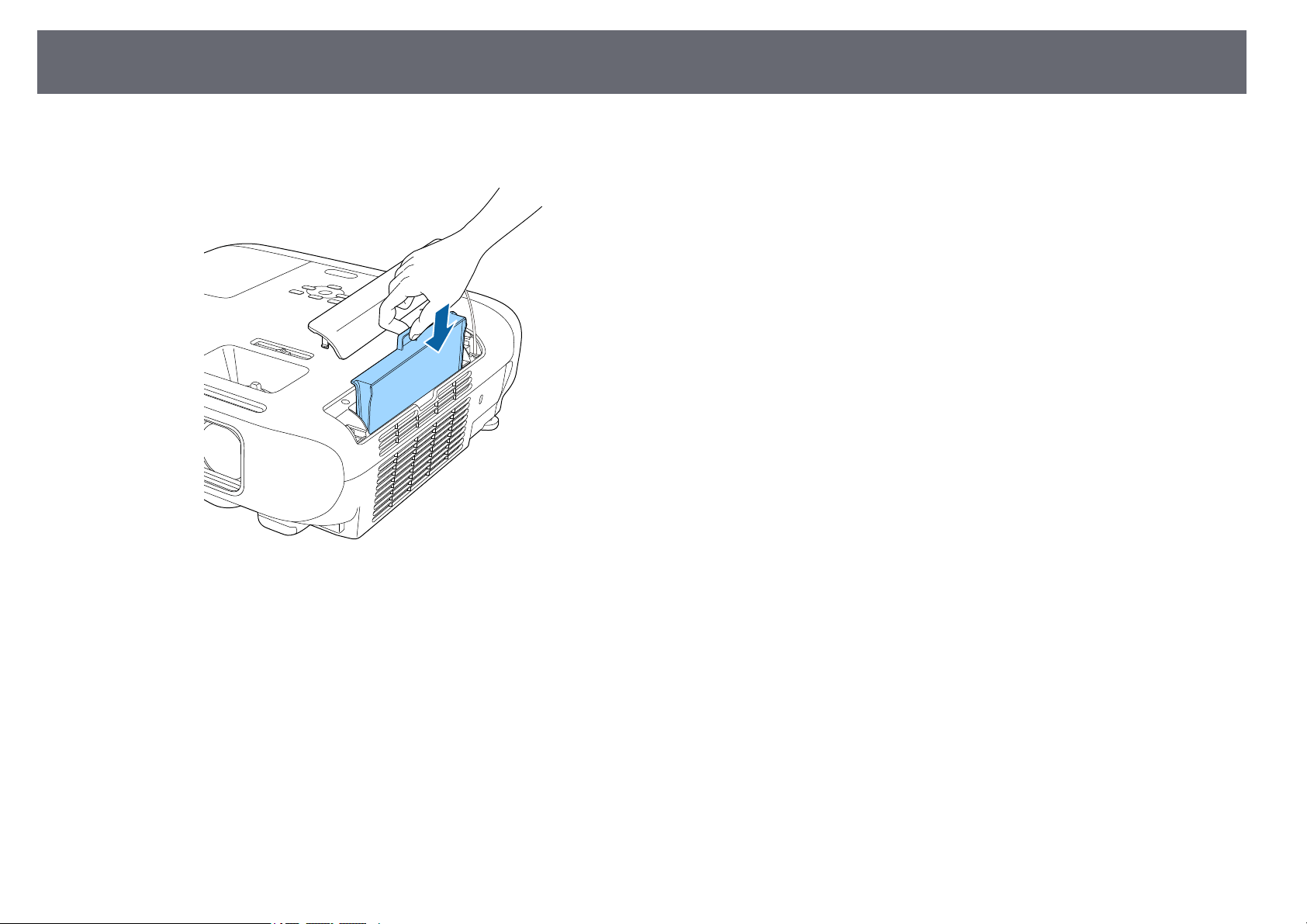
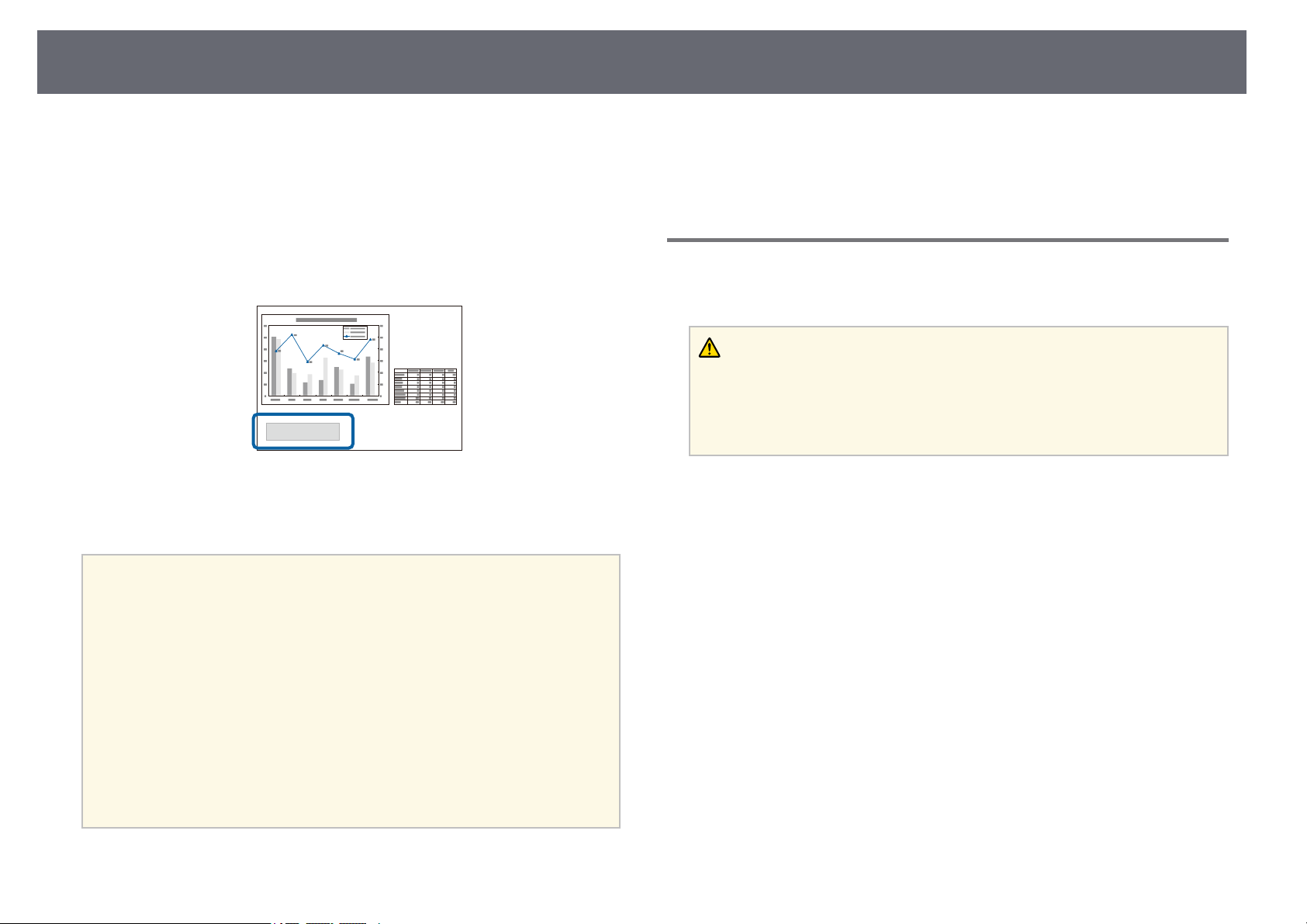
ProjectorLampMaintenance
163
The projectormonitors thenumber of hoursthe lampis used anddisplays
this informationin theprojector's menu system.
Replace thelamp assoon as possiblewhen thefollowing occurs:
•The projectedimage getsdarker or qualitydeclines
•A messageis displayedwhen you turnon theprojector telling youto replace
the lamp(the messageis displayed 100hours beforethe expected endof the
lamp lifeand appearsfor 30 seconds)
•The projector'spower indicatoris flashing blueand itslamp indicator is
flashing orange.
Attention
•Ifyoucontinuetousethelampafterthereplacementperiodhaspassed,the
possibility thatthelampmayexplodeincreases.Whenthelampreplacement
message appears,replacethelampwithanewoneassoonaspossible,evenifit
is stillworking.
•Donotrepeatedlyturnoffthepowerandthenimmediatelyturnitbackon.
Turning thepoweronandofffrequentlymayshortenthelamp'soperatinglife.
•Dependingonthecharacteristicsofthelampandthewayithasbeenused,the
lamp maybecomedarkerorstopworkingbeforethelampwarningmessage
appears. Youshouldalwayshaveasparelampunitreadyincaseitisneeded.
•WerecommendtheuseofgenuineEpsonreplacementlamps.Theuseofnon-
genuine lampsmayaffectprojectionqualityandsafety.Anydamageor
malfunction causedbytheuseofnon-genuinelampsmaynotbecoveredby
Epson's warranty.
ggRelatedLinks
•"Replacing theLamp" p.163
•"Resetting theLamp Timer" p.166
•"Projector Specifications"p.194
•"Projector IndicatorStatus" p.169
ReplacingtheLamp
You canreplace thelamp while theprojector isplaced on atable ormounted
to theceiling.
Warning
•Letthelampfullycoolbeforereplacingittoavoidinjury.
•Neverdisassembleormodifythelamp.Ifamodifiedordisassembledlampis
installed intheprojector,itcouldcauseafire,electricshock,orotherdamageor
injury.
a
Turn offthe projectorand unplug thepower cord.
b
Allow theprojector lampto cool downfor atleast one hour.
c
Use thescrewdriver includedwith the replacementlamp toloosen the
screw securingthe lampcover.
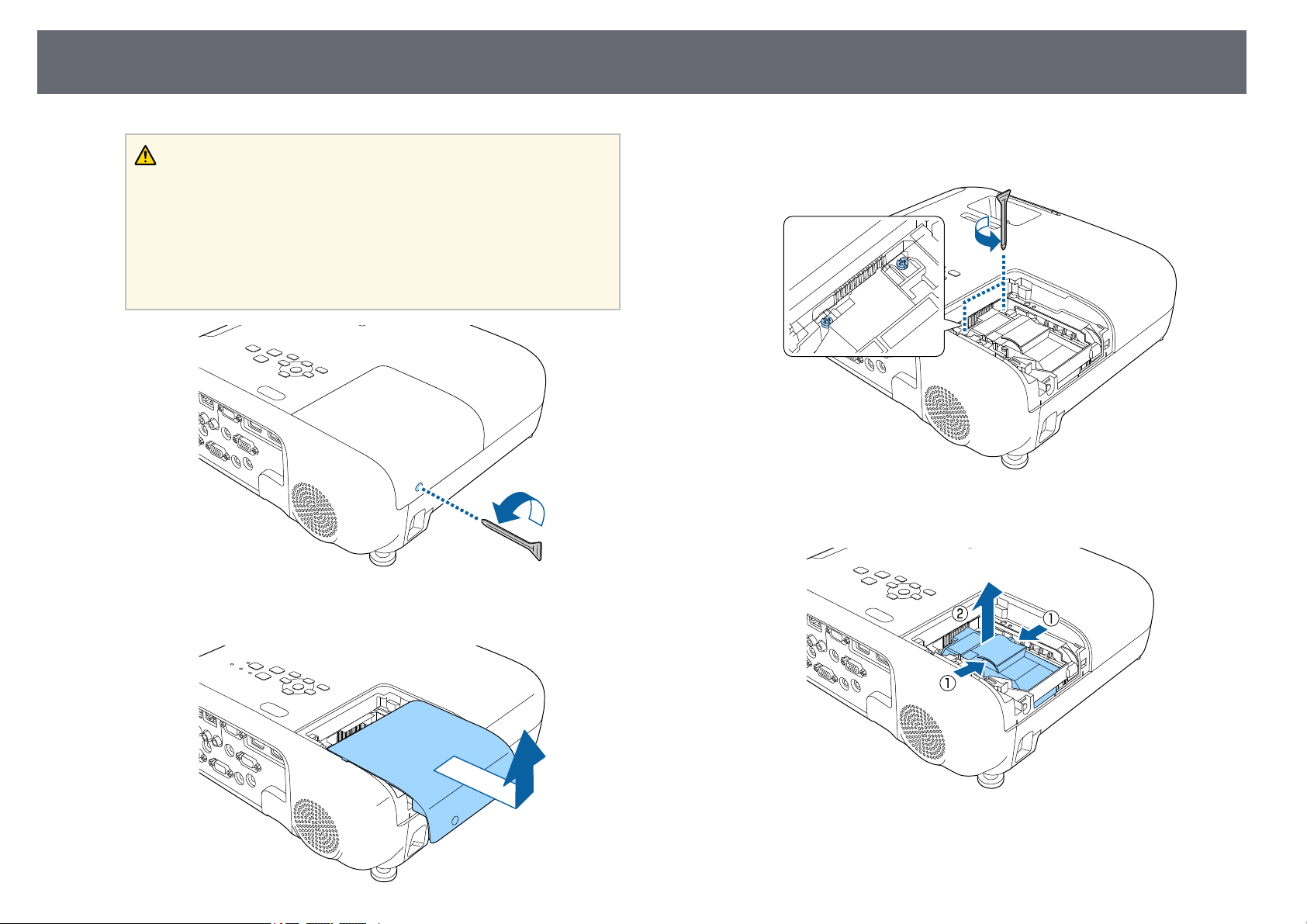
ProjectorLampMaintenance
164
Warning
When replacingthelamp,thereisapossibilitythatthelampmaybe
broken. Ifreplacingthelampofaprojectorwhichhasbeeninstalledonthe
ceiling, youshouldalwaysassumethatthelampiscracked,andyoushould
stand tothesideofthelampcover,notunderneathit.Removethelamp
cover gently.Becarefulwhenremovingthelampcoverasshardsofglass
may falloutandcouldcauseaninjury.Ifanyshardsofglassgetintoyour
eyes ormouth,contactadoctorimmediately.
d
Slide thelamp coverout and liftit off.
e
Loosen thescrews securingthe lamp tothe projector.The screws do
not comeall theway out.
f
Grip theraised sectionof the lampand removeit.
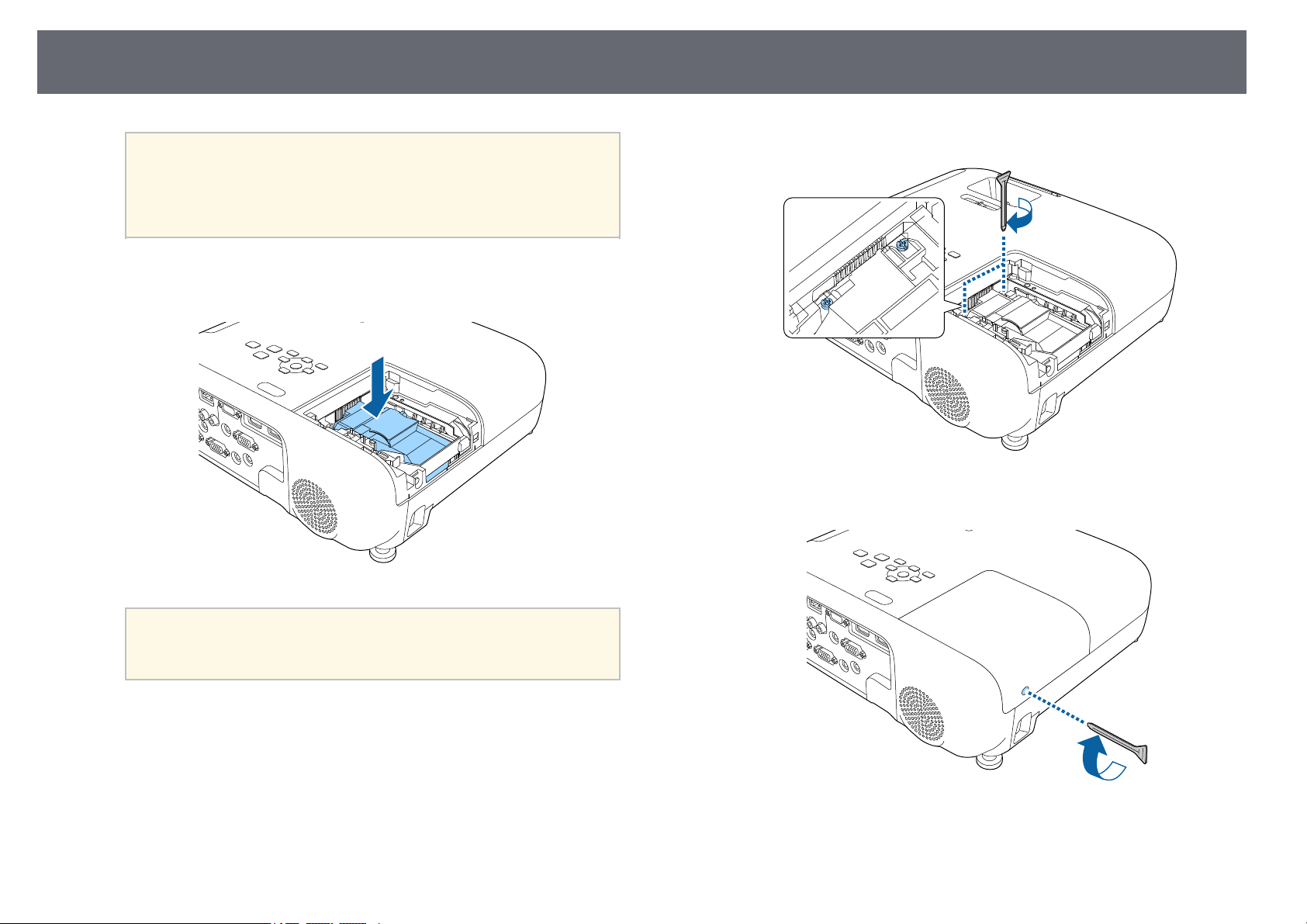
ProjectorLampMaintenance
165
a
•Ifyounoticethelampiscrackedwhenremovingthelamp,
contact Epsonforhelp.
•Thelamp(s)inthisproductcontainmercury(Hg).Checkyour
local lawsandregulationsregardingdisposalorrecycling.Do
not putinthetrash.
g
Gently insertthe newlamp into theprojector. Ifit does notfit easily,
make sureit isfacing the rightway.
Attention
Do nottouchanyglassonthelampassemblytoavoidprematurelamp
failure.
h
Push inthe lampfirmly and tightenthe screwsto secure it.
i
Replace thelamp coverand tighten thescrew tosecure it.
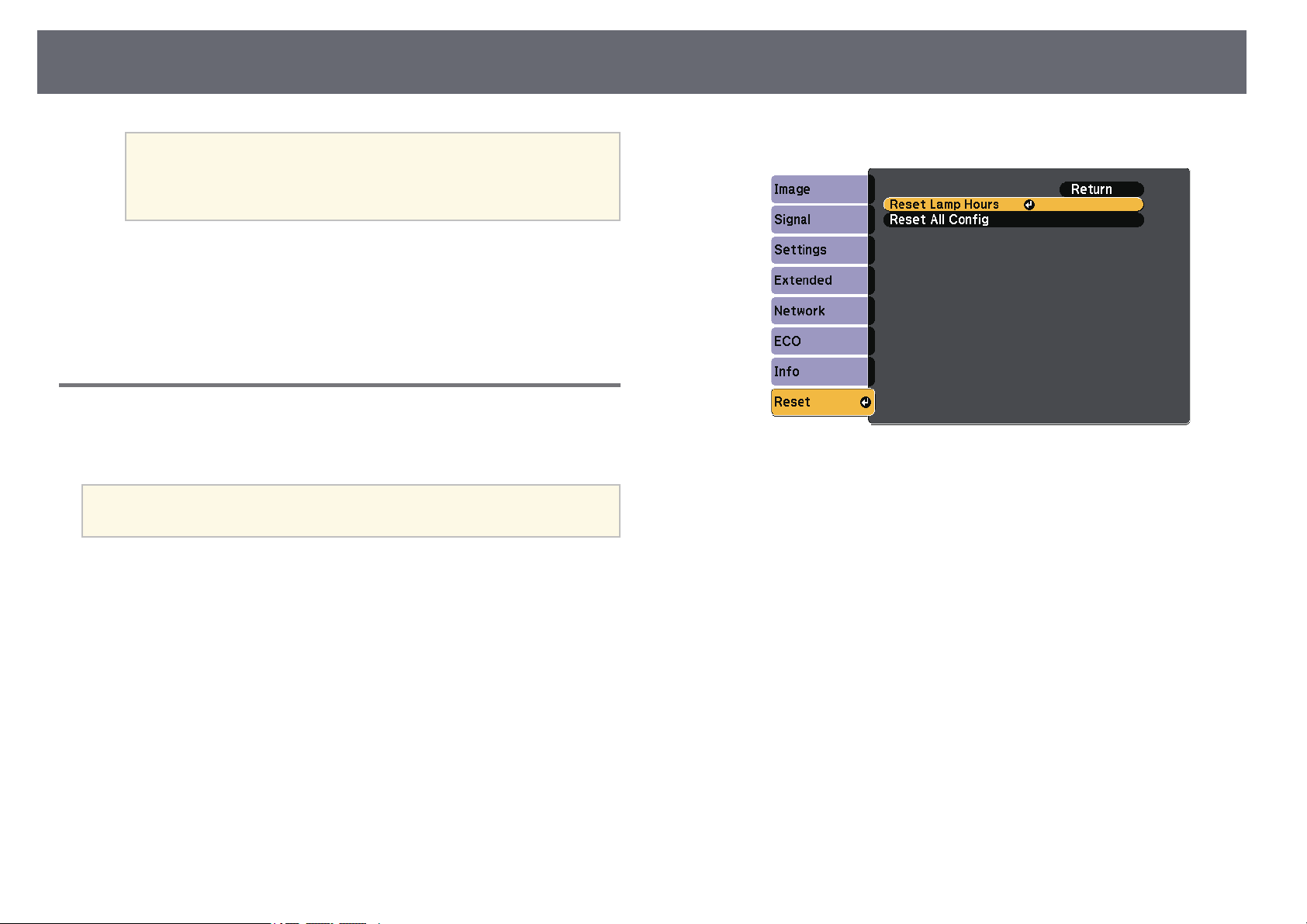
ProjectorLampMaintenance
166
a
•Makesurethelampcoverissecurelyinstalledorthelampwill
not turnon.
•Donotreplacethelampcoverwithtoomuchforceandmake
sure thelampcoverisnotdeformed.
Reset thelamp timerto zero tomonitor thenew lamp's usage.
ggRelatedLinks
•"Replacement Parts"p.185
ResettingtheLampTimer
You mustreset thelamp timer afterreplacing theprojector's lamp toclear the
lamp replacementmessage andto monitor lampusage correctly.
a
Do notresetthelamptimerifyouhavenotreplacedthelamptoavoid
inaccurate lampusageinformation.
a
Turn onthe projector.
b
Press the[Menu] button,select the Resetmenu, and press[Enter].
c
Select ResetLamp Hoursand press [Enter].
You seea promptasking if youwant toreset the lamphours.
d
Select Yesand press [Enter].
e
Press [Menu]or [Esc] toexit themenus.

SolvingProblems
Check thesolutions inthese sections ifyou haveany problems usingthe projector.
ggRelatedLinks
•"Projection Problems"p.168
•"Projector IndicatorStatus" p.169
•"Using theProjector Help Displays"p.172
•"Solving Imageor Sound Problems"p.173
•"Solving Projectoror Remote ControlOperation Problems"p.178
•"Solving NetworkProblems" p.180

ProjectionProblems
168
If theprojector isnot working properly,turn itoff, unplug it,and thenplug it
back inand turnit on.
If thisdoes notsolve the problem,check thefollowing:
•The indicatorson theprojector may indicatethe problem.
•The projector'sHelp systemcan display informationabout common
problems.
•The solutionsin thismanual can helpyou solvemany problems.
If noneof thesesolutions help, contactEpson fortechnical support.
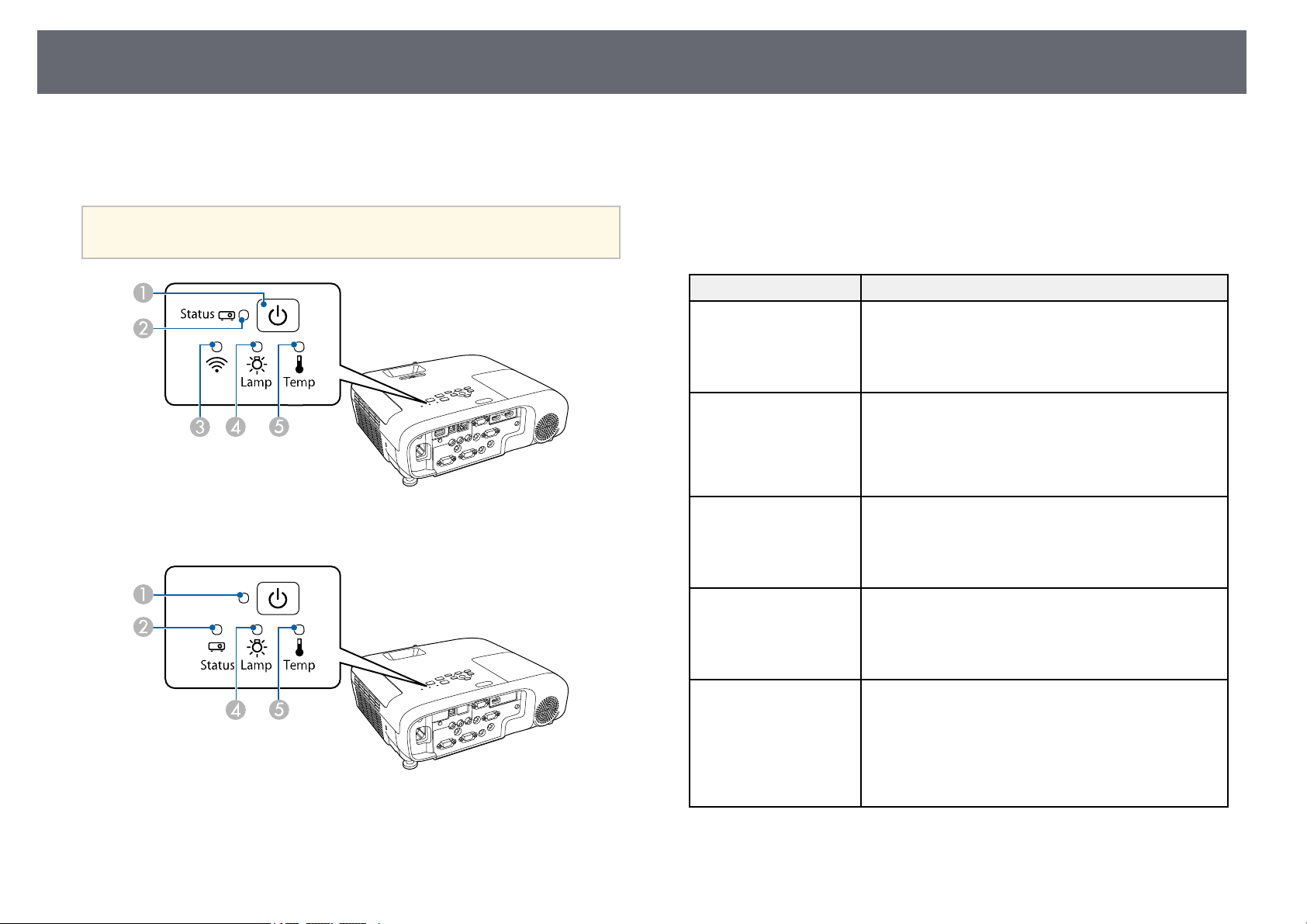
ProjectorIndicatorStatus
169
The indicatorson theprojector indicate theprojector statusand let youknow
when aproblem occurs.Check the statusand colorof the indicatorsand then
refer tothis tablefor a solution.
a
•Iftheindicatorsdisplayapatternnotlistedinthetablebelow,turn
the projectoroff,unplugit,andcontactEpsonforhelp.
EB‑‑E20/EB‑‑E10/EB‑‑E01/VS260
Power indicator
B
Status indicator
C
Wireless LANindicator
D
Lamp indicator
E
Temp (temperature)indicator
Projectorstatus
Indicator andstatusProblem andsolutions
Power: Litblue
Status: Litblue
Lamp: Off
Temp: Off
Normal operation.
Power: Litblue
Status: Flashingblue
Lamp: Off
Temp: Off
Warming up,shuttingdown,orcoolingdown.
When warmingup,waitabout30secondsforanimage
to appear.
All buttonsaredisabledduringwarm-up,shutting
down, andcoolingdown.
Power: Litblue
Status: Off
Lamp: Off
Temp: Off
Standby, sleepmode,ormonitoring.
When youpressthepowerbutton,projectionstarts.
Power: Flashingblue
Status: Off
Lamp: Off
Temp: Off
Preparing formonitoringandallfeaturesaredisabled.
Power: Flashingblue
Status: Indicatorstatus
varies
Lamp: Indicatorstatus
varies
Temp: Flashingorange
Projector istoohot.
•Makesurethattheventsandairfilterarenotclogged
with dustorobstructedbynearbyobjects.
•Cleanorreplacetheairfilter.
•Makesuretheenvironmentaltemperatureisnottoo
hot.
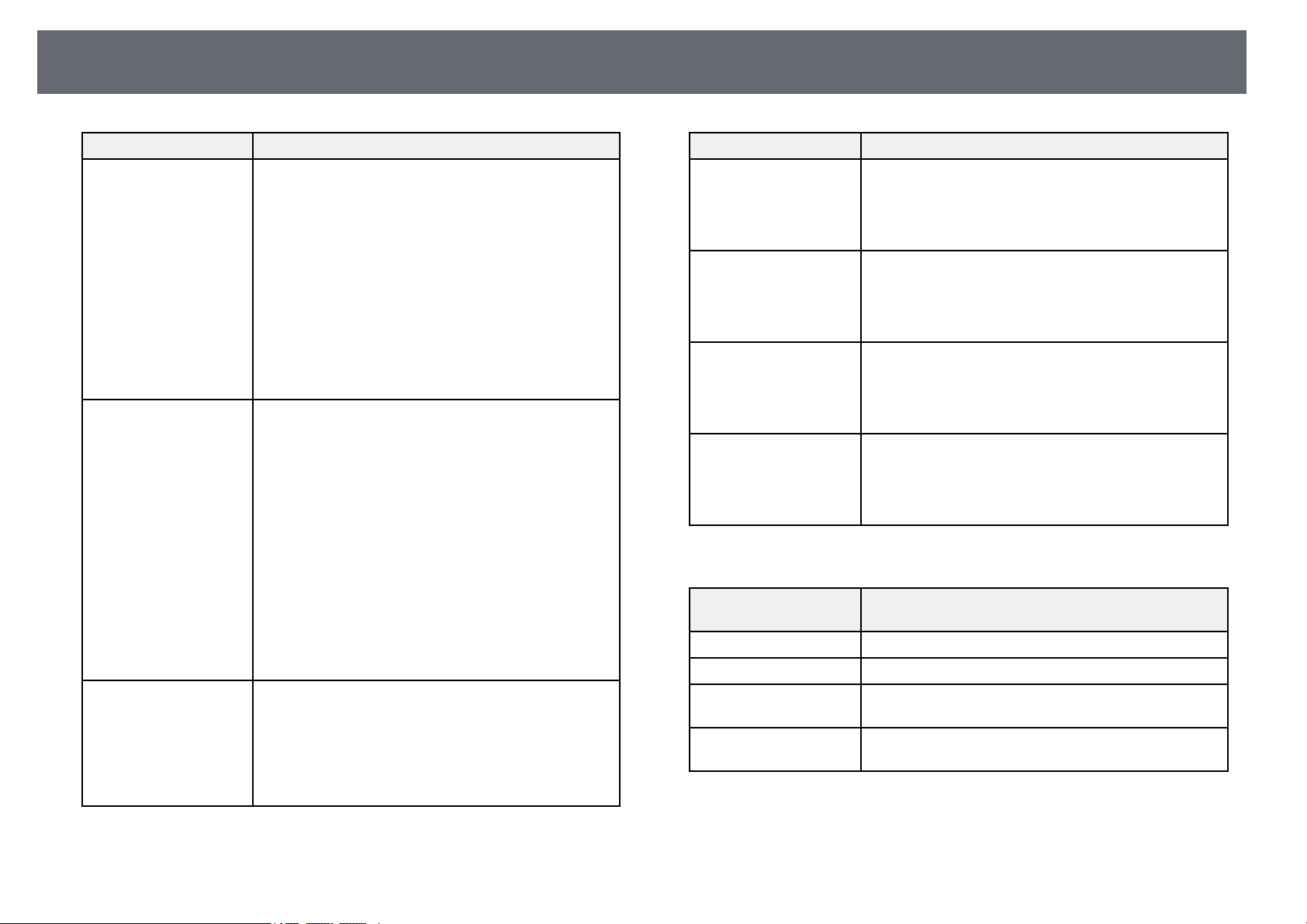
ProjectorIndicatorStatus
170
Indicator andstatusProblem andsolutions
Power: Off
Status: Flashingblue
Lamp: Off
Temp: Litorange
Projector hasoverheatedandturnedoff.Leaveitturned
off tocooldownfor5minutes.
•Makesurethattheventsandairfilterarenotclogged
with dustorobstructedbynearbyobjects.
•Makesuretheenvironmentaltemperatureisnottoo
hot.
•Cleanorreplacetheairfilter.
•Ifoperatingtheprojectorathighaltitude,settheHigh
AltitudeModesetting toOnintheprojector'smenu.
sExtended>Operation>HighAltitudeMode
•Iftheproblempersists,unplugtheprojectorand
contact Epsonforhelp.
Power: Off
Status: Flashingblue
Lamp: Litorange
Temp: Off
Lamp hasaproblem.
•Checktoseeifthelampisburnedout,broken,or
installed incorrectly.Reseatorreplacethelampas
necessary.
•Cleantheairfilter.
•Ifoperatingtheprojectorathighaltitude,settheHigh
AltitudeModesetting toOnintheprojector'smenu.
sExtended>Operation>HighAltitudeMode
•Iftheproblempersists,unplugtheprojectorand
contact Epsonforhelp.
Lamp coverhasaproblem.
•Checkthatthelampandthelampcoveraresecurely
installed. Thelampdoesnotturnonifthelampand
the lampcoverarenotinstalledcorrectly.
Power: Flashingblue
Status: Indicatorstatus
varies
Lamp: Flashingorange
Temp: Indicatorstatus
varies
Replace thelampsoontoavoiddamage.Donot
continue usingtheprojector.
Indicator andstatusProblem andsolutions
Power: Off
Status: Flashingblue
Lamp: Off
Temp: Flashingorange
A fanorsensorhasaproblem.
Turn theprojectoroff,unplugit,andcontactEpsonfor
help.
Power: Off
Status: Flashingblue
Lamp: Flashingorange
Temp: Off
Internal projectorerror.
Turn theprojectoroff,unplugit,andcontactEpsonfor
help.
Power: Off
Status: Flashingblue
Lamp: Flashingorange
Temp: Flashingorange
Auto iriserror.Turntheprojectoroff,unplugit,and
contact Epsonforhelp.
Power: Off
Status: Flashingblue
Lamp: Litorange
Temp: Litorange
Power error(Ballast).Turntheprojectoroff,unplugit,
and contactEpsonforhelp.
WirelessLANstatus
Wireless LANindicator
status
Problem andsolutions
Lit blueWirelessLANisavailable.
Flashing blue(quickly)Connectingtoadevice.
Flashing blue(slowly)Anerrorhasoccurred.Turnofftheprojectorandrestart
it.
OffWireless LANisnotavailable.Makesurethewireless
LAN settingsarecorrect.
ggRelatedLinks
•"List ofFunctions" p.10
•"Cleaning theAir Filter andVents" p.160
•"Replacing theAir Filter" p.160

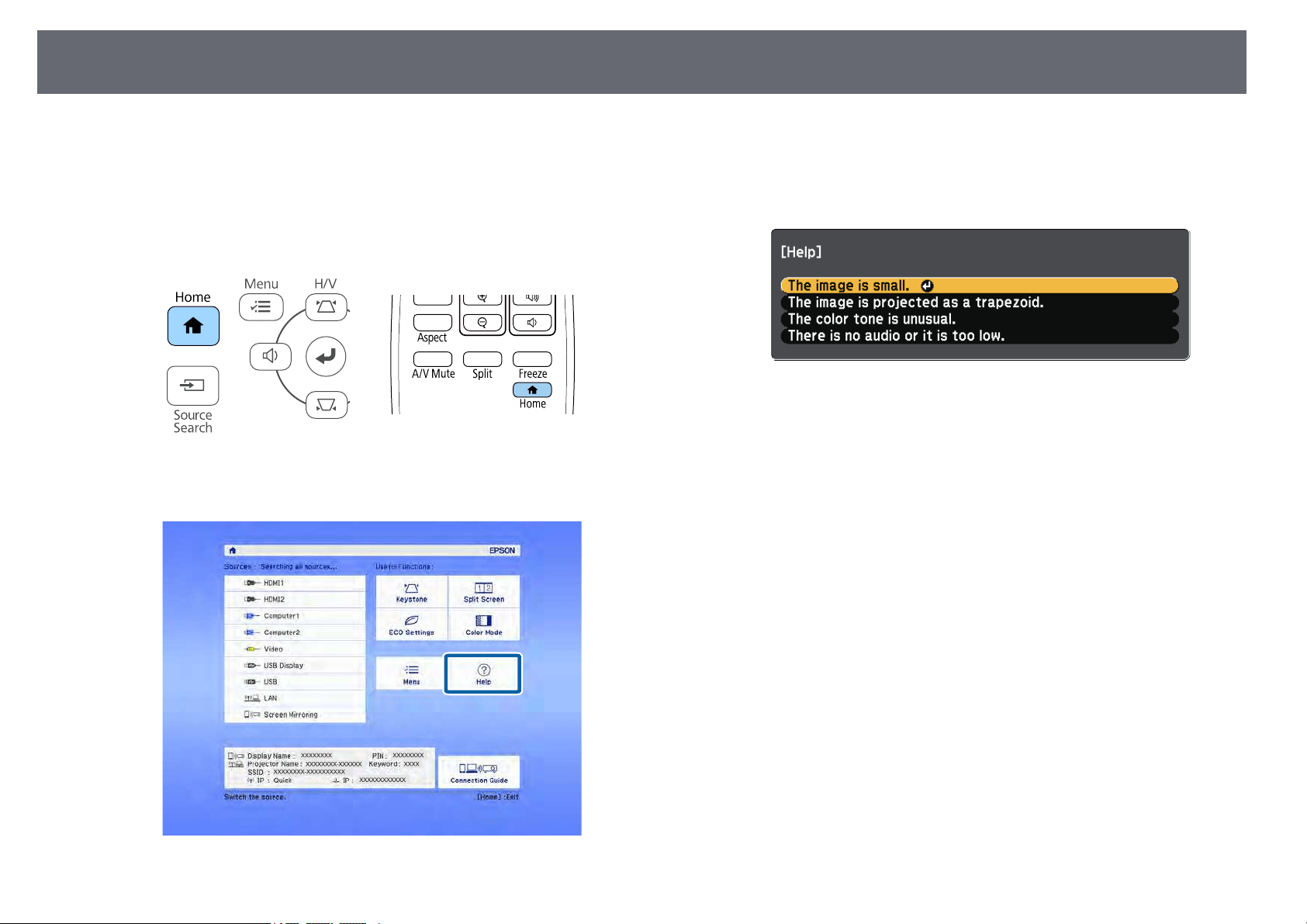
UsingtheProjectorHelpDisplays
172
You candisplay informationto help yousolve commonproblems using the
projector's Helpsystem.
a
Turn onthe projector.
b
Press the[Home] buttonon the controlpanel orremote control.
c
Select Helpon the Homescreen.
The Helpmenu isdisplayed.
d
Use theup anddown arrow buttonsto highlightthe problem youwant
to solve.
e
Press [Enter]to view thesolutions.
f
Perform oneof thefollowing actions whenyou arefinished.
•To selectanother problemto solve, press[Esc].
•To exitthe helpsystem, press [Menu].

SolvingImageorSoundProblems
173
Check thesolutions inthese sections ifyou haveany problems withprojected
images orsound.
ggRelatedLinks
•"Solutions WhenNo Image Appears"p.173
•"Solutions WhenImage is IncorrectUsing theUSB Display Function"p.173
•"Solutions When"No Signal" MessageAppears" p.174
•"Solutions When"Not Supported" MessageAppears" p.174
•"Solutions WhenOnly a PartialImage Appears"p.175
•"Solutions Whenthe Image isnot Rectangular"p.175
•"Solutions Whenthe Image ContainsNoise orStatic" p.175
•"Solutions Whenthe Image isFuzzy orBlurry" p.176
•"Solutions Whenthe Image Brightnessor Colorsare Incorrect" p.176
•"Solutions toSound Problems" p.177
•"Solutions WhenImage File Namesare notDisplayed Correctly inPC Free"
p.177
SolutionsWhenNoImageAppears
If noimage appears,try the followingsolutions:
•Make surethe lenscover is openall theway.
•Press the[A/V Mute] buttonon theremote controlto see ifthe imagewas
temporarily turnedoff.
•Make sureall necessarycables are securelyconnected andthe power ison
for theprojector andconnected video sources.
•Press theprojector's powerbutton to wakeit fromstandby or sleepmode.
Also, checkif theconnected computer isin sleepmode or displayinga
blank screensaver.
•If theprojector doesnot respond whenyou pressthe control panelbuttons,
the buttonsmay belocked for security.Unlock thebuttons in theControl
PanelLocksetting oruse the remotecontrol toturn on theprojector.
sSettings> LockSetting> ControlPanel Lock
•Adjust theBrightness settingin the projector'sImage menu.
•Select Highor Medium asthe PowerConsumption setting.
sECO >Power Consumption
•Check theDisplay settingin the projector'sExtended menuto make sure
Messagesisset to On.
•The projectormay notbe able toproject copyrightedvideos that youplay
back ona computer.For more details,see themanual supplied withthe
computer.
•For imagesprojected withWindows Media Center,reduce thescreen size
from fullscreen mode.
•For imagesprojected fromapplications using WindowsDirectX, turnoff
DirectX functions.
ggRelatedLinks
•"Input SignalSettings - SignalMenu" p.131
•"Image QualitySettings - ImageMenu" p.130
•"Projector SetupSettings - ECOMenu" p.147
•"Projector SetupSettings - ExtendedMenu" p.134
•"Unlocking theProjector's Buttons"p.85
SolutionsWhenImageisIncorrectUsingtheUSB
DisplayFunction
If noimage appearsor if theimage appearsincorrectly using theUSB Display
function, trythe followingsolutions:
•Press the [USB] button on the remote control.
•Disconnect the USB cable, and reconnect it.
•Make sure the Epson USB Display software has been installed correctly.
Depending on your OS or computer settings, the software may not have
been installed automatically. Download the latest software from the
following Web site and install it.
epson.com/support/
•For Mac, select the USB Display icon in the Dock folder. If the icon does
not appear on the Dock, double-click USB Display in the Applications
folder.

SolvingImageorSoundProblems
174
If youselect Exitfromthe USBDisplayicon menuon the Dock,USB
Display doesnot start automaticallywhen youconnect the USBcable.
•If themouse cursorflickers, select Makethe movementof themouse
pointersmoothin the EpsonUSB DisplaySettings programon your
computer.
•Turn offthe Transferlayered windowsettingin theEpson USBDisplay
Settingsprogramon yourcomputer.
•For imagesprojected withWindows Media Center,reduce thescreen size
from fullscreen mode.
•For imagesprojected fromapplications using WindowsDirectX, turnoff
DirectX functions.
ggRelatedLinks
•"Connecting toa Computer forUSB Videoand Audio" p.28
SolutionsWhen"NoSignal"MessageAppears
If the"No Signal"message appears, trythe followingsolutions:
•Press the[Source Search] buttonand waita few secondsfor animage to
appear.
•Turn onthe connectedcomputer or videosource, andpress play tobegin
your presentation,if necessary.
•Check thatall cablesrequired for projectionare securelyconnected.
•If youare projectingfrom a laptopcomputer, makesure it isset upto
display onan externalmonitor.
•If necessary,turn offthe projector andthe connectedcomputer or video
source, andthen turnthem back on.
•If youare projectingfrom an HDMIsource, replacethe HDMI cablewith
the shorterone.
ggRelatedLinks
•"Displaying Froma Laptop" p.174
•"Displaying Froma Mac Laptop"p.174
DisplayingFromaLaptop
If themessage "NoSignal" is displayedwhen projectingfrom a laptop,you
need toset upthe laptop todisplay onan externalmonitor.
a
Hold downthe laptop'sFn keyand press thekey labeledwith a monitor
icon orCRT/LCD. Waita few secondsfor animage to appear.
b
To displayon thelaptop's monitorand the projector,try pressingthe
same keysagain.
c
If thesame imageis not displayedby thelaptop and projector,check
the WindowsDisplay utilityto make surethe externalmonitor portis
enabled andextended desktopmode is disabled.
d
If necessary,check yourvideo card settingsand setthe multiple display
option toClone orMirror.
DisplayingFromaMacLaptop
If themessage "NoSignal" is displayedwhen projectingfrom a Maclaptop,
you needto setup the laptopfor mirroreddisplay. (See yourlaptop manual
for details.)
a
Open theSystem Preferencesutility and selectDisplays.
b
Select theDisplay or ColorLCD option,if necessary.
c
Click theArrange or Arrangementtab.
d
Select MirrorDisplays.
SolutionsWhen"NotSupported"MessageAppears
If themessage "Notsupported" is displayed,try the followingsolutions:

SolvingImageorSoundProblems
175
•Make surethe correctinput signal isselected inthe projector's Signalmenu.
•Make surethe computer'sdisplay resolution doesnot exceedthe projector's
resolution andfrequency limits.If necessary, selecta differentdisplay
resolution foryour computer.
ggRelatedLinks
•"Input SignalSettings - SignalMenu" p.131
•"Supported MonitorDisplay Resolutions" p.192
SolutionsWhenOnlyaPartialImageAppears
If onlya partialcomputer image appears,try thefollowing solutions:
•If youare projectingfrom a computerusing aVGA computer cable,press
the [Auto]button on theremote controlto optimize theimage signal.
•Try adjustingthe imageposition using thePosition settingin the
projector's Signalmenu.
•Press the[Aspect] button onthe remotecontrol to selecta differentimage
aspect ratio.
•Change theResolution settingin the projector'sSignal menuaccording to
the signalfor theconnected equipment.
•If youzoomed intoor out ofthe imageusing the [E-Zoom]buttons, press
the [Default]button toreturn to theoriginal imagesize.
•Check yourcomputer displaysettings to disabledual displayand set the
resolution withinthe projector'slimits.
•Check theresolution assignedto your presentationfiles tosee if theyare
created fora differentresolution.
•Make sureyou selectedthe correct projectionmode. Youcan select this
using theProjection settingin the projector'sExtended menu.
ggRelatedLinks
•"Input SignalSettings - SignalMenu" p.131
•"Projector SetupSettings - ExtendedMenu" p.134
•"Supported MonitorDisplay Resolutions" p.192
SolutionsWhentheImageisnotRectangular
If theprojected imageis not evenlyrectangular, trythe following solutions:
•Place theprojector directlyin front ofthe centerof the screen,facing it
squarely, ifpossible.
•Set AutoV-Keystone toOn in theprojector's Settingsmenu. The projector
automatically correctsthe imageevery time youmove theprojector.
sSettings> Keystone>H/V-Keystone >Auto V-Keystone
•Set H-KeystoneAdjuster toOn intheprojector's Settingsmenu. Then
adjust thehorizontal keystoneslider until theimage isevenly rectangular.
sSettings> Keystone>H/V-Keystone >H-Keystone Adjuster
•Press thekeystone buttonson the projectorto adjustthe image shape.
•Adjust theQuick Corner settingto correctthe image shape.
sSettings> Keystone>Quick Corner
ggRelatedLinks
•"Auto V-Keystone"p.50
•"Correcting theImage Shape withthe KeystoneButtons" p.51
•"Correcting theImage Shape withQuick Corner"p.52
•"Correcting theImage Shape withthe HorizontalKeystone Slider" p.50
SolutionsWhentheImageContainsNoiseorStatic
If theprojected imagecontains electronic interference(noise) orstatic, try the
following solutions:
•Check thecables connectingyour computer orvideo sourceto the
projector. Theyshould be:
•Separated fromthe powercord to preventinterference
•Securely connectedat bothends
•Not connectedto anextension cable
•Check thesettings inthe projector's Signalmenu to makesure theymatch
the videosource.

SolvingImageorSoundProblems
176
•If availablefor yourvideo source, adjustthe Deinterlacingand Noise
Reduction settingsin theprojector's Image menu.
sImage> ImageEnhancement> NoiseReduction
sImage> ImageEnhancement> Deinterlacing
•Select Autoas the Resolutionsettingin theprojector's Signalmenu.
•Select acomputer videoresolution and refreshrate thatare compatible with
the projector.
•If youare projectingfrom a computerusing aVGA computer cable,press
the [Auto]button on theremote controlto automatically adjustthe
Tracking andSync. settings.If theimages are notadjusted correctly,
manually adjustthe TrackingandSync. settingsin the projector'sSignal
menu.
•If youadjusted theimage shape usingthe projectorcontrols, try decreasing
the Sharpnesssetting inthe projector's Imagemenuto improveimage
quality.
•If youconnected anextension power cable,try projectingwithout itto see if
it causedinterference inthe signal.
•If youare usingthe USB Displayfunction, turn offthe Transferlayered
window settingin theEpson USBDisplay Settingsprogram on your
computer.
ggRelatedLinks
•"Input SignalSettings - SignalMenu" p.131
•"Image QualitySettings - ImageMenu" p.130
•"Supported MonitorDisplay Resolutions" p.192
SolutionsWhentheImageisFuzzyorBlurry
If theprojected imageis fuzzy orblurry, trythe following solutions:
•Adjust theimage focus.
•Position theprojector closeenough to thescreen.
•Position theprojector sothe keystone adjustmentangle isnot so widethat it
distorts theimage.
•Clean theprojector lens.
a
To avoidcondensationonthelensafterbringingtheprojectorin
from acoldenvironment,lettheprojectorwarmuptoroom
temperature beforeusingit.
•Adjust theSharpness settingin the projector'sImage menuto improve
image quality.
•If youare projectingfrom a computerusing aVGA computer cable,press
the [Auto]button on theremote controlto automatically adjustthe tracking
and sync.If anybands or overallblurriness remain,display a uniformly
patterned imageon thescreen and manuallyadjust theTracking and Sync.
settings inthe projector's Signalmenu.
•If youare projectingfrom a computer,use alower resolution orselect a
resolution thatmatches theprojector's native resolution.
ggRelatedLinks
•"Auto V-Keystone"p.50
•"Input SignalSettings - SignalMenu" p.131
•"Image QualitySettings - ImageMenu" p.130
•"Supported MonitorDisplay Resolutions" p.192
•"Focusing theImage Using theFocus Ring"p.55
•"Cleaning theLens" p.158
SolutionsWhentheImageBrightnessorColorsare
Incorrect
If theprojected imageis too darkor light,or the colorsare incorrect,try the
following solutions:
•Press the[Color Mode] buttonon theremote control totry differentcolor
modes forthe imageand environment.
•Check yourvideo sourcesettings.
•Adjust theavailable settingsin the projector'sImage menufor thecurrent
input source,such asBrightness, Contrast, Tint,and Color Saturation.
•Make sureyou selectedthe correct VideoSignal or VideoRange settingin
the projector'sSignal menu,if availablefor your imagesource.

SolvingImageorSoundProblems
177
sSignal> Advanced>Video Signal
sSignal> Advanced>Video Range
•Make sureall thecables are securelyconnected tothe projector andyour
video device.If youconnected long cables,try connectingshorter cables.
•If youare using ECOas PowerConsumption,try selecting Highor
Medium.
sECO >Power Consumption
a
At highaltitudesorlocationssubjecttohightemperatures,theimage
may becomedarkerandyoumaynotbeabletoadjustthePower
Consumptionsetting.
•Position theprojector closeenough to thescreen.
•If theimage hasbeen progressively darkening,you mayneed to replacethe
projector lampsoon.
ggRelatedLinks
•"Adjusting ImageQuality (Color Mode)"p.61
•"Input SignalSettings - SignalMenu" p.131
•"Image QualitySettings - ImageMenu" p.130
•"Projector SetupSettings - ECOMenu" p.147
SolutionstoSoundProblems
If thereis nosound or thevolume istoo low orhigh, trythe following
solutions:
•Adjust theprojector's volumesettings.
•Press the[A/V Mute] buttonon theremote controlto resume videoand
audio ifthey weretemporarily stopped.
•Check yourcomputer orvideo source tomake surethe volume isturned up
and theaudio outputis set forthe correctsource.
•Check theaudio cableconnections between theprojector andyour video
source.
•Make sureany connectedaudio cables arelabeled "NoResistance".
•If youare usingthe USB Displayfunction, turn onthe Outputaudiofrom
theprojectorsetting in theEpson USBDisplay Settingsprogram onyour
computer.
•Select thecorrect audioinput in theA/V Settingssetting inthe projector's
Extended menu.
•If youwant touse a connectedaudio sourcewhen the projectoris off,set
the StandbyMode optionto CommunicationOnand makesure the A/V
Settingsoptionsare setcorrectly in theprojector's Extendedmenu.
sECO> StandbyMode> StandbyMode
•Check theMic InputLevel settingin the projector'sSettings menu.If the
setting istoo high,the sound ofother connecteddevices will betoo low.
•If youdo nothear sound froman HDMIsource, set theconnected deviceto
PCM output.
•When youare connectingthe projector toa Macusing an HDMIcable,
make sureyour Macsupports audio throughthe HDMI port.If not,you
need toconnect anaudio cable.
•If thevolume forthe computer isset tothe minimum whilethe projectoris
set tothe maximum,the noise maybe mixed.Turn up thecomputer's
volume andturn downthe projector's volume.(When youuse Epson
iProjection (Windows/Mac)or USBDisplay.)
ggRelatedLinks
•"Projector Connections"p.27
•"Projector FeatureSettings - SettingsMenu" p.132
•"Projector SetupSettings - ExtendedMenu" p.134
•"Projector SetupSettings - ECOMenu" p.147
•"Controlling theVolume with theVolume Buttons"p.63
SolutionsWhenImageFileNamesarenotDisplayed
CorrectlyinPCFree
If anyfile namesare longer thanthe displayarea or includeunsupported
symbols, thefile namesare shortened orchanged inPC Free. Shortenor
change thefile name.

SolvingProjectororRemoteControlOperationProblems
178
Check thesolutions inthese sections ifyou haveproblems operating the
projector orremote control.
ggRelatedLinks
•"Solutions toProjector Power orShut-Off Problems"p.178
•"Solutions toProblems with theRemote Control"p.178
•"Solutions toPassword Problems" p.179
•"Solution When"The Batterythat Saves YourClock Settingsis Running
Low" MessageAppears" p.179
SolutionstoProjectorPowerorShut-OffProblems
If theprojector doesnot turn onwhen youpress the powerbutton orit turns
off unexpectedly,try thefollowing solutions:
•Make surethe powercord is securelyconnected tothe projector andto a
working electricaloutlet.
•If thepower buttonon the remotecontrol doesnot turn onthe projector,
check itsbatteries andmake sure atleast oneof the remotereceivers are
available inthe RemoteReceiver setting inthe projector'sSettings menu.
•The projector'sbuttons maybe locked forsecurity. Unlockthe buttons in
the ControlPanel Locksetting oruse the remotecontrol toturn on the
projector.
sSettings> LockSetting> ControlPanel Lock
•If theprojector's lampturns off unexpectedly,it mayhave entered sleep
mode aftera periodof inactivity. Performany operationto wake the
projector. Toturn offsleep mode, selectOff asthe SleepModesetting in
the projector'sECO menu.
•If theprojector's lampturns off unexpectedly,the A/Vmute timer maybe
enabled. Toturn offthe A/V mutetimer, selectOff asthe A/VMuteTimer
setting inthe projector'sECO menu.
•If theprojector's lampturns off unexpectedly,the lenscover timer maybe
enabled. Toturn offthe lens covertimer, select Offas theLens Cover
Timersettingin theprojector's ECO menu.
•If theprojector's lampturns off, thestatus indicatoris flashing, andthe
temp (temperature)indicator islit, the projectorhas overheatedand turned
off.
•The coolingfans mayrun in standbystatus dependingon the projector
settings. Also,when theprojector wakes fromstandby status,the fans may
cause anunexpected noise.This is nota malfunction.
•The powercord maybe defective. Disconnectthe cordand contact Epson
for help.
ggRelatedLinks
•"Projector SetupSettings - ECOMenu" p.147
•"Projector IndicatorStatus" p.169
•"Projector FeatureSettings - SettingsMenu" p.132
•"Unlocking theProjector's Buttons"p.85
SolutionstoProblemswiththeRemoteControl
If theprojector doesnot respond toremote controlcommands, try the
following solutions:
•Check thatthe remotecontrol batteries areinstalled correctlyand have
power. Ifnecessary, replacethe batteries.
•Make sureyou areoperating the remotecontrol withinthe reception angle
and rangeof theprojector.
•Make surethe projectoris not warmingup orshutting down.
•Check tosee ifa button onthe remotecontrol is stuckdown, causingit to
enter sleepmode. Releasethe button towake theremote control up.
•Strong fluorescentlighting, directsunlight, or infrareddevice signalsmay be
interfering withthe projector'sremote receivers. Dimthe lightsor move the
projector awayfrom thesun or interferingequipment.
•Make sureat leastone of theremote receiversare available inthe Remote
Receiversettingin theprojector's Settings menu.
•If theRemote Receiversetting is disabled,hold downthe [Menu] buttonon
the remotecontrol forat least 15seconds toreset the settingto itsdefault.

SolvingProjectororRemoteControlOperationProblems
179
•If youassigned anID number tothe projectorto operate multipleprojectors
from theremote control,you may needto checkor change theID setting.
•Press the0 (zero)button on theremote controlwhile holding downthe
[ID] button.By selecting0 on theremote control,you can operateall ofthe
projectors regardlessof theprojector ID settings.
•If youlose theremote control, youcan orderanother one fromEpson.
ggRelatedLinks
•"Remote ControlOperation" p.36
•"Projector FeatureSettings - SettingsMenu" p.132
•"Selecting theProjector You wantto Operate"p.79
•"Installing Batteriesin the RemoteControl" p.35
SolutionstoPasswordProblems
If youcannot enteror remember apassword, trythe following solutions:
•You mayhave turnedon password protectionwithout firstsetting a
password. Tryentering 0000using the remotecontrol.
•If youhave enteredan incorrect passwordtoo manytimes and seea
message displayinga requestcode, write downthe codeand contact Epson
for help.Provide therequest code andproof ofownership for assistancein
unlocking theprojector.
•If youset aEpson Web Controlpassword andforgot the userID or
password, tryentering thefollowing:
•User ID:EPSONWEB
•Default password:admin
•If youset aRemote password (inEpson WebControl) and forgotthe user
ID orpassword, tryentering the following:
•User ID:EPSONREMOTE
•Default password:guest
•If youlose theremote control youcannot entera password. Ordera new
one fromEpson.
SolutionWhen"TheBatterythatSavesYourClock
SettingsisRunningLow"MessageAppears
If themessage "Thebattery that savesyour clocksettings is runninglow." is
displayed, contactEpson forhelp.

SolvingNetworkProblems
180
Check thesolutions inthese sections ifyou haveproblems using theprojector
on anetwork.
ggRelatedLinks
•"Solutions WhenWireless Authentication Fails"p.180
•"Solutions WhenYou Cannot Accessthe ProjectorThrough the Web"p.180
•"Solutions WhenNetwork Alert E-Mailsare notReceived" p.180
•"Solutions Whenthe Image ContainsStatic DuringNetwork Projection"
p.181
•"Solutions WhenYou Cannot ConnectUsing ScreenMirroring" p.181
•"Solutions Whenthe Image orSound ContainsStatic During Screen
Mirroring Connection"p.181
SolutionsWhenWirelessAuthenticationFails
If youare havingtrouble with theauthentication, trythe following solutions:
•If thewireless settingsare correct, butauthentication fails,you may needto
update theDate &Timesettings.
sExtended> Operation >Date &Time
•Check theSecurity settingsin the projector'sNetwork menu.
sNetwork> NetworkConfiguration> WirelessLAN
•If theaccess pointsecurity is WPA3-EAP,change theaccess point settingto
WPA2/WPA3-EAP.
ggRelatedLinks
•"Projector SetupSettings - ExtendedMenu" p.134
•"Network Menu- Wireless LANMenu" p.140
SolutionsWhenYouCannotAccesstheProjector
ThroughtheWeb
If youare unableto access theprojector througha Web browser,make sure
you areusing thecorrect ID andpassword.
•For theuser ID,enter EPSONWEB. (Youcannot change theuser ID.)
•For thepassword, enterthe password setin theprojector's Networkmenu.
The defaultpassword isadmin.
•Make sureyou haveaccess to thenetwork theprojector is on.
•If yourWeb browseris set upto connectvia a proxyserver, the EpsonWeb
Controlscreencannot bedisplayed. Make settingsfor aconnection without
using aproxy server.
•If youset StandbyModeto CommunicationOn inthe projector's menuin
standby mode,make surethe network deviceis turnedon. After turningon
the networkdevice, turnon the projector.
sECO> StandbyMode> StandbyMode
a
The userIDandpasswordarecasesensitive.
ggRelatedLinks
•"Network Menu- Basic Menu"p.139
SolutionsWhenNetworkAlertE-Mailsarenot
Received
If youdo notreceive an e-mailalerting youto problems witha projectorover
the network,try thefollowing solutions:
•Make surethe projectoris turned onand connectedto the network
correctly. (Ifan errorshuts down theprojector, theemail may notbe
delivered.)
•Make sureyou setup the projectore-mail alertsettings correctly inthe
projector's networkNotifications menuor in thenetwork software.
•Set theStandby Modesetting toCommunication Onso that thenetwork
software canmonitor theprojector in standbymode.
sECO> StandbyMode> StandbyMode
•Change thePort settingaccording to yournetwork environment.
sECO> StandbyMode> Port

SolvingNetworkProblems
181
ggRelatedLinks
•"Network Menu- Notifications Menu"p.144
•"Projector SetupSettings - ECOMenu" p.147
SolutionsWhentheImageContainsStaticDuring
NetworkProjection
If theprojected imagecontains static duringnetwork projection,try the
following solutions:
•Check forany obstaclesbetween the accesspoint, thecomputer, the mobile
device, andthe projector,and change theirpositions toimprove
communication.
•Make surethat theaccess point, thecomputer, themobile device andthe
projector arenot toofar apart. Movethem closertogether and tryto
connect again.
•Check forinterference fromother equipment, suchas aBluetooth device or
microwave. Movethe interferingdevice farther awayor expandyour
wireless bandwidth.
•Reduce thenumber ofconnected devices ifthe connectionspeed declines.
SolutionsWhenYouCannotConnectUsingScreen
Mirroring
If youare unableto connect tothe projectorusing Screen Mirroring,try the
following solutions:
•Check theprojector's settings.
•Select Onas the ScreenMirroring settingin the projector'sNetwork
menu.
•Change theDisplay Nameso that itdoes notinclude "-" inthe projector's
Screen MirroringSettings setting menuor itmay not bedisplayed
correctly onyour mobiledevice.
sNetwork> ScreenMirroringSettings >Display Name
•Select Offas the ScreenMirroring settingin the projector'sNetwork
menu, andselect Onagain.
•Change theOperation Modesetting and connectagain.
sNetwork> ScreenMirroringSettings >Operation Mode
•Make surethat theno other devicesare connectedto the projectorwith
NoInterruptionssettings.
sNetwork> ScreenMirroringSettings >Extended >Meeting Mode
•Change theChannel settingaccording to thewireless LANenvironment.
sNetwork> ScreenMirroringSettings >Extended >Channel
•Check themobile device'ssettings.
•Make surethe settingson the mobiledevice arecorrect.
•When connectingagain immediatelyafter disconnecting, itmay take
some timeuntil theconnection is established.Reconnect afterwaiting for
a while.
•Restart themobile device.
•Once youhave connectedusing Screen Mirroring,the projector
connection informationmay berecorded on themobile device.However,
you maynot beable to reconnectto theprojector fromtherecorded
information. Selectthe projectorfrom the listof availabledevices.
ggRelatedLinks
•"Projector NetworkSettings - NetworkMenu" p.137
•"Network Menu- Screen MirroringSettings" p.138
SolutionsWhentheImageorSoundContainsStatic
DuringScreenMirroringConnection
If theprojected imageor sound containsstatic whenconnecting using Screen
Mirroring, trythe followingsolutions:
•Avoid coveringthe Wi-Fiantenna of themobile device.
•If youuse aScreen Mirroring connectionand aninternet connection atthe
same time,the imagemay stop orcontain noise.Disconnect the internet
connection toexpand yourwireless bandwidth andimprove theconnection
speed ofthe mobiledevice.

SolvingNetworkProblems
182
•Make surethe projectioncontents meet theScreen Mirroringrequirements.
•Depending onthe settingsof the mobiledevice, theconnection may belost
when thedevice enterspower saving mode.Check theelectrical power
saving settingson themobile device.
•Update tothe latestversion of thewireless driveror firmware onthe mobile
device.
ggRelatedLinks
•"Wireless NetworkProjection from aMobile Device(Screen Mirroring)"
p.99

Appendix
Check thesesections forthe technical specificationsand importantnotices about yourprojector.
ggRelatedLinks
•"Optional Accessoriesand Replacement Parts"p.184
•"Screen Sizeand Projection Distance"p.186
•"Supported MonitorDisplay Resolutions" p.192
•"Projector Specifications"p.194
•"External Dimensions"p.199
•"USB DisplaySystem Requirements" p.203
•"List ofSafety Symbols andInstructions" p.204
•"Glossary" p.206
•"Notices" p.208

OptionalAccessoriesandReplacementParts
184
The followingoptional accessoriesand replacement partsare available.Please
purchase theseproducts asand when needed.
The followinglist ofoptional accessories andreplacement partsis current as
of: January2020.
Details ofaccessories aresubject to changewithout noticeand availability
may varydepending onthe country ofpurchase.
ggRelatedLinks
•"Screens" p.184
•"Cables" p.184
•"Mounts" p.184
•"For WirelessConnection" p.184
•"External Devices"p.185
•"Replacement Parts"p.185
Screens
80"portablescreen ELPSC24
Portable roll-typescreens. (aspectratio 16:10)
50"portablescreen ELPSC32
A compactscreen thatcan be carriedeasily. (aspectratio 4:3)
80"MobileX-Type ScreenELPSC21
Portable X-typescreens. (aspectratio 16:9)
MultiAspectScreen ELPSC26
Portable multi-aspectscreen.
Cables
ComputercableELPKC02 (1.8m -forminiD-sub 15-pin/miniD-Sub
15pin)
ComputercableELPKC09 (3m -for miniD-sub15-pin/miniD-Sub
15pin)
ComputercableELPKC10 (20m -for miniD-sub15-pin/miniD-Sub
15pin)
Use whenconnecting tothe Computer port.
Mounts
CeilingmountELPMB23
Use wheninstalling theprojector on aceiling.
SafetyWireSet ELPWR01
Use whenconnecting theprojector to theinstallation mountto prevent the
projector fromfalling down.
Ceilingpipe(450 mm)ELPFP13
Ceilingpipe(700 mm)ELPFP14
Use wheninstalling theprojector on ahigh ceiling.
a
Special expertiseisrequiredtosuspendtheprojectorfromaceiling.
Contact Epsonforhelp.
ForWirelessConnection
WirelessLANmodule ELPAP11
Use thisto projectimages from acomputer viaa wireless communication.
(Frequency band:2.4 GHz/5GHz)

OptionalAccessoriesandReplacementParts
185
ExternalDevices
Document Camera ELPDC21/ELPDC13/ELPDC07
Use when projecting image such as books, OHP documents, or slides.
Soft carrying case ELPKS69
(VS260/EB‑‑W52/EB‑‑W51/EB‑‑X51/EB‑‑E10/EB‑‑FH06/EB‑‑W06/EB‑‑X06/
EB‑‑E01/EB‑‑X500)
Use this to carry the projector by hand.
Soft carrying case ELPKS70
(EB‑‑992F/EB‑‑982W/EB‑‑972/EB‑‑118/EB‑‑W49/EB‑‑X49/EB‑‑E20/EB‑‑FH52)
Use thisto carrythe projector byhand.
ReplacementParts
LampunitELPLP97
Use as a replacement for used lamps.
Air filter ELPAF54 (EB‑‑992F/EB‑‑982W/EB‑‑972/EB‑‑FH52)
Use as a replacement for used air filters.
Air filter ELPAF32
(VS260/EB‑‑118/EB‑‑W49/EB‑‑X49/EB‑‑E20/EB‑‑W52/EB‑‑W51/EB‑‑X51/EB‑‑
E10/EB‑‑F H06/EB‑‑W06/EB‑‑X06/EB‑‑E01/EB‑‑X500)
Use asa replacementfor used airfilters.
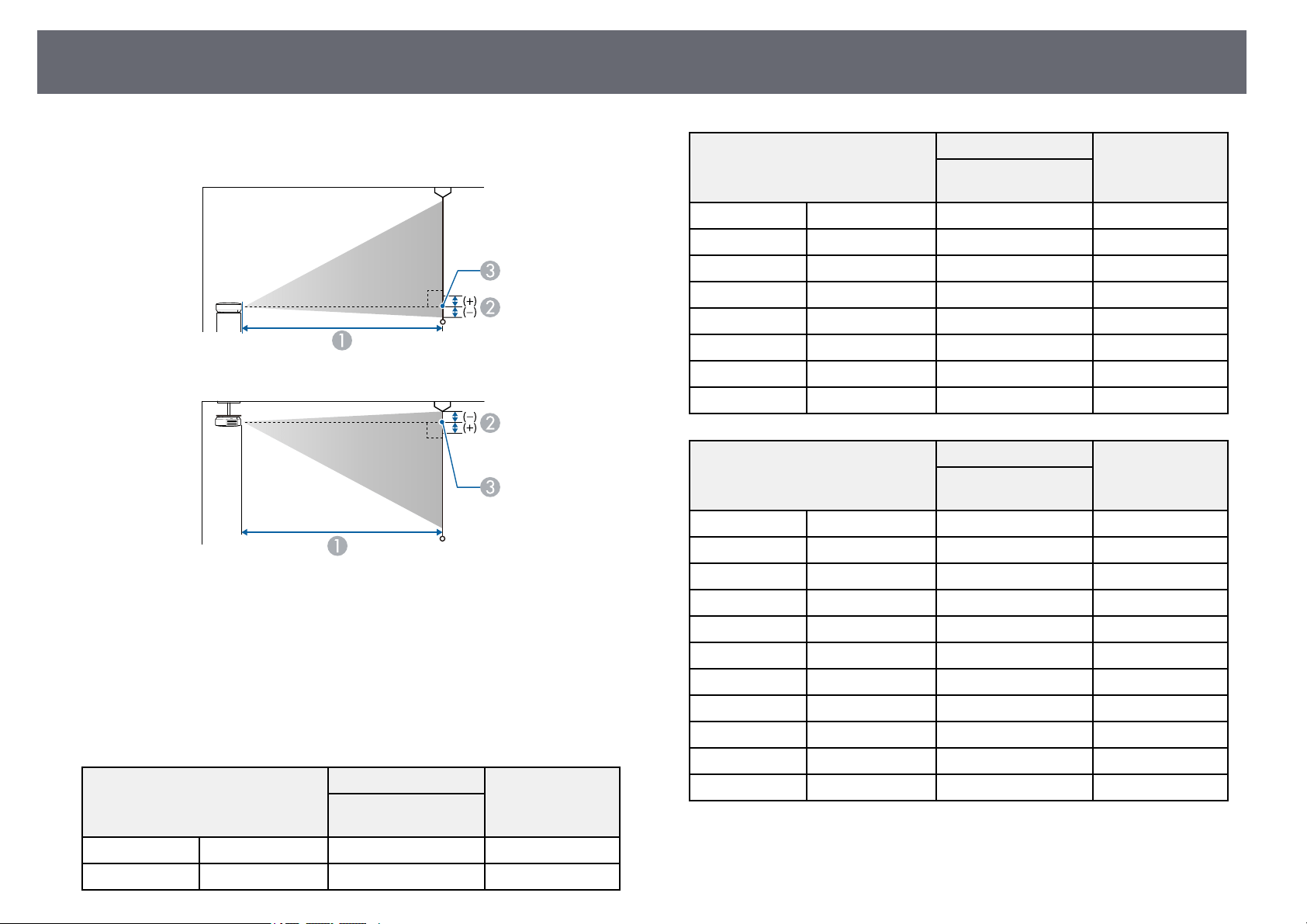
ScreenSizeandProjectionDistance
186
Check thetable hereto determine howfar toplace the projectorfrom the
screen basedon thesize of theprojected image.
Projection distance (cm)
B
Distance from the center of the lens to the base of the screen (or to the top of
the screen, if suspended from a ceiling) (cm)
C
Center of lens
EB‑‑E20/EB‑‑E10/EB‑‑E01/VS260
4:3 screensize
B
Minimum (Wide)to
Maximum (Tele)
30"61 ×4687 - 118-5
50"102×76146-198-8
4:3 screensize
B
Minimum (Wide)to
Maximum (Tele)
60"122×91176-238-10
70"142 ×107205 -278-12
80"163×122235-318-14
100"203×152294-398-17
150"305×229442-598-25
200"406×305590-797-34
300"610×457886-51
350"711×5331034-59
16:9 screensize
B
Minimum (Wide)to
Maximum (Tele)
28"62 ×3588 - 1201
30"66 ×3795 - 1291
50"111×62159-2161
60"133×75192-2591
70"155×87224-3032
80"177×100256-3462
100"221×125321-4332
150"332×187482-6513
200"443×249643-8695
300"664×3749667
320"708×39810307
Note: You can also use the online Projection Distance Calculator to determine
projector placement.
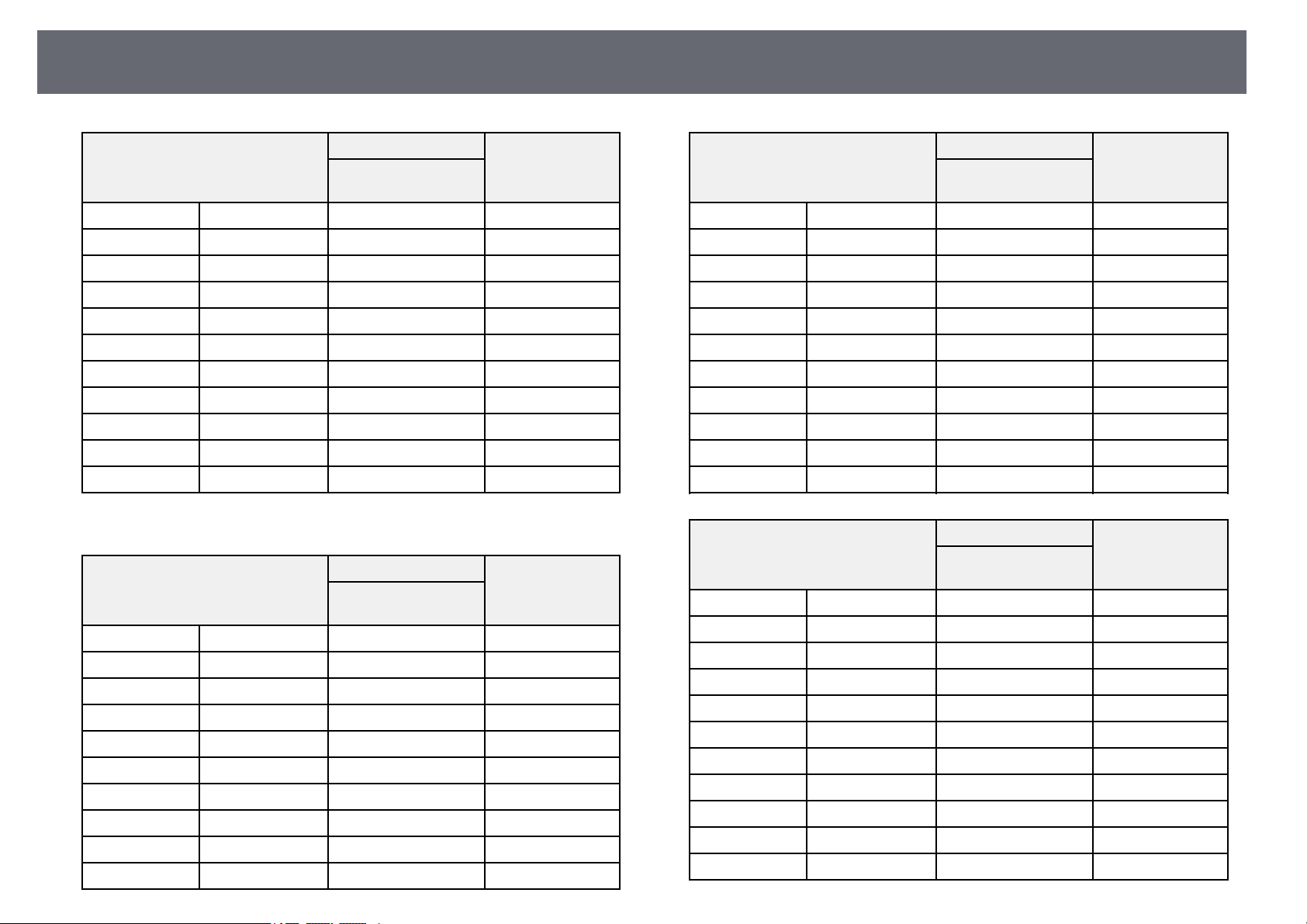
ScreenSizeandProjectionDistance
187
16:10 screensize
B
Minimum (Wide)to
Maximum (Tele)
29"62 ×3989 - 121-1
30"65 ×4092 - 125-1
50"108×67155-210-2
60"129×81186-252-3
70"151×94218-295-3
80"172×108249-337-4
100"215×135312-422-4
150"323×202469-633-7
200"431×269626-845-9
300"646×404939-13
330"711×4441034-15
EB‑‑118/EB‑‑X49/EB‑‑X51/EB‑‑X06/EB‑‑X500
4:3 screensize
B
Minimum (Wide)to
Maximum (Tele)
30"61 ×4689 - 107-5
40"81 ×61119-143-7
50"102×76150-180-8
60"122×91180-217-10
80"163×122241-290-14
100"203×152302-363-17
150"305×229454-546-25
200"406×305607-729-34
250"508×381759-912-42
300"610×457912-1095-51
16:9 screensize
B
Minimum (Wide)to
Maximum (Tele)
28"62 ×3590 - 1091
30"66 ×3797 - 1171
40"89 ×50130-1561
50"111×62163-1961
60"133×75196-2361
80"177×100263-3162
100"221×125329-3962
150"332×187495-5953
200"443×249661-7945
250"553×311827-9946
275"609×342910-10936
16:10 screensize
B
Minimum (Wide)to
Maximum (Tele)
29"62 ×3991 - 110-1
30"65 ×4094 - 113-1
40"86 ×54126-152-2
50"108×67159-191-2
60"129×81191-230-3
80"172×108256-307-4
100"215×135320-385-4
150"323×202482-579-7
200"431×269643-773-9
250"538×337805-967-11
280"603×377902-1083-13
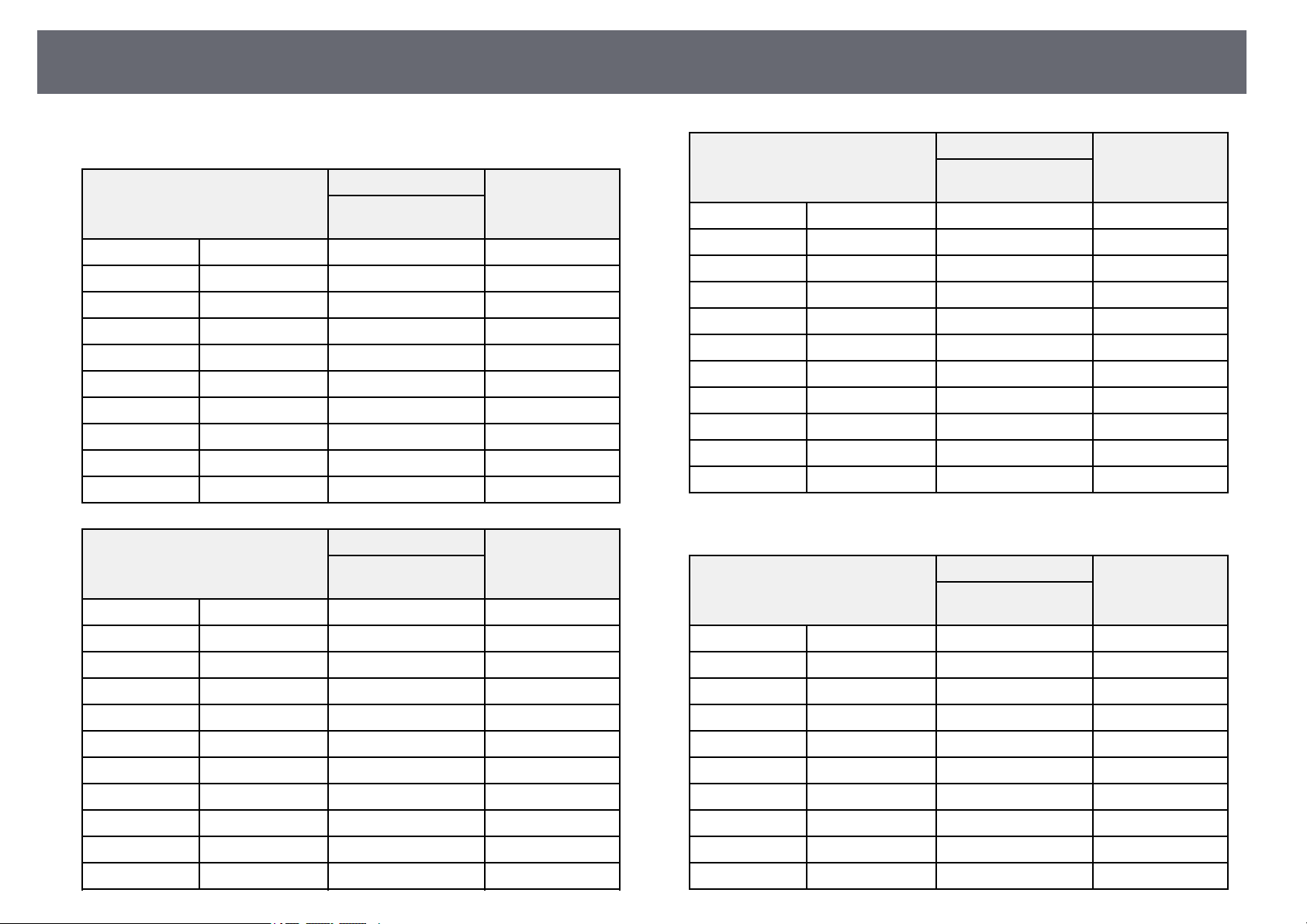
ScreenSizeandProjectionDistance
188
EB‑‑W49/EB‑‑W52/EB‑‑W51/EB‑‑W06
16:10 screensize
B
Minimum (Wide)to
Maximum (Tele)
33"71 ×4491 - 110-4
35"75 ×4797 - 117-4
40"86 ×54111-134-5
50"108×67139-168-6
60"129×81168-202-7
80"172×108225-270-10
100"215×135281-338-12
150"323×202424-509-18
200"431×269566-680-24
320"689×431907-1089-39
4:3 screensize
B
Minimum (Wide)to
Maximum (Tele)
29"59 ×4490 - 109-4
30"61 ×4694 - 113-4
40"81 ×61126-152-5
50"102×76158-190-7
60"122×91190-229-8
70"142×107222-267-10
80"163×122255-306-11
100"203×152319-383-14
150"305×229480-577-20
200"406×305641-770-27
280"569×427898-1079-38
16:9 screensize
B
Minimum (Wide)to
Maximum (Tele)
32"71 ×4091 - 109-2
35"77 ×4499 - 120-2
40"89 ×50114-137-2
50"111×62143-172-3
60"133×75172-208-3
70"155×87202-243-4
80"177×100231-278-4
100"221×125289-348-5
150"332×187435-523-8
200"443×249582-699-11
310"686×386903-1084-17
EB‑‑FH06
16:9 screensize
B
Minimum (Wide)to
Maximum (Tele)
34"75 ×4291 - 109-3
40"89 ×50107-129-3
50"111×62135-162-4
60"133×75162-195-5
80"177×100217-261-7
100"221×125272-327-8
150"332×187410-492-12
200"443×249547-658-16
250"553×311685-823-20
332"735×413911-1094-27
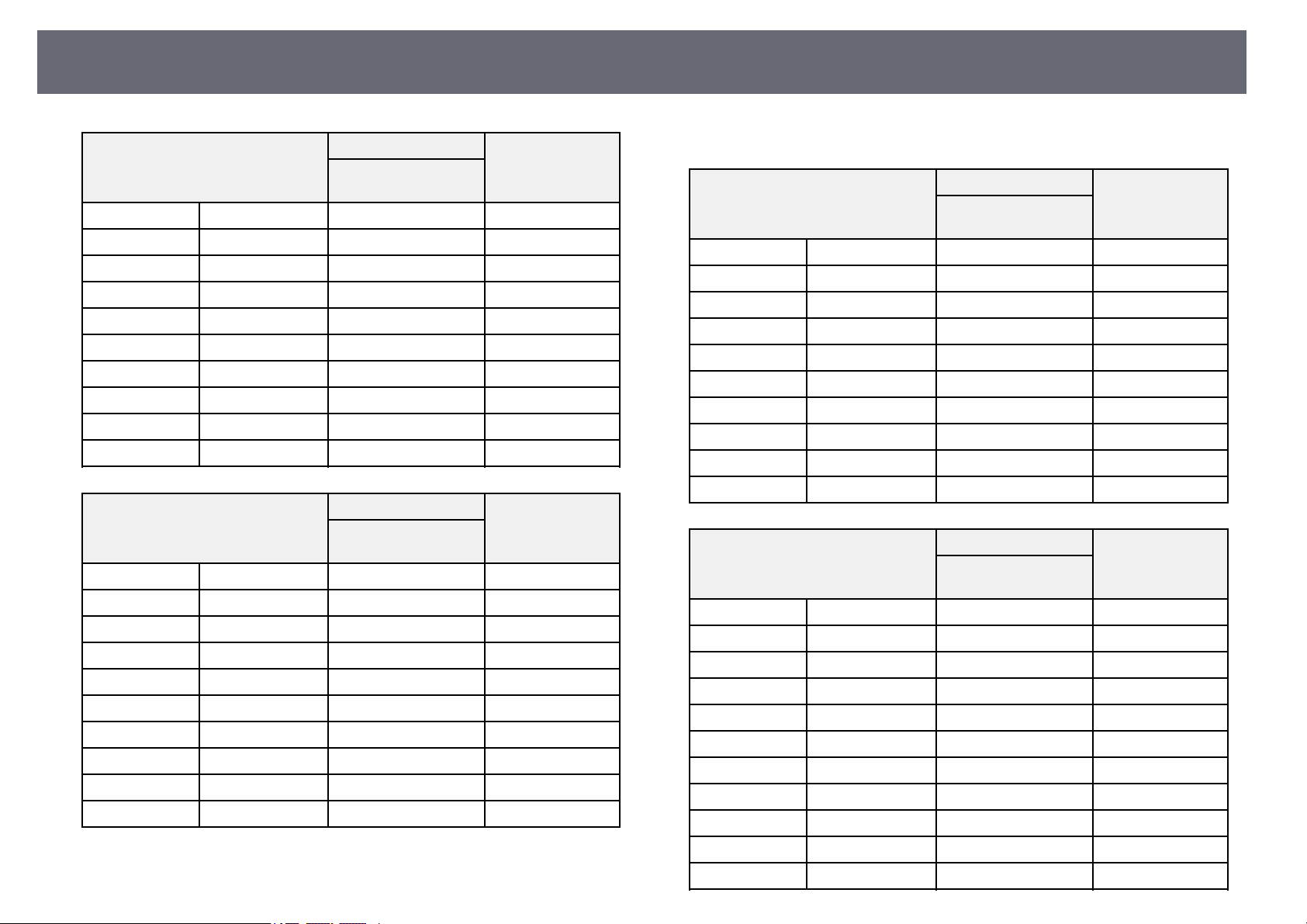
ScreenSizeandProjectionDistance
189
4:3 screensize
B
Minimum (Wide)to
Maximum (Tele)
28"57 ×4391 - 110-3
30"61 ×4698 - 118-3
40"81 ×61132-159-4
50"102×76165-199-5
60"122×91199-240-6
80"163×122266-320-8
100"203×152334-401-10
150"305×229502-603-15
200"406×305671-806-20
250"508×381839-1008-25
16:10 screensize
B
Minimum (Wide)to
Maximum (Tele)
40"86 ×54116-140-4
50"108×67146-176-4
60"129×81175-211-5
70"151×94205-247-6
80"172×108235-283-7
100"215×135294-354-9
150"323×202443-533-13
200"431×269592-711-18
250"538×337741-890-22
280"603×377830-997-25
EB‑‑972
4:3 screensize
B
Minimum (Wide)to
Maximum (Tele)
27"55 ×4185 - 140-2
40"81 ×61128-208-3
50"102×76160-261-4
60"122×91193-314-4
80"163×122258-420-6
100"203×152323-525-7
150"305×229486-789-11
200"406×305649-1054-15
250"508×381812-1318-19
262"532×399852-1381-20
16:9 screensize
B
Minimum (Wide)to
Maximum (Tele)
25"55 ×3186 - 1413
30"66 ×37104-1704
40"89 ×50139-2275
50"111×62175-2856
60"133×75210-3428
80"177×100281-45810
100"221×125352-57313
120"266×149424-68815
150"332×187530-86019
200"443×249708-114825
241"534×300853-138430
ScreenSizeandProjectionDistance
190
16:10 screensize
B
Minimum (Wide)to
Maximum (Tele)
25"54 ×3484 - 1371
30"65 ×40101-1652
40"86 ×54135-2212
50"108×67170-2773
60"129×81205-3333
80"172×108274-4454
100"215×135343-5576
120"258×162412-6697
150"323×202516-8378
200"431×269689-111711
247"532×333851-138014
EB‑‑982W
16:10 screensize
B
Minimum (Wide)to
Maximum (Tele)
29"62 ×3985 - 140-1
35"75 ×47103-169-1
40"86 ×54118-193-1
50"108×67149-243-2
60"129×81179-292-2
80"172×108239-390-3
100"215×135300-488-3
150"323×202451-733-5
200"431×269603-979-7
280"603×377845-1371-9
4:3 screensize
B
Minimum (Wide)to
Maximum (Tele)
26"53 ×4086 - 142-1
30"61 ×46100-164-1
40"81 ×61134-219-2
50"102×76169-275-2
60"122×91203-331-2
70"142×107237-386-3
80"163×122271-442-3
100"203×152340-553-4
150"305×229511-831-6
200"406×305682-1108-8
240"488×366820-1330-9
16:9 screensize
B
Minimum (Wide)to
Maximum (Tele)
29"64 ×3687 - 1431
35"77 ×44106-1741
40"89 ×50122-1991
50"111×62153-2492
60"133×75184-3002
70"155×87215-3502
80"177×100246-4013
100"221×125308-5023
150"332×187464-7545
200"443×249619-10067
270"598×336837-13599
ScreenSizeandProjectionDistance
191
EB‑‑992F/EB‑‑FH52
16:9 screensize
B
Minimum (Wide)to
Maximum (Tele)
30"66 ×3787 - 1420
40"89 ×50116-1900
50"111×62146-2380
60"133×75176-2860
80"177×100235-3820
100"221×125295-4780
150"332×187443-7190
200"443×249591-9591
250"553×311740-12001
300"664×374888-14411
4:3 screensize
B
Minimum (Wide)to
Maximum (Tele)
25"51 ×3888 - 1450
30"61 ×46107-1740
40"81 ×61143-2330
60"122×91216-3510
80"163×122288-4680
100"203×152361-5860
120"244×183434-7040
150"305×229543-8801
200"406×305724-11751
220"447×335797-12931
245"498×373888-14401
16:10 screensize
B
Minimum (Wide)to
Maximum (Tele)
28"60 ×3887 - 1430
30"65 ×4094 - 1530
40"86 ×54126-2050
60"129×81190-3090
80"172×108254-4130
100"215×135319-5170
120"258×162383-6210
150"323×202479-7771
200"431×269640-10371
250"538×337800-12971
277"597×373887-14381
SupportedMonitorDisplayResolutions
192
The tableshere listthe compatible refreshrate andresolution for each
compatible videodisplay format.
ComputerSignals(Analog RGB)
SignalRefresh rate(Hz)Resolution(dots)
VGA60/72/75/85640 ×480
SVGA60/72/75/85800 ×600
XGA60/70/75/851024 ×768
WXGA601280 ×768
601366 ×768
60/75/851280 ×800
WXGA+60/75/851440 ×900
WXGA++601600 ×900
SXGA70/75/851152×864
60/75/851280 ×960
60/75/851280×1024
SXGA+60/751400×1050
WSXGA+ *601680×1050
UXGA601600 ×1200
1920 ×1080**50/601920 ×1080
* Availableonly forprojectors with aresolution ofFull HD (1,920× 1,080)or
WXGA (1,280× 800),andcompatible onlywhen Wide isselected asthe
Resolution settingin theprojector's Signalmenu.
** Availableonly forprojectors with aresolution ofFull HD (1,920× 1,080).
Even whensignals otherthan those mentionedabove areinput, it islikely that
the imagecan beprojected. However, notall functionsmay be supported.
CompositeVideo
SignalRefreshrate(Hz)Resolution(dots)
TV (NTSC)60720×480
TV (SECAM)50720×576
TV (PAL)50/60720 ×576
HDMIPortInput Signals
SignalRefresh rate(Hz)Resolution(dots)
VGA60640 ×480
SVGA60800×600
XGA601024 ×768
WXGA601280×800
601366 ×768
WXGA+601440 ×900
WXGA++601600 ×900
SXGA601280×960
601280 ×1024
SXGA+601400 ×1050
WSXGA+ *601680 ×1050
UXGA601600 ×1200
1920 ×108050/601920×1080
WUXGA (Reduced
Blanking) **
601920 ×1200
SDTV (480i/480p)59.94720×480
SDTV (576i/576p)50720 ×576
HDTV (720p)50/59.94/601280 ×720
HDTV (1080i)50/59.94/601920 ×1080
HDTV (1080p)23.98/24/29.97/30/50/59.94/601920×1080

SupportedMonitorDisplayResolutions
193
* Availableonly forprojectors with aresolution ofFull HD (1,920× 1,080)or
WXGA (1,280× 800).
** Availableonly forprojectors with aresolution ofFull HD (1,920× 1,080).
ProjectorSpecifications
194
EB‑‑972/EB‑‑118/EB‑‑X49/EB‑‑E20/EB‑‑X51/EB‑‑E10/EB‑‑X06/EB‑‑E01/EB‑‑
X500/VS260
Product name
EB‑972/EB‑118/EB‑X49/EB‑E20/EB‑X51/EB‑E10/EB‑X06/EB
‑E01/EB‑X500/VS260
Dimensions
EB‑‑972
309 (W) × 90 (H) × 282 (D) mm (not including raised
section)
EB‑‑118/EB‑‑X49/EB‑‑E20
302 (W) × 87 (H) × 249 (D) mm (not including raised
section)
EB‑‑X51/EB‑‑E10/EB‑‑X06/EB‑‑E01/EB‑‑X500/VS260
302 (W) × 77 (H) × 234 (D) mm (not including raised
section)
LCD panelsize0.55"
Display methodPoly-silicon TFTactivematrix
Resolution786,432pixels
XGA (1,024(W)×768(H)dots)×3
Focus adjustmentManual
Zoom adjustment
EB‑‑972
1 to 1.6 (Optical Zoom)
EB‑‑118/EB‑‑X49/EB‑‑X51/EB‑‑X06/EB-X500
1 to 1.2 (Optical Zoom)
EB‑‑E20/EB‑‑E10/EB‑‑E01/VS260
1 to 1.35 (Digital Zoom)
Lamp
EB‑‑972
UHE lamp, 230 W Model No.: ELPLP97
EB‑‑118/EB‑‑X49/EB‑‑E20/EB‑‑X51/EB‑‑E10/EB‑‑X06/EB‑‑
E01/EB‑‑X500/VS260
UHE lamp, 210 W Model No.: ELPLP97
Lamp life
EB‑‑972
High Power Consumption mode: Up to 6,500 hours
Medium Power Consumption mode: Up to 10,000 hours
ECO Power Consumption mode: Up to 17,000 hours
EB‑‑118
High Power Consumption mode: Up to 8,000 hours
Medium Power Consumption mode: Up to 10,000 hours
ECO Power Consumption mode: Up to 17,000 hours
EB‑‑X49/EB‑‑E20/EB‑‑X51/EB‑‑E10/EB‑‑X06/EB‑‑E01/EB‑‑X50
0/VS260
High Power Consumption mode: Up to 6,000 hours
ECO Power Consumption mode: Up to 12,000 hours
Air filtermaintenance
cycle
EB‑‑972
10,000 hours
EB‑‑118/EB‑‑X49/EB‑‑E20/EB‑‑X51/EB‑‑E10/EB‑‑X06/EB‑‑
E01/EB‑‑X500/VS260
6,000 hours
Max. audiooutput
EB‑‑972/EB‑‑118
16 W
EB‑‑X49/EB‑‑E20
5 W
EB‑‑X51/EB‑‑E10/EB‑‑X06/EB‑‑E01/EB‑‑X500/VS260
2 W
Speaker1
Power supply100-240VAC±10%50/60Hz3.5-1.6A
Power consumption
(100 to120Varea)
Operating: 345W
Power consumption
(220 to240Varea)
Operating: 327W
Standby power
consumption
Communication On:2.0W
Communication Off:0.3W
Operating altitudeAltitude0to3,048m
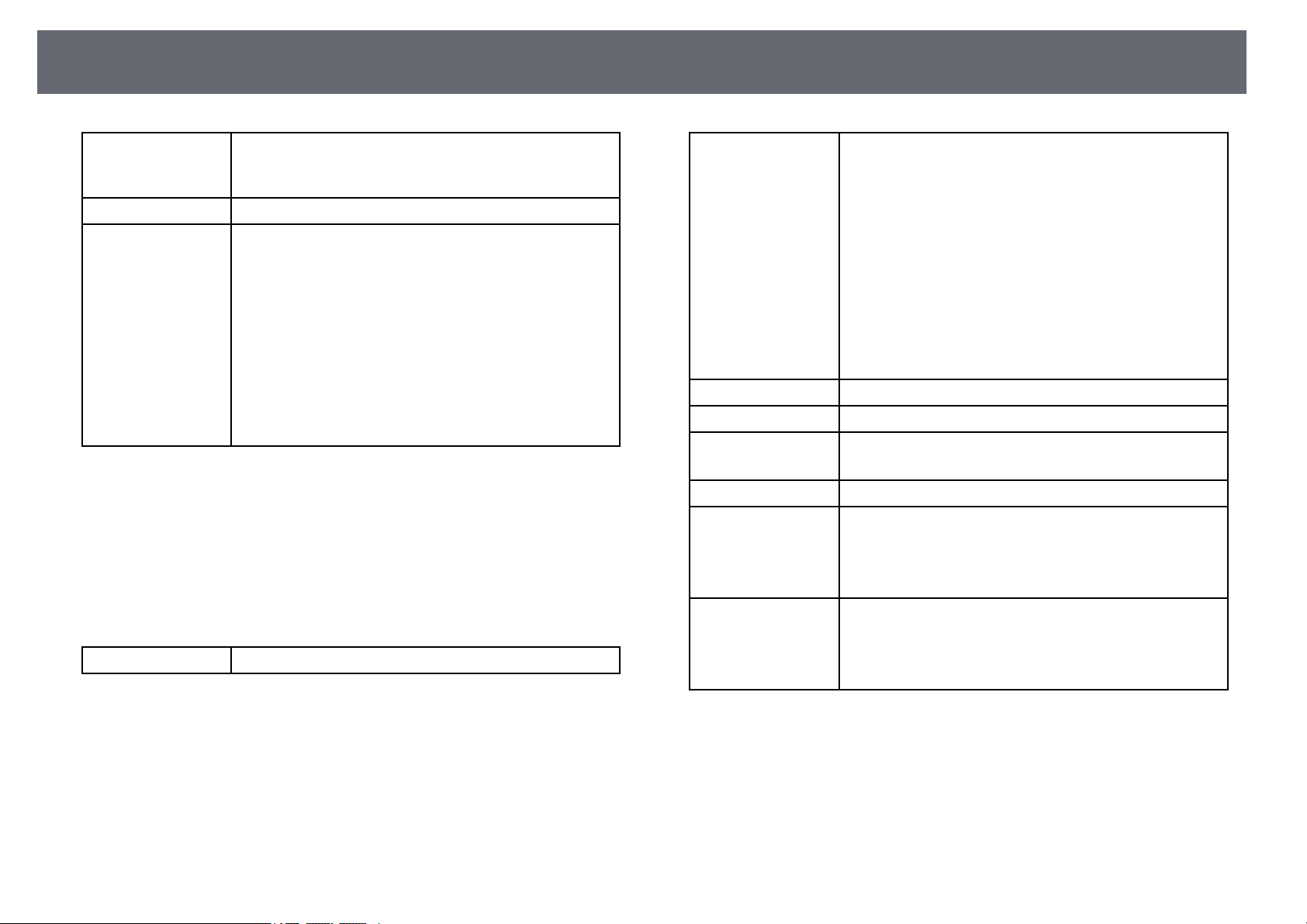
ProjectorSpecifications
195
Operating
temperature *
Altitude of0to2,286m:+5to+40°C(Nocondensation)
Altitude of2,287to3,048m:+5to+35°C(Humidityof20
to 80%,Nocondensation)
Storage temperature-10to+60°C (Humidityof10to90%,Nocondensation)
Mass
EB‑‑972:
Approx. 3.1 kg
EB‑‑118:
Approx. 2.8 kg
EB‑‑X49/EB‑‑E20:
Approx. 2.7 kg
EB‑‑X51/EB‑‑X06/EB‑‑X500:
Approx. 2.5 kg
EB‑‑E10/EB‑‑E01/VS260:
Approx. 2.4 kg
* Lampbrightness automaticallydims if thesurrounding temperaturegets too
high. (Approximately35°C atanaltitude of0 to2,286 m, andapproximately
30°C atan altitudeof 2,287 to3,048 m;however, this mayvary dependingon
the surroundingenvironment.)
This productis alsodesigned for ITpower distributionsystem with phase-to-
phase voltage230V.
EB‑‑982W/EB‑‑W49/EB‑‑W52/EB‑‑W51/EB‑‑W06
Product nameEB‑982W/EB‑W49/EB‑W52/EB‑W51/EB‑W06
DimensionsEB‑‑982W
309 (W)×90(H)×282(D)mm(notincludingraised
section)
EB‑‑W49
302 (W)×87(H)×249(D)mm(notincludingraised
section)
EB‑‑W52
302 (W)×87(H)×234(D)mm(notincludingraised
section)
EB‑‑W51/EB‑‑W06
302 (W)×77(H)×234(D)mm(notincludingraised
section)
LCD panelsize0.59"
Display methodPoly-silicon TFTactivematrix
Resolution1,024,000pixels
WXGA (1,280(W)×800(H)dots)×3
Focus adjustmentManual
Zoom adjustmentEB‑‑982W
1 to1.6(OpticalZoom)
EB‑‑W49/EB‑‑W52/EB‑‑W51/EB‑‑W06
1 to1.2(OpticalZoom)
LampEB‑‑982W
UHE lamp,230WModelNo.:ELPLP97
EB‑‑W49/EB‑‑W52/EB‑‑W51/EB‑‑W06
UHE lamp,210WModelNo.:ELPLP97
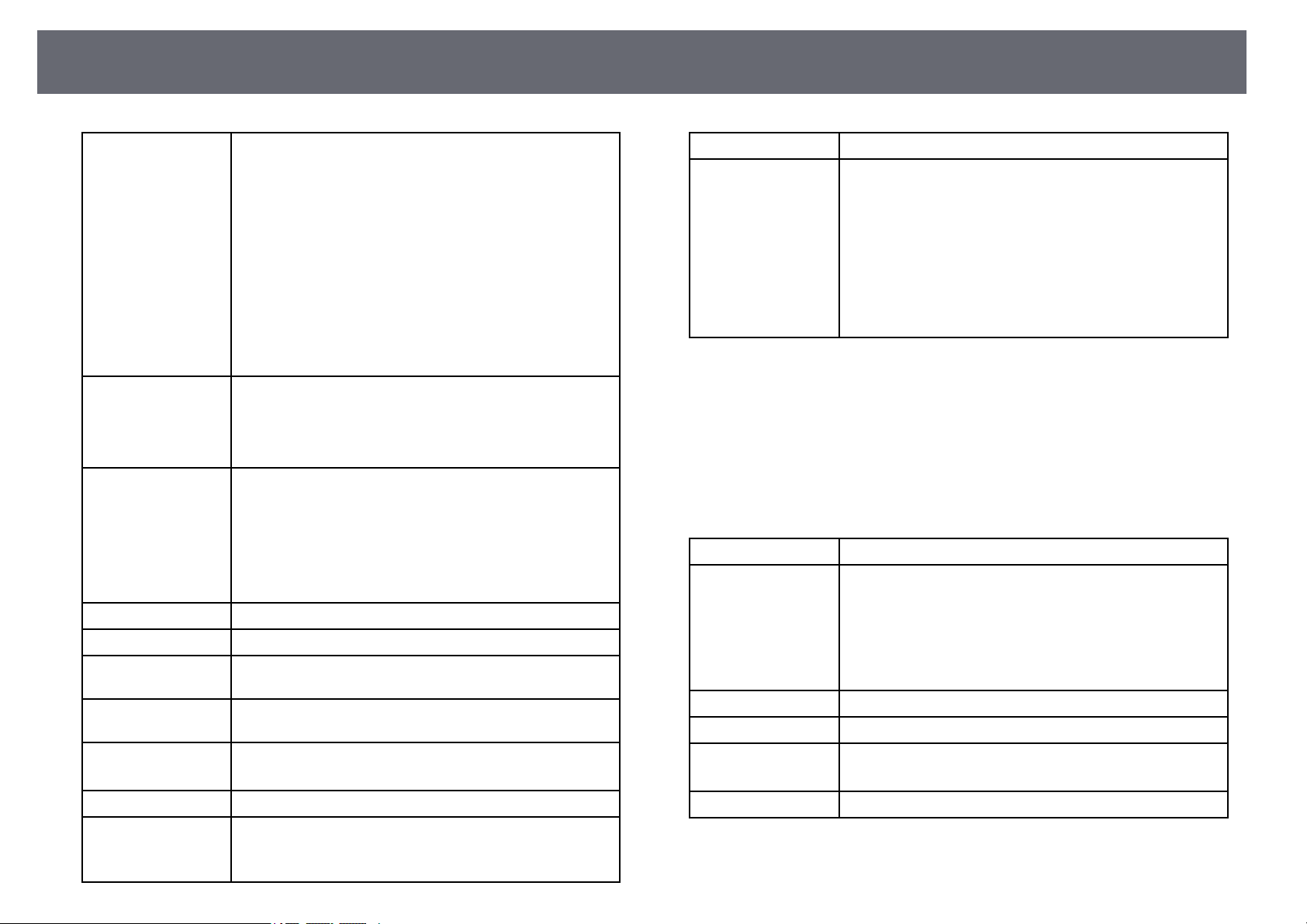
ProjectorSpecifications
196
Lamp lifeEB‑‑982W
High PowerConsumptionmode:Upto6,500hours
Medium PowerConsumptionmode:Upto10,000hours
ECO PowerConsumptionmode:Upto17,000hours
EB‑‑W49
High PowerConsumptionmode:Upto8,000hours
Medium PowerConsumptionmode:Upto10,000hours
ECO PowerConsumptionmode:Upto17,000hours
EB‑‑W52/EB‑‑W51/EB‑‑W06
High PowerConsumptionmode:Upto6,000hours
ECO PowerConsumptionmode:Upto12,000hours
Air filtermaintenance
cycle
EB‑‑982W
10,000 hours
EB‑‑W49/EB‑‑W52/EB‑‑W51/EB‑‑W06
6,000 hours
Max. audiooutputEB‑‑982W
16 W
EB‑‑W49
5 W
EB‑‑W52/EB‑‑W51/EB‑‑W06
2 W
Speaker1
Power supply100-240VAC±10%50/60Hz3.5-1.6A
Power consumption
(100 to120Varea)
Operating: 345W
Power consumption
(220 to240Varea)
Operating: 327W
Standby power
consumption
Communication On:2.0W
Communication Off:0.3W
Operating altitudeAltitude0to3,048m
Operating
temperature *
Altitude of0to2,286m:+5to+40°C(Nocondensation)
Altitude of2,287to3,048m:+5to+35°C(Humidityof20
to 80%,Nocondensation)
Storage temperature-10to+60°C (Humidityof10to90%,Nocondensation)
MassEB‑‑982W:
Approx. 3.1kg
EB‑‑W52:
Approx. 2.6kg
EB‑‑W49:
Approx. 2.7kg
EB‑‑W51/EB‑‑W06:
Approx. 2.5kg
* Lampbrightness automaticallydims if thesurrounding temperaturegets too
high. (Approximately35°C atan altitude of0 to2,286 m, andapproximately
30°C atan altitudeof 2,287 to3,048 m;however, this mayvary dependingon
the surroundingenvironment.)
This productis alsodesigned for ITpower distributionsystem with phase-to-
phase voltage230V.
EB‑‑992F/EB‑‑FH52/EB‑‑FH06
Product nameEB‑992F/EB‑FH52/EB‑FH06
DimensionsEB‑‑992F/EB‑‑FH52
309 (W)×90(H)×282(D)mm(notincludingraised
section)
EB‑‑FH06
302 (W)×87(H)×249(D)mm(notincludingraised
section)
LCD panelsize0.61"
Display methodPoly-silicon TFTactivematrix
Resolution2,073,600pixels
Full HD(1,920(W)×1,080(H)dots)×3
Focus adjustmentManual
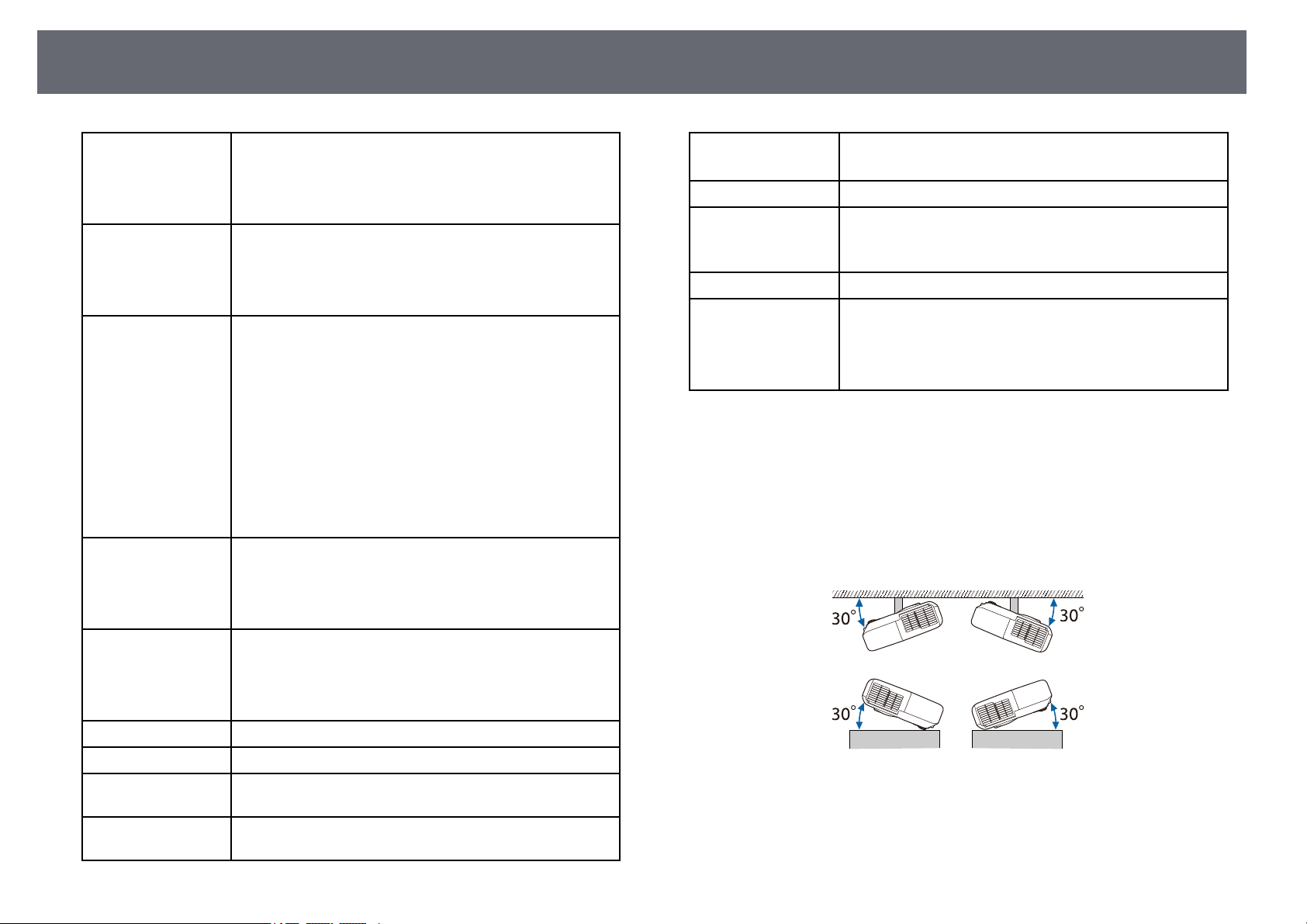
ProjectorSpecifications
197
Zoom adjustmentEB‑‑992F/EB‑‑FH52
1 to1.6(OpticalZoom)
EB‑‑FH06
1 to1.2(OpticalZoom)
LampEB‑‑992F/EB‑‑FH52
UHE lamp,230WModelNo.:ELPLP97
EB‑‑FH06
UHE lamp,210WModelNo.:ELPLP97
Lamp lifeEB‑‑992F
High PowerConsumptionmode:Upto6,500hours
Medium PowerConsumptionmode:Upto10,000hours
ECO PowerConsumptionmode:Upto17,000hours
EB‑‑FH52
High PowerConsumptionmode:Upto5,500hours
ECO PowerConsumptionmode:Upto12,000hours
EB‑‑FH06
High PowerConsumptionmode:Upto6,000hours
ECO PowerConsumptionmode:Upto12,000hours
Air filtermaintenance
cycle
EB‑‑992F/EB‑‑FH52
10,000 hours
EB‑‑FH06
6,000 hours
Max. audiooutputEB‑‑992F/EB‑‑FH52
16 W
EB‑‑FH06
2 W
Speaker1
Power supply100-240VAC±10%50/60Hz3.5-1.6A
Power consumption
(100 to120Varea)
Operating: 345W
Power consumption
(220 to240Varea)
Operating: 327W
Standby power
consumption
Communication On:2.0W
Communication Off:0.3W
Operating altitudeAltitude0to3,048m
Operating
temperature *
Altitude of0to2,286m:+5to+40°C(Nocondensation)
Altitude of2,287to3,048m:+5to+35°C(Humidityof20
to 80%,Nocondensation)
Storage temperature-10to+60°C (Humidityof10to90%,Nocondensation)
MassEB‑‑992F/EB‑‑FH52:
Approx. 3.1kg
EB‑‑FH06:
Approx. 2.7kg
* Lampbrightness automaticallydims if thesurrounding temperaturegets too
high. (Approximately35°C atan altitude of0 to2,286 m, andapproximately
30°C atan altitudeof 2,287 to3,048 m;however, this mayvary dependingon
the surroundingenvironment.)
This productis alsodesigned for ITpower distributionsystem with phase-to-
phase voltage230V.
Angleoftilt
If youuse theprojector tilted atan angleof more than30˚ itcould be
damaged andcause anaccident.
ggRelatedLinks
•"Connector Specifications"p.198
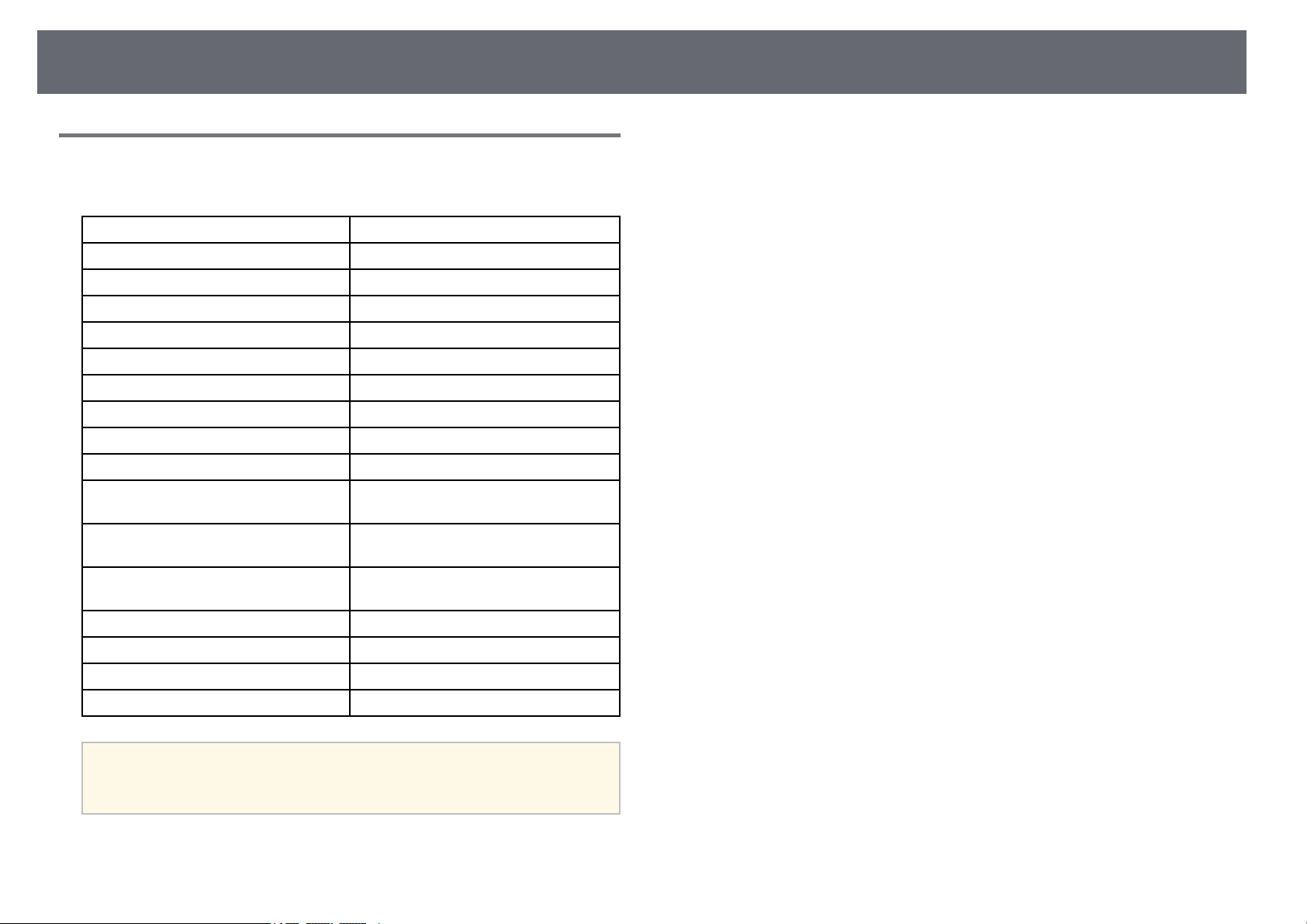
ProjectorSpecifications
198
ConnectorSpecifications
See theList ofFunctions for detailson theports on yourprojector.
Computer portMiniD-Sub15-pin(female)
Computer1 portMini D-Sub15-pin(female)
Computer2 portMini D-Sub15-pin(female)
Monitor OutportMini D-Sub15-pin(female)
Video portRCA pinjack
Audio 1portStereo minipinjack
Audio 2portStereo minipinjack
L-Audio-R portsRCApinjack×2(L-R)
Mic portStereo minipinjack
Audio OutportStereo minipinjack
HDMI portHDMI (Audioisonlysupportedby
PCM)
HDMI1 portHDMI (Audioisonlysupportedby
PCM)
HDMI2 portHDMI (Audioisonlysupportedby
PCM)
USB-A portUSB connector(TypeA)
USB-B portUSB connector(TypeB)
LAN portRJ-45
RS-232C portMiniD-Sub9-pin(male)
a
•USB-Aand USB-BportsupportsUSB2.0.However,USBportsare
not guaranteedtooperatealldevicesthatsupportUSB.
•USB-BportdoesnotsupportUSB1.1.
ggRelatedLinks
•"List ofFunctions" p.10
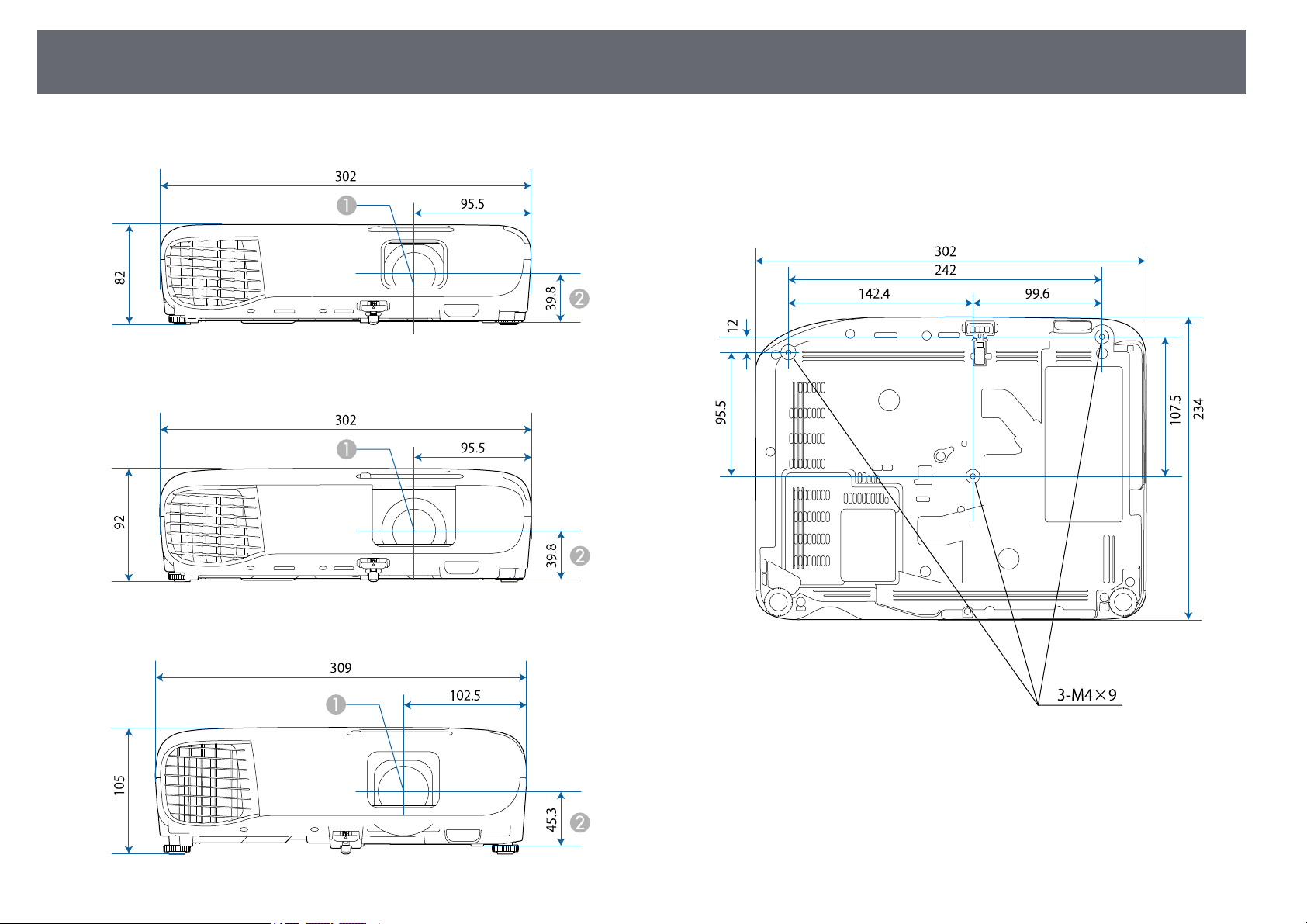
ExternalDimensions
199
EB‑‑W51/EB‑‑X51/EB‑‑E10/EB‑‑W06/EB‑‑X06/EB‑‑E01/EB‑‑X500/VS260
EB‑‑118/EB‑‑W49/EB‑‑X49/EB‑‑E20/EB‑‑W52/EB‑‑FH06
EB‑‑992F/EB‑‑982W/EB‑‑972/EB‑‑FH52
Center of lens
B
Distance from center of lens to suspension bracket fixing point
EB‑‑W51/EB‑‑X51/EB‑‑E10/EB‑‑W06/EB‑‑X06/EB‑‑E01/EB‑‑X500/VS260
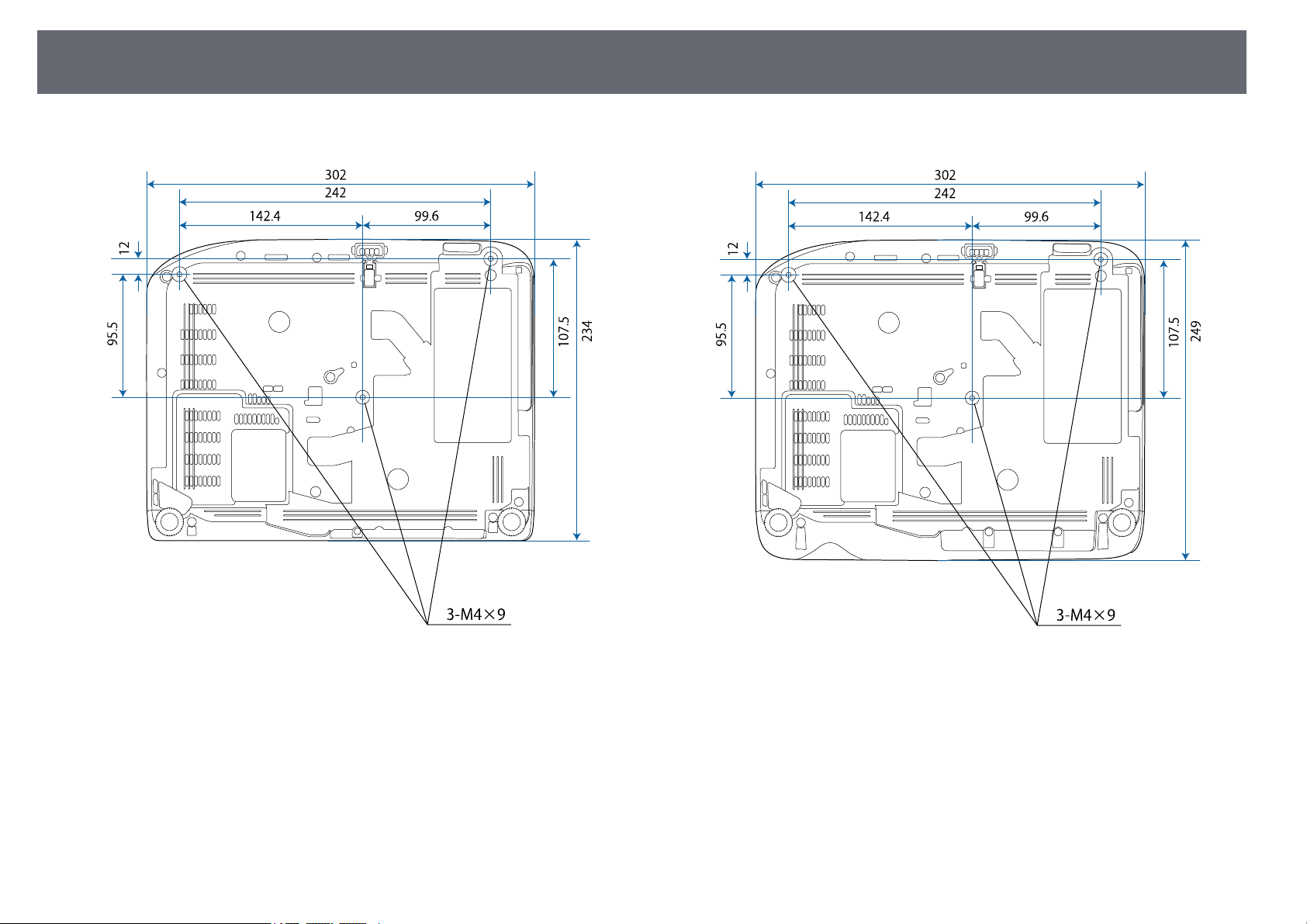
ExternalDimensions
200
EB‑‑W52EB‑‑FH06
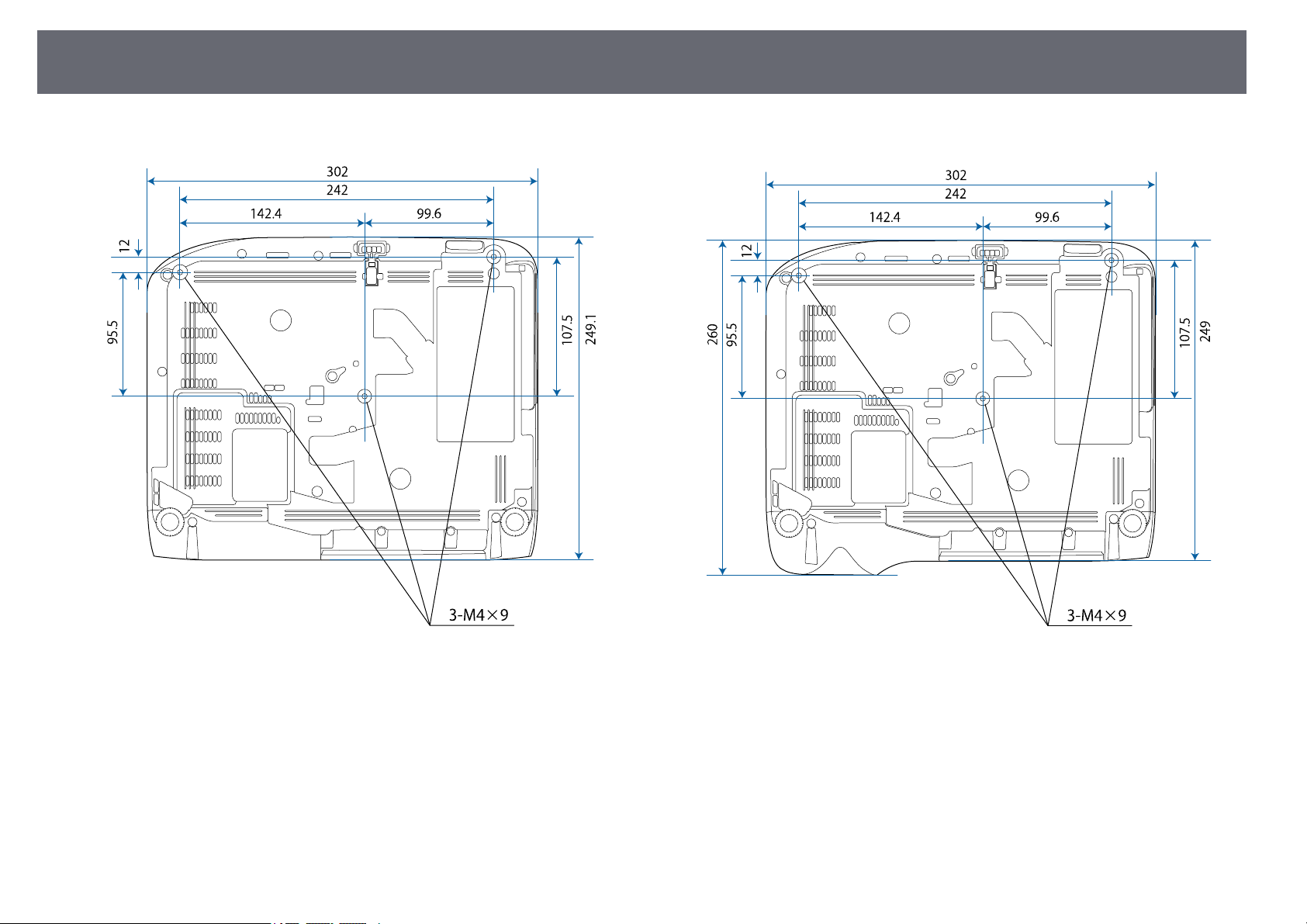
ExternalDimensions
201
EB‑‑W49/EB‑‑X49/EB‑‑E20EB‑‑118
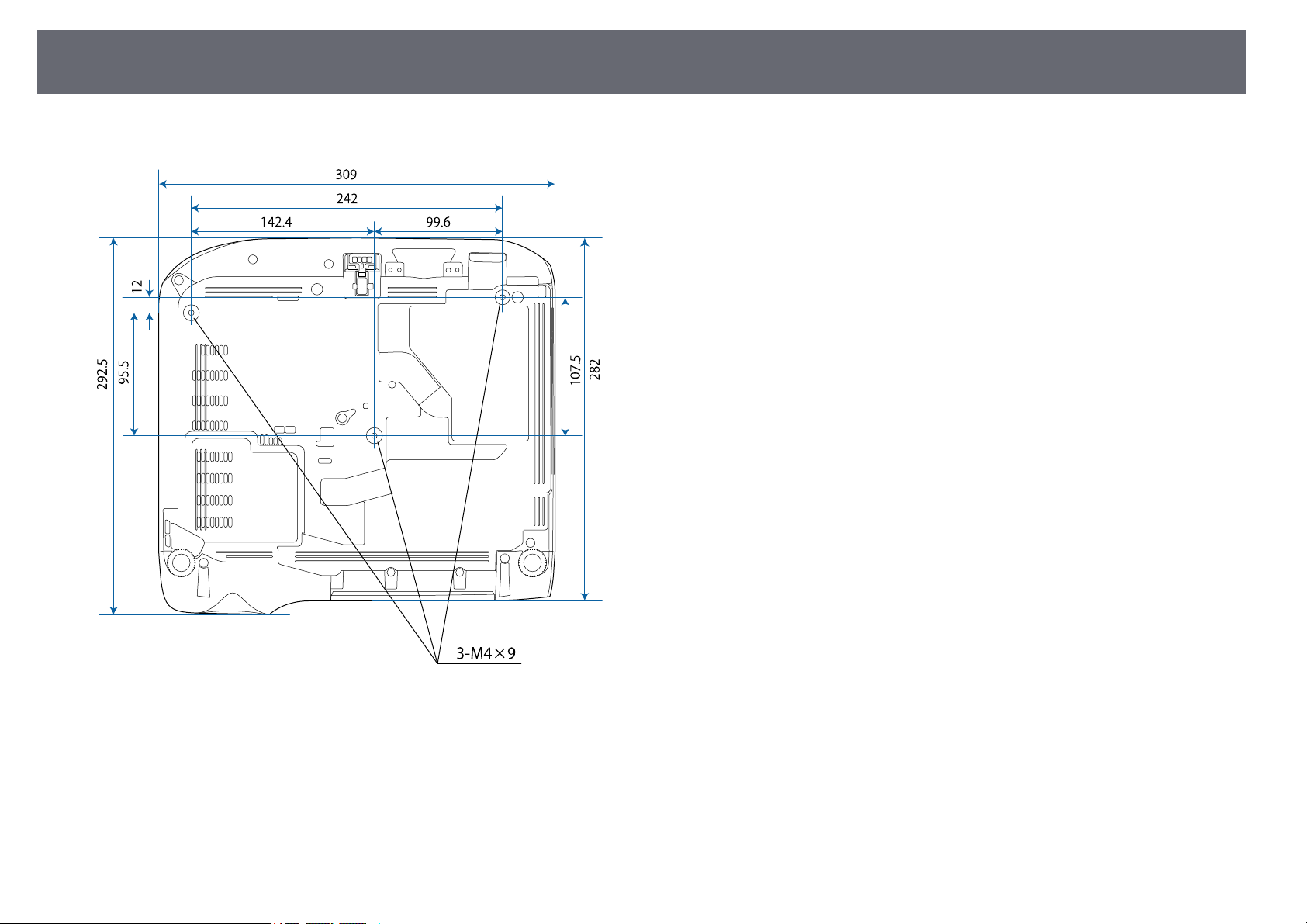
ExternalDimensions
202
EB‑‑992F/EB‑‑982W/EB‑‑972/EB‑‑FH52
The unitin theseillustrations is mm.

USBDisplaySystemRequirements
203
To usethe projector's EpsonUSB Displaysoftware, your computermust meet
the followingsystem requirements.
RequirementWindowsMac
Operating systemWindows 7
•Ultimate(32-and64-bit)
•Enterprise(32-and64-bit)
•Professional(32-and64-bit)
•HomePremium(32-and64-
bit)
•HomeBasic(32-bit)
•Starter(32-bit)
OS X
•10.8.x(64-bit)
•10.9.x(64-bit)
•10.10.x(64-bit)
•10.11.x(64-bit)
Windows 8.1
•Windows8.1(32-and64-bit)
•Windows8.1Pro(32-and64-
bit)
•Windows8.1Enterprise(32-
and 64-bit)
macOS
•10.12.x(64-bit)
•10.13.x(64-bit)
•10.14.x(64-bit)
Windows 10
•Windows10Home(32-and
64-bit)
•Windows10Pro(32-and64-
bit)
•Windows10Enterprise(32-
and 64-bit)
CPUIntel Core2Duoorfaster
(Intel Corei3orfaster
recommended)
Intel Core2Duoorfaster
(Intel Corei5orfaster
recommended)
Memory2 GBormore
(4 GBormorerecommended)
Hard diskspace20 MBormore
DisplayResolutionbetween640×480and1920×1200
16-bit colororgreater
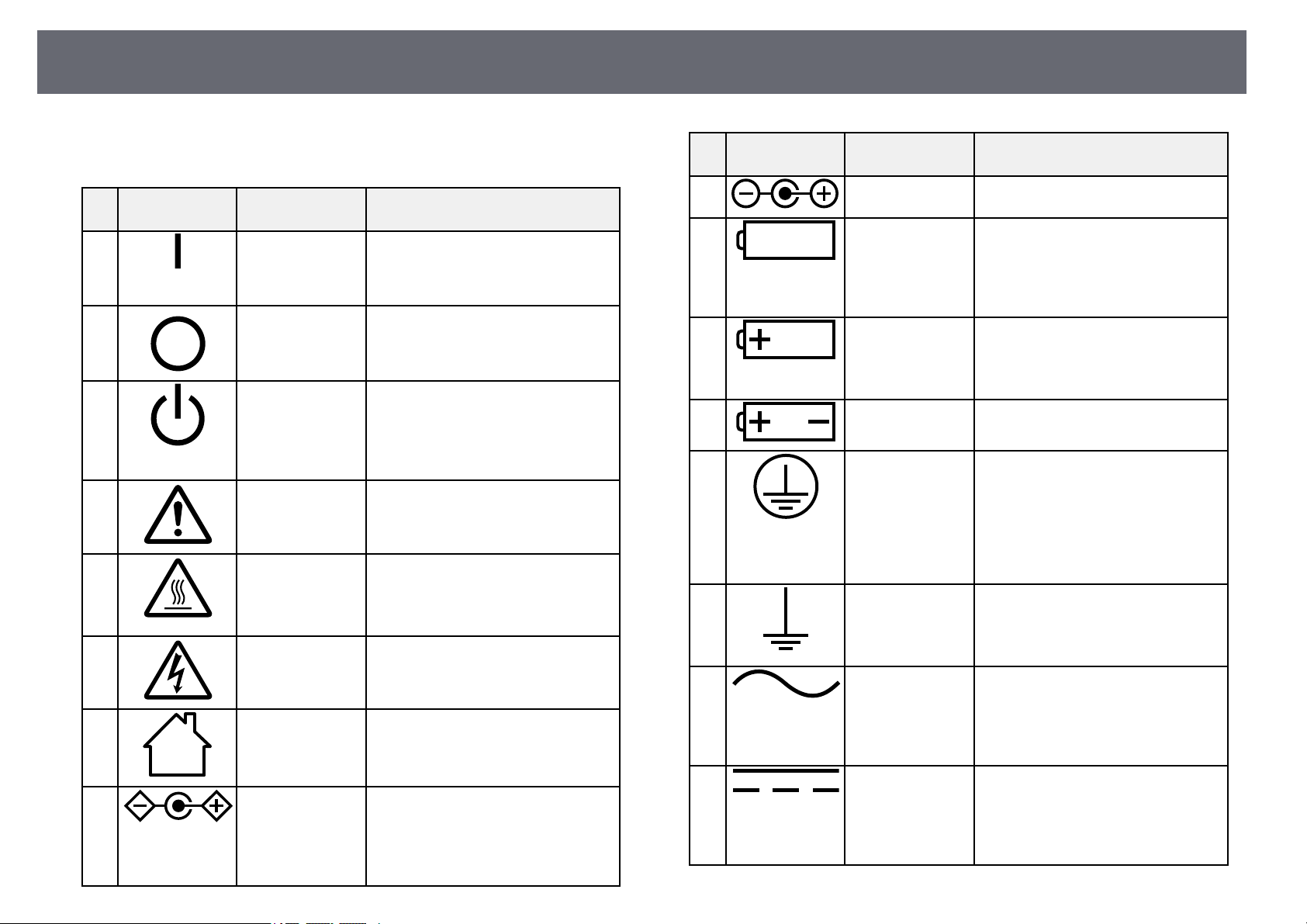
ListofSafetySymbolsandInstructions
204
The followingtable liststhe meaning ofthe safetysymbols labeled onthe
equipment.
No.Symbol markApproved
standards
Description
IEC60417
No. 5007
"ON" (power)
To indicateconnectiontothemains.
B
IEC60417
No. 5008
"OFF" (power)
To indicatedisconnectionfromthe
mains.
C
IEC60417
No. 5009
Stand-by
To identifytheswitchorswitch
position bymeansofwhichpartofthe
equipment isswitchedoninorderto
bring itintothestand-bycondition.
D
ISO7000
No. 0434B,
IEC3864-B3.1
Caution
To identifygeneralcautionwhen
using theproduct.
E
IEC60417
No. 5041
Caution, hotsurface
To indicatethatthemarkeditemcan
be hotandshouldnotbetouched
without takingcare.
F
IEC60417
No. 6042
ISO3864-B3.6
Caution, riskofelectricshock
To identifyequipmentthathasriskof
electric shock.
G
IEC60417
No. 5957
For indooruseonly
To identifyelectricalequipment
designed primarilyforindooruse.
H
IEC60417
No. 5926
Polarity ofd.c.powerconnector
To identifythepositiveandnegative
connections (thepolarity)onapiece
of equipmenttowhichad.c.power
supply maybeconnected.
No.Symbol markApproved
standards
Description
I
—ThesameasNo.8.
J
IEC60417
No. 5001B
Battery, general
On batterypoweredequipment.To
identify adeviceforinstanceacover
for thebatterycompartment,orthe
connector terminals.
K
IEC60417
No. 5002
Positioning ofcell
To identifythebatteryholderitself
and toidentifythepositioningofthe
cell(s) insidethebatteryholder.
L
—ThesameasNo.11.
M
IEC60417
No. 5019
Protective earth
To identifyanyterminalwhichis
intended forconnectiontoanexternal
conductor forprotectionagainst
electric shockincaseofafault,orthe
terminal ofaprotectiveearth
electrode.
N
IEC60417
No. 5017
Earth
To identifyanearth(ground)terminal
in caseswhereneitherthesymbolNo.
13 isexplicitlyrequired.
O
IEC60417
No. 5032
Alternating current
To indicateontheratingplatethatthe
equipment issuitableforalternating
current only;toidentifyrelevant
terminals.
P
IEC60417
No. 5031
Direct current
To indicateontheratingplatethatthe
equipment issuitablefordirect
current only;toidentifyrelevant
terminals.
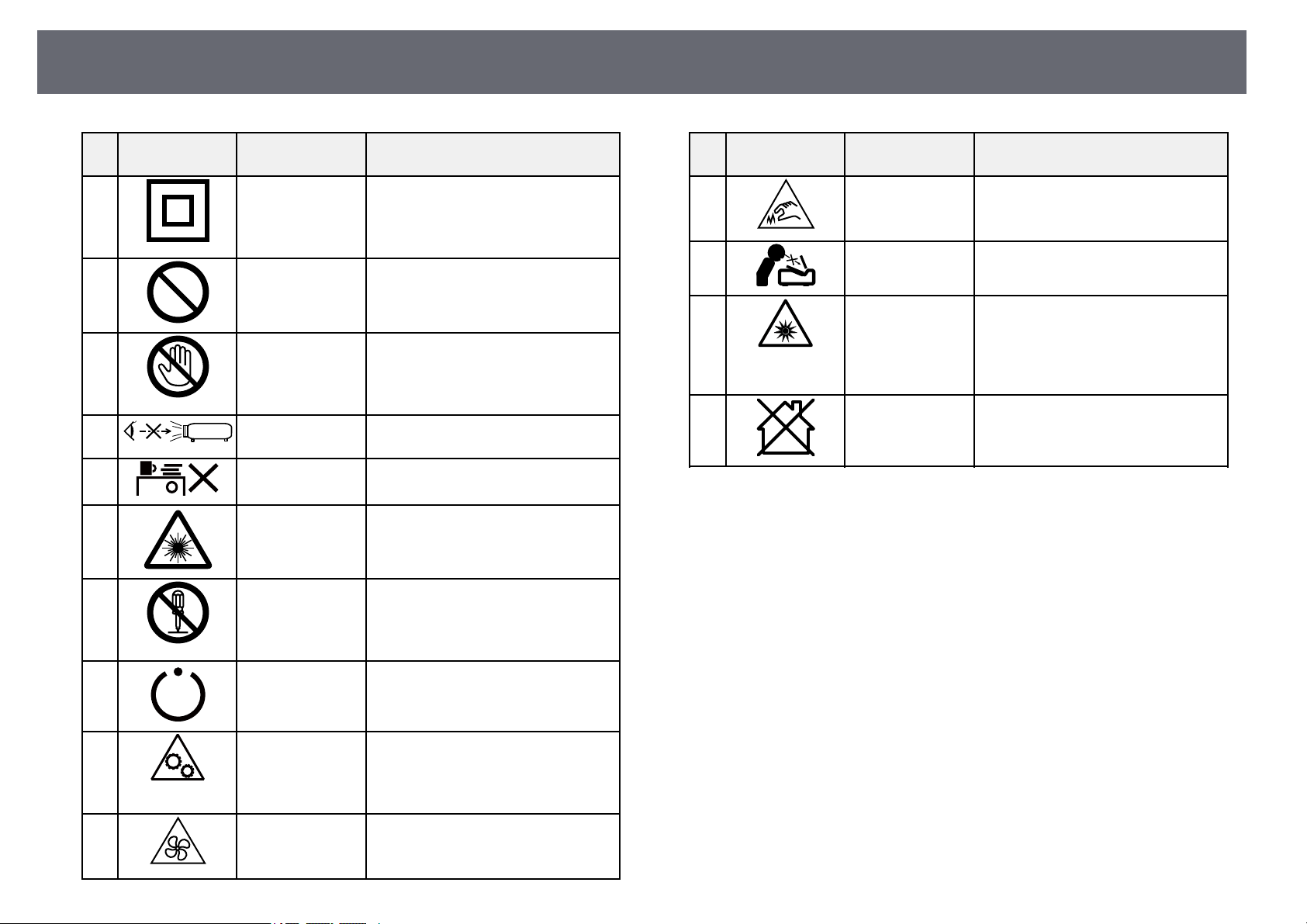
ListofSafetySymbolsandInstructions
205
No.Symbol markApproved
standards
Description
Q
IEC60417
No. 5172
Class IIequipment
To identifyequipmentmeetingthe
safety requirementsspecifiedforClass
II equipmentaccordingtoIEC61140.
R
ISO 3864Generalprohibition
To identifyactionsoroperationsthat
are prohibited.
S
ISO 3864Contactprohibition
To indicateinjurythatcouldoccur
due totouchingaspecificpartofthe
equipment.
T
—Neverlookintotheopticallenswhile
the projectorison.
U
—Toindicatethatthemarkeditemdon’t
place anythingonprojector.
V
ISO3864
IEC60825-1
Caution, laserradiation
To indicatetheequipmenthasalaser
radiation part.
W
ISO 3864Disassemblyprohibition
To indicateariskofinjury,suchas
electric shock,iftheequipmentis
disassembled.
X
IEC60417
No. 5266
Standby, partialstandby
To indicatethatpartoftheequipment
is inthereadystatus.
Y
ISO3864
IEC60417
No. 5057
Caution, movableparts
To indicatethatyoumustkeepaway
from movablepartsaccordingto
protection standards.
Z
IEC60417
No. 6056
Caution (MovingFanBlades)
As asafetyprecaution,stayawayfrom
the movingfanblades.
No.Symbol markApproved
standards
Description
a
IEC60417
No. 6043
Caution (SharpCorners)
To indicatesharpcornersthatshould
not betouched.
b
—Toindicatethatlookingintothelens
while projectingisprohibited.
c
ISO7010
No. W027
ISO 3864
Warning, Opticalradiation(suchas
UV, visibleradiation,IR)
Taking caretoavoidinjurytoeyesand
skin wheninthevicinityofoptical
radiation.
d
IEC60417
No. 5109
Not tobeusedinresidentialareas.
To identifyelectricalequipmentwhich
is notsuitableforaresidentialarea.

Glossary
206
This sectionbriefly explainsthe difficult termsthat arenot explained inthe
text ofthis guide.For details, referto othercommercially available
publications.
AMX Device
Discovery
AMX DeviceDiscoveryisatechnologydevelopedbyAMXto
facilitate AMXcontrolsystemsforeasyoperationofthetarget
equipment.
Epson haveimplementedthisprotocoltechnology,andhave
provided asettingtoenabletheprotocolfunction(ON).
See theAMXWebsiteformoredetails.
URL http://www.amx.com/
Aspect RatioThe ratiobetweenanimage'slengthanditsheight.
Screens withahorizontal:verticalratioof16:9,suchasHDTV
screens, areknownaswidescreens.
SDTV andgeneralcomputerdisplayshaveanaspectratioof
4:3.
Composite VideoAmethodthatcombinesthevideosignalintoaluminance
component andacolorcomponentfortransmissiondowna
single cable.
ContrastTherelativebrightnessofthelightanddarkareasofanimage
can beincreasedordecreasedtomaketextandgraphicsstand
out moreclearly,ortomakethemappearsofter.Adjustingthis
particular propertyofanimageiscalledcontrastadjustment.
DHCPAnabbreviationofDynamicHostConfigurationProtocol,this
protocol automaticallyassignsanIPaddresstoequipment
connected toanetwork.
Full HDAscreensizestandardwitharesolutionof1,280(horizontal) ×
1,080 (vertical)dots.
Gateway AddressThis isaserver(router)forcommunicatingacrossanetwork
(subnet) dividedaccordingtosubnetmask.
HDCPHDCPisanabbreviationforHigh-bandwidthDigitalContent
Protection.
It isusedtopreventillegalcopyingandprotectcopyrightsby
encrypting digitalsignalssentoverDVIandHDMIports.
Because theHDMIportonthisprojectorsupportsHDCP,it
can projectdigitalimagesprotectedbyHDCPtechnology.
However, theprojectormaynotbeabletoprojectimages
protected withupdatedorrevisedversionsofHDCP
encryption.
HDMI
™
An abbreviationforHighDefinitionMultimediaInterface.
HDMI
™
is astandardaimedatdigitalconsumerelectronicsand
computers. ThisisthestandardbywhichHDimagesand
multichannel audiosignalsaredigitallytransmitted.
By notcompressingthedigitalsignal,theimagecanbe
transferred atthehighestqualitypossible.Italsoprovidesan
encryption functionforthedigitalsignal.
HDTVAnabbreviationforHigh-DefinitionTelevisionthatrefersto
high-definition systemswhichsatisfythefollowingconditions:
•Verticalresolutionof720por1080iorgreater(p=
Progressive, i=Interlace)
•Screenaspectratioof16:9
InterlaceTransmits informationneededtocreateonescreenbysending
every otherline,startingfromthetopoftheimageandworking
down tothebottom.
Images aremorelikelytoflickerbecauseoneframeisdisplayed
every otherline.
IP AddressAnumbertoidentifyacomputerconnectedtoanetwork.
ProgressiveProjects informationtocreateonescreenatatime,displaying
the imageforoneframe.
Even thoughthenumberofscanlinesisthesame,theamount
of flickerinimagesdecreasesbecausethevolumeof
information hasdoubledcomparedwithaninterlacesystem.
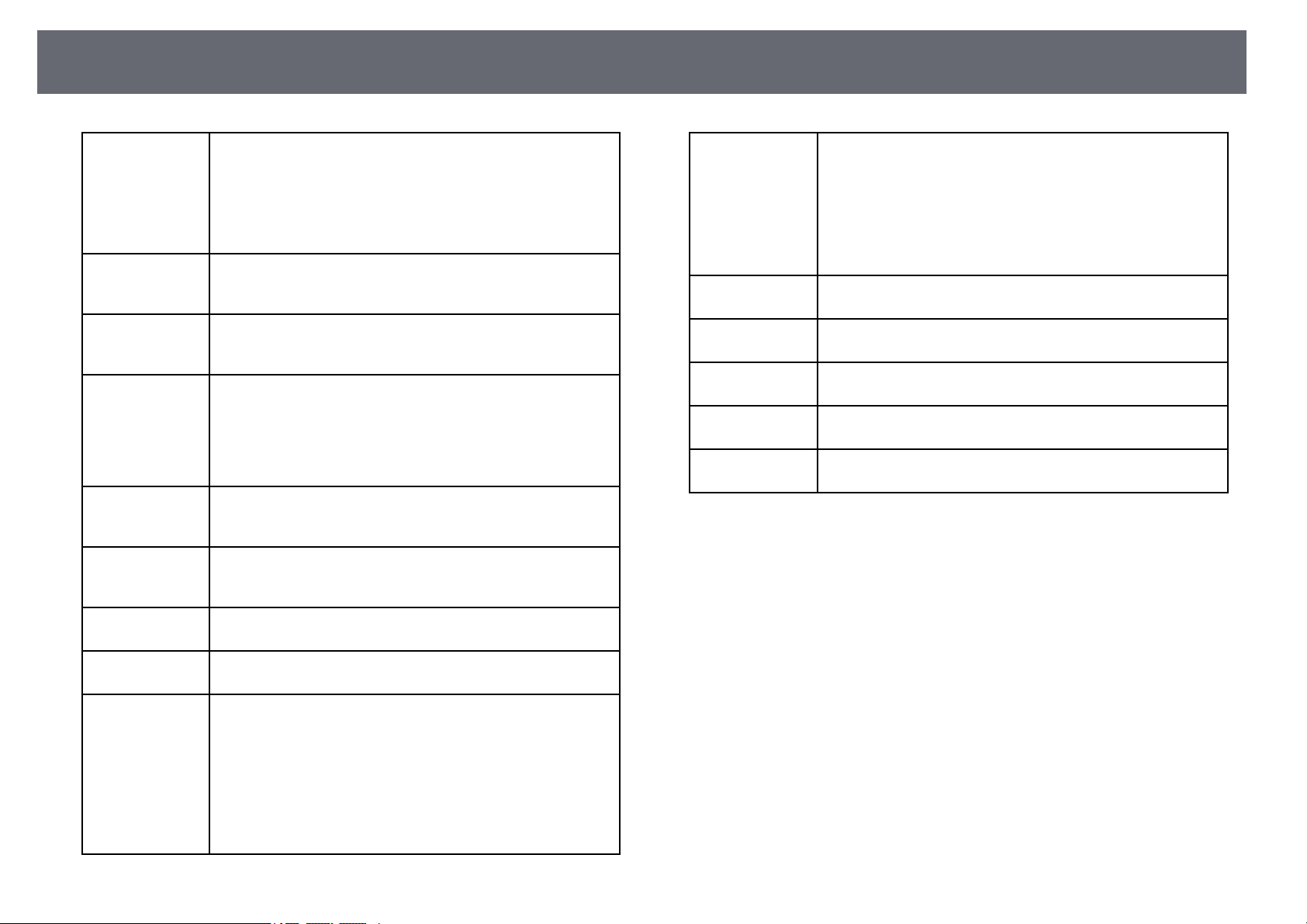
Glossary
207
Refresh RateThe light-emittingelementofadisplaymaintainsthesame
luminosity andcolorforanextremelyshorttime.
Because ofthis,theimagemustbescannedmanytimesper
second torefreshthelight-emittingelement.
The numberofrefreshoperationspersecondiscalledthe
Refresh rateandisexpressedinhertz(Hz).
SDTVAnabbreviationforStandardDefinitionTelevisionthatrefers
to standardtelevisionsystemswhichdonotsatisfythe
conditions forHDTVHigh-DefinitionTelevision.
SNMPAnabbreviationforSimpleNetworkManagementProtocol,
which istheprotocolformonitoringandcontrollingdevices
such asroutersandcomputersconnectedtoaTCP/IPnetwork.
sRGBAninternationalstandardforcolorintervalsthatwas
formulated sothatcolorsthatarereproducedbyvideo
equipment canbehandledeasilybycomputeroperating
systems (OS)andtheInternet.Iftheconnectedsourcehasan
sRGB mode,setboththeprojectorandtheconnectedsignal
source tosRGB.
SSIDSSID isidentificationdataforconnectingtoanotherdeviceon
a wirelessLAN.Wirelesscommunicationispossiblebetween
devices withthesameSSID.
Subnet MaskThisisanumericalvaluethatdefinesthenumberofbitsused
for thenetworkaddressonadividednetwork(subnet)fromthe
IP address.
SVGAA screensizestandardwitharesolutionof800(horizontal) ×
600 (vertical)dots.
SXGAA screensizestandardwitharesolutionof1,280(horizontal)×
1,024 (vertical)dots.
Sync.The signalsoutputfromcomputershaveaspecificfrequency.
If theprojectorfrequencydoesnotmatchthisfrequency,the
resulting imagesarenotofagoodquality.
The processofmatchingthephasesofthesesignals(therelative
position ofthecrestsandthetroughsinthesignal)iscalled
Synchronization.
If thesignalsarenotsynchronized,flickering,blurriness,and
horizontal interferenceoccur.
TrackingThe signalsoutputfromcomputershaveaspecificfrequency.
If theprojectorfrequencydoesnotmatchthisfrequency,the
resulting imagesarenotofagoodquality.
The processofmatchingthefrequencyofthesesignals(the
number ofcrestsinthesignal)iscalledTracking.
If Trackingisnotcarriedoutcorrectly,wideverticalstripes
appear inthesignal.
Trap IPAddressThisistheIPaddressforthedestinationcomputerusedfor
error notificationinSNMP.
VGAAscreensizestandardwitharesolutionof640(horizontal) ×
480 (vertical)dots.
XGAA screensizestandardwitharesolutionof1,024(horizontal)×
768 (vertical)dots.
WXGAAscreensizestandardwitharesolutionof1,280(horizontal)×
800 (vertical)dots.
WUXGAAscreensizestandardwitharesolutionof1,920(horizontal)×
1,200 (vertical)dots.
Notices
208
Check thesesections forimportant notices aboutyour projector.
ggRelatedLinks
•"FCC ComplianceStatement" p.208
•"Indication ofthe manufacturer andthe importerin accordance with
requirements ofEU directive"p.209
•"Restriction ofUse" p.209
•"Operating SystemReferences" p.209
•"Trademarks" p.209
•"Copyright Notice"p.210
•"Copyright Attribution"p.210
FCCComplianceStatement
Supplier'sDECLARATIONofCONFORMITY
According to47CFR,Part2and15
Class BPersonalComputersandPeripherals;and/or
CPU BoardsandPowerSuppliesusedwithClassBPersonalComputers
We: Epson America, Inc.
Located at: 3131 Katella Ave., Los Alamitos, CA 90720
Tel: 562-981-3840
Declare under sole responsibility that the product identified herein, complies
with 47CFR Part 2 and 15 of the FCC rules as a Class B digital device. Each
product marketed, is identical to the representative unit tested and found to
be compliant with the standards. Records maintained continue to reflect the
equipment being produced can be expected to be within the variation
accepted, due to quantity production and testing on a statistical basis as
required by 47CFR 2.906. Operation is subject to the following two
conditions: (1) this device may not cause harmful interference, and (2) this
device must accept any interface received, including interference that may
cause undesired operation.
Trade Name: EPSON
Type of Product: LCD Projector
Model:
H971C/H972C/H973C/H974C/H975C/H976C/H977C/HA02C/H978C/H979
C/H980C/H981C/H982C/H983C/HA03C/H985C/H986C/H987C/H988C
Options:
Product nameModel
Remote controller2198635xx(x=0-9)
FCCComplianceStatement ForUnited StatesUsers
This devicecomplies withpart 15 ofthe FCCRules. Operation issubject to
the followingtwo conditions:(1) This devicemay notcause harmful
interference, and(2) thisdevice must acceptany interferencereceived,
including interferencethat maycause undesired operation.
This equipmenthas beentested and foundto complywith the limitsfor a
Class Bdigital device,pursuant to Part15 ofthe FCC Rules.These limitsare
designed toprovide reasonableprotection against harmfulinterference ina
residential installation.This equipmentgenerates, uses, andcan radiateradio
frequency energyand, ifnot installed andused inaccordance with the
instructions, maycause harmfulinterference to radiocommunications.
However, thereis noguarantee that interferencewill notoccur in aparticular
installation. Ifthis equipmentdoes cause interferenceto radioand television
reception, whichcan bedetermined by turningthe equipmentoff and on,the
user isencouraged totry to correctthe interferenceby one ormore ofthe
following measures.
•Reorient orrelocate thereceiving antenna.
•Increase theseparation betweenthe equipment andreceiver.
•Connect theequipment intoan outlet ona circuitdifferent from thatto
which thereceiver isconnected.
•Consult thedealer oran experienced radio/TVtechnician forhelp.
WARNING
The connectionof anon-shielded equipment interfacecable tothis
equipment willinvalidate theFCC Certification orDeclaration ofthis device
and maycause interferencelevels which exceedthe limitsestablished by the
FCC forthis equipment.It is theresponsibility ofthe user toobtain anduse a
shielded equipmentinterface cablewith this device.If thisequipment has
Notices
209
more thanone interfaceconnector, do notleave cablesconnected to unused
interfaces. Changesor modificationsnot expressly approvedby the
manufacturer couldvoid theuser's authority tooperate theequipment.
StatementforCanadian EMCRules
Indicationofthemanufacturerandtheimporterin
accordancewithrequirementsofEUdirective
Manufacturer: SEIKOEPSONCORPORATION
Address: 3-5,Owa3-chome,Suwa-shi,Nagano-ken392-8502Japan
Telephone: 81-266-52-3131
http://www.epson.com/
Importer: EPSONEUROPEB.V.
Address: AtlasArena,AsiaBuilding,Hoogoorddreef5,1101BAAmsterdam
Zuidoost
The Netherlands
Telephone: 31-20-314-5000
http://www.epson.eu/
RestrictionofUse
When thisproduct isused for applicationsrequiring highreliability/safety
such astransportation devicesrelated to aviation,rail, marine,automotive
etc.; disasterprevention devices;various safety devicesetc; or
functional/precision devicesetc, youshould use thisproduct onlyafter giving
consideration toincluding fail-safesand redundancies intoyour designto
maintain safetyand totalsystem reliability. Becausethis productwas not
intended foruse inapplications requiring extremelyhigh reliability/safety
such asaerospace equipment,main communication equipment,nuclear
power controlequipment, ormedical equipment relatedto directmedical care
etc, pleasemake yourown judgment onthis product’ssuitability after afull
evaluation.
OperatingSystemReferences
•Microsoft
®
Windows Vista
®
operating system
•Microsoft
®
Windows
®
7 operatingsystem
•Microsoft
®
Windows
®
8 operatingsystem
•Microsoft
®
Windows
®
8.1 operatingsystem
•Microsoft
®
Windows
®
10 operatingsystem
In thisguide, theoperating systems aboveare referredto as "WindowsVista",
"Windows 7","Windows 8","Windows 8.1", and"Windows 10".Furthermore,
the collectiveterm "Windows"is used torefer tothem all.
•OS X10.7.x
•OS X10.8.x
•OS X10.9.x
•OS X10.10.x
•OS X10.11.x
•macOS 10.12.x
•macOS 10.13.x
•macOS 10.14.x
In thisguide, theoperating systems aboveare referredto as "OSX 10.7.x","OS
X 10.8.x","OS X10.9.x", "OS X10.10.x", "OSX 10.11.x", "macOS10.12.x",
"macOS 10.13.x",and "macOS10.14.x". Furthermore, thecollective term
"Mac" isused torefer to themall.
Trademarks
EPSON isa registeredtrademark, EXCEED YOURVISION, ELPLPand their
logos areregistered trademarksor trademarks ofSeiko EpsonCorporation.

Notices
210
Mac, OSX, andmacOS are trademarksof AppleInc.
Microsoft, Windows,Windows Vista,and the Windowslogo aretrademarks
or registeredtrademarks ofMicrosoft Corporation inthe UnitedStates and/or
other countries.
Wi-Fi
™
, WPA2
™
, WPA3
™
, andMiracast
™
are trademarksof Wi-FiAlliance
®
.
App Storeis aservice mark ofApple Inc.
Chrome, Chromebook,and GooglePlay are trademarksof GoogleLLC.
HDMI, theHDMI Logoand High-Definition MultimediaInterface are
trademarks orregistered trademarksof HDMI LicensingAdministrator, Inc.
"QR Code"is aregistered trademark ofDENSO WAVEINCORPORATED.
PJLink trademarkis atrademark applied forregistration oris already
registered inJapan, theUnited States ofAmerica andother countries and
areas.
Crestron
®
, CrestronConnected
®
, CrestronFusion
®
, CrestronControl
®
, and
Crestron RoomView
®
are registeredtrademarks ofCrestron Electronics, Inc.
Intel
®
is aregistered trademarkof Intel Corporationin theU.S. and/or other
countries.
Other productnames usedherein are alsofor identificationpurposes only
and maybe trademarksof their respectiveowners. Epsondisclaims any and
all rightsin thosemarks.
CopyrightNotice
All rightsreserved. Nopart of thispublication maybe reproduced, storedin a
retrieval system,or transmittedin any formor byany means, electronic,
mechanical, photocopying,recording, orotherwise, without theprior written
permission ofSeiko EpsonCorporation. No patentliability isassumed with
respect tothe useof the informationcontained herein.Neither is anyliability
assumed fordamages resultingfrom the useof theinformation contained
herein.
Neither SeikoEpson Corporationnor its affiliatesshall beliable to the
purchaser ofthis productor third partiesfor damages,losses, costs, or
expenses incurredby thepurchaser or thirdparties asa result of:accident,
misuse, orabuse ofthis product orunauthorized modifications,repairs, or
alterations tothis product,or (excluding theU.S.) failureto strictly comply
with SeikoEpson Corporation'soperating and maintenanceinstructions.
Seiko EpsonCorporation shallnot be liableagainst anydamages or problems
arising fromthe useof any optionsor anyconsumable products otherthan
those designatedas OriginalEpson Products orEpson ApprovedProducts by
Seiko EpsonCorporation.
The contentsof thisguide may bechanged orupdated without furthernotice.
Illustrations inthis guideand the actualprojector maydiffer.
CopyrightAttribution
This information is subject to change without notice.
10/20
© 2020 Epson America, Inc.
CPD-60228R1