
User's Guide
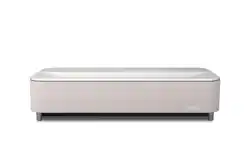
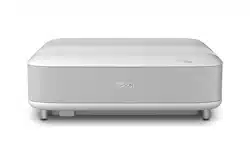
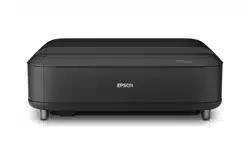
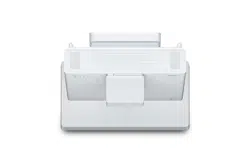
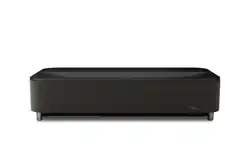
Home Projector
Lifestudio Grand Plus
Lifestudio Grand Plus
EH-LS970B
EH-LS970W
Notations Used in This Guide 5
Using the Manual to Search for Information..................................... 7
Sear
ching by Keyword......................................................................................7
Jumping Directly from Bookmarks.....................................................................7
Printing Only the Pages You Need......................................................................7
Getting the Latest Version of the Documents................................... 8
Introduction to Your Projector 9
Projector Parts and Functions.......................................................... 10
Pr
ojector Parts - Front..................................................................................... 10
Projector Parts - Top/Side................................................................................11
Projector Parts - Base...................................................................................... 12
Projector Parts - Interface Ports........................................................................13
Projector Parts - Remote Control......................................................................14
Setting Up the Projector 17
Projector Placement.......................................................................... 18
Pr
ojector Setup and Installation Options.......................................................... 20
Precautions on Installation.............................................................................. 21
Installing the Safety Wire..................................................................22
When Using the Ceiling Mount ELPMB22..........................................................22
When Using the Ceiling Mount ELPMB30..........................................................23
Projector Connections.......................................................................25
Connecting to Video Sources...........................................................................25
Connecting to External USB Devices.................................................................26
Connecting to External Audio Devices..............................................................26
Connecting to an eARC/ARC Compatible AV System..........................................27
Connecting Headphones................................................................................ 28
Attaching and Removing the Side Cover.........................................29
Installing Batteries in the Remote Control...................................... 30
Remote Control Operation.............................................................................. 30
Setting Up the Projector OS..............................................................32
Projector's Home Screen................................................................................. 32
About Epson Projector Update.........................................................34
Installing Epson Projector Update....................................................................34
Using Basic Projector Features 35
Turning On the Projector.................................................................. 36
Turning
O the Projector (Suspended Mode)................................. 38
Turning O the Projector (Deep Standby Mode)................................................38
Projection Modes...............................................................................39
Changing the Projection Mode Using the Menus...............................................39
Adjusting the Image Height..............................................................40
Focusing the Image Using the Focus Lever......................................41
Correcting Distortion in the Image.................................................. 42
When Projecting on a Wall...............................................................................42
When Projecting on a Screen...........................................................................43
Adjusting Image Color...................................................................... 45
Adjusting the Light Source Brightness Based on the Brightness of
Your Surroundings.............................................................................46
Adjusting the Light Source Brightness Manually........................... 47
Adjusting the Size and Position of the Image................................. 48
Selecting an Image Source................................................................49
Image Aspect Ratio............................................................................50
Changing the Image Aspect Ratio....................................................................50
Available Image Aspect Ratios.........................................................................50
Contents
2
Adjusting Image Quality (Color Mode)............................................ 51
Changing the C
olor Mode............................................................................... 51
Available Color Modes.................................................................................... 51
Adjusting Image Quality in Detail....................................................52
Turning On Automatic Luminance Adjustment.............................. 53
Controlling the Volume with the Volume Buttons..........................54
Changing the Sound Mode............................................................... 55
Available Sound Modes...................................................................................55
Adjusting Projector Features 56
Using the Projector as a Bluetooth
®
Speak
er.................................. 57
Shutting O the Image Temporarily................................................ 58
Using Google Cast
™
............................................................................59
HDMI CEC Features............................................................................ 60
Operating Connected Devices Using the HDMI CEC Features............................. 60
Installing a Security Cable................................................................ 61
Updating Projector Firmware Using Epson Projector Update....... 62
Initializing the Projector................................................................... 63
Adjusting the Menu Settings 64
Using the Projector's Menus............................................................. 65
Pr
ojector Feature Settings - Channels & Inputs Menu....................66
Projector Feature Settings - Projector Menu...................................67
Image Quality Settings - Display & Sound Menu............................ 68
Other Menus...................................................................................... 71
Network & Internet Menu................................................................................71
Accounts & Proles Menu................................................................................71
Privacy Menu................................................................................................. 71
Apps Menu.................................................................................................... 71
System Menu................................................................................................. 71
Accessibility Menu..........................................................................................71
Remotes & Accessories Menu.......................................................................... 72
Help & Feedback Menu................................................................................... 72
Maintaining the Projector 73
Projector Maintenance......................................................................74
Cleaning the P
rojection Window......................................................75
Cleaning the Obstacle Sensor and Motion Sensor..........................76
Cleaning the Projector Case..............................................................77
Air Filter and Vent Maintenance.......................................................78
Cleaning the Air Filter..................................................................................... 78
Replacing the Air Filter....................................................................................79
Cleaning the Air Intake Vents ..........................................................................81
Adjusting the Color Convergence (Panel Alignment).....................82
Solving Problems 84
Projection Problems..........................................................................85
Pr
ojector Indicator Status ................................................................ 86
Solving Projector Power-On or Power-O Problems......................88
Solving Projector Power Problems....................................................................88
Solving Projector Shutdown Problems............................................................. 88
Solving Image Problems................................................................... 89
Solving Missing Image Problems......................................................................89
Adjusting an Image that is not Rectangular.......................................................90
Contents
3

Adjusting a Fuzzy or Blurry Image....................................................................90
Fixing P
artial Image Problems..........................................................................90
Adjusting an Image that Contains Noise or Static.............................................. 91
Adjusting an Image with Incorrect Brightness or Colors.....................................91
Solving Sound Problems...................................................................93
Solving Missing or Low Audio Problems........................................................... 93
Solving Bluetooth Speaker Mode Problems...................................................... 93
Solving Remote Control Operation Problems.................................95
Solving HDMI CEC Problems.............................................................96
Solving Wi-Fi Network Problems......................................................97
Solving Projector's OS Problems...................................................... 98
Appendix 99
Optional Accessories and Replacement Parts............................... 100
Moun
ts........................................................................................................100
Screens........................................................................................................100
Microphone................................................................................................. 100
Replacement Parts........................................................................................100
Screen Size and Projection Distance..............................................101
Supported Monitor Display Resolutions....................................... 103
Projector Specications.................................................................. 104
Connector Specications...............................................................................104
Bluetooth Specications................................................................................105
List of Safety Symbols and Instructions........................................ 106
Laser Safety Information................................................................ 108
Laser Warning Labels.................................................................................... 108
Glossary............................................................................................111
Notices..............................................................................................112
FCC Compliance Statement........................................................................... 112
FCC Compliance Statement For United States Users.........................................113
Innovation, Science and Economic Development Canada (ISED) Notices........... 113
Wireless LAN with Bluetooth Safety and Specications.................................... 114
Indication of the manufacturer and the importer in accordance with requirements
of EU directive..............................................................................................114
Restriction of Use..........................................................................................115
Trademarks.................................................................................................. 115
Copyright Notice.......................................................................................... 115
Copyright Attribution....................................................................................116
External Dimensions 117
Contents
4
Notations Used in This Guide
Saf
ety Symbols
e projector and its manuals use graphical symbols and labels to indicate content that tells you how to use the projector safely.
Read and carefully follow the instructions that are marked with these symbols and labels to avoid injury to persons or damage to property.
Warning
is symbol indicates information that, if ignored, could possibly result in personal injury or even death.
Caution
is symbol indicates information that, if ignored, could possibly result in personal injury or physical damage due to incorrect handling.
General Information Notations
Attention
is label indicates procedures that may result in damage or injury if sucient care is not taken.
is label indicates additional information that may be useful to know.
button
Indicates the buttons on the remote control or the control panel.
E
xam
ple:
button
Menu/Setting name Indicates projector menu and setting names.
Exam
ple:
Select the Projector menu.
s Projector > Keystone
is label indicates links to the related pages.
s
i
s label indicates the projector's current menu level.
g
Related Links
•
"Using the Manual to Search for Information" p.7

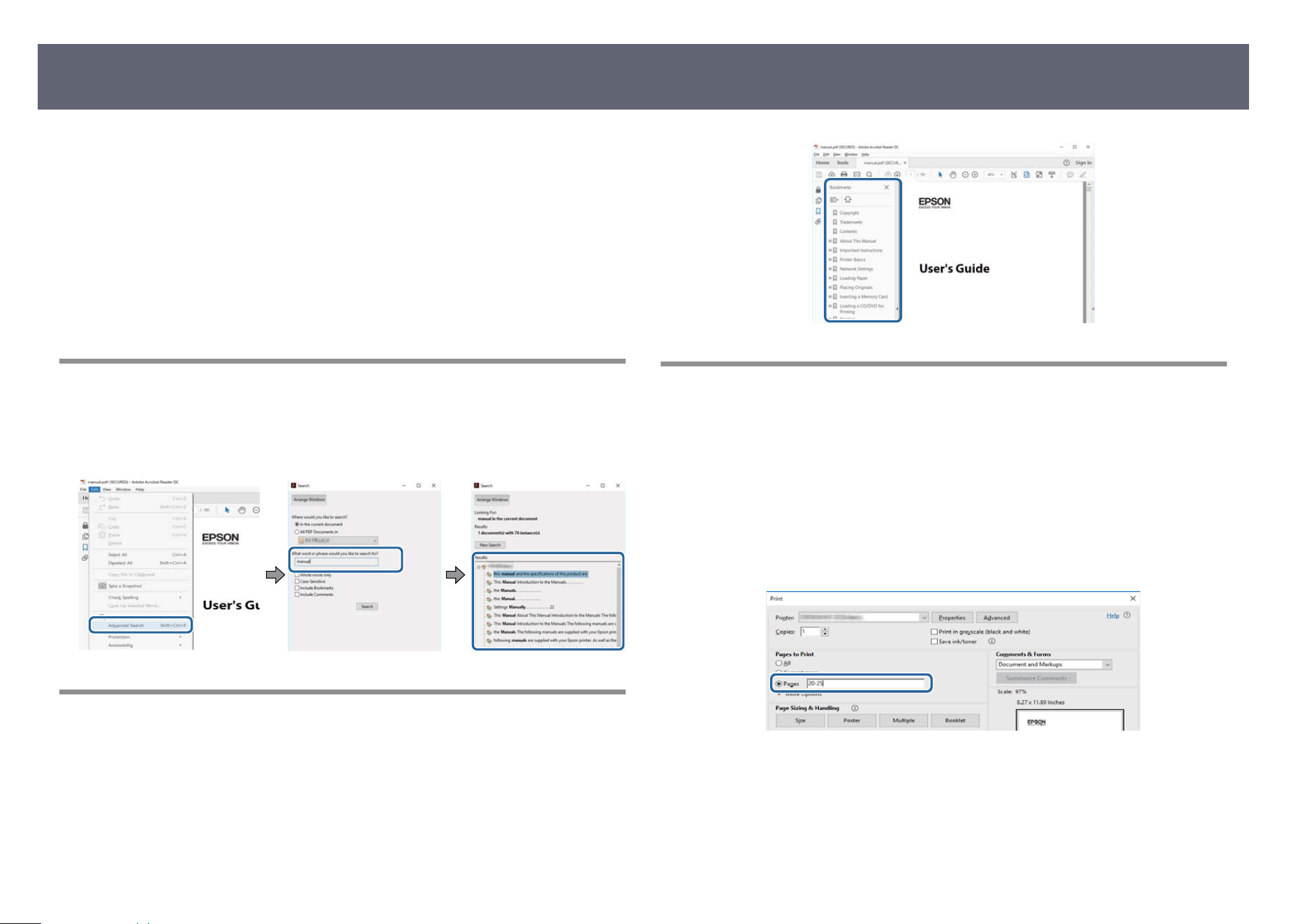
e PDF manual allows you to search for information you are looking for by
k
eyword, or jump directly to specic sections using the bookmarks. You can
also print only the pages you need. is section explains how to use a PDF
manual that has been opened in Adobe Reader X on your computer.
g
Related Links
•
"Searching by Keyword" p.7
•
"Jumping Directly from Bookmarks" p.7
•
"Printing Only the Pages You Need" p.7
Searching by Keyword
Click Edit > Advanced Search. Enter the keyword (text) for information you
want to nd in the search window, and then click Search. Hits are displayed as a
list. Click one of the displayed hits to jump to that page.
Jumping Directly from Bookmarks
Click a title to jump to that page. Click + or > to view the lower level titles in
t
h
at section. To return to the previous page, perform the following operation on
your keyboard.
•
Windows: Hold down Alt, and then press ←.
•
Mac OS: Hold down the command key, and then press ←.
Printing Only the Pages You Need
You can extract and print only the pages you need. Click Prin
t in the File menu,
and then specify the pages you want to print in Pages in Pages to Print.
•
To specify a series of pages, enter a hyphen between the start page and the
end page.
Example: 20-25
•
To specify pages that are not in series, divide the pages with commas.
Example: 5, 10, 15
Using the Manual to Search for Information
7


e following sections explain the projector parts and their functions.
i
s product may use sensors, such as a camera and a microphone. ese
sensors may collect information related to privacy (such as locations, sounds,
videos, or images).
g
Related Links
•
"Projector Parts - Front" p.10
•
"Projector Parts - Top/Side" p.11
•
"Projector Parts - Base" p.12
•
"Projector Parts - Interface Ports" p.13
•
"Projector Parts - Remote Control" p.14
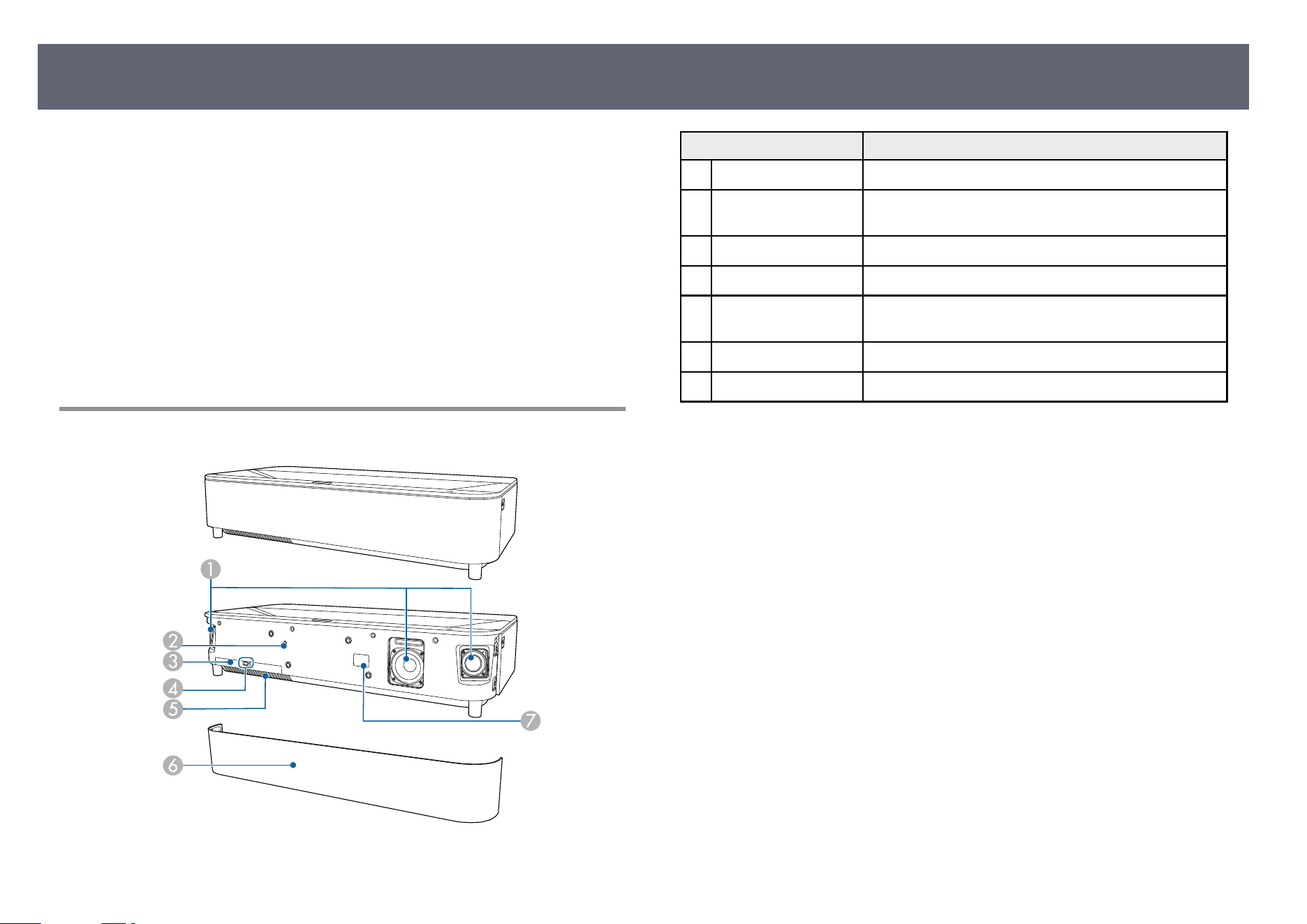
Projector Parts - Front
Name Function
A
Speaker Outputs audio.
B
Illumination sensor Detects the brightness of the surroundings, and
automatically adjusts the brightness of the screen.
C
Air lter cover Open to access the air lt
er.
D
Air lter cover latch Slide to remove the air lt
er cover.
E
Air intake vent (air
lt
er)
Takes in air to cool the projector internally.
F
Front cover Open to access the air lt
er cover.
G
Remote receiver Receives signals from the remote control.
g
Related Links
•
"R
emote Control Operation" p.30
•
"Air Filter and Vent Maintenance" p.78
•
"Adjusting the Light Source Brightness Based on the Brightness of Your
Surroundings" p.46
Projector Parts and Functions
10
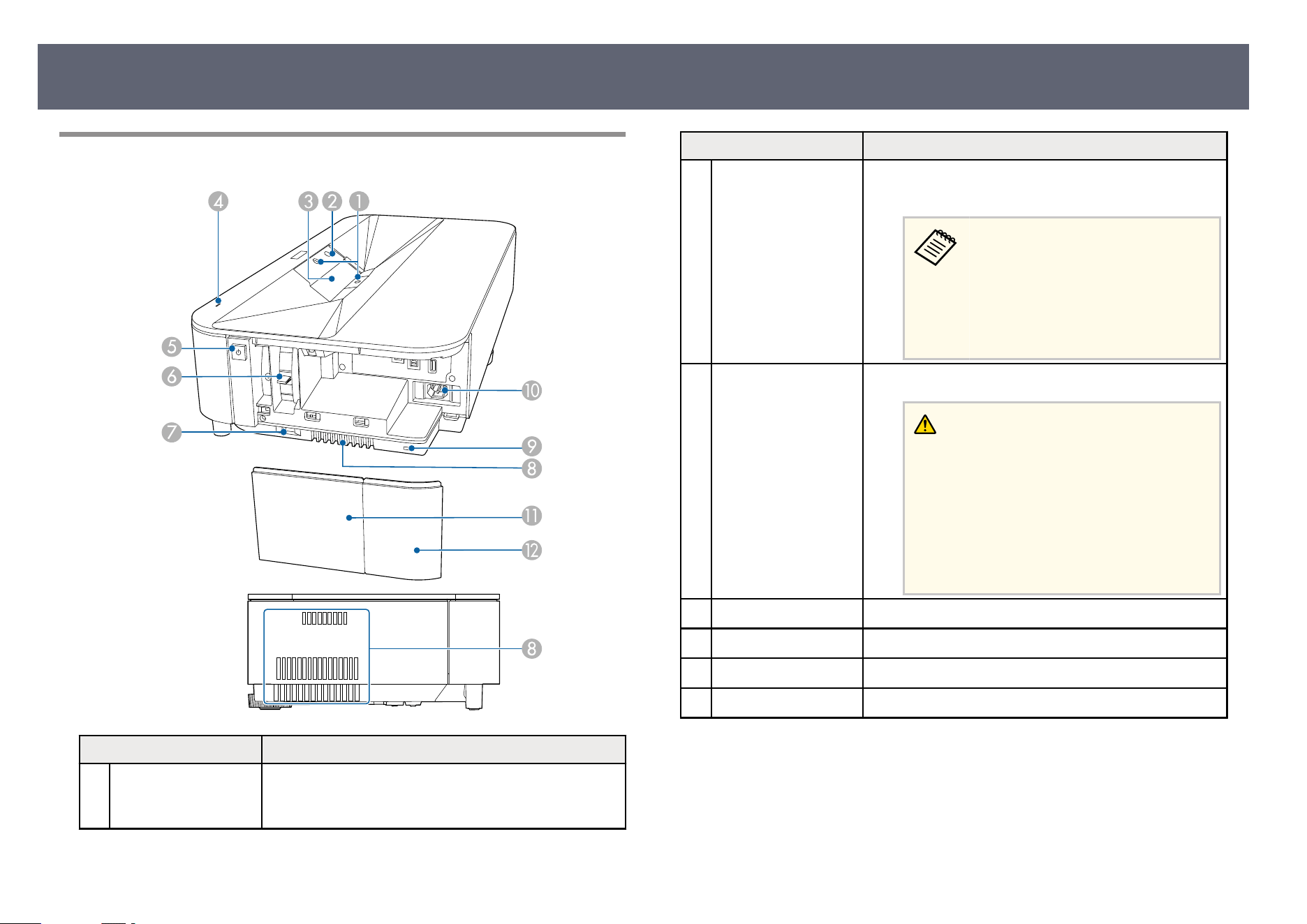
Projector Parts - Top/Side
Name Function
A
Obstacle sensors Detects obstacles that are interfering with the projection
are
a and reduces the brightness of the light source for
safety.
Name Function
B
Motion sensor Detects movement near the projection window and
re
duces the brightness of the light source for safety.
•
e dete
ction range may vary
depending on the temperature of
the surroundings.
•
Movement may not be detected
through transparent material such
as glass.
C
Projection window Images are projected from the lens inside the projector.
Warning
•
Do n
ot look into the projection window
while projecting.
•
Do not place any objects or put your hand
near the projection window. It could cause
burns, re, or the object to warp because this
area reaches a high temperature due to the
concentrated projection light.
D
Status indicator Indicates the projector's status.
E
Power button Turns the projector on or o.
F
F
ocus lever Adjusts the image focus.
G
Side cover latch Slide to remove the side cover.
Projector Parts and Functions
11
Name Function
H
Air exhaust vent Exhaust vent for air used to cool the projector internally.
Caution
Whi
le projecting, do not put your face or hands
near the air exhaust vent, and do not place
objects that may become warped or damaged
by heat near the vent. Hot air from the air
exhaust vent could cause burns, warping, or
accidents to occur.
I
Security slot e security slot is compatible with the Microsaver
S
ecurity System manufactured by Kensington.
J
Power inlet Connects the power cord to the projector.
K
Side cover A Open to access the interface ports and focus lever.
e side cov
er can be divided into two parts; side cover
A and side cover B. is allows you to use just side
cover A if necessary, such as when you want to connect a
streaming media player.
L
Side cover B
g
Related Links
•
"T
urning On the Projector" p.36
•
"Cleaning the Obstacle Sensor and Motion Sensor" p.76
•
"Cleaning the Projection Window" p.75
•
"Focusing the Image Using the Focus Lever" p.41
•
"Projector Indicator Status " p.86
•
"Installing a Security Cable" p.61
•
"Air Filter and Vent Maintenance" p.78
•
"Attaching and Removing the Side Cover" p.29
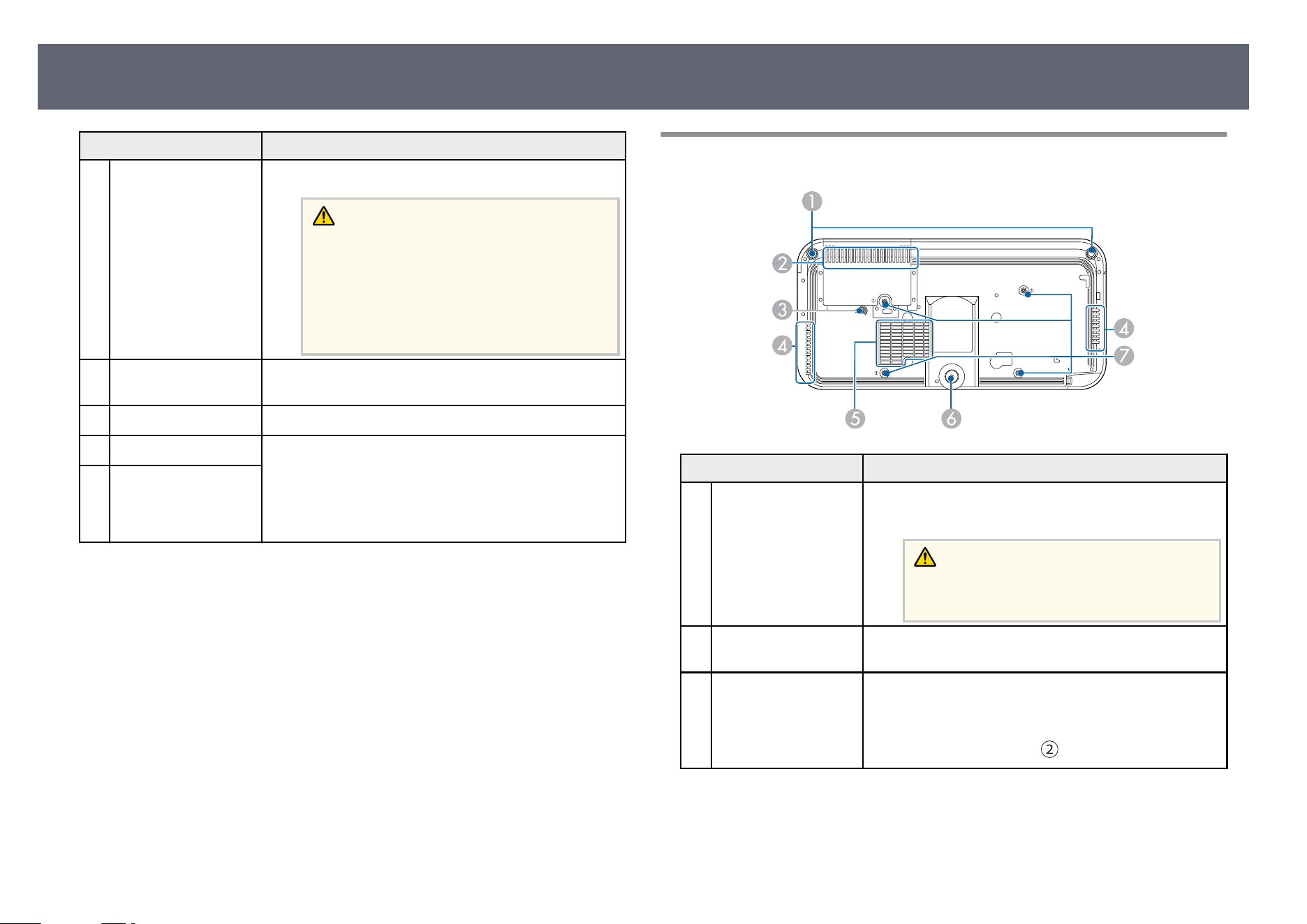
Projector Parts - Base
Name Function
A
Front adjustable feet When the projector is setup on a surface such as a desk,
t
ur
n the feet to correct image distortion.
Caution
Remove all feet when you install the projector
on the ceiling.
B
Air intake vent (air
lt
er)
Takes in air to cool the projector internally.
C
Wire clamp xing
p
oint
When you use the optional ceiling mount, x the
carabiner here to attach the safety wire and prevent the
projector from falling from the ceiling.
is point is marked with a
on the projector.
Projector Parts and Functions
12
Name Function
D
Air exhaust vent Exhaust vent for air used to cool the projector internally.
Caution
Whi
le projecting, do not put your face or hands
near the air exhaust vent, and do not place
objects that may become warped or damaged
by heat near the vent. Hot air from the air
exhaust vent could cause burns, warping, or
accidents to occur.
E
Air intake vent Takes in air to cool the projector internally.
F
Rear adjustable foot When setup on a surface such as a desk, extend the foot
to ad
just the position of the image.
Caution
Rem
ove all feet when you install the projector
on the ceiling.
G
Ceiling mount xing
p
oints (four points)
Use all of these points to attach the optional ceiling
mount when installing the projector on a wall, or
mounting the projector from a ceiling.
is point is marked with a
on the projector.
g
Relat
ed Links
•
"A
ir Filter and Vent Maintenance" p.78
•
"Installing the Safety Wire" p.22
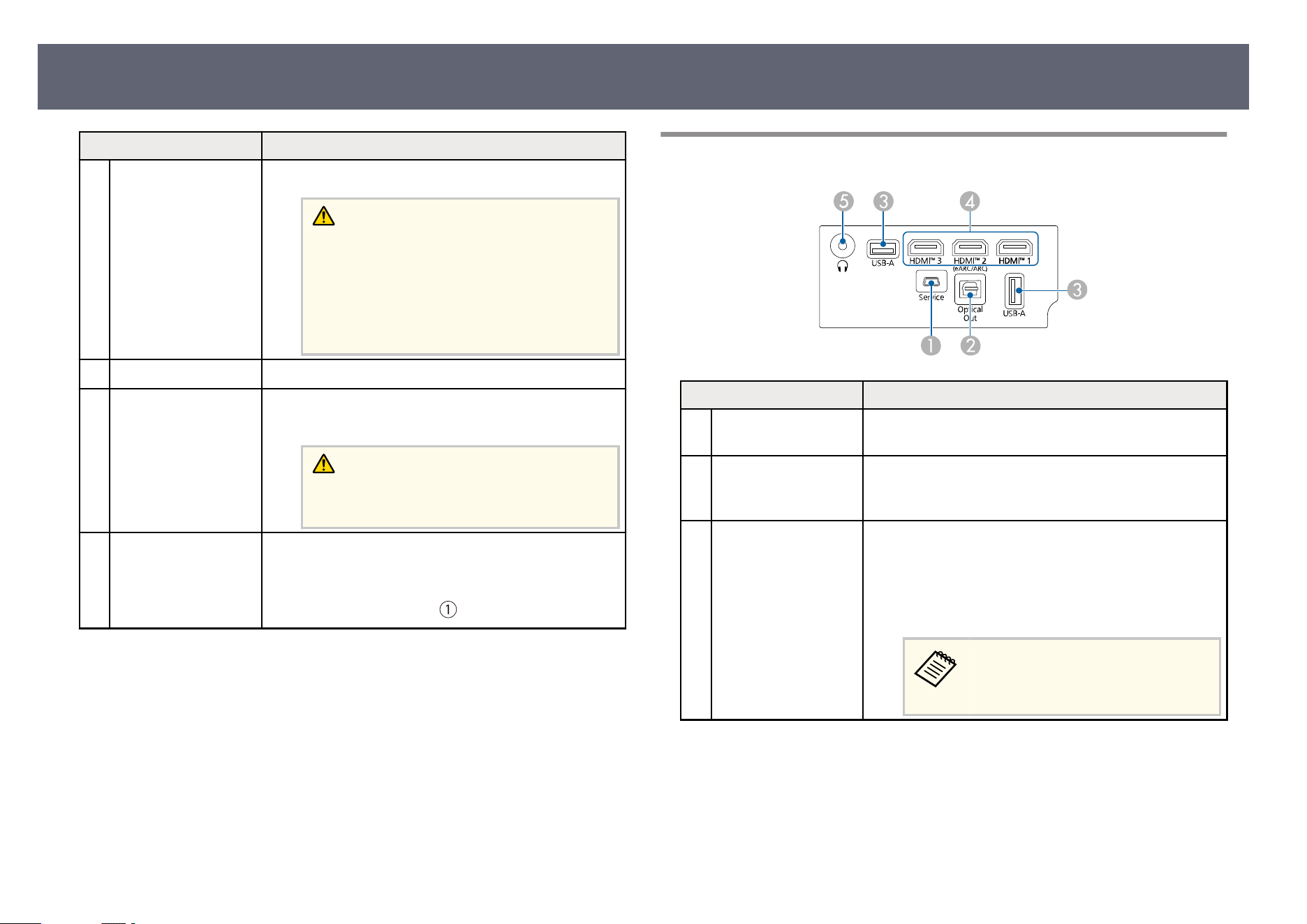
Projector Parts - Interface Ports
Name Function
A
Service port is port is used by service technicians and should not
n
ormally be used.
B
Optical Out port Outputs audio from the current input source to an
exter
nal audio device by connecting an optical digital
audio cable.
C
USB-A port Connects a commercially available USB device such as a
we
bcam, microphone, external HDD, USB memory, and
receivers for microphones or game controllers.
Connects a commercially available RJ45 adapter to
enable wired LAN connections.
is port is not guaranteed to
o
perate for all devices that support
USB.
Projector Parts and Functions
13
Name Function
D
HDMI1 port
HDMI2 (eAR
C/ARC)
port
HDMI3 port
Inputs video signals from HDMI compatible video
equipment and computers. is projector is compatible
with HDCP 2.3.
e HDMI2 port is compatible with HDMI eARC and
ARC.
Each port supports the following refresh rate:
•
HDMI1/HDMI2 ports: 4K 120 Hz
•
HDMI3 port: 4K 60 Hz
E
Audio Out port Outputs audio from the current input source to
he
adphones.
g
Related Links
•
"C
onnecting to Video Sources" p.25
•
"Connecting to External USB Devices" p.26
•
"Connecting to External Audio Devices" p.26
•
"Connecting to an eARC/ARC Compatible AV System" p.27
•
"Connecting Headphones" p.28
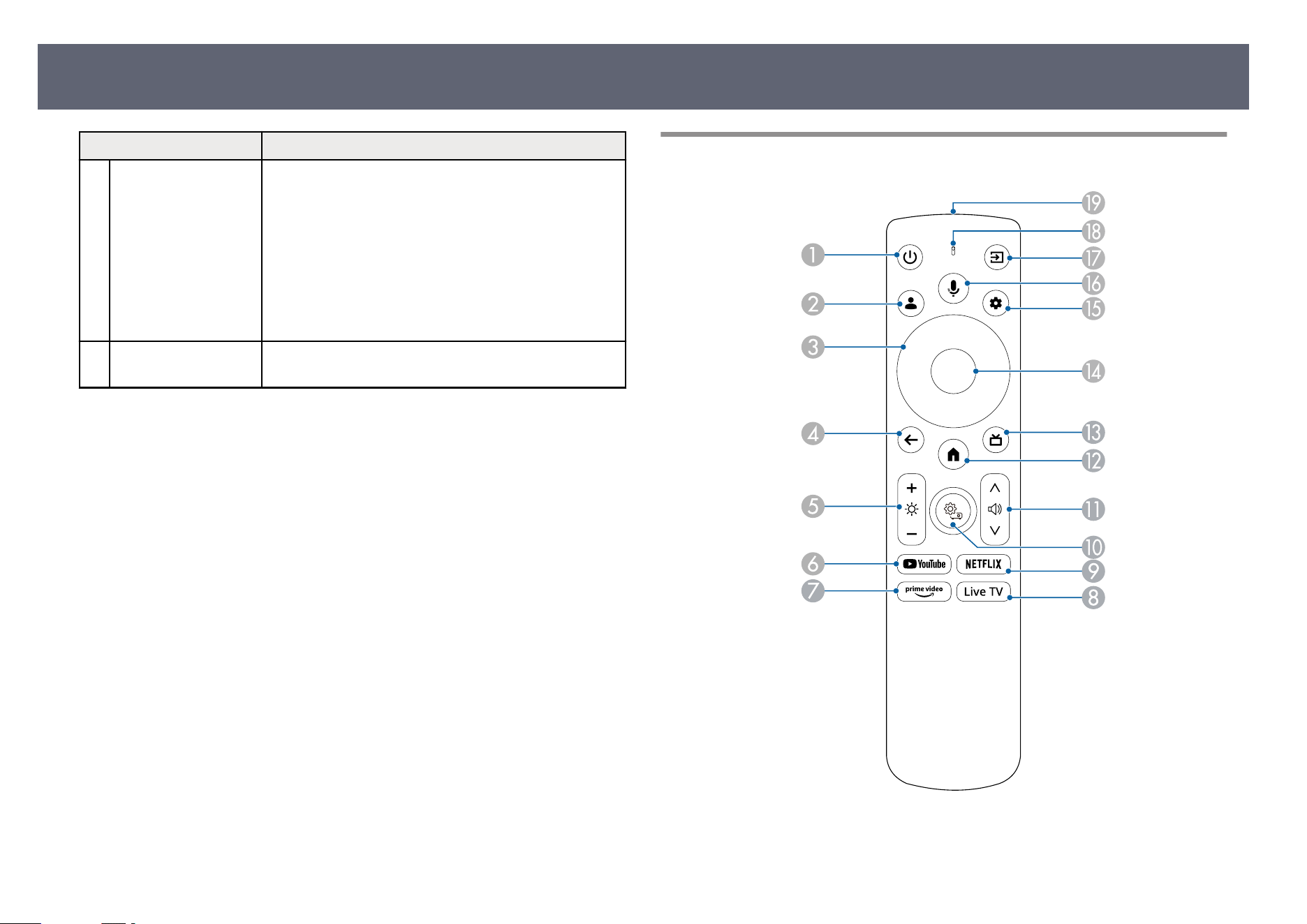
Projector Parts - Remote Control
Projector Parts and Functions
14
Name Function
A
Power button Turns the projector on or o.
B
U
ser Prole button
Displays the user p
r
ole.
C
Arrow buttons
Selects items on the home screen to play online content.
Se
lects menu items while displaying the projector's
menu.
D
Esc button
Stops the current function.
Moves back to the previous menu level while displaying
the projector's menu.
E
Brightness buttons Lightens or darkens the projected image.
F
YouTube button
Starts the YouTube application.
G
Prime Video button Starts the Amazon Prime Video application.
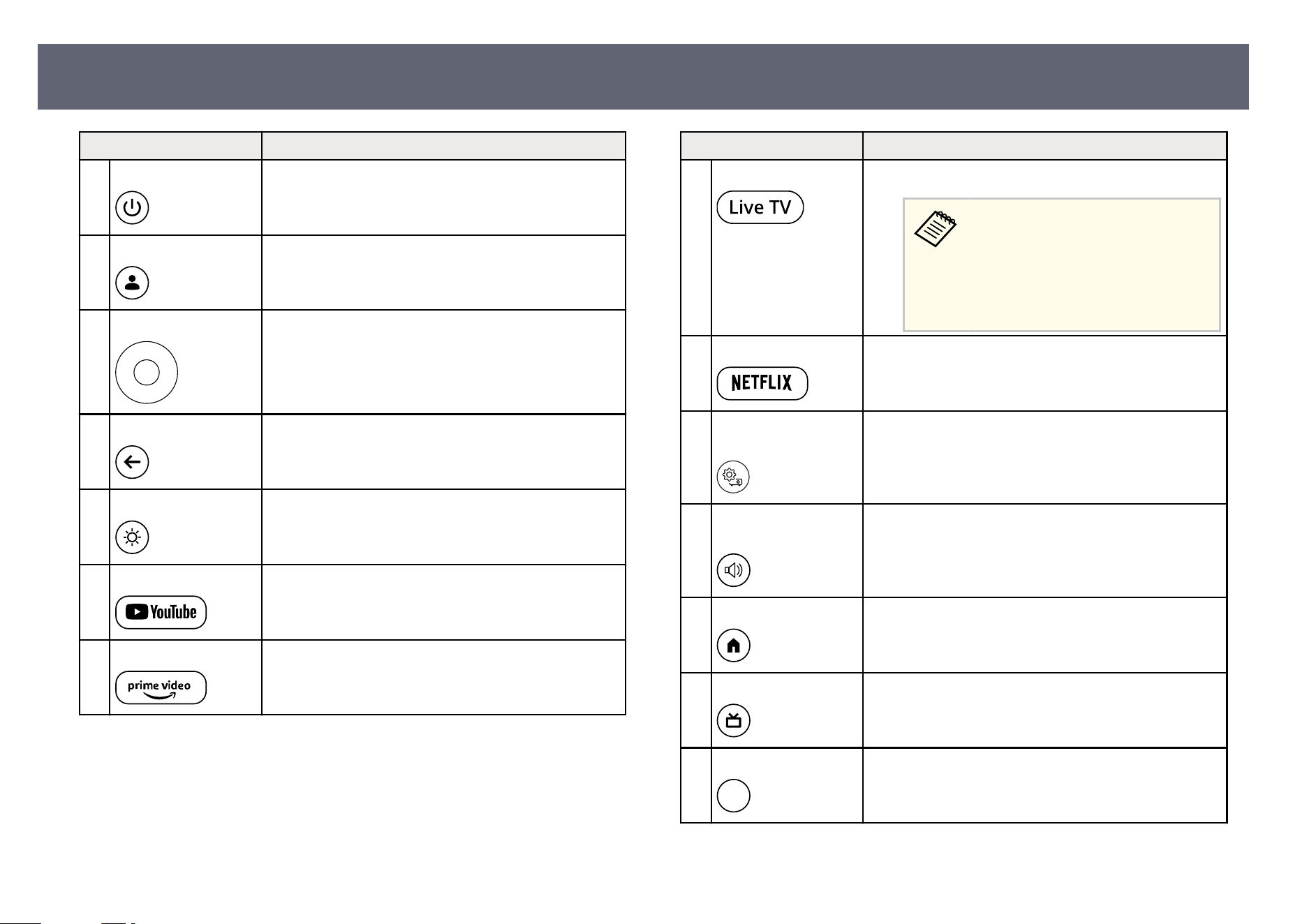
Name Function
H
Live TV button Starts the Live TV application.
Depending on your region, this
bu
tton may appear as the Free TV
button. Live TV and Free TV are
not available in certain languages
and countries. Availability of services
varies by country and language.
I
Netix button Starts the Netix application.
J
P
rojector Settings
bu
tton
Displays the Projector menu.
K
Volume up/down
bu
ttons
Adjusts the volume for the speaker and headphones.
L
Home button Displays the home screen.
M
HDMI button
Switches to the last HDMI source you displayed.
N
[Enter] button Enters the current selection and moves to the next level
while displaying the projector's menu.
Projector Parts and Functions
15
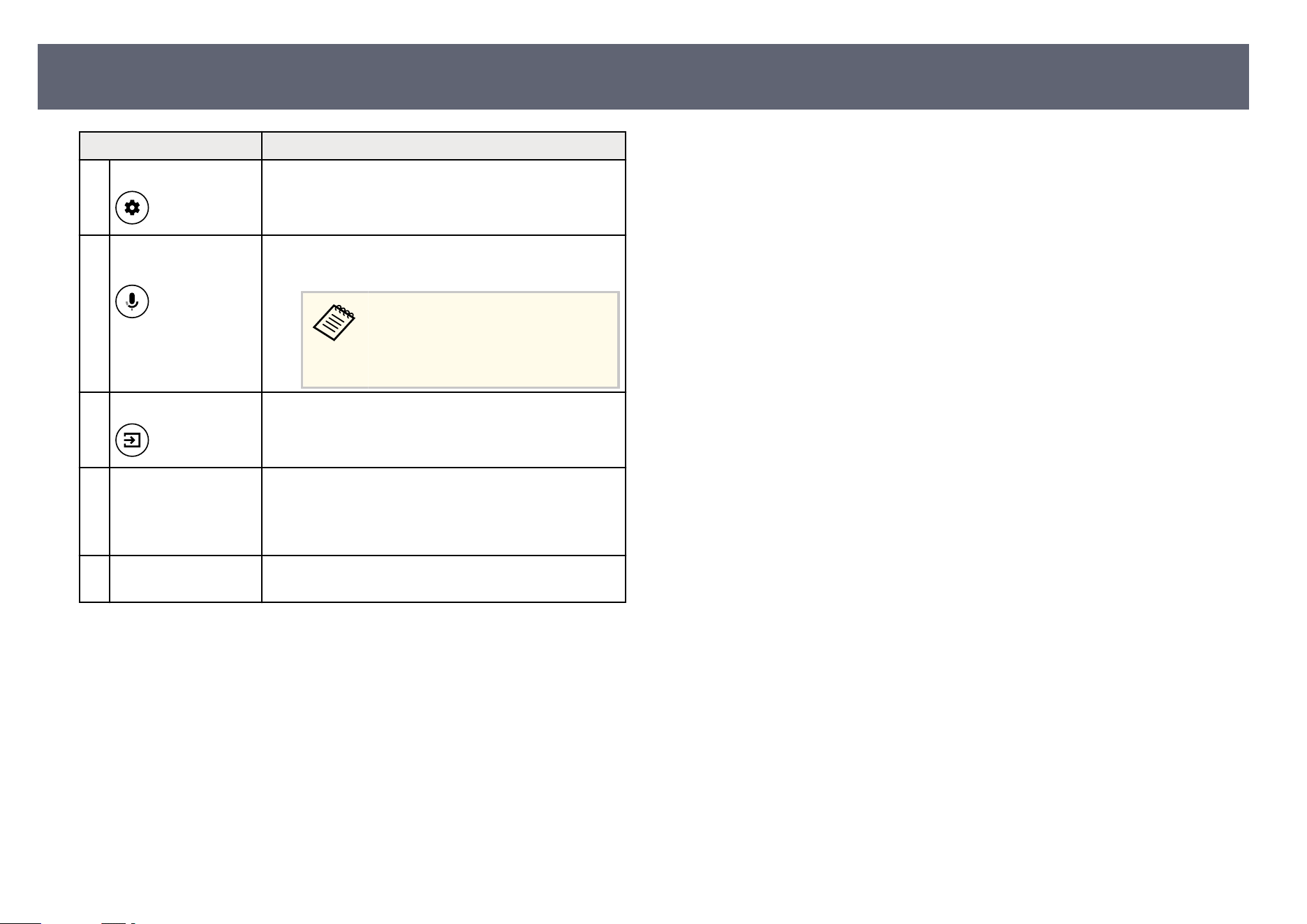
Name Function
O
Settings button Opens the dashboard.
P
Google Assistant
b
u
tton
Press the Google Assistant button on the remote, and
s
ay
, "Hey Google" to get started.
Google Assistant is not available
in cert
ain languages and countries.
Availability of services varies by
country and language.
Q
Source Search button Displays a list of available input sources.
R
Indicator/Microphone Turns on when outputting signals from the remote
con
trol.
Detects your voice when you press the Google Assistant
button.
S
Remote control light
emit
ting area
Outputs remote control signals.
g
Related Links
•
"R
emote Control Operation" p.30
•
"Installing Batteries in the Remote Control" p.30
•
"Turning On the Projector" p.36
•
"Turning O the Projector (Suspended Mode)" p.38
•
"Projector's Home Screen" p.32
•
"Adjusting the Light Source Brightness Manually" p.47
•
"Controlling the Volume with the Volume Buttons" p.54
•
"Projector's Home Screen" p.32
•
"Selecting an Image Source" p.49
•
"Using the Projector's Menus" p.65
Projector Parts and Functions
16

Setting Up the Projector
Fo
llow the instructions in these sections to set up your projector.
g
Related Links
•
"Projector Placement" p.18
•
"Installing the Safety Wire" p.22
•
"Projector Connections" p.25
•
"Attaching and Removing the Side Cover" p.29
•
"Installing Batteries in the Remote Control" p.30
•
"Setting Up the Projector OS" p.32
•
"About Epson Projector Update" p.34
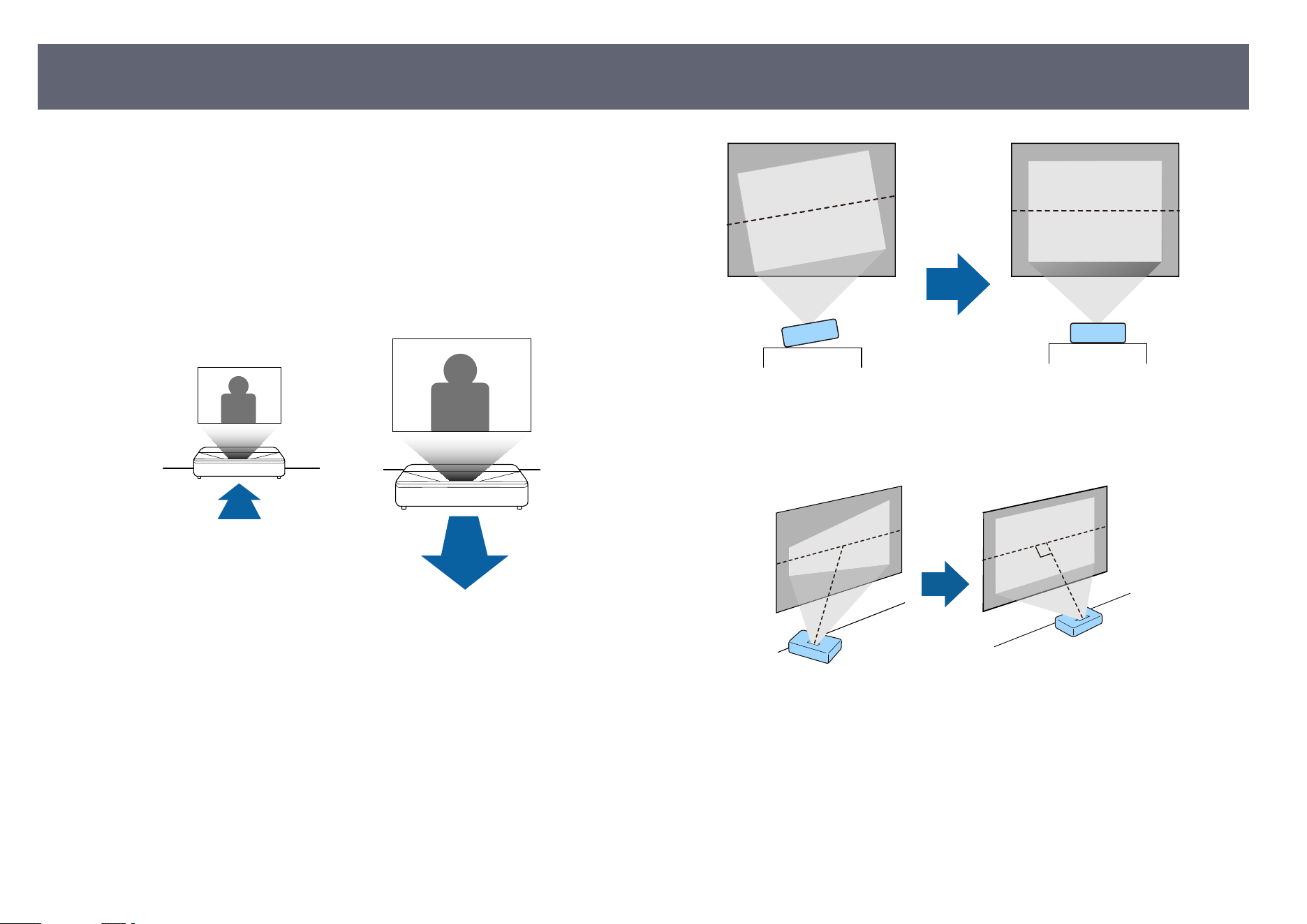
You can place the projector on almost any at sur
face to project an image.
You can also install the projector in a ceiling mount if you want to use it in
a xed location. An optional ceiling mount is required when suspending the
projector from a ceiling.
e projector can be installed at various angles. ere is no vertical or
horizontal limit to how the projector can be installed.
Note the following points when selecting a projector location:
•
To change the projected image size, move the projector back and forth.
•
Pl
ace the projector on a sturdy, level surface or install it using a compatible
mount.
•
Le
ave plenty of space around and under the projector for ventilation, and do
not place it on top of or next to anything that could block the vents.
•
Place the projector so it squarely faces the screen, not at an angle.
Projector Placement
18
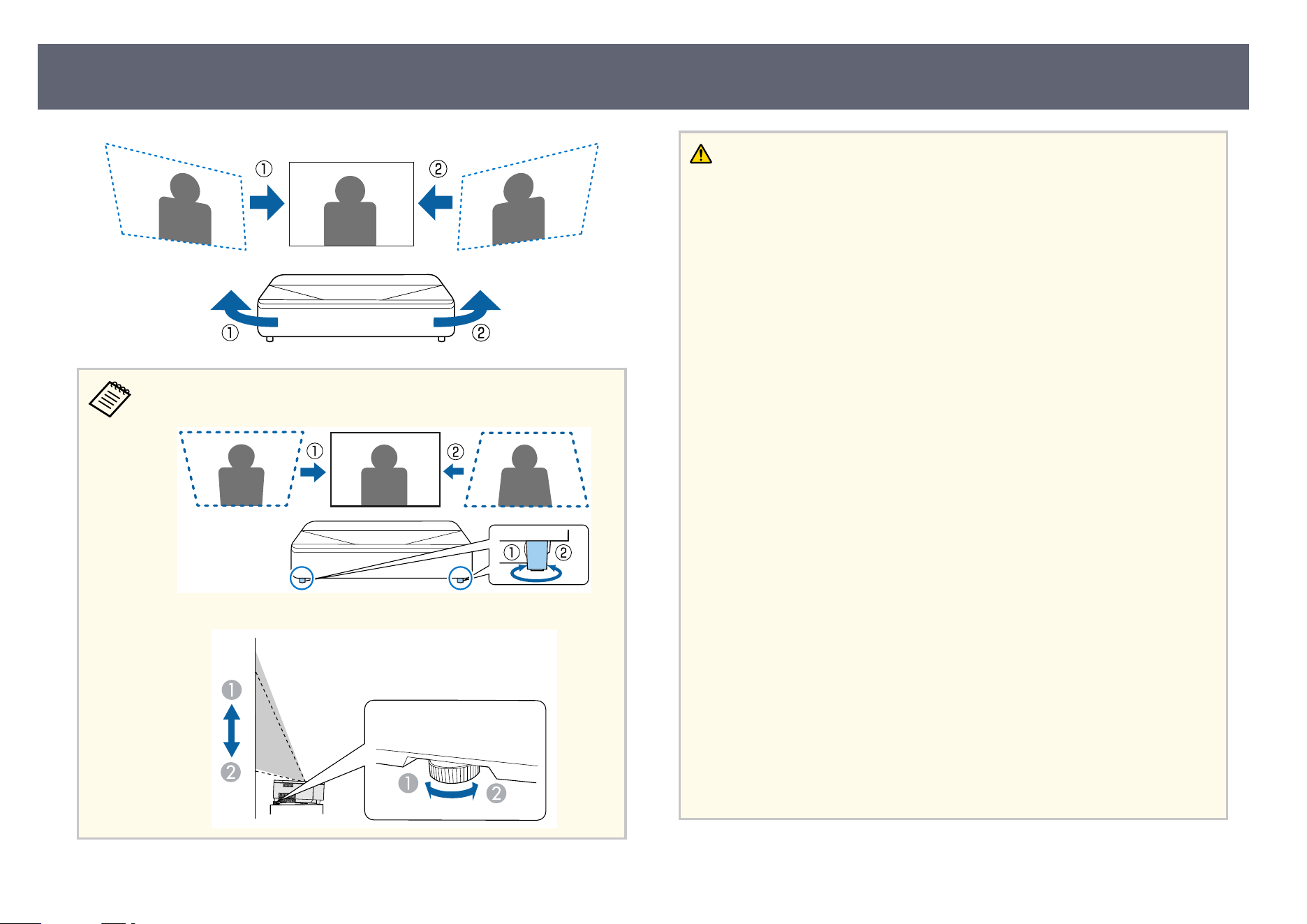
You can adjust distortion and the height of the projected image using the
f
r
ont adjustable feet and rear adjustable foot.
Warning
•
Yo
u must install a ceiling mount when suspending the projector from a ceiling. If
you do not install the projector correctly, it could fall and cause damage or injury.
•
A special method of installation is required when suspending the projector from a
ceiling. If you do not install the projector correctly, it could fall and cause damage
or injury.
•
Do not use adhesives on the ceiling mount xing points to prevent the screws
from loosening, or use lubricants, oils, or similar substances on the projector; the
projector case may crack causing it to fall from its ceiling mount. is could cause
serious injury to anyone under the ceiling mount and could damage the projector.
•
Failure to install the ceiling mount and projector may cause the projector to fall.
Secure the mount to all of the projector's ceiling mount xing points as specied
in the projector's User's Guide. Also, secure the projector and the mount using
wires that are strong enough to hold their weight. Be sure to use a mount specied
by Epson that is compatible with this projector.
•
Do not install the projector in a location subject to high levels of dust or humidity,
or in a location subject to smoke or steam. Otherwise, it could cause a re
or electric shock to occur. e projector's case could also deteriorate and be
damaged causing the projector to fall from the mount.
Examples of environments that could cause the projector to fall due to case
deterioration
•
Locations subject to excessive smoke or airborne oil particles, such as factories
or kitchens
•
Locations containing volatile solvents or chemicals, such as factories or
laboratories
•
Locations where the projector could be subjected to detergents or chemicals,
such as factories or kitchens
•
Locations in which aroma oils are oen used, such as relaxation rooms
•
Near devices that produce excessive smoke, airborne oil particles, or foam at
events
•
Locations near humidiers
Projector Placement
19
Warning
•
Do n
ot cover the projector's air intake or air exhaust vents. If the vents are
covered, the internal temperature could rise and cause a re.
•
Do not use or store the projector in locations where it will be subject to dust or
dirt. Otherwise, the quality of the projected image may decline, or the air lter
may become clogged, resulting in a malfunction or re.
•
Do not install the projector on an unstable surface or in a location beyond the
weight specications of the projector. Otherwise, it could fall or topple causing an
accident and injury.
•
When installing the projector in a high position, take measures to prevent falling
by using wires to ensure safety in an emergency, such as an earthquake, and to
prevent accidents. If it is not installed correctly, it could fall causing an accident
and injury.
•
Do not install in locations where salt damage could occur, or in locations subject
to corrosive gas such as sulphuric gas from hot springs. Otherwise, corrosion
could cause the projector to fall. It could also cause the projector to malfunction.
Attention
•
If y
ou are using the projector at altitudes above 1,500 m (4,921 feet), set the High
Altitude Mode setting to On in the projector's menu to ensure the projector's
internal temperature is regulated properly.
s Projector > Advanced Settings > High Altitude Mode
•
Try not to setup the projector in locations subject to high humidity and dust, or in
locations subject to smoke from res or tobacco smoke.
g
Related Links
•
"P
rojector Setup and Installation Options" p.20
•
"Precautions on Installation" p.21
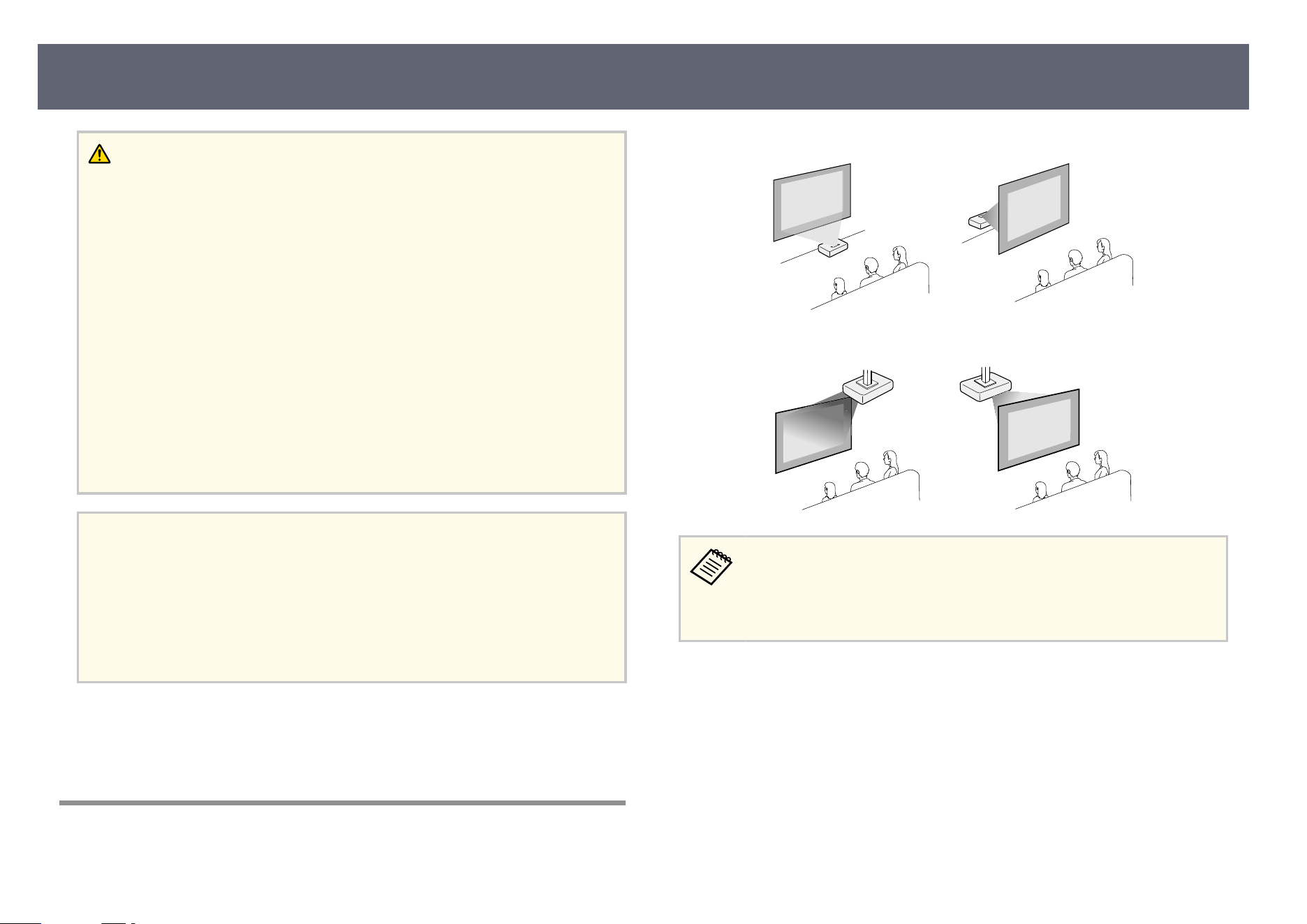
Projector Setup and Installation Options
You can set up or install your projector in the following ways:
Front/Rear
Front Ceiling/Rear Ceiling
•
e defaul
t Projection setting is Front.
•
When suspending the projector from a ceiling, we recommend placing
it on a at surface such as a desk, turning it on, and then setting up the
projector's OS before suspending it from the ceiling.
g
Related Links
•
"C
hanging the Projection Mode Using the Menus" p.39
Projector Placement
20
Precautions on Installation
Attention
•
If t
he projector is installed at an angle, it should be installed by qualied
technicians using mounting hardware designed for use with this projector.
•
Install the projector appropriately to prevent it from falling down.
•
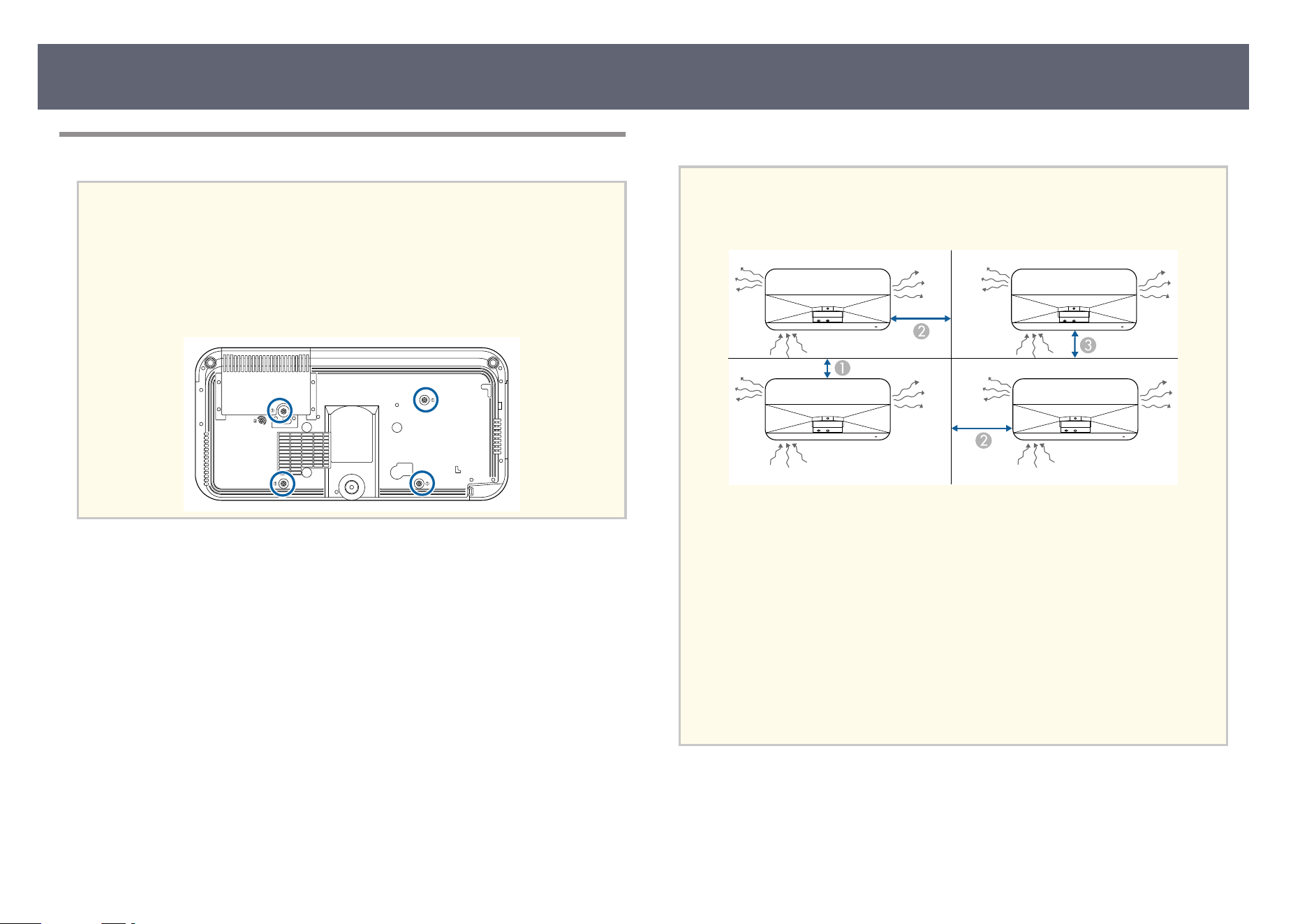
Use M4 screws (up to a depth of 9 mm) to x the projector's ceiling mount xing
points and the mounting hardware at four points.
Installation space
Attention
Be s
ure to leave the following amount of space around the projector so as not to
block the air exhaust and intake vents.
A
2.3 cm (0.9 inches)
B
20 cm (7.9 inches)
C
10 cm (3.9 inches)
•
Do n
ot install the projector in a location that does not allow air to circulate, such
as on a shelf or in a box. If you want to install the projector on a shelf or in an
enclosure, contact Epson for more details.
•
If there is not enough space around the projector and the internal temperature of
the projector increases, the brightness of the light source may decrease.
•
Remove any obstacles around the projector so that hot air from the exhaust vents
can escape and not be drawn into the air intake vents.
Projector Placement
21
You can install the safety wire to prevent the projector from falling from the
ceilin
g.
Warning
Be s
ure to use the safety wire provided with the Epson ceiling mount. e safety wire
is available as an optional Safety Wire Set ELPWR01.
g
Related Links
•
"W
hen Using the Ceiling Mount ELPMB22" p.22
•
"When Using the Ceiling Mount ELPMB30" p.23
When Using the Ceiling Mount ELPMB22
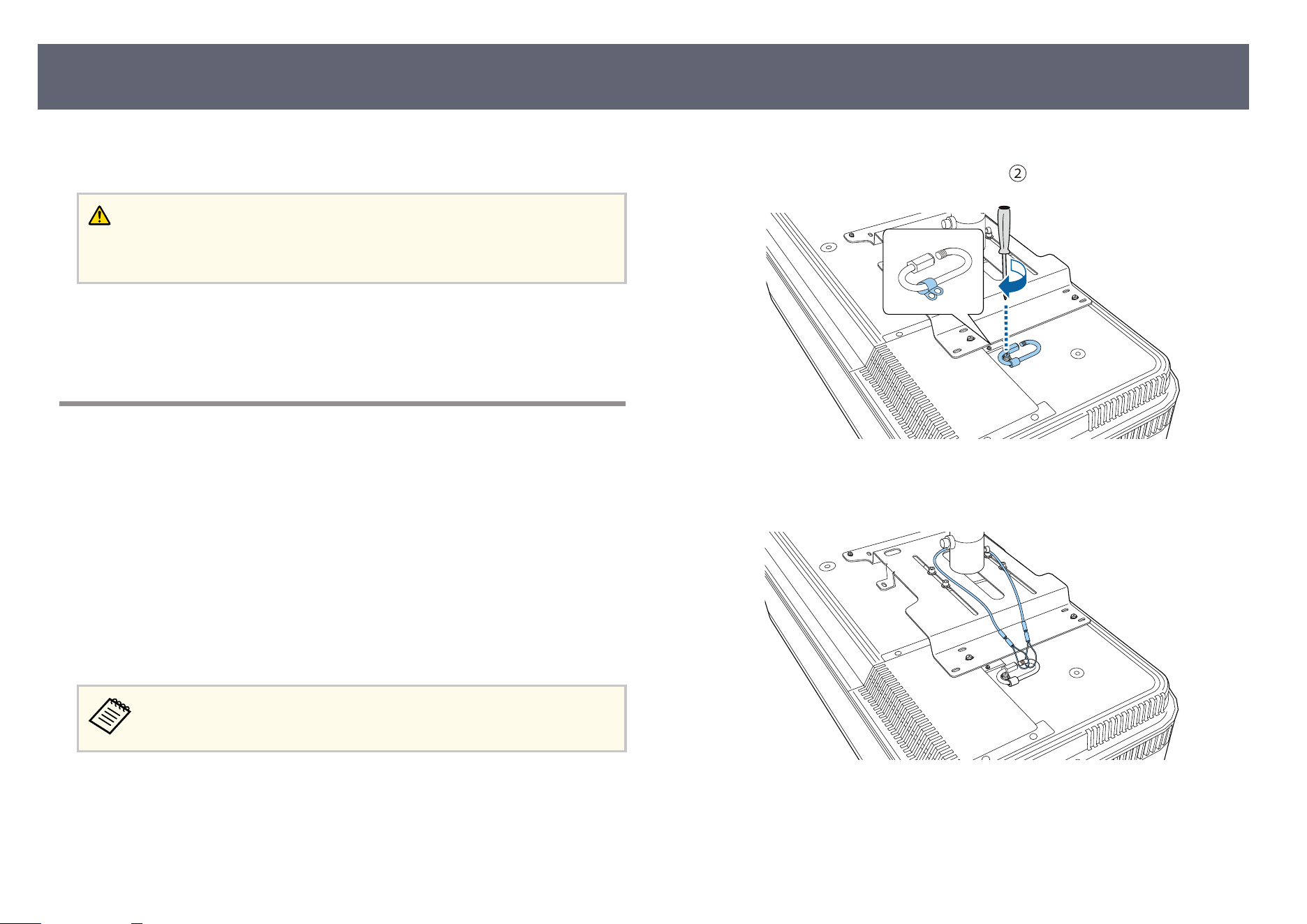
You can attach a safety wire to your projector for increased safety as shown.
Before you start, you need to remove the front adjustable feet and the rear
adjustable foot from the projector. Also, make sure you have securely attached
the ELPMB22 ceiling mount to the projector and have the following items that
are included in the safety wire set:
•
Safety wire × 1
•
Carabiner × 2 (Only one carabiner is used for the ELPMB22.)
•
Wire clamp × 1
•
Attaching screw (M4 × 10 mm) × 1
For details on installing the ELPMB22, see the Cei
ling Mount ELPMB22/
ELPMB23 Instruction Manual.
a
Attach the wire clamp to the carabiner, and then use the screw to x th
e
wire clamp to the wire clamp xing point (
) on the projector.
b
Loop the safety wire around the support s
h
a of the ceiling mount, and
attach both ends to the carabiner on the projector.
Installing the Safety Wire
22
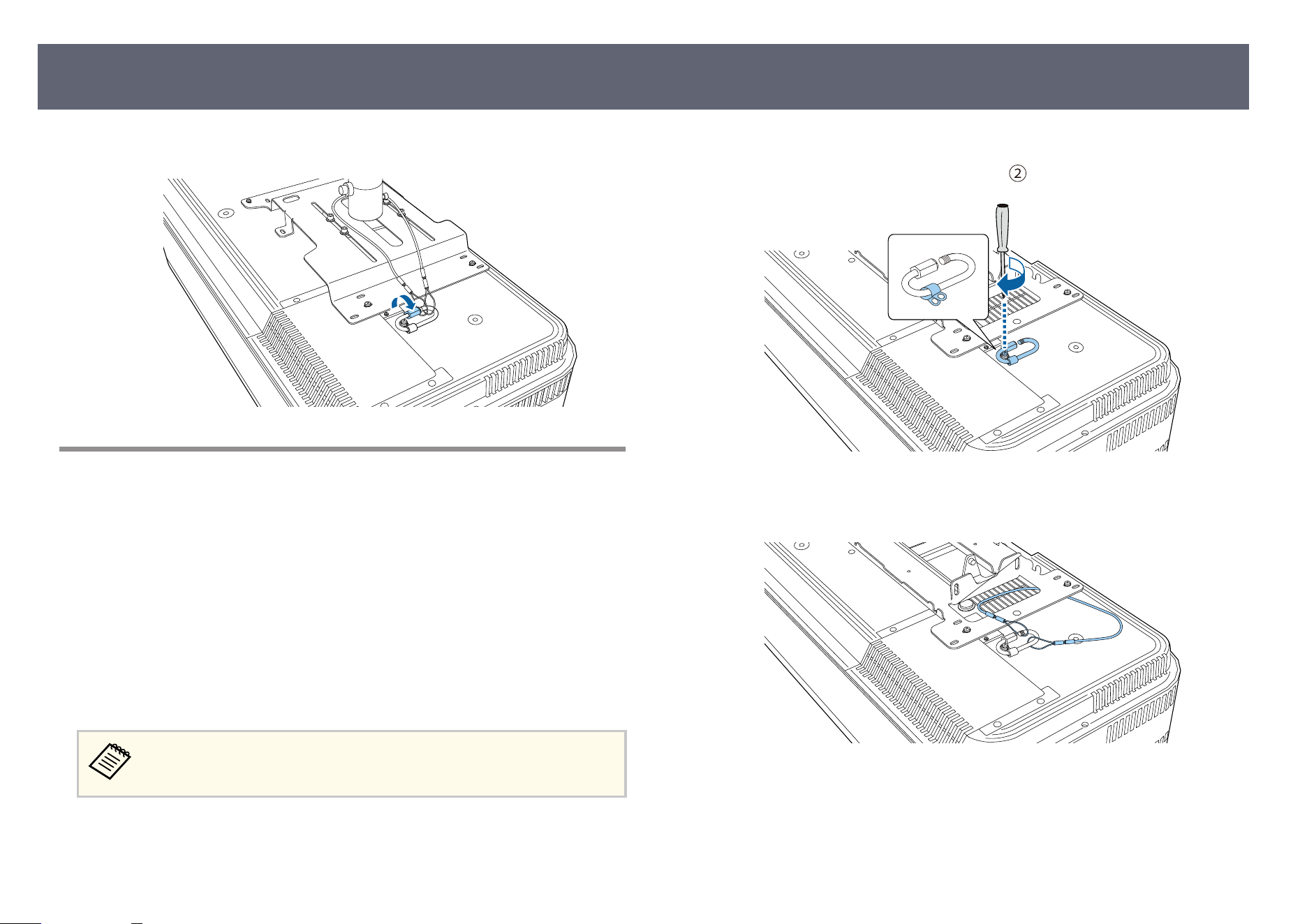
c
Tighten the carabiner lock.
When Using the Ceiling Mount ELPMB30
You can attach a safety wire to your projector for increased safety as shown.
Bef
ore you start, you need to remove the front adjustable feet and the rear
adjustable foot from the projector. Also, make sure you have securely attached
the projector plate for the ELPMB30 ceiling mount to the projector and have the
following items that are included in the safety wire set:
•
Safety wire × 1
•
Carabiner × 2 (Only one carabiner is used for the ELPMB30.)
•
Wire clamp × 1
•
Attaching screw (M4 × 10 mm) × 1
For details on installing the ELPMB30, see the ELPMB30 Us
er's Guide.
a
Attach the wire clamp to the carabiner, and then use the screw to x th
e
wire clamp to the wire clamp xing point (
) on the projector.
b
Loop the safety wire through the hole in the ceiling mount, and then
at
t
ach both ends to the carabiner.
Installing the Safety Wire
23
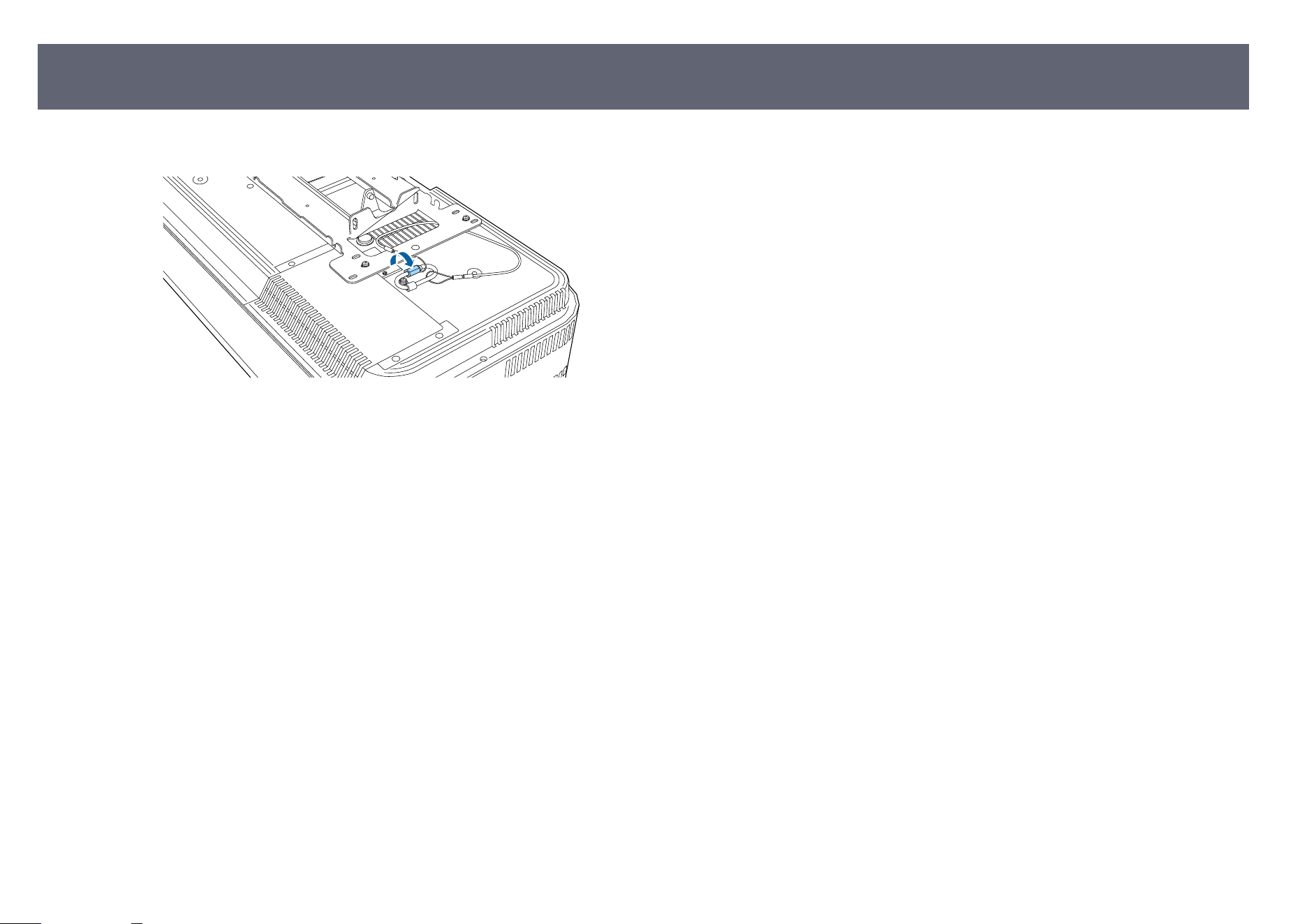
c
Tighten the carabiner lock.
Installing the Safety Wire
24
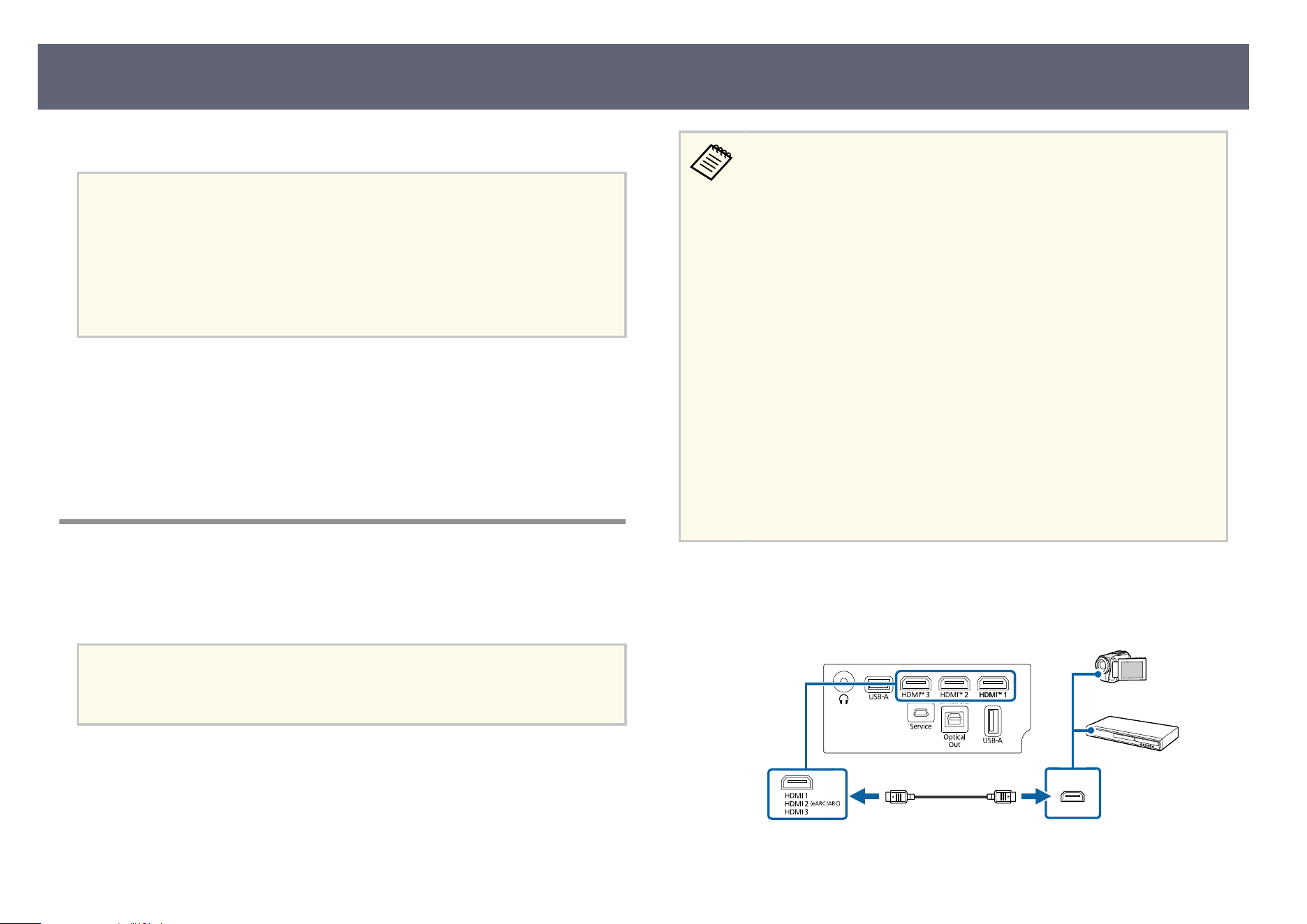
See these sections to connect the projector to a variety of projection sources.
Attention
•
Ch
eck the shape and orientation of the connectors on any cable you plan to
connect. Do not force a connector into a port if it does not t. e device or your
projector could be damaged or could malfunction.
•
Depending on the connected device and the shape of the cable, you may not be
able to attach the side cover to the projector. In that case, do not force the cover
into place. e device or your projector could be damaged or could malfunction.
g
Related Links
•
"C
onnecting to Video Sources" p.25
•
"Connecting to External USB Devices" p.26
•
"Connecting to External Audio Devices" p.26
•
"Connecting to an eARC/ARC Compatible AV System" p.27
•
"Connecting Headphones" p.28
Connecting to Video Sources
If your video source has an HDMI port, you can connect it to the projector
usin
g an HDMI cable and send the image source's audio with the projected
image.
Attention
Do not turn on the video source before connecting it to the projector. Turning it on
before connecting could damage the projector.
•
If t
he port on the device you connect has an unusual shape, use the
cable supplied with the device or an optional cable to connect to the
projector.
•
Some video equipment is capable of outputting dierent types of
signals. See your video equipment manual to conrm what type of
signals can be output.
•
When sending 18 Gbps images such as 4K 60 Hz 4:4:4, use an HDMI
cable (premium-high speed). If you use an incompatible cable, images
may not be displayed correctly.
•
When connecting a gaming console, we recommend connecting it to
a port that supports the refresh rate of 120 Hz (HDMI1 or HDMI2).
See the Supplemental A/V Support Specication for detailed information
on compatible refresh rates and resolutions for each compatible video
display format.
•
For users in the U.S., Canada, and Latin America
When connecting a gaming console, we recommend connecting it to a
port that supports the refresh rate of 120 Hz (HDMI1 or HDMI2). See
the online Notices guide for detailed information on compatible refresh
rates and resolutions for each compatible video display format.
a
Connect the HDMI cable to your video source's HDMI output port.
b
Connect the other end to the projector's HDMI port.
Projector Connections
25
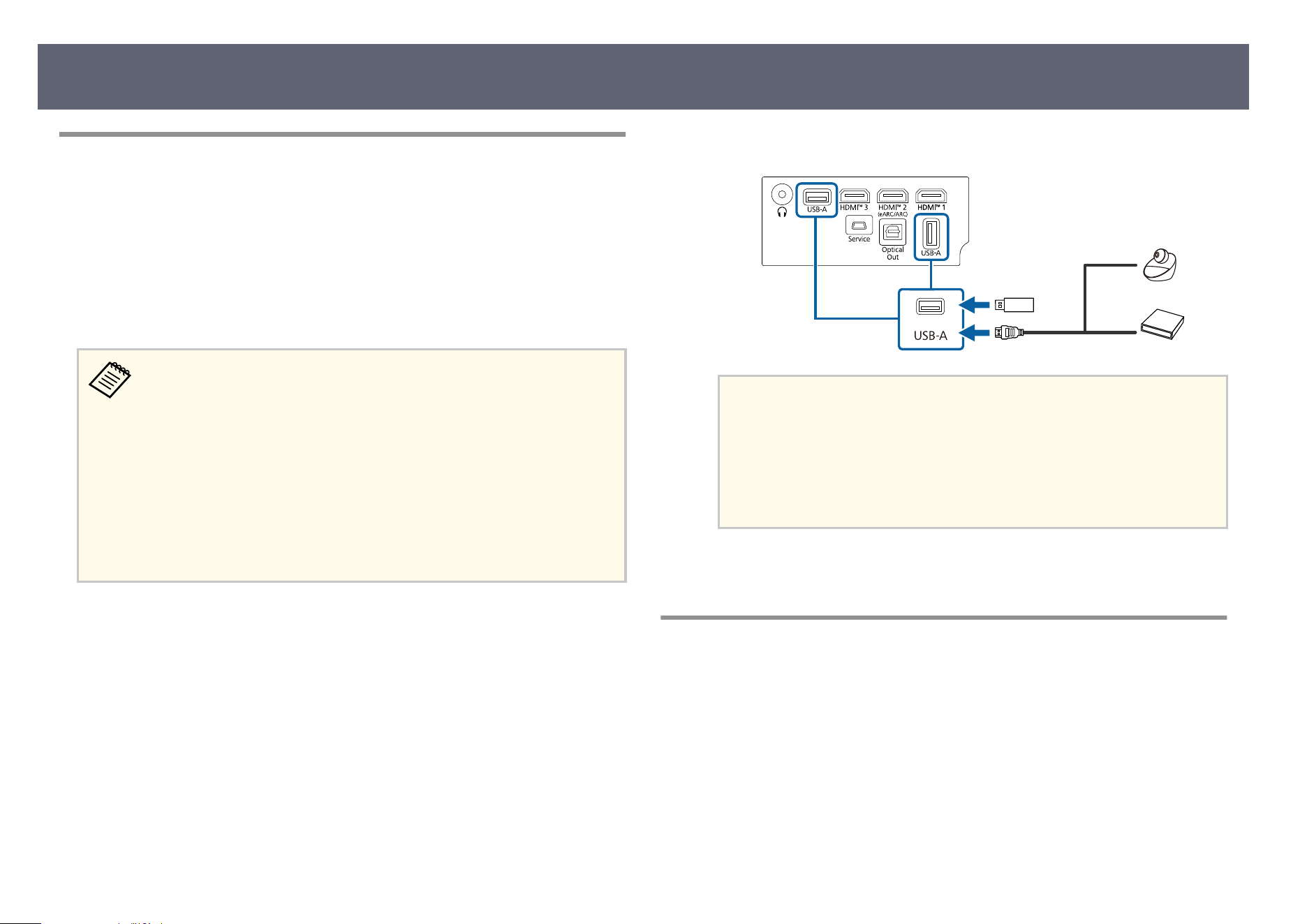
Connecting to External USB Devices
By connecting any of these devices to your projector, you can project images
and o
ther content or play audio without using a video device.
•
Microphone
•
USB ash drive
•
Digital camera
•
USB hard drive
•
USB-A p
ort is not guaranteed to operate all devices that support USB.
•
You may need an app to project content from your USB device.
•
USB hard drives must meet these requirements:
•
USB Mass Storage Class-compliant (not all USB Mass Storage Class
devices are supported)
•
Formatted in FAT16/32
•
Self-powered by their own AC power supplies (bus-powered hard
drives are not recommended)
•
Avoid using hard drives with multiple partitions
a
If your USB device came with a power adapter, plug the device into an
ele
ctrical outlet.
b
Connect the USB device to the projector's USB-A port as shown.
Attention
•
Us
e the USB cable supplied with or spe cied for use with the device.
•
If the USB cable is too long, the device may not operate correctly. We
recommend using a USB cable that is 3 m (9.8 feet) or less.
•
If you use a USB hub, the device may not operate correctly. We recommend
checking the operation in advance.
c
Connect the other end to your device, if necessary.
Connec
ting to External Audio Devices
If your amplier or speaker has an optical digital audio input port, you can
co
nnect it to the projector using an optical digital audio cable and project audio
from the image source.
a
Connect the optical digital audio cable to your audio device's optical
digi
tal audio input port.
Projector Connections
26
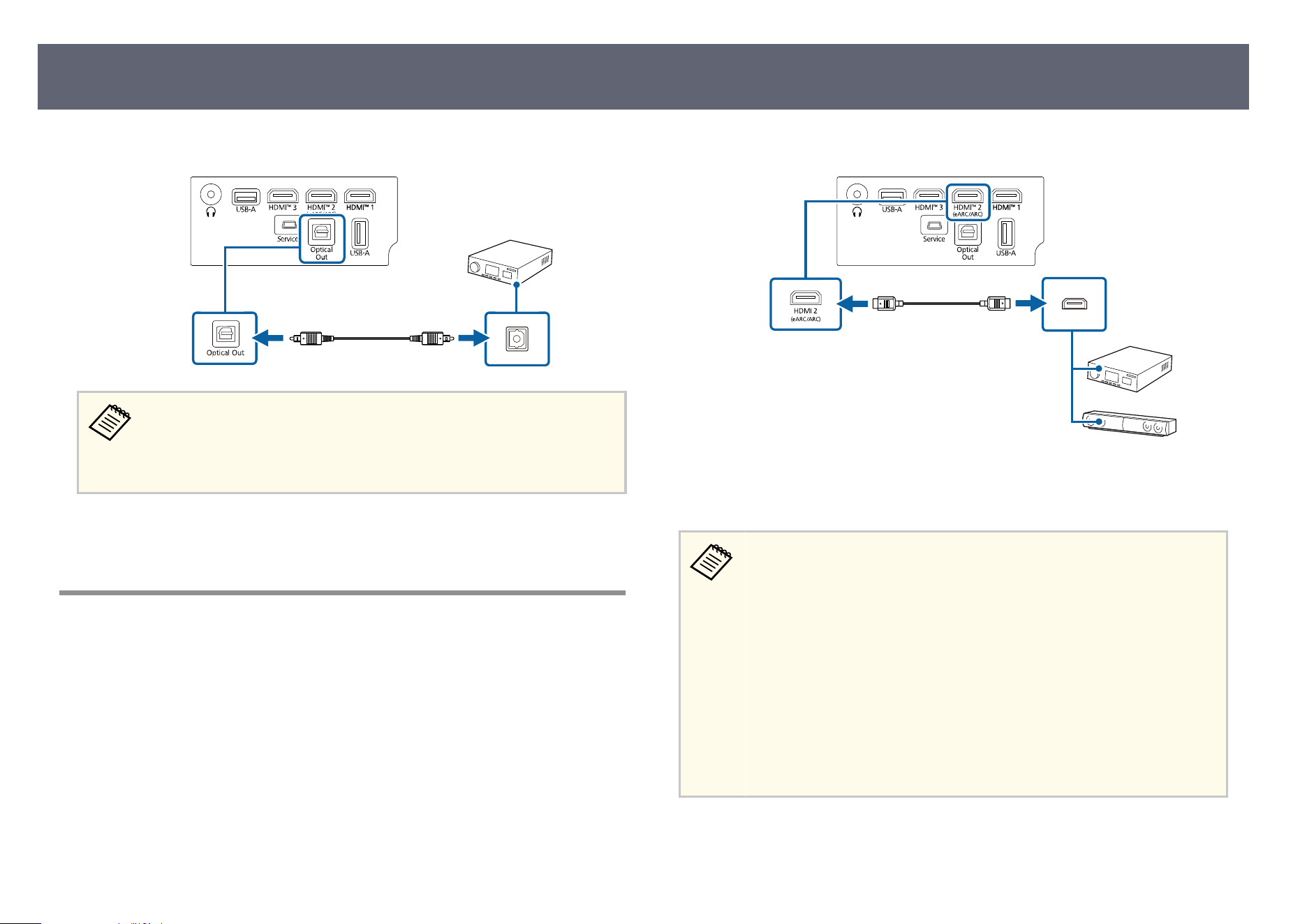
b
Connect the other end to the projector's Optical Out port.
If you set Audio Output Device to SPDIF in the projector's menu, audio
i
s only output from the external audio device and is not output from the
projector's speakers.
s Display & Sound > Audio Output > Audio Output Device
g
Related Links
•
"Image Quality Settings - Display & Sound Menu" p.68
Connecting to an eARC/ARC Compatible AV System
If your AV system or speakers, such as a sound bar, has an HDMI port, you can
conn
ect them to the projector using an HDMI cable (with Ethernet) to output
audio to these devices.
a
Connect the HDMI cable to your AV system's HDMI output port (eARC
or AR
C compatible).
b
Connect the other end to the projector's HDMI2 (eARC/ARC) port.
c
Make any necessary settings on the connected AV system. See your
dev
ice's documentation for more information.
•
To o
utput audio from the projector's HDMI2 (eARC/ARC) port when
using an ARC connection, set Global CEC control to On in the
projector's menu.
s Channels & Inputs > Inputs > Global CEC control
•
If audio is not output properly, try changing Auto to PCM as the
Digital Output setting in the projector's menu.
s Display & Sound > Audio Output > Digital Output
•
See the Supplemental A/V Support Specication for eARC/ARC audio
supported formats.
•
For users in the U.S., Canada, and Latin America
See the online Notices guide for eARC/ARC audio supported formats.
g
Relat
ed Links
•
"P
rojector Feature Settings - Channels & Inputs Menu" p.66
•
"Image Quality Settings - Display & Sound Menu" p.68
Projector Connections
27
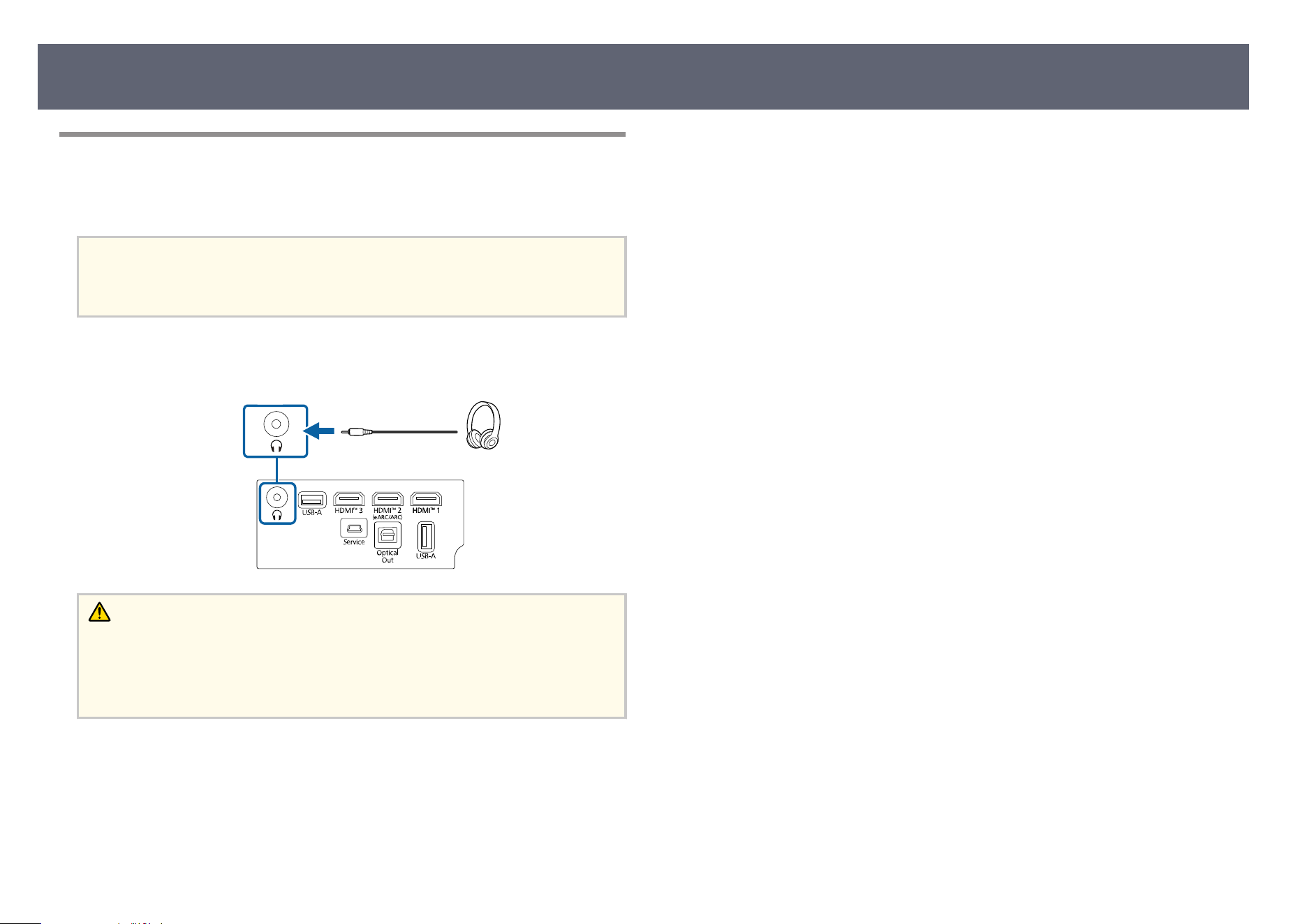
Connecting Headphones
You can connect headphones to the projector's Audio Out port. You can control
th
e volume using the projector's remote control.
Attention
e pr
ojector's Audio Out port only supports 3-pin headphones. If you use any other
headphones, audio may not be output normally.
a
Connect the stereo headphone's mini-jack cable to the projector's Audio
Ou
t port.
Caution
D
o n
ot start a playback at a high volume setting. Sudden loud noises may cause
hearing loss.
Always lower the volume before powering o, so that you can power on and then
gradually increase the volume.
Projector Connections
28
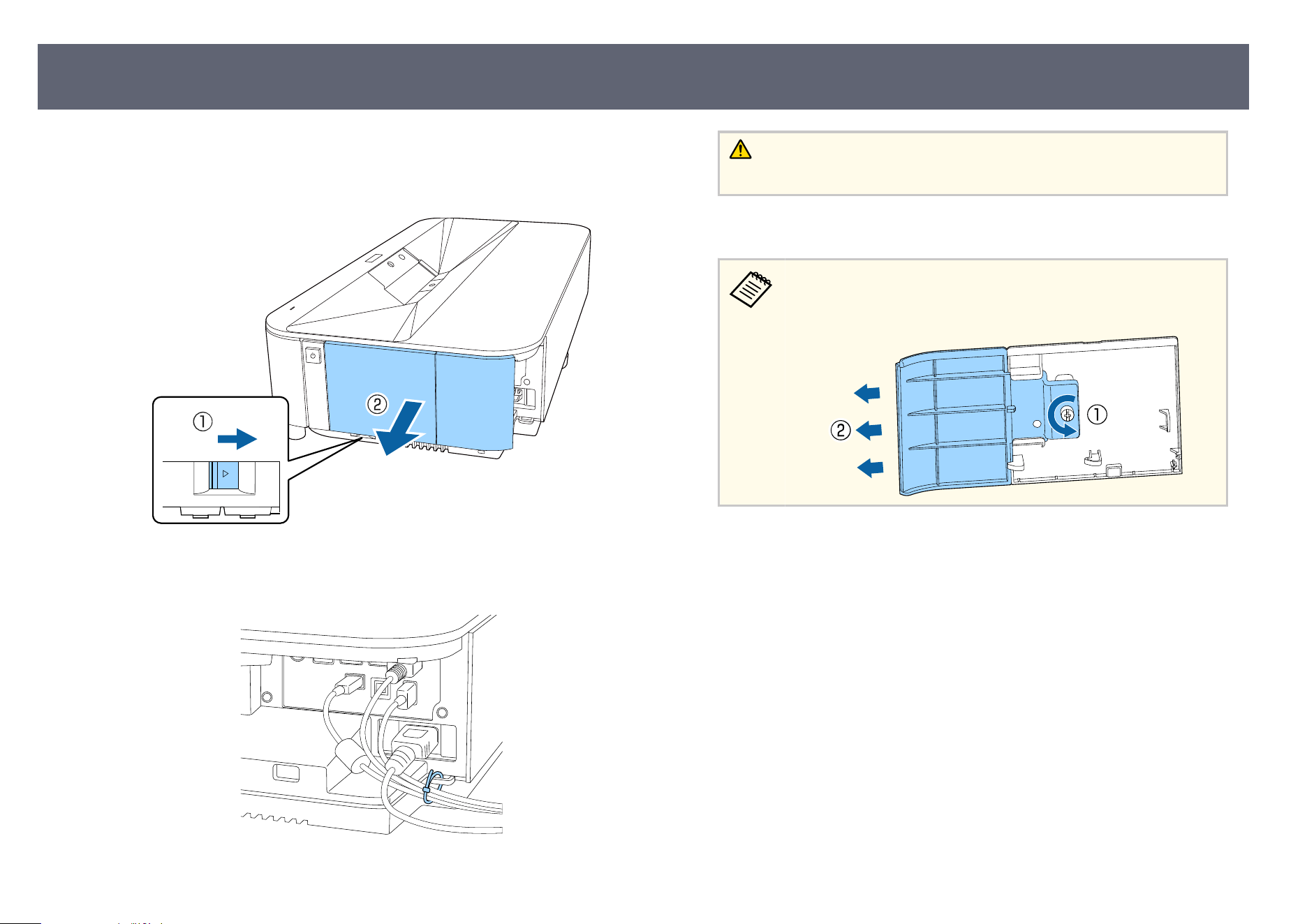
You can attach the side cover to hide the attached cables from view.
a
Remove the side cover from the projector.
b
Pass a commercially available cable tie through the cable holder and tie
t
h
e cables together.
Caution
Do n
ot bundle the power cord to the other cables. Otherwise, a re may occur.
c
Replace the side cover.
e side cover can be divided into two parts; side cover A and side
co
ver B. is allows you to use just side cover A if necessary, such as
when you want to connect a streaming media player.
Attaching and Removing the Side Cover
29
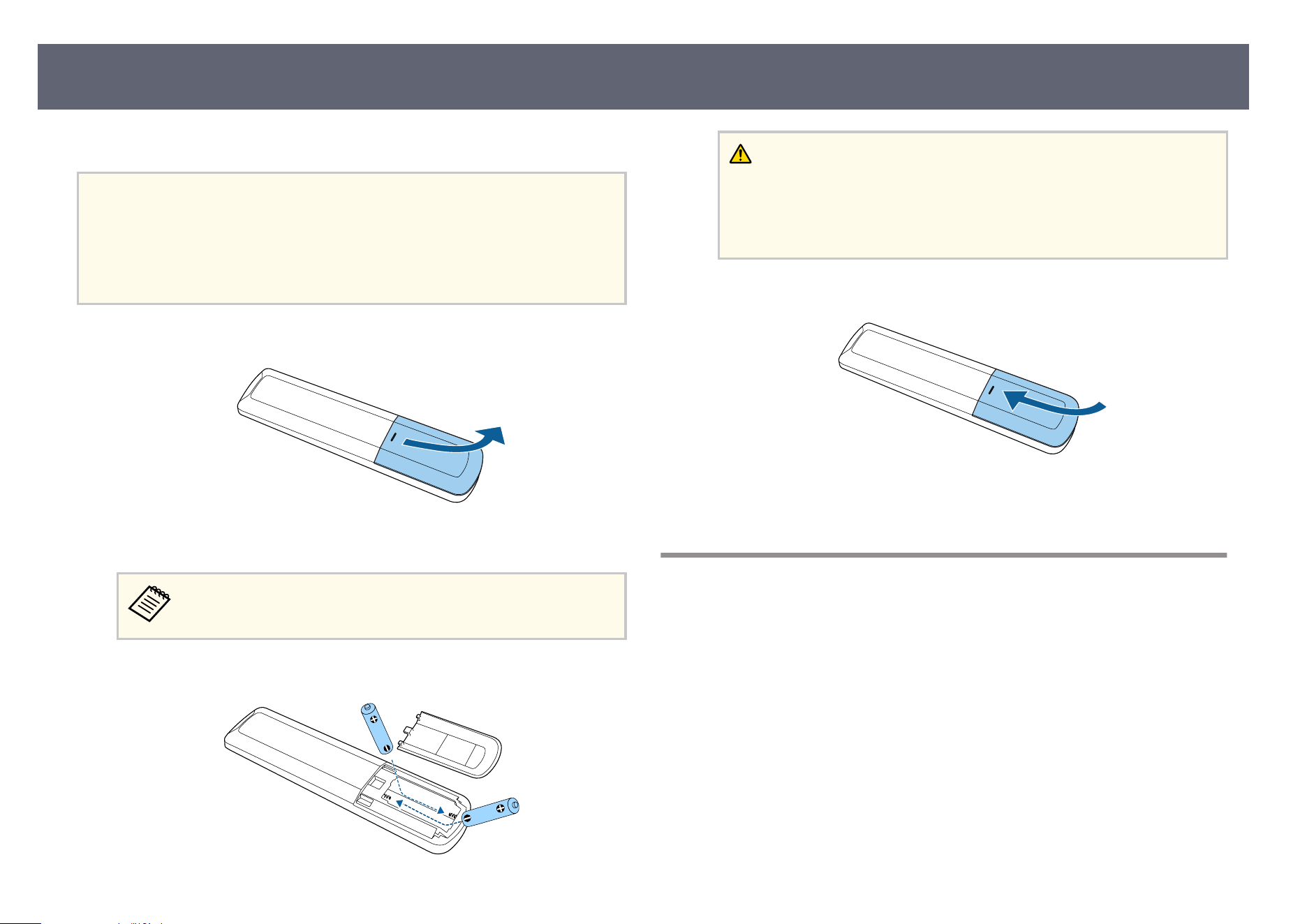
e remote control uses the two AAA batteries that came with the projector.
Attention
•
Mak
e sure you read the Safety Instructions before handling the batteries.
•
For users in the U.S., Canada, and Latin America
Make sure you read the safety instructions in the online Notices guide before
handling the batteries.
a
Remove the battery cover as shown.
b
Remove the old batteries, if necessary.
Dispose of used batteries according to local regulations.
c
Insert the batteries with the + an
d
– ends facing as shown.
Warning
Ch
eck the positions of the (+) and (–) marks inside the battery holder to
ensure the batteries are inserted the correct way. If the batteries are not used
correctly, they could explode or leak causing a re, injury, or damage to the
product.
d
Replace the battery cover and press it down until it clicks into place.
g
Related Links
•
"R
emote Control Operation" p.30
Remote Control Operation
e remote control lets you control the projector from almost anywhere in the
r
oom.
It is recommended that you aim the remote control at the projector's receivers
within the distance and angles listed here.
Installing Batteries in the Remote Control
30
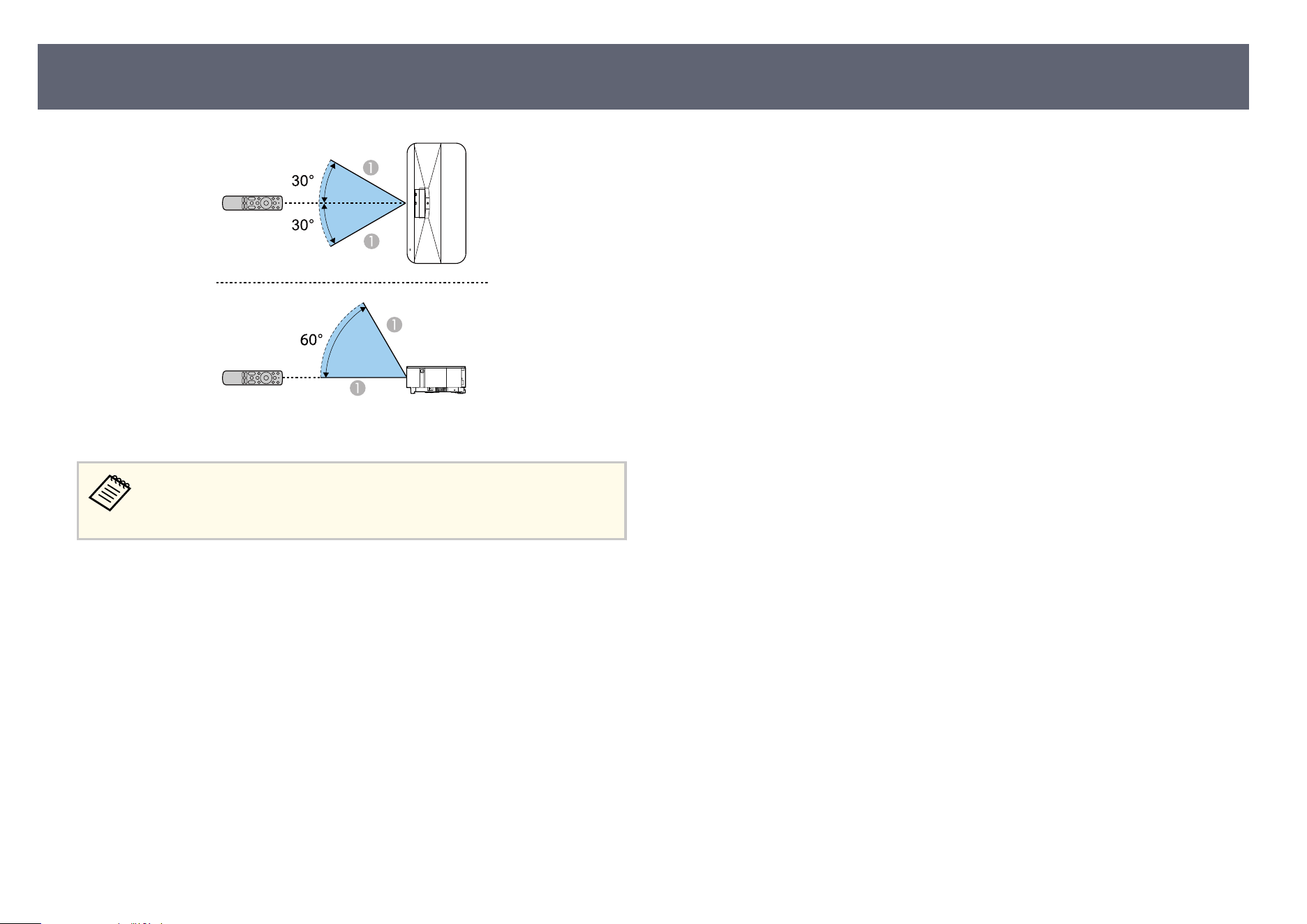
A
6 m (19.7 feet)
e projector may not respond to commands if you use the remote control
in co
nditions with bright uorescent lights or in direct sunlight. If you are
not going to use the remote control for a long time, remove the batteries.
Installing Batteries in the Remote Control
31
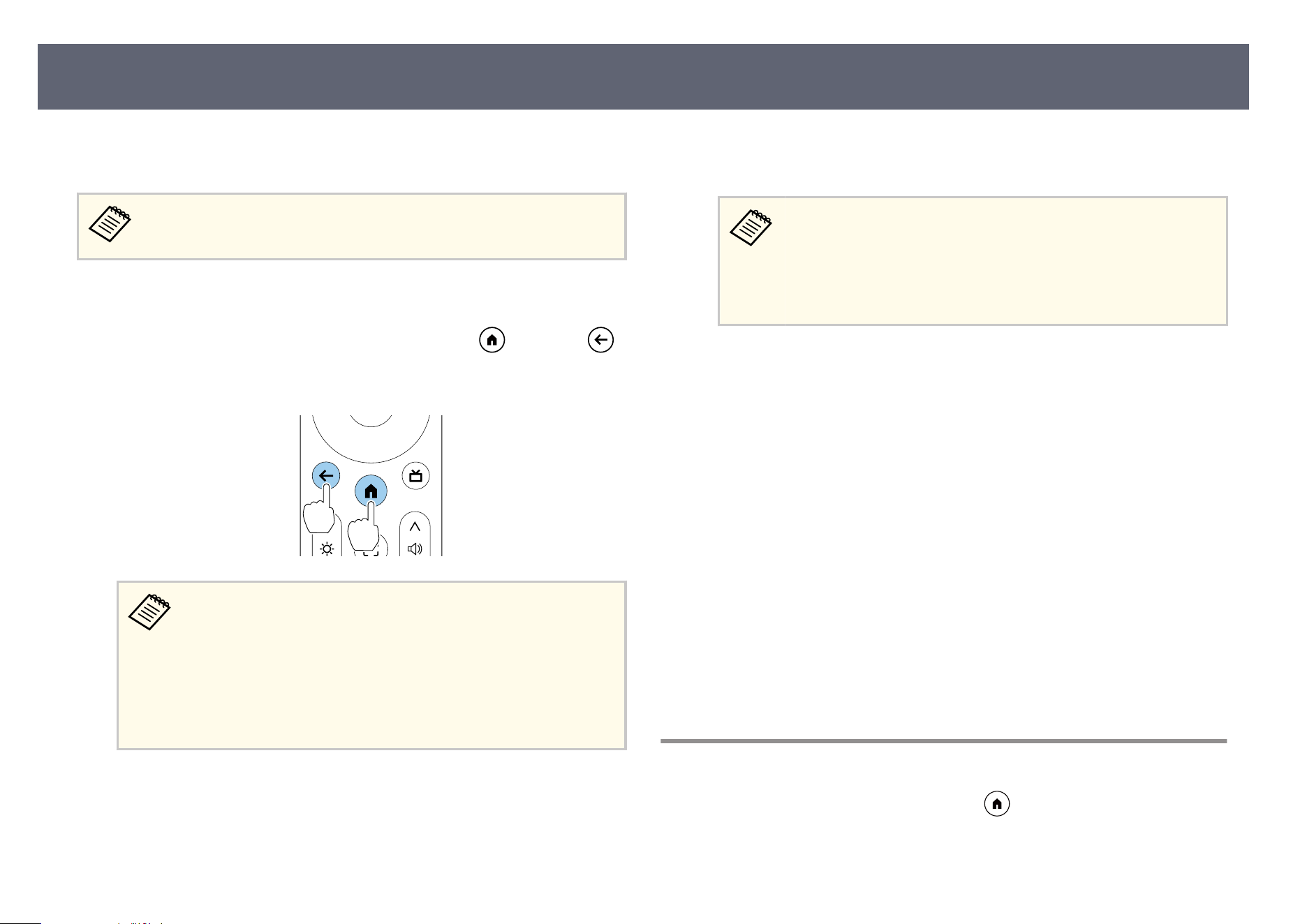
When you turn on the projector for the rs
t time, you need to set up the
projector's OS using the initial setup wizard.
You can change each of the settings even aer com
pleting the initial setup.
a
Turn on the projector.
b
When the pairing screen is displayed, hold down the button and
button on the remote control at the same time to pair the remote control
and the projector.
•
Wh
en pairing, place the remote control within 30 cm (11.8
inches) of the projector.
•
When pairing starts, the indicator on the remote control ashes.
When pairing is complete, the indicator turns o.
•
You cannot pair multiple remote controls with the projector at
the same time. Pairing a new remote control will unpair the
existing one. Make sure the intended remote control is paired.
c
When the language selection screen is displayed, select the language you
want to use, and then follow the on-screen instructions to select your
country or region.
d
When the setting screen is displayed, follow the on-screen instructions to
mak
e the initial settings for the projector's OS.
•
We r
ecommend logging in with your Google Account to make
more detailed settings.
•
For instructions on how to create a Google Account, contact
Google or see the following website.
Google Account Help
e
When the Wi-Fi setting screen is displayed, select the wireless network
y
o
u want to use, and then follow the on-screen instructions to make
necessary settings.
•
An Internet connection is required to view online content. Make sure
you can use the Wi-Fi service.
•
e customer is responsible for any communication charges incurred
when downloading the app or watching online content.
f
Follow the on-screen instructions to make other necessary settings.
g
When you agree to the Epson license terms, the initial setup wizard closes.
W
h
en you have nished the initial setup, the home screen is displayed.
g
Related Links
•
"Projector's Home Screen" p.32
Projector's Home Screen
When you turn on the projector or press the button on the remote control,
th
e home screen is displayed.
Setting Up the Projector OS
32
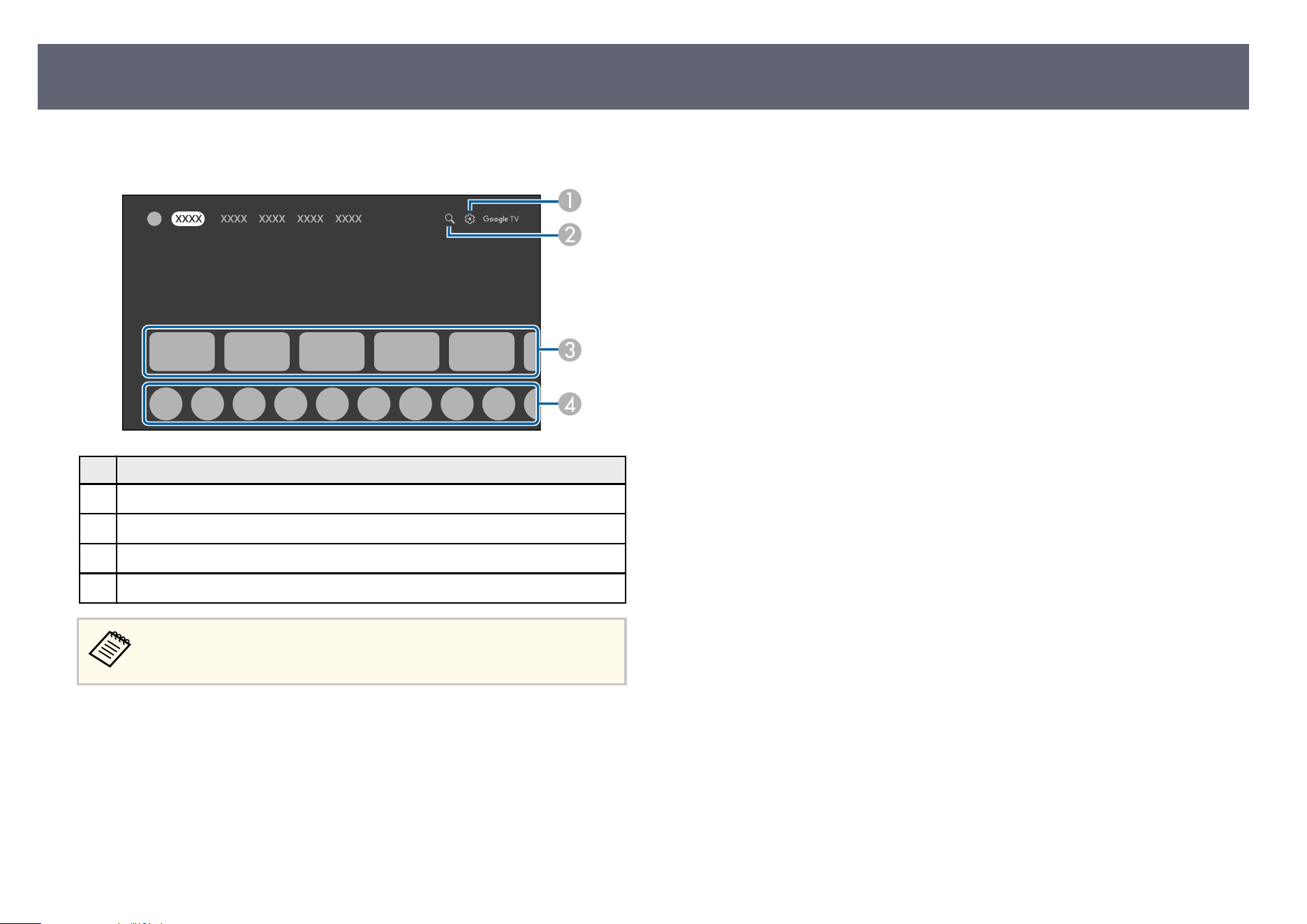
You can easily access recommended online content and applications from the
ho
me screen.
Description
A
Displays the dashboard menu.
B
Searches for online content.
C
Displays the online content recommended by the applications.
D
Displays the applications downloaded on the projector.
e content of the home screen may change depending on the version of
t
he projector's OS.
Setting Up the Projector OS
33
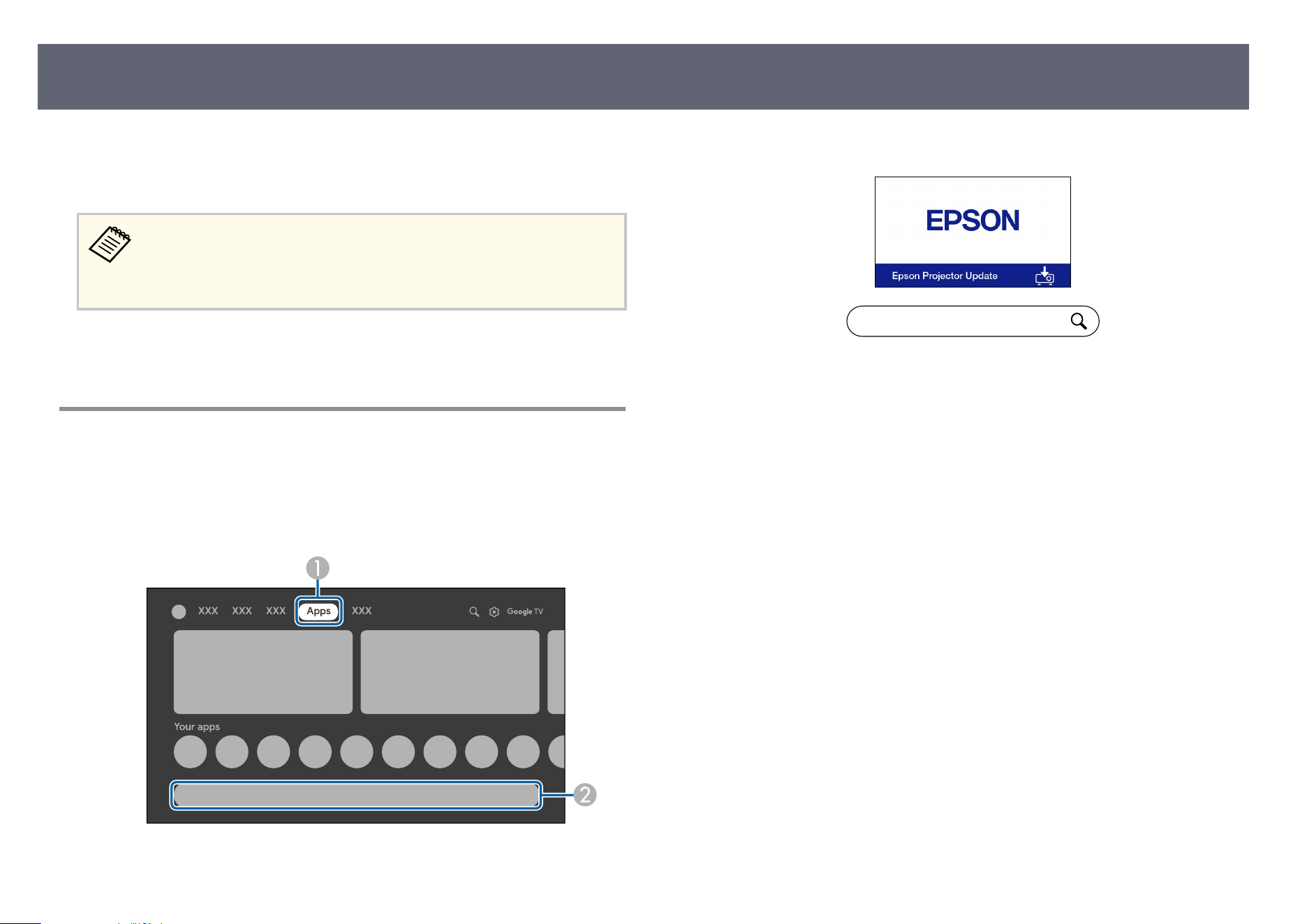
e Epson Projector Update app allows you to check the projector rmware and
u
pdate it to the latest version. is is necessary to keep the projector up to date.
Install the app, launch the app, and check for the latest rmware.
e Epson Projector Update app is automatically installed by the
p
rojector's initial setting wizard. To install it automatically, make sure you
log in with your Google Account, make the necessary Wi-Fi settings, and
connect the projector to the Internet.
g
Related Links
•
"I
nstalling Epson Projector Update" p.34
Installing Epson Projector Update
Follow the steps below to manually install the Epson Projector Update app.
a
Select the A
pps icon at the top of the home screen and select the search
e
ld.
b
Search for "Epson Projector Update" to install it on the projector.
Epson Projector Update
c
Start the Epson Projector Update app and co
nr
m the latest projector
rmware is installed on the projector.
g
Related Links
•
"Updating Projector Firmware Using Epson Projector Update" p.62
About Epson Projector Update
34

Using Basic Projector Features
Fo
llow the instructions in these sections to use your projector's basic features.
g
Related Links
•
"Turning On the Projector" p.36
•
"Turning O the Projector (Suspended Mode)" p.38
•
"Projection Modes" p.39
•
"Adjusting the Image Height" p.40
•
"Focusing the Image Using the Focus Lever" p.41
•
"Correcting Distortion in the Image" p.42
•
"Adjusting Image Color" p.45
•
"Adjusting the Light Source Brightness Based on the Brightness of Your Surroundings" p.46
•
"Adjusting the Light Source Brightness Manually" p.47
•
"Adjusting the Size and Position of the Image" p.48
•
"Selecting an Image Source" p.49
•
"Image Aspect Ratio" p.50
•
"Adjusting Image Quality (Color Mode)" p.51
•
"Adjusting Image Quality in Detail" p.52
•
"Turning On Automatic Luminance Adjustment" p.53
•
"Controlling the Volume with the Volume Buttons" p.54
•
"Changing the Sound Mode" p.55
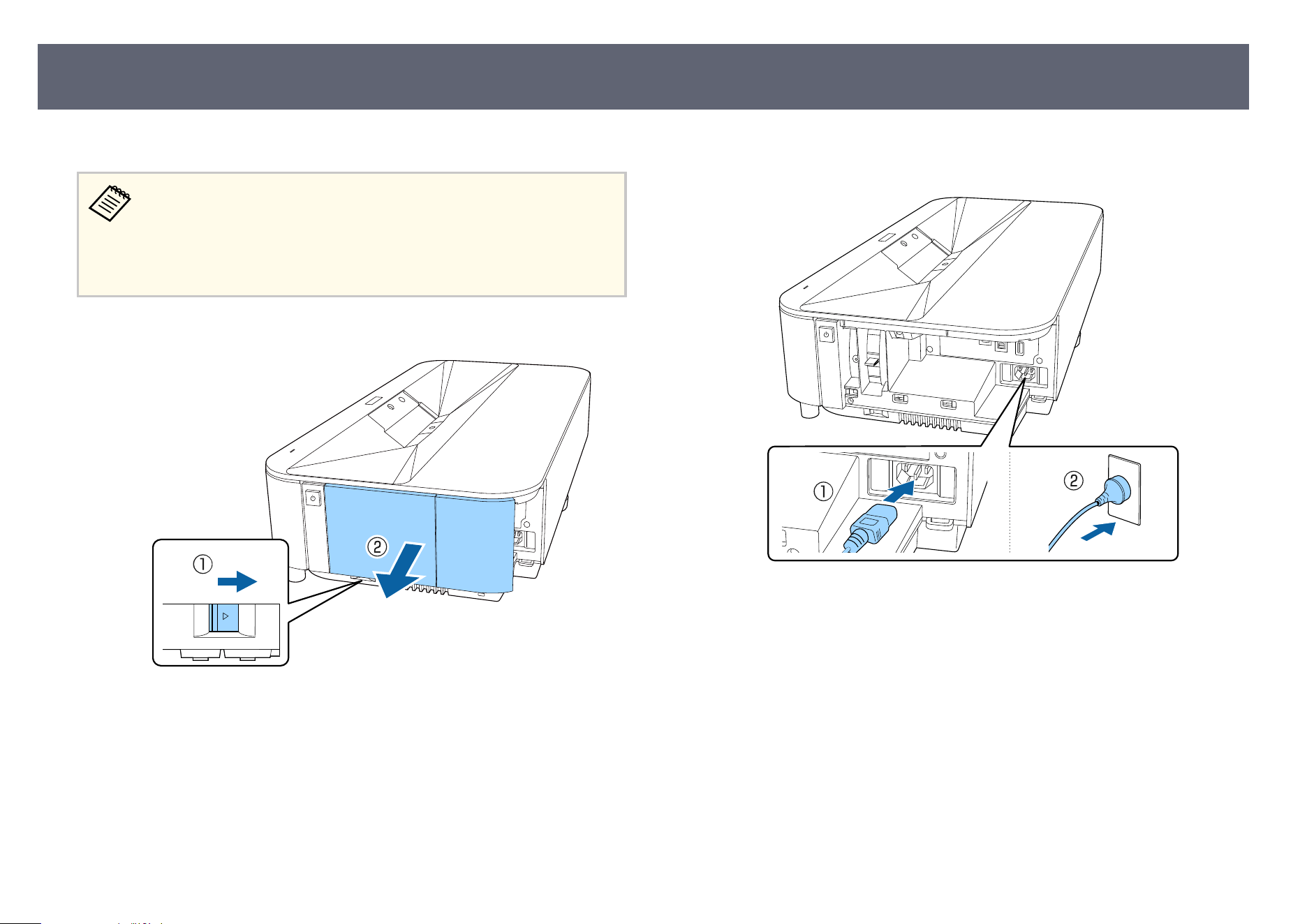
Turn on the projector before use.
•
Wh
en you connect the video equipment to the projector, turn on the
video equipment you want to use aer you turn on the projector.
•
When suspending the projector from a ceiling, we recommend placing
it on a at surface such as a desk, turning it on, and then setting up the
projector's OS before suspending it from the ceiling.
a
Remove the side cover.
b
Connect the power cord to the projector's power inlet and plug it into an
ele
ctrical outlet.
For users in the U.S., Canada, and Latin America
Turning On the Projector
36
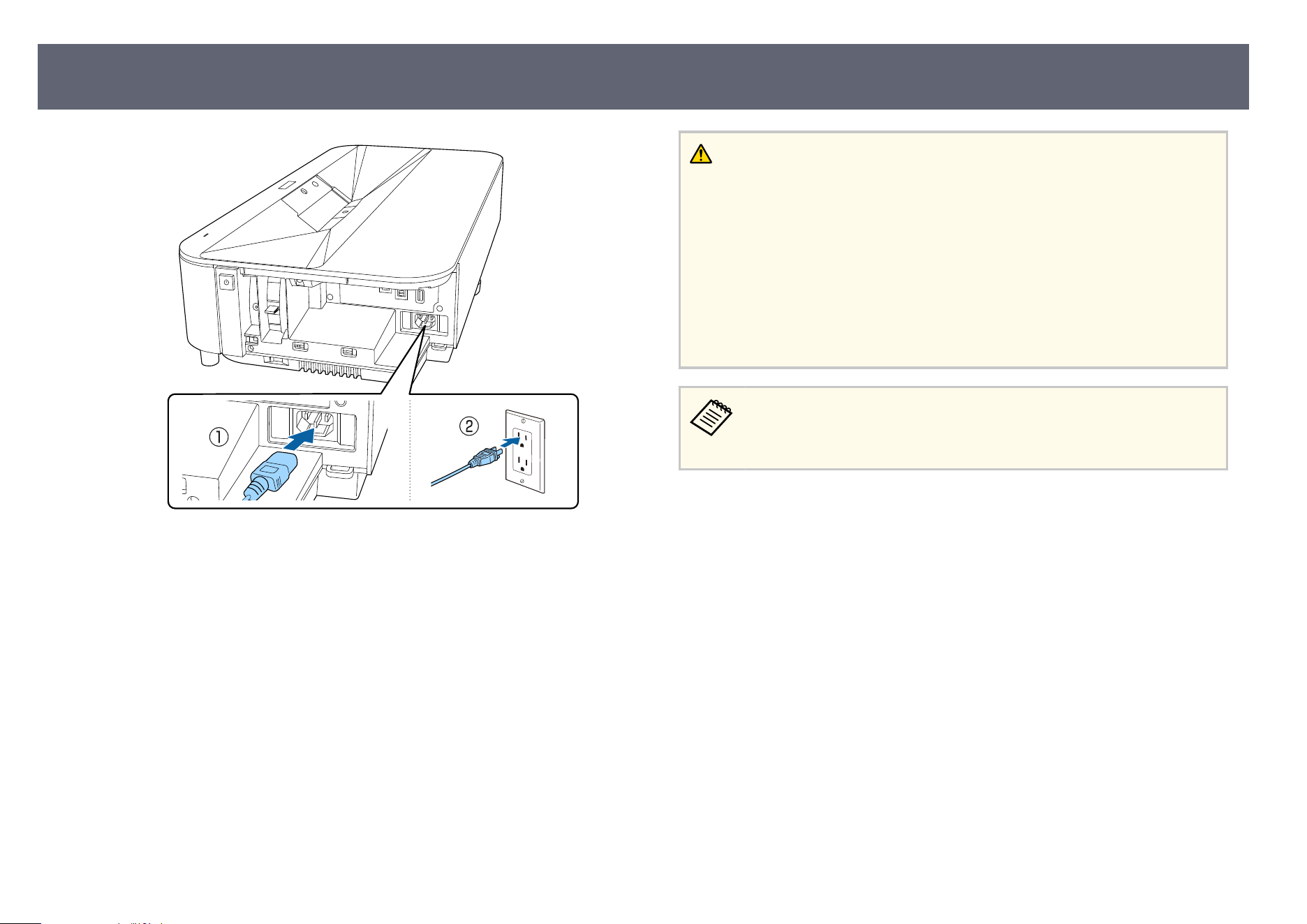
e projector enters standby mode. is indicates that the projector is
r
eceiving power, but is not yet turned on.
c
Press the power button on the projector or remote control to turn on the
pr
ojector.
e status indicator turns white.
e rst time you turn on the projector, the remote control pairing screen
and initial setup screen are displayed. Follow the on-screen instructions to
complete the settings.
Warning
•
Ne
ver look into the projector lens when the light source is on. is can damage
your eyes and is especially dangerous for children.
•
When turning on the projector at a distance using the remote control, make sure
there is no one looking into the lens.
•
During projection, do not block the light from the projector with a book or other
objects. If the light from the projector is blocked, the area on which the light
shines becomes hot which could cause it to melt, burn, or start a re. Also, the
lens may get hot due to the reected light which could cause the projector to
malfunction. To stop projection, turn o the projector.
When using at an altitude of 1,500 m (4,921 feet) or more, set Hig
h
Altitude Mode to On.
s Projector > Advanced Settings > High Altitude Mode
g
Related Links
•
"S
etting Up the Projector OS" p.32
•
"Projector Feature Settings - Projector Menu" p.67
Turning On the Projector
37
Turn o the projector aer use.
Turn o this product when it is not in use to prolong the life of
t
he projector. Light source life varies depending on the environmental
conditions and usage. Brightness decreases over time.
a
Press the power button on the projector or remote control.
e ligh
t source turns o, and the status indicator turns o. e projector
enters suspended mode.
b
To transport or store the projector, make sure the status indicator on the
pr
ojector is o, and then unplug the power cord.
g
Related Links
•
"Turning O the Projector (Deep Standby Mode)" p.38
Turning O the Projector (Deep Standby Mode)
To reduce power consumption when the projector is not in use, turn o
the
projector completely using the remote control.
•
In de
ep standby mode, the projector consumes less power than in
suspended mode.
•
It takes longer for the projector to start up the next time you turn it on
than when it is in suspended mode.
a
Hold down the power button on the remote control.
b
Select O
K on the shutdown conrmation screen.
e
light source turns o, and the status indicator turns o. e projector
enters deep standby mode, reducing power consumption.
c
To transport or store the projector, make sure the status indicator on the
p
r
ojector is o, and then unplug the power cord.
Turning O the Projector (Suspended Mode)
38
Depending on how you positioned the projector, you may need to change the
pr
ojection mode so your images project correctly.
•
Front lets you project from a table in front of the screen.
•
Front/Ceiling ips the image over top-to-bottom to project upside-down
from a ceiling mount.
•
Rear ips the image horizontally to project from behind a translucent screen.
•
Rear/Ceiling ips the image over top-to-bottom and horizontally to project
from a ceiling mount and behind a translucent screen.
g
Related Links
•
"Changing the Projection Mode Using the Menus" p.39
•
"Projector Setup and Installation Options" p.20
Changing the Projection Mode Using the Menus
You can change the projection mode to ip the image over top-to-bottom
and/or le-to-right using the projector menus.
a
Turn on the projector and display an image.
b
Press the
button on the remote control to open the Pr
ojector menu.
c
Select the menus in the following order:
s Advanc
ed Settings > Projection
d
Select a projection mode and press [Enter].
e
Press
to exit the menus.
Projection Modes
39
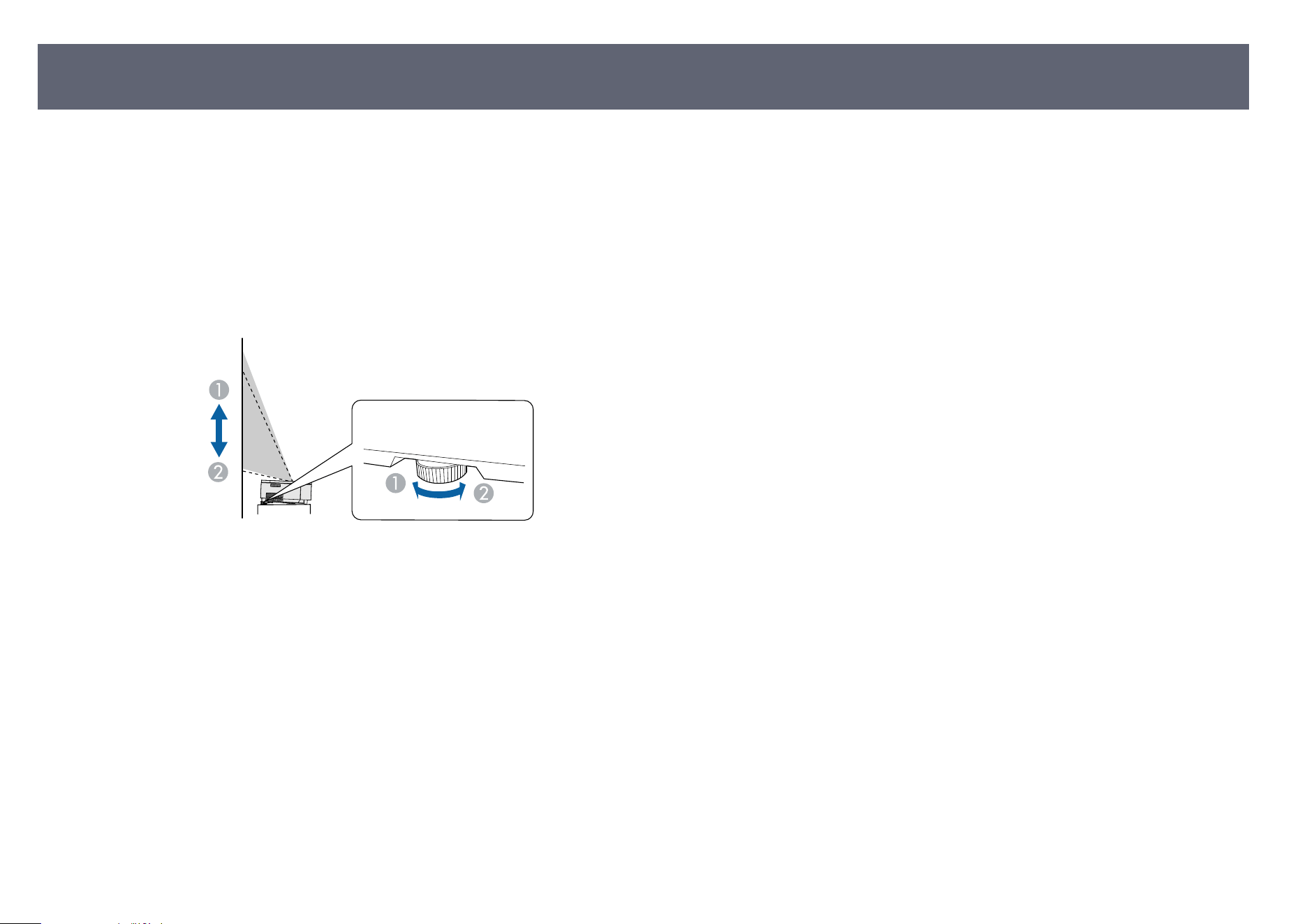
If you are projecting from a table or other at sur
face and the image is too high
or low, you can adjust the image height using the projector's adjustable feet.
e larger the angle of tilt, the harder it becomes to focus. Locate the projector
so that it only needs to be tilted at a small angle.
a
Turn on the projector and display an image.
b
Rotate the rear feet to adjust the image height.
A
Extend the rear foot
B
Retract the rear foot
If the projected image is unevenly rectangular, you need to adjust the image
sh
ape.
g
Related Links
•
"Correcting Distortion in the Image" p.42
Adjusting the Image Height
40
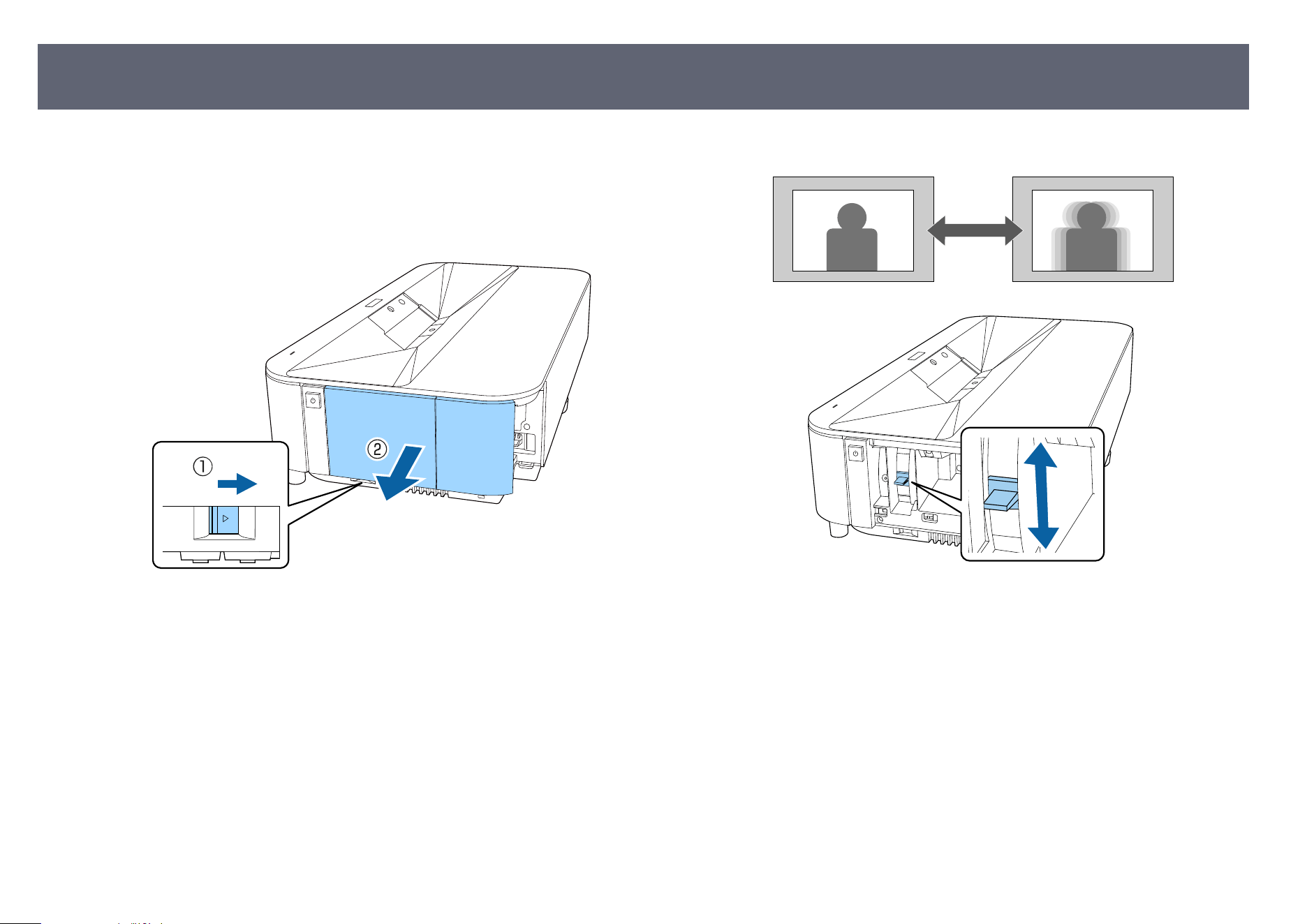
You can correct the focus using the focus lever.
a
Turn on the projector and display an image.
b
Remove the side cover.
c
Move the focus lever to adjust the focus.
d
Replace the side cover.
Focusing the Image Using the Focus Lever
41
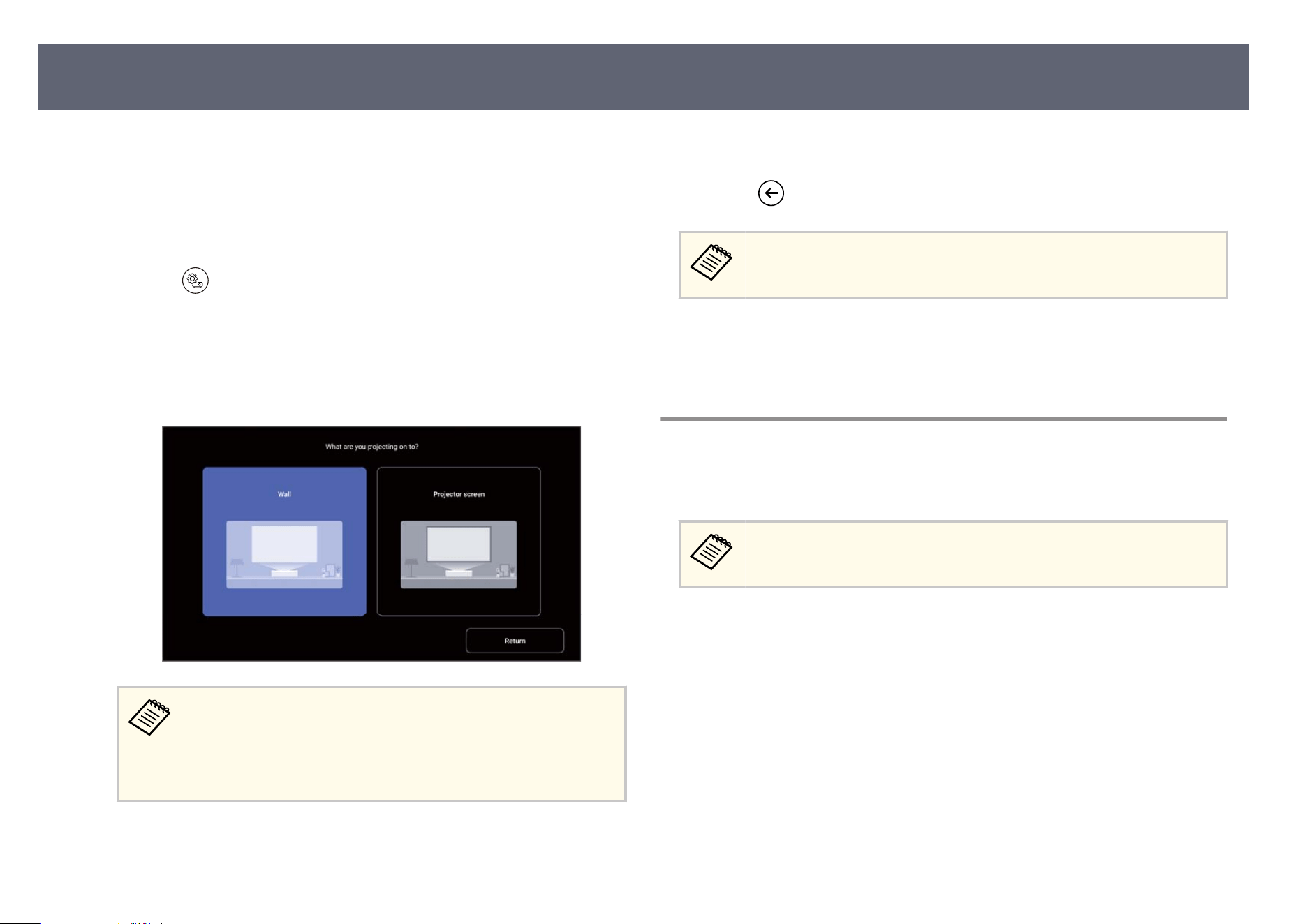
When the projected image is curved or not rectangular, you can correct
dis
tortion in the projected image by following the on-screen instructions.
Aer correction, your image is slightly smaller.
a
Turn on the projector and display an image.
b
Press the
button on the remote control to open the Pr
ojector menu.
c
Select Keystone.
d
S
elect Remote control.
e
following screen is displayed.
To correct distortion more easily, you can use the Epson Setting
As
sistant app on a smartphone or tablet that has a camera function.
Select App and scan the QR code displayed on the projected
screen to install the app. e customer is responsible for any
communication charges incurred when downloading the app.
e
Select Wall or Projector screen according to the projection surface you
ar
e using.
f
Follow the on-screen instructions to correct distortion in the image.
g
Press
to exit the menus.
For details on the options for correcting distortion, see the following
se
ctions.
g
Related Links
•
"When Projecting on a Wall" p.42
•
"When Projecting on a Screen" p.43
When Projecting on a Wall
When you are projecting images on a wall, select Wal
l and follow the steps
below.
When selecting the correction method, if the message Res
et all distortion
corrections for the projected image? is displayed, select Yes.
Correcting Distortion in the Image
42
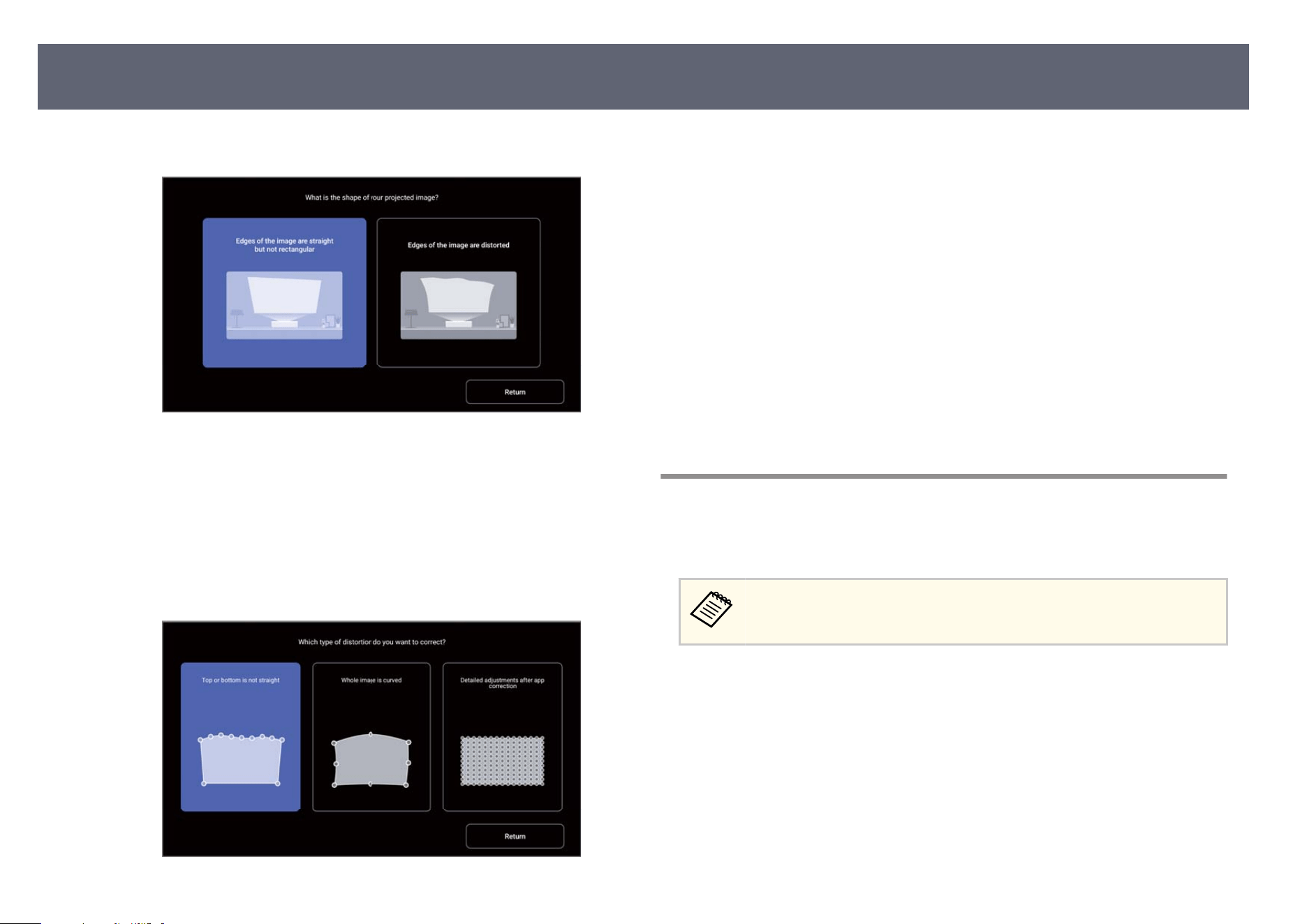
a
Select the shape of the projected image from the screen.
•
Edges o
f the image are straight but not rectangular:
e four-point correction screen is displayed. Select the points you
want to correct and correct the distortion.
•
Edges of the image are distorted:
Go to step 2 to select how the projected image is distorted.
b
Select which part of the projected image is distorted on the screen.
•
To
p or bottom is not straight:
e eleven-point correction screen (top line with nine points, bottom
line with two points) is displayed. Select the points you want to correct
and correct the distortion.
•
Whole image is curved:
e eight-point correction screen is displayed. Select the points you
want to correct and correct the distortion.
•
Detailed adjustments aer app correction:
e point correction screen (33 × 33 points vertically and horizontally)
is displayed. Select the points you want to correct and correct the
distortion.
c
When you ni
s
h correcting the distortion, select Finish.
When Projecting on a Screen
When you are projecting images on the projector screen, select Pr
ojector screen
and follow the steps below.
When selecting the correction method, if the message Res
et all distortion
corrections for the projected image? is displayed, select Yes.
Correcting Distortion in the Image
43
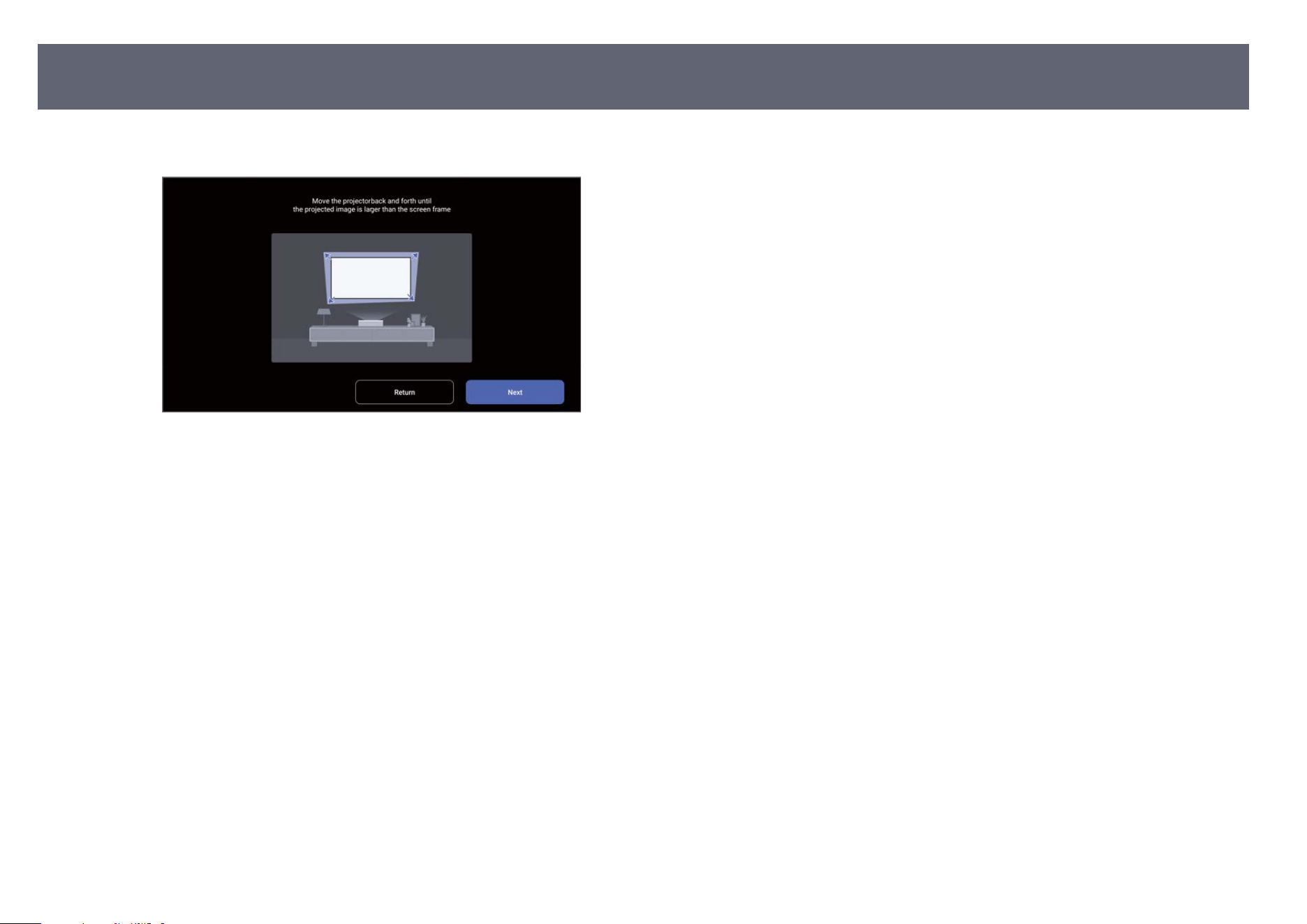
a
Move the projector following the on-screen instructions.
b
Select N
ext.
e
four-point correction screen is displayed.
c
Select the points you want to correct and correct the distortion.
d
If necessary, correct the distortion using the eight-point correction screen
t
h
at is displayed when you select Corner Adjustment on the screen.
e
When you nis
h correcting the distortion, select Finish.
Correcting Distortion in the Image
44
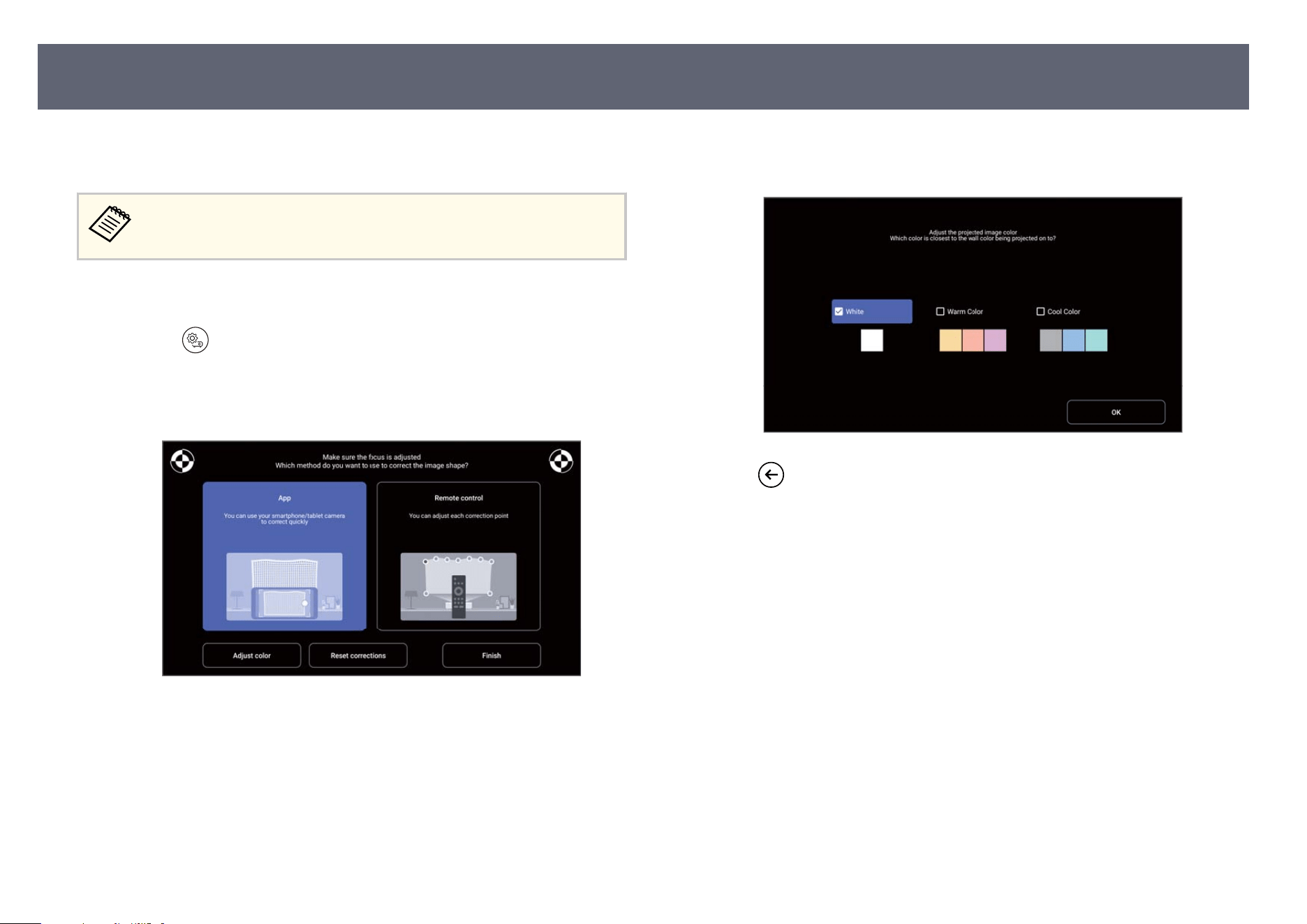
You can use the preset color correction to adjust the color of the projected image
so t
hat it matches the color of the projection surface (wall or projector screen).
You can make further detailed color adjustments using the projector's
Disp
lay & Sound menu.
a
Turn on the projector and display an image.
b
Press the button on the remote control to open the Pr
ojector menu.
c
Select Keystone.
e
following screen is displayed.
d
Select Adjust color.
e
S
elect the color that is closest to the color of the projection surface and
select OK.
f
Press to exit the menus.
g
Related Links
•
"I
mage Quality Settings - Display & Sound Menu" p.68
Adjusting Image Color
45
You can turn on Ad
aptive Light Output to automatically adjust the brightness
of your projector's light source based on the brightness of the surroundings.
•
Yo
u can also adjust the brightness of your projector's light source
manually by using the remote control. Manually set values take priority
over automatically set values.
•
is setting is not an absolute value as it varies relative to the manually
set value.
•
is function may not work properly if you use the projector in
conditions with bright uorescent lights or in direct sunlight.
a
Turn on the projector and display an image.
b
Press the button on the remote control to open the dashboard.
c
Select
on the dashboard.
d
Select the menus in the following order:
s Disp
lay & Sound > Display > Advanced Settings
e
Select the Adaptive Light Output menu and press [Enter] to enable the
s
etting.
f
Press
to exit the menus.
g
Related Links
•
"I
mage Quality Settings - Display & Sound Menu" p.68
Adjusting the Light Source Brightness Based on the Brightness of Your Surroundings
46
You can adjust the brightness of your projector's light source.
is function is not available under the following conditions.
•
W
hen the light source brightness dims if the surrounding temperature
gets too high
•
When a problem has occurred
a
Turn on the projector and display an image.
b
Press the up/down buttons on the remote control.
e Lig
ht Output adjustment gauge is displayed.
c
Press the
up/down buttons to adjust the brightness.
d
Press to exit the menus.
Adjusting the Light Source Brightness Manually
47
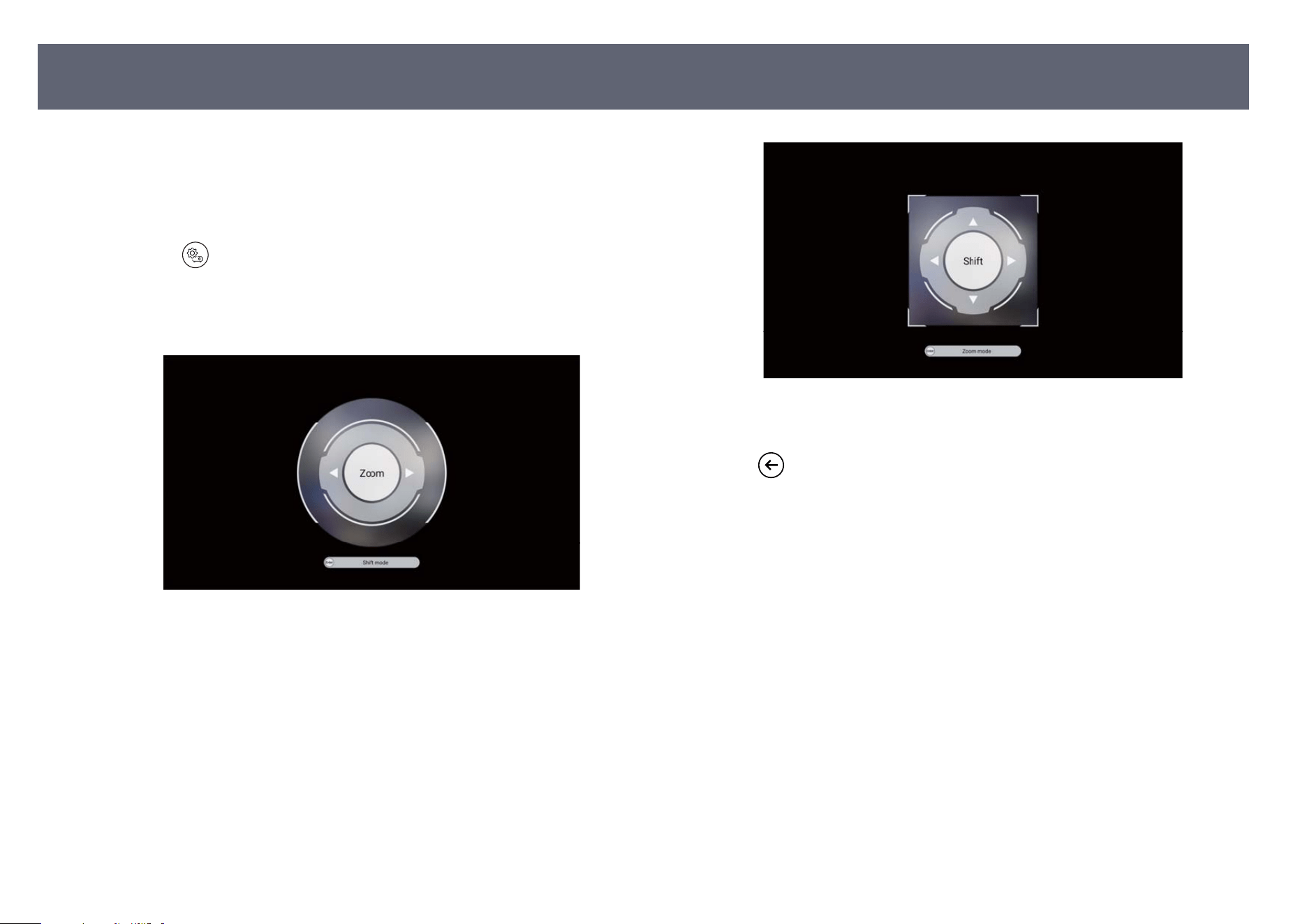
You can use the Zo
om & Shi feature to adjust the size and position of the
projected image.
a
Turn on the projector and display an image.
b
Press the
button on the remote control to open the Pr
ojector menu.
c
Select Zoom & Shi.
e
zoom adjustment screen is displayed.
d
Use the le and r
ight arrow buttons to adjust the image size.
e
Press the [Enter] button.
e scr
een switches to Shi mode and the shi adjustment screen is
displayed.
f
Use the arrow buttons to adjust the image position.
g
Press to exit the menus.
g
Related Links
•
"P
rojector Feature Settings - Projector Menu" p.67
Adjusting the Size and Position of the Image
48
When multiple image sources are connected to the projector, such as a
com
puter and DVD player, you can switch from one image source to the other.
a
Make sure the connected image source you want to use is turned on.
b
For video image sources, insert a DVD or other video media and press
p
l
ay.
c
Press the
button on the remote control.
d
Press the up or down arrow button to select the image source you want.
When no image signal is detected, check the cable connections
b
et
ween the projector and the image source.
Selecting an Image Source
49
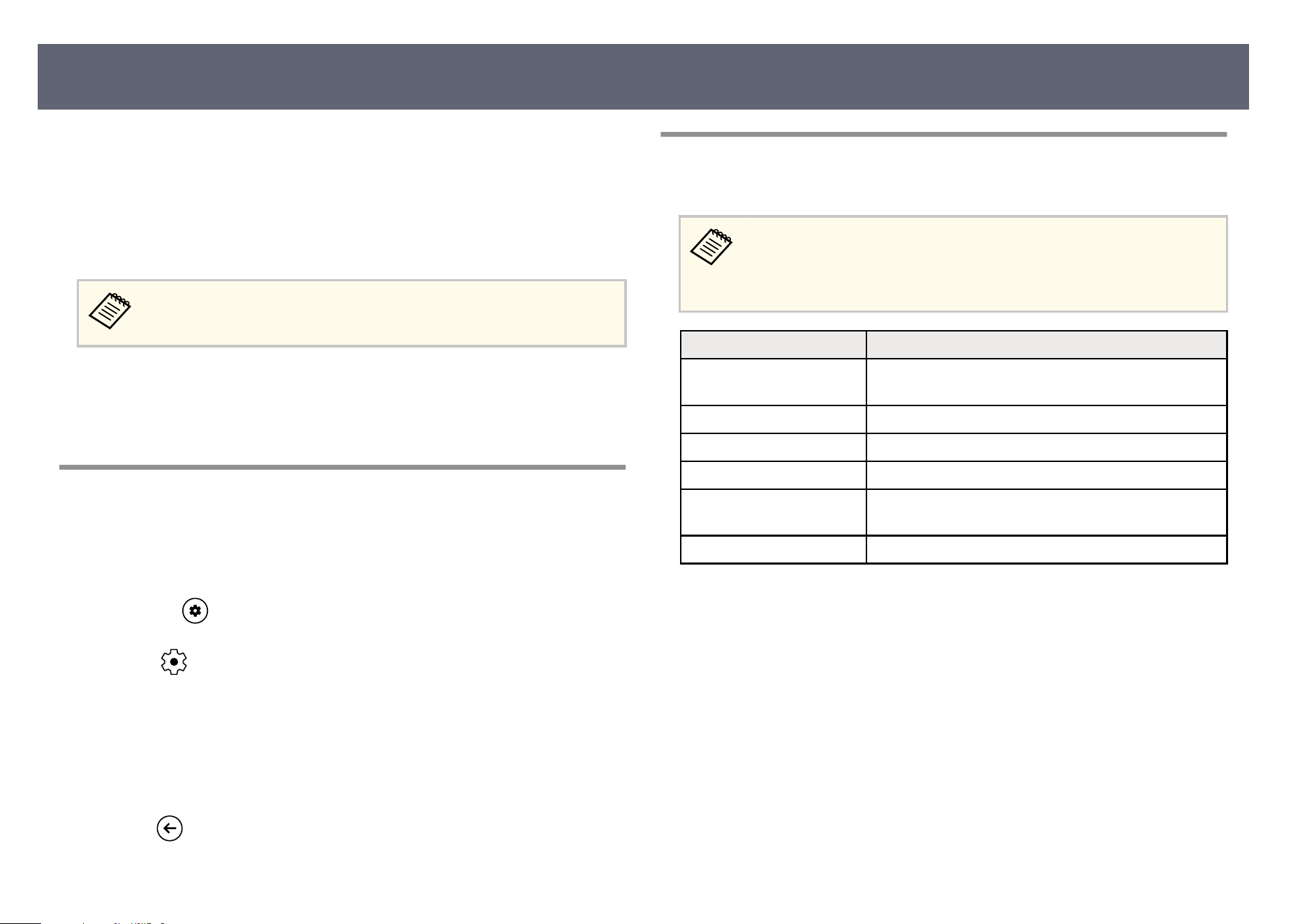
e projector can display images in dierent width-to-height ratios called
as
pect ratios. Normally, the input signal from your video source determines
the image's aspect ratio. However, you can change the aspect ratio for certain
images to t your screen.
If you always want to use a particular aspect ratio for a certain video input
source, you can select it using the projector's Screen menu.
You can select this setting only when the current input source is HDMI.
g
Related Links
•
"C
hanging the Image Aspect Ratio" p.50
•
"Available Image Aspect Ratios" p.50
Changing the Image Aspect Ratio
You can change the aspect ratio of the displayed image.
a
Turn on the projector and display an image.
b
Press the button on the remote control to open the dashboard.
c
Select
on the dashboard.
d
Select the menus in the following order:
s Disp
lay & Sound > Screen
e
Select one of the available aspect ratios for your input signal.
f
Press
to exit the menus.
Available Image Aspect Ratios
You can select the following image aspect ratios.
Note that using the aspect ratio function of the projector to reduce,
enl
arge, or split the projected image for commercial purposes or for public
viewing may infringe upon the rights of the copyright holder of that image
based on copyright law.
Aspect mode Description
Super zoom Zooms into images. e rig
ht, le, top, and bottom
edges are missing.
4:3 Scales images to 4:3.
Movie expand 14:9 Scales images to 14:9.
Movie expand 16:9 Scales images to 16:9.
Full Displays images using the full size of the projection
ar
e
a.
Unscaled Displays images as they are.
Image Aspect Ratio
50
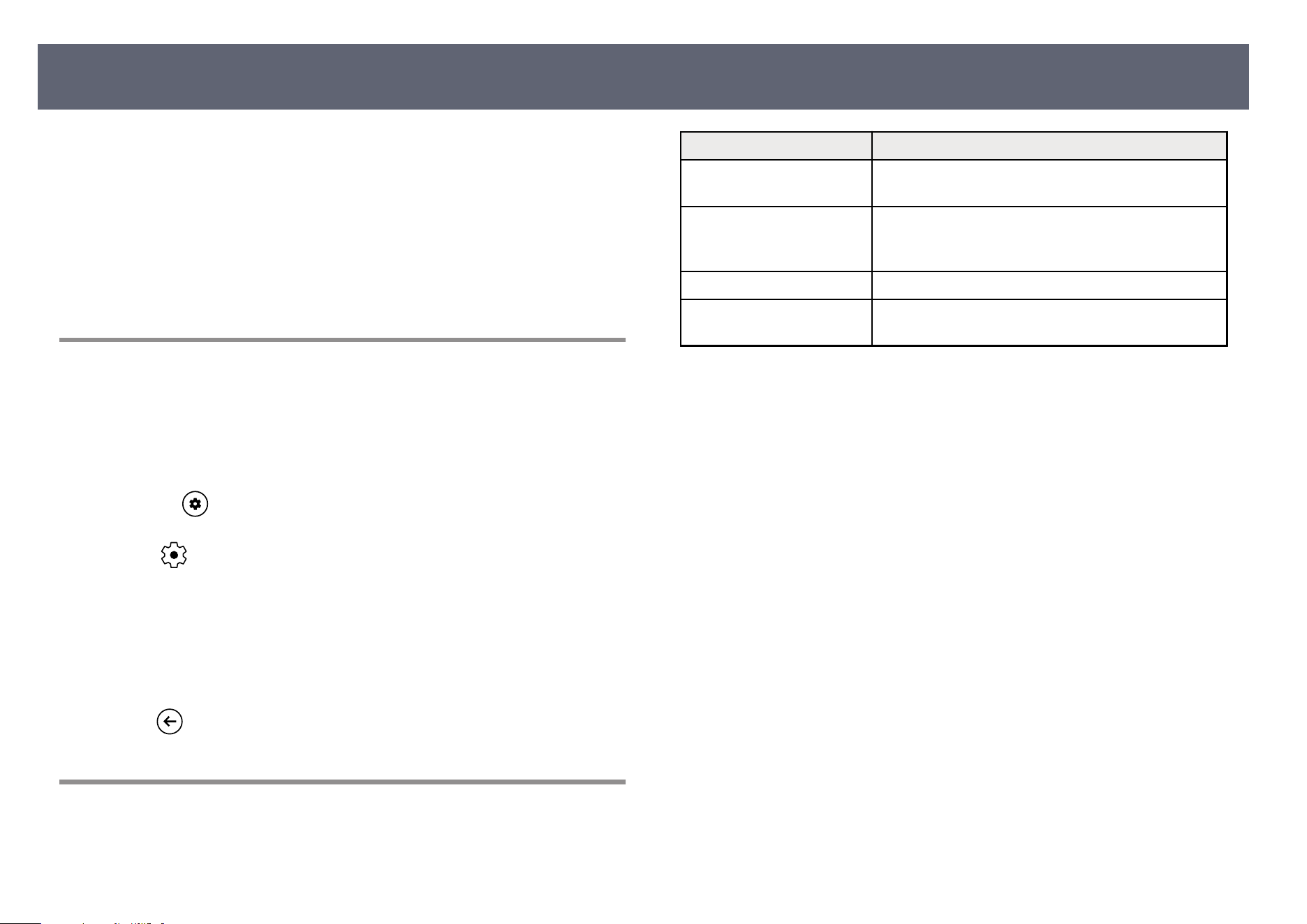
e projector oers dierent color modes to provide optimum brightness,
co
ntrast, and color for a variety of viewing environments and image types.
You can select the mode designed to match your image and environment, or
experiment with the available modes.
g
Related Links
•
"Changing the Color Mode" p.51
•
"Available Color Modes" p.51
Changing the Color Mode
You can change the projector's color mode to optimize the image for your
viewing environment.
a
Turn on the projector and display an image.
b
Press the button on the remote control to open the dashboard.
c
Select
on the dashboard.
d
Select the menus in the following order:
s Disp
lay & Sound > Display > Picture Mode
e
Select the color mode you want to use from the list.
f
Press
to exit the menus.
A
v
ailable Color Modes
You can set the projector to use these color modes, depending on your
environment and image types.
Color mode Description
Dynamic is is the brightest mode. Best for prioritizing
b
rightness.
Standard is is a standard mode that balances brightness
an
d color saturation. Standard mode is generally
recommended.
Cinema Best for enjoying content such as movies.
Natural Reproduces natural colors. is
is the best option when
you want to adjust the image color.
Adjusting Image Quality (Color Mode)
51

e projector's Display menu provides several options for adjusting the quality
o
f your image based on the input source you are currently using. You can ne-
tune various aspects of how quality and colors are displayed in your projected
images.
s Display & Sound > Display
See "Display & Sound Menu" for details on adjusting the image quality.
g
Related Links
•
"Image Quality Settings - Display & Sound Menu" p.68
Adjusting Image Quality in Detail
52

You can turn on Dy
namic Contrast to automatically optimize the image
luminance. is improves the image contrast based on the brightness of the
content you project.
a
Turn on the projector and display an image.
b
Press the
button on the remote control to open the dashboard.
c
Select on the dashboard.
d
Select the menus in the following order:
s Dis
p
lay & Sound > Display > Advanced Settings > Dynamic
Contrast
e
Select one of the following options:
•
O if yo
u do not want to adjust the brightness.
•
Normal for standard brightness adjustment.
•
High Speed to adjust brightness as soon as the scene changes.
f
Press
to exit the menus.
g
Related Links
•
"I
mage Quality Settings - Display & Sound Menu" p.68
Turning On Automatic Luminance Adjustment
53
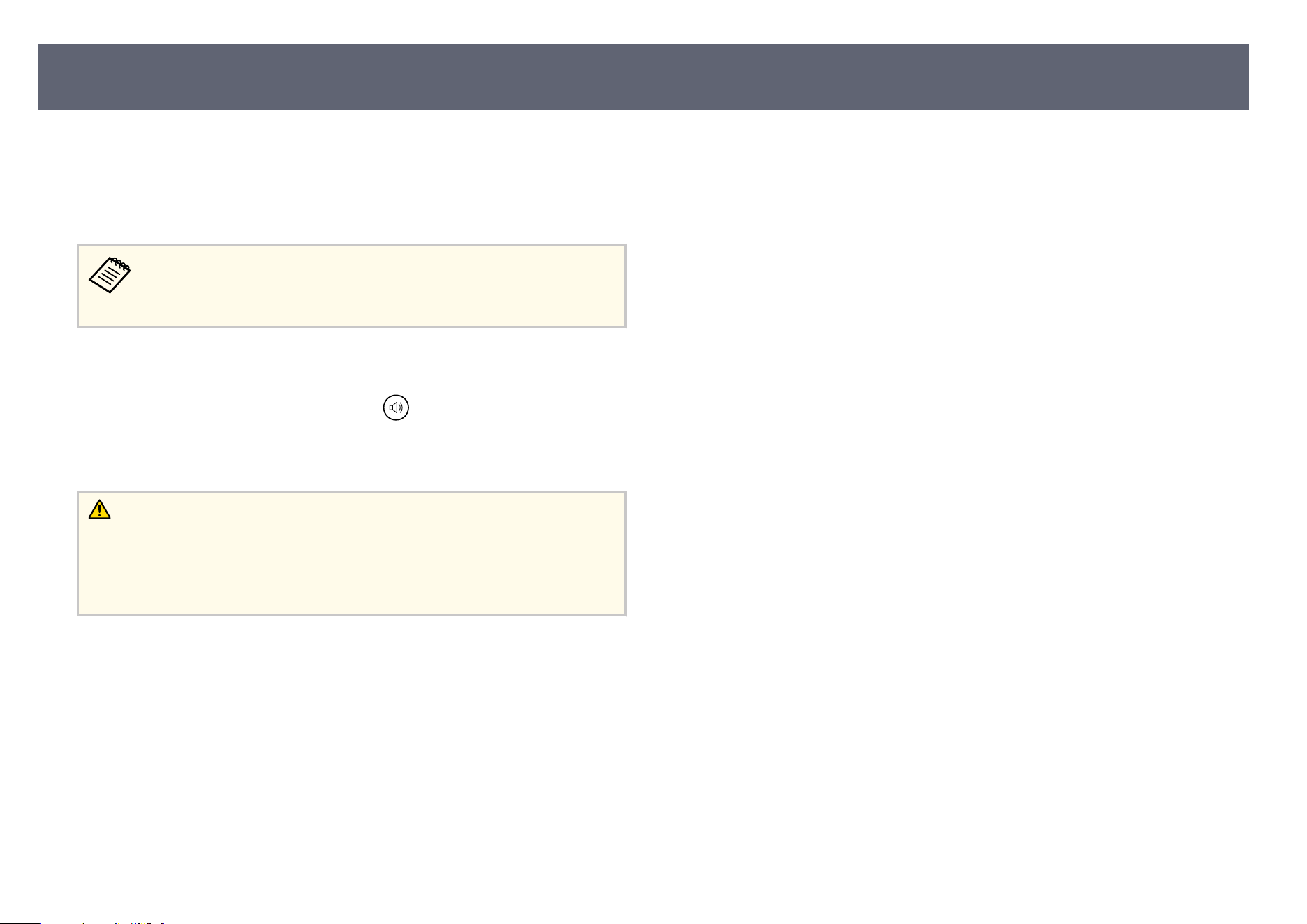
e volume buttons control the projector's internal speaker system.
Y
ou can also control the volume of any external speakers you connected to the
projector.
You must adjust the volume separately for each connected input source.
To adjust the volume for the connected audio/video system, set the Gl
obal
CEC control setting to On in the projector's menu.
s Channels & Inputs > Inputs > Global CEC control
a
Turn on the projector and start a video.
b
To lower or raise the volume, press the up/down buttons on the
r
em
ote control.
A volume gauge appears on the screen.
Caution
Do n
ot start a playback at a high volume setting. Sudden loud noises may cause
hearing loss.
Always lower the volume before powering o, so that you can power on and then
gradually increase the volume.
g
Relat
ed Links
•
"P
rojector Feature Settings - Channels & Inputs Menu" p.66
Controlling the Volume with the Volume Buttons
54
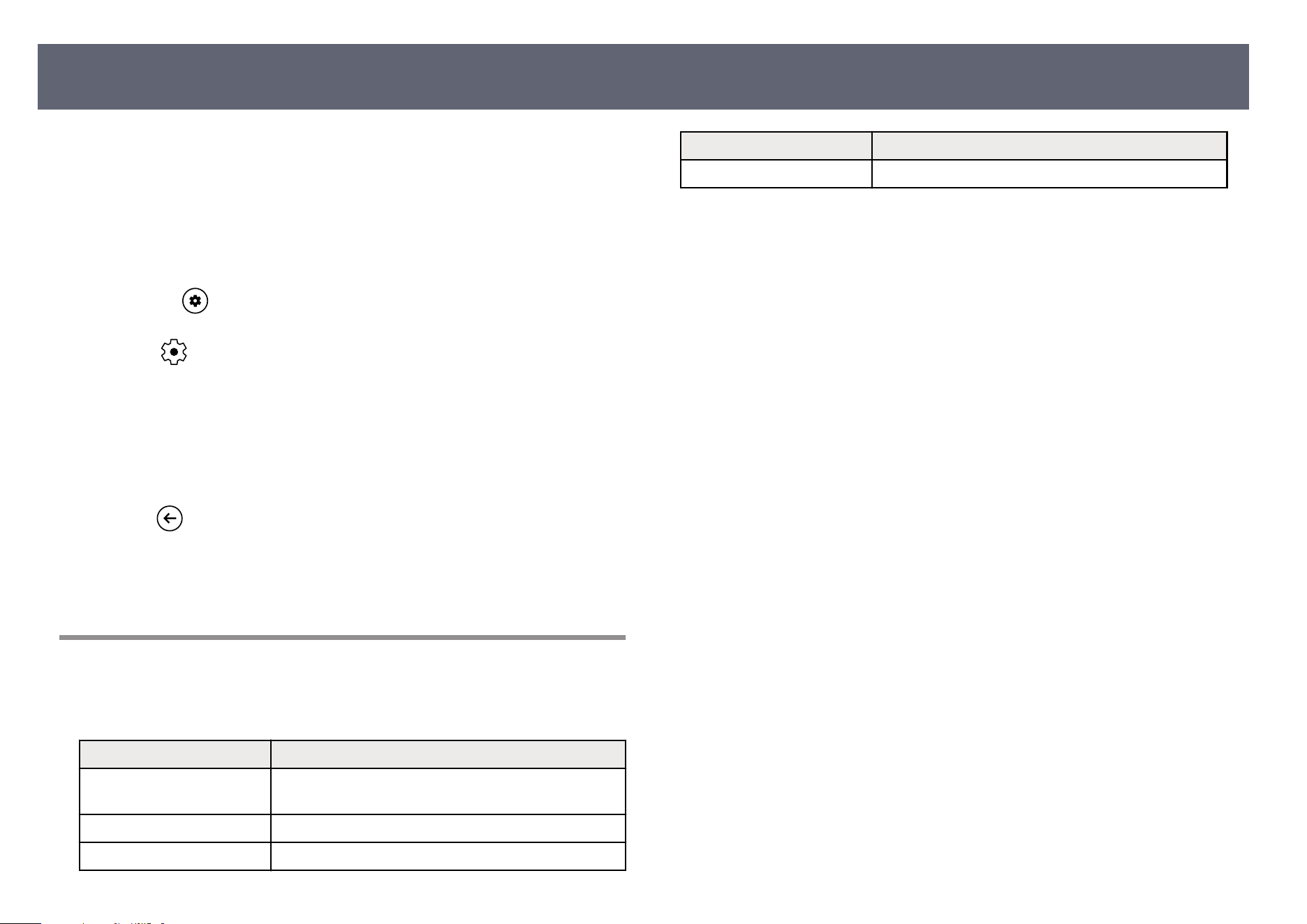
e projector oers dierent sound modes to provide optimum sound for a
var
iety of image types.
You can select the mode designed to match your image, or experiment with the
available modes.
a
Turn on the projector and start a video.
b
Press the
button on the remote control to open the dashboard.
c
Select on the dashboard.
d
Select the menus in the following order:
s Dis
p
lay & Sound > Sound > Sound Mode
e
Select your sound mode.
f
Press
to exit the menus.
g
Related Links
•
"A
vailable Sound Modes" p.55
Available Sound Modes
You can set the projector to use these sound modes, depending on the input
so
urce you are using:
Sound mode Description
Cinema Best for audio from videos or movies. Low and high
p
i
tch sounds are emphasized.
Dialogue Best for hearing voices and spoken lines.
Music Best for music. Low and high pitch sounds are clearer.
Sound mode Description
Standard Outputs the audio using normal sound quality.
Changing the Sound Mode
55

Adjusting Projector Features
Fo
llow the instructions in these sections to use your projector's adjustment features.
g
Related Links
•
"Using the Projector as a Bluetooth
®
Speaker" p.57
•
"Shutting O the Image Temporarily" p.58
•
"Using Google Cast
™
" p.59
•
"HDMI CEC Features" p.60
•
"Installing a Security Cable" p.61
•
"Updating Projector Firmware Using Epson Projector Update" p.62
•
"Initializing the Projector" p.63
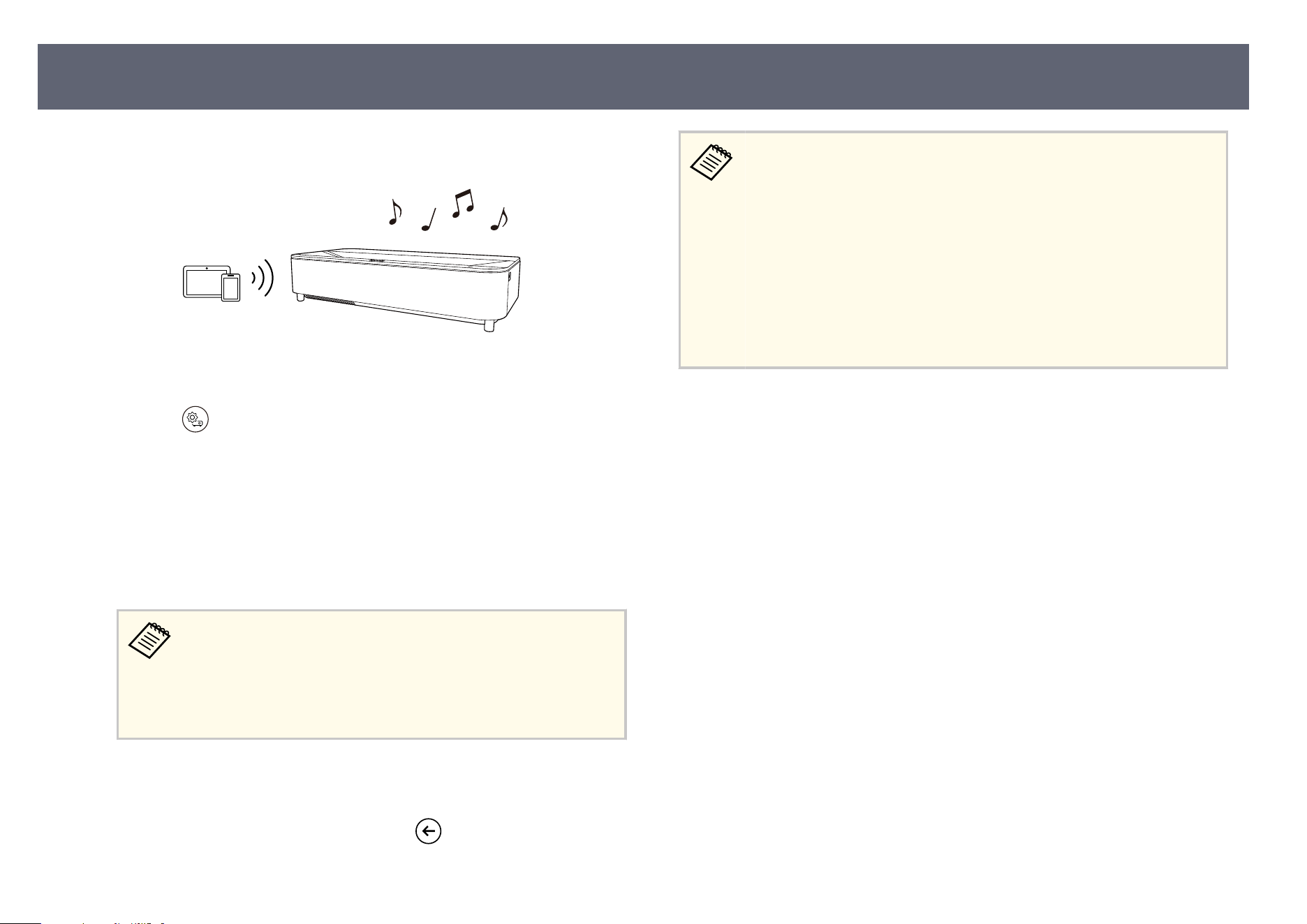
You can use the projector's speaker to output audio from a video/audio device
conn
ected by Bluetooth.
a
Turn on the projector and display an image.
b
Press the
button on the remote control to open the Pr
ojector menu.
c
Select Bluetooth Speaker Mode.
e
Bluetooth Speaker Mode screen is displayed.
d
Enable the Bluetooth function on the device you want to connect and
se
lect the projector name (this projector) from the available device list. See
the documentation supplied with the device for more information.
•
Yo
u can check and change the projector name from the
projector's Device name menu.
s System > About > Device name
•
To cancel a Bluetooth connection, disconnect from the
connected device.
e projected image turns o 10 seconds aer the Bluetooth connection is
es
tablished.
e
To exit Bluetooth Speaker Mode, press the
button.
•
ere
is a delay in the audio output from any Bluetooth audio device.
•
You cannot connect multiple video/audio devices by Bluetooth at the
same time.
•
You can also connect the projector to Bluetooth audio devices, such
as speakers or headphones, to output the projector's audio from these
devices. Select the menus in the following order to perform pairing
from the menu displayed.
s Remotes & Accessories > Pair Accessory
•
Bluetooth audio devices are not supported in some countries and
regions.
g
Related Links
•
"B
luetooth Specic ations" p.105
Using the Projector as a Bluetooth
®
Speak
er
57
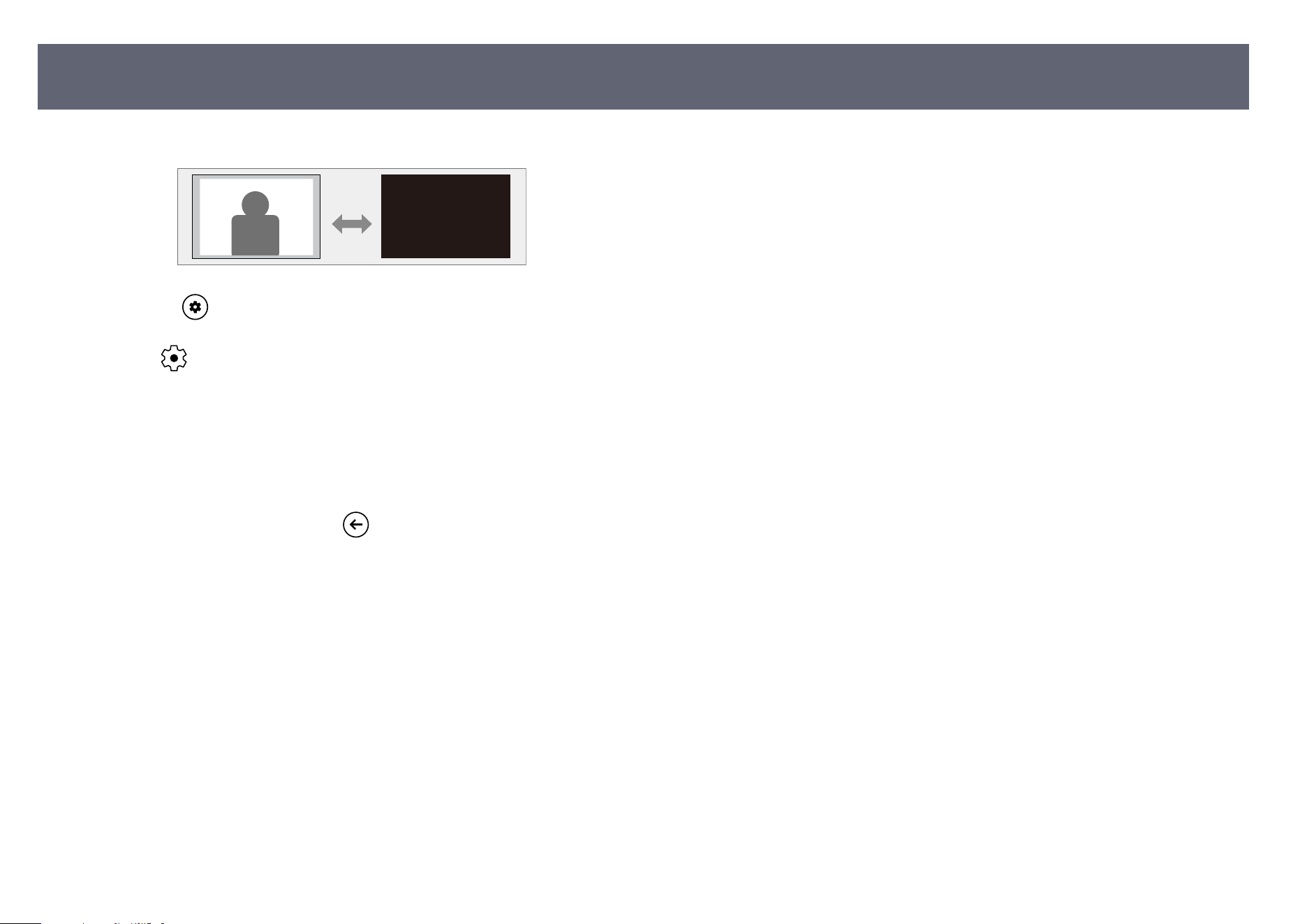
You can temporarily turn o
the projected image.
a
Press the
button on the remote control to open the dashboard.
b
Select on the dashboard.
c
Select the menus in the following order:
s Disp
lay & Sound > Display > Advanced Settings
d
Select Picture o to turn o the projected image.
e
T
o turn the image back on, press
.
g
Related Links
•
"I
mage Quality Settings - Display & Sound Menu" p.68
Shutting O the Image Temporarily
58
With Google Cast, you can stream entertainment from your favorite apps on
yo
ur phone, tablet or laptop to Epson projectors.
a
Connect your device or computer to the same wireless network as the
pr
ojector.
b
Open the Google Cast-enabled app and press
.
c
Select your projector from the list of devices.
You can check and change the projector name from the projector's
D
e
vice name menu.
s System > About > Device name
e app connects and starts casting to the projector.
d
T
o stop casting, press
in the app and choose the disconnect option.
Using Google Cast
™
59
When an audio/video source that meets the HDMI CEC standard is connected
to t
he projector's HDMI port, you can use the projector's remote control to
control certain features of the linked device.
g
Related Links
•
"Operating Connected Devices Using the HDMI CEC Features" p.60
Operating Connected Devices Using the HDMI CEC
Features
You can control connected audio/video devices using the HDMI CEC features.
•
Yo
u must also congure the connected device. See the documentation
supplied with the device for more information.
•
Some connected devices or functions of those devices may not
operate properly even if they meet the HDMI CEC standard. See the
documentation supplied with the device for more information.
•
Use a cable that supports the HDMI standard.
a
Press the button on the remote control to open the dashboard.
b
Select
on the dashboard.
c
Select the menus in the following order:
s Channels & Inputs > Inputs > Global CEC control
d
Set Global CEC control to on.
e
A
djust the following HDMI CEC settings as necessary.
•
To au
tomatically turn o the connected device when you turn o the
projector, set Allow TV to turn o connected devices to on.
•
To automatically turn on the projector when you turn on the connected
device, set Allow connected devices to turn on TV to on.
f
Press
to exit the menus.
Yo
u can use the projector's remote control to control the linked device such as
playback, stop, or adjust the volume.
g
Related Links
•
"Projector Feature Settings - Channels & Inputs Menu" p.66
HDMI CEC Features
60
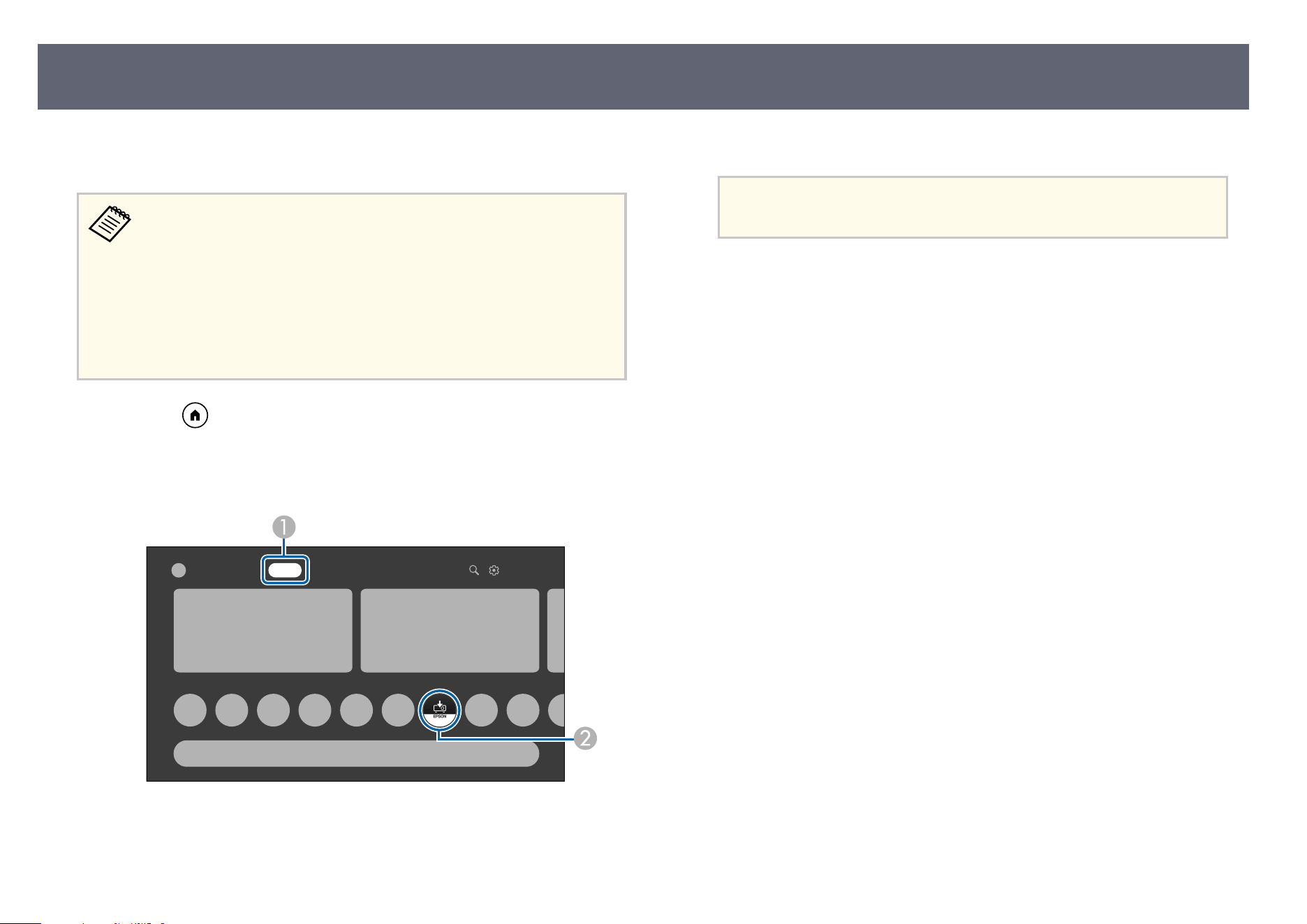
You can get the latest version of the projector rm
ware by using Epson Projector
Update.
•
If t
he Epson Projector Update app is not installed, install it from the
home screen. Be sure to install the app to keep the projector up to date.
•
When the latest projector rmware is available, a notication
is automatically displayed on the screen. Follow the on-screen
instructions to update the rmware.
•
If there is not enough space in the internal storage, the update may
fail. Free up space by deleting unnecessary apps and caches, then try
updating again.
a
Press the button on the remote control.
b
Select A
pps and start Epson Projector Update by selecting it from the
ap
ps list.
XXXX XXXX Apps XXXX Google TV
Your apps
c
Follow the on-screen instructions to update the rm
ware.
Attention
Whi
le updating the rmware, do not operate or turn o the projector.
g
Related Links
•
"I
nstalling Epson Projector Update" p.34
Updating Projector Firmware Using Epson Projector Update
62
You can reset all of the projector settings to their default values.
If you initialize the projector, all the information such as installed apps,
Go
ogle Account login information, and the projector's menu settings
are deleted. Write down the settings you do not want to lose before
performing initialization.
a
Turn on the projector and display an image.
b
Press the button on the remote control to open the dashboard.
c
Select
on the dashboard.
d
Select the menus in the following order:
s Sy
stem > About > Reset > Factory reset
e
Follow the on-screen instructions to start initializing the projector.
g
Related Links
•
"S
ystem Menu" p.71
Initializing the Projector
63

Adjusting the Menu Settings
Fo
llow the instructions in these sections to access the projector menu system and change projector settings.
g
Related Links
•
"Using the Projector's Menus" p.65
•
"Projector Feature Settings - Channels & Inputs Menu" p.66
•
"Projector Feature Settings - Projector Menu" p.67
•
"Image Quality Settings - Display & Sound Menu" p.68
•
"Other Menus" p.71
You can use the projector's menus to adjust the settings that control how your
pr
ojector works. e projector displays the menus on the screen.
a
Press the
button on the remote control to open the dashboard.
b
Select on the dashboard.
c
Press the up or down arrow buttons to move through the menus listed on
th
e screen.
d
To change settings in the displayed menu, press the [Enter] button.
e
Press the arrow buttons to move through the settings.
f
Change the settings using the buttons as necessary.
g
When you ni
s
h changing settings on a menu, press
.
h
Press to exit the menus.
Using the Projector's Menus
65
Settings on the Channe
ls & Inputs menu let you control the audio/video device
you are currently using.
Setting Options Description
Inputs Switch input Switches the input source between Ho
me
and HDMI.
HDMI1
HDMI2
HD
MI3
Show this input: Species whether to
show HDMI1/HDMI2/HDMI3 in the list
of input sources.
PIN lock: When enabling this setting, the
PIN code of the device that is connected
to the projector's HDMI port is required
when you switch the input source to
HDMI.
Edit names: Selects a name you want to
display as the name of the audio/video
device that is connected to the projector's
HDMI port.
No signal standby timeout: Sets the time
before the projector enters standby mode
when no signal is detected from the
HDMI source.
HDMI EDID Version: Displays the
EDID version.
Global CEC control Select On to control the connected audio/
v
ideo device using the projector's remote
control.
Allow TV to
tur
n o connected
devices
Select On to automatically turn o the
connected audio/video device when you
turn o the projector.
Allow connected
dev
ices to turn on
TV
Select On to automatically turn on
the projector when you turn on the
connected device, or when you start
playback on the connected device.
g
Related Links
•
"O
perating Connected Devices Using the HDMI CEC Features" p.60
Projector Feature Settings - Channels & Inputs Menu
66
Settings on the Pr
ojector menu provide correction methods to properly project
your image.
Setting Options Description
Keystone — Provides on-screen instructions for
cor
recting distortion in the projected
image.
You can select the correction method by
using the Epson Setting Assist app or by
using the remote control.
Zoom & Shi — R
esizes the projected image and adjusts
the image position.
Advanced Settings Smart Eye
Pr
otection
Select On to enable the Smart Eye
Protection function.
When the projector's sensor detects
obstacles that are interfering with the
projection area, the brightness of the
light source is automatically reduced to
minimize glare.
Projection Selects the way the projector faces the
scr
een so the image is oriented correctly.
Indicators Set to O to turn o the indicator lights
o
n the projector except when an error or
warning occurs.
High Altitude
Mo
de
Set to On to regulate the projector’s
operating temperature at altitudes above
1,500 m (4,921 feet).
Panel Alignment Corrects color misalignment in the
pr
ojected image.
Bluetooth Speaker
Mo
de
— Opens the Bluetooth device connection
screen to switch to Bluetooth Speaker
Mode.
g
Related Links
•
"C
orrecting Distortion in the Image" p.42
•
"Adjusting the Size and Position of the Image" p.48
•
"Adjusting the Color Convergence (Panel Alignment)" p.82
•
"Using the Projector as a Bluetooth
®
Speaker" p.57
Projector Feature Settings - Projector Menu
67
Settings on the Disp
lay & Sound menu let you adjust the quality of your image
and optimize the sound for the input source you are currently using.
Setting Options Description
Display Picture Mode Select your favorite color mode from the
lis
t.
Light Output Adjusts the brightness of the light source.
Yo
u cannot adjust the brightness if
the brightness of the light source dims
because the surrounding temperature is
too high or for other factors.
Brightness Lightens or darkens the overall image.
Contrast Adjusts the dieren
ce between light and
dark areas of the image.
Saturation Adjusts the overall vividness of the color.
Tint Adjusts the balance of green to magenta
to
nes in the image.
Sharpness Adjusts the sharpness or so
ness of the
image.
Advanced Settings See the table below for details.
Reset to Default Resets all adjustment values on the
Disp
lay menu to their default settings.
Screen See the list of
avail
able aspect
ratios.
Sets the aspect ratio (width-to-height
ratio) for the input source. (is setting
is available only when the current input
source is HDMI.)
Sound Sound Mode Select your favorite mode for sound
ou
tput from the projector's speaker
system according to the playback
contents.
Reset to Default Resets all adjustment values on the So
und
menu to their default settings.
Setting Options Description
Audio Output Digital Output Selects the sound output format when
yo
u output audio to an external audio
device.
Digital Output
De
lay
Adjusts the audio latency. If the audio is
fast, select a higher value.
Audio Output
De
vice
Select SPDIF to output audio only from
an audio/video system connected to the
projector's Optical Out port. No audio is
output from the projector's speakers.
Karaoke Karaoke Mode When Karaoke Mode is set to On,
audio f
rom the microphone and in
the projected content are simultaneously
output from the projector's speakers.
To use Karaoke Mode, use the optional
microphone (ELPKM01). (ELPKM01 is
available only in some countries and
regions.)
Karaoke Mode can be used in any of the
following cases:
•
When the current input source is
HDMI
•
When using the YouTube app
Karaoke Mode cannot be used in the
following cases:
•
When external speakers are connected
to the projector (by Bluetooth or cable)
•
When headphones are connected to
the projector
Vocal Volume Suppresses voices from projected content.
USB Mic Volume Adjusts the volume for the microphone
conn
ected by USB.
Image Quality Settings - Display & Sound Menu
68
Setting Options Description
USB Mic sound
eec
ts
Selects the sound eect for the
microphone connected by USB.
Advanced Settings
Setting Description
Picture o T
urns o the projected image.
Color Temperature Sets the color temperature according to the color mode
yo
u selected.
DNR Reduces ickering in images.
MP
EG NR Reduces the noise or artifacts seen in MPEG video.
Adaptive Light Output Adjusts the brightness of the light source automatically
accor
ding to the brightness of the surroundings.
is function is not available when the light source
brightness dims because the surrounding temperature
gets too high.
Projection Preferences Selects whether to prioritize brightness or color tone
wh
en projecting an image.
•
Fine: Prioritizes color tone.
•
Bright: Prioritizes brightness.
Dynamic Contrast Adjusts the projected luminance based on the image
br
ightness.
Scene Adaptive Gamma Adjusts the coloring according to the scene, and obtains
a mo
re vivid image. Higher values enhance the more
the contrast.
Local Contrast Control Enhances the contrast of the projected image.
Dynamic Color Booster Automatically adjusts saturation according to the scene
and m
akes the projected image colorful.
Flesh Tone Lightens the skin tone of the image.
Gamma Selects the gamma to adjust the coloring.
Setting Description
Game Mode Improves the response speed for images projected at
high s
peed, such as games. is setting is displayed only
when:
•
ALLM is set to O.
•
Frame Interpolation is set to O.
ALLM Automatically adjusts the response speed according to
yo
ur projected content.
PC Mode Select On to project the image while preserving the
co
lor information of the input image signal. is setting
is available only when the current input source is
HDMI.
Frame Interpolation Adjusts the smoothness of image movement. is
s
etting is displayed only when:
•
Game Mode is set to O.
•
PC Mode is set to O.
AISR Highlights the sharpness of the image by using image
anal
ysis with AI technology.
De-contour Reduces banding noise in the image.
Low Blue Light Reduces blue light in the projected image.
Color Tuner Set Enable to On to enable the Color Tuner settings.
A
djusts the individual R (red), G (green), B (blue),
C (cyan), M (magenta), Y (yellow), and Flesh Tone
components of the Hue, Saturation, and Brightness
settings.
Adjusts the individual R (red), G (green), and B (blue)
components of the oset and gain.
AIPQ Analyzes the image for each scene and applies suitable
imag
e correction based on the picture database in the
projector's chip.
HDMI RGB Range Sets the video range to match the setting of the device
conn
ected to the HDMI port.
Image Quality Settings - Display & Sound Menu
69

Options on other menus let you customize various projector's OS features.
g
Related Links
•
"N
etwork & Internet Menu" p.71
•
"Accounts & Proles Menu" p.71
•
"Privacy Menu" p.71
•
"Apps Menu" p.71
•
"System Menu" p.71
•
"Accessibility Menu" p.71
•
"Remotes & Accessories Menu" p.72
•
"Help & Feedback Menu" p.72
Network & Internet Menu
Settings on the Network & Internet menu let you view network information
and set up the projector for controlling over a network.
Accounts & Proles Menu
Settings on the Ac
counts & Proles menu let you add new Google Accounts
used to log in to the projector, and make detailed settings for these accounts.
Privacy Menu
Settings on the Privac
y menu let you change your privacy and security settings.
Apps Menu
e A
pps menu displays your most recently used apps or all the apps that are
in
stalled on the projector.
System Menu
Settings on the Sy
stem menu let you customize various projector features.
Setting Description
Ambient Screensaver Allows you to make settings for the screen saver.
Power & Energy Allows you to make settings for power and energy
s
av
ing.
About Displays the projector's preferences and status.
Yo
u can return all the projector settings to their factory
default values from this menu.
Date & Time Adjusts the projector's system time and date settings.
Language Select the language used for the projector menus and
mes
sages.
Keyboard Allows you to make detailed settings for the virtual
ke
yboard installed in the projector's menu.
Storage Allows you to display the usage status of the internal
st
orage and clean the cache.
Cast Turns on/o the cast function.
S
ystem sounds Turns on/o the system sounds.
R
estart Restarts the projector.
g
Related Links
•
"I
nitializing the Projector" p.63
Accessibility Menu
Settings on the Ac
cessibility menu let you congure accessibility options, such
as subtitles and text reading.
Other Menus
71
Remotes & Accessories Menu
Settings on the Re
motes & Accessories menu let you pair the remote control
and the projector, or let you connect/disconnect your Bluetooth devices to the
projector.
Help & Feedback Menu
e Help & Feedback menu provides a link to the projector's OS help page, or
lets y
ou send feedback or comments about the product.
Other Menus
72

Maintaining the Projector
Fo
llow the instructions in these sections to maintain your projector.
g
Related Links
•
"Projector Maintenance" p.74
•
"Cleaning the Projection Window" p.75
•
"Cleaning the Obstacle Sensor and Motion Sensor" p.76
•
"Cleaning the Projector Case" p.77
•
"Air Filter and Vent Maintenance" p.78
•
"Adjusting the Color Convergence (Panel Alignment)" p.82
You may need to clean the projection window, obstacle sensor, and motion
sen
sor periodically, and clean the air lter and air vents to prevent the projector
from overheating due to blocked ventilation.
e only parts you should replace are the air lter and remote control batteries.
If any other part needs replacing, contact Epson or an authorized Epson
servicer.
Warning
Bef
ore cleaning any part of the projector, turn it o and unplug the power cord.
Never open any cover on the projector, except as specically explained in this
manual. Dangerous electrical voltages in the projector can injure you severely.
Projector Maintenance
74
Clean the projection window periodically, or whenever you notice dust or
smudg
es on the surface.
•
To remove dust or smudges, gently wipe the projection window with clean
and dry lens-cleaning paper.
•
If the projection window is dusty, blow o dust using a blower, and then wipe
the projection window.
Warning
•
Bef
ore cleaning the projection window, turn o the projector and unplug the
power cord.
•
Do not use any ammable gas sprays such as air dusters to blow o dust. e
high heat generated by the projector may cause a re.
Attention
•
Do n
ot wipe the projection window right aer you turn o the projector. Doing
so could damage the projection window.
•
Do not use any harsh materials to clean the projection window and do not
subject the projection window to any impacts; otherwise, it could be damaged.
Cleaning the Projection Window
75
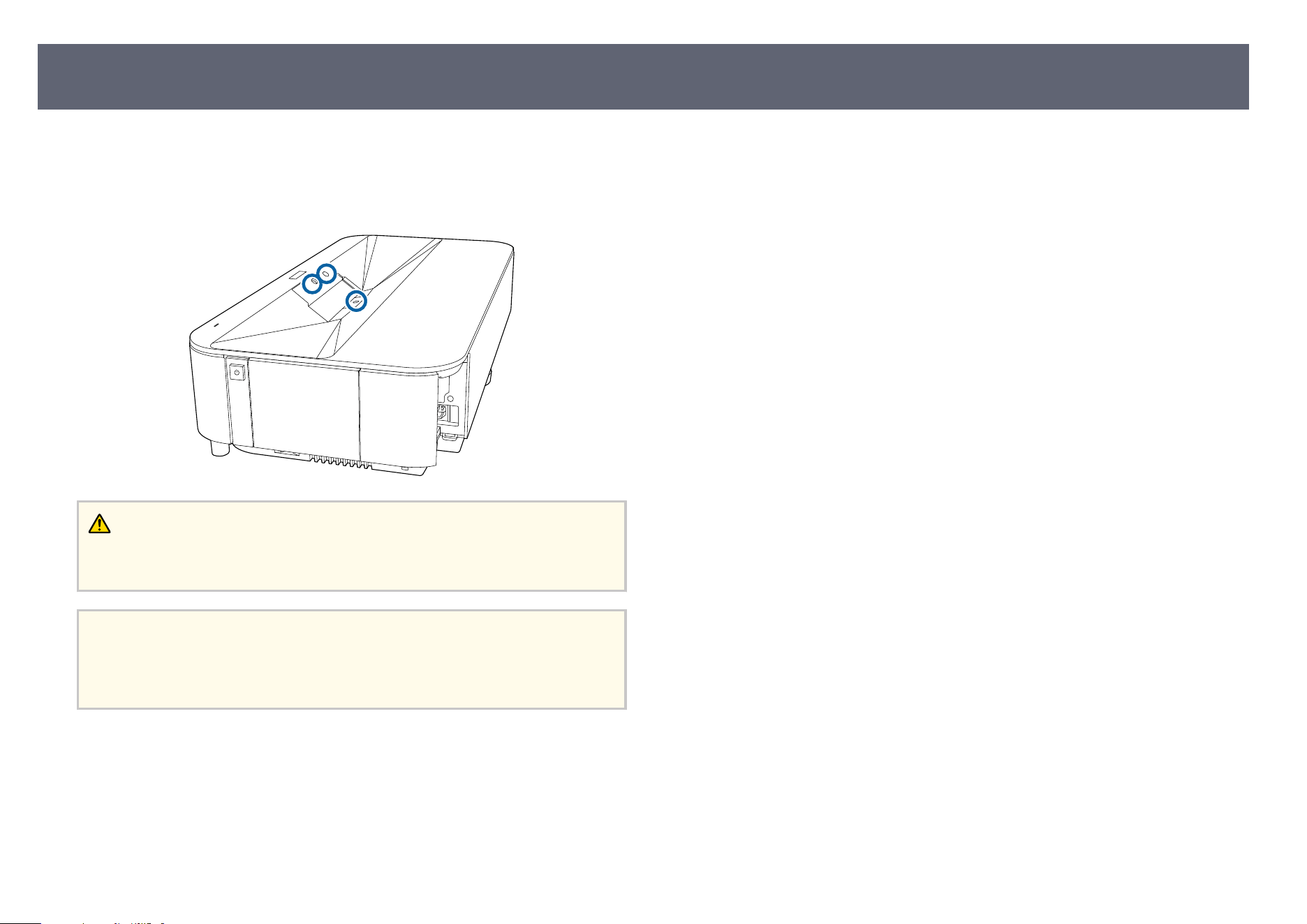
Clean the projector's obstacle sensor and motion sensor periodically, or if you
se
e a message telling you to remove any obstacles that are interfering with
the projection area. To remove dust or smudges, gently wipe the sensors with
lens-cleaning paper.
Warning
Do n
ot use a lens cleaner that contains ammable gas to clean the obstacle sensor
and motion sensor. e high heat generated by the projector may cause a re.
Attention
Do n
ot use glass cleaner or any harsh materials to clean the sensors and do not
subject the sensors to any impacts. Damage to the surface of the sensors may cause
malfunctions.
Cleaning the Obstacle Sensor and Motion Sensor
76
Before cleaning the projector case, turn o
the projector and unplug the power
cord.
•
To remove dust or dirt, use a so, dry, lint-free cloth.
•
To remove stubborn dirt, use a so cloth moistened with water and mild
soap. Do not spray liquid directly on the projector.
Attention
Do n
ot use wax, alcohol, benzene, paint thinner, or other chemicals to clean the
projector case. ese can damage the case. Do not use canned air, or the gases
may leave a ammable residue.
Cleaning the Projector Case
77
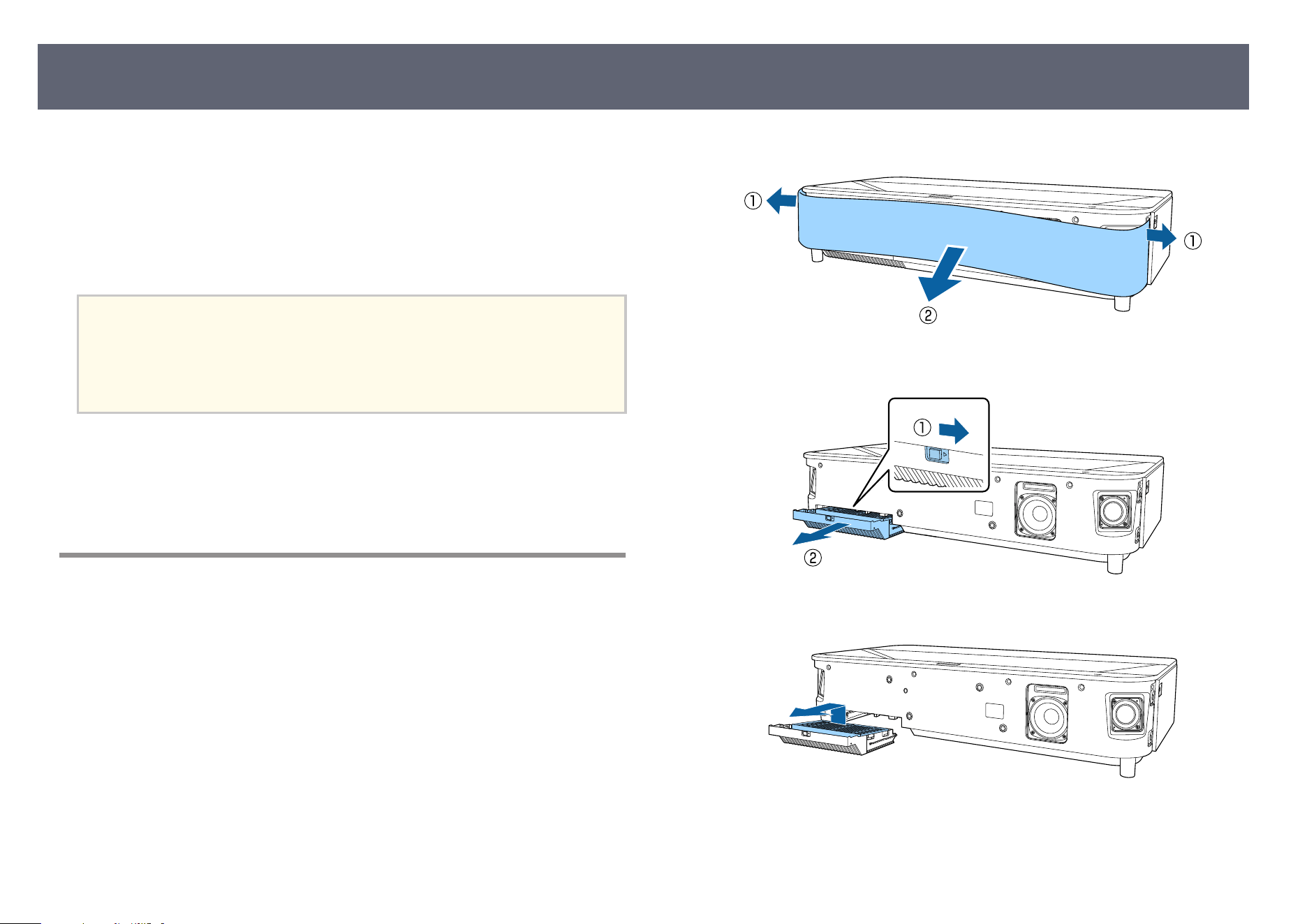
Regular lter maintenance is important to maintain your projector. Clean
t
he air lter when a message appears telling you the temperature inside the
projector has reached a high level. It is recommended that you clean these parts
about once every year. Clean them more oen than this if you use the projector
in an environment that is dustier than expected. (Assuming the projector is used
in an atmosphere in which airborne particulate matter is less than 0.04 to 0.2
mg/m3.)
Attention
If r
egular maintenance is not performed, your Epson projector will notify you when
the temperature inside the projector has reached a high level. Do not wait until this
warning appears to maintain your projector lter as prolonged exposure to high
temperatures may reduce the life of your projector.
g
Related Links
•
"Cleaning the Air Filter" p.78
•
"Replacing the Air Filter" p.79
•
"Cleaning the Air Intake Vents " p.81
Cleaning the Air Filter
You need to clean the projector's air lt
ers in the following situations:
•
e lter get dusty.
•
You see a message telling you to clean it.
a
Turn o the projector and unplug the power cord.
b
R
emove the front cover.
c
Slide the air lt
er cover latch and pull out the air lter cover.
d
Pull the air lter out of the air lter cover.
Air Filter and Vent Maintenance
78
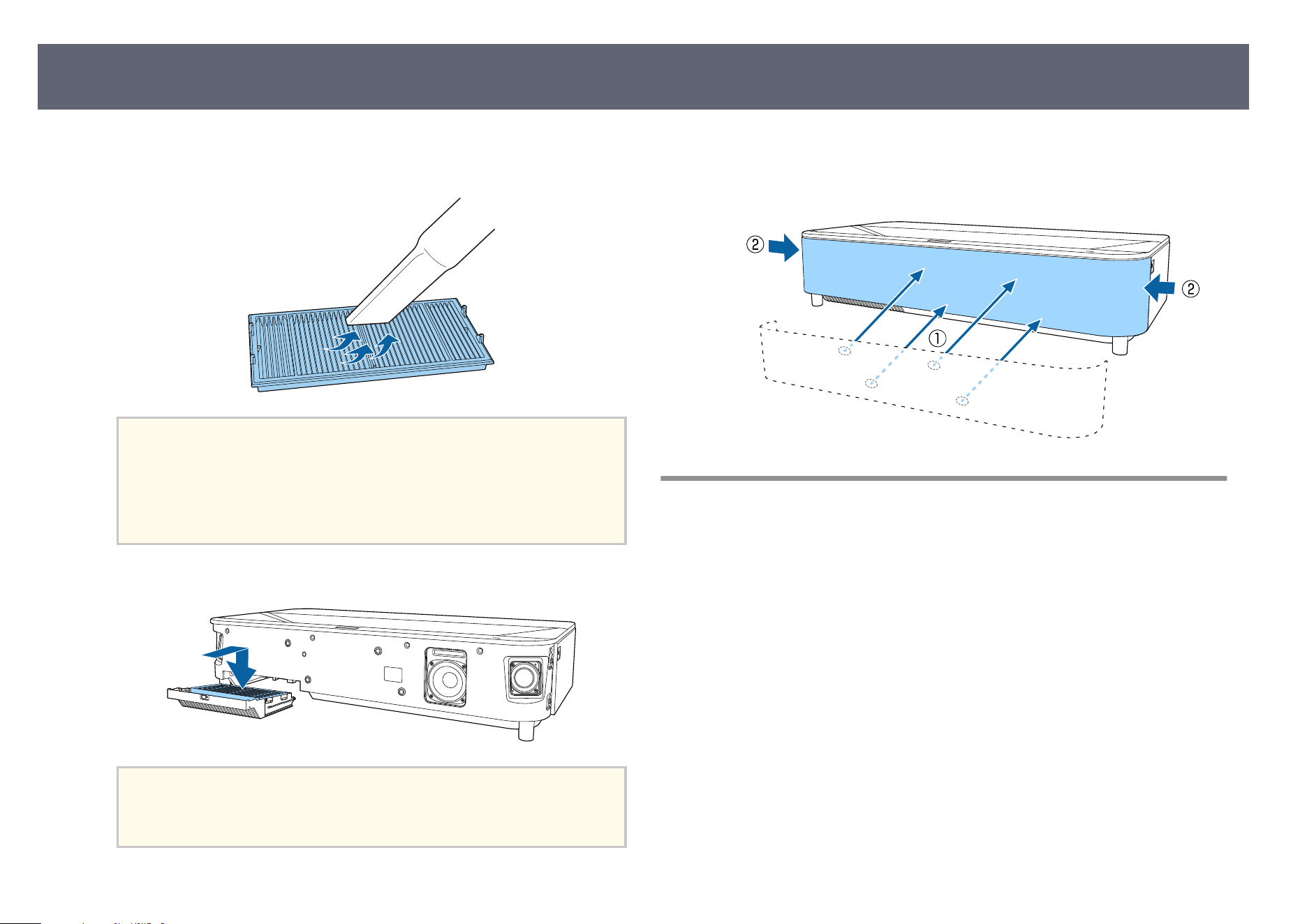
e
Vacuum the front of the air lt
er (the side with the tabs) to remove any
remaining dust.
Attention
•
Do n
ot rinse the air lter in water, or use any detergent or solvent to clean
it.
•
Do not use canned air. e gases may leave a ammable residue or push
dust and debris into the projector's optics or other sensitive areas.
f
Place the air l
t
er with the four tabs facing down as shown.
Attention
Do n
ot force the air lter cover to close with the tabs on the air lter facing up.
Doing so could damage the projector.
g
Insert the air lt
er cover until it clicks into place.
h
Replace the front cover.
Replacing the Air Filter
You need to replace the air lter in the following situations:
•
Aer cleaning the air lter, you see a message telling you to clean or replace it.
•
e air lter is torn or damaged.
You can replace the air lter while the projector is mounted to the ceiling or
placed on a table.
a
Turn o the projector and unplug the power cord.
Air Filter and Vent Maintenance
79
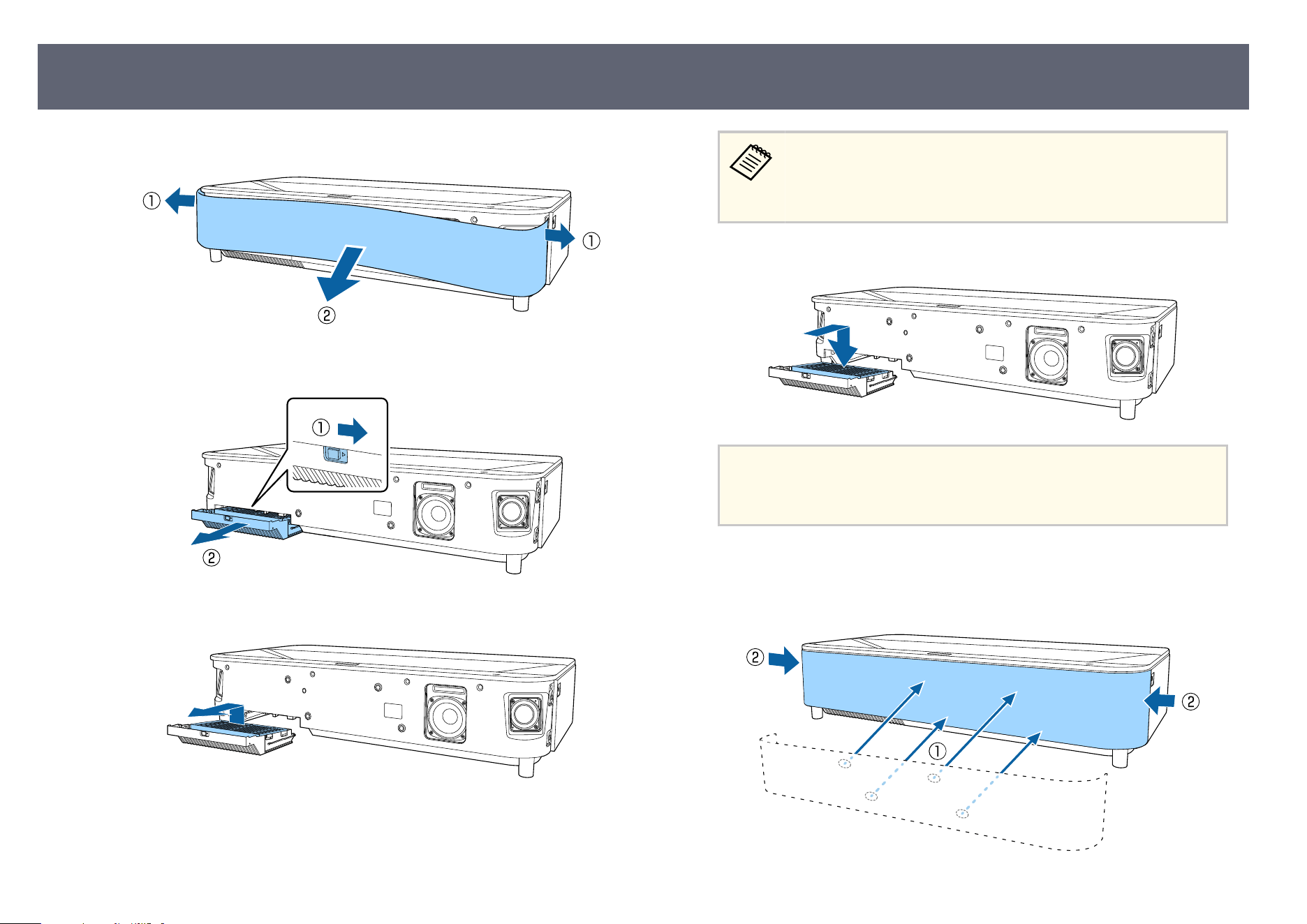
b
Remove the front cover.
c
Slide the air lt
er cover latch and pull out the air lter cover.
d
Pull the air lter out of the projector.
Dispose of used air lt
ers according to local regulations.
•
Filter frame: Polypropylene
•
Filter: Polypropylene, PET
e
Place the new air lt
er with the four tabs facing down as shown.
Attention
D
o n
ot force the air lter cover to close with the tabs on the air lter facing up.
Doing so could damage the projector.
f
Insert the air l
t
er cover until it clicks into place.
g
Replace the front cover.
Air Filter and Vent Maintenance
80
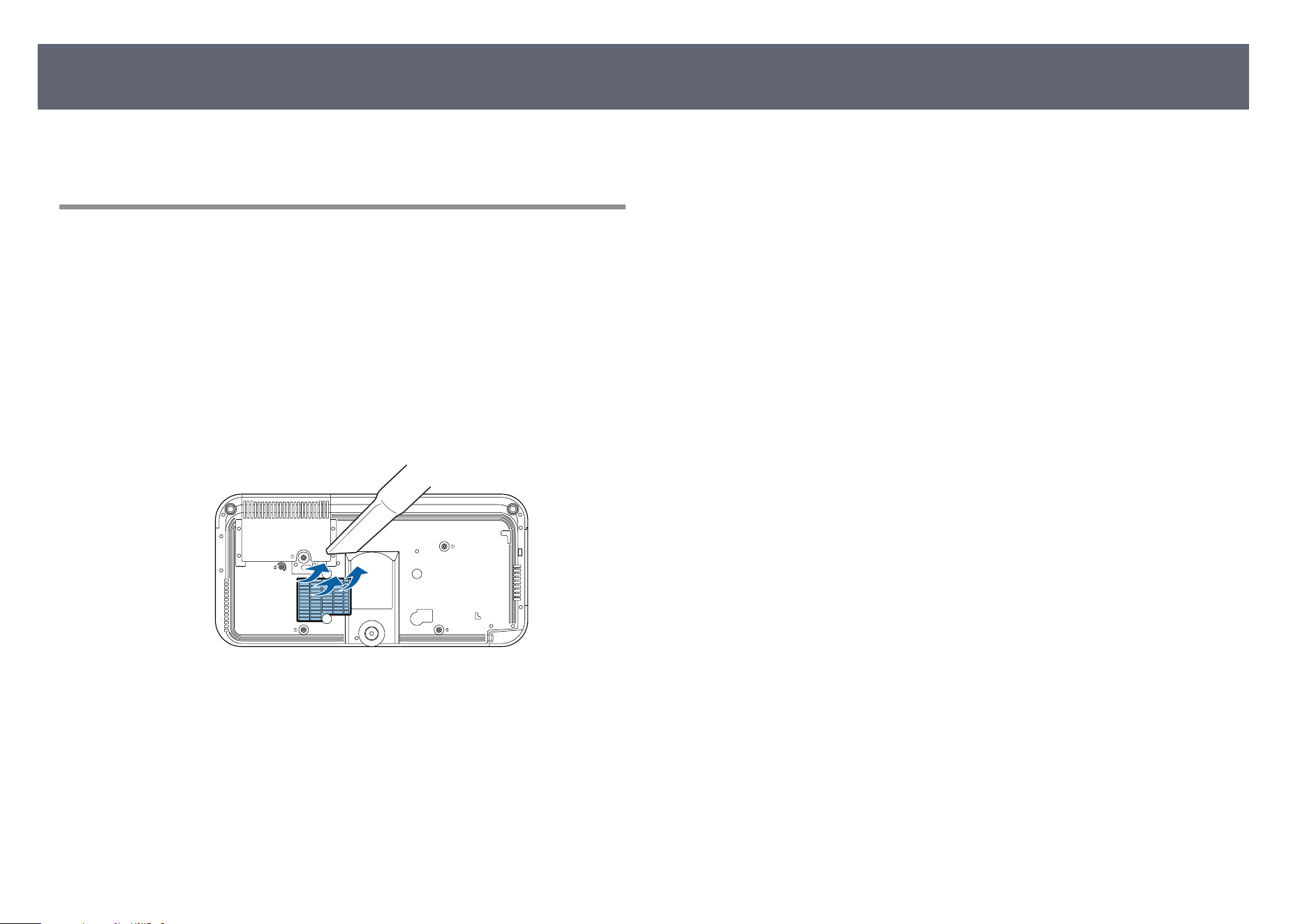
g
Related Links
•
"R
eplacement Parts" p.100
Cleaning the Air Intake Vents
Clean the projector's air intake vents periodically, or whenever you notice dust
on the surface of the vents to prevent the projector from overheating due to
blocked ventilation.
a
Turn o the projector and unplug the power cord.
b
T
urn the projector upside down.
c
Carefully remove the dust using a vacuum cleaner or a brush.
Air Filter and Vent Maintenance
81
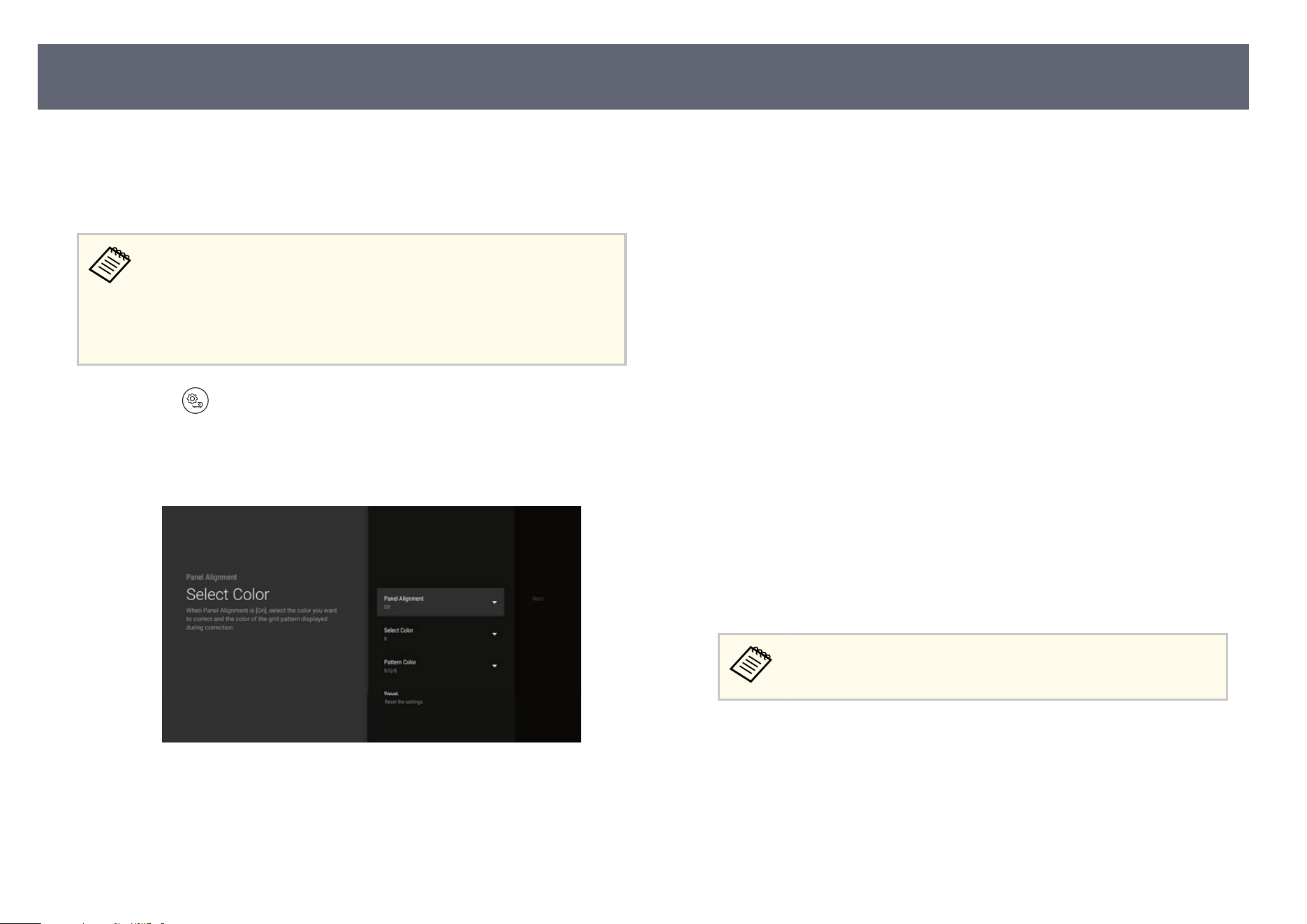
You can use the Panel Alignment feature to manually adjust the color
con
vergence (the alignment of the red and blue colors) in the projected image.
You can adjust the pixels horizontally and vertically in increments of 0.125
pixels within a range of ± 3 pixels.
•
Yo
u can adjust only the red or blue color convergence. Green is the
standard color panel and cannot be adjusted.
•
Image quality may decline aer performing Panel Alignment.
•
Images for pixels that extend beyond the edge of the projected screen
are not displayed.
a
Press the button on the remote control to open the Pr
ojector menu.
b
Select the menus in the following order:
s Advanc
ed Settings > Panel Alignment
c
Select Panel Alignment and set it to On.
d
S
elect S
elect Color and choose one of the following:
•
R
to adjust the red color convergence.
•
B to ad
just the blue color convergence.
e
Select Pattern Color and choose the grid color displayed when making
ad
justments. e available color varies depending on the Select Color
setting.
•
R/G/B to display the grid color in white.
•
R/G to display the grid color in yellow. R/G is only displayed when
Select Color is set to R.
•
G/B to display the grid color in cyan. G/B is only displayed when Select
Color is set to B.
f
Select Next.
g
S
elect one of the following options on the Se
lect Method screen:
•
Select Whole Panel to adjust the entire panel at the same time and go to
the next step.
•
Select Four Corners to adjust the corners of the panel one at a time and
go to step 11.
h
Use the arrow buttons on the remote control to adjust the color alignment
se
lected in Select Color, and then press [Enter].
Adjustment aec
ts the grid lines in the entire screen.
i
Select one of the following options:
•
S
e
lect Adjust the four corners to ne-tune your adjustments.
•
Select Exit to nish adjustments.
j
Use the arrow buttons on the remote control to adjust the color alignment
of t
he screen corner, and then press [Enter].
Adjusting the Color Convergence (Panel Alignment)
82

k
When you are nis
hed adjusting each corner of the screen, press [Enter].
l
Select one of the following options:
•
If y
our projector needs additional panel alignment, select Fine
Adjustment. Use the arrow buttons on the remote control to highlight
the corner of any misaligned box on the screen, press [Enter], make any
necessary adjustments, and then press [Enter] again. Repeat this step as
necessary for the other intersections.
•
Select Exit to nish adjustments.
Adjusting the Color Convergence (Panel Alignment)
83

Solving Problems
Ch
eck the solutions in these sections if you have any problems using the projector.
g
Related Links
•
"Projection Problems" p.85
•
"Projector Indicator Status " p.86
•
"Solving Projector Power-On or Power-O Problems" p.88
•
"Solving Image Problems" p.89
•
"Solving Sound Problems" p.93
•
"Solving Remote Control Operation Problems" p.95
•
"Solving HDMI CEC Problems" p.96
•
"Solving Wi-Fi Network Problems" p.97
•
"Solving Projector's OS Problems" p.98
If the projector is not working properly, turn it o,
unplug it, and then plug it
back in and turn it on.
If this does not solve the problem, check the following:
•
e indicators on the projector may indicate the problem.
•
e solutions in this manual can help you solve many problems.
If none of these solutions help, contact Epson for technical support.
Aer repairing the projector, Epson may return the projector to you in
i
ts initial status. Make sure you make a note of the account information
of each online service before you contact your local dealer or the nearest
Epson repair center.
Projection Problems
85
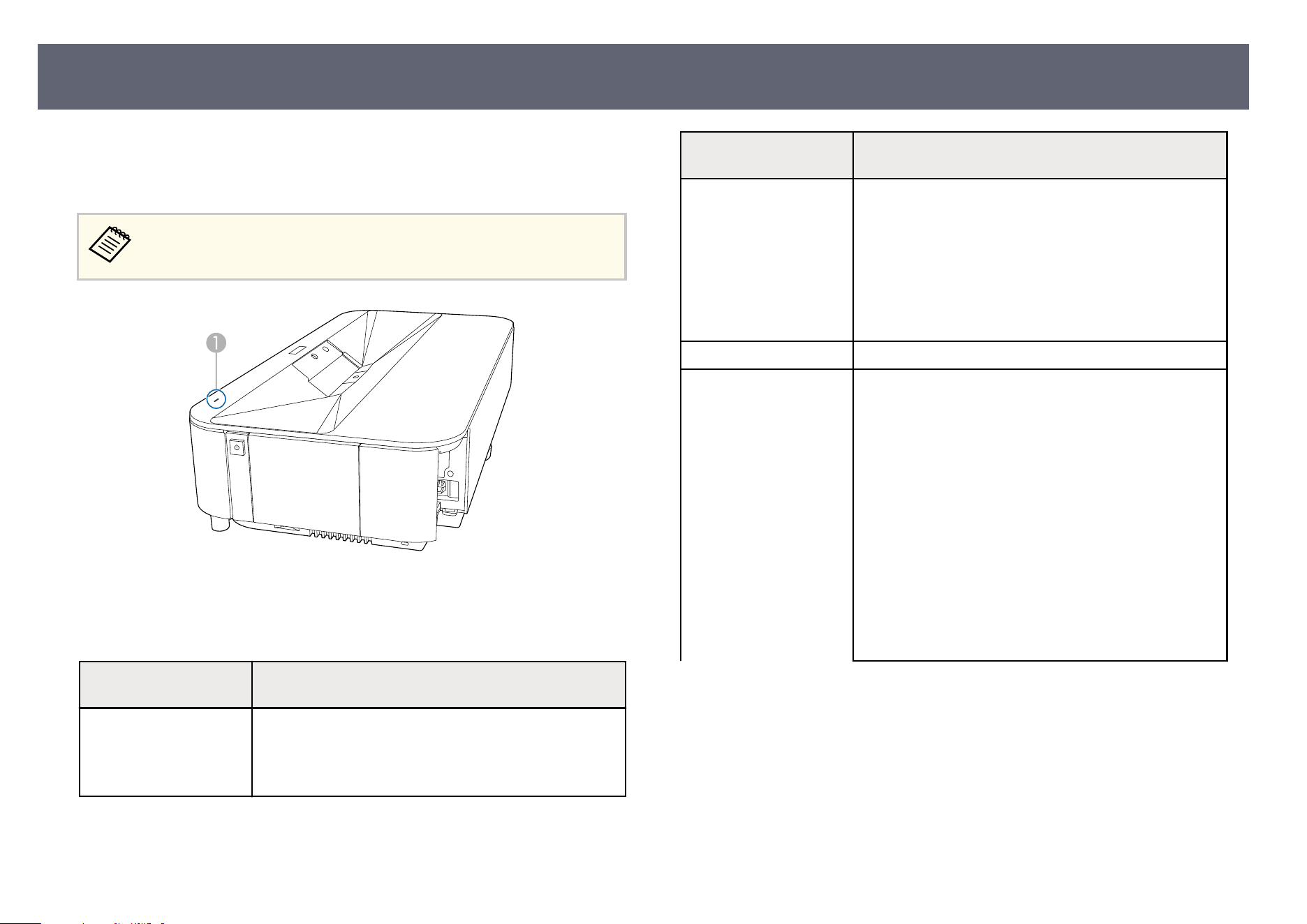
e indicators on the projector indicate the projector status and let you know
w
hen a problem occurs. Check the status and color of the indicators and then
refer to this table for a solution.
If the indicators display a pattern not listed in the table below, turn the
pr
ojector o, unplug it, and contact Epson for help.
A
Status indicator
Projector status
Indicator status/
Op
eration status
Problem and solutions
Lit white (Normal
op
eration)
e projector can display
images.
-
Indicator status/
Op
eration status
Problem and solutions
Flashing white (Entering
st
andby mode or
updating the projector
rmware)
When the rmware
update starts, a message
is displayed on the
screen.
Remote control operations may be disabled when the
indicator is ashing white.
O (Standby mode) When you press the power button, projection starts.
L
it orange (Warning
st
atus)
You can check the details
of the warning on the
screen.
e projector has overheated and turned o. Leave it
turned o to cool down for 5 minutes.
•
Make sure that the vents and air lter are not clogged
with dust or obstructed by nearby objects.
•
Make sure the environmental temperature is not too
hot.
•
Clean or replace the air lter.
•
If operating the projector at high altitude, set the High
Altitude Mode setting to On in the projector's menu.
s Projector > Advanced Settings > High Altitude
Mode
•
If the problem persists, unplug the projector and
contact Epson for help.
Projector Indicator Status
86
Indicator status/
Op
eration status
Problem and solutions
Obstacle detection warning.
A be
ep sounds, and the following message is displayed.
Playback has been stopped for safety reasons. Move
away from the lens or remove any obstacles around the
lens.
e brightness of the light source is reduced.
•
Make sure that there are no obstacles interfering with
the projection window. Remove any obstacles.
•
Clean the obstacle sensor if there are no obstacles.
e projector turns o automatically if no action is taken.
Movement detection warning.
A be
ep sounds, and the following message is displayed.
Playback has been stopped for safety reasons. Move
away from the lens or remove any obstacles around the
lens.
e brightness of the light source is reduced.
•
Make sure that there are no one looking into the
projection window. Move away from the projection
window.
•
Clean the motion sensor if there is no one near the
projection window.
Laser warning.
Tur
n the projector o, unplug it, and contact Epson for
help.
Flashing orange (Error
st
atus)
You cannot turn on the
projector.
Internal projector error.
Turn the projector o, unplug it, and contact Epson for
help.
g
Related Links
•
"P
rojector Feature Settings - Projector Menu" p.67
•
"C
le
aning the Air Filter" p.78
•
"Replacing the Air Filter" p.79
•
"Cleaning the Air Intake Vents " p.81
Projector Indicator Status
87
Check the solutions in these sections if the projector does not turn on when you
pr
ess the power button or it turns o unexpectedly.
g
Related Links
•
"Solving Projector Power Problems" p.88
•
"Solving Projector Shutdown Problems" p.88
Solving Projector Power Problems
If the projector does not turn on when you press the power button, try the
following steps until the problem is solved.
a
Make sure the power cord is securely connected to the projector and to a
wo
rking electrical outlet.
b
If you are using the remote control, check the batteries of the remote
con
trol.
c
e power cord may be defective. Disconnect the cord and contact Epson
f
or help.
g
Related Links
•
"Turning On the Projector" p.36
•
"Installing Batteries in the Remote Control" p.30
Solving Projector Shutdown Problems
If the projector's light source turns o
unexpectedly, try the following steps until
the problem is solved.
a
e p
rojector may have turned o aer the interval of time specied in
S
hut-O Timer in the projector's Power & Energy menu has passed.
Press the power button on the projector or remote control to turn the
projector back on.
s System > Power & Energy > Shut-O Timer
b
Aer switching to an HDMI source, if there is no input signal for more
t
han the time specied in No signal standby timeout, the projector
automatically enters standby mode. Press the power button to wake the
projector from standby mode.
s Channels & Inputs > Inputs > HDMI 1/HDMI 2/HDMI 3 > No
signal standby timeout
c
When the status indicator is lit orange, the projector has overheated and
tur
ned o.
e cooling fans may run in standby status depending on the
p
rojector settings. Also, when the projector wakes from standby
status, the fans may cause an unexpected noise. is is not a
malfunction.
d
Make sure that there are no obstacles interfering with the projection
w
in
dow. Remove any obstacles.
g
Related Links
•
"Projector Feature Settings - Channels & Inputs Menu" p.66
•
"System Menu" p.71
Solving Projector Power-On or Po
wer-O Problems
88

Check the solutions in these sections if you have any problems with projected
imag
es.
g
Related Links
•
"Solving Missing Image Problems" p.89
•
"Adjusting an Image that is not Rectangular" p.90
•
"Adjusting a Fuzzy or Blurry Image" p.90
•
"Fixing Partial Image Problems" p.90
•
"Adjusting an Image that Contains Noise or Static" p.91
•
"Adjusting an Image with Incorrect Brightness or Colors" p.91
Solving Missing Image Problems
If no image is displayed, try the following steps until the problem is solved.
a
Check the projector's status:
•
Ch
eck the status indicator to conrm that the projector is in normal
operating status.
•
Press the projector's power button to wake it from standby mode.
•
Aer switching to an HDMI source, if there is no input signal for more
than the time specied in No signal standby timeout, the projector
automatically enters standby mode. Press the power button to wake the
projector from standby mode.
s Channels & Inputs > Inputs > HDMI 1/HDMI 2/HDMI 3 > No
signal standby timeout
b
Check the cable connection:
•
M
ak
e sure all necessary cables are securely connected and the power is
on for the projector.
•
Connect the video source directly to the projector.
•
Replace the HDMI cable with a shorter one.
We recommend using an HDMI cable that is 5 meters (16.4 feet) or
sh
orter. If you use an HDMI cable that is longer than 5 meters (16.4
feet), the signal may deteriorate and the video and audio may become
unstable.
•
When sending 18 Gbps images such as 4K 60 Hz 4:4:4, use an HDMI
cable (premium-high speed).
c
Check the status of your video source:
•
Tur
n on the connected video source, and press the play button to start a
video, if necessary.
•
Make sure the connected device meets the HDMI CEC standard. See
the documentation supplied with the device for more information.
•
If you are projecting from a laptop computer, make sure it is set up to
display on an external monitor.
d
Check the following items:
•
Y
o
u need an Internet connection to view online content. Make sure
your Wi-Fi is on.
•
Turn o the projector and the connected video source, and then turn
them back on.
•
Set the CEC function for the connected device again and restart the
device.
•
Make sure the computer's display resolution does not exceed the
projector's resolution and frequency limits. If necessary, select a
dierent display resolution for your computer. (See your computer
manual for details.)
•
Reset all of the projector settings to their default values.
g
Related Links
•
"Projector Feature Settings - Channels & Inputs Menu" p.66
Solving Image Problems
89
Adjusting an Image that is not Rectangular
If the projected image is not evenly rectangular, try the following steps until the
pr
oblem is solved.
a
Place the projector directly in front of the center of the screen, facing it
sq
uarely, if possible.
b
Correct the distortion in the projected image using the projector's
Ke
ystone menu.
s Projector > Keystone
g
Related Links
•
"Correcting Distortion in the Image" p.42
Adjusting a Fuzzy or Blurry Image
If the projected image is fuzzy or blurry, try the following steps until the
pr
oblem is solved.
a
Adjust the image focus using the focus lever.
b
Position the projector close enough to the screen.
c
Clean the projection window.
To avoid condensation on the lens aer br
inging the projector
in from a cold environment, let the projector warm up to room
temperature before using it.
d
Adjust the Sharpness setting in the projector's Display & Sound menu to
im
prove image quality.
s Display & Sound > Display > Sharpness
e
If you are projecting from a computer, use a lower resolution or select a
res
olution that matches the projector's native resolution.
g
Related Links
•
"Focusing the Image Using the Focus Lever" p.41
•
"Image Quality Settings - Display & Sound Menu" p.68
•
"Cleaning the Projection Window" p.75
Fixing Partial Image Problems
If only a partial image is displayed, try the following steps until the problem is
so
lved.
a
Adjust the position of the projected image using the Zo
om & Shi setting
in the Projector menu.
s Projector > Zoom & Shi
b
Select an appropriate aspect ratio from the Scr
een menu according to the
current input source. (Available only when the current input source is
HDMI.)
s Display & Sound > Screen
c
Check your computer display settings to disable dual display and set the
res
olution within the projector's limits. (See your computer manual for
details.)
g
Related Links
•
"Adjusting the Size and Position of the Image" p.48
•
"Changing the Image Aspect Ratio" p.50
Solving Image Problems
90

Adjusting an Image that Contains Noise or Static
If the projected image contains electronic interference (noise) or static, try the
fo
llowing steps until the problem is solved.
a
Check the cables connecting your video source to the projector. ey
s
hould be:
•
Separated from the power cord to prevent interference
•
Securely connected at both ends
•
Not connected to an extension cable
b
Adjust the DNR
setting in the projector's menu.
s Display & Sound > Display > Advanced Settings > DNR
c
If you adjusted the image shape using the projector controls, try
decr
easing the Sharpness setting in the projector's Display & Sound
menu to improve image quality.
s Display & Sound > Display > Sharpness
d
If you connected an extension power cable, try projecting without it to see
if it c
aused interference in the signal.
e
Select a computer video resolution and refresh rate that are compatible
wi
th the projector.
f
If you connected an A/V system that does not support eARC/ARC to the
HDMI p
ort, the image may be distorted.
g
Related Links
•
"Image Quality Settings - Display & Sound Menu" p.68
Adjusting an Image with Incorrect Brightness or Colors
If the projected image is too dark or bright, or the colors are incorrect, try the
fo
llowing steps until the problem is solved.
a
Try dierent color modes for your image and environment by selecting
t
he color mode setting in the projector's Picture Mode menu.
s Display & Sound > Display > Picture Mode
b
Try dierent settings by selecting the Adaptive Light Output setting in
t
he projector's Display & Sound menu.
s Display & Sound > Display > Advanced Settings > Adaptive Light
Output
c
Check your video source settings.
d
Adjust the color settings in the Dis
p
lay menu.
s Display & Sound > Display
e
Make sure you selected the correct HDMI R
GB Range setting in the
projector's Display & Sound menu, if available for your image source.
(Available only for the HDMI source.)
s Display & Sound > Display > Advanced Settings > HDMI RGB
Range
f
When you are projecting your image onto a wall, try dieren
t wall color
types for the image and environment by selecting the Adjust color setting
in the projector's Keystone menu.
s Projector > Keystone > Adjust color
g
Make sure all the cables are securely connected to the projector and your
vide
o equipment. If you connected long cables, try connecting shorter
cables.
Solving Image Problems
91

Check the solutions in these sections if you have any problems with projected
so
und.
g
Related Links
•
"Solving Missing or Low Audio Problems" p.93
•
"Solving Bluetooth Speaker Mode Problems" p.93
Solving Missing or Low Audio Problems
If there is no sound or the volume is too low, try the following steps until the
problem is solved.
a
Adjust the projector's volume settings using the up/down buttons on
the remote control.
b
Check the cable connection between the projector and your video source.
c
Check your video source to make sure the volume is turned up and the
audio o
u
tput is set for the correct source.
d
If you want to output audio from the projector's speakers, check that
Gl
obal CEC control is set to O.
s Channels & Inputs > Inputs > Global CEC control
e
If you want to output audio to an external audio device that supports
HDMI eAR
C/ARC using an HDMI cable, try the following solutions:
•
Set Global CEC control to On in the projector's menu when using an
ARC connection.
s Channels & Inputs > Inputs > Global CEC control
•
Make sure the HDMI cable is compliant with HDMI eARC and ARC.
•
Wh
en outputting audio to an external audio device that does
not support HDMI eARC/ARC using an HDMI cable, set Global
CEC control to O in the projector's menu.
s Channels & Inputs > Inputs > Global CEC control
•
See the Supplemental A/V Support Specication for eARC/ARC
audio supported formats.
•
For users in the U.S., Canada, and Latin America
See the online Notices guide for eARC/ARC audio supported
formats.
f
If audio is not output properly to an external audio device that supports
HD
MI eAR
C/ARC, try changing Auto to PCM as the Digital Output
setting.
s Display & Sound > Audio Output > Digital Output
g
To output audio only from an external device connected to the projector's
Op
tical Out port and not from the projector's speakers, set Audio Output
Device to SPDIF.
s Display & Sound > Audio Output > Audio Output Device
g
Related Links
•
"Projector Feature Settings - Channels & Inputs Menu" p.66
•
"Image Quality Settings - Display & Sound Menu" p.68
Solving Bluetooth Speaker Mode Problems
If you cannot connect a Bluetooth audio device to the projector, try the
fo
llowing solutions.
a
Select Bluetooth Speaker Mode in the Projector menu and press the
[En
ter] button on the remote control.
Solving Sound Problems
93
b
Select the projector name (this projector) from the list of available
Bl
uetooth devices displayed on your device.
You can check and change the projector name from the projector's
De
vice name menu.
s System > About > Device name
c
Check your Bluetooth audio device to make sure the volume is turned up
an
d t
he audio output settings are correct.
d
Make sure only one Bluetooth device is connected to the projector.
Yo
u cannot connect multiple Bluetooth audio devices to the projector at
the same time.
e
Make sure the device meets the projector's Bluetooth sp
ecications.
f
Check the following items:
•
Ch
eck for obstacles between the Bluetooth audio device and the
projector, and change their positions to improve communication.
•
Make sure the connected Bluetooth audio device is within the specied
communication distance.
•
Avoid using the projector near wireless networks, microwave ovens, 2.4
GHz cordless phones, or other devices that use the 2.4 GHz frequency
band. ese devices can interfere with the signal between the projector
and the Bluetooth audio device.
g
Related Links
•
"Using the Projector as a Bluetooth
®
Speaker" p.57
•
"Bluetooth Specications" p.105
Solving Sound Problems
94
If the projector does not respond to remote control commands or responds
slo
wly, try the following steps until the problem is solved.
If you lose the remote control, you can order another one. Contact Epson
fo
r help.
a
Check that the remote control batteries are installed correctly and have
power. If necessary, replace the batteries.
b
e buttons on the remote control may be stuck down and you may not be
ab
le to operate them. Return the buttons to their normal positions.
c
If the pairing screen is displayed, perform pairing again by holding down
th
e
button and button on the remote control at the same time for
abo
ut three seconds.
•
W
h
en pairing, place the remote control within 30 cm (11.8
inches) of the projector.
•
When pairing starts, the indicator on the remote control ashes.
When pairing is complete, the indicator turns o.
•
You cannot pair multiple remote controls with the projector at
the same time. Pairing a new remote control will unpair the
existing one. Make sure the intended remote control is paired.
d
Perform pairing again by displaying the pairing screen manually from the
R
e
motes & Accessories menu.
e
If the image is projected from the projector, make sure you are operating
th
e remote control within the reception angle and range of the projector.
f
Strong uorescent lighting, direct sunlight, or infrared device signals may
b
e interfering with the projector's remote receivers. Dim the lights or
move the projector away from the sun or interfering equipment.
g
e remote control may be defective. Contact Epson for help.
g
Relat
ed Links
•
"Remote Control Operation" p.30
•
"Installing Batteries in the Remote Control" p.30
Solving Remote Control Operation Problems
95

If you cannot operate the connected devices from the projector, try the
fo
llowing steps until the problem is solved.
a
Make sure the cable meets the HDMI CEC standard.
b
Make sure the connected device meets the HDMI CEC standard. See the
do
c
umentation supplied with the device for more information.
c
Set Global CEC control to On in the Channels & Inputs menu.
s C
hannels & Inputs > Inputs > Global CEC control
d
Make sure all the cables are securely connected to the projector and your
vide
o equipment.
e
Make sure the connected devices are turned on and in standby status. See
th
e documentation supplied with the device for more information.
f
If you connect a new device or change the connection, set the CEC
fun
ction for the connected device again and restart the device.
g
Related Links
•
"Operating Connected Devices Using the HDMI CEC Features" p.60
•
"Projector Feature Settings - Channels & Inputs Menu" p.66
Solving HDMI CEC Problems
96

If you cannot connect to a Wi-Fi network, try the following solutions.
a
Make sure your Wi-Fi router and modem are working properly. Rebooting
th
ese devices may solve the network connection problem.
b
Check for obstacles between the Wi-Fi router and the projector, and
ch
ange their positions to improve communication.
c
You can check the network settings from Wi-F
i in the Network &
Internet menu.
d
If you initialize the projector, you need to select the network settings again
on t
he initial setup screen.
g
Related Links
•
"Initializing the Projector" p.63
Solving Wi-Fi Network Problems
97


Appendix
Ch
eck these sections for the technical specications and important notices about your product.
g
Related Links
•
"Optional Accessories and Replacement Parts" p.100
•
"Screen Size and Projection Distance" p.101
•
"Supported Monitor Display Resolutions" p.103
•
"Projector Specications" p.104
•
"List of Safety Symbols and Instructions" p.106
•
"Laser Safety Information" p.108
•
"Glossary" p.111
•
"Notices" p.112
e following optional accessories and replacement parts are available. Please
p
urchase these products as and when needed.
e following list of optional accessories and replacement parts is current as of:
December 2025.
Details of accessories are subject to change without notice and availability may
vary depending on the country of purchase.
g
Related Links
•
"Mounts" p.100
•
"Screens" p.100
•
"Microphone" p.100
•
"Replacement Parts" p.100
Mounts
Ceiling mount ELPMB22
Ceiling mount (Low prole) ELPMB30
Use when installing the projector on a ceiling.
Safety Wire Set ELPWR01
Use when connecting the projector to the installation mount to prevent the
projector from falling down.
Ceiling pipe (450 mm) ELPFP13
Ceiling pipe (700 mm) ELPFP14
Use when installing the projector on a high ceiling.
Special expertise is required to suspend the projector from a ceiling.
Co
ntact Epson for help.
Screens
Ultra Short Throw Screen ELPSC35 (100")
Ultra S
hort Throw Screen ELPSC36 (120")
Screens to be installed on a wall. (Aspect ratio 16:9)
Microphone
Wireless Karaoke Microphone ELPKM01
Us
e with the projector's karaoke features.
Replacement Parts
Air lter ELPAF64
U
se as a replacement for used air lters.
g
Related Links
•
"Replacing the Air Filter" p.79
Optional Accessories and Replacement Parts
100
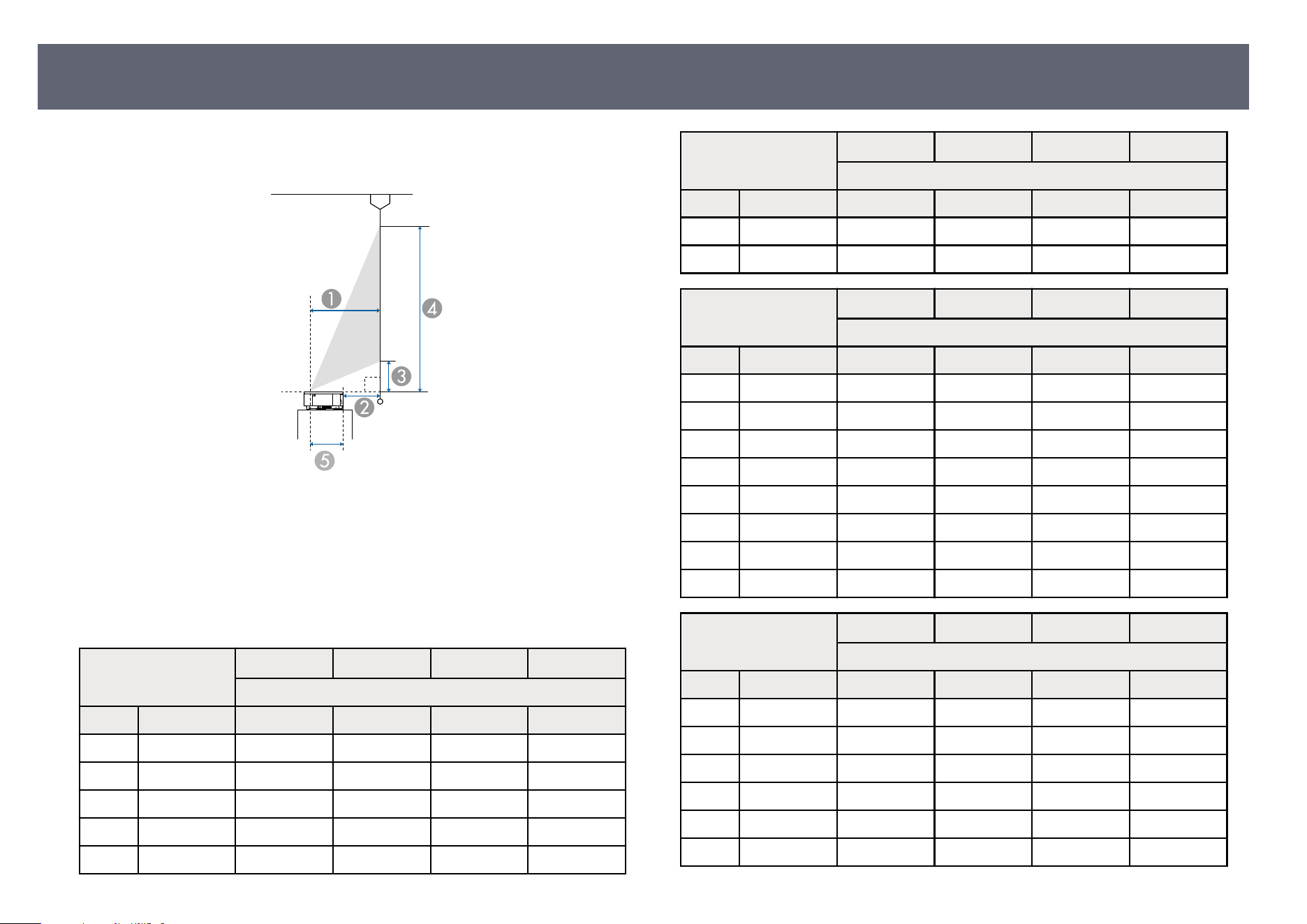
Check the table here to determine how far to place the projector from the screen
bas
ed on the size of the projected image.
A
Projection distance
B
Distance from the back of the projector to the screen
C
Distance from the projector to the bottom of the screen
D
Distance from the projector to the top of the screen
E
Distance from the center of the lens to the rear of the projector: 25.5 cm (10.0
inc
hes)
16:9 screen size
A B C D
Minimum (Wide)
inch cm cm (inches) cm (inches) cm (inches) cm (inches)
80" 177× 100 27.8 (10.9") 2.3 (0.9") 10.8 (4.3") 110.4 (43.5")
90" 199× 112 31.6 (12.4") 6.0 (2.4") 12.9 (5.1") 124.9 (49.2")
100" 221× 125 35.3 (13.9") 9.8 (3.8") 14.9 (5.9") 139.4 (54.9")
110" 244× 137 39.0 (15.4") 13.5 (5.3") 16.9 (6.7") 153.9 (60.6")
120" 266× 149 42.8 (16.8") 17.3 (6.8") 19.0 (7.5") 168.4 (66.3")
16:9 screen size
A B C D
Minimum (Wide)
inch cm cm (inches) cm (inches) cm (inches) cm (inches)
130" 288× 161 46.5 (18.3") 21.0 (8.3") 21.0 (8.3") 182.9 (72.0")
150" 332× 187 54.0 (21.3") 28.5 (11.2") 25.1 (9.9") 211.9 (83.4")
4:3 screen size
A B C D
Minimum (Wide)
inch cm cm (inches) cm (inches) cm (inches) cm (inches)
66" 134 × 101 28.1 (11.1") 2.6 (1.0") 11.0 (4.3") 111.6 (43.9")
70" 142× 107 29.9 (11.8") 4.4 (1.7") 12.0 (4.7") 118.7 (46.7")
80" 163× 122 34.5 (13.6") 9.0 (3.5") 14.5 (5.7") 136.4 (53.7")
90" 183× 137 39.1 (15.4") 13.6 (5.3") 17.0 (6.7") 154.1 (60.7")
100" 203 × 152 43.7 (17.2") 18.1 (7.1") 19.5 (7.7") 171.9 (67.7")
110" 226 × 168 48.3 (19.0") 22.7 (8.9") 22.0 (8.6") 189.6 (74.6")
120" 244 × 183 52.8 (20.8") 27.3 (10.8") 24.5 (9.6") 207.3 (81.6")
122" 248 × 186 53.8 (21.2") 28.2 (11.1") 25.0 (9.8") 210.9 (83.0")
16:10 screen size
A B C D
Minimum (Wide)
inch cm cm (inches) cm (inches) cm (inches) cm (inches)
74" 159× 100 27.8 (10.9") 2.3 (0.9") 10.8 (4.3") 110.4 (43.5")
80" 172× 108 30.2 (11.9") 4.7 (1.9") 12.1 (4.8") 119.8 (47.2")
90" 194× 121 34.3 (13.5") 8.8 (3.4") 14.3 (5.6") 135.5 (53.3")
100" 215× 135 38.3 (15.1") 12.8 (5.0") 16.5 (6.5") 151.2 (59.5")
110" 237 × 148 42.4 (16.7") 16.9 (6.6") 18.8 (7.4") 166.8 (65.7")
120" 259 × 162 46.4 (18.3") 20.9 (8.2") 21.0 (8.3") 182.5 (71.9")
Screen Size and Projection Distance
101
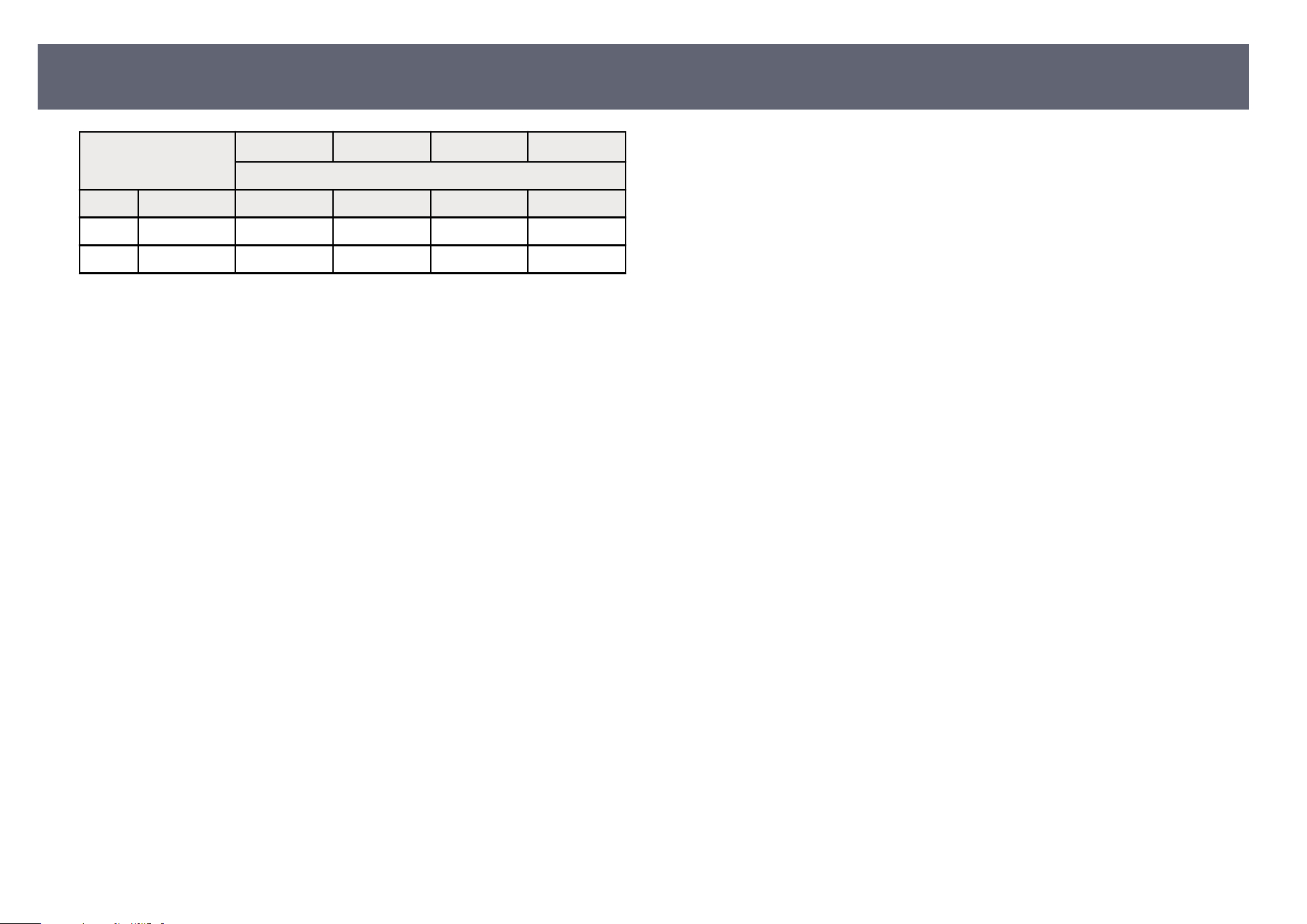
16:10 screen size
A B C D
Minimum (Wide)
inch cm cm (inches) cm (inches) cm (inches) cm (inches)
130" 280 × 175 50.5 (19.9") 24.9 (9.8") 23.2 (9.1") 198.2 (78.0")
138" 297 × 186 53.7 (21.1") 28.2 (11.1") 24.9 (9.8") 210.7 (83.0")
Screen Size and Projection Distance
102

See the Supplemental A/V Support Specication for detailed information on
co
mpatible refresh rates and resolutions for each compatible video display
format.
For users in the U.S., Canada, and Latin America
See the online Notices guide for detailed information on compatible refresh rates
and resolutions for each compatible video display format.
Supported Monitor Display Resolutions
103
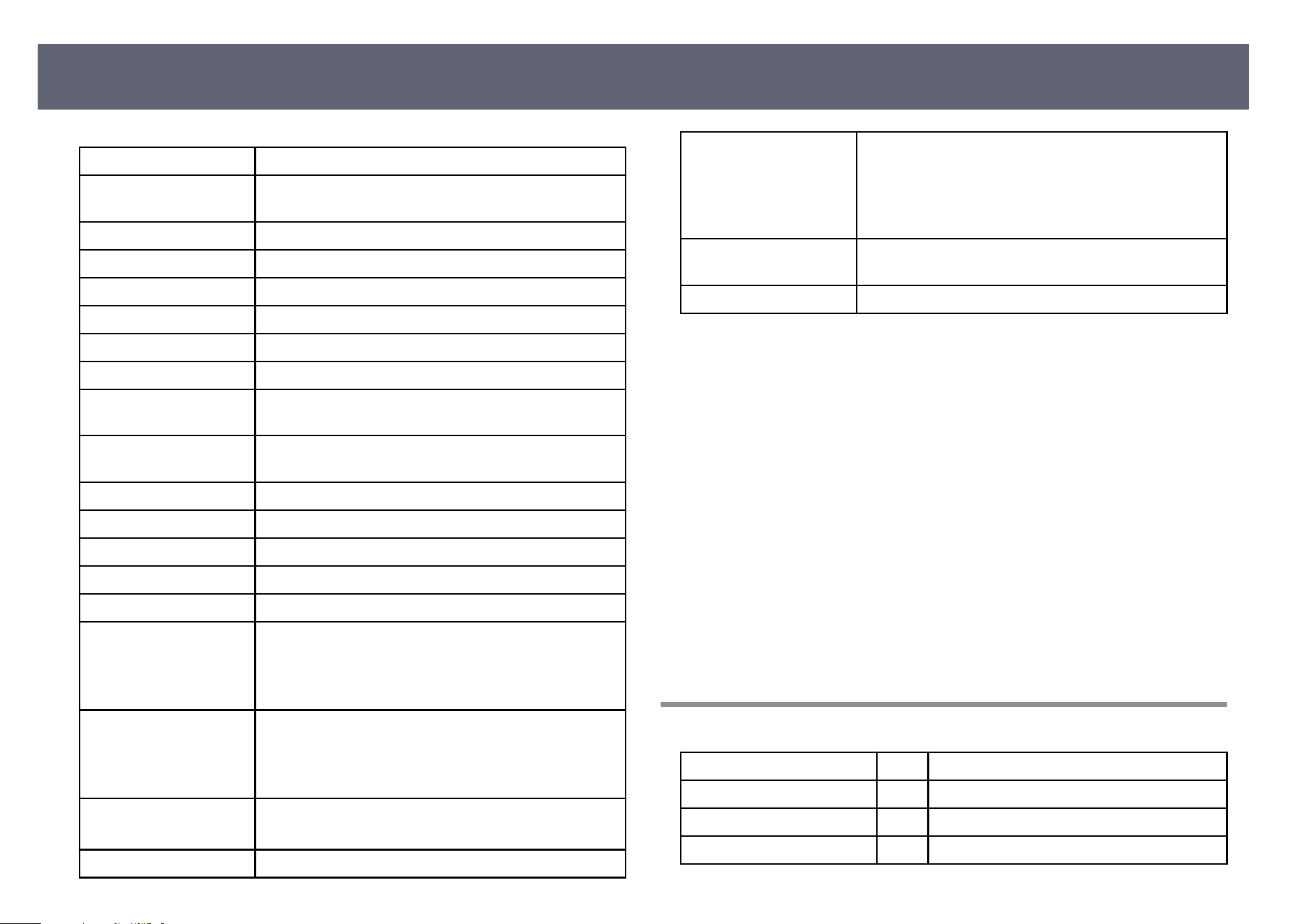
Product name EH-LS970B/EH-LS970W
Dimensions (W × H × D) 695 × 145 × 341 mm (27.4 × 5.7 × 13.4 inches) (not
inc
luding raised section)
LCD panel size 0.62"
Display method 3LCD
Number of pixels Full HD (1,920 (W) × 1,080 (H) dots) × 3
Screen resolution 8,294,400 pixels *
Focus adjustment Manual
Light source Laser diode
Light source output
p
o
wer
Up to 115.2 W
Laser class (internal laser
ligh
t source)
Class 4
Wavelength 449 to 461 nm
Light source life ** Up to about 20,000 hours
Max. audio output 20 W
Speaker 2.1ch (Speaker × 2, Woofer × 1)
Power supply 100-240V AC±10% 50/60Hz 3.7 - 1.7 A
Power consumption (100
t
o 120 V ar
ea)
Operating power consumption (when the light source
brightness is 100%): 363 W
Operating power consumption (when the light source
brightness is 50%): 182 W
Power consumption (220
to 240 V ar
ea)
Operating power consumption (when the light source
brightness is 100%): 347 W
Operating power consumption (when the light source
brightness is 50%): 178 W
Standby power
con
sumption
Communication On: 2.0 W
Communication O: 0.5 W
Operating altitude Altitude 0 to 3,048 m (10,000 feet)
Operating temperature Altitude of 0 to 2,286 m (7,500 feet): +5 to +35°C (41 to
95 °F) (Humidi
ty of 20 to 80%, No condensation)
Altitude of 2,287 to 3,048 m (7,500 to 10,000 feet): +5
to +30°C (41 to 86 °F) (Humidity of 20 to 80%, No
condensation)
Storage temperature -10 to 60 °C (14 to 140 °F) (Humidity of 10 to 90%, No
con
densation)
Mass Approx. 12.4 kg (27.34 lb)
* Pixel shiing technology achieves 4K resolution on screen.
** A
pproximate time until the light source brightness decreases to half of its
original value. (Assuming the projector is used in an atmosphere in which
airborne particulate matter is less than 0.04 to 0.2mg/m3. e estimated time
varies depending on the projector usage and operating conditions.)
e rating label is attached on the bottom surface of the projector.
is product is also designed for IT power distribution system with phase-to-
phase voltage 230V.
Angle of tilt
ere is no vertical or horizontal limit to how the projector can be installed.
g
Related Links
•
"Connector Specications" p.104
•
"Bluetooth Specications" p.105
Connector Specications
HDMI1 port 1 HDMI (Type A)
HDMI2 (eARC/ARC) port 1 HDMI (Type A)
HDMI3 port 1 HDMI (Type A)
USB-A port 2 USB connector (Type A)
Projector Specic
ations
104
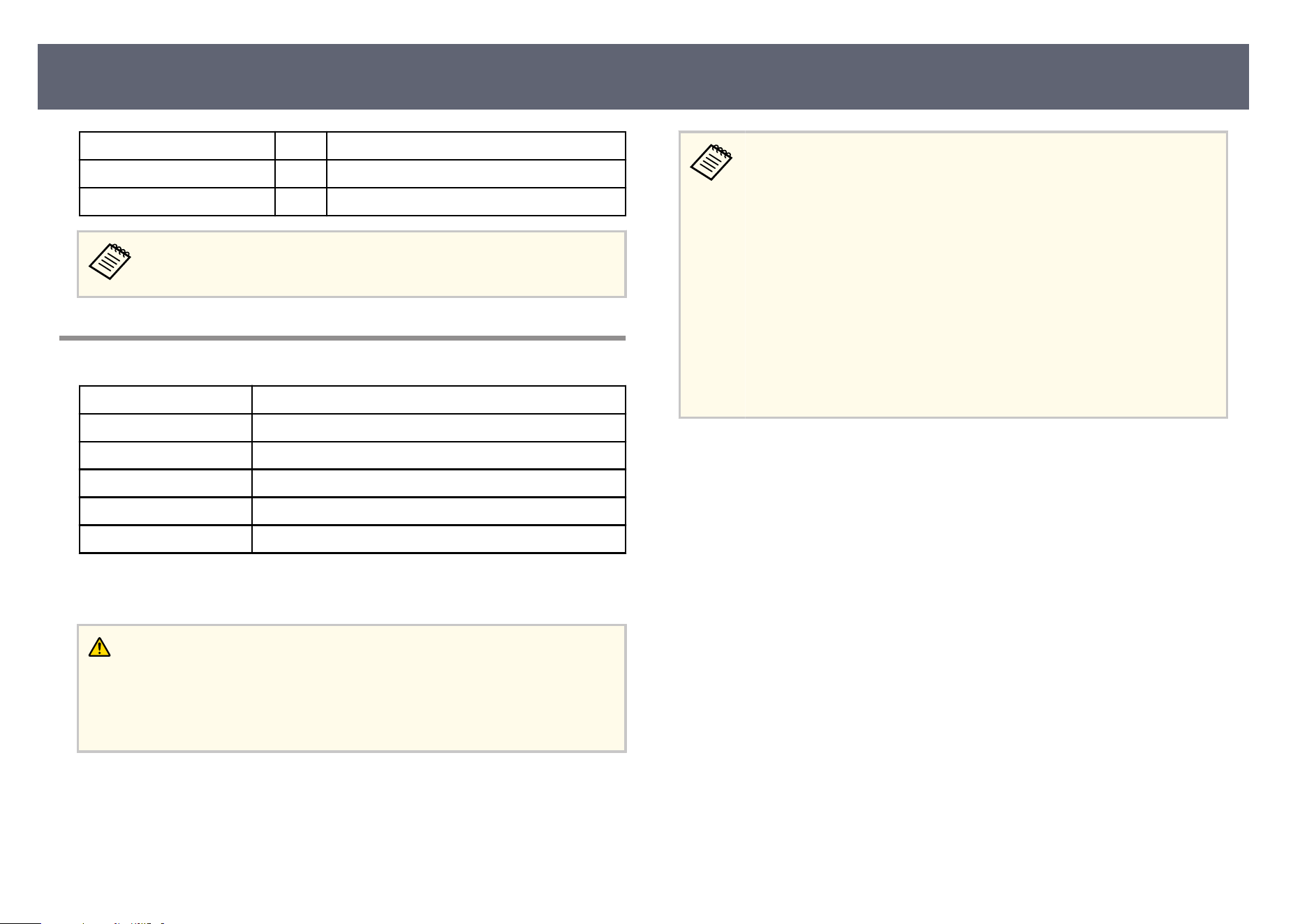
Service port 1 USB connector (Mini-B)
Audio Out port 1 Stereo mini pin jack (3-pin)
Optical Out port 1 Optical digital audio connector (S/PDIF)
USB-A port supports USB 2.0. However, USB ports are not guaranteed to
op
erate all devices that support USB.
Bluetooth Specic
ations
Version Bluetooth Ver. 5.2
Output Class 2
Communication distance Approx. 10 m (32.8 feet)
Supported p
roles A2D
P, AVRCP, and HID
Frequency used 2.4 GHz band (2.402 to 2.480 GHz)
Supported codecs SBC, AAC, aptX *
* e aptX codec is only available when outputting to a Bluetooth audio device
s
uch as speakers or headphones.
Warning
Do n
ot use the device near any medical equipment or equipment that is
automatically controlled, such as automatic doors or re alarms. Electromagnetic
interference from the device may cause such equipment to malfunction and cause an
accident.
•
Yo
u may not be able to connect depending on the standard and type of
device.
•
Even when connecting within the specied communication distance,
connections can be lost due to the strength of the signal.
•
e communication method for Bluetooth uses the same frequency
(2.4 GHz) as wireless LAN (IEEE802.11b/g) or microwave ovens.
erefore, if these devices are used at the same time, radio
wave interference may occur, the audio may be interrupted, or
communication may not be possible. If you do need to use these
devices at the same time, make sure there is enough distance between
them and the Bluetooth device.
•
e Bluetooth function is enabled the rst time you turn on the
projector.
Projector Specic
ations
105
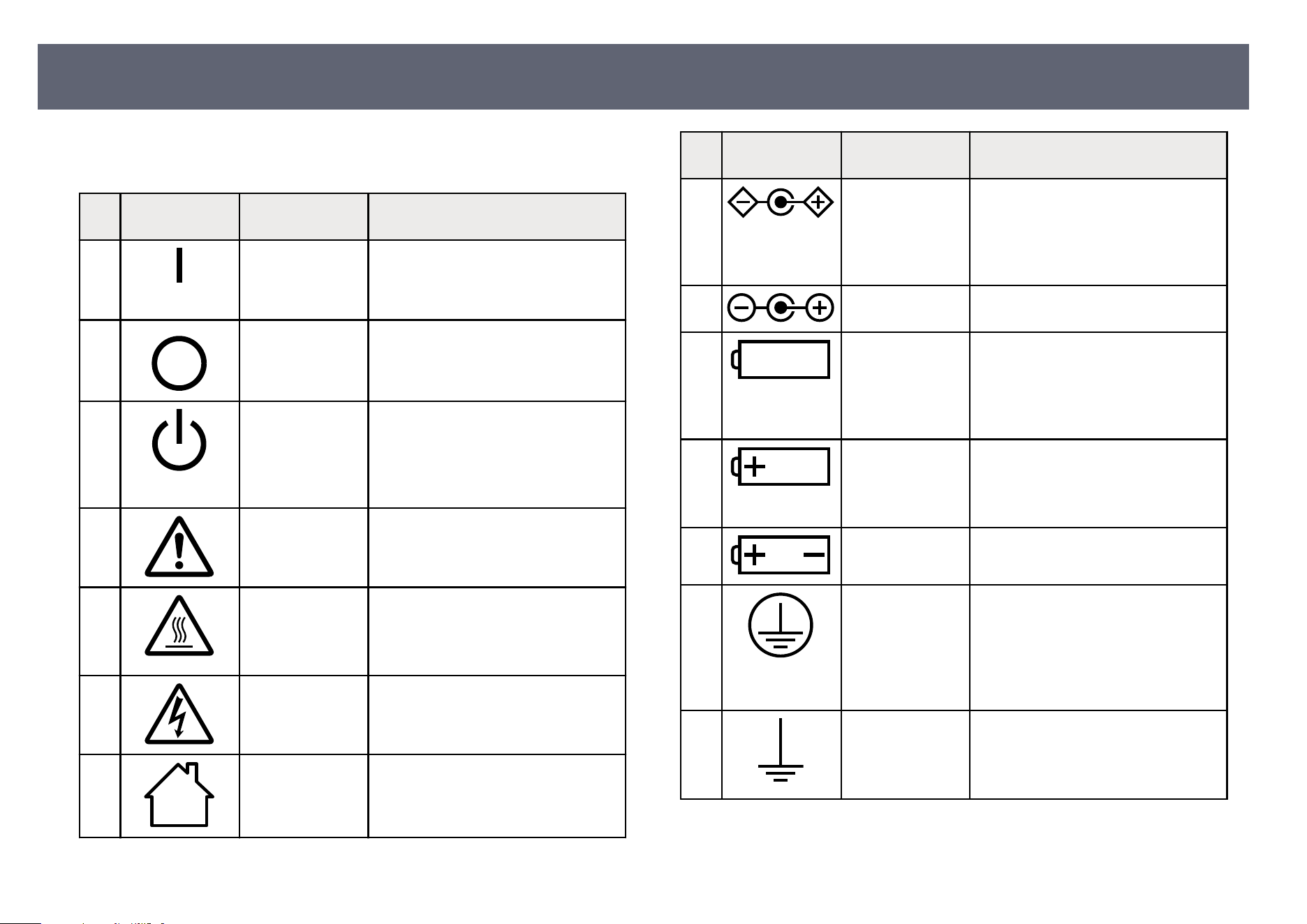
e following table lists the meaning of the safety symbols labeled on the
e
quipment.
No. Symbol mark Approved
st
andards
Description
A
IEC60417
No
. 5007
"ON" (power)
To indicate connection to the mains.
B
IEC60417
No
. 5008
"OFF" (power)
To indicate disconnection from the
mains.
C
IEC60417
No
. 5009
Stand-by
To identify the switch or switch
position by means of which part of the
equipment is switched on in order to
bring it into the stand-by condition.
D
ISO7000
N
o
. 0434B,
IEC3864-B3.1
Caution
To identify general caution when using
the product.
E
IEC60417
No
. 5041
Caution, hot surface
To indicate that the marked item can
be hot and should not be touched
without taking care.
F
IEC60417
No
. 6042
ISO3864-B3.6
Caution, risk of electric shock
To identify equipment that has risk of
electric shock.
G
IEC60417
No
. 5957
For indoor use only
To identify electrical equipment
designed primarily for indoor use.
No. Symbol mark Approved
st
andards
Description
H
IEC60417
No
. 5926
Polarity of d.c. power connector
To identify the positive and negative
connections (the polarity) on a piece
of equipment to which a d.c. power
supply may be connected.
I
— e same as No. 8.
J
IEC60417
No
. 5001B
Battery, general
On battery powered equipment. To
identify a device for instance a cover
for the battery compartment, or the
connector terminals.
K
IEC60417
No
. 5002
Positioning of cell
To identify the battery holder itself and
to identify the positioning of the cell(s)
inside the battery holder.
L
— e same as No. 11.
M
IEC60417
No
. 5019
Protective earth
To identify any terminal which is
intended for connection to an external
conductor for protection against
electric shock in case of a fault, or the
terminal of a protective earth electrode.
N
IEC60417
No
. 5017
Earth
To identify an earth (ground) terminal
in cases where neither the symbol No.
13 is explicitly required.
List of Safety Symbols and Instructions
106
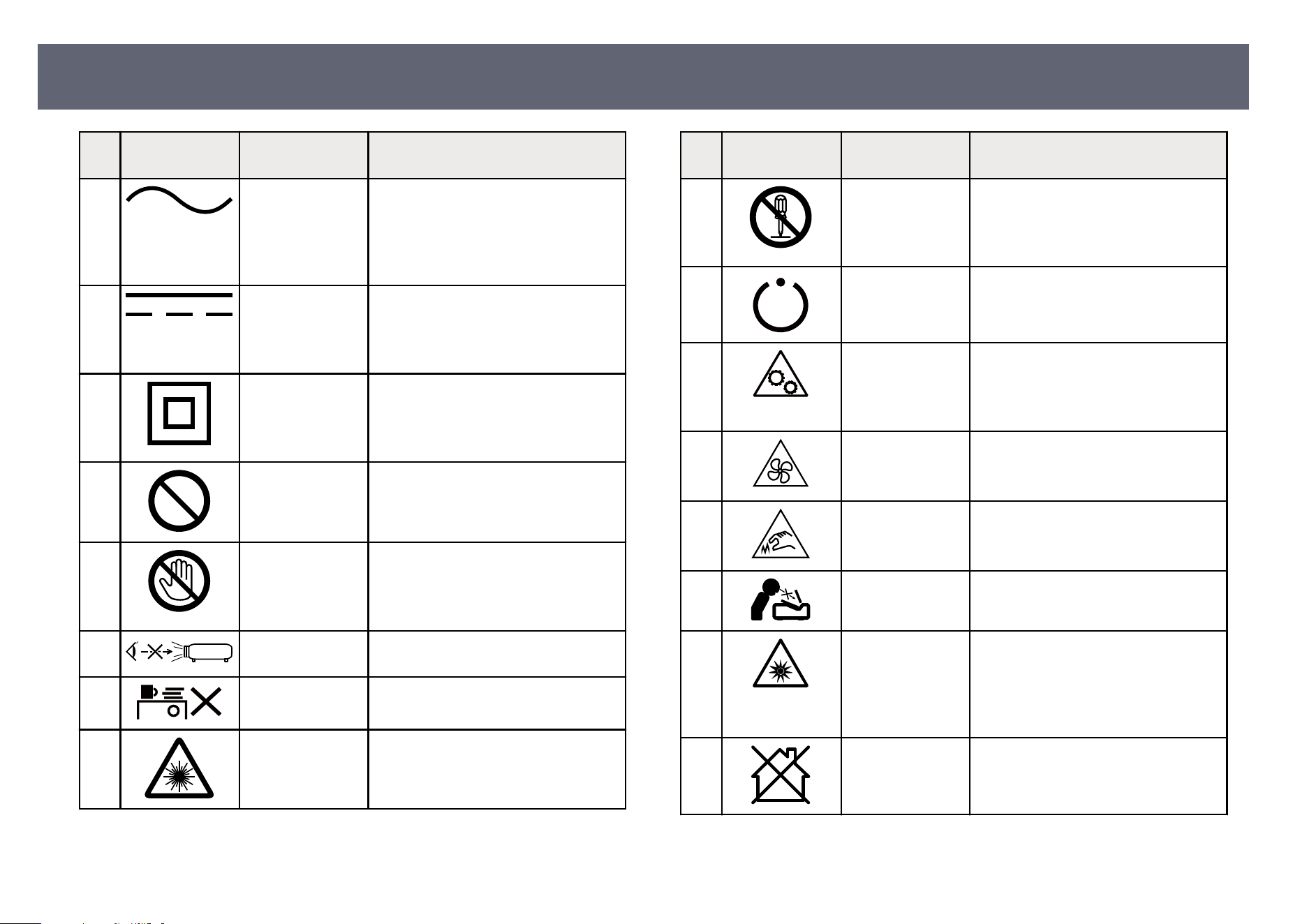
No. Symbol mark Approved
st
andards
Description
O
IEC60417
No
. 5032
Alternating current
To indicate on the rating plate that the
equipment is suitable for alternating
current only; to identify relevant
terminals.
P
IEC60417
No. 5031
Direct current
To indicate on the rating plate that the
equipment is suitable for direct current
only; to identify relevant terminals.
Q
IEC60417
No
. 5172
Class II equipment
To identify equipment meeting the
safety requirements specied for Class
II equipment according to IEC 61140.
R
ISO 3864 General prohibition
To iden
tify actions or operations that
are prohibited.
S
ISO 3864 Contact prohibition
To in
dicate injury that could occur
due to touching a specic part of the
equipment.
T
— Never look into the optical lens while
th
e projector is on.
U
— To indicate that the marked item don’t
pl
ace anything on projector.
V
ISO3864
IEC60825-1
Caution, laser radiation
To in
dicate the equipment has a laser
radiation part.
No. Symbol mark Approved
st
andards
Description
W
ISO 3864 Disassembly prohibition
To in
dicate a risk of injury, such as
electric shock, if the equipment is
disassembled.
X
IEC60417
No. 5266
Standby, partial standby
To indicate that part of the equipment
is in the ready status.
Y
ISO3864
IEC60417
No
. 5057
Caution, movable parts
To indicate that you must keep away
from movable parts according to
protection standards.
Z
IEC60417
No. 6056
Caution (Moving Fan Blades)
As a safety precaution, stay away from
the moving fan blades.
a
IEC60417
No
. 6043
Caution (Sharp Corners)
To indicate sharp corners that should
not be touched.
b
— To indicate that looking into the lens
whi
le projecting is prohibited.
c
ISO7010
N
o
. W027
ISO 3864
Warning, Optical radiation (such as
UV, visible radiation, IR)
Taking care to avoid injury to eyes and
skin when in the vicinity of optical
radiation.
d
IEC60417
No
. 5109
Not to be used in residential areas.
To identify electrical equipment which
is not suitable for a residential area.
List of Safety Symbols and Instructions
107
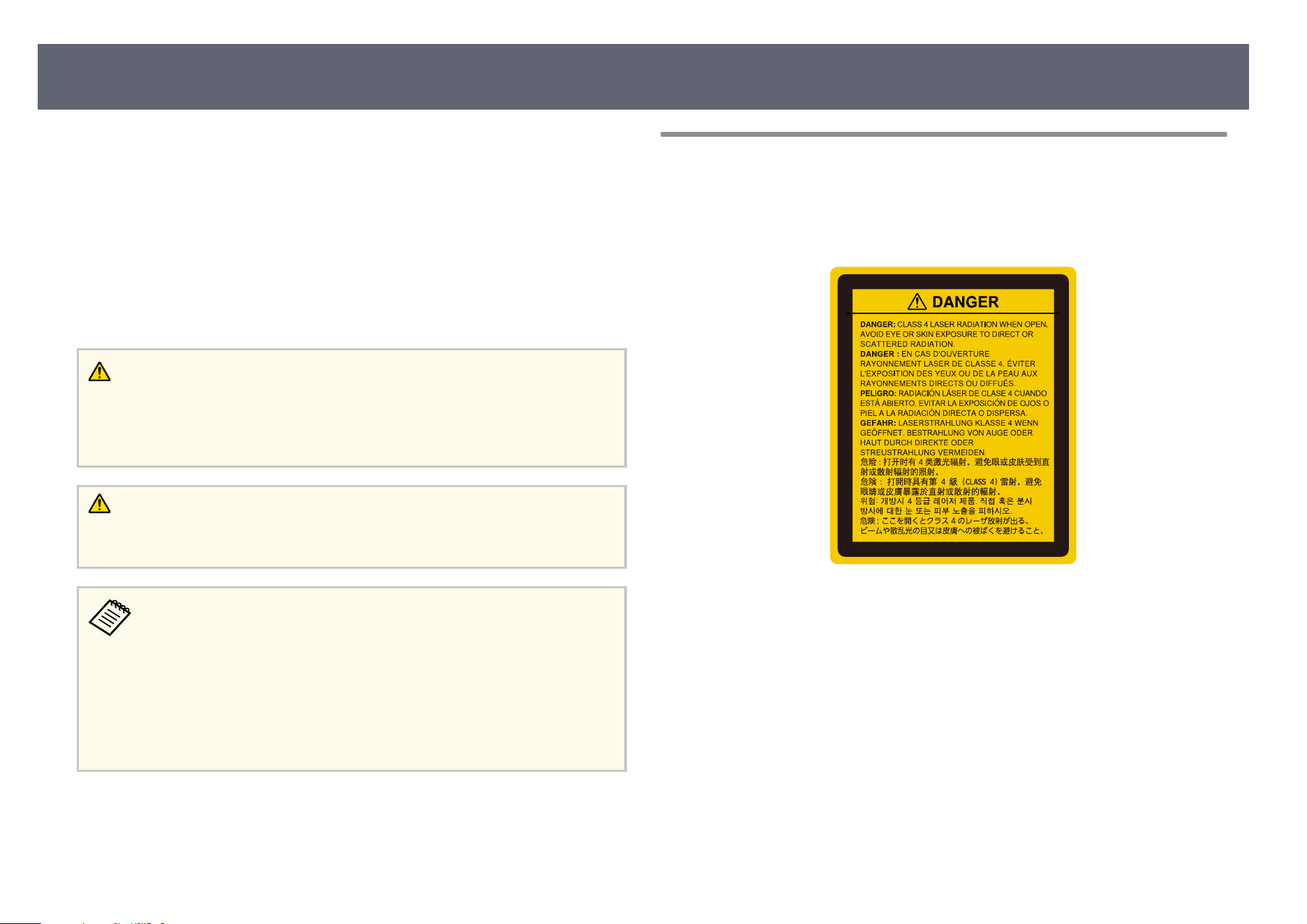
is product is a laser projector that projects images onto surfaces such as walls
an
d screens.
is projector is a Class 1 consumer laser product that complies with the
following standards:
•
IEC60825-1:2014
•
EN60825-1:2014+A11:2021
•
EN50689:2021
Follow these safety instructions when using the projector.
Warning
•
Do n
ot open the projector's case. e projector contains a high-powered laser.
•
Possibly hazardous optical radiation emitted from this product. Do not look at
operating light source. Eye injury may result.
Caution
Do n
ot disassemble the projector when disposing of it. Dispose according to your
local or national laws and regulations.
e projector uses a laser as the light source. e laser has the following
c
haracteristics.
•
Depending on the surroundings, the brightness of the light source may
decline. e brightness declines a lot when the temperature gets too
high.
•
e brightness of the light source declines the longer it is used. You can
change the relationship between usage time and decline in brightness
settings.
g
Related Links
•
"L
aser Warning Labels" p.108
Laser Warning Labels
Laser warning labels are attached on the projector.
Ins
ide
Top
As w
ith any bright source, do not stare into the beam, RG2 IEC/EN
62471-5:2015.
Laser Safety Information
108
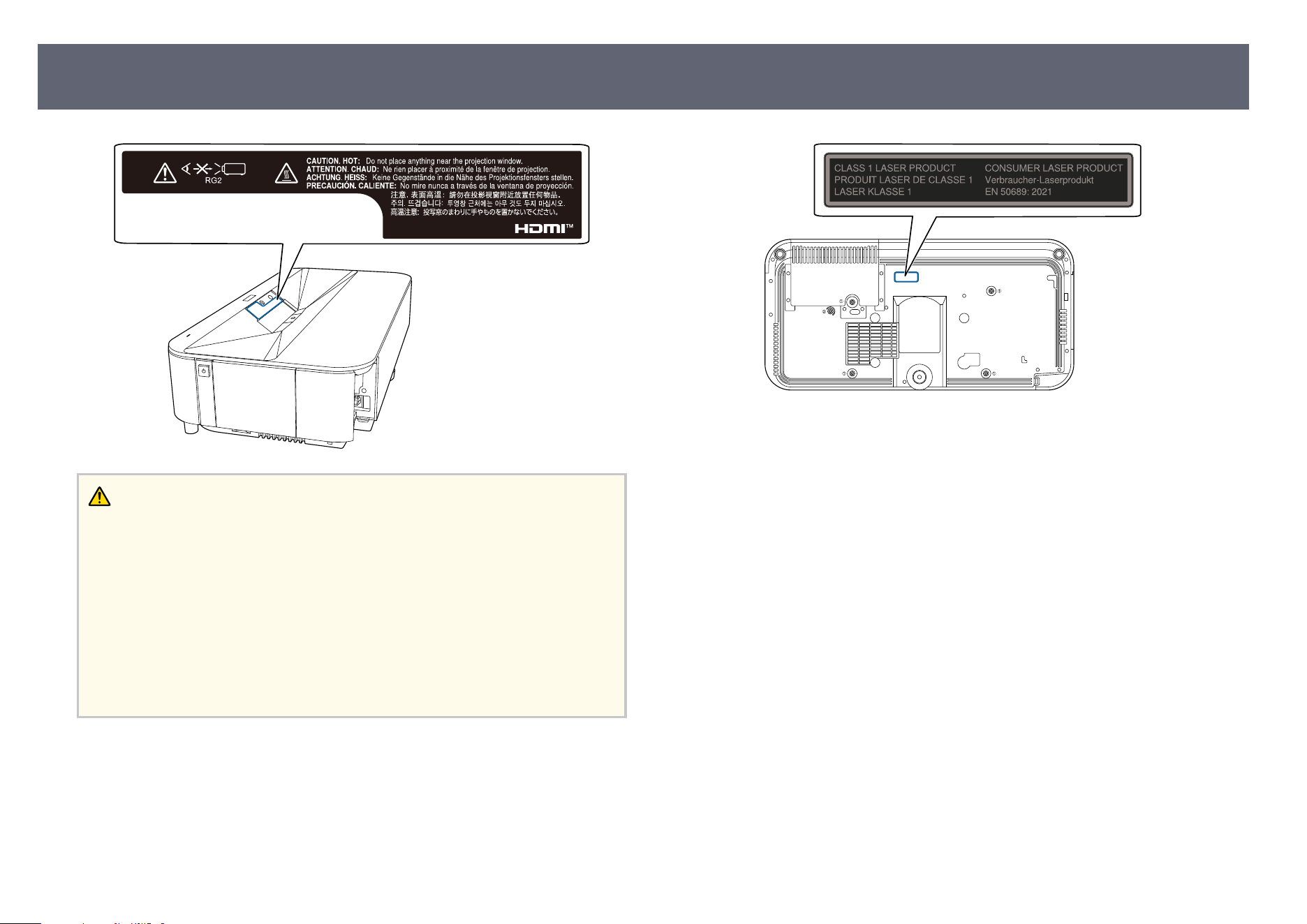
Warning
•
Ne
ver look into the projector lens when the laser is on. is can damage your eyes
and is especially dangerous for children and pets.
•
When turning on the projector at a distance using the remote control, make sure
no one is looking into the lens.
•
Do not allow small children to operate the projector. Children must be
accompanied by an adult.
•
Do not look into the lens during projection. Also, do not look into the lens using
optical devices, such as a magnifying glass or telescope. is could cause visual
impairment.
Base
is
projector is a consumer CLASS 1 laser product that complies with the
EN50689:2021.
is projector is the product that projects images onto walls, screens, etc.
Base (For North/South America)
Co
mplies with 21 CFR 1040.10 and 1040.11 except for conformance as a Risk
Group 2 LIP as dened in IEC 62471-5: Ed. 1.0. For more information see Laser
Notice No. 57, dated May 8, 2019.
Rating Labels (EH-LS970B/EH-LS970W)
e rating label contains the cert ication and identication information for the
projector.
Laser Safety Information
109
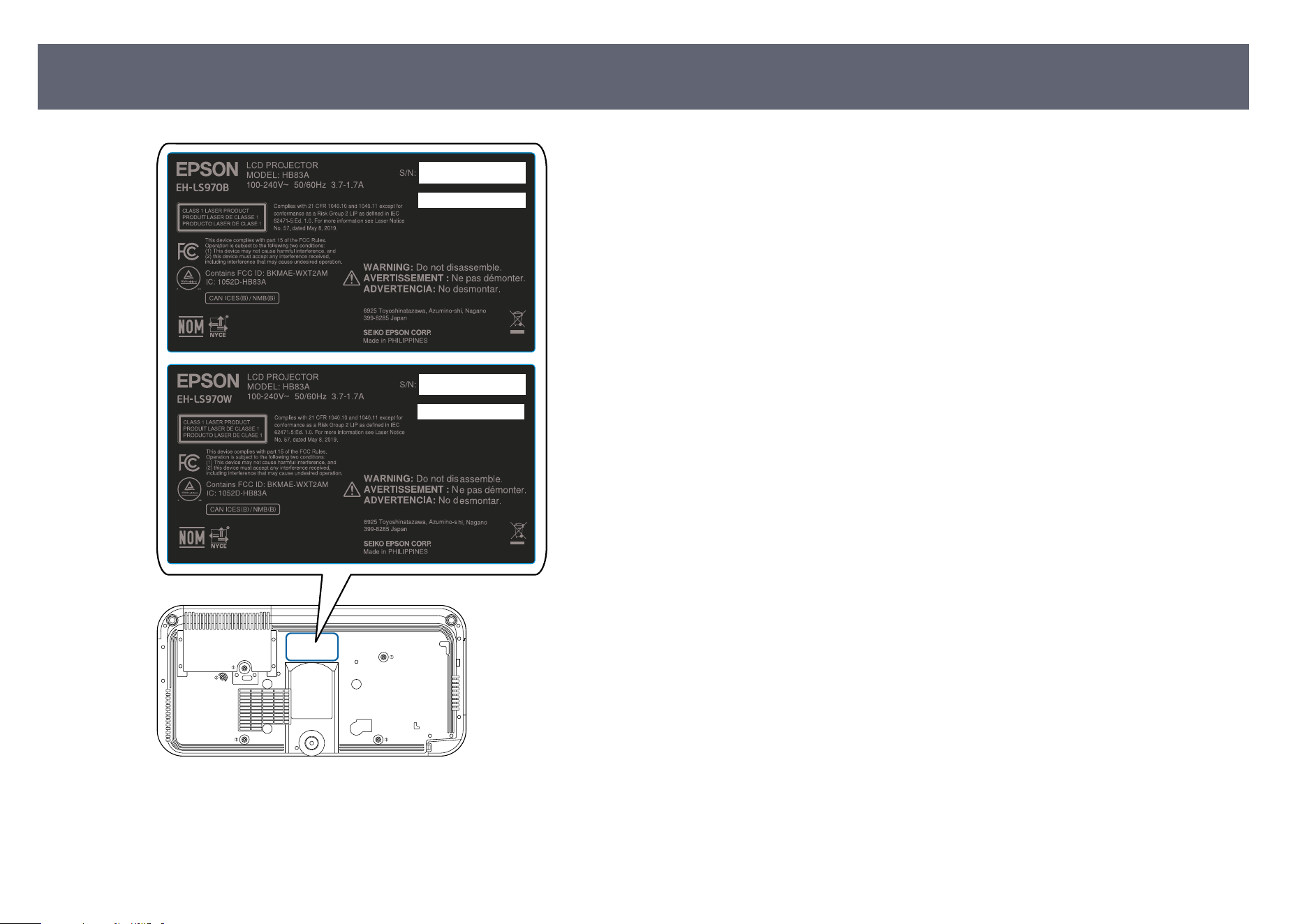
Laser Safety Information
110
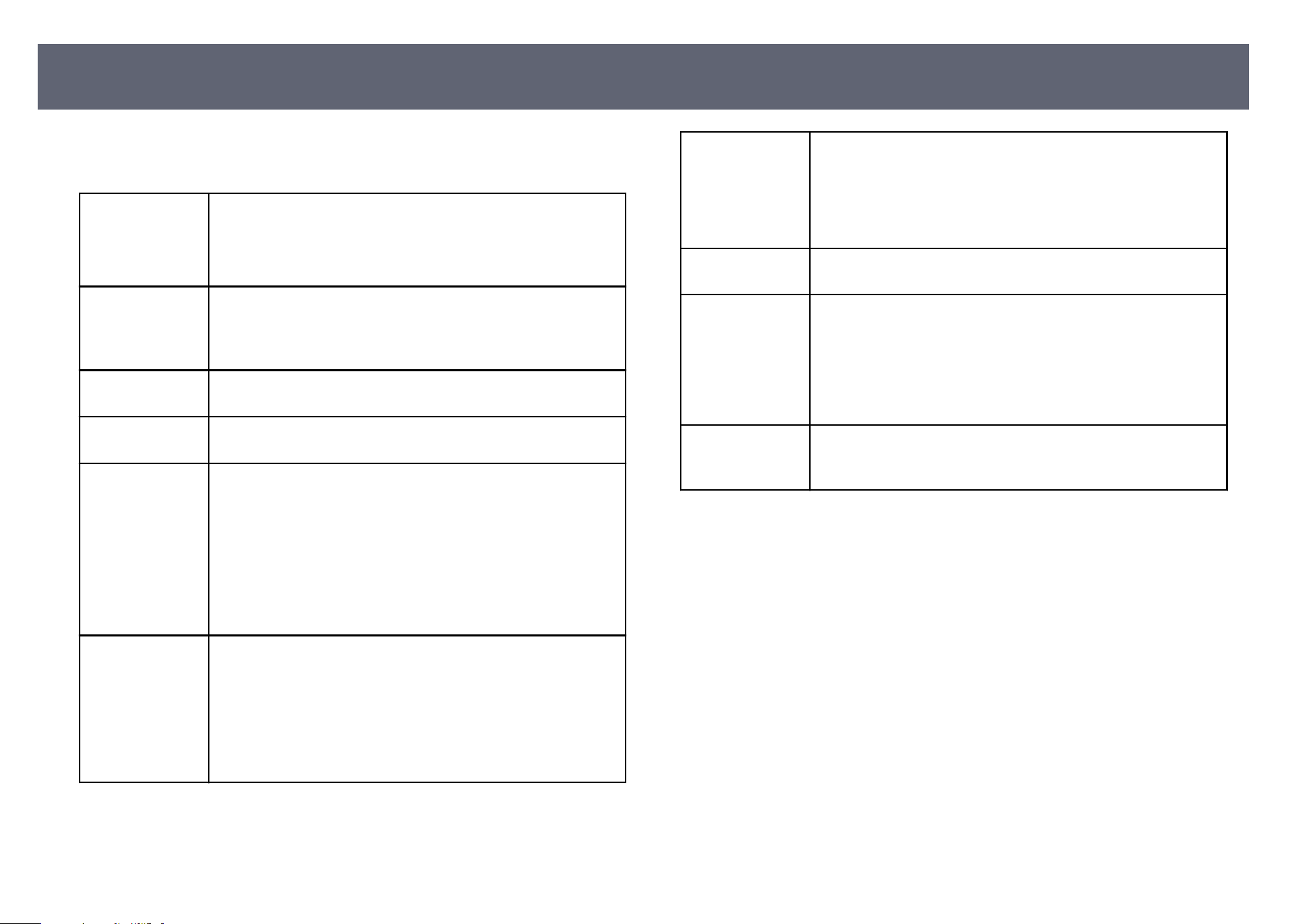
is section briey explains the dicult terms that are not explained in the text
o
f this guide. For details, refer to other commercially available publications.
Aspect Ratio e ratio between an image's length and its height.
S
creens with a horizontal:vertical ratio of 16:9, such as HDTV
screens, are known as wide screens.
SDTV and general computer displays have an aspect ratio of 4:3.
Contrast e relative brightness of the light and dark areas of an image
c
an be increased or decreased to make text and graphics stand
out more clearly, or to make them appear soer. Adjusting this
particular property of an image is called contrast adjustment.
4K A screen size standard with a resolution of 3,840 (horizontal) ×
2,160 (ver
tical) dots.
Full HD A screen size standard with a resolution of 1,920 (horizontal) ×
1,080 (ver
tical) dots.
HDCP HDCP is an abbreviation for High-bandwidth Digital Content
Pr
otection.
It is used to prevent illegal copying and protect copyrights by
encrypting digital signals sent over DVI and HDMI ports.
Because the HDMI port on this projector supports HDCP, it can
project digital images protected by HDCP technology.
However, the projector may not be able to project images
protected with updated or revised versions of HDCP encryption.
HDMI
™
An abbreviation for High D eni
tion Multimedia Interface.
HDMI
™
is a standard aimed at digital consumer electronics
and computers. is is the standard by which HD images and
multichannel audio signals are digitally transmitted.
By not compressing the digital signal, the image can be
transferred at the highest quality possible. It also provides an
encryption function for the digital signal.
HDTV An abbreviation for Hig
h-Denition Television that refers to
high-denition systems which satisfy the following conditions:
•
Vertical resolution of 720p or 1080i or greater (p =
Progressive, I = Interlace)
•
Screen aspect ratio of 16:9
Pairing Register devices in advance when connecting with Bluetooth
dev
ices to ensure mutual communication.
Refresh Rate e light-emitting element of a display maintains the same
l
uminosity and color for an extremely short time.
Because of this, the image must be scanned many times per
second to refresh the light-emitting element.
e number of refresh operations per second is called the
Refresh rate and is expressed in hertz (Hz).
SDTV An abbreviation for Standard Deni
tion Television that refers to
standard television systems which do not satisfy the conditions
for HDTV High-Denition Television.
Glossary
111
Check these sections for important notices about your projector.
g
Related Links
•
"FC
C Compliance Statement" p.112
•
"FCC Compliance Statement For United States Users" p.113
•
"Innovation, Science and Economic Development Canada (ISED) Notices"
p.113
•
"Wireless LAN with Bluetooth Safety and Specications" p.114
•
"Indication of the manufacturer and the importer in accordance with
requirements of EU directive" p.114
•
"Restriction of Use" p.115
•
"Trademarks" p.115
•
"Copyright Notice" p.115
•
"Copyright Attribution" p.116
FCC Compliance Statement
Supplier's DECLARATION of CONFORMITY
Acco
rding to 47CFR, Part 2 and 15
Class B Personal Computers and Peripherals; and/or
CPU Boards and Power Supplies used with Class B Personal Computers
We: Epson America, Inc.
Lo
cated at: 3131 Katella Avenue, Los Alamitos, CA
Tel: 562-981-3840
Declare under sole responsibility that the product identied herein, complies
with 47CFR Part 2 and 15 of the FCC rules as a Class B digital device. Each
product marketed, is identical to the representative unit tested and found to
be compliant with the standards. Records maintained continue to reect the
equipment being produced can be expected to be within the variation accepted,
due to quantity production and testing on a statistical basis as required by
47CFR 2.906. Operation is subject to the following two conditions: (1) this
device may not cause harmful interference, and (2) this device must accept
any interference received, including interference that may cause undesired
op
eration.
Trade Name: EPSON
Type of Product: LCD Projector
Model: HB83A/HB83F
FCC Compliance Statement For United States Users
is device complies with part 15 of the FCC Rules. Operation is subject to the
following two conditions: (1) is device may not cause harmful interference,
and (2) this device must accept any interference received, including interference
that may cause undesired operation.
is equipment has been tested and found to comply with the limits for a Class
B digital device, pursuant to Part 15 of the FCC Rules. ese limits are designed
to provide reasonable protection against harmful interference in a residential
installation. is equipment generates, uses, and can radiate radio frequency
energy and, if not installed and used in accordance with the instructions, may
cause harmful interference to radio communications. However, there is no
guarantee that interference will not occur in a particular installation. If this
equipment does cause interference to radio and television reception, which can
be determined by turning the equipment o and on, the user is encouraged to
try to correct the interference by one or more of the following measures.
•
Reorient or relocate the receiving antenna.
•
Increase the separation between the equipment and receiver.
•
Connect the equipment into an outlet on a circuit dierent from that to
which the receiver is connected.
•
Consult the dealer or an experienced radio/TV technician for help.
WARNING
e connection of a non-shielded equipment interface cable to this equipment
will invalidate the FCC Certication or Declaration of this device and may
cause interference levels which exceed the limits established by the FCC for
this equipment. It is the responsibility of the user to obtain and use a shielded
Notices
112
equipment interface cable with this device. If this equipment has more than
on
e interface connector, do not leave cables connected to unused interfaces.
Changes or modications not expressly approved by the manufacturer could
void the user's authority to operate the equipment.
For Canadian Users
FCC Compliance Statement For United States Users
Contains FCC ID: BKMAE-WXT2AM
Bl
uetooth remote controller FCC ID: BKMAE-B064E02W7
is device complies with part 15 of the FCC Rules. Operation is subject to the
following two conditions: (1) is device may not cause harmful interference,
and (2) this device must accept any interference received, including interference
that may cause undesired operation.
is equipment has been tested and found to comply with the limits for a Class
B digital device, pursuant to Part 15 of the FCC Rules. ese limits are designed
to provide reasonable protection against harmful interference in a residential
installation. is equipment generates, uses, and can radiate radio frequency
energy and, if not installed and used in accordance with the instructions, may
cause harmful interference to radio communications. However, there is no
guarantee that interference will not occur in a particular installation. If this
equipment does cause interference to radio and television reception, which can
be determined by turning the equipment o and on, the user is encouraged to
try to correct the interference by one or more of the following measures.
•
Reorient or relocate the receiving antenna.
•
Increase the separation between the equipment and receiver.
•
Connect the equipment into an outlet on a circuit dierent from that to
which the receiver is connected.
•
Co
nsult the dealer or an experienced radio/TV technician for help.
WARNING
e connection of a non-shielded equipment interface cable to this equipment
will invalidate the FCC Certication or Declaration of this device and may
cause interference levels which exceed the limits established by the FCC for
this equipment. It is the responsibility of the user to obtain and use a shielded
equipment interface cable with this device. If this equipment has more than
one interface connector, do not leave cables connected to unused interfaces.
Changes or modications not expressly approved by the manufacturer could
void the user's authority to operate the equipment.
Caution
Changes or modications not expressly approved by the party responsible for
compliance could void the user’s authority to operate this equipment. Properly
shielded and grounded cables and connectors must be used for connection to
host computers and/or peripherals in order to meet FCC emission limits.
is transmitter must not be co-located or operating in conjunction with any
other antenna or transmitter.
is equipment complies with FCC radiation exposure limits set forth for an
uncontrolled environment and meets the FCC radio frequency (RF) Exposure
Guidelines. is equipment should be installed and operated keeping the
radiator at least 7.9 inches (20 cm) or more away from person’s body.
Innovation, Science and Economic Development
Canada (ISED) Notices
IC: 1052D-HB83A
Bl
uetooth remote controller IC: 1052D-B064E02W7
Operating frequency range: 2.402-2.480GHz, 5.18-5.24GHz, 5.26-5.32GHz,
5.50-5.72GHz, 5.745-5.825GHz, 5.845-5.885GHz, 5.955-7.115GHz
Notices
113
is device contains license-exempt transmitter(s)/receiver(s) that comply
w
ith Innovation, Science and Economic Development Canada’s license-exempt
RSS(s). Operation is subject to the following two conditions:
(1) is device may not cause interference.
(2) is device must accept any interference, including interference that may
cause undesired operation of the device.
is device is restricted for indoor use only. Especially, ISED regulations state
that operation in 5150-5250MHz & 5850-5895MHz is for indoor use only.
is equipment (without Bluetooth remote controller) complies with ISED
radiation exposure limits set forth for an uncontrolled environment and meets
RSS-102 of the ISED radio frequency (RF) Exposure rules.
Caution: Exposure to Radio Frequency Radiation
1. To comply with the Canadian RF exposure compliance requirements, this
device and its antenna must not be co-located or operating in conjunction with
any other antenna or transmitter.
2. To comply with RSS-102 RF exposure compliance requirements, this
equipment should be installed and operated, keeping the radiator at least 7.9
inches (20cm) or more away from the person's body.
Wireless caution for Wi-Fi 6E
e following uses of this device are prohibited by ISED, RSS-248 regulations.
•
Devices shall not be used for control of or communications with unmanned
aircra systems.
•
Devices shall not be used on oil platforms.
•
Devices shall not be used on aircra, except for the low-power indoor access
points, indoor subordinate devices, low-power client devices, and very low-
power devices operating in the 5925-6425 MHz band, that may be used on
large aircra as dened in the Canadian Aviation Regulations, while ying
above 3,048 meters (10,000 feet).
•
Devices shall not be used on automobiles.
•
Devices shall not be used on trains.
•
De
vices shall not be used on maritime vessels.
Wireless LAN with Bluetooth Safety and Specications
Contains wireless LAN with Bluetooth module model: WXT2AM2101
Bl
uetooth remote controller model: B064E-02-W7
is document provides safety instructions and describes the specications.
Read this document carefully before use to ensure your safety and product
performance.
is device is restricted to indoor operation only.
Operating frequency range:
WXT2AM2101: 2.402-2.480GHz, 5.18-5.24GHz, 5.26-5.32GHz, 5.50-5.72GHz,
5.745-5.825GHz, 5.845-5.885GHz, 5.955-7.115GHz
B064E-02-W7: 2.402-2.480GHz
Data transmission is always initiated by soware, which is then passed down
through the MAC, through the digital and analog baseband, and nally to the
RF chip. Several special packets are initiated by the MAC. ese are the only
ways the digital baseband portion will turn on the RF transmitter, which it then
turns o at the end of the packet. erefore, the transmitter will be on only
while one of the aforementioned packets is being transmitted. In other words,
this device automatically discontinue transmission in case of either absence of
information to transmit or operational failure.
Indication of the manufacturer and the importer in
accordance with requirements of EU directive
Manufacturer: SEIKO EPSON CORPORATION
Addr
ess: 3-5, Owa 3-chome, Suwa-shi, Nagano-ken 392-8502 Japan
http://www.epson.com/
Notices
114
Importer: EPSON EUROPE B.V.
EU Addr
ess: Atlas Arena, Asia Building, Hoogoorddreef 5,1101 BA Amsterdam
Zuidoost e Netherlands
UK Address: Floor 3&4, e Clarendon Works, 37-39 Clarendon Road, Watford
WD17 1JA, U.K.
http://www.epson.eu/
Restriction of Use
When this product is used for applications requiring high reliability/safety
suc
h as transportation devices related to aviation, rail, marine, automotive etc.;
disaster prevention devices; various safety devices etc; or functional/precision
devices etc, you should use this product only aer giving consideration to
including fail-safes and redundancies into your design to maintain safety
and total system reliability. Because this product was not intended for use
in applications requiring extremely high reliability/safety such as aerospace
equipment, main communication equipment, nuclear power control equipment,
or medical equipment related to direct medical care etc, please make your own
judgment on this product’s suitability aer a full evaluation.
Trademarks
Mac, OS X, and macOS are trademarks of Apple Inc.
Microso, Windows, and the Windows logo are trademarks or registered
trademarks of Microso Corporation in the United States and/or other
countries.
Google TV is the name of this device's soware experience and a trademark of
Google LLC. Google, YouTube and Google Cast are trademarks of Google LLC.
Manufactured under license from Dolby Laboratories. Dolby, Dolby Audio,
and the double-D symbol are trademarks of Dolby Laboratories Licensing
Corporation.
e terms HDMI, HDMI High-Denition Multimedia Interface, HDMI Trade
dr
ess and the HDMI Logos are trademarks or registered trademarks of HDMI
Licensing Administrator, Inc.
"QR Code" is a registered trademark of DENSO WAVE INCORPORATED.
Wi-Fi
®
i
s a trademark of the Wi-Fi Alliance
®
.
e Bluetooth
®
word mark and logos are registered trademarks owned by
Bluetooth SIG, Inc. and any use of such marks by Seiko Epson Corporation
is under license. Other trademarks and trade names are those of their respective
owners.
Adobe and Adobe Reader are either registered trademarks or trademarks of
Adobe Systems Incorporated in the United States and/or other countries.
Other product names used herein are also for identication purposes only and
may be trademarks of their respective owners. Epson disclaims any and all
rights in those marks.
Copyright Notice
All rights reserved. No part of this publication may be reproduced, stored in
a ret
rieval system, or transmitted in any form or by any means, electronic,
mechanical, photocopying, recording, or otherwise, without the prior written
permission of Seiko Epson Corporation. No patent liability is assumed with
respect to the use of the information contained herein. Neither is any liability
assumed for damages resulting from the use of the information contained
herein.
Neither Seiko Epson Corporation nor its aliates shall be liable to the purchaser
of this product or third parties for damages, losses, costs, or expenses incurred
by the purchaser or third parties as a result of: accident, misuse, or abuse of this
product or unauthorized modications, repairs, or alterations to this product,
or (excluding the U.S.) failure to strictly comply with Seiko Epson Corporation's
operating and maintenance instructions.
Seiko Epson Corporation shall not be liable against any damages or problems
arising from the use of any options or any consumable products other than
Notices
115

those designated as Original Epson Products or Epson Approved Products by
Sei
ko Epson Corporation.
e contents of this guide may be changed or updated without further notice.
Illustrations in this guide and the actual projector may dier.
Copyright Attribution
is information is subject to change without notice.
© 2025 S
eiko Epson Corporation
2025.12 414710600EN
Notices
116
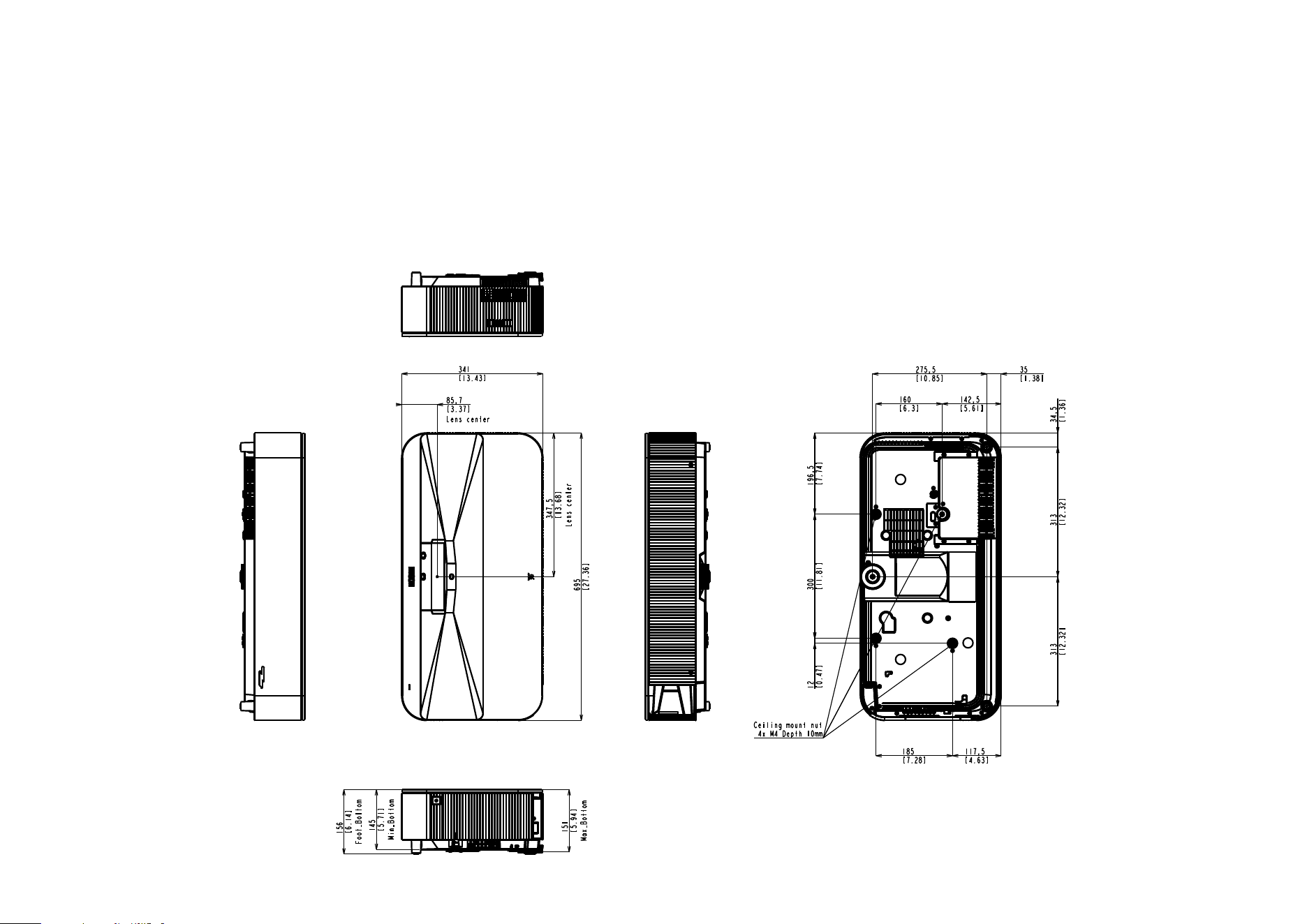
External Dimensions
Uni
t: mm
Unit: [inches]
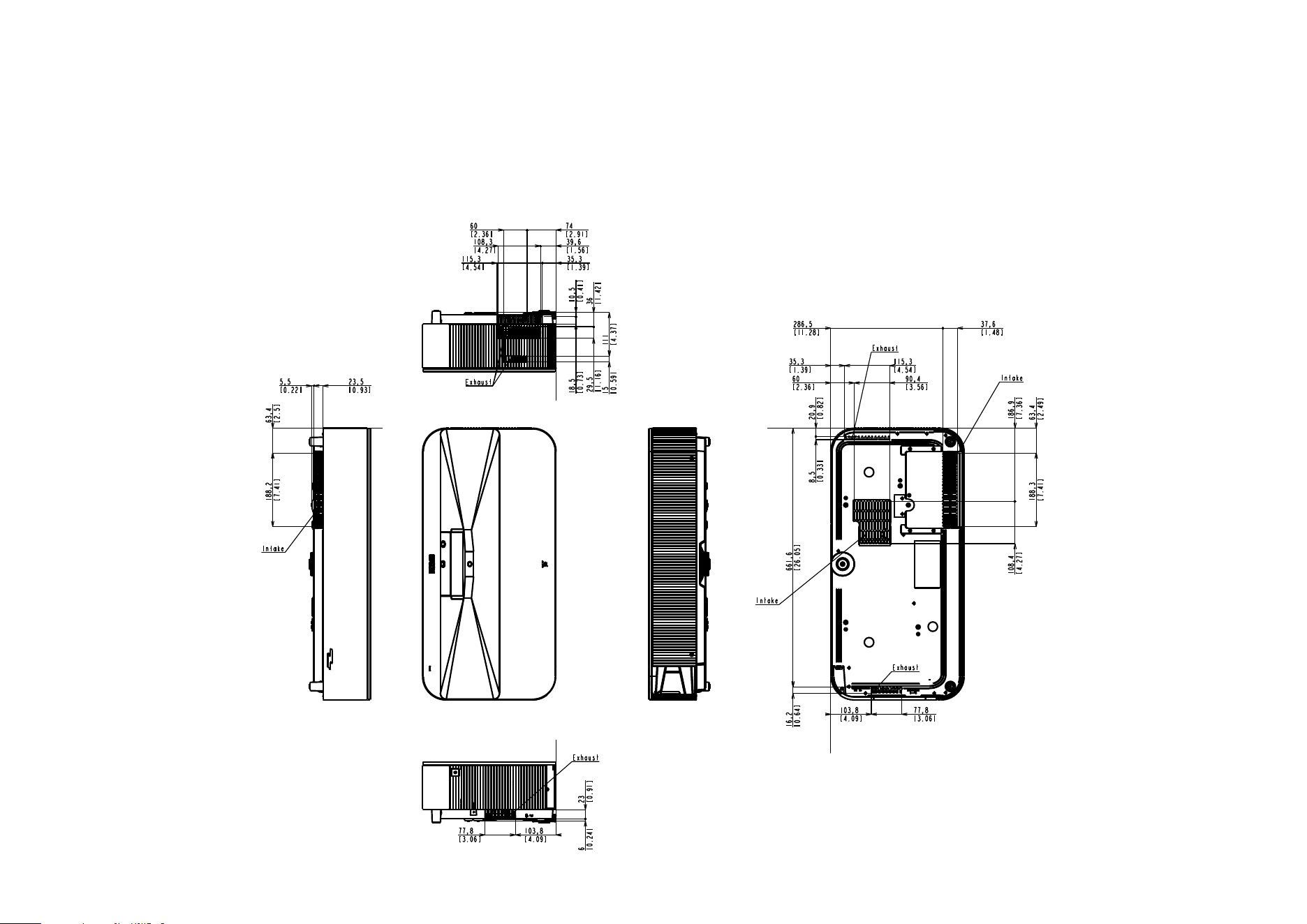
Dimensions of the air intake/exhaust vents
Uni
t: mm
Unit: [inches]