Rev. 20200723
USER MANUAL
ENGLISH
FIRMWARE 1.2.0
FIRMWARE 1.2.0

Numa Compact 2/2x by Studiologic
2
E
Index
Safety instructions
Your new Numa Compact
Power - Inputs and connections
Panel - Display and navigation
Sound banks and sound section
Organ Model
Synth Engine
Eects
Global edit
Product overview
Key features
Example of use
Operation diagram
Power connection
USB power
Expression / Universal pedals
Audio output
Headphones
Volume
USB
Sound / MIDI
Demo
SPLIT
Store - User programs
Sound mode
Introduction
Drawbars
Typical Drawbars settings
Original Drawbars settings
Chorus and Vibrato
Percussions
Waveforms
Cuto
Resonance
Filter Amplitude Envelope
Store
FX1- FX2
FX Autoset
Strings Resonance (Damper model)
Transposer
Global tuner
Velocity curve
Fixed velocity
Strings resonance (Damper eect)
Speakers
Pedal 2
FX Autoset
Local control
USB MIDI Channel
MIDI Merge
Sysex lter
Slider mode
Key click
Percussion Volume
4
5
5
6
6
9
9
9
9
10
10
10
11
12
12
12
13
14
15
16
17
18
18
19
19
19
20
20
22
23
23
24
24
24
24
24
24
25
25
26
26
26
26
26
27
27
Numa Compact 2x
Numa Compact 2x
Numa Compact 2x
Numa Compact 2x
Numa Compact 2x

Numa Compact 2/2x by Studiologic
3
E
Index
Program edit
Part edit
MIDI (Zone edit)
Declarations
Appendix
27
27
27
28
28
28
29
29
30
30
30
30
30
31
31
33
33
33
34
34
34
34
34
34
35
35
36
38
40
40
Programs send/receive
Factory reset
Firmware version and update
Program name
Split point
Mixer
Volume
Split assign
Transpose
Octave
Fine tuning
Rev send
Pedal 1 - Pedal 2
Stick 1 - Stick 2
Aftertouch
Program Change
LSB - MSB
MIDI channel
Volume
Split assign
Transpose
Octave
Pedal 1 - Pedal 2
Stick 1 - Stick 2
Aftertouch
Sliders programming
Sounds list
Specications
Dimensions
Numa Compact 2x
Numa Compact 2/2x by Studiologic
4
E
Important safety instructions
Please read the entire manual. It contains all the informations
you need to use this unit.
Please follow the instructions in the manual. The warranty will be
void if unauthorized work is carried out on the Numa Compact.
Only accessories that are specied by the manufacturer should
be used with this unit.
Use the unit only as specied in this manual.
DANGER!
Risk of electric shock. Do not open the chassis. There are no
user serviceable parts inside.
The unit should only be serviced by qualied service sta.
Humidity
To reduce the risk of re or electric shock, do not expose the
unit to rain or moisture. Never place containers with liquid on
the unit. Do not use the unit near water, swimming pool, bath-
tub or wet basement. If the unit is moved from a cold place to a
warm room, condensation may occur inside. To avoid damage
please allow the unit to reach room temperature before swit-
ching on.
Installation
Always use a stable rack to place the keyboard on. Please be
aware of its size and weight.
Cleaning / Maintenance
Never use any abrasive detergent, which may damage the sur-
face. We recommend a slightly moist micro-bre cloth.
Packaging
Please keep all packaging, and use it to protect the keyboard
when transporting or if servicing is required.
Mains
Before connecting the unit to the main power supply, please
check if the power supply is suitable for the Numa Compact
adapter. The unit can be powered with 100 – 240VAC, using the
included power adapter.
Important Note: the Numa Compact can be powered directly
also by the USB port, if connected to the PC or other suitable
USB power sources.
Safety Instructions

Numa Compact 2/2x by Studiologic
5
E
Your new Numa Compact
The Numa Compact is an incredibly powerful musical instrument, packed in a stylish and slim
cabinet, based on a totally new technology and updated user interface. The keyboard includes an
Aftertouch control and together with the programmable Sticks, allows to have a total control of
the musical performance. The new sound engine is capable of 128 notes of max polyphony and
it includes two independent sections (Lower & Upper) with over 80 sounds, organized in 8 Sound
Banks, assignable to any portion of the keyboard, in Layer or Split mode. The 1GB (ash memory)
sounds are further enhanced by 2 eects post-processors (Fx1-Fx2) each one with a double inter-
nal architecture, for a total of 4 independent eects at once.
A controllable Strings Resonance and the Release-Staccato Samples make the main piano sounds
even more real, while a new Stereo Reverb post-processor further enhances the sound. Bass, Tre-
ble and Mastering controls allow to reach a studio quality, also noticeable thru the built in digital
amplier and elliptical back-reection speakers. The MIDI Module includes 2 independent MIDI
zones and all parameters can be programmed and stored.
Key features
• 88 notes light weighted keyboard with Aftertouch
• Stick 1: Pitch Bend function on both axis
• Stick 2: Sound Modulation and FX1/2 control (assignable or auto-selection)
• Built in 2 x 10W amplifier + 2 elliptical back reflection speakers
• 128x64 graphic oled display
• Lower-Upper-Zone A-Zone B
• 4 programmable sections (internal SOUNDS and MIDI) in any combination
• Tonewheel Organ Mode engine, with nine drawbars allowing thousands of possible
combinations, a Percussion type, level and Click control, plus a dedicated Chorus/Vibrato post-
processor (simulating the analogue “Scanner“ vibrato)
*
• Synth section, with nine real time Sliders assigned to the most usefut Synth parameters*
• 1 GB of flash memory, 88 sounds organized in 8 Sound Banks
• Concert Grand piano sounds with release-staccato samples and Strings Resonance
• FX1-2 double effects processors - 4 programmable effects at once
• Stereo Reverb with separate Lower/Upper controllable send level
• Cutoff and Resonance controls editable on all Sounds
• Strings Resonance (Damper model) on acoustic Piano sounds (programmable)
• Global-Program-Part EDIT
• Bass, Treble, Mastering (3D+Compressor) post processing controls
• Two additional internal Parts (on MIDI Ch 3 and 4) playable and recordable via MIDI*
• Advanced MIDI Implementation, with a separate MIDI Port for the Keyboard (including all
panel controls) and a Controller Port, for the 2 programmable MIDI Zones
• Connections: Usb, MIDI In/Out, Audio L/R, Headphones, Ped1-Ped2
• Audio over USB
• USB power
Product overview
Numa Compact 2x
*
Numa Compact 2/2x by Studiologic
6
E
Your new Numa Compact
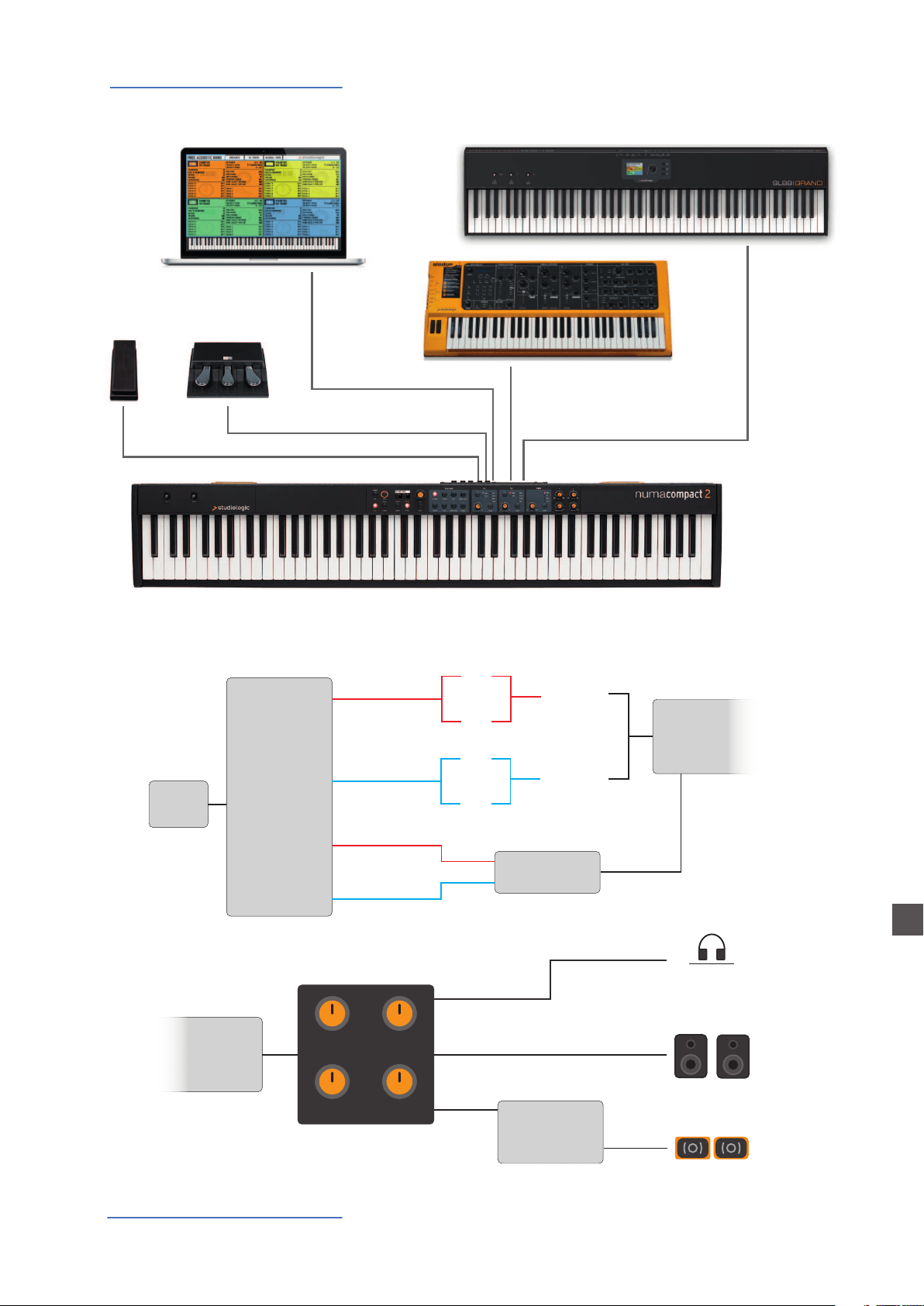
Example of use
PED2PED1
USB
MIDI OUT
MIDI IN
Operation diagram
1GB
Sound
engine
UPPER
Strings
resonance
FX1
FX2
Rev send
Stereo
reverb
LOWER
FX1
FX2
Rev send
UPPER
LOWER
Bass
Treble
Mastering
Volume
L
R
HEADPHONES / AUX
L
R
BUILT-IN
SPEAKERS
Digital
amplifier
AUDIO out
Stereo
reverb
Suggested setting

Numa Compact 2/2x by Studiologic
7
E
Your new Numa Compact
An overview of the functions of the Numa Compact:
The Numa Compact 2 oers the latest innovative technolo-
gy by Fatar: the sophisticated weighted keyboard TP9-Piano
with Aftertouch. The Numa Compact weighs just 7,1 kg and is
therefore very portable, yet it oers a great keyboard touch,
for which Fatar is famous.
You can immediately start playing the included high quali-
ty sounds, which have been carefully sampled. Experienced
keyboard players and musicians selected those sounds and
were involved in the design of the straightforward operation
of Numa Compact. Therefore Numa Compact is your perfect
partner on stage, in the studio or at home. 128 voices of max
polyphony are available to add depth and expression.
You can combine two sounds by assigning them to the Lower
and Upper sections in Split or Layer mode.
The 2 double FX processors allow to assign 2 dierent eects
to both Lower and Upper sections, in addition to a Strings
Resonance eect on all piano sounds and a Stereo Reverb, for
an endless variety of combinations of all kind.
A Volume, Bass, Treble and Mastering controls allow to get
the preferred sound setting and the internal monitor-ampli-
cation system with elliptical speakers allow you to play the
instrument using the internal 10+10W amplication system,
digitally controlled and equalized. For the best result a sugge-
sted setting is with all pots at halfway, to avoid any possible
distorsion and ensure a correct frequncy responce. Settings
can be modied according to the selected sound.
The master keyboard functions of the Numa Compact 2, with
2 programmable Zones, allow you to control other MIDI de-
vices, select the sounds and adjust the levels directly from
your Numa Compact 2.
As well as the stereo L/R audio output and built in ampli-
cation system, the Numa Compact 2 has an additional head-
phone plug, ideal for late-night jam sessions without distur-
bing the neighbours. This connection can also be used as an
auxiliary audio output.
The integrated USB port allows your Numa Compact 2 to con-
nect to your computer and be powered directly, without the
need of the external adapter (included). You can use a USB
and MIDI out for MIDI data transmission. In addition, updates
of the rmware or the sound library are accessible via USB.
Please note that the internal amplication system is automa-
tically switched o when the instrument is powered by USB,
to avoid excessive power consumption or power drops.
Light weighted action
8 Sound Banks
FX1 - FX2- REV
Strings Resonance
Mixer & Mastering
Built-in Amplication
Master keyboard functions
Audio connections

Numa Compact 2/2x by Studiologic
8
E
Your new Numa Compact
Interactive Numa
USB <> Computer
Delivery includes
The integrated USB port allows your Numa Compact 2 to con-
nect to your computer and be powered directly, without the
need of the external adapter (included). You can use a USB
and MIDI out for MIDI data transmission. In addition, updates
of the rmware or the sound library are accessible via USB.
Please note that the internal amplication system is automa-
tically switched o when the instrument is powered by USB,
to avoid excessive power consumption or power drops.
Numa Compact 2/2x
Power Adapter
USB cable
Informative material
Numa Compact 2/2x by Studiologic
9
E
Power - Inputs and connections
Use the power adapter supplied with the device to connect
the Numa Compact to the power socket (or use the USB con-
nection). Switch the unit on by using the power button next
to the power plug of the Numa Compact, set the main Vo-
lume, Bass and Treble controls to the half position and the
Mastering control to zero-minimum (the function will be ex-
plained later on this manual) to avoid excessive output power
and allow the internal speakers to play with a correct dyna-
mic range.
The instrument can also be powered by USB, using a shielded
quality certied cable and providing that the computer
has enough power and not too many devices are powered
through the same USB port.
When the instrument is USB powered, the internal amplica-
tion system is disconnected.
PLEASE NOTE: in case of weak or unstable connection, use
the traditional power (see previous paragraph).
Connect the (optional) pedal or pedals to the related sockets,
labelled Ped1 and Ped2; at the socket labelled Ped 1 you can
plug in the Studiologic VP pedal, typically for volume-expres-
sion controls. To the Ped2 socket you can plug either a single
swicth pedal, a volume-expression pedal or the custom triple
pedal SLP3-D, as explained in the related chapter.
If you want to use external amplication systems, or record
the instruments sounds, connect the Left and Right audio
outputs to the inputs of your mixing desk or amplier, or to
your computer audio board inputs, using suitable cables.
Power connection
USB power
Expression / Universal pedals
Audio output
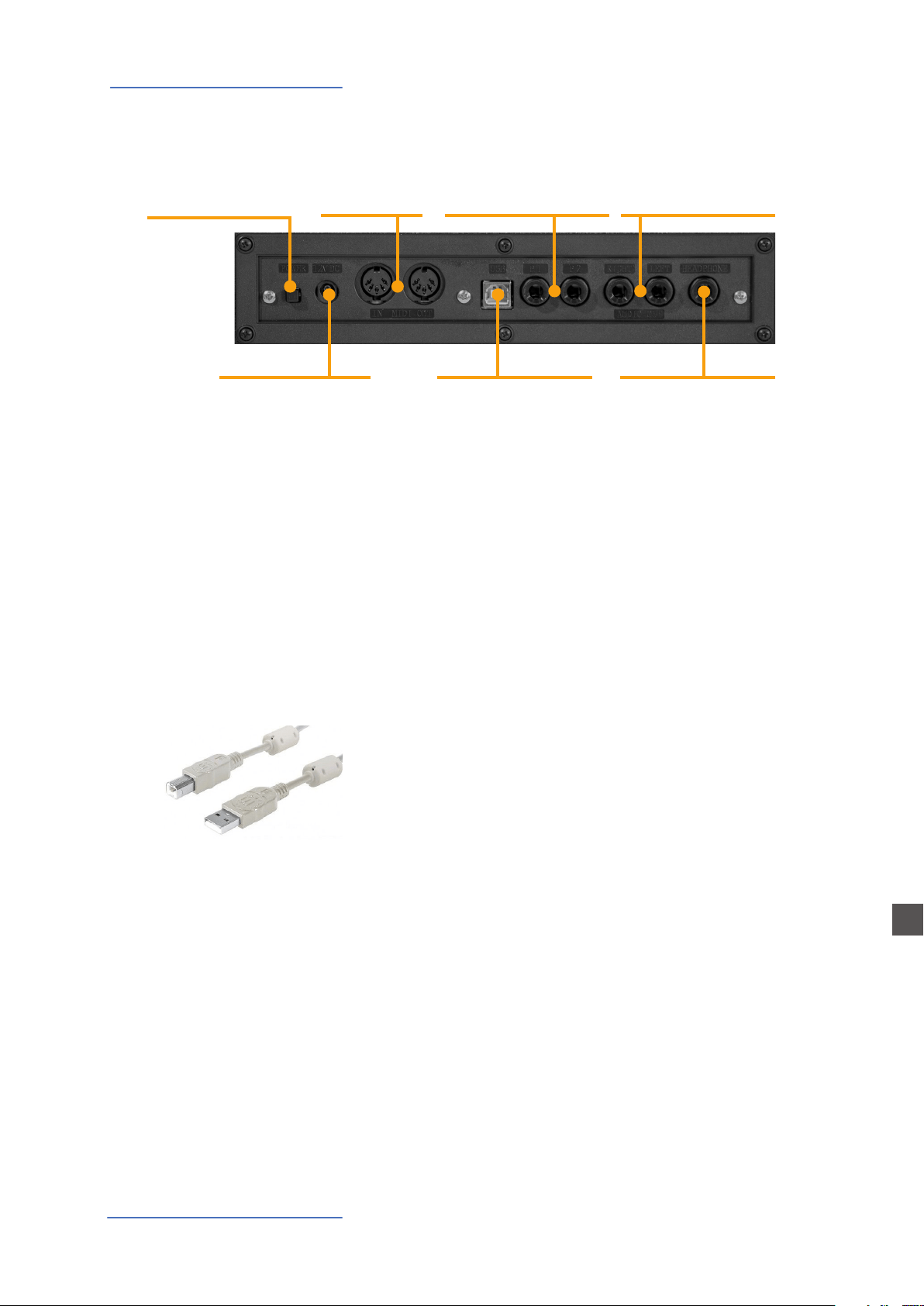
Power
12V - 2,5A
USB Port
MIDI I/O, rmware update,
power
Ped 1, Ped 2
Expression pedal,
Universal pedal
Audio L/R Out
2x 6,3mm mono jack
MIDI In-OutPower On/O
Headphones / Aux Out
1x 6,3mm stereo jack
Power - Inputs and connections

Numa Compact 2/2x by Studiologic
10
E
Power - Inputs and connections
The Headphones output can be used with an headphones set
or as an extra audio auxiliary output, according to the setting
of the related GLOBAL edit function (explained in this manu-
al). As an auxiliary audio out, you can use this plug to connect
the instrument to a subwoofer or an additional amplication
system, while the L/R outputs are still available for recording
or other audio connections.
When you use the Numa Compact for the rst time, we re-
commend you to turn the Volume knob on the Output sec-
tion to not more than half way between 0 and Full. While you
are playing you can adjust the volume according to the se-
lected sounds. Adjusting the Volume knob will eect all au-
dio and headphone outputs at the same time.
CAUTION:
To prevent hearing damage, you should – as with all audio
devices – avoid using the Numa Compact at high volume for
long periods.
For data transmission via USB, connect the Numa Compact to
your computer with a USB cable. The rst time you switch the
Numa Compact on, it will be recognised by your computer au-
tomatically and the appropriate driver will be installed by the
OS (cross compliant).
Headphones
Volume
USB
Numa Compact 2/2x by Studiologic
11
E
Panel - Display and navigation
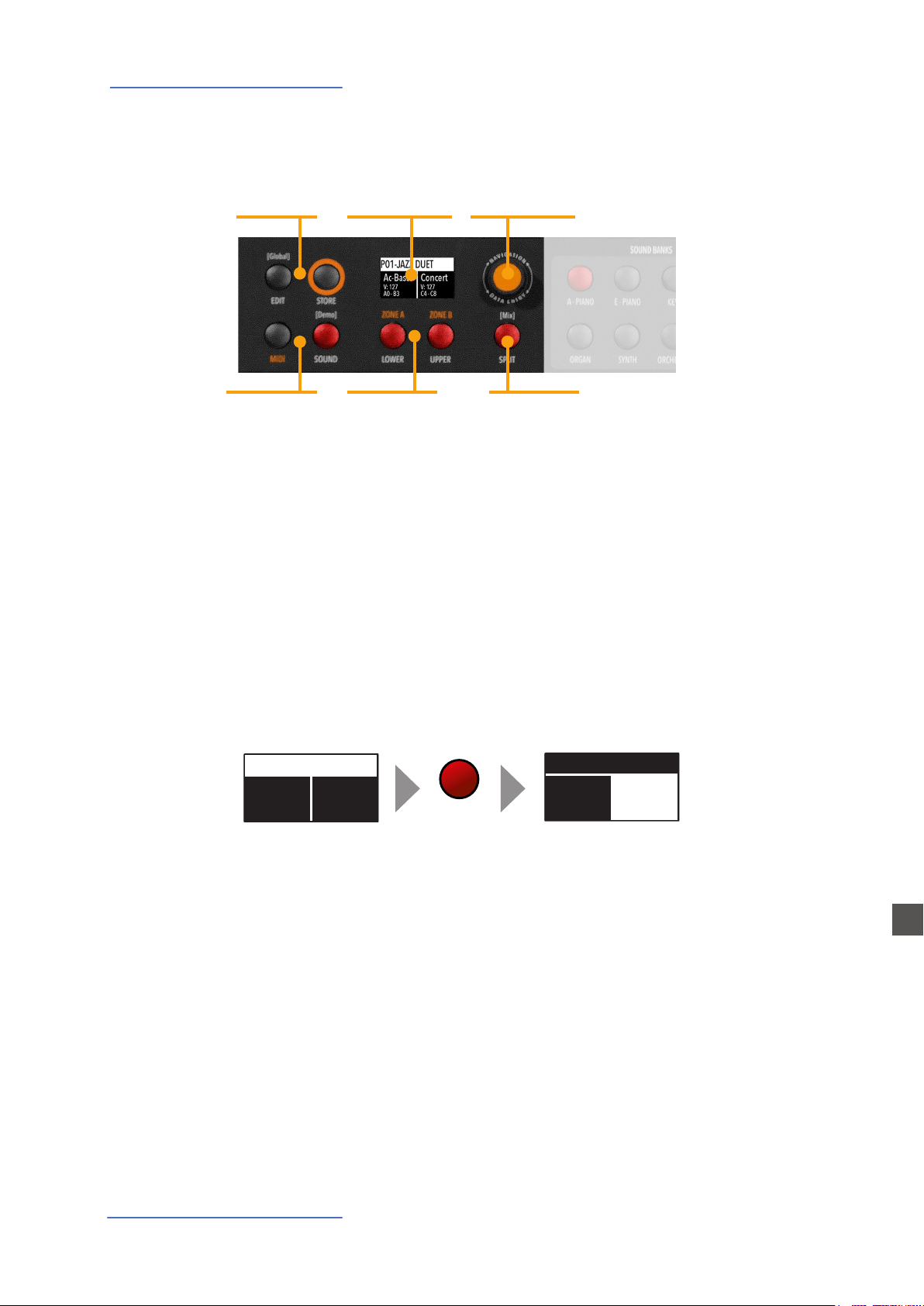
The main HOME display of the Numa Compact is the one shown at power on and it’s divided in 3
main areas: the top area shows the current Program number and name, the left and right lower
areas are related to the Lower and Upper Sound sections, in SOUND mode, and to the Zone A and
Zone B sections, in MIDI Mode.
To navigate and move the focus (intended as the cursor position on the display) you can use three
controls at your choice:
a) Clicking on the Encoder: the focus will move to the 3 main positions: Programs, Lower, Upper.
b) Pressing the Sound or MIDI buttons, the focus (cursor position) will be moved on top.
c) Pressing Lower or Upper, the focus (cursor position) will be set to the related areas.
MIDI / Sound /
DEMO
Encoder
Rotation + click
Edit / Store
Lover - Upper
Parts/Zones
selection
The two buttons marked SOUND and MIDI will toggle bet-
ween the two related views and controls.
When the SOUND button is selected and lighted, the user can
control the SOUND sections and selections, all related dis-
play, settings, edit pages and parameter settings.
When the MIDI button is selected and lighted, the display will
show the status of the MIDI Zones A and B and the user can
access to all available parameters, edit functions and values.
Sound / MIDI
Display
Monochrome
display
SPLIT / Mix
Panel - Display and navigation
P01-JAZZ DUET
Ac-Bass
V: 127
A0 - B3
Concert
V: 127
C4 - C8
UPPER
P01-JAZZ DUET
Ac-Bass
V: 127
A0 - B3
Concert
V: 127
C4 - C8
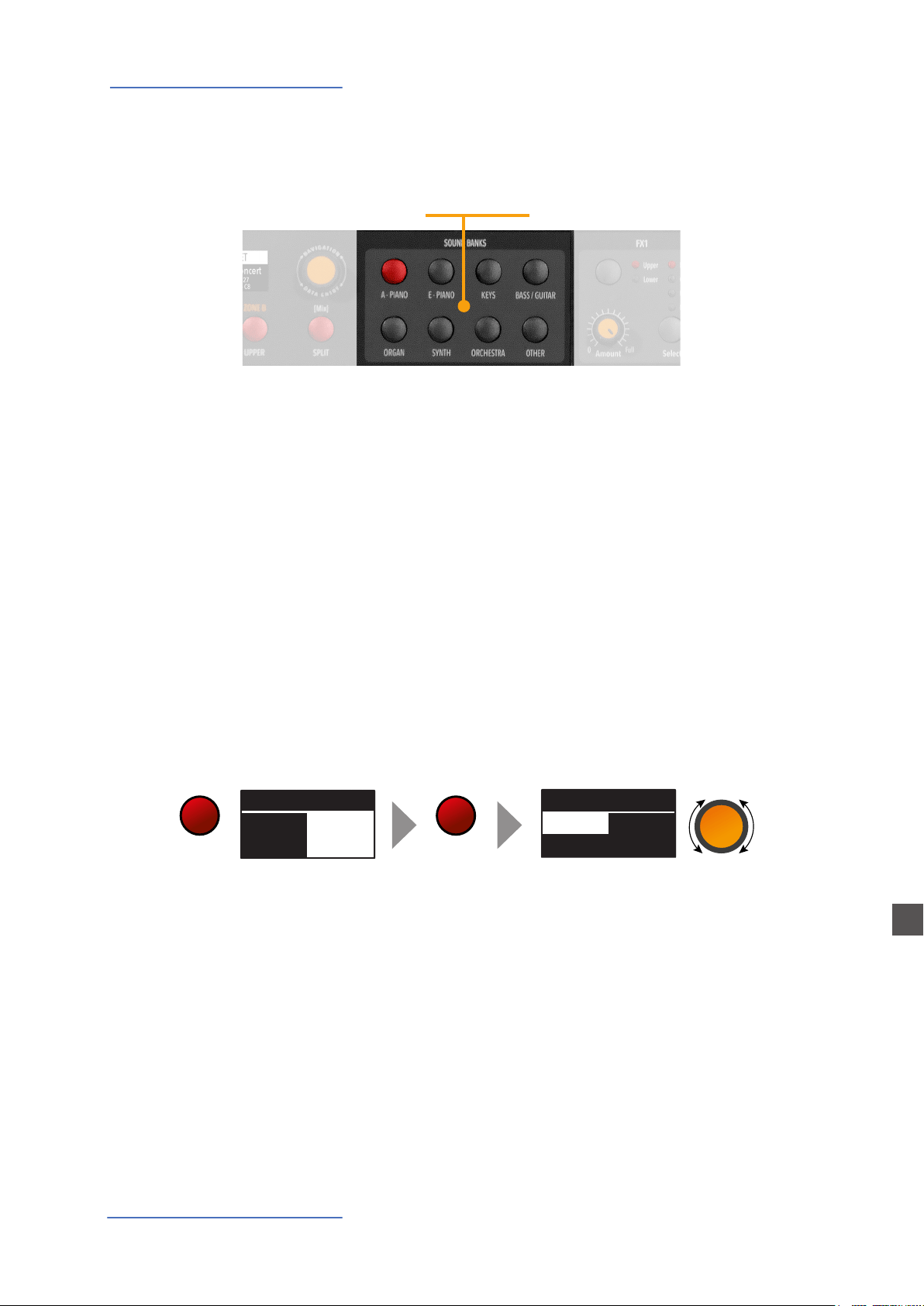
When the focus is on the Program area, rotating the Encoder you will select the various Programs.
When the focus is on the Lower/Upper areas, rotating the Encoder you will control the related
volumes.

Numa Compact 2/2x by Studiologic
12
E
Panel - Display and navigation
The SOUND button can also be pressed for a longer time, to
enable the eight DEMO songs (one for each sound BANK) to
start playing in sequence; clicking on a SOUND BANK you can
also select the related demo; at the end of it, the next demo
song will start for the other BANKS, in a continuous cycling
loop.
This button is a real time control of the SPLIT function, that is
edited and controlled in all details by the GLOBAL EDIT fun-
ction (Split Point) and PART EDIT function (Split Assign). This
is a fast way to immediately enable and disable the SPLIT and
play the UPPER and LOWER parts all over the keyboard, in layer
mode without split.
As explained in the EDIT sections, the SPLIT button can also
be used as a short cut to select the MIXER page, by keeping it
pressed for a few seconds.
The Numa Compact has 99 user’s programmable memories
called Programs, where you can store all SOUND, FX1/2 con-
trols, amounts, functions, split points and all editable para-
meters also related to the MIDI ZONES, with a programmable
NAME for each Program. The only non-storable functions are
the VOLUME, BASS, TREBLE and MASTERING, since they are
pure real-time controls, not related to a particular Program.
All Programs can be sent and received via USB, as explained
in the related paragraph of this manual, in the GLOBAL EDIT
section.
Demo
SPLIT
STORE / User Programs
Numa Compact 2/2x by Studiologic
13
E
Sound banks and sound section
In SOUND mode, with the related button selected and lighted, the 8 Sound banks can select the
internal sounds, organized according to the Sound Bank names. Each Bank can have a variable
number of sounds, organized in pages of 4 sounds for each one. Selecting a Bank, you will see on
the display the sounds of that Bank, the current Sound Bank and total pages of sounds of the Bank
(shown on the top right area of the display) and the selected sound, in reverse color.
To select another sound of the current Bank, rotate the encoder and all available sounds will be
shown and selected in sequence, from the rst to the last page of the Bank. The selection can be
done during a temporary window (approx 5 seconds) and the last selected sound will be automa-
tically memorized for each Bank. You can also click the Encoder to conrm the selection.
When you select a Bank, the focus will automatically go to the last selected Sound, to make the
sound selection easier and faster. Thanks to this function, you will have an automatic setting of
your preferred sounds for each Bank.
SOUND BANKS
Sound selection
Sound banks and sound section
Sound mode
P01-JAZZ DUET
Ac-Bass
V: 127
A0 - B3
Concert
V: 127
C4 - C8
A-PIANO
A-PIANO [1/2]
Concert
Vintage
Stage
Studio
SOUND
Numa Compact 2/2x by Studiologic
14
E
Organ Mode
In an original tone wheel organ, 91 steel wheels with lobes
rotate in front of a pick-up consisting of a permanent bar
magnet and a spool. Because of the tone wheels shape, the
magnetic eld in the pick-up changes periodically and gene-
rates a sine wave.
With 8 dierent tone wheel shapes and 12 dierent gear trains
91 sine frequencies are generated. As in additive synthesis,
the 91 frequencies are the base for creating dierent sound
timbres. By means of a complex circuit lay out, the sound is
mixed thru nine drawbars, allowing a tone wheel organ to
create hundreds sound timbres from just 91 generated sine
frequencies: more than 380 million timbres are theoretical-
ly possible. To generate a sound, the NUMA Compact 2 uses
physical modelling, a mathematical implementation of the
tone wheel organ.
Thanks to the Modelling Technology, The Numa Compact
2 have been designed to give a wide variety of sounds, al-
lowing to build combinations using the drawbars and all the
related post eects: Vibrato, Chorus, Percussion with harmo-
nics and decay controls, plus specic GLOBAL Edit pages to
control features like the Key Click and Percussion separate
volumes.
The sound generated by the Organ Model can be sent to the
same Eects chain of all other Sound Banks, that can further
enhance the quality of the sound, with all possible eects
from the typical Rotary to the Drive, from Chorus to Delay
and many more. The Numa Compact 2 ORGAN Sound Bank
includes this new clone of a Tone Wheel Organs with Draw-
bars controls, with the addition of accurately sampled Elec-
tronic and Classic-Pipe organs, in a complete variety of or-
gan sounds of all kinds. The Organ sounds and all associated
eects and post-processing can be Stored in each of the 99
available Programs.
Introduction
Numa Compact 2x

Numa Compact 2/2x by Studiologic
15
E
Organ Model
Drawbars are a characteristic trait of a tone wheel organ, the-
refore we’ll explore them rst; a Tonewheel Organ sound can
be made of nine sine frequencies and each drawbar repre-
sents a harmonic of the scale related to the 8‘ stop of a pipe
organ (drawbar 3) which is also called “native pitch“.
Drawbar 1 2 3 4 5 6 7 8 9 correspond to Feet 16‘ 5 1/3‘ 8‘ 4‘ 2
2/3‘ 2‘ 1 3/5‘ 1 1/3‘ 1‘.
The labelling of the drawbars in feet derives from pipe or-
gans, where it represents the length of a reference pipe that
plays the note C is exactly 8 feet long (=2,4m).
Note: the rst two Sliders are made of a dierent color to
show that they play “below” the standard 8’ of a Piano, as it
also was on Vintage Tone wheel organs, where the rst two
Drawbars were Brown, the Even harmonics are were White
and the Odd harmonics were black. In the NC2x they main-
ly show that they are active on all sounds as controls of the
Synth parameters, while the other Sliders are enabled only
for the Synth Bank sounds.
When a drawbar is pushed all the way in, its harmonic is ab-
sent from the timbre, while the maximum volume for the
drawbar is achieved when you pull it all the way down and
you see the digit 8 on the Display, on a pop-up display that
appears any time you move a Drawbar/Slider. The drawbars
simply adjust the levels among them and you can change
and hear the timbre while keys are pressed.
With your NUMA Compact 2x you can play two dierent tim-
bres at the same time, on the Upper and Lower sections, in
Layer or Split mode as all other Sounds and the related Draw-
bars setting is shown on the Display according to the posi-
tion of the Focus (selection of Upper or Lower buttons) and
moving the Drawbars when the focus is on the selected part.
Drawbars
Numa Compact 2x
Numa Compact 2/2x by Studiologic
16
E
Organ Model
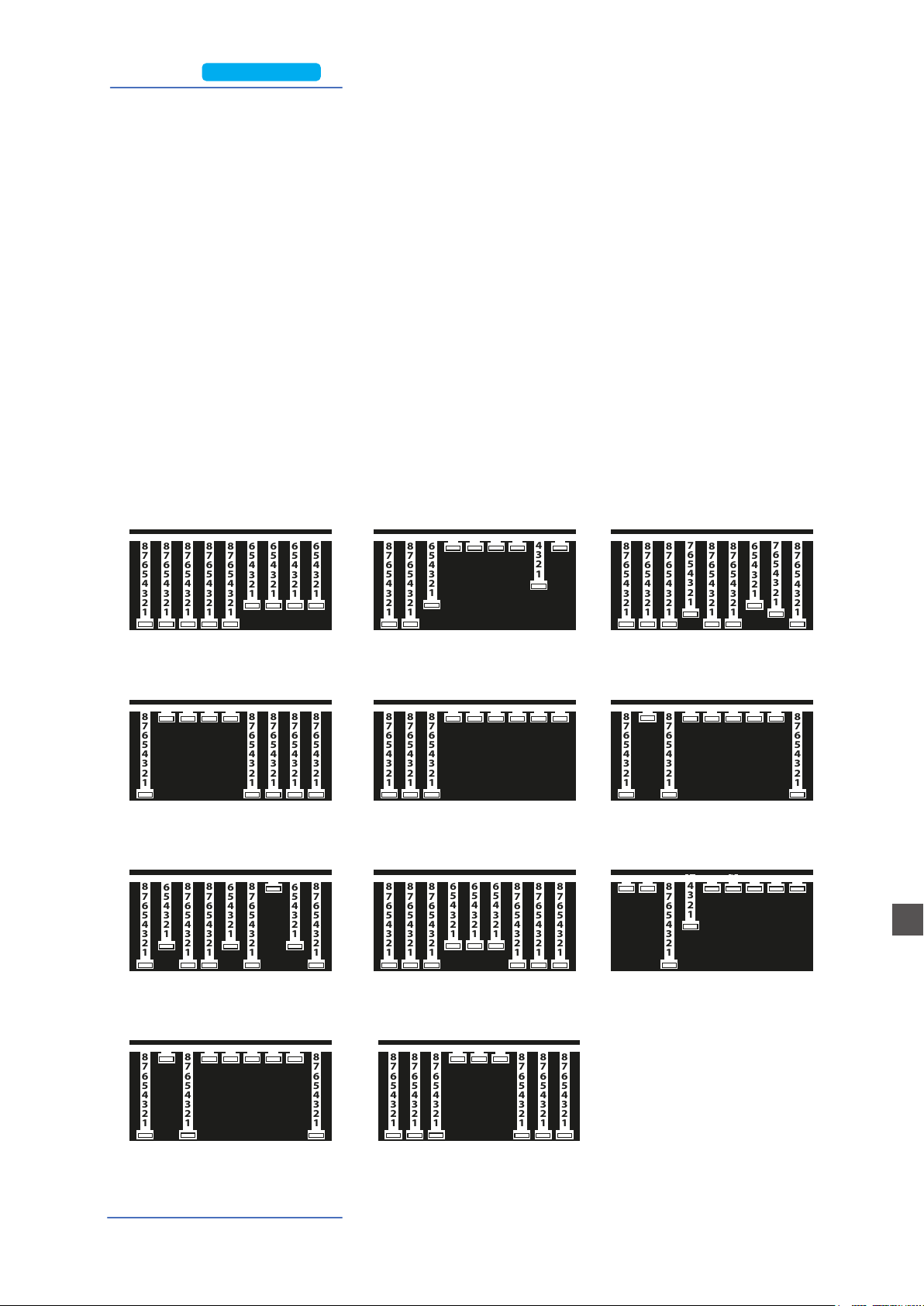
There are thousands of possible examples of Drawbars set-
tings, made famous by organists during decades of live and
recorded Organ music, and you can nd below some of the
most popular jazz, pop, gospel and rock settings.
The use of a Percussion or the addition of a Chorus or Vibrato
eects can be added to your taste and you can nd other ex-
amples in the NC2x Factory Programs, that you can also keep
or modify to your taste.
There are many books suggesting Settings for all kinds of mu-
sic, but the main feature of the Drawbars is the total freedom
they allow you to use, to get the sound you like as well as
“morphing” from one setting to another also with slow and
smooth Drawbars movements, that are part of the beauty of
this Organ Model.
Typical Drawbars settings
8
7
6
5
4
3
2
1
8
7
6
5
4
3
2
1
8
7
6
5
4
3
2
1
8
7
6
5
4
3
2
1
8
7
6
5
4
3
2
1
8
7
6
5
4
3
2
1
8
7
6
5
4
3
2
1
8
7
6
5
4
3
2
1
8
7
6
5
4
3
2
1
VINTAGE 2
88 6000 040
8
7
6
5
4
3
2
1
8
7
6
5
4
3
2
1
8
7
6
5
4
3
2
1
8
7
6
5
4
3
2
1
8
7
6
5
4
3
2
1
8
7
6
5
4
3
2
1
8
7
6
5
4
3
2
1
8
7
6
5
4
3
2
1
8
7
6
5
4
3
2
1
POP
88 8788 678
8
7
6
5
4
3
2
1
8
7
6
5
4
3
2
1
8
7
6
5
4
3
2
1
8
7
6
5
4
3
2
1
8
7
6
5
4
3
2
1
8
7
6
5
4
3
2
1
8
7
6
5
4
3
2
1
8
7
6
5
4
3
2
1
8
7
6
5
4
3
2
1
THE BOSS
88 8000 000
8
7
6
5
4
3
2
1
8
7
6
5
4
3
2
1
8
7
6
5
4
3
2
1
8
7
6
5
4
3
2
1
8
7
6
5
4
3
2
1
8
7
6
5
4
3
2
1
8
7
6
5
4
3
2
1
8
7
6
5
4
3
2
1
8
7
6
5
4
3
2
1
REGGAE
80 8000 008
8
7
6
5
4
3
2
1
8
7
6
5
4
3
2
1
8
7
6
5
4
3
2
1
8
7
6
5
4
3
2
1
8
7
6
5
4
3
2
1
8
7
6
5
4
3
2
1
8
7
6
5
4
3
2
1
8
7
6
5
4
3
2
1
8
7
6
5
4
3
2
1
SWEET 2
88 8666 888
8
7
6
5
4
3
2
1
8
7
6
5
4
3
2
1
8
7
6
5
4
3
2
1
8
7
6
5
4
3
2
1
8
7
6
5
4
3
2
1
8
7
6
5
4
3
2
1
8
7
6
5
4
3
2
1
8
7
6
5
4
3
2
1
8
7
6
5
4
3
2
1
BALLAD
00 8400 000
8
7
6
5
4
3
2
1
8
7
6
5
4
3
2
1
8
7
6
5
4
3
2
1
8
7
6
5
4
3
2
1
8
7
6
5
4
3
2
1
8
7
6
5
4
3
2
1
8
7
6
5
4
3
2
1
8
7
6
5
4
3
2
1
8
7
6
5
4
3
2
1
SILK
80 8000 008
8
7
6
5
4
3
2
1
8
7
6
5
4
3
2
1
8
7
6
5
4
3
2
1
8
7
6
5
4
3
2
1
8
7
6
5
4
3
2
1
8
7
6
5
4
3
2
1
8
7
6
5
4
3
2
1
8
7
6
5
4
3
2
1
8
7
6
5
4
3
2
1
FAT
88 8000 888
8
7
6
5
4
3
2
1
8
7
6
5
4
3
2
1
8
7
6
5
4
3
2
1
8
7
6
5
4
3
2
1
8
7
6
5
4
3
2
1
8
7
6
5
4
3
2
1
8
7
6
5
4
3
2
1
8
7
6
5
4
3
2
1
8
7
6
5
4
3
2
1
VINTAGE 1
88 8886 666
8
7
6
5
4
3
2
1
8
7
6
5
4
3
2
1
8
7
6
5
4
3
2
1
8
7
6
5
4
3
2
1
8
7
6
5
4
3
2
1
8
7
6
5
4
3
2
1
8
7
6
5
4
3
2
1
8
7
6
5
4
3
2
1
8
7
6
5
4
3
2
1
JAZZ SHUFFLE
80 0008 888
8
7
6
5
4
3
2
1
8
7
6
5
4
3
2
1
8
7
6
5
4
3
2
1
8
7
6
5
4
3
2
1
8
7
6
5
4
3
2
1
8
7
6
5
4
3
2
1
8
7
6
5
4
3
2
1
8
7
6
5
4
3
2
1
8
7
6
5
4
3
2
1
SWEET 1
86 8868 068
Numa Compact 2x

Numa Compact 2/2x by Studiologic
17
E
Organ Model
In the Vintage Tonewheel Organs , mainly in the Consolle ver-
sions (2x61 notes keyboard) the last octave on the left was
made with reverse colors, since those keys were dedicated to
the selection of factory presets, in addition to them selection
of the 2 live Drawbars groups available for each keyboard
(named Swell and Great as in the Pipe Organs.
At that time the Pipe Organ builders association tried to pre-
vent, through legal actions, that electromechanical instru-
ments (and any other electronic instrumet) could be called
Organs and used also in churches for religious services; for
this reason one of the attempts made by the manufacturers
of electromechanical instruments was to simulate the sounds
of the pipe organs and to name the factory preselections with
typical names of the classical organ combinations.
The ocial test took place in the presence of legal and mu-
sical representatives in USA and saw the electromechanical
instruments winning the challenge and being allowed to be
called Organs.
The Factory settings of the Drawbars levels were mainly in-
tended to imitate some typical pipe Organ sounds and they
were hardware wired settings, that could be modied only by
expert technicians.
The following are few examples of the millions of possible
combinations.
Original Drawbars settings
French Horn
00 8740 000
Tibias
00 8408 004
Clarinet
00 8080 840
Novel Solo
08 8800 880
Theater Solo
60 8088 000
Oboe Horn
00 4685 300
Full tibias
60 8807 006
Trumpet
00 6888 654
Full Theater Brass‘
76 8878 667
Stopped Flute
00 5320 000
Dulciana
00 4432 000
French Horn
00 8740 000
Salicional
00 4544 222
Flutes
00 5403 000
Oboe Horn
00 4675 300
Swell Diapason
00 5644 320
Trumpet
00 6876 540
Full Swell
32 7645 222
Numa Compact 2x

Numa Compact 2/2x by Studiologic
18
E
Organ Model
The original vintage Tone Wheel instruments (not all the mo-
dels) had a special and very complex circuit called Scanner
Vibrato to add to the sound a very nice simulated frequency
and phase modulation, that became another typical eect of
these instruments. This particular post-processing is also part
of the NC2x Organ Model and with the dedicated buttons
you can choose from 2 Vibrato or 2 Chorus eect settings and
assign them to one or both parts. To do this you can select the
focus position pressing Upper and/or Lower and control the
eects, in all details and separately for the 2 parts.
To add more rhythmic elements to your performance you can
switch on the Percussion, another very typical and important
feature of the vintage electro-mechanical organs, included in
the NC2x Organ model. This eect only retriggers when all
keys are released before, allowing to control the eect by pla-
ying “legato” or “staccato”. Playing legato, the Percussion will
work only on the rst notes played and it fades away during
the decay, allowing to make short and aggressive solo parts
followed by legato chords or scales, without Percussion.
You can press the On/O butto to activate Percussion and se-
lect the 2nd/3rd button to decide if the Percussion is genera-
ted by the second harmonic, equivalent to the 4’ Drawba), or
by the third harmonic, corresponding to the 2 2/3 Drawbar.
The Slow/Fast control denes the decay of the Percussion
and the related Volume can be separately controlled in the
related page of the GLOBAL Edit.
As explained in another part or this manual, the original To-
newheel Organs had a direct panel control for the Percussion
Volume, but it was made only of 2 possible settings: SOFT or
NORMAL. In the NC2x Global parameter you have a continuos
control on the Percussion level with 64 values, indipendently
associated to the Fast and Slow decay.
Chorus and Vibrato
Percussion
Numa Compact 2x

Numa Compact 2/2x by Studiologic
19
E
Synth Engine
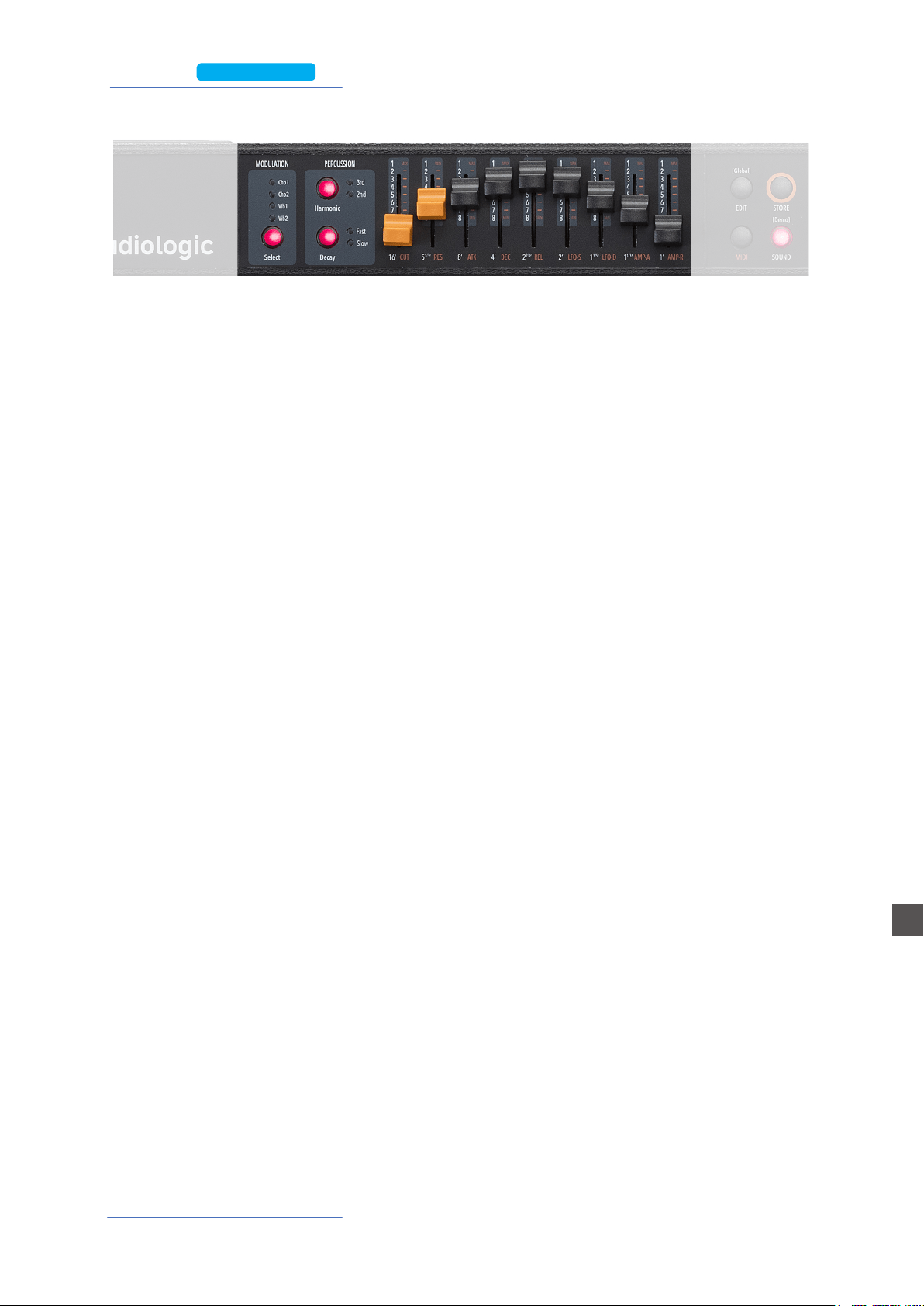
The selection if various Waveform is made by selecting one of
the Sounds of the Synth Bank; the various waveforms shape
is shown on the display when the Sound is selected and can
vary from the standard Sawtooth and Square Waves, to the
Pulse with Modulation (a Pulse waveform with a modulated
with by a low frequency modulator) and FM or complex Syn-
thesis waveforms.
The Synth Sounds (basic or complex) are controlled by the
nine Sliders, each one assigned to control a specic parame-
ter, that allows to modify slightly or completely the starting
selected Synth Sounds.
Waveforms
The Numa Compact 2x Synth Sound Bank is bases on a simplied Synthesis engine, with the fol-
lowing features:
Controls the frequency for the 2 poles low pass lter, use low-
er values in the range o to give more warm spectrum to the
sound; at higher levels the sound becomes more brilliant, as
the lter let pass thru it all frequencies of the selected Wave-
form of the starting sound.
Cuto
When the setting is raised to mid-hi values, the lter starts
to emphasize the frequencies around the Cuto value; this
feature can be used to create analog-style eects, as well as
make a part of the Sound spectrum emphasized by an accu-
rate setting of the Resonance.
Resonance
FREQUENCY (Hz)
AMPLITUDE (dB)
0
-6
-12
Cutoff
FREQUENCY (Hz)
AMPLITUDE (dB)
0
-6
-12
Resonance
Numa Compact 2x
Numa Compact 2/2x by Studiologic
20
E
Synth Engine
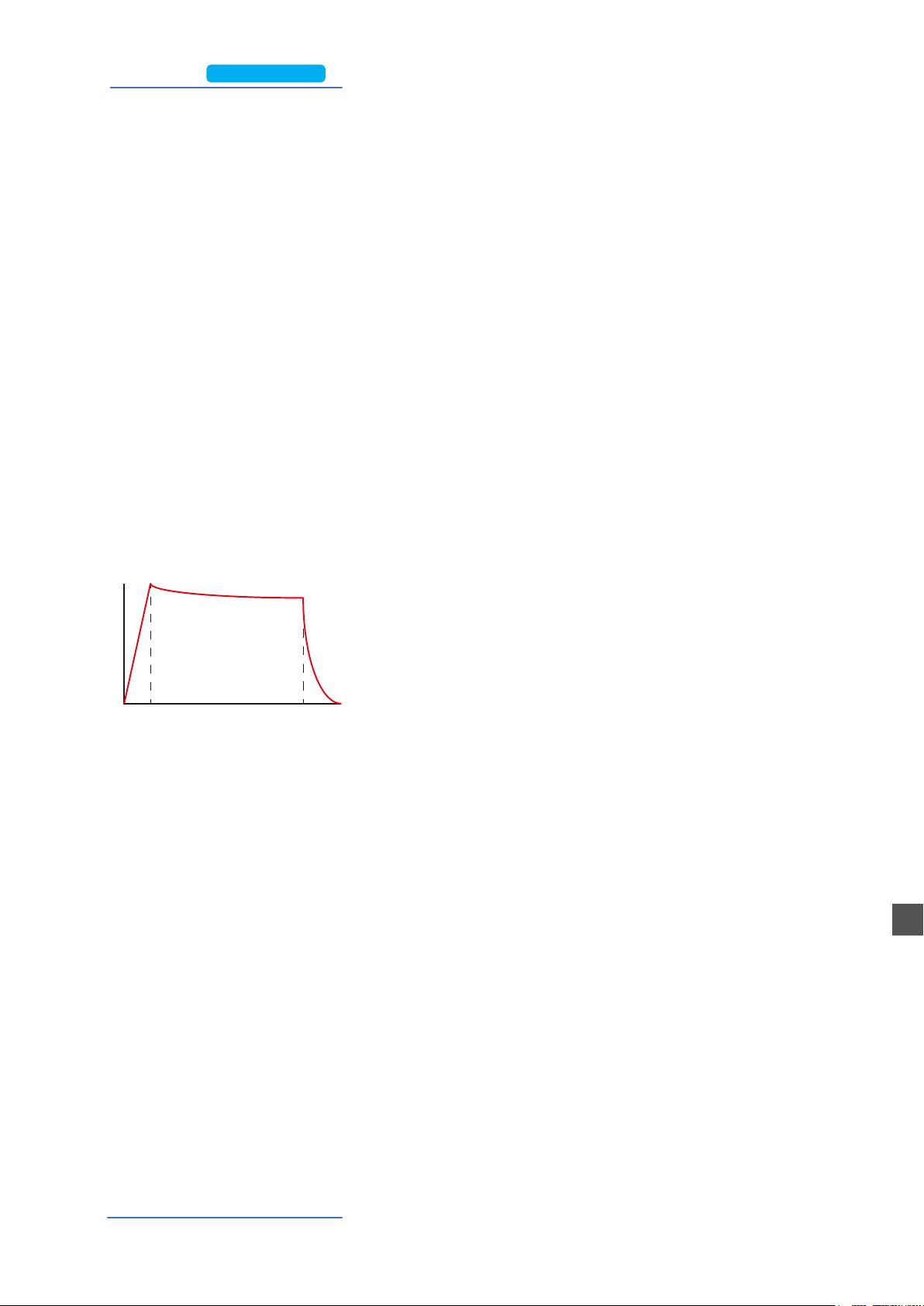
A typical Synthesizer section is made of controls named ADSR
(Attack, Decay, Sustain, Release) and they are normally dupli-
cated for the FILTER and the AMPLITUDE controlled sections.
The simplied parameters available on the NC2x are a sub-set
of these controls, selected from the ones more eective in
the instrument’s SYNTH engine sound generation.
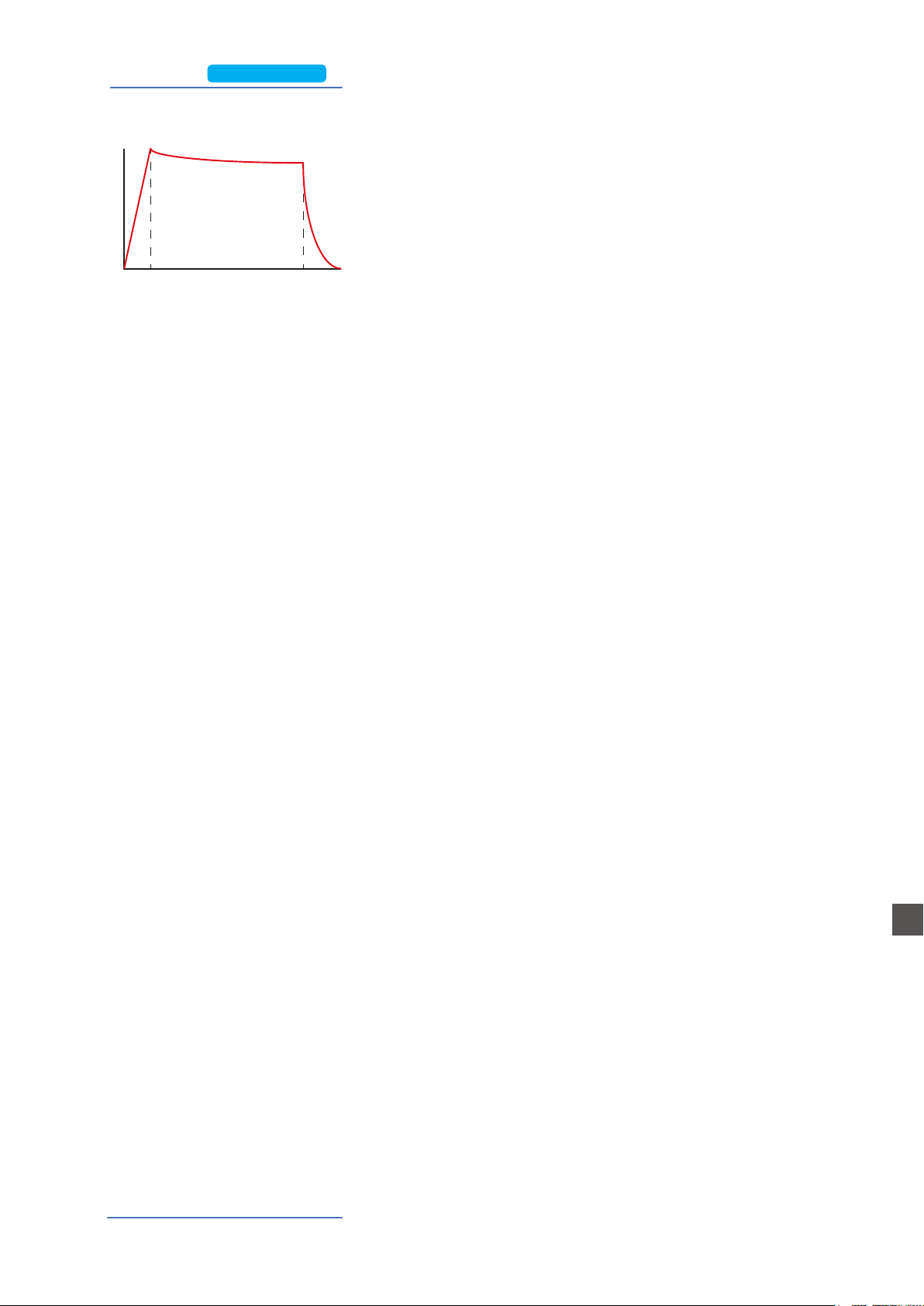
The ATTACK Slider controls the time that the FILTER needs to
reach the desired CUTOFF starting frequency.
The DECAY Slider controls the time that the FILTER needs to
reach the nal CUTOFF frequency, when the keys are kept pla-
yed.
NOTE: as a simplied setting, the DECAY also eects the SU-
STAIN Level (a parameter not listed within the nine Sliders) and
a long DECAY time will also simulate the nal Cuto Frequency
almost identical to the starting frequency: the sound will not
change after the ATTACK, while keeping the note played, or it
will change very slowly.
The RELEASE Slider controls the time needed by the FILTER to
reach the nal Cuto when the Keys are released.
The LFO Rate and Speed allow to control the related parame-
ters of the LFO that is internally assigned to the CUTOFF Fre-
quency; as an example, setting the values in a certain way, whi-
le the Resonance is set to mid-hi levels, could create SOUDS
with a kind of looping WOW eect.
NOTE: this LFO’s destination is the FILTER, while the Modula-
tion (Vibrato etc) is controlled either by the STICK 2 and the
AFTERTOUCH, allowing to select all possible combinations of
all settings.
Filter and Amplitude
Envelope
FILTER ENVELOPE
FREQUENCY
TIME
AT TACK DECAY
RELEASE
Slider 3 Slider 4 Slider 5
PLEASE NOTE:
Both Cuto and Resonance parameters are enabled to control any other Sound of the instrument
(not only Synth Sounds) making possible to edit the starting sound, as an example make a Strings
sound mellower or an Electric Piano sound emphasized at the Cuto Frequency with the addition
or a certain level of Resonance. As mentioned before, with some setting of the Cuto + Resonance
you might have to re-balance the part Volume, to avoid clippings of unwanted side-eects, unless
you want to reach a certain sound that could also include some clipping as a desired eect.
PLEASE NOTE:
If set at values too close to the maximum, the Resonance
could create a signal level gain and consequent distortion
possible problems of the overall sound; with hi levels of Reso-
nance, the part Volume (Upper or Lower) should be reduced
proportionally, to avoid clippings or unwanted side-eects.
Numa Compact 2x
Numa Compact 2/2x by Studiologic
21
E
Synth Engine
Once you have created a sound, also starting from a Synth
SOUND and making all possible variations with the nine avai-
lable Sliders, you can STORE the result in a PROGRAM, as with
any other SOUND. When you will select the Synth SOUND, the
display will show a small image of the Slider settings, accor-
ding to the selected focus (Lower or Upper parts) allowing you
to see the value-position of each Slider, further modify it and
save the result in the current or in another Program.
Store
The last two sliders are controlling the ATTACK and DECAY of
the AMPLIFIER and they do not change the FILTER parameters,
that have separate A/D/R controls; they are able to create Slow
attacks and Long release eects, without any change on the
FILTER settings.
Please note that the A/R Amplier control are the nal block of
the SOUND Synthesis chain; as an example, if you want a long
Release on the FILTER you also have to set a long Release on
the Amplier, to make possible to hear the Filter Release when
the keys are rereleased, and so on.
AMPLITUDE ENVELOPE
FREQUENCY
TIME
AT TACK KEY ON
RELEASE
Slider 8 Slider 9
Numa Compact 2x
Numa Compact 2/2x by Studiologic
22
E
Eects
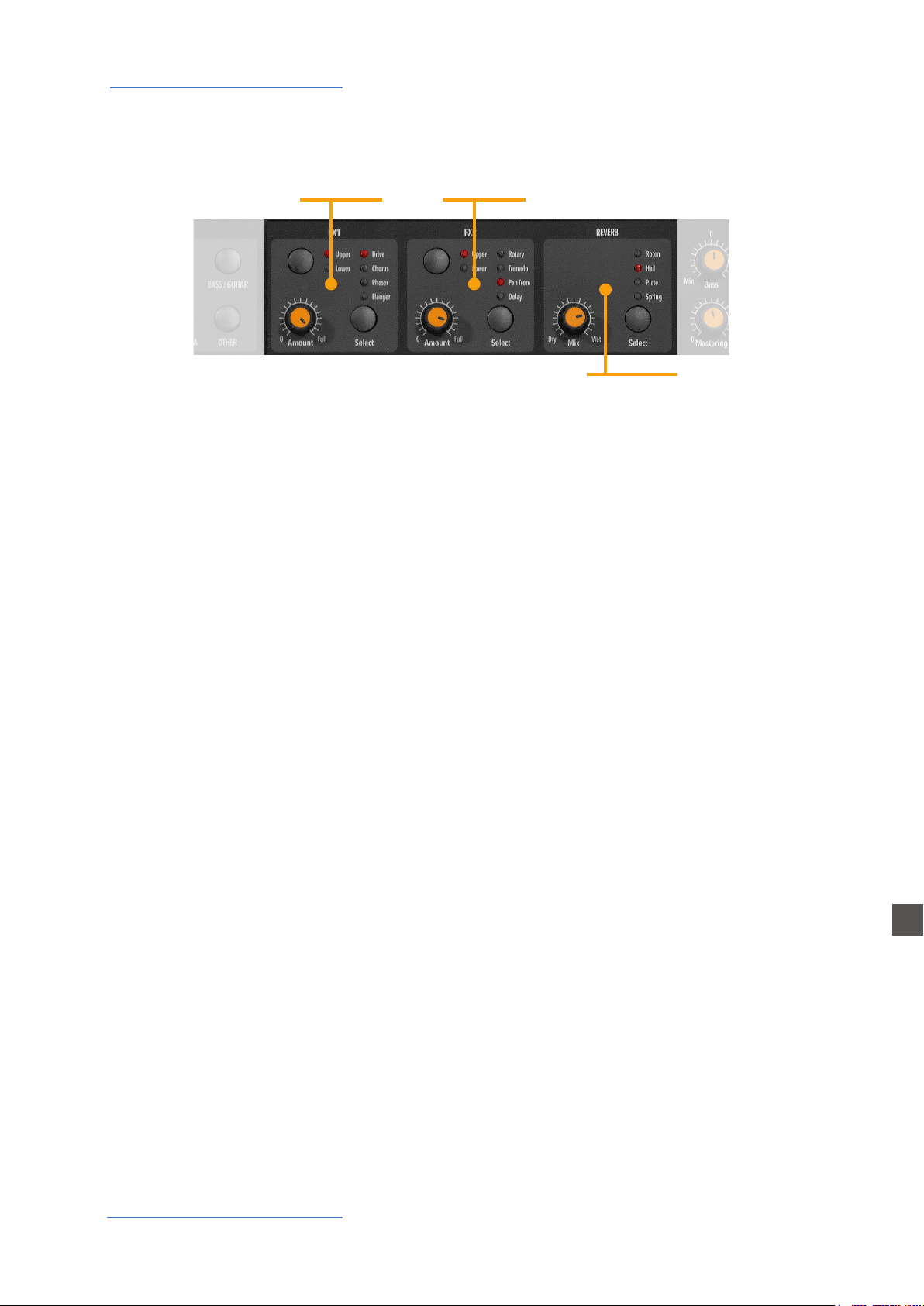
The 2 double eects processors allow to assign 2 separate ef-
fects to the Lower and Upper sections, for a total of 4 dierent
eects at once. As an example, the FX1 can be set to Drive for
the Upper section and, at the same time, to Chorus for the Lo-
wer section. Using the Upper/Lower button, you can toggle
between the related parts and show or select the eect for
that part. In addition, you will see or change the associated
FX using the 2 main LOWER and UPPER buttons below the
display.
You can visualize the Sound and FX structure and signal ow
as it follows:
Upper > FX1 (one of the four) > FX2 (one of the four) > Reverb
(programmable send in Edit)
Lower > FX1 (one of the four) > FX2 (one of the four) > Reverb
(programmable send in Edit)
Amount: the 2 potentiometers control the Amount of the
selected eect, like the dry/wet ratio (for modulating eects
like the Chorus) or other parameters, like the distortion level
of the DRIVE eects.
FX1 - FX2
FX2
REVERB
FX1
Eects

Numa Compact 2/2x by Studiologic
23
E
Eects
The FX Autoset function (a real-time function also explained
in the GLOBAL Edit section) automatically memorizes the last
selected FX 1-2 for each Sound, without the need of storing a
dedicated Program.
This real-time function will also control the association bet-
ween the Stick2 and the Sound or FX controls (modulation or
eect speed etc) in a logic and automatic way. When a par-
ticular FX is selected on a section, the Stick 2 will control a
particular parameter, like the Slow/Fast speed of the Rotary
or the Speed and Feedback of the Phaser.
The control will also be automatically set according to the
focus position: if you have a Lower part without FX and the
focus on Lower, the Stick 2 will control the Modulation; if the
focus is on Upper and you have an Organ sound with Rotary,
the Stick 2 will control the Rotary Slow/Fast speed.
If the FX Autoset function is set to o (see the GLOBAL Edit
section) the function of the Stick 2 will be under Part EDIT,
with not automatic assignments, and you can store all set-
tings in each Program.
With the FX Autoset o, the automatic association between
each sound and the last selected FX will be disabled and the
FX selection will be only manual or controlled by the FX set-
ting stored in each of the 99 Program.
In addition to the powerful FX1-2 double eect processors,
the Numa Compact also has a built in STRINGS RESONANCE
post-processing eect, dedicated to the ACOUSTIC PIANOS
sound bank and controlled by the related parameter of the
GLOBAL EDIT. This eect, created using the experience of the
Numa STAGE and CONCERT renowned Studiologic instru-
ments, adds an even more realistic eect to the piano sounds,
reproducing the resonances of the real strings and sound
boards of the acoustic instrument.
FX Autoset
STRINGS RESONANCE
(Damper model)
Numa Compact 2/2x by Studiologic
24
E
Global edit
To enable the GLOBAL edit, keep pressed the EDIT button for a few seconds; you will nd various
pages (shown on the top right area of the display) with functions that will aect the instrument,
regardless what Program is selected. To escape from the function, press again the EDIT button and
all settings will be memorized automatically.
When the focus (cursor) is on the top area of the display, rotating the encoder you can select the
various pages; clicking on the cursor, the focus will be moved on the parameter and rotating the
encoder you can change the related value.
The GLOBAL EDIT main functions are:
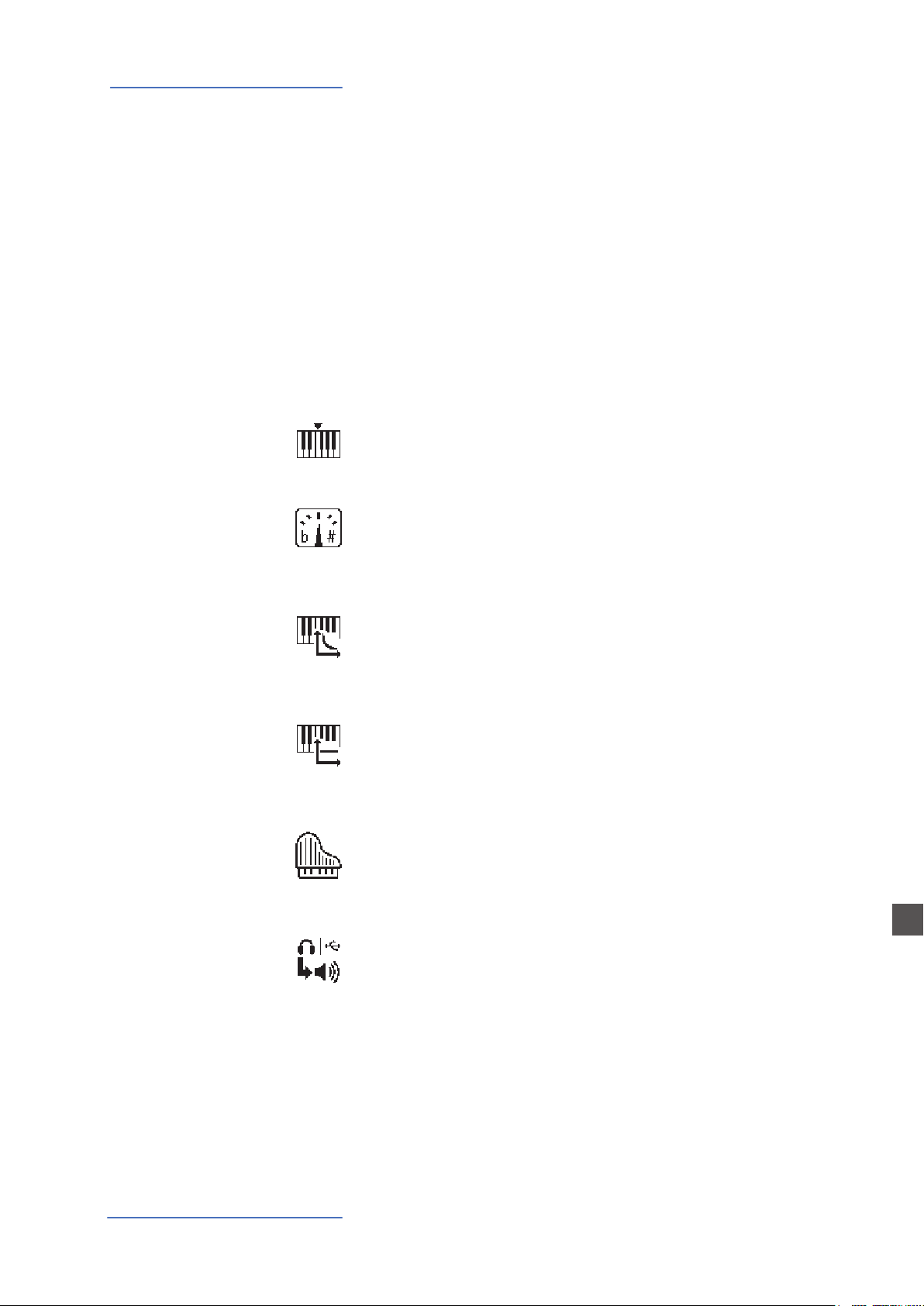
You can transpose the instrument to any other key; click on
the encoder to move the cursor on the value and rotate it to
input the desired transposition range.
This function allows to “tune” the instrument, in case you
have to play along with another instrument that is not tuned
to the standard (A=440 Hz).
RANGE: 415,7 - 466,2 Hz
You can select a dierent velocity curve, according to your ta-
ste and playing technique. There are 3 factory curves (SOFT/
NORMAL/HARD) and a programmable FIXED velocity setting,
with the related value.
You can set here the xed velocity value (from 1 to 127) when
the FIXED velocity is selected.
Here you can control the amount of the STRINGS RESONANCE
post-processing, that adds a more realistic eect to all acoustic
PIANO sounds. Please note that the CONCERT GRAND sound
also has a separate “release and resonance” built in natural ef-
fect, not controlled by this parameter.
Change the speaker behavior.
Please note that the speakers require that the external power
supply is connected.
OFF: Speakers always o.
AUX: Speakers always on.
AUTO: The speakers are automatically turned o when you
plug the headphones.
TRANSPOSER
GLOBAL TUNER
VELOCITY CURVE
FIXED VELOCITY
STRINGS RESONANCE
DAMPER EFFECT
SPEAKERS
Global edit
Numa Compact 2/2x by Studiologic
25
E
Global edit
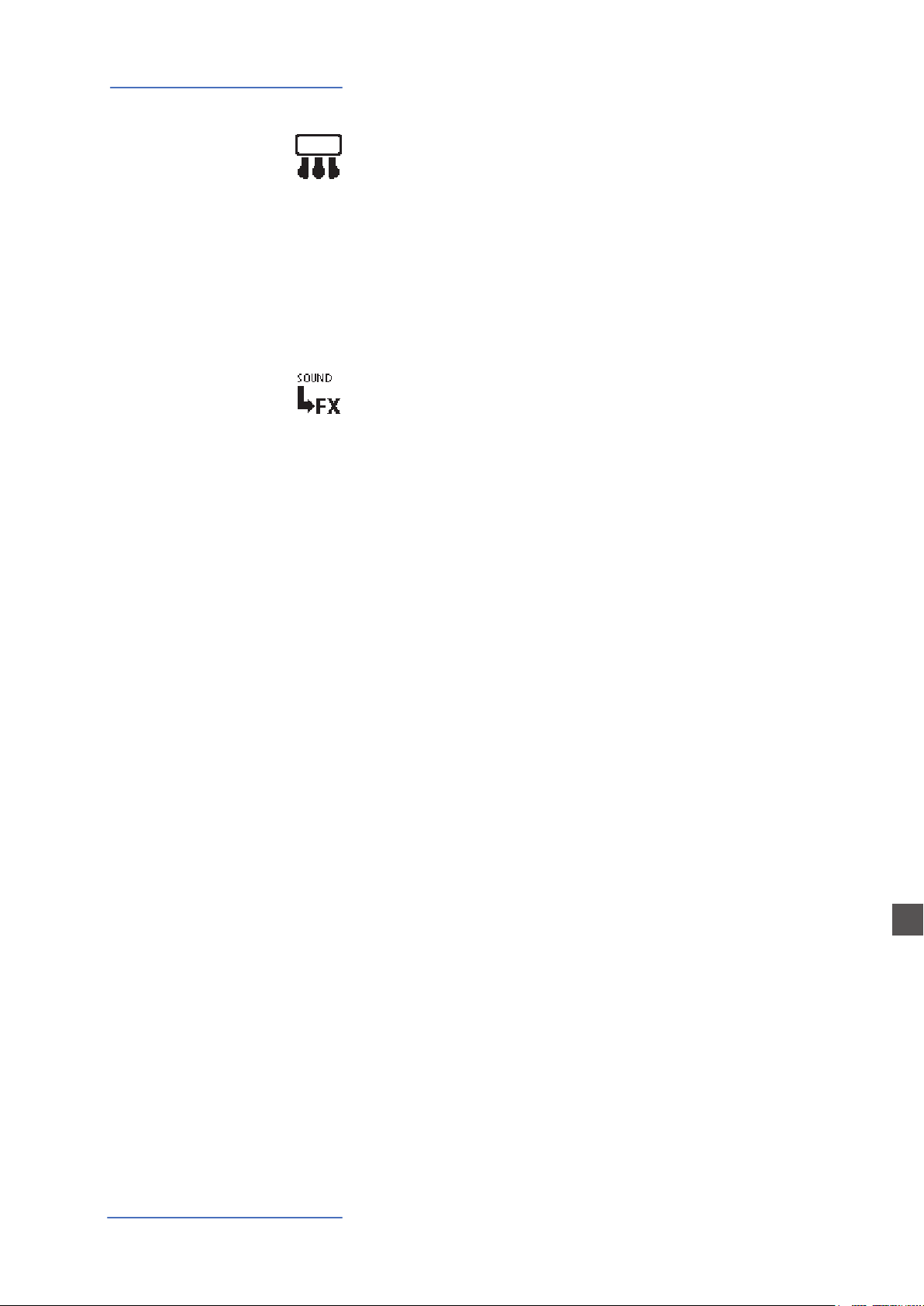
PEDAL 2
FX AUTOSET
While the PED1 is always suitable for expression-volume pe-
dals, the PED2 can be programmed to connect almost all pos-
sible pedals, as it follows:
• SINGLE SWITCH normally open;
• SINGLE SWITCH normally closed;
• EXPRESSION (volume function, pedals with potentiometer
and stereo plug);
• SLP3-D – Triple pedal with Soft/Sostenuto/Sustain fun-
ction with half-damper control.
When the function is set to AUTO ON, the following automatic
functions are enabled:
The last selected eects (FX1-2) for each sound are memorized
by the instrument, allowing to select a sound and the related
preferred eect, with no need of storing the combination in a
Program. The FX Autoset not only will memorize and recall the
eects associated by the user for each sound, but also the va-
lue of the parameters controlled by the Stick 2 for each eect.
The STICK 2 control will be automatically assigned to a fun-
ction, according to the setting and the position of the FOCUS
/ cursor.
If the focus is on UPPER (as an example) and you have selected
an Organ sound with the ROTARY eect, the STICK2 will control
the Rotary SLOW/FAST speed.
If you move the focus on LOWER (by clicking on the encoder
or pressing the LOWER button) and you have another FX on
Lower, the STICK2 will control the LOWER eect.
If you don’t have any FX on a section (LOWER or UPPER) and
you move the focus on it, the STICK 2 will control the MODULA-
TION on the selected section.
As a typical example, imagine to have an ORGAN on UPPER
with Rotary and a BASS on LOWER with no eects: moving the
cursor on UPPER, the Stick 2 will control the Rotary Speed; mo-
ving the focus on LOWER; the STICK2 will control the Modula-
tion.
Note: this automatic function is an arbitrary selection done by
the instrument, based on a statistic playing situation; if you
want to control all parameters directly and manually, you can
set the function to OFF and select the function of the STICK 2
in the related PART EDIT; storing the desired setting in a PRO-
GRAM.
Numa Compact 2/2x by Studiologic
26
E
Global edit
LOCAL CONTROL This command is also received via MIDI and it is automatically
deactivated the next time the instrument is turned on; in LO-
CAL OFF the keyboard does not send the notes played on the
keyboard directly to the internal Sounds, but only via USB-MIDI
to avoid unwanted repetitions when using external Software
Programs which receive the notes from the keyboard and send
them back to the generation.
USB MIDI OUT MULTI Ch: the instrument continues to work in its standard
mode, sending notes and controls via USB on the respective
MIDI Channels 1-2 of the enabled sections and on the COM-
MON channel 16 only the general controls.
SINGLE Ch: the control panel controls and the notes played
on the keyboard are transmitted via USB on a single channel
COMMON = 16
MIDI MERGE The merge function allows to merge-mix the MIDI IN data to
the local MIDI data (notes, controls etc) and send the result to
the USB and/or MIDI Out; the selectable options are:
OFF = Merge function disabled;
TO MIDI = Merged MIDI data are sent to the MIDI OUT;
TO USB = Merged MIDI data are sent to USB;
TO MIDI+USB = Merged MIDI data are sent to both USB and
MIDI Out;
SYSEX FILTER To lter (cut out) some MIDI message (besides the standard
ones) when merging a MIDI in source to the selected destina-
tion.
SLIDER MODE DIRECT/SNAP The 9 Sliders (Drawbars in Organ mode) can have two dierent
way of operate, to be selected in the related Global Edit page,
according to your preferences and playing needs.
Selecting the DIRECT mode, when a Slider/Drawbar is moved,
the new value corresponding to the physical position is im-
mediatly read and sent to the Sound generation, allowing to
instantly input the new value, from 0 to 8 in Drawbars-Organ
mode and from 1 to 127 in Slider mode, either for Synth para-
meters and MIDI assignable values.
Selecting the SNAP mode, when a Slider/Drawbar is moved,
new values are read and updated one after the new position
corresponds to the original stored value; as an example, if the
Cuto value of a Sound was 100, the Slider will input a new
value only after you reach the original 100 position.
Numa Compact 2x
Numa Compact 2/2x by Studiologic
27
E
Global edit
PROGRAMS SEND / RECEIVE
LEGACY
This function has been integrated into the Numa Compact Ma-
nager application. However, if you still want to use the legacy
method, do the following:
- Connect the Numa Compact to your computer via USB;
- Open an application that can send/receive Sysex messages;
- Once the function is selected, rotating the encoder to choose
SEND or RECEIVE;
- Select Numa Compact as target device;
- To send data to your computer, click the encoder when
selecting SEND, conrm YES and wait until is done;
- To receive the data back to your instrument, click the encoder
when selecting RECEIVE; then send the Sysex le through the
application.
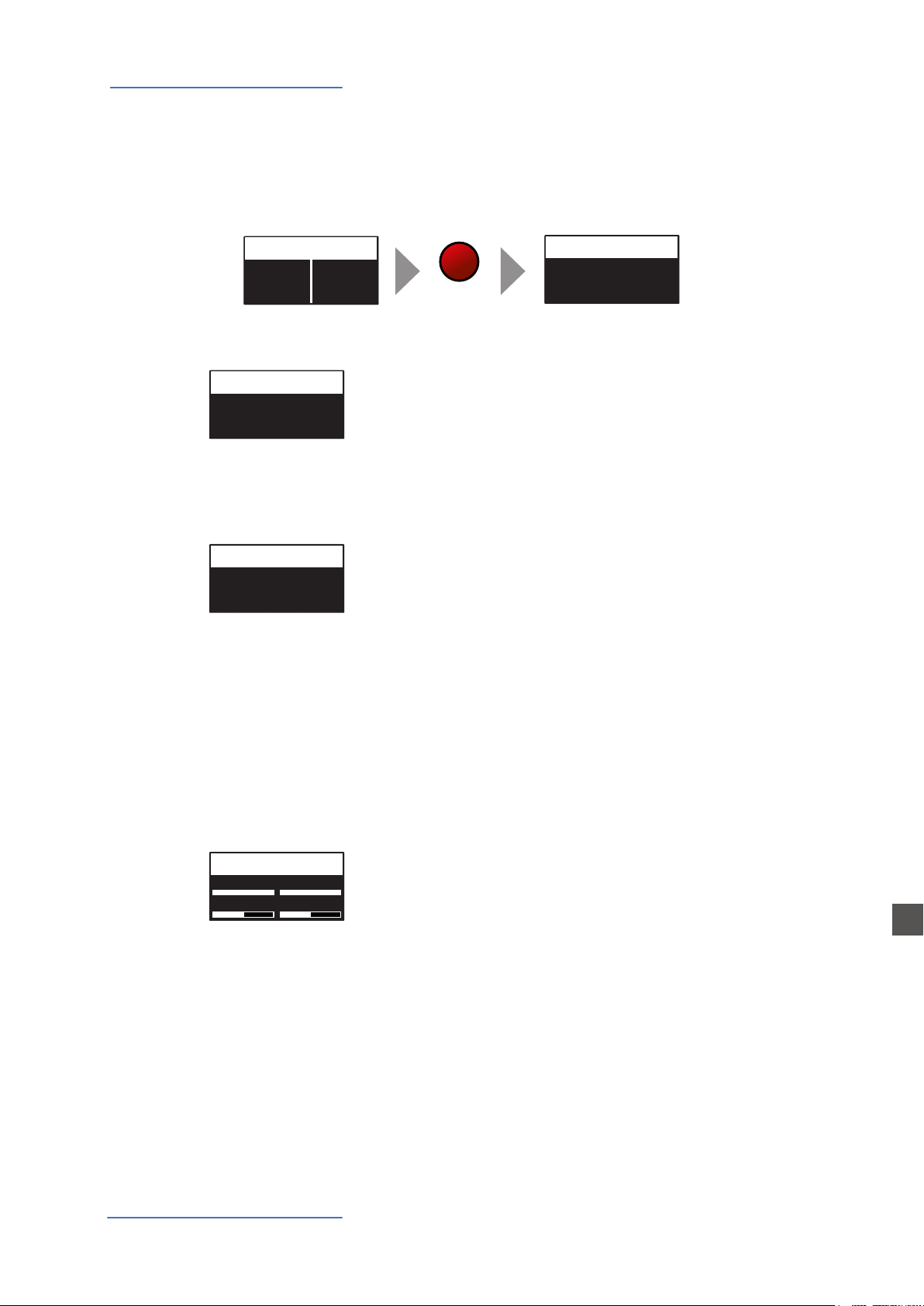
This function allows to make a complete Factory Reset, that
will cancel all user settings and reset all factory parameters to
the original status. Please note that this could make you lose
custom settings or programming and the function should be
done very carefully. To protect the user from unwanted reset,
a caution YES/NO message appears when trying to reset the
unit, allowing to conrm or not the factory restore.
To update the Firmware visit the website
www.studiologic-music.com/support/numa_compact
and follow the instructions.
FACTORY RESET
FIRMWARE VERSION
AND UPDATE
CLICK KEY ON /
CLICK KEY OFF
The Key Click adds the typical noise associated with the tone
wheels vintage organ‘s technology that became part of their
sound. With the related Key ON and key OFF controls you can
set the level of the noise according to your taste: this Global
Edit function allows to control the Click level separately for Key
on and Key O, in order to reach the desired eect when play-
ing the keys and when releasing them.
FAST/SLOW PERCUSSION
VOLUME
This GLOBAL function allows to control the Percussion Volu-
me; the original Tonewheel Organs had a direct panel control
for the Percussion Volume, but it was made of 2 steps: SOFT
or NORMAL- With this Global parameter you have a continous
control on the Percussion level with 64 values, independently
associated to the Fast and Slow decay.
Numa Compact 2x
Numa Compact 2x
Numa Compact 2/2x by Studiologic
28
E
PROGRAM NAME
SPLIT POINT
MIXER
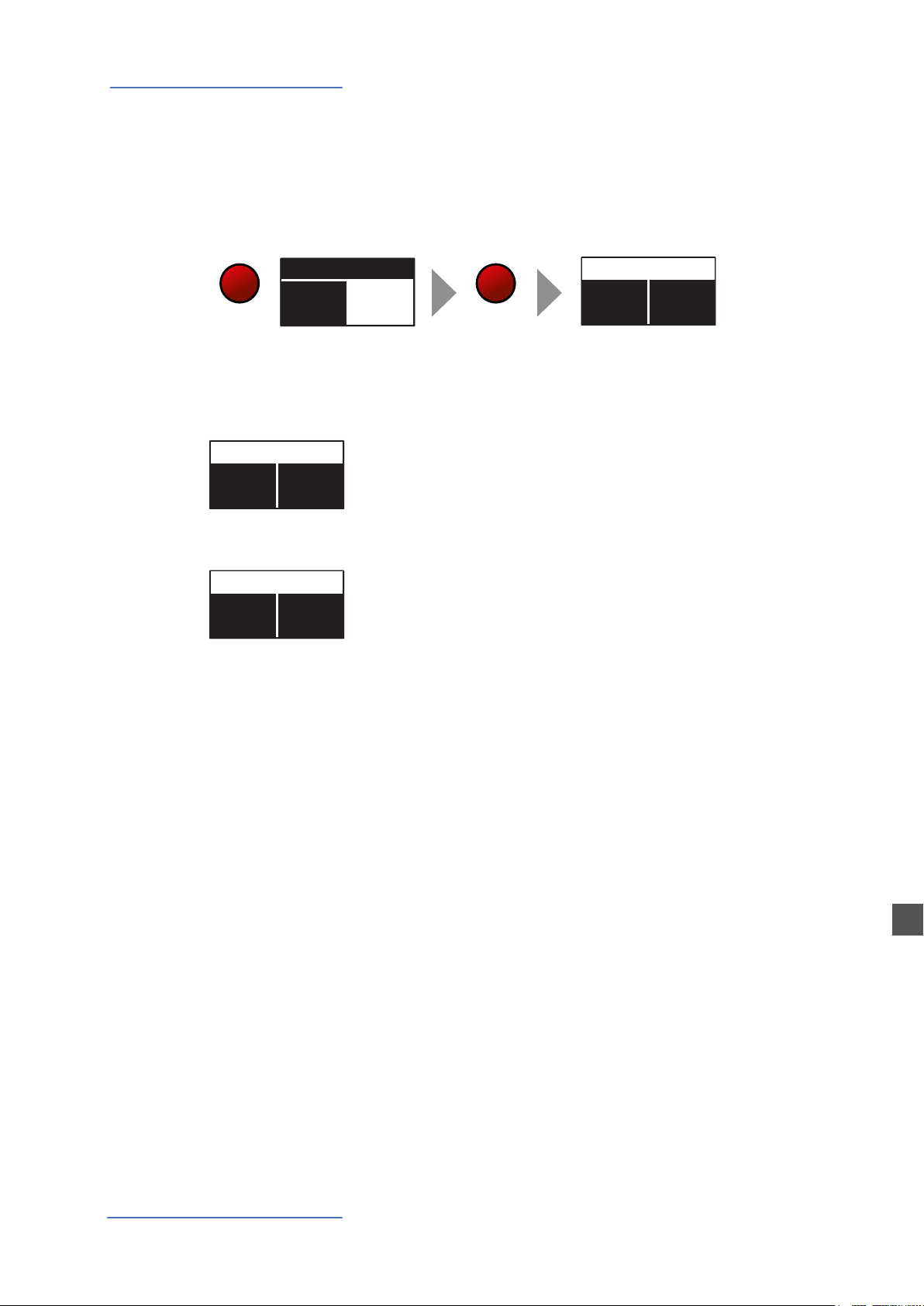
If the focus (cursor) is on the upper part of the display on Programs selection, pressing the EDIT
button will enable the Program Edit, with the following parameter and settings.
After having selected this function, click on the encoder and
input the letters of number rotating it; a small triangle will
show what digit you are editing.
To conrm the new name or keep the previous, press STORE
and a popup window will ask you to conrm the change or
not, rotating the encoder to YES or NO and conrm by cli-
cking.
This function allows to select the SPLIT point for each PRO-
GRAM, by rotating the encoder till the desired note is shown.
Please note that, as per international standard, the instru-
ment keyboard is named from A0 (rst key on the left) to C8
(last key on the right) and consequently the middle C below
the display is C4. The reference pitch of A=440 Hz is on A4,
the A of the same octave of C4 (below the sound banks) for all
sounds that are based on the standard 8’ of the piano range.
Only some ORGAN sounds will play one octave below, if ba-
sed on a 16’ pitch drawbar of the vintage tone wheel organs
or the related Pipe Organs 16’ classic organ stops; in these
cases the foundamental of the selected sound on A4 will be
220 Hz (one octave below 440 Hz).
The Mixer allows to control all four parts and zones (LOWER/
UPPER/ZONEA/ZONEB) at once, in a single organized page.
This function can also be accessed with a shortcut, keeping
pressed the SPLIT button also marked MIXER with brackets.
Program edit
PROGRAM EDIT [1/3]
JAZZ DUET
PROGRAM NAME
PROGRAM EDIT [2/3]
C4
SPLIT POINT
MIXER
L 127 U 127
A
64 B 64
P01-JAZZ DUET
Ac-Bass
V: 127
A0 - B3
Concert
V: 127
C4 - C8
EDIT
PROGRAM EDIT [1/3]
JAZZ DUET
PROGRAM NAME
Program edit
Numa Compact 2/2x by Studiologic
29
E
Part edit
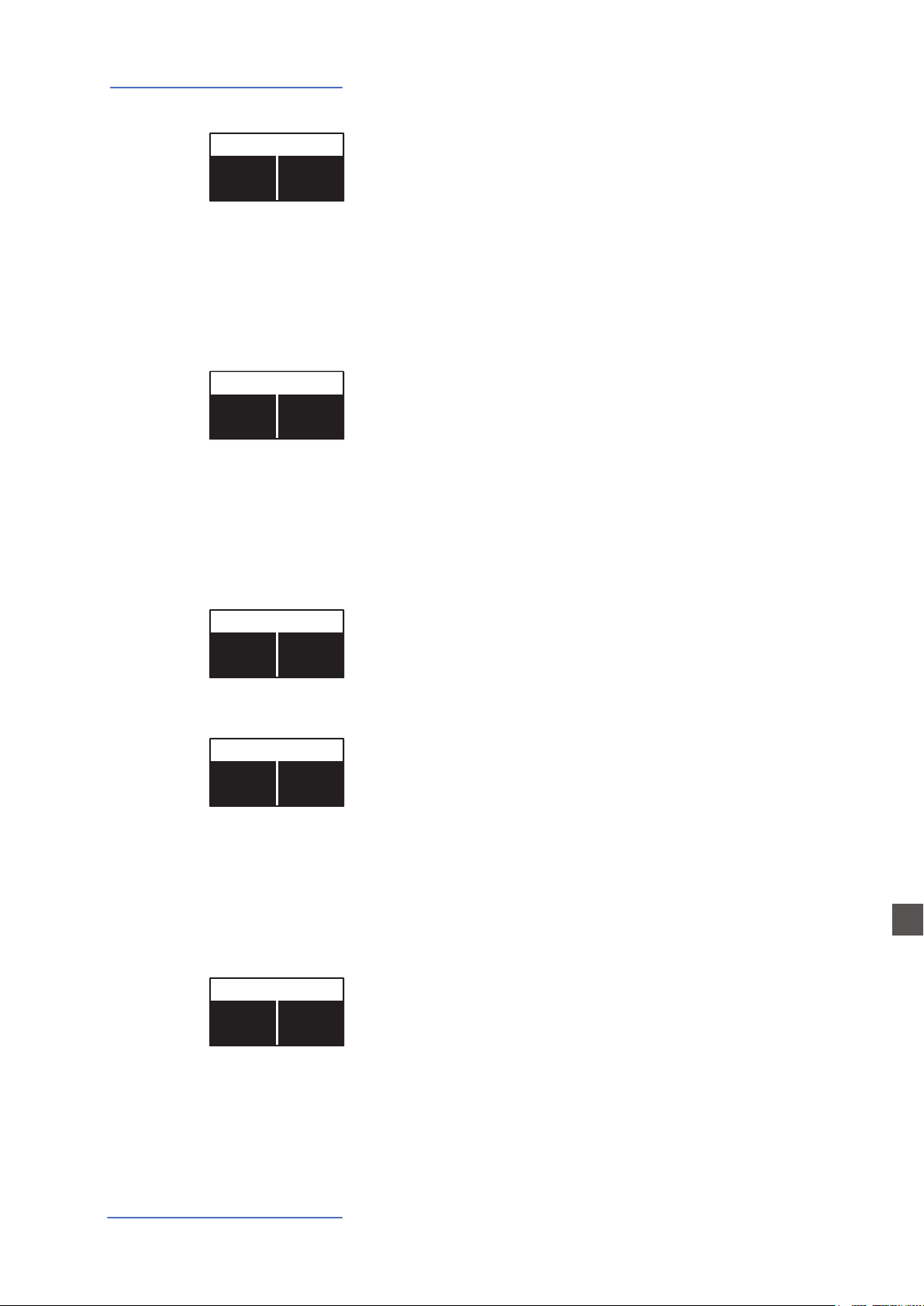
If the focus is on one of the parts and you are in SOUND mode (with the SOUND button selected
and lighted) you will enter in the PART edit mode. When you have selected PART edit you can al-
ways press the LOWER or UPPER buttons to select the part to be edited, or click on the encoder.
The PART EDIT includes the following parameters:
Part edit
VOLUME
SPLIT ASSIGN
PART EDIT [1/11]
127
VOLUME
127
VOLUME
PART EDIT [2/11]
TO LEFT
SPLIT ASSIGN
TO RIGHT
SPLIT ASSIGN
Rotating the encoder, after having moved the focus on the
parameter by clicking on it, you can control the selected part
Volume, in a range from 0 to 127.
Once you have selected the SPLIT point for the current PRO-
GRAM (ref: PROGRAM EDIT) you can decide where the selected
LOWER or UPPER section (either for the SOUND and MIDI zo-
nes) should play, in a totally independent way as it follows:
TO LEFT: the part will play to the left section of the keyboard
(from A0 to the SPLIT note);
TO RIGHT: the part will play to the right section of the keyboard
(from the SPLIT note to C8);
TO ALL: the part will play with no split all over the keyboard.
This function will allow many musical combinations, such as
the few following examples and their opposite settings:
PIANO on the right + BASS on the left, of the split point;
PIANO and STRINGS on the right + MIDI ZONES on the left
(controlling external devices);
ORGAN on the entire keyboard (TO ALL) and CHOIR on the
right part only.
Even with one SPLIT point (programmable for each PROGRAM)
the possible settings are almost one hundred, considering the
status and combinations of LOWER+UPPER+ZONEA+ZONEB
and the SPLIT settings made possible by this function.
P01-JAZZ DUET
Ac-Bass
V: 127
A0 - B3
Concert
V: 127
C4 - C8
EDIT
PART EDIT [1/11]
127
VOLUME
127
VOLUME
SOUND
Numa Compact 2/2x by Studiologic
30
E
Part edit
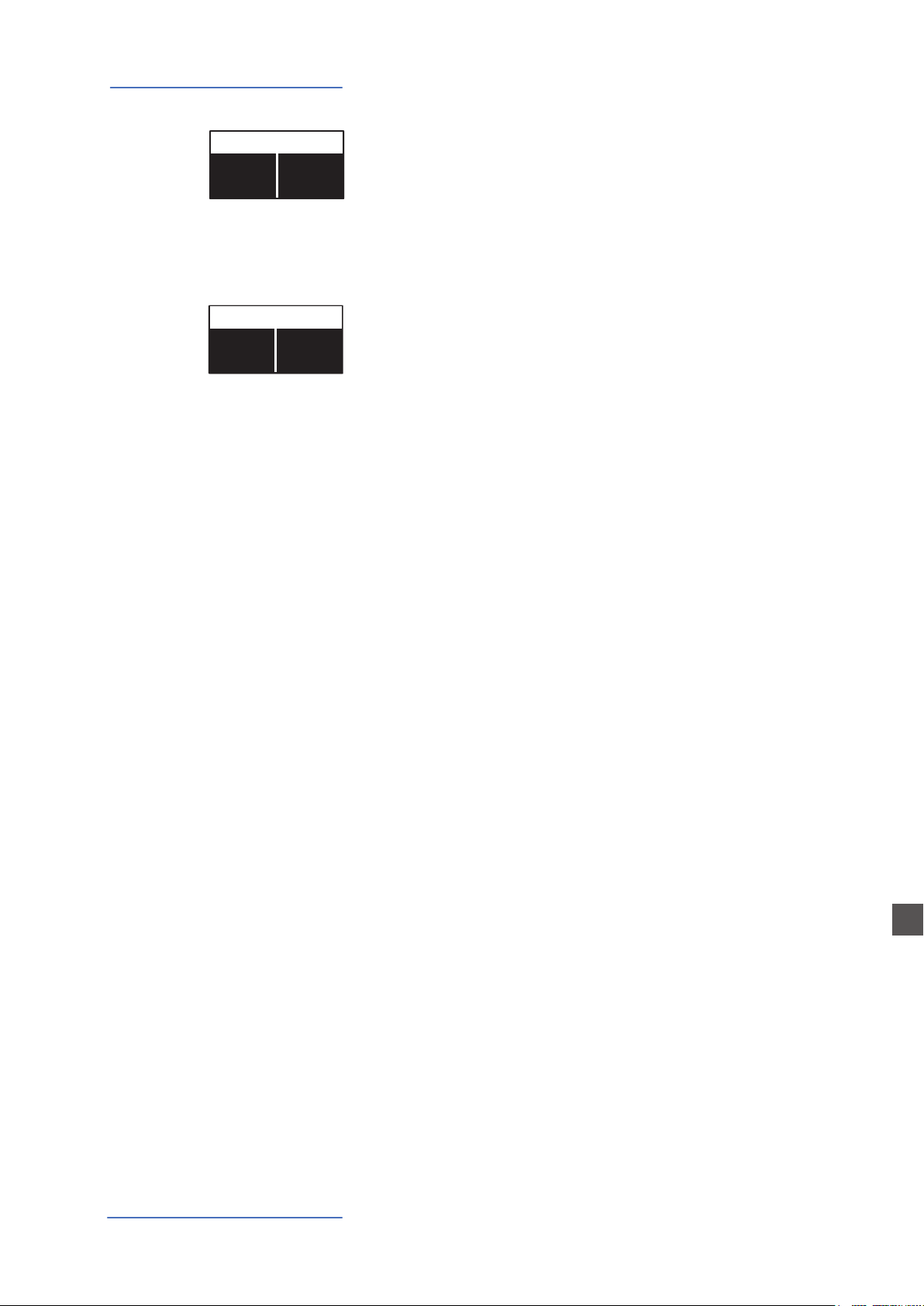
This function allows to transpose a part; dierently from the
GLOBAL TRANSPOSER, that will eects the entire instrument,
this function can be set independently for each SOUND sec-
tion or MIDI zone and stored in each PROGRAM, with dierent
values. Interesting combinations are obtained by transposing
a sound with musical intervals, like a lower quint = minus 5
semitones, to get what is commonly known as a “cluster” with
xed intervals. Try to select a TRUMPET on UPPER and a SAX on
LOWER, setting the SAX 5 semitones lower, in a typical JAZZ
setting.
You can set the octave (intervals of 12 semitones each) sepa-
rately for each part; normally you will need to move a LOWER
part one or two octave up, if you want to play chords in a bet-
ter range. On the other way, sometimes you can get a better
sound, when the SPLIT is activated, if you move the UPPER part
one or two octaves down, as you could prefer if you select a TE-
NOR sax in combination with a splitted BASS sound on the left,
since the Sax lower and nicer notes could probably be on the
left of the splitted keyboard portion. Simply experiment the
setting you prefer and then store it in the current PROGRAM.
This parameter allows to ne-tune the Upper and Lower soun-
ds within a semitone range; it could be useful to create “be-
ating” sligthly detuned sounds, when assigning a pure Wave-
form to both sections (i.e. Sawtooth, Square etc) or enhance
some Orchestral 2 sections mix, making it reacher.
The function allows to control the amount of signal to be sent
to the REVERB processor, independently for the LOWER and
UPPER parts and programmable with dierent settings for
each PROGRAM. As a typical setting, if you SPLIT the keyboard
and assign a BASS sound to the left, you might want to reduce
or minimize the amount of REVERB on the left part, or control
the setting also on the UPPER part to get the desired eect. The
MIX potentiometer, on the front panel, will change the overall
reverberation mix (Dry/Wet) with any reverb type selected or
send value.
Here you can decide if the pedals are enabled or not for each
section (UPPER/LOWER or ZONEA and ZONE B if the MIDI but-
ton is activated).
TRANSPOSE
OCTAVE
FINE TUNING
REV SEND
PEDAL 1 PEDAL 2
PART EDIT [3/11]
0
TRANSPOSE
0
TRANSPOSE
PART EDIT [4/11]
0
OCTAVE
0
OCTAVE
PART EDIT [6/11]
64
REV REND
64
REV SEND
PART EDIT [7/11]
ON
PEDAL 1
ON
PEDAL 1
PART EDIT [5/11]
0
FINE TUNE
0
FINE TUNE
Numa Compact 2/2x by Studiologic
31
E
Part edit
As for the pedals, also the Sticks can be enabled separately for
the Parts and Zones; please note that the Stick 2 will be set
automatically to AUTO if the related FX-AUTOSET function is
set to ON in the GLOBAL EDIT area. To control the Stick 2 as-
signment manually, you can set to OFF the FX-AUTOSET and
the function can be switched ON or OFF and stored in the Pro-
grams.
This parameter enables or disables the aftertouch function
on the selected Part or Zone; the function of the Aftertouch
will be in most cases similar-same of the Stick 2 modulation
control, adding some kind of vibrato or similar modulation to
the sound, according to the setting. Normally you will set the
Aftertouch ON for the UPPER part, that is commonly used for
the main musical part or solo performances, while the LOWER
part is normally associated to accompaniments or bass lines, if
the SPLIT is active.
STICK 1 STICK 2
AFTERTOUCH
PART EDIT [11/11]
ON
A.TOUCH
ON
A.TOUCH
PART EDIT [9/11]
ON
STICK 1
ON
STICK 1
Numa Compact 2/2x by Studiologic
32
E
MIDI (Zone edit)
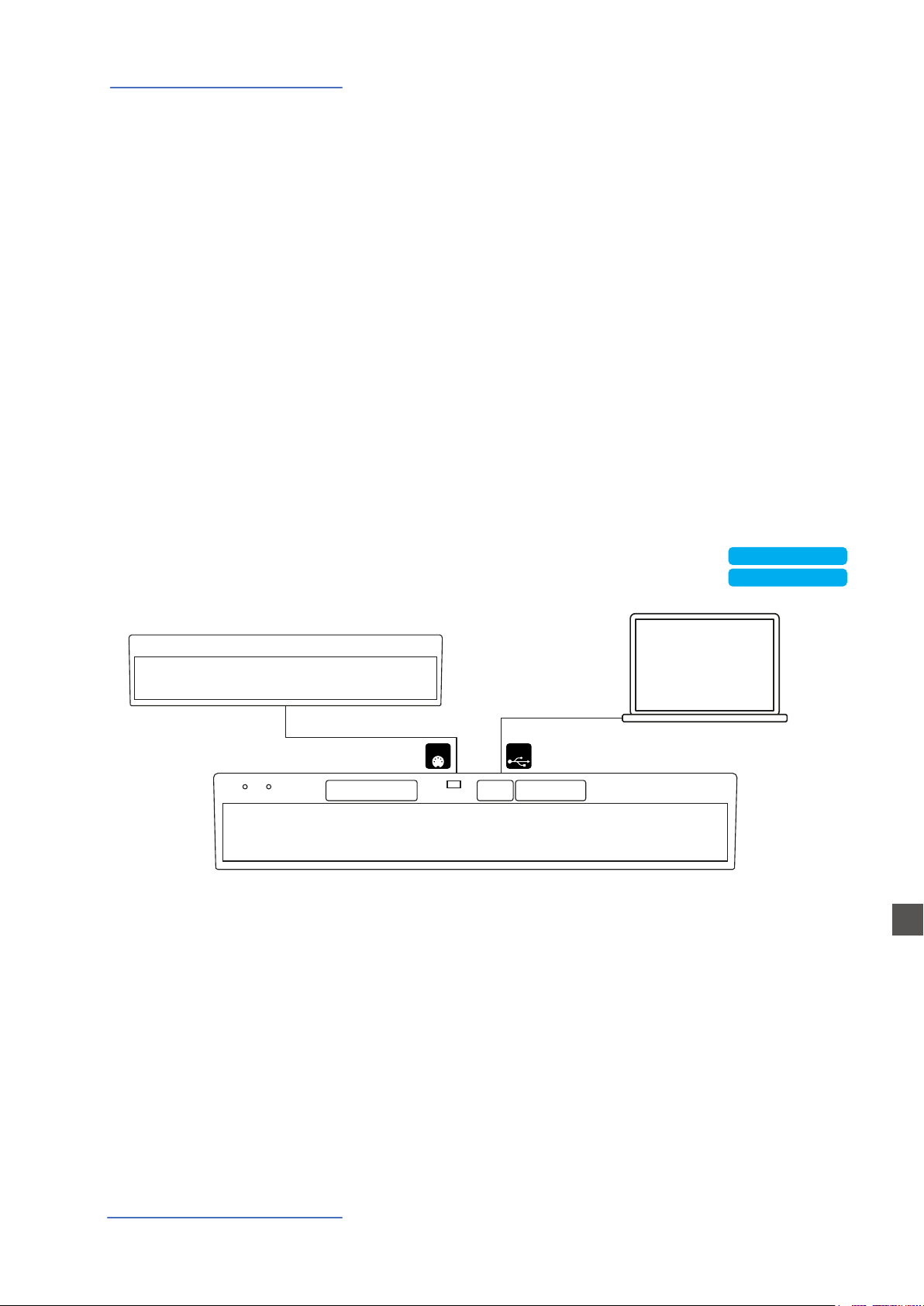
The Numa Compact 2/2x has a complete MIDI Implementation, that includes 2 separate software
MIDI Ports, that you can see connecting the instrument with the USB Cable to your computer,
named KEYBOARD and CONTROLLER ports (PORT 2 and PORT 2).
The KEYBOARD port is programmed to send and receive all MIDI controls related to the internal
SOUNDS, EFFECTS and PROGRAMS, allowing to control all functions of the instrument, sending and
receiving what you physically do on it, from the notes you play on the keyboard, to the SOUNDS
you select on the 2 local sections (Upper and Lower) and for the other 2 additional sections (Part3
and Part4) that can be played via MIDI. Via MIDI you can also set the Part 3 and Part 3 SOUNDS and
Reverb levels (they cannot be sent to the internal Eects) creating a total of 4 parts MIDI Sequence.
You can play a Drums & Bass groove on MIDI CH3 and 4 and record a live part on UPPER and/or
LOWER, creating a 4 part arrangement of any kind.
The four KEYBOARD Parts have a separate MIDI Channel each one, corresponding to the following
MIDI structure:
KEYBOARD MIDI PORT
Upper = MIDI Ch1 (send and receive) Part 3: MIDI Ch3 (receive only)
Lower = MIDI Ch2 (send and receive) Part 4: MIDI Ch4 (receive only)
MIDI
numacompact 2x
MIDI KEYBOARD
USBMIDI
• CONTROLLER PORT
• CONTROLLER PORT
• KEYBOARD PORT
All real time Panel controls (Organ Drawbars and Synth Sliders, SOUNDS, FX selection and related
Amounts and settings etc) are sent and received, as listed in the MIDI IMPLEMENTATION CHART.
The last four potenziometers are only for local settings (VOLUME, MASTERING, BASS & TREBLE) as
they should not be sent or received via MIDI.
So anything you control and play on the Numa Compact 2/2x can be transmitted, recorded and
received via MIDI, allowing a full control of all functions.
The second separate MIDI PORT is dedicated to the CONTROLLER section (ZONE A and ZONE B)
and thru this separate PORT you can send all MIDI controls related to the MIDI Zones and their re-
lated settings, controls, Stick functions (Pitch and Modulation, as well as the Aftertouch) etc.
Being this PORT 2 related to the MIDI function, the IMPLEMENTATION only includes the SENT MIDI
Messages, while no MIDI controls are needed and implemented as MIDI IN.
Numa Compact 2x
Numa Compact 2x
Numa Compact 2/2x by Studiologic
33
E
MIDI (Zone edit)
The PROGRAM EDIT, explained in the related chapter, is common for SOUND and MIDI; it refers
to general parameters associated to both the SOUND and MIDI sections. With the following ZONE
EDIT chapters you can set the specic MIDI Zone parameters according to your choices and STORE
them in the same Program, under the same name and number, with all the other parameters set
for the internal SOUNDS.
Program edit
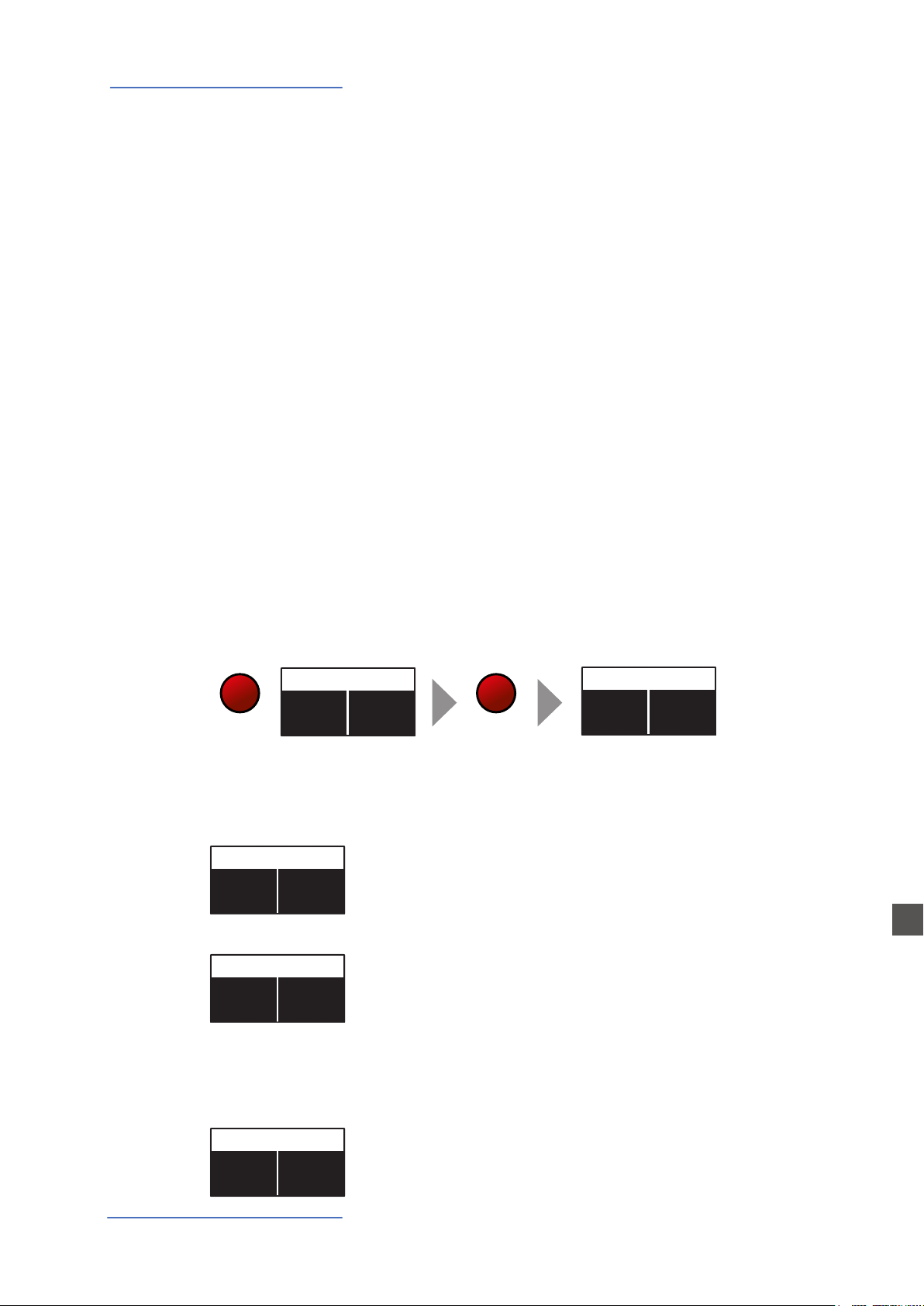
If the focus is on one of the zones and you are in MIDI mode (with the MIDI button selected and
lighted) you will enter in the ZONE edit mode; when you have selected ZONE edit you can always
press the ZONE A or ZONE B buttons to select the zone to be edited, or click on the encoder to
move the cursor/focus as for all other instrument’s functions.
Zone edit
The ZONE EDIT includes the following parameters:
PROGRAM CHANGE
LSB - MSB
MIDI CHANNEL
Here you can input the Program Change number of the con-
trolled device or sound generator, referring to the specic
Sound Map of the connected device/vst/sound generator.
The value range is 1-127.
LSB stands for Least signicant Byte, MSB stands for Most
signicant byte and they allow to control and select more
banks of the standard 127 Program Changes or many other
functions, dened by the MIDI standards; to input the correct
numbers, you have to refer to the implementation chart of
the controlled device, where each Sound is dened with the
MIDI data to select and control it.
You can select the MIDI channel (value 1-16) for each Zone,
to control 2 dierent external devices or sound generators.
ZONE EDIT [1/16]
0
PRG CHG
0
PRG CHG
ZONE EDIT [2/16]
0
BANK LSB
0
BANK LSB
ZONE EDIT [4/16]
2
MIDI CH
1
MIDI CH
P01-JAZZ DUET
Zone A
V: 64
A0 - B3
Zone B
V: 64
C4 - C8
EDIT
ZONE EDIT [1/16]
0
PRG CHG
0
PRG CHG
MIDI
As esplained this double KEYBOARD/CONTROLLER PORT structure is meant to be used when a
MIDI-USB connection is made with a Computer.
As explained in the GLOBAL EDIT parameters, the COMMON Midi channel allows to send all inco-
ming MIDI data (notes etc) to the main instrument’s section, allowing to change the main PRO-
GRAMS and play the instrument’s UPPER and LOWER parts as you would play on the local key-
board (with Split or Layers, the related key range etc).
Connecting the Numa Compact 2/2x via MIDI OUT (not USB) the instrument only transmits the
implemented CONTROLLER messages when you connect a physical MIDI cable to the MIDI OUT
socket.
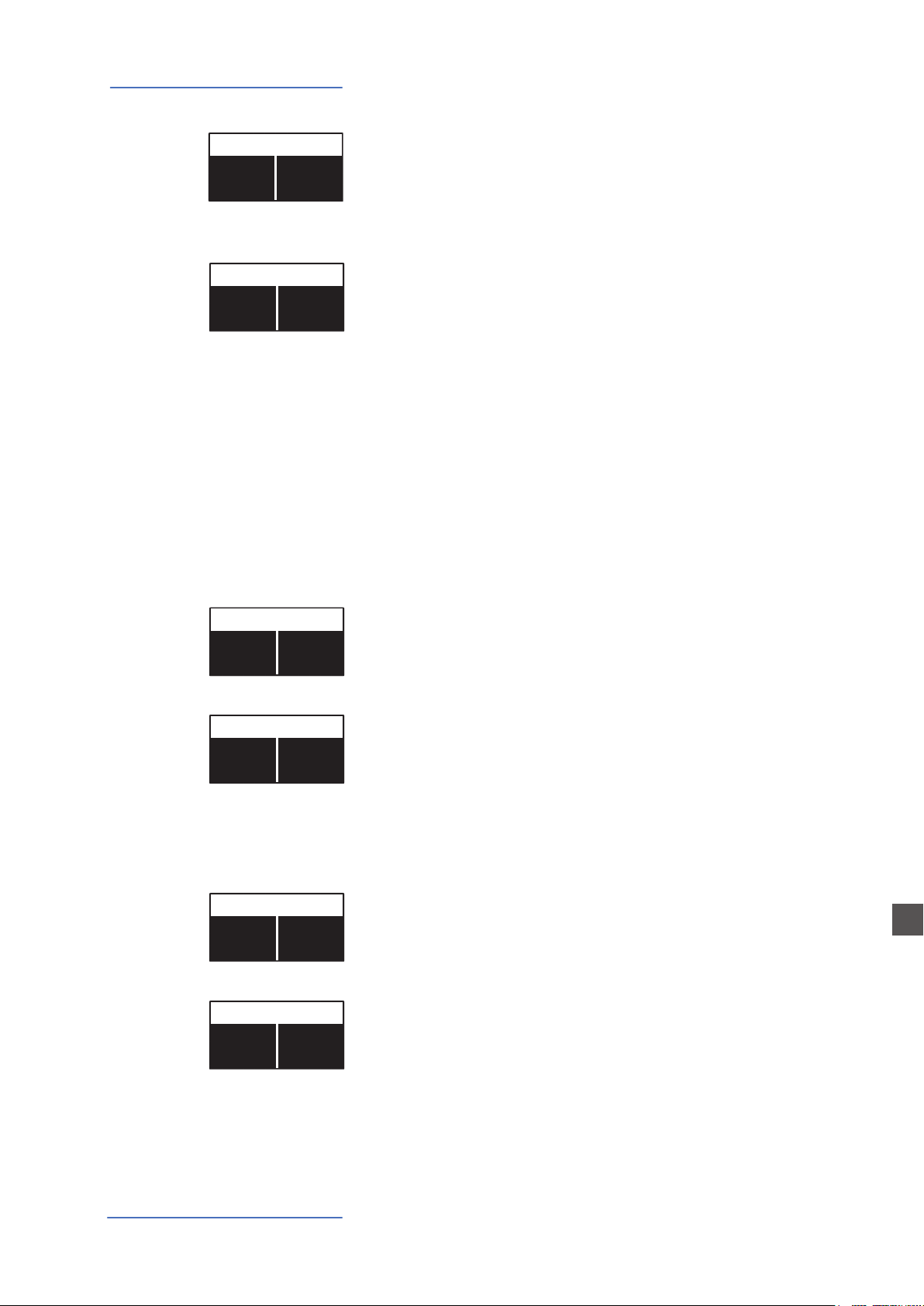
Numa Compact 2/2x by Studiologic
34
E
MIDI (Zone edit)
Rotating the encoder, after having moved the focus on the pa-
rameter by clicking on it, you can control the selected part Vo-
lume, in a range from 0 to 127; the Zone volumes can be con-
trolled directly also not in EDIT mode, when the MIDI button is
lighted and the cursor-focus is on one of the Zones.
Once you have selected the SPLIT point for the current PRO-
GRAM (ref: PROGRAM EDIT) you can decide where the selected
ZONE should play, in a totally independent way as it follows:
TO LEFT: the zone will play to the left section of the keyboard
(from A0 to the SPLIT note);
TO RIGHT: the zone will play to the right section of the keybo-
ard (from the SPLIT note to C8);
TO ALL: the zone will play with no split all over the keyboard.
Even with one common SPLIT point (programmable for
each PROGRAM) the possible settings are almost one
hundred, considering the status and combinations of
LOWER+UPPER+ZONEA+ZONEB and the SPLIT settings made
possible by this function.
This function allows to transpose a Zone; dierently from the
GLOBAL TRANSPOSER, that will eect the entire instrument,
this function can be set independently for each MIDI zone and
stored in each PROGRAM, with dierent values.
You can set the octave (intervals of 12 semitones each) separa-
tely for each Zone; normally you will need to move a zone one
or two octave up, to the LEFT Zone of a split keyboard, to play
chords in a better range. On the other way, sometimes you can
get a better sound if you move the UPPER zone one or two oc-
taves down; simply experiment the setting you prefer and then
store it in the current PROGRAM.
Here you can decide if the pedals are enabled or not for each
Zone independently, according to where the cursor-focus is
set (on ZONE A or ZONE B).
As for the pedals, also the Sticks can be enabled separately for
the Zones; please note that the Stick 2 will be set automatically
to AUTO if the related FX-AUTOSET function is set to ON in the
GLOBAL EDIT area. To control the Stick 2 assignment manually,
you can set to OFF the FX-AUTOSET and the function can be
switched ON or OFF and stored in the Programs.
VOLUME
SPLIT ASSIGN
TRANSPOSE
OCTAVE
PEDAL 1 - PEDAL 2
STICK 1 - STICK 2
ZONE EDIT [5/16]
64
VOLUME
64
VOLUME
ZONE EDIT [6/16]
TO LEFT
SPLIT ASSIGN
TO RIGHT
SPLIT ASSIGN
ZONE EDIT [7/16]
0
TRANSPOSE
0
TRANSPOSE
ZONE EDIT [8/16]
0
OCTAVE
0
OCTAVE
ZONE EDIT [9/16]
ON
PEDAL 1
ON
PEDAL 1
ZONE EDIT [11/16]
ON
STICK 1
ON
STICK 1
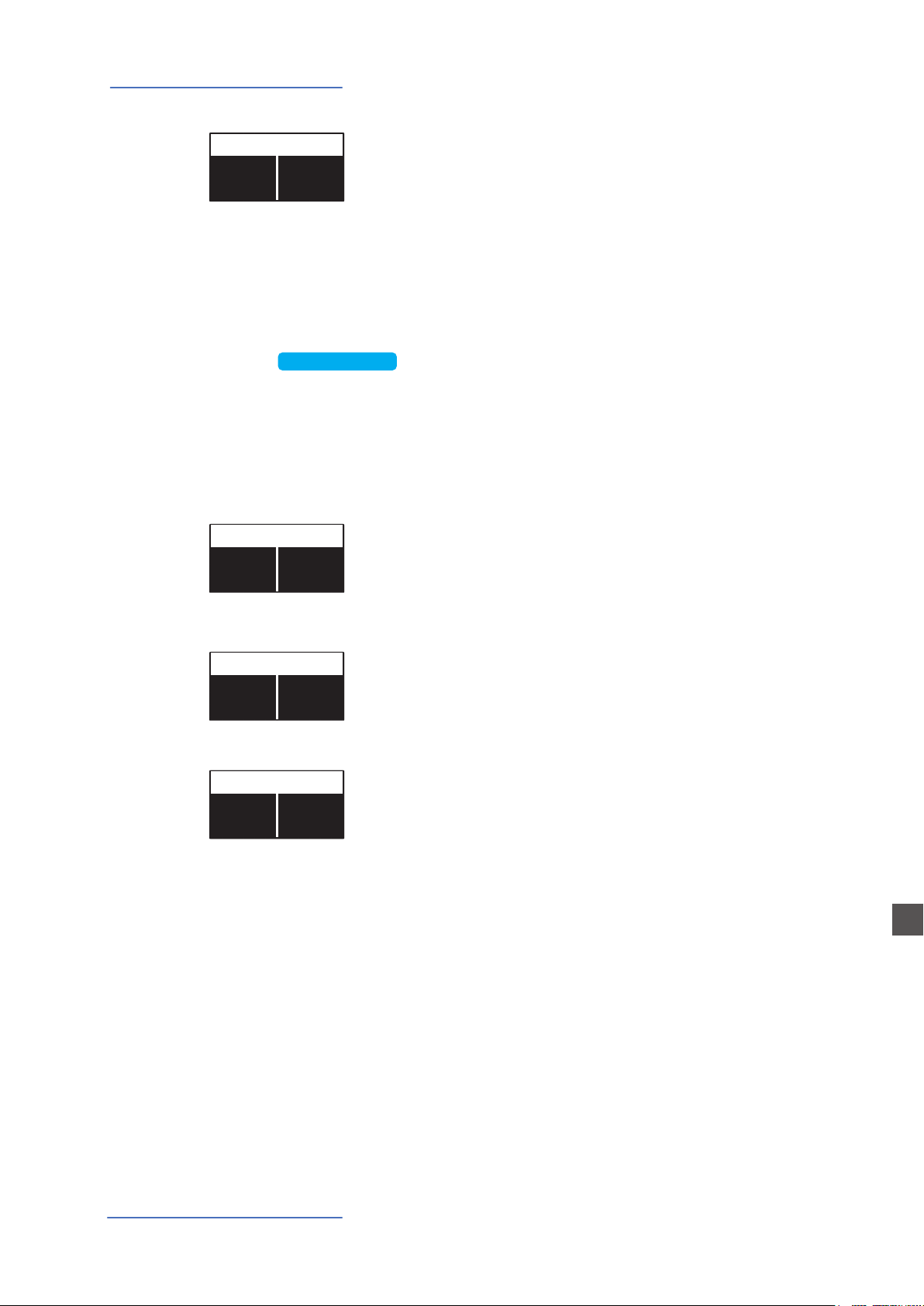
Numa Compact 2/2x by Studiologic
35
E
This parameter enables or disables the aftertouch function on
the selected Zone; the function of the Aftertouch will be in
most cases similar-same of the Stick 2 modulation control, ad-
ding some kind of vibrato or similar modulation to the sound,
according to the setting. Normally you will set the Aftertouch
ON for the UPPER zone, that is commonly used for the main
musical zone or solo performances, while the LOWER zone is
normally associated to accompaniments or bass lines, if the
SPLIT is active, however the setting is totally under your con-
trol and choice.
MIDI (Zone edit)
AFTERTOUCH
ZONE EDIT [13/16]
ON
A.TOUCH
ON
A.TOUCH
Sliders Programming
Selecting one of the pages dedicated to Sliders programming, moving one of the Sliders will au-
tomatically enable the selected editing for that Slider; repeating the procedure for each Slider will
allow you to make the complete Sliders programming, for the various functions and settings.
All sliders settings can be memorized in any Programs, with same procedure of the Store Function.
This page allows to select the CC function for each one of the
nine sliders, some selection is only numeric, if the related CC
is generally undened by a standard, while others are also re-
ferring to the name of the function, in addition to the number,
such as cc 64 = Damper etc.
CC SLIDER
ZONE EDIT [14/16]
00-BankSel
CC SLIDER 1
01-ModWhl
CC SLIDER 1
Selecting this function, for each slider, you can decide the MIDI
value sent by the Slider when is moved on the lowest position,
(with the function programmed in the page CC Slider).
MIN SLIDER
ZONE EDIT [15/16]
0
MIN SLIDER 1
0
MIN SLIDER 1
Selecting this function, for each slider, you can decide the MIDI
value sent by the Slider when is moved on the top-highest po-
sition.
MAX SLIDER
ZONE EDIT [16/16]
127
MAX SLIDER 1
127
MAX SLIDER 1
The MIN and MAX Sliders values determine the total range of the selected function, as well as the
direction of the programmed control.
Setting the MIN Slider to hi values (for instance 127) and the MAX Slider to lower values (for instance:
0) the result is a reversed control, from MAX (top position) to MIN (lowest position) as can be reque-
sted to control Drawbars settings of some Organ VST on your computer.
These settings allow to create for the MIDI Sliders similar functions of an ORGAN or SYNTH sound,
where the Drawbars and Sliders are automatically associated to the selected Sound, with the related
MIN/MAX dierent positions; to increase the Drawbars volume you will pull down the sliders, while
the selected Slider’s function will increase moving the slider to the top position.
Numa Compact 2x
Numa Compact 2/2x by Studiologic
36
E
Declarations
Every product from Studiologic by Fatar has been carefully manufac-
tured, calibrated and tested, and carries a warranty. Damage caused
by incorrect transport, mounting or handling is not covered by this
warranty. Compensation amounting to more than the price of the
device is excluded. For any further informations please refer exlusi-
vely to your dealer and/or local distributor. This is based on general
terms and condition of the local distributor / FATAR srl, Italy.
FATAR srl
Zona Ind.le Squartabue
62019 Recanati MC Italy
declares that this product complies with the European Directives:
2004/108//EC EMC Directive
DIN EN 55013 EMC radio disturbance of sound, TV and
associated equipment
DIN EN 55020 EMC immunity of sound, TV and
associated equipment
Recanati, 17. 01. 2017 Marco Ragni, Chief Executive Ocer
This declaration becomes invalid if the device is modied without
approval.
This product is manufactured according to the 2002/95/EC directive.
The purpose of this EC Directive 2003/108/EC is, as a rst priority, the
prevention of waste electrical and electronic equipment (WEEE), and
in addition, the reuse, recycling and other forms of recovery of such
wastes so as to reduce the disposal of waste. Please help to keep our
environment clean.
To ensure maximum quality all Studiologic by Fatar devices are al-
ways engineered to be state-of-the-art products, therefore updates,
modications and improvements are made without prior notice.
Technical specication and product appearance may vary from this
manual.
All trademarks used in this manual belong to their respective owners.
No part of this manual may be reproduced or transmitted in any form
or by any means without prior consent of the copyright owner:
FATAR Srl
Zona Ind.le Squartabue
62019 Recanati, Italy
Warranty
CE-Conformity
RoHS-Conformity
Disposal / WEEE
State of the art
Trademarks
Copyright
RoHS
compliant
2002/95/EC

Numa Compact 2 by Studiologic® 37
Appendix
Appendix
Numa Compact 2/2x
Numa Compact 2/2x by Studiologic
38
Appendix
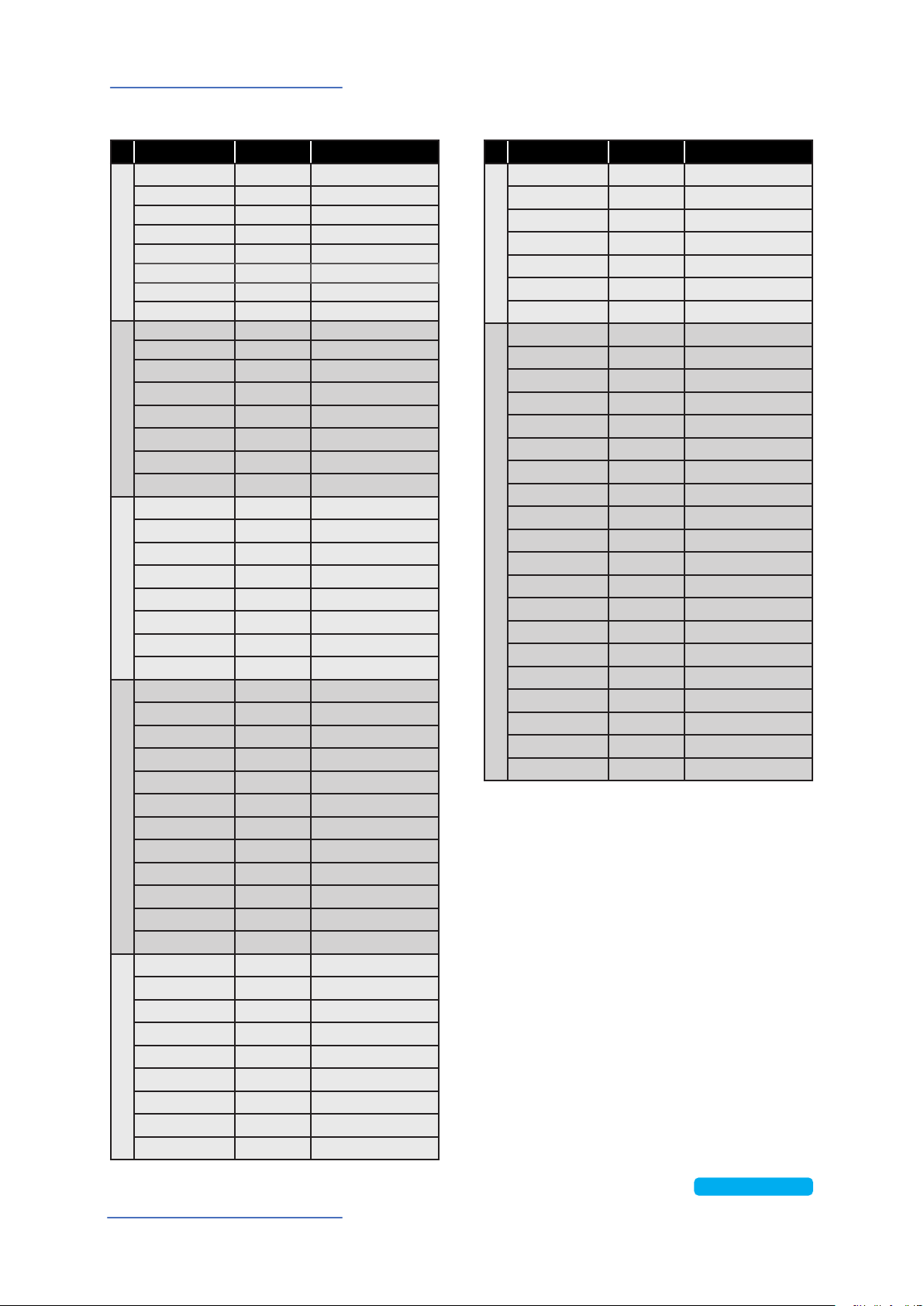
Sounds list
SOUND NAME MIDI BANK PROGRAM CHANGE
A.PIANOS
Concert 0 0
Stage 1 0
Vintage 2 0
Studio 3 0
Rock 0 1
Upright 0 3
E-Grand1 0 2
E-Grand2 1 2
E.PIANO
EP-Mark1 0 4
Wurlix 1 4
E-Pno1 0 5
E-Pno2 1 5
DxFm1 2 5
DxFm2 3 5
DxFm3 4 5
DxFm4 5 5
KEYS
Clavi 0 7
Harpsi 0 6
Vibes 0 11
Marimba 0 12
FunKlav 1 7
Cembalo 1 6
ReedOrg 0 20
GloKeys 0 9
BASS/GUITAR
Ac-Bass 0 32
El-Bass 1 33
Slap 0 36
Plucked 0 34
Ny-Guitar 0 24
El-Guitar 0 27
Ac-Guitar 0 25
Jz-Guitar 0 26
2 Guitars 1 24
12 Strings 1 25
BassRide1 1 32
BassRide2 1 33
ORGANS
JazzOrg1 0 17
JazzOrg2 1 17
DrawbVib 0 16
AllDrawb 1 16
888-Pure 0 18
888-Scan 1 18
MildSet 2 16
PopSet* 6 16
AllEven 3 16
SOUND NAME MIDI BANK PROGRAM CHANGE
ORGANS
VintSet* 3 18
FullSwell* 3 17
FullGreat* 3 16
VintOrg1 4 16
VintOrg2 5 16
PipeOrg1 1 19
PipeOrg2 0 19
SYNTH
SynthPad 0 89
SynHouse 1 7
SweetSaw 2 7
WowPad 0 95
Soloist 4 7
Funky 5 7
SynBass1 6 7
SynBass2 7 7
JumpSaw 0 81
SynBrass 9 7
SquareMix 0 80
Cluster 11 86
BigDance* 0 96
Monster* 0 97
FmVibe* 0 98
SledgeMix* 0 99
Sawtooth* 1 81
Square* 1 80
Triangle* 1 89
Pulse* 3
Numa Compact 2x
*
Numa Compact 2/2x by Studiologic
39
Appendix
SOUND NAME MIDI BANK PROGRAM CHANGE
ORCHESTRA
Strings1 0 49
Strings2 0 50
Horns 0 60
Brass 0 61
Baroque 1 49
BigBand 1 61
BrassFall 2 61
SaxBand 1 66
TenorSax 0 66
JazzFlute 0 73
Trumpet 0 56
Oboe 0 68
OTHER
Cassotto 0 23
Accordition 0 21
Musette 1 22
Harmonica 0 22
ChoirAh 0 52
ChoirOh 0 53
ChoirUh 1 53
ChoirSint 0 54
Bouzouki 1 104
Kanoun 1 107
Oud 1 105
Cawala 1 75
Mizmar 1 111
Nai 1 72
StndKit 14 5
WorldKit 15 5
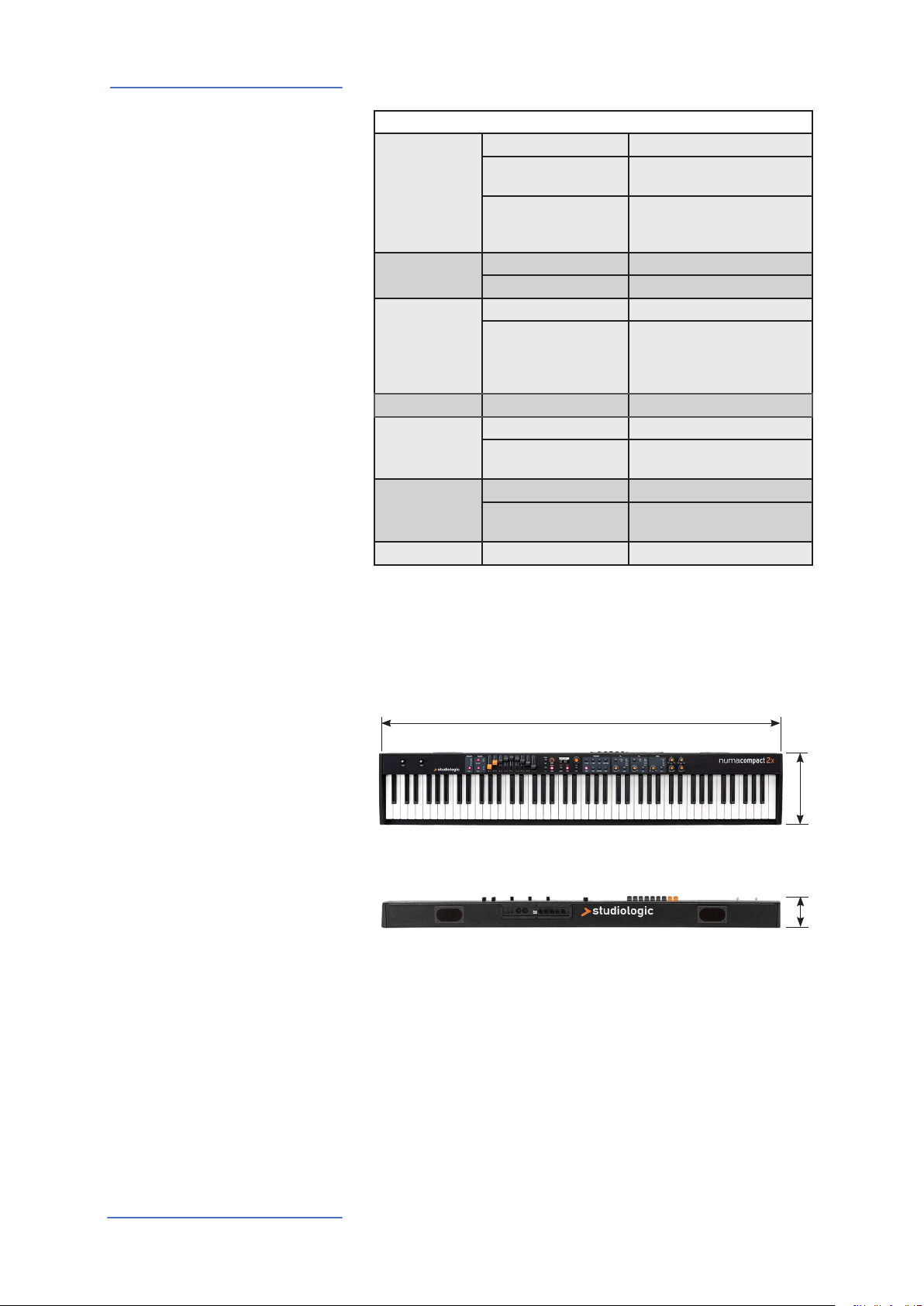
Numa Compact 2/2x by Studiologic
40
Appendix
Studiologic Numa Compact 2/2x
Keyboard Number of Keys 88
Type Semi-weighted Action
TP/9 PIANO with Aftertouch
Velocity Curves 3 default velocity curves +
xed curve with
programmable value
Display Type OLED
Resolution 128 x 64 dots
User Interface Encoder Rotation + push
Controls 7 potentiometer
23 buttons
2 sticks
9 Slider / Drawbars
Inputs Pedals Expression + universal
Connections MIDI In - Out
USB Midi In/Out, USB to HOST,
power
Power Supply DC IN 12V - 2,5A
Adapter Input:100-240V
Output: 12V-2,5A
Weight 7,1 Kg / 15,6 lbs
Specications
50”
9”
Dimensions
Design and Specications are subject to change without notice.
4”
Same for both Numa Compact 2 and Numa Compact 2x.