Personal Computer
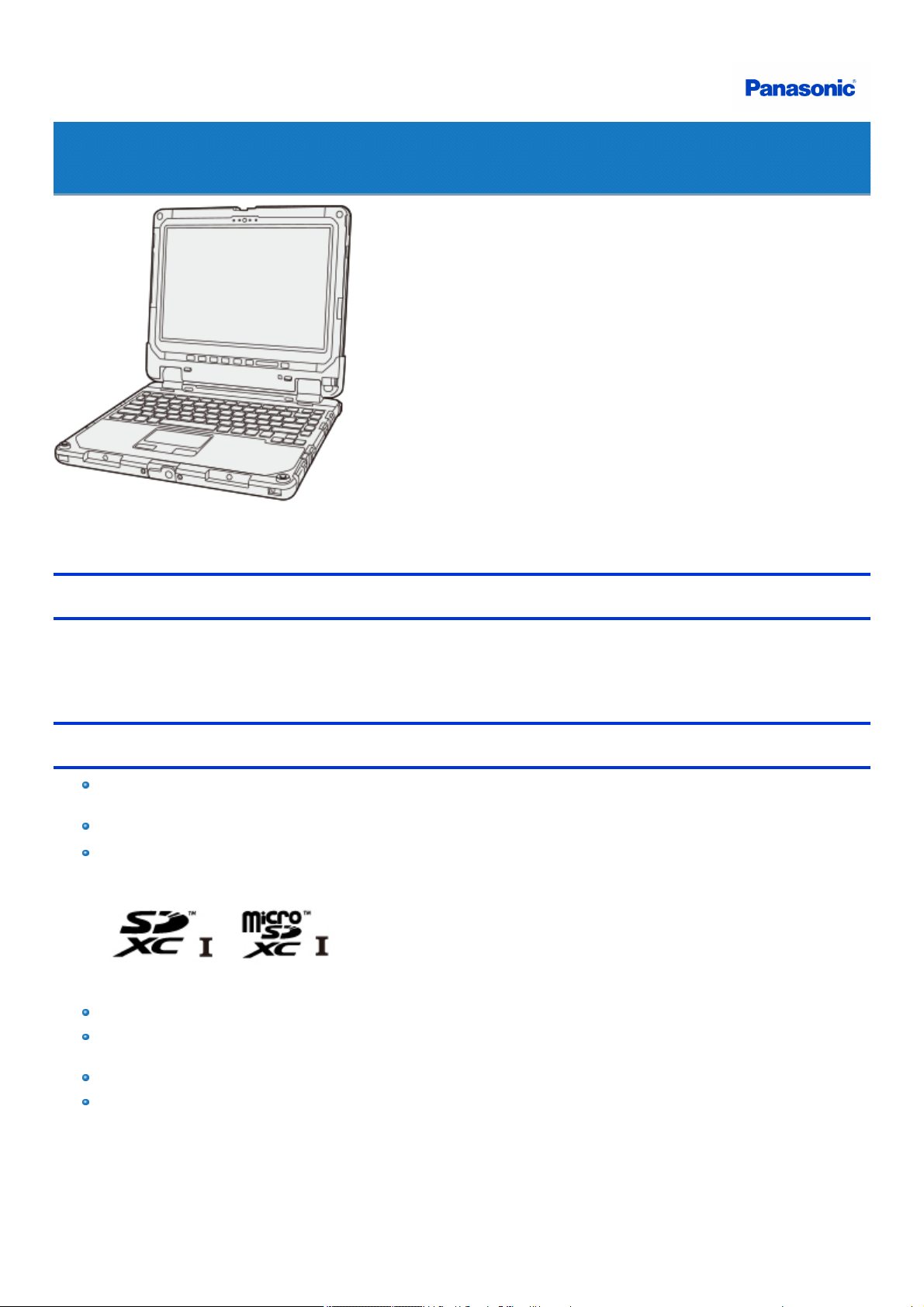
Model No. CF-33 Series
Operating Instructions - Reference Manual
We recommend that thisReference Manual be printed.
Disclaimer
Computer specifications and manuals are subject to change without notice. Panasonic Corporation assumes no liability for damage incurred directly or
indirectly from errors, omissions or discrepancies between the computer and the manuals. Refer for the latest information about optional productsto the
catalogs, etc.
Trademarks
Microsoft, Windows, and the Windows logo are registered trademarks or trademarksof Microsoft Corporation of the United States and/or other
countries.
Intel, Core, and PROSet are either registered trademarksor trademarks of Intel Corporation.
SDXC and microSDXC Logos are trademarksof SD-3C, LLC.
MobileMark
®
is a U.S. Registered Trademark of the Business Applications Performance Corporation.
The terms HDMI and HDMI High-Definition Multimedia Interface, and the HDMI Logo are trademarks or registered trademarks of HDMI Licens-
ing Administrator, Inc. in the United States and other countries.
Bluetooth
®
is a registered trademark owned by Bluetooth SIG, Inc., U.S.A. and licensed to Panasonic Corporation.
Names of products, brands, etc., appearing in this manual are trademarksor registered trademarksof their respective own companies.
Panasonic Corporation
Osaka, Japan
Web Site : https://panasonic.net/cns/pc/
© Panasonic Corporation 2017

PB0417-2087
20160484ZCD
Introduction
Illustrations and Terminology in this manual
Thismanual explains using the default setting.
In principle, thismanual explains based on the following conditions:
When the tablet and keyboard base have been installed
When the keyboard and touchpad are used for operation
Some illustrations are simplified to help your understanding and may look different from the actual unit.
Some types of software are automatically updated, and differencesmay occur from descriptions in thismanual.
If you do not sign in as an administrator, you cannot use some functions or cannot displaysome screens.
Thismanual explains operation procedures using the touchpad or mouse as typical examples. In addition, you can touch the display screen to
operate the computer.
When using the touch operation, please replace the terms as described below, and read the instructions.
Operation terms to be replaced:
Click → Touch
Double-click → Double-touch
Right-click → Touch and hold (Long touch)
Terms and illustrationsin these instructions.
CAUTION: Conditions that may result in minor or moderate injury.
NOTE: Useful and helpful information.
≪ Enter≫ : Thismeans to press the Enter key.
≪ Fn≫ + ≪ F7≫ :
Thisillustration means to press and hold ≪ Fn≫ key, and then press ≪ F7≫ key.
The display of the key may be different from this manual according to the keyboard used. (e.g. "Delete" instead of "Del")
- :
Click (Start) and then click (Power).
In these instructions, the names are referred as follows.
“Windows 10 Pro 64-bit” as “Windows” or “Windows 10”
Circular media including DVD-ROM and CD-ROM as “discs”.
“Multilanguage User Interface” as “MUI”.
The Digitizer + Touch Screen (Capacitive) as the “digitizer”, and the Touch Screen as the “touchscreen”.
The digitizer pen and the stylus as the “pen (included)”.
The computer screen supporting touching methods (using stylus / your fingers) is referred to as the "screen".
In thismanual, the tablet mode refers to the status where only the tablet is used, or the status where the LCD part is folded toward back.
Regarding Windows 10
Desktop mode and Tablet mode
Windows 10 offers the desktop mode in which operation is performed using the keyboard or touchpad, and also the tablet mode optimized for the touch
panel operation.
The mode can be switched by clicking (Notification), and then clicking (Tablet mode) tile.
In thismanual, the tablet mode may refer to the status when the tablet detached from the keyboard base is used.
In the tablet mode, operations from the Start screen are explained.
N O T E
If some icons do not appear on the task bar, perform the following operations.
1. Touch and hold the task bar.
2. Select the item to display.
Screen Messages
Screen messages are explained in [English (United States)].
(Depending on the language preference, some screen messages in these instructions are different from the actual screen messages. For example,
[Flight mode] may be displayed instead of [Airplane mode] in some language preference)
Opening the Control Panel
1.
Right-click (Start) at the bottom left corner, and then click [Control Panel].
Opening the Settings
1.
Click (Start) - (Settings).
Alternatively, click (Settings) in the tablet mode.
Latest Information on Windows 10
When Microsoft
®
Windows
®
10 isupdated, the screen display or operation procedures may be changed.
For the latest information on Windows 10, see the following web page.
http://pc-dl.panasonic.co.jp/itn/addendum/
Sound and Video
Sound (e.g. MP3, WMA) and video (e.g. MPG, WMV) recorded in SD Memory Cards may be interrupted during playback. If this hap-
pens, copy them to the flash memorydrive and play back.
Depending on the processing status on Windows, sound may be interrupted at Windows startup. You can mute the sound at startup.
The startup sound ismuted as the factory default.
1.
Right-click (Start) at the bottom left corner, and then click [Control Panel] - [Hardware and Sound] - [Sound] - [Sounds].
2. Remove the check mark from [Play Windows Startup sound], and click [OK].
When high-frequency sound occurs
If high-frequency sound occurs while using the computer, check the settings for the USB power saving function.
Set [USB selective suspend setting] to [Enabled].
1.
Click (Start) - (Settings) - [System] - [Power & sleep] - [Additional power settings].
2. Click [Change plan settings] of the current power plan.
3. Click [Change advanced power settings].
4. In [Advanced settings], double-click [USB settings].
5. Double-click the displayed [USB selective suspend setting].
6. Change settings of [On battery] and [Plugged in] to [Enabled].
7. Click [OK] and exit the "Advanced settings" screen.
About the Ambient Light Sensor
The ambient light sensor is used to adjust the display screen brightness automatically.

To configure the automaticadjustment function, proceed as follows.
1.
Click (Start) - (Settings) - [System] - [Display].
Alternatively, click (Settings) - [System] - [Display] in the tablet mode.
2. Click [Change brightness automatically when lighting changes] and select [On].
Windows Update
You can update to the latest patches and service packs for Windows with the following menus.
1.
Click (Start) - (Settings) - [Update & security] - [Windows Update].
Alternatively, click (Settings) - [Update & security] - [Windows Update] in the tablet mode.
2. Click [Check for updates].
Do not apply "Driver Updates" even if a message to update a driver appears. If a driver update is required, contact your technicalsupport office.
Create a Recovery Disc
You can make a recovery disc for preinstalled software.
The recovery discreturns the flash memory to the factory default. To create a backup of the recent state of the flash memory, refer to Flash Memory
Backup/Restore Function.
Preparation
Blank discs (About usable types of discs and required numbers of discs, refer to the screen.)
USB memory device can also be used as a recovery disc.
Prepare the commercially available optical drive.
Connect the AC adaptor and do not remove it untilthe operation iscomplete.
Close allapplications except for thisutility.
Remove all peripherals(except for the commerciallyavailable optical drive).
Turn off the wireless function.
N O T E
n If the recovery partition is deleted, you cannot create recovery disc(s).
C A U T I O N
n USB memory device can also be used as a recovery disc.
n Do not perform the following operations until creating the recovery disc is complete.
Shut down or restart Windows.
Enter sleep or hibernation.
Remove the commercially available optical drive.
n If you interrupted creating a recovery disc, a message of failure may appear in step 9 screen below. In this case, restart the computer,
and create a new recovery disc again.
1. Sign in to Windows as an administrator.
2. Connect the commercially available optical drive to the USB Port.
3. Set a disc into the commercially available optical drive.
4.
Click (Start) - [Panasonic] - [Panasonic PC Settings Utility], and click (Support) - (Recovery Disc Creation) -
[Launch Recovery Disc Creation Utility].
Alternatively, click (All apps) - [Panasonic] - [Panasonic PC Settings Utility] in the tablet mode, and click (Support) -
(Recovery Disc Creation) - [Launch Recovery Disc Creation Utility].
If [User Account Control] is displayed, click [Yes].
C A U T I O N
n Do not remove the tablet during operation.
5. Click [Next].
Read the notice before creating the recovery disc(s).
6. Confirm on-screen information ([Select OS Image] and [Number of discs required]).
Click [Next].
7. Select the disc type.
8. Click [Next].
Select [Write Speed], and then click [OK].
9. When [Recovery disc #1 complete.] is displayed, remove the disc. And write contents of the written disc on the label.

Do not use sharp objectsthat may leave a mark.
10. Click [OK].
Following on-screen instructions, create allrecovery discs.
11. Click [OK] on [All recovery discs complete.] screen.
N O T E
n The disc created with this utility is only for this computer. You cannot use for others.
n Additional applications cannot be recovered even if you use a recovery disc created with this utility.
n Once the recovery disc(s) have been created, you cannot create other recovery discs using this utility. If, however, the flash memory
recovery is executed or OS is reinstalled from the created recovery disc, you can create a recovery disc again.
n If you fail to create a recovery disc or an error message appears, try either of the following procedures.
Insert the disc correctly.
Checkthe disc condition.
Restart the computer and try to create a recovery disc again.
Contact PanasonicTechnical Support.

About the Partition Structure
You can shrink a part of an existing partition to create unallocated diskspace, from which you can create a new partition.
In the default setting, you can use a single partition.
C A U T I O N
n Do not add or delete partitions in Windows 10, as the Windows area and recovery partition must be adjacent to each other in Windows
10.
Flash Memory Backup/Restore Function
Panasonic Corporation willbear no responsibility for any damage suffered (including lossof data) as a result of the use of thisfunction.
Creating a Backup of the Flash Memory Data
You can create a backup of the flash memory data, which can be used to recover from hardware failure.
Thisfunction creates a backup of the recent state of the flash memory. To return the factory default, use a recovery disc. ( Create a Recovery Disc)
To create a backup of the flash memory on another storage media (e.g., external hard disk):
Connect the storage media, and follow the steps below.
1. Open the Control Panel, and then click [System and Security] - [File History].
To open the Control Panel, proceed as follows.
1. Perform either of the following procedures.
Right-click at the bottom left corner of the screen.
Click (All apps) – [Windows System].
2. Click [Control Panel].
2. Click [System Image Backup].
Follow the on-screen instructions.
N O T E
n Connect the AC adaptor and do not remove it untilbackup is complete.
Restoring the Flash Memory Data
Connect the storage media that created the backup.
1.
Click (Start) at the bottom left corner, and then click (Settings) - [Update & security] - [Recovery].
Alternatively, click (Settings) - [Update & security] - [Recovery] in the tablet mode.
2. Click [Restart now] under “Advanced startup”.
3. Click [Troubleshoot] - [Advanced options].
4. Click [System Image Recovery].
Follow the on-screen instructions.
Description of Parts
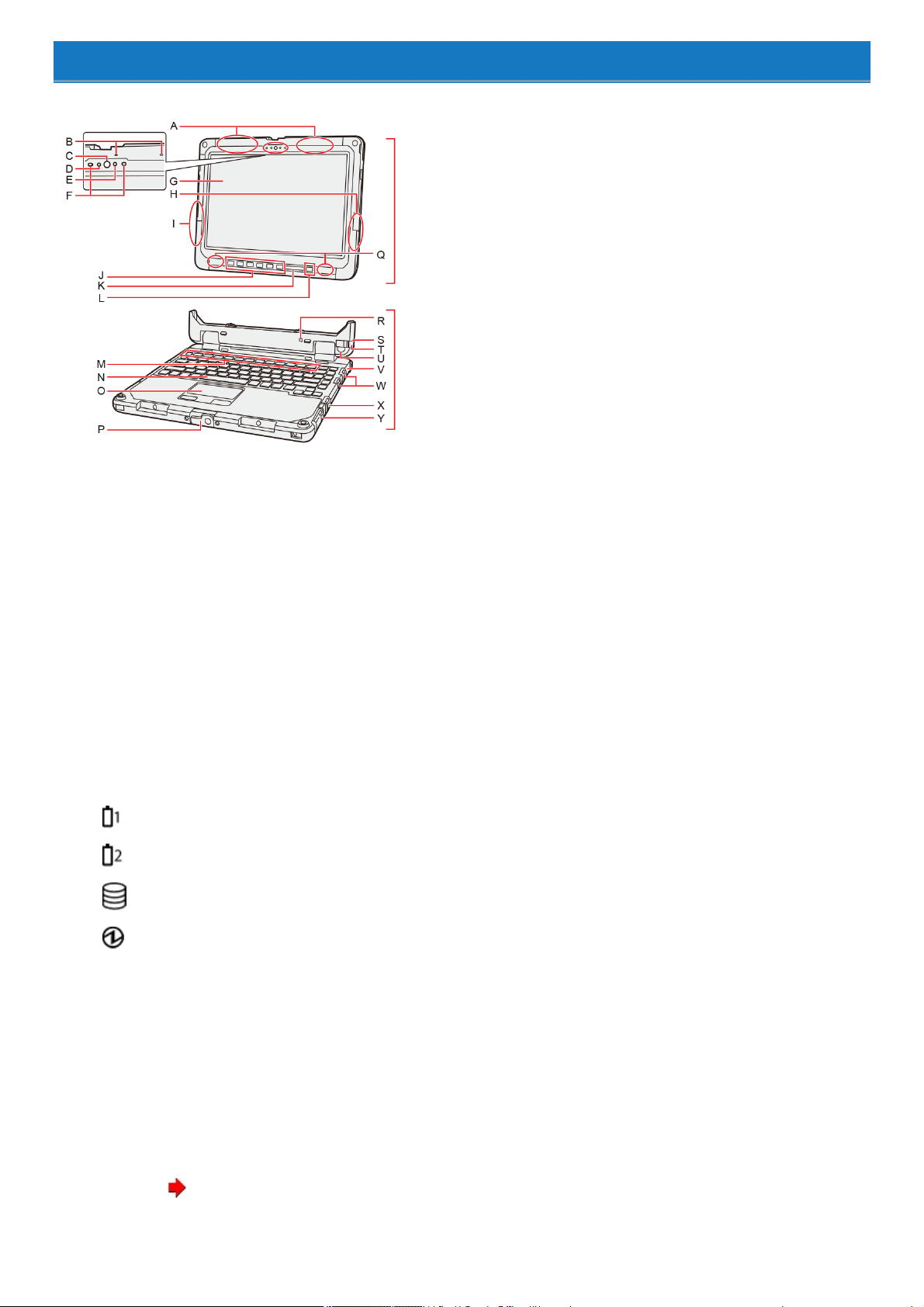
<Front>
A. Wireless WAN Antenna / GPS Antenna
<Only for model with wireless WAN / dedicated GPS / GPS on wirelessWAN>
B. Microphone
C. Camera Lens
D. Ambient Light Sensor
E. Camera Indicator
F. IR camera lights (RED)
<Only for model with camera with IR sensor>
G. LCD
H. Wireless LAN Antenna / Bluetooth Antenna
I. Wireless LAN Antenna
J. Tablet Buttons
K. LED Indicator
: Battery 1 Status
: Battery 2 Status
: Drive Status
: Power Status
Off: Power off/Hibernation
Green: Power on
Blinking green: Sleep
Blinking green rapidly:
Cannot power on or resume due to low temperature.
L. Power Switch
M. Function (Fn) Keys
N. Keyboard
O.
Touchpad ( Touchpad)
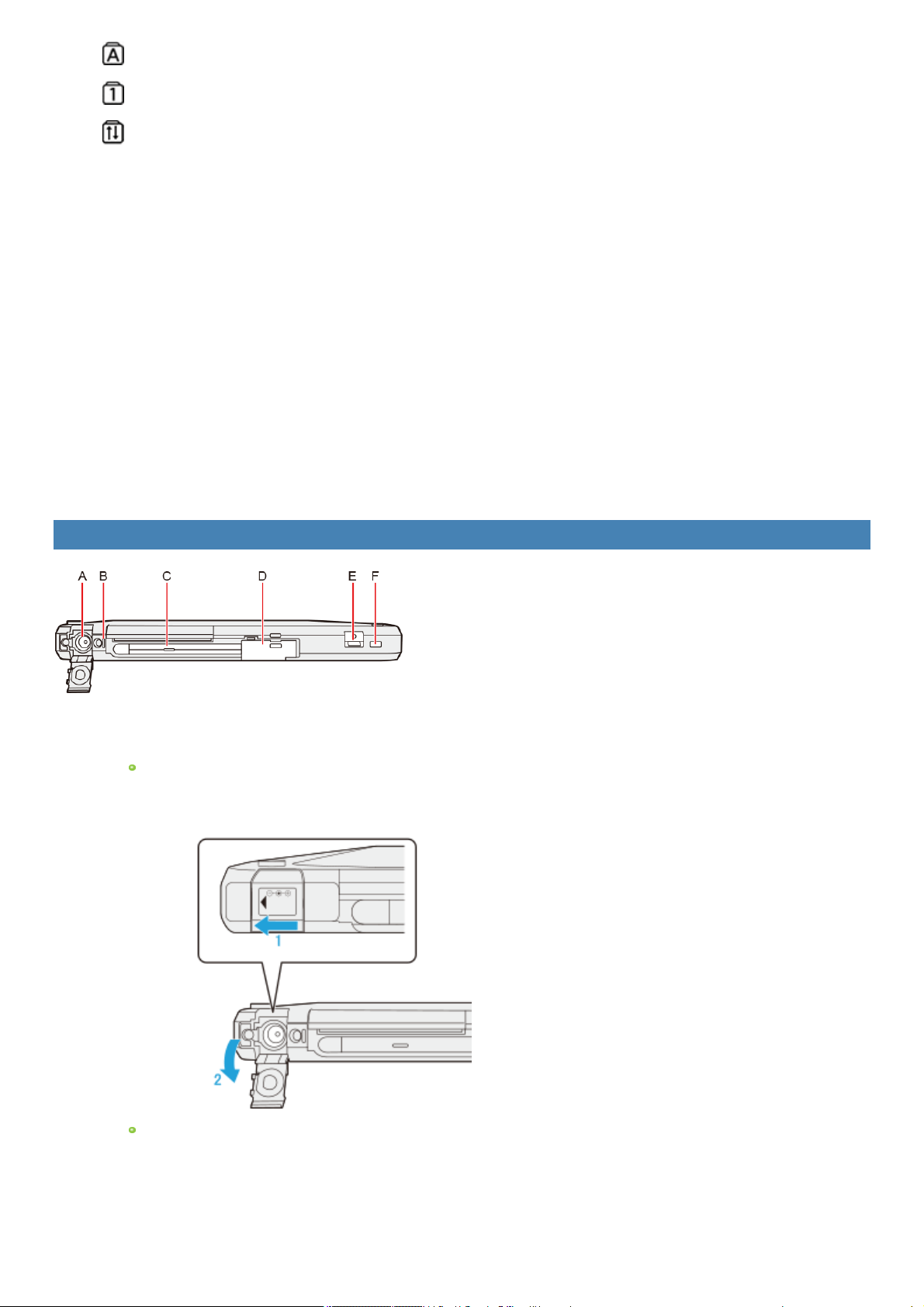
: Caps Lockindicator
: Num Lock (numericlock) indicator
: ScrollLock indicator
P. Display Latch
Q. Speaker
R. Detach Indicator
S. Security Slot (Clamshell)
When the tablet isattached, both the tablet and keyboard base can be secured at the same time.
A Kensington cable can be connected. For further information, read the manual that comes with the cable.
T. Release Lever
U. Detach Lock
V. Security Slot (Keyboard base)
A Kensington cable can be connected. For further information, read the manual that comes with the cable.
W. USB 3.0 Port
X. LAN Port
Y. Serial Port
Tablet (Right Side)
A. DC-IN Jack
When the tablet has been attached to the keyboard base, connect the AC adaptor to the DC-IN jack of the keyboard base.
To open the cover
1. Slide the cover to the arrow direction.
2. Open the cover.
To close the cover
1. Close the cover.
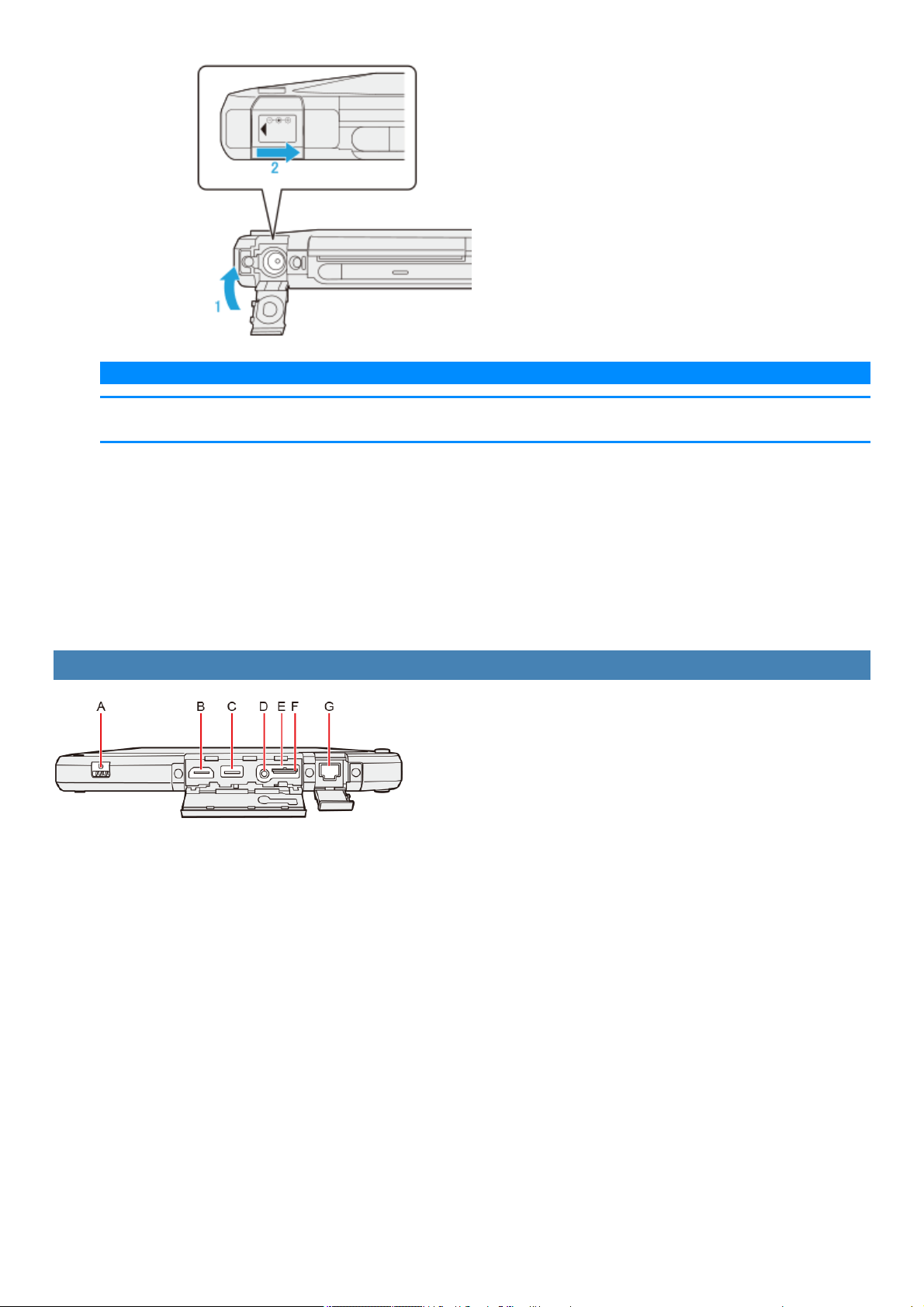
2. Slide the cover to the arrow direction.
N O T E
n While pressing the cover, slide and close it securely as described in the illustration above. After that, make sure that the cover
has been closed properly.
B. Tether Hole
C. Pen
D. Pen Holder
E. Strap Hole
F. Security Slot (Tablet)
A Kensington cable can be connected. For further information, read the manual that comes with the cable.
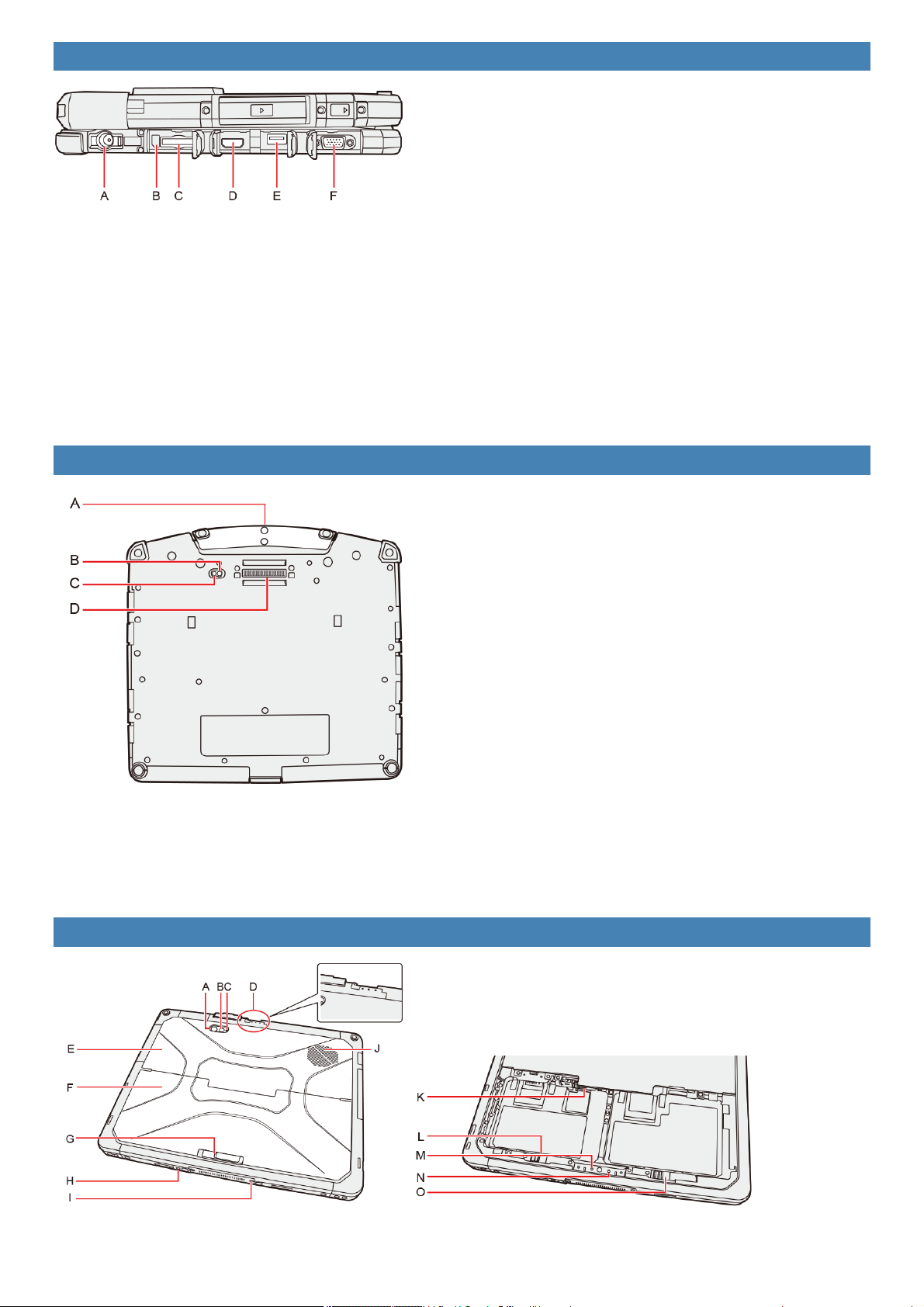
Tablet (Left Side)
A. Strap Hole
B. HDMI Port
C. USB 3.0 Port (CHG)
Do not insert any foreign object in the USB port.
D. Headset Jack
A headset or headphone can be connected.
E. SD Memory Card Indicator
(Blinking: During access or a password is requested)
F. microSD Memory Card Slot
Keep microSD Memory Cards away from infants and smallchildren.
G. LAN Port
Keyboard Base (Left Side)
A. DC-IN Jack
B. SD Memory Card Indicator
(Blinking: During access or a password is requested)
C. SD Memory Card Slot
Keep SD Memory Cards away from infants and smallchildren.
D. HDMI Port
E. USB 2.0 Port
F. VGA Port
Keyboard Base (Bottom Side)
A. Carrying Handle
B. External Antenna Connector (EXT_ANT1)
C. External Antenna Connector (EXT_ANT2)
D. Expansion Bus Connector
Tablet (Rear Side)
Rear Camera
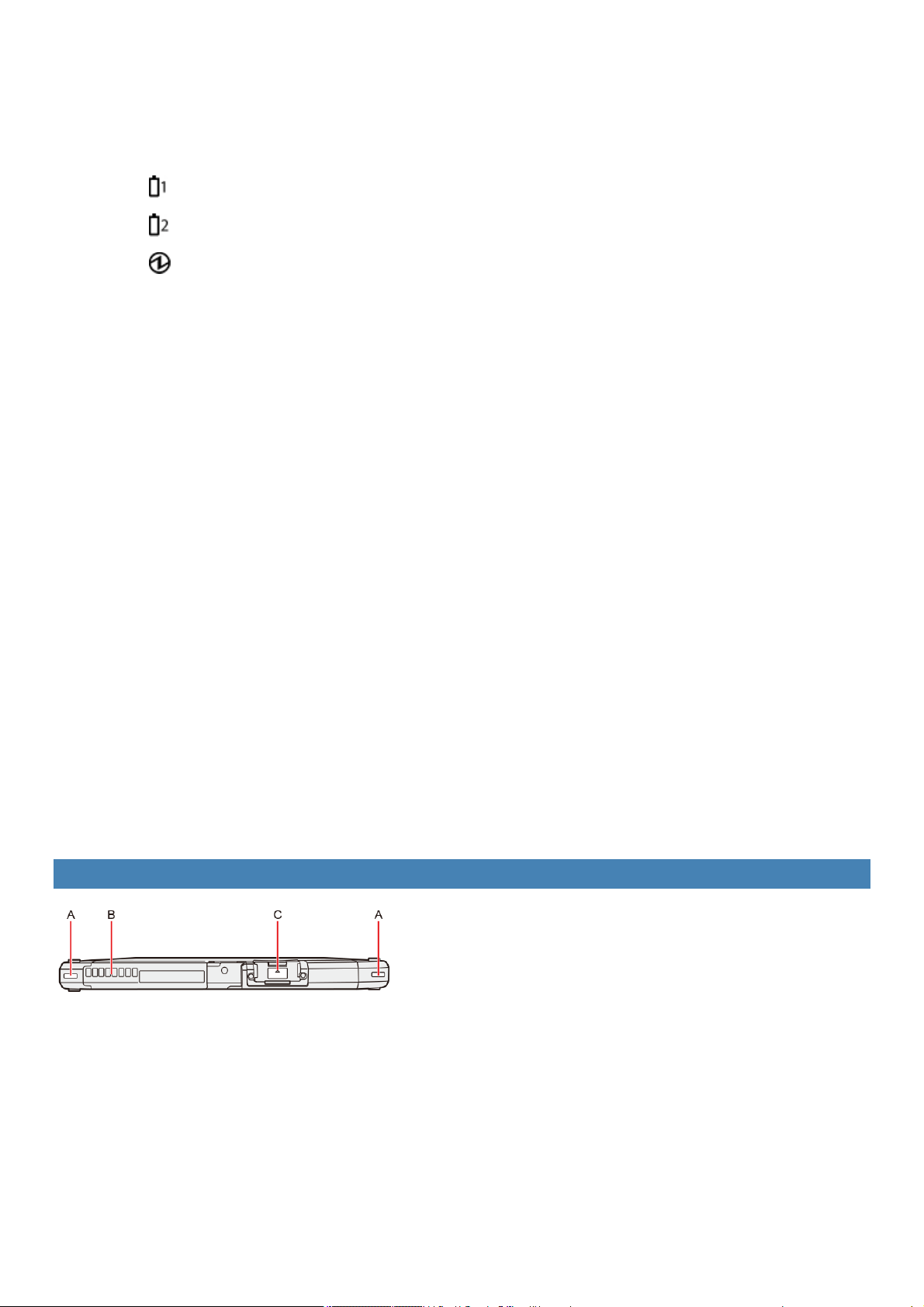
<Only for model with Rear Camera>
A. Camera Light
B. Camera Lens
C. Camera Indicator
D. LED Indicator
: Battery 1 Status
: Battery 2 Status
: Power Status
Off: Power off/Hibernation
Green: Power on
Blinking green: Sleep
Blinking green rapidly: Cannot power on or resume due to low temperature.
E. Smart Card Reader
<Only for model with Smart Card Reader>
Contactless Smart Card Reader/RFID Reader
<Only for model with Contactless Smart Card Reader/RFID Reader>
Fingerprint Reader
<Only for model with Fingerprint Reader>
F. Battery Cover
The shape of this may vary depending on the model.
G. Release Latch
H. External Antenna Connector (EXT_ANT1)
I. External Antenna Connector (EXT_ANT2)
J. Ventilation Hole (Intake)
K. nanoSIM Card Slot
<Only for model with wireless WAN>
L. Battery Pack 2 Latch
M. Battery 2 Indicator (replace)
N. Battery 1 Indicator (replace)
O. Battery Pack 1 Latch
Tablet (Top Side)
A. Strap Hole
B. Ventilation Hole (Exhaust)
C. Serial Port
<Only for model with SerialPort>
2nd USB Port
<Only for model with 2nd USB Port>
Rugged USB Port
<Only for model with Rugged USB Port>
Barcode Reader
<Only for model with Barcode Reader>
Turning On / Turning Off
Turning On
Pressand hold the power switch untilthe power indicator lights. ( Description of Parts)
N O T E
n Do not press the power switch repeatedly.
n The computer willforciblybe turned off if you press and hold the power switch for four seconds or longer.
n Once you turn off the computer, wait for ten seconds or more before you turn on the computer again.
Turning Off
1.
Click (Start) at the bottom left corner.
2.
Click (Power) - [Shut down].
N O T E
To turn off the computer completely, proceed as follows.
1.
Click (Start) at the bottom left corner, and then click (Settings) - [Update & security] - [Recovery].
Alternatively, click (Settings) - [Update & security] - [Recovery] in the tablet mode.
2. Click [Restart now] under “Advanced startup”.
3. Click [Turn off your PC].
Precautions against Starting Up/Shutting Down
Do not do the following
Connecting or disconnecting the AC adaptor
Pressing the power switch
Touching the keyboard, touchpad, screen or external mouse
N O T E
n To conserve power, the following power saving methods are set at the time of purchase.
The screen automatically turns off after :
10 minutes (when AC adaptor is connected) of inactivity
5 minutes (when operating on battery power) of inactivity
The computer automaticallyenters sleep after :
20 minutes (when AC adaptor is connected) of inactivity
15 minutes (when operating on battery power) of inactivity

Ignition Mode
You can turn on/off the computer without using power switch.
1.
Click (Start) - [Panasonic] - [Panasonic PC Settings Utility], and click (Settings) - (Power Management).
Alternatively, click (All apps) - [Panasonic] - [Panasonic PC Settings Utility], and click (Settings) - (Power Man-
agement) in the tablet mode.
To power on the computer, add the checkmark [Enable "Power on AC"].
To power off the computer, add the checkmark [Enable "Power off AC"].
Touchpad
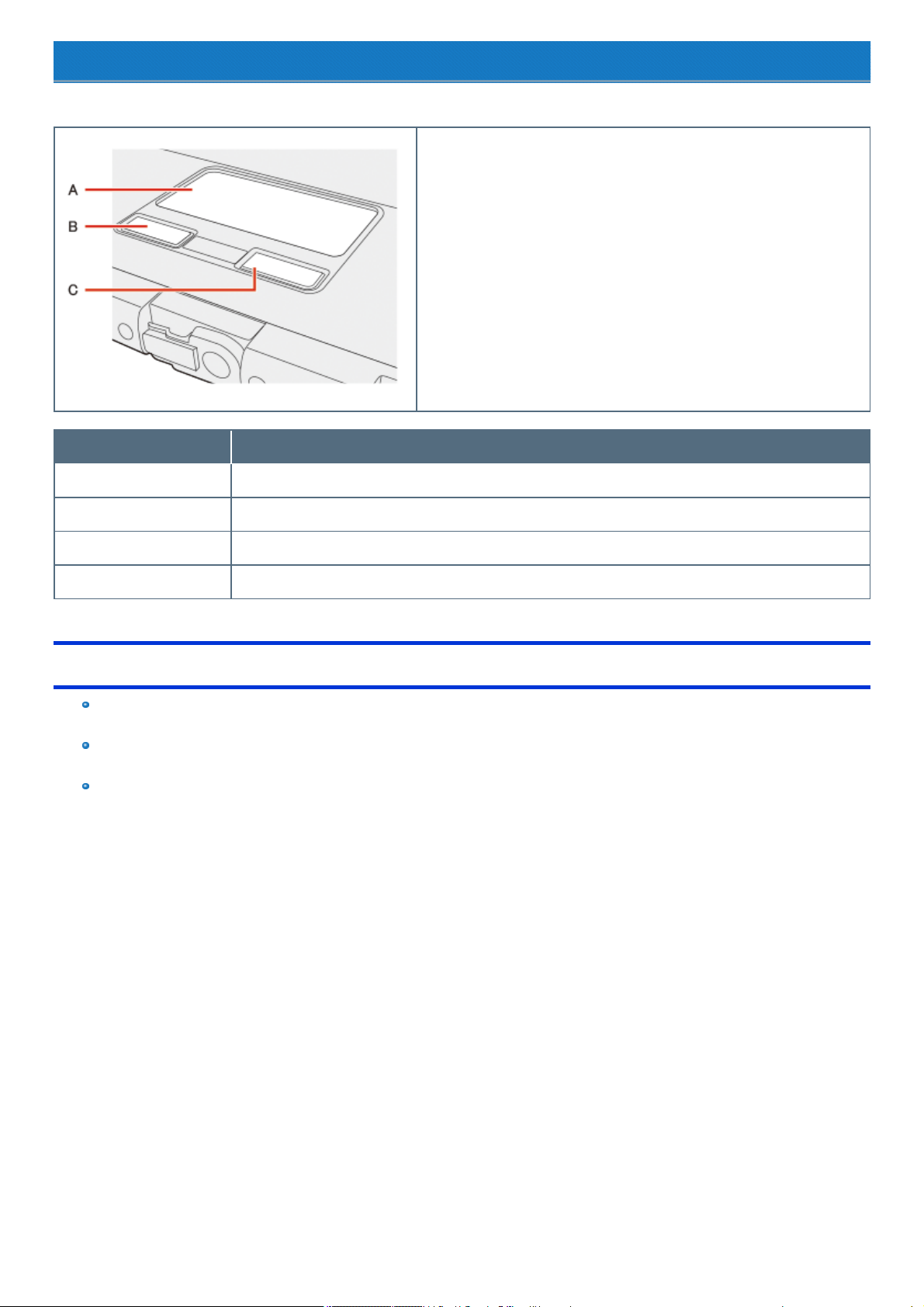
Use the touchpad to move the cursor on the screen and perform computer operations.
A. Work Surface (touchpad)
B. Left Button
C. Right Button
Function Operation
Move cursor Move the tip of your finger lightly over the work surface.
Click (Tap) Tap a touchpad or press a left button. Right-click: press a right button.
Double click (Double tap) Tap quicklytwo times.
Verticalscroll Trace the touchpad verticallywith a finger.
Handling the touchpad
By design, the touchpad is to be used with a fingertip only. Do not place any object on the work surface or press down forcefully with
sharp-pointed objects (e.g., nails) or hard objects that can leave marks (e.g., pencils and ball point pens).
Try to avoid having any harmful substances, such as oil, come in contact with the touchpad. The cursor may not work properly in such
cases.
When the touchpad becomes dirty:
Wipe to remove dirt by using a dry soft cloth such as gauze or a soft cloth first applied with detergent diluted with water and then thoroughly
wrung. Do not use benzene or thinner, or rubbing alcohol. Doing so may adversely affect the surface, e.g., discoloration. In addition, do not use
commercially available household cleaners and cosmetics, as they may contain components harmful to the surface.
Key Combinations
N O T E
n Do not repeatedlypressthe keys in quick succession.
n Do not use the key combinations together with touchpad (external mouse), screen, tablet buttons, or other key operations.
n Do not use the key combinations before you sign in to Windows. On the Setup Utility screen, you can use the key combinations of ≪ Fn≫ +
≪ F1≫ and ≪ Fn≫ + ≪ F2≫ . Byusing the keycombinationsof ≪ Fn≫ + ≪F3≫ , the display is switched between the internal LCD, sim-
ultaneous displayand the external display.
n The key combinations may not work with some applications.
n The pop-up display shown in the table below appears after signing on to Windows. It may not appear in some application conditions.
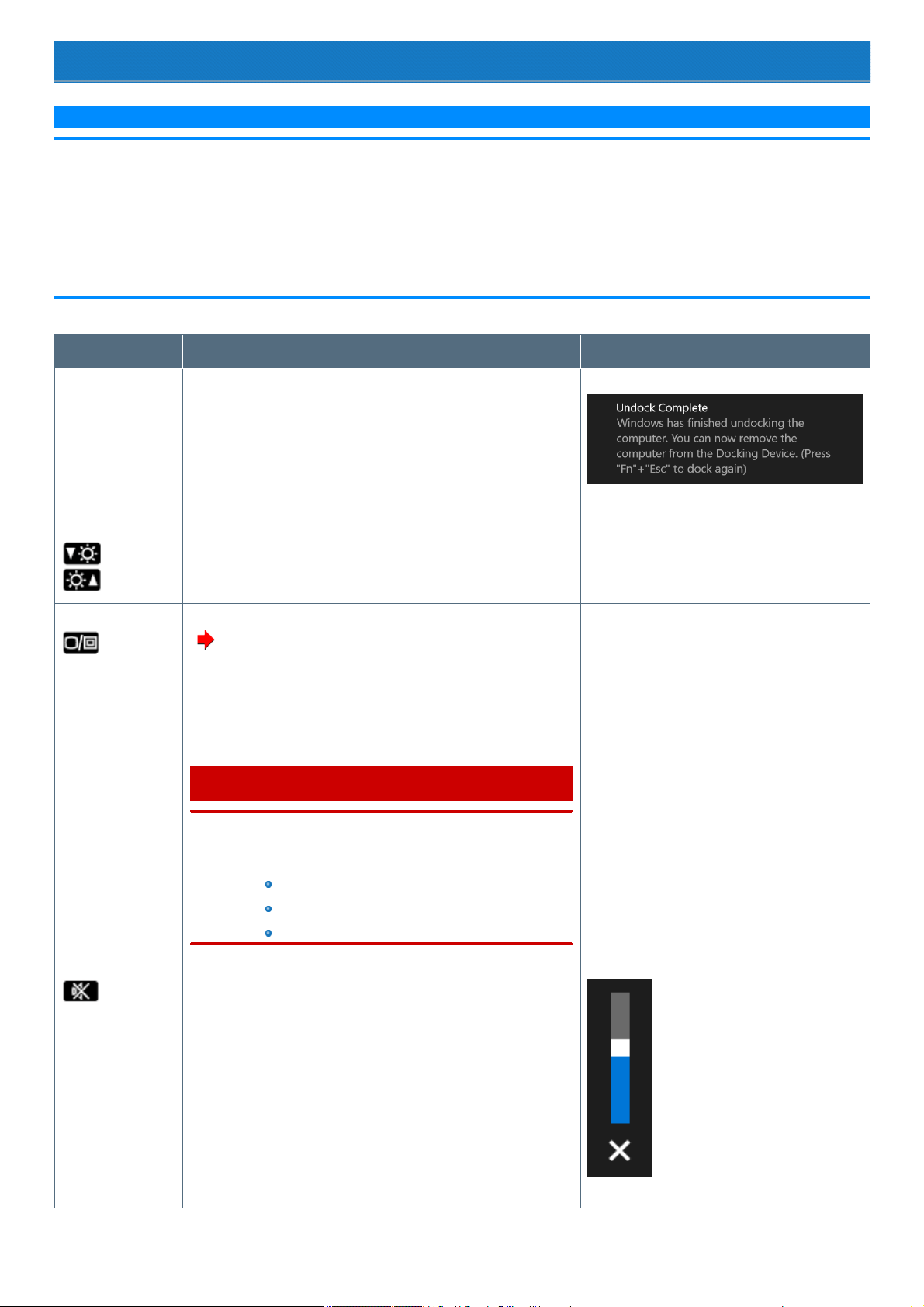
Key Function Pop-up display
*4
≪ Fn≫ + ≪ ESC≫ Undock/dock the tablet from keyboard base
If a [Undock complete] appears, you can detach the tablet from key-
board base without turning off the computer. If you want to use the clam-
shellstyle, press≪ Fn≫ + ≪ ESC≫ again.
≪ Fn≫ + ≪ F1≫
*1
≪ Fn≫ + ≪ F2≫
*1
LCD brightness
(≪ Fn≫ + ≪ F1≫ = down / ≪ Fn≫ + ≪ F2≫ = up)
A slide bar appears.
≪ Fn≫ + ≪ F3≫ Display mode switching
(
Switching the displaymode
)
When an external display (a projector etc.) isconnected, you can
change the display mode.
1. Press≪ Fn≫ + ≪ F3≫ .
2. Click the display mode.
C A U T I O N
n Do not press any keys until the display has finished
switching.
n Do not use this function:
When playing motion video such as DVD or MPEG.
When an external display isnot connected.
When showing a game screen such as pinball.
“Project” appears.
≪ Fn≫ + ≪ F4≫
*1
Speaker on/off
*2
You can checkthe status of speaker by seeing an icon on the tasktray.
A slide bar appears.
:OFF(MUTE)
Key Function Pop-up display
*4
≪ Fn≫ + ≪ F5≫
*1
≪ Fn≫ + ≪ F6≫
*1
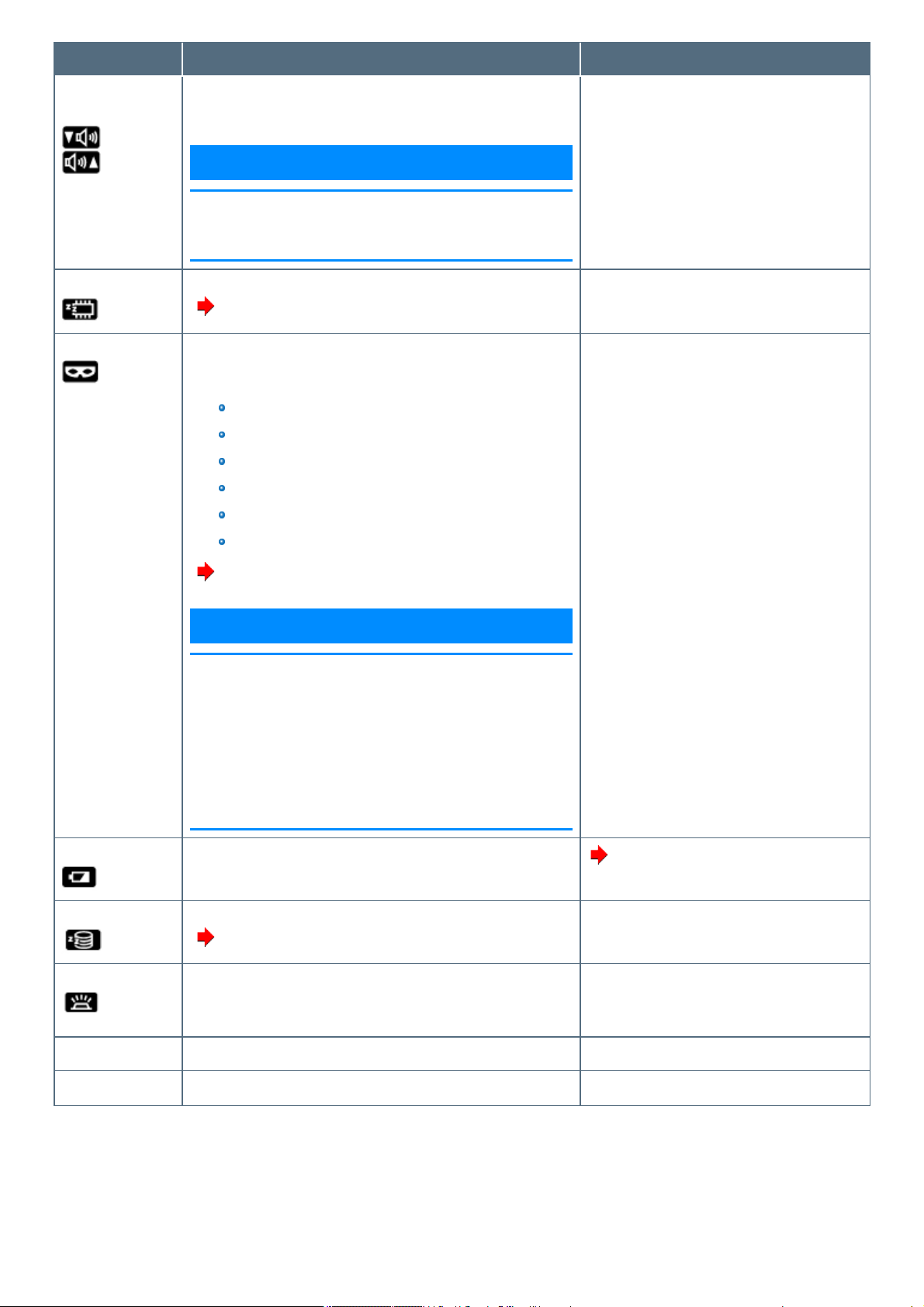
Volume
(≪ Fn≫ + ≪ F5≫ = down / ≪ Fn≫ + ≪ F6≫ = up)
N O T E
n When fine-tuning the sound volume, pressand hold ≪ Fn≫ ,
and press ≪ F5≫ or ≪ F6≫ intermittently.
n This does not work on speakers connected to the USB port.
A slide bar appears.
≪ Fn≫ + ≪ F7≫ Activate sleep
(
Entering/Resuming from Sleep or Hibernation
)
≪ Fn≫ + ≪ F8≫
*3
Concealed Mode on/off
You can select on/off of indication status the following devices.
LCD backlight
LED
Sound
WirelessRadio
Camera light
Backlit keyboard
( Concealed Mode)
N O T E
n Concealed Mode isenabled as the factory default.
n You can set the devices turned off in [Concealed Mode Con-
figuration] with Setup Utility.
Alternatively you can change the settings using Panasonic
PC Settings Utility.
n If you press≪ Fn≫ + ≪ F8≫ in succession, the Concealed
Mode may not be switched. More than 4 seconds intervalis
necessary to switch on/off.
≪ Fn≫ + ≪ F9≫ Remaining battery power
(When the battery pack is inserted in the computer)
Checking the Remaining Battery Power
≪ Fn≫ + ≪ F10≫ Activate hibernation
(
Entering/Resuming from Sleep or Hibernation
)
≪ Fn≫ + ≪ F12≫ Backlit keyboard ON/OFF
<Only for model with backlit keyboard> When you pressthe keys, the
luminance of backlit keyboard is changed (four luminance/off).
≪ Fn≫ + ≪ 1≫ Application 1
≪ Fn≫ + ≪ 2≫ Application 2
*1 : These key combinations are disabled when [Concealed Mode] isenabled.
*2 : Even if [Sound] is set to [OFF] on the [Concealed Mode Configuration] menu, the sound volume setting of Windows does not show mute state.
However, audio from the speaker isnot heard.
*3 : You can also turn on/off the Concealed Mode by pressing ≪ F8≫ , right ≪ Alt≫ , or the Enter button (one of the Tablet Buttons).
Change the [Trigger Key] setting in the submenu of [Concealed Mode Configuration] in the [Main] menu of the Setup Utility.
*4 : You can display operations when ≪ Fn≫ ispressed.
Make the settings according to the following procedures.
1.
Click (Start) - [Panasonic] - [Panasonic PC Settings Utility], and click (Settings) - (Button / Key).
Alternatively, click (All apps) - [Panasonic] - [PanasonicPC Settings Utility], and click (Settings) - (Button / Key) in the tablet
mode.
2. Add the checkmark to [Display status bar while Fn Key is held down].
3. Select [Display Location].
Hotkey Settings
You can make the following settings:
Fn key lock
When you press≪ Fn≫ , the key islocked (pressed-down) until you pressanother key. Use this when pressing difficult key combinations.
1. Start up the Hotkey Settings.
Click (Start) - [Panasonic] - [Panasonic PC Settings Utility], and click (Settings) - (Button / Key).
Alternatively, click (All apps) - [Panasonic] - [PanasonicPC Settings Utility], and click (Settings) - (Button / Key) in the tablet
mode.
2. Make the settings.
[Use Fn key lock]
When using an ≪ Fn≫ key combination
1. Press≪ Fn≫ once. (Locked)
2. Pressanother key. (Lockreleased)
When using successive ≪ Fn≫ key combinations
1. Press≪ Fn≫ twice. (Locked)
2. Pressanother key.
Fn key remains locked until you press≪ Fn≫ again.
[Make sounds when Fn key ispressed]
*5
[Displayicon in notification area]: Displays the Fn key status when on the tasktray is clicked.
: ≪ Fn≫ is locked.
: ≪ Fn≫ is not locked.
[Display status bar while Fn Key is held down]
[DisplayLocation]: If you select [Top], the status bar willbe displayed near upside of the computer.
If you select [Bottom], the status bar will be displayed near downside of the computer.
N O T E
n You can have different settings for each user.
*5 : If the speaker is muted or [Sound] is turned off in [Concealed Mode Configuration], beeps do not sound.
Screen Input Operation
The screen of your computer allows you to perform the same operations as a mouse by touching its surface.
You can use the digitizer function to perform the same operation as the touchpad and mouse by touching the screen surface with the digitizer pen
(included). And you can use the touchscreen function to perform the same operation as the touchpad and mouse by touching the screen with your finger
etc.
You can select the screen input mode.
1.
Click (Start) - [Panasonic] - [Panasonic PC Settings Utility], and click (Settings) - (Touch Screen).
Alternatively, click (All apps) - [Panasonic] - [Panasonic PC Settings Utility], and click (Settings) - (Touch Screen)
in the tablet mode.
2. Select the input mode under "Touch Input".
[Use touch screen/Use digitizer pen]
You can operate the screen with the digitizer pen (included) and other input methods such as your fingers.
[Use touch screen]
You can operate the screen with your fingers.
[Use digitizer pen]
You can operate the screen with the digitizer pen (included).
Using the digitizer pen
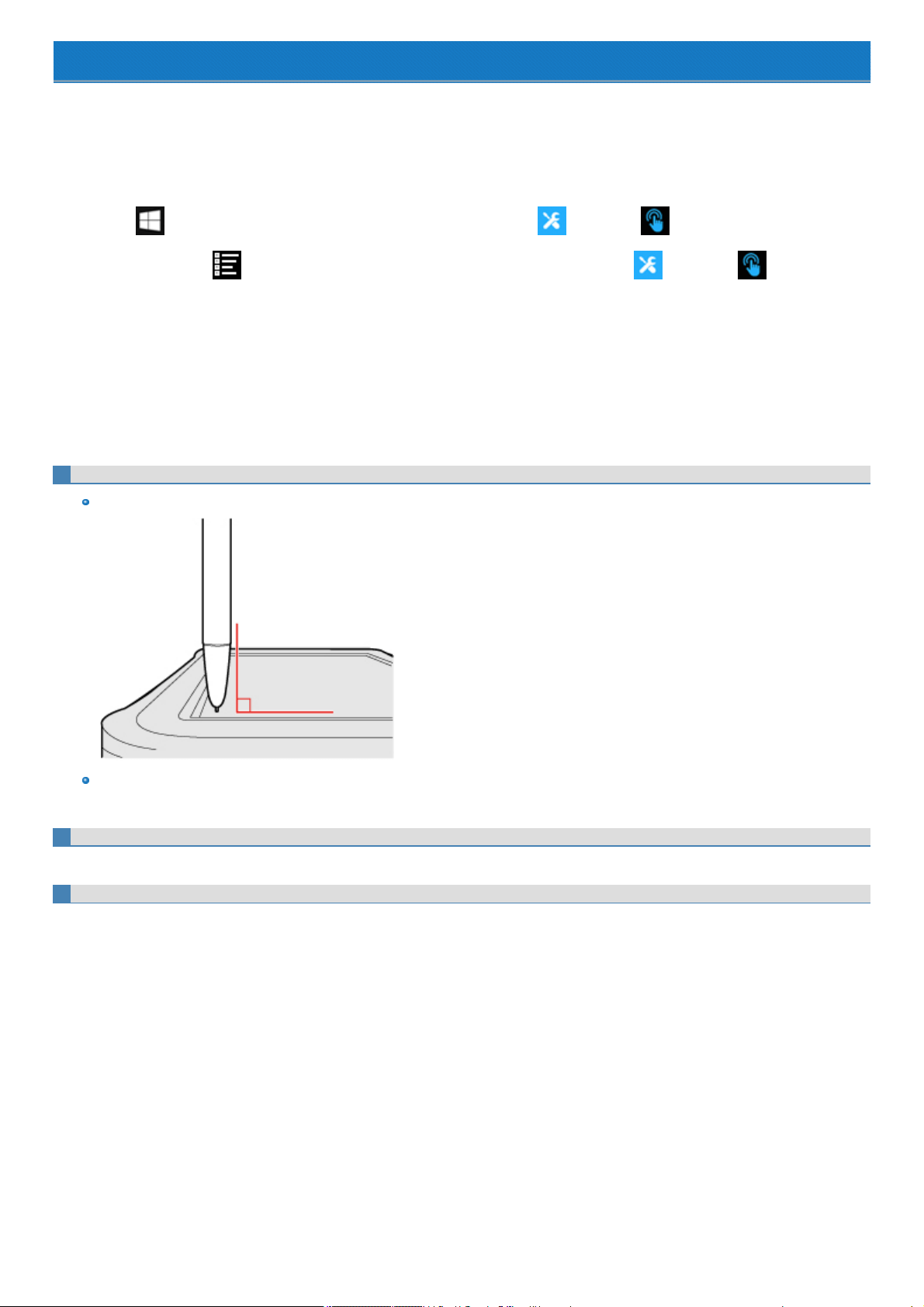
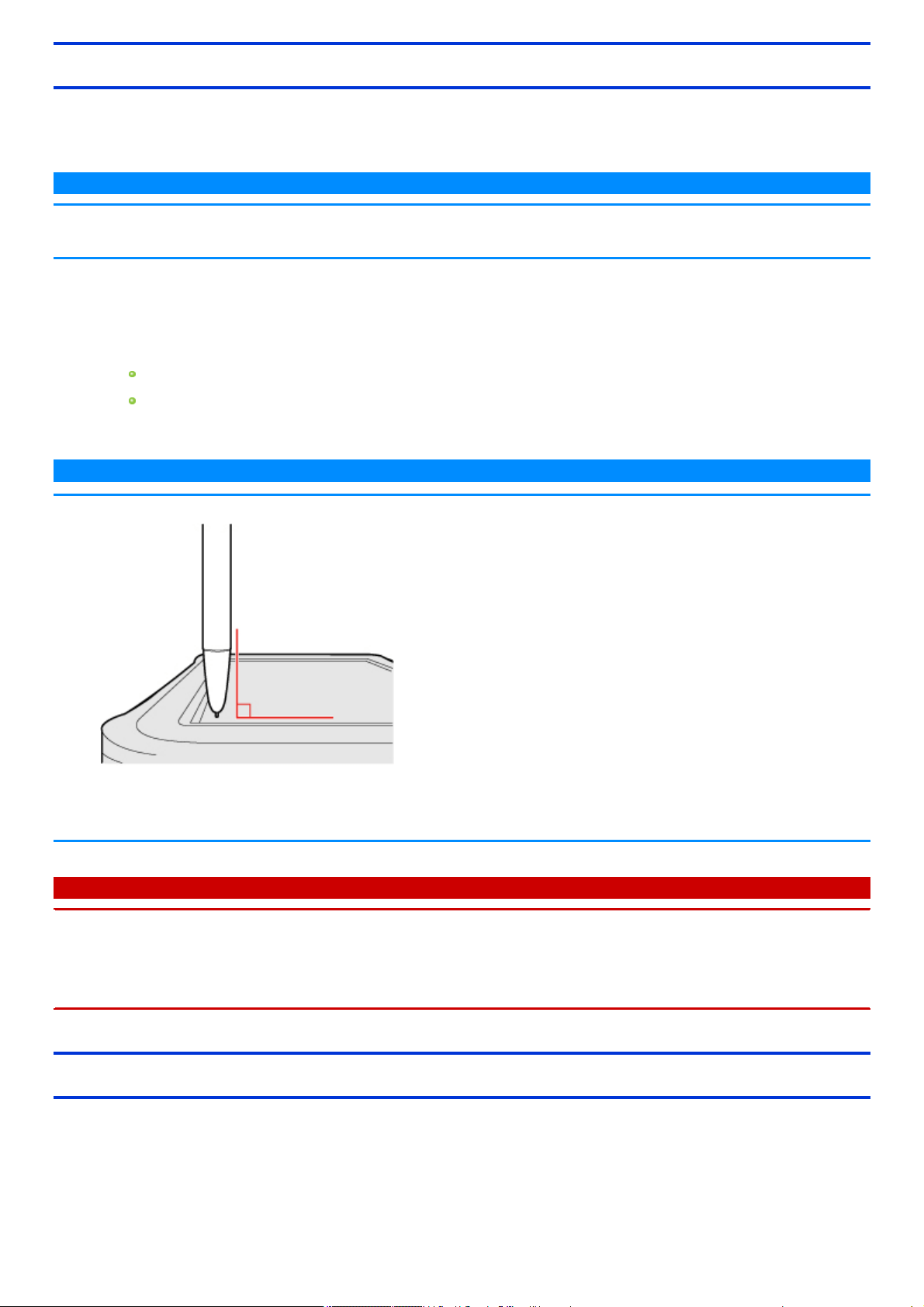
We recommend placing the digitizer pen (included) perpendicular to the screen surface when using it.
Pressthe digitizer pen's tip on the screen surface, and use the pen.
If you cannot input properly even if you press the tip on the screen surface, the digitizer pen may malfunction. Contact your support office.
Detaching the pen from the computer
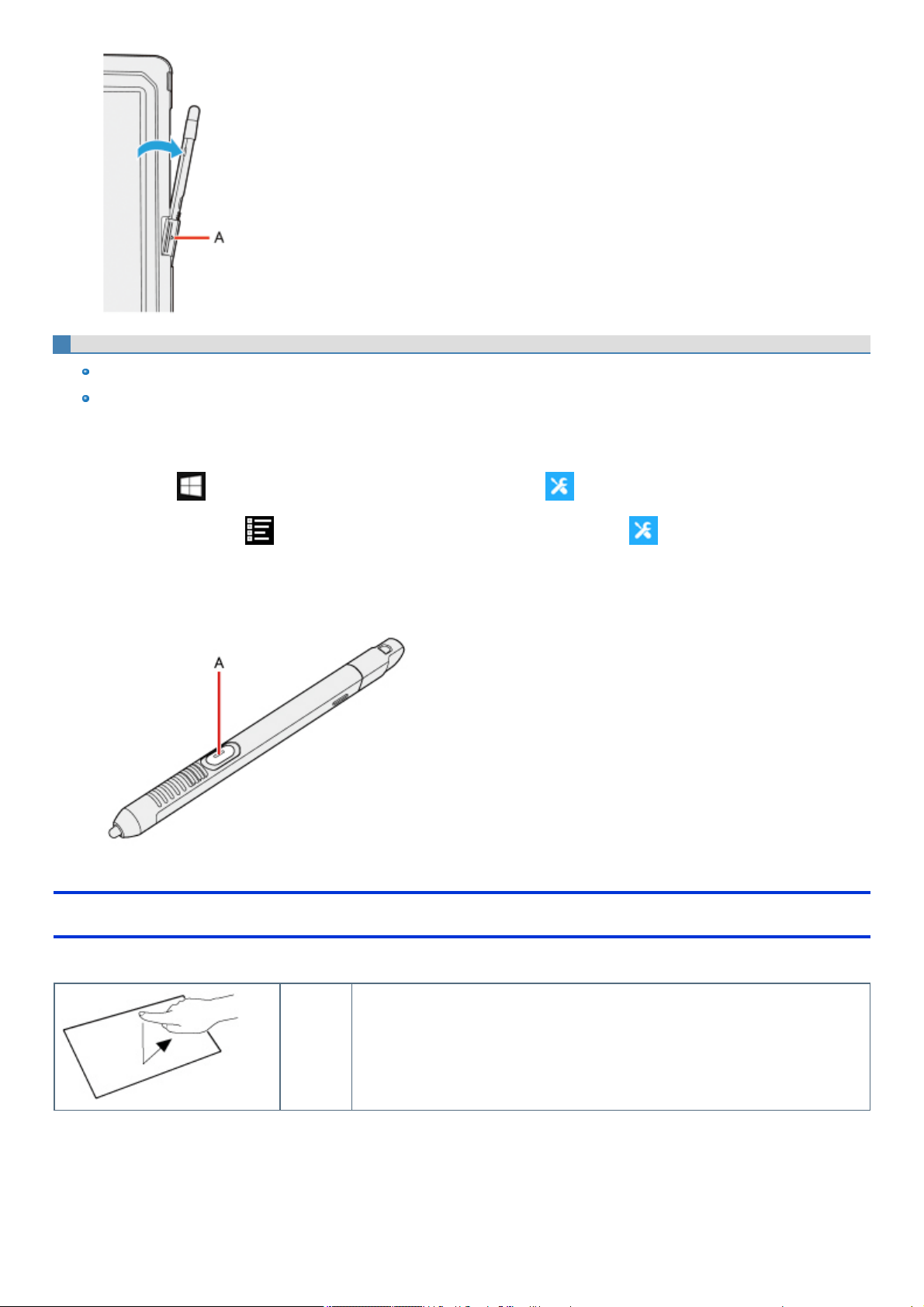
1. Pull out the pen holder (A), and take out the pen.
Attaching the pen to the computer
1. Pull out the pen holder (A).
2. Hold the pen, and attach it to the holder firmly.
To operate right-click
Touch and hold with the digitizer pen or finger, and release it when a frame surrounding the object appears.
You can use right-click by changing button function of digitizer pen (included).
In the default settings, the button of digitizer pen (included) has the erasing function.
To change the button function, perform as follows.
1.
Click (Start) - [Panasonic] - [Panasonic PC Settings Utility], and click (Settings) - [Digitizer Button Mode].
Alternatively, click (Allapps) - [Panasonic] - [Panasonic PC Settings Utility], and click (Settings) - [Digitizer Button Mode] in
the tablet mode.
2. Click [Right click] or [Eraser].
Pressand hold the button (A) of the digitizer pen (included), and then touch the object.
Operation by touching the screen
Instead of operating the screen with the pointer, you can use your fingers.
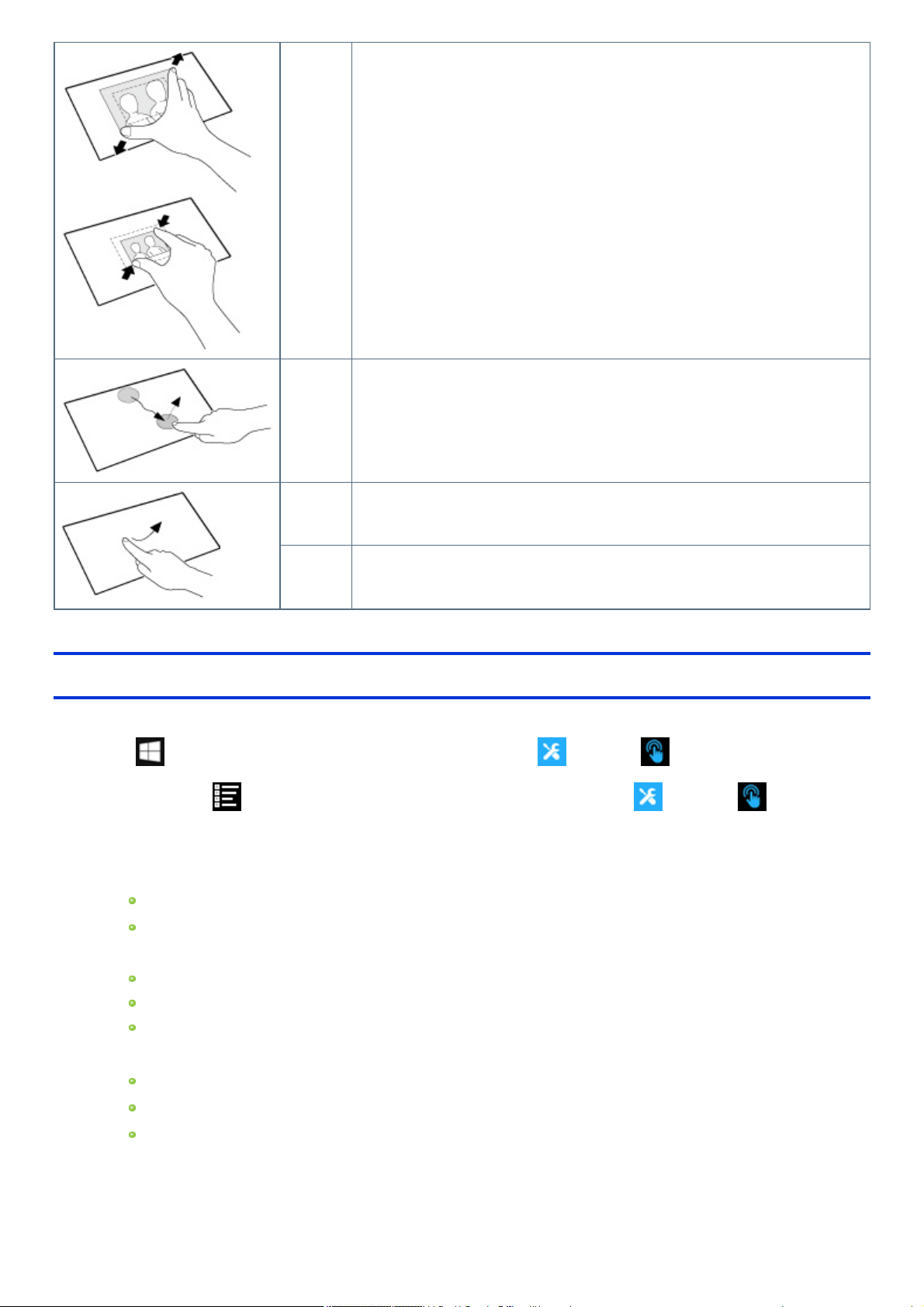
Touch
(Tap)
Touch the screen once with one finger.
Spread /
pinch
Touch an image or document with two fingers, and spread your fingers apart to zoom in or
pinch them together to zoom out.
Drag Touch an object (file, icon, etc.) and drag your finger to the desired location before removing it
to move the object.
Swipe Touch with a sweeping motion.
Flick Touch with a quicksweeping motion.
Change Touch Screen Mode
You can select the suitable operation mode in Touch Screen Mode.
1.
Click (Start) - [Panasonic] - [Panasonic PC Settings Utility], and click (Settings) - (Touch Screen).
Alternatively, click (All apps) - [Panasonic] - [Panasonic PC Settings Utility], and click (Settings) - (Touch Screen)
in the tablet mode.
2. Select the operation mode under "Touch Screen Mode".
[Touch] mode
Suitable for finger operation.
Use thismode when not operating with the pen (included).
[Touch (Glove)] mode
Use thismode when operating with a glove on.
Depending on the type of glove, operation may be ignored.
With finger operation, the screen may not respond properly.
[Touch (Water)] mode
Use thismode when the screen or finger iswet with water drops in operation.
Depending on the water drop condition, operation may be ignored.
Operation may not be performed correctlyaround the edges of the screen.
3. If a confirmation message appears, click [OK].
Calibrating the Screen
When you cannot point correctlywith the pen (included) or your fingers, calibrate the screen by following the steps below.
Perform the calibration as an administrator. A standard user needs to perform the calibration as an administrator before performing the calibration for
each user.
N O T E
n At first, sign in to Windows as an administrator, and perform this calibration.
n Return the rotated display to landscape before performing the screen calibration.
1. Open the Control Panel, and then click [Hardware and Sound] - [Tablet PC Settings].
2. Click [Calibrate...].
3. Click [Pen input].
If [User Account Control] is displayed, click [Yes].
It is not necessary to perform [Touch input] for this product.
4. Using the digitizer pen (included), touch each of the “+” target marks one by one, and then click [Yes].
N O T E
n Make sure pen (included) is perpendicular to the screen to get the most accurate calibration.
n The following message, "Right-clickanywhere on the screen to return to the last calibration point. Press the Esc button to close the tool." will
appear on the center of the screen during calibration. However, the operation to close the tool by pressing the [Esc] key can be performed.
n If you cannot touch the desired position, perform Digitizer Calibration again and restart the computer.
C A U T I O N
n If you perform calibration as a standard user, the calibration data is valid untilyou sign out. (The data becomes invalid after you have signed out.)
When using the computer continuously, perform calibration as an administrator.
n If you cannot operate the computer correctlyafter calibration, delete the calibration data by clicking [Control Panel] - [Tablet PC Settings] -
[Reset...], and perform calibration again. (Be sure to delete the calibration data as an administrator.)
n We recommend using [Touch input] at the factory default.
About Touch Operation Support
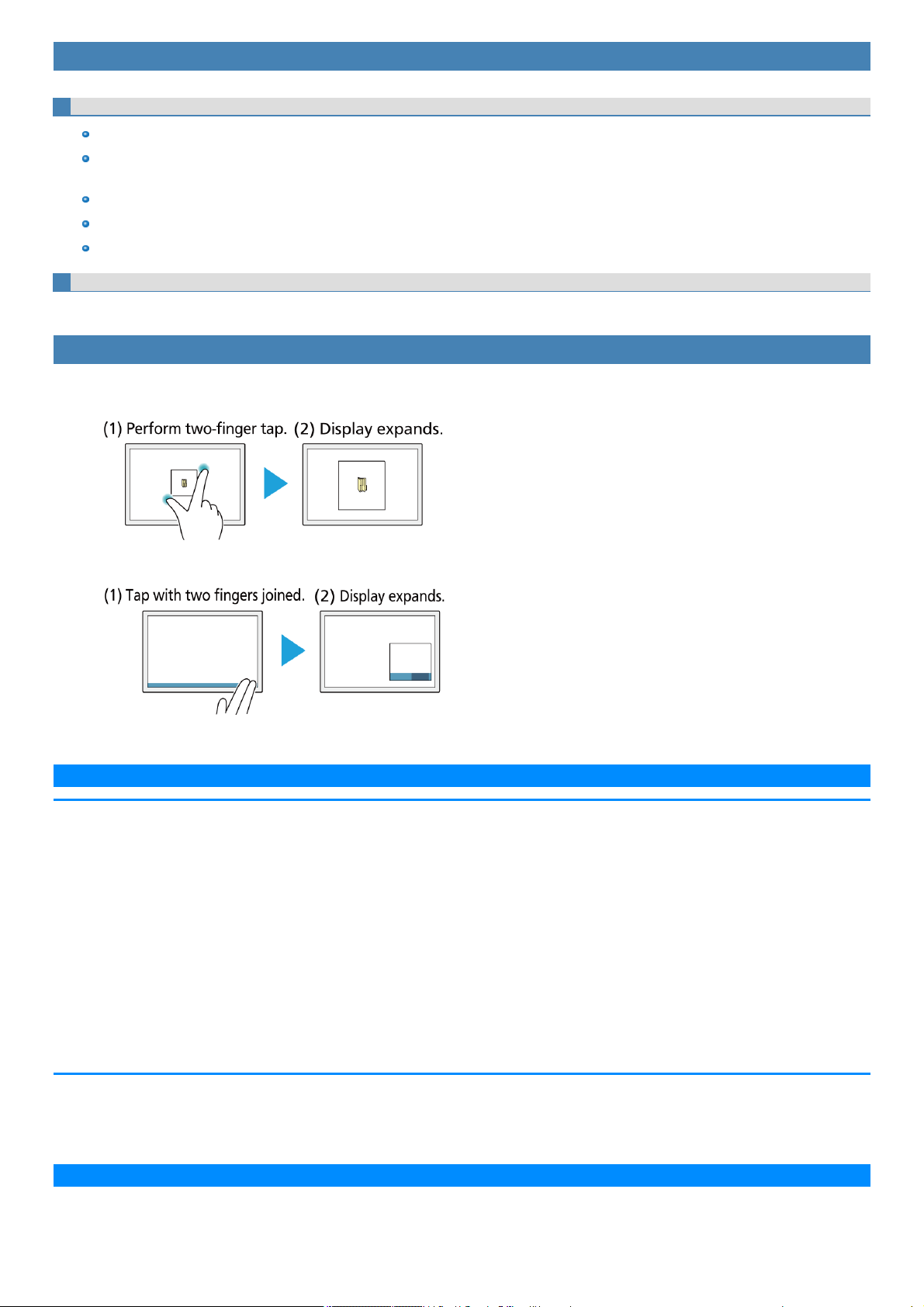
Touch Operation Support is an application that allows you to perform screen operations more easily. When you use a two-finger tap gesture to specifythe
area in which you want to perform touch operations, the area isdisplayed in a zoom window, allowing you to perform touch operations in an expanded dis-
play.
Using Touch operation support settings
Important usage notes
Thisapplication will onlyoperate on internal screen displays.
Using the two-finger tap gesture may not display the zoom window in certain applications that handle touch operations independently (e.g.,
Microsoft Office Word, Internet Explorer and Paint).
Thisapplication may take some time to start after sign in.
You cannot use the two-finger tap gesture to display the zoom window unlessthis application is running.
Using the two-finger tap gesture will not display the zoom window in some applications (Magnifier (Windows), Touch Keyboard (Windows), On-
Screen Keyboard (Windows), etc.).
Expanding a portion of the display
When you use a two-finger tap gesture to specify the area in which you want to perform touch operations, the area isdisplayed in a zoom window, allow-
ing you to perform touch operations in an expanded display.
Opening the zoom window
1. Perform a two-finger tap on the area of the screen you want to expand.
A rectangular zoom window with a diagonal length equal to the distance between the two tapped points appears.
You can quicklyexpand the corner of the screen, for example, by performing a two-finger tap with both fingers joined.
2. Perform touch operations in the zoom window.
N O T E
You can perform the following touch operations in the zoom window.
n Tap (Left Click)
n Double Tap (Left Double Click)
n Press and Hold (Right Click)
n Tap on the popup menu to be displayed after right click
n Drag (Drag by Left Button)
n Drag after Press and Hold (Drag by Right Button)
n Drag from inside to inside of the zoom window
n Drag from inside to outside of the zoom window
n Drag from outside to inside of the zoom window
n Drag from outside to outside of the zoom window
Operation guides may appear when using the zoom window for the first time. These guides will not appear again if you select the [Do not show thisagain]
checkbox and tap [OK].
N O T E
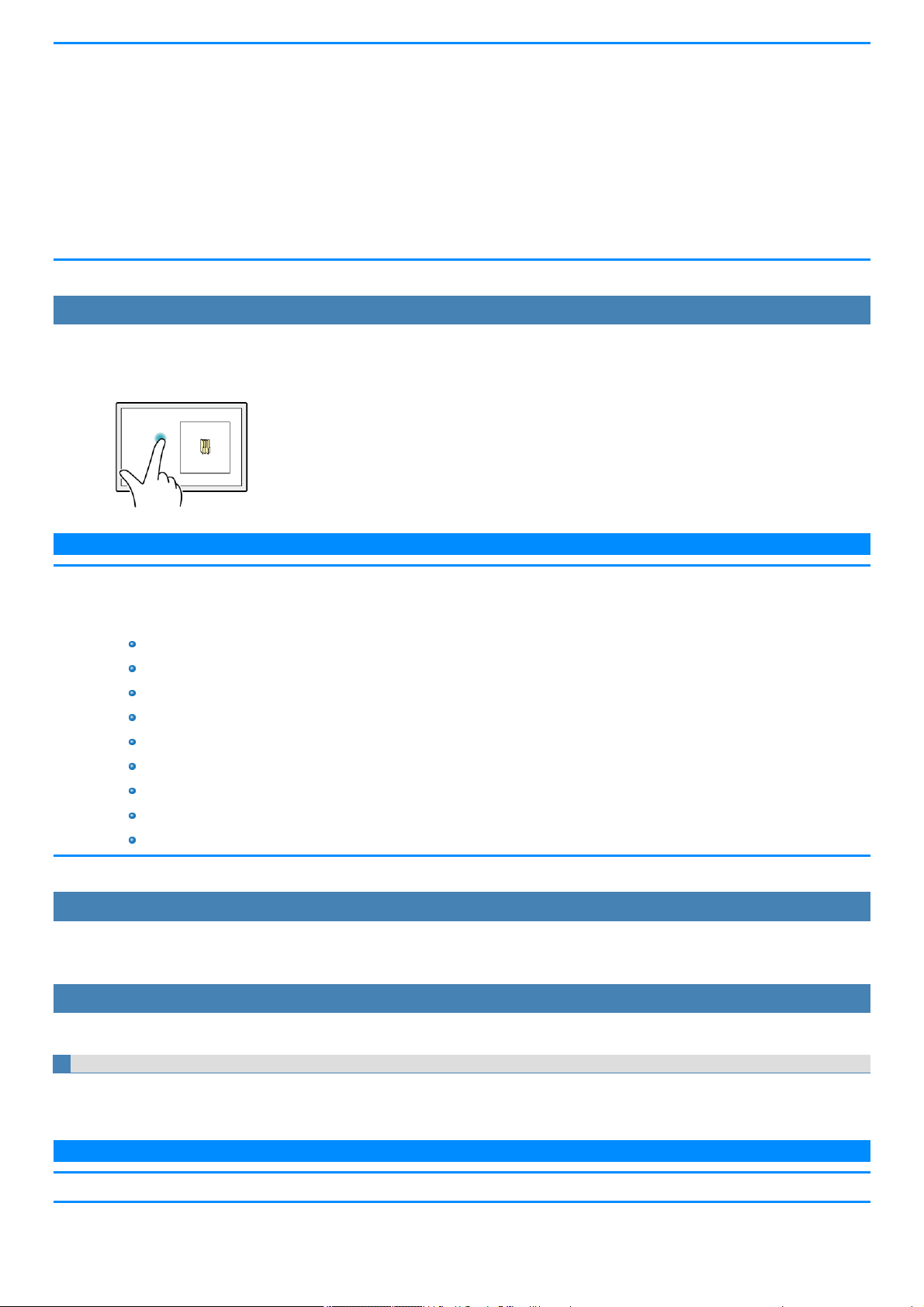
n If two pointsthat willresult in a zoom window size that is larger than the resolution of the screen are tapped, the zoom window willbe adjusted to
fit the screen.
n Even if you use a two-finger tap gesture on a small rectangular area, the zoom window cannot be displayed in a size smaller than the pre-
determined minimum size.
n The zoom window may not appear if you perform a two-finger tap on a window’s title bar or edges or on an unfixed taskbar.
n The zoom window may also appear when you tap using three fingers.
n If a button for another application, for example, exists within the area of the two-finger tap, the button may be activated in addition to the zoom
window opening in some cases.
n You can also use mouse and perform operation inside the zoom window. In that case, the displayed area in the zoom window follows mouse
cursor movement.
Closing the zoom window
1. Tap outside the zoom window.
The zoom window closes.
N O T E
n If you are displaying the edge of the screen in the zoom window and you tap the edge of the screen outside the zoom window, an operation
identical to that inside the zoom window may be performed and the zoom window may not close in some cases.
n The zoom window automatically closes when:
You disable the utility in the tasktray menu
You rotate the screen
You change the resolution
Computer enters into the hibernation mode
The screen islocked
A user isswitched
The desktop size (taskbar width, etc.) ischanged
An additional zoom window is opened
Any of the applications that cannot be used together islaunched
Changing the position of the zoom window
The zoom window cannot be moved.
To change the area displayed in the zoom window, close the zoom window and perform the steps in “Opening the zoom window” to expand the display
again.
Additional functions
Touch operation support settings include the following helpful functions for when you pressand hold or drag and drop a folder or file.
Context menu displays
When you perform a press and hold gesture in a zoom window to display a context menu, for example, the zoom window will be automaticallyadjusted to
display the whole context menu.
N O T E
n This function cannot be used in some applications.
Drag and drop operations
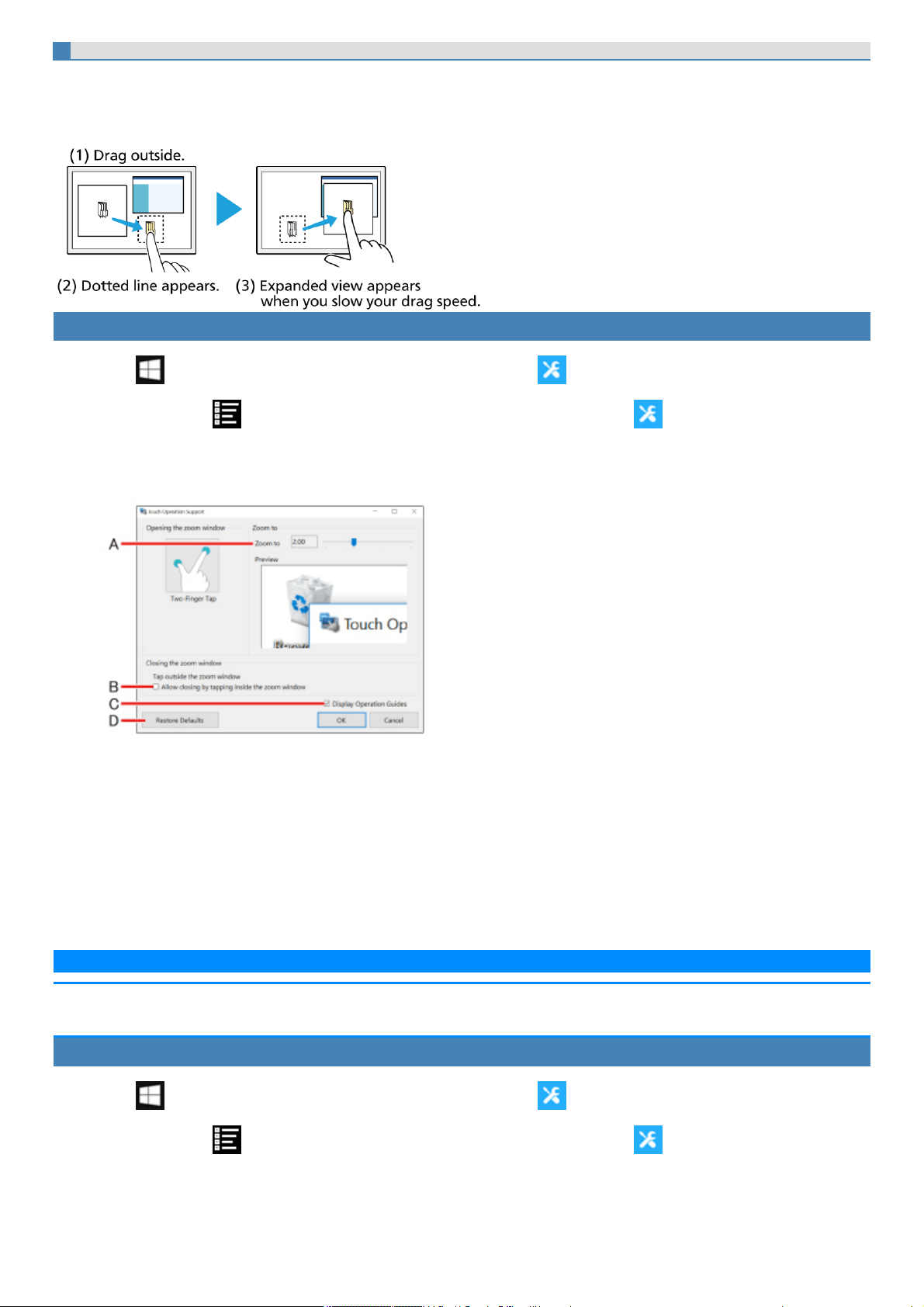
When you drag a folder or file from inside a zoom window to the outside, the zoom window will disappear temporarily and a dotted line will appear around
the object being dragged.
As you drag the object to its target location, the area of the target location will be displayed in expanded view automatically, allowing for easier drop oper-
ations.
Changing settings
1.
Click (Start) - [Panasonic] - [Panasonic PC Settings Utility], and click (Settings).
Alternatively, click (All apps) - [Panasonic] - [Panasonic PC Settings Utility], and click (Settings) in the tablet mode.
2. Click [Advanced Settings] under "Touch Operation Support".
3. Adjust each setting.
A. Use the slider to change the zoom ratio of the window (4 levelsin 0.5x increments).
B. If you clear the checkbox, the zoom window will continue to be displayed when you tap inside the zoom window.
If you select the checkbox, the zoom window will close when you tap inside the zoom window.
C. If you select the [Display Operation Guides] checkbox and click[OK] to close the window, operation guides will appear the next time you
perform a two-finger tap after signing in.
D. Clickthis to restore changed values to default settings.
4. Click [OK].
Thiscompletes settingsadjustment.
N O T E
n Specifying a zoom ratio other than 2.0x or 3.0x may cause text in the zoom window to appear unclear.
n When the setting window isdisplayed, the zoom window will not be displayed.
Disabling Touch Operation Support
1.
Click (Start) - [Panasonic] - [Panasonic PC Settings Utility], and click (Settings).
Alternatively, click (All apps) - [Panasonic] - [Panasonic PC Settings Utility], and click (Settings) in the tablet mode.
2. To disable "Touch Operation Support", remove a checkmark to "Support touch operation".
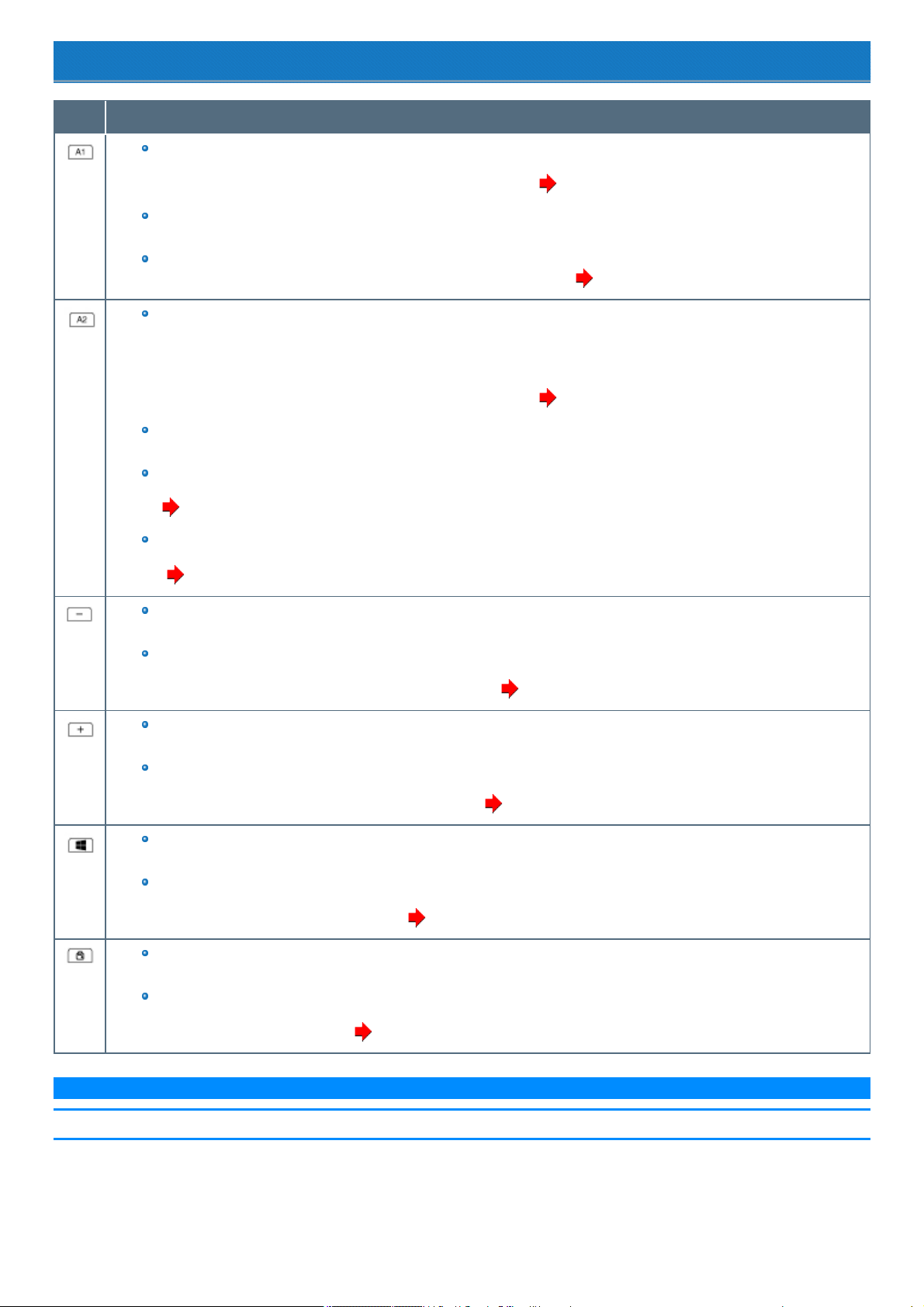
Tablet Buttons
Button Function
While operating OS
Launch Panasonic PC Settings Utility
You can change the button assign using Panasonic PC Settings Utility ( To change the button functions)
When launching the Setup Utility
Same as F12 key
While operating the Setup Utility
You can change the button assign to Concealed Mode Trigger/Alt+Ctrl+Del. ( A1 Button)
While operating OS
<Only for model with barcode reader>
Read barcode
<Only for model without barcode reader>
Launch input panel
You can change the button assign using Panasonic PC Settings Utility ( To change the button functions)
When launching the Setup Utility
Same as F2 key
While operating the Setup Utility
You can change the button assign to Wireless Switch/Barcode Reader trigger(Only for model with barcode reader)/Alt+Ctrl+Del. (
A2 Button)
Sleep/hibernation/power off
Checkthe battery status.
( Checking the Remaining Battery Power)
While operating OS
Volume down
While operating the Setup Utility
Same as down key
You can change the button assign to brightness down/disable. ( Setup Utility)
While operating OS
Volume up
While operating the Setup Utility
Same as right key
You can change the button assign to brightness up/disable. ( Setup Utility)
While operating OS
Windows key
While operating the Setup Utility
Same as Enter key
You can change the button assign to disable. ( Setup Utility)
While operating OS
Rotation Lock
While operating the Setup Utility
ESC Key
You can change the button assign. ( Rotation LockButton)
N O T E
n The Tablet buttons may not work immediately after Windows is started up or the Windows sign in screen (or the Welcome screen) is displayed.
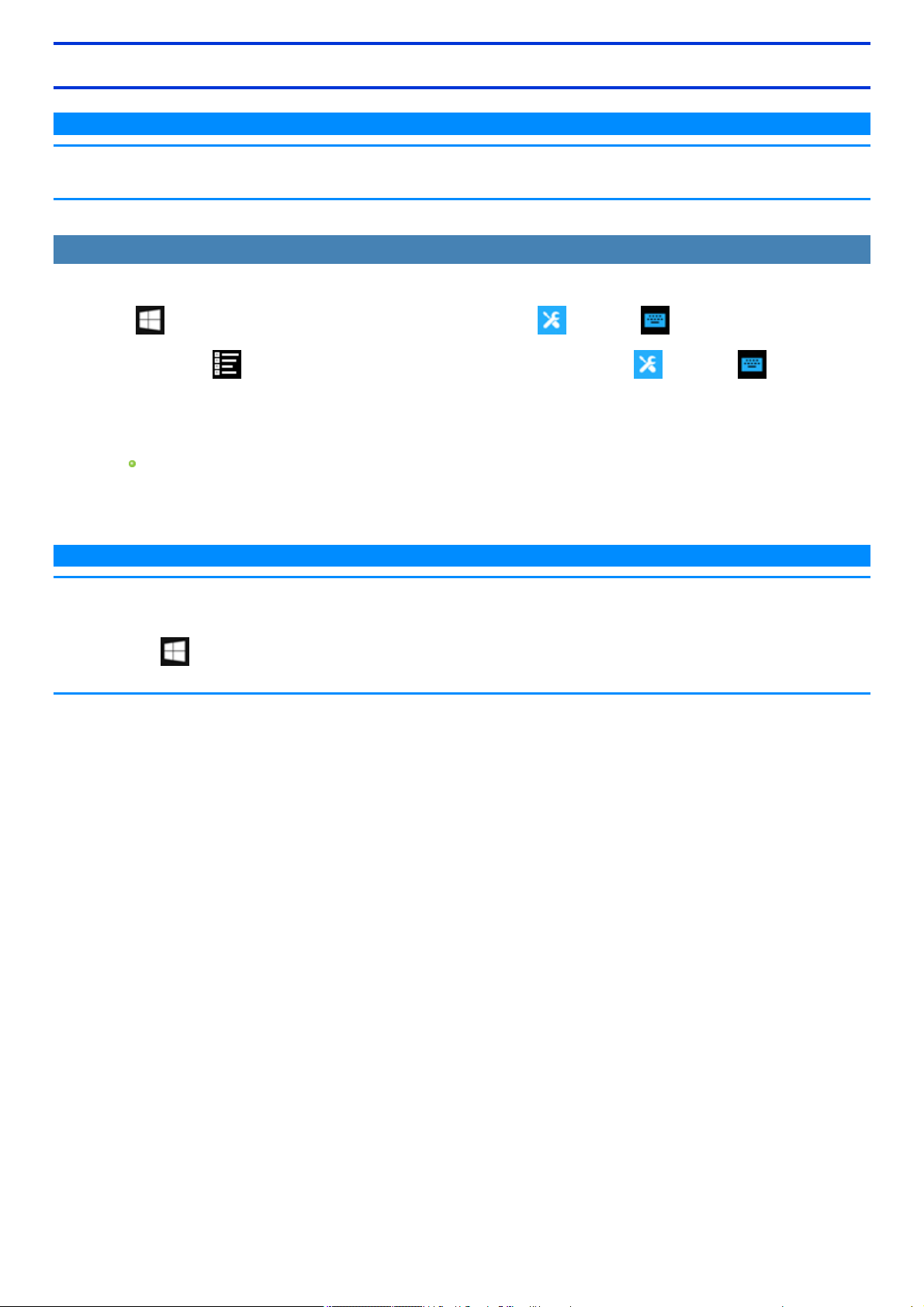
Setting the Tablet Buttons
N O T E
n You can have different settings for each user.
n On the Windows sign in screen and Welcome screen, the tablet buttons are enabled and work in default irrespective of the settings you made.
To change thebutton functions
You can change the functions of A1, A2 and Rotation Lock buttons.
1.
Click (Start) - [Panasonic] - [Panasonic PC Settings Utility], and click (Settings) - (Button / Key).
Alternatively, click (All apps) - [Panasonic] - [Panasonic PC Settings Utility], and click (Settings) - (Button / Key) in
the tablet mode.
2. Select the key and click [Change].
3. Select the function in [Press] and [Press and hold].
Click [Browse] to select the application if you select [Start a program].
4. Click [OK].
5. Click [OK].
N O T E
n If you click [Reset], the setting will be the factory default.
n You can also open the setting screen by the following steps.
Right-click (Start) at the bottom left corner, and then click[Control Panel] - [Hardware and Sound] - [Set tablet buttons to perform certain
tasks].

Important Tips
Important Battery Tips
How to use the battery with minimal deterioration
The battery is a consumable and, as such, itsperformance will gradually deteriorate. Thisdeterioration is accelerated under the following conditions.
When the battery is repeatedly charged
When the battery is used, charged or stored in a place with high temperature
To minimize deterioration of the battery and ensure a longer battery life, you must reduce the number of charges and ensure that the temperature inside
the battery does not become too high. Bear in mind the following points.
N O T E
n The battery packgradually deteriorates over time even if cared following the above points. If it deteriorates, be sure to replace with a new and
specified battery pack.
n This computer reduces the fullcharge capacity in stages to ensure a longer life of the battery pack.
Charge the battery in a temperature range of 10°C to 30°C {50°F to 86°F}
In places where the outside air temperature ishigh, the temperature inside the battery will also become high. Do not charge the battery inside a vehicle
with all itswindows closed and exposed to the hot sun or in other places where the temperature is high.
Thiscomputer's battery will not be charged if its temperature isoutside the allowable range. (At such a time, the battery indicator blinks orange.)
We recommend charging the battery no more than once per day
Recharging the battery after every small use raisesthe total number of battery charges and speeds battery deterioration.
To lower the total number of battery charges, we recommend recharging the battery no more than once per day or when the remaining charge drops to
10% or less.
With thiscomputer, in order to reduce the number of charges, the battery will not be recharged immediately after it has been fully charged unless the
remaining charge has fallen to lessthan 95 %.
Charging the battery while the computer is powered off is recommended
If the computer's power is on, the temperature inside the battery rises due to the effects of heat from the CPU and other components. We recommend
that you onlycharge the battery when the computer is powered off.
How to use the computer to maximize the battery operation time
Leave the computer off when it is not in use
Decrease the internal LCD brightness by pressing ≪Fn≫ + ≪F1≫ or Panasonic PC Settings Utility
The power consumption is reduced by decreasing the brightness.
Before stepping away from your computer, press ≪Fn≫ + ≪F7≫ or ≪Fn≫ + ≪F10≫ to put your computer in the sleep or
hibernation mode
Pressing these key combinations will put your computer in the sleep or hibernation mode, thereby lowering the power consumption.
Click or in the task tray, and select a power plan that uses the power-saving function.
If no power plan that usesthe power-saving function is shown, click [Power & sleep settings] - [Additional power settings] and then click [Change plan set-
tings] for the power plan you want to modify.
Then change the power-saving settings.
We recommend against using applications or screen saver that place a significant load on the CPU
Some screen savers place a large load on the CPU. When using these screen savers, a significant load is placed on the CPU even when the computer is
not being used. We recommend that you do not use screen saver that will drain the CPU.

Remove peripheral devices (USB devices, external mouse, etc.) when not in use
When the network communication is not working, turn off the wireless LAN
When the computer is not going to be used for an extended period (a month or more)
In order to maintain the battery performance, remove the battery with a remaining charge of 30% to 40% from the computer,
and store it in a cool, dark place
If the battery pack is kept installed in the computer, it will discharge gradually even when the computer's power is off. If thiscondition continues for a long
period (several months or more), the battery may overdischarge, causing its performance to deteriorate. In addition, thisdeterioration will accelerate if
the battery pack isstored inside a vehicle with allits windows closed and exposed to the hot sun or in other places where the temperature is high. Store the
battery pack where the temperature iswithin the range of 10°C to 30°C {50°F to 86°F}.
Things to keep in mind when using the battery pack
Bear in mind the following points when installing and removing the battery pack
Do not install or remove the battery pack while the computer is in the sleep mode.
Removal of the battery pack in this mode cause the data to be erased and cause the computer to malfunction.
Do not touch the terminals on the battery pack.
If the terminals are dirty or damaged, the battery may not function properly or the computer may not operate properly.
Charging time and discharging time differs depending on the computer's power status and temperature
It takes longer to fully charge the battery when the computer's power is on. To charge the battery more quickly, power the computer off,
or put it in the sleep or the hibernation mode.
It takes longer to fully charge the battery in low temperature environments. The battery discharges more quickly in low temperature
environments.
Battery Power
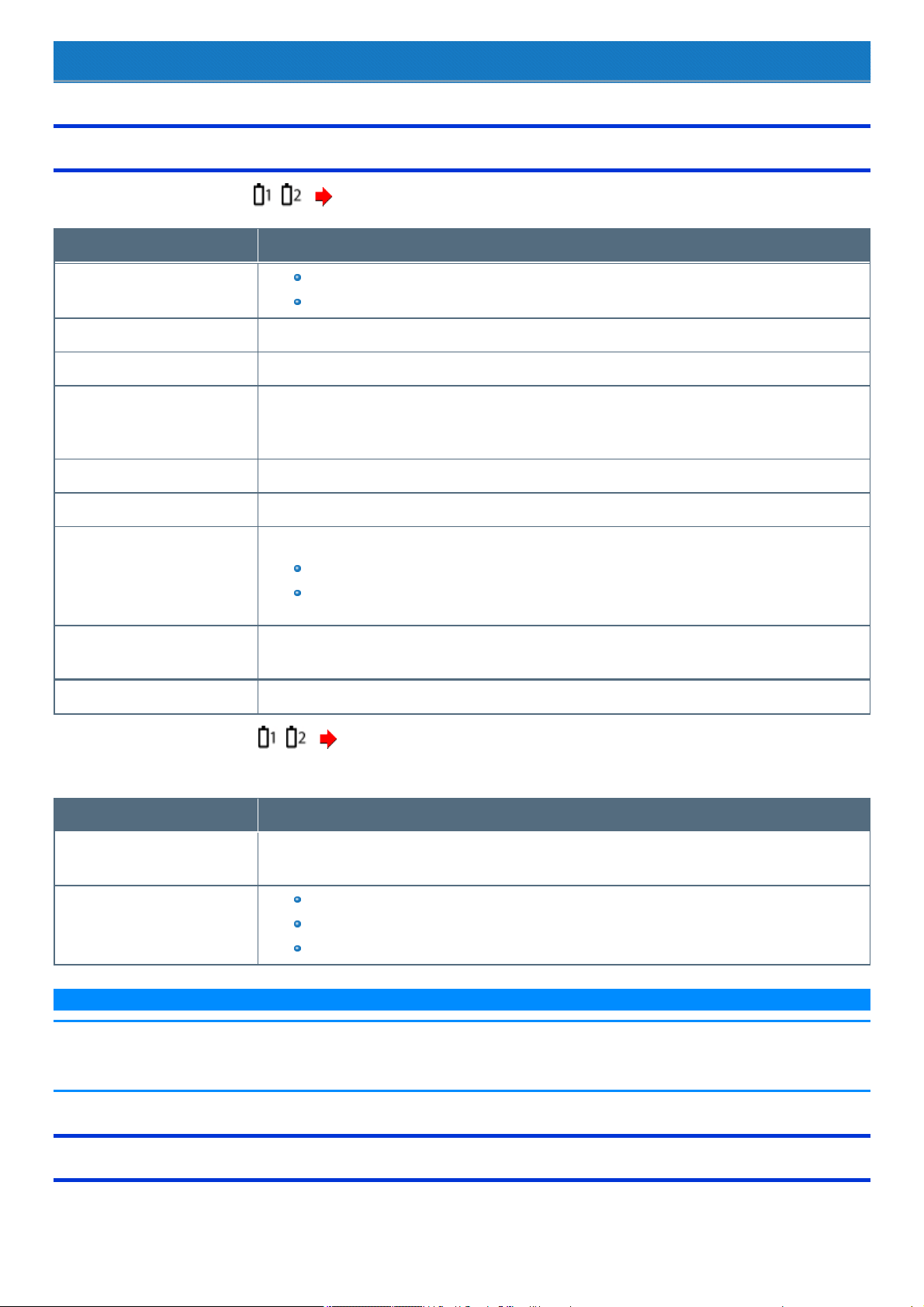
Battery Indicator
Battery indicator (situation in use): ( Description of Parts)
Battery indicator Battery status
Not lit
The battery pack is not inserted or not being charged.
Concealed mode isset to ON.
Orange Charging is in progress.
Green The battery is fully-charged.
Blinking green In order to stop the battery from deteriorating when the battery temperature ishigh (60 ºC or more), power sup-
ply from AC adaptor has been shut off, and the battery power is being consumed. Be careful of high tem-
perature.
Red The remaining battery is approximately 9% or less.
Blinking red The battery pack or the charging circuit is not operating properly.
Blinking orange The battery cannot be charged temporarily due to the following reasons:
Its internal temperature isout of the acceptable range.
The power supply is not enough because software applications or peripheral devicesare consuming a
large amount of power.
Blinking green and orange altern-
ately
The temperature islow and the computer is warming up to prevent the flash memory drive from malfunctioning.
The computer will start automatically after warming-up.
Blinking orange slowly When you set [Battery Charging Indicator] to [Flashing] on the Main menu of Setup Utility.
Battery indicator (replacing status): ( Description of Parts)
<When using multiple batteries>
Battery indicator Battery status
Green The battery pack can be replaced without turning off the computer. (When the battery cover isopened, or the
battery pack has remaining battery charge.)
Not lit
The battery packscannot be replaced.
The battery pack is not inserted or not being charged or other than those above.
Concealed mode isset to ON.
N O T E
n Once the battery is fully charged, the computer performs recharging only when the battery levelbecomes less than approximately 95%, so over-
charging is avoided.
n When [LED] is set to [OFF] on the [Concealed Mode Configuration] menu, LED does not light.
Charging
When connecting the computer to a power outlet, the battery charging starts automatically.
The battery pack is not charged when you first purchase it. Be sure to charge it before using for the first time.
If both the battery packs are attached to the computer, the battery 1 starts discharging first.
Checking the Remaining Battery Power
You can check the remaining battery power on [System] page of Panasonic PC Settings Utility.
1.
Click (Start) - [Panasonic] - [Panasonic PC Settings Utility], and click (Status).
Alternatively, click (All apps) - [Panasonic] - [Panasonic PC Settings Utility], and click (Status) in the tablet mode.
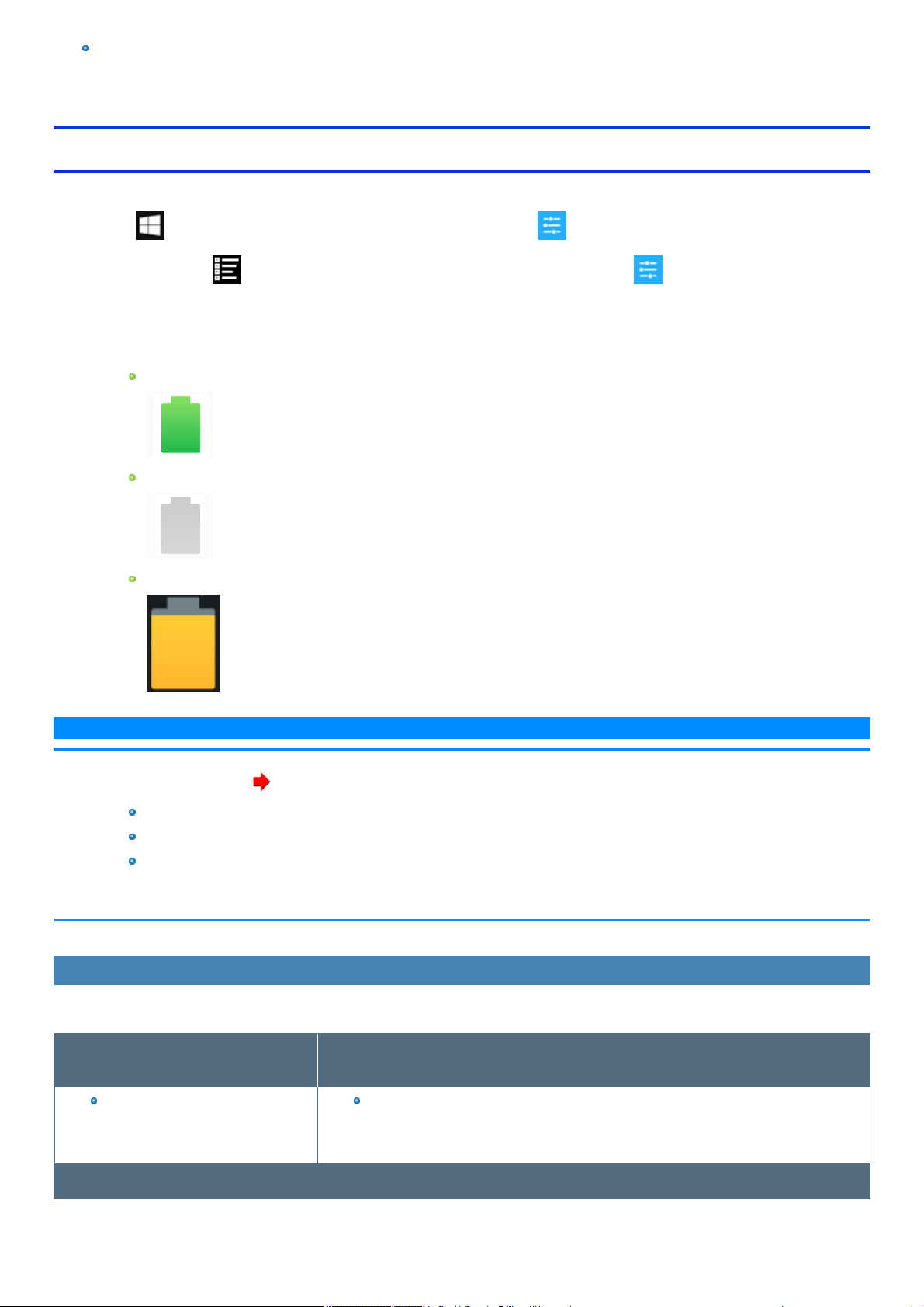
2. Check an icon under "Battery".
Alternatively, you can checkthe remaining battery charge by ≪ Fn≫ + ≪F9≫ key combination.
(After signing in to Windows)
When the battery is fully charged (example)
When the battery is empty
When the battery is discharging
N O T E
n The battery display may not correspond to the actual remaining battery charge in the cases as below. To correct the display, perform
the Battery Recalibration ( Correcting the Battery Display (Battery Recalibration)).
The battery indicator remains red.
The indicator lights orange and the display shows 99%for a long time.
Low battery warning appears soon after a short time of use.
Thiscan occur when the computer isin sleep for a long time without power supplyfrom the AC adaptor.
n The battery display may not be the same as that of task tray. This is not a malfunction.
Computer behavior with low battery
The default settings are as follows.
When the battery level becomes 10 %
[Low battery level]
When the battery level becomes 5 %
[Critical battery level]
Displays a message that the battery
levelis low.
↓
The computer enters hibernation.
↓
Charge the battery. Connect the AC adaptor or replace the battery to start up the computer.
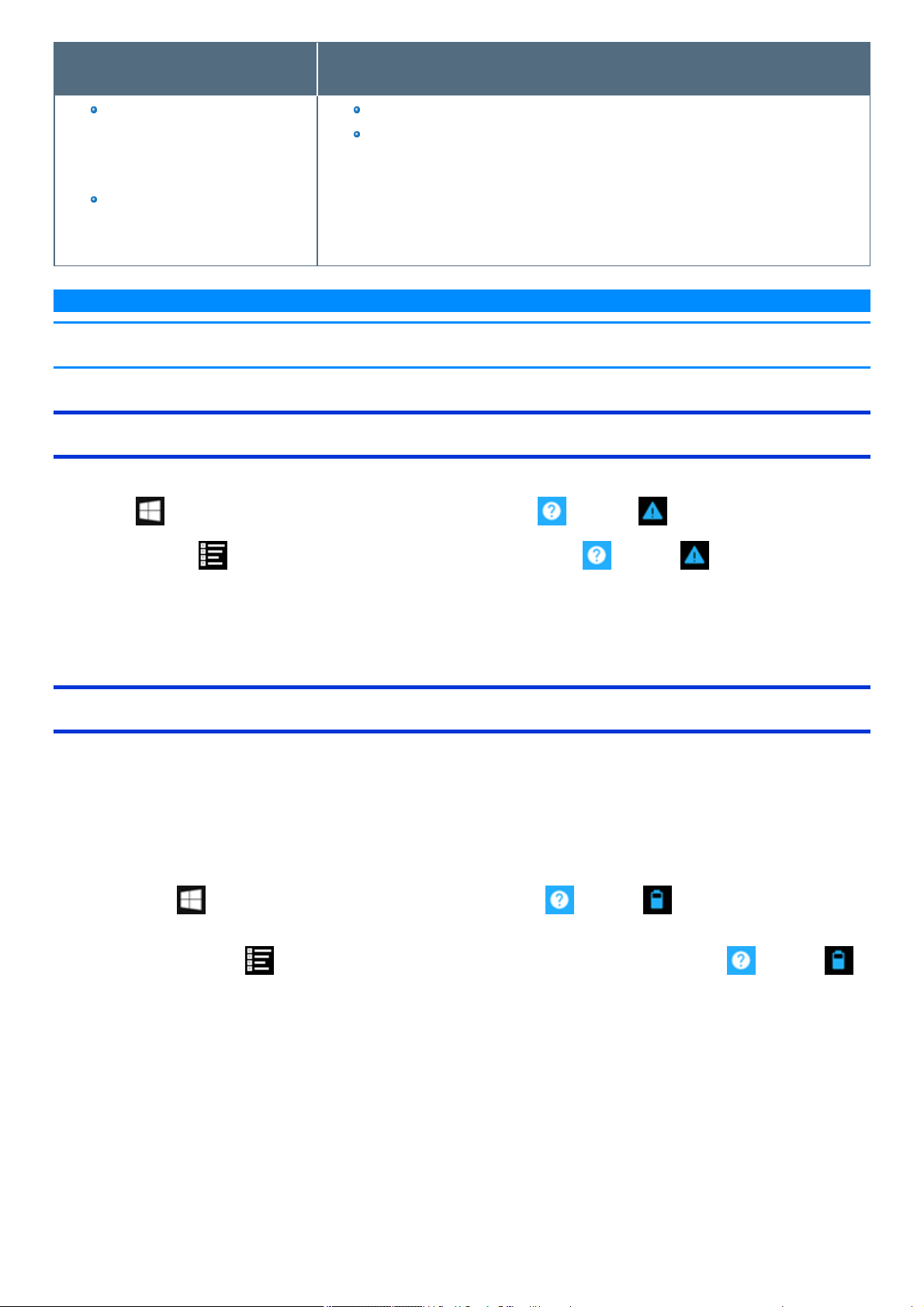
When the battery level becomes 10 %
[Low battery level]
When the battery level becomes 5 %
[Critical battery level]
Connect the AC adaptor imme-
diately. If you do not have the AC
adaptor, exit the running programs
and Windows, then confirm that the
power indicator isoff.
If you have a fully charged spare bat-
tery, turn off the computer, replace
the battery and turn the computer on
again.
Connect the AC adaptor and charge the battery.
If you have a fully charged spare battery, turn off the computer, replace the battery and turn
the computer on again.
When the computer enters hibernation with the battery down and you resume the operation
without charging the battery, the Windows Resume Loader starts up. Follow the on-screen
instructions. After that, however, Windows may not start up normally, or the [Low battery
level]/[Criticalbattery level] function may not work normally.
N O T E
n Battery goes to sleep if the battery level is about 5%, may be displayed such as "Not exist" or "Not use" is not a malfunction.
Please wait for a while to connect the AC adaptor.
Changing the Battery Charging Speed
The battery may become hot while being charged. You can make the battery charging speed slower to keep the battery cooler during charge.
1.
Click (Start) - [Panasonic] - [Panasonic PC Settings Utility], and click (Support) - (Troubleshooting).
Alternatively, click (All apps) - [Panasonic] - [Panasonic PC Settings Utility], and click (Support) - (Troubleshooting) in the tab-
let mode.
2. At [Battery Charge Speed], select [Slow] to make the battery charging speed slower.
To return to the normal charging speed, select [Standard].
Correcting the Battery Display (Battery Recalibration)
The "Battery Recalibration" function measures and memorizes the battery capacity. To correct the battery display, use this function to fill the battery and
then discharge it completely. Perform the procedure at least once immediately after purchasing the computer. Normally the interval of battery recal-
ibration is 3 months.
The battery display may not be correct when the battery pack deteriorates after a long time use. In this case, perform the procedure again.
1. Connect the AC adaptor.
2. Perform "Battery Recalibration".
You can operate your computer while the battery recalibration is in progress.
1.
Click (Start) - [Panasonic] - [Panasonic PC Settings Utility], and click (Support) - (Battery) - [Perform Battery Recal-
ibration].
Alternatively, click (All apps) - [Panasonic] - [Panasonic PC Settings Utility] in the tablet mode, and click (Support) -
(Battery) - [Perform Battery Recalibration].
2. Select the battery packon which to perform Battery Recalibration.
When using multiple battery packs, confirm below.
#1: Battery Pack 1
#2: Battery Pack 2
The required time is displayed.
3. Select [Perform Battery Recalibration while Windows operations are running] or [Perform Battery Recalibration after shutting down Win-
dows].
4. Click [Start].
If you select [Perform Battery Recalibration after shutting down Windows.], the confirmation message for Windows termination

appears. Click[Yes].
After the battery recalibration is finished, normal charging starts.
N O T E
n Alternatively, you can start “Battery Recalibration” using the following steps.
Right-click or to select [Battery Recalibration].
n The temperature range should be 10°C to 30°C {50°F to 86°F}.
n When performing the battery recalibration without shutting down Windows, the battery recalibration ends and will not be completed if
the AC adaptor is removed, or if the computer enters sleep or hibernation mode during recalibration.
n Frequent recalibration of the battery can degrade the battery. A caution message appears when the battery recalibration is performed
at the shorter interval than approximately a month. In this case, cancel the battery recalibration.
n If the computer is turned off during the battery recalibration (e.g., due to power failure, or accidental removal of the AC adaptor and bat-
tery pack), the battery recalibration will not be completed.
n You can also perform the battery recalibration with the following procedure. (You can perform the battery recalibration after shutting
down Windows.)
1. Connect an external keyboard to the computer.
2. Restart the computer.
3. Pressand hold ≪ F9≫ while the [Panasonic] boot screen is displayed just after the computer starts the startup procedure.
4. When the remaining battery capacity is displayed, press ≪ Enter≫ .
5. Follow the on-screen instructions.
n The battery recalibration may take a long time due to the large battery capacity. This is not a malfunction. (An expected approximate
recalibration time is displayed. When performing the battery recalibration without shutting down Windows, the recalibration time will be
longer than shown.)
n <When performing the battery recalibration after shutting down Windows>
CF-VZSU1A series
Status Full charge Complete discharge
1 battery pack
2.5 hours
1.5 hours
2 battery packs 3.0 hours
CF-VZSU1B series
Status Full charge Complete discharge
1 battery pack
2.5 hours
3.0 hours
2 battery packs 6.0 hours
n An expected approximate recalibration time is displayed. When performing the battery recalibration without shutting down Windows,
the recalibration time will be longer than shown.
Battery duration
The computer consumes electricity even when the computer power is off. If the battery pack is fully charged, the battery will fully discharge in the following
period of time:
CF-VZSU1A series x 2

Status Wake Up from wired LAN
Discharge period
Only for model with key-
board base
For tablet
In sleep
Disabled 7 days 10 days
Enabled 5 days 7 days
When power is off/In hibernation
Disabled 4.5 weeks 7 weeks
Enabled 9 days 10 days
CF-VZSU1B series x 2
Status Wake Up from wired LAN
Discharge period
Only for model with key-
board base
For tablet
In sleep
Disabled 14 days 20 days
Enabled 10 days 14 days
When power is off/In hibernation
Disabled 9 weeks 14 weeks
Enabled 18 days 20 days
Replacing the Battery Pack
C A U T I O N
n The battery pack is not charged when you first purchase it. Be sure to charge it before using for the first time. Charging starts auto-
matically when the AC adaptor is connected to the computer.
n Use only the specified battery pack with your computer. The CF-VZSU1B series battery pack cannot be used in models with CF-
VZSU1A series, or the CF-VZSU1A series battery pack cannot be used in models with CF-VZSU1B series, either.
n Make sure no foreign objects are under the computer.
n In sleep, do not remove/replace the battery pack. Otherwise your data will be lost and the computer may be damaged.
n Do not use without inserting battery pack/dummy battery.
n If the computer is wet, wipe them off and open the cover. Make sure to dry off the computer, replace/remove the battery pack.
1. Open the battery cover.
Make sure no foreign objects are under the computer.
Depending on the models, the shape of cover may differ.
1. Slide the release latch (A) to the arrow direction.
2. Slide the cover to the arrow direction.
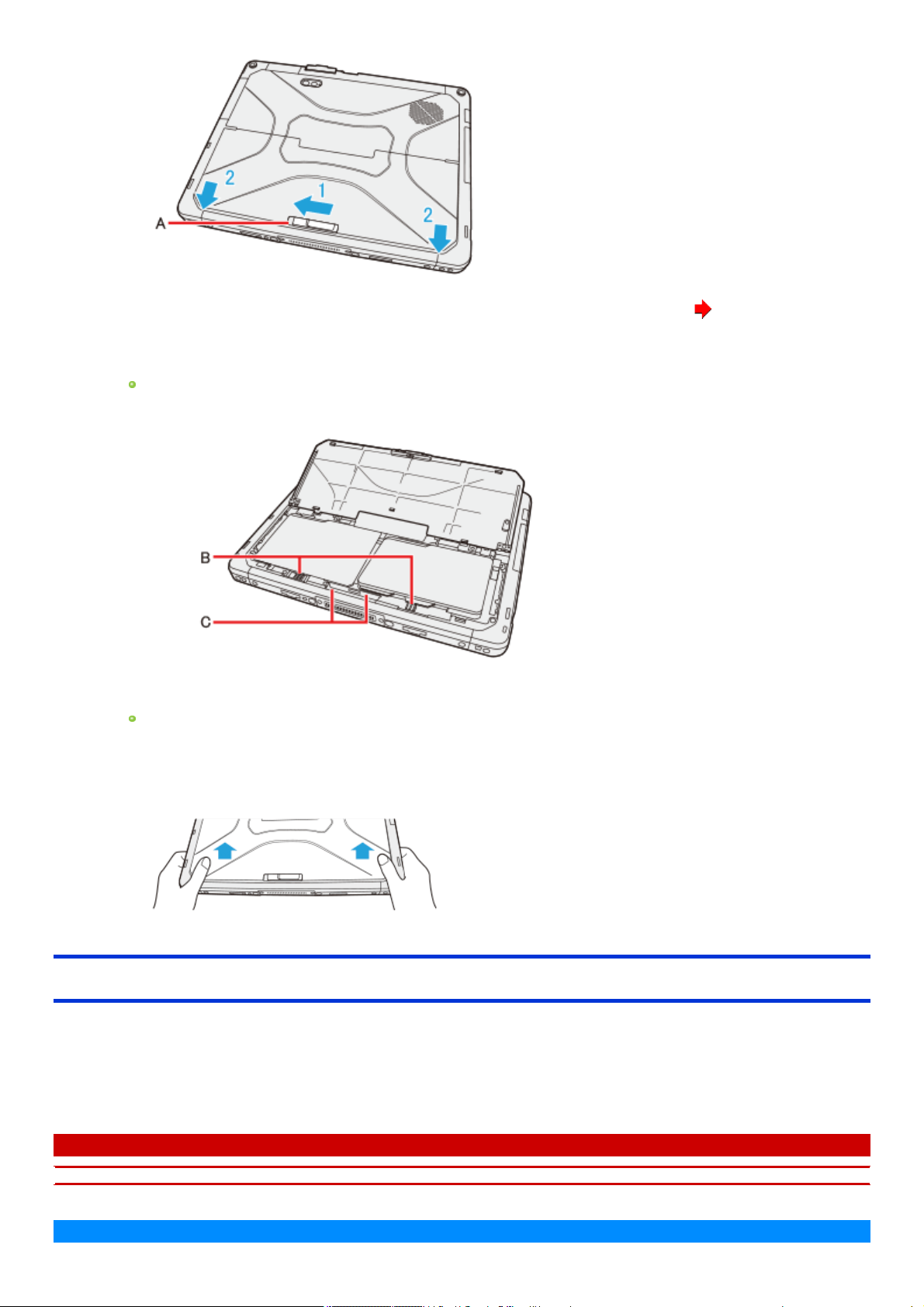
When the replacing the battery pack without turning off the computer, check the battery indicator (C). ( Replacing the battery pack
without turning off the computer)
2. Remove/Insert the battery pack.
To remove
1. Slide the latch (B).
2. Remove the battery pack.
To insert
1. Insert the battery packuntil it securelyfits the connector.
3. Slide the battery cover back.
1. Slide the battery cover in the arrow direction untilthe release latch clicks into place securely.
Replacing the battery pack without turning off the computer
<When using multiple batteries>
If one of the batterieshas enough remaining power, you can replace the battery packwithout turning off and during sleeping the computer.
Open the battery cover, and check the Battery indicator.
If a battery indicator lights green, you can replace the battery pack without turning off the computer.
If a battery indicator does not light, you cannot replace the battery packwithout turning off the computer. Turn off the computer before replace the battery
pack.
C A U T I O N
n Concealed Mode is set to OFF before replacing the battery pack.
N O T E

n During battery replacement, the LCD backlight is turned off.
Sleep/Hibernation Functions
Starting Up Your Computer Quickly
The sleep or hibernation functions allow you to shut off the computer without closing programs and documents. You can quickly return to the programs
and documents that you were working on before sleep or hibernation.
Function Data is saved to Recovery time Power supply
Sleep Memory Short Required. (If power isnot supplied, alldata will be lost.)
Hibernation Flash memory drive Rather long Not required. (However power is slightlyconsumed to keep the hibernation.)
Setting Sleep or Hibernation
Sleep
1.
Click or on the task tray, and click [Power & sleep settings] - [Additional power settings].
2. Click [Change plan settings] of the power plan you want to change.
3. Select the setting for [Put the computer to sleep], and then click [Save changes].
The setting for hibernation may change unexpectedly when you change the setting for sleep. Confirm that the time to enter hibernation
is 180 minutes (default setting) or longer (below).
Hibernation
1. After the step 2 of "Sleep" setting (above), click [Change advanced power settings].
2. Double-click [Sleep], and double-click [Hibernate after].
3. Click the item and select the setting.
4. Click [OK].
Precautions
Connect the AC adaptor if the computer will be in sleep for a long period of time. If you cannot use the AC adaptor, use hibernation
instead.
Using sleep or hibernation repeatedly may cause malfunction of the computer. To stabilize computer operation, restart Windows reg-
ularly (about once a week) without using sleep or hibernation.
Save the necessary data.
Close files you have opened from removable disks and network drives.
Do not enter sleep or hibernation in the conditions below, otherwise the data or file may be corrupted, sleep or hibernation may not
work, or malfunction may occur in the computer or the peripheral devices.
When the extended desktop function is activated.
When any of the SD Memory Card indicator and the drive indicator are on.
When playing/recording audio files or displaying motion video such as MPEGfiles.
When playing a DVD-Video.
When writing to a disc.
When using communication software or network functions. (except for using wake up from wired LAN function)
When using peripheral devices.
If the computer fails to work normally, restart the computer.
The password you set in the Setup Utility will be requested upon resuming from hibernation (but not from sleep), if [Password On
Resume] is set to [Enabled] in the [Security] menu of the Setup Utility. To disable it, set [Password On Resume] to [Disabled].
The [Password On Resume] setting is valid when you shut down the computer by clicking (Start) - [Power] - [Shut down].
It may take 1 or 2 minutes to enter hibernation. Do not touch any key though the screen becomes dark.
C A U T I O N
The following problems will occur when you fail the password input (failing three times or leaving the computer unattended for one minute or more) while
resuming from sleep or hibernation.
n Failing the password input while resuming from hibernation:
Cannot resume from hibernation by the Wake Up from wired LAN function, the Task Scheduler or the operation to open the display.
Entering/Resuming from Sleep or Hibernation
To enter sleep or hibernation
In order to enter sleep or hibernation by following procedure, change the power option settings first so that the [Power buttons and lid] operation is set to
sleep or hibernation. ( Setting Sleep or Hibernation)
Using hardware functions
1.
Close the display, or press the power switch. ( Description of Parts)
Sleep: The power indicator blinksgreen.
Hibernation: The power indicator goes off.
The computer automaticallyenters sleep after:
20 minutes (when AC adaptor is connected) of inactivity
15 minutes (when operating on battery power) of inactivity
Using ≪Fn≫
You can also enter sleep or hibernation using ≪ Fn≫ .
( Key Combinations)
Using Windows function
You can alternatively enter sleep using Windows function.
1.
Click (Start)- (Power).
Alternatively, click (Power) in the tablet mode.
2. Click [Sleep].
N O T E
n Hibernation from the Windows system menu is not available as the factory default. To enter hibernation from the Windows system
menu, the following setting is necessary.
1.
On the desktop screen, click or on the tasktray, and click[Power & sleep settings] - [Additional power settings].
2. Click [Choose what the power button does] - [Change settings that are currentlyunavailable].
3. Add check mark for [Hibernate] and click [Save changes].
C A U T I O N
While the computer is entering sleep or hibernation

n Do not:
Touch the keyboard, touchpad, screen, tablet buttons, or power switch.
Use an external mouse or other peripheral devices.
Connect or disconnect the AC adaptor.
Close or open the display
Insert and remove the SD Memory Card.
Wait untilthe power indicator blinks green (sleep) or goes off (hibernation).
n It may take 1 or 2 minutes to enter sleep or hibernation. Do not touch any key though the screen becomes dark.
n After releasing the power switch, do not operate it until the power indicator blinks or goes off.
If you pressand hold the power switch for longer than 4 seconds, the computer will forciblyshut down and unsaved data willbe lost even if you
have set [When I pressthe power button] to any item in [Choose what the power button does] of [Power Options] in [Control Panel].
In sleep or hibernation
n Do not attach or remove peripheral devices. Doing so may cause malfunction.
n Power is consumed in sleep.
When power is exhausted, the data retained in memory will be lost. Connect the AC adaptor when the computer is in the sleep function for a pro-
longed time.
To resume from sleep or hibernation
1.
Open the display, or press the power switch. ( Description of Parts)
C A U T I O N
n Do not perform the following operations until resuming is complete. After the display is resumed, wait approximately 15 seconds (nor-
mally) or 60 seconds (when the computer is on a network).
Touch the keyboard, touchpad, screen, tablet buttons, or power switch.
Use an external mouse or other peripheral devices.
Connect or disconnect the AC adaptor.
Close or open the display.
Shut down or restart Windows.
Enter sleep or hibernation.
Insert and remove the SD Memory Card.
n If you touch the USB keyboard keys or mouse connected to the computer, the computer may resume from sleep.
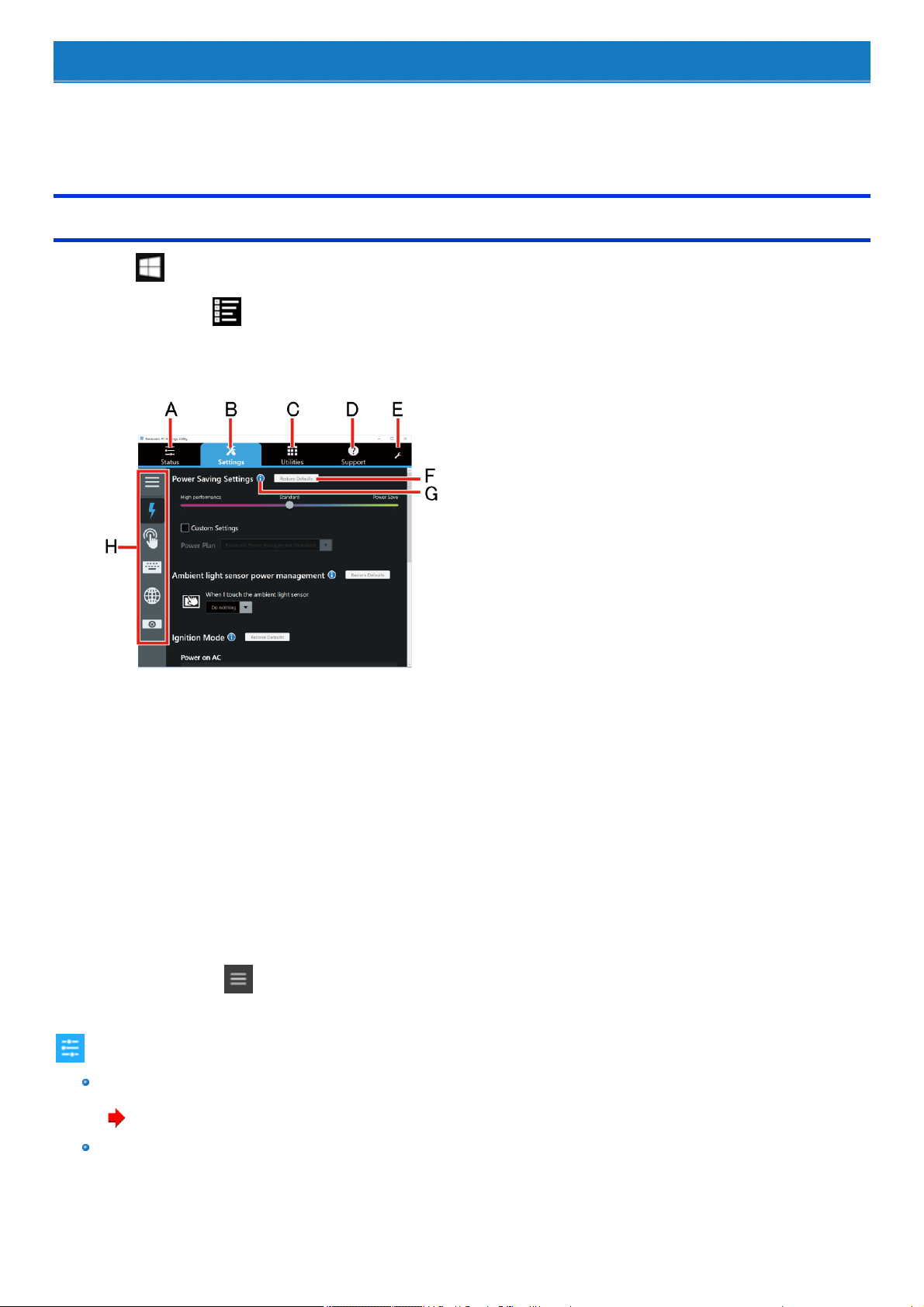
Panasonic PC Settings Utility
You can perform the following operations easilyby using the Panasonic PC SettingsUtility.
When starting up this application for the first time, connect to the Internet for initial setup. If it is first started up without Internet connection, the initial setup
may take time, and several minutes may be required for startup.
Starting Panasonic PC Settings Utility
1.
Click (Start) - [Panasonic] - [Panasonic PC Settings Utility].
Alternatively, click (All apps) - [Panasonic] - [Panasonic PC Settings Utility] in the tablet mode.
You can also press [A1] button to start Panasonic PC Settings Utility.
The screen to the below appears.
A. Status
B. Settings
C. Utilities
D. Support
E. This Application Settings
F. Restore Defaults
Restore the settings to the default values.
G. Information
Display help.
H. Menu
Select the items.
When clicking , name of the items appears.
2. Make the operation.
Status
Battery:
Display battery status.
( Checking the Remaining Battery Power)
Brightness:
Adjust the LCD brightness. Slide slider to the right or left to increase or decrease the brightnessrespectively. To adjust the brightnessauto-
matically according to the surrounding brightness, add a checkmark to [Adaptive Brightness].
Volume:
Adjust the sound volume. Slide slider to the right or left to increase or decrease volume respectively. To mute the sound, add a checkmark to
[Mute].
Microphone Input:
Adjust the level of microphone input. Slide slider to the right or left to increase or decrease levelrespectively. To disable the microphone input,
add a checkmark to [Mute].
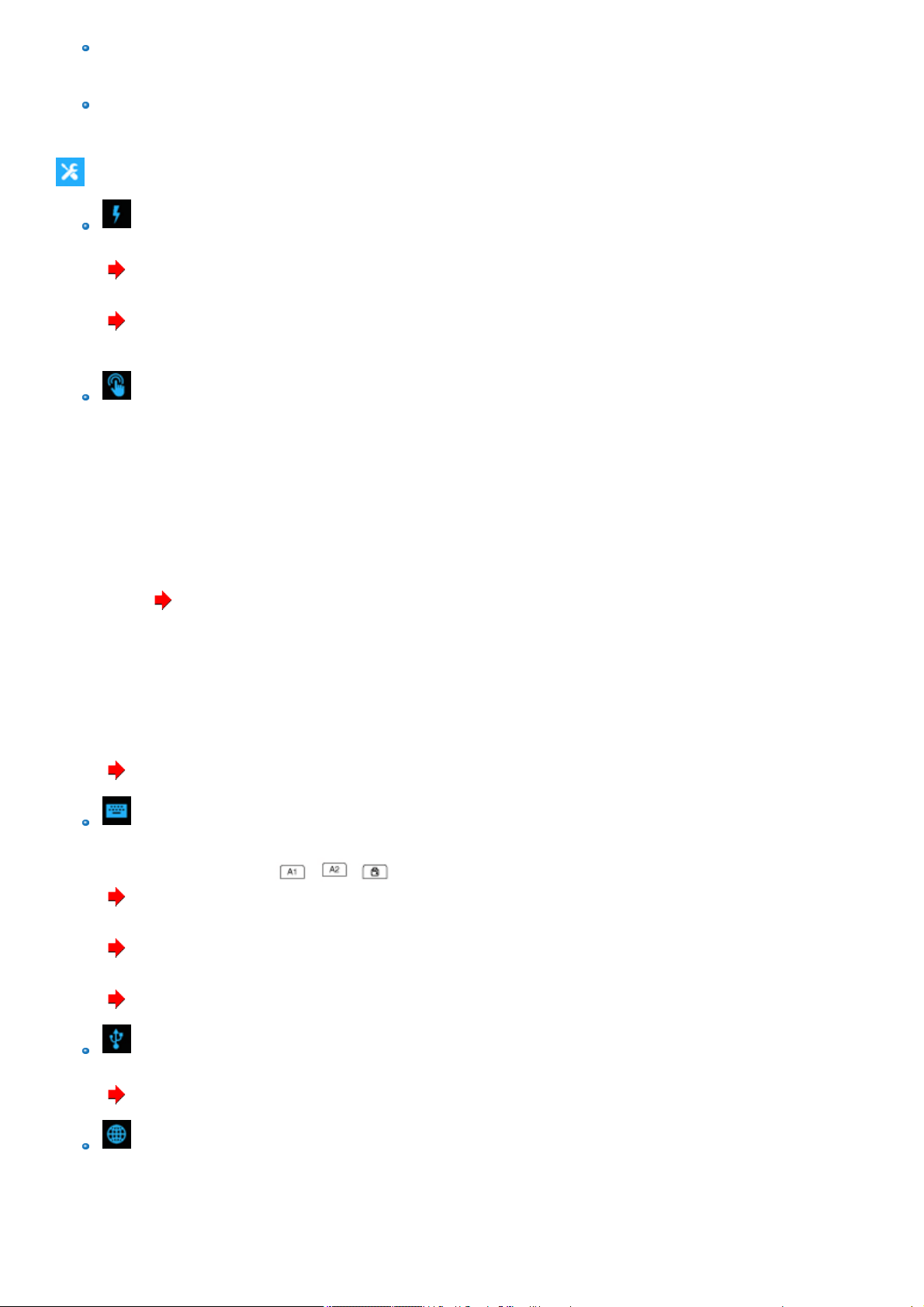
Settings
Power Management
Power Saving Settings:
( Saving Power)
Ambient light sensor power management:
( Saving Power)
Ignition Mode: Change settings of the ignition mode.
Touch Screen
Touch Screen:
Touch Input:
When using digitizer pen (included): Select [Use digitizer pen].
When using finger: Select [Use touch screen].
All: Select [Use touch screen/Use digitizer pen].
Digitizer Button Mode:
Change the button setting of digitizer pen.
You can select [Right click] or [Eraser].
Touch Screen Mode:
( Change Touch Screen Mode)
Disable:
You can disable the touch screen.
Pen and Touch:
Change the pen (included)/fingers operation mode.
Touch Operation Support:
When you use a two-finger tap gesture to specify the area in which you want to perform touch operations, the area is displayed in a zoom win-
dow. To use thisfunction, add a checkmark to [Support touch operation].
( About Touch Operation Support)
Button / Key
Tablet Buttons:
You can change the functions of , , buttons.
( Setting the Tablet Buttons)
Concealed Key:
( Concealed Mode)
Fn Key:
( Hotkey Settings)
USB
USB Charge Settings:
( USB Charge Setting)
Network
Network and Sharing Center:
Network Connection:

WirelessLAN:
( Wireless LAN)
Camera
Camera Device:
Enable or Disable the built-in camera.
If the camera is disabled by the Setup Utility, you cannot enable the camera by clicking [Enable].
( Camera)
Utilities
You can use Panasonic applications that display icons. To use these applications, clickan icon.
Support
Manual
[Launch Manual Selector]
For further information about the computer, you can refer to the on-screen manual.
Operating Instructions - Reference Manual (This Manual)
Thismanual contains the practical information to help you fully enjoy the computer’s performance. Update it to the latest version using
network connection.
Important Battery Tips
The Important Battery Tips will provide you with the battery information so that you can use the battery in the optimum condition to
obtain longer operation time.
Update the on-screen manuals
Thisdescribes the procedures to update the on-screen manual.
Connect to a network
Thisdescribes the connection procedures using the network devicesmounted on this unit.
System
[Launch PC Information Viewer]
( Checking the Computer's Usage Status)
Battery
[Perform battery recalibration]
( Correcting the Battery Display (Battery Recalibration))
Troubleshooting
Battery Charge Speed:
( Changing the Battery Charging Speed)
Recovery Disc Creation
[Launch Recovery Disc Creation Utility]
( Create a Recovery Disc)
ThisApplication Settings
Themes Settings:
Change the skin of thisutility.
Show/Hide each item:
Click [Administrator settings] to allow you to make the show/hide settings for each item.
If [User Account Control] is displayed, click [Yes].
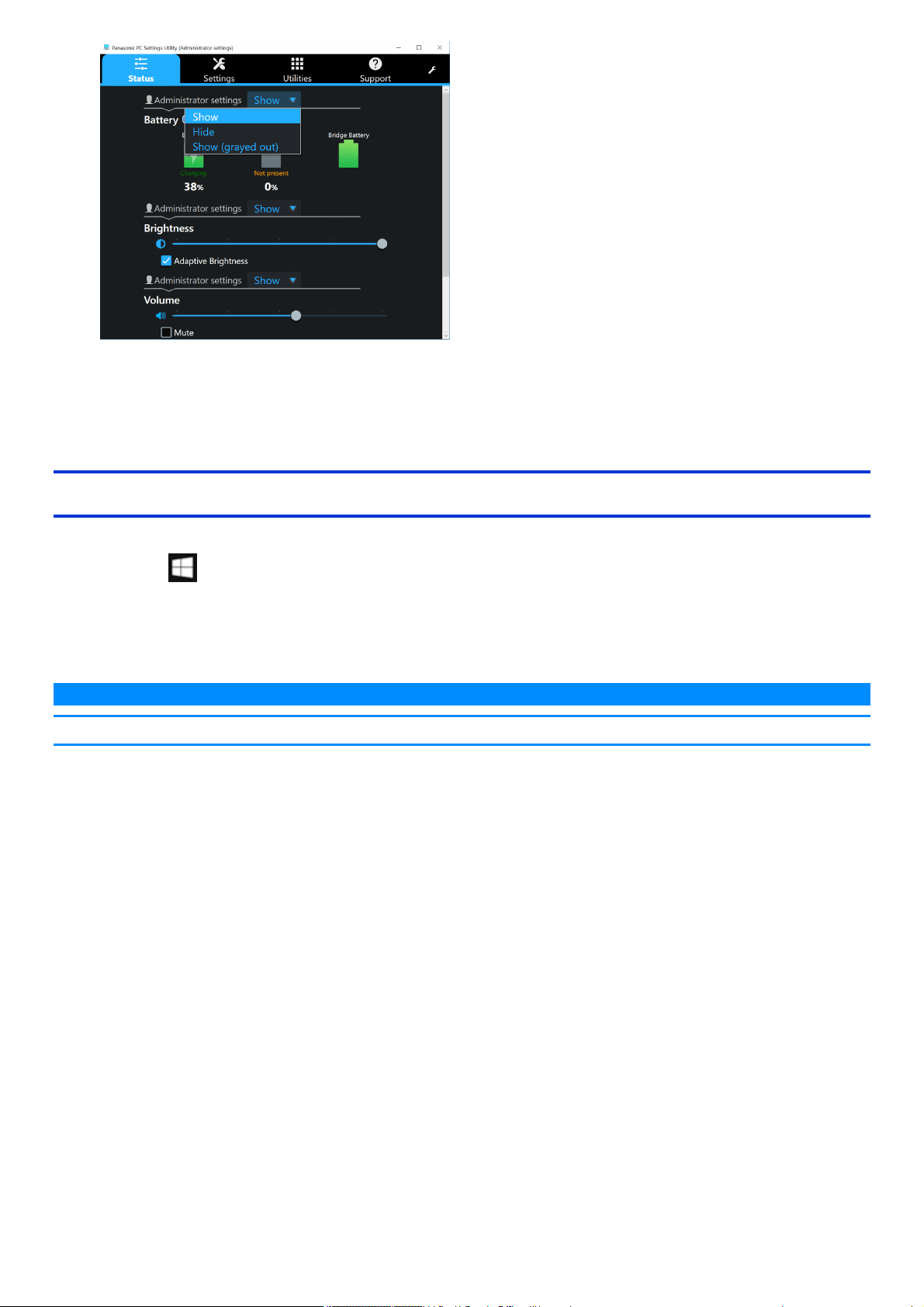
The new settings will be activated after restarting thisapplication.
You can export or import the display items that can be used by XML files on thisutility.
About Panasonic PC Settings Utility:
Display the version information.
To add or delete functions
To add or delete functions, follow the procedure below.
1.
Right-click (Start) at the bottom left corner, and then click [Programs and Features].
2. Select [Panasonic PC Settings Utility], click [Change].
3. Click [Add or Remove Features], and then click [Next].
4. Add or delete checkmarks, and then click [Next].
N O T E
n If [Thisprogram might not have uninstalled correctly] is displayed, follow the on-screen instructions.
Attaching/Detaching the Tablet from the Keyboard Base
Detaching the tablet from the keyboard base
When detaching the tablet from the keyboard base while it is turned on, note the following points.
C A U T I O N
n Before detaching the tablet, confirm the following things.
Save the necessary data.
Close files you have opened from removable disks and network drives.
Remove peripheral devices connecting to the tablet.
n Do not detach the tablet in the conditions below.
When the SD Memory Card indicator ison.
When playing/recording audio files or displaying motion video such as MPEGfiles.
When playing a DVD-Video.
When writing to a disc.
When using communication software or network functions.
To detach the tablet while it is turned on, perform the following.
1.
Click in the taskbar of the desktop screen, and then click - [Eject Docking Device].
Alternatively, pressthe «Fn» and «ESC» keyboard keys at the same time.
N O T E
n To cancel detachment, press the «Fn» and «ESC» keyboard keys at the same time after the above operation.
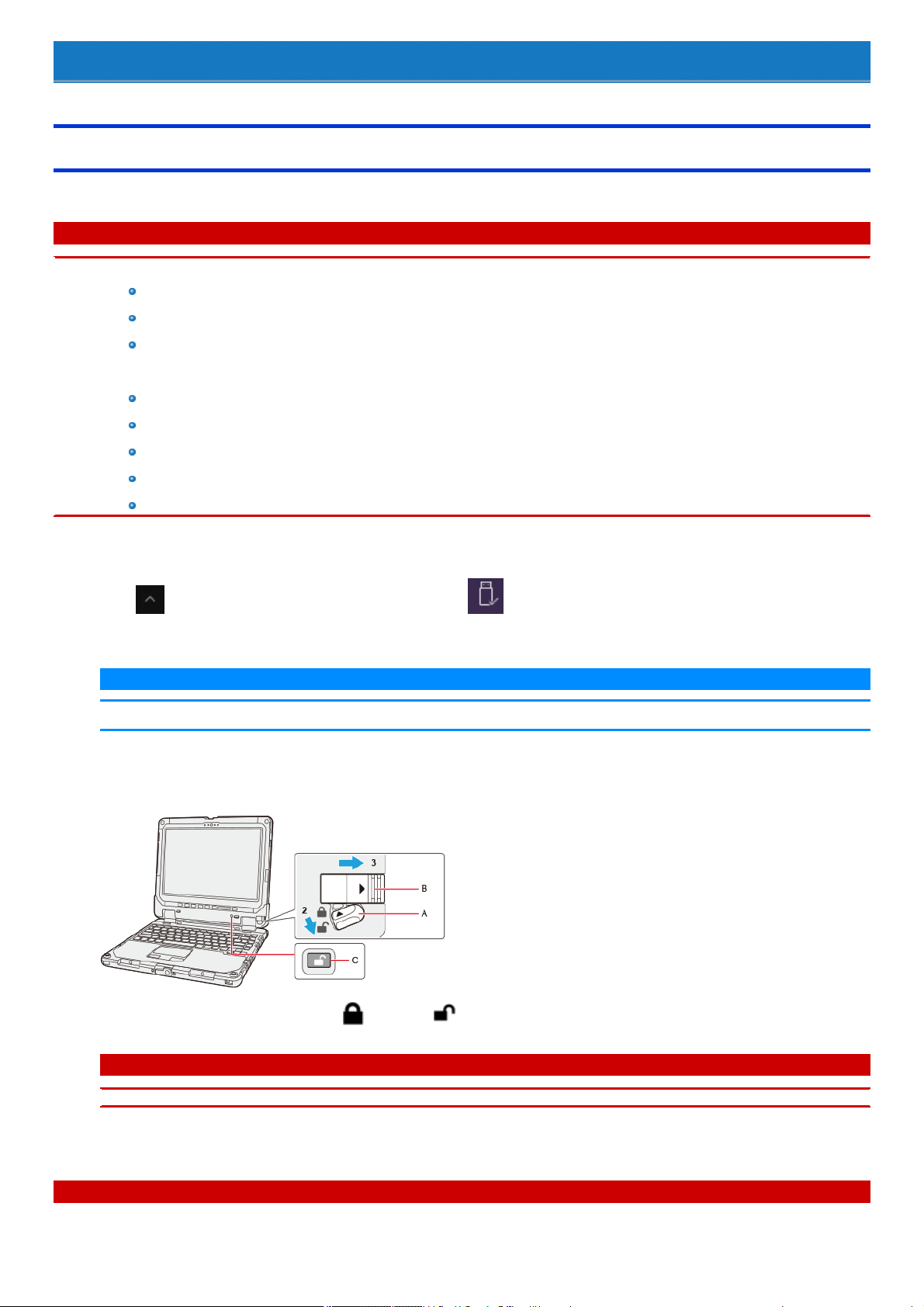
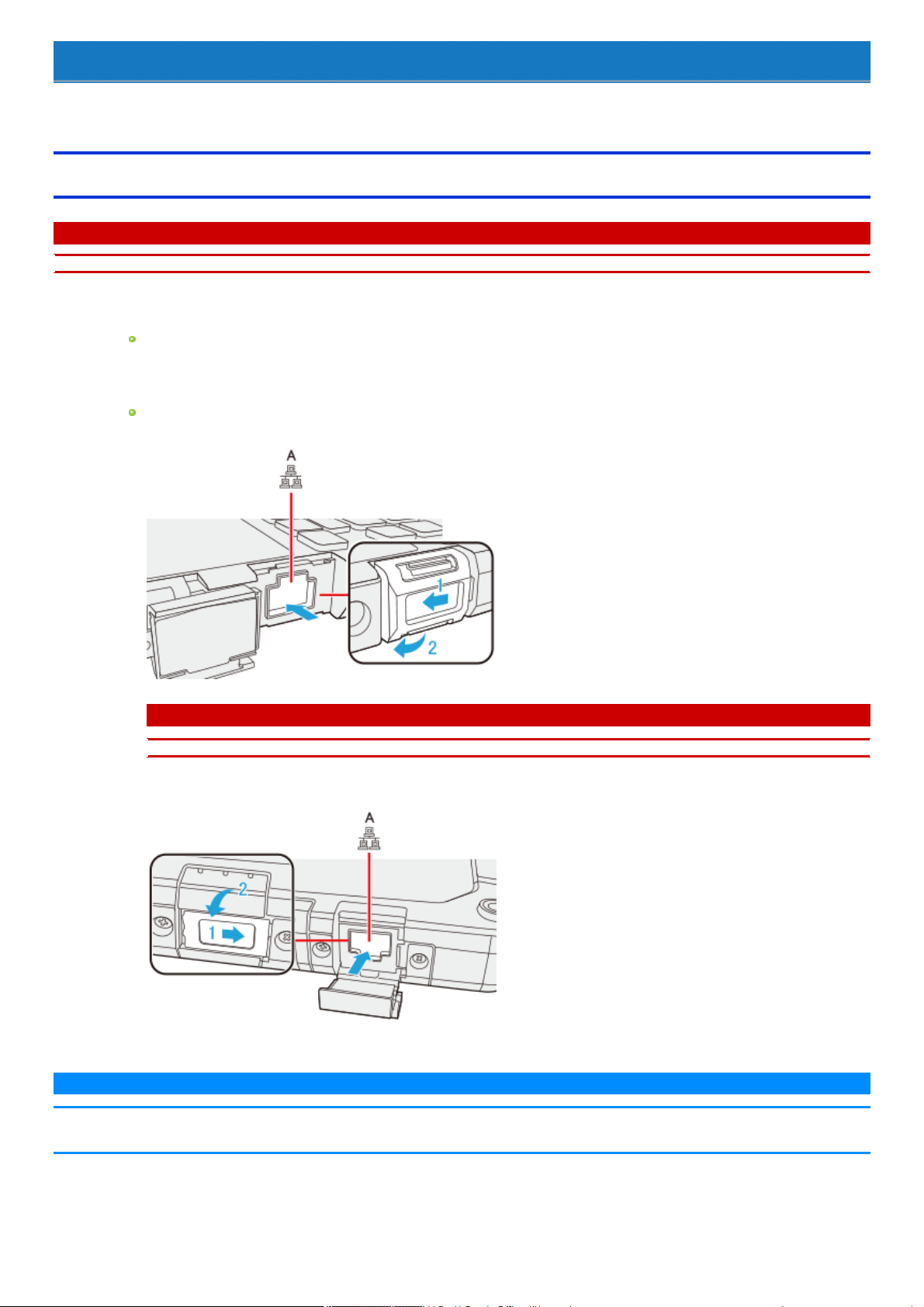
2. Release the detach lock (A).
3. Slide the release lever (B) in the direction of the arrow.
The detach indicator (C) will turn from black ( ) to orange ( ).
C A U T I O N
n After step 3, you cannot stop detaching the tablet. Detach the tablet once.
4. Detach the tablet from the keyboard base.
C A U T I O N
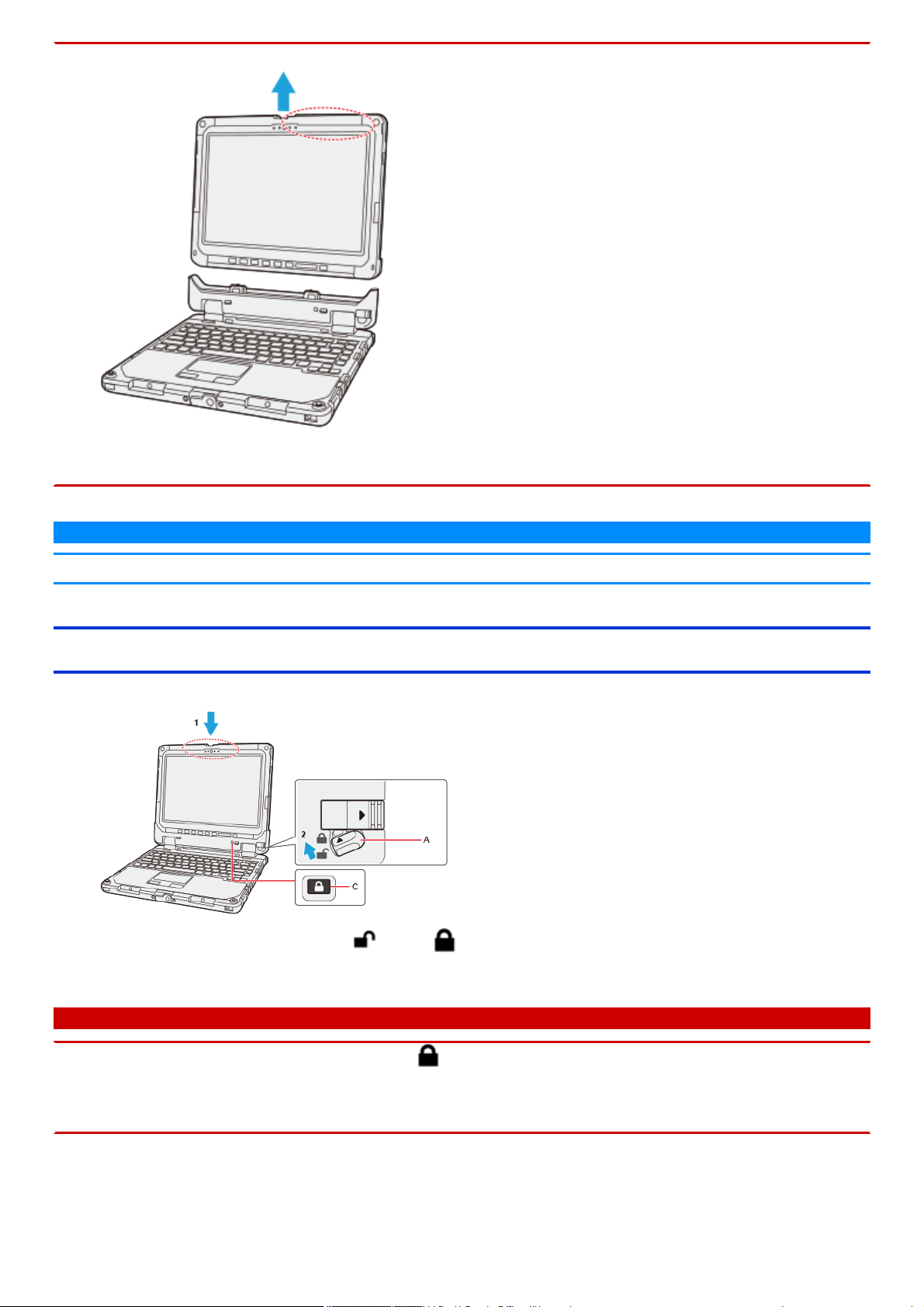
n When detaching the tablet from the keyboard base, hold the area enclosed by the dashed circle in the illustration.
n Attach/detach the tablet on a flat surface.
n When attaching/detaching the tablet, securely hold the keyboard.
N O T E
n Do not attach/detach the tablet in the rain.
Attaching the tablet to the keyboard base
1. Hold the area enclosed by the dashed circle in the illustration, and push the tablet downward.
The detach indicator (C) will turn from orange ( ) to black ( ).
2. Lock the detach lock (A).
C A U T I O N
n
Confirm that the detach indicator (C) has turned black ( ). If the detach indicator is still orange-colored or partially orange-colored,
the tablet has not been properly locked to the keyboard base. Attach the tablet properly.
n Do not lift up the computer set when even a little orange color is seen in the detach indicator. Doing so may result in the tablet falling
down.
LAN
<Only for model with LAN>
Connecting LAN
C A U T I O N
n Do not connect the telephone cable to the LAN port.
1. Turn off the computer.
Do not use sleep or hibernation.
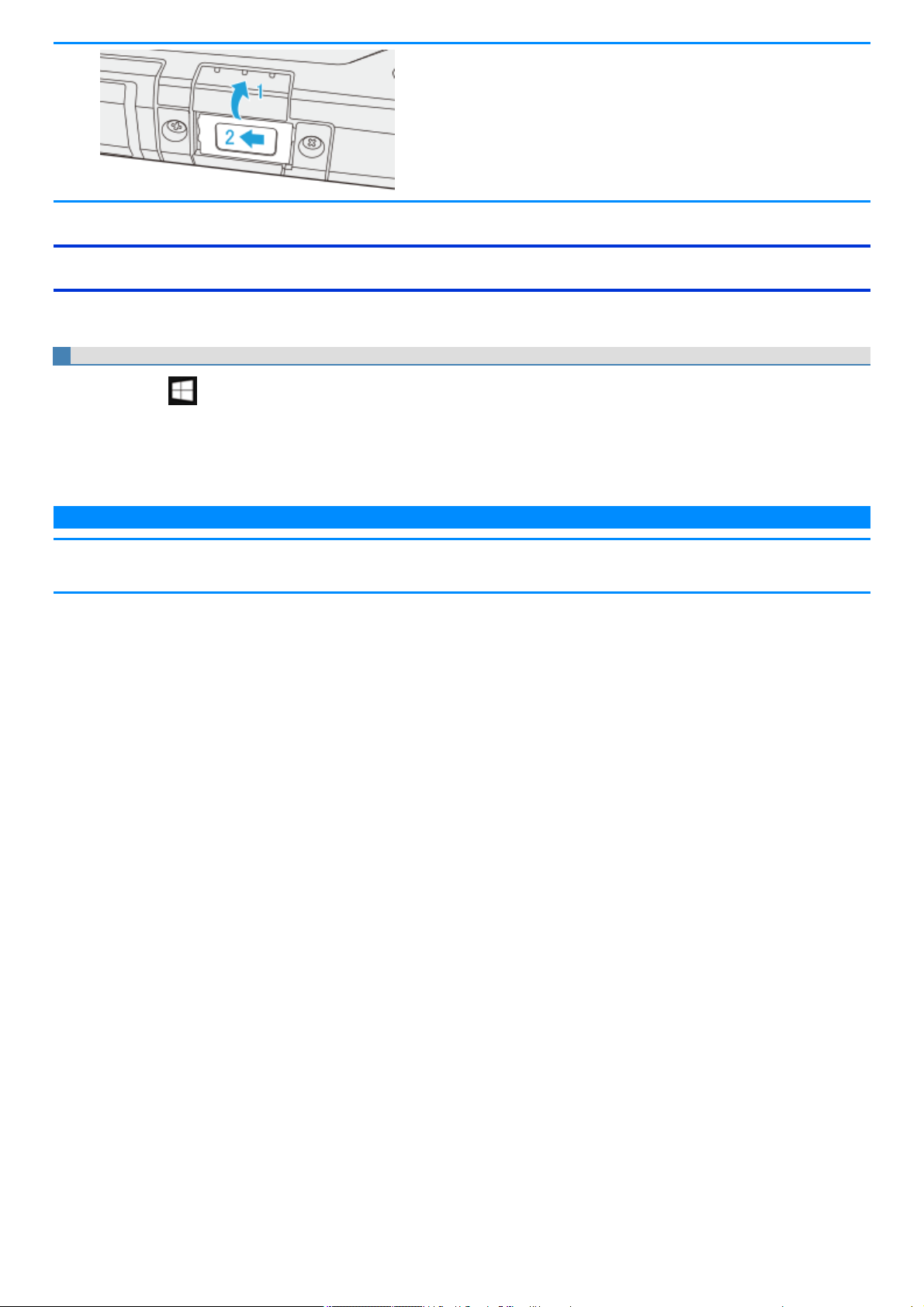
2. Slide the cover and open it.
3. Connect the LAN cable.
Connect the LAN port (A) and the network system (server, HUB, etc.) using a LAN cable.
Keyboard base
C A U T I O N
n Do not remove the tablet from keyboard base while using the LAN function.
Tablet
4. Turn on the computer.
N O T E
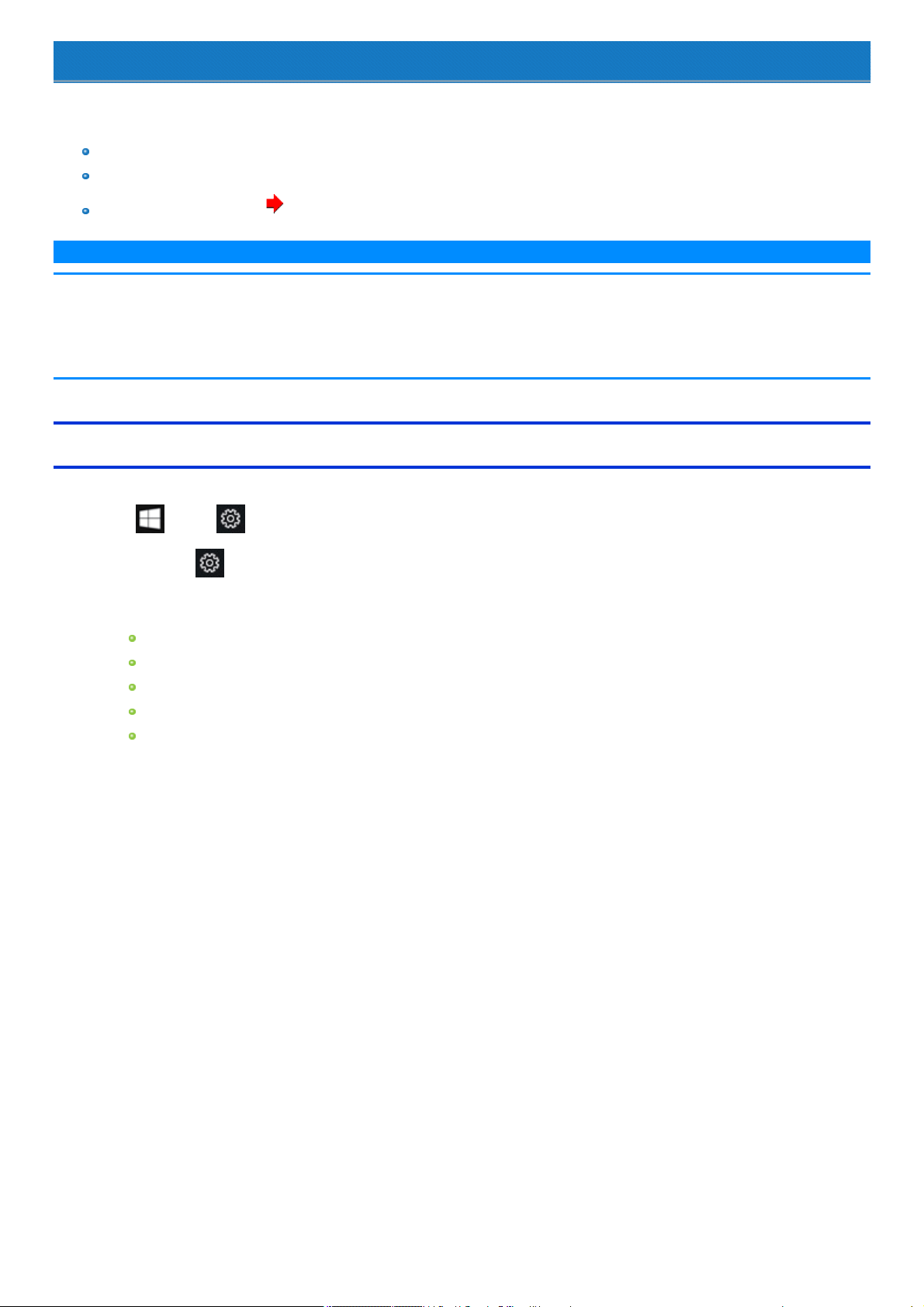
n While pressing the cover, slide and close it securely as described in the illustration below. After that, make sure that the cover has
been closed properly.
Wake Up from wired LAN function
When the Wake Up from wired LAN function isenabled, the computer automaticallyresumes from sleep or hibernation when the computer isaccessed
from the network server via the internal LAN port.
Setup
1.
Right-click (Start) at the bottom left corner, and then click [Device Manager].
2. Double-click the Ethernet device under “Network adapters”, and then click [Power Management].
3. Add a checkmark to [Allow this device to wake the computer].
4. Click [OK].
N O T E
n The setting made is enabled after restarting the computer.
n The LAN port of keyboard base does not support the Wake Up from wired LAN function.
Disabling/Enabling Wireless Communication
<Only for model with wireless LAN, Bluetooth, wireless WAN, GPS on wireless WAN, and/or dedicated GPS>
There are several ways of disabling and enabling wireless communication.
Using airplane mode
Setting [Wireless Configuration] in the [Advanced] menu of the Setup Utility
Network and Sharing Center ( Using the Wireless LAN Function)
N O T E
n For further information about Wireless LAN.
n For further information about Bluetooth.
n For further information about Wireless WAN.
n For further information about GPS.
Using airplane mode
(For wireless LAN, wireless WAN, Bluetooth, and dedicated GPS / GPS on wirelessWAN)
1.
Click (Start) - (Settings) - [Network & Internet] - [Airplane mode] .
Alternativelyclick (Settings) - [Network & Internet] - [Airplane mode] in the tablet mode.
2. To disable wireless communications, set [Airplane mode] to [On].
To enable wireless communications, set [Airplane mode] to [Off], and then;
set [Wi-Fi] to [On] (for wireless LAN).
set [Cellular] to [On] (for wireless WAN).
set [GPS] to [On] (for GPS on wirelessWAN).
set [Bluetooth] to [On] (for Bluetooth).
set [GPS/GNSS] to [On] (for dedicated GPS).
Wireless LAN
<Only for model with wireless LAN>
C A U T I O N
n Do not use wireless LAN on airplanes, in hospitals, or in other locations where wireless LAN signals may affect devices.
Follow the instructions of airline companies and hospitals. If you use the computer in these locations, turn off the wireless LAN.
n To avoid unauthorized access to the computer through wireless LAN
We recommend you to make security settings such as encryption before using wirelessLAN.
Otherwise the disk data such as the shared files can be exposed to the risk of unauthorized access.
N O T E
n Communication is established through the wireless LAN antenna. Do not blockthe antenna area with your hand or body.
n The transmission rate will be lower when a microwave oven is used nearby.
n To use wireless LAN, set [Wireless LAN] of [Wireless Configuration] to [Enabled] (default) in the [Advanced] menu of the Setup Utility.
Using the Wireless LAN Function
Before using a wirelessLAN, turn the wireless LAN communication on.
Turning on/off the wireless LAN communication
1.
To enable the wireless communication ( Disabling/Enabling Wireless Communication).
Setting the wireless LAN access point
Preparation
Follow the instruction manual of the wirelessLAN accesspoint to make settings for the access point to recognize the computer.
1. Turn the wireless LAN on.
2.
Click or on the task tray.
3. Select an access point, and click [Connect].
4. Input the key you set for the access point to recognize the computer, and click [Next].
Wait for the computer to connect to the wireless LAN accesspoint.
When the icon on the tasktray is changed to , the wireless LAN setting is complete.
N O T E
n The settings depend on the network environment. For further information, ask the system administrator or the person in charge of the
network.
n If you use the stealth type wireless LAN access point which restricts automatic detection of the wireless LAN access point, take the fol-
lowing procedure.
If you do not perform the procedure below, you may not be able to access the wireless LAN access point automatically or the wireless
LAN access point may not be displayed.
1.
Click on the task tray, and then click [Hidden network].
2. Click [Connect], enter the necessary information such as the network name (SSID), and click [Next].
For further information, ask the system administrator or the person in charge of the network.
Enabling/Disabling the Wireless LAN Standard IEEE802.11a (802.11a)
1.
Click (Start) - [Panasonic] - [Panasonic PC Settings Utility], and click (Settings) - (Network).
Alternativelyclick (All apps) - [Panasonic] - [Panasonic PC Settings Utility], and click (Settings) - (Network) in the tablet mode.
2. Click [Enabled] or [Disabled] for the wireless LAN IEEE802.11a.
N O T E
n In some countries, communication using IEEE802.11a (5 GHz wireless LAN) standard is restricted by law.
n If IEEE802.11a isenabled or disabled while the computer isconnected to an IEEE802.11b/g access point, the connection will be temporarily inter-
rupted.
Bluetooth
<Only for model with Bluetooth>
You can accessinternet and other Bluetooth devices without connecting cables.
N O T E
n
Communication isestablished through the Bluetooth antenna. Do not blockthe antenna area with your hand or body. ( Description of Parts)
n To use Bluetooth, set [Bluetooth] of [WirelessConfiguration] to [Enabled] (default) in the [Advanced] menu of the Setup Utility.
n The transmission rate will be lower when a microwave oven is used nearby.
n When you uninstallthe Bluetooth Driver, turn Bluetooth off.
Using the Bluetooth Function
Before using a Bluetooth, turn the Bluetooth communication on.
Turning on/off the Bluetooth communication
1.
Click (Start) - (Settings) - [Network & Internet] - [Airplane mode], and set [Airplane mode] to [Off].
Alternatively, click (Settings) - [Network & Internet] - [Airplane mode] in the tablet mode, and set [Airplane mode] to [Off].
To turn off the Bluetooth communication, set [Bluetooth] to [Off].
To turn on the Bluetooth communication, set [Bluetooth] to [On].
To check the Bluetooth communication status
1.
Click (Start) - (Settings) - [Devices] - [Bluetooth].
Alternatively, click on the task tray, and click (Bluetooth) - [Show Bluetooth Devices].
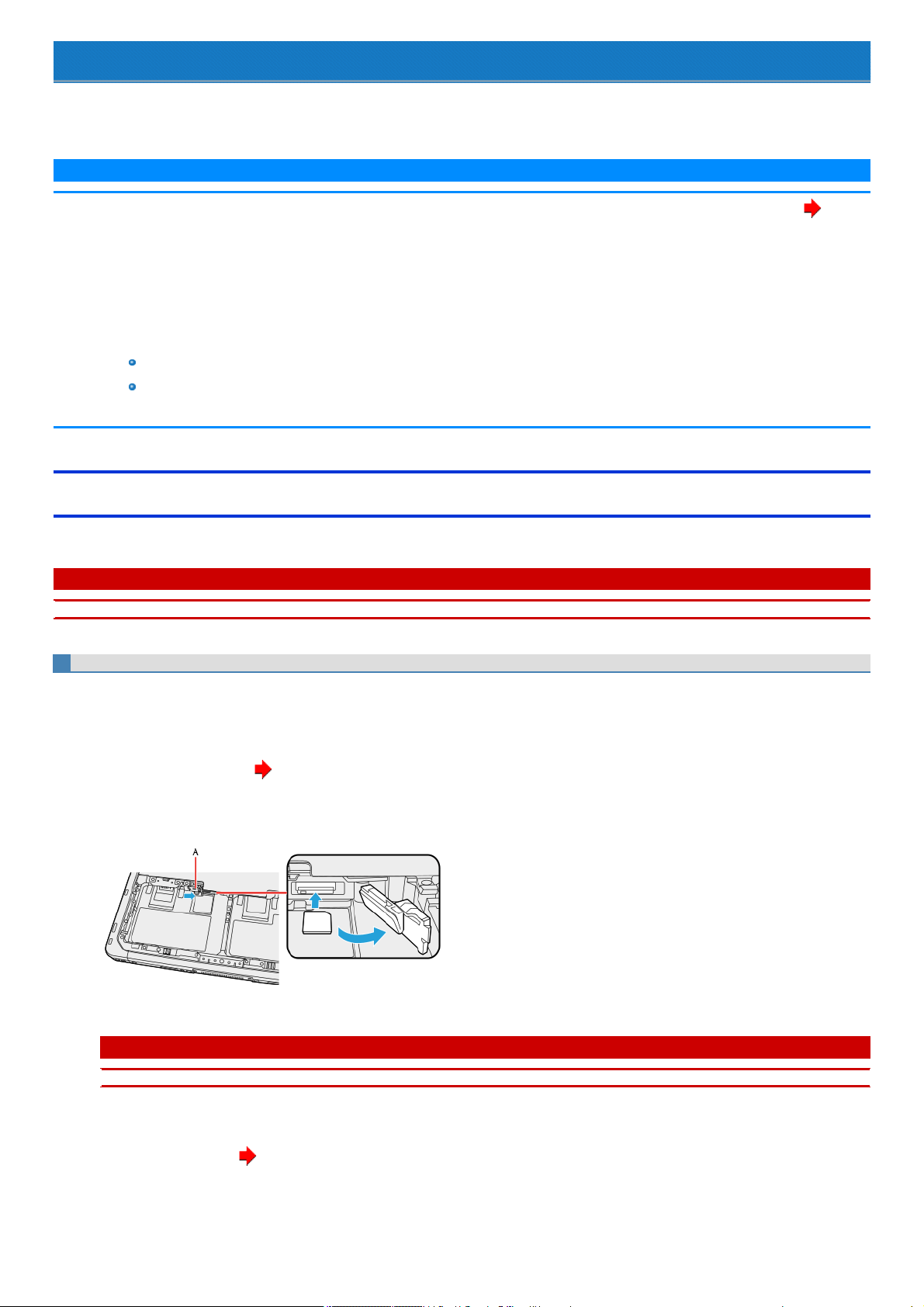
Wireless WAN
<Only for model with wireless WAN>
Thiscomputer isequipped with the Wireless WAN enabling you to communicate using radio frequencies.
N O T E
n
Communication is established through the Wireless WAN antenna. Do not block the antenna area with your hand or body. ( Descrip-
tion of Parts)
n To use wireless WAN, set [Wireless WAN] of [Wireless Configuration] to [Enabled] (default) in the [Advanced] menu of the Setup Utility.
n Before the computer enters sleep or hibernation, cut the Wireless WAN communication. Entering sleep or hibernation without cutting
the connection may disable communication after resuming. In this case, restart the computer.
n If "Device driver software was not installed correctly." (or a similar message) appears when starting the computer or resuming from
sleep or hibernation.
When communication worksnormally, Wireless WAN is operating correctly.
If communication fails, the device may not be recognized correctly. In thiscase, restart the computer.
n Do not use the nanoSIM card adapter.
Inserting/Removing a nanoSIM Card
Before using the Wireless WAN, set a nanoSIM card to the nanoSIM card slot.
C A U T I O N
n Be sure to turn off the computer before inserting or removing the nanoSIM card.
To insert a nanoSIM card
1. Turn off the computer.
Disconnect the AC adaptor.
2. Detach the tablet from the keyboard base.
3.
Remove the battery pack.( Replacing the Battery Pack)
4. Slide the lock cover (A).
5. Open the SIM card cover.
6. Insert the nanoSIM card into the nanoSIM card slot.
C A U T I O N
n Do not insert the nanoSIM card upside down.
7. Close the SIM card cover, and then close the lock cover.
8.
Insert the battery pack.( Replacing the Battery Pack)
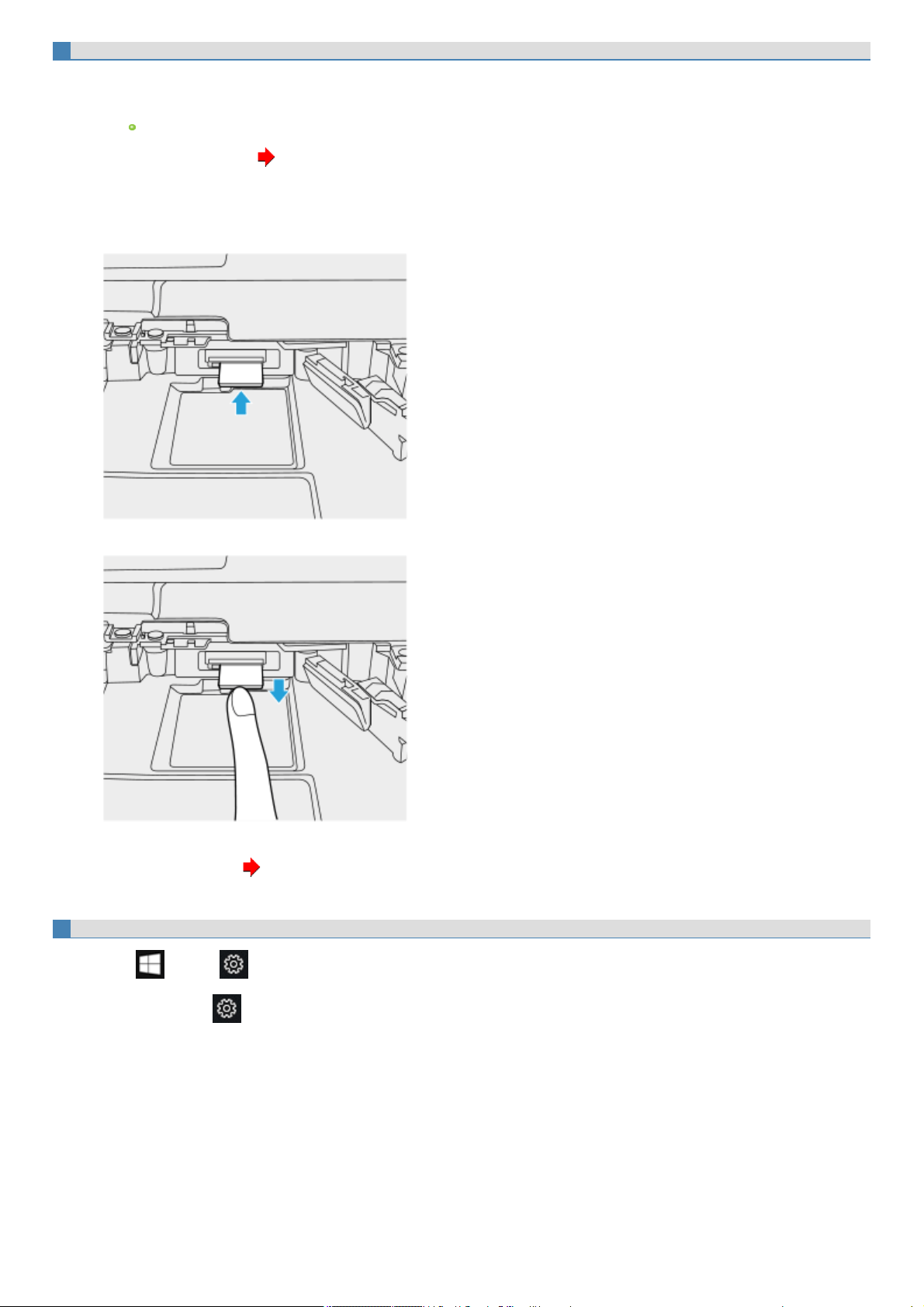
To remove a nanoSIM card
1. Turn off the computer.
2. Turn over the computer, and then open the cover.
Make sure no foreign objects are under the computer.
3.
Remove the battery pack. ( Replacing the Battery Pack)
4. Open the SIMcard cover.
5. Push the nanoSIM card.
It willcome out of the slot a little bit.
6. Pull the card all the way out as illustrated below.
7. Close the SIM card cover.
8.
Insert the battery pack. ( Replacing the Battery Pack)
Connecting to a network
1.
Click (Start) - (Settings) - [Network & Internet] - [Cellular].
Alternatively, click (Settings) - [Network & Internet] - [Cellular] in the tablet mode.
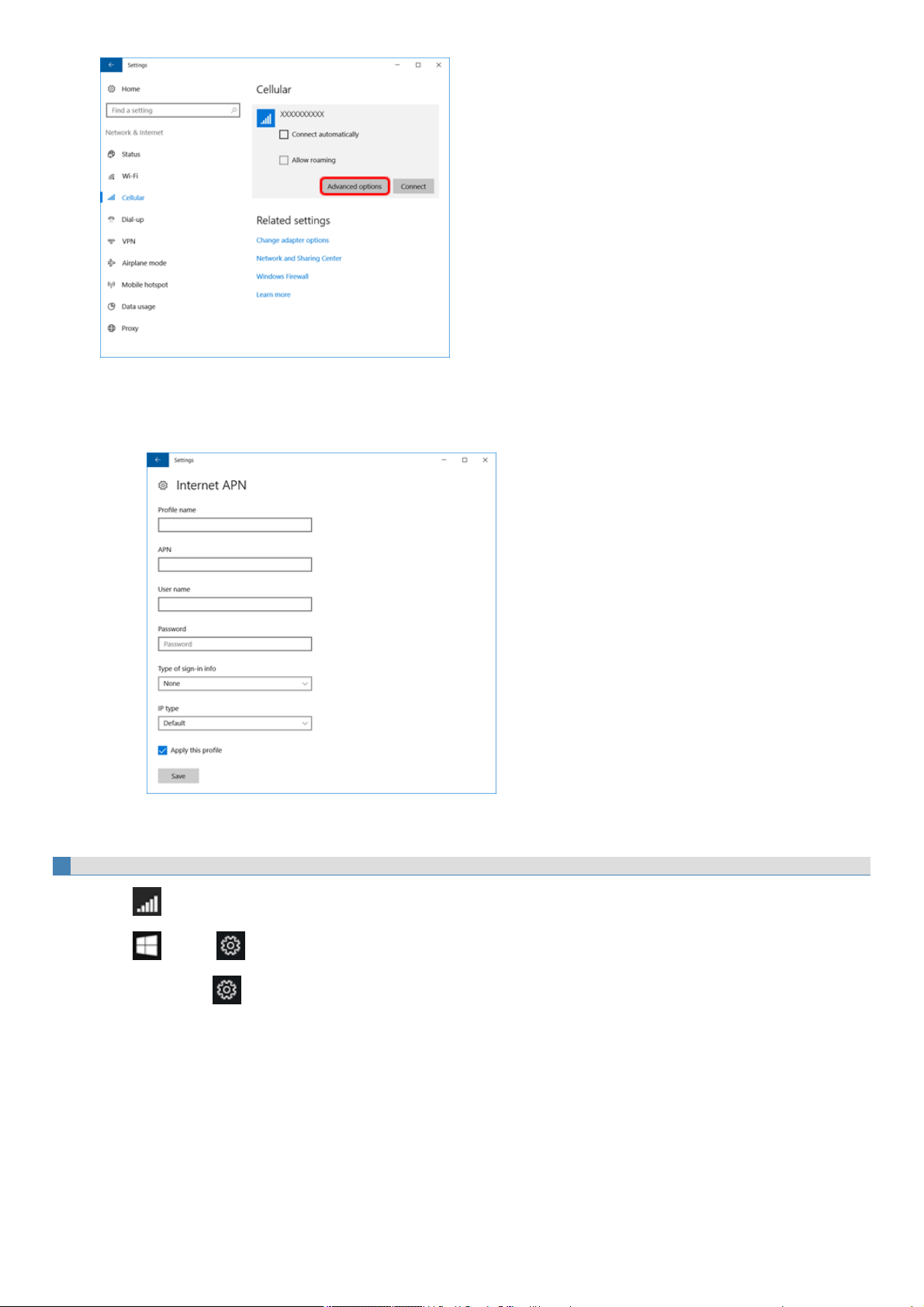
2. Click ISP under "Cellular".
3. Click [Advanced options], add an APN.
If an APN is not displayed under "Internet APN":
1. Click [Add an Internet APN].
2. Input detailed information such as APN, and then click[Save].
4. Click arrow upper left (return to previous page).
5. Select created APN profile, and then click [Apply].
Disconnecting to a network
1.
Click , and then click ISP.
2.
Click (Start) - (Settings) - [Network & Internet] - [Cellular], and then click ISP.
Alternatively, click (Settings) - [Network & Internet] - [Cellular] in the tablet mode, and then click ISP.

3. Click [Disconnect].
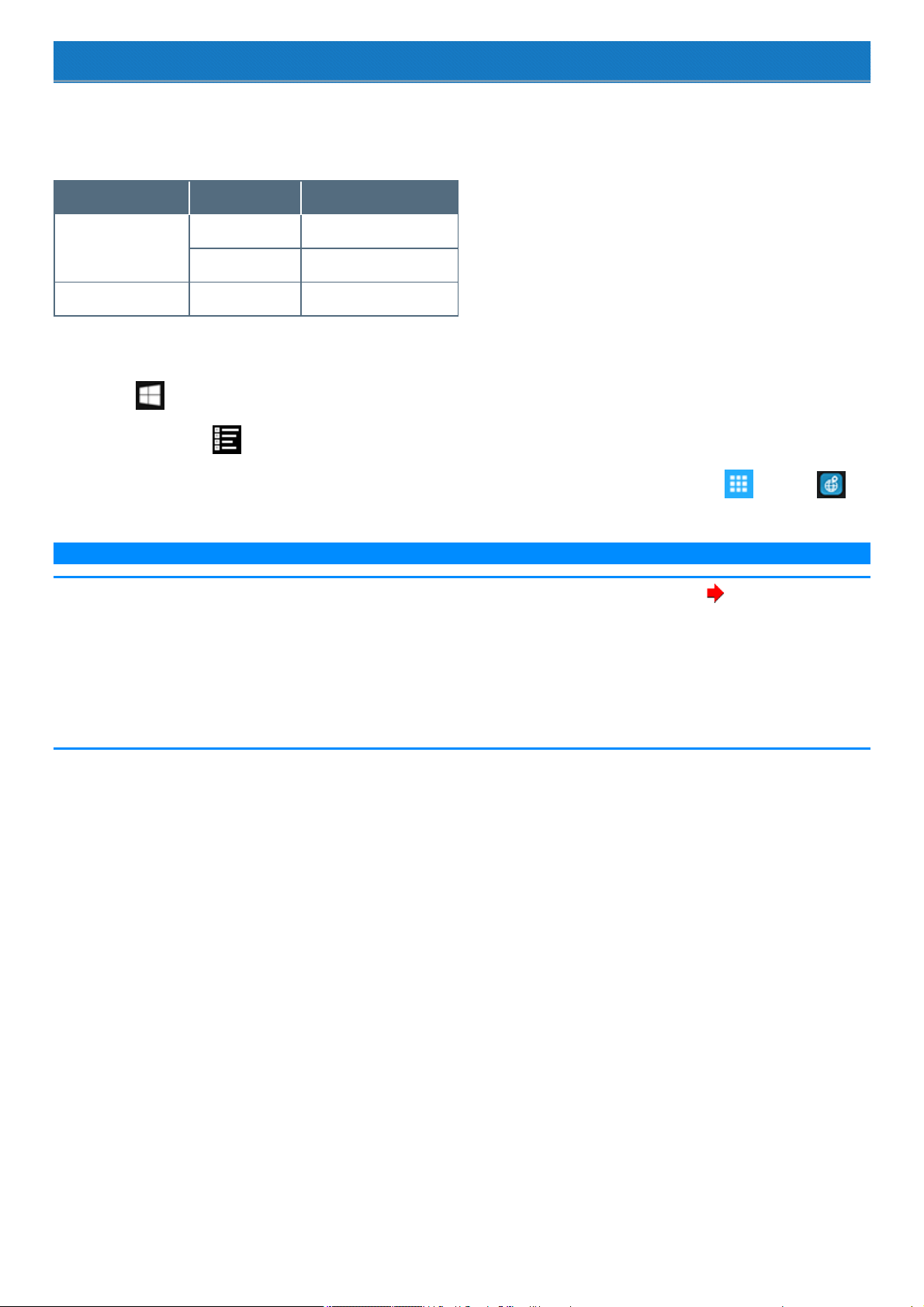
GPS
<Only for model with dedicated GPS / GPS on wireless WAN>
Thiscomputer has the GPS function with the wireless WAN module, and the dedicated GPS function.
For the differences, refer to the table below.
Devices Device name Support system
GPS on wirelessWAN EM7430/EM7455 GPS / GLONASS / BeiDou
EM7305/EM7355 GPS / GLONASS
Dedicated GPS Ublox8(M8N) GPS / GLONASS / SBAS
GPS information can be checked using the GPS Viewer.
To use the “GPS viewer”, proceed the following operation.
1.
Click (Start) - [Panasonic] - [GPS viewer].
Alternatively, click (All apps) - [Panasonic] - [GPS viewer] in the tablet mode.
You can start up GPS viewer from PanasonicPC Settings Utility. Launch PanasonicPC Settings Utility, and then click (Utilities) -
(GPS viewer).
N O T E
n
Communication isestablished through theGPS antenna. Do not block the antenna area with your hand or body. ( Description of Parts)
n When the u-blox Virtual COM Port is included in Ports (COM & LPT) under Device Manager, the following ports cannot be used.
For EM7430/EM7455:
Sierra Wireless SnapdragonTM X7 LTE-A NMEA Port
For EM7305/EM7355:
Sierra Wireless NMEA Port
Saving Power
You can extend battery life and save power also during AC adaptor usage.
Reducing Power Consumption
Use the methods below to reduce power consumption.
Use Panasonic PC Settings Utility to set the power plan to [Power saver].
When the power plan is changed, the display brightness, cooling fan rotation, and other items will be automatically switched to the recommended
mode in the plan. Furthermore, each configuration can be customized. ( Configuring Power Saving Settings)
Use Panasonic PC Settings Utility to reduce LCD brightness.
Reducing internal LCD brightness willreduce power consumption.
Furthermore power saving options:
Turn off the computer when it is not in use
You can also turn off only the wirelessLAN or wireless WAN power.
Disconnect external devices (USB devices, external mouse, etc.) that are not being used
Use Sleep/Hibernation
Press≪ Fn≫ + ≪ F7≫ to set the computer to sleep or ≪ Fn≫ + ≪ F10≫ to set it to hibernation when you have to leave the computer.
Thisshuts down computer operation to reduce power consumption.
Disable Wake Up from wired LAN function when it is not needed.
Thisreduces power consumption in Sleep/Hibernation.
To confirm current settings:
1.
Right-click (Start) at the bottom left corner, and then click[Device Manager].
2. Double-click the Ethernet device under “Network adapters”, and then click[Power Management].
3. Checkthe setting of [Allow thisdevice to wake the computer].
When using the battery, do not use applications that place a significant load on the CPU.
Some application software may place a large burden on the CPU only with start-up and may consume power.
When you are using the screen saver with 3D graphics, change to another screen saver
To change the screen saver, right-click the desktop, click[Personalize] - [Lock screen] - [Screen saver settings] and click the title of the screen
saver.
Power management using the ambient light sensor
You can set the operation, such as turning off the display when you clickthe ambient light sensor.
1.
Click (Start) - [Panasonic] - [PanasonicPC Settings Utility], and click (Settings) - (Power Management).
Alternatively, click (All apps) - [Panasonic] - [Panasonic PC Settings Utility], and click (Settings) - (Power Man-
agement) in the tablet mode.
2. Select an item under "Ambient light sensor power management options".
Turn off the display.
To resume, touch the screen.
Turn off the display and lock the computer.
To resume, touch the screen, and release the lock screen.
Launch the screen saver.
To resume, touch the screen.
N O T E
n This function works when the tablet has been detached from the keyboard base.
n This function does not work when you touch the ambient light sensor too short, or too long (approximately 2 seconds or more).
n This function works in a lighted environment.
n This function may malfunction under the environment subject to sudden changes of brightness. If a malfunction occurs, set the
option to [Do nothing](default).
Configuring Power Saving Settings
You can adjust the power plan to change power saving features as required.
Switching the power plan
1.
Click (Start) - [Panasonic] - [Panasonic PC Settings Utility], and click (Settings) - (Power Management).
Alternatively, click (All apps) - [Panasonic] - [Panasonic PC Settings Utility], and click (Settings) - (Power Man-
agement) in the tablet mode.
2. Add a checkmark to [Custom settings].
The custom settings menu will be displayed.
3. Set each item.
Customizing the Power Setting
You can choose the optimum power setting for your operating condition by selecting a power plan. You can also create your own power plan.
Changing the Power Plan Setting
1.
Click or on the task tray and click [Power & sleep settings] - [Additional power settings].
2. Click [Change plan settings] of the power plan you want to change.
3. Change the settings.
[Change advanced power settings]: You can make more detailed settings.
4. Click [Save changes].
Creating Your Own Power Setting
1.
Click or on the task tray and click [Power & sleep settings] - [Additional power settings].
2. Click [Create a power plan], click the basic plan and input the name of power plan.
3. Click [Next].
4. Change the settings and click [Create].
To change the settings or to make more detailed settings. ( Changing the Power Plan Setting)
Deleting the Power Plan
1.
Click or on the task tray and click [Power & sleep settings] - [Additional power settings].
2. Click [Change plan settings] of the power plan you wish to delete.
If the power plan you wish to delete is already selected, select another plan first.
3. Click [Delete this plan], and then click [OK] on the confirmation screen.

Security Measures
Use these features to protect your data.
Setting the Supervisor Password/User Password
Set the Supervisor Password before setting the User Password.
1.
Start up the Setup Utility. ( Starting the Setup Utility)
2. Select [Security].
3. Select [Set Supervisor Password] or [Set User Password], and press ≪ Enter≫ .
4. Enter your password in [Create New Password] and press ≪ Enter≫ .
When the password has been set, you need to enter your password in [Enter Current Password] and press ≪ Enter≫ .
To disable the password, leave the input field empty and press ≪ Enter≫ .
5. Enter your password again in [Confirm New Password] and press ≪ Enter≫ .
6. Press ≪ F10≫ , and press ≪ Enter≫ .
If you use on-screen keyboard, touch [SYM] - [F10] instead of pressing ≪ F10≫ .
C A U T I O N
n Do not forget your password. If you forget your Supervisor Password, you will not be able to use your computer. Contact Panasonic
Technical Support.
n When running the Setup Utility, do not leave and go away from your computer even for a short time, since other people may set or
change the password.
n When running the Setup Utility, inputting from the keyboard and on-screen keyboard is based on the English keyboard layout. Pay
attention of inputting if you use other keyboard layouts than English.
N O T E
n The password will not be displayed on the screen.
n If the [Caution] screen appears when entering the password, check the status of NumLock and CapsLock.
n You can use up to 32 alphanumeric characters (including spaces).
The case (upper/lower) is distinguished.
Use onlythe upper horizontal row of numeric keys to input your password.
You cannot use ≪Ctrl≫ to input a password.
n Disabling the Supervisor Password also disables the User Password.
Preventing Your Computer from Unauthorized Use
You can set a start-up password to protect your computer from unauthorized use.
1.
Set the password ( Setting the Supervisor Password/User Password), and select [Enabled] in [Password On Boot] and/or [Password On
Resume] in the [Security] menu of the Setup Utility.
N O T E
n The [Password On Resume] of Setup Utilityis effective when the computer was once shut down, and not effective when the computer resume
from sleep.
n If the Supervisor Password or User Password has been set, the password input screen will be displayed on starting-up of the Setup Utility even
though [Password On Boot] and/or [Password On Resume] is set to [Disabled]. If you set [Password On Boot] to [Enabled] and set [Password On
Reboot] to [Same as Boot], password input will also be required at Windows restart. ([Same as Boot] is the default setting.)

Preventing Your Flash Memory Data from Being Read or Written
The flash memory lock function protects the flash memory data from being read or written by removing the flash memory from the computer. (Note that
the flash memory lock does not guarantee complete protection of the data.)
1. Select [Enabled] in [Hard Disk Lock] in the [Security] menu of the Setup Utility.
C A U T I O N
n
You cannot use the flash memory lock function without setting the Supervisor Password. Set the Supervisor Password beforehand (
Setting the Supervisor Password/User Password).
n When you have your flash memory drive repaired
Contact PanasonicTechnical Support.
Before sending back the flash memory drive, be sure to set the [Hard Disk Lock] to [Disabled].
N O T E
n The flash memory lock function works with the built-in flash memory. It does not work with the external hard disk.
n We recommend you to set [Password On Boot] to [Enabled] to ensure security though it is not required to enable the flash memory lock.
n Note that the flash memory lock does not guarantee complete protection of the data.
Using Intel
®
Identity Protection Technology (Intel
®
IPT)
With Intel
®
IPT, a six-digit One-Time Password isgenerated every 30 seconds. Using this One-Time Password can perform two-factor authentication to
prevent unauthorized access. Thus, stronger authentication isenabled. To use Intel
®
IPT, a dedicated solution or application software provided by a ser-
vice provider isrequired.
For information about the using method, contact the service provider.
Other security measure
About Secure Boot
"Secure Boot" is a function that protects your computer by prohibiting Operating System other than those permitted under factory default con-
ditionsfrom being executed during startup.
(Thisfunction is enabled as the factory default.)
About TPM
<Only for model that supports TPM>
TPM (Trusted Platform Module) is a security chip aimed at high levelcryptographicprocessing and secure storage of encryption keys.
In the file encryption using the TPM, encryption keys can be stored on a TPM chip separated from the internal disk. This will allow you to increase
the securitylevel.
To use the TPM function, perform the following steps.
For more information about the usage, follow the instructions by a system administrator.
1.
Right-click (Start), and click[Control Panel] - [System and Security] - [BitLocker Drive Encryption].
2. Click [TPM Administration].
Windows Hello
Thisfunction is used to sign in to Windows quickly, or perform individual authentication.
<Only for model with camera with IR sensor>
The face recognition for Windows Hellos is supported.
To use Windows Hellos, perform the following steps for setup.

1.
Click (Start) - (Settings).
Alternatively, click (Settings) in the tablet mode.
2. Click [Accounts] - [Sign-in Options].
3. Click [Set up] under the "Windows Hello".
4. Follow the on-screen instructions.
N O T E
n To use Windows Hellos, you need to set the password and PIN for sign-in options.
n During face recognition, the IR sensor camera light turns on, and becomes hot. Do not touch the IR sensor section when the light is on,
and shortly after the light turns off.
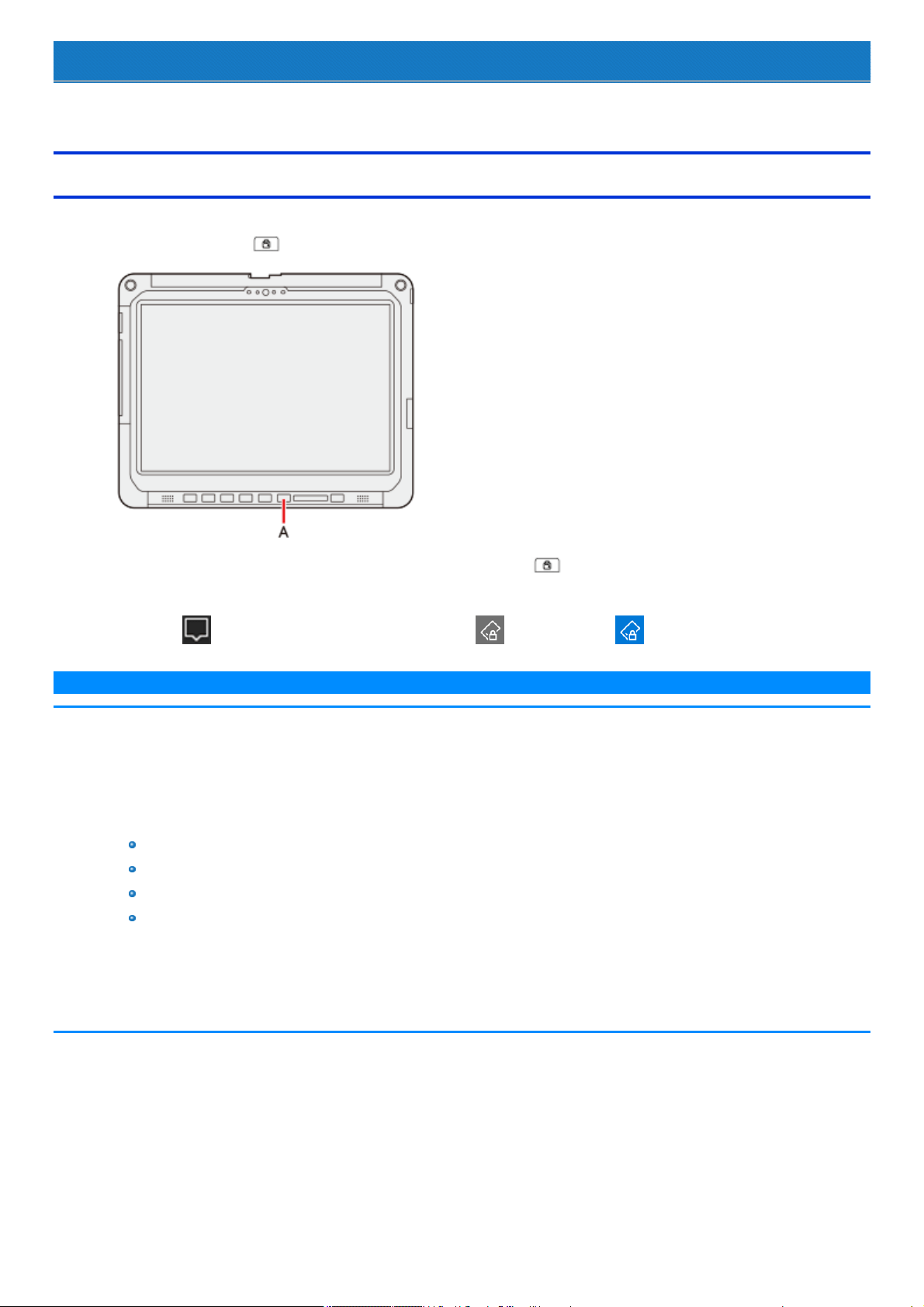
Display Rotation
The screen display rotates automaticallywhen this unit is the tablet or convertible mode.
Rotation Lock
The Rotation Lockbutton allows you to lock the screen display when this unit is the tablet mode.
1.
Press the Rotation button (A).
You can switch automatic rotation ON/OFF by pressing the Rotation Lock button (A).
Alternativelyyou can switch automaticrotation ON/OFF by the following procedure:
1.
Click (Notification) on the task tray, and then click (Rotation lock) or (Rotation lock).
N O T E
n When an external display is connected to the computer and the computer is rotated while in the “Duplicate” mode or “Extend” mode:
The screen display on the external display does not rotate.
The screen display on the internal LCD remains landscape, and does not rotate.
n To change the angle of the screen rotation manually, perform the following steps.
Right-clickthe desktop screen, and click[Display Settings].
n While the display is rotated:
Do not use the Extended Desktop. The touchpad or screen may not work properly.
Do not set the resolution larger than that of the internal LCD.
The computer's performance is slightly lowered.
The touchpad scrollfunctions do not work.
n When the display is rotated, the motion video may not be displayed correctly or the sound may be distorted. Return the display angle
to landscape.
n When you start up Windows and rotate the display right after signing in, the display may return to the previous state.
Then, the display returns to the rotated state. The similar situation will occur when you switch the user, computer resumes from Sleep-
/Hibernation and Windows is unlocked.
Concealed Mode
You can make your computer inconspicuously using the concealed mode.
You can select on/off of LCD backlight, LED, Sound, Wireless Radio and Backlit Keyboard.
C A U T I O N
n Concealed Mode is enabled as the factory default.
n The camera indicator cannot be turned off.
Switching the concealed mode
1.
Press ≪ Fn≫ + ≪ F8≫ ( Key Combinations).
N O T E
n If you press keys in succession, the Concealed Mode may not be switched. More than 4 seconds interval is necessary to switch
on/off.
Disabling/Enabling the concealed mode
Thisfunction is effective when the computer isrestarted.
Using Panasonic PC Settings Utility
1.
Click (Start) - [Panasonic] - [Panasonic PC Settings Utility], and click (Settings) - (Button / Key).
Alternatively, click (All apps) - [Panasonic] - [Panasonic PC Settings Utility], and click (Settings) - (Button / Key) in
the tablet mode.
2. Set to [Enabled]/[Disabled]under "Concealed Key", and then click [Apply].
3. If a confirmation message appears, click [Yes].
Restart the computer.
Using Setup Utility
1. Set [Concealed Mode] of [Concealed Mode Configuration] to [Enabled] or [Disabled] in the [Main] menu of the Setup Utility.
Change the settings
Thisfunction is effective when the computer isrestarted.
Using Panasonic PC Settings Utility
1.
Click (Start) - [Panasonic] - [Panasonic PC Settings Utility], and click (Settings) - (Button / Key).
Alternatively, click (All apps) - [Panasonic] - [Panasonic PC Settings Utility], and click (Settings) - (Button / Key) in
the tablet mode.
2. Set to [Enabled] under "Concealed Key".
3. Add a checkmark to "Advanced Settings"
4. Change the settings.
5. Click [Apply].
Restart the computer. The settings will be activated after restarting the computer.

Using Setup Utility
1. You can change the devices turned on/off in [Concealed Mode Configuration] with Setup Utility. You can change the trigger key in [Trig-
ger key].
N O T E
n When set [LCD Backlight] to [Minimum] and [LED] to [ON], the LED may become dark.
n When [LCD Backlight] is set to [OFF] (Panasonic PC Settings Utility / Setup Utility), touch operation is disabled.
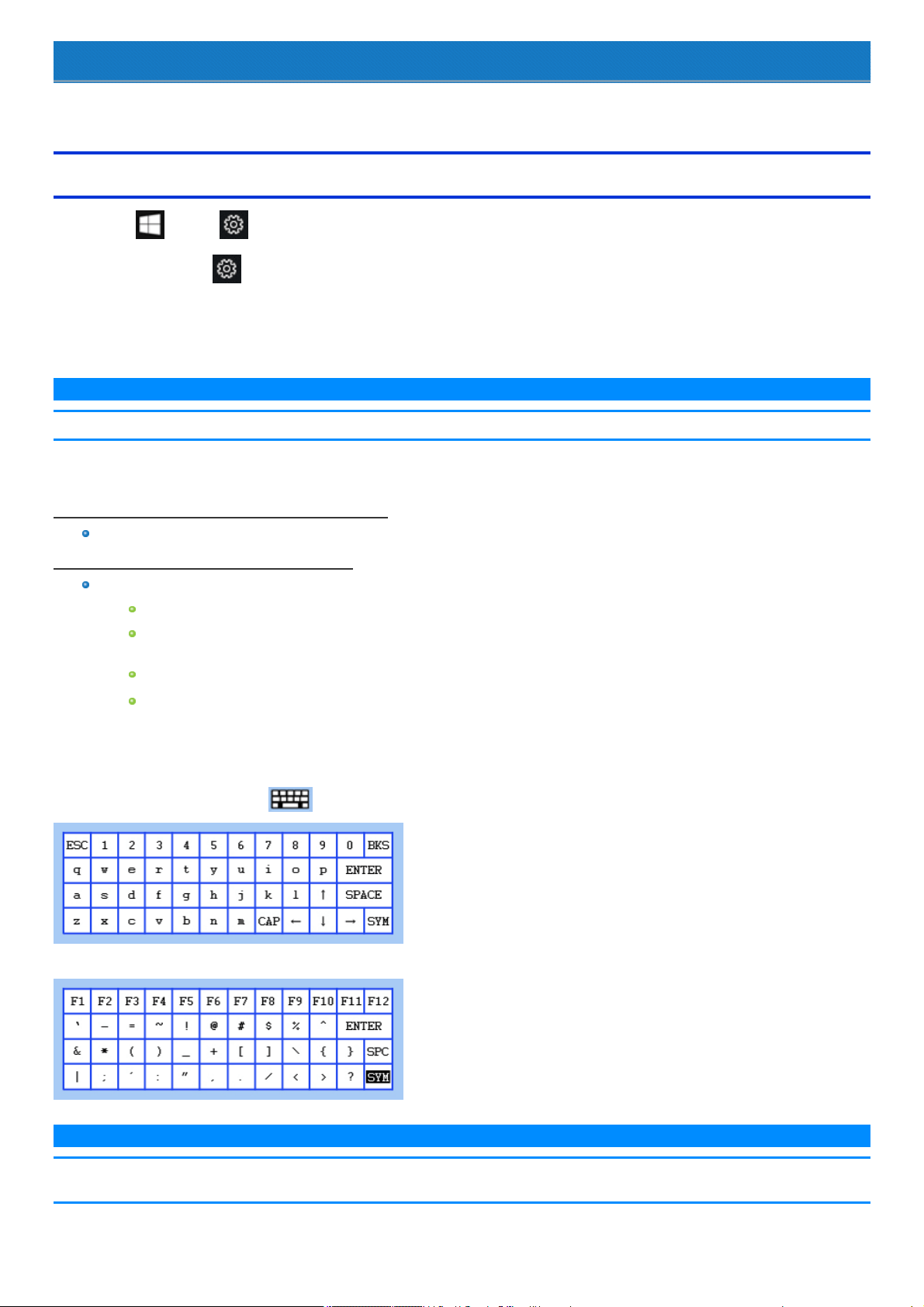
Setup Utility
You can make the settings of the computer's operating environment (password settings, startup drive selection, etc.)
Starting the Setup Utility
1.
Click (Start) - (Settings) - [Update & security] - [Recovery].
Alternatively, click (Settings) - [Update & security] - [Recovery] in the tablet mode.
2. Click [Restart now] under “Advanced startup”.
3. Click [Troubleshoot] - [Advanced options] - [UEFI Firmware Settings] - [Restart].
The computer restarts, and the Setup Utility screen appears.
N O T E
n When the fast startup is enabled, Setup Utility cannot be started by pressing ≪ F2≫ or ≪ Del≫ during the startup procedure.
When [Enter Password] isdisplayed, enter your password.
When you start the Setup Utility with Supervisor Password
You can make the settings of all items of the Setup Utility.
When you start the Setup Utility with User Password
Note the following:
In the [Advanced] and [Boot] menus, you cannot make the settings of all items.
In the [Security] menu, you can change only the User Password when [User Password Protection] is set to [No Protection]. You cannot
delete the User Password.
In the [Exit] menu, you cannot make the setting of [Load Default Values] and [Boot Override].
≪ F9≫ (Setup Defaults) does not function.
To set Setup Utility, alternatively you can use pen input and touch input.
Using touch screen:
Double-touch the setting value to be changed, select the new value, and touch it again.
Using on-screen keyboard:
To input characters and symbols, touch at the upper right corner of the Setup Utility screen to display the on-screen keyboard.
To operate special keyssuch as a function key, touch [SYM] on the on-screen keyboard so that the key ishighlighted as illustrated below.
N O T E
n Setup Utility screen isdisplayed on the internal LCD even when an external display is connected to the computer as the factory default. However,
if the LID (display) isclosed, it will come to be displayed on an external display.

n The [Panasonic] boot screen may not appear when only the external display isbeing used. In this case, as soon as the computer starts up, press
≪ F2≫ or ≪ Del≫ several times and start the Setup Utility.
n “Tablet” on the menu means the tablet.
Information Menu
Underlined items are the factory presets.
Language English
French
Japanese
Product Information
Model No
Serial No
Computer information (cannot be changed.)
System Information
Processor Type
Processor Speed
Memory Size
Available Memory
Hard Disk
Computer information (cannot be changed.)
BIOS Information
BIOS
BIOS Configuration
Embedded Controller
Intel(R) ME Firmware
Accumulative Operating Time
AccessLevel
Computer information (cannot be changed.)
Main Menu
Underlined items are the factory presets.
System Date
Day of the Week/Month/Day/Year.
You can use ≪ Tab≫ to move the cursor.
[xxx xx/xx/xxxx]
System Time
24-hr. style.
You can use ≪ Tab≫ to move the cursor.
[xx:xx:xx]
Main Configuration
10-Key Mode
Select the behavior of the 10-key area of the keyboard.
When [NumLock] isselected, the 10-key area worksas a number pad when
NumLock LED is on.
When [Fn Key] is selected, the 10-key area works as a number pad when the
≪ Fn≫ key is held, and NumLock LED is on.
NumLock
Fn Key
Ejection HotKey
Enable or disable hotkeyejection (≪ Fn≫ + ≪ Esc≫ key).
Disabled
Enabled
Application HotKey Disabled
Enabled
Tablet Button Configuration
The submenu appears when thisitem isselected.
Enter the sub-menu.
Sub-menu (Tablet Button Configuration)
A1 Button Disabled
Application1
Ctrl+Alt+Del
Concealed Mode Trigger
Preboot Key Binding
Key assignment during startup
Not Assigned
F1
F2
F3
F4
F5
F6
F7
F8
F9
F10
F11
F12
A2 Button Disabled
Application2 (Only for model without Barcode Reader)
Ctrl+Alt+Del
WirelessSwitch
Barcode Reader Trigger (Only for model with Barcode
Reader)
Preboot Key Binding
Key assignment during startup
Not Assigned
F1
F2
F3
F4
F5
F6
F7
F8
F9
F10
F11
F12
Up/DownButtons Disabled
Volume Up/Down
Brightness Up/Down
Windows Button Disabled
Enabled
Rotation Lock Button Disabled
Application3
Ctrl+Alt+Del
Barcode Reader Trigger
Rotation Lock
Preboot Key Binding
Key assignment during startup
Not Assigned
F1
F2
F3
F4
F5
F6
F7
F8
F9
F10
F11
F12
Esc
Table of Preboot Key Bindings
The settings for [A1 Button], [A2 Button], and [Rotation Lock Button] can be changed on [Tablet Button Configuration].
The settings for [Down Button], [UP Button] and [Windows Button] cannot be changed.
A1 Button
You can change the button assign. (
Tablet Button
Configuration)
A2 Button
You can change the button assign. (
Tablet Button
Configuration)
Down Button
Up Button
Windows Button
Rotation Lock Button
You can change the button assign. (
Tablet Button
Configuration)
LCD BrightnessMode
The lowest brightness is 2 cd/m
2
.
Normal Brightness
Low Brightness
Battery Charging Indicator On Continuous
Flashing
Power On AC Disabled
Enabled
WirelessAntenna Switching PC (built-in)
Auto
Concealed Mode Configuration
The submenu appears when thisitem isselected.
Enter the sub-menu.
Sub-menu (Concealed Mode Configuration)
Concealed Mode Disabled
Enabled
LCD Backlight
Can be changed only when [Concealed Mode] is set to [Enabled].
When [LCD Backlight] isset to [OFF], touch operation is disabled.
OFF
Minimum
ON
LED
Can be changed only when [Concealed Mode] is set to [Enabled].
Except for the camera indicator and the LED of external devices.
OFF
ON
Sound
Can be changed only when [Concealed Mode] is set to [Enabled].
OFF
ON
WirelessRadio
Can be changed only when [Concealed Mode] is set to [Enabled].
OFF
ON
Camera Light OFF
ON
Backlit Keyboard
Only for model with Backlit Keyboard
Can be changed only when [Concealed Mode] is set to [Enabled].
OFF
ON
Fan OFF
ON
TouchScreen OFF
ON
Barcode Reader OFF
ON
Trigger Key
Can be changed only when [Concealed Mode] is set to [Enabled].
Select the key combination to turn on/off the Concealed Mode.
When [F8] is selected, pressing ≪ F8≫ turns on/off the Concealed Mode.
When [Right Alt] is selected, pressing right ≪ Alt≫ turns on/off the Concealed
Mode.
When [A1 Button] is selected, pressing the A1 ( ) button turns on/off the
Concealed Mode.
Fn+F8
F8
Right Alt
A1 Button
FAN Diagnostics
Press≪ Enter≫ to start fan test.
To use this option, set [Concealed Mode] to [Disabled].
USB Charge Settings
Enter the sub-menu.
Sub-menu (USB Charge Settings)
Always on Charging Disabled
Enabled
QuickCharging Disabled
Enabled

Optional Kit Configuration
Normally do not change this setting.
Enter the sub-menu.
A separately provided password isrequired to enter the
sub-menu.
Advanced Menu
Underlined items are the factory presets.
CPU Configuration
The submenu appears when thisitem isselected.
Enter the sub-menu.
Sub-menu (CPU Configuration)
Intel(R) Hyper-Threading Technology Disabled
Enabled
Intel(R) Virtualization Technology Disabled
Enabled
Intel(R) VT-d Disabled
Enabled
Intel(R) Trusted Execution Technology
Can be changed only when [Intel(R) VT-d] is set to [Enabled].
Disabled
Enabled
Intel(R) Turbo Boost Technology 2.0 Disabled
Enabled
Intel(R) Software Guard Extensions Software Controlled
Enabled
Disabled
Peripheral Configuration
Serial Port Settings
The submenu appears when thisitem isselected.
Used to configure the serialport.
Displayed only for model with serial port of tablet.
Enter the sub-menu.
Sub-menu (Serial Port Settings)
Serial Port Disabled
Enabled
Auto
Tablet LAN
Only for tablet
Disabled
Enabled
Power On by LAN
Can be changed only when [Tablet LAN] is set to [Enabled].
Deny
Allow
WirelessConfiguration
The submenu appears when thisitem isselected.
Enter the sub-menu.
Sub-menu (Wireless Configuration)
WirelessLAN
Only for model with wireless LAN
Disabled
Enabled
WirelessWAN
Only for model with wireless WAN
Disabled
Enabled
Bluetooth
Only for model with Bluetooth
Disabled
Enabled
GPS
Only for model with dedicated GPS
Disabled
Enabled
Ext Antenna Select
Only for model with External Antenna
The number of antennas used in devicesto which the external antenna iscon-
nected can be specified. The settings of the selected items are displayed below.
N O T E
n This computer always has two channels for the external antenna.
The settings of the antenna that is not displayed on the screen are
also enabled.
n Single setting works only for the vehicle dock with one external
antenna.
Single
Dual
Ext Antenna 1 <When Ext Antenna Select isSingle (Only for model with
GPS on wirelessWAN)>
WWAN main
WWAN GPS
NONE
<When Ext Antenna Select isSingle (Only for model with
dedicated GPS)>
GPS
WWAN main
NONE
<When Ext Antenna Select isDual (Only for model with
GPS on wirelessWAN)>
WWAN main
NONE
<When Ext Antenna Select isDual (Only for model with
dedicated GPS)>
WWAN main
NONE
Ext Antenna 2 <When Ext Antenna Select isDual (Only for model with
GPS on wirelessWAN)>
WWAN GPS
WWAN sub
NONE
<When Ext Antenna Select isDual (Only for model with
dedicated GPS)>
GPS
NONE
microSD Card Slot
Only for tablet
Disabled
Enabled
Extension Port Disabled
Enabled
Tablet USB Port Disabled
Enabled
Keyboard Base USB Port Disabled
Enabled
SuperSpeed USB Configuration
Left Port of Tablet Disabled
Enabled
Keyboard Base and Port Replicator Disabled
Enabled
Legacy USB Support Disabled
Enabled
Camera Configuration
Camera (Front)
Only for model with front camera
Disabled
Enabled
Camera (Rear)
Only for model with rear camera
Disabled
Enabled
Boot Menu
Underlined items are the factory presets.
Boot Mode
If the startup from USB devicesis not possible, set [Compatible] and retry.
However, setting [Compatible] will require longer time to display the Windows
boot screen than setting [Normal].
Normal
Compatible
UEFI Priorities
The sub-menu appears when this item is selected.
Enter the sub-menu.
UEFI Priorities
Boot Option #1 - #5 Windows Boot Manager
Recovery Partition
UEFI: IP4 Intel Ethernet Connection ...
Windows Recovery Environment
UEFI: IP6 Intel Ethernet Connection ...
Disabled
UEFI Boot Device Control
Set whether to enable or disable the startup of each device.
UEFI Boot from Hard Disk Disabled
Enabled
UEFI Boot from LAN Disabled
Enabled
UEFI Boot from USB Disabled
Enabled
To change the boot order
[Boot Option] for [UEFI Boot Device Control] shows the boot device recognized by Firmware (BIOS).
Boot from a device or not can be selected at [UEFI Priorities], device by device.
You can select the boot device during start-up of the computer, too. Press ≪ Esc≫ soon after [Panasonic] boot screen isdisplayed. [Boot Menu]
appears and you can select the device. To use this function, set [Boot Popup Menu] to [Enabled].
Security Menu
Underlined items are the factory presets.
Boot Prompt Configuration
Boot Popup Menu Disabled
Enabled
Password On Boot
The shutdown when the fast startup isenabled, thisfunction is ineffective.
Disabled
Enabled
Password On Reboot Disabled
Same as Boot
Password On Resume
Can be changed only when [Password On Boot] isset to [Enabled].
Thisfunction is effective when the computer isrestarted after a shutdown (when
fast startup isenabled) and when the computer resumes from hibernation, but
not when it resumes from sleep.
Disabled
Enabled
Set Supervisor Password Enter the sub-menu.
Hard Disk Lock
Can be changed only when [Set Supervisor Password] isset.
Disabled
Enabled
User Password Protection No Protection
Protected
Set User Password
Can be changed only when [Set Supervisor Password] isset.
Enter the sub-menu.
SW KB Support for Encryption Disabled
Enabled
Profile Selection
Can be changed only when [SW KB Support for Encryption] is set to [Enabled].
1 field
2 fields
SW KB Support for BitLocker Disabled
Enabled

Embedded Security(TPM)
Only for model that supports TPM.
Can be changed only when [Set Supervisor Password] isset.
Sub menu items:
Sub-Menu Protection
TPM State (Depending on the models, this item isnot displayed.)
Pending TPM operation
When [Clear TPM Owner] is selected, clear owner information in the
TPM chip.
Use for discarding and transferring this product.
If you select [Clear TPM Owner] when the BitLocker is effective, you
may need to reinstallOS.
Current TPM Status Information (Depending on the models, this item is
not displayed.)
Enter the sub-menu.
AMT Configuration
Only for model that supports Intel(R) AMT.
Can be changed only when [Set Supervisor Password] isset.
Enter the sub-menu.
Fingerprint Security
Sub menu items:
Sub-Menu Protection
Power-on Security
Enter the sub-menu.
Secure Boot
The submenu appears when thisitem isselected.
If you change factory default setting, preinstalled-OS may not operate correctly.
Enter the sub-menu.
Exit Menu
Save Values and Reboot To reboot the system after saving the changes.
Reboot Without Saving Changes To reboot the system without saving the changes.
Save Options
Save Current Values To save the changes for allSetup options.
Load Previous Values To load previous values for allSetup options.
Load Default Values To return the settingsto the default values.
Boot Override
Recovery Partition Erase your flash memory or restore the computer to its original factory default image.
Windows Recovery Environment Boot from Windows Recovery Environment
UEFI: IP4 Intel Ethernet Connection ... Boot from LAN device (IP4)
UEFI: IP6 Intel Ethernet Connection ... Boot from LAN device (IP6)
Windows Boot Manager Boot from preinstalled OS
Depending on the hardware constructions, some device names are different.

Diagnostic Utility
Execute Diagnostic Utility.

Handling and Maintenance
Operation environment
Place the computer on a flat stable surface not subject to shock, vibration, and danger of dropping. Do not place the computer upright or turn it
over. If the computer is exposed to an extremely strong impact, it may become damaged.
Operating environment
Temperature:
Operation : -10 °C to 50 °C {14 °F to 122 °F} (IEC60068-2-1, 2)
*1
Storage : -20 °C to 60 °C {- 4 °F to 140 °F}
Humidity:
Operation : 30% to 80% RH (No condensation)
Storage : 30% to 90%RH (No condensation)
Even within the above temperature/humidity ranges, operation for a long time in extreme environments, smoking nearby, or operation in places
where oilis used or where there is a lot of dust will result in the product deterioration and will shorten the product life.
If the computer is wet in temperatures of 0 °C {32 °F} or below, freeze damage may occur. Make sure to dry off the computer in such tem-
peratures.
*1 : Do not expose the skin to this product when using the product in a hot or cold environment.
Do not place the computer in the following areas, otherwise the computer may be damaged.
Near electronicequipment. Image distortion or noise may occur.
In extremelyhigh or low temperature.
As the computer can become hot during operation, keep it away from items that are sensitive to heat.
Handling cautions
Thiscomputer isdesigned to minimize shock to parts such as the LCD and the flash memory drive and equipped with a drip-proof keyboard, but no war-
ranty is provided against any trouble caused by shock. Be extremely careful when handling the computer.
When carrying the computer:
Turn off the computer.
Remove all external devices, cables and other protruding objects.
Do not drop or hit the computer against solid objects.
Do not leave the display open.
Do not grip the display part.
Do not put anything (e.g., a piece of paper) between the display and keyboard.
When you board an airplane, take the computer with you and never put it in your checked luggage.
When using the computer on airplane, follow the airline’s instructions.
When carrying a spare battery, put it in a plastic bag to protect its terminals.
Be careful not to get injured by dropping or getting hit when carrying the computer.
The touchpad is designed to be used by fingertip. Do not place any object on its surface and do not pressdown strongly with sharp-pointed or
hard objects that may leave marks (e.g., nails, pencils and ballpoint pens).
Avoid any harmful substances such as oil from getting into the touchpad. The pointer may not work correctly.
Touch the screen with the pen (included) or your fingers.
When touching the screen, use only the pen (included) or your fingers on the surface.
Touching the screen with an object other than the pen (included) or your fingertip (a fingernailor metal object, or other hard or sharp objects that
may leave a mark) may scar or stain the surface, causing the malfunction.
Do not apply too much pressure when operating the screen.
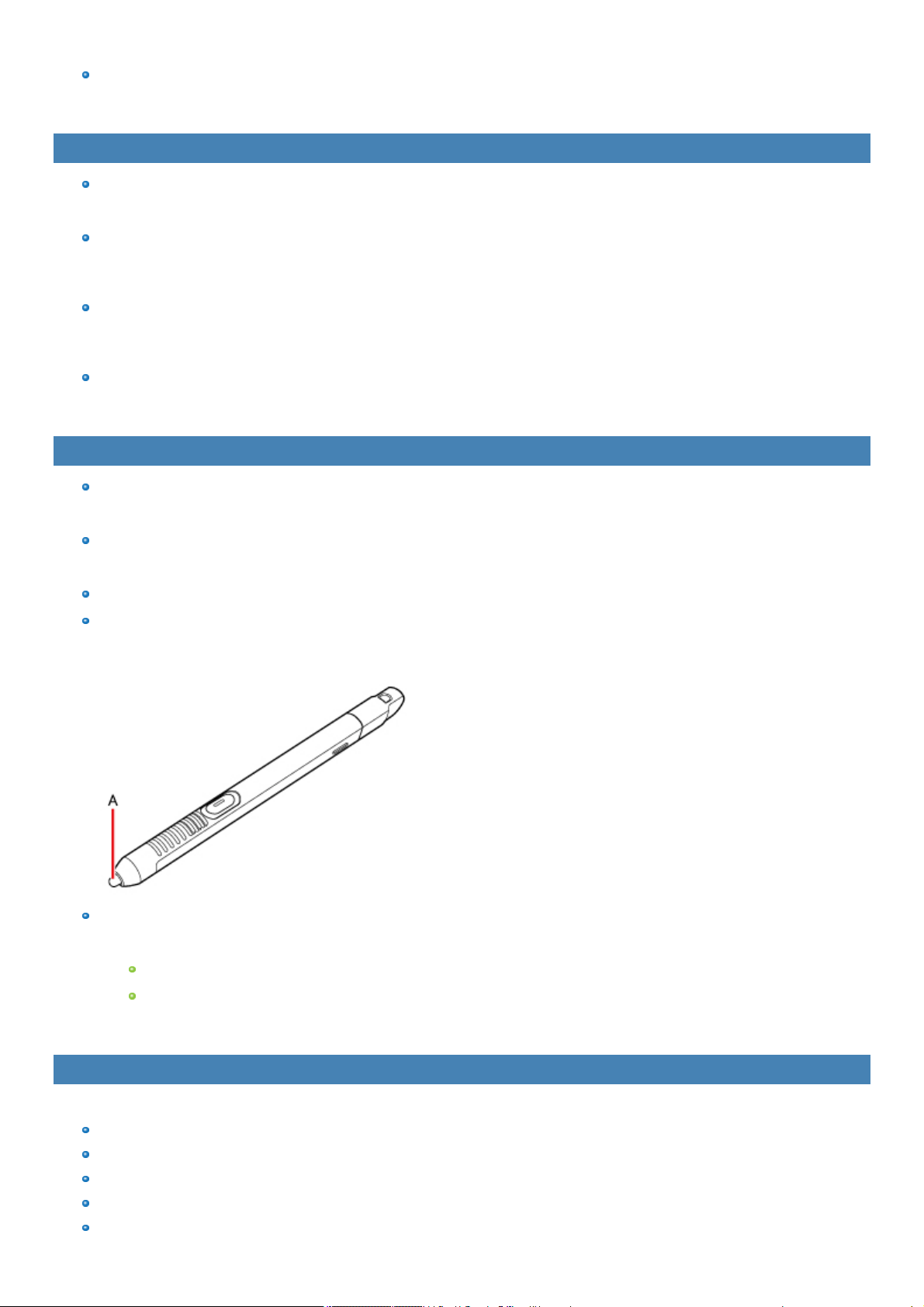
Only a light touch is required to operate the screen. Applying too much pressure may damage the surface.
Do not use the screen when dust or dirt (e.g., oil) ison the screen.
Otherwise foreign particles on the screen/pen (included) can scratch the screen surface or obstruct the pen (included) operation.
Handling the screen
Do not apply strong pressure to the screen outside of the LCD display.
Applying strong pressure to the screen outside of the display area may result in malfunctions or damage to the LCD screen.
Do not apply excessive force to the screen.
Do not lift the computer while holding the LCD screen, or allow the screen to be twisted. Do not place any objects on the LCD screen. Any of the
above may cause the screen glass to break, or may damage the LCD screen.
Operation response may be slower in low temperature environments.
The screen may respond to operations more slowlywhen using the computer in temperatures less than 5 °C, but this is not a malfunction.
Response time will return to normal when the computer is returned to room temperature.
If the pointer jumps to a location other than where the screen was touched, or if the LCD resolution changes, recalibrate the screen.
Perform the procedure of "Calibrating the Screen".
Handling the pen (included)
Clean the pen (included) tip and screen prior to operation.
Foreign particles can scratch the screen and impede the operation of the pen (included).
Use the pen (included) onlyfor touching the screen.
Using it for any other purpose may damage the pen (included) and result in scratches on the screen.
The pointer cannot follow the pen (included) movement if you move the pen (included) too quickly.
Do not apply excessive force to the tip of digitizer pen.
The tip of the digitizer pen (A) isequipped with a sensor. Continued applied pressure to the tip may result in its malfunction or degradation. Make
sure excessive pressure is not applied to the tip when storing the digitizer pen.
The digitizer uses electromagnetic induction and may not work properly near strong electrical field or magnetic field.
such as:
Near AM radio base station or relay station antennas
Near CRT displays that generate strong electromagnetic field noise
Move the digitizer away from such locations so it will work properly.
When using peripheral devices
Follow these instructions and thisManual to avoid any damage to the devices. Carefully read the instruction manuals of the peripheral devices.
Use the peripheral devicesconforming to the computer’s specifications.
Connect to the connectors in the correct direction.
If it ishard to insert, do not try forcibly but check the connector’s shape, direction, alignment of pins, etc.
If screws are included, fasten them securely.
Remove the cables when you carry the computer. Do not pullthe cables forcibly.
Preventing your computer from unauthorized use via wireless LAN/Bluetooth/wireless WAN
<Only for model with wireless LAN/Bluetooth/wireless WAN>
Before using wirelessLAN/Bluetooth/wireless WAN, make the appropriate security settings such as data encryption.
When the battery indicator does not light on
The battery indicator may not light on even if the AC adaptor and the battery pack are correctlyconnected to the computer, due to the following reasons.
The AC adaptor’sprotection function may be working. In this case, pullout the AC cord and wait for more than 1 minute before reconnecting the
AC cord.
Sensors
Thiscomputer isequipped with four sensors (acceleration sensor, gyro sensor, magnetic sensor, ambient light sensor), and you can use these sensors
with any software that is compatible.
As the accuracy of each sensor output isdependent on the operating environment and other conditions, the resultsshould only be used as a reference.
The acceleration sensor, gyro sensor, and magneticsensor are located at the bottom left of the LCD. The detection results of each sensor may vary
depending on how you are holding the computer, the application software you are using, and other factors.
Automatic brightness adjustment
The computer is equipped with an automaticbrightnessadjustment function that adjusts the display screen based on the ambient light sensor. You can
configure the automatic adjustment function as follows.
1.
Click (Start) at the bottom left corner, and then click (Settings) - [System] - [Display].
Alternatively, click (Settings) - [System] - [Display] in the tablet mode.
2. Set [Change brightness automatically when lighting changes] to [On].
C A U T I O N
n The [Change brightnessautomatically when lighting changes] item may not be available in some cases. In such cases, click the arrow to the left of
[Settings] at the top left of the screen, and perform the operation from [System] - [Display] again.
The ambient light sensor is located at the top of LCD.
The ambient light cannot be detected properly if this area isobstructed or dirty.
Magnetic sensor
The magnetic sensor on the computer operates by detecting geomagnetism. Therefore, the magnetic sensor may not function properlyand it readings
may be inaccurate, especially in the following environments.
Inside or near steel structures such as buildings or bridges
Inside or near automobiles, or near train power lines
Near metallic furniture or appliances
When the AC adaptor or other peripheral devices are brought closer to the computer
Near magnets, speakers, or other objects with strong magneticfields
The magnetic directions indicated by the magnetic sensor may not be accurate immediately after purchase or in environments with poor magneticfields.
In such cases, turn on the computer and move it as follows.
1. Hold the computer so that its screen side isfacing upward and level.
2. While keeping the computer level, rotate it 90 degrees or more clockwise.
3. Return the computer to position 1, and rotate it 90 degrees or more counterclockwise.
4. Return the computer to position 1.
5. Tilt the computer 90 degrees or more to the left so that the left side of the computer tilts down.
6. Return the computer to position 1, and tilt it 90 degrees or more to the right so that the right side of the computer tilts down.
C A U T I O N

n Hold the computer firmly when moving it. Strong shocks from dropping the computer may result in damage.
Maintenance
Cleaning the LCD panel
The screen isspeciallytreated to prevent dirt from adhering to the surface. Also, to improve the outdoor visibility of the display, a low reflection coating has
been added.
When removing the dirt on the screen surface, use only an approved soft cloth (included) in order to avoid scratches and peeling of the coating.
Before using the computer, be sure to read the instructions provided below.
Be sure to wipe the LCD display to remove fingerprints, etc., with the soft cloth.
The included soft cloth isdesigned for cleaning the LCD surface. Do not wipe areas other than the LCD display with it.
How to use the soft cloth
Use the soft cloth when it is dry. Do not apply water or solvents to the soft cloth.
First, lightly wipe foreign particlesand dust adhering to the LCD display on one side of the soft cloth. Do not use force, since the LCD sur-
face may be damaged with the foreign particles or dust.
Next, wipe off fingerprint, etc., with the other side of the soft cloth.
After wiping off foreign particlesand dust, wash the soft cloth (refer to the following) to remove the foreign particles and dust from the
soft cloth.
When the soft cloth becomes dirty, wash it with neutral detergent. Do not use bleach or a fabric conditioner (softener), or carry out ster-
ilization by boiling.
If the LCD gets wet, wipe the surface lightly with the soft cloth.
While wiping the LCD display, the computer must be turned off.
Clean the screen while the computer is powered off.
Cleaning the screen while the power is on may cause the computer to malfunction. Also, dirt on the screen is easier to see when the computer is
powered off, and so is easier to clean.
Wash the soft cloth when it becomes dirty.
When the soft cloth becomes dirty, wash it with mild detergent. Do not use bleach or fabric conditioner (softener), or try to sterilize the cloth by boil-
ing.
If the soft cloth isdirty, it may be ineffective in cleaning the screen, and in fact may cause dirt to adhere to the screen.
Checkthe following to prevent the surface of the screen from being scratched.
Are you using your fingers or the pen (included) to operate the screen?
Is the surface clean?
Is the soft cloth clean?
Are you using the pen (included) with the tip extended?
Is the tip of the pen (included) clean?
Are your fingers clean?
Cleaning areas other than the LCD panel
Wipe with a soft dry cloth such as gauze. When using detergent, dip a soft cloth in water-diluted detergent and wring it thoroughly.
C A U T I O N
n Do not use benzene, thinner, or rubbing alcohol since it may adversely affect the surface causing discoloration, etc. Do not use commercially avail-
able household cleaners and cosmetics, as they may contain components harmful to the surface.
n Do not applywater or detergent directly to the computer, since liquid may enter inside of the computer and cause malfunction or damage.
n Use a soft, dry cloth to wipe droplets of water from the surface of the unit. Do not use a microwave to dry the unit. Doing so will result in

malfunction or damage.
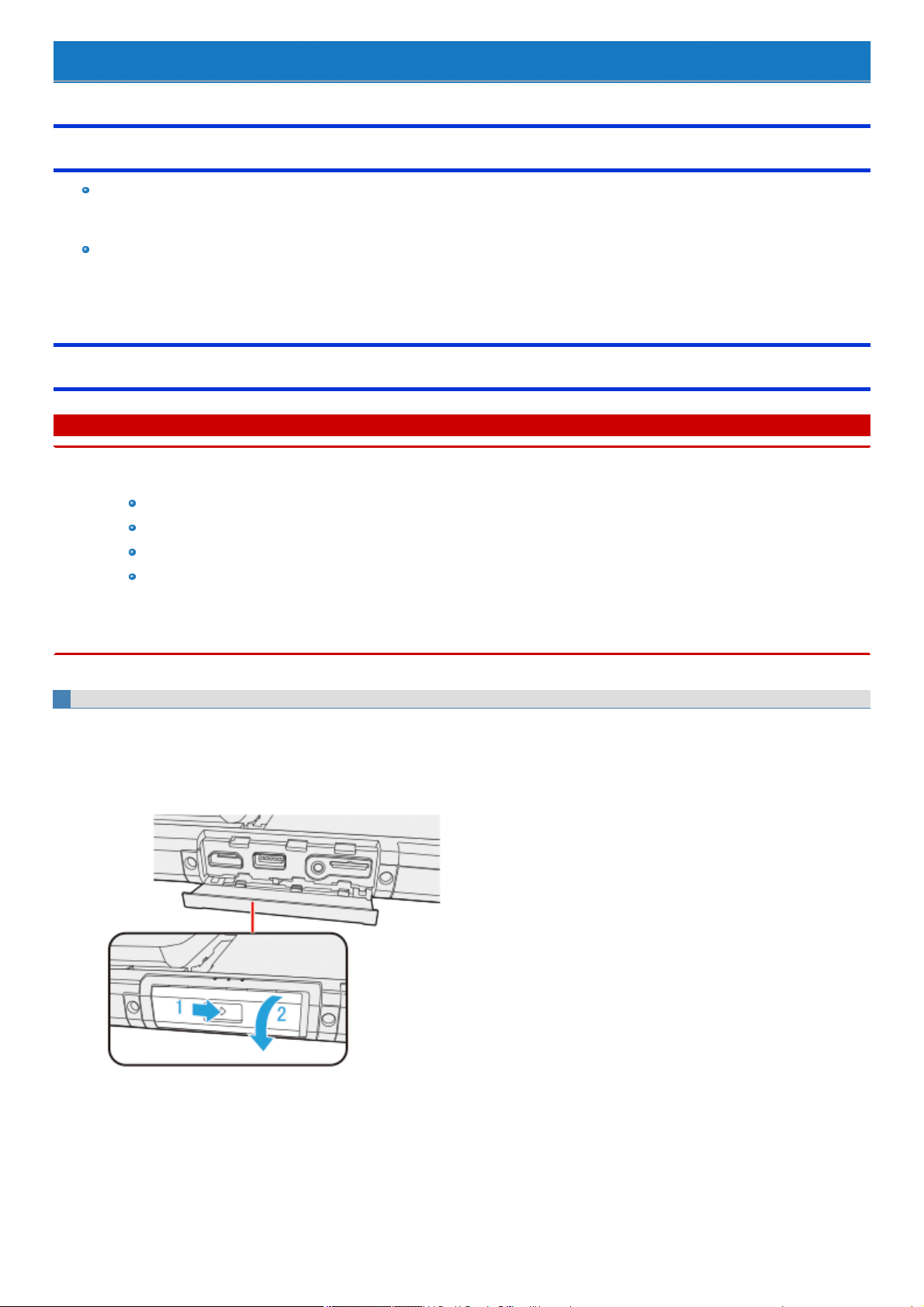
SD Memory Card
SD Memory Card Information
The SD Memory Card slot on this computer accepts SD/SDHC/SDXC and microSD/SDHC/SDXC Memory Cards.
Tablet has a microSD memory card slot.
Keyboard base has a SD memory card slot.
To use the SD Memory Card on other devices, format the card on the devices. For more details on how to format the card on Windows, refer to
our website below.
http://panasonic.jp/support/global/cs/sd/download/sd_formatter.html
Inserting/Removing the SD Memory Card
C A U T I O N
n Do not remove or insert the SD Memory Card until Windows has completed loading.
n Do not remove the card or turn off the computer in the following cases, otherwise the data may be corrupted.
While the computer is in sleep or hibernation.
While the SD Memory Card indicator is on.
While data is being read from or written to the card.
Immediatelyafter the writing operation. The computer may stillcontinue the accessto the card just after writing operation. If you remove
the card before the operation is completed, the data may be damaged or the card accessmay no longer be performed normally.
n Note that Panasonic assumes absolutely no liability for any loss of data recorded by the user, or any other damages, direct or indirect.
n Cards Away from Infants and Small Children.
To insert the card
1. Slide the cover to the arrow direction.
The cover isunlocked.
2. Open the cover.
Tablet
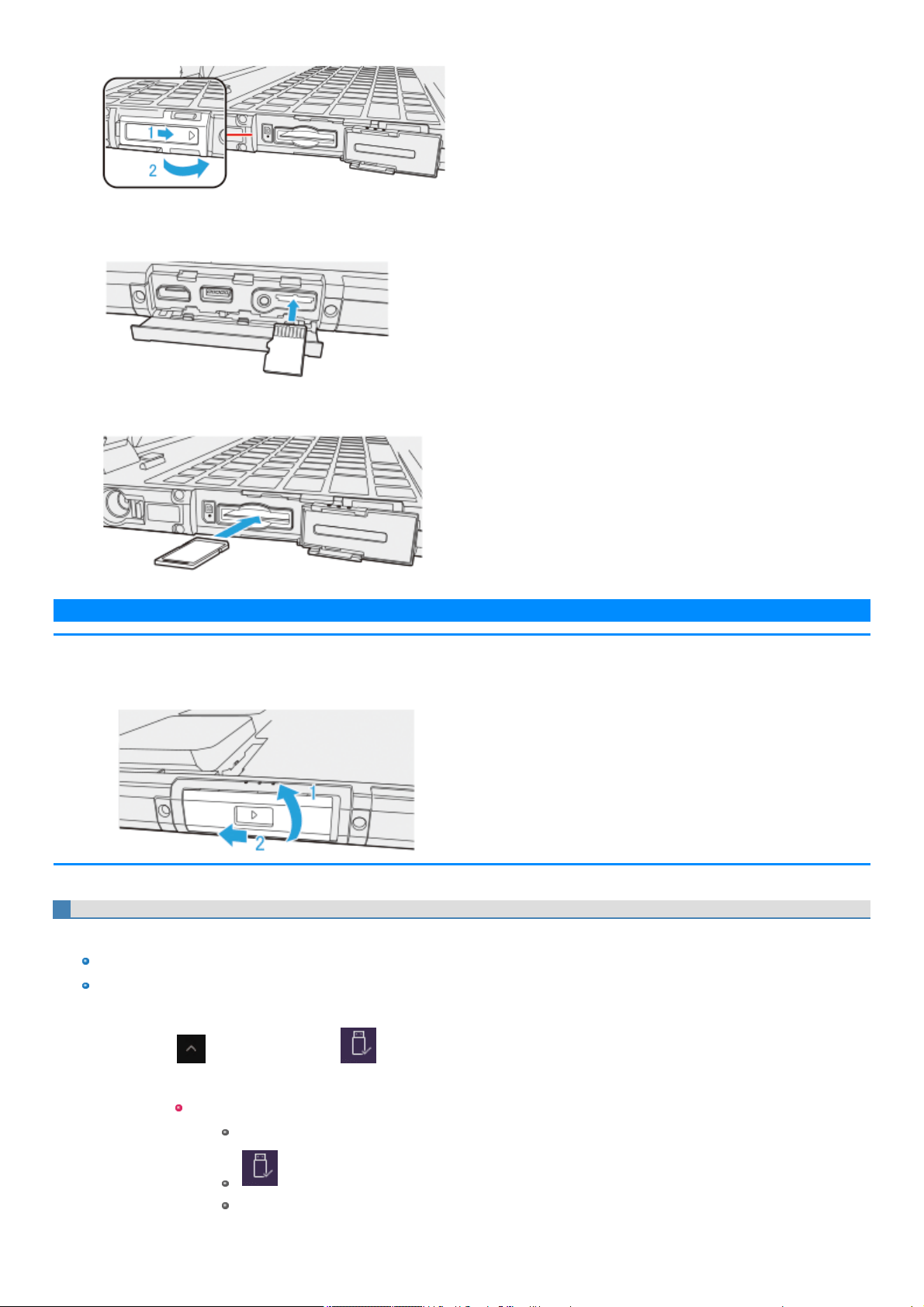
Keyboard Base
3. Insert the SD Memory Card.
Tablet
Confirm that the label side is facing down.
Keyboard Base
Confirm that the label side is facing up.
N O T E
n While pressing the cover, slide and close it securely as described in the illustration below. After that, make sure that the cover has
been closed properly.
(The illustration shows the cover on the tablet, for example.)
To remove the card
Preparation
Save the data and close all applications.
Open the cover and confirm the SD Memory Card indicator (A) is off.
1. Disable the card function.
1.
Click on the tasktray and click .
2. Select the card.
These steps are not necessary when:
Remove the card after turning off the computer.
is not displayed.
The card does not appear in the list.
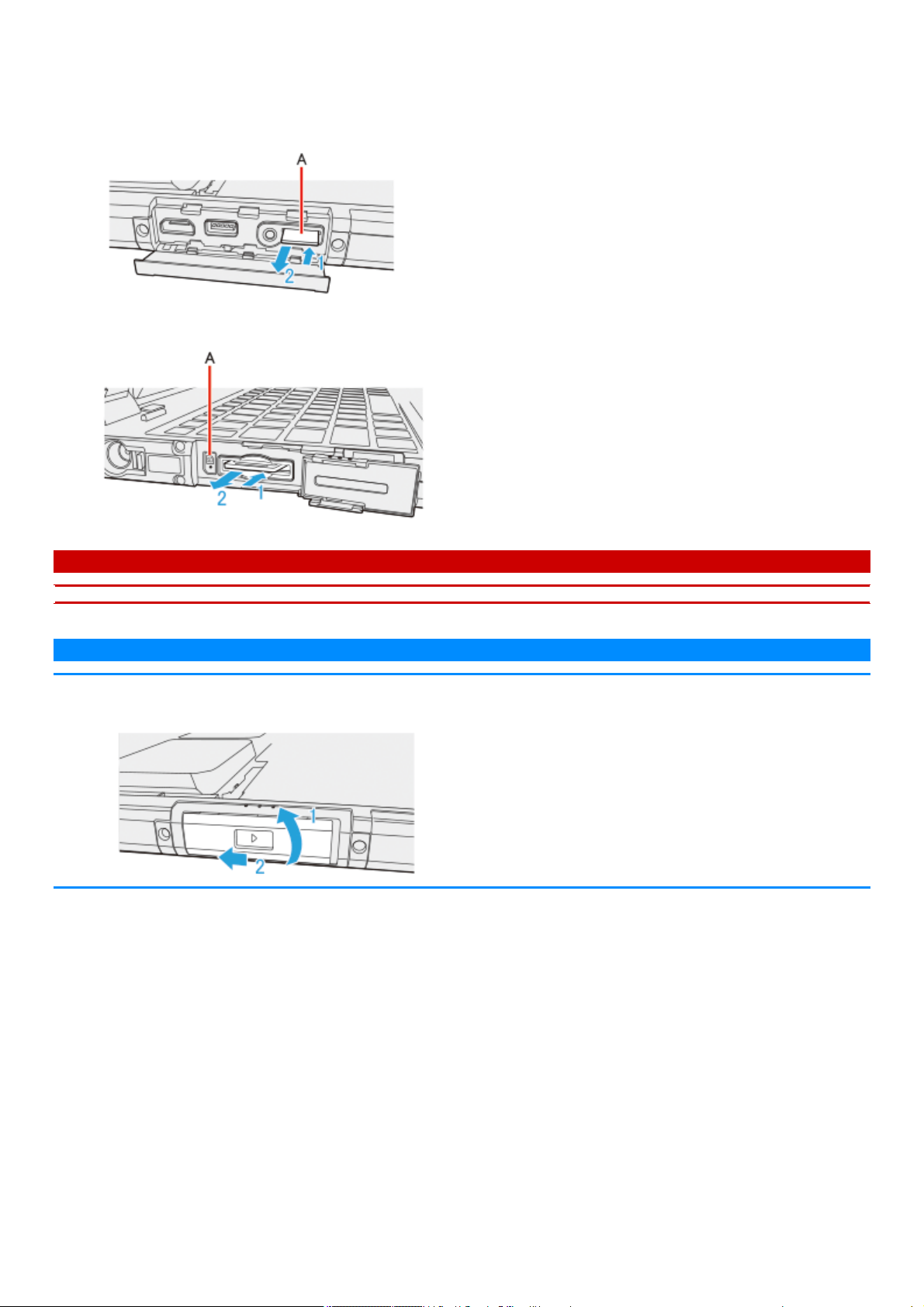
2. Remove the card.
1. Push the card so it comes out of the slot.
2. Draw it straight out.
Tablet
Keyboard Base
C A U T I O N
n After pressing the SD memory card, do not release your finger suddenly. The SD memory card may jump out.
N O T E
n Close the cover as described in the illustration below, and make sure that it has been closed properly.
(The illustration shows the cover on the tablet, for example.)
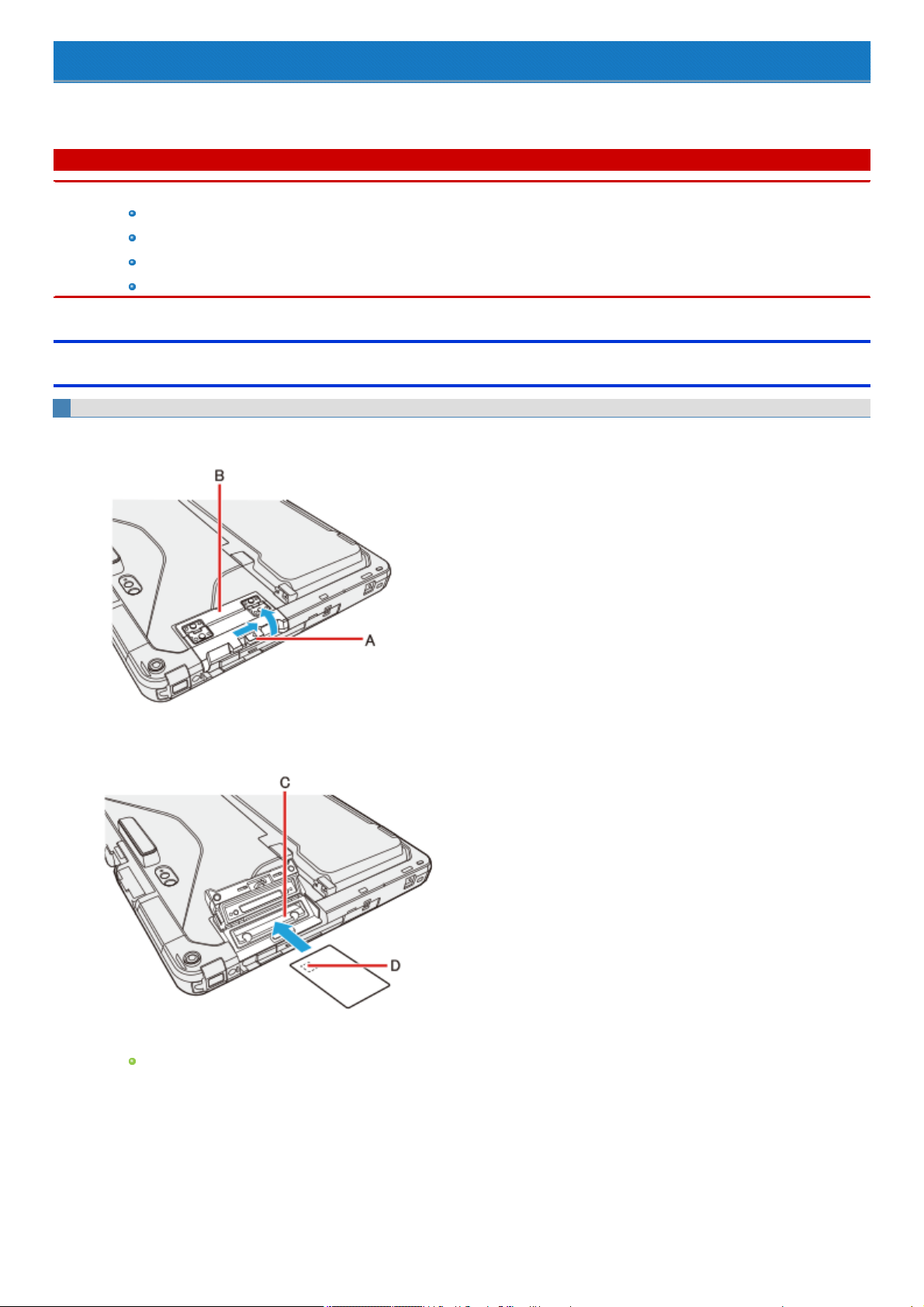
Smart Card
<Only for model with Smart Card slot>
You need software to use a Smart Card.
C A U T I O N
n Do not:
Hit, bend, or drop the card.
Touch the contact part with fingers or metal object.
Place the card in very hot location for a long time.
Remove the card immediately after inserting it.
Inserting/Removing the Smart Card
To insert the card
1. Slide the latch (A), and then open the cover (B).
2. Insert the Smart Card to the lower slot (C) with the contact part (D) in front.
3. Close the cover.
Insert the card untilit securelyfits into the slot.
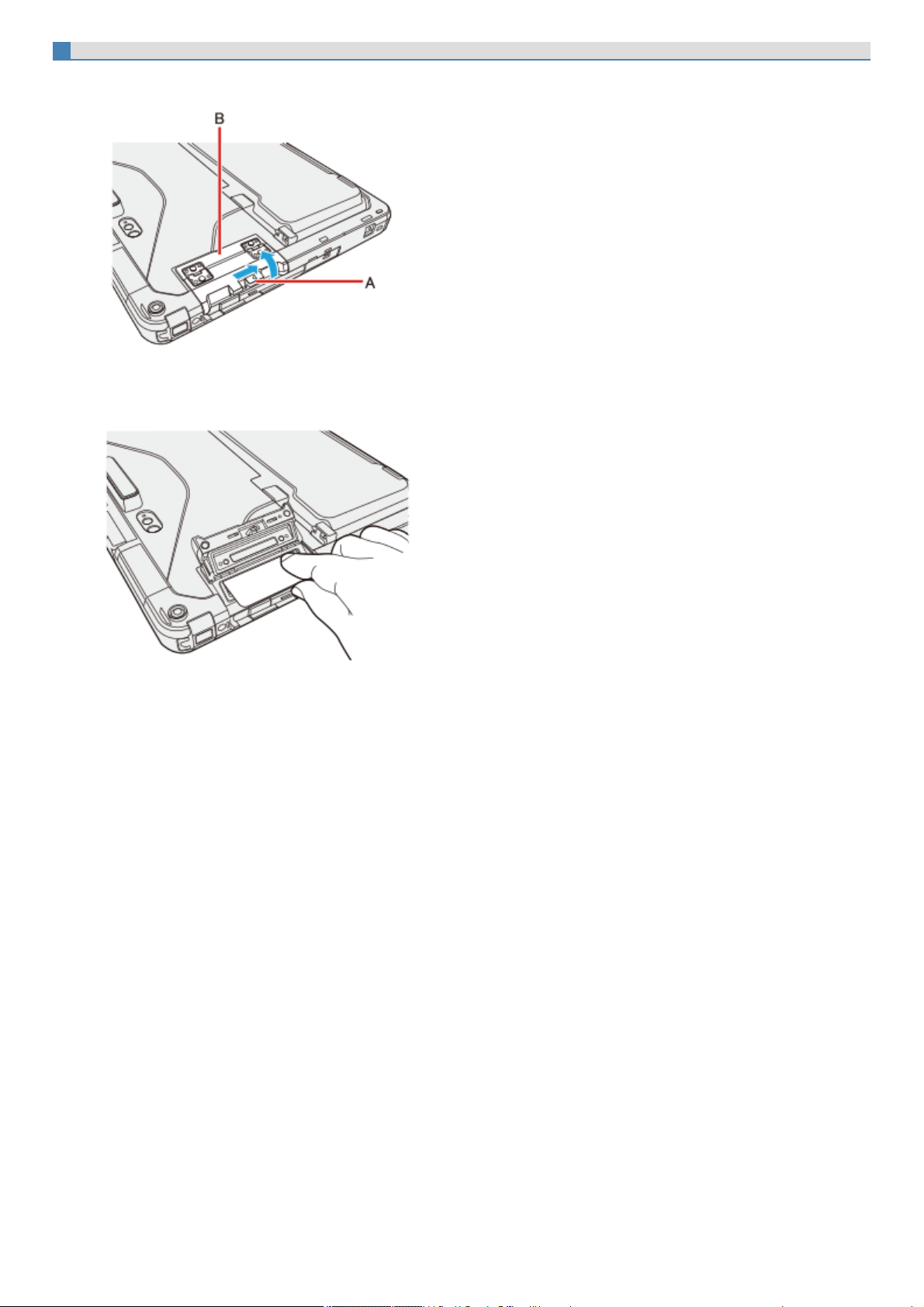
To remove the card
1. Slide the latch (A), and then open the cover (B).
2. Draw the card straight out using your fingers.
3. Close the cover.
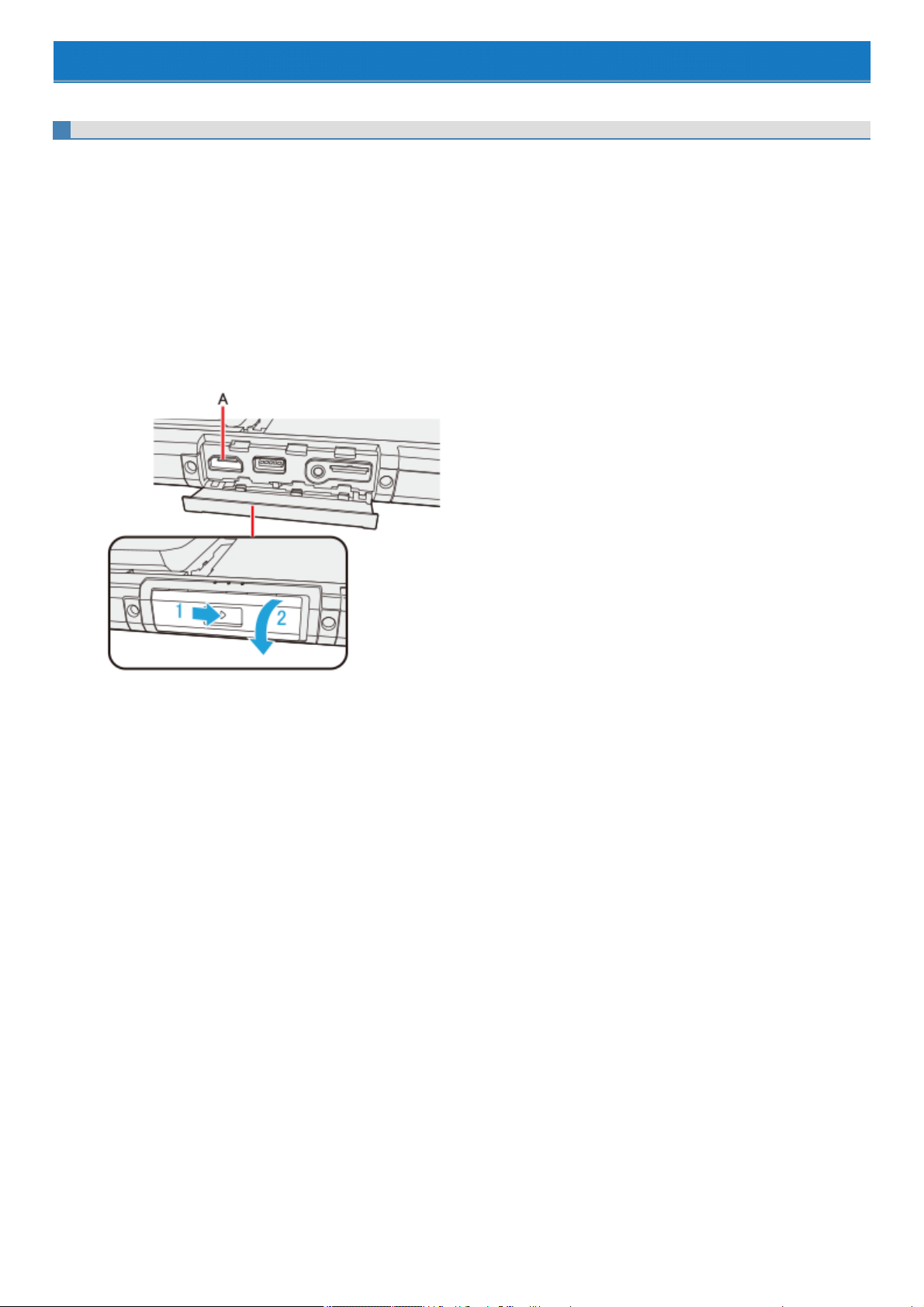
External Display
The external monitor (HDMI/VGA) connected to the keyboard base cannot display until Windows starts up.
HDMI Port
You can switch the output destination to an external HDMI display.
Tablet
1. Turn off the computer.
Do not use sleep or hibernation.
2. Slide the cover to the arrow direction.
The cover isunlocked.
3. Open the cover.
4. Connect the cable.
Connect the HDMI output port (A) and the HDMI display using a HDMI cable.
5. Turn on the computer.
<Only when connected to port replicator>
You can switch the output destination to an external HDMI display.
Before switching the computer on, connect the HDMI display to the HDMI port and the AC adaptor to the DC-IN jack on the port replicator.
For further information of the connection with terminals, refer to "Port Replicator".
Keyboard Base
1. Turn off the computer.
Do not use sleep or hibernation.
2. Slide the cover to the arrow direction.
The cover isunlocked.
3. Open the cover.
4. Connect the cable.
Connect the HDMI output port (B) and the HDMI display using a HDMI cable.
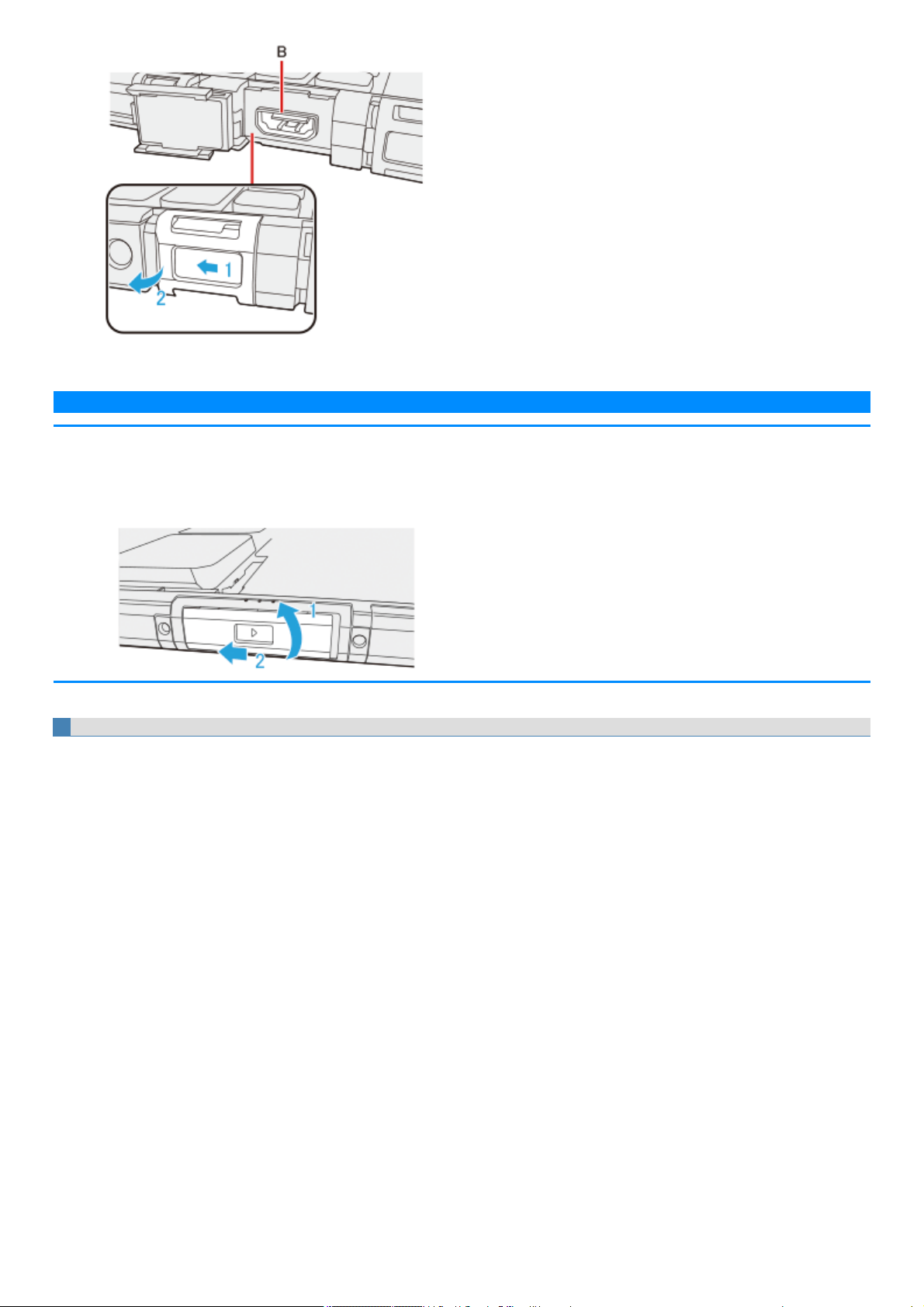
5. Turn on the computer.
N O T E
n When you connect the HDMI cable for the first time, it may take time until the image is displayed.
n While pressing the cover, slide and close it securely as described in the illustration below. After that, make sure that the cover has
been closed properly.
(The illustration shows the cover on the tablet, for example.)
VGA Port
You can switch the output destination to an external analog display.
Keyboard Base
1. Turn off the computer.
Do not use sleep or hibernation.
2. Slide the cover to the arrow direction.
The cover isunlocked.
3. Open the cover.
4. Connect the cable.
Connect the VGA port (C) and the external display using a VGA cable.
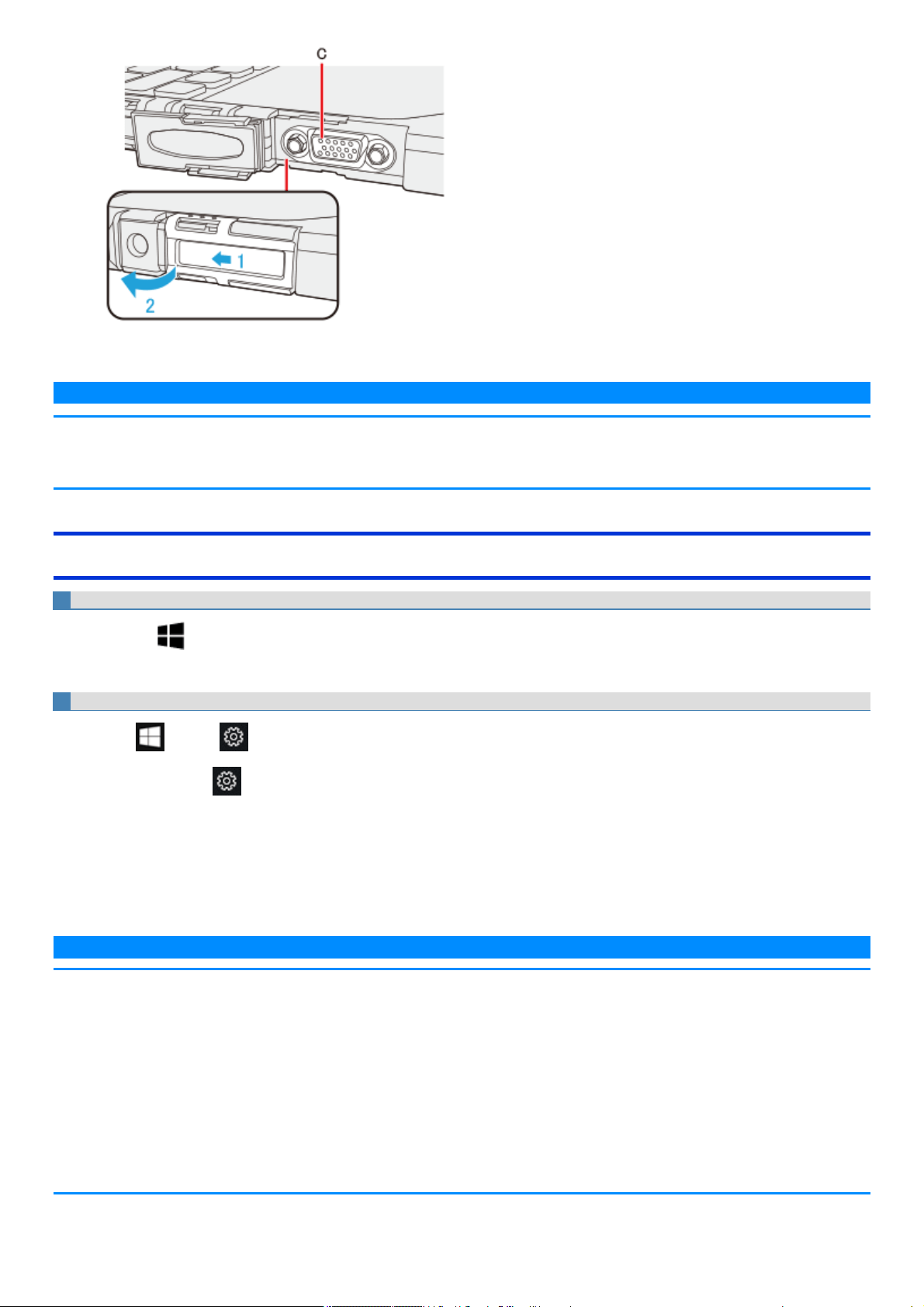
5. Turn on the computer.
N O T E
n When you connect the VGA cable for the first time, it may take time until the video is displayed.
n If you connect VGA monitors after connecting high resolution HDMI monitors, such as 4K monitors, images could not be displayed. In
such cases, connect VGA monitors first, and then connect high resolution HDMI monitors.
Switching the display mode
Using key function
1.
Press ≪ ≫ key + ≪ P≫ or ≪ Fn≫ + ≪ F3≫ .
2. Select the display mode.
Using the [Display settings]
1.
Click (Start) - (Settings) - [System] - [Display].
Alternatively, click (Settings) - [System] - [Display] in the tablet mode.
2. Click [Advanced display settings].
3. Select the resolution.
Alternatively, you can open above screen by the following procedure:
Right-clickthe desktop, and then click [Display settings].
Follow the on-screen instructions.
N O T E
n After switching the display mode, the display resolution may change.
n After resuming from sleep or hibernation, or restarting the computer, the output destination may not be the same as selected in the pre-
vious status.
n When using the HDMI or VGA of the keyboard base for extended display, the extended display may appear on the tablet side after
resuming from sleep or hibernation. Switch the setting.
n When you change the display after Windows starts up, do not press any key until switching is complete.
n Until Windows startup is completed (during Setup Utility, etc.), the simultaneous display cannot be used and pressing ≪ Fn≫ +
≪ F3≫ switches the display between the internal LCD and the external display.
n Do not connect or remove the external display during sleep or hibernation.
n It may take some time to switch between displays depending on the displays used.
n When you use the external display only, set the suitable number of colors, resolution, or refresh rate separately from when you use the
internal LCD only or when you use the simultaneous display. 32 bit is fixed for the color setting. This cannot be changed.
Depending on the settings, some external displays may be distorted or may not display the mouse pointer correctly. In this case, set
the settings to lower value.
n When you use the simultaneous display, MPEG files and other motion image files may not be played back smoothly.
n Carefully read the instruction manual of the external display.
n When connecting an external display that does not conform to the Plug & Play standards, select the display driver accordingly in the
following menu, or use the driver disc supplied with the monitor.
1.
Click (Start) - (Settings) - [System] - [Display] - [Advanced display settings] - [Display adapter properties] - [Monitor] - [Prop-
erties].
2. Click [Driver] - [Update Driver].
C A U T I O N
n
Before disconnecting the external display, switch to the internal LCD by pressing ≪ ≫ key + ≪ P≫ or ≪ Fn≫ + ≪ F3≫ . Other-
wise the displayed image quality may become different after disconnection (e.g., wrong resolution). In this case, press ≪ ≫
key + ≪ P≫ or ≪ Fn≫ + ≪ F3≫ to reset the image quality.
n The screen may become distorted due to the following operations. In this case, restart the computer.
Disconnecting an external display for which you have set high resolution or high refresh rate.
Connecting/disconnecting an external display during computer operations.
Extended Desktop
N O T E
n It may not be possible to use the extended desktop with some software applications.
n When you click the maximize button, the window is displayed on one of the displays. You cannot move the maximized window to the
other display.
n Do not use the display rotation in the extended desktop.
n The pop-up displayed by ≪ Fn≫ key combination appears only on the primary display.
n Set the internal LCD to the primary display when using the screen. The cursor will move on the primary display when you touch the
internal LCD.
To Change the Sound Output Destination
When an HDMI display isconnected, you can specify sound to be output via the speakers of the personalcomputer or via the speakers of the HDMI dis-
play.
Make sure your HDMI display is equipped with speakers.
1.
Right-click (Start) at the bottom left corner, and then click [Control Panel] - [Hardware and Sound] - [Sound].
2. Select the sound output destination.
3. If you have changed the sound output destination, click [Set Default], and then click [OK].
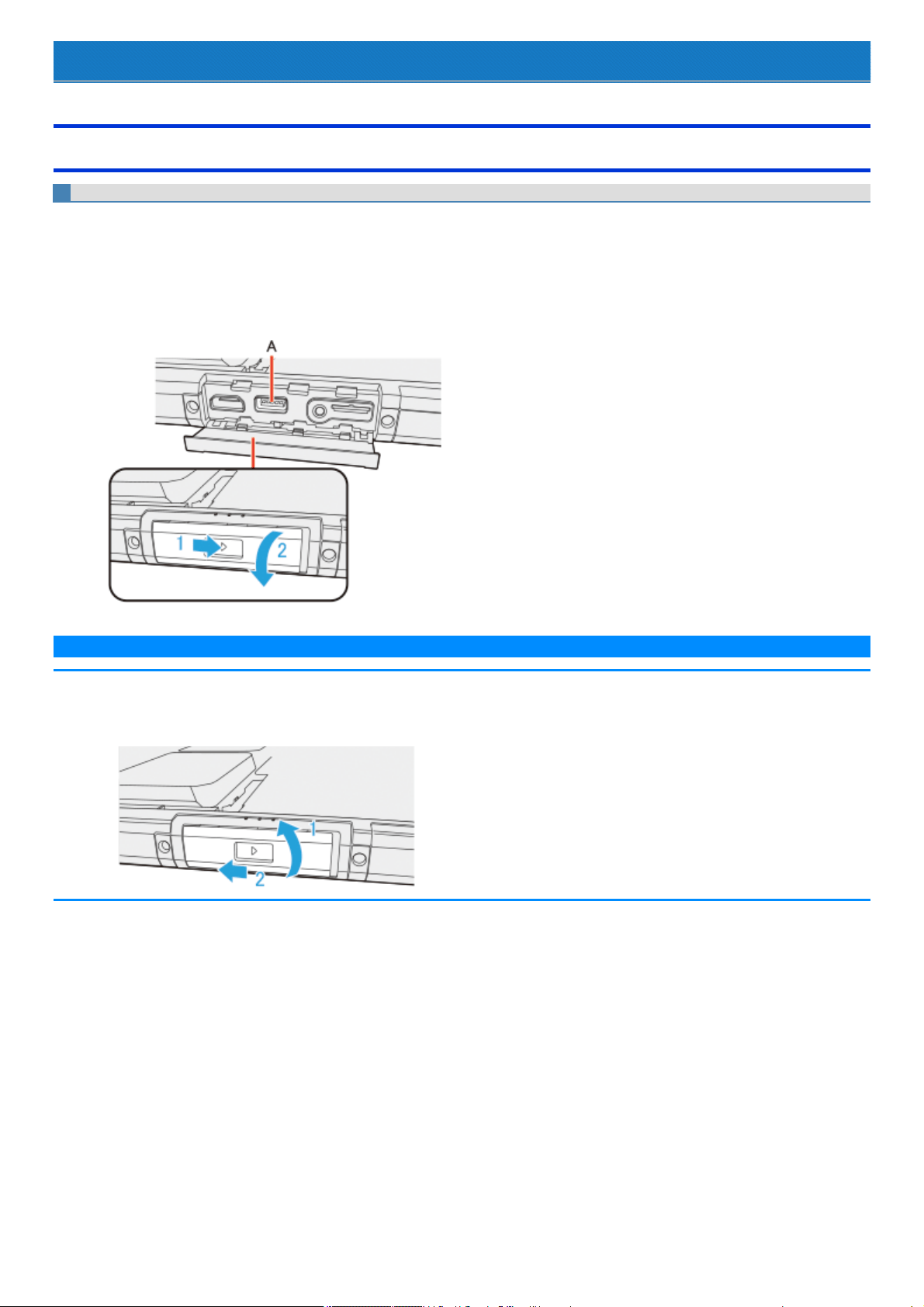
USB Devices
Connecting/Removing USB Devices
To connect the USB device
Tablet
1. Slide the cover to the arrow direction.
The cover isunlocked.
2. Open the cover.
3. Connect the USB device to one of the USB port (A) on the computer.
N O T E
n While pressing the cover, slide and close it securely as described in the illustration below. After that, make sure that the cover has
been closed properly.
(The illustration shows the cover on the tablet, for example.)
Keyboard Base
1. Slide the cover to the arrow direction.
The cover isunlocked.
2. Open the cover.
3. Connect the USB device to one of the USB ports (B), (C) or (D) on the computer.
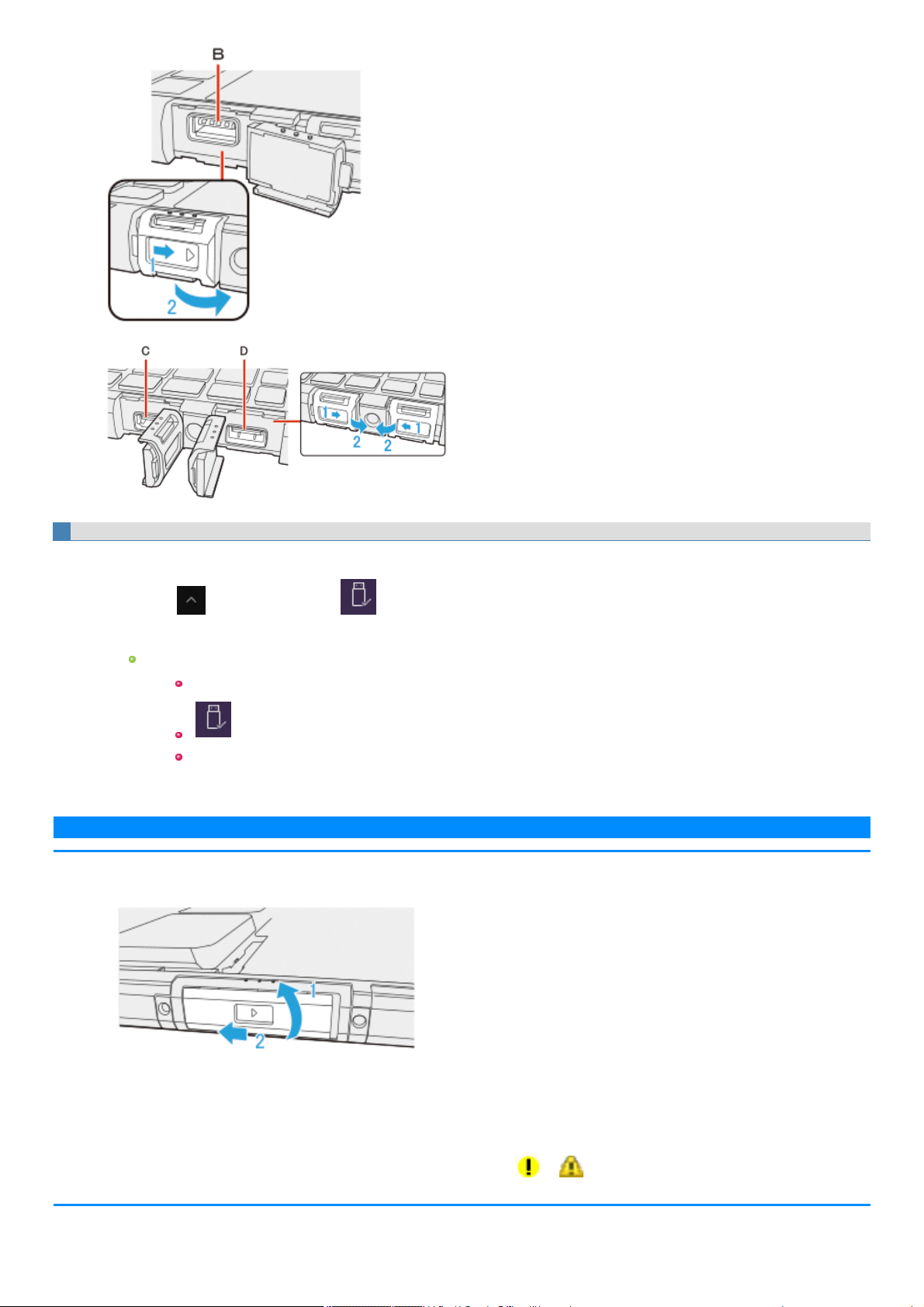
To remove the USB device
1. Disable the USB device.
1.
Click on the tasktray and click .
2. Select the USB device.
These steps are not necessary when;
Remove the device after turning off the computer.
is not displayed.
The device does not appear in the list in step 2.
2. Remove the USB device.
N O T E
n Close the cover as described in the illustration below, and make sure that it has been closed properly.
(The illustration shows the cover on the tablet, for example.)
n You may need to installthe driver for the USB device. Follow the on-screen instructions or refer to the instruction manual of the USB device.
n You may need to installthe driver again when connecting the device to another port.
n When a USB device is connected, sleep or hibernation may not function normally. If the computer does not start up normally, remove the USB
device and restart the computer.
n
When the USB device is removed and then inserted while the computer is on, or may appear in the Device Manager and the device
may not be correctly recognized. In thiscase, remove and connect the device again, or restart the computer.
n When a USB device is connected, power consumption increases. Remove the USB device when it is not in use, especiallywhen operating by bat-
tery power.
n If you touch the USB keyboard keys or mouse connected to the computer, the computer may resume from sleep.
USB Charge Setting
1.
Click (Start) - [Panasonic] - [Panasonic PC Settings Utility], and click (Settings) - (USB).
Alternatively, click (All apps) - [Panasonic] - [Panasonic PC Settings Utility], and click (Settings) - (USB) in the tab-
let mode.
Enabling or Disabling USB Quick Charging
1. Add or remove a checkmark to [Enable Quick Charging].
N O T E
n If USB quick charging is set to be always enabled, the following problems may occur.
USB device cannot be detected as a USB device.
Charging is not possible.
n For some USB devices in USB quick charging, even though the computer is connected to the AC adaptor, it may temporarily switch to
battery operation. If this happens, disable USB quick charging.
n Depending on the USB device, its charging may not be possible.
n Charging time varies depending on the USB device.
n Connect the USB device directly to the USB port. If connection is via a USB hub, charging may not be possible.
n For USB devices which do not require charging, connect them to other ports.
n If the computer is not connected to the AC adaptor, its battery power will be consumed quickly.
n Do not insert any foreign object in the USB port.
n When the computer resumes from sleep or hibernation, it may not be able to detect the USB device. If this happens, removing and then
reconnecting the USB device may enable the computer to detect the device.
Enabling or Disabling Power-Off Charging
1. Add or remove a check mark to [Enable Always on Charging].
N O T E
n USB charging is not performed if you press the power switch for more than 4 seconds to turn off the power, or if you reconnect the AC adaptor
and battery after removing them in power-off state.
n With USB charging during power-off enabled, if a USB keyboard or USB mouse is connected to the port allowing USB quickcharging, then they
cannot be used to resume the computer from sleep.
n If charging is done when the computer ispowered by battery, charging automaticallystops when the battery level drops below 10 %.
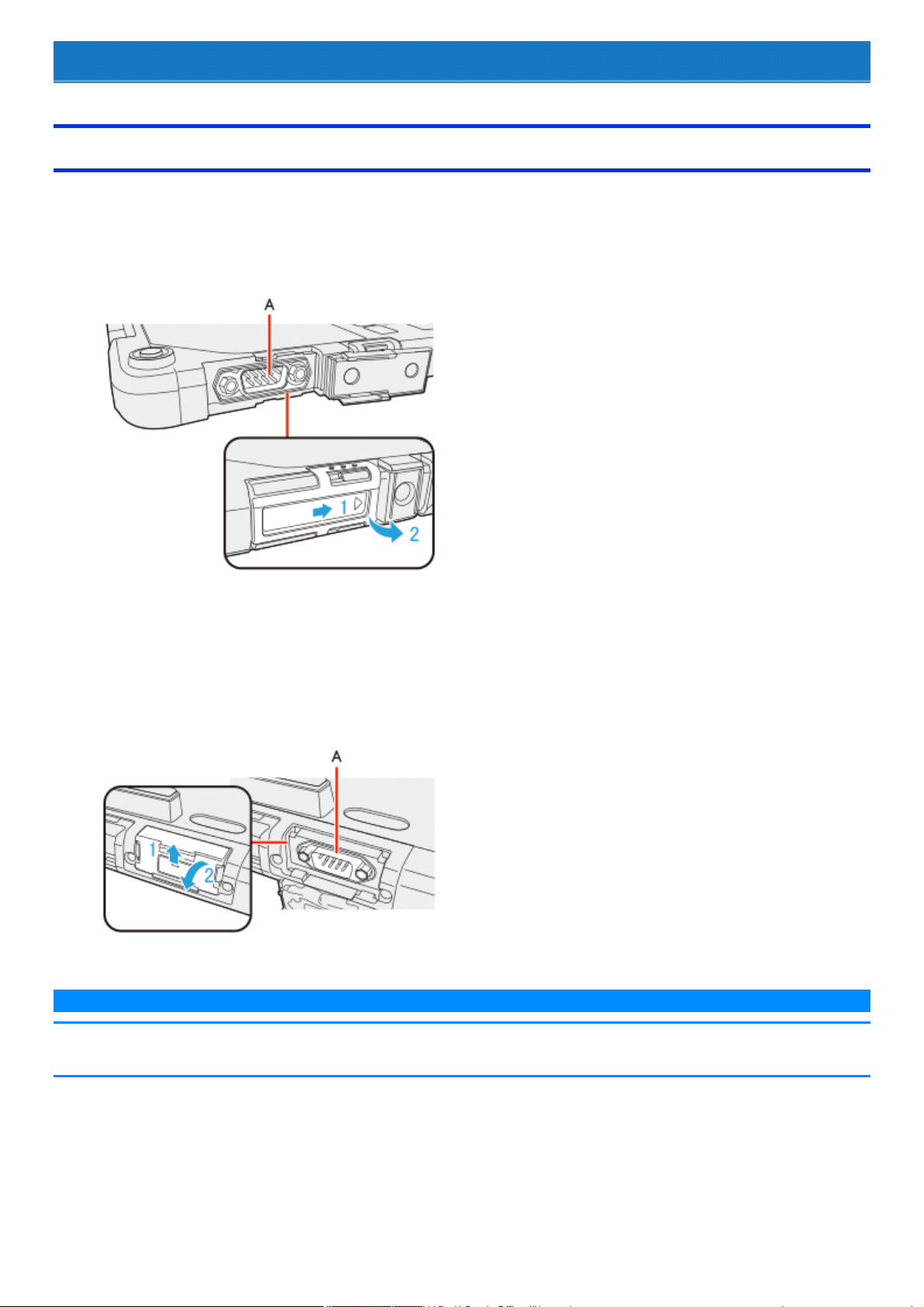
Serial Port
Connecting Serial device
Keyboard Base
1. Slide the cover to the arrow direction.
The cover isunlocked.
2. Open the cover.
3. Connect the serial device to the serial port (A).
4. Connect the serial device to the connector of the serial cable.
Tablet
<Only for model with Serial Port>
1. Slide the cover to the arrow direction.
The cover isunlocked.
2. Open the cover.
3. Connect the serial device to the serial port (A).
4. Connect the serial device to the connector of the serial cable.
N O T E
n When connecting a cable, be sure to secure it with screws.
n It does not support serial mouse.
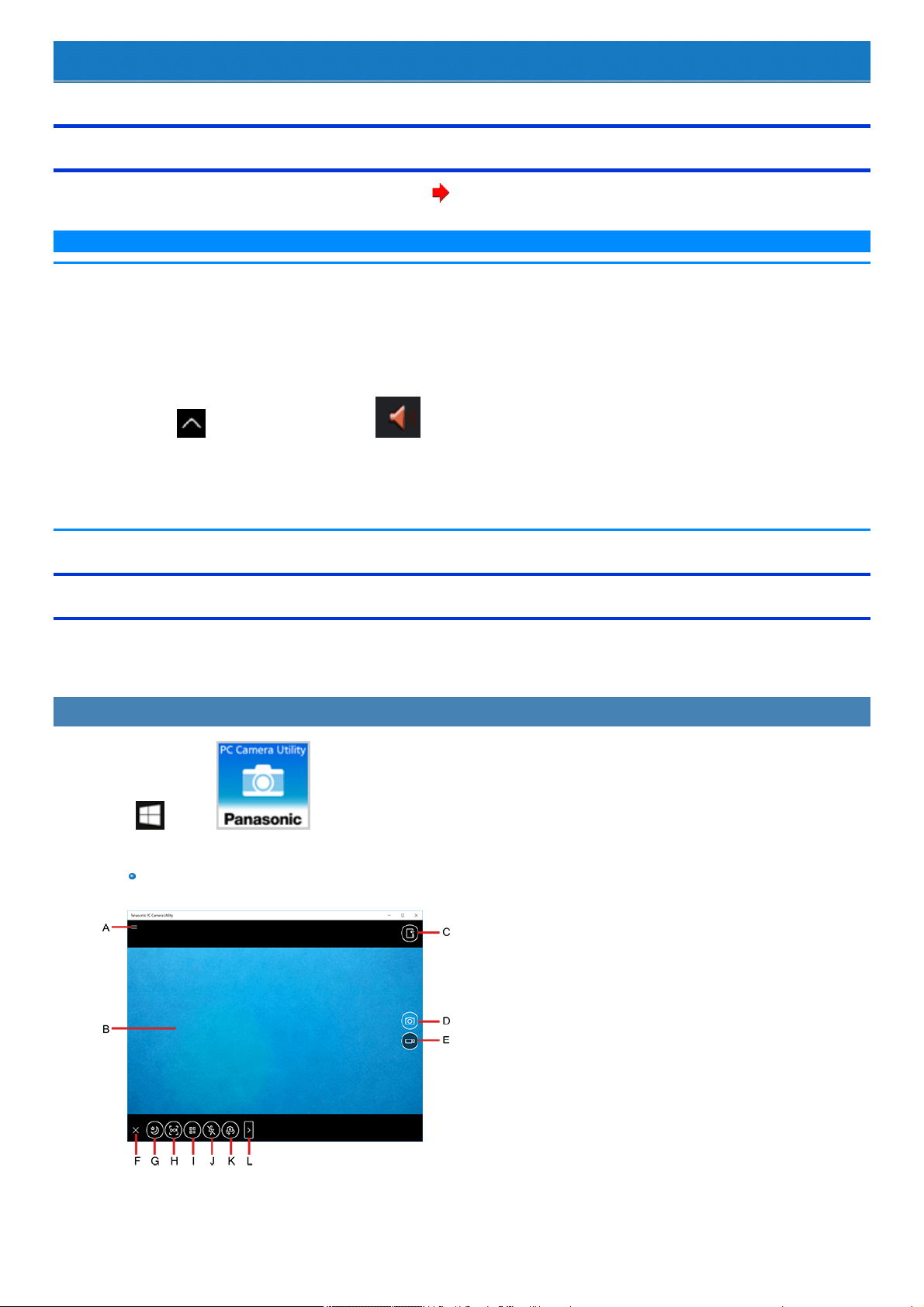
Camera
Using the Camera
For the camera position and functions, refer to "Description of Parts". ( Description of Parts)
N O T E
n When the camera isin use, the Camera Indicator lights up. (Even if [Concealed Mode] isset to [Enabled] and [LED] to [OFF], the camera indic-
ator cannot be turned off.)
n When the computer is moved from hot and humid environment to low temperature environment, dew condensation may form on the lens. Thisis
not a malfunction. Wait untilthe lensdriesout.
n Depending on your environment, the sound volume could not be stabilized during recording. If the sound volume isnot stabilized, perform the fol-
lowing procedure before use.
1.
Click on the task tray, and right-click .
2. Click [Sound Manager], and then click [Microphone Array] tab.
3. Add the checkon [All Off] in [Microphone Effects].
4. Click [OK].
Panasonic PC Camera Utility
The PanasonicPC Camera Utility can be used to shoot photos and videos.
When you use pictures and videos recorded using this utility at Web conferences, or other services, use specialized applications accordingly.
Starting up
1.
Click (Start) - (Panasonic PC Camera Utility).
The PanasonicPC Camera Utility starts up, and the following screen isdisplayed.
When the utility is running, do not remove or insert audio devices(such as microphones and speakers). Also, do not enable or disable
such devices.
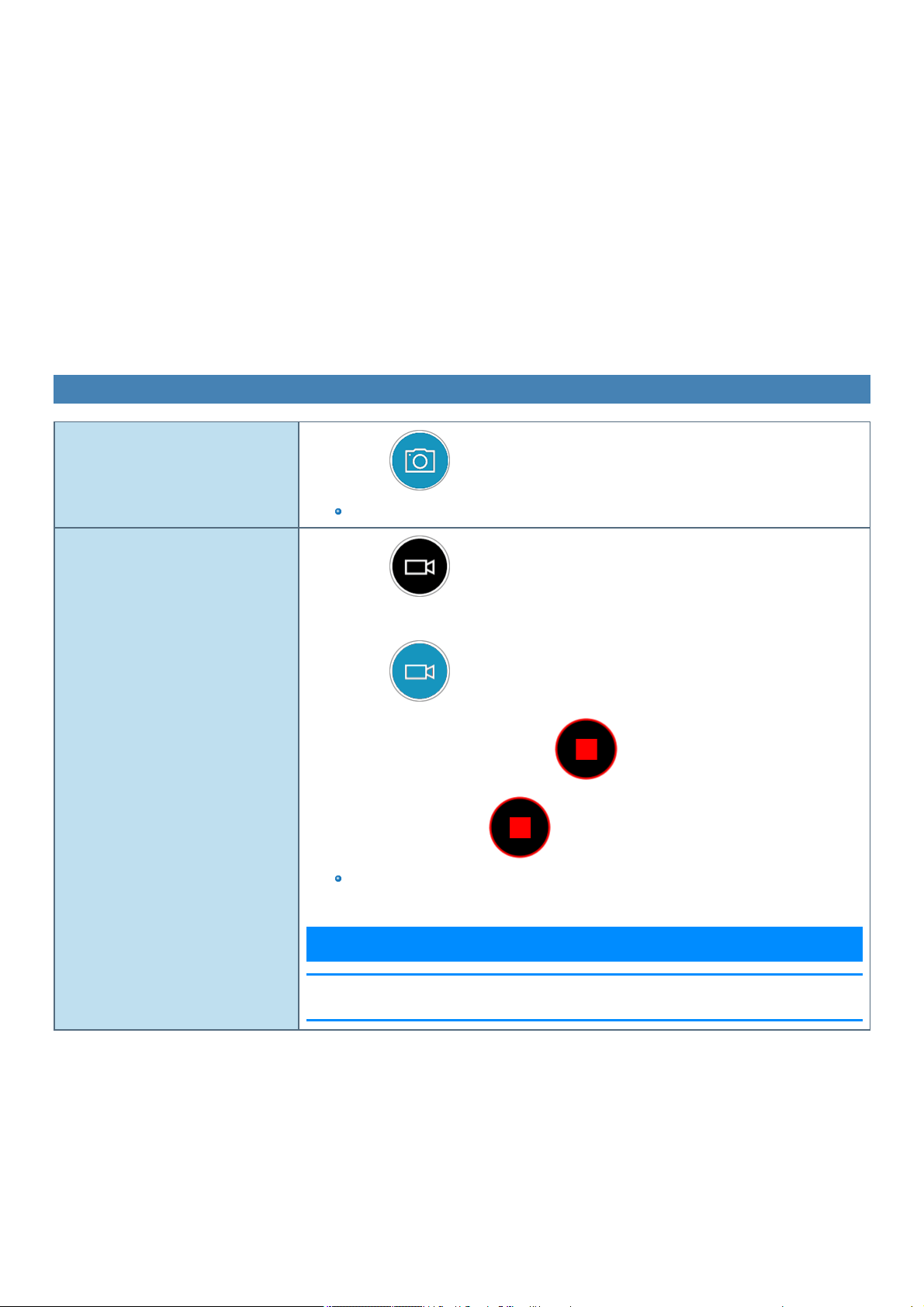
A. Open the camera settings
B. Preview screen
C. Display the folder where recorded data is saved
D. Shoot photos
E. Start/Stop shooting videos
F. Hide the mode menu
G. Night Mode switching
H. OCR <Only for model with rear camera>
I. Barcode reader <Only for model with rear camera>
J. Camera light <Only for model with rear camera>
K. Camera device <Only for model with multiple cameras>
L. Change the menu <Only for model with rear camera>
Shooting Photos and Videos
Shoot photos
1.
Click .
You cannot shoot photos when the save destination storage space isless than 10 MB.
Start/Stop shooting videos
1.
Click .
The camera switches to the video shooting mode.
2.
Click .
During shooting, the icon is shown as .
3.
To stop shooting, click .
If the save destination storage space becomes less than 100 MB during video shooting, shoot-
ing willautomaticallystop.
N O T E
n Shooting will stop when you minimize the application window, or put the computer into the
hibernation mode during video shooting.
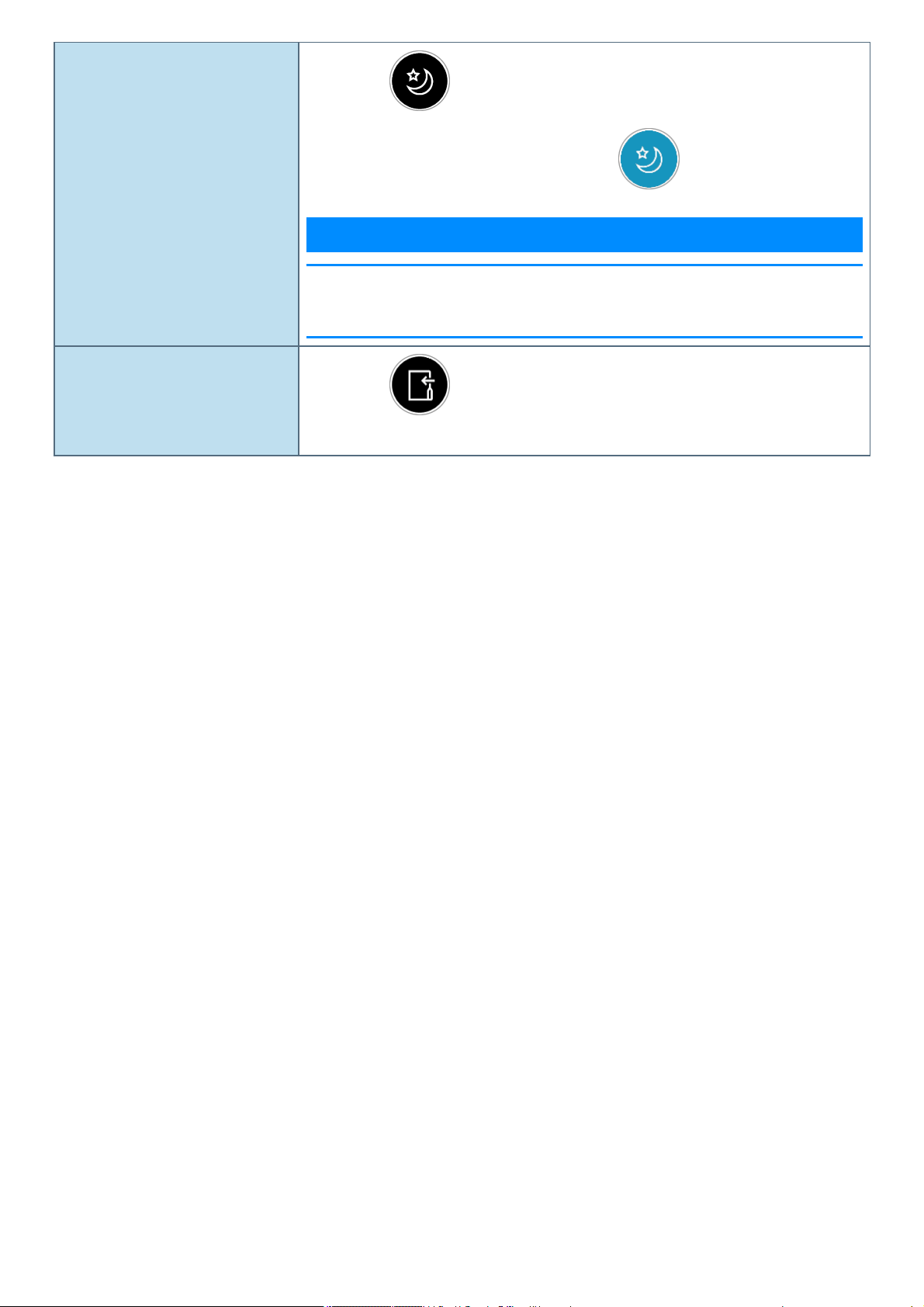
Turn the Night Mode ON
To make the dark viewing image brighter
1.
Click .
When using the Night Mode, the icon is shown as .
N O T E
n Updating the preview screen may be delayed when using the Night Mode.
n CPU utilization increases when using the Night Mode. If you leave the computer for long hours,
the area around the exhaust vent may be heated.
Display the recorded image or video
files
1.
Click .
The recorded data will be saved in the displayed folder named the recording date.
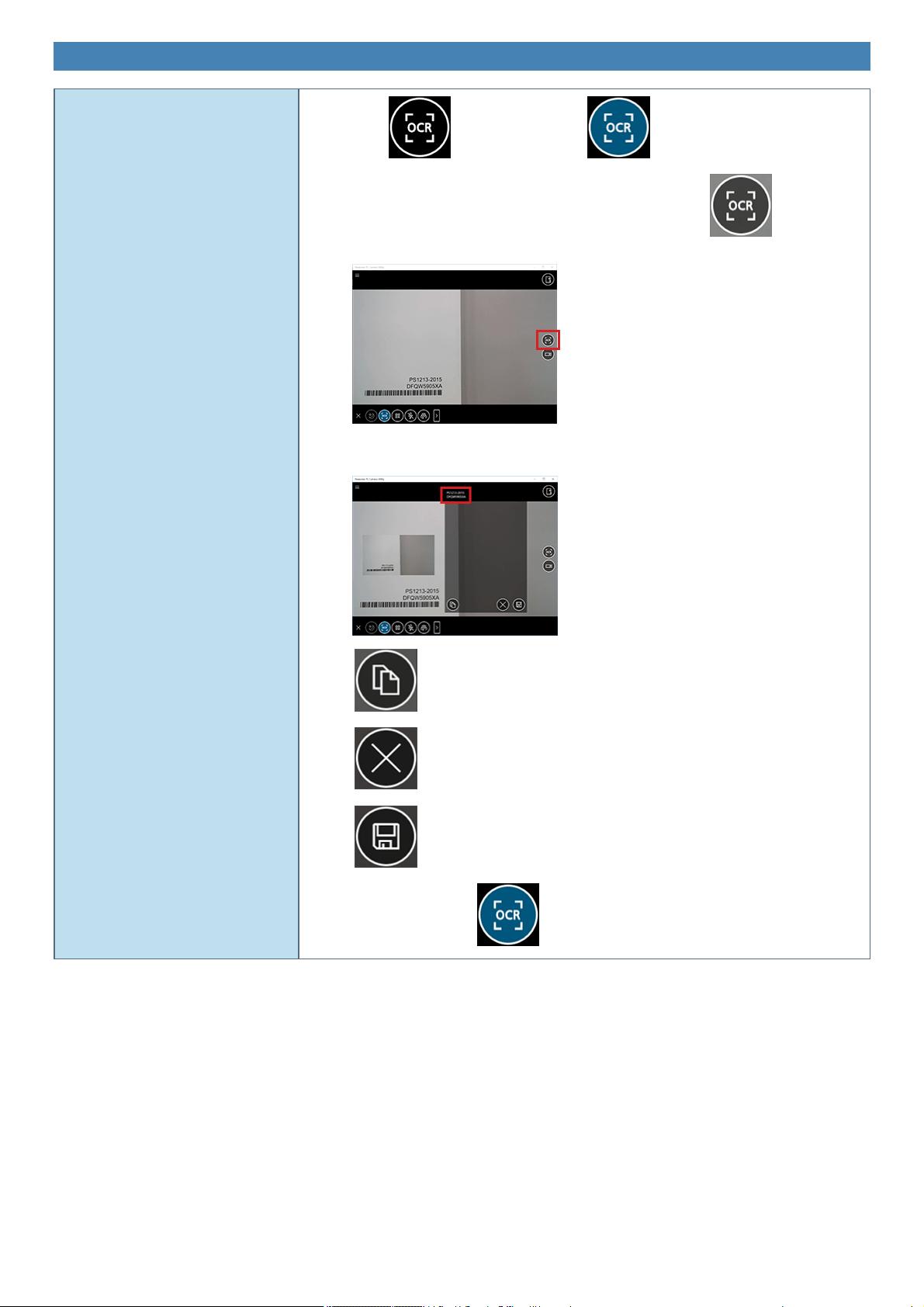
Other Functions
OCR Scanning
<Only for model with rear camera>
1.
Click . The icon is shown as .
2.
Point the window at the target text you want to scan, and click on the right
side of the screen.
When the target text has been scanned, the scanned OCR text is displayed above the preview
window.
Copy the OCR text to the clipboard.
Retry OCR scanning.
Save the OCR text.
To stop scanning, click .
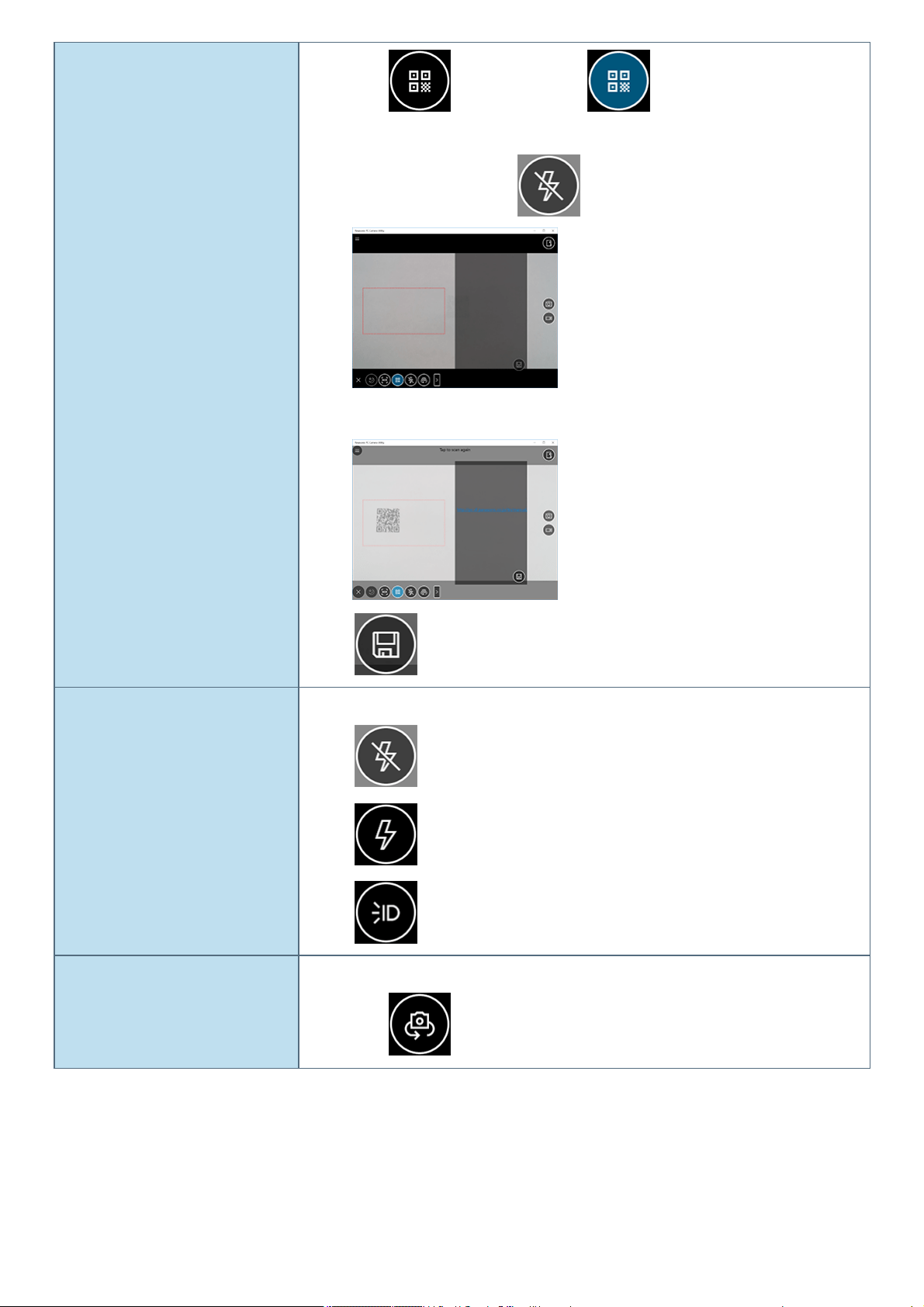
Barcode Reader
<Only for model with rear camera>
1.
Click . The icon is shown as .
2. Point the on-screen guide at the barcode.
You can turn on the light. Click .
When the barcode has been scanned, the scanned barcode text is displayed on the right side of
the preview window.
Save the barcode text.
Turn the light ON/OFF
<Only for model with rear camera>
You can turn on/off the light.
Turn off the light.
Turn off the light (Flash available).
Turn on the light.
Switch camera
<Only for model with multiple cameras>
Switch between the front and rear cameras.
1.
Click .
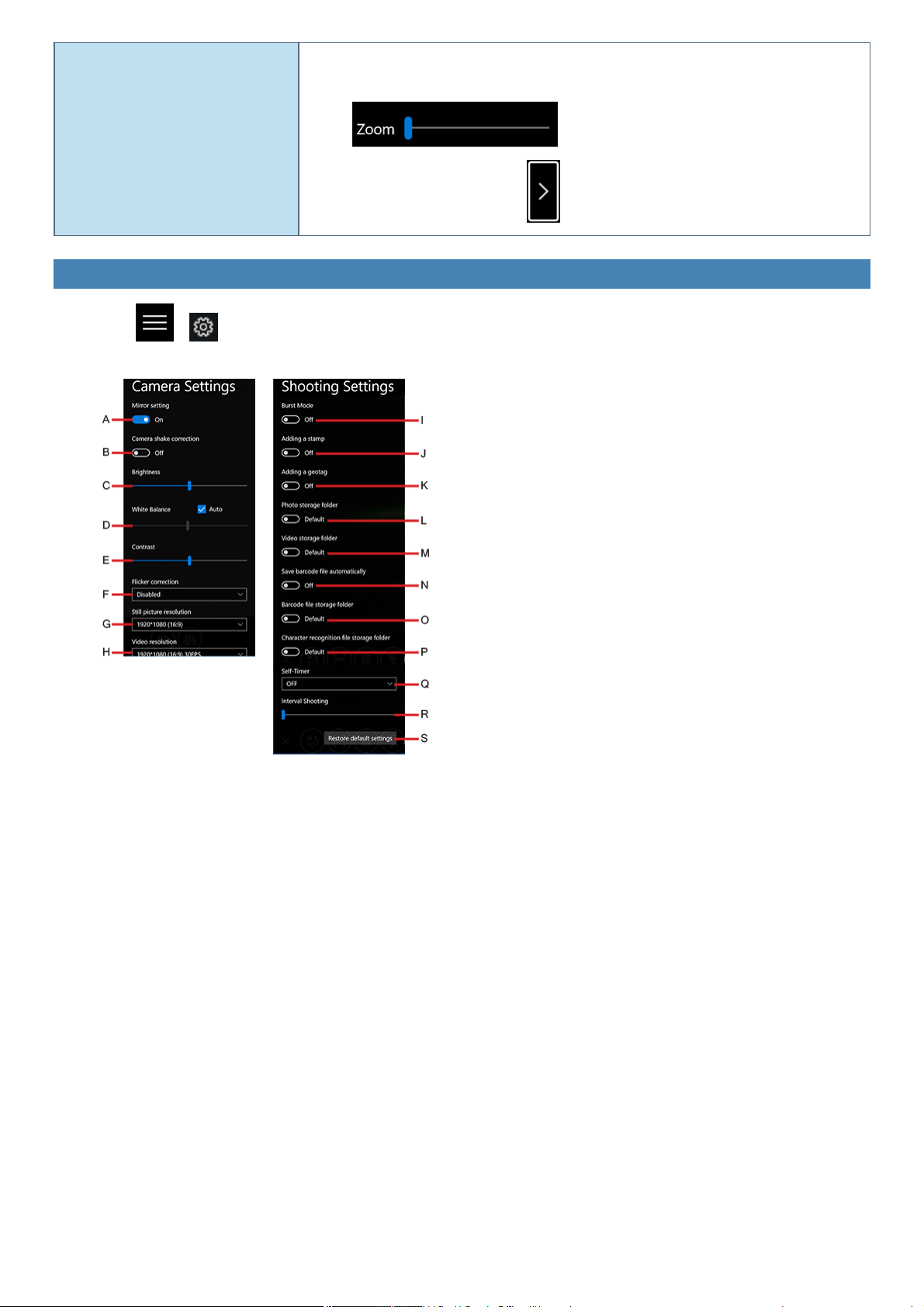
Zoom
<Only for model with rear camera>
To enlarge or reduce the camera image.
1. Use the Zoom slider for adjustment.
If the slider is not displayed, click .
Changing the Settings
1.
Click - .
The "Settings" menu is displayed.
A. Mirror setting <Only for model with front camera>
Make the preview screen mirror-reversed (flip horizontal). (Recorded images will not be reversed)
B. Camera shake correction <Only for model with front camera>
Enable the image stabilizer when shooting photos.
C. Brightness
Change the brightnessof camera images.
D. White Balance
Change the white balance of camera images. To set manually, uncheck the [Automatic] option.
<Only for model with camera with IR sensor>
E. Contrast
Change the contrast of camera images.
F. Flicker correction
Set the flickering correction of camera images.
G. Still picture resolution
Change the still picture resolution. Perform touch operation or mouse clickto select the resolution. The resolution may not be correctly
specified if you use the keyboard cursor keys.
H. Video resolution

Change the video resolution. Perform touch operation or mouse clickto select the resolution. The resolution may not be correctly spe-
cified if you use the keyboard cursor keys.
Note that the described FPS values are theoretical. They may be decreased depending on the actual use conditions.
I. Burst Mode
Pressand hold the photo shooting button to shoot continuously while the button is pressed. The maximum number of continuous shoot-
ing is 20.
You cannot shoot continuously when using the Night Mode.
J. Adding a stamp
Add geolocation and time stamps to still images.
K. Adding a geotag
Add geotagging to the Exif data of stillimages.
L. Photo storage folder
Specify the destination of recorded photo data to save. The default value isthe "Picture" folder.
M. Video storage folder
Specify the destination of recorded video data to save. The default value isthe "Video" folder.
If you specify the FAT32 formatted storage as destination to save, video files cannot be correctly created when the storage data
capacity exceeds 4 GB.
N. Save barcode file automatically
O. Barcode file folder <Only for model with rear camera>
Specify the destination of saved barcode text. The default value isthe "Pictures/Barcode" folder.
P. Character recognition file storage folder
Specify the destination of saved OCR text. The default value is the "Pictures/OCR" folder.
Q. Self-Timer
Specify the time period until shooting starts after the button is pressed. (OFF/5 sec./10 sec.)
R. Interval Shooting
When you move the slider to the right, and specify the value except [0], the camera automatically repeats shooting at intervals of spe-
cified seconds. The maximum 10 photos can be shot continuously.
S. Restore default settings
Return allthe settings to the default values.
To close the "Setting" menu, click on the upper left of the screen, or clickthe preview screen.
N O T E
n To specify the save destination folder, select the folder you have the access right to. If a writing error occurs, change the specified folder.
n
The settings of "New photos and videos will save to:" under "Save locations" ( (Start) - (Settings) - [System] - [Storage]) are applied
to the "Picture" folder.
n
The settings of "New photos and videos will save to:" under "Save locations" ( (Start) - (Settings) - [System] - [Storage]) are applied
to the "Video" folder.

Barcode Reader
<Only for model with Barcode Reader>
Preparation
Setting the Language
To enter correct character strings, set the language of the barcode reader according to the Default Input Local using the Barcode HID Language Setting
Utility. This setting is necessary only for the first time use.
1.
Click (Start) - [Panasonic] - [Barcode HID Language Auto Setting].
Alternatively, click (All apps) - [Panasonic] - [Barcode HID Language Auto Setting] in the tablet mode.
2. Set the language of the barcode reader according to the Default Input Local.
N O T E
n If the barcode cannot be read following the above steps, change the language of the barcode reader according to the Input Locale of the
application to be used. If none of them is applicable, set "English (United States)" both for the barcode reader and the application.
Following are the languages that can be set for the barcode reader.
English (United States)
French (France)
German (Germany)
French (Canadian Legacy)
French (Canadian)
Spanish (Spain)
Italian (Italy)
Swedish (Sweden)
English (United Kingdom)
Japanese
Portuguese (Portugal)
Portuguese (Brazil)
Czech (QWERTY)
Czech (QWERTZ)
Slovakian (QWERTY)
Hungarian (101-key)
German (Switzerland)
French (Switzerland)
French (Belgium)
Danish
Norwegian
Hungarian
Dutch (Netherlands)
Setting the USB Mode
Use in the [USB HID Keyboard] mode normally. If the barcode cannot be read with this mode, the application may be compatible with [USB HID POS]. In
thiscase, change the mode according to the following steps.
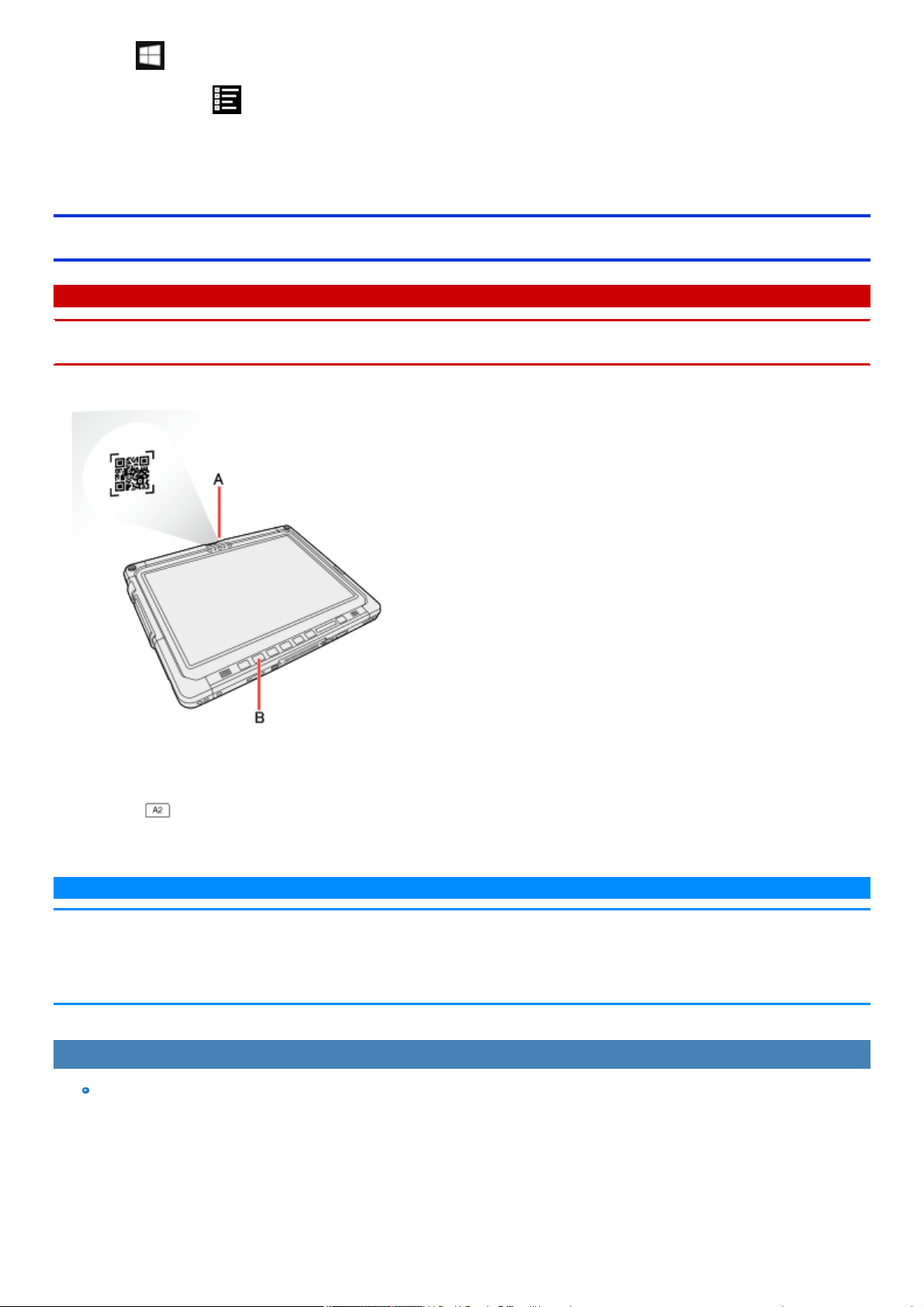
1.
Click (Start) - [Panasonic] - [Barcode HID Mode Setting Utility].
Alternatively, click (All apps) - [Panasonic] - [Barcode HID Mode Setting Utility] in the tablet mode.
2. When using POS API: Click and add a check mark for [USB HID POS], and then click [OK].
When not using POS API: Click and add a check mark for [USB HID Keyboard], and then click [OK].
Reading Barcodes
C A U T I O N
n Do not look directly into the reading window.
DO NOT LOOK DIRECTLY AT THE BARCODE READER LIGHT.
1. Open the software for reading a barcode, and put the cursor on it.
2. Aim the Barcode Reader (A) at the barcode.
3.
Press button (B).
The Barcode Reader lights red to indicate the reading position.
N O T E
n When the barcode read operation is finished, please wait about three seconds to start the next reading. You may press the button immediately,
even if you set to release, it takesseveral seconds to light to light actually.
n If an error message appears and nothing is displayed, restart this utility.
n You can change the button assign to Rotation lock button.
To Correctly Read a Barcode with This Computer, Observe the Following
The reading angle is important factor.
Perform reading at the angle indicated in the figure. We recommend you to set at approximately 2° to 3° angle from the perpendicular position.
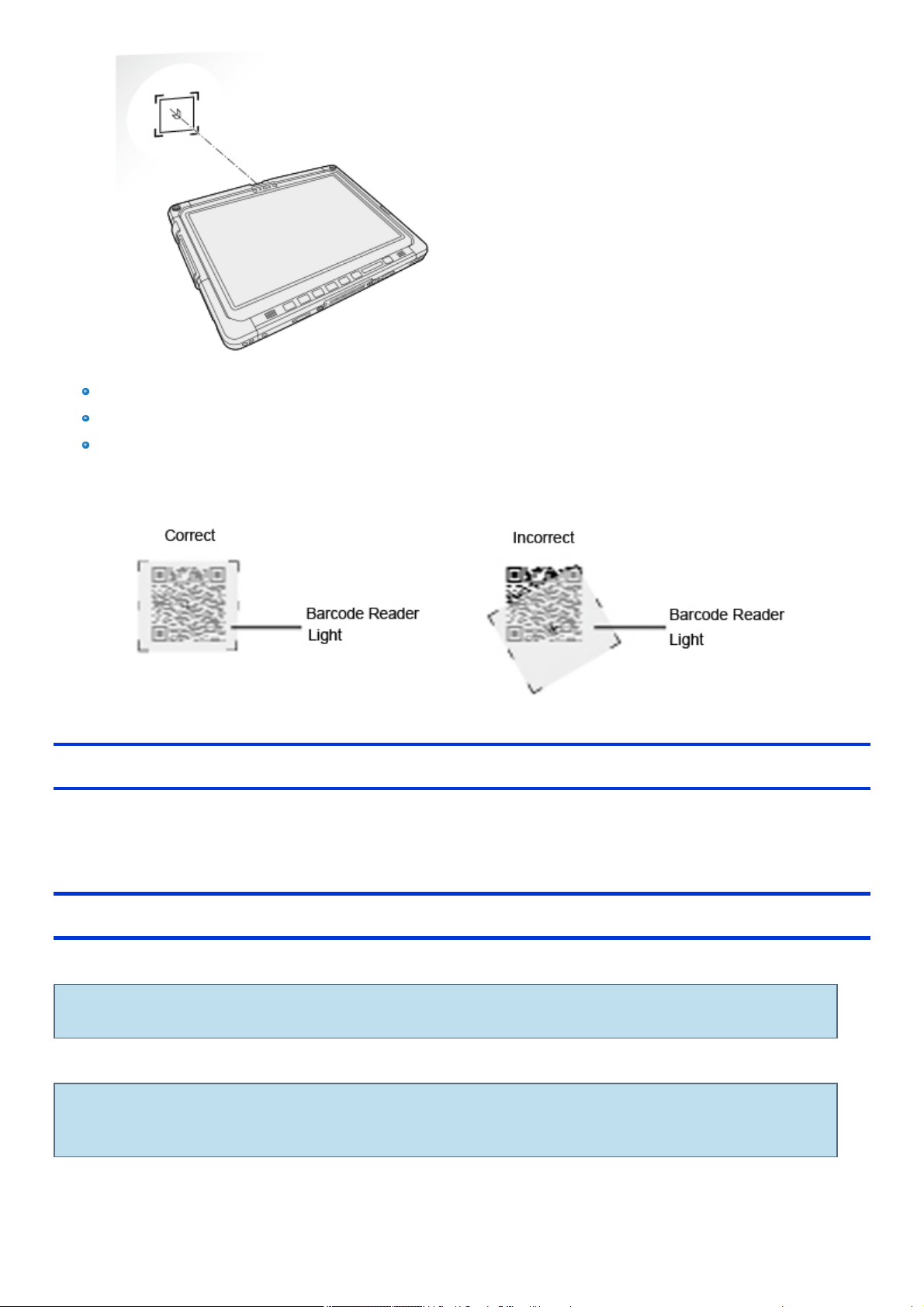
Hold the reader farther away when reading a larger barcode, and closer in when reading a smaller barcode.
Perform reading so that the entire symbol falls within the center of the red Barcode Reader light.
The reader can still read a barcode even if the barcode is not in the center of the red Barcode Reader light.
However, if a part of the barcode lies outside the Barcode Reader light, the barcode cannot be read. Make sure the entire barcode is
inside the Barcode Reader light.
Cleaning the Reading Window
If the reading window isdirty, gently wipe the reading window with a cloth or a cotton swab moistened with water.
Do not allow materialsthat can easily scratch the reading window to touch the window, such as sandpaper or metal object.
For parts other than the reading window, please read “Handling and Maintenance” in the OPERATING INSTRUCTIONS that comes with the computer.
Decode Capabilities
Following symbologies are supported as the factory default.
Codabar, Code 128, EAN 128, Code 39, DataMatrix, Interleaved 2 of 5, PDF417, QR Code, RSS-14, RSS Limited, RSS Expanded, UPC-A,
UPC-E, EAN-8, EAN-13
Following symbologies also can be used by specifying them with Barcode Configuration Utility.
Codablock A, CodablockF, Code 11, Code 128 French CIP, EAN 128 Irregular, ISBT, Code 93, EAN.UCC Composite CC-A/B, EAN.UCC
Composite CC-C, EAN.UCC Composite Linear, ISBN, ISMN, ISSN, Matrix, Maxicode, MicroPDF417, MSI, Plessey, Standard 2 of 5, Telepen,
UPC-E1, TLC 39, Australian Post, BPO, Dutch Post, Japan Post, Planet, Postnet, Canada Post, Infomail, Sweden Post

Using Software
Barcode Setting Utility
Barcode Setting Utility applies the barcode configuration file (*.INI file) to the Barcode Key Emulator or Barcode Reader module.
Barcode Configuration Utility
Using the Barcode Configuration Utility, you can create and perform the configuration files to set up the settings.
1. Sign in to Windows as an administrator.
2.
Click (Start) - [Panasonic] - [Barcode Configuration Utility].
Alternatively, click (All apps) - [Panasonic] - [Barcode Configuration Utility] in the tablet mode.
If you want to reflect/create a barcode configuration file, right-click [Barcode Configuration Utility], and then click [Run as administrator].
3. Click target model, and then click [OK].
Usually choose [2D Barcode Reader Type B Series].
4. Make necessary setting.
If you want to set the type of barcode
1. Click [Barcode standard configuration] tab.
2. To deploy the barcode standard you want to set.
3. Select [Disabled] or [Enabled] in [ACTIVATE].
If you can set up a data editing function of barcode reader
1. Click [Data configuration] tab.
2. Make necessary settings.
You can specify the setting contents using the edit boxesand pull-down listsfor each setting item.
Revert to the factory default state of the machine settings
1. Click [Preferences] button on each tab.
2. At the confirmation message, select [Yes].
N O T E
n In each setting tab, onlyitems that need to be set, please put a check in the check box. If you do not want to change any settings, please
do not put it in check.
5. Create and reflect the barcode configuration file.
When creating a barcode configuration file
1. Click [File] - [Save as].
2. Save the barcode configuration file.
Barcode Configuration file (that created by the Barcode Configuration Utility) can be reflected in the barcode reader module by drag-
ging and dropping to the Barcode Setting Utility( Direct application of the barcode configuration file)
When creating and reflecting the barcode configuration file
1. Click [Tool] - [ApplyConfiguration].
2. Save the barcode configuration file.
The setting of the barcode configuration file will be reflected.
If you want to reflect the barcode configuration file you created
1. Click [File] - [Open], open the barcode configuration file.
2. Click [Tool] - [ApplyConfiguration].

6. Click [File] - [Exit].
At the confirmation message, select [Yes].
Direct application of the barcode configuration file
1. Create the barcode configuration file (*.INI file) using Barcode Configuration Utility.
2. Drag and drop the *.INI file to the following application file.
<For 32-bit OS>
C:\Program Files\Panasonic\BCR2D_B_Set\BCR2D_B_Set.exe
<For 64-bit OS>
C:\Program Files (x86)\Panasonic\BCR2D_B_Set\BCR2D_B_Set.exe
3. If the [User Account Control] screen appears, click [Yes].
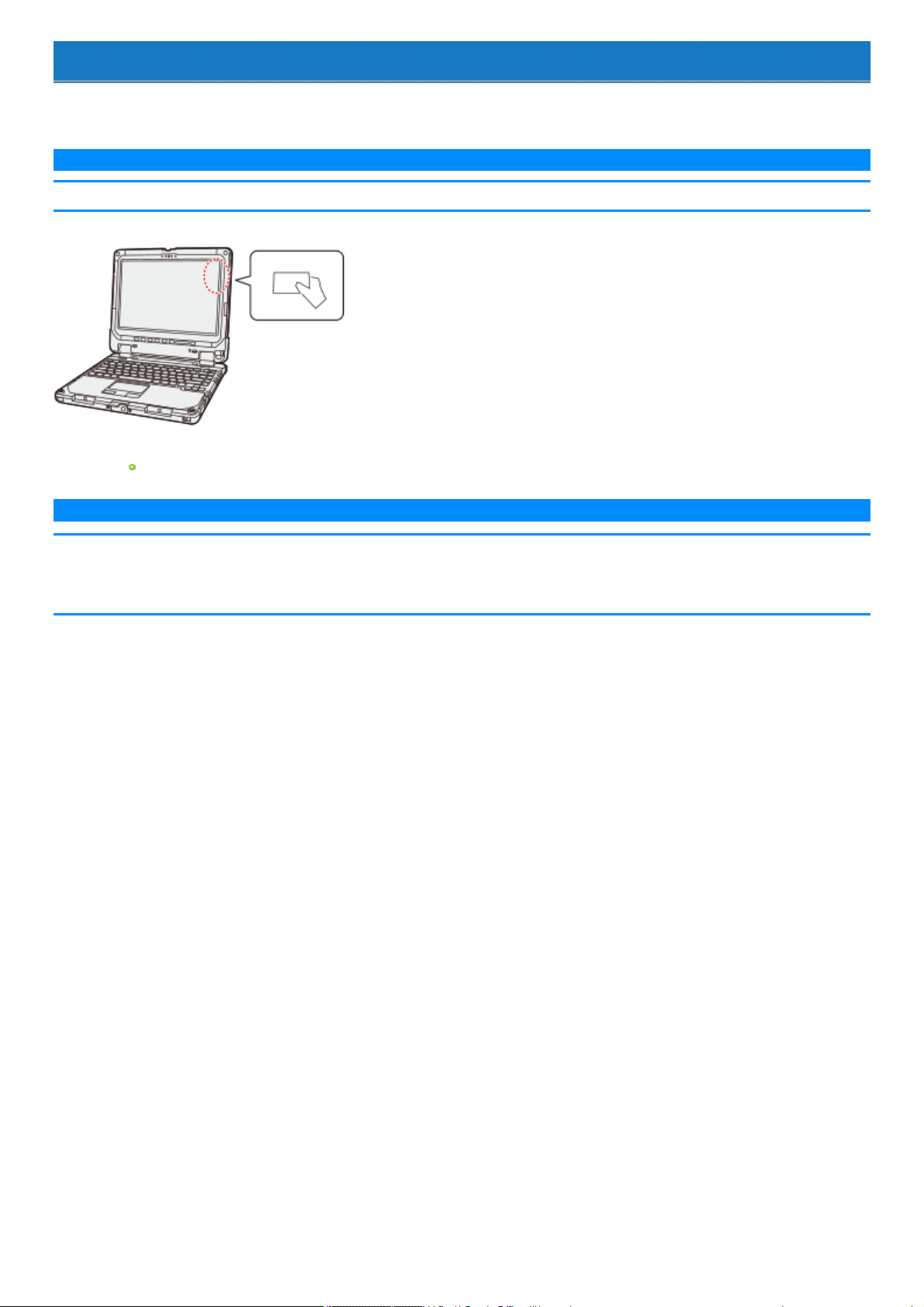
Contactless Smart Card Reader/RFID Reader
<Only for model with Contactless Smart Card Reader/RFID Reader>
You can read the data from RFID (Radio Frequency Identification) tags / Contactless Smart Card.
N O T E
n This sensor is typically used with specialized applications. For further information, askthe system administrator.
1. Aim the center of RFID tag / Smart Card at the Contactless Smart Card Reader.
Continue operation by using the specialized applications.
N O T E
n Wave cards one at a time. If multiple cards are waved simultaneously, proper reading will not be possible.
n If the chip device is held outside of the NFC sensor area or at an angle, or waved incorrectly, proper reading may not be possible.
n Operation distance depends on RFID tag / Smart Card.

Fingerprint Reader
<Only for model with Fingerprint Reader>
Precautions
For Security When Using Fingerprint Authentication
Fingerprint authentication does not guarantee complete user authentication and identification. Please note that we cannot accept liability for any
lossor damage incurred from your use or inability to use fingerprint authentication. Please be forewarned.
We cannot accept liability for any loss of data due to malfunction of the fingerprint reader.
Registration may be impossible if there isinsufficient fingerprint or other information to identify an individual.
Interoperation with third-party software cannot be guaranteed.
Fingerprint authentication can be performed using either fingerprint or password data. If you lose this data you may be unable to use this device,
so store the data in a safe place.
Fingerprint Reader Handling
Avoid the following. Failure to do so may result in malfunction or damage to the fingerprint reader.
Do not rub or scratch the reader with hard materials or poke it with small pointed objects that could cause scratches.
Do not touch the surface with dirty fingers.
Do not soil or cover the reader with a sticker.
In the following cases, fingerprint reader sensitivity may be degraded, impeding or preventing authentication and registration.
If the surface of the fingerprint reader issoiled with dirt, skin oil, or sweat
If the surface of the fingerprint reader iswet by moisture or condensation
If your finger istoo wet or too dry
If your finger iswounded or inflamed
If your fingerprint grooves have become too shallow due to wear
If sliding too quickly or too slowly
If your finger isswollen, such as from bathing
If your fingerprint has changed due to weight lossor gain
Fingerprint reader sensitivity may be restored by the following.
Wipe the fingerprint reader with a soft cloth.
Wash and wipe your hands.
Use another finger for registration and authentication.
If your finger isextremely dry, moisten it using hand cream.
Static electricity can cause the fingerprint reader to malfunction. To discharge static electricity, touch a metal surface before touching
the fingerprint reader. Be especially careful about static electricity in the winter and in other dry conditions.
When a faulty fingerprint reader is repaired, previously saved passwords may be reset in the process. Please be forewarned.
Setting a Password
If you forget your sign in password you will be unable to use the device or Windows, so be absolutely certain that you will not forget it.
If you are using Windows Hello:
When you have installed the Fingerprint Authentication Utility(DDS EVE FA Standalone for Panasonic), Windows Hello will become deactivated.
Fingerprint Authentication Function
Use fingerprint authentication to improve security and convenience by replacing the conventional password entry required to sign in to windows or
provide authentication on websites.
The OS provides the fingerprint registration/authentication function.
If you use fingerprint authentication onlyto sign in to Windows, you do not need to install the Fingerprint Authentication Utility (DDS EVE FA Stan-
dalone for Panasonic). In that case, however, automatic sign in to websites using fingerprint authentication for verification is not available.
The fingerprint authentication function of the OS can be used as follows.
1.
Click (Notification) on the task tray, and click [All settings] – [Accounts]- [Sign-in options] - [Fingerprint].
When fingerprints are registered with both the OS fingerprint authentication function and the Fingerprint Authentication Utility, authen-
tication is performed by the Utility during Windows sign-in. (The OS's fingerprint information cannot be used.)
Fingerprint Authentication Utility Features
Power On Security
Perform fingerprint authentication before the computer starts up. Set the Supervisor Password for the Setup Utilitybeforehand.
Sign in fingerprint authentication
Use fingerprint authentication to unlock your computer and sign in to Windows.
Fingerprint enrollment tool
Use to register, update, and delete fingerprints.
Fingerprint authentication ID manager
Use fingerprint authentication to automatically sign in to websites that require a user ID and password, such as are displayed in Internet Explorer.
For Windows 10
If the Fingerprint Authentication Utility (DDS EVE FA Standalone for Panasonic) is installed, the Windows-standard fingerprint regis-
tration/authentication function and the function to set the personal identification number (PIN) cannot be used.
Fingerprint Authentication Initial Configuration
Preparations for Using Fingerprint Authentication
Use the following procedure for fingerprint authentication utilitywith this device.
Set up a Windows user account and password.
▼
Sign in to Windows with administrator rights, and set up the Fingerprint Authentication Utility (DDS EVE FA Standalone for Panasonic).
▼
Sign in with a user account that uses this device to register fingerprints.
▼
Perform Power On Securityas necessary.
If the [User Account Control] screen appears, click [Yes].
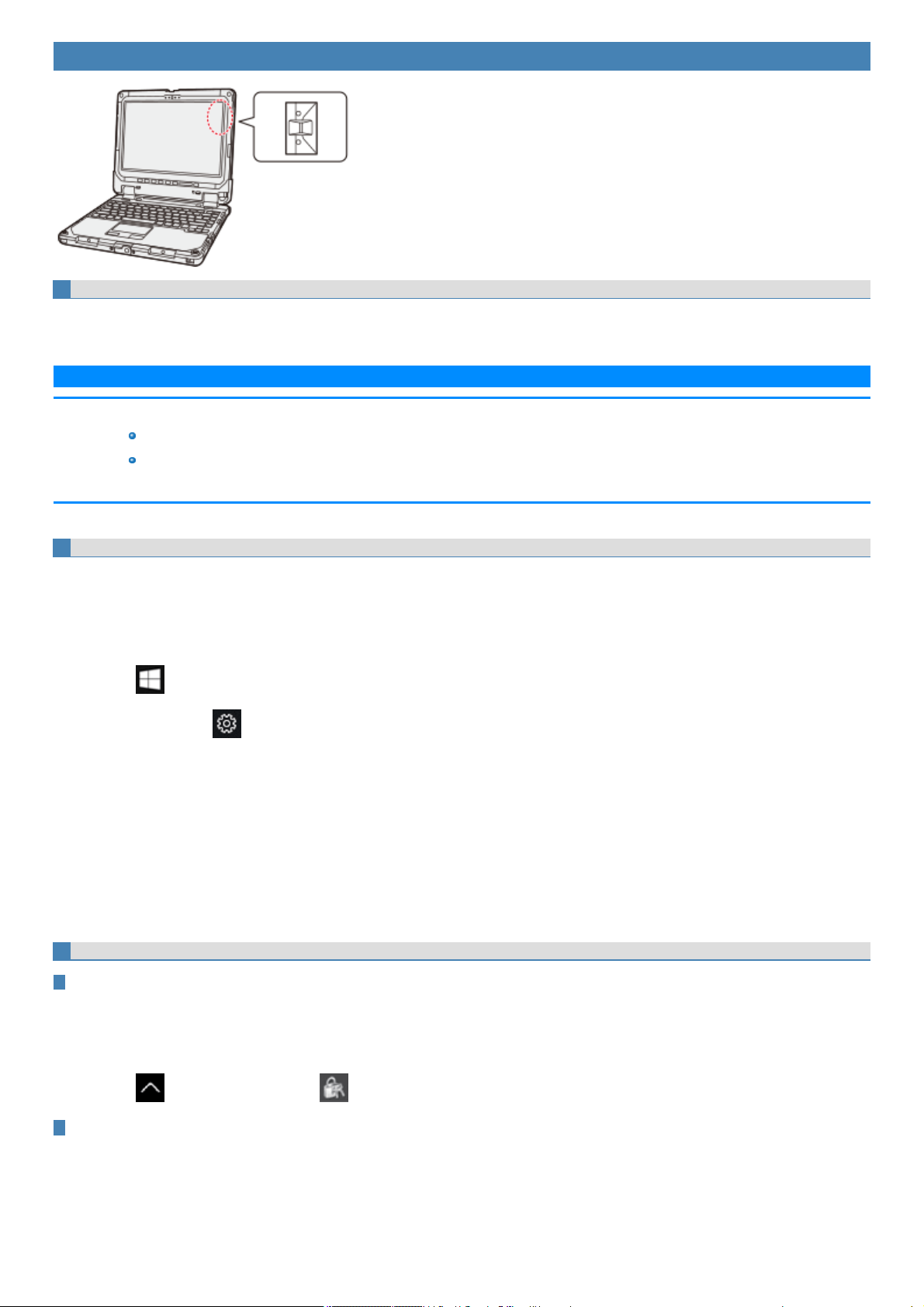
Fingerprint Reader Location
Step 1. Set up a user account and password.
If a user account for fingerprint authentication and a Windows sign in password have already been set, skip to Step 2.
If a user account for fingerprint authentication has not yet been set, set up a new user account and password.
N O T E
n There are two types of user account.
Administrator
Standard user
Some operationsand settings are partiallyprohibited by standard user (restricted user) accounts.
Step 2. Set up the Fingerprint Authentication Utility (DDS EVE FA Standalone for Panasonic).
1. Sign in to Windows with an account having Administrator rights.
If you have signed in as a standard user, click the user name on the upper left of the start menu to display the menu. Then, sign in using admin-
istrator privileges.
2. Close all other programs.
3.
Click (Start) - [Windows System] - [This PC] - [Windows(C:)].
Alternatively, click (Settings) - [Windows System] - [This PC] - [Windows(C:)] in the tablet mode.
4. Double-click [util], and double-click [fgrprint].
5. When FSAInstaller_XXXXXXXXXXXXXXXX appears, double-click.
If the "User Account Control" screen appears, click [Yes].
6. Follow the on-screen instructions.
7. Sign in after restarting.
If there are multiple users, select the one to sign in.
8. Click "Sign-in options," click the key icon, enter your Windows password, and then click [→ ].
Step 3. Register a Fingerprint
Step 3-1. Start registering fingerprints
If "Fingerprint not Enrolled" screen isdisplayed, click"Enroll".
When you click"Skip Enrollment", the Fingerprint Enrollment Tool can be started by the following procedure.
1. Have the user whose fingerprint is to be registered sign in to Windows with their account.
2.
Click in the task tray, and click and then click [Fingerprint Enrollment Tool].
Step 3-2. Enter the Windows sign in password.
When the "Fingerprint Enrollment Tool - User Enrollment" screen appears, enter the Windows sign in password and click[Next].
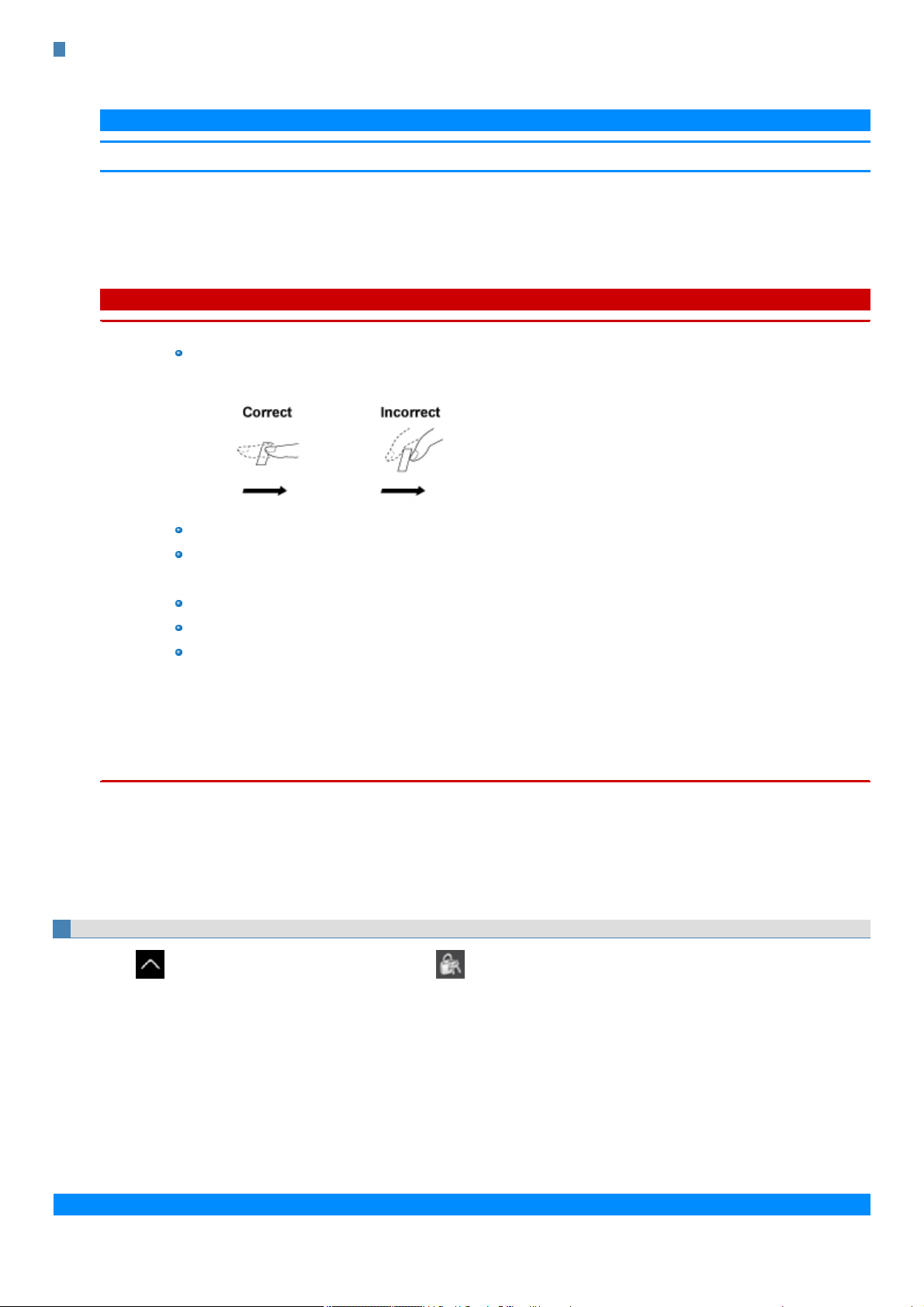
Step 3-3. Register Fingerprint Data
1. Click the button for a finger to be registered, and click [Next].
N O T E
n Register at least two fingers. That way, if by any chance one finger is injured, another can be used.
2. Enter fingerprints on the fingerprint reader.
Enter each fingerprint at least three times. When the fingerprints are being registered, the "Progress" indicator lights green.
When allthree parts of the "Progress" indicator light green, the "Fingerprint authenticated normally" message appears.
C A U T I O N
n To prevent scanning errors, pay attention to the following.
Set the first joint of the finger you want to register on the fingerprint reader so that the center of the fingerprint can passover the
center of the reader.
Slide the finger toward you while maintaining contact with reader.
Slide your finger untilyou can see the reader.
n In the following cases, the fingerprint reader may fail to register or authenticate.
Sliding too quickly or too slowly.
The finger isdirty or scarred.
The finger istoo wet or too dry.
See "Fingerprint Reader Handling" for details.
n In rare cases, features necessary for fingerprint authentication may not be detected.
In such cases, try registering another finger.
n If pop-up or other messages appear on the desktop screen, fingerprint entry may be inhibited temporarily. In such cases, click
outside of the Fingerprint Authentication window, then click again back inside it.
3. Click [Next], and register another finger using the same procedure as the first.
4. After registering the second finger, click "Finish".
To register more fingers, check "Add/change/delete a fingerprint", then click[Next] and repeat the same procedure.
5. Click [OK].
Perform Power On Security as necessary.
1.
Click on the lower right of the desktop screen, click on the task tray, and click [Power On Security tool].
2. When the [Log On] screen is displayed, input the fingerprint that has been registered.
3. Set [Power On Security] to [On] on the [Power On Security Configuration] screen.
When signing in to Windows with only the authentication before startup, enable [Single sign on].
4. Click the finger button to use for Power On Security.
You can select the registered finger.
5. Click [Done], and then click [Yes] on the confirmation screen.
6. Click [OK].
N O T E
n If the backup file is recovered, the Power On Security setting is deleted. Make the setting again after the recovery.
n Enabling the Power On Security will register the fingerprint data on BIOS. To erase the fingerprint data that has been registered on
BIOS, uninstall the fingerprint authentication utility (DDS EVE FA Standalone for Panasonic). (The fingerprint data is not erased even if
the OS is recovered or the data on the built-in disk is erased) ( Uninstalling the fingerprint authentication utility)
How to use the fingerprint authentication utility
See the online Help (EVE FA Standalone Help) installed with the device for more details on using the fingerprint authentication utility, troubleshooting,
restrictions, and other info.
Use the following procedure to display the online Help (EVE FA Standalone Help).
1.
Click (Start) at the bottom left corner, and then click [DDS] - [EVE FA Standalone Help].
Alternatively, click (All apps) - [DDS] - [EVE FA Standalone Help] in the tablet mode.
Uninstalling the fingerprint authentication utility
Perform the following procedure to uninstall the device'sfingerprint authentication utility.
1.
Click (Start) - (Settings) - [System] - [Apps & features].
2. Select "EVE FA Standalone for Panasonic (xxx) x.x.x.xxxxx", and click [Uninstall].
(x.x.x.xxxxxindicates the version number)
Follow the on-screen instructions.
3. If you want to be able to use the user authentication data in the future, select [No] when the “Do you delete all the data such as
registered fingerprint information?” message appears. Otherwise, select [Yes] to completely delete the authentication data.
4. Follow the on-screen instructions.
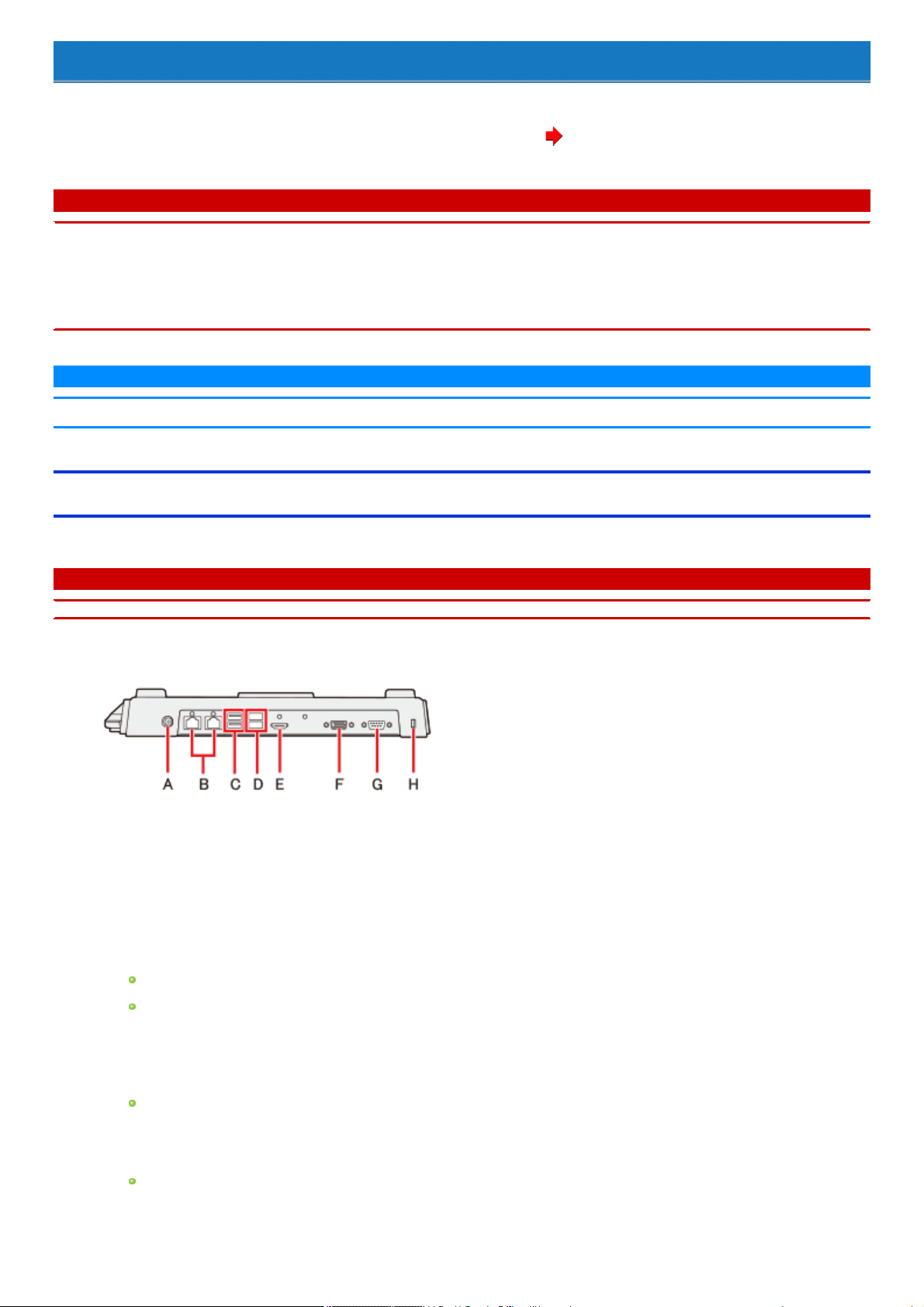
Port Replicator
You can use an optional port replicator (CF-VEB331 series). Thisdevice frees you from being bothered by a lot of cable connections when you carry the
computer. It also allows you to connect various peripherals.
Connect the port replicator to the expansion bus connector on the bottom of the computer. ( Description of Parts)
Read the instruction manual of the port replicator before using.
C A U T I O N
n Connect the AC adaptor always when using the port replicator.
n The driver of the port replicator is preinstalled in the computer.
n Connect or disconnect the port replicator while the computer power is turned off.
n To boot the computer from a commercially available optical drive, be sure to connect the USB drive to the USB port on the computer,
not to the USB port on the port replicator.
N O T E
n Use only the specified port replicator (CF-VEB331 series).
Description of Parts
Read carefully this manual that described for each device when connecting each device to the port replicator.
C A U T I O N
n Do not touch the expansion bus connector or pins of the port replicator.
<Rear>
A. DC-IN Jack
B. LAN Port (2 ports)
C. USB 3.0 Port (2 ports)
D. USB 2.0 Port (2 ports)
E. HDMI Port
Connect the HDMI compatible digital display.
It is not compatible with the analog display.
The display specifications of the maximum resolution, etc. that can be output differ according to the specifications of the device con-
nected. For details, refer to the specifications of the device connected.
F. VGA Port
G. Serial Port
It does not support serial mouse.
H. Security Slot
A Kensington cable can be connected.
For more information, read the manual that comes with the cable.
<Front>
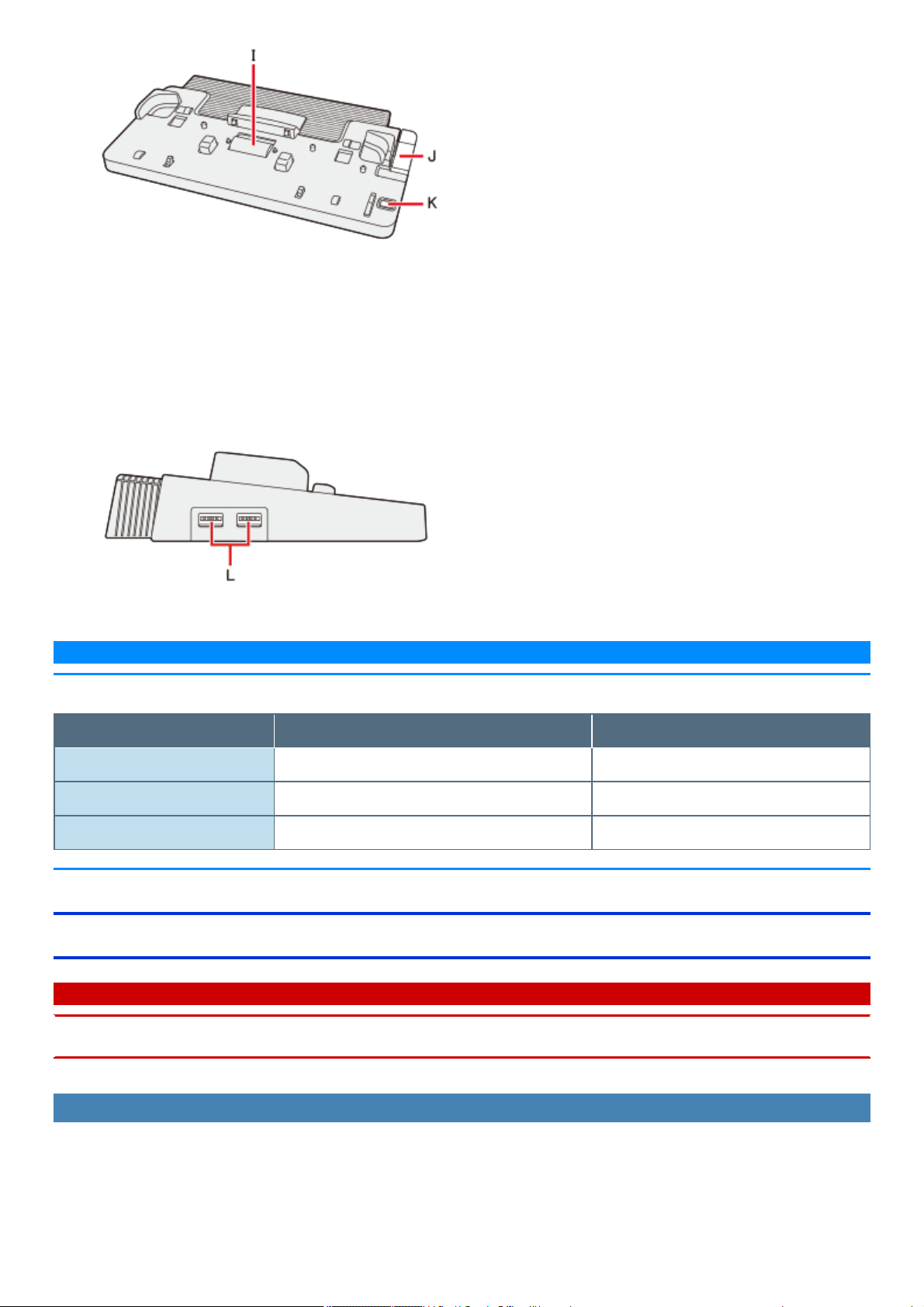
I. Expansion Bus Connector
Thisconnects to the expansion bus connector on the bottom of the computer.
J. Lever
Slide the lever all the way backto release the computer.
K. Power Switch
Thisoperates identicallyto the power switch on the computer.
<Left>
L. USB 2.0 Port (2 ports)
N O T E
n As for external displays you can use at the same time, refer to the table below.
Without Port replicator With Port replicator
Tablet HDMI × 1 HDMI × 1
Keyboard Base HDMI × 1, VGA × 1 No Support
Port replicator No Support HDMI × 1, VGA × 1
Connecting/Disconnecting the Computer
C A U T I O N
n Make sure to turn the computer off for connection/disconnection.
n Do not connect or disconnect the port replicator while the computer is powered on or in the sleep or hibernation mode.
Connecting
1. Turn off the computer.
Disconnect all the devicesand cables and close the terminal cover and close the display.
2. Connect the AC adaptor to DC-IN jack of the port replicator.
Connect the AC cord to the AC adaptor, and connect to an AC outlet.
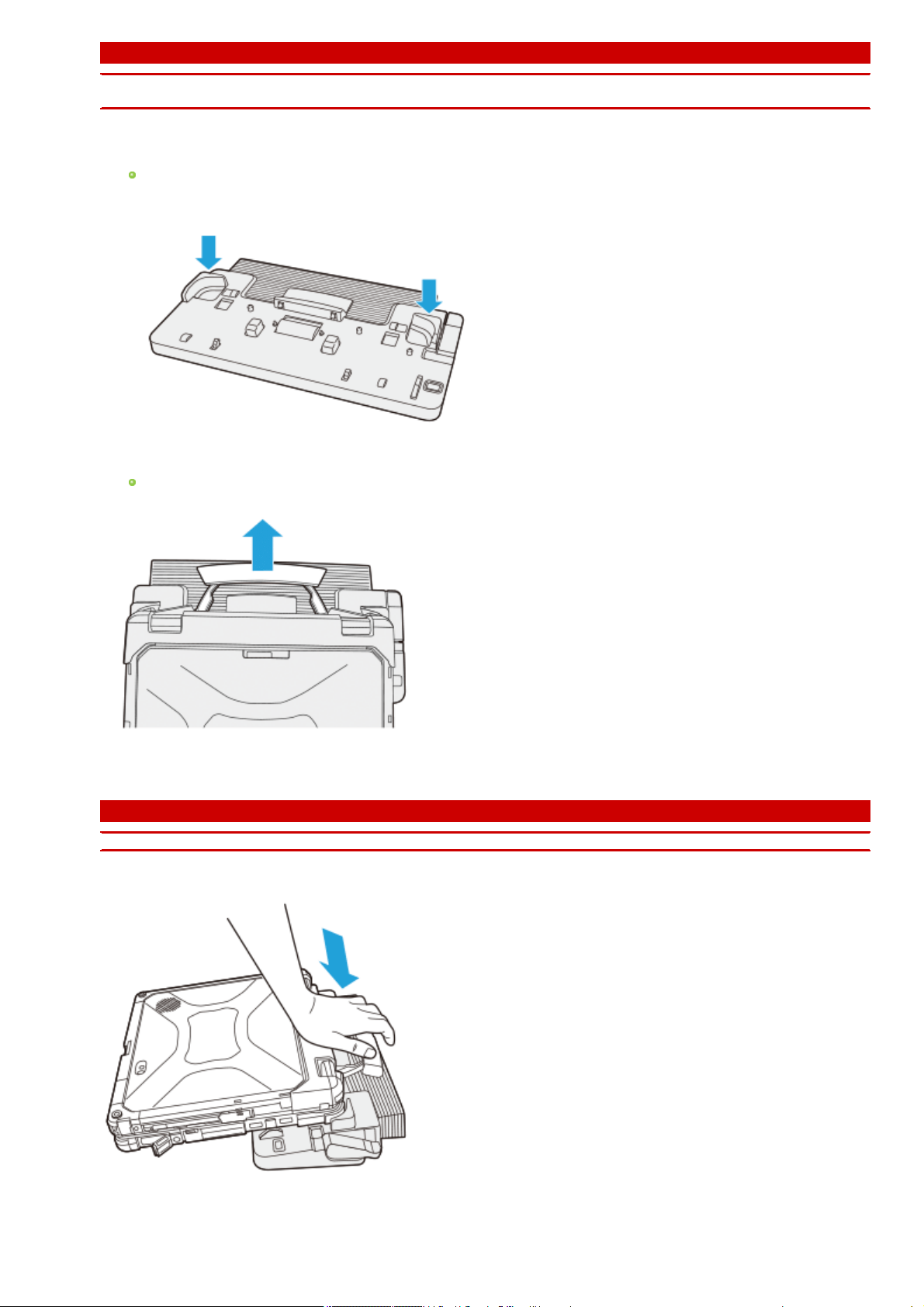
C A U T I O N
n Refer to the
OPERATING INSTRUCTIONS
accompanying computer for information on proper handling of the AC adaptor and
AC cord.
3. Place the corners of the computer in the latches of the port replicator (as shown by the arrows below).
Make sure to close allconnector covers of the computer. Do not attempt to make connections if there is any object between the com-
puter and the port replicator. Doing so could damage the computer and the port replicator.
4. Pull out the handle of the computer.
If you do not pullout the handle before opening the display, the computer may fall over due to the weight of the display.
5. Press the computer in the direction of the arrow and set firmly against the port replicator.
C A U T I O N
n Do not allow your hand to get caught between the computer and the port replicator when setting the computer.
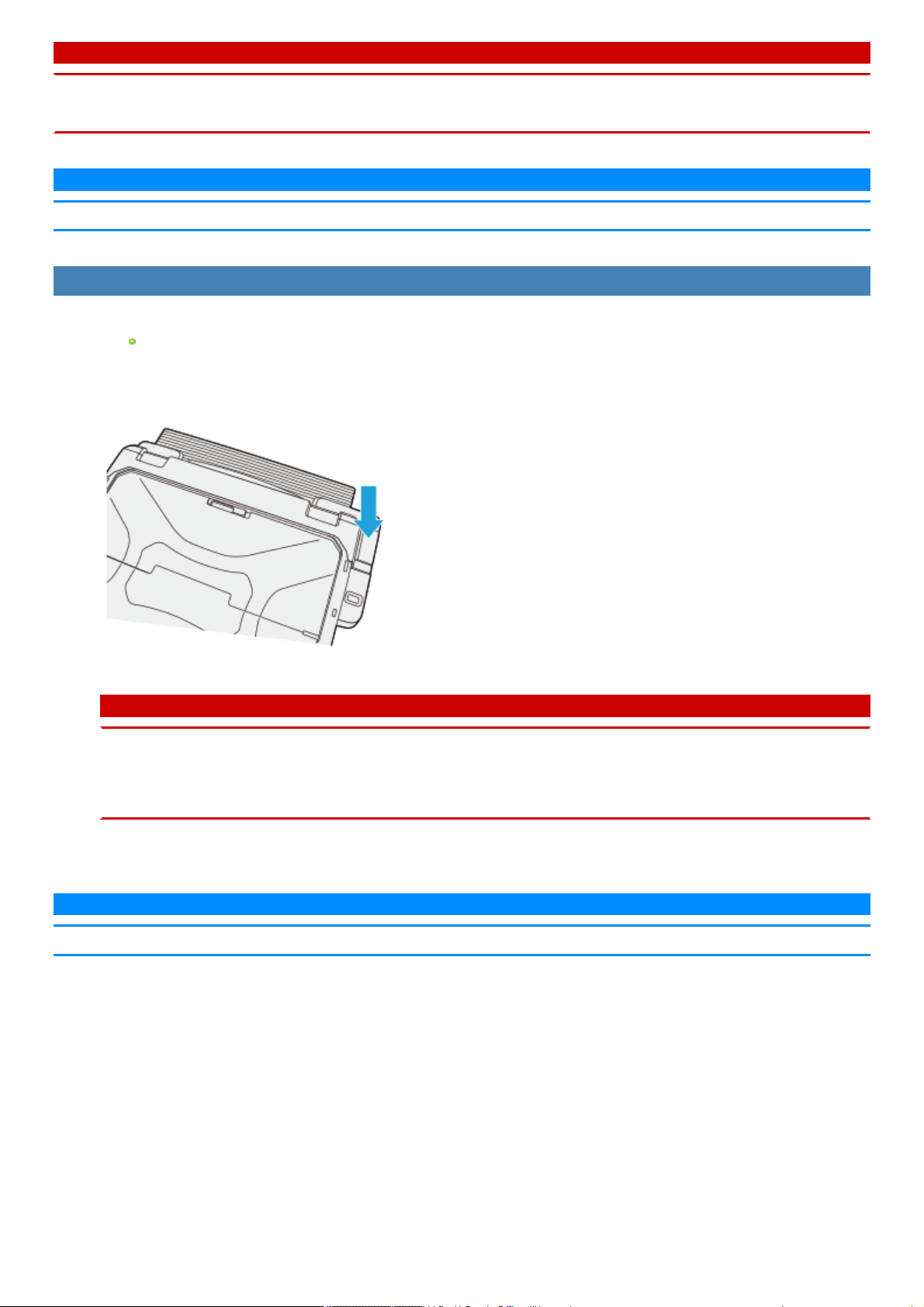
C A U T I O N
n Do not attempt to move the port replicator while connecting the computer to the port replicator.
n If the computer malfunctions while the port replicator is attached, disconnect the port replicator and check to see if the computer oper-
ates normally. If the computer operates normally, the port replicator may be malfunctioning. Contact Panasonic Technical Support.
N O T E
n See other chapters in this manual for connecting and setting USB devices, external displays and LAN.
Disconnecting
1. Turn off the computer and close the display.
If the cable has been connected to the securityslot on the side, remove the cable.
2. Push the lever.
The computer's connector is disengaged from the expansion bus connector of the port replicator.
C A U T I O N
n After sliding the lever, do not suddenly release it. The lever may relock. Do not slide the lever while pressing against the com-
puter from above. Doing so could damage the computer.
n If the computer malfunctions while the port replicator is attached, disconnect the port replicator and check to see if the com-
puter operates normally. If the computer operates normally, the port replicator may be malfunctioning. Contact Panasonic Tech-
nical Support.
3. Lift up the computer to remove it from the port replicator.
N O T E
n If it is difficult to disconnect the computer, push the lever while holding the computer from top for easy disconnection.
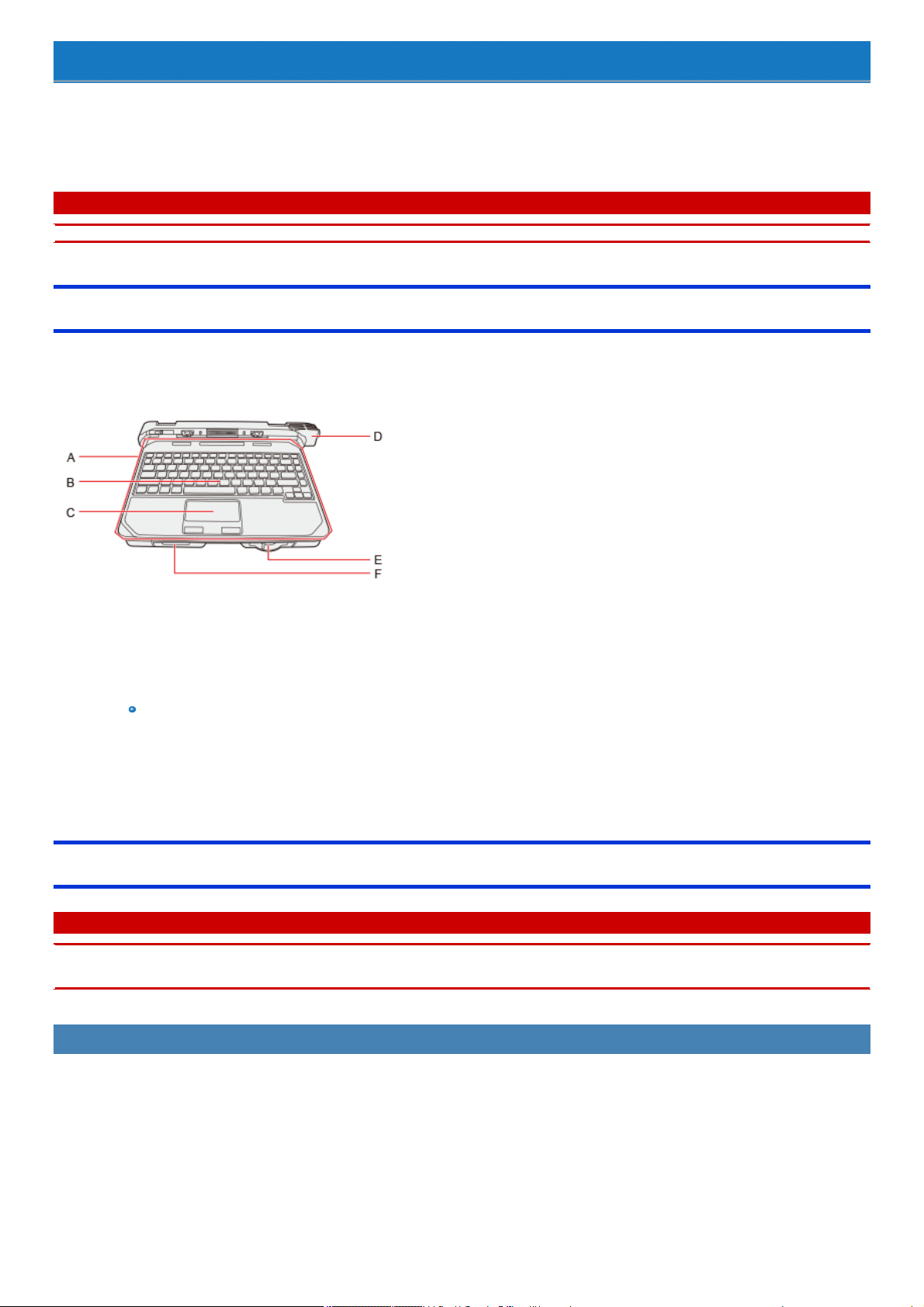
Vehicle Dock Adaptor
You can use an optional vehicle dock adaptor (CF-VVK33 series). The Vehicle Dock Adaptor is the device to connect the CF-33 series (tablet) to the leg-
acyVehicle Dock. For models with the Slim Keyboard, the keyboard can be detached.
Read the instruction manual of the vehicle dockadaptor before using.
For attaching the vehicle dock adaptor to the vehicle dock, read the instruction manual of the vehicle dock.
C A U T I O N
n Connect or disconnect the vehicle dock adaptor while the computer power is turned off.
Description of Parts
When connecting each device to the vehicle dock adaptor, carefully read the appropriate chapters for the device in this manual.
Descriptions in this chapter are based on the modelswith the Slim Keyboard.
<Front>
A. Slim Keyboard
B. Keyboard
C. Touchpad
D. Security Lock
For more information, read the manual that comes with the cable.
E. Release Lever
Used to detach the Slim Keyboard.
F. USB Port
Attaching/Detaching the Computer
C A U T I O N
n Do not connect or disconnect the vehicle dockadaptor while the computer is powered on, or in the sleep or hibernation mode.
n Make sure that there are no foreign objects between the vehicle dock adaptor and the computer.
Attaching the tablet to the vehicle dock adaptor
1. Turn off the computer.
Disconnect all the devicesand cables and close the terminal cover.
2. Hold the area enclosed by the dashed circle in the illustration, and push the tablet downward.
The detach indicator (A) will turn black.
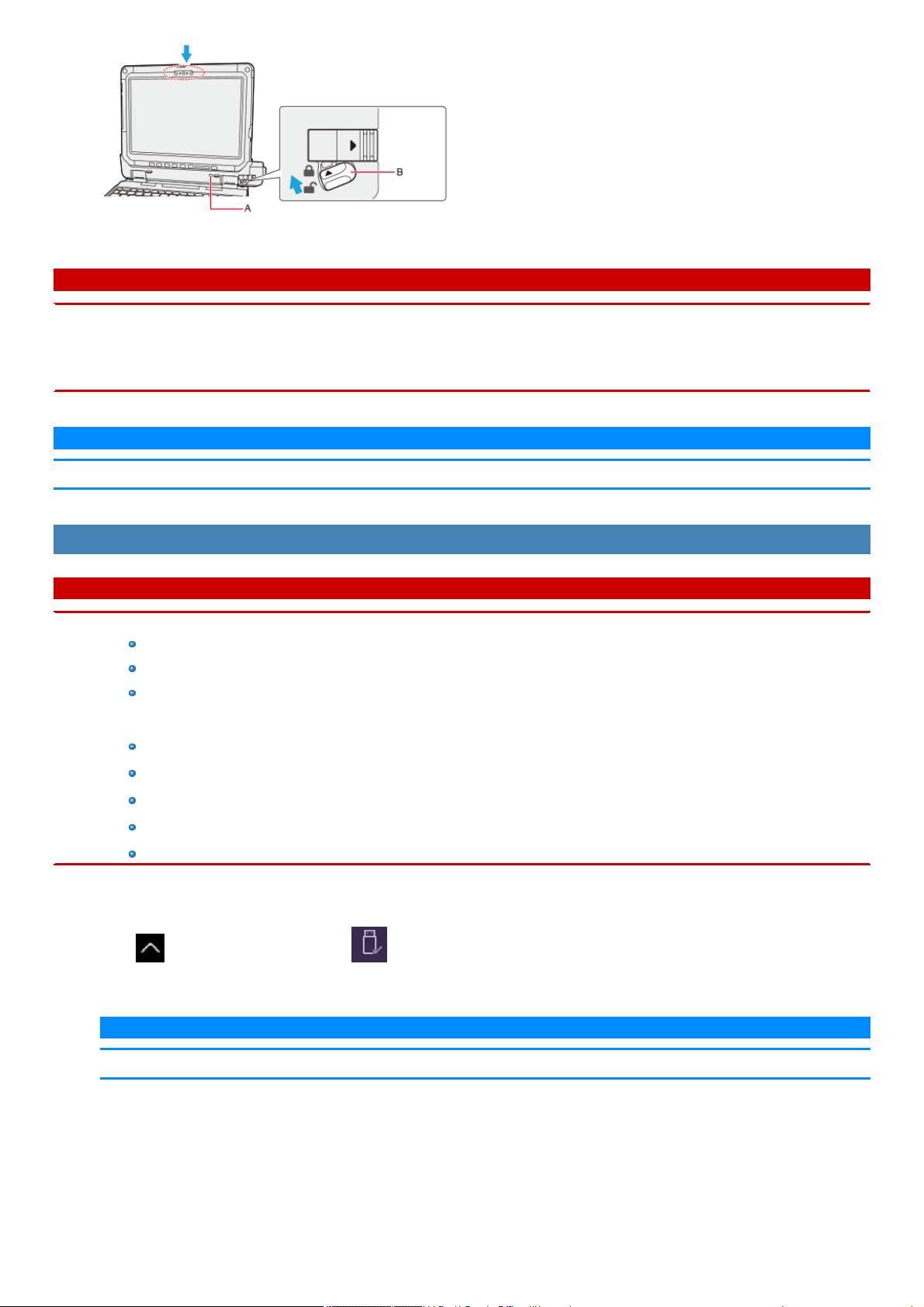
3. Lock the detach lock (B).
C A U T I O N
n Confirm that the detach indicator (A) has turned black.
n Be careful not to get your hands caught between the computer and the vehicle dock adaptor when attaching the computer.
n If the computer malfunctions when the vehicle dockadaptor is attached, disconnect the vehicle dock adaptor and check to see if the computer
operates normally. If the computer operates normally, the vehicle dockadaptor may malfunction. Contact Panasonic Technical Support.
N O T E
n For connecting and setting USB devices, see the other chapter in thismanual.
Detaching the tablet from the vehicle dock adaptor
C A U T I O N
n Before detaching the tablet, confirm the following things.
Save the necessary data.
Close files you have opened from removable disks and network drives.
Remove peripheral devices connecting to the tablet.
n Do not detach the tablet in the conditionsbelow.
When the SD Memory Card indicator ison.
When playing/recording audio files or displaying motion video such as MPEGfiles.
When playing a DVD-Video.
When writing to a disc.
When using communication software or network functions.
To detach the tablet while it is turned on, perform the following.
1.
Click on the task tray, and then click - [Eject Docking Device].
Alternatively, pressthe «Fn» and «Esc» keyboard keys at the same time.
N O T E
n To cancel detachment, press the «Fn» and «Esc» keyboard keys at the same time after the above operation.
2. Release the detach lock (A).
3. Slide the release lever (B) in the direction of the arrow.
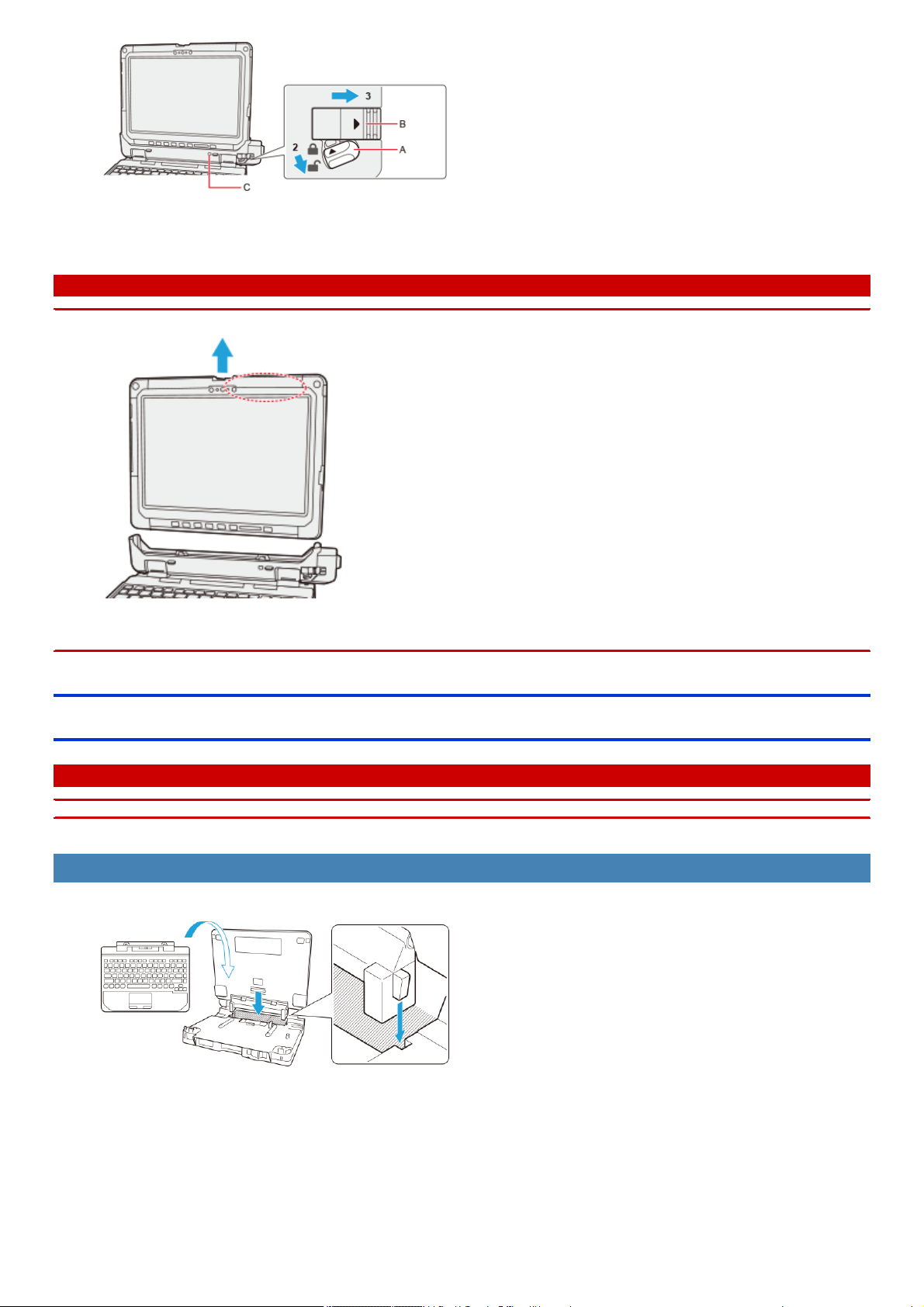
The detach indicator (C) will turn orange.
4. Detach the tablet from the vehicle dock adaptor.
C A U T I O N
n When detaching the tablet from the vehicle dock adaptor, hold the area enclosed by the dashed circle in the illustration.
n Attach/detach the tablet on a flat surface.
n When attaching/detaching the tablet, securelyhold the vehicle dock adaptor.
Attaching/Detaching the Slim Keyboard
C A U T I O N
n Make sure that there are no foreign objects between the vehicle dock adaptor and the slim keyboard.
Attaching the slim keyboard to the vehicle dock adaptor
1. Attach the Slim Keyboard by fitting its stand parts into the slits of the vehicle dock adaptor.
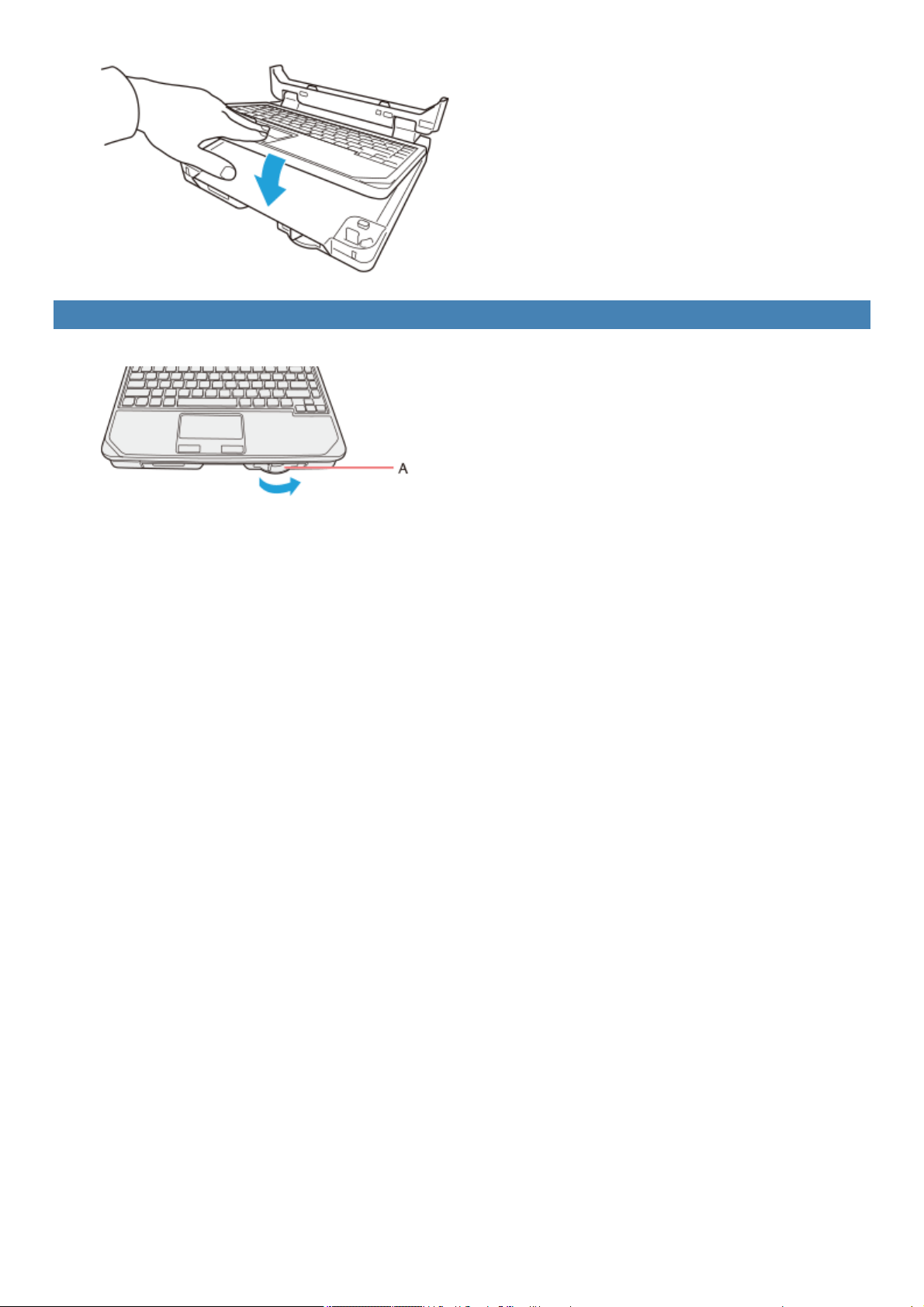
2. Press the Slim Keyboard from above.
Detaching the slim keyboard from the vehicle dock adaptor
1. Slide the release lever (A).
2. Detach the slim keyboard.
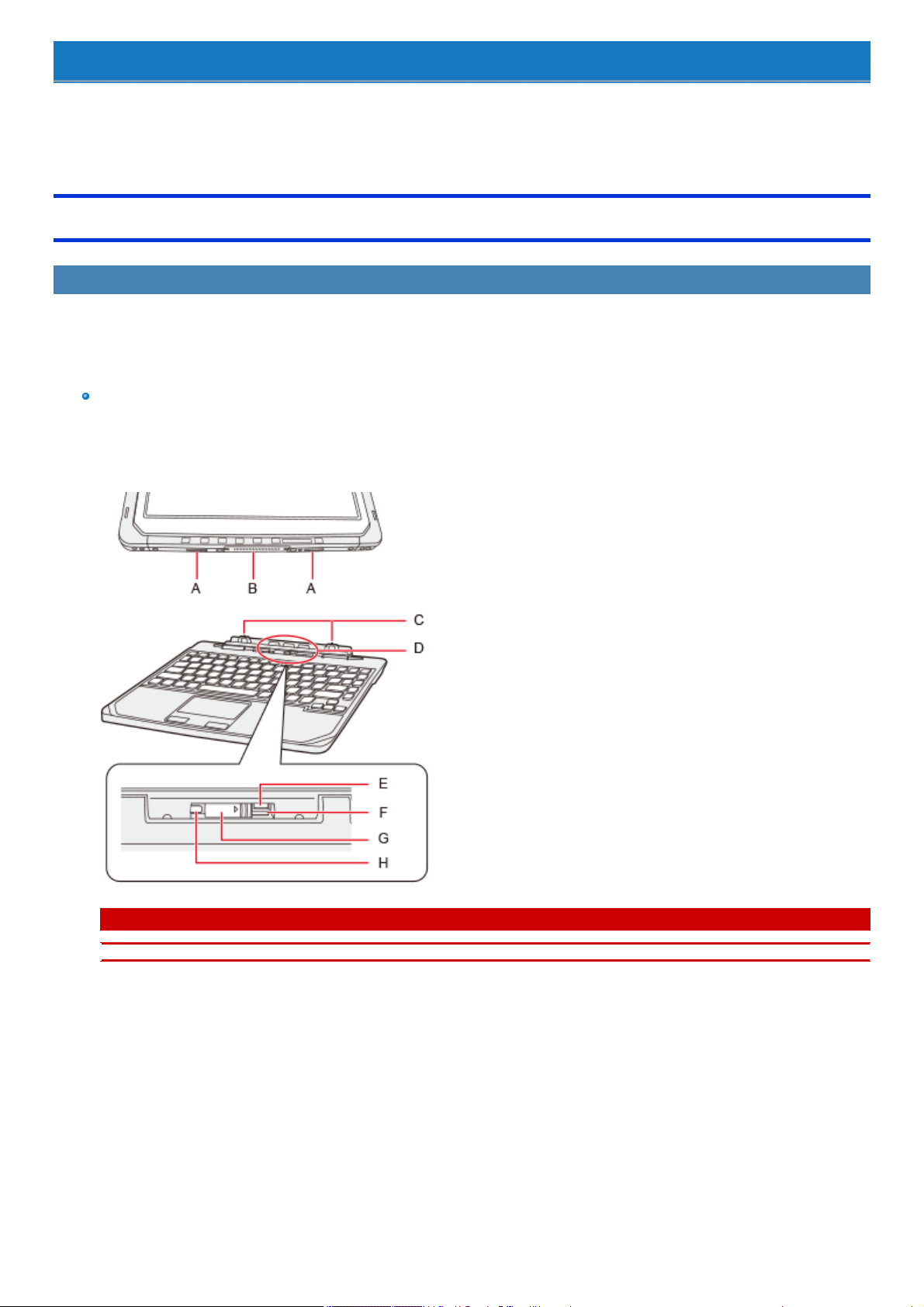
Slim Keyboard
You can use an optional slim keyboard (CF-VKB33 series). The slim keyboard can be attached not only to the Vehicle Dock Adaptor, but also to the CF-
33 series (tablet) directly.
Read the instruction manual of the slim keyboard before using.
Connecting/Disconnecting the Tablet
Connecting
Connect the slim keyboard to the tablet according to the following steps.
Preparation
Place the slim keyboard as shown below.
Make sure that there are no foreign objects under the slim keyboard.
1. Align the connect guide holes (A) of the tablet with the connect guides (C) of the slim keyboard.
C A U T I O N
n Do not touch either the expansion bus connector of the tablet (B), or the expansion connector of the slim keyboard (D).
2. Hold the area enclosed by the dashed circle in the illustration, and push the tablet downward.
The orange-colored sign (H) will be hidden.
3. Raise the detach lock (F) upward.
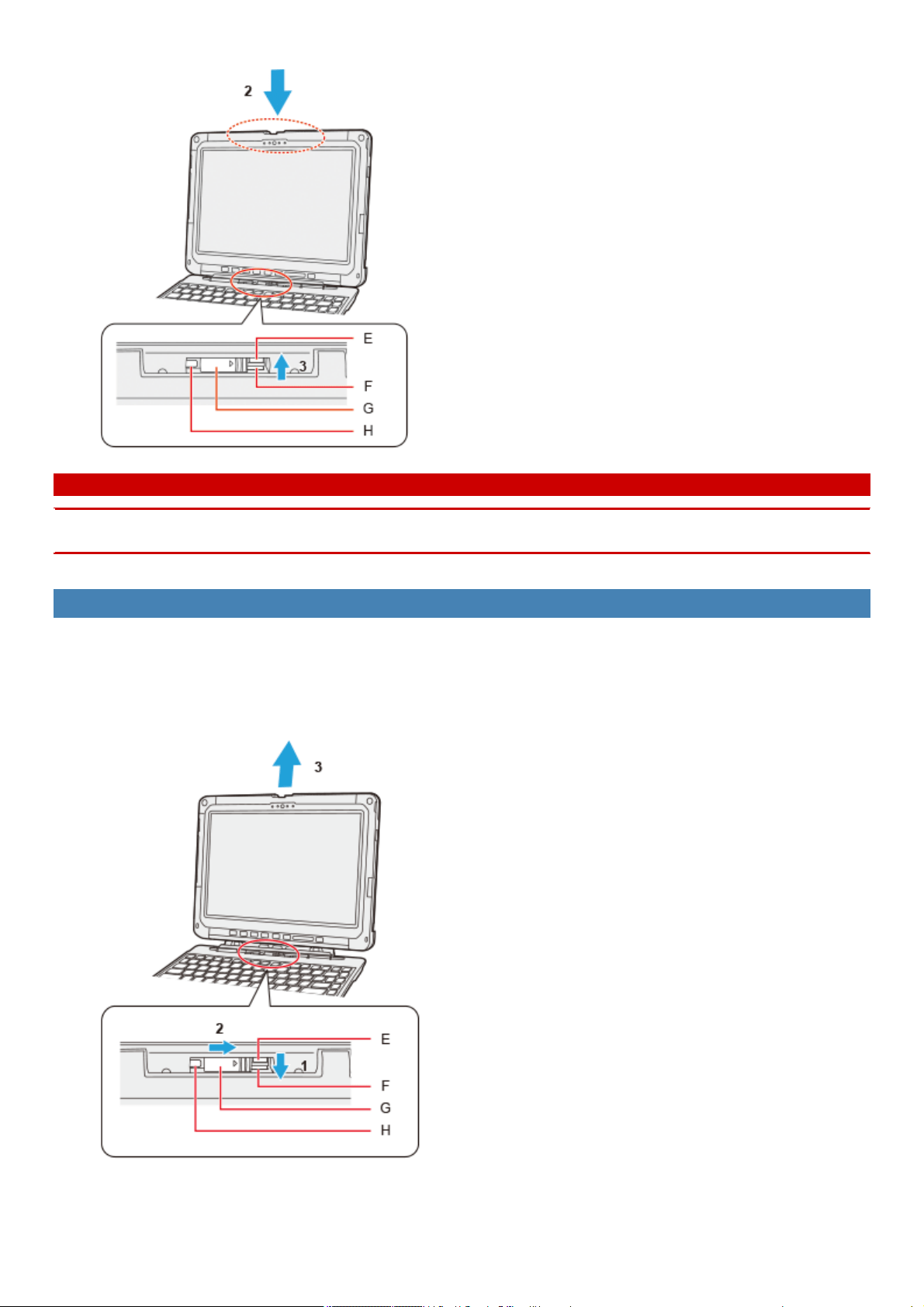
The orange-colored sign (E) will be hidden.
C A U T I O N
n Do not incline the display more outwardly than necessary. Doing so may result in the tablet falling over due to the display weight.
n Confirm that the orange-colored sign (E) has been invisible.
Disconnecting
1. Release the detach lock (F).
The orange-colored sign (E) will be shown.
2. Slide the release lever (G) in the direction of the arrow.
3. Detach the tablet from the slim keyboard.
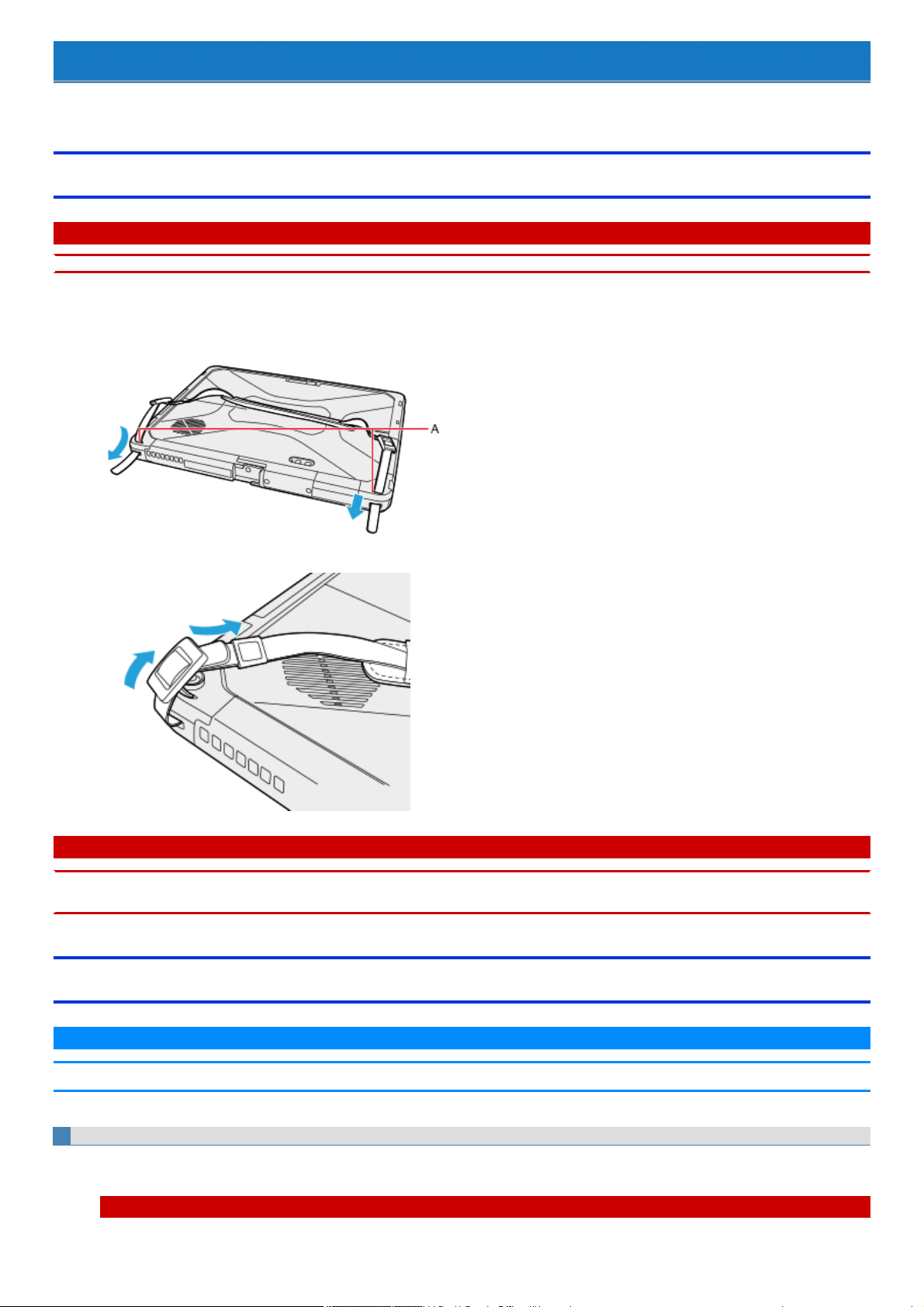
Hand Strap
Attaching the straps (hand strap/shoulder strap/rotate hand strap) helpsyou stably hold the computer.
Attaching the Hand Strap and the Shoulder Strap
C A U T I O N
n Make sure that there are no foreign objects under the tablet before attaching the straps.
1. Put the belt through the strap holes (A) of the tablet.
2. Put the belt through the adjuster and securely tighten it so as not to loosen.
C A U T I O N
n Do not use the strap to carry items heavier than the tablet. Doing so may cause the strap to become loose.
n Do not use the strap if it becomes worn or damaged.
Installing the Rotate Hand Strap
N O T E
n When you mount the tablet on the vehicle dock to use it, carefully read the Operating Instructions of the vehicle dock.
Preparation
1. Detach the tablet from the keyboard base. And then turn over the tablet.
C A U T I O N
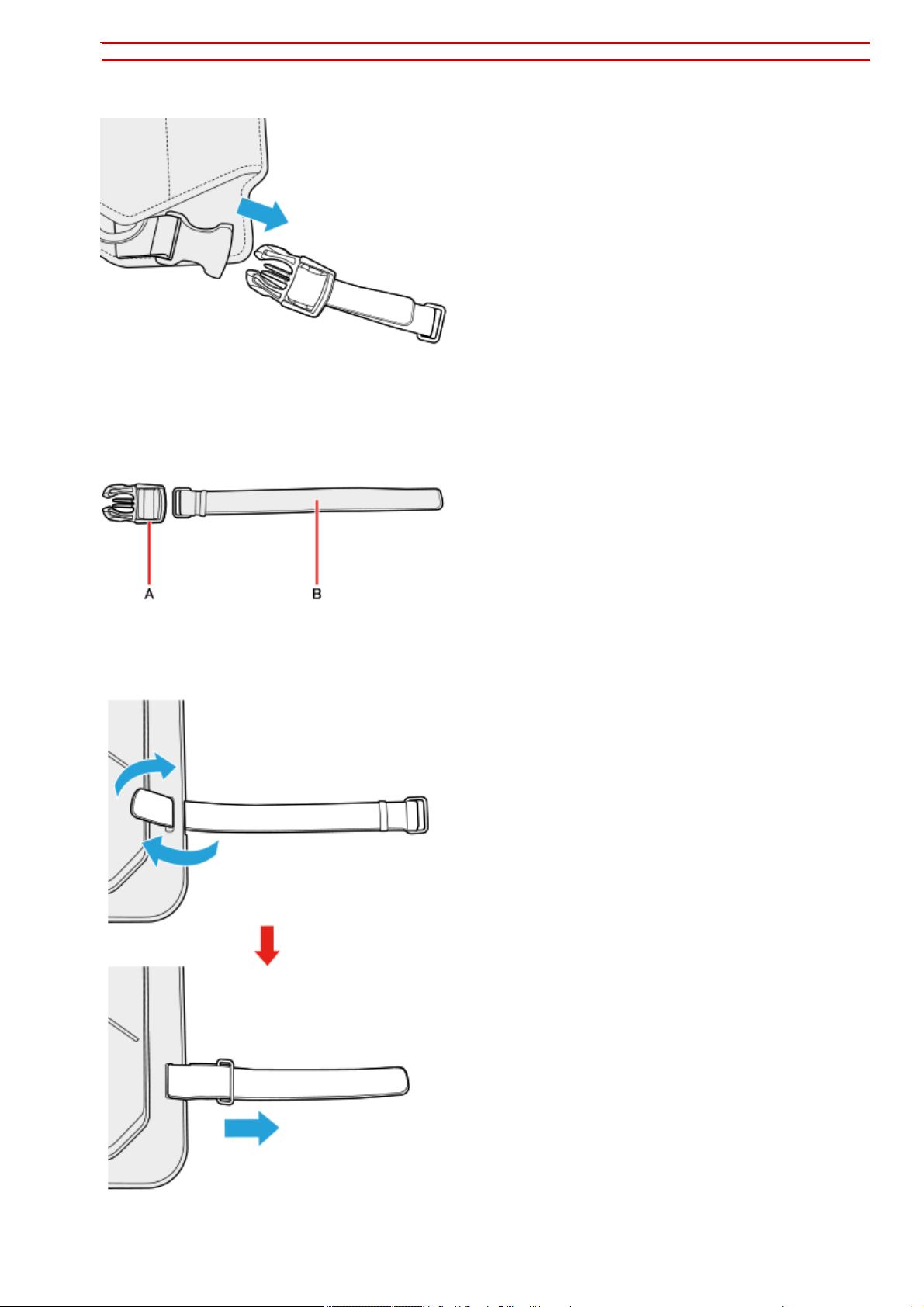
n Place the tablet on a soft cloth with the panel side down. In addition, make sure that there are no objectsunder the tablet.
2. Remove the release buckle and fixed tether from the rotate hand strap.
3. Remove the release buckle (A) from the fixed tether (B).
4. Put the fixed tether through the strap hole of the tablet.
5. Attach the release buckle to the fixed tether, and secure it.
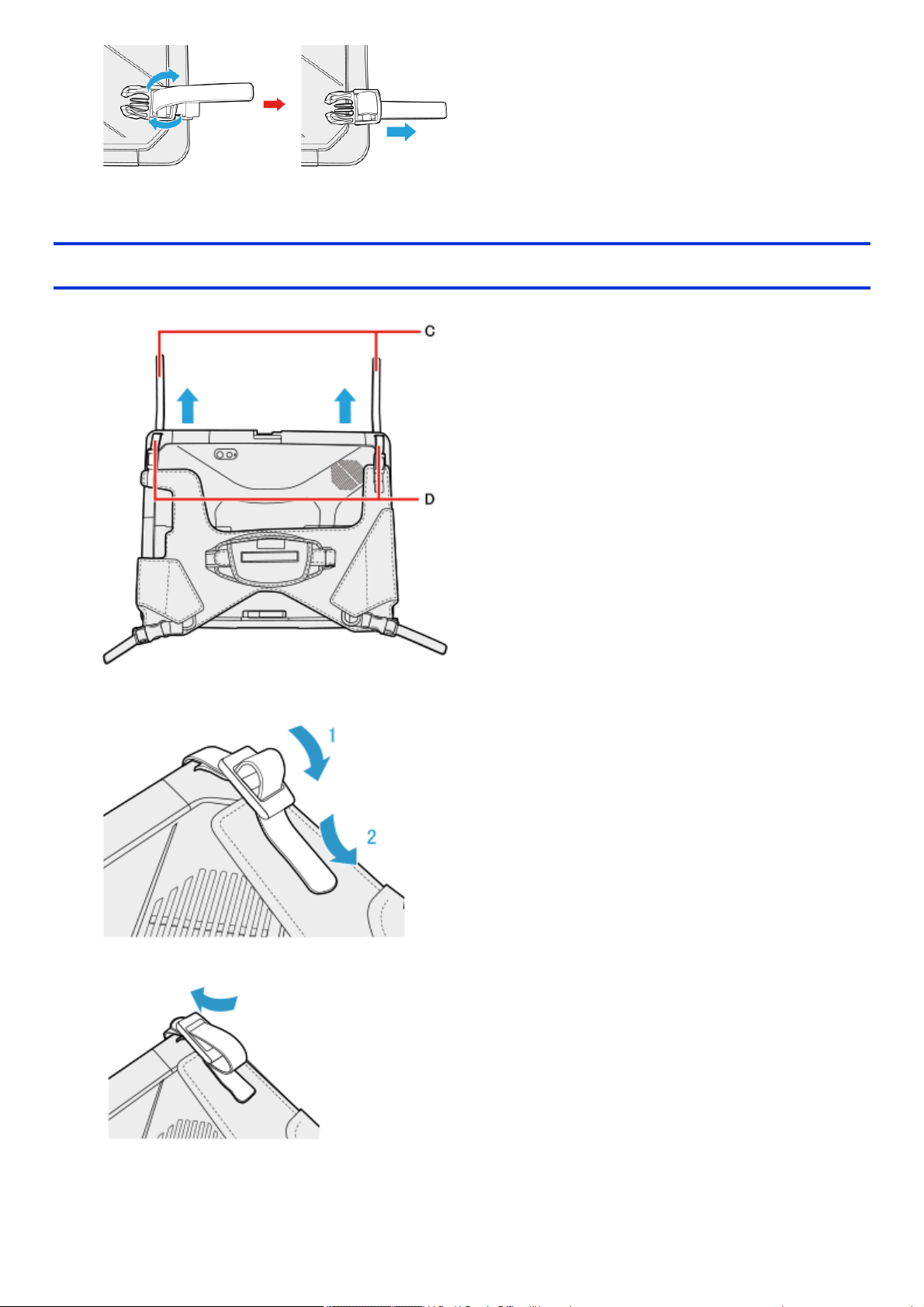
In the same way as above, attach the release buckle and fixed tether on the opposite side of the tablet.
Attaching the Rotate Hand Strap
1. Put the belts with the adjusters (C) attached through the strap holes (D) located on the upper side of the back of the tablet.
2. Put the belt through the adjuster, and securely tighten it so as not to loosen.
If the belt is too long, you can also put the belt through the adjuster again as illustrated below.
3. Connect the release buckle to the belt.
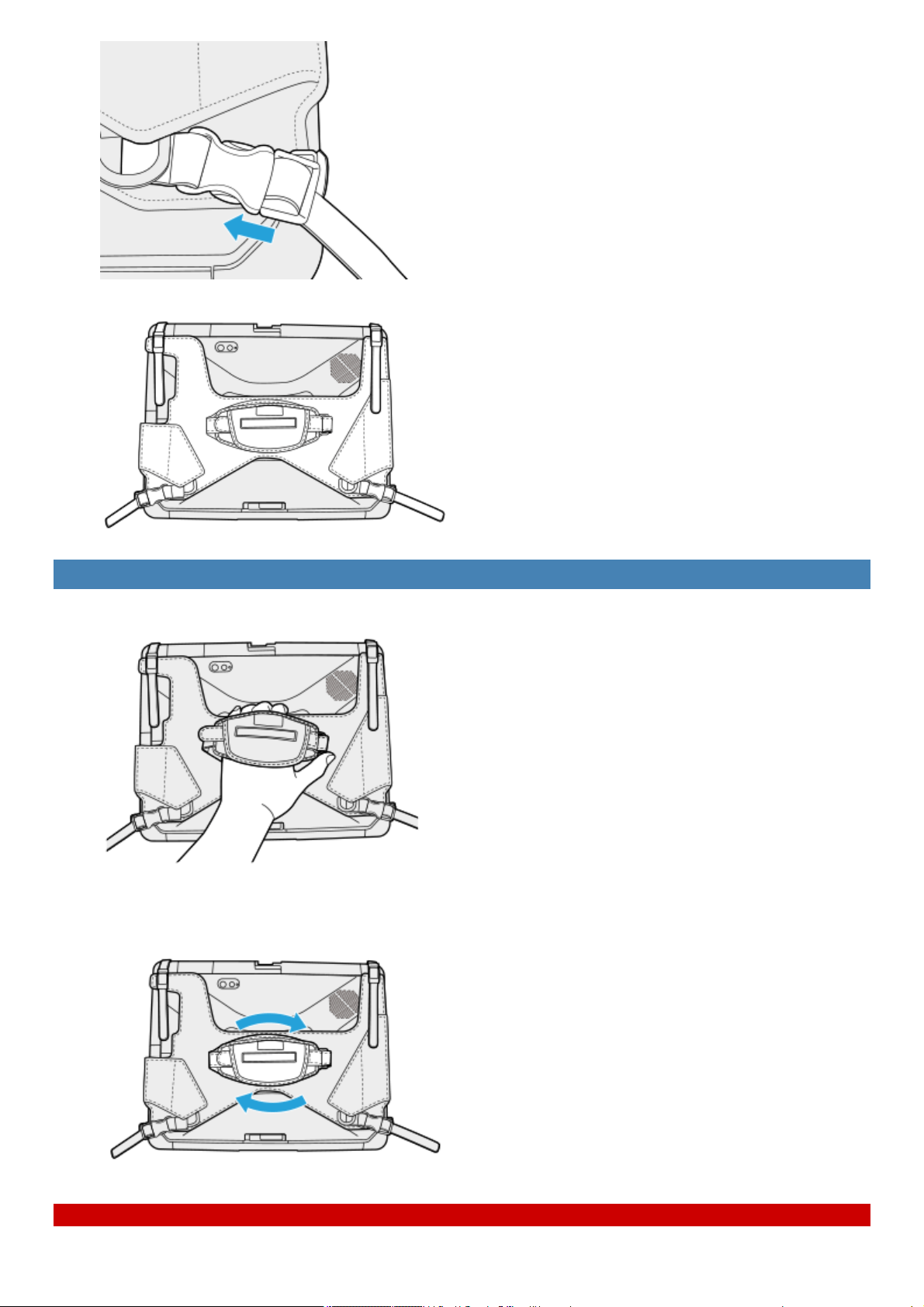
4. Make sure that the strap has been installed without looseness.
Using the Rotate Hand Strap
1. When holding the tablet in one hand and using it, insert your hand to the rotate hand strap.
2. Fix the rotate hand strap firmly enough to support the tablet, and turn it over.
3. Adjust the angle of the rotate hand strap, if necessary.
C A U T I O N
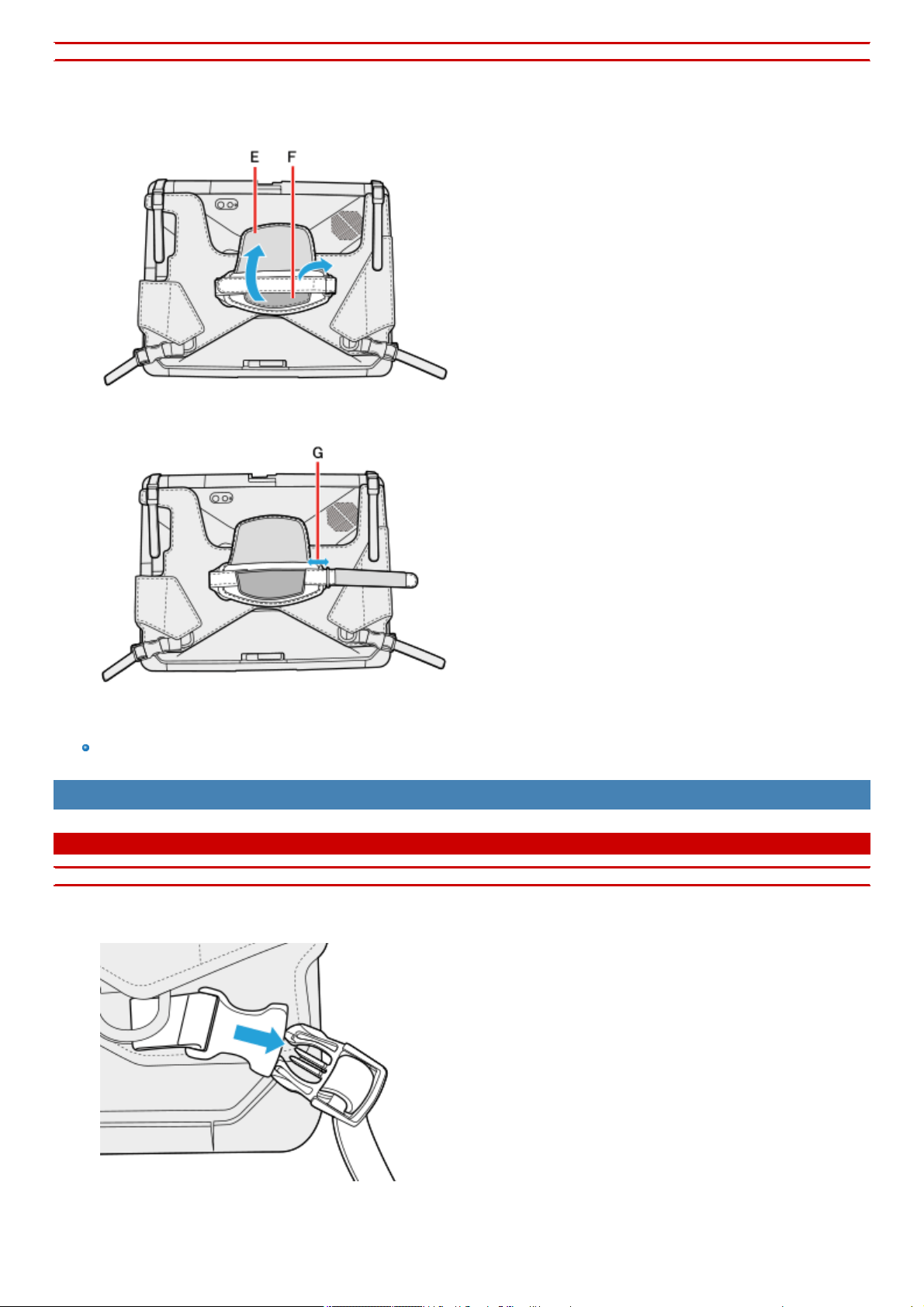
n If the hand is not securely fixed to the rotate hand strap, the tablet may drop.
When the rotate hand strap is too loose or too tight, adjust the rotate hand strap according to the instructions below.
1. Remove (E) from the strap joint, and then remove (F).
2. Move (F), and then adjust the position (G).
3. Attach (F), and then attach (E) to the joint.
Firmly attach the hand strap so as not to loosen.
When inserting/removing the battery pack
C A U T I O N
n Place the tablet on a soft cloth with the panel side down. In addition, make sure that there are no objectsunder the tablet.
1. Remove the release buckle.
2. Raise the upper side of the rotate hand strap.
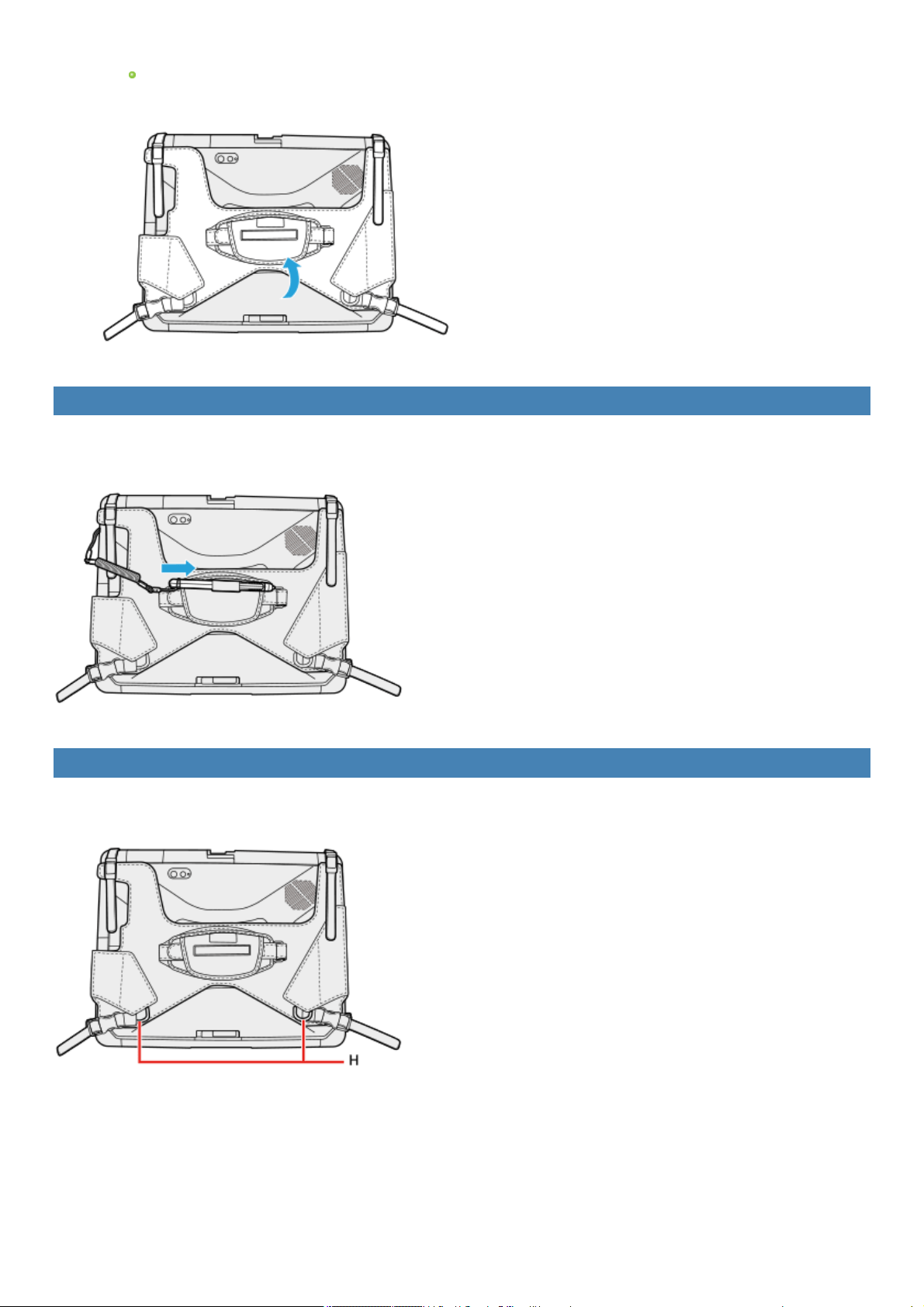
With the upper side of the rotate hand strap lifted up, remove the backcover.
Refer to "Replacing the Battery Pack".
Attaching the pen to the Rotate Hand Strap
The pen can be attached to the rotate hand strap.
Attaching the shoulder strap to the Rotate Hand Strap
The shoulder strap can be attached to the rings (H) of the rotate hand strap.
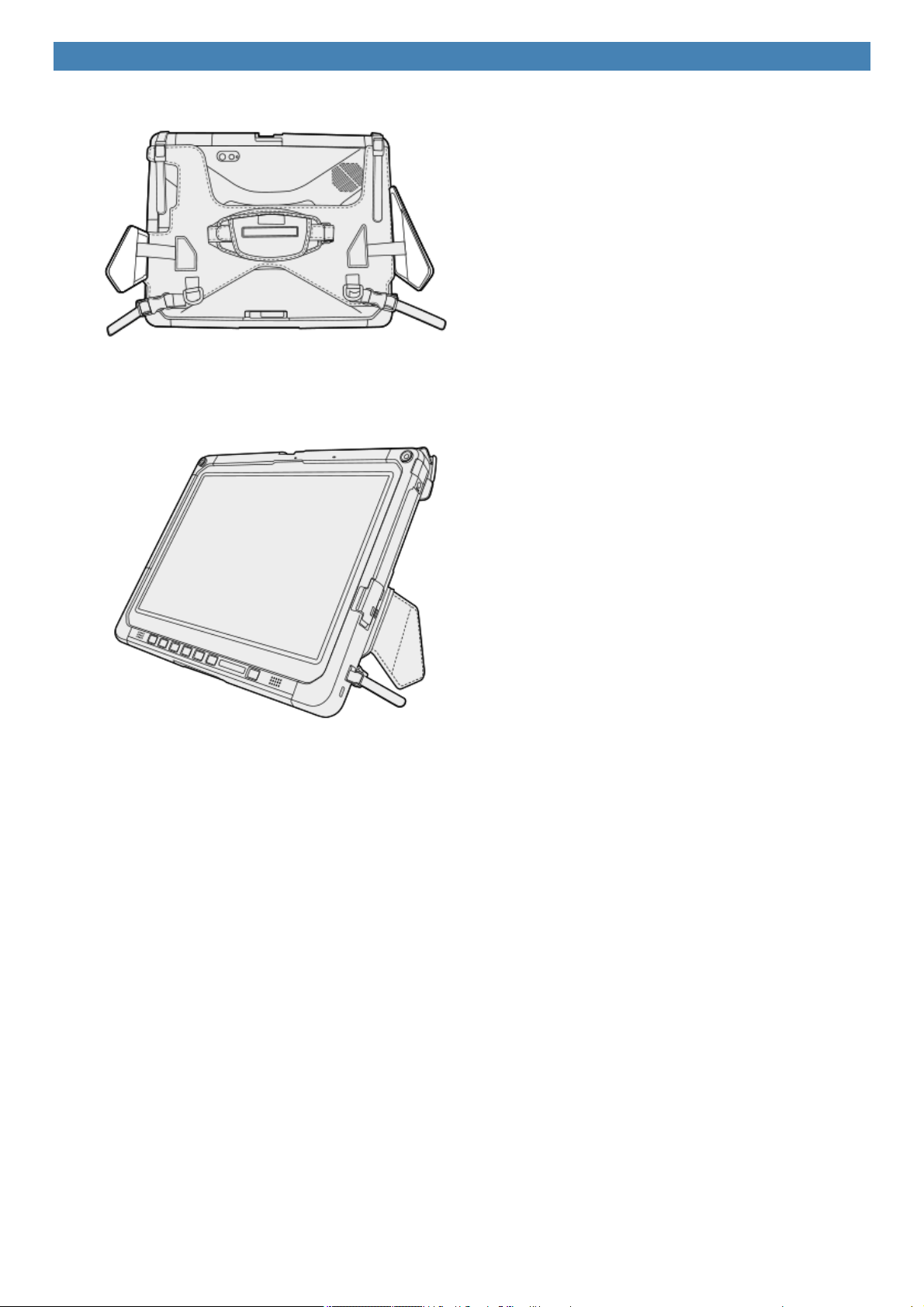
Using the tablet stand
1. Unfold the stands on the both sides.
2. Stand the tablet as illustrated below.
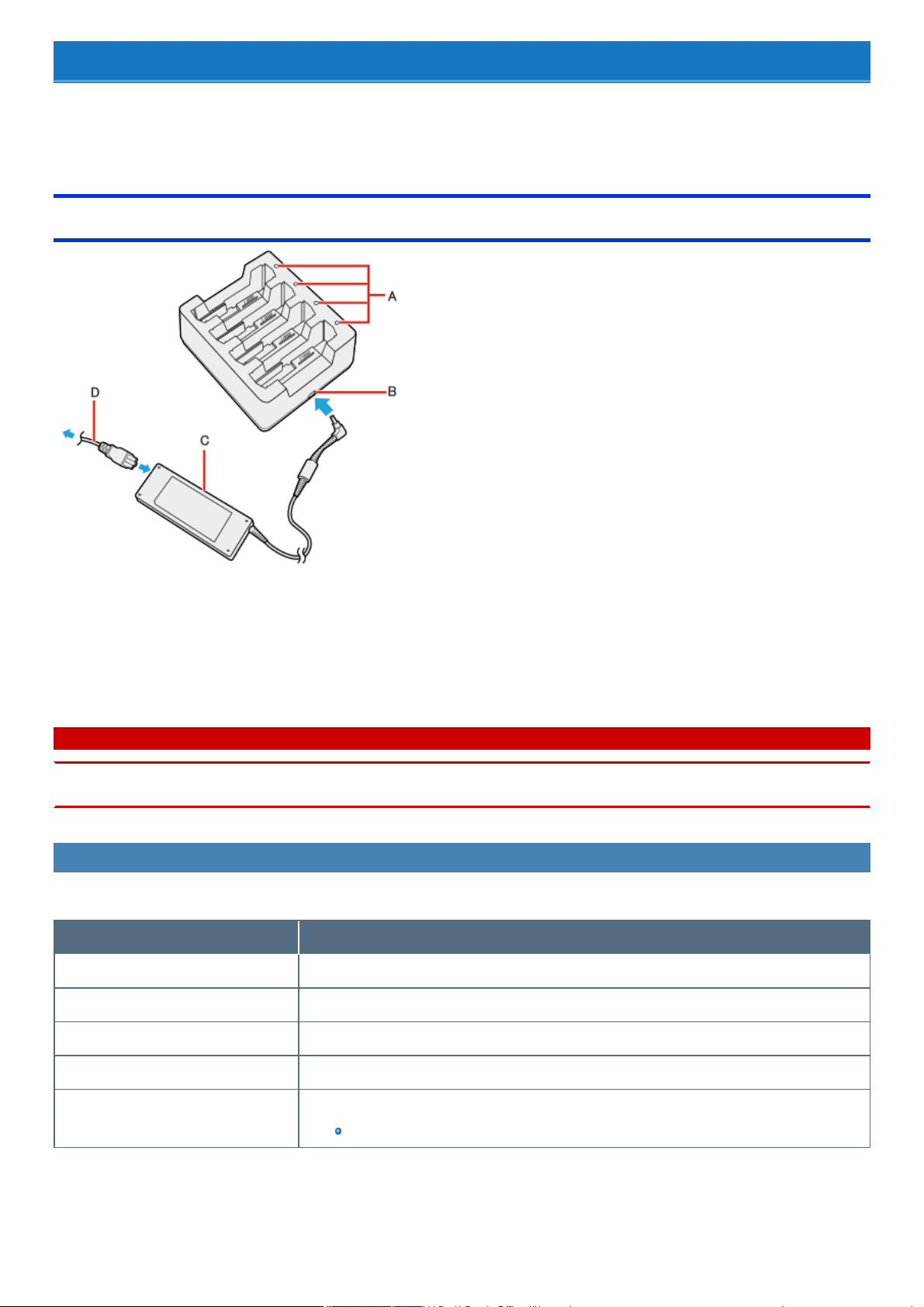
Battery Charger
The battery charger is designed for charging the battery pack for the Panasoniccomputer series. To recharge a battery pack, you will need the AC
adaptor and AC cord included with this product.
Read both this Operating Instructions and the computer’s Operating Instructions before using.
Description of Parts
A. Battery Indicator (1 to 4)
B. DC-IN Jack
C. AC adaptor
Clean the dust and other debris of the connector regularly.
D. AC cord
C A U T I O N
n The AC cord may vary depending on the country.
n Use only the specified AC adaptor with this product.
Indicators
The power indicator on the battery charger lights green when the power isbeing supplied (when the adaptor isconnected).
Battery Indicator Battery status
Not lit The battery pack is not inserted or not being charged.
Orange Charging is in progress.
Green The battery is fully-charged.
Blinking red The battery pack or the charging circuit is not operating properly.
Blinking orange The battery cannot be charged temporarily due to the following reasons:
Its internal temperature isout of the acceptable range.
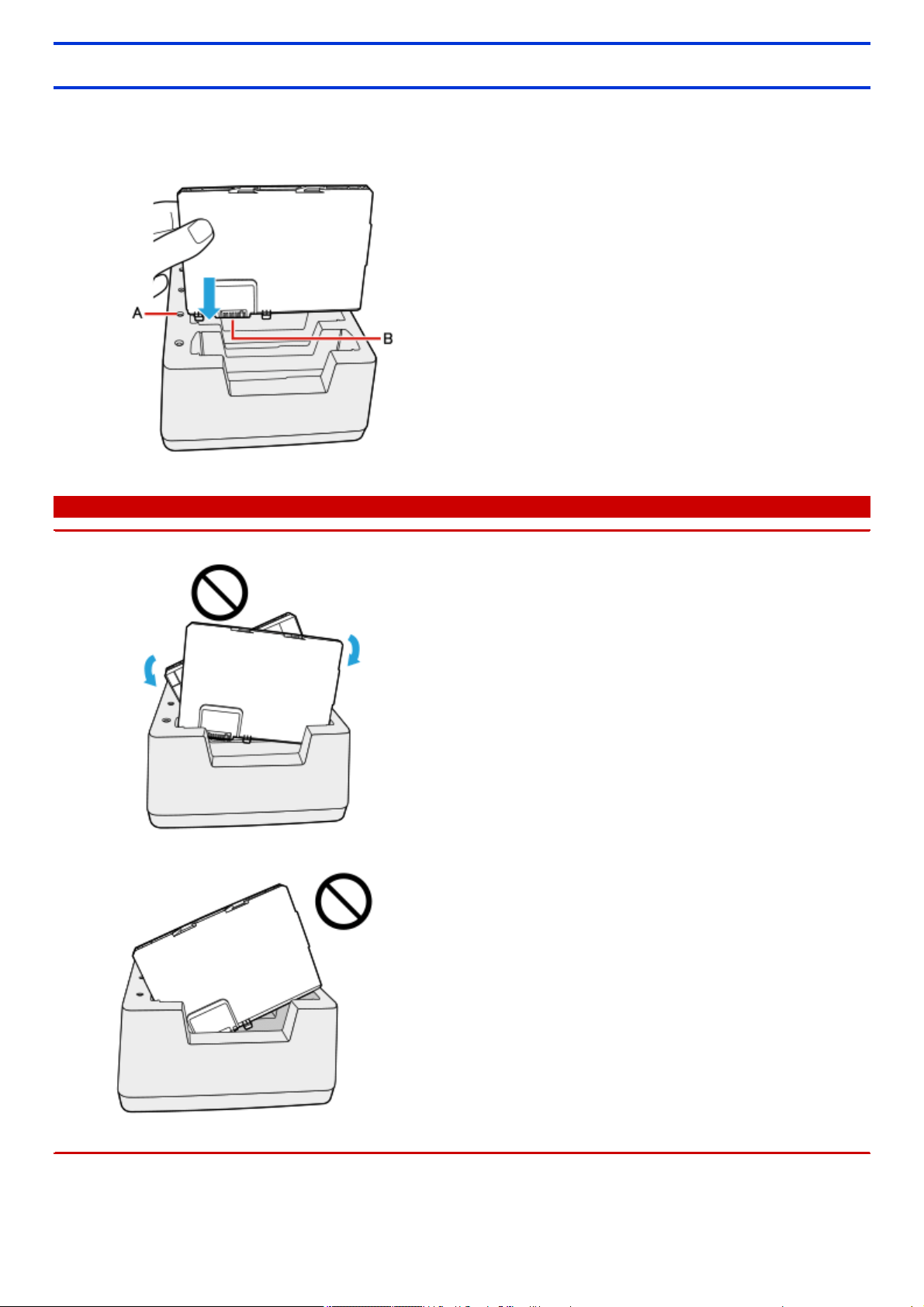
Charging the battery pack
1. Connect the AC Adaptor.
2. Insert the battery pack(s).
Insert the battery packfirmlywith its battery connector (B) facing the indicator (A) of the charger.
C A U T I O N
n Do not insert the battery pack vertically or at an angle. The terminal of the battery charger may be damaged.
n If the battery pack got lodged in the slots, push the middle of the battery pack.

N O T E
n The battery indicator lights when the battery pack is properly inserted with the AC adaptor connected.
n Four battery packs can be inserted simultaneously. Each of them can be inserted in any slot.
n When removing the battery pack, pull it out in the opposite direction of attaching the battery pack.
n Charging begins automatically.
n The battery pack or battery charger will become somewhat warm during normal use. This is not a malfunction.
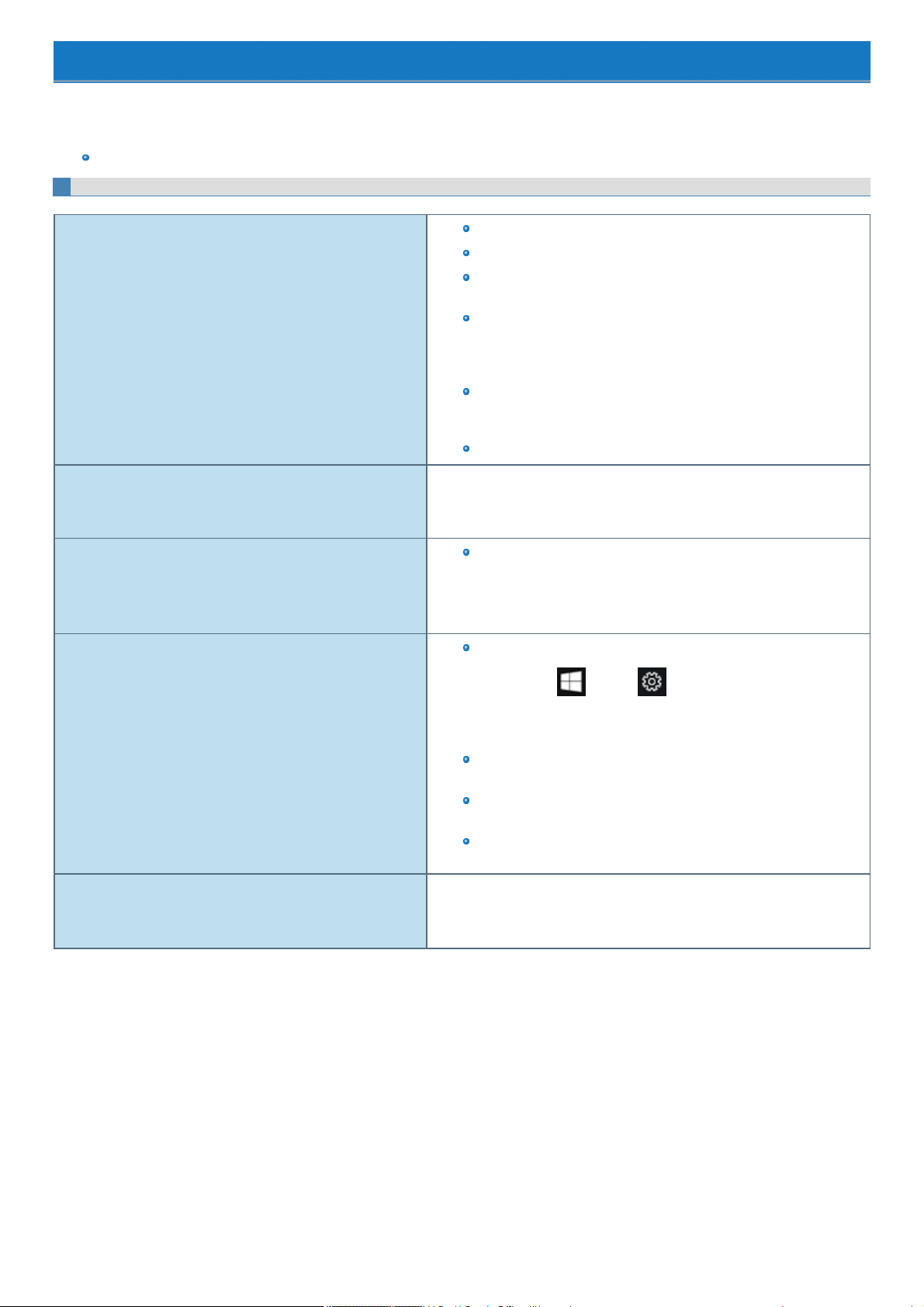
Troubleshooting
Refer to the following instructionswhen a problem occurs. If the remediesindicated in the chart do not solve the problem, contact PanasonicTechnical
Support.
For a software problem, refer to the instruction manual of the software.
Refer to Checking the Computer's Usage Status.
Starting Up
Cannot start up.
The power indicator or battery indicator is not lit.
Connect the AC adaptor.
Insert a fully charged battery.
Remove the battery pack and the AC adaptor, and then connect them
again.
Even if the AC adaptor and battery packare correctly connected, if the
battery indicator isnot lit, the AC adaptor protection function may be
operating. Disconnect the AC cord, wait three minutes or more, and
reconnect the AC cord.
If a device is connected to the USB port, disconnect the device, or set
[Tablet USB Port] or [Legacy USB Support] to [Disabled] in the
[Advanced] menu of the Setup Utility.
Press«Fn» + «F8» to turn off the concealed mode.
Cannot turn on the computer.
The computer does not resume from sleep.
(The power indicator blinksrapidly in green.)
Leave it in an environment of 5 °C {41 °F} or higher temperature for about an
hour, then turn on the power again.
It takes time for the power indicator to light up.
If the power switch ispressed immediately after the battery packhas
been mounted on the computer, and while the AC adaptor isnot con-
nected, it may take about five seconds before the power indicator lights
up and the computer turns on. This is because the computer is checking
the remaining battery charge; it is not a malfunction.
The date and time are incorrect.
Make the correct settings.
1.
Click (Start) - (Settings) - [Time & language] -
[Date & time], and check [Off] in "Set time automatically".
2. Click [Change], and then set the day and time.
If the problem persists, the internal clock battery may need to be
replaced. Contact PanasonicTechnical Support.
When the computer is connected to LAN, check the date and time of the
server.
The 2100 A.D. or later year will not be correctly recognized on thiscom-
puter.
[Executing Battery Recalibration] screen appears. The Battery Recalibration was cancelled before Windows was shut down last
time. To start up Windows, turn off the computer by the power switch, and then
turn on.
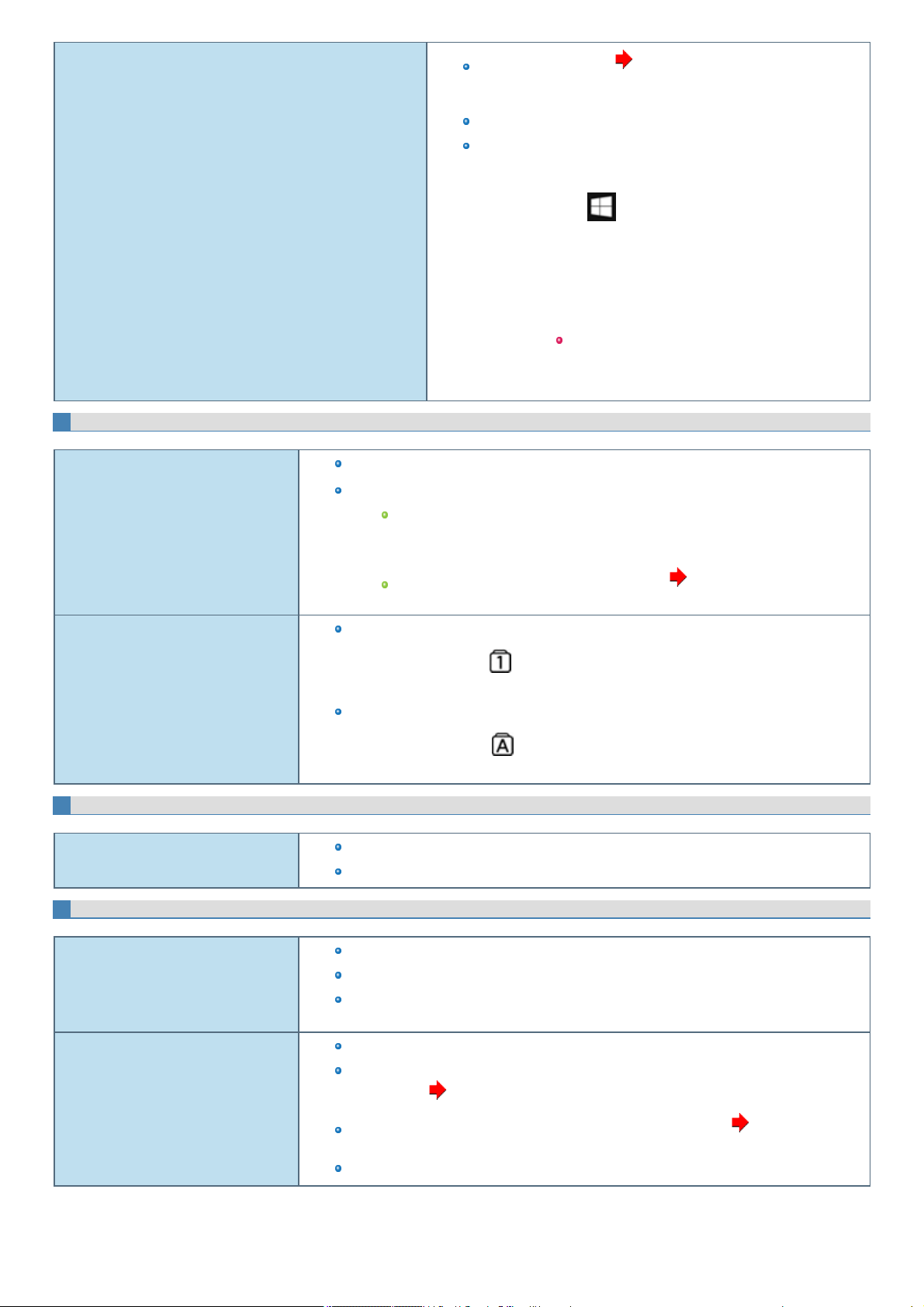
Other startup problems.
Start in the Setup Utility ( Setup Utility) to return the Setup Utility set-
tings (excluding the passwords) to the default values. Start the Setup
Utility and make the settings again.
Remove all peripheral devices.
Checkto see if there was a diskerror.
1. Remove all peripheral devices including an external display.
2.
Right-click (Start) at the bottom left corner, and then click
[File Explorer].
3. Click [This PC].
4. Right-click[Windows (C:)], and click [Properties].
5. Click [Tools] - [Check].
A standard user needs to enter an administrator pass-
word.
6. Follow the on-screen instructions.
Entering Password
Forgot the password.
Supervisor Password or User Password: Contact Panasonic Technical Support.
Administrator password:
If you have a password reset disk, you can reset the administrator password. Set the
diskand enter any wrong password, then follow the on-screen instructions and set a
new password.
If you do not have a password reset disk, reinstall( Installing Software) and set up
Windows, and then set a new password.
Even after entering the password, pass-
word input screen is displayed again.
The computer may be in ten-key mode.
If the Num Lockindicator lights, press«Num Lock» to disable the ten-keymode, and then
input.
The computer may be in Caps Lock mode.
If the Caps Lockindicator lights, press«Caps Lock» to disable the Caps Lock mode, and
then input.
Shut Down/Sleep/Hibernation/Resume
Cannot turn off the computer.
Remove all peripherals.
It may take 1 or 2 minutes to turn off the computer.
Sleep / Hibernation
Cannot enter sleep or hibernation.
Remove USB devices temporarily. If the problem persists, restart the computer.
It may take 1 or 2 minutes to enter sleep or hibernation.
The computer does not enter sleep or hibernation immediately after resuming. Wait approx-
imately1 minute.
Cannot enter sleep or hibernation auto-
matically.
Disconnect peripheral devices.
If you connect to a network using wireless LAN function, select the profile and connect to the
access point ( Disabling/Enabling Wireless Communication).
If you do not use wireless LAN function, turn off wireless LAN function ( Disabling/Enabling
WirelessCommunication).
Make sure that you are not using any software that regularlyaccesses the flash memory.
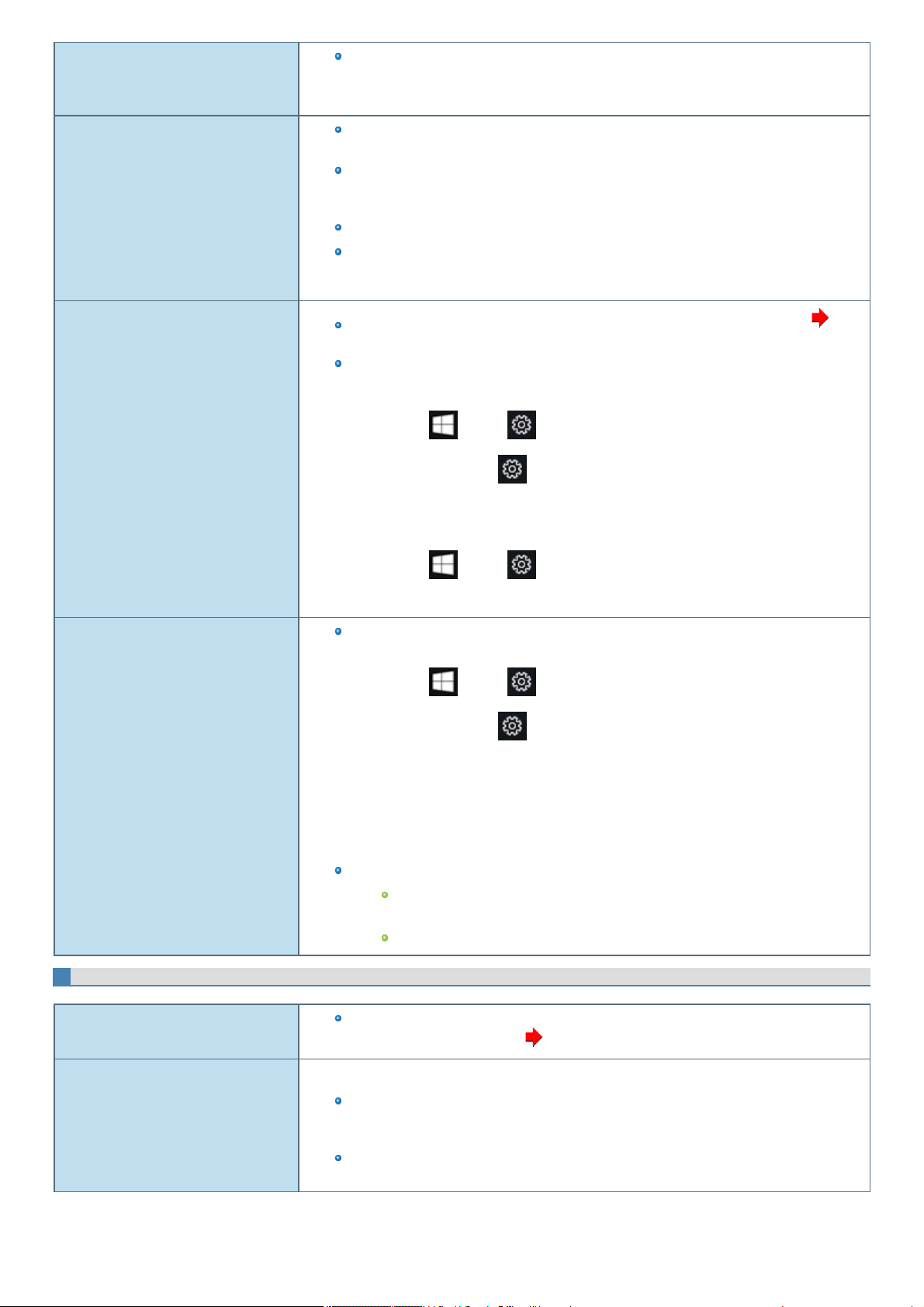
The computer does not enter sleep mode
while the screensaver is running. (The
screen stays black.)
Pressand hold the power switch for 4 seconds or longer to shut down the computer forcibly.
(Data not saved will be lost.) Then disable the screensaver.
The computer does not resume.
If you pressand hold the power switch for 4 seconds or longer, the power will be turned off for-
ciblyand the computer willnot resume. In thiscase, all unsaved data will be lost.
You disconnected the AC adaptor and the battery packwhile the computer was in sleep. If the
computer's power supply is disconnected in sleep, unsaved data will be lost and the computer
will not resume.
The battery is exhausted. Sleep and hibernation consumes some power.
An error may occur when the computer automatically enters the sleep or hibernation mode
while the screensaver is active. In this case, turn off the screensaver or change the pattern of
the screensaver.
[Enter Password] does not appear when
resuming from sleep/hibernation.
Select [Enabled] in [Password On Resume] in the [Security] menu of the Setup Utility(
Setup Utility).
The Windows password can be used instead of the password set in the Setup Utility.
1. Add a password.
1.
Click (Start) - (Settings) - [Accounts].
Alternatively, click (Settings) - [Accounts] in the tablet mode.
2. Click [Sign-in options], and click[Add] under “Password”.
2. Set up the following.
1.
Click (Start) - (Setting) - [System] - [Accounts] - [Sign-in options].
2. Select [When PC wakesup from sleep] under "Require sign-in".
Cannot sign in to Windows using the face
recognition for Windows Hello outdoors.
If you have registered the face recognition indoors, you may not sign in to Windows using the
face recognition outdoors. In such cases, perform the following procedure.
1.
Click (Start) - (Settings) - [Accounts].
Alternatively, click (Settings) - [Accounts] in the tablet mode.
2. Click [Sign-in options].
3. Click [Improve recognition] under “Windows Hello” and then click[Get Started].
4. “Making sure it's you" is displayed, click[More choices], and then click[PIN].
5. Input PIN number
If you cannot register the face recognition outdoors properly, try to take the following measures.
In the shade, register your face with your back against the wall that does not reflect the
light.
Place the tablet vertically to blockthe sunlight, and register your face.
Display
The screen does not become bright.
The brightness isset low to avoid malfunction where surrounding temperature is high. For
proper operating temperature ( Specifications)
There are red, green, or blue dots on the
screen, or there is unevennessin colors
and brightness on the screen.
The following are not malfunctions.
Although advanced high-precision technologies are used in the production of color LCD
screens, 0.002% or lessof the picture elements may be dark or remain constantly lit (i.e., more
than 99.998% of elements function properly).
Due to the natural characteristicsof LCD screens, you may notice unevenness in colors and
brightnessdepending on your angle of view. Hues may also vary by product.
No display.
The external display isselected. Press«Fn» + «F3» or + «P» to switch the display.
Then click the display mode.
When using an external display,
Checkthe cable connection.
Turn on the display.
Checkthe settings of external display.
The display isturned off by the power saving function. The screen returns to the original state
when you operate keyboard, touchpad, or screen. When operating the keyboard, press a key
that does not affect the computer operation, such as «Ctrl».
The computer entered sleep or hibernation by the power saving function. To resume, press the
power switch.
The screen isdisordered.
Changing the number of display colors and resolution may affect the screen. Restart the com-
puter.
Connecting/disconnecting an external display may affect the screen. Restart the computer.
Resuming from sleep or hibernation may affect the screen of the external display. Restart the
computer.
During Simultaneous display, one of the
screens becomes disordered.
When using the Extended Desktop, use the same display colors for the external display as those
used by the LCD. If you continue to experience problems, try changing the display.
Simultaneous display cannot be used until Windows startup is complete (during Setup Utility,
etc.).
The external display does not work nor-
mally.
If the external display does not support the power saving function, it may not work normally
when the computer enters the power saving mode. Turn off the external display.
Sound
No sound.
Press≪ Fn≫ key or tablet buttons to cancelmute.
Turn off the concealed mode.
Restart the computer.
Beeping sounds are not emitted by this device.
Distorted sound.
Performing ≪ Fn≫ key combinations sometimes causes sound distortion. Stop and restart
playback.
Cannot change the volume by pressing
≪ Fn≫ key or tablet buttons.
Activate the Windows sound function. When it is not active, the volume does not change even if
slide bar is displayed.
The microphone volume is small.
Increase the volume of the microphone according to the following steps.:
1.
Right-click (Start) at the bottom left corner, and then click[Control Panel] - [Hard-
ware and Sound] - [Sound] - [Recording] - [Microphone Array] - [Properties], and then
increase the volume of [Microphone] and/or [Microphone Boost] in [Levels].
When signing in (e.g., resuming the com-
puter), audio is distorted.
Perform the following steps to change the audio settings to prevent audio output.
1.
Right-click (Speaker) on the task tray, and click [Sounds].
2. Remove the check mark from [Play Windows Startup sound].
Keyboard
Only numbers can be input.
When the indicator is on, the keyboard isin ten-key mode. Press≪ NumLock≫ to cancel.
Only capital letters can be input.
When the indicator is on, the keyboard isin Caps Lock mode.
Press≪ Caps Lock≫ to cancel.
Cannot enter special characters (ß, à, ç,
etc.) and symbols.
Use the character map.
1.
Click (Start) at the bottom left corner, and then click [Windows Accessories] -
[Character Map].
Alternatively, click (All apps) - [Windows Accessories] - [Character Map] in the
tablet mode.
Network
Cannot connect to a network.
Set the device ([Tablet LAN] / [WirelessLAN]) to [Enabled] in the [Advanced] menu of the Setup
Utility.
Cannot checkthe computer's MAC
address.
Follow the steps below.
1.
Right-click (Start) at the bottom left corner, and then click[Command Prompt].
2. Input "getmac /fo list /v", and press ≪ Enter≫ .
Insert a space between "fo" and "list", and between "list" and "/v".
The MAC addressof each device appears.
The MAC addresses are the 12 alphanumeric characters that appear in the “Physical
Address” rows of each of the items.
The names of each of the devices are as follows.
Device Connection Name
WirelessLAN Wi-Fi
LAN Ethernet
LAN (Keyboard Base) Ethernet 2
Bluetooth Bluetooth Network Connection
WirelessWAN Cellular
* The content displayed will vary depending on the device and model.
3. Input "exit", and press≪ Enter≫ .
Wireless Communication (only for model with wireless LAN/Bluetooth/wireless WAN))
Cannot connect to a network.
Confirm the airplane mode is Off.
To turn off the airplane mode, follow the steps below.
1.
Click (Start) - (Settings) - [Network & Internet] - [Airplane mode].
Alternativelyclick (Settings) - [Network & Internet] - [Airplane mode] in the tablet
mode.
2. Click [Airplane mode] to [Off], and then;
set [Wi-Fi] to [On] (for wireless LAN).
set [Cellular] to [On] (for wireless WAN).
set [GPS] to [On] (for GPS on wirelessWAN).
set [Bluetooth] to [On] (for Bluetooth).
set [GPS/GNSS] to [On] (for dedicated GPS).
If thiscomputer cannot be connected to an IEEE802.11a network, confirm the setting of
[802.11a] by PanasonicPC Settings Utility.
Restart the computer.
Accesspoint isnot detected.
Shorten the distance between the computer and the access point, and try the detection again.
Confirm the following settings:
[WirelessLAN] in the [Advanced] menu of the Setup Utility
Confirm that [Wireless LAN] of [Wireless Configuration] is set to [Enabled].
Airplane mode
Confirm that Wireless LAN (Wi-Fi) isON.
Thiscomputer uses channels1 through 11
*1
when using IEEE802.11b/g/n. Checkthe channel
being used by the access point.
<Only for model with wireless WAN>
Cannot communicate.
Confirm that [Wireless WAN] of [Wireless Configuration] is set to [Enabled] in the [Advanced]
menu of the Setup Utility.
Use the Airplane mode and confirm that the wireless WAN (Cellular) is on.
Confirm that the nanoSIM card is inserted correctly.
If communication is not established after proceeding with the above remedies, the wireless WAN device
may not be correctly recognized. Restart the computer.
*1 : In the case of wireless communications, the frequency band being used can be divided into segments, so that different communications can be con-
ducted on each band segment. A "Channel" refers to the individual frequencybandwidth divisions.
Display Rotation
Cannot rotate the display.
The application program currently running may not support the image rotation. Quit the pro-
gram, and then try to rotate the image. This can ameliorate the status.
When the automatic rotation is off, screen display does not rotate automatically.
The operations of screen do not match the
rotation angle.
The application program currently running may not support the image rotation. Quit the pro-
gram, and then try to rotate the image. This can ameliorate the status.
Change a screen setup to landscape.
Connecting Peripherals
An error occurs while installing the driver.
When you installa driver of card or peripheral device, make sure that the driver is compatible
with the operating system. If it is not compatible, malfunction may occur. For information about
the driver, contact the manufacturer of the peripheral device.
A peripheral device does not work.
Install the driver.
Contact the manufacturer of the device.
When or isdisplayed in the Device Manager, remove and insert the device. If the
problem persists, restart the computer.
When you set [Tablet USB Port] / [Keyboard Base USB Port] to [Disabled] in the [Advanced]
menu of the Setup Utility, USB ports of port replicator are also disabled.
The computer may not recognize the connection/removalof some devices, or may not operate
normally with some devices.
1.
Right-click (Start) at the bottom left corner, and then click[Device Manager].
2. Select the device, and remove the check mark for [Allow the computer to turn off this
device to save power] in [Power Management]. (This item may be unavailable for
some typesof devices.)
In the case that a USB device does not work, remove the USB device and connect it again or
connect the USB device to another port.
You do not know the addressmap for IRQ,
I/O port address, etc.
You can check with the following procedure.
1.
Right-click (Start) at the bottom left corner, and then click[Device Manager].
2. Click [View] - [Resources by type].
The device connected to the serial port
does not work.
Checkthe connection.
The device driver may not work. Refer to the instruction manual of the device.
Do not connect 2 mouse devicessimultaneously.
Set [Serial Port] to [Auto] in the sub-menu of [Serial Port Settings] in the [Advanced] menu of the
Setup Utility.
The I/O and IRQ you can use vary depending on the device. If the setting does not work, try
other settings in the Setup Utility.
<Only for model with dedicated GPS / GPS
on wireless WAN>
GPS does not work.
You can check the GPS status.( GPS)
Set airplane mode to OFF.
Checkthe airplane mode setting.
If a USB 3.0 compatible device is used, GPS information may not be correctly received. In this
case, do any of the following.
Set [Left Port of Tablet] or [Keyboard Base and Port Replicator] to [Disabled] at the
Setup Utility.
<Only for model with USB 2.0 port>
Connect the USB device to the USB 2.0 port.
Use an extension cable (separatelysold) compatible with USB 2.0.
If an external antenna for GPS can be used, use the external antenna, and keep some
distance between the external antenna and the USB device.
Touchpad / Screen
The pointer does not work.
Connect the external mouse correctly.
Restart the computer using the keyboard.
If the computer does not respond to keyboard commands, read "No response".
Cannot input using the touchpad.
The touchpad may be disabled by some mouse drivers. Checkyour mouse's operating instruc-
tions.
Cannot point the correct position using the
included pen.
Perform the Calibrating the Screen.
SD Memory Card
Cannot use an SD Memory Card.
Set [microSD Slot] to [Enabled] in the [Advanced] menu of the Setup Utility.
Thiscomputer does not support the maximum speed some types of SD/SDHC/SDXC Memory
Cards guarantee.
Smart Card (only for model with Smart Card slot)
Cannot use a Smart Card.
Insert the Smart Card correctly.
To use a Smart Card, you need a specified software and driver.
Fingerprint Reader (only for model with Fingerprint Reader)
The reader does not enrollor authenticate
my fingerprint.
If pop-up or other messages appear on the desktop screen, fingerprint entry may be inhibited
temporarily. In such cases, click outside of the Fingerprint Authentication window, and then click
again back inside it.
Slide your finger correctly. For further information about enrollment and authentication, refer to
Fingerprint Reader and [Help].
1.
Click (Start) - [DDS] - [EVE FA Standalone Help].
Alternatively, click (All apps) - [DDS] - [EVE FA Standalone Help] in the tablet
mode.
2. Click [View] - [Resources by type].
The reader enrolls or authenticates no fingerprint, or performs authentication poorly, despite
the correct way of finger sliding when your finger isin any of the conditions stated below:
Rough skins, or injured finger (with a cut or a skin inflammation)
Extremely dry
Soiled with mud or oil
Fingerprint has been worn and has faded
Wet with water or sweat
<You can improve enrolling and authentication sensitivityby taking the following steps when
any of the conditions described above exists>
Wash your hands or wipe them dry.
Use a different finger for registration or authentication.
Treat your finger with a hand cream when it isrough skin or dry.
Clean the fingerprint reader. For further information, refer to Fingerprint Reader Handling.
The fingerprint reader may be malfunctioning when it continues to perform poorly after the
steps described above have been performed. Contact PanasonicTechnical Support.
User cannot use enrolled finger. (e.g.
injury)
If none of your enrolled fingers can be used, follow thisprocedure:
1. Sign in to Windows.
You can always access the computer by using your Windows sign in password.
2. Update the enrolled fingerprints.
Click in the task tray at the lower right of the desktop screen, and click and
then click [Fingerprint Enrollment Tool].
Click [Password], and you can start enrollment using the windows password.
Removing data.
If you need to remove all registered data, uninstall EVE FA Standalone for Panasonic.
When the message "Do you delete all the data such as registered fingerprint information?" isdis-
played, select [Yes]. (All fingerprint data and ID manager data are deleted.)
After uninstallation, reinstall EVE FA Standalone for Panasonic.
User Switching
Some applications do not work properly.
When switching to a different user without signing out, some applications do not work properly.
In thiscase, sign out the other users.
Others
Although the computer isturned on, the fol-
lowing problems occur.
- The indicators do not light.
- No sound.
- Screen is dark.
The concealed mode isenabled ( Key Combinations).
No response.
Open TaskManager and close the software application.
1.
Right-click (Start) at the bottom left corner, and then click[Task Manager].
An input screen (e.g., password input screen at startup) may be hidden behind another win-
dow. Use ≪ Alt≫ + ≪ Tab≫ to check.
Shut down by pressing and holding the power switch for 4 seconds or longer, and turn on the
computer and open the application again.
If Windows runs correctly, but the application software does not start, uninstallthe failing applic-
ation software, then reinstallit.
To uninstall, perform the procedure below.
1.
Click (Start) - (Setting) - [System] - [Apps & features].
2. Select the program you want to uninstall, and click[Uninstall].
A motion image file cannot be played using
Windows
®
Media Player and the message
[Codec required] appears.
Some motion image files require a Codec that isnot installed as standard. In thiscase, connect to the
Internet and try playback of the file again. The Codec may automatically be downloaded so you may be
able to play it.
"Battery not exist" is displayed. Battery goes to sleep if the battery isabout 5%, may be displayed such as "Not exist" or "Not use" is not a
malfunction. Connect the AC adaptor for a while.
Checking the Computer's Usage Status
You can check the computer's usage status in the PC Information Viewer. You may need this information when calling Panasonic Technical Support for
advice.
N O T E
n This computer periodically records the management information of the flash memory, etc. The maximum data volume for each record
is 1024 bytes. The information is only used for estimating the cause when the flash memory goes down by any possibility. They are
never sent to outside via network nor used for any other purpose except for the purpose described the above.
To disable the function, add the check mark for [Disable the automatic save function for management information history] in [Hard
Disk Status] of PC Information Viewer, and click [OK].
A standard user needs to enter an administrator password.
n If you have not signed in with the administrator authority, some of Information will be displayed as [Not Found].
n Depending on your network environment, it may take 1 minute to start up the PC Information Viewer.
To perform the PC Information Viewer
1.
Click (Start) - [Panasonic] - [Panasonic PC Settings Utility], and click (Support) - (System) - [Launch PC Information
Viewer].
Alternatively, click (All apps) - [Panasonic] - [Panasonic PC Settings Utility] in the tablet mode, and click (Support) -
(System) - [Launch PC Information Viewer].
2. Select the item to display the detailed information.
N O T E
n You can start up the PC Information Viewer using the following steps.
1.
Click (Start) at the bottom left corner, and then click [Panasonic] - [PC Information Viewer].
Alternatively, click (All apps) - [Panasonic] - [PC Information Viewer] in the tablet mode.

To save the information as a text file
1. Display the information you wish to save.
2. Click [Save].
3. Select the file save range option and click [OK].
4. Select the folder to save the information, input the file name, and then click [Save].
If you do not add the check mark for [Disable the automatic save function for management information history], the records already recorded are
also saved.
To save a copy of the screen as an image file
1. Display the screen you want to save.
2.
Press ≪ ≫ + ≪ PrtSc≫ .
Alternativelypress + .
The screen image is saved in "Screenshots" folder under "Pictures" folder.
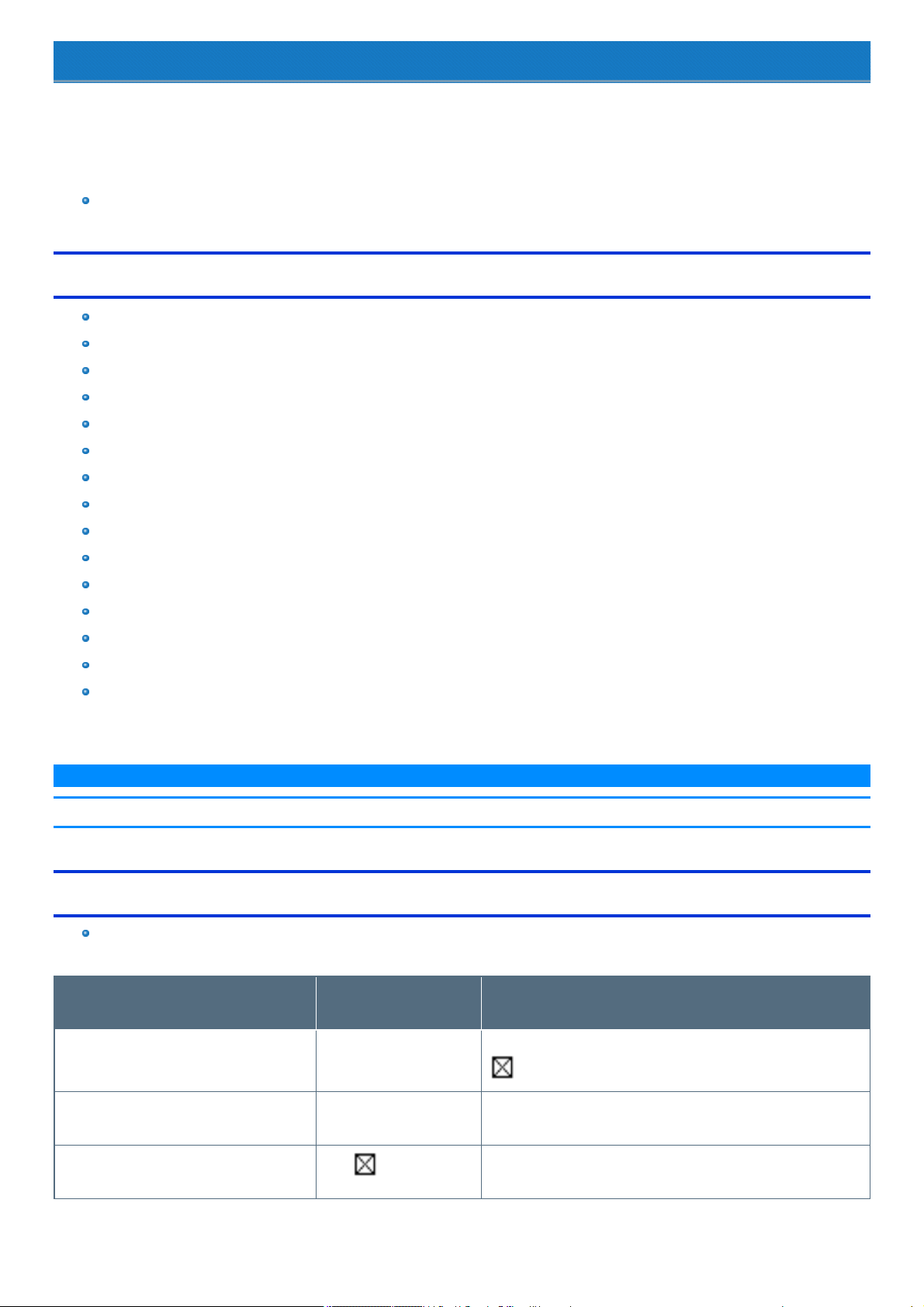
Hardware Diagnostics
If it appears that the hardware installed in thiscomputer isnot operating properly, you can use the PC-Diagnostic Utility to determine whether or not there
is a problem.
If the utility discovers a problem in the hardware, contact PanasonicTechnical Support.
Software cannot be checked using thisutility.
Preparation
Connect an external keyboard to the computer (onlyfor tablet).
Hardware that can be checked using the PC-Diagnostic Utility
CPU/System
RAM XXX MB
Storage XXX GB
Sound
*1
USB
SD
Keyboard (Only when the keyboard base is attached)
Touch Screen
WirelessLAN (Only for model with wireless LAN)
Video
Wired LAN
Serial Port (Only for model with serial port on tablet)
WirelessWAN (Only for model with wireless WAN)
Bluetooth (Only for model with Bluetooth)
GPS (Only for model with dedicated GPS)
*1 : When the PC-Diagnostics Utility is running a loud beep will sound, so do not use headphones as this time. (The beep will not sound if mute isusing in
Windows or [Sound] isturned off in [Concealed Mode Configuration].)
N O T E
n When the video diagnostic check is running, the display may be distorted. This is not malfunction.
Regarding the PC-Diagnostic Utility
We recommend that you use the touchpad for operations. When not using the touchpad, you can operate using the internal keyboard instead.
Do not use the screen.
Operations Touchpad/mouse oper-
ations
Keyboard operations
Select icon Place the cursor above the
icon
Press≪ Space≫ , and then press≪ → ≫≪← ≫ ≪ ↑ ≫ ≪↓ ≫ (
(close) cannot be selected)
Click the icon Touch or click (right click
cannot be used)
Press≪ Space≫ above the icon
Complete the PC-DiagnosticsUtilityand then
restart the computer
Click (close)
Press≪ Ctrl≫ + ≪ Alt≫ + ≪Del≫
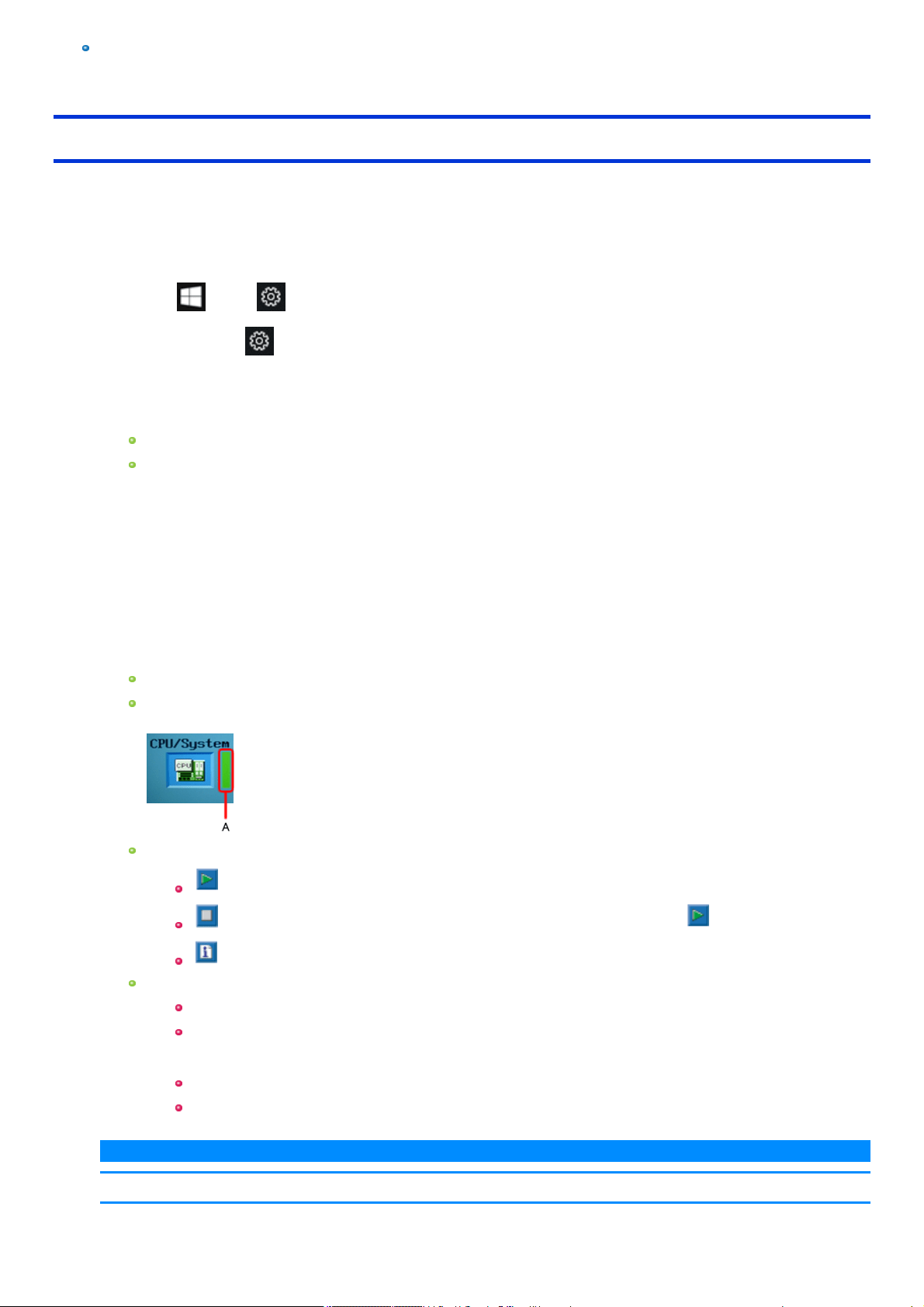
If the touchpad does not operate properly, press≪ Ctrl≫ + ≪ Alt≫ + ≪Del≫ to restart the computer, or press the power switch to turn the
power off, and then restart the PC-Diagnostic Utility.
Running the Diagnostic Check
Run thisutility using the default settings in the Setup Utility.
If the Setup Utility or other settings willnot allow hardware to be executed, the hardware icon will be displayed in gray.
1. Connect the AC adaptor, and then connect external keyboard or mouse (only for tablet).
During the diagnostic check, do not remove the AC adaptor, or attach any peripheral devices.
2. Follow the steps below.
1.
Click (Start) - (Settings) - [Update & security] - [Recovery].
Alternatively, click (Settings) - [Update & security] - [Recovery] in the tablet mode.
2. Click [Restart now] under “Advanced startup”.
3. Click [Troubleshoot] - [Advanced options] - [UEFI Firmware Settings] - [Restart].
The computer restarts, and the Setup Utility screen appears.
If the password isrequested, enter the Supervisor Password.
If you are using the computer after changing the settings from the status at the time of purchase, we recommend that you make a note
of the settingsthat are changed.
3. Press ≪ F9≫ .
At the confirmation message, select [Yes] and press ≪ Enter≫ .
4. Press ≪ F10≫ .
At the confirmation message, select [Yes] and press ≪ Enter≫ .
The computer will restart.
5. Press ≪ F2≫ to display Setup Utility.
6. Select the [Exit] menu, and then select [Diagnostic Utility].
When the PC-Diagnostic Utilitystarts up, it will automatically begin the diagnostic checkfor allhardware components.
If the password isrequested, enter the password.
The touchpad and the internal keyboard may not be used when each hardware checking is running. While checking, vertical green pro-
gress bar is displayed on the right side of the hardware icon (A).
By selecting the icon, you can execute the following operations:
: Start the diagnostic checkfrom the beginning
: Stop the diagnostic check(You cannot restart the check partway through by selecting )
: Display help (click the screen or press ≪ Space≫ to return to the original diagnostic checkscreen)
You can check the status of the diagnostic checkby the display on the right side of the hardware icon (A).
None: Not running diagnostic check
Verticalgreen progress bar: Currentlyrunning diagnostic check.
During memory diagnostic check, the display may stop for a long period of time. Wait until the process iscomplete.
Green: No problems discovered
Red: Problems discovered
N O T E
n Using the following procedure, you can run a diagnostic check on a specified hardware component, or run an extended
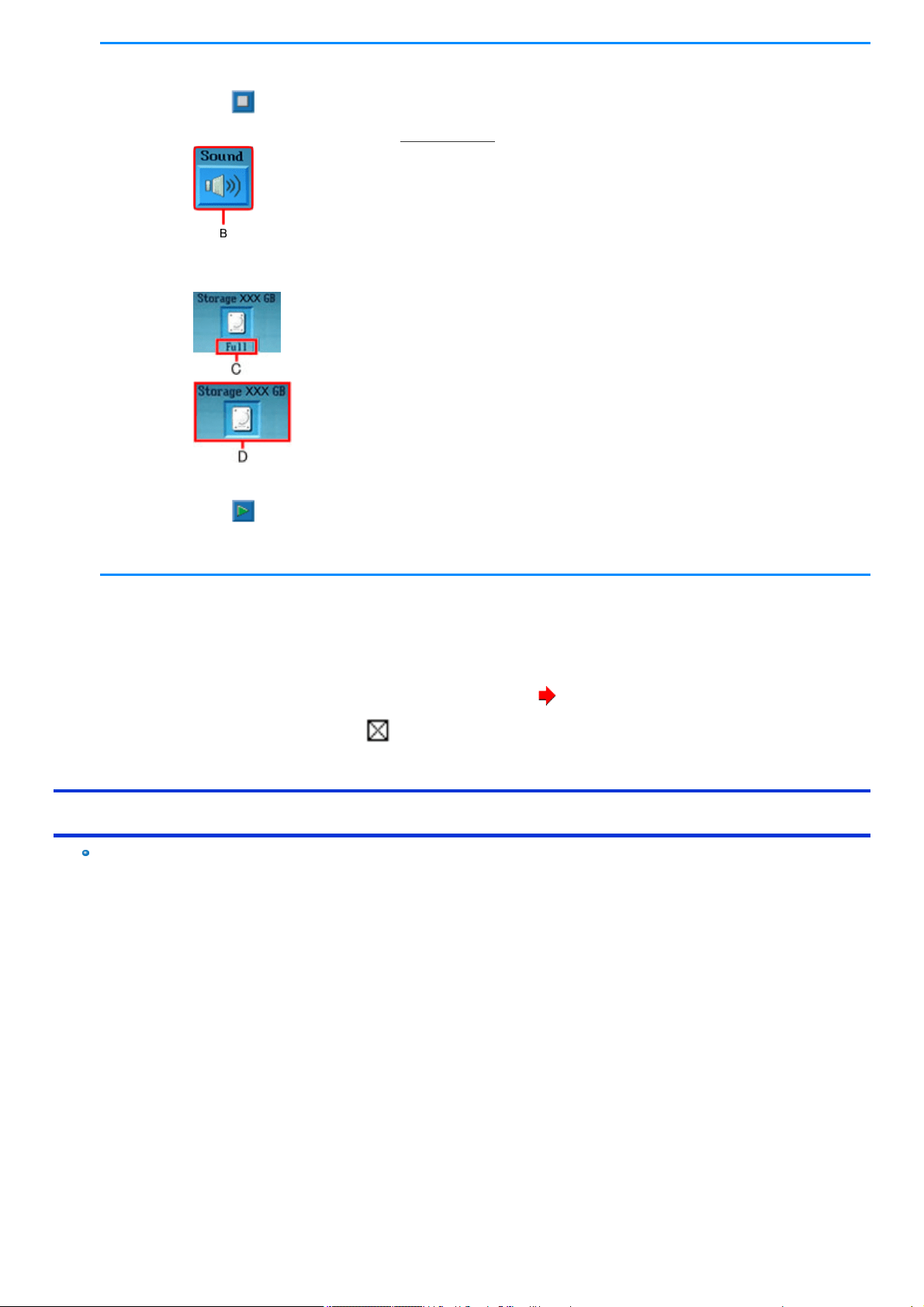
diagnostic check on the memory or the flash memory (The extended diagnostic check is only for the memory and the flash
memory). The extended diagnostic check is more detailed, and so requires a longer period of time to run.
1.
Select to stop the diagnostic check.
2. Select the icon for the hardware that isnot to be checked, so that the icon is displayed in puffy (B).
When running a check on the memory or the flash memory, selecting the icon once will turn on the extended diagnostic check
("Full" (C) will be displayed below the icon); select again, and the icon will be displayed in puffy (D).
3.
Select to start the diagnostic check.
n Only for the storage, touchpad and screen you can select standard diagnostic check or extended diagnostic check. When the
PC-Diagnostic Utility starts up, it will run the standard diagnostic check.
7. When all the hardware has been checked, confirm the diagnostic check results.
If the display isred and the message "TEST FAILED" isdisplayed, you can assume that there isa problem with the computer's hardware. Con-
firm which hardware component is displayed as red, and contact Panasonic Technical Support.
If the display isgreen and the message "TEST PASSED" is displayed, the computer's hardware isoperating normally. Continue using the com-
puter as it is. If the computer stilldoes not operate properly, reinstall the software ( Installing Software).
8.
After the diagnostic check is complete, select (close), or press ≪ Ctrl≫ + ≪ Alt≫ + ≪ Del≫ to restart the computer.
When the Icon Becomes Gray and the Corresponding Device Cannot Be Checked
The device is disabled in the Setup Utility:
Set the device to [Enabled] in the Setup Utility.

Reset your computer
If operationson the unit become unstable, we recommend refreshing Windows. This involves reinstalling the operating system while retaining personal
files and settings (Personalization).
Preparation
Remove all peripherals and SD memory card, etc.
Connect the AC adaptor and do not remove it untilinstallation is complete.
1.
Click (Start) at the bottom left corner, and then click (Settings) - [Update & security] - [Recovery].
Alternatively, click (Settings) - [Update & security] - [Recovery] in the tablet mode.
2. Click [Get Started] under “Reset this PC”.
3. Select the option.
1. [Keep my files]
Windows reinstallation can be completed in a short time (Approximately30 minutes).
Applications and other items that do not come with this computer will be removed.
2. [Remove everything]
Select [Yes] or [No] under the "Keep thisPC set up for your work space".
[Just remove my files] (Approximately 30 minutes)
[Remove files and clean the drive]
By fully cleaning, the deleted files cannot be recovered easilyand the security levelwill be increased. The processing time will be
longer (Approximately 50 minutes).
4. Follow the on-screen instructions.
After the reinstallation, the computer will restart.
Do not interrupt installation, for example by turning off the computer or performing other operation. Otherwise installation may become
unavailable as Windows may not start up or the data may be corrupted.
5.
Perform Setup Windows (
OPERATING INSTRUCTIONS - Read Me First
).
N O T E
n The date and time, and the time zone may not be correct. Be sure to set them correctly.
6. Perform Windows Update.
7. <Only for model with TPM> Clear TPM.
1.
Right-click (Start) at the bottom left corner.
2. Click [Run], then input [tpm.msc] and click [OK].
3. Click [Clear TPM…] under “Actions” on the right of the “TPM Manager on Local Computer” screen.
4. Click [Restart] of the “Manage the TPM security hardware” screen.
The computer will restart.
5. When “TPM configuration change was requested to ...” is displayed, press≪ F12≫ .
Installing Software
Installing software will return the computer to the default condition. When you install the software, the internal SSD data will be erased.
Back up important data to other media or an external flash memory before installation.
C A U T I O N
n Do not delete the recovery partition on the SSD. If it has been deleted, the recovery disc could not be created.
To check the recovery partition, perform the following methods.
1.
Right-click (Start) at the bottom left corner, and click [Disk Management].
A standard user needs to enter an administrator password.
Disk recovery
You can reinstallthe OS that was pre-installed at the time of purchase (Windows 10).
C A U T I O N
n If the recovery partition is deleted, you cannot perform flash memory recovery.
If reinstallation using the method described in “Reset thisPC” isnot successful, follow the steps below.
Preparation
Remove all peripherals and SD memory card etc.
Connect the AC adaptor and do not remove it untilinstallation is complete.
1. Start the Setup Utility.
1.
Click (Start) - (Settings) - [Update & security] - [Recovery].
Alternatively, click (Settings) - [Update & security] - [Recovery] in the tablet mode.
2. Click [Restart now] under “Advanced startup”.
3. Click [Troubleshoot] - [Advanced options] - [UEFI Firmware Settings] - [Restart].
2. Write down all of the contents of the Setup Utility and press «F9».
At the confirmation message, select [Yes] and press «Enter».
3. Press «F10».
At the confirmation message, select [Yes] and press «Enter». Computer will restart.
4. Press «F2» or «Del» while [Panasonic] boot screen is displayed.
The Setup Utility starts up.
If the password isrequested, enter the Supervisor Password.
5. Select the [Exit] menu, then select [Recovery Partition] and press «Enter».
6. Click [Recovery]
Click [CANCEL] to abort the operation.
7. Click [Disk 0].
8. Click [Recovery ALL Partitions.].
Installation starts according to the instructions on the screen. (It will take approximatelyseveral tens of minutes.)
Do not interrupt installation, for example by turning off the computer or performing other operation. Otherwise installation may become
unavailable as Windows may not start up or the data may be corrupted.
9. When the Ending process screen is displayed, click [Shutdown.] to turn off the computer.
10. Turn on the computer.
If the password isrequested, enter the Supervisor Password.
11.
Perform Setup Windows (
OPERATING INSTRUCTIONS - Read Me First
).
12. Start the Setup Utility and change the settings as necessary.
13. <Only for model with TPM> Clear TPM.
1.
Right-click (Start) at the bottom left corner.
2. Click [Run], then input [tpm.msc] and click [OK].
3. Click [Clear TPM…] under “Actions” on the right of the “TPM Manager on Local Computer” screen.
4. Click [Restart] of the “Manage the TPM security hardware” screen.
The computer will restart.
5. When “TPM configuration change was requested to ...” is displayed, press≪ F12≫ .
Using Recovery Disc
Use the Recovery Discin the following conditions.
You have forgotten the administrator password.
Installation is not complete. The recovery partition in the flash memory may be broken.
Preparation
Prepare the following items:
Recovery Disc (USB memory device can also be used as a recovery disc.) ( Create a Recovery Disc)
Commercially available optical drive
Remove all peripherals and SD memory card etc. (except for the commercially available optical drive).
Connect the AC adaptor and do not remove it untilinstallation is complete.
1. Connect the commercially available optical drive to the USB port.
2. Start the Setup Utility.
1.
Click (Start) - (Settings) - [Update & security] - [Recovery].
Alternatively, click (Settings) - [Update & security] - [Recovery] in the tablet mode.
2. Click [Restart now] under “Advanced startup”.
3. Click [Troubleshoot] - [Advanced options] - [UEFI Firmware Settings] - [Restart].
3. Write down all of the contents of the Setup Utility and press «F9».
At the confirmation message, select [Yes] and press «Enter».
4. Set the Recovery Disc into the DVD drive or commercially available optical drive.
5. Press «F10».
At the confirmation message, select [Yes] and press «Enter». Computer will restart.
6. Press «F2» or «Del» while [Panasonic] boot screen is displayed.
The Setup Utility starts up.
If the password isrequested, enter the Supervisor Password.
7. Select the [Exit] menu, then select DVD drive or commercially available optical drive in [Boot Override] and press «Enter».

8. Click [Recovery].
9. At the confirmation message, click [Accept.].
10. Click [Disk 0].
11. Click [Recovery ALL Partitions.].
12. Click [Remain Recovery Partition.].
Follow the on-screen instructions.
13. When the Ending process screen is displayed, remove the Recovery Disc and DVD drive or commercially available optical drive and
then click [Reboot].
Follow the on-screen instructions.
14. On the “Finish Recovery Process.” screen, click [Shutdown.].
15. Turn on the computer.
16.
Perform Setup Windows (
OPERATING INSTRUCTIONS - Read Me First
)
17. Start the Setup Utility and change the settings as necessary.
18. <Only for model with TPM> Clear TPM.
1.
Right-click (Start) at the bottom left corner.
2. Click [Run], then input [tpm.msc] and click [OK].
3. Click [Clear TPM…] under “Actions” on the right of the “TPM Manager on Local Computer” screen.
4. Click [Restart] of the “Manage the TPM security hardware” screen.
The computer will restart.
5. When “TPM configuration change was requested to ...” is displayed, press≪ F12≫ .

Error Message
Follow the instructions below when an error message appears. If the problem persistsor if the error message is not shown here, contact Panasonic Tech-
nicalSupport.
Error Message Solution
Bad System CMOS An error has occurred in the memory of system settings. This occurs when the memory content is changed by an
unexpected program operation, etc.
Start the Setup Utility and return the settings to the default values, and then change the settings as neces-
sary.
If the problem persists, the internal clock battery may need to be replaced. Contact PanasonicTechnical
Support.
System CMOS Checksum
Error
Invalid Year. System date
restored to 01/01/20XX
The date and time settings are not correct.
Start the Setup Utility and set the correct date and time.
If the problem persists, the internal clock battery may need to be replaced. Contact PanasonicTechnical
Support.
PressF2 for Setup / F12 for
LAN
Write down the error details and press ≪ F2≫ or ≪ Del≫ to start the Setup Utility.
Change the settings if necessary.
Reboot and Select proper
Boot device or Insert Boot
Media in selected Boot device
and press a key
The operating system is not properlyinstalled in the flash memory that you are going to boot from.
If you cannot start up the OS from the internal disk, check if the internal disk is properly recognized on the
[Information] menu of the Setup Utility.
If it isrecognized ("xxx GB" is displayed.), perform the reinstallation.
If not ("Empty" isdisplayed.), contact Panasonic Technical Support.
If a device is connected to the USB port, remove the device, or set [Legacy USB] to [Disabled] on the
"Advanced" menu of the Setup Utility.
Disk error Press any key to
restart
Warming up the system (up to
30 minutes)
The computer is warming up before start up. Wait for the computer to start up (takesup to 30 minutes). If, “Cannot
warm up the system” is displayed, the computer failed to warm up and does not start. In thiscase, turn off the com-
puter, leave it in an environment of 5 °C {41 °F} or higher temperature for about an hour, and then turn on the power
once more.
Remove disks or other media.
Pressany key to restart
If a device is connected to the USB port, disconnect the device, or set [Tablet USB Port] or [LegacyUSB
Support] to [Disabled] in the [Advanced] menu of the Setup Utility.
If the problem persistsafter removing the disk, it may be a flash memory failure. Contact Panasonic Tech-
nicalSupport.
Problem Undocking From Key-
board Base
Perform the following procedure.
1. Close the dialog box.
2. Remove peripheral devices connecting to the keyboard base, and then retry detaching the tablet from the
keyboard base ( Detaching the tablet from the keyboard base).
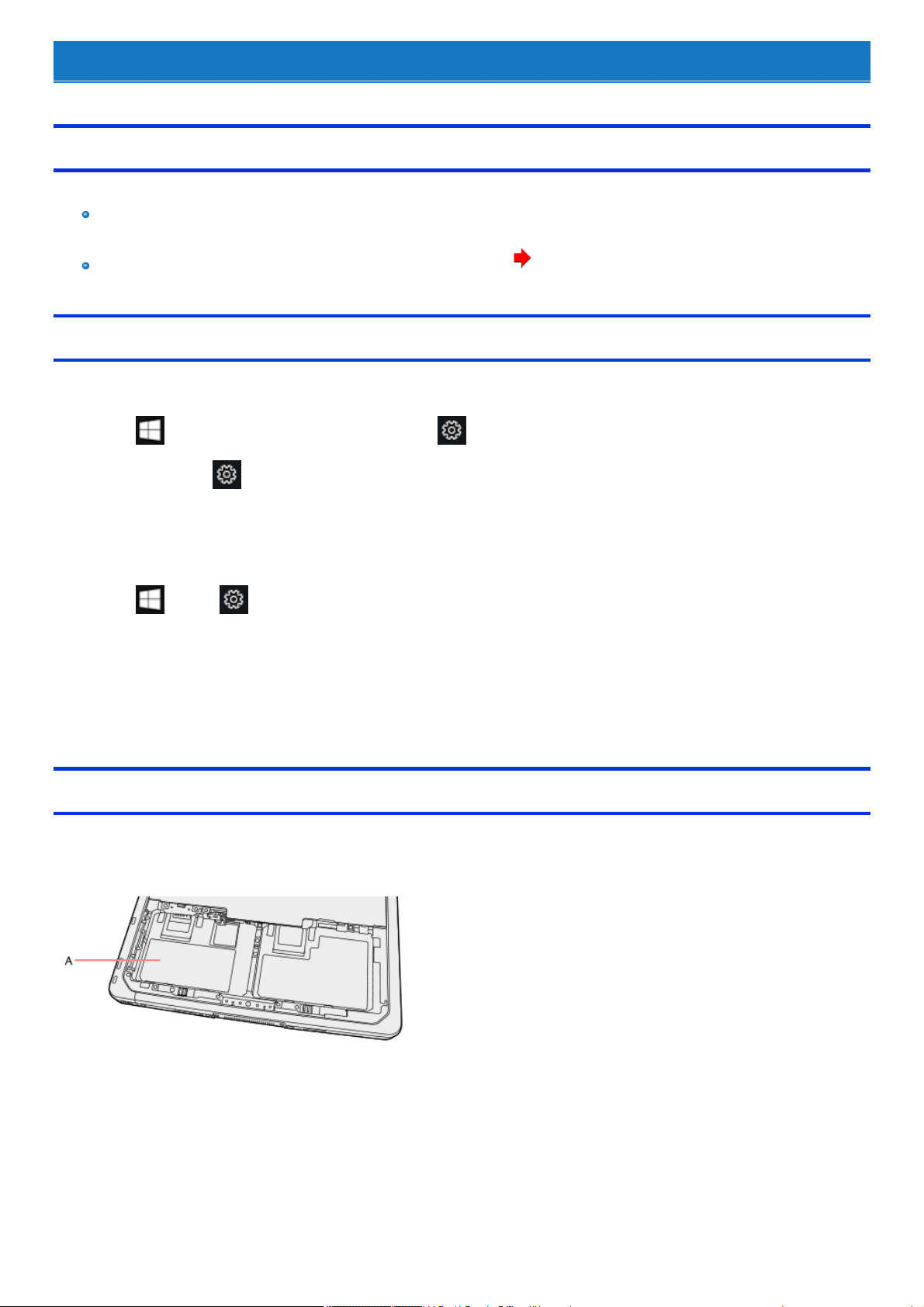
Technical Information
Network Connections and Communications Software
Close the communications software before using the power saving function.
If the power saving function (sleep or hibernation) is activated while communications software is used, the network connection may be inter-
rupted, or the performance may be adverselyaffected. In thiscase, restart the computer.
In a network environment, set [Never] for [Sleep after] and [Hibernate after] ( Setting Sleep or Hibernation).
About Fast startup
The fast startup is enabled as the factory default.
If the computer shut down by the following steps, the fast startup will be disabled at next boot-up.
1.
Click (Start) at the bottom left corner, and then click (Settings) - [Update & security] - [Recovery].
Alternatively, click (Settings) - [Update & security] - [Recovery] in the tablet mode.
2. Click [Restart now] under “Advanced startup”.
3. Click [Turn off your PC].
If you perform the following steps, the fast startup function becomes always disabled.
1.
Click (Start) - (Settings) - [System] - [Power & sleep] - [Additional power settings] - [Choose what the power button does].
2. Click [Change settings that are currently unavailable].
3. Remove checkmark from [Turn on fast startup (recommended)] in "Shutdown settings".
<For North America>
About FCC ID Number
SAR information on this product is on file with the FCC and can be found by searching for the product'sFCC ID Number at http://www.fc-
c.gov/oet/ea/fccid. To find the FCC ID number for your product, first remove the battery packfrom the tablet.
The FCC ID number (A) isprinted on the nameplate underneath.

LIMITED USE LICENSE AGREEMENT
THE SOFTWARE PROGRAM(S) (“PROGRAMS”) FURNISHED WITH THIS PANASONIC PRODUCT (“PRODUCT”) ARE LICENSED ONLY TO
THE END-USER (“YOU”), AND MAY BE USED BY YOU ONLY IN ACCORDANCE WITH THE LICENSE TERMS DESCRIBED BELOW. YOUR USE
OF THE PROGRAMS SHALL BE CONCLUSIVELY DEEMED TO CONSTITUTE YOUR ACCEPTANCE OF THE TERMS OF THIS LICENSE.
Panasonic Corporation has developed or otherwise obtained the Programs and hereby licenses their use to you. You assume sole responsibility for the
selection of the Product (including the associated Programs) to achieve your intended results, and for the installation, use and results obtained therefrom.
LICENSE
A. Panasonic Corporation hereby grants you a personal, non-transferable and non-exclusive right and license to use the Programs in accordance
with the terms and conditions stated in this Agreement. You acknowledge that you are receiving only a LIMITED LICENSE TO USE the Pro-
grams and related documentation and that you shall obtain no title, ownership nor any other rights in or to the Programs and related doc-
umentation nor in or to the algorithms, concepts, designs and ideas represented by or incorporated in the Programs and related documentation,
all of which title, ownership and rights shall remain with Panasonic Corporation or its suppliers.
B. You may use the Programs only on the single Product which was accompanied by the Programs.
C. You and your employees and agents are required to protect the confidentiality of the Programs. You may not distribute or otherwise make the
Programs or related documentation available to any third party, by time-sharing or otherwise, without the prior written consent of Panasonic Cor-
poration.
D. You may not copy or reproduce, or permit to be copied or reproduced, the Programs or related documentation for any purpose, except that you
may make one (1) copy of the Programs for backup purposes only in support of your use of the Programs on the single Product which was
accompanied by the Programs. You shallnot modify, or attempt to modify, the Programs.
E. You may transfer the Programs and license them to another party only in connection with your transfer of the single Product which was accom-
panied by the Programs to such other party. At the time of such a transfer, you must also transfer allcopies, whether in printed or machine read-
able form, of every Program, and the related documentation, to the same party or destroy any such copiesnot so transferred.
F. You may not remove any copyright, trademark or other notice or product identification from the Programs and you must reproduce and include
any such notice or product identification on any copy of any Program.
G. Your Product may periodicallyaccessservers of Panasonic Corporation, including servers that Panasonic Corporation rents or otherwise con-
trols(“Panasonic’s servers”), and download certain information regarding PC support services (“Service Information”). In order to provide you
with relevant emergencynotifications regarding customer support services for Your Product and Programs, if Panasonic Corporation has a reas-
onable basis to conclude that Your Product may harm You or Your property, Panasonic Corporation may prepare the Service Information and
transfer it to Your Product through Panasonic’sservers. The Service Information may cause Your Product to develop a full screen sized warning
message from Panasonic Corporation. Panasonic Corporation may periodically update the Programs as needed to be able to properly relay
such warning messages. Panasonicwill never transfer any information regarding Your Products or Programs to Panasonic’s servers.
No personally identifiable information shallbe transferred between thisProgram and Panasonic. In the event of an alert being generated by this
Program, you will be sent a link to a secure Panasonic website where you can provide the information that is necessary for Panasonic to provide
you with the level of support required via an online form. Personally identifiable information may be required as part of completing this online
form. At the point of completing thisonline form you will be informed what information isrequired and what information is optional and you will be
provided with details of Panasonic's applicable Privacy Policythat willoutline how your information will be processed by Panasonic.
YOU AGREE THAT PANASONIC CORPORATION MAY CAUSE YOUR PRODUCT TO PERIODICALLY DOWNLOAD THE SERVICE
INFORMATION AND MAY UPDATE THE PROGRAMS AS SET FORTH IN THIS AGREEMENT WITHOUT NOTIFYING YOU IN ADVANCE.
YOU MAY NOT REVERSE ASSEMBLE, REVERSE COMPILE, OR MECHANICALLY OR ELECTRONICALLY TRACE THE PROGRAMS, OR ANY
COPY THEREOF, IN WHOLE OR IN PART.
YOU MAY NOT USE, COPY, MODIFY, ALTER, OR TRANSFER THE PROGRAMS OR ANY COPY THEREOF, IN WHOLE OR IN PART, EXCEPT AS
EXPRESSLY PROVIDED IN THE LICENSE.
IF YOU TRANSFER POSSESSION OF ANY COPY OF ANY PROGRAM TO ANOTHER PARTY, EXCEPT AS PERMITTED IN PARAGRAPH E
ABOVE, YOUR LICENSE IS AUTOMATICALLY TERMINATED.
TERM
Thislicense is effective only for so long as you own or lease the Product, unlessearlier terminated. You may terminate thislicense at any time by des-
troying, at your expense, the Programs and related documentation together with all copies thereof in any form. This license will also terminate effective
immediately upon occurrence of the conditions thereof set forth elsewhere in thisAgreement, or if you failto comply with any term or condition contained
herein. Upon any such termination, you agree to destroy, at your expense, the Programs and related documentation together with all copies thereof in
any form.
YOU ACKNOWLEDGE THAT YOU HAVE READ THIS AGREEMENT, UNDERSTAND IT AND AGREE TO BE BOUND BY ITS TERMS AND
CONDITIONS. YOU FURTHER AGREE THAT IT IS THE COMPLETE AND EXCLUSIVE STATEMENT OF THE AGREEMENT BETWEEN US,
WHICH SUPERSEDES ANY PROPOSAL OR PRIOR AGREEMENT, ORAL OR WRITTEN, AND ANY OTHER COMMUNICATIONS BETWEEN US,
RELATING TO THE SUBJECT MATTER OF THIS AGREEMENT.

Thisproduct incorporates the following software:
(1) the software developed independentlyby or for Panasonic Corporation,
(2) the software owned by third party and licensed to Panasonic Corporation,
(3) the software licensed under the GNU General PublicLicense Version 2.0 (GPL V2.0),
(4) the software licensed under the GNU LESSER General Public License, Version 2.1 (LGPL V2.1), and/or
(5) open source software other than the software licensed under the GPL V2.0 and/or LGPL V2.1.
The software categorized as (3) - (5) are distributed in the hope that it willbe useful, but WITHOUT ANY WARRANTY, without even the implied war-
ranty of MERCHANTABILITY or FITNESS FOR A PARTICULAR PURPOSE. Please refer to the detailed terms and conditions thereof shown in the
“About the Software License”.
At least three (3) years from delivery of this product, Panasonic will give to any third party who contacts us at the contact information provided below,
for a charge no more than our cost of physically performing source code distribution, a complete machine-readable copy of the corresponding source
code covered under GPL V2.0, LGPL V2.1 or the other licenses with the obligation to do so, as wellas the respective copyright notice thereof.
Contact Information: oss-cd-request@gg.jp.panasonic.com
The source code and the copyright notice are also available for free in our website below.
http://panasonic.net/avc/oss/index.html
GOVERNMENT RESTRICTED RIGHTS.
The Software is provided with “RESTRICTED RIGHTS.” Use duplication or disclosure by the government is subject to restrictions as set forth in
FAR52.227-14 and DFAR252. 227-7013 et seq. or their successors.
Use of the Software by the government constitutes acknowledgement of Intel’s proprietary rights therein.
Contractor or Manufacturer isIntel Corporation, 2200 Mission College Blvd., Santa Clara, CA 95052.
About the Software License
Thisproduct incorporates the following software:
(1) the software developed independentlyby or for Panasonic Corporation,
(2) the software owned by third party and licensed to Panasonic Corporation, and/or
(3) open source software
The software categorized as (3) is distributed in the hope that it will be useful, but WITHOUT ANY WARRANTY, without even the implied warranty of
MERCHANTABILITY or FITNESS FOR A PARTICULAR PURPOSE. Please refer to the detailed terms and conditions thereof shown below.
About zlib
/* zlib.h -- interface of the 'zlib' general purpose compression library
version 1.2.8, April28th, 2013
Copyright (C) 1995-2013 Jean-loup Gailly and Mark Adler
Thissoftware isprovided 'as-is', without any expressor implied warranty. In no event will the authors be held liable for any damages arising from the use
of thissoftware.
Permission isgranted to anyone to use thissoftware for any purpose, including commercial applications, and to alter it and redistribute it freely, subject to
the following restrictions:
1. The origin of thissoftware must not be misrepresented; you must not claim that you wrote the original software. If you use this software in a
product, an acknowledgment in the product documentation would be appreciated but is not required.
2. Altered source versions must be plainlymarked as such, and must not be misrepresented as being the original software.
3. Thisnotice may not be removed or altered from any source distribution.
Jean-loup Gailly Mark Adler
jloup@gzip.org madler@alumni.caltech.edu
*/
About Lib PNG
Thiscopy of the libpng notices is provided for your convenience. In case of any discrepancy between thiscopy and the notices in the file png.h that is
included in the libpng distribution, the latter shall prevail.

COPYRIGHT NOTICE, DISCLAIMER, and LICENSE:
If you modifylibpng you may insert additional noticesimmediately following this sentence.
Thiscode isreleased under the libpng license.
libpng versions 1.2.6, August 15, 2004, through 1.6.3, July 18, 2013, are Copyright (c) 2004, 2006-2013 Glenn Randers-Pehrson, and are distributed
according to the same disclaimer and license as libpng-1.2.5 with the following individual added to the list of Contributing Authors
Cosmin Truta
libpng versions 1.0.7, July 1, 2000, through 1.2.5 - October 3, 2002, are Copyright (c) 2000-2002 Glenn Randers-Pehrson, and are distributed according
to the same disclaimer and license as libpng-1.0.6 with the following individuals added to the list of Contributing Authors
Simon-Pierre Cadieux
Eric S. Raymond
Gilles Vollant
and with the following additions to the disclaimer:
There is no warranty against interference with your enjoyment of the library or against infringement. There is no warranty that our efforts or the lib-
rary will fulfillany of your particular purposes or needs. This library is provided with all faults, and the entire risk of satisfactory quality, performance,
accuracy, and effort is with the user.
libpng versions 0.97, January 1998, through 1.0.6, March 20, 2000, are Copyright (c) 1998, 1999 Glenn Randers-Pehrson, and are distributed accord-
ing to the same disclaimer and license as libpng-0.96, with the following individuals added to the list of Contributing Authors:
Tom Lane
Glenn Randers-Pehrson
Willem van Schaik
libpng versions 0.89, June 1996, through 0.96, May 1997, are Copyright (c) 1996, 1997 Andreas Dilger Distributed according to the same disclaimer and
license as libpng-0.88, with the following individuals added to the list of Contributing Authors:
John Bowler
Kevin Bracey
Sam Bushell
Magnus Holmgren
Greg Roelofs
Tom Tanner
libpng versions 0.5, May 1995, through 0.88, January 1996, are Copyright (c) 1995, 1996 Guy EricSchalnat, Group 42, Inc.
For the purposes of thiscopyright and license, "Contributing Authors" is defined as the following set of individuals:
Andreas Dilger
Dave Martindale
GuyEric Schalnat
Paul Schmidt
Tim Wegner
The PNG Reference Library is supplied "AS IS". The Contributing Authors and Group 42, Inc. disclaim allwarranties, expressed or implied, including,
without limitation, the warranties of merchantabilityand of fitness for any purpose. The Contributing Authors and Group 42, Inc. assume no liability for dir-
ect, indirect, incidental, special, exemplary, or consequentialdamages, which may result from the use of the PNG Reference Library, even if advised of
the possibility of such damage.
Permission ishereby granted to use, copy, modify, and distribute this source code, or portions hereof, for any purpose, without fee, subject to the fol-
lowing restrictions:
1. The origin of thissource code must not be misrepresented.
2. Altered versions must be plainlymarked as such and must not be misrepresented as being the original source.
3. ThisCopyright notice may not be removed or altered from any source or altered source distribution.
The Contributing Authors and Group 42, Inc. specifically permit, without fee, and encourage the use of thissource code as a component to supporting the
PNG file format in commercial products. If you use thissource code in a product, acknowledgment isnot required but would be appreciated.
A "png_get_copyright" function isavailable, for convenient use in "about" boxes and the like:
printf("%s",png_get_copyright(NULL));
Also, the PNG logo (in PNG format, of course) issupplied in the files "pngbar.png" and "pngbar.jpg (88x31) and "pngnow.png" (98x31).
Libpng is OSI Certified Open Source Software. OSI Certified Open Source isa certification mark of the Open Source Initiative.
Glenn Randers-Pehrson
glennrp at users.sourceforge.net
July18, 2013
Erasing Flash Memory Data
When disposing the computer or transferring the ownership, erase all flash memory drive data in order to avoid data leakage. Even if you erase the data
or initialize the flash memory drive using normal Windows commands, the data can be read with some special software. Use the flash memory drive data
erase function to erase the data completely.
Note that transferring of the ownership without uninstalling the commercial software willbe a violation of the software's license agreement.
Erasing Flash Memory Data
The flash memory drive data erase utilityerases data using an overwriting method, but there is a possibility that due to malfunctions or other oper-
ationalerrors, data may not be completely erased. There are also specialized devices that may be able to read data that has been erased using this
method. If you need to erase highly confidential data, we recommend that you contact a company that specializes in this process. Panasonic Cor-
poration will bear no responsibility for losses or damages suffered as a result of the use of thisutility.
N O T E
n This utility cannot be used to erase the data on the specified partition. However, the entire flash memory drive data including the data of the par-
tition with recovery tools will be erased.
Using Recovery Disc
Preparation
Prepare the following items:
Commercially available optical drive
Recovery Disc ( Create a Recovery Disc)
Remove all peripherals. (except for the commercially available optical drive)
Connect the AC adaptor and do not remove it until flash memory drive data erase is complete.
1. Connect the commercially available optical drive to the USB port.
2. Turn on the computer.
3.
Start the Setup Utility. ( Starting the Setup Utility)
4. Write down all of the contents of the Setup Utility and press ≪ F9≫ .
At the confirmation message, select [Yes] and press ≪ Enter≫ .
5. Set the Recovery Disc into the commercially available optical drive.
6. Press ≪ F10≫ .
At the confirmation message, select [Yes] and press ≪ Enter≫ .
The computer will restart.
7. Press ≪ F2≫ or ≪ Del≫ while [Panasonic] boot screen is displayed.
The Setup Utility starts up.
If the password isrequested, enter the Supervisor Password.
8. Select the [Exit] menu, then select the commercially available optical drive (indicated as [xxxx DVD], for example) in "Boot Override".
9. Press ≪ Enter≫ .
10. Click [Erase].
11. Click [Erase the all data on the whole Disk.].
12. Click [Start Erase Process.].
Erasing the flash memory drive data starts.
13. After the erasing is completed, remove the Recovery Disc and click [Shutdown.].

Specifications
Thispage provides the specifications for the basic model.
The model number is different according to the unit configuration.
To check the model number:
Checkthe bottom of the computer or the box the computer came in at the time of purchase.
To check CPU speed, memory size and the flash memory drive (SSD) size:
Run the Setup Utility ( Setup Utility) and select [Information] menu.
[Processor Speed]: CPU speed, [Memory Size]: Memory size, [Hard Disk]: SSD size
<For CF-33A/B/L/M series>
Main Specifications
CPU Intel
®
Core™ i5-7300U vPro™ Processor (3 MB
*1
cache, 2.6 GHz up to 3.5 GHz) with
Intel
®
Turbo Boost Technology / Intel
®
Core™ i7-7600U vPro™ Processor (4 MB
*1
cache, 2.8 GHz up to 3.9 GHz) with Intel
®
Turbo Boost Technology
Chip Set Built-in CPU
Video controller Intel
®
HD Graphics 620 (Built-in CPU)
Main Memory
*2
4 GB
*1
/ 8 GB
*1
/16 GB
*1
, LPDDR3 SDRAM
Storage 128 GB
*3
/ 256 GB
*3
/ 512 GB
*3
(SSD)
Approx. 10 GB
*3
is used as a partition with disk recovery tools. (Users cannot use this par-
tition.)
Approx. 1 GB
*3
is used as a partition with system tools. (Users cannot use this partition.)
Display Method 12.0" QHD (2160 × 1440 dots)
Internal LCD
*4
Max. 16,777,216 colors (2160 × 1440 dots)
External Display (HDMI)
*5
Tablet : 65,536 / 16,777,216 colors (2160 × 1440 dots Max.)
Keyboard Base : 65,536 / 16,777,216 colors (1920 × 1080 dots Max.)
WirelessLAN
*6
Intel
®
Dual Band Wireless-AC 8265 ( Wireless LAN)
Bluetooth
*7
( Bluetooth)
LAN Tablet / Keyboard Base: IEEE 802.3 10Base-T / IEEE 802.3u 100BASE-TX / IEEE
802.3ab 1000BASE-T
Sound Intel
®
High Definition Audio subsystem support, Speaker × 2 (Stereo)
SecurityChip
*8
TPM (TCG V2.0 compliant)
SD Memory Card Slot
*9
Tablet: microSD Memory Card Slot x1
Keyboard Base: SD Memory Card Slot x1

Interface <Tablet>
USB Port (USB 3.0 port × 1)
*10
/ LAN Port (RJ-45) × 1 / HDMI Port (Type A)
*11
/ Headset
(Miniature jack, 3.5 DIA, CTIA standard / Headphone: Impedance 32 Ω, Output Power 4
mW × 2, Stereo)
<Keyboard Base>
USB Port (USB 3.0 port × 2 / 2.0 × 1)
*10
/ LAN Port (RJ-45) × 1 / HDMI Port (Type A)
*11
/
VGA Port × 1 / Serial Port × 1 / Expansion Bus Connector
Camera (Front) 2 MP w/ stereo microphone/ALS/IR
Sensor Ambient light sensor Equipped
Digital compass Equipped
Gyro sensor Equipped
Acceleration sensor Equipped
Keyboard / Pointing Device 87 Keys / Touchpad / Touchscreen / Digitizer
Power Supply AC adaptor or Battery pack
AC Adaptor
*12
Input: 100 V - 240 V AC, 50 Hz/60 Hz, Output: 15.6 V DC, 7.05 A
Battery Pack Li-ion 11.1 V, Minimum 1990 mAh (with CF-VZSU1A series)
Operating Time
*13
<Only for model with keyboard base>
Approx. 10 hours (with CF-VZSU1A series × 2)
<For tablet>
Approx. 11 hours (with CF-VZSU1A series × 2)
Charging Time
*14
<Power Off>
Approx. 2.5 hours
<Power On>
Approx. 3 hours
Power Consumption
*15
Approx. 45 W
*16
/ Approx. 90 W (maximum when recharging in the ON state)
PhysicalDimensions (W × D × H) (excluding projecting
parts)
<Only for model with keyboard base>
313.0 mm × 288.4 mm × 46.1 mm {12.32" × 11.35" × 1.82"}
<For tablet>
308.0 mm × 243.6 mm × 21.6 mm {12.13" × 9.59" × 8.50"}
Weight <Only for model with keyboard base>
Approx. 2.76 kg {6.09 lb.} (with CF-VZSU1A series x 2)
<For tablet>
Approx. 1.53 kg {3.37 lb.} (with CF-VZSU1A series × 2)
Environment Operating Temperature -10 °C to 50 °C {14 °F to 122 °F} (IEC60068-2-1, 2)
*17
Operating Humidity 30 % to 80 % RH (No condensation)
Storage Temperature - 20 °C to 60 °C {-4 °F to 140 °F}
Storage Humidity 30 %to 90 % RH (No condensation)
Software
Base OS Windows 10 Pro 64-bit

Installed OS
*18
Windows 10 Pro 64-bit
Pre-installed Software PC Information Viewer, Intel
®
PROSet/Wireless Software
*19
, Intel
®
Wireless
Bluetooth
®*19
, Panasonic PC Camera Utility
*19
, GPS Viewer
*19
, Manual Selector,
Microsoft Office Trial
*20
, WirelessManager Mobile Edition
*21 *22
, Recovery Disc Creation
Utility, DDS EVE FA Standalone for Panasonic
*19*21
Panasonic PC Settings Utility
*23
, WirelessToolbox
Aptio Setup Utility, PC-Diagnostic Utility, Hard Disk Data Erase Utility
*24
Wireless LAN
*6
Data Transfer Rates
IEEE802.11a : 54 Mbps
*25
IEEE802.11b : 11 Mbps
*25
IEEE802.11g : 54 Mbps
*25
IEEE802.11n
*26
: HT20 = 144.4 Mbps
HT40 = 300 Mbps
IEEE802.11ac : VHT80 : 866.7 Mbps
VHT40 : 400 Mbps
VHT20 : 173.3 Mbps
Standard Supported IEEE802.11a / IEEE802.11b / IEEE802.11g / IEEE802.11n / IEEE802.11ac
Transmission Method OFDM system, DS-SS system
Bluetooth
*7
Bluetooth Bluetooth Ver.4.1
Classic mode / Low Energy mode
Transmission Method FHSS system
WirelessChannels Used Channels0 to 78 / Channels0 to 39
RF FrequencyBand 2.402 GHz - 2.480 GHz
Optional Devices
WirelessWAN
*27
LTE compatible
Dedicated GPS Chip: u-blox NEO-M8N
GPS/GLONASS/SBAS Support
Smart Card Slot × 1
nanoSIM Card Slot × 1
USB 2.0 port
*10
× 1
Serial Port × 1, Serial (true)
Fingerprint Reader Array Size : -, Image Size : 200×400 pixels, Image Resolution : 508 DPI
Contactless Smart Card Reader RF frequency: 13.56 MHz, compatible with ISO14443 Type-A, ISO14443 Type-B
Rear Camera
*28
2048 × 1536 dots, 15fps (Video) / 3264 × 2448 dots (Still), with Camera light
Battery Pack Li-ion 10.8 V, Minimum 4120 mAh (CF-VZSU1B series)

Operating Time
*13
<Only for model with keyboard base>
Approx. 20 hours (with CF-VZSU1B series × 2)
<For tablet>
Approx. 22 hours (with CF-VZSU1B series × 2)
Charging Time
*14
<Power Off>
Approx. 2.5 hours
<Power On>
Approx. 3 hours
*1: 1 MB = 1,048,576 bytes / 1 GB = 1,073,741,824 bytes
*2: Memory size of the factory default depends on the model. You can physically expand the memory up to 8 GB, but the total amount of usable memory
available will be less depending on the actual system configuration.
*3: 1 MB = 1,000,000 bytes / 1 GB = 1,000,000,000 bytes. Your operating system or some application software will report as fewer GB.
*4: Depending on the OS settings.
*5: Selectable resolution depends on the specifications of the external display. Display may be impossible using some connected external displays.
*6: Only for model with wireless LAN.
*7: Only for model with Bluetooth. Does not guarantee operation of all Bluetooth peripherals.
*8: Only for model with TPM.
*9: Operation has been tested and confirmed using Panasonic SD/SDHC/SDXC Memory Cards with a capacity of up to 64 GB. Operation on other SD
equipment isnot guaranteed.
*10: Does not guarantee operation of all USB-compatible peripherals.
*11: Does not guarantee operation of all HDMI-compatible peripherals.
*12: <Only for North America>
The AC adaptor is compatible with power sources up to 240 V AC adaptor. Thiscomputer is supplied with a 125 V AC compatible AC cord.
*13: Measured by MobileMark
®
2014.
Varies depending on the usage conditions, or when an optional device is attached.
*14: Varies depending on the usage conditions, CPU speed, etc.
*15: Approx. 0.5 W when the battery pack is fully charged (or not being charged) and the computer is off.
<When using with 115 V AC>
Even when the AC adaptor isnot connected to the computer, power isconsumed (Max. 0.15 W) simplyby having the AC adaptor plugged into an
AC outlet.
*16: Rated power consumption.
*17:
Do not expose the skin to this product when using the product in a hot or cold environment.(
OPERATING INSTRUCTIONS - Read Me First
)
When using in hot or cold environment, some peripherals and battery packmay fail to work properly. Check the operation environment of the peri-
pherals.
Using thisproduct continuously in a hot environment will shorten the product life. Avoid use in these types of environments. When using in low tem-
perature environment, startup may become slow or battery operation time may become short.
The computer consumes power when the flash memory is warming up during startup. Therefore, if you are using battery power and the remaining
power islow, the computer may not start up.
*18: Operations of this computer are not guaranteed except for the pre-installed OS and the OS which is installed by using the flash memory recovery and
the recovery disc.
*19: Depending on the models, this application software is not installed.
*20: To continue using thissoftware after the end of the trial, purchase a license by following the on-screen instructions.
*21: Must be installed before use.
*22: For localized OS model. For information on WirelessManager, refer to the “Supplementary Instructions for WirelessManager mobile edition” by the
following procedure.
1.
Right-click (Start) at the bottom left corner.
2. Click [Run], input “c:\util\wlprjct\Supplementary Instructions.pdf” then click[OK].
*23: Panasonic PC Settings Utility includes the following functions: Battery Charge Speed / Battery Recalibration / Touch Operation Support / USB
Charge Settings / Power Saving Settings / etc.
*24: Perform on the recovery disc.
*25: These are speeds specified in IEEE802.11a+b+g+n+acstandards. Actual speeds may differ.
*26: Available when set to “WPA-PSK”, “WPA2-PSK” or “none”.
Only available when HT40 enabled by the computer and access point which associated supports HT40.
*27: The specifications may differ depending on the model.
A nanoSIM card (12.3 mm {0.48”} × 8.8 {0.35”} mm) must be inserted in the nanoSIM card slot.
*28: The specifications may differ depending on the model. Depending on the specification of application software, the following cases may occur. In
these cases, select a smaller resolution.
Cannot select a large resolution.
When selecting a large resolution, an error occurs.
<For CF-33D/E/P/Q series>
Main Specifications
CPU Intel
®
Core™ i5-6300U vPro™ Processor (3 MB
*1
cache, 2.4 GHz up to 3.0 GHz) with
Intel
®
Turbo Boost Technology / Intel
®
Core™ i7-6600U vPro™ Processor (4 MB
*1
cache, 2.6 GHz up to 3.4 GHz) with Intel
®
Turbo Boost Technology
Chip Set Built-in CPU
Video controller Intel
®
HD Graphics 520 (Built-in CPU)
Main Memory
*2
4 GB
*1
/ 8 GB
*1
/16 GB
*1
, LPDDR3 SDRAM
Storage 128 GB
*3
/ 256 GB
*3
/ 512 GB
*3
(SSD)
Approx. 10 GB
*3
is used as a partition with disk recovery tools. (Users cannot use this par-
tition.)
Approx. 1 GB
*3
is used as a partition with system tools. (Users cannot use this partition.)
Display Method 12.0" QHD (2160 × 1440 dots)
Internal LCD
*4
Max. 16,777,216 colors (2160 × 1440 dots)
External Display (HDMI)
*5
Tablet : 65,536 / 16,777,216 colors (2160 × 1440 dots Max.)
Keyboard Base : 65,536 / 16,777,216 colors (1920 × 1080 dots Max.)
WirelessLAN
*6
Intel
®
Dual Band Wireless-AC 8260 ( Wireless LAN)
Bluetooth
*7
( Bluetooth)
LAN Tablet / Keyboard Base: IEEE 802.3 10Base-T / IEEE 802.3u 100BASE-TX / IEEE
802.3ab 1000BASE-T
Sound Intel
®
High Definition Audio subsystem support, Speaker × 2 (Stereo)
SecurityChip
*8
TPM (TCG V2.0 compliant)

SD Memory Card Slot
*9
Tablet: microSD Memory Card Slot x1
Keyboard Base: SD Memory Card Slot x1
Interface <Tablet>
USB Port (USB 3.0 port × 1)
*10
/ LAN Port (RJ-45) × 1 / HDMI Port (Type A)
*11
/ Headset
(Miniature jack, 3.5 DIA, CTIA standard / Headphone: Impedance 32 Ω, Output Power 4
mW × 2, Stereo)
<Keyboard Base>
USB Port (USB 3.0 port × 2 / 2.0 × 1)
*10
/ LAN Port (RJ-45) × 1 / HDMI Port (Type A)
*11
/
VGA Port × 1 / Serial Port × 1 / Expansion Bus Connector
Camera (Front) 2 MP w/ stereo microphone/ALS/IR
Sensor Ambient light sensor Equipped
Digital compass Equipped
Gyro sensor Equipped
Acceleration sensor Equipped
Keyboard / Pointing Device 87 Keys / Touchpad / Touchscreen / Digitizer
Power Supply AC adaptor or Battery pack
AC Adaptor
*12
Input: 100 V - 240 V AC, 50 Hz/60 Hz, Output: 15.6 V DC, 7.05 A
Battery Pack Li-ion 11.1 V, Minimum 1990 mAh (with CF-VZSU1A series)
Operating Time
*13
<Only for model with keyboard base>
Approx. 10 hours (with CF-VZSU1A series × 2)
<For tablet>
Approx. 11 hours (with CF-VZSU1A series × 2)
Charging Time
*14
<Power Off>
Approx. 2.5 hours
<Power On>
Approx. 3 hours
Power Consumption
*15
Approx. 45 W
*16
/ Approx. 90 W (maximum when recharging in the ON state)
PhysicalDimensions (W × D × H) (excluding projecting
parts)
<Only for model with keyboard base>
313.0 mm × 288.4 mm × 46.1 mm {12.32" × 11.35" × 1.82"}
<For tablet>
308.0 mm × 243.6 mm × 21.6 mm {12.13" × 9.59" × 8.50"}
Weight <Only for model with keyboard base>
Approx. 2.76 kg {6.09 lb.} (with CF-VZSU1A series x 2)
<For tablet>
Approx. 1.53 kg {3.37 lb.} (with CF-VZSU1A series × 2)
Environment Operating Temperature -10 °C to 50 °C {14 °F to 122 °F} (IEC60068-2-1, 2)
*17
Operating Humidity 30 % to 80 % RH (No condensation)
Storage Temperature - 20 °C to 60 °C {-4 °F to 140 °F}
Storage Humidity 30 %to 90 % RH (No condensation)

Software
Base OS Windows 10 Pro 64-bit
Installed OS
*18
Windows 10 Pro 64-bit
Pre-installed Software PC Information Viewer, Intel
®
PROSet/Wireless Software
*19
, Intel
®
Wireless
Bluetooth
®*19
, Panasonic PC Camera Utility
*19
, GPS Viewer
*19
, Manual Selector,
Microsoft Office Trial
*20
, WirelessManager Mobile Edition
*21*22
, Recovery Disc Creation
Utility, DDS EVE FA Standalone for Panasonic
*19*21
Panasonic PC Settings Utility
*23
, WirelessToolbox
Aptio Setup Utility, PC-Diagnostic Utility, Hard Disk Data Erase Utility
*24
Wireless LAN
*6
Data Transfer Rates
IEEE802.11a : 54 Mbps
*25
IEEE802.11b : 11 Mbps
*25
IEEE802.11g : 54 Mbps
*25
IEEE802.11n
*26
: HT20 = 144.4 Mbps
HT40 = 300 Mbps
IEEE802.11ac : VHT80 : 866.7 Mbps
VHT40 : 400 Mbps
VHT20 : 173.3 Mbps
Standard Supported IEEE802.11a / IEEE802.11b / IEEE802.11g / IEEE802.11n / IEEE802.11ac
Transmission Method OFDM system, DS-SS system
Bluetooth
*7
Bluetooth Bluetooth Ver.4.1
Classic mode / Low Energy mode
Transmission Method FHSS system
WirelessChannels Used Channels0 to 78 / Channels0 to 39
RF FrequencyBand 2.402 GHz - 2.480 GHz
Optional Devices
WirelessWAN
*27
LTE compatible
Dedicated GPS Chip: u-blox NEO-M8N
GPS/GLONASS/SBAS Support
Smart Card Slot × 1
nanoSIM Card Slot × 1
USB 2.0 port
*10
× 1
Serial Port × 1, Serial (true)
Fingerprint Reader Array Size : -, Image Size : 200×400 pixels, Image Resolution : 508 DPI

Contactless Smart Card Reader RF frequency: 13.56 MHz, compatible with ISO14443 Type-A, ISO14443 Type-B
Rear Camera
*28
1920 × 1080 dots, 30fps (Video) / 3200 × 2400 dots (Still)
Battery Pack Li-ion 10.8 V, Minimum 4120 mAh (CF-VZSU1B series)
Operating Time
*13
<Only for model with keyboard base>
Approx. 20 hours (with CF-VZSU1B series × 2)
<For tablet>
Approx. 22 hours (with CF-VZSU1B series × 2)
Charging Time
*14
<Power Off>
Approx. 2.5 hours
<Power On>
Approx. 3 hours
*1: 1 MB = 1,048,576 bytes / 1 GB = 1,073,741,824 bytes
*2: Memory size of the factory default depends on the model. You can physically expand the memory up to 8 GB, but the total amount of usable memory
available will be less depending on the actual system configuration.
*3: 1 MB = 1,000,000 bytes / 1 GB = 1,000,000,000 bytes. Your operating system or some application software will report as fewer GB.
*4: Depending on the OS settings.
*5: Selectable resolution depends on the specifications of the external display. Display may be impossible using some connected external displays.
*6: Only for model with wireless LAN.
*7: Only for model with Bluetooth. Does not guarantee operation of all Bluetooth peripherals.
*8: Only for model with TPM.
*9: Operation has been tested and confirmed using Panasonic SD/SDHC/SDXC Memory Cards with a capacity of up to 64 GB. Operation on other SD
equipment isnot guaranteed.
*10: Does not guarantee operation of all USB-compatible peripherals.
*11: Does not guarantee operation of all HDMI-compatible peripherals.
*12: <Only for North America>
The AC adaptor is compatible with power sources up to 240 V AC adaptor. Thiscomputer is supplied with a 125 V AC compatible AC cord.
*13: Measured by MobileMark
®
2014.
Varies depending on the usage conditions, or when an optional device is attached.
*14: Varies depending on the usage conditions, CPU speed, etc.
*15: Approx. 0.5 W when the battery pack is fully charged (or not being charged) and the computer is off.
<When using with 115 V AC>
Even when the AC adaptor isnot connected to the computer, power isconsumed (Max. 0.15 W) simplyby having the AC adaptor plugged into an
AC outlet.
*16: Rated power consumption.
*17:
Do not expose the skin to this product when using the product in a hot or cold environment.(
OPERATING INSTRUCTIONS - Read Me First
)
When using in hot or cold environment, some peripherals and battery packmay fail to work properly. Check the operation environment of the peri-
pherals.
Using thisproduct continuously in a hot environment will shorten the product life. Avoid use in these types of environments. When using in low tem-
perature environment, startup may become slow or battery operation time may become short.
The computer consumes power when the flash memory is warming up during startup. Therefore, if you are using battery power and the remaining
power islow, the computer may not start up.
*18: Operations of this computer are not guaranteed except for the pre-installed OS and the OS which is installed by using the flash memory recovery and
the recovery disc.
*19: Depending on the models, this application software is not installed.
*20: To continue using thissoftware after the end of the trial, purchase a license by following the on-screen instructions.
*21: Must be installed before use.

*22: For localized OS model. For information on WirelessManager, refer to the “Supplementary Instructions for WirelessManager mobile edition” by the
following procedure.
1.
Right-click (Start) at the bottom left corner.
2. Click [Run], input “c:\util\wlprjct\Supplementary Instructions.pdf” then click[OK].
*23: Panasonic PC Settings Utility includes the following functions: Battery Charge Speed / Battery Recalibration / Touch Operation Support / USB
Charge Settings / Power Saving Settings / etc.
*24: Perform on the recovery disc.
*25: These are speeds specified in IEEE802.11a+b+g+n+acstandards. Actual speeds may differ.
*26: Available when set to “WPA-PSK”, “WPA2-PSK” or “none”.
Only available when HT40 enabled by the computer and access point which associated supports HT40.
*27: The specifications may differ depending on the model.
A nanoSIM card (12.3 mm {0.48”} × 8.8 {0.35”} mm) must be inserted in the nanoSIM card slot.
*28: The specifications may differ depending on the model. Depending on the specification of application software, the following cases may occur. In
these cases, select a smaller resolution.
Cannot select a large resolution.
When selecting a large resolution, an error occurs.

WARRANTY
For U.S.A.
Panasonic System Communications Company of North America (PSCNA)
Computer Products - Worldwide Warranties
Section 1: Limited Warranty - Hardware
PSCNA, referred hereafter as “Panasonic” will repair the products listed below with new or rebuilt parts, free of charge in a Global Panasonicdesignated
service location for the period specified below from the date of original purchase in the event of a defect in materials or workmanship. These warranties
are extended solely to the original purchaser. A purchase receipt or other proof of date of original purchase will be required before warranty performance
is rendered.
Laptop PC (CF-##) - 3 Years
Tablet PC (FZ-##) - 3 Years
Ultra-Mobile (CF-U#/CF-H# Series) - 3 Years
PDRC - LCD & Keyboard Assembly - 3 Years
Battery Warranty
Batteriessupplied with the product are covered under the warranty for one (1) year from date of purchase, except as excluded in Section 3. Batteries pur-
chased separatelyare covered under the warranty for one (1) year from the date of purchase. A replacement battery furnished under the product war-
ranty is covered for the remaining period of the one year warranty on the original or purchased battery.
Optional: Panasonic “Protection Plus” Warranty
Any unit for which the Panasonic “Protection Plus” warranty has been purchased will receive additional coverage for any failure that occurs due to acci-
dental damage. All other terms and conditions of the standard warranty apply and thisadditional coverage will exist for the duration of the standard war-
ranty period of the unit. If an extended Protection Plus warranty program is purchased, coverage is extended to the end of the last year of extended
coverage purchased.
Thiswarranty does not cover failures or defects that are caused by fire, intentional acts, loss, theft, improper maintenance, modification or service by any-
one other than the Panasonic National Service Center or a Panasonic Authorized Service Provider, or damage that isattributable to actsof God. Cos-
meticdamage that does not affect functionality is not covered. Cosmetic damage on units with hardware failures will be repaired in accordance with the
warranty terms. This warranty is extended solely to the original purchaser on the unit serialnumber for which it was purchased. Complete unit replace-
ment fulfills the fullobligation and is at the discretion of Panasonic and is limited to once during the coverage term. Maximum benefit is limited to one
replacement per coverage year of the Motherboard, LCD, Storage Drive, and Keyboard.
Wireless Module Warranty
Panasonic approved wireless modems installed in Panasonic brand computers and integrated by Panasonicor an Authorized PanasonicWireless Integ-
rator are covered under the warranty for the remaining warranty period of the device in which the modem isinstalled. For devices with less than three (3)
months remaining on the unit warranty, the wirelessmodem willbe covered for a period of three (3) months from the date of installation of the modem,
covering onlymodem replacement or modem installation related issues.
All modems must be approved by the wireless carrier prior to use. Any use or attempted use of a wireless modem not approved and activated by the car-
rier for use on their network isstrictlyprohibited and isnot sanctioned or warranted by Panasonic and may result in legal action. In addition, all modems
must be approved by Panasonicas compatible with the device hardware before installation or use.
Panasonic’s sole responsibility for the warranty or technical support of the software required to install or operate the modem isdefined in Section 2 (Lim-
ited Software Warranty). Any attempted software installation by anyone other than a Panasonic Authorized Wireless Integrator isnot covered under war-
ranty and may result in service charges to re-image or replace the hard drive.
Installation or attempted installation by any party other than Panasonic or an Authorized Panasonic Wireless Integrator is strictly not covered under the
warranty and may void the computer warranty if damage results.
Options and Accessories Warranties
The below listed Panasonic brand or supplied options and accessories are covered under thislimited warranty for the period specified from the date of
purchase or as specifically stated:

AC Adaptor / Power Cord - 3 Years
Memory Expansion Card (PanasonicBrand) - 3 Years
Car Mount - Docking Station PCB or Vehicle Docking Station - 3 Years
Desktop Port Replicator, I-O Box, Docking Cradle (like CF-U1) - 3 Years
Antenna Pass-through Cable - 3 Years
Backlit or Full-sized keyboard - 3 Years or assumes warranty of the unit in which it is installed
Integrated Panasonicsupplied options and kits including, but not limited to Wireless Modems, Media Bay Drives(Floppy, CD, DVD, Combo),
Camera, GPS, Bluetooth, Smartcard Reader, Magnetic Card Reader, Barcode Scanner, and Fingerprint Reader - 3 Years or assumes war-
ranty period of the unit in which it is installed provided the integration was performed by Panasonic or an Authorized Integrator.
Hard Drive / Solid State Drive (Internal) - 3 Years
Separately purchased 2nd Hard Drive - 1 Year
External USB Drives (CD / DVD / Floppy / Hard Drive) - 1 Year
Optional Battery - 1 Year
Battery Charger / Multi-Bay Battery Charger - 1 Year
Stylus Pens, Digitizer & Standard - 90 Days(physical damage excluded)
Section 2 - Limited Warranty - Software
Panasonic warrants to you only that the disk(s) or other media on which the Programs are furnished will be free from defectsin materialand work-
manship under normal use for a period of sixty(60) daysfrom the date of delivery thereof to you, as evidenced by your purchase receipt.
Thisis the only warranty Panasonic makes to you. Panasonic does not warrant that the functions contained in the Programs will meet your requirements
or that the operation of the Programs will be uninterrupted or error free. Panasonicshall have no obligation for any defectsin the disk(s) or other media
on which the Programs are furnished resulting from your storage thereof, or for defects that have been caused by operation of the disk(s) or other media
Panasonic’s entire liabilityand your exclusive remedy under this warranty shall be limited to the replacement, in the United States or other Panasonic des-
ignated location, of any defective disk or other media which is returned to Panasonic’s Authorized Service Center, together with a copy of the purchase
receipt, within the aforesaid warranty period.
Section 3 - Limited Warranty Exclusions - Specifically excluded from the warranty are:
All consumable items; such as screen protection films, logo badges, labels, cleaning cloths, carry cases, manuals, cables, straps, belts, holsters,
tethers, and harnesses and any other options and accessories not listed above or covered under a separate warranty.
Failures related to the product operating system, hard drive or solid state drive image, software setup, software program, virus, other program
(s) or file(s) on any drive or in any computer memory location.
Failures due to BIOS settings or changes, as wellas any cosmetic or physical damage to the unit.
Any unit or device with a missing or altered model number or serialnumber label
Cosmetic damage or any damage which occurs in shipment
Failures which are caused by products not supplied by Panasonic
Failures which result from alteration, accident, misuse, introduction of liquid or other foreign matter into the unit, abuse, neglect, installation, mal-
adjustment of consumer controls, improper maintenance or modification, use not in accordance with product use instructions
Failures due to service by anyone other than a Panasonic Authorized Service Provider
Failures caused by improper installation of options or accessories or due to integration by any company other than Panasonic or a Panasonic
Authorized Integrator
Damage, failure, or lossdue to the unit being stolen, lost, misplaced, or used by anyone other than the original purchaser
Damage that is attributable to acts of God
Thislimited warranty onlycovers failures due to defectsin materials or workmanship which occur during normal use. If a unit is sent to a PanasonicAuthor-
ized Service Center and no hardware failure is found, the customer will be billed for labor to correct a software issue or reimage the hard drive plus ship-
ping and applicable administrative fees at the current rates set by the service provider.
THIS PRODUCT IS NOT INTENDED FOR USE AS OR PART OF NUCLEAR EQUIPMENT/SYSTEMS, AIR TRAFFIC CONTROL
EQUIPMENT/SYSTEMS, OR AIRCRAFT COCKPIT EQUIPMENT/SYSTEMS
*1
.
PANASONIC WILL NOT BE RESPONSIBLE FOR ANY LIABILITY RESULTING FROM THE USE OF THIS PRODUCT ARISING OUT OF THE
FOREGOING USES.
*1 : AIRCRAFT COCKPIT EQUIPMENT/SYSTEMS include class2 Electrical Flight Bag (EFB) Systems and Class1 EFB Systems when used during crit-
ical phasesof flight (e.g., during take-off and landing) and/or mounted onto the aircraft. Class 1 EFB Systems and 2 EFB Systems are defined by
FAA: AC (Advisory Circular) 120-76A or JAA: JAA TGL (Temporary Guidance Leaflets) No. 36.

Other Limits and Exclusions: There are no other express warranties except as listed above.
PANASONIC SHALL NOT BE LIABLE FOR LOSS OF DATA OR OTHER INCIDENTAL OR CONSEQUENTIAL DAMAGES RESULTING FROM THE
USE OF THIS PRODUCT, OR ARISING OUT OF ANY BREACH OF THIS WARRANTY. ALL EXPRESS AND IMPLIED WARRANTIES, INCLUDING
THE WARRANTIES OF MERCHANTABILITY AND FITNESS FOR A PARTICULAR PURPOSE ARE LIMITED TO THE APPLICABLE WARRANTY
PERIOD SET FORTH ABOVE. Some states do not allow the exclusion or limitation of incidental or consequential damages, or limitations on how long an
implied warranty lasts, so the above limitations or exclusions may not apply to you.
Thislimited warranty givesyou specific legal rights, and you may also have other rights which vary from state to state.
For technical support or to arrange for service on your Panasoniccomputer product, call our toll-free hotline at 1-855-PSC-TECH (855-772-8324).
DIAL TOLL FREE: 1-855-PSC-TECH (855-772-8324)
Web Site : www.panasonic.com/toughbook
For Canada
PANASONIC COMPUTER AND PERIPHERALS LIMITED WARRANTY
Coverage - PanasonicCanada Inc. (“PCI”) warrants to you, the first end user customer, thiscomputer product (excluding software media), when pur-
chased from PCI or from a PCI authorized reseller, to be free from defects in materials and workmanship under normal use, subject to the terms set forth
below, during the period of warranty coverage specified.
Scope of Coverage Period of Coverage Type of Failure Coverage
Laptop Computers (except Battery)
and AC Adaptor
Factory/PCI installed options including
WirelessWAN, GPS, Bluetooth, Finger
print reader, Backlit keyboard, Memory
Card and Media Bay Drives (Floppy,
CD/DVD)
Ultra-Mobile PC
Tablet PC
Mobile Wireless Display
PDRC ― LCD and Keyboard Assem-
blies
Port Replicator
Three (3) Years from Date of Original End User
Customer Purchase Defective Materials or
Workmanship
Defective Materials or Workmanship
Hand-held Computers
Battery
Battery charger
Auto Adaptor
External USB Drives
One (1) Year from Date of Original End User
Customer Purchase
Defective Materials Workmanship
Standard or Digitizer Stylus Pen
Ninety (90) Daysfrom Date of Original End
User Customer Purchase
Defective Materials or Workmanship
All consumable items including pro-
tection film, cleaning cloth, carry case,
tether and harnessNo Coverage
No Coverage
Remedy - In the event of a warranty claim, contact PCI’s representativeswithin the applicable warranty period, identifying the nature of the defect
claimed, at 1-800-668-8386 between 9:00 A.M. and 5:00 P.M., Eastern Time Zone, Mon. ― Fri. (excluding holidays) for instructions on how to obtain ser-
vice. A purchase receipt or other proof of date of original purchase is required before warranty service is performed. Defective parts covered by this Lim-
ited Warranty will be repaired or replaced with new or comparable rebuilt parts on an exchange basis. Warranty replacement or repair issubject to the
terms of thisLimited Warranty for the balance of the original period of warranty coverage.
No Coverage - This Limited Warranty does not cover products purchased outside Canada. Neither does it cover damage to, failure of, or defectsin a
product or accessory through mishandling, improper installation, abnormal use, misuse, neglect, accident, introduction of liquid or other foreign matter
into the product, alteration or servicing by anyone not authorized by PCI, or act of God.

THIS PRODUCT IS NOT INTENDED FOR USE AS, OR AS PART OF, NUCLEAR EQUIPMENT/SYSTEMS,
AIR TRAFFIC CONTROL EQUIPMENT/SYSTEMS, OR AIRCRAFT COCKPIT EQUIPMENT/SYSTEMS
*2
.
PANASONIC WILL NOT BE RESPONSIBLE FOR ANY LIABILITY RESULTING FROM THE USE OF THIS PRODUCT ARISING OUT OF THE
FOREGOING USES.
*2 : AIRCRAFT COCKPIT EQUIPMENT/SYSTEMS include Class2 Electrical Flight Bag (EFB) Systems and Class1 EFB Systems when used during crit-
ical phasesof flight (e.g., during take-off and landing) and/or mounted on to the aircraft. Class1 EFB Systems and 2 EFB Systems are defined by
FAA: AC (Advisory Circular) 120-76A or JAA: JAA TGL (Temporary Guidance Leaflets) No.36
IF YOU SHIP THE PRODUCT FOR WARRANTY SERVICE
Carefully packthe product, preferably in the original carton. Include details of defect claimed and proof of date of original purchase. No liabilityis
assumed for loss or damage to the product while in transit, if you chose your own transportation carrier.
SOFTWARE MEDIA LIMITED WARRANTY
Coverage – PCI warrants to you, the first end user customer, that the disk(s) or other media on which software program(s) is/are supplied will be free
from defects in materialsand workmanship under normal use in Canada for a period of sixty(60) days from date of receipt as evidenced by your pur-
chase receipt for your PanasonicComputer product.
THIS IS THE ONLY WARRANTY THAT PCI MAKES RESPECTING THE SOFTWARE MEDIA. PCI does not warrant the software. Please refer to the
software licensor’s written warranty (accompanying the copy of the software) for any software warranty claim.
Claim Procedure – In the event of a defect in material or workmanship in the media during the sixty(60) days warranty period, and you return it, trans-
portation costs prepaid, to Panasonic Canada Inc., Computer Products Marketing, 5770 Ambler Drive, Mississauga, Ontario L4W 2T3, within the war-
ranty period, together with a copy of your purchase receipt, and an explanation of the suspected defect, PCI will replace in Canada the defective disk(s) or
other media.
Remedy – PCI’s entire liability, and your onlyremedy for any breach of this software media warranty islimited to replacement of the media only. It does not
cover any other damages, including, but not limited to, loss of use or profit loss, or special, indirect or consequentialdamages, or other claims, whether or
not of similar character.
No Coverage – Thislimited warranty does not applyif the disk(s) or other media has been used in other than a Panasonic product, or in environmental
conditions other than those specified by PCI or the manufacturer, or if subjected to misuse, neglect, mishandling, modification or attempted modification
of the program, or if damaged by accident or act of God. PCI isnot responsible for damage to or loss of any program, data or removable storage media.
GENERAL
NO OTHER WARRANTIES – PCI DISCLAIMS ALL OTHER WARRANTIES, EITHER EXPRESS OR IMPLIED, INCLUDING, BUT NOT LIMITED TO,
IMPLIED WARRANTIES OF MERCHANTABILITY AND FITNESS FOR A PARTICULAR PURPOSE, WITH RESPECT TO THE SOFTWARE,
SOFTWARE MEDIA, COMPUTER PRODUCT, OPTIONS AND ACCESSORIES.
NO LIABILITY FOR CONSEQUENTIAL DAMAGES – IN NO EVENT SHALL PCI BE LIABLE FOR ANY SPECIAL, INDIRECT OR CONSEQUENTIAL
DAMAGES ARISING FROM ANY BREACH OF THE LIMITED WARRANTIES SET OUT IN THIS DOCUMENT, OR FROM THE USE OF THE
COMPUTER PRODUCT, INCLUDING, WITHOUT LIMITATION, LOSS OF DATA, BUSINESS, PROFIT OR GOODWILL. IN ANY EVENT, PCI’S
MAXIMUM LIABILITY FOR ANY BREACH SHALL NOT EXCEED THE AMOUNT ACTUALLY PAID BY YOU FOR THE COMPUTER PRODUCT. NO
ACTION, REGARDLESS OF ITS BASIS, MAY BE BEGUN AGAINST PCI MORE THAN TWO (2) YEARS AFTER THE CAUSE OF ACTION AROSE.
Statutory Warranties – Some jurisdictions do not allow these limitations or exclusions, so they may not applyto you.
Pour le Canada
GARANTIE LIMITÉE – ORDINATEURS ET PÉRIPHÉRIQUES PANASONIC
Couverture - Panasonic Canada Inc. (« PCI ») garantit à l’acheteur original que ce produit informatique (à l’exclusion des supports des logiciels) est, au
moment de sa vente par PCI ou d’un revendeur agréé par PCI, exempt de défauts de pièces et de fabrication dans les conditions normales d’utilisation, et
ce, pendant la période de couverture de la garantie, sous réserve des modalités décrites ci-dessous.
Éléments couverts Durée de couverture Type de couverture

Ordinateurs blocs-notes (sauf bat-
teries) et adaptateur secteur
Options installées en usine/par PCI
incluant : WAN sans fil, GPS, Bluetooth,
lecteur d’empreintes digitales, clavier
rétroéclairé, carte mémoire et lecteurs
(disquettes, CD/DVD)
Ordinateurs personnels ultra-portables
Ordinateurs tablettes
Écran mobile sans fil
Ensembles PDRC – ACL et clavier
Duplicateur de port
Trois(3) ans à partir de la date d’achat original. Défauts de pièces et de fabrication
Ordinateurs de poche
Batterie
Chargeur de batterie
Adaptateur pour voiture
Périphériques USB
Un (1) an à partir de la date d’achat original. Défauts de pièces et de fabrication
Stylo pointeur standard ou pour
numériseur graphique
Quatre-vingt-dix (90) jours à partir de la date
d’achat original.
Défauts de pièces et de fabrication
Tous les articlesconsommables inclu-
ant lespellicules protectrices, chiffons
de nettoyage, étuisde transport,
longes et sangles
Aucune couverture
Recours – Pour obtenir des informations sur la marche à suivre dans le cas où une réclamation en vertu de la garantie deviendrait nécessaire, com-
muniquez par téléphone avec un représentant de PCI au 1-800-668-8386, entre 9h00 et 17h00 (heure de l’Est) du lundi au vendredi (sauf les jours
fériés), avant l’échéance de la garantie applicable, en prenant soin d’identifier la nature de la défaillance.
Un reçu ou toute autre pièce justificative de la date d’achat originalsera exigé avant toute réparation. Toute pièce défectueuse couverte par la présente
garantie limitée sera réparée ou remplacée par une pièce neuve ou remise à neuf. Le remplacement ou la réparation sera fait conformément aux mod-
alités de la présente garantie limitée pendant la durée restante de la période originale de la garantie.
Produits non couverts – La présente garantie limitée ne couvre pas les produitsachetés à l’extérieur du Canada. Elle ne couvre pas non plus les dom-
mages, la défaillance ou les défauts attribuables à une manutention inadéquate, une mauvaise installation, une utilisation anormale ou abusive, de la nég-
ligence, un accident, un déversement ou la pénétration d’un objet étranger, une modification, un cas fortuit ou une réparation effectuée par une
personne non agréée par PCI. CE PRODUIT N’EST PAS DESTINÉ À ÊTRE UTILISÉ, EN TOUT OU EN PARTIE, COMME SYSTÈME/ÉQUIPEMENT
NUCLÉAIRE, SYSTÈME/ ÉQUIPEMENT DE CONTRÔLE DU TRAFFIC AÉRIEN OU SYSTÈME/ÉQUIPEMENT DE POSTE DE PILOTAGE
D’AVION
*3
. PANASONIC DÉCLINE TOUTE RESPONSABILITÉ CONCERNANT L’UTILISATION DE CE PRODUIT DANS LES CAS
SUSMENTIONNÉS.
*3 : Les SYSTÈMES/ÉQUIPEMENTS DE POSTE DE PILOTAGE D’AVION sont dotés de systèmes OEPP (organiseur électronique de poste de pilot-
age) de classe 2 et de classe 1 utiliséspendant des phasescritiques de vol(par exemple, pendant le décollage et l’atterrissage) et(ou) montés sur
l’avion. Les systèmes OEPP de classe 1 et de classe 2 sont définis par le circulaire d’information FAA: AC (Advisory Circular) 120-76A ou le feuilet n°
36 JAA: JAA TGL (Temporary Guidance Leaflets) No 36.
EXPÉDITION DU PRODUIT POUR SERVICE SOUS GARANTIE
Emballez soigneusement le produit, de préférence dans son emballage d’origine. Joignez une description de la défaillance de même qu’une pièce jus-
tificative de la date d’achat. Panasonic Canada Inc. ne peut être tenue responsable pour tout dommage ou perte subipendant le transport si vous
avezchoisile transporteur.
GARANTIE LIMITÉE – SUPPORTS DES LOGICIELS
Couverture – Panasonic Canada Inc. (« PCI ») garantit à l’acheteur original que la ou lesdisquettes ou tout autre support sur lequel le ou les programmes
sont fournissont exempts de défauts de pièces et de fabrication dans des conditions normales d’utilisation au Canada, et ce, pour une période de soix-
ante (60) jours suivant la date de réception indiquée sur la preuve d’achat.
LA PRÉSENTE GARANTIE EST LA SEULE OFFERTE PAR PCI COUVRANT LES SUPPORTS DE LOGICIELS. PCI ne garantit pas les logiciels.
Reportez-vous à la garantie écrite du concédant de licence d’utilisation du logiciel (qui accompagne la copie du logiciel) pour toute réclamation en vertu de
la garantie.

Réclamation – marche à suivre – Panasonic Canada Inc. remplacera toute disquette ou support défectueux sil’article en question est retourné, port payé,
à son service de Marketing – produits informatiques, 5770 Ambler Drive, Mississauga (Ontario) L4W 2T3, dans lessoixante (60) jours suivant la date
d’achat original. Joignez à votre envoiune pièce justificative de votre achat et une description du problème.
Recours – La responsabilité de PCI - et votre seul recours - dans le cas de toute défaillance couverte par la garantie sur ce support de logiciel est limitée
au seul remplacement du support. Elle ne couvre aucun autre dommage, y compris, maisnon exclusivement, la perte d’usage ou de profits, ni aucun dom-
mage spécial, indirect ou consécutif, ni aucune autre réclamation de nature similaire ou autre.
Produits non couverts – La présente garantie limitée ne s’applique pas sila ou les disquettes ou autre support ont été utilisés dans un produit d’une
marque autre que Panasonic ou dans des conditions environnementales autres que cellesspécifiées par PCI ou le fabricant, ou soumisà une mauvaise
utilisation, à la négligence, à une manutention inadéquate ou encore sile programme a été modifié ou subi une tentative de modification ou des dom-
mages attribuables à un accident ou à un casfortuit. De plus, PCI n’assume aucune responsabilité pour toute perte de, ou tout dommage à, un pro-
gramme, des données ou un support de sauvegarde amovible.
GÉNÉRALITÉS
PCI NE RECONNAÎT AUCUNE AUTRE GARANTIE, EXPLICITE OU IMPLICITE, Y COMPRIS, MAIS NON EXCLUSIVEMENT, LES GARANTIES
IMPLICITES DE VALEUR COMMERCIALE ET D’UTILITÉ À UNE FIN QUELCONQUE, À L’ÉGARD DU LOGICIEL, SUPPORTS DE LOGICIELS,
PRODUITS INFORMATIQUES, PÉRIPHÉRIQUES ET ACCESSOIRES.
SOUS AUCUNE CIRCONSTANCE PCI NE POURRA ÊTRE TENUE RESPONSABLE DES DOMMAGES SPÉCIAUX, INDIRECTS OU
CONSÉCUTIFS ATTRIBUABLES À UN MANQUEMENT AUX GARANTIES LIMITÉES DÉCRITES DANS LE PRÉSENT DOCUMENT OU À
L’UTILISATION DU PRODUIT INFORMATIQUE, Y COMPRIS, SANS RESTRICTION, LA PERTE DE DONNÉES, D’AFFAIRES, D’ACHALANDAGE
OU DE PROFIT.
DANS TOUS LES CAS, LA RESPONSABILITÉ MAXIMALE DE PCI POUR TOUT MANQUEMENT NE POURRA EXCÉDER LE PRIX DE VENTE DU
PRODUIT INFORMATIQUE. AUCUNE RÉCLAMATION, SANS ÉGARD À SES MOTIFS, NE POURRA ÊTRE FAITE AUPRÈS DE PCI PLUS DE
DEUX (2) ANS APRÈS LES FAITS INVOQUÉS À LA BASE D’UNE TELLE RÉCLAMATION.
Garantie statutaires – Certaines juridictions interdisent de telles limitations ou exclusions; aussi, pourraientelles ne pas s’appliquer.
For Europe
Panasonic System Communications Company Europe
Panasonic System Communications Company Europe (referred to as “Panasonic”) will repair this product (other than software, which is treated in a dif-
ferent section of thiswarranty) with new or refurbished parts, from the date of originalpurchase in the event of a defect in materials or workmanship.
Thiswarranty only applies to new Panasonic Toughbookspurchased in the EEA and Switzerland and Turkey.
Panasonic (or its authorised Service Provider) target to repair your equipment within 48 hours from its receipt in our service centre.
Additional charges may apply for shipment to countriesoutside of the European Union. Panasonicwill use allreasonable endeavours to ensure thisser-
vice.
Thiswarranty only covers failures due to defectsin materialsor workmanship which occur during normal use for the applicable Service Agreement Period
listed below. In the event that any product (or part thereof) is replaced, Panasonicshall transfer ownership of the replacement product (or part) to the cus-
tomer and the customer shall transfer ownership of the replaced product (or part) to Panasonic.
Service Agreement Period - from original date of purchase
Toughbooks (and every accessory included in the originalpackaging except the battery) - 3 years
Toughpads (and every accessory included in the originalpackaging except the battery) - 3 years
Accessories included in the original package - 3 years
Additional peripherals manufactured by Panasonic(including media bay devices such as CD-Rom drives) - 1 year
Batteries- 6 months. PanasonicWarranty covers the battery for six months. A battery is considered good if it maintains 50% of its charge capacity
during the warranty period. If a battery is returned under thiscontract and testing determines that it has charge capacity greater than 50%, the
battery will be returned with an invoice for the retailpurchase price of a new battery.
Thiswarranty is extended solely to the original purchaser. A purchase receipt or other proof of date of original purchase will be required before warranty
performance is rendered.
Limits and Exclusions:
Thiswarranty does not cover and shall be void for:
Broken or cracked LCD screen.
Defective pixel in notebook displays and LCD screens within 0.002%
Damage that is attributable to fire, theft or actsof God.
Damage caused by environmental influences(electrical storms, magnetic fields etc.).
Damage which has not been caused during normal operation
Repair of damage that is cosmetic only or does not affect product functionality such as wear and tear, scratches and dents.

Failures caused by products not supplied by Panasonic.
Failures resulting from alteration, accidental damage, casualty, misuse, abuse or neglect.
Introduction of liquid or other foreign matter into the unit.
Improper installation, operation or maintenance.
Improper connections with peripherals.
Maladjustment of consumer controlssuch as function settings.
Modification or service by anyone other than Panasonicor its approved Service Providers.
Products used as short term rental or leased equipment.
Products whose serial number has been removed making the unit warranty condition impossible to clearly determine.
THIS PRODUCT IS NOT INTENDED FOR USE AS, OR AS PART OF, NUCLEAR EQUIPMENT/SYSTEMS, AIR TRAFFIC CONTROL
EQUIPMENT/SYSTEMS, OR AIRCRAFT COCKPIT EQUIPMENT/SYSTEMS. PANASONIC WILL NOT BE RESPONSIBLE FOR ANY LIABILITY
RESULTING FROM THE USE OF THIS PRODUCT ARISING OUT OF THE FOREGOING USES.
There are no other expresswarranties except as listed above.
We strongly recommend that customers backup their data before sending back their unit to an Authorised Service Provider.
Panasonic shall not be liable for loss of data or other incidental or consequential damages resulting from the use of thisproduct, or arising out of any
breach of thiswarranty. All express and implied warranties, including the warranties of satisfactory quality and fitness for a particular purpose are limited
to the applicable warranty period set forth above. Panasonic shallnot be liable for any indirect, special or consequentiallossor damage (including without
limitation any loss of profits) arising from the use of this product or for any breach of this warranty.
Thislimited warranty givesyou specific legal rights, and you may have other rights that vary from country to country. You must consult the applicable coun-
try laws for a fulldetermination of your rights. Thislimited warranty is in addition to, and does not affect any rights arising out of any contract of sale or by
statute.
Data Storage Media
Data Storage Media is the media on which the Operating System, drivers and programs originally installed by Panasonicon the tablet are stored. This
media is originally provided with the unit.
Panasonic warrants to you only that the disc(s) or other media on which the Programs are furnished will be free from defectsin materialand work-
manship under normal use for a period of sixty(60) daysfrom the date of delivery thereof to you, as evidenced by your purchase receipt.
Thisis the only warranty Panasonic makes to you. Panasonic does not warrant that the functions contained in the Programs will meet your requirements
or that the operation of the Programs will be uninterrupted or error free.
Panasonic’s entire liabilityand your exclusive remedy under this warranty shall be limited to the replacement of any defective disk or other media which is
returned to Panasonic’s authorized Service Centre, together with a copyof the purchase receipt, within the aforesaid warranty period.
Panasonic shall have no obligation for any defects in the disk(s) or other media on which the Programs are furnished resulting from your storage thereof,
or for defects that have been caused by operation of the disk(s) or other media otherwise than on the Product or in the environment conditions other than
those specified by Panasonic by alteration, accident, misuse, abuse, neglect, mishandling, misapplication, installation, maladjustment of consumer con-
trols, improper maintenance, modification or damage that is attributable to acts of God. In addition, Panasonicshallhave no obligation for any defectsin
the disk(s) or other media if you have modified, or attempted to modifyany Program.
Duration of implied warranties, if any is limited to sixty (60) days.
Pre-installed software
Pre-installed software means the software shipped pre-loaded by Panasonic, not that loaded by any third party or selling agent.
Panasonic and its suppliers makes no warranty, either express, implied or statutory, with respect to software provided with the Product and licensed to
Purchaser, its quality, performance, merchantability, or fitnessfor a particular purpose. Panasonic does not warrant that the functions contained in the
software will be uninterrupted or error free. Panasonicassumes no riskof and shall not in any case be liable for any damages, including, without limitation,
any special, incidental, consequential, or punitive damages arising from breach of warranty or contract, negligence or any other legaltheory, including,
without limitation loss of goodwill, profits or revenue, loss of use of the Programs or Products or any associated equipment, cost of capital, cost of any sub-
stitute equipment, facilities, or services, downtime costs, or claimsof any party dealing with such damages.
Some countriesdo not allow the exclusion or limitation of incidental or consequentialdamages, or limitations on how long an implied warranty lasts, so the
above limitations or exclusions may not apply to you.
Thislimited warranty givesyou specific legal rights and you may also have other rights that vary from country to country. You must consult applicable coun-
try laws for a fulldetermination of your rights.
Contacts

Address Panasonic System Communications Company Europe
Panasonic Manufacturing U.K. Ltd.
Service Centre Building B4,
Wharfedale Road, Pentwyn Industrial
Estate, Cardiff,
United Kingdom
CF23 7XB
Web page http://business.panasonic.co.uk/computer-product/
Help desk
English speaking service +44 (0) 800 0884324
French speaking service +33 (0) 80 5636449
German speaking service +49 (0) 800 7235211
Italian speaking service +39 800 986915
Spanish speaking service +34 (0) 901 101 157
Austria +43 (0) 800 006493
Switzerland (German) +41 (0) 800 002429
Switzerland (French) +41 (0) 800 588017
E-mailaddress toughbooksupport@eu.panasonic.com
Czech speaking service +420 (0) 800 143234
Hungarian speaking service +36 (0) 6800 163 67
Polish speaking service +48 (0) 800 4911558
Romanian speaking service +40 (0) 800 894 743
Slovakian speaking service +421 (0) 800 42672627
E-mailaddress toughbooksupport@csg.de
Payments toughbookservicepayments.cardiff@eu.panasonic.com