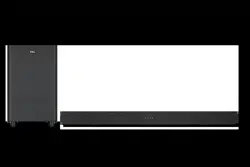
Quick Start Guide
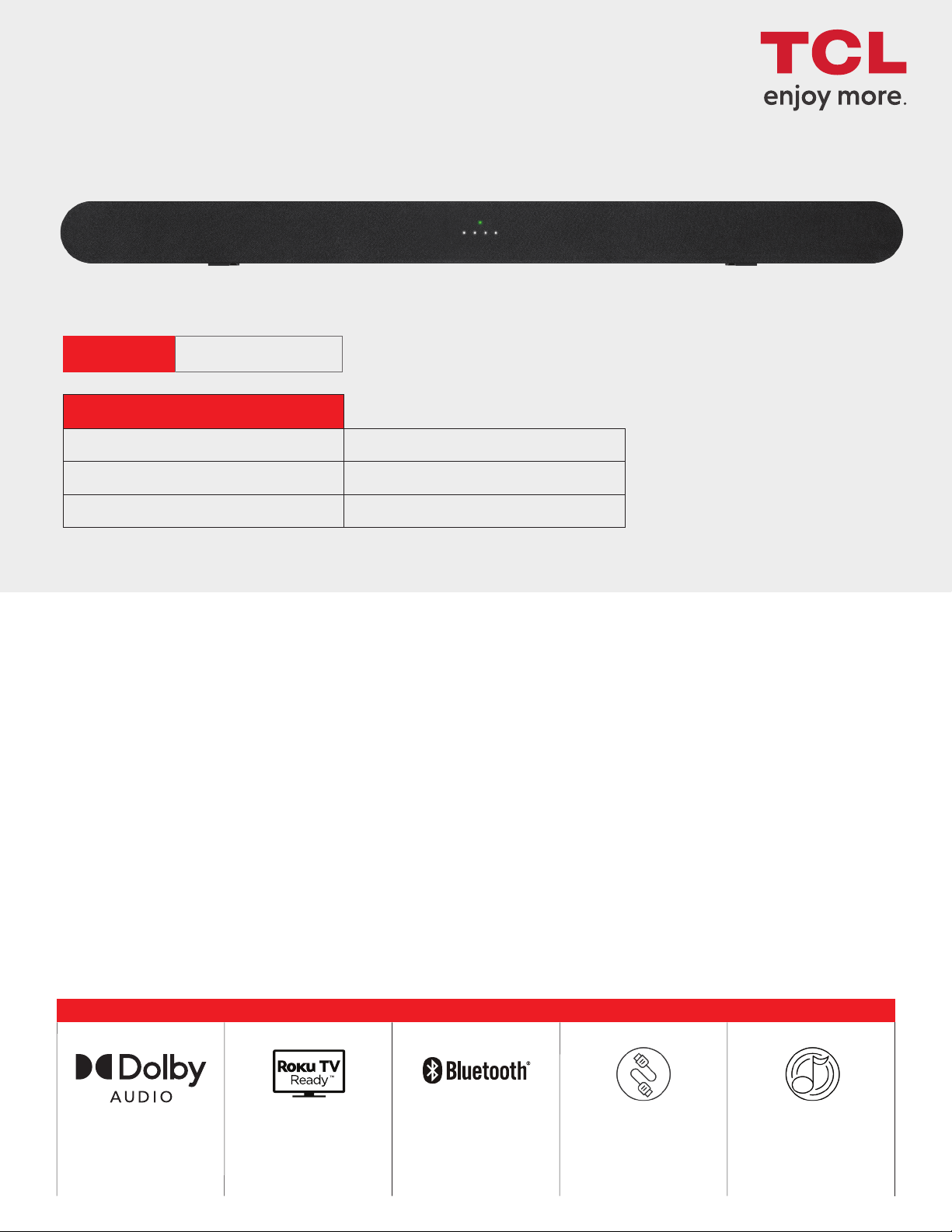
ALTO 6
2.0 Channel Sound Bar with Dolby Audio

1
Safety
instructions
QSG
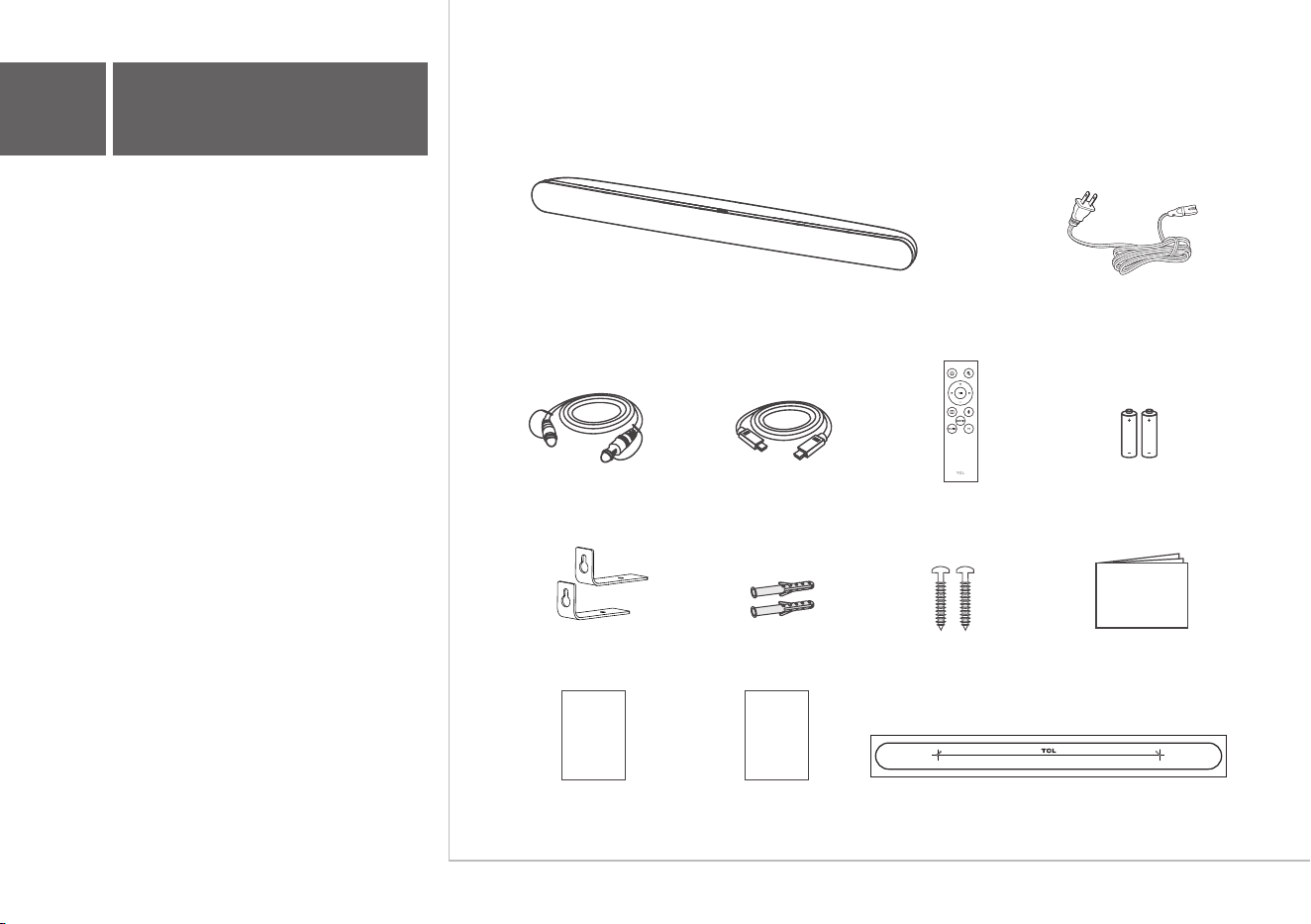
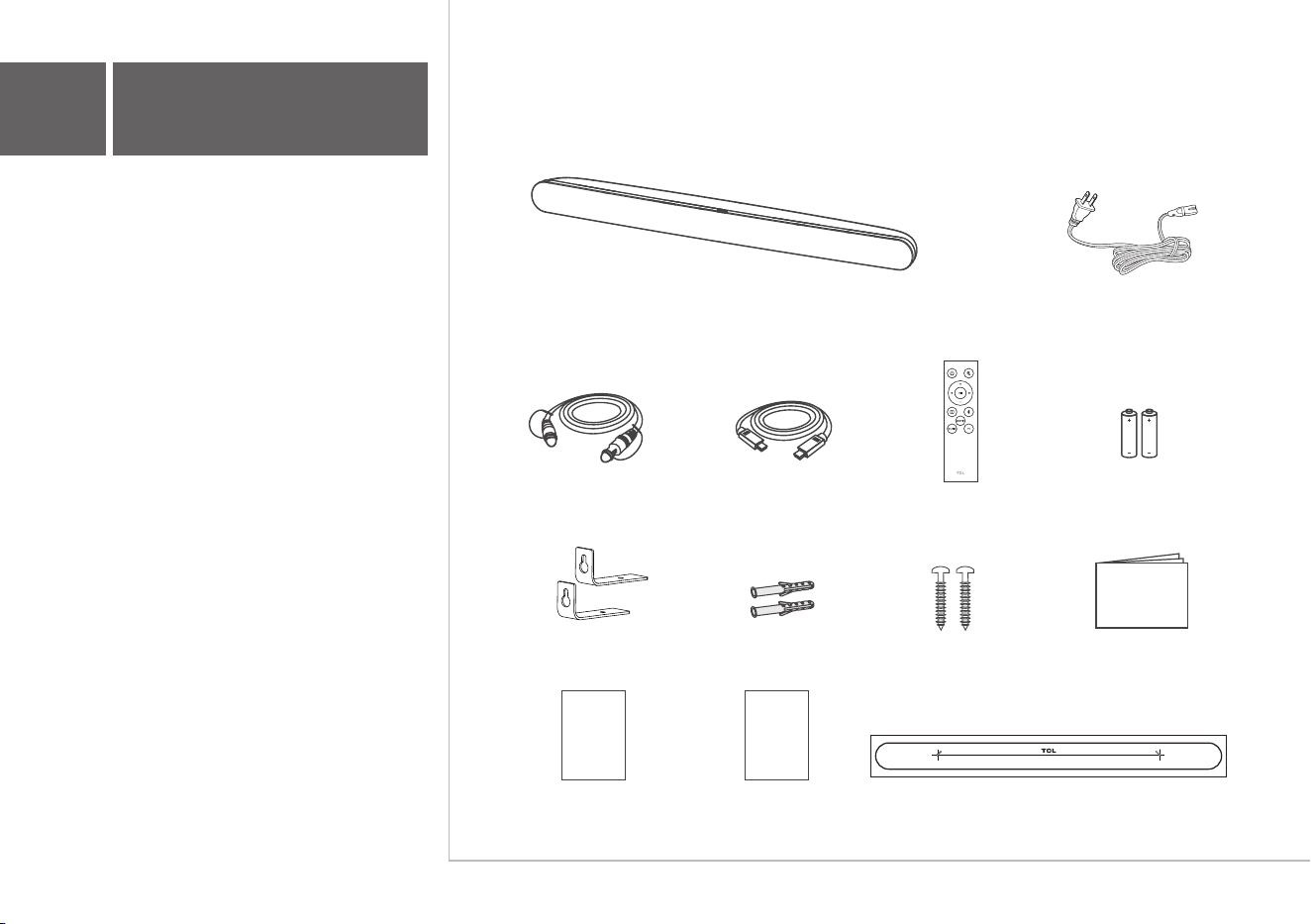
AC power cord
HDMI cable
Optical cable
Remote control
AAA battery x 2
Wall mount bracket x 2 Wall anchor x 2 Wall mounting screw x 2
Wall mount template
Quick Start Guide
Safety leaflet
Warranty
card
Warranty card
What's in the box
Make sure you read all the safety information
before you use this product.
Sound Bar main unit
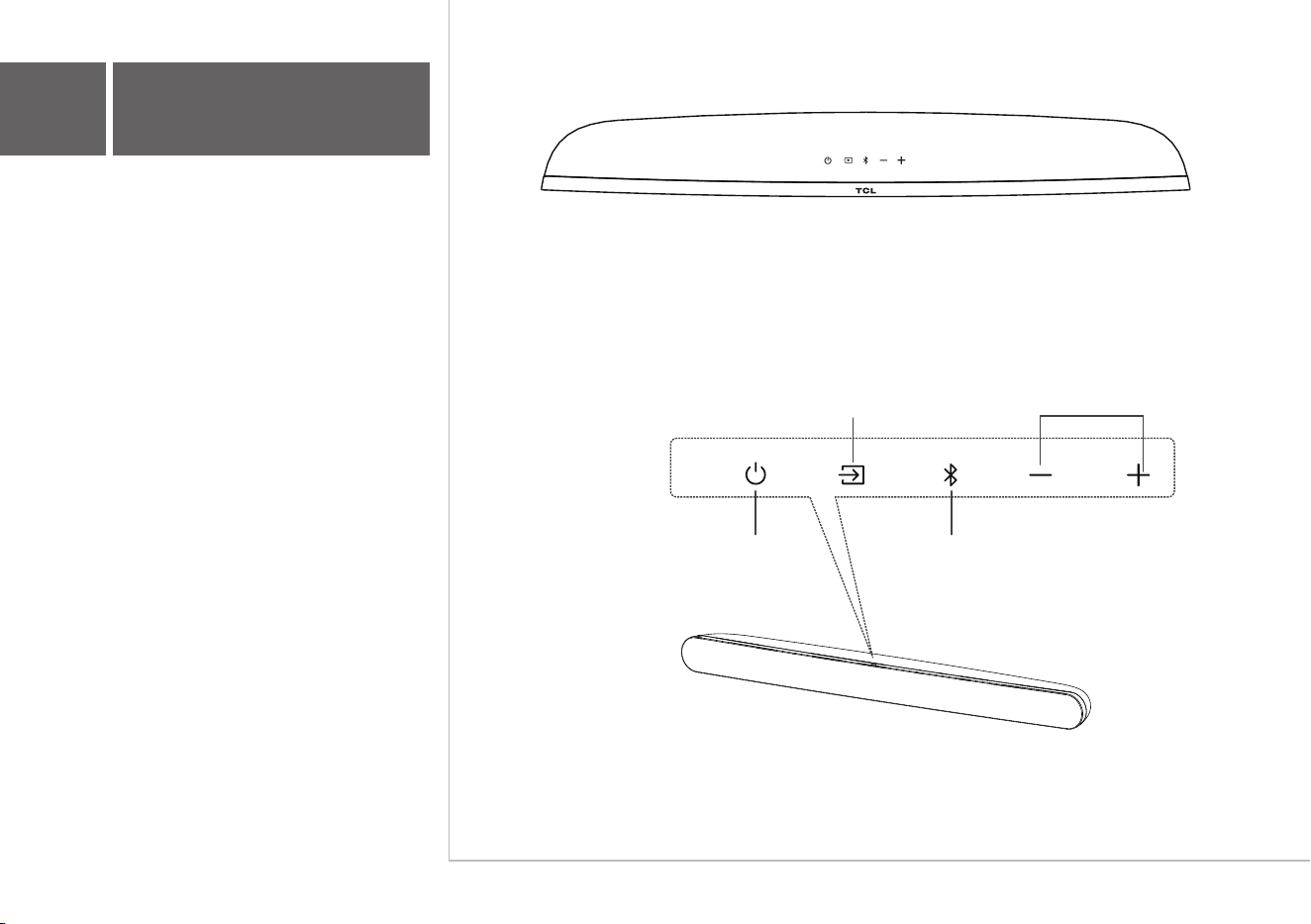
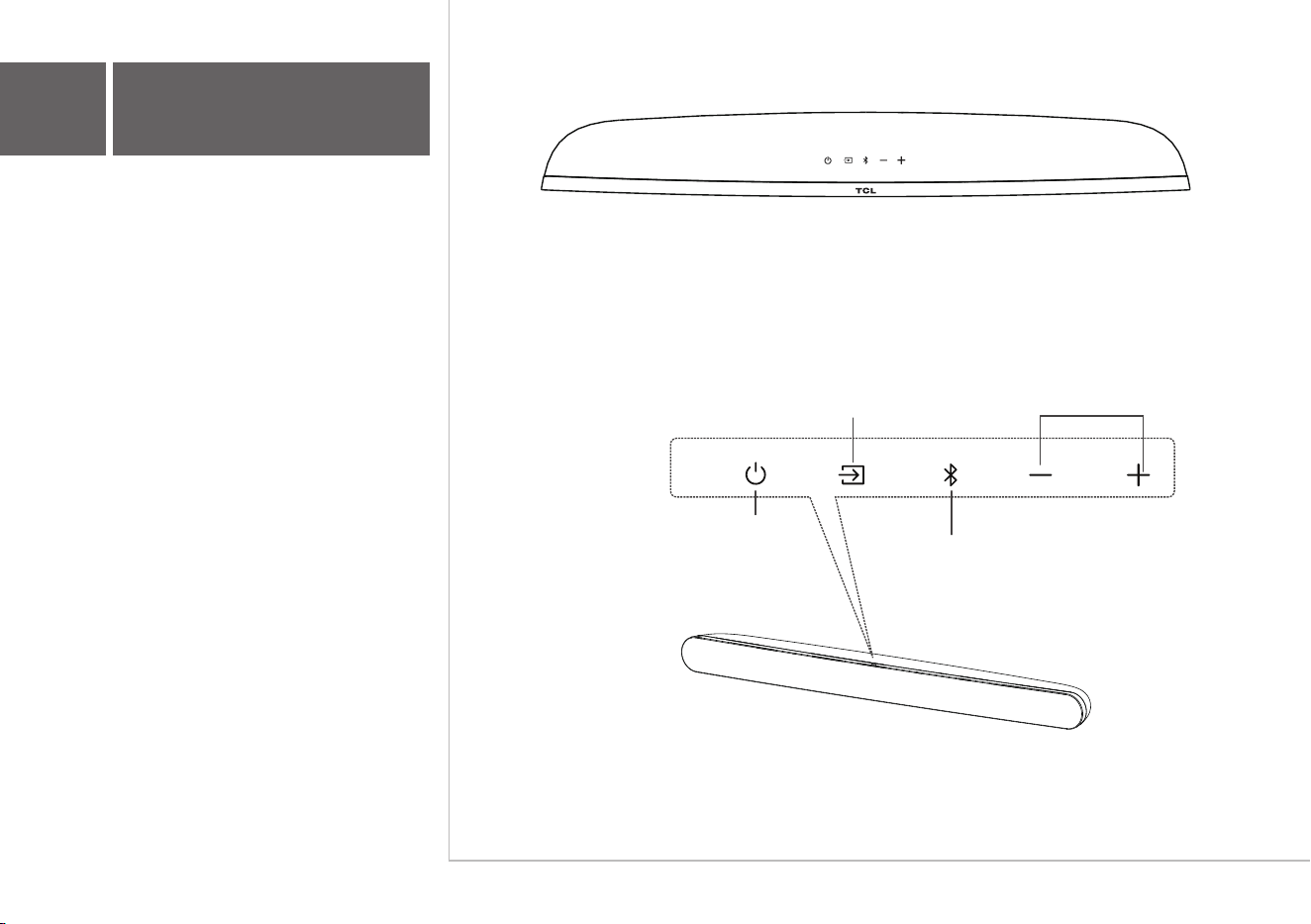
Press to select the Bluetooth source.
Press and hold to enter pairing mode.
Press to switch the audio source
among HDMI/
OPT/
AUX/USB/BT modes.
Press to increase
or decrease the
volume level.
Sound Bar main unit
Volume buttons:Source button:
Power button:
Bluetooth button:
Short press to power
on/off. Long press to reset
to factory default
2a
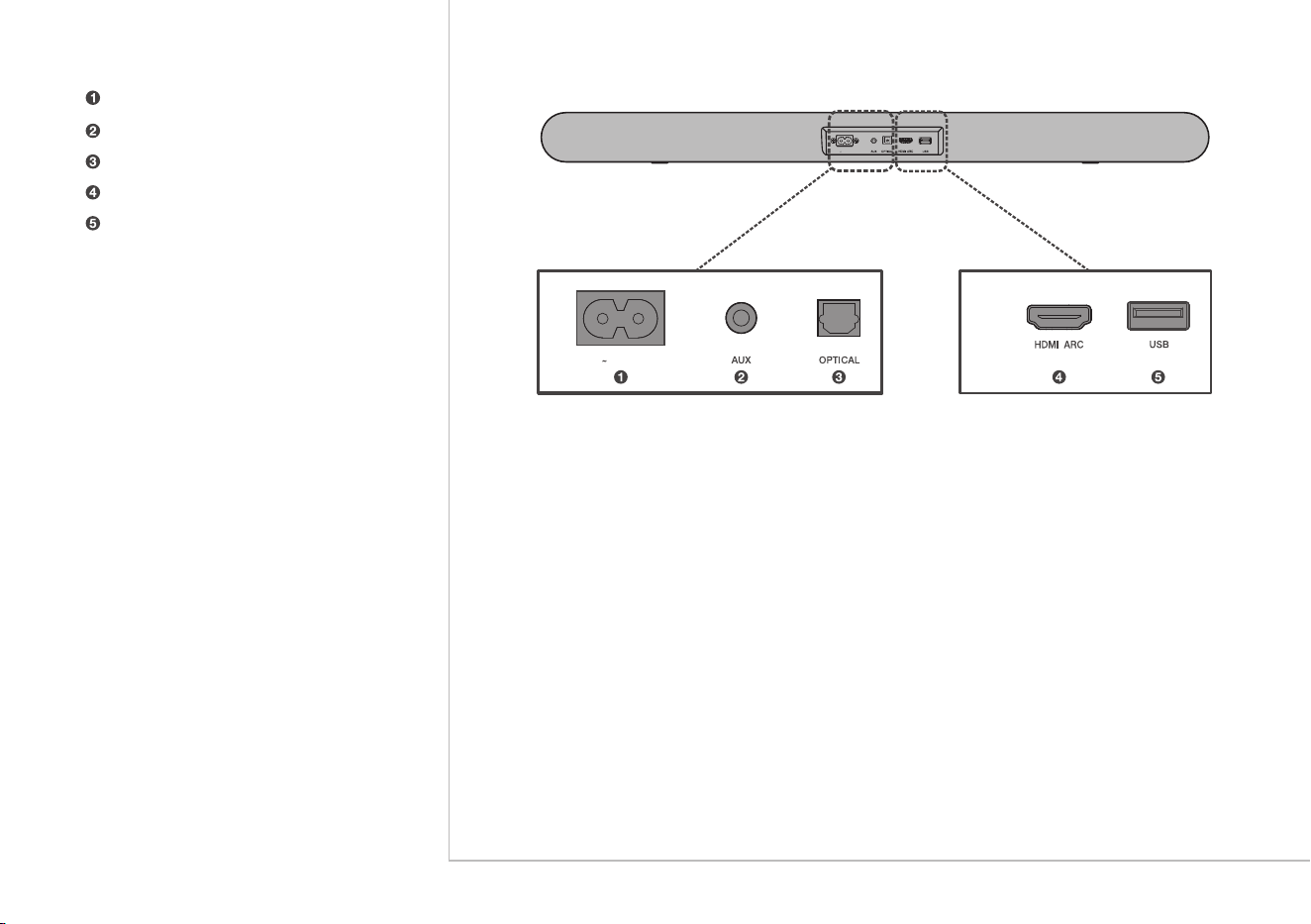
Overview
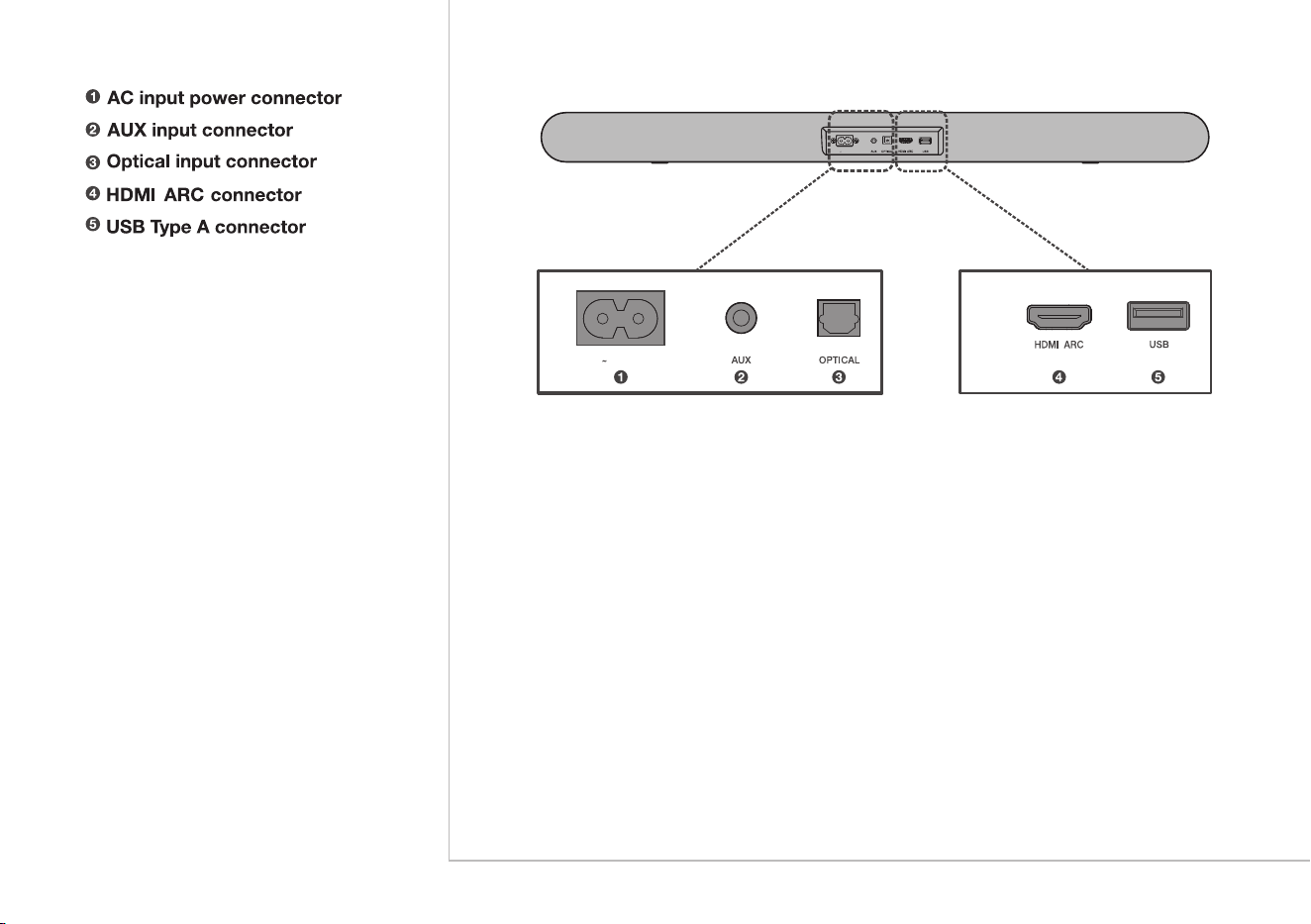
AC IN
AC IN
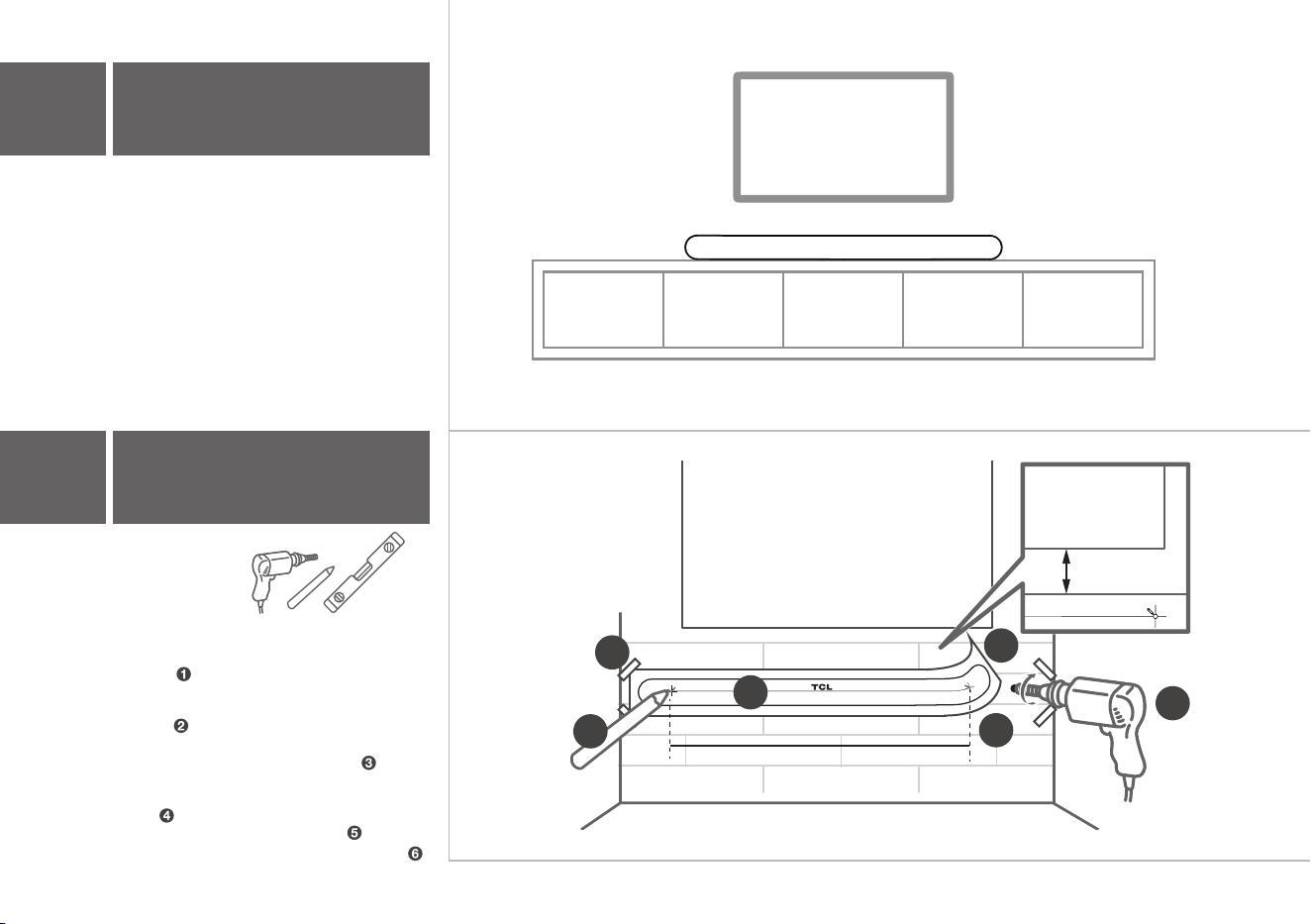
> 2"
TV
TV
3
2
5
6
TV
20.2"
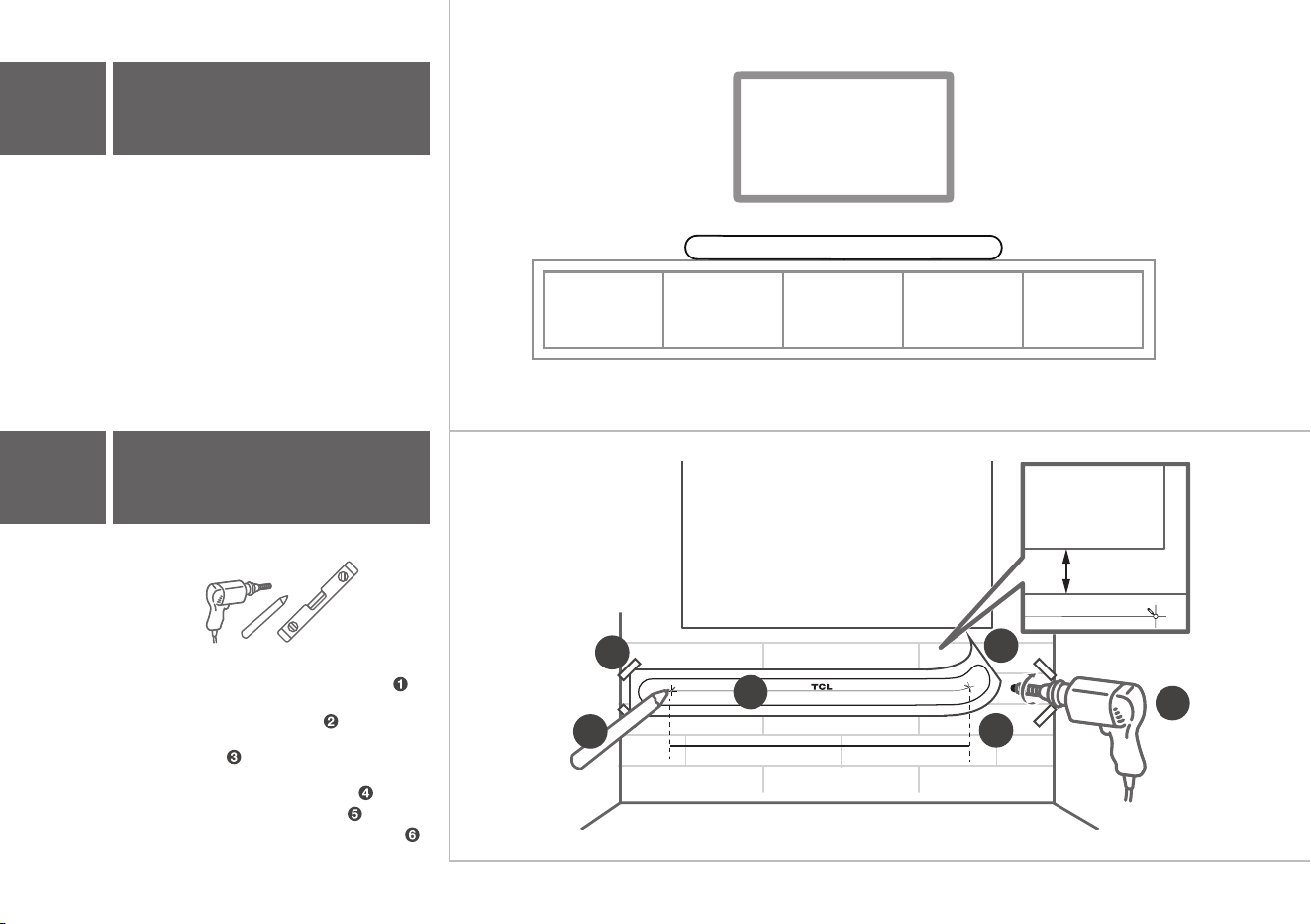
The ideal place to position the Sound Bar is
centered underneath your TV.
4
1
Required tools:
• Place the supplied wall mount template on the
wall. Make sure the wall mount template is at
least 2 inches below the center of the TV.
• Use a level to make
sure the wall mount
template is positioned accurately.
• Use the tape to stick the wall mount template
firmly on the wall.
• Mark on the wall using each marking on the
template through the mounting holes.
• Take away the wall mount template.
• Drill a screw hole at each marking on the wall.
3a
Place your Sound Bar
3b
Wall mount your Sound Bar
7 8 9
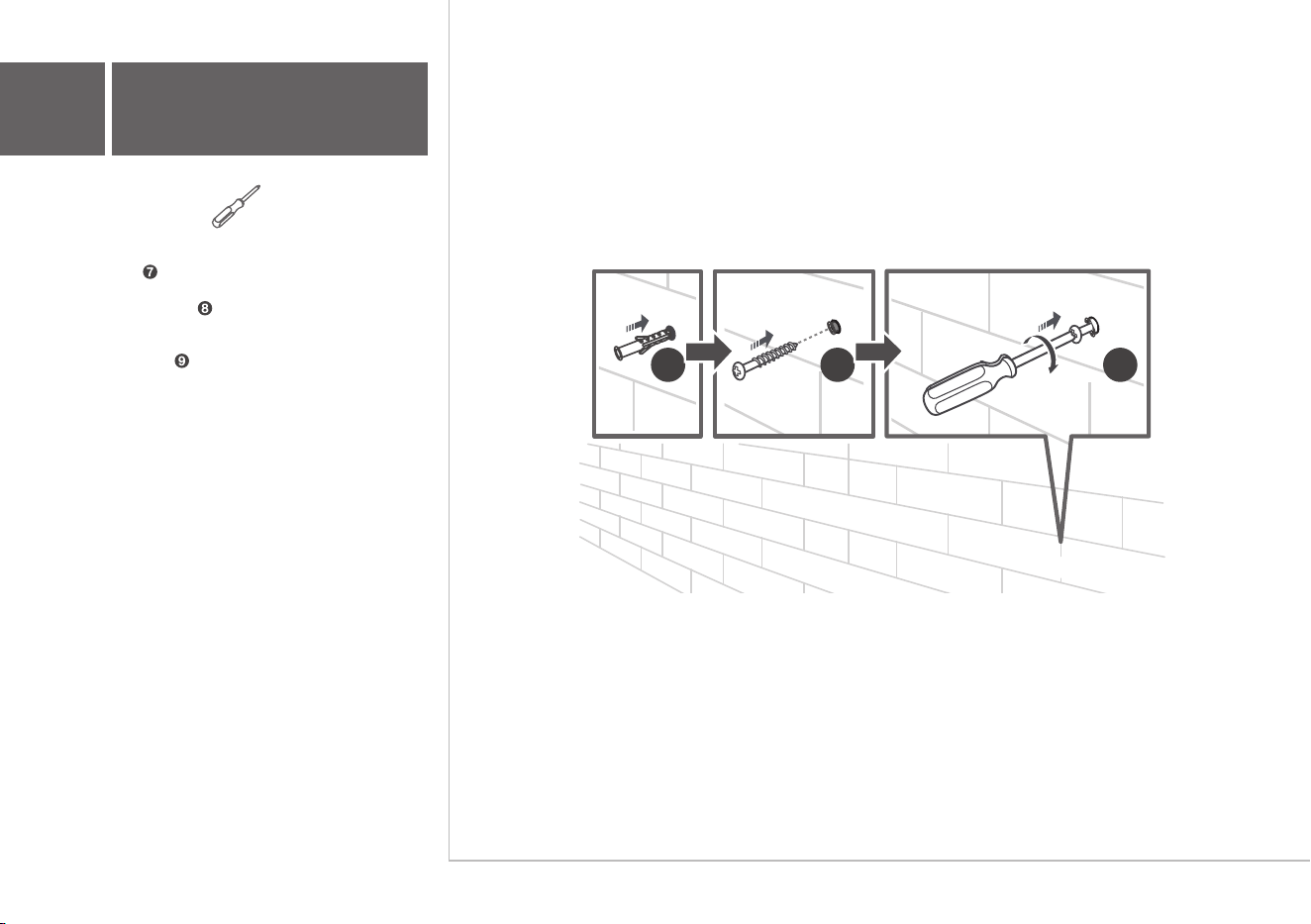
Required tools:
• Insert the wall anchors in the holes on the
wall.
• Insert the supplied screws into the hole of the
wall anchors.
• Fix and tighten the wall bracket screws on the
wall, but leave a little space for hanging the
brackets.
3b
Wall mount your Sound Bar
10
11
12
13
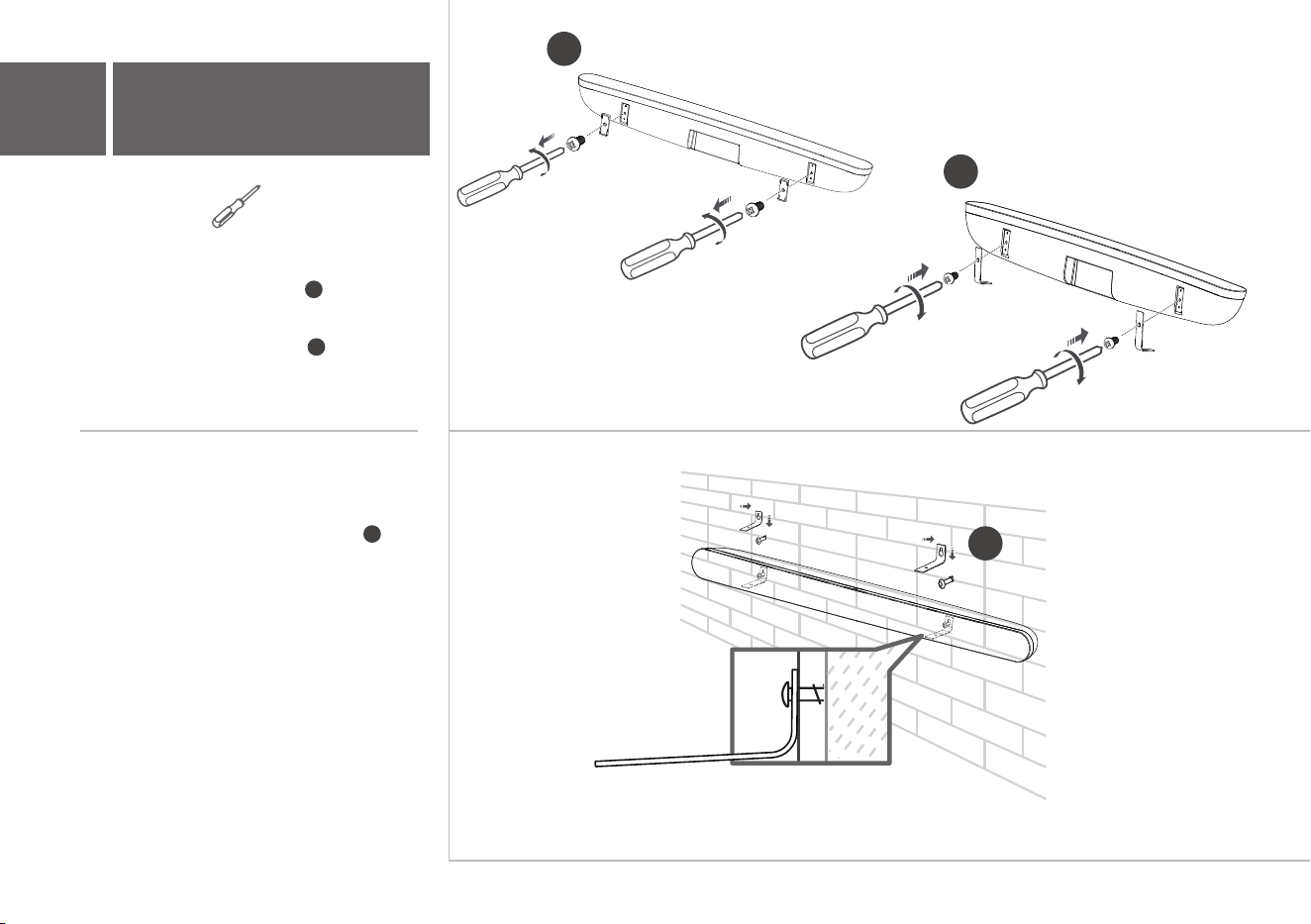
Required tools:
• Unscrew the rubber cushions from the
bottom of the sound bar and set them aside
for potential use in the future.
• Attach the included wall bracket mounts to
the sound bar in the same holes the rubber
cushions were removed from.
• With the brackets now attached to the sound
bar, pick up the sound bar and attach it to the
wall screws, similar to how you would hang a
picture. Make sure everything is tight.
10
11
12
3b
Wall mount your Sound Bar
AC IN
HDMI CEC
Set
On
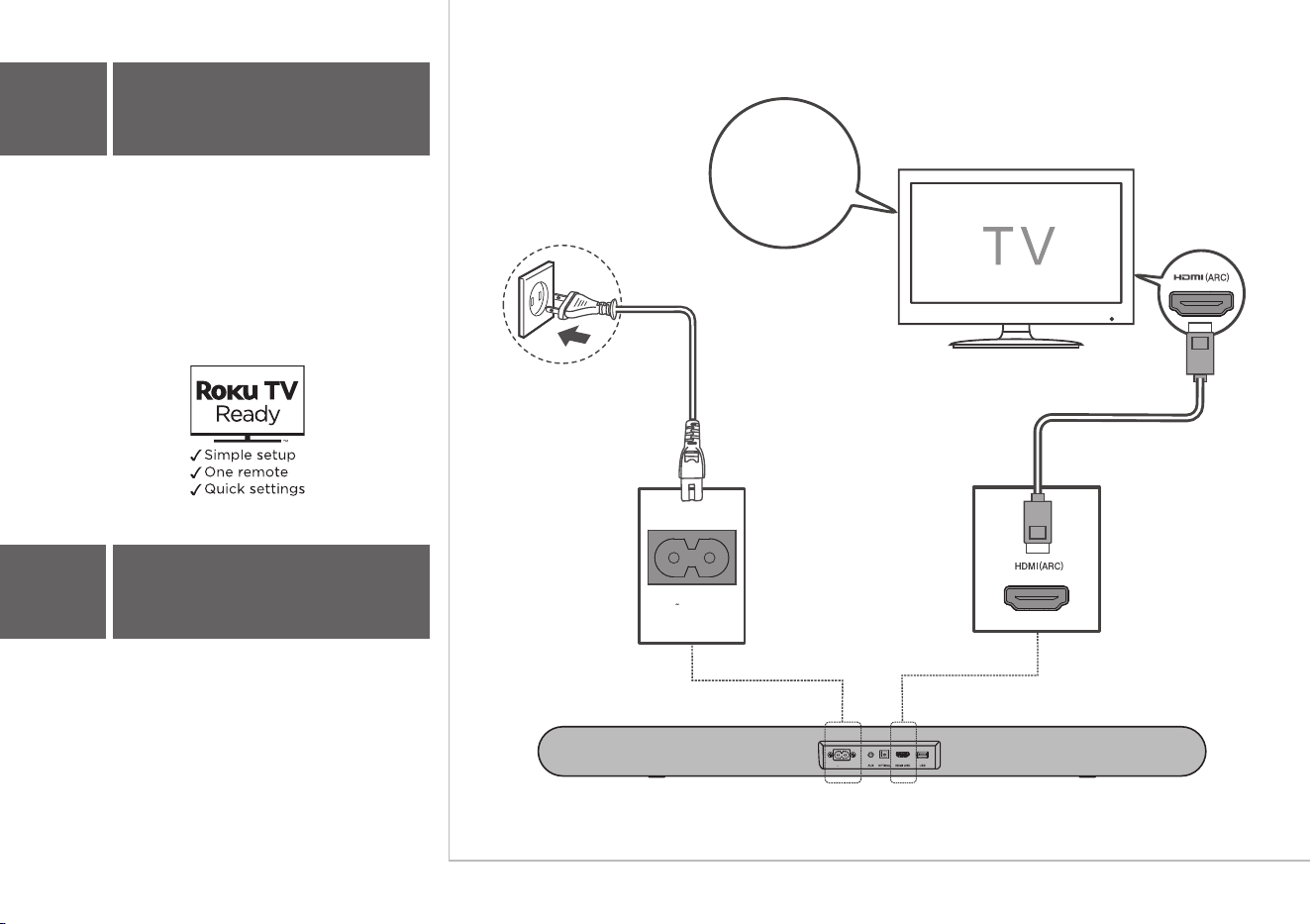
Connect the Sound Bar with your TV through the
supplied HDMI cable.
Connect the Sound Bar to the power supply with
the supplied power cord.
There are 3 ways to connect your sound bar to the TV
(listed in order that we recommend): HDMI ARC (refer
to 4a), Optical (refer to 4b), and AUX (refer to 4c)
4
Connect to your TV
4a
HDMI-ARC
AC IN
For USA only: If you have a Roku TV
TM
, simply plug
in the HDMI cable and follow the Roku TV Ready
TM
on-screen instructions.
AC IN
AC IN
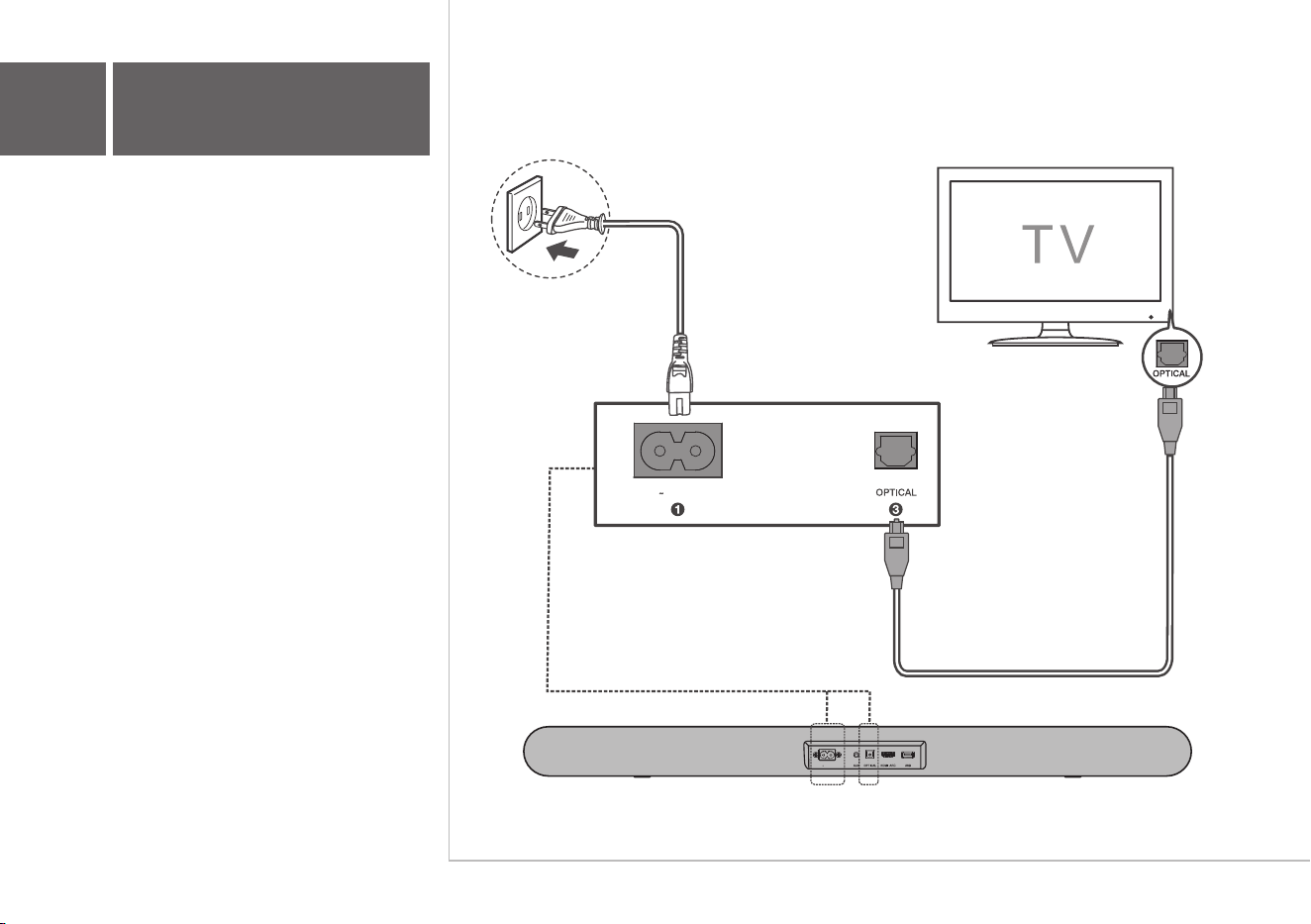
Connect the Sound Bar with your TV through the
supplied Optical cable.
Connect the Sound Bar to the power supply with
the supplied power cord.
4b
Optical
AC IN
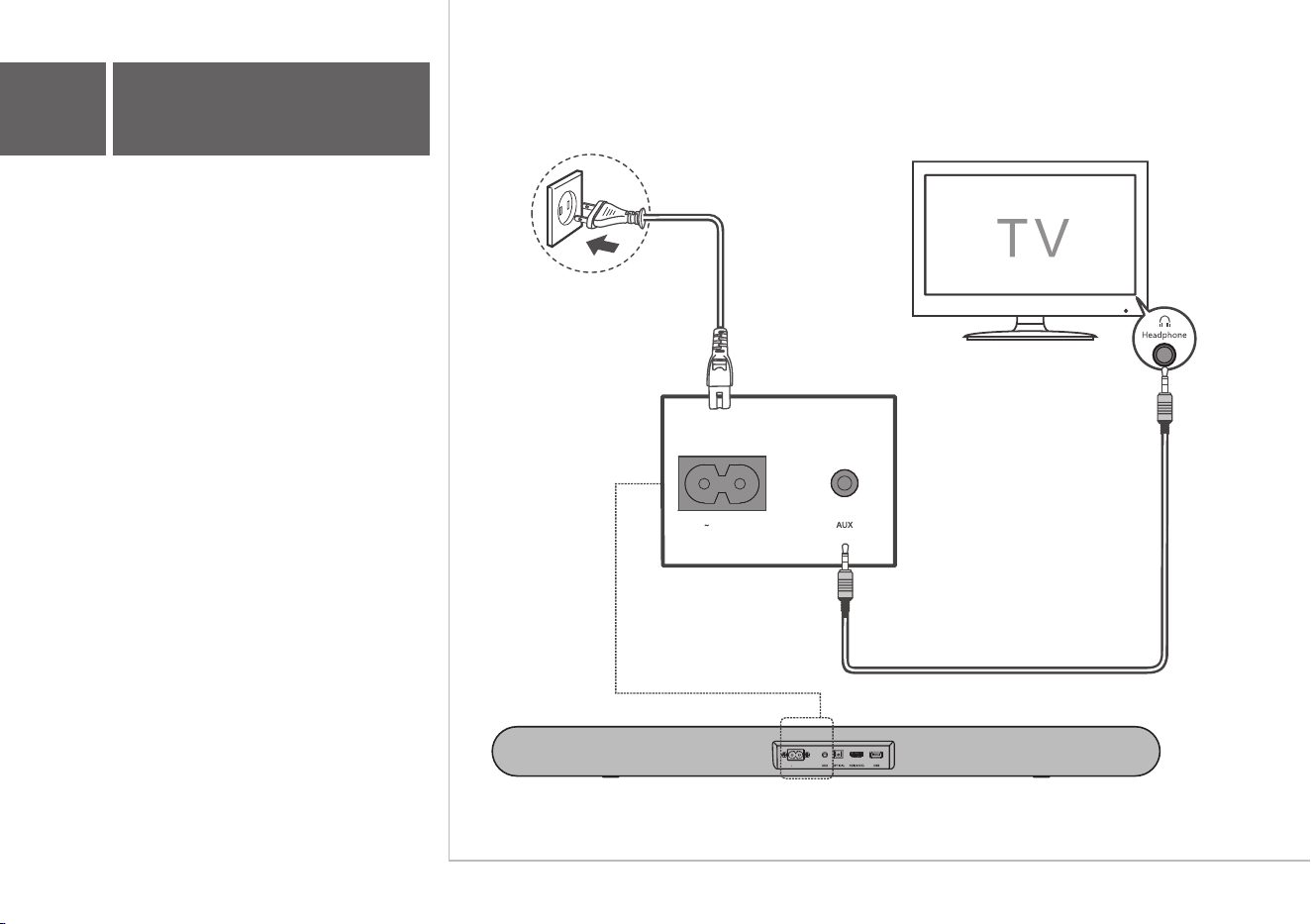
AC IN
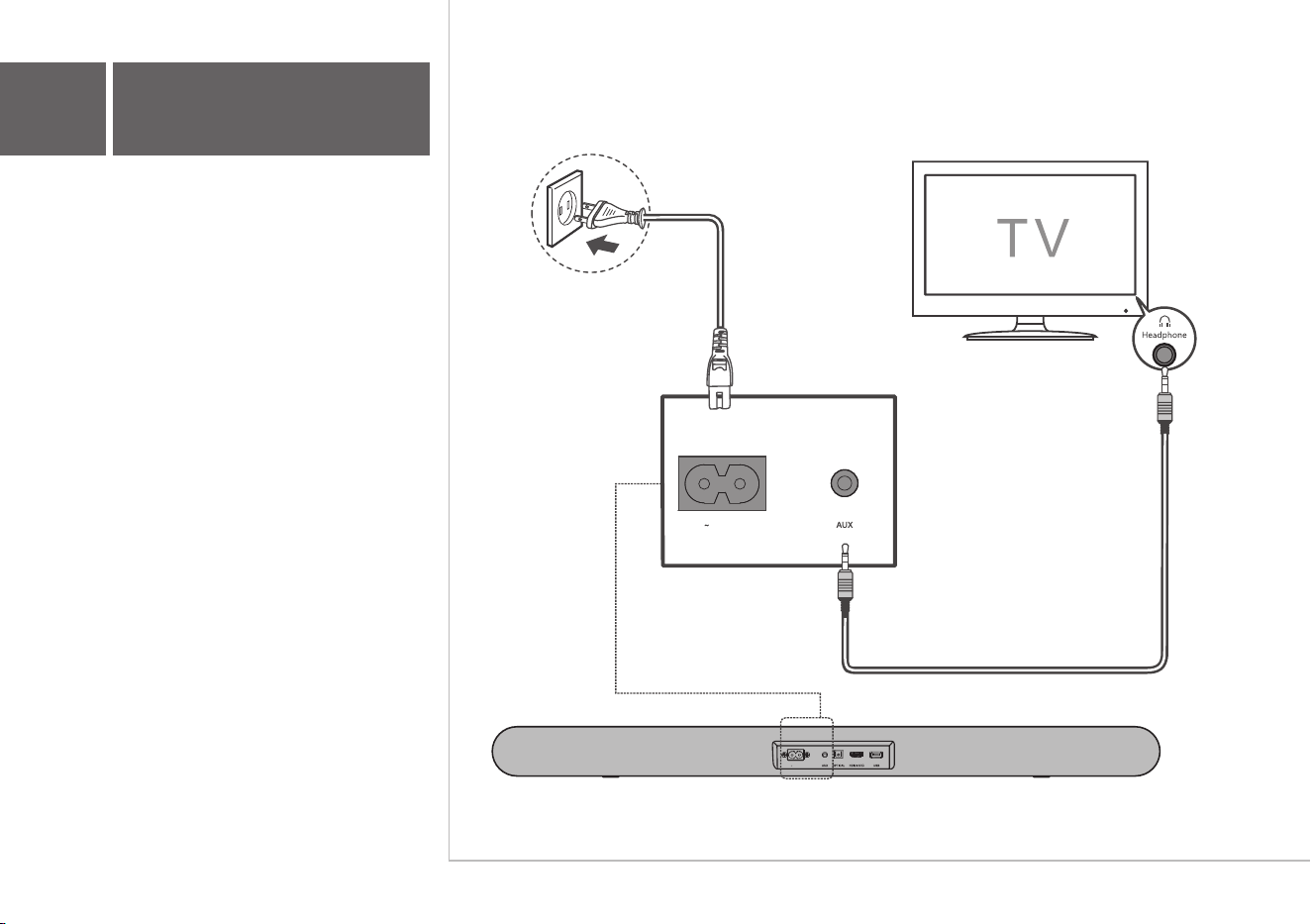
Connect the Sound Bar with your TV through
AUX cable (not supplied).
Connect the Sound Bar to the power supply with
the supplied power cord.
4c
AUX
1 2 3
4
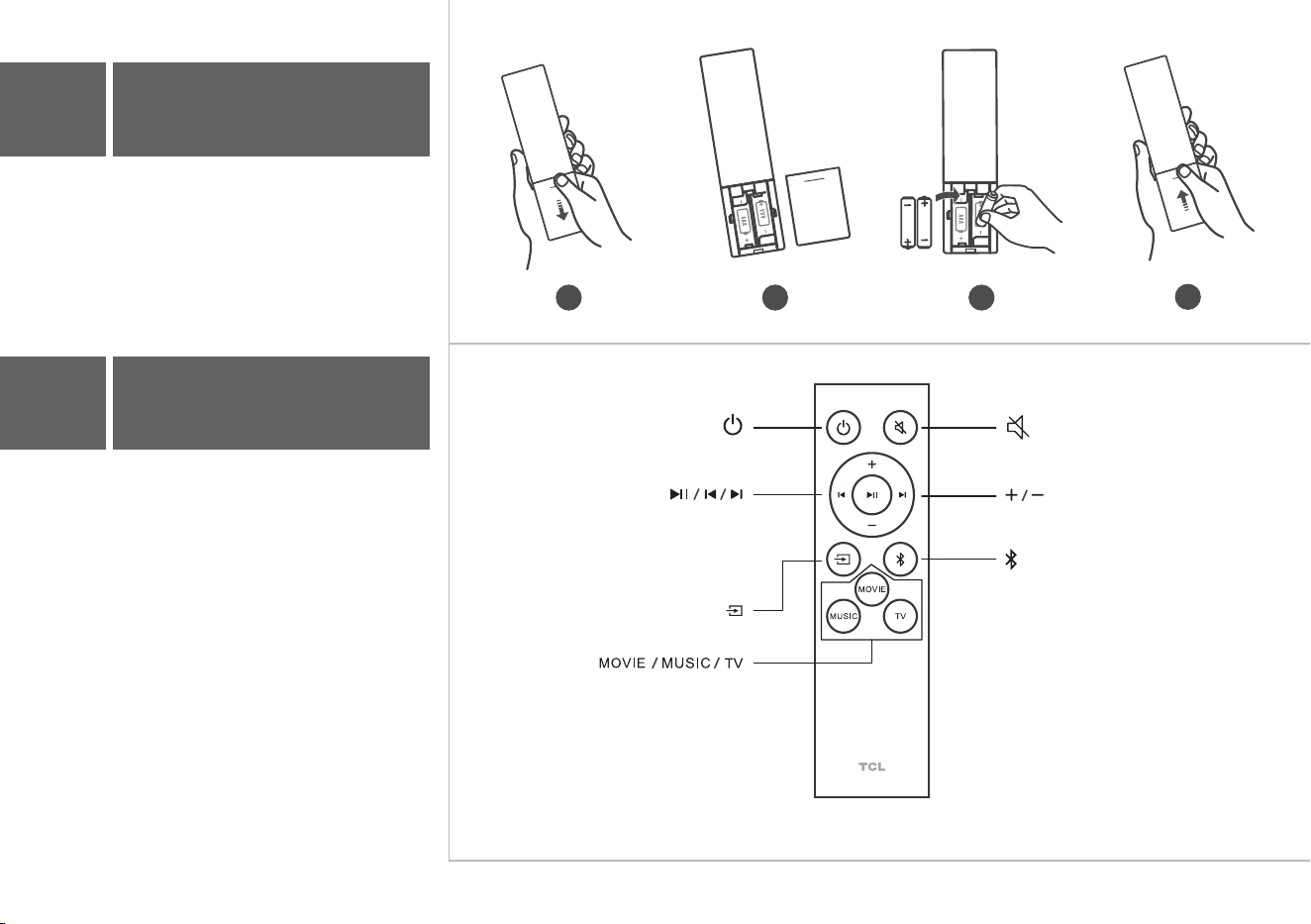
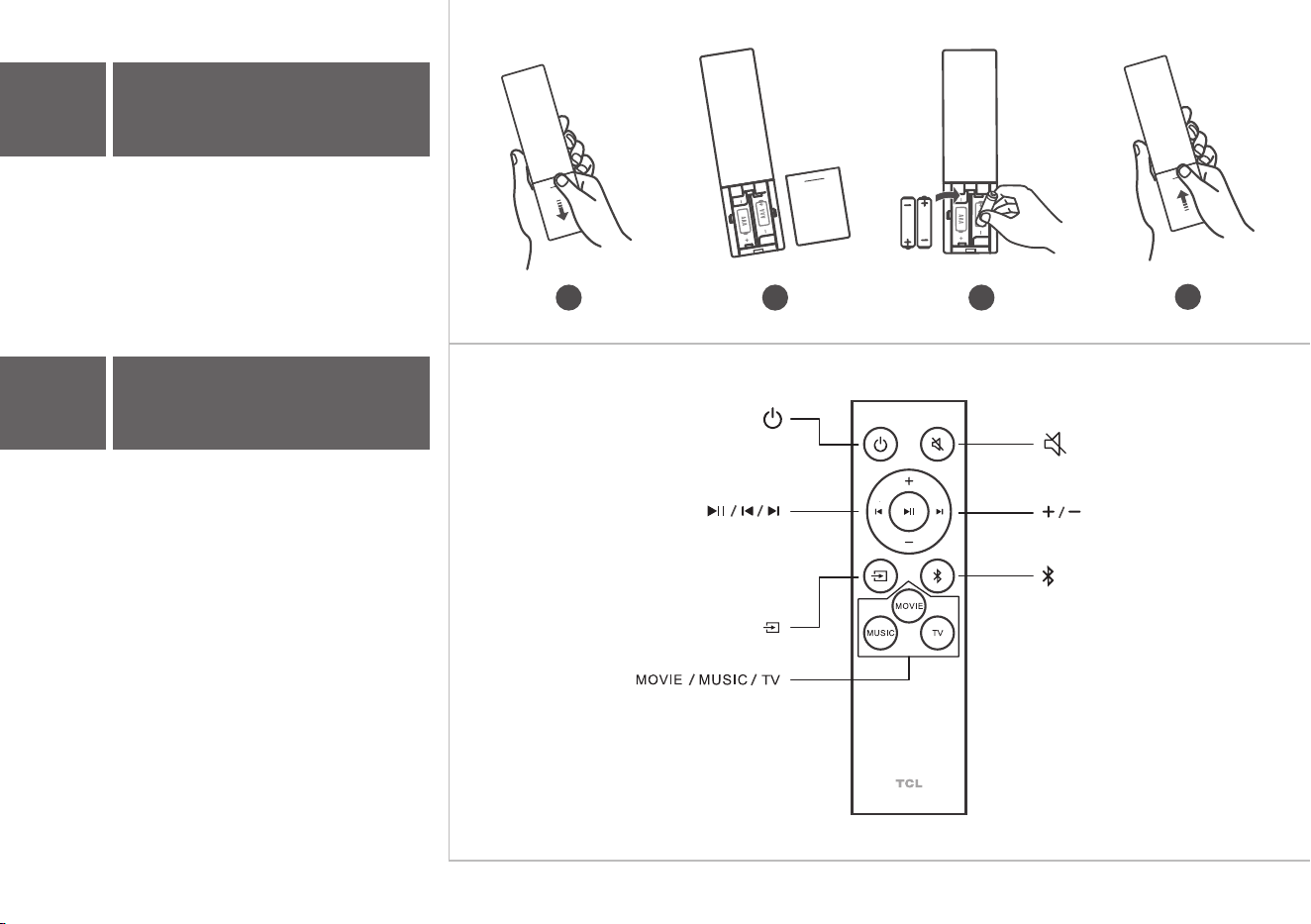
Battery type: 1.5V AAA Alkaline battery x 2
Mute/Unmute
Press and hold to activate
the pairing function in Bluetooth
mode or disconnect the paired device.
Short press: Power off
Long Press: Factory default
Volume+/-
Source input
Press to select the equalizer (EQ)
among MOVIE, MUSIC, TV.
Play/pause/resume playback
in Bluetooth/USB mode
Next in Bluetooth/USB mode
Previous in Bluetooth/USB mode
5a
Install or replace the
remote batteries
5b
Using the Remote
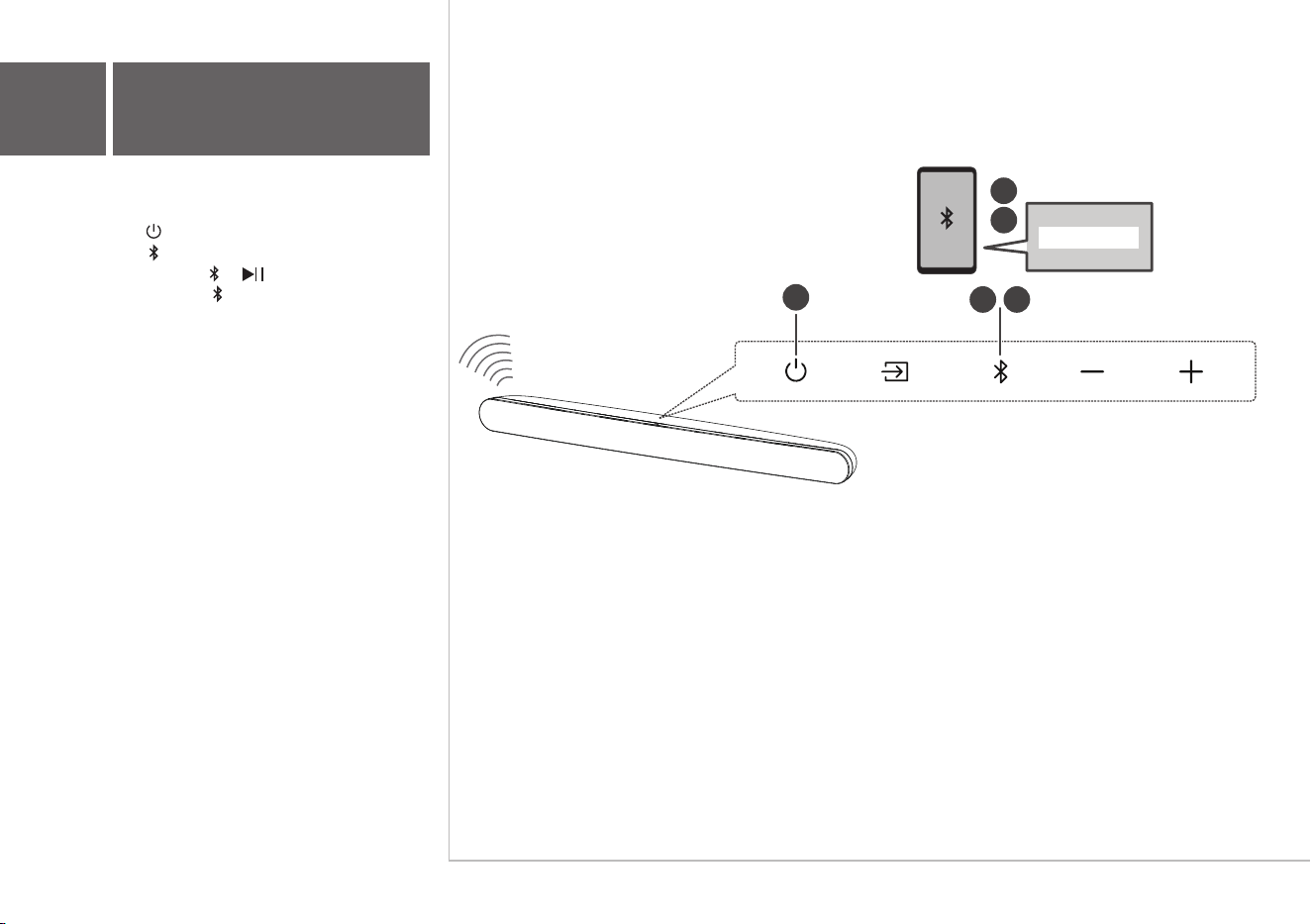
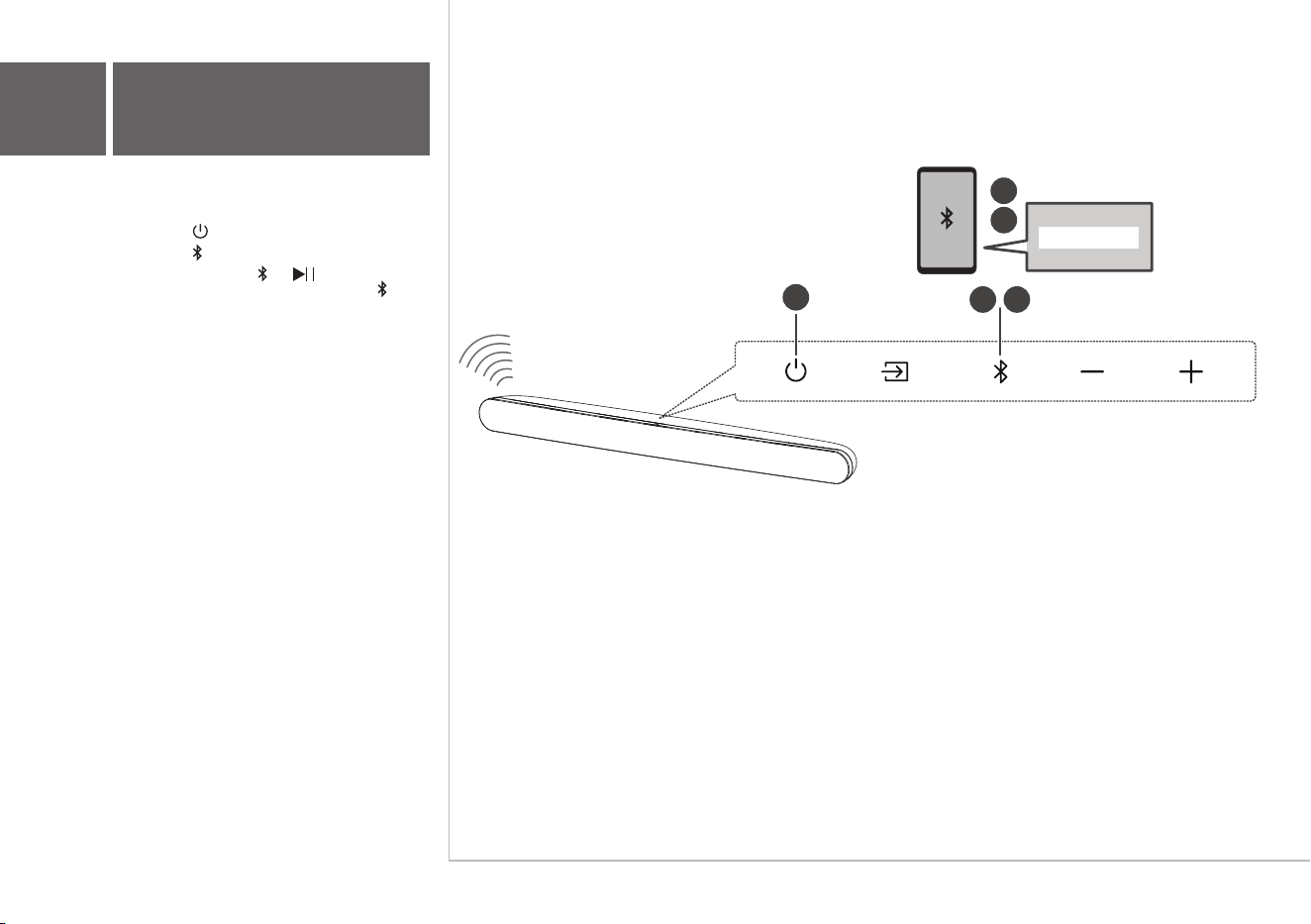
You can stream music from your mobile device
via Bluetooth.
1. Press .
2. Press .
3. Press and hold or on the remote control
or press and hold on your sound bar.
> You hear a sound signal and blue light is
flashing on the sound bar.
> The Sound Bar is ready to pair.
4. Power on your Bluetooth device and activate
its Bluetooth function.
5. Select TCL Alto 6.
> You hear a sound signal.
> Pairing is successful.
6. If you want to re-pair with another device,
please repeat step 3.
3
5
4
2
TCL Alto 6
1
6a
Pair with your
Bluetooth device
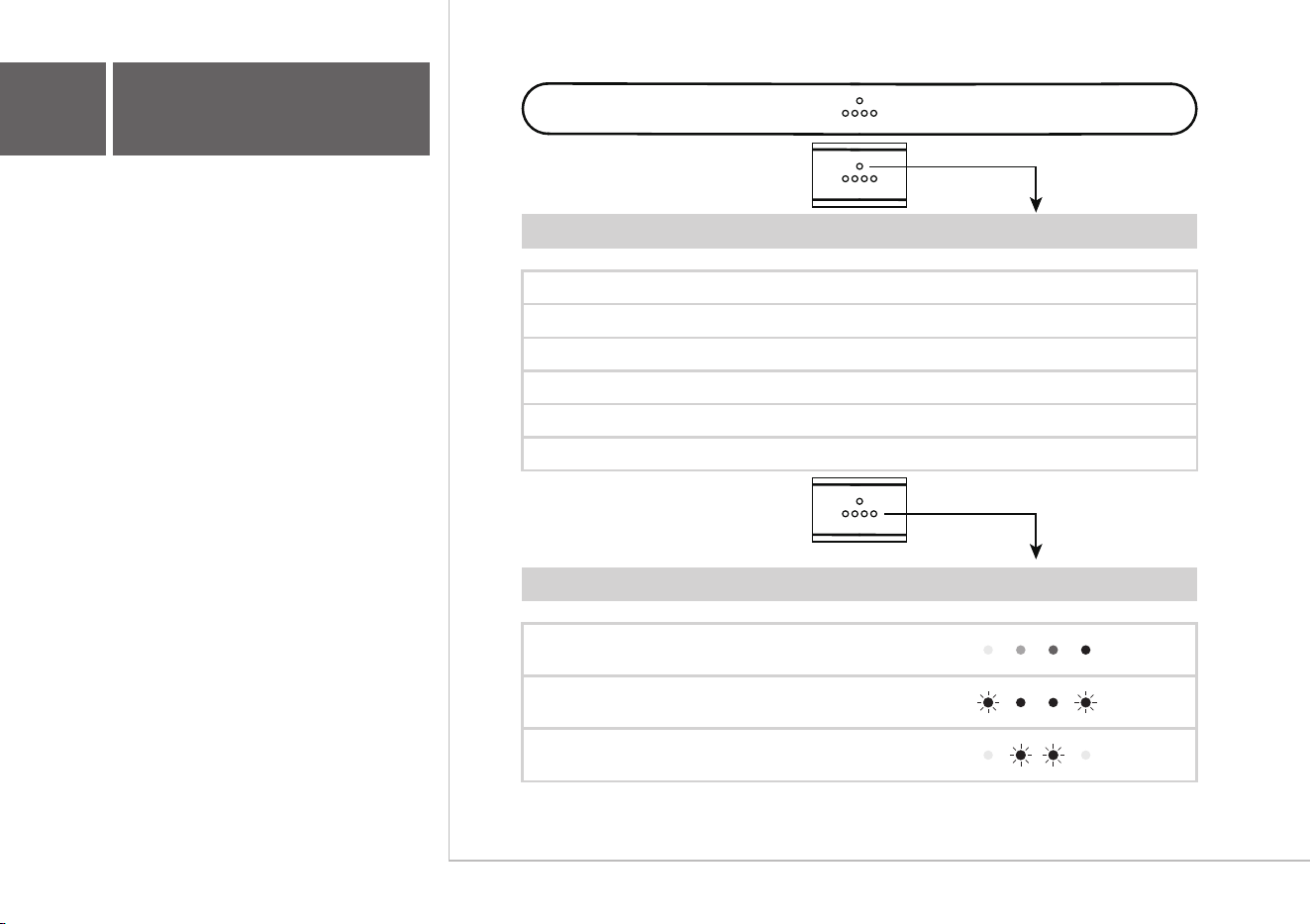
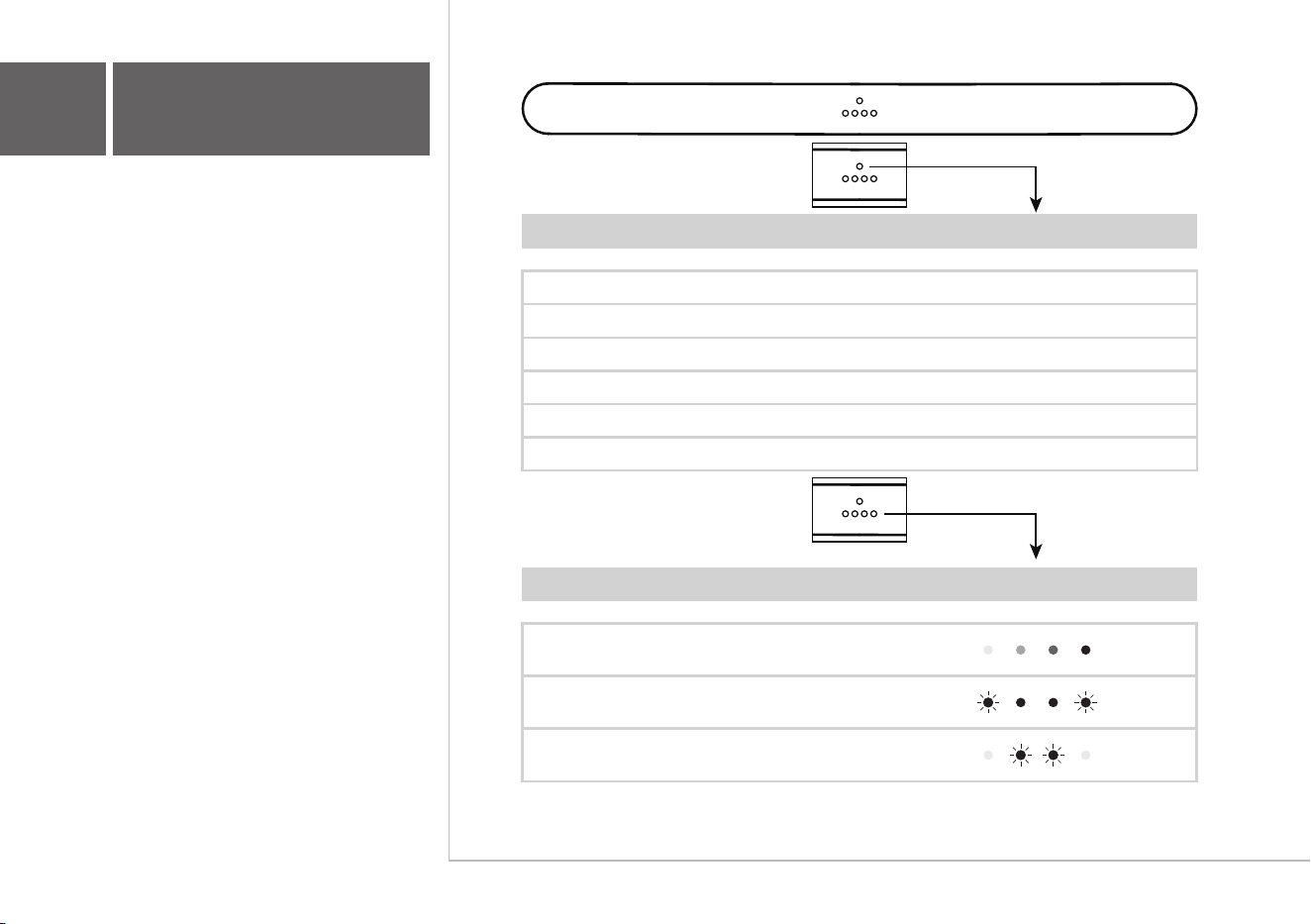
Sound Bar status
In standby mode
In OPT mode
LED Indications
Red
Yellow
In HDMI ARC mode Purple
In USB mode Cyan
In AUX mode Green
In Bluetooth mode Blue
The LED display on the Sound Bar gives
you information about the status of the
Sound Bar.
Sound Mode
MOVIE
MUSIC
LED Indications
TV
7
Sound Bar LED Display

FAQ
Does this Sound Bar work with any TV?
Yes, the Sound Bar is compatible with any TV that has one of the
ports below:
1. HDMI supporting ARC (preferred)
2. Optical audio output (TOSLink)
3. Headphone output
When the Sound Bar and TV are both on, there is an echo
effect.
If you use HDMI-ARC connection, please check if the
HDMI-CEC feature of your TV is turned on. This feature may be
called T-Link, Anynet+, SimpLink, BRAVIA Link, EasyLink or
VIERA Link .
If using optical or AUX connection, simply mute the TV speaker.
How many sound modes are available?
Three sound modes - Movie, Music, and TV.
How to clean the sound bar?
Please keep your sound bar in a dry and ventilated environment.
If it needs to be cleaned, please wipe it gently with a soft, dry cloth
without water or other cleaning agents.
All technology names mentioned are the trademarks or registered trademarks of their respective companies.
TS6100_NA_QSG_V1.8
support.tclusa.com
support.tclcanada.com
or

Guide de démarrage rapide
ALTO 6
Barre de son 2.0 avec audio Dolby

1
Safety
instructions
QSG
Cordon d’alimentation
Câble HDMI
Câble optique
Télécommande
Piles AAA x 2
Supports de montage mural x 2 Ancrage mural x 2 Vis de fixation murale x 2
Gabarit de montage mural
Guide de démarrage rapide
Feuillet sur la sécurité
Warranty
card
Carte de garantie
Contenu de la boîte
Veuillez lire toutes les informations de sécurité
avant d’utiliser ce produit
Barre de son
Appuyez pour sélectionner l’entrée
Bluetooth. Maintenez la touche enfoncée
pour entrer en mode jumelage.
Appuyez pour alterner entre les
entrées audio des modes HDMI,
optique, aux, USB et Bluetooth.
Appuyez pour
augmenter ou diminuer
le niveau de volume.
Barre de son
Touches de volume:Touche d’entrée:
Touche de
mise en marche:
Touche Bluetooth:
Pression courte pour mettre
en marche ou arrêter.
Pression longue pour revenir
aux réglages d’usine.
2a
Survol
AC IN
AC IN
Connecteur HDMI ARC
Connecteur d’entrée optique
Entrée AUX
Port USB type A
Prise d’alimentation c.a.
> 2"
TV
TV
3
2
5
6
TV
20.2"
L’endroit idéal pour placer votre barre de son se
trouve au centre, sous votre téléviseur.
4
1
3a
Installez votre barre
de son
3b
Fixez votre barre de son
au mur
• Placez le gabarit de montage mural fourni sur
le mur. Assurez-vous que le gabarit se trouve
au moins 2 po (5,1 cm) en dessous de votre
téléviseur.
• Utilisez un niveau pour vous assurer que le
gabarit de montage mural est positionné avec
précision.
• Utilisez le ruban adhésif pour coller le gabarit
de montage mural fermement au mur.
• Faites une marque sur le mur en utilisant
chaque repère du gabarit à travers les trous de
fixation.
• Retirez le gabarit de montage mural.
• Percez un trou dans chaque repère sur le mur.
Outils nécessaires:
7 8 9
3b
Outils nécessaires:
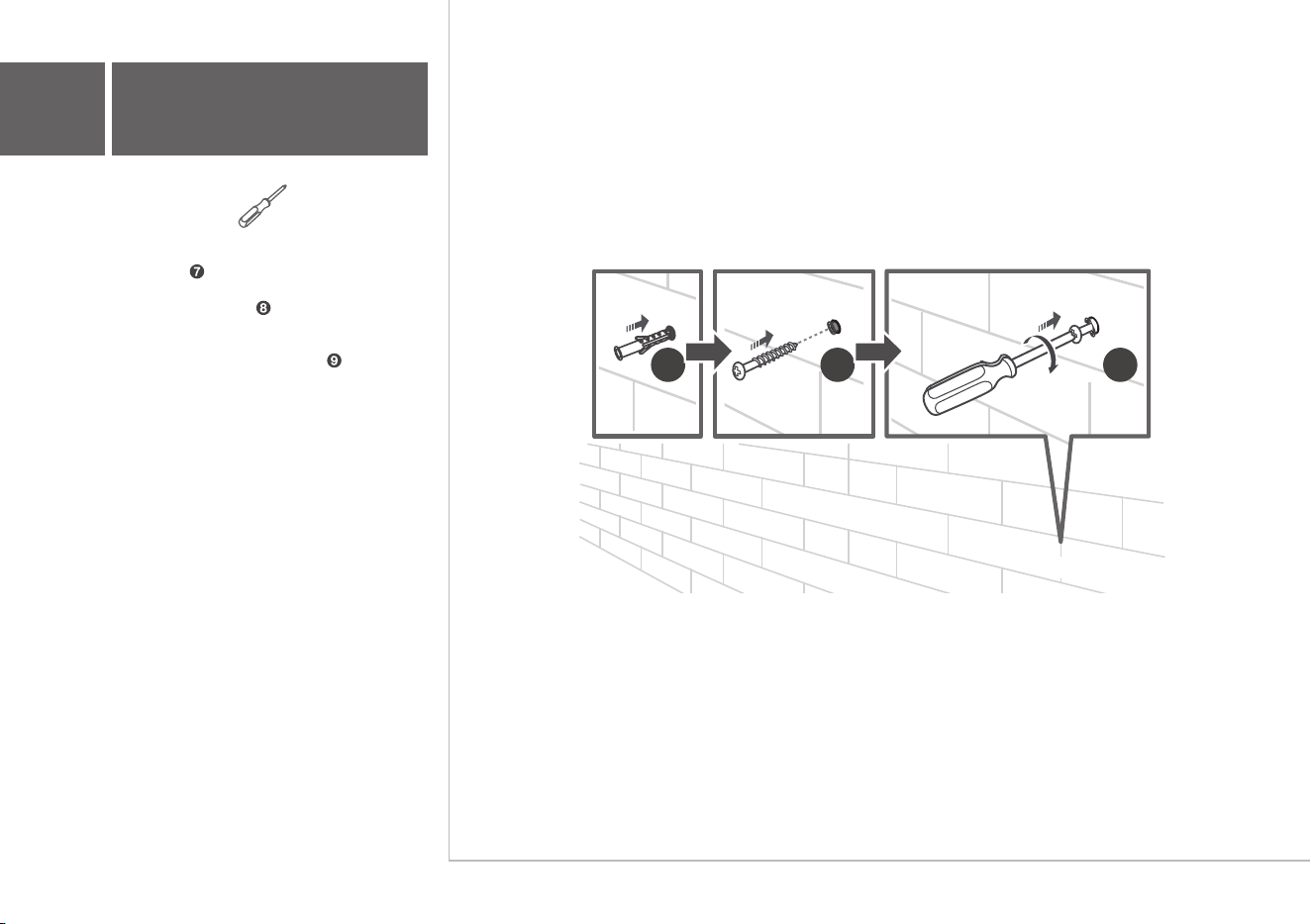
• Insérez les ancrages muraux dans les trous
du mur.
• Insérez les vis fournies dans les trous des
ancrages muraux.
• Fixez et serrez les vis des supports muraux
sur le mur tout en laissant un peu d’espace
pour accrocher les supports.
Fixez votre barre de son
au mur
10
11
12
13
3b
Fixez votre barre de son
au mur
Outils nécessaires:
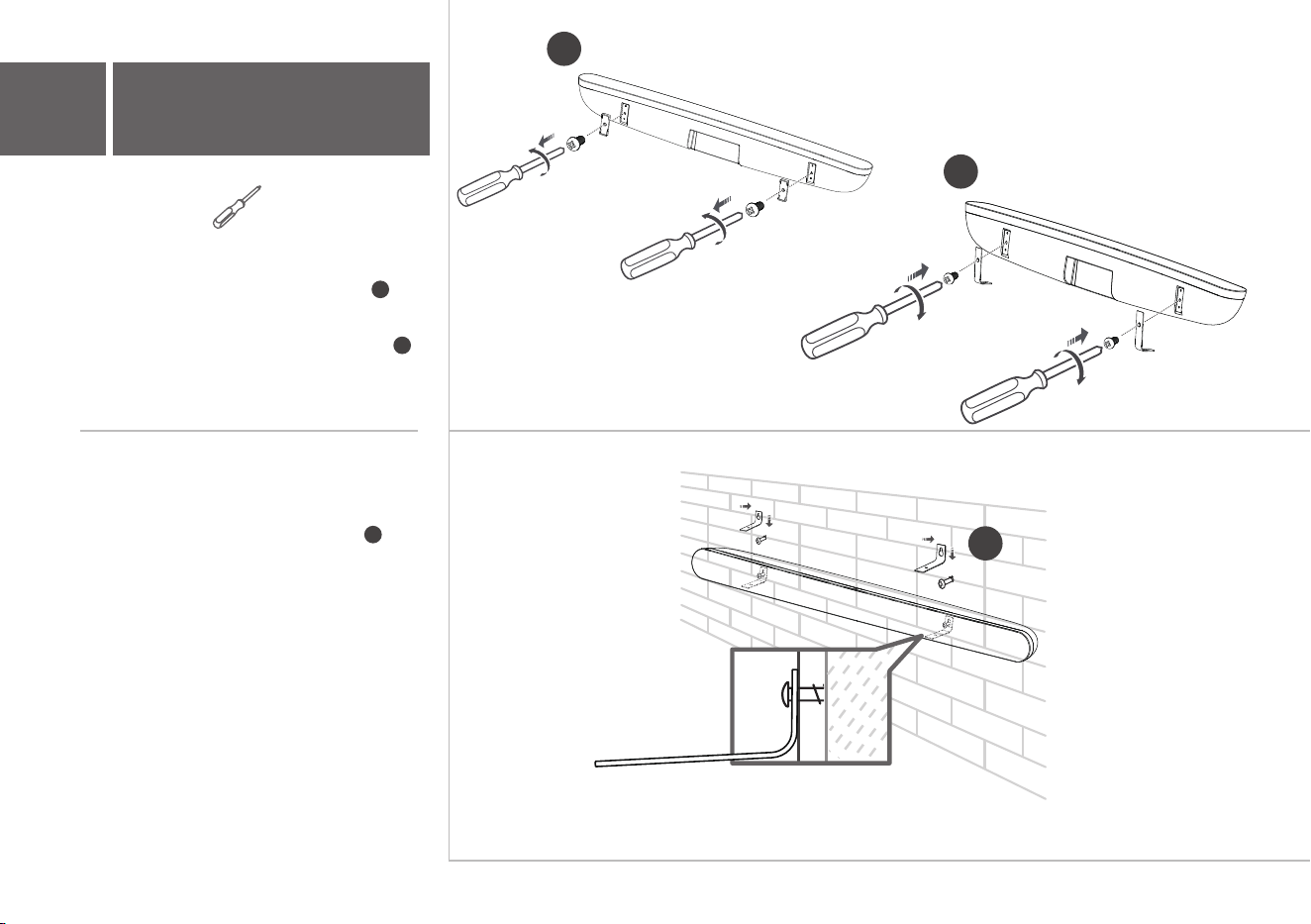
• Dévissez les coussins en caoutchouc du bas
de la barre de son et mettez-les de côté
pour une utilisation éventuelle à l'avenir.
• Fixez les supports muraux inclus à la barre
de son dans les mêmes trous que ceux où
les coussins en caoutchouc ont été retirés.
• Les supports étant maintenant fixés à la barre
sonore, prenez-la et fixez-la aux vis murales,
comme vous le feriez pour un tableau.
Assurez-vous que tout est bien serré.
10
11
12
AC IN
4
Branchez votre téléviseur
4a
Connexion HDMI ARC
AC IN
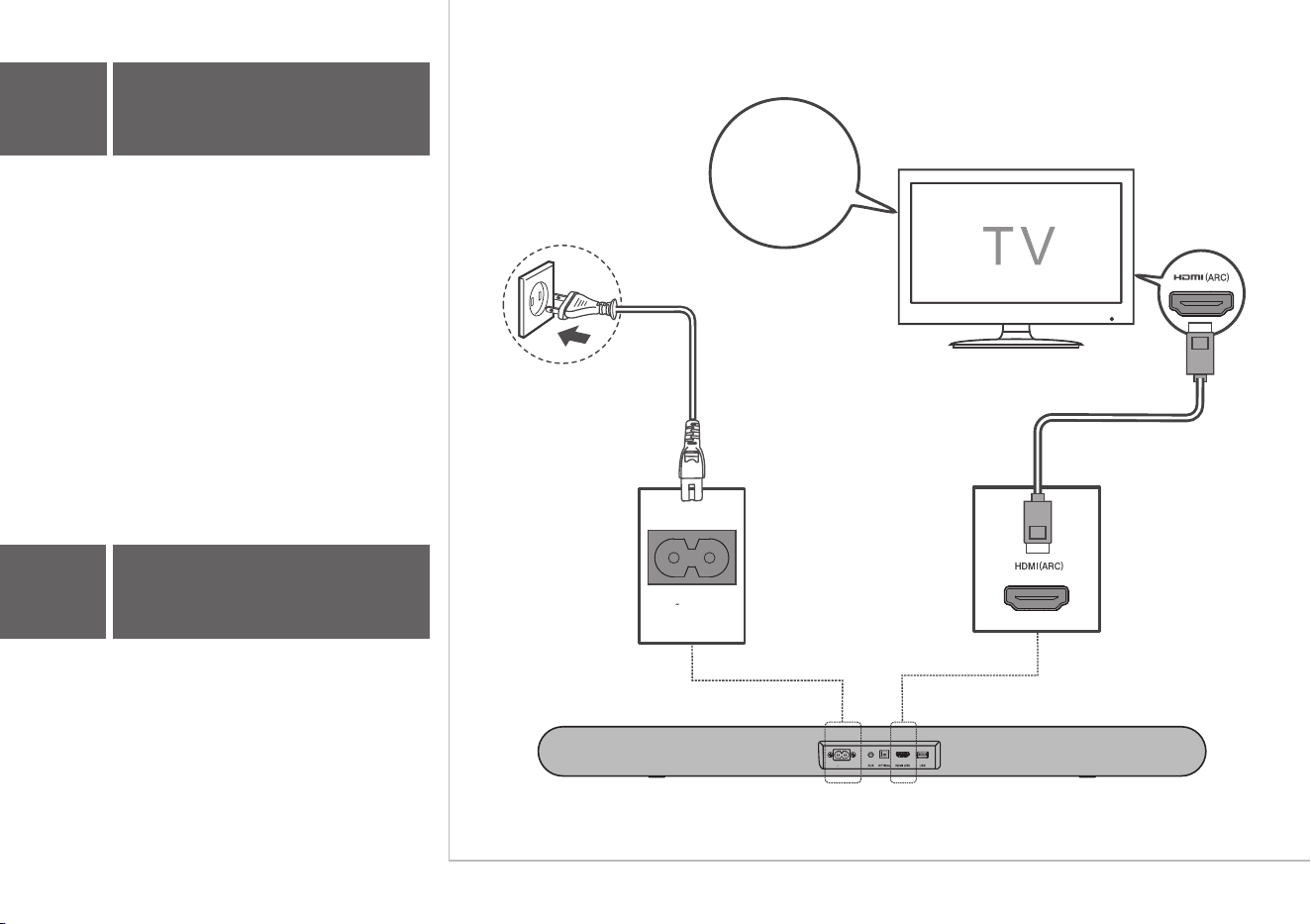
Il y a 3 façons de connecter votre barre de son au
téléviseur (énumérées dans l'ordre que nous
recommandons) : HDMI ARC (voir 4a), Optique (voir
4b), et AUX (voir 4c)
Connectez la barre de son au téléviseur avec le
câble HDMI fourni.
Branchez la barre de son à l’alimentation
électrique avec le cordon fourni.
Activez
HDMI CEC
AC IN
AC IN
4b
Connexion optique
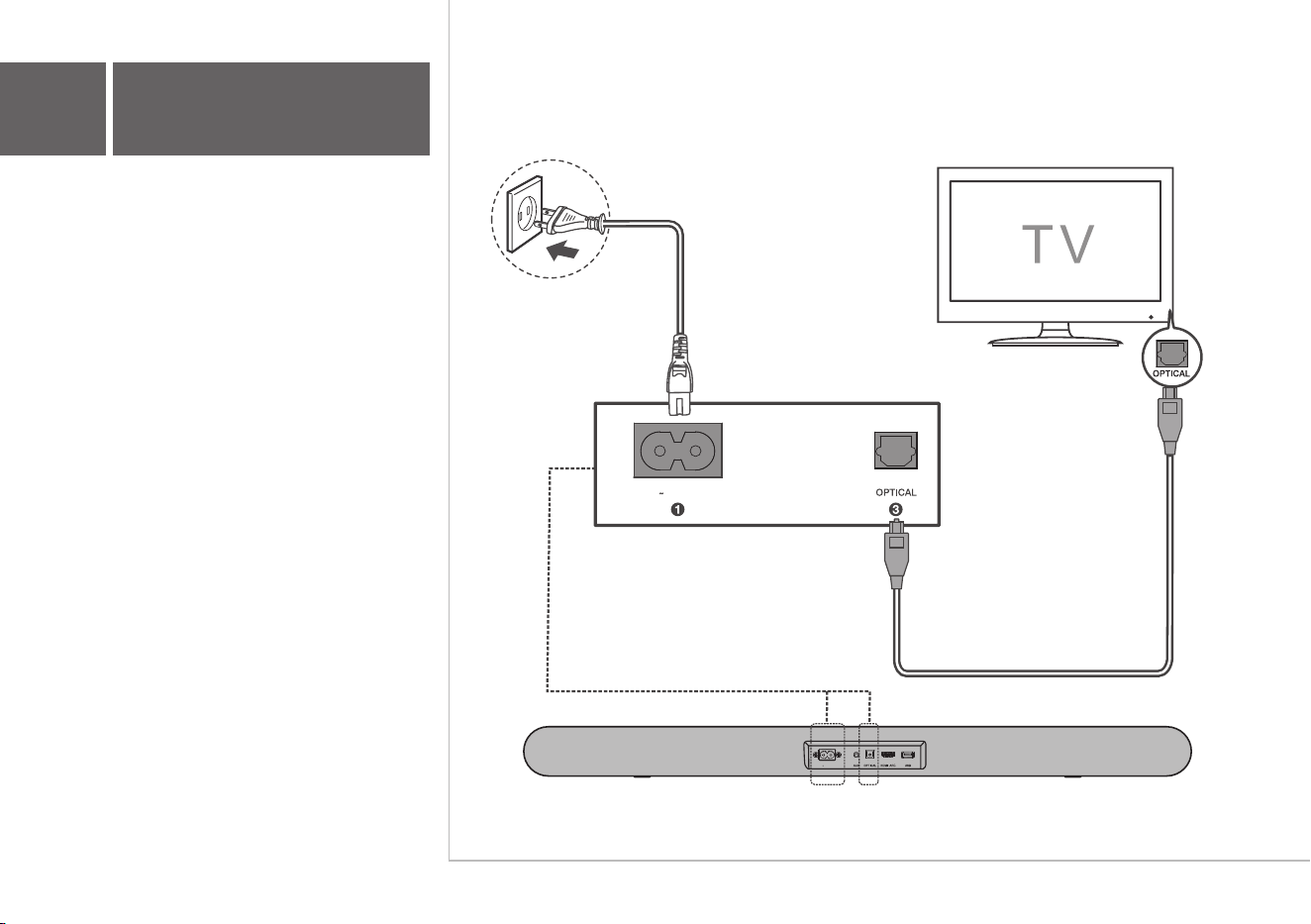
Connectez la barre de son à votre téléviseur avec
le câble optique fourni.
Branchez la barre de son à l'alimentation
électrique avec le cordon fourni.
AC IN
AC IN
4c
Connexion AUX (auxiliaire)
Connectez la barre de son à votre téléviseur avec
le câble auxiliaire (non fourni).
Branchez la barre de son à l'alimentation
électrique avec le cordon fourni.
1 2 3
4
Type de pile : alcaline AAA 1,5 V x 2
5a
5b
Installez ou remplacez les
piles de la télécommande
Utilisation de la
télécommande
Sourdine/son
Appuyez et maintenez pour
activer la fonction de jumelage
Bluetooth ou pour déconnecter
l’appareil jumelé.
Pression courte: mise hors tension
Pression longue:
retour aux réglages d’usine
Volume+/-
Port d’entrée
Appuyez pour choisir l’égaliseur (EQ)
entre Film, Musique et TV.
Lecture, pause, reprise de la lecture
en mode Bluetooth ou USB
Suivant en mode Bluetooth ou USB
Précédent en mode Bluetooth ou USB
3
5
4
2
TCL Alto 6
1
6a
Jumelage de votre
appareil Bluetooth
À partir de votre appareil mobile, vous pouvez
diffuser de la musique par Bluetooth.
1. Appuyez sur .
2. Appuyez sur .
3. Appuyez et maintenez ou sur la
télécommande ou appuyez et maintenez
sur votre barre de son.
> Un signal sonore se fait entendre et un témoin
bleu clignote sur votre barre de son.
> La barre de son est prête pour le jumelage.
4. Allumez votre appareil Bluetooth et activez sa
fonction Bluetooth.
5. Sélectionnez TCL Alto 6.
> Un signal sonore se fait entendre..
> Le jumelage est réussi.
6.
Si vous désirez faire un nouveau jumelage avec
un autre appareil, veuillez répéter l’étape 3.
État de la barre de son Témoins DEL
L’état de la barre de son est indiqué sur
l’afficheur DEL.
Mode audio
Témoins DEL
7
Affichage DEL de la
barre de son
En mode veille
En mode optique
Rouge
Jaune
En mode HDMI ARC Violet
En mode USB Cyan
En mode auxiliaire Vert
En mode Bluetooth Bleu
Cinéma
Musique
Téléviseur

FAQ
Cette barre de son fonctionne-t-elle avec n’importe quel
téléviseur?
Oui, la barre de son est compatible avec tous les téléviseurs qui
possèdent un des ports ci-dessous :
1. HDMI prenant en charge l'ARC (connexion préférable)
2. Sortie audio optique (TOSLink)
3. Sortie casque
Lorsque la barre de son et le téléviseur sont tous deux
allumés, il y a un effet d'écho.
Si vous utilisez une connexion HDMI ARC, veuillez vérifier si la
fonction HDMI CEC de votre téléviseur est activée. Cette
fonction peut être appelée T-Link, Anynet+, SimpLink, BRAVIA
Link, EasyLink ou VIERA Link*.
Si vous utilisez une connexion optique ou AUX, il suffit de couper
le son du téléviseur.
Combien de modes sonores sont disponibles?
Il y a 3 modes audio: film, musique et émission télé.
Comment nettoyer la barre de son?
Veuillez conserver votre barre de son dans un endroit sec et
ventilé. Si elle doit être nettoyée, veuillez l'essuyer doucement
avec un chiffon doux et sec, sans eau ni autre produit de
nettoyage.
Qu’indique le témoin DEL du caisson de basses pendant
le jumelage?
• Mode veille: clignote lentement
• Jumelage: clignote rapidement
• Jumelé: allumé en continu
Tous les noms de technologies mentionnés sont des marques de commerce ou des marques déposées appartenant à leurs sociétés respectives.
TS6100_NA_QSG_V1.8
support.tclusa.com
support.tclcanada.com
or
Ne pas retourner le produit au magasin
Appelez-nous d’abord pour toutes questions
Nous sommes
prêts à vous aider
Prenez garde lorsque vous
retirez la barre de son
Tous droits réservés.