Looking for help?
Contact us to get expert support.
DR-HTF008S
www.dreo.com
support@dreo.com (888) 290-1688
Mon - Fri, 9:00 am-5:00 pm PST/PDT
www.dreo.com
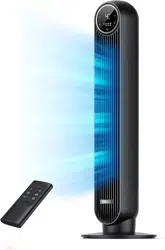
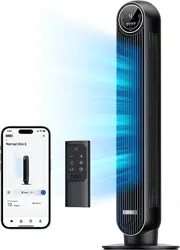
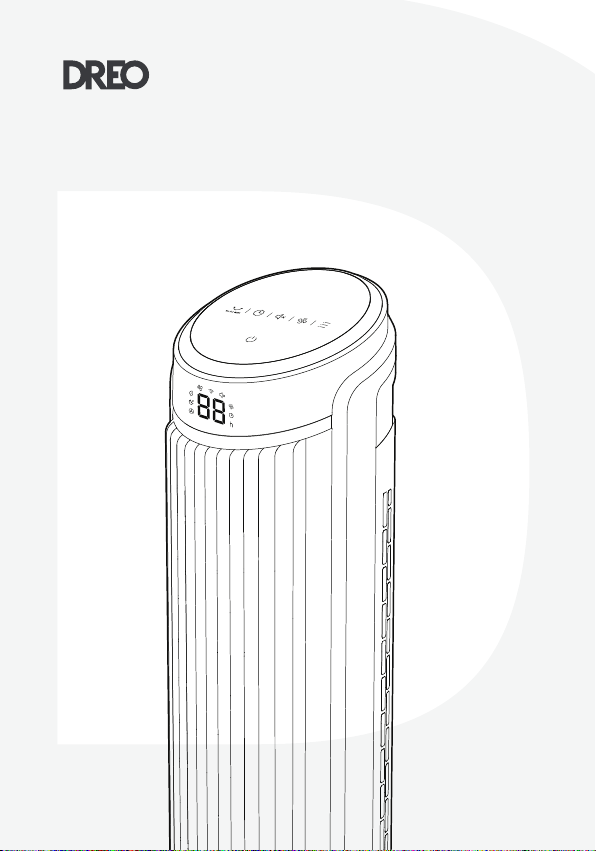
Smart Tower Fan
USER MANUAL

Your support means the world to us. We
hope you enjoy our product as much as
we did creating it.
,,
Thanks for
Choosing
DREO!
@
Dreo
EXTEND
YOUR WARRANTY
FOR FREE
Scan or visit dreo.com/warranty to extend your warranty for
free by registering your product. If you have any product issues,
we always stand ready to help.
support@dreo.com
Mon - Fri, 9:00 am-5:00 pm PST/PDT
(888) 290-1688
www.dreo.com
Your support means the world to us. We
hope you enjoy our product as much as
we did creating it.
,,
Thanks for
Choosing
DREO!
@
Dreo
EXTEND
YOUR WARRANTY
FOR FREE
Scan or visit dreo.com/warranty to extend your warranty for
free by registering your product. If you have any product issues,
we always stand ready to help.
support@dreo.com
Mon - Fri, 9:00 am-5:00 pm PST/PDT
(888) 290-1688
www.dreo.com

CONTENTS
2
1
3
4
3-5
6
7-8
1-2
ASSEMBLING YOUR
TOWER FAN
KNOWING YOUR
TOWER FAN
IMPORTANT SAFETY
INSTRUCTIONS
CONNECTING TO YOUR
TOWER FAN
6
5
7
8
9
13-15
16
17
18
9-12
CLEANING
AND MAINTENANCE
TROUBLESHOOTING
USING YOUR
TOWER FAN
DREO CUSTOMER
CARE
FCC STATEMENT

CONTENTS
2
1
3
4
3-5
6
7-8
1-2
ASSEMBLING YOUR
TOWER FAN
KNOWING YOUR
TOWER FAN
IMPORTANT SAFETY
INSTRUCTIONS
CONNECTING TO YOUR
TOWER FAN
6
5
7
8
9
13-15
16
17
18
9-12
CLEANING
AND MAINTENANCE
TROUBLESHOOTING
USING YOUR
TOWER FAN
DREO CUSTOMER
CARE
FCC STATEMENT
1
IMPORTANT SAFETY
INSTRUCTIONS
1
READ ALL CAUTIONARY
MARKINGS ON THE APPLIANCE
AND SAFETY INSTRUCTIONS
IN THE USER MANUAL BEFORE
USE.
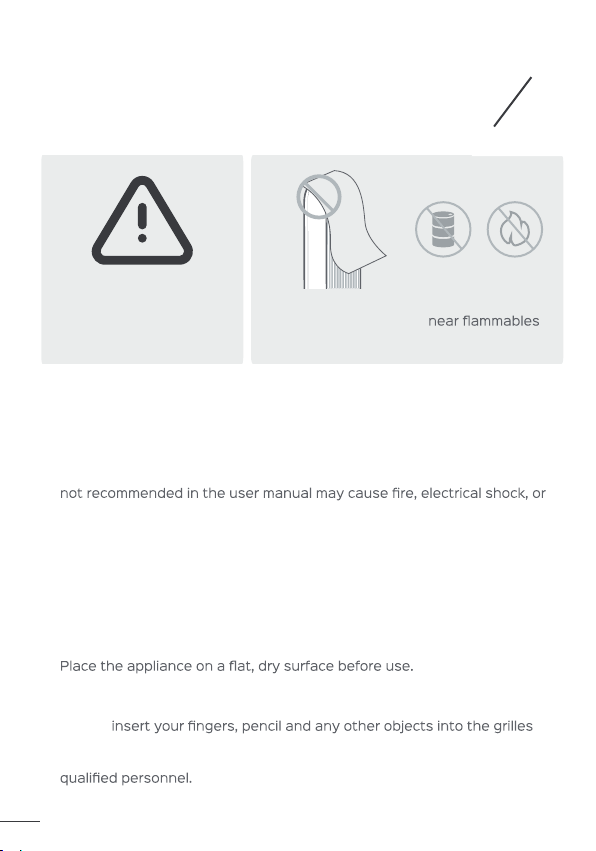
Do not cover the
air inlet and outlet
while in operation.
Do not use the fan
and combustibles.
Children shall not play with the appliance. Cleaning and maintenance shall
not be performed by children without supervision.
Use the appliance as described in the user manual only. Any other use
personal injury.
This appliance can be used by children aged above 8 years and persons
with reduced physical, sensory or mental capabilities or lack of experience
and knowledge if they have been given supervision or instruction
concerning use of this appliance in a safe way and understand the
hazards involved.
Do not immerse in water and any other liquids.
Do not use the appliance until the base is installed.
Do not
while in operation.
Do not dismantle, repair, or modify. All servicing should be performed by
General Safety
Operation Safety
1.
2.
3.
1.
2.
3.
4.
5.
2
FOR HOUSEHOLD USE ONLY READ
AND SAVE THESE INSTRUCTIONS
Do not run cord under carpeting. Do not cover cord with throw rugs,
runners, or similar coverings. Do not route cord under furniture or
tripped over.
WARNING:
tower fan with any solid-state speed control device.
This appliance employs overload protection (fuse). A blown fuse indicates
an overload or short-circuit situation. If the fuse blows, unplug the product
from the outlet. Replace the fuse as per the user servicing instructions
and check the appliance. If the replacement fuse blows, a short-circuit
may be present and the appliance should be discarded or returned to an
authorized service facility for examination and/or repair.
This appliance has a polarized plug (one blade is wider than the other). To
ed
defeat this safety feature.
Electricity Safety
1.
2.
3.
4.
5.
6.
7.
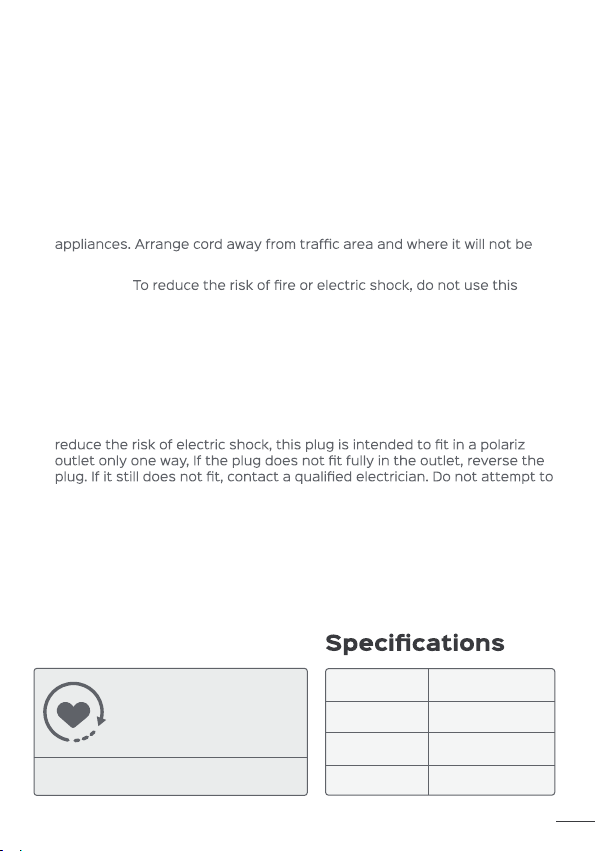
Model DR-HTF008S
Input AC 120V 60Hz
Rated Power 45W
Battery Type CR2025
Check the appliance regularly
and refer to TROUBLESHOOTING
or contact our customer support
if it shows any of the following
signs:
- Power cord or plug is damaged.
- Loud noise, unusual smell or excessive heat.
Gentle Reminder:
WARNING: To reduce the risk of fire, electric shock or injury to persons, do
not use replacement parts that have not been recommended by the
manufacturer (e.g. Parts made at home using a 3D printer).
Make sure that the voltage of your electricity supply is the same as that
indicated on the appliance.
Always unplug before cleaning or leaving the appliance unused for a long
period of time. Keep your hands dry when plugging/unplugging.
Do not operate any fan with a damaged cord or plug. Discard fan or return
to an authorized service facility for examination and/or repair.
1
IMPORTANT SAFETY
INSTRUCTIONS
1
READ ALL CAUTIONARY
MARKINGS ON THE APPLIANCE
AND SAFETY INSTRUCTIONS
IN THE USER MANUAL BEFORE
USE.
Do not cover the
air inlet and outlet
while in operation.
Do not use the fan
and combustibles.
Children shall not play with the appliance. Cleaning and maintenance shall
not be performed by children without supervision.
Use the appliance as described in the user manual only. Any other use
personal injury.
This appliance can be used by children aged above 8 years and persons
with reduced physical, sensory or mental capabilities or lack of experience
and knowledge if they have been given supervision or instruction
concerning use of this appliance in a safe way and understand the
hazards involved.
Do not immerse in water and any other liquids.
Do not use the appliance until the base is installed.
Do not
while in operation.
Do not dismantle, repair, or modify. All servicing should be performed by
General Safety
Operation Safety
1.
2.
3.
1.
2.
3.
4.
5.
2
FOR HOUSEHOLD USE ONLY READ
AND SAVE THESE INSTRUCTIONS
Do not run cord under carpeting. Do not cover cord with throw rugs,
runners, or similar coverings. Do not route cord under furniture or
tripped over.
WARNING:
tower fan with any solid-state speed control device.
This appliance employs overload protection (fuse). A blown fuse indicates
an overload or short-circuit situation. If the fuse blows, unplug the product
from the outlet. Replace the fuse as per the user servicing instructions
and check the appliance. If the replacement fuse blows, a short-circuit
may be present and the appliance should be discarded or returned to an
authorized service facility for examination and/or repair.
This appliance has a polarized plug (one blade is wider than the other). To
ed
defeat this safety feature.
Electricity Safety
1.
2.
3.
4.
5.
6.
7.
Model DR-HTF008S
Input AC 120V 60Hz
Rated Power 45W
Battery Type CR2025
Check the appliance regularly
and refer to TROUBLESHOOTING
or contact our customer support
if it shows any of the following
signs:
- Power cord or plug is damaged.
- Loud noise, unusual smell or excessive heat.
Gentle Reminder:
WARNING: To reduce the risk of fire, electric shock or injury to persons, do
not use replacement parts that have not been recommended by the
manufacturer (e.g. Parts made at home using a 3D printer).
Make sure that the voltage of your electricity supply is the same as that
indicated on the appliance.
Always unplug before cleaning or leaving the appliance unused for a long
period of time. Keep your hands dry when plugging/unplugging.
Do not operate any fan with a damaged cord or plug. Discard fan or return
to an authorized service facility for examination and/or repair.
3
4
4 5
6
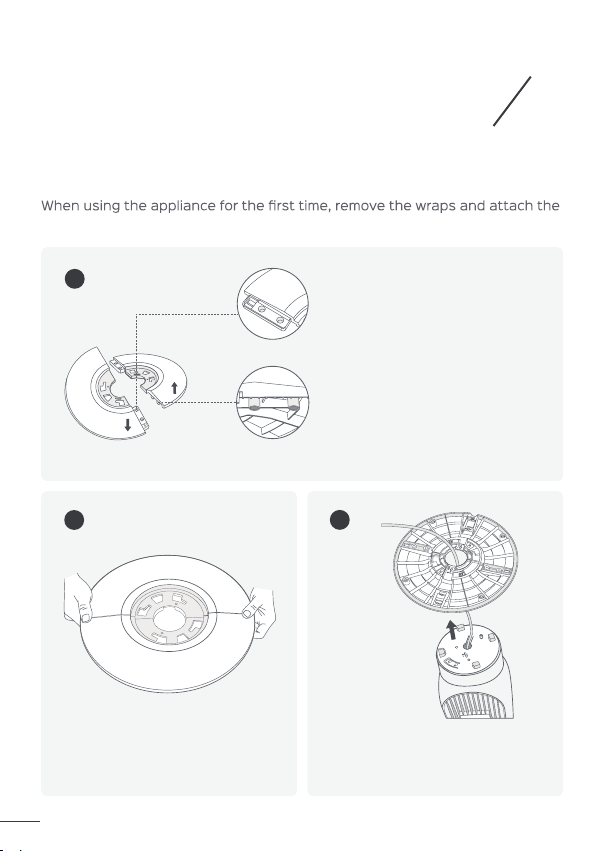
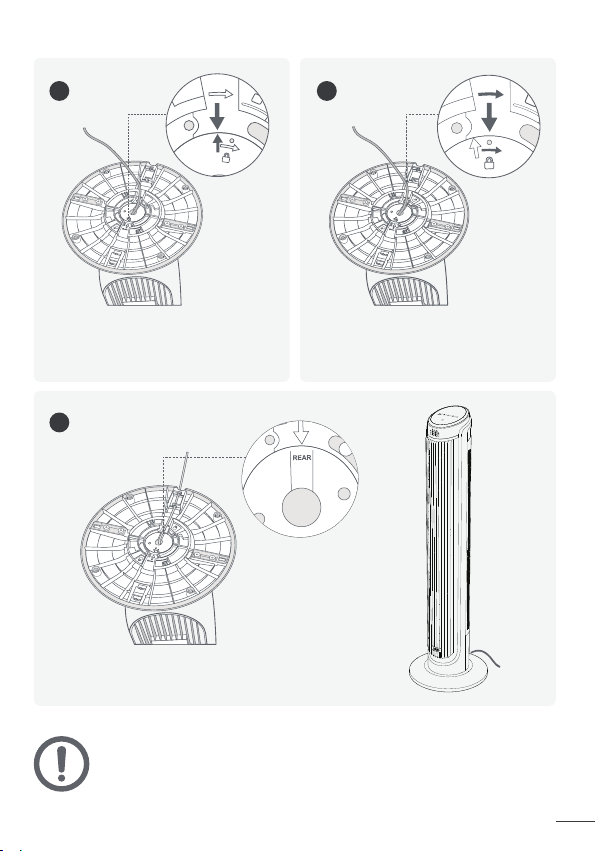
Fit the base onto the bottom of
the fan by aligning the arrows
on the underside.
Rotate the base clockwise to
lock in place.
Thread the cord through all REAR cord
keepers before putting the fan upright.
CAUTION
- Do not operate the tower fan if the base has not been installed.
- Make sure to thread the cord through all rear cord keepers.
ASSEMBLING
YOUR TOWER FAN
2
Assembly Instructions
parts by following the steps below.
1
2
3
Keep two base halves in a
crossed position, then insert
pegs on one half onto the
slots on the other half.
Press down on edges to click two
base halves together.
Run the cord through the center
hole.
Up
Down
Slots
Pegs
3
4
4 5
6
Fit the base onto the bottom of
the fan by aligning the arrows
on the underside.
Rotate the base clockwise to
lock in place.
Thread the cord through all REAR cord
keepers before putting the fan upright.
CAUTION
- Do not operate the tower fan if the base has not been installed.
- Make sure to thread the cord through all rear cord keepers.
ASSEMBLING
YOUR TOWER FAN
2
Assembly Instructions
parts by following the steps below.
1
2
3
Keep two base halves in a
crossed position, then insert
pegs on one half onto the
slots on the other half.
Press down on edges to click two
base halves together.
Run the cord through the center
hole.
Up
Down
Slots
Pegs
5
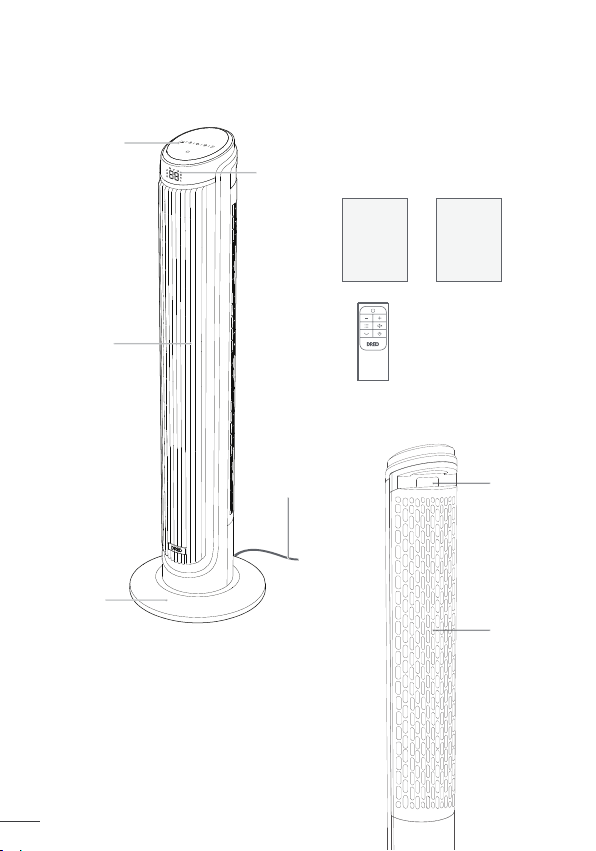
Package Contents
Base
Power & Plug
Carry Handle /
Remote Holder
Air Inlet
User
Manual
Remote Control
(Battery Included)
Quick Start
Guide
6
Air Inlet
Control
Panel
LED Display
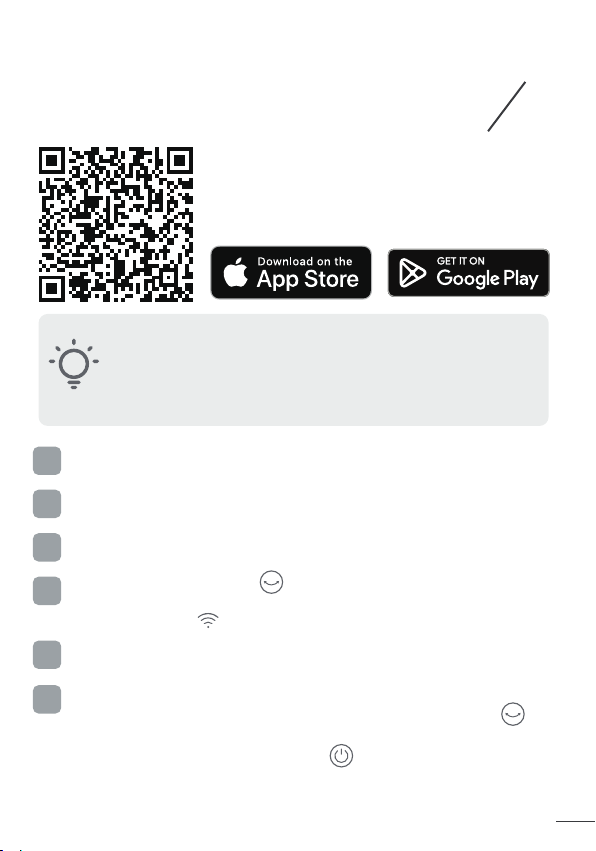
CONNECTING TO
YOUR TOWER FAN
3
Before connecting the appliance to your mobile
device, please scan the QR code on the left or go
to the app store and search “Dreo”, then select
and download the app.
Launch Dreo and sign in or create account by following in-app
instructions.
Follow in-app instructions to complete WiFi connection.
1
5
Tap + Add Device and select the tower fan you want to link.
3
Enable Bluetooth on your mobile device and plug in your tower fan.
2
Hold the Oscillation button for 5 seconds to start WiFi connection
settings.
4
(Tip: The WiFi icon will keep flashing when pairing.)
You're now ready to control the appliance on your app.
6
(Tip: To restart connection settings, hold the Oscillation button
again for 5 seconds.)
Air Outlet
You can use the Dreo app to connect your smart tower fan to
Amazon Alexa or Google Assistant. Please follow the in-app
instructions to set up your voice assistant.
NOTE: You must create a Dreo account to access voice
assistants.
Long press 10 seconds power button to unpair WiFi and restore
factory settings.
5
Package Contents
Base
Power & Plug
Carry Handle /
Remote Holder
Air Inlet
User
Manual
Remote Control
(Battery Included)
Quick Start
Guide
6
Air Inlet
Control
Panel
LED Display
CONNECTING TO
YOUR TOWER FAN
3
Before connecting the appliance to your mobile
device, please scan the QR code on the left or go
to the app store and search “Dreo”, then select
and download the app.
Launch Dreo and sign in or create account by following in-app
instructions.
Follow in-app instructions to complete WiFi connection.
1
5
Tap + Add Device and select the tower fan you want to link.
3
Enable Bluetooth on your mobile device and plug in your tower fan.
2
Hold the Oscillation button for 5 seconds to start WiFi connection
settings.
4
(Tip: The WiFi icon will keep flashing when pairing.)
You're now ready to control the appliance on your app.
6
(Tip: To restart connection settings, hold the Oscillation button
again for 5 seconds.)
Air Outlet
You can use the Dreo app to connect your smart tower fan to
Amazon Alexa or Google Assistant. Please follow the in-app
instructions to set up your voice assistant.
NOTE: You must create a Dreo account to access voice
assistants.
Long press 10 seconds power button to unpair WiFi and restore
factory settings.
KNOWING YOUR
TOWER FAN
4
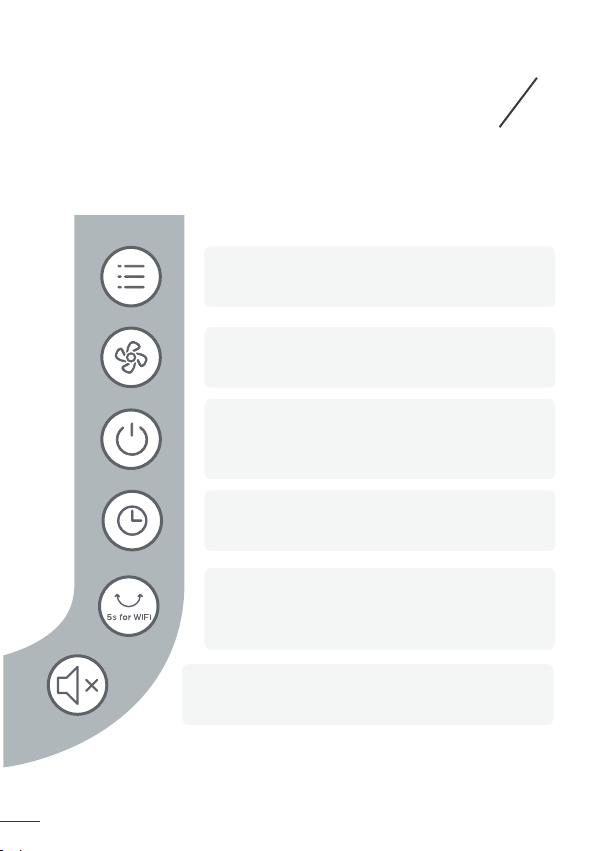
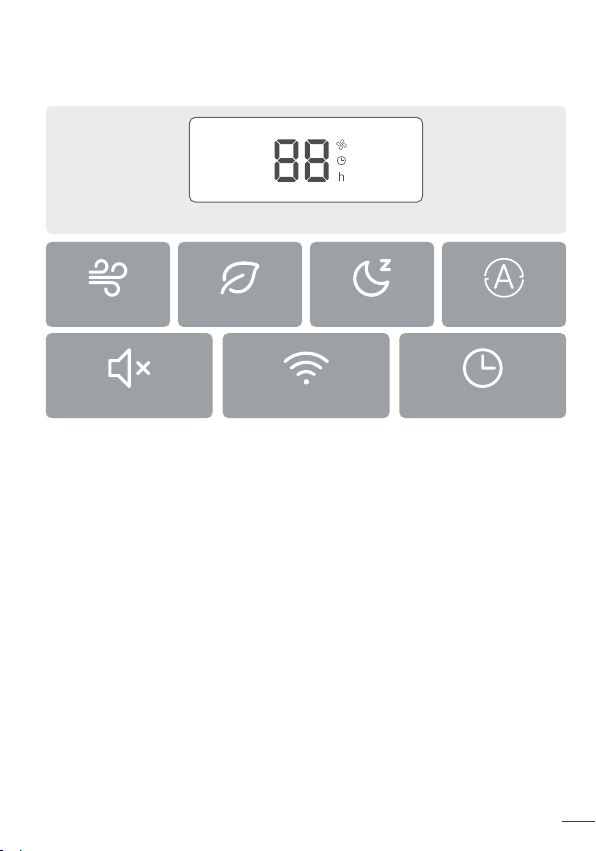
Control Panel
Mode Button
Switch between Normal/Natural/Sleep/Auto Mode
Power Button
· Turn power on/off
· Long press 10 seconds to reset to factory settings
Oscillation Button
Timer Button
Select to set a timer (0-12h)
Turn on/off button sounds
Fan Speed Button
Adjust airflow volume (1-5 levels)
7
8
Mute Button
LED Display
Normal Mode
Timer
Natural Mode
Mute
Fan Speed/ Timer Hour
Sleep Mode Auto Mode
· Adjust airflow direction
· Long press 5 seconds to start network settings and
device pairing
WiFi Connection
KNOWING YOUR
TOWER FAN
4
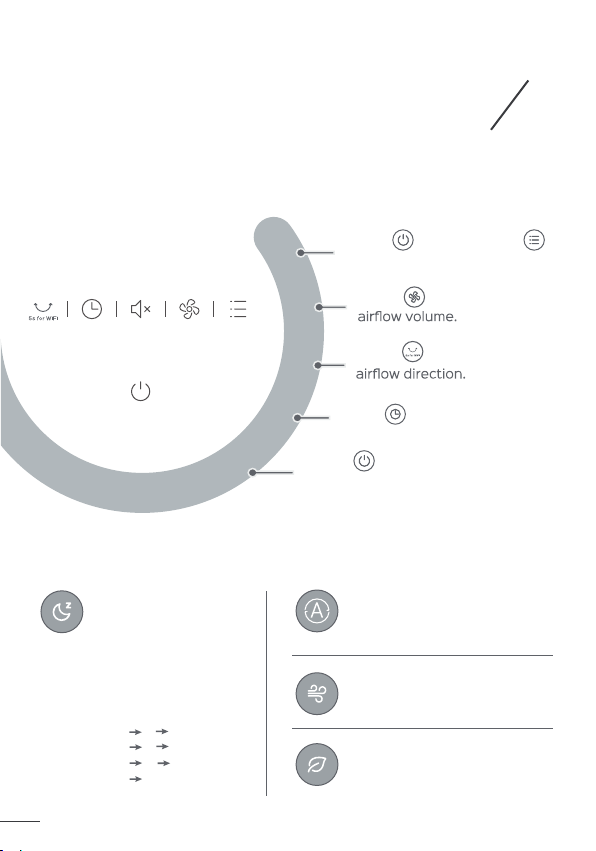
Control Panel
Mode Button
Switch between Normal/Natural/Sleep/Auto Mode
Power Button
· Turn power on/off
· Long press 10 seconds to reset to factory settings
Oscillation Button
Timer Button
Select to set a timer (0-12h)
Turn on/off button sounds
Fan Speed Button
Adjust airflow volume (1-5 levels)
7
8
Mute Button
LED Display
Normal Mode
Timer
Natural Mode
Mute
Fan Speed/ Timer Hour
Sleep Mode Auto Mode
· Adjust airflow direction
· Long press 5 seconds to start network settings and
device pairing
WiFi Connection
USING YOUR
TOWER FAN
5
General Operations
Working Modes
Normal Mode
Natural Mode
Auto Mode
Sleep Mode
(Mute Auto On)
Fan runs at the constant speed.
Fan runs at alternating speeds.
Fan speed adapts to the
ambient temperature.
Fan speed decreases every
30 minutes.
Speed decreases by two levels
at most and will remain constant
if at level 1:
For level 4: 4 3 2
For level 3: 3 2 1
For level 2: 2 1
For level 1: 1
For level 5: 5 4 3
Touch to turn on, and
to choose a working mode.
Touch to adjust the
Touch to change the
Touch to set a timer.
Touch to turn off the
tower fan.
1
2
3
4
5
9
Additional Features
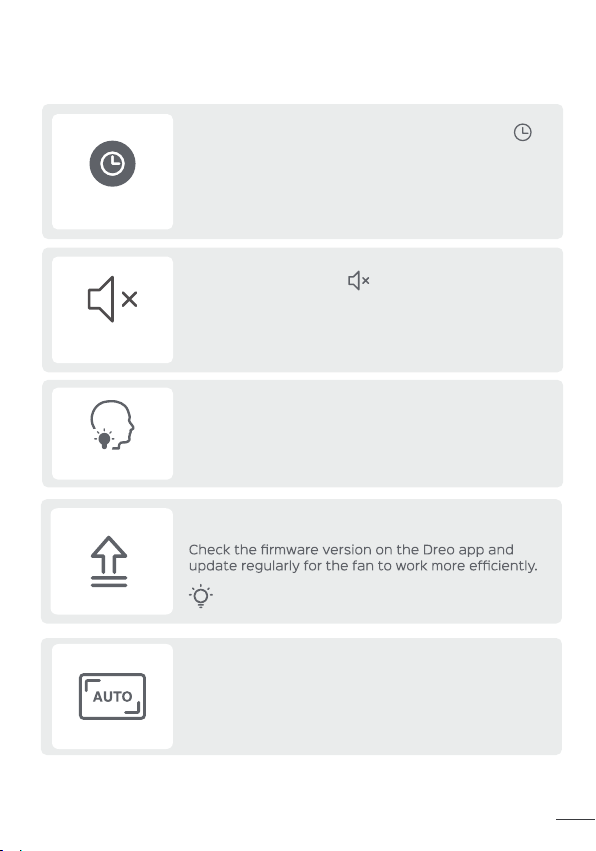
When the fan is ON/OFF, touch the timer button
repeatedly to set a timer from 1 to 12 hours. When
the timer ends, the fan will stop/start running
automatically. To cancel, set the time to 0 hour.
Note: When the auto off timer is enabled, display will return
to fan speed after 3 seconds.
Timer
Mute
Memory
If the fan is turned OFF or disconnected from power,
it will operate under the previous settings (except
the timer setting) when it is turned ON again.
Touch the mute button to turn on/off the button
sounds.
10
Display Auto Off
- Display turns off after 1 minute (after 5 seconds in
sleep mode).
- Wake up the display with any button.
Firmware Update
Display will show “UP” during the update process. Do
not operate until the update is completed.
USING YOUR
TOWER FAN
5
General Operations
Working Modes
Normal Mode
Natural Mode
Auto Mode
Sleep Mode
(Mute Auto On)
Fan runs at the constant speed.
Fan runs at alternating speeds.
Fan speed adapts to the
ambient temperature.
Fan speed decreases every
30 minutes.
Speed decreases by two levels
at most and will remain constant
if at level 1:
For level 4: 4 3 2
For level 3: 3 2 1
For level 2: 2 1
For level 1: 1
For level 5: 5 4 3
Touch to turn on, and
to choose a working mode.
Touch to adjust the
Touch to change the
Touch to set a timer.
Touch to turn off the
tower fan.
1
2
3
4
5
9
Additional Features
When the fan is ON/OFF, touch the timer button
repeatedly to set a timer from 1 to 12 hours. When
the timer ends, the fan will stop/start running
automatically. To cancel, set the time to 0 hour.
Note: When the auto off timer is enabled, display will return
to fan speed after 3 seconds.
Timer
Mute
Memory
If the fan is turned OFF or disconnected from power,
it will operate under the previous settings (except
the timer setting) when it is turned ON again.
Touch the mute button to turn on/off the button
sounds.
10
Display Auto Off
- Display turns off after 1 minute (after 5 seconds in
sleep mode).
- Wake up the display with any button.
Firmware Update
Display will show “UP” during the update process. Do
not operate until the update is completed.
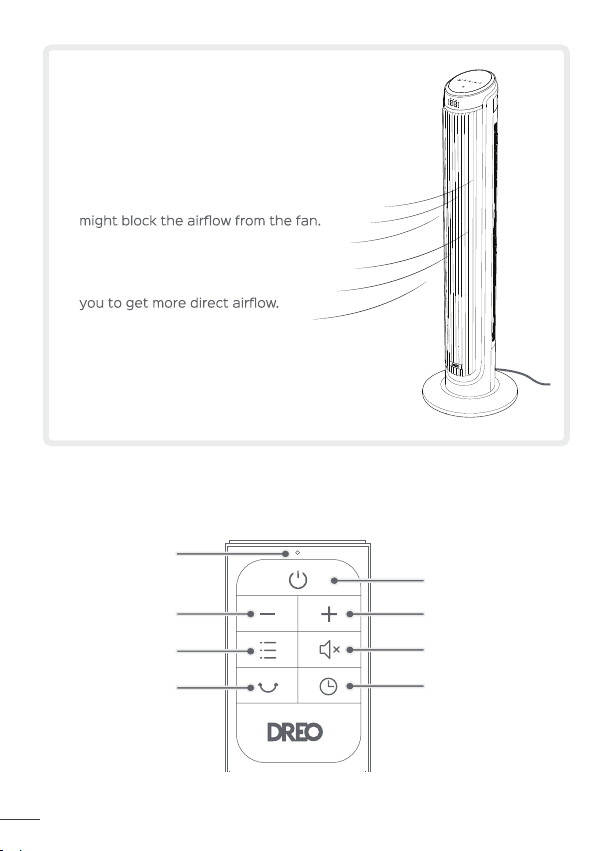
Remote Control
Power
Power Indicator
Increase Fan Speed
Decrease Fan Speed
Mute
Mode
Timer
Oscillation
11
12
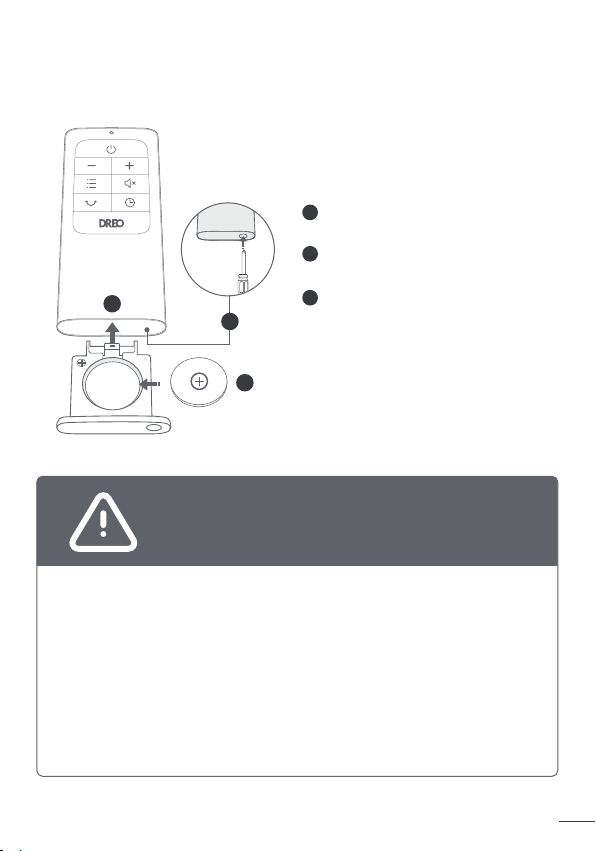
Battery Replacement
This product contains a lithium button/coin cell battery. If a new or
used lithium button/coin cell battery is swallowed or enters the body,
it can cause severe internal burns and can lead to death in as little
as 2 hours. Always completely secure the battery compartment. If
the battery compartment does not close securely, stop using the
product, remove the battery, and keep it away from children. If you
think batteries might have been swallowed or placed inside any part
of the body, seek immediate medical attention.
The cells must be disposed of properly, including keeping them
away from children. Even used cells may cause injury.
Chemical Burn Hazard. Keep batteries away
from children.
WARNING
Note: If the indicator on the remote
control doesn’t turn on any more,
please consider replacing the
battery.
1
2
CR2025 3V
1
2
3
3
Press the locking button to pop
out the battery holder.
Replace with the same battery
type with the (+) side facing up.
Push in the holder until securely
locked into place.
Getting the Most out
of Your Tower Fan
1. Remove any tall obstacles that
2. Combine with your AC unit to get
cooler air throughout the room.
3. Position the tower fan closer to
4. Place a bucket of ice in front of
the fan for an extra cooling boost.
Remote Control
Power
Power Indicator
Increase Fan Speed
Decrease Fan Speed
Mute
Mode
Timer
Oscillation
11
12
Battery Replacement
This product contains a lithium button/coin cell battery. If a new or
used lithium button/coin cell battery is swallowed or enters the body,
it can cause severe internal burns and can lead to death in as little
as 2 hours. Always completely secure the battery compartment. If
the battery compartment does not close securely, stop using the
product, remove the battery, and keep it away from children. If you
think batteries might have been swallowed or placed inside any part
of the body, seek immediate medical attention.
The cells must be disposed of properly, including keeping them
away from children. Even used cells may cause injury.
Chemical Burn Hazard. Keep batteries away
from children.
WARNING
Note: If the indicator on the remote
control doesn’t turn on any more,
please consider replacing the
battery.
1
2
CR2025 3V
1
2
3
3
Press the locking button to pop
out the battery holder.
Replace with the same battery
type with the (+) side facing up.
Push in the holder until securely
locked into place.
Getting the Most out
of Your Tower Fan
1. Remove any tall obstacles that
2. Combine with your AC unit to get
cooler air throughout the room.
3. Position the tower fan closer to
4. Place a bucket of ice in front of
the fan for an extra cooling boost.
Always unplug the fan before any cleaning or maintenance
Do not immerse in water or get water inside the motor
housing.
Do not use any chemical agents when cleaning the fan.
Store in a cool, dry place and cover it to protect from dust.
CAUTION
CLEANING AND
MAINTENANCE
6
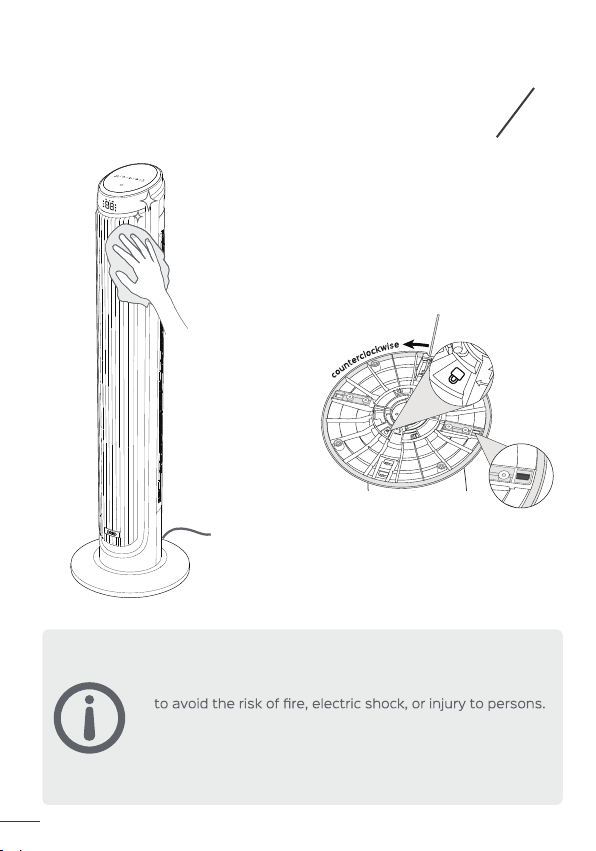
Outer Surface
Base
Gently wipe off the dust with a soft,
dry cloth.
1.
2.
3.
4.
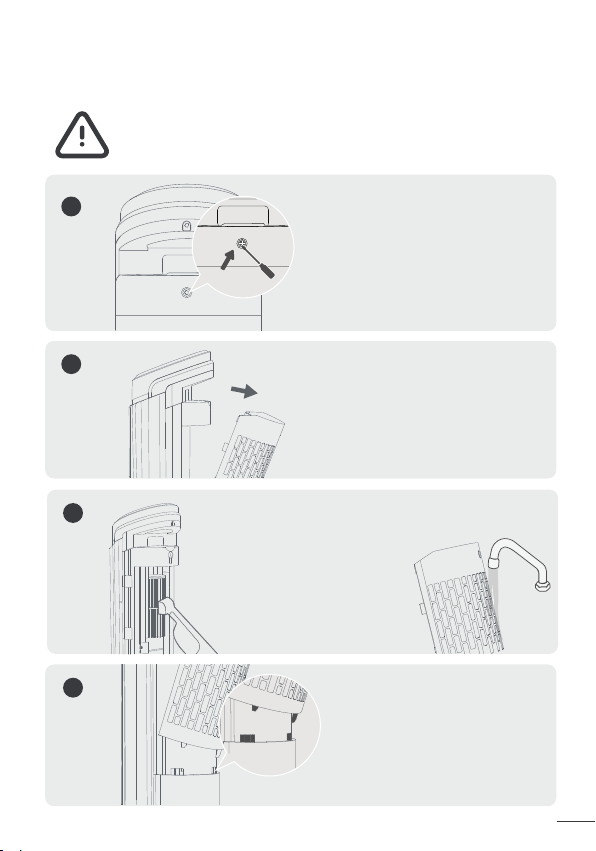
Rear Grille
13
14
Remove the screw on the top of the
rear grille with a Philips screwdriver.
1
Turn off the appliance and unplug before any cleaning and
maintenance.
WARNING
Lift up the grille and pull it out.
2
Clean the dust on blades using
a vacuum cleaner or air duster.
Rinse the rear grille under
running water or with a clean,
damp cloth.
3
4
Dry up, then install the grille
and the screw back in place,
making sure the bottom pegs
are fully inserted into the slots.
Press on the lock sign here and rotate
counterclockwise to release the base
from the fan, then press the tabs on the
edges to detach the base halves from
each other.
Always unplug the fan before any cleaning or maintenance
Do not immerse in water or get water inside the motor
housing.
Do not use any chemical agents when cleaning the fan.
Store in a cool, dry place and cover it to protect from dust.
CAUTION
CLEANING AND
MAINTENANCE
6
Outer Surface
Base
Gently wipe off the dust with a soft,
dry cloth.
1.
2.
3.
4.
Rear Grille
13
14
Remove the screw on the top of the
rear grille with a Philips screwdriver.
1
Turn off the appliance and unplug before any cleaning and
maintenance.
WARNING
Lift up the grille and pull it out.
2
Clean the dust on blades using
a vacuum cleaner or air duster.
Rinse the rear grille under
running water or with a clean,
damp cloth.
3
4
Dry up, then install the grille
and the screw back in place,
making sure the bottom pegs
are fully inserted into the slots.
Press on the lock sign here and rotate
counterclockwise to release the base
from the fan, then press the tabs on the
edges to detach the base halves from
each other.
4
3
2
5
1
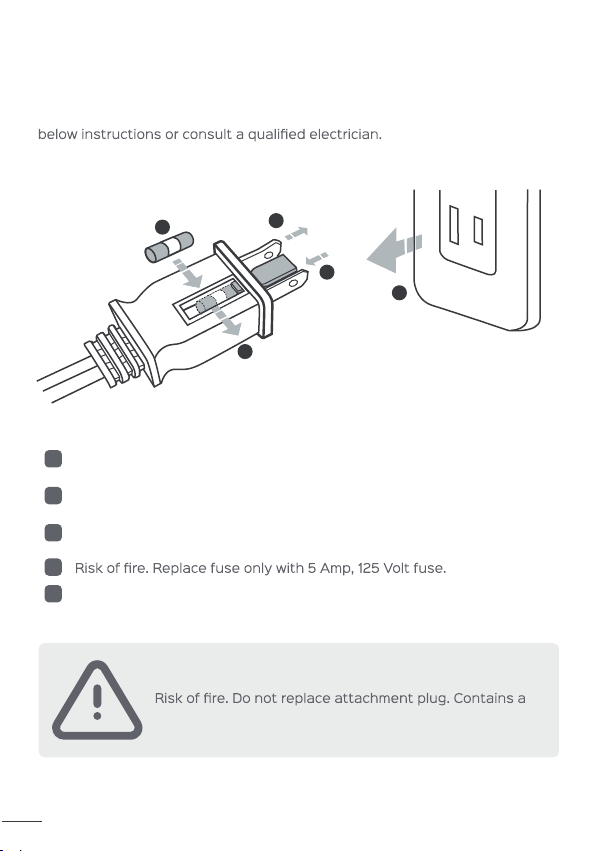
User Servicing Instructions (Fuse)
This appliance features a fused safety plug that protects against overload or
short-circuit situations. If the fuse blows, please cut off power and follow the
Grasp plug and remove from the receptacle or other outlet device. Do
not unplug by pulling on cord.
Open fuse cover. Slide open fuse access cover on top of attachment
plug towards blades.
Remove fuse carefully. Push the fuse from the other side to remove
the fuse.
Close fuse cover. Slide closed the fuse access cover on top of
attachment plug.
1
2
3
4
5
safety device(fuse) that should not be removed. Discard
product if the attachment plug is damaged.
WARNING
If your problem is not listed or still persists, please contact our
Customer Support (see page 17).
Make sure that the cord is connected to a powered outlet and the
mains voltage corresponds with the voltage indicated on the fan.
Check if the fuse has blown. If the fuse has blown, please refer to
page 15.
Incorrect installation might also cause shakiness. Please refer to
the assembly instructions in page 3-4. Note that the power cord
must be run through all three keepers.
Be sure not to insert anything into the air inlet and outlet.
TROUBLESHOOTING
7
My fan won’t turn on!
My fan is shaky and wobbling!
My fan is making vibration and noise!
1.
2.
1.
2.
1.
2.
15
16
4
3
2
5
1
User Servicing Instructions (Fuse)
This appliance features a fused safety plug that protects against overload or
short-circuit situations. If the fuse blows, please cut off power and follow the
Grasp plug and remove from the receptacle or other outlet device. Do
not unplug by pulling on cord.
Open fuse cover. Slide open fuse access cover on top of attachment
plug towards blades.
Remove fuse carefully. Push the fuse from the other side to remove
the fuse.
Close fuse cover. Slide closed the fuse access cover on top of
attachment plug.
1
2
3
4
5
safety device(fuse) that should not be removed. Discard
product if the attachment plug is damaged.
WARNING
If your problem is not listed or still persists, please contact our
Customer Support (see page 17).
Make sure that the cord is connected to a powered outlet and the
mains voltage corresponds with the voltage indicated on the fan.
Check if the fuse has blown. If the fuse has blown, please refer to
page 15.
Incorrect installation might also cause shakiness. Please refer to
the assembly instructions in page 3-4. Note that the power cord
must be run through all three keepers.
Be sure not to insert anything into the air inlet and outlet.
TROUBLESHOOTING
7
My fan won’t turn on!
My fan is shaky and wobbling!
My fan is making vibration and noise!
1.
2.
1.
2.
1.
2.
15
16
DREO CUSTOMER
CARE
8
Default 12-Month Warranty
Extend Your Warranty
This appliance is covered by Dreo warranty for 12 months from the date of
its original purchase.
We can only provide after-sales service for products that are sold by Dreo
or Dreo authorized retailers and distributors. If you have purchased the
appliance from a different place, please contact your seller for return and
warranty issues.
Accident, misuse, or repairs performed by unauthorized personnel.
Any unit that has been tampered with or used for commercial purposes.
Normal wear and tear of wearable parts.
Damage caused by non-observance of the User Manual, e.g. connection
to an unsuitable mains supply or noncompliance with the instructions.
Partially or completely dismantled appliances.
Defects caused by or resulting from damages from shipping or from
repairs, service, or alteration to the product or any of its parts that have
been perform ed by a repair person not authorized by Dreo.
The warranty will not apply in cases of:
Extend your warranty by registering your new appliance on our website
https://dreo.com/warranty.
1.
2.
3.
4.
5.
6.
7.
support@dreo.com
(888) 290-1688
Mon - Fri, 9:00 am-5:00 pm PST/PDT
www.dreo.com
Rev_1.1_EN
www.dreo.com
Shenzhen Hesung Innovation Technology
Co., LTD
26F, Bldg A7, Creative City, Shenzhen, China
Intertek
5018396
MADE IN CHINA
9
FCC STATEMENT
This device complies with Part 15 of the FCC Rules.
This equipment has been tested and found to comply with the limits for a
Consumer ISM equipment, pursuant to Part 15 of the FCC Rules.These limits
are designed to provide reasonable protection against harmful interference
in a residential installation.This equipment generates, uses and can radiate
radio frequency energy and,if not installed and used in accordance with
the instructions, may cause harmful interference to radio communications.
However, there is no guarantee that interference will not occur in a
particular installation.
approved by the party responsible for compliance could void the user's
authority to operate the equipment.”
“If this equipment does cause harmful interference to radio or television
reception, which can be determined by turning the equipment off and on,
the user is encouraged to try to correct the interference by one or more of
the following measures:
-Reorient or relocate the receiving antenna.
-Increase the separation between the equipment and receiver.
-Connect the equipment into an outlet on a circuit different from that to
which the receiver is connected.
-Consult the dealer or an experienced radio/TV technician for help.
17
18
DREO CUSTOMER
CARE
8
Default 12-Month Warranty
Extend Your Warranty
This appliance is covered by Dreo warranty for 12 months from the date of
its original purchase.
We can only provide after-sales service for products that are sold by Dreo
or Dreo authorized retailers and distributors. If you have purchased the
appliance from a different place, please contact your seller for return and
warranty issues.
Accident, misuse, or repairs performed by unauthorized personnel.
Any unit that has been tampered with or used for commercial purposes.
Normal wear and tear of wearable parts.
Damage caused by non-observance of the User Manual, e.g. connection
to an unsuitable mains supply or noncompliance with the instructions.
Partially or completely dismantled appliances.
Defects caused by or resulting from damages from shipping or from
repairs, service, or alteration to the product or any of its parts that have
been perform ed by a repair person not authorized by Dreo.
The warranty will not apply in cases of:
Extend your warranty by registering your new appliance on our website
https://dreo.com/warranty.
1.
2.
3.
4.
5.
6.
7.
support@dreo.com
(888) 290-1688
Mon - Fri, 9:00 am-5:00 pm PST/PDT
www.dreo.com
Rev_1.1_EN
www.dreo.com
Shenzhen Hesung Innovation Technology
Co., LTD
26F, Bldg A7, Creative City, Shenzhen, China
Intertek
5018396
MADE IN CHINA
9
FCC STATEMENT
This device complies with Part 15 of the FCC Rules.
This equipment has been tested and found to comply with the limits for a
Consumer ISM equipment, pursuant to Part 15 of the FCC Rules.These limits
are designed to provide reasonable protection against harmful interference
in a residential installation.This equipment generates, uses and can radiate
radio frequency energy and,if not installed and used in accordance with
the instructions, may cause harmful interference to radio communications.
However, there is no guarantee that interference will not occur in a
particular installation.
approved by the party responsible for compliance could void the user's
authority to operate the equipment.”
“If this equipment does cause harmful interference to radio or television
reception, which can be determined by turning the equipment off and on,
the user is encouraged to try to correct the interference by one or more of
the following measures:
-Reorient or relocate the receiving antenna.
-Increase the separation between the equipment and receiver.
-Connect the equipment into an outlet on a circuit different from that to
which the receiver is connected.
-Consult the dealer or an experienced radio/TV technician for help.
17
18

Looking for help?
Contact us to get expert support.
DR-HTF008S
www.dreo.com
support@dreo.com (888) 290-1688
Mon - Fri, 9:00 am-5:00 pm PST/PDT
www.dreo.com
Smart Tower Fan
USER MANUAL