Looking for help?
Contact us to get expert support.
DR-HTF007S
www.dreo.com
support@dreo.com (888) 290-1688
Mon - Fri, 9:00 am-5:00 pm PST/PDT
www.dreo.com
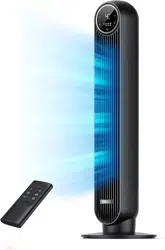
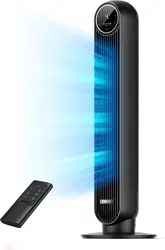
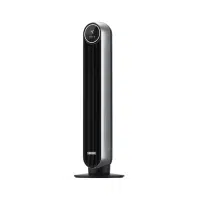
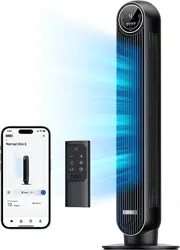
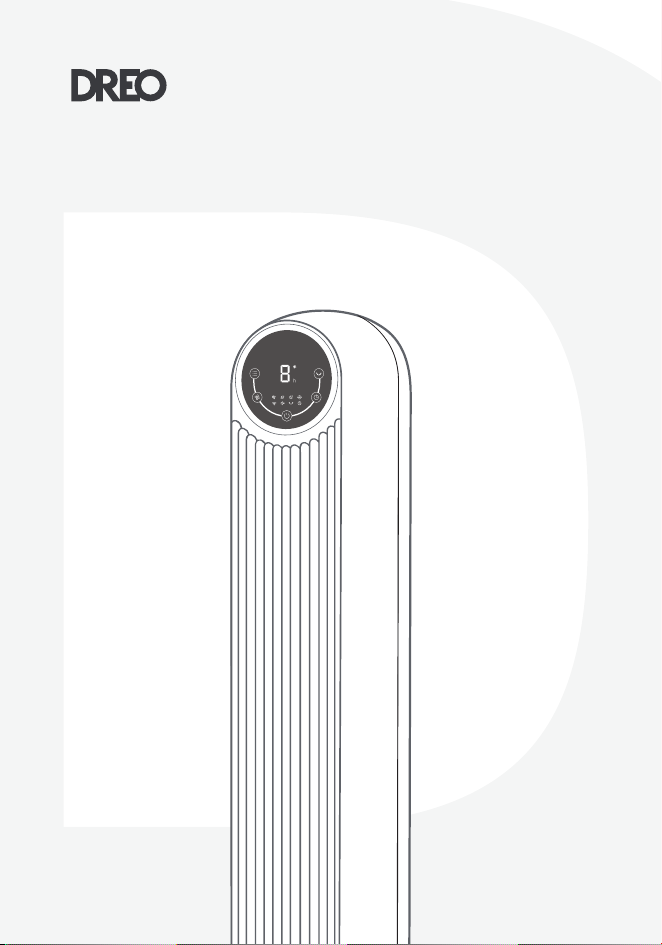
Smart Tower Fan
USER MANUAL

Your support means the world to us. We
hope you enjoy our product as much as
we did creating it.
,,
Thanks for
Choosing
DREO!
EXTEND
YOUR WARRANTY
FOR FREE
FOLLOW US TO
DISCOVER MORE
Scan or visit dreo.com/warranty to extend your warranty for
free by registering your product. If you have any product issues,
we always stand ready to help.
new inspiration.
Join the Dreo community on Facebook:
support@dreo.com
Mon - Fri, 9:00 am-5:00 pm PST/PDT
(888) 290-1688
www.dreo.com
facebook.com/groups/dreohome
Your support means the world to us. We
hope you enjoy our product as much as
we did creating it.
,,
Thanks for
Choosing
DREO!
EXTEND
YOUR WARRANTY
FOR FREE
FOLLOW US TO
DISCOVER MORE
Scan or visit dreo.com/warranty to extend your warranty for
free by registering your product. If you have any product issues,
we always stand ready to help.
new inspiration.
Join the Dreo community on Facebook:
support@dreo.com
Mon - Fri, 9:00 am-5:00 pm PST/PDT
(888) 290-1688
www.dreo.com
facebook.com/groups/dreohome

CONTENTS
2
1
3
4
3-5
6
7-8
1-2
ASSEMBLING YOUR
TOWER FAN
KNOWING YOUR
TOWER FAN
IMPORTANT SAFETY
INSTRUCTIONS
CONNECTING TO YOUR
TOWER FAN
6
5
7
8
9
13-15
16
17
18
9-12
CLEANING
AND MAINTENANCE
TROUBLESHOOTING
USING YOUR
TOWER FAN
DREO CUSTOMER
CARE
FCC STATEMENT

CONTENTS
2
1
3
4
3-5
6
7-8
1-2
ASSEMBLING YOUR
TOWER FAN
KNOWING YOUR
TOWER FAN
IMPORTANT SAFETY
INSTRUCTIONS
CONNECTING TO YOUR
TOWER FAN
6
5
7
8
9
13-15
16
17
18
9-12
CLEANING
AND MAINTENANCE
TROUBLESHOOTING
USING YOUR
TOWER FAN
DREO CUSTOMER
CARE
FCC STATEMENT
1
IMPORTANT SAFETY
INSTRUCTIONS
1
READ ALL CAUTIONARY
MARKINGS ON THE APPLIANCE
AND SAFETY INSTRUCTIONS
IN THE USER MANUAL BEFORE
USE.
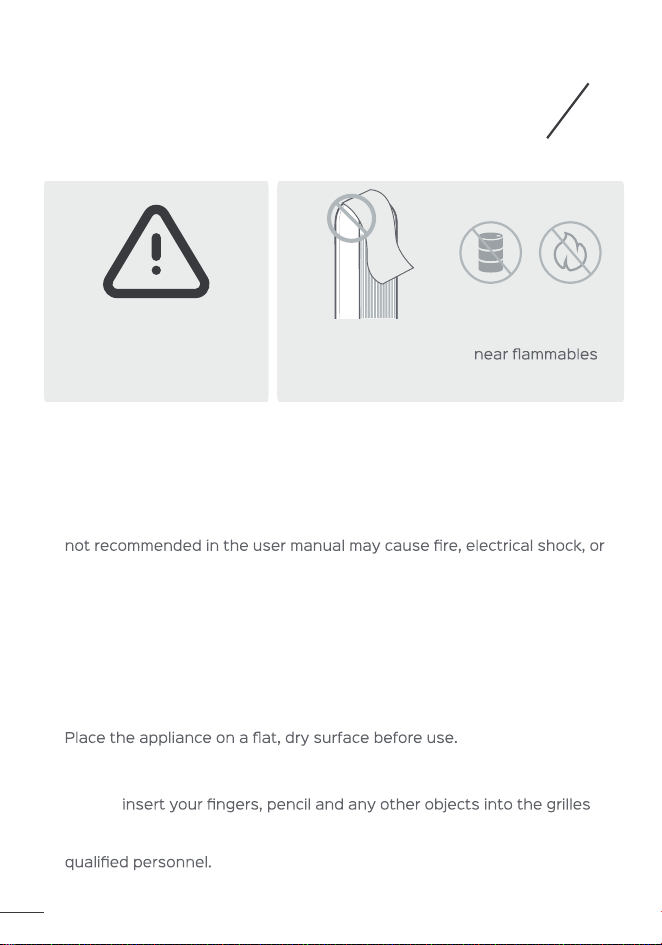
Do not cover the
air inlet and outlet
while in operation.
Do not use the fan
and combustibles.
Children shall not play with the appliance. Cleaning and maintenance shall
not be performed by children without supervision.
Use the appliance as described in the user manual only. Any other use
personal injury.
This appliance can be used by children aged above 8 years and persons
with reduced physical, sensory or mental capabilities or lack of experience
and knowledge if they have been given supervision or instruction
concerning use of this appliance in a safe way and understand the
hazards involved.
Do not immerse in water and any other liquids.
Do not use the appliance until the base is installed.
Do not
while in operation.
Do not dismantle, repair, or modify. All servicing should be performed by
General Safety
Operation Safety
1.
2.
3.
1.
2.
3.
4.
5.
2
FOR HOUSEHOLD USE ONLY READ
AND SAVE THESE INSTRUCTIONS
Make sure that the voltage of your electricity supply is the same as that
indicated on the appliance.
Always unplug before cleaning or leaving the appliance unused for a long
period of time. Keep your hands dry when plugging/unplugging.
Do not operate any fan with a damaged cord or plug. Discard fan or return
to an authorized service facility for examination and/or repair.
Do not run cord under carpeting. Do not cover cord with throw rugs,
runners, or similar coverings. Do not route cord under furniture or
tripped over.
WARNING:
tower fan with any solid-state speed control device.
This appliance employs overload protection (fuse). A blown fuse indicates
an overload or short-circuit situation. If the fuse blows, unplug the product
from the outlet. Replace the fuse as per the user servicing instructions
and check the appliance. If the replacement fuse blows, a short-circuit
may be present and the appliance should be discarded or returned to an
authorized service facility for examination and/or repair.
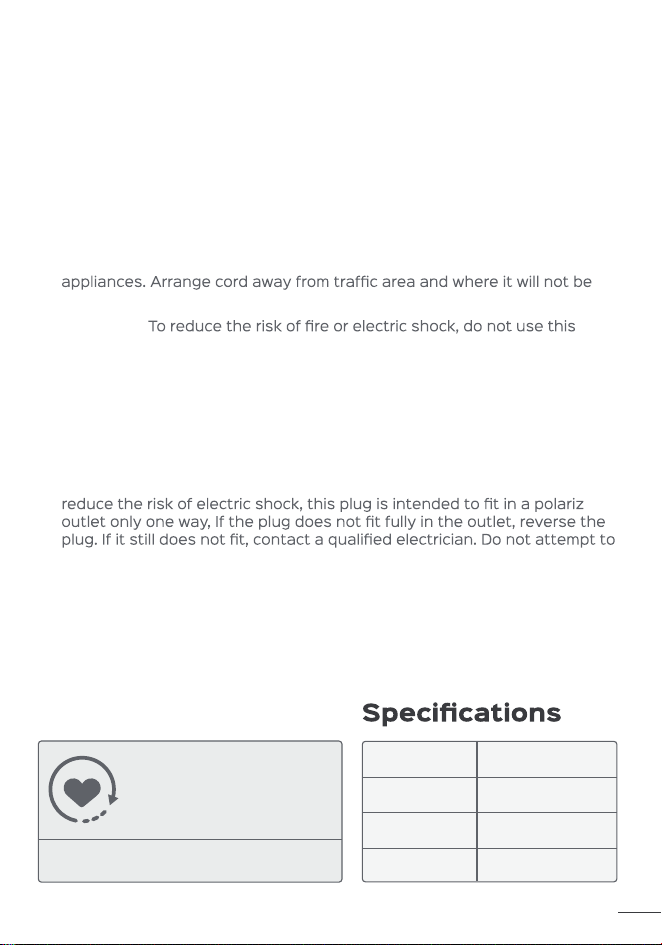
This appliance has a polarized plug (one blade is wider than the other). To
ed
defeat this safety feature.
Electricity Safety
1.
2.
3.
4.
5.
6.
7.
Model DR-HTF007S
Input AC 120V 60Hz
Rated Power 42W
Battery Type CR2025
Check the appliance regularly
and refer to TROUBLESHOOTING
or contact our customer support
if it shows any of the following
signs:
- Power cord or plug is damaged.
- Loud noise, unusual smell or excessive heat.
Gentle Reminder:
1
IMPORTANT SAFETY
INSTRUCTIONS
1
READ ALL CAUTIONARY
MARKINGS ON THE APPLIANCE
AND SAFETY INSTRUCTIONS
IN THE USER MANUAL BEFORE
USE.
Do not cover the
air inlet and outlet
while in operation.
Do not use the fan
and combustibles.
Children shall not play with the appliance. Cleaning and maintenance shall
not be performed by children without supervision.
Use the appliance as described in the user manual only. Any other use
personal injury.
This appliance can be used by children aged above 8 years and persons
with reduced physical, sensory or mental capabilities or lack of experience
and knowledge if they have been given supervision or instruction
concerning use of this appliance in a safe way and understand the
hazards involved.
Do not immerse in water and any other liquids.
Do not use the appliance until the base is installed.
Do not
while in operation.
Do not dismantle, repair, or modify. All servicing should be performed by
General Safety
Operation Safety
1.
2.
3.
1.
2.
3.
4.
5.
2
FOR HOUSEHOLD USE ONLY READ
AND SAVE THESE INSTRUCTIONS
Make sure that the voltage of your electricity supply is the same as that
indicated on the appliance.
Always unplug before cleaning or leaving the appliance unused for a long
period of time. Keep your hands dry when plugging/unplugging.
Do not operate any fan with a damaged cord or plug. Discard fan or return
to an authorized service facility for examination and/or repair.
Do not run cord under carpeting. Do not cover cord with throw rugs,
runners, or similar coverings. Do not route cord under furniture or
tripped over.
WARNING:
tower fan with any solid-state speed control device.
This appliance employs overload protection (fuse). A blown fuse indicates
an overload or short-circuit situation. If the fuse blows, unplug the product
from the outlet. Replace the fuse as per the user servicing instructions
and check the appliance. If the replacement fuse blows, a short-circuit
may be present and the appliance should be discarded or returned to an
authorized service facility for examination and/or repair.
This appliance has a polarized plug (one blade is wider than the other). To
ed
defeat this safety feature.
Electricity Safety
1.
2.
3.
4.
5.
6.
7.
Model DR-HTF007S
Input AC 120V 60Hz
Rated Power 42W
Battery Type CR2025
Check the appliance regularly
and refer to TROUBLESHOOTING
or contact our customer support
if it shows any of the following
signs:
- Power cord or plug is damaged.
- Loud noise, unusual smell or excessive heat.
Gentle Reminder:
4
4
5
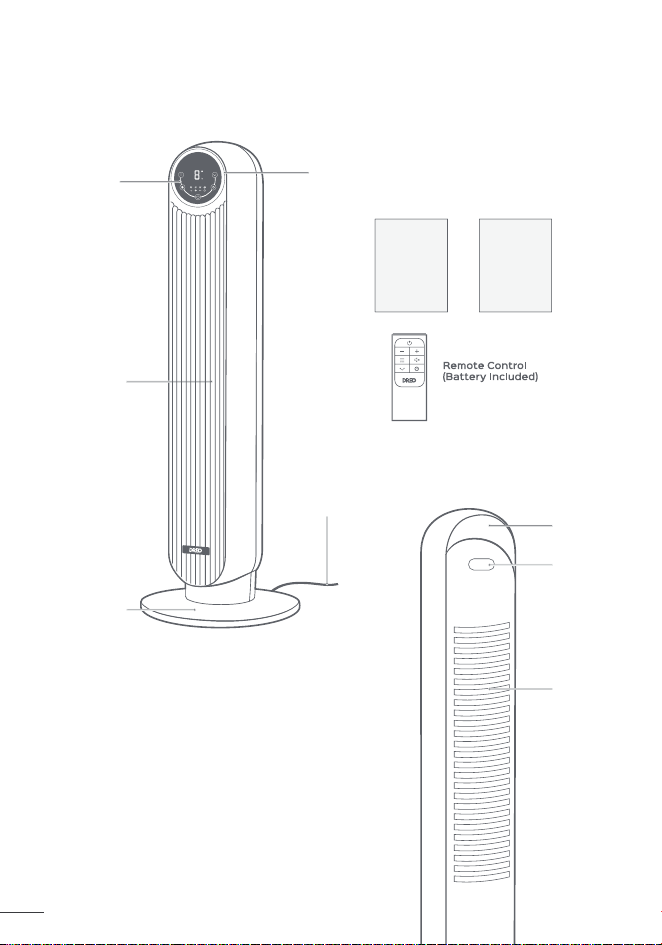
Package Contents
LED Display
Control
Panel
Air Outlet
Base
Power & Plug
Remote
Holder
Carry
Handle
Air Inlet
User
Manual
Quick Start
Guide
6
Air Inlet
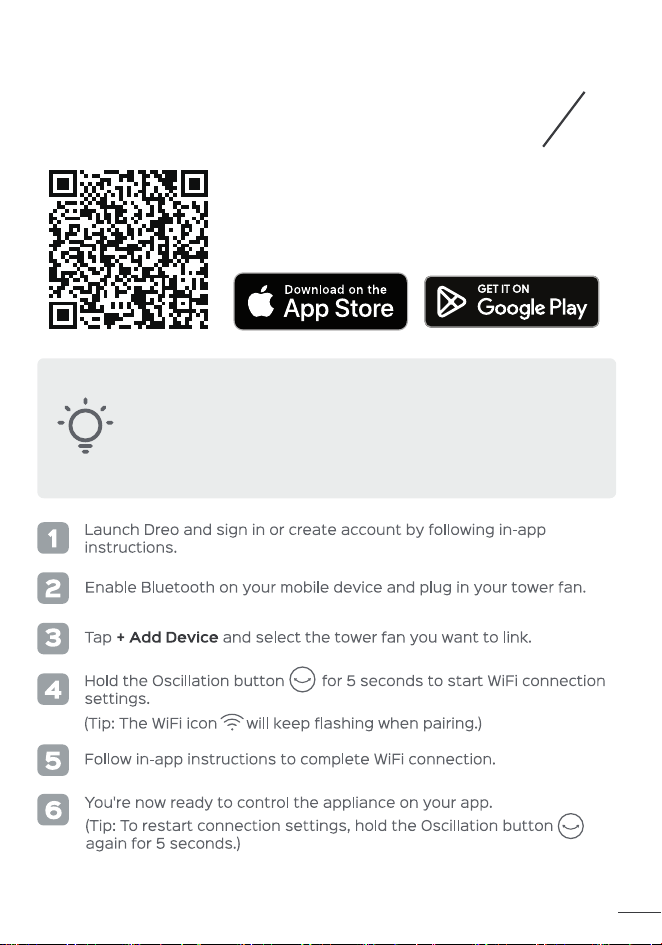
CONNECTING TO
YOUR TOWER FAN
3
Before connecting the appliance to your mobile
device, please scan the QR code on the left or go
to the app store and search “Dreo”, then select
and download the app.
You can use the Dreo app to connect your smart tower fan to
Amazon Alexa or Google Assistant. Please follow the in-app
instructions to set up your voice assistant.
NOTE: You must create a Dreo account to access voice
assistants.
5
Package Contents
LED Display
Control
Panel
Air Outlet
Base
Power & Plug
Remote
Holder
Carry
Handle
Air Inlet
User
Manual
Quick Start
Guide
6
Air Inlet
CONNECTING TO
YOUR TOWER FAN
3
Before connecting the appliance to your mobile
device, please scan the QR code on the left or go
to the app store and search “Dreo”, then select
and download the app.
You can use the Dreo app to connect your smart tower fan to
Amazon Alexa or Google Assistant. Please follow the in-app
instructions to set up your voice assistant.
NOTE: You must create a Dreo account to access voice
assistants.
8
8

Looking for help?
Contact us to get expert support.
DR-HTF007S
www.dreo.com
support@dreo.com (888) 290-1688
Mon - Fri, 9:00 am-5:00 pm PST/PDT
www.dreo.com
Smart Tower Fan
USER MANUAL