DRV-A601W
© 2019 JVCKENWOOD Corporation 601-V2.3.C.A-EN
Register Online
Register your KENWOOD product at www.kenwood.com/usa
US Residents Only
GPS Integrated Dashboard Camera
INSTRUCTION MANUAL
• Updated information (the latest Instruction Manual, etc.) is available from
<https://www.kenwood.com/cs/ce/>.
For your records
Record the serial number, found on the back of the unit in the spaces designated on the
warranty card, and in the space provided below. Refer to the model and serial numbers
whenever you can upon your KENWOOD dealer for information or service on the product.
Model DRV-A601W
Serial Number______________


Before Use .................................................................................................................
Dashboard Camera Function Guide .........................................................................
Precautions for Use ...................................................................................................
Accessories .................................................................................................................
Key Features ..............................................................................................................
Parts Name and Functions ........................................................................................
Installation and Connection ......................................................................................
Initial Settings ............................................................................................................
Basic Operation ..........................................................................................................
Settings ......................................................................................................................
Connection with Computer ......................................................................................
Using the Desktop Software .....................................................................................
Using the Smartphone App ......................................................................................
Troubleshooting ........................................................................................................
Appendix ....................................................................................................................
Specifications .............................................................................................................
01
01
02
10
10
11
14
20
22
32
34
35
45
53
55
58
Contents

Before Use
With new technology readily available, JVCKENWOOD has developed an easy
to use dashboard camera for everyday use. The device allows its user to record files in1 / 3 minute
lengths. These files are easy to download to your desktop or laptop.
In most instances, the video files are easily played on your mobile device.
While most cameras traditionally use the entire capacity of the SD card until it is
removed, the device automatically deletes the oldest file to create space for the new video.
Dashboard camera offers three modes:
1. Video Mode: Video mode will set to default when the device is active.
2. Photo Mode: The device setting takes still photographs.
3. Playback Mode: Users can view all previously recorded videos and photos taken.
FEATURES:
Automatic Start/Stop Technology:
Maintain full focus on the road! The vehicles ignition will let the device turn on while
connected to your vehicles 12 V outlet or cigarette lighter socket. When the vehicle is
turned off, the device will automatically shut down, preserving the device power for those
moments you are not connected to permanent power.
The device lets users adjust camera settings to get the perfect shot. For a great photo
every time, here are a few tips from the designers:
Reduce the amount of sky in the picture. By adjusting the device towards the road,
the automatic exposure compensation will be focused on the road and not the light from
the sky.
Position the device in the center of the dash. If you place the device behind the rearview
mirror, you will avoid all distractions from the road.
Remove any objects that will obstruct your shot such as the protective lens cover.
Clear vision will allow you to record everything in one shot.
1.
2.
3.
The screen images and operation examples in this document were created for explaining the
operating procedures.
There may be screen images that differ from the actual screens or examples of operations not
actually performed.
Please note that JVCKENWOOD shall not be responsible for any damages suffered by the
customer or a third party as a result of incorrectly using this product, a failure during use of
this product, or other trouble, or due to the use of this product, unless such liability is
acknowledged by law.
Recorded video, image, and audio content cannot be used for other than personal enjoyment
without the consent of the copyright holder as specified in the Copyright Act.
Please note that the recording of an event such as a show, performance, or exhibition may be
restricted even when doing so for personal enjoyment.
•
•
•
•
•
Dashboard Camera Function Guide
01
Disclaimer
Copyrights

For your own safety, do not operate the controls of the product while driving.
A window mount is needed when using the device in a car. Make sure that you place the device in
an appropriate place, so as not to obstruct the driver's view or deployment of airbags.
Make sure that no object is blocking the camera lens and no reflective material is placed near the
lens. Please keep the lens clean.
If the car's windscreen is tinted with a coating, this may impact the recording quality.
Connect the charger to a proper power source. The voltage requirements are found on the product
case and/or packaging.
Do not use the charger if the cord becomes damaged.
Do not attempt to service the unit. There are no serviceable parts inside. Replace the unit if it is
damaged or exposed to excess moisture.
Recording resolution might be changed automatically to continue the recording avoiding the
possible overheat in the high temperature.
Keep your device away from excessive moisture and extreme temperatures.
Avoid exposing your device to direct sunlight or strong ultraviolet light for extended periods of
time.
Do not place anything on top of your device or drop objects on your device.
Do not drop your device or subject it to severe shock.
Do not subject your device to sudden and severe temperature changes. This could cause moisture
condensation inside the unit, which could damage your device. In the event of moisture
condensation, allow the device to dry out completely before use.
The screen surface can easily be scratched. Avoid touching it with sharp objects. Nonadhesive
generic screen protectors designed specifically for use on portable devices with LCD panels may be
used to help protect the screen from minor scratches.
Never clean your device with the power on. Use a soft, lint-free cloth to wipe the screen and the
exterior of your device.
Do not use paper towels to clean the screen.
Never attempt to disassemble, repair or make any modifications to your device. Disassembly,
modification or any attempt at repair could cause damage to your device and even bodily injury or
property damage and will void any warranty.
Do not store or carry flammable liquids, gases or explosive materials in the same compartment as
your device, its parts or accessories.
To discourage theft, do not leave the device and accessories in plain view in an unattended vehicle.
Overheating may damage the device.
Precautions for Use
•
•
•
•
•
•
•
•
•
•
•
•
•
•
•
•
•
•
•
•
Precautions and notices
Warning! Do not operate the device while driving. Using this product does not change the
requirement for a driver to take full responsibility for his or her behavior. This responsibility includes
observing all traffic rules and regulations in order to avoid accidents, personal injury or property
damage.
Caring for your device
Taking good care of your device will ensure trouble-free operation and reduce the risk of damage.
02

03
Install the device in a position where it will not block the front view of the driver (position where
hidden by the rear-view mirror).
Install the device so that it is within the wiping range of the wiper.
Install the device in a position where it will not interfere with the movement of the rear-view
mirror.
Take care not to install the device over the vehicle inspection sticker or other sticker.
Take care not to install the device where it will interfere with driving or airbag operation.
When installing the device in a vehicle equipped with a driving support system, check the
instruction manual of the vehicle and then select an installation position that will not interfere
with the driving support system.
If the device is installed incorrectly, event recording or parked recording may not work correctly.
Refer to “Installation and Connection” for the loosening of fixing knob, installation orientation,
installation angle, and other information and then install the device correctly.
Do not install the device near a digital terrestrial television antenna or an electrical component.
Doing so may reduce television receiver sensitivity or cause flickering and noise.
When selecting a position for the suction mount, make sure it’s on a glass surface that is smooth
and free of paint.
Before mounting, clean the area with a dry/clean cloth and add a small amount of moisture to the
windshield. This allows a stronger bond to form between the glass and the suction mount.
When fixing the device with the adhesive mount, use a commercially available cleaning cloth or
the like to wipe off all dirt and grease on the mounting surface. If the device is re-affixed or
mounted using, for example, general-purpose double-sided tape, the adhesion strength may
weaken and cause the device to fall.
After mounting the device, leave it for 24 hours before use to enable the mounting strength of
the adhesive mount to improve. Failing to do so may result in the adhesion of the adhesive mount
becoming weak and the device falling.
Fix the cord in place with tape or the like so that it does not interfere with driving.
Do not block the camera lens, get dirt on it, or place a reflective object near it.
When LED traffic lights are recorded, video in which they appear to be flickering or flashing may
be recorded. JVCKENWOOD assumes no responsibility with regard to the distinguishing or
recording of traffic lights.
If coating is used on the windshield of the vehicle, recording quality may be affected.
There is no guarantee that the device can record video in all conditions.
When the device is dirty, wipe it with a dry silicone cloth or other soft cloth. If the device is very
dirty, remove the dirt with a cloth with neutral cleaner on it then wipe off the cleaner. Wiping the
device with a hard cloth or using a volatile substance such as thinner or alcohol may cause
scratches, deformation, deterioration or other damage.
When the lens is dirty, gently wipe it with a soft cloth dampened with water. Rubbing the lens
strongly with a dry cloth may cause scratches.
Precautions for installation
Precautions for use
Cleaning the device
•
•
•
•
•
•
•
•
•
•
•
•
•
•
•
•
•
•
•
•
If you notice a problem with the device
If you notice a problem with the device, first refer to “Troubleshooting” (P. 53) and check whether
there is a way to resolve the problem.
If the device does not return to normal after the reset, turn off the power of the device and then
contact your dealer or nearest JVCKENWOOD service center.
04
Information on Disposal of Old Electrical and Electronic Equipment and Batteries (applicable for
countries that have adopted separate waste collection systems)
Products and batteries with the symbol (crossed-out wheeled bin) cannot be disposed of as
household waste.
Old electrical and electronic equipment and batteries should be recycled at a facility capable of
handling these items and their waste by products.
Contact your local authority for details in locating a recycle facility nearest to you.
Proper recycling and waste disposal will help conserve resources while preventing detrimental effects
on our health and the environment.
Conformiteitsverklaring met betrekking tot RE-
richtlijn 2014/53/EU
Conformiteitsverklaring met betrekking tot RoHS-
richtlijn 2011/65/EU
Fabrikant:
JVCKENWOOD Corporation
3-12, Moriyacho, Kanagawa-ku, Yokohama-shi,
Kanagawa 221-0022, JAPAN
EU-vertegenwoordiger:
JVCKENWOOD Europa B.V.
Amsterdamseweg 37, 1422 AC UITHOORN, NEDERLAND
Dichiarazione di conformità relativa alla
direttiva RE 2014/53/UE
Dichiarazione di conformità relativa alla
direttiva RoHS 2011/65/UE
Produttore:
JVCKENWOOD Corporation
3-12, Moriyacho, Kanagawa-ku, Yokohama-shi,
Kanagawa 221-0022, JAPAN
Rappresentante UE:
JVCKENWOOD Europe B.V.
Amsterdamseweg 37, 1422 AC UITHOORN, PAESI BASSI
Declaración de conformidad con respecto a la
Directiva RE 2014/53/UE
Declaración de conformidad con respecto a la
Directiva RoHS 2011/65/UE
Fabricante:
JVCKENWOOD Corporation
3-12, Moriyacho, Kanagawa-ku, Yokohama-shi,
Kanagawa 221-0022, JAPAN
Representante en la UE:
JVCKENWOOD Europe B.V.
Amsterdamseweg 37, 1422 AC UITHOORN, PAÍSES
BAJOS
Declaration of Conformity with regard to the RE
Directive 2014/53/EU
Declaration of Conformity with regard to the RoHS
Directive 2011/65/EU
Manufacturer:
JVCKENWOOD Corporation
3-12, Moriyacho, Kanagawa-ku, Yokohama-shi,
Kanagawa 221-0022, JAPAN
EU Representative:
JVCKENWOOD Europe B.V.
Amsterdamseweg 37, 1422 AC UITHOORN, THE
NETHERLANDS
Déclaration de conformité se rapportant à la
directive RE 2014/53/UE
Déclaration de conformité se rapportant à la
directive RoHS 2011/65/UE
Fabricant:
JVCKENWOOD Corporation
3-12, Moriyacho, Kanagawa-ku, Yokohama-shi,
Kanagawa 221-0022, JAPON
Représentant dans l’UE:
JVCKENWOOD Europe B.V.
Amsterdamseweg 37, 1422 AC UITHOORN, PAYS-BAS
Konformitätserklärung in Bezug auf die RE-
Richtlinie 2014/53/EU
Konformitätserklärung in Bezug auf die RoHS-
Richtlinie 2011/65/EU
Hersteller:
JVCKENWOOD Corporation
3-12, Moriyacho, Kanagawa-ku, Yokohama-shi,
Kanagawa 221-0022, JAPAN
EU-Vertreter:
JVCKENWOOD Europe B.V.
Amsterdamseweg 37, 1422 AC UITHOORN,
NIEDERLANDE

05
English
Hereby, JVCKENWOOD declares that the radio equipment DRV-A601W is in compliance with Directive
2014/53/EU. The full text of the EU declaration of conformity is available at the following internet
address:
Français
Par la présente, JVCKENWOOD déclare que l’équipement radio DRV-A601W est conforme à la
directive 2014/53/UE. L’intégralité de la déclaration de conformité UE est disponible à l’adresse
Internet suivante:
Deutsch
Hiermit erklärt JVCKENWOOD, dass das Funkgerät DRV-A601W der Richtlinie 2014/53/EU entspricht.
Der volle Text der EUKonformitätserklärung steht unter der folgenden Internetadresse zur
Verfügung:
Nederlands
Hierbij verklaart JVCKENWOOD dat de radioapparatuur DRV-A601W in overeenstemming is met
Richtlijn 2014/53/EU. De volledige tekst van de EU-verklaring van overeenstemming is te vinden op
het volgende internetadres:
Italiano
Con la presente, JVCKENWOOD dichiara che l’apparecchio radio DRV-A601W è conforme alla
Direttiva 2014/53/UE. Il testo integrale della dichiarazione di conformità UE è disponibile al seguente
indirizzo internet:
Español
Por la presente, JVCKENWOOD declara que el equipo de radio DRV-A601W cumple la Directiva
2014/53/EU. El texto completo de la declaración de conformidad con la UE está disponible en la
siguiente dirección de internet:
Português
Deste modo, a JVCKENWOOD declara que o equipamento de radio DRV-A601W está em
conformidade com a Diretiva 2014/53/UE. O texto integral da declaração de conformidade da UE está
disponível no seguinte endereço de internet:
Polska
Niniejszym, JVCKENWOOD deklaruje, że sprzęt radiowy DRV-A601W jest zgodny z dyrektywą
2014/53/UE. Pełny tekst deklaracji zgodności EU jest dostępny pod adresem:
ije o usklađenosti dostupan je na sljedećoj internet adresi:
RE Direktifi 2014/53/EU ile ilgili Uyum Beyanı
RoHS Direktifi 2011/65/EU için Uyum Beyanı
Üretici:
JVCKENWOOD Corporation
3-12, Moriyacho, Kanagawa-ku, Yokohama-shi,
Kanagawa 221-0022, JAPONYA
AB Temsilcisi:
JVCKENWOOD Europe B.V.
Amsterdamseweg 37, 1422 AC UITHOORN, HOLLANDA
Declaração de Conformidade relativa à Diretiva
RE 2014/53/UE
Declaração de conformidade relativa à Diretiva
RoHS 2011/65/UE
Fabricante:
JVCKENWOOD Corporation
3-12, Moriyacho, Kanagawa-ku, Yokohama-shi,
Kanagawa 221-0022, JAPÃO
Representante na UE:
JVCKENWOOD Europe B.V.
Amsterdamseweg 37, 1422 AC UITHOORN, PAÍSES
BAIXOS

Èeský
Společnost JVCKENWOOD tímto prohlašuje, že rádiové zařízení DRV-A601W splňuje podmínky
směrnice 2014/53/EU. Plný text EU prohlášení o shodě je dostupný na následující internetové adrese:
Magyar
JVCKENWOOD ezennel kijelenti, hogy a DRV-A601W rádióberendezés megfelel a 2014/53/EU
irányelvnek. Az EU konformitási nyilatkozat teljes szövege az alábbi weboldalon érhető el:
Hrvatski
JVCKENWOOD ovim izjavljuje da je radio oprema DRV-A601W u skladu s Direktivom 2014/53/EU.
Cjeloviti tekst deklaracije Europske un
Svenska
Härmed försäkrar JVCKENWOOD att radioutrustningen DRV-A601W är i enlighet med direktiv
2014/53/EU. Den fullständiga texten av EUförsäkran om överensstämmelse finns på följande
Internetadress :
Suomi
JVCKENWOOD julistaa täten, että radiolaite DRV-A601W on direktiivin 2014/53/EU mukainen.
EU-vaatimustenmukaisuusvakuutus löytyy kokonaisuudessaan seuraavasta internet-osoitteesta:
Slovensko
S tem JVCKENWOOD izjavlja, da je radijska oprema DRV-A601W v skladu z Direktivo 2014/53/EU.
Celotno besedilo direktive EU o skladnosti je dostopno na tem spletnem naslovu:
Slovensky
Spoločnosť JVCKENWOOD týmto vyhlasuje, že rádiové zariadenie DRV-A601W vyhovuje smernici
2014/53/EÚ. Celý text EÚ vyhlásenia o zhode nájdete na nasledovnej internetovej adrese:
Dansk
Herved erklærer JVCKENWOOD, at radioudstyret DRV-A601W er i overensstemmelse med Direktiv
2014/53/EU. EUoverensstemmelseserklæringens fulde ordlyd er tilgængelig på følgende
internetadresse:
Norsk
JVCKENWOOD erklærer herved at radioutstyret DRV-A601W er i samsvar med Direktiv 2014/53/EU.
Den fullstendige teksten til EU-konformitetserklæringen er tilgjengelig på følgende internettaddresse:
Ελληνικά
Με το παρόν, η JVCKENWOOD δηλώνει ότι ο ραδιοεξοπλισµός DRV-A601W συµµορφώνεται µε την Οδηγία
2014/53/ΕΕ. Το πλήρες κείµενο της δήλωσης συµµόρφωσης της ΕΕ είναι διαθέσιµο στην ακόλουθη
διεύθυνση στο διαδίκτυο:
Eesti
Käesolevaga JVCKENWOOD kinnitab, et DRV-A601W raadiovarustus on vastavuses direktiiviga
2014/53/EL. ELi vastavusdeklaratsiooni terviktekst on kättesaadav järgmisel internetiaadressil:
Latviešu
JVCKENWOOD ar šo deklarē, ka radio aparatūra DRV-A601W atbilst direktīvas 2014/53/ES prasībām.
Pilns ES atbilstības deklarācijas teksts ir pieejams šādā tīmekļa adresē:
Lietuviškai
Šiuo JVCKENWOOD pažymi, kad radijo įranga DRV-A601W atitinka 2014/53/EB direktyvos
reikalavimus. Visą EB direktyvos atitikties deklaracijos tekstą galite rasti šiuo internetiniu adresu:
06

07
Malti
B’dan, JVCKENWOOD jiddikjara li t-tagħmir tar-radju DRV-A601W huwa konformi mad-Direttiva
2014/53/UE. It-test kollu tad-dikjarazzjoni ta’ konformità huwa disponibbli fl-indirizz intranet li ġej:
Українська
Таким чином, компанія JVCKENWOOD заявляє, що радіообладнання DRV-A601W відповідає Директиві
2014/53/EU. Повний текст декларації про відповідність ЄС можна знайти в Інтернеті за такою адресою:
Türkçe
Burada, JVCKENWOOD DRV-A601W radyo ekipmanının 2014/53/AB Direktifine uygun olduğunu bildirir.
AB uyumluluk deklarasyonunun tam metni aşağıdaki internet adresinde mevcuttur.
Русский
JVCKENWOOD настоящим заявляет, что радиооборудование DRV-A601W соответствует Директиве
2014/53/EU. Полный текст декларации соответствия ЕС доступен по следующему адресу в сети
Интернет:
Limba românã
Prin prezenta, JVCKENWOOD declară că echipamentul radio DRV-A601W este în conformitate cu
Directiva 2014/53/UE. Textul integral al declarației de conformitate UE este disponibil la urmatoarea
adresă de internet:
Български език
С настоящото JVCKENWOOD декларира, че радиооборудването на DRV-A601W е в съответствие с
Директива 2014/53/ЕС. Пълният текст на ЕС декларацията за съответствие е достъпен на следния
интернет адрес:
URL: https://www.kenwood.com/cs/ce/eudoc/
Дата изготовления (месяц/год) находится на этикетке устройства.
В соответствии с Законом Российской Федерации “О защите прав потребителей” срок службы
(годности) данного товара, “по истечении которого он может представлять опасность для жизни,
здоровья потребителя, причинять вред его имуществу или окружающей среде” составляет семь (7)
лет со дня производства. Этот срок является временем, в течение которого потребитель данного
товара может безопасно им пользоваться при условии соблюдения инструкции по эксплуатации
данного товара, проводя необходимое обслуживание, включающее замену расходных материалов
и/или соответствующее ремонтное обеспечение в специализированном сервисном центре.
Дополнительные косметические материалы к данному товару, поставляемые вместе с ним, могут
храниться в течение двух (2) лет со дня eгo производства.
Срок службы (годности), кроме срока хранения дополнительных косметических материалов,
упомянутых в предыдущих двух пунктах, не затрагивает никаких других прав потребителя, в
частности, гарантийного свидетельства KENWOOD, которое он может получить в соответствии с
законом о правах потребителя или других законов, связанных с ним.
Условия хранения:
Температура: от –20°C до +60°C
Влажность: от 5% до 95%

08
FCC WARNING
This equipment may generate or use radio frequency energy. Changes or modifications to this
equipment may cause harmful interference unless the modifications are expressly approved in the
instruction manual. The user could lose the authority to operate this equipment if an unauthorized
change or modification is made.
FCC NOTE
• This equipment has been tested and found to comply with the limits for a Class B digital device,
pursuant to Part 15 of the FCC Rules. These limits are designed to provide reasonable protection against
harmful interference in a residential installation.
• This equipment may cause harmful interference to radio communications, if it is not installed and used
in accordance with the instructions. However, there is no guarantee that interference will not occur in a
particular installation. If this equipment does cause harmful interference to radio or television
reception, which can be determined by turning the equipment off and on, the user is encouraged to try
to correct the interference by one or more of the following measures:
- Reorient or relocate the receiving antenna.
- Increase the separation between the equipment and receiver.
- Connect the equipment into an outlet on a circuit different from that to which the receiver is connected.
- Consult the dealer or an experienced radio/TV technician for help.
This transmitter must not be co-located or operated in conjunction with any other antenna or transmitter.
Информация о продукции
Производитель : ДжейВиСи Кенвуд Корпорейшн
3-12, Морийячо, Канагава-ку, Йокохама-ши, Канагава 221-0022, Япония
Видеорегистратор
Модели: DRV-A601W
Документ о соответствии:
Дата выдачи:
Действителен до:
Соответствует требованиям
нормативных документов:
Завод-изготовитель:
RU Д-JP.РА01.В.09118/20
22.01.2020
21.01.2025
TP TC 020/2011
«Электромагнитная совместимость
технических средств»
Cansonic Company Limited
3/F, Building 1, Guanlan Industrial Park, Grain Group,299 Guanping Road,
Dafu Community, Guanlan South, Longhua New District, Shenzhen,
China(Китай)
ЕАЭС N RU Д-JP.РА01.В.30172/20
31.03.2020
30.03.2025
TP EAEC 037/2016
«Об ограничении применения
опасных веществ в изделиях
электротехники и радиоэлектроники»

09
IC (Industry Canada) Notice
This device contains licence-exempt transmitter(s)/receiver(s) that comply with Innovation, Science and
Economic Development Canada’s licence-exempt RSS(s). Operation is subject to the following two conditions:
1. This device may not cause interference.
2. This device must accept any interference, including interference that may cause undesired operation
of the device.
CAUTION
This equipment complies with FCC/IC radiation exposure limits set forth for an uncontrolled environment and meets
the FCC radio frequency (RF) Exposure Guidelines and RSS-102 of the IC radio frequency (RF) Exposure rules. This
equipment has very low levels of RF energy that is deemed to comply without maximum permissive exposure
evaluation (MPE). But it is desirable that it should be installed and operated keeping the radiator at least 20 cm or
more away from person’s body.
Pour le Canada
Note de ‘IC (Industrie Canada)
L’émetteur/récepteur exempt de licence contenu dans le présent appareil est conforme aux CNR d’Innovation,
Sciences et Développement économique Canada applicables aux appareils radio exempts de licence. L’exploitation
est autorisée aux deux conditions suivantes :
1. L’appareil ne doit pas produire de brouillage;
2. L’appareil doit accepter tout brouillage radioélectrique subi, même si le brouillage est susceptible d’en
compromettre le fonctionnement.
ATTENTION
Cet équipement est conforme aux limites d’exposition aux rayonnements énoncées pour un environnement non
contrôlé et respecte les règles les radioélectriques (RF) de la FCC lignes directrices d’exposition et d’exposition aux
fréquences radioélectriques (RF) CNR-102 de l’IC. Cet équipement doit être installé et utilisé en gardant une distance
de 20 cm ou plus entre le radiateur et le corps humain.
Supplier’s Declaration of Conformity
Trade Name: KENWOOD
Products: Dashboard Camera
Model Name: DRV-A601W
Responsible Party:
JVCKENWOOD USA CORPORATION
2201 East Dominguez Street,
Long Beach, CA 90810, U.S.A.
PHONE: 310 639-9000
THIS DEVICE COMPLIES WITH PART 15 OF THE FCC RULES. OPERATION IS SUBJECT TO THE FOLLOWING
TWO CONDITIONS:
(1) THIS DEVICE MAY NOT CAUSE HARMFUL INTERFERENCE, AND
(2) THIS DEVICE MUST ACCEPT ANY INTERFERENCE RECEIVED, INCLUDING INTERFERENCE THAT MAY
CAUSE UNDESIRED OPERATION.
CAN ICES-3(B) / NMB-3(B)
DB02771
Complies with
IMDA Standards
10
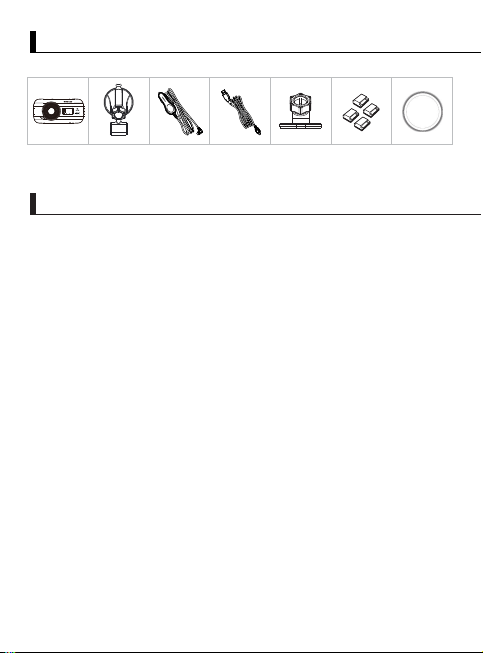
Accessories
Before you get started, check you have everything below.
- 3” LCD Color Screen
We developed a screen that perfectly fits your camera, without any loss of resolution. This
design allows you to use the playback feature, instantly letting you view the shot you just
captured.
- Quick Release Magnetic Mount
We know how difficult it is to maintain focus with movement. We developed a mount that
is uniquely designed for easy attaching and removing so you can focus on capturing the
perfect shot.
- G sensor/File Protection
The dashboard camera's built-in sensor detects an outside force, forcing the device to save
what has been just recorded. The file can also be manually saved. By pressing our easy to
access button around the screen, you are able to save an individual file.
- Automatic Start/Stop Tech
The dashboard camera comes with built-in sensors that automatically turn the device on
and off with the vehicle.
- Built-In Microphone & Speaker
A built-in microphone and speaker come standard. The feature also works with the
device’s playback feature.
- GPS Data
Dashboard camera is able to record your location and speed while filming with the
magnetic GPS mount.
- Parking Mode
The dashboard camera has a parking mode, but a unique feature enables the device to
automatically record 30 seconds of video if there is any physical movement of the vehicle.
This feature requires hardwire kit CA-DR1030(optional accessory) to permanent power.
Key Features
* Product appearance may differ slightly to that shown above.
Dashboard Camera
Suction mount
Cigar Lighter
Adapter Cable
USB Cable
Adhesive Mount Cable Clips
PL Fliter
(with 64GB microSD card)
11
Parts Name and Functions
Power Button
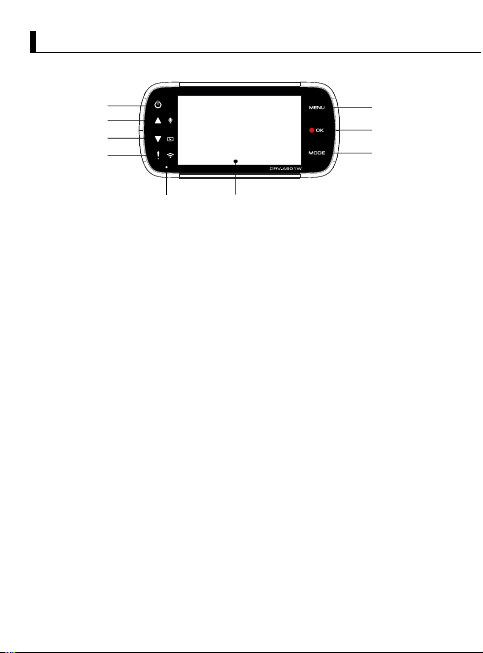
Press and hold the button for 3 seconds to turn the device on/off.
Up/Mute Button
Up
Navigate up within menus or go to the previous file in playback mode.
Mute
Turn on or off the audio recording function while in video mode.
Down/Screen Off Button
Down
Navigate down within menus or go to the next file in playback mode.
Screen Off
Turn on/off the LCD screen.
File Protect/Wireless Link Button
File Protect
Simply press the button to protect the current video file from overwriting.
Note:
- If the button is pressed within the first third of a video clip, the previous clip will
also be protected.
- If the button is pressed within the final third of a video clip, the next clip will also
be protected (if recording continues).
Wireless Link
Press and hold for three seconds to turn on the Wireless Link function, this is not
available while recording or during playback.
Menu Button
Press this button to open the menu of the current mode. Press this button twice to
enter the general setting menu.
1.
2.
3.
4.
5.
1
2
3
4
8
5
6
7
9
12
Record/OK Button
Record
In Video mode, press to start or stop recording.
In Photo mode, press to take a photo.
OK
The confirm button used to select options in menus.
Mode/Screen Shot Button
Mode
This button allows you to navigate between video, photo and playback modes.
Screen Shot
While you are recording in video mode, press the button and you will be
able to take a screenshot of the current frame.
Screen
The device is equipped with a standard 3” LCD color screen to let you view.
Status LED Indicator
Red: Power On Red (Flashing): Recording Blue: Charging
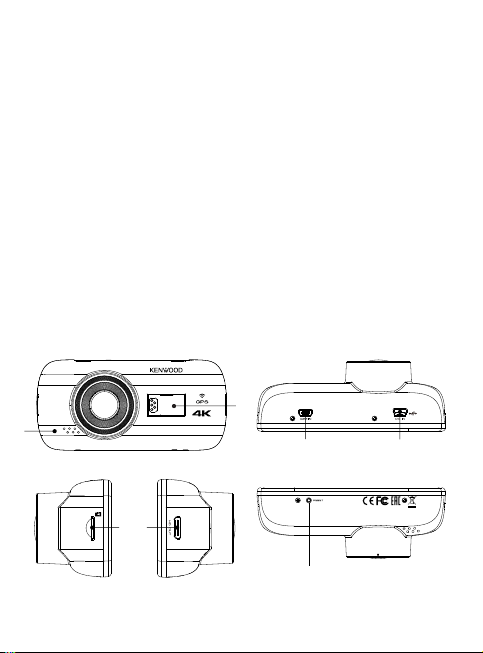
Connector Port
Attach the magnetic connector to the connector port.
Speaker
System sound and recorded footage sound.
6.
7.
8.
9.
10.
11.
10
11
14 15
16
12 13
13
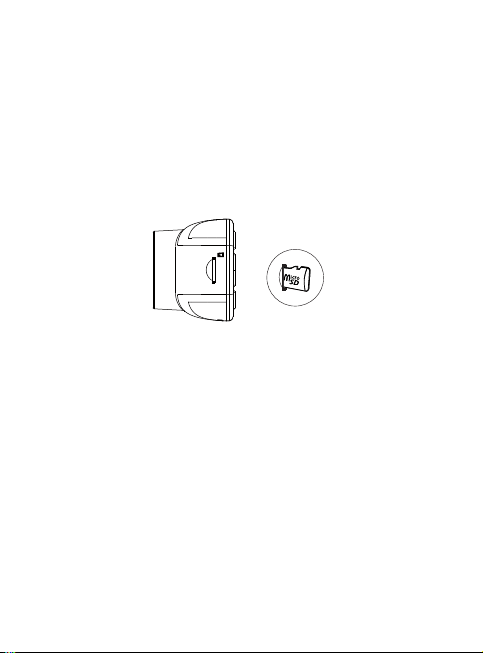
Insert Your microSD Card Into The Device
The device is designed to allow a standard microSD card to record your footage.
Before installing, make sure the gold end of the card is facing the LCD screen. Once
it’s aligned with the slot, push the card in and listen for the CLICK that will confirm
it is secure.
TIP:
- If you cannot hear the CLICK, take a small coin by the edge and push on the
outside end of the card until the sound is made.
- Remember: DO NOT REMOVE OR INSERT THE MEMORY CARD WHILE THE
DEVICE IS TURNED ON.
- The device will power off automatically when you insert or remove the SD card.
microSD Card Slot
Insert your microSD card here. Push your memory card into the slot until you
hear a click.
(microSD card is inserted into microSD Card Slot at the factory shipment condition)
12.
HD Output
The device can be connected to other screen by using the HD cable.
(commercially available)
13.
14
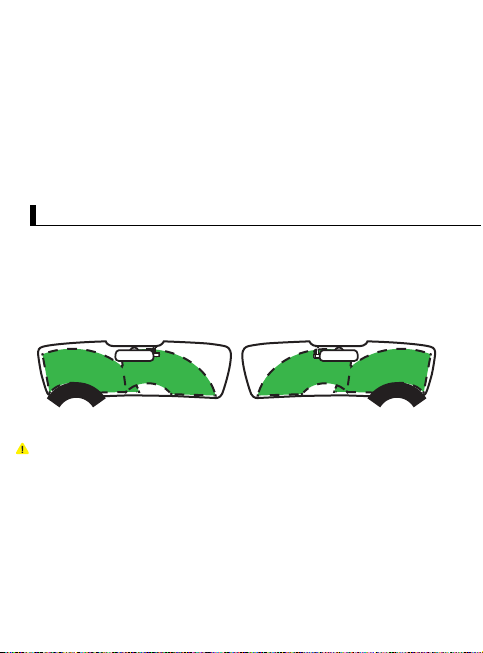
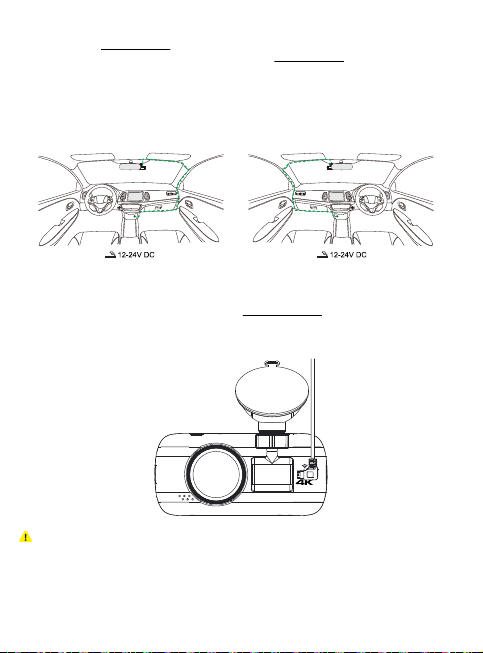
Recommended installation position
Install the device in a position where it will not block the front view of the driver
(position where hidden by the rear-view mirror).
Install the device so that it is within the wiping range of the wiper.
Mounting the device to the center of the windshield behind the rear-view mirror
will facilitate optimal video recording.
Caution
When passing the power cord through the front pillar or another part, observe the
points below when performing the wiring work.
Wire the power cord farther forward or farther rearward than the airbag so that it
does not interfere with the airbag.
In the case of a vehicle in which the front pillar cover is fixed in place with special
clips or the like, the clips may need to be replaced after you remove the front pillar
cover. For how to remove the front pillar cover, the availability of replacement
parts and other information, contact the vehicle dealer.
Fix the power cord in place with commercially available soft tape or the like so that
it does not interfere with driving.
•
•
•
•
•
•
Installation and Connection
CAM-IN
The device can be connected with the rear camera KCA-R200.(optional accessory)
DC-IN/Data transfer Port
By connecting the device with the supplied cigar lighter adapter cable you are
able to charge the device. This will also be utilized to let you connect the USB cord to
your computer. You can either connect the cigar lighter adapter cable with the device
or magnetic connector.
Reset Button
On the rare occasions the device has a problem, use the reset button to shut down
the device. Simply press the reset until the device turns off and press power button to
turn on.
14.
15.
16.
Left-hand Drive
Right-hand Drive
15
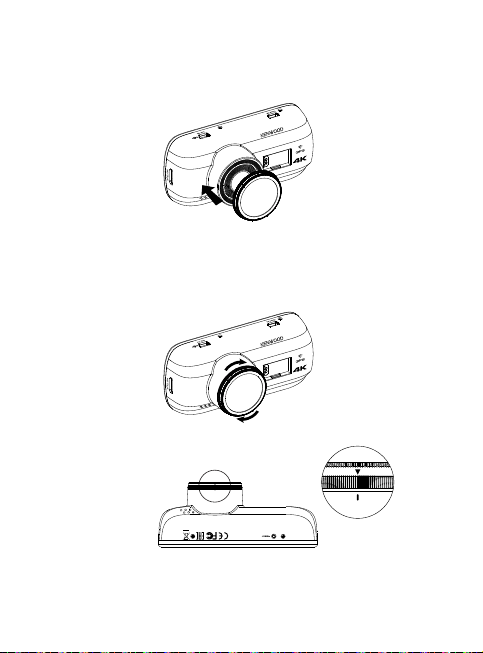
1. CONNECT THE DEVICE TO THE POLARIZER FILTER
1.1. Installing Circular Polarizer Filter
Align the threaded side of the polarizer filter with device and turn it clockwise to
make sure the rotation is smooth along the threaded metal area.
1.2. Adjusting Circular Polarizer Filter
Rotate the polarizer filter outer metal ring clockwise and align arrow mark on the
polarizer lens with the arrow mark on the device.
Note: The arrow mark is the recommended position, users can adjust the polarizer
angle accordingly.
16
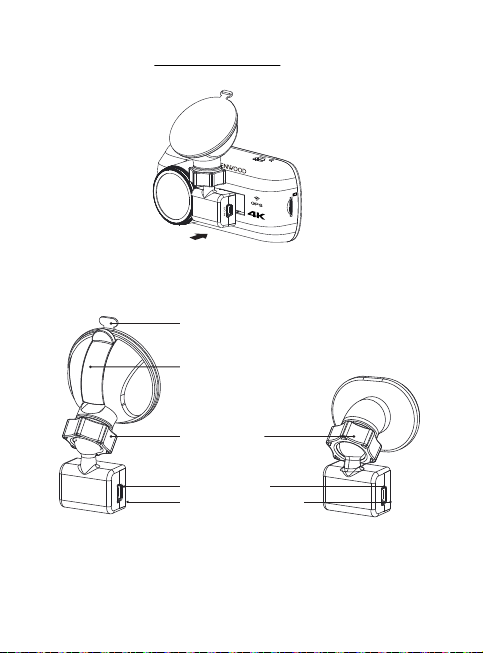
CONNECT THE DEVICE TO THE MAGNETIC MOUNT
Attach the device onto (e) the magnetic connector on the mount.
Make sure you align the device within the connector port for proper installation.
REPLACE THE SUCTION MOUNT WITH THE ADHESIVE MOUNT:
(a) Suction release tab
(b) Locking lever
(c) Locking ring
(d) Power socket
(e) Magnetic Connector
Suction Mount
Adhesive Mount
2.
2.1
2.2
There are two types of mounts included in the package. One is a suction-cup and
the other is an adhesive type. The suction mount makes it easier to attach and
detach from the windshield while the adhesive mount provides more solid support
for the camera.
The magnetic connector is already installed on the suction mount. If you prefer
using the adhesive mount, please follow the guide below:
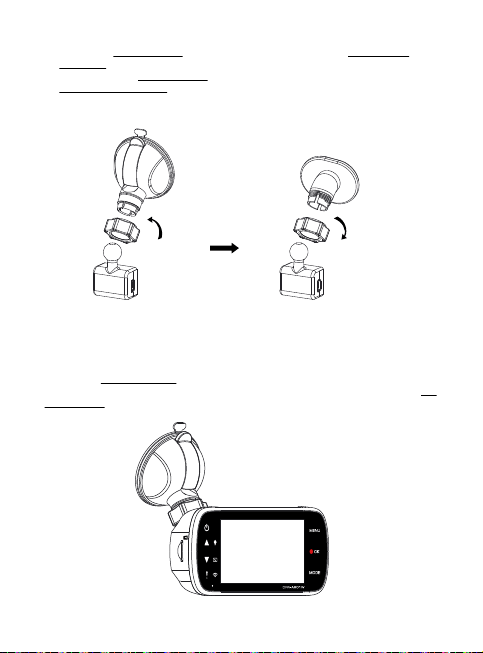
17
How to use the Adhesive Mount:
ATTACH THE MOUNT TO THE WINDSHIELD & START RECORDING
Remove the protective plastic film and select a position on the windshield where it
won’t distract you. Then, put the suction mount in place.
Release the (b) locking lever from the mount by pulling down on it. Hold the suction
mount in place and press against the window. While holding it in place, pull the (b)
locking lever back to lock the mount
Loosen the (c) locking ring on the suction mount and pull the (e) magnetic
connector out.
Next, loosen the (c) locking ring from the adhesive mount, and plug the
(e) magnetic connector into the adhesive mount.
Clean the installation area on the windshield and peel off the plastic covering.
Adhere it to the windshield.
i.
ii.
iii.
3.
Loosen Tigten
18
ADJUST THE ANGLE
Loosen the (c) locking ring and adjust the device to the angle you want. When you
find the perfect angle, remember to tighten the (c) locking ring again.
CONNECTING TO CIGAR LIGHTER SOCKET
Connect the cigar lighter adapter cable that is in the package to your vehicle’s 12 V
outlet. The provided cable clips can help you keep the power cable neat.
Plug the cigar lighter adapter cable into the (d) power socket of the mount or the device.
This will allow the device to begin charging.
4.
5.
Caution
Before performing the connection work, first check that the engine key is removed and
then be sure to disconnect the negative terminal of the battery to prevent a short-circuit
accident.
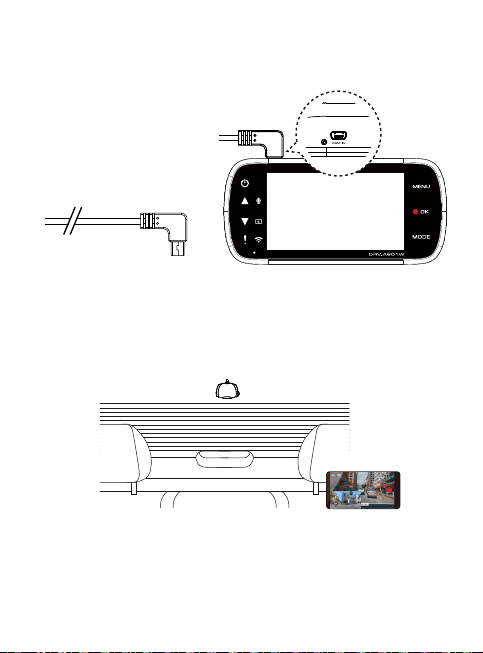
Connect the Rear Cam KCA-R200 (optional accessory)
1. Connect the Rear Cam
Insert CAM-IN connector into the CAM-IN port on compatible dashboard camera.
CAM-IN connector of rear camera
Note:
Device will automatically turn on and start recording once power has been made available from the 12 V outlet.
2. Select installation position
Start the engine to power up the rear cam, then turn on Wireless Link mode to connect
with mobile device. Using the App to view the image and adjust the installation position.
19
20
Initial Settings
- Select the Country and Time Zone
- Set the Time and Date
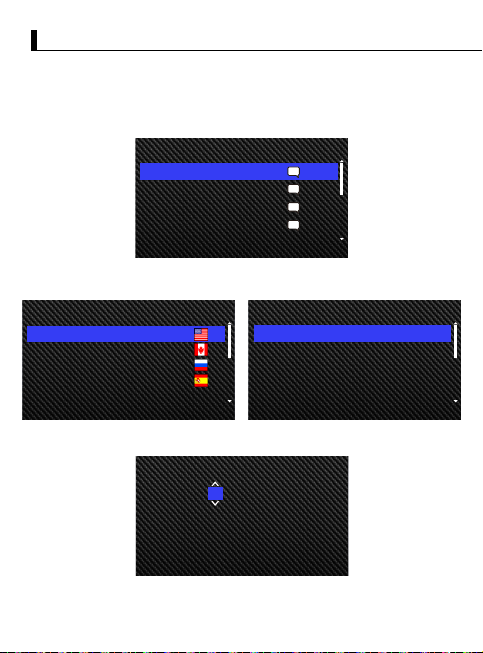
THE FIRST-TIME SETUP
When connecting the power, the device will turn on and display the
first-time setup guide below.
- Select the Language
Select Time Zone
United States (EST)
United States (CST)
United States (MST)
United States (PST)
Press OK to continue.
Set Time and Date
11 : 17 : 01
02 / 13 / 2019
MM / DD / YYYY
Press OK to continue.
LanguageLanguage
English
Deutsch
Français
Nederlands
Press OK to continue.
En
De
Fr
Nl
Select Country
United States
Canada
Russia
Spain
Press OK to continue.
21
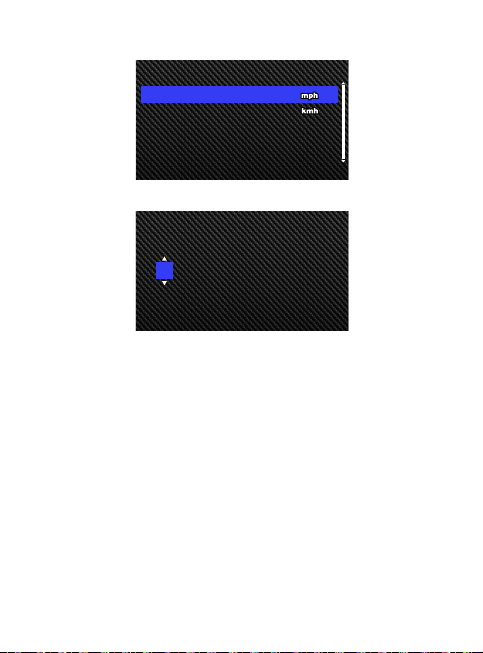
- Select the Speed Unit
- Set Wireless Link Password
TIP:
You can reset the settings either by operating inside of the SETUP MENU, or by
restoring defaults.
You can switch the capitalization by Protect button when you set the Wireless Link
password.
From now on, the device will automatically turn on and start recording once power
has been made available from the 12 V outlet. Just start the vehicle and start driving!
- If there is no 12 V outlet or cigar lighter socket for your vehicle, use the included
USB power cord.
- DO NOT wire the device directly to the car cigar lighter socket or any 12 V outlet.
Doing so will result in permanent damage to the device.
- The device has a hardwire kit CA-DR1030(optional accessory)
that will directly connect to your vehicle’s fuse box. This will allow you to have your
12 V outlet available for other use.
Please read carefully and follow the instructions below to help you operate the
device safely.
Select Speed Units
Press OK to continue.
MPH
KMH
Set Wireless Link Password
Press OK to continue.
1 2 3 4 5 6 7 8
22
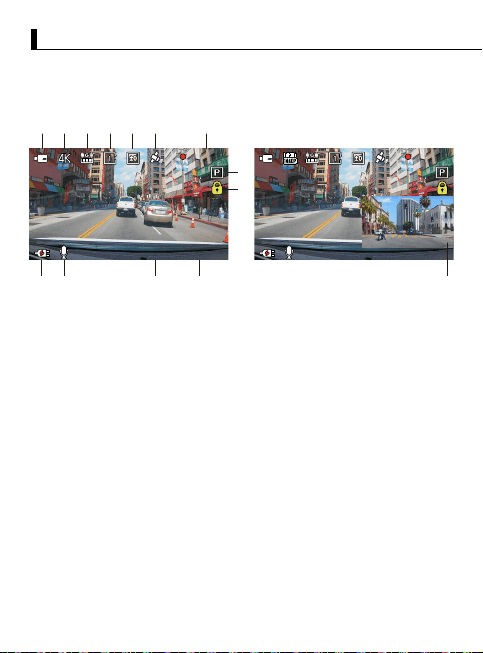
The following information will help you better understand the icons in VIDEO MODE and
their relative functions. Some icons show up only when corresponding
functions are activated.
Mode: Indicates the device is in video mode.
Resolution: Displays the current resolution.
G Sensor: The current sensitivity level of G-Sensor.
Video Length: The duration of each video clip.
Exposure: Indicates the current exposure level settings.
GPS: If this icon flashes, it indicates the device is locating GPS signal.
When the GPS signal is found, the icon will stop flashing and remain stable on the screen.
Recording Duration: This will indicate the length of the current recording.
Parking Mode Sensor: Indicates the parking mode sensor is on.
File Protection: Indicates the current video clip is protected.
Date: Displays current date.
Time: Displays current time.
Microphone: When the audio recording function is off, there will be a red line across
the icon.
Power Status: Indicates if the device is charging or not.
Rear Camera Screen:
It's will display the image when the Rear Cam KCA-R200
(optional accessory) is connected.
The device’s default settings have been set for you to use the device without needing
to change the settings.
If you need to make adjustments to the settings, the following instructions will help you.
1.
2.
3.
4.
5.
6.
7.
8.
9.
10.
11.
12.
13.
14.
-Video Mode
Basic Operation
00:59
11:17:01 02/13/2019
1
2
13 12 11 10
3
4
5 6
7
8
9
00:59
11:17:01 02/13/2019
14
23
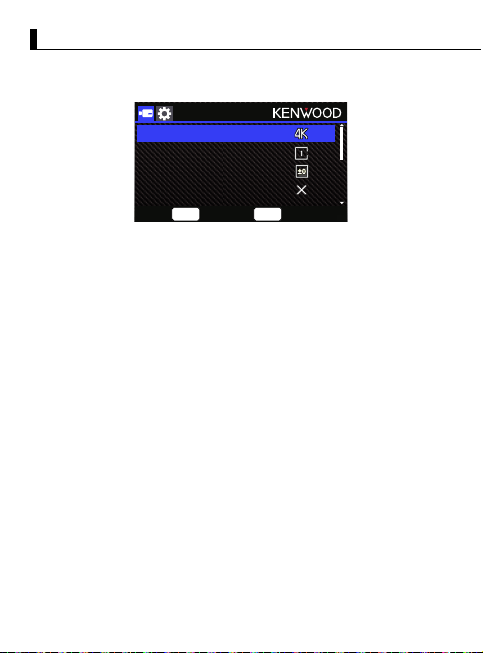
Access the VIDEO MENU by pressing the MENU button while in VIDEO MODE.
Use the UP and DOWN buttons to select setting options and press the OK button to enter
the sub-menu.
Once you access the sub-menu, highlight the desired setting and press the OK button to
confirm your selection and to return to the VIDEO MENU.
Press the MENU button twice to return to video mode.
TIP:
-Video Menu
Basic Operation
-
•
•
•
•
Resolution
Video Length
Exposure
Parking Mode Sensor
OK
Enter
MENU
Back
You are not able to access the device menu while the camera is recording.
Resolution: Choose the video resolution.
OPTIONS: 1440P 30fps Dual / 4K 30fps (default) / 1440P 30fps
Video Length: Set the length for each individual video clip. The video recorded by
the device will be split and stored as individual video clips. The loop recording
function will automatically overwrite the oldest and non-protected video clip when
the memory card is full.
OPTIONS: 1 Minute (default)/3 Minutes
Exposure: Adjust exposure levels settings.
OPTIONS: +2/+1/0 (default)/-1/-2
Parking Mode Sensor: Parking mode function will be available after turning on the
parking mode sensor and connecting the hardwire kit CA-DR1030(optional accessory) to
the permanent power.
OPTION: High/Medium/Low/Off (default)
<Normal Mode to Parking Mode>
If the device does not detect any vibration more than 5 minutes, it will turn off the
device itself automatically and enter the parking mode.

24
•
•
•
•
•
•
•
•
•
<Recording at Parking Mode>
Once the device detects any vibration in the parking mode, it will turn on the device
automatically and record the video for 30 seconds. In this duration, if the device detects
any other vibration, it will extend recording for 30 seconds until there is no vibration at
all and turn off the device back to the parking mode.
<Parking Mode to Normal Mode>
If the device detects the constant vibration more than 15 seconds, it will assume that the
driver is driving the car and automatically switch from Parking Mode to Normal Mode.
G Sensor: G sensor is the sensor that can detect forces. When it senses any forces,
it will protect the current file automatically. Adjust the sensitivity of G sensor here.
OPTIONS: High/Medium (default)/Low/Off
GPS: Turn the GPS function ON or OFF.
OPTIONS: On (default)/Off
Speed Units: Adjust the unit for speed data.
OPTIONS: MPH (default)/KMH
Data Privacy: Stores up to 4 sets of latest video files when Data Privacy set to ON.
OPTIONS: On/Off(default)
Screen Saver: the device has a function to let the screen shut down
after a period of inactivity. Press any button to re-activate the display.
OPTIONS: Off (default)/30 Seconds/2 Minutes
Note: When Parking Mode is activated, after 2 minutes of recording, LCD Display will
automatically turn off. (Parking mode LCD display time setting: N/A)
KENWOOD Stamp: Turn the KENWOOD logo stamp ON or OFF on the recorded files.
OPTIONS: On (default)/Off
Time & Date Stamp: Turn ON or OFF the date stamp mark on the recorded files.
OPTIONS: On (default)/Off
Information Stamp: Turn the Information stamp including the acceleration,
speed data on the recorded files ON or OFF.
OPTIONS: On (default)/Off
License Plate Stamp: Input your license plate number to put your license plate stamp
on the recorded files.
NOTE: When you are in the SETUP MENU -> Restore Defaults, you will be able to restore
all the settings to the device’s default settings.
When connecting the hardwire kit CA-DR1030(optional accessory) to the permanent
power fuse for constant recording and the device is placed under the sun without
air circulation, it may cause the device to overheat. When the device temperature is
too high, (4K resolution or WQHD Duo Lens recording) will automatically switch to
(WQHD Single Lens recording or FHD Duo Lens recording) to cool down the device. Once
the device temperature is normal, it will automatically switch back to (4K resolution or
WQHD Duo Lens recording).
25
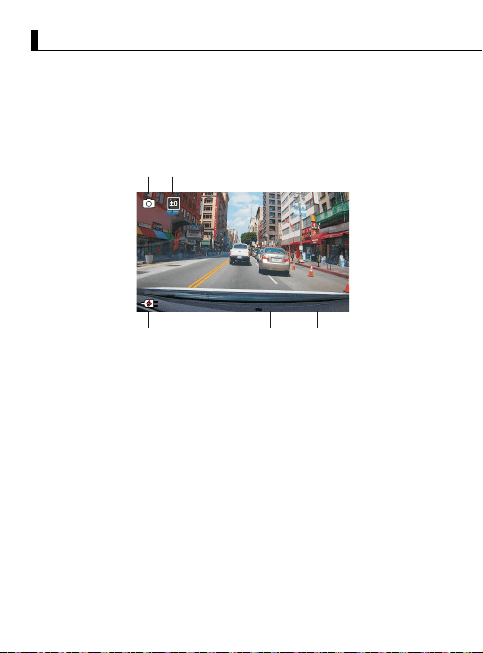
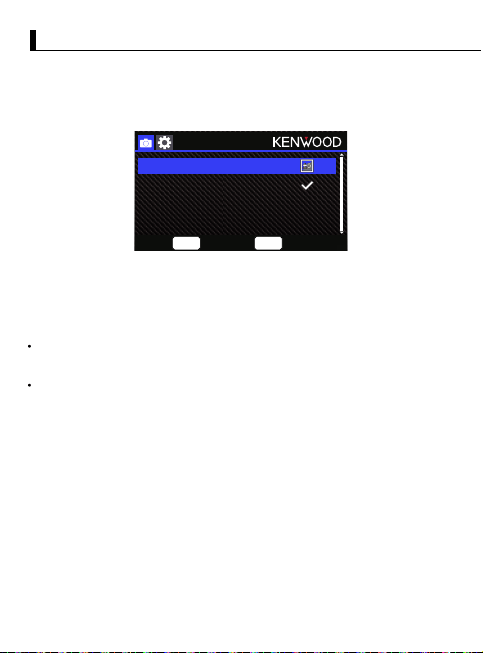
While in VIDEO MODE, press the MODE button to enter PHOTO MODE.
In PHOTO MODE, you are able to take stationary photos.
The following instructions will explain the icons in PHOTO MODE.
Some icons show up only when corresponding functions are activated.
1.
2.
3.
4.
5.
Mode: Indicates when the device is in photo mode.
Exposure: Indicates the current exposure level settings.
Date: Displays current date.
Time: Displays current time.
Charging Indicator: Indicates if the device is charging or not.
-Photo Mode
Basic Operation
11:17:01 02/13/2019
1
2
5 4 3
26
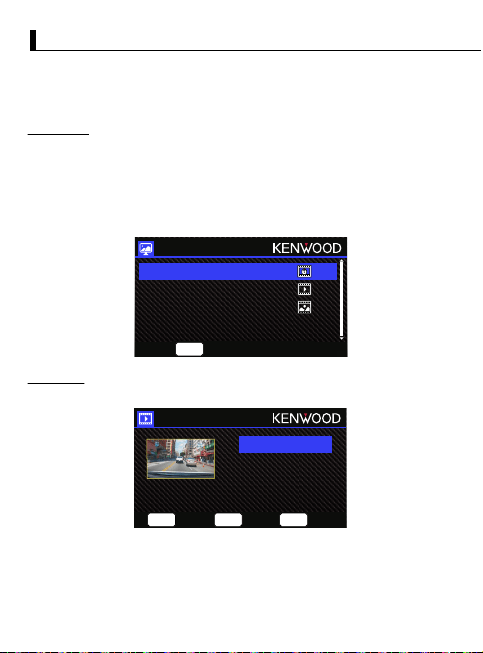
Access the PHOTO MENU by pressing the MENU button while in PHOTO MODE.
Use the UP and DOWN buttons to select setting options and press the OK button
to enter the sub-menu.
Press the MENU button twice to return to PHOTO MODE.
Exposure: Adjust exposure levels settings.
OPTIONS: +2/+1/ 0(default)/-1/-2
Time & Date Stamp: Turn ON or OFF the date stamp mark on the photos.
OPTIONS: On (default)/Off
NOTE: When you are in the SETUP MENU -> Restore Defaults, you will be able to restore
all the settings to the device’s default settings.
-Photo Menu
Basic Operation
Exposure
Time & Date Stamp
OK
Enter
MENU
Back
27
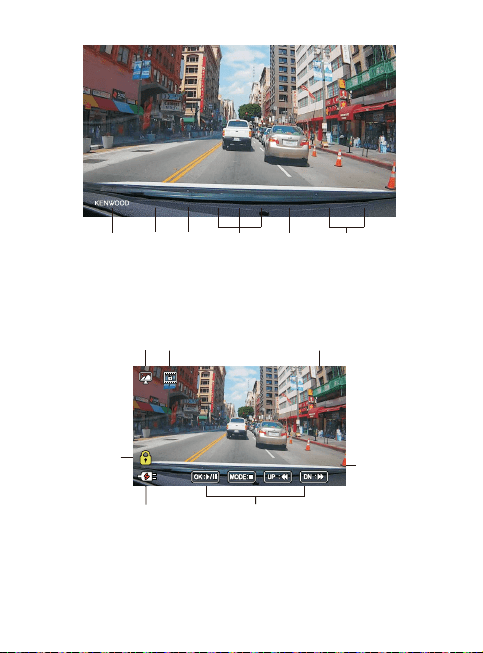
While in PHOTO MODE, press the MODE button to enter PLAYBACK MODE
In PLAYBACK MODE, you are able to review the videos and photos you have stored.
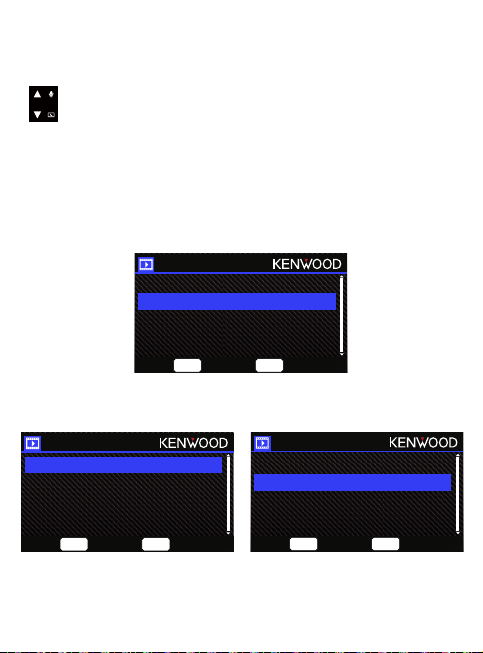
Press the UP or DOWN buttons to navigate through the menu.
Protected: The directory for all protected videos.
Video: The directory for all unprotected videos.
Note: If the video file is protected under the playback mode, the file will move in the protected folder.
Photo: The directory for all photos.
Use the UP and DOWN buttons to select the video file and press the OK button to play.
Use the Protect button to protect/unprotect the video file, the file will be moved to
Protect/Video folder immediately.
Video file name: The format of the video file name is yyyymmdd_hhmmss_F/_R.
For example, 20190111_111701_F/_R mean this file was taken at January 11, 2019,11:17:01
by front camera/rear camera.
DIRECTORIES
VIDEO FILES
-Playback Mode
Basic Operation
02.13.2019 11:17:01
80/80
OK
Play
MODE
Back
MENU
Menu
01:00
OK
Play
MENU
Menu
MODE
Back
OK
Play
MODE
Back
MENU
Menu
Protected
Video
Photo
OK
Enter
OK
Enter
20190213_111701_F
20190213_111801_F
20190213_111901_F
20190213_112001_F
28
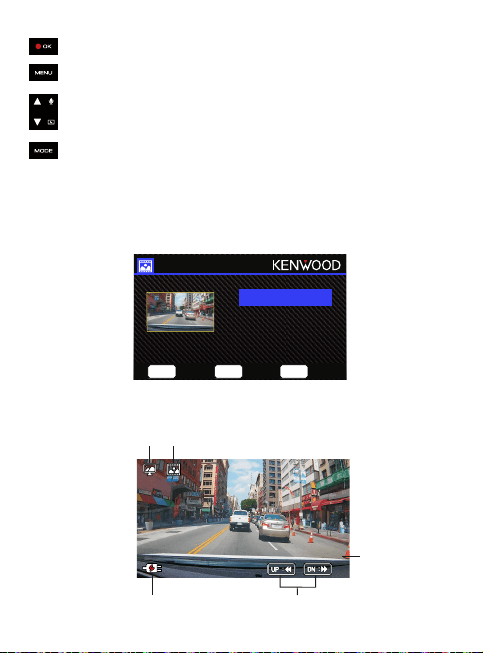
The following instructions will explain the icons in Video File.
KENWOOD Stamp: Logo, can be turned on/off in VIDEO MENU
Time & Date Stamp: Date, Time, can be turned on/off in VIDEO MENU
Information Stamp: Accelerator Data, Speed, Latitude & Longitude, can be turned
on/off in VIDEO MENU
Mode: Indicates when the device is in PLAYBACK MODE.
File Type: Indicates the file type is protected.
Playback Progress: Displays the current playback time.
Date & Time: Indicates the date and time of the recorded file.
Playback Controls: Use the device buttons as instructed below.
1.
2.
3.
4.
5.
1
2 3
7
4
6
5
00:59
02/13/2019 11:17:01
02/13/2019
11:17:01
X:+3.80
Y:+1.02 Y:+1.65
30MPH
N5° 41’33.15”
W62”42”33.15
Logo Date Time Accelerator
Data
Speed
Latitude &
Longitude
29
OK: PLAY/PAUSE.
MENU: DELETE or PROTECT the video.
UP: REWIND.
DOWN: FAST FORWARD.
MODE: STOP playing video and go back to Video/Protected directory.
Use the UP and DOWN buttons to select the Photo file and press the OK button to play.
Use the Protect button to protect/unprotect the photo file.
PHOTO FILES
Charging Indicator: Indicates if the device is charging or not.
Protected File: Indicates the selected file is protected.
6.
7.
02/13/2019 11:17:01
4
1 2
5
3
PlayBackMenu
02.13.2019 11:17:01
OK
Play
MODE
Back
MENU
Menu
OK
Play
MENU
Menu
MODE
Back
80/80
20190213_111701_F
20190213_111801_F
20190213_111901_F
20190213_112001_F
30
OK
Play
MODE
Back
MENU
Menu
OK
Enter
MENU
Back
OK
Enter
MENU
Back
OK
Play
MODE
Back
MENU
Menu
OK
Enter
MENU
Back
OK
Enter
MENU
Back
UP: Previous file
DOWN: Next file
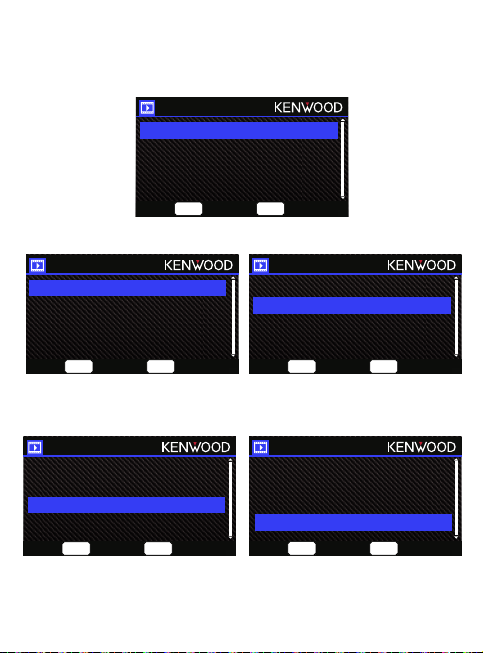
Highlight the DELETE option and press the OK button.
Once selected, follow the on-screen
instructions to delete the current file.
Once selected, follow the on-screen
instructions to delete All files.
TIP: PROTECTED FILES CANNOT BE DELETED.
You will have the following options:
DELETING FILES
Mode: Indicates when the device is in PLAYBACK MODE.
File Type: Indicates the file type is photo.
Date & Time: Indicates the date and time of the recorded file.
Playback Controls: Use the device buttons as instructed below.
1.
2.
3.
4.
Charging Indicator: Indicates if the device is charging or not.
5.
Single File
All Files
Single File
All Files
OK
Play
MODE
Back
MENU
Menu
OK
Enter
MENU
Back
OK
Enter
MENU
Back
Protect/Unprotect
Delete
31
OK
Play
MODE
Back
MENU
Menu
OK
Enter
MENU
Back
OK
Enter
MENU
Back
OK
Play
MODE
Back
MENU
Menu
OK
Enter
MENU
Back
OK
Enter
MENU
Back
OK
Play
MODE
Back
MENU
Menu
OK
Enter
MENU
Back
OK
Enter
MENU
Back
OK
Play
MODE
Back
MENU
Menu
OK
Enter
MENU
Back
OK
Enter
MENU
Back
OK
Play
MODE
Back
MENU
Menu
OK
Enter
MENU
Back
OK
Enter
MENU
Back
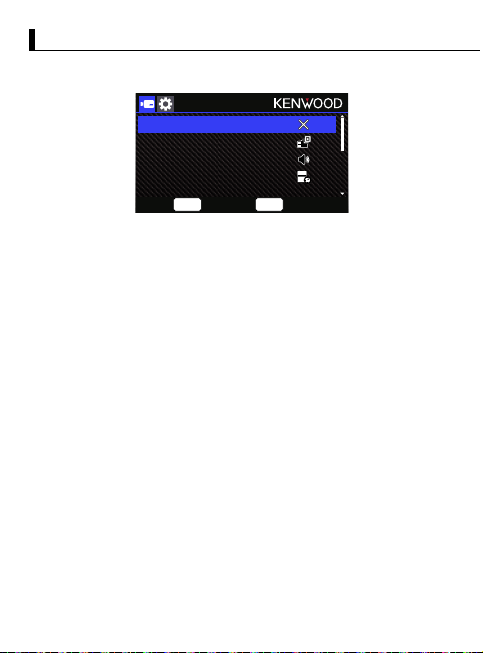
Select Protect File, follow the on-screen
instructions to protect the current file.
Select Unprotect File, follow the on-screen
instructions to unprotect the current file.
To Protect All Files, select the option
then follow the on-screen instructions to
Protect All files in the current folder.
Select Unprotect All Files, follow the
on-screen instructions to Unprotect All
files in the current folder.
PROTECTING/UNPROTECTING FILES
Highlight the PROTECT/UNPROTECT option and press the OK button.
You will have the following options:
Protect/Unprotect
Delete
Protect File
Unprotect File
Protect All Files
Unprotect All Files
Protect File
Unprotect File
Protect All Files
Unprotect All Files
Protect File
Unprotect File
Protect All Files
Unprotect All Files
Protect File
Unprotect File
Protect All Files
Unprotect All Files
32
OK
Enter
MENU
Back
Settings
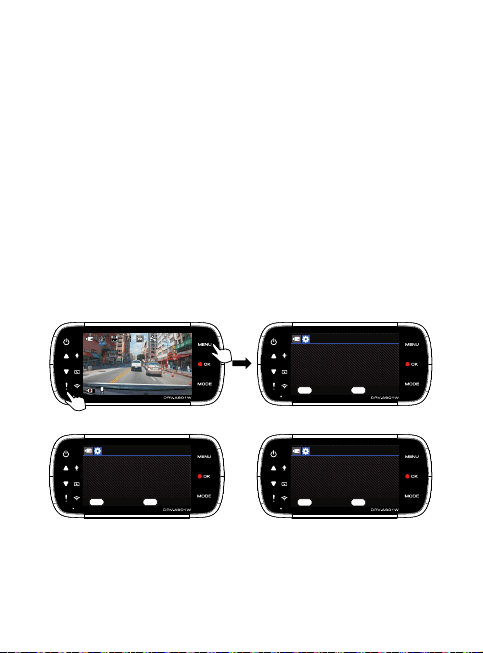
Access the SETUP MENU by pressing the MENU button twice.
Use the UP and DOWN buttons to select setting options and press the OK button to
enter the sub-menu.
Once you access the sub-menu, highlight the desired setting and press the OK button to
confirm your selection and to return to the SETUP MENU.
Press the MENU button to return to the current mode.
Note: The default settings have been selected for great image quality and ease of operation.
Under most circumstances, you don’t need to change the settings.
Note: The setup menu cannot be accessed while the camera is recording.
Wireless Link: The Wireless Link function allows you to use your smartphone to connect
with the device.
OPTIONS: On/Off(default)
Format SD Card: Format the memory card. Formatting will remove ALL the files in
the card.
OPTIONS: Yes/No
Device Sounds: Adjust the button beep sound, voice recording, and Announcements.
OPTIONS:
Beep: On (default)/Off
Audio Rec: On (default)/Off
Announcements: On/Off (default)
Time & Date: Adjust the TIME and DATE as required by using use the UP and
DOWN buttons to set the value. Press the OK button to save the setting and press
the MENU button to return to the SETUP MENU.
Time Zone/DST: Select the time zone setting.
OPTIONS: -12/-11/-10/-9/-8/-7/-6/-5/-4/-3.5/-3/-2.5/-2/-1/GMT/
+1/+2/+3/+4/+5/+6/+7/+8/+9/+10/+11/+12
•
•
•
•
•
Wireless Link
Format SD Card
Device Sounds
Time & Date
JUL
7
33
Language: Select a preferred language.
OPTIONS: English (default)/Deutsch/ Français /Nederlands/Italiano/Español /
Português/Pусский /Polski/Česky /Română
Country: Select a country and time zone setting.
OPTIONS: United States/Canada / Russia /Spain/Germany/France/Italy / Netherlands /
Belgium/Poland / Czech /Romania/United Kingdom/Others
Image Reversal:
Rotate the video image and the screen 180 degrees.
OPTIONS: On/Off(default)
Restore Defaults: Reset all the settings to the factory default.
System Info: Displays the firmware version, card info, and GPS satellite signal.
OPTIONS:
System Info: Displays the firmware version and the FCC ID & IC ID.
Wireless Link Info/Password Change: Displays the Wireless Link SSID & Password,
you can also change the Wireless Link password in this setting.
Card Info: Displays the memory card information.
Satellite Signal: The count of how many satellite signals the device is receiving.
NOTE: Make sure the Dash Cam is not recording. Press and Hold the File Protect button and the Menu button
for 3 seconds on the device to enter the System Info.
•
•
•
•
•
03:22:43
11:17:01 02/13/2019
System Info
Model:
Firmware:
Check updates:
FCC ID:
IC:
DRV-A601W
V3.3_AIZGAA_D
www.kenwood.com/cs/ce
IOMDRVA601W
282C-DRVA601W
OK
Next
MENU
Back
Model:
Firmware:
Check updates:
FCC ID:
IC:
DRV-A601W
V3.3_AIZGAA_D
www.kenwood.com/cs/ce
IOMDRVA601W
282C-DRVA601W
System Info
OK
Next
MENU
Back
This device complies with part 15 of the
FCC Rules. Operation is subject to the
following two conditions:(1) This device
may not cause harmful interference,
Model:
Firmware:
Check updates:
FCC ID:
IC:
DRV-A601W
V3.3_AIZGAA_D
www.kenwood.com/cs/ce
IOMDRVA601W
282C-DRVA601W
System Info
OK
Next
MENU
Back
and (2) this device must accept any
interference received, including
interference that may cause undesired
operation.

34
When you use the provided USB cable to connect the device to your computer, the
LCD screen will show two available options.
• USB Storage
• Dash Cam
Use the UP and DOWN buttons to select the necessary function, and press the OK
button to continue.
USB STORAGE
When you have connected the device to the computer, the device will operate as
a card reader. Your computer will have a pop up of a new drive for you to browse all the
video and photo files.
Note: The device is a “Read Only” device. If you want to copy/delete/edit the
files, remove the SD card and use another card reader to connect your
computer.
Remember to always turn off the device before disconnecting it from your computer.
DASH CAM
When you choose this option, the device will turn on and work normally while the
device is being charged.
Note: Remember to always turn off the device before disconnecting it from your
computer.
Connection with Computer
35
Using the Desktop Software
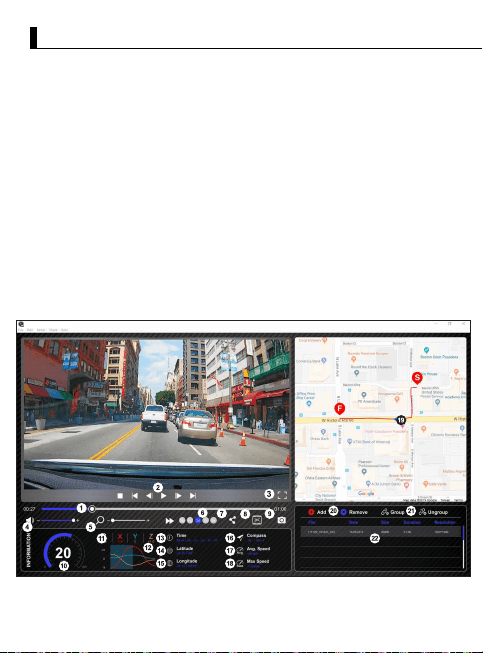
“KENWOOD VIDEO PLAYER” is a desktop software for displaying video recorded
with the device.
OS: Microsoft Windows 10, Windows 8.1, Windows 7*
(except for the Windows 10 Mobile, Windows RT)
*Windows 7 Service Pack 1 must be installed.
*Microsoft Visual C++ must be installed.
*DirectX XAudio2 must be installed(Windows 7 and older version).
OS: Apple Mac OS X 10.11 (El Capitan) or later
Microsoft, Windows, and DirectX are registered trademark or trademark of
Microsoft Corporation in the US and other countries.
Macintosh, Mac are trademarks of Apple Inc., registered in the U.S. and other countries.
Install the software in a computer environment in which you have administrator's rights.
1. Download the installer from https://www.kenwood.com/cs/ce/
2. Install according to the on-screen instructions.
Playback:
File
JVC VIDEO PLAYER
Edit Setup Share Help
01:0000:27
INFORMATION
-N 25 1”56”
Latitude
Compass
-W -263.12018 / 08 / 14 , -19 : 33 : 03
Time
Longitude
-W 121 33”32”
Max Speed
-135mph
Avg. Speed
-65mph
Compass
-W -263.1
0 200
20
mph
G
Sensor
X
-2.0
Y
0
Z
+1.0
-3
0
+3
Add Remove Group Ungroup
File Date Size Duration Resolution
171129_191823_016 11/29/2017 96MB 01:00 1920*1080
171129_191823_017 11/29/2017 96MB 01:00 1920*1080
171129_191823_018 11/29/2017 96MB 01:00 1920*1080
Installing the Software
System Requirements for “KENWOOD VIDEO PLAYER”
KENWOOD VIDEO PLAYER

36
Video time line :
Drag the Video time line bar to Rewind or
Forward to cue Video, Speed and G-Sensor date.
Video play control buttons :
Available options from left to right are stop, last
clip, last frame, play, next frame next clip.
Available hot keys for individual options are
(1) Play / Pause: space
(2) Stop: esc
(3) Last frame: left
(4) Next frame: right
(5) Next clip: N
(6) Last clip: B
Full screen display :
Toggle to fit the image to the entire screen.
- Hot key: Alt + Enter
Video volume adjustment :
Drag this to change the audio volume.
- Default volume: 100%
Digital zoom in / out :
Roll the mouse wheel forward/backward on the
video area or drag this to change the zoom
in/out.
Video play speed :
Click to speed up / down videos on the main
screen.
Available speed options may range from one
quater to quadruple to original one.
-Default speed : 1X
Share Button :
Click to open different sharing options.
Video edit mode :
Click to open the video edit function window.
Screen shot :
Click to capture the current image displayed on
the main screen and save the file in a given
space.
-Default location : installation root directory
/Snapshot.
Speed :
Display the speed of the car in the video when it
was recorded. You may change the UOM of
speed under Setup → Speed Unit.
(Function available on the device with built-in
GPS)
-Unit of measure (UOM) option : Imperial Unit or
Metric Unit
-Default unit of measure : MPH
G-sensor data :
Display the G-data of the vehicle in the video
when it was recorded.
1.
2.
3.
4.
5.
6.
7.
8.
9.
10.
11.
Chart of G-sensor data :
Display the G-data of the vehicle in the video
when it was recorded.
Video shot on :
Display date and time of the video when it
was recorded.
Latitude :
Display the latitude of the video where it was
recorded.
(Function available on the device with built-in
GPS)
Longitude :
Display the longitude of the video where it
was recorded.
(Function available on the device with built-in
GPS)
Driving direction :
Display the direction of the video where it
was recorded.
(Function available on the device with built-in
GPS)
Average Speed :
Display the average speed of the video where
it was recorded.
(Function available on the device with built-in
GPS)
Max Speed :
Display the max speed of the video where it
was recorded.
(Function available on the device with built-in
GPS)
Google Maps :
Display the location of the video where it was
recorded.
(Function available on the device with built-in
GPS)
Add the file / Remove the file :
Click the “Add” key to display the “add file”
window. Click the “Remove” key to erase the
selected files from the play list.
File group / File ungroup :
You may group multiple files into the playlist then play
them in one file and link the data of each file to display in
data table. For example, adding 5 1-minute length files
into one group will end up with a 5 minutes display time
shown in the data table. The name of a group is a string of
the name of the first file suffixed with the number of files
in the group. That is, for a group of 5 files with the first
name “20180925_191823”, the name of the group is
“20180925_191823(5)”.
Video playlist :
A video thumbnail will show in this table
after the videos added in the list.
12.
13.
14.
15.
16.
17.
18.
19.
20.
21.
22.
37
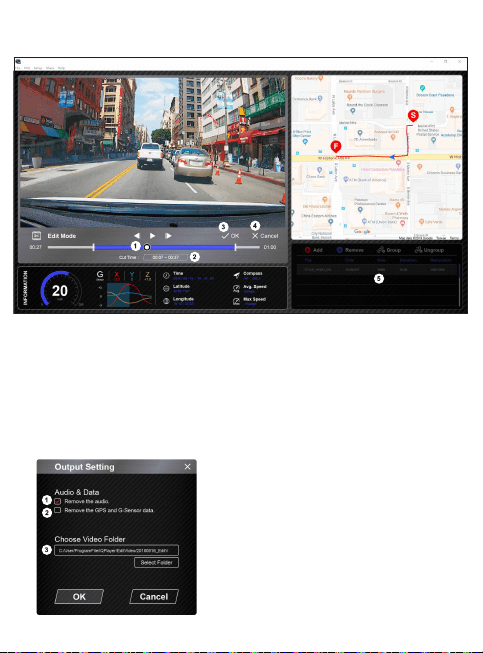
How to Edit the Video:
Edit the timeline of the video by moving the white block on the timeline to set up
the edit scope of video.
Edit scope of the video. You may input a number to change the size of this scope.
Confirm and click to validate the current work and proceed with the next step.
Click to exit the video edit mode.
The software system bar and video playlist stop functioning in video edit mode.
1.
2.
3.
4.
5.
Remove audio file:
Check to remove the audio file of the exported
video.
Remove the GPS and G-sensor data:
Check to remove the GPS and G-sensor file of the
exported video.
Image export:
Select the target storage location of the image file
and its name.
Default location: installation root directory / Edit
video
1.
2.
3.
File
JVC VIDEO PLAYER
Edit Setup Share Help
Edit Mode
OK Cancel
01:0000:27
Cut Time : 00:07 ~ 00:37
-N 25 1”56”
Latitude
Compass
-W -263.12018 / 08 / 14 , -19 : 33 : 03
Time
Longitude
-W 121 33”32”
Max Speed
-135mph
Avg. Speed
-65mph
Compass
-W -263.1
0 200
20
mph
G
Sensor
X
-2.0
Y
0
Z
+1.0
-3
0
+3
INFORMATION
Add Remove Group Ungroup
File Date Size Duration Resolution
171129_191823_016 11/29/2017 96MB 01:00 1920*1080
171129_191823_017 11/29/2017 96MB 01:00 1920*1080
171129_191823_018 11/29/2017 96MB 01:00 1920*1080
KENWOOD VIDEO PLAYER
38
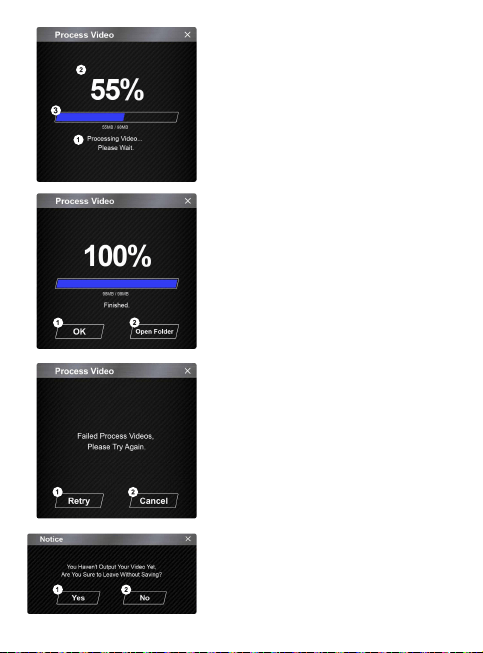
Image processing:
Proceed with image processing once the image
export options are setup.
Export status (1):
The image file export progress is presented as a
percentage symbol "%" and is synced with item 3.
Export status (2):
The image file export progress is presented by a
frame being filled with layered colors ink and
synced with item 2. The export is finished once the
frame is fully inked in layered colors.
1.
2.
3.
OK:
Click to go back to the play mode page.
Open folder:
Click to open folders with image files saved in there.
1.
2.
Retry:
Click to export the image file again with the
previous settings.
Cancel:
Click to abort image file export and go back to the
video edit page.
1.
2.
Yes:
Click to go back to the play mode page.
No:
Click to abort image file export and go back to the
video edit page.
1.
2.
39
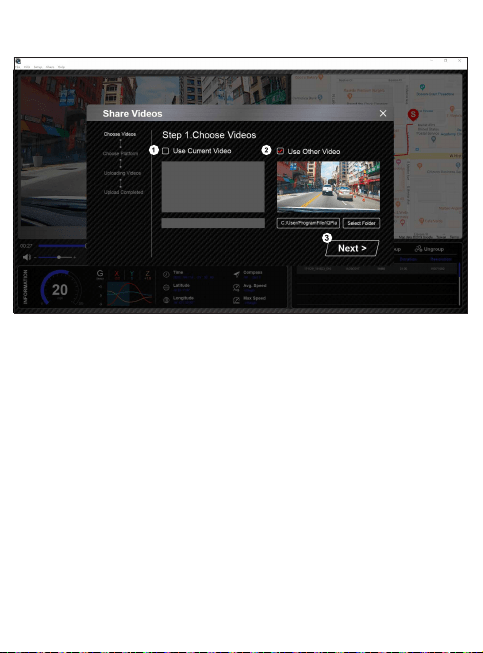
-Share Mode
To share the current video:
When two files are playing, the one with the active speaker icon will be shared.
To share the non-current video:
Click and open the file selection window.
Next step:
Click to go to the next step.
Click Share → Share Videos in the software system bar at the top of the window or the community
sharing icon in the interface to display the sharing window.
1.
2.
3.
00:27
INFORMATION
KENWOOD VIDEO PLAYER
40
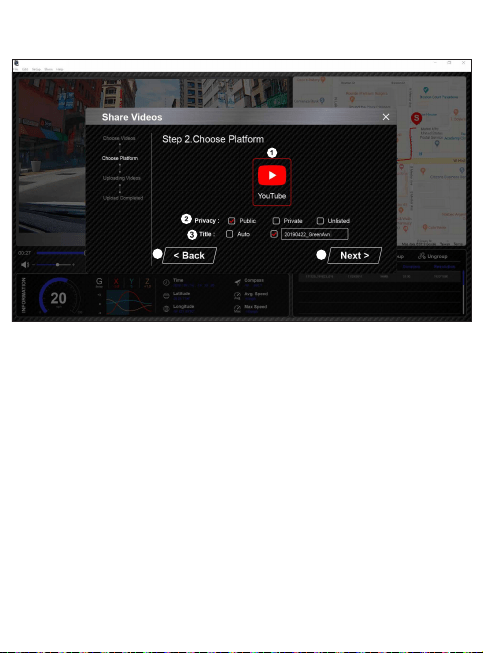
Select a community platform:
You can select just one community platform and the one being selected will be circled in layered
colors.
Select the privacy mode:
You can select the privacy mode of Public, Private, and Unlisted when you upload the video.
Upload title:
The title item will define the name of the video when you upload the video, you can select the
Auto: “DD/MM/YYYY (default) – Dash Cam – KENWOOD VIDEO PLAYER” or define the title by
yourselves.
Last step:
Click to go back to the last step.
Next step:
Click to go to the next step.
1.
2.
3.
4.
5.
01:0000:27
Public Private Unlisted
4
5
KENWOOD VIDEO PLAYER
41
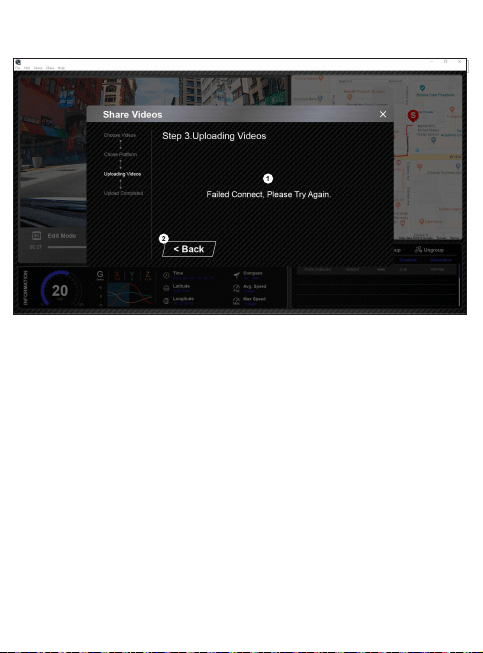
File upload failure:
This page displays if an upload failed or there is a server connection timeout.
Last step:
Click to go back to the last step.
1.
2.
00:27
File
JVC VIDEO PLAYER
Edit Setup Share Help
INFORMATION
KENWOOD VIDEO PLAYER
42
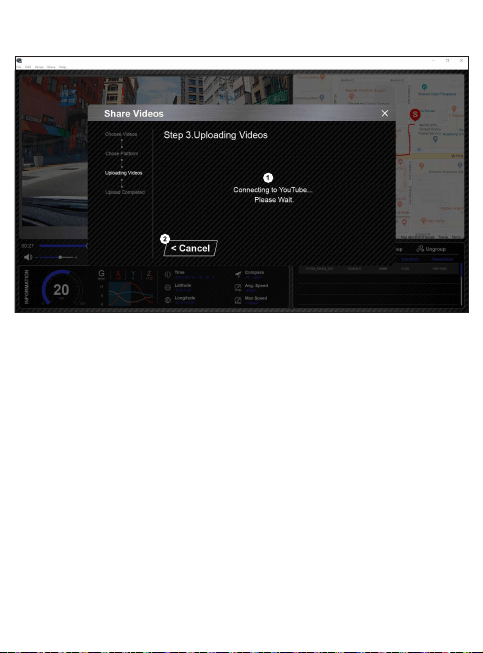
Connect to community platform:
The message "Connecting to Social Media…… Please Wait." displays when a connection is
being initiated. Your default browser will display and connect to the selected community
platform. You are required to bundle your account ID with the platform for connection the
first time only (no longer needed once bundled).
Cancel:
Click to go back to the last step.
1.
2.
00:27
INFORMATION
KENWOOD VIDEO PLAYER
43
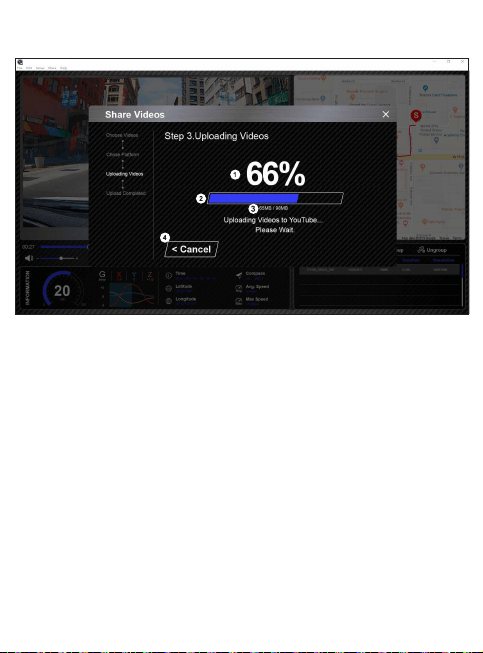
Upload status (1):
The file upload progress is presented as a percentage symbol "%" and synced with item 2.
Upload status (2):
The file upload progress is presented by a frame being filled with layered colors ink and
synced with item 1. The file is uploaded successfully once the frame is fully inked in layered
colors.
Upload progress:
The former number is the MB uploaded and the latter is the total for the upload.
Cancel:
Click to go back to the last step.
1.
2.
3.
4.
KENWOOD VIDEO PLAYER
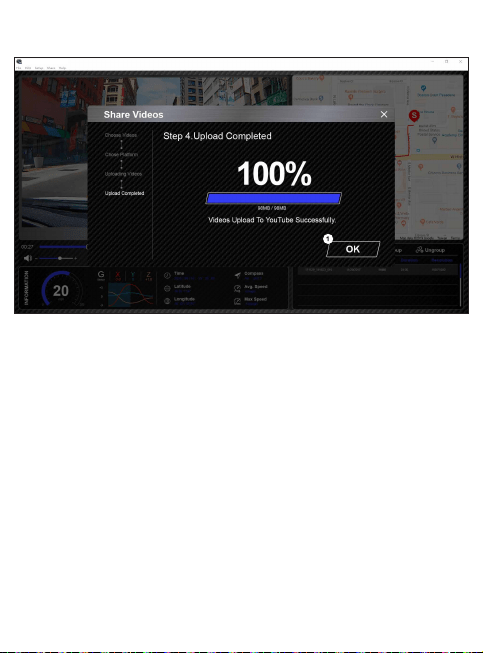
44
Confirm:
Click to go back to play mode information.
1.
KENWOOD VIDEO PLAYER
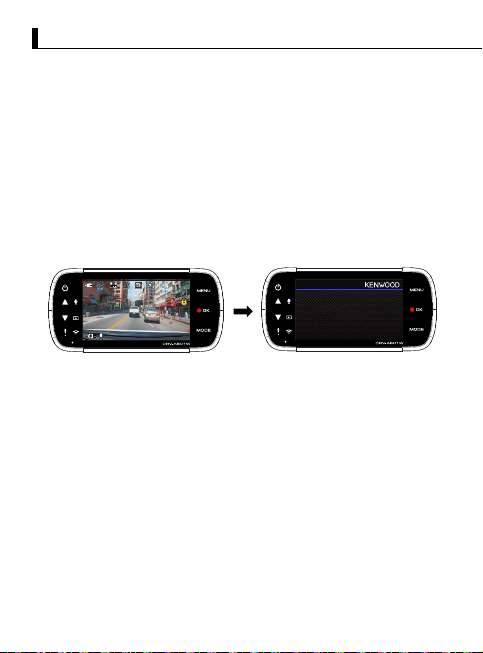
45
“KENWOOD DASH CAM MANAGER” is a smartphone app for displaying video recorded
with the device.
System Requirements for “KENWOOD DASH CAM MANAGER”
OS: Android 5.0.2 or later
OS: iOS 9.0 or later
Android is a trademark of Google Inc. in the U.S. and other countries.
iOS is a trademark or registered trademark of Cisco in the U.S. and other countries.
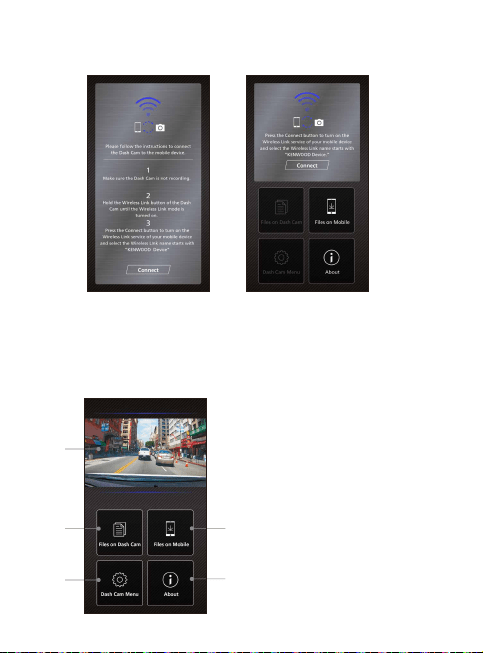
Make sure the Dash Cam is not recording. Press and Hold the Wireless Link button on the
device to enter the pairing mode.
Download and install the app from App Store(iOS)/Google Play(Android) on your mobile device
-Installing the Smartphone App
Using the Smartphone App
03:22:43
11:17:01 02/13/2019
SSID: KENWOOD DRVA601W XXXX
Password: XXXXXXXX
Wireless Link Mode
Press ‘MODE’ to exit Wireless Link Mode
46
How to Connect:
1.
2.
3.
4.
5.
Long press the Wireless Link button on the device and enter the connecting mode.
Open the KENWOOD DASH CAM MANAGER of the smartphone app.
Press the Connect button and select from the network list to pair the dashboard camera device.
Enter the Wireless Link password into the input field.
Connect completed, press the Continue button into the main screen of app.
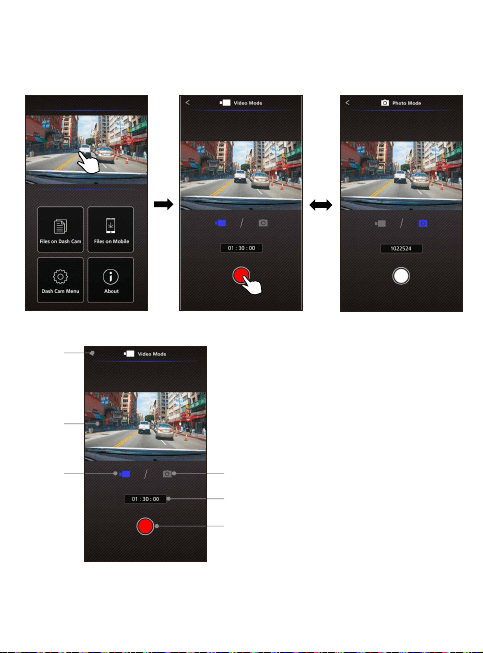
-Main Screen
1
2
3
4
5
Dashboard Camera Live View
Live view of the dashboard camera.
Press to move to live view screen.
Files On Dash Cam
The video and photo files which are
saved in the SD card.
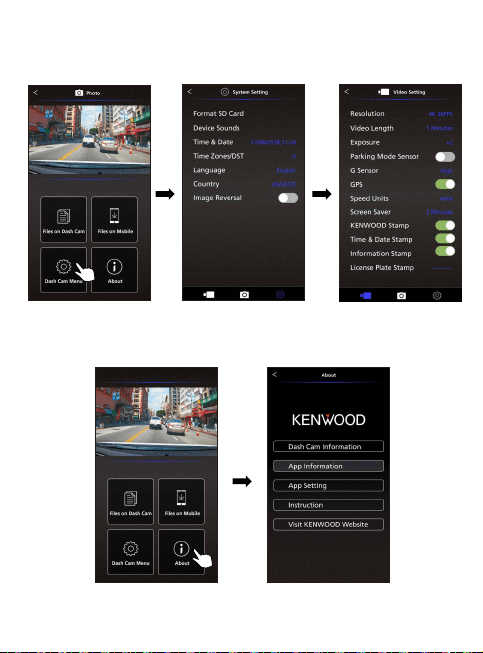
Dash Cam Menu
Press this icon to open the dashboard
camera’s menu settings.
Files On Mobile
The video and photo files which are
downloaded into
the smartphone.
About
Displays the dashboard camera
firmware version and app’s
information.
1.
2.
3.
4.
5.
The following information will help you better understand the app and their relative functions.
47
-Preview
Click the preview display to enter the video mode, and click the video/photo icon to switch between
these two modes. By clicking the red dot to start/stop recording and the white dot to take photos.
1
2
3
4
6
5
Back Button
Back to main screen.
Dashboard Camera Image Preview
Displays the streaming of the
dashboard camera.
Video Mode
Press it to switch to video mode.
Photo Mode
Press it to switch to photo mode.
Status Bar
Video mode: Recording duration.
Photo mode: Remaining shot count.
Shutter
Video mode: Start/stop recording.
Photo mode: Take a picture.
1.
2.
3.
4.
5.
6.
48
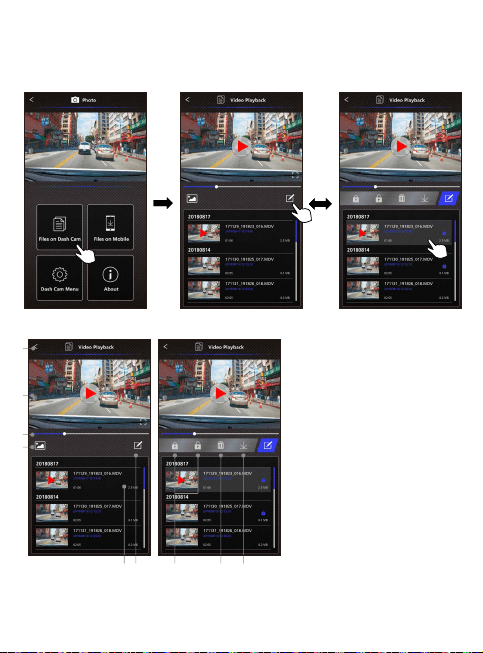
-Files on Dash Cam
Back Button
Back to main screen.
Video/Image
Play/Pause the video.
Time Line
The time line for current video.
Switch Display Video/Image File
Press the button to switch display file
on the playback list.
Playback List
The playback list will display the video
or image from the dashboard camera.
Edit Mode
Press the button to edit mode.
Protect/Unprotect
Protect/Unprotect the selected file on
the dashboard camera.
Delete
Delete the selected file on the
dashboard camera.
Download
Download the selected file to the
smartphone.
1.
2.
3.
4.
5.
6.
7.
8.
9.
1
2
3
4
5 8 976
Click Files on Dash Cam to enter the Video Playback mode to review,protect/unprotect, and
delete the files saved in the SD card. In addition, you can also download the important files
to your mobile device.
49
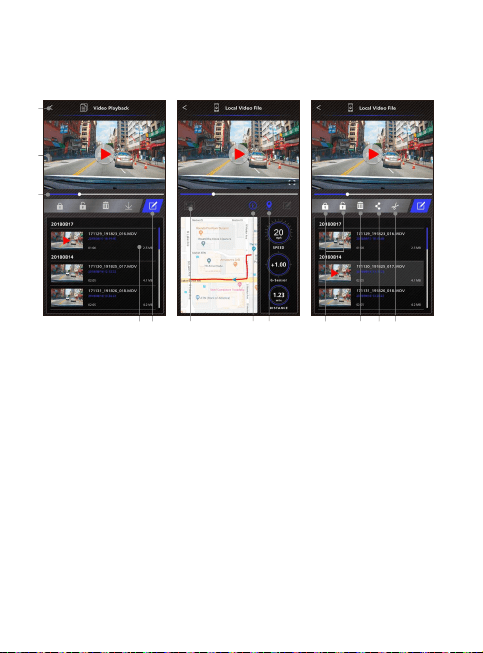
-Files on Mobile
5 6
2
1
3
9
7
8
10
11
12
Back Button
Back to main screen.
Video/Image
Play/Pause the video.
Time Line
The time line for current video.
Playback List
The playback list will display the video
or image from the dashboard camera.
Edit Mode
Press the button to edit mode.
Switch Display Video/Image File
Press the button to switch display file
on the playback list.
GPS Information
Press the button to turn on the GPS
information, it will show the speed,
G-sensor, and the distance.
Note: This feature only work when the
video had GPS data.
1.
2.
3.
4.
5.
6.
7.
Google Maps
Press the button to turn on the map.
Note: This feature only works when
the video had GPS data.
Protect/Unprotect
Protect/Unprotect the selected file on
the smartphone.
Delete
Delete the selected file on the
smartphone.
Share Video/Image
Share the selected file to the other
social media apps installed in your
smartphone.
Cut Video
Cut video to adjust the video length.
Note: Video only.
8.
9.
10.
11.
12.
Click Files on Mobile to enter the Local Video Playback mode to review the downloaded
videos with Google Maps, and also view the user’s route, speed, G-sensor and distance data.
You can also shorten the video by using the edit function and share it to the other social
media apps installed in your mobile device.
4
50
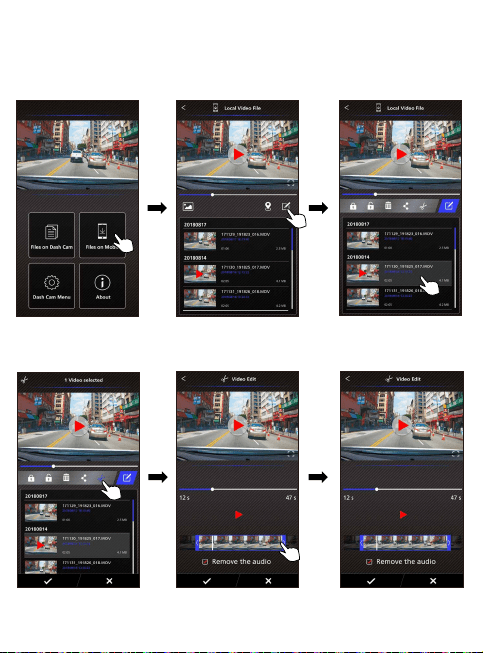
-How to Edit the Video:
1. Files on Mobile Device.
4. Press the Edit button and
then press the Cut button.
5. Select the area of video. 6. Press the Check button to
output the video.
2. Press the Edit Mode button. 3. Select the video.
02:05
51
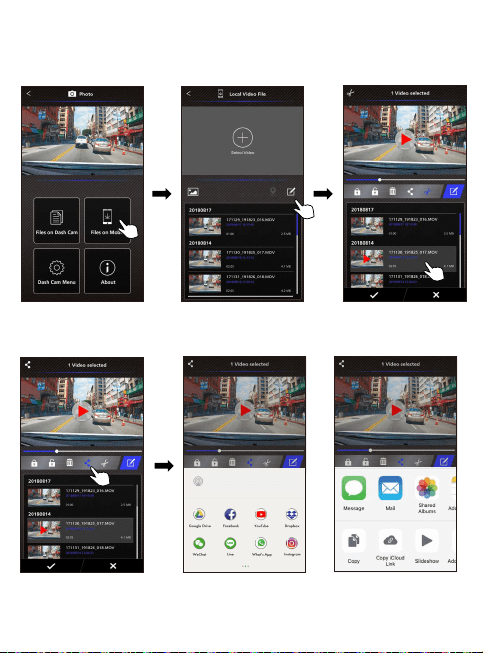
-How to Share the Video:
1. Files on Mobile.
4. Press the Share button
and press the Check button.
5. Select the social media apps installed in your smartphone.
2. Press the Edit Mode button. 3. Select the video.
Android
IOS
02:05
52
-Menu
Click Menu to enter the Video/Photo/General menu and adjust settings. Switch between these
three menu by clicking the icons at the bottom.
-About
Click About icon to view the software version and the app’s information.
4K

53
Troubleshooting
Blurred Image (Video)
Unable to insert SD card
SD card does not
release from the devices
Video files can not be played
The device comes with a protective lens cover for the
camera lens, be sure to remove it. Wipe the lens with a soft
cloth until any debris/stains are removed. Clean your vehicles
windshield where the camera is placed.
Make sure the metal portion of the memory card faces the
screen side. Once inserted, push the card until a CLICK
sound is heard.
The device releases the SD Card by pressing the SD card
forward. By applying the pressure on the SD card, a small
click sound will be made.
If you are unable to remove the SD card, use the edge
of a small coin to push forward until the click sound is made.
The device video files are recorded in .MOV format.
These files may not be played on your computer if you do
not have a suitable video player installed.
Video files jump when they
are being played
The photos come out blurry
The total video recording
time is only a few minutes
long
The memory card that the device recommends for best
quality is the UHS type 3 SD Card.
If your computer does not recognize the video files, try
another computer to view the recorded video. Copy the
video file on to the computer and allow for the computer
video player rather than the device Playback feature.
Be sure to hold the device still while you take your photo.
Reminder: The photo is not taken unless you have heard the
shutter click. Also make sure the protective lens cover is
removed and the lenses are clean.
You may have a small amount of available space left for your
SD card. Back up all the files you need from the SD card.
Only AFTER you back up all the files you need, format
the SD card with the device.
I cannot save my video f
iles
to my computer through the
USB storage feature
The functions have been optimized to work properly with
both Windows and Mac computers. Please reboot your
computers. Make sure the device is connected properly.
The suction cup does not
attach to the surface
Be sure the protective f
ilm on the suction cup has been
removed. Before you place it, make sure the surface is clean
and smooth. Wipe down the surface and add a small amount
of moisture to the suction cup to allow for a stronger bond.
Do not apply on a non-smooth surface or an area with paint.

54
The device shuts down on its
own
The device does not charge in
my car
Auto power off function will turn off the device
automatically after it loses its power supply. Make sure the
device is connected properly to the car power cable.
If your cigar lighter adapter cable is not working properly
with your device, check your car’s power fuses. Also check
your power cord and replace it if there is an issue.
SD Card is not letting me
view my files
Try some different card readers and computers to see if any
of them can view the files. If none of them work, the files are
probably damaged. Use the device to format the memory
card.(WARNING: formatting the memory card will remove all
the files saved), We recommend the branded memory cards
with UHS type 3. Note: You must format the SD card with the
device for first time use.
I cannot delete the file on the
device
Be sure the file you are trying to delete is unprotected.
If the file is protected, please follow the instruction on
page 31 to unprotect the file first, and then delete the file.
My screen turns off after I
just turned it on
The screen saver function turns off the screen after a period
of inactivity. If you want to turn off this function, go to
SETUP menu
-> Screen Saver, and turn it off.
The message “Please Format
SD Card” appears on my
screen
The device requires formatting the SD card if the card is used
on the device for the first time. Please format the SD card in
the SETUP menu.
The device does not charge Be sure the power cord is connected properly. When the
device is being charged, the blue LED indicator will
illuminate.
A “Card Error” message
appears on my device
This indicates that the SD card is not properly
formatted to your device. Please remove the files you would
like to keep on to your computer, and perform a “Format SD
Card” procedure to allow your memory card to function
properly with the device.
A “Card Full” message
appears on my device
When this message appears, your SD card is at full
capacity. Reminder: When you have protected files, you limit
the use of your memory card. Delete unnecessary files to
allow maximum use of your memory card.
The parking mode function will automatically start recording
a 30 second video clip and turn off when external forces are
detected. If you want to turn off this function, go to
SETUP menu -> Parking Mode Sensor, and turn it off.
The device always turn on
by itself.
Reminder: The device will not let you access the menu
while it is recording. To access the menu, stop recording and
the MENU feature will be accessible.
If this message appears, simply adjust your browser settings
and allow for the download to proceed. Once complete,
reset your browser security to protect your computer.
If you continue to have problems with your device,
please reset your device to default settings
in the setup menu and begin the process over again.
If these problems remain, Please contact your store of
purchase or a service center.
I press the MENU button but
nothing happens
When I download files from
the KENWOOD website a
malicious software message
appears
Unresolved Issues
Appendix
Do not subject the screen section to strong shocks. Doing so could damage the screen.
Do not let direct sunlight shine on the screen. Leaving the screen with direct sunlight
shining on it for long periods of time will increase the temperature and could damage the
screen.
Extremely high or low temperatures could cause the display to operate slowly or darken,
or result in residual images. This is due to the properties of liquid crystal displays and is not
a malfunction. Normal operation will return once the temperature in the car returns to
normal.
There may be small dots on the screen. This is a phenomenon typical of liquid crystal
displays and is not a malfunction.
Due to the properties of liquid crystal displays, the display may be hard to see depending
on the angle at which it is viewed, but this is not a malfunction.
•
•
•
•
•
Standard
Security
Frequency Range
Transfer Rate
Output Power
IEEE802.11n
WPA2
2400-2483MHz ISM band
150Mbps (802.11n)
13dBm±2dB (802.11n)
About the monitor screen
Wireless Link Specification
55

56
•
•
•
•
•
•
•
•
•
Cards supported by this device
Standard microSDXC / microSDHC
Capacity 8 GB to 256 GB
Speed Class UHS Speed Class 3 (U3)
File System exFAT/FAT32
Up to the UHS Speed Class 3 (U3) speed class is supported.
The memory card that the device recommends for best quality is the UHS type 3 SD Card.
When using a commercially available SD card, also check the instructions supplied with
the SD card.
Be sure to format (initialize) an SD card with the device before use.
SD cards have a product lifespan, such as the number of times that writing can be
performed. It is recommended to replace the SD card with a new one regularly
depending on the usage conditions.
When inserting and removing an SD card, confirm the orientation, do not bend it, and
do not apply a strong force or impact to it.
Do not directly touch the contact part with a hand or metal. The stored data may be
damaged or lost due to static electricity.
Be sure to back up (copy) the required files in the SD card to a computer or other device.
The saved data may be lost due to the usage conditions of the SD card. Please note that
JVCKENWOOD cannot compensate for any damages arising from the loss of saved files.
On Wireless Link Security
The Wireless Link communicating with radio wave, there is a benefit that you are able to
access Link freely as far as the radio wave reaches. On the other hand, without security
setting there may be a risk of hacking or abuseful invasion by a malignant third party. We
recommend that you use Wireless Link after setting security of the devices connected.
Please be noted that we are not liable for any damage or troubles pertaining to security
when using this function.
Radio Interference with Bluetooth Devices
With the Wireless Link in use, if Bluetooth devices are in operation nearby, there may be
radio interference causing lowered traffic speed or disconnect. In this case please do not
use the devices simultaneously.
About SD Cards
Precaution for using SD cards

microSDXC logo is a trademark of SD-3C LLC.
Microsoft, Windows and DirectX are registered trademark or trademark of Microsoft
Corporation in the US and other countries.
Macintosh, Mac are trademarks of Apple Inc., registered in the U.S. and other countries.
©2019 Google LLC All rights reserved. Google Maps™ is registered trademarks of
Google LLC.
Android is a trademark of Google Inc. in the U.S. and other countries.
iOS is a trademark or registered trademark of Cisco in the U.S. and other countries.
FFmpeg
NSIS
This software’s installer is made using NSIS (http://nsis.sourceforge.net) which is licensed
under zlib/libpng license.
•
•
•
•
•
•
•
•
Requests Regarding Disposal or Transferring Ownership of an SD Card
Using the SD card format and deletion functions of this device or formating with a
function of a computer just changes the file management information and does not
completely delete the data in a SD card. We recommend either physically destroying
the actual SD card or using commercially available PC data deletion software or the
like to completely delete the data in the SD card before disposal or transfer of
ownership. Manage the data in SD cards at your own responsibility.
57
About Open Source Software included in the Desktop Software
The KENWOOD VIDEO PLAYER includes certain open source or other software
originating from third parties that is subject to the GNU Lesser General Public License
version 2.1 (LGPLv2.1) and different copyright licensees, disclaimers and notices.
The source code of software licensed under LGPLv2.1 and different copyright licenses,
disclaimers and notices are distributed at the website below,
http://www.kenwood.com/gpl.
Important Notices Regarding Trademarks and Software
Important Notice Concerning the Software
This software uses libraries from the FFmpeg project (http://ffmpeg.org/) under the LGPLv2.1
License: GUN Lesser General Public License (LGPL) version 2.1
Power Requirements
Power Supply
(Car power cable)
Recording Resolution
Screen Size
Screen Resolution
Screen Ratio
SD Card
(Recommended Type)
SD Card Recorded File
Capacity
(based on default settings)
Recording Format
Unit Dimensions
Unit Weight
Model Number / Name DRV-A601W / GPS Integrated Dashboard Camera
4K UHD 3840 x 2160 @ 30fps (default)
3”
H.264(MOV)
4-3/16” x 2” x 1-9/16” / 106mm x 50.5mm x 40.5mm
3.8oz / 108g
Sensor Resolution
Card Reader
Current Consumption 650mA
Input: 12-24V DC
Output: 5V DC
Fuse Type: 32mm/2A
5V / 2A; 12-24V DC
8.48M Pixels
8G / 130° / F1.8
640 (W) X 360 (H) pixels x RGB
16:9
microSDXC/SDHC, up to 256GB
microSDXC/SDHC card 8GB to 256GB supported,
UHS type 3 recommended for best results use a
recognized brand
8GB Micro SD = 18 mins (1 minute x 18 recordings)
16GB Micro SD = 36 mins (1 minute x 36 recordings)
32GB Micro SD = 72 mins (1 minute x 72 recordings)
64GB Micro SD = 144 mins (1 minute x 144 recordings)
128GB Micro SD = 290 mins (1 minute x 290 recordings)
256GB Micro SD = 580 mins (1 minute x 580 recordings)
Lens
Type/Angle/Aperture
Specifications
58