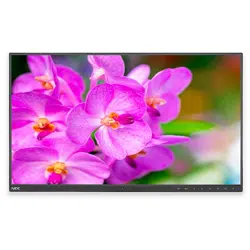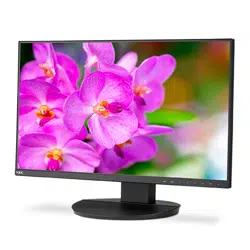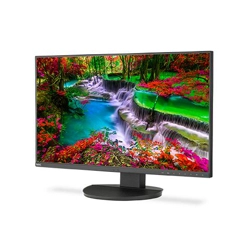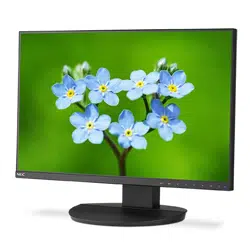
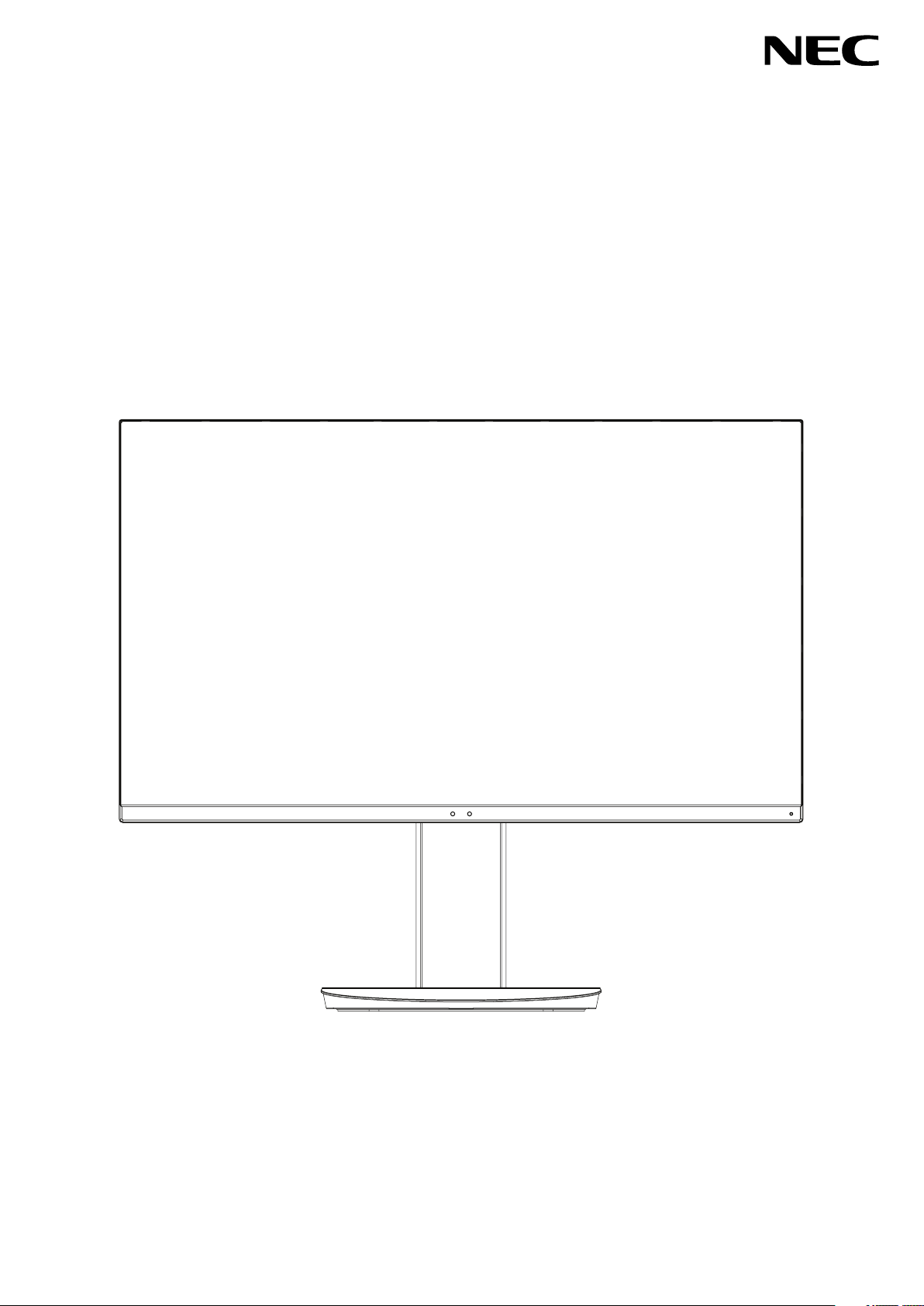
Please find your model name in the label on the rear side of the monitor.
Desktop Monitor
MultiSync EA231WU
MultiSync EA241F
User’s Manual
MODEL: EA231WU-BK, EA241F-BK

Index
WARNING ....................................................................................................................................English-1
CAUTION .....................................................................................................................................English-1
Registration Information ...............................................................................................................English-2
Recommended use ......................................................................................................................English-3
Safety Precautions and Maintenance ..................................................................................English-3
Ergonomics ..........................................................................................................................English-4
Cleaning the LCD Panel .......................................................................................................English-4
Cleaning the Cabinet ............................................................................................................English-4
Parts Name and Functions ...........................................................................................................English-5
Quick Start ....................................................................................................................................English-6
ControlSync ..................................................................................................................................English-11
Controls ........................................................................................................................................English-13
Specifications - EA231WU ...........................................................................................................English-21
Specifications - EA241F ...............................................................................................................English-22
Features .......................................................................................................................................English-24
Troubleshooting ............................................................................................................................English-25
Human Sensing function ..............................................................................................................English-27
Using the Auto Brightness function ..............................................................................................English-28
Manufacturer’s Recycling and Energy Information .......................................................................English-29
English-1
English
WARNING
TO PREVENT FIRE OR SHOCK HAZARDS, DO NOT EXPOSE THIS UNIT TO RAIN OR MOISTURE. ALSO, DO NOT
USE THIS UNIT’S POLARIZED PLUG WITH AN EXTENSION CORD RECEPTACLE OR OTHER OUTLETS UNLESS THE
PRONGS CAN BE FULLY INSERTED.
REFRAIN FROM OPENING THE CABINET AS THERE ARE HIGH VOLTAGE COMPONENTS INSIDE. REFER SERVICING
TO QUALIFIED SERVICE PERSONNEL.
CAUTION
TO REDUCE THE RISK OF ELECTRIC SHOCK, MAKE SURE POWER CORD IS UNPLUGGED FROM WALL SOCKET.
TO FULLY DISENGAGE THE POWER TO THE UNIT, PLEASE DISCONNECT THE POWER CORD FROM THE AC
OUTLET. DO NOT REMOVE COVER (OR BACK). NO USER SERVICEABLE PARTS INSIDE. REFER SERVICING TO
QUALIFIED SERVICE PERSONNEL.
This symbol warns user that uninsulated voltage within the unit may have sufficient magnitude to cause electric
shock. Therefore, it is dangerous to make any kind of contact with any part inside this unit.
This symbol alerts the user that important literature concerning the operation and maintenance of this unit has been
included. Therefore, it should be read carefully in order to avoid any problems.
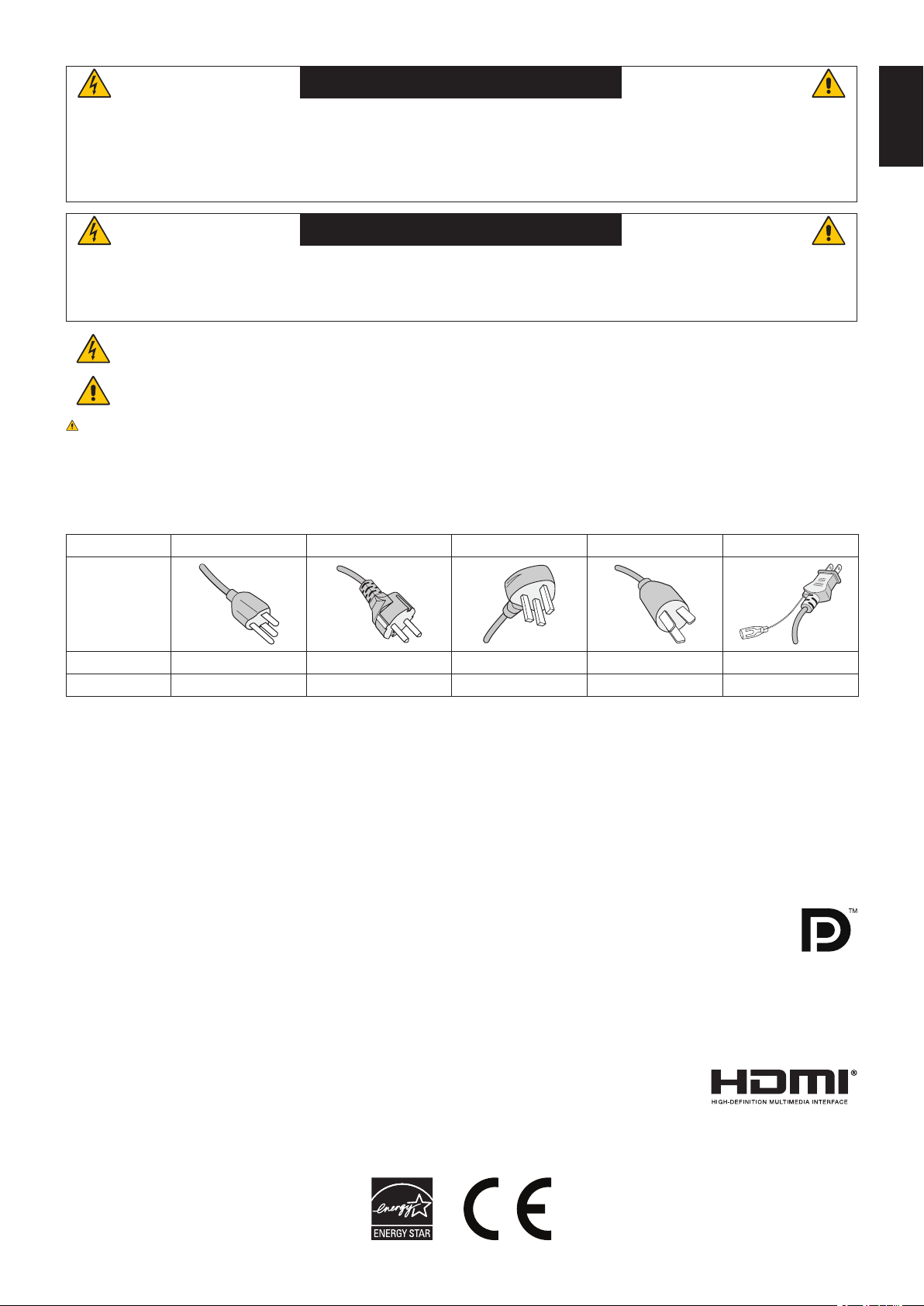
CAUTION: Please use the power cord provided with this display in accordance with the table below. If a power cord is
not supplied with this equipment, please contact NEC. For all other cases, please use the power cord with the plug style that
matches the power socket where the monitor is located. The compatible power cord corresponds to the AC voltage of the power
outlet and has been approved by, and complies with, the safety standards in the country of purchase.
This equipment is designed to be used in the condition of the power cord connected to earth. If the power cord is not connected
to the earth, it may cause electric shock. Please make sure the power cord is earthed properly.
Plug Type North America European Continental U.K. Chinese Japanese
Plug Shape
Country
U.S.A./Canada EU U.K. China Japan
Voltage
120* 230 230 220 100
* When operating the monitor with its AC 125-240V power supply, use a power supply cord that matches the power supply
voltage of the AC power outlet being used.
NOTE: This product can only be serviced in the country where it was purchased.
Windows is a registered trademark of Microsoft Corporation. NEC is a registered trademark of NEC Corporation.
ErgoDesign is a registered trademark of NEC Display Solutions, Ltd. in Austria, Benelux, Denmark, France, Germany, Italy,
Norway, Spain, Sweden, U.K.
All other brands and product names are trademarks or registered trademarks of their respective owners.
EnErgy Star is a U.S. registered trademark.
As an EnErgy Star
®
Partner, NEC Display Solutions of America, Inc. has determined that this product meets
the EnErgy Star guidelines for energy efficiency. The EnErgy Star emblem does not represent EPA
endorsement of any product or service.
DisplayPort and DisplayPort Compliance Logo are trademarks owned by Video Electronics Standards
Association in the United States and other countries.
MultiSync is a trademark or registered trademark of NEC Display Solutions, Ltd. in Japan and other countries.
HDCP (High-bandwidth Digital Content Protection): HDCP is a system for preventing illegal copying of video
data sent over a digital signal. If you are unable to view material via the digital signal input, this does not
necessarily mean the display is not functioning properly. With the implementation of HDCP, there may be cases in which certain
content is protected with HDCP and might not be displayed due to the decision/intention
of the HDCP community (Digital Content Protection, LLC).
The terms HDMI and HDMI High-Definition Multimedia Interface, and the HDMI Logo are
trademarks or registered trademarks of HDMI Licensing Administrator, Inc. in the United States
and other countries.
•TheintendedprimaryuseofthisproductisasanInformationTechnicalEquipmentinanofceordomesticenvironment.
•Theproductisintendedtobeconnectedtoacomputerandisnotintendedforthedisplayoftelevisionbroadcastsignals.
English-2
Registration Information
Cable Information
CAUTION: Use the provided specified cables with this monitor so as not to interfere with radio and television reception.
For DVI-D and mini D-Sub 15-pin, please use a shielded signal cable with ferrite core.
For HDMI, DisplayPort, USB and AUDIO, please use a shielded signal cable. Use of other cables and adapters
may cause interference with radio and television reception.
FCC Information
WARNING: The Federal Communications Commission does not allow any modifications or changes to the unit EXCEPT
those specified by NEC Display Solutions of America, Inc. in this manual. Failure to comply with this government
regulation could void your right to operate this equipment.
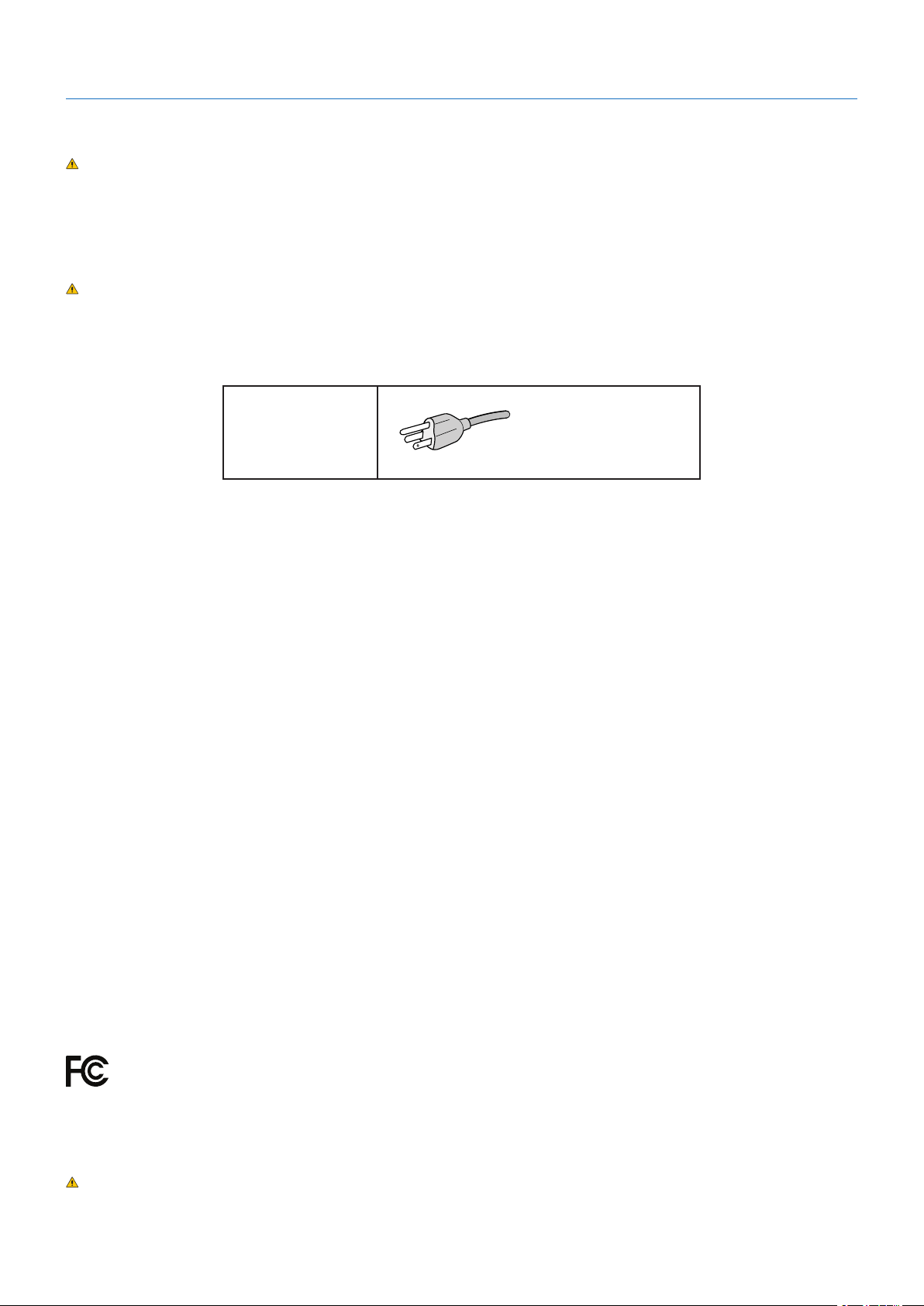
1. The power supply cord you use must have been approved by and comply with the safety standards of U.S.A., and meet
the following condition.
Power supply cord
Plug shape
Non shield type, 3-conductor
U.S.A
2. This equipment has been tested and found to comply with the limits for a Class B digital device, pursuant to part 15 of
the FCC Rules. These limits are designed to provide reasonable protection against harmful interference in a residential
installation. This equipment generates, uses and can radiate radio frequency energy, and, if not installed and used
in accordance with the instructions, may cause harmful interference to radio communications. However, there is no
guarantee that interference will not occur in a particular installation. If this equipment does cause harmful interference to
radio or television reception, which can be determined by turning the equipment off and on, the user is encouraged to try
to correct the interference by one or more of the following measures:
•Reorientorrelocatethereceivingantenna.
•Increasetheseparationbetweentheequipmentandreceiver.
•Connecttheequipmentintoanoutletonacircuitdifferentfromthattowhichthereceiverisconnected.
•Consultthedealeroranexperiencedradio/TVtechnicianforhelp.
If necessary, the user should contact the dealer or an experienced radio/television technician for additional suggestions.
The user may find the following booklet, prepared by the Federal Communications Commission, helpful: “How to Identify
and Resolve Radio-TV Interference Problems.” This booklet is available from the U.S. Government Printing Office,
Washington, D.C., 20402, Stock No. 004-000-00345-4.
SUPPLIER’S DECLARATION OF CONFORMITY
This device complies with Part 15 of FCC Rules. Operation is subject to the following two conditions. (1) This device may not
cause harmful interference, and (2) this device must accept any interference received, including interference that may cause
undesired operation.
U.S. Responsible Party: NEC Display Solutions of America, Inc.
Address: 3250 Lacey Rd, Ste 500
Downers Grove, IL 60515
Tel. No.: (630) 467-3000
Type of Product: Display Monitor
Equipment Classification: Class B Peripheral
Model: MultiSync EA231WU (EA231WU-BK)
MultiSync EA241F (EA241F-BK)
To see a list of our TCO certified monitors and their TCO Certification (in English only), visit our website at
https://www.nec-display.com/global/about/legal_regulation/TCO_mn/index.html
CAUTION: Please confirm the distribution system in building installation shall provide the circuit breaker rated 120/240V,
20A (maximum).
English-3
English
Recommended use
Safety Precautions and Maintenance
FOR OPTIMUM PERFORMANCE, PLEASE NOTE
THE FOLLOWING WHEN SETTING UP AND
USING THE LCD COLOR MONITOR:
•DONOTOPENTHEMONITOR.There are no user serviceable parts inside and opening or removing covers may expose
you to dangerous shock hazards or other risks. Refer all servicing to qualified service personnel.
•Donotspillanyliquidsintothecabinetoruseyourmonitornearwater.
•Donotinsertobjectsofanykindintothecabinetslotsastheymaytouchdangerousvoltagepoints,whichcanbeharmfulor
fatal, or may cause electric shock, fire or equipment failure.
•Donotplaceanyheavyobjectsonthepowercord.Damagetothecordmaycauseshockorre.
•Donotplacethisproductonaslopingorunstablecart,standortable,asthemonitormayfall,causingseriousdamageto
the monitor.
•Thepowersupplycordyouusemusthavebeenapprovedbyandcomplywiththesafetystandardsofyourcountry.
(e.g. Type H05VV-F 3G 0.75 mm
2
should be used in Europe).
•IntheUKuseaBS-approvedpowercordwithamoldedplughavingablack(5A)fuseinstalledforusewiththismonitor.
•Donotusethemonitoroutdoors.
•Donotbend,crimporotherwisedamagethepowercord.
•Donotusethemonitorinhightemperature,humid,dusty,oroilyareas.
•Donotcovertheventonthemonitor.
•Vibrationcandamagethebacklight.Donotinstallinareaswherethemonitorwillbeexposedtocontinualvibration.
•Ifmonitororglassisbroken,donotcomeincontactwiththeliquidcrystalandhandlewithcare.
•TopreventdamagetotheLCDmonitorcausedbytippingoverduetoearthquakesorothershocks,makesuretoinstallthe
monitor in a stable location and take measures to prevent falling.
•Immediatelyturnoffthepower,unplugyourmonitorfromthewalloutletandmovetoasafelocation,thenreferservicingto
qualified service personnel under the following conditions. If the monitor is used in this condition, the monitor may cause fall,
fire and electric shock:
•Ifthemonitorstandhasbeencrackedorpeeled.
•Ifyounoticeanystructuraldamagesuchascracksorunnaturalwobbling.
•Ifthemonitorhasanunusualodor.
• If the power supply cord or plug is damaged.
•Ifliquidhasspilledorobjectshavefallenintothemonitor.
•Ifthemonitorhasbeenexposedtorainorwater.
•Ifthemonitorhasbeendroppedorthecabinethasbeendamaged.
•Ifthemonitordoesnotoperatenormallybyfollowingoperatinginstructions.
•Allowadequateventilationaroundthemonitorsothatheatcanproperlydissipate.Donotblockventilatedopeningsorplace
the monitor near a radiator or other heat sources.
•Donotputanythingontopofthemonitor.
•Thepowercableconnectoristheprimarymeansofdetachingthesystemfromthepowersupply.
The monitor should be installed close to a power outlet which is easily accessible.
•Handlewithcarewhentransporting.Savepackagingfortransporting.
•Handlewithcareduringinstallationandadjustmenttopreventpersonalinjuryanddamagetothemonitor.
•Donotconnectheadphonestothemonitorwhileyouarewearingthem.Dependingonthevolumelevel,itmaydamageyour
ears and cause loss of hearing.
•Pleasetightenallscrews.Aloosescrewmaycausethemonitortofalloffthearmorstand.
•DonottouchtheLCDpanelsurfacewhiletransporting,mountingandsetting.
Applying pressure on the LCD panel can cause serious damage.
Image Persistence: Image persistence occurs when a residual or “ghost” image of a previous image remains visible on the
screen. Unlike CRT monitors, LCD monitors’ image persistence is not permanent, but a still image being displayed for a long
period of time should be avoided.
To alleviate image persistence, turn off the monitor for as long as the previous image was displayed. For example, if an image
was on the monitor for one hour and a residual image remains, the monitor should be turned off for one hour to erase the image.
NOTE: As with all personal display devices, NEC DISPLAY SOLUTIONS recommends using a moving screen saver at regular
intervals whenever the screen is idle, or turn off the monitor when not in use.
CAUTION
WARNING
English-4
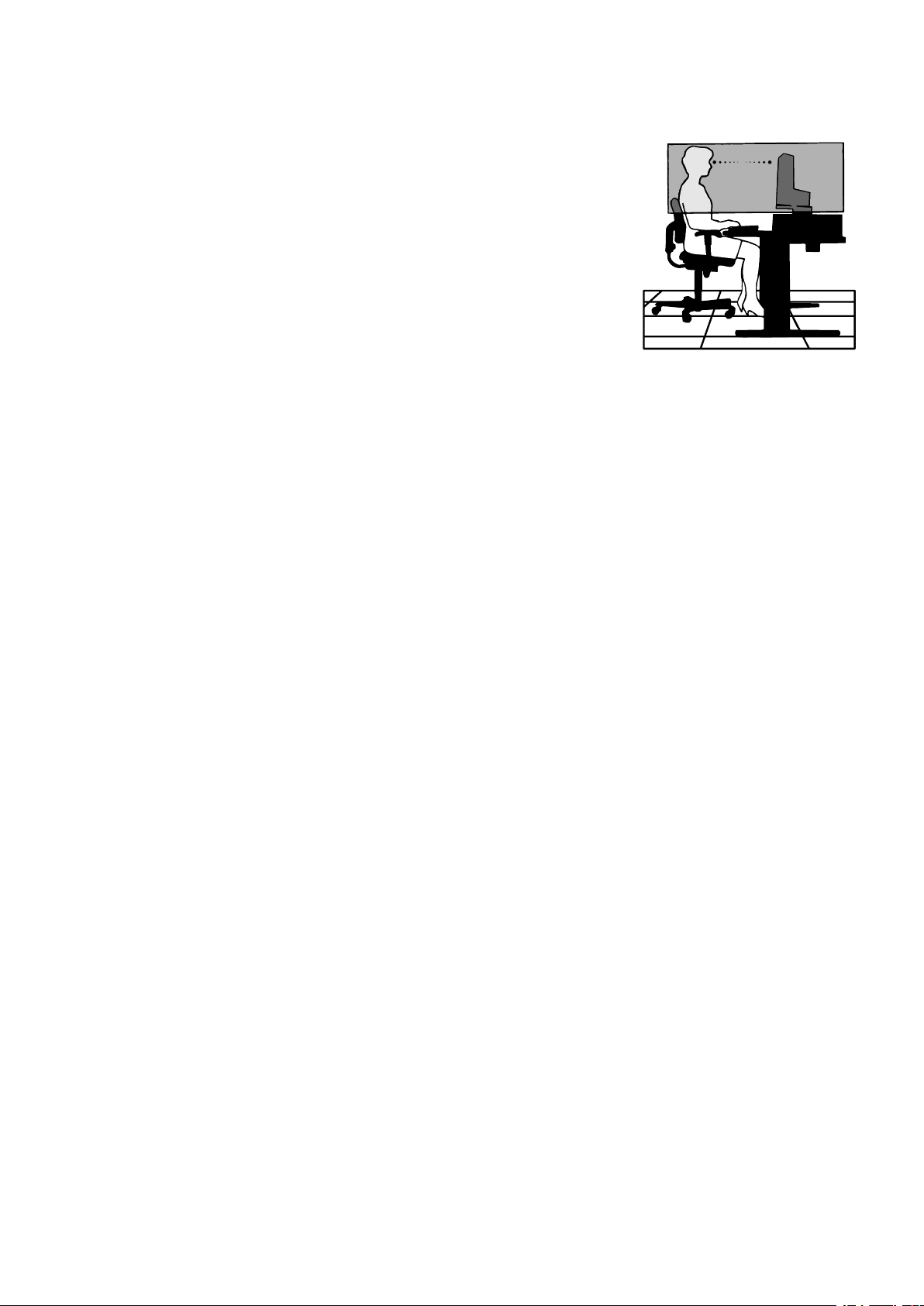
CORRECT PLACEMENT AND ADJUSTMENT OF THE MONITOR CAN
REDUCE EYE, SHOULDER, AND NECK FATIGUE. CHECK THE
FOLLOWING WHEN YOU POSITION THE MONITOR:
Ergonomics
To realize the maximum ergonomics benefits, we recommend the following:
•Foroptimumperformanceofthemonitor,allow20minutesforwarmingup.Avoid
reproduction of still patterns on the monitor for long periods of time to avoid image
persistence (after image effects).
•Adjustthemonitorheightsothatthetopofthescreenisatorslightlybeloweyelevel.
Your eyes should look slightly downward when viewing the middle of the screen.
•Positionyourmonitornocloserthan40cm(15.75inches)andnofurtherawaythan
70 cm (27.56 inches) from your eyes. The optimal distance is 50 cm (19.69 inches).
•Restyoureyesperiodicallyfor5to10minutesforevery1hourbyfocusingonanobject
at least 20 feet away.
•Positionthemonitorata90°angletowindowsandotherlightsourcestominimizeglare
and reflections. Adjust the monitor tilt so that ceiling lights do not reflect on your screen.
•Ifreectedlightmakesithardforyoutoseeyourscreen,useananti-glarelter.
•Adjustthemonitor’sbrightnessandcontrastcontrolstoenhancereadability.
•Useadocumentholderplacedclosetothescreen.
•Positionwhateveryouarelookingatmostofthetime(thescreenorreferencematerial)directlyinfrontofyoutominimize
turning your head while you are typing.
•Blinkoften.Eyeexercisehelpstoreduceeyestrain.Pleasecontactyourophthalmologist.Getregulareyecheckups.
•Toavoideyefatigue,adjustthebrightnesstoamoderatesetting.PlaceasheetofwhitepapernexttotheLCDscreenfor
luminance reference.
•DonotpositiontheContrastcontroltoitsmaximumsetting.
•UsethepresetSizeandPositioncontrolswithstandardsignals.
•UsethepresetColorSetting.
•Usenon-interlacedsignals.
•Donotuseprimarycolorblueonadarkbackground,asitisdifculttoseeandmayproduceeyefatigueduetoinsufcient
contrast.
•Suitableforentertainmentpurposesatcontrolledluminousenvironments,toavoiddisturbingreectionsfromthescreen.
Cleaning the LCD Panel
•WhentheLCDisdusty,pleasegentlywipewithasoftcloth.
•CleantheLCDmonitorsurfacewithalint-free,non-abrasivecloth.Avoidusinganycleaningsolutionorglasscleaner!
•PleasedonotrubtheLCDpanelwithhardorcoarsematerial.
•PleasedonotapplypressuretotheLCDsurface.
•PleasedonotuseOAcleanerasitwillcausedeteriorationordiscolorationontheLCDpanelsurface.
Cleaning the Cabinet
•Unplugthepowersupply
•Gentlywipethecabinetwithasoftcloth
•Tocleanthecabinet,dampentheclothwithaneutraldetergentandwater,wipethecabinetandfollowwithadrycloth.
NOTE: DO NOT clean with benzene thinner, alkaline detergent, alcoholic system detergent, glass cleaner, wax, polish
cleaner, soap powder, or insecticide. Rubber or vinyl should not be in contact with the cabinet for an extended period
of time. These types of fluids and materials can cause the paint to deteriorate, crack or peel.
For more detailed information on setting up a healthy work environment, write to the American National Standard for Human
Factors Engineering of Computer Workstations - ANSI/HFES 100-2007 - The Human Factors Society, Inc. P.O. Box 1369,
Santa Monica, California 90406.
English-5
English
Parts Name and Functions
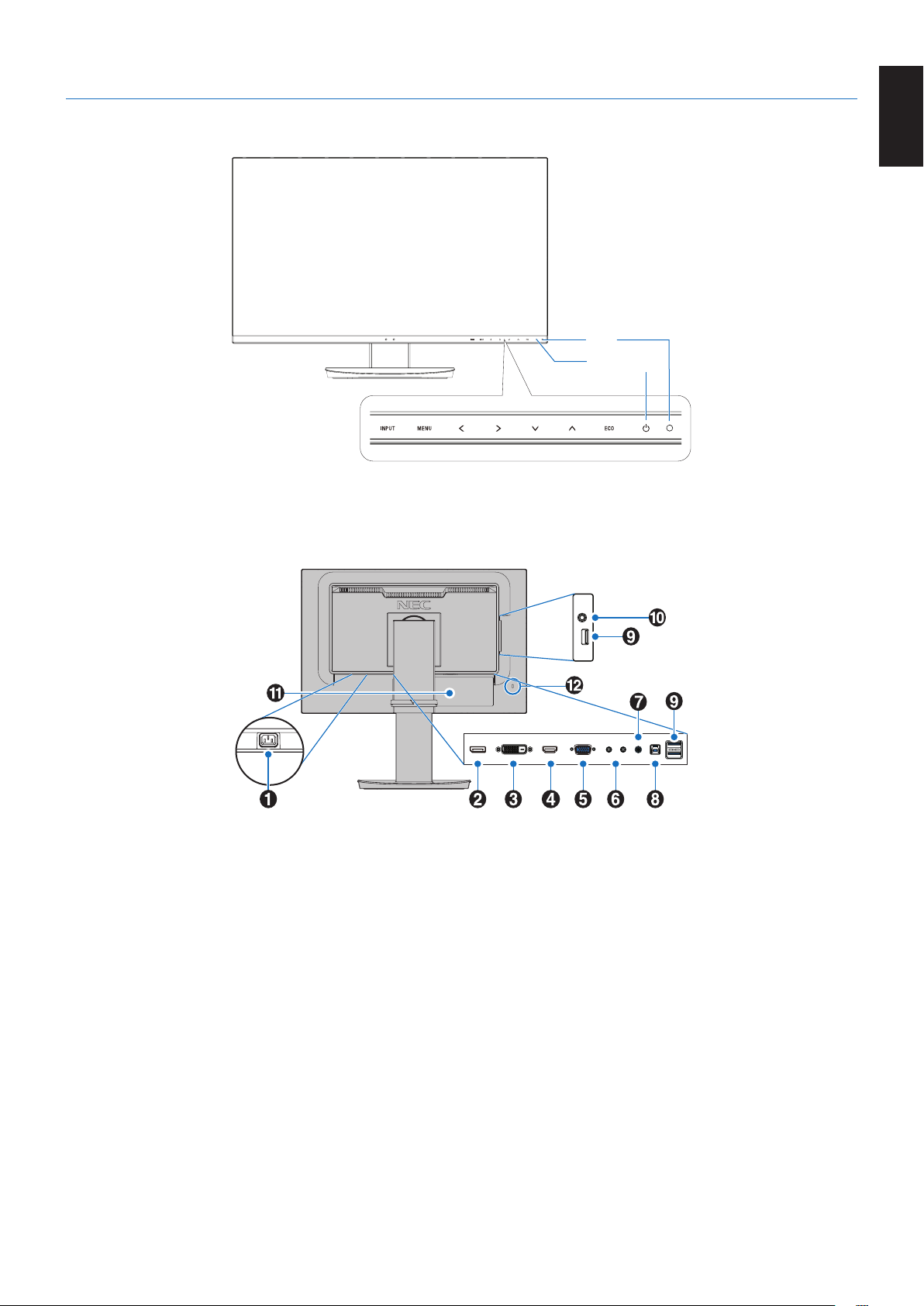
Control Panel
LED
Power Key
Control Keys
Refer to the Controls section. See page 13.
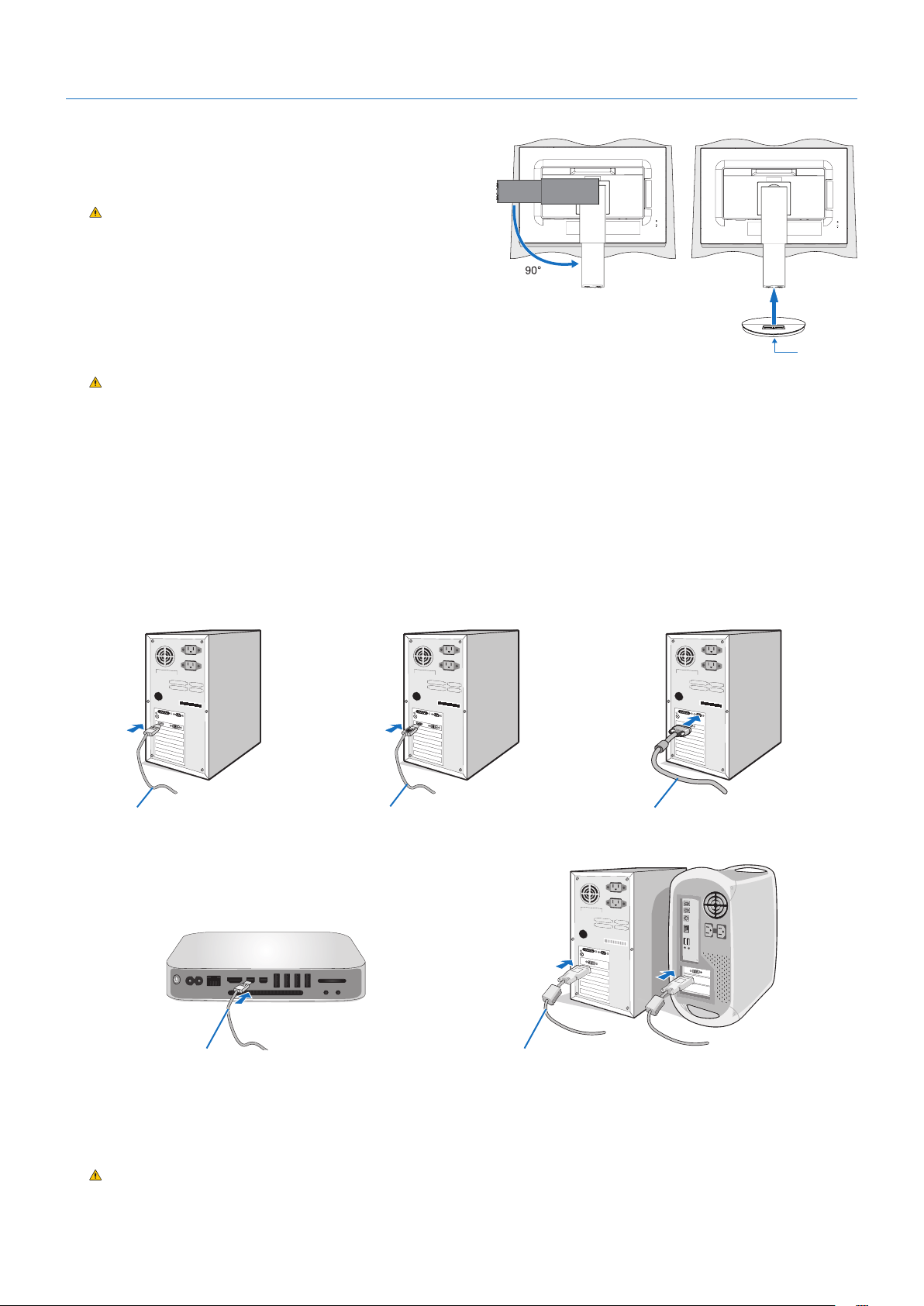
A AC IN Connector
Connects with the supplied power cord.
B DisplayPort IN
DisplayPort signals input.
C DVI-D IN
DVI signals input.
DHDMIIN
HDMI signals input.
E VGA IN (mini D-Sub 15-pin)
Analog RGB signals input.
F ControlSync IN/OUT
Connects with the supplied ControlSync cable. See page 11.
G Audio IN
Audio signal input from external equipment such as a
computer or player.
H USB Upstream Port (Type-B)
Connects with external equipment such as a computer.
Please use this port to control the monitor from connected
external equipment.
I USB Downstream Port (Type-A)
Connects with USB devices.
Connects with external equipment such as a computer
compliant with USB.
JHeadphoneJack
Connects with headphones.
K Rating Label
L Security Slot
Security and theft protection lock slot compatible with
Kensington cables/equipment.
For products visit Kensington’s website.
Terminal Panel
English-6
QuickStart
For box contents, please refer the printed contents sheet provided in the box.
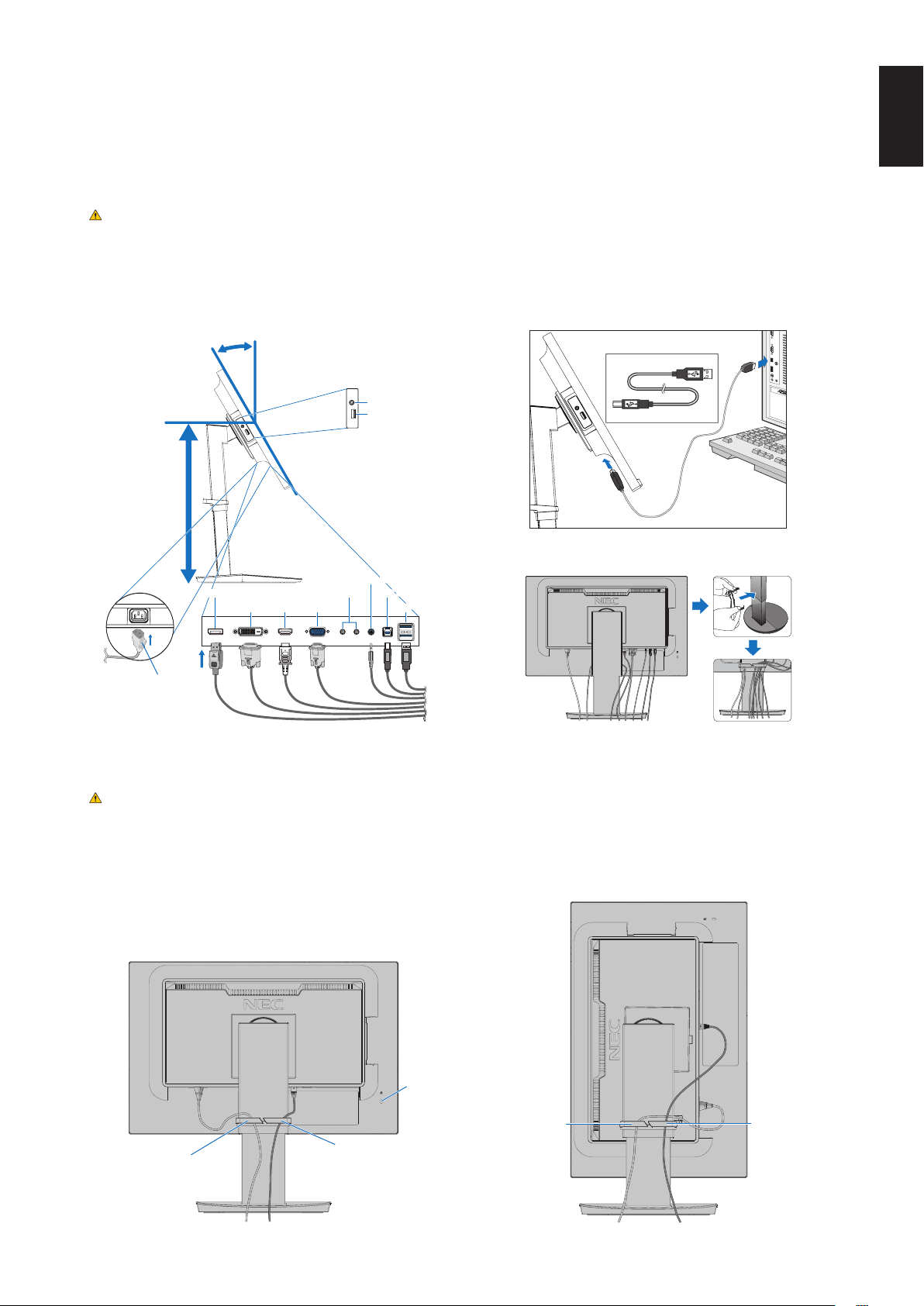
To attach the base to the LCD monitor stand:
1. Place the monitor face down on a non-abrasive surface (Figure 1).
2. Please rotate the stand 90 degrees as shown in Figure 1.
CAUTION: Handle with care when pulling the stand.
It may pinch your fingers.
3. Attach the base to the stand, then tighten the screw at the base’s
bottom (Figure 2).
NOTE: Reverse this procedure if you need to re-pack the monitor.
To connect the LCD monitor to your system, follow these instructions:
NOTE: Make sure to read “Recommended Use” (page 3) before installation.
CAUTION: Please tighten all screws.
NOTE: The accessories included will depend on the location where the LCD monitor was shipped.
1. Turn off the power for your computer.
2. For a PC with DisplayPort output: Connect the DisplayPort cable to the connector of the display card in your system
(Figure A.1).
ForaPCwithHDMIoutput:Connect the HDMI cable to the connector of the display card in your system (Figure A.2).
For a PC with Analog output: Connect a mini D-Sub 15-pin signal cable to the connector of the display card in your system
(Figure A.3). Tighten all screws.
For a Mac or PC with Thunderbolt or Mini DisplayPort output: Connect a Mini DisplayPort to DisplayPort cable to the
video output connector on your system (Figure A.4).
For a PC or MAC with DVI digital output: Connect the DVI signal cable to the connector of the display card in your system
(Figure A.5). Tighten all screws.
Figure A.1 Figure A.3Figure A.2
DisplayPort cable
HDMI cable Mini D-Sub 15-pin signal cable
DVI cable
Figure A.4 Figure A.5
Mini DisplayPort to DisplayPort cable
NOTE:•When removing the DisplayPort cable, hold down the top button to release the lock.
•Please use a High Speed HDMI cable with the HDMI logo.
•Please use a certified DisplayPort cable.
CAUTION: Use the provided specified cables with this monitor so as not to interfere with radio and television reception.
For DVI-D and mini D-Sub 15-pin, please use a shielded signal cable with ferrite core.
For HDMI, DisplayPort, USB and AUDIO, please use a shielded signal cable. Use of other cables and
adapters may cause interference with radio and television reception.
Figure 1
Figure 2
Screw
English-7
English
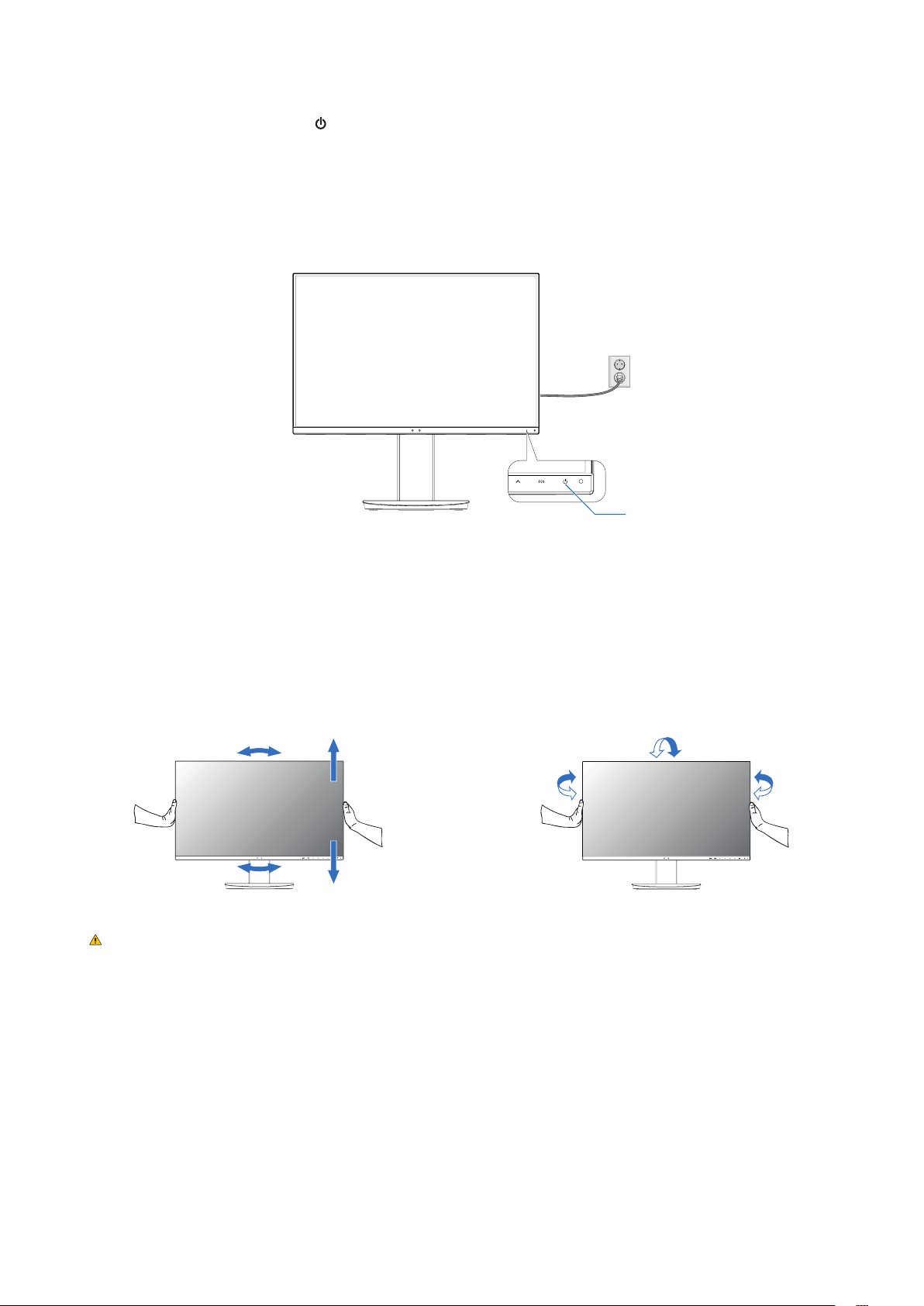
3. Place your hands on each side of the monitor screen, tilt the screen to the maximum title angle, then lift the screen to the
highest position.
4. Connect all cables to the appropriate connectors (Figure C.1). When using the USB cable, connect the B-type connector
to the USB upstream port on the rear side of the monitor and the A-type connector to the downstream port on the computer
(Figure C.1a). If using the cord from a USB device, plug it into the downstream port of the monitor.
NOTE: Incorrect cable connections may cause abnormal operation, damage display quality/components of the LCD panel
and/or shorten the module’s life.
CAUTION: Do not bind the USB cable. It may trap heat and start a fire.
NOTE: Do not use an attenuating (built-in resistor) audio cable. Using an audio cable with a built-in resistor will lower the
sound level.
NOTE: Adjustment of the volume control as well as the equalizer to settings other than the center position may increase
the ear-/headphones output voltage and therefore the sound pressure level.
Figure C.1a
A Type
B Type
A Type
B Type
Figure C.2Figure C.1
Power cord
Maximum Tilt
DisplayPort
DVI-D HDMI
Highest
Stand
Position
Audio IN
ControlSync IN/OUT*
1
D-Sub
USB Downstream (USB Type-A)
USB Upstream (USB Type-B)
USB Downstream (USB Type-A)
Headphone
*
1
: See page 11.
CAUTION: Do not connect headphones to the monitor while you are wearing them.
Depending on the volume level, it may damage your ears and cause loss of hearing.
5. Place the cable holder onto the stand (Figure C.2).
Place the cables in the cable holder firmly and evenly (Figure C.3 and Figure C.4).
6. Please check that you can still raise and lower the monitor screen after you have installed the cables.
Figure C.3 Figure C.4
Power Cord
DisplayPort Cable
Power Cord
DisplayPort Cable
Security Slot
English-8
7. Connect the power cord to the power outlet.
NOTE: Please refer to the
CAUTION section of this manual for proper selection of the AC power cord.
8. Turn on the monitor by touching the [ ] key and then turn on the computer (Figure E.1).
9. When using analog (VGA) input, No Touch Auto Adjust automatically adjusts the monitor to optimal settings upon initial
setup. For further adjustments, use the following OSD controls:
•[AUTO CONTRAST]
•[AUTO ADJUST]
Refer to the Controls section of this User’s Manual for a full description of these OSD controls.
NOTE: If you have any problems, please refer to the Troubleshooting section of this User’s Manual.
Figure E.1
Power key
Adjustable stand with pivot capability
Raise and Lower: Hold the monitor screen on each side and lift or lower to the desired height.
Tilt and Swivel: Hold the top and bottom sides of the monitor screen with your hands and adjust the tilt and swivel as desired.
Screen Rotation (Pivot): Hold each side of the monitor screen, lift to its maximum height and tilt to its maximum tilt angle, then
rotate the screen from landscape to portrait.
You can adjust the OSD (On-Screen Display) menu rotation to match the screen rotation. Refer to the [OSD ROTATION]
instructions (see
page 18).
Tilt and SwivelRotation, Raise and Lower
CAUTION: Handle with care when adjusting the monitor screen. Do not apply pressure to the LCD when adjusting the
height and rotating the monitor screen.
Before rotating, disconnect the power cord and all cables from the display. The screen must be raised to the
highest level and adjusted to maximum tilt to avoid knocking the screen on the desk or pinching your fingers.
English-9
English
Flexible Arm Installation
This LCD monitor is designed for use with a flexible arm. Contact NEC for more information.
To prepare the monitor for alternate mounting purposes:
•Followtheinstructionsprovidedbythemanufacturerofthedisplaymount.
CAUTION: To meet the safety requirements, the monitor must be mounted to an arm that supports the weight of the
monitor. See the Specifications - EA231WU and Specifications - EA241F page for details. Remove the
monitor stand before mounting.
Remove the Monitor Stand for Mounting
To prepare the monitor for alternate mounting purposes:
1. Disconnect all cables.
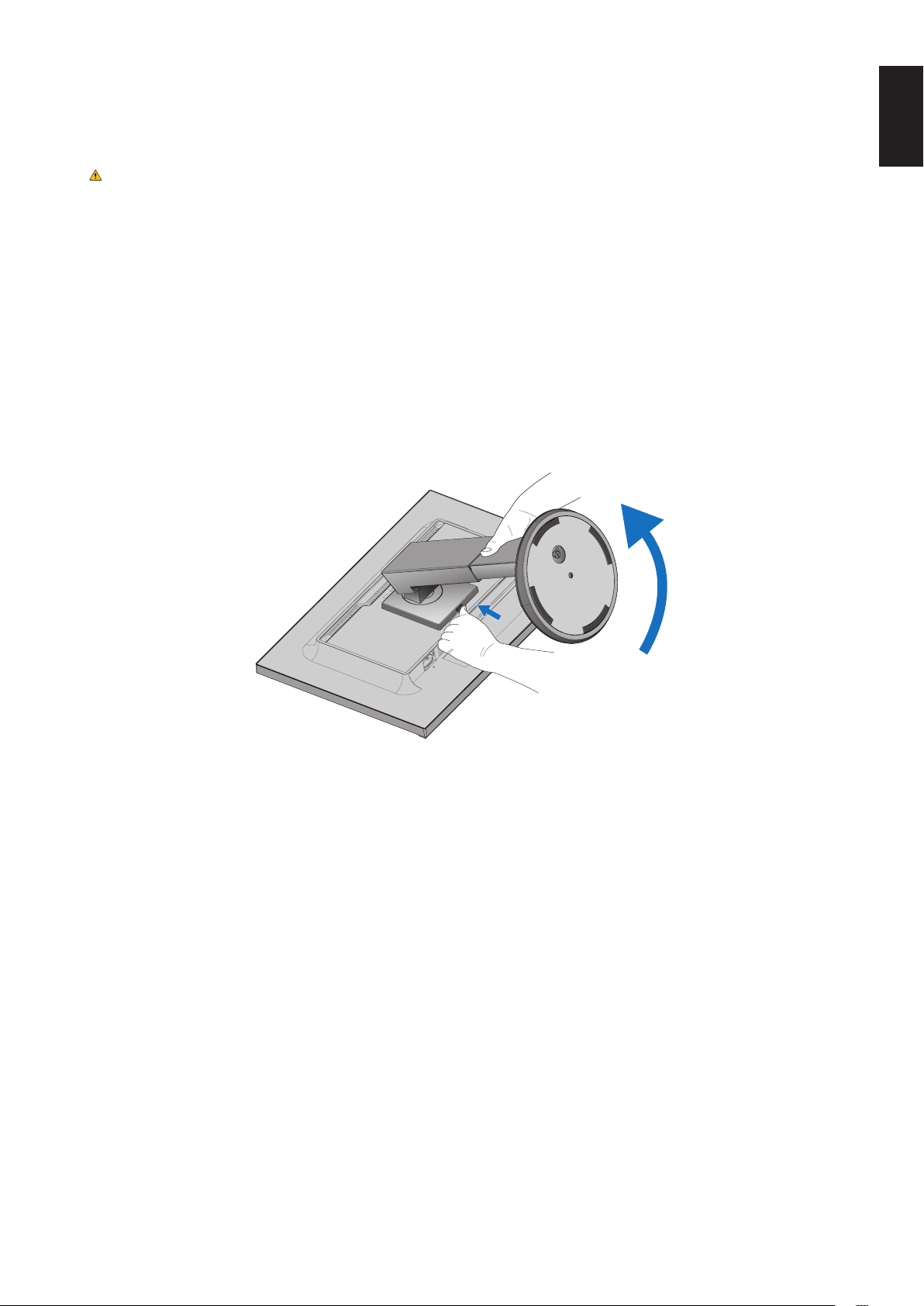
2. Place your hands on each side of the monitor screen and lift up to the highest position.
3. Place the monitor face down on a non-abrasive surface (Figure S.1).
4. Place one hand around the base and one hand on the Quick Release Button.
Push and hold the Quick Release Button in the direction indicated by the arrow (Figure S.1).
5. Lift up the stand to unhook it from the monitor (Figure S.1).
The monitor can now be mounted using an alternate method.
Reverse the process to reattach the stand.
NOTE: Handle with care when removing the monitor stand.
Figure S.1
English-10
Mount Flexible Arm
This LCD monitor is designed for use with a flexible arm.
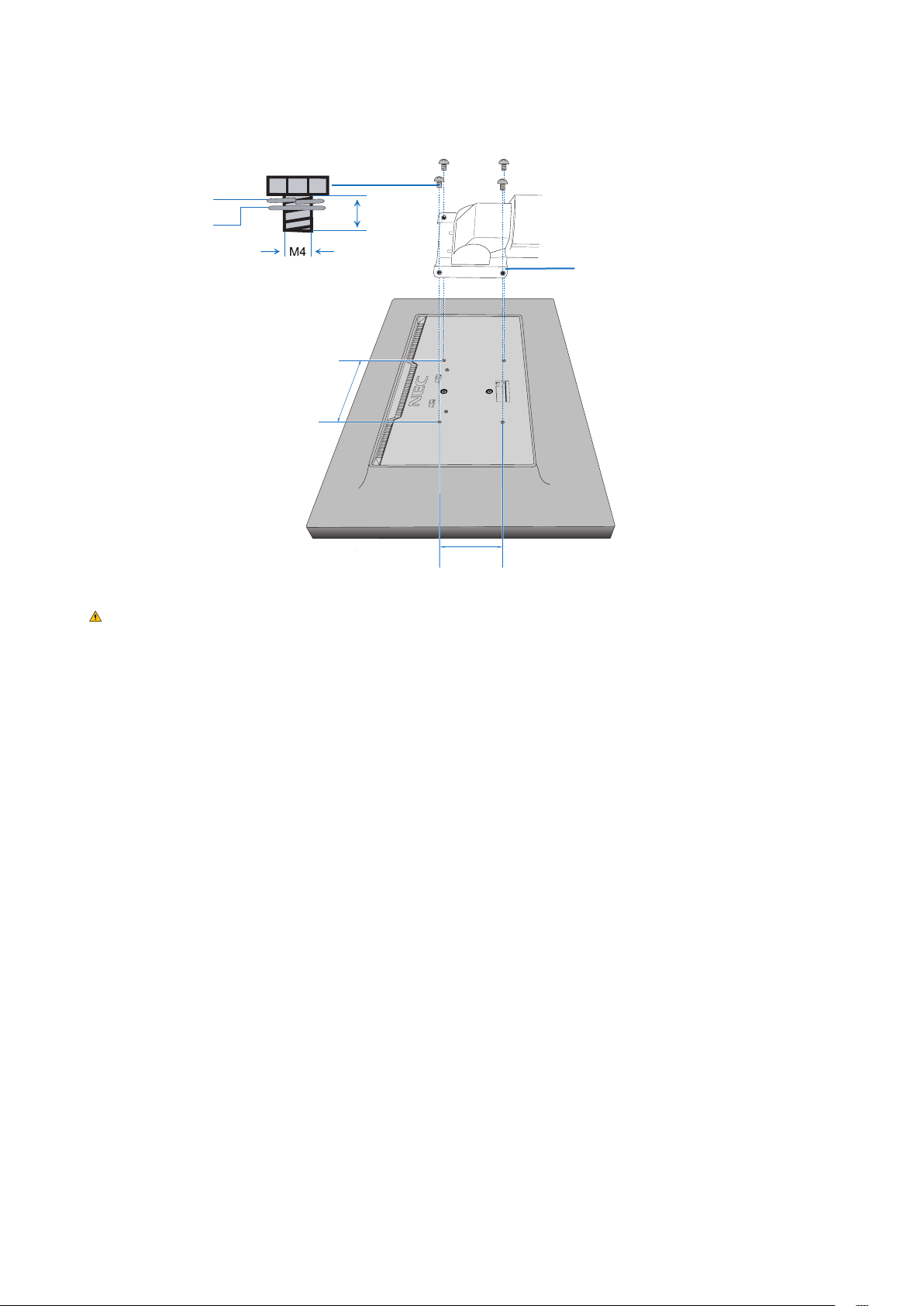
1. Follow the instructions in how to
Remove the Monitor Stand for Mounting.
2. Using 4 screws that meet the specifications listed below, attach the arm to the monitor (Figure F.1).
Figure F.1
100 mm
100 mm
Thickness of Bracket (Arm)
2.0~3.2 mm
12 mm
Spring washer
Flat washer
CAUTION:•Onlyuse4M4sizedscrewswhenmountingtoavoiddamagetothemonitorandstand.
•Tomeetthesafetyrequirements,themonitormustbemountedtoanarm,whichguarantiesthenecessary
stability under consideration for the weight of the monitor. The LCD monitor should only be used with an
approved arm (e.g. TUEV GS mark).
•Tightenallscrews(recommendedFastenForce:98-137N•cm).
A loose screw may cause the monitor to fall off the arm.
•Attachingtheexiblearmshouldbedonebytwoormorepeopleifthemonitorcannotbeplacedface
down on a flat surface for installation.
English-11
English
ControlSync
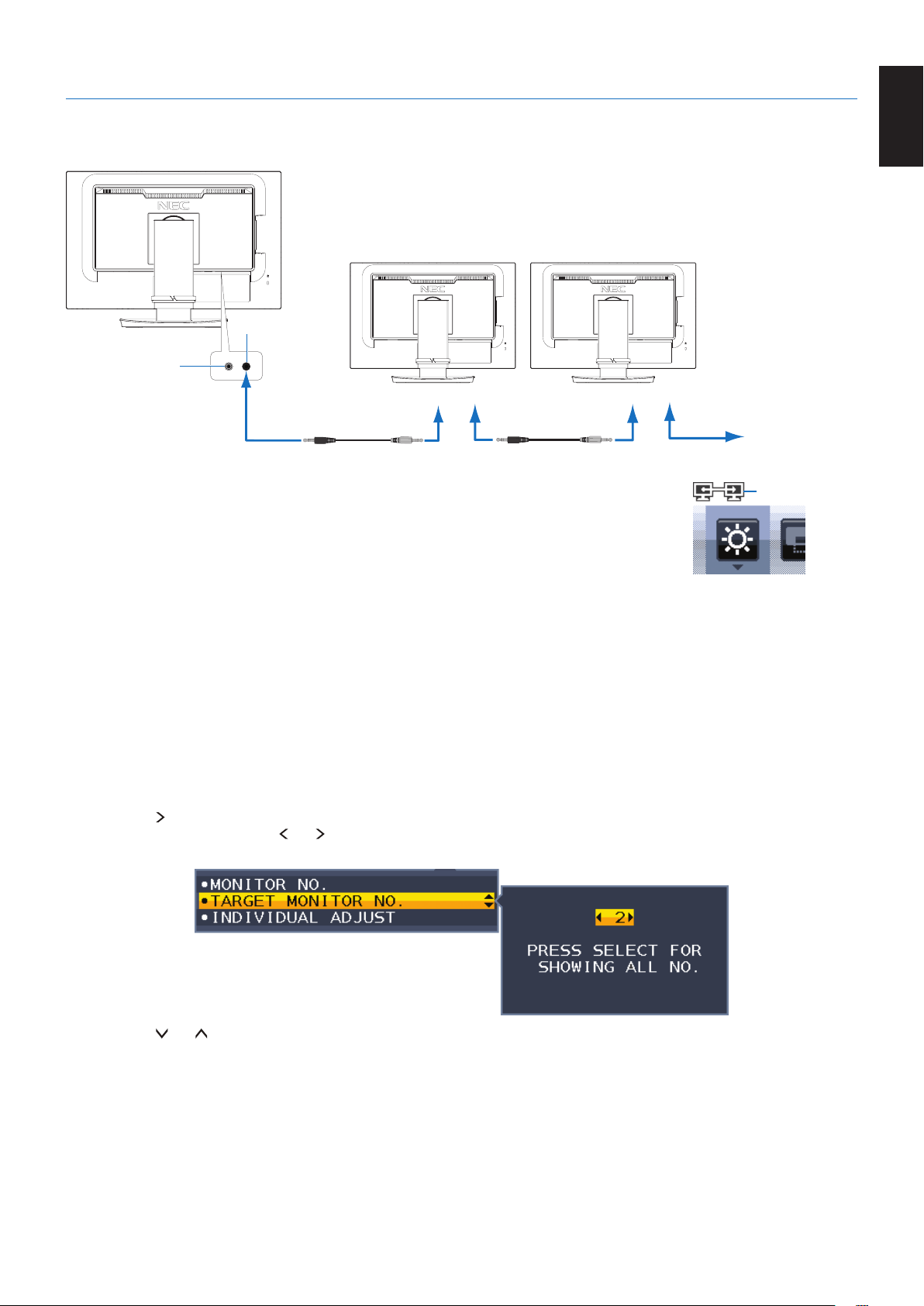
ControlSync simultaneously controls all sub monitors connected to a master monitor. It can also individually control a single sub
monitor using the [INDIVIDUAL ADJUST] function. Please refer to the figure below.
IN (Gray)
Next monitor
OUT (Black)
IN OUT
ControlSync cable ControlSync cable
Up to five sub monitors
(Gray)(Black) (Gray)(Black)
Sub Monitor 1 Sub Monitor 2
Master Monitor
IN OUT
NOTE: The ControlSync icon will appear on the upper left of the OSD menu in the sub monitors.
Do not connect the ControlSync ports IN-to-IN or OUT-to-OUT. The monitors’ ControlSync
ports must be connected OUT-to-IN.
Do not make a “loop” connection by connecting the last monitor in the chain back to the
master monitor.
Turn off the power and disconnect the power cables for all monitors. Connect the
ControlSync cables, then connect the power cables, and then turn on the power for each monitor.
Controlling all connected sub monitors (Synchronized control):
1. Connect a ControlSync cable (ø 2.5) to the master monitor’s ControlSync OUT port and into a sub monitor’s ControlSync IN
port. Up to five monitors can be daisy-chained together by connecting the monitors to each other via the ControlSync OUT to
IN ports on the monitors.
2. Follow the steps for [DATA COPY] (see
page 19). When a setting for the master monitor is adjusted, it will be copied and sent
to the connected sub monitor(s) automatically.
Controlling a target monitor (Individual Adjust):
1. Touch the [MENU] key to show the OSD menu on the master monitor.
2. Touch the [
] key to enter the [MULTI DISPLAY] control. When the cursor is on [TARGET MONITOR NO.], a sub monitor
number menu opens. Use the [ ] or [ ] key to select the sub monitor number.
If you touch the [INPUT/SELECT] key, each sub monitor displays its monitor number.
3. Touch the [ ] or [ ] key to select [INDIVIDUAL ADJUST] and then set it to [ON].
Control the sub monitor’s OSD using the master monitor’s control keys.
NOTE: To disable [INDIVIDUAL ADJUST], touch the [INPUT] and [MENU] keys simultaneously.
ControlSync icon
English-12
The following settings can be controlled by ControlSync:
Synchronized control Individual adjust
ECO TOOLS BRIGHTNESS* Yes Yes
CONTRAST No Yes
ECO MODE Yes Yes
AUTO BRIGHTNESS Yes Yes
BLACK LEVEL No Yes
OFF MODE SETTING Yes Yes
OFF MODE SENSOR SETTING Yes Yes
OFF MODE START TIME Yes Yes
HUMAN SENSING Yes Yes
HUMAN SENSOR SETTING Yes Yes
HUMAN SENSOR START TIME Yes Yes
DV MODE Yes Yes
SCREEN AUTO ADJUST No Yes
AUTO CONTRAST No Yes
LEFT/RIGHT No Yes
DOWN/UP No Yes
H.SIZE No Yes
FINE No Yes
INPUT RESOLUTION No Yes
VIDEO LEVEL No Yes
OVER SCAN No Yes
EXPANSION Yes Yes
COLOR Color Control System Yes Yes
R, G, B, color gain No Yes
TOOLS VOLUME Yes Yes
SOUND INPUT No Yes
VIDEO DETECT No Yes
RESPONSE IMPROVE No Yes
OFF TIMER Yes Yes
POWER SAVE TIMER No Yes
LED BRIGHTNESS Yes Yes
DDC/CI Yes Yes
USB POWER No Yes
FACTORY PRESET No Yes
MENU TOOLS LANGUAGE Yes Yes
OSD TURN OFF Yes Yes
OSD LOCK OUT Yes Yes
OSD ROTATION No Yes
HOT KEY Yes Yes
SIGNAL INFORMATION Yes Yes
SENSOR INFORMATION Yes Yes
KEY GUIDE Yes Yes
DATA COPY No No
CUSTOMIZE SETTING No Yes
MULTI DISPLAY MONITOR NO. No No
TARGET MONITOR NO. No No
INDIVIDUAL ADJUST No No
ECO INFORMATION CARBON SAVINGS No No
CARBON USAGE No No
COST SAVINGS No No
CARBON CONVERT SETTING Yes Yes
CURRENCY SETTING Yes Yes
CURRENCY CONVERT SETTING Yes Yes
Other settings:
Power Control (DC switch)
Ambient Light Sensor
Human Sensor Result
Audio Mute
NOTE: Only the master monitor’s human sensor and ambient light sensor are active. Please do not cover these sensors
(See
page 13).
After connecting all power cables and ControlSync cables, check that ControlSync operates correctly by turning
the master monitor's power off then back on.
Do not use the ControlSync connectors for any purpose other than specified.
* This value is not a directly adjusted output value. This is adjusted relatively.
English-13
English
Controls
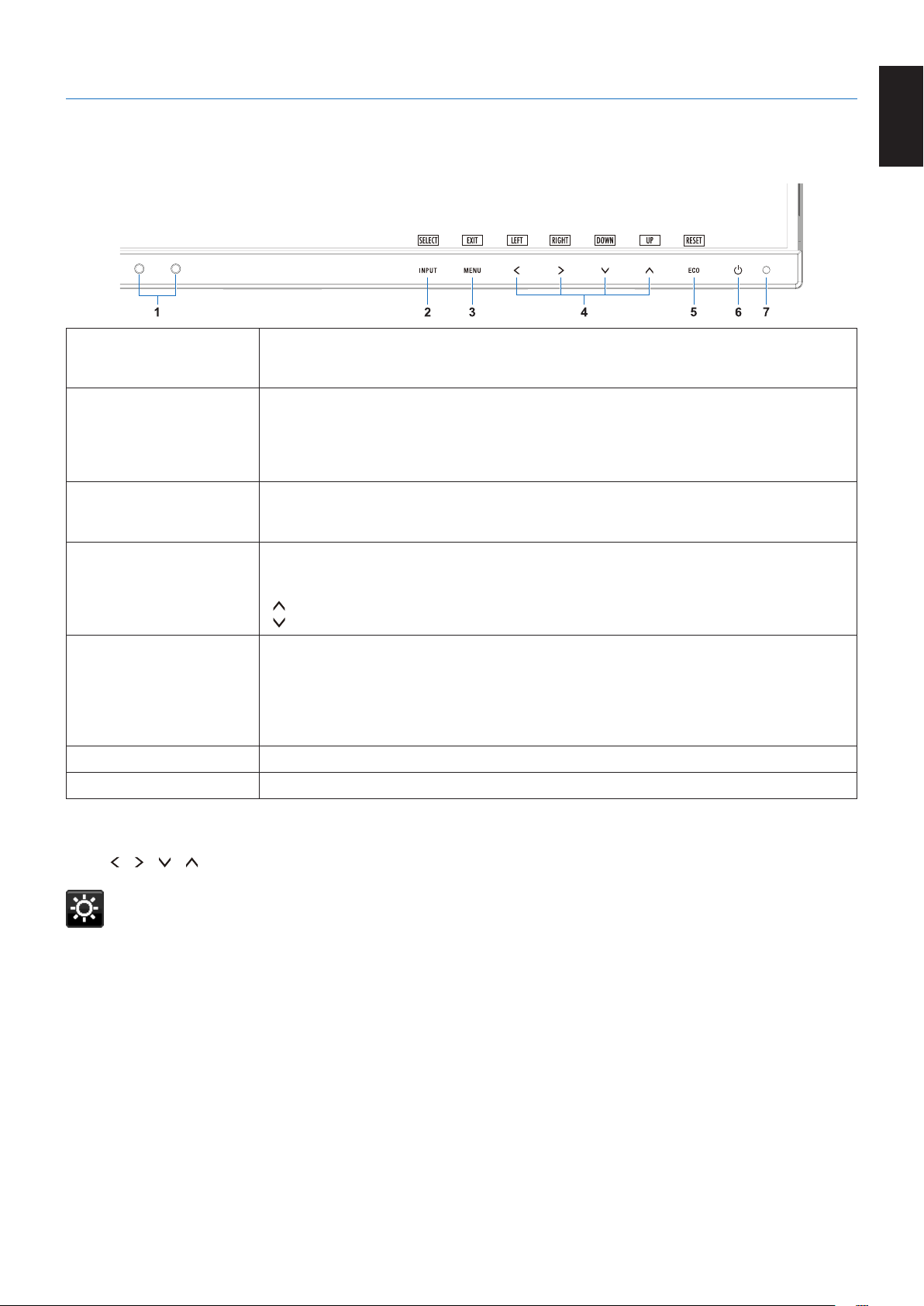
OSD(On-ScreenDisplay)controlkeysonthefrontofthemonitorfunction
as follows:
1 Ambient Light Sensor
Human Sensor
Detects the level of ambient lighting and the presence of a user, allowing the monitor to
make adjustments to various settings resulting in a more comfortable viewing experience.
Do not cover this sensor.
2 INPUT/SELECT Enters sub menus in the OSD menu when the OSD menu is displayed on the screen.
Shows a switching menu for the input source when the OSD menu is not displayed on the
screen.
You can directly change to the [L/B] (LOW BLUE LIGHT) mode by touching this key for
3 seconds or more when the OSD menu is not open.*
1
3 MENU/EXIT Opens the OSD menu. Closes the OSD sub menus and main menu. You can restore the
saved settings in the [CUSTOMIZE SETTING] by touching this key for 3 seconds or more
when the OSD menu is not open.
4 LEFT/RIGHT/
UP/DOWN*
2
When the OSD menu is displayed on the screen, navigates through the OSD menu.
When the OSD menu is not displayed on the screen, touch one of the following keys to open
the menu for the function indicated.*
1
[
] key: [BRIGHTNESS]
[ ] key: [VOLUME]
5 ECO/RESET When the OSD menu is displayed on the screen, this key sends a reset command for the
OSD settings.
When the OSD menu is not displayed on the screen, this key switches the [ECO MODE]
status. You can set a mode from [OFF], [1] and [2].*
1
Activates the [AUTO ADJUST] function by touching this key for 3 seconds or more when the
OSD menu is not open (analog input only)*
1
.
6 Power Turns the monitor on and off.
7 Power LED Indicates that the power is on or off.
*
1
When the [
HOT KEY] function is [OFF], this function is disabled.
*
2
Depending on the [OSD ROTATION] setting, [LEFT], [RIGHT], [UP] and [DOWN] key guides are displayed at
the [
], [ ], [ ], [ ] keys differently (See page 18).
ECO TOOLS
BRIGHTNESS
Adjusts the overall image and background screen brightness.
If [ECO MODE] is set to [1] or [2], a bar for [CARBON FOOTPRINT] will appear.
CONTRAST
Adjusts the overall image and background screen brightness by input signal level.
NOTE: When [L/B] is selected in the [Color Control System], [CONTRAST] is disabled.

English-14
ECO MODE
Decreases the amount of power consumption by reducing the brightness level.
OFF: Does not function.
1: Sets the brightness variable range from 0% to 70%.
This setting can adjust brightness to a range in which power is reduced by 15% compared to the maximum brightness
setting.
2: Sets the brightness variable range from 0% to 30%.
This setting can adjust brightness to a range in which power is reduced by 35% (EA231WU)/40% (EA241F) compared
to the maximum brightness setting.
When this function is set to [ON], a [CARBON FOOTPRINT] bar will appear alongside the [BRIGHTNESS]
adjustment bar.
NOTE: This function is disabled when [DV MODE] (See
page 15) is set to [DYNAMIC].
This function is disabled when [Color Control System] is set to [DICOM SIM.].
To enter the [ECO MODE], touch the [ECO] key.
When you touch the [ECO] key, the setting cycles through [1] [2] [OFF] [1].
AUTOBRIGHTNESS
OFF: Does not function.
ON(AMBIENTLIGHT):Automatically adjusts the brightness to the optimal setting by detecting the brightness level of
the environment.*
1
*1: Please refer to
page 28 for full “Auto Brightness” information.
NOTE: This function is disabled when [DV MODE] is set to [DYNAMIC].
This function is disabled when [Color Control System] is set to [DICOM SIM.].
BLACK LEVEL
Adjusts the brightness level of black when displayed on screen.
OFF MODE SETTING
The Intelligent Power Manager allows the monitor to enter into power saving mode after a period of inactivity.
OFF: The monitor enters into power saving mode automatically when the input signal is lost.
ON: The monitor enters into power saving mode automatically when the amount of surrounding light goes below the
level determined by you. The level can be adjusted in the [OFF MODE SENSOR SETTING].
When in power saving mode, the LED on the front of the monitor becomes dark blue. When in power saving mode,
touch any of the front keys, except for [ ] and [INPUT] keys, to return to normal mode.
When the amount of surrounding light returns to normal levels, the monitor will automatically return to normal mode.
SENSOR SETTING (OFF MODE SETTING)
Adjusts the threshold level for the ambient light sensor for detecting low light conditions and shows the current sensor
measurement result.
START TIME (OFF MODE SETTING)
Adjusts the wait time to enter into a lower power consumption level when the ambient light sensor detects low light
conditions.
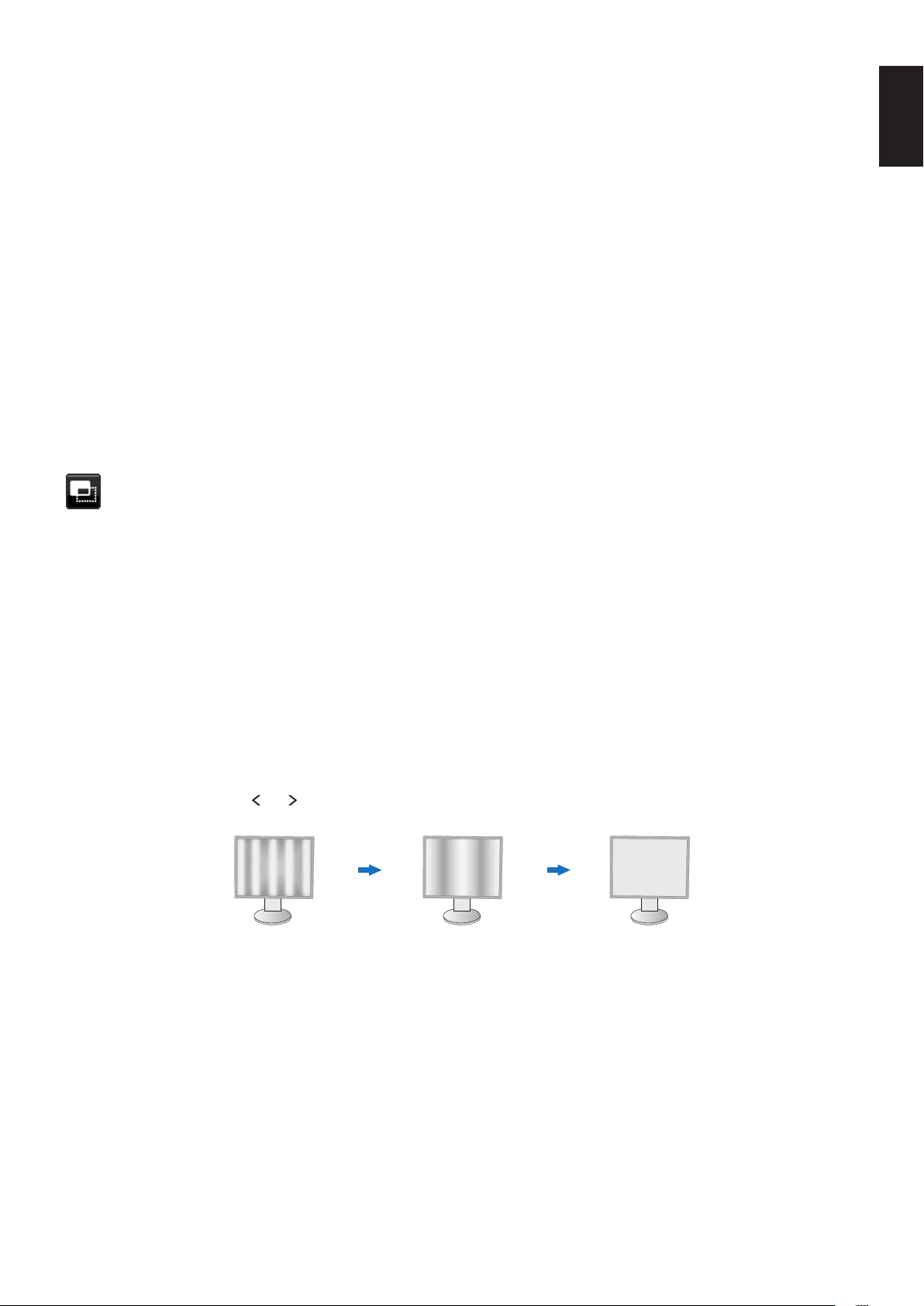
HUMANSENSING
The sensor detects the movement of a person by using the [HUMAN SENSING] function. The [HUMAN SENSING]
function has three settings:
OFF: Does not function.
1(LIGHT):After it detects that there is no person during a period of time, the monitor shifts to low brightness mode
automatically to reduce the power consumption. When a person comes near the monitor again, the monitor will
automatically return to normal mode. [START TIME] adjusts the period of time to wait before entering low brightness
mode.
2 (DEEP): After it detects that there is no person, the monitor shifts to power saving mode automatically to reduce the
power consumption. When a person comes near the monitor again, it resumes from the power saving mode.
NOTE: Detects a person within about 1.5 m from the monitor.
English-15
English
SENSORSETTING(HUMANSENSING)
Adjusts the threshold level of [HUMAN SENSING].
When the human icon is located on the right side of the white color bar or vermilion color wave, a person is not
detected.
NOTE: The [HUMAN SENSING] function starts after the OSD menu is closed.
STARTTIME(HUMANSENSING)
Adjusts the wait time before entering to low brightness mode or power saving mode when the Human Sensor detects
no person.
DV MODE
Dynamic Visual Mode allows you to select from the following settings:
STANDARD: Standard setting.
TEXT: Setting that makes letters and lines crisp; best suited for basic word processing and spreadsheets.
MOVIE: Setting that boosts dark tones; best suited for movies.
GAMING: Setting that boosts whole tones; best suited for games that use vivid, colorful images.
PHOTO:Setting that optimizes contrast; best suited for still images.
DYNAMIC: Setting that adjusts the brightness by detecting the screen’s black areas and optimizes it.
NOTE: This function is disabled when [Color Control System] is set to [L/B], [PROGRAMMABLE] or
[DICOM SIM.].
[STANDARD] is used for TCO Certificate compliance.
SCREEN
AUTO ADJUST (Analog input only)
Automatically adjusts the image position, the [H.SIZE] and [FINE] settings.
AUTO CONTRAST (Analog input only)
Adjusts the image displayed for non-standard video inputs.
LEFT/RIGHT(Analoginputonly)
Controls horizontal image position within the display area of the LCD.
DOWN / UP (Analog input only)
Controls vertical image position within the display area of the LCD.
H.SIZE(Analoginputonly)
Adjusts the horizontal size by increasing or decreasing the setting.
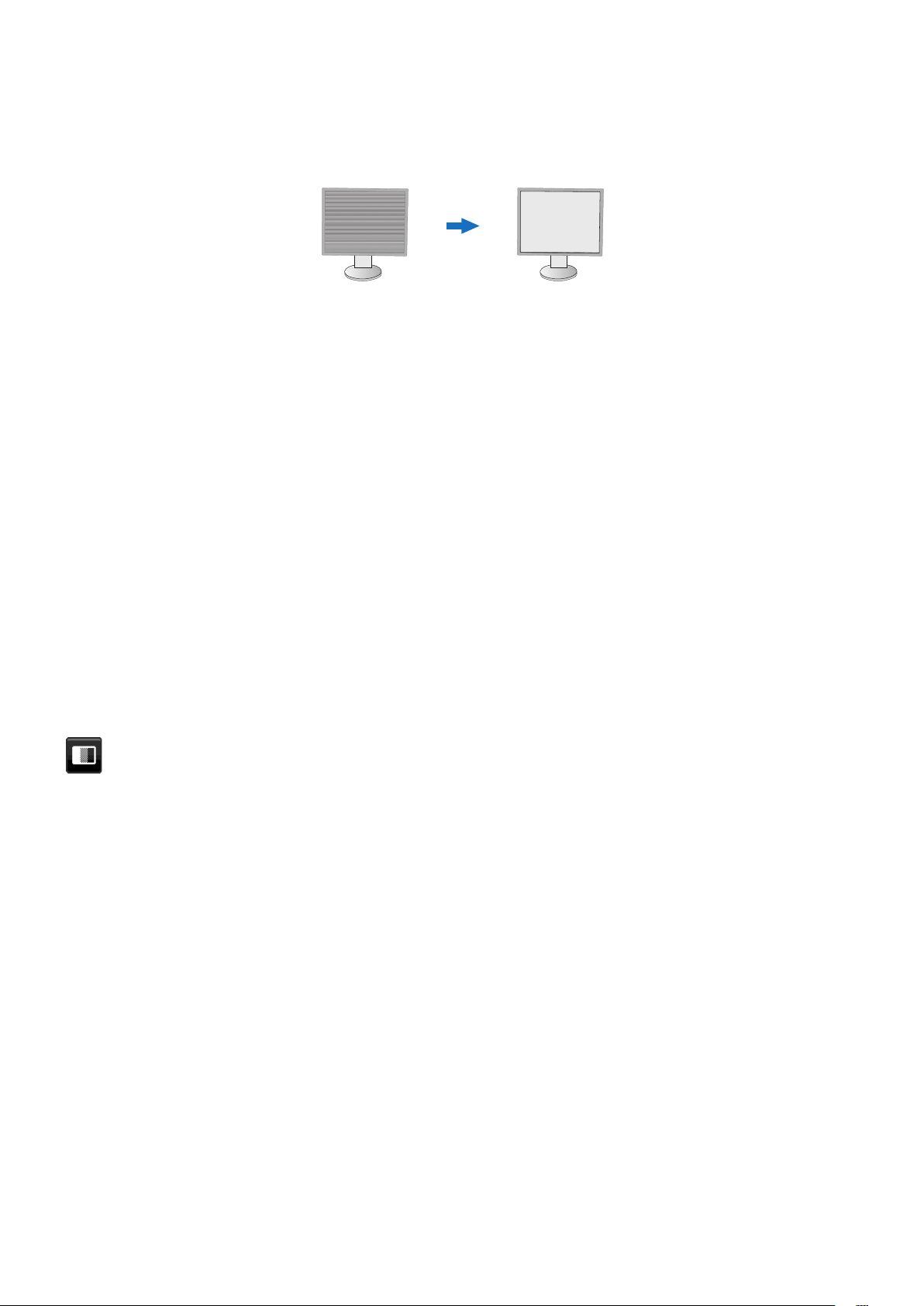
If the [AUTO ADJUST] function does not give you a satisfactory picture setting, additional tuning can be performed by
using the [H.SIZE] function (dot clock). A Moiré test pattern can be used for this. This function may alter the width of
the picture. Use the [
] or [ ] key to center the image on the screen. If the [H.SIZE] is incorrectly calibrated, the result
would look like the left drawing. The image should be homogeneous.
When [H.SIZE] value is
wrong.
When [H.SIZE] value is
improved.
When [H.SIZE] value is
correct.
English-16
FINE (Analog input only)
Improves focus, clarity and image stability by increasing or decreasing the setting.
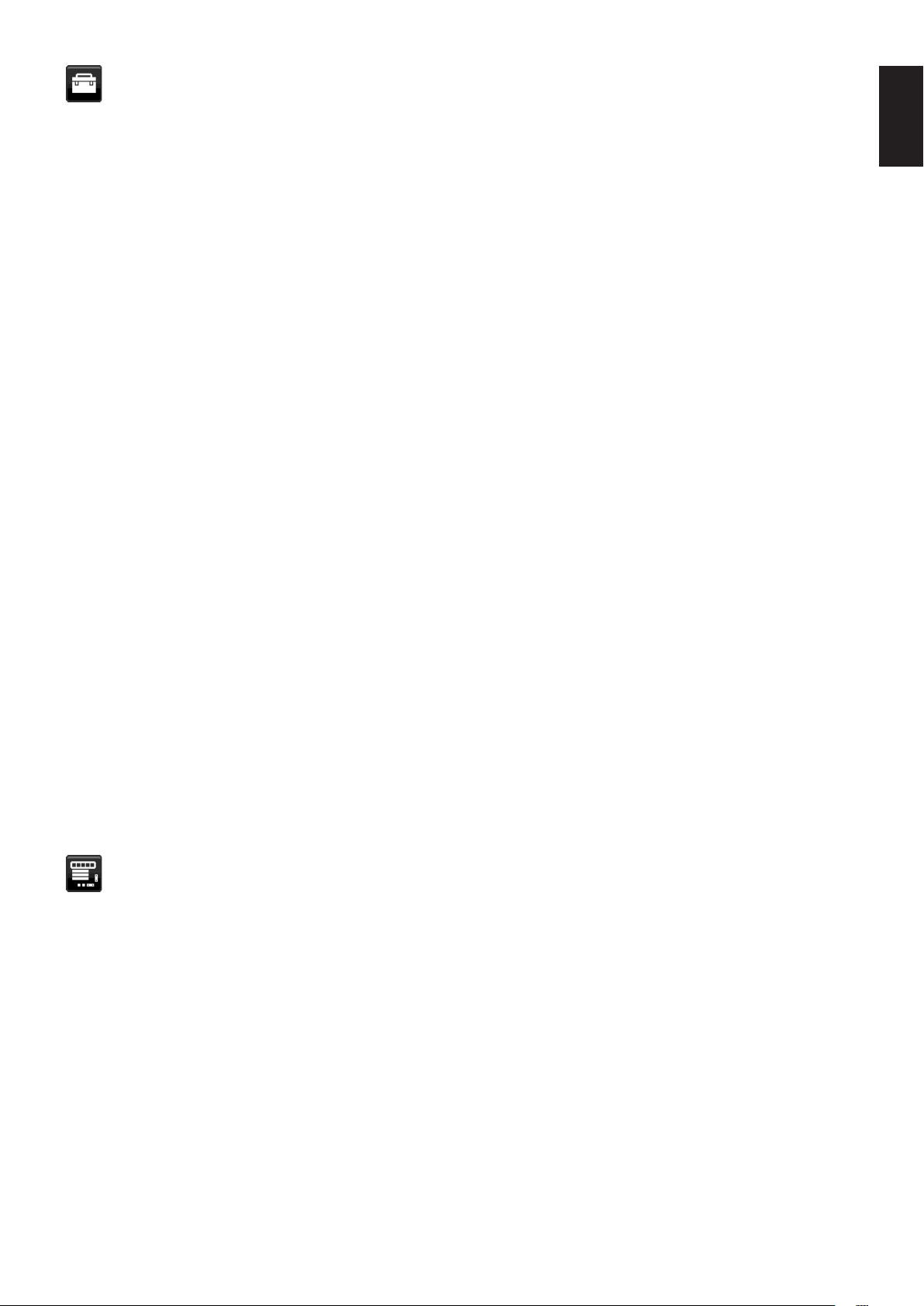
If the [AUTO ADJUST] and [H.SIZE] functions do not give you a satisfactory picture setting, fine tuning can be
performed by using the [FINE] function.
A Moiré test pattern can be used for this. If the [FINE] value is incorrectly calibrated, the result would look like the left
drawing. The image should be homogeneous.
When [FINE] value is
wrong.
When [FINE] value is
correct.
INPUT RESOLUTION (Analog input only)
Selects one of the following pair of resolutions as the input signal priority:
1360 x 768 or 1280 x 768 or 1024 x 768 (vertical resolution 768),
1600 x 900 or 1280 x 960 (horizontal frequency 60kHz),
1680 x 1050 or 1400 x 1050 (vertical resolution 1050).
VIDEOLEVEL(HDMIinputonly)
NORMAL: Setting for use with a computer. Displays all input signals of 0-255 steps.
EXPAND: Setting for use with audio visual equipment. Expands input signals of 16-235 steps to 0-255 steps.
OVERSCAN(HDMIinputonly)
Some video formats may require different scanning modes in order to best display the image.
ON: Image size is larger than what can be displayed. The image edge will appear cropped. Approximately 95% of the
image will be shown on the screen.
OFF: Image size stays within the display area. The whole image is displayed on the screen.
EXPANSION
Sets the zoom method.
FULL: The image is expanded to full screen regardless of the resolution.
ASPECT: The image is expanded without changing the aspect ratio.
Note: The resolution of 1280x768, 1360x768, 1280x720 and 1920x1080 are always [FULL] (EA231WU only).
Color
Color Control System: Color presets are available for adjusting color settings.
1, 2, 3, 4, 5: Increases or decreases the [RED], [GREEN] or [BLUE] color depending upon which is selected.
The change in color will appear on screen and the direction (increase or decrease) will be shown by the bars.
sRGB (color preset mode [4]) dramatically improves the color fidelity in the desktop environment by a single standard
RGB color space. With this color-supported environment, the operator could easily and confidently communicate color
without further color management overhead in most common situations.
NATIVE: The LCD panel’s original colors that cannot be adjusted.
L/B(LOWBLUELIGHT): Reduces blue light emitted from monitor. This item cannot be adjusted.
NOTE: You can directly change to [L/B] (LOW BLUE LIGHT) mode by touching the [INPUT] key for 3 seconds
or more. For changing to other settings from [L/B] mode, touch the [MENU] key to show OSD menu
and enter [Color Control System].
When [L/B] is selected in [Color Control System], [CONTRAST] and [DV MODE] are disabled.
DICOM SIM.: The white point color temperature and the gamma curve are set to a DICOM simulation. This item cannot
be adjusted.
PROGRAMMABLE: The gamma curve is adjustable through application software.
NOTE: When [MOVIE], [GAMING] or [PHOTO] is selected as the [DV MODE], [NATIVE] is selected
automatically and cannot be changed.
English-17
English
Tools
VOLUME
Controls the volume of the speakers or headphones.
To mute the speaker output touch the [ECO/RESET] key.
SOUNDINPUT(HDMI,DisplayPortinputsonly)
Selects the sound input source.
VIDEO DETECT
Selects the method of video detection when more than one video input is connected.
FIRST: When the current video input signal is not present, the monitor searches for a video signal from the other video
input ports. If the video signal is present in another port, the monitor switches the video source input to the detected
video source automatically. The monitor will not look for other video signals while the current video source is present.
NONE: Video input signal detection is not enabled.
RESPONSE IMPROVE
Turns the [RESPONSE IMPROVE] function [ON] or [OFF]. This function may reduce blurring that occurs in some
moving images.
OFF TIMER
The monitor will automatically power off after a period of time has passed, which you can set.
Before powering off, a message will appear on the screen asking if you want to delay the turn off time by 60 minutes.
Touch any OSD key to delay the power-down time.
POWER SAVE TIMER
[POWER SAVE TIMER] allows the monitor to turn off automatically after 2 consecutive hours in power save mode.
LEDBRIGHTNESS
Adjusts the Power LED brightness.
DDC/CI
This function turns the [DDC/CI] function [ON] or [OFF].
USB POWER
Selects how power through the USB port is enabled in relation to the monitor’s power status.
AUTO: Power is supplied to the USB downstream port depending on the monitor’s power condition.
ON: Power is always supplied to the USB downstream port even when the monitor is in power save mode or
power OFF.
NOTE: Power consumption depends on the connected USB device even when a monitor’s power is off.
FACTORY PRESET
Selecting [FACTORY PRESET] allows you to reset all OSD control settings back to the factory settings except
[LANGUAGE] and [OSD LOCK OUT]. Individual settings can be reset by touching the [ECO/RESET] key.
MENU Tools
LANGUAGE
Selects the language used by the OSD.
OSD TURN OFF
The OSD menu will stay on as long as it is in use. You can select how long the monitor waits after the last key touch to
turn off the OSD menu. The preset choices are 10-120 seconds by 5-second increments.
English-18
OSD LOCK OUT
This control completely locks out access to all OSD control functions except for [BRIGHTNESS], [CONTRAST] and
[VOLUME].
To activate the [OSD LOCK OUT] function, enter the OSD menu, select [OSD LOCK OUT], then touch [INPUT/
SELECT] and [
] keys simultaneously. To deactivate, touch [INPUT/SELECT] and [ ] keys simultaneously.
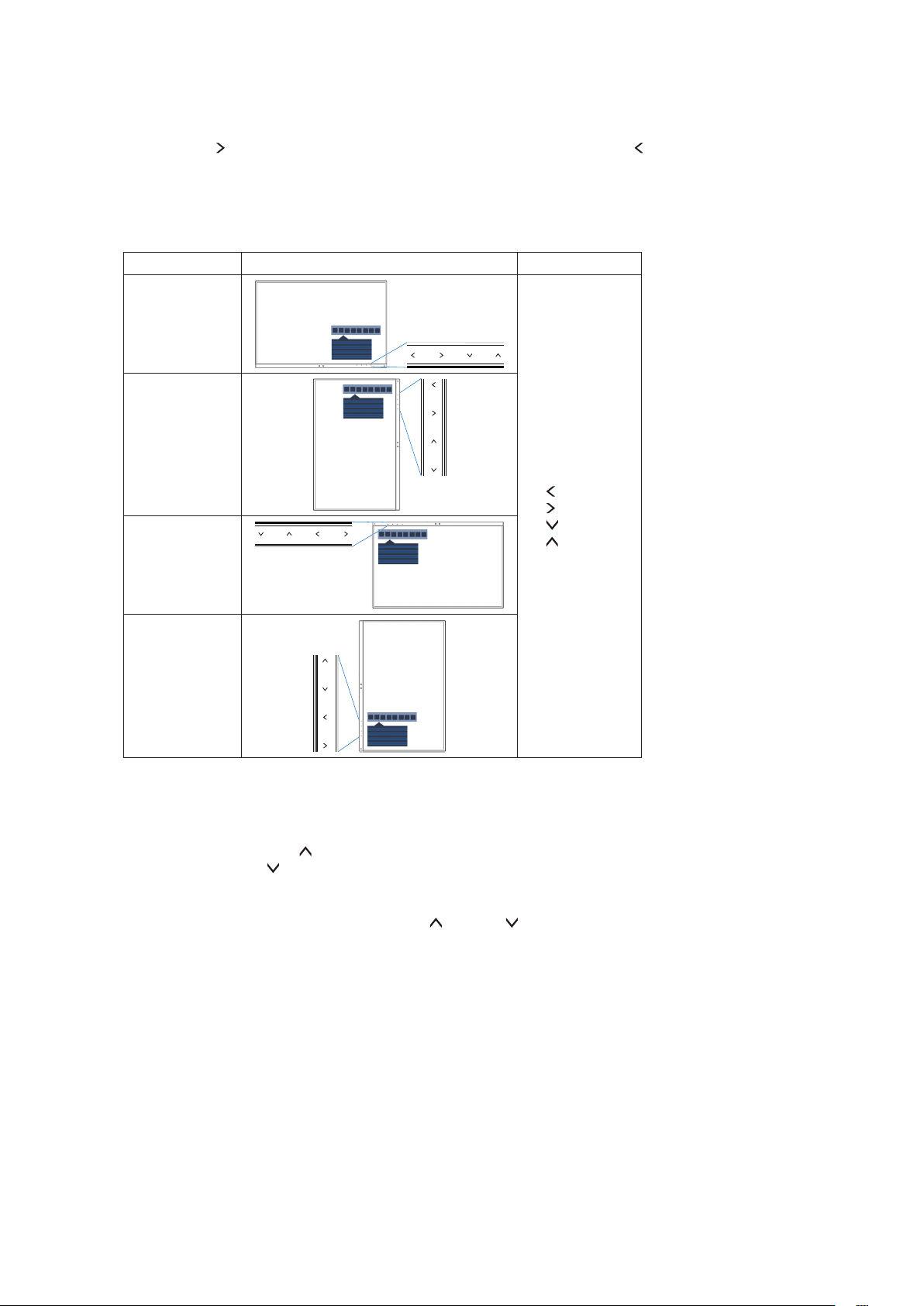
OSD ROTATION
This controls the OSD menu rotation.
Depending on the image angle (monitor rotation), select a suitable [OSD ROTATION] setting.
NOTE: Please set the [KEY GUIDE] to [ON] to display the key guide.
Setting (Angle) Image Key guide
0
: LEFT
: RIGHT
: DOWN
: UP
90
180
270
HOTKEY
When this function is [ON], [BRIGHTNESS], [VOLUME] and [ECO MODE] can be changed without entering the OSD
menu.
ON:
BRIGHTNESS: Touch the [ ] key, then adjust the [BRIGHTNESS] level in the sub menu that opens.
VOLUME: Touch the [ ] key, then adjust the [VOLUME] level in the sub menu that opens.
ECO MODE: Touch the [ECO] key, the [ECO MODE] sub menu opens. You can toggle among 3 selections:
[OFF], [1] and [2].
OFF: The [HOT KEY] function for the [ECO] key, [ ] key and [ ] key are disabled.
SIGNAL INFORMATION
If you select [ON], the monitor displays “VIDEO INPUT” message after changing the input.
If you select [OFF], the monitor doesn’t display “VIDEO INPUT” message after changing the input.
SENSOR INFORMATION
If you select [ON], the monitor displays a “HUMAN SENSOR ON” message. If you select [OFF], the monitor doesn’t
display the “HUMAN SENSOR ON” message.
KEY GUIDE
If you select [ON], the Key Guide appears on screen when the OSD menu is accessed.
English-19
English
DATA COPY
To initiate data copy from the master monitor to the sub monitor(s), select [DATA COPY] and touch the [INPUT/
SELECT] key. A “PROCEEDING...” indicator will appear on the screen.
NOTE: This function is only intended for the master monitor in ControlSync.
All of the settings specified in the ControlSync chart (see page 12) will be copied from the master
monitor to the sub monitor(s).
CUSTOMIZESETTING
Store the current settings for easy recovery.
To store current settings: Touch the [INPUT/SELECT] key. After a warning message appears, touch the [ECO/
RESET] key and the current settings are stored.
To restore settings: Touch the [MENU] key for 3 seconds or more while the OSD menu is not open.
MULTI DISPLAY
MONITOR NO.
This function is for [INDIVIDUAL ADJUST].
Sets the monitor number for each monitor.
Control a sub monitor from the master monitor by [INDIVIDUAL ADJUST]:
This function is for controlling a sub monitor from the master monitor. It is useful if the sub monitor is located at an
unreachable spot.
Please set the monitor number for each monitor. If you set a unique number to each of the monitors, you can control a
specific monitor. If you set duplicate numbers to some of the monitors, you can control the monitors that have the same
number simultaneously.
NOTE: A master monitor should be connected only with ControlSync OUT. Do not connect a master monitor
with ControlSync IN. See ControlSync for information about master and sub monitors (
page 11).
TARGET MONITOR NO.
Controls a sub monitor’s OSD by using the master monitor’s control keys.
Sets the sub monitor number that is set at [MONITOR NO.]. By touching the [INPUT/SELECT] key, each sub monitor
displays its monitor number.
INDIVIDUAL ADJUST
ON: Controls an individual sub monitor from the master monitor.
Once [ON] is set, operation at the master monitor reflects to the sub monitor OSD.
To disable [INDIVIDUAL ADJUST], please touch [INPUT] and [MENU] keys simultaneously.
NOTE: Please connect monitors with the ControlSync cables.
ECO Information
CARBON SAVINGS: Displays the estimated carbon savings information in kg.
CARBON USAGE: Displays the estimated carbon usage information in kg. This is an arithmetic estimation, not actual
measurement value.
COST SAVINGS: Displays the electricity cost savings in balance.
CARBON CONVERT SETTING
Adjusts the carbon footprint factor in the carbon saving calculation. This initial setting is based on the OECD data
(2008 Edition).
CURRENCY SETTING
Displays electricity pricing in 6 currency units.
English-20
CURRENCY CONVERT SETTING
Displays electricity savings in kW/hour (US Currency is default).
NOTE: This model’s initial setting is US Dollar [$] in [CURRENCY SETTING] and $ [0.11] in [CURRENCY
CONVERT SETTING].
This setting can be changed by using the [ECO INFORMATION] menu.
If you want to use the French setting, please refer to the steps below:
1. Touch the [MENU] key and select the [ECO INFORMATION] menu using the [
] or [ ] key.
2. Select the [CURRENCY SETTING] item by touching the [ ] or [ ] key.
3. The French currency unit is Euro [ ]. You can adjust currency setting to Euro icon [ ] from
US Dollar [$] by touching the [ ] or [ ] key in [CURRENCY SETTING] item.
4. Select [CURRENCY CONVERT SETTING] by touching the [ ] or [ ] key*.
5. Adjust [CURRENCY CONVERT SETTING] by touching the [ ] or [ ] key.
* This initial Euro [ ] setting is based on the OECD data for Germany (2007 Edition).
Please check the receipt of electricity prices for France or OECD data for France.
The French value according to the OECD data (2007 Edition) was 0.12.
Information
Provides information about the current display resolution and technical data including the preset timing being used and
the horizontal and vertical frequencies. Indicates the model and serial numbers of your monitor.
OSD Warning
OSD warning messages close by touching the [MENU] key.
NO SIGNAL: This function gives a warning when there is no horizontal or vertical sync. After power is turned on or
when there is a change of input signal, the “NO SIGNAL” window will appear.
OUT OF RANGE: This function gives a recommendation of the optimized resolution and refresh rate. After the power
is turned on, or there is a change of input signal, or if the video signal doesn’t have proper timing, the “OUT OF
RANGE” message will appear.
English-21
English
Specifications - EA231WU
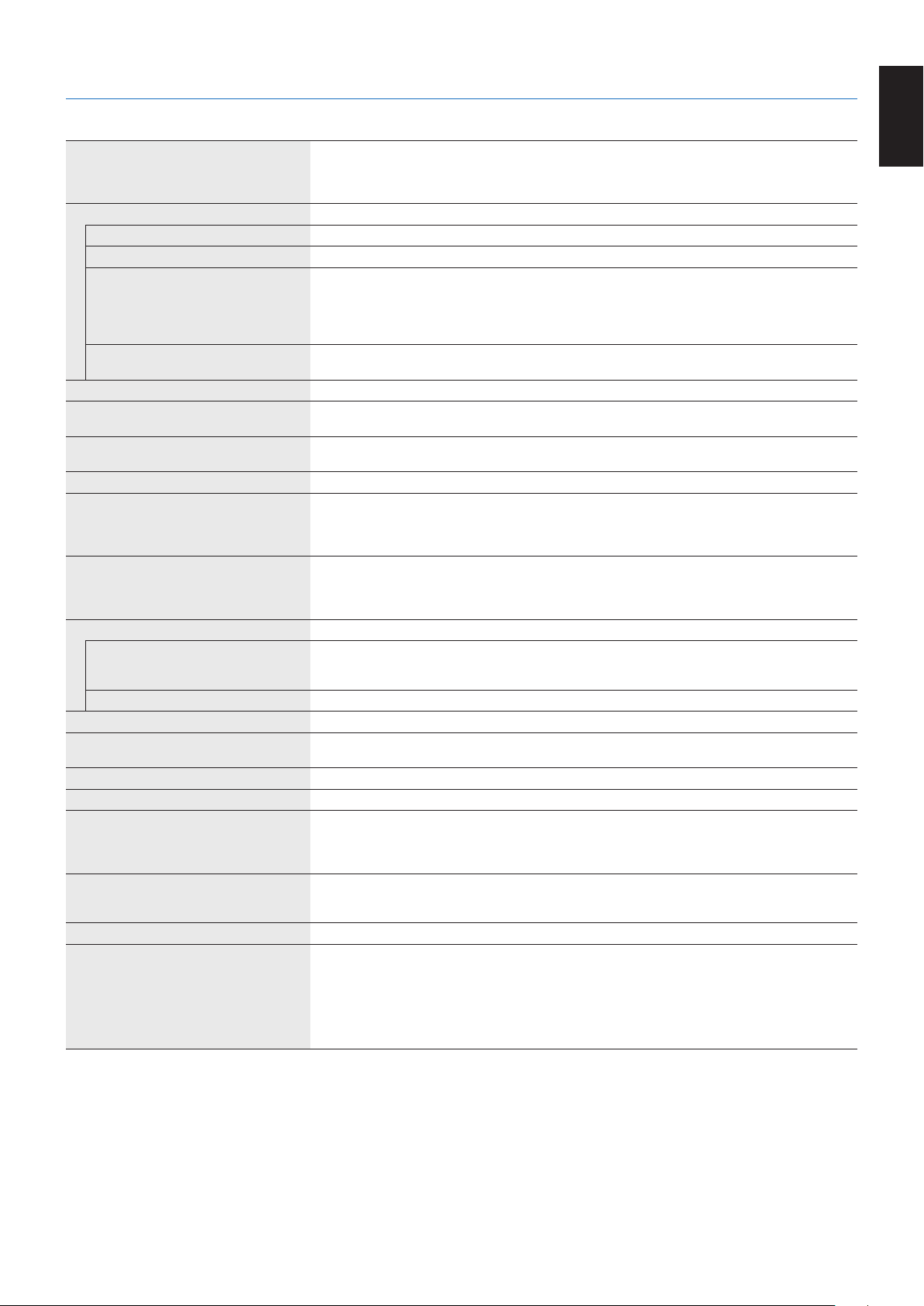
Monitor Specifications MultiSync EA231WU Notes
LCD Module Diagonal:
Viewable Image Size:
Native Resolution (Pixel Count):
57.15 cm/22.5 inches
57.15 cm/22.5 inches
1920 x 1200
Active matrix; thin film transistor (TFT) liquid crystal
display (LCD); 0.254 mm (H) x 0.248 mm (V) dot pitch;
250 cd/m
2
white luminance; 1000:1 contrast ratio
(typical), (5000:1 Contrast ratio, Dynamic).
Input Signal
DisplayPort: DisplayPort Connector: Digital RGB DisplayPort V1.1a (HDCP1.3)
DVI: DVI-D 24pin: Digital RGB DVI (HDCP1.4)
VGA: Mini D-Sub 15-pin: Analog RGB
Sync
0.7 Vp-p/75 ohm
Separate sync.TTL level Positive/Negative
Composite sync.TTL level Positive/Negative
Sync on Green
(Video 0.7 Vp-p and Sync Negative 0.3 Vp-p)
HDMI: HDMI Connector: Digital YUV
Digital RGB
HDMI (HDCP1.4)
Display Colors 16,777,216
Synchronization Range Horizontal:
Vertical:
31.5 kHz to 75.0 kHz
50 Hz to 60 Hz
Automatically
Automatically
Viewing Angle Left/Right:
Up/Down:
±89°(CR>10)
±89°(CR>10)
Response Time 5 ms (Gray to gray Typ.)
Active Display Area Landscape: Horiz.:
Vert.:
Portrait: Horiz.:
Vert.:
488.2 mm/19.2 inches
297.2 mm/11.7 inches
297.2 mm/11.7 inches
488.2 mm/19.2 inches
USB Hub I/F:
Port:
Load Current:
USB Specification Revision USB 3.1 Gen 1
Upstream 1
Downstream 3
5 V/0.9 A (Max.)
Upstream port applicable to USB monitor control.
AUDIO
Audio Input: STEREO Mini Jack:
DisplayPort Connector:
HDMI Connector:
Analog Audio
Digital Audio
Digital Audio
Stereo L/R 500mV rms 20 Kohm
PCM 2ch 32, 44.1, 48 kHz (16/20/24bit)
PCM 2ch 32, 44.1, 48 kHz (16/20/24bit)
Headphone Output: STEREO Mini Jack: Headphone Impedance 32 Ohm
Speakers Practical Audio Output: 1.0 W + 1.0 W
ControlSync IN:
(available up to 5 sub monitors) OUT:
Stereo Micro jack 2.5 φ
Stereo Micro jack 2.5 φ
Power Supply AC 100-240 V, 50/60 Hz
Current Rating 0.90 - 0.50 A
Dimensions Landscape:
Portrait:
498.9 mm (W) x 337.2 - 487.2 mm (H) x 250.0 mm (D)
19.6 inches (W) x 13.3 - 19.2 inches (H) x 9.8 inches (D)
319.7 mm (W) x 516.7 - 596.0 mm (H) x 250.0 mm (D)
12.6 inches (W) x 20.3 - 23.5 inches (H) x 9.8 inches (D)
Stand adjustable range Height Adjustment:
Tilt / Pivot / Swivel:
150 mm/5.91 inches (Landscape orientation)
79.3 mm/3.12 inches (Portrait orientation)
Up35°Down5°/±90°/340°
Weight 5.9 kg (13.0 lbs)/Without stand: 3.4 kg (7.5 lbs)
Environmental Considerations
Operating Temperature:
Humidity:
Altitude:
Storage Temperature:
Humidity:
Altitude:
5°Cto35°C/41°Fto95°F
20% to 80%
0 to 16,404 Feet/0 to 5,000 m
-10°Cto60°C/14°Fto140°F
10% to 85%
0 to 40,000 Feet/0 to 12,192 m
NOTE: Technical specifications are subject to change without notice.
English-22
Specifications - EA241F
Monitor Specifications MultiSync EA241F Notes
LCD Module Diagonal:
Viewable Image Size:
Native Resolution (Pixel Count):
60.47 cm/23.8 inches
60.47 cm/23.8 inches
1920 x 1080
Active matrix; thin film transistor (TFT) liquid crystal
display (LCD); 0.275 mm (H) x 0.275 mm (V) dot pitch;
250 cd/m
2
white luminance; 1000:1 contrast ratio
(typical), (5000:1 Contrast ratio, Dynamic).
Input Signal
DisplayPort: DisplayPort Connector: Digital RGB DisplayPort V1.1a (HDCP1.3)
DVI: DVI-D 24pin: Digital RGB DVI (HDCP1.4)
VGA: Mini D-Sub 15-pin: Analog RGB
Sync
0.7 Vp-p/75 ohm
Separate sync.TTL level Positive/Negative
Composite sync.TTL level Positive/Negative
Sync on Green
(Video 0.7 Vp-p and Sync Negative 0.3 Vp-p)
HDMI: HDMI Connector: Digital YUV
Digital RGB
HDMI (HDCP1.4)
Display Colors 16,777,216
Synchronization Range Horizontal:
Vertical:
31.5 kHz to 83.0 kHz
50 Hz to 75 Hz
Automatically
Automatically
Viewing Angle Left/Right:
Up/Down:
±89°(CR>10)
±89°(CR>10)
Response Time 5 ms (Gray to gray Typ.)
Active Display Area Landscape: Horiz.:
Vert.:
Portrait: Horiz.:
Vert.:
527.0 mm/20.7 inches
296.5 mm/11.7 inches
296.5 mm/11.7 inches
527.0 mm/20.7 inches
USB Hub I/F:
Port:
Load Current:
USB Specification Revision USB 3.1 Gen 1
Upstream 1
Downstream 3
5 V/0.9 A (Max.)
Upstream port applicable to USB monitor control.
AUDIO
Audio Input: STEREO Mini Jack:
DisplayPort Connector:
HDMI Connector:
Analog Audio
Digital Audio
Digital Audio
Stereo L/R 500mV rms 20 Kohm
PCM 2ch 32, 44.1, 48 kHz (16/20/24bit)
PCM 2ch 32, 44.1, 48 kHz (16/20/24bit)
Headphone Output: STEREO Mini Jack: Headphone Impedance 32 Ohm
Speakers Practical Audio Output: 1.0 W + 1.0 W
ControlSync IN:
(available up to 5 sub monitors) OUT:
Stereo Micro jack 2.5 φ
Stereo Micro jack 2.5 φ
Power Supply AC 100-240 V, 50/60 Hz
Current Rating 0.90 - 0.50 A
Dimensions Landscape:
Portrait:
537.7 mm (W) x 336.6 - 486.6 mm (H) x 250.0 mm (D)
21.2 inches (W) x 13.3 - 19.2 inches (H) x 9.8 inches (D)
319.1 mm (W) x 555.6 - 615.4 mm (H) x 250.0 mm (D)
12.6 inches (W) x 21.9 - 24.2 inches (H) x 9.8 inches (D)
Stand adjustable range Height Adjustment:
Tilt / Pivot / Swivel:
150 mm/5.91 inches (Landscape orientation)
59.8 mm/2.35 inches (Portrait orientation)
Up35°Down5°/±90°/340°
Weight 6.1 kg (13.4 lbs)/Without stand: 3.6 kg (7.9 lbs)
Environmental Considerations
Operating Temperature:
Humidity:
Altitude:
Storage Temperature:
Humidity:
Altitude:
5°Cto35°C/41°Fto95°F
20% to 80%
0 to 16,404 Feet/0 to 5,000 m
-10°Cto60°C/14°Fto140°F
10% to 85%
0 to 40,000 Feet/0 to 12,192 m
NOTE: Technical specifications are subject to change without notice.
English-23
English
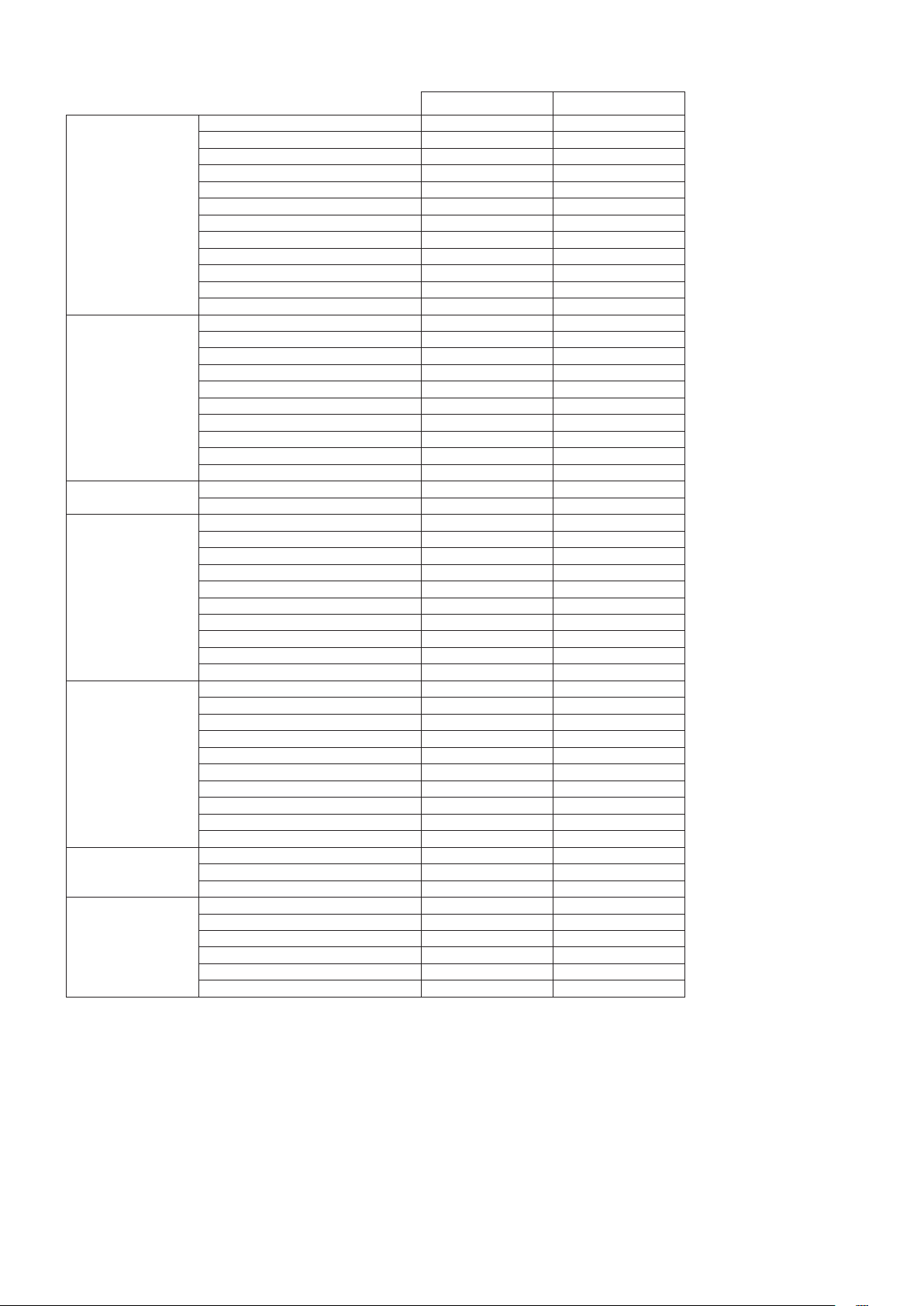
Major Supported Timings (EA231WU)
Resolution
Vertical Frequency Notes
HV
640 x 480 60 Hz
720 x 480 60 Hz
720 x 576 50 Hz
800 x 600 56/60 Hz
1024 x 768 60 Hz
1280 x 720 50/60 Hz
1280 x 960 60 Hz
1280 x 1024 60 Hz
1440 x 900 60 Hz
1600 x 1200 60 Hz
1680 x 1050 60 Hz
1920 x 1080 50/60 Hz
1920 x 1200 60 Hz Recommend
Major Supported Timings (EA241F)
Resolution
Vertical Frequency Notes
HV
640 x 480 60/72/75 Hz
720 x 400 70 Hz
720 x 480 60 Hz
720 x 576 50 Hz
800 x 600 50/60/72/75 Hz
1024 x 768 60/70/75 Hz
1280 x 720 50/60 Hz
1280 x 960 60/75 Hz
1280 x 1024 60/75 Hz
1440 x 900 60 Hz
1680 x 1050 60 Hz
1920 x 1080 50/60 Hz Recommend (60 Hz)
NOTE: When the selected monitor resolution is not a native panel resolution, the text contents appearance in the monitor
screen is expanded in a horizontal or vertical direction to show the non-native resolution to full screen. This expansion
is done by interpolated resolution technologies, which are normal and widely used in flat panel devices.

English-24
Features
3-side Narrow Bezel: Stylish appearance and less distance between adjacent screens in a multi-monitor setup.
Fully Ergonomic Stand: Provides viewing flexibility with 150 mm height adjustment, -5 ~ 35-degree tilt, 340-degree swivel, with
cable management and a small footprint. The ability to pivot to either side can minimize width between adjacent bezels in multi-
monitor installations. The bottom of the monitor cabinet can touch the stand base for lower positioning requirements.
ErgoDesign Features: Enhance human ergonomics to improve the working environment, protect the health of the user and
save money. The ergonomic features include a fully articulating stand, OSD controls that can rotate 90/180/270 degrees for
quick and easy image adjustment, and lower emissions.
VESA Standard Mounting Interface: Connects the monitor to any VESA standard third party mounting arm or bracket.
Various Signal Interfaces: This model has various interfaces. Fore more detail, please see page 7.
Plug and Play: The Microsoft
®
solution with the Windows
®
operating system facilitates setup and installation by allowing the
monitor to send its capabilities (such as screen size and resolutions supported) directly to the computer, automatically optimizing
display performance.
USBHub3.1Gen.1: The USB hub adds flexibility to your computing by providing easy access to USB SuperSpeed data
transfer and charging via USB. For more details, please see page 7.
HardwareCalibration: Adjusts brightness, colors and gamma curve for your preference with software and color sensor.
USB Monitor Control: Allows you to adjust each item through application software by connecting a USB cable.
Color Control Systems: Adjusts the colors on the screen and allows customization of the color accuracy of the monitor to a
variety of standards.
Human/AmbientSensors: Controls screen brightness according to user presence and ambient light status for less power
consumption.
Response Improve (RESPONSE IMPROVE): Improves gray to gray response.
Intelligent Power Manager System: Provides innovative power-saving methods that allow the monitor to shift to a lower-
power mode when on but not it use, reducing emissions and lowering the cost of operating the monitor by reducing its power
consumption.
ControlSync: Provides control and settings synchronization for up to five MultiSync EA series displays, as well as individual
control of any single monitor in the ControlSync chain, from a single master monitor (see page 11).
Individual Adjust (INDIVIDUAL ADJUST): A designated main monitor can adjust an individual sub monitor(s) by the OSD. It is
good for multi-setting monitors which are positioned far from the user.
CustomizeSetting(CUSTOMIZESETTING):Allows to store the current settings and recover stored settings.
Low Blue Light: Low Blue Light function substantially reduces blue light and helps to alleviate eye-strain (see page 16).
FlickerFree: Special backlight system reduces flicker for less eyestrain.
NaViSet Administrator 2 Software: Offers an expanded and intuitive graphical interface, allowing adjustments of the OSD
display settings from a network PC.
Environmental Impact (EA231WU): Annual typical maximum operating carbon footprint of this monitor (world-wide average) is
approximately 41.8 kg (calculated by: rated wattage x 8 hours per day x 5 days a week x 45 weeks per year x Power-to-Carbon
conversion factor - conversion factor is based on OECD publication of global CO2 emissions 2008 Edition). This monitor has a
manufacturing carbon footprint of approximately 51.4 kg.
Environmental Impact (EA241F): Annual typical maximum operating carbon footprint of this monitor (world-wide average) is
approximately 42.7 kg (calculated by: rated wattage x 8 hours per day x 5 days a week x 45 weeks per year x Power-to-Carbon
conversion factor - conversion factor is based on OECD publication of global CO2 emissions 2008 Edition). This monitor has a
manufacturing carbon footprint of approximately 52.6 kg.
Note: The manufacturing and operating carbon footprints are calculated by a unique algorithm developed exclusively by NEC
for its monitors and are accurate at the time of printing. NEC reserves the right to publish updated carbon footprint values.

English-25
English
Troubleshooting
No picture
•Makesurethesignalcableisfullyconnectedtoboththemonitorandthecomputer.
•Makesurethecomputer’sdisplaycardisfullyseatedinitsslot.
•DonotuseaDisplayPortconverteradapter.Thisdeviceisnotsupported.
•MakesureboththecomputerandmonitorpowerswitchesareintheONposition.
•Themonitorwillautomaticallyturnoffbythe[POWERSAVETIMER]functionwhenthe[POWERSAVETIMER]settingis
[ON] and continues power save mode for 2 hours. Please touch the [ ] key.
•MakesurethataMajorSupportedTimingshasbeenselectedforthedisplaycardinthesystembeingused.
(Please consult the manual for the system or display card for supported resolution and changing the settings.)
•Checkthemonitorandyourdisplaycardwithrespecttocompatibilityandrecommendedsettings.
•Checkthesignalcableconnectorforbentorpushed-inpins.
•Makesuretheconnecteddeviceoutputsasignaltothemonitor.
•IfthefrontLEDisdarkblue,checkthestatusofthe[OFFMODESETTING]mode(seepage 14) or [HUMAN SENSING]
(see page 14).
Power Key does not respond
•Unplugthemonitor’spowercordfromtheACoutlettoresetthemonitor.
Image Persistence
•Imagepersistenceiswhenaresidualor“ghost”imageofapreviousimageremainsvisibleonthescreen.UnlikeCRT
monitors, LCD monitors’ image persistence is not permanent, but constant images being displayed for a long period
of time should be avoided. To alleviate image persistence, turn off the monitor for as long as the previous image was
displayed. For example, if an image was on the monitor for one hour and a residual image remains, the monitor should
be turned off for one hour to erase the image.
NOTE: As with all personal display devices, NEC DISPLAY SOLUTIONS recommends using a moving screen saver at
regular intervals whenever the screen is idle or turning off the monitor when not in use.
Message“OUTOFRANGE”isdisplayed(screeniseitherblankorshowsroughimagesonly)
•OSDwarning“OUTOFRANGE”isdisplayedonaroughimage(pixelsaremissing):Eitherthesignalclockorresolution
is too high. Change the settings to a supported mode.
•OSDwarning“OUTOFRANGE”isdisplayedonablankscreen:Thesignalfrequencyisoutofrange.Changethe
settings to a supported mode.
Image is unstable, unfocused or swimming is apparent
•Signalcableshouldbecompletelyattachedtothecomputer.
•DisconnecttheDisplayPortcableandtouchthe[MENU]key.
Select [DP LONG CABLE] then adjust the OSD value using the [ ] key or [ ] key.
•UsetheOSDImageAdjustcontrolstofocusandadjustthedisplaybyincreasingordecreasingthe[FINE]adjustment.
When the display mode is changed, the OSD Image Adjust settings may need to be readjusted.
•Checkthemonitorandyourdisplaycardwithrespecttocompatibilityandrecommendedsignaltimings.
•Ifyourtextisgarbled,changethevideomodetonon-interlaceandusethe60Hzrefreshrate.
LED on monitor is not lit (no blue or amber color can be seen)
•PowerSwitchshouldbeintheONpositionandpowercordshouldbeconnected.
•Increasethe[LEDBRIGHTNESS]adjustment.
Picture is not bright
•Ifthebrightnessuctuates,makesure[DVMODE]issetto[STANDARD].
•Makesure[ECOMODE]and[AUTOBRIGHTNESS]areturnedoff.
•Ifthebrightnessuctuates,makesure[AUTOBRIGHTNESS]isturnedoff.
•Signalcableshouldbecompletelyattached.
•LCDbrightnessdegradationoccursduetolong-termusageorextremecoldconditions.
•WhenusinganHDMIinput,pleasechange[VIDEOLEVEL].
Display image is not sized properly
•UsetheOSDImageAdjustcontrolstoincreaseordecreasetheCoarseadjustment.
•MakesurethataMajorSupportedTimingshasbeenselectedforthedisplaycardinthesystembeingused.
(Please consult the manual for the system or display card for supported resolution and changing the settings.)
•WhenusinganHDMIinput,pleasechange[OVERSCAN].

English-26
No Video
•Ifnovideoispresentonthescreen,turnthe[
] key off and on again.
•Makesurethecomputerisnotinapower-savingmode(touchthekeyboardormouse).
•WhenusingDisplayPort,somedisplaycardsdonotoutputvideosignalunderlowresolutionmodeswhenthemonitoris
turned OFF/ON or disconnected/connected from the AC power cord.
•WhenusinganHDMIinput,pleasechange[OVERSCAN].
•Makesure[VIDEODETECT]issetto[NONE].
No Sound
•Makesurethespeakercableisproperlyconnected.
•Checktoseeifmuteisactivated.
•CheckthevolumelevelintheOSDmenu.
•IftheinputsignalisDisplayPortorHDMI,makesurethe[SOUNDINPUT]intheOSDmenuissetto[DISPLAYPORT]or
[HDMI].
Brightness variations over time
•Change[AUTOBRIGHTNESS]to[OFF]andthenadjustthe[BRIGHTNESS].
•Change[DVMODE]to[STANDARD]andthenadjustthe[BRIGHTNESS].
NOTE: When [AUTO BRIGHTNESS] is set to [ON], the monitor automatically adjusts brightness based on the environment.
When the brightness of surrounding environment changes, the monitor will also change.
When [DV MODE] is set to [DYNAMIC], the monitor automatically adjusts the [BRIGHTNESS].
USBHubdoesnotoperate
•MakesuretheUSBcordisproperlyconnected.RefertoyourUSBdeviceUser’sManual.
•CheckthattheUSBupstreamportonthemonitorisconnectedtotheUSBdownstreamportonthecomputer.Andmake
sure the computer is ON.
Humansensordoesnotwork
•MakesurethereisnoobjectinfrontoftheHumansensor.
•Makesurethereisnoequipmentthatradiatesinfraredraysinfrontofthemonitor.
ControlSyncdoesnotwork
•MakesuretheControlSynccableisconnectedcorrectly.
•MakesuretheControlSynccableisnotin“loop”connection.
•MastermonitorshouldbeconnectedwithControlSyncOUTconnectoronly.
•PleaseusetheprovidedControlSynccables.
•YoucanuseuptovesubmonitorsviaControlSync.
Displayed OSD menu is rotated
•Makesureofthe[OSDROTATION]setting.
English-27
English
HumanSensingfunction
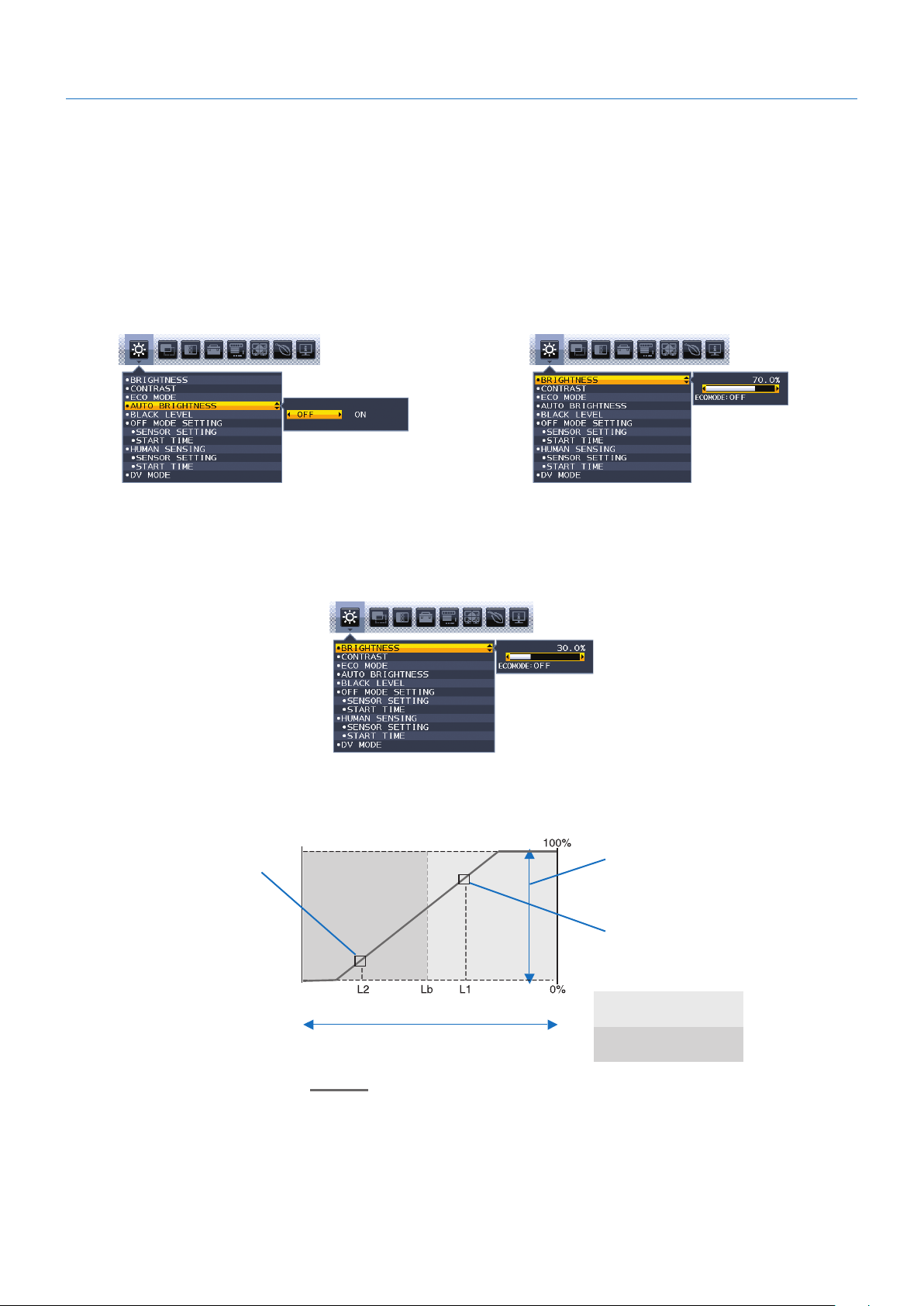
The Human Sensing function reduces power consumption by detecting the movement of a person.
The [HUMAN SENSING] has following two settings:
MODE HUMANSENSINGSETTINGNo person in front of the monitor
LIGHT 1 BRIGHTNESS 0%
DEEP 2 Power saving mode
Image of human sensing operation
A. When the sensor detects no person in front of the monitor, the monitor stays on for the period of time which is set at
[HUMANSENSING]>[STARTTIME](see
page 15).
B. The monitor displays a notification on the screen after the period of time with no human detected has passed.
You can set the notification screen at [SENSOR INFORMATION] (see
page 18).
C. After displaying the notification, if [LIGHT] is set at [HUMAN SENSING], the monitor screen gets gradually darker until it gets
to 0% brightness.
If [DEEP] is set at [HUMAN SENSING], the monitor enters into power saving mode.
D. When the sensor detects a person coming back, the monitor is automatically returned from power saving mode to normal
mode.
NOTE: When [LIGHT] is set at [HUMAN SENSING], the monitor screen gets gradually brighter as it returns to the original
brightness.
E. The monitor returns to normal mode.
A EB C D
A user leaves A user is back
Normal mode Normal mode +
notification
Power save mode
[HUMAN SENSING]
(LIGHT/DEEP)
Back to Normal mode
English-28
Using the Auto Brightness function
The brightness of the LCD screen can be set to increase or decrease depending on the amount of ambient lighting within the
room. If the room is bright, the monitor becomes correspondingly bright. If the room is dim, then the monitor will dim accordingly.
The purpose of this function is to make the viewing experience more comfortable to the eye in a variety of lighting conditions.
SETUP
Use the following procedures to select the brightness range the monitor will use when the [AUTO BRIGHTNESS] function is
activated.
1. Set a level for the bright room condition. This is the maximum brightness level the monitor will rise to when the ambient
lighting level is highest. Configure this setting when the room is at its brightest.
Select [ON] in the [AUTO BRIGHTNESS] menu (Figure 1). Then use the front Keys to move the cursor up to the
[BRIGHTNESS] setting. Choose the desired brightness level (Figure 2).
Figure 1 Figure 2
2. Set a level for the dark room condition. This is the minimum brightness level the monitor will lower to when the ambient
lighting level is low. Make sure the room is at its darkest when setting this level.
Then use the front Keys to move the cursor up to the [BRIGHTNESS] setting. Choose the desired brightness level
(Figure 3).
Figure 3
When the [AUTO BRIGHTNESS] function is enabled the Brightness level of the screen changes automatically according to the
lighting conditions of the room (Figure 4).
[BRIGHTNESS] level set
for the monitor to use
when ambient lighting
level is low.
[BRIGHTNESS] level set for the
monitor to use when ambient
lighting level is high.
[BRIGHTNESS] range
Lb: Border between bright and dim lighting conditions; set at the factory
L1:[BRIGHTNESS]levelsetforthemonitortousewhenambientlightinglevelishigh(L1>Lb)
L2 : [BRIGHTNESS] level set for the monitor to use when ambient lighting level is low (L2<Lb)
L1 and L2 are the brightness levels set by the user to compensate for changes in ambient lighting.
Figure 4
dark bright
room bright condition
Screen Brightness value by [AUTO BRIGHTNESS] function
Bright condition area
Darkconditionarea
English-29
English
Manufacturer’s Recycling and Energy Information
NEC DISPLAY SOLUTIONS is strongly committed to environmental protection and sees recycling as one of the company’s
top priorities in trying to minimize the burden placed on the environment. We are engaged in developing environmentally-
friendly products, and always strive to help define and comply with the latest independent standards from agencies such as
ISO (International Organisation for Standardization) and TCO (Swedish Trades Union).
Disposing of your old NEC product
The aim of recycling is to gain an environmental benefit by means of re-use, upgrading, reconditioning or reclamation of
material. Dedicated recycling sites ensure that environmentally harmful components are properly handled and securely
disposed. To ensure the best recycling of our products, NEC DISPLAY SOLUTIONS offers a variety of recycling procedures
and gives advice on how to handle the product in an environmentally sensitive way, once it has reached the end of its life.
All required information concerning the disposal of the product and country-specific information on recycling facilities can be
found on our following websites:
https://www.nec-display-solutions.com/greencompany/ (in Europe),
https://www.nec-display.com (in Japan) or
https://www.necdisplay.com (in USA).
Energy Saving
This monitor features an advanced energy saving capability. When a Display Power Management signal is sent to the monitor,
the Energy Saving mode is activated. The monitor enters a single Energy Saving mode.
Mode Power consumption LED color
Maximum Operation
46 W (EA231WU)
47 W (EA241F)
Blue
Normal Operation 15 W Default setting Blue
Energy Saving Mode 0.31 W* Amber
Off Mode 0.29 W Unlit
*: Factory settings.
For additional information visit:
https://www.necdisplay.com/ (in USA)
https://www.nec-display-solutions.com/ (in Europe)
https://www.nec-display.com/global/index.html (Global)
For Energy Saving information:
For ErP requirement:
Setting: None.
Power consumption: 0.5 W or less.
Time for power management function: Approx. 1 min.
For ErP (Network standby) requirement:
Setting: None.
Power consumption: 0.5 W or less (with 1 port activating) / 3.0 W or less (with all ports activating).
Time for power management function: Approx. 1 min.
WEEEMark(EuropeanDirective2012/19/EUandamendments)
Disposing of your used product: In the European Union
EU-wide legislation as implemented in each Member State requires that used electrical and electronic products
carrying the mark (left) must be disposed of separately from normal household waste. This includes monitors
and electrical accessories, such as signal cables or power cords. When you dispose of such products, please
follow the guidance of your local authority or ask the shop where you purchased the product, or if applicable,
follow applicable legislation or agreement you may have. The mark on electrical and electronic products may
only apply to the current European Union Member States.
Outside the European Union
If you wish to dispose of used electrical and electronic products outside the European Union, please contact your local authority
and ask for the correct method of disposal.