
User Manual
ENGLISH | OS Ver. 1.5
2E

• Read these instructions, and follow them carefully.
• Keep these instructions in a safe place.
• Heed all warnings.
• Do not use this apparatus near water.
• Clean only with dry cloth.
• Do not block any ventilation openings, install in accordance with the manu-
facturer’s instructions.
• Do not install near any heat sources such as radiators, heat registers, stoves, or
other apparatus (including amplifiers) that produce heat.
• Protect the power cord from being walked on or pinched particularly at plugs,
convenience receptacles, and the point where they exit from the apparatus.
• Only use attachments/accessories specified by the manufacturer.
• Unplug this apparatus during lightning storms or when unused for long peri-
ods of time.
• Refer all servicing to qualified service personnel. Servicing is required when
the apparatus has been damaged in any way, such as power-supply cord or
plug is damaged, liquid has been spilled or objects have fallen into the appara-
tus, the apparatus has been exposed to rain or moisture, does not operate nor-
mally, or has been dropped.
• Turning off the power switch does not completely isolate this product from
the power line so remove the plug from the socket if not using it for extended
periods of time, or before cleaning. Please ensure that the mains plug or appli-
ance couple remains readily accessible.
• Mains powered apparatus shall not be exposed to dripping or splashing and that
no objects filled with liquids, such as vases, shall be placed on the apparatus.
• Install this product near the wall socket and keep the power plug easily acces-
sible.
• Do not install this equipment in a confined space such as a box for the convey-
ance or similar unit.
• When a cart is used, use caution when moving the cart/apparatus combina-
tion to avoid injury from tip-over.
Important safety instructions
NOTICE REGARDING DISPOSAL (EU ONLY)
If this symbol is shown on the product, manual, battery, or package, you
must dispose of it in the correct manner to avoid harm to human health
or damage to the environment. Contact your local administrative body
for details on the correct disposal method. If the battery contains heavy
metals in excess of the regulated amount, a chemical symbol is displayed
below the symbol on the battery or battery package.
PERCHLORATE (CALIFORNIA, USA ONLY)
Perchlorate Material – special handling may apply.
See www.dtsc.ca.gov/hazardouswaste/perchlorate.
THE FCC REGULATION WARNING (FOR USA)
This equipment has been tested and found to comply with the limits for a Class B
digital device, pursuant to Part 15 of the FCC Rules. These limits are designed to
provide reasonable protection against harmful interference in a residential
installation. This equipment generates, uses, and can radiate radio frequency energy
and, if not installed and used in accordance with the instructions, may cause
harmful interference to radio communications. However, there is no guarantee that
interference will not occur in a particular installation. If this equipment does cause
harmful interference to radio or television reception, which can be determined by
turning the equipment off and on, the user is encouraged to try to correct the
interference by one or more of the following measures:
• Reorient or relocate the receiving antenna.
• Increase the separation between the equipment and receiver.
• Connect the equipment into an outlet on a circuit different from that to which the
receiver is connected.
• Consult the dealer or an experienced radio/TV technician for help.
If items such as cables are included with this equipment, you must use those
included items.
Unauthorized changes or modification to this system can void the user’s authority to
operate this equipment.
DECLARATION OF CONFORMITY (FOR USA)
Responsible Party: KORG USA INC.
Address: 316 SOUTH SERVICE ROAD, MELVILLE / Telephone: 1-631-390-6500
Equipment Type: Music Arranger / Model: Pa300
This device complies with Part 15 of FCC Rules. Operation is subject to the
following two conditions: (1) This device may not cause harmful interference, and
(2) this device must accept any interference received, including interference that may
cause undesired operation.
CE MARK FOR EUROPEAN HARMONIZED STANDARDS
CE mark which is attached to our company’s products of AC mains operated
apparatus until December 31, 1996 means it conforms to EMC Directive (89/336/
EEC) and CE mark Directive (93/68/EEC).
And, CE mark which is attached after January 1, 1997 means it conforms to EMC
Directive (89/336/EEC), CE mark Directive (93/68/EEC) and Low Voltage Directive
(73/23/EEC).
Also, CE mark which is attached to our company’s products of Battery operated
apparatus means it conforms to EMC Directive (89/336/EEC) and CE mark
Directive (93/68/EEC).
IMPORTANT NOTICE TO CONSUMERS
This product has been manufactured according to strict specifications and voltage
requirements that are applicable in the country in which it is intended that this
product should be used. If you have purchased this product via the internet, through
mail order, and/or via a telephone sale, you must verify that this product is intended
to be used in the country in which you reside.
WARNING: Use of this product in any country other than that for which it is
intended could be dangerous and could invalidate the manufacturer's or distributor's
warranty.
Please also retain your receipt as proof of purchase otherwise your product may be
disqualified from the manufacturer's or distributor's warranty.

Automatic Power-Off
To avoid wasting power, Pa300 will by default automatically
enter standby mode after two hours of non-active use (playing,
pressing buttons or using the touch-screen). Please save your
data (Performances, Styles, Songs, and so on) before taking a
prolonged pause.
Data Handling
Data in memory may sometimes be lost due to incorrect user
action. Be sure to save important data to the internal memory or
to an external USB device. Korg will not be responsible for dam-
ages caused by data loss.
Cleaning
If the exterior becomes dirty, wipe it with a clean, dry cloth. Do
not use liquid cleaners such as benzene or thinner, or cleaning
compounds or flammable polishes.
Use a soft cotton cloth to clean the display. Some materials, such
as paper towels, could cause scratches and damage it. Computer
wipes are also suggested, provided they are specifically designed
for LCD screens.
Do not spray any liquid on the LCD screen directly. Always
apply the solution to your cloth first, then clean the screen.
Example screens
Some pages of the manuals show LCD screens along with an
explanation of functions and operations. All sound, style, song
or parameter names, as well as shown values, are merely exam-
ples and may not always match the actual display you are work-
ing on.
Trademarks
Acrobat and PDF are registered trademarks of Adobe Systems
Incorporated. Mac is a registered trademark of Apple, Inc.
MS-DOS and Windows are registered trademarks of Microsoft
Corporation. All other trademarks or registered trademarks are
the property of their respective holders.
Open Source notice
Portions of this product’s software are copyright ©2007 “The
FreeType Project” (www.freetype.org). All rights reserved.
Disclaimer
The information contained in this manual have been carefully
revised and checked through. Due to our constant efforts to
improve our products, the specifications might differ to those in
the manual. Korg is not responsible for any differences found
between the specifications and the contents of the instruction
manual – all specifications being subject to change without prior
notice.
Liability
Korg products are manufactured under strict specifications and
voltages required by each country. These products are warranted
by the Korg distributor only in each country. Any Korg product
not sold with a warranty card or carrying a serial number dis-
qualifies the product sold from the manufacturer's/distributor's
warranty and liability. This requirement is for your own protec-
tion and safety.
Service and User’s Assistance
For service, please contact your nearest Authorized Korg Service
Center. For more information on Korg products, and to find
software and accessories for your keyboard, please contact your
local Authorized Korg distributor. For up-to-date information,
please point your web browser to our web site.
Keep your keyboard up-to-date
Your instrument can be constantly updated as new versions of
the operating system are released by Korg. You can download
the operating system from our web site. Please, read the instruc-
tions supplied with the operating system.
Copyright © 2014 KORG Italy Spa.
Further notices

1
Table of Contents
ToC
Introduction
Welcome! . . . . . . . . . . . . . . . . . . . . . . . . . . . . . . . . . . . . . . . . . . . . 6
What’s in the box . . . . . . . . . . . . . . . . . . . . . . . . . . . . . . . . . . . . . . .7
About this manual . . . . . . . . . . . . . . . . . . . . . . . . . . . . . . . . . . . . . .7
Contacts . . . . . . . . . . . . . . . . . . . . . . . . . . . . . . . . . . . . . . . . . . . . . . .7
Making a safety copy of your data . . . . . . . . . . . . . . . . . . . . . . . . .7
Restoring the original factory data . . . . . . . . . . . . . . . . . . . . . . . . .7
Loading the Operating System . . . . . . . . . . . . . . . . . . . . . . . . . . . .7
Overview . . . . . . . . . . . . . . . . . . . . . . . . . . . . . . . . . . . . . . . . . . . . 8
Front Panel . . . . . . . . . . . . . . . . . . . . . . . . . . . . . . . . . . . . . . . . . . . . .8
Rear Panel . . . . . . . . . . . . . . . . . . . . . . . . . . . . . . . . . . . . . . . . . . . 17
Glossary of Terms . . . . . . . . . . . . . . . . . . . . . . . . . . . . . . . . . . . 18
Sound . . . . . . . . . . . . . . . . . . . . . . . . . . . . . . . . . . . . . . . . . . . . . . . 18
Style . . . . . . . . . . . . . . . . . . . . . . . . . . . . . . . . . . . . . . . . . . . . . . . . . 18
Pad . . . . . . . . . . . . . . . . . . . . . . . . . . . . . . . . . . . . . . . . . . . . . . . . . . 18
Keyboard tracks . . . . . . . . . . . . . . . . . . . . . . . . . . . . . . . . . . . . . . 18
Performance and STS . . . . . . . . . . . . . . . . . . . . . . . . . . . . . . . . . . 19
Sequencer . . . . . . . . . . . . . . . . . . . . . . . . . . . . . . . . . . . . . . . . . . . . 19
Player . . . . . . . . . . . . . . . . . . . . . . . . . . . . . . . . . . . . . . . . . . . . . . . 19
The LOGO decoder . . . . . . . . . . . . . . . . . . . . . . . . . . . . . . . . . . . 19
Interface basics . . . . . . . . . . . . . . . . . . . . . . . . . . . . . . . . . . . . . 20
Color TouchView graphical user interface . . . . . . . . . . . . . . . . 20
Operative modes . . . . . . . . . . . . . . . . . . . . . . . . . . . . . . . . . . . . . . 22
Selected, highlighted items . . . . . . . . . . . . . . . . . . . . . . . . . . . . . 22
Non-available, grayed-out parameters . . . . . . . . . . . . . . . . . . . 22
Shortcuts . . . . . . . . . . . . . . . . . . . . . . . . . . . . . . . . . . . . . . . . . . . . 22
Easy Mode . . . . . . . . . . . . . . . . . . . . . . . . . . . . . . . . . . . . . . . . . . 23
The Style Play page in detail . . . . . . . . . . . . . . . . . . . . . . . . . . . . 24
The Song Play page in detail . . . . . . . . . . . . . . . . . . . . . . . . . . . . 25
Quick Guide
Turning the instrument on . . . . . . . . . . . . . . . . . . . . . . . . . . . 28
Turning the instrument on and viewing the main screen . . . 28
Connecting and calibrating the Damper pedal . . . . . . . . 29
Programming the Damper pedal . . . . . . . . . . . . . . . . . . . . . . . . 29
Playing the Demo . . . . . . . . . . . . . . . . . . . . . . . . . . . . . . . . . . . 31
Starting and stopping the Demo . . . . . . . . . . . . . . . . . . . . . . . . . 31
Playing Sounds . . . . . . . . . . . . . . . . . . . . . . . . . . . . . . . . . . . . . 33
Selecting a Sound and playing it on the keyboard . . . . . . . . . . 33
Playing two or three Sounds at the same time . . . . . . . . . . . . . 35
Playing different Sounds with your left and right hand . . . . . 37
Changing the split point . . . . . . . . . . . . . . . . . . . . . . . . . . . . . . . 39
Raising or lowering the Upper octave . . . . . . . . . . . . . . . . . . . . 40
Selecting and saving Performances . . . . . . . . . . . . . . . . . . 41
Selecting a Performance . . . . . . . . . . . . . . . . . . . . . . . . . . . . . . . . 41
Saving your settings to a Performance . . . . . . . . . . . . . . . . . . . . 42
Selecting and saving the “My Setting” Performance . . . 44
Selecting the startup parameters (the “My Setting”
Performance) . . . . . . . . . . . . . . . . . . . . . . . . . . . . . . . . . . . . . . . 44
Saving the startup parameters into the “My Setting”
Performance . . . . . . . . . . . . . . . . . . . . . . . . . . . . . . . . . . . . . . . 44
Selecting and playing Styles . . . . . . . . . . . . . . . . . . . . . . . . . 45
Selecting and playing a Style . . . . . . . . . . . . . . . . . . . . . . . . . . . . 45
Tempo . . . . . . . . . . . . . . . . . . . . . . . . . . . . . . . . . . . . . . . . . . . . . . . 47
Intro, Variation, Fill, Break, Ending . . . . . . . . . . . . . . . . . . . . . . 48
Single Touch Settings (STS) . . . . . . . . . . . . . . . . . . . . . . . . . . . . . 49
The Pads . . . . . . . . . . . . . . . . . . . . . . . . . . . . . . . . . . . . . . . . . . . . . 50
Adjusting the balance between the Style and the keyboard . . 50
Adjusting the volume of the separate tracks . . . . . . . . . . . . . . . 51
Turning the Style tracks on/off . . . . . . . . . . . . . . . . . . . . . . . . . . 52
Adding harmony notes to your right-hand melody with
the ENSEMBLE function . . . . . . . . . . . . . . . . . . . . . . . . . . . . . 53
Song Play . . . . . . . . . . . . . . . . . . . . . . . . . . . . . . . . . . . . . . . . . . . 55
Selecting a Song to play . . . . . . . . . . . . . . . . . . . . . . . . . . . . . . . . 55
Playing back a Song . . . . . . . . . . . . . . . . . . . . . . . . . . . . . . . . . . . . 57
Changing the tracks’ volume . . . . . . . . . . . . . . . . . . . . . . . . . . . . 58
Turning the Song tracks on/off . . . . . . . . . . . . . . . . . . . . . . . . . . 60
Soloing a track . . . . . . . . . . . . . . . . . . . . . . . . . . . . . . . . . . . . . . . . 61
The SongBook . . . . . . . . . . . . . . . . . . . . . . . . . . . . . . . . . . . . . . 62
Selecting the desired Entry from the Main List . . . . . . . . . . . . . 62
Displaying Artist or Genre . . . . . . . . . . . . . . . . . . . . . . . . . . . . . . 63
Sorting Entries . . . . . . . . . . . . . . . . . . . . . . . . . . . . . . . . . . . . . . . . 64
Searching for Entries . . . . . . . . . . . . . . . . . . . . . . . . . . . . . . . . . . . 64
Adding Entries . . . . . . . . . . . . . . . . . . . . . . . . . . . . . . . . . . . . . . . . 66
Editing the Entries . . . . . . . . . . . . . . . . . . . . . . . . . . . . . . . . . . . . . 67
Creating a Custom List . . . . . . . . . . . . . . . . . . . . . . . . . . . . . . . . . 69
Selecting and using a Custom List . . . . . . . . . . . . . . . . . . . . . . . 71
Recording a new Song (Standard MIDI File) . . . . . . . . . . . 72
Preparing the Style and Sounds . . . . . . . . . . . . . . . . . . . . . . . . . . 72
Accessing the Backing Sequence (Quick Record) mode . . . . . 72
Setting the Record parameters . . . . . . . . . . . . . . . . . . . . . . . . . . . 74
Recording . . . . . . . . . . . . . . . . . . . . . . . . . . . . . . . . . . . . . . . . . . . . 74
Second-take recording (Overdubbing) . . . . . . . . . . . . . . . . . . . 76
Saving a Song . . . . . . . . . . . . . . . . . . . . . . . . . . . . . . . . . . . . . . . . . 76
Searching files and musical resources . . . . . . . . . . . . . . . . . 78
How to use the Search function . . . . . . . . . . . . . . . . . . . . . . . . . 78
Notes about searching . . . . . . . . . . . . . . . . . . . . . . . . . . . . . . . . . . 80
Reference
Selecting elements . . . . . . . . . . . . . . . . . . . . . . . . . . . . . . . . . . 82
Style Select window . . . . . . . . . . . . . . . . . . . . . . . . . . . . . . . . . . . . 82
Sound Select window . . . . . . . . . . . . . . . . . . . . . . . . . . . . . . . . . . 83
Performance Select window . . . . . . . . . . . . . . . . . . . . . . . . . . . . . 84
Pad Select window . . . . . . . . . . . . . . . . . . . . . . . . . . . . . . . . . . . . . 85
STS Select . . . . . . . . . . . . . . . . . . . . . . . . . . . . . . . . . . . . . . . . . . . . 85
Song Select window . . . . . . . . . . . . . . . . . . . . . . . . . . . . . . . . . . . . 85
Style Play . . . . . . . . . . . . . . . . . . . . . . . . . . . . . . . . . . . . . . . . . . . 88
Start-up settings . . . . . . . . . . . . . . . . . . . . . . . . . . . . . . . . . . . . . . . 88
Styles and Pads . . . . . . . . . . . . . . . . . . . . . . . . . . . . . . . . . . . . . . . . 88
Master Volume and Balance . . . . . . . . . . . . . . . . . . . . . . . . . . . . 88
Factory, Favorite and User Styles . . . . . . . . . . . . . . . . . . . . . . . . 88
Main page . . . . . . . . . . . . . . . . . . . . . . . . . . . . . . . . . . . . . . . . . . . . 89
STS Name panel . . . . . . . . . . . . . . . . . . . . . . . . . . . . . . . . . . . . . . . 91
Volume panel . . . . . . . . . . . . . . . . . . . . . . . . . . . . . . . . . . . . . . . . . 91
Pad panel . . . . . . . . . . . . . . . . . . . . . . . . . . . . . . . . . . . . . . . . . . . . 93
Split panel . . . . . . . . . . . . . . . . . . . . . . . . . . . . . . . . . . . . . . . . . . . . 94
Sub-Scale panel . . . . . . . . . . . . . . . . . . . . . . . . . . . . . . . . . . . . . . . 94
Edit menu . . . . . . . . . . . . . . . . . . . . . . . . . . . . . . . . . . . . . . . . . . . . 95
Edit page structure . . . . . . . . . . . . . . . . . . . . . . . . . . . . . . . . . . . . 95
Table of Contents

2
Table of Contents
Mixer/Tuning: Volume/Pan . . . . . . . . . . . . . . . . . . . . . . . . . . . . . 95
Mixer/Tuning: FX Send . . . . . . . . . . . . . . . . . . . . . . . . . . . . . . . . 96
Mixer/Tuning: EQ Gain . . . . . . . . . . . . . . . . . . . . . . . . . . . . . . . . 97
Mixer/Tuning: EQ Control . . . . . . . . . . . . . . . . . . . . . . . . . . . . . 97
Mixer/Tuning: Tuning . . . . . . . . . . . . . . . . . . . . . . . . . . . . . . . . . 98
Mixer/Tuning: Sub Scale . . . . . . . . . . . . . . . . . . . . . . . . . . . . . . . . 98
Effects: A/B FX Configuration . . . . . . . . . . . . . . . . . . . . . . . . . . 100
Effects: Master 1, 2 . . . . . . . . . . . . . . . . . . . . . . . . . . . . . . . . . . . . 101
Track Controls: Mode . . . . . . . . . . . . . . . . . . . . . . . . . . . . . . . . . 101
Track Controls: Drum Edit . . . . . . . . . . . . . . . . . . . . . . . . . . . . 102
Track Controls: Easy Edit . . . . . . . . . . . . . . . . . . . . . . . . . . . . . . 103
Keyboard/Ensemble: Key/Velocity Range . . . . . . . . . . . . . . . . 104
Keyboard/Ensemble: Ensemble . . . . . . . . . . . . . . . . . . . . . . . . . 105
Keyboard/Ensemble: Keyboard Control . . . . . . . . . . . . . . . . . 106
Pads: Pad . . . . . . . . . . . . . . . . . . . . . . . . . . . . . . . . . . . . . . . . . . . . 106
Style Controls: Drum Map . . . . . . . . . . . . . . . . . . . . . . . . . . . . . 107
Style Controls: Keyboard Range On/Off / Wrap Around . . . 107
Page menu . . . . . . . . . . . . . . . . . . . . . . . . . . . . . . . . . . . . . . . . . . . 108
Write Performance dialog box . . . . . . . . . . . . . . . . . . . . . . . . . . 109
Write Single Touch Setting dialog box . . . . . . . . . . . . . . . . . . . 109
Write Current Style Settings dialog box . . . . . . . . . . . . . . . . . . 109
The Favorite banks . . . . . . . . . . . . . . . . . . . . . . . . . . . . . . . . . . . . 110
Song Play . . . . . . . . . . . . . . . . . . . . . . . . . . . . . . . . . . . . . . . . . 111
MIDI Clock . . . . . . . . . . . . . . . . . . . . . . . . . . . . . . . . . . . . . . . . . . 111
Tempo Lock . . . . . . . . . . . . . . . . . . . . . . . . . . . . . . . . . . . . . . . . . 111
Master Volume, Balance . . . . . . . . . . . . . . . . . . . . . . . . . . . . . . . 111
Track parameters . . . . . . . . . . . . . . . . . . . . . . . . . . . . . . . . . . . . . 111
Standard MIDI Files and Sounds . . . . . . . . . . . . . . . . . . . . . . . . 111
Keyboard, Pad and Player tracks . . . . . . . . . . . . . . . . . . . . . . . . 112
Main page (Normal view) . . . . . . . . . . . . . . . . . . . . . . . . . . . . . . 112
STS Name panel . . . . . . . . . . . . . . . . . . . . . . . . . . . . . . . . . . . . . . 115
Volume panel . . . . . . . . . . . . . . . . . . . . . . . . . . . . . . . . . . . . . . . . 115
Pad panel . . . . . . . . . . . . . . . . . . . . . . . . . . . . . . . . . . . . . . . . . . . . 115
Split panel . . . . . . . . . . . . . . . . . . . . . . . . . . . . . . . . . . . . . . . . . . . 115
Sub-Scale panel . . . . . . . . . . . . . . . . . . . . . . . . . . . . . . . . . . . . . . . 116
Jukebox panel . . . . . . . . . . . . . . . . . . . . . . . . . . . . . . . . . . . . . . . . 116
Edit menu . . . . . . . . . . . . . . . . . . . . . . . . . . . . . . . . . . . . . . . . . . . 117
Edit page structure . . . . . . . . . . . . . . . . . . . . . . . . . . . . . . . . . . . . 117
Mixer/Tuning: Volume/Pan . . . . . . . . . . . . . . . . . . . . . . . . . . . . 117
Mixer/Tuning: FX Send . . . . . . . . . . . . . . . . . . . . . . . . . . . . . . . 117
Mixer/Tuning: EQ Gain . . . . . . . . . . . . . . . . . . . . . . . . . . . . . . . 118
Mixer/Tuning: EQ Control . . . . . . . . . . . . . . . . . . . . . . . . . . . . 118
Mixer/Tuning: Tuning . . . . . . . . . . . . . . . . . . . . . . . . . . . . . . . . 118
Effects: A/B FX Configuration . . . . . . . . . . . . . . . . . . . . . . . . . . 119
Effects: Master 1, 2 . . . . . . . . . . . . . . . . . . . . . . . . . . . . . . . . . . . . 119
Track Controls: Mode . . . . . . . . . . . . . . . . . . . . . . . . . . . . . . . . . 119
Track Controls: Drum Edit . . . . . . . . . . . . . . . . . . . . . . . . . . . . 119
Track Controls: Easy Edit . . . . . . . . . . . . . . . . . . . . . . . . . . . . . . 120
Keyboard/Ensemble: Key/Velocity Range . . . . . . . . . . . . . . . . 120
Keyboard/Ensemble: Ensemble . . . . . . . . . . . . . . . . . . . . . . . . . 120
Keyboard/Ensemble: Keyboard Control . . . . . . . . . . . . . . . . . 120
Pads: Pad . . . . . . . . . . . . . . . . . . . . . . . . . . . . . . . . . . . . . . . . . . . . 120
Jukebox Editor . . . . . . . . . . . . . . . . . . . . . . . . . . . . . . . . . . . . . . . 120
Page menu . . . . . . . . . . . . . . . . . . . . . . . . . . . . . . . . . . . . . . . . . . . 121
Sequencer . . . . . . . . . . . . . . . . . . . . . . . . . . . . . . . . . . . . . . . . 123
Standard MIDI Files and MP3 . . . . . . . . . . . . . . . . . . . . . . . . . . 123
Sequencer Play - Main page . . . . . . . . . . . . . . . . . . . . . . . . . . . . 123
Entering Record mode . . . . . . . . . . . . . . . . . . . . . . . . . . . . . . . . 125
Record mode: Multitrack Sequencer page . . . . . . . . . . . . . . . . 126
Record mode: Step Record page . . . . . . . . . . . . . . . . . . . . . . . . 128
Record mode: Backing Sequence (Quick Record) page . . . . . 130
Record mode: Step Backing Sequence page . . . . . . . . . . . . . . . 133
Edit menu . . . . . . . . . . . . . . . . . . . . . . . . . . . . . . . . . . . . . . . . . . . 135
Edit page structure . . . . . . . . . . . . . . . . . . . . . . . . . . . . . . . . . . . .135
Mixer/Tuning: Volume/Pan . . . . . . . . . . . . . . . . . . . . . . . . . . . .136
Mixer/Tuning: FX Send . . . . . . . . . . . . . . . . . . . . . . . . . . . . . . . .136
Mixer/Tuning: EQ Gain . . . . . . . . . . . . . . . . . . . . . . . . . . . . . . .136
Mixer/Tuning: EQ Control . . . . . . . . . . . . . . . . . . . . . . . . . . . . .136
Mixer/Tuning: Tuning . . . . . . . . . . . . . . . . . . . . . . . . . . . . . . . . .137
Mixer/Tuning: Sub Scale . . . . . . . . . . . . . . . . . . . . . . . . . . . . . . .137
Effects: A/B FX Configuration . . . . . . . . . . . . . . . . . . . . . . . . . .137
Effects: Master 1, 2 . . . . . . . . . . . . . . . . . . . . . . . . . . . . . . . . . . . .138
Track Controls: Mode . . . . . . . . . . . . . . . . . . . . . . . . . . . . . . . . .138
Track Controls: Drum Edit . . . . . . . . . . . . . . . . . . . . . . . . . . . . .138
Track Controls: Easy Edit . . . . . . . . . . . . . . . . . . . . . . . . . . . . . .138
Event Edit: Event Edit . . . . . . . . . . . . . . . . . . . . . . . . . . . . . . . . .138
Event Edit: Filter . . . . . . . . . . . . . . . . . . . . . . . . . . . . . . . . . . . . . .140
Song Edit: Quantize . . . . . . . . . . . . . . . . . . . . . . . . . . . . . . . . . . .140
Song Edit: Transpose . . . . . . . . . . . . . . . . . . . . . . . . . . . . . . . . . .141
Song Edit: Velocity . . . . . . . . . . . . . . . . . . . . . . . . . . . . . . . . . . . .141
Song Edit: Cut/Insert Measures . . . . . . . . . . . . . . . . . . . . . . . . .142
Song Edit: Delete . . . . . . . . . . . . . . . . . . . . . . . . . . . . . . . . . . . . . .142
Song Edit: Copy . . . . . . . . . . . . . . . . . . . . . . . . . . . . . . . . . . . . . .143
Song Edit: Move . . . . . . . . . . . . . . . . . . . . . . . . . . . . . . . . . . . . . .143
Song Edit: RX Convert . . . . . . . . . . . . . . . . . . . . . . . . . . . . . . . . .143
Page menu . . . . . . . . . . . . . . . . . . . . . . . . . . . . . . . . . . . . . . . . . . .144
Song Select window . . . . . . . . . . . . . . . . . . . . . . . . . . . . . . . . . . .145
Save Song window . . . . . . . . . . . . . . . . . . . . . . . . . . . . . . . . . . . .145
Global . . . . . . . . . . . . . . . . . . . . . . . . . . . . . . . . . . . . . . . . . . . . 147
Overview on the Global mode . . . . . . . . . . . . . . . . . . . . . . . . . .147
Main page . . . . . . . . . . . . . . . . . . . . . . . . . . . . . . . . . . . . . . . . . . .147
Edit menu . . . . . . . . . . . . . . . . . . . . . . . . . . . . . . . . . . . . . . . . . . .147
Edit page structure . . . . . . . . . . . . . . . . . . . . . . . . . . . . . . . . . . . .147
General Controls: Basic . . . . . . . . . . . . . . . . . . . . . . . . . . . . . . . .148
General Controls: Interface . . . . . . . . . . . . . . . . . . . . . . . . . . . . .148
General Controls: Lock . . . . . . . . . . . . . . . . . . . . . . . . . . . . . . . .149
General Controls: Date & Power . . . . . . . . . . . . . . . . . . . . . . . .151
Mode Preferences: Style . . . . . . . . . . . . . . . . . . . . . . . . . . . . . . . .152
Mode Preferences: Song & Sequencer . . . . . . . . . . . . . . . . . . . .153
Mode Preferences: Media . . . . . . . . . . . . . . . . . . . . . . . . . . . . . .154
Controllers: Hand Controllers . . . . . . . . . . . . . . . . . . . . . . . . . .155
Controllers: Foot Controllers . . . . . . . . . . . . . . . . . . . . . . . . . . .155
Tuning: Basic . . . . . . . . . . . . . . . . . . . . . . . . . . . . . . . . . . . . . . . . .156
Tuning: Transpose Control . . . . . . . . . . . . . . . . . . . . . . . . . . . . .156
Tuning: Scale . . . . . . . . . . . . . . . . . . . . . . . . . . . . . . . . . . . . . . . . .157
MIDI: General Controls . . . . . . . . . . . . . . . . . . . . . . . . . . . . . . .158
MIDI: MIDI In Controls . . . . . . . . . . . . . . . . . . . . . . . . . . . . . . .159
MIDI: MIDI In Channels . . . . . . . . . . . . . . . . . . . . . . . . . . . . . .159
MIDI: MIDI Out Channels . . . . . . . . . . . . . . . . . . . . . . . . . . . . .160
MIDI: Filters . . . . . . . . . . . . . . . . . . . . . . . . . . . . . . . . . . . . . . . . .160
Audio & EQ: MP3 / Output . . . . . . . . . . . . . . . . . . . . . . . . . . . .161
Audio & EQ: Master EQ . . . . . . . . . . . . . . . . . . . . . . . . . . . . . . .161
Touch Panel Calibration . . . . . . . . . . . . . . . . . . . . . . . . . . . . . . .162
Page menu . . . . . . . . . . . . . . . . . . . . . . . . . . . . . . . . . . . . . . . . . . .163
Write Quarter Tone SC Preset dialog box . . . . . . . . . . . . . . . .163
Write Midi Preset dialog box . . . . . . . . . . . . . . . . . . . . . . . . . . .163
Write Master EQ Preset dialog box . . . . . . . . . . . . . . . . . . . . . .164
Media . . . . . . . . . . . . . . . . . . . . . . . . . . . . . . . . . . . . . . . . . . . . . 165
Storage devices and internal memory . . . . . . . . . . . . . . . . . . . .165
Supported device . . . . . . . . . . . . . . . . . . . . . . . . . . . . . . . . . . . . .165
Selecting and deselecting files . . . . . . . . . . . . . . . . . . . . . . . . . . .165
Searching files . . . . . . . . . . . . . . . . . . . . . . . . . . . . . . . . . . . . . . . .165
Preferences . . . . . . . . . . . . . . . . . . . . . . . . . . . . . . . . . . . . . . . . . . .165
File types . . . . . . . . . . . . . . . . . . . . . . . . . . . . . . . . . . . . . . . . . . . .166
Media structure . . . . . . . . . . . . . . . . . . . . . . . . . . . . . . . . . . . . . . .167
Main page . . . . . . . . . . . . . . . . . . . . . . . . . . . . . . . . . . . . . . . . . . .168

3
Table of Contents
ToC
Page structure . . . . . . . . . . . . . . . . . . . . . . . . . . . . . . . . . . . . . . . 168
Navigation tools . . . . . . . . . . . . . . . . . . . . . . . . . . . . . . . . . . . . . 168
Load . . . . . . . . . . . . . . . . . . . . . . . . . . . . . . . . . . . . . . . . . . . . . . . 169
Save . . . . . . . . . . . . . . . . . . . . . . . . . . . . . . . . . . . . . . . . . . . . . . . . 172
Copy . . . . . . . . . . . . . . . . . . . . . . . . . . . . . . . . . . . . . . . . . . . . . . . 175
Delete . . . . . . . . . . . . . . . . . . . . . . . . . . . . . . . . . . . . . . . . . . . . . . 177
Format . . . . . . . . . . . . . . . . . . . . . . . . . . . . . . . . . . . . . . . . . . . . . 177
Utility . . . . . . . . . . . . . . . . . . . . . . . . . . . . . . . . . . . . . . . . . . . . . . 178
USB . . . . . . . . . . . . . . . . . . . . . . . . . . . . . . . . . . . . . . . . . . . . . . . . 179
Page menu . . . . . . . . . . . . . . . . . . . . . . . . . . . . . . . . . . . . . . . . . . 180
Care of mass storage devices . . . . . . . . . . . . . . . . . . . . . . . . . . . 181
SongBook . . . . . . . . . . . . . . . . . . . . . . . . . . . . . . . . . . . . . . . . . 182
Book . . . . . . . . . . . . . . . . . . . . . . . . . . . . . . . . . . . . . . . . . . . . . . . 182
Custom List . . . . . . . . . . . . . . . . . . . . . . . . . . . . . . . . . . . . . . . . . 185
List Edit . . . . . . . . . . . . . . . . . . . . . . . . . . . . . . . . . . . . . . . . . . . . 185
Book Edit 1 . . . . . . . . . . . . . . . . . . . . . . . . . . . . . . . . . . . . . . . . . . 186
Book Edit 2 . . . . . . . . . . . . . . . . . . . . . . . . . . . . . . . . . . . . . . . . . . 188
Book Edit 3 . . . . . . . . . . . . . . . . . . . . . . . . . . . . . . . . . . . . . . . . . . 188
Info . . . . . . . . . . . . . . . . . . . . . . . . . . . . . . . . . . . . . . . . . . . . . . . . 189
Page menu . . . . . . . . . . . . . . . . . . . . . . . . . . . . . . . . . . . . . . . . . . 190
Lyrics, Score . . . . . . . . . . . . . . . . . . . . . . . . . . . . . . . . . . . . . . . 191
Lyrics page . . . . . . . . . . . . . . . . . . . . . . . . . . . . . . . . . . . . . . . . . . 191
Score page . . . . . . . . . . . . . . . . . . . . . . . . . . . . . . . . . . . . . . . . . . 193
Style/Pad Record . . . . . . . . . . . . . . . . . . . . . . . . . . . . . . . . . . . 194
Recording Styles and Pads . . . . . . . . . . . . . . . . . . . . . . . . . . . . . 194
Style/Pad Import/Export . . . . . . . . . . . . . . . . . . . . . . . . . . . . . . 196
Entering the Style/Pad Record mode . . . . . . . . . . . . . . . . . . . . 196
Exit by saving or deleting changes . . . . . . . . . . . . . . . . . . . . . . 196
Listening to the Style while in Edit mode . . . . . . . . . . . . . . . . 196
List of recorded events . . . . . . . . . . . . . . . . . . . . . . . . . . . . . . . . 197
Main page - Record 1 . . . . . . . . . . . . . . . . . . . . . . . . . . . . . . . . . 197
Main page - Record 2/Cue . . . . . . . . . . . . . . . . . . . . . . . . . . . . . 201
Main page - Guitar Mode . . . . . . . . . . . . . . . . . . . . . . . . . . . . . 202
Style/Pad Record procedure . . . . . . . . . . . . . . . . . . . . . . . . . . . 206
Edit menu . . . . . . . . . . . . . . . . . . . . . . . . . . . . . . . . . . . . . . . . . . . 208
Edit page structure . . . . . . . . . . . . . . . . . . . . . . . . . . . . . . . . . . . 208
Event Edit: Event Edit . . . . . . . . . . . . . . . . . . . . . . . . . . . . . . . . 209
Event Edit: Filter . . . . . . . . . . . . . . . . . . . . . . . . . . . . . . . . . . . . . 211
Style/Pad Edit: Quantize . . . . . . . . . . . . . . . . . . . . . . . . . . . . . . 212
Style/Pad Edit: Transpose . . . . . . . . . . . . . . . . . . . . . . . . . . . . . 212
Style/Pad Edit: Velocity . . . . . . . . . . . . . . . . . . . . . . . . . . . . . . . 213
Style/Pad Edit: Cut . . . . . . . . . . . . . . . . . . . . . . . . . . . . . . . . . . . 214
Style/Pad Edit: Delete . . . . . . . . . . . . . . . . . . . . . . . . . . . . . . . . . 214
Style/Pad Edit: Delete All . . . . . . . . . . . . . . . . . . . . . . . . . . . . . . 215
Style/Pad Edit: Copy from Style . . . . . . . . . . . . . . . . . . . . . . . . 215
Style/Pad Edit: Copy from Pad . . . . . . . . . . . . . . . . . . . . . . . . . 216
Style Element Track Controls: Sound/Expression . . . . . . . . . 217
Style Element Track Controls: Keyboard Range . . . . . . . . . . 218
Style Element Track Controls: Noise/Guitar . . . . . . . . . . . . . 218
Pad Track Controls: Sound/Expression . . . . . . . . . . . . . . . . . 219
Style Element/Pad Chord Table: Chord Table . . . . . . . . . . . . 220
Style Track Controls: Type/Trigger/Tension . . . . . . . . . . . . . 220
Import: Import Groove . . . . . . . . . . . . . . . . . . . . . . . . . . . . . . . 221
Import: Import SMF . . . . . . . . . . . . . . . . . . . . . . . . . . . . . . . . . . 221
Export SMF . . . . . . . . . . . . . . . . . . . . . . . . . . . . . . . . . . . . . . . . . 224
Page menu . . . . . . . . . . . . . . . . . . . . . . . . . . . . . . . . . . . . . . . . . . 225
Write Style/Pad dialog box . . . . . . . . . . . . . . . . . . . . . . . . . . . . 226
Copy Key/Chord dialog box . . . . . . . . . . . . . . . . . . . . . . . . . . . 226
Copy Sounds dialog box . . . . . . . . . . . . . . . . . . . . . . . . . . . . . . 226
Copy Expression dialog box . . . . . . . . . . . . . . . . . . . . . . . . . . . 227
Copy Key Range dialog box . . . . . . . . . . . . . . . . . . . . . . . . . . . . 227
Copy Chord Table dialog box . . . . . . . . . . . . . . . . . . . . . . . . . . 227
Overdub Step Recording window . . . . . . . . . . . . . . . . . . . . . . 228
Sound Edit . . . . . . . . . . . . . . . . . . . . . . . . . . . . . . . . . . . . . . . . .229
The MIDI channel . . . . . . . . . . . . . . . . . . . . . . . . . . . . . . . . . . . . 229
How to select oscillators . . . . . . . . . . . . . . . . . . . . . . . . . . . . . . . 229
Sounds, Drum Kits . . . . . . . . . . . . . . . . . . . . . . . . . . . . . . . . . . . 229
Main page . . . . . . . . . . . . . . . . . . . . . . . . . . . . . . . . . . . . . . . . . . . 229
Edit menu . . . . . . . . . . . . . . . . . . . . . . . . . . . . . . . . . . . . . . . . . . . 231
Edit page structure . . . . . . . . . . . . . . . . . . . . . . . . . . . . . . . . . . . 231
Basic: Sound Basic . . . . . . . . . . . . . . . . . . . . . . . . . . . . . . . . . . . . 231
Basic: OSC Basic . . . . . . . . . . . . . . . . . . . . . . . . . . . . . . . . . . . . . 233
Basic: Vel/Key Zone . . . . . . . . . . . . . . . . . . . . . . . . . . . . . . . . . . 235
Basic: Damper Mode . . . . . . . . . . . . . . . . . . . . . . . . . . . . . . . . . . 235
Basic: Damper Trigger . . . . . . . . . . . . . . . . . . . . . . . . . . . . . . . . 236
Basic: EQ . . . . . . . . . . . . . . . . . . . . . . . . . . . . . . . . . . . . . . . . . . . . 237
DrumKit: Sample Setup (Drum Kits) . . . . . . . . . . . . . . . . . . . . 237
DrumKit: EQ (Drum Kits) . . . . . . . . . . . . . . . . . . . . . . . . . . . . . 239
DrumKit: Voice Mixer (Drum Kits) . . . . . . . . . . . . . . . . . . . . . 239
Pitch: Pitch Mod . . . . . . . . . . . . . . . . . . . . . . . . . . . . . . . . . . . . . 240
Pitch: Pitch EG . . . . . . . . . . . . . . . . . . . . . . . . . . . . . . . . . . . . . . . 242
Filter: Filter Type . . . . . . . . . . . . . . . . . . . . . . . . . . . . . . . . . . . . . 244
Filter: Filter Mod . . . . . . . . . . . . . . . . . . . . . . . . . . . . . . . . . . . . . 245
Filter: Filter LFO . . . . . . . . . . . . . . . . . . . . . . . . . . . . . . . . . . . . . 246
Filter: Filter EG . . . . . . . . . . . . . . . . . . . . . . . . . . . . . . . . . . . . . . 247
Amp: Amp Level/Pan . . . . . . . . . . . . . . . . . . . . . . . . . . . . . . . . . 249
Amp: Amp Mod . . . . . . . . . . . . . . . . . . . . . . . . . . . . . . . . . . . . . 249
Amp: Amp EG . . . . . . . . . . . . . . . . . . . . . . . . . . . . . . . . . . . . . . . 250
LFO: LFO1 . . . . . . . . . . . . . . . . . . . . . . . . . . . . . . . . . . . . . . . . . . 252
LFO: LFO2 . . . . . . . . . . . . . . . . . . . . . . . . . . . . . . . . . . . . . . . . . . 253
Effects: “B” FX Config . . . . . . . . . . . . . . . . . . . . . . . . . . . . . . . . . 253
Effects: Master 1 / Reverb . . . . . . . . . . . . . . . . . . . . . . . . . . . . . . 254
Effects: Master 2 / Chorus . . . . . . . . . . . . . . . . . . . . . . . . . . . . . 254
Page menu . . . . . . . . . . . . . . . . . . . . . . . . . . . . . . . . . . . . . . . . . . 254
Write Sound dialog box . . . . . . . . . . . . . . . . . . . . . . . . . . . . . . . 255
Copy Oscillator dialog box . . . . . . . . . . . . . . . . . . . . . . . . . . . . . 255
Copy Drum Kit dialog box . . . . . . . . . . . . . . . . . . . . . . . . . . . . . 255
AMS (Alternate Modulation Source) list . . . . . . . . . . . . . . . . . 256
MIDI . . . . . . . . . . . . . . . . . . . . . . . . . . . . . . . . . . . . . . . . . . . . . . .258
What is MIDI? . . . . . . . . . . . . . . . . . . . . . . . . . . . . . . . . . . . . . . . 258
MIDI and personal computers . . . . . . . . . . . . . . . . . . . . . . . . . 258
Standard MIDI Files . . . . . . . . . . . . . . . . . . . . . . . . . . . . . . . . . . 259
The General MIDI standard . . . . . . . . . . . . . . . . . . . . . . . . . . . 259
The Global channel . . . . . . . . . . . . . . . . . . . . . . . . . . . . . . . . . . . 259
The Control channel . . . . . . . . . . . . . . . . . . . . . . . . . . . . . . . . . . 259
MIDI Presets . . . . . . . . . . . . . . . . . . . . . . . . . . . . . . . . . . . . . . . . 259
Connecting Pa300 to a personal computer . . . . . . . . . . . . . . . 260
Appendix
Factory data . . . . . . . . . . . . . . . . . . . . . . . . . . . . . . . . . . . . . . .262
Styles . . . . . . . . . . . . . . . . . . . . . . . . . . . . . . . . . . . . . . . . . . . . . . . 262
Sounds . . . . . . . . . . . . . . . . . . . . . . . . . . . . . . . . . . . . . . . . . . . . . . 266
Drum Kits . . . . . . . . . . . . . . . . . . . . . . . . . . . . . . . . . . . . . . . . . . . 278
Pads . . . . . . . . . . . . . . . . . . . . . . . . . . . . . . . . . . . . . . . . . . . . . . . . 279
Effects . . . . . . . . . . . . . . . . . . . . . . . . . . . . . . . . . . . . . . . . . . . . .282
Effect list . . . . . . . . . . . . . . . . . . . . . . . . . . . . . . . . . . . . . . . . . . . . 282
Dynamic Modulation sources . . . . . . . . . . . . . . . . . . . . . . . . . . 283
Dynamics (Dynamic) . . . . . . . . . . . . . . . . . . . . . . . . . . . . . . . . . 284
EQ and Filters (EQ/Filter) . . . . . . . . . . . . . . . . . . . . . . . . . . . . . 287
Overdrive, Amp models, and Mic models (OD Amp Mic) . 294
Chorus, Flanger, and Phaser (Cho/Fln Phaser) . . . . . . . . . . . 299
Modulation and Pitch Shift (Mod./P.Shift) . . . . . . . . . . . . . . . 305
Delay . . . . . . . . . . . . . . . . . . . . . . . . . . . . . . . . . . . . . . . . . . . . . . . 316
Reverb and Early Reflections (Reverb ER) . . . . . . . . . . . . . . . 326
Mono-Mono Serial (Mono-Mono) . . . . . . . . . . . . . . . . . . . . . . 328

4
Table of Contents
Double Size . . . . . . . . . . . . . . . . . . . . . . . . . . . . . . . . . . . . . . . . . . 345
Assignable parameters . . . . . . . . . . . . . . . . . . . . . . . . . . . . 354
List of Pedal/Footswitch functions . . . . . . . . . . . . . . . . . . . . . . 354
Scales . . . . . . . . . . . . . . . . . . . . . . . . . . . . . . . . . . . . . . . . . . . . . . . 355
Recognized chords . . . . . . . . . . . . . . . . . . . . . . . . . . . . . . . . 356
MIDI Data . . . . . . . . . . . . . . . . . . . . . . . . . . . . . . . . . . . . . . . . . 358
MIDI Controllers . . . . . . . . . . . . . . . . . . . . . . . . . . . . . . . . . . . . . 358
Style Element controls . . . . . . . . . . . . . . . . . . . . . . . . . . . . . . . . . 360
Style and Player controls . . . . . . . . . . . . . . . . . . . . . . . . . . . . . . . 360
Single Touch Settings (STS) controls . . . . . . . . . . . . . . . . . . . . 360
MIDI Presets . . . . . . . . . . . . . . . . . . . . . . . . . . . . . . . . . . . . . . . . . 361
Installing the Korg USB MIDI Driver . . . . . . . . . . . . . . . . . 362
Connecting Pa300 to a personal computer . . . . . . . . . . . . . . . .362
KORG USB-MIDI Driver system requirements . . . . . . . . . . .362
Please note before use . . . . . . . . . . . . . . . . . . . . . . . . . . . . . . . . .362
Windows: Installing the KORG USB-MIDI Driver . . . . . . . .362
Mac OS X: Installing the KORG USB-MIDI Driver . . . . . . . .363
Shortcuts . . . . . . . . . . . . . . . . . . . . . . . . . . . . . . . . . . . . . . . . . . 364
Troubleshooting . . . . . . . . . . . . . . . . . . . . . . . . . . . . . . . . . . . 365
Technical specifications . . . . . . . . . . . . . . . . . . . . . . . . . . . . 366
MIDI Implementation Chart . . . . . . . . . . . . . . . . . . . . . . . . 367
Index . . . . . . . . . . . . . . . . . . . . . . . . . . . . . . . . . . . . . . . . . . . . . 369

6
Welcome!
Welcome to the world of Korg Pa300 Professional Arranger!
Pa300 is a very powerful arranger, suitable both for professional
and home entertainment use.
Here are some of the features of your new instrument.
Physical Features and User Experience
• 61 synth-type keys with velocity.
• Slim and compact, lightweight, elegant cabinet design.
• Wide 5" TFT graphic touch screen display. Professional
TouchView™ graphic interface for direct access to the on-
screen controls and to the musical resources.
• High-quality integrated amplification, and high-quality
output audio converters.
• RX (Real eXperience) Technology, the cutting edge engine
that drives every aspect of the Pa300 – from the synthesis to
the display and how it all works together.
• A joystick and an assignable pedal ensure total control over
the sound.
Sounds and Effects
• Powerful sound generation system, for crystal-clear, realis-
tic sounds.
• 128 voices of polyphony.
• General MIDI Level 2 Sound-compatible. Enhanced Sound
compatibility for GM Songs.
• More than 950 Sounds, plus 64 Drum Kits.
• 240 Performance locations, plus 4 Single Touch Settings
(STS) for each Style and SongBook entry, for fast setting of
keyboard sounds and effects.
• Four Stereo Master FX, with 125 effect types. Final 4-band
Parametric EQ.
• Edit Sound, to create and edit new Sounds.
Styles and Songs
• Over 300 Factory Styles with 4 Variations and 4 Fill In +
Break, plus 8 Favorite and 3 User Style banks for unlimited
storage of your custom Styles and settings.
• Style and Pad Record, including the enhanced “Guitar
Mode 2” for even more realistic guitar parts.
• Guitar Mode 2 tracks, for more realistic guitar tracks.
• Standard MIDI File player and recorder, and MP3 player.
• Lyrics and Score display. Multilingual extended character
set. Enhanced compatibility with Lyrics in graphical format
(+G) for Standard MIDI Files and MP3 files.
• Full-featured 16-track sequencer.
• Fully editable SongBook music database, for fast song
retrieving.
Other Features
• Search function, for instant retrieving of any musical
resource or file.
• Operating System updates, to load new features and
enhancements. Don’t let your instrument get old!
• Generous internal memory, to store a great amount of data.
• USB 2.0 High Speed Host port, for connecting external
devices like hard disks, CD-ROM drives, USB memory
sticks, etc.
• USB 2.0 High Speed Device port, to connect a personal
computer to your Pa300. This port can be used for file
transfer, and for MIDI connection (without the need of a
dedicated MIDI interface).
Welcome!
7
Welcome!
What’s in the box
Introduction
What’s in the box
After you buy your Pa300, please check that all the following
items are included in the package. If any of the following items is
missing, please contact your Korg dealer immediately.
• Pa300
•Music stand
•AC power adapter
•Power cable
•Quick Guide
• Accessory Disc (containing the Video Manual, the User
Manual, the USB driver)
About this manual
This manual contains all the informations divided in four sec-
tions:
•An Introduction, containing an overview of the instru-
ment and of basic operations.
•A Quick Guide, containing a series of practical guides.
•A Reference Guide, with each page and parameter
described in detail.
•An Appendix, with a list of data and useful information for
the advanced user.
In addition, in the Accessory Disc and in our web site you will
find a multilingual Video Manual, showing how to use your
Pa300 in easy steps.
Contacts
Your preferred Korg dealer not only delivers this keyboard, but
also a whole bunch of hardware and software accessories, as well
as service information. You should ask them for any help should
you eventually need.
Our international web site is www.korg.com. Korg distributors
around the world may have their own web page on the internet.
A list of all Korg Distributors can be found in our dedicated web
site (
www.korg.co.jp/English/Distributors/).
Making a safety copy of your data
Making a safety copy
In case you like to customize your Musical Resources (Sounds,
Performances and Styles), we suggest you use the Media > Utility
> Backup Resources command to make frequent backup copies
into compact archives.
Also, you can use the Media > Save All command to save files
that you can separately reload one by one.
Restoring a safety copy
To restore a backup, use the Media > Utility > Restore Resources.
If you saved your data with the Media > Save All command, use
the Media > Load operations to reload them.
Restoring the original factory data
In case you want to restore the original factory data, use the
Media > Utility > Factory Restore command.
Wa r ni ng : This operation will overwrite all the Factory, Local,
Favorite and User data!
Loading the Operating System
Your Pa300 can be constantly updated as new versions of the
operating system are released by Korg. You can download the
operating system from our web site is
www.korg.com. Please,
read the instructions supplied with the operating system on the
site.
You can see which version of the operating systems is installed in
your Pa300 by going to the Media > Utility page.
Wa r ni n g: Do not install an OS other than the official OS supplied
by Korg for the Pa300. Trying to install an OS created for different
models or downloaded from unofficial web sites may cause data
loss and permanent damage to the instrument. Korg is not respon-
sible for any damage caused by improper installation of the OS.
8
Overview
Front Panel
Overview
Front Panel
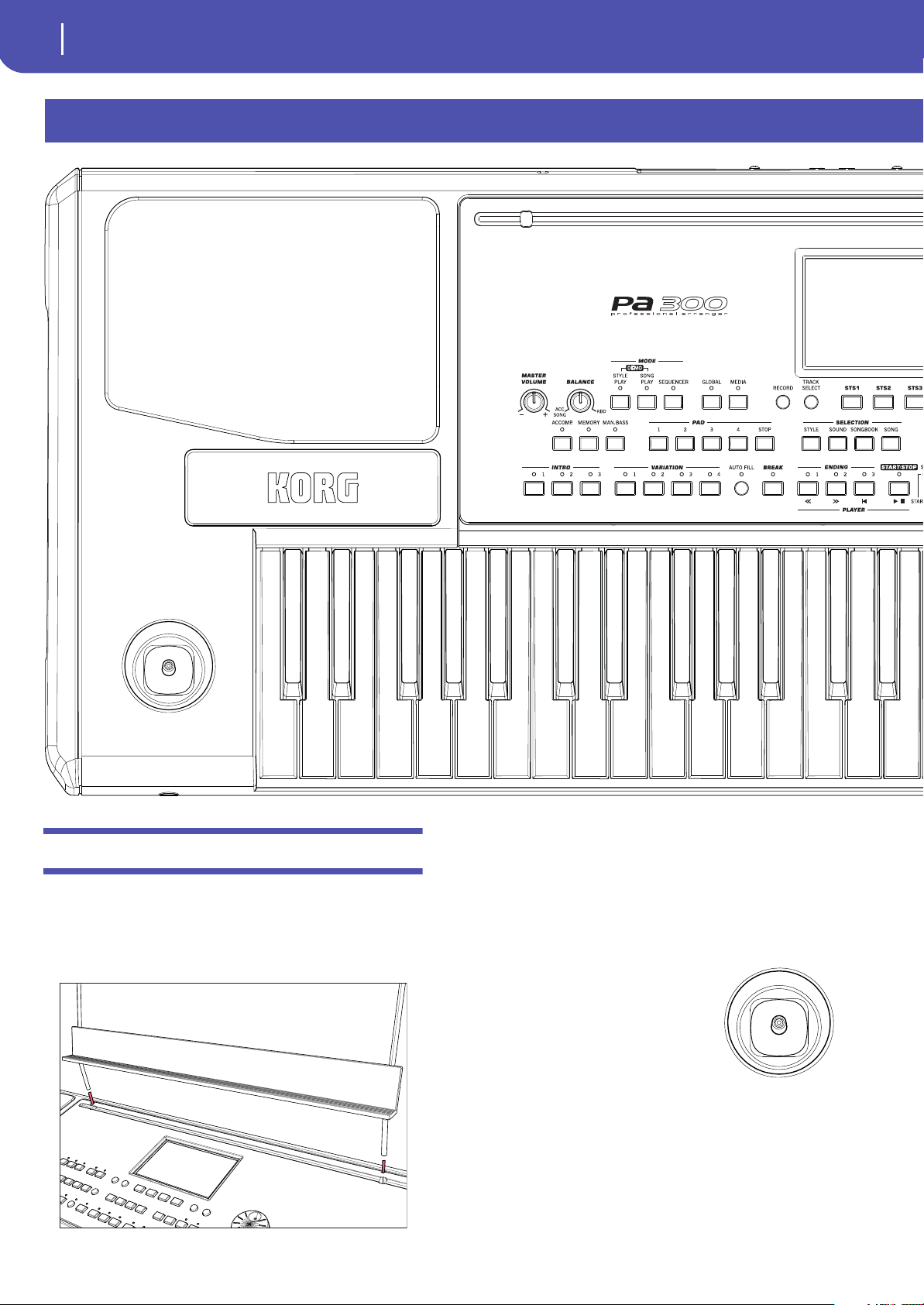
Music stand holes
A music stand comes standard with your Pa300. Insert its legs
into these two dedicated holes.
Speakers
The integrated speakers give a faithful reproduction of the sound
of Pa300. They are automatically deactivated when inserting a
jack into the PHONES/AUDIO OUT connector.
Joystick lever
The joystick is on the left side of the front
panel.
JOYSTICK
This joystick triggers different functions,
depending on the direction it is moved
towards.
X (+/–) Move the joystick towards the left (–) to lower the
pitch, or towards the right (+) to raise it. This
effect is called the Pitch Bend.
Y+ Move the joystick forward to trigger Modulation
Y– Move the joystick backward, to trigger the
assigned function.
9
Overview
Front Panel
Introduction
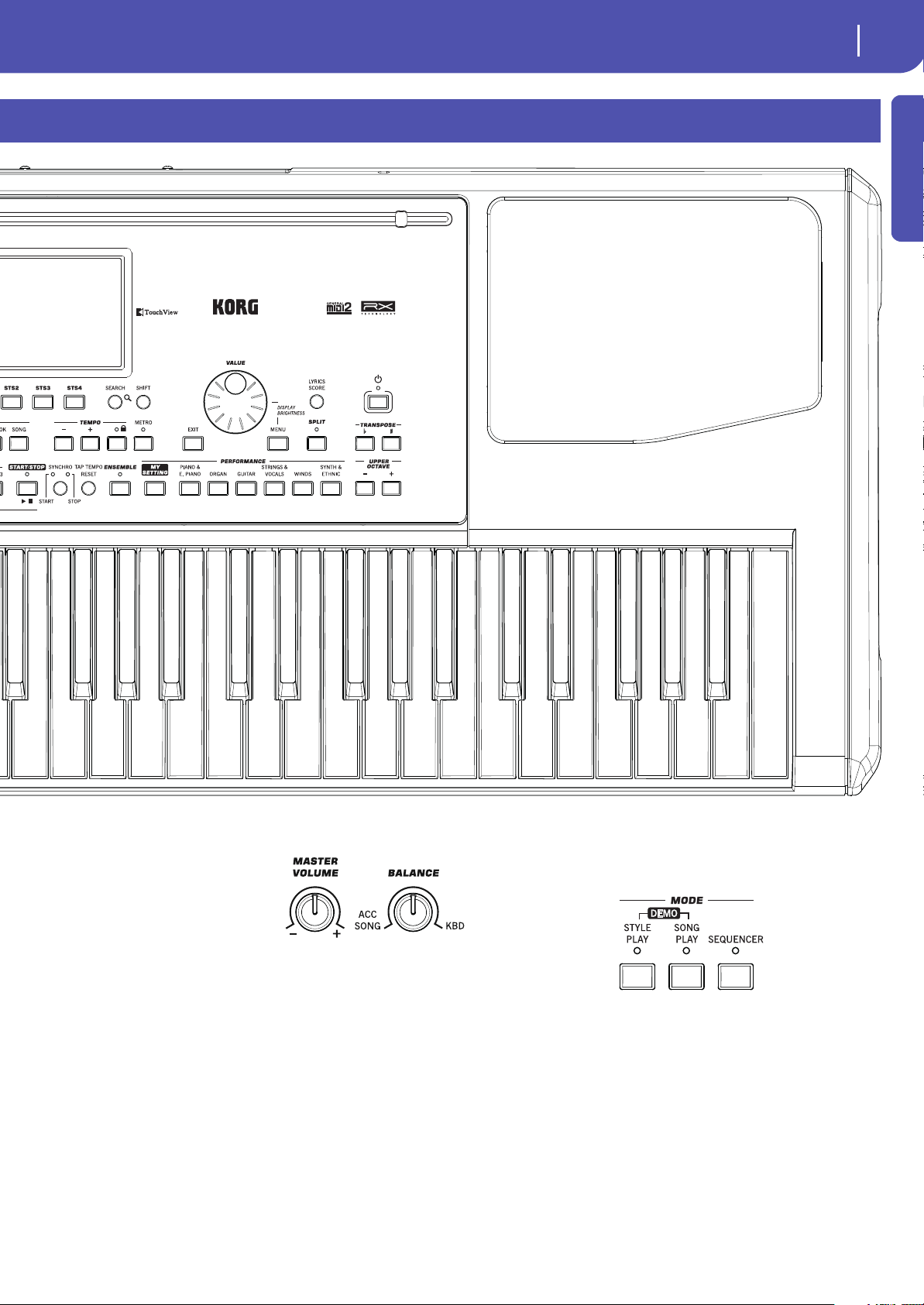
Volume controls
Use these knobs to control the
master volume, and to bal-
ance between the Keyboard
and the Style or the Song.
MASTER VOLUME
This knob controls the overall volume of the instrument, both of the
integrated speakers and the PHONES/AUDIO OUT connector.
BALANCE
While in Style Play and Song Play mode, this knob usually bal-
ances the volume of the Keyboard (KBD) tracks against the Style
(ACC, Accompaniment), Song and Pad tracks. This is a relative
control, whose effective maximum value is determined by the
MASTER VOLUME knob position.
When moved, a magnified version of a virtual slider appears in
the display, for more accurate adjustment.
Note: This does not work in the Sequencer mode.
Mode selection
Each of these buttons recalls one of the instrument’s operating
modes. When selected, each mode excludes all the others.
STYLE PLAY
Style Play mode, where you can play Styles (eight tracks of auto-
matic accompaniments) and play up to four Keyboard tracks
and four Pad tracks. In the main page, Keyboard tracks are
shown in the right half of the display.
You can recall the main page by pressing EXIT from any of the
Style Play edit pages. If you are in a different operating mode,
press STYLE PLAY to recall the Style Play mode. If Keyboard
tracks are not shown in the display, press the TRACK SELECT
button until you can see them.
10
Overview
Front Panel
This operating mode is automatically selected when turning the
instrument on. The “My Setting” Performance will be automati-
cally selected.
SONG PLAY
Song Play mode, where you can play back Songs in Standard
MIDI File (SMF or KAR) or MP3 format. In addition to the Song
tracks, you can play up to four Keyboard tracks and four Pads
along with the Song. In the main page, Keyboard tracks are
shown in the right half of the display.
You can recall the main page of this mode by pressing EXIT
from any of the Song Play edit pages. If you are in a different
operating mode, press SONG PLAY to recall the Song Play
mode. Use the TRACK SELECT button to cycle between the
Keyboard and Song tracks.
SEQUENCER
Sequencer mode, where you can play, record or edit Songs (in Stan-
dard MIDI File format). The Backing Sequence mode lets you
record a new Song based on the Keyboard and Style tracks, and save
it as a new Standard MIDI File.
Note: In this mode, you cannot play MP3 files.
Press the STYLE PLAY and SONG PLAY buttons together to
select the Demo mode. This mode lets you listen to some Demo
Songs, to let you experience the sonic power of the Pa300. To
exit from this mode, press any of the MODE buttons.
Special Mode Buttons
These buttons are used to recall settings, file management and
the Song Record mode.
GLOBAL
This button recalls the Global mode, where you can adjust vari-
ous global settings. Most Global settings are automatically mem-
orized as soon as you edit them. This mode overlaps any
operating mode, that will still remain active in the background.
Press EXIT to go back to the underlying operating mode.
MEDIA
This button recalls the Media mode, where you can perform var-
ious operations on files and storage devices (Load, Save, Format,
etc…). This mode overlaps any operating mode, that still
remains active in the background. Press EXIT to go back to the
underlying operating mode.
The internal memory contains an area where to save data
(“DISK [KORG DISK]”).
RECORD
This button sets the instrument to the Style/Pad Record or Song
Record mode (depending on the current operating mode).
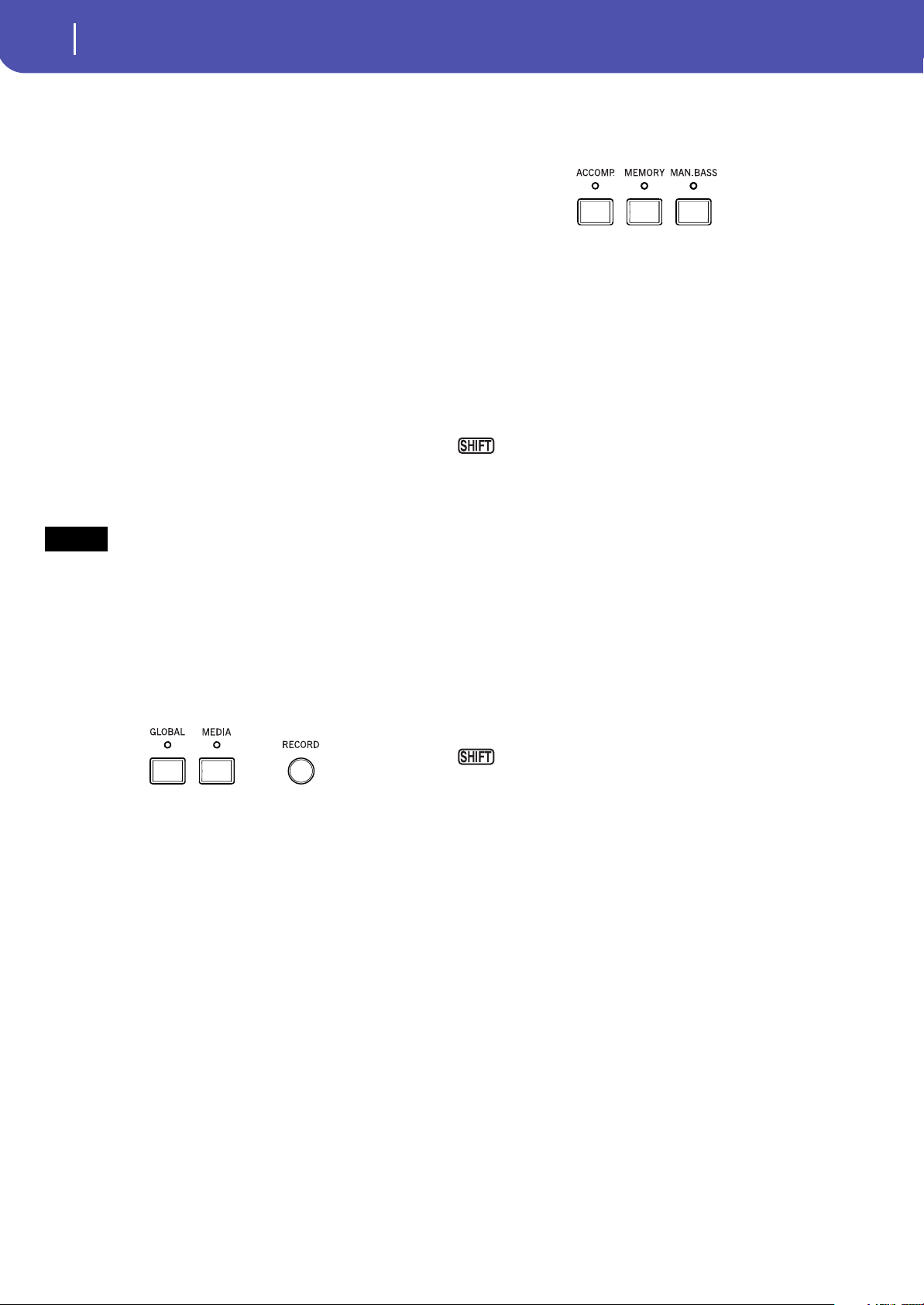
Accompaniment, Memory, Manual Bass
These buttons let you turn all Accompaniment tracks on/off,
decide what should remain in memory, and how to play the bass.
ACCOMP. (Accompaniment)
In Style Play and Sequencer-Backing Sequence mode, use this
button to turn the Accompaniment tracks (ACC1 ~ ACC5) on
or off.
On After pressing START/STOP, the full accompani-
ment plays and follows the detected chords.
Off No chords detected. After pressing START/STOP,
only the Drum and Percussion accompaniment
tracks can play.
You can jump to the Global > Mode Preferences > Style
Play page by keeping SHIFT pressed and pressing the ACCOMP
button.
MEMORY
This button allows you to choose whether the Lower notes and/
or chord triggering the accompaniment must remain in memory
after raising your hand from the keyboard.
On Depending on the setting of the “Memory Mode”
parameter (in the Global > Mode Preferences >
Style Play), the sound on the left of the split point
(Lower), and/or the chords for the automatic
accompaniment can kept in memory even when
you raise your hand from the keyboard.
Off Both the sound and chord are released as soon as
you raise your hand from the keyboard.
You can jump to the Global > Mode Preferences > Style
Play page by keeping SHIFT pressed and pressing the MEMORY
button.
MAN. BASS (Manual Bass)
This button turns the Manual Bass function on or off.
On The automatic accompaniment stops playing
(except for the Drum and Percussion tracks), and
you can manually play the Bass track on the
Lower part of the keyboard. You can start the
automatic accompaniment again after pressing
this button to turn off the Manual Bass function.
Off The bass track is automatically played by the Style.
Note: When you press the MANUAL BASS button, the Bass track
volume is automatically set to its maximum value. The volume is
automatically set back to the original value when the MANUAL
BASS button is deactivated.
DEMO
11
Overview
Front Panel
Introduction
Pads
Here you can play (and stop) the Pads, i.e. single sounds or loop-
ing sequences.
PAD 1-4
STOP
Each Pad button corresponds to a dedicated Pad track. Use these
buttons to trigger up to four sounds or sequences at the same
time.
• Press a single PAD button to trigger a single sound or
sequence.
• Press more PAD buttons to trigger several sounds or
sequences.
The sequences will play up to the end. Then, they will stop or
continue repeating, depending on the individual settings.
You can stop all sounds or sequences at the same time, or just
some of them:
• Press STOP (in the PAD section) to stop all sequences at
once.
• Press a single PAD button to stop the corresponding
sequence.
About Pad synchronization. In Style Play mode, Pads are syn-
chronized to the Style’s Tempo. In Song Play mode, they are syn-
chronized to the Player.
Note: There is no synchronization with MP3 files. Pads can only
be synchronized to the Tempo of the latest selected Standard MIDI
Files. Therefore, when an MP3 file is assigned to the Player, Pads
will synchronize to the Tempo of the last Standard MIDI File that
has been played back.
About Pads and the Player’s Start command. When you press
the START/STOP button to start the Player, all Pads will stop
playing.
You can jump to the Style Play > Pad page by keeping
SHIFT pressed and pressing one of the PAD buttons.
Selection
Here you can select a Style, Sound, SongBook entry, or Song.
STYLE
Use this button to open the Style Select window and select a
Style. This is the same as touching the name of the Style in the
display. Repeatedly press it to cycle between the Style bank
pages.
For each type of Styles there are several banks, that can be
selected by touching the side tabs. Each Style bank contains vari-
ous pages, each with up to eight Styles, that can be selected by
touching the lower tabs.
Styles of the Factory type are usually write-protected (unless you
uncheck the “Factory Style and Pad Protect” option in the Global
> Mode Preferences > Media page). You can use User locations
to temporarily load new Styles from an external device. Favorite
locations, too, can be used to load new Styles from an external
device, but in addition you can edit the names of these Style
banks, so that you can create a custom set of Styles.
By keeping this button pressed for about one second, the
“Write Current Style Settings” dialog box will appear.
SOUND
Use this button to open the Sound Select window and select a
Sound to be assigned to the selected track. This is the same as
touching a Sound name in the display. Repeatedly press it to
cycle between the Sound bank pages.
For each type of Sounds there are several Sound banks, that can
be selected by touching the side tabs. Each Sound bank contains
various pages, each with up to eight Sounds, that can be selected
by touching the lower tabs.
Sounds of the Factory type are write-protected. Sounds of the
Legacy type are standard Factory Sounds allowing greater com-
patibility with older Pa-Series instruments. Factory Sounds of
the GM type allow for compatibility with General MIDI sounds.
Sounds of the User type are locations where you can load new
Sounds from an external device. The User DK type is where you
can load new Drum Kits.
Some models could include Local-type Sounds, that are Factory
Sounds customized for a particular Country.
Hint: The page menu of the Sound Select window contains a com-
mand to access Sound editing, and customize your Sounds.
SONGBOOK
The SongBook is a database of song titles, that can automatically
choose the more appropriate Style, Standard MIDI File or MP3
file for you.
Press this button to open the SongBook (when you are in Style
Play or Song Play mode). While the SongBook is shown on the
display, you can browse through the music database.
By keeping this button pressed for about one second, a new
SongBook Entry with the current settings is added to the data-
base. You will be able to give it a name and save.
You can jump to the SongBook > Custom List page by
keeping SHIFT pressed and pressing the SONGBOOK button.
SONG
Press this button to open the Song Select window and choose a
Songs. This is the same as touching the Song name in the display.
12
Overview
Front Panel
Style Elements
This section contains the separate elements of a Style (Intro,
Variation, etc.).
INTRO 1-3 buttons
These buttons turn the corresponding Intro on. Intro 1 plays a
sequence including a chord progression, while Intro 2 plays a
fixed chord. Intro 3 is usually a one-bar Count In.
After pressing one of these buttons, start the Style, and it will
begin with the selected intro. The INTRO LED will automati-
cally go off at the end of the intro.
At the end of the Intro, the Variation whose LED was blinking
will be selected.
Press one of the INTRO buttons twice (LED blinking) to let the
corresponding Intro play in loop, and select any other Style ele-
ment (Intro, Variation, Ending) to exit the loop.
VARIATION 1-4 buttons
Each of these buttons selects one of the four Variations of the
current Style. The higher the Variation number, the denser the
arrangement.
You can jump to the Style Play > Drum Map page by
keeping SHIFT pressed and pressing one of the VARIATION
buttons.
AUTO FILL
This button allows to turn the Auto Fill function on or off.
On When selecting a different Variation, the Fill hav-
ing the same number of the previous Variation is
automatically selected. For example, if going from
Variation 2 to Variation 3, Fill 2 is automatically
selected.
Off When choosing a Variation, no fill is selected.
BREAK
This button triggers a break. Press it twice (LED blinking) to let
it play in loop. Press it again or select any other Style Element
(Intro, Variation, Ending) to exit from the loop.
ENDING 1-3 buttons
These buttons trigger the corresponding Ending. Ending 1 plays
a sequence including a chord progression, while Ending 2 plays a
fixed chord. Ending 3 starts immediately, and is just two mea-
sures long.
While the Style is running, these three buttons trigger an End-
ing, and stop the Style. Press one of them, and the Style will stop
running with an Ending.
Press them twice (LED blinking) to let them play in loop, and
select any other Style element (Intro, Variation…) to exit the
loop.
Style Controls
Use these buttons to start/stop the accompaniment.
START/STOP
Starts or stops the Style.
You can reset all ‘frozen’ notes and controllers on the
Pa300 and any instrument connected to its MIDI OUT or the USB
Device port, by using the “Panic” (SHIFT + START/STOP) key
combination. Just press SHIFT + START/STOP to stop all notes
and reset all controllers.
SYNCHRO START / STOP button
These buttons turn the Synchro Start and Synchro Stop func-
tions on or off. With this feature, you can choose to press the
START/STOP button to start and/or stop a Style, or just play the
keyboard in the Chord Scan area.
Start On, Stop Off
In this situation, just play a chord in the chord
recognition area to automatically start the Style. If
you like, turn one of the INTROs on before start-
ing the Style.
Start On, Stop On
When both LEDs are lit, raising your hands from
the keyboard will momentarily stop the Style. If
you play a chord again, the Style will start again.
Start Off, Stop On
In this case, raising your hands from the keyboard
will stop the Style.
Start Off, Stop Off
All Synchro functions are turned off.
You can jump to the Global > MIDI > Setup/General Con-
trol by keeping the SHIFT button pressed and pressing the SYN-
CHRO START/STOP button.
TAP TEMPO/RESET
This is a double-function button, acting in a different way
depending on whether the Style is running or not.
Note: This button only works while in Style Play mode.
Tap Tempo: When the Style is not playing, you can “beat” the
tempo on this button. Tap as many times as the Time Signature’s
numerator (for example, four times with a 4/4 Time Signature, or
three times with a 3/4 one). At the end, the accompaniment
starts playing, using the “tapped in” tempo.
Reset: If you press this button while the Style is playing back, the
Style pattern goes immediately back to the beginning of measure
1.
13
Overview
Front Panel
Introduction
Display and Brightness Controls
COLOR TOUCHVIEW™ GRAPHICAL DISPLAY
Use this display to interact with the instrument. To adjust the
display brightness, keep the MENU button pressed, and turn the
DIAL counter-clockwise to make the display darker, or clock-
wise to make it brighter.
Special Function Controls
Use the TRACK SELECT, SEARCH and SHIFT buttons to
choose special functions.
TRACK SELECT
Depending on the operating mode, this button switches between
the various track views.
STYLE PLAY MODE
Toggles between Keyboard and Style tracks.
SONG PLAY MODE
Toggles between Keyboard tracks, Song tracks 1-
8, and Song tracks 9-16.
SEQUENCER MODE
Toggles between Song tracks 1-8 and Song tracks
9-16.
SEARCH
Press this button to open the Search window, and look for a
specified file or musical resource. The Search window appears
slightly different depending on the current context.
SHIFT
With this button held down, pressing certain other buttons gives
access to a second function. The list of shortcuts is in the Appen-
dix.
STS Section
Use the STS (Single Touch Settings) buttons to assign Sounds to
the keyboard.
STS 1-4 buttons
These buttons allow to select up to four Single Touch Settings
(abbreviated as STS). Each one of the Styles and SongBook
Entries includes four Single Touch Settings (STS), to automati-
cally configure Keyboard tracks and effects at the touch of a fin-
ger.
By keeping one of these buttons pressed for about one sec-
ond, the “Write Single Touch Setting” dialog box will appear.
Note: STS contained inside Factory Styles are usually write-pro-
tected (unless you uncheck the “Factory Style and Pad Protect”
option in the Global > Mode Preferences > Media page)
Player Controls
Pa300 is equipped with a Standard MIDI File and MP3 Player. Its
controls can be used in Song Play and Sequencer mode.
<< and >>
Rewind and Fast Forward commands. If you use them while the
Song is in play, they make it scroll back or forward.
When pressed once, these buttons move the Song to the previous
or following measure (with a Standard MIDI File) or to the previ-
ous or next second (with an MP3 file). When kept pressed, they
make the Song scrolling continuously until released.
In Sequencer mode, if you set a “Start from” measure other than
1, when pressing the << button the Song will rewind up to that
measure instead of the first one (see page 124).
In Jukebox mode, keep the SHIFT button pressed, and
press these buttons to scroll to the previous or next Song in the
Jukebox list.
(HOME)
Sends the Song Position back to measure 1 (i.e., the beginning of
the Song).
In Sequencer mode, if you set a “Start from” measure other than
1, the Song Position will go back to that measure (see page 124).
(START/STOP)
Starts the Song from the current Song Position, or stops it at the
current Song Position.
14
Overview
Front Panel
Lyrics, Score
Use this button to access the Lyrics and Score pages.
LYRICS/SCORE
When a Style is selected, this buttons recalls the Lyrics page, or
exits from it.
When a Song is selected, it cycles through the Lyrics and Score
pages. Press it a first time to see the Lyrics page, a second time to
see the Score page. Press it again to return to the main page.
Data Entry and Navigation
The VALUE DIAL can
be used to assign a dif-
ferent value to the
parameter selected in
the display, or to scroll
a list of files in the
Song Select, Song-
Book, Search and
Media pages.
VALUE DIAL
Turn the dial clockwise to increase the value of the selected
parameter. Turn it counter-clockwise to decrease its value.
When used while pressing the MENU button, this con-
trol always acts as a Display Brightness control.
EXIT
Use this button to perform various actions, leaving from the cur-
rent status:
• exit the edit menu page, without selecting any item
• make the page menu disappear, without selecting any
item
• return to the main page of the current operating mode
• exit the Global or Media edit environment, and return to
the current page of the current operating mode
•exit from the SongBook mode
• exit from the Lyrics and Score pages
• exit from a Style, Pad, Performance or Sound Select win-
dow
MENU
This button opens the edit menu page for the current operating
mode. After opening an edit menu, you can jump to one of the
edit sections by touching the corresponding button in the dis-
play.
Otherwise, press EXIT to return to the main page of the current
operating mode, or the current page of the underlying operating
mode.
Tempo Section
The TEMPO and METRO buttons can be used to control the
Tempo.
TEMPO +/– buttons
TEMPO– decreases the speed of the Style or Song. TEMPO+
increases it.
Press both buttons together to reset the Tempo to the value
memorized in the Style or Standard MIDI File. With MP3 files,
the original speed of the file is recalled (value reset to “0”).
TEMPO LOCK
This button turns the Tempo Lock function on or off.
On When you select a different Style or Performance,
or select a different Song, the Tempo will not
change. You can still manually change it, by using
the TEMPO +/– buttons, or select the Tempo
value and change it by using the VALUE dial.
Off When you select a different Style, or select a dif-
ferent Song, the memorized Tempo will be auto-
matically selected.
Note: This button does not work with MP3 files.
You can jump to the Global > Lock page by keeping
SHIFT pressed and pressing this button.
METRO
Use this button to turn the Metronome click on or off. The met-
ronome uses the same time signature as the latest selected Style
or Standard MIDI File.
You can jump to the Global > General Controls > Basic
page by keeping SHIFT pressed, and pressing this button.
Split
Splitting the keyboard allows for separating the
chords area from the melody.
SPLIT
In Style Play, Song Play and Sequencer-Backing
Sequence mode, use this button to choose how the four Key-
board tracks are positioned on the keyboard, and how chords are
recognized by the arranger.
Note: The ACCOMP LED must be turned on for the accompani-
ment to play.
On The Lower track plays below the split point, while
the Upper 1, Upper 2 and Upper 3 tracks play
above it. This is called the Split keyboard mode.
By default, turning on the Split mode automati-
cally selects the Lower chord scanning mode. In
this mode, chords are detected below the split
point. The number of notes you should play to
form a chord is defined by the “Chord Recogni-
tion” parameter.
Off The Upper 1, Upper 2 and/or Upper 3 tracks play
over the whole keyboard range. The Lower track
does not play. This is also called the Full key-
board mode.
By default, turning off the Split mode automati-
cally selects the Full chord scanning mode. In this
mode, chords are detected over the full keyboard
15
Overview
Front Panel
Introduction
range. You must always play three or more notes
to let the arranger recognize a chord.
By keeping this button pressed for about one second, the
Split Point window appears. When there, play the new split point
on the keyboard.
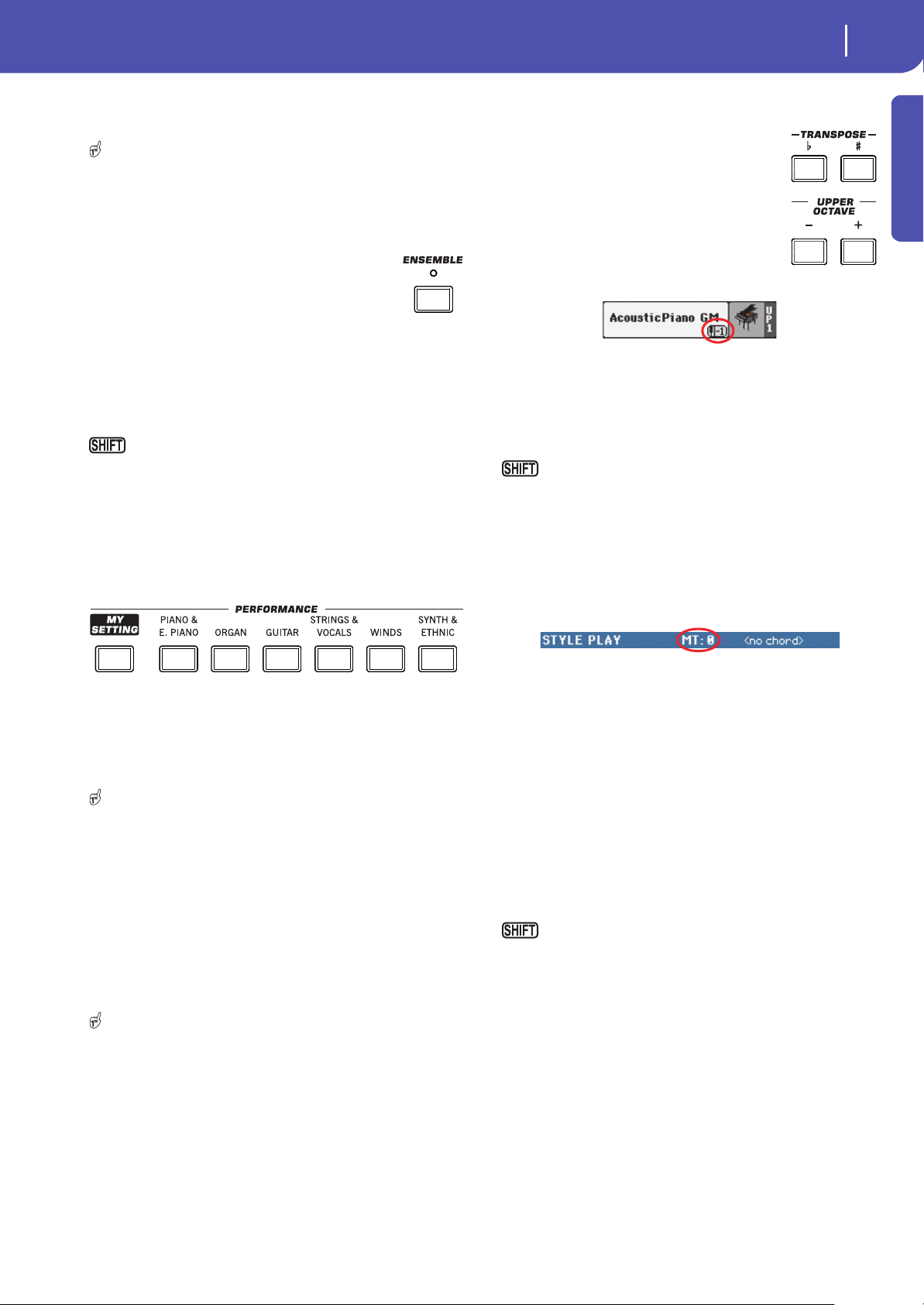
Ensemble
The Ensemble function automatically harmonizes
the melody played with the right hand.
ENSEMBLE
This button turns the Ensemble function on or off.
When on, the right-hand melody is harmonized with the left-
hand chords.
Note: The Ensemble function only works when the keyboard is in
SPLIT mode.
You can jump to the Style Play > Keyboard/Ensemble
page by keeping SHIFT pressed and pressing the ENSEMBLE
button.
Performance Select Section
Use these buttons to select a Performance. Performances memo-
rize all Sounds assigned to the keyboard and most control panel
settings.
MY SETTING
This is a special direct-access Performance, that is automatically
selected when the instrument is turned on. When pressing this
button, the Performance is immediately selected.
Keep this button pressed for about one second to save the
current settings into the My Setting Performance.
PERFORMANCE buttons
Use these buttons to open the Performance Select window, and
select a Performance.Each Performance bank contains five
pages, each with up to eight Performances. Repeatedly press a
PERFORMANCE button to cycle between the available pages.
All Performances can be freely customized, by accessing the edit
pages of the Style Play and Song Play modes by pressing the
MENU button.
By keeping one of these buttons pressed for about one sec-
ond, the “Write Performance” dialog box will appear.
Transpose Section
Use these buttons to transpose the Sounds of
the single tracks, or the instrument as a whole.
UPPER OCTAVE
Use these buttons to transpose the Upper
tracks in steps of one whole octave (12 semi-
tones; max ±3 octaves). The octave transposi-
tion value is always shown (in octaves) next to
the Sound’s name.
Press both buttons together, to reset the Octave Transpose to the
saved value.
– Lowers the selected track by one octave.
+ Raises the selected track by one octave.
You can jump to the Style Play > Tuning page by keeping
SHIFT pressed and pressing one of the UPPER OCTAVE but-
tons. Hint: Go to the Tuning page to separately transpose each
track.
TRANSPOSE
These buttons transpose the whole instrument in steps of one
semitone (Master Transpose). The transpose value is usually
shown in the page header.
Press both buttons together, to reset the Master Transpose to zero.
Note: You can also transpose MP3 files. Keep in mind, however,
that transposition always remains inside the range -5…+6 semi-
tones. This range is enough to cover all keys, but allows to avoid
excessive audio degradation. Any further transposing will be
reversed to fit the range. So, you might see a +7 transpose value
(Just Fifth Up) shown in the display, but the MP3 will actually play
5 semitones lower (Just Fourth Down).
♭Lowers the Master Transpose in steps of one
semitone.
♯Raises the Master Transpose in steps of one semi-
tone.
You can jump to the Global > Transpose Control page by
keeping SHIFT pressed, and pressing one of the TRANSPOSE
buttons.

16
Overview
Front Panel
Power On/Off
POWER
Use this button to let the instrument exit (LED off)
or enter (LED on) standby.
Press it briefly to let the instrument exit standby.
Keep it pressed for about one second to let it enter standby.
War ni ng : When the instrument is in standby mode, it is still con-
nected to the power line. Accessing the inside of the instrument can
be dangerous. To completely disconnect the instrument from the
power, unplug the power plug from the power socket on the wall.
Note: To avoid wasting power, Pa300 will by default automatically
enter standby mode after two hours of non-active use (playing,
pressing buttons or using the touch-screen). Please save your data
(Performances, Styles, Songs, and so on) before taking a prolonged
pause. You can change the auto power-off timer in Global > Gen-
eral Controls > Date & Power.
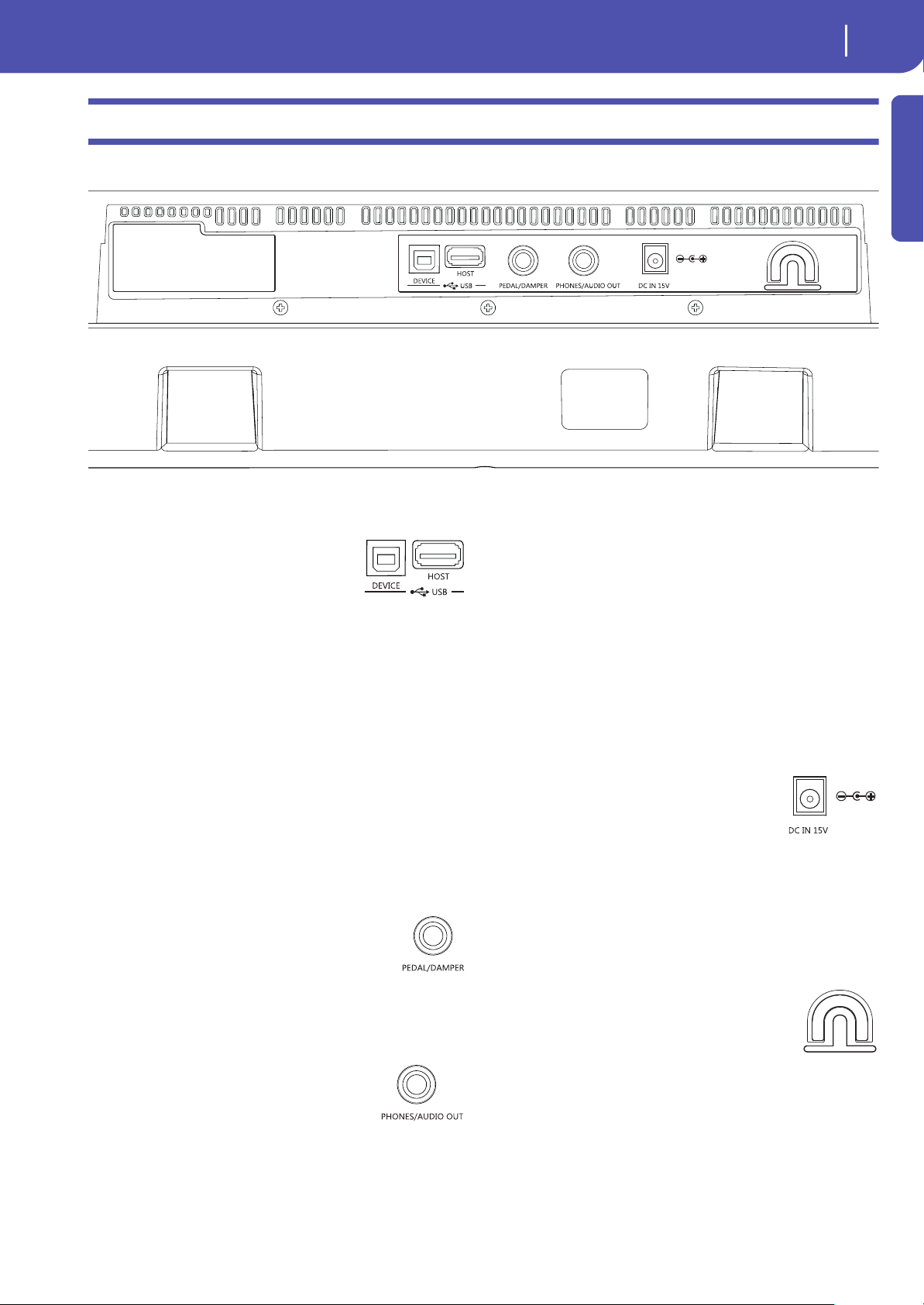
17
Overview
Rear Panel
Introduction
Rear Panel
USB-HOST
This is a USB Type A (Master/Host) con-
nector, USB 2.0 compliant (High Speed
only – to connect older, slower USB devices,
please use an USB hub). Use it to connect
to the Pa300 an USB Flash Memory stick,
an external CD-ROM drive, an USB hard disk. You can access
the connected device in the Media mode.
USB-DEVICE
This is a USB Type B (Slave/Device) connector, USB 2.0 (High
Speed). Use it to connect the Pa300 to a personal computer, and
transfer data to/from its internal memory (Disk). You can enable
USB connection in the “USB” page of the Media mode.
MIDI over USB is supported, so you can use this connector
instead of the MIDI ports found on older devices. The drivers
for PC and Mac, needed to make full use of this type of connec-
tion, are supplied in the Accessory Disc that comes with the
instrument, or can be downloaded from our web site.
PEDAL/DAMPER
Use this port to connect a footswitch or Damper
pedal, like the (optional) Korg PS1, PS3 or DS1H,
or a continuous/expression pedal, like the
(optional) Korg EXP2, XVP10. To program and
calibrate it, or to change its polarity, go to the
Controllers > Foot Controllers page of the Global mode.
PHONES/AUDIO OUT
Use this connector to connect a pair of head-
phones, or to send the audio signal (sound) to
a mixer, a PA system, a set of powered moni-
tors, or your hi-fi system.
You can select the type of connection by using
the “Level” parameter in the Global > Audio & EQ > MP3/Out-
put page (see page 161).
When the Headphone option is assigned to the “Level” parame-
ter, you can connect headphones. You can use headphones with
an impedance of 16-200 Ohms (50 Ohms suggested).
When the Line Out option is assigned to the “Level” parameter,
you can connect a line-level device to this connector. Use a ste-
reo jack to send the final stereo mix to an external device. Con-
nect the other end of the cable to a stereo channel of your mixer,
two mono channels, two powered monitors, or the CD, LINE IN
or TAPE/AUX input of your audio system. Don’t use the
PHONO inputs of your audio system!
Adjust the output level with the MASTER VOLUME knob.
DC IN 15V power adapter connector
Plug the supplied power adapter into this
connector. When the cable is connected, the
instrument is in standby mode. To let it enter
or exit standby, use the POWER switch
located on the front panel.
War ni ng : When the instrument is in standby mode, it is still con-
nected to the power line. Accessing the inside of the instrument can
be dangerous. To completely disconnect the instrument from the
power, unplug the power plug from the power socket on the wall.
Cable holder
Fix the power cable to this hook, to avoid cable
jamming.
18
Glossary of Terms
Sound
Before you begin, take a few moments to familiarize yourself
with the names and terms we will be using to talk about the vari-
ous elements of the Pa300.
In this section, you will find a brief description of various key
elements of the Pa300. A professional arranger (Pa) keyboard
uses different terminology than a traditional synthesizer or
workstation. By familiarizing yourself with the names and func-
tions in this section, you will get a better understanding of how
all the different parts of the Pa300 work together to create a real-
istic musical performance. This will also help you to get the most
out of the rest of the manual.
Sound
A Sound is the most basic unit of an Arranger Keyboard perfor-
mance. A Sound is basically a playable instrument timbre (piano,
bass, sax, guitar…) that can be edited, saved, recalled and
assigned to any track. In the Style Play, Song Play or Sequencer
mode, Sounds may be freely assigned to Sequencer tracks, Style
tracks, or Keyboard tracks.
Style
The Style is the heart of a professional arranger keyboard. At its
basic level, a Style will consist of up to eight parts, or “Tracks”.
Drums
The Drum track will provide a repeating rhythmic phrase,
played by the standard instruments of a Drum Kit.
Percussion
An additional rhythmic phrase played by various percussion
instruments (conga, shaker, cowbell, etc.) is provided by the Per-
cussion track.
Bass & Accompaniment
The Bass track and the (up to) five additional Accompaniment
tracks will each play musical phrases that are musically related to
and in sync with the Drum and Percussion tracks. However, the
notes being played by these tracks will change to follow the
chord progression that you play on the keyboard.
Again, any Sound you choose may be assigned to any track in a
Style.
Variation
For each Style, there are four Variations, to be used for the Verse,
Bridge and Chorus of a song. In general, each Variation is a
slightly different version of the others. As you progress from
Variation one to Variation four, the arrangements will become
more complex, and more parts (Tracks) may be added. This
allows your performance to have a more dynamic arrangement,
without losing the original “feel” of the Style.
Fill-in & Break
During a performance, a drummer may often perform a “fill” -
such as when transitioning from a verse to a chorus – adding
extra dynamics and keeping the beat from getting too repetitive.
The Pa300 offers four Fill-ins specifically programmed for each
Style, that may be automatically recalled when choosing the cor-
responding Variation (Auto Fill). A Fill-in may be drums alone
or drums with instrumentation. Then, there is even a silent
“break”.
Intro & Ending
Each Style also allows you to complete your performance with a
set of musical introductions and endings. A long and short ver-
sion of the Intro and Ending are usually provided, with the for-
mer more harmonically elaborated, and the latter with a fixed
chord. A “count-in” Style Intro is also provided, as well as the
quick Ending 3.
Pad
Pads are single sounds or single-track patterns, that can be trig-
gered by using the dedicated PAD buttons. They can be used to
play single sounds, as well as short, cycling sequences that play
in time with the Style or Standard MIDI File, and are transposed
according to the recognized chords.
Keyboard tracks
Up to four parts can be played on the keyboard in real-time.
Three of them (Upper) can be layered and played over the full
keyboard. They can also be used to created particular sound
configurations: each of these Keyboard tracks can be limited to a
particular range of keys or velocities, but in general up to three
can be assigned to play above the split point (Upper), and one
below (Lower). This allows the Upper Sounds to be layered
together. The split point can be set to any note on the keyboard.
In addition to performing along with a Style, these same Key-
board tracks will allow you to play along with the Player.
Glossary of Terms
19
Glossary of Terms
Performance and STS
Introduction
Ensemble
By turning the Ensemble feature on, a single note played on one
of the Keyboard tracks will be embellished by additional notes to
create a complete chord voicing. The Ensemble knows which
notes to add by looking at the chord that you are playing. In
addition, the Ensemble parameters allow you to select the type of
voicing that will be added – from a simple one-note harmony to
a full “Brass” section – even a marimba-style trill!
Performance and STS
The Performance is the most encompassing setting on the Pa300
– a single setting that can remember the Keyboard tracks (with
all the appropriate sounds) and all their transposition, effects,
etc… A Performance can be stored in one of the Performance
bank locations.
Single Touch Settings (STS) are similar to Performances, but are
associated to a Style or SongBook Entry.
Sequencer
The Sequencer acts as a recorder, so you can capture and play-
back your performances. The Pa300 sequencer can function in
different modes. In the Backing Sequence mode, each Style ele-
ment and each Keyboard and Pads element can be recorded on a
separate track in a single pass. This can be a big help in getting a
song recorded quickly. The sequencer can also behave as a tradi-
tional 16-track linear sequencer, where each track is recorded
individually one at a time.
Player
The Player lets you playback your performances or any Standard
MIDI File or MP3 file.
The LOGO decoder
On the front panel of your Pa300 you have probably noticed a
series of logos, and may have even wondered what they stand for.
Well, here is a quick explanation of each one.
General MIDI (GM) is a standard that ensures
the compatibility of sounds and messages
between GM compatible instruments available
from different manufacturers. For example,
sequenced songs created on any GM equipped product and
saved in the GM format will playback correctly on the Pa300.
General MIDI 2 extends the basic features of the General MIDI,
allowing for 256 Sounds and 9 Drum Kits (instead of 128 and 1).
RX Technology is the cutting edge engine that
drives every aspect of the Pa300 – from the
synthesis to the display and how it all works
together.
TouchView is the sophisticate technology
allowing for touching the objects in the
display, instead of pointing to them
through an external device (a mouse, a series of buttons). Go
straight to the musical elements, instead of catching keys some-
where on the control panel.
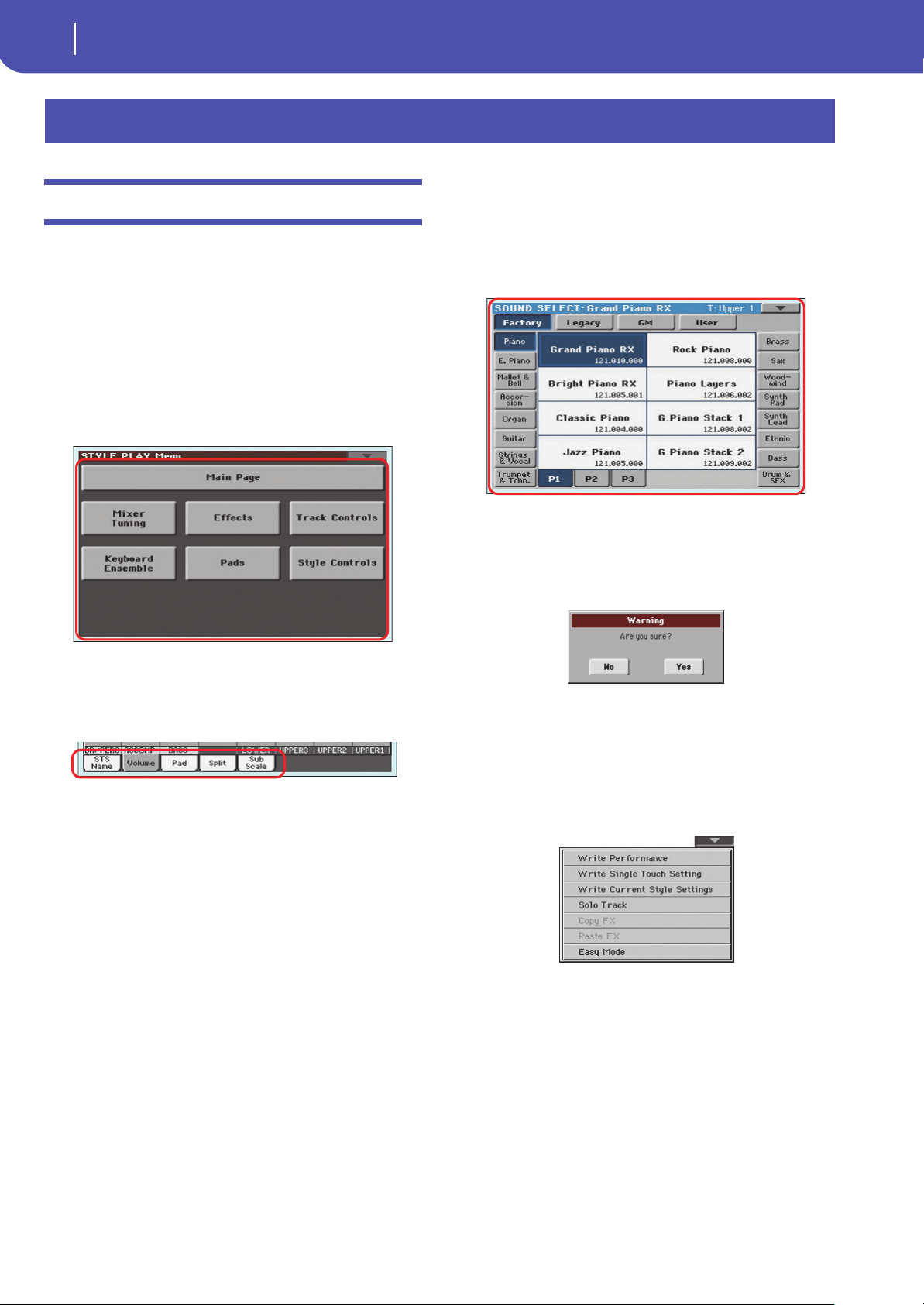
20
Interface basics
Color TouchView graphical user interface
Color TouchView graphical user interface
Pa300 features our exclusive easy-to-use TouchView graphic
interface, based on a touch‐panel LCD screen. By touching items
on the LCD screen, you can select pages, tabs, and parameters,
and set parameter values via on‐screen menus and buttons. Here
are the basic elements of the user interface.
Menus and sections
Pages are grouped in sections, to be selected by touching the cor-
responding buttons in the Edit menu that opens up when you
press the MENU button.
Pages
Parameters are grouped into separate pages, to be selected by
touching the corresponding tabs on the lower area of the display.
Overlapping windows
Several windows, like the Style Select or Pad Select, the Global,
the Media, or the Lyrics, overlap the current window. After you
select an item in the window, or press the EXIT button, the win-
dow closes, and the underlying page is shown again. (The fol-
lowing example is the Sound Select window).
Dialog boxes
Similar to selecting windows, dialog boxes overlap the underlay-
ing page. Touch one of the button on the display to give Pa300 an
answer, and the dialog box will close.
Page menus
Touch the icon on the upper right corner of each page, and a
menu with suitable commands for the current page will appear.
Touch one of the available commands to select it. (Or, touch any-
where else on the screen to make it disappear, with no command
selected).
Interface basics
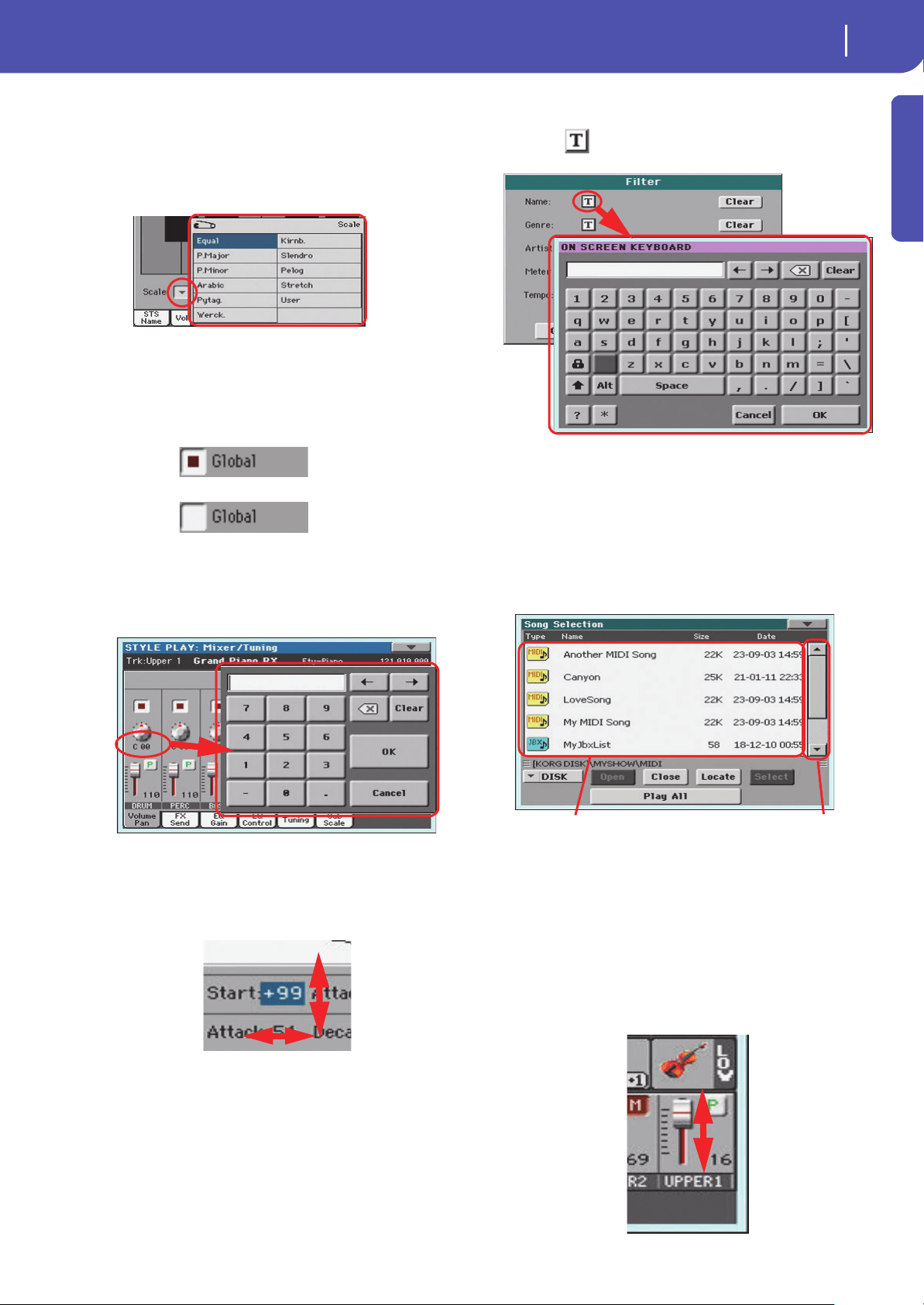
21
Interface basics
Color TouchView graphical user interface
Introduction
Pop-up menus
When an arrow appears next to a parameter name, touch it to
open a pop-up menu. Select any of the available options (or any-
where else on the screen to make the menu disappear).
Checkboxes
This kind of parameters are on/off switches. Touch them to
change their status.
Numeric fields
When a numeric value can be edited, touch it a second time to
open the Numeric Keypad.
The virtual numeric keypad works exactly as the numeric key-
pad of a personal computer.
As an alternative, touch a numeric field and keep it held. Then
move your fingers up (or right) to increase the value, or move it
down (or left) to decrease it.
This also includes the Tempo numeric field in the main page of
the Style Play, Song Play, and Sequencer modes.
Editable names
When the (Text Edit) button appears next to a name, touch
it to open the Text Edit window and edit the name.
The virtual keyboard works exactly as a personal computer’s
keyboard. Some of the symbols are context-sensitive, and only
appear when they can actually be used.
Lists and scrollbars
Files on storage media, as well as other kinds of data, are shown
as lists. Use the scrollbar to scroll the list content. Also, you can
use the VALUE DIAL to scroll.
When the Name label is selected, keep the SHIFT button pressed
while touching one of the arrows on the scrollbar, to scroll to the
next or previous alphabetic section.
Virtual sliders
To change a virtual slider’s position, select it, then use the
VALUE dial to change its position. As an alternative, touch a
slider with your fingers and keep it held; then move it up or
down to change its position.
= On
= Off
List
Scrollbar
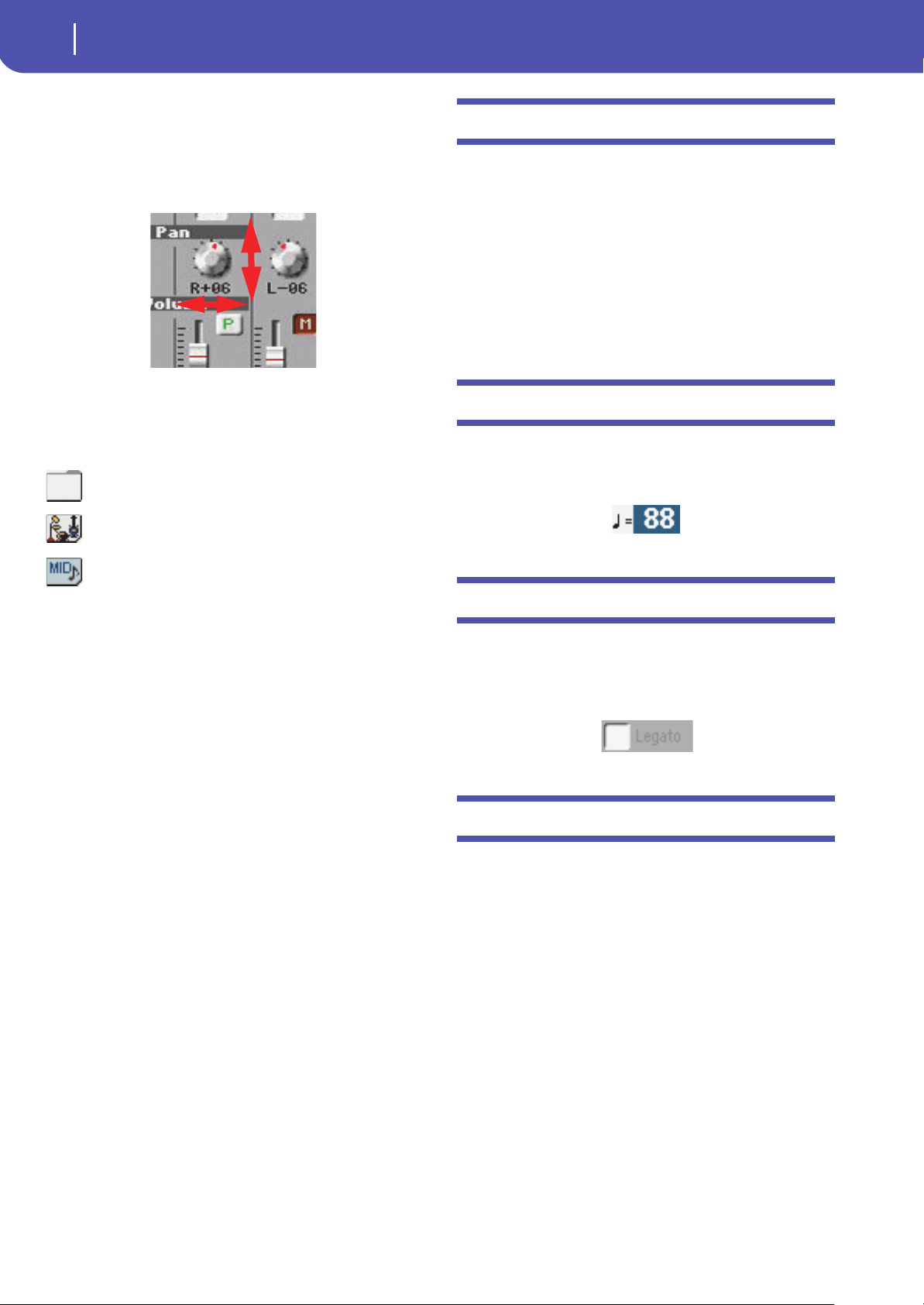
22
Interface basics
Operative modes
Virtual knobs
To change a virtual knob’s position, select it, then use the VALUE
dial to change its position. As an alternative, touch a knob with
your finger and keep it held; then move your fingers up (or
right) to rotate it clockwise, or move it down (or left) to rotate
the knob counter-clockwise.
Icons
Various icons help identifying the type of a file, a Song, a folder.
For example:
Folder
File of Style bank
Standard MIDI File
Operative modes
The pages of Pa300 are grouped in various operating modes.
Each mode is accessed by pressing the corresponding button in
the MODE section on the control panel.
Each operating mode is marked with a different color code, that
helps you understand at first sight where you are.
Two special modes (Global and Media) overlap the current
operating mode, that remains active in the background.
The Song Record mode can be accessed from the Sequencer
mode, and allows for creating new Songs.
Selected, highlighted items
Any operation on parameters, data or list entries, is executed on
highlighted items. First select the parameter or item, then exe-
cute the operation.
Non-available, grayed-out parameters
When a parameter or command is not currently available, it is
shown in grey on the display. This means it cannot be selected,
but may become available when a different option is selected, or
you switch to a different page.
Shortcuts
Some commands or pages can be recalled by keeping the SHIFT
button pressed, and pressing other buttons or elements in the
display. Some others can be accessed by keeping a button pressed
for more than one second. See the “Shortcuts” chapter on page
“Shortcuts” on page 364 for a list of available shortcuts.
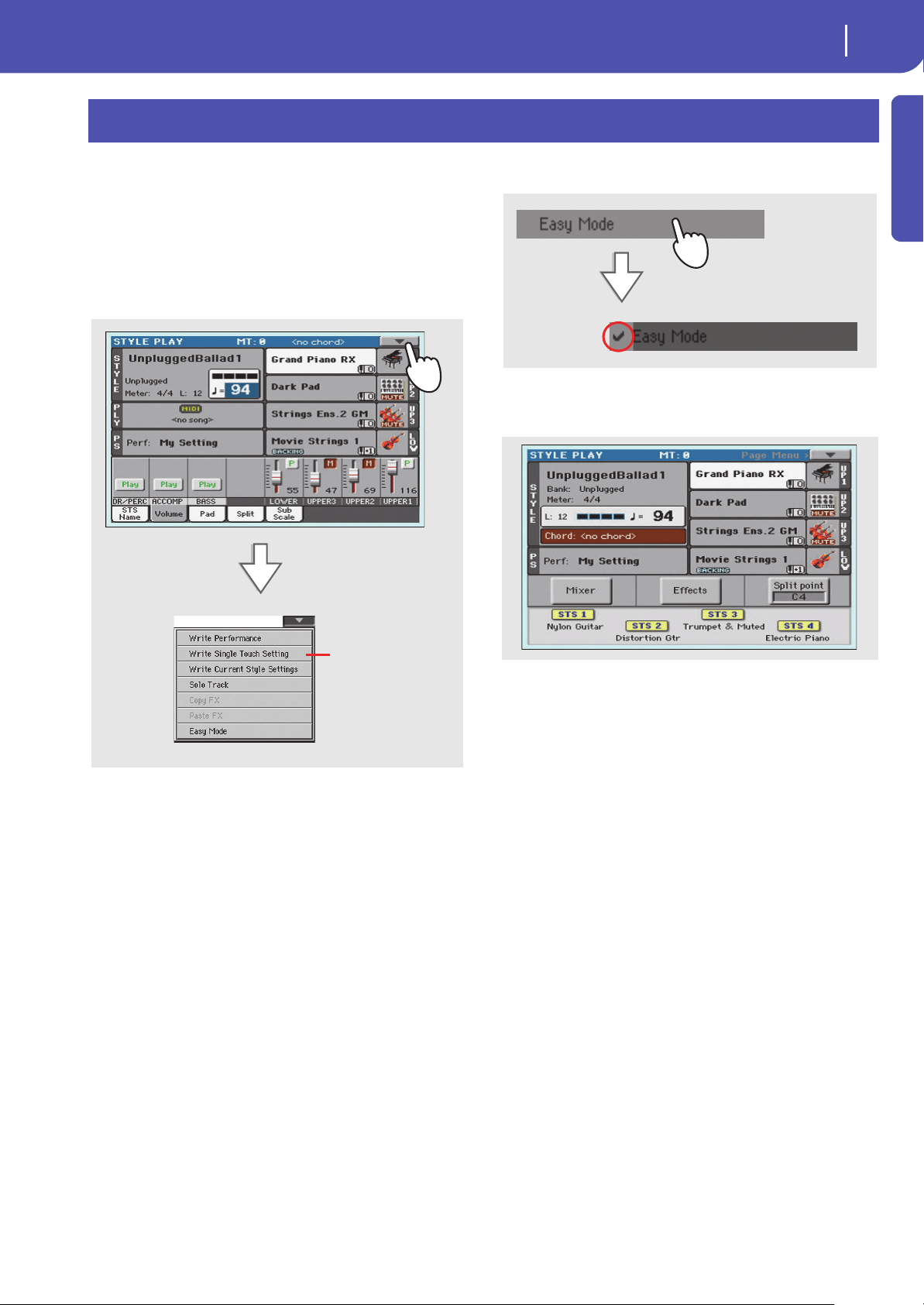
23
Easy Mode
Introduction
If you have never used an arranger before, we suggest you to
switch to the Easy Mode. Easy Mode allows you to play Styles
and Songs with a simple user interface, free from the many
advanced parameters that you will want to learn later.
Turning the Easy Mode on
Touch the little rectangle on the top right corner of the display,
to open the page menu:
Touch the “Easy Mode” menu item, to make the checkmark
appear:
At this point, the Easy Mode has been activated, and the ele-
ments in the display appear less crowded:
Turning the Easy Mode off
Reverse the above operation when you want to deactivate the
Easy Mode.
Easy Mode
The page menu
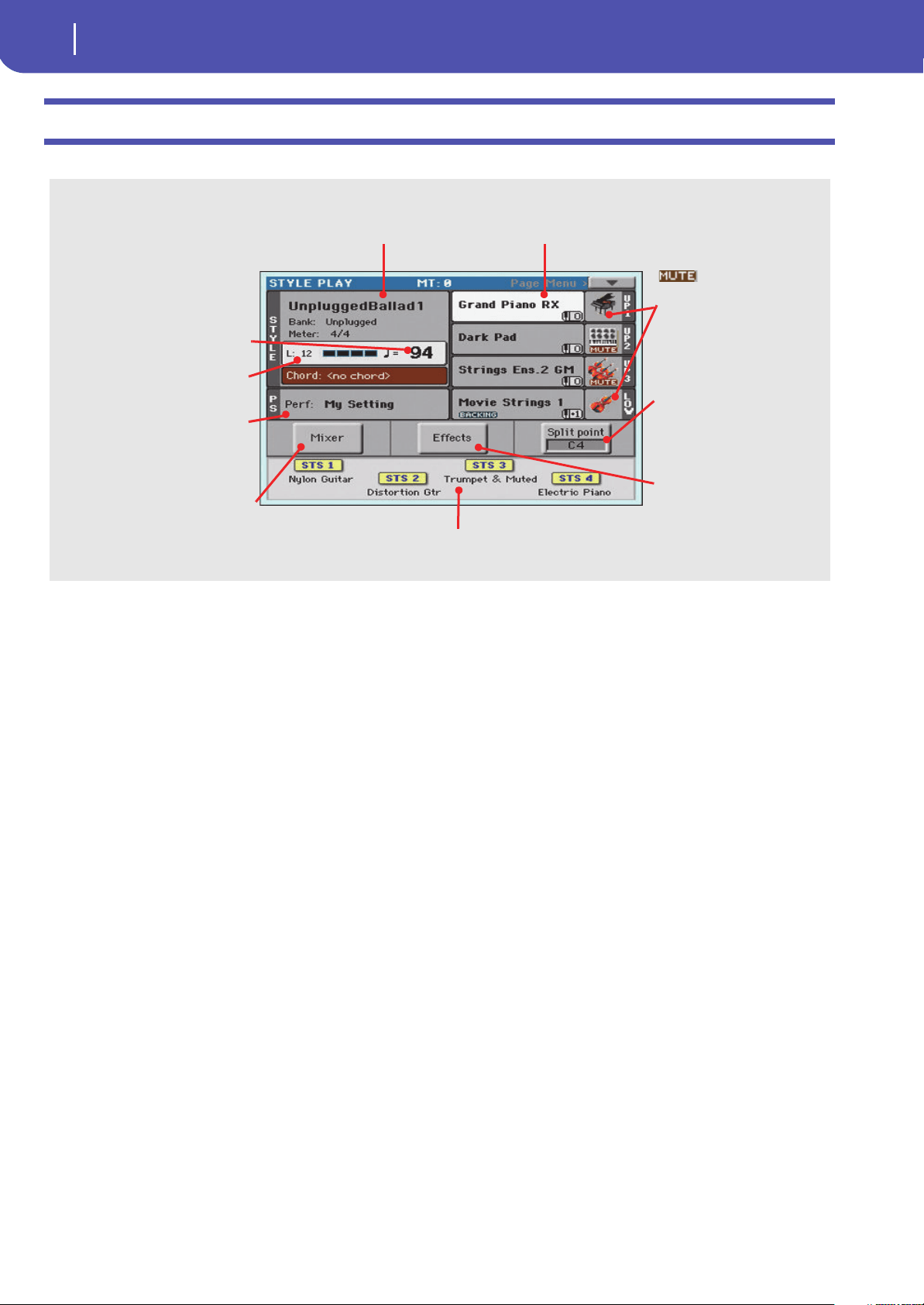
24
Easy Mode
The Style Play page in detail
The Style Play page in detail
To see this page, press the STYLE PLAY button.
Notes:
• There are three Sounds for the right hand (Upper 1, Upper 2,
Upper 3), and a single Sound for the left hand (Lower). Their
names are abbreviated as UP1, UP2, UP3, LOW, and are shown
on the right side of the display.
• Right hand (Upper) and left hand (Lower) Sounds are sepa-
rated by the Split Point.
• Performances and STSs are collections of Sounds. Just choose
one of them to change all the keyboard’s Sounds.
• Choose a Style to change the musical style of the accompani-
ment patterns.
Sound icon and status. If the
icon appears, the Sound
is in mute and cannot be heard. If
the icon does not appear, the
Sound is in play and can be
heard. See page 35
Sounds assigned to the right hand (UP1 to UP3) and to
the left hand (LOW). Touch the Sound’s name to open
the Sound Select window and choose a different Sound.
Style name and info. Touch the Style’s name to
open the Style Select window and choose a
different Style.
Tempo. Use the
TEMPO buttons to
change it.
Length of the accompaniment pat-
tern, and current beat.
Performance or STS. Touch it to open
the Performance Select window and
choose a different Performance.
Sounds on the keyboard will change.
Single Touch Settings (STS). Touch one of them to choose it, or use the dedicated buttons on
the control panel. Sounds on the keyboard will change.
Split Point. Touch here and play a
note to set the new split point.
See page 39
Effects. Touch here and choose
the effects assigned to the vari-
ous tracks.
Mixer. Touch here, and mix the track’s
volume and pan.
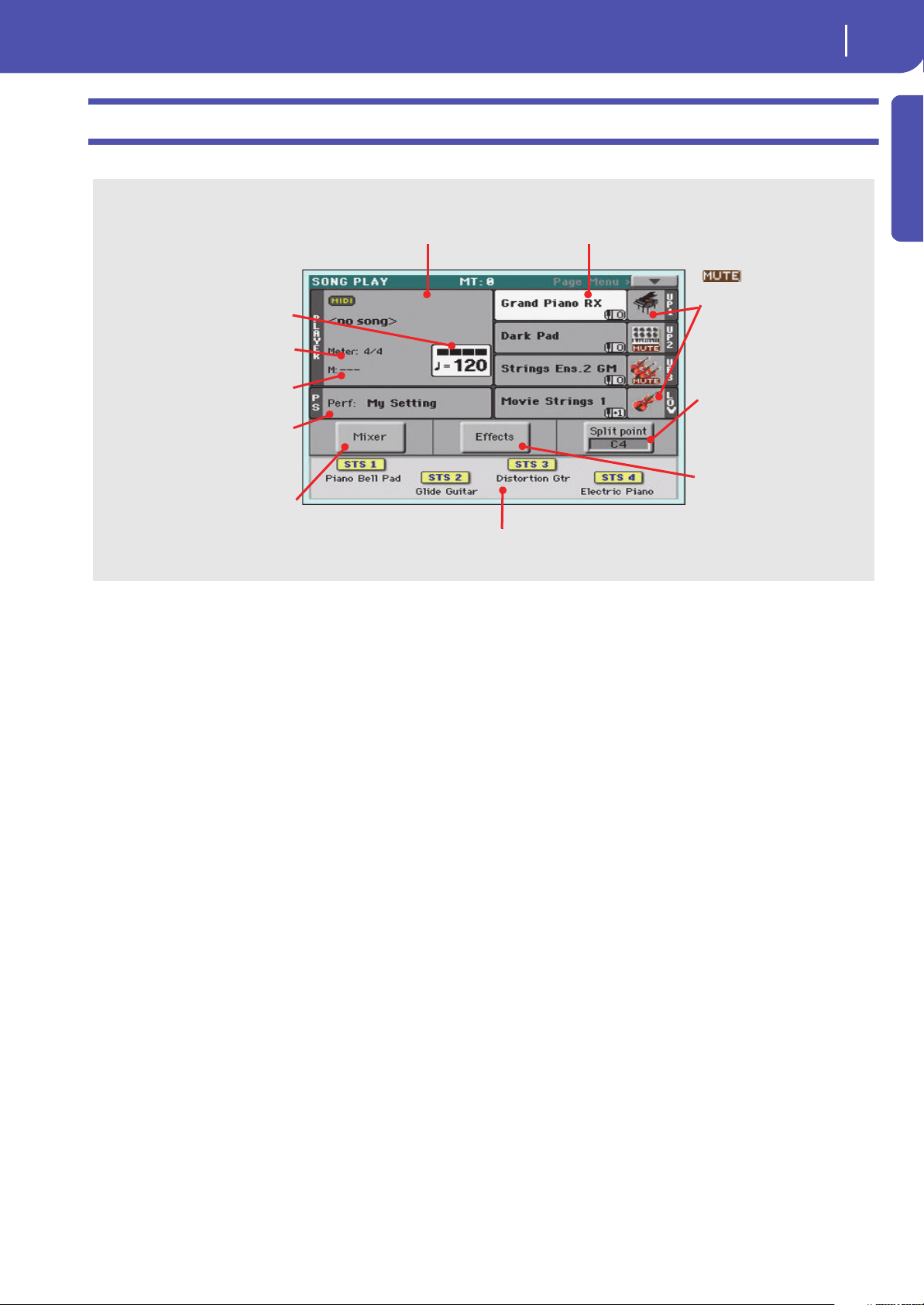
25
Easy Mode
The Song Play page in detail
Introduction
The Song Play page in detail
To see this page, press the SONG PLAY button.
Notes:
• As in Style Play mode, there are three Sounds for the right hand
(Upper 1, Upper 2, Upper 3), and one Sound for the left hand
(Lower). Their names are abbreviated as UP1, UP2, UP3, LOW,
and are shown in the right side of the display.
• Right hand (Upper) and left hand (Lower) Sounds are sepa-
rated by the Split Point.
• Performances and STSs are collections of Sounds. Just choose
one of them to change all the keyboard’s Sounds.
• Available STSs depend on the Style or SongBook Entry you last
selected.
• Touching a Song name in the display is the same as pressing the
SONG button in the SELECTION section of the control panel.
Sound icon and status. If the
icon appears, the Sound
is in mute and cannot be heard. If
the icon does not appear, the
Sound is in play and can be
heard. See page 35
Sounds assigned to the right hand (UP1 to UP3) and to
the left hand (LOW). Touch the Sound’s name to open
the Sound Select window and choose a different Sound.
Song assigned to the Player. Touch it to open the
Song Select window and choose a different Song.
Tempo. Use the
TEMPO buttons to
change it.
Meter (or Time Signature) and
current beat.
Performance or STS. Touch it to open
the Performance Select window and
choose a different Performance.
Sounds on the keyboard will change.
Single Touch Settings (STS). Touch one of them to choose it, or use the dedicated buttons on
the control panel. Sounds on the keyboard will change.
Split Point. Touch here and play a
note to set the new split point.
See page 39
Effects. Touch here and choose
the effects assigned to the vari-
ous tracks.
Mixer. Touch here, and mix the track’s
volume and pan.
Current measure.

26
Easy Mode
The Song Play page in detail

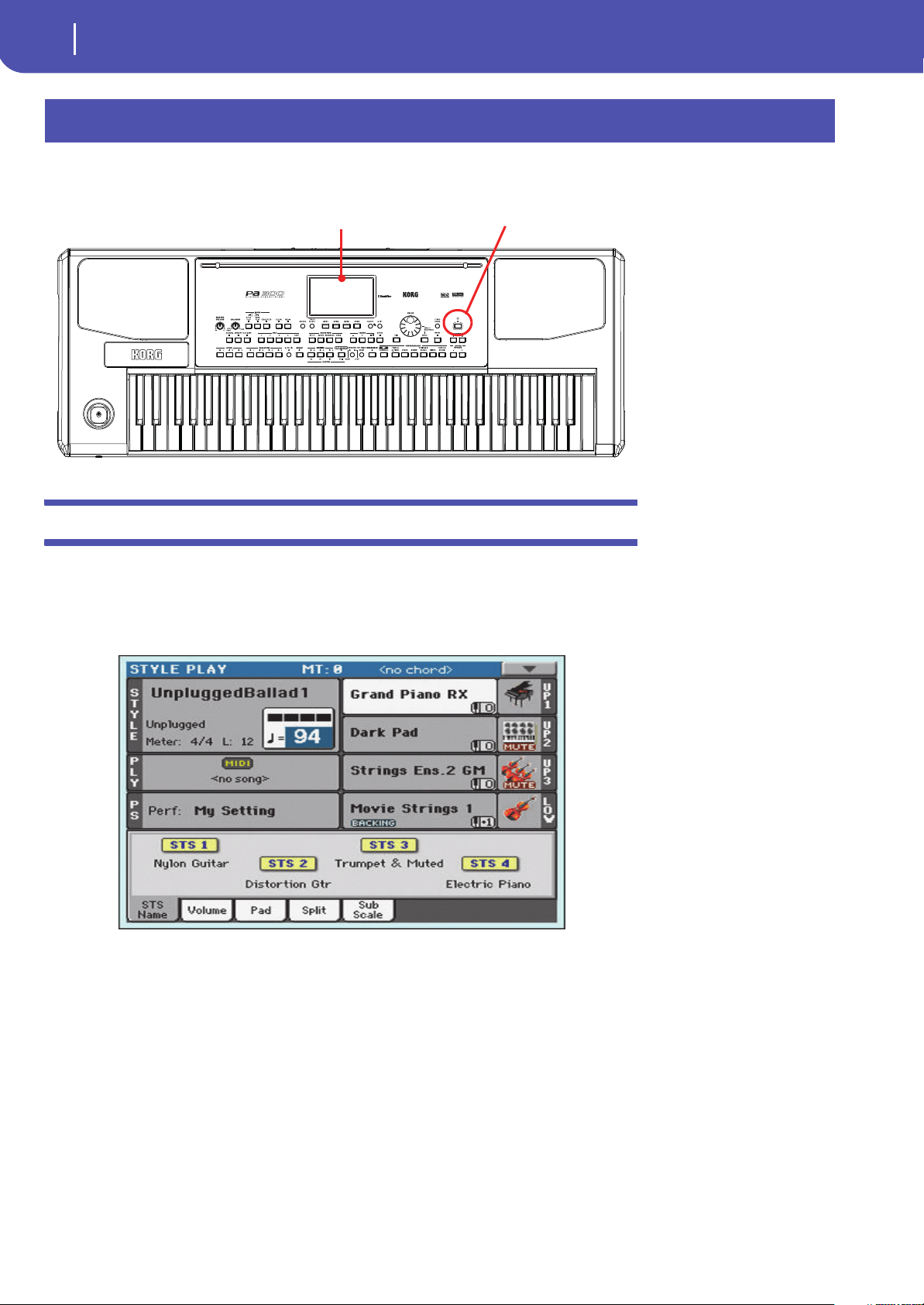
28
Turning the instrument on
Turning the instrument on and viewing the main screen
First of all, turn the instrument on and familiarize with the main screen. You can also listen to the
demos.
Turning the instrument on and viewing the main screen
1 Turn Pa300 on (exit from standby) by pressing the POWER button located in the control
panel.
After you turn the instrument on, a welcome screen is shown for some seconds, then the main
display appears.
2 When you want to put Pa300 to standby, keep the POWER button pressed for about
one second, and release it when the screen appears dimmed.
After having pressed the POWER button, the display brightness will be dimmed. At this point,
the shutdown procedure will begin and last for a few seconds. Please do not disconnect the
power cable during this procedure.
Turning the instrument on
Power buttonDisplay

29
Connecting and calibrating the Damper pedal
Programming the Damper pedal
Quick Guide
If you want to play Piano, you will want to connect a Damper pedal to sustain notes while playing.
You can connect a Korg PS1, PS3 or DS1H to the PEDAL/DAMPER connector on the back of the
instrument.
Programming the Damper pedal
Calibrating the Damper pedal will let you use the full run of the pedal, without “dead spots”. Also, this
might be the only way to connect a third-party Damper pedal that seems to work in reverse, sustain-
ing the notes when they are not pressed!
1 Connect the Damper pedal to the PEDAL/DAMPER connector on the back of the instru-
ment.
2 Press the GLOBAL button to access the Global mode.
Global mode is where you can set some global parameters, like this one or the Master Tuning.
These settings are not tied to any specific operative mode, so they are programmed in these sep-
arate pages.
3 Touch the Controllers button to access the Controllers section of the Global mode.
If you have not yet chosen a different page, the “Hand Controller” page will appear (being the
first one in the Controllers section).
Connecting and calibrating the Damper pedal
Damper/Assignable pedal connector
Menu of the Global mode
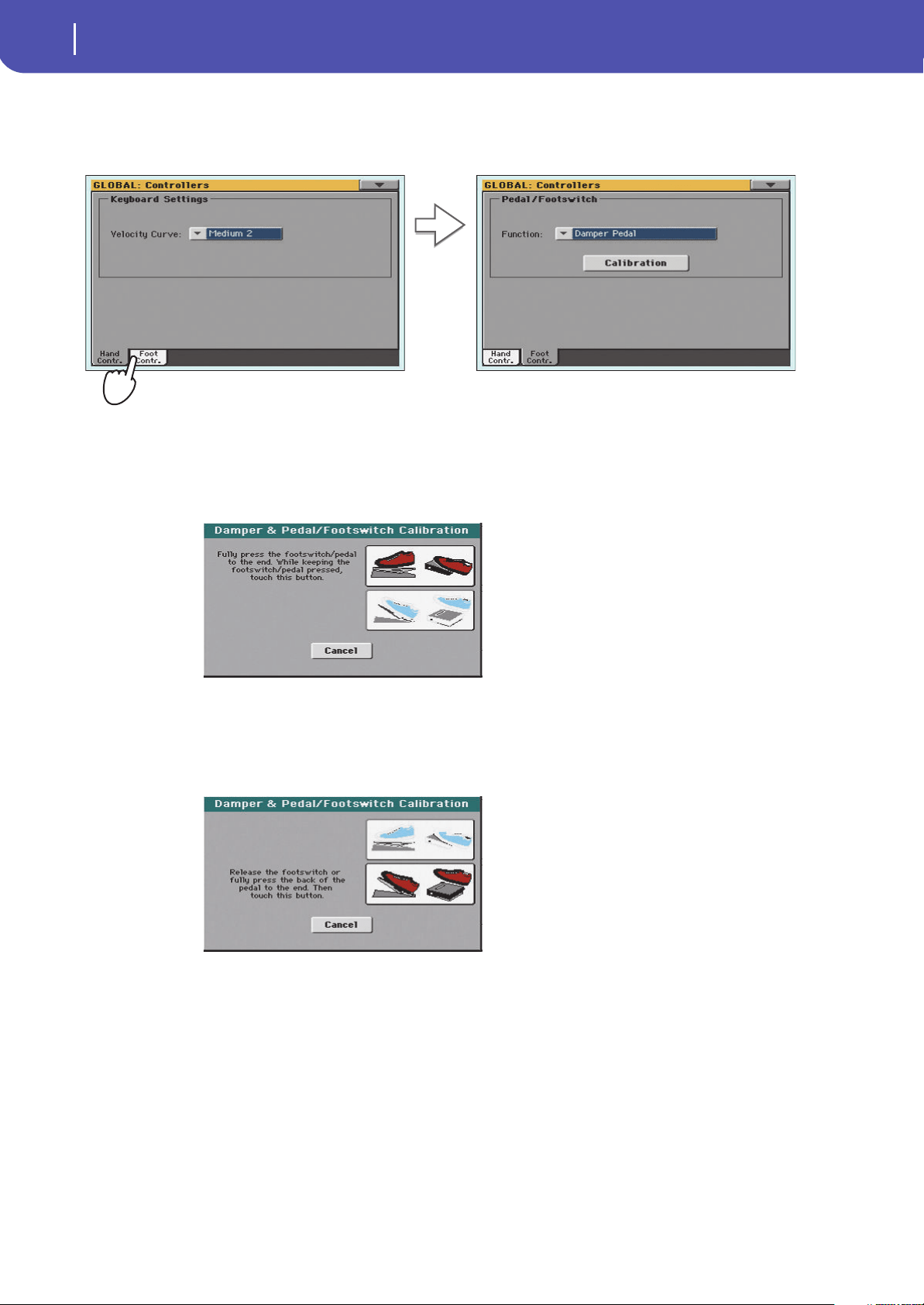
30
Connecting and calibrating the Damper pedal
Programming the Damper pedal
4 Touch the Foot Contr. tab to select the “Foot Controllers” page.
This is the page where you can program the PEDAL/DAMPER connector, by assigning it one of
the available functions.
5 Be sure the Damper function is assigned to the “Function” parameter.
6 Touch the “Calibration” button, to make the “Damper & Pedal/Footswitch Calibration”
dialog box appear.
7 Fully press the Damper pedal down, and while continuing to press touch the “Push”
button to confirm the maximum value.
8 When the following dialog box appears, release the pedal.
9 Touch the “Push” button in the display to confirm the minimum value.
Check if the pedal is working properly. In case it isn’t, repeat the procedure.
10 Press the EXIT button to return to the previous operative mode.
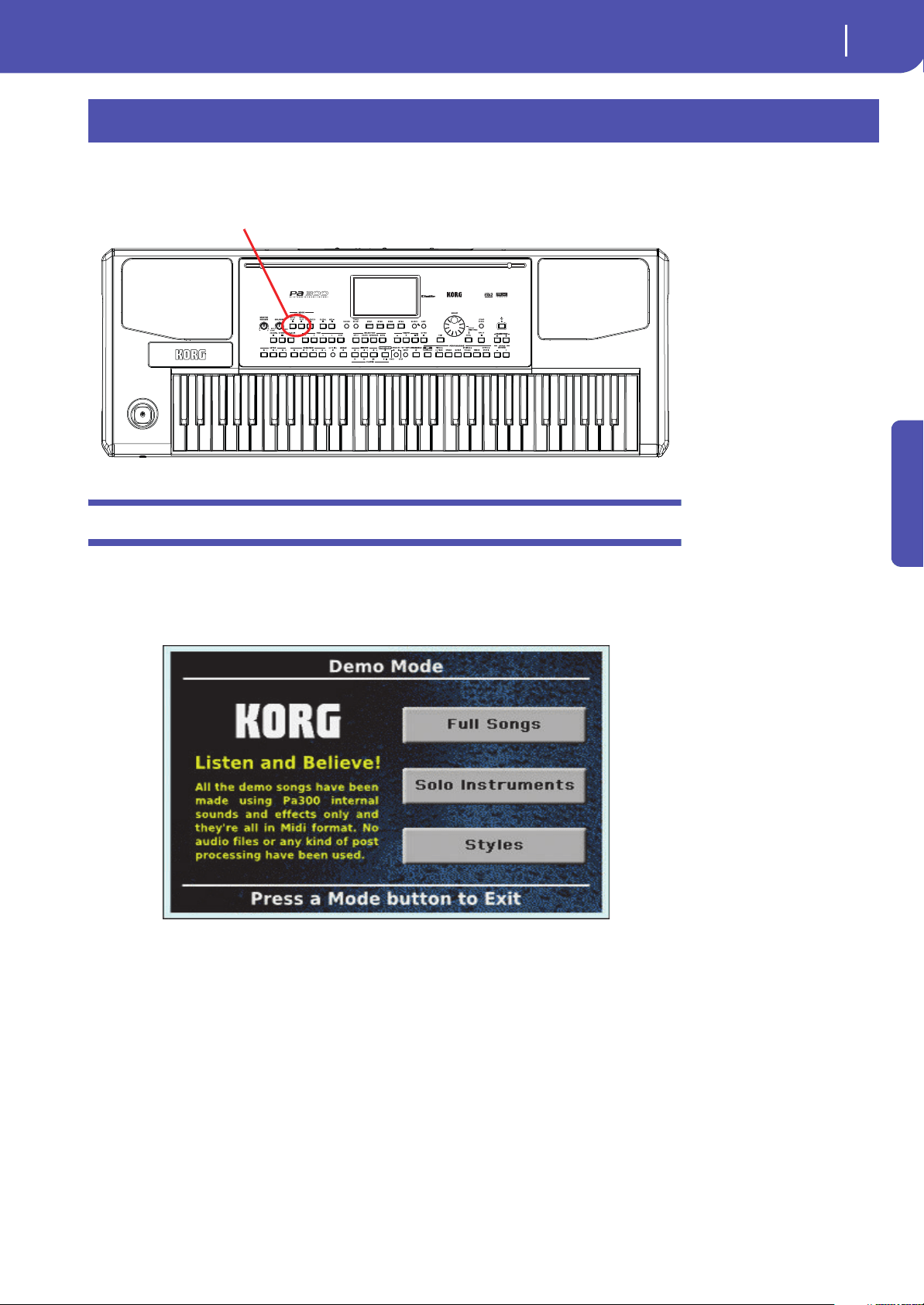
31
Playing the Demo
Starting and stopping the Demo
Quick Guide
Listen to the built-in Demo Songs to appreciate the power of Pa300. There are several Demo Songs to
choose from.
Starting and stopping the Demo
Here is how to start, choose and stop the Demo Songs.
1 Press the STYLE PLAY and SONG PLAY buttons together.
The LED of the two buttons will start blinking. Pa300 will be set in Demo mode.
At this point, if no other button is pressed, a selection of the best Demo Songs will be played
back.
2 In case you want to listen to a specified Demo Song, select one of the available options
on the display (Full Songs, Solo Instruments, Styles).
Playing the Demo
Demo buttons
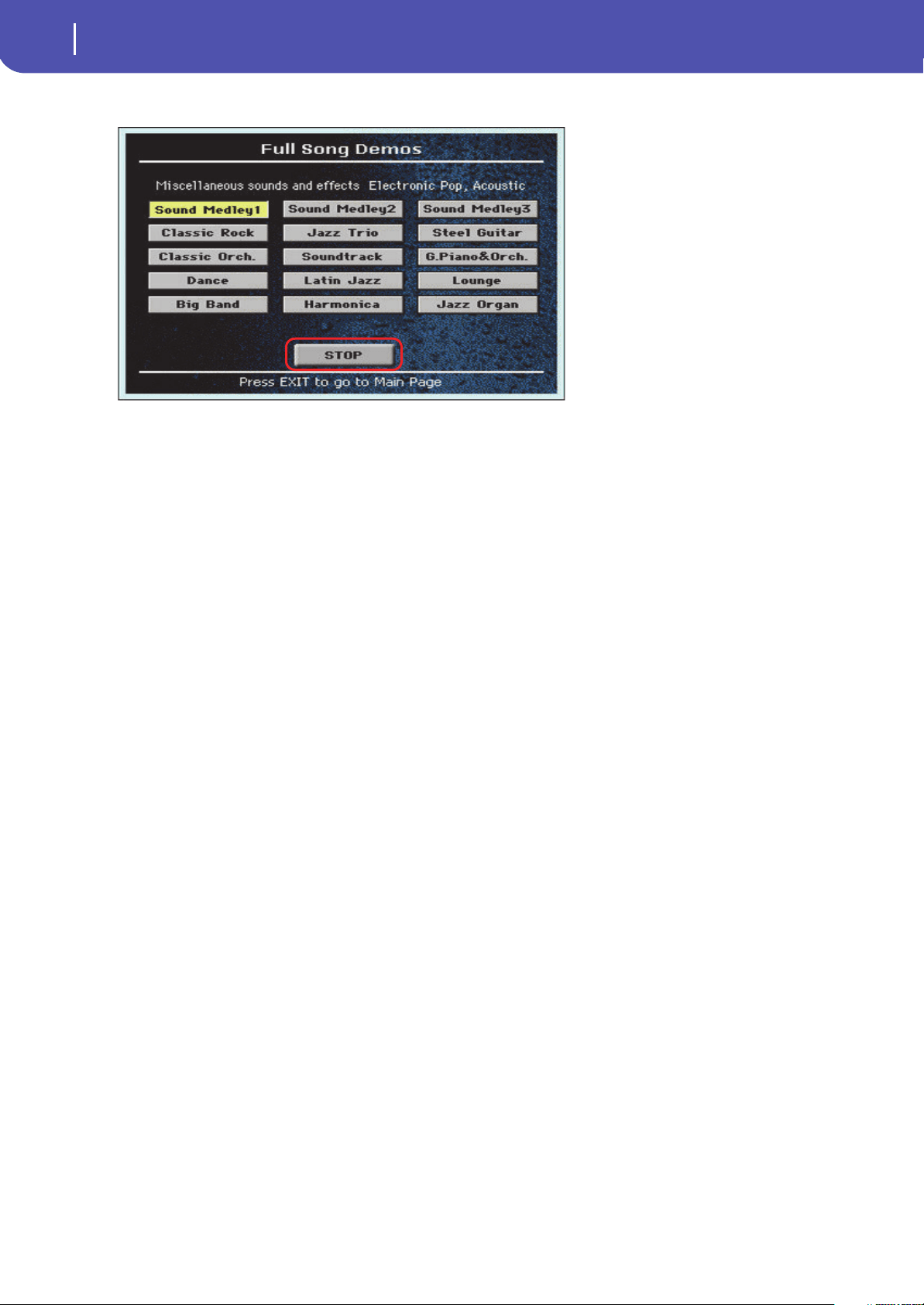
32
Playing the Demo
Starting and stopping the Demo
3 Choose one of the Demo. To stop it, touch the STOP button on the display.
4 Exit from the Demo mode by pressing any one of the MODE buttons.
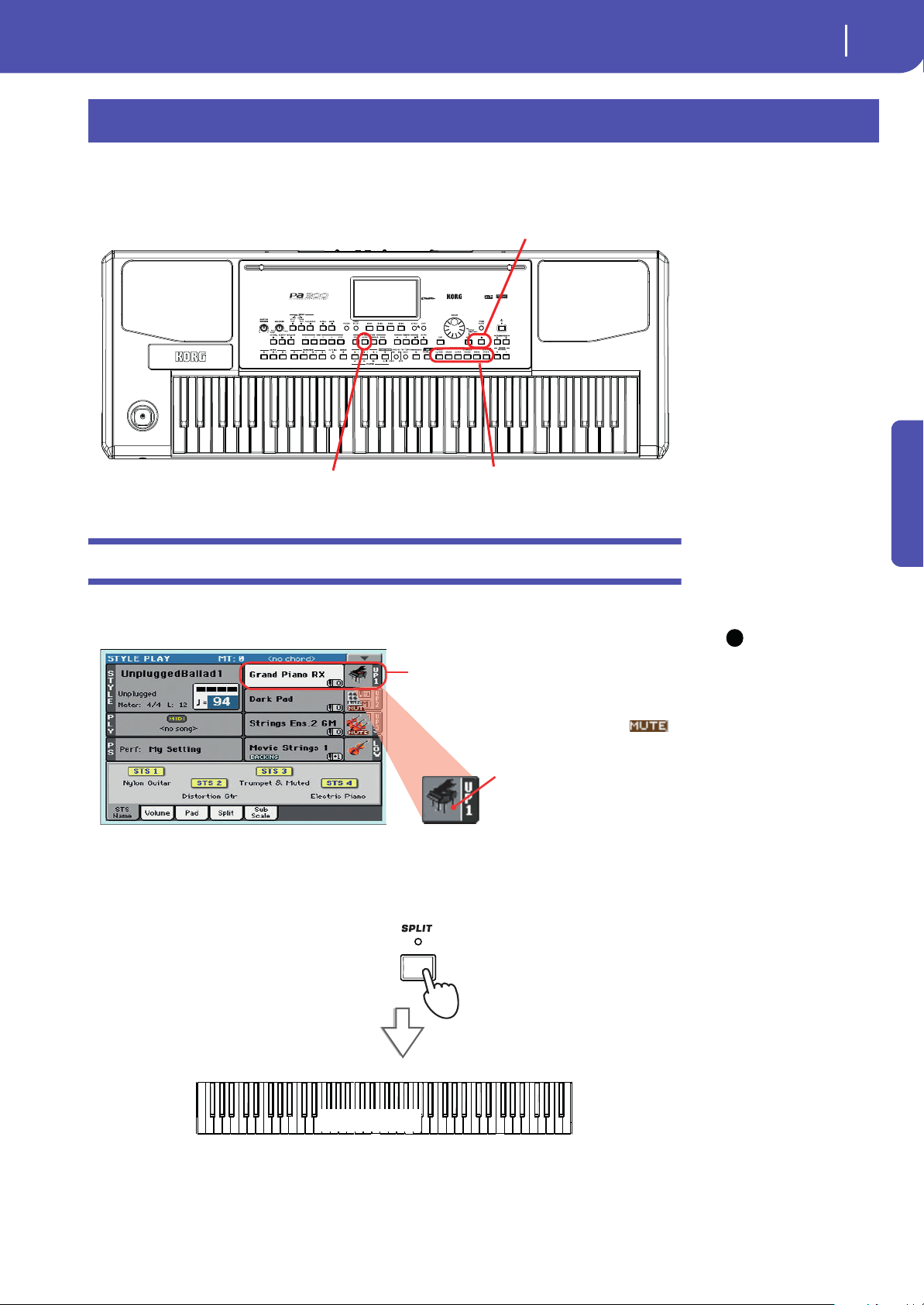
33
Playing Sounds
Selecting a Sound and playing it on the keyboard
Quick Guide
You can play up to three sounds at the same time on the keyboard. You can also split the keyboard in
two parts, to play up to three sounds with your right hand (Upper) and one with your left hand
(Lower).
Selecting a Sound and playing it on the keyboard
1 Be sure the Upper 1 track is selected and set to play.
Note: Be sure tracks
Upper 2 and Upper 3 are
muted and are not playing. If
you hear more than one
sound, see also page 35 for
how to mute tracks.
2
If you want to play the Sound on the whole keyboard, be sure the keyboard is in Full
Upper mode (i.e., the SPLIT LED is turned off). If it is split in two parts, press the SPLIT
button to turn its LED off.
Playing Sounds
Performance section
Split button
Sound Select button
i
A selected track is shown with a white back-
ground. In this example, the Upper 1 track is
selected. If it is not selected, touch it once to
select it.
The fact that there isn’t a
icon over the bank icon means
that the Upper 1 track is set to
play. If it is muted, touch the
bank icon to set it to play.
(Full) Upper
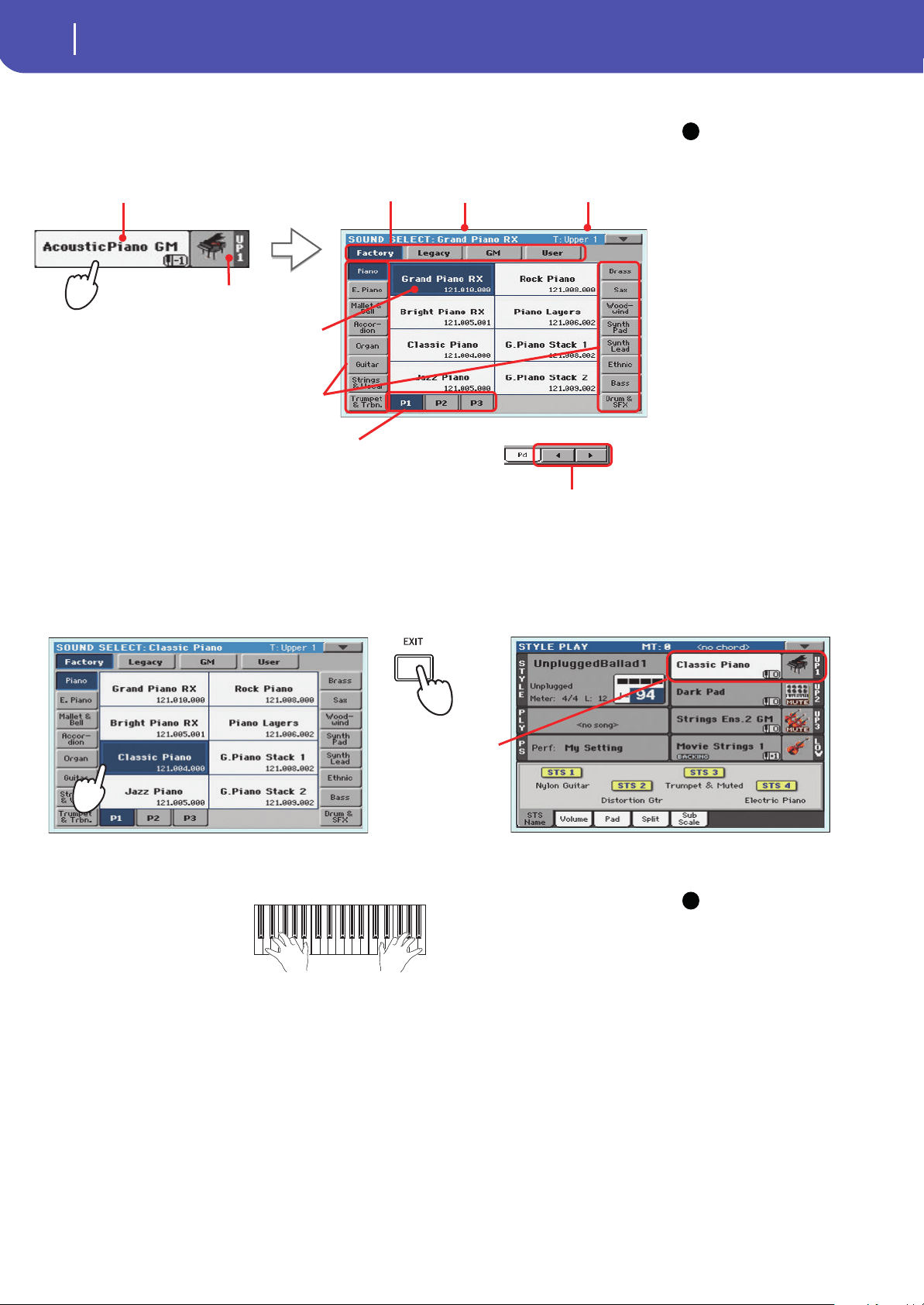
34
Playing Sounds
Selecting a Sound and playing it on the keyboard
3 Touch the Upper 1 track’s area in the display to open the Sound Select window.
Note: You can also open
the Sound Select window by
first touching the track to
which to assign the new
Sound, then pressing the
SOUND button in the SELEC-
TION section.
4
Select a Sound from the Sound Select window, then press the EXIT button to close the
window.
5 Play the Sound on the keyboard.
Note: Selection windows
may automatically close
after a selection. To do this,
uncheck the “Display Hold”
box in the Global > General
Controls > Interface page. In
this case, press the EXIT but-
ton only if you don’t make
any selection but want to
close the window.
i
The selected Sound is highlighted.
Touch a Sound’s name to select it.
Touch one of the side tabs to select a
different Sound bank.
Touch one of the lower tabs to select
a different Sound page.
A Previous and Next Page pair of button may appear
in this area, when more than six pages are available.
As an alternative, repeatedly press the SOUND button
to cycle between the pages.
The currently
selected Sound
appears in the page
header.
Target track for the
selected Sound
Sound bank icon
Sound’s name
Type of Sounds.
The Sound Select win-
dow closes, and the
main screen appears
again, with the selected
Sound assigned to the
Upper 1 track.
i
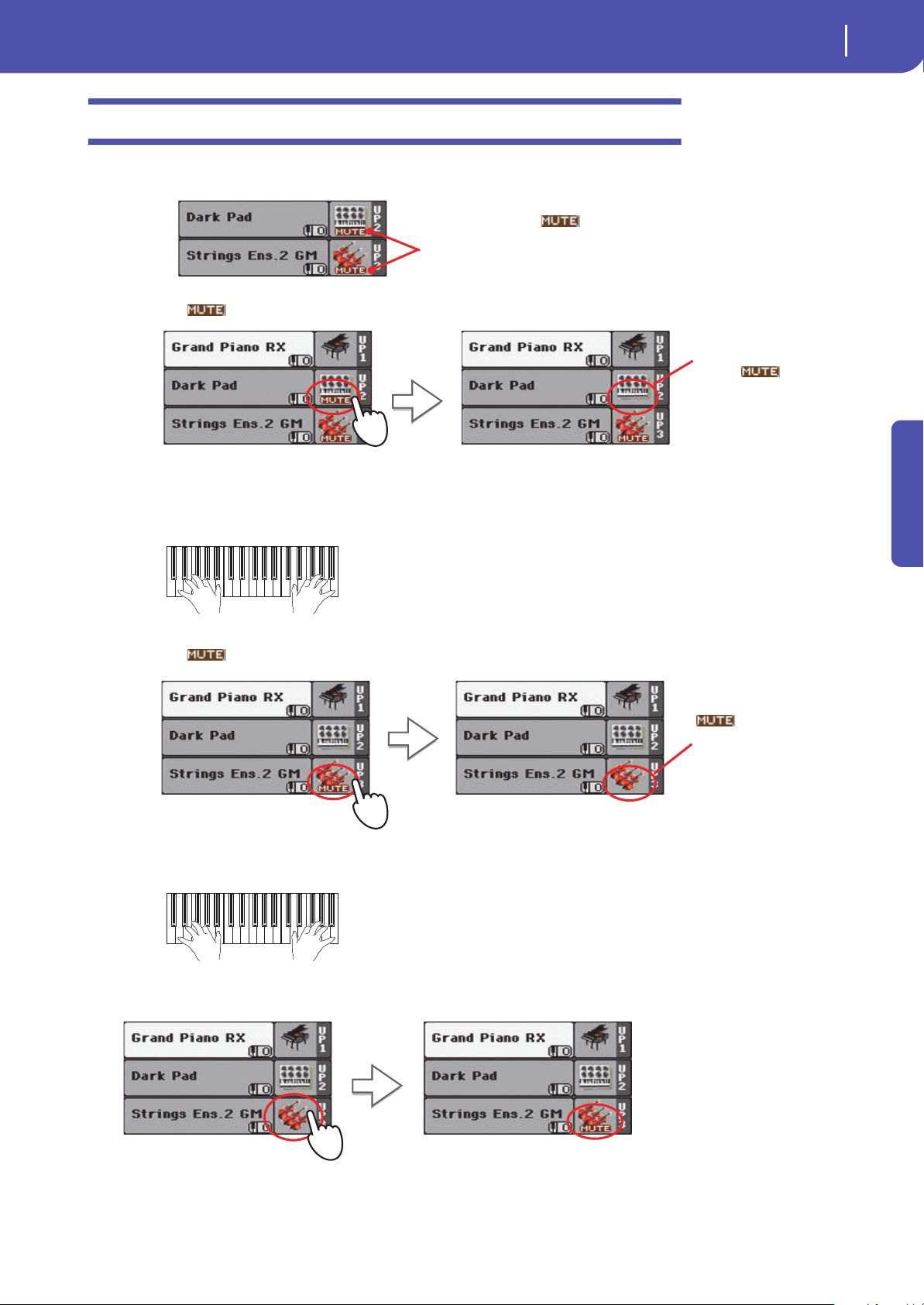
35
Playing Sounds
Playing two or three Sounds at the same time
Quick Guide
Playing two or three Sounds at the same time
You can layer all three Upper tracks and play them on the keyboard.
1 Touch the icon in the Upper 2 status box, to set the Upper 2 track to play.
2 Play the keyboard.
3 Touch the icon in the Upper 3 status box, to set the Upper 3 track to play.
4 Play the keyboard.
5 Touch the bank icon in the Upper 3 status box, to mute the Upper 3 track again.
Please note how the
icon appears in the Upper 2
and Upper 3 status boxes.
These tracks will not be heard.
After touching in this
area, the icon
disappears. The
Upper 2 track will be
set to play and will be
heard.
Note how the ‘Dark Pad’ Sound (assigned to the Upper 2 track) has been layered
with the ‘Grand Piano RX’ (assigned to the Upper 1 track).
As above, after touch-
ing in this area, the
icon disap-
pears. The Upper 3
track will be set to play
and will be heard.
Note how the ‘Strings Ens.2 GM’ Sound (assigned to the Upper 3 track) has been
added to the ‘Dark Pad’ (assigned to the Upper 2 track) and the ‘Grand Piano RX’
(assigned to the Upper 1 track).
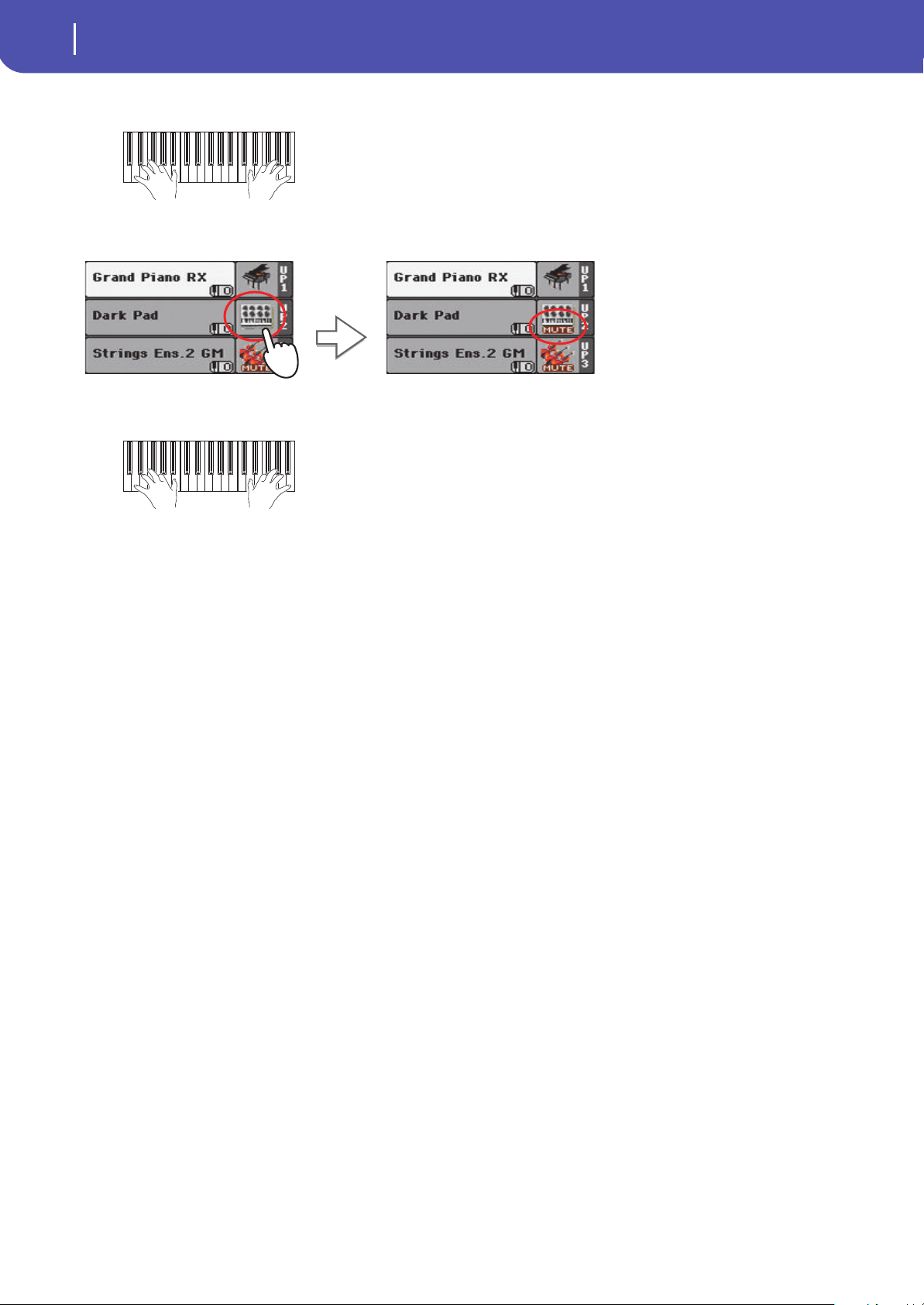
36
Playing Sounds
Playing two or three Sounds at the same time
6 Play the keyboard.
7 Touch the bank icon in the Upper 2 status box, to mute the Upper 2 track again.
8 Play the keyboard.
Note how the ‘Strings Ens.2 GM’ Sound (assigned to the Upper 3 track) has been
muted again. Only tracks Upper 1 and Upper 2 can be heard at this time.
Note how the ‘Dark Pad’ Sound (assigned to the Upper 2 track) has been muted
again. Only track Upper 1 can be heard at this time.

37
Playing Sounds
Playing different Sounds with your left and right hand
Quick Guide
Playing different Sounds with your left and right hand
You can play a single Sound with your left hand, in addition to playing up to three Sounds with your
right hand.
1 Press the SPLIT button to turn its LED on, and split the keyboard in the Lower (left
hand) and Upper (right hand) parts.
2 Be sure the Lower track is set to play.
3 Play the keyboard.
Lower
Upper
If the Lower track is muted, touch its
icon to make it disappear from this area.
If the Bass & Lower Backing function is turned on,
and the Style is not running, the Lower track will
always play.
Note how the keyboard is split in two parts, each playing different
sounds.
Lower Upper
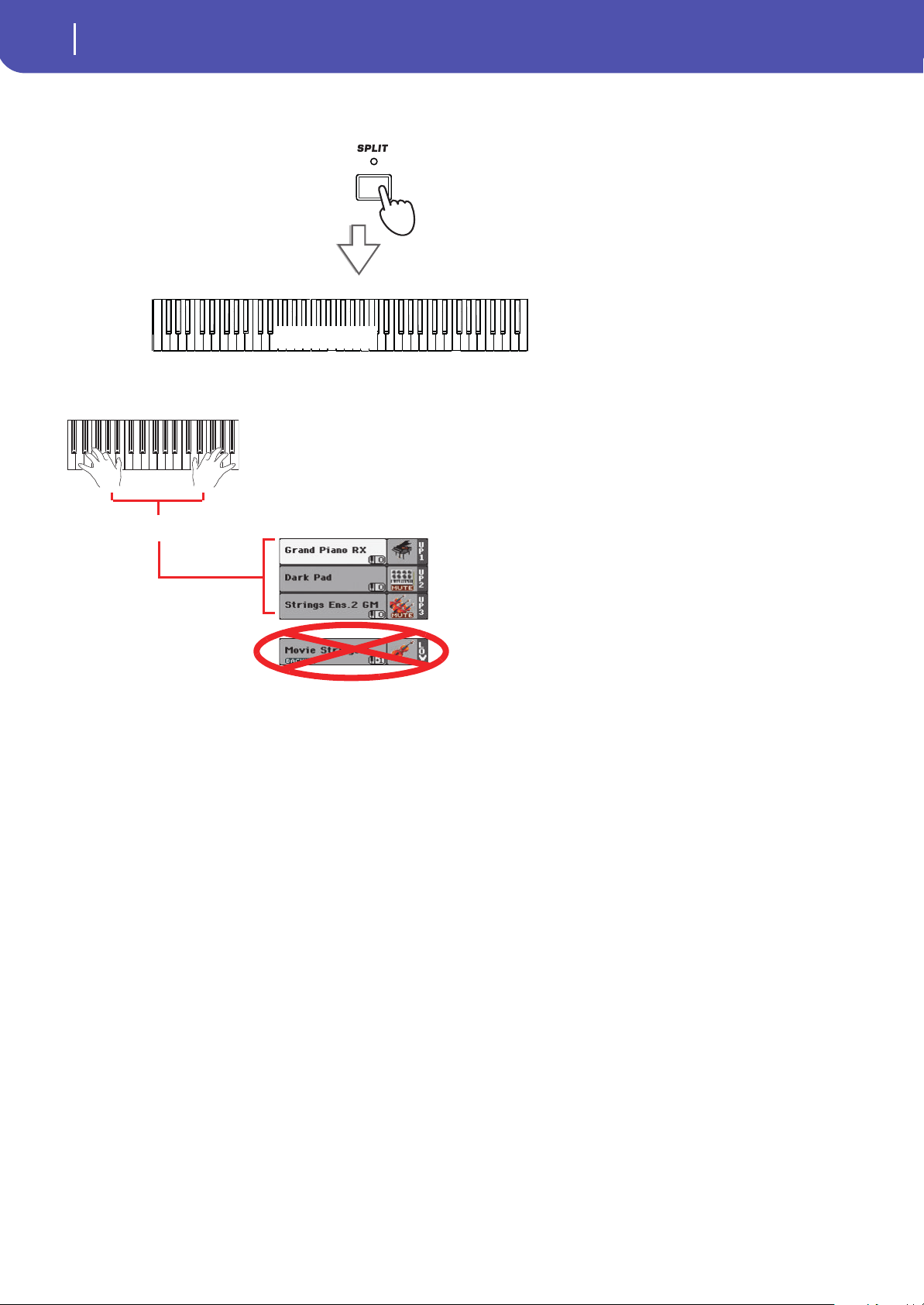
38
Playing Sounds
Playing different Sounds with your left and right hand
4 Return to the full keyboard playing mode by pressing the SPLIT button to turn its LED
off.
5 Play the keyboard.
(Full) Upper
Note how the keyboard once again plays the Upper tracks over the entire
length of the keyboard.
Upper
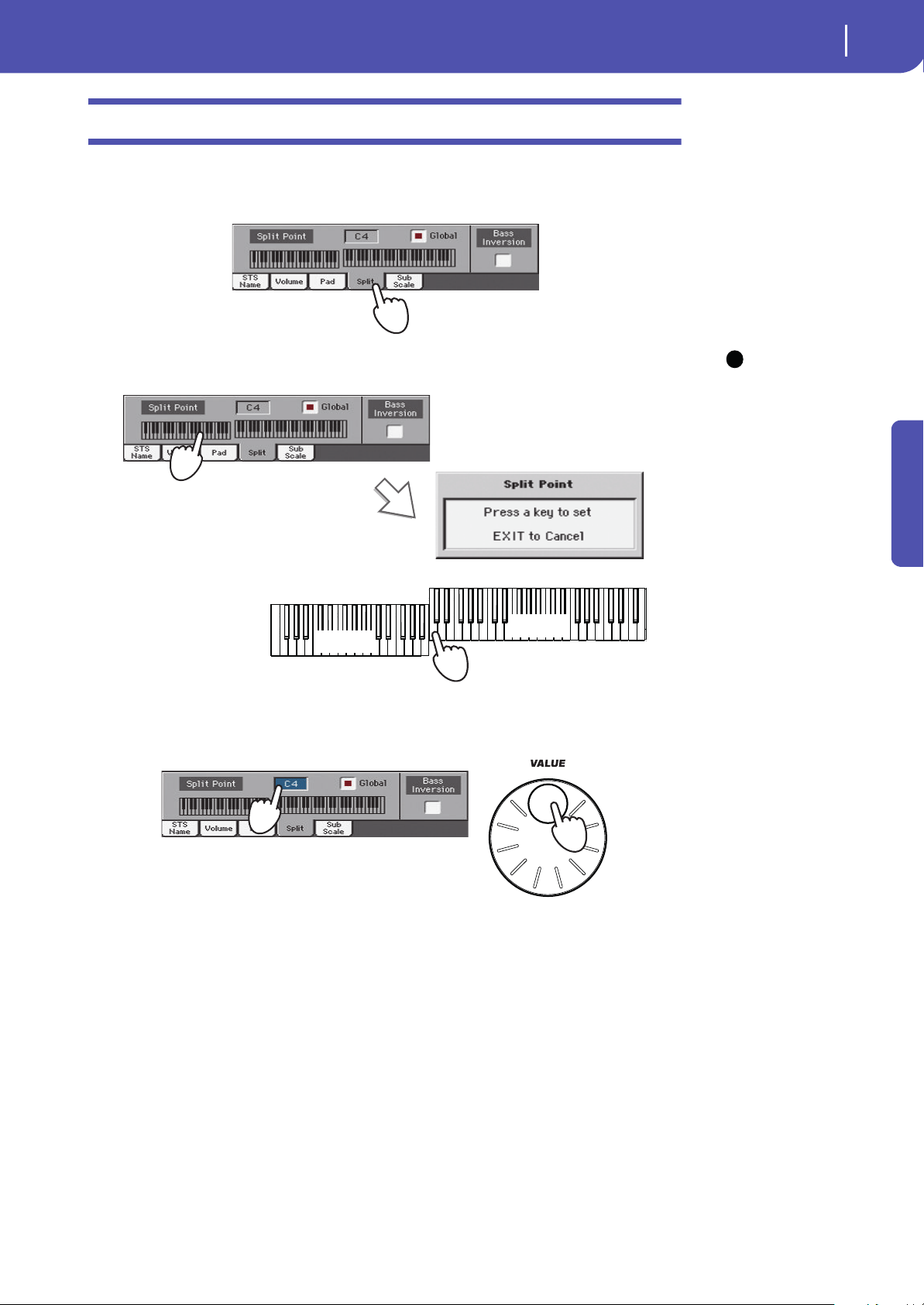
39
Playing Sounds
Changing the split point
Quick Guide
Changing the split point
If you are not comfortable with the selected split point, you may set the split point to a different key.
1 Touch the Split tab to see the Split Point panel.
Hint: As an alternative,
keep the SPLIT button
pressed to open the Split
Point dialog.
2
Touch the keyboard in the display, then play the lowest note of the Upper section on
the keyboard.
3 As an alternative, touch the Split Point parameter to select it, and use the VALUE dial to
select the new split point.
When you change the split point, the “Global” parameter is automatically unchecked. This is
because you are setting a “local” or “temporary” split point, and not the “global” one, used across
the whole instrument.
To change the “global” split point, go to the Global > Mode Preferences > Style page, and set the
“Split Point” parameter.
You can save the “local” split point into a Performance, as described in the following pages (see
“Saving your settings to a Performance” on page 42).
i
Lower
Upper
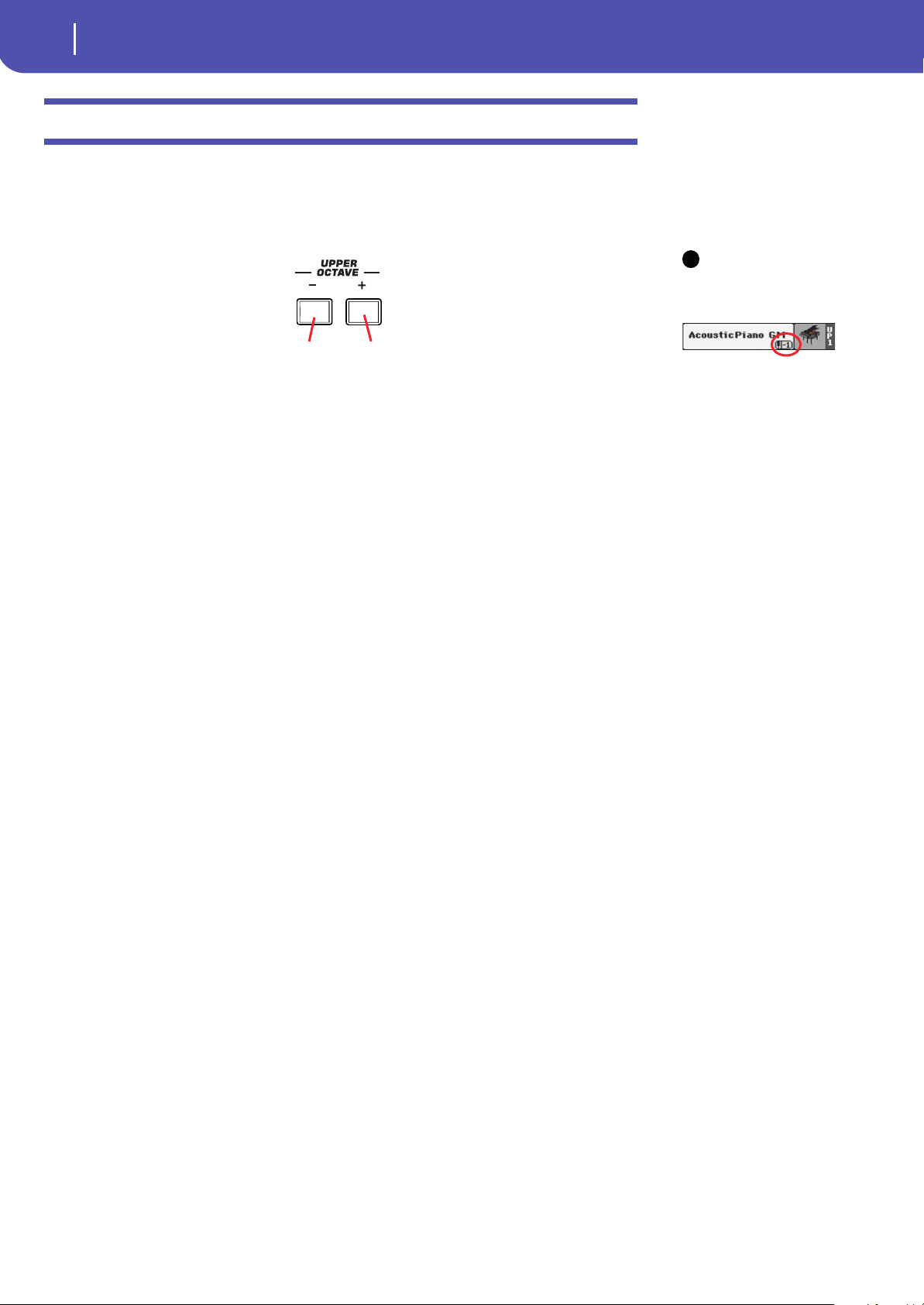
40
Playing Sounds
Raising or lowering the Upper octave
Raising or lowering the Upper octave
If all Upper tracks sound too high or too low, you can quickly change which octave they are playing
in.
1 Use the UPPER OCTAVE buttons on the control panel, to transpose all Upper tracks at
the same time.
Note: The Octave Trans-
pose value for each of the
keyboard track is shown
under the Sound’s name.
2
Press both UPPER OCTAVE buttons together to reset the octave to the value saved in
the current Performance.
i
Each time you press this button, the
pitch will be lowered by one octave.
Each time you press this button, the
pitch will be raised by one octave.

41
Selecting and saving Performances
Selecting a Performance
Quick Guide
Performances are the musical heart of Pa300. Unlike selecting single Sounds, selecting a Perfor-
mance will immediately assign several Sounds to the Keyboard tracks, the needed effects and trans-
positions, plus many more setting parameters. Performance can be considered a snapshot of the
current configuration of Sounds.
You can save these settings to a Performance memory location. While many Performances are already
supplied with the instrument, you can customize each of them to your own taste, and then save them
in their customized version.
Note: Style tracks are saved
to a third object called the
Style Settings.
Similar to Performances, but optimized for the Style or SongBook Entry they are associated to, you
can also save your settings to a Single Touch Setting (STS). Four STSs are supplied with each Style or
SongBook Entry, and can be selected with the four dedicated buttons under the display.
Please note that settings saved in the “My Setting” Performance are automatically selected when
the instrument is turned on (exit from standby). This means you can save your preferred startup
settings to this Performance (see below for more information).
Selecting a Performance
1 Touch the Performance area in the display, to open the Performance Select window.
Hint: You can also open
the Performance Select win-
dow by pressing one of the
buttons in the PERFOR-
MANCE section. This will let
you jump directly to the
desired Performance bank.
Selecting and saving Performances
Performance sectionSingle Touch Settings (STS) section
i
The selected Performance is high-
lighted. Touch a Performance name
to select it.
Touch one of the side tabs to select a
different Performance bank.
Touch one of the lower tabs to select a
different Performance page.

42
Selecting and saving Performances
Saving your settings to a Performance
2 Select one of the Performances in the Performance Select window, then press the EXIT
button to close the window.
Note that Selection windows may automatically close after a selection. To do this, uncheck the
“Display Hold” box in the Global > General Controls > Interface page. In this case, press the
EXIT button only if you don’t make any selection but want to close the window.
3 Play the keyboard.
Saving your settings to a Performance
The Sounds and Effects assigned to the Keyboard tracks, together with the parameters you can access
by pressing the MENU button while in Style Play and Song Play mode, can be saved into a single Per-
formance, to be quickly recalled at a later time.
Hint: To open the Write
Performance dialog box, you
can also choose the ‘Write
Performance’ command you
can find in the page menu.
1
Keep one of the PERFORMANCE buttons pressed for about one second to open the
Write Performance dialog box.
After pressing the EXIT button, the Performance Select window closes, and the
main screen appears again. Sounds, Effects, and other settings, change accord-
ing to the setting memorized in the selected Performance.
Settings memorized in the selected Performance have been
selected. Sounds, effects and other settings have been recalled.
i
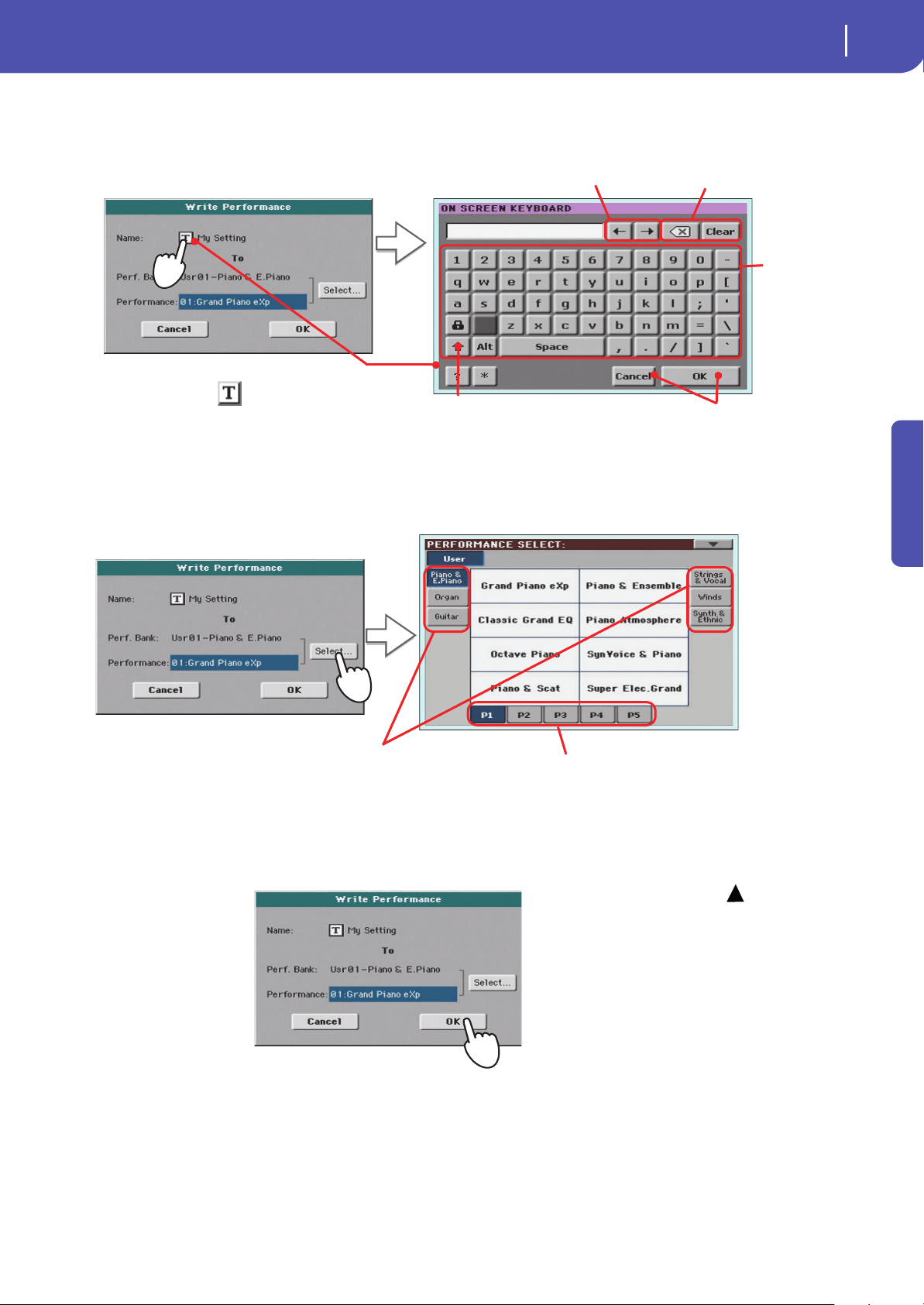
43
Selecting and saving Performances
Saving your settings to a Performance
Quick Guide
2 If you like, you may assign a new name to the Performance.
3 Select a bank and Performance location in memory, where you would like to save the
Performance.
4 When you have edited the name to the Performance, and selected the target location,
touch OK to save the Performance to memory (or Cancel to stop the operation).
Warning: Saving a Per-
formance to an already used
location overwrites any exist-
ing data at that location. The
old data are lost. Make a
backup of all your important
data.
Touch the (Text Edit) symbol to open the
Text Edit dialog box.
Use the alphabetic
characters to enter
text.
Use the ‘<–’ and ‘–>’
buttons or the DIAL to
move the cursor.
Touch the Shift key to
switch between capitals
and small characters.
Touch the ‘Backspace’ symbol to delete
just a single character, ‘Clear’ to delete
the whole string.
When done, touch OK to confirm the
new name, or Cancel to abandon all
changes.
The selected Perfor-
mance location is high-
lighted. Touch a
Performance’s name to
select it.
Touch one of the side tabs to select a
different Performance bank.
Touch one of the lower tabs to select
a different Performance page.
!
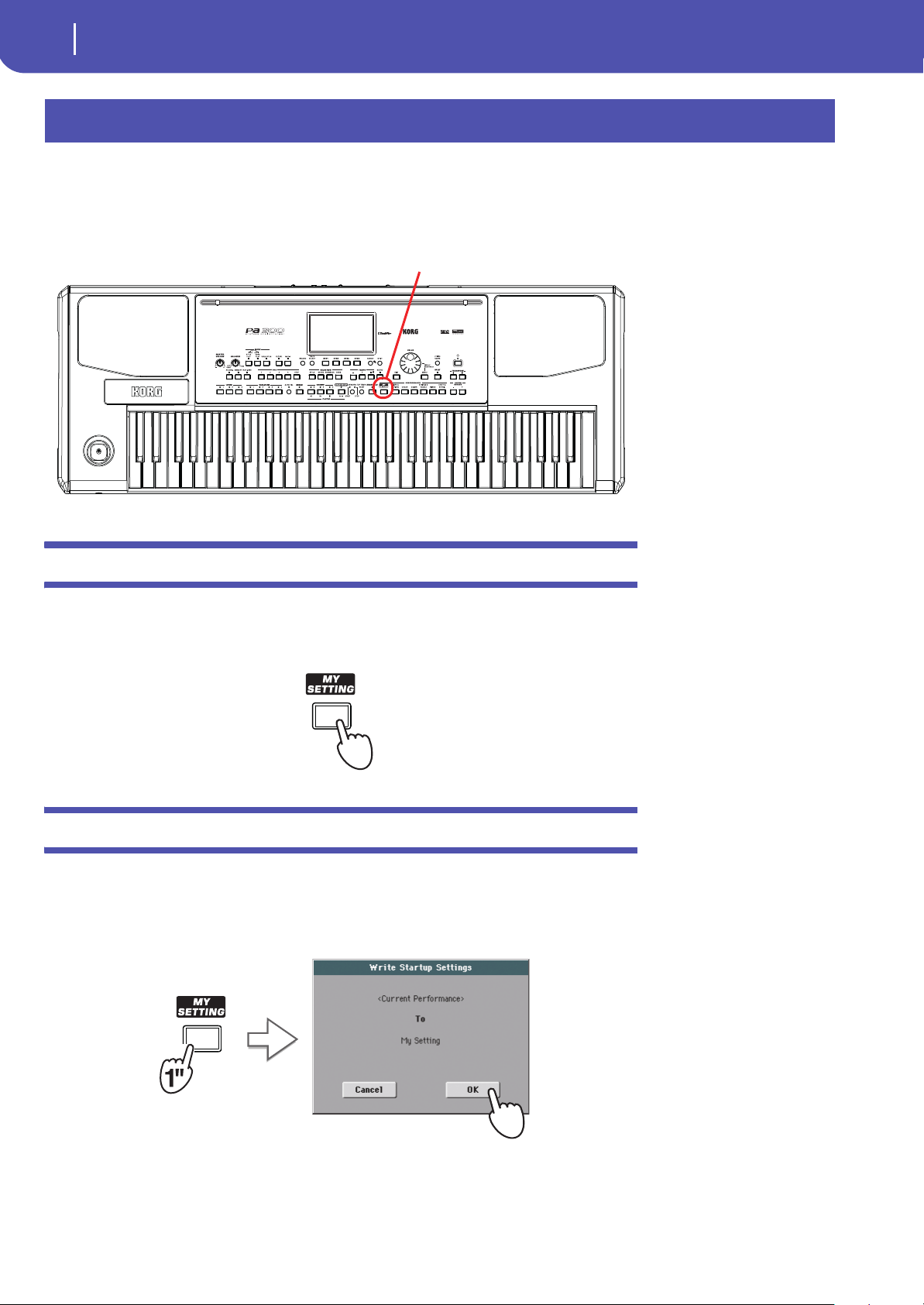
44
Selecting and saving the “My Setting” Performance
Selecting the startup parameters (the “My Setting” Performance)
There is a special Performance, where you can save your preferred settings for things like Keyboard
Sounds, Effects, Transposition. It also memorizes a preferred Style (that is only recalled when turning
the instrument on). This Performance is automatically selected when the instrument is turned on
(exit from standby). It is called the “My Setting” Performance.
Selecting the startup parameters (the “My Setting” Performance)
After having done some changes to the Sounds, transposition, or other parameters, you can return to
the startup situation by pressing the MY SETTING button in the control panel.
• Press the MY SETTING button to recall the “startup” settings.
Saving the startup parameters into the “My Setting” Performance
You can save the startup settings (Sounds and other settings, including most of the settings on the
control panel and the selected Style) into this special Performance.
• Keep the MY SETTING button pressed for about one second, until the “Write Startup
Settings” dialog box appears, then touch the OK button to confirm saving to memory.
Selecting and saving the “My Setting” Performance
‘My Setting’ Performance

45
Selecting and playing Styles
Selecting and playing a Style
Quick Guide
Pa300 is an arranger, i.e. a musical instrument providing automatic accompaniments, or arrange-
ments. Each arrangement style is called, as a consequence, a Style.
A Style is made of several Style Elements (Intro, Variation, Fill, Break, Ending), corresponding to the
various sections of a song. By selecting Style Elements, you can make your playing more varied and
musical.
When selecting a Style, Sounds, Effects and various configuration parameters for the Style tracks are
also selected. These are called the Style Settings. Four STSs are assigned to the STS buttons. Selecting
a Style also selects the four Pads it contains. Pads are single sounds or single-track patterns, that can
be triggered with the dedicated PAD buttons.
Use the Style controls to start or stop the Style.
Selecting and playing a Style
1 Touch the Style area in the display. The Style Select window appears.
Hint: You can also open
the Style Select window by
pressing the STYLE button in
the SELECTION section of the
control panel.
Selecting and playing Styles
Style Select button
Style Controls
Style Elements
i
The selected Style is highlighted.
Touch a Style’s name to select it.
Touch one of the side tabs to select a
different Style bank.
Touch one of the lower tabs to select
a different Style page.
Type of Style.
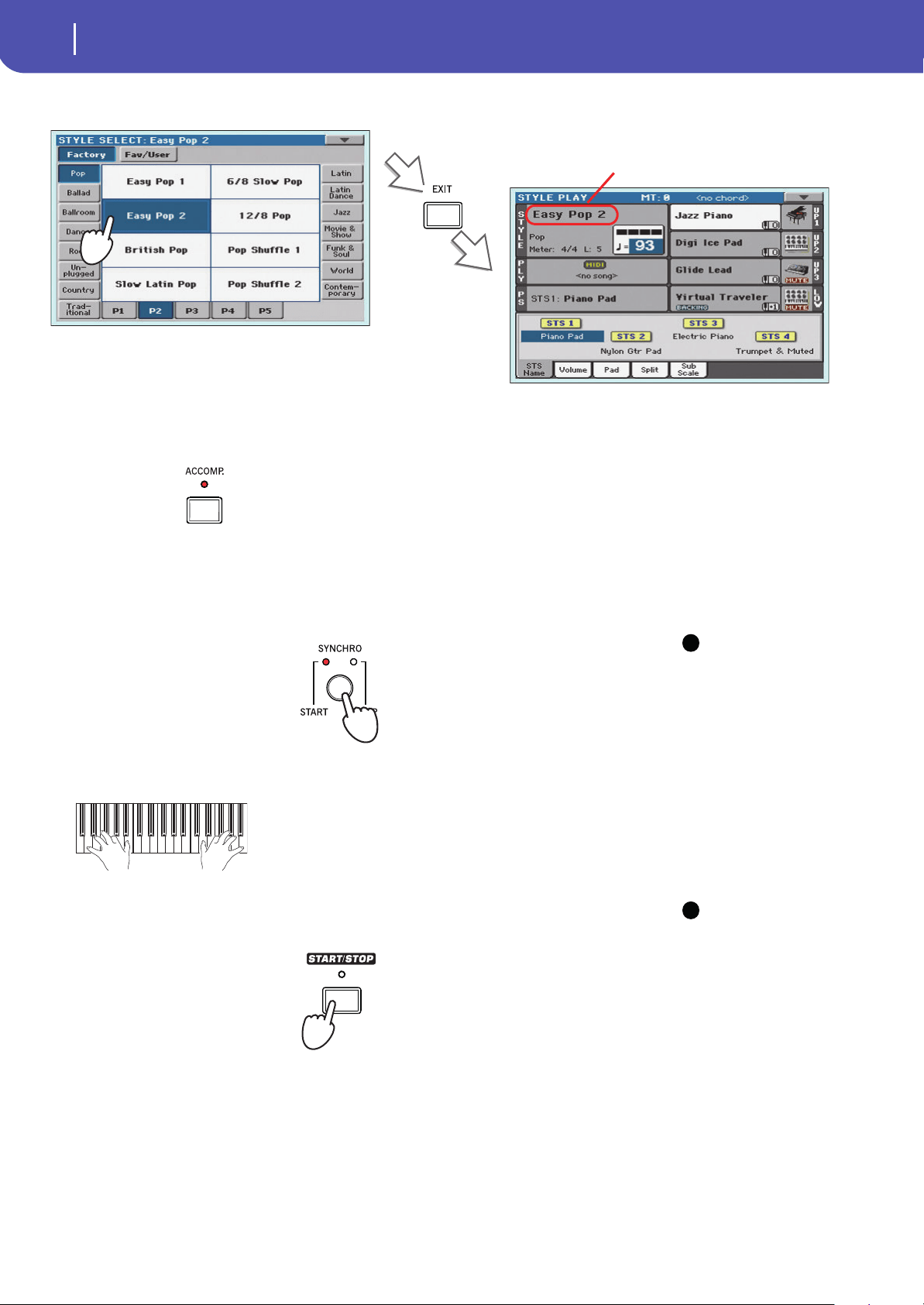
46
Selecting and playing Styles
Selecting and playing a Style
2 Select a Style from the Style Select window.
3 Be sure the ACCOMP. LED is turned on.
4 Press the SYNCHRO-START/STOP button to turn the START LED on.
This will turn the Synchro-Start function on, and let the accompaniment start as soon as you
play a chord on the keyboard.
Note: You could simply
press START/STOP to start the
Style, but the Synchro-Start
function allows you to make
the Style start in sync with
your playing on the key-
board. Therefore, it may be
considered a “more musical”
way of starting a Style.
5
Play the keyboard.
Note: The chord scan
area depends on the status of
the SPLIT LED and the Chord
Recognition parameter (see
Global > Mode Preferences >
Style).
6
Press START/STOP to stop the Style.
After pressing the EXIT button, the Style Select window
closes, and the main screen appears again, with the selected
Style ready to go.
For the accompaniment tracks to play, the LED of
this button (meaning “Accompaniment”) must be
turned on.
i
START LED
STOP LED
When the Syncho-Start function is turned on, the Style starts
playing as soon as you play a note or chord in the chord scan area.
Play chords with your left hand, and the melody with your right
hand. The arranger will follow your playing.
i
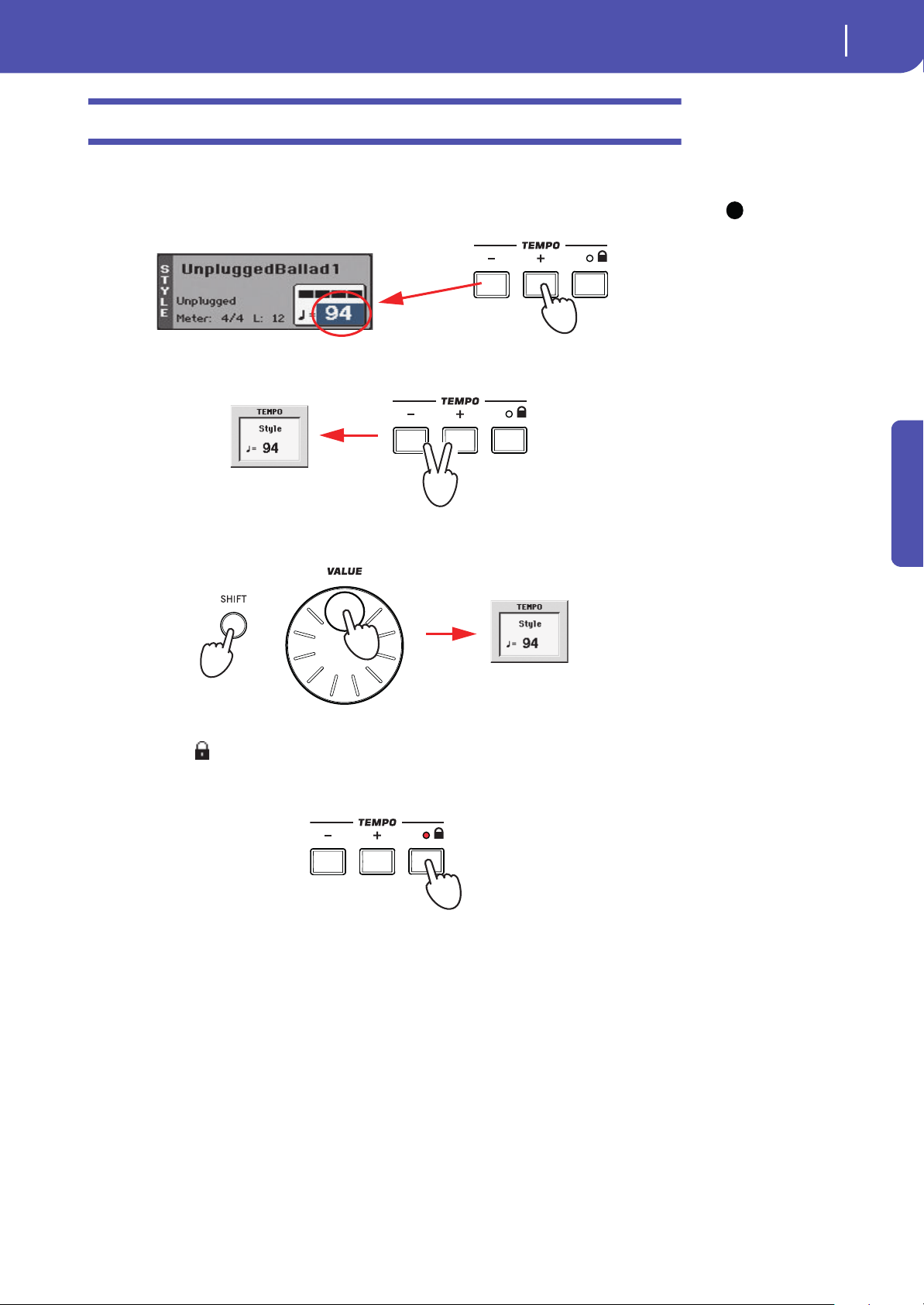
47
Selecting and playing Styles
Tempo
Quick Guide
Tempo
While a Tempo setting is saved with each Style or Performance, you can change it to be whatever you
like. You can use either of the following two methods.
Hint: As an alternative to
using the TEMPO buttons,
hold the Tempo value in the
display, then move your fin-
ger up/down or left/right (or
change the value with the
VALUE dial).
• Use the TEMPO + or – buttons to change the Tempo value.
• Press the TEMPO – and + buttons together to recall the saved Tempo value.
• As an alternative, keep the SHIFT button pressed, and use the VALUE dial to change the
Tempo. The selected tempo will be shown in a small window.
• If you like to keep the currently selected Tempo value unchanged, turn on the LED of
the TEMPO (LOCK) button.
When the Tempo Lock function is turned on, the Tempo will not change when selecting a differ-
ent Style (or a different Song in Song Play mode).
i
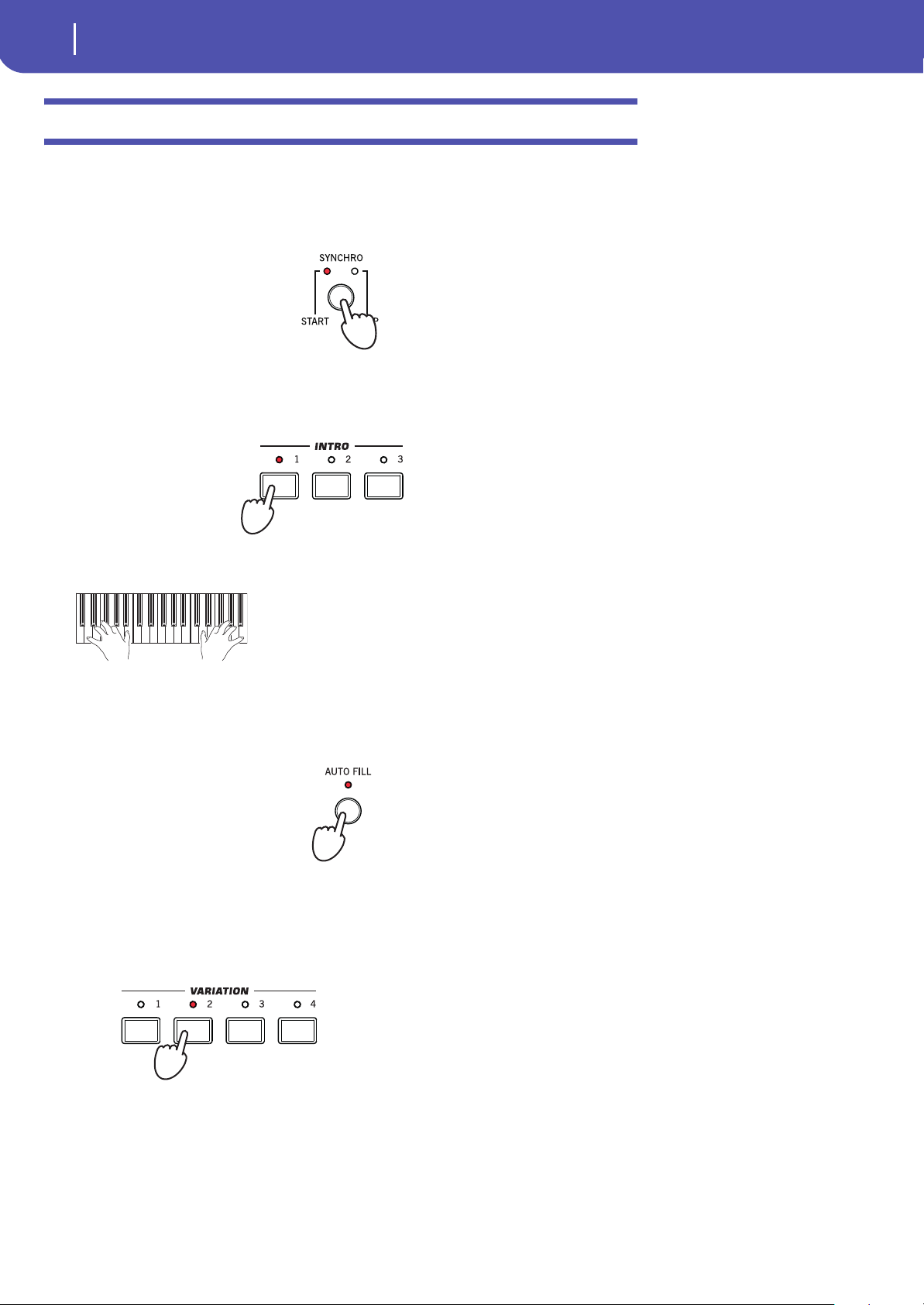
48
Selecting and playing Styles
Intro, Variation, Fill, Break, Ending
Intro, Variation, Fill, Break, Ending
When playing Styles, you can select various “Style Elements” to cover the various sections of a song. A
Style is made of three Intros (or two Intros and a Count-In), up to four basic patterns (Variations),
four Fills, a Break, and three Endings.
1 Make sure the SYNCHRO-START LED is turned on (otherwise, press the button to turn it on).
Activating the Synchro Start function is not mandatory, but it might be handy.
2 Press one of the INTRO buttons to set the corresponding Intro to play.
3 Play the keyboard.
4 Be sure the LED of the AUTO FILL button is turned on.
When the Auto Fill function is turned on, a Fill is automatically performed before switching to a
different variation.
5 While playing, press one of the VARIATION buttons, to select a different variation of
the basic pattern.
If you turned the Auto Fill function on in the previous step, a Fill will be performed before the
Variation begins.
The Style starts with the selected Intro. When the Intro is com-
pleted, the basic pattern (selected Variation) starts to play.
When the Fill ends, the selected Variation
will start playing.
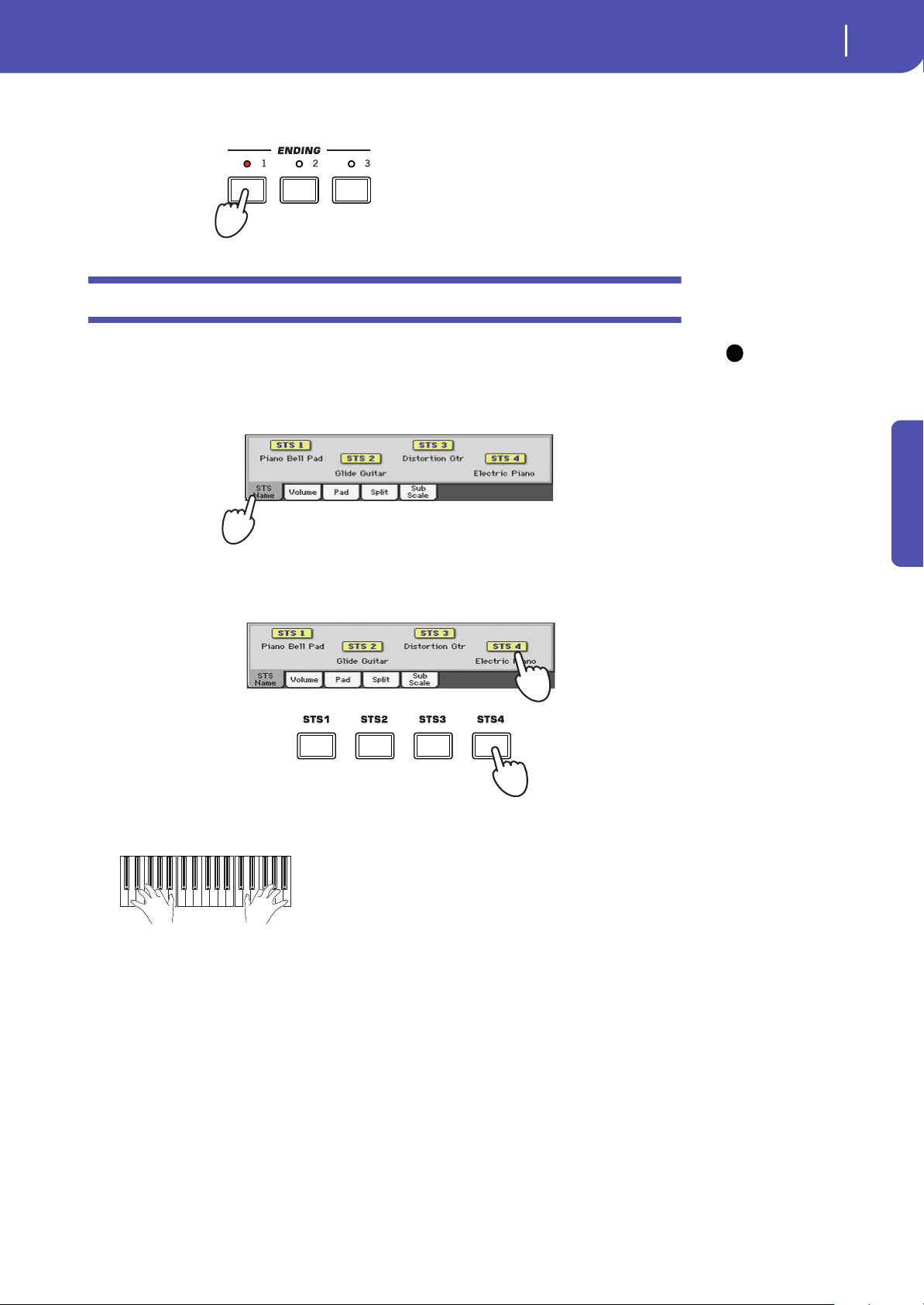
49
Selecting and playing Styles
Single Touch Settings (STS)
Quick Guide
6 When you like to stop playing, press one of the ENDING buttons to stop the Style with
an Ending.
Single Touch Settings (STS)
Note: You can also find
four STSs with each of the
SongBook Entries. This allows
for linking STSs to Songs.
Each Style may come with up to four Keyboard track settings, called the STS (short for “Single Touch
Settings”). STSs are very similar to Performances, but they are fine-tuned to the Style they are associ-
ated to.
1 In case it is not shown, touch the STS Name tab to see the STS Name panel.
2 Press one of the four STS buttons under the display, or touch the name of an STS in the
STS panel in the display.
3 Play the keyboard.
4 Try all the other STSs, and see how settings change with each of them.
When the Ending is fin-
ished, the Style automati-
cally stops.
i
Settings memorized in the selected STS have been selected.
Sounds, effects and other settings have been recalled.
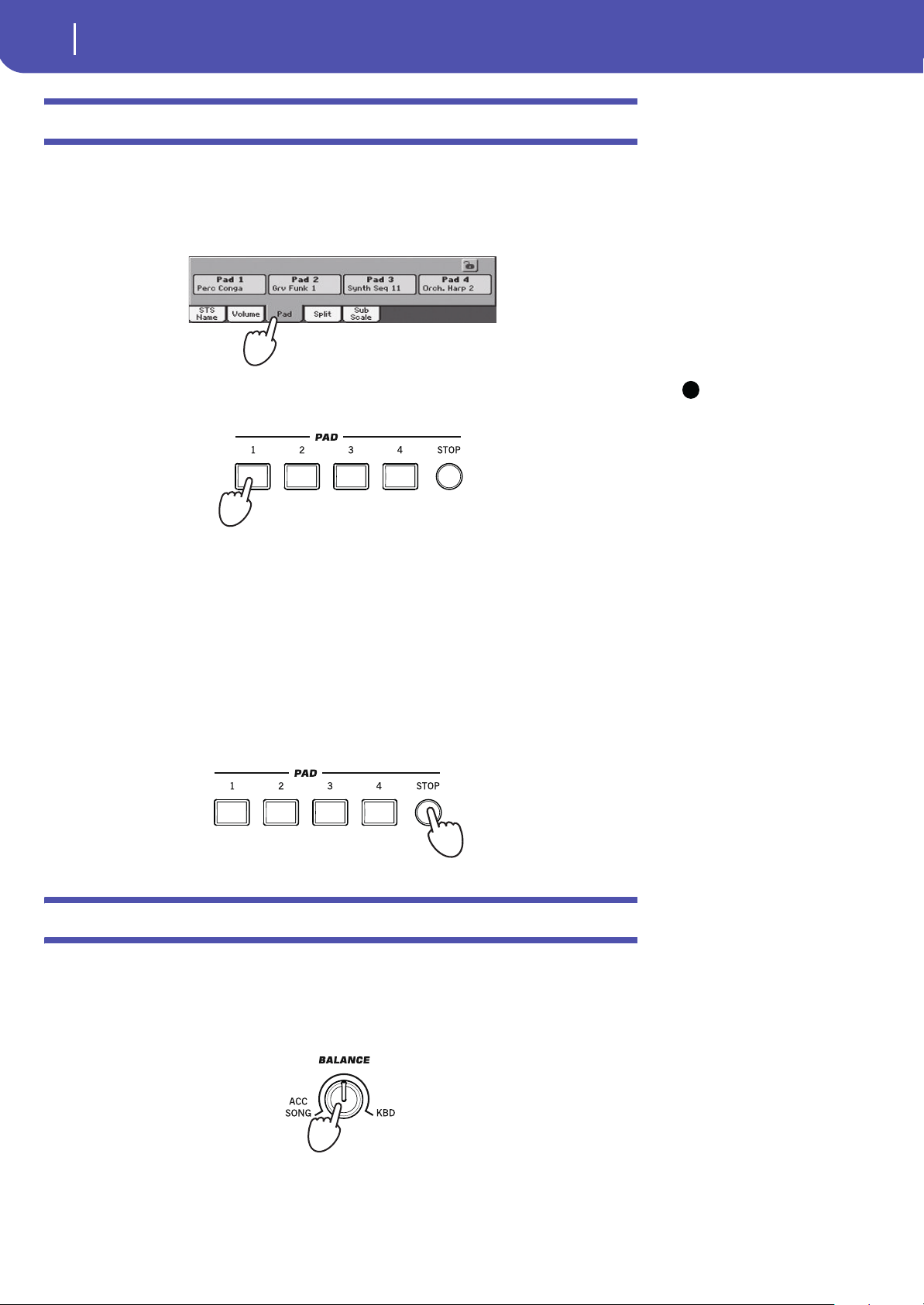
50
Selecting and playing Styles
The Pads
The Pads
Each Style or SongBook Entry can assign different sounds or patterns to the four PADS. These sounds
or patterns can be played along with the Keyboard and Style tracks.
1 If you want to see which sounds or patterns are associated to the four Pads for the cur-
rent Style, touch the Pad tab to see the Pad panel.
Hint: You can open the
Pad Select window to assign
a different sound or pattern
to the Pads, by pressing SHIFT
+ one of the PADs.
2
Press one of the four PADS to play the corresponding Pad.
3 If the selected PAD triggers an endless pattern (i.e. a guitar arpeggio), press the same
PAD button again to stop it.
4 Select a different Style, and see how the sounds or patterns assigned to the PADS
change.
5 Press more PAD buttons at once, to play two or more sounds or patterns at the same
time.
6 Press STOP to stop all the Pads at the same time.
Adjusting the balance between the Style and the keyboard
Balancing between the Keyboard and Style tracks may be useful, to gently fade them and adjust their
respective volume.
• While the Style is playing, use the BALANCE knob to balance between the Keyboard
(KBD) and Style’s Accompaniment (ACC) volume.
This knob also balances between the Keyboard and the Pad tracks. Also, it balances between the
Keyboard and the Song tracks (in Song Play mode).
i
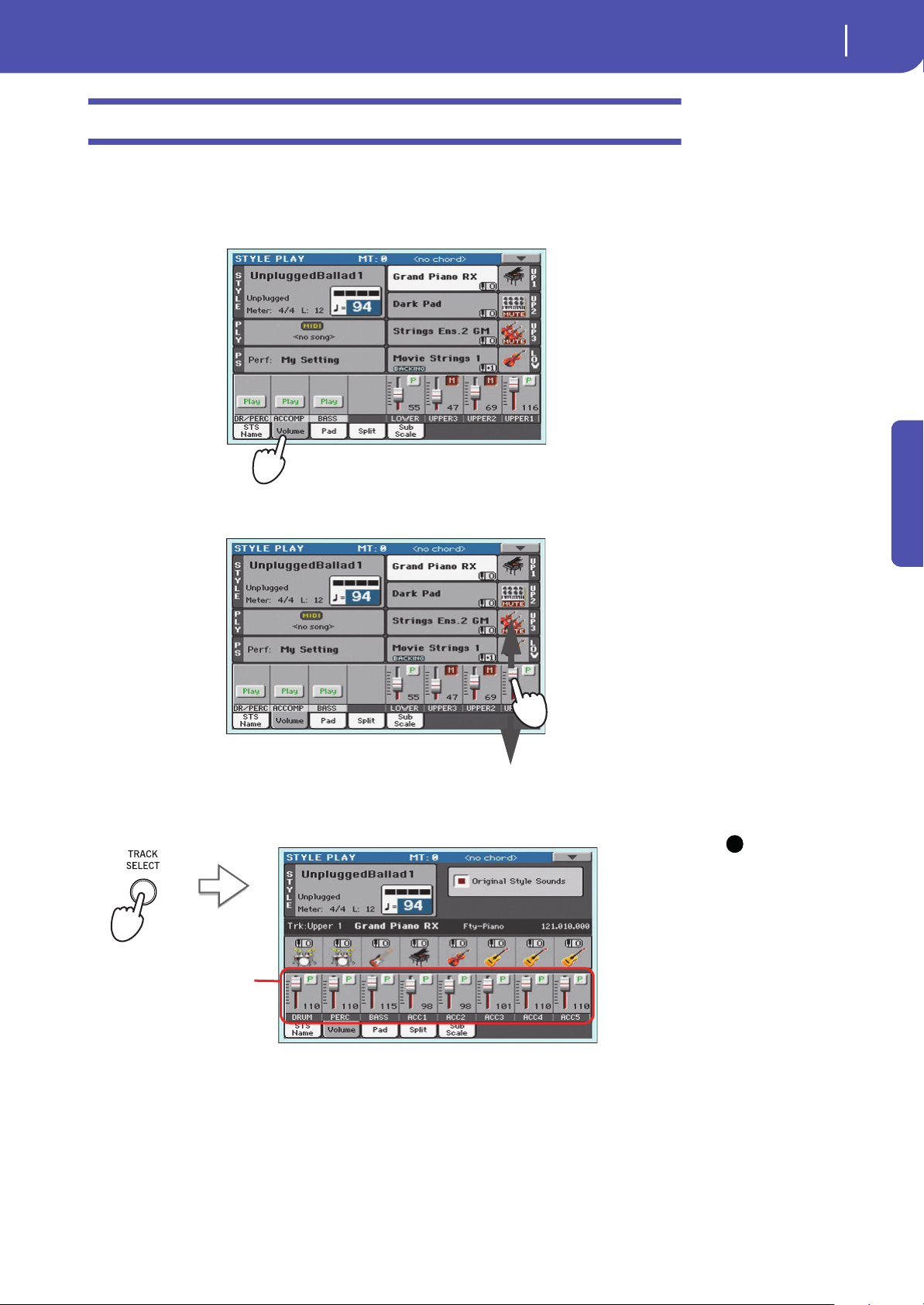
51
Selecting and playing Styles
Adjusting the volume of the separate tracks
Quick Guide
Adjusting the volume of the separate tracks
You can adjust the volume of each of the Style and Keyboard tracks, for example to soften the bass a
little, or to make the keyboard solo louder.
1 Touch the Volume tab to see the Volume panel.
2 Hold & drag the Virtual Sliders in the display to adjust each Keyboard track’s volume.
3 To separately adjust each Style track, press the TRACK SELECT button to change the
track’s view.
Hint: As an alternative,
you can change each track’s
volume, by touching a track’s
area to select it, then using
the VALUE dial to change the
volume.
4
To return to the Keyboard Tracks view, press the TRACK SELECT button again.
i
In Style view, all separate
Style tracks are shown, and
their volume can be
adjusted by dragging the
corresponding sliders.
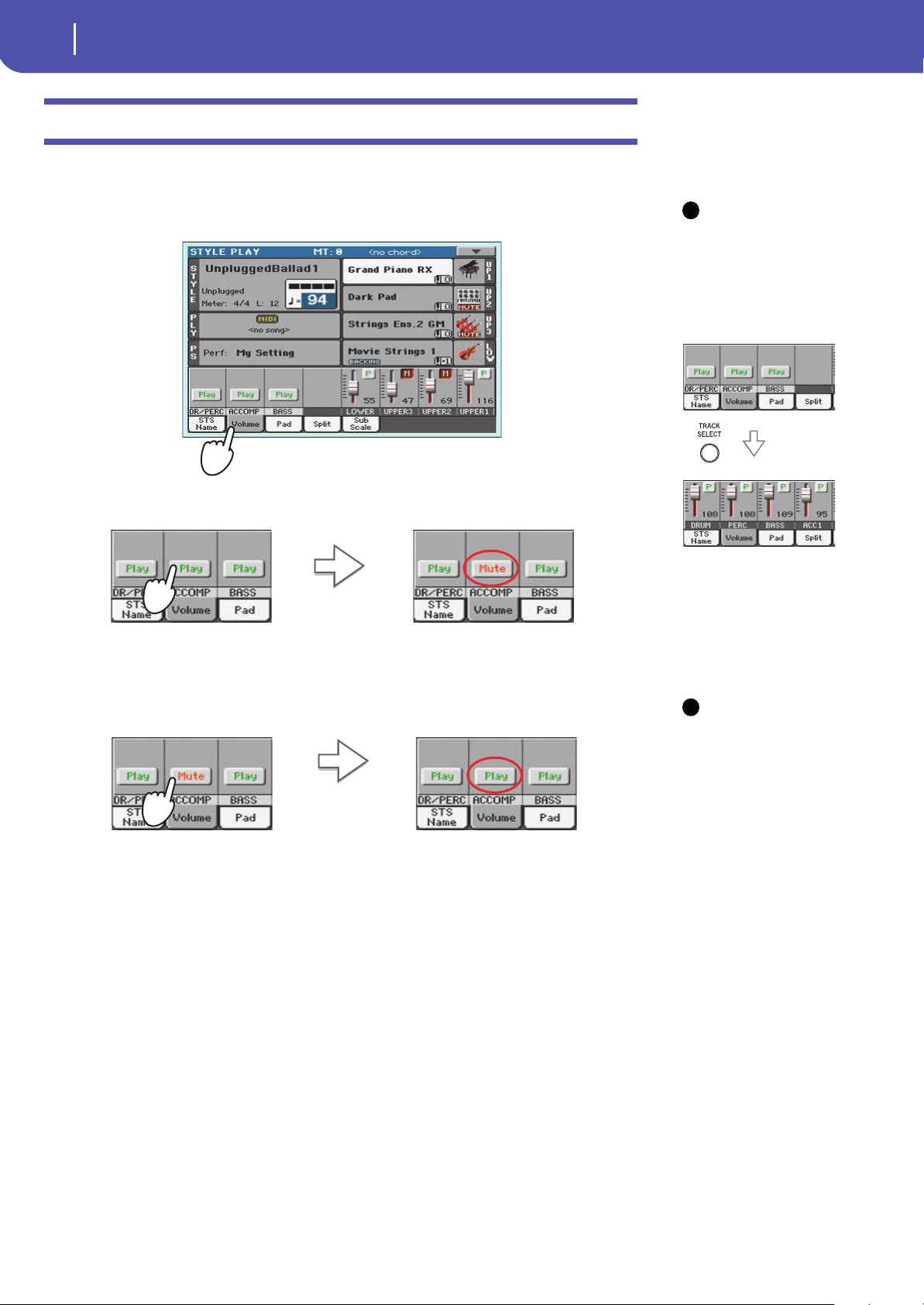
52
Selecting and playing Styles
Turning the Style tracks on/off
Turning the Style tracks on/off
You may easily turn on or off any Style track while you are playing. For example, try muting all
accompaniment tracks, while drums and bass continue to play.
Note: While in the Nor-
mal view of the Style Play
mode, you can see Style
tracks grouped in just three
“grouped” tracks. To see each
Style track as separate, indi-
vidual tracks, just press the
TRACK SELECT button.
1
Be sure the Volume panel is shown, or touch the Volume tab to show it.
2 While the Style is playing, touch the Play button to set the track to Mute.
Hint: To turn all Accom-
paniment tracks (including
the Bass track) off while you
are not in the Main page,
press the ACCOMP button on
the control panel to turn its
LED off.
3
To set the tracks back to the Play status, touch the Mute icon on the muted track.
4 To mute/unmute each single Style track, first press TRACK SELECT to switch to the Style
Tracks view, then repeat the above procedure.
5 Press the TRACK SELECT button again to go back to the Normal view.
i
Mute the ACCOMP track. All accompaniment tracks will
go silent (apart from Drum, Percussion and Bass).
i
Set the ACCOMP track to Play. All accompaniment
tracks will return to their original volumes.
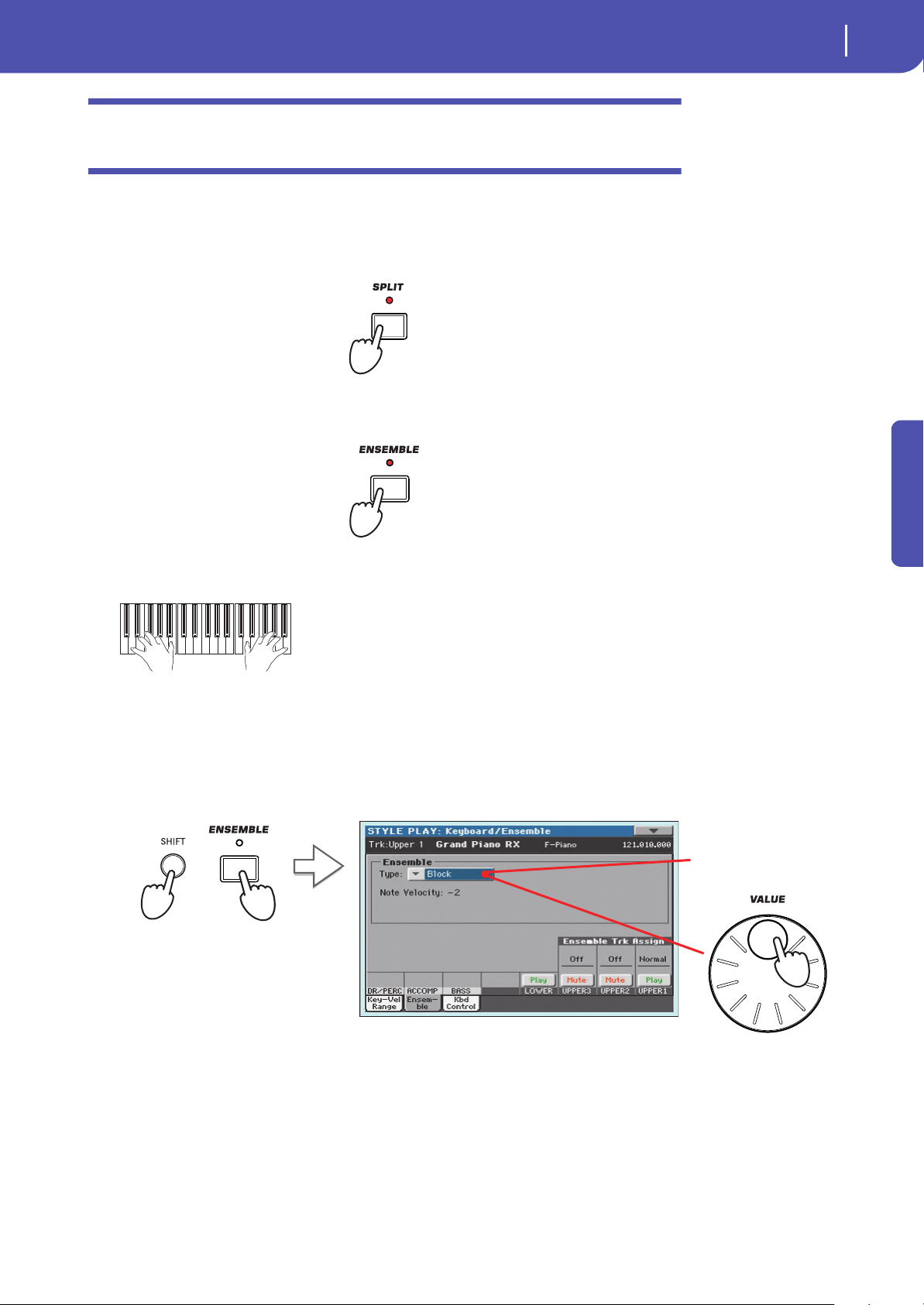
53
Selecting and playing Styles
Adding harmony notes to your right-hand melody with the ENSEMBLE function
Quick Guide
Adding harmony notes to your right-hand melody with the
ENSEMBLE function
Chords played with your left hand may be applied to the right-hand melody.
1 Press the SPLIT button to turn its LED on and split the keyboard.
The Ensemble function only works in Split mode.
2 Press the ENSEMBLE button to turn its LED on.
3 Play chords with the left hand and single notes in the right hand.
4 To select a different harmonization style, keep the SHIFT button pressed, and press the
ENSEMBLE button to open the Ensemble page.
This is a fast ‘shortcut’ to recall this page. The longer procedure would have consisted in access-
ing the Edit mode by pressing the MENU button, touching the Keyboard/Ensemble section, and
then going to the Ensemble page.
Notice how the right hand is automatically harmonized, accord-
ing to the chords composed with your left hand.
While the Ensemble parameter is
selected, use the VALUE dial to
select one of the available harmo-
nization types.
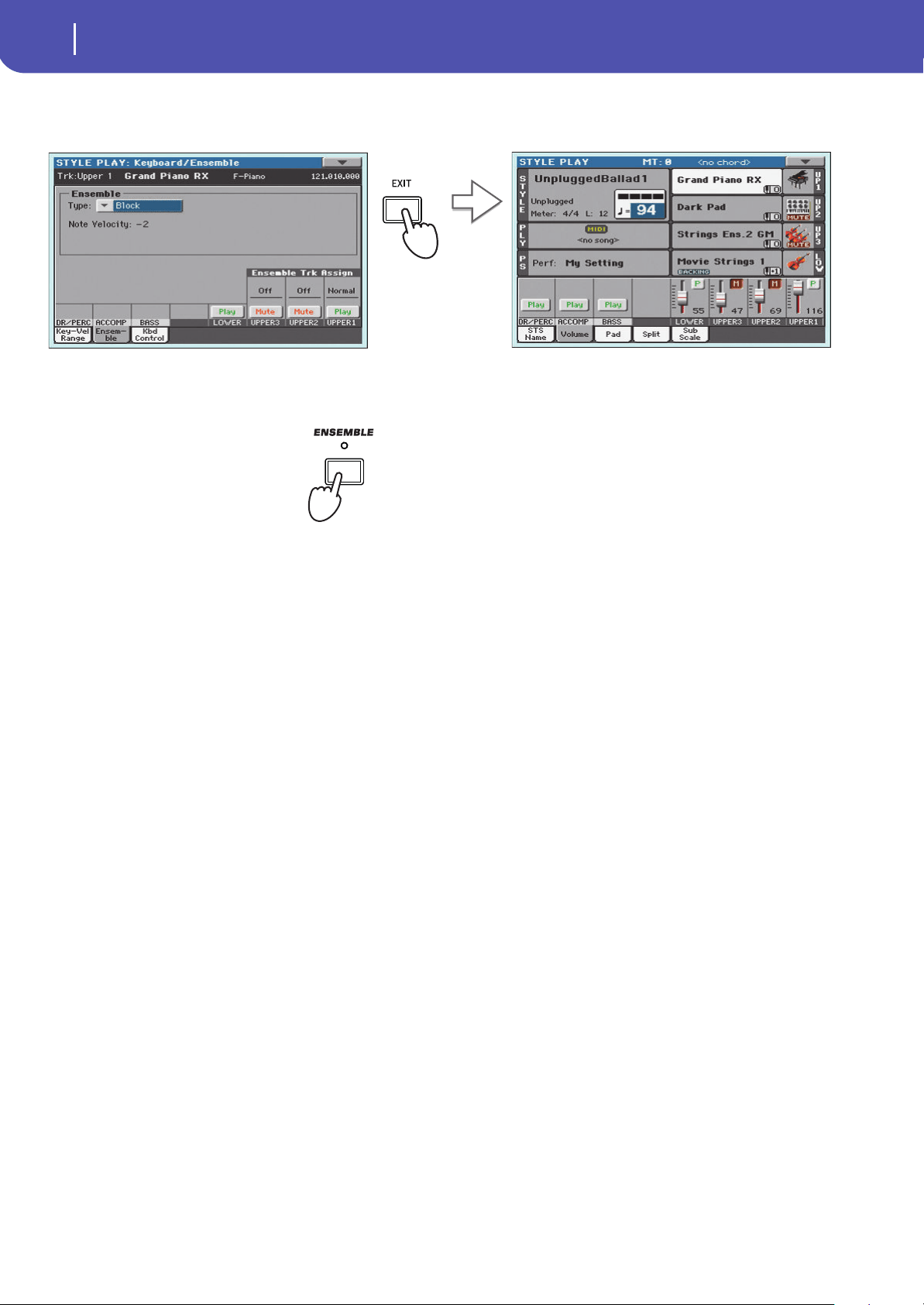
54
Selecting and playing Styles
Adding harmony notes to your right-hand melody with the ENSEMBLE function
5 When the right harmonization type has been selected, press the EXIT button to go
back to the main page.
6 Press the ENSEMBLE button again to turn its LED off. The automatic harmonization will
be turned off.
While in an Edit page,
press EXIT to go back to
the Main page of the cur-
rent operating mode.

55
Song Play
Selecting a Song to play
Quick Guide
Pa300 is equipped with an onboard Player that can read Songs in Standard MIDI File (MID), Kara-
oke™ (KAR) and MP3 format. It may be of great interest to singers and guitar players to know that if a
Standard MIDI File or an MP3 file contains lyrics and chords, they can be seen in the display. Lyrics in
the graphical “+G” format are also supported.
In addition to lyrics and chords, with Standard MIDI Files and Karaoke files you can also see the score
in traditional notation.
Selecting a Song to play
1 Press the SONG PLAY button to switch to the Song Play mode.
Hint: In Style Play mode,
you can pre-select the Song
to be assigned to the Player.
This way, you will be ready to
start it, as soon as you switch
to Song Play mode.
Song Play
Player controls
The SONG PLAY button
i
The Song area of the
Style Play main page.
After pressing the SONG PLAY but-
ton, the main page of the Song
Play mode appears.
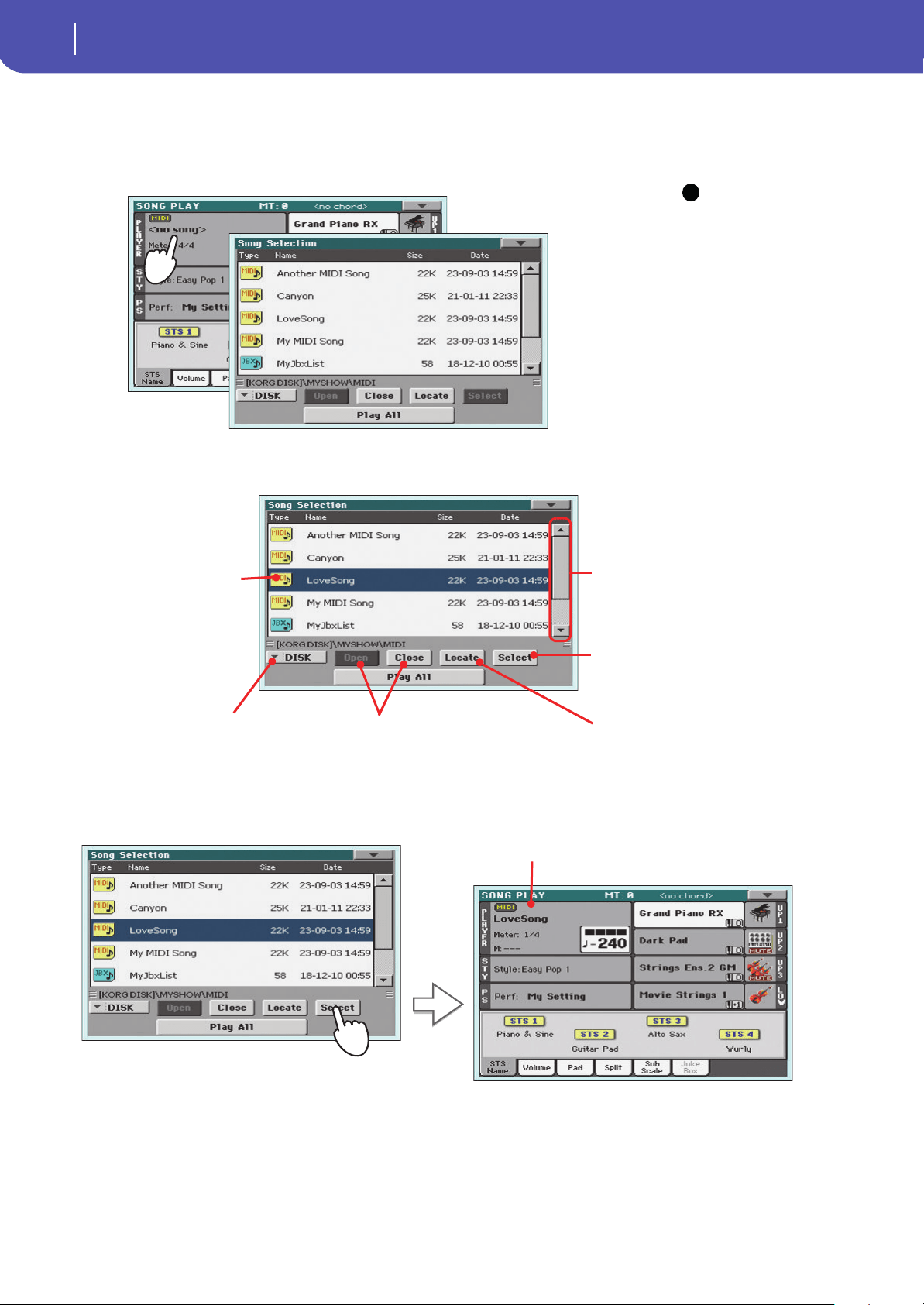
56
Song Play
Selecting a Song to play
2 Touch the Player area to open the Song Select window.
This window is very similar to the one you can see when pressing the MEDIA button on the con-
trol panel, and touching the Load tab to see the Load page. This page is, however, “filtered” to
only show Song files.
Hint: As an alternative,
you can open the Song Select
window by pressing the
SONG button in the SELEC-
TION section of the control
panel.
3
Scroll through the list and select the Song to play.
4 When the Song is selected, touch the Select button to confirm your selection; this will
automatically close the Song Select window.
i
The selected Song is high-
lighted. Touch a Song’s
name to select it.
Use the scroll bar or the VALUE DIAL
to see all the Songs in the list. Keep
SHIFT pressed and touch the Up/
Down arrow to jump to the next/
previous alphabetic section.
Use the Open and Close buttons to
browse through the folders.
Use the Device pop-up menu to select
one of the available mass-storage devices.
Use the Locate button to ‘locate’ and go to
the folder of the selected Song.
Touch the Select button to select the high-
lighted Song, and assign it to the Player.
After touching the Select button in the display, the main page of
the Song Play mode will appear again.
Selected Song
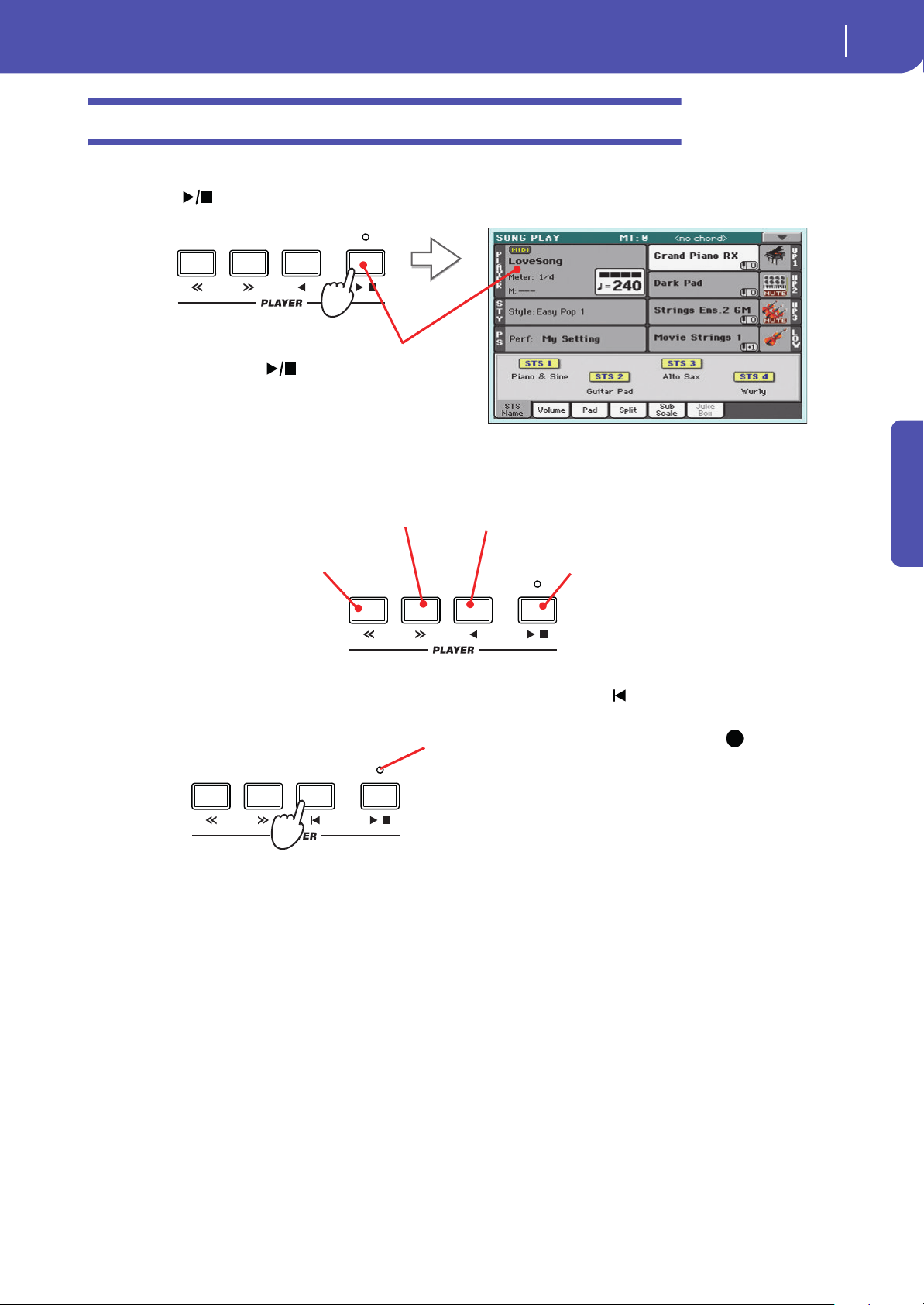
57
Song Play
Playing back a Song
Quick Guide
Playing back a Song
Once a Song has been selected, it may be played back by the Player.
1 Press the (START/STOP) button in the PLAYER section to start playback.
2 Use the PLAYER control section to control the Song’s playback.
3 When you want to stop the song and go back to the beginning, press the (HOME)
button.
Note: In any case, the
Player will automatically stop
when the end of the Song is
reached.
After pressing the (START/STOP) button, the but-
ton’s LED turns on, and the measure counter begins to
show the current measure number.
Press the REWIND button once to go
back. Keep it pressed to go back more.
Press the FAST FORWARD button once to go for-
ward. Keep it pressed to go forward more.
Press the START/STOP button to stop the Song at the
current position. Press it again to resume playback.
Press the HOME button to move to
the beginning of the Song.
i
When the Song is stopped,
the LED on the START/STOP
button turns off.
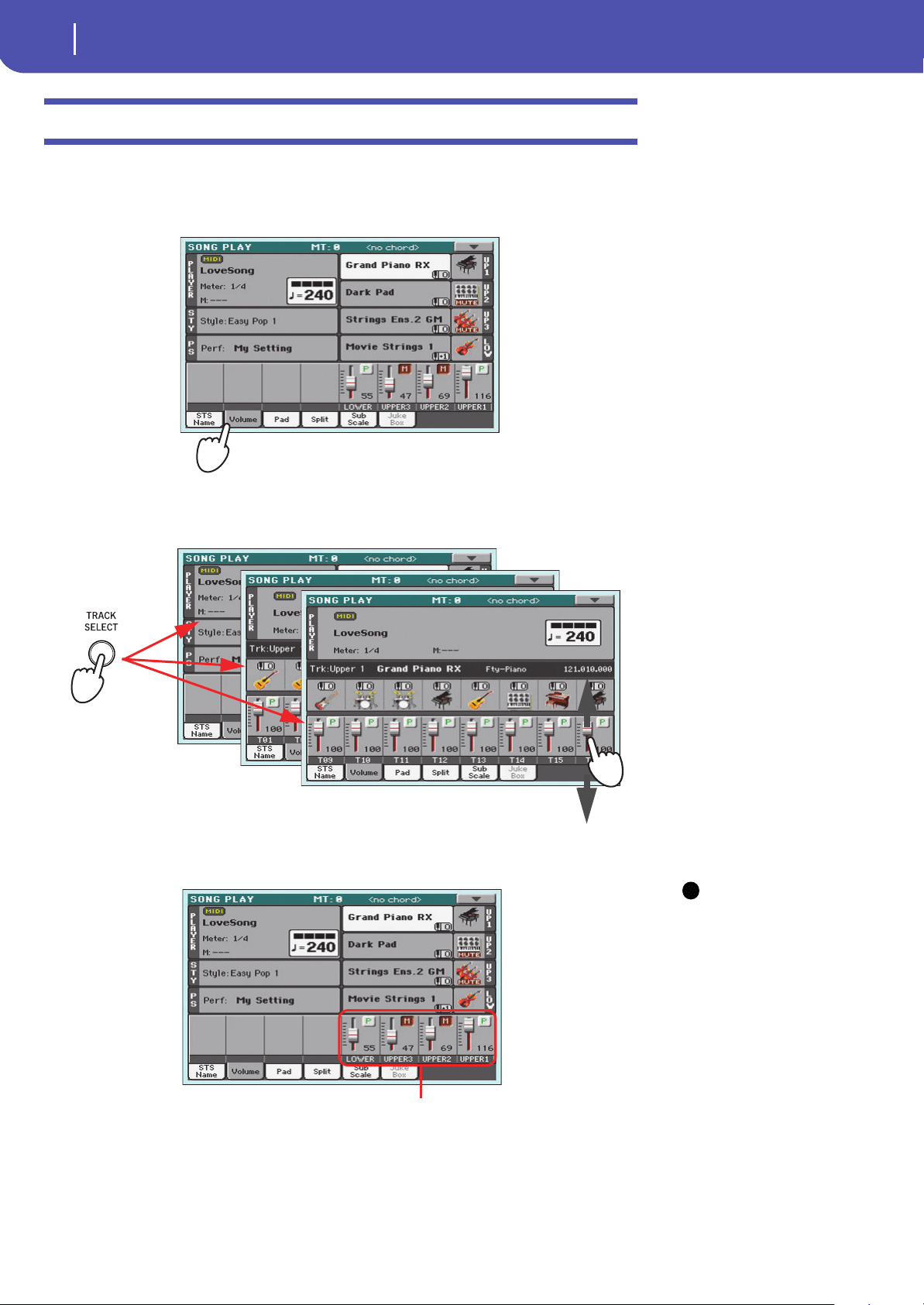
58
Song Play
Changing the tracks’ volume
Changing the tracks’ volume
While playing back a Standard MIDI File, you may wish to change each track’s volume, to create a mix
“on the fly”.
1 Be sure the Volume panel is shown, or touch the Volume tab to show it.
2 As seen for the Styles, you can hold & drag the Virtual Sliders on the display to adjust
each track’s volume. Use the TRACK SELECT button to cycle between track groups.
3 In Normal view, you can adjust each Keyboard track’s volume.
Hint: As an alternative,
you can change each track’s
volume, by touching a track’s
area to select it, then using
the VALUE dial to change the
volume.
Use the TRACK
SELECT button to
cycle between differ-
ent groups of tracks
i
Keyboard tracks
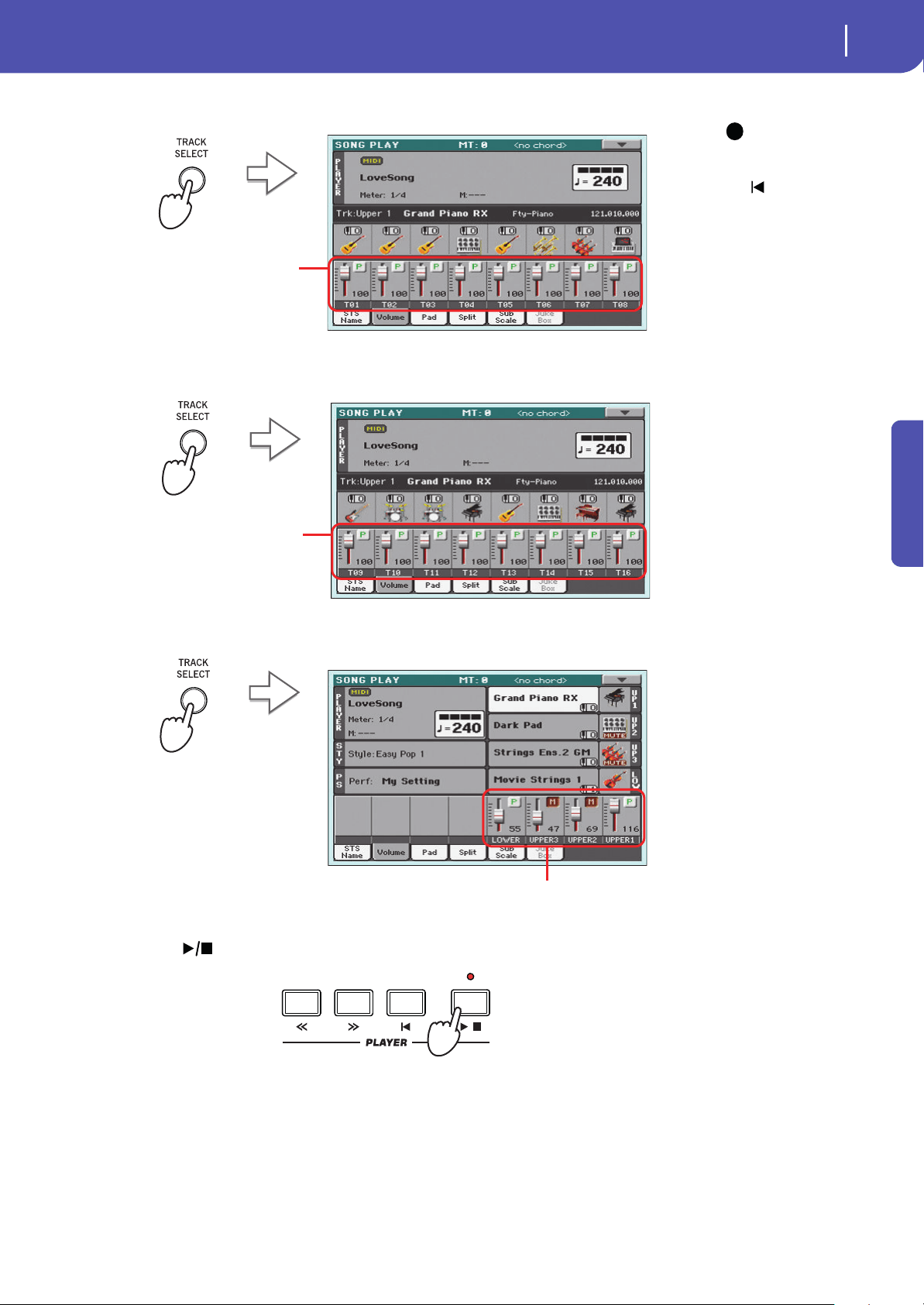
59
Song Play
Changing the tracks’ volume
Quick Guide
4 Press the TRACK SELECT button once to see tracks 1-8 (Track 1-8 view).
Note: Changes to Song
tracks will not be saved, and
are reset each time you press
the (Home) button. To
save changes, you must edit
the Song in Sequencer mode.
5
Press TRACK SELECT once again to see tracks 9-16 (Track 9-16 view).
6 Press TRACK SELECT again, to return to the Normal view (Keyboard tracks).
7 Press the (START/STOP) button to start the Song.
8 While listening to the Song, switch from Normal view to Track 1-8 and Track 9-16 view,
to see which tracks are playing.
To see if a track is playing, look at the label with its name, and see if it is changing color.
i
In Track 1-8 view, the first 8 tracks
of the selected Song are shown.
In Track 9-16 view, the second
group of 8 tracks of the selected
Song are shown.
Keyboard tracks
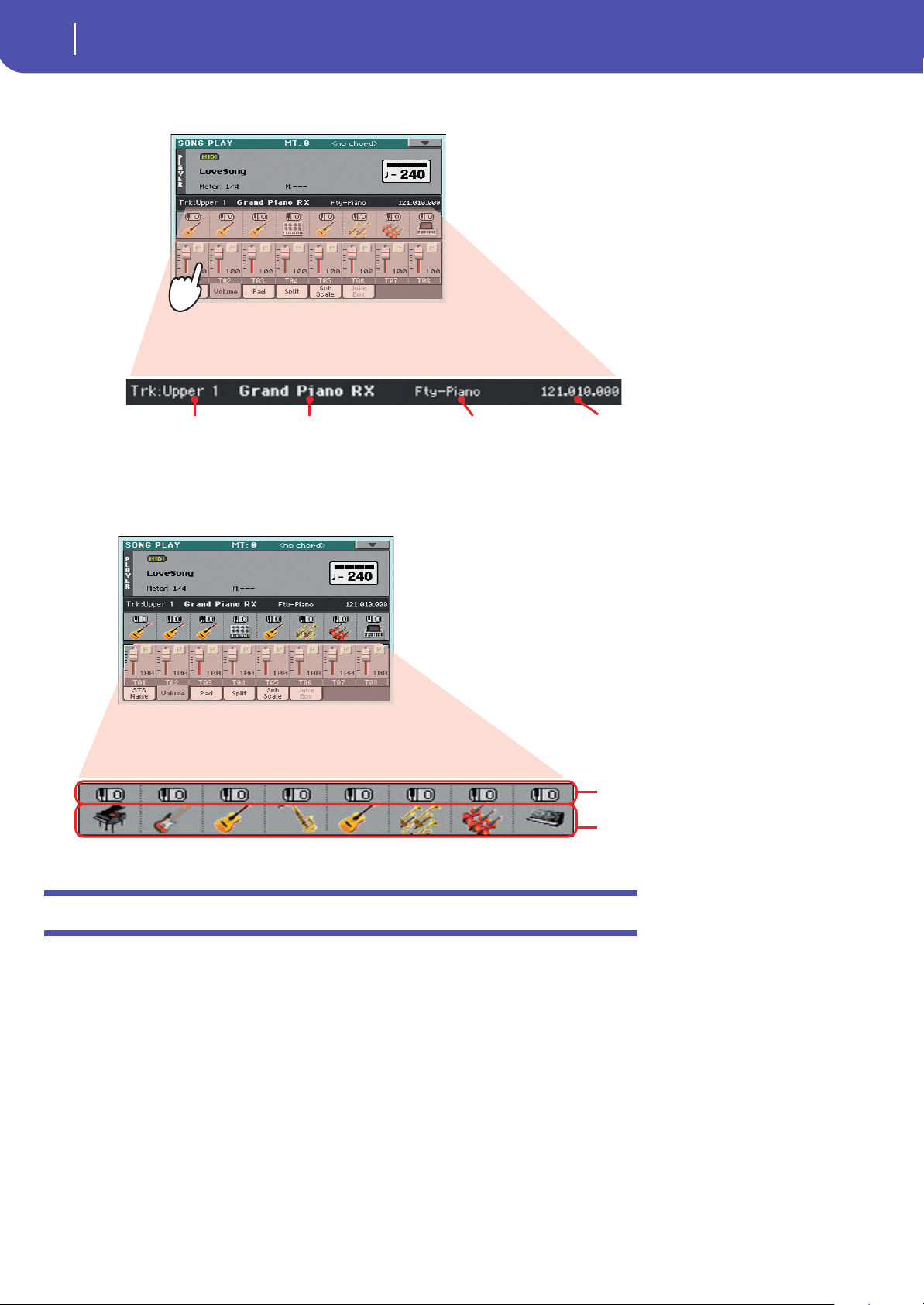
60
Song Play
Turning the Song tracks on/off
• Touch each track’s channel strip, to see each track’s detail in the Track Info line.
• Also, you can see which type of Sound is assigned to each track in the Sound area of the
Track 1-8 and Track 9-16 views.
Turning the Song tracks on/off
While playing back a Standard MIDI File, you may wish to mute one or more tracks, for example to
sing along with the Song, or play an instrumental part live on the keyboard.
To mute/unmute Song tracks you simply touch the Play/Mute icon in the Volume panel.
Selected track Assigned Sound. Touch it to
open the Sound Select window.
Sound bank Program Change
Octave Transpose
Sound bank icons. Touch to open the
Sound Select window.

61
Song Play
Soloing a track
Quick Guide
Soloing a track
Opposite to the above, you may want to make a single track of a Standard MIDI File play alone. This
is called the Solo function.
1 While the Song is playing, keep the SHIFT button pressed and touch the track you want
to listen to in Solo mode.
2 To set all tracks back to the Play status, keep the SHIFT button pressed again, and
touch the track that is currently in Solo mode.
Please remember that you can also use the Solo function in Style Play and Sequencer mode. The
Solo command can also be selected from the page menu.
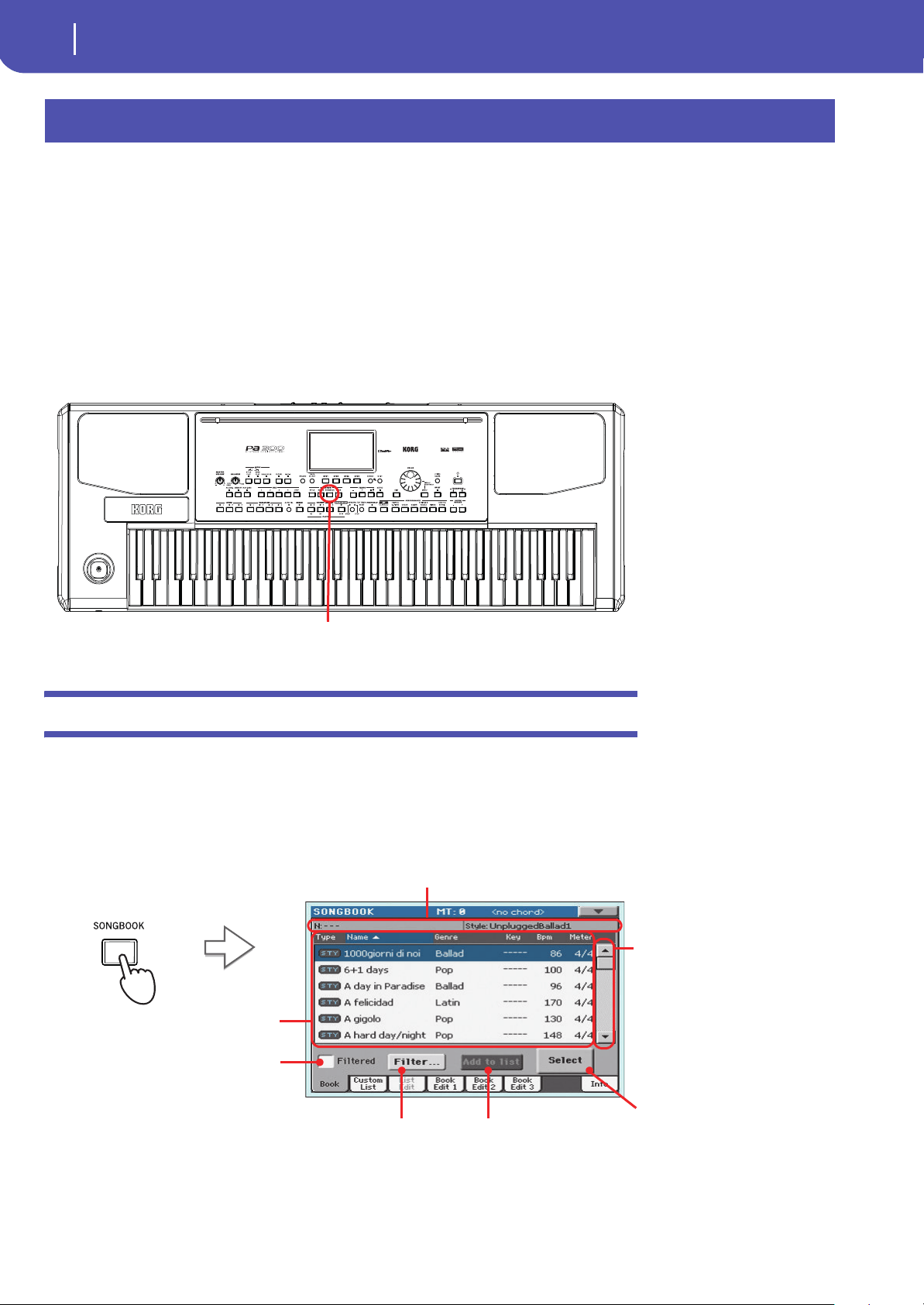
62
The SongBook
Selecting the desired Entry from the Main List
One of the most powerful features of Pa300 is the onboard music database, that allows you to organize
your Styles and Songs for easy retrieving. Each Entry of this database may include the artist, title,
genre, number, key, tempo, and meter (time signature) of a specified song. When selecting one of the
Entries, the associated Style, Standard MIDI File or MP3 file – as well as the Style Play or Song Play
mode – is automatically recalled.
In addition to helping you organize your shows, the SongBook allows you to assign up to four Pads,
and up to four STSs to each Entry. Also, you can link a text file to any Entry, to be used as the Lyrics of
a song, even if there are no Lyrics events in the associated Standard MIDI File or MP3 file, or if you
prefer to play the song live with the backing of the Styles.
You can add your own Entries to the SongBook, as well as edit the existing ones. Korg already supplies
some hundred Entries as standard. Furthermore, the SongBook allows you to create various custom
lists, that may suit your different types of show.
Selecting the desired Entry from the Main List
A large database is already included with the instrument, and you can later customize it. You may
browse through this database in a variety of ways.
1 While you are in Style Play or Song Play mode, press the SONGBOOK button to open
the SongBook window.
The SongBook
The SONGBOOK button
Touch this checkbox
to turn the view filter
on.
Touch this button to
edit the view filter.
Adds the selected Entry to
the Custom List (if acti-
vated – see page 69).
Touch this button to
select the current Entry to
play.
Use the scroll bar or the
VALUE DIAL to see all the
Songs in the list. Keep SHIFT
pressed and touch the Up/
Down arrow to jump to the
next/previous alphabetic
section.
SongBook Main List
Style, Standard MIDI File(s) or MP3 file(s) currently
assigned to the arranger or player(s)
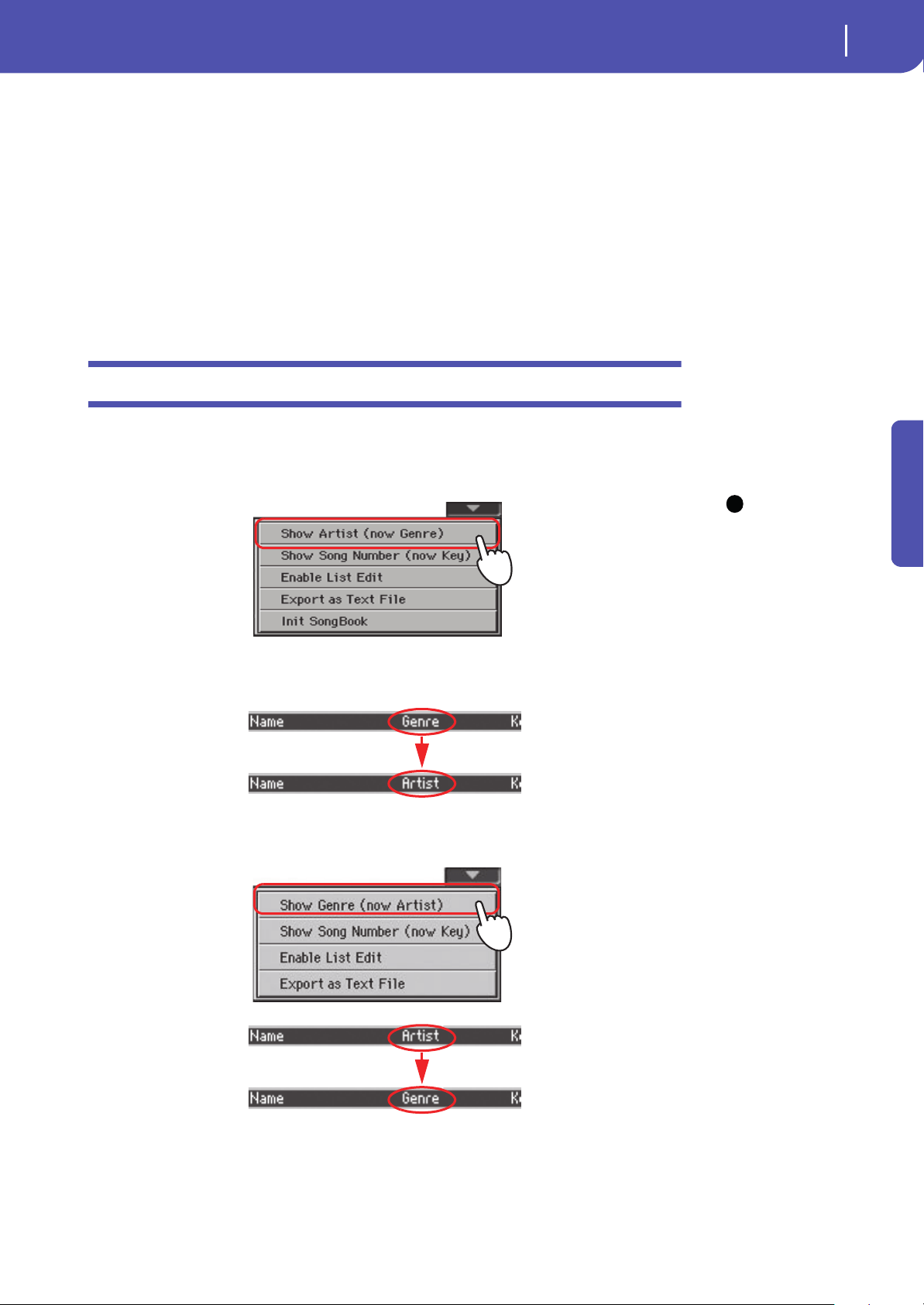
63
The SongBook
Displaying Artist or Genre
Quick Guide
2 Browse through the Entries.
Icons in the Type column will help you identify the type of the Entry. The Genre column is
shown by default, but you can switch to the Artist column (see “Displaying Artist or Genre”
below).
3 When the Entry you are looking for becomes visible in the display, select it and touch
the Select button in the display.
After selecting an Entry, the corresponding Style, MID, KAR or MP3 file will be recalled,
together with the relevant operating mode (Style Play or Song Play). Up to four STSs and four
Pads will also be recalled. Any TXT file associated with the Entry can be seen in the Lyrics page.
The selected Style, MID, KAR or MP3 file will be shown in the top area of the screen.
Displaying Artist or Genre
For space matters, either the Genre or Artist column can be seen in the display. You cannot see both at
the same time.
1 Touch the page menu icon to open the page menu.
Note: The Artist and Key
fields of all supplied Entries
have been intentionally left
empty.
2
Choose Show Artist (now Genre) to switch from Genre to Artist in the List view. The Art-
ist column will be shown.
3 Open the page menu again, and choose the Show Genre (now Artist) item. The Genre
column will be shown again.
i
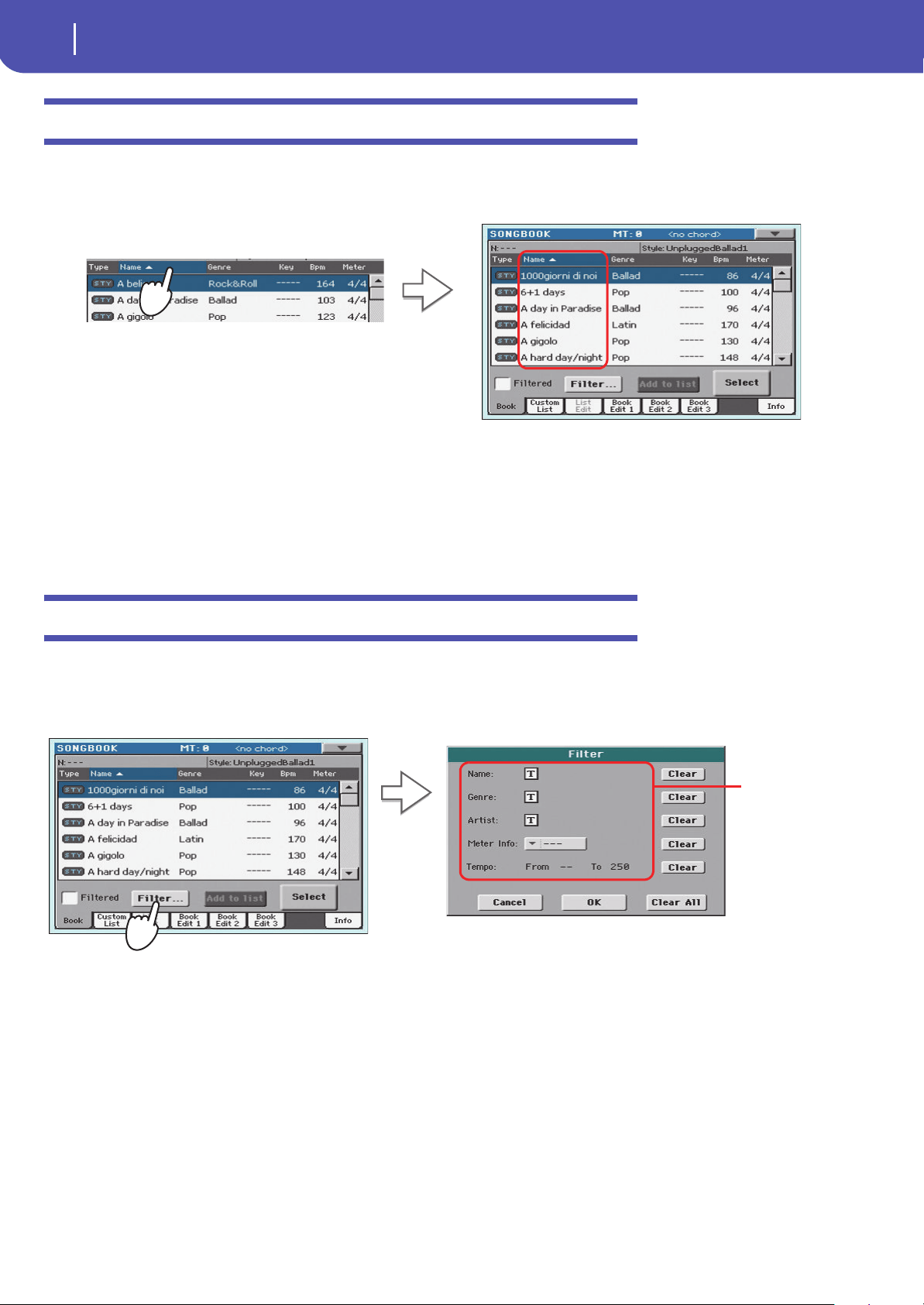
64
The SongBook
Sorting Entries
Sorting Entries
You can change the order of the Entries shown in the display.
1 You can change the sorting order by touching one of the labels in a list of names.
You can do the same by touching the Type, Name, Genre, Artist, Key, Number, Tempo or Meter
label.
2 Each time you touch the same label again, the order changes between ascending and
descending.
Searching for Entries
The SongBook database may be really huge. You can, however, look for (say) specific artists or song
titles, using the filtering functions.
1 Touch the Filter button in the display, to open the Filter dialog box.
Touch the Name label…
…to alphabetically reorder
the names in the list.
Available search
criteria. “Genre”
and “Artist” are
both consid-
ered, even
though only one
of them may be
shown in the List
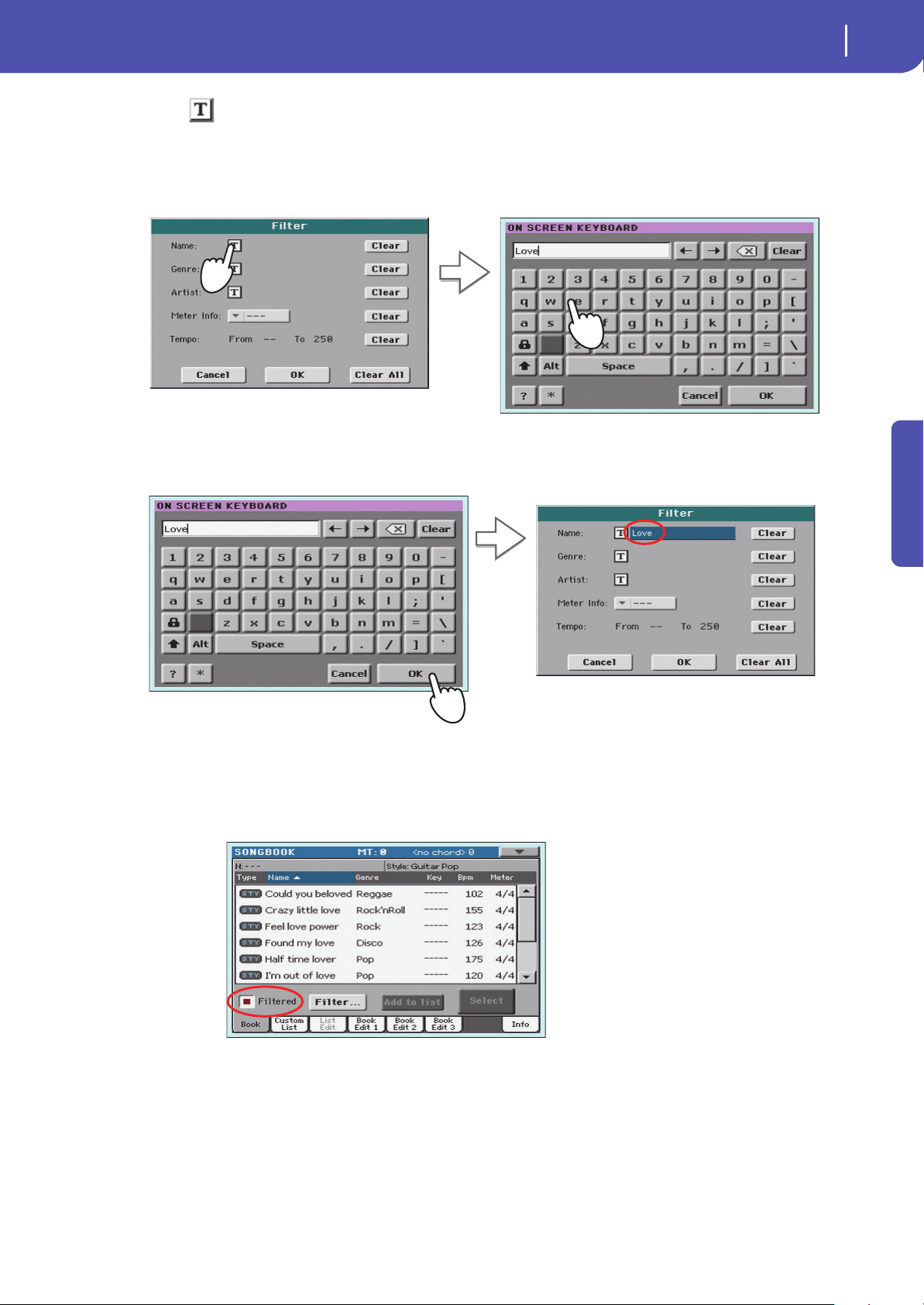
65
The SongBook
Searching for Entries
Quick Guide
2 Touch the (Text Edit) button next to the search criteria (even more than one) you
want to enter.
For example, you may want to find all songs containing the word “love” in the title (in any posi-
tion in the string). If so, select the ‘Name’ criterion, and enter the word ‘love’. Capitals are not rel-
evant for the search.
3 Touch OK in the display, and close the Text Edit dialog box. The entered text is now the
search criteria.
4 Touch OK to close the Filter dialog box and return to the SongBook page.
Once the Filter dialog box has been closed by touching OK, the Filtered check box is automati-
cally checked, and the filter is activated. Only Entries matching the entered criterion are seen in
the Main List.
5 To see the whole SongBook database again, touch the Filtered check box again, to
make the check mark disappear.
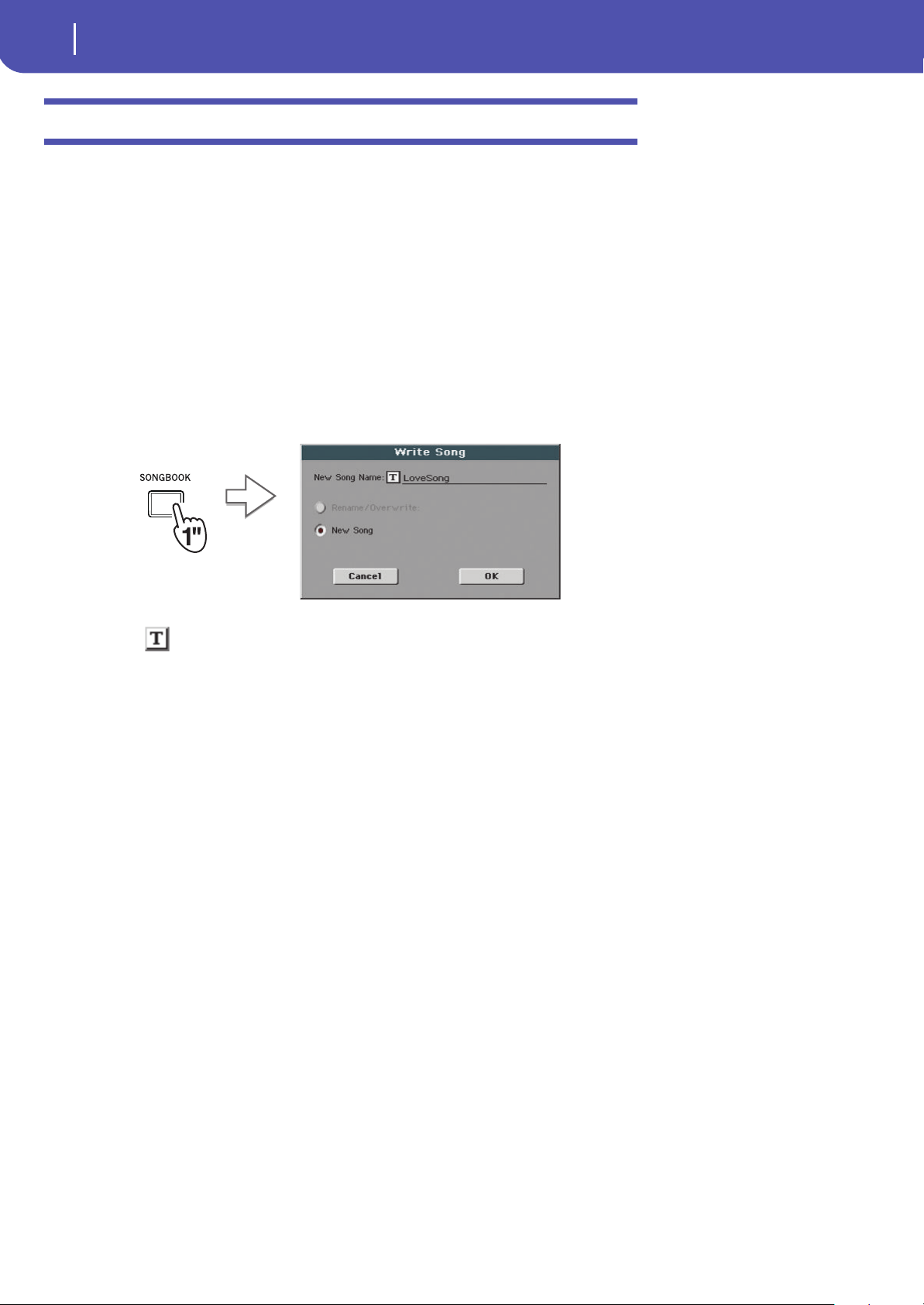
66
The SongBook
Adding Entries
Adding Entries
You can add your own Entries to the SongBook database.
1 Go to the Style Play or Song Play mode, depending on the type of Entry you want to
add to the SongBook database.
2 Select the Style, Standard MIDI File or MP3 file to be added to the SongBook.
3 Edit the Keyboard and Style tracks the way you prefer, by selecting different Sounds
and Effects, or editing any other relevant parameter.
Please note that changes to Standard MIDI File tracks will not be saved as SongBook data. Only
the data included in the Standard MIDI File will be used.
4 When ready, keep the SONGBOOK button pressed for about one second to create a
new SongBook Entry with the current settings.
5 Touch the (Text Edit) button to assign a name to the Entry, then touch OK to save
the Entry to the SongBook database.
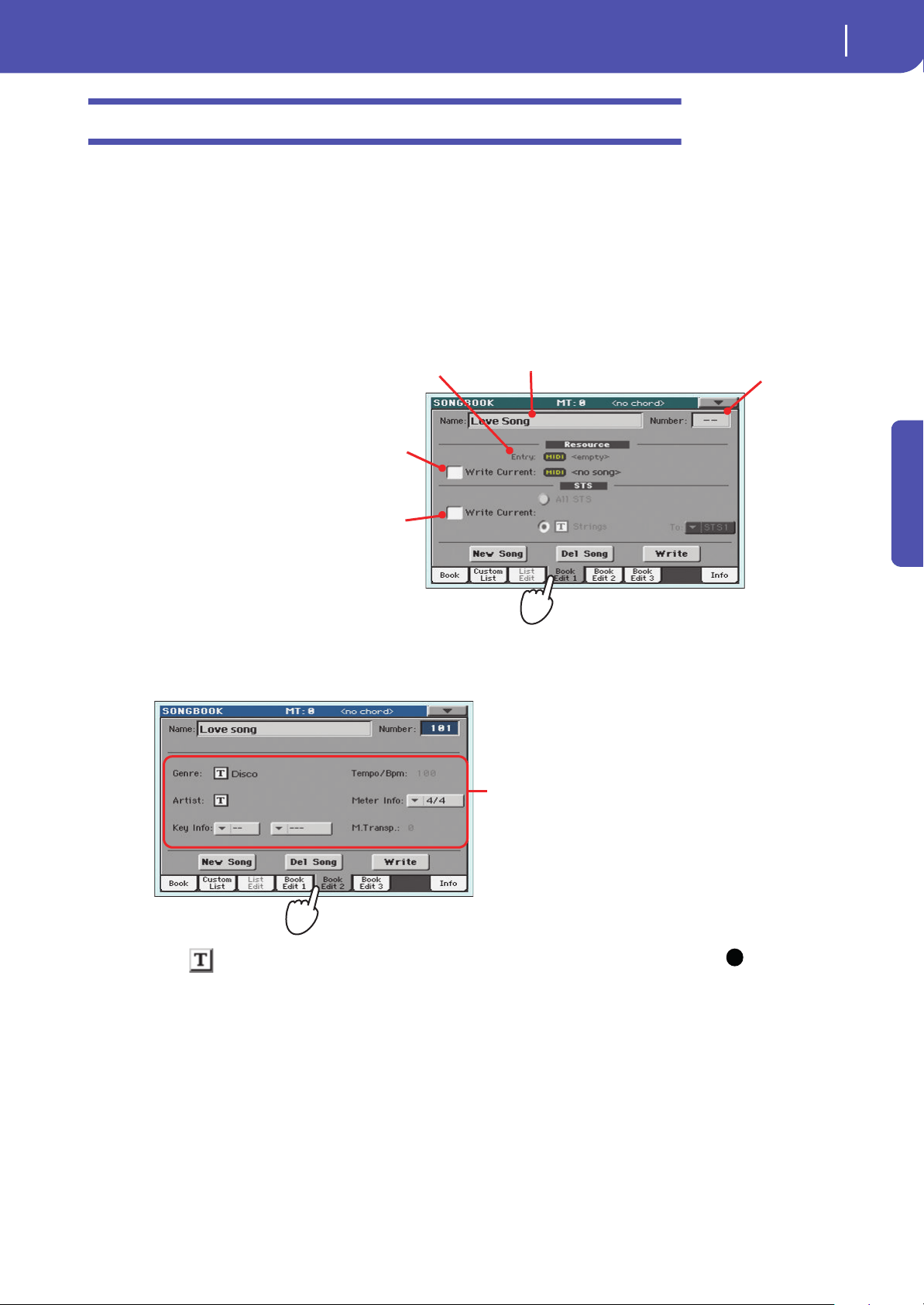
67
The SongBook
Editing the Entries
Quick Guide
Editing the Entries
You can edit any SongBook Entry and customize it according to your taste. When done, you can over-
write the current Entry or save it as a new Entry.
1 Press the SONGBOOK button to access the SongBook pages.
2 Touch the Book Edit 1 tab to see the Book Edit 1 page and see the linked Musical
Resources.
While in the Book Edit 1 page, you will be able to see the name of the selected Style or Song, and
choose whether to replace them or not.
3 When done with this page, touch the Book Edit 2 tab to see the Book Edit 2 page and
edit the SongBook database details.
Note: The Master Trans-
pose might not change, if a
Lock is preventing it. See
Global > General Controls >
Locks.
4
Touch the (Text Edit) button next to the field(s) you want to edit. Set all the other
parameters.
You can write the Genre and Artist name. Select the Meter (Time Signature) and Key of the
Song. You can specify a Tempo value matching the Song’s Tempo by using the TEMPO controls,
and a Master Transpose value by using the TRANSPOSE controls on the control panel.
Name of the Entry
Name of the Style or Song file linked to the Entry.
If checked, the current Style track settings, or the path of the
Song file (shown on the right), are saved with the Entry. If
unchecked, current settings are left unchanged.
This parameter is automatically checked when touching the
New Song button to create a new Entry.
If checked, you can either save all the current STSs into the
Entry, or choose a single STS where to save the current Key-
board track settings.
Song Selection num-
ber (ID number for
numeric selection)
Database Entry’s
parameters
i
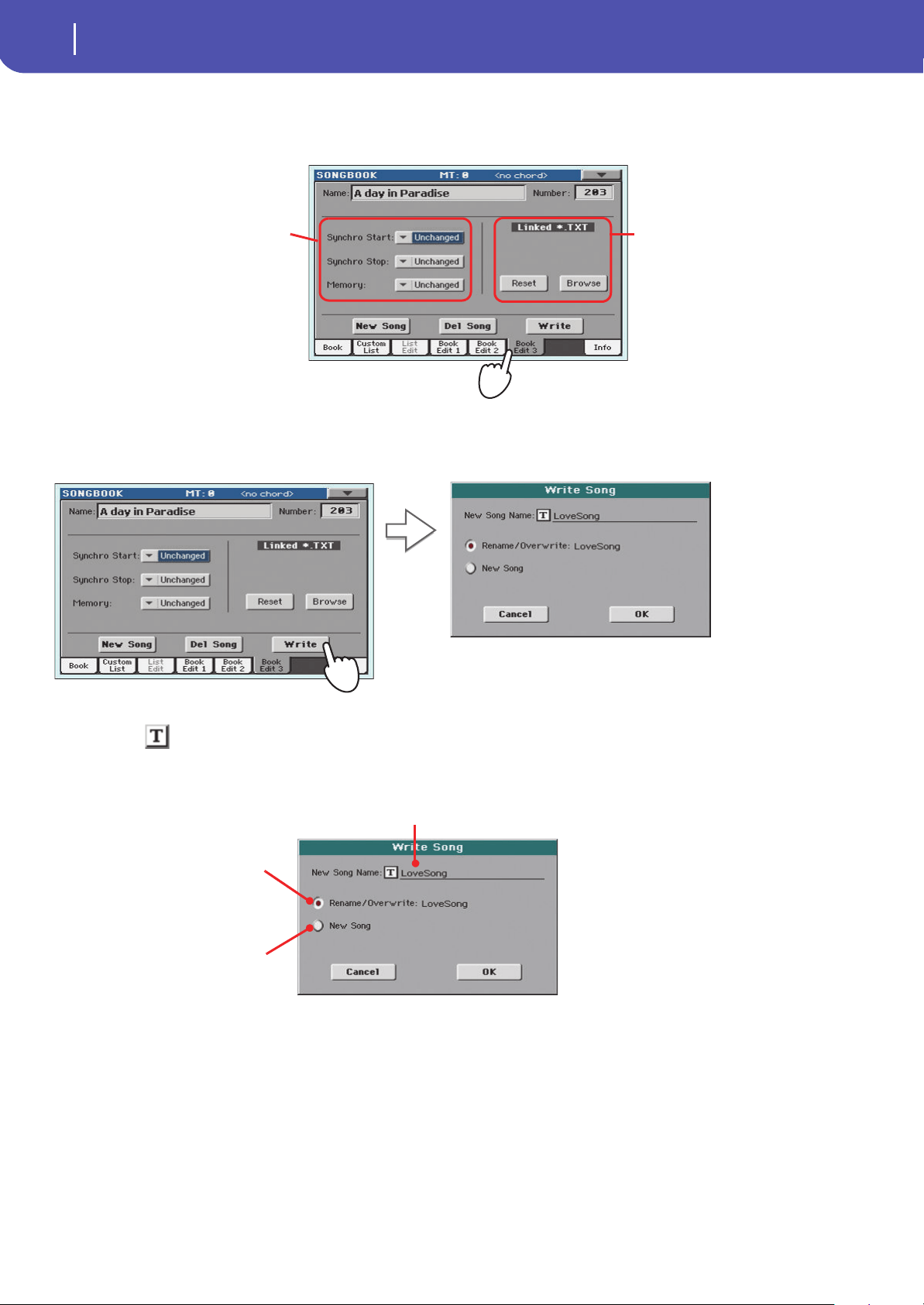
68
The SongBook
Editing the Entries
5 When done with this page, touch the Book Edit 3 tab to go to the Book Edit 3 page,
where you can and set the Synchro and Memory parameters, and link a text file to the
Entry.
6 After having filled up all the desired fields (be as comprehensive as you can), touch the
Write button in the display to open the Write dialog box.
7 Touch the (Text Edit) button to assign a name to the Entry, then touch OK to save
the Entry to the SongBook database.
Text file linked to the Entry
(or loaded in the Lyrics
page). This text will be seen
in the same way of ordinary
Lyrics in the display.
Synchro (for Style) and Memory (for Style
and Songs) On/Off status
Entry’s name. By default it is the same name of the associated Style, Stan-
dard MIDI File of MP3 file. The name can be up to 16 characters long.
Select Rename/Overwrite to replace an
existing Entry. This option is automati-
cally selected when editing an existing
Entry; it cannot be selected when saving
a new Entry. Warning: the older Entry
will be deleted!
Select New Song to add a new Entry to
the SongBook database. This option is
automatically selected when a new Entry
has been created (by touching the New
Song button).
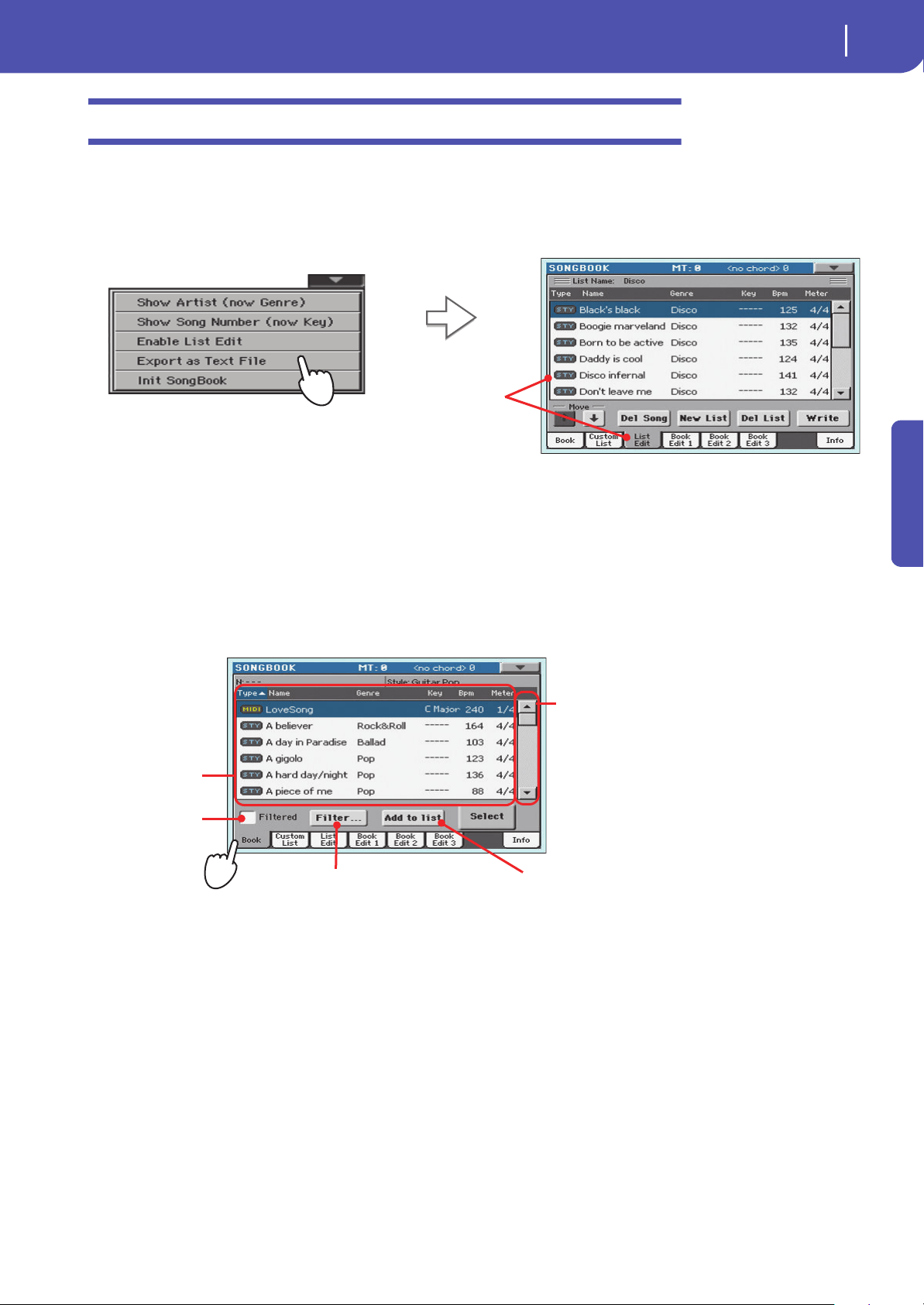
69
The SongBook
Creating a Custom List
Quick Guide
Creating a Custom List
You can create several Custom Lists in the SongBook, to make a set of Entries suitable for your vari-
ous shows. Before starting a new Custom List, be sure you have added all needed Entries to the Song-
Book main database (see “Adding Entries” above).
1 While in SongBook mode, open the page menu and check the ‘Enable List Edit’ item.
2 Select a Custom List to be edited.
To edit an existing list, touch the Custom List tab to open the Custom List page, and select one of
the available Custom Lists. To create a new list, touch the List Edit tab to open the List Edit page,
and touch the New List button to create a new, blank list.
3 Touch the Book tab to open the Book page and see the full database. Use the various
sorting, searching and filtering options (seen above) to find the Entries you are looking
for. Touch the Add to List button when the desired Entry has been selected.
After you check the
‘Enable List Edit’ item,
the List Edit page
becomes available.
Touch this checkbox
to turn the view filter
on (if any).
Touch this button to edit the
view filter.
Use the scroll bar or
the VALUE DIAL to see
all the Songs in the
list. Keep SHIFT
pressed and touch the
Up/Down arrow to
jump to the next/pre-
vious alphabetic sec-
tion.
SongBook list
Adds the highlighted Entry to the
Custom List.
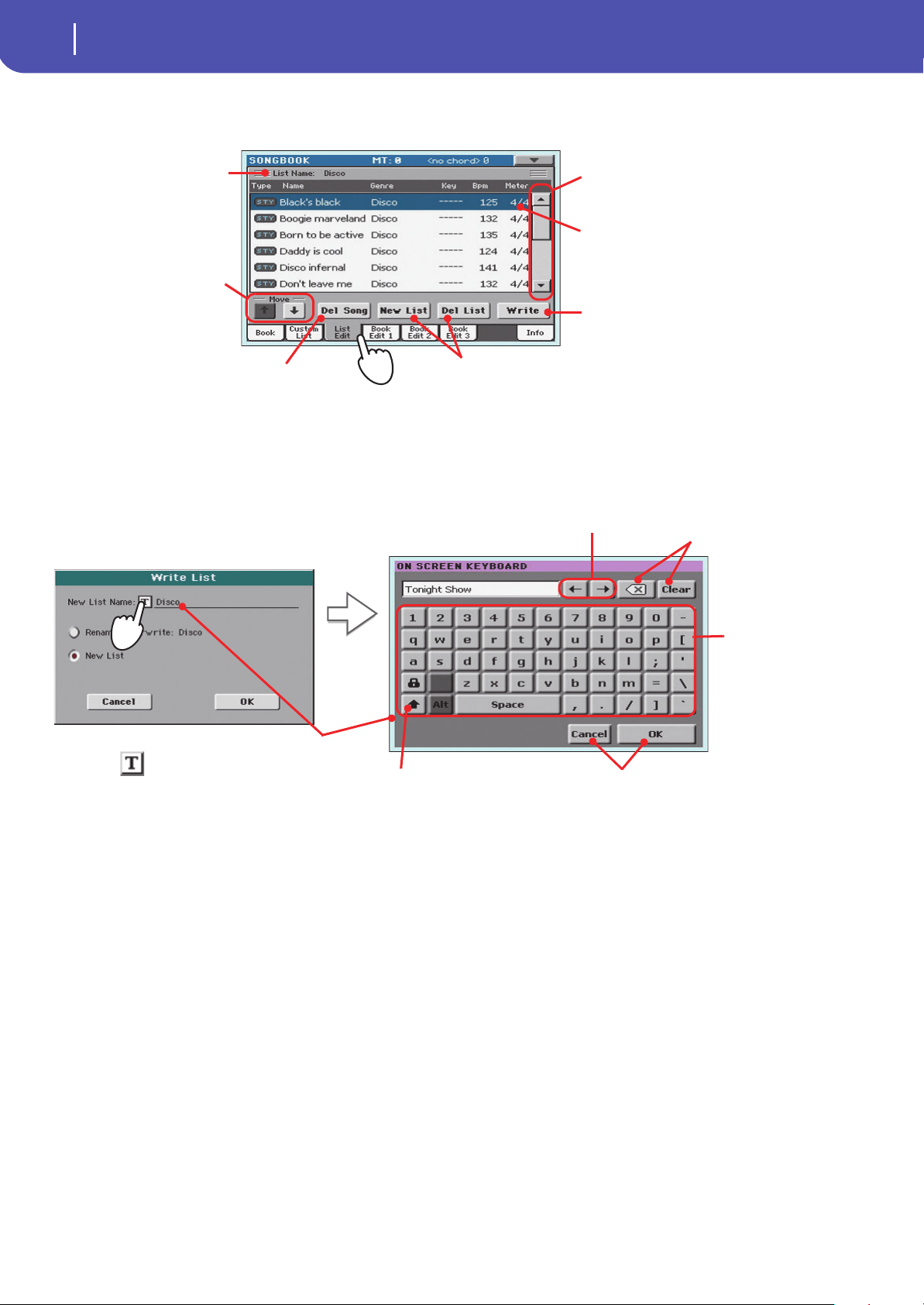
70
The SongBook
Creating a Custom List
4 When finished adding Entries to the Custom List, touch the List Edit tab to go to the List
Edit page, and use the various commands to edit the list.
5 When the Custom List is ready, touch the Write button in the display to save it to mem-
ory. Assign a new name to the Custom List.
6 When finished editing the Custom List, open the page menu and uncheck the ‘Enable
List Edit’ item.
Use the vertical arrows
to move the selected
Entry up or down in the
list.
Touch Del Song to delete
the selected Entry.
Touch New List to create a new Custom List. Touch
Del List to delete the current Custom List. Warning:
Del List will delete the current Custom List.
Touch Write to save the current
Custom List.
Select an Entry to be edited
from the list
List name
Scrollbar
Touch the (Text Edit) symbol to open the
Text Edit dialog box.
Use alphabetic char-
acters to enter text.
Use the arrows or the VALUE DIAL
to move the cursor.
Touch the Shift key to switch
between capitals and small
characters.
Touch Delete to delete just a
single character, Clear to
delete the whole string.
When done, touch OK to confirm the
new name, or Cancel to abandon all
changes.
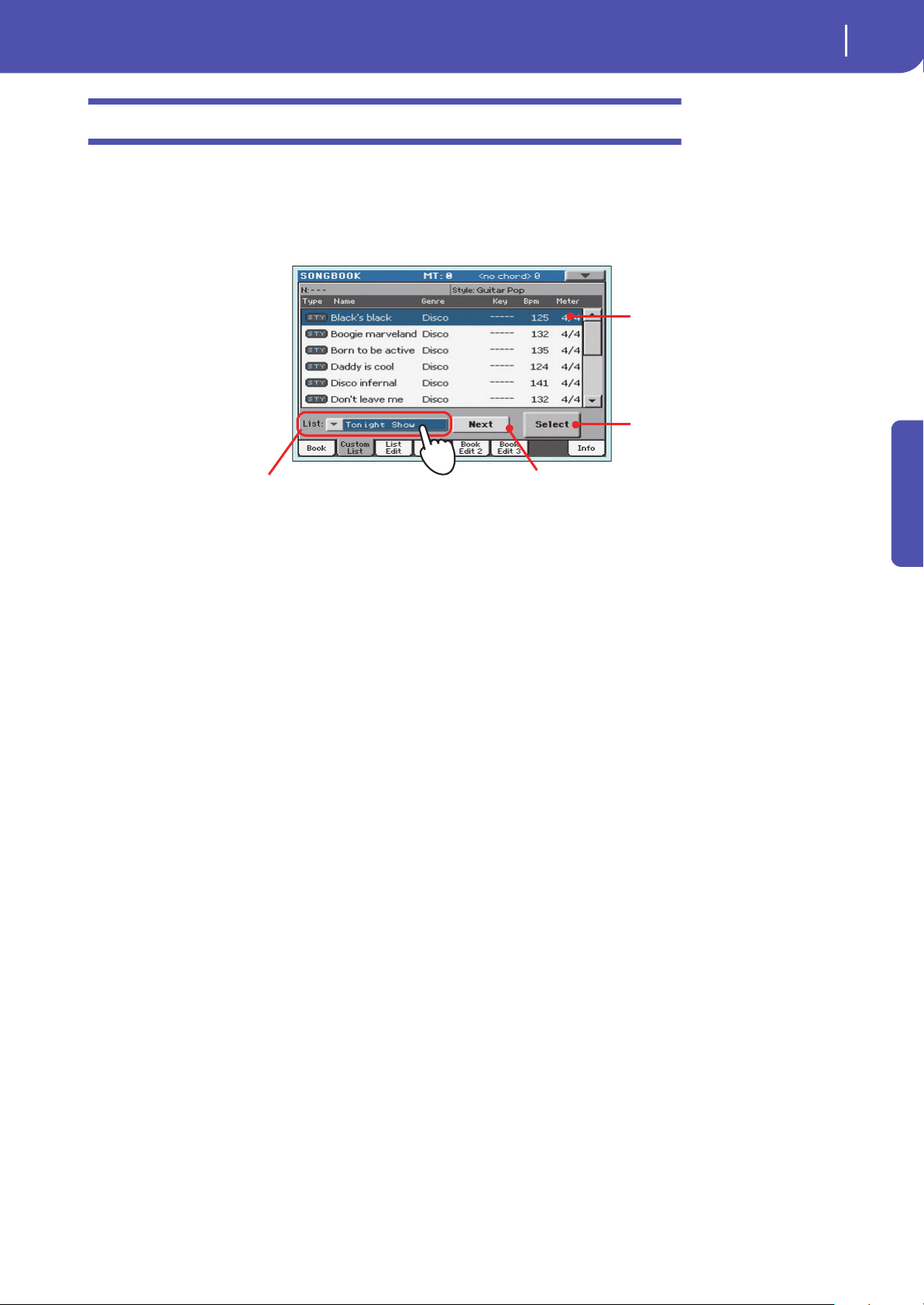
71
The SongBook
Selecting and using a Custom List
Quick Guide
Selecting and using a Custom List
After having created one or more Custom Lists, you can select one and use it for your show.
1 Touch the Custom List tab to select the Custom List page.
2 Use the List pop-up menu to select one of the available Custom Lists.
3 Select one of the Entries in the list (it turns blue), then touch the Select button in the
display to confirm selection (the selected Entry turns green). Press the PLAY button to
start playing back the selected Song.
Use the List pop-up menu to select
one of the available Custom Lists.
Touch Next to select the next Entry in the list.
(This command can also be assigned to a foot-
switch).
Touch Select to set the
highlighted Entry to play (if
different than the one auto-
matically selected).
Entry in play. To select a dif-
ferent one, highlight it and
touch the Select button in
the display.
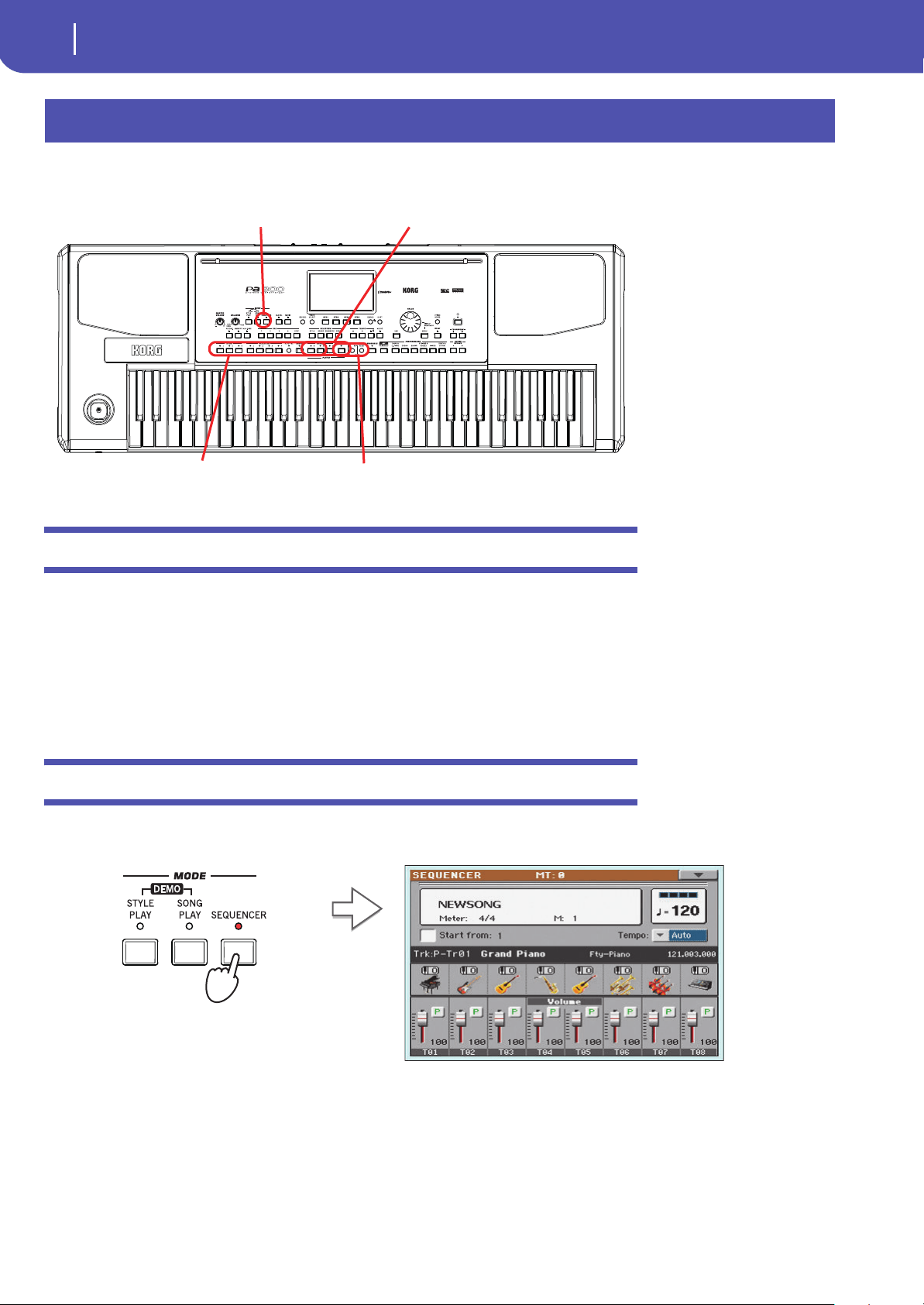
72
Recording a new Song (Standard MIDI File)
Preparing the Style and Sounds
There are several ways to create a Song on the Pa300. The easiest and fastest is to use the Styles to
record what you are playing the keyboard, while the arranger gives you the accompaniment tracks.
Preparing the Style and Sounds
Before accessing the Record mode, we suggest you prepare the Style and Sounds with which to record
your Song.
1 Select a Style with which you want to record.
2 Select the Sounds by choosing a Performance or STS.
That’s all! You are ready to access Record mode.
Accessing the Backing Sequence (Quick Record) mode
1 Press the SEQUENCER button to switch to the Sequencer mode.
Recording a new Song (Standard MIDI File)
Style Controls
Style Elements
Player controls
SEQUENCER button
After pressing the
SEQUENCER button, the main
page of the Sequencer mode
appears.
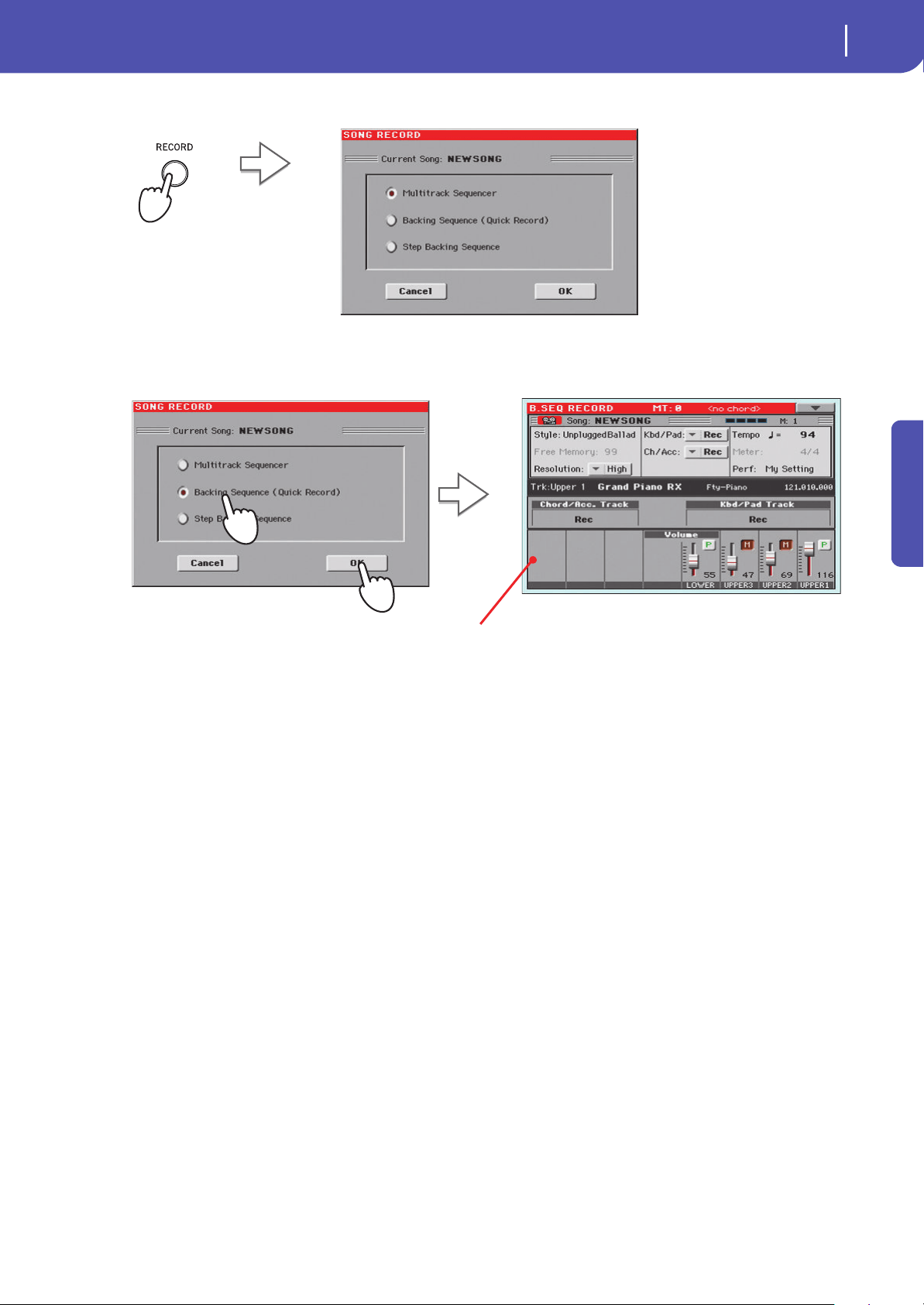
73
Recording a new Song (Standard MIDI File)
Accessing the Backing Sequence (Quick Record) mode
Quick Guide
2 Press the RECORD button to open the Song Record Mode Select dialog box.
3 Select the Backing Sequence (Quick Record) option and touch OK to enter the Backing
Sequence Record mode.
Press the RECORD button, to
open the Song Record Mode
Select dialog box
After having chosen the Backing Sequence
(Quick Record) option, the Backing
Sequence Record page appears.
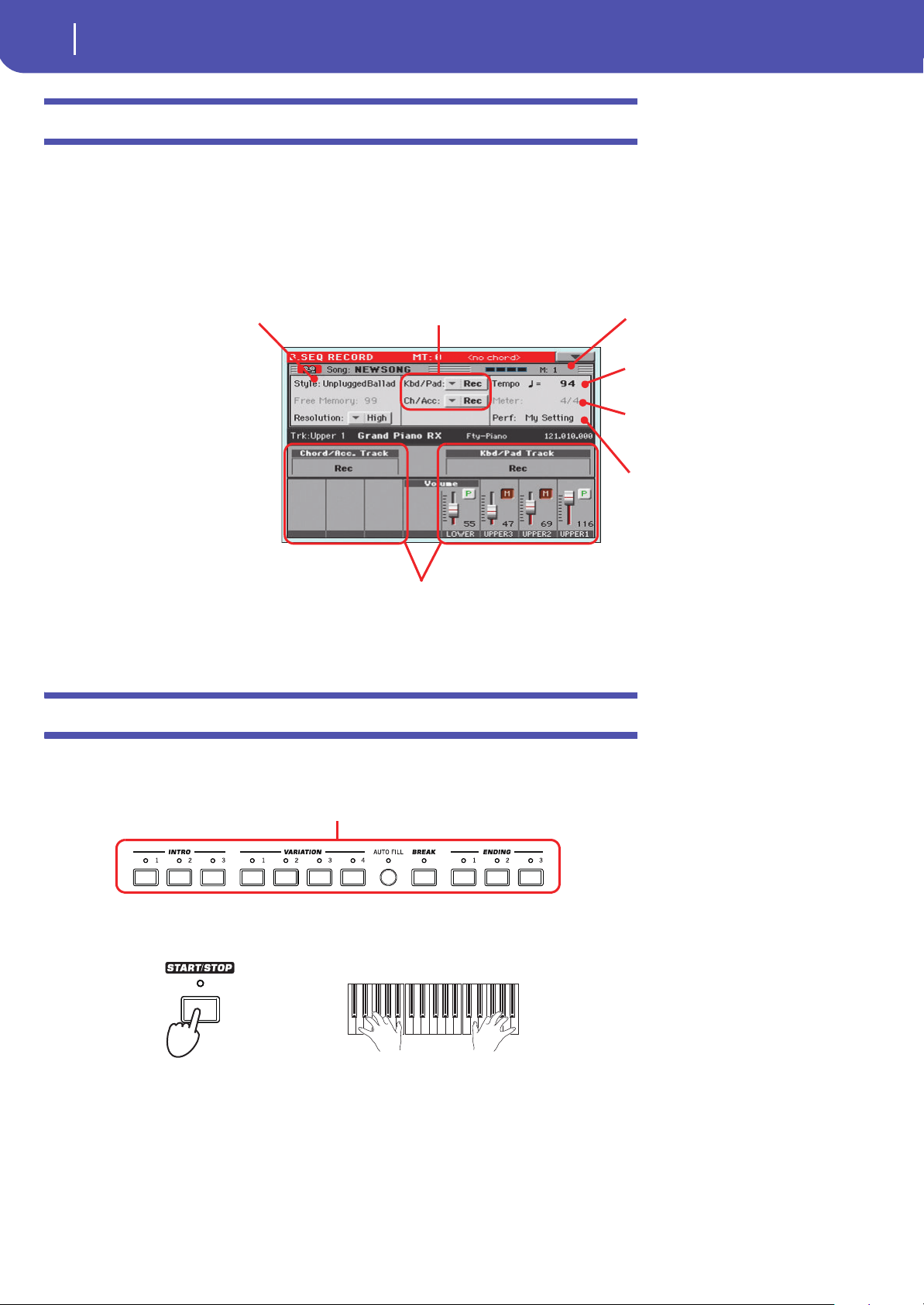
74
Recording a new Song (Standard MIDI File)
Setting the Record parameters
Setting the Record parameters
When you enter Backing Sequence Record, the latest selected Style and Sounds are already selected,
and all tracks are ready to record. You could simply start recording as if you were playing with the
Styles. However, there are some further settings that you may want to do.
• If you like, adjust any editable parameter in the display.
Recording
1 Select the Style Element you wish to use before starting to play.
2 Start recording, by pressing the START/STOP button.
3 Play as if you were performing live with the Styles.
During recording, select any Style Element (Intro, Variation, Break, Ending…) you like.
Please remember that, while recording in Backing Sequence Record mode, you cannot use the
SYNCHRO, TAP TEMPO/RESET, BALANCE controls.
Touch the Style parame-
ter (or the STYLE button)
to open the Style Select
window, and select a dif-
ferent Style.
Track(s) status. ‘Rec’ means they are ready to
record. ‘Play’ means they are recorded and you
can hear them. ‘Mute’ means they cannot be
heard.
Measure counter. The
negative number (-1) is
the precount, after which
you can start recording.
Style’s Tempo. Change it,
if you like.
Grouped tracks. During Quick Record, you cannot access each separate Song
track. For ease of use, just two ‘master’ tracks are provided: Kbd/Pad (Key-
board/Pads) and Ch/Acc (Chord/Accompaniment).
Style’s Meter (or Time
Signature). It’s just an
indicator, you cannot
change it.
Touch the Perf/STS
parameter to open the
Performance Select win-
dow, and select a differ-
ent Performance (as seen
on page 41). As an alter-
native, you use the PER-
FORMANCE or STS
buttons.
Select any of the Variations before starting to record.
Select one of the Intros to start with an introduction.
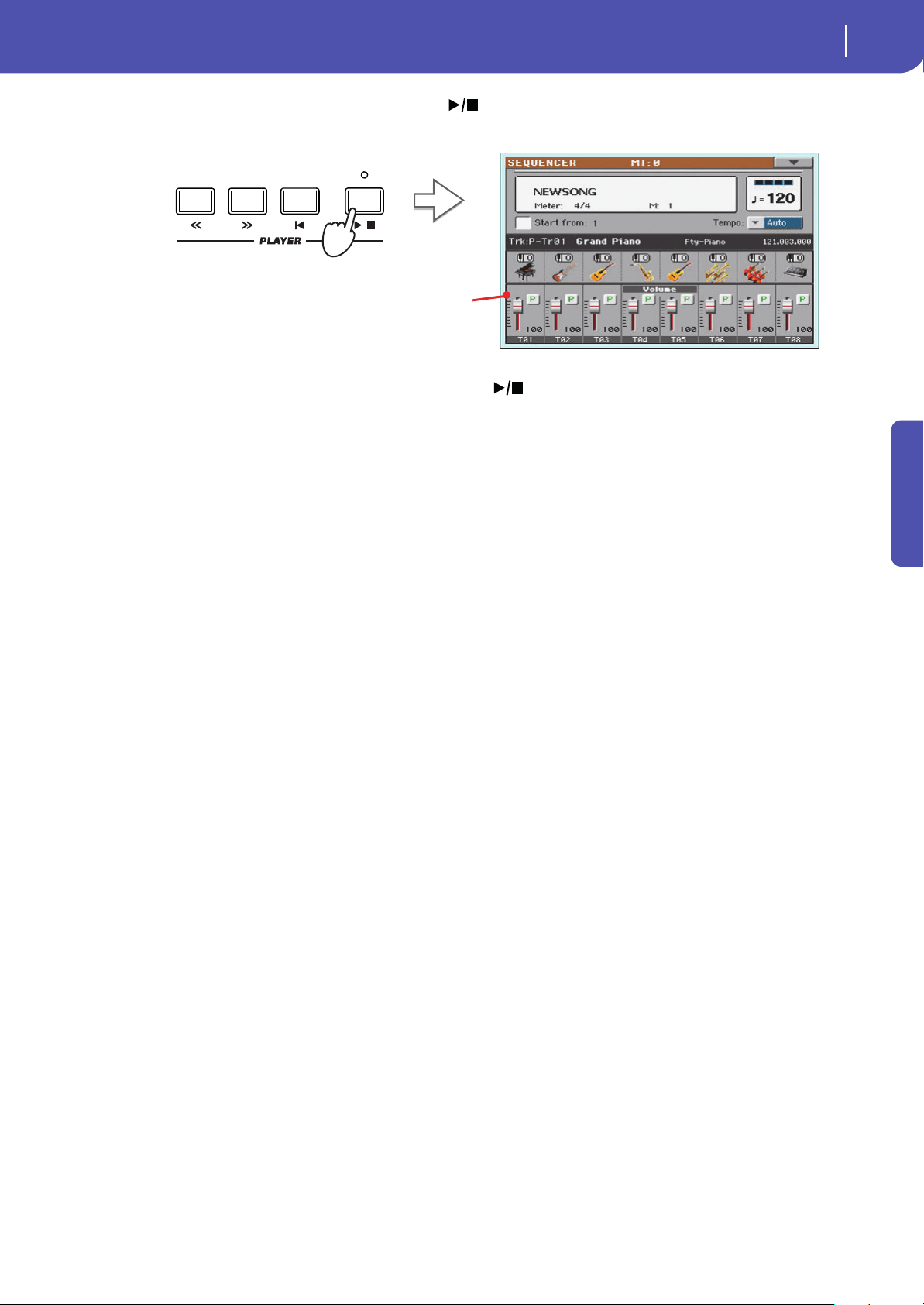
75
Recording a new Song (Standard MIDI File)
Recording
Quick Guide
4 When finished recording your Song, press the (START/STOP) button to exit
recording, and return to the main page of the Sequencer mode.
5 While in the main page of the Sequencer mode, press the (START/STOP) button in
the PLAYER section to listen to the recorded Song.
The Backing Sequence Song has been converted to an ordinary Song (in Standard MIDI File, or
“MID”, format). If you like it, you can save it. You can then read it in Song Play mode, or transfer
it to any external sequencer.
6 If you want to edit the Song, press MENU to access Edit mode.
After pressing the START/STOP button, the main
page of the Sequencer mode will appear again.
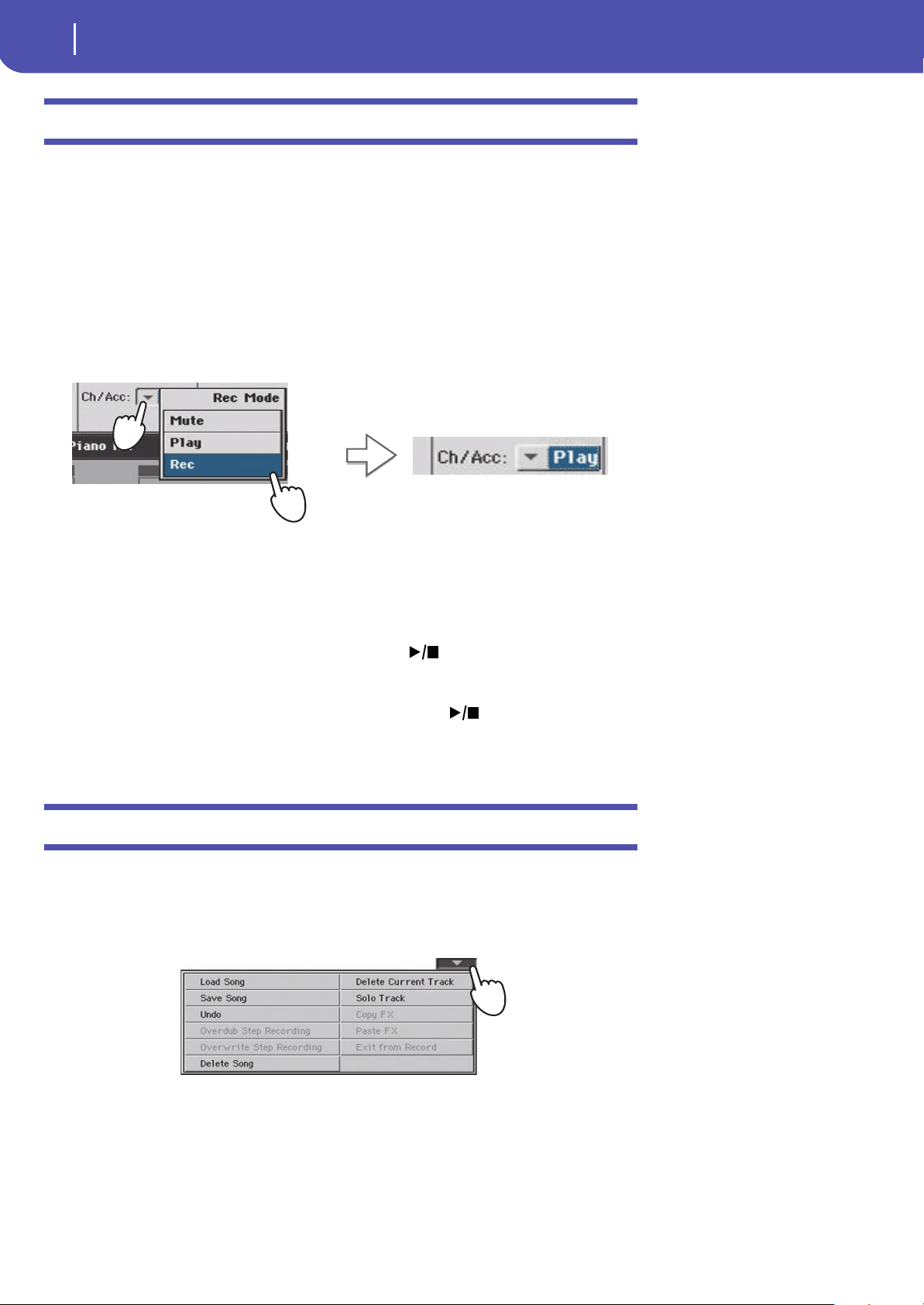
76
Recording a new Song (Standard MIDI File)
Second-take recording (Overdubbing)
Second-take recording (Overdubbing)
You may want to record an additional “grouped” track, or replace a previously-recorded track. A good
idea may be to record all chords and Style Element changes during the first take, then record Key-
board tracks and Pads during the second take.
1 Press the RECORD button to enter Record mode again. When the Song Record Mode
Select dialog box appears, select Backing Sequence (Quick Record) again.
2 If you are recording just one of the “grouped” tracks, set to Play the track to be pre-
served.
For example, if you only want to record the Keyboard tracks again, set the Kbd/Pad track to Rec,
and the Ch/Acc track to Play.
3 Press the START/STOP button to start recording the selected track.
With the above example, chords will play as recorded; you can record what you play on the key-
board (and the Pads).
4 Repeat the recording procedure, and press the (START/STOP) button in the
PLAYER section to stop recording and return to the main page of the Sequencer mode.
5 While in the main page of the Sequencer mode, press the (START/STOP) button in
the PLAYER section to listen to the recorded Song.
Again, the Backing Sequence Song has been converted to an ordinary Song.
Saving a Song
After having recorded a Song that you like, it is a good idea to save it, to avoid losing it when the
instrument is turned off (or put in standby).
1 While in the main page of the Sequencer mode, touch the page menu icon to open the
page menu.
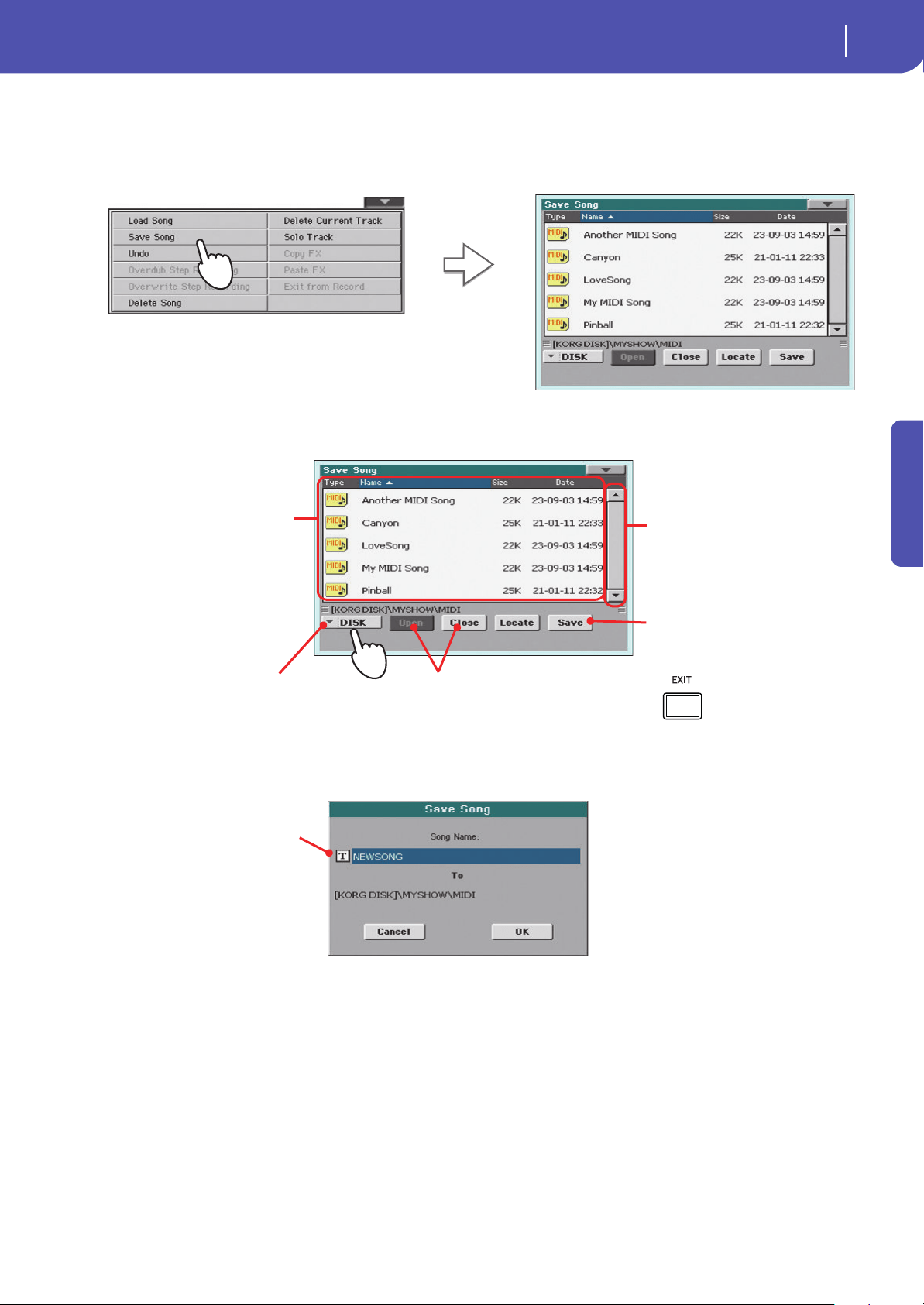
77
Recording a new Song (Standard MIDI File)
Saving a Song
Quick Guide
2 Select the Save Song command to open the Save Song window.
This window is very similar to the one you can see when pressing the MEDIA button on the con-
trol panel, and touch the Save tab to see the Save page. This page is, however, “filtered” to only
see Song files.
3 Select a device and folder where you want to save your Song.
4 Touch the Save button in the display to open the Save Song dialog box.
5 Touch OK in the display to save the Song, or Cancel to stop the Save operation.
After you select the Save song
command, the Save Song page
appears.
If a Song is selected (highlighted) it
will be overwritten. If no Song is
selected, a new Song file will be cre-
ated on the target device.
To deselect a Song, select the same
storage device again.
Use the scroll bar to see all Songs in the
list. Keep SHIFT pressed and touch the
Up/Down arrow to scroll to the next/pre-
vious alphabetic section. As an alterna-
tive, you can use the VALUE DIAL.
Use the Open and Close buttons to
browse through the folders.
Use the Device pop-up menu to select one of
the available storage devices
Touch the Save button to save the Song to
the current folder.
In case you prefer to exit
this page without saving
the Song, press the EXIT
button.
Touch the Tex t Edit
icon to edit the Song’s
name.
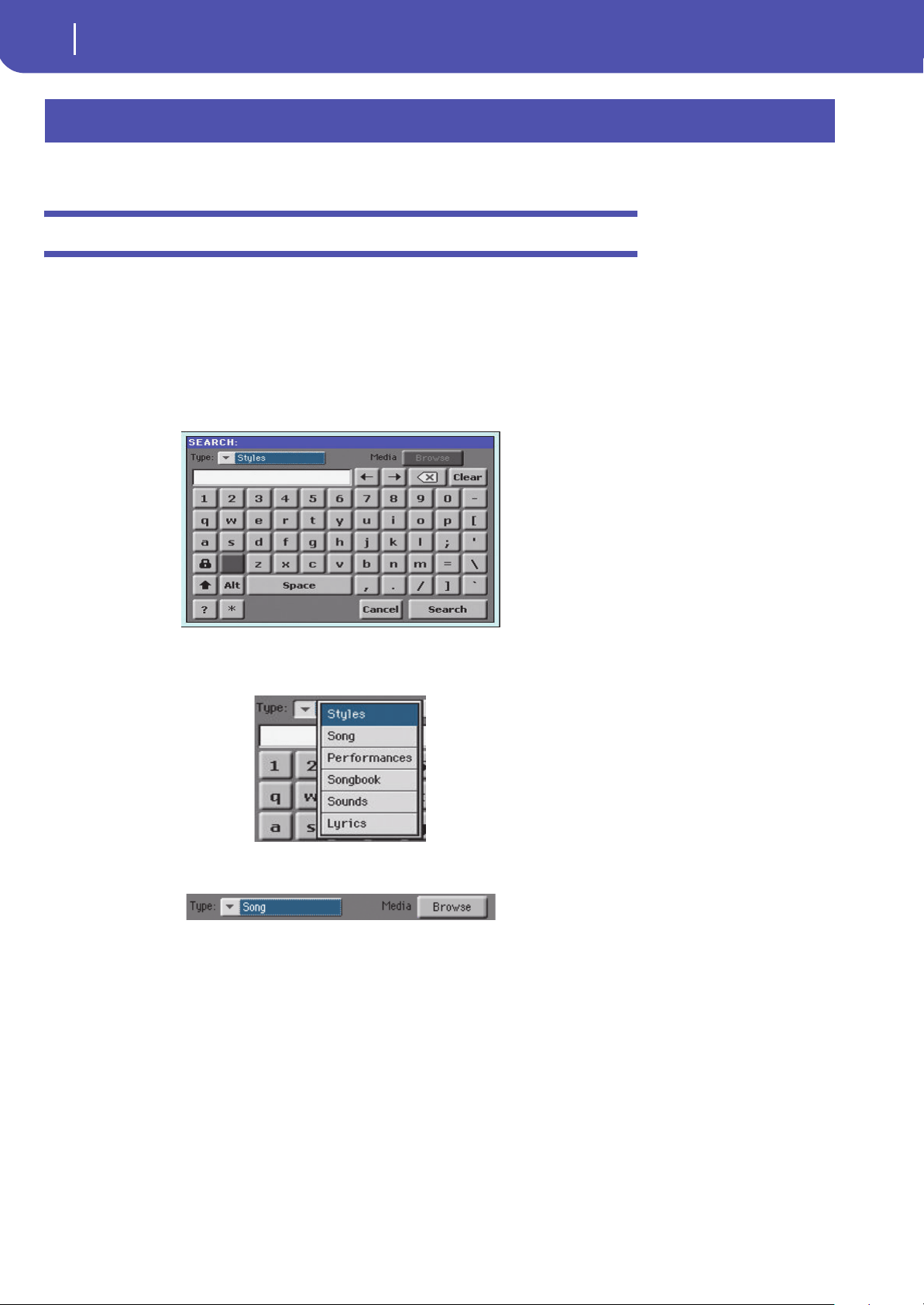
78
Searching files and musical resources
How to use the Search function
With Pa300, you can press the SEARCH button to search for files or musical resources.
How to use the Search function
Depending on the page you are in, you can search for different types of data. For example, while in
Media mode you can only search for files, while in Style Play or Song Play mode you can search for
several different types of data (Styles, Songs, Lyrics…).
There are some pages where the Search function is not available, since there are no relevant data to
search for that page (for example, the pages of the Global mode).
Here is the general procedure.
1 Press the SEARCH button to open the Search window.
2 If needed, touch the “Type” pop-up menu, and choose the type of item you are looking
for.
When choosing Files, Songs or Lyrics, the “Browse” button will be activated, to allow for search-
ing files in the storage devices.
Searching files and musical resources
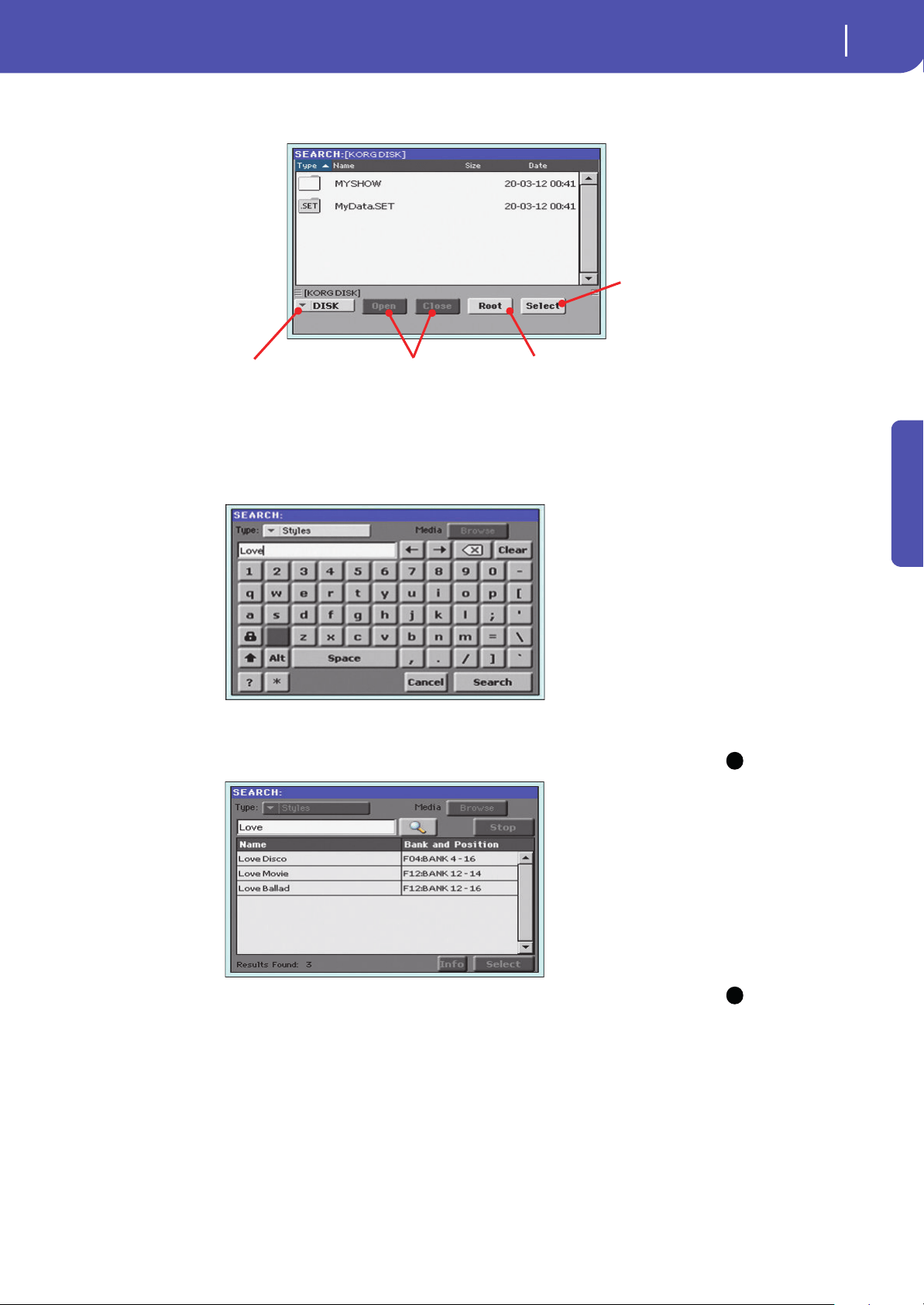
79
Searching files and musical resources
How to use the Search function
Quick Guide
3 In case you are searching for a file in a storage device, touch the “Browse” button to
open the Media window.
4 Type the name of the file to be searched.
There is no difference between upper and lower cases (“LOVE” is the same as “Love” or “love”).
5 When finished entering the name, touch the “Search” button.
Note: Only one search at
a time can be carried on.
Please wait for the current
search to be completed, or
touch the Stop button in the
display to stop the current
search and do a new one.
After a while, the list of files found begins to appear in the display.
Hint: You can touch the
Cancel button in the display,
or press the EXIT button in the
control panel, to exit from
this window and carry on
other operations. The search
will continue in the back-
ground.
After you have touched the “Search” button, its name changes to “Stop”. If needed, touch this
button to stop the ongoing search. The name of the button reverts to “Search”. Any file found will
remain in the display, until you do a new search.
The time needed to complete a search depends on the size of the device(s) and the number of
files.
Use the Open and Close
buttons to browse
through the folders
Use the Device pop-up
menu to select one of the
available storage devices
In case you are lost among the direc-
tories, touch the “Root” button to go
to the root of the selected device
When you see the folder contain-
ing the file you are looking for,
touch it, then touch the Select
button to close the Media win-
dow. The name of the selected
folder will be shown in the title bar
of the Search window.
i
i
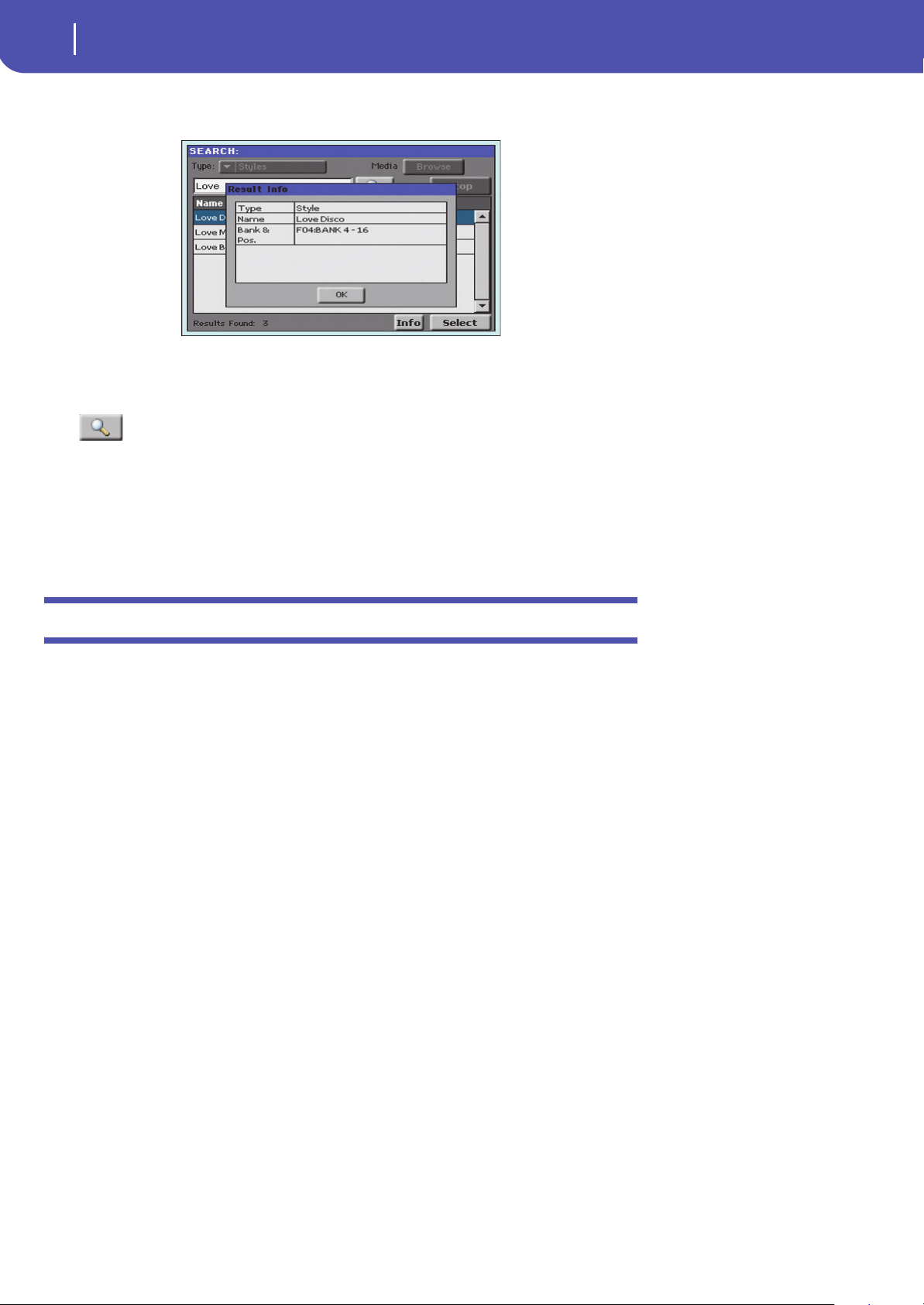
80
Searching files and musical resources
Notes about searching
6 You can touch one of the found items to select it, and then touch the “Info” button to
see information on it.
Touch OK to close the Info dialog box.
7 If you want to return to the main Search page and type a search string again, touch the
icon. Otherwise,
8 If you have found what you were looking for, touch its name and then touch the
“Select” or “Locate” command.
9 You can exit from the Search window at any time, by pressing the EXIT or SEARCH but-
ton.
Notes about searching
Wildcards
During search, the string entered will be search as a whole word or as part of a word. For example, if
you entered “love”, Pa300 will find “Love” and “LoveSong”, or any other word containing the string
“love”.
You can use the wildcards “?” (any single character) and “*” (any sequence of characters) to search
exactly that string. For example, “*love” will find “MyLove”, but not “LoveSong”. “??love” will find
“MyLove” but not “TrueLove”.
Also, if you are looking for words that can be spelled in a slightly different way, you can use the “?”
wildcard to find all occurrences; “gr?y” will find out both “gray” and “grey”.

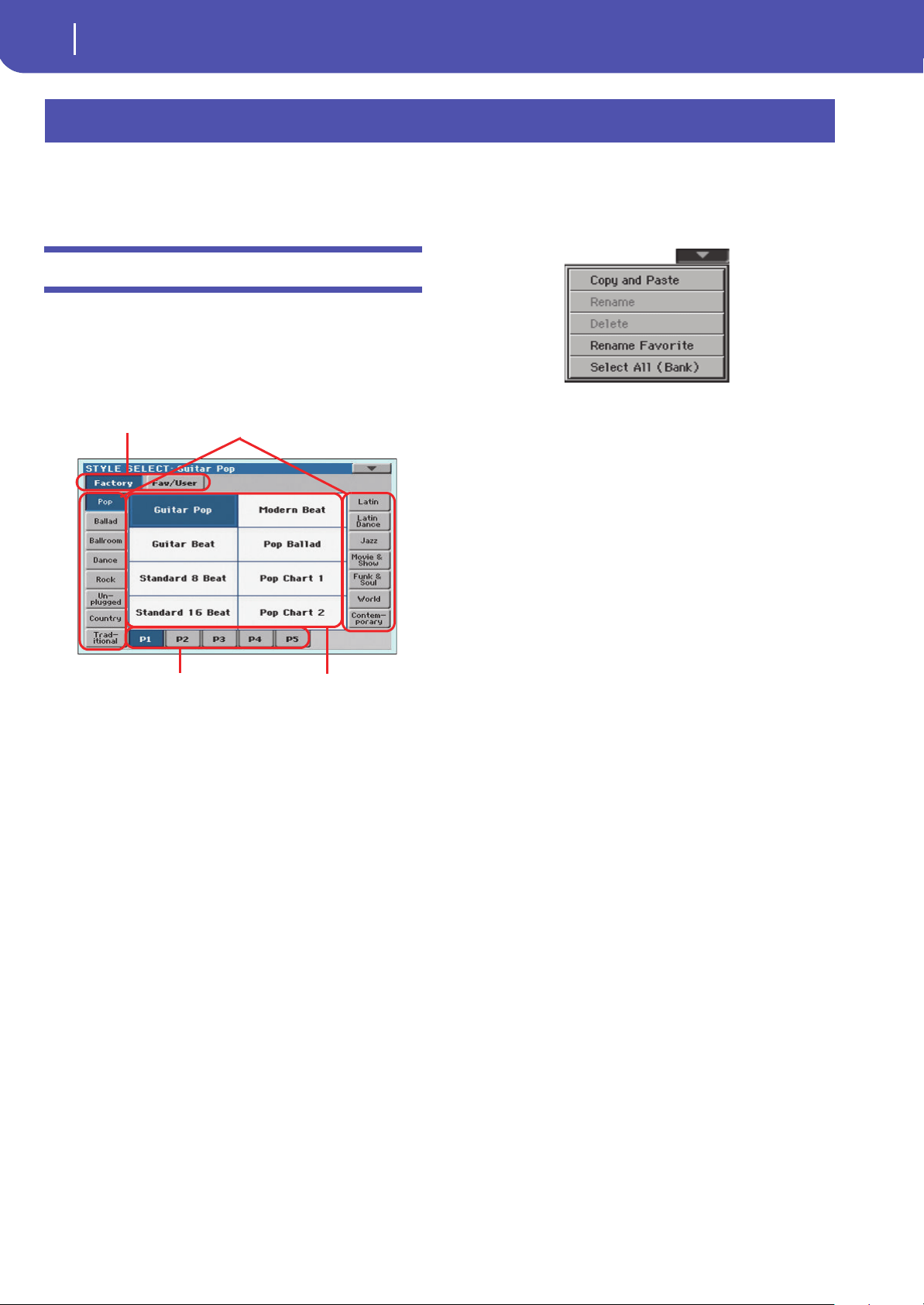
82
Selecting elements
Style Select window
The following windows are shown in the various operating
modes, whenever you try to select a Sound, Performance, Style
or Song.
Style Select window
To open the Style Select window, touch the Style area whereas it
appears in the display, or the STYLE button in the SELECTION
section on the control panel.
Press EXIT to exit from this page and go back to the previous
page without selecting any Style.
Note: Depending on the status of the “Auto Select” parameter (see
page 149), a Style may be immediately selected when touching one
of the side tabs. The latest selected Style for that bank will be
selected.
Style sets
Selected set of Styles. Factory Styles are Styles supplied as stan-
dard. Fav/User are Favorite Styles (locations for custom-made
Styles with editable names) and User Styles (locations for cus-
tom-made Styles with fixed names).
Side tabs (banks)
Use these tabs to select a bank of Styles. Favorite tabs can be
renamed (see “Renaming the Favorite banks” on page 110).
Lower tabs (pages)
Use these tabs to select one of the available pages in the selected
bank.
Styles
Touch one of these buttons in the display to select a Style. Unless
the “Display Hold” parameter (see page 148) is turned on, the
window automatically closes shortly after you select a Style.
After selecting a Style from this window, and another Style is
playing, the name of the new Style begins to flash, meaning it is
ready to start playing at the beginning of the next measure.
Style Select page menu
Touch the page menu icon to open the menu. Touch a command
to select it. Touch anywhere in the display to close the menu
without selecting a command.
Copy and Paste
Use this command to copy the selected Style to a different selec-
tion,
1. Select the Style to be copied. To select more items, keep the
SHIFT button pressed and touch all the item to be selected
for copying. Hint: You can deselect one of the selected items
by touching it while still keeping the SHIFT button pressed.
You can deselect all by touching a single item.
2. Choose the Copy and Paste command.
3. Select the target location. In case you are copying more
than a single item, all subsequent items will sequentially
follow the first one. If there aren’t enough locations avail-
able, the procedure will be cancelled. War ning : If you con-
firm, any Style already existing at the target location will be
overwritten!
Rename
Use this command to edit the name of the selected item. Please
keep in mind that you can only rename non-protected items.
1. Select the Style to be renamed,
2. Choose the Rename command, and use the virtual key-
board to edit the name.
3. When done, touch OK to confirm.
Delete
Choose this command to delete the selected item. Please keep in
mind that you can only delete non-protected items.
1. Select the Style to be deleted. To select more items, keep the
SHIFT button pressed and touch all the item to be selected
for deleting. Hint: You can deselect one of the selected items
by touching it while still keeping the SHIFT button pressed.
You can deselect all by touching a single item.
2. Choose the Delete command, and confirm deletion. War n-
ing: Unless you have a copy of it, the deleted item will be gone
forever!
Selecting elements
Side tabs (banks)
Lower tabs (pages)
Style sets
Styles
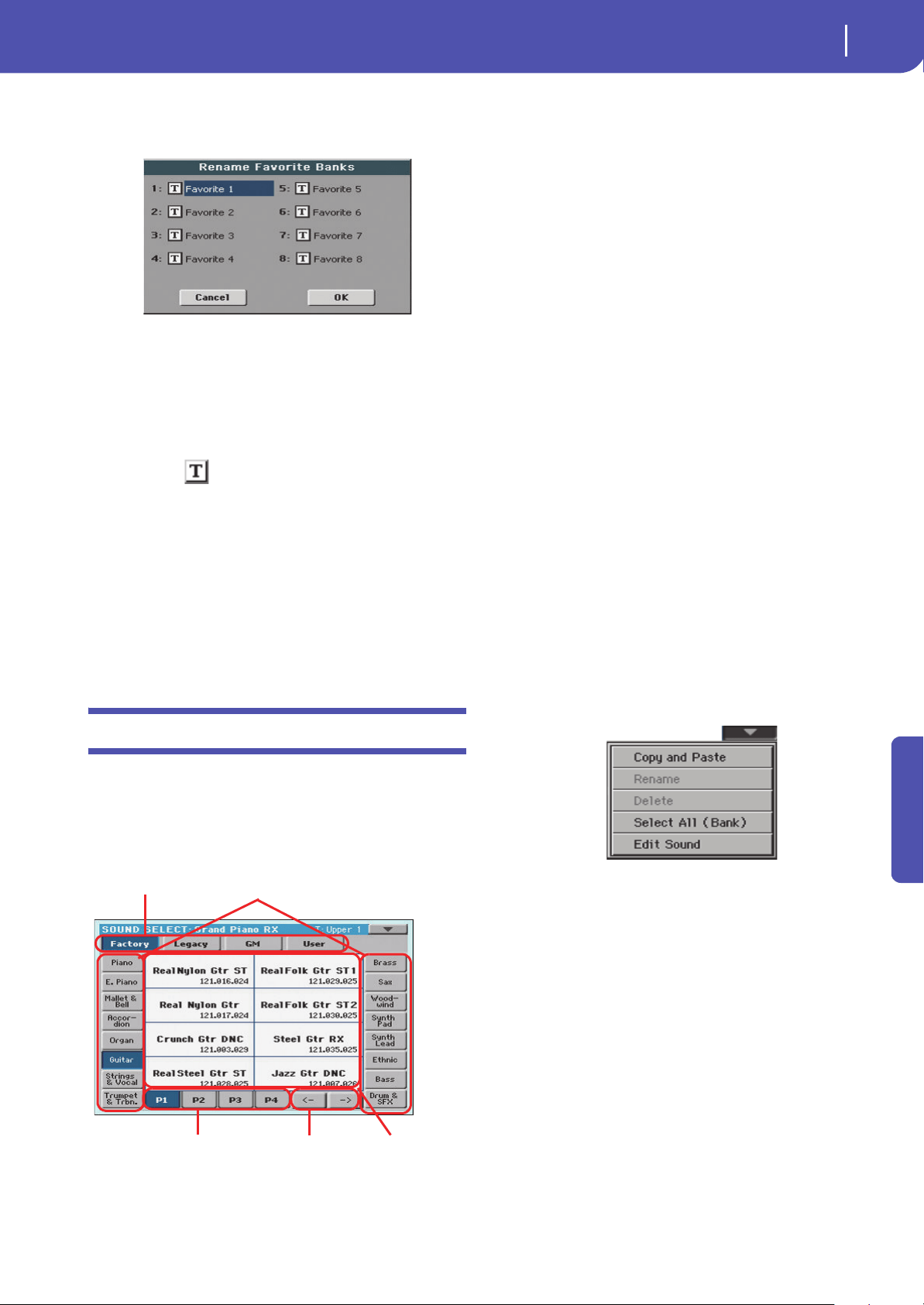
83
Selecting elements
Sound Select window
Reference
Rename Favorite
Choose this command to edit the name of the Favorite Style
banks.
The assigned name can be spanned over two lines, by separating
them with the paragraph character (¶). For example, to write
“World Music” on two lines, enter “World¶Music”.
Be careful not to write words exceeding the width of the side tabs
of the Style Select window.
1. Choose the Rename Favorite command.
2. Touch the (Text Edit) symbol next to the bank to be
renamed.
3. Use the virtual keyboard to edit the name.
4. When done, touch OK to confirm.
Select All (Bank)
Choose this command to select all items in the current bank.
You can deselect one of the selected items by touching it while
keeping the SHIFT button pressed. You can delete all by touch-
ing any single item.
Sound Select window
To open the Sound Select window, touch the Sound area whereas
it appears in the display, or the SOUND button in the SELEC-
TION section of the control panel.
Press EXIT to exit from this page and go back to the previous
page without choosing any Sound.
Sound sets
Selected set of Sounds. Factory Sounds are the Sounds supplied
as standard. Legacy Sounds are Sounds compatible with older
Pa-Series models. GM are Drum Kits mapped according to the
General MIDI 2 or XG standards. User Sounds are custom-cre-
ated or edited Sounds.
Side tabs (banks)
Use these tabs to select a bank of Sounds.
Lower tabs (pages)
Use these tabs to select one of the available pages in the selected
bank.
Previous/Next tabs
Scroll the lower tabs to the left or the right, when additional tabs
are available but cannot be seen in the display.
Sounds
Touch one of these buttons in the display to select a Sound.
Unless the “Display Hold” parameter (see page 148) is turned
on, the window automatically closes shortly after you select a
Sound.
Program Change
Program Change number. Shown only when the “Show” param-
eter is turned on in Global mode. (See page 149).
Sound Select page menu
Touch the page menu icon to open the menu. Touch a command
to select it. Touch anywhere in the display to close the menu
without selecting a command.
The commands are the same seen for the Style Select window’s
page menu, apart for a difference with the Delete command and
the “Edit Sound” command.
Delete
Choose this command to delete the selected Sound.
1. Select the Sound to be deleted. To select more items, keep
the SHIFT button pressed and touch all the item to be
selected for deleting. Hint: You can deselect one of the
selected items by touching it while still keeping the SHIFT
button pressed. You can deselect all by touching a single item.
2. Choose the Delete command, and confirm deletion. War n-
ing: Unless you have a copy of it, the deleted item will be gone
forever!
Edit Sound
Choose this command to edit the selected Sound (see detailed
information in the “Sound Edit” chapter).
Side tabs (banks)
Lower tabs (pages)
Sound sets
Sounds
If more than five pages are
available, the Previous/Next
tabs are shown in this area
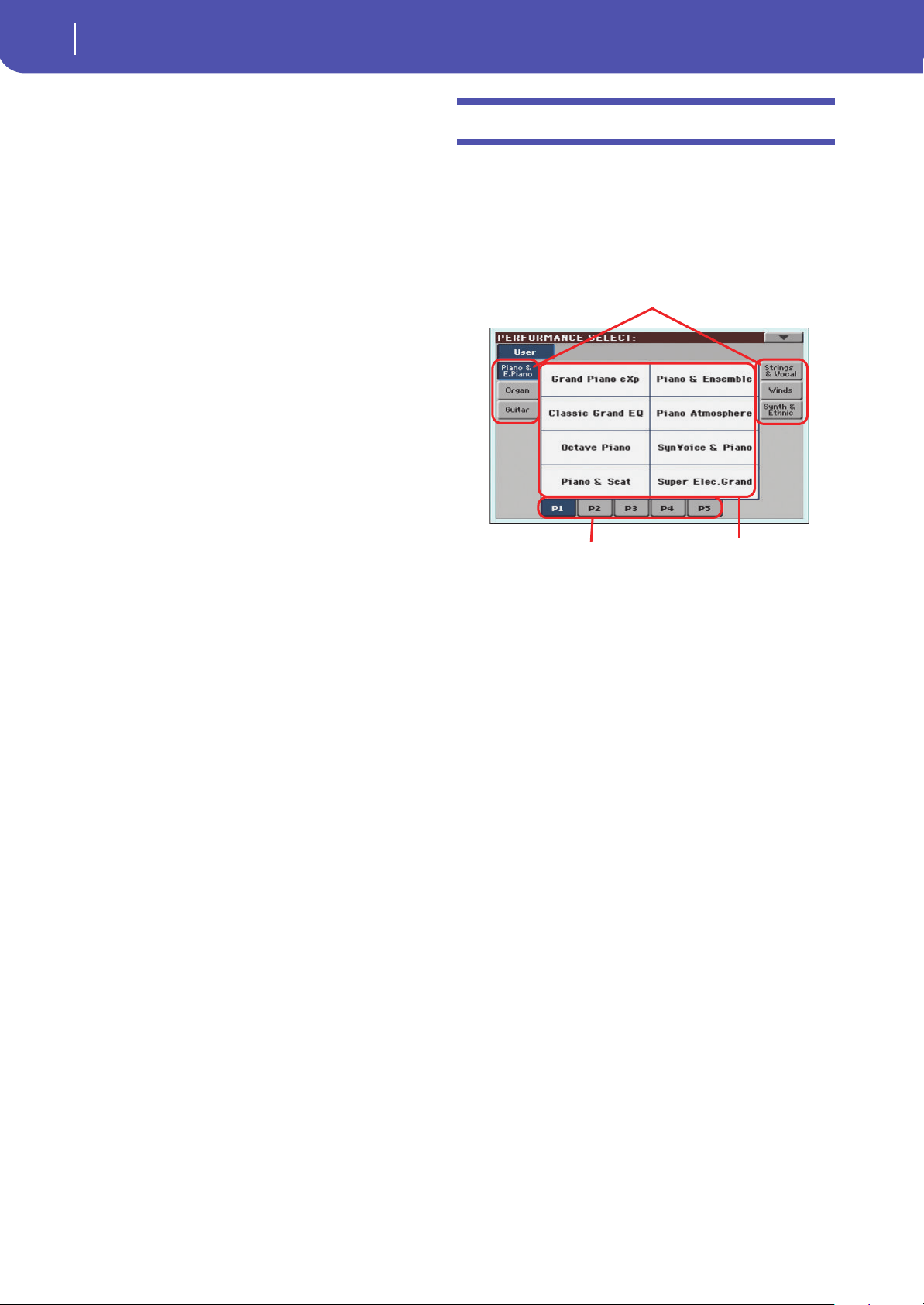
84
Selecting elements
Performance Select window
1. Select the Sound to be edited. Edited Sounds can only be
saved to User Sound locations.
2. Choose the Edit Sound command to access editing.
Performance Select window
To open the Performance Select window, touch the Performance
area whereas it appears in the display, or one of the PERFOR-
MANCE buttons on the control panel. Use the PERFOR-
MANCE buttons to go directly to the selected bank.
Press EXIT to exit from this page and go back to the previous
page without selecting any Performance.
Note: Depending on the status of the “Auto Select” parameter (see
page 149), a Performance may be immediately selected when
pressing one of the PERFORMANCE buttons. The latest selected
Performance for that bank will be selected.
Side tabs (banks)
Use these tabs to select a bank of Performance. Each tab corre-
sponds to one of the PERFORMANCE buttons on the control
panel.
Lower tabs (pages)
Use these tabs to select one of the available pages in the selected
bank.
If you press again the same PERFORMANCE button on the con-
trol panel, the next page in the same bank is selected. This way,
you do not need to touch one of the corresponding tabs in the
display in order to select a different page.
Performances
Touch one of these buttons in the display to select a Perfor-
mance. Unless the “Display Hold” parameter (see page 148) is
turned on, the window automatically closes shortly after you
select a Performance.
Side tabs (banks)
Lower tabs (pages) Performances
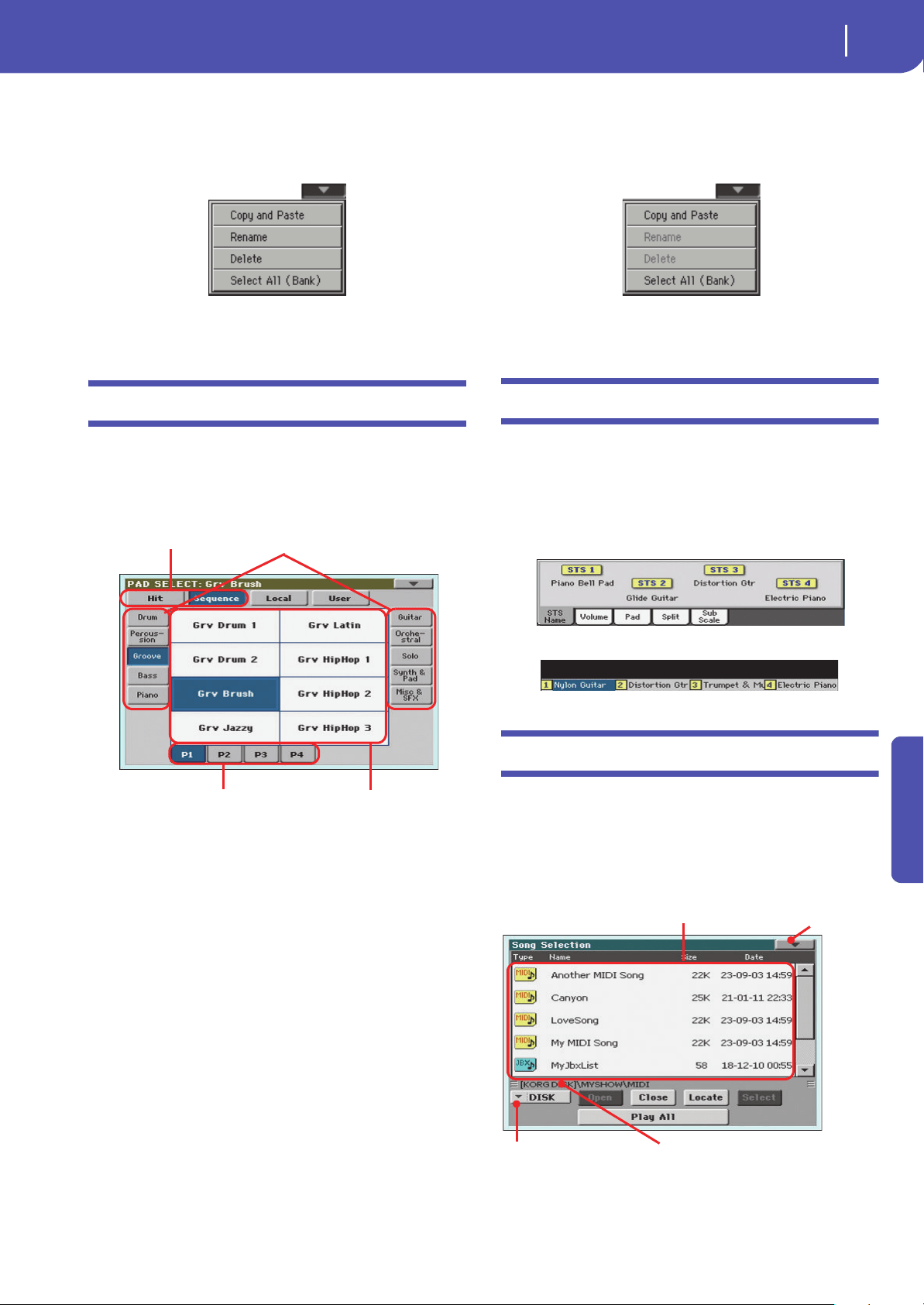
85
Selecting elements
Pad Select window
Reference
Performance Select page menu
Touch the page menu icon to open the menu. Touch a command
to select it. Touch anywhere in the display to close the menu
without selecting a command.
The commands are the same seen for the Style Select window’s
page menu.
Pad Select window
Touch the Pad area whereas it appears in the display, to open the
Pad Select window.
Press EXIT to exit from this page and go back to the previous
page without selecting any Pad.
Pad sets
Selected set of Pads. Hit are single-note, pre-programmed fac-
tory Pads. Sequence are sequence-based, pre-programmed fac-
tory Pads. Local are like Factory Pads, but contain Pads
customized for the music of your Country. User can be either
single-note or sequence-based Pads, and can be user-created or
modified.
Side tabs (banks)
Use these tabs to select a bank of Pads.
Lower tabs (pages)
Use these tabs to select one of the available pages in the selected
bank.
Pad
Touch one of these buttons in the display to select a Pad. Unless
the “Display Hold” parameter (see page page 148) is turned on,
the window automatically closes short after you select a Pad.
Pad Select page menu
Touch the page menu icon to open the menu. Touch a command
to select it. Touch anywhere in the display to close the menu
without selecting a command.
The commands are the same seen for the Style Select window’s
page menu.
STS Select
To select one of the four STS associated with the current Style or
the selected SongBook Entry, use the four STS buttons on the
control panel.
As an alternative, touch the STS name tab in the main page of
the Style Play or Song Play mode, where you can see the name of
the available STSs.
The STS’s name can also be seen in the Lyrics page:
Song Select window
This page appears when you touch the Song name in the display,
or press the SONG button in the SELECTION sections on the
control panel.
Press EXIT to exit from this page and go back to the main page
of the Song Play operating mode without selecting a Song.
While in this page, you can select a Standard MIDI File, Kara-
oke, MP3 or Jukebox file.
Side tabs (banks)
Lower tabs (pages)
Pad sets
Pads
Song path
Directory
Storage device
Page menu
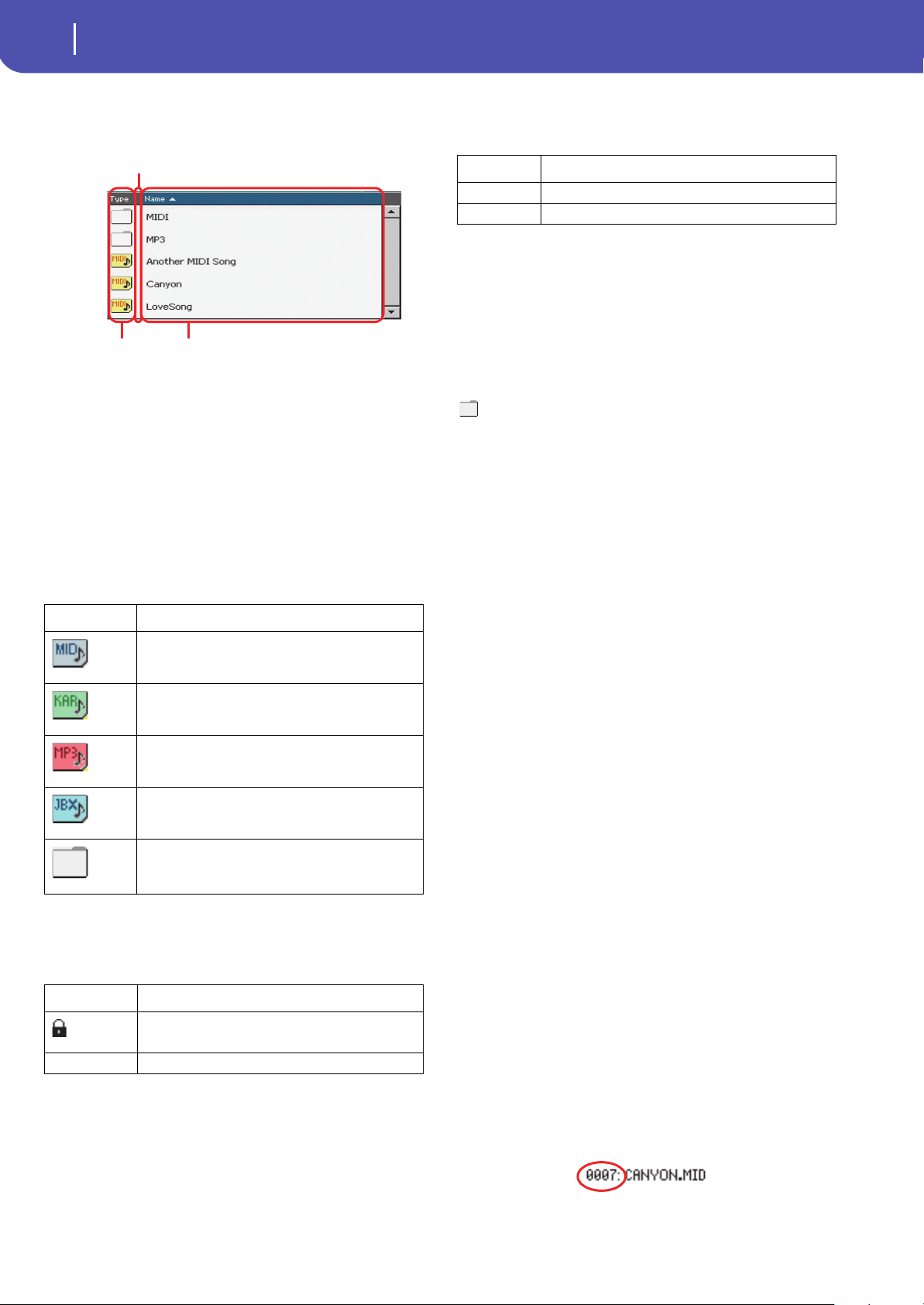
86
Selecting elements
Song Select window
Directory
This is the list of the selected device content.
Use the scrollbar to scroll the items in the list. As an alternative,
you can scroll the list using the VALUE dial.
When the Name label is selected on top of the list, keep the
SHIFT button pressed and touch one of the arrows to jump to
the previous or next alphabetical section.
You can touch one of the labels on top of the list, to reorder the
items accordingly. By touching the label again, the order of the
files will switch between ascending and descending.
A list can contain several different types of files or folders.
A file or folder may be in one of the following status. (See “Pro-
tect” and “Unprotect” on page 181 for information on how to
change the file status).
Page menu icon
Touch the page menu icon to open the menu. See “Song Select
page menu” on page 87 for more information.
Storage device
Use this menu to select one of the available storage devices.
The actual name (label) of the device appears within square
brackets ([]).
Song path
This line shows the current device path.
Open
Opens the selected folder (item whose icon looks like this one:
).
Close
Closes the current folder, returning to the parent (“upper”)
folder.
Locate
Touch this button to go back to the folder containing the selected
Song. This is useful to quickly locate it, after you have browsed
through long directories and “dug” into different folders.
Select
Selects the highlighted item in the display. If a Song is already
playing, it stops, and the new Song is ready to play. You will
return to the main page.
Play All
When you touch this button, all Standard MIDI Files and MP3
files contained in the current directory are added to a new Juke-
box list, that is automatically assigned to the Player. The order in
which they are played depends on the current sorting method,
i.e., how the files are shown in the display.
You can use this Jukebox list as any other list of this type (i.e.,
start the playback with START/STOP, jump to the next Song in
the list with SHIFT + >>, edit it in the Jukebox page…).
Note: A Jukebox list can include up to 127 Songs. If your folder
contains more items, only the first 127 will be considered.
Hint: If you don’t want the list to be deleted when setting the
instrument to standby, go to the Jukebox page and save it as a
“.JBX” f ile.
Selecting a Song by its ID number
Each Song in a folder on a device (up to 9,999) has a progressive
ID number assigned. When the “Show Song Number” option is
selected in the Song Select page menu (see below), you can see
this number before the Song’s name in the Song Select window.
You can use this number to select the Song by composing the
corresponding number, speeding up the Song retrieval when you
are using an hard disk filled with Standard MIDI Files.
Type icon File/folder type
Standard MIDI File (MID)
Karaoke file (KAR)
MPEG Layer 3 (MP3)
Jukebox file (JBX)
Folder
Status icon File/folder status
Protected
– Unprotected
Type of the file
or folder
File status
File or folder
name
Device Type
DISK Internal memory
USB Optional device connected to the USB Host port
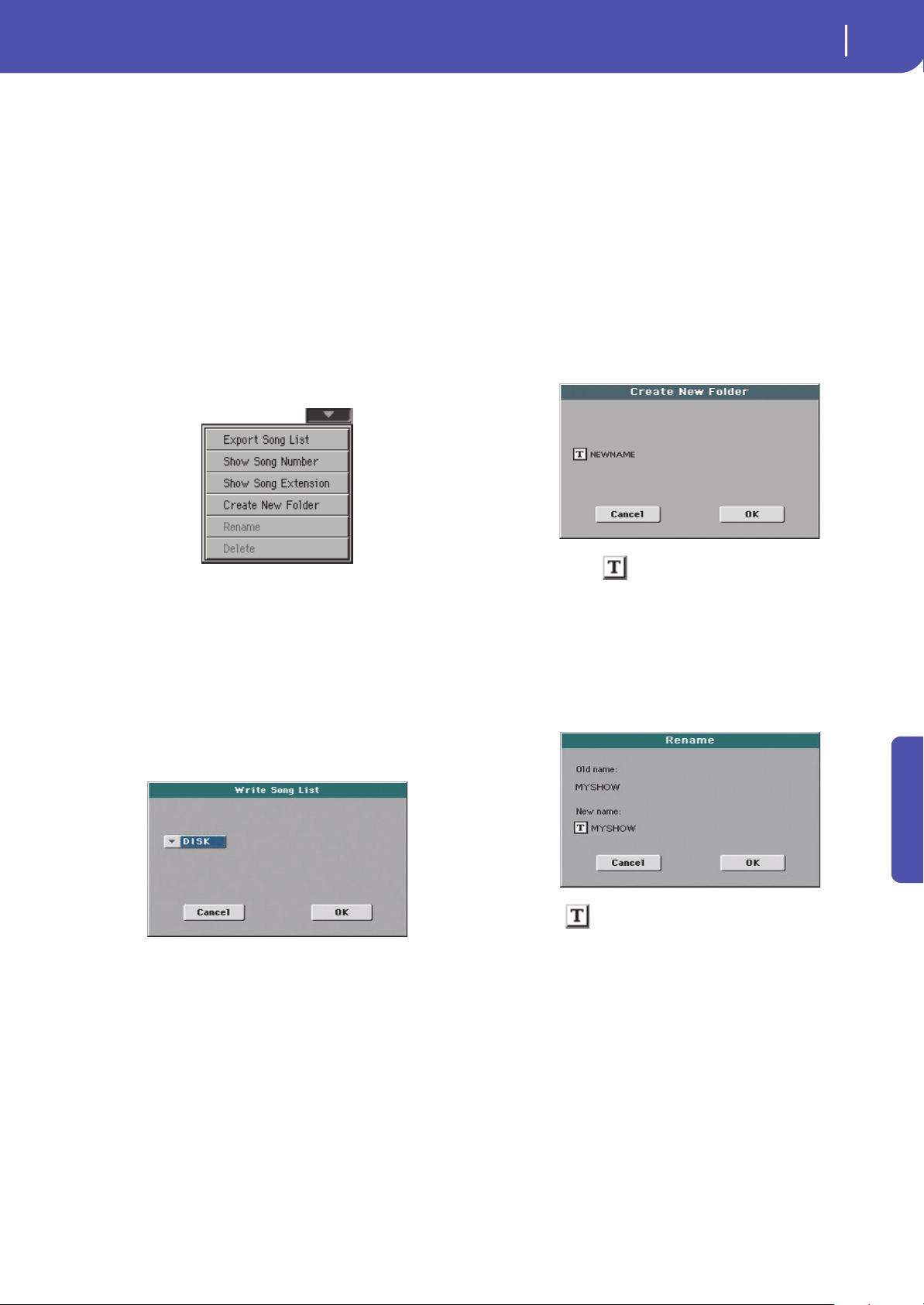
87
Selecting elements
Song Select window
Reference
While in the Song Select window, press the SONG button in the
SELECTION section to open the keypad, and enter the number
corresponding to the Song to be selected.
While in any page of the Song Play mode, press the SONG but-
ton in the SELECTION section twice to open the keypad.
Note: If no Song corresponds to the dialed number, the “Song not
available” message will appear.
Note: While the directory may contain more than 9999 files, you
can’t select Songs outside the 0001-9999 range when using the
numeric keypad.
Song Select page menu
Touch the page menu icon to open the menu. Touch a command
to select it. Touch anywhere in the display to close the menu
without selecting a command.
Export Song List
Select this command to save the current list as a text file. This
way, you will be able to print a list of Songs, to see which number
matches each Song.
1. While in the Song Select window, select the folder whose
Song list you wish to save as a text file.
2. Select the Export Song List command from the page menu.
3. A dialog box will appear, asking you to select one of the
available storage devices.
4. Select one of the options, and touch OK to confirm.
Note: The text file will contain a list of “*.mid”, “*.kar”, “.mp3”
and “*.jbx” files only. Folders and other types of files will not be
included.
When saved, the text file will be named after the selected folder.
For example, a folder named “Dummy” will generate a
“Dummy.txt” file. If a file with the same name already exists in the
target, it will be overwritten without waiting for any confirmation.
A file containing the list of all valid files contained into the root of
the disk will generate a “Root.txt” file.
The list will include the progressive number assigned to each Song,
the file names, the total number of files in the list.
To correctly display and print the list on a personal computer, use a
fixed size (i.e., non-proportional) character in your text editor.
Show Song Number
Check this option to make the Song’s progressive ID number
appear in the list, next to each Song.
Show Song Extension
Check this option to make the file extension (“*.mid”, “*.kar”,
“*.jbx”, “*.mp3”) appear in the list, at the end of each Song’s
name.
Create New Folder
This command will let you create a new generic folder in the
root of any device, or inside any other generic folder. You can’t
create a “.SET” folder with this command, since this type of
folder is reserved to the Save operations (and can be created with
the New SET button in any Save page).
By touching the (Text Edit) button you can open the Text
Edit window. Enter the name, then touch OK to confirm and
close the Text Edit window.
Rename
(Only available when an item is selected in a list) Use this func-
tion to change the name of an existing file or folder. You cannot
change the 3-character extension of files and “.SET” folders,
since they are used to identify the type of file or folder.
Touch the (Text Edit) button to open the Text Edit window.
Enter the new name, then touch OK to confirm and close the
Text Edit window.
Delete
(Only available when an item is selected in a list) Use this com-
mand to delete the selected file or folder.
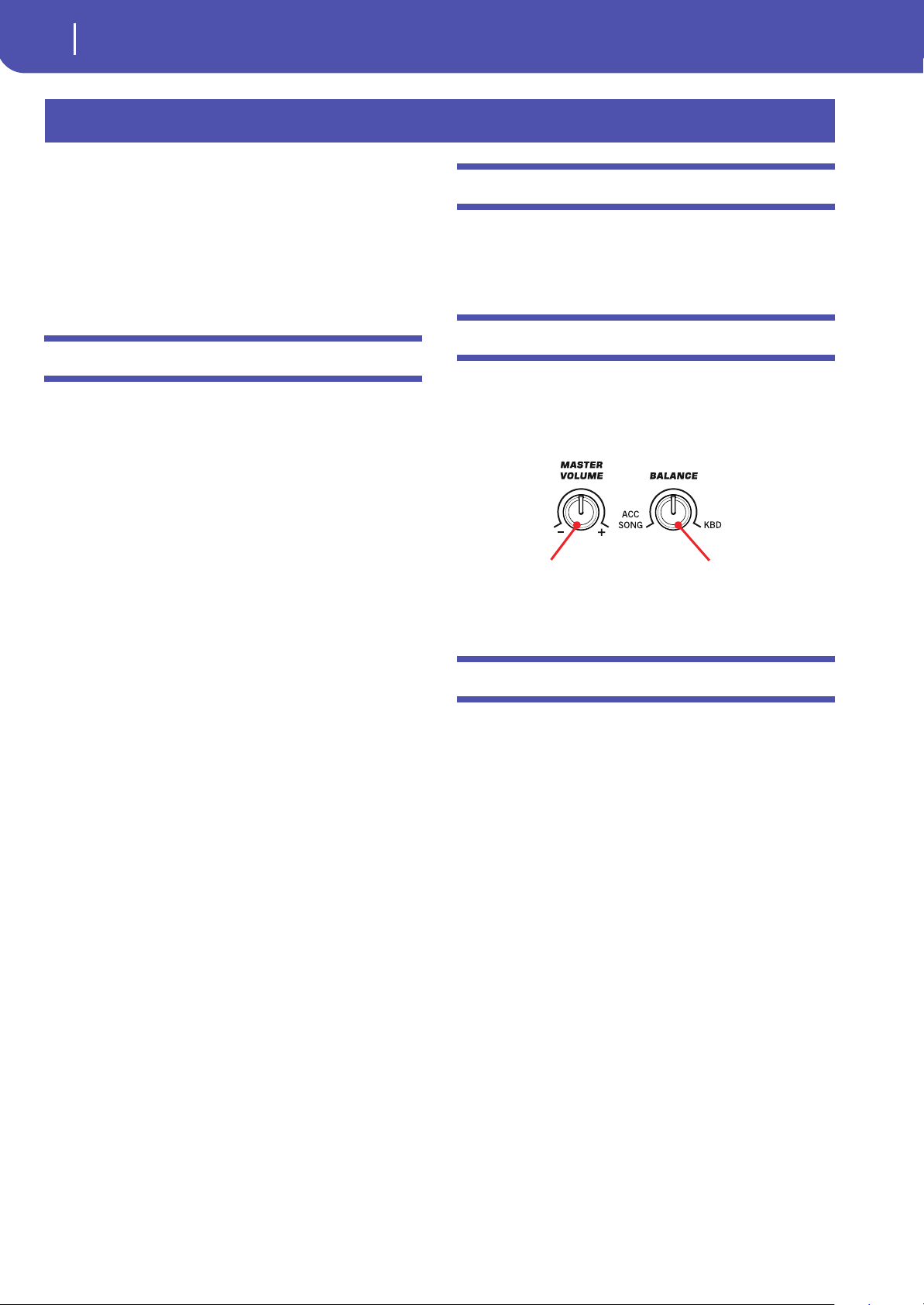
88
Style Play
Start-up settings
The Style Play mode is the boot-up operating mode. When in
this mode, you can play along with the Styles (i.e. automatic
accompaniments), using up to four tracks (Upper 1-3 and
Lower) to play on the keyboard. You can choose different
Sounds and Effects by selecting Performances and STSs. Four
Pads will provide single-shot sounds or repeating patterns in
sync with the Style. You can also use the SongBook to automati-
cally select Styles suited for a particular song.
Start-up settings
Since the “My Setting” Performance is automatically selected
when turning the instrument on, you can save your preferred
start-up settings to it.
Select the Sounds, Effects, and other settings you would like to
see automatically selected when turning the instrument on.
Then keep the MY SETTING button pressed for about one sec-
ond. When the Write Startup Settings window appears, confirm
by touching OK.
Note: If you like some settings to be preserved even when choosing
different Performances, STSs and Styles, turn on the desired
“locks” to avoid changes to the selected parameters (see “General
Controls: Lock” on page 149).
Styles and Pads
Each Style includes four Pads. Each time you select a Style, the
four Pads it contains are assigned to the four PAD buttons. The
Style and the Pads will play using the same Tempo value.
Master Volume and Balance
While the MASTER VOLUME knob controls the general vol-
ume of the instrument, you can use the BALANCE knob to bal-
ance the Style’s Accompaniment and Pad tracks against the
Keyboard tracks.
Factory, Favorite and User Styles
There are three different types of Style locations:
• Factory Style banks are the preloaded Styles, that you can’t
usually edit (unless you want to do so by turning off the
protection, see “Factory Style and Pad Protect” on
page 154).
• Favorite Style banks are Styles that can be loaded from an
external device. You can rename the tabs in the Style Select
window to create places for custom banks, or for additional
music genres that are not already included among the sup-
plied banks. See “The Favorite banks” on page 110 for
information on how to manage these Styles.
• User Style banks are, like the Favorite banks, Styles loaded
from an external device. These are banks conceived as a
‘workbench’ – a place where to manage Styles and banks
before saving them to a final location.
Style Play
Overall instrument’s
volume
Balance of Style and
Pad tracks against the
Keyboard tracks
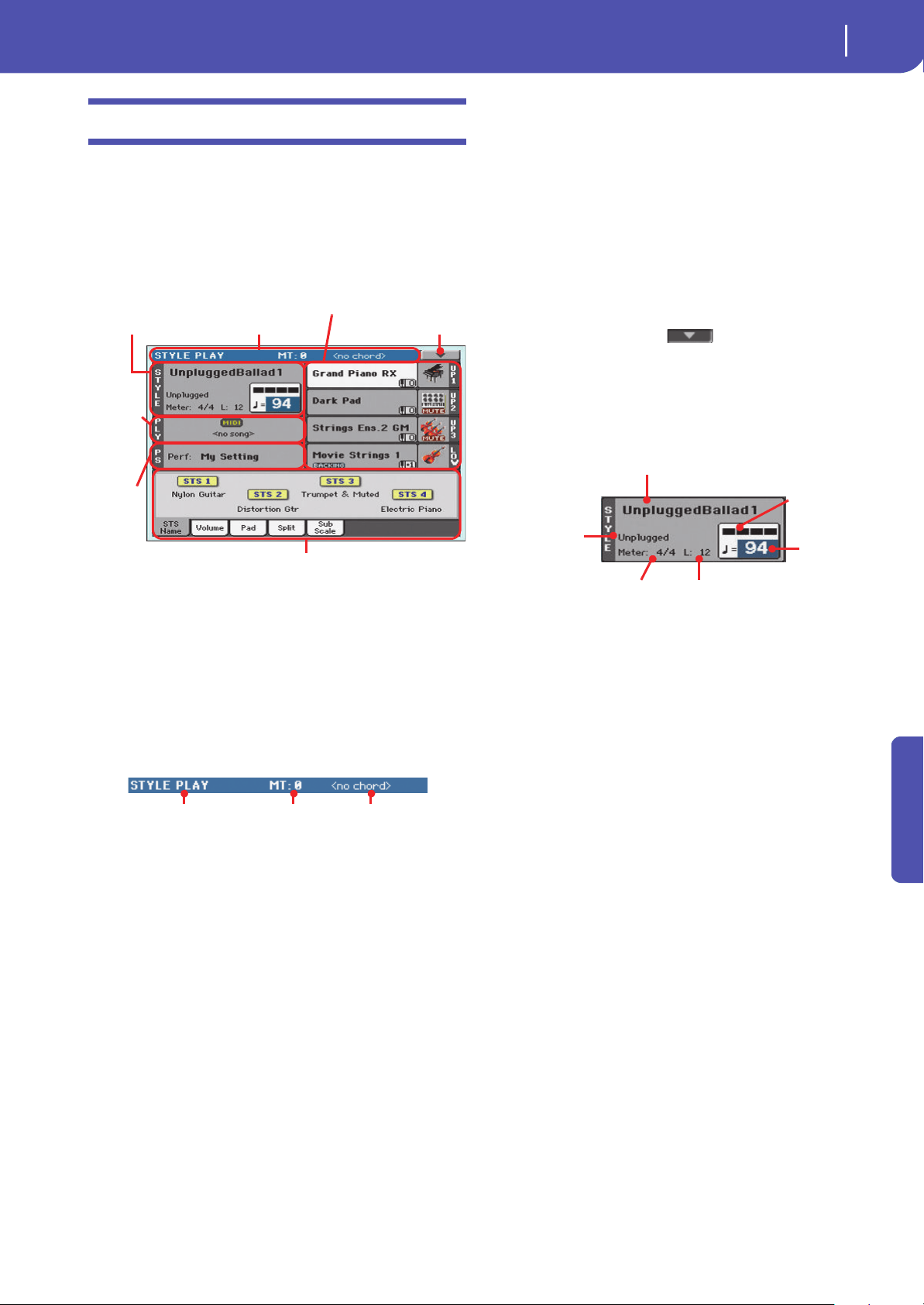
89
Style Play
Main page
Reference
Main page
This is the page you see when you turn the instrument on.
To access this page from another operating mode, press the
STYLE PLAY button.
To return to this page from one of the Style Play edit pages, press
the EXIT button.
Details on individual tracks can be seen by pressing the Vol-
ume tab. Use the TRACK SELECT button to switch between
Normal view (Keyboard tracks, grouped Style tracks) and
Style view (individual Style tracks). (See “Volume panel”
starting from page 91).
Page header
This line shows the current operating mode, transposition and
recognized chord.
Operating mode name
Name of the current operating mode.
Master transpose
Master transpose value in semitones. This value can be changed
by using the TRANSPOSE buttons on the control panel.
Note: Transpose may automatically change when selecting a differ-
ent Performance or Style. It may also change when loading a Stan-
dard MIDI File generated with an instrument of the Korg Pa-
Series.
To avoid transposition, the Master Transpose is “locked” by
default. If you want to unlock it, change the Master Transpose
Lock parameter’s status (see “General Controls: Lock” on
page 149).
Recognized chord
Displays the recognized chord, when you play a chord on the
keyboard. If no chord abbreviation is shown, check if the
ACCOMP LED is turned on.
You can choose how chords are recognized by using the “Chord
Recognition” parameter in the Global > Style page (see
page 152).
Page menu icon
Touch the page menu icon to open the menu. See “Page menu”
on page 108 for more information.
Style area
This is where the Style name is shown, together with its Tempo
and Meter (Time Signature) parameters.
Style name
Currently selected Style. Touch the Style name (or press the
STYLE button in the SELECTION section) to open the Style
Select window.
Style bank
Bank the current Style belongs to.
Style Element meter
Meter (time signature) of the current Style Element.
Measure length/number
While the Style is playing, an ‘M’ appears, to show the current
measure number of the current Style Element playing. While it is
in stop, an ‘L’ appears, to show the length (total number of mea-
sures) of the current Style Element.
Current beat
Beat number currently playing.
Current Tempo
Metronome Tempo (from 30 to 250). Use the TEMPO buttons to
change the Tempo value.
As an alternative, keep the SHIFT button pressed and use the
VALUE DIAL to change the Tempo. Also, you can touch the
Tempo field and drag it with your finger, or change it with the
VALU E D IA L .
To recall the Tempo stored in the current Style, press the
TEMPO buttons together.
Style area Page header Page menu icon
Song
area
Perfor-
mance/
STS area
Keyboard
tracks area
Panels
Operating mode Master Transpose (in
semitones)
Recognized chord
Style name
Style Element meter
Style bank
Measure length/number
Current
Tempo
Current beat
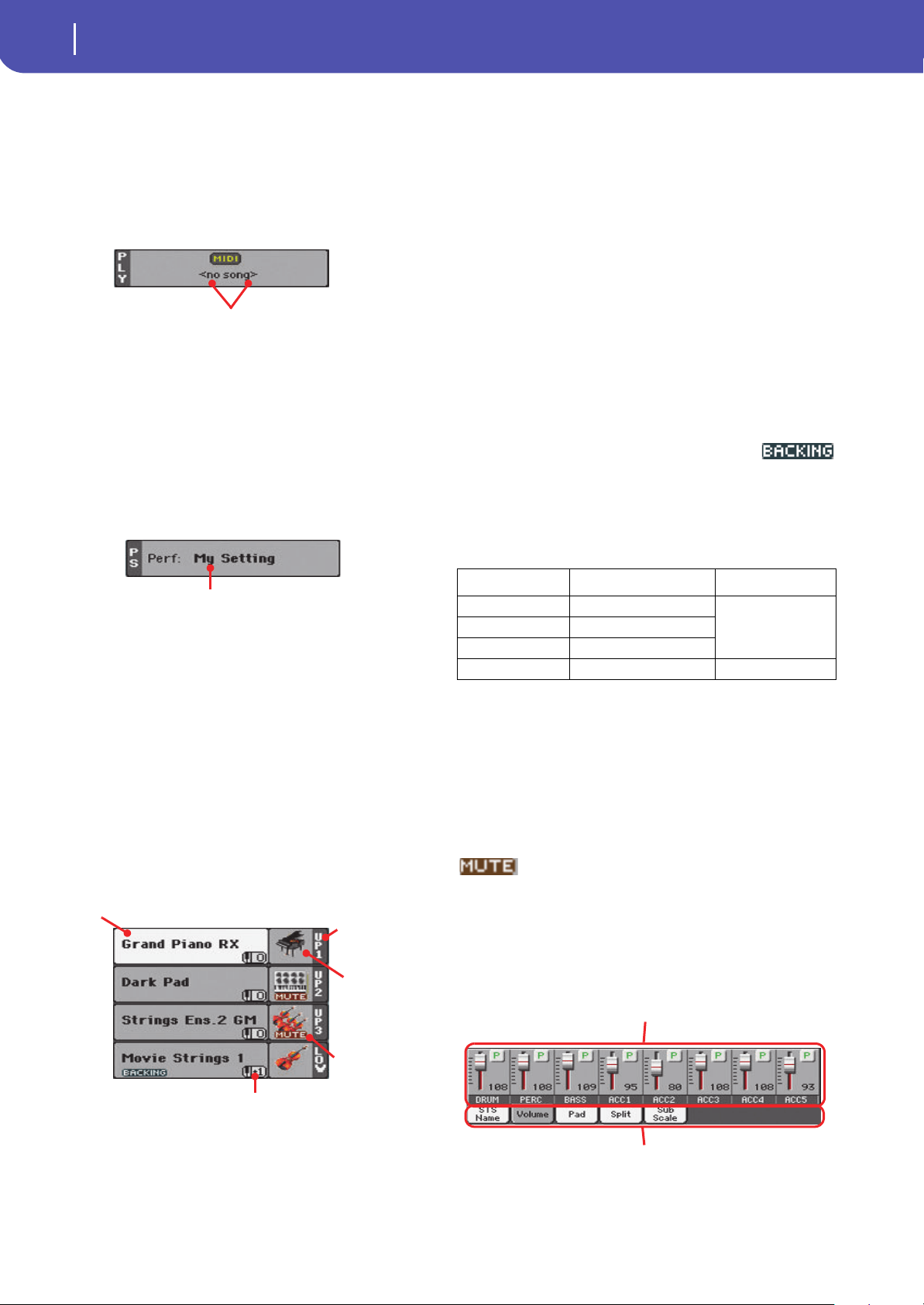
90
Style Play
Main page
You c a n pre v e nt Te mp o f rom ch a n g ing b y tur ni n g t h e TEMPO
LOCK LED on.
Note: Since Style Elements may contain Tempo Change data,
Tempo may change while a Style Element is playing.
Songs area
This is where the Song assigned to the onboard Player is shown.
Song name
Name of the Song assigned to the Player. You can select Songs
while playing Styles, to have them ready when switching to Song
Play mode.
Performance/STS area
This is where the latest selected Performance or STS name is
shown.
Selected Performance or STS
This is the latest selected Performance (Perf) or Single Touch
Setting (STS#).
Touch the name to open the Performance Select window (see
“Performance Select window” on page 84). As an alternative, use
the PERFORMANCE section to select a different Performance.
To select a different STS, use the four STS buttons under the dis-
play, or the STS panel in the display.
Keyboard tracks area
This is where Keyboard tracks are shown.
Sound name
Name of the Sound assigned to the corresponding Keyboard
track.
• If the track is already selected (white background), touch the
Sound name to open the Sound Select window.
• If the track is not selected (dark background), first select it,
then touch the Sound name to open the Sound Select window.
You can also open the Sound Select window by pressing the
SOUND button in the SELECTION section on the control panel.
For more information about the Sound Select window, see
“Sound Select window” on page 83.
Keyboard track octave transpose
Non editable. Octave transpose of the corresponding track. To
individually edit the octave transpose for each track, go to the
“Mixer/Tuning: Tuning” edit page (see page 98).
You can also transpose all Upper tracks by using the UPPER
OCTAVE buttons on the control panel.
Bass & Lower Backing icon
When the Bass & Lower Backing function is
active, the Backing icon appears in the Lower
track Sound area (see “Bass & Lower Backing” on page 153).
Keyboard track name
Non editable. Name of the corresponding track:
Sound bank’s icon
This picture illustrates the bank the current Sound belongs to.
Keyboard track status
Play/mute status of the current track. Select the track, then touch
this area to change the track status.
No icon Play status. The track can be heard.
Mute status. The track cannot be heard.
Panels
The lower half of the main page contains the various panels, you
can select by touching the corresponding tabs. See more infor-
mation in the relevant sections, starting from page 91.
Song name
Selected Performance
or STS
Sound
name
Track name
Track’s octave transpose
Sound bank’s
icon
Track status
Abbreviation Track Hand
UP1 Upper 1 Right hand (or both
when in Full Key-
board mode)
UP2 Upper 2
UP3 Upper 3
LOW Lower Left hand
Volume panel
Tabs
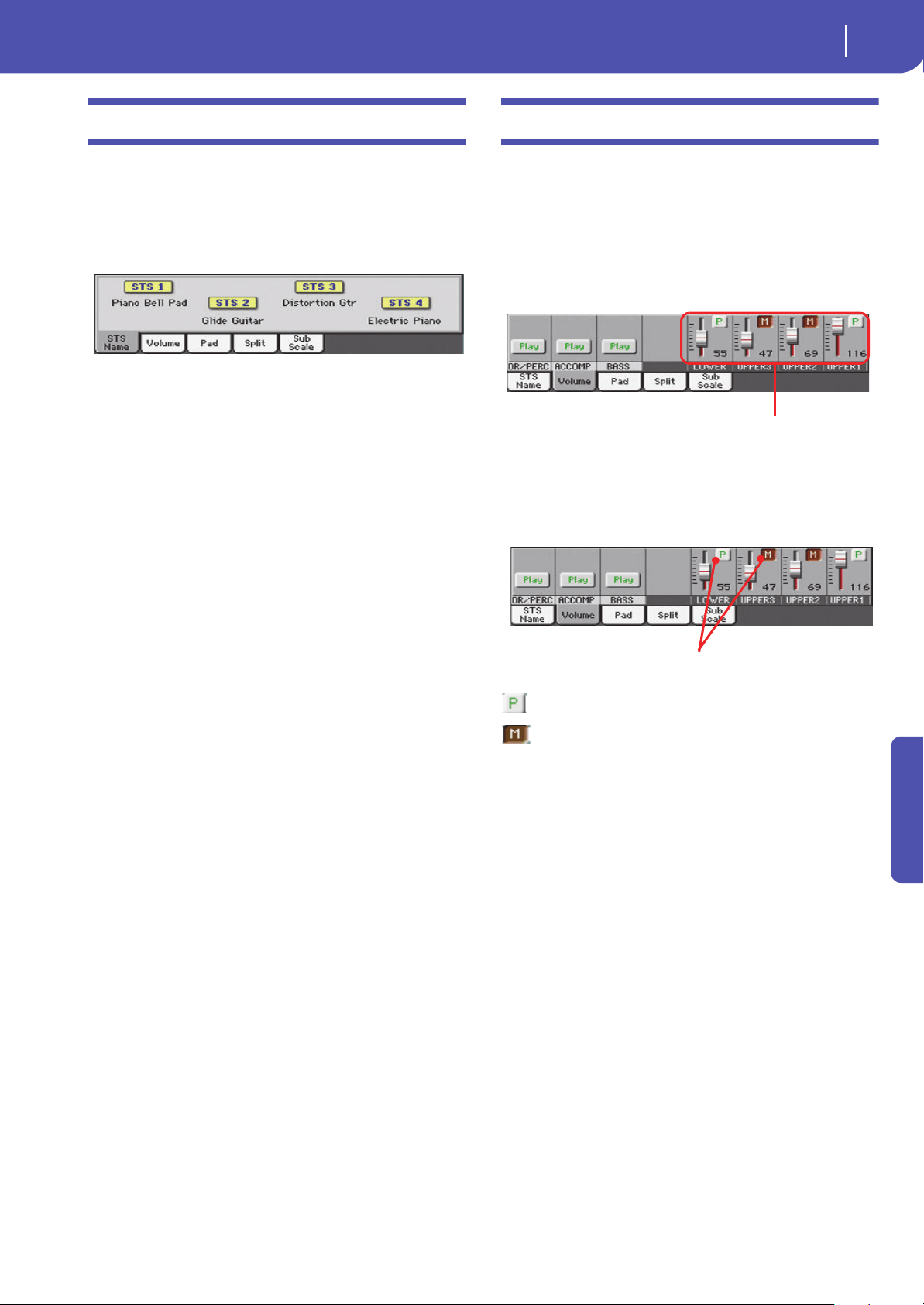
91
Style Play
STS Name panel
Reference
STS Name panel
Touch the STS Name tab to select this panel. Single Touch Set-
tings (STS) are memory locations intended for quickly choosing
Keyboard Sounds, contained in each Style or SongBook Entry.
While in this panel, you can see the name of the four STSs
belonging to the latest selected Style or SongBook Entry. Touch
one of the names to select the corresponding STS.
Note: You cannot edit the STS names in this panel. To edit a name,
select the STS to be renamed, then select the Write Single Touch
Setting command from the page menu (see “Write Single Touch
Setting dialog box” on page 109).
Volume panel
Touch the Volume tab to select this panel. This is where you can
set the volume of each track, and mute/unmute them.
Changing the tracks’ volume
You can change the volume of each track by dragging the sliders
in the display. You can also change the volume by touching a
track’s slider, then using the VALUE DIAL.
Changing the Play/Mute status
Play/mute status of the current track. Select the track, then touch
this area to change its status.
Play status. The track can be heard.
Mute status. The track cannot be heard.
Saving the track’s volume and play/mute
status
Each set of tracks can be saved into a different memory. This
allows for a great flexibility when mixing Keyboard and Accom-
paniment tracks through the use of Performances, STSs and
Styles.
• The volume and play/mute status of the Keyboard tracks can
be saved to a Performance or STS (see “Write Performance” on
page 108 and “Write Single Touch Setting” on page 108).
• The volume and play/mute status of the separate Style tracks
can be saved to the current Style Settings (see “Write Current
Style Settings” on page 108).
• The offset volume of the grouped Style tracks is automatically
saved to the Global.
Sliders
Track status icons
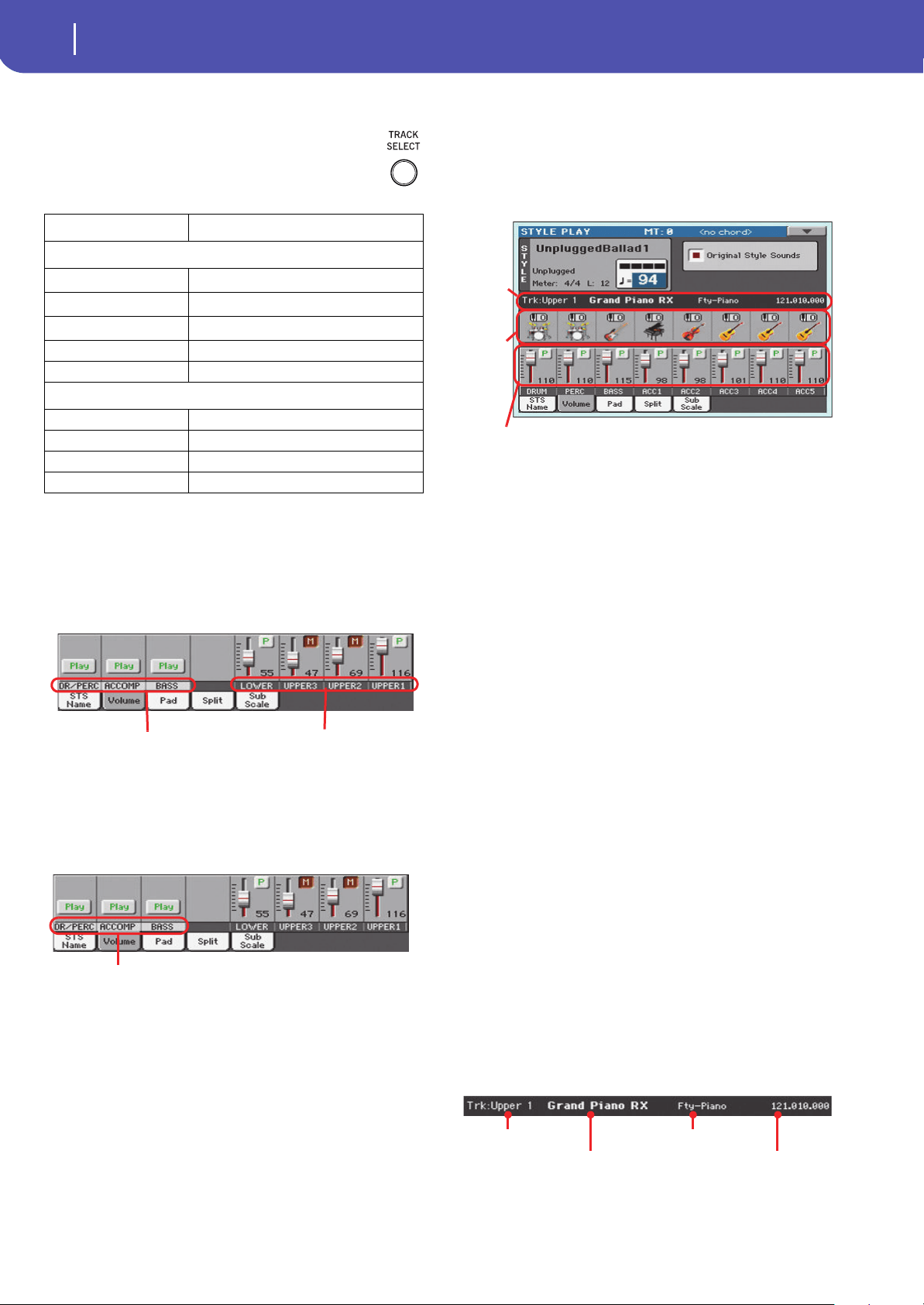
92
Style Play
Volume panel
Track names
Under the sliders, a label for each track is shown. Use
the TRACK SELECT button to switch between the
Normal (grouped Style tracks, Keyboard tracks) and
the Style Tracks view (separate Style tracks).
Normal view
In Normal view you can see the grouped Style tracks (Play/Mute
only), and the separate controls for the Keyboard tracks:
Grouped Style tracks
In the Normal view, Style tracks are grouped together (Dr/Perc,
Accomp, Bass groups), to allow for instant play/mute of several
tracks at the same time.
Changing the volume of the grouped Style tracks can be done (as
a general control) in the Global mode > Mode Preferences >
Style page (see “Style Tracks Global Volume” on page 153).
Keyboard tracks
Here you can separately control the volume and play/mute status
of each Keyboard track.
Style Tracks view
Press the TRACK SELECT button to switch from the Normal
view to the Style Tracks view. In this view, individual Style tracks
are shown in the lower half of the display, while the upper half of
the main page changes to show parameters for the selected Style
track.
Press TRACK SELECT again to return to the Normal view (Key-
board tracks, grouped Style tracks, Mic/In controls).
Style tracks Volume
Here you can change the volume and play/mute status of each
one of the individual Style tracks.
Original Style Sounds
This parameter lets you decide if the Style has to play the Sounds
saved in the Performance or Style Settings, or the ones saved in
each Style Element.
Note: When assigning a Sound to a Style track, the “Original Style
Sounds” parameter is automatically turned off to allow its use.
Note: This parameter can be saved with the Performance or Style
Settings.
On Style tracks always use the original Sounds
recorded inside each Style Element. If you assign
a different Sound to a Style track, this parameter
is automatically set to Off.
Off You can assign different Sounds to each Style
track, and save them in a Performance or Style
Settings. The selected Sounds remain the same
for all Style Elements. These Sounds can be saved
into a Performance or Style Settings with the
“Write Performance” or “Write Current Style Set-
tings” commands (see page 108). Assigned
Sounds are shown in the Sounds area of this page.
Selected Track Info area
This line lets you see the Sound assigned to the selected track. It
appears both in the main page, and in several edit pages.
Track Description
Normal View
DR/PERC
(*)
(*).Volume for these grouped tracks is a global offset, that can be adjusted in
the Global > Mode Preferences > Style page.
Grouped Drum and Percussion tracks.
ACCOMP
(*)
Grouped Accompaniment tracks (Acc1-5).
BASS
(*)
Grouped Bass Style track.
LOWER Lower track.
UPPER1…3 Upper tracks.
Style Tracks View
DRUM Drum Style track.
PERC Percussion Style track.
BASS Bass Style track.
ACC1…5 Accompaniment Style tracks.
Grouped Style tracks
Keyboard tracks
Grouped Style Tracks
Selected
track
info area
Sounds
area
Style tracks Volume
Track name
Sound name
Sound bank
Program Change sequence
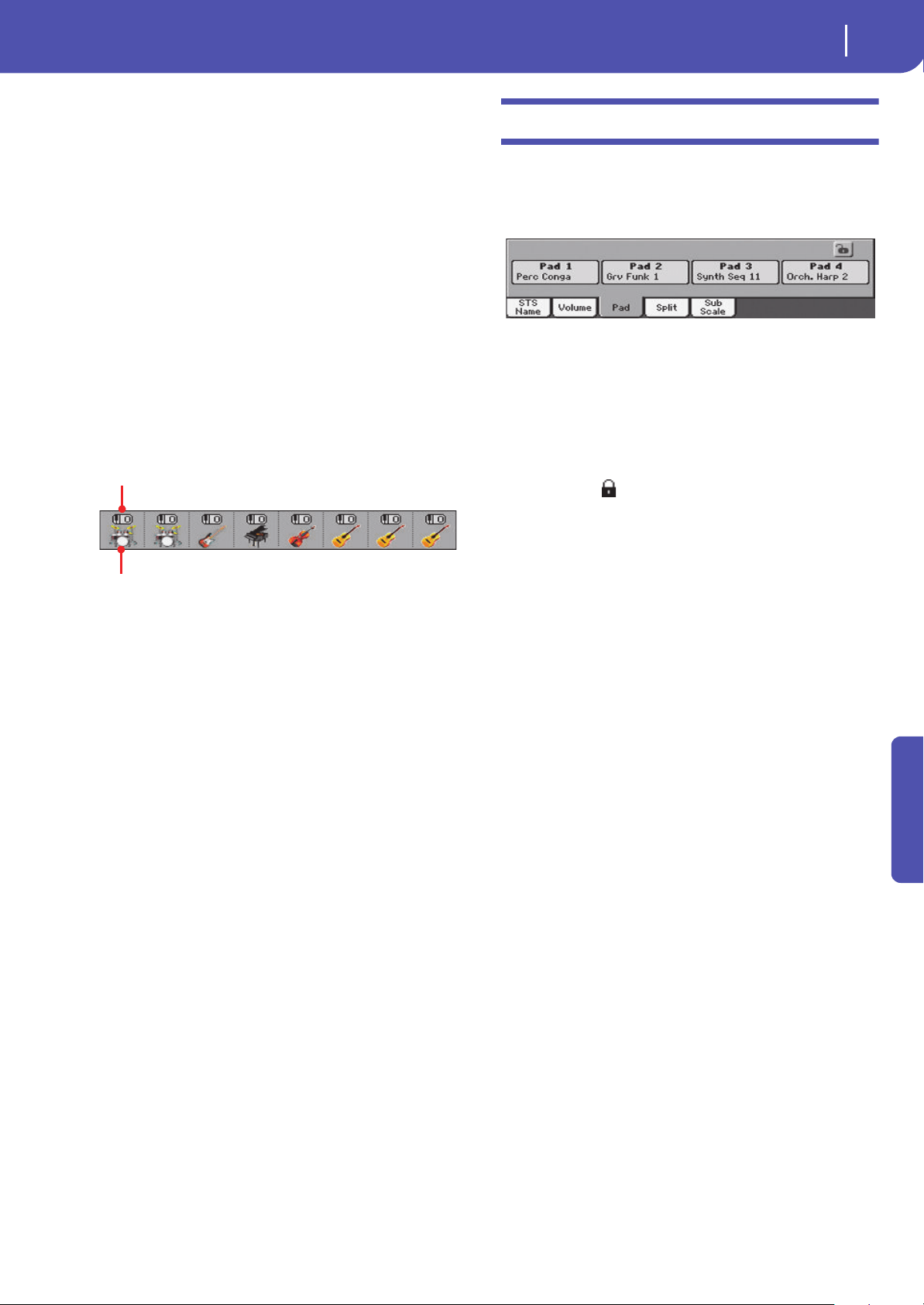
93
Style Play
Pad panel
Reference
Track name
Name of the selected track.
Sound name
Sound assigned to the selected track. Touch anywhere in this
area to open the Sound Select window, and select a different
Sound.
Sound bank
Bank of the selected Sound.
Program Change
Program Change number sequence (Bank Select MSB, Bank
Select LSB, Program Change).
Sounds area
This area lets you see the Sound bank’s icon and octave transpo-
sition for the eight Style tracks.
Style track’s octave transpose icon
Non editable. Octave transpose of the corresponding track. To
change the octave transpose, use the UPPER OCTAVE buttons,
or go to the “Mixer/Tuning: Tuning” edit page (see page 98).
Sound bank’s icon
This picture illustrates the bank the current Sound belongs to.
Touch an icon a first time to select the corresponding track
(detailed information are shown on the Selected Track Info area,
see above). Touch it a second time to open the Sound Select win-
dow.
Pad panel
Touch the Pad tab to select this panel. This is where you can
assign a different Hit or Sequence Pad to each of the four pads,
and see at a glance how pads are programmed. For more options,
go to the “Pads: Pad” page (see page 106).
Pad assignment
Name of the Hit or Sequence assigned to each Pad. Touch the
box to make the Pad Select window appear (see “Pad Select win-
dow” on page 85).
When the lock is open, Pads could automatically change when
choosing a Style or SongBook Entry.
Pads lock icon ( )
Close this lock to prevent Pads from changing when choosing a
different Style or SongBook Entry.
Style track’s octave transpose icon
Sound bank’s icon
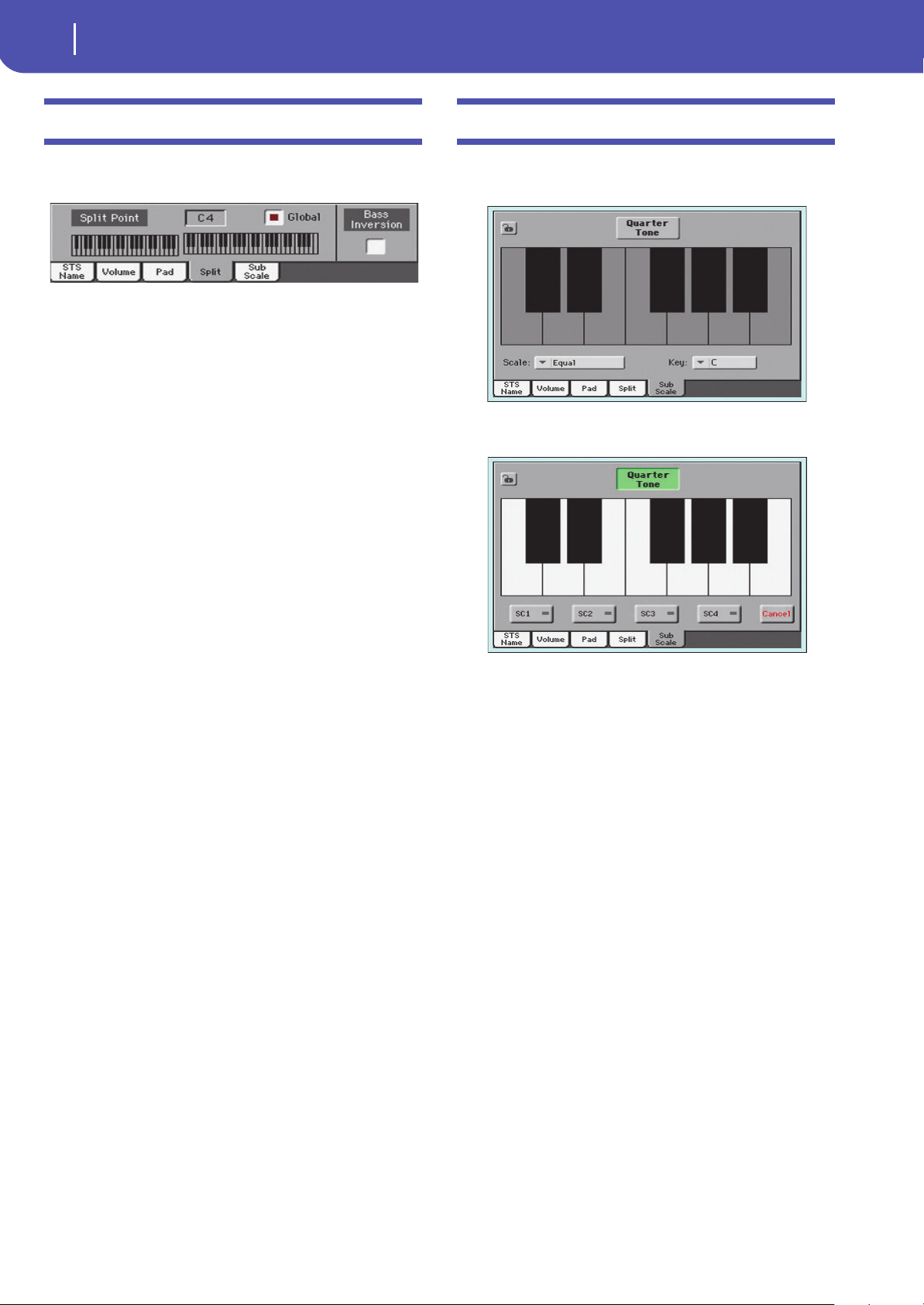
94
Style Play
Split panel
Split panel
Touch the Split tab to select this panel. This is where you can set
the split point and activate the Bass Inversion.
Split Point
Use this parameter to select a different split point. A full-range
piano keyboard is shown in the display, divided at the selected
split point. Upper tracks play on the right of this point, while the
Lower track plays on the left.
Keyboard diagram
Touch anywhere on the keyboard diagram. A message will
appear, asking you to press the new split point on the keyboard
of your Pa300 (or to press the EXIT button to close the message
with no changes).
Global
There is a global split point, and a “local” one, that can be mem-
orized into the Performances and STSs.
On You are editing the global split point. The global
split point is considered when selecting a Perfor-
mance or STS that does not contain a “local” split
point.
Off You are editing the “local” split point memorized
in the current Performance or STS.
Bass Inversion
Use this parameter to turn the Bass Inversion function on or off.
On The lowest note of a chord played in inverted
form will always be detected as the root note of
the chord. Thus, you can specify to the arranger
composite chords such as “Am7/G” or “F/C”.
Off The lowest note is scanned together with the
other chord notes, and is not always considered
as the root note.
Sub-Scale panel
Touch the Sub-Scale tab to select this panel. This panel replicates
the “Mixer/Tuning: Sub Scale” edit page (see page 98). .
With the “Quarter Tone” button not pressed
With the “Quarter Tone” button pressed
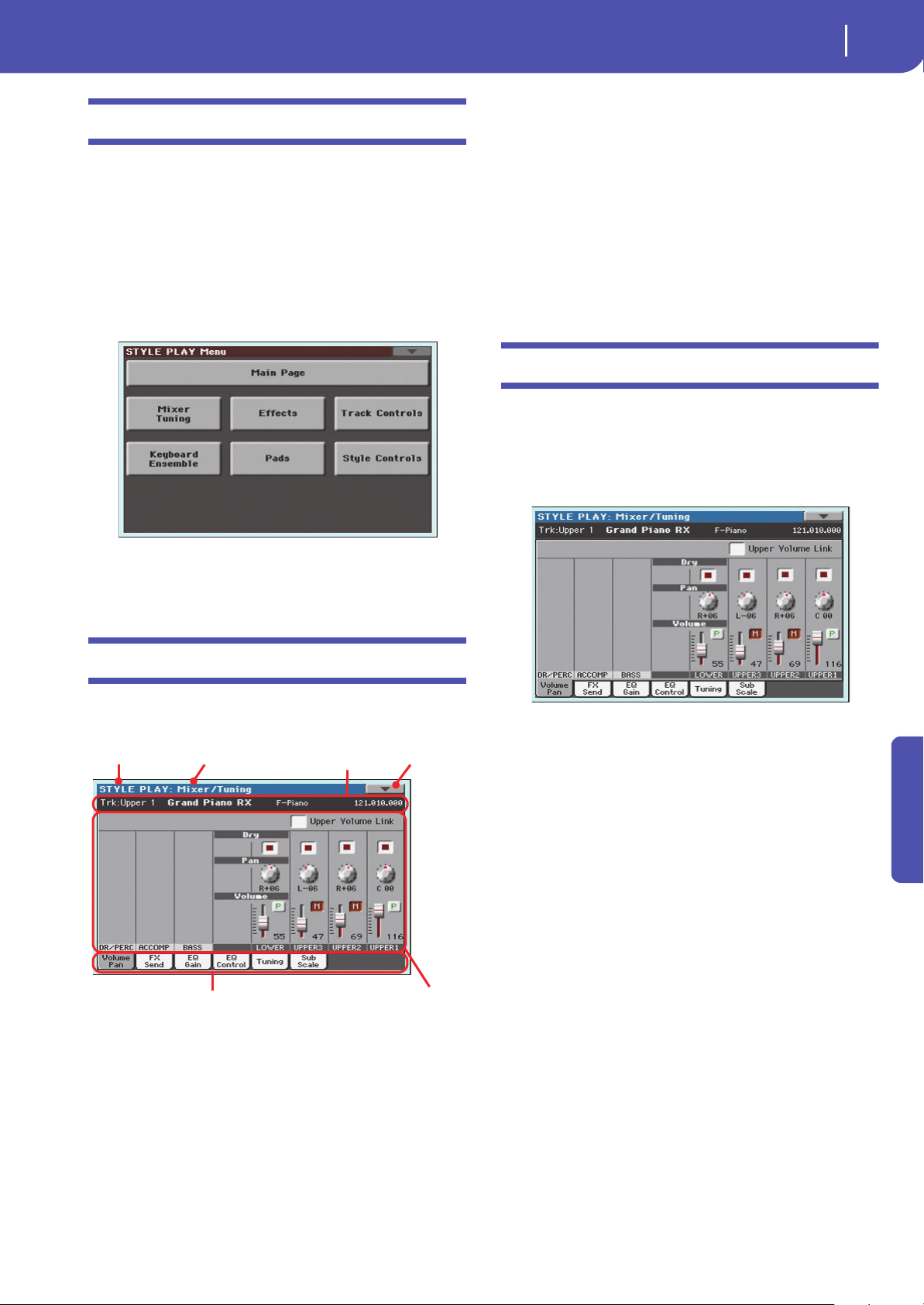
95
Style Play
Edit menu
Reference
Edit menu
From any page, press the MENU button to open the Style Play
edit menu. This menu gives access to the various Style Play edit
sections.
When in the menu, select an edit section, or press EXIT or
STYLE PLAY to exit the menu and return to the main page. To
return to the main page, you can also select the Main Page menu
item.
When in an edit page, press EXIT or the STYLE PLAY button to
return to the main page of the Style Play operating mode.
Each item in this menu corresponds to an edit section. Each edit
section groups various edit pages, that may be selected by touch-
ing the corresponding tab on the lower part of the display.
Edit page structure
All edit pages share some basic elements.
Operating mode
This indicates that the instrument is in Style Play mode.
Edit section
This identifies the current edit section, corresponding to one of
the items of the edit menu (see “Edit menu” on page 95).
Page menu icon
Touch this icon to open the page menu (see “Page menu” on
page 108).
Parameters area
Each page contains various parameters. Use the tabs to select
one of the available pages. For detailed information on the vari-
ous types of parameters, see sections starting below.
Tabs
Use tabs to select one of the edit pages of the current edit section.
Mixer/Tuning: Volume/Pan
This page lets you set the volume and pan for each of the Key-
board or Style tracks. Volume settings are the same as in the Vol-
ume panel of the main page.
Use the TRACK SELECT button to switch from the Keyboard to
the Style tracks, and vice versa.
Upper Volume Link
With this parameter, you define if changing the volume of one of
the Upper tracks proportionally changes the volume of the other
Upper tracks.
On When changing the volume of one of the Upper
tracks, volume for the other Upper tracks changes
proportionally.
Off When changing the volume of one of the Upper
tracks, only that track’s volume is changed. The
other Upper tracks are left unchanged.
Operating mode Edit section
Selected
track info
Page menu
icon
Parameters
area
Tabs
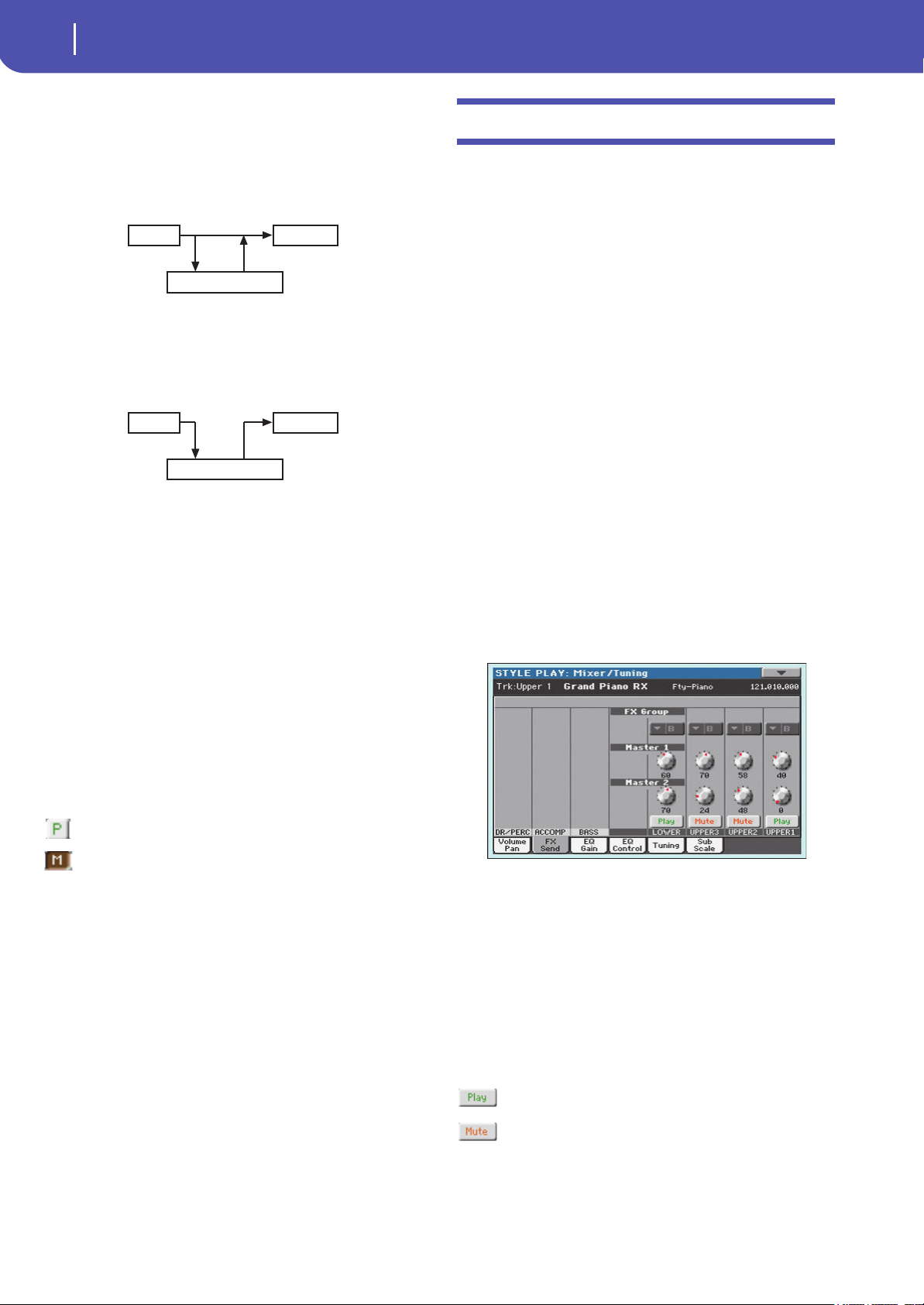
96
Style Play
Mixer/Tuning: FX Send
Dry
Use this checkbox to turn the dry (direct) track signal on or off
from the outputs.
On When checked, the direct signal coming from the
track is sent to the output, mixed with the Master
FXs.
Off When unchecked, the direct signal coming from
the track is removed from the audio output, and
only sent to the Master FXs. The effected signal
will still be panned (in stereo FXs only) according
to the Pan value.
Pan
Track position in the stereo field.
L-64…L-1 Left stereo channel.
C 00 Center.
R+1…R+63 Right stereo channel.
Volume
Track’s volume. This is the volume of each track, as saved in the
Style (Style Settings), Performance or STS. It may change when
choosing a different Style, Performance or STS.
0…127 MIDI value of the track’s volume.
Play/Mute icon
Track’s play/mute status.
Play status. The track can be heard.
Mute status. The track cannot be heard.
Mixer/Tuning: FX Send
Pa300 includes two groups of effects (FX A and FX B). While in
Style Play mode, the A group is reserved to the Style and Pad
tracks, the B group to the Keyboard tracks.
Choosing and editing the effects is done in the dedicated Effect
section (see “Effects: A/B FX Configuration” on page 100).
This page lets you set the level of the track’s signal going to the
Master FX processors. The Master FX processors are connected
in parallel with the dry/direct signal, so you can decide the
amount of direct signal that will be sent to the Master FX proces-
sors.
In case you do not want to hear the direct signal, just set the Dry
parameter to Off (see “Dry” above).
You can assign to the Master FXs any kind of available effects,
but we found it convenient to arrange them in the following way,
for most of the Styles, STS and Performances included with the
Pa300:
A-Master 1 Reverb processor for the Style and Pad tracks.
A-Master 2 Modulating FX processor for the Style and Pad
tracks.
B-Master 1 Reverb processor for the Keyboard tracks.
B-Master 2 Modulating FX processor for the Keyboard
tracks.
Use the TRACK SELECT button to switch from Keyboard to
Style tracks, and vice-versa.
FX Group
This indicates the FX group (A or B) assigned to the group of
tracks shown.
Send level (Master 1, Master 2)
0…127 Level of the track (direct) signal sent to the corre-
sponding Master FX effect processor.
Play/Mute icon
Track’s play/mute status.
Play status. The track can be heard.
Mute status. The track cannot be heard.
Track L/R Out
Master FX
Track L/R Out
Master FX
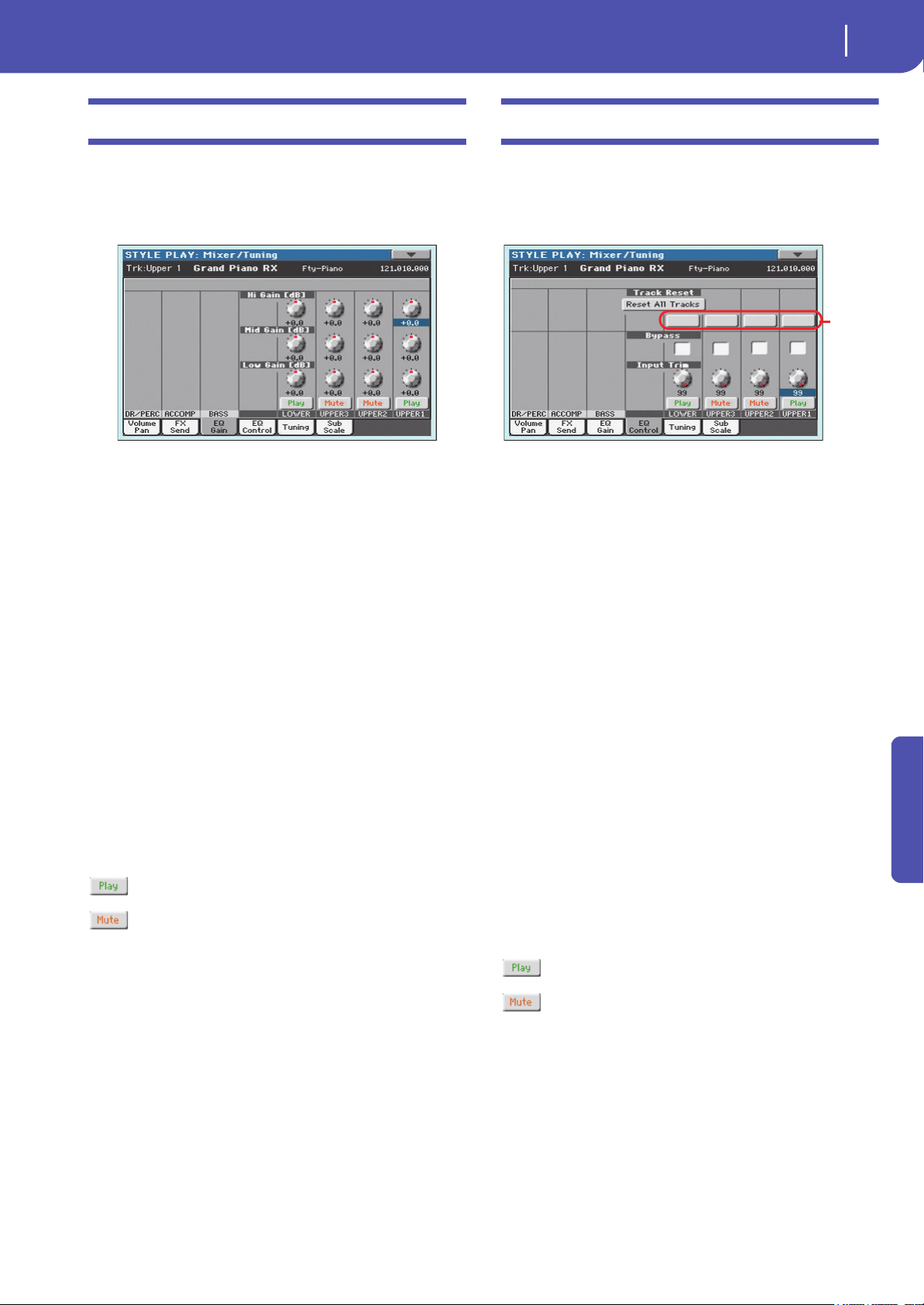
97
Style Play
Mixer/Tuning: EQ Gain
Reference
Mixer/Tuning: EQ Gain
In this page you can set the three-band equalization (EQ) for
each individual track.
Use the TRACK SELECT button to switch from the Keyboard to
the Style tracks, and vice-versa.
Hi (High) Gain
This parameter lets you adjust the high frequencies equalization
on each individual track. This is a shelving curve filter. Values
are shown in decibels (dB).
-18…+18dB High gain value in decibels.
Mid (Middle) Gain
This parameter lets you adjust the middle frequencies equaliza-
tion on each individual track. This is a bell curve filter. Values
are shown in decibels (dB).
-18…+18dB Middle gain value in decibels.
Low Gain
This parameter lets you adjust the low frequencies equalization
on each individual track. This is a shelving curve filter. Values
are shown in decibels (dB).
-18…+18dB Low gain value in decibels.
Play/Mute icon
Track’s play/mute status.
Play status. The track can be heard.
Mute status. The track cannot be heard.
Mixer/Tuning: EQ Control
This page lets you reset or bypass the track’s equalization, pro-
grammed in the previous page.
Use the TRACK SELECT button to switch from the Keyboard to
the Style tracks, and vice-versa.
Reset All Tracks button
Touch this button to reset (i.e., “flatten”) equalization for all
tracks (both Keyboard and Style tracks).
Track Reset buttons
Use these buttons to reset (i.e., “flatten”) equalization for the cor-
responding track.
Bypass
Check any of these checkboxes to bypass the equalization for the
corresponding track. When bypassed, equalization has no effect on
the track, but all parameters are preserved. When the box is
unchecked, equalization is activated again.
On The bypass function is engaged, so no equaliza-
tion is active on the corresponding track.
Off The bypass function is not engaged, so the equal-
ization is active on the corresponding track.
Input Trim
This knob allows you to limit the level of the signal passing
through the equalizer. Extreme equalization values can overload
the audio circuits and lead to distortion. This control lets you set
equalization as desired, and at the same time avoid overloading.
0…99 Limiting value. The higher, the most effective it is.
Play/Mute icon
Track’s play/mute status.
Play status. The track can be heard.
Mute status. The track cannot be heard.
Track
Reset
buttons
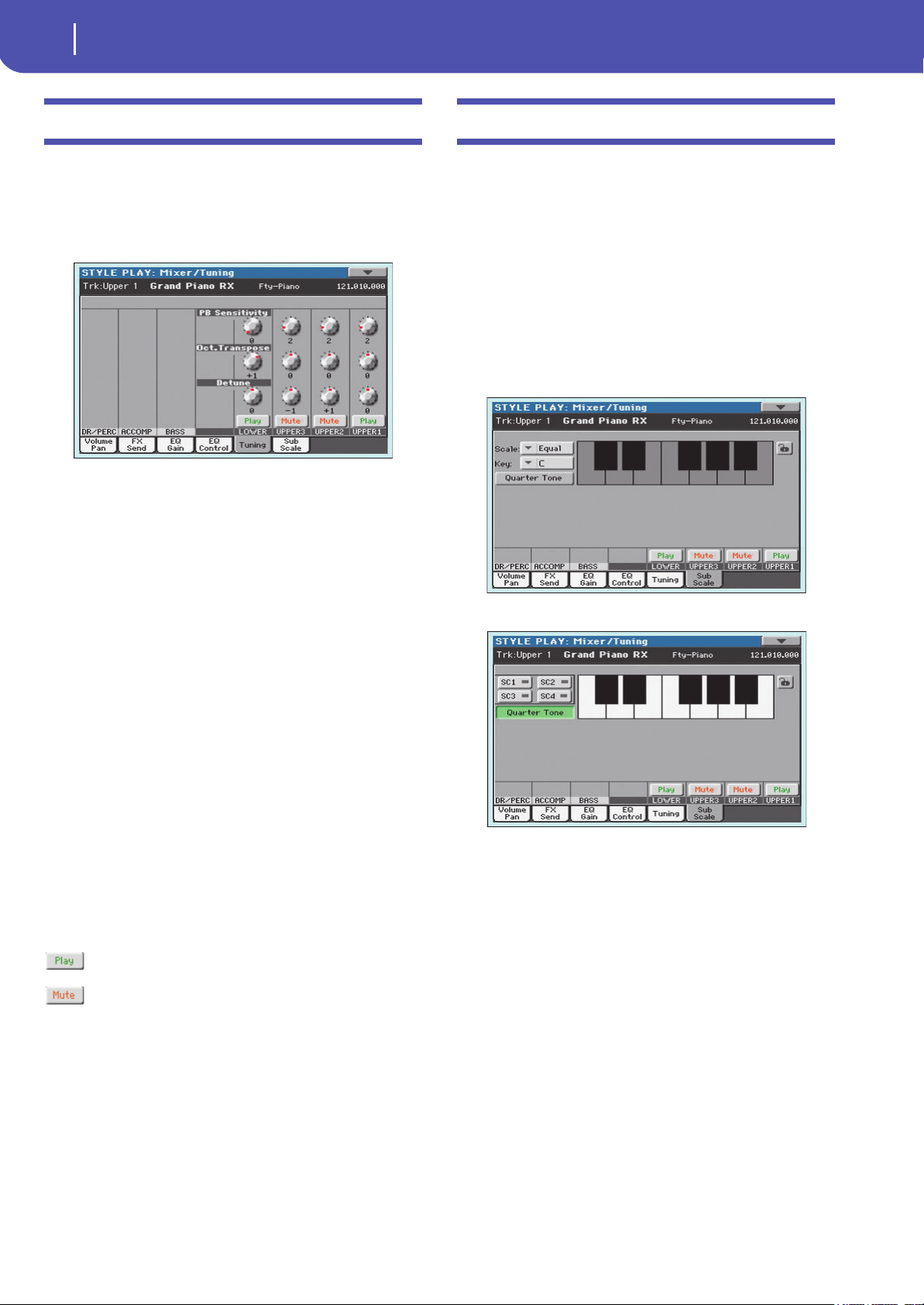
98
Style Play
Mixer/Tuning: Tuning
Mixer/Tuning: Tuning
This page is where you can set the octave transpose and fine tun-
ing for each track. Plus, you can program the Pitch Bend range
for each track.
Use the TRACK SELECT button to switch from the Keyboard to
the Style tracks, and vice-versa.
PB Sensitivity
These parameters show the Pitch Bend range for each track, in
semitones.
1…12 Maximum up/down pitch bend range (in semi-
tones). 12 = ±1 octave.
0 No pitch bend allowed.
Oct(ave) Transpose
This is the octave transpose value.
-3 Lowest octave.
0 Standard tuning.
+3 Highest octave.
Detune
This is the fine tuning value.
-64 Lowest pitch.
00 Standard tuning.
+63 Highest pitch.
Play/Mute icon
Track’s play/mute status.
Play status. The track can be heard.
Mute status. The track cannot be heard.
Mixer/Tuning: Sub Scale
You can assign a different scale (a sub-scale) to the Keyboard
tracks, the Upper tracks or all tracks. This will allow, for exam-
ple, to play a solo with a particular Quarter Tone tuning, while
the backing tracks play in the Equal tuning.
This page is where you can program the sub-scale for the
selected tracks; a different sub-scale can be associated to each
Performance or STS. Track selection is general, and can be done
with the “Scale Mode” parameter of the Global > Mode Prefer-
ences > Style page (see page 153).
The remaining tracks will use the basic scale set in the Global
> Tuning > Scale page (see “Main Scale” on page 157). This is
the “standard” scale of the instrument.
With the “Quarter Tone” button not pressed
With the “Quarter Tone” button pressed
Note: Quarter Tone selection can be received via USB as MIDI-
data (i.e., from an external sequencer or controller). Conversely,
selection of Quarter Tone settings can be sent by the Pa300 to an
external MIDI recorder as System Exclusive data.
Scale
Selected scale. See “Scales” on page 355 for a list of the available
scales. When selecting the User scale, the keyboard diagram
becomes active, letting you program a custom scale (see “How to
create a custom scale by fine-tuning each note of the User scale”
below).
Key
This parameter is needed by some scales to set the preferred
key (see “Scales” on page 355).
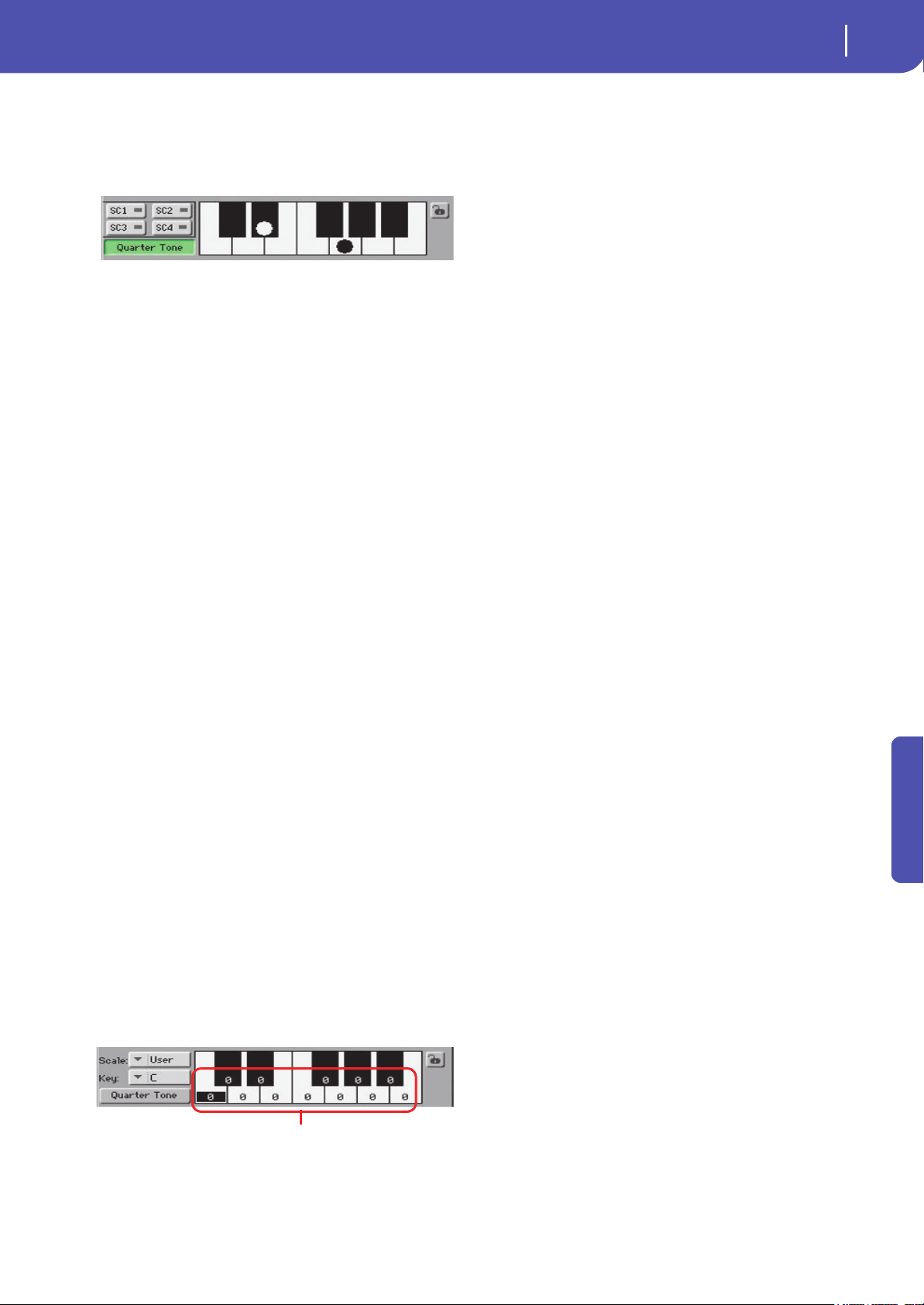
99
Style Play
Mixer/Tuning: Sub Scale
Reference
Quarter Tone
Press the Quarter Tone button in the display to make the key-
board diagram active In the display, touch any note you want to
lower a quarter tone, making a big dot appear on the note dia-
gram. Touch the note again to make the dot disappear.
Touch one of the four SC Preset buttons to recall the corre-
sponding preset, and touch any note you want to lower a quarter
tone down, making a big dot appear on the detuned note in the
diagram. Touch the note again to make the dot disappear.
Scale alteration made in this page is momentary and is not
memorised. It is only meant to allow for fast scale alteration
while playing.
To make changes faster, you can also assign the Quarter Tone
function to the footswitch (see below “How to use the Quarter
Tone function with a footswitch” for more information).
The use of SC Presets allows for immediate recall of previously
programmed Quarter Tone scales (see below “How to use the
Quarter Tone function with the SC Presets” for more informa-
tion).
SC Preset buttons
These buttons only appear when the “Quarter Tone” parameter is
checked. Use these buttons to recall the corresponding custom
scale presets. See “How to use the Quarter Tone function with
the SC Presets” below for information on how to use them.
Keyboard diagram
When “Quarter Tone” is checked, this diagram allows for lower-
ing each note of a quarter tone. When a User scale is selected, it
allows you to fine-tune each note’s pitch.
Scale lock icon
When locked, Scale parameters remain unchanged when select-
ing a different Performance or STS.
For more information on parameter locks, see “General Con-
trols: Lock” on page 149.
How to create a custom scale by fine-tuning
each note of the User scale
When the User scale is selected, the keyboard diagram becomes
active. You can then change each note tuning in cents of a semi-
tone (within a range of ±99 cents, referred to Equal tuning). This
way, you can create a custom scale, that you can save to a Perfor-
mance or STS.
After having selected the User scale, touch a note in the key-
board diagram, and use VALUE DIAL to adjust the selected note
tuning in cents.
Note: These settings can be saved to a Performance or STS, as
described below.
How to use the Quarter Tone function with
the SC Presets
When the “Quarter Tone” button is pressed, four “SC Preset”
buttons appear, and you can select one of four SC Presets to
recall a preset custom scale.
1. Program and save a custom scale into an SC Preset.
To do so, go to the Global mode, and reach the “Tuning:
Scale” page. When programming is done, choose the
“Write SC Preset” command from the page menu, then
select one of the preset locations where to save the current
settings (see “Write Quarter Tone SC Preset dialog box” on
page 163).
2. Return to this page, and touch the “Quarter Tone” button to
make the “SC Preset” buttons appear.
3. Touch one of the “SC Preset” buttons to recall a preset cus-
tom scale.
Each preset contains custom detuning of each note of the
scale, and memorizes the selected degree(s) of the scale.
When no preset is selected, the default scale is automati-
cally recalled. This scale assigns a -50 cent value to all
notes, and turns all scale degrees off.
You can also select an SC Preset by assigning the relevant
function to a footswitch (see “Controllers: Foot Control-
lers” on page 155).
4. Use the keyboard diagram to turn the note detuning on or
off.
Make a big dot appear to detune the corresponding note, or
make it disappear to reset tuning.
5. Reset the original scale.
Touch the “Quarter Tone button again, to deselect it and
recall the main scale.
Fine tuning values
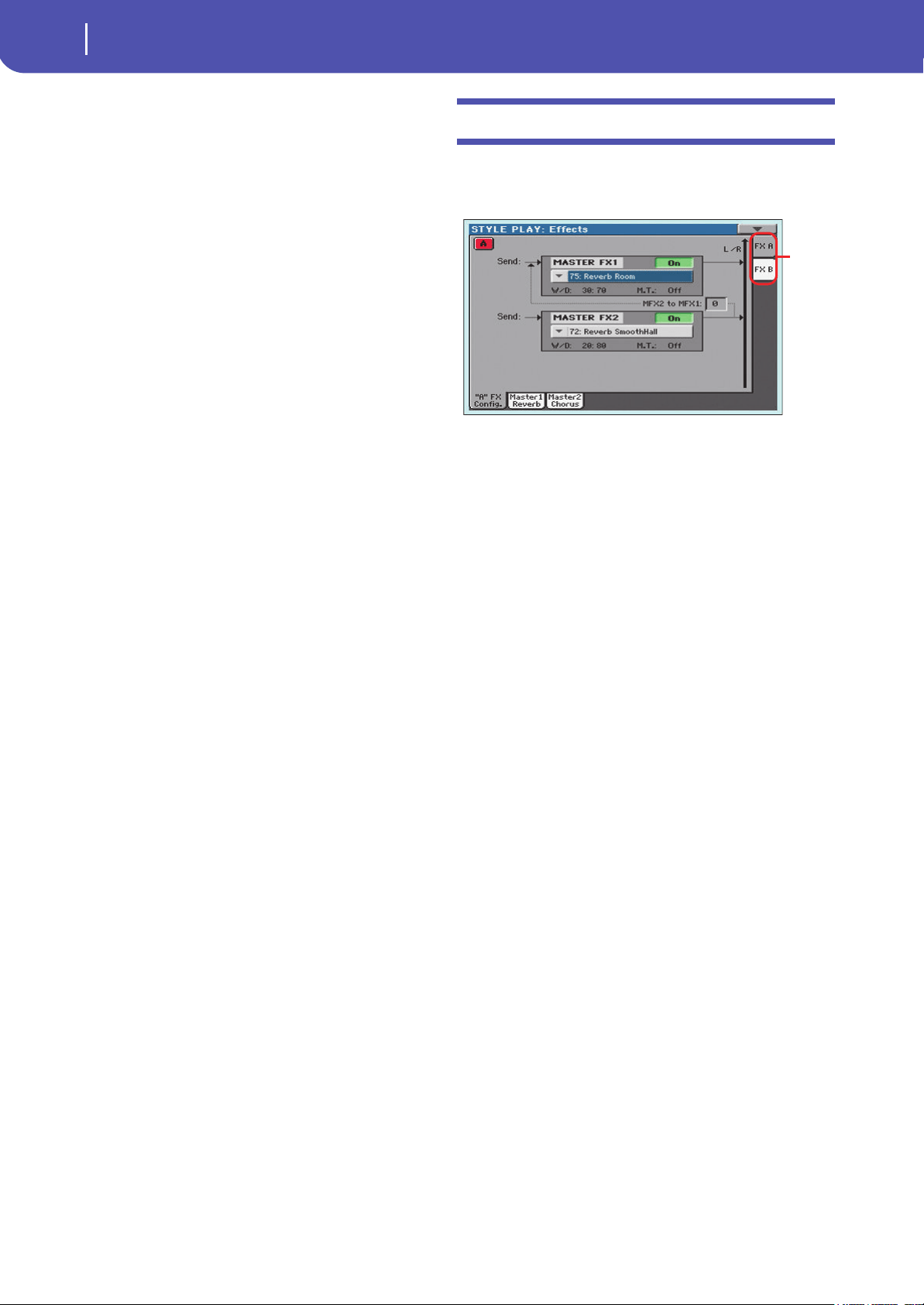
100
Style Play
Effects: A/B FX Configuration
How to use the Quarter Tone function with a
footswitch
You can assign the “Quarter Tone” function to a footswitch, to
program a custom scale in realtime, for example to allow for
those sudden scale changes typical of the Arabic music. These
changes are not saved anywhere, so the scale is easily “wiped-
out” when selecting a different Performance or STS, or when
pressing the Quarter Tone pedal again.
Note: While in Style Play mode, you can create a custom scale, to
be assigned to a Performance or STS, simply by selecting and edit-
ing a User scale, and saving any change to a Performance or STS.
See “How to create a custom scale by fine-tuning each note of the
User scale” above.
While in Global mode, you can create a custom scale and save it to
one of the four SC Presets, and recall it by touching one of the SC
Preset buttons in the display. Then, you can start your scale editing
from the selected preset. See “How to use the Quarter Tone func-
tion with the SC Presets” above.
1. Program the footswitch to be the Quarter Tone switch.
Simply go to the Global mode, and reach the “Controllers:
Foot Controllers” page. There, you will find the “Pedal/
Footswitch” parameter, to which you can assign the Quar-
ter Tone function.
2. Lower some note pitches.
Keep the Quarter Tone pedal pressed. The keyboard will
not play at this time. Press the notes you want to lower a
quarter tone. Release the pedal.
3. Play with your new scale.
Notes you pressed on step 2 are now lowered of a quarter
tone.
4. Reset the original scale.
Press and release the Quarter Tone pedal again, without
playing any note. All pitches will be reset, and the scale
selected by the Performance or STS will be recalled.
Effects: A/B FX Configuration
This page allows you to select the A (Style and Pads) and B (Key-
board) groups of effects. Please use the “FX A” and “FX B” side
tabs to switch from one group to the other one.
FX Groups (FX A, FX B)
Pa300 includes two groups of effects (FX A and FX B). There are
two master FXs for group. In Style Play mode, the A group is
reserved to the Style and Pad tracks, the B group to the Keyboard
tracks.
Master FX 1, 2
Effects assigned to the corresponding effect processors. Usually,
FX1 are reverbs, while FX2 are modulating effects (chorus,
flanger, delay…). For a list of the available effects, see in the
Appendix.
Effects assigned to both FX groups can be saved to a Perfor-
mance. Effect assigned to the FX A group (Style and Pad tracks)
can be saved to the Style Settings. Effects assigned to the FX B
group (Keyboard tracks) can be saved to an STS.
W/D
Use this parameter to set the amount of the effect (Wet) against
the non-effected (Dry) signal coming from the track.
MFX2 to MFX1
Amount of the MFX2 effect going back to the input of the MFX1
effect.
M.T. (Modulating Track)
Source track for modulating MIDI messages. You can modulate
an effect parameter (for example, distortion’s low-cut filter fre-
quency) with a MIDI message generated by an internal physical
controller (for example, pushing the Joystick forward).
FX
group
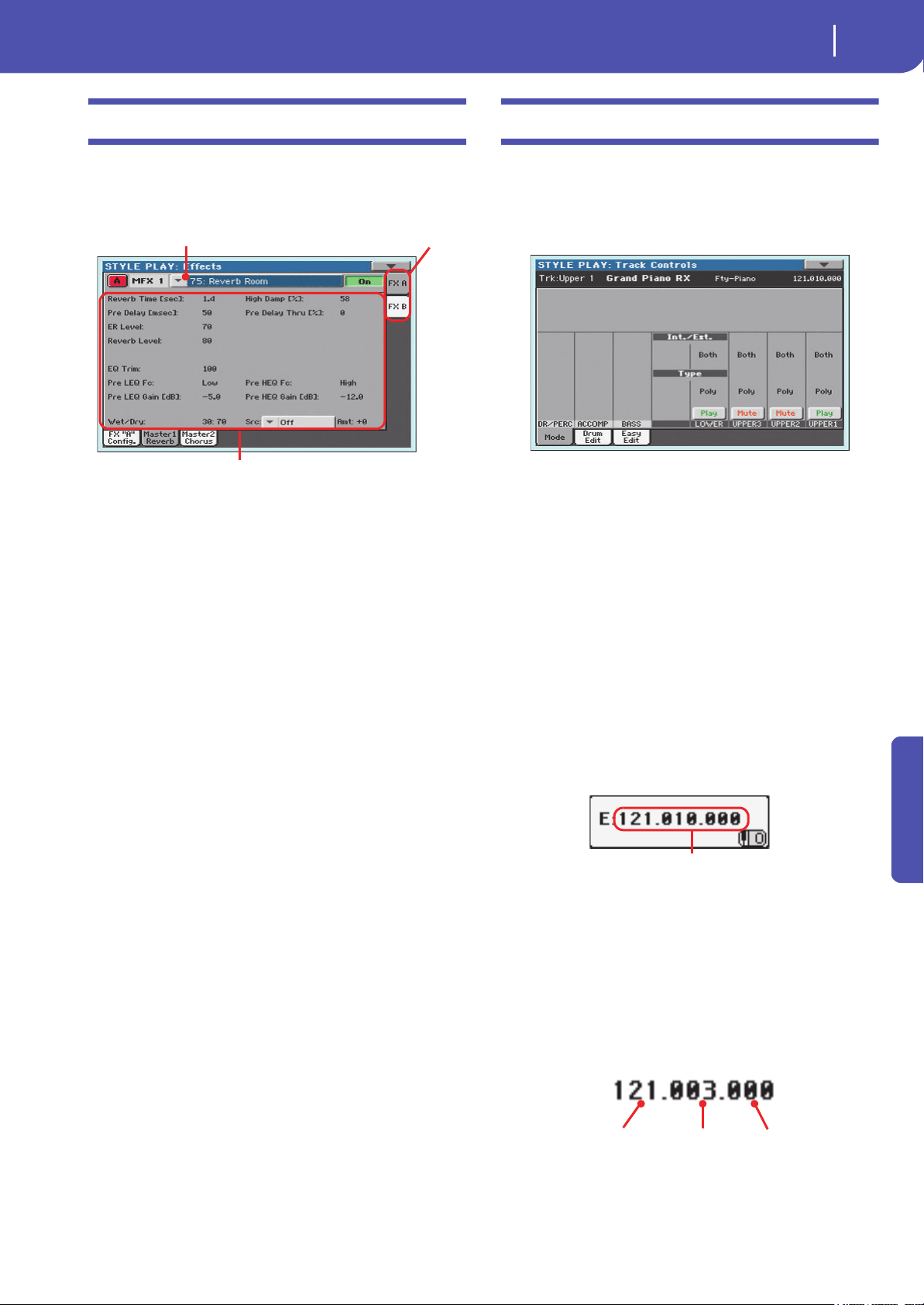
101
Style Play
Effects: Master 1, 2
Reference
Effects: Master 1, 2
These pages contain the editing parameters for the four effect
processors. Here is an example of the FX A page, with the Reverb
Wet P late effe ct assi gned.
Selected effect
Select one of the available effects from this pop-up menu.
FX parameters
Parameters may be different, depending on the selected effect.
See the relevant chapter in the Appendix for a list of the available
parameters for each effect type.
Wet/Dry
Use this parameter to set the amount of the effect (Wet) against
the non-effected (Dry) signal coming from the track.
Src (Source)
Modulation source. To select the track generating this message,
see the “M.T. (Modulating Track)” parameters found in the
“Effects: A/B FX Configuration” page (see above). See the rele-
vant chapter in the Appendix for a list of the modulation
sources.
Track Controls: Mode
This page lets you connect each track to the internal sound gen-
erator and to external devices. This is very useful to play, for
example, a software synthesizer with one of Pa300’s Keyboard or
Style tracks. In addition, here you can set the polyphony mode
for each track.
Int./Ext. (Internal/External)
Internal The track plays the sounds generated by the
internal sound engine. It does not play an exter-
nal (hardware or software) instrument connected
to the USB Device port.
External The track plays an external (hardware or soft-
ware) instrument connected to the USB Device
port. The connected device must receive on the
MIDI channel associated with this track on the
Pa300 (see “MIDI: MIDI Out Channels” on
page 160).
A track set to this status cannot play the internal
sounds.
Instead of the assigned Sound name, the
<E: aaa.bbb.ccc> indicator is shown on a track’s
area in the Main page:
This indicator begins with a remark saying the
track is in External (”E”) mode, and continues
with a strings of transmitted Control Change and
Program Change data. This will let you know
what the track is transmitting to the USB Device
port. In the following example, CC#0 is the Con-
trol Change 0 (Bank Select MSB), CC#32 is the
Control Change 32 (Bank Select LSB), PC is the
Program Change:
When touching the Sound area, the numeric key-
pad appears, instead of the Sound Select window.
You can enter the Control Change/Program
Selected effect
FX parameters
FX group
Control Change/Program Change area
CC#0 value
CC#32 value
PC value
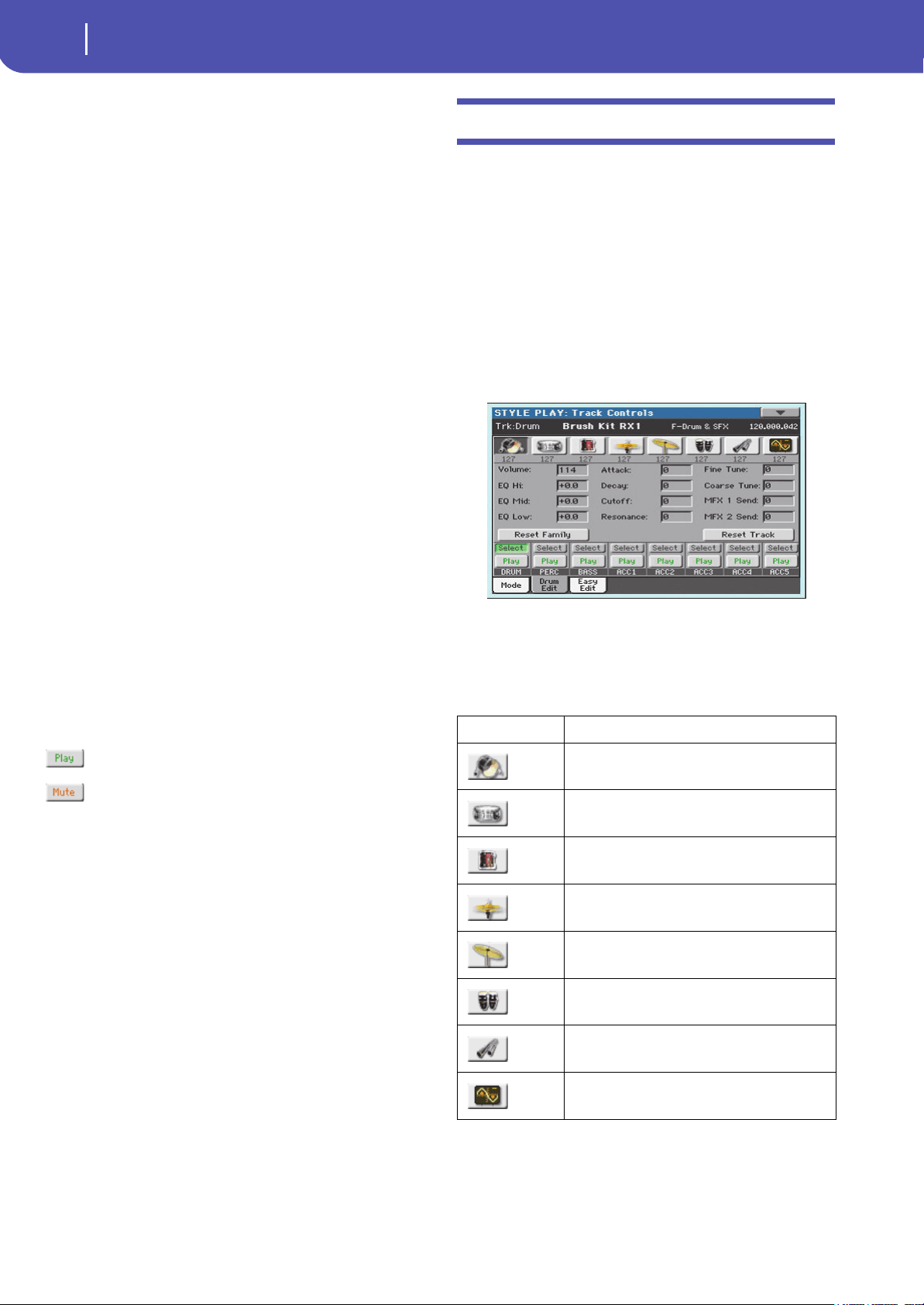
102
Style Play
Track Controls: Drum Edit
Change bundle shown above, separating the three
parts with a dot (.).
Both The track plays both the internal sounds and an
external instrument connected to the USB Device
port.
Type
Drum Drum/Percussion track. Set a track to Drum
mode if you wish to separately adjust the volume
and set a different output for each percussive
family of the assigned Drum Kit Sound. (See
“Track Controls: Drum Edit” on page 102).
Note: Drum Kits are not affected by transpose
whichever the type of track they are assigned to.
Hint: Set a track to Drum mode if you don’t want
the assigned Sound to be transposed (it will behave
as a Drum Kit).
Note: Tracks set to Drum mode in Style Record (see
“Track Type” on page 219) cannot be edited here.
This option appears in grey. Other Style tracks can-
not be set to Drum mode here.
Poly Tracks of this kind are polyphonic, i.e. they can
play more than one note at the same time.
Mono Tracks of this kind are monophonic, i.e. each new
note stops the previous note.
Mono Right A Mono track, but with priority assigned to the
rightmost (highest) note.
Mono Left A Mono track, but with priority assigned to the
leftmost (lowest) note.
Play/Mute icon
Track’s play/mute status.
Play status. The track can be heard.
Mute status. The track cannot be heard.
Track Controls: Drum Edit
In this page you can adjust the volume and edit the main param-
eters for each family of Drum and Percussion instrument for the
selected track. A list of families is shown below.
These parameters can be accessed only on tracks set to the Drum
mode (see above). Use them on tracks with a Drum Kit assigned,
or you will not be able to hear any change.
Hint: Use the TRACK SELECT button to cycle between the track
groups. After selecting a track, choose the “Solo Track” command
from the page menu to avoid listening to the other tracks during
editing.
Note: All values are offsets referred to the value of the original
Sounds.
Family Select
Use these icons/buttons to select the drum family you want to
edit. These buttons are only accessible when you select a Drum
track.
Overview of the current parameter
Under the icons of the Drum families you can see the value of
the selected parameter for all the families. This will let you com-
pare the value of the selected family with all the others. The val-
ues are shown in grey (non editable).
Drum family icon Drum family
Kick drums
Snare drums
Toms
Hi-Hat cymbals
Ride, Crash and other cymbals
Low-pitched percussions
High-pitched percussions
Special effects
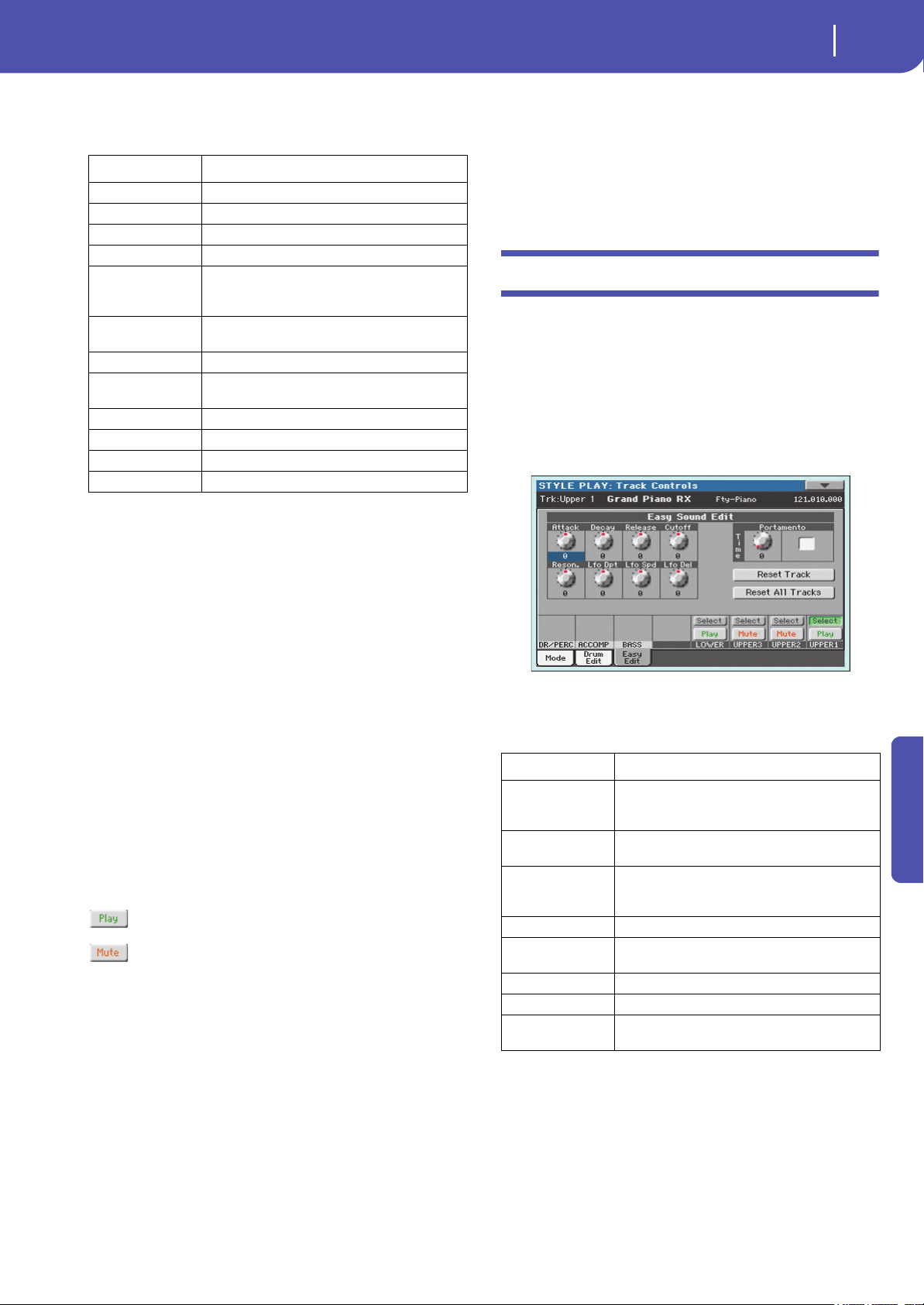
103
Style Play
Track Controls: Easy Edit
Reference
Drum Edit parameters
Use these parameters to adjust the offset value.
0…127 Volume (see above).
-64…0…+63 Offset value for all sound generation parameters. ‘0’
means no change to the original value memorized in
the Drum or Percussive instrument, while any other
value means a decrease or increase to the original
value.
Select
Use these buttons to select the track to edit. The button corre-
sponding to the selected track turns green.
Reset Family
Touch this button to reset all changes to the selected family.
Reset Track
Touch this button to reset all changes to percussive instrument
volumes in the selected track.
Play/Mute icon
Track’s play/mute status.
Play status. The track can be heard.
Mute status. The track cannot be heard.
How to edit a single Drum Family
Here is a quick example of the use of the Drum Volume func-
tion.
1. While in this page, press TRACK SELECT to see individual
Style tracks.
2. Touch the “Select” button, in the display, corresponding to
the Drum track to edit.
3. Press START/STOP to let the Style go.
4. If you like, choose the “Solo Track” command from the
page menu to solo the Drum track.
5. While listening to the Style, select the Snare family, then
select the Volume parameter, and use the VALUE DIAL to
turn the volume completely off.
You’ll notice how all snares stops sounding.
6. Touch the Reset Track button in the display to recall the
original Snare’s volume.
Track Controls: Easy Edit
In this page you can edit the main parameters of the Sounds
assigned to each track.
Hint: Use the TRACK SELECT button to cycle between the track
groups. After selecting a track, choose the “Solo Track” command
from the page menu to avoid listening to the other tracks during
editing.
Note: All values are offsets referred to the value of the original
Sound.
Easy Sound Edit parameters
Use these knobs to adjust the offset value.
-64…0…+63 Offset value. ‘0’ means no change to the original value
memorized in the Sound, while any other value
means a decrease or increase to the original value.
Portamento knob and switch
Use the Time knob to adjust the speed of the portamento (a slide
between notes). Check the box to turn portamento on, or
uncheck it to turn portamento off.
Sound parameters Meaning
Volume Instrument’s Volume.
EQ Hi Equalization, High band.
EQ Mid Equalization, Middle band.
EQ Low Equalization, Low band.
Attack Attack time. This is the time during which the sound
goes from zero (at the moment when you strike a
key) to it’s maximum level.
Decay Decay time. Time to go from the final Attack level to
the minimum level.
Cutoff Filter cutoff. This sets the sound brightness.
Resonance Use the Filter Resonance to boost the cutoff fre-
quency.
Fine Tune Fine instrument tuning.
Coarse Tune Coarse instrument tuning.
MFX 1 Send Scales the Send level to the Master FX1.
MFX 2 Send Scales the Send level to the Master FX2.
Sound parameters Meaning
Attack Attack time. This is the time during which the sound
goes from zero (at the moment when you strike a
key) to it’s maximum level.
Decay Decay time. Time to go from the final Attack level to
the beginning of the Sustain.
Release Release time. This is the time during which the
sound goes from the sustaining phase, to zero. The
Release is triggered by releasing a key.
Cutoff Filter cutoff. This sets the sound brightness.
Resonance Use the Filter Resonance to boost the cutoff fre-
quency.
LFO Depth Intensity of the Vibrato (LFO).
LFO Speed Speed of the Vibrato (LFO).
LFO Delay Delay time before the Vibrato (LFO) begins, after the
sound starts.
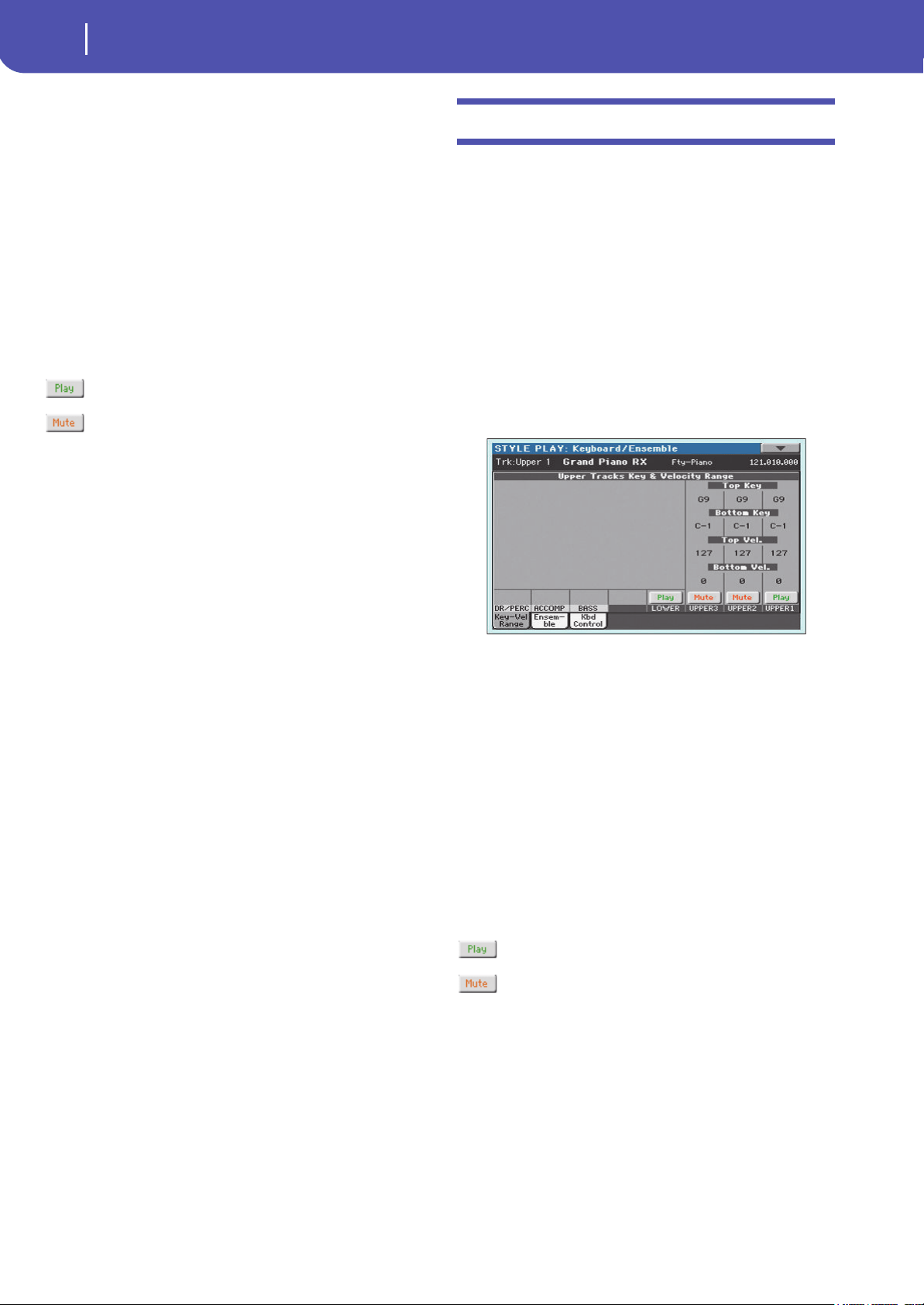
104
Style Play
Keyboard/Ensemble: Key/Velocity Range
Select
Use these buttons to select the track to edit. The button corre-
sponding to the selected track turns green.
Reset Track
Touch this button to reset all changes to Sound parameters in the
selected track.
Reset All Tracks
Touch this button to reset all changes to Sound parameters in all
tracks.
Play/Mute icon
Track’s play/mute status.
Play status. The track can be heard.
Mute status. The track cannot be heard.
How to adjust sound parameters for a single
Sound
Here is a quick example of the use of the Easy Sound Edit func-
tion.
1. If needed, while in this page press TRACK SELECT to see
Keyboard tracks.
2. Touch the “Select” button, in the display, corresponding to
the Upper 1 track.
3. While playing on the keyboard to hear the Sound, select
the Cutoff knob, and use the VALUE DIAL to turn its value
completely off.
You’ll notice how the filter progressively cuts out high fre-
quencies, making the sound darker and mellower.
4. Touch the Reset Track button in the display to recall the
original Cutoff value.
Keyboard/Ensemble: Key/Velocity Range
This page lets you program a key and dynamic (velocity) range
for each of the Keyboard tracks.
Key range is useful to create a set of Keyboard tracks playing in
different zones of the keyboard. For example, you may have
French Horns and Woodwinds playing in the center range of the
keyboard, while only Woodwinds play on the higher range.
Velocity range is useful to create a sound made of up to three
dynamic layers, assigning each of the Upper tracks to a different
dynamic range.
As an example, you may assign the El.Piano 1 Sound to the
Upper 1, and the El.Piano 2 Sound to the Upper 2 track. Then,
set Upper 1 to [Bottom=0, Top=80], and Upper 2 to [Bot-
tom=81, Top=127]. The El.Piano 1 will play when playing softer,
the El.Piano 2 when playing louder.
Top/Bottom Key (Key Range)
This parameter pair sets the Top and Bottom key range for the
track.
C-1…G9 Selected key.
Top/Bottom Vel. (Velocity Range)
This parameter pair sets the Top and Bottom dynamic range for
the track.
0 Lowest velocity value.
127 Highest velocity value.
Play/Mute icon
Track’s play/mute status.
Play status. The track can be heard.
Mute status. The track cannot be heard.
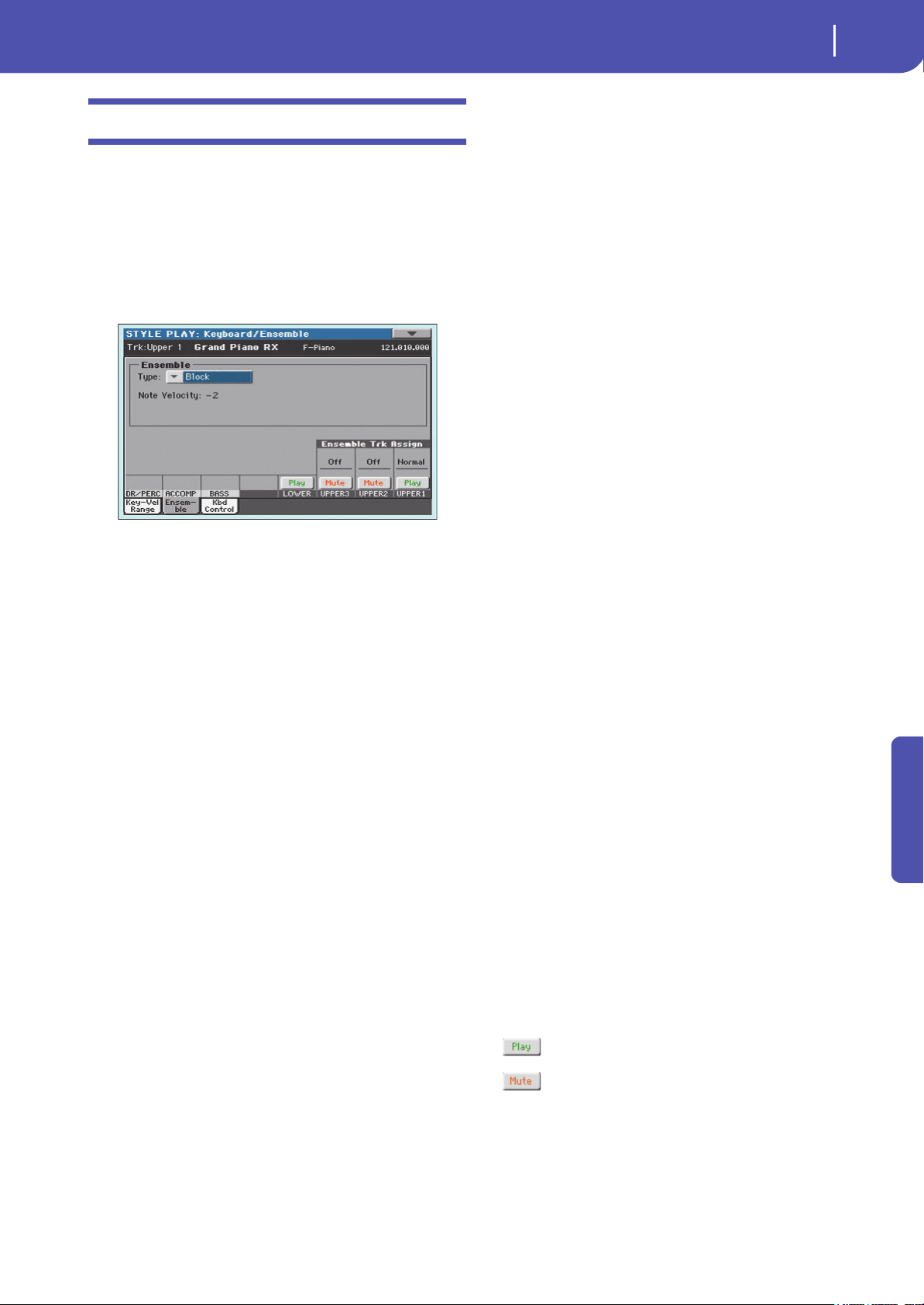
105
Style Play
Keyboard/Ensemble: Ensemble
Reference
Keyboard/Ensemble: Ensemble
This page lets you program the Ensemble function. This func-
tion harmonizes the right-hand melody by using the recognized
chords played by the left hand.
The Ensemble works both in the Style Play and the Song Play
modes. Chords are always recognized in the Lower Chord Scan
area.
Note: The Ensemble function only works when the keyboard is in
Split mode.
Ensemble
Harmonization type.
Duet Adds a single note to the melody.
Close Adds a closed-position chord to the melody.
Open 1 Adds an open-position chord to the melody.
Open 2 As the above, but with a different chord shape.
Block Block harmonization – very typical of jazz music.
Power Ensemble
Adds a fifth and an octave to the melody, as heard
in hard rock.
Third Up This option adds a third over the melody note
(depending on the recognized chord).
Fourths LO Typical of jazz, this option adds two perfect
fourths under the melody.
Fourths UP As the above, but with notes added over the mel-
ody.
Fifths This adds two fifths below the original note.
Octave Adds an octave to the melody.
Dual This option adds to the melody line a second
note, at a fixed interval set with the “Note”
parameter. When selecting this option, a transpo-
sition value appears (-24…+24 semitones to the
original note).
Brass Typical Brass section harmonization.
Reed Typical Reed section harmonization.
Trill When two notes are played on the keyboard, this
option trills them. If three or more notes are
played, only the last two are trilled. You can set
the trill speed by using the Tempo parameter (see
below).
Repeat The played note is repeated in sync with the
Tempo parameter (see below). When playing a
chord, only the last note is repeated.
Echo As the Repeat option, but with the repeated notes
fading away after the time set with the Feedback
parameter (see below).
AutoSplit1 If more than a single Upper track is in play, the
Upper 1 track plays the melody in mono, while
the other Upper tracks play the chord notes.
If only the Upper 1 track is in play, it plays poly-
phonically all the chord notes.
AutoSplit2 Similar to AutoSplit1, but the Upper 1 track
always plays the uppermost note.
Note Velocity
This parameter sets the velocity difference between the right-
hand melody and the added harmonization notes.
-10…0 Subtracted velocity value.
Tem po
Note: This parameter only appears when the Trill, Repeat or Echo
options are selected.
Note value for the Trill, Repeat or Echo Ensemble options. This
is in sync with the Metronome Tempo.
Feedback
Note: This parameter only appears when the Echo option is
selected.
This parameter sets how many times the original note/chord is
repeated by the Echo option.
Ensemble Track Assign
Use these parameters to separately set Upper tracks for the
Ensemble function.
Off There is no harmonization on this track.
Normal This track is included in the harmonization.
Mute This track only plays the Ensemble notes, but not
the original note.
Play/Mute icon
Track’s play/mute status.
Play status. The track can be heard.
Mute status. The track cannot be heard.
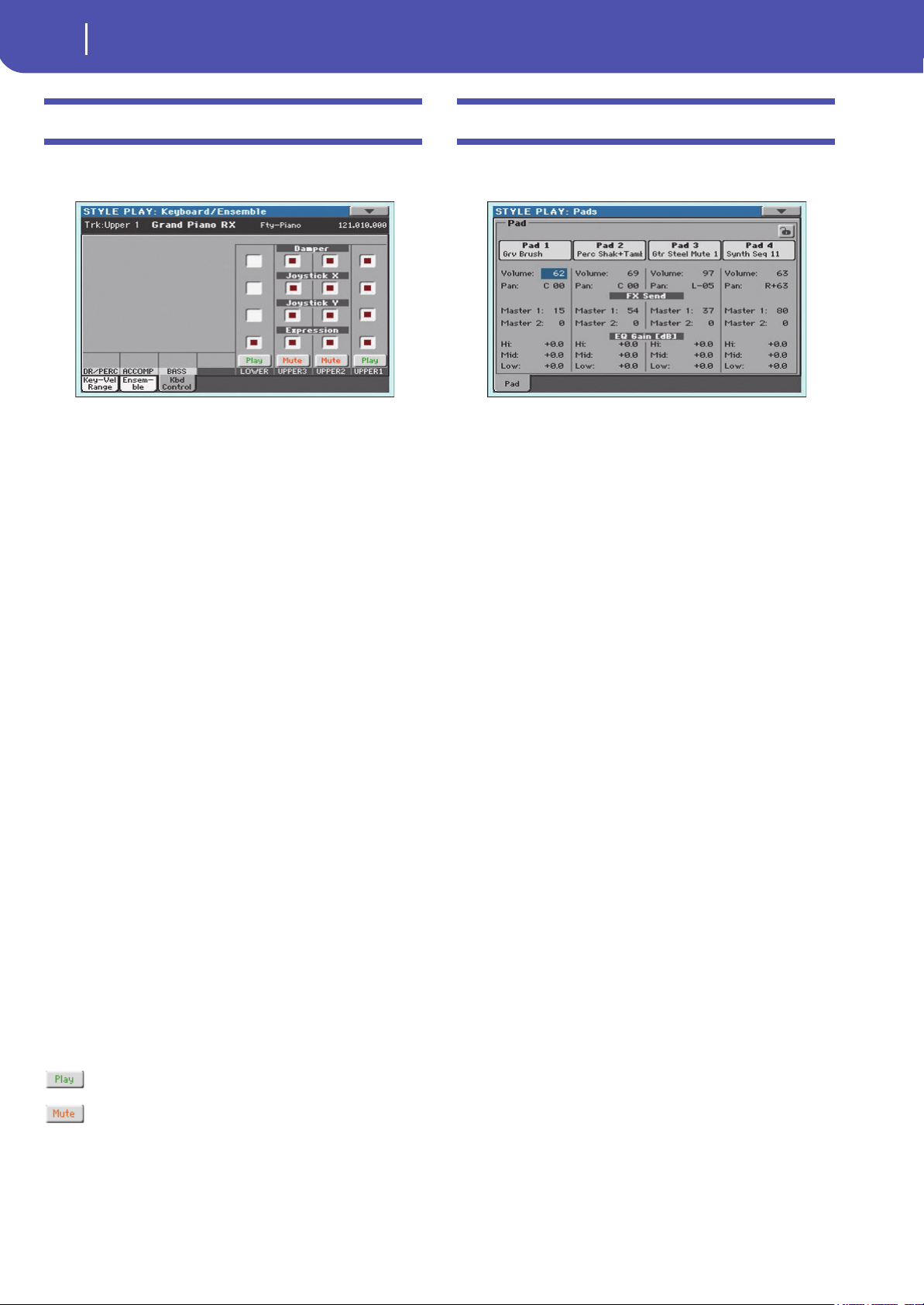
106
Style Play
Keyboard/Ensemble: Keyboard Control
Keyboard/Ensemble: Keyboard Control
This page lets you enable/disable the Damper and Expression
pedals, plus the Joystick, for each of the Upper Keyboard tracks.
Damper
On When you press the Damper pedal and release
the keys, the track’s sound is kept sustained.
Off The Damper pedal is not active on any track set
to this status.
Joystick X
This enables/disables the left/right movement of the Joystick
(Pitch Bend, and sometimes a Sound parameter control; for
Pitch Bend settings, see “Mixer/Tuning: Tuning” on page 98).
Joystick Y
This enables/disables the front/rear movement of the Joystick
(Y+: Modulation, and sometimes a different Sound parameter
control; Y-: Various controls, or non-active).
Expression
This parameter allows you to switch the Expression control on/
off on each individual Keyboard track. The Expression control is
a relative level control, always subtracted from the Volume value
of the track.
As an example, imagine you have a Piano sound assigned to
Upper 1, and a Strings sound assigned to Upper 2. If you turn
the Expression switch on on Upper 2, and off on Upper 1, you
can use a continuous pedal to control only the Strings’ volume,
while the Piano remains unchanged.
To program the pedal to act as an Expression control, see “Con-
trollers: Foot Controllers” on page 155. You can only assign this
function to a volume-type pedal, not to a switch-type one.
Assign the “KB Expression” option to the pedal.
Play/Mute icon
Track’s play/mute status.
Play status. The track can be heard.
Mute status. The track cannot be heard.
Pads: Pad
This page lets you select a different hit sound or sequence for
each of the four PAD buttons.
Assignments can be saved into the current Style Settings or
SongBook Entry.
Note: Each Style or SongBook Entry can change the Pad assign-
ment.
Pad assignment
Name of the Hit or Sequence assigned to each Pad. Touch the
box to make the Pad Select window appear (see “Pad Select win-
dow” on page 85).
Note: You can also choose Hits or Sequences from the Pad panel of
the main page.
Volume
Volume for each of the four Pad tracks.
0…127 Volume level.
Pan
Pan for each of the four Pad tracks.
-64…-1 Left stereo channel.
0Center.
+1…+63 Right stereo channel.
FX Send (Master 1, 2)
Send level to the Master FX processors for each of the four Pad
tracks. The Pads share the FX A group with the Style tracks.
0…127 Level of the Pad track (direct) signal sent to the
effect processor.
EQ Gain [dB] (Hi, Mid, Low)
Equalization for each of the four Pad tracks.
-18.0…+0.0…18.0
Gain value of the High, Middle, or Low band.
Pad lock icon
This lock avoids selecting a different Style or SongBook Entry
changes also the Hit or Sequence Pads assigned to the Pads.
For more information on parameter locks, see “General Con-
trols: Lock” on page 149.
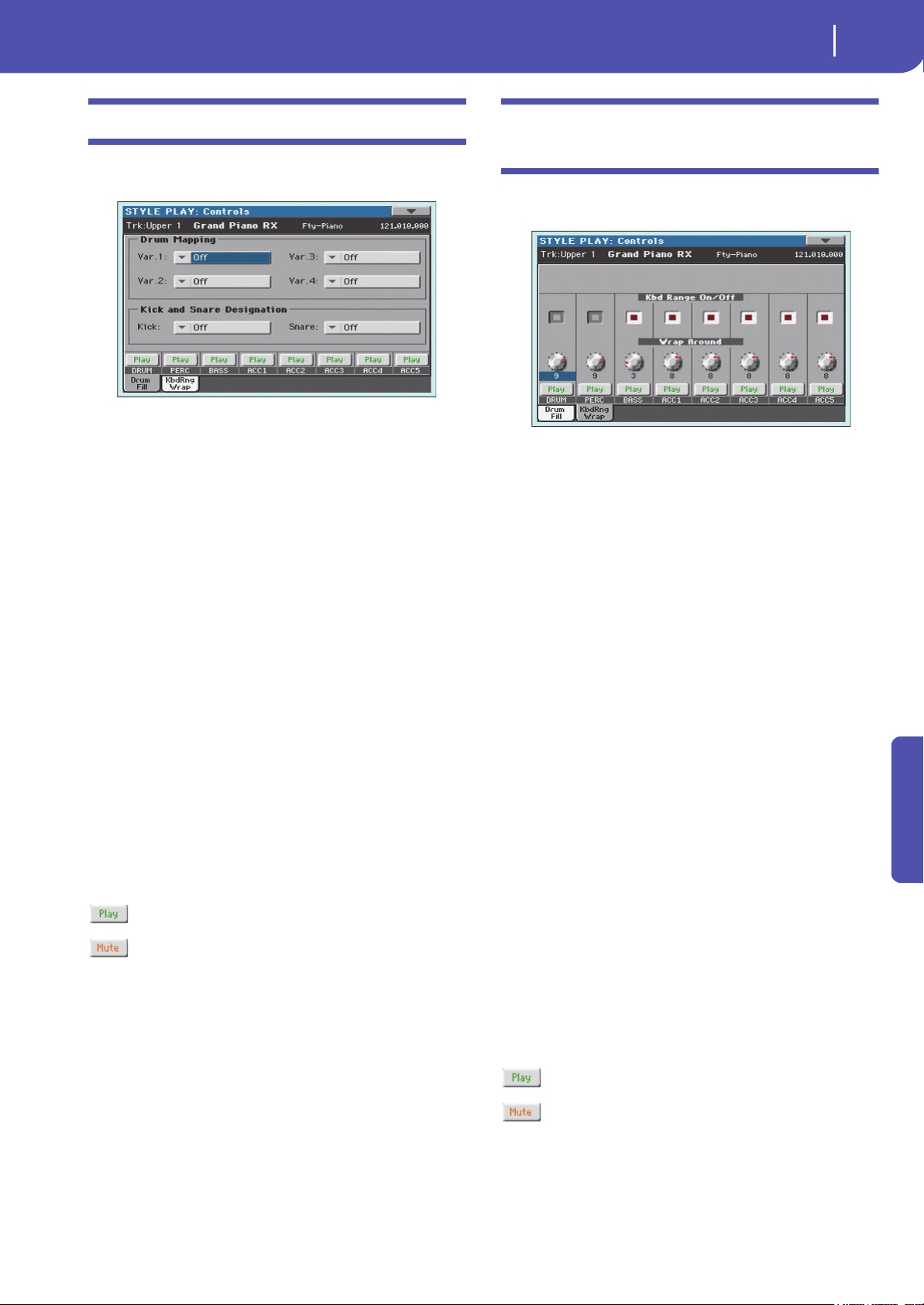
107
Style Play
Style Controls: Drum Map
Reference
Style Controls: Drum Map
In this page you can select various general parameters for the
Style.
Drum Mapping (Var.1…Var.4)
The Drum Mapping lets you select an alternative arrangement of
percussive instruments for the selected Drum Kit, without any
additional programming. Just select a Drum Map, and some per-
cussive instruments will be replaced with different instruments.
Off Standard mapping.
Drum Mapping 1…7
Drum Map number. Mapping 1 is “soft-sound-
ing”, while mapping 7 is “loud-sounding”.
Kick and Snare Designation
The Kick Designation replaces the original Kick (Bass Drum)
sound with a different Kick of the same Drum Kit, while the
Snare Designation replaces the original Snare Drum sound with
a different Snare of the same Drum Kit.
Hint: Select different Designations while listening to the Style, and
see how they affect the Style. When you like the result, save your
setting to a Performance or Style Settings.
Off Original Kick or Snare.
Type 1…3 Kick or Snare replacing the original one.
Track status
Track play/mute status. Touch these icons to change it.
Play status. The track can be heard.
Mute status. The track cannot be heard.
Style Controls: Keyboard Range On/Off /
Wrap Around
In this page you can program the Wrap Around point, and turn
on/off the Keyboard Range included in each Style tracks.
Keyboard Range On/Off
This parameter is an on/off switch for the Key Range parameter
memorized inside each Style Element track.
On The Keyboard Range is considered (see “Style
Element Track Controls: Keyboard Range” on
page 218 in Style Record mode). When a track
goes over the lower or higher Keyboard Range
point, it is automatically transposed, to stay in the
programmed range.
Off No Keyboard Range used.
Wrap Around
The wrap-around point is the highest key range limit for the
backing track. The accompaniment patterns will be transposed
according to the detected chord. If the chord is too high, the
Style tracks might play in a range that is too high, and therefore
unnatural. If, however, it reaches the wrap-around point, it will
be automatically transposed an octave lower.
The wrap-around point can be individually set for each track in
semitone steps up to a maximum of 12 semitones, relative to the
chord root set in Style Record mode (see “Key/Chord” on
page 199).
It is advisable to set different Wrap Around points for each track,
to avoid all tracks “jump” to a different octave at the same time.
We suggest to consider the actual range of the real instrument.
1…12 Maximum transposition (in semitones) of the
track, referred to the original key of the Style pat-
tern.
Play/Mute icon
Track’s play/mute status.
Play status. The track can be heard.
Mute status. The track cannot be heard.
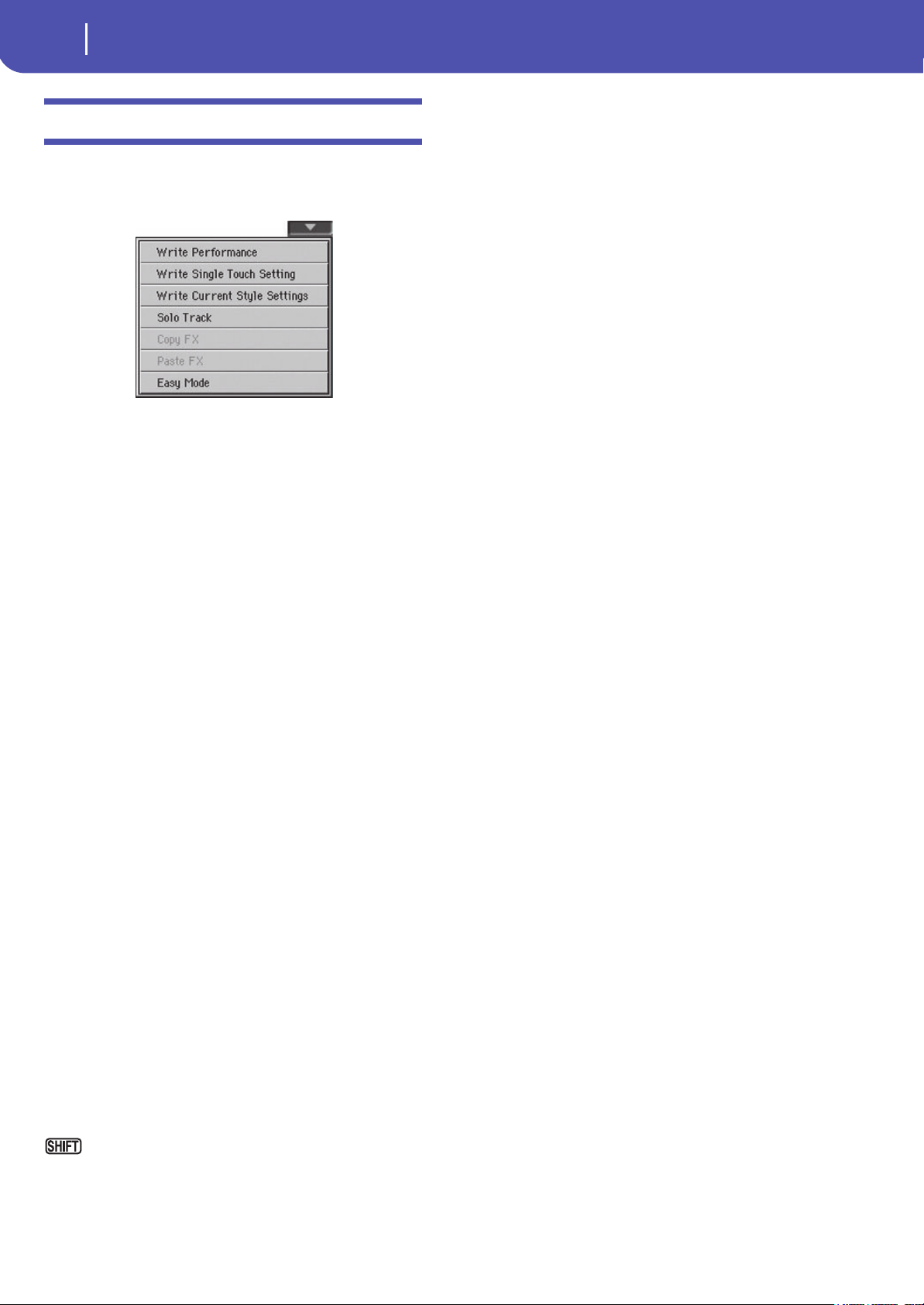
108
Style Play
Page menu
Page menu
Touch the page menu icon to open the menu. Touch a command
to select it. Touch anywhere in the display to close the menu
without selecting a command.
Write Performance
Select this command to open the Write Performance dialog box,
and save most of the current control panel settings to a Perfor-
mance.
See “Write Performance dialog box” on page 109 for more infor-
mation.
Write Single Touch Setting
Select this command to open the Write Single Touch Setting
(STS) dialog box, and save Keyboard track settings to one of the
Single Touch Settings (STS) of the current Style.
See “Write Single Touch Setting dialog box” on page109 for
more information.
Write Current Style Settings
Select this command to open the Write Current Style Settings
dialog box, and save Style track settings to the current Style.
See “Write Single Touch Setting dialog box” on page109 for
more information.
Solo Track
Select the track to be soloed, and check this item. You will hear
only the selected track, and the ‘Solo’ warning will flash on the
page header.
Uncheck this item to exit the Solo function.
The Solo function works in a slightly different way, depending
on the selected track:
• Keyboard track: The selected Keyboard track is the only track
you can hear when playing on the keyboard. All other Keyboard
tracks are muted. The status of the Style tracks is unaffected.
• Style track: The selected track is the only Style track you can
hear. All other Style tracks are muted. The status of the Keyboard
tracks is unaffected.
• Grouped Style tracks: The Solo function does not work on these
special tracks.
Keep the SHIFT button pressed and touch one of the
tracks to solo it. Do the same on a soloed track to deactivate the
Solo function.
Copy/Paste FX
You can copy a single effect (Master 1, Master 2), or both effects
of an FX group (A or B). You can copy them between different
elements (for example, between Styles and Performances, or
STSs and Songs).
Note: This operation only copies the parameters of the “Effects”
section. Parameters contained in other sections, like “Dry” or “FX
Send”, are not copied. Please note that these parameters are rele-
vant in the overall sound of the effect, so please fine-tune them.
To copy a single effect:
1. Select the source Performance, STS, Style or Song.
2. Choose the source FX group (A or B) by touching the cor-
responding side tab.
3. Go to the page of the single effect you want to copy (Master
1, Master 2).
4. Choose the “Copy FX” command from the page menu.
5. Select the target Performance, STS, Style or Song,
6. Choose the same FX group (A or B) as the target by touch-
ing the corresponding side tab.
7. Go to the page of the single effect you want to paste (Master
1, Master 2).
8. Choose the “Paste FX” command from the page menu.
To copy all the effects in an FX group:
1. Select the source Performance, STS, Style or Song, then go
to the Effects > A/B FX Config page, to copy all the effects.
2. Choose the source FX group (A or B) by touching the cor-
responding side tab.
3. Choose the “Copy FX” command from the page menu.
4. Select the target Performance, STS, Style or Song, then go
to the page of the Effects > A/B FX Config page.
5. Choose the FX group (A or B) as the target by touching the
corresponding side tab.
6. Choose the “Paste FX” command from the page menu.
Easy Mode
Easy Mode allows you to use the Style Play and Song Play modes
with an easier-to-use user interface. It is recommended to begin-
ners, and to professionals alike that do not want to deal with the
extra parameters of the Advanced mode.
At any time, you can manually turn the Easy Mode on/off with
the Easy Mode command in the page menu of the Style Play and
Song Play modes.
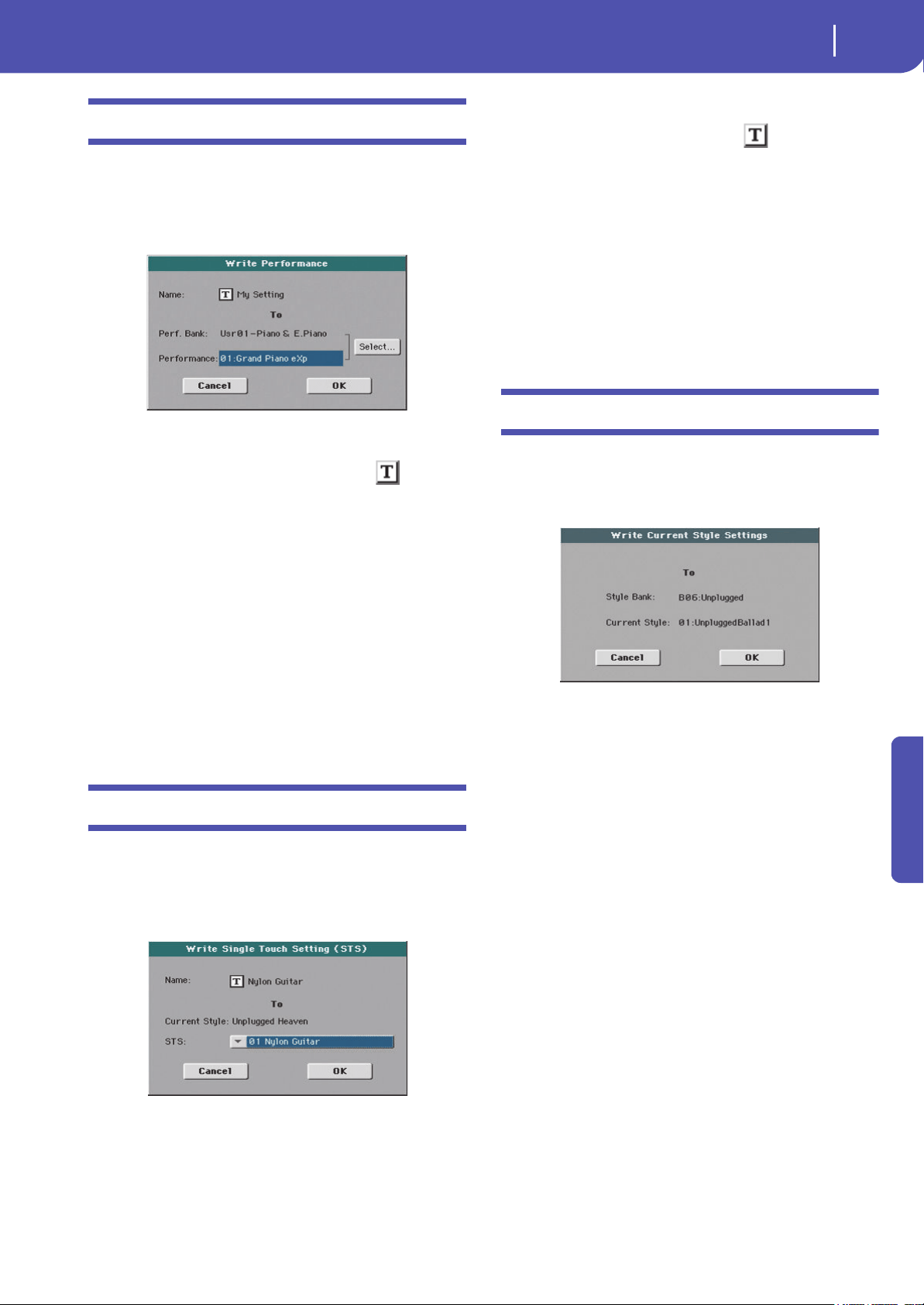
109
Style Play
Write Performance dialog box
Reference
Write Performance dialog box
Open this window by keeping one of the PERFORMANCE but-
tons pressed for about one second, or by choosing the Write Per-
formance item from the page menu. Here, you can save all track
settings, the selected Style, and various Style settings to a Perfor-
mance.
Name
Name of the Performance to be saved. Touch the (Text Edit)
button next to the name to open the Text Edit window.
Perf Bank
Target bank of Performances. Each bank corresponds to one of
the PERFORMANCE buttons. Use the VALUE DIAL to select a
different bank.
Performance
Target Performance location in the selected bank. Use the
VALUE DIAL to select a different location.
Select… button
Touch this button to open the Performance Select window, and
select a target location.
Write Single Touch Setting dialog box
Open this window by keeping one of the STS buttons pressed for
about one second, or by choosing the Write Single Touch Setting
item from the page menu. Here, you can save the Keyboard track
settings to one of the four single Touch Settings (STS) belonging
to the current Style.
Note: When the “Factory Style and Pad Protect” option is checked
in the Global > Mode Preferences > Media page, you cannot write
an STS over a Factory Style. The “Write Single Touch Setting”
command in the page menu is greyed out and cannot be selected.
All original settings of the Factory Styles will be left untouched.
Name
Name of the STS to be saved. Touch the (Text Edit) button
next to the name to open the Text Edit window.
Current Style
Non editable. Settings are saved in one of the four STSs belong-
ing to the current Style. This parameter displays the name of the
“parent” Style.
STS
Target STS location. The name of the STS currently saved at the
target location is shown. Use the VALUE DIAL to select a differ-
ent location.
Write Current Style Settings dialog box
Open this window by keeping the STYLE button in the SELEC-
TION section pressed for about one second, or by selecting the
Write Style Settings item from the page menu. Here, you can
save Style track settings to the Style Settings of the current Style.
Note: When the “Factory Style and Pad Protect” option is checked
in the Global > Mode Preferences > Media page, you cannot write
any Style Settings onto Factory Styles. The “Write Current Style
Settings” command in the page menu is greyed out and cannot be
selected. All original settings of the Factory Styles will be left
untouched.
Style bank
Non editable. Bank of Styles the current Style belongs to.
Current Style
Non editable. Name of the current Style.
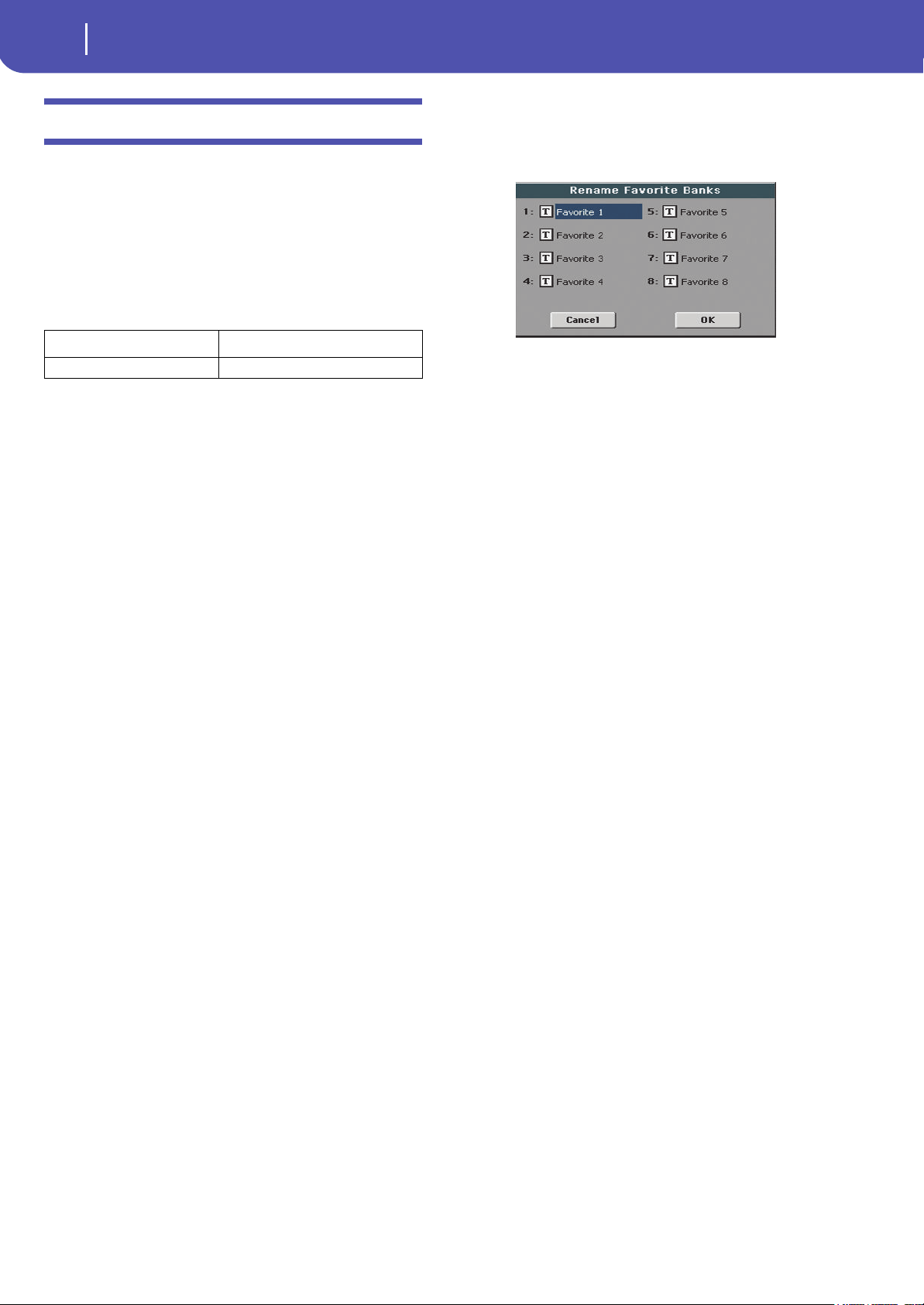
110
Style Play
The Favorite banks
The Favorite banks
You can create a custom set of Styles, made of up to eight Favor-
ite banks. You can assign a different name to the tabs that appear
in the Style Select window, in order to add musical genres not
included among the Factory Styles.
The Favorite Styles are contained in eight files, automatically
created by the Pa300 inside the Style folder in the SYS area of the
internal storage memory. Even if different bank names can
appear in the display, these files have fixed names:
Creating the Favorite banks
There are various ways to create the Favorite banks:
• While in Style Play mode, you can copy & paste any Style
into the Favorite banks, as an alternative to the User Style
banks. See the “Selecting” chapter for more information on
the Copy & Paste operations.
• While in Style Record mode, you can write the new or
edited Style in the Favorite banks, as an alternative to the
User Style banks. See the “Style Record” chapter for more
information on saving a Style.
• While in Media mode, you can load any Style into the
Favorite banks, as an alternative to the User Style banks.
See the “Media” chapter for more information on the Load
operations.
Renaming the Favorite banks
While the Style Select window is in the display, you can choose
the “Rename Favorite” command from the page menu, and
assign the Favorite Style tabs any name you like.
The assigned name can be spanned over two lines, by separating
them with the paragraph character (¶). For example, to write
“World Music” on two lines, enter “World¶Music”.
Be careful not to write words exceeding the width of the side tabs
of the Style Select window.
File Name FAVORITE Banks
FAVORITE01…8.STY Bank 1…8
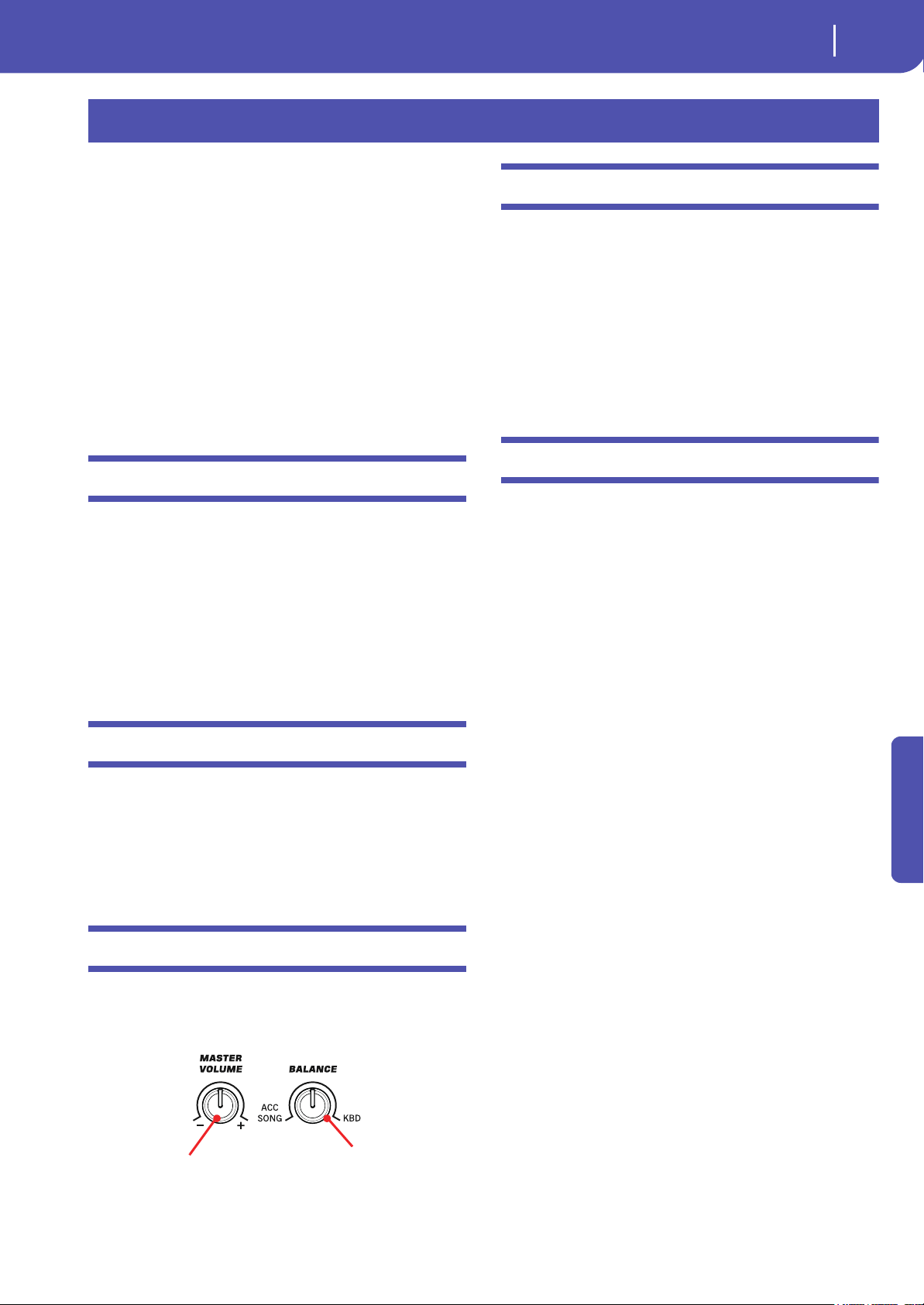
111
Song Play
MIDI Clock
Reference
The Song Play operating mode is where you can listen to Songs,
while reading Lyrics and Chords (where available). An automati-
cally-generated Score can also be seen for Standard MIDI Files.
Songs can be in Standard MIDI File, Karaoke™ or MP3 format.
The MID+G and MP3+G formats are also supported.
You can play along with the Song with up to four Keyboard
tracks (Upper 1-3, Lower) and four Pads. You can select different
Sounds and Effects for Keyboard tracks by selecting Perfor-
mances and STSs.
While in Song Play mode, you can use the SongBook to auto-
matically select Songs for a desired music genre. With each Song
entry in the SongBook, up to four STSs are also made available.
Song Play mode can also be used in Easy Mode.
MIDI Clock
In Song Play mode the MIDI Clock is always generated by the
internal Player, even if the Clock parameter is set to External
USB mode in the Global > MIDI > General Controls page (see
“Clock Source” on page 158). While in this mode, Pa300 cannot
receive MIDI Clock messages from the USB port.
Pa300 only transmits to the USB port the MIDI Clock messages
generated by the Player. For MIDI Clock messages to be sent, the
“Clock Send” parameter must be activated in the Global > MIDI
> General Controls page (see “Clock Send” on page 158).
Tempo Lock
If you don’t want the Tempo value to change when selecting a
new Song, turn on the Tempo Lock function by using the
TEMPO LOCK button on the control panel. When this button’s
LED is turned on, you can still manually change the Tempo with
the TEMPO +/– buttons, or by touching the Tempo field and
using the VALUE DIAL.
Master Volume, Balance
While the MASTER VOLUME knob controls the general vol-
ume of the instrument, you can use the BALANCE knob to bal-
ance the Song and Pad tracks against the Keyboard tracks.
Track parameters
Changes to Keyboard tracks can be saved to a Performance. You
can then recall different settings by just selecting a single Perfor-
mance.
Settings for Song tracks, like Pan, Volume and FX Sends, depend
on each individual Standard MIDI File. Changes to Song tracks
made in Song Play mode cannot be saved to a Standard MIDI
File, and are only intended for realtime control.
To make permanent changes Song tracks, edit and save the Stan-
dard MIDI File in Sequencer mode.
Standard MIDI Files and Sounds
The native Song file format of Pa300 is the Standard MIDI File
(SMF), an universal standard set by all manufacturers. Filename
extension is .MID, but Pa300 can also read files with the .KAR
extension. You can read these files with any musical instrument
or computer.
Even if the Standard MIDI File format is standard, differences
may appear in sounds when playing the various files. If you
recorded a Song on the Pa300 in Sequencer mode using only
General MIDI sounds (i.e., those of the “GM” type), you can be
confident you can play the same Song on virtually any other
musical instrument or computer. If you used Korg native
sounds, you may not find the same sounds on instruments from
other manufacturers.
When you read Standard MIDI Files in Song Play mode, there is
no problem reading files made using only General MIDI sounds.
Sounds could be different when playing a Song made on a differ-
ent instrument: despite the wide compatibility of Pa300 with
other standards (like GS or XG), differences may arise.
Should this happen, load the Standard MIDI File in Sequencer
mode, then manually reassign the non-matching Sounds, replac-
ing them with similar Sounds on the Pa300. Finally, save the
Standard MIDI File again, and you will be able to play it in Song
Play mode with the correct Sounds.
Song Play
Overall instrument’s
volume
Balance of Songs and Pads
against the Keyboard tracks
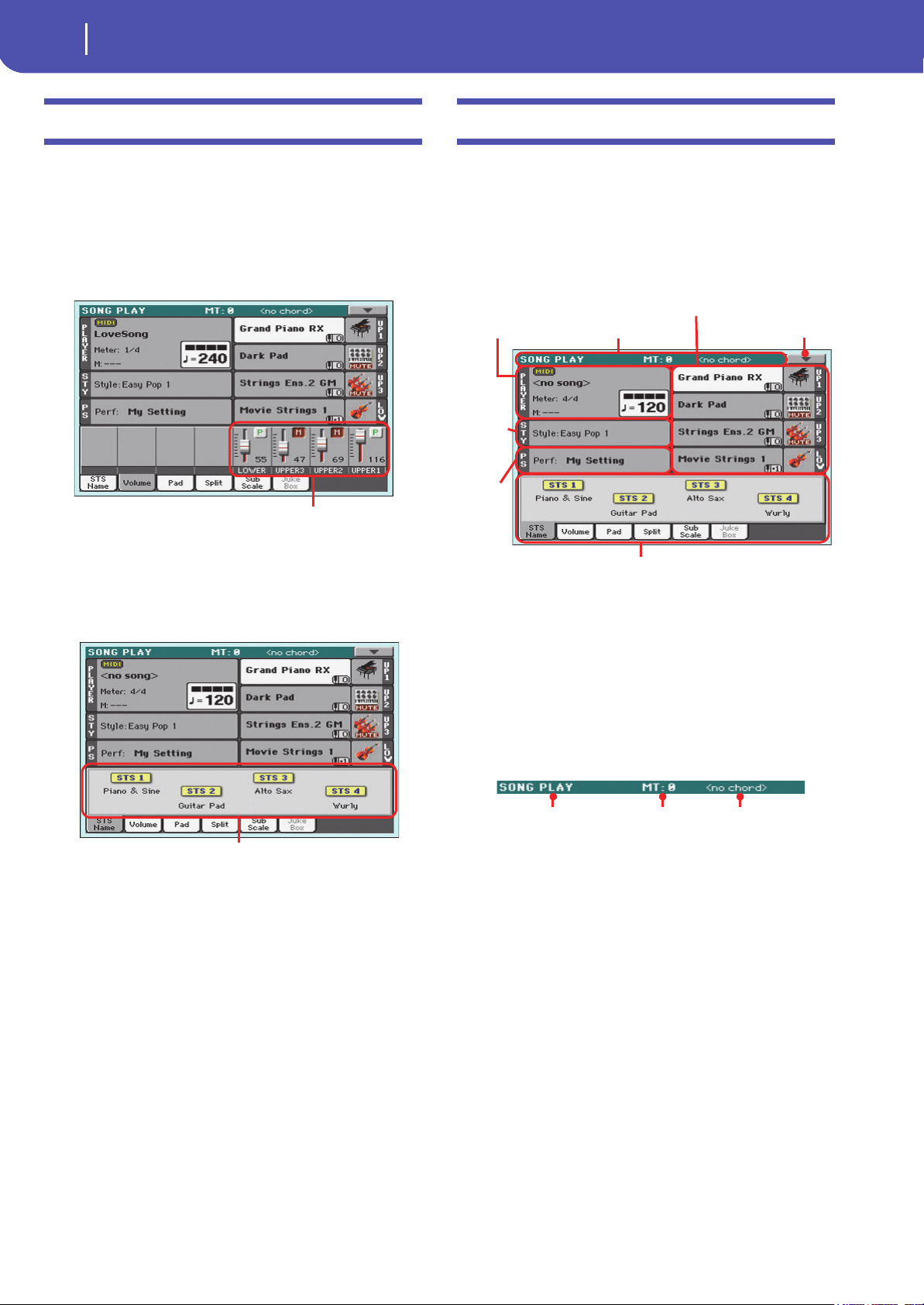
112
Song Play
Keyboard, Pad and Player tracks
Keyboard, Pad and Player tracks
Pa300 is equipped with a Player that can play up to a maximum
of 16 Song tracks. In addition, you can play the keyboard with
four additional Keyboard tracks (Upper 1-3 and Lower).
When the Volume panel is shown in the main page of the Song
Play mode (see illustration below), you can adjust the Volume
and Play/Mute status of these tracks, but please keep in mind
that these changes will not be saved in the Standard MIDI File.
While in Song Play mode, you can select Performances or STSs.
STSs are from the latest selected Style; choose a different Style to
select a different set of STSs. You can see the name of the avail-
able STSs when the STS Name panel is shown in the main page
of the Song Play mode (see illustration):
Selecting a different Style or SongBook Entry may also change
the Pads.
When entering Song Play mode from the Style Play mode, Key-
board and Pad tracks remain the same they were in Style Play
mode.
Main page (Normal view)
Press the SONG PLAY button to access this page from another
operating mode.
Note: When switching from Style Play to Song Play mode, various
track parameters and settings may change.
To return to this page from one of the Song Play edit pages, press
the EXIT or SONG PLAY button.
Details on individual tracks can be seen by touching the Volume
tab. To switch between Keyboard tracks (Normal view) and Song
tracks (Song Tracks views), use the TRACK SELECT button.
Pressed a first time, you will see tracks 1-8; a second press will
show tracks 9-16; pressed again will go back to Keyboard tracks.
Page header
This line shows the current operating mode, transposition and
recognized chord.
Operating mode name
Name of the current operating mode.
Master Transpose
Master Transpose value in semitones. This value can be changed
using the TRANSPOSE buttons on the control panel.
Note: You can also transpose MP3 files. Keep in mind, however,
that transposition always remains inside the -5…+6 semitones
range. This is enough to cover all keys, while avoiding excessive
audio degradation. Any further transposing will be reversed to fit
the range. So, you might see a +7 transpose value (Just Fifth Up)
shown in the display, but the MP3 will actually play 5 semitones
lower (Just Fourth Down).
Note: Transpose may automatically change when selecting a differ-
ent Performance. It may also change when loading a Standard
MIDI File generated with an instrument of the Korg Pa-Series.
To avoid transposing, “lock” the Master Transpose parameter in
the Global (see “General Controls: Lock” on page 149).
Keyboard tracks
STS names
Song area Page header Page menu icon
Style
area
Perf./
STS area
Keyboard tracks area
Panels
Operating mode Master Transpose (in
semitones)
Recognized chord
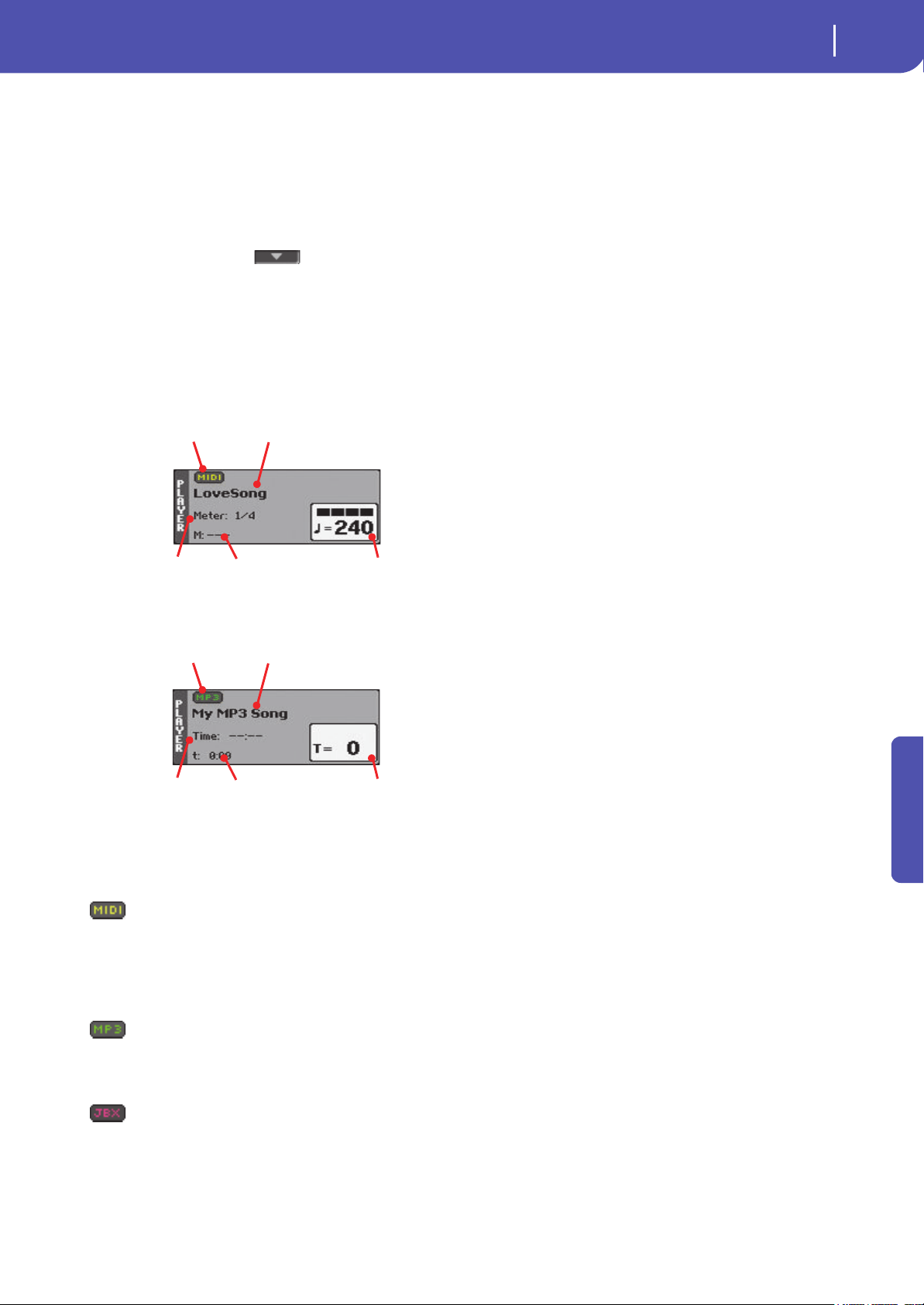
113
Song Play
Main page (Normal view)
Reference
Recognized chord
This displays the recognized chord when you play a chord on the
keyboard.
Page menu icon
Touch the page menu icon to open the menu. See “Page menu”
on page 121 for more information.
Song area
This is where the Song name is shown, together with parameters
depending on the selected type of Song.
This is how a Song’s area appears when a Standard MIDI File or
Karaoke file has been selected:
And this is how it appears when an MP3 File has been selected:
Song type icon
Songs of different types can be assigned to the Player. This icon
shows the file type.
Standard MIDI File, often abbreviated as SMF
(file extension: *.MID or *.KAR). The SMF
(*.MID) is the industry standard song format,
used by Pa300 as its basic Song format when
recording a new Song. A MIDI Karaoke File
(*.KAR) is an extension of the SMF format.
MPEG Layer-3 format, or MP3 (file extension:
*.MP3). This is a compressed audio file, that may
be generated on any personal computer, or by the
Pa300 itself.
A Jukebox file (file extension: *.JBX) can be
assigned to the Player, but its name will not be
shown in this area. The JBX icon will appear
instead, together with the name of the currently
selected Song, in the Jukebox list.
Note: To create or edit a Jukebox file, go to the
Jukebox Edit page (see page 120).
Song name
Displays the name of the Song assigned to the Player.
Touch the Song name to open the Song Select window. When
the Song Select window appears, you can select a single Song or
a Jukebox file (see “Song Select window” on page 85).
If you select another Song while a Song is playing, the previous
Song will stop, and the new Song will be selected and be ready to
play.
To select a Song, you can also press the SONG button in the
SELECTION section of the control panel. Press it a second time
to select a Song by dialing in its ID number (see “Selecting a
Song by its ID number” on page 86).
Meter
This parameter only appears when a Standard MIDI File or Kara-
oke file has been selected.
Current Song’s meter (time signature).
Measure number
This parameter only appears when a Standard MIDI File or Kara-
oke file has been selected.
Current measure number.
Tem po
This parameter only appears when a Standard MIDI File or Kara-
oke file has been selected.
Metronome Tempo. Select this parameter and use the TEMPO+
and TEMPO– buttons to change the Tempo. As an alternative,
touch this parameter and drag with your finger.
Total time
This parameter only appears when an MP3 file has been selected.
Total length (in minutes:seconds) of the selected MP3 file.
Elapsed time
This parameter only appears when an MP3 file has been selected.
Elapsed time (in minutes:seconds) of the MP3 file currently in
play.
Tempo variation
This parameter only appears when an MP3 file has been selected.
Variation of the original MP3 file’s tempo, inside a range of
±30% of the original tempo. When Tempo is changed, MP3 files
are smoothly accelerated or slowed down (inside a range of
±30% of the original tempo). This may seem trivial, but it is
really rocket-science instead, and it is made possible by Korg
sophisticated time-stretching algorithms.
Style area
Currently selected Style. You can select a Style while playing
Songs, to have it ready when switching to Style Play mode. Also,
this lets you change the Pads and STSs (both are recalled by
selecting a Style).
Song name
Meter
Current measure
Song type icon
Tempo
Song name
Total time
Elapsed time
Song type icon
Tempo variation
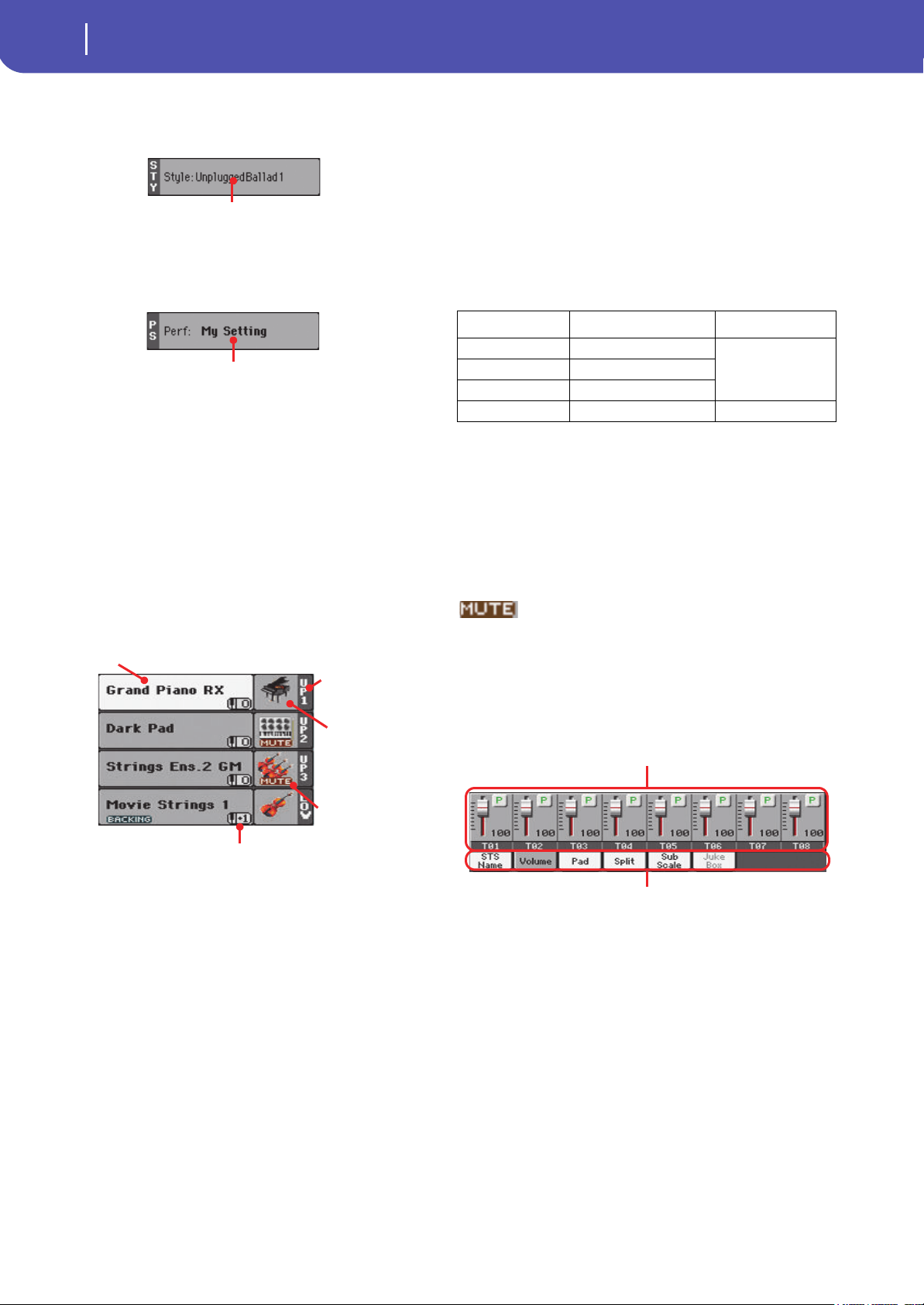
114
Song Play
Main page (Normal view)
Touch the Style name to open the Style Select window. As an
alternative, use the STYLE button in the SELECTION section of
the control panel.
Performance/STS area
This is where the Performance or STS name is shown.
Selected Performance or STS
This is the latest selected Performance or Single Touch Setting.
Touch the name to open the Performance Select window. As an
alternative, use the PERFORMANCE section to select a different
Performance.
To select a different STS from the latest selected Style, use the
four STS buttons under the display.
Keyboard tracks area
This is where Keyboard tracks are shown.
Sound name
Name of the Sound assigned to the corresponding Keyboard
track.
• If the track is already selected (white background), touch the
Sound name to open the Sound Select window.
• If the track is not selected (dark background), first select it,
then touch the Sound name to open the Sound Select window.
You can also open the Sound Select window by using the
SOUND button in the SELECTION section of the control panel.
For more information about the Sound Select window, see
“Sound Select window” on page 83.
Keyboard track octave transpose
Non editable. Octave transpose of the corresponding track. To
individually edit the octave transpose for each track, go to the
“Mixer/Tuning: Tuning” edit page of the Song Play mode (see
“Mixer/Tuning: Tuning” on page 98 for more details).
You can also transpose all Upper tracks by using the UPPER
OCTAVE buttons on the control panel.
Keyboard track name
Non editable. Name of the corresponding track:
Sound bank’s icon
This icon shows the bank the current Sound belongs to.
Keyboard track status
Play/mute status of the current track. Touch this icon to change
the status.
No icon Play status. The track can be heard.
Mute status. The track cannot be heard.
Panels
The lower half of the main page contains the various panels, you
can select by touching the corresponding tabs. See more infor-
mation in the relevant sections, starting from page 115.
Selected Style
Selected Performance or STS
Sound
name
Track name
Track’s octave transpose
Sound bank’s
icon
Track status
Abbreviation Track Hand
UP1 Upper 1 Right hand
UP2 Upper 2
UP3 Upper 3
LOW Lower Left hand
Volume panel
Tabs
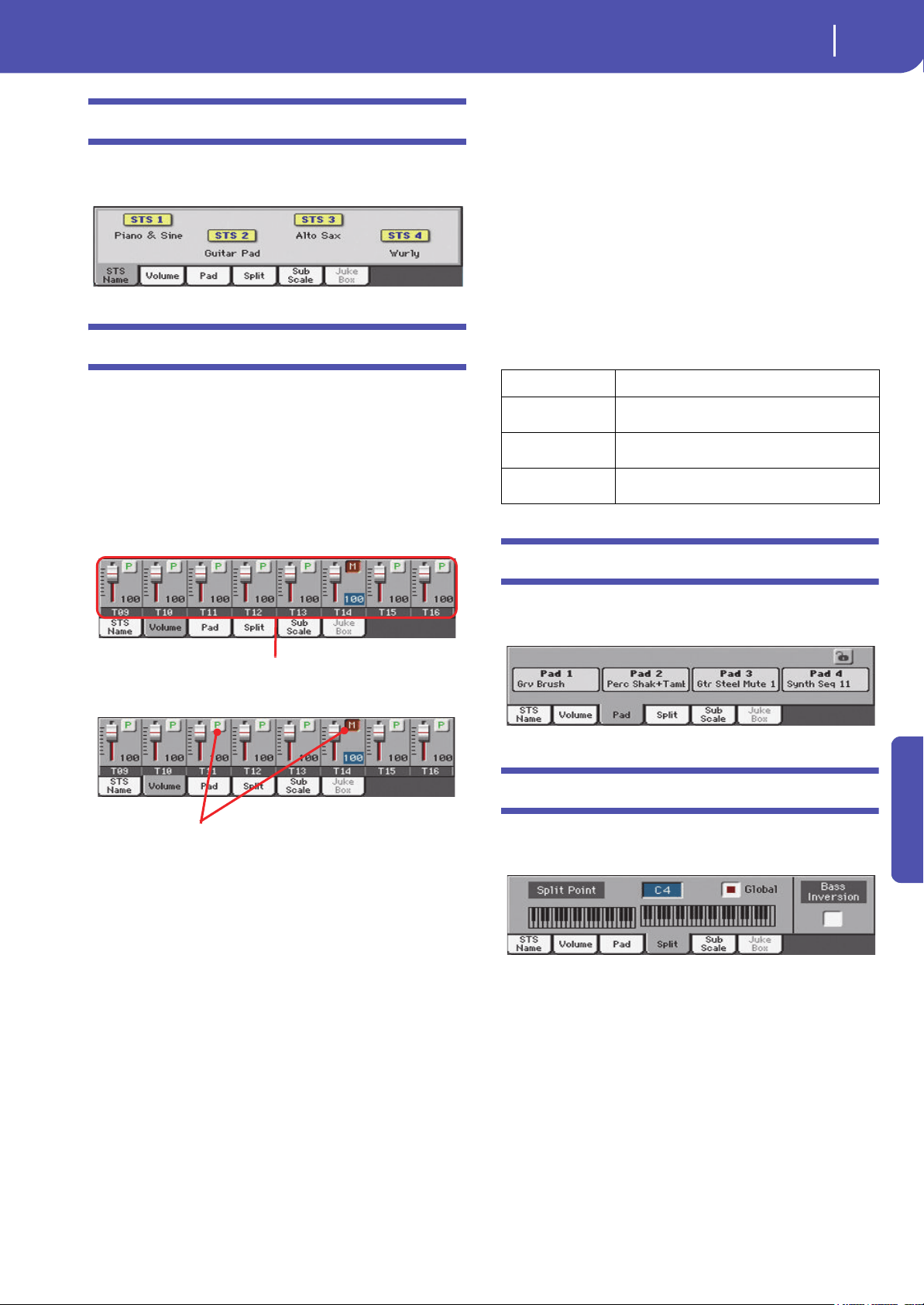
115
Song Play
STS Name panel
Reference
STS Name panel
Select this panel to see the name of the four available STSs. See
“STS Name panel” on page 91 for details.
Volume panel
Touch the Volume tab to select this panel. This is where you can
set the volume of each track, and mute/unmute tracks.
Changing the tracks’ volume and play/mute
status
You can change the volume and play/mute status of each track in
the same way seen for the Style (see “Volume panel” on page 91
for details).
Saving the tracks’ volume and play/mute
status
Each set of tracks can be saved into a different structure. This
allows for a great flexibility when mixing Keyboard and Song
tracks through the use of Performances, STSs and Standard
MIDI Files.
•The status of Keyboard tracks can be saved to a Performance
or STS (see “Write Performance” on page 108 and “Write Single
Touch Setting” on page 108).
• The status of the Song tracks can saved as a general setting in
the Global > Mode Preferences > Song & Sequencer page (see
“Save Trk & FX” on page 154).
This allows for leaving the track status unchanged even when
playing a different Standard MIDI File. You can leave, for exam-
ple, the bass track in mute, and let your bassist play it live for the
whole show.
However, an exception to the above is when reading a Standard
MIDI File created with a Pa-Series instrument. These files do
include special commands to force the Play/Mute status of each
track.
Track names
Under the sliders, a label for each track is shown. Use the
TRACK SELECT button to switch between the Keyboard Traks
and the Song Tracks 1-8 and Song Tracks 9-16 views.
Pad panel
Select this panel to see which Hit or Sequence Pads are assigned
to the four Pads. See “Pad panel” on page 93 for details.
Split panel
Select this panel to adjust the split point for the Keyboard tracks.
See “Split panel” on page 94 for details.
Virtual sliders
Track status icons
Abbreviation Track
UPPER1…3 Upper tracks. Volume and play/mute status memo-
rized into a Performance or STS.
LOWER Lower track. Volume and play/mute status memorized
into a Performance or STS.
T01…T16 Song tracks. Volume memorized into a Standard MIDI
File. Play/mute status memorized as a general setting.
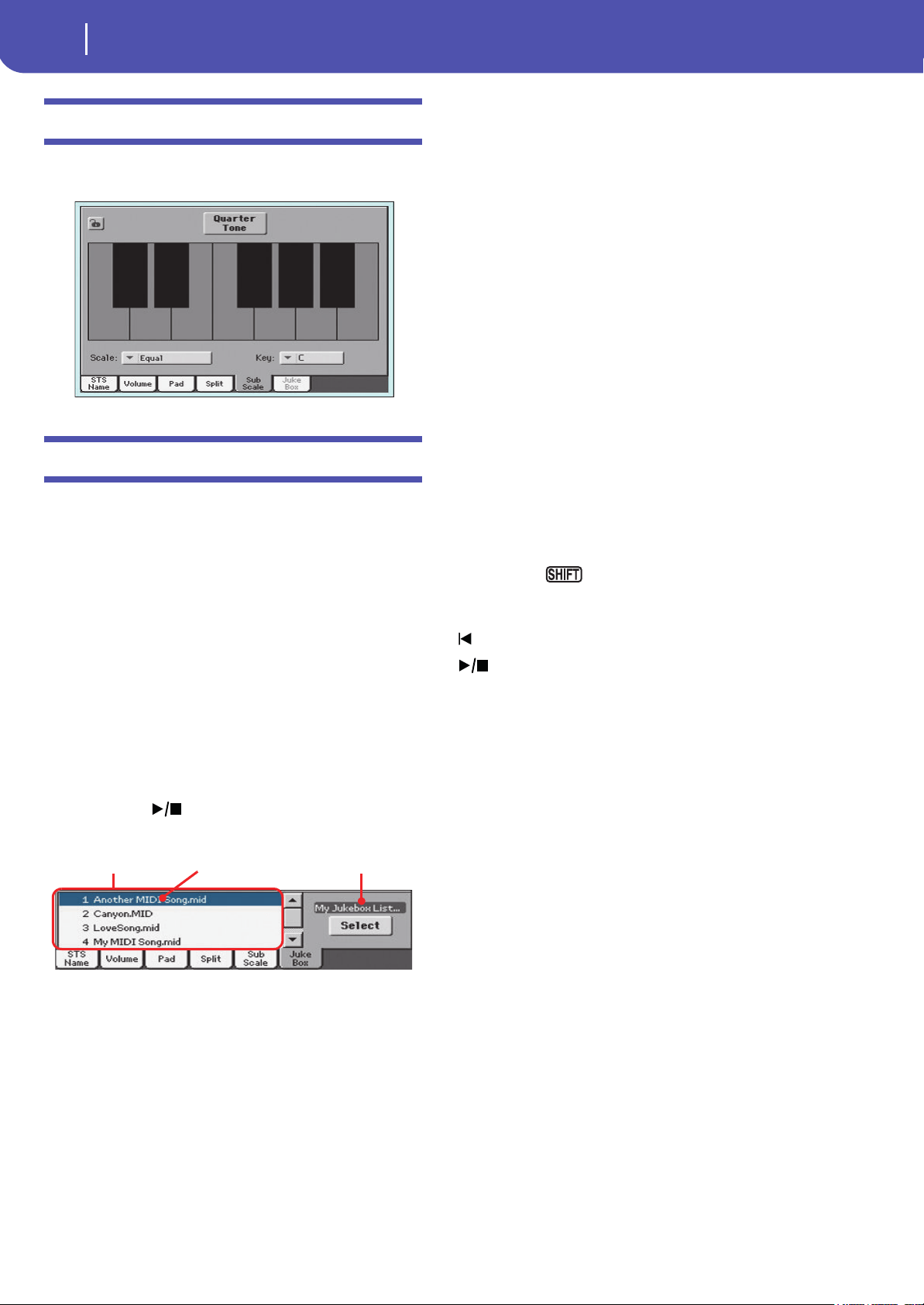
116
Song Play
Sub-Scale panel
Sub-Scale panel
Select this panel to select a secondary scale for the Keyboard
tracks. See “Mixer/Tuning: Sub Scale” on page 98 for details.
Jukebox panel
When a Jukebox (JBX) file is assigned to the Player, you can use
the list shown in this panel to browse the Jukebox list, and touch
the Select button in the display to select a Song to play. This way,
you can select any Song in the list as your starting Song, and
manually change the order of the Songs to play.
Note: This panel is only available after loading a Jukebox file.
Hint: To create or edit a Jukebox file, go to the Jukebox Edit page
(see page 120). A quick way to create a Jukebox list is to touch the
“Play All” button in the Song Select window (see page 86).
War nin g: If you delete a Song included in the Jukebox list cur-
rently in play, the Player will stop, and the “No Song” message will
appear. At this point, you can select the JukeBox tab to open the
Jukebox panel, and select a different Song.
As an alternative, you can select the next Song by pressing SHIFT
+ >> (FAST FORWARD) in the PLAYER section of the control
panel, then press (START/STOP) in the PLAYER section
again.
Song list
Use this list to browse through the Songs in the Jukebox list. Use
the scrollbar to scroll the list.
Selected Song
Name of the Song currently in play. You can select a different
Song from the list, and touch the Select button in the display to
select it for playback.
Select button
Touch this button to select the Song highlighted in the list, and
assign it to the player. If a Song is already playing, it will be
stopped, and the selected Song will start playing back.
Jukebox file
Name of the selected Jukebox file. To edit this file, see “Jukebox
Editor” on page 120.
Transport controls for the Jukebox
When you select a Jukebox file, the Player’s transport controls
behave in a slightly different way than with single Songs.
<< and >> Pressed alone, these buttons are the Rewind and
Fast Forward commands.
Keep the SHIFT button pressed, and press
these buttons to scroll to the previous or next
Song in the Jukebox list.
(HOME) Returns to measure 1 of the current Song.
(START/STOP)
Starts or stops the current Song. When you stop
the Song, it is stopped at the current position.
Press HOME to go back to measure 1 of the cur-
rent Song.
If the Jukebox panel is open, you can select the
Song from which to start. See “Jukebox panel”
above.
Song list Jukebox fileSelected Song
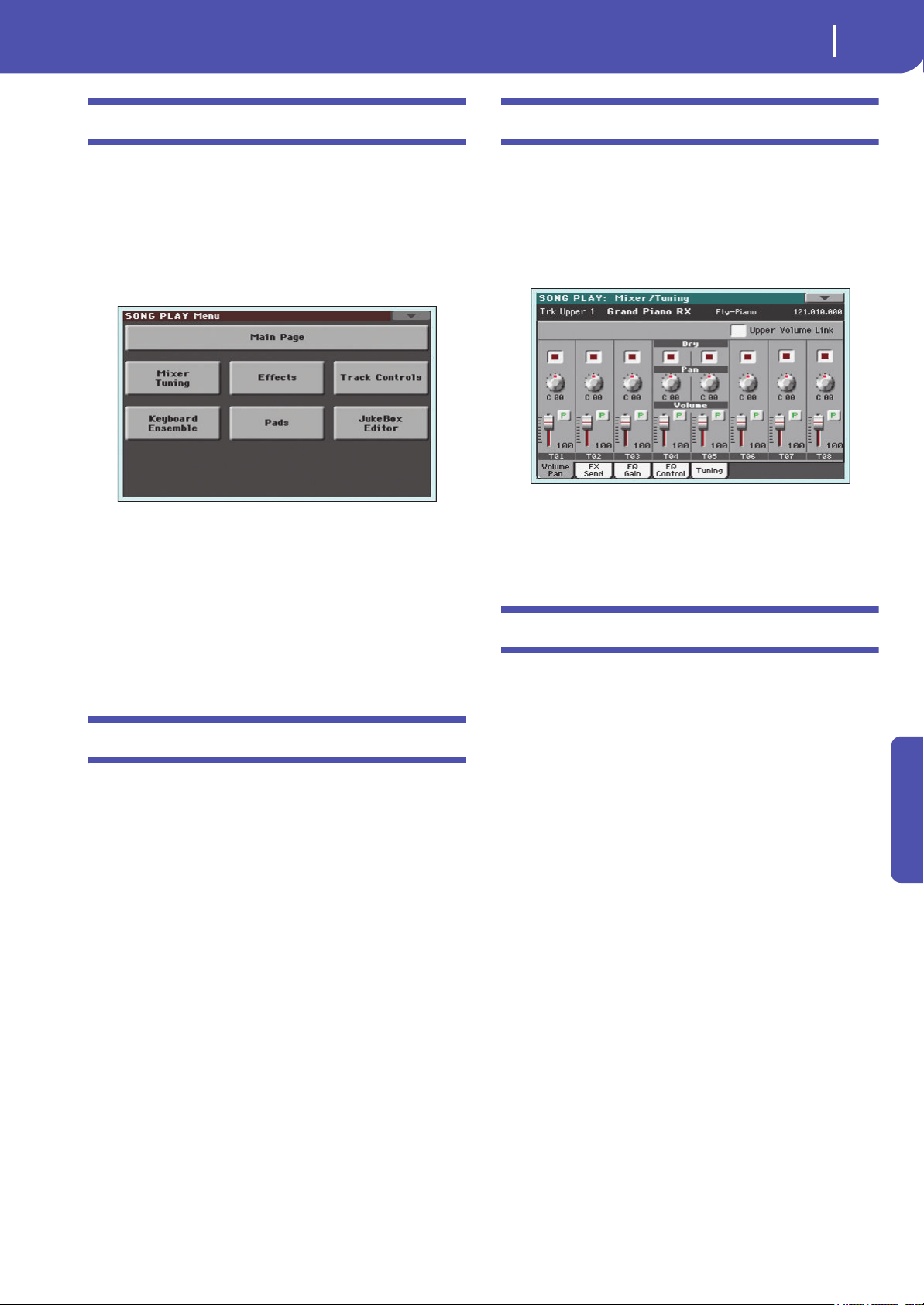
117
Song Play
Edit menu
Reference
Edit menu
From any page, press the MENU button to open the Song Play
edit menu. This menu gives access to the various Song Play edit
sections.
When in the menu, select an edit section, or press EXIT or
SONG PLAY to exit the menu.
When in an edit page, press the EXIT or SONG PLAY button to
go back to the main page of the Song Play operating mode.
Each item in this menu corresponds to an edit section. Each edit
section groups various edit pages, that may be selected by touch-
ing the corresponding tab on the lower part of the display.
Note: Some of the edit parameters are only meant for realtime use.
As a general rule, Keyboard track parameters can be saved to a
Performance or SongBook STS, while Song track’s Play/Mute sta-
tus and FX settings can be saved as a general setting in the Global
> Mode Preferences > Song & Sequencer page (see “Save Trk &
FX” on page 154).
Edit page structure
All edit pages share some basic elements, already described for
the Style Play mode (see “Edit page structure” on page95 for
details).
Mixer/Tuning: Volume/Pan
This page lets you set the volume and pan for each of the Key-
board or Song tracks.
Note: The play/mute status of a Song track may be reset when
selecting a Song created on a Pa-Series instrument.
Use the TRACK SELECT button to switch from the Keyboard to
the Song tracks, and vice versa.
Parameters
The parameters shown in this page are the same already seen for
the Style Play mode. See “Mixer/Tuning: Volume/Pan” on
page 95 for details.
Mixer/Tuning: FX Send
Pa300 is equipped with two groups of effect processors (A and
B). In Song Play mode, these groups can be used to process Key-
board, Pad and MIDI tracks.
• Keyboard tracks always use the effects of the FX B group.
• Pad tracks always use the effects of the FX A group.
• Standard MIDI Files and Karaoke files can only use the
effects of the FX A group.
• Standard MIDI Files created on a Pa-Series instrument (in
Sequencer mode) can use effects of the FX A and B groups.
Choosing and editing the effects is done in the dedicated Effect
section (see “Effects: A/B FX Configuration” on page 119).
In case you do not want to hear the direct signal, just set the Dry
parameter to Off (see the “Dry” parameter above).
You can assign to the Master FXs any kind of available effects,
but we suggest you assign the effects based on this scheme:
A-Master 1 Reverb processor for the Song tracks.
A-Master 2 Modulating FX processor for the Song tracks.
B-Master 1 Reverb processor for the Keyboard tracks.
B-Master 2 Modulating FX processor for the Keyboard
tracks.
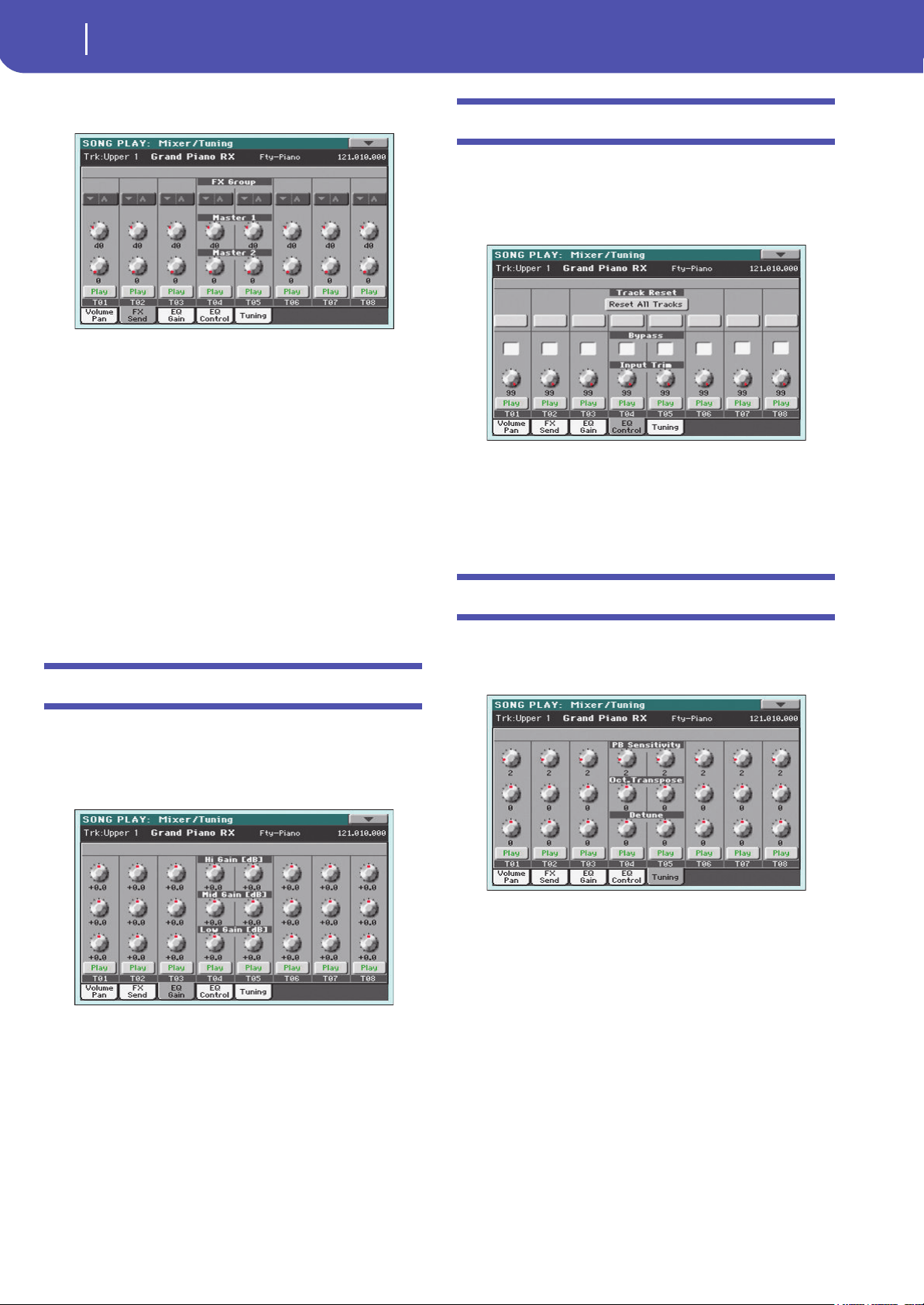
118
Song Play
Mixer/Tuning: EQ Gain
Use the TRACK SELECT button to switch from Keyboard to
Song tracks, and vice-versa.
Note: When you stop, then start the Song again, or select a differ-
ent Song, the default Song track settings are selected again. You
can, however, pause the Song, change the effects, then exit from
pause and start the Song again. Edit the Song in Sequencer mode
to permanently change the effects.
Note: Track FX setting can be saved as a general setting in the
Global > Mode Preferences > Song & Sequencer page (see “Save
Trk & FX” on page 154). This will help adapting the Pa300’s sound
to personal taste for any Standard MIDI File (excluding those
saved by a Pa-Series instrument, that may override the general
preferences).
Parameters
The parameters shown in this page are the same already seen for
the Style Play mode. See “Mixer/Tuning: FX Send” on page 96
for details.
Mixer/Tuning: EQ Gain
In this page you can set the three-band equalization (EQ) for
each individual track.
Use the TRACK SELECT button to switch from the Keyboard to
the Song tracks, and vice-versa.
Hint: Track EQ can be saved as a general setting in the Global >
Mode Preferences > Song & Sequencer page (see “Save Trk & FX”
on page 154). This will help adapting the Pa300's sound to personal
taste for any Standard MIDI File you will ever play (excluding those
saved by a Pa-Series instrument, that may override the general
preferences). Need a lighter Bass track? Save the right equalization,
and the Bass will stay light with all the subsequent Songs.
Parameters
The parameters shown in this page are the same already seen for
the Style Play mode. See “Mixer/Tuning: EQ Gain” on page 97
for details.
Mixer/Tuning: EQ Control
This page lets you reset or bypass track equalization, pro-
grammed in the previous page.
Use the TRACK SELECT button to switch from the Keyboard to
the Song tracks, and vice-versa.
Parameters
The parameters shown in this page are the same already seen for
the Style Play mode. See “Mixer/Tuning: EQ Control” on page 97
for details.
Mixer/Tuning: Tuning
Parameters in this page let you set various tuning settings. All
parameters in this page are the same found in Global mode. See
“Mixer/Tuning: Tuning” on page 98 for details.
Parameters
The parameters shown in this page are the same already seen for
the Style Play mode. See “Mixer/Tuning: Tuning” on page 98 for
details.
Note: Song track values edited in this page are not saved, and are
only intended for realtime use.
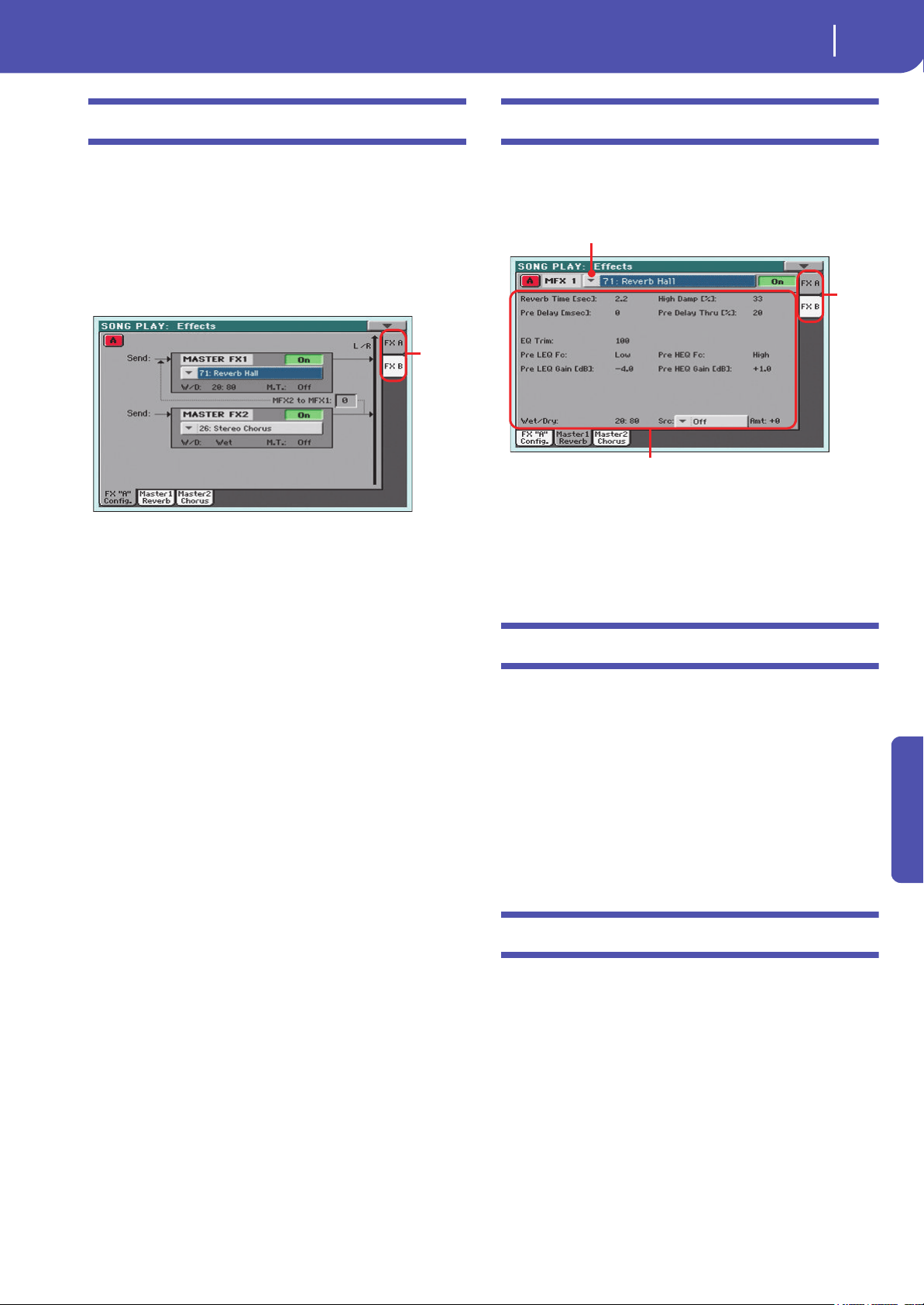
119
Song Play
Effects: A/B FX Configuration
Reference
Effects: A/B FX Configuration
This page allows you to select the effects for the A (Song) and B
(Keyboard) FX groups. You can use the “FX A” and “FX B” side
tabs to switch from one group to the other one. (Songs created in
Sequencer mode on a Pa-Series instrument can also use the B FX
group).
The effect types and the FX matrix are the same seen for the
Style Play mode (see “Effects: A/B FX Configuration” on
page 100),
Note: The default effect settings can be saved as a general setting in
the Global > Mode Preferences > Song & Sequencer page (see
“Save Trk & FX” on page 154).
Note: When you stop the Song, or select a different Song, the
default effects are selected again. You can, however, stop the Song,
change the effects, then start the Song again with the new effects.
Edit the Song in Sequencer mode to permanently change the
effects.
Parameters
The parameters shown in this page are the same already seen for
the Style Play mode. See “Effects: A/B FX Configuration” on
page 100 for details.
M.T. (Modulating Track)
Source track for modulating MIDI messages. You can modulate
an effect parameter with a MIDI message generated by an inter-
nal physical controller, or a MIDI message coming from a Song
track.
Effects: Master 1, 2
These pages contain the editing parameters for the effect proces-
sors. Here is an example of the FX A page, with the Reverb Hall
effect assigned.
Parameters
The parameters shown in this page are the same already seen for
the Style Play mode. See “Effects: Master 1, 2” on page 101 for
details.
Track Controls: Mode
These parameters let you set the Internal/External, and the Poly/
Mono status of Song tracks.
Parameters
The parameters shown in this page are the same already seen for
the Style Play mode. See “Track Controls: Mode” on page 101 for
details.
Note: These parameters can be saved as a general setting in the
Global > Mode Preferences > Song & Sequencer page (see “Save
Trk & FX” on page 154).
Track Controls: Drum Edit
These parameters let you adjust the volume and edit the main
parameters for each percussive instrument family.
Drum Edit parameters
The parameters shown in this page are the same already seen for
the Style Play mode. See “Track Controls: Drum Edit” on
page 102 for details.
Note: Song track values edited in this page are not saved, and are
only intended for realtime use.
FX
group
Selected effect
FX parameters
FX
group
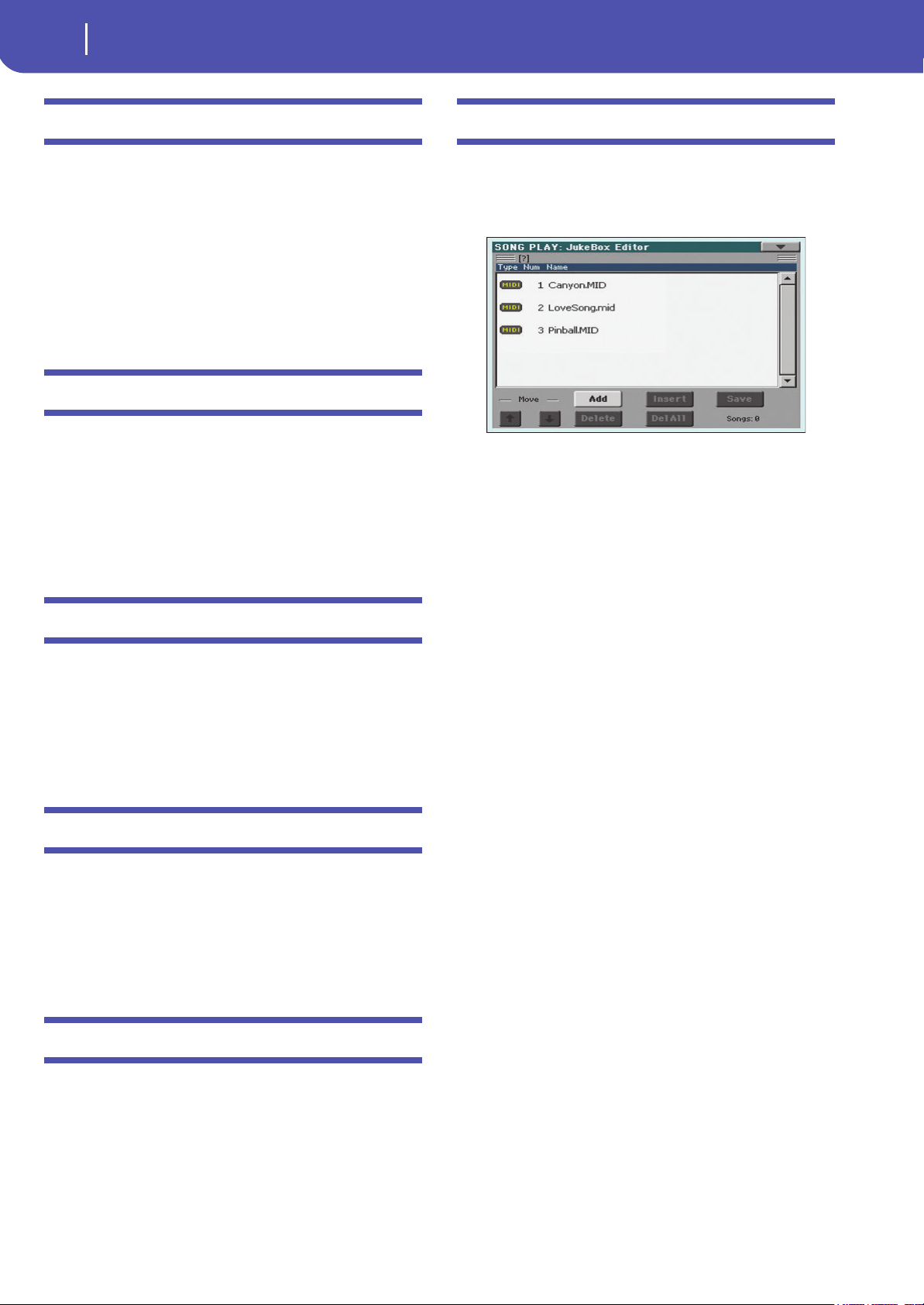
120
Song Play
Track Controls: Easy Edit
Track Controls: Easy Edit
These parameters let you “fine-tune” edit parameters for Sounds
assigned to the tracks.
Easy Sound Edit parameters
The parameters shown in this page are the same already seen for
the Style Play mode. See “Track Controls: Easy Edit” on page 103
for details.
Note: Song track values edited in this page are not saved, and are
only intended for realtime use.
Keyboard/Ensemble: Key/Velocity Range
These parameters let you select a note and velocity range for the
Keyboard tracks.
Parameters
The parameters shown in this page are the same already seen for
the Style Play mode. See “Keyboard/Ensemble: Key/Velocity
Range” on page 104 for details.
Keyboard/Ensemble: Ensemble
This page lets you program the Ensemble function.
Parameters
The parameters shown in this page are the same already seen for
the Style Play mode. See “Keyboard/Ensemble: Ensemble” on
page 105 for details.
Keyboard/Ensemble: Keyboard Control
These parameters let you set parameters for the Keyboard tracks.
Parameters
The parameters shown in this page are the same already seen for
the Style Play mode. See “Keyboard/Ensemble: Keyboard Con-
trol” on page 106 for details.
Pads: Pad
This page lets you select a different hit sound or sequence for
each of the four PAD buttons.
Parameters
The parameters shown in this page are the same already seen for
the Style Play mode. See “Pads: Pad” on page 106 for details.
Jukebox Editor
The Jukebox function lets you play a list of Songs (127 max), at
the touch of a button. You can play a Jukebox file by assigning it
to the Player, after having selected it in the Song Select page, just
as if it was an ordinary Song (see “Jukebox panel” on page 116).
In this page you can create, edit and save a Jukebox file. A Juke-
box list can contain Standard MIDI Files, Karaoke™ files, and
MP3 files.
If a Jukebox file is already selected, you will enter this page with
that file ready to be edited. Otherwise, you will enter this page
with an empty list.
To create a new Jukebox file, touch Del All to remove all Songs
from the current list. Add new Songs, then touch Save and enter
a different name before confirming. A new Jukebox file will be
saved to the storage device.
Move Up/Down
Use these button to move the selected item up or down in the
list.
Add
Adds a Song at the end of the current list. You can add up to 127
Songs to a list. When this button is pressed, a standard file selec-
tor opens up in the display.
Note: A Jukebox list can include only Songs contained in the same
folder.
Hint: Instead of a single Song, you can select a Jukebox file, and
add its whole content to the current Jukebox list.
Insert
Inserts a Song at the current position (i.e., between the selected
item and the preceding one). All subsequent Songs are moved to
the next higher-numbered slot. You can add up to 127 Songs to a
list.
Note: A Jukebox list can include only Songs contained in the same
folder.
Hint: Instead of a single Song, you can select a Jukebox file, and
insert its whole content to the current Jukebox list.
Delete
This command lets you delete the selected Song from the list.
Del All
Select this command to delete the whole Jukebox list.
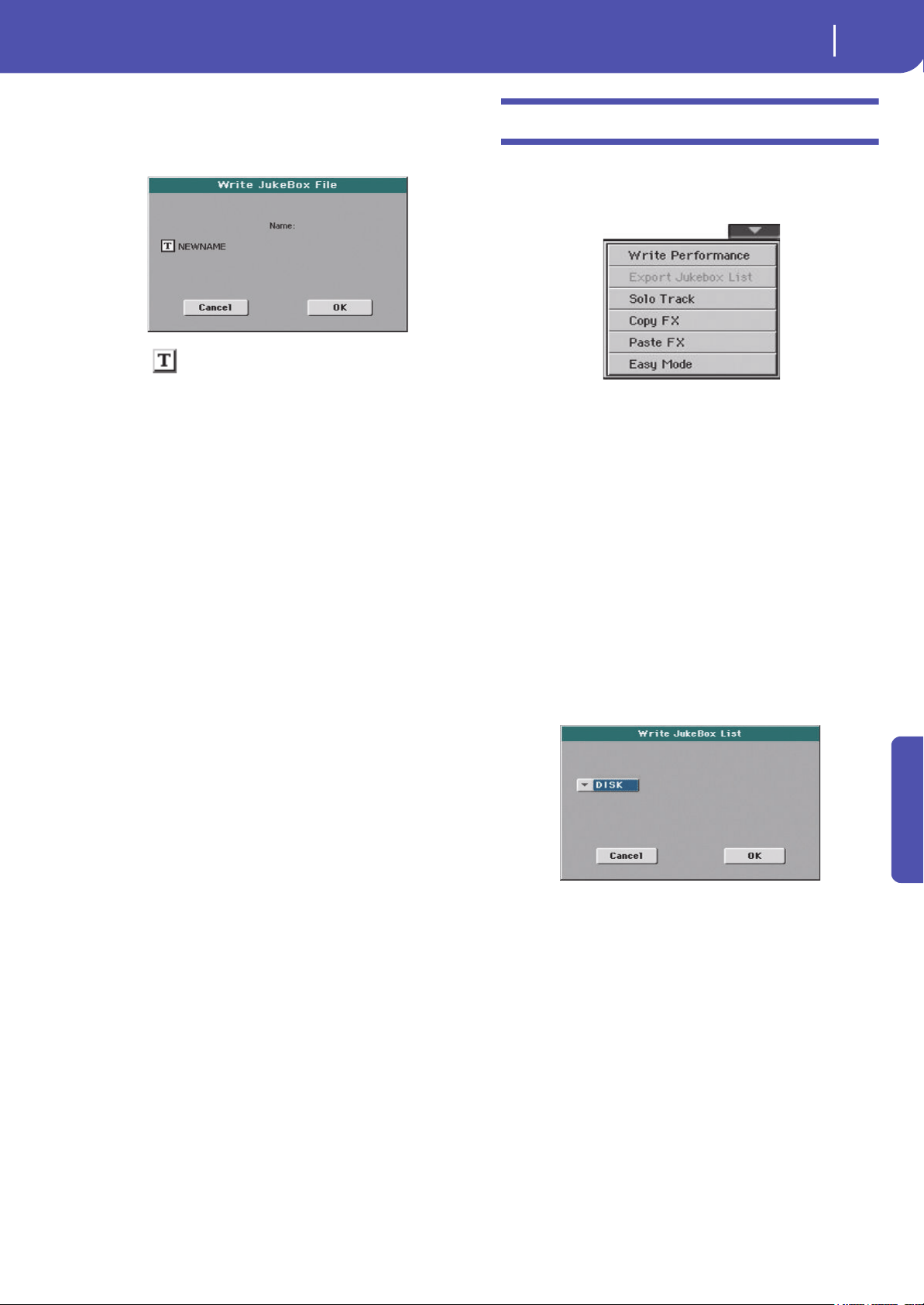
121
Song Play
Page menu
Reference
Save
Touch this button to save the Jukebox file. The Save Jukebox File
dialog box appears, allowing you to edit the name and save your
file.
Touch the (Text Edit) button to open the Text Edit window,
and edit the name.
If you are editing an existing list, and do not change its name, the
old file is overwritten. If you change it, a new file will be created
in the storage device.
If you are saving a new list, the “NEWNAME.JBX” name is auto-
matically assigned, and you can edit it.
Note: You can save your “.JBX” file only in the same folder as the
Song files included in the list.
Page menu
Touch the page menu icon to open the menu. Touch a command
to select it. Touch anywhere in the display to close the menu
without selecting a command.
Write Performance
Select this command to open the Write Performance dialog box,
and save most of the current control panel settings to a Perfor-
mance.
See “Write Performance dialog box” on page 109 for more infor-
mation.
Export Jukebox List
Only available when a Jukebox list is selected. Select this com-
mand to save the current Jukebox list as a text file to a storage
device. Here is how it works.
1. While a Jukebox file is assigned to the player, select the
Export Jukebox List command from the page menu.
2. A dialog box will appear, asking you to select either the
internal memory or a storage device connected to the USB
Host port.
3. Select an option, and touch OK to confirm.
Note: When saved, the text file will be named after the selected
Jukebox file. For example, a Jukebox file named “Dummy.jbx” will
generate a “Dummy.txt” file. A new, unnamed Jukebox file will
generate a “New_name.txt” file. If a file with the same name
already exists on the target device, it will be overwritten without
waiting for any confirmation.
The list will include the progressive number assigned to each Song,
the file names, the total number of files in the list.
For the correct display and printing of the list on a personal com-
puter, use a fixed size (i.e., non-proportional) character in your
text editor.
Solo Track
Select the track to be soloed, and check this item. You will hear
only the selected track, and the ‘Solo’ warning will flash on the
page header.

122
Song Play
Page menu
Uncheck this item to exit the Solo function.
The Solo functions works in a slightly different way, depending
on the selected track:
• Keyboard track: The selected Keyboard track is the only track
you can hear when playing on the keyboard. All other Keyboard
tracks are muted. Song tracks are left in play status.
• Song track: The selected track is the only Song track you can
hear. All other Song tracks are muted. Keyboard tracks are left in
play status.
Keep the SHIFT button pressed and touch one of the
tracks to solo it. Do the same on a soloed track to deactivate the
Solo function.
Copy/Paste FX
Use this command to copy a single effect, or both effects of an
FX group (A or B). See “Copy/Paste FX” on page 108 for detailed
instructions.
Easy Mode
Easy Mode allows you to use the Style Play and Song Play modes
with an easier-to-use user interface. It is recommended to begin-
ners, and to professionals alike that do not want to deal with the
extra parameters of the Advanced mode.
At any time, you can manually turn the Easy Mode on/off with
the Easy Mode command in the page menu of the Style Play and
Song Play modes.
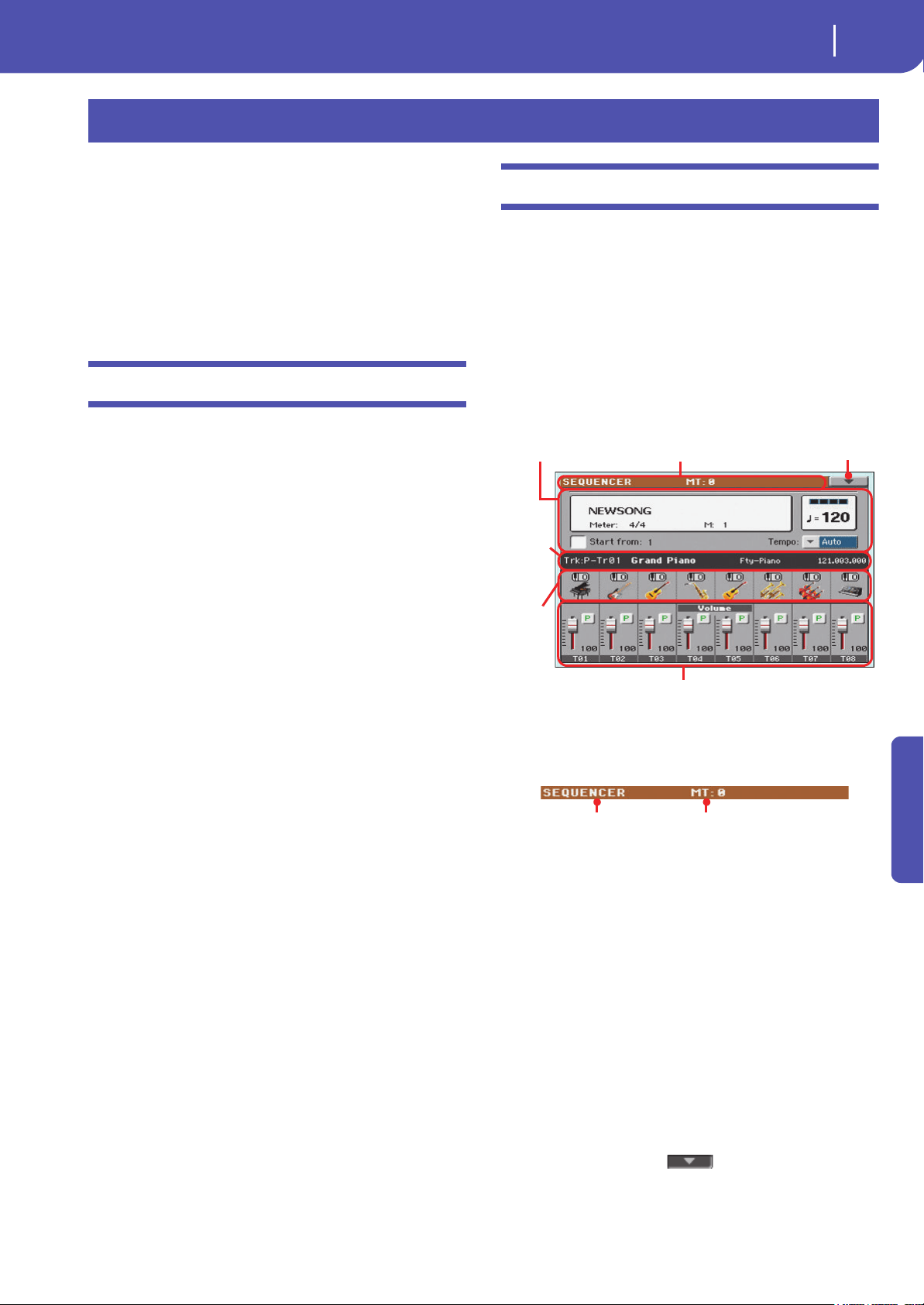
123
Sequencer
Standard MIDI Files and MP3
Reference
The Sequencer operating mode is the full-featured onboard
sequencer, where you can create a Song from scratch, or edit it.
You can also use this mode to edit the initial parameters of a
Standard MIDI File, either made with an external sequencer or
with Pa300’s own sequencer.
You can save the new or edited Song as a Standard MIDI File
(SMF, i.e., a file with the “.MID” extension), and play it back
either in Song Play or Sequencer mode – or on any external
sequencer.
Standard MIDI Files and MP3
The Songs and the Standard MIDI File format
The native Song format for Pa300 is the Standard MIDI File
(“.MID” file).
When saving a Song as a SMF, a setup measure is automatically
inserted at the beginning of the Song. This measure contains
various Song initialization parameters.
When an SMF is loaded, the setup measure is automatically
skipped.
Sequencer mode and the MP3
While in Sequencer mode, you cannot load nor record MP3
files. This mode only allows for editing of the Standard MIDI
Files.
Sequencer Play - Main page
Press the SEQUENCER button to access this page from another
operating mode. In this page you can load a Song, and play it
back using the PLAYER transport controls.
Note: When switching from Style Play to Sequencer mode, the
Sequencer Setup is automatically selected, and various track
parameters may change.
To return to this page from any of the Sequencer edit pages,
press the EXIT or SEQUENCER button.
To switch between Song tracks 1-8 and 9-16, use the TRACK
SELECT button.
Page header
This line shows the current operating mode and transposition.
Operating mode name
Name of the current operating mode.
Master Transpose
Master transpose value in semitones. This value can be changed
using the TRANSPOSE buttons on the control panel.
Note: Transpose may be automatically changed when loading a
Standard MIDI File generated with an instrument of the Korg Pa-
Series.
Page menu icon
Touch the page menu icon to open the menu. See “Page menu”
on page 144 for more information.
Sequencer
Song area Page header
Page menu icon
Selected
track info
area
Sounds
area
Track volume/status area
Operating mode Master Transpose (in
semitones)
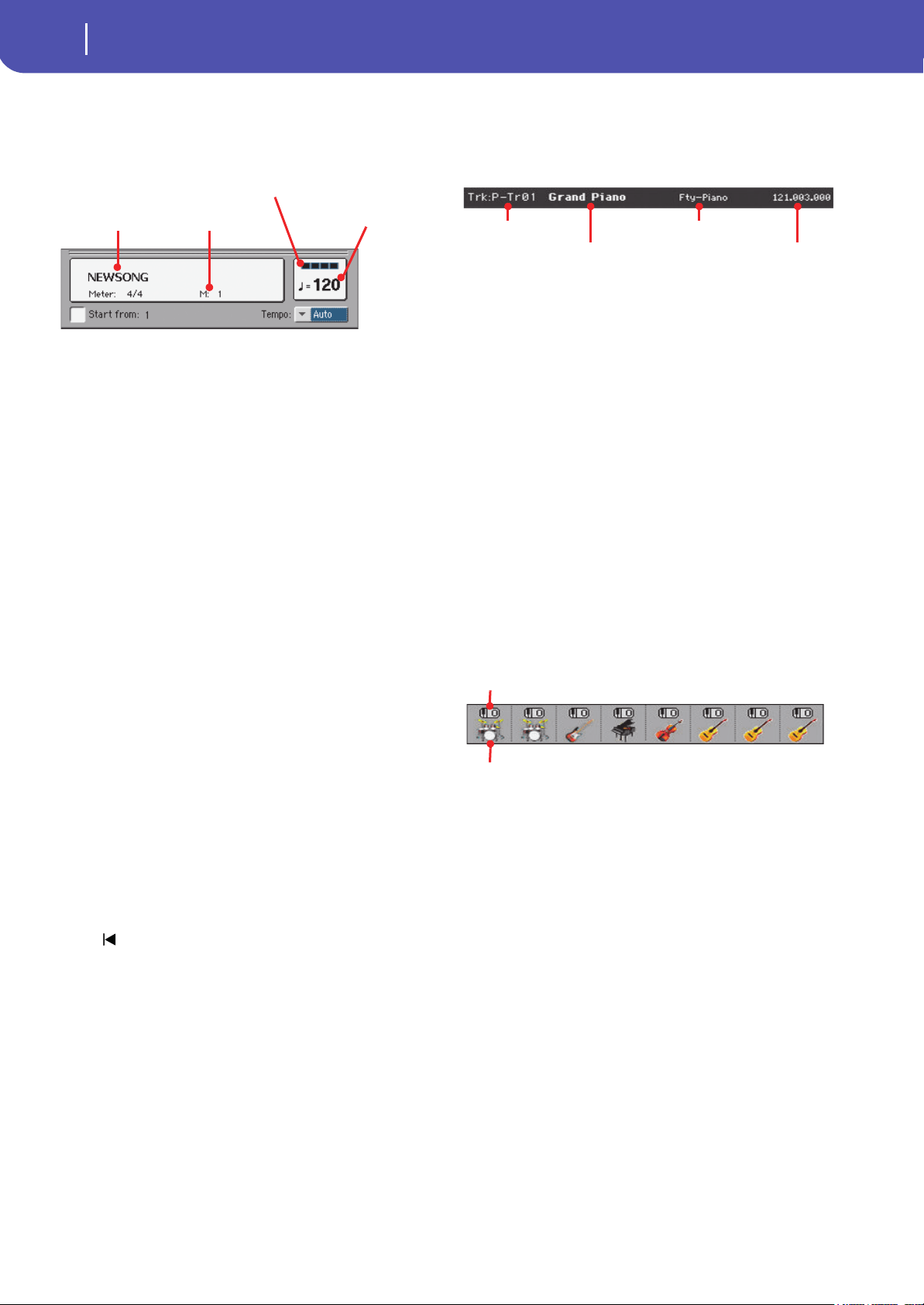
124
Sequencer
Sequencer Play - Main page
Song area
This is where the Song name is shown, together with its tempo
and meter (time signature) parameters, and the current measure.
Song name
Displays the name of the selected Song. “NEWSONG” means
that a new (blank) Song is selected, and you can record it.
Touch the Song name to make the Song Select window appear,
allowing for selection of a different Song (see “Song Select win-
dow” on page 85).
To select a Song, you can also press the SONG button in the
SELECTION section of the control panel. Press it a second time
to select a Song by dialing in its ID number (see “Selecting a
Song by its ID number” on page 86).
Note: Only Standard MIDI Files can be loaded. MP3 files cannot
be loaded in Sequencer mode.
Meter
Current meter (time signature).
Measure number
Current measure number.
Temp o
Metronome Tempo. Select this parameter and use the TEMPO
buttons to change Tempo. As an alternative, when a different
parameter is selected, or you are in a different page, keep the
SHIFT button pressed and use the DIAL to change Tempo for
the sequencer.
Start from
When checked, the measure shown by this parameter is a tem-
porary start point of the song, instead of measure 1. When you
press the (HOME) button, or use the << (REWIND) button
to go back to the beginning, the Song returns to this point.
Tempo (Tempo mode)
Use this menu to select the Tempo change mode.
Manual In this mode, you can change Tempo by using the
TEMPO buttons. The Song will be played back
using the manually selected tempo.
Auto Tempo recorded in the Song will be used.
Selected track info area
This line lets you see the Sound assigned to the selected track.
Not only it is shown on the main page, but also in several edit
pages.
Track name
Name of the selected track.
Sound name
Sound assigned to the selected track. Touch anywhere in this
area to open the Sound Select window, and select a different
Sound.
Sound bank
Bank the selected Sound belongs to.
Program Change
Program Change number sequence (Bank Select MSB, Bank
Select LSB, Program Change).
Sounds area
This area lets you see Sounds and octave transposition for the
eight tracks currently displayed.
Song track octave transpose
Non editable. Octave transpose of the corresponding track. To
edit the octave transpose, go to the “Mixer/Tuning: Tuning” edit
page (see page 98 for programming information).
Sound bank’s icon
This picture illustrates the bank the current Sound belongs to.
Touch an icon a first time to select the corresponding track
(detailed information are shown on the Selected Track Info area,
see above). Touch it a second time to open the Sound Select win-
dow.
Song name
Tempo
Measure number
Beat counter
Track name
Sound name
Sound bank
Program Change sequence
Song track octave transpose icon
Sound bank’s icon
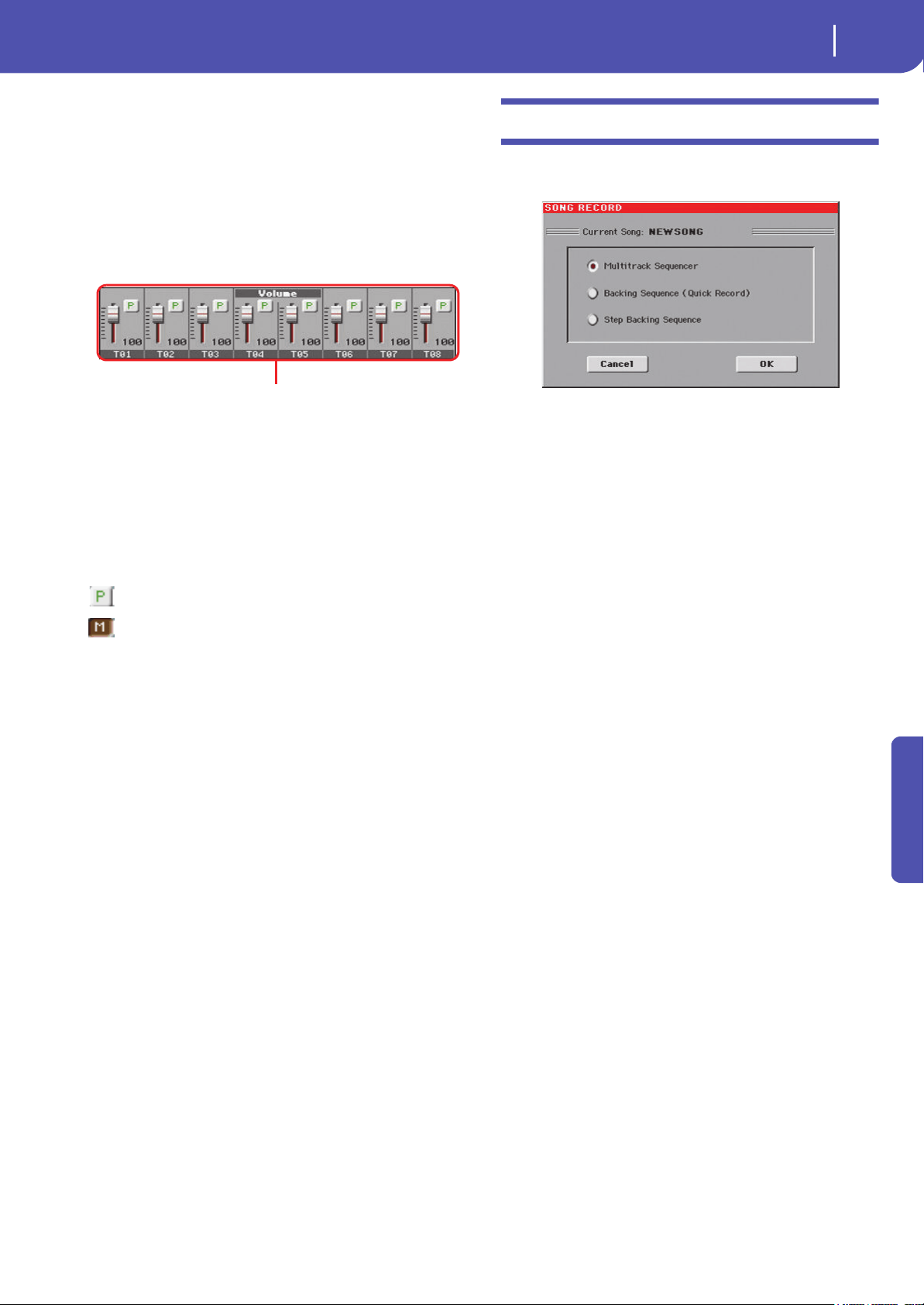
125
Sequencer
Entering Record mode
Reference
Track volume/status area
This area is where you can set the volume of each Song track,
and mute/unmute tracks.
Volume and virtual sliders
Each track’s volume is memorized into the Standard MIDI File.
Drag the sliders to adjust the volume of the corresponding
tracks. You can also change the volume by touching a slider and
using the VALUE DIAL.
Use the TRACK SELECT button to switch between Song Tracks
1-8 and Song Tracks 9-16,
Track status icon
The Play/Mute status of each track is memorized into the Stan-
dard MIDI File. Select the track, then touch this area to change
the track status. The status of Song tracks is saved when saving
the Song.
Play status. The track can be heard.
Mute status. The track cannot be heard.
Track names
Under the sliders, a label for each track is shown. Use the
TRACK SELECT button to switch between tracks 1-8 and 9-16.
Entering Record mode
To enter Record mode, press the RECORD button while you are
in Sequencer mode. The following dialog box will appear:
Select one of the three available recording options and touch OK
(or Cancel if you don’t want to enter Record mode).
Multitrack Sequencer
Full-featured sequencer. Select this option for
classic multitrack recording. (See “Record mode:
Multitrack Sequencer page” on page 126).
Backing Sequence (Quick Record)
Easy way of recording. Just play with Styles, and
record your performance.
Step Backing Sequence
Step-record. Edit chords and controls for the
Style. Very useful if you are not a keyboard player.
Virtual sliders
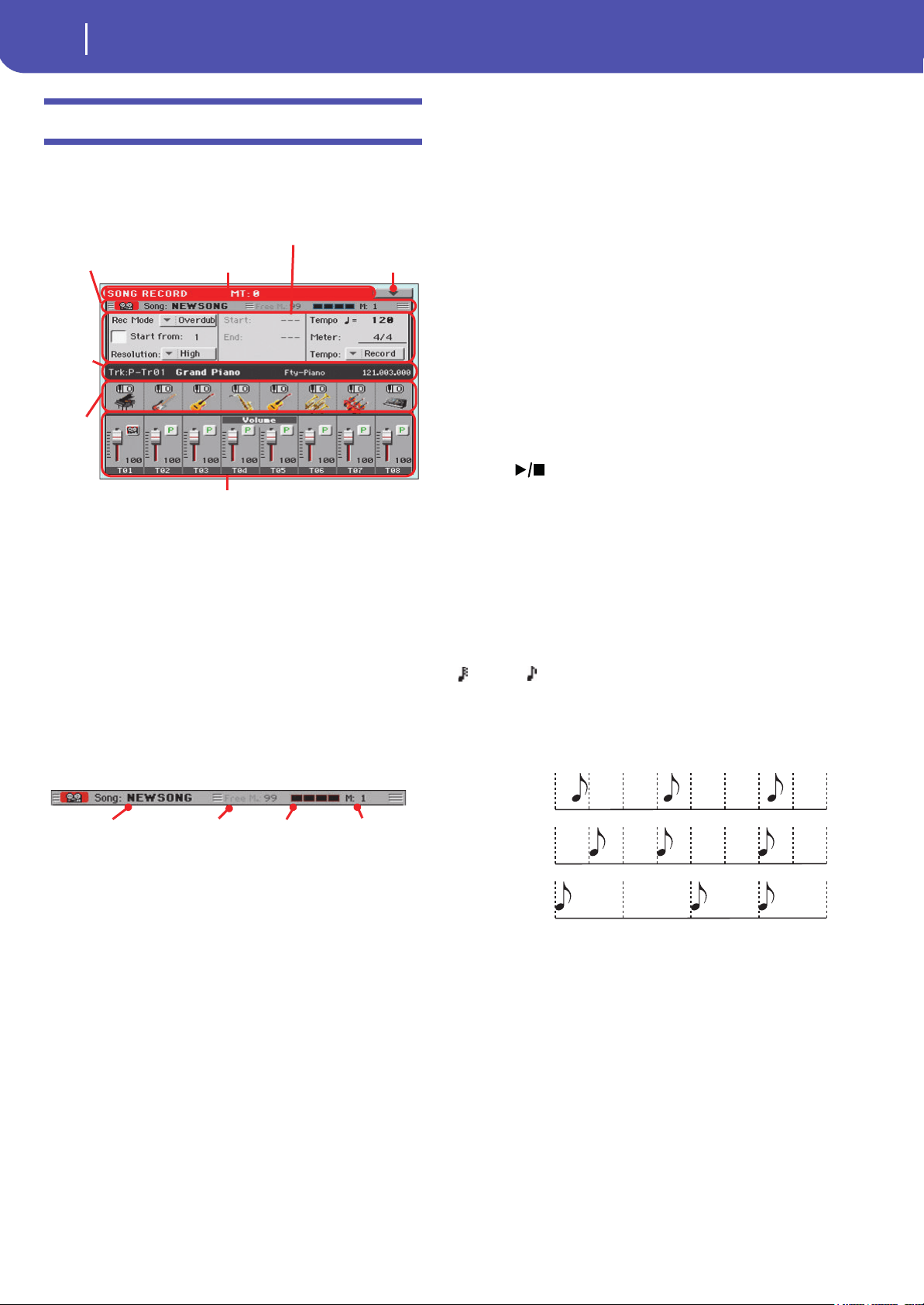
126
Sequencer
Record mode: Multitrack Sequencer page
Record mode: Multitrack Sequencer page
While in Sequencer mode, press the RECORD button and select
the “Multitrack Sequencer” option. The Multitrack Sequencer
page appears.
See “Multitrack recording procedure” on page 127 for informa-
tion on the record procedure.
Page header
See “Page header” on page 123.
Page menu icon
See “Page menu icon” on page 123.
Page sub-header
This area shows some performing info on the Song.
Song name
Name of the Song in record.
Free memory %
Percentage of remaining memory available for recording.
Beat counter
This indicator shows the current beat inside the current mea-
sure.
Measure number
Current measure you are recording.
Recording parameters area
Rec mode (Recording mode)
Set this parameter before starting record, to select a recording
mode.
Overdub The newly recorded events will be mixed to any
existing events.
Overwrite The newly recorded events will replace any exist-
ing events.
Auto Punch Recording will automatically begin at the “Start”
position, and stop at the “End” position.
Note: The Auto Punch function will not work on
an empty Song. At least one track must already be
recorded.
PedalPunch Recording will begin when pressing a pedal set to
the “Punch In/Out” function, and will finish
when pressing the same pedal again.
Note:
The Pedal Punch function will not work on an
empty Song. At least one track must already be recorded.
Start from
When checked, the measure shown by this parameter is a tem-
porary start point of the song, instead of measure 1. When you
press the (START/STOP) button to stop recording, or use
the << (REWIND) button to go back to the beginning, the Song
returns to this point.
Resolution
Use this parameter to set the quantization during recording.
Quantization is a way of correcting timing errors; notes played
too soon or too late are moved to the nearest axis of a rhythmic
“grid”, set with this parameter, thus playing perfectly in time.
High No quantization applied.
(1/32)… (1/8)
Grid resolution, in musical values. For example,
when you select 1/16, all notes are moved to the
nearest 1/16 division. When you select 1/8, all
notes are moved to the nearest 1/8 division.
Start/End
Start and End locators. These parameters area available only
when the “Auto Punch” recording mode is selected. They set the
starting and ending points of the Punch recording.
Temp o
Select this parameter, and use the TEMPO controls to set the
Temp o va lue.
Meter
This is the basic meter (or time signature) of the Song. You can
edit this parameter only when the Song is empty, i.e., before you
begin recording anything. To insert a meter change in the mid-
dle of the Song, use the “Insert Measure” function (see
page 142).
Page header Page menu icon
Selected
track
info area
Sounds
area
Tracks volume/status area
Recording parameters area
Page sub-header
Song name Beat counter Measure numberFree memory %
No quantiza-
tion
1/16
1/8
127
Sequencer
Record mode: Multitrack Sequencer page
Reference
Tempo (Tempo mode)
This parameter sets the way tempo events are read or recorded.
Manual Manual reading. The latest manual Tempo setting
(made using the TEMPO buttons) is considered
the current Tempo value. No Tempo change
events will be recorded. This is very useful when
you want to record the Song at a much slower
speed than the actual Tempo.
Auto Auto reading. The Sequencer plays back all
recorded Tempo events. No Tempo change e vents
are recorded.
Record All Tempo changes made during recording will
be recorded to the Master Track.
Note: Tempo is always recorded in overwrite mode
(old data is replaced by the new data).
Selected track info area
This line lets you see the Sound assigned to the selected track.
See “Selected track info area” on page 124 for more information.
Sounds area
This area lets you see Sounds and octave transposition for the
eight tracks currently displayed. See “Sounds area” on page 124
for more information.
Track volume/status area
This area is where you can set the volume of each Song track,
and change track status. See “Track volume/status area” on
page 125.
Track status icons
Play/mute/record status of the current track. Select the track,
then touch this area to change its status.
Play status. The track can be heard.
Mute status. The track cannot be heard.
Record status. After pressing (START/
STOP) to start recording, the track will receive
notes from the keyboard and the USB Device
connector.
Multitrack recording procedure
Here is the general procedure to follow for the Multitrack
Recording.
1. Press the SEQUENCER button to enter Sequence mode.
2. Press the RECORD button, and select the “Multitrack
Sequencer” option to enter the Multitrack Record mode.
Now you can prepare your recording parameters. (For
more details, see “Record mode: Multitrack Sequencer
page” on page 126).
3. Be sure the Overdub or Overwrite recording options is
selected (see “Rec mode (Recording mode)” on page 126).
4. Set the Tempo. There are two ways of changing Tempo:
• Use the TEMPO buttons to change the tempo
• Touch the “Tempo” parameter, and use the VALUE DIAL
to change Tempo.
5. Use the TRACK SELECT button to switch between Song
Tracks 1-8 and Song Tracks 9-16, and assign the desired
Sound to each track (see “Sound bank’s icon” on page 124).
6. Select the track to be recorded. Its status icon will automat-
ically change to Record (see “Track status icons” above).
7. If this is a second-pass recording, use the “Start from”
parameter to enter a measure where you want to start
recording.
8. Press the METRO button to turn the metronome on, and
start practicing.
9. Press (START/STOP) to start recording. After a 1-bar
precount, the recording actually begins. After the precount,
play freely.
• If you selected the Auto Punch recording mode, the
recording will begin only when reaching the Start point.
• If you selected the Pedal Punch recording mode, press the
pedal when you want to begin recording. Press it again to
finish recording.
Note: The Punch functions will not work on an empty Song.
At least one track must already be recorded.
10. When finished recording, press (START/STOP) to
stop the sequencer. Select a different track, and go on
recording the whole Song.
11. When finished recording the new Song, either press the
RECORD button, or select the “Exit from Record” com-
mand from the page menu (see page 145).
Wa r ni ng : Save the Song to a storage device, to avoid losing it
when the instrument enters standby.
Note: When exiting the Record mode, the Octave Transpose
is automatically reset to “0”.
12. If you wish, edit the new Song, by pressing the MENU but-
ton, and selecting the various edit pages.
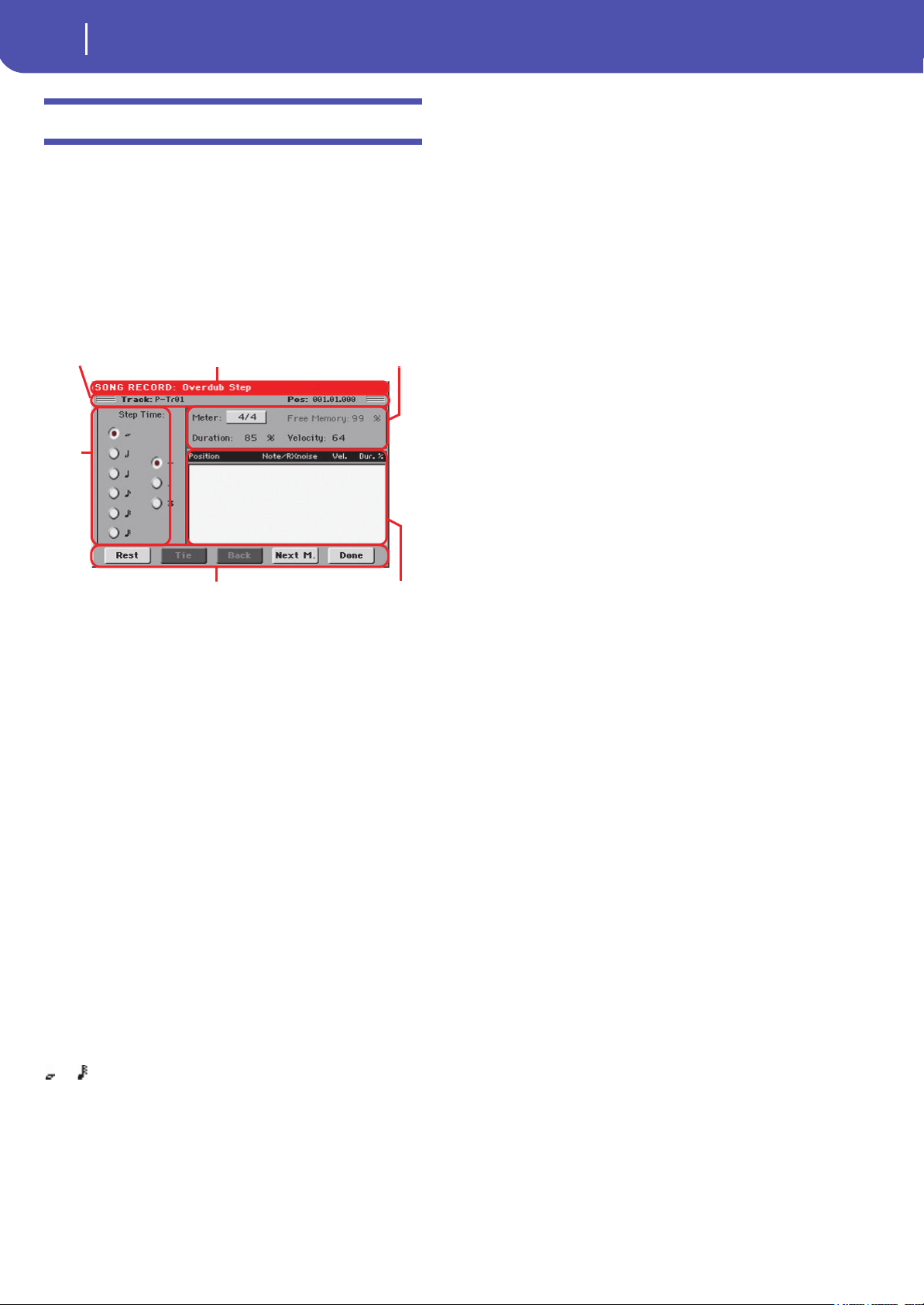
128
Sequencer
Record mode: Step Record page
Record mode: Step Record page
The Step Record allows you to create a new Song by entering sin-
gle notes or chords to each track. This is very useful when tran-
scribing an existing score, or needing a higher grade of detail,
and is particularly suitable to create drum and percussion tracks.
To access this page, select the “Overdub Step Recording” or
“Overwrite Step Recording” command from the page menu.
In Overdub Step Recording mode you will add to existing
events, while in Overwrite Step Recording mode you will over-
write all existing events.
See “Step Record procedure” below, for information on the
record procedure.
Page header
This line shows the current operating mode.
Page sub-header
Track
Name of the selected track in record.
Tr01…Tr16 Song track.
Pos (Position)
This is the position of the event (note, rest or chord) to be
inserted.
Step Time area
Step Time
Length of the event to be inserted.
… Note value.
Standard (–) Standard value of the selected note.
Dot (.) Augments the selected note length by one half of
its value.
Triplet (3) Triplet value of the selected note.
Note parameter area
Meter
Meter (Time Signature) of the current measure. This parameter
cannot be edited. You can set a Meter change by using the Insert
function of the Edit menu, and inserting a new series of mea-
sures with a different Meter (see “Song Edit: Cut/Insert Mea-
sures” on page 142).
Free Memory
Available memory for recording.
Duration
Relative duration of the inserted note. The percentage is always
referred to the step value.
50% Staccato.
85% Ordinary articulation.
100% Legato.
Velocity
Set this parameter before entering a note or chord. This will be
the playing strength (i.e., velocity value) of the event to be
inserted.
Kbd Keyboard. You can select this parameter, by turn-
ing the VALUE DIAL all counter-clockwise.
When this option is selected, the playing strength
of the note played on the keyboard is recognized
and recorded.
1…127 Velocity value. The event will be inserted with
this velocity value, and the actual playing
strength of the note played on the keyboard will
be ignored.
Event list area
List of inserted events
Previously inserted events. You may delete the last of these
events, and make it ready for a new event, by touching the Back
button in the display.
Position Position where the event has been inserted. The
value is shown in the “measure.beat.tick” format.
Note/RX Noise
Name of the inserted Note or RX Noise. When
entering a chord, a series of dots is shown after
the name of the root note.
Vel. Velocit y of the ins erted e vent.
Dur.% Percentage duration of the inserted event.
Buttons
Rest
Touch this button to insert a rest.
Page header Note parameters
Step
time
Buttons
Page sub-header
Event list
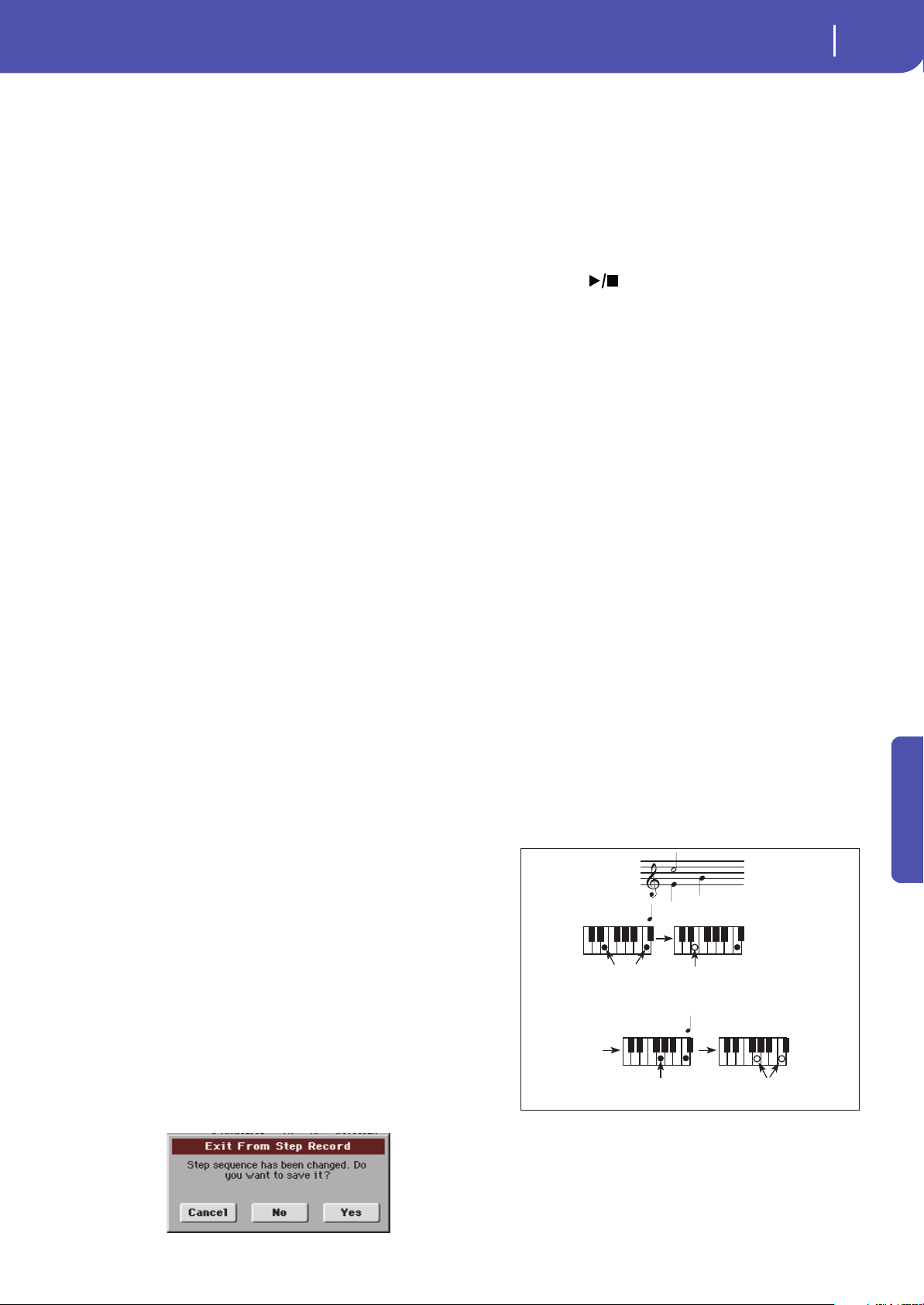
129
Sequencer
Record mode: Step Record page
Reference
Tie
Touch this button to tie the note to be inserted to the previous
one. A note with the same pitch, and the specified length, will be
created, and tied to the previous one.
Back
Goes to the previous step, erasing the inserted event.
Next M. (Next Measure)
Goes to the next measure, and fills the remaining space with
rests.
Done
Exits the Step Record mode.
Step Record procedure
Here is the general procedure to follow for the Step Recording.
1. Press the SEQUENCER button to enter Sequencer mode.
2. Press the RECORD button, and select the “Multitrack
Sequencer” option to enter the Multitrack Record mode.
From the page menu, select the “Overdub Step Recording”
or “Overwrite Step Recording” mode. At this point, the
Step Record window will appear in the display.
3. The next event will be entered at the position shown by the
Pos indicator in the upper right corner of the display.
• If you don’t want to insert a note at this position, insert a
rest instead, as shown in step 5.
• To jump to the next measure, filling the remaining beats
with rests, touch the Next M. button in the display.
4. To change the step value, use the Step Time parameters.
5. Insert a note, rest or chord at the current position.
• To insert a single note, just play it on the keyboard. The
inserted note length will match the step length. You may
change the velocity and relative duration of the note, by
editing the Velocity and Duration parameters. See “Veloc-
ity” and “Duration” on page 128.
• To insert a rest, just touch the Rest button in the display.
Its length will match the step value.
• To tie the note to be inserted to the previous one, touch
the Tie button in the display. A note will be inserted, tied to
the previous one, with exactly the same pitch. You don’t
need to play it on the keyboard again.
• To insert a chord or a second voice, see “Chords and sec-
ond voices in Step Record mode” on page 129.
6. After inserting a new event, you may go back by touching
the Back button in the display. This will delete the previ-
ously inserted event, and set the step in edit again.
7. When finished recording, touch the Done button in the
display. A dialog box appears, asking you to either cancel,
discard or save the changes.
If you touch Cancel, exit is canceled, and you can continue
editing. If you choose No, changes are not saved, and the
Step Record window is closed. If you choose Yes, changes
are saved, and the Step Record window is closed.
8. From the main page of the Multitrack Recording mode,
either select the “Exit from Record” command from the
page menu, or press the RECORD button to exit the Record
mode.
9. While in the main page of the Sequencer mode, you may
press the (START/STOP) button in the PLAYER sec-
tion to listen to the Song, or select the Save Song command
from the page menu to save the Song to a storage device
(see “Save Song window” on page 145).
Chords and second voices in Step Record
mode
You are not obliged to insert single notes in a track. There are
several ways to insert chords and double voices. Lets look at
some.
Entering a chord. Simply play a chord instead of a single note.
The event name will be the first note of the chord you pressed,
followed by the “…” abbreviation.
Entering a chord made of notes with different velocity values.
You can make the upper or lower note of a chord, for example,
louder than the remaining ones, to let the most important stand
out from the chord. Here is how to insert a three-note chord:
1. Edit the first note’s Velocity value.
2. Press the first note and keep it pressed.
3. Edit the second note’s Velocity value.
4. Press the second note and keep it pressed.
5. Edit the third note’s Velocity value.
6. Press the third note, then release all notes.
Entering a second voice. You can insert passages where one
note is kept pressed, while another voice moves freely.
Ex. 1:
Step Time =
Step Time =
On
Press E and C
On
Press G
Off
Off
Release G and C
Release E (continue holding C)
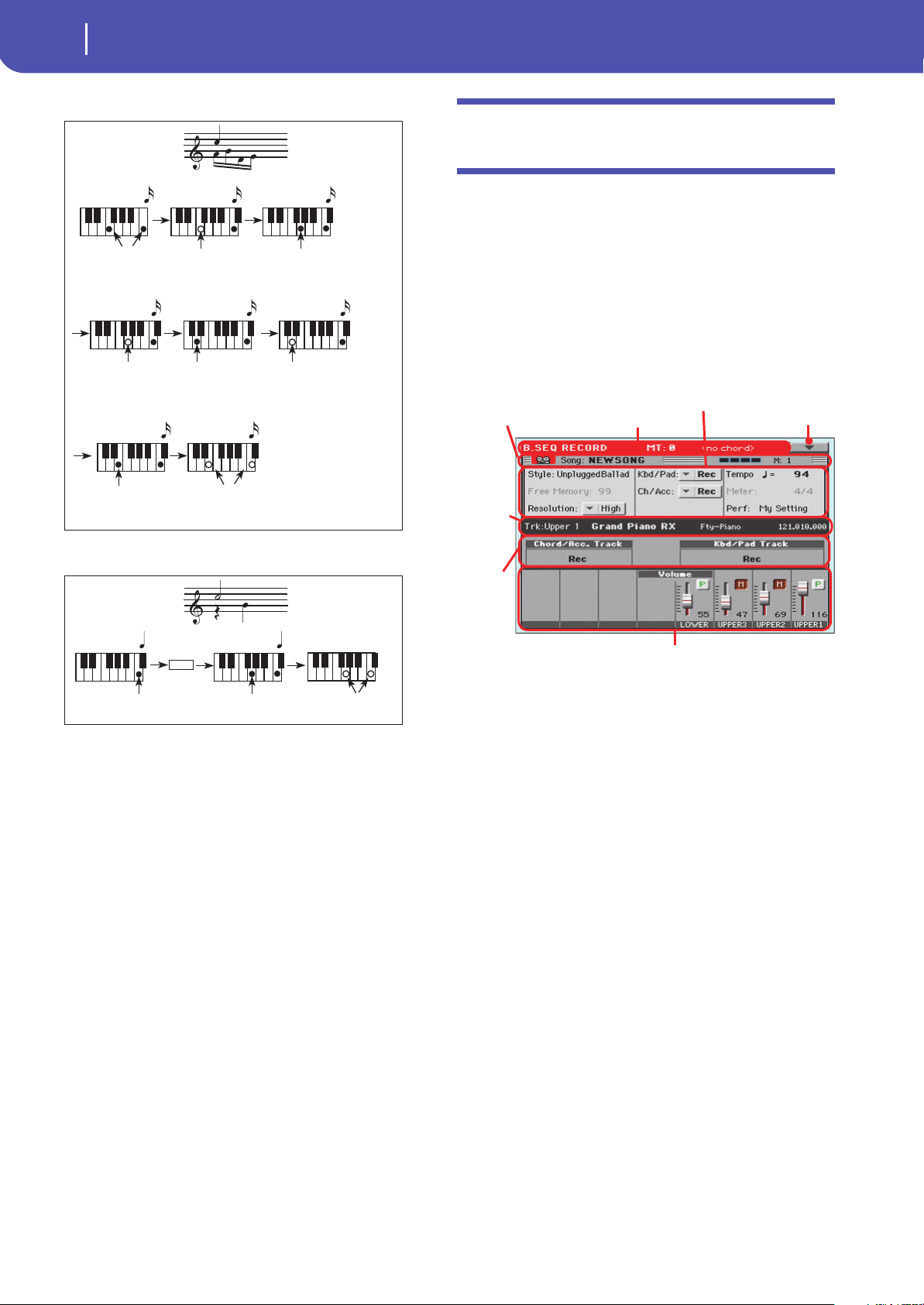
130
Sequencer
Record mode: Backing Sequence (Quick Record) page
Ex.2:
Ex.3:
Record mode: Backing Sequence (Quick
Record) page
Backing Sequence (Quick Record) mode allows you to quickly
record your live performance with the backing of the Styles. To
make things easier, just two grouped tracks are provided: Kbd/
Pad (Keyboard and Pads) to record keyboard and pads, and Ch/
Acc (Chords/Accompaniment) to record chords and the accom-
paniment provided by the Style.
While in Sequencer mode, press the RECORD button and select
the “Backing Sequence (Quick Record)” option. The Backing
Sequence (Quick Record) page appears.
See “Backing Sequence (Quick Record) recording procedure” on
page 132 for information on the record procedure.
Page header
See “Page header” on page 123. Here, this line also shows the
recognized chord.
Page menu icon
See “Page menu icon” on page 123.
Page sub-header
See “Page sub-header” on page 126.
Recording parameters area
Style
This parameter shows the selected Style. Either touch it, or press
the STYLE button in the SELECTION section to open the Style
Select window and select a different Style (see “Style Select win-
dow” on page 82).
Free memory
Percentage of remaining memory for recording.
Step Time = Step Time = Step Time =
Press F and C
Press G
(continue holding C)
OffOn On
Release F
(continue holding C)
Step Time = Step Time =
Press E
(continue holding C)
OffOn
Release E and C
Step Time = Step Time =
Press D
(continue holding C)
Off On
Release G
(continue holding C)
Step Time =
Off
Release D
(continue holding C)
Step Time = Step Time =
On
Press C
On
Press G (continue holding C)
Off
Release G and C
Tie
Page header Page menu icon
Selected
track
info area
B.S.
grouped
tracks
area
Track volume/status area
Recording
parameters area
Page sub-header
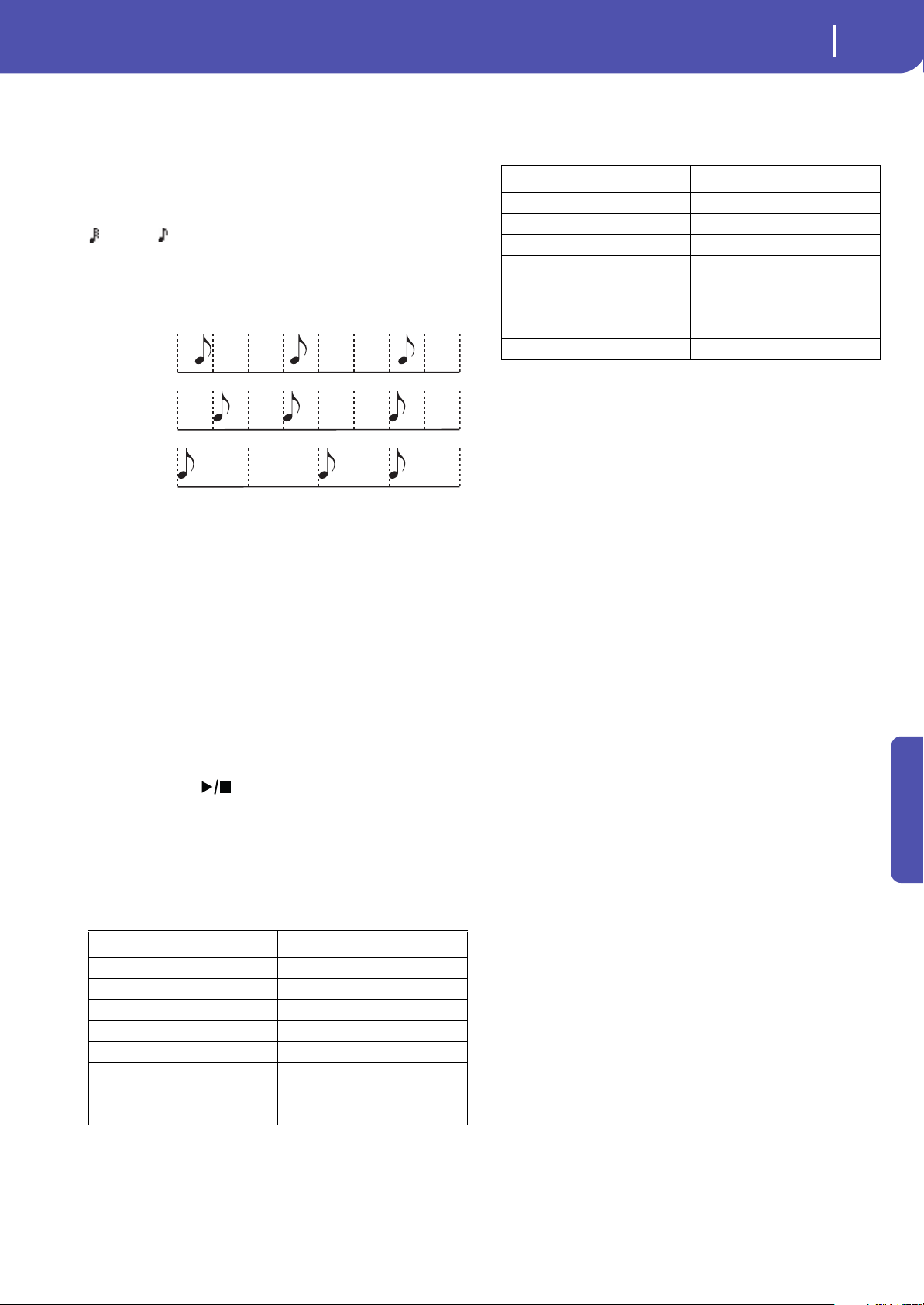
131
Sequencer
Record mode: Backing Sequence (Quick Record) page
Reference
Resolution
Use this parameter to set the quantization during recording.
Quantization is a way of correcting timing errors; notes played
too soon or too late are moved to the nearest axis of a rhythmic
“grid”, set with this parameter, thus playing perfectly in time.
High No quantization applied.
(1/32)… (1/8)
Grid resolution, in musical values. For example,
when you select 1/8, all notes are moved to the
nearest 1/8 division. When you select 1/4, all
notes are moved to the nearest 1/4 division.
Chord/Acc Track, Kbd/Pad Track
These parameters let you define grouped track status during
recording. This status is reflected by the big status indicator
above the track sliders.
Play The Backing Sequence track is set to play. If there
are recorded data, they will be heard while
recording the other Backing Sequence track.
Mute The Backing Sequence track is muted. If this
tracks has already been recorded, it will not be
heard during recording of the other Backing
Sequence track.
Rec The Backing Sequence track is in record. All pre-
viously recorded data will be deleted. After press-
ing (START/STOP) to start recording, the
track will receive notes from the keyboard or the
USB Device connector.
Chord/Acc: This Backing Sequence track groups all Style tracks,
together with recognized chords and Style controls and Style
Elements selection. After finishing recording, they will be saved
as Song tracks 9-16, as in the following table:.
Kbd/Pad: This Backing Sequence track includes the four Key-
board tracks and the four Pads. After finishing recording, they
will be saved as Song tracks 1-8, as in the following table:
Tem po
Metronome Tempo. Select this parameter and use the VALUE
DIAL to change Tempo. You can always change Tempo using the
TEMPO buttons.
Meter
(Non Editable). This parameter shows the meter (or time signa-
ture) of the selected Style for reference.
PERF or STS (Performance or STS)
This parameter shows the selected Performance or STS (depend-
ing on the latest item selected).
To select a Performance, either touch it, or press one of the PER-
FORMANCE buttons to open the Performance Select window
and select a different Performance (see “Performance Select win-
dow” on page 84).
To select an STS (Single Touch Setting), use the four STS buttons
under the display.
Backing Sequence tracks area
Backing Sequence tracks status indicators
The grouped track indicators show the status of the Backing
Sequence tracks. They reflect the status of the Kbd/Pad and Ch/
Acc parameters (see “Chord/Acc Track, Kbd/Pad Track” above).
Selected track info area
This line lets you see the Sound assigned to the selected track.
See “Selected track info area” on page 124 for more information.
Track volume/status area
This area is where you can set the volume and mute/play status
of each single Keyboard track.
Sliders (track volume)
Graphical display of each track’s volume.
Chord/Acc track Song track/Channel
Bass 9
Drum 10
Percussion 11
Accompaniment 1 12
Accompaniment 2 13
Accompaniment 3 14
Accompaniment 4 15
Accompaniment 5 16
High (no
quantization)
1/16
1/8
Kbd/Pad track Song track/Channel
Upper 1 1
Upper 2 2
Upper 3 3
Lower 4
Pad 1 5
Pad 2 6
Pad 3 7
Pad 4 8
132
Sequencer
Record mode: Backing Sequence (Quick Record) page
Individual track status icons
While you can use the Kbd/Pad Backing Sequence track to
change the status of all Keyboard tracks at once, you can also
change the status of each separate track. Touch this icon to
change the status of the corresponding individual track.
Play status. The track can be heard.
Mute status. The track cannot be heard.
Track names
Under the sliders, a label for each track is shown.
Backing Sequence (Quick Record) recording
procedure
Here is the general procedure to follow for the Backing Sequence
(Quick) Recording.
1. Press the SEQUENCER button to enter the Song mode.
2. Press the RECORD button, and select the “Backing
Sequence (Quick Record)” option to enter the Backing
Sequence (Quick Record) mode. Now you can prepare your
recording parameters. (For more details, see “Record
mode: Backing Sequence (Quick Record) page” on
page 130).
3. The latest selected Style is currently selected. If it is not the
right one, select a different Style to start recording with.
(See “Style Select window” on page 82).
4. The latest selected Performance or STS is currently
selected. If you prefer, select a different Performance or
STS. (See “Performance Select window” on page 84, and
“STS Select” on page 85).
5. Select the status of the Backing Sequence tracks, by using
the Kbd/Pad and Ch/Acc parameters. (Kbd/Pad stays for
Keyboard and Pads; Ch/Acc stays for Chord and Accompa-
niment, i.e. the Style tracks). To record all you play on the
keyboard, plus the automatic accompaniment, leave their
status to Rec (see “Track status icons” on page 127).
War ni ng : Tracks set to REC are automatically overwritten
when starting recording. Set a track to the PLAY or MUTE
status, when you don’t want to delete it. For example, if you
are recording a keyboard part on an existing Style track, set
the Ch/Acc parameter to PLAY, and the Kbd/Pad track to
REC.
6. Start recording by pressing the START/STOP button.
Since you can use any Style control, you could start with the
usual combinations (INTRO, ENDING…).
Note: While in Backing Sequence mode, you can’t record the
SYNCHRO, TAP TEMPO/RESET, MANUAL BASS, BAL-
ANCE controls.
7. Play your music. While recording you can even change the
Style.
8. When finished recording your performance, press the
START/STOP button or one of the ENDING buttons. You
will go back to the Sequencer Play Main page (see
“Sequencer Play - Main page” on page 123).
At this point, you may press the (START/STOP) but-
ton in the PLAYER section to listen to the new Song.
You may also edit the Song by pressing the MENU button
(see “Edit menu” on page 135).
9. Save the song to a storage device (see “Save Song window”
on page 145).
War ni ng : The recorded Song will be deleted when the instru-
ment enters standby, switching to the Style Play or Song Play
mode, or entering Record again. If you wish to preserve it,
save the Song to a storage device.
Abbreviation Track
UPPER1…3 Upper tracks.
LOWER Lower track.
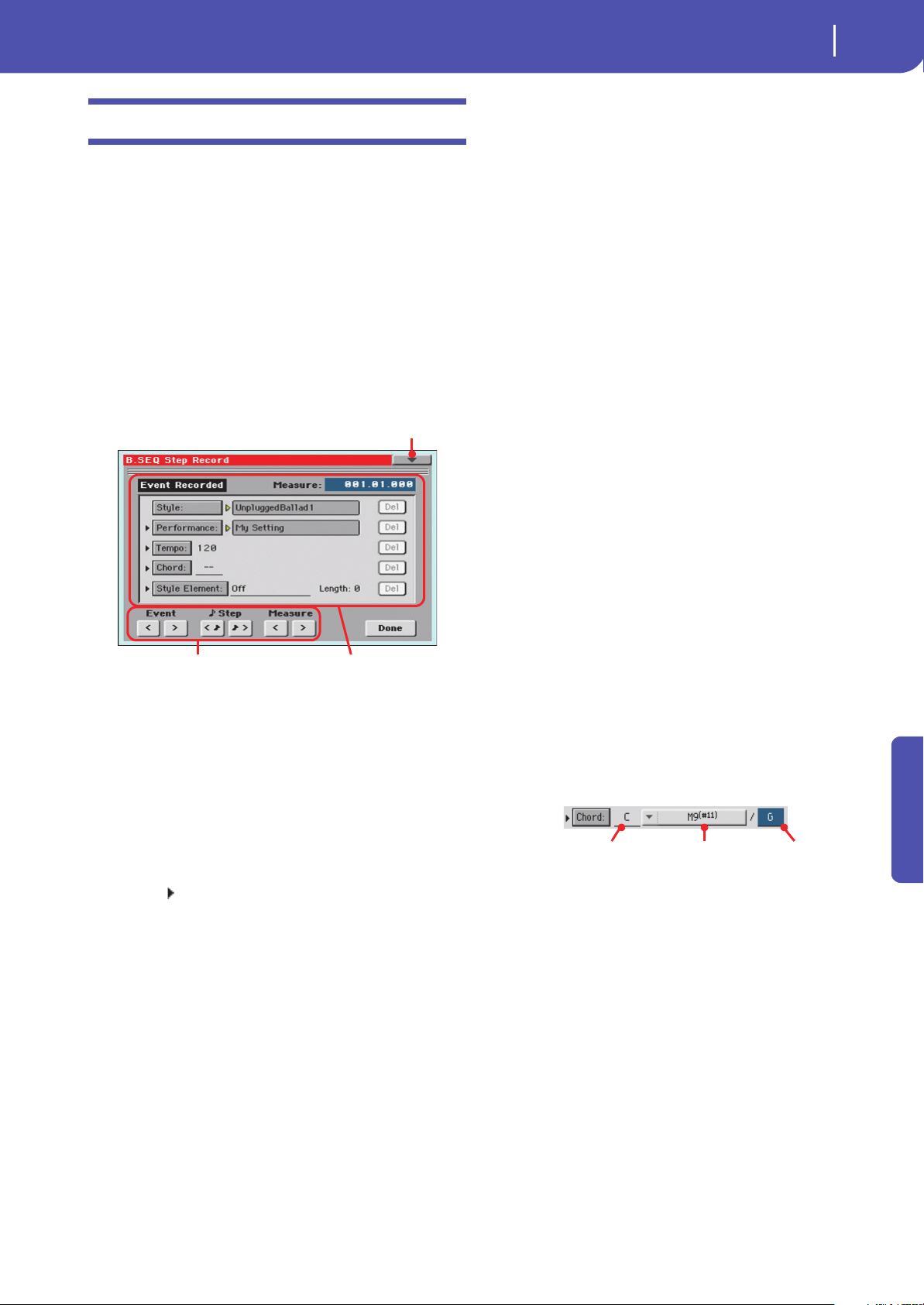
133
Sequencer
Record mode: Step Backing Sequence page
Reference
Record mode: Step Backing Sequence page
The Step Backing Sequence mode allows you to enter single
chords, to create or edit the Style (Chord/Acc) part of a Song.
This mode lets you enter chords even if you are not a keyboard
player, or fix any error made playing chords or selecting Style
controls, during a Backing Sequence (Quick Record) recording.
In this mode, you can only edit Songs created using the Backing
Sequence (Quick Record) recording mode. When saving a Song
created using the Backing Sequence (Quick Record) recording
mode, all Chord/Acc data is preserved, and can be loaded later,
to be edited again by using the Step Backing Sequence mode.
While in Sequencer mode, press the RECORD button and select
the “Step Backing Sequence” option. The Step Backing Sequence
window appears.
See “Step Backing Sequence procedure” on page 135 for infor-
mation on the record procedure.
Page menu icon
Touch the page menu icon to open the menu. See “Step Backing
Sequence page menu” on page 134 for more information.
Parameters area
Side arrow ( )
The small arrow next to a parameter means that its value is effec-
tive at the current position. For example, if you are at the
“003.01.000” position, and an arrow lights up next to the Chord
parameter, this means that a chord change happens at the
“003.01.000” position.
Measure
This parameter shows the current position of the Step Editor. To
go to a different position within the Song, use one of the follow-
ing systems:
• Select this parameter, then use the VALUE DIAL to go to a
different measure.
• Use the Measure buttons in the display to move to a differ-
ent measure. Use the Step buttons in the display to move in
steps of 1/8 (192 ticks). Use the Event buttons in the display
to jump to the next event.
The locator value is shown in the “measure.beat.tick” format.
Measure Measure or bar number.
Beat Divider in the Time Signature ratio (e.g., a quar-
ter in a 3/4 time).
Tick Smallest position value. The internal Player fea-
ture a resolution of 384 ticks per quarter.
Style
This is the latest selected Style. To insert a Style change at the
current position, touch the Style name to open the Style Select
window, or follow the standard selecting procedure using the
STYLE button in the SELECTION section.
Note: Any Style Change inserted after the beginning of the mea-
sure (i.e., to a position other than Mxxx.01.000) will be effective at
the following measure. For example, if a Style Change event has
been inserted at M004.03.000, the selected Style will be effectively
selected at M005.01.000. (This works exactly as in Style Play
mode).
Note: When inserting a Style Change, you may also insert a
Tempo Change at the same position. A Style Change will not auto-
matically insert the Style’s Tempo.
Performance
This is the latest selected Performance. Select a Performance to
recall the Style it links to. To insert a Performance change at the
current position, touch the Performance name to open the Per-
formance Select window, or follow the standard selecting proce-
dure using the PERFORMANCE section.
Tem po
This is the Tempo Change parameter. To insert a Tempo Change
event at the current position, select this parameter and use the
VALUE DIAL to change its value.
Chord
The chord parameter is divided in four separate parts:
Select one of the parts, then use the VALUE DIAL to modify it.
As an alternative, you can play a chord, and it will be automati-
cally recognized. While recognizing a chord, the status of the
Bass Inversion parameter will be considered.
The lack of a chord (--) means that the accompaniment will not
play at the current position (apart for the Drum and Percussion
tracks). To select the “--” option, select the Name part of the
Chord parameter, then use VALUE DIAL to select the very last
value (C…B, Off).
Note: If you replace a chord with a different one, please remember
that the Lower track (if recorded) will not be automatically
changed, and may cause a dissonance against the accompaniment.
Style Element
This is the Style Element (i.e., a Variation, Fill, Intro, or Ending).
The length of the selected Style Element is always shown by the
“Length” parameter (see below).
Parameters area“Soft” transport buttons
Page menu icon
Name Type Extension
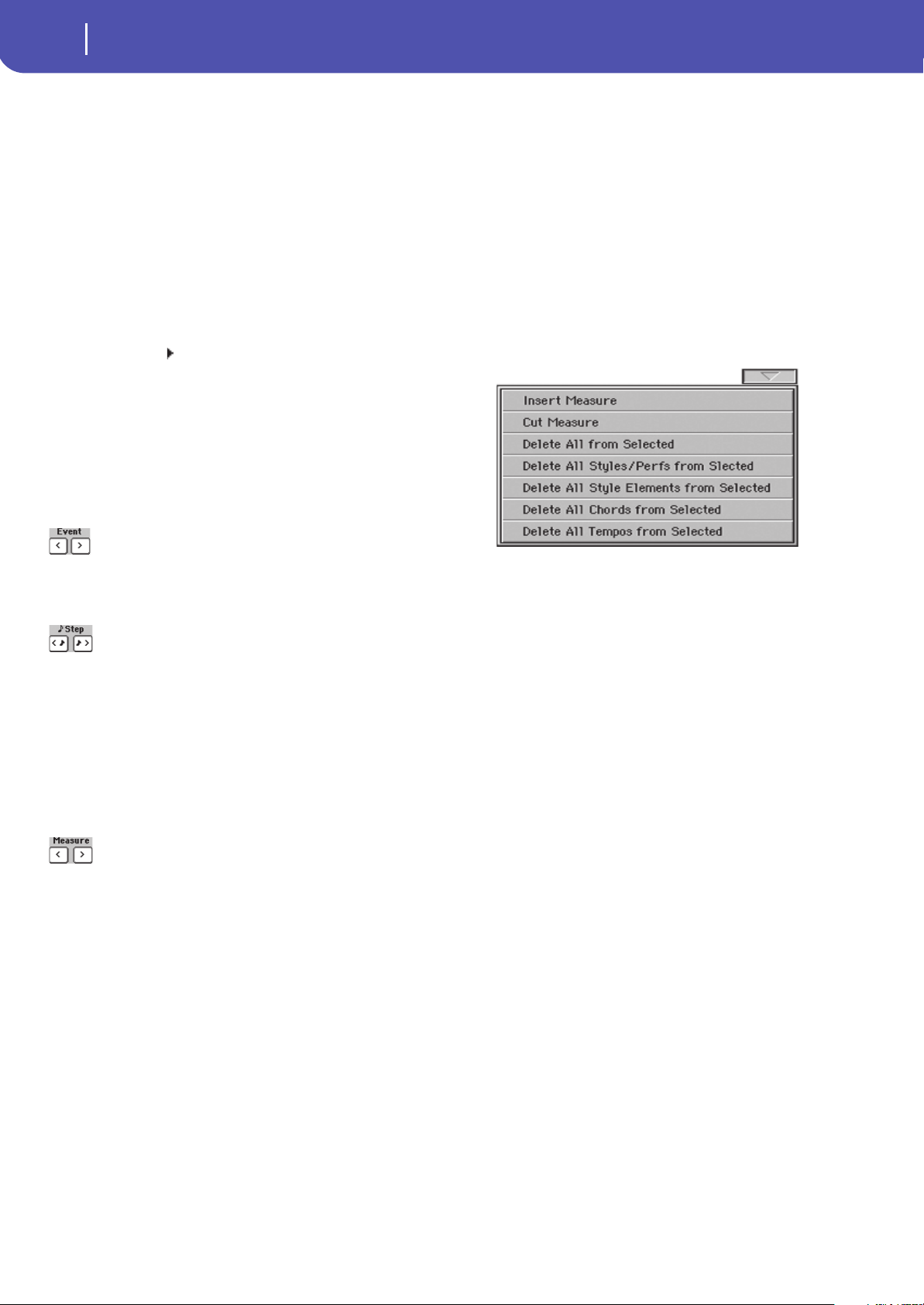
134
Sequencer
Record mode: Step Backing Sequence page
“Off” means that the accompaniment will not play at the
selected position – only Keyboard and Pad tracks will play.
Hint: Insert a Style Element Off event exactly where the automatic
accompaniment must stop (at the end of the Song).
Length
This parameter will let you know where to place the following
Style Element Change. For example, if you inserted an Intro
event lasting for 4 measures, you can insert 4 empty measure
after this event, and a Variation event at the end of the Intro,
beginning at the 4th empty measure.
Del (Delete) button
When a side arrow ( ) is shown next to a parameter, there is an
event at the current position. You can touch the Del button next
to it, to delete the event at the current position.
Hint: To delete all events starting from the current position, select
the “Delete All from Selected” command from the page menu (see
below).
“Soft” transport buttons
Previous or Next Event
Use these buttons to move to the previous or next recorded
event.
Previous or Next Step
Use these buttons to go to the previous or next step (1/8, or 192
ticks). If an event is located before the previous or next step, the
locator stops on that event. For example, if you are positioned on
M001.01.000, and no event exists before M001.01.192, the > but-
ton moves to the M001.01.192 location. If an event exists on
M001.01.010, the > button stops to the M001.01.010 location.
These commands are effective even if the Measure parameter is
not selected.
Previous or Next Measure
Use these buttons to move to the previous or following measure.
These commands are effective even if the Measure parameter is
not selected.
Done button
Done
Touch this button to exit the Step Backing Sequence mode. All
changes will be saved to memory.
Hint: Save the Song to a storage device, by selecting the “Save
Song” command from the page menu, to avoid losing it when the
instrument enters standby.
Step Backing Sequence page menu
Touch the page menu icon to open the menu. Touch a command
to select it. Touch anywhere in the display to close the menu
without selecting a command.
Insert Measure
Use this command to insert an empty measure starting from the
current measure. All Chord/Acc events contained in the current
measure will be moved to the following measure. The event at
the Mxxx.01.000 position (i.e., exactly at the beginning of the
measure, like a Time Signature or Style change) will not be
moved.
Cut Measure
Use this command to delete the current measure. All Chord/Acc
event contained in the following measures will be moved one
measure back.
Delete All from Selected
Use this command to delete events of all types, starting from the
current position.
Note: All events on the very first tick (M001.01.000), like Perf,
Style, Tempo, Chord, Style Element selection, cannot be deleted.
Delete All Styles/Perfs from Selected
Delete All Styles Elements from Selected
Delete All Chords from Selected
Delete All Tempos from Selected
Select one of these commands to delete all events of the corre-
sponding type, starting from the current position to the end of
the Song. To delete all events of the same type from the whole
Song, go back to the M001.01.000 position, and select one of
these commands.
Note: All events on the very first tick (M001.01.000), like Perf,
Style, Tempo, Chord, Style Element selection, cannot be deleted.
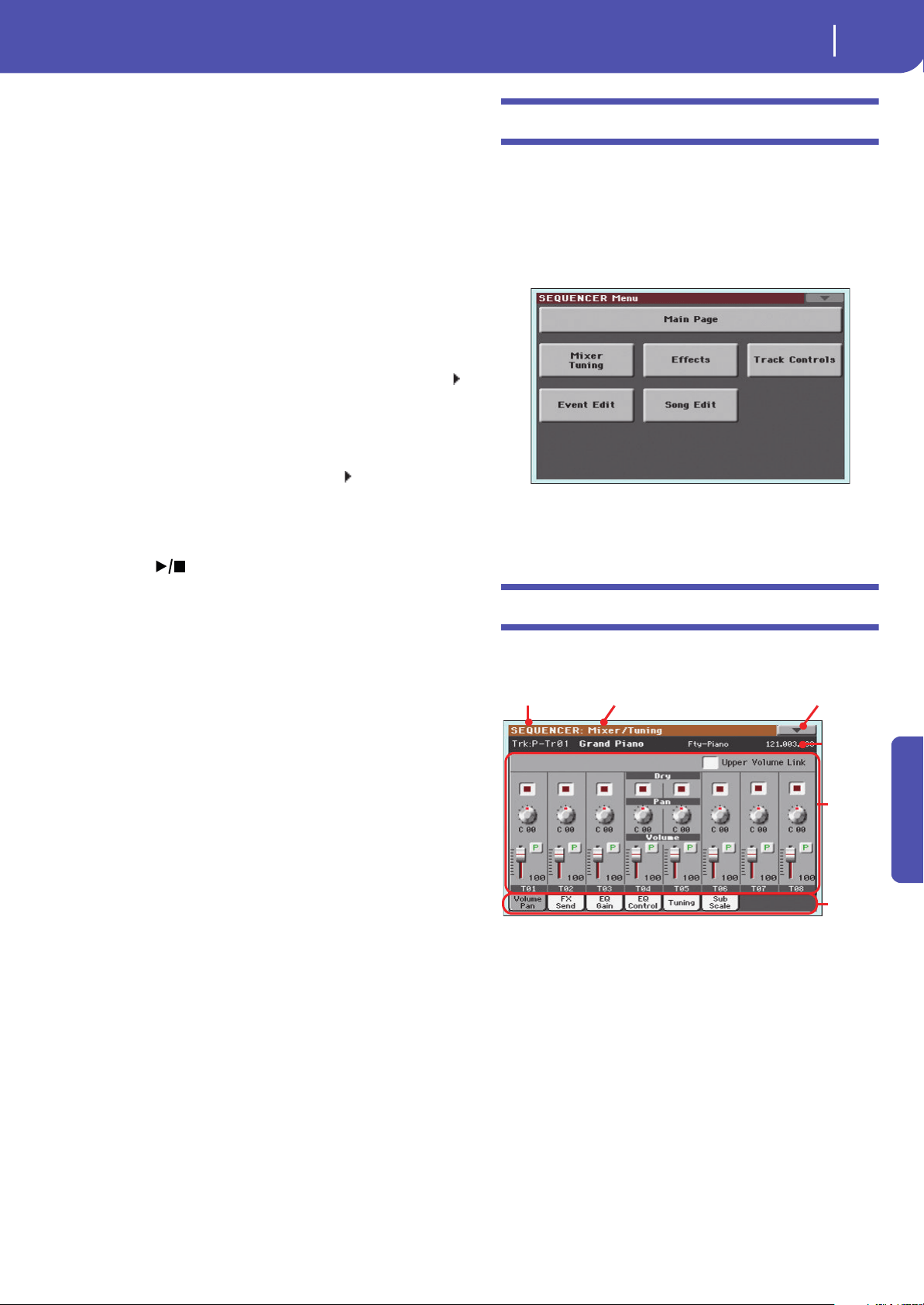
135
Sequencer
Edit menu
Reference
Step Backing Sequence procedure
Here is the general Step Backing Sequence recording procedure.
Hint: Before entering Step Backing Sequence mode to edit an exist-
ing Song, select the “Save Song” command from the page menu,
and save the Song to a storage device. This way, you will have a
copy of the Song, in case you don’t like the results of your editing.
1. While in Sequencer mode, press the RECORD button, and
choose the “Step Backing Sequence” recording option.
2. Select the Measure parameter, and go to the desired posi-
tion in the Song, by using the VALUE DIAL. Alternatively,
you can move the locator using the “soft” transport buttons
in the display. See ““Soft” transport buttons” on page 134.
3. Select the parameter type (Style, Performance, Tempo…) to
insert, edit or delete at the current position. If an arrow ( )
appears next to a parameter, the shown event has been
inserted at the current position.
4. Use the VALUE DIAL to modify the selected event. Delete
it by touching the Del button next to the event. When edit-
ing a parameter without the arrow ( ) next to it, a new
event is inserted at the current position.
5. Exit the Step Backing Sequence recording mode, by touch-
ing the Done button in the display.
6. Press (START/STOP) in the PLAYER section to lis-
ten to the result of your editing. If it is fine, save the Song to
a storage device.
Edit menu
From any page, press the MENU button to open the Sequencer edit
menu. This menu gives access to the various Sequencer edit sections.
When in the menu, select an edit section, or press EXIT to exit
the menu.
When in an edit page, press EXIT or the SEQUENCER button to
go back to the main page of the Sequencer operating mode.
Each item in this menu corresponds to an edit section. Each edit
section groups various edit pages, that may be selected by touch-
ing the corresponding tab on the lower part of the display.
Edit page structure
All edit pages share some basic elements.
Operating mode
This indicates that the instrument is in Sequencer mode.
Edit section
This identifies the current edit section, corresponding to one of
the items of the edit menu (see “Edit menu” on page 135).
Page menu icon
Touch this icon to open the page menu (see “Page menu” on
page 144).
Parameters area
Each page contains various parameters. Use the tabs to select
one of the pages. For detailed information on the various types
of parameters, see sections starting below.
Operating mode Edit section
Selected
track
info
Page menu
icon
Param-
eters
area
Tabs
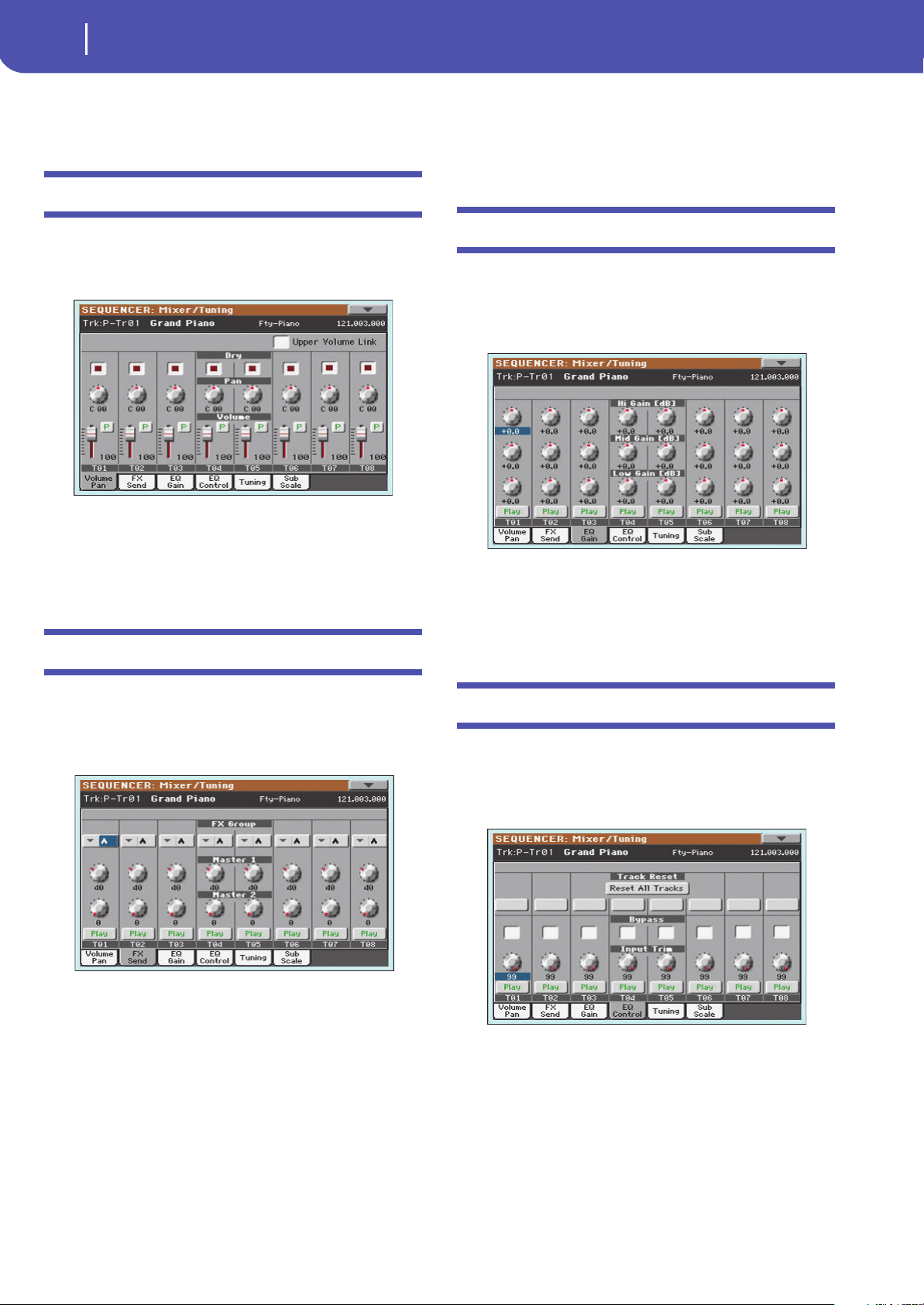
136
Sequencer
Mixer/Tuning: Volume/Pan
Tabs
Use tabs to select one of the edit pages of the current edit section.
Mixer/Tuning: Volume/Pan
This page lets you set the volume and pan for each Song track.
Use the TRACK SELECT button to switch between Song tracks
1-8 and 9-16.
Parameters
All parameters in this page are the same found in the same page
of the Song Play mode (see “Mixer/Tuning: Volume/Pan” on
page 117).
Mixer/Tuning: FX Send
This page lets you set the level of the track’s direct (uneffected)
signal going to the Internal FX processors.
Use the TRACK SELECT button to switch between Song tracks
1-8 and 9-16, and vice-versa.
FX Groups
Use this pop-up menu to select one of the two FX groups (A or
B).
Pa300 includes two groups of effects (FX A and FX B). While in
Song Play mode, the A group is reserved to the Song and Pad
tracks, the B group to the Keyboard tracks.
However, Songs created in Sequencer mode could also assign the
B group to the Song tracks.
Parameters
All parameters in this page are the same found in the same page
of the Style Play mode (see “Mixer/Tuning: FX Send” on
page 117).
Mixer/Tuning: EQ Gain
In this page you can set the three-band equalization (EQ) for
each individual track.
Use the TRACK SELECT button to switch between Song tracks
1-8 and 9-16, and vice-versa.
Parameters
All parameters in this page are the same found in the same page
of the Song Play mode (see “Mixer/Tuning: EQ Gain” on
page 118).
Mixer/Tuning: EQ Control
This page lets you reset or bypass track equalization, pro-
grammed in the previous page.
Use the TRACK SELECT button to switch between Song tracks
1-8 and 9-16, and vice-versa.
Parameters
All parameters in this page are the same found in the same page
of the Song Play mode (see “Mixer/Tuning: EQ Control” on
page 118).
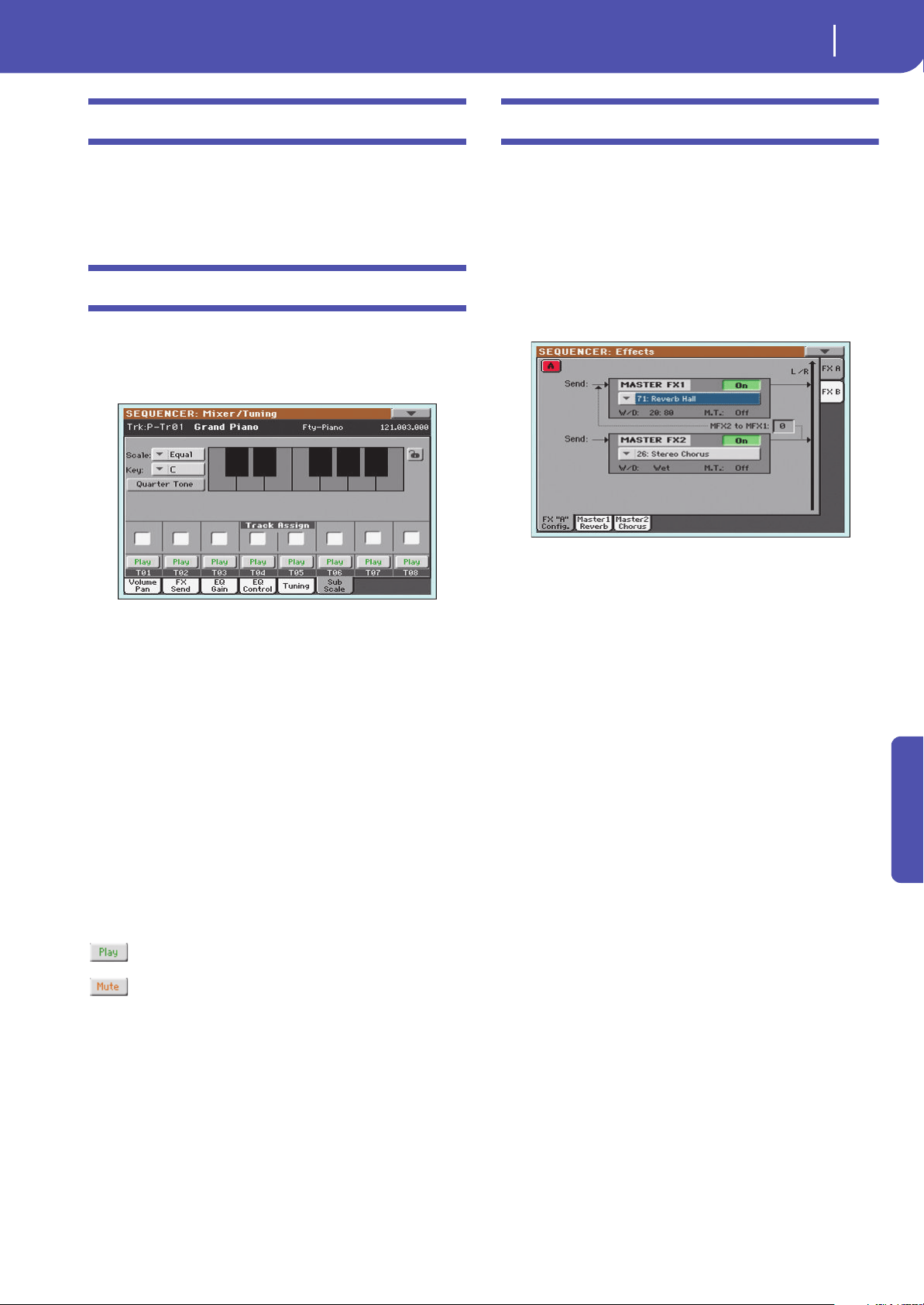
137
Sequencer
Mixer/Tuning: Tuning
Reference
Mixer/Tuning: Tuning
Parameters
All parameters in this page are the same found in Global mode.
See “Mixer/Tuning: Tuning” on page 98).
Mixer/Tuning: Sub Scale
This page lets you program an alternative scale for the selected
tracks (via the “Track Assign” parameter). The remaining tracks
(if any) use the basic scale set in Global mode (see “Main Scale”
on page 157).
Note: Quarter Tone selection and activation of the Sub-Scale on
each track of a Song, can be received by MIDI (i.e., by an external
sequencer or controller). Conversely, selection of Quarter Tone set-
tings, or activation of the Sub-Scale on each track of the Song, can
be sent by the Pa300 to an external MIDI recorder as System
Exclusive data.
Parameters
All parameters in this page are the same found in Global mode.
See “Mixer/Tuning: Sub Scale” on page 98.
Track Assign
Check the parameter corresponding to each track where the
Sub-Scale must be used.
Play/Mute icon
Track’s play/mute status.
Play status. The track can be heard.
Mute status. The track cannot be heard.
Effects: A/B FX Configuration
This page allows you to select the effects for the A (Song) and B
(Keyboard) FX groups. You can use the “FX A” and “FX B” side
tabs to switch from one group to the other one. Songs created in
Sequencer mode on a Pa-Series instrument can also use the B FX
group.
The effect types and the FX matrix are the same seen for the
Style Play mode (see “Effects: A/B FX Configuration” on
page 100).
Note: When you stop the Song, or select a different Song, the
default effects are selected again. You can, however, stop the Song,
change the effects, then start the Song again. Save the Song to per-
manently change the effects.
FX Group
Use these side tabs to choose the FX group (A or B) for the cor-
responding track.
Pa300 includes two groups of effects (FX A and FX B). While in
Song Play mode, the A group is reserved to the Song and Pad
tracks, the B group to the Keyboard tracks.
However, Songs created in Sequencer mode could also assign the
B group to the Song tracks.
Parameters
All parameters in this page are the same found in the same page
of the Song Play mode (see “Effects: A/B FX Configuration” on
page 119).
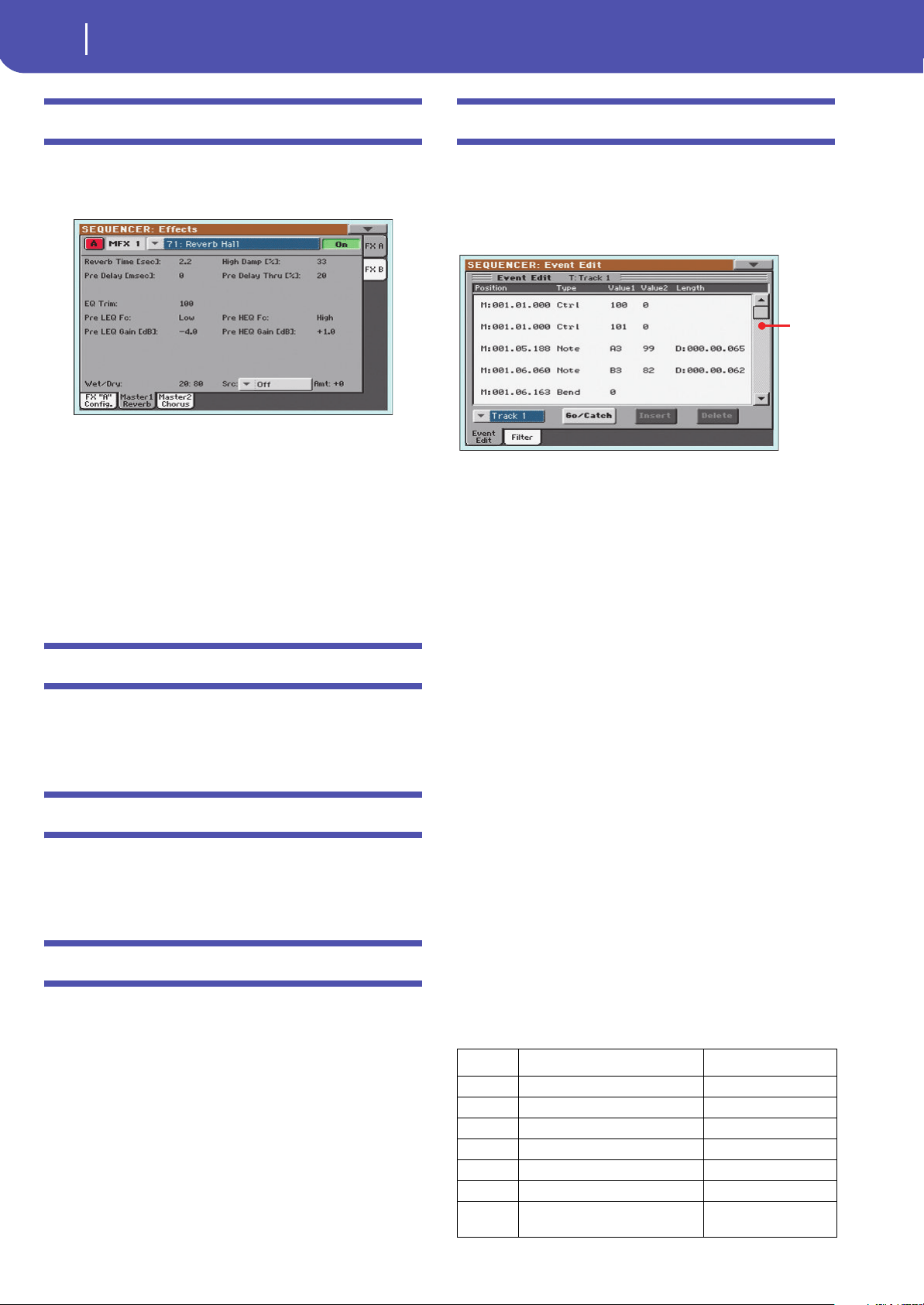
138
Sequencer
Effects: Master 1, 2
Effects: Master 1, 2
These pages contain the editing parameters for the effect proces-
sors. Here is an example of the FX A page, with the Reverb Hall
effect assigned.
Selected effect
Select one of the available effects from this pop-up menu. This is
equivalent to the “FX Group” parameters found in the “Effects:
A/B FX Configuration” page (see above).
Parameters
The parameters shown in this page are the same already seen for
the Style Play mode. See “Effects: Master 1, 2” on page 101 for
details.
Track Controls: Mode
Parameter
See “Track Controls: Mode” on page 101.
Track Controls: Drum Edit
Parameter
See “Track Controls: Drum Edit” on page 102.
Track Controls: Easy Edit
Parameter
See “Track Controls: Easy Edit” on page 103.
Event Edit: Event Edit
The Event Edit is the page where you can edit each single MIDI
event of the selected track. You can, for example, replace a note
with a different one, or change its playing strength. See also
“Event Edit procedure” on page 139 for more information on the
event editing procedure.
Position
Position of the event, expressed in the form ‘aaa.bb.ccc’:
•‘aaa’ is the measure
•‘bb’ is the beat
• ‘ccc’ is the tick (each quarter beat = 384 ticks)
You can edit this parameter to move the event to a different posi-
tion. You can edit a position in either of the following ways:
(a) select the parameter, and use the VALUE DIAL to change
the value, or
(b) select the parameter, then touch it again; the numeric key-
pad will appear. Enter the new position by dialing in the
three parts of the number, separated by a dot. Zeroes at the
beginning can be omitted, as well as the least important
parts of the number. For example, to enter position
002.02.193, dial “2.2.193”; to enter position 002.04.000 dial
“2.4”; to enter position 002.01.000, simply dial “2”.
Type
Type of the event shown in the display. To edit it, select the param-
eter and use the VALUE DIAL to change its value.
This parameter also shows the (non editable) “End Of Track”
marking, when the end of the track is reached.
Value 1 and 2
Values of the event shown in the display. Depending on the
selected event, the meaning may change.
Here are the events contained in ordinary tracks (1-16).
Type First value Second value
Note Note name Velocity
RX Noise Note name Velocity
Prog Program Change number –
Ctrl Control Change number Control Change value
Bend Bending value –
Aftt Mono (Channel) Aftertouch value –
PAft Note to which the Aftertouch is
applied
Poly Aftertouch value
Scroll
bar
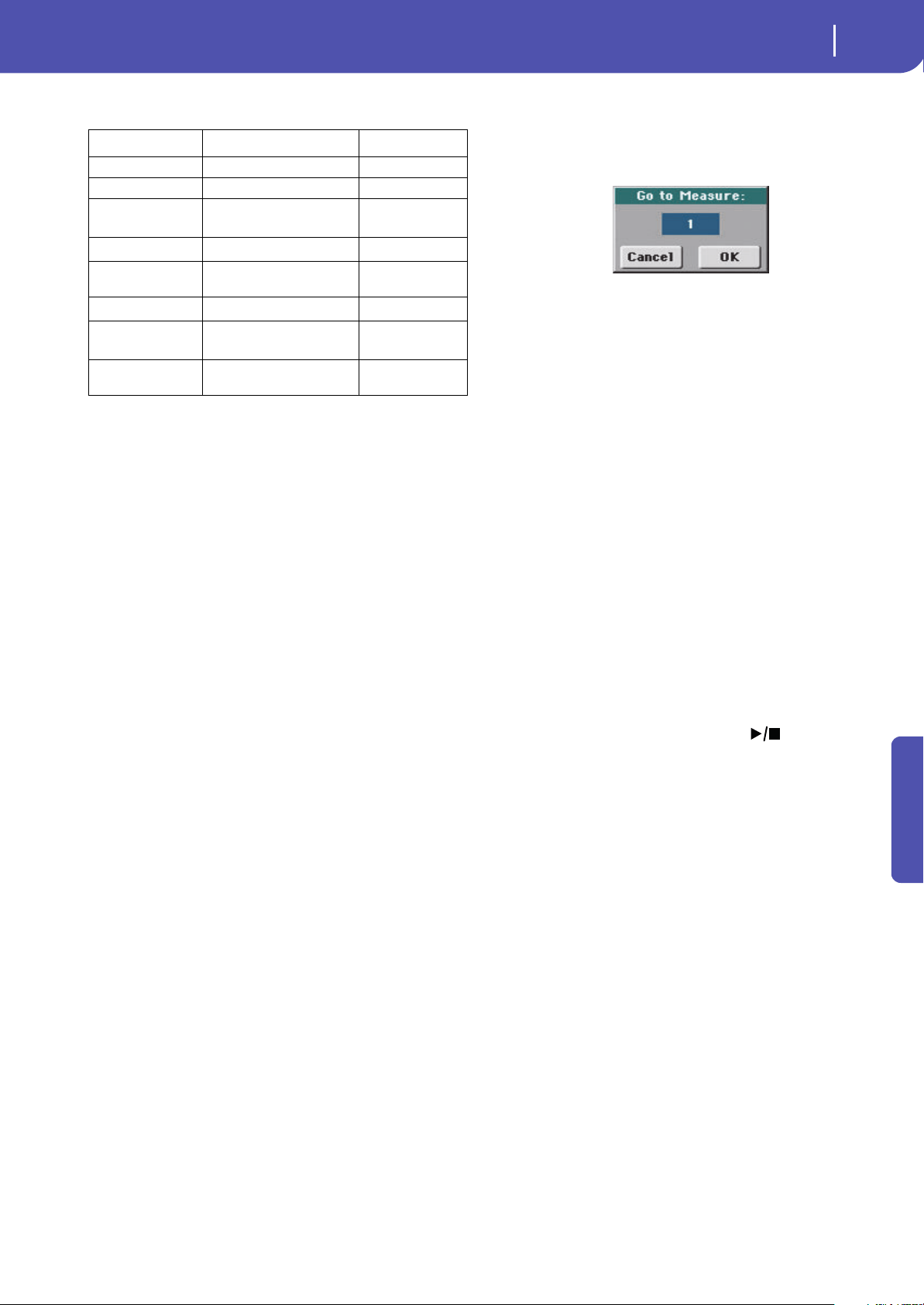
139
Sequencer
Event Edit: Event Edit
Reference
And here are the events contained in the Master track.
To edit the event Type and Values, select the parameter and use
the VALUE DIAL to change their value. In case of numeric val-
ues, you can also press them twice to open the numeric keypad.
Length
Length of the selected Note event. The value format is the same
as the Position value. Edit it in the same way.
Note: If you change a length of “000.00.000” to a different value,
you can’t go back to the original value. This rather uncommon
zero-length value may be found in the drum and percussion tracks
of Songs made in Backing Sequence mode.
Track
Use this pop-up menu to select the track to edit.
Track 1…16 One of the ordinary tracks of the Song. These
tracks contains musical data, like notes and con-
trollers.
Master This is a special track, containing Tempo
changes, Meter changes, Scale and Transpose
data, and the effect parameters.
Scrollbar
Use the scrollbar to browse the event through the list. You can
also scroll by using the SHIFT + DIAL combination.
Go/Catch
This is a dual-function command.
• While the sequencer is not running, it works as a Go to Mea-
sure command. Touch it to open the Go to Measure dialog box:
When in this dialog box, select a target measure, and touch OK.
The first event available in the target measure will be selected.
•While the sequencer is running, it works as a Catch Locator
command. Touch it to show the event that is currently playing.
Insert
Touch the Insert button in the display to insert a new event at the
current shown Position. The default values are Type = Note,
Pitch = C4, Velocity = 100, Length = 192.
Note: You can’t insert new events in an empty, non-recorded Song.
To insert an event, you must first insert some empty measures by
using the Insert Measure function (see “Song Edit: Cut/Insert Mea-
sures” on page 142).
Delete
Touch the Delete button in the display to delete the event
selected in the display.
Note: The “End of Track” event cannot be deleted.
Event Edit procedure
Here is the general event editing procedure.
1. While in the Event Edit page, press (START/STOP)
in the PLAYER section to listen to the Song. Press it again
to stop the Song.
2. Select the Filter page, and turn “Off” the filter for the event
types you wish to see in the display (see “Event Edit: Filter”
on page 140 for more information).
3. Return to the Event Edit page.
4. Use the “Track” pop-up menu to select the track to edit.
The list of events contained in the selected track will appear
in the display.
For more information on the event types and their values, see
above.
5. Select the “Position” parameter. Use the VALUE DIAL (or
touch the parameter again to open the numeric keypad) to
change the event’s position.
6. Select the “Type” parameter and use the VALUE DIAL to
change the event type. Select the “Value 1 and 2” parame-
ters and use the VALUE DIAL (or touch the parameter
again to open the numeric keypad) to modify the selected
value.
Type First value Second value
Tempo Tempo change –
Volume Master Volume value –
Meter Meter (time signature)
change
(*)
(*). Meter changes can’t be edited or inserted separately from a measure. To insert
a Meter change, use the Insert function in the Edit section and insert a series of
measures with the new meter. Existing data can then be copied or entered to these
measures
–
KeySign
Key Signature
(†)
(†). This is the key signature shown in the Score. If this event is missing, the Score
will be shown as if it was in the key of C Major.
–
Scale One of the available preset
Scales
Root note for the
selected Scale
UScale (User Scale) Altered note
Note alteration
(‡)
(‡). To edit User Scale and Quarter Tone settings, select the first value, then select
the scale’s degree to edit. Edit the second value to change the tuning of the selected
note of the scale.
QT (Quarter Tone) Altered note Note alteration (0,
50)
(b)
QT Clear (Quarter
Tone Clearing)
Reset of all Quarter Tone (QT)
changes
–

140
Sequencer
Event Edit: Filter
7. In the case of a Note event, select the Length parameter,
and use the VALUE DIAL (or touch the parameter again to
open the numeric keypad) to change the event’s length.
• While the sequencer is not running, you may touch the
Go/Catch button in the display to go to a different measure
(see “Go/Catch” above)
• While the sequencer is running, you may use the Go/
Catch button in the display to see the currently playing
event in the display (see “Go/Catch” above).
• Use the PLAYER transport controls to listen to the Song.
8. Touch the Insert button in the display to insert an event at
the Position shown in the display (a Note event with default
values will be inserted). Touch the Delete button in the dis-
play to delete the selected event.
9. When the editing is complete, you may select a different
track (go to step 4).
10. When finished editing the whole Song, select the Save Song
command from the page menu to save the Song to a storage
device. See “Save Song window” on page 145 for more
information on saving a Song.
Event Edit: Filter
This page is where you can select the event types to be shown in
the Event Edit page.
Turn On the filter for all event types you do not wish to see in
the Event Edit page.
Note/RX Noise
Notes and RX Noises.
Program Program Change events.
Control Control Change events.
Tempo/Meter Tempo and Meter (time signature) changes (Mas-
ter Track only).
After Touch Mono (Channel) Aftertouch events.
Poly After Touch
Poly Aftertouch events.
Pitch Bend Pitch Bend events.
Pa Controls Controls exclusive to Pa300, like the Scale set-
tings. These controls are recorded to the Master
Track, and saved as System Exclusive data.
Song Edit: Quantize
The quantize function corrects any rhythm error after recording.
After setting the various parameters, touch Execute to start the
operation.
Track
Use this parameter to select a track.
All Quantize will apply to all tracks.
Track 1…16 Quantize will apply only to the selected track.
Resolution
This parameter sets the quantization value. For example, when
you select a 1/8-note, all notes are moved to the nearest 1/8 divi-
sion. When you select 1/4, all notes are moved to the nearest 1/4
division.
(1/32)… (1/4)
Grid resolution, in musical values. A “b…f” char-
acter added after the value means swing-quanti-
zation. A “3” means triplet.
Start / End Tick
Use these parameters to set the starting and ending points of the
range to be quantized.
If you wish to select a four-measure sequence starting at the
beginning of the Song, the Start will be positioned at 1.01.000,
and the End at 5.01.000.
No quantiza-
tion
1/8
1/4
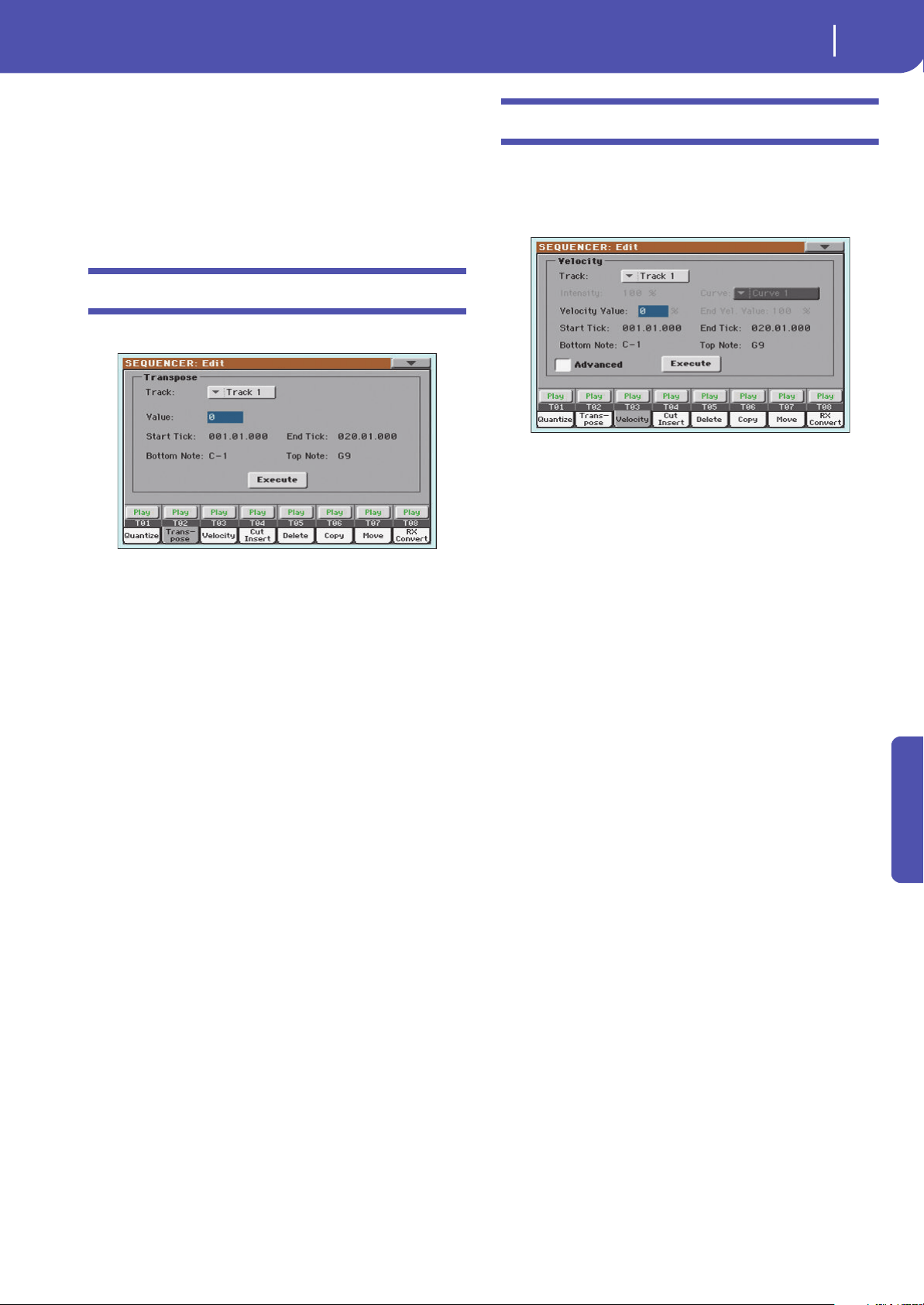
141
Sequencer
Song Edit: Transpose
Reference
Bottom / Top Note
Use these parameters to set the bottom and top note of the key-
board range to quantize. If you select the same note as the Bot-
tom and Top parameters, you can select a single percussive
instrument in a Drum track.
Note: These parameters are available only when a Drum track is
selected.
Song Edit: Transpose
Here you can transpose the Song, a track or a part of a track.
After setting the various parameters, touch Execute to start the
operation.
Track
Use this parameter to select a track.
All All tracks selected (apart for Drum tracks).
Track 1…16 Selected track.
Value
Transpose value (±127 semitones).
Start / End Tick
Use these parameters to set the starting and ending points of the
range to transpose.
If you wish to select a four-measure sequence starting at the
beginning of the Song, the Start will be positioned at 1.01.000,
and the End at 5.01.000.
Bottom / Top Note
Use these parameters to set the bottom and top of the keyboard
range to transpose. If you select the same note as the Bottom and
Top parameters, you can select a single note, or a single percus-
sive instrument in a Drum track.
Song Edit: Velocity
Here you can change the Velocity value for the notes. An
Advanced mode is available, allowing you to select a velocity
curve for the selected range. This is useful to create fade-ins or
fade-outs.
After setting the various parameters, touch Execute to start the
operation.
Track
Use this parameter to select a track.
All All tracks selected.
Track 1…16 Selected track.
Value
Velocity change value.
Start / End Tick
Use these parameters to set the starting and ending points of the
range to edit.
If you wish to select a four-measure sequence starting at the
beginning of the Song, the Start will be positioned at 1.01.000,
and the End at 5.01.000.
Bottom / Top Note
Use these parameters to set the bottom and top of the keyboard
range to edit. If you select the same note as the Bottom and Top
parameters, you can select a single percussive instrument in a
Drum track.
Advanced
When this checkbox is checked, the “Intensity”, “Curve”, “Start
Velocity Value” and “End Velocity Va lue” parame ters can b e
edited.
Intensity
(Only available in Advanced mode). Use this parameter to specify
the degree to which the velocity data will be adjusted toward the
curve you specify in “Curve”.
0…100% Intensity value. With a setting of 0 [%], the veloc-
ity will not change. With a setting of 100 [%], the
velocity will be changed the most.
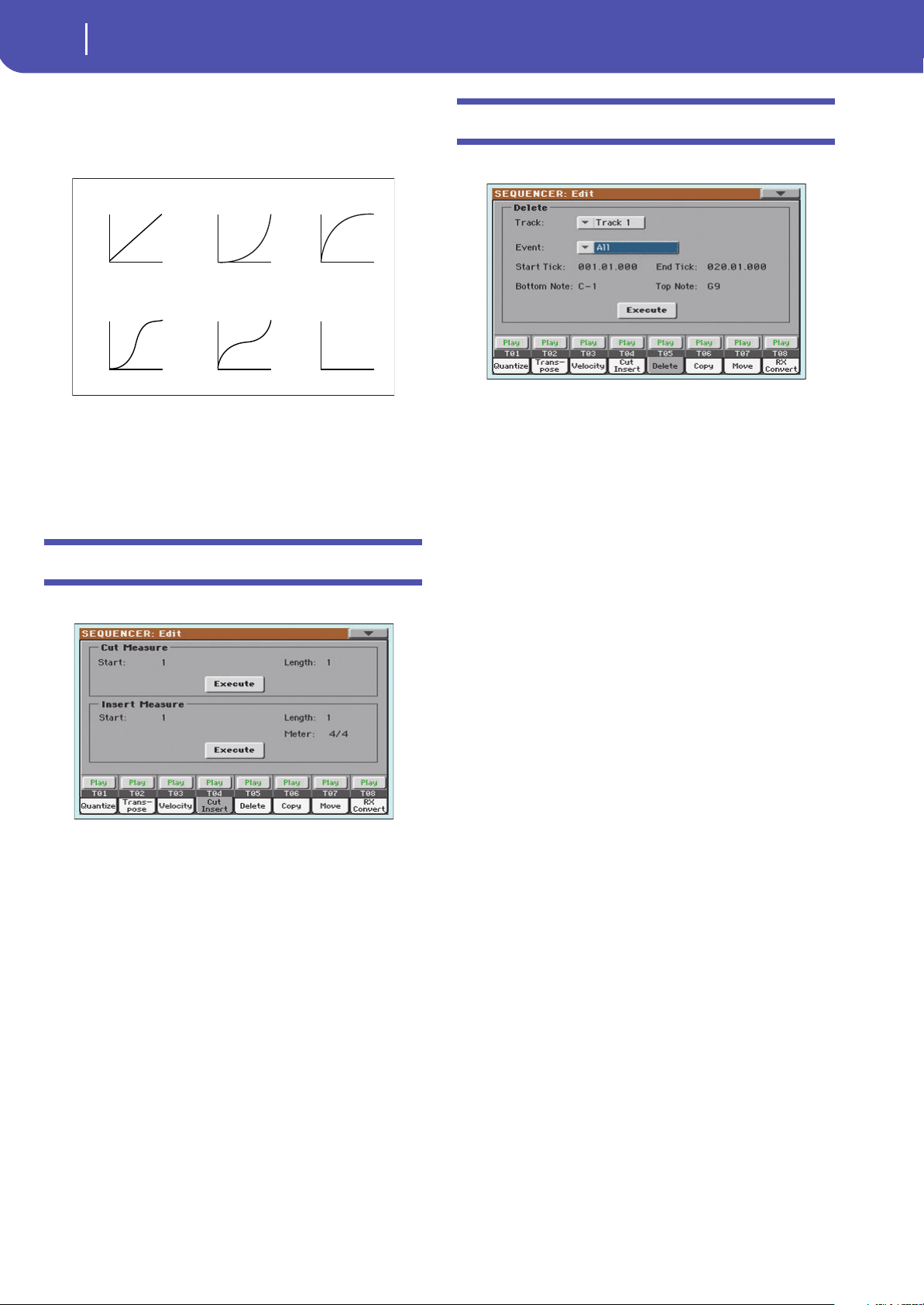
142
Sequencer
Song Edit: Cut/Insert Measures
Curve
(Only available in Advanced mode). Use this parameter to select
one of the six curves, and to specify how the velocity will change
over time.
Start / End Vel. Value
(Only available in Advanced mode). Velocity change at the start-
ing and ending ticks of the selected range.
0…100 Velocity change in percentage.
Song Edit: Cut/Insert Measures
In this page you can cut or insert measures from the Song.
After selecting the Start and Length parameters, touch Execute
to start the operation.
After the Cut, the following measures are moved back, to fill the
cut measures.
After the Insert, the following measures are pushed forward to
accommodate the inserted measures.
Start
First measure where to begin cutting/inserting.
Length
Number of measures to be cut/inserted.
Meter
Meter (time signature) of the measures to be inserted.
Song Edit: Delete
This page is where you can delete MIDI events from the Song.
After setting the various parameters, touch Execute to start the
operation.
Track
Use this parameter to select a track.
All All tracks selected.
Track 1…16 Selected track.
Master Master track. This is where the Tempo, Scale and
Effect events are recorded.
Event
Type of MIDI event to delete.
All All events. Measures will not be removed from
the Song, and will remain empty.
Note All notes in the selected range.
Dup.Note All duplicate notes. When two notes with the
same pitch are encountered on the same tick, the
one with the lowest velocity is deleted.
After Touch After Touch events .
Pitch Bend Pitch Bend events.
Prog.Change Program Change events, excluding the bundled
Control Change #00 (Bank Select MSB) and #32
(Bank Select LSB).
Ctl.Change All Control Change events, for example Bank
Select, Modulation, Damper, Soft Pedal…
CC00/32…CC127
Single Control Change events. Double Control
Change numbers (like 00/32) are MSB/LSB bun-
dles.
Start / End Tick
Use these parameters to set the starting and ending points of the
range to edit.
If you wish to select a four-measure sequence starting at the
beginning of the Song, the Start will be positioned at 1.01.000,
and the End at 5.01.000.
Bottom / Top Note
Use these parameters to set the bottom and top of the keyboard
range to delete. If you select the same note as the Bottom and
Start
Value
Curve 1
Velocity
Start Value = 0%, End Value = 100%
127
1
End
Value
Start
Value
Curve 2
Velocity
127
1
End
Value
Start
Value
Curve 3
Velocity
127
1
End
Value
Start
Value
Curve 4
Velocity
127
1
End
Value
Start
Value
Curve 5
Velocity
127
1
End
Value
Start
Value
Curve 6
Velocity
RANDOM
127
1
End
Value
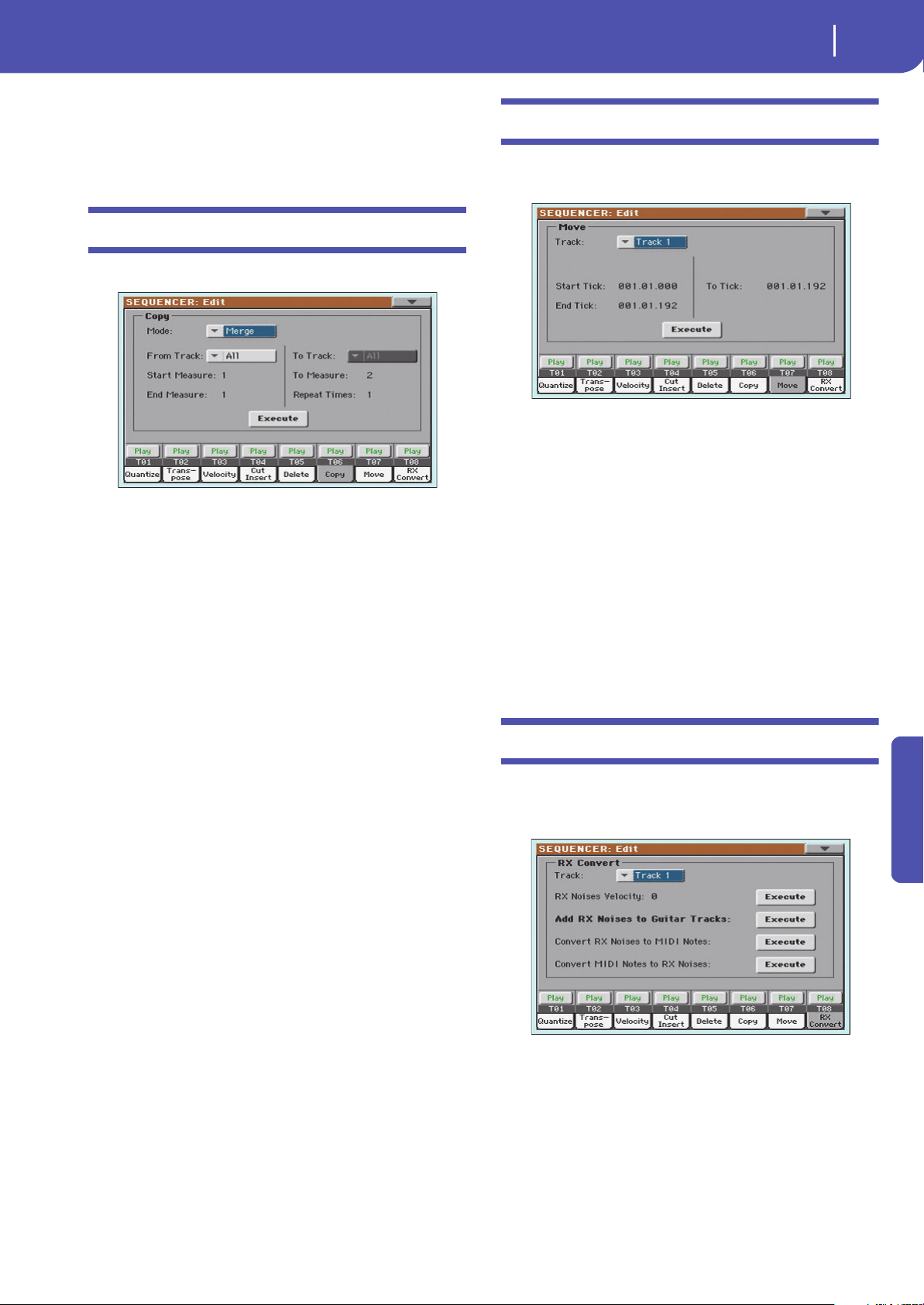
143
Sequencer
Song Edit: Copy
Reference
Top parameters, you can select a single note, or a single percus-
sive instrument in a Drum track.
Note: These parameters are available only when the All or Note
options are selected.
Song Edit: Copy
Here you can copy tracks or phrases.
After setting the various parameters, touch Execute to start the
operation.
Note: If you copy too many events on the same “tick”, the “Too
many events!” message appears, and the copy operation is aborted.
Mode
Use this parameter to select the Copy mode.
Merge Copied data are merged with the data at the tar-
get position.
Overwrite Copied data replace all data at the target position.
Wa r n i ng : Deleted data cannot be recovered!
From Track… To Track
Use these parameters to select the source and target track to
copy.
All All tracks. The target track cannot be selected.
Track 1…16 Selected source and target tracks.
Start Measure… End Measure
These parameters are the starting and ending measure to copy.
For example, if From Measure=1 and To Measure=4, the first
four measures are copied.
To Measure
This parameter is the first of the target measures.
Repeat Times
Number of times the copy must be executed. Copies will be con-
secutive.
Song Edit: Move
Here you can shift a track forward or backward by just a few
ticks or whole measures.
After setting the various parameters, touch Execute to complete
the operation.
Track
Use these parameters to select the track you want to move.
Track 1…16 Selected track.
Start / End Tick
These parameters set the starting and ending point of the range
to move.
To Tick
This parameter allows you to set the target starting point of the
moved track.
Song Edit: RX Convert
You can use the RX Convert page to convert notes of the Stan-
dard MIDI File into RX Noises, and vice-versa. This will help
programming Songs on an external sequencer.
After having chosen a track to convert, touch Execute to com-
plete the operation.
Track
Use these parameters to select the track containing the notes or
RX Noises you want to convert.
RX Note Velocity
Use this parameter to adjust the volume level of the RX Noises in
the selected track(s).
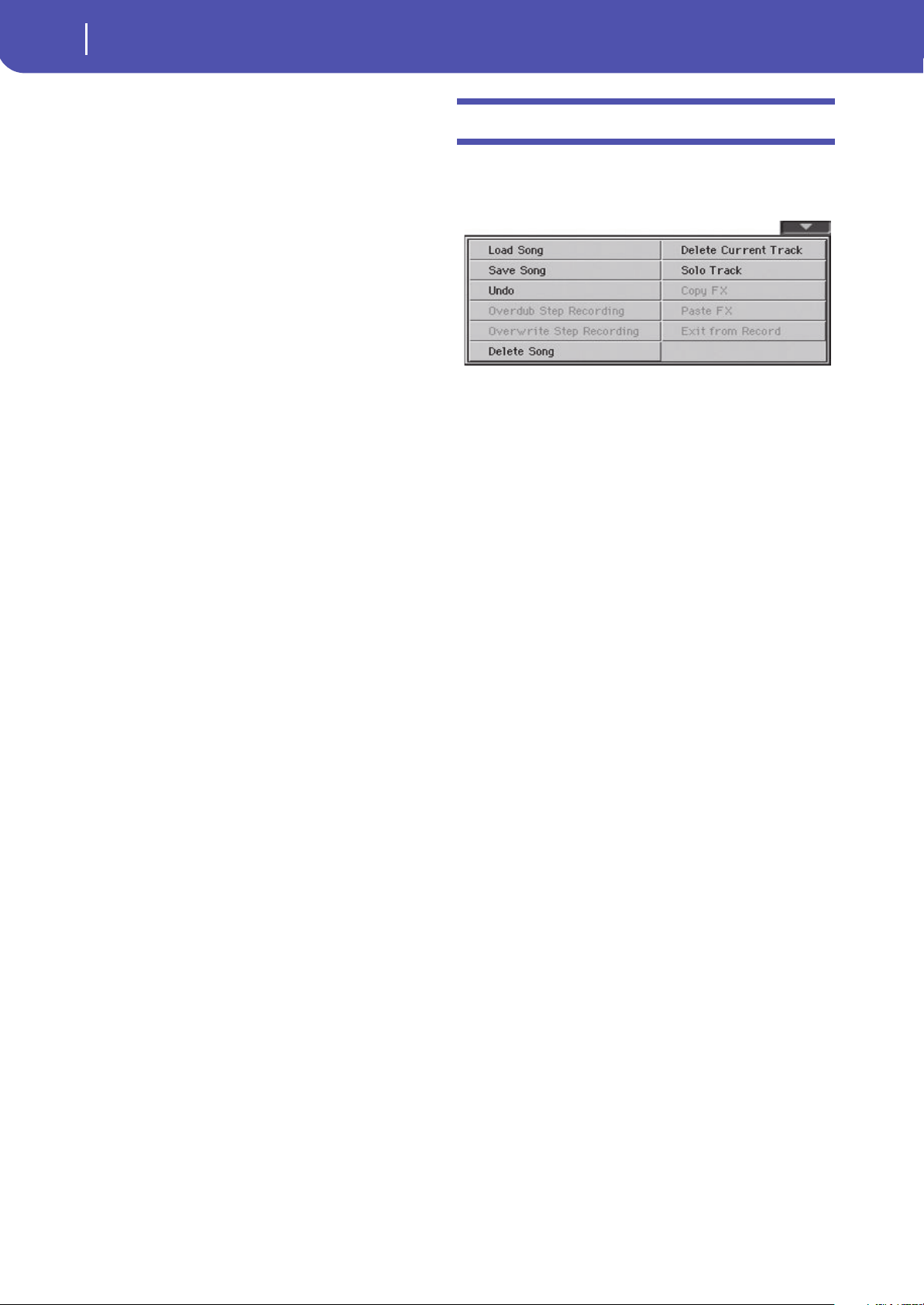
144
Sequencer
Page menu
Add RX Noises to Guitar track
Use this parameter to automatically analyze the Standard MIDI
File, and add RX Noises to Guitar tracks. This command scans a
single track or the whole Standard MIDI File, looking for guitar
strumming played by nylon, steel or electric guitars.
After scanning, a suitable Guitar sound will be automatically
assigned to the relevant tracks, and RX Noises automatically
added where needed.
Convert RX Noises to MIDI Notes
Use this parameter to convert the RX Noises contained in the
selected track to ordinary MIDI Notes.
Convert MIDI Notes to RX Noises
With Sounds containing Use this parameter to convert all the
relevant MIDI Notes in the selected track to RX Noises.
Page menu
Touch the page menu icon to open the menu. Touch a command
to select it. Touch anywhere in the display to close the menu
without selecting a command.
Load Song
Select this command to open the Song Select window, and load a
Song to the sequencer. (See “Song Select window” on page 145).
Save Song
Select this command to save the new or edited Song to a storage
device as a Standard MIDI File. The file is automatically added
the “.MID” extension. After selecting this command, the Save
Song page appears (see “Save Song window” on page 145).
War ni ng : Turning the instrument off will delete the Song from
memory. Save your Song to a storage device to avoid losing it.
War ni ng : The Song is also lost when switching from Sequencer to
Style Play or Song Play mode, without previously saving the Song
to a storage device.
Undo
When selecting this command, the latest operation is canceled,
and data are reverted to the previous situation.
Overdub Step Recording
Only available in Record mode. Select this command to enter
Overdub Step Record mode. This recording mode lets you enter
events one at a time, adding events to the existing events. (See
“Record mode: Step Record page” on page 128).
Overwrite Step Recording
Only available in Record mode. Select this command to enter
Overwrite Step Record mode. This recording mode lets you
enter events one at a time, overwriting all existing events. (See
“Record mode: Step Record page” on page 128).
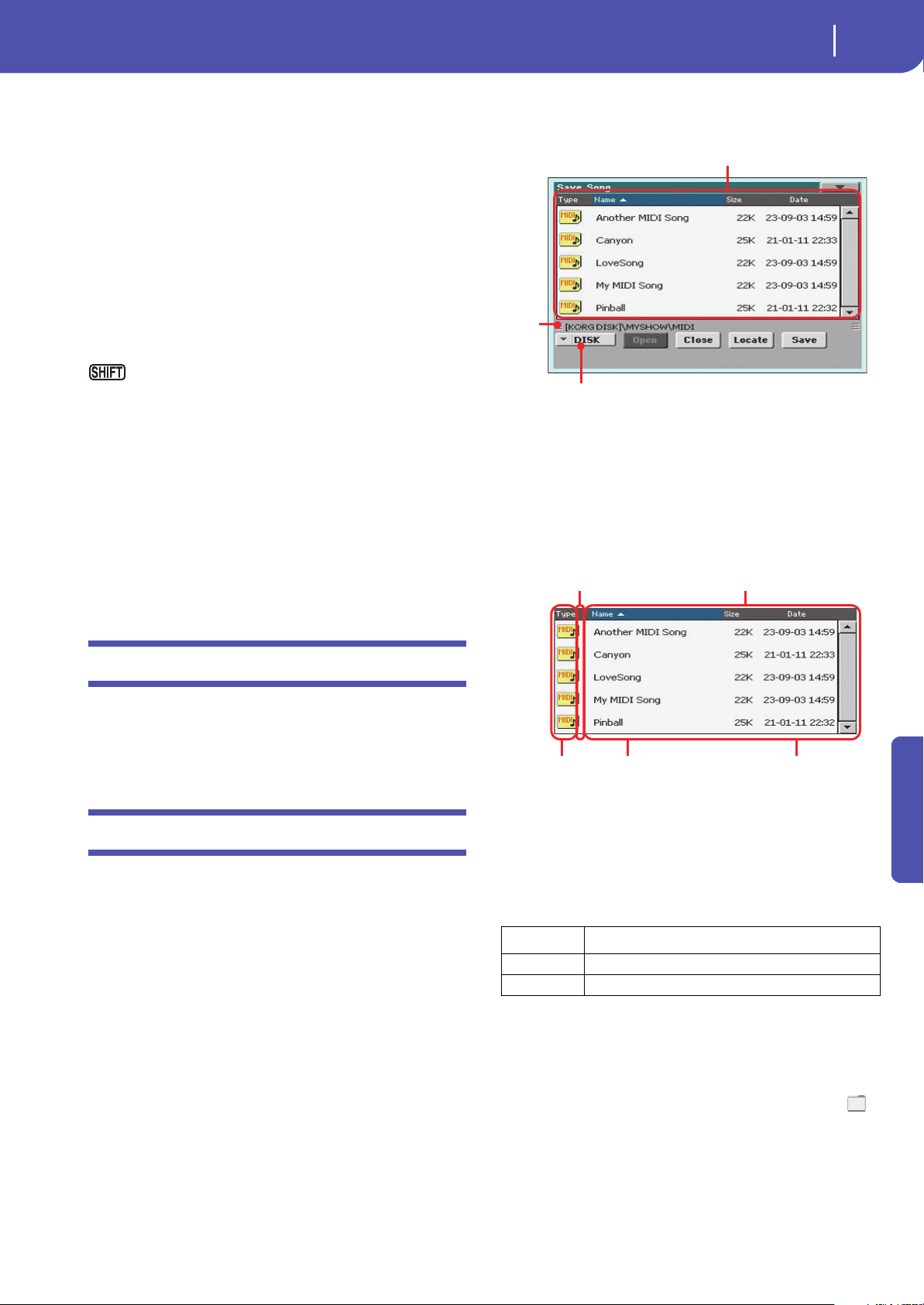
145
Sequencer
Song Select window
Reference
Delete Song
Select this command to delete the Song and create a new, blank
Song.
Delete Current Track
Select this command to delete the track currently selected in the
Track area (see “Track volume/status area” on page 127).
Solo Track
Select the track to be soloed, and check this item. You will hear
only the selected track, and the ‘Solo’ warning will flash on the
page header.
Uncheck this item to exit the Solo function.
Keep the SHIFT button pressed and touch one of the
tracks to solo it. Do the same on a soloed track to deactivate the
Solo function.
Copy/Paste FX
Use this command to copy a single effect, or both effects of an
FX group (A or B). See “Copy/Paste FX” on page 108 for detailed
instructions.
Exit from Record
Only available in Record mode. Select this command to exit the
Record mode, and go back to the Main page of the Sequencer
Play mode (see “Sequencer Play - Main page” on page 123).
Song Select window
This window appears when you select the “Load Song” com-
mand from the page menu, or press the SONG button in the
SELECTION section of the control panel. See “Song Select win-
dow” on page 85 for details.
Save Song window
The recorded Song is lost when the instrument enters standby.
The Song is also lost when you overwrite it in Record mode,
or if you confirm the warning message when switching to the
Style Play or Song Play mode. You must save to a storage device
any Song you wish to preserve.
This window appears when you select the “Save Song” command
from the page menu.
Press EXIT to cancel saving and go back to the main page of the
Sequencer operating mode.
Song path
This line shows the path of the location where you are saving the
Song.
Directory
This is the list of the selected device’s content.
Detailed information about this type of page can be read in
“Song Select window” on page 85.
Storage device
Use this menu to select one of the available storage devices.
The actual name (label) of the device appears within square
brackets ([]).
Open
Opens the selected folder (item whose icon looks like this: ).
Close
Closes the current folder, returning to the parent (“upper”)
folder.
Device Type
DISK Internal memory
USB Optional device connected to the USB Host port
Song
path
Directory
Storage device
Type of the
file or folder
File status
File or folder
name
File size
Modification
date
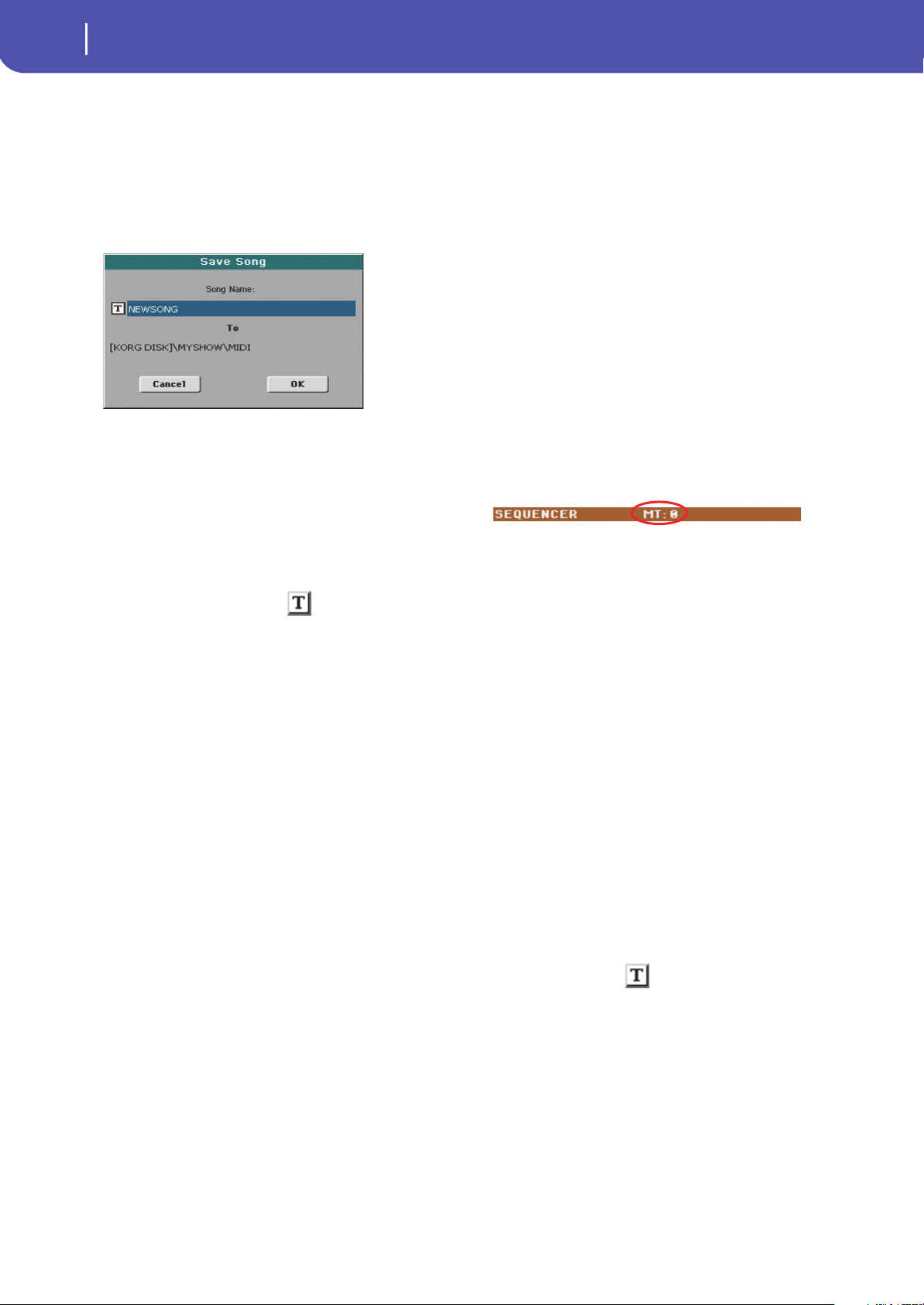
146
Sequencer
Save Song window
Locate
Touch this button to see the Song assigned to the Sequencer.
This is useful to quickly locate it, after you have browsed
through long directories and “dug” into different folders.
Save
Touch this button to open the Save Song dialog box, and save the
Song to the current directory.
• If no file has been selected in the display, prior to touching
Save, the “NewSong” default name will be automatically assigned
to the Song.
Note: If a file is selected, just touch the storage device name to
deselect it.
• If a file has been selected in the display, prior to touching Save,
the name of the selected file will be automatically assigned to the
Song.
In any of the above situations, touch the (Text Edit) button
to edit the Song name.
War ning : If a file with the same name is already in the current
directory, a message will warn you. If you confirm, the existing file
will be overwritten. Select a file before saving only if you want to
overwrite it (i.e., in case you are saving changes to an existing file).
Empty measure at the beginning of the Stan-
dard MIDI File
When saving a Song as a Standard MIDI File, an empty measure
is automatically inserted to the beginning of the Song. This mea-
sure contains various Song initialization parameters.
Play/Mute status saved with the Song
When saving a Song, the Play/Mute status is saved with the
Song. This status is preserved also when playing back the same
Song in Song Play mode.
Master Transpose saved with the Song
When saving a Song, the Master Transpose value is saved with
the Song. Since this value is saved as System Exclusive data, it is
preserved also when playing back the Song in Song Play mode.
Hint: Since the Master Transpose is a global parameter, loading a
Song with a non-standard transposition may result in unwanted
transposing when loading other Songs that do not contain their
own transposition data. To transpose a Song it is advisable to use
the Transpose function in the Edit section of the Sequencer mode
(see “Song Edit: Transpose” on page 141).
You may also lock the Master Transpose, to avoid unwanted trans-
position. See “General Controls: Lock” on page 149 of the Global
chapter.
As a general rule, you should use the Master Transpose (TRANS-
POSE buttons on the control panel) when you need to transpose
Keyboard tracks together with the Song. You should use the Edit
mode Transpose function (see “Song Edit: Transpose” on page 141)
when only the Song has to be transposed.
Note: The Master Transpose value is always shown on the page
header:
Save Song procedure
1.
If you are in Record mode, stop the sequencer and exit
from the Record mode. Then go back to the main page of
the Sequencer Play mode (see “Sequencer Play - Main
page” on page 123).
2. Select the Save Song command from the page menu. The
Save Song page appears.
3. Select the folder where you want to save the Song into. Use
the Open and Close commands to browse open or close
folders. Use the scrollbar to browse through the files.
4. When you are in the directory where you want to save your
Song to, touch the Save button in the display.
•To overwrite an existing file, select it before touching
Save.
•To create a new file, do not select any file before touching
Save. The “NewSong” (“NEWSONG.MID” on a storage
device) name will be automatically assigned to the Song.
5. After touching the Save button, the Save Song dialog box
will appear.
6. If you like, touch the (Text Edit) button to edit the
name.
7. Touch OK to confirm saving, or Cancel to stop the Save
operation.
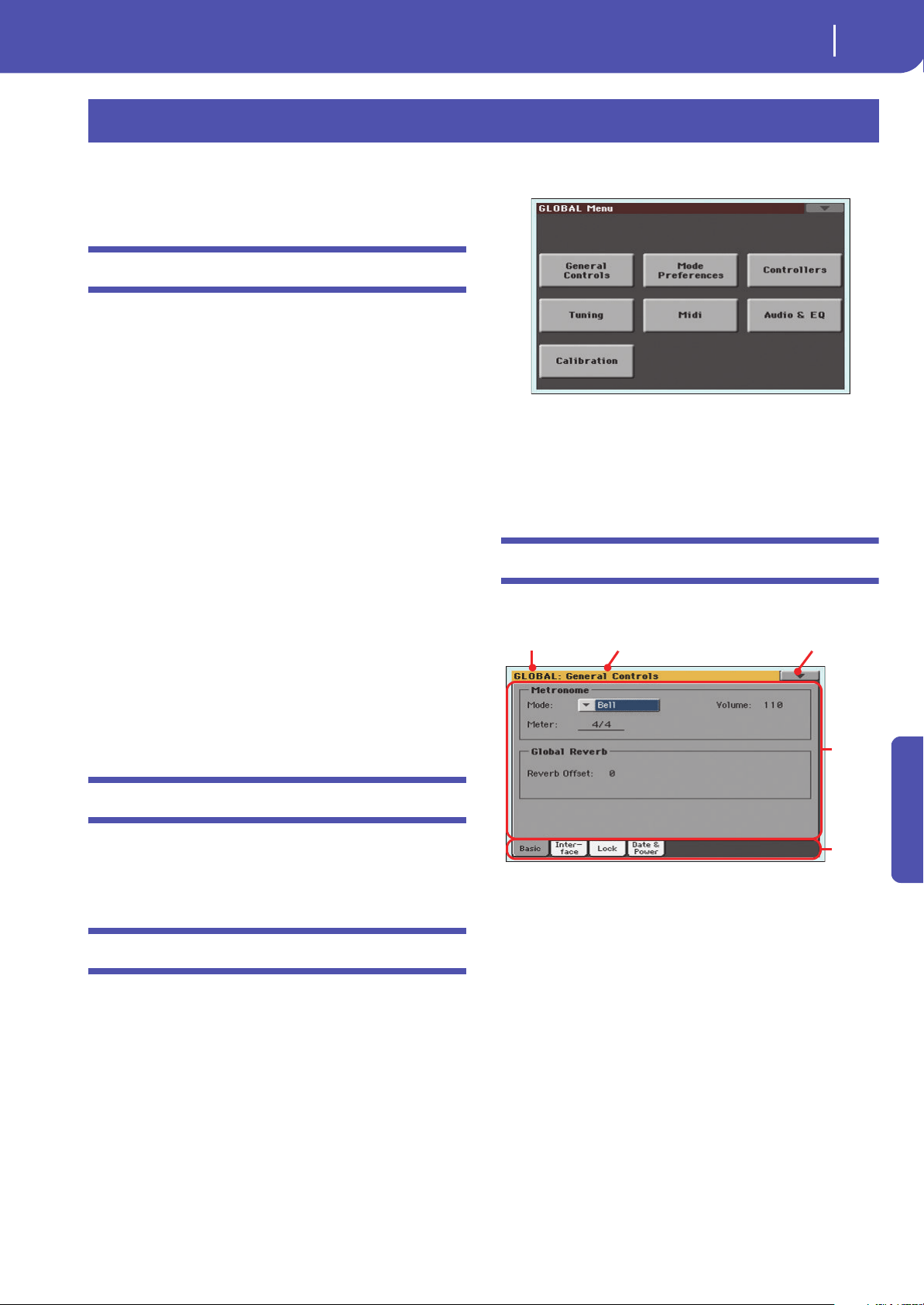
147
Global
Overview on the Global mode
Reference
The Global mode is where you can set global functions. This
mode overlaps the current operating mode (Style Play, Song
Play, Sequencer).
Overview on the Global mode
The Global mostly contains a series of global parameters applied
to the whole instrument (or to each separate operating mode) as
a whole, that are automatically written to memory after editing.
Examples of global parameters are the Master Tuning or the
Power Management.
Global mode also contains parameters that are applied to the
instrument as a whole, but can be saved as a “preset”, that can
later be loaded to change all parameters at once. Examples of this
kind of parameters are the MIDI channel assignment, saved into
the MIDI Presets, or the Master EQ settings, saved into the Mas-
ter EQ Presets.
Parameters in the Global mode, either automatically memorized
or saved to a preset, are opposed to “local” parameters that you
can access in the other operating modes. Examples of local
parameters are the Sounds assigned to a track or the Easy Edit
values, both saved into a Performance or STS (two types of pre-
set containing musical data relevant to the selected operating
mode).
Note: Saving or loading a “.SET” folder may also save or load the
Global file. Parameter changing may be avoided by turning the
Lock on for any single parameter (or groups of parameters in the
Lock page of the Global mode, see “General Controls: Lock” on
page 149).
Main page
There is no main page in the Global edit mode. When pressing
EXIT, you exit the Global mode, and the underlying operating
mode in the background is recalled.
Edit menu
From any page of the Global mode, press the MENU button to
open the Global edit menu. This menu gives access to the vari-
ous Global edit sections.
When in the menu, select an edit section, or press EXIT to exit
the Global mode.
When in a page, press EXIT to go back to current operating
mode in the background (Style Play, Song Play, Sequencer).
Each item in this menu corresponds to an edit section. Each edit
section groups various edit pages, that may be selected by touch-
ing the corresponding tab on the lower part of the display.
Note: The Global mode is not available while in Song Record
mode.
Edit page structure
All editing pages share some basic elements.
Edit mode
This indicates that the instrument is in Global mode.
Edit section
This identifies the current edit section, corresponding to one of
the items of the edit menu (see below).
Page menu icon
Touch this icon to open the page menu (see below).
Parameters area
Each page contains various parameters. Use the tabs to select
one of the available pages. For detailed information on the vari-
ous types of parameters, see sections starting below.
Tabs
Use tabs to select one of the edit pages of the current edit section.
Global
Edit mode Edit section
Page menu
icon
Parame-
ters area
Tabs
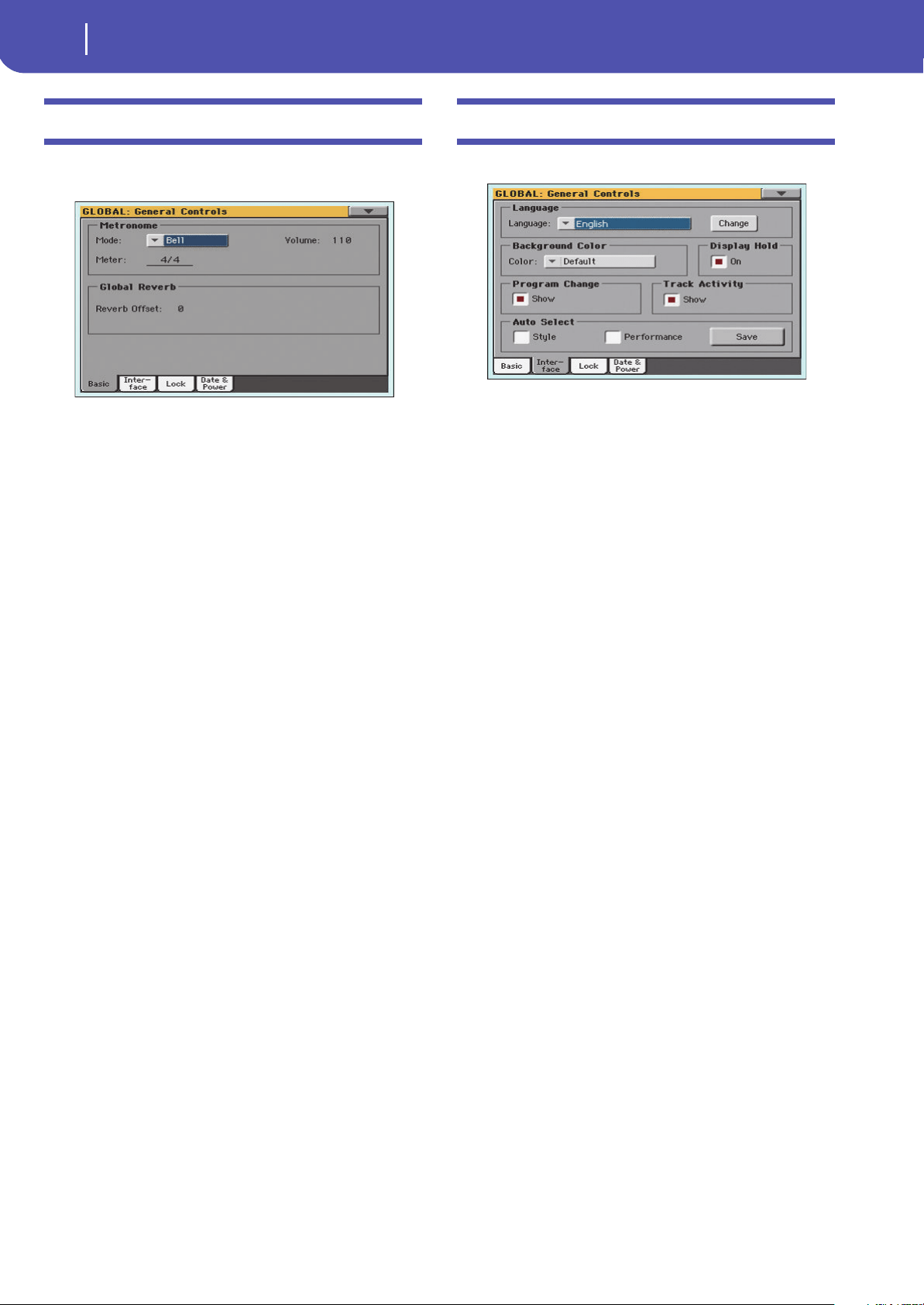
148
Global
General Controls: Basic
General Controls: Basic
This page contains various general parameters concerning the
Metronome and Reverb.
Metronome
Mode
Use this parameter to activate the metronome’s type of accent.
Normal No accent can be heard.
Accent The first beat of each measure is accented.
Bell A bell sound is heard at the first beat of each mea-
sure.
Volume
Use this parameter to set the volume of the metronome.
0…127 Volume level.
Meter
Use this parameter to choose the meter (time signature) of the
Metronome.
1/1…16/16 Selected Meter.
Global Reverb
Reverb Offset
This is the master offset for all reverbs. Use it to adjust reverb
tails to the room where you are playing. Use negative values
when you are in a very reverberant room, positive values if the
room is too dry.
By using this global control, you are not obliged to change the
reverb time in each single Performance, STS, Style Settings, or
Song.
-50 Less reverb.
0 Standard reverb.
+50 More reverb.
General Controls: Interface
This page contains parameters related to user interface.
Language
Language
Use this pop-up menu to select one of the available languages for
the on-screen keyboard.
Note: Some of the characters can only be used when editing Song-
Book Entry names.
Change button
To apply the selected language to the onscreen keyboard, touch
this button and restart the instrument as described below.
How to select a language
1. Since Pa300 must be restarted at the end of this procedure,
be sure to first save all unsaved data.
2. While in this page, select a language from the pop-up
menu.
3. The “Change” word will start flashing. Touch it.
4. A message will ask you to reboot the Pa300. Touch OK to
close the message window.
5. Set Pa300 to standby, then turn it on again.
Background Color
Color
Use this parameter to choose a different color scheme for the
display.
Display Hold
On/Off
When this parameter is checked, if you open a temporary win-
dows (like the Sound Select window), it remains in the display
until you press EXIT or an operating mode button. When it is
not checked, any temporary window closes after a certain time.
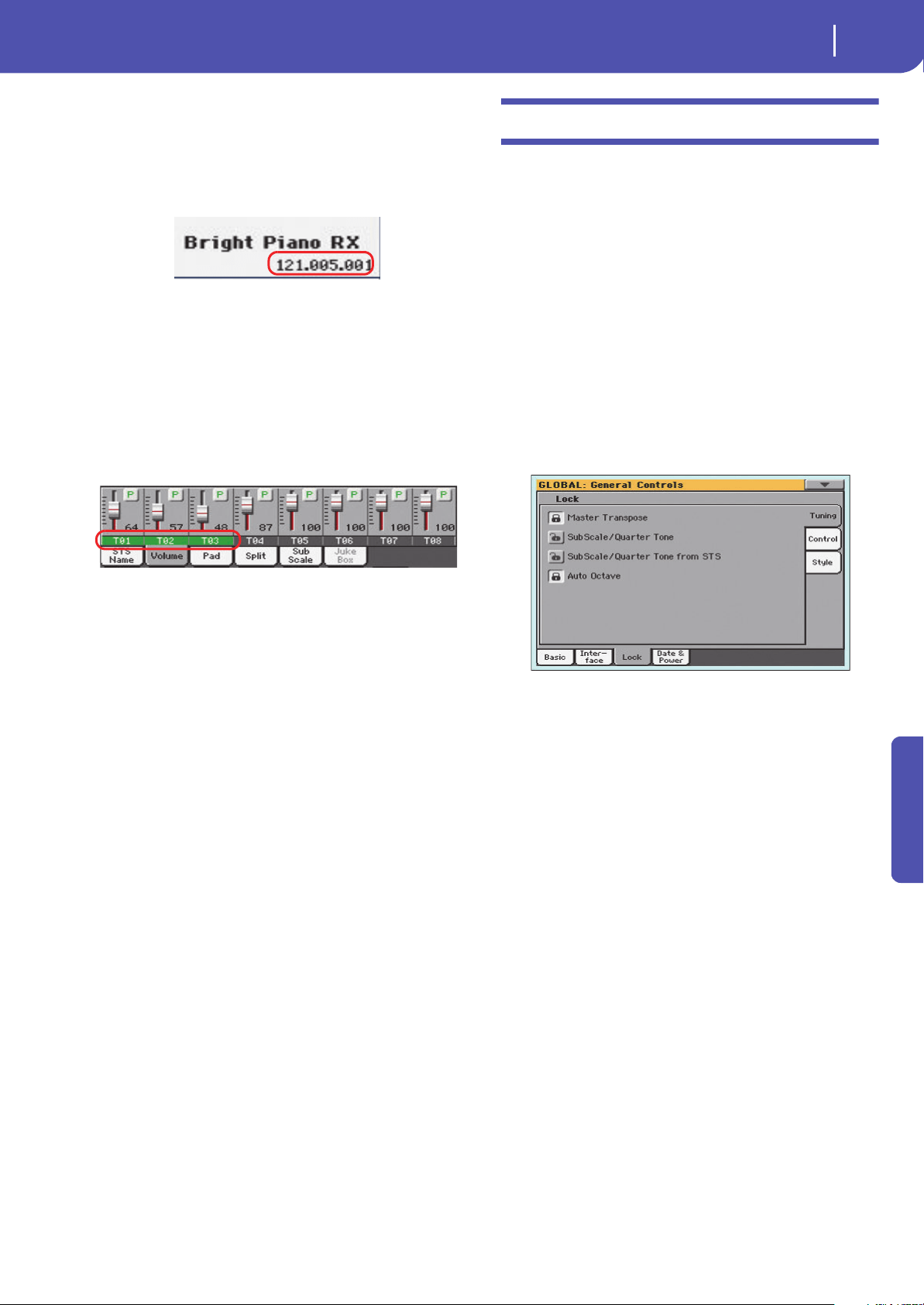
149
Global
General Controls: Lock
Reference
Program Change
Show
Check this parameter to show Program Change numbers next to
Sound names in the Sound Select window. By default, this
parameter is turned on.
Note: Program Change numbers are always shown in the various
Track Info areas.
Track Activity
Show
Use this parameter to turn on/off the Track Activity display.
When it is turned on, you can monitor MIDI events coming
from the tracks or the USB Device port. Incoming events are
shown by the color changing on each track’s label.
Auto Select
Style
When this parameter is checked, the latest selected Style is
immediately selected when touching the name of a bank in the
Style Select window.
Performance
When this parameter is checked, the latest selected Performance
selected in a bank is immediately selected when pressing the
PERFORMANCE button corresponding to the bank.
This way, you can assign your preferred Performance to each
control panel’s button, and select it just with a single press.
However, the Performance Select window still appears when you
press one of the PERFORMANCE buttons corresponding to the
bank, so you can select a different item if desired.
Save
Touch this button to save the current Style and Performance
assignment. You will find the saved assignment when turning
the instrument on again.
General Controls: Lock
This page, split in more panes that can be selected by means of
the corresponding side tabs, contains all the available locks.
Locks prevent parameter values to be changed when choosing a
different Performance, Style or STS.
Locks
All the available locks, listed below. Lock them to prevent
changes due to selecting different elements. These locks are also
found in various other pages, next to the locked parameter.
Hint: To save the status of parameters that have to remain
unchanged, set them and save the MY SETTING Performance
(automatically selected when turning the instrument on). After
having saved the startup Performance, go to these pages and lock
the parameters that must remain unchanged.
Tuning pane
Master Transpose
When this lock is closed, Master Transpose is not
automatically changed when selecting a different
Performance or Style, or a different SongBook
Entry. Also, this lock prevents a Standard MIDI
File generated with an instrument of the Korg Pa-
Series to change the Master Transpose.
(See “Master transpose” on page 89).
Sub Scale/Quarter Tone
When locked, selecting a Performance or STS, or
a SongBook Entry, will not change the Sub-Scale
or Quarter Tone value.
(See “Sub-Scale panel” on page 94).
SubScale/Quarter Tone from STS
When locked, selecting an STS will not change
the Sub-Scale or Quarter Tone settings. The STS
will change sounds and effects but not the scale.
(See “Sub-Scale panel” on page 94).
Auto Octave Depending on the status of this lock, the Upper
tracks can be automatically transposed when
turning the SPLIT on and off.
• If locked, turning the SPLIT on or off will not
change the Upper tracks transposition.
• If unlocked, when turning the SPLIT button off
(Full keyboard mode) the Upper tracks Octave
Transpose will be automatically set to “0”. When
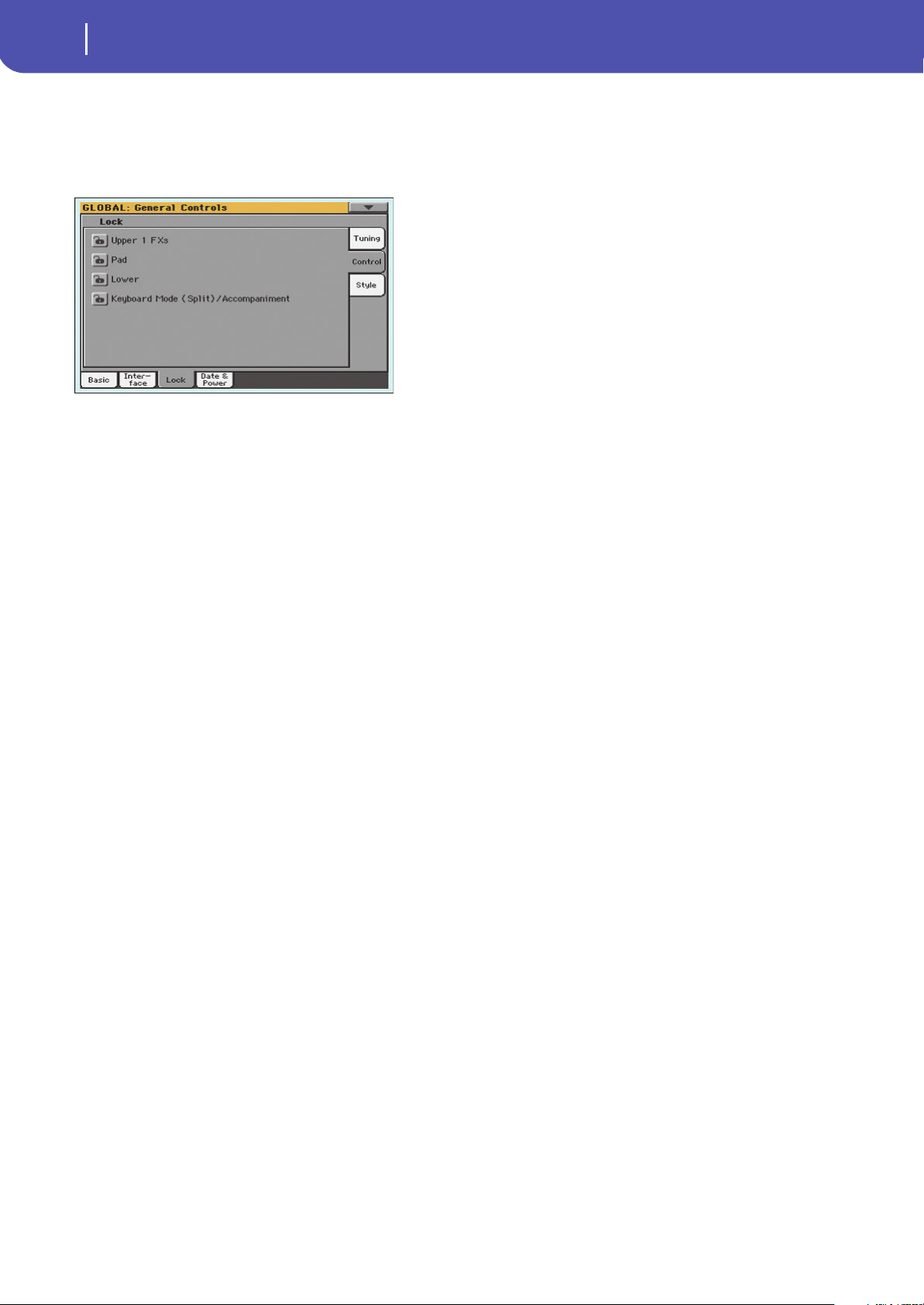
150
Global
General Controls: Lock
turning the SPLIT button on (Split keyboard
mode) the Upper tracks Octave Transpose will be
automatically set to “-1”.
Control pane
Upper 1 FXs When you assign a new Sound to the Upper 1
track, the FX B settings and Master FX send levels
saved with that Sound can be automatically
selected, overriding Performance/STS settings for
this track. Whether Sound or Performance/STS
effect parameters will be considered, it depends
on the status of this lock.
• If the Upper 1 FX Lock is turned on, when
assigning a new Sound to the Upper 1 track, Per-
formance/STS parameters are left untouched;
selected effects, and FX Send values, are not
changed.
• If the Upper 1 FX Lock is turned off, when
assigning a new Sound to the Upper 1 track,
Sound parameters are considered; selected
effects, and FX Send values, are changed accord-
ing to the Sound’s stored data.
Note: If the effects associated to the selected Sound
are not compatible with the effects already assigned
to the FX B block, the Master FX Send values on
the other Keyboard tracks will be automatically set
to zero.
For example, assume a chorus effect is assigned to
the Master 2 FX processor. If the new Sound
assigns a distortion effect to the Master 2 FX pro-
cessor, the Master 2 FX Send value on the Upper 2,
Upper 3, and Lower tracks will be set to zero, to
avoid these tracks sound in the wrong way. This
way, the Upper 1 track (usually the most important
one for solo playing) will sound with the needed
effect, while the other Keyboard tracks will just
sound dry.
Pad When locked, selecting a Style or SongBook
Entry will not change the Pad assignment.
(See “Pads: Pad” on page 106).
Lower When this lock is closed, the Lower track remains
unchanged when a different Style, Performance
or STS is selected.
This is useful if, for example, you prefer to always
play with the left hand muted and reserved only
to the chords.
Hint: If you want the same Lower settings to be
used during all your shows, save your preferred
Lower settings to the MY SETTING Performance
(automatically selected on startup).
Keyboard Mode (Split)/Accompaniment
When this lock is closed, the status of the SPLIT
button (therefore of the keyboard mode) and the
ACCOMP. button remains unchanged when a
different Performance or STS is selected.
This is useful if, for example, you prefer to always
play in Full Keyboard, with chords recognized on
the whole keyboard range.
Hint: If you want the same Keyboard Mode and
Lower Scanning settings to be used during all your
shows, save your preferred settings to the MY SET-
TING Performance (automatically selected on
startup), then close this lock.
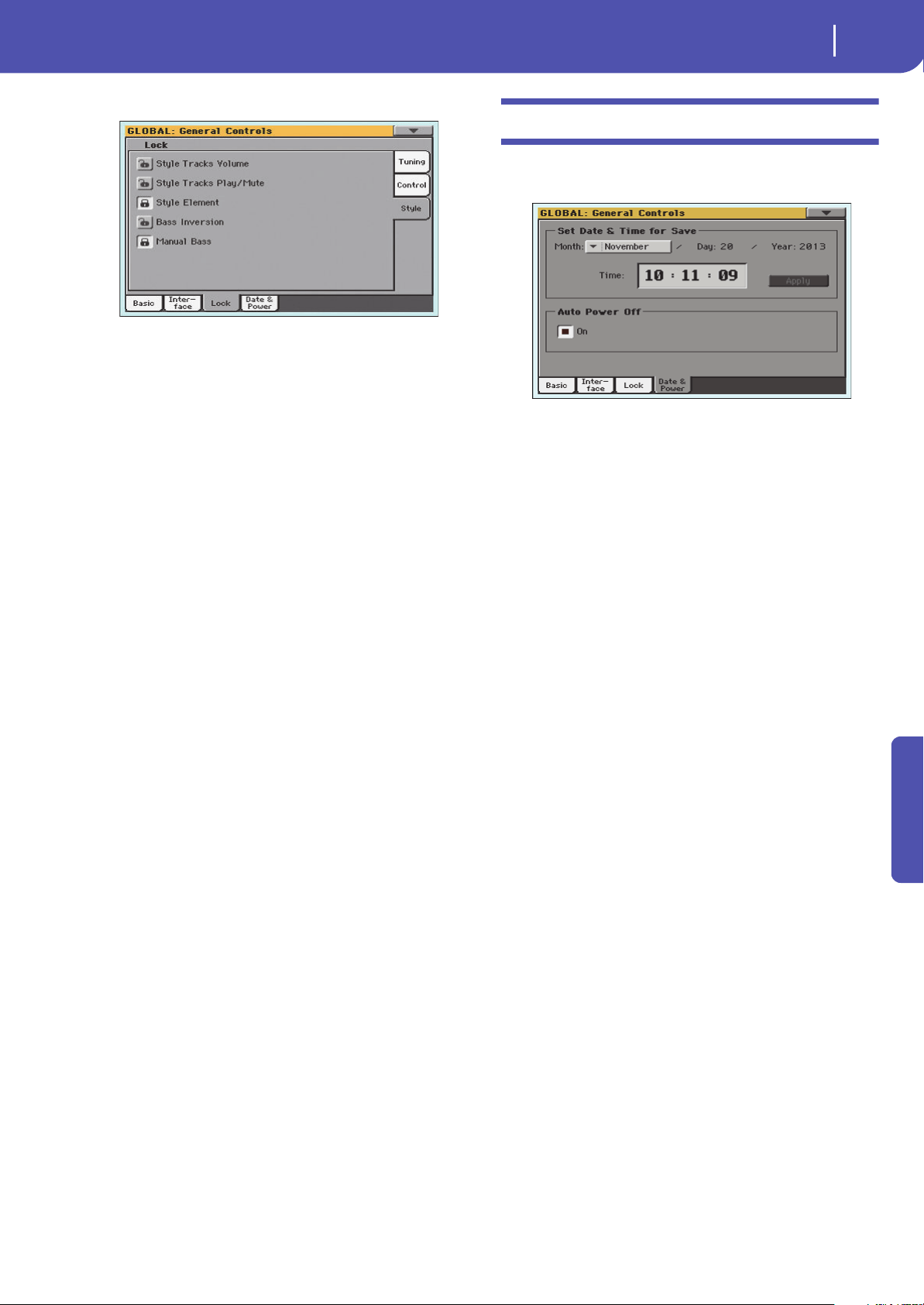
151
Global
General Controls: Date & Power
Reference
Style pane
Style Tracks Volume
When this lock is closed, the Style tracks’ volume
do not change when a different Style is selected.
Style Tracks Play/Mute Lock
When this lock is closed, selecting a Style does
not cause the Play/Mute status of the Style tracks
to be changed. This way, you can, for example,
turn the bass track off during a whole show, to
allow your bassist to play the part live. Also, you
could mute all Acc tracks, to only play with the
Drum and Bass tracks.
Style Element When this lock is closed, the selected Style Ele-
ment (Variation, Intro…) will not change when
choosing a different Style.
This lock has no effect on the Styles automatically
selected when choosing a SongBook Entry. The
Style Element memorized in the SongBook Entry
is always selected.
Bass Inversion
When locked, selecting a Performance or STS
will not change the Bass Inversion status. Bass
Inversion can also be assigned to a footswitch.
(See “Bass Inversion” on page 94).
Manual Bass When locked, selecting a Performance or STS
will not change the Manual Bass status.
General Controls: Date & Power
This page is where you can set a time stamp and turn the Auto
Power function on or off.
Set Date & Time for Save
This function lets you specify a date to be recorded as the date
stamp for the files being saved. This is useful for keeping track of
when you created and saved your data.
File date stamps are shown when you use the Media functions,
or when reading data with a personal computer.
Since Pa300 does not include an internal clock, the date is not
automatically updated. If it’s important for your files to be
stamped with the correct date, be sure to check this setting at the
start of every programming session.
Note: When you edit a resource file (Performances, Styles...), all
items in the same bank have their modification date changed. For
example, if you edit a single Style in the “Pop” bank, all Styles in
that bank will take the new modification date.
Month
Use this pop-up menu to choose a month.
Day
Use this numeric field to input the day of the month.
Ye a r
Use this numeric field to input the year.
Time
Use these numeric fields to input the time, in the “hour:min-
ute:second” format.
Apply
After having edited all calendar and time fields, touch this but-
ton to apply the changes.
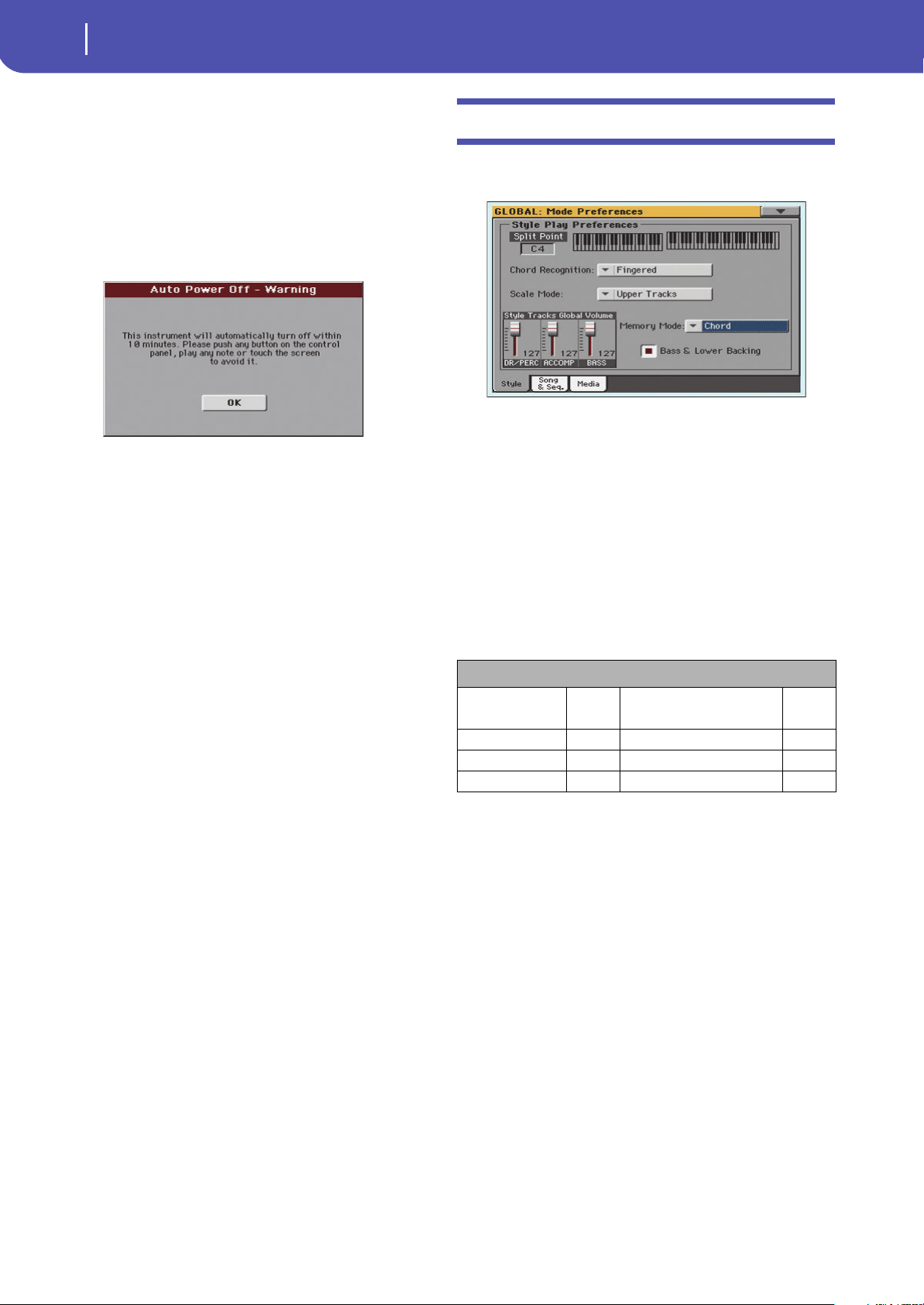
152
Global
Mode Preferences: Style
Auto Power Off
Pa300 can automatically enter standby after two hours of being
unused, to save power and help preserving the environment.
On
When this parameter is checked, a few minutes before automatic
standby a message will warn you that the instrument is going to
be put in standby. All unsaved data currently in editing or
recording will be lost.
At this message, you can let the instrument enter standby, or you
can touch the display, press any button on the display, or play the
keyboard to leave it turned on and continue using it.
Mode Preferences: Style
In this page you can set various general parameters for the Style
Play mode.
Split Point
Use this parameter to select the global split point. This point is
independent of any Performance or STS.
See “Split panel” on page 94 for more information.
Chord Recognition
This parameter allows you to choose how chords are recognized
by the auto-accompaniment engine.
When switching to Full Keyboard mode (SPLIT LED turned off)
the Chord Recognition mode is automatically set as in the fol-
lowing table:
One Finger You can compose a chord using a simplified
chord playing technique:
• Play a single note for a Major chord to be recog-
nized.
• Play the root note, plus a white key on the left,
for a 7th. For example, play C3 + B2 for a C7.
• Play the root note, plus a black key on the left,
for a Minor chord. For example, play C3 + Bb2
for a C minor.
• Play the root note, plus a white and a black key
on the left, for a Minor 7th. For example, play C3
+ B2 + Bb2 for a C min 7.
Fingered When in Split mode, play one or more notes to
compose a chord. A full Major chord will be rec-
ognized when a single note is played.
When in Full Keyboard mode, play at least three
notes to compose a chord.
Expert When in Split mode, play two or more notes for a
chord to be recognized. When in Full Keyboard
mode, play at least three notes.
Chord Recognition Mode / Minimum number of notes
SPLIT LED On
(Split Mode)
Notes
(min.)
SPLIT LED Off
(Full Keyboard Mode)
Notes
(min.)
One Finger 1 becomes Fingered 3
Fingered 1 Fingered 3
Expert 1 Expert 3
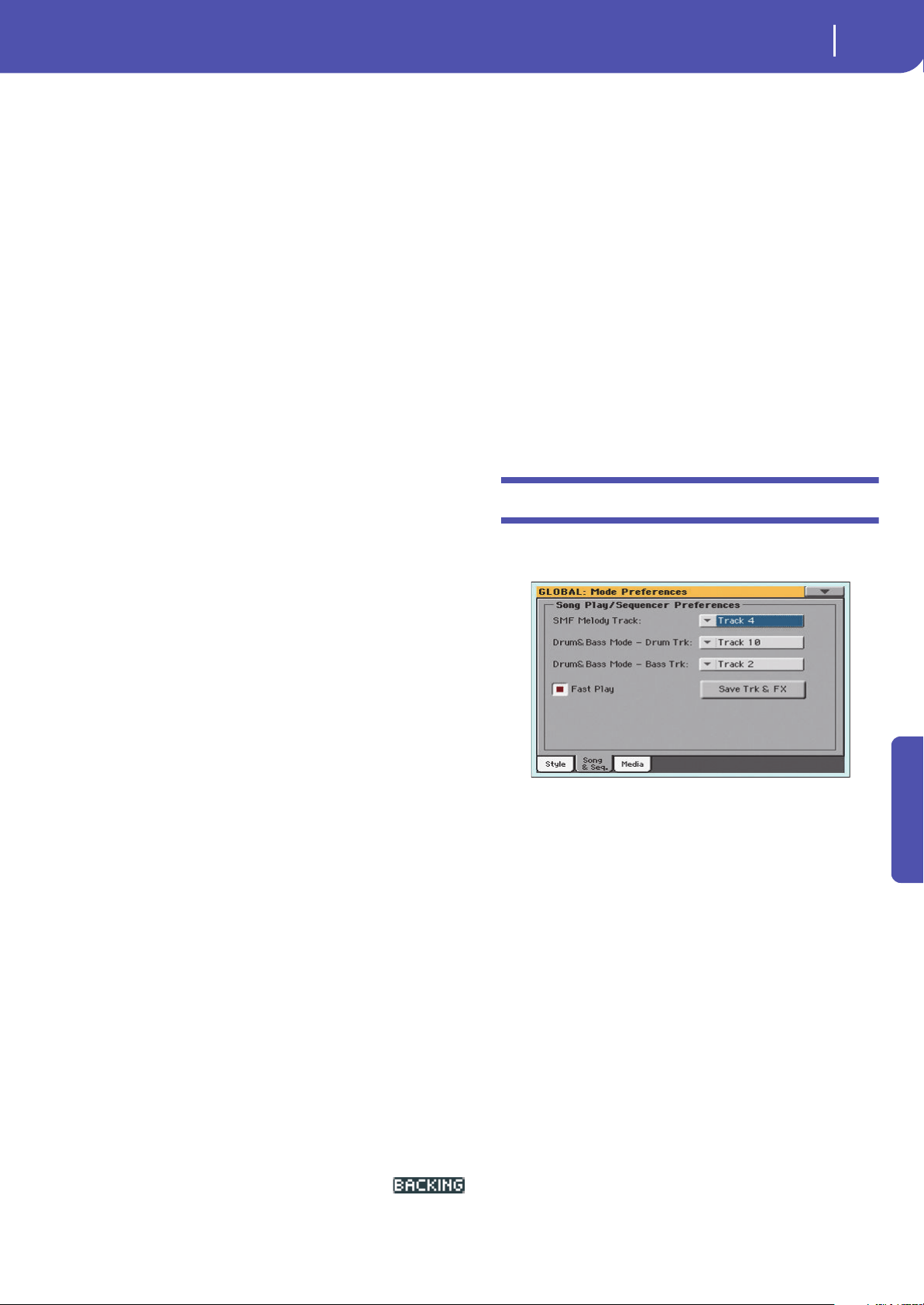
153
Global
Mode Preferences: Song & Sequencer
Reference
If you play just one note, a unison will be played.
If you play a fifth, a “root+5th” chord will be
played.
With this mode, you can play rootless and slashed
chords, often used in jazz, fusion, modern pop
and light music. This type of chord recognition is
very useful to play piano chords typical of jazz
piano players. You don’t always need to play the
root note, doubling the note already played by the
bass track.
Scale Mode
This parameter defines which tracks are affected by the selected
alternative scale (see “Scales” on page 355).
Keyboard Tracks
The scale will affect all Keyboard tracks.
Upper Tracks The scale will only affect Upper 1-3 Keyboard
tracks.
All Tracks The scale will affect all tracks (Keyboard, Style,
Pads).
Memory Mode
This parameter sets the way the MEMORY button works.
Chord When the MEMORY LED is on, recognized
chords are kept in memory even when raising
your hand from the keyboard. When the LED is
off, chords are reset when raising your hand.
Chord + Lower
When the MEMORY LED is on, recognized
chords are kept in memory, and the Lower sound
is held until the next note or chord is played.
When the LED is off, both the chord (and there-
fore the accompaniment) and Lower sound are
cut when raising the hand from the keyboard.
Fixed Arr. + Lower
When the MEMORY LED is on, recognized
chords are kept in memory, and the Lower sound
is held until the next note or chord is played.
When the MEMORY LED is off, the Lower sound
is cut when raising the hand from the keyboard;
on the contrary, the chord is kept in memory (so
that the accompaniment can continue to play).
Bass & Lower Backing
With this function, you can play a simple accompaniment with
your left hand. For this to work, the SPLIT LED must be turned
on, and the Style must not be running. By default, this function
is turned on.
On When the Style is not running, and you play a
chord with your left hand, the chord is played by
the Lower Sound (even if it is muted), while the
chord root is played by the Bass Sound. When
you start the Style, the normal behavior is
restored.
When the Bass & Lower Backing
function is active, the Backing
icon appears in the Lower track Sound’s area.
Off No Bass Sound is added when the Style is not
running. The Lower track can be heard only if it
is not muted.
Style Tracks Global Volume
In Style Play mode, the volume of the grouped Style tracks is a
global offset of the values memorized in the Style. When you
choose a different Style, this offset will not change, and the aver-
age volume of the Style tracks remains the same.
These controls allows you to globally set the balance between the
Drum/Percussion, Bass and Accompaniment tracks. For exam-
ple, if you prefer Drums and Bass to be prominent to make them
have more ‘punch’, you can lower the grouped Accompaniment
tracks.
Changes are not memorized to a Performance or to the current
Style Settings. Instead, they are memorized as a global parame-
ter.
0…127 Volume level.
Mode Preferences: Song & Sequencer
In this page, you can set various general parameters for the Song
Play and Sequencer modes.
SMF Melody Track
This parameter lets you select the Song’s Melody track for Stan-
dard MIDI Files. This track can then be muted by using the
“Song Melody - Mute” function, assignable to the footswitch.
Drum & Bass Mode - Drum
This parameter lets you select the Song’s Drum track. This track
is left set to play (together with the Bass track) when selecting
the “Drum&Bass” function, assignable to the footswitch.
Drum & Bass Mode - Bass
This parameter selects the Song’s Bass track. This track is left set
to play (together with the Drum track) when selecting the
“Drum&Bass” function, assignable to the footswitch.
Fast Play
When checked, this function allows to skip any empty setup
beats at the beginning of a Standard MIDI File, and immediately
start from the first note. While the beats are skipped, setup data
they may contain are read and considered.
Please note that, being audio data, any empty space at the begin-
ning of an MP3 file cannot be skipped.
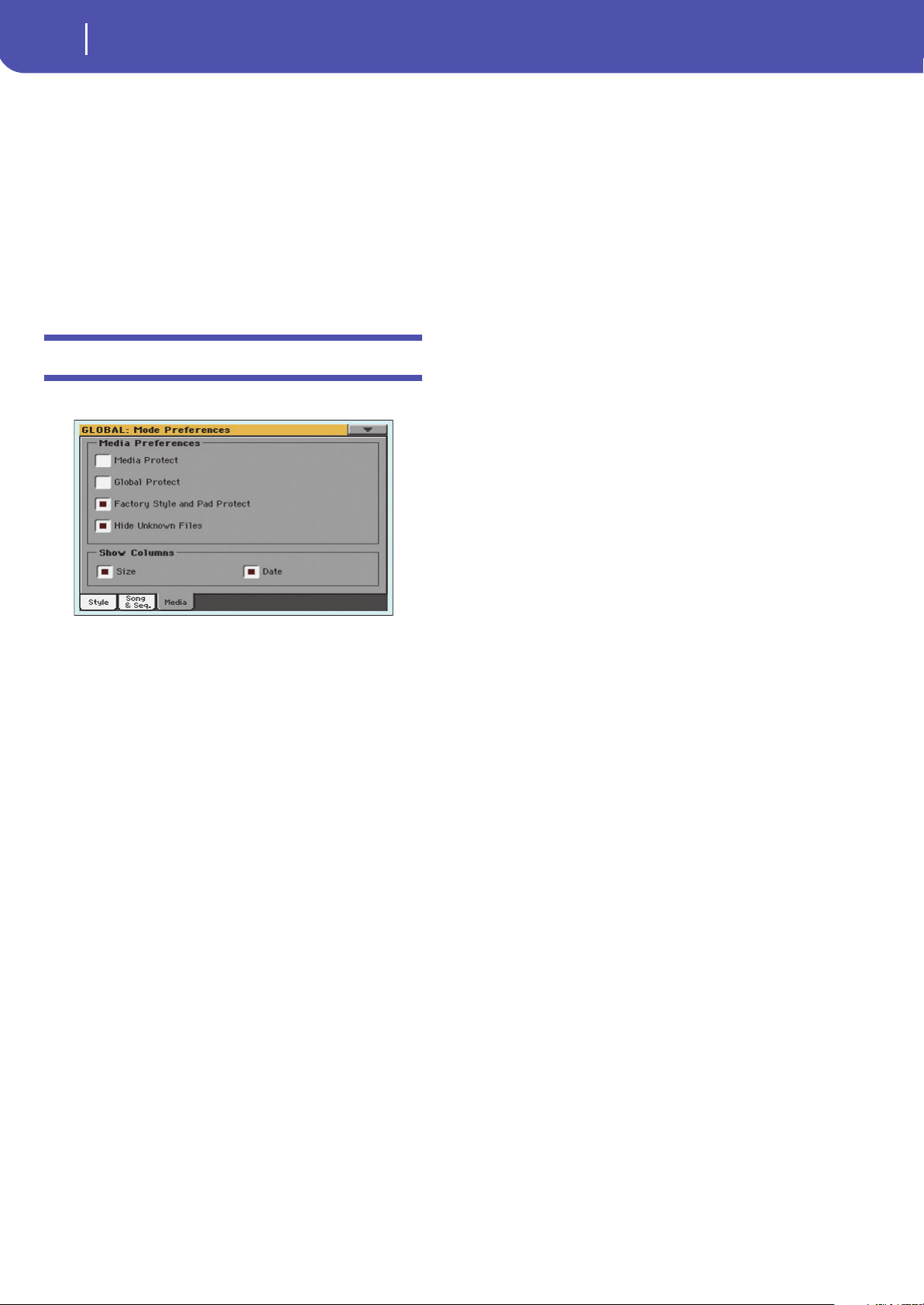
154
Global
Mode Preferences: Media
Save Trk & FX
Touch this button to save the global parameters for the Song Play
mode.
When touching this button, you are saving the following param-
eters:
• Play/Mute status of the Song tracks
• Default effect settings
• EQ settings for the Song tracks
• Internal/External status of the Song tracks
Mode Preferences: Media
This page includes various settings for the Media mode.
Media Preferences
Media Protect
When on, this parameter protects the internal “KORG [KORG
DISK]” disk unit from writing.
Global Protect
When on, this parameter protects the global parameters from
changes when loading data from disk.
Note: Global data from other Pa-Series models are not loaded even
without protection.
Factory Style and Pad Protect
When On, this parameter protects the Factory Styles and Fac-
tory Pads (named “Hit”, “Sequence” and “Local” in the Pad Select
window) from being overwritten when loading data from a
device. In addition, you cannot access these banks when saving
data.
Also, when this option is checked, you cannot write any STS
(Single Touch Setting) or Style Settings onto the Factory Styles.
The “Write Single Touch Setting” and “Write Current Style Set-
tings” command in the page menu are greyed out and cannot be
selected. All original settings of the Factory Styles will be left
untouched.
When Off, you can load User Styles or Pads into the Factory
Style banks and Factory Pad banks. This way, you can customize
your Factory Style and Pad banks. A Save All procedure also
saves the Favorite and User Style, and the User Pad banks.
Note: This parameter is automatically set to On when the instru-
ment enters standby.
Note: Should you accidentally delete some Factory Data, reload
the Backup data or use the Factory Restore procedure (Media >
Utility).
Hide Unknown Files
When this option is checked, non-proprietary files are hidden
when using Media operations, therefore making browsing direc-
tories easier.
Show Columns
Size
When checked, the Size column is shown in the File Selector
when using Media operations.
Date
When checked, the Date column is shown in the File Selector
when using Media operations.
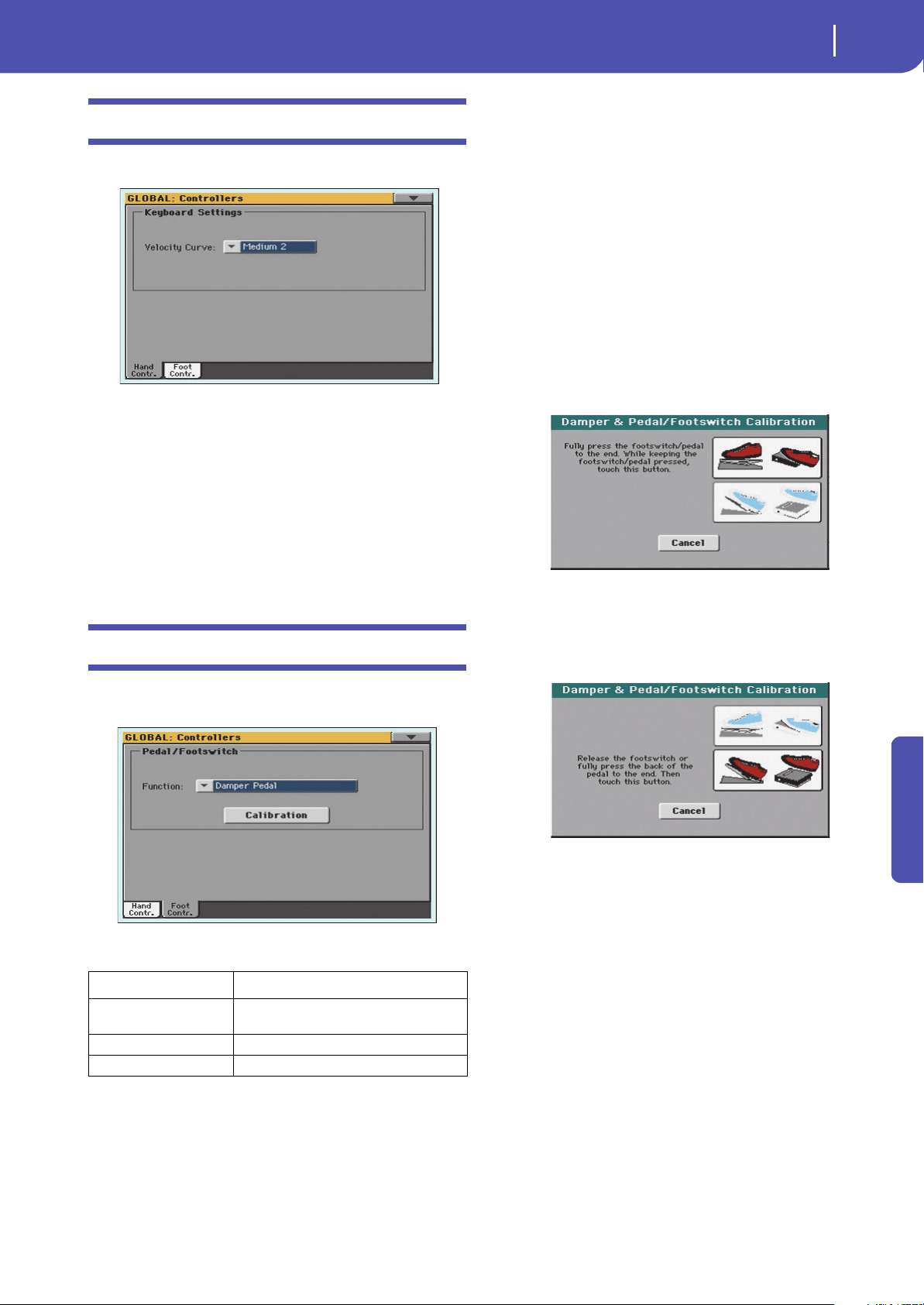
155
Global
Controllers: Hand Controllers
Reference
Controllers: Hand Controllers
In this page you can program the keyboard’s velocity curve.
Keyboard Settings
Velocity Curve
This parameter sets the sensitivity of the keyboard to your touch.
Fix No dynamic control available. Dynamic values
are fixed, as in a classic organ.
Soft1 … Hard3
Curves, from the lightest one to the hardest one.
Controllers: Foot Controllers
This page lets you select a function to the Pedal/Footswitch, and
select its polarity and calibrate its action.
The following (optional) Korg pedals are compatible with Pa300:
Pedal/Footswitch
Function
Function assigned to a continuous (i.e., volume/expression)
pedal, or to a footswitch, connected to the PEDAL/DAMPER
connector. See page 354 for a list of the assignable functions. The
first functions are switch-type functions, while the remaining
(starting from Master Volume) are continuous-like functions.
Calibration
Use this button to calibrate and choose the polarity of the pedal/
footswitch.
1. Connect the pedal or footswitch to the PEDAL/DAMPER
connector on the back of the instrument.
2. Go to this page, and touch the “Calibration” button in the
display. The following dialog box appears:
3. You are asked to set the pedal to the maximum value. Press
the footswitch, or press the pedal to the maximum position
(usually front pressed).
4. Touch the “Push” button in the display to confirm the max-
imum value. The following dialog box appears:
5. You are now asked to set the pedal to the minimum value.
Release the footswitch, or press the pedal to the minimum
position (usually back pressed).
6. Touch the “Push” button in the display to confirm the min-
imum value.
7. Check if the pedal or footswitch is working properly, and
assign it a function.
Note: After loading a new Operating System, an older Global file,
a “SET” folder containing a Global file, or a Backup file, you might
need to re-calibrate the pedal/footswitch.
Type Model
Continuous
(Volume/Expression)
EXP2, XVP10
Switch PS1, PS3
Damper DS1H
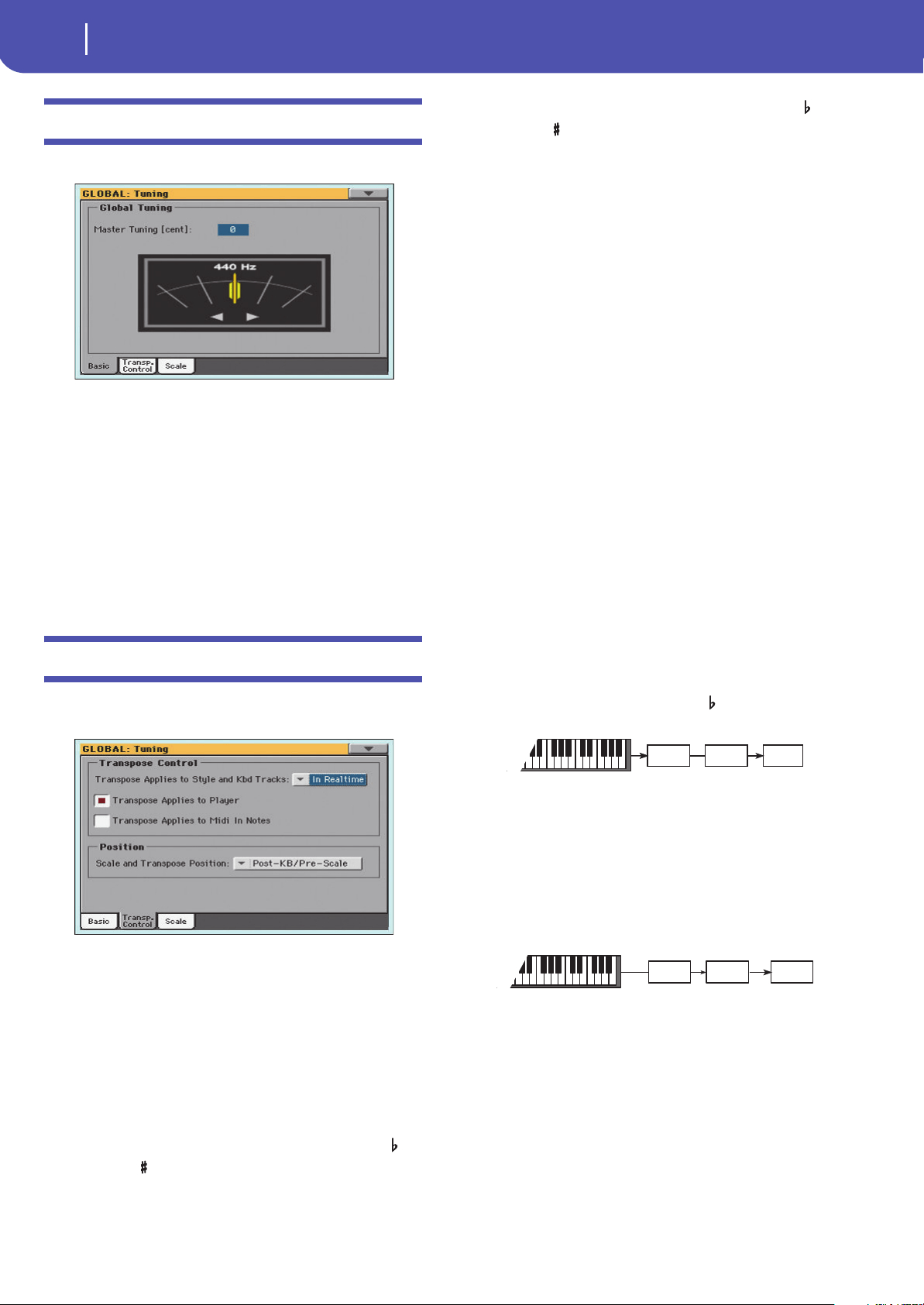
156
Global
Tuning: Basic
Tuning: Basic
This is the general tuning of the instrument.
Global Tuning
Master Tuning
This is the master tuning of the instrument (in cents of a semi-
tone). Use it to adapt your keyboard tuning to an acoustic instru-
ment, for example an acoustic piano.
-100 Lowest pitch (half-semitone down).
0 Standard pitch (A4=440Hz).
+100 Highest pitch (half-semitone up).
Tuning: Transpose Control
This page is where you can select to which tracks the Master
Transpose is applied to, and adjust some related parameter.
Transpose Control
Transpose applies to Style and Kbd tracks
Use this parameter to turn the Master Transpose on or off, and
define the way it is applied, to Style and Keyboard tracks.
Off No Master Transpose is applied to Style and Key-
board tracks. Chords shown in the Lyrics page
are, however, transposed.
In Sync When you press either the TRANSPOSE [ ] or
[ ] buttons, the new transpose setting will not
take effect until the first beat of the next measure
is reached.
In Realtime When you press either the TRANSPOSE [ ] or
[] buttons, the new transpose setting will occur
when the next note is played for both the Style
and Keyboard tracks individually.
The next key or chord you press will sound with
the new transpose setting applied. (Note that if
you play a Keyboard track prior to a new chord,
the Keyboard track will play in the new key as the
Style will continue to play in the old key until a
new chord is entered).
Transpose applies to Player
This checkbox lets you turn the Master Transpose on or off for
the onboard Player.
Transpose applies to Midi In notes
This checkbox lets you turn the Master Transpose on or off for
Note messages received from the USB Device port.
Position
Scale and Transpose position
The Scale and Transpose Position allows you to define the rela-
tion between the Scale and the Master Transpose.
Post-KB/Pre-Scale
When this option is selected, notes will be trans-
posed immediately after they leave the keyboard.
The Scale will be applied to the transposed notes.
For example, if you altered an E, and then set the
Master Transpose to +1, the E key will play F, and
the altered key will be E (that will play an
altered E).
Post-KB & Scale
When this option is selected, all notes are trans-
posed immediately before they enter the internal
tone generator, or are sent to the USB Device
port, but after the Scale. For example, if you
altered an E, and set the Master Transpose to +1,
the altered key will still be E (that will play an
altered F).
Scale
Tone
generator
Transpose
Scale
Tone
generator
Transpose
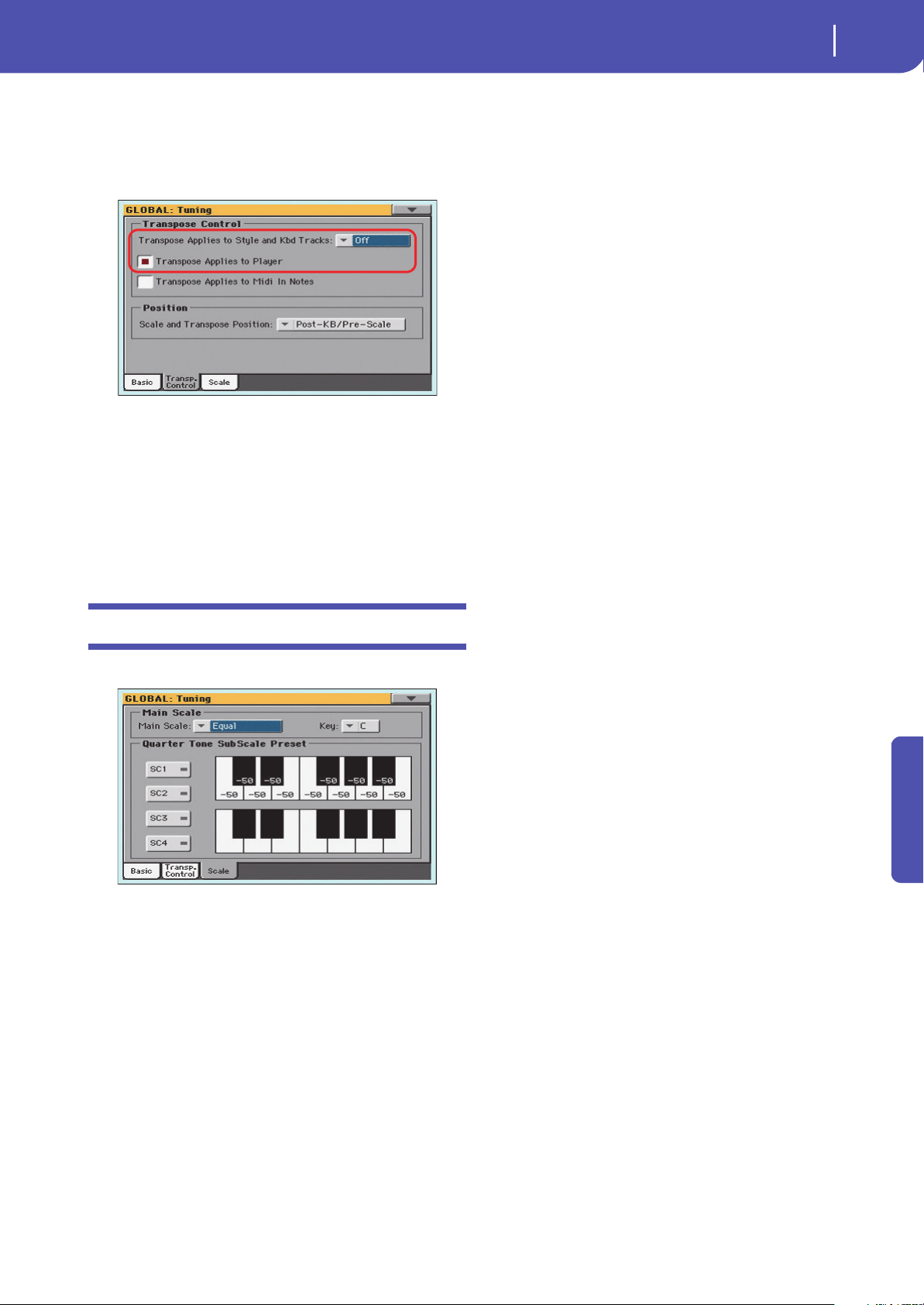
157
Global
Tuning: Scale
Reference
Standard MIDI File and chord transpose
When changing the Master Transpose, chord abbreviations con-
tained in a Standard MIDI File are transposed and correctly
shown in the display. Master Transpose must be activated on the
Player, but not on the Keyboard.
Note: Chords contained in a linked TXT file or shown when load-
ing a CDG file are not transposed.
Drum Kits and transpose
Drum Kits are never transposed. If you want that any Sound is
not transposed as well, assign them to a track set to the Drum
mode in Style Play/Song Play > Track Control > Mode (see
“Type” on page 102).
Tuning: Scale
This page lets you select the main scale of the instrument.
Main Scale
Main Scale
This parameter lets you set the main scale for the whole instru-
ment, apart for those tracks where a different sub-scale has been
selected by a Performance or STS (see “Scale” on page 98, Style
Play mode).
See “Scales” on page 355 for a list of the available scales.
Note: You cannot select a User scale in Global mode.
Key
This parameter is needed by some scales to set the preferred key.
User Quarter Tone SubScale
This section is where you can program the Quarter Tone scale,
and save up to four Quarter Tone Scale (SC) Presets.
SC Preset buttons
Touch these buttons to recall the corresponding presets. Each pre-
set contains a custom detuning of each note of the scale (shown in
the upper scale diagram). It also memorizes the selected degree(s)
of the scale (shown in the lower scale diagram).
When no preset is selected, the default scale is automatically
recalled. This scale assigns a -50 cent value to all notes, and turns
all scale degrees off.
You can also select an SC Preset by assigning the relevant func-
tion to the footswitch.
To save the current scale programming to a preset, while in this
page choose the “Write Quarter Tone SC Preset” command from
the page menu, then select one of the preset locations where to
save the current settings (see “Write Quarter Tone SC Preset” on
page 163).
Upper scale diagram
Use this diagram to set the detuning of each note of the scale.
-99…0…+99 Note detuning in cents. Zero is no detuning, ±50
is a full quarter tone up or down, ±99 is nearly
one whole semitone up or down.
Lower scale diagram
Use this scale to turn detuning on or off. Applied detuning will
depend on the programming set with the Upper scale diagram,
or recalled by selecting one of the SC Presets.
When a note is detuned, a black dot appears in the correspond-
ing note of the diagram.
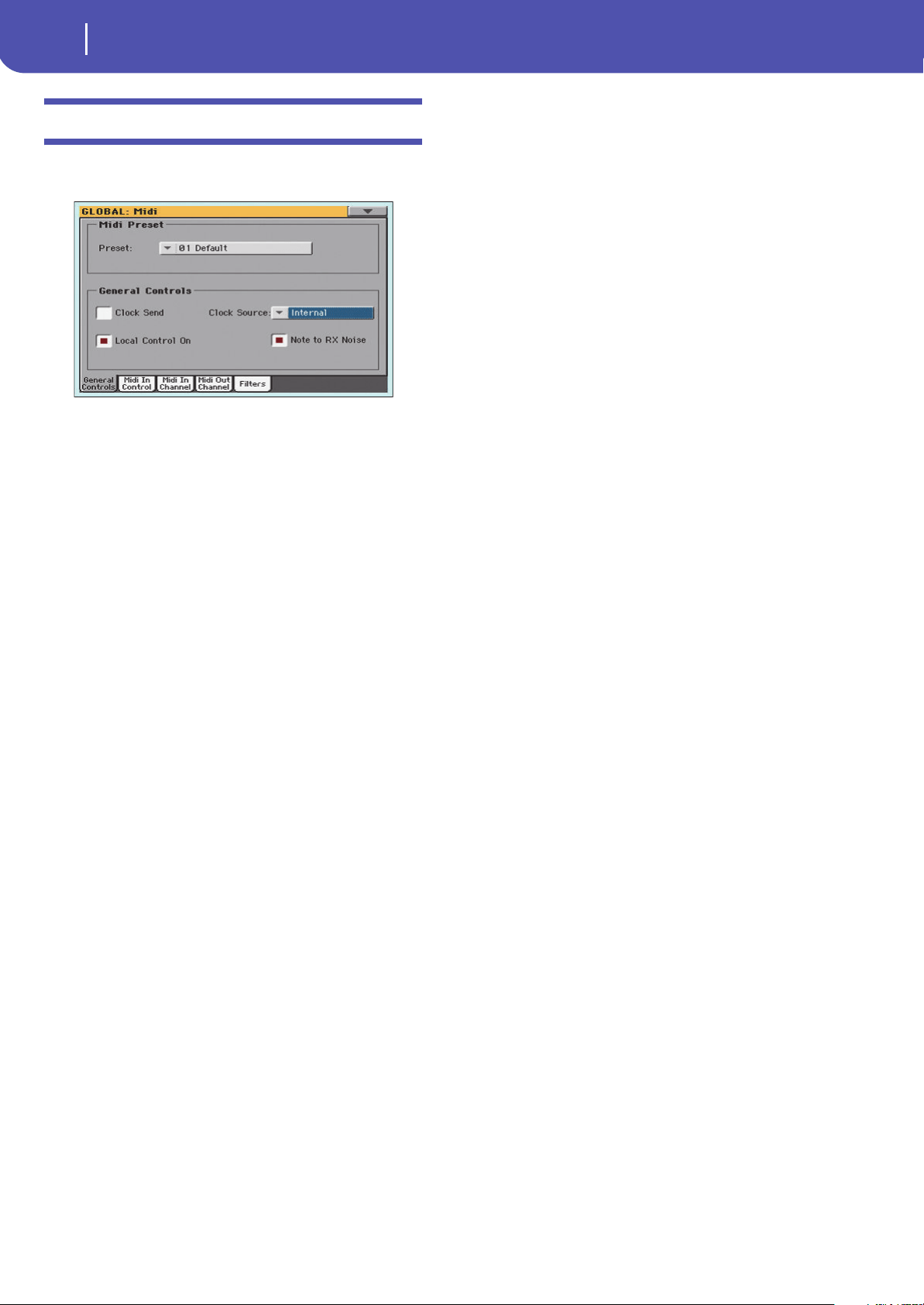
158
Global
MIDI: General Controls
MIDI: General Controls
This page allows you to select a MIDI Preset and set global
parameters for the MIDI communication.
MIDI Preset
Preset
MIDI channels can be automatically configured by selecting a
MIDI Preset. Each of them lets you automatically assign a value
to various MIDI parameters, to allow an easier connection with
a particular device.
For detailed information about the preloaded MIDI Presets, see
“MIDI Presets” on page 361.
After selecting a MIDI Preset, you can apply any changes to each
channel’s settings. To store the changes in memory, select the
“Write Midi Preset” command in the page menu to save it to
memory (see “Write Midi Preset dialog box” on page 163).
Hint: You can restore the original MIDI Presets by using the “Fac-
tory Restore” command and choosing the “Global” option (page
“Utility” of the Media mode, see page 179). Please consider this
will reset all the Global data.
General Controls
Use these parameters to set MIDI Clock and Local Off.
Clock Send
Use this parameter to turn the clock information on the USB
Device port on or off.
Note: This parameter is automatically set to On when the instru-
ment enters standby.
Off The Pa300 does not send the MIDI Clock signal.
You cannot slave another instrument to the
Pa300, even when connected to the USB Device
port.
On The Pa300 sends the MIDI Clock signal. You can
slave another instrument to the Pa300 Tempo and
Start/Stop commands. Connect the other instru-
ment to the Pa300 USB Device port.
Clock Source
This parameter selects the MIDI Clock source for the Style Play
and Sequencer modes.
Note: In Song Play mode, the Internal clock is always used.
Note: This parameter is always set to “Internal” when the instru-
ment enters standby.
Internal Internal, i.e. the clock generated by the Pa300
Arranger and Player internal metronome.
External USB
External from the USB Device port. In Style Play
or Sequencer mode, the Pa300 is slaved to an
external device connected to its USB Device port.
The Start/Stop command, as well as the metro-
nome tempo, cannot be selected from the control
panel of the Pa300. Use the external device to set
the tempo and start or stop the sequencer or
arranger.
See “Installing the Korg USB MIDI Driver” on
page 362 for information on how to configure
your computer for MIDI Over USB communica-
tion.
Local Control On
The Local parameter turns the keyboard on or off.
Note: This parameter is automatically set to On when the instru-
ment enters standby.
On When you play the keyboard, MIDI data is sent
to the internal sound generator. If tracks are
assigned to a MIDI OUT channel, data is also
sent to the USB Device port.
Off The keyboard is connected to the USB Device
port, but cannot play the internal sound genera-
tor.
This is very useful when working with an exter-
nal sequencer, to send notes and various MIDI
messages from the integrated keyboard and con-
trollers to the external sequencer, and then let the
sequencer send them back to the sound genera-
tor, without overlapping. See the “MIDI” chapter.
Note to RX Noise
RX Noises are special sounds that allow Sounds to be more real-
istic. They are usually located above C7, depending on the
Sound.
When this parameter is turned on, notes received from the USB
Device port, or performed by the internal Player, in the RX
Noises range, are recognized and converted to RX Noises. When
off, notes are not recognized.
Note: This parameter is automatically turned on when the instru-
ment is set to standby.
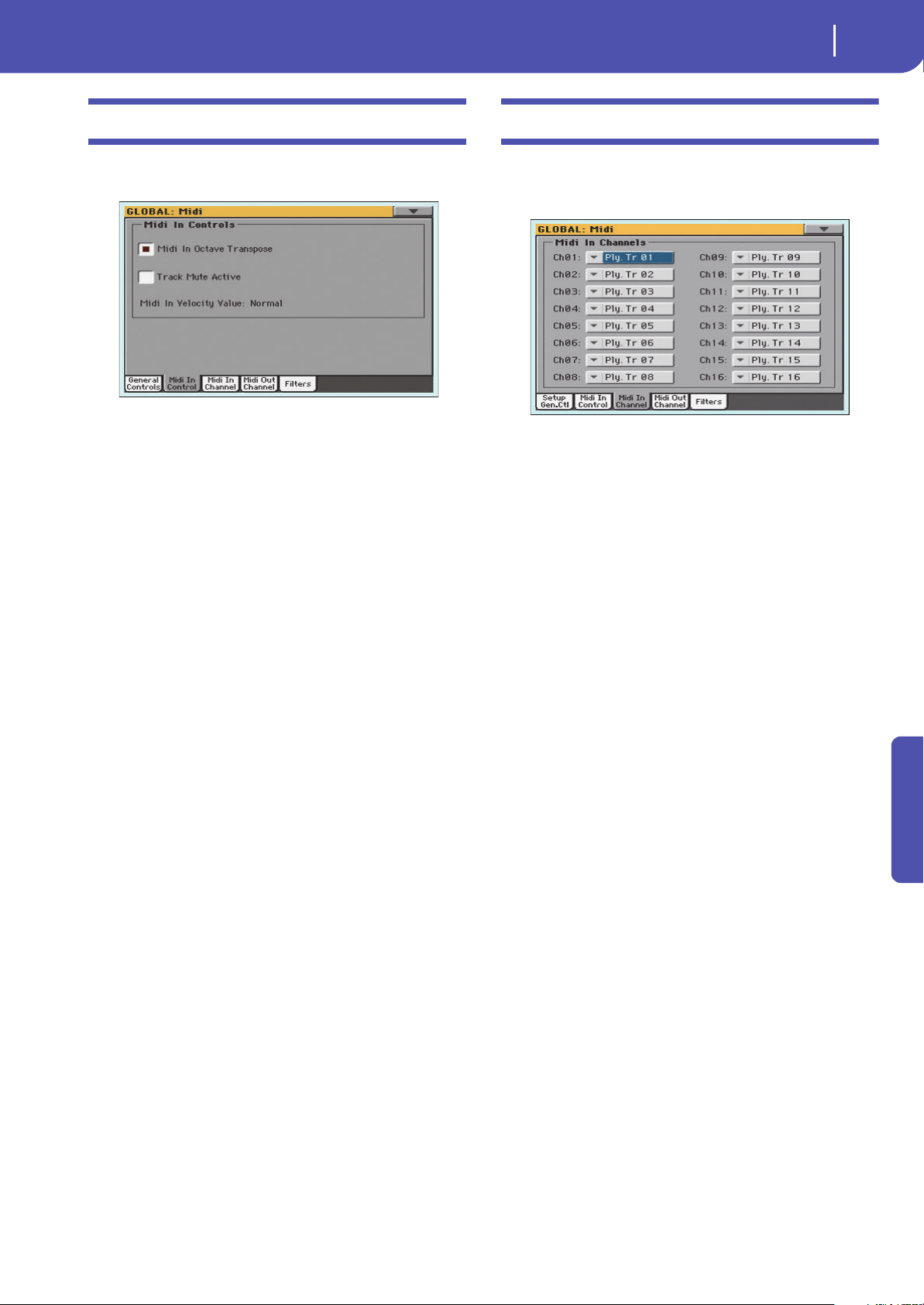
159
Global
MIDI: MIDI In Controls
Reference
MIDI: MIDI In Controls
This page lets you program parameters for the USB Device port.
All these parameters can be saved into a MIDI Preset.
Midi In Controls
Midi In Octave Transpose
Use this parameter to determine if notes received on the USB
Device ports have to be transposed.
On Notes received on the USB Device port are trans-
posed according to the Octave Transpose setting
for each track.
Off Data received on the USB Device port are not
transposed.
Track Mute Active
Use this parameter to determine if data received on the USB
Device port can be played by muted tracks.
On No data received on the USB Device port can play
on a muted track.
Off Data received on the USB Device port can play
on a muted track.
Midi In Velocity Value
Use this parameter to set a fixed velocity (dynamics) value for all
received MIDI notes. This is useful when playing the Pa300 with
an organ or a MIDI Accordion.
Normal Received velocity values are left unchanged.
40…127 All received velocity values are converted to the
selected value.
MIDI: MIDI In Channels
In this page, you can assign Pa300 tracks to any of the MIDI
channels received on the USB Device port. All these parameters
can be saved into a MIDI Preset.
Channels
You can assign to each channel one of the following tracks:
Off No track assigned.
Lower Keyboard’s Lower track.
Upper 1…3 One of the Keyboard’s Upper tracks.
Pad 1…4 One of the Pad tracks.
Drum Style’s Drum track.
Percussion Style’s Percussion track.
Bass Style’s Bass track.
Acc 1…5 One of the Style’s Auto-accompaniment tracks.
Ply Tr 01…16 One of the Player tracks.
Global Special channel to simulate the Pa300’s integrated
controls (keyboard, pedals, joystick) with an
external keyboard or controller. MIDI messages
coming on this channel are seen as if they were
generated by Pa300’s integrated controllers.
Control On this special channel, the Pa300 receives MIDI
messages to remotely select Styles, Performances,
STS, Style Elements and SongBook Entries. See
tables on page 358 and following for more infor-
mation on the received data.
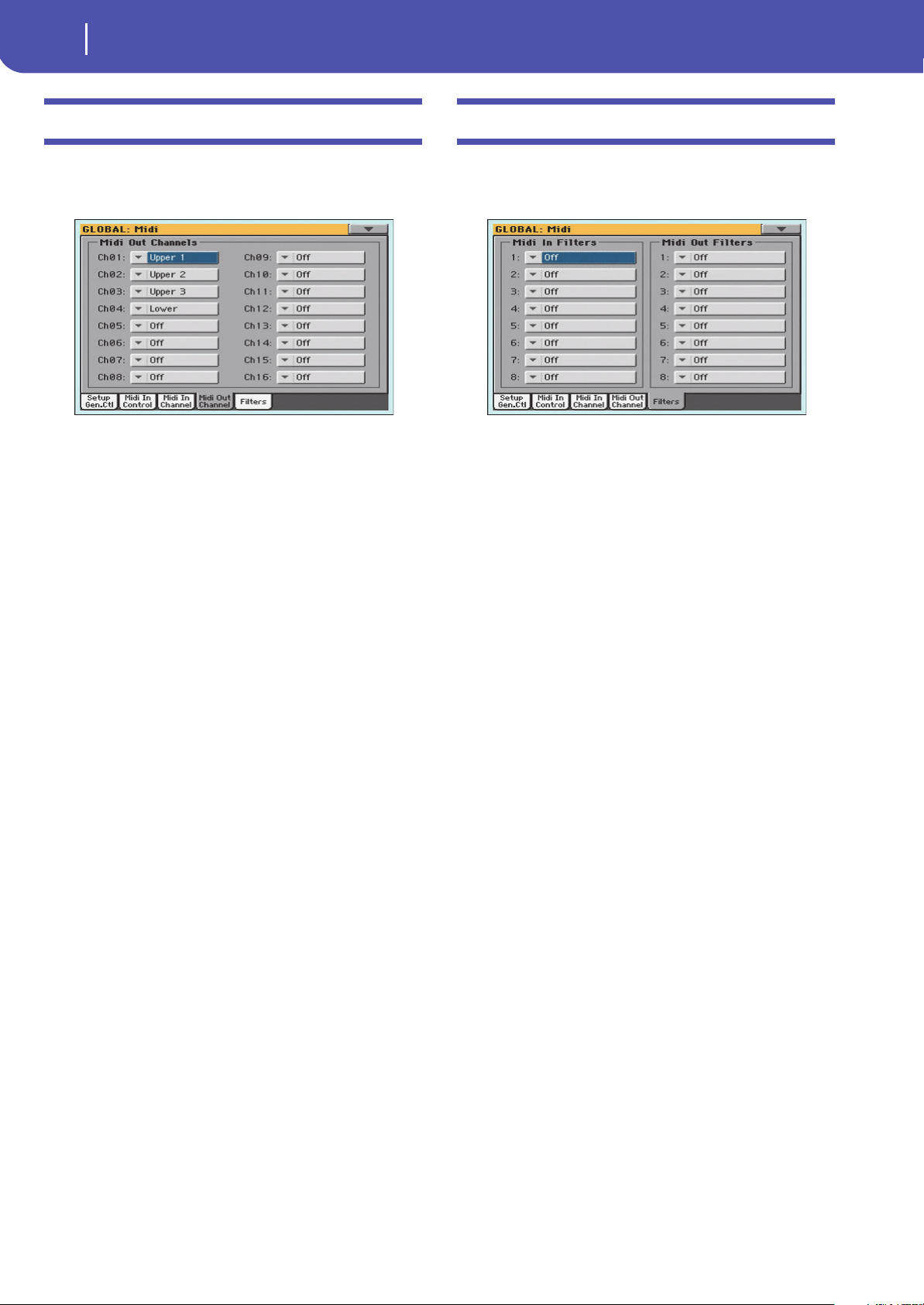
160
Global
MIDI: MIDI Out Channels
MIDI: MIDI Out Channels
In this page, you can assign Pa300 tracks to any of the MIDI
channels sent to the USB Device port. All these parameters can
be saved into a MIDI Preset.
Channels
You can assign to each channel one of the following tracks:
Off No track assigned.
Lower Keyboard’s Lower track.
Upper 1…3 One of the Keyboard’s Upper tracks.
Pad 1…4 One of the Pad tracks.
Drum Style’s Drum track.
Percussion Style’s Percussion track.
Bass Style’s Bass track.
Acc 1…5 One of the Style’s Auto-accompaniment tracks.
Ply Tr 01…16 One of the Player tracks.
Chord Use this channel to send notes recognized by the
Chord Recognition engine to the USB Device
port. This is useful, for example, to control an
external Harmonizer from the Pa300, using the
Lower track to play chords, even if the track is
muted.
Control On this special channel, the Pa300 sends mes-
sages corresponding to the selected SongBook
Entry.
MIDI: Filters
Use this page to set up to 8 filters for the MIDI data received or
sent by the Pa300 on the USB Device port. All these parameters
can be saved into a MIDI Preset.
Midi In Filters
Selected MIDI IN filters. Filters are applied to all MIDI channels
at the same time.
Off No filter.
Pitch Bend Pitch Bend.
MonoTouch Mono (or Channel) After Touch.
PolyTouch Poly After Touch.
PrgChange Program Change.
SysExcl System Exclusive.
All CC All Control Change messages.
0…127 Control Change message #0…127. See “MIDI
Data” on page 358 for a list of available Control
Change messages.
Notes Note events.
Midi Out Filters
Selected MIDI OUT filters. See above for information on each
filter type.
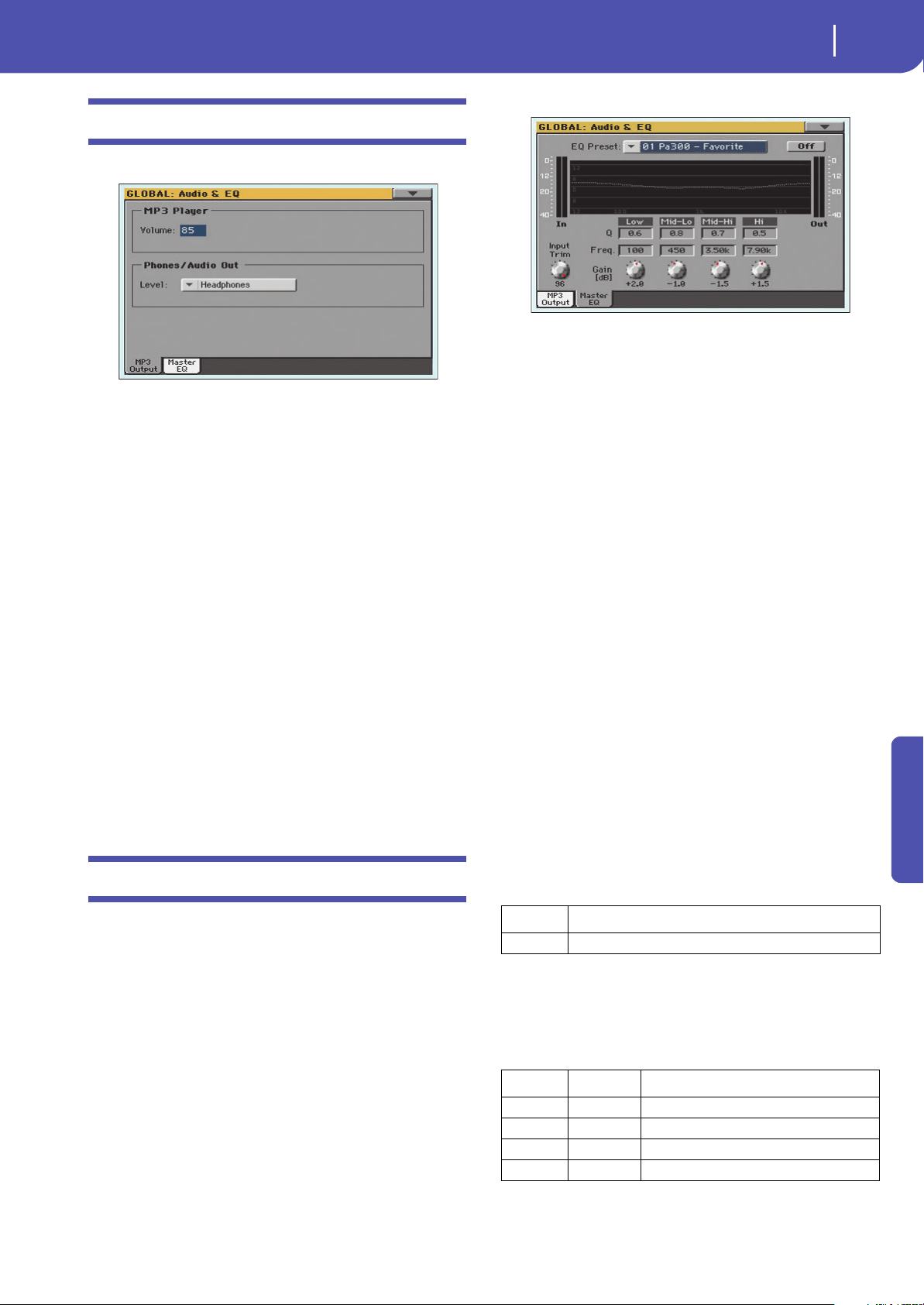
161
Global
Audio & EQ: MP3 / Output
Reference
Audio & EQ: MP3 / Output
This page lets you define various parameters for the MP3 player.
MP3 Player
Volume
Use this parameter to set the maximum volume for the MP3
Player. This control lets you balance MP3 files against SMF
Songs and Styles.
0…100 Max volume in percentage.
Phones/Audio Out
Level
Use this parameter to choose the output level of the PHONES/
AUDIO OUT connector on the back panel.
Headphones Choose this option to connect headphones. Do
not connect line-level devices whit this option
selected, or the audio signal will be distorted.
Line Out Choose this option to connect a line-level audio
device, like an audio recorder, a mixer or a pair or
powered audio monitors.
Audio & EQ: Master EQ
In this page you can access the fully parametric Master EQ. This
EQ is placed at the end of the audio path, just before the audio
outputs. Both MIDI tracks (Styles and Songs) and MP3 files are
equalized.
This is a full spectrum frequency equalization, positioned at the
end of the signal chain, just before the Left & Right audio out-
puts. It gives you the power to design EQ curves and shape your
sound. Master EQ features four fully programmable bands with
fully adjustable gain, frequency, and Q parameters.
All these parameters can be saved into a Master EQ Preset.
EQ Preset
Use this pop-up menu to choose one of the available EQ Presets,
and automatically reconfigure the EQ parameters.
On/Off
This is the on/off switch for the EQ section.
Diagram
Use these indicators to check the EQ curve, and the level of the
audio entering and coming out of the Master EQ.
•If the input level is too high, decrease the level of the “Input
Trim” parameter.
•If the output level is too high, decrease the level of the “Gain”
controls.
•Keep in mind that boosting the Gain is not always the best way
of making your sound appear louder; cutting the Gain of some
band may make the other bands appear louder.
Input Trim
Use this knob to adjust the level of the signal entering the EQ.
Excessive amount of signal may cause distortion when boosting
the EQ bands.
Q
‘Quality’ of the EQ filter; higher values correspond to narrower,
more accurate filters. Use higher values for near-surgical correc-
tion on isolated frequencies, lower values for more musical,
softer equalization.
Freq
Center frequency of the corresponding band. Center it on the
problematic frequency, or the harmonics you want to emphasize
or attenuate.
Band Value
All Bands 0.5…10
Band Type Value
Low Low-shelf 20Hz…1kHz
Mid-Low Bell 50Hz…10kHz
Mid-High Bell 300Hz…10kHz
High High-shelf 500Hz…20kHz
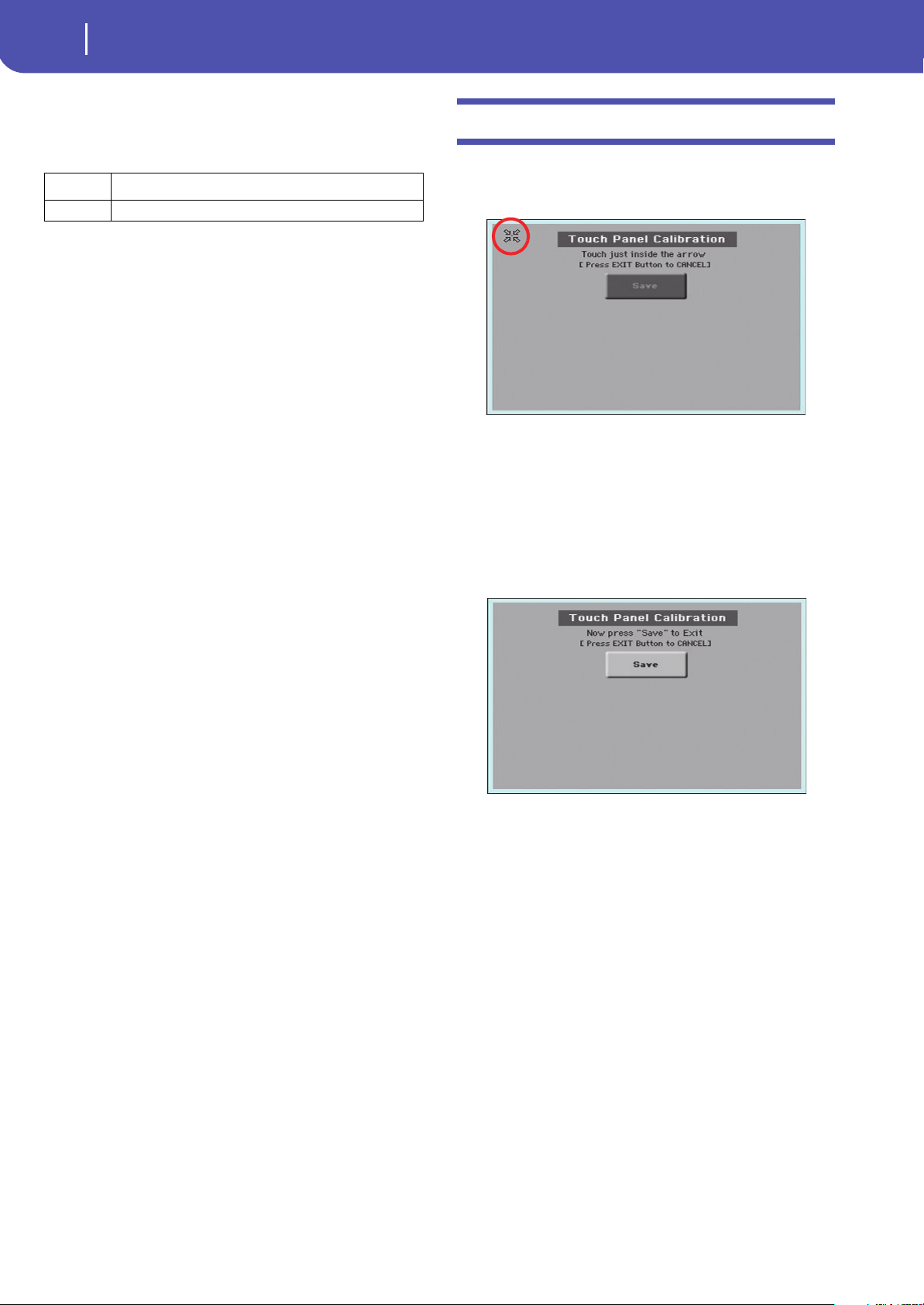
162
Global
Touch Panel Calibration
Gain
Gain of the corresponding band. Use it to make the frequencies
stronger or weaker.
Touch Panel Calibration
From time to time (for example, after loading a new operating
system), calibrating your Color TouchView™ display may be nec-
essary to make pointing more precise. If so, use this page.
1. When in this page, first touch exactly inside the set of
arrows in the upper left corner of the display.
Hint: To be more accurate, you can use a pen cap or a tablet
stylus. Do not use anything sharp (like a pencil), or you
will risk to damage the display!
2. The arrows will subsequently move to the other corners of
the display. Touch exactly inside them.
3. Finally, touch Save to confirm the new calibration.
• In case you want to exit and cancel the calibration, press
EXIT before completing the procedure.
Hint: To quickly reach this page from any other page, keep the
GLOBAL button pressed until this page appears.
Band Value
All Bands -18…0…+18dB
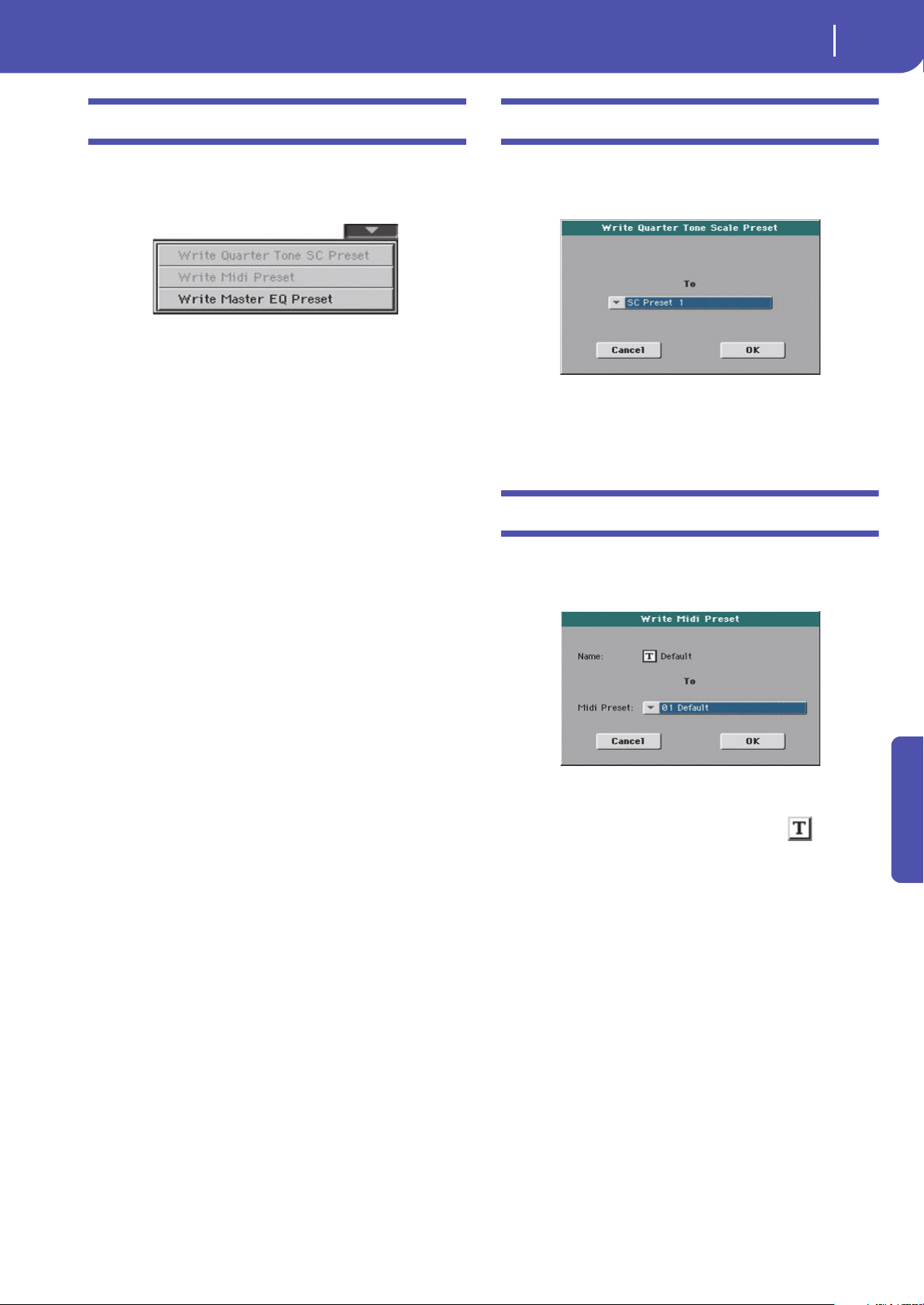
163
Global
Page menu
Reference
Page menu
Touch the page menu icon to open the menu. Touch a command
to select it. Touch anywhere in the display to close the menu
without selecting a command.
Note: In each Global page, the only available Write Global options
from the page menu are the ones relevant to the content of the cur-
rent page. All other Write Global options are greyed out.
Write Quarter Tone SC Preset
Choose this command to open the Write SC Preset dialog box,
and save the current scale settings in one of the four available SC
Presets.
See “Write Quarter Tone SC Preset dialog box” on page 163 for
more information.
Write Midi Preset
Select this command to open the Write Midi Preset dialog box,
and save the current MIDI settings into one of the available
MIDI Presets.
See “Write Midi Preset dialog box” on page 163 for more infor-
mation.
Write Master EQ Preset
Choose this command to save the Master EQ settings to one of
the available Master EQ Presets.
See “Write Master EQ Preset dialog box” on page 164 for more
information.
Write Quarter Tone SC Preset dialog box
Open this dialog box by selecting the Write Quarter Tone SC
Preset item from the page menu. Here, you can save the current
scale settings in one of the four available SC Presets.
To
One of the four available SC Preset locations, where to save cur-
rent scale settings.
Write Midi Preset dialog box
Open this dialog box by selecting the Write Midi Preset item
from the page menu. Here, you can save all MIDI settings to a
MIDI Preset.
Name
Name of the MIDI Preset to be saved. Touch the (Text Edit)
button next to the name to open the Text Edit window and mod-
ify the name.
Midi Preset
One of the available MIDI Preset locations, where to save cur-
rent MIDI settings.
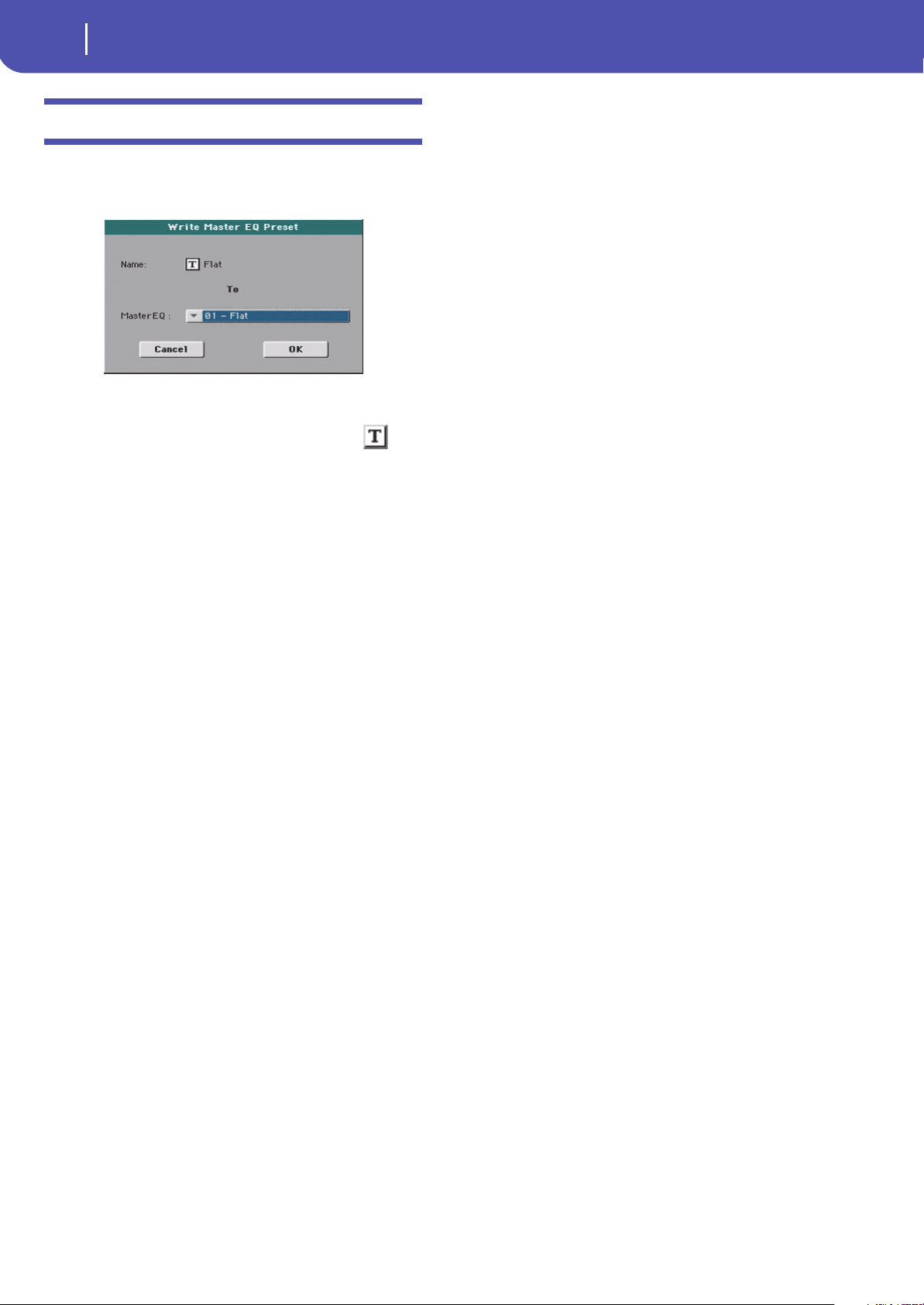
164
Global
Write Master EQ Preset dialog box
Write Master EQ Preset dialog box
Open this dialog box by selecting the Write Master EQ Preset
item from the page menu. Here, you can save current settings for
the Master EQ edit section (see starting from page 161).
Name
Name of the Master EQ Preset to be saved. Touch the (Text
Edit) button next to the name to open the Text Edit window and
modify the name.
Master EQ Preset
One of the available locations, where to save current Master EQ
settings.
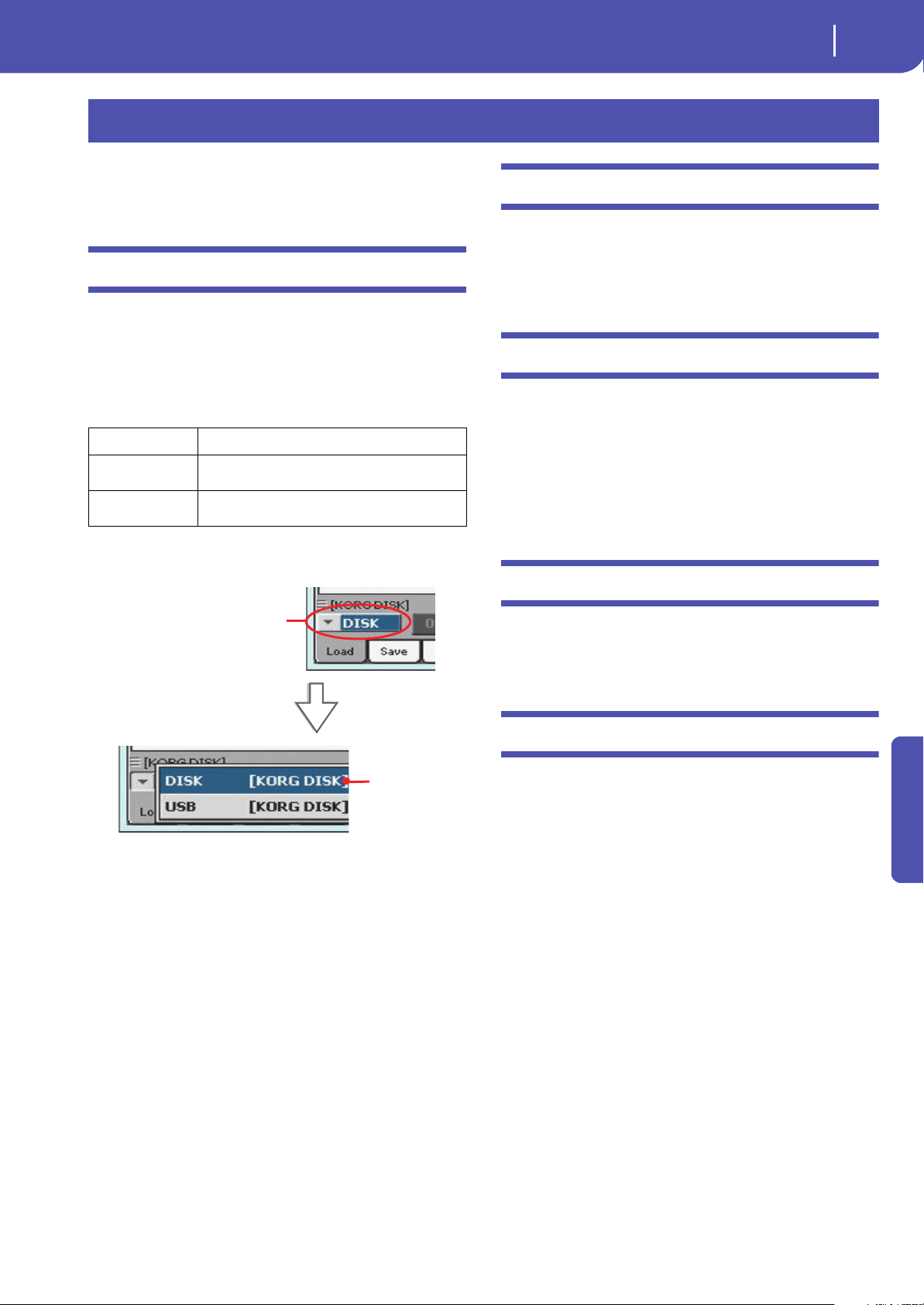
165
Media
Storage devices and internal memory
Reference
The Media mode is where you can manage files. This mode
overlaps the current operating mode (Style Play, Song Play,
Sequencer).
Storage devices and internal memory
User-accessible storage devices
During a Media operation, files are usually exchanged between a
storage device and the internal memory. You can access the fol-
lowing mass storage device types:
A device can be selected by using the Device pop-up menu,
shown in the lower left corner of most Media pages:
Supported device
Pa300 supports external devices, like hard disks or USB memory
sticks, formatted in FAT16 or FAT32 with long file names. NTSF
(Windows NT/2000/XP/Vista/7/8), HFS (Mac OS 9) and HFS+
(Mac OS X) formats are not supported.
Selecting and deselecting files
While a file list is shown in the display, you can select any item
by touching it. The selected item is highlighted.
You can deselect all items in any of the following ways:
• Touch an empty area in the file list (if available).
• Touch the Device pop-up icon, and select the current
device again.
Searching files
By using the Search function, you can search files and musical
resources in all internal and external devices. For more informa-
tion, see the relevant chapter.
Preferences
You can change some global preferences of the Media mode in
the Global > Mode Preferences > Media page (see page 154).
Media
Name Media type
DISK [KORG DISK] User-accessible area of the internal memory. This is
where you can store Songs and other files.
USB USB memory device (for example, a memory stick)
connected to the USB Host port.
Device pop-
up menu
Device
name
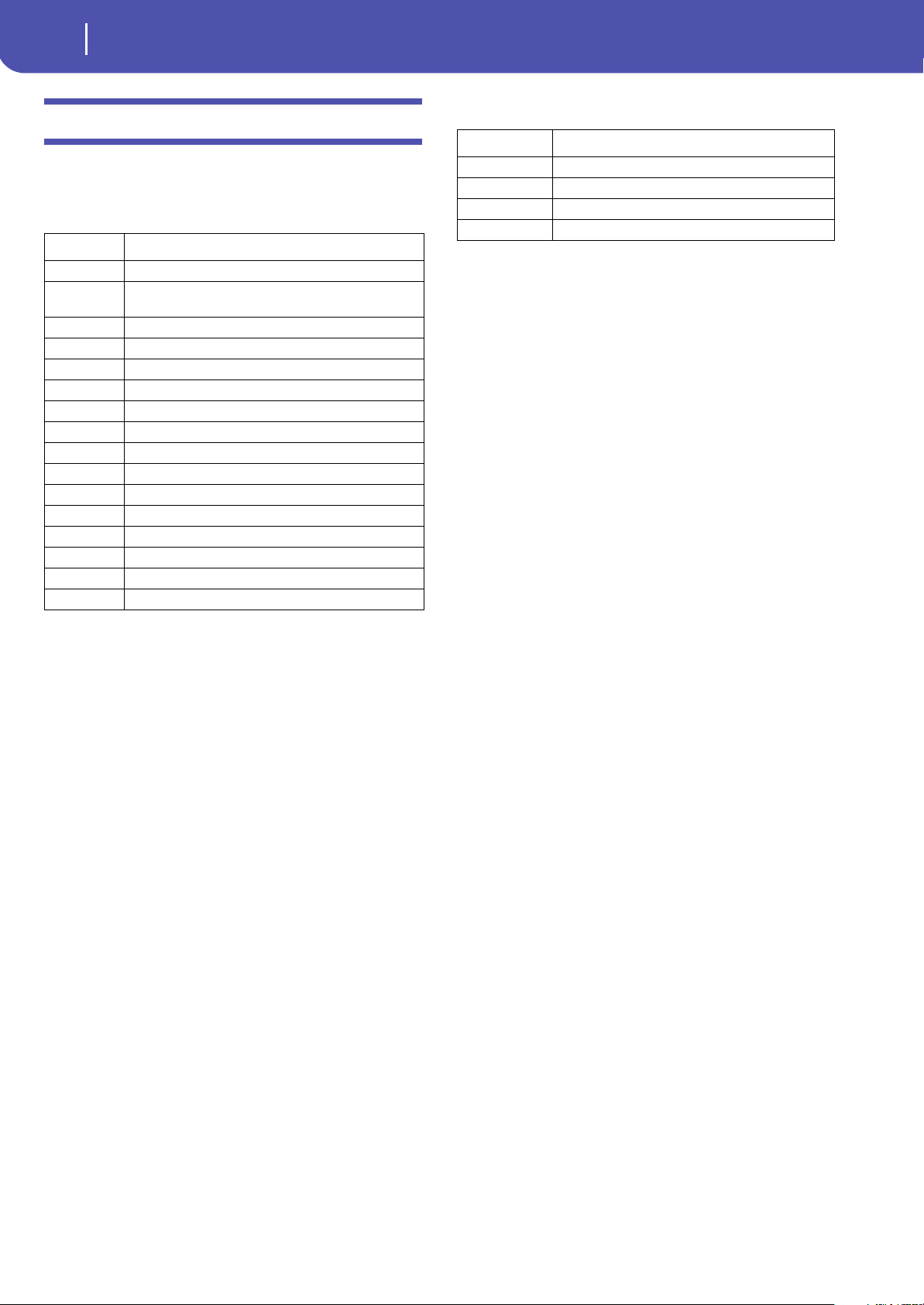
166
Media
File types
File types
The following tables describe all the file and folder types the
Pa300 can manage. Here are the files you can read or write with
the Pa300.
Pa300 can also read (but not write) the following types of data.
Extension File/folder type
SET All the User data. (This is a folder containing other folders)
BKP Backup file, created with the “Full Resource Backup” func-
tion of the Media > Utility page
GBL Global Setup
QTP Quarter Tone Scale Presets
MPR MIDI Presets
AUD Master EQ Presets
PRF Performance
PCG Sound (Korg Pa-Series)
STY Style
PAD Pa d
SBD SongBook
SBL SongBook’s Custom List
JBX Jukebox
MID Standard MIDI File, SMF
MP3 MP3 file
TXT Plain text file
Extension File type
PKG Operating System and Musical Resource files
KAR Karaoke file
CDG CD+Graphics file
PCG Korg Triton Programs
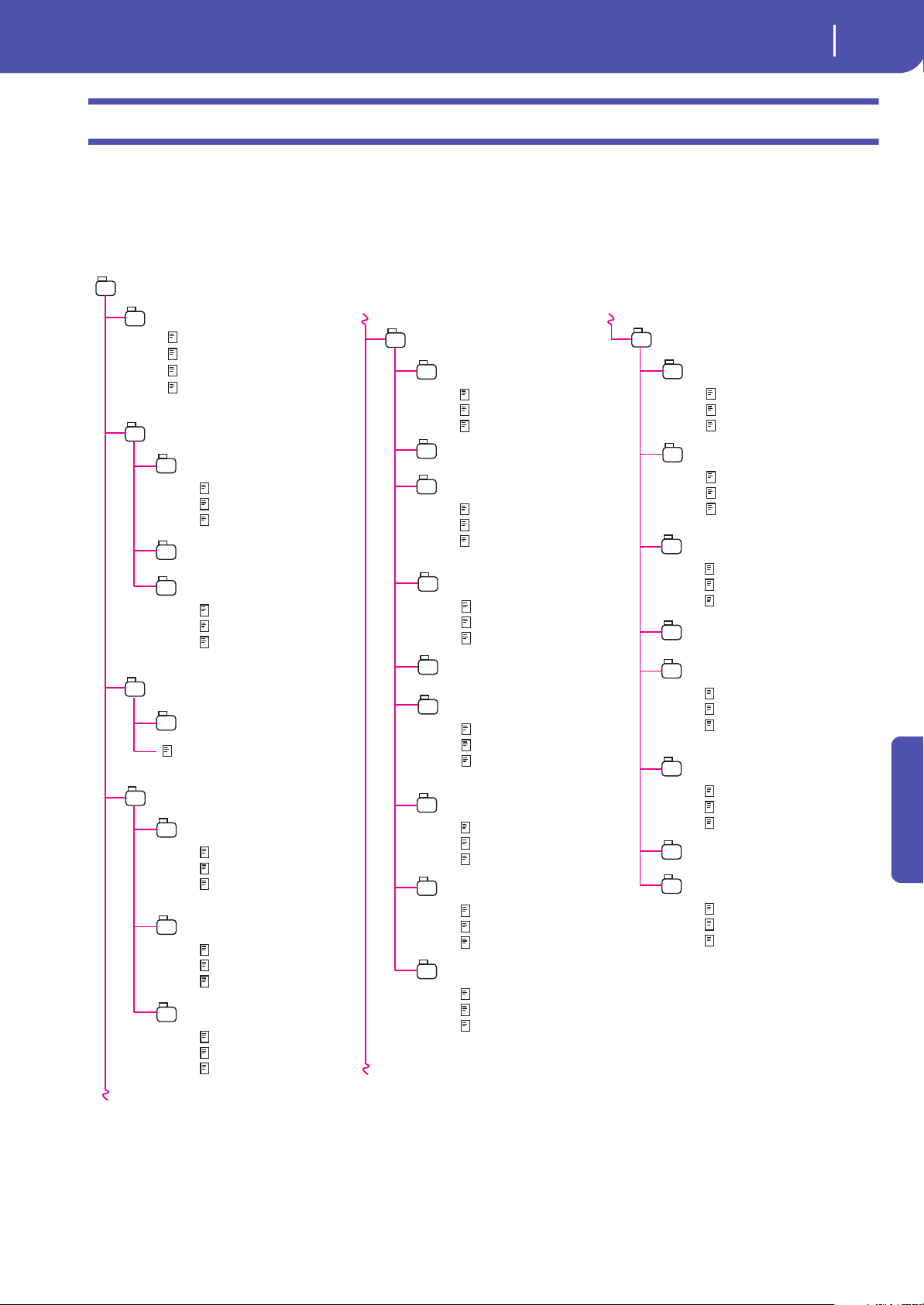
167
Media
Media structure
Reference
Media structure
Each device (and the internal memory) can contain files and folders. Data in the Pa300 is slightly more rigidly structured than in a com-
puter, due to the pre-configured type of data inside the instrument’s memory. The diagram below shows the global structure of a Pa300
device.
Note: Factory Styles and Pads can be seen in Media mode only when the “Factory Style and Pad Protect” parameter is set to Off (see
page 154), and only when loading or saving a single Style bank, or when erasing something.
MYDIR.SET
GLOBAL
PERFORM
SETUP.GBL
MASTEREQ.AUD
MIDI.MPR
QTPRESET.QTP
BANK01.PRF
1-1 Grand Piano
…
1-40 Full Strings
BANK….PRF
BANK8.PRF
8-1 Rock Brass
…
8-40 Rock Strings
SONGBOOK
LISTDB.SBL
SONGDB.SBD
SOUND
USER01.PCG
USERDK.PCG
STYLE
BANK01.STY
1-1 Pop 1
…
1-40 Pop 40
BANK….STY
USER01.STY
U1-1 User 1
…
U1-40 User 40
USER02.STY
U2-1 User 1
…
U2-40 User 40
USER03.STY
U3-1 User 1
…
U3-40 User 40
BANK15.STY
15-1 Contemp. 1
…
15-40 Contemp. 40
1 Piano 1
…
128 SynBrass22
1 Standard Kit
…
128 Orchestral Kit
USER02.PCG
1 SopranoSax
…
128 Noise
FAVORITE01.STY
FAVORITE08.STY
1 Favorite 1
…
40 Favorite 40
1 Favorite 1
…
40 Favorite 40
FAVORITE….STY
PAD
BANK01(…10).PAD (Hit)
1 Cowbell 1
…
32 Drumkit F
BANK11(…20).PAD (Sequence)
1 Military 1
…
32 Circus 2
USER01.PAD
U1-1 User 1
…
U1-32 User 32
USER….PAD
USER08.PAD
U10-1 User 1
…
U10-32 User 32
LOCAL01.PAD
L1-1 Local 1
…
L1-32 Local 32
LOCAL08.PAD
L8-1 Local 1
…
L8-32 Local 32
LOCAL….PAD
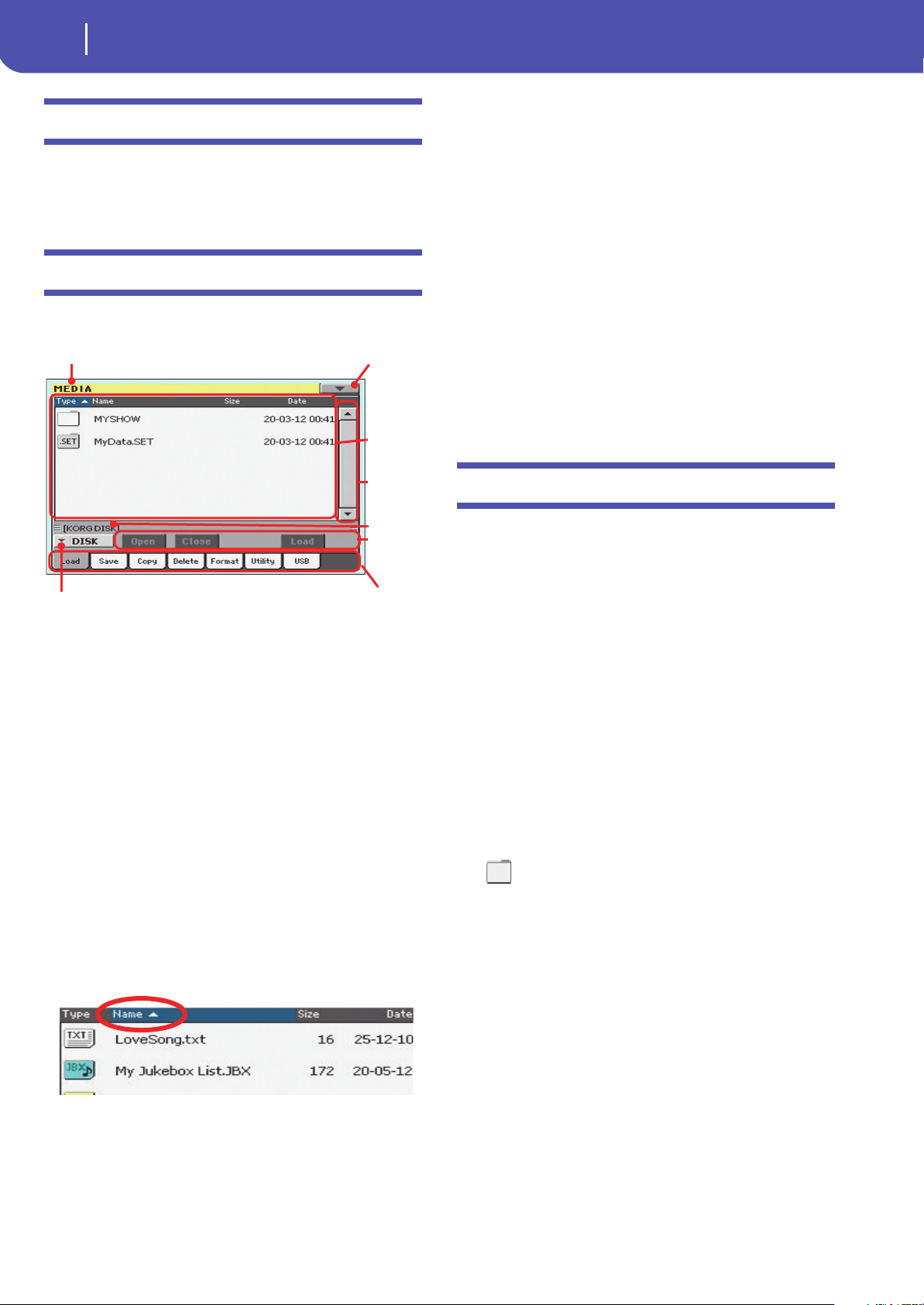
168
Media
Main page
Main page
There is no main page in the Media mode. When pressing EXIT,
you exit the Media mode, and the underlying operating mode in
the background is recalled.
Page structure
All pages share some basic elements.
Mode
This indicates that the instrument is in Media mode.
Page menu icon
Touch this icon to open the page menu (see “Page menu” on
page 180).
Path
Full path of the directory currently shown in the display.
List of files
This area shows the files and folder contained in the selected
device.
You can touch one of the heading labels above the list to change
the order in which files are shown. For example, by touching the
“Name” label, the list is alphabetically re-ordered according to
the file names. The selected label appears highlighted, showing
the currently selected ordering.
If you touch the highlighted label again, the alphabetic order
changes from ascending to descending, or vice-versa. The small
arrow next to the label name shows the selected order.
Scrollbar
Use the scrollbar to scroll the list. Touching the arrows will scroll
one step at a time, while touching the bar will scroll one page at a
time.
Touching the arrows while SHIFT is kept pressed jumps to the
previous or next alphabetical section, or file/folder type
(depending on the selected display order).
Device pop-up menu
Use this menu to select one of the available storage devices.
Commands
Commands may be different depending on the shown page.
They are detailed in each relevant section.
Tabs
Use tabs to select one of the pages of the current section.
Navigation tools
When in a Media page, you can use any of the following com-
mands to browse through the files and folders.
Scrollbar
See “Scrollbar” above.
VALUE DIAL
Use the VALUE DIAL to scroll the list up or down.
Device pop-up menu
See “Device pop-up menu” above.
Load/Save/Copy/Delete button
Executes the media operation.
Open button
Opens the selected folder or directory (whose name begins with
the “ ” icon).
Close button
Closes the current folder or directory, returning to the parent
(“upper”) level.
Mode
Path
Page menu
icon
List of
files
Tabs
Com-
mands
Device menu
Scrollbar
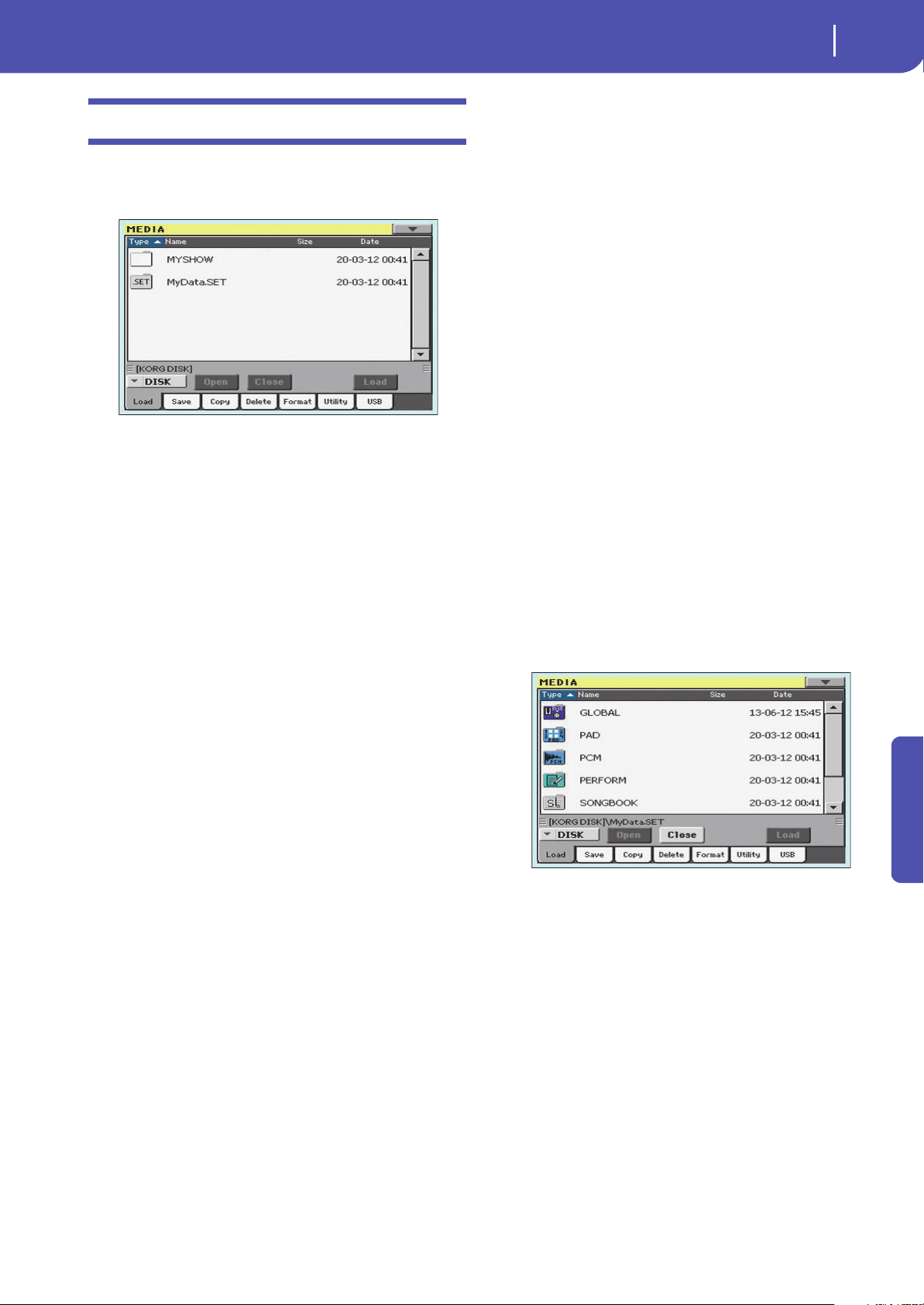
169
Media
Load
Reference
Load
In this page you can load User data files (Performances, User
Sounds, User Styles, the SongBook, the Global) from an internal
or external storage device to the internal memory.
Note: While in this page, only data allowed for loading are shown.
All other files are hidden.
Merging data
When loading all User data, or all data of a specified type, most
data loaded from a storage device are merged with data already
existing in memory. For example, if there is data in all three
USER Style banks in memory (USER01, USER02, USER03), and
there is only the USER01 Style bank in the storage device, the
USER01 bank will be overwritten, while USER02 and USER03
banks will be left unchanged.
As a result, there will be a STYLE folder in memory containing
the USER01 bank you just loaded, and the old USER02 and
USER03 banks.
Loading all the User data
You can load all the User data with a single operation.
1. If loading from an external device, connect the device to
the USB Host port.
2. Use the Device pop-up menu to select the source device.
When the device is selected, its content will appear in the
display.
3. If the folder you are looking for is inside another folder,
select this latter and touch the Open button to open it.
Touch the Close button to go back to the parent folder.
4. Select the “.SET” folder containing the data you wish to
load, and touch Load to confirm the selection.
Loading all data of a specified type
You can load all data of a specified type with a single operation.
1. If loading from an external device, connect the device to
the USB Host port.
2. Use the Device pop-up menu to select the source device.
When the device is selected, its content will appear in the
display.
3. If the folder you are looking for is inside another folder,
select the latter and touch the Open button to open it.
Touch the Close button to go back to the parent folder.
4. Select the “.SET” folder containing the data you wish to
load, and touch Open to open the “.SET” folder. A list of
User data appears (Global, Performance, SongBook,
Sounds, Style…).
5. Select the folder containing the type of data you are looking
for, and touch Load to confirm your selection.

170
Media
Load
Loading a single bank
You can load a single bank of data (Sounds, Styles, Perfor-
mances) with a single operation. Each bank corresponds to each
of the side tabs in the various Select windows (Style Select, Per-
formance Select…).
1. If loading from an external device, connect the device to
the USB Host port.
2. Use the Device pop-up menu to select the source device.
When the device is selected, its content will appear in the
display.
3. If the folder you are looking for is inside another folder,
select this latter and touch the Open button to open it.
Touch the Close button to go back to the parent folder.
4. Select the “.SET” folder containing the data you wish to
load, and touch Open to open the “.SET” folder. A list of
User data appears (Global, Performance, SongBook,
Sounds, Style…).
5. Select the folder containing the type of data you are looking
for, and touch Open to open the selected folder. A list of
Favorite/User banks appears.
6. Select the bank file you are looking for, and touch Load to
confirm the selection. A dialog box appears, asking you to
select one of the available User (or Favorite/User Style)
banks in memory.
In the example above, the previously selected Style bank
will be loaded into the bank USER 1 in memory. The Styles
already existing in memory will be deleted and overwritten.
7. Select the target bank, and touch OK to load the source
bank.
War ni ng : After confirming, all User data contained in mem-
ory are deleted.
Loading a single item
You can load a single item with a single operation.
1. If loading from an external device, connect the device to
the USB Host port.
2. Use the Device pop-up menu to select the source device.
When the device is selected, its content will appear in the
display.
3. If the folder you are looking for is inside another folder,
select this latter and touch the Open button to open it.
Touch the Close button to go back to the parent folder.
4. Select the “.SET” folder containing the data you wish to
load, and touch Open to open the “.SET” folder. A list of
User data appears (Global, Performance, SongBook,
Sounds, Style…).
5. Select the folder containing the type of data you are looking
for, and touch Open to open the selected folder. A list of
banks appears.
6. Select the bank file you are looking for, and touch Open to
open it. A list of items appears.

171
Media
Load
Reference
7. Select the item you are looking for, and touch Load to con-
firm the load. A dialog box appears, asking you to select
one of the available locations in memory.
In the dialog box above, the Style you select from disk will
be loaded into location 01 of the bank Usr01 in memory.
Any existing Style at the same location will be deleted and
overwritten.
Empty locations are named “- - - “.
8. Select the target location, and touch OK to load the source
file.
Warning: After confirming, the item you are overwriting in
memory will be deleted.
Loading Global data from other Pa-Series
instruments
Global data (Global, EQ, etc.) cannot be loaded from other Pa-
Series instruments.
Loading Pa3X data
You can load Pa3X data exactly as if they were Pa300 data, apart
for the Global data. Sounds and Effects can be a bit different.
User Sounds based on User Samples will not be loaded. Due to
the different order in memory, Styles must be reassigned to
SongBook Entries by using the SongBook Editor software (freely
available on
www.korg.com).
Loading Pa900/Pa600 data
You can load Pa900/Pa600 data exactly as if they were Pa300
data, apart for the Global data. User Sounds based on User Sam-
ples will not be loaded. Due to the different order in memory,
Styles must be reassigned to SongBook Entries by using the
SongBook Editor software (freely available on
www.korg.com).
Loading Pa2X, Pa800, Pa1X, Pa800, Pa588
data
You can load Pa2X/Pa800 data exactly as if they were Pa300 data,
apart for the Global data. User Sounds based on User Samples
will not be loaded. Due to the different order in memory, Styles
must be reassigned to SongBook Entries by using the SongBook
Editor software (freely available on
www.korg.com).
It is not possible to load Pa300 data into a Pa2X, Pa800, Pa1X,
Pa500 or Pa588.
Loading Pa80/60/50/50SD data
You can load Pa80/60/50/50SD data exactly as if they were Pa300
data, apart for the Global data. The only difference is that the
“SOUND” folder of Pa300 is called “PROGRAM” in the Pa80/
60/50/50SD. Therefore, to load Sounds from Pa80/60/50/50SD
disks, you must accomplish one of the following operations,
either:
• Rename the “PROGRAM” folder “SOUND” (by using a
personal computer) before loading a “.SET” folder; or
• First load the “.SET” folder, then separately load the “.PCG”
file from the “PROGRAM” folder.
Loading i-Series data
Pa300 is compatible with the Styles of the older i-Series instru-
ments. You can load them as if they were ordinary Pa300 data.
1. Copy the old i-Series data into an USB device, or transfer
them to the internal storage memory of the Pa300.
2. Press MEDIA to go to the Media mode. Select the Load
page if needed.
3. While in the Load page, select the device containing the i-
Series data from the Device pop-up menu.
4. If you are reading an i30 file, select the “.SET” folder and
touch the Open button in the display.
5. Select the “.STY” folder.
6. At this point, you can load the whole “.STY” folder, or open
it and select a single Style.
• To load the whole folder, touch the Load button in the
display. If it contains more than 40 Styles, they will be
loaded into the USER banks sequentially, otherwise you
will be prompted to select one of the USER Style banks or
the FAVORITE Style banks in memory. Once the target
bank is selected, touch Load to load the bank. The “Are you
sure?” message will appear. Touch OK to confirm, or Can-
cel to abort.
• To load a single Style, touch Open in the display to open
the “.STY” folder. Since a conversion will be started at this
point, please wait some seconds for the operation to be
completed.
Select the Style to load, then touch Load. You will be
prompted to select a target location in memory. Once the
target location is selected, touch Load to load the Style. The
“Are you sure?” message will appear. Touch OK to confirm,
or Cancel to abort.
Note: Loading a whole “.SET” folder from an i30 file may
take some time due to format conversion.
7. Go to the Style Play mode, and select (one of) the loaded
Style. Adjust the Tempo value, then select the “Write Cur-
rent Style Settings” to write changes. Touch OK twice to
confirm.
8. Due to the difference in Sounds, you will probably want to
make some adjustments to the old Styles, once they are
loaded in Pa300 (changing the Sound, Volume, Pan,
Tempo, Drum Mapping, Wrap Around…).
9. To make the Sound assignment to the Style tracks effective,
be sure the “Original Style Sounds” parameter is not
checked (see page 92).
10. Save the Style Settings again. Select the “Write Current
Style Settings” to write changes. Touch OK to confirm.
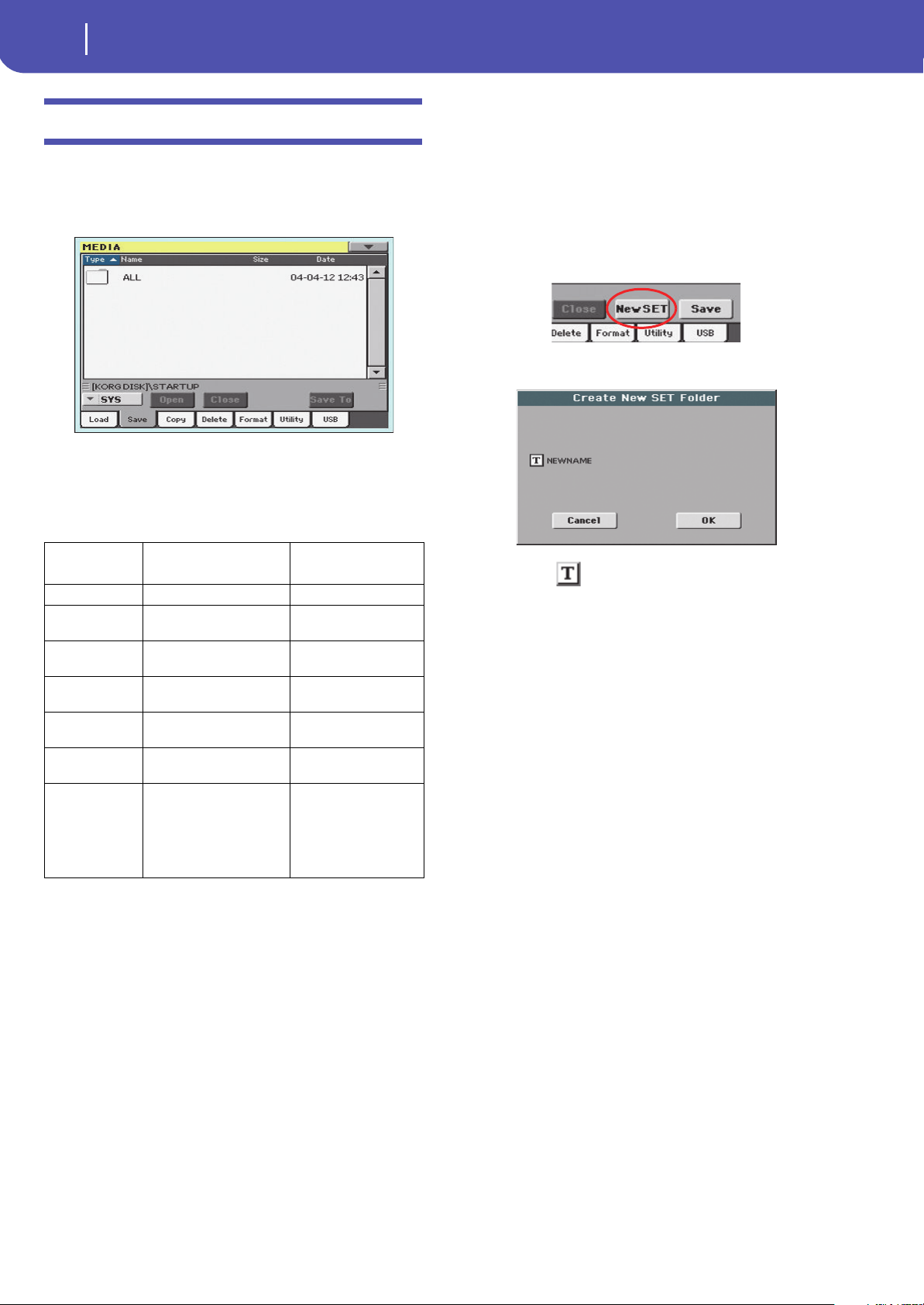
172
Media
Save
Save
In this page, you can save User data from the internal memory to
a mass storage device (like an hard disk or an USB memory
stick). You can save single files, banks, or all the User and Favor-
ite Style files of the internal memory.
Note: While in this page, only data allowed for saving are shown.
All other files are hidden.
Here are the various types of files contained in the internal
memory:
Creating a new “.SET” folder
Pa300 proprietary data must be saved in special folders with the
“.SET” extension. These special folders can be saved inside ordi-
nary folders.
When saving, you can save onto existing “.SET” folders, or you
can create a new folder of this type. Here is how to do it.
1. When the directory of the target device is shown in the dis-
play, the “New SET” button appears among the buttons
below the file list.
2. Touch the New SET button. A dialog box appears, asking
you to enter a name for the new “.SET” folder.
3. Touch the (Text Edit) button to open the Text Edit
window. Enter the name, then touch OK to confirm and
close the Text Edit window. Note: The “.SET” file name
extension is added automatically.
4. Touch OK to create the new folder and exit the dialog box.
The file/folder
type…
…contains…
…and will create on the
target device…
All All the User data in memory A .SET folder
Style The FAVORITE 01-08 Styles
and the USER 01-03 Styles
A STYLE folder inside a
.SET folder
Sound The USER Sounds and Drum
Kits
A SOUND folder inside a
.SET folder
Pad The USER Pads A PAD folder inside the
.SET folder
Perform (Perfor-
mances)
The Performances A PERFORM folder inside
a .SET folder
SongBook The SongBook database A SONGBOOK folder
inside a .SET folder
Global All global parameters. MIDI
Presets, SC Presets, Master
EQ Presets are also saved.
A GLOBAL folder inside a
.SET folder. Inside the
GLOBAL folder other
folders will be created, to
contain the MIDI, SC,
Master EQ Presets.
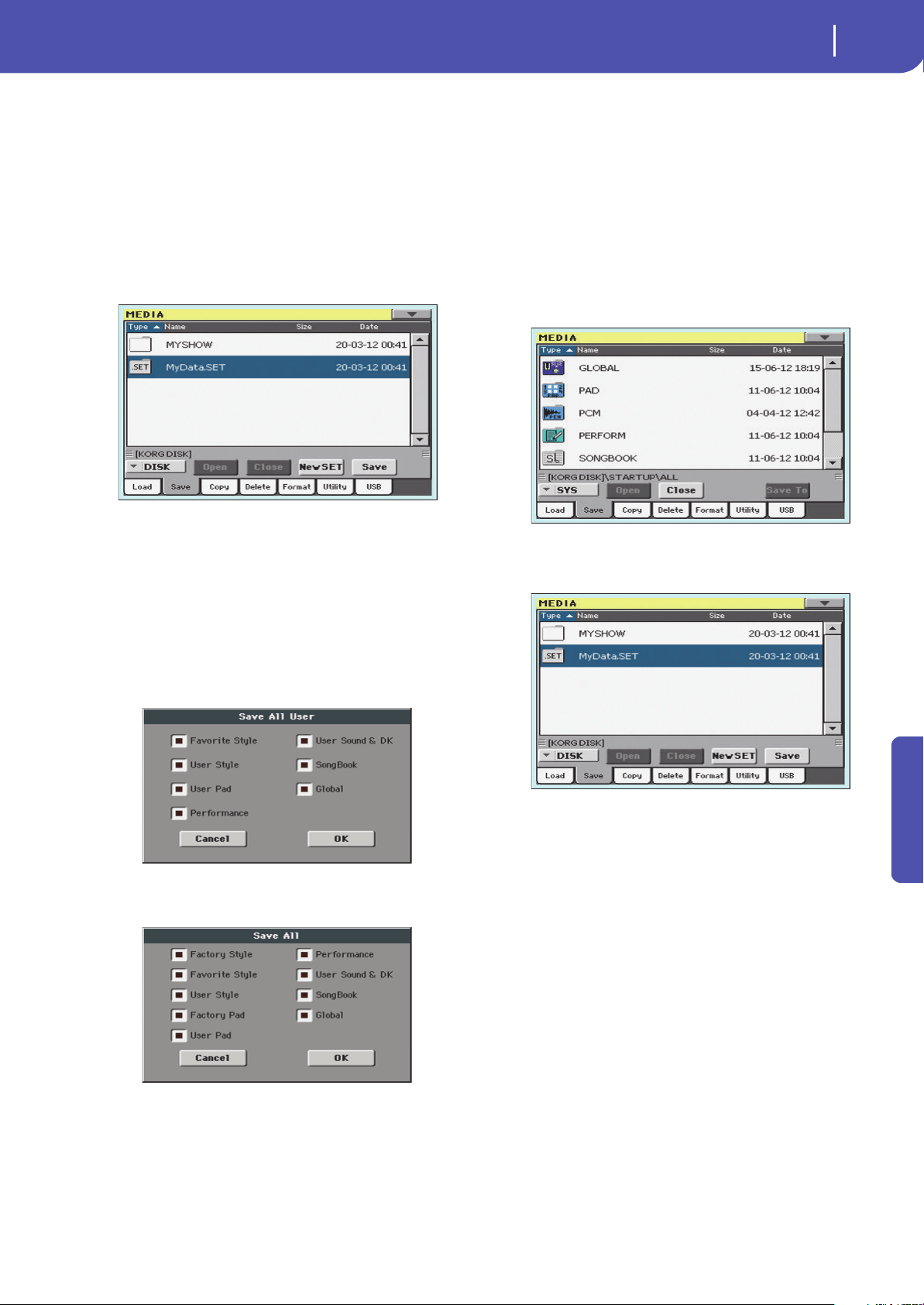
173
Media
Save
Reference
Saving the full memory content
You can save the full memory content with a single operation.
Depending on the status of the “Factory Style and Pad Protect”
parameter, you may or may not see the Factory Style and Pad
banks (see “Factory Style and Pad Protect” on page 154).
1. If saving to an external device, connect the device to the
USB Host port.
2. The full content (“All”) of the internal memory is already
shown. Select it, and touch Save to confirm the selection.
The list of files in the target device is shown.
3. If needed, use the Device pop-up menu to select a different
target device. When the target device is selected, its content
will appear in the display.
4. At this point, you can:
• Touch the New SET button and create a new “.SET” folder
(see “Creating a new “.SET” folder” on page 172), or
• Select an existing “.SET” folder.
5. Touch Save to confirm. A dialog box appears, asking you to
select the type of data to save:
Save All dialog with the Factory Style and
Pad Protect option turned on
Save All dialog with the Factory Style and
Pad Protect option turned off
In the dialog box above, check all data type you wish to save
to a storage device.
6. Touch OK to confirm, or Cancel to abort.
Wa r ni n g: After confirming, all data of the selected type in the
target folder is deleted.
Saving all data of a specified type
In addition to the above, you can save all data of a specified type
by selecting the corresponding folder.
1. If saving to an external device, connect the device to the
USB Host port.
2. The full content (“All”) of the internal memory is already
shown. Select it, and touch Open to open it. A list of User
data types appear (each type is a separate folder).
3. Select the folder containing the type of data you wish to
save, and touch Save To to confirm the selection. The list of
files of the target device is shown.
4. If needed, use the Device pop-up menu to select a different
target device. When the target device is selected, its content
will appear in the display.
5. At this point, you can:
• Touch the New SET button and create a new “.SET” folder
(see “Creating a new “.SET” folder” on page 172), or
• Select an existing “.SET” folder, and touch Save to con-
firm.
War ning: After confirming, all data of the selected type in the
target folder is deleted.
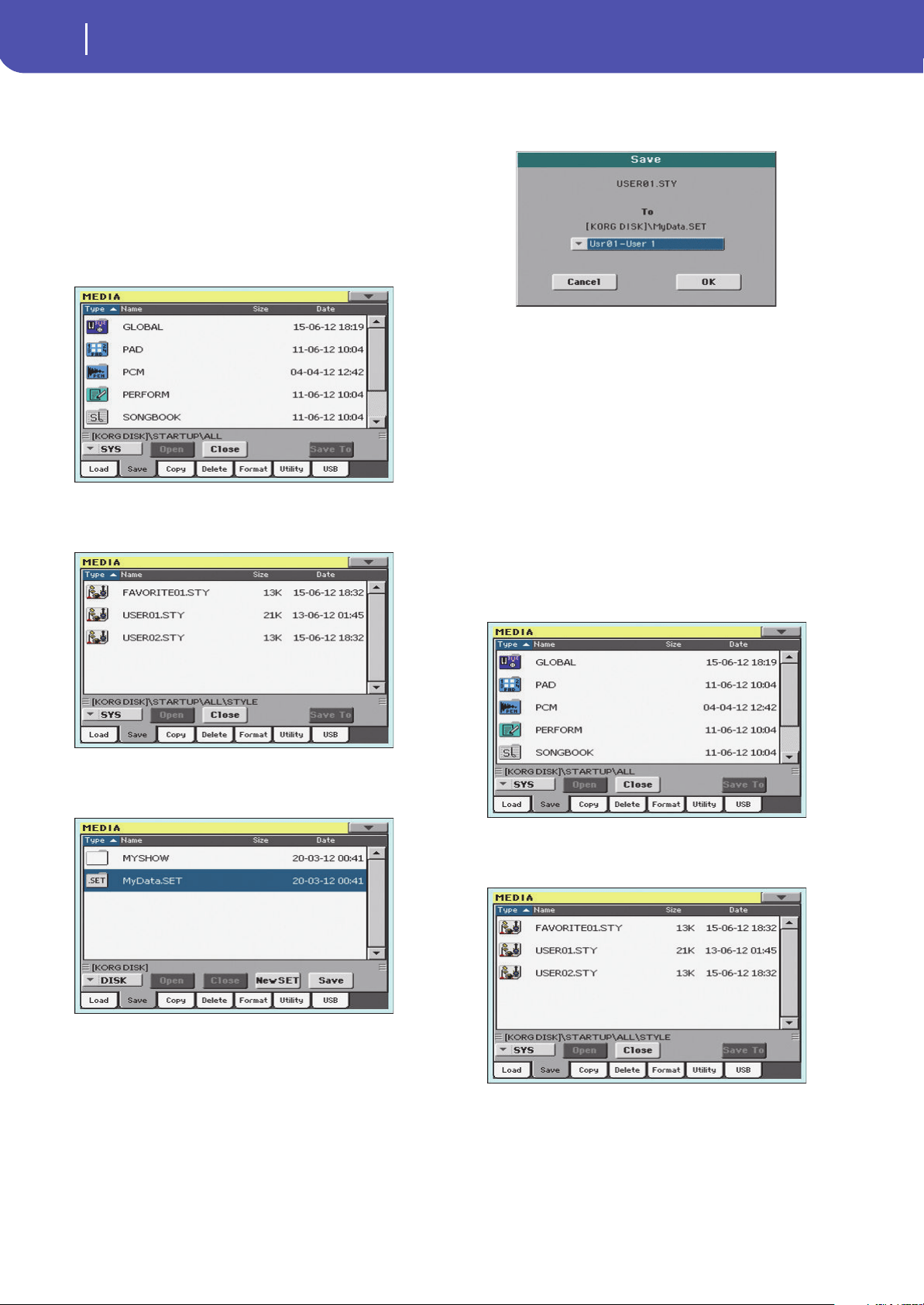
174
Media
Save
Saving a single bank
You can save a single User bank with a single operation. Each
bank corresponds to each of the side tabs in the various Select
windows (Style Select, Performance Select…).
1. If saving to an external device, connect the device to the
USB Host port.
2. The full content (“All”) of the internal memory is already
shown. Select it, and touch Open to open it. A list of User
data types appear (each type is a separate folder).
3. Select the folder containing the type of data you wish to
save, and touch Open to open it. The list of contained bank
files is shown.
4. Select the bank file to be saved, and touch Save To to con-
firm the selection. The list of files of the target device is
shown.
5. If needed, use the Device pop-up menu to select a different
target device. When the target device is selected, its content
will appear in the display.
6. At this point, you can:
• Touch the New SET button and create a new “.SET” folder
(see “Creating a new “.SET” folder” on page 172), or
• Select an existing “.SET” folder, and touch Save to con-
firm.
7. A dialog box appears, asking you to select one of the avail-
able User (or Favorite/User Style) locations inside the
folder:
In the above dialog box, the previously selected bank of
Styles will be saved to bank User 01 inside the selected
folder. Three User banks are available.
8. Touch OK to confirm, or Cancel to abort.
War ni ng : After confirming, the same bank in the target
folder is deleted.
Saving a single item
You can save a single User item with a single operation.
1. If saving to an external device, connect the device to the
USB Host port.
2. The full content (“All”) of the internal memory is already
shown. Select it, and touch Open to open it. A list of User
data types appear (each type is a separate folder).
3. Select the folder containing the type of data you wish to
save, and touch Open to open it. The list of contained bank
files is shown.
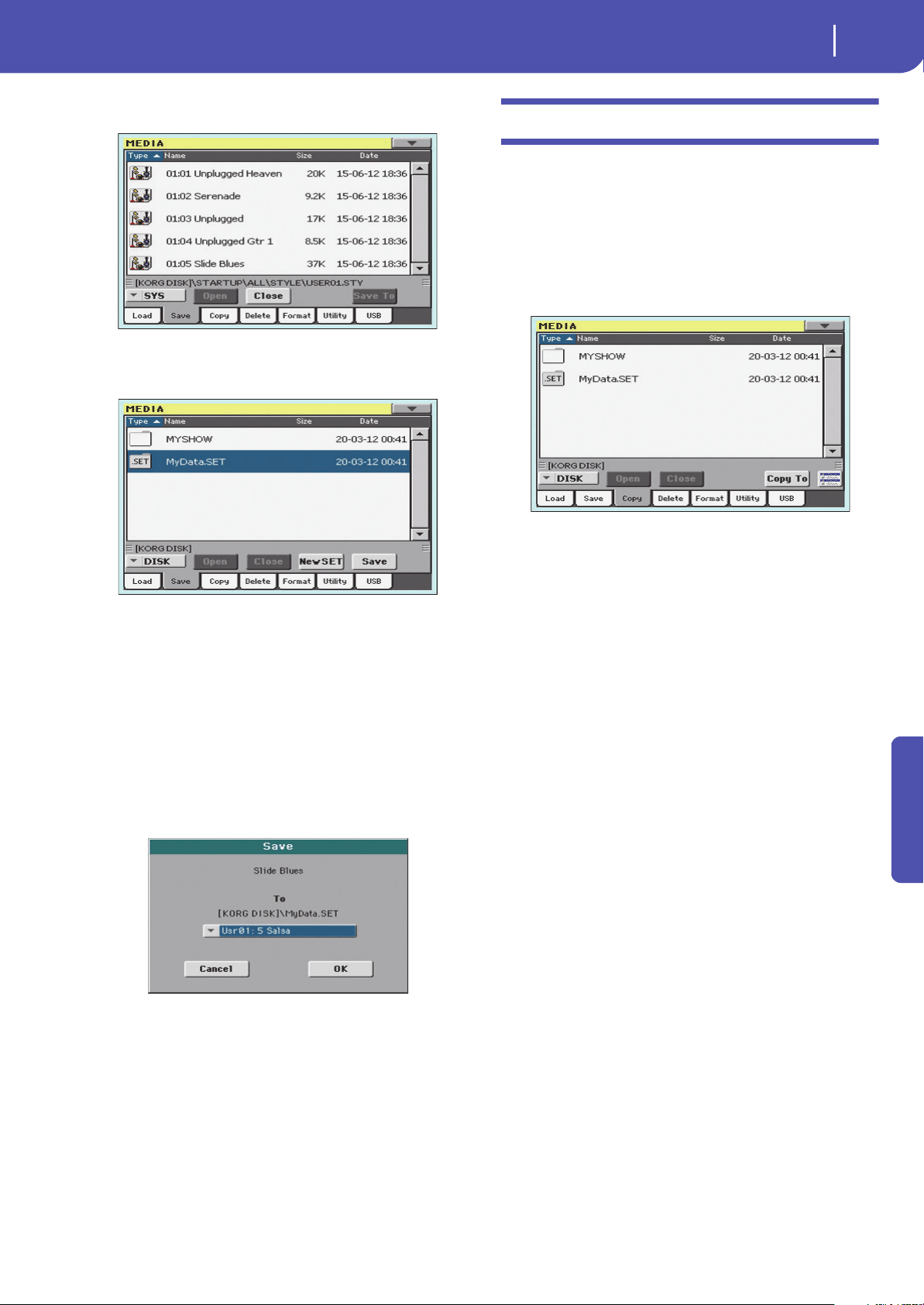
175
Media
Copy
Reference
4. Select the desired bank file, and touch Open to gain access
to the single items.
5. Once you have selected the file that you want to save, touch
Save To to confirm the selection. The list of files of the tar-
get device is shown.
6. If needed, use the Device pop-up menu to select a different
target device. When the target device is selected, its content
will appear in the display.
7. At this point, you can:
• Touch the New SET button and create a new “.SET” folder
(see “Creating a new “.SET” folder” on page 172), or
•Select an existing “.SET” folder, and touch Save to con-
firm.
8. A dialog box appears, asking you to select one of the avail-
able User (or Favorite Style) locations inside the selected
folder.
In the above dialog box, the previously selected Style will be
saved to location 01 inside the bank Usr01 inside the
selected folder.
9. Touch OK to confirm, or Cancel to abort.
War ni ng : After confirming, the same item in the target folder
is deleted.
Copy
In this page you can copy files and folders. Folders can be
generic or “.SET” folders. In addition, you can copy the content
of the generic folder you are in. You can copy inside the same
device, or from a device to a different one (both devices must be
connected to the Pa300 during the copy operation).
To preserve data structure integrity, during Copy operations you
can’t open “.SET” folders and copy only one of the files it con-
tains. You can only open and go inside generic folders.
Contrary to the Load and Save pages, in this page you may see all
types of files, and not only Pa-Series supported files (assuming
the “Hide Unknown Files” option is turned off, see page 154).
Copying a folder’s content
If nothing is selected while a folder is open in the display, you
can copy the folder’s content, without copying the folder itself.
Note: During the Copy procedure, you can’t open a “.SET” folder.
You can, however, open any generic folder.
1. If copying from or to an external device, connect the device
to the USB Host port.
2. Select the source device, by using the Device pop-up menu.
3. If the folder you are looking for is inside another folder,
select this latter and touch the Open button to open it.
Touch the Close button to go back to the parent folder.
4. To copy the current folder’s content, without copying the
folder itself, do not select anything in the display.
5. Touch Copy To to confirm. The target device appears.
Note: If the selected device is not available, the “Device not
found, or unknown format” message will appear. A different
device will be automatically selected.
6. If needed, select the target device, by using the Device pop-
up menu.
7. If you want to select a different folder, use the Open and
Close buttons to move through the directories.
•To copy into an existing generic folder (not a “.SET”
folder), select that folder.
• To copy into the current folder, do not select anything.
8. Once the target is selected, touch Copy.
If a file or folder with the same name of the source data
already exists at the target location, the “Overwrite” dialog
box will appear (see “Overwriting existing files or folders”
on page 176).
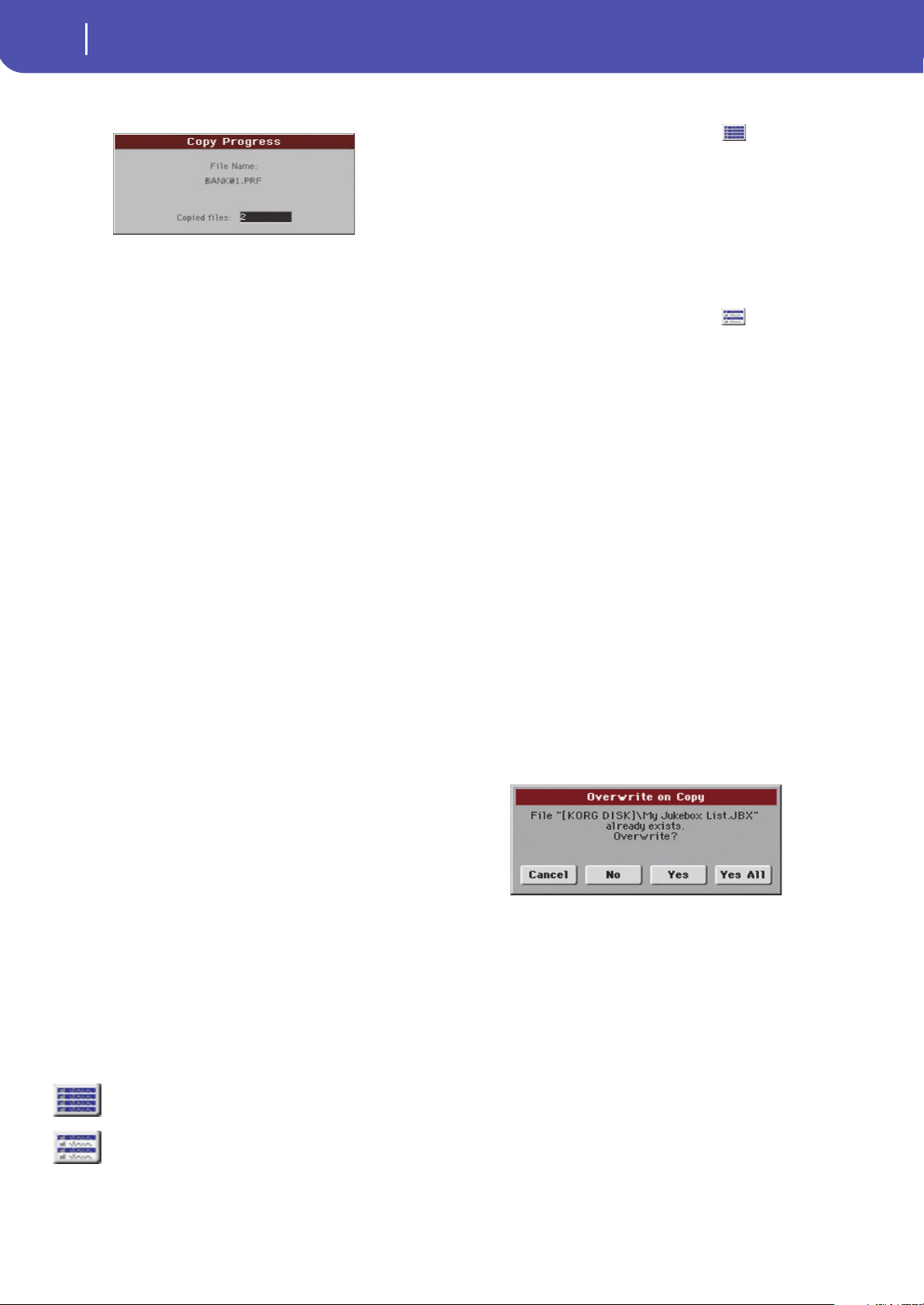
176
Media
Copy
During Copy, a dialog box shows the progress of the opera-
tion.
Copying a single file or folder
You can copy a single file or folder, from the root or a generic
folder to a different one. You can’t copy single files or folders
from inside a “.SET” folder.
1. If copying from or to an external device, connect the device
to the USB Host port.
2. Select the source device, by using the Device pop-up menu.
3. Select the folder containing the file or folder you wish to
copy. If it is contained in another folder, touch the Open
button to open it. Touch Close to go back to the previous
hierarchic level.
4. Touch Open to open the folder containing the file or folder
to be copied.
5. Select the file or folder to be copied, then touch Copy To to
confirm its selection. The target device appears.
Note: If the selected device is not available, the “Device not
found, or unknown format” message will appear. A different
device will be automatically selected.
6. If needed, select the target device, by using the Device pop-
up menu.
7. When the target device content appears in the display,
select the target folder. Touch Open to open a folder, or
Close to close it.
8. Once the target is selected, touch Copy.
If a file or folder with the same name of the source data
already exists at the target location, the “Overwrite” dialog
box will appear (see “Overwriting existing files or folders”
below).
Multiple file selection
While in the Copy and Delete pages of the Media mode, you can
select several files or folders at the same time before executing
the operation. Files or folders can be selected consecutively (i.e.,
in a row), or discontinuously (i.e., with other files or folders in
the middle).
To choose either to select files in a consecutive or discontinue
way, use the Mode button on the right of the page command but-
tons, to choose an option for the SHIFT button:
To select more files or folders consecutively:
1. Touch the Mode button to choose the option for the
SHIFT button.
2. Select the first file or folder to be selected.
3. Press and keep the SHIFT button pressed.
4. Select the last file or folder to be selected.
5. Release the SHIFT button.
To select more files or folders discontinuously:
1. Touch the Mode button to choose the option for the
SHIFT button.
2. Select the first file or folder to be selected.
3. Press and keep the SHIFT button pressed.
4. Select a second file or folder to be selected.
5. While keeping the SHIFT button pressed, continue select-
ing the other files or folders to be selected.
6. Release the SHIFT button.
To deselect the files or folders:
• To deselect one or more file or folder, without deselecting
everything, keep SHIFT pressed and touch the file or folder
to be deselected.
• To deselect everything, select any other file or folder. All
selected files and folders will be deselected.
Overwriting existing files or folders
When copying files, a file or folder with the same name of a
source element might be found in the target device. In this case,
Pa300 asks you if you want to overwrite it.
When a duplicate file or folder is met, the following dialog box
appears:
Cancel The procedure is interrupted.
No The file or folder is not overwritten. The source
file or folder is not copied. The procedure will
continue with the other files and folders.
Yes The file or folder is overwritten. The procedure
will continue with the other files and folders.
Yes (to) All The file or folder is overwritten. Any following
duplicate file or folders will be overwritten as
well, without this dialog box appearing again.
The procedure will continue with the other files
and folders.
Choose this option to select files or folders con-
secutively (i.e., in a row).
Choose this option to select files or folders dis-
continuously (i.e., with other files or folders in
the middle).
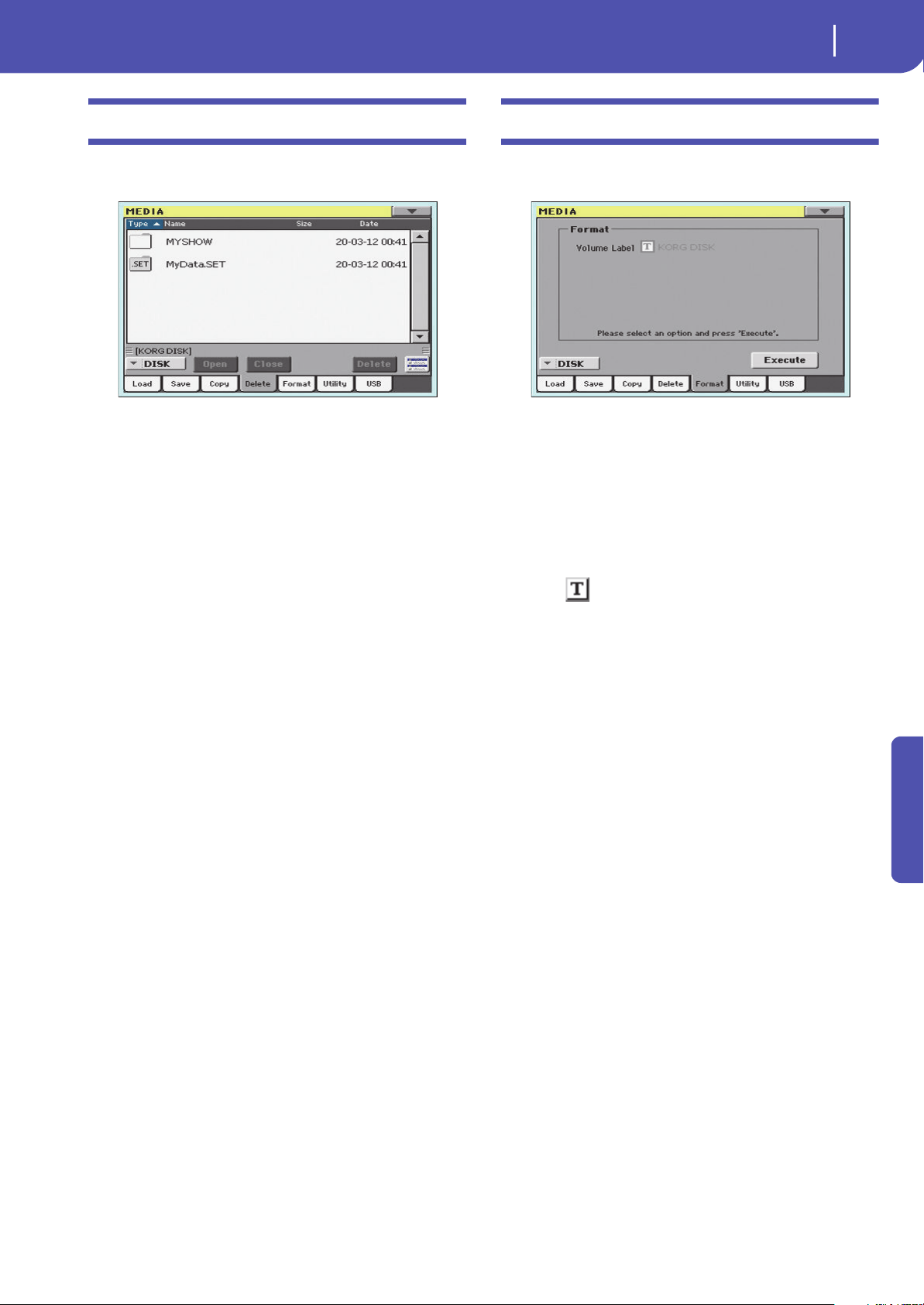
177
Media
Delete
Reference
Delete
The Delete function lets you delete files and folders from the
devices.
Contrary to the Load and Save pages, in this page you may see all
types of files, and not only Pa-Series supported files (assuming
the “Hide Unknown Files” option is turned off, see page 154).
Delete procedure
1.
If erasing from an external device, connect the device to
one of the USB Host ports.
2. If needed, select a different device, by using the Device
pop-up menu.
3. If the file or folder you are looking for is inside another
folder, select this latter and touch the Open button to open
it. Touch the Close button to go back to the parent folder.
4. Select the file or folder to erase.
5. Touch Delete to delete the selected item.
During erase, a dialog box shows the progress of the opera-
tion.
Multiple file selection
See “Multiple file selection” on page 176 for information on how
to select more files or folders to be erased at the same time.
Format
The Format function lets you initialize a device. Pa300 uses a
PC-compliant device format (DOS FAT16 and FAT32):
Wa r ni n g: When formatting a device, all data it contains is lost for-
ever!
Volume Label
Use this parameter to assign a name to an external device to be
formatted.
Note: You cannot rename the label (name) of the internal volume.
When formatting the internal disk, the label cannot be edited.
Touch the (Text Edit) button to open the Text Edit window.
Enter the name, then touch OK to confirm and close the Text
Edit window.
Note: When changing the name to a device containing Standard
MIDI Files or MP3 files used in the SongBook, the links are bro-
ken. We suggest to give the device the same name it had before for-
matting. In case you changed the name, please use SongBook
Editor (freely available on
www.korg.com) to edit the links.
War nin g: It is not possible to change the label (name) of the inter-
nal disk when Pa300 is connected to a PC through the USB port. If
you try to do it, the original name is restored by Pa300.
Execute button
Touch this button, after having assigned a name to the volume,
to execute the Format command.
Format procedure
Here is how to format a device.
1. If formatting an external device, connect the device to the
USB Host port.
2. Choose the device to be formatted by using the Device
pop-up menu in the lower-left corner of the display.
3. Touch the Execute button in the display to confirm format-
ting.
4. The “If you confirm, all data in the media will be lost. Are
you sure?” message appears in the display. Touch Yes to
confirm, or No to cancel.
Note: When formatting the internal memory or an external
USB device, an additional warning appears, to avoid acci-
dental data loss.

178
Media
Utility
Utility
This page includes a set of backup and restore utilities. The
Backup command should be used for archiving purpose only,
since you will not be able to load individual data from a backup
file. To save data that must remain accessible with the normal
Media > Load operations, for example to load User data after
updating the Musical Resources, use the Media > Save opera-
tions instead.
Full Resource Backup
This command allows you to make a full backup of all the inter-
nal data on a target device. A “.BKP” file will be created.
Hint: This command cannot be used to save single items (like a
single Style, a bank of Performances…). To do that, use the Save
operations instead.
1. In case you are making the backup on an external USB
device, connect the device to one of the USB Host ports.
Be sure there is enough free space in your target device, or
the Backup procedure will not be completed.
2. Select the “Full Resource Backup” command, then touch
the Execute button in the display. The target device
appears.
3. If needed, select a different device, by using the Device
pop-up menu.
4. If you wish to save data inside another folder, select this lat-
ter and touch the Open button to open it. Touch the Close
button to go back to the parent folder.
5. Select the folder where to save data, and touch Backup to
save it. If nothing is selected, data will be saved to the cur-
rent directory.
After touching Backup, a dialog box will appear, asking you
to assign a name to the backup file.
Touch the (Text Edit) button to open the Text Edit
window. Enter the name, and confirm by touching OK.
6. Touch OK to star t t he backup.
7. When finished, save the (removable) storage device in a
safe place.
Resource Restore
This command restores data from a backup of the internal Fac-
tory and User data, created with the “Full Resource Backup”
command.
Hint: This command cannot be used to load single items (like a
single Style, a bank of Performances…). You can only load all data,
or full data types. Backups are compact archives, that can only be
restored as a full package.
Note: Loading a backup file created with other Pa-Series and
i-Series instruments is not allowed.
War ni ng : Don’t play the keyboard while restoring data, and stay
in the Media mode. Wait until the “Wait” message disappears.
1. In case you are restoring from an external USB device, con-
nect the device to the USB Host port.
2. Select the Restore Resources command, then touch Exe-
cute. The source device appears.
3. If needed, select a different device, by using the Device
pop-up menu.
4. Browse through the files to find the backup file.
5. When the backup file (“.BKP” file) is in the display, select it
and touch the Restore command.
6. A dialog box will appear, with a list of types of data to be
restored. Only check the types of data you want to restore.
War ni ng : This command will delete from the internal mem-
ory all types of data selected in this dialog box (including
your custom data).
7. When done, a message appears asking you to restart the
instrument (“Data Restored. Please switch off ”). Set the
instrument to standby mode, then turn it on again.
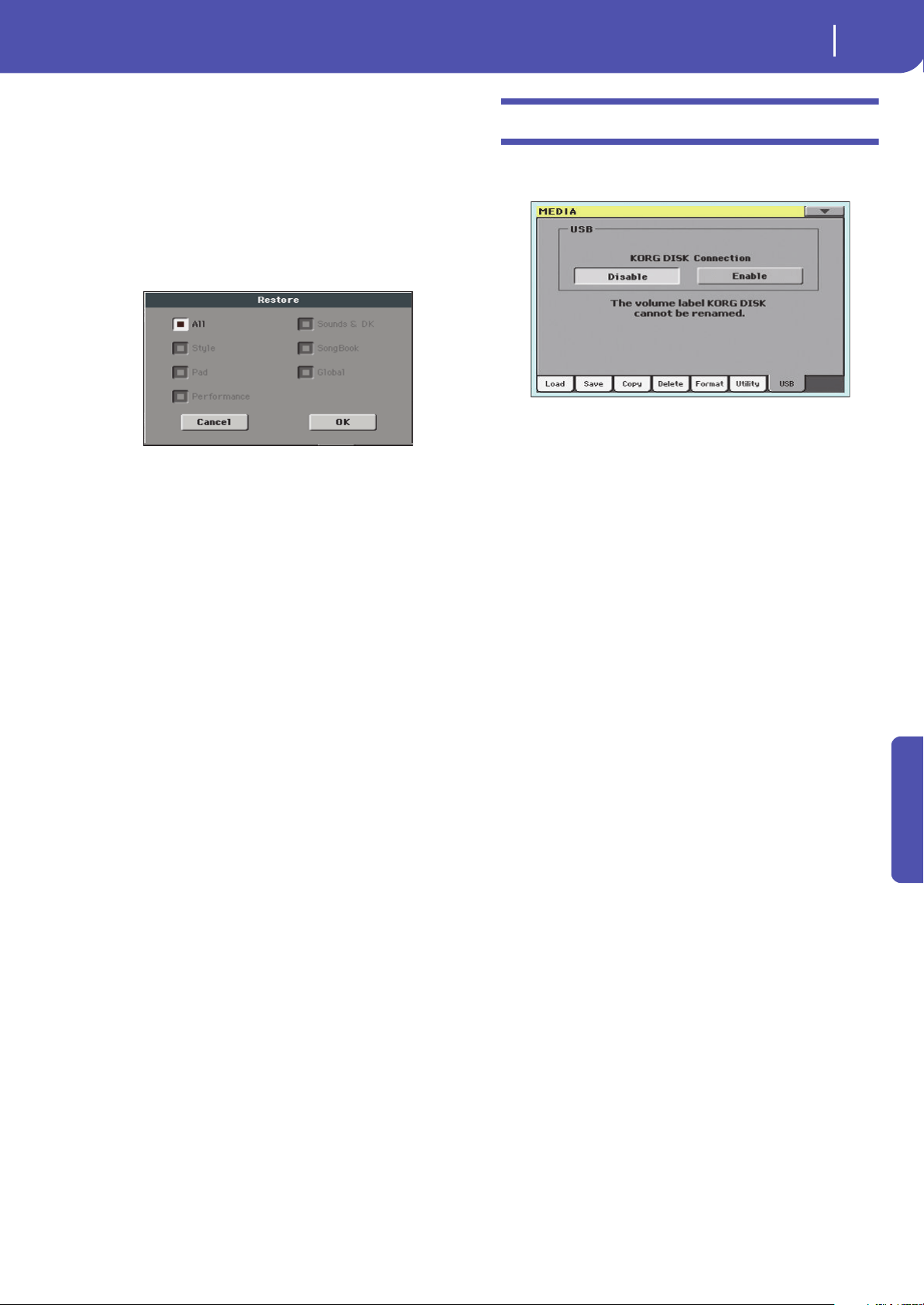
179
Media
USB
Reference
Factory Restore
In case you want to erase all changes to your Factory and User
data, and restore your Pa300 to the same condition it was when it
was new, you can use the Factory Restore procedure.
War nin g: This command deletes all data from memory (including
your custom data).
1. Select the Factory Restore command, then touch Execute.
2. A dialog box will appear, with a list of types of data to be
restored. Only check the types of data you want to restore.
War ni ng : This command will delete from the internal mem-
ory all types of data selected in this dialog box (including
your custom data).
3. When done, a message appears asking you to restart the
instrument (“Data Restored. Please switch off ”). Set the
instrument to standby mode, then turn it on again.
OS Version Number
This line shows the installed Operating System version. From
time to time, check our web site (
www.korg.com), to see if a
newer, free version has been released.
USB
Use this page to enable or disable the USB Device port for file
transfer.
The USB Device port allows you to access the internal storage
memory from a personal computer, by just connecting the Pa300
to the computer’s USB interface. This way, you can exchange files
between the user-accessible area of the internal storage memory
of the Pa300 (DISK device) and a personal computer.
Note: The drivers supplied in the Accessory Disc are only for MIDI
Over USB connection.
Note: While USB file transfer is enabled, you cannot access other
functions on the Pa300. MIDI Over USB is also disabled.
Wa rni ng : It is not possible to change the label (name) of the inter-
nal disk when Pa300 is connected to a PC through the USB port. If
you try to do it, the original name is restored by Pa300.
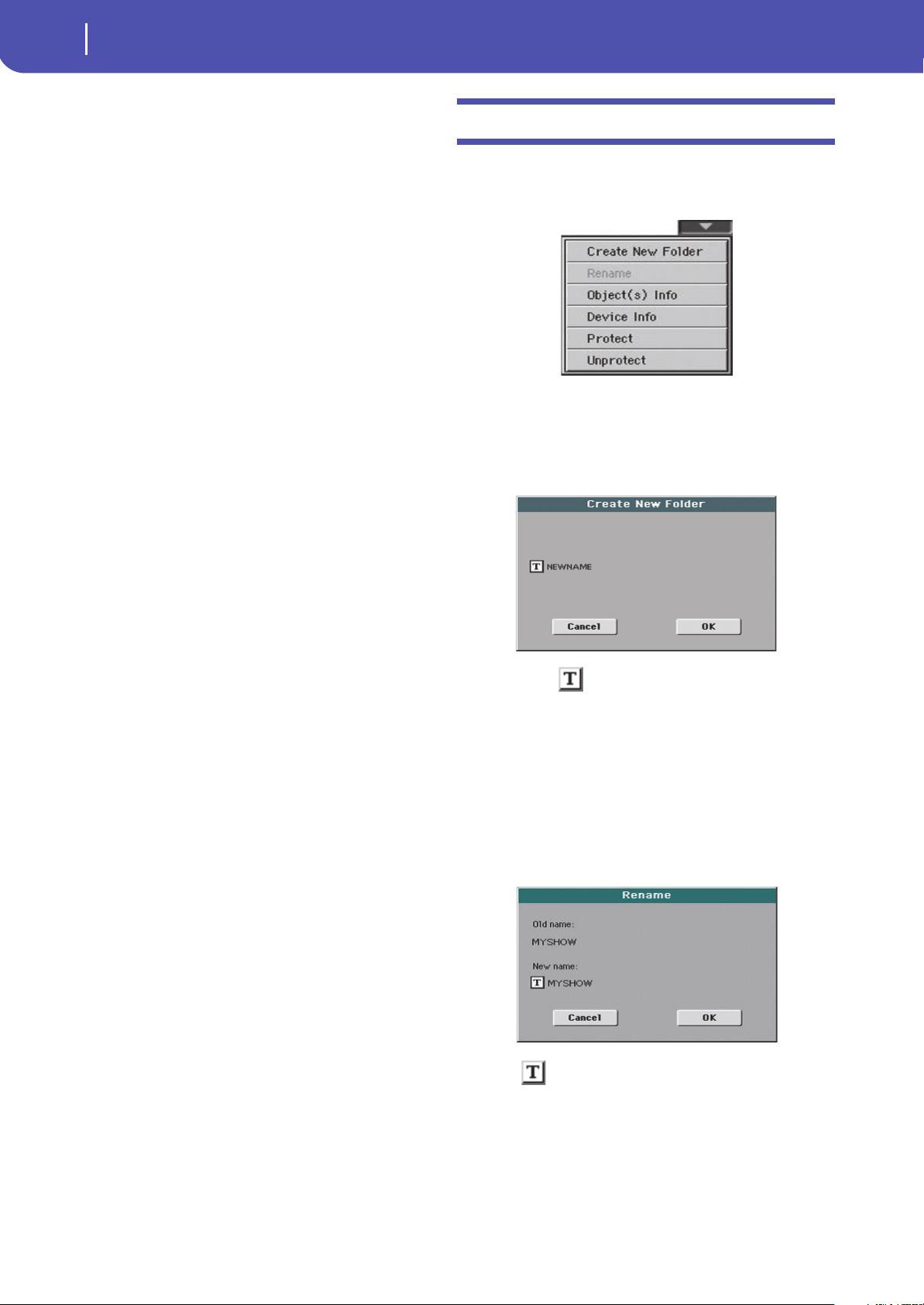
180
Media
Page menu
KORG DISK Connection
Usually, the USB Device port is not enabled for file transfer on
the Pa300 (it is always on, however, for MIDI connection).
Touch the Enable button to turn it on, or the Disable button
(with all the caveats) to turn it off.
1. Connect Pa300 to a personal computer by using a standard
USB cable
2. Touch the “Enable” button to enable file transfer. Pa300
becomes the B USB device (called Device or Slave), while
the personal computer becomes the A USB device (called
the Host or Master).
When finished, the icon of the internal memory of Pa300
will appear among the other storage devices connected to
the computer.
Caveat: Do not modify the structure of the “.SET” folders, or
you will no longer be able to use them on the Pa300. Only use
the USB connection for data exchange purpose, or to modify
ordinary folders.
Note: After starting the USB connection, accessing Pa300
data from the computer may take some time, depending on
the size of the internal memory and the data it contains.
3. When all data has been transferred, disconnect USB com-
munication from the computer. On a PC, you usually select
the dedicated command by clicking on the USB device icon
with the right mouse button. On the Mac, select the USB
device icon, then select the Eject command or drag it to the
eject icon in the Dock.
4. When the Pa300 icon disappears from the computer’s desk-
top, touch the “Disable” button on the display of Pa300.
Caveat: Do not disconnect the USB communication before
the personal computer has really finished transferring files.
Sometimes, the on-screen indicator tells the procedure has
been completed BEFORE it has really finished.
Disconnecting USB communication (or disconnecting the
USB cable) before data transfer has been completed may
cause data loss.
Page menu
Touch the page menu icon to open the menu. Touch a command
to select it. Touch anywhere in the display to close the menu
without selecting a command.
Create New Folder
This command lets you create a new generic folder. You can’t
create a “.SET” folder with this command, since this type of
folder is reserved to the Save operations (and can be created with
the New SET button in any Save page).
By touching the (Text Edit) button you can open the Text
Edit window. Enter the name, then touch OK to confirm and
close the Text Edit window.
Rename
Available only when an item is selected in a file list.
Use this function to change the name of an existing generic file
or folder. To preserve consistency through the data structure,
you cannot rename folders and files inside a “.SET” folder. Also,
you cannot change the 3-character extension of files and “.SET”
folders, since they are used to identify the type of file or folder.
Touch the (Text Edit) button to open the Text Edit window.
Enter the new name, then touch OK to confirm and close the
Text Edit w ind ow.
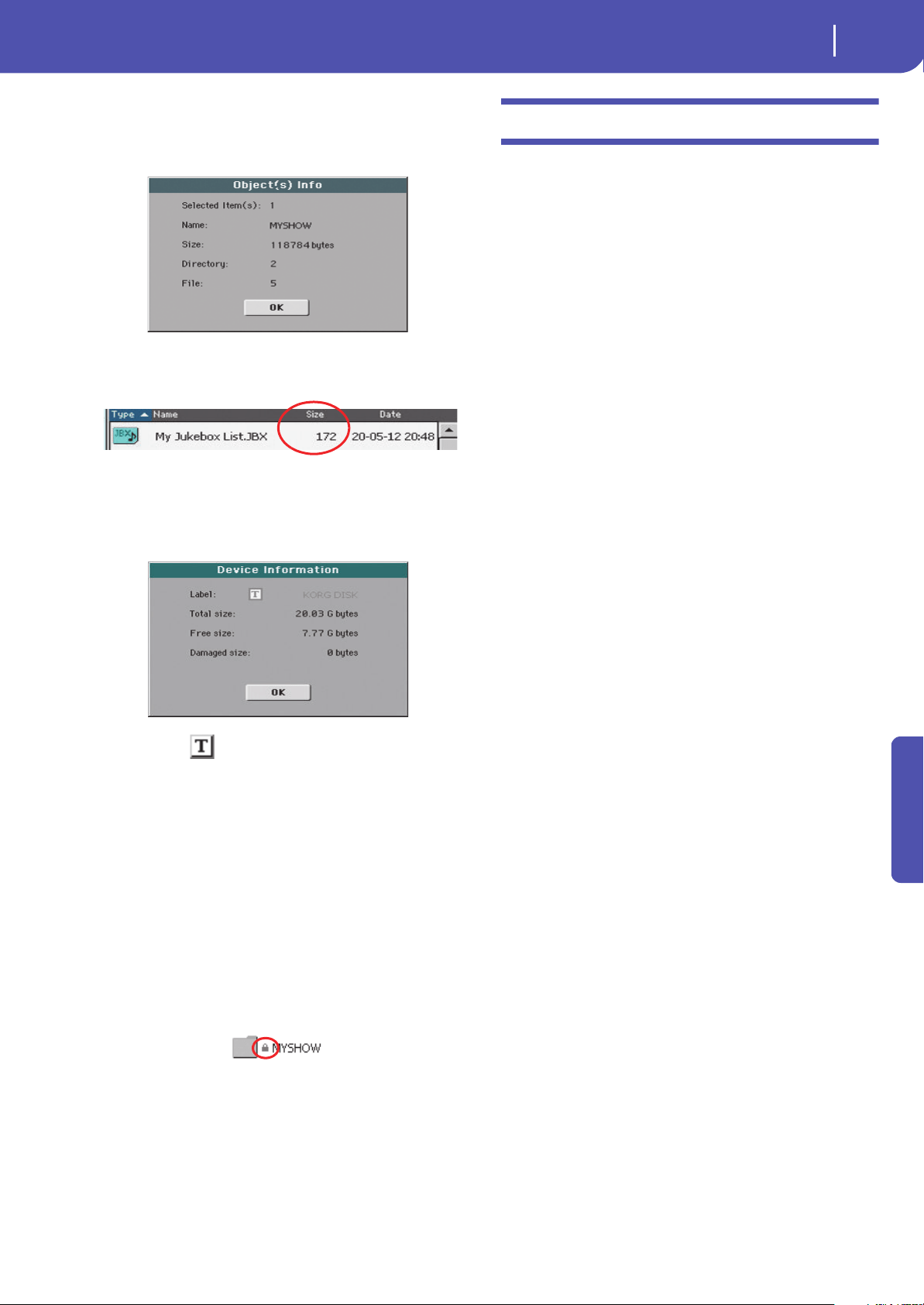
181
Media
Care of mass storage devices
Reference
Object(s) info
Select this command to see the size of any selected file or folder.
Also, the number of files and directories (folders) it contains are
shown.
Note: The single file size is always shown to the right of the file
name in any file list (assuming the “Size” parameter is turned on,
see page 154):
Device Info
Select this command to see various info on the selected device.
To select a different device, use the Device pop-up menu on the
lower left corner of most Media pages.
By touching the (Text Edit) button you can open the Text
Edit window. Enter the name (label) of the selected device, then
touch OK to confirm and close the Text Edit window.
Wa r ni n g: If you change the name of a device connected to the USB
Host port, and it contains files used by some SongBook Entries,
these entries will no longer be able to find the linked resources con-
tained in the device. In this case, either restore the original device
name, or use the SongBook Editor software (freely available on
www.korg.com) to edit the links.
Note: You cannot change the name of the internal storage memory.
Protect
Select this command to protect the selected file or folder from
writing/erasing. The lock icon will appear next to the file or
folder name.
Unprotect
Select this command to unprotect the selected file or folder – if
protected.
Care of mass storage devices
The Pa300 can save most of the data contained in memory to the
internal memory, or to external devices (like hard drives or USB
memory sticks) connected to the USB Host port. Here are some
precautions when handling these devices.
Internal memory write protection
You can protect your internal memory from writing, by using
the software protection found in Global mode (see “Media Pro-
tect” on page 154).
Precautions
• Do not remove a device or move the instrument while the
device is operating.
• In order to avoid losing data in case of damage, make a
backup copy of the data contained in a device. You can
backup your data to a personal computer, and from there to
a backup unit. You can transfer data from the internal
memory of Pa300 (DISK unit) to a personal computer by
using the USB Device connection.
• Do not leave an USB device connected to the USB ports
while carrying the instrument, or it may be damaged.
• Keep the memory devices or the instrument away from
sources of magnetic fields, for example televisions, refriger-
ators, computers, monitors, speakers, cellular phones and
transformers. Magnetic fields can alter the contents of the
devices.
• Do not keep memory devices in very hot or wet places, do
not expose them to direct sunlight and do not store them
without use in dusty or dirty places.
• Do not place heavy objects on top of the devices.
• Regular care is recommended with your devices. Defrag-
menting and repairing internal devices can be made with
any computer utility while the Pa300 is connected via USB.
Possible problems
• Magnetic fields, dirt, humidity and usage can damage data
in a device. You can try to recover the data with disk repair
utilities for personal computers. It is, however, advisable to
always make a backup copy of your data.
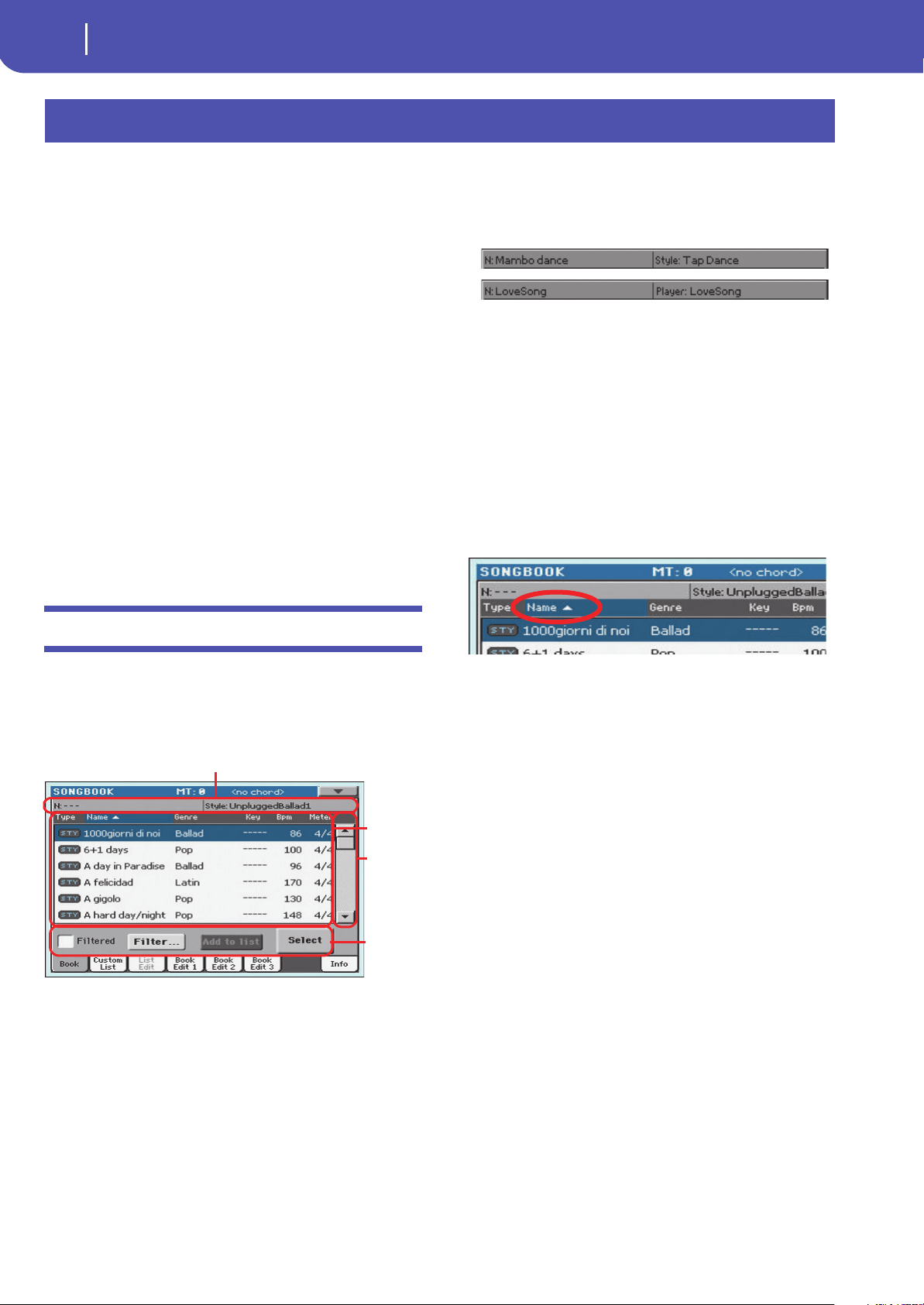
182
SongBook
Book
The SongBook is a musical database that allows you to organize
songs and automatically recall the associated “musical resources”
(Style, Standard MIDI Files, KAR files, and MP3 files).
The SongBook overlaps the Style Play and Song Play operating
modes. When you select an entry from the full database or a cus-
tom list, the Style Play or Song Play mode is automatically
selected, depending on the type of file associated with the entry.
In addition to helping you organize your shows, the SongBook
allows you to associate four Pads, and up to four STSs to each
Style, Standard MIDI File or MP3 file, to recall a complete set of
Keyboard tracks for playing over a Song. You can also link a sep-
arate text file containing lyrics to an entry.
Note: SongBook Entries do not include actual data; they are just
pointers to a Style, a Standard MIDI File an MP3 or a TXT file.
When you copy a SongBook file, referenced files are not copied
with it.
Hint: Use the SongBook Editor software (freely available from our
web site,
www.korg.com) to edit your SongBook on a PC.
War ni ng : If you load a SongBook file from a storage device, the
existing one in memory (including the custom lists) is deleted. Save
your old SongBook file before loading a new one.
Book
The Book page contains the full database of song entries. While
in this page, you can select an entry, and touch the Select button
in the display to load it. Then, press the PLAY/START button to
start the Song or Style.
Each entry of this database may include the song’s author, name,
genre, original key, tempo and meter (time signature). When
selecting one of the entries, the associated Style, Standard MIDI
File or MP3 file is automatically recalled, together with any TXT
lined to the entry. Also, the STSs and Pads may be recalled.
List Header
The List Header shows the selected entry’s name on the left
(“N:”), and the associated Style, Standard MIDI File or MP3 file
on the right (“Style:” or “Player:”):
Note: If you select a different Style or Standard MIDI File or MP3
file, the entry’s name field (“N:”) returns blank (---), meaning the
entry has been modified.
Full list
This is the full list of the SongBook database. Use the scrollbar
(or the VALUE DIAL) to browse through the list.
You can touch one of the heading labels above the list to change
the order in which entries are shown. For example, by touching
the “Name” label, the list is alphabetically re-ordered according
to the entry names. The selected label become highlighted,
showing the currently selected ordering.
By touching the label again, the order of the files switches
between ascending and descending. The small arrow next to the
label name shows the selected order.
Scrollbar
Use the scrollbar (or the VALUE DIAL) to scroll the entries. You
can keep the SHIFT button pressed while touching the scrollbar,
to quickly jump to the next/previous section.
Commands
Filtered
When this box is checked, only entries matching the selected fil-
ter criteria are shown in the full list. The box is automatically
checked when you exit from the Filter dialog box by touching
OK (see below).
SongBook
Full list
Com-
mands
List Header
Scroll-
bar
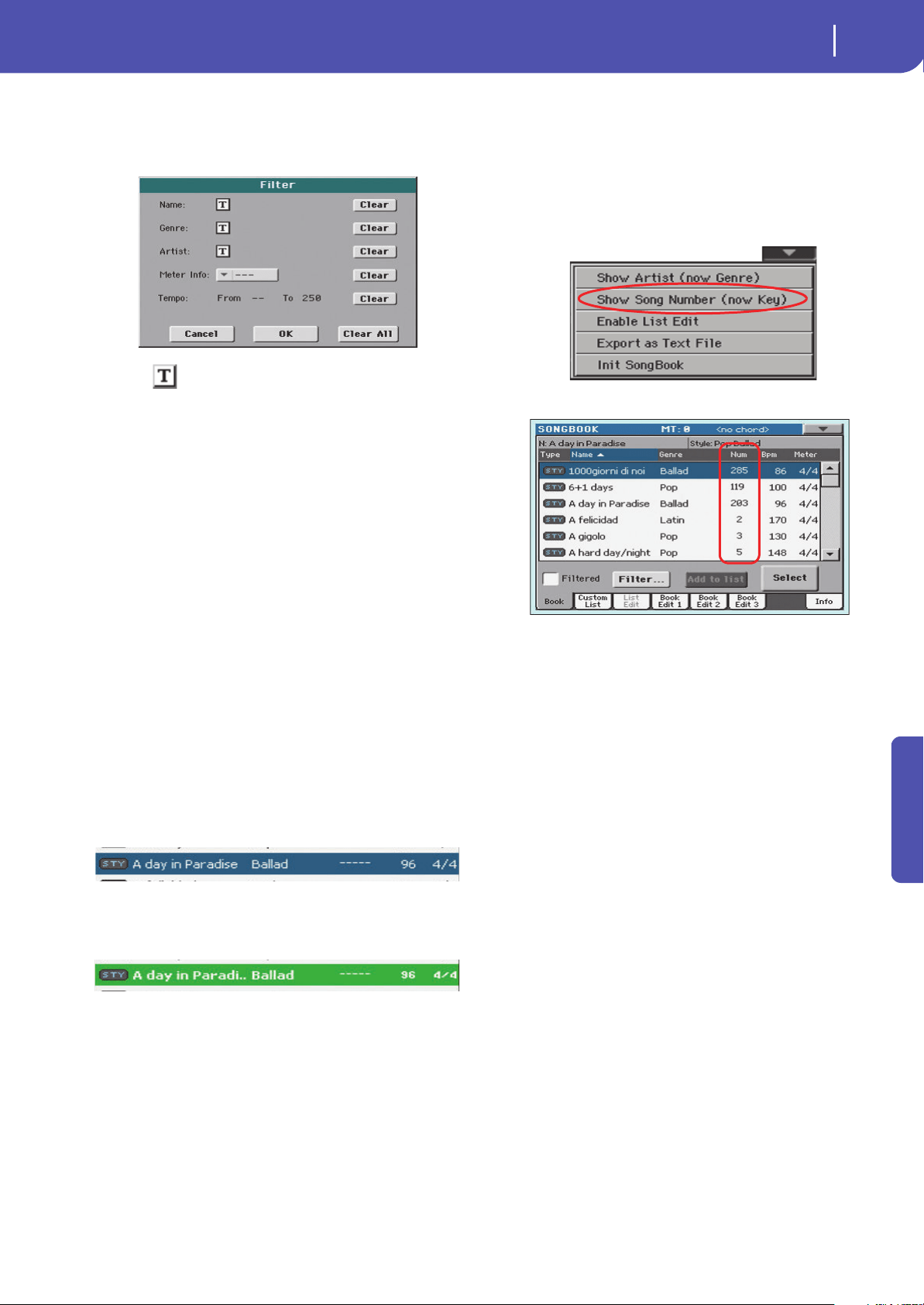
183
SongBook
Book
Reference
Filter…
Touch this button to open the Filter dialog box, and select one or
more filter criteria, to show a restricted set of entries in the main
list.
Touch the (Text Edit) button next to the search criteria you
want to edit (Name, Genre, or Artist). You can also select a
Meter, or a range of Tempo values.
Touch the Clear button next to the search criterion you want to
delete or set to a default value.
Touch Clear All to reset all search criteria.
Note: You can also find items in the SongBook database by press-
ing the SEARCH button, and using the Search function. However,
the Filter function allow for a more refined search.
Add to list
If the “Enable List Edit” command is selected in the page menu,
the “Add to list” button becomes available, to let you add entries
to the selected Custom List.
Select an entry, then touch this button to add the selected entry
to the current Custom List (see “Custom List” on page 185).
Select
Touch this button to confirm selection of the highlighted entry
in the full list. After touching this button, the name of the
selected entry appears in the left upper side of the display (“N:”).
When you highlight a song in any of the SongBook lists, its name
appears in reversed text, over a green-blue background. While in
this situation, the song is highlighted, but not yet loaded.
When you touch the Select button in the display, the song will be
loaded. The background turns to light green, and the text is
turned to boldface, to show the Song has been loaded and ready
to play.
To start playback of the Song or Style, press the PLAY/START
button.
Numeric selection of entries
When in SongBook mode, you can select a SongBook Entry by
means of an unique number. Numbers associated with each
entry can be programmed in the Book Edit 2 page (see “Book
Edit 3” on page 188).
To see the numbers while in the Book page, select the “Show
Song Numbers (now Key)” command from the page menu:
After you select this command, the “Num” column appears:
To see the “Key” column again, select the “Show Key (now Song
Numbers)” command from the page menu.
To select a SongBook Entry by entering its number, press the
SONGBOOK button again while you are in any page of the
SongBook mode. The numeric keypad will appear, allowing you
to enter the number corresponding to the desired entry.
Hint: You can export a list of SongBook Entries as a TXT file,
including the assigned selection number. You can print this list on
paper as a memo. (See “Export as text file” on page 190).
Selecting SongBook Entries via MIDI
SongBook Entries can be selected via MIDI messages (through
the special Control channel), by using the dedicated NRPN Con-
trol Change messages #99 (MSB, with value 2) and #98 (LSB,
with value 64). See “Selecting SongBook Entries via MIDI” on
next page.
Setting the special Control MIDI IN channel
A special MIDI channel used as the “Control” channel is needed
to send MIDI messages to select the SongBook Entries.
First of all, choose a MIDI Preset to quickly configure the Con-
trol channel. Go to the Global > MIDI > General Controls page
and choose a MIDI Preset where to save your settings.
Then, choose a MIDI channel as the “Control” channel. Go to
the Global > MIDI > Midi In Channel page, and assign the Con-
trol option to one of the sixteen available MIDI channels (usually
one of the higher-numbered ones, for example 16).
When done, save this setting to the current MIDI Preset by
choosing the “Write Midi Preset” command from the page
menu.

184
SongBook
Book
Selecting SongBook Entries via MIDI
When you are ready to remotely select SongBook Entries, switch
to the Style Play or Song Play mode.
At this point, Pa300 must receive on the special Control channel
the NRPN Control Change messages #99 (MSB, with value 2)
and #98 (LSB, with value 64) in fast succession, as an initializa-
tion string. This string must be sent only once, unless another
NRPN control is sent on the same MIDI channel before selecting
a different SongBook Entry.
After the initialization string has been sent, you must send the
selection string, made of two Control Change messages: CC#06
(Data Entry MSB) for the thousands and hundreds, and CC#38
(Data Entry LSB) for the tens and units. The range of the Data
Entry controls, in this case, is 0~99 (instead of the typical
0~127).
The following examples show some typical situations.
• Send the following string to select SongBook Entry #77:
• Send the following string to select SongBook Entry #100:
• Send the following string to select SongBook Entry #2563:
MIDI messages sent when selecting
SongBook Entries
When a SongBook Entry is selected, a set of corresponding
MIDI messages can be sent through the special “Control” chan-
nel.
Setting the special Control MIDI OUT channel
A special MIDI channel used as the “Control” channel is needed
to send MIDI messages when selecting the SongBook Entries.
First of all, choose a MIDI Preset to quickly configure the Con-
trol channel. Go to the Global > MIDI > General Controls page
and choose a MIDI Preset where to save your settings.
Then, choose a MIDI channel as the “Control” channel. Go to
the Global > MIDI > Midi Out Channel page, and assign the
Control option to one of the sixteen available MIDI channels
(usually one of the higher-numbered ones, for example 16).
When done, save this setting to the current MIDI Preset by
choosing the “Write Midi Preset” command from the page
menu.
Sending MIDI messages when selecting SongBook Entries
When this special “Control” channel is assigned to one of the
MIDI OUT channels, MIDI messages are sent on this channel
when choosing a SongBook Entry.
The messages sent when selecting a SongBook Entry are the fol-
lowing:
• An initialization strings, made of the NRPN Control Change
messages #99 (MSB, with value 2) and #98 (LSB, with value 64)
in fast succession.
• A selection string, made of the two Control Change messages
CC#06 (Data Entry MSB) for the thousands and hundreds, and
CC#38 (Data Entry LSB) for the tens and units. The range of the
Data Entry controls, in this case, is 0~99 (instead of the typical
0~127).
This type of data can be used by external editors to receive infor-
mations from the SongBook.
Initialization string (CC#99, 98)
Thousands and hundreds (00xx)
Tens and units (xx77)
Initialization string (CC#99, 98)
Thousands and hundreds (01xx)
Tens and units (xx00)
Initialization string (CC#99, 98)
Thousands and hundreds (25xx)
Tens and units (xx63)
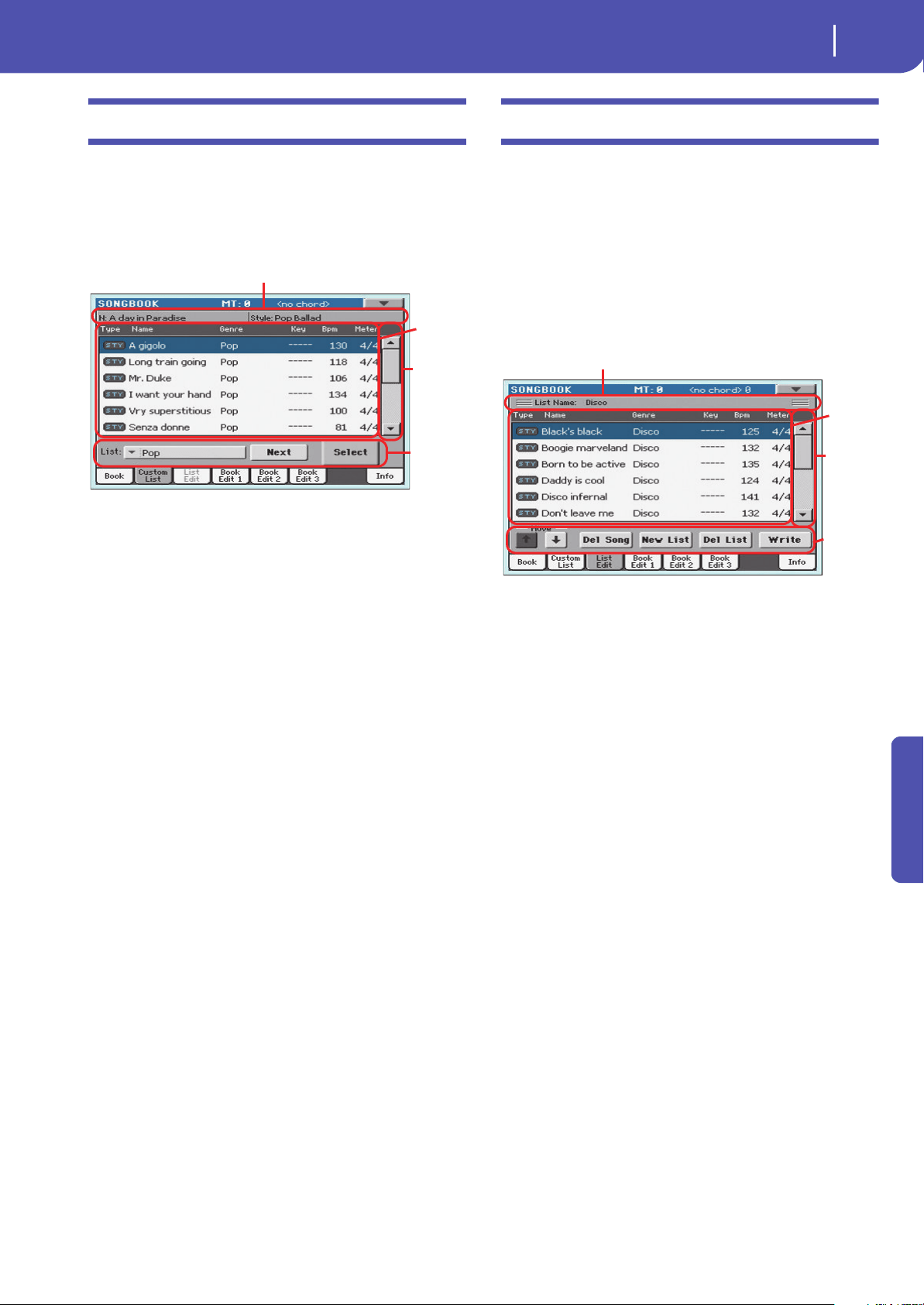
185
SongBook
Custom List
Reference
Custom List
Use this page to select and use one of the available Custom Lists.
Custom Lists are lists made of entries extracted from the full
SongBook list (as seen in the Book page). They allow the use of
smaller, customized SongBook lists, suitable for a single gig or
your own music tastes.
Hint: You can jump to this page by keeping SHIFT pressed, and
pressing the SONGBOOK button.
List header
See “List Header” on page 182.
Custom list
List of files contained in the selected Custom List. Use the scroll-
bar to browse through the list. As an alternative, use the VALUE
DIAL.
Scrollbar
Use the scrollbar (or the VALUE DIAL) to scroll the entries.
Commands
List pop-up menu
Use this pop-up menu to select one of the available lists.
Next
Touch this button to select the next entry in the list.
Hint: You can assign this command to the footswitch.
Select
Touch this button to confirm selection of the highlighted entry
in the list. After touching this button, the name of the selected
entry appears on the left upper side of the display (“N:”).
Hint: This command is useful to browse through the list, and select
an entry different than the one following in the list.
List Edit
This page is only available after checking the “Enable List Edit”
command in the page menu (see page 190).
Use this page to edit the available Custom Lists. A Custom List is
a set of SongBook Entries, created by selecting items from the
full list in the Book page.
To add entries to a Custom List, first create or select the list to be
edited in this page. Then, go to the Book page, select the entry to
be added, and touch the “Add to list” button. When finished add-
ing entries, return to this page and edit the selected list.
List Name
Name of the selected list. To select a Custom List, go to the “Cus-
tom List” page and use the List pop-up menu.
Custom list
List of songs contained in the selected Custom List. Use the scroll-
bar or the VALUE DIAL to browse through the list.
Scrollbar
Use the scrollbar (or the VALUE DIAL) to scroll the entries.
Custom
list
Com-
mands
List Header
Scrollbar
Custom
list
Com-
mands
List Name
Scrollbar
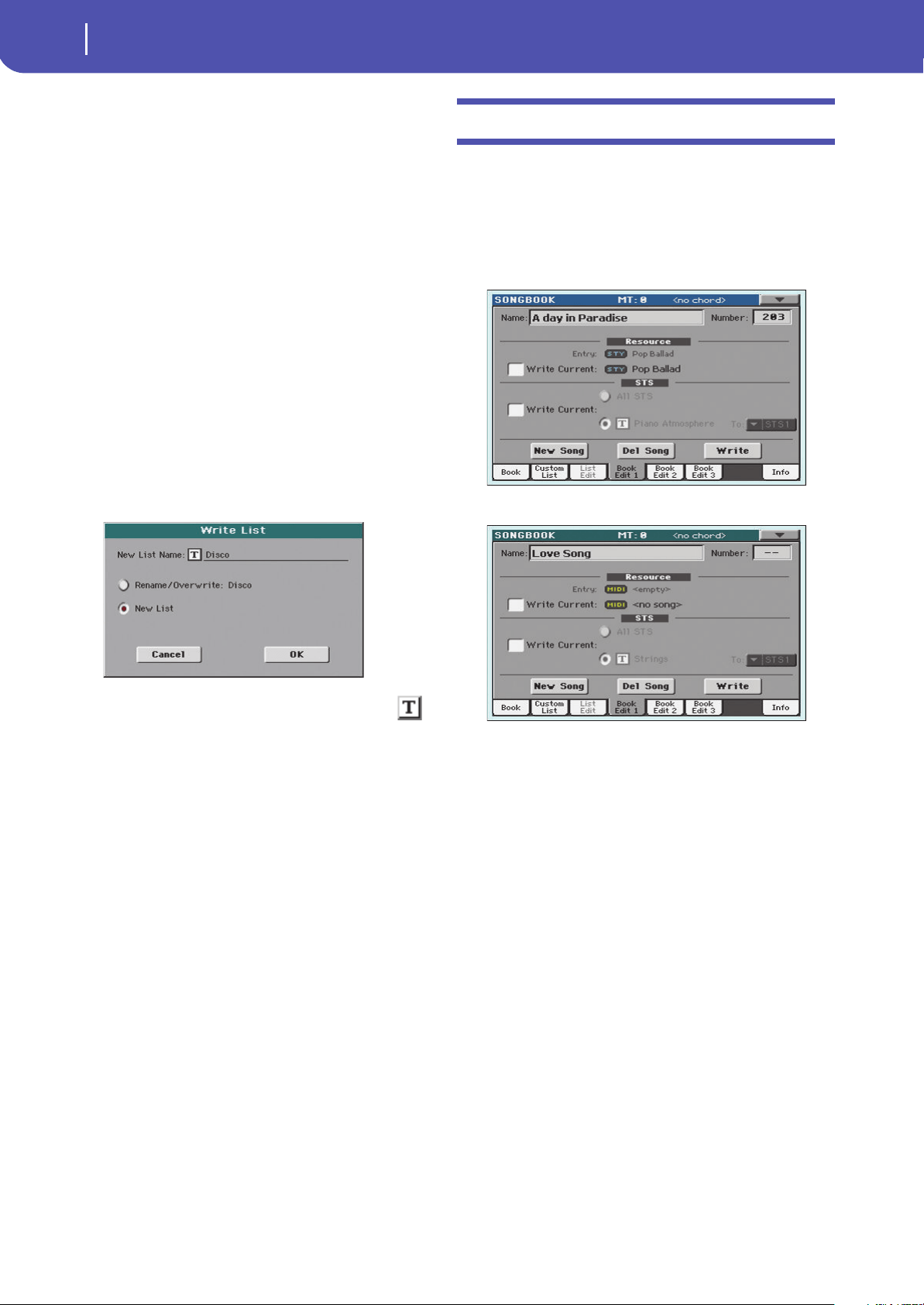
186
SongBook
Book Edit 1
Commands
Move
Use these buttons to move the selected song entry up or down in
the list.
Del Song
Touch this button to delete the selected song entry from the list.
New List
Touch this button to create a new, empty Custom List.
Note: The maximum number of Custom Lists in a SongBook file is
256 lists.
War ning : Any unsaved Custom List is lost when creating a new
list using this command.
Del List
Touch this button to delete the current list.
Write
Touch this button to save changes to the selected Custom List.
To assign a different name to the selected list, touch the
(Text Edit) button to open the Text Edit window.
Select an option to save the edited Custom List:
• Select Rename/Overwrite to overwrite an existing list,
optionally changing its name. War ni ng : The older list will
be deleted!
• Select New List to save a new Custom List in memory. This
list will be available in the “Custom List” page.
Book Edit 1
The Book Edit 1 page is where you link a “musical resource”
(Style or Song) to the SongBook Entry, and choose to save STSs
to the Entry.
Hint: Use the Filter in the Book page, to quickly find an entry to be
edited.
The Book Edit 1 page with a Style-based entry:
The Book Edit 1 page with a Song-based entry:
Header
Name
Name of the selected entry. The name is assigned after you touch
the Write button to save the entry to the SongBook list.
Number (Song Selection Number)
Here you can select a unique number (up to 9,999) to be associ-
ated to the current SongBook Entry. By typing this number (by
using the Numeric Keypad) after pressing the SONGBOOK but-
ton again, you will be able to quickly recall an entry from the
Book page (see “Numeric selection of entries” on page 183).
Assigning a number is not mandatory, but may help you to orga-
nize your entries. For example, you can use the different 100s to
create a different way of categorizing your entries by genre or
age.
Resource
Entry
Style, Standard MIDI File or MP3 file associated with the saved
entry.
War ni ng : If you replace this resource with a different one, using
the same Style location number or Song file path, the SongBook
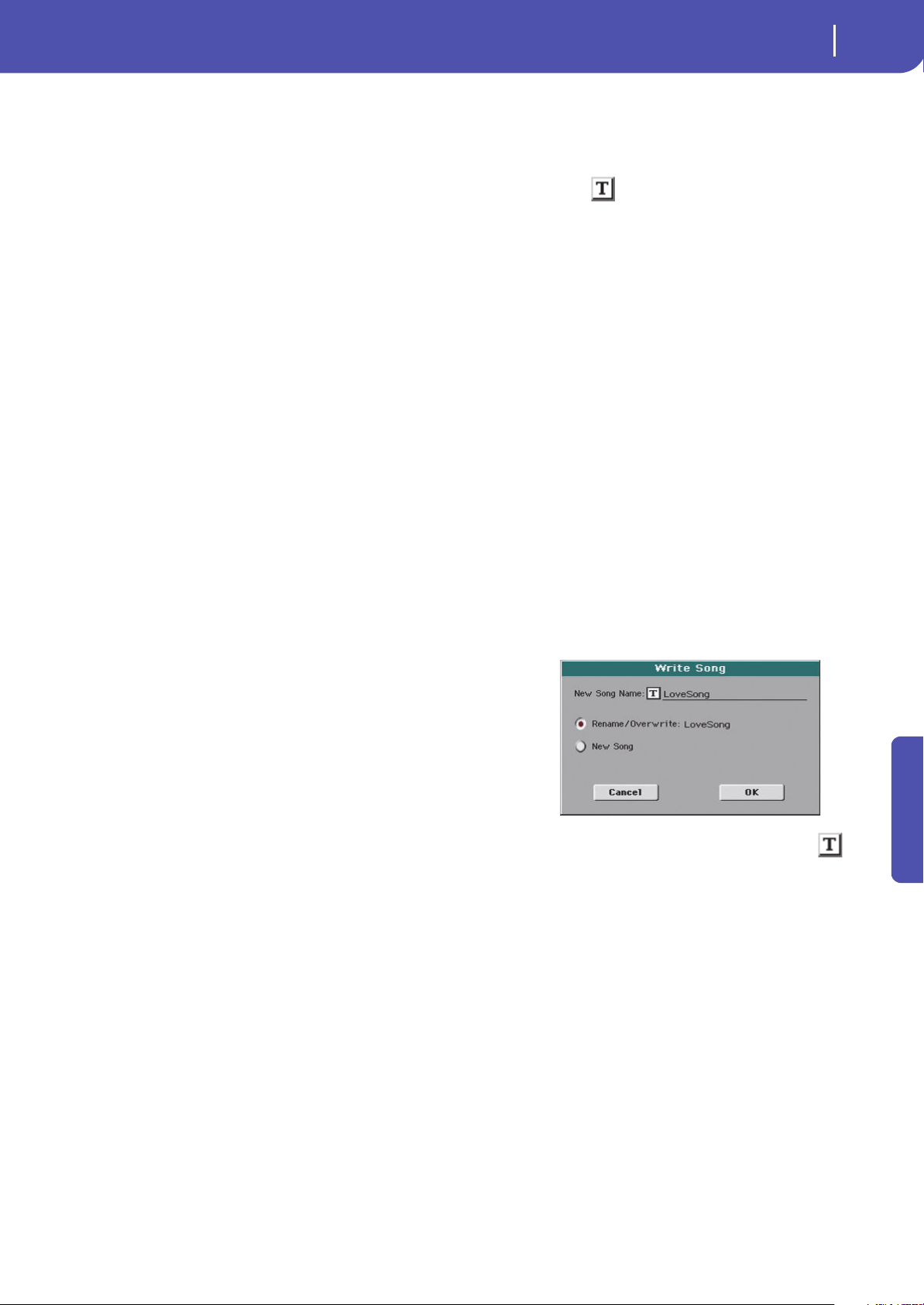
187
SongBook
Book Edit 1
Reference
Entry will no longer point to the right data. Be careful not to delete
or move a Style or a file associated with a SongBook Entry from
the original location.
Write Current
When checked, the currently selected musical resource (whose
type and name is shown on the right) is saved to the entry.
You can select a different resource by returning to the Style Play
or Song Play mode, and selecting a different Style or Song from
there. Then, press the SONGBOOK button to return to the Book
Edit 1 page.
What is saved when touching Write depends on the type of asso-
ciated resource:
• When you are saving a Style-based entry, a reference to the
latest selected Style, whose name is shown on the right of
this parameter, is saved.
A reference to the selected Pads (whose name you can see
by touching the Pad tab in the main page of the Style Play
mode) is also saved. Unless changed, Pads are contained
into the selected Style.
The Style Settings and the Pad Settings for the referenced
Style and Pads are saved. If you edited these Settings (by
changing Sounds, Effects, Transpose…), the modified data
will be saved instead of the original.
• When you are saving a Song-based entry, a reference to the
MID, KAR or MP3 file assigned to the Player, whose name
is shown on the right of this parameter, is saved.
A reference to the selected Pads (whose name you can see
by touching the Pad tab in the main page of the Song Play
mode) is also saved.
The Pad Settings for the referenced Pads are saved. If you
edited these Settings, the modified data will be saved
instead of the original.
When this parameter is left unchecked, no new resource will be
saved with the entry. The original resources associated with the
entry will be preserved when touching Write.
When touching New Song, or keeping the SONGBOOK button
pressed for about one second to create a new entry, this parame-
ter is automatically checked and cannot be modified. A reference
to the associated resource will be saved with the new entry.
STS
Write Current
When saving a SongBook Entry, and this parameter is checked,
you can save the STSs of the associated Style into the entry, or
the current Keyboard track settings into a new STS.
All STS All four STSs are saved to the current SongBook
Entry. The source STSs are those contained in the
Style currently selected in Style Play mode. If you
selected a Performance, its Keyboard track set-
tings will be saved as STS #1.
When you touch Write and choose the Rename/
Overwrite option, all STSs are overwritten at
once.
Single STS The current Keyboard track settings are saved to
the chosen SongBook STS.
When you touch Write and choose the Rename/
Overwrite option, only the new STS is overwrit-
ten, while the others are left untouched.
• STS Name: Name of the current STS. Touch the
(Text Edit) button to open the Text Edit win-
dow, and modify the name.
• To STS Location: One of the four STS available
for each entry, where you can save the current
Keyboard track settings.
Buttons
New Song
Touch this button to create a new entry with the current settings.
Settings are copied from the selected Style, Standard MIDI File
or MP3 file. Also, the selected Pads, STSs and Split Point will be
saved. The current Keyboard track settings will be saved as STS
#1. Any TXT file loaded in the Lyrics pages will be saved as a
linked file.
Del Song
Touch this button to delete the current entry.
Write
Touch this button to open the Write Song dialog box, and save
the current entry to the main list of the SongBook.
Note: The maximum number of entries in a SongBook file is 3,000
entries.
To assign a different name to the entry, touch the (Text
Edit) button to open the Text Edit window.
Select an option to add the new entry to the SongBook:
•Select Rename/Overwrite to overwrite an existing entry,
optionally changing its name. Wa r ni ng : The older entry will
be deleted!
•Select New Song to save a new entry to the SongBook database.
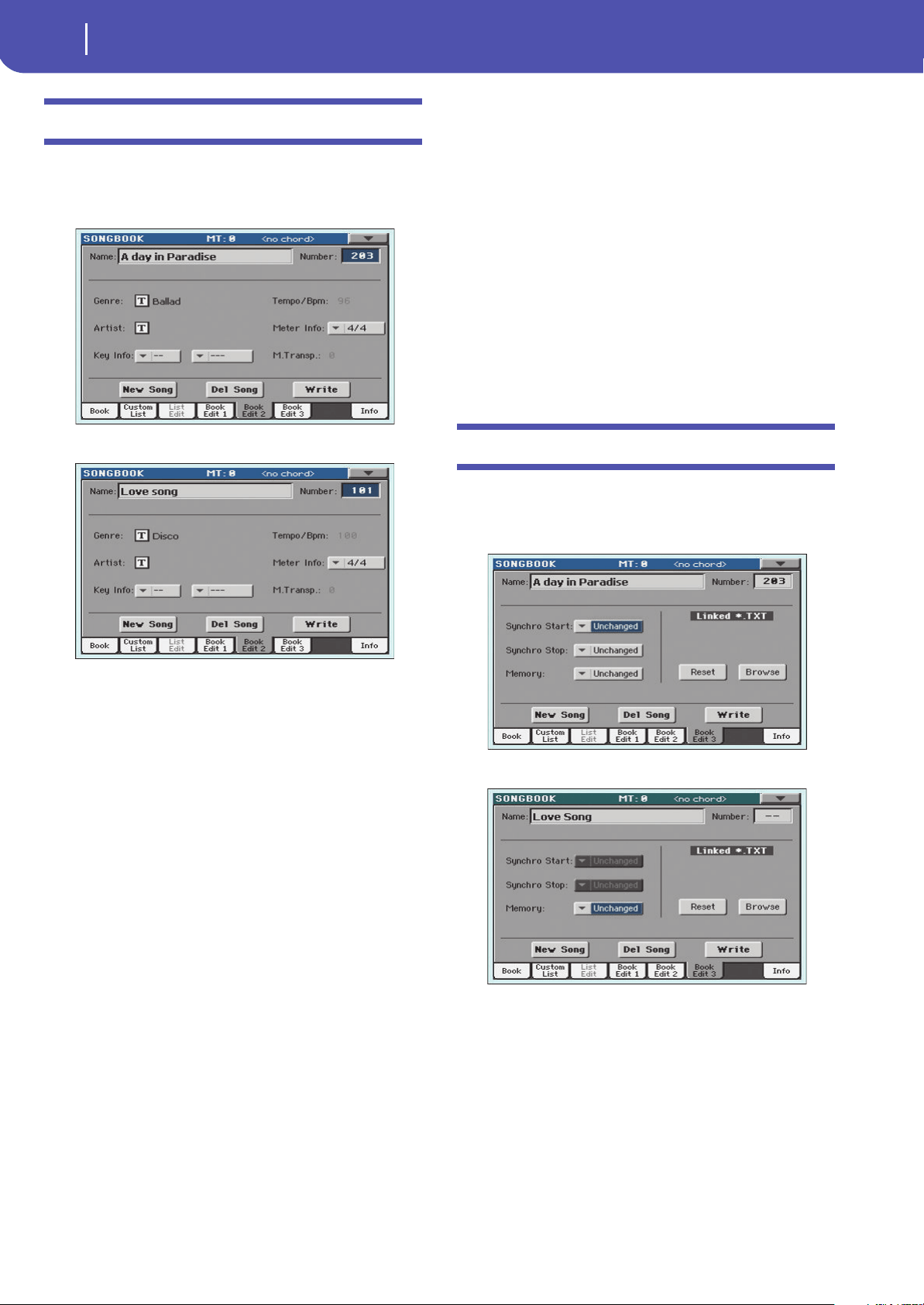
188
SongBook
Book Edit 2
Book Edit 2
The Book Edit 2 page is where you enter information on the
Genre, Artist, Key, etc. to the SongBook Entry.
The Book Edit 2 page with a Style-based entry:
The Book Edit 2 page with a Song-based entry:
Header
This area includes the same Name, Number and Entry Resource
fields found in the “Book Edit 1” page (see above).
Database
Genre
Music genre associated with the entry.
Artist
Name of the artist of the song associated with the entry.
Key Info
Original key of the entry. The first field is the key name, the sec-
ond one is the mode (major or minor).
Temp o/BPM
Basic tempo of the Style, or starting tempo of the Standard MIDI
File associated with the entry. This may change, if a Tempo
Change event is included with the associated resource.
You can change this value by using the TEMPO buttons on the
control panel. Any change will be shown after saving the Entry.
Note: The starting value of a Standard MIDI Files is always con-
sidered, and overrides this value.
Note: You can edit this value even if an MP3 is associated to the
SongBook Entry. However, this is just an indicative value.
Meter Info
Basic meter (time signature) of the Style, or starting meter of the
Standard MIDI File associated with the entry. This may change,
if a Meter Change event is included with the associated resource.
M.Transp. (Master Transpose)
Master Transpose. When the entry is selected, the Master Trans-
pose of the whole instrument is automatically changed. The
Master Transpose value saved in the SongBook Entry overrides
any Master Transpose setting contained in the referenced Song.
You can change this value by using the TRANSPOSE buttons on
the control panel. Any change will be shown after saving the
Entry.
Note: If the Master Transpose is locked (Global > General Controls
> Lock), the Master Transpose will not change.
Book Edit 3
This page is where you select the Synchro and Memory options
to be memorized, link a “.TXT” file.
The Book Edit 3 page with a Style-based entry:
The Book Edit 3 page with a Song-based entry:
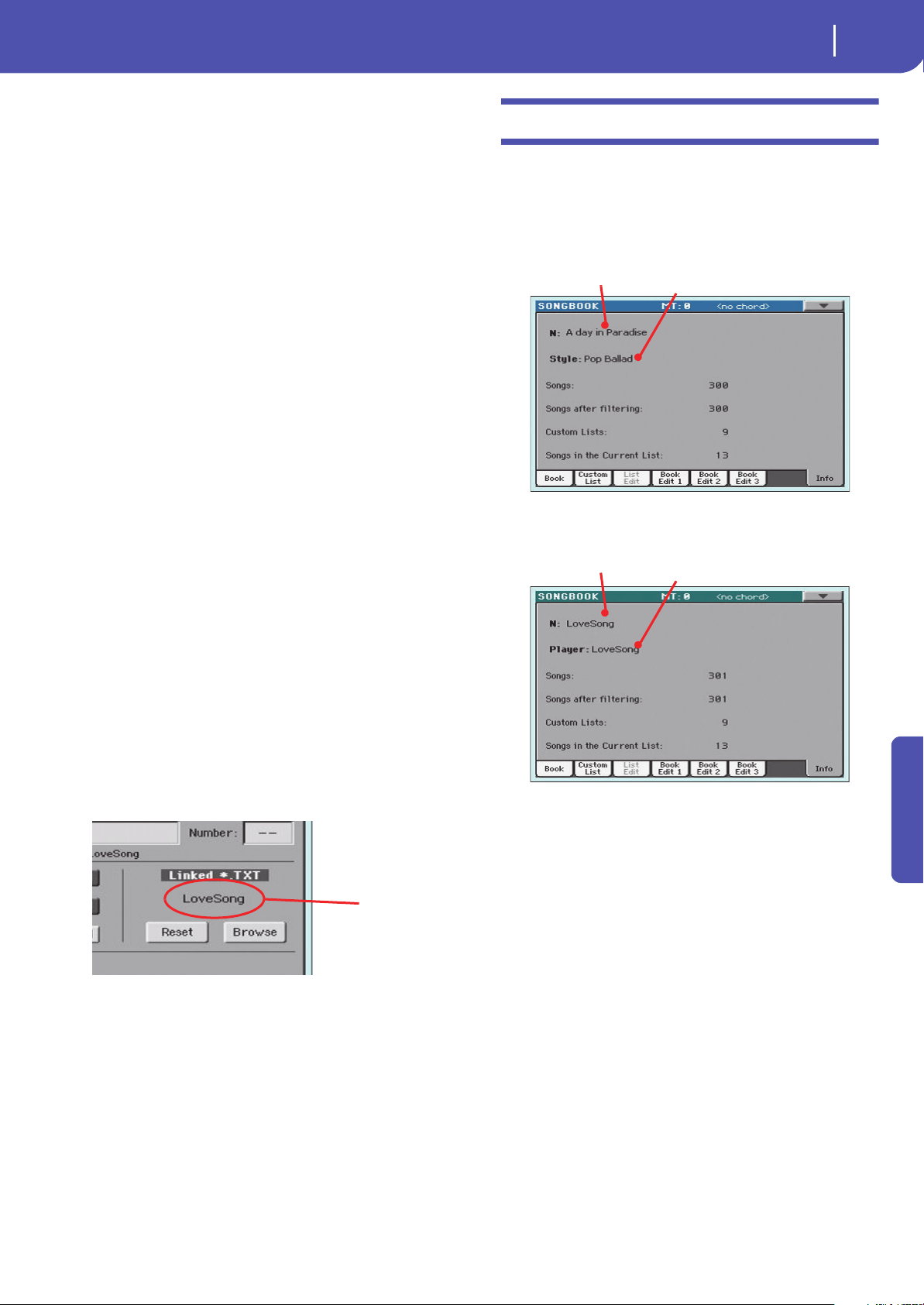
189
SongBook
Info
Reference
Synchro Start / Synchro Stop / Memory
The status of these functions can be memorized in a SongBook
Entry.
Note: If the SongBook Entry is based on a Song, Synchro Start and
Synchro Stop are greyed out and cannot be modified, since they
have no effect on a Song.
Unchanged When selecting this SongBook Entry, the status
of the corresponding function is left unchanged.
Off When selecting this SongBook Entry, the status
of the corresponding function is turned off.
On When selecting this SongBook Entry, the status
of the corresponding function is turned on.
Linked .TXT
You can select a text (.TXT) file, and link it to the Style or Song
associated with the current SongBook Entry. When you select
this entry, the text file will be automatically loaded.
Text files can be seen on the display. Since there is no automatic
synchronization between this kind of lyrics and the associated
songs, you must scroll them manually. This can be accomplished
in either of two ways:
• When a “.TXT” file is selected, a special vertical scrollbar
appears in the “Lyrics” page. Touch it to scroll through the
text during the performance. See the “Lyrics, Score” chapter
on page 191.
• Scrolling is also possible by means of the Text Page Down/
Up command, that can be assigned to the footswitch.
This section of the Book Edit 3 page contains two buttons:
Reset Touch this buttons to unlink the text file from the
entry.
Browse Touch this button to open a standard File Selec-
tor, and select a “.TXT” file to be linked to the
current SongBook Entry.
After selection, the name of the linked text file
appears above the two buttons.
Info
Use the Info page to see the name of the selected entry, the asso-
ciated resource(s), the total number of Songs in the SongBook,
the number of filtered entries, the number of available Custom
Lists, and the number of Songs in the current list.
• In case of an entry based on a Style:
• In case of an entry based on a Song in Standard MIDI File
or MP3 format:
Selected entry
This parameter shows the currently selected entry. If it is blank
(---), the latest selected entry has been modified, or no entry has
been selected.
Associated resource
Style, Standard MIDI File or MP3 file associated to the selected
entry.
Songs
Total number of entries in the SongBook list.
Songs after filtering
This parameter shows the number of entries shown in the
“Book” page, after applying the selected filter. If no filter is
selected, this matches the total number of entries in the Song-
Book list (see previous parameter).
Custom Lists
This parameter shows the number of available Custom Lists.
Songs in the Current List
Number of entries in the selected Custom List.
Linked text file
Selected entry
Associated resource
Selected entry
Associated resource
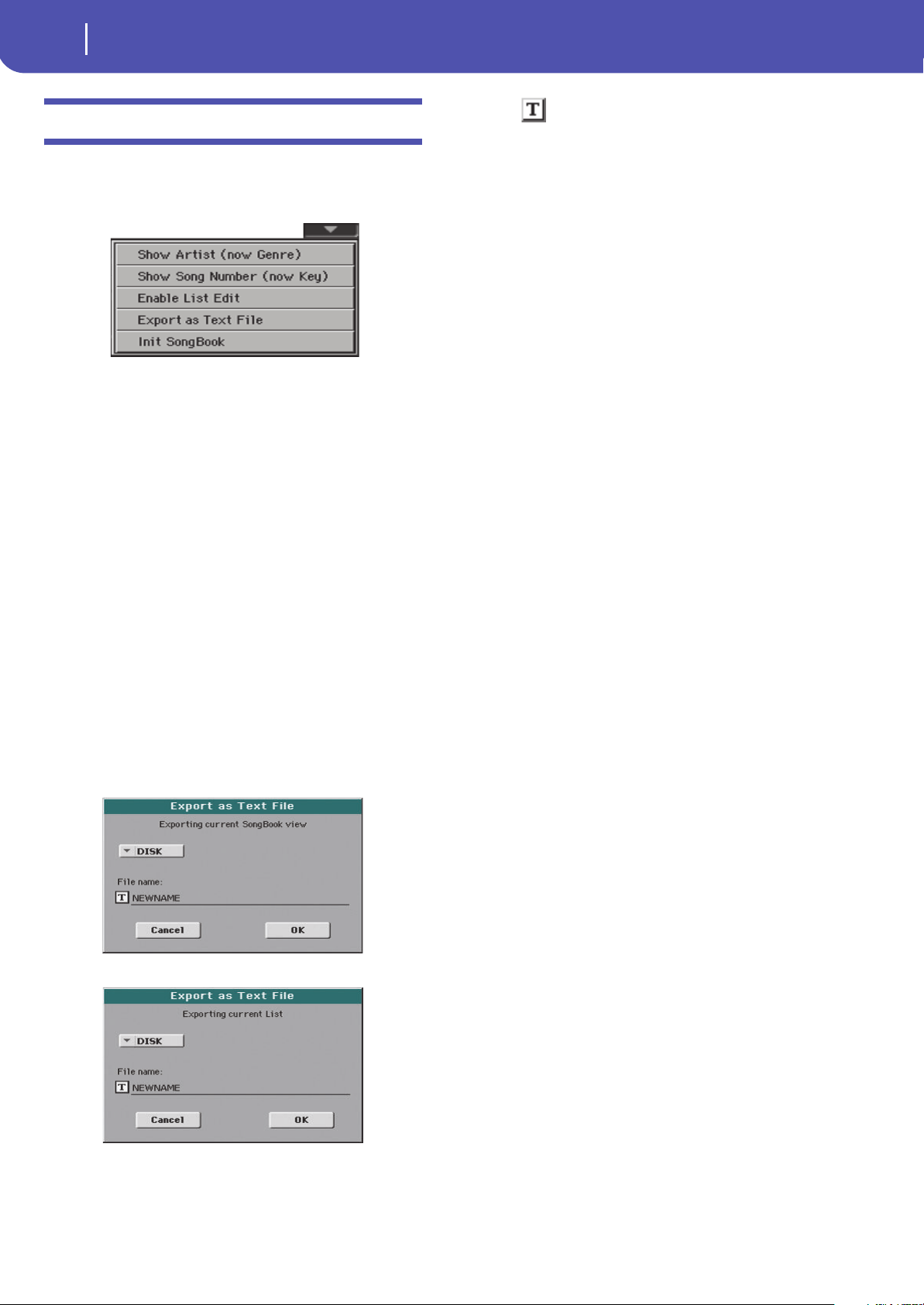
190
SongBook
Page menu
Page menu
Touch the page menu icon to open the menu. Touch a command
to select it. Touch anywhere in the display to close the menu
without selecting a command.
Show Artist/Genre
Select this command to toggle between the Artist and Genre col-
umn on the SongBook list, appearing in the “Book” and “Cus-
tom List” pages.
Show Number/Key
Select this command to toggle between the Number and Key col-
umn on the SongBook list, appearing in the “Book” and “Cus-
tom List” pages.
Enable List Edit
Select this command, and make the checkmark appear, to make
the List Edit page available.
Export as text file
Only available when the Book or Custom List pages are selected. Select
this command to open the Export dialog box, and save the Song-
Book or Custom List as a text file. The selected filtering will be
applied to the exported list, assuming the Filter button is checked.
The dialog box is a little different, depending on the page where
you selected this command.
•Selected from the “Book” page:
• Selected from the “Custom List” page:
Touch the (Text Edit) button to open the Text Edit window
and assign a name to the text file to be saved to a storage device.
Then, select either the internal storage memory to save the file.
•Touch OK to confirm.
Init SongBook
Select this command to erase the SongBook list and start with a
new, blank list.
War ni ng : Before initializing the SongBook list, save the older one
with one of the Media > Save operations.
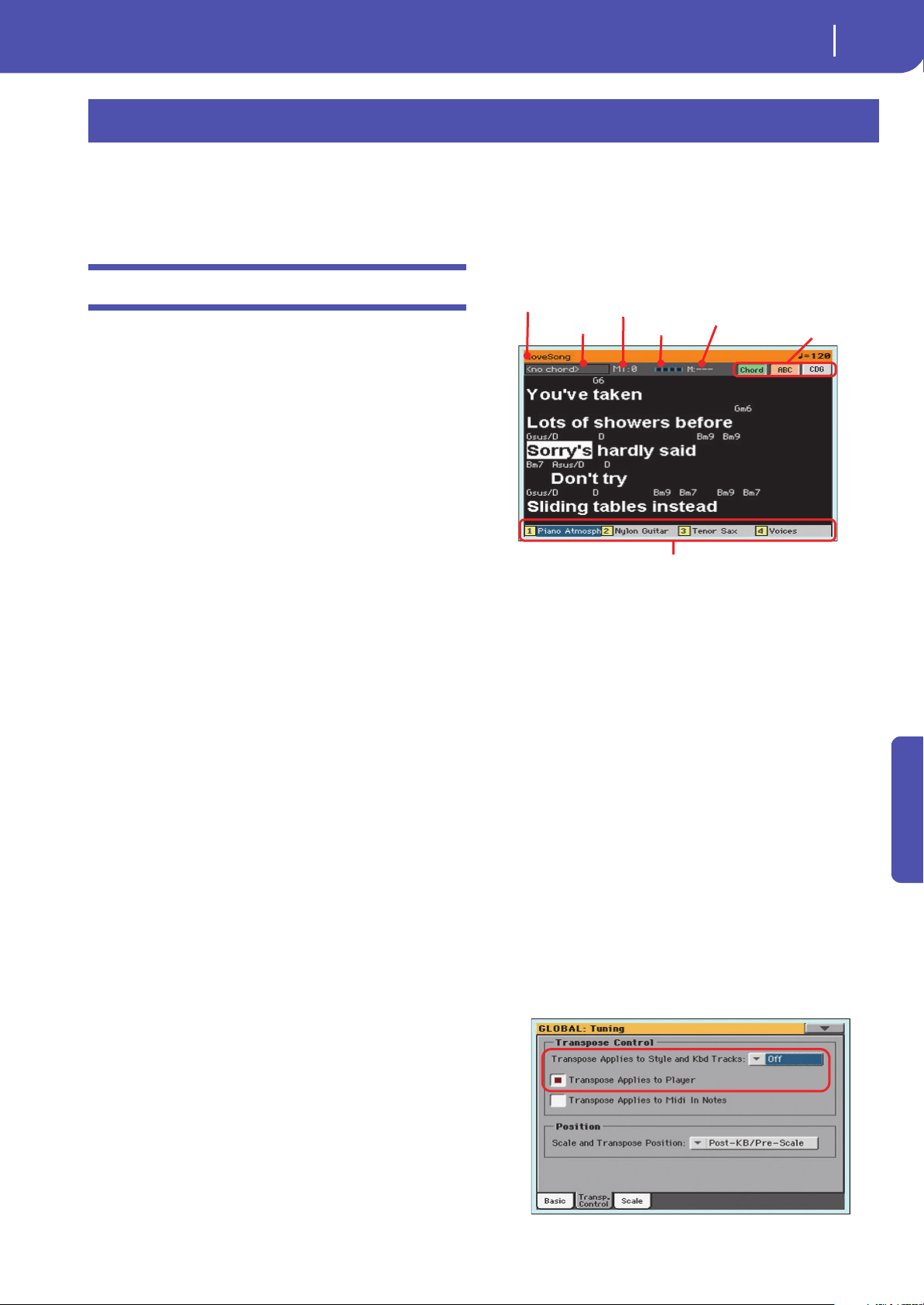
191
Lyrics, Score
Lyrics page
Reference
By pressing the LYRICS/SCORE button a first time, you can see
the song’s lyrics in Style Play mode, lyrics and chord abbrevia-
tions in the Style Play and Song Play modes. By pressing it a sec-
ond time, you can see a traditional score in the Song Play mode.
Lyrics page
Open the Lyrics page by pressing the LYRICS/SCORE button
once. This page shows the lyrics in Style Play mode, lyrics and
chord abbreviations in the Song Play mode.
Viewing lyrics and chords with Songs
You can see the following types of lyrics and chords:
• Lyrics contained in a Standard MIDI File or Karaoke™ file
as Lyrics events, or in an MP3 file with Lyrics (in ID3 for-
mat – see
www.id3.org).
• Lyrics contained in a “.CDG” file, loaded with an MP3 file
with the same name. When a “.CDG” file exists in the same
directory as an MP3 file, and shares exactly the same name,
it will be loaded with the “MP3” file.
• Lyrics contained in a “.TXT” file, loaded with a Standard
MIDI File, Karaoke or MP3 file with the same name. When
a “.TXT” file exists in the same directory as a Standard
MIDI File or MP3 file, and shares exactly the same name, it
is loaded with the “.MID” or “MP3” file (see “Text files
loaded with Standard MIDI Files and MP3 files” on
page 192).
• Lyrics contained in a “.TXT” file linked to the latest-
selected SongBook Entry (see “Linked .TXT” on page 189).
• When no lyrics data is contained in the Song, or linked to a
SongBook Entry, you can see lyrics contained in a “.TXT”
file loaded at any time after selecting a Song (see “On-the-
fly TXT loading” below).
This is the priority of lyrics data shown in the display:
i) CDG file contained in the same folder as the MP3 file, over-
riding…
ii) TXT file linked to a SongBook Entry, overriding…
iii) TXT file contained in the same folder as the Standard
MIDI File or MP3 file, recalled by a SongBook Entry, over-
riding…
iv) Lyrics events contained in the Standard MIDI File or MP3 file.
Hint: If you do not want to see the TXT file or the CDG file, and
prefer to see the Lyrics data, rename or delete the TXT or CDG file,
or move it to a different folder.
Viewing lyrics with the Styles
Lyrics can be associated to a Style as a “.TXT” file. When in this
page, you can see:
• Lyrics contained in a “.TXT” file linked to the latest-selected
Style-based SongBook Entry (see “Linked .TXT” on page 189).
• Lyrics contained in a “.TXT” file loaded after selecting a Style
(see “On-the-fly TXT loading” below).
The Lyrics page in detail
Lyrics will be shown only if they are compatible with a standard
format that Pa300 can understand.
While the Song is playing, Lyrics contained in a Standard MIDI
File or MP3 file scroll in the display. Chord abbreviations (if any)
will appear above the lyrics, in time with the music (depending
on the status of the “Chord” button). Lyrics at the current posi-
tion are highlighted.
If the text has been loaded as a “.TXT’ file, it will not scroll auto-
matically while the Song is playing back. You must scroll it with
the VALUE DIAL or the vertical scrollbar. As an alternative, you
can use the footswitch, with the Text Page Up or Text Page Down
functions assigned, to scroll (respectively) to the previous or
next text page.
To exit from this page, either press the LYRICS/SCORE button
two times, or press the EXIT button.
Song chords
Chords contained in the Standard MIDI File (if any). This indi-
cator may be easier to read than chords shown within the lyrics.
When changing the Master Transpose, chord abbreviations con-
tained in a Standard MIDI File are transposed, and correctly
shown in the display. Master Transpose must be activated on the
Player, but not on the Keyboard (this can be done in the Global >
Tuning > Transp os e C ontrol page).
Lyrics, Score
Song chords
Current beat
Current measure
Master Transpose
STS
Display option
Song name
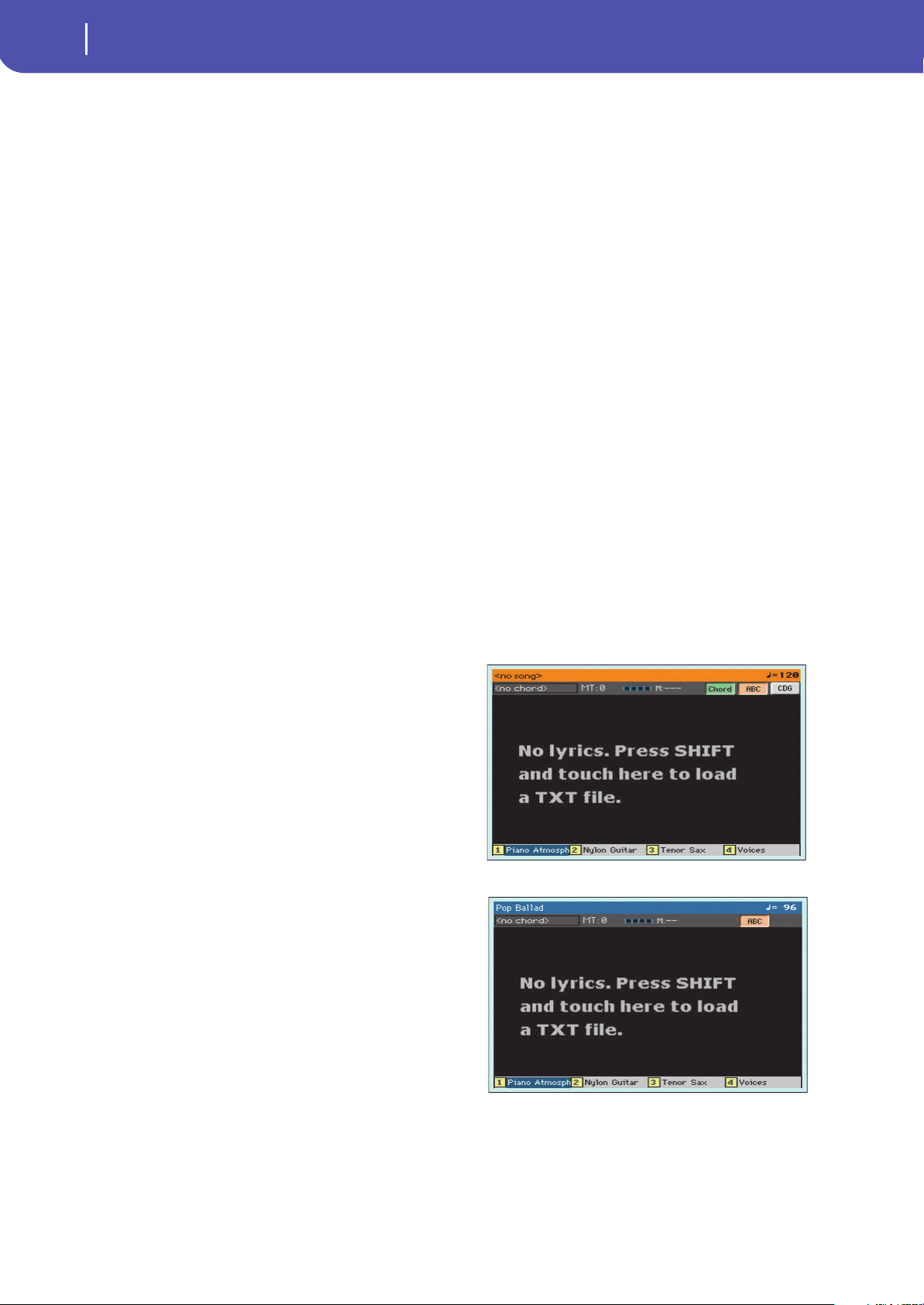
192
Lyrics, Score
Lyrics page
Master Transpose
Master transpose value in semitones. This value can be changed
using the TRANSPOSE buttons on the control panel.
Current beat
Standard MIDI Files only. Currently playing beat.
Current measure
Standard MIDI Files only. Current measure number.
STS
Name of the four selected Single Touch Settings (STS). Touch
one of them to select it.
Chord
If this button is depressed, chords are shown above lyrics in the
display – provided the Standard MIDI File contains them.
ABC
Size of the fonts. You can choose between a smaller and a bigger
font.
CGD
Touch this button to show the lyrics contained in the associated
CDG file.
Text in MP3+CGD files
When a “.CDG” file with the same name exists in the same direc-
tory as an MP3 file, it will be loaded with the “MP3” file, and can
be seen in the Lyrics page.
As an example, if the file “MYSONG.CDG” exists in the same
directory as the “MYSONG.MP3” file, it is loaded together with
the matching “.MP3” file.
Text will scroll automatically while the Song is playing back.
Note: When a “.CDG” file is loaded with the Song, it overrides any
included Lyrics data.
Text files loaded with Standard MIDI Files and
MP3 files
When a “.TXT” file with the same name exists in the same direc-
tory as a Standard MIDI File or MP3 file, it will be loaded with
the “.MID” or “MP3” file, and can be seen in the Lyrics page.
As an example, if the file “MYSONG.TXT” exists in the same
directory as the “MYSONG.MID” or “MYSONG.MP3” file, it is
loaded together with the matching “.MID” or “.MP3” file.
However, unlike ordinary Lyrics, the text will not scroll automat-
ically while the Song is playing back. You must scroll it with the
scrollbar or the VALUE DIAL. As an alternative, you can use the
footswitch, with the Text Page Up or Text Page Down functions
assigned, to scroll (respectively) to the previous or next text
page. You can also mix between advancing with the pedal and
going back with the scrollbar.
Text files must be formatted with non-proportional fonts (like
Courier, Courier New, Monaco, or any other “monospaced”
font). Up to 24 characters can fit a single line of text when using
the bigger font size, 41 when using the smaller font size (see
“A B C ” a b ov e ) .
Note: When a “.TXT” file is loaded with the Song, it overrides any
included Lyrics data.
On-the-fly TXT loading
When a Song does not contain any Lyrics metadata or isn’t
linked to any “.TXT” file, the “No lyrics. Press SHIFT and touch
here to load a TXT file” message appears in the display when you
press the LYRICS button.
The same happens while in Style Play mode.
When this message appears, and you want to load a “.TXT” file,
keep the SHIFT button pressed and touch the center of the dis-
play. A standard file selector will appear, and will let you look for
a “.TXT” file to be loaded.
Hint: You can use the Search function to search a “.TXT” file in the
various storage devices. See the relevant chapter.
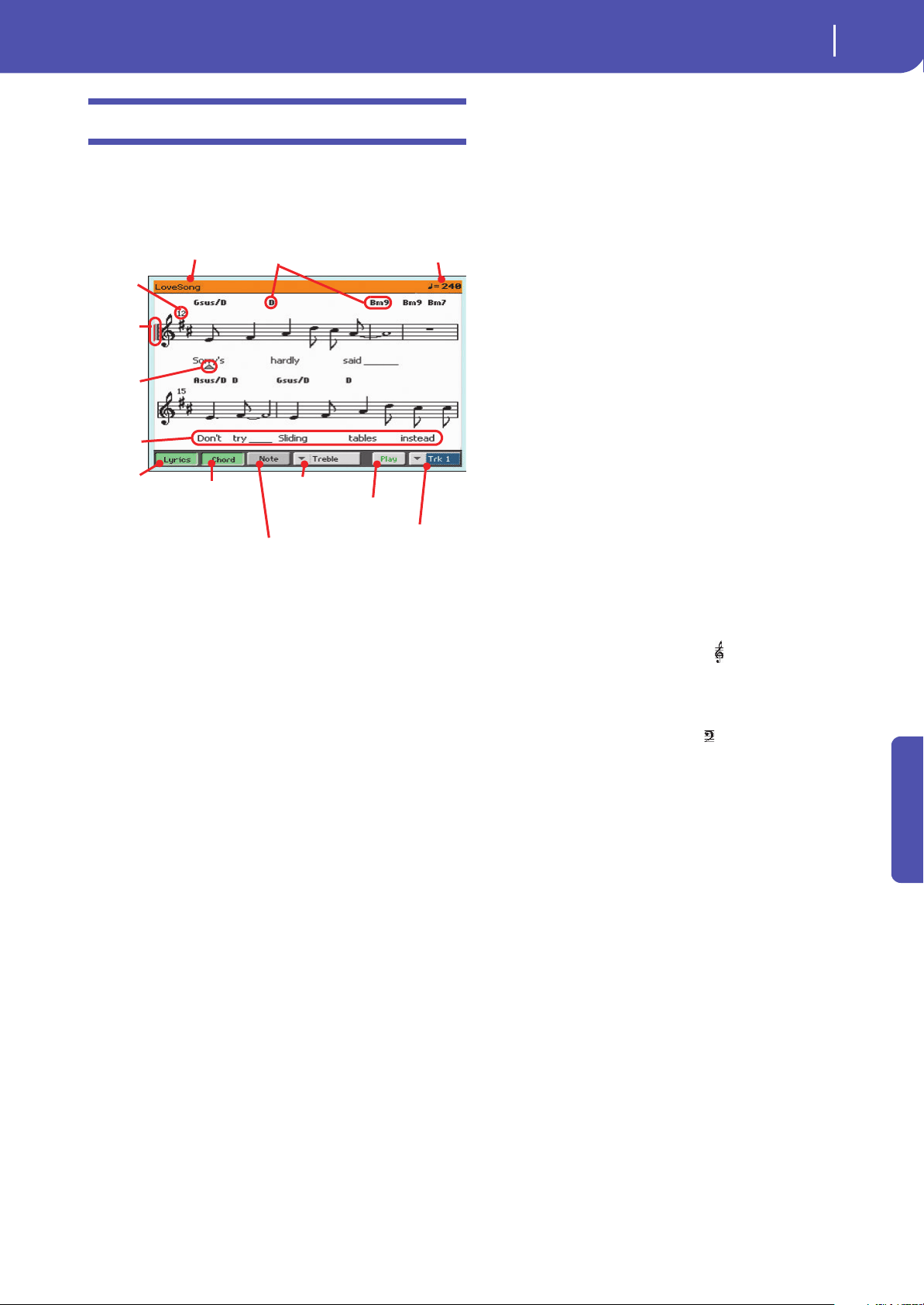
193
Lyrics, Score
Score page
Reference
Score page
When you are in Song Play mode, and you are playing a Stan-
dard MIDI File, you can open the Score page by pressing the
LYRICS/SCORE button a second time.
To exit from this page, press either the LYRICS/SCORE or the
EXIT button.
Note: Master or Track Transpose do not affect the Score display.
Song title
Name of the Song.
Tempo
Current Tempo of the Song (in BPM, Beats Per Minute).
Staff
The selected track is shown as traditional music notation.
Depending on the content of the track, either notes or chords are
shown. Pa300 takes care for you of ‘cleaning-up’ the score, so that
it is always easy to read.
Several automatic operations are carried on to clean-up the
score: Pa300 automatically quantizes to 1/16 notes, detects trip-
lets, avoids note overlaps, correctly notates syncopation, and
draws beams according to the time signature. In addition, spac-
ing and measure length are dynamic, and single, double and end
measure bars are automatically added.
If a KeySign (Key Signature) event is found at position
‘001.01.000’ of the Song’s Master track, the correct key signature
is also shown.
Currently selected staff marker
This red vertical line shows the approximate position of the play-
back, by indicating the current staff in play.
Current measure indicator
This red triangle shows the current measure in play.
Lyrics button
Touch this button to make the lyrics (if available) appear or dis-
appear.
Chord button
Touch this button to make the chord symbols (if available)
appear or disappear. Chords are shown either according to the
English (“A-B-C”) or Italian (“Do-Re-Mi”) system, depending
on the selected language (see “General Controls: Interface” on
page 148).
Note button
Touch this button to make the note name appear or disappear
next to each note. Note names are shown either according to the
English (“A-B-C”) or Italian (“Do-Re-Mi”) system, depending
on the selected language (see “General Controls: Interface” on
page 148).
Clef
Touch here to open a pop-up menu, where to choose a clef from.
Available clefs are:
Treble Standard Treble clef ( ).
Treble+8 Treble clef with transposition one octave upper.
Treble-8 Treble clef with transposition one octave lower.
Bass Standard Bass clef ( ).
Bass-8 Bass clef with transposition one octave lower.
Play/Mute
Use this button to let the selected track play, or to mute it. If the
track is muted, the score is still shown, so that you can play or
sing it.
Hint: The “Melody Mute” function, that can be assigned to the
footswitch, allows for muting the melody track of a Song (default:
Track 4, see “SMF Melody Track” on page 153). If your song has
the melody part assigned to the same track, you can mute or
unmute it by using the footswitch.
Selected track
Touch here to open a pop-up menu where to chose the track to
be shown from.
Hint: The backing vocals are often assigned to Track 5.
Song title Tempo
Currently
selected
staff (in
red)
Current
measure
indicator
Touc h
here to
turn lyrics
on/off
Touch here to turn
chord symbols on/
off
Touch here to turn note
names on/off
Selected track
Play/Mute
Clef
Chord symbols
Lyrics
Measure
number
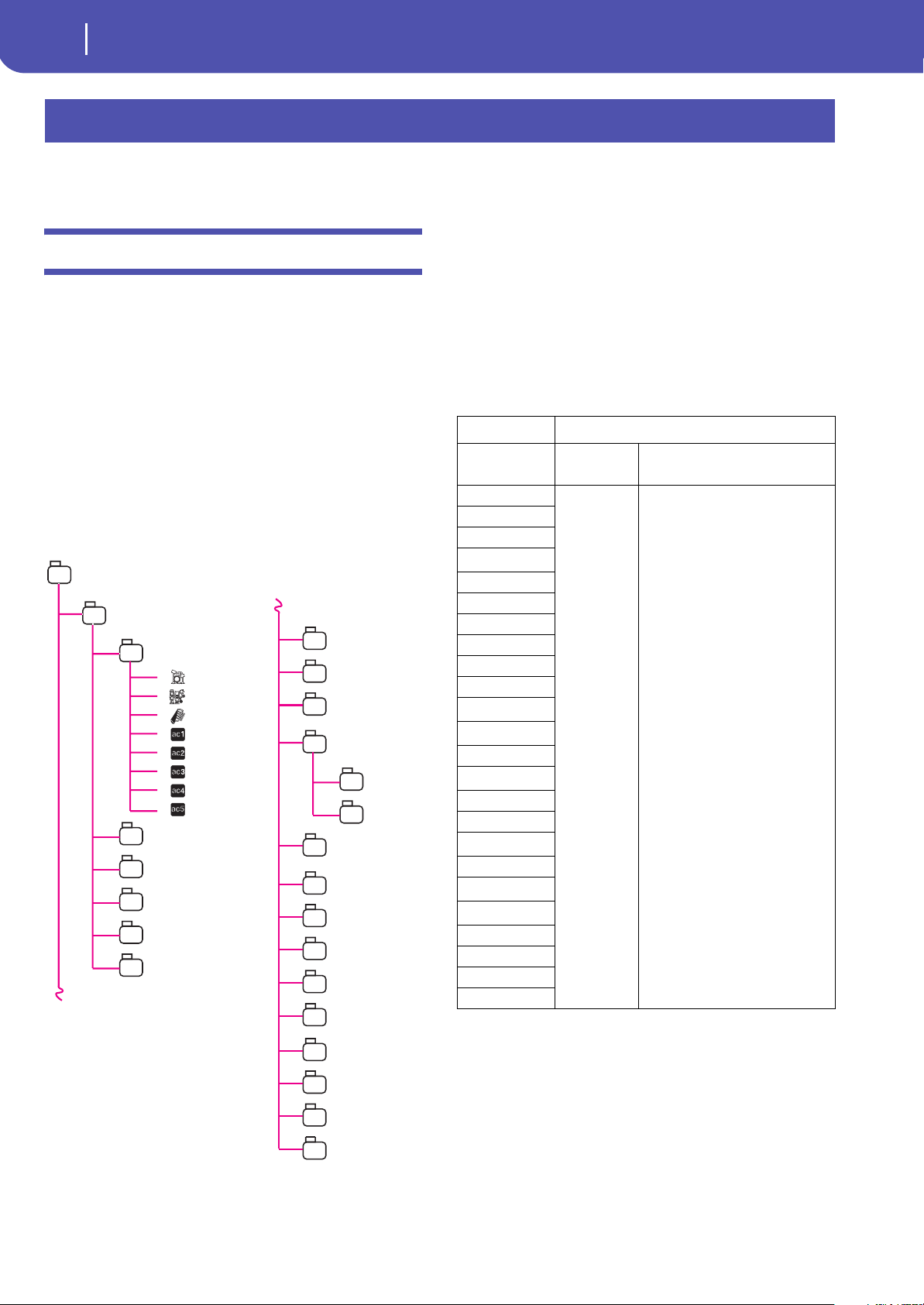
194
Style/Pad Record
Recording Styles and Pads
By entering the Style/Pad Record mode, you can create your own
Styles or Pads, or edit an existing Style or Pad.
Recording Styles and Pads
Styles and Pads share most of the same structure and recording/
editing operations. Here is how they are made.
The Style’s structure
The term “Style” relates with music sequences automatically
played by the arranger of the Pa300. A Style consists of a pre-
defined number of Style Elements (E) (Pa300 features fifteen
different Style Elements: Variation 1-4, Intro 1-3, Fill 1-4, Break,
Ending 1-3). When playing, most of these Style Elements can be
directly selected by using the corresponding buttons on the con-
trol panel.
To explain the Style structure, we can use a tree structure, as
shown in the following diagram:
Each Style Element is made up of smaller units, called Chord
Variations (CV), but not all of them have the same number of
CVs. Variations 1-4 have up to 6 CVs each, while the other Style
Elements have only up to 2 CVs.
When you play in the chord recognition area (Lower or Full,
depending on the On or Off status of the SPLIT button), the
arranger scans the keyboard and determines which chord you
are playing. Then, depending on the selected Style Element, it
determines which Chord Variation (CV) should be played for
the scanned chord. Which Chord Variation corresponds to each
scanned chord is a setting of the Style: the Chord Variation
Table. Each Style Element contains a Chord Variation Table,
whose prototype is the following:
After deciding what CV to play, the arranger triggers the right
sequence for each track. Since each sequence is written in a par-
ticular key (for example, CMajor, GMajor or Emin), the arranger
transposes it according to the scanned chord. Notes in the
sequence are carefully transposed, to make them work fine with
all recognized chords.
Going deeper into the Style structure, we can see that each
Chord Variation is made up of Track Sequences, and the Pa300
supports 8 different tracks. DRUM and PERC are used for drum
and percussion sequences, BASS for bass and ACC1-5 are for
Style/Pad Record
P op Balla d
Va ri ation 1
CV1
Dr um
P erc
Bass
Acc1
Acc2
Acc3
Acc4
Acc5
CV2
CV3
CV4
CV5
CV6
Va ri ation 2
Va ri ation 3
Va ri ation 4
Intro1
CV1
CV2
Intro 2
Intro 3/C.In
Fill 1
Fill 2
Break
Fill 3
Fill 4
Ending 1
Ending 2
Ending 3
Chord Chord Variations (CVs)
Variation 1-4
Intro 1-2, Count-In, Fill 1-4, Break,
Ending 1-3
Major
CV1 – CV6 CV1 – CV2
6
M7
M7
(b5)
sus
sus2
M7sus
m
m6
m7
m7
(b5)
m(
(M7)
7
7
(b5)
7sus4
dim
dim
(M7)
#5
7
(#5)
M7
(#5)
1+5
1+8
b5
dim7
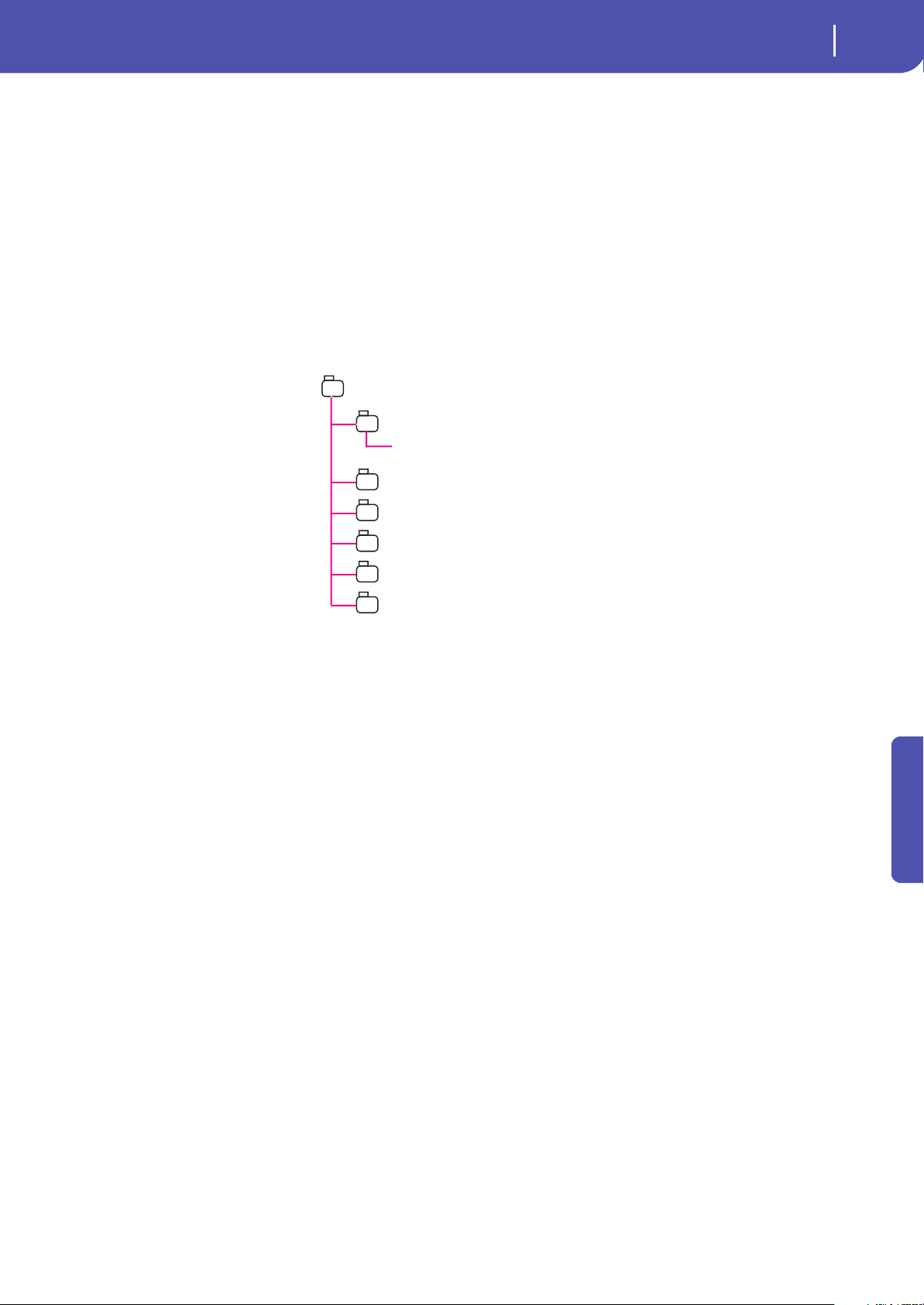
195
Style/Pad Record
Recording Styles and Pads
Reference
accompaniment sequences (string, guitar, piano or other accom-
paniment instruments).
Just to summarize, when you play a chord on the chord recogni-
tion area, the arranger determines which Style Element is used,
then determines which Chord Variation should be used for the
played chord, then Style sequences for every track of that Chord
Variation are transposed from the original chord to the recog-
nized chord, and so on every time you play a chord.
The Pad’s structure
A Pad is basically a single-track Style. Most of what applies to
Style recording also applies to Pad recording.
There are two different categories of Pads:
•“Hit” Pads. While they are
mostly used as non-transpos-
ing events, they can also be
transposing notes or chords.
Basically, they are single-note
or single-chord Sequences
(see below).
• “Sequence” Pads, i.e., complex
single-track patterns, that can
be transposed by playing dif-
ferent chords on the keyboard
– exactly as a Style track. They
are roughly equivalent to sin-
gle-element, single-track,
multi-chord variation Styles
(see illustration).
Each Pad is made up of up to six smaller units, called Chord
Vari ations (CV ). Each Chord Variation is made of a single track
(the Pad track).
Exactly as with the Styles, when playing a chord in the chord rec-
ognition area, the corresponding Chord Variation is recalled.
Recognized chords are associated to a Chord Variation by means
of the Chord Variation Table. Each Pad contains a Chord Varia-
tion Table.
As with the Styles, the Note Transposition Tables (NTT) applies
to the Pads.
The same differences between the different types of tracks
applies (see “Track Type” on page 219).
Ordinary, Guitar and Drum tracks
There are different types of tracks (see “Track Type” on
page 220), and each of them is treated in a different way by the
arranger;
• Acc (Accompaniment) and Bass tracks: When a chord is
recognized, the programmed chord notes are transposed to
a suitable scale, according to the Note Transposition
Tables (NTT) The NTT allows you to record just some
Chord Variations, and have all the notes play in the right
place, avoiding dissonances and transposing the pattern
notes to the notes of the recognized chord.
• Drum & and Perc (Percussion) tracks: No transposition is
applied.The original pattern plays always.
• Gtr (Guitar) tracks: When a chord is recognized, the
arranger triggers single notes, strumming and arpeggios on
a “virtual guitar”, keeping care of the way notes are played
on the guitar keyboard. Note that inside a Guitar track you
can also have some parts typical of an Acc track - a useful
addition for short “free-form” passages.
What to record in a Style
Recording a Style means recording tracks, inside a series of
Chord Variations, inside a series of Style Elements, inside the
Style itself.
You don’t have to record all Chord Variations for all Style Ele-
ments. It is often only needed to record a single Chord Variation
for each Style Element. Exceptions are the Intro 1 and Ending 1,
where we suggest to record both a Major and minor Chord Vari-
ations.
What to record in a Pad
Recording a Pad is a matter of recording a single track, inside a
series of Chord Variations, inside the Pad itself.
You don’t need to record all Chord Variations. It is often only
needed to record just a Chord Variation.
Pattern data vs. track data
While the Style/Pad Record mode is where you can create or edit
the music patterns, track parameters (like Volume, Pan, Octave
Transpose, FX settings…) are to be edited in Style Play mode.
• After having created or edited music patterns in Style/Pad
Record mode, save them by selecting the “Write Style” or
“Write Pad” command from the page menu of the Style
Record mode (see “Write Style/Pad dialog box” on
page 226).
• After having edited track parameters in Style Play mode,
save them to the Style Settings by selecting the “Write Cur-
rent Style Settings” command from the page menu of the
Style Play mode (see “Write Current Style Settings dialog
box” on page 109).
Sounds
There are two ways of assigning Sounds to the Style tracks.
• While in Style Record mode you can assign different
Sounds to each Style Element in the “Style Element Track
Controls: Sound/Expression” page (see “Sounds area” on
page 201). You can assign a Sound to the Pad in the same
page of the Pad Record mode.
• While in Style Play mode, you can assign a single Sound to
the Style Settings (together with the other track parame-
ters), that remains the same for all Style Elements.
Which Sounds are used by the Style tracks depends on the status
of the “Original Style Sounds” parameter (see page 92).
Note: When assigning a Sound in Style Play mode, the “Original
Style Sounds” parameter is automatically turned off.
Pad
CV1
Pad Track
CV2
CV3
CV4
CV5
CV6
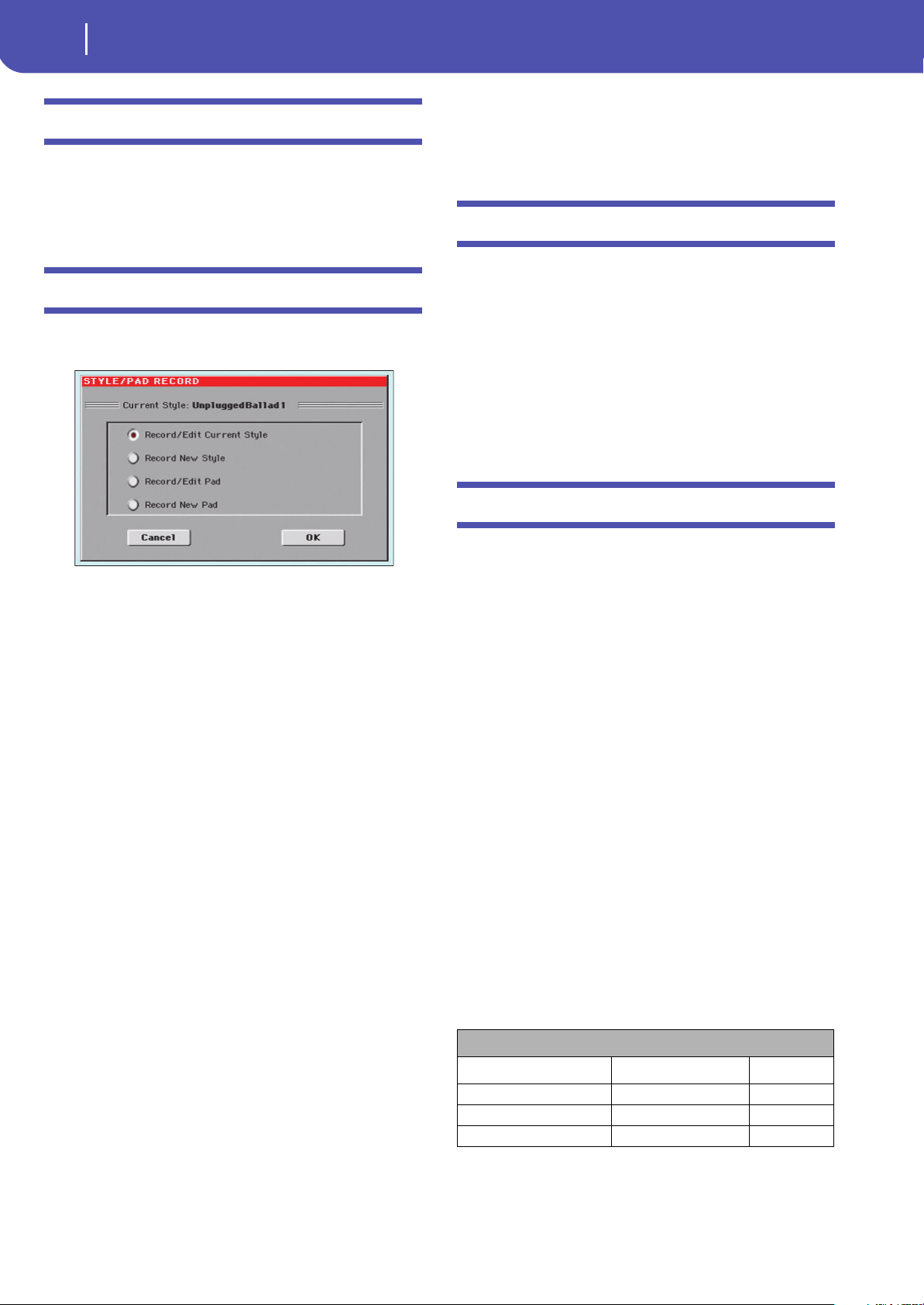
196
Style/Pad Record
Style/Pad Import/Export
Style/Pad Import/Export
As an alternative to creating Styles on Pa300, you can import a
Standard MIDI Files (SMF) from your computer to a Pa300’s
Style. See “Import: Import SMF” on page 221 and “Export SMF”
on page 224.
Entering the Style/Pad Record mode
While in the Style Play operating mode, press the RECORD but-
ton. The following page will appear in the display:
You can edit Factory Styles or Pads, assuming the status of the
“Factory Style and Pad Protect” parameter in the Global > Mode
Preferences > Media page is set to Off (see page 154)
•Select Record/Edit Current Style to edit the current Style.
•Select Record New Style to start from a new, empty Style.
Default Style Settings will be recalled. When finished
recording, you will save the new Style onto a Favorite or
User Style location. (Styles may also be saved onto Factory
Style locations only when the “Factory Style and Pad Pro-
tect” parameter is set to Off).
•Select Record/Edit Pad to select an existing Pad to edit.
•Select Record New Pad to start from a new, empty Pad.
When finished recording, you will save the new Pad into a
User Pad location. (Pads can be saved into Factory Pad
locations only when the “Factory Style and Pad Protect”
parameter is set to Off).
After having edited the Style or Pad, please save it (see “Exit by
saving or deleting changes” below) and exit the Style/Pad Record
mode.
Then, edit the Style or Pad track settings.
• With a Style: Go to the Style Play mode, edit the Style Settings
to adjust track settings (Tempo, Volume, Pan, FX Send… see
page 95 and following in the “Style Play” chapter) and save it by
selecting the “Write Current Style Settings” from the page menu
(see “Write Current Style Settings dialog box” on page 109).
• With a Pad: Go to the Pad page of the Style Play or Song Play
mode, assign the new Hit or Sequence to a Pad button, and
adjust the various Pad settings (Volume, Pan, and FX Send… see
“Pads: Pad” on page 106). Finally, save the Pad settings by select-
ing the “Write Current Style Settings” command from the page
menu.
Note: After a record or edit operation, the memory is automati-
cally reorganized. Therefore, when you press START/STOP there is
a delay before you can actually listen to the Style. This delay is
higher with a Style containing more MIDI events.
Note: While in Record mode, the footswitch is disabled. On the
contrary, volume/expression-type pedals can be used.
Exit by saving or deleting changes
When finished editing, you can save your Style or Pad in mem-
ory, or abort any change.
• To save changes, select the “Write Style/Pad” command from
the page menu (see “Write Style/Pad dialog box” on page 226).
• To abort all changes, select the “Exit from Record” command
from the page menu, or press the RECORD button, to exit from
record and return to the main page of the Style Play mode.
Hint: Save often while recording, to avoid accidentally losing your
changes to the Style/Pad.
Listening to the Style while in Edit mode
While you are in Style/Pad Record mode, you can listen to the
selected Chord Variation or to the whole Style or Pad, depending
on the page you are in.
To select a Chord Variation, go to the Main page of the Record/
Edit mode. For more details, see “Element (Style Element)” and
“Chord Var (Chord Variation)” on page 198.
• When you are in the Main, Event Edit, Quantize, Transpose,
Velocity, or Delete pages, you can listen to the selected Chord
Variation. Press START/STOP to check how it works. Press
START/STOP again to stop the playback.
• When you are in the Sounds/Expression, Keyboard Range,
Chord Table, Trigger/Tension, Delete All, Copy, Style/Pad
Element Controls or Style/Pad Control pages, you can lis-
ten to the whole Style or Pad. Press START/STOP and play
some chords to do your tests. Select any Style/Pad Element
using the control panel buttons (VARIATION 1-4, INTRO
1-3, AUTO FILL, BREAK, ENDING 1-3). Press START/
STOP again to stop the playback.
• When you are in the Guitar Mode page, you can listen to the
pattern you are programming, played in the selected Key.
Note: When entering Style Record mode, the Chord Recognition
mode changes according to the mode that was selected while in
Style Play mode. For a chord to be recognized, a minimum of three
notes must be played.
Note: In this mode, the pattern is always played back in loop, even
if the “Pad Type” parameter is set to “One Shot” (see page 219).
Chord Recognition Mode
Style Play mode Style Record mode Notes (min.)
One Finger Fingered 3
Fingered Fingered 3
Expert Expert 3
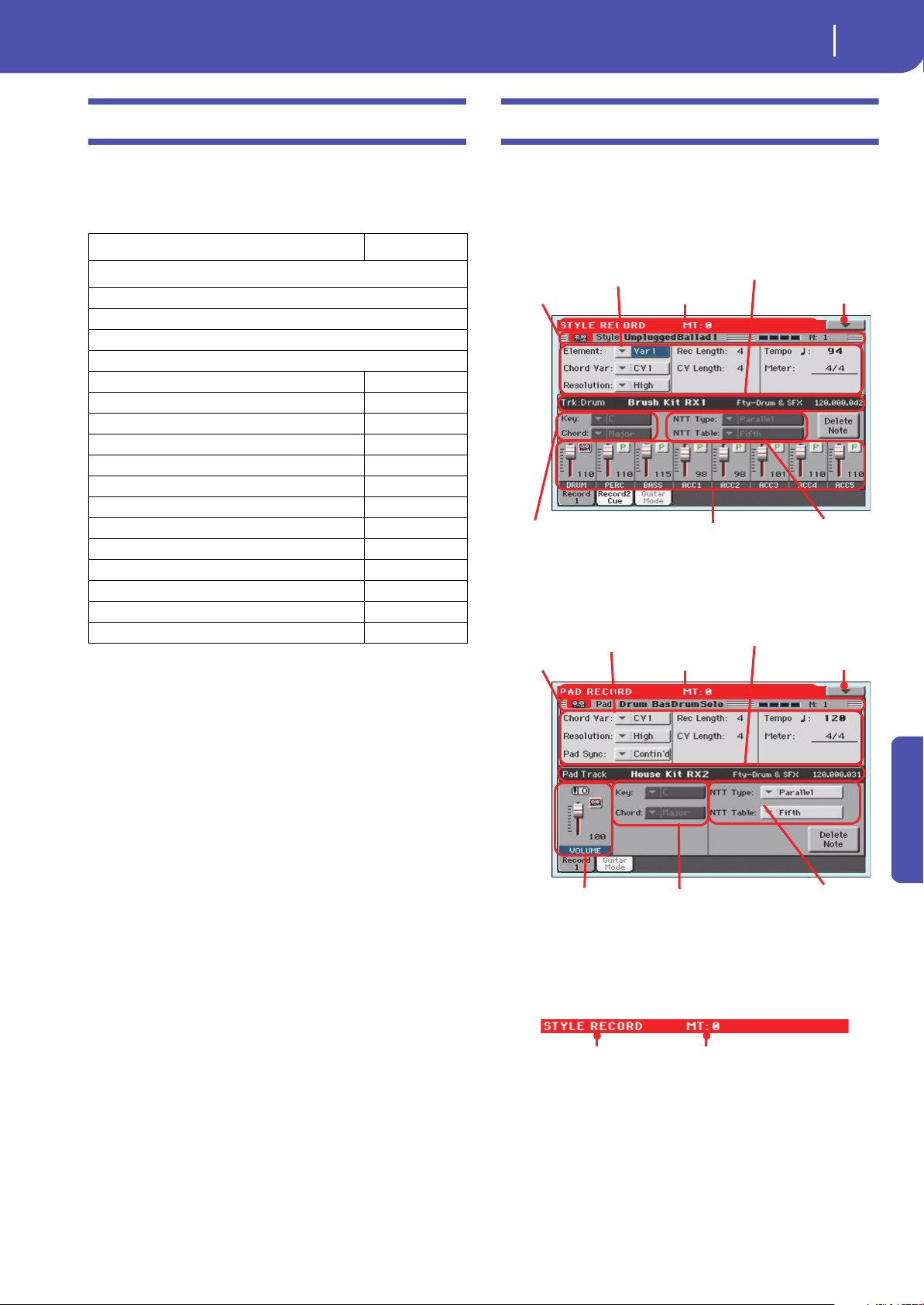
197
Style/Pad Record
List of recorded events
Reference
List of recorded events
The Style/Pad Record mode filters out some events that may
cause wrong operation of the Style or Pad. Here are the recorded
events.
Note: Some Control Change messages cannot be recorded directly
by using the integrated controls of Pa300.
All allowed controllers can be assigned to an Assignable Pedal/
Slider/Switch.
MIDI Control Change messaged inserted by using a software on
an external computer are imported when using the Import func-
tion (“Import: Import SMF” on page 221).
Some controllers are reset at the end of the pattern.
Main page - Record 1
After having pressed the RECORD button, and having chosen
whether you want to edit an existing Style or create a new one,
the main page of the Style Record mode appears, with the tab
“Record 1” selected.
Style Record
Pad Record
Page header
This line shows the current operating mode and transposition.
Operating mode name
Name of the current operating mode.
Master Transpose
Master Transpose value in semitones. This value can be changed
using the TRANSPOSE buttons on the control panel.
Control function CC#
Allowed
Note On
RX Noise On
Pitch Bend
Channel After Touch
Modulation 1
Breath 2
Pan 10
Expression 11
CC#12 12
CC#13 13
Ribbon Controller 16
Damper (Hold 1) 64
Filter Resonance (Harmonic Content) 71
Low Pass Filter Cutoff (Brightness) 74
CC#80 (General Purpose #5) 80
CC#81 (General Purpose #6) 81
CC#82 (General Purpose #7) 82
Page header Page menu icon
Selected track
info area
Key/Chord area
Track volume/status area
Recording
parameters area
Page sub-header
NTT area
Page header Page menu icon
Selected track
info area
Track volume/status area
Key/Chord area
Recording
parameters area
Page sub-header
NTT area
Operating mode Master Transpose (in
semitones)
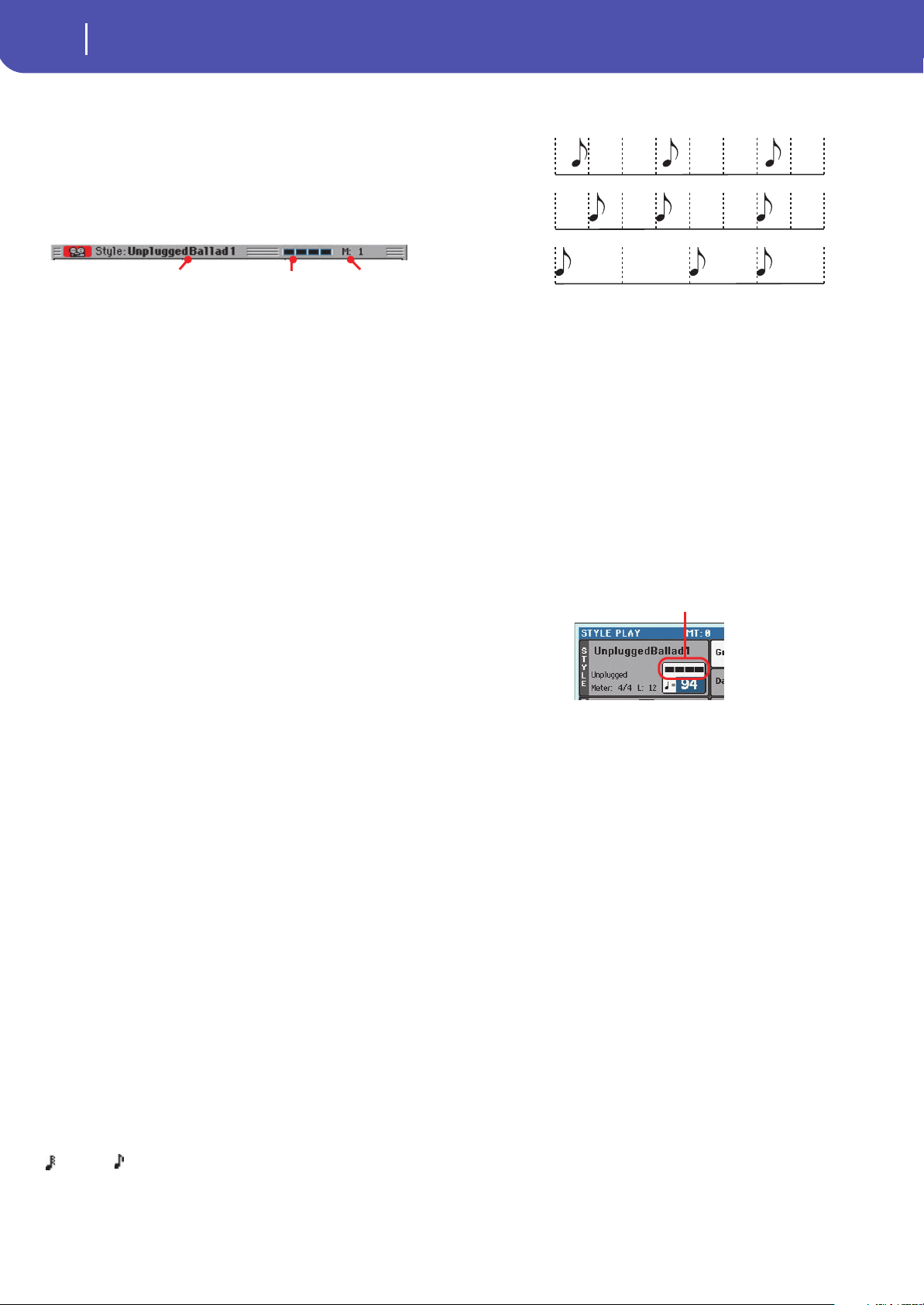
198
Style/Pad Record
Main page - Record 1
Page menu icon
Touch this icon to open the page menu. See “Page menu” on
page 225.
Page sub-header
This area shows some performing info on the Style/Pad.
Style in record/edit
Name of the Style currently in edit or record.
Beat counter
This indicator shows the current beat.
Measure number
Current measure you are recording.
Recording parameters area
Element (Style Element)
(Style only) This parameter lets you select a Style Element for
editing. Each Style Element corresponds to a button on the con-
trol panel carrying the same name. After selecting a Style Ele-
ment, select a Chord Variation for actual editing (see below).
Var1…End3 This is the selected Style Element
Chord Var (Chord Variation)
This parameter lets you select a Chord Variation for editing
(inside the selected Style Element or Pad).
Note: When this parameter and the assigned value is in small let-
ters (cv1…cv6), the Chord Variation is empty; when it is in capi-
tals (CV1…CV6), it is already recorded.
• If the Style Element is Var1, Var2, Var 3 or Var4, you can select
one of 6 Chord Variations to edit.
• If the Style Element is Intro1, Intro2, Intro3, Fill1, Fill2, Fill3,
Fill4, Ending1, Ending2 or Ending3, you can select one of 2
Chord Variations to edit.
• With a Pad you can choose one of the six available Chord Vari-
ations (CV1 … CV6).
Resolution
Use this parameter to set the quantization during recording.
Quantization is a way of correcting timing errors; notes played
too soon or too later are moved to the nearest axis of a rhythmic
“grid”, set with this parameter, thus playing perfectly in time.
Note: To quantize after recording, use the Quantize function in the
Edit section (see “Style/Pad Edit: Quantize” on page 212).
High No quantization applied.
(1/32)… (1/8)
Grid resolution, in musical values. For example,
when you select 1/16, all notes are moved to the
nearest 1/16 division. When you select 1/8, all
notes are moved to the nearest 1/8 division. A ‘3’
after the quantization value means triplet.
Pad Sync
(Pad only) This parameter allows you to set a synchronization
mode for the Pad’s pattern.
Off No synchronization. The sequence will start as
soon as you press the PAD button.
Continued The pattern will start immediately, in sync with
the arranger’s or active player’s tempo. Depend-
ing on the current position of the beat counter, it
might not start from its very beginning; instead,
it will continue from the current position.
For example, if the arranger’s or player’s beat
counter shows the third beat, and is playing tick
91, the Pad will start from its third beat, at tick 91.
This works exactly as if it was a Fill.
Beat The sequence will start at the next beat, in sync
with the arranger’s or player’s tempo. It will start
from its very beginning (i.e., tick 1 or measure 1).
Rec Length (Recording Length)
This parameter sets the recording length (in measures) of the
selected track. Its value is always equal to, or a divider of, the
Chord Variation Length (see next parameter).
This is not the total length of the Chord Variation, but just of the
current track. For example, you may have a Chord Variation
eight measures long, with a drum pattern repeating each two
measures. If so, set the CV Length parameter to “8”, and the Rec
Length parameter to “2” before starting recording the Drum
track. When playing back the Style, saving it or executing any
edit operation on the Style, the 2-measures pattern will be
extended to the full 8-measures length of the Chord Variation.
War ning : If you assign a value lower than Rec Length to CV
Length, the value of Rec Length is not immediately updated in the
display. Therefore, you are still free of changing the value of CV
Length, before the measures exceeding its value are deleted. For
more details, see the warning in “CV Length (Chord Variation
Length)” below.
However, if you press START/STOP to begin recording, the real
Rec Length value is changed to the new one, even if the display still
shows the old value.
Style/Pad in record/edit Beat counter Measure number
No quantiza-
tion
1/16
1/8
The beat counter
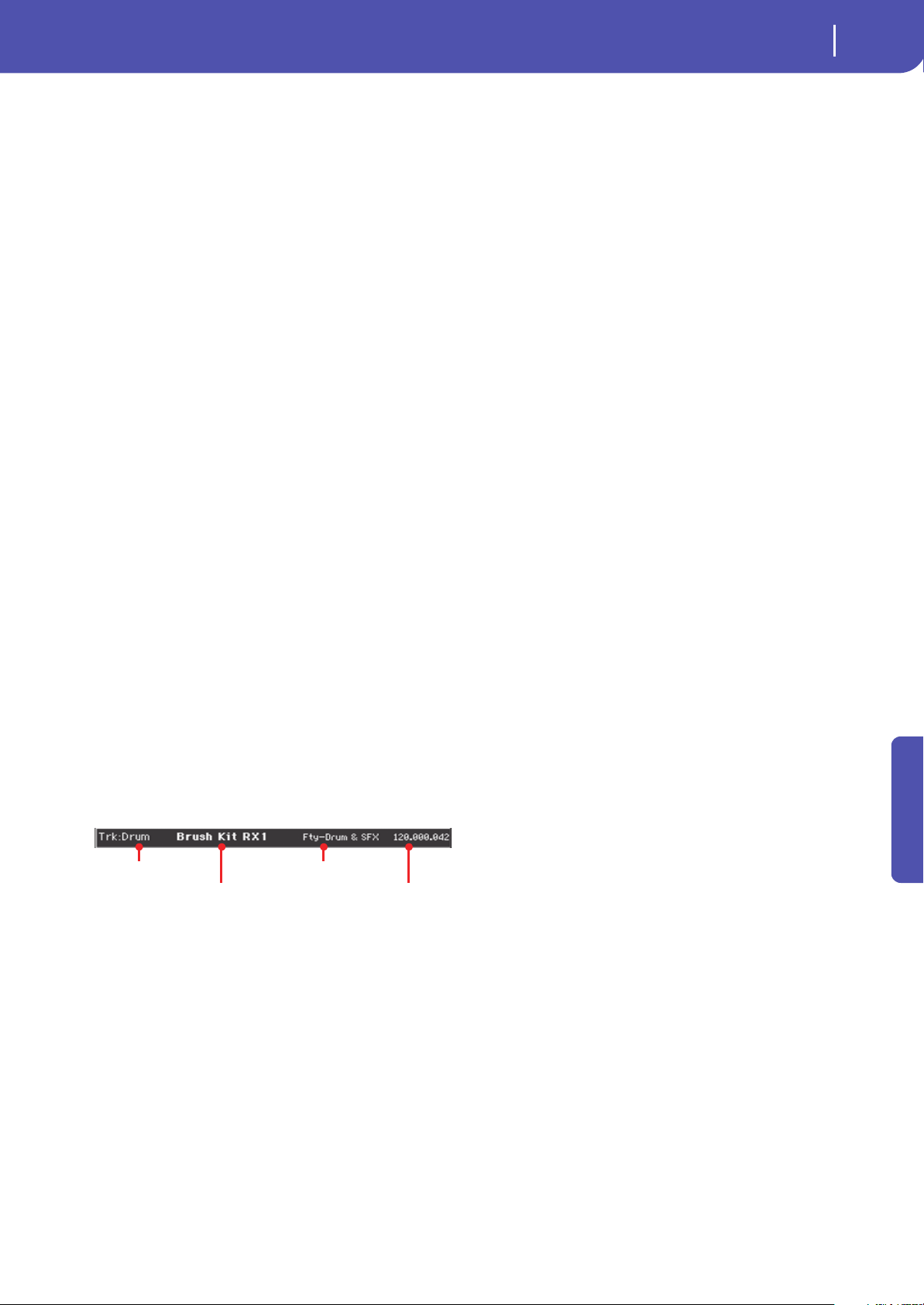
199
Style/Pad Record
Main page - Record 1
Reference
For example, you may have CV Length = 4 and Rec Length = 4. If
you set CV Length to 2, and press START/STOP to begin record-
ing, Rec Length is still shown as 4, but it is in reality set to 2, and
recording will cycle for just 2 measures. After you press START/
STOP to stop recording, Rec Length is updated to 2, and all mea-
sures after the second measure are deleted.
CV Length (Chord Variation Length)
This parameter sets the total length (up to 32 measures) for the
selected Chord Variation. When playing a Style, this will be the
length of the accompaniment pattern, when the chord corre-
sponding to the Chord Variation is recognized on the keyboard.
War n in g: If you reduce the Chord Variation Length after record-
ing, any measure after the selected length will be deleted. Be very
careful when setting the CV Length to a lower value after record-
ing! If it happens, we suggest to exit from record without saving
(see “Exit from Record” on page 225).
Tem po
Select this parameter to use the TEMPO controls to set the
Tempo value.
Hint: You can always change the Tempo, when other parameters
are selected, by keeping the SHIFT button pressed, and rotating the
DIAL.
Note: When recording Tempo, old data is always replaced by the
new data.
Note: The actual Tempo of the Style will be the one shown when
saving the Style Settings in Style Play mode (see “Current Tempo”
on page 89).
Meter
This is the meter (time signature) of the Style Element or the Pad
Sequence. You can edit this parameter only when the Style Ele-
ment or Pad is empty, i.e. before you begin recording anything.
Selected track info area
This line lets you see the Sound assigned to the selected track.
Track name
Name of the selected track.
Drum…Acc5 Style track.
Sound name
Sound assigned to the selected track. You can touch the name to
open the Sound Select window, and select a different Sound.
Sound bank
Bank the selected Sound belongs to.
Program Change
Program Change number sequence (Bank Select MSB, Bank
Select LSB, Program Change).
Key/Chord area
Key/Chord
This parameter pair allows you to define the track’s original key
and chord type, for the current Chord Variation. When playing
the pattern back, this chord will be played back exactly as it was
recorded, without any NTT processing (see above).
Note: To conform to Korg specifications, it is advisable to record
both the “Major” and “minor” Chord Variations for the Intro 1 and
Ending 1 Style Elements.
When you select a track, the original key/chord assigned to the
selected track will be shown. All recorded tracks will play back
on that key/chord. For example, if the original key/chord for the
Acc1 track is A7th, when selecting the Acc1 track all the remain-
ing tracks will play on the A7th key/chord.
In the example above, you will record the Acc1 track in the
AMajor key, with notes pertaining to the A7th scale. This exact
pattern will be recalled, when an A7th chord will be recognized.
Note: This does not apply to Guitar Mode, relying on a different
rule. See “Main page - Guitar Mode” on page 202 for more infor-
mation.
Track name
Sound name
Sound bank
Program Change sequence
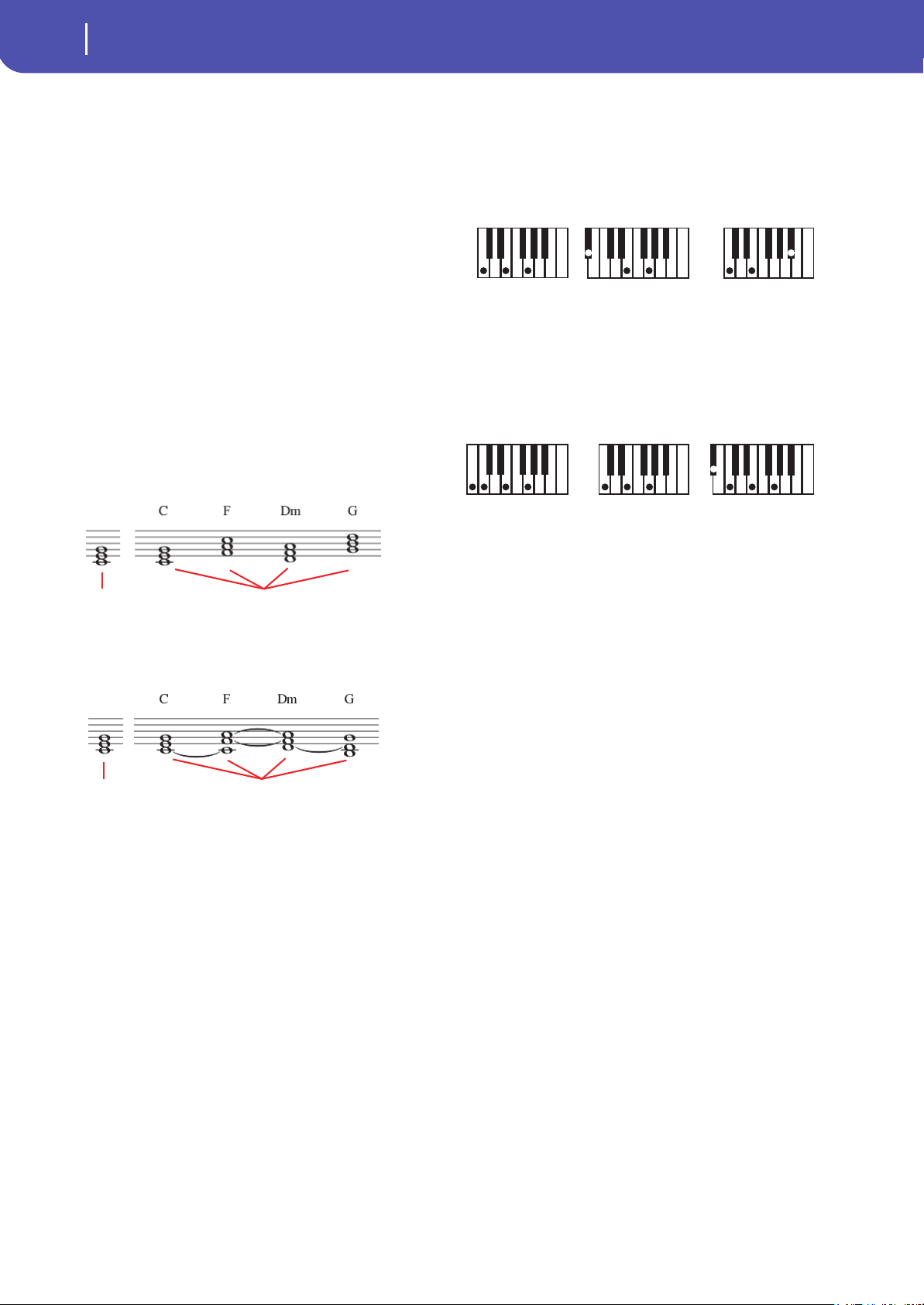
200
Style/Pad Record
Main page - Record 1
NTT Area
NTT Type/Table
NTTs (Note Transposition Tables) are the sophisticated algo-
rithms that allow Korg arrangers to convert recognized chords
into musical patterns. The Note Transposition Table (NTT)
determines how the arranger will transpose pattern notes, when
a chord is recognized that does not exactly match the original
chord of a Chord Variation. For example, if you only recorded a
Chord Variation for the CMaj chord, when a CMaj7 is recog-
nized on the keyboard the arranger must transpose some notes
to create the missing 7th.
Note: These parameters cannot be selected with Drum or Percus-
sion tracks, and are therefore greyed out.
Note: NTT parameters are separately programmed for each track
of the Style Element.
There are two general types of NTTs:
•When Parallel types are selected, notes are transposed inside
the area set by the Wrap Around parameter. These tables are ide-
ally suited to melody parts.
•When Fixed types are selected, the arranger moves as few notes
as possible, making legato lines and chord changes more natural.
They are ideally suited to chord tracks (strings, piano etc…).
Note: To conform to Korg specifications, it is advisable to set the
NTT to “No Transpose” on the Intro 1 and Ending 1.
Parallel/Root The root note (in CMaj = C) is transposed to the
missing notes.
Parallel/Fifth The 5th note (in CMaj = G) is transposed to the
missing notes.
Parallel/i-Series
All original patterns must be programmed on the
“Maj7” or “min7” chords. When loading old Korg
i-Series Styles, this option is automatically
selected.
Parallel/No Transpose
The chord is not modified, and is moved to the
new key unchanged. The pattern plays exactly the
recorded notes, and is moved to the new key as is.
This is the standard setting of Intro 1 and Ending
1 in Korg’s original Styles (where a chord progres-
sion is usually recorded, and should remain
unchanged in any key).
Fixed/Chord This table moves as few notes as possible, making
legato lines and chord changes more natural. It is
ideally suited to chord tracks (strings, piano
etc…). Contrary to the Parallel mode, the pro-
grammed chord is not transposed according to
the Wrap Around parameter, but always stays
around its original position, looking for common
notes between the chords.
Fixed/No Transpose
The programmed notes can only be transposed
by the Master Transpose. They are never trans-
posed when chords are changed.
as written as played back
as written as played back
As recorded with
NTT = Root or 5t h
(Key/Chord = C)
When you play a C7
with NTT = Root
When you play a C7
with NTT = 5th
As recorded with
NTT = i-Series
(Key/Chord = CM7 )
When you play a C
with NTT = i-Series
When you play a C7
with NTT = i-Series
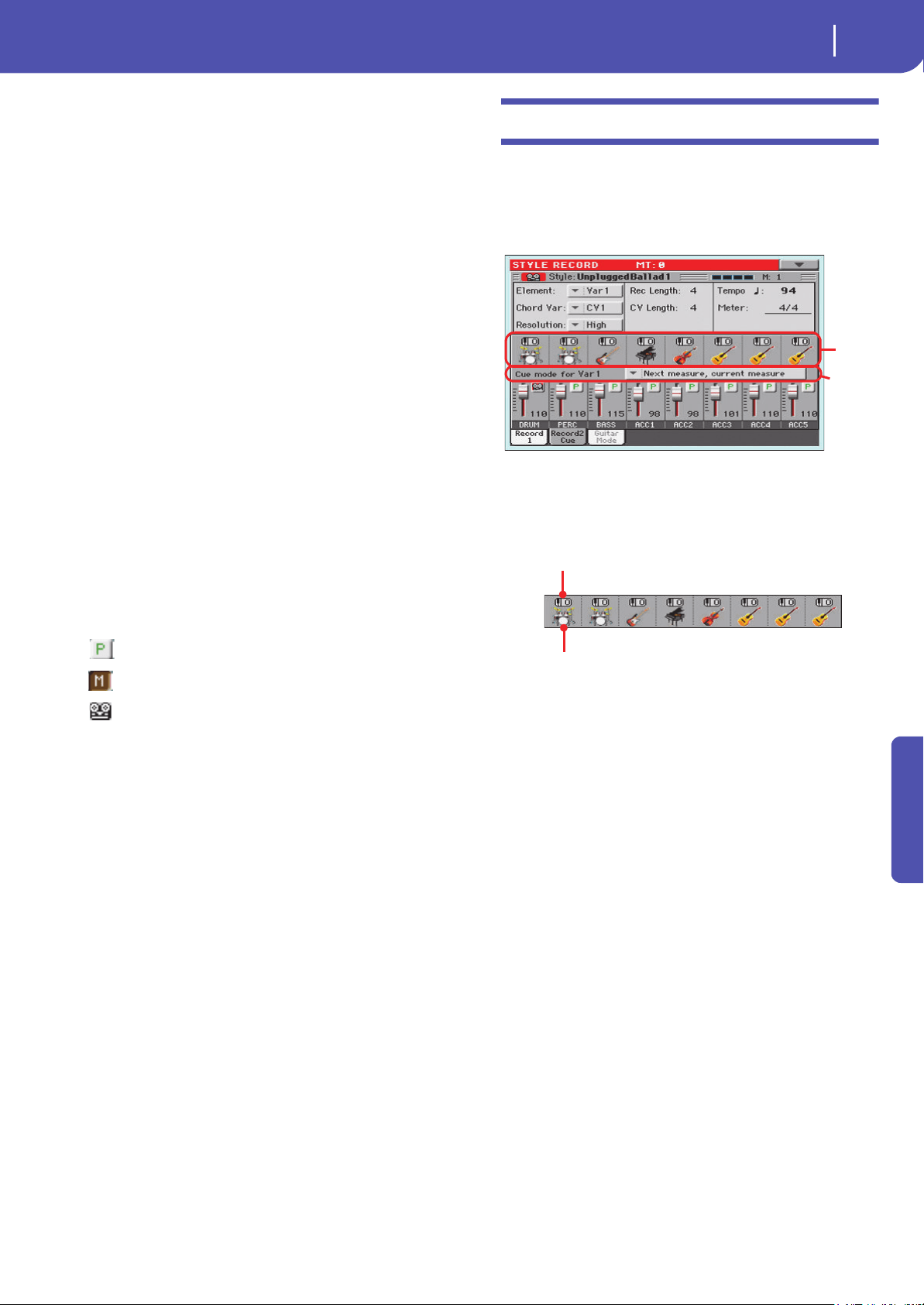
201
Style/Pad Record
Main page - Record 2/Cue
Reference
Delete Note button
Use this command to delete a single note or a single percussive
instrument from a track. For example, to delete a snare, keep the
D2 note (corresponding to the snare) pressed.
1. Select a track.
2. Touch the “Delete Note” button, and keep it pressed.
3. Press START/STOP to start the Style.
4. When you reach the passage containing the note to be
deleted, play the note on the keyboard. Keep it pressed, up
to the last note to be deleted.
5. When finished, release the Delete button and the note to be
deleted, and press START/STOP again to stop the Style.
Note: If the note is at the beginning of the pattern, press the
note before starting the Style.
Tracks volume/status area
Virtual slider(s)
Drag a virtual sliders on the display to change the volume of the
corresponding track.
As an alternative, touch a track to select it, and use VALUE DIAL
to change the value.
Track status icons
Status of tracks. Touch this icon to change the status.
Play status. The track can be heard.
Mute status. The track cannot be heard.
Record status. After starting recording, the track
will receive notes from the keyboard and the
MIDI IN connector.
Track names
(Style only) Under the sliders, a label for each track is shown.
Drum…Acc5 Shown Style tracks.
Main page - Record 2/Cue
(Style only) While in the main page, touch the “Record 2/Cue”
tab to see this page. Most parameters in this page are the same as
in “Main page - Record 1”. In addition, here you can see and
select Sounds for each Style track, and the Cue mode for the
Style Element.
Sounds area
This area lets you see Sounds and octave transposition for the
eight Style tracks.
Octave transpose icon
Non editable. This indicator shows the track’s octave transposi-
tion. Tracks will be recorded with the selected octave transposi-
tion. To change this value, use the UPPER OCTAVE buttons, or
go to the “Mixer/Tuning: Tuning” edit page in the Style Play
mode (see page 98). Save this value to the Style Settings.
Sound bank’s icon
This picture illustrates the bank the current Sound belongs to.
Touch an icon a first time to select the corresponding track
(detailed information are shown on the Selected Track Info area,
see the “Main page - Record 1” page above). Touch it a second
time to open the Sound Select window.
Note: These Sounds can be replaced by Sounds selected by a Per-
formance, provided the “Original Style Sounds” parameter is left
unchecked in Style Play mode (see page 92).
Sounds
area
Cue area
Octave transpose icon
Sound bank’s icon
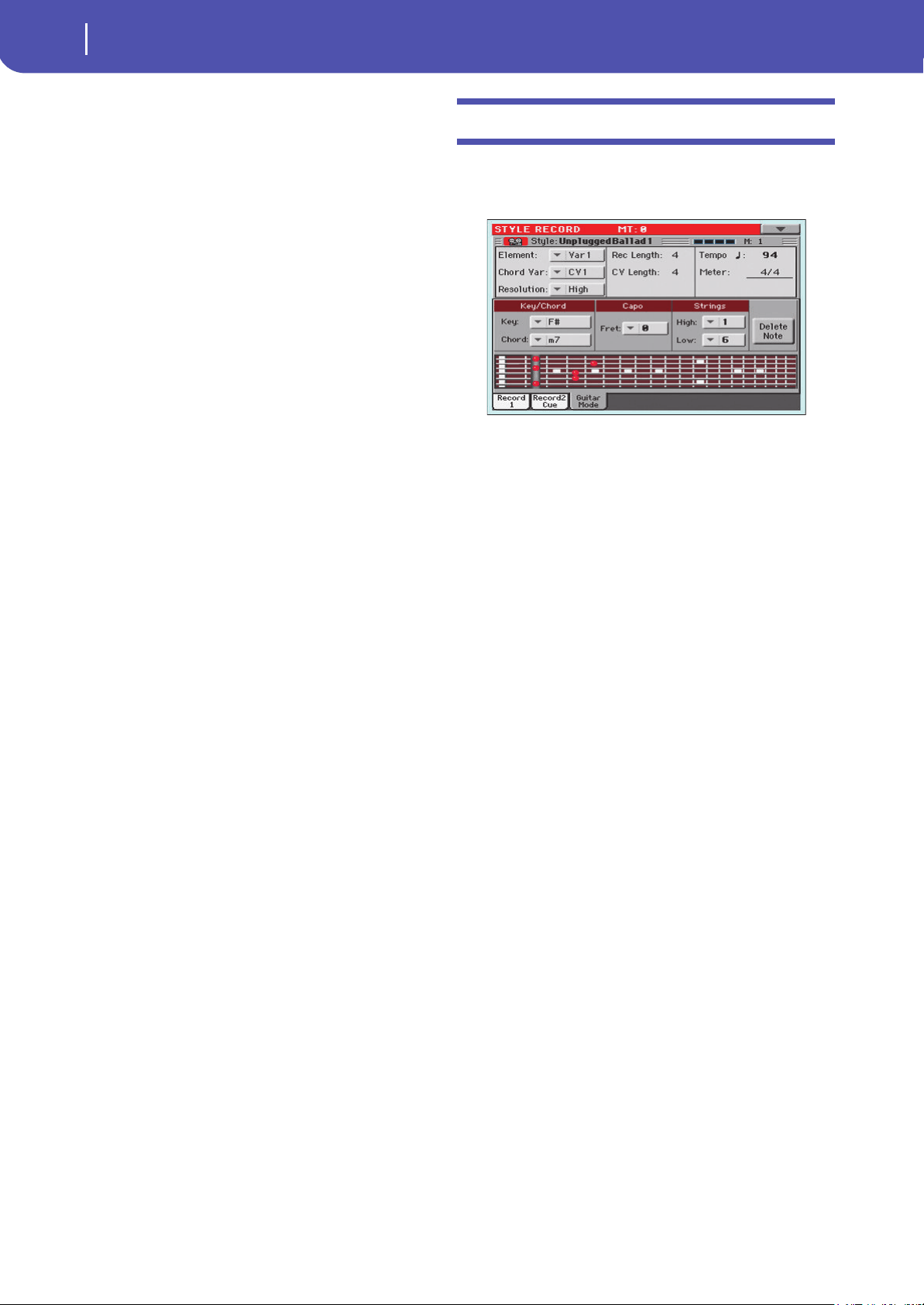
202
Style/Pad Record
Main page - Guitar Mode
Cue area
Cue mode for [Style element]
This parameter lets you decide how the current Style Element
will enter after it has been selected. This setting is only available
for the ‘Variation’ and ‘Fill’ Style Elements.
Immediate, first measure
The Style Element enters immediately, and begins
from the first measure. Only available on Fills.
Immediate, current measure
The Style Element enters immediately, and begins
from the current measure. Only available on Fills.
Next measure, first measure
The Style Element enters at the beginning of the
next measure, and begins from the first measure
of the new pattern. Available on both Fills and
Var iations.
Next measure, current measure
The Style Element enters at the beginning of the
next measure, and begins from the current mea-
sure. Only available on Variations.
Main page - Guitar Mode
While in the main page, and a Guitar track has been selected,
touch the “Guitar Mode” tab to see this page. This is where you
can access Guitar Mode programming:
Note: To access this page, a Guitar track must first be selected (see
“Track Type” on page 220). The Pad track must be of Guitar type
(Pad Track Controls > Sound/Expression page, see “Track Type”
on page 219). Otherwise, the Guitar Mode tab will remain grey
(not selectable).
Note: When programming a Guitar track from an external
sequencer, you must be sure the Guitar tracks is associated to the
right channel. Go to the Global > MIDI > MIDI IN Channels page,
and assign the corresponding Style track (usually Acc1 ~ Acc5) to
the same channel of the Guitar track on the external sequencer.
Then, go to the Style Record > Style Track Controls > Type/Ten-
sion/Trigger page, and set the track as a track of type “Gtr” (see
“Track Type” on page 220).
Guitar Mode allows for easy creation of realistic rhythm guitar
parts, without the artificial, unmusical playing typical of MIDI
programming of guitar parts. Just record a few measures, and
you will end up with realistic rhythm guitar tracks, where each
chord is played according to its real position on the guitar, and
not generated by simply transposing a written pattern.
Recording overview
Recording a Guitar track is unlike recording the other tracks,
where you play exactly all the notes of a melody line or all the
chords of an accompaniment part. With Guitar tracks you can:
a) play the keys corresponding to the strumming modes,
b) play an arpeggio using the six keys corresponding to the six
guitar strings (and the special keys corresponding to the root
and fifth notes),
c) play RX Noises to add realism to the pattern,
d) add regular patterns, for short melodic passages without wast-
ing an Acc track,
e) use the finest MIDI programming to select Chord Shapes, and
recreate any nuance of a guitar performance.
The following sections describe the various control keys avail-
able for this guitar simulation.
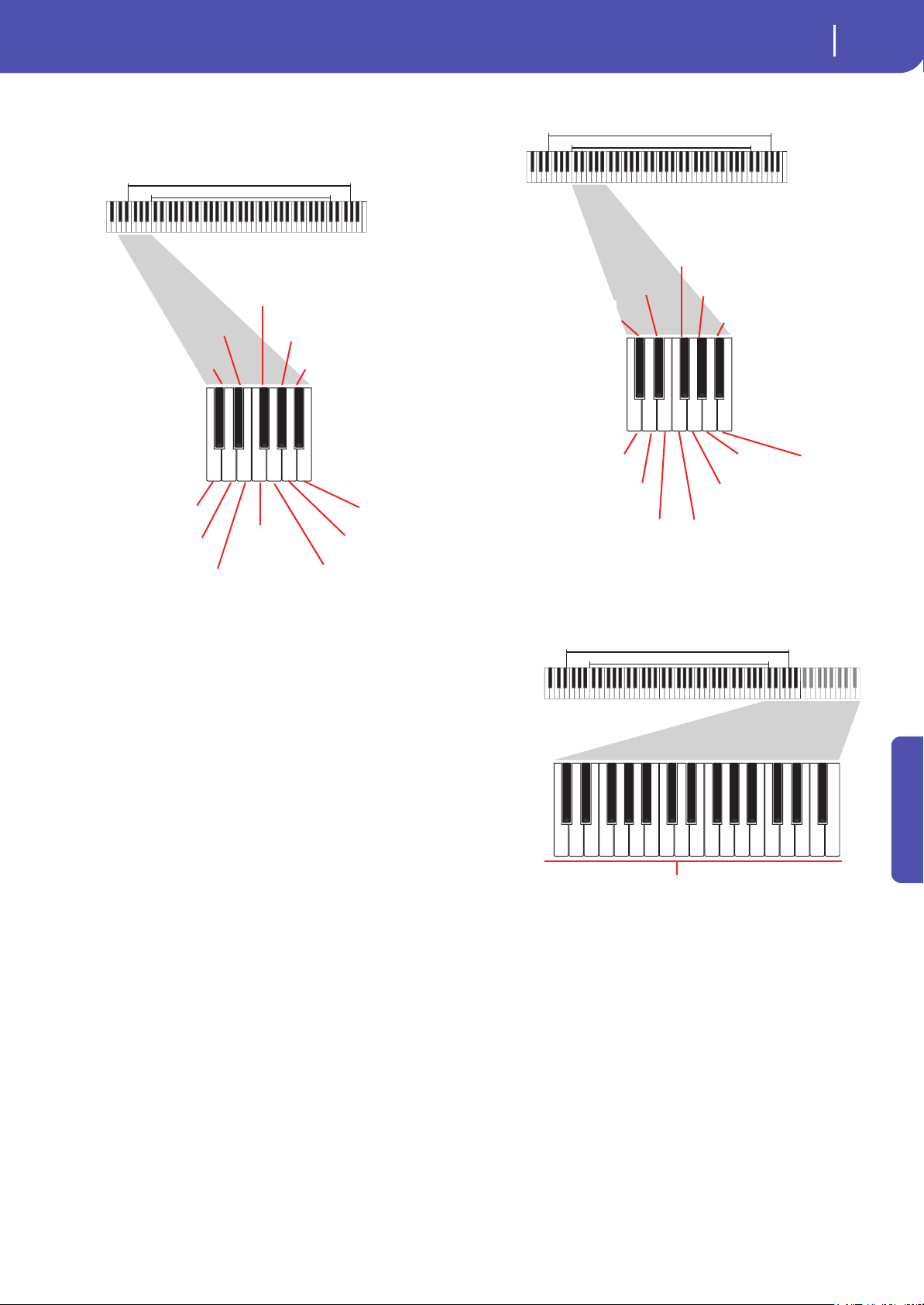
203
Style/Pad Record
Main page - Guitar Mode
Reference
Recording strumming types
The octave from C1 to B1 is devoted to selecting a strumming
type. By pressing these keys, you play fast strumming samples:
Recording single strings
The octave from C2 to B2 is devoted to selecting a single string
(or more than one) for playing arpeggios or power chords. You
can either play a free arpeggio with the six guitar chords
assigned to the C~A keys, or play one of the faster sampled
arpeggios on the higher keys. The root note is always available
on the C# key, while the fifth note is always assigned to the D#
key; with them, you can always play the lowest notes of an arpeg-
gio.
This octave also includes an ‘all mute’ key (F#):
Recording RX Noises
Further on, the upper octaves are used to trigger RX Noises:
Selecting a Capo
Together with strumming types, single strings and RX Noises,
you can choose a Capo (“capotasto”). Note that this might pre-
vent some single strings to sound, depending on the composed
chord. You can always see which strings are playing and which
are not, as described in “Diagram” on page 205.
Recording a regular pattern
Together with strums and arpeggios, you can record regular pat-
terns, exactly as if the track was of Acc type (see “Track Type” on
page 220). This will save an Accompaniment track, when all you
need is just to record some short melodic passages (for example,
the closing of a strumming pattern).
61-keys
76-keys
Full Up
Full Down Mute
Full Up Mute
Full Down
Full Down Mute Body
Full Down Slow Mute
Full Up Slow
Full Down
Slow
Up 4-Strings
Down 4-Strings
Down Mute 4-Strings
Up Mute 4-Strings
61-keys
76-keys
IV String (D)
V String (A) II String (B)
Down/Up
4-Strings
Full Down/Up
All Mute
VI String (E)
III String (G)
I String (e)
Recognized
Chord Root
Recognized Chord
Fifth
Power Chord
61-keys
76-keys
RX Noises
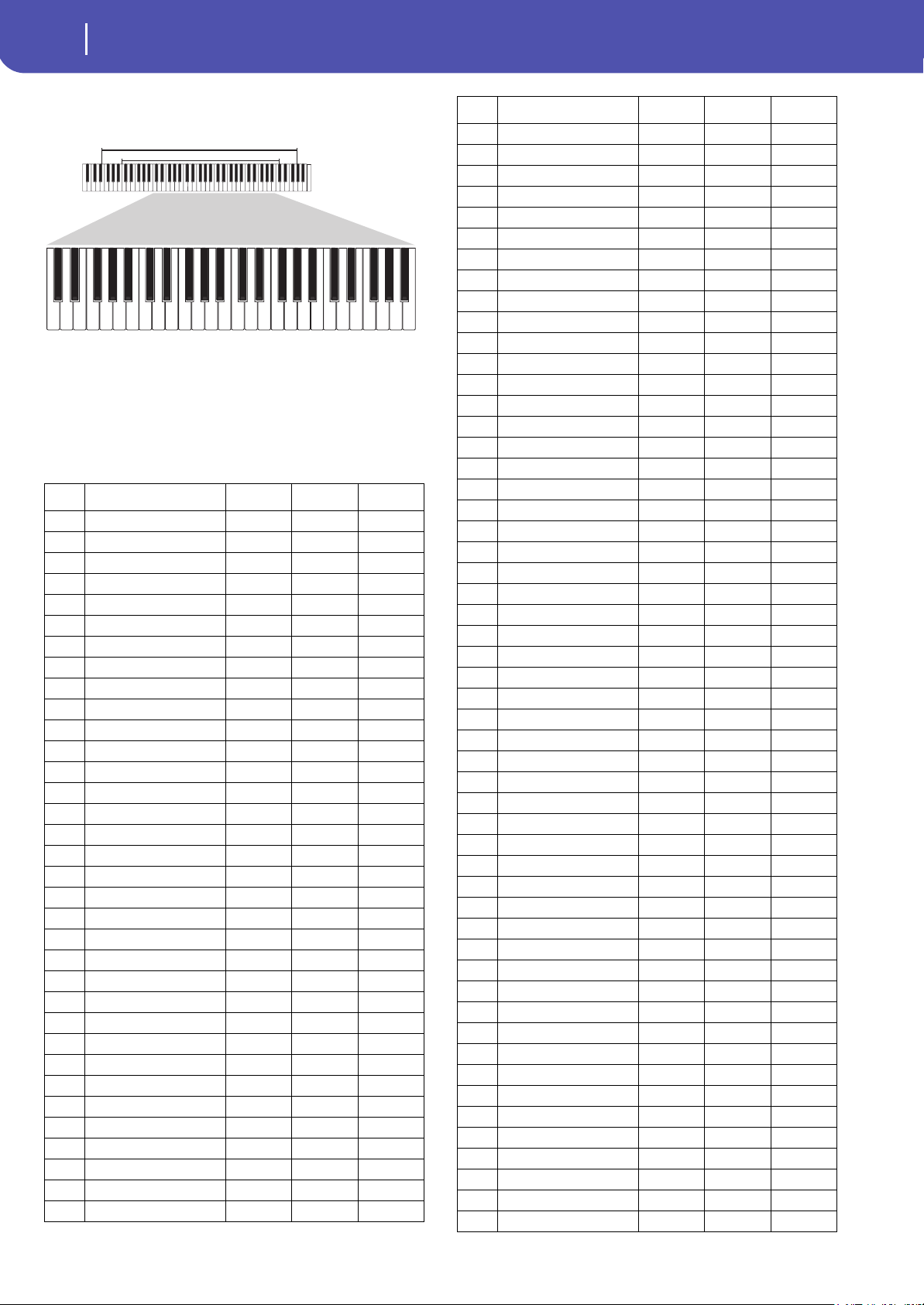
204
Style/Pad Record
Main page - Guitar Mode
You can record the pattern by playing it in the range shown by
the diagram.
Recording a Chord Shape
You can finely choose Chord Shapes by using MIDI messages.
When you play a C0 note with the velocity value shown in the
following table, a chord is played in a particular position and on
a certain number of strings.
Vel. Range from Str. to Str. Position
06 Strings I VI 0
16 Strings I VI 0
26 Strings I VI 1
36 Strings I VI 2
46 Strings I VI 3
56 Strings I VI 4
66 Strings I VI 5
7 5 Strings Bass II VI 0
8 5 Strings Bass II VI 1
9 5 Strings Bass II VI 2
10 5 Strings Bass II VI 3
11 5 Strings Bass II VI 4
12 5 Strings Bass II VI 5
13 5 Strings Treble I V 0
14 5 Strings Treble I V 1
15 5 Strings Treble I V 2
16 5 Strings Treble I V 3
17 5 Strings Treble I V 4
18 5 Strings Treble I V 5
19 4 Strings Bass III VI 0
20 4 Strings Bass III VI 1
21 4 Strings Bass III VI 2
22 4 Strings Bass III VI 3
23 4 Strings Bass III VI 4
24 4 Strings Bass III VI 5
25 4 Strings Middle II V 0
26 4 Strings Middle II V 1
27 4 Strings Middle II V 2
28 4 Strings Middle II V 3
29 4 Strings Middle II V 4
30 4 Strings Middle II V 5
31 4 Strings Treble I IV 0
32 4 Strings Treble I IV 1
33 4 Strings Treble I IV 2
61-keys
76-keys
34 4 Strings Treble I IV 3
35 4 Strings Treble I IV 4
36 4 Strings Treble I IV 5
37 3 Strings Bass IV VI 0
38 3 Strings Bass IV VI 1
39 3 Strings Bass IV VI 2
40 3 Strings Bass IV VI 3
41 3 Strings Bass IV VI 4
42 3 Strings Bass IV VI 5
43 3 Strings MiddleBas III V 0
44 3 Strings MiddleBas III V 1
45 3 Strings MiddleBas III V 2
46 3 Strings MiddleBas III V 3
47 3 Strings MiddleBas III V 4
48 3 Strings MiddleBas III V 5
49 3 Strings MiddleTreble II IV 0
50 3 Strings MiddleTreble II IV 1
51 3 Strings MiddleTreble II IV 2
52 3 Strings MiddleTreble II IV 3
53 3 Strings MiddleTreble II IV 4
54 3 Strings MiddleTreble II IV 5
55 3 Strings Treble I III 0
56 3 Strings Treble I III 1
57 3 Strings Treble I III 2
58 3 Strings Treble I III 3
59 3 Strings Treble I III 4
60 3 Strings Treble I III 5
61 2 Strings Bass V VI 0
62 2 Strings Bass V VI 1
63 2 Strings Bass V VI 2
64 2 Strings Bass V VI 3
65 2 Strings Bass V VI 4
66 2 Strings Bass V VI 5
67 2 Strings MiddleBas IV V 0
68 2 Strings MiddleBas IV V 1
69 2 Strings MiddleBas IV V 2
70 2 Strings MiddleBas IV V 3
71 2 Strings MiddleBas IV V 4
72 2 Strings MiddleBas IV V 5
73 2 Strings Middle III IV 0
74 2 Strings Middle III IV 1
75 2 Strings Middle III IV 2
76 2 Strings Middle III IV 3
77 2 Strings Middle III IV 4
78 2 Strings Middle III IV 5
79 2 Strings MiddleTreble II III 0
80 2 Strings MiddleTreble II III 1
81 2 Strings MiddleTreble II III 2
82 2 Strings MiddleTreble II III 3
83 2 Strings MiddleTreble II III 4
84 2 Strings MiddleTreble II III 5
85 2 Strings Treble I II 0
86 2 Strings Treble I II 1
Vel. Range from Str. to Str. Position

205
Style/Pad Record
Main page - Guitar Mode
Reference
Choosing a Key/Chord for Intro 1 and
Ending 1
The pattern is recorded in the key indicated by the Key/Chord
pair of parameters. However, this parameter is only used for
playback by the Intro 1 and Ending 1 Style Elements. All other
Style Elements will be played back according to the recognized
chord.
With Intro 1 and Ending 1 (both Chord Variation 1 and 2) you
can also prefer to enter a chord progression, to be played on the
lowest MIDI octave (C-1 ~ B-1). Chord types are inserted by
using velocity values, as shown in the following table:
Playing back the pattern
When in Stye Play mode, the recorded Guitar pattern is trans-
posed according to the chord recognized on the keyboard. The
way it is transposed depends on the programmed pattern, with
the chosen positions, strumming mods, etc…
Guitar mode parameters
Here is a detailed description of the parameters of the Guitar
Mode page.
Key/Chord
This parameter pair allows you to define the track’s original key
and chord type. This parameter works in a different way than the
other tracks. While with other tracks this is always the reference
key used for NTT transposition, with Guitar tracks there is a dif-
ference, whether you are recording a Chord Variation contained
in an Intro 1 or Ending 1 Style Element, or any other Chord
Variation :
• With Intro 1 and Ending 1, this chord will be used as the
reference key for the chord progression.
• With all the other Chord Variations, this chord will be used
only for listening during recording. During playback in
Style Play mode, the chord will follow chord recognition.
Capo - Fret
A capo (from the Italian “capotasto”, “head of fingerboard”) is a
movable bar attached to the fingerboard of the guitar, to uni-
formly raise the pitch of all the strings. Its use makes the strings
shorter, therefore changing the timbre and position of the chords
(but not its shape).
0 Open string – no capo.
I…X Position of the capo over the fingerboard (i.e., “I”
corresponds to the first fret, “II” to the second
one, and so on).
Strings - High/Low
Use this pair of parameters to choose the strings the pattern will
be played on.
1…6 Position of the capo over the fingerboard (i.e., “I”
corresponds to the first fret, “II” to the second
one).
Diagram
The diagram shows how a chord would be composed on the fin-
gerboard. Here is the meaning of the various symbols:
Red dot Fingered string (i.e., played note).
White dot Fifth, playing on the D#2 key.
X Non played or muted note.
Light grey barBarré (a finger crossing all the strings, like a
mobile capo).
Dark grey bar Capo.
87 2 Strings Treble I II 2
88 2 Strings Treble I II 3
89 2 Strings Treble I II 4
90 2 Strings Treble I II 5
Vel. Chord Type Vel. Chord Type
1 Major 2 Major 6th
3 Major 7th 4 Major 7th flatted 5th
5 Suspended 4th 6 Suspended 2nd
7 Major 7th suspended 4th 8 Minor
9 Minor 6th 10 Minor 7th
11 Minor 7th flatted 5th 12 Minor major 7th
13 Dominant 7th 14 7th flatted 5th
15 7th suspended 4th 16 Dimished
17 Diminished major 7th 18 Augmented
19 Augmented 7th 20 Augmented major 7th
21 Major w/o 3rd 22 Major w/o 3rd and 5th
23 Flatted 5th 24 Diminished 7th
Vel. Range from Str. to Str. Position
206
Style/Pad Record
Style/Pad Record procedure
Style/Pad Record procedure
There are two different methods for recording a Style/Pad: Real-
time and Step.
• Realtime Recording allows you to record Style/Pad patterns
in realtime.
• Step Recording allows you to create a new Style/Pad by
entering single notes or chords in each track. This is very
useful when transcribing an existing score, or needing a
higher grade of detail, and is particularly suitable to create
drum and percussion tracks.
In addition, you can program a Style/Pad on a personal com-
puter, and then import it via the Import function (see “Import:
Import SMF” on page 221).
Preparing to record
1. If you like to edit an existing Style/Pad, select it.
2. Press the RECORD button to enter the Style/Pad Record
mode. You are prompted to either select the Current Style
or an existing Pad, or create a New Style or Pad.
Select “Record/Edit Current Style” or “Record/Edit Current
Pad” if you want to edit the current Style/Pad, or make a
new Style/Pad starting from an existing one. Select “Record
New Style/Pad” if you want to start from scratch with an
empty Style/Pad.
3. After you select your preferred option, the main page of the
Style/Pad Record mode will appear.
4. Use the Element (Style Element) (Style only) and Chord Var
(Chord Variation) parameters, to select the Chord Varia-
tion to be recorded/edited.
Note: For more information on the Style Elements and Chord
Variations, and the Style/Pad structure in general, see “The
Style’s structure” on page 194 or “The Pad’s structure” on
page 195.
5. Use the Rec Length (Recording Length) parameter to set
the length (in measures) of the pattern to record.
6. Use the Meter parameter to set the Style Element’s or Pad’s
meter (time signature).
Note: You can edit this parameter only if you selected the
“Record New Style/Pad” option when entering the Record
mode, or when editing an empty Style Element.
7. Select the Tempo parameter and set the Tempo.
8. (Style only) Touch the Record 2 tab to see the Sounds area.
Here you can assign the right Sound to each Style track.
(Pad only) Press the SOUND button to select a Sound to be
assigned to the Pad track.
9. If needed, set the Octave Transpose for each track. Note:
The Octave Transpose will affect only the notes coming from
the keyboard, and not from the arranger.
10. At this point, if you want to do a Realtime Recording go on
reading “Realtime Record procedure” below. Otherwise, if
you prefer to do a Step Record, jump to “Step Record pro-
cedure” on page 207.
Realtime Record procedure
1.
Select the track to record. Its status icon will turn to
‘Record’. (For more details, see “Tracks volume/status area”
on page 201).
Note: When entering the Record mode, a track is already
in Record status. When you press START/STOP after
entering the Record mode, you can immediately start
recording.
If you like, you can try your part before recording:
•Mute the track, by repeatedly touching its icon status,
until the (Mute) status icon appears.
• Press START/STOP to let any recorded track play back,
and practice on the keyboard.
• When you have finished practicing, press START/STOP
to stop the arranger, and unmute the track by repeatedly
touching its icon status, until the (Record) status icon
appears again.
2. While the shown status icon is Record, press START/STOP
to begin recording. A 1-bar precount will play before the
recording actually begins. When it begins, play freely. The
pattern will last for some measures, according to the Rec
Length value, then restart.
Since the recording will happen in overdub, you can add
notes on any following passage. This is very useful to
record different percussive instruments at any cycle on a
Drum or Percussion track.
Note: While recording, the track’s Keyboard Range (see
page 218) is ignored, and notes can be recorded and played
back over the whole keyboard range. The Local parameter
(see “Local Control On” on page 158) is also automatically
set to On, to allow playing on the keyboard.
3. When finished recording, press START/STOP to stop the
arranger. Select a different track, and go on recording the
full Chord Variation.
Note: You can select a different track only when the arranger
is not running.
4. When finished recording the Chord Variation, select a dif-
ferent Chord Variation or Style Element (Style only) to go
on recording the full Style/Pad.
5. When finished recording the new Style/Pad, select the
“Write Style/Pad” command from the page menu, to open
the Write Style/Pad dialog box (see “Write Style/Pad dialog
box” on page 226) and save it to memory.
To exit the Style/Pad Record mode without saving any
change, select the “Exit from Record” command from the
page menu, or press the RECORD button.
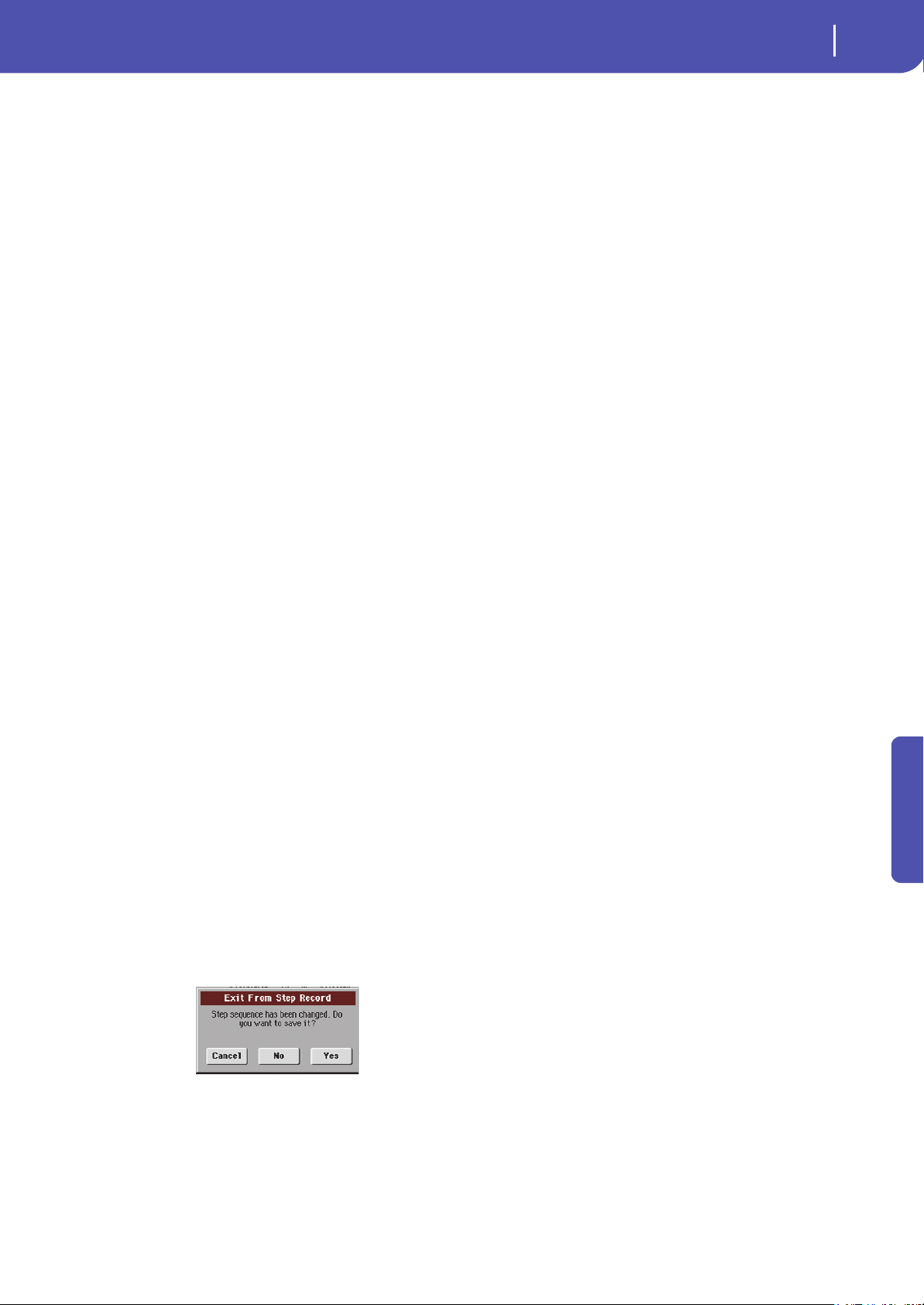
207
Style/Pad Record
Style/Pad Record procedure
Reference
Step Record procedure
1.
While in the main page of the Style/Pad Record mode,
select the “Overdub Step Recording” command from the
page menu, to enter the Overdub Step Record mode.
2. The “Pos” parameter shows the current position.
• If you do not want to insert a note or chord at the current
position, insert a rest instead, as shown in step 4.
• To jump to the next measure, filling the remaining beats
with rests, touch the Next M. button in the display.
3. To change the step value, use the “Step Time values” area in
the display.
4. Insert a note, rest or chord at the current position.
• To insert a single note, just play it on the keyboard. The
inserted note length will match the step length. You may
change the velocity and relative duration of the note, by
editing the “Duration” and “Velocity” parameters (see
page 228).
• To insert a rest, just touch the Rest button in the display.
Its length will match the step value.
• To tie the note to be inserted to the previous one, touch
the Tie button in the display. A note will be inserted, tied to
the previous one, with exactly the same name. You don’t
need to play it on the keyboard again.
• To insert a chord or a second voice, see “Chords and sec-
ond voices in Step Record mode” on page 129.
5. After inserting a new event, you may go back by touching
the Back button in the display. This will delete the previ-
ously inserted event, and set the step in edit again.
6. When the end of the pattern is reached, the “End of Loop”
event is shown, and the recording restarts from the
“001.01.000” position. Any note exceeding the pattern
length, inserted at its end, will be reduced to fit the total
length of the pattern.
At this point, you may go on, inserting new events in over-
dub mode (the previously inserted events will not be
deleted). This is very useful when recording a drum or per-
cussion track, where you may want to record the bass drum
on a first cycle, the snare drum on the second cycle, and the
hi-hat and cymbals during the following cycles.
7. When finished recording, touch the Done button in the
display to exit the Step Record mode.
A dialog box appears, asking you to either cancel, discard
or save the changes.
If you touch Cancel, exit is canceled, and you can continue
editing. If you choose No, changes are not saved, and the
Step Record window is closed. If you choose Yes, changes
are saved, and the Step Record window is closed.
8. When back to the main page of the Style Record mode, you
may turn all tracks to the play status, then press START/
STOP to listen to the Style. Press START/STOP again to
stop the playback.
9. From the main page of the Style Record mode, select the
“Write Style/Pad” command to save, or the “Exit from
Record” command to exit from the Style/Pad Record mode
(see “Write Style/Pad dialog box” on page 226), or by can-
celing any change.
Chords and second voices
With Pa300, you are not limited to inserting single notes in a
track. There are several ways to also insert chords and double
voices. For more information, see “Chords and second voices in
Step Record mode” on page 129.
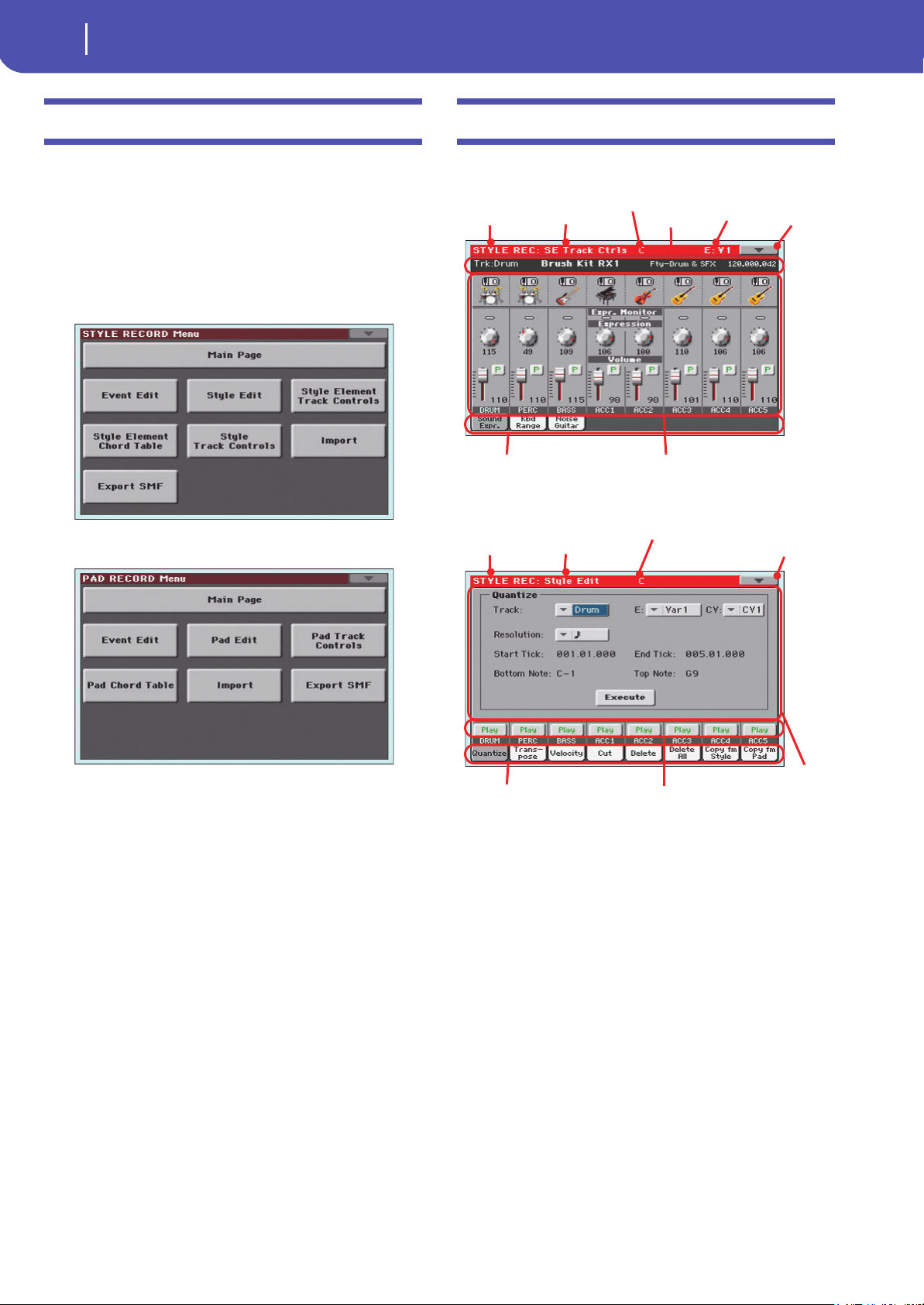
208
Style/Pad Record
Edit menu
Edit menu
From any page (apart for Step Record), press the MENU button
to open the Style Record or Pad edit menu. This menu gives
access to the various Style/Pad Record edit sections.
When in the menu, select an edit section, or press EXIT to exit
the menu and return to the main page. To return to the main
page, you can also select the Main Page menu item.
When in an edit page, press the EXIT button to return to the
main page of the Style Record mode.
Style Record menu
Pad Record menu
Note: While the Style/Pad is in play, you cannot access the Edit
section pages from the main page (see page 197). Stop the playback
before pressing MENU.
Note: When switching from the Edit section pages (Quantize,
Transpose, Velocity, Delete) to the other pages, or vice-versa, the
Style (if in play) is automatically stopped.
Edit page structure
Most edit pages share some basic elements.
Other pages have a slightly different structure.
Operating mode
This indicates that the instrument is in Style/Pad Record mode.
Edit section
This identifies the current edit section, corresponding to one of
the items of the edit menu (see “Edit menu” on page 208).
Chord
(Style only) Chord in edit.
Selected Style Element
(Style only) In Style Record mode, edits always happen on the
selected Style Element.
Page menu icon
Touch this icon to open the page menu (see “Page menu” on
page 225).
Operating
mode
Edit section
Selected
track info
Page
menu
icon
Parameters areaTabs
Selected Style
Element
Chord
Operating
mode
Edit section
Page menu
icon
Track statusTabs
Chord
Parameters
area

209
Style/Pad Record
Event Edit: Event Edit
Reference
Parameters area
Each page contains various parameters. Use the tabs to select
one of the available pages. For detailed information on the vari-
ous types of parameters, see sections starting from page 209.
Track status
Use these buttons to mute/unmute tracks while editing.
Tabs
Use tabs to select one of the edit pages of the current edit section.
Event Edit: Event Edit
The Event Edit is the page where you can edit each single MIDI
event of the selected Chord Variation. You can, for example,
replace a note with a different one, or change its playing strength
(i.e., velocity value). See “Event Edit procedure” on page 210 for
more information on the event editing procedure.
Page header
See “Page header” on page 197.
Page menu icon
Touch this icon to open the page menu. See “Page menu” on
page 225.
Page sub-header
This area shows some performing info on the Song.
Selected track
(Style only) Name of the track in edit. Use the Track pop-up
menu to select one of the Style tracks.
SE/CV (Style Element/Chord Variation)
Selected Style Element (Style only) and Chord Variation. This
parameter cannot be edited. To select a different Style Element
and Chord Variation, press EXIT to go back to the main page of
the Style/Pad Record mode (see “Main page - Record 1” on
page 197).
Event list
Use the Event list to see all events contained in the selected track
in the selected Style Element.
Use the scrollbar to browse through the events. You can also
scroll by using the SHIFT + VALUE DIAL combination.
Page header Page menu icon
Track
pop-up
menu
Tabs
Event
list
Page sub-
header
Scrollbar
Chord
Selected track Selected Style
Element
Selected Chord
Variation
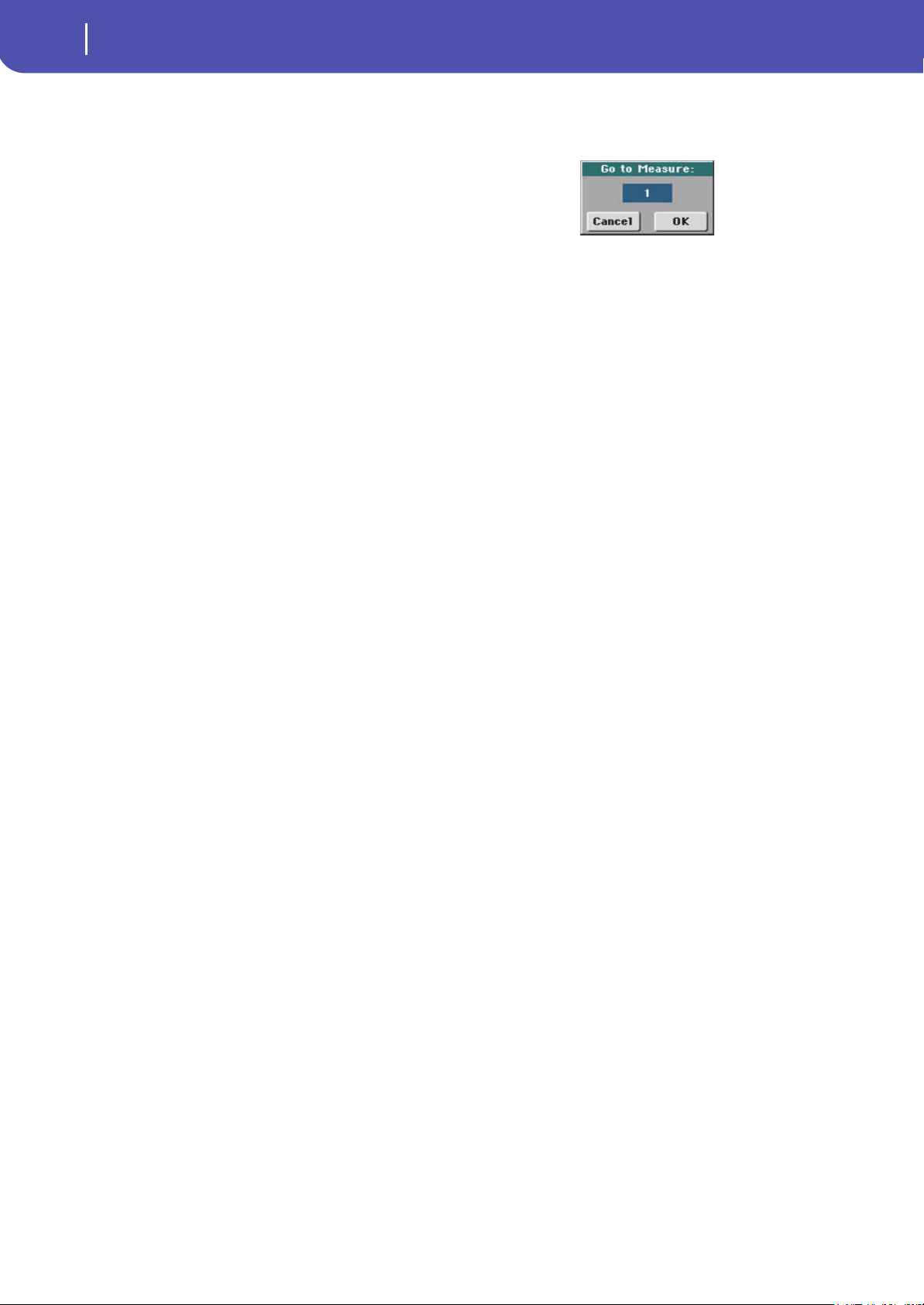
210
Style/Pad Record
Event Edit: Event Edit
Touch the event to be selected. Selected events are highlighted
and can be heard.
Position
Position of the event, expressed in the form ‘aaa.bb.ccc’:
•‘aaa’ is the measure
•‘bb’ is the beat
• ‘ccc’ is the tick (each quarter beat = 384 ticks)
You can edit this parameter to move the event to a different posi-
tion. You can edit a position in either of the following ways:
(a) select the parameter, and use the VALUE DIAL to change
the value, or
(b) select the parameter, then touch it again; the numeric key-
pad will appear. Enter the new position by dialing in the
three parts of the number, separated by a dot. Zeroes at the
beginning can be omitted, as well as the least important
parts of the number. For example, to enter position
002.02.193, dial “2.2.193”; to enter position 002.04.000 dial
“2.4”; to enter position 002.01.000, simply dial “2”.
Type, Value 1, Value 2
Type and values of the event shown in the display. Depending on
the selected event, the value may change. This parameter also
shows the (greyed-out, so non editable) “CC#11” (Expression)
event at the beginning of the pattern, and the “End Of Track”
marking, when the end of a track is reached.
To change the event type, select the Type parameter, then use the
VALUE DIAL to select a different event type. A set of default val-
ues will be automatically assigned to the event.
To select and edit the event’s value, select the corresponding
parameter, and use VALUE DIAL.
Length
Length of the selected Note event. The value format is the same
as the Position value. This is only available for Note events.
Note: If you change a length of “000.00.000” to a different value,
you can’t go back to the original value. This rather uncommon
zero-length value may be found in some drum or percussion
tracks.
Scrollbar
Use the scrollbar to browse the event through the list. (As an
alternative, use SHIFT + VALUE DIAL).
Other elements
Track pop-up menu
Use this pop-up menu to select the track to edit, inside the cur-
rent Chord Variation.
Drum…Acc5 Style track.
Go Meas.
While the Style is not running, touch this button to open the Go
to Measure dialog box:
When in this dialog box, select a target measure, and touch OK.
The first event available in the target measure will be selected.
Insert
Touch the Insert button in the display to insert a new event at the
current shown Position. The default values are Type = Note,
Pitch = C4, Velocity = 100, Length = 192.
Delete
Touch the Delete button in the display to delete the event
selected in the display.
Event Edit procedure
Here is the general procedure to follow for the event editing.
1. Select the Style/Pad to edit, and press the RECORD button.
Select the “Current Style/Pad” option to enter recording.
The main page of the Style/Pad Record mode will appear.
2. Select the “Element (Style Element)” (Style only) and
“Chord Var (Chord Variation)” parameters.
Note: For more information on the Style Elements and Chord
Variations, and the Style structure in general, see “The Style’s
structure” on page 194.
3. Press MENU, and select the Event Edit section. The Event
Edit page appears (see “Event Edit: Event Edit” on page 209
for more information).
4. Press START/STOP to listen to the selected Chord Varia-
tion. Press START/STOP to stop it. Chord Scanning does
not work, so you will listen the pattern at the original Key/
Chord.
5. Touch the Filter tab to select the Filter page, and uncheck
the filters for the event types you wish to see in the display
(see “Event Edit: Filter” on page 211 for more information).
6. Touch the Event Edit tab to go back to the Event Edit page.
7. (Style only) Use the Track pop-up menu to select the track
to edit (see “Track pop-up menu” on page 210).
8. The list of events contained in the selected track (inside the
Chord Variation selected on step 2) will appear in the dis-
play. Some events on the beginning of the Chord Varia-
tions, as well as the “EndOfTrk” event (marking its ending
point) cannot be edited, therefore appearing in grey.
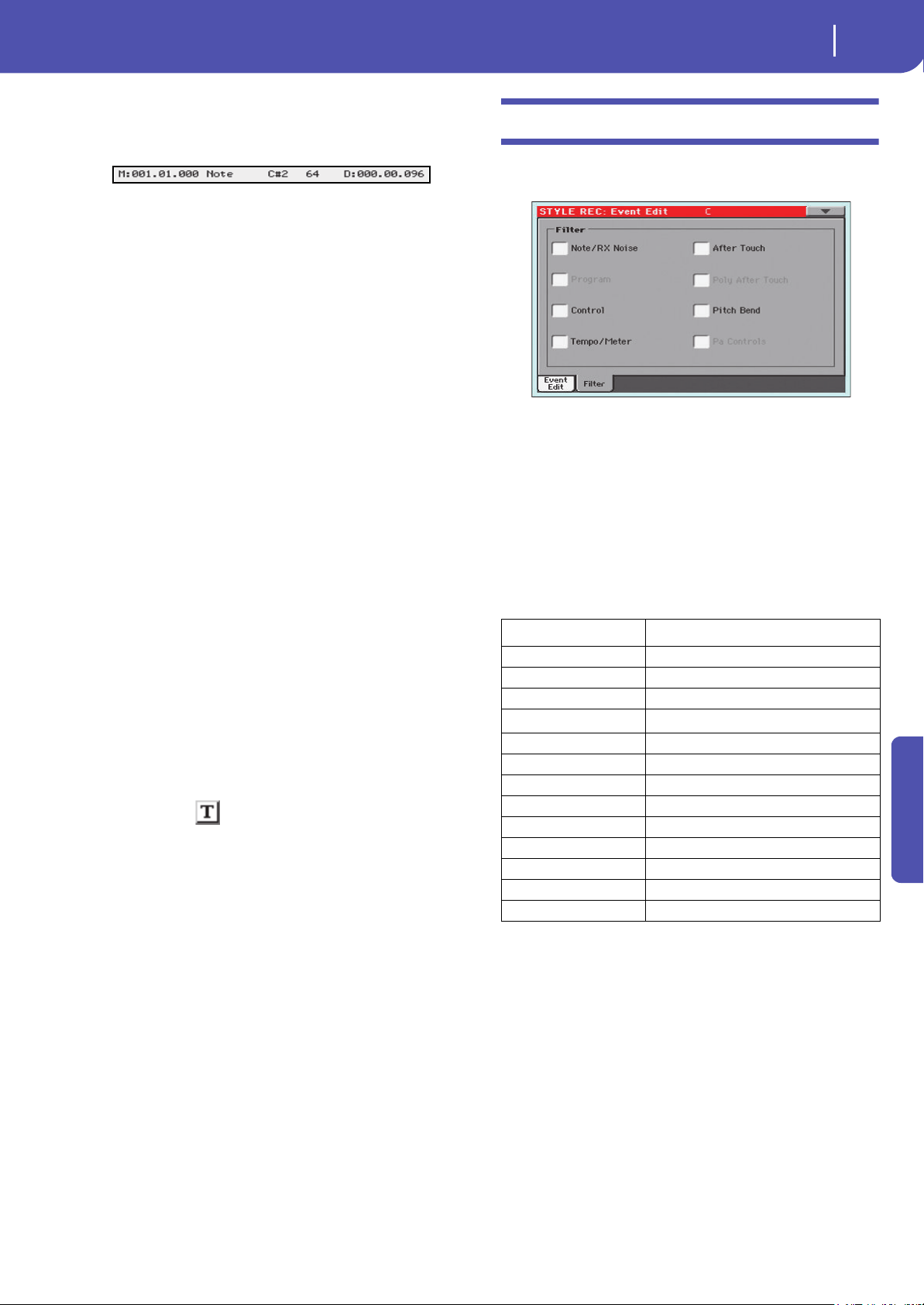
211
Style/Pad Record
Event Edit: Filter
Reference
9. Scroll though the various events by using the scrollbar.
10. Select an event to be edited by touching it in the display.
This is usually a note, that you can edit.
For more information on the event types and their val-
ues, see “Event Edit: Event Edit” on page 209.
11. Edit the event.
• Select the “M” parameter. Use VALUE DIAL to change
the event’s position.
• Select the Type parameter. You may use VALUE DIAL to
change the event type, as well as its Value 1 and Value 2.
• If a Note event is selected, select the Length parameter,
and use VALUE DIAL to change the event’s length.
12. You may use the Go Meas. command to go to a different
measure (see “Go Meas.” on page 210)
13. As described in step 4, you may press START/STOP to lis-
ten how the pattern sounds after your changes. Press
START/STOP again to stop the pattern running.
14. Touch the Insert button in the display to insert an event at
the Position shown in the display (a Note event with default
values will be inserted). Touch the Delete button in the dis-
play to delete the selected event.
15. When editing is complete, you may select a different track
to edit (go to step 7).
16. When finished editing the selected Chord Variation, press
EXIT to go back to the main page of the Style Record
mode, then go to step 2 to select and edit a different Chord
Variation.
17. When finished editing the whole Style, select the “Write
Style/Pad” command from the page menu to open the
Write Style/Pad dialog box (see “Write Style/Pad dialog
box” on page 226), or select the “Exit from Record” com-
mand to cancel all changes.
• Touch the (Text Edit) button to enter the Text Edit
dialog box. Enter a name and confirm by selecting OK.
• Select a target memory location where to save the Style/
Pad. The name of the Style/Pad already existing at the
selected location is shown after the Bank-Location number.
War ni ng : If you select an existing Style/Pad and confirm
writing, the older Style/Pad is deleted and replaced by the
new one. Save the Styles/Pads you don’t want to lose to a
storage device, before overwriting them.
18. Touch OK to save the Style/Pad to the internal memory, or
Cancel to delete any changes made in Style/Pad Record
mode. When the “Are you sure?” message appears, touch
OK to confirm, or Cancel to go back to the “Write Style” or
“Write Pad” dialog box.
Event Edit: Filter
This page is where you can select the event types to be shown in
the Event Edit page.
Turn On the filter for all event types you do not wish to see in
the Event Edit page.
Note: Some of the events are “ghosted”, and non editable, since the
corresponding events are not editable in a Style/Pad.
Note/RX Noise
Notes and RX Noises.
Control Control Change events. Only the following Con-
trol Change numbers are allowed with Styles/
Pads.
Tempo/Meter Tempo and Meter (time signature) changes (Mas-
ter Track only).
Pitch Bend Pitch Bend events.
Control function CC# (Control Change Number)
Modulation 1 1
Modulation 2 2
Pan 10
Expression
(a)
(a). Expression events cannot be inserted at the starting Position (001.01.000). An
Expression value is already among the default “header” parameters of the Style Ele-
ment or Pad Track.
11
CC#12 12
CC#13 13
Ribbon 16
Damper 64
Filter Resonance 71
Low Pass Filter Cutoff 74
CC#80 80
CC#81 81
CC#82 82

212
Style/Pad Record
Style/Pad Edit: Quantize
Style/Pad Edit: Quantize
The quantize function may be used to correct any timing mis-
take after recording, or to give the pattern a “groovy” feeling.
After setting the various parameters, touch Execute.
Track
(Style only) Use this parameter to select a track.
All All tracks selected.
Drum…Acc5 Selected track.
E / CV (Style Element/Chord Variation)
Use these parameters to select the Style Element (Style only) and
Chord Variation for editing.
Resolution
This parameter sets the quantization after recording. For exam-
ple, when you select 1/8, all notes are moved to the nearest 1/8
division. When you select 1/4, all notes are moved to the nearest
1/4 division.
(1/32)… (1/4)
Grid resolution, in musical values. A “b…f” char-
acter added after the value means swing-quanti-
zation. A “3” means triplet.
Start / End Tick
Use these parameters to set the starting and ending points of the
range to quantize.
If a Chord Variation is four measures long, and you want to
select it all, the Start will be positioned at 1.01.000, and the End
at 5.01.000.
Bottom / Top Note
Use these parameters to set the bottom and top of the keyboard
range to quantize. If you select the same note as the Bottom and
Top parameters, you can select a single percussive instrument in
a Drum or Percussion track.
Note: These parameters are available only when a Drum or Per-
cussion track is selected.
Execute
Touch this button to execute the operation set in this page.
Track status icon
Status of tracks. Touch this icon to change the status.
Play status. The track can be heard.
Mute status. The track cannot be heard.
Track names
Under the buttons, a label for each track is shown.
Style/Pad Edit: Transpose
In this page you can transpose the selected track(s).
Note: After transposing, please don’t forget to readjust the “Key/
Chord” parameter in the main page of the Style Record mode (see
page 199).
After setting the various parameters, touch Execute.
Track
(Style only) Use this parameter to select a track.
All All tracks selected, apart for tracks set in Drum
mode (like the Drum and Percussion tracks). The
whole selected Chord Variation will be trans-
posed.
Drum…Acc5 Single selected track.
E / CV (Style Element/Chord Variation)
Use these parameters to select the Style Element (Style only) and
Chord Variation for editing.
Value
Transpose value (±127 semitones).
Start / End Tick
Use these parameters to set the starting and ending points of the
range to be transposed.
No quantiza-
tion
1/8
1/4
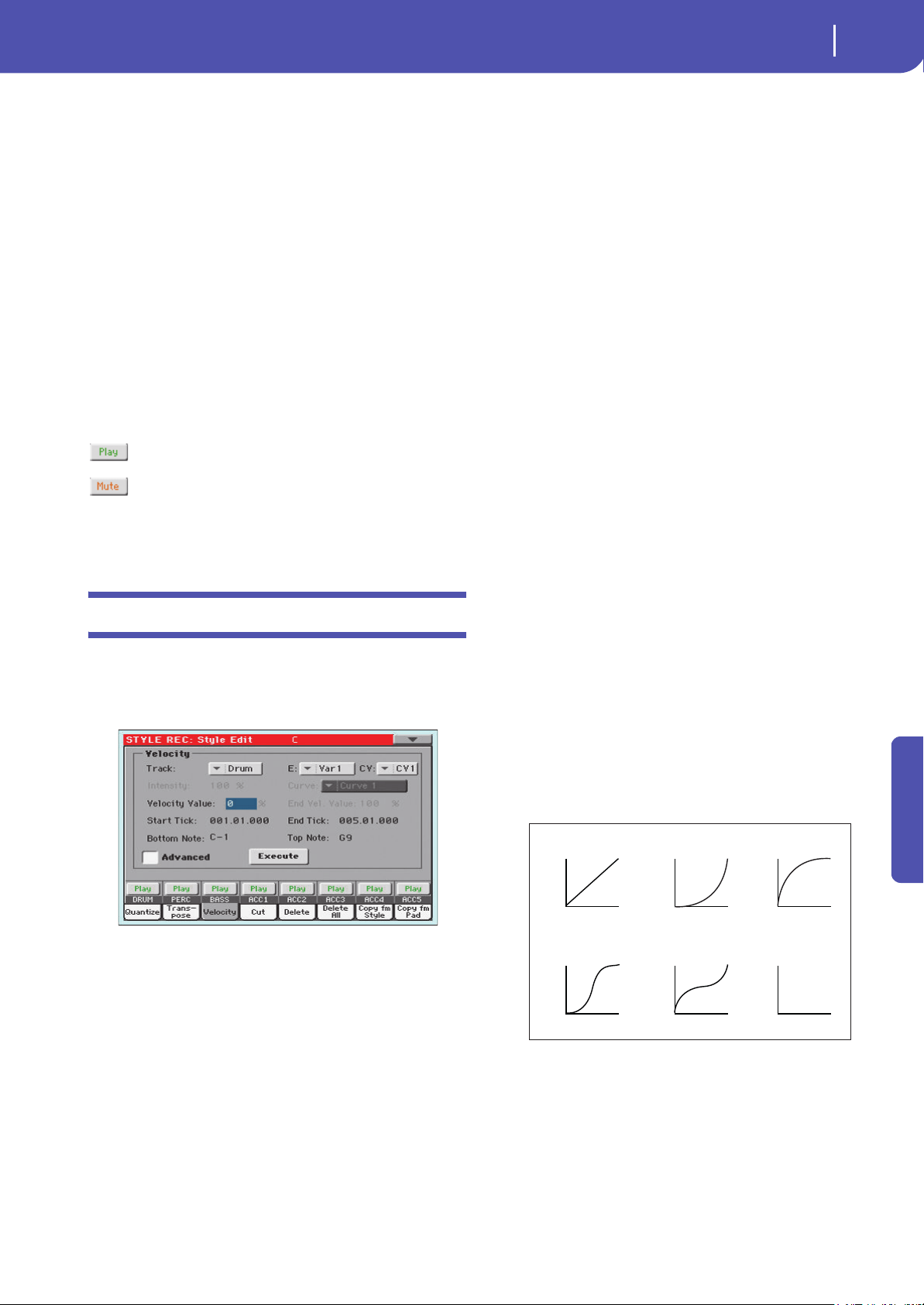
213
Style/Pad Record
Style/Pad Edit: Velocity
Reference
If a Chord Variation is four measures long, and you want to
select it all, the Start will be positioned at 1.01.000, and the End
at 5.01.000.
Bottom / Top Note
Use these parameters to set the bottom and top of the keyboard
range to be transposed. If you select the same note as the Bottom
and Top parameters, you can select a single percussive instru-
ment in a Drum or Percussion track. Since in a Drum Kit each
instrument is assigned to a different note of the scale, transpos-
ing a percussive instrument means assigning the part to a differ-
ent instrument.
Execute
Touch this button to execute the operation set in this page.
Track status icon
Status of tracks. Touch this icon to change the status.
Play status. The track can be heard.
Mute status. The track cannot be heard.
Track names
Under the buttons, a label for each track is shown.
Style/Pad Edit: Velocity
In this page you can change the velocity (dynamics) value of
notes in the selected track. An Advanced mode is available,
allowing you to select a velocity curve for the selected range.
This is useful to create fade-ins or fade-outs.
After setting the various parameters, touch Execute.
Note: When an RX Sound is assigned to the track being edited, the
resulting sound may change, since this kind of Sounds is made of
several different layers triggered by different velocity values.
Also, a fade-out may result in the level “jumping” up next to the
zero, since a higher-level layer may be selected by low velocity val-
ues.
Track
(Style only) Use this parameter to select a track.
All All tracks selected. The velocity for all notes of
the whole selected Chord Variation will be
changed.
Drum…Acc5 Selected track.
E / CV (Style Element/Chord Variation)
Use these parameters to select the Style Element (Style only) and
Chord Variation for editing.
Value
Velocity change value (±127).
Start / End Tick
Use these parameters to set the starting and ending points of the
range to be modified.
If a Chord Variation is four measures long, and you want to
select it all, the Start will be positioned at 1.01.000, and the End
at 5.01.000.
Bottom / Top Note
Use these parameters to set the bottom and top of the keyboard
range to be modified. If you select the same note as the Bottom
and Top parameters, you can select a single percussive instru-
ment in a Drum or Percussion track.
Advanced
When this checkbox is checked, the “Intensity”, “Curve”, “Start
Velocity Value” and “End Velocity Va lue” parame ters can b e
edited.
Intensity
(Only available in Advanced mode). Use this parameter to specify
the degree to which the velocity data will be adjusted toward the
curve you specify in “Curve”.
0…100% Intensity value. With a setting of 0 [%], the veloc-
ity will not change. With a setting of 100 [%], the
velocity will be changed the most.
Curve
(Only available in Advanced mode). Use this parameter to select
one of the six curves, and to specify how the velocity will change
over time.
Start / End Vel. Value
(Only available in Advanced mode). Velocity change at the start-
ing and ending ticks of the selected range.
0…100 Velocity change in percentage.
Execute
Touch this button to execute the operation set in this page.
Start
Value
Curve 1
Velocity
Start Value = 0%, End Value = 100%
127
1
End
Value
Start
Value
Curve 2
Velocity
127
1
End
Value
Start
Value
Curve 3
Velocity
127
1
End
Value
Start
Value
Curve 4
Velocity
127
1
End
Value
Start
Value
Curve 5
Velocity
127
1
End
Value
Start
Value
Curve 6
Velocity
RANDOM
127
1
End
Value
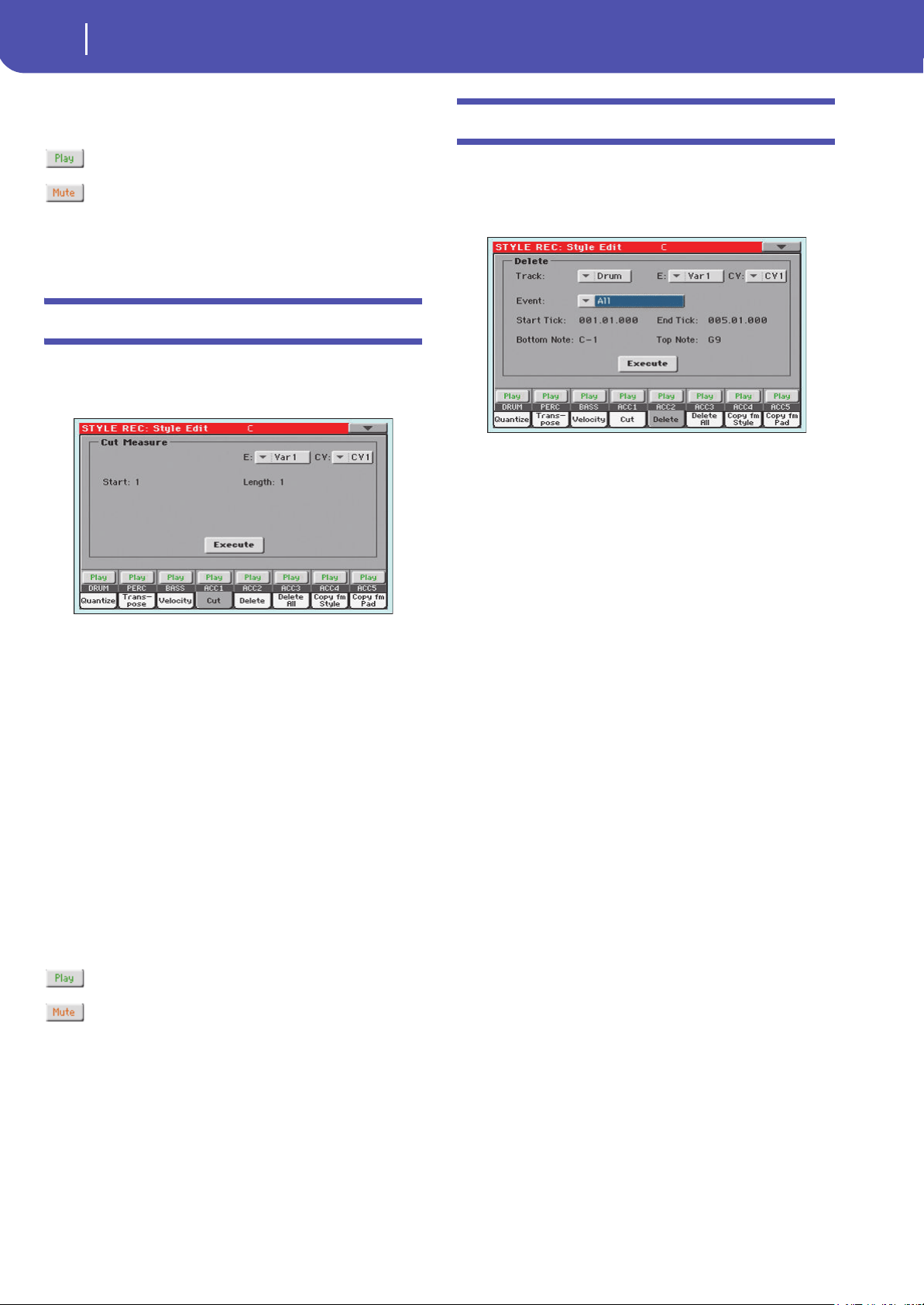
214
Style/Pad Record
Style/Pad Edit: Cut
Track status icon
Status of tracks. Touch this icon to change the status.
Play status. The track can be heard.
Mute status. The track cannot be heard.
Track names
Under the buttons, a label for each track is shown.
Style/Pad Edit: Cut
This function lets you quickly delete a selected measure (or a
series of measures) from the selected Chord Variation. All fol-
lowing events are moved back, to replace the cut measure(s).
After setting the various parameters, touch Execute.
E / CV (Style Element/Chord Variation)
Use these parameters to select the Style Element (Style only) and
Chord Variation for editing.
Start
First measure to be cut.
Length
Number of measures to be cut.
Execute
Touch this button to execute the operation set in this page.
Track status icon
Status of tracks. Touch this icon to change the status.
Play status. The track can be heard.
Mute status. The track cannot be heard.
Track names
Under the buttons, a label for each track is shown.
Style/Pad Edit: Delete
This page is where you can delete MIDI events out of the Style/
Pad. This function does not remove measures from the pattern.
To remove whole measure, use the Cut function (see “Style/Pad
Edit: Cut” on page 214)
After setting the various parameters, touch Execute.
Track
(Style only) Use this parameter to select a track.
All All tracks selected. After deletion, the selected
Chord Variation will remain empty.
Drum…Acc5 Selected track.
E / CV (Style Element/Chord Variation)
Use these parameters to select the Style Element (Style only) and
Chord Variation for editing.
Event
Type of MIDI event to delete.
All All events. The measures are not removed from
the Chord Variation.
Note All notes in the selected range.
Dup.Note All duplicate notes. When two notes with the
same pitch are encountered on the same tick, the
one with the lowest velocity is deleted.
After Touch After Touch events .
Pitch Bend Pitch Bend events.
Prog.Change Program Change events, excluding the bundled
Control Change #00 (Bank Select MSB) and #32
(Bank Select LSB).
Note: This kind of data is automatically removed
during recording.
Ctl.Change All Control Change events, for example Bank
Select, Modulation, Damper, Soft Pedal…
CC00/32…CC127
Single Control Change events. Double Control
Change numbers (like 00/32) are MSB/LSB bun-
dles.
Note: Some CC data are automatically removed
during recording. See the table on page 197 for
more information on the allowed data.
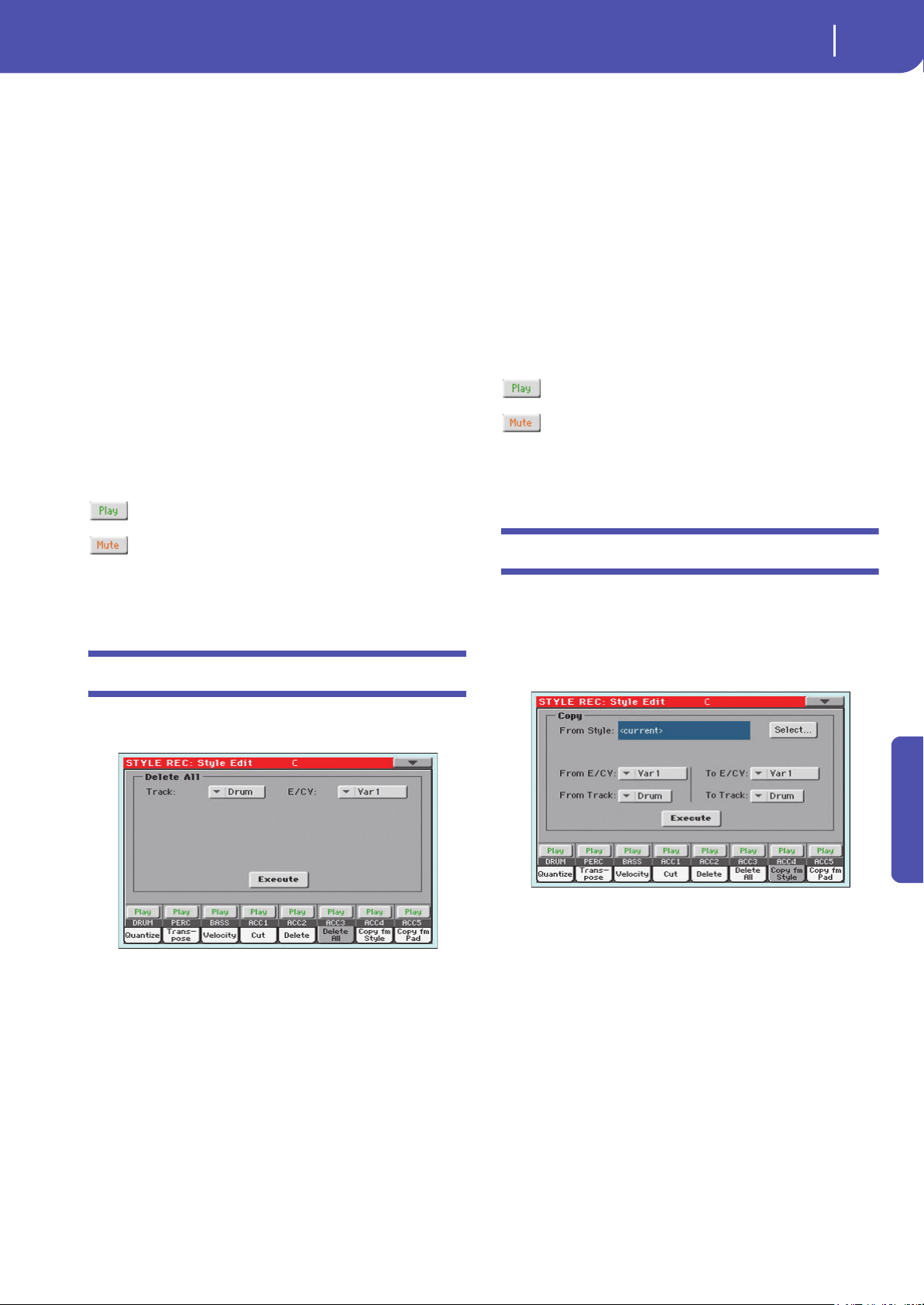
215
Style/Pad Record
Style/Pad Edit: Delete All
Reference
Start / End Tick
Use these parameters to set the starting and ending points of the
range to delete.
If a Chord Variation is four measures long, and you want to
select it all, the Start will be positioned at 1.01.000, and the End
at 5.01.000.
Bottom / Top Note
Use these parameters to set the bottom and top of the keyboard
range to delete. If you select the same note as the Bottom and
Top parameters, you can select a single percussive instrument in
a Drum or Percussion track.
Note: These parameters are available only when the All or Note
option is selected.
Execute
Touch this button to execute the operation set in this page.
Track status icon
Status of tracks. Touch this icon to change the status.
Play status. The track can be heard.
Mute status. The track cannot be heard.
Track names
Under the buttons, a label for each track is shown.
Style/Pad Edit: Delete All
This function lets you quickly delete a selected Style Element or
Chord Variation, or the whole Style.
After setting the various parameters, touch Execute.
Track
(Style only) Use this parameter to select a track.
All All tracks of the selected Style, Style Element or
Chord Variation.
Drum-Acc5 Single track of the selected Style, Style Element or
Chord Variation.
E / CV (Style Element/Chord Variation)
Use these parameters to select the Style Element (Style only) and
Chord Variation for editing.
All All Style Elements, i.e. the whole Style. When E/
Track=All and CV=All, the whole Style is deleted,
and all parameters are set to the default status.
Var 1… Cou nt In
Single Style Element.
V1-CV1…CI-CV2
Single Chord Variation.
Execute
Touch this button to execute the operation set in this page.
Track status icon
Status of tracks. Touch this icon to change the status.
Play status. The track can be heard.
Mute status. The track cannot be heard.
Track names
Under the buttons, a label for each track is shown.
Style/Pad Edit: Copy from Style
Here you can copy a track, Chord Variation or Style Element
inside the same Style, or from a different one. Furthermore, you
can copy a whole Style.
Wa r ni n g: The Copy operation deletes all data at the target loca-
tion (overwrite).
After setting the various parameters, touch Execute.
Note: If you copy too many events on the same tick, the “Too many
events!” message appears, and the copy operation is aborted.
Note: When you copy over an existing Chord Variation, Program
Change data is not copied, to leave the original Sounds unchanged
for that Chord Variation.
From Style
Choose this option to select the source Style to copy the track,
Chord Variation or Style Element from. Touch the Select button
to open the Style Select window and select the source Style.
From… To E/CV (Style Element/Chord Variation)
Use these parameters to select the source and target Style Ele-
ments or Chord Variations.
Note: You can’t copy from a Variation to a different Style Element
(or vice-versa), because of their different structure.
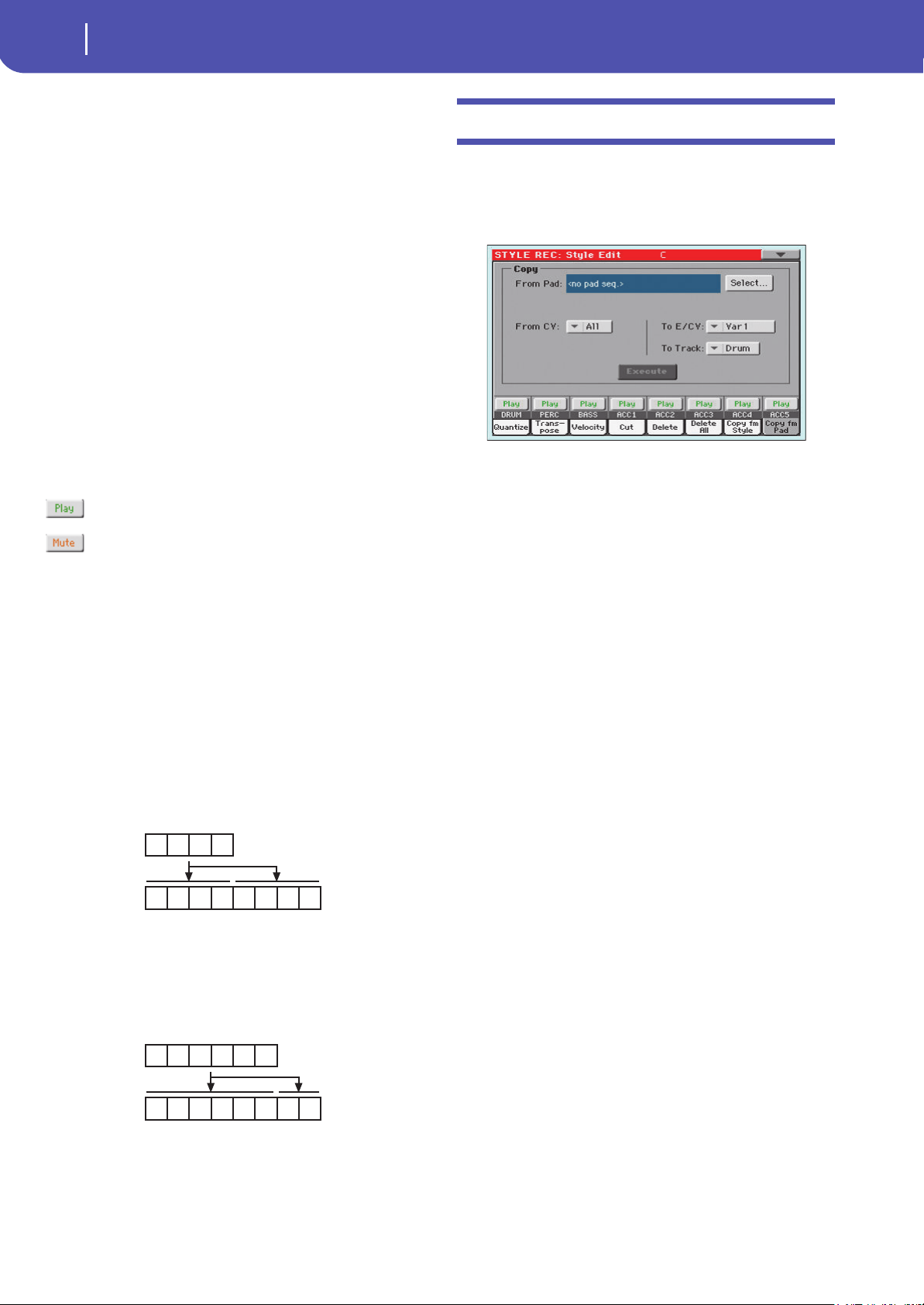
216
Style/Pad Record
Style/Pad Edit: Copy from Pad
All All Style Elements, i.e. the whole Style. You can’t
change the target, that is automatically set to All.
Var1…End2 Single Style Element.
V1-CV1…E2-CV2
Single Chord Variation.
From… To Track
Use this parameter to select the source and target track to copy.
You can double a track, to strengthen a pattern.
All All tracks of the selected Style, Style Element or
Chord Variation.
Drum-Acc5 Single track of the selected Style, Style Element or
Chord Variation.
Execute
Touch this button to execute the operation set in this page.
Track status icon
Status of tracks. Touch this icon to change the status.
Play status. The track can be heard.
Mute status. The track cannot be heard.
Track names
Under the buttons, a label for each track is shown.
Copying to a Chord Variation of a different
length
You can copy a Chord Variation to a different one of a different
length. Just keep in mind the following:
• If the source length is a divider of the target length, the
source Chord Variation will be multiplied to fit the target
Chord Variation. For example, if the source is 4-measures
long, and the target 8-measures, the source will be copied
two times.
• If the source length is not a divider of the target length, the
source Chord Variation will be copied for as many mea-
sures as can fit the target Chord Variation. For example, if
the source is 6-measures long, and the target 8-measures,
the source will be copied once, then the first 2 measures
will be copied to fit the remaining 2 measures.
Note: Avoid copying to a Chord Variation with a different meter
(time signature), for example a 4/4 Chord Variation onto a 3/4
one.
Style/Pad Edit: Copy from Pad
Here you can copy a Chord Variation from a Pad. Furthermore,
you can copy a whole Pad.
War ni ng : The Copy operation deletes all data at the target loca-
tion (overwrite).
After setting the various parameters, touch Execute.
Note: If you copy too many events on the same “tick”, the “Too
many events!” message appears, and the copy operation is aborted.
Note: When you copy over an existing Chord Variation, Program
Change data is not copied, to leave the original Sounds unchanged
for that Chord Variation.
From Pad
Choose this option to select the source Pad to copy the Chord
Variat ion from. Tou ch the Select button to open the Pad Select
window and select the source Pad.
From CV (Chord Variation)
Use this parameter to select the source Chord Variation.
All All Chord Variations, i.e. the whole Pad. You can’t
change the target, that is automatically set to All.
CV1…CV6 Single Chord Variation.
To CV (Chord Variation)
Use this parameter to select a target Chord Variation inside the
current Style/Pad.
CV1…CV6 Target Chord Variation. Automatically set to All
if the “From CV” parameter is also set to All.
To Track
(Style only) Use this parameter to select the target track to copy.
All All tracks of the selected Style, Style Element or
Chord Variation.
Drum-Acc5 Single track of the selected Style, Style Element or
Chord Variation.
Execute
Touch this button to execute the operation set in this page.
1 2 3 4
1 2 3 4 1 2 3 4
1 2 3 4
1 2 3 4 5 6 1 2
5 6
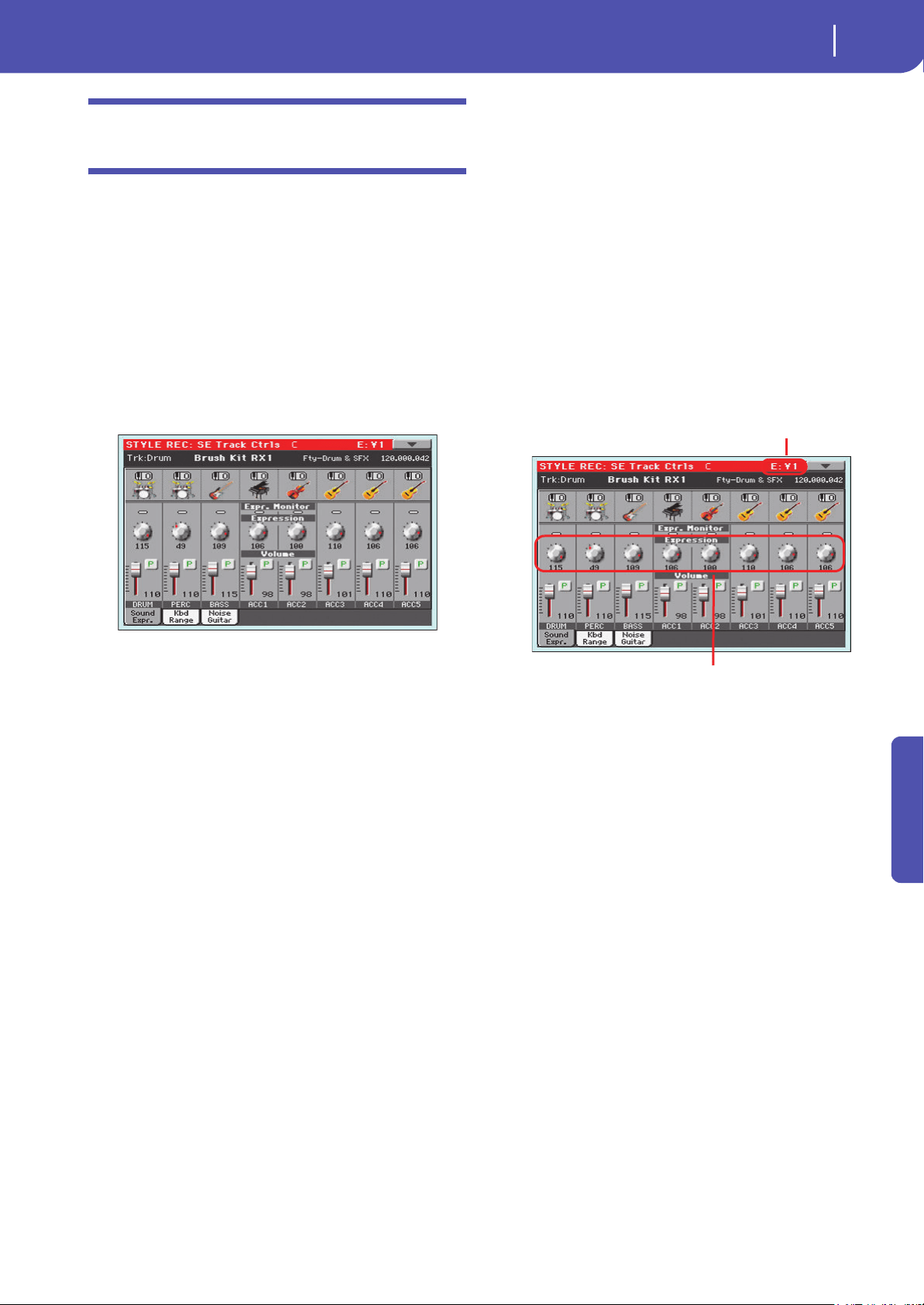
217
Style/Pad Record
Style Element Track Controls: Sound/Expression
Reference
Style Element Track Controls: Sound/
Expression
In this page you can assign a different Sound to each track of the
selected Style Element. Each Style Element can have different
Sound; after saving the new Style, please don’t forget to check the
“Original Style Sounds” parameter in the Style Play mode (see
page 92), to let the Style select the Sound bypassing the Style Set-
tings.
In this page you can also check and modify the Expression
(CC#11) value for each of the Style Element tracks. This lets you
reduce the relative level of a track in a single Style Element, with-
out reducing the overall Volume of the Style. This is a very useful
control, when you have different Sounds assigned to the same
track in different Style Elements, and the internal level of these
Sounds must be different.
When in this page, press the corresponding button on the
control panel to select a Style Element (VARIATION1 …
ENDING3).
To copy the settings of this page to another Style Element, use
the “Copy Sound” and “Copy Expression” commands from the
page menu (see “Copy Sounds dialog box” and “Copy Expres-
sion dialog box” starting from page 226).
Selected Track Info area
See “Selected track info area” on page 199 for detailed informa-
tion.
Sounds area
See “Sounds area” on page 201 for detailed information.
Expression area
Expression Monitor
You can use these indicators to check if CC#11 (Expression)
messages are contained in a track. Expression messages con-
tained in a track can vary the volume of the track. It is very diffi-
cult to catch them out – unless you carefully read all the events
in the Event Edit page.
This monitor should help you keeping track of them, and let you
access Event Edit only on the tracks containing the messages.
Press the START/STOP button to start playback, and look at the
indicators. When one of them lights up, you can enter Event Edit
on the corresponding track, and edit or remove the Expression
messages.
Expression
Use these knobs to set the Expression (CC#11) value for the cor-
responding track. This value can be seen at the beginning of the
Event Edit list (see “Event Edit: Event Edit” on page 209).
Different Expression values can be defined for each Style Ele-
ment. This way, you can set a different volume in each Style Ele-
ment, relative to the general Volume value set in the Style
Header.
Expression leveling
You can quickly and easily adjust the Expression level of all
tracks in a Style Element (Variation, Intro…). This allows for a
more precise control over the volume level of all Style Element.
1. While in this page, select one of the Style Elements by
pressing its button in the control panel.
2. Keep the SHIFT button pressed, and press the TEMPO+
button to increase the Expression value of all the Style Vari-
ation’s tracks, TEMPO- to decrease it.
3. Release the SHIFT button.
4. Repeat the above operation with all the desired Style Ele-
ments.
Note: A track’s volume may be changed by an Expression event
contained in a track. To check if any of these events exist in a track,
let the Style Element play and look at the Expression Monitor in
this same page. If one or more Expression events are found, go to
the Event Edit page and delete it (or them)
Volume area
Use these controls to set the volume and status of each track. See
page 201 for more information.
The Volume value is the same for the whole Style. Use the
Expression controls to adjust the relative balance between tracks
in each Style Element.
Selected Style Element
Expression level

218
Style/Pad Record
Style Element Track Controls: Keyboard Range
Style Element Track Controls: Keyboard
Range
The Keyboard Range automatically transposes any pattern note
that would otherwise play too high or too low in pitch, com-
pared to the original acoustic instrument, when transposed by
the arranger. This will result in a more natural sound for each
accompaniment instrument.
For example, the lower limit for a guitar is E2. If you play a chord
under the E2, the transposed pattern could exceed this limit, and
sound unnatural. A Bottom limit set to E2 for the guitar track
will solve the problem.
Different Keyboard Range values can be set for each Style Ele-
ment.
Note: The Keyboard Range is ignored while recording. The selected
track can be recorded and played back on the full range of the key-
board.
When in this page, press the corresponding button on the
control panel to select a Style Element (VARIATION1 …
ENDING3).
To copy the settings of this page to another Style Element, use
the “Copy Keyboard Range” command from the page menu (see
“Copy Key Range dialog box” on page 227).
Top /B ot tom
Use these parameters to set the bottom and top of the keyboard
range for the corresponding track of the current Style Element.
Volume area
Use these controls to set the volume and status of each track. See
page 201 for more information.
Style Element Track Controls: Noise/Guitar
The Noise/Guitar page is where you can set the RX Noise level
and the ‘human feel’ of Guitar tracks.
RX Noise
Use these controls to adjust the volume of RX Noises in the cor-
responding tracks. This control applies to all types of tracks
(provided the Sound includes RX Noises).
Humanize GTR
Use these controls to apply a random value to the position,
velocity and length of notes of Guitar tracks (see “Track Type”
on page 220). This control has no effect on other types of track.
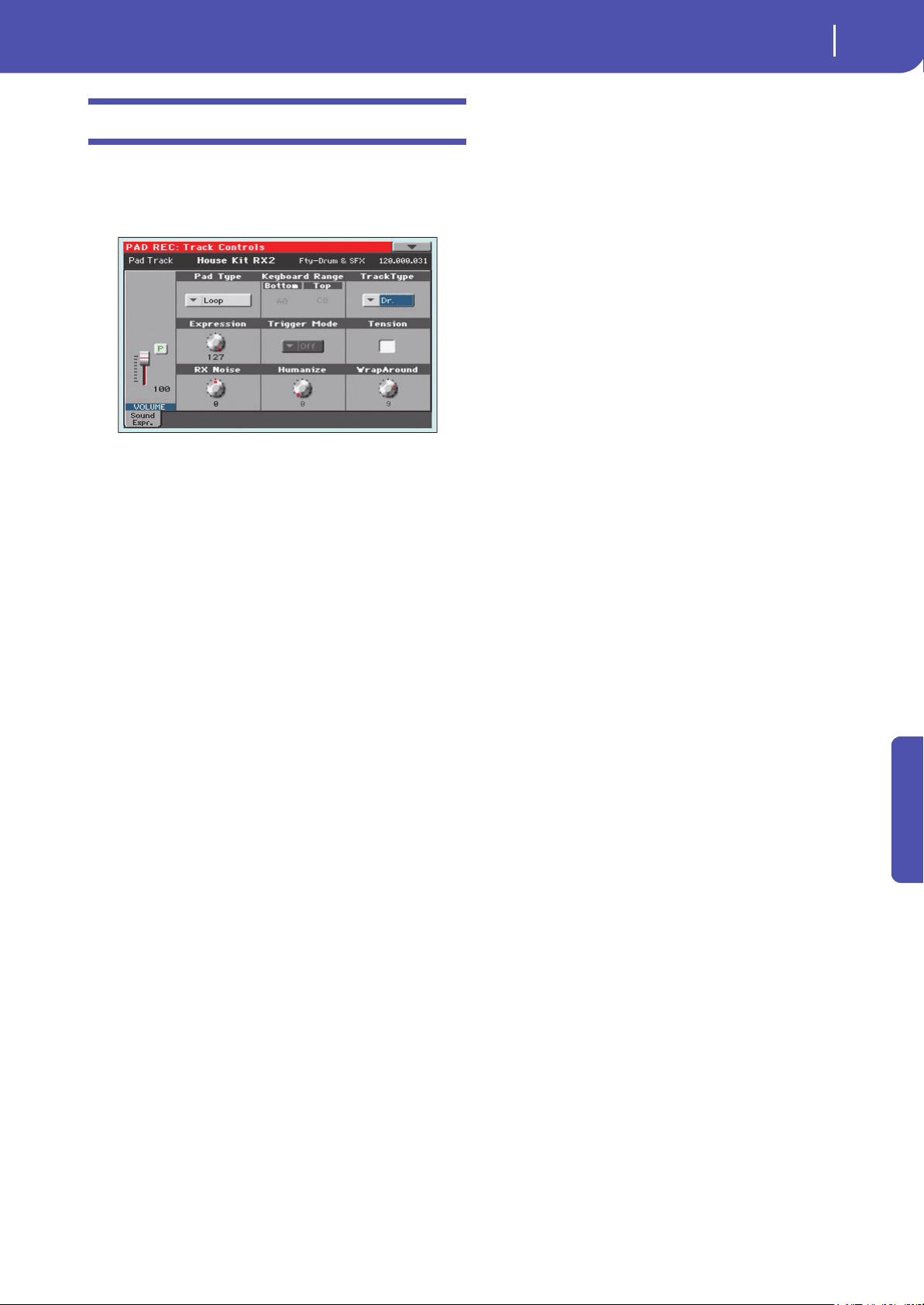
219
Style/Pad Record
Pad Track Controls: Sound/Expression
Reference
Pad Track Controls: Sound/Expression
In this page you can assign a Sound to the Pad track, adjust its
Volume (CC#07) and Expression (CC#11) values, and set vari-
ous other parameters, like the Keyboard Range, Track Type,
Trigger Mode, Tension and Wrap Around.
Sound/Bank
Sound assigned to the Pad track.
Volume
Use this slider to set the Volume (CC#07) value for the Pad track.
This value is not saved with the Pad, and is only used to test the
Pad’s volume during editing or recording.
Pad Type
Use this parameter to decide if the Pad will play once or if it will
loop.
Note: While in Pad Record mode, the pattern is always played
back in loop, even if this parameter is set to “One Shot”.
One Shot When you press one of the PAD buttons, the cor-
responding Pad is only played once. This is useful
for playing Hits or Sequences that must only play
once.
Loop When you press one of the PAD buttons, the cor-
responding Pad plays up to the end, then contin-
ues playing from the start. Press STOP in the
PAD section to stop it playing. This is useful for
playing cyclic sequences.
Keyboard Range
The Keyboard Range automatically transposes any pattern note
that would otherwise play too high or too low in pitch, com-
pared to the original acoustic instrument, when transposed by
the arranger. This will result in a more natural sound for the Pad
instrument.
Note: The Keyboard Range is ignored while recording. The Pad
track can play on the full range of the keyboard.
Trigger Mode
(Not available if Track Type = Drum). This setting lets you define
how Bass and Acc-type tracks are retriggered when the chord is
changed.
Off Each time you play a new chord, current notes
will be stopped. The track will remain silent until
a new note will be encountered in the pattern.
Rt (Retrigger) The sound will be stopped, and new
notes matching the recognized chord will be
played back.
Rp (Repitch) New notes matching the recognized
chord will be played back, by repitching notes
already playing. There will be no break in the
sound. This is very useful on Guitar and Bass
tracks.
Track Type
Use this parameter to set the type of the Pad track.
Drum Drum track. This type of track is not transposed
by the arranger, and is used for Drum Kits, or for
tracks that you don’t want to be transposed when
playing a different chord.
Bass Bass track. This type of track always plays the
root when changing chord.
Acc Accompaniment track. This type of track can be
used freely, for melodic or harmonic accompani-
ment patterns.
Expression
Use this knob to set the Expression (CC#11) value for the Pad
track. This value can be seen at the beginning of the Event Edit
list.
The Expression is useful to balance the Pad with the other Pads.
For example, if you want the Pad you are recording to be mel-
lower than the average, just lower the Expression value.
Ten sion
Tension adds notes (a 9th, 11th and/or 13th) that have actually
been played, even if they haven't been written in the Pad pattern.
This parameter specifies whether or not the Tension included in
the recognized chord will be added to an Acc-type track.
On The Tension will be added.
Off No Tension will be added.
RX Noise
Use these controls to adjust the volume of RX Noises in the cor-
responding tracks. This control applies to all types of tracks
(provided the Sound includes RX Noises).
Humanize GTR
Use these controls to apply a random value to the position,
velocity and length of notes of Guitar tracks (see “Track Type”
on page 219). This control has no effect on other types of track.
Wrap Around
The wrap-around point is the highest register limit for the Pad
track. The Pad pattern will be transposed according to the
detected chord. If the chord is too high, the Pad track might play
in a register that is too high, and therefore unnatural. If, how-
ever, it reaches the wrap-around point, it will be automatically
transposed an octave lower.
The wrap-around point can be individually set in semitone steps
up to a maximum of 12 semitones, relative to the chord root set
in the main page of the Pad Record mode (see “Key/Chord” on
page 199).
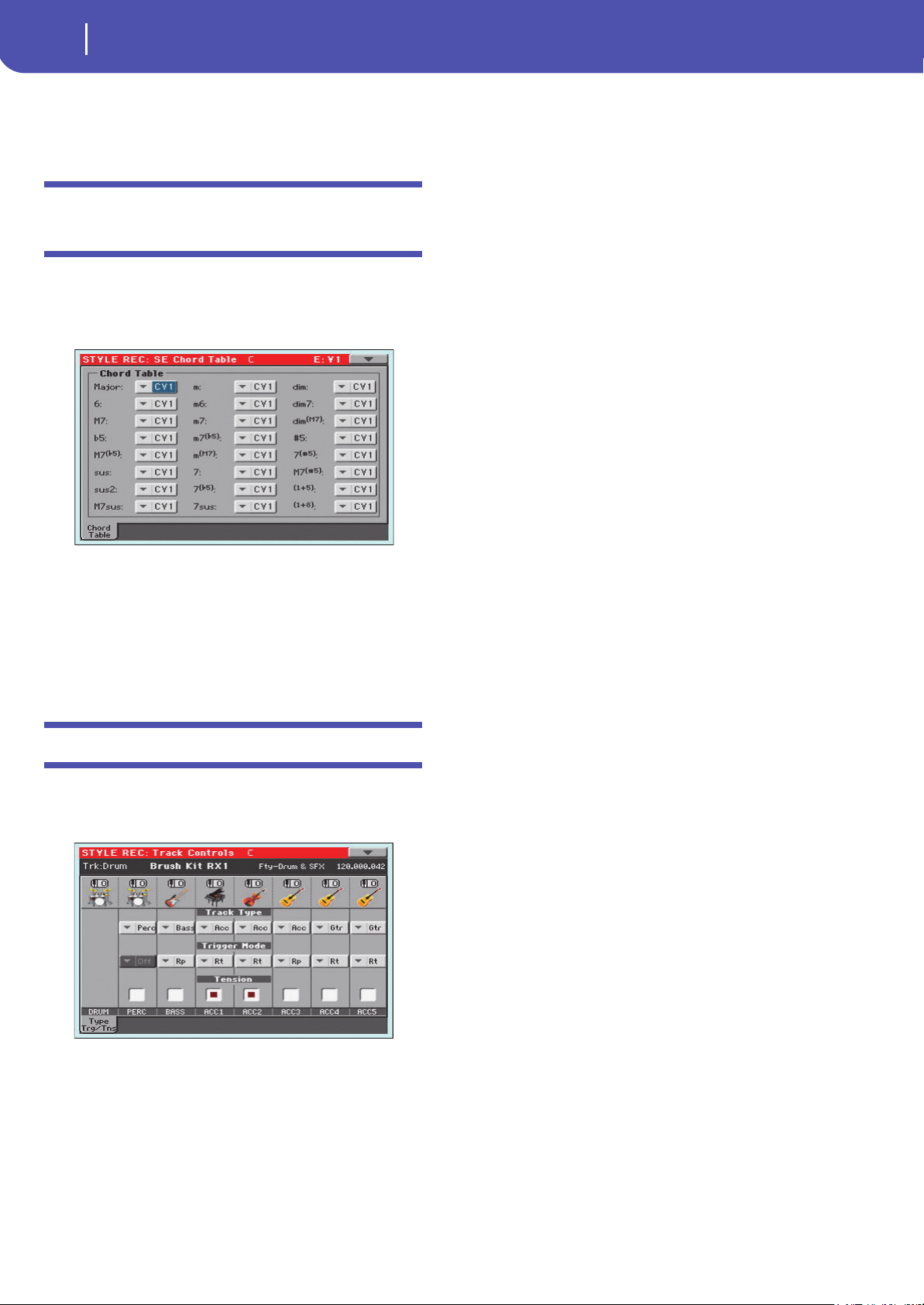
220
Style/Pad Record
Style Element/Pad Chord Table: Chord Table
1…12 Maximum transposition (in semitones) of the
track, referred to the original key of the Pad pat-
tern.
Style Element/Pad Chord Table: Chord
Table
This is the page where you can assign a Chord Variation to each
of the most important recognized chord. When a chord is recog-
nized, the assigned Chord Variation will be automatically
selected by the arranger to play the accompaniment.
When in this page, press the corresponding button on the
control panel to select a Style Element (VARIATION1 …
ENDING3).
Chord / Chord Variation
Use these parameters to assign a Chord Variation to each of the
most important chords.
Style Track Controls: Type/Trigger/Tension
In this page you can set the Mode, Trigger mode for the Style
tracks, and activate/deactivate the Tension for the Accompani-
ment tracks.
When in this page, press the corresponding button on the
control panel to select a Style Element (VARIATION1 …
ENDING3).
Track Type
Use this parameter to set the type of the corresponding track.
Drum Drum track. This type of track is not transposed
by the arranger, and is used for Drum Kits made
of Drum sounds. It can be affected by the Drum
Mapping of the Style Play mode (see “Drum
Mapping (Var.1…Var.4)” on page 107).
Perc Percussion track. This type of track cannot be
transposed, and is used for Drum Kit made of
Percussion sounds. It is NOT affected by the
Drum Mapping.
Bass Bass track. This type of track always plays the
root when changing chord.
Acc Accompaniment track. This type of track can be
used freely, for melodic or harmonic accompani-
ment patterns.
Gtr Guitar track. This type of track uses Guitar Mode
to create guitar strumming (see “Main page -
Guitar Mode” on page 202). When this type is
selected, the “Tension” parameter can no longer
be edited.
Trigger Mode
This setting lets you define how Bass and Acc-type tracks are
retriggered when the chord is changed.
Off Each time you play a new chord, current notes
will be stopped. The track will remain silent until
a new note will be encountered in the pattern.
Rt (Retrigger) The sound will be stopped, and new
notes matching the recognized chord will be
played back.
Rp (Repitch) New notes matching the recognized
chord will be played back, by repitching notes
already playing. There will be no break in the
sound. This is very useful on Guitar and Bass
tracks.
Tens ion
Tension adds notes (a 9th, 11th and/or 13th) that have actually
been played to the accompaniment, even if they haven't been
written in the Style pattern. This parameter specifies whether or
not the Tension included in the recognized chord will be added
to the Acc-type tracks.
On The Tension will be added.
Off No Tension will be added.
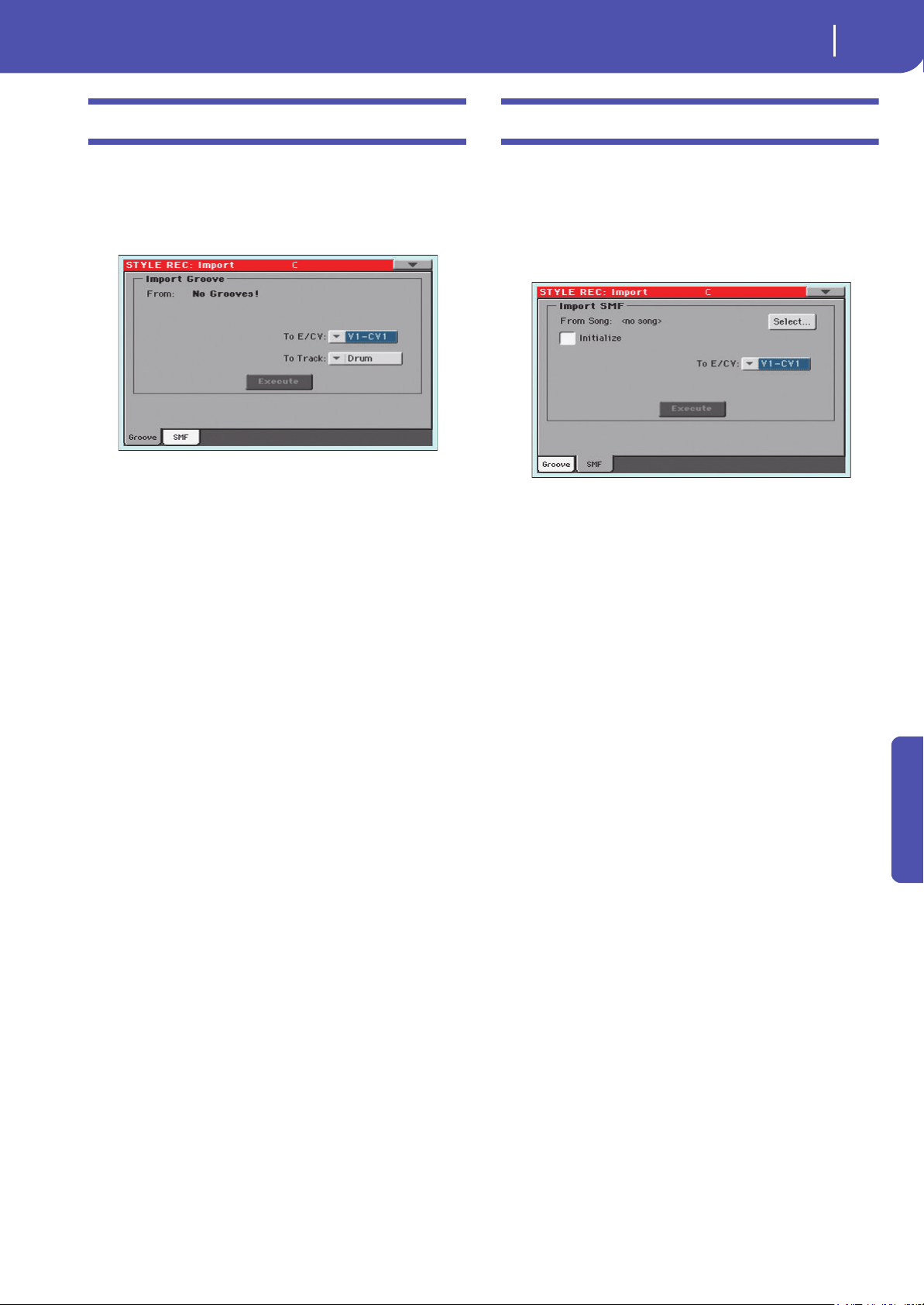
221
Style/Pad Record
Import: Import Groove
Reference
Import: Import Groove
The Import Groove function allows the loading of MIDI
Grooves (“.GRV” files). By importing these data to a track, and
assigning the Sound based on the sliced samples to the same
track, you can play the original audio groove, and freely change
its Tempo.
Note: After importing a groove generated by a melody line (not by
a percussive groove), the imported groove and samples will not be
transposed together with the other Style tracks. Audio data cannot
be transposed by the arranger.
Note: Please execute the Import Groove operation before setting
the instrument to standby. All “.GRV” files generated by a Time
Slice operation are deleted when the instrument enters standby.
From
Use this parameter to select one of the MIDI Groove patterns
(“.GRV” files) generated when saving data after a Time Slice
operation.
To E/CV (Style Element/Chord Variation)
Use this parameter to select the target Style Element (Style only)
and Chord Variation.
To Track
(Style only) Use this parameter to select the target track inside
the selected Chord Variation. The Percussion track is usually
suggested, since the Drum track is still suitable for standard
Drum Kit sounds (count-in, break etc.). After importing the
MIDI Groove pattern, assign the Sound, to which the sliced
samples are assigned, to the track playing the MIDI Groove pat-
tern.
Import: Import SMF
The Import SMF function allows you to import MIDI data from
a Standard MIDI File (SMF) created on your preferred external
sequencer, and transform them in a Chord Variation.
Note: You cannot use this function to import data from any
generic Song. The Standard MIDI File to be imported must be pro-
grammed as if it was one of Pa300’s Chord Variations.
When importing an SMF, parameters like CV Length, Meter,
Tempo Changes, Program Changes and Expression are recog-
nized. These parameters will be imported as the header of the
Style Element containing the Chord Variation, provided the
“Initialize” parameter is checked, or the Style Element is empty.
Hint: It is a good idea to check the “Initialize” parameter when
importing the first Chord Variation of a Style Element, and
uncheck it when importing the following Chord Variations.
• Sounds assigned to each track can be imported, provided the
Program Change, Bank Select MSB and LSB events are on the
first ‘tick’ of the SMF. These data are loaded in the Style Ele-
ment’s header, and not as Sounds assigned to the Style Perfor-
mance.
Note: Sounds in the Style Element header can be overridden by
Sounds assigned to the Style Settings, by checking the “Original
Style Sound” parameter in the main page of the Style Play mode
(Style Track view).
• If the above data was not found on the first tick of the imported
SMF, Sounds must be manually assigned to each track. You can
do this in the “Record 1” or “Record 2”, or the “Sound/Expres-
sion” page of the Style Record mode,.
• Key/Chord, Chord Table, Expression, and any other Style Vari-
ation parameter, must be manually programmed in the relevant
Style Record pages.
• The starting Tempo, and each track’s Volume, must be pro-
grammed as Style Settings data, and then saved in the Style Set-
tings.
• Meter (time signature) Change is not allowed, therefore not
recognized.
• The Chord Variation length is the same as the imported SMF.
You can change length by changing the value of the CV Length
parameter, on the main page of the Style/Pad Record mode.

222
Style/Pad Record
Import: Import SMF
Hint: If a note extends beyond the last measure of the Chord Vari-
ation, an additional measure is appended (for example, if a note
extends after the end of the fourth measure in a 4-measure pat-
tern, a 5-measure Chord Variation will be generated). If so, change
the CV Length value to reset the Chord Variation length. The
exceeding note will be cut, to fit the new pattern length.
When programming a Chord Variation on an external
sequencer, please assign each Style track to the correct MIDI
channel, according to the following table.
When programming a Chord Variation on the external
sequencer, please assign the Pad track to the MIDI channel #10.
Note: Only SMF in format 0 can be loaded.
From Song
This is the name of the Standard MIDI File to be loaded. Touch
the Select button to open the file selector, and select an “.SMF”
file.
Select
Touch this button to open the file selector and load the SMF.
Initialize
Check this parameter if you want all settings of the target Style
Element (i.e., Key/Chord, Chord Table, Sounds…) are reset
when loading the SMF.
Hint: It is a good idea to check the “Initialize” parameter when
importing the first Chord Variation of a Style Element, and
uncheck it when importing the following Chord Variations.
To E/CV
Use this parameter to select a target Chord Variation.
Execute
After setting all parameters in this page, touch this button to
import the Standard MIDI File into the target Chord Variation.
Importing an SMF separated by Markers into
a Style
As an alternative to importing single Chord Variations, you can
import a whole Style as an SMF separated by Markers, i.e., a sin-
gle SMF containing all the Chord Variations (Variation 1, Varia-
tion 2, etc.) each one separated by a Marker (the same events
used in Song Play mode).
1. While in this page, touch the Select button, and choose the
Standard Midi File to be imported.
2. Keep the SHIFT button pressed.
3. Without releasing the SHIFT button, touch the Execute
button in the display.
4. Release the SHIFT button.
When creating a new Style, we suggest to check the “Initialize”
checkbox. Do not check it if the SMF you are loading was previ-
ously exported from a Style to be edited; in this case, it is very
important to keep all the previous settings.
Style Tracks and MIDI Channels must be lined as in the previous
table, as per Korg’s standard Style format definition.
Note: Tracks/MIDI Channels other than the above mentioned are
ignored during the import procedure.
For a list of MIDI events supported during the import opera-
tions, please see “List of recorded events” on page 197. If any, the
following events are stripped off and automatically transferred to
the Style Element header during the import procedure:
• Time signature (this event is mandatory)
• Control Change bundle #00-32 (Bank Select MSB/LSB)
• Program Change
• Control Change #11 (Expression)
Control Change 00, Control Change 32 and Program Change
messages must be placed at the very beginning of each Chord
Variation (tick 0).
Style Track MIDI Channel
Bass 09
Drum/Pad 10
Percussion 11
Accompaniment 1 12
Accompaniment 2 13
Accompaniment 3 14
Accompaniment 4 15
Accompaniment 5 16
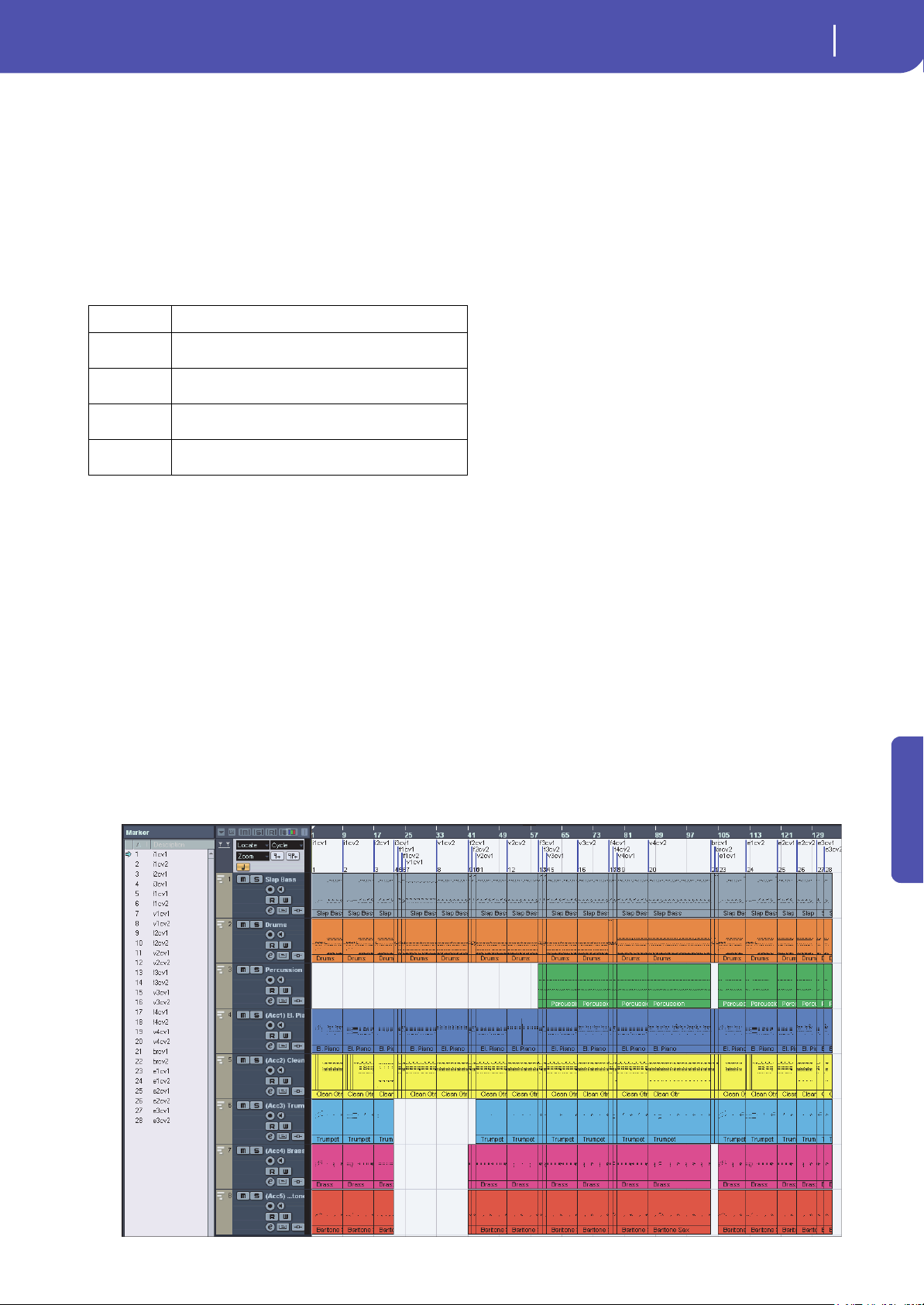
223
Style/Pad Record
Import: Import SMF
Reference
Whenever they are not saved in the SMF, Program Change, Con-
trol Change 00, 11 and 32, can be still programmed in Style
Record mode, by using the edit features available.
Wa r ni n g: Pa300 can only handle SMF format 0 (Zero). If you are
in trouble importing your file, maybe your sequencer (or DAW) is
exporting using SMF format 1. Please refer to the software’s user’s
manual.
The naming structure for the Markers inside the SMF is
“EnCVn”, whose single components are shown in the following
table:
War ning: It is mandatory not to use capital letters in Marker
names. Some examples of valid names:
‘i1cv2’ = Intro1 – Chord Variation 2
‘v4cv3’ = Variation 4 – Chord Variation 3
Examples of non accepted names:
‘V1cv2’, ‘v1CV2’, ‘intro i1cv2’, ‘v1cv1 chorus’
The order of the Chord Variations inside the SMF is not relevant.
They can be freely placed inside the SMF.
At the end of this page you can find a screenshot of a test file cre-
ated in Steinberg Cubase, just as an example of how a SMF sepa-
rated by Markers can look like. Considering analogies between
actual workstations, it will not look much different in other
applications like Logic, Pro Tools, Digital Performer, Sonar or
Reaper.
Component Meaning
E Style Element (‘v’ = variation, ‘i’ = intro, ‘f’ = fill,
‘e’ = ending)
n Style Element number (‘1’~’4’ for variations, ‘1’~’2’ for all
other style elements)
CV Chord Variation (‘cv’ = chord variation – no other choices
allowed)
n Chord Variation number [1~6 for Variations, 1~2 for all oth-
ers]
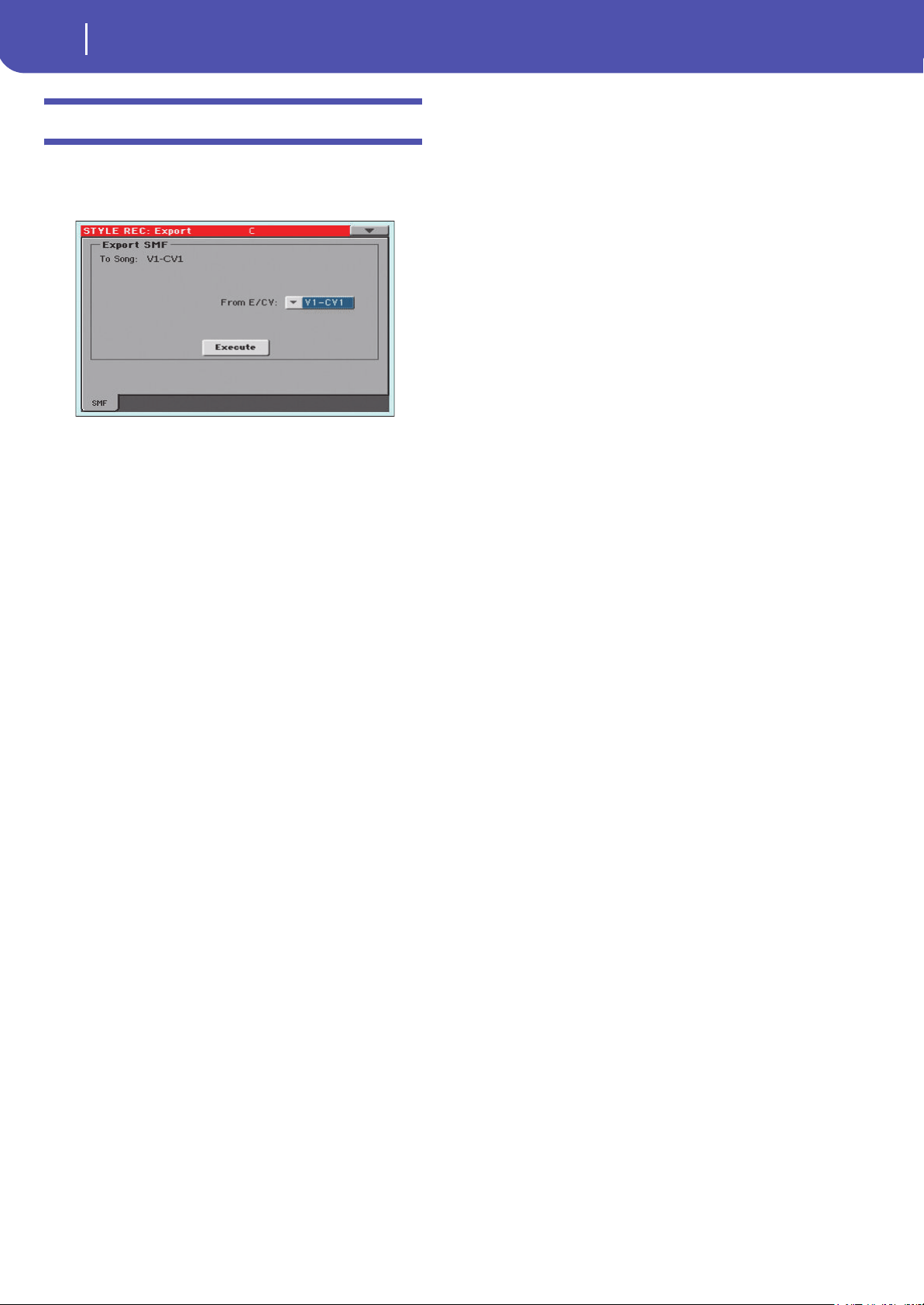
224
Style/Pad Record
Export SMF
Export SMF
The Export SMF function allows you to export a Chord Varia-
tion as a Standard MIDI File (SMF), and edit it on your preferred
external sequencer.
To Song
This (non editable) parameter shows the name of the Standard
MIDI File to be generated. The (automatically assigned) name
will be the same of the exported Chord Variation.
From E/CV
Use this pop-up menu to select one of the available Chord Varia-
tions from the current Style.
Execute
After selecting a Chord Variation, touch this button to export it
as a Standard MIDI File. A standard file selector will appear.
Select the target device and directory, then touch Save. After you
touch Save, a dialog box appears, letting you assign a name to the
file.
Exporting a Style as an SMF separated by
Markers
As an alternative to exporting single Chord Variations to indi-
vidual Standard MIDI Files, you can export a whole Style as an
SMF separated by Markers, i.e., a single SMF containing all the
Chord Variations (Variation 1, Variation 2, etc.) each one sepa-
rated by a Marker (the same events used in Song Play mode).
1. While in this page, keep the SHIFT button pressed.
2. Without releasing the SHIFT button, touch the Execute
button in the display.
3. Release the SHIFT button.
4. Assign a name to the Standard Midi File where to save the
Style in edit.
This operation creates, in the selected device, an SMF format 0
(Zero), containing all the MIDI data included in the selected
Style, with each Chord Variation starting from a different
Marker (named as per the naming convention explained in the
Import section above).
Each Chord Variation will include, at the very beginning (tick 0),
the following informations:
•Time signature
• Control Change bundle #00-32 (Bank Select MSB/LSB)
• Program Change
• Control Change #11 (Expression)
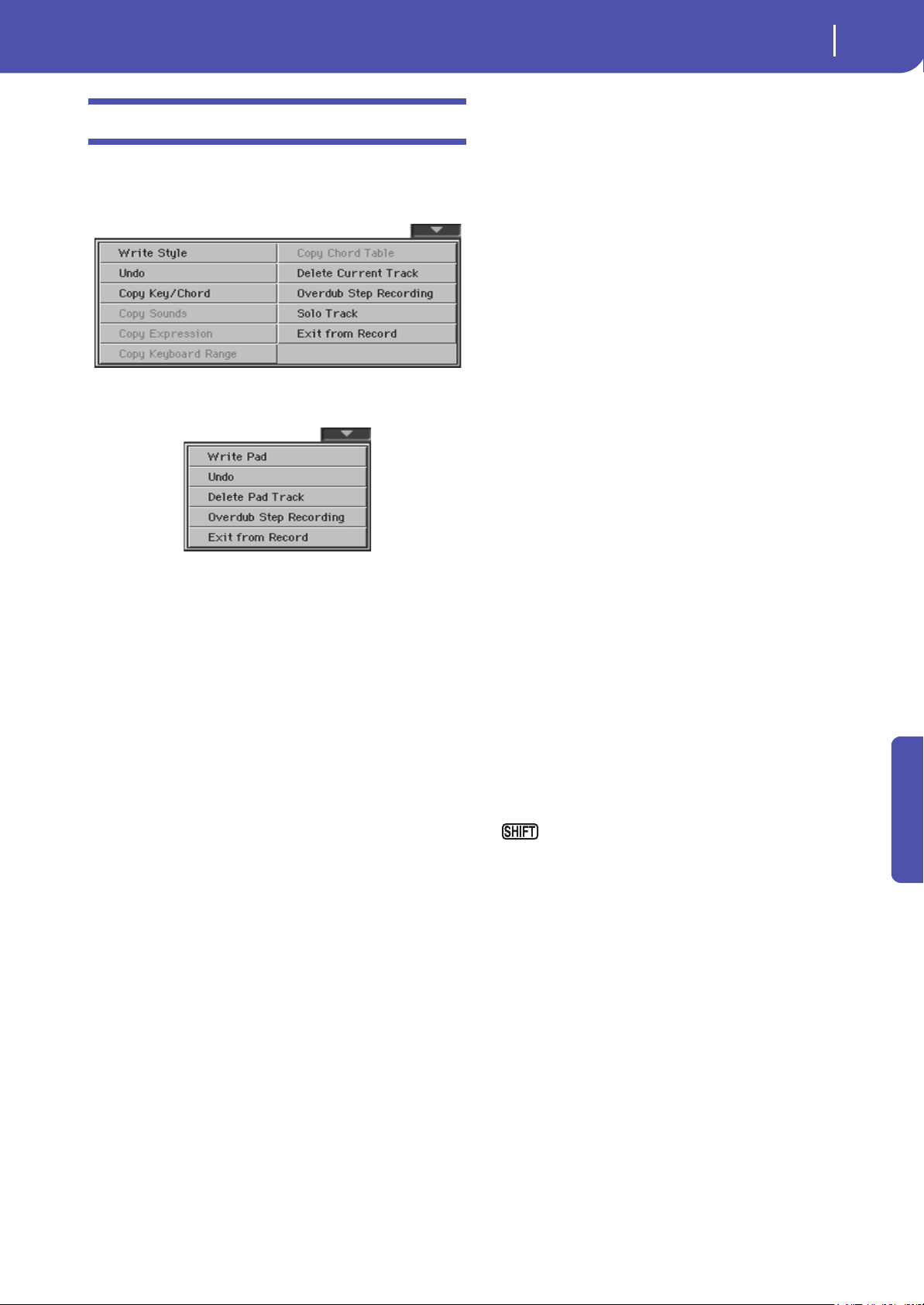
225
Style/Pad Record
Page menu
Reference
Page menu
Touch the page menu icon to open the page menu. Touch a com-
mand to select it. Touch anywhere in the display to close the
menu without selecting a command.
Style Record
Pad Record
Write Style/Pad
Select this command to open the Write Style or Write Pad dialog
box, and save the Style/Pad to the internal memory.
See “Write Style/Pad dialog box” on page 226 for more informa-
tion.
Undo
Only available in Record mode. While in Record mode, cancels
the latest recorded data and restores the previous situation.
Selected a second time, it restores recorded data again (“Redo”
function).
Delete Pad Track
Only available in the Main page of the Pad Record mode. Select
this command to delete the Pad track.
Copy Key/Ch (Copy Key/Chord) button
Select this command to open the Copy Key/Chord dialog box,
and copy Key/Chord settings of the currently selected track to all
other tracks of the same Chord Variation, or to the whole Style.
See “Copy Key/Chord dialog box” on page 226 for more infor-
mation.
Copy Sound
(Only available in some edit pages). While the Style Element
Track Control edit section is selected, use this command to open
the Copy Sound dialog box and copy all Sounds assigned to the
current Style Element tracks to a different Style Element.
See “Copy Sounds dialog box” on page 226 for more informa-
tion.
Copy Expression
(Only available in some edit pages). While the Style Element
Track Control edit section is selected, use this command to open
the Copy Expression dialog box and copy all Expression values
assigned to the current Style Element tracks to a different Style
Element.
See “Copy Expression dialog box” on page 227 for more infor-
mation.
Copy Keyboard Range
(Only available in some edit pages). While the Style Element
Track Control edit section is selected, use this command to open
the Copy Keyboard Range dialog box and copy all Keyboard
Range values for the current Style Element tracks to a different
Style Element.
See “Copy Key Range dialog box” on page 227 for more informa-
tion.
Copy Chord Table
Only available while in the Style Element Chord Table page. Select
this command to open the Copy Chord Table dialog box (see
“Copy Chord Table dialog box” on page 227).
Delete Current Track
(Only available in the Main Record pages). Select this command
to delete the selected track.
Overdub Step Recording
(Only available in the Main Record pages). Select this command
to open the Overdub Step recording window (see “Overdub Step
Recording window” on page 228).
Solo Track
Select the track to be soloed, then check this item. You will hear
only the selected track, and the ‘Solo’ warning will flash on the
page header.
Uncheck this item to exit the Solo function.
Keep the SHIFT button pressed and touch one of the
tracks to solo it. Do the same on a soloed track to deactivate the
Solo function.
Exit from Record
Select this command to exit from Record without saving changes
to the Style.

226
Style/Pad Record
Write Style/Pad dialog box
Write Style/Pad dialog box
Open this window by choosing the Write Style or Write Pad item
from the page menu. Here you can save the recorded or edited
Style/Pad to memory.
Name
Name of the Style/Pad to be saved. Touch the (Text Edit)
button next to the name to open the Text Edit window.
Style/Pad Bank
Target bank of Styles/Pad. Use the Select button on the display,
or the VALUE DIAL to select a different bank.
Style
Target Style/Pad location in the selected bank. Use the Select
button on the display, or the VALUE DIAL to select a different
location.
Note: A User or Favorite Style, or a User Pad, is usually prompted
when writing a Style/Pad. However, you can overwrite a Factory
Style/Pad when the “Factory Style and Pad Protect” parameter is
left unchecked (see page 154).
Select… button
Touch this button to open the Style/Pad Select window, and
select a target location.
While in the Style/Pad Select window, use the buttons on top of
the window to select either the User or the Favorite banks.
Copy Key/Chord dialog box
(Style only) Open this window by choosing the Copy Key/Chord
item from the page menu. Here you can copy Key/Chord settings
of the currently selected track to all other tracks of the same
Chord Variation, or to the whole Style. This function is useful to
speed-up pattern programming, and to avoid having different
tracks in different keys within the same Chord Variation.
Current Chord Variation Tracks
The Key/Chord of the current track will be cop-
ied to all tracks of the current Chord Variation.
All Style Tracks
The Key/Chord of the current track will be cop-
ied to all tracks of the Style (i.e., all Chord Varia-
tions).
Copy Sounds dialog box
(Style only) Open this window by choosing the Copy Sounds
item from the page menu. Here you can copy all Sounds
assigned to the current Style Element tracks to a different Style
Element.
From Style Element
Non editable. Currently selected Style Element.
To Style Element
Target Style Element.
All Settings will be copied to all Style Element of the
Style in edit.
Var1 …C ount In
Single Style Element where to copy settings to.
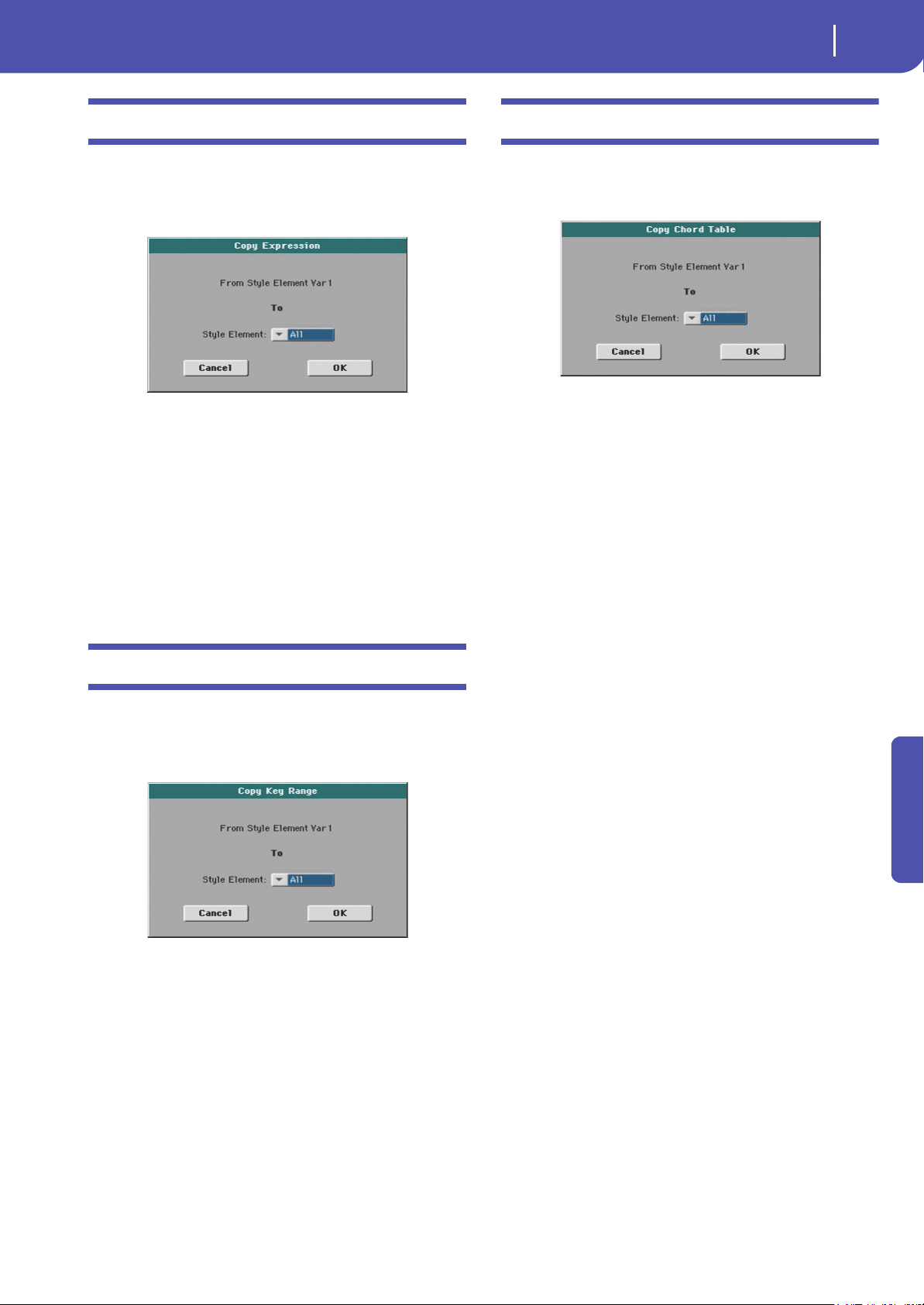
227
Style/Pad Record
Copy Expression dialog box
Reference
Copy Expression dialog box
(Style only) Open this window by choosing the Copy Expression
item from the page menu. Here you can copy all Expression val-
ues assigned to the current Style Element tracks to a different
Style Element.
From Style Element
Non editable. Currently selected Style Element.
To Style Element
Target Style Element.
All Settings will be copied to all Style Element of the
Style in edit.
Var1…C ount In
Single Style Element where to copy settings to.
Copy Key Range dialog box
(Style only) Open this window by choosing the Copy Keyboard
Range item from the page menu. Here you can copy all Key-
board Range values for the current Style Element tracks to a dif-
ferent Style Element.
From Style Element
Non editable. Currently selected Style Element.
To Style Element
Target Style Element.
All Settings will be copied to all Style Element of the
Style in edit.
Var1…C ount In
Single Style Element where to copy settings to.
Copy Chord Table dialog box
(Style only) Open this window by choosing the Copy Chord
Table item from the page menu. Here you can copy the Chord
Table of the current Style Element to a different Style Element.
To Style Element
Target Style Element.
All Settings will be copied to all Style Element of the
Style in edit.
Var1…C ount In
Single Style Element where to copy settings to.
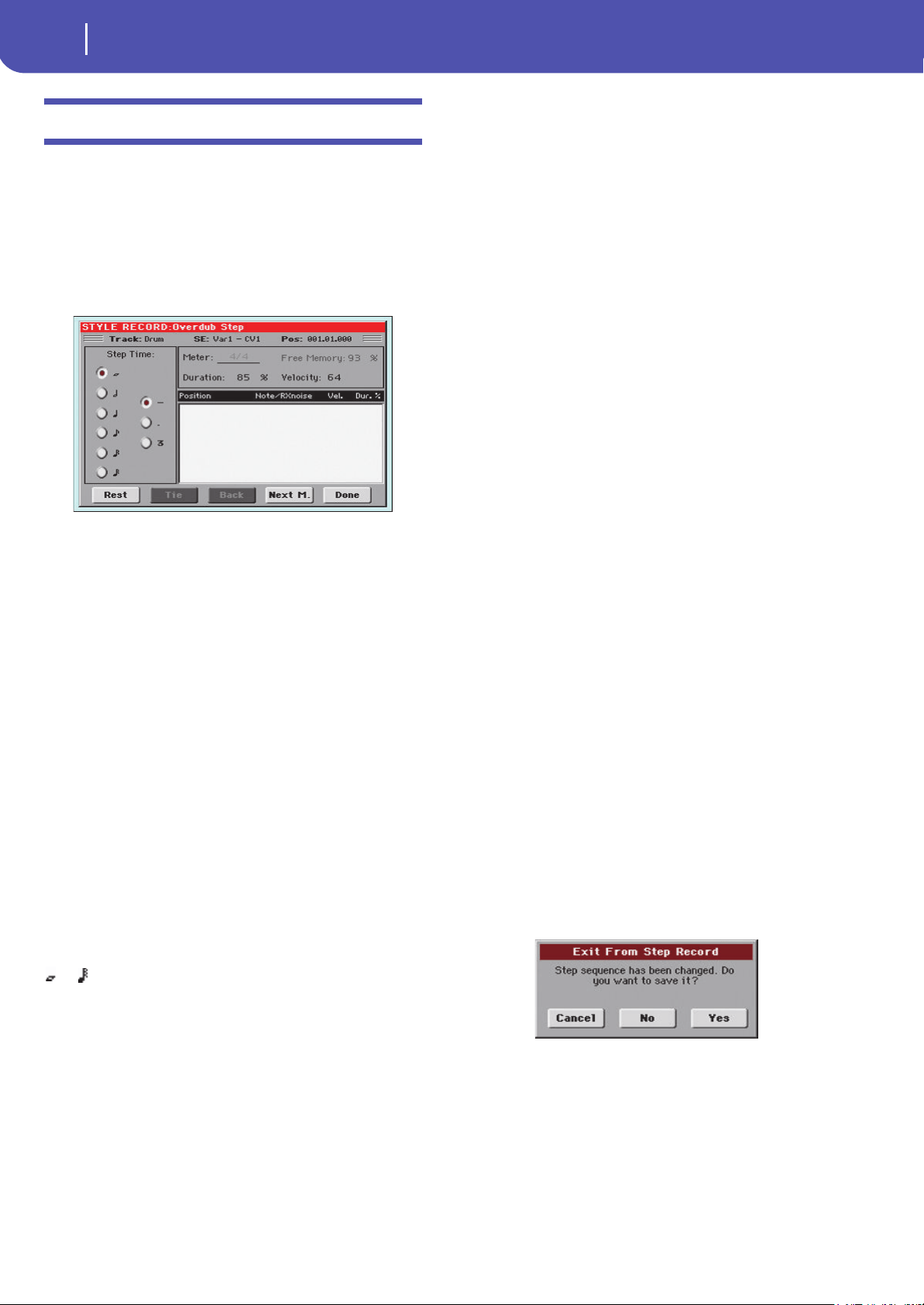
228
Style/Pad Record
Overdub Step Recording window
Overdub Step Recording window
The Step Record allows you to create a new Style/Pad by entering
single notes or chords to each track, by playing them on the key-
board one at a time, with no need to play on time. This is very
useful when transcribing an existing score, or needing a higher
grade of detail, and is particularly suitable to create drum and
percussion tracks.
To access this page, select the “Overdub Step Recording” com-
mand from the page menu.
Track (Selected track)
Name of the selected track in record.
DRUM…ACC5
Style track.
SE (Selected Style Element)
See “Element (Style Element)” on page 198.
CV (Selected Chord Variation)
See “Chord Var (Chord Variation)” on page 198.
Pos (Position)
This is the position of the event (note, rest or chord) to be
inserted.
Event list
Previously inserted events. You may delete this event, and set it
in edit again, by touching the Back button.
Step Time values
Length of the event to be inserted.
… Note value.
Standard (–) Standard value of the selected note.
Dot (.) Augments the selected note by one half of its
value.
Triplet (3) Triplet value of the selected note.
Meter
Meter (time signature) of the current measure. This parameter
cannot be edited. You can set the Meter in the main page of the
Style Record mode, before actually starting recording (see step 6
on page 206 for more information).
Free Memory
Remaining memory for recording.
Duration
Relative duration of the inserted note. The percentage is always
referred to the step value.
25% Staccatissimo.
50% Staccato.
85% Ordinary articulation.
100% Legato.
Velocity
Set this parameter before entering a note or chord. This will be
the playing strength (i.e., velocity value) of the event to be
inserted.
Kbd Keyboard. You can select this parameter, by turn-
ing all counter-clockwise the dial. When this
option is selected, the playing strength of the
played note is recognized and recorded.
1…127 Velocity value. The event will be inserted with
this velocity value, and the actual playing
strength of the note played on the keyboard will
be ignored.
Rest
Touch this button to insert a rest.
Tie
Touch this button to tie the note to be inserted to the previous
note.
Back
Goes to the previous step, erasing the inserted event.
Next M. (Next Measure)
Goes to the next measure, and fills the remaining space with
rests.
Done
Exits the Step Record mode. If you have inserted some notes, a
dialog box appears, asking you to either cancel, discard or save
the changes.
If you touch Cancel, exit is canceled, and you can continue edit-
ing. If you choose No, changes are not saved, and the Step
Record window is closed. If you choose Yes, changes are saved,
and the Step Record window is closed.
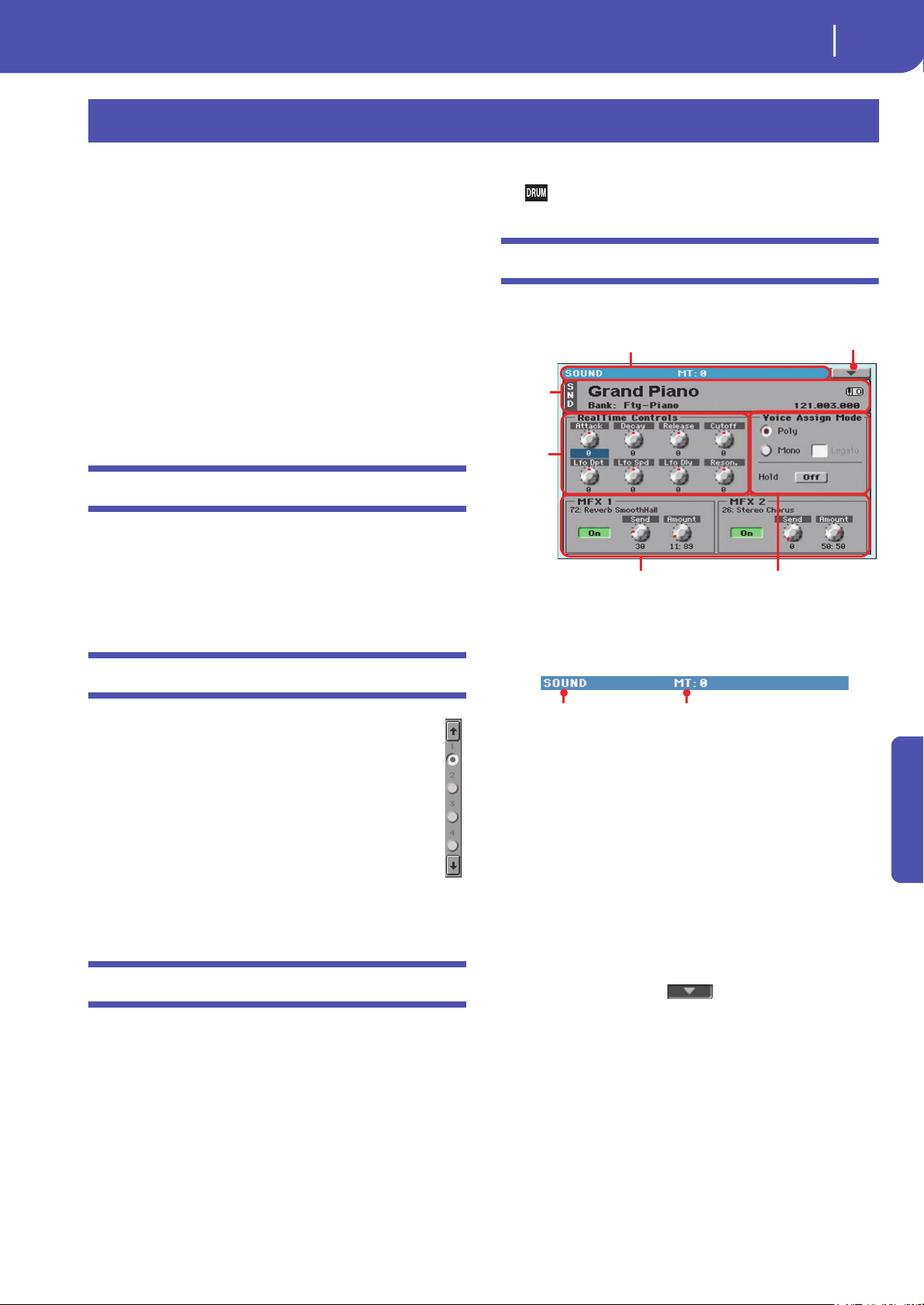
229
Sound Edit
The MIDI channel
Reference
The Sound Edit mode is where you can listen to individual
Sounds, and edit them. In this mode, the selected Sound can
always be played across the full keyboard range.
You can access this mode by opening the Sound Select window,
and choosing the “Edit Sound” command from the page menu
(see “Sound Select window” on page 83). Exit from this mode by
choosing the “Exit from Edit” command from the page menu
(see page 255).
While in a different operating mode, you can easily select the
Sound to be edited when switching to the Sound mode. Just
select the track the Sound to be edited is assigned to, then keep
the SHIFT button pressed while pressing the SOUND button.
Hint: This is also useful to see the Bank Select/Program Change
numbers when programming a Song on an external sequencer.
The MIDI channel
In Sound mode, Pa300 receives and transmits on the same chan-
nel of the Upper 1 track. If the Global channel is assigned, notes
can also be received on this channel. See “MIDI: MIDI In Chan-
nels” on page 159 and “MIDI: MIDI Out Channels” on page 160
for more information.
How to select oscillators
While in an edit page requiring an oscillator to be selected
for editing, use the vertical row of buttons on the right
(1…24 max) to select one of the available oscillators. The
number of available oscillators depends on the “Oscillators
Count” parameter (see page 232).
If you cannot see the desired oscillator, touch the scroll
arrow, until the hidden oscillator is shown in the display.
When oscillators cannot be select, since the parameter
contained in the current page are global and valid for the
whole Sound, these buttons are greyed out, and cannot be
selected.
Sounds, Drum Kits
Pa300 features two different types of Sounds:
• Ordinary Sounds. These are normal instrument Sounds,
like pianos, strings, basses.
• Drum Kits. These are drum and percussion kits, where
each note of the keyboard is a different percussive instru-
ment. You can find Drum Kits in the Drum & SFX and
User Dk banks.
Before pressing MENU to access the edit pages, you should
select a Sound of the type you wish to edit or create.
Note: Notes pointing to special Drum Kit features are marked by
the icon.
Main page
Here is the main page of the Sound operating mode.
Page header
This line shows the current operating mode and transposition.
Operating mode name
Name of the current operating mode.
Master transpose
Master transpose value in semitones. This value can be changed
using the TRANSPOSE buttons on the control panel.
Page menu icon
Touch the page menu icon to open the menu. See “Page menu”
on page 254 for more information.
Sound Info area
This is where basic details for the Sound are shown. Touch any-
where in this area to open the Sound Select window.
Sound name
Name of the Sound assigned to the corresponding Keyboard
track.
Bank
Bank the current Sound belongs to.
Sound Edit
Page header
Page menu icon
Realtime
Controls
area
FX area
Voice Assign Mode area
Sound
Info
area
Operating mode Master Transpose (in
semitones)

230
Sound Edit
Main page
Bank Select / Program Change sequence
Bank Select MSB / Bank Select LSB / Program Change numbers,
in the form “CC00.CC32.PC”.
CC00 This section shows the value of the Control
Change (CC) 00 message (or Bank Select MSB)
for the selected Sound.
CC32 This section shows the value of the Control
Change (CC) 32 message (a.k.a. Bank Select LSB)
for the selected Sound.
PC This section shows the value of the Program
Change (PC) message for the selected Sound.
Values are in the standard 0-127 MIDI number-
ing format.
Note: Some manufacturers could use the 1-128
numbering system; when connecting your Pa300 to
an instrument of this kind, increment the PC value
by 1 unit.
Octave Transpose icon
Octave transpose value. Use the UPPER OCTAVE buttons to
change this value.
Realtime Controls area
Controls in this area allow you to edit the main parameters of the
Sounds assigned to each track. Touch one of them, and modify
its value by using the VALUE DIAL controls (or moving your
finger).
Note: All values refer to the original values of the Sound.
Note: When selecting the Write Sound command from the page
menu, current parameter values, after editing the Realtime Con-
trols, are saved with the Sound. After saving, Realtime Controls are
set back to the default position.
Note: After selecting a different Sound, Realtime Control values
are automatically set to zero.
Attack Attack time. This is the time during which the
sound goes from zero (at the moment when you
strike a key) to it’s maximum level.
Decay Decay time. Time to go from the final Attack level
to the beginning of the Sustain.
Release Release time. This is the time during which the
sound goes from the sustaining phase, to zero.
The Release is triggered by releasing a key.
Cutoff Filter cutoff. This sets the sound brightness.
LFO Depth Intensity of the Vibrato (LFO).
LFO Speed Speed of the Vibrato (LFO).
LFO Delay Delay time before the Vibrato (LFO) begins, after
the sound starts.
Resonance Use the Filter Resonance to boost the cutoff fre-
quency.
Voice Assign Mode
Poly
The Sound will play polyphonically, allowing you play chords.
Mono
The Sound will play monophonically, producing only one note at
a time.
Legato
This parameter is available when the Mono option is selected.
Note: If “Legato” is On, certain multisamples or keyboard locations
may produce an incorrect pitch.
On Legato is on. When multiple note-on’s occur, the
first note-on will retrigger the sound, and the sec-
ond and subsequent note-on’s will not retrigger.
When legato is on, multiple note-on’s will not
retrigger the voice. If one note is already on and
another note is turned on, the first voice will con-
tinue sounding. The oscillator sound, envelope,
and LFO will not be reset, and only the pitch of
the oscillator will be updated. This setting is
effective for wind instrument sounds and analog
synth-type sounds.
Off Legato is off. Notes will always be retriggered
when note-on occurs.
When legato is off, multiple note-on’s will retrigger
the voice at each note-on. The oscillator sound,
envelope, and LFO will be reset (and retriggered)
according to the settings of the Sound.
Hold
Use this parameter to keep the notes sustained even after releas-
ing the keys.
Note: Please remember the Hold must be On before playing the
note to be held.
FX Area
In Sound mode, two Master effect processors (MFX1 and MFX2)
are available.
On/Off
Use this button to turn on or off the corresponding effect.
Selected Effect
Non editable. This shows the effect assigned to the correspond-
ing FX processor. To select a different effect, see “Effects: “B” FX
Config” on page 253.
Send
Use this knob to adjust the level of the dry sound sent to the cor-
responding effect.
Amount
Volume of the effect that is added to the dry (non-effected) sig-
nal.
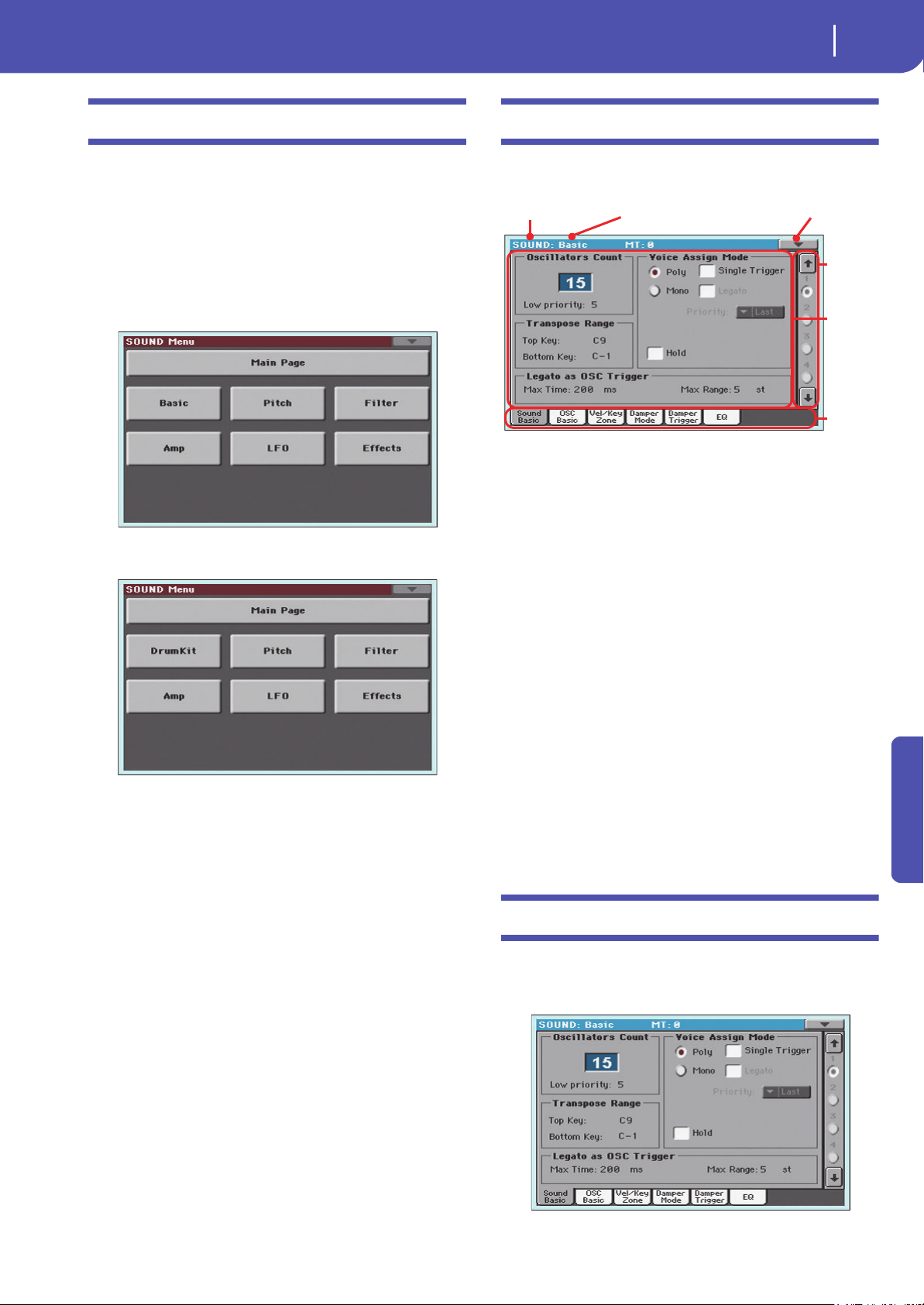
231
Sound Edit
Edit menu
Reference
Edit menu
From any page, press the MENU button to open the Sound edit
menu. This menu gives access to the various Sound edit sections.
When in the menu, select an edit section, or press EXIT or
SOUND to exit the menu and return to the main page. To return
to the main page, you can also select the Main Page menu item.
When in an edit page, press EXIT or the SOUND button to
return to the main page of the Sound operating mode.
• When an ordinary Sound is selected:
• When a Drum Kit is selected, the “Basic” section is
replaced by the “DrumKit” section:
Each item in this menu corresponds to an edit section. Each edit
section groups various edit pages, that may be selected by touch-
ing the corresponding tab on the lower part of the display.
Edit page structure
All edit pages share some basic elements.
Operating mode
This indicates that the instrument is in Sound mode.
Edit section
This identifies the current edit section, corresponding to one of
the items of the edit menu (see “Edit menu” on page 231).
Page menu icon
Touch this icon to open the page menu (see “Page menu” on
page 254).
Selected oscillator
Use these buttons to select the oscillator to edit.
Parameters area
Each page contains various parameters. Use the tabs to select
one of the available pages. For detailed information on the vari-
ous types of parameters, see sections starting from page 231.
Tabs
Use tabs to select one of the edit pages of the current edit section.
Basic: Sound Basic
Here you can make basic settings for the Sound, such as basic
oscillator settings, the oscillator count, and the polyphonic
mode.
Operating mode Edit section
Selected
oscillator
Page menu
icon
Parame-
ters area
Tabs

232
Sound Edit
Basic: Sound Basic
Oscillator Count
Oscillators Count
Use this box to specify the number of oscillators (up to 24) the
Sound is based on.
The total amount of polyphony varies depending on the number
of oscillators used by the Sound (a maximum of 128 with only 1
oscillator per voice).
Note: When editing the Grand Piano sound, keep in mind Oscilla-
tors 10~15 can only be heard when the Damper pedal is depressed.
Low priority
Use this parameter to decide if the highest-numbered oscillators
must be turned off when more polyphony voices are needed.
Keep in mind that, with a dense polyphony, missing oscillators
might not even be heard.
0 No oscillator will be turned off in any case.
1 The highest-numbered oscillator will be turned
off, if needed.
2 The two highest-numbered oscillators can be
turned off, one after the other, if needed.
[n]…24 The n-numbered oscillators (up to 24) can be
turned off, one after the other, if needed.
Transpose Range
Top/Bottom Key
Use these parameters to set a range for transposition. Inside this
range notes are transposed. Outside this range, they are not
transposed. This is useful to avoid RX Sounds being transposed
when transposing a Sound.
Note: Set these (general) values so that all RX Noises assigned to
any Oscillator fall out of the Transpose Range. For example, if you
assigned an RX Noise to a G7 on OSC1, and an RX Noise to an A7
on OSC2, set the “Top Key” value no higher than F#7 (just below
the lowest RX Noise).
Voice Assign Mode
Poly/Mono
This is the polyphonic mode of the Sound.
Poly The Sound will play polyphonically, allowing you
to play chords.
Mono The Sound will play monophonically, producing
only one note at a time.
Single Trigger
This parameter is available when the selected mode is Poly.
On When the same note is played repeatedly, the pre-
vious note will be silenced before the next note is
sounded, so that the notes do not overlap.
Off When the same note is played repeatedly, the pre-
vious note will not be silenced before the next
note is sounded.
Legato
This parameter is only available when the selected mode is
Mono. It is the same found on the main page of the Sound mode.
See “Legato” on page 230 for information on this parameter.
Priority
This parameter is available when the selected mode is Mono. It
specifies which note will be given priority to play when two or
more notes are played simultaneously.
Low Lowest note will take priority.
High Highest note will take priority.
Last Last note will take priority.
Hold
Use this parameter to keep the notes sustained even after releas-
ing the keys.
Legato as OSC Trigger
The parameters included in this section are to be considered
when a note is played ‘legato’, i.e., with no gap with the previous
note. These parameters are valid for the whole Sound (all oscilla-
tors).
Max Time
This delay allows notes to be considered Legato, even if there is a
small gap before them. This is useful to avoid some notes in a
chord are played Legato, and some others Staccato.
1…999 ms Notes played with a small gap are still considered
Legato notes. A value of approx. 15 ms is usually
considered effective when playing chords.
Max Range
This is the range (in semitones) within the Legato is considered.
If you play a wider interval, the note is considered Staccato. This
is typical of some acoustic instruments, where legato is only pos-
sible within a small interval, but not on wider ones.
As an example, please try the Sound “Nylon Guitar DNC”, where
the Max Range is 5 semitones. Play legato with intervals smaller
than 5 semitones, and you will hear how smoother legato notes
will become. Play legato with wider intervals, and legato
smoothing will be lost.
1…127 st Max range in semitones.
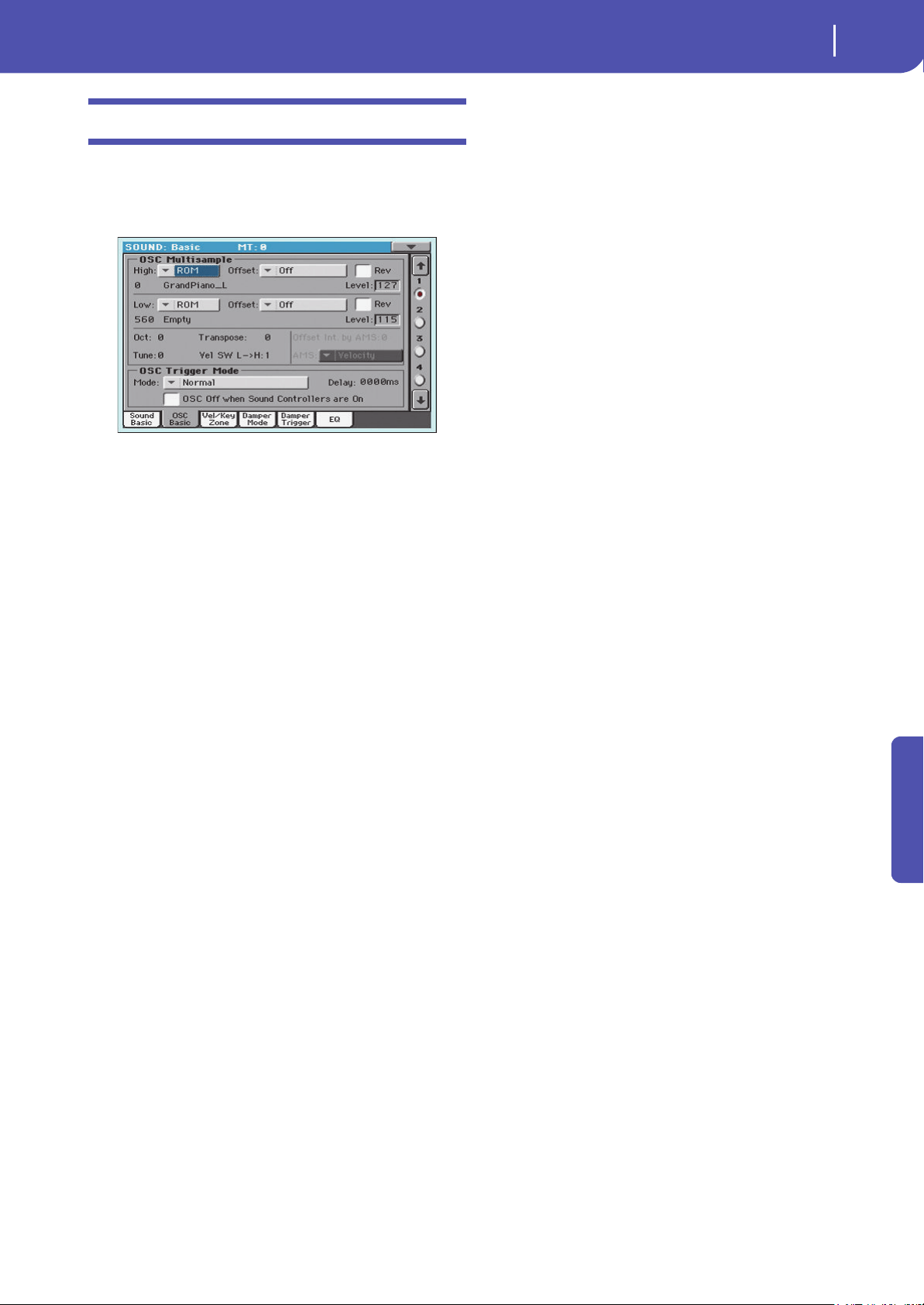
233
Sound Edit
Basic: OSC Basic
Reference
Basic: OSC Basic
The multisample(s) on which the Sound will be based can be
selected here for each of the sixteen oscillators. Each oscillator
can use 1 or 2 multisamples, each one assigned to the High or
Low layer.
OSC Multisample
High/Low Bank/Num
Use these parameters to select a different multisample for each of
the High and Low layers. You can use velocity to switch between
the two multisamples. Offset and Level can be adjusted indepen-
dently for the High and Low multisamples.
The High and Low pop-up menus is where you select the bank
(ROM or LOC), while the numeric field under it is for selecting
the multisample inside the selected bank. The Sound name
appears on its right.
The multisample you select for the High layer will be triggered
by velocities higher than the value of the “Velocity Multisample
Switch Low-High” parameter (see page 233). If you do not wish
to use velocity switching, set the switch to a value of 001, and
select only the High multisample.
ROM The standard Factory bank. The Factory area of
the internal memory contains 560 different mul-
tisamples (preset multisamples), supplied by
Korg as standard.
LOC “Local” multisample bank. This bank only
appears in some models.
Note: If you create a new Sound based on a Local
multisample, the Sound will not play on a different
instrument, unless it also includes the same Local
Samples.
Note: Each multisample has an upper note range limit, and cannot
produce sound when played above that limit.
Offset
These parameters specify the point where the multisample(s)
will begin to play. For some multisamples this parameter will not
be available.
Off The sound will start from the beginning of the
multisample waveform.
1st…6th The sound will begin from the offset location pre-
determined for each sample.
No Attack The initial portion of the multisample is ignored.
AMS Activates the Alternate Modulation Source (see
below).
PseudoRandom
(Only works when more than one Offset point is
available in the multisample). Randomly selects
one of the available Offset points (including
Attack and Off ).
Level
These parameters specify the level of each multisample.
0…127 Multisample level.
Note: Depending on the multisample, high settings of this parame-
ter may cause the sound to distort when a chord is played. If this
occurs, lower the level.
Octave
Use this parameter to adjust the pitch of the selected oscillator in
octave units. The normal octave of the multisample is “0”.
-2…+1 Octave transposition.
Transpose
Use this parameter to adjust the pitch of the selected oscillator in
semitone steps over a range of ±1 octave.
-12…+12 Transposition in semitones.
Tune
Use this parameter to adjust the pitch of the sample in one-cent
steps (a semitone is 100 cents) over a range of ±1 octave.
-1200…+1200
Fine-tune value in cents.
Velocity Multisample Switch Low-High
This is the velocity value dividing the High and Low layers for
the selected oscillator. Notes struck harder than this value will be
played by the High multisample.
AMS / Offset Intensity by AMS
(Only available when the AMS option is selected in the “Offset”
parameter.) Alternate Modulation Source for the Offset. See
“AMS (Alternate Modulation Source) list” on page 256.
When the “Offset Intensity by AMS” parameter has a positive
value, the selected Offset point will depend on the AMS value.
For example, if the selected AMS is the Velocity, when playing
softly you will select the Off or 1st Offset, when playing loudly
you will select the 6th or No Attack Offset.
When the “Offset Intensity by AMS” parameter has a negative
value, the selection will happen in reverse (higher-numbered
Offsets will be selected before the lowest-numbered ones).
OSC Trigger Mode
OSC Trigger parameters are used to set the condition to trigger
the selected Oscillator. For example, a Normal Oscillator will
always play, while a Legato Oscillator will only play when a note
is played Legato.

234
Sound Edit
Basic: OSC Basic
Mode
This is the trigger that allows the selected Oscillator to play.
Normal The Oscillator always plays when a key is pressed
(unless the “OSC Off when Sound Controllers are
On” parameter is checked).
Legato The Oscillator only plays when the note is played
‘legato’. The delay and pitch interval from the pre-
vious note are also to be considered, as set in the
Sound > Basic page (see “Legato as OSC Trigger”
above).
Staccato The Oscillator only plays when the note is NOT
played legato (it is the opposite of the above
choice).
Sound Controller 1
The Oscillator only plays after a switch or foot-
switch programmed as the Sound Controller 1
has been pressed. Press and release it, and the
next note will also trigger the selected Oscillator.
If you keep it pressed, the Oscillator will continue
to be triggered until you release the controller.
Note: In Sequencer and Sound mode, the Assign-
able Switch 1 is automatically assigned to Sound
Controller 1.
Hint: This (like the following Sound Controllers) is
especially useful to enable a different nuance to the
following note(s).
Sound Controller 2
As the above, but with a switch or footswitch pro-
grammed as the Sound Controller 2.
Note: In Sequencer and Sound mode, the Assign-
able Switch 2 is automatically assigned to Sound
Controller 2.
Sound Controller Y+
As the above, but with the Joystick, assigned as
the Sound Controller, pushed at least half-way
forward (value 64). The controller is turned off
when the Joystick is released. This control is
equivalent to a CC#01 (Modulation) Control
Change message.
Sound Controller Y-
As the above, but with the Joystick, assigned as
the Sound Controller, pulled at least half-way
back (value 64). The controller is turned off when
the Joystick is released. This control is equivalent
to a CC#02 (Breath Controller) Control Change
message.
Cycle 1 All Oscillators with this same trigger mode
assigned will play in cycle. For example, if Oscil-
lators 1, 2 and 4 are assigned the Cycle 1 trigger
mode, the following note will trigger Oscillator 1,
then 2, then 4, then 1 again.
Hint: This is especially useful to trigger different
sound nuances or create vector-like sound
sequences.
Cycle 2 As the above, for use with a different (and paral-
lel) group of Oscillators. Having two Cycle Trig-
ger Modes allows for cycling stereo multisamples.
Random As the above, but with a random selection of
Oscillators within the assigned group.
After Touch Trigger On
The Oscillator starts playing when an After
Touch message with a value of at least 90 is
received. The Velocity value is the same as the lat-
est Note On message. The Oscillator will stop
playing when the After Touch value falls back to
zero.
Note: After Touch messages can be received via
MIDI, or contained in a Standard MIDI Files.
Hint: This (like the following Triggers) is especially
useful to trigger harmonics or growls when a note
is already playing.
Y+ Trigger On
As the above, but with the Joystick, assigned as
the Sound Controller, pushed at least half-way
forward (value 64). The controller is turned off
when the Joystick is released. This control is
equivalent to a CC#01 (Modulation) Control
Change message.
Y- Trigger On
As the above, but with the Joystick, assigned as
the Sound Controller, pulled at least half-way
back (value 64). The controller is turned off when
the Joystick is released. This control is equivalent
to a CC#02 (Breath Controller) Control Change
message.
Legato Up Like Legato, but is only activated when the sec-
ond note is out of the “Max Range” value (see
page 232) and it is higher than the first one.
Legato Down Like Legato, but is only activated when the sec-
ond note is out of the “Max Range” value (see
page 232) and it is lower than the first one.
Delay
This parameter sets a delay time from the note-on to the real
beginning of the sound. With a setting of KeyOff, the sound will
begin when note-off occurs. This is useful to create sounds such
as the “click” that is heard when a harpsichord note is released.
In this case, set the “Sustain” parameter to 0 (see page 247).
0…5000ms Delay time in milliseconds.
Key Off The sound will begin when the note is released.
The note velocity is read from the Key On Veloc-
ity.
Key Rel Key Release. The sound will begin when the note
is released. The note velocity is read from the Key
Off Velocity.
Nat Rel Natural Release. The sound will begin when the
note is released. The note starts from the current
volume of the sound. If the sound’s volume is
already at zero, this oscillator is not retriggered.
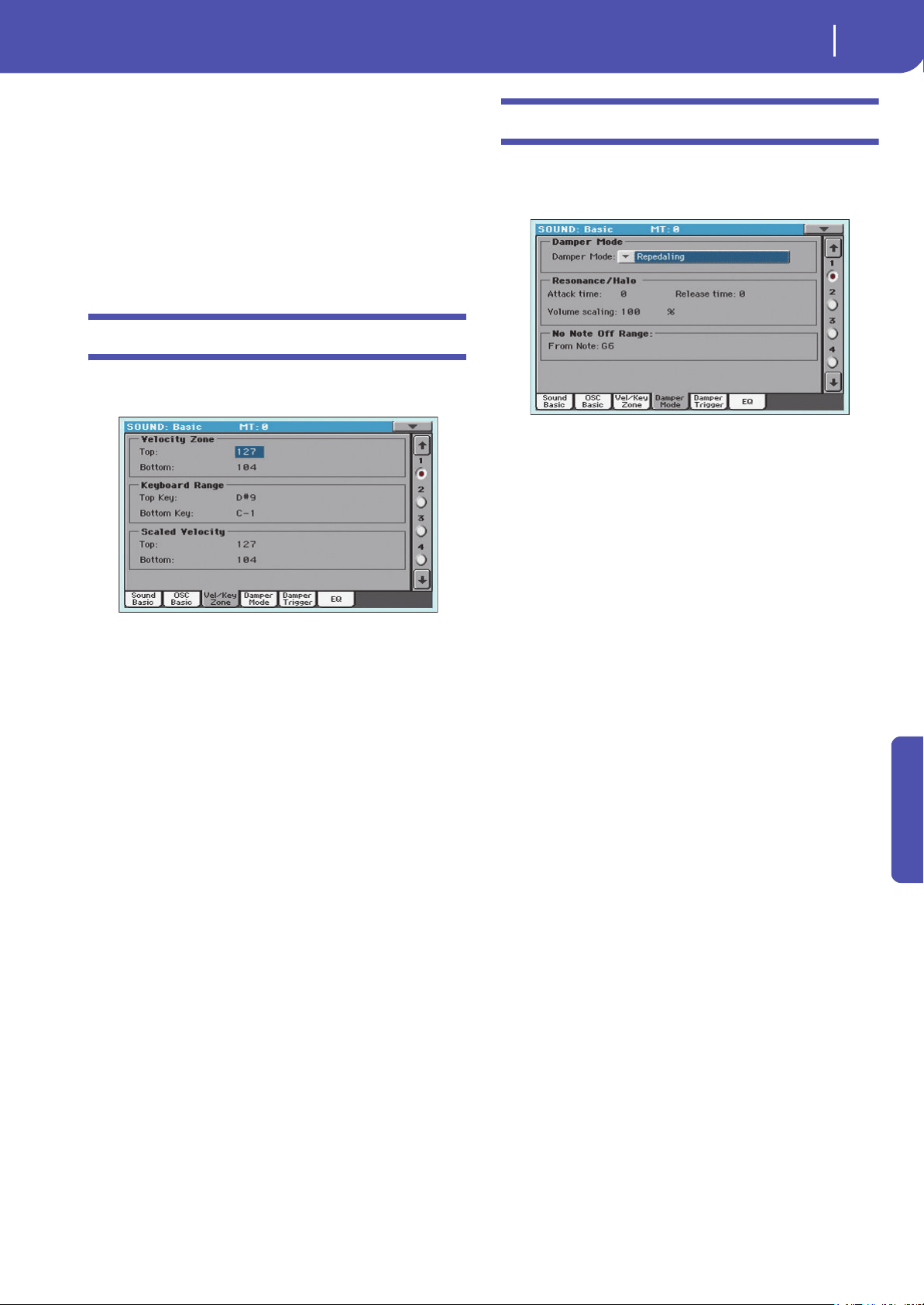
235
Sound Edit
Basic: Vel/Key Zone
Reference
OSC Off when Sound Controllers are On
This ‘mirrors’ the way Sound Controllers work. With this param-
eter checked, the current Oscillator will not play when one of the
Sound Controllers (Sound Controller 1, Sound Controller 2,
Sound Controller Y+, Sound Controller Y-) is activated. It
should be applied to Oscillators with Normal, Legato, Staccato,
Cycle 1, Cycle 2, Random, After Touch Trigger On, Y+ Trigger
On, Y- Trigger On, Legato Up and Legato Down trigger modes,
that can be turned off by using a switch, footswitch, or the Joy-
stick, programmed as a Sound Controller.
Basic: Vel/Key Zone
Here you can set a note and velocity range “window” for the
selected oscillator.
Velocity Zone
Here you can specify the velocity range for the selected oscillator.
Note: You cannot set the Bottom Velocity higher than the Top
Velocity, nor the Top Velocity lower than the Bottom Velocity.
0…127 Assigned velocity.
Keyboard Range
Here you can specify the note range for the selected oscillator.
Note: You cannot set the Bottom Key higher than the Top key, nor
the Top Key lower than the Bottom key.
C-1…G9 Assigned note.
Scaled Velocity
Use these parameters to scale velocity values received by the
oscillator. By using the “Velocity Zone” function (see above), an
oscillator may be limited to a restricted range (say, 10 to 20), that
may result in weak dynamics when the associated sample is trig-
gered.
By assigning a different value to these parameters, the restricted
range will be converted to a wider range (for example, the lowest
range value of 10 may be converted to a Scaled Velocity value of
0, and the highest range value of 20 may be converted to a Scaled
Velocity value of 127). All values included between the mini-
mum and maximum value are scaled accordingly.
As a consequence, you can create an RX Sound of guitar, by
assigning the guitar fret noise to the 10~20 velocity range. When
a dynamics value between 10~20 is received, the real velocity
value is scaled to the Scaled Velocity values, and plays louder.
0…127 Assigned velocity value.
Basic: Damper Mode
Here you can program how the Damper pedal works, the Reso-
nance/Halo effect, and the range within the Note Off message is
not sent to the selected Oscillator:
Damper Mode
Here you can program the Damper Mode for each Oscillator.
Damper Mode
This parameter determines how the Damper pedal works.
Normal The Damper pedal works as usual: by keeping it
pressed, the note decay is lengthened, to simulate
the longer note decay of an acoustic piano.
Damper Off The Damper pedal is deactivated for the selected
Oscillator.
Hint: Set the Damper to Damper Off, if you plan to
use the selected Oscillator in the Damper Trigger
page to trigger sounds. Check the Sound “Harmon-
ica DNC”, and see how the Damper Trigger is
used.
Resonance/Halo
The Damper pedal enables a multisample, nor-
mally used for the Piano Resonance/Halo effect.
If the pedal is pressed when the note is already
playing, the speed at which the multisample
appears and disappears, and the volume it can
reach, depend on the “Resonance/Halo” parame-
ters programmed below.
Hint: This Damper mode is much more realistic
than the Normal mode, but also ‘steals’ more notes
from the overall polyphony, and is especially sug-
gested for solo piano playing.
Note: Half-pedaling, as well as Damper messages
received via MIDI (as Control Change #64), con-
trol the level of the Resonance/Halo effect.
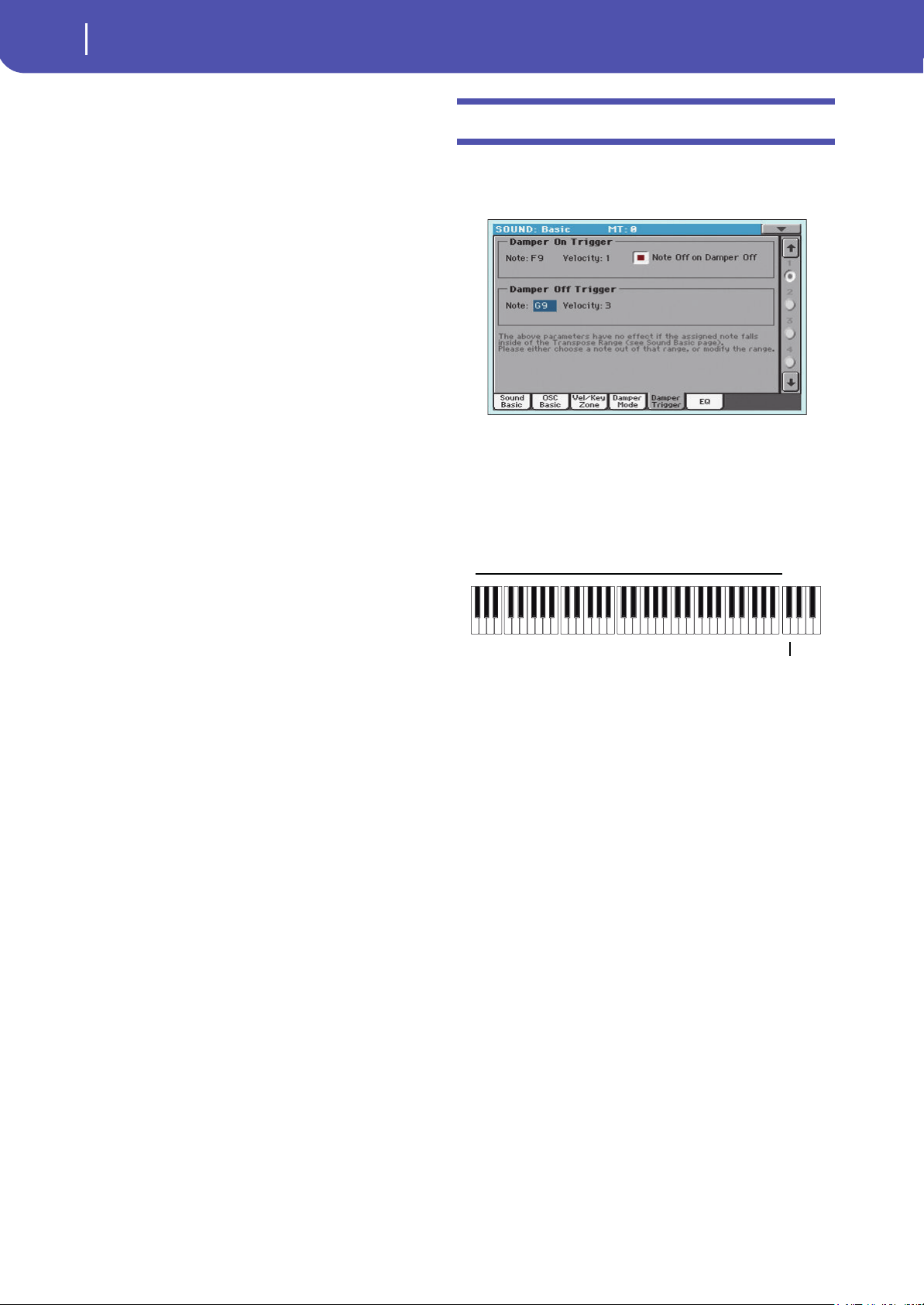
236
Sound Edit
Basic: Damper Trigger
Repedaling This mode acts as the Normal mode, but also
enables the Damper pedal effect when the pedal
is pressed after the note has been released (Note
Off). In this case, the Damper effect starts from
the current Release level, and decays slowly.
War ni ng : Do not use Sounds with the “Repedal-
ing” assigned to any Oscillator in a Style, or the
sustained sound could cause unwanted disso-
nances. The “Grand Piano RX” Sound is an exam-
ple of this kind of Sounds to be avoided in a Style
track.
Resonance/Halo
Here you can program the Resonance/Halo effect that is enabled
by the “Resonance/Halo” Damper Mode (see above). These
parameters only affect the Resonance/Halo that is enabled when
pressing the Damper pedal down when a note is already playing.
Attack Time
Time needed to the Resonance/Halo to reach the maximum level
after the Damper pedal has been pressed.
0…99 Attack time as a value relative to the current Amp
Env Attack value.
Release Time
Time needed to the Resonance/Halo to extinguish after the
Damper pedal has been released.
0…99 Release time as a value relative to the current
Amp Env Release value.
Volume Scaling
Volume of the Resonance/Halo effect, relative to the current
level of the sound (as determined by the sum of the Multisample
Volume, Velocity value and current Amp Env value).
0% No volume at all.
1…100% Volume expressed as a percentage of the current
sound level.
No Note Off Range
From Note
Like in an acoustic piano, the dampers can only dampen strings
up to a certain pitch. Starting from that pitch, it is as if the
Damper was always pressed down.
Note: This parameter only affects the Normal Damper mode. It
has no effect on the Resonance/Halo mode.
C#-1…G9 Note starting from which the Damper is always
pressed down. In an acoustic piano, this is usually
set to G6.
Basic: Damper Trigger
Here you can set the notes triggered by pressing and releasing
the Damper Pedal. The parameters in this page have effect on
the Sound as a whole, and not on a single Oscillator.
As warned by the message on the lower area of the display, these
parameters have no effect if the assigned note falls inside of the
Transpose Range programmed in the “Basic: Sound Basic” page
(see “Transpose Range” on page 232). Please either choose a note
out of that range, or modify the Transpose Range, so that the
note is either higher or lower than that range.
Damper On Trigger
Pressing down the Damper pedal (Damper On) can play a spe-
cial sample assigned to a particular note (for example, pedal
down squeaking in the Sound “Grand Piano RX”, breathing in in
the Sound “Harmonica DNC” …).
Note
Note where the special Damper On sample is located.
Velocity
Fixed velocity of the special Damper On sample.
Note Off on Damper Off
If checked, the special Damper On sample stops playing when
the Damper pedal is released.
Damper Off Trigger
Releasing the Damper pedal (Damper Off) can play a special
sample assigned to a particular note (for example, Damper pedal
release noise in the Sound “Grand Piano RX”).
Note
Note where the special Damper Off sample is located.
Velocity
Fixed velocity of the special Damper Off sample.
Damper Trigger Sample
Transpose Range
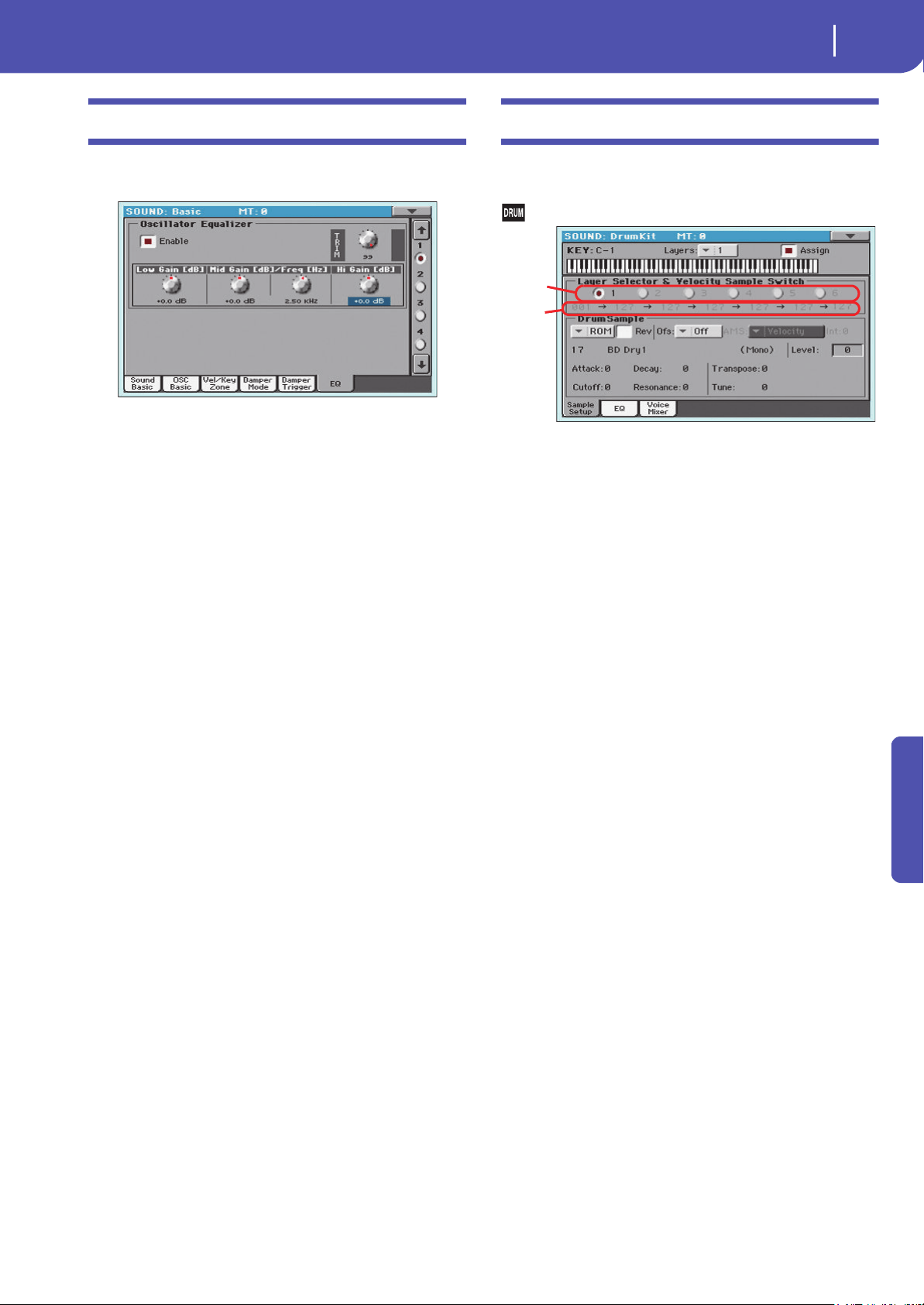
237
Sound Edit
Basic: EQ
Reference
Basic: EQ
In this page, you can set the semi-parametric three-band equal-
izer for the selected oscillator.
Enable
Check this box to activate the equalizer on the selected oscillator.
TRIM
This knob allows you to limit the level of the signal passing
through the equalizer. Extreme equalization values can overload
the audio circuits and lead to distortion. This control lets you set
equalization as desired, and at the same time avoid overloading.
0…99 Limiting value. The higher, the most effective it
is.
Low Gain
Low frequencies equalization. This is a shelving curve filter. Val-
ues are shown in decibels (dB).
-18…+18dB Low gain value in decibels.
Mid (Middle) Gain
Middle frequencies equalization. This is a bell curve filter. Values
are shown in decibels (dB).
-18…+18dB Middle gain value in decibels.
Mid (Middle) Freq
Centre frequency of the middle frequencies equalization.
-0.100…+10 kHz
Centre frequency in kHz.
Hi (High) Gain
High frequencies equalization. This is a shelving curve filter.
Values are shown in decibels (dB).
-18…+18dB High gain value in decibels.
DrumKit: Sample Setup (Drum Kits)
This page appears when you edit a Drum Kit. Here you can
select a different percussive sample for each key and layer.
Drum Kits use only one oscillator.
Key
Key
Key in edit. To select a key, you can press a key on the keyboard
while this parameter is selected.
Layers
Number of layers assigned to the selected key. Depending on the
number of selected layers, you can have a different number of
velocity switches.
Assign
Use this parameter to turn the sample on/off.
On The sample is assigned to the selected key.
Off The sample is not assigned. The sample assigned
to the next highest assigned key is used instead.
Layer Selector & Velocity Sample Switch
Selected Layer
Use these radio buttons to select the layer to edit. The available
layers depends on the “Layers” parameter.
Velocity Switches
Each of these values separates the two adjacent layers for the
selected sample/key. Notes stricken harder than a velocity switch
will be played by the layer on the right, while notes stricken
softer are played by the layer on the left.
The first and last values are not editable, and are always 001 and
127 (respectively).
Drum Sample
Bank/Num/Name
Use these parameters to select a different Drum Sample for each
layer. You can use velocity to switch between the available sam-
ples. Offset and Level can be adjusted independently for the var-
ious drum samples.
Selected
Layer
Velocity
Switches

238
Sound Edit
DrumKit: Sample Setup (Drum Kits)
The pop-up menu is where you select the bank (ROM or LOC),
while the numeric field under it is for selecting the sample inside
the selected bank. The sample name appears on its right.
The sample you select for the current layer will be triggered by
velocities higher than the value of the “Velocity Switches”
parameter (see page 237). If you do not wish to use velocity
switching, assign just one layer to the selected key, and assign a
sample only to Layer 1.
ROM The standard Factory bank. The Factory area of
the internal memory contains a series of different
multisamples (preset multisamples), supplied by
Korg as standard.
LOC “Local” multisample bank. This bank only
appears in some models.
Note: If you create a new Sound based on a Local
multisample, the Sound will not play on a different
instrument, unless it also includes the same Local
Samples.
Note: Each sample has an upper note range limit, and may not
produce sound when played above that limit.
Rev (Reverse)
The sample will be played in reverse. In the case of Factory or
Local samples that were originally specified to loop, the sample
will be played back in “one-shot” reverse mode. If the sample was
originally set to reverse, it will playback without change.
On The sample will playback in reverse.
Off The sample will play back normally.
Ofs (Offset)
These parameters specify the point where the sample will begin
to play. For some samples this parameter will not be available.
Off The sound will start from the beginning of the
sample.
1st…6th The sound will begin from the offset location
pre-determined for each sample.
NoAtk The initial portion of the multisample is ignored.
AMS Activates the Alternate Modulation Source (see
below).
PseudoRandom
(Only works when more than one Offset point is
available in the multisample). Randomly selects
one of the available Offset points (including
Attack and Off).
AMS / Int(ensity)
(Only available when the AMS option is selected in the “Offset”
parameter.) Alternate Modulation Source for the Offset. See
“AMS (Alternate Modulation Source) list” on page 256.
When the “Intensity” parameter has a positive value, the selected
Offset point will depend on the AMS value. For example, if the
selected AMS is the Velocity, when playing softly you will select
the Off or 1st Offset, when playing loudly you will select the 6th
or No Attack Offset.
When the “Intensity” parameter has a negative value, the selec-
tion will happen in reverse (higher-numbered Offsets will be
selected before the lowest-numbered ones).
Level
This parameter specifies the level of the sample. For more infor-
mation, see “Level” on page 233.
Attack
This parameter is an offset to the selected sample’s EG Attack.
Decay
This parameter is an offset to the selected sample’s EG Decay.
Cutoff
This parameter sets the cutoff frequency for the filter applied to
the selected sample.
Resonance
This parameter sets the resonance for the filter applied to the
selected sample.
Transpose
This parameter transposes the selected sample. Use it to change
the pitch of the selected key.
0 No transposition applied.
-64…+63 Transpose value in semitones.
Tune
Use this parameter to fine-tune the assigned sample.
0 Original tuning.
-99…+99 Fine-tuning value in cents (1/100 of a semitone).

239
Sound Edit
DrumKit: EQ (Drum Kits)
Reference
DrumKit: EQ (Drum Kits)
This page appears when you edit a Drum Kit. In this page, you
can set the semi-parametric three-band equalizer for the
selected key, layer and Drum sample.
Key
See “Key” on page 237.
Layer Selector & Velocity Sample Switch
See “Layer Selector & Velocity Sample Switch” on page 237.
Drum Sample Equalizer
Enable
Check this box to activate the equalizer on the selected oscillator.
TRIM
This knob allows you to limit the level of the signal passing
through the equalizer. Extreme equalization values can overload
the audio circuits and lead to distortion. This control lets you set
equalization as desired, and at the same time avoid overloading.
0…99 Limiting value. The higher, the most effective it is.
Low Gain
Low frequencies equalization. This is a shelving curve filter. Val-
ues are shown in decibels (dB).
-18…+18dB Low gain value in decibels.
Mid (Middle) Gain
Middle frequencies equalization. This is a bell curve filter. Values
are shown in decibels (dB).
-18…+18dB Middle gain value in decibels.
Mid (Middle) Freq
Centre frequency of the middle frequencies equalization.
-0.100…+10 kHz
Centre frequency in kHz.
Hi (High) Gain
High frequencies equalization. This is a shelving curve filter.
Values are shown in decibels (dB).
-18…+18dB High gain value in decibels.
DrumKit: Voice Mixer (Drum Kits)
This page appears when you edit a Drum Kit. Here you can set
various parameters for the different percussive sample assigned
to the selected key and layer.
Key
See “Key” on page 237.
Voice Assign Mode
Single Trigger
Use this parameter to set the sample as a single-triggered one.
On When the same key (note) is played repeatedly,
the previous note will be stopped before the new
note is triggered, so that they will not overlap.
Off When the same key (note) is played repeatedly,
the previous note will not be stopped before the
new note is triggered.
Exclusive Group
Exclusive Groups are sets of mutually exclusive keys, stopping
each other. For example, if the Open Hi-Hat and Closed Hi-Hat
are assigned the same Exclusive Group, playing an Open Hi-Hat
will stop the Closed Hi-Hat playing.
None No Exclusive Group assigned. The selected key
will not be stopped by any other key.
1…127 Exclusive Groups assigned to the selected key.
When you play this key, all other keys assigned to
the same Exclusive Group will be stopped, and
this key will be stopped by other keys assigned to
the same Exclusive Group.
Enable Note On Receive
Use this parameter to enable/disable the reception of the Note
On (Key On) message.
On The Note On message is normally received.
Off The Note On message is not received. Therefore,
the corresponding key is muted.
Enable Note Off Receive
Use this parameter to enable/disable the reception of the Note
Off (Key Off) message.
On The sound will stop as soon as you release the
key.
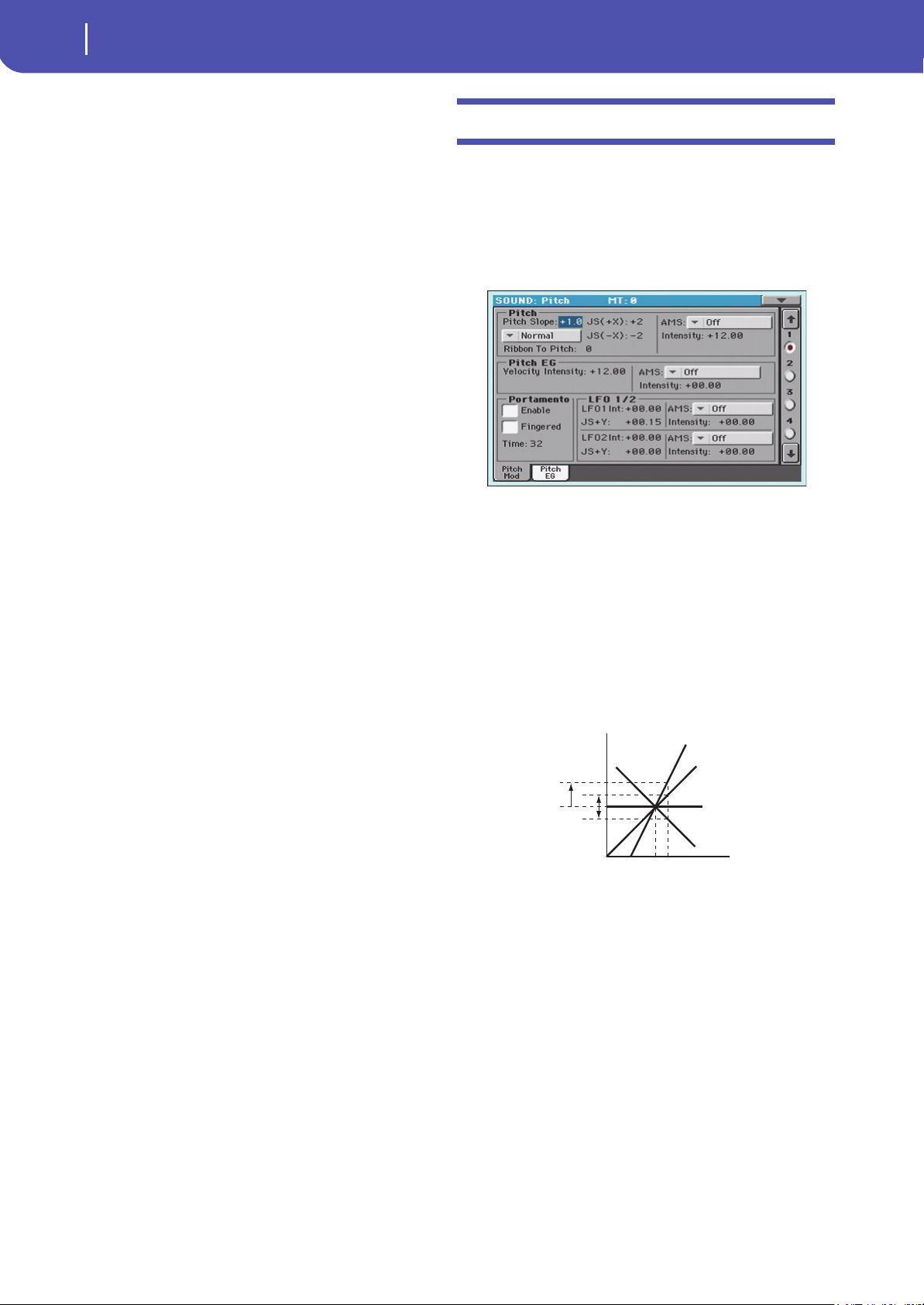
240
Sound Edit
Pitch: Pitch Mod
Off The sound will continue playing up to the end of
the sample. The Note Off message is ignored.
Mixer
Pan
This parameter sets the position in the stereo panorama of the
selected key.
Send to MFX1, MFX2
These parameters set the MFX1 or MFX2 send level for the
selected key.
Pitch: Pitch Mod
Here you can make pitch settings for each oscillator. These set-
tings specify how keyboard location will affect the pitch of each
oscillator, and select the controllers that will affect the oscillator
pitch and specify the depth of control. You can also specify the
amount of pitch change produced by the Pitch EG and by LFO1
and LFO2, switch portamento on/off and specify how it will
apply.
Pitch
Pitch Slope
Normally you will leave this parameter at +1.0. Positive (+) val-
ues will cause the pitch to rise as you play higher notes, and neg-
ative (–) values will cause the pitch to fall as you play higher
notes.
With a value of 0, there will be no change in pitch, and the C4
pitch will sound regardless of the keyboard location you play.
The diagram shows how the Pitch Slope and pitch are related:
-1.0…+2.0 Pitch slope value.
Pitch Bend Mode
The Pitch Bend can work in different ways, depending on the
selected option.
Normal Linear bending.
Fixed Scale When this parameter is turned on on an oscilla-
tor, Pitch Bend and Sub Scale have no effect on its
tuning. The relevant parameters are greyed out
and non-selectable. This is useful when assign-
ing to the oscillator a noise (like the breath noise
of a reed) with a fixed frequency, that must not
change on different notes and different pitches.
Highest Pitch Bend only
On this oscillator, Pitch Bend is only activated on
the highest note currently playing on the key-
board.
Pitch
Key
2oct
1oct
1oct
C4 C5
+2
+1
0
–1
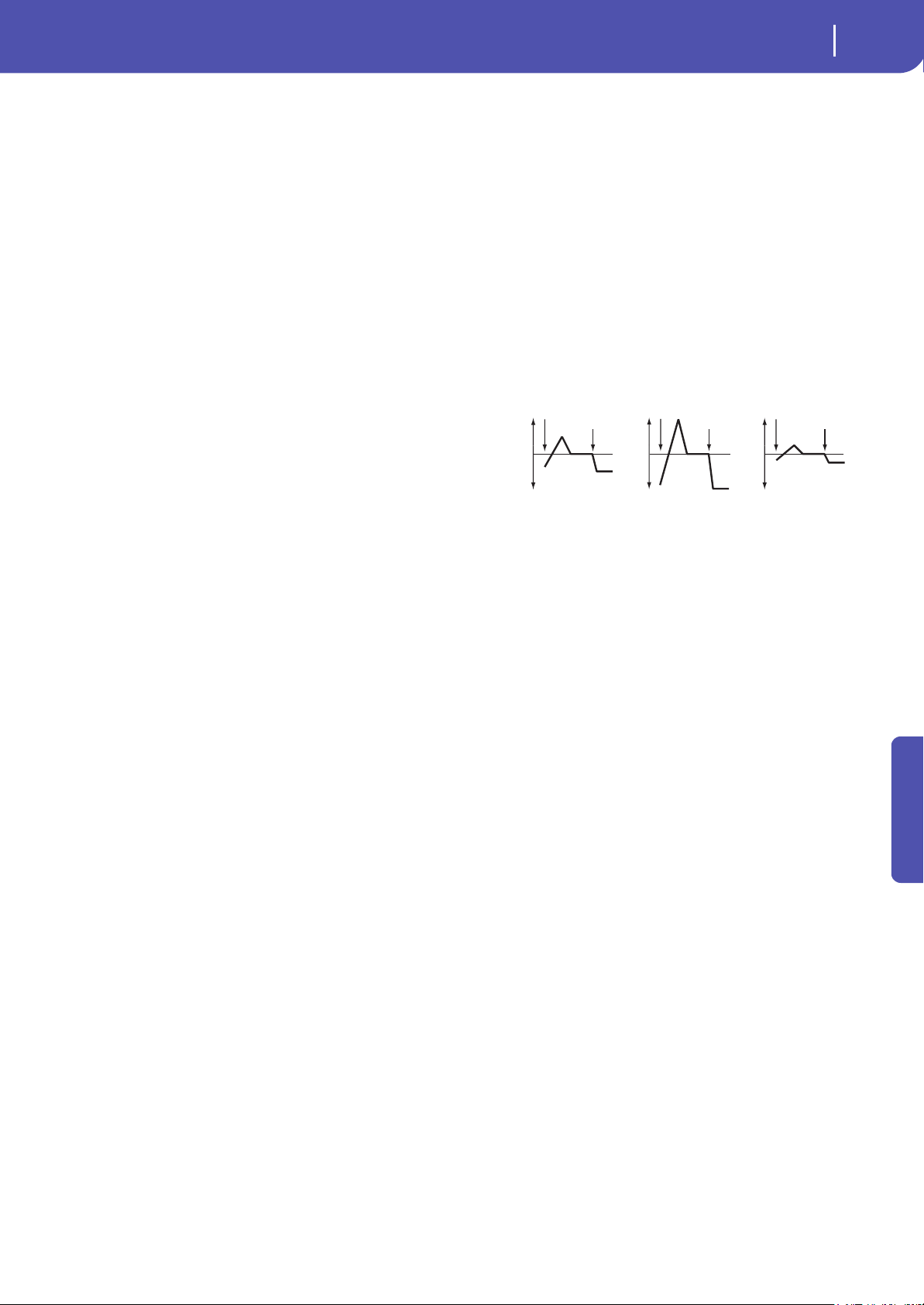
241
Sound Edit
Pitch: Pitch Mod
Reference
Lowest Pitch Bend only
On this oscillator, Pitch Bend is only activated on
the lowest note currently playing on the key-
board.
Ribbon to Pitch
Pitch Bend range assigned to the Ribbon Controller message
(CC#16). The Ribbon Controller message can be received from
MIDI or contained in a Standard MIDI File.
-12…0…+12 Maximum bending, when touching the extreme
left or right of the Ribbon Controller.
JS (+X)
This parameter specifies how the pitch will change when the joy-
stick is moved all the way to the right. A setting of 12 produces 1
octave of change.
For example if you set this to +12 and move the joystick all the
way to the right, the pitch will rise one octave above the original
pitch.
-60…+12 Maximum pitch change in semitones.
JS (–X)
This parameter specifies how the pitch will change when the joy-
stick is moved all the way to the left. A setting of 12 produces 1
octave of change.
For example, if you set this to -60 and move the joystick all the
way to the left, the pitch will fall five octaves below the original
pitch. This can be used to simulate the downward swoops that a
guitarist produces using the tremolo arm.
-60…+12 Maximum pitch change in semitones.
AMS (Alternate Modulation Source)
This parameter selects the source that will modulate the pitch of
the selected oscillator. See “AMS (Alternate Modulation Source)
list” on page 256.
Intensity
This parameter specifies the depth and direction of the effect
produced by “AMS”. With a setting of 0, no modulation will be
applied. With a setting of 12.00, the pitch will change up to one
octave.
For example, if you set “AMS” to JS (-Y) and move the joystick
downwards, the pitch will rise if this parameter is set to a posi-
tive (+) value, or fall if this parameter is set to a negative (–)
value. The range is a maximum of one octave.
-12.00…+12.00
Parameter value.
Pitch EG
The Pitch EG (Envelope Generator) is unique to all oscillators.
Velocity Intensity
This parameter specifies the depth and direction of the modula-
tion that the pitch EG specified on “Pitch: Pitch EG” will apply to
the pitch. With a setting of 12.00, the pitch will change a maxi-
mum of ±1 octave.
-12.00…+12.00
Parameter value.
Pitch EG AMS (Alternate Modulation Source)
This parameter selects the source that will modulate the pitch
EG of the selected oscillator. See “AMS (Alternate Modulation
Source) list” on page 256).
Pitch EG Intensity
This parameter specifies the depth and direction of the effect
that “AMS” will have. For example, if you set “AMS” to Velocity
and set this value to +12.00, the velocity will control the range of
pitch change produced by the pitch EG in a range of ±1 octave.
As you play more softly, the pitch change will draw closer to the
pitch EG levels.
Note: “Intensity” (Pitch EG) and AMS will be added to determine
the depth and direction of the pitch modulation applied by the
pitch EG.
Portamento
Enabled
This parameter turns the portamento effect (smooth change in
pitch from one note to the next) on/off, and specifies how it will
be applied.
Note: Portamento will also be switched when CC#65 (Portamento
SW) is received.
On Portamento will be applied.
Off Portamento will not be applied.
Fingered
This parameter specifies whether the portamento effect restarts
or not with each note played.
On Portamento will restart with each note.
Off Portamento will not restart with each note.
Time
This parameter sets the portamento time. Increasing the value
will produce a slower change in pitch.
000…127 Portamento time in MIDI value.
LFO 1/2
LFO1/2 Int
Intensity of the corresponding LFO.
-12…0…+12 Parameter value. Negative values invert the LFO
shape.
Pitch change (level)
Softly played
(Intensity (Pitch EG) setting)
Strongly played with a
negative (–) value
Strongly played with
a positive (+) value
Note-on
Note-off
Note-on
Note-off
Note-on
Note-off
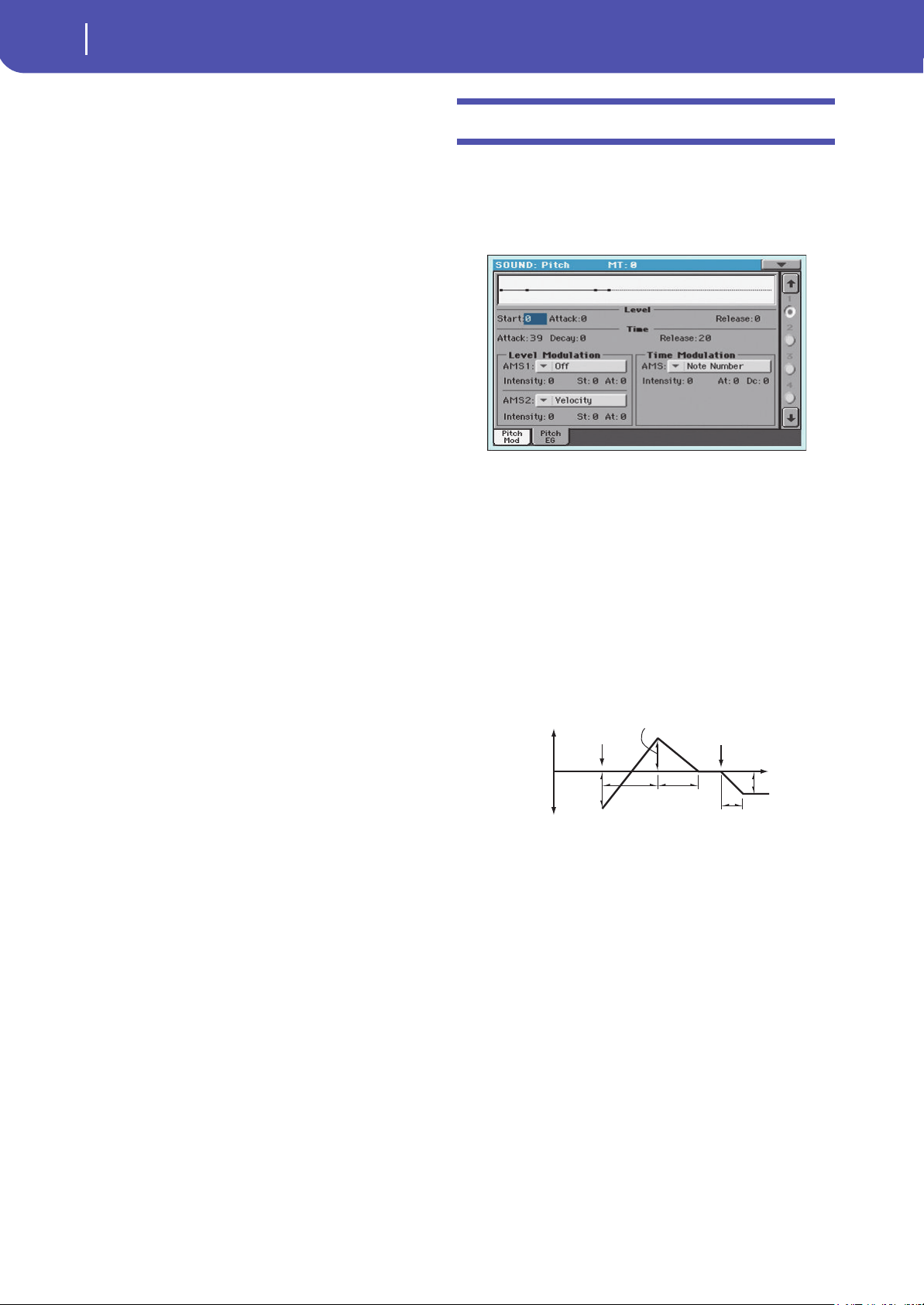
242
Sound Edit
Pitch: Pitch EG
JS+Y
Intensity of the corresponding LFO when the joystick is pushed
forward.
-12…0…+12 Parameter value. Negative values invert the LFO
shape.
AMS / Intensity
Alternate Modulation Source for the LFO. See “AMS (Alternate
Modulation Source) list” on page 256. Use the “Intensity”
parameter to set the intensity of the modulation.
Pitch: Pitch EG
Here you can make settings for the pitch EG, which creates time-
variant changes in the pitch of the oscillators. The depth of pitch
change produced by these EG settings on the oscillators is
adjusted by the “Intensity (AMS1/2 Intensity)” parameter (see
page 243).
Diagram
The diagram on top of the page shows the Pitch envelope line.
Level
These parameters specify the amount of pitch change. The actual
amount of pitch change will depend on the “Intensity (AMS1/2
Intensity)” parameter (see below). For example, with an “Inten-
sity” setting of +12.00, a “Level” setting of +99 would raise the
pitch one octave, and a “Level” setting of –99 would lower the
pitch one octave.
Start Level
Specifies the amount of pitch change at note-on.
-99…+99 Parameter value.
Attack Level
Specifies the amount of pitch change when the attack time has
elapsed.
-99…+99 Parameter value.
Release Level
Specifies the amount of pitch change when the release time has
elapsed.
-99…+99 Parameter value.
Time
These parameters specify the time over which the pitch change
will occur.
See diagram above.
Note-on
Note-off
Attack
Time
Decay
Time
Start Level
Release Level
Release Time
Attack Level
+99 = approximately 1 octave
–99 = approximately 1 octave
0 = pitch when
key is held
(sustained)
Time
Time-varying pitch settings (when Pitch EG Intensity = +12.00)
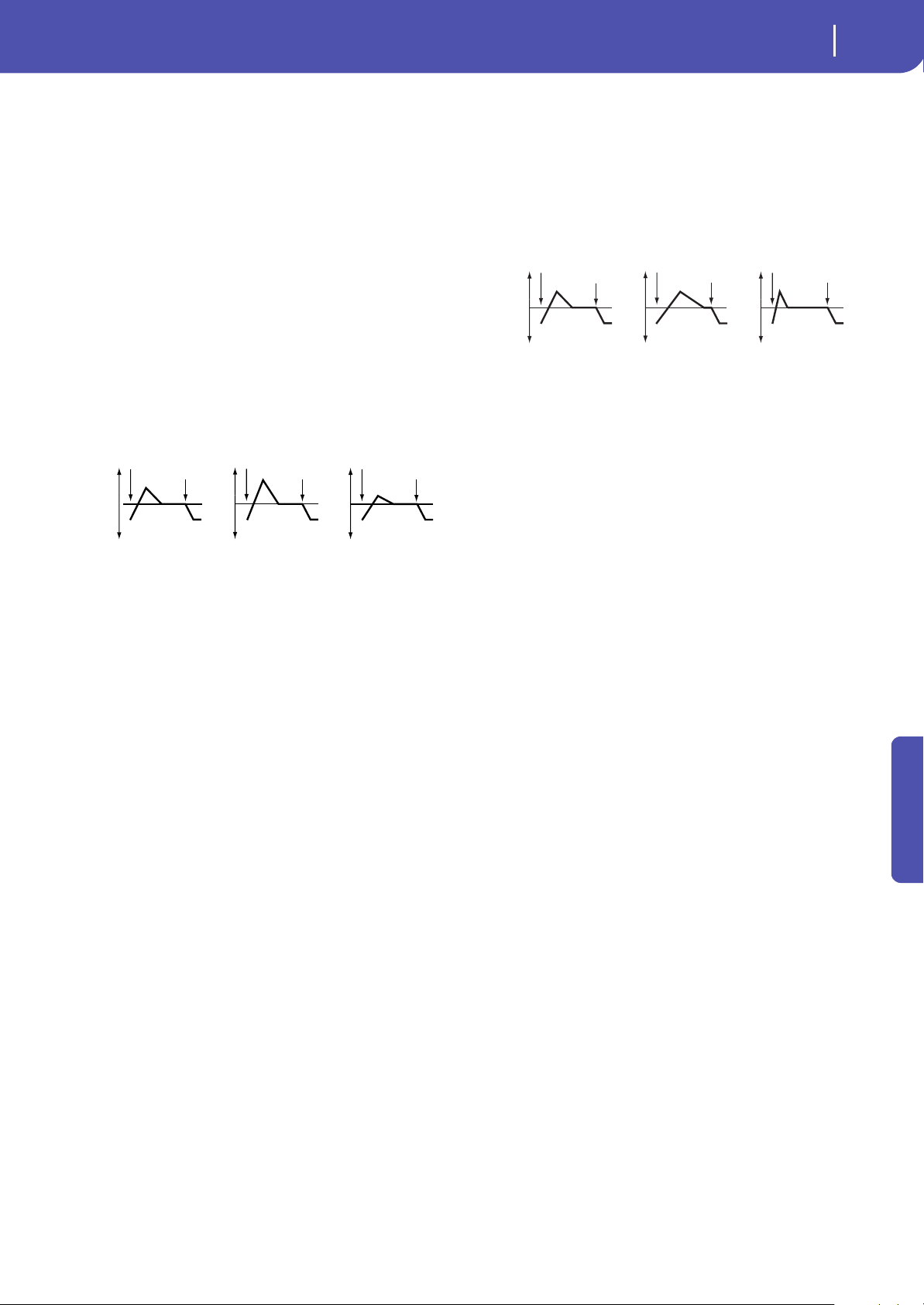
243
Sound Edit
Pitch: Pitch EG
Reference
Attack Time
Specifies the time over which the pitch will change from note-on
until it reaches the pitch specified as the attack level.
0…99 Parameter value.
Decay Time
Specifies the time over which the pitch will change after reaching
the attack level until it reaches the normal pitch.
0…99 Parameter value.
Release Time
Specifies the time over which the pitch will change from note-off
until it reaches the pitch specified as the release level.
0…99 Parameter value.
Level Modulation
AMS1/2 (Alternate Modulation Source 1/2)
These parameters select the source that will control the pitch EG
“Level” parameters (“AMS (Alternate Modulation Source) list”
on page 256).
Intensity (AMS1/2 Intensity)
These parameters specify the depth and direction of the effect
applied by “AMS1”. With a setting of 0, the levels specified by
“Level” will be used.
For example, if “AMS1” is Joystick Y+, moving the Joystick in the
upper direction to turn it on will change the “Level” parameters
of the Pitch EG. As the absolute value of “Intensity” is increased,
the pitch EG levels will change more when the Joystick is
released. The direction of the change is specified by “St (Start
Level Swing)” and “At (Attack Level Swing)”. When the Joystick
is released, the pitch EG levels will return to their own settings.
If “AMS1” is set to Velocity, increasing the absolute value of
“Intensity” will produce increasingly wider change in pitch EG
levels for strongly-played notes. The direction of the change is
specified by “St (Start Level Swing)” and “At (Attack Level
Swing)”. As you play more softly, the pitch change will draw
closer to the pitch EG levels.
-99…+99 Parameter value.
St (Start Level Swing)
This parameter specifies the direction of change in “Start Level”
caused by “AMS1/2”. If “Intensity” is a positive (+) value, a set-
ting of + will raise the EG level, and a setting of – will decrease it.
With a setting of 0 there will be no change.
At (Attack Level Swing)
This parameter specifies the direction of change in “Attack
Level” caused by “AMS1/2”. If “Intensity” is a positive (+) value, a
setting of + will raise the EG level, and a setting of – will decrease
it. With a setting of 0 there will be no change.
Time Modulation
AMS (Alternate Modulation Source)
This parameter selects the source that will control the “Time”
parameters of the pitch EG (see “AMS (Alternate Modulation
Source) list” on page 256).
Intensity (AMS Intensity)
This parameter specifies the depth and direction of the effect
that “AMS” will have on the “Time” parameters. With a setting of
0, the pitch EG times will be just as specified by the “Time” set-
tings.
The alternate modulation value at the moment that the EG
reaches each point will determine the actual value of the EG time
that comes next.
For example, the decay time will be determined by the alternate
modulation value at the moment that the attack level is reached.
When this parameter is set to values of 16, 33, 49, 66, 82, or 99,
the specified EG times will speed up as much as 2, 4, 8, 16, 32, or
64 times respectively (or slowed down to 1/2, 1/4, 1/8, 1/16, 1/32,
or 1/64 of the original time).
For example if “AMS” is set to Velocity, increasing the absolute
value of “Intensity” will allow strongly-played notes to increase
the changes in pitch EG “Time” values. The direction of the
change is specified by “At (Attack Time Swing)” and “Dc (Decay
Time Swing)”. As you play more softly, the pitch EG times will
more closely approach the actual settings of the pitch EG.
-99…+99 Parameter value.
At (Attack Time Swing)
This parameter specifies the direction in which “AMS” will affect
the “Attack Time” parameter. With positive (+) values of “Inten-
sity”, a setting of + will cause the time to be lengthened, and a
setting of – will cause the time to be shortened. With a setting of
0 there will be no change.
Dc (Decay Time Swing)
Specify the direction in which “AMS” will affect the “Decay
Time”. With positive (+) values of “Intensity”, a setting of + will
cause the time to be lengthened, and a setting of – will cause the
time to be shortened. With a setting of 0 there will be no change.
Pitch EG change (level) (AMS=JS-Y/Velocity, Intensity= positive (+) value
Note-on
Note-off
Note-on
Note-off
Note-on
Note-off
A note played softly with
Start Level Swing set at 0,
Attack Level Swing set to +,
the Joystick pulled on
A note played strongly with
Start Level Swing set to 0,
Attack Level Swing set to +,
the Joystick pulled on
A note played strongly with
Start Level Swing set to 0,
Attack Level Swing set to –,
the Joystick pulled on
Pitch EG changes (Time) (AMS = Velocity, Intensity = positive (+) value)
Note-on
Note-off
Note-on
Note-off
Note-on
Note-off
A note played softly with
Attack Time Swing set to +
and Decay Time Swing set to
A note played strongly with
Attack Time Swing set to + and
Decay Time Swing set to +
A note played strongly with
Attack Time Swing set to – and
Decay Time Swing set to –
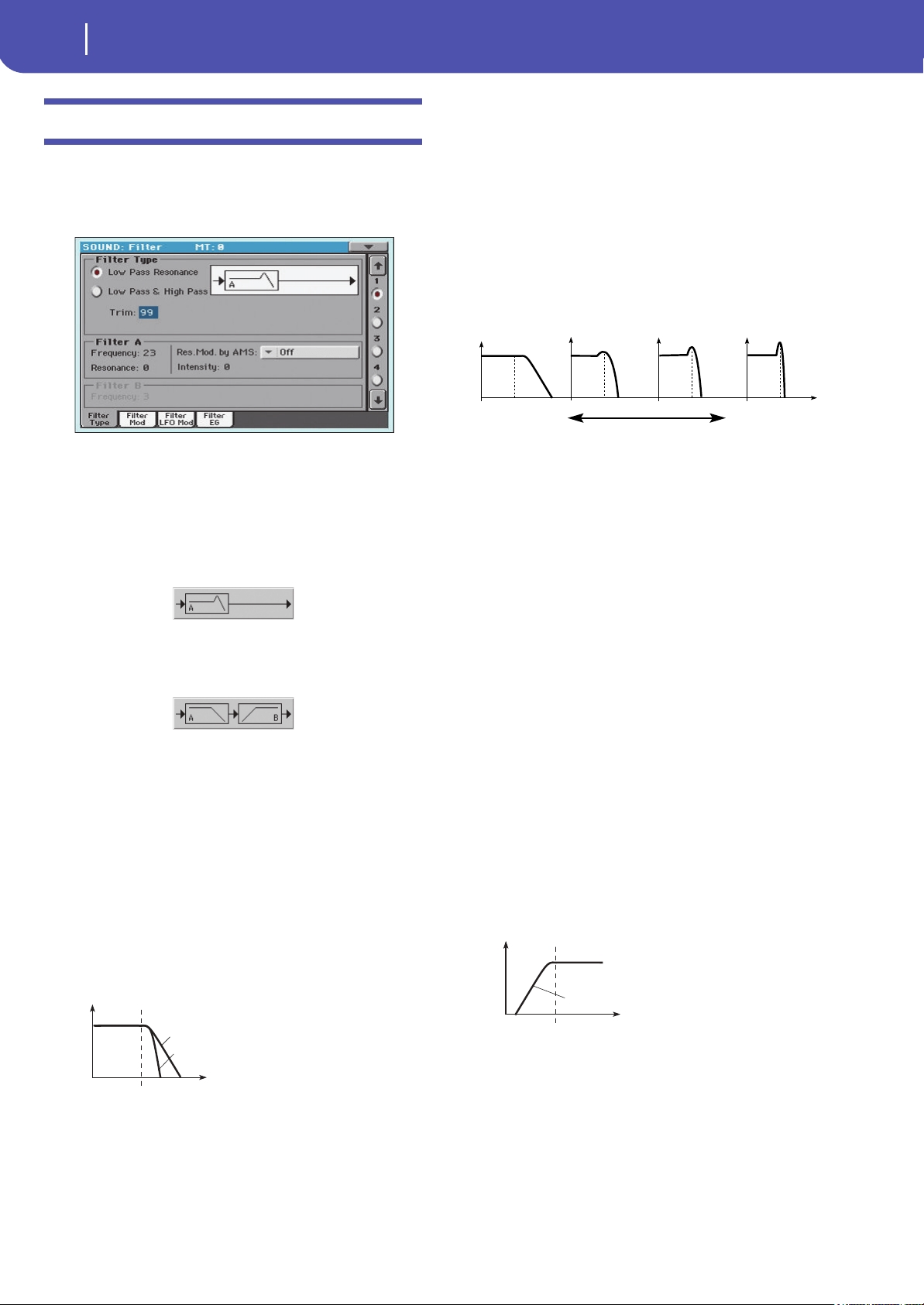
244
Sound Edit
Filter: Filter Type
Filter: Filter Type
Here you can make settings for the filters that will be used by the
oscillators. You can select either a 24 dB/octave low pass filter
with resonance, or a series connection of a 12 dB/octave low pass
filter and a 12 dB/octave high pass filter.
Filter Type
This parameter selects the type of filter (Low Pass Resonant, Low
Pass & High Pass) for the selected oscillator.
Low Pass Resonance
When the Low Pass filter type is selected, only fil-
ter A will be activated.
Low Pass & High Pass
When the Low Pass & High Pass filter type is
selected, the filter B will be activated.
Trim
Use this parameter to adjust the level at which the audio signal
output from the selected oscillator is input to filter A.
Note: If this value is raised, the sound may distort if Resonance is
set to a high value or when you play a chord.
00…99 Trim level.
Filter A
Frequency (Cutoff Frequency A)
This parameter specifies the cutoff frequency of filter A.
00…99 Cutoff frequency value.
Resonance (Resonance A)
The resonance emphasizes the overtone components that lie in
the region of the cutoff frequency specified by “Frequency”, pro-
ducing a more distinctive sound. Increasing this value will pro-
duce a stronger effect.
00…99 Resonance value.
Res. Mod. by AMS (Resonance modulated by AMS)
Selects the source that will control the “Resonance” level. See
“AMS (Alternate Modulation Source) list” on page 256.
Intensity (AMS Intensity)
This parameter specifies the depth and direction of the effect
that “Res. Mod. by AMS (Resonance modulated by AMS)” will
have on the resonance level specified by “Resonance (Resonance
A)”.
For example if Velocity has been selected, changes in keyboard
velocity will affect the resonance.
With positive (+) values, the resonance will increase as you play
more strongly, and as you play more softly the resonance will
approach the level specified by the “Resonance” setting.
With negative (–) values, the resonance will decrease as you play
more strongly, and as you play more softly the resonance will
approach the level specified by the “Resonance” setting.
The resonance level is determined by adding the “Resonance”
and “Intensity (AMS Intensity)” values.
-99…+99 Parameter value.
Filter B
Frequency (Cutoff Frequency B)
This parameter specifies the cutoff frequency of filter B. This
parameter will be displayed when “Filter Type” is set to Low Pass
& High Pass.
00…99 Cutoff frequency value.
Frequency
Level
Low Pass
12dB/oct
24dB/oct
This is a filter that cuts the
high-frequency region above the cutoff
frequency.
This is the most common type of filter,
and is used to cut part of the overtone
components, making an originally bright
timbre sound more mellow (darker).
When the “Filter Type” is Low Pass
Resonance, the cutoff will have a
steeper slope.
The effect of resonance
Low Pass
Level
Low resonance value High resonance value
Level
Frequency
High Pass
This filter cuts the low-frequency range that
lies below the cutoff frequency. By cutting
the lower overtones, it lightens the tone.
12dB/oct
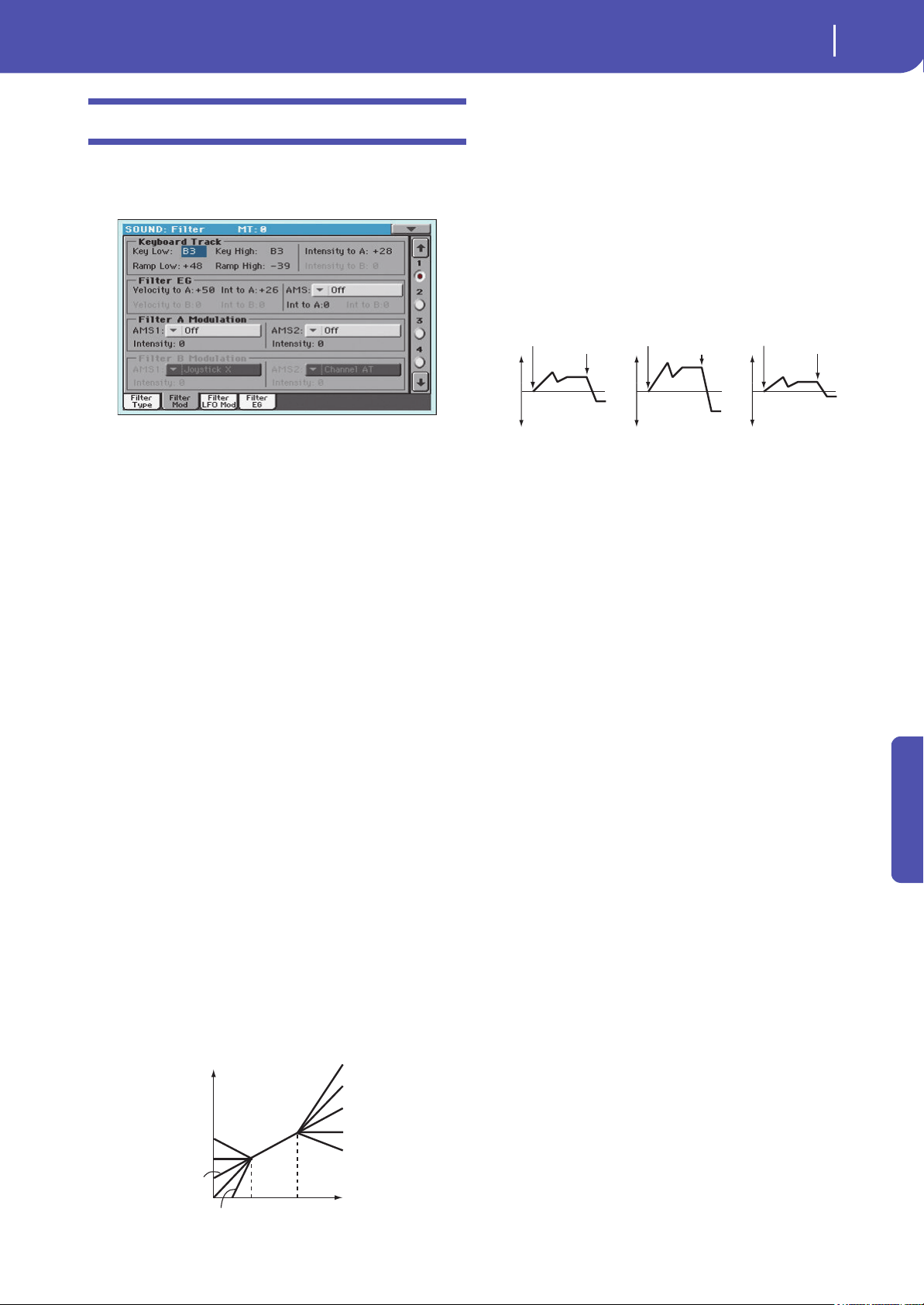
245
Sound Edit
Filter: Filter Mod
Reference
Filter: Filter Mod
These settings let you apply modulation to the cutoff frequency
(“Frequency”) of the filter for the selected oscillator to modify
the tone.
When “Filter Type” is Low Pass Resonance, parameters for filter
B will not be editable (greyed out).
Keyboard Tracking
Key Low/High
These settings specify keyboard tracking for the cutoff frequency
of the filter for the selected oscillator. The way in which the cut-
off frequency is affected by the keyboard location you play can
be specified by the “Key Low”, “Key High”, “Ramp Low” and
“Ramp High” parameters.
Keyboard tracking will apply to the range below the specified
Low note number, and above the specified High note number.
C–1…G9 Lowest/Highest note in the range.
Ramp Low/High
These parameter specifies the angle of keyboard tracking.
If “Intensity to A” and “Intensity to B” are set to +50, “Ramp
Low” is set to –62 and “Ramp High” is set to +62, the angle of the
change in cutoff frequency will correspond to the keyboard loca-
tion (pitch). This means that the oscillation that occurs when
you increase the “Resonance (Resonance A)” will correspond to
the keyboard location.
If you set “Ramp Low” to +43 and “Ramp High” to –43, the cut-
off frequency will not be affected by keyboard location. Use this
setting when you do not want the cutoff frequency to change for
each note.
-99…+99 Angle value.
Here is how cutoff frequency is affected by keyboard location
and the Ramp setting (“Intensity to A” and “Intensity to B” =
+50):
Tracking to A/B
These parameters specify the note numbers at which keyboard
tracking will begin to apply, and set the “Intensity to A” and
“Intensity to B” parameters to specify the depth and direction of
the change applied to filters A and B.
For the range of notes between “Key Low” and “Key High”, the
cutoff frequency will change according to the keyboard location
(pitch).
-99…+99 Parameter value.
Filter EG
Velocity to A
This parameter specifies the depth and direction of the effect
that velocity will have on the time-varying changes created by
the filter EG (as set on “Filter: Filter EG”) to control the filter A
cutoff frequency.
With positive (+) values, playing more strongly will cause the fil-
ter EG to produce greater changes in cutoff frequency. With neg-
ative (–) values, playing more strongly will also cause the filter
EG to produce greater changes in cutoff frequency, but with the
polarity of the EG inverted.
99…+99 Value of the Velocity to A parameter.
Velocity to B
This parameter specifies the depth and direction of the effect
that velocity will have on the time-varying changes created by
the filter EG to control the filter B cutoff frequency (see “Veloc-
ity to A”).
99…+99 Value of the Velocity to B parameter.
Int to A (Intensity to A)
Specifies the depth and direction of the effect that the time-vary-
ing changes created by the filter 1 EG will have on the filter A
cutoff frequency.
With positive (+) settings, the sound will become brighter when
the EG levels set by Filter EG “Level” and “Time” parameters are
in the “+” area, and darker when they are in the “–” area.
With negative (–) settings, the sound will become darker when
the EG levels set by Filter EG “Level” and “Time” parameters are
in the “+” area, and brighter when they are in the “–” area.
-99…+99 Parameter value.
Int to B (Intensity to B)
Specifies the depth and direction of the effect that the time-vary-
ing changes created by the filter EG will have on the filter B cut-
off frequency (see “Int to A (Intensity to A)”).
-99…+99 Parameter value.
Cutoff frequency
Key
Low Ramp=+99
Low Ramp=+43
Low Ramp=0
Low Ramp=–62
Low Ramp=–99
High Ramp=+99
High Ramp=+62
High Ramp=0
High Ramp=–43
High Ramp=–99
Low Key
High Key
hanges in cutoff frequency
oftly played Strongly played
Setting to –
Strongly played
Setting to +
Note-on
Note-off
Note-on
Note-off
Note-on
Note-off
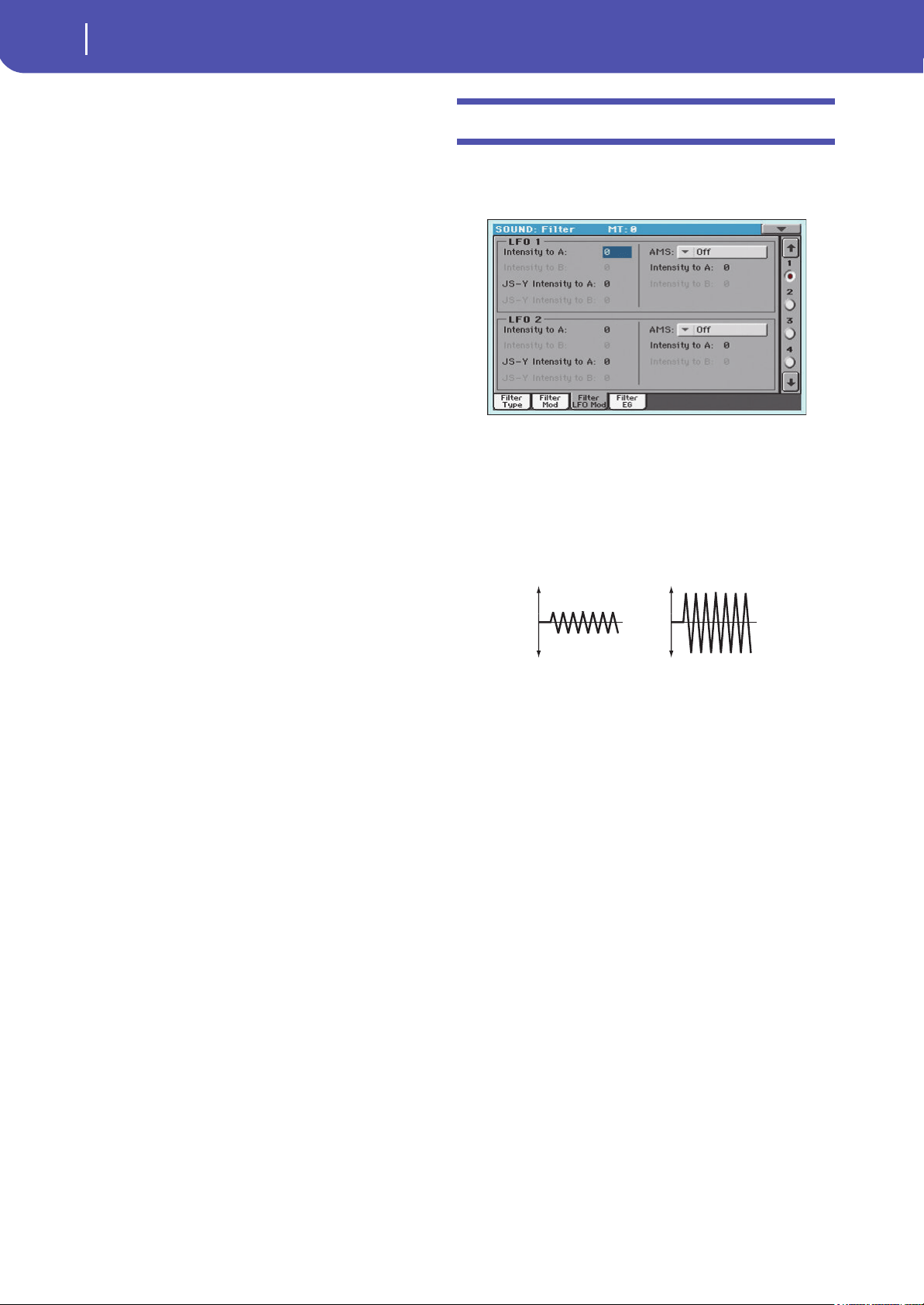
246
Sound Edit
Filter: Filter LFO
AMS (EG Alternate Modulation Source)
Selects the source that will control the depth and direction of the
effect that the time-varying changes produced by the filter EG
will have on the cutoff frequency of filters A and B. See “AMS
(Alternate Modulation Source) list” on page 256.
Int to A (Intensity to A)
Specifies the depth and direction of the effect that “AMS” will
have on filter A. For details on how this will apply, refer to “Int to
A (Intensity to A)”.
Int to B (Intensity to B)
Specifies the depth and direction of the effect that “AMS” will
have on filter B. For details on how this will apply, refer to “Int to
A (Intensity to A)”.
Note: The sum of the settings for “Velocity to A/B”, “Intensity to A/
B”, and “(AMS) Intensity to A/B” will determine the depth and
direction of the effect produced by the filter EG.
Filter A/B Modulation
AMS1 (Alternate Modulation Source 1 for filter A/B)
Selects the source that will control modulation of the filter A
cutoff frequency. See “AMS (Alternate Modulation Source) list”
on page 256.
Note: The filter B parameters will be displayed when “Filter Type”
on page 244 is Low Pass & High Pass.
Intensity (Intensity to AMS1)
Specifies the depth and direction of the effect that “AMS1” will
have.
When “AMS1” is JS X, a positive (+) value for this parameter will
cause the cutoff frequency to rise when the joystick is moved
toward the right, and fall when the joystick is moved toward the
left. With a negative (–) value for this parameter, the opposite
will occur.
This value is added to the setting of the Filter A “Frequency”.
AMS2 (Alternate Modulation Source 2 for filter A/B)
Selects the source that will control modulation of the filter A
cutoff frequency (see “AMS (Alternate Modulation Source) list”
on page 256).
Intensity (Intensity to AMS2)
Specifies the depth and direction of the effect that the selected
source will have (see “Intensity (Intensity to AMS1)” on
page 246).
Filter: Filter LFO
Here you can use the filter LFO to apply cyclic modulation to the
cutoff frequency of the filter (for the selected oscillator) to create
cyclical changes in tone.
LFO 1
Intensity to A
Specifies the depth and direction of the modulation that LFO1
(set on “LFO: LFO1”) will have on the cutoff frequency of filter
A. Negative (–) settings will invert the phase.
-99…+99 Parameter value.
Intensity to B
Specify the depth and direction of the modulation that LFO1
will have on the cutoff frequency of filter B (see “Intensity to A”).
-99…+99 Parameter value.
JS (Joystick) –Y Intensity to A
By moving the joystick in the Y direction (toward yourself), you
can control the depth at which LFO1 modulates the cutoff fre-
quency of filter A. This parameter specifies the depth and direc-
tion of the control.
Higher settings of this parameter will produce greater increases
in the effect of LFO1 on the filter when the joystick is moved
toward yourself.
-99…+99 Parameter value.
JS (Joystick) –Y Intensity to B
By moving the joystick in the Y direction (toward yourself), you
can control the depth at which LFO1 modulates the cutoff fre-
quency of filter B. This parameter specifies the depth and direc-
tion of the control (see “JS (Joystick) –Y Intensity to A”).
AMS (Filter LFO1 Alternate Modulation Source)
Select a source that will control the depth and direction of cutoff
frequency change for both filters A and B. See “AMS (Alternate
Modulation Source) list”.
Change in cutoff
Low setting High setting
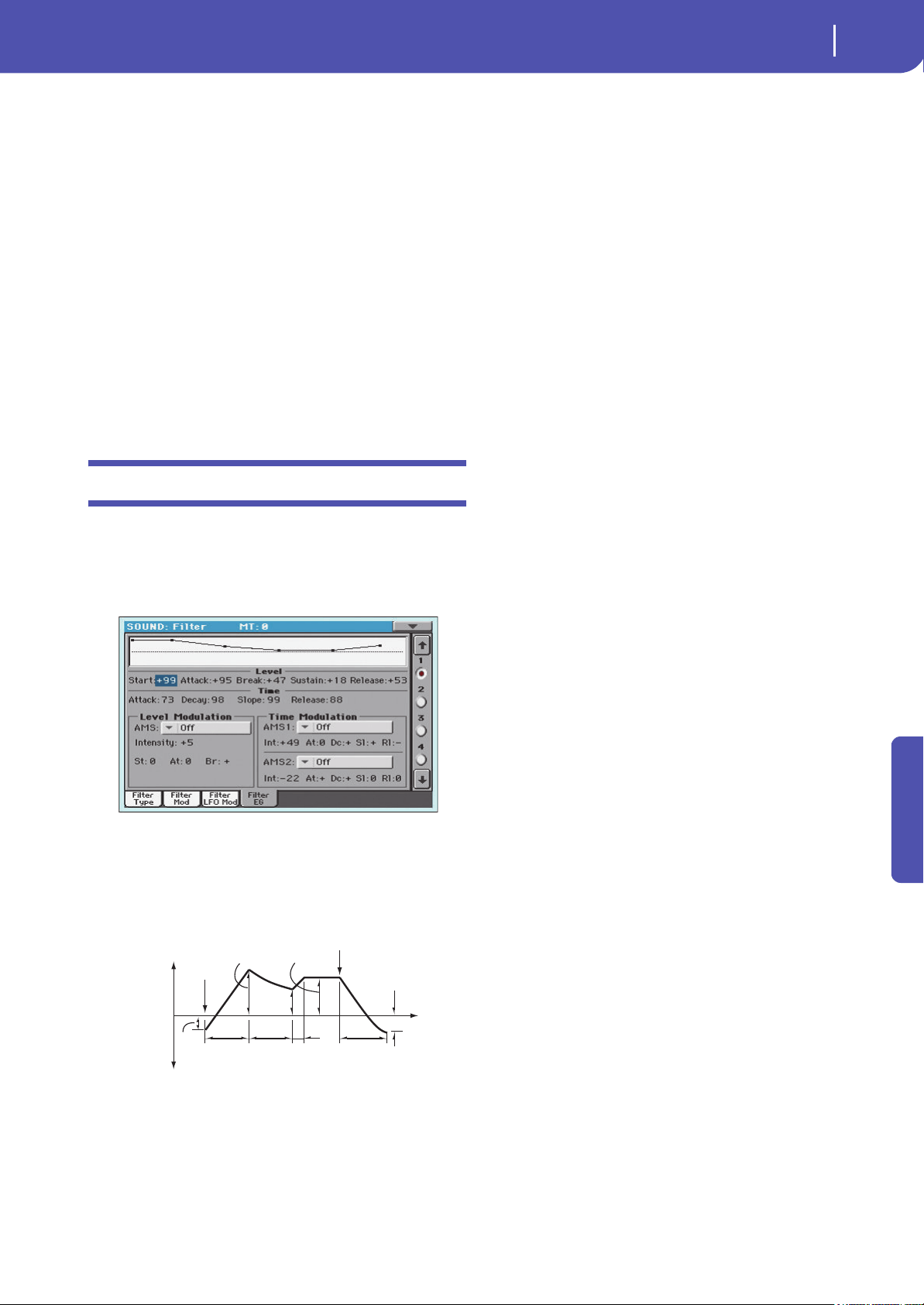
247
Sound Edit
Filter: Filter EG
Reference
Intensity to A
Specifies the depth and direction of the effect that “AMS” will
have on filter A.
For example if “AMS” is Joystick Y+, higher settings of this
parameter will allow greater change to be applied to LFO1 when
you move the Joystick up in the Y axis.
-99…+99 Parameter value.
Intensity to B
Specifies the depth and direction of the effect that “AMS” will
have on filter B (see “Intensity to A”).
LFO 2
Adjusts the depth of the cyclic modulation applied by LFO2 (set
on “LFO: LFO2”) to the cutoff frequency of filters A and B. For
more information on the parameters see “LFO 1” above.
Filter: Filter EG
Here you can make settings for the EG that will produce time-
varying changes in the cutoff frequency of filters A and B for the
selected oscillator. The depth of the effect that these settings will
have on the filter cutoff frequency is determined by the “Veloc-
ity” and “Intensity” parameters.
Diagram
The diagram on top of the page shows the Filter envelope line.
Filter envelope
Level
These are the envelope segment levels. The result will depend on
the filter that was selected in “Filter Type”. For example, with the
Low Pass Resonance filter, positive (+) values of EG Intensity
will cause the tone to be brightened by positive (+) levels, and
darkened by negative (–) levels.
Start
This parameter specifies the change in cutoff frequency at the
time of note-on.
-99…+99 Level value.
Attack
This parameter specifies the change in cutoff frequency after the
attack time has elapsed.
-99…+99 Level value.
Break (Break Point)
This parameter specifies the change in cutoff frequency after the
decay time has elapsed.
-99…+99 Level value.
Sustain
This parameter specifies the change in cutoff frequency that will
be maintained from after the slope time has elapsed until note-
off occurs.
-99…+99 Level value.
Release
This parameter specifies the change in cutoff frequency that will
occur when the release time has elapsed.
-99…+99 Level value.
Time
These parameters specify the time over which the filter change
will occur.
Attack
This parameter specifies the time over which the level will
change from note-on until the attack level is reached.
0…99 Time value.
Decay
This parameter specifies the time over which the level will
change from the attack level to the break point level.
0…99 Time value.
Slope
This parameter specifies the time over which the level will
change after the decay time has elapsed until the sustain level is
reached.
0…99 Time value.
Release
This parameter specifies the time over which the level will
change after note-on occurs until the release level is reached.
0…99 Time value.
Note-on
Note-off
Attack
Time
Start
Level
Decay
Time
Release
Time
Release
Level
Attack Level
The specified
cutoff
frequency
Sustain Level
Time
Break
Point
Level
Slope
Time
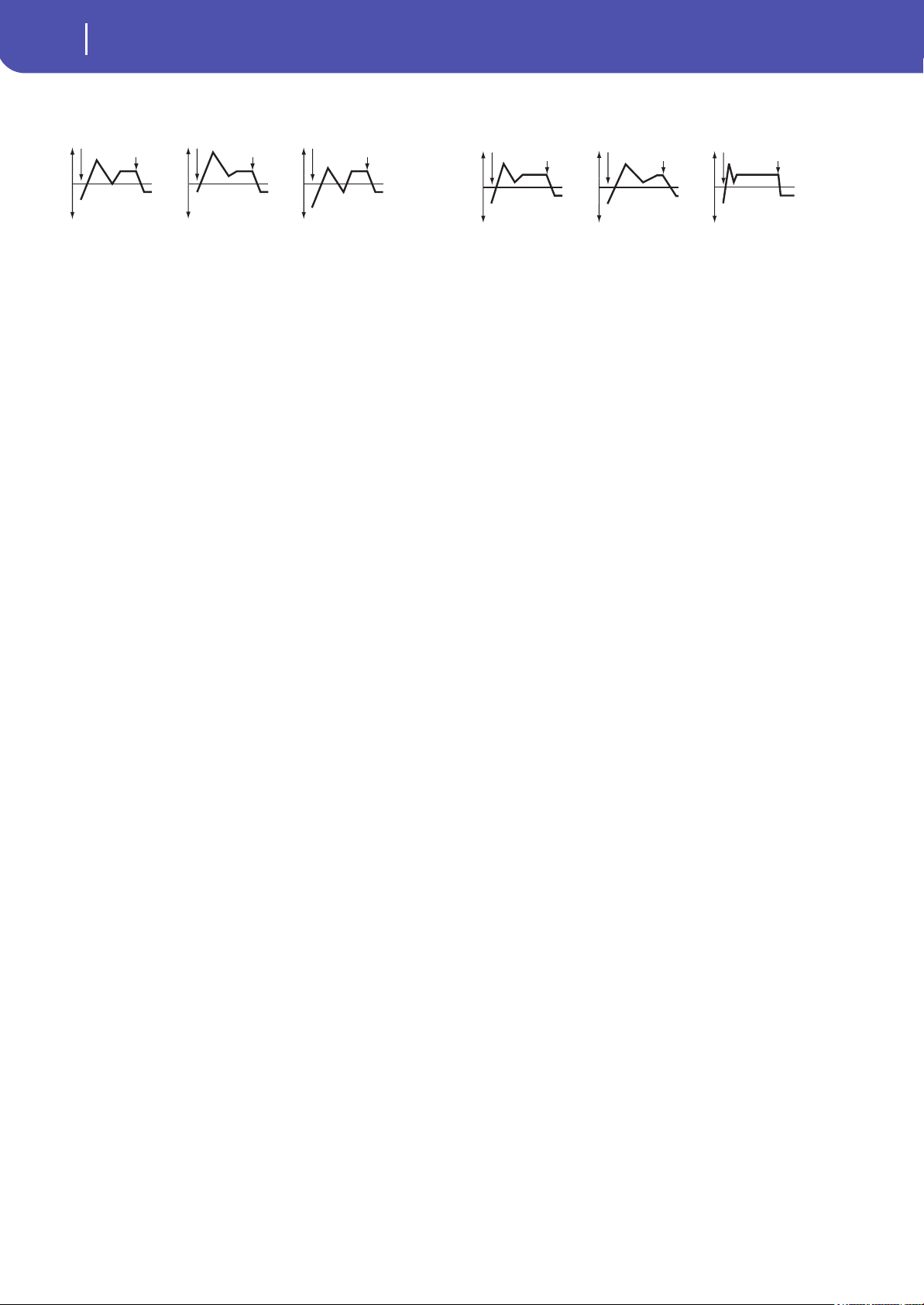
248
Sound Edit
Filter: Filter EG
Level Modulation
AMS (Alternate Modulation Source)
This parameter selects the source that will control the “Level”
parameters of the filter EG (“AMS (Alternate Modulation
Source) list” on page 256).
Intensity (AMS Intensity)
This parameter specifies the depth and direction of the effect
applied by “AMS”. With a setting of 0, the levels specified by
“Frequency (Cutoff Frequency A)” will be used.
For example, if “AMS” is Velocity, and you set “St (Start Level
Swing)”, “At (Attack Level Swing)” and “Br (Break Level Swing)”
to + and set “Intensity” to a positive (+) value, the EG levels will
rise as you play more strongly. If “Intensity” is set to a negative
(–) values, the EG levels will fall as you play more strongly.
-99…+99 Intensity value.
St (Start Level Swing)
This parameter specifies the direction in which “AMS” will affect
“Start”. When “Intensity” has a positive (+) value, a setting of +
for this parameter will allow “AMS” to raise the EG level, and a
setting of – will allow “AMS” to lower the EG level. With a setting
of 0 there will be no change.
At (Attack Level Swing)
This parameter specifies the direction in which “AMS” will affect
“Attack”. When “Intensity” has a positive (+) value, a setting of +
for this parameter will allow “AMS” to raise the EG level, and a
setting of – will allow “AMS” to lower the EG level. With a setting
of 0 there will be no change.
Br (Break Level Swing)
This parameter specifies the direction in which “AMS” will affect
“Break (Break Point)”. When “Intensity” has a positive (+) value,
a setting of + for this parameter will allow “AMS” to raise the EG
level, and a setting of – will allow “AMS” to lower the EG level.
With a setting of 0 there will be no change.
Time Modulation
AMS1/2
Use this parameter to select the source that will control the
“Time” parameters of the filter EG. See “AMS (Alternate Modu-
lation Source) list” on page 256.
Int (AMS Intensity)
This parameter specifies the depth and direction of the effect
that “AMS1/2” will have.
For example, if “AMS1/2” is set to FltKTr +/+, the EG “Time”
parameters will be controlled by the Keyboard Tracking settings.
With positive (+) values of this parameter, positive (+) values of
“Ramp Low/High” will lengthen the EG times, and negative (–)
values of “Ramp Low/High” will shorten the EG times. The
direction of change is specified by “At (Attack Time Swing)”, “Dc
(Decay Time Swing)”, “Sl (Slope Time Swing)”, and “Rl (Release
Time Swing)”.
With a setting of 0, the times specified by “Frequency (Cutoff
Frequency A)” will be used.
If “AMS1/2” is set to Velocity, positive (+) values of this parame-
ter will cause EG times to lengthen as you play more strongly,
and negative (–) values will cause EG times to shorten as you
play more strongly.
-99…+99 Intensity value.
At (Attack Time Swing)
This parameter specifies the direction in which “AMS1/2” will
affect the attack time. With positive (+) values of “Intensity”, set-
ting this parameter to + will allow AMS to lengthen the time,
and setting this parameter to – will allow AMS to shorten the
time. With a setting of 0 there will be no change.
Dc (Decay Time Swing)
This parameter specifies the direction in which “AMS1/2” will
affect the decay time. With positive (+) values of “Intensity”, set-
ting this parameter to + will allow AMS to lengthen the time,
and setting this parameter to – will allow AMS to shorten the
time. With a setting of 0 there will be no change.
Sl (Slope Time Swing)
This parameter specifies the direction in which “AMS1/2” will
affect the slope time. With positive (+) values of “Intensity”, set-
ting this parameter to + will allow AMS to lengthen the time,
and setting this parameter to – will allow AMS to shorten the
time. With a setting of 0 there will be no change.
Rl (Release Time Swing)
This parameter specifies the direction in which “AMS1/2” will
affect the release time. With positive (+) values of “Intensity”,
setting this parameter to + will allow AMS to lengthen the time,
Filter 1 EG changes (level) (AMS = Velocity, Intensity = a positive (+) value)
Note-on
Note-off
Note-on
Note-off
Note-on
Note-off
Softly played note with Start Level
Swing, Attack Level Swing, and
Break Level Swing set to +
Strongly played note with Start
Level Swing, Attack Level Swing,
and Break Level Swing set to +
Strongly played note with Start
Level Swing, Attack Level Swing,
and Break Level Swing set to –
Filter 1 EG changes (Time) (AMS
= Velocity, Intensity = a positive (+) value)
Note-on
Note-off
Note-on
Note-off
Note-on
Note-off
Softly played note with Attack,
Decay, Slope and Release
Level Swings set to +
Strongly played note with
Attack, Decay, Slope and
Release Level Swings set to +
Strongly played note with
Attack, Decay, Slope and
Release Level Swings set to –
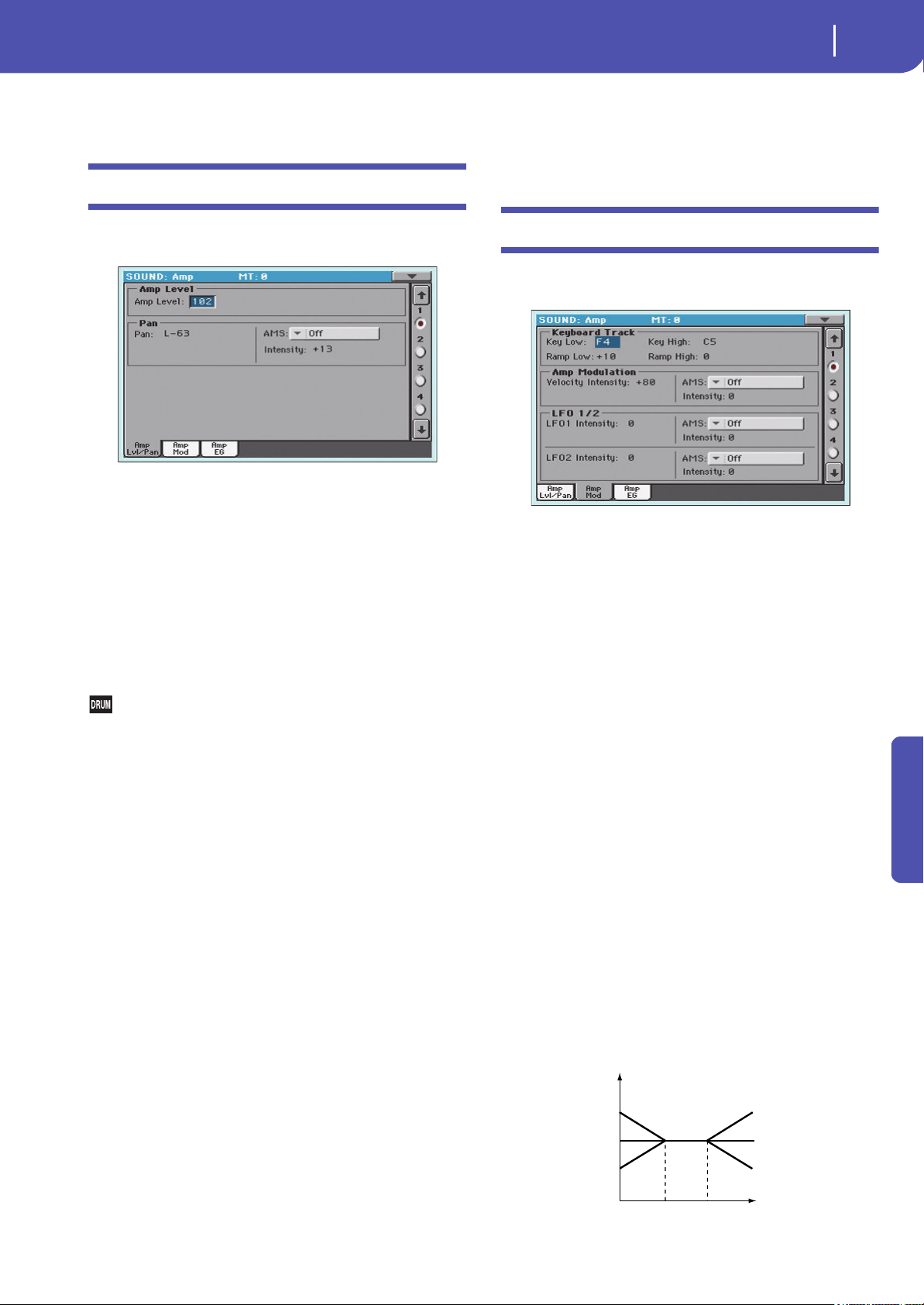
249
Sound Edit
Amp: Amp Level/Pan
Reference
and setting this parameter to – will allow AMS to shorten the
time. With a setting of 0 there will be no change.
Amp: Amp Level/Pan
These parameters control the volume and pan of the selected
oscillator.
Amp Level
Volume of the selected oscillator.
Note: The volume of a Sound can be controlled by CC#7 (volume)
and #11 (expression). The resulting level is determined by multi-
plying the values of CC#7 and #11. The Global MIDI channel is
used for control.
0…127 Volume level.
Pan
Pan (stereo position) of the selected oscillator.
This parameter is not available when editing a Drum Kit.
Use the individual Pan control for each key (see “Pan” on
page 240).
Random The sound will be heard from a different location
at each note-on.
L001 Places the sound at far left.
C064 Places the sound in the center.
R127 Places the sound to far right.
Note: This can be controlled by CC#10 (panpot). A CC#10 value of
0 or 1 will place the sound at the far left, a value of 64 will place the
sound at the location specified by the “Pan” setting for each oscilla-
tor, and a value of 127 will place the sound at the far right. This is
controlled on the global MIDI channel.
Pan modulation
AMS (Alternate Modulation Source)
Selects the source that will modify pan (see “AMS (Alternate
Modulation Source) list” on page 256). This change will be rela-
tive to the “Pan” setting.
Intensity
Specifies the depth of the effect produced by “AMS”. For exam-
ple, if “Pan” is set to C064 and “AMS” is Note Number, positive
(+) values of this parameter will cause the sound to move toward
the right as the note numbers increase beyond the C4 note (i.e.,
as you play higher), and toward the left as the note numbers
decrease (i.e., as you play lower). Negative (–) values of this
parameter will have the opposite effect.
-99…+99 Parameter value.
Amp: Amp Mod
These settings allow you to apply modulation to amp (for each
oscillator) to modulate the volume.
Keyboard Tracking
These parameters let you use keyboard tracking to adjust the
volume of the selected oscillator. Use the “Key” and “Ramp”
parameters to specify how the volume will be affected by the
keyboard location that you play.
Key Low/High
These settings specify the note number at which keyboard track-
ing will begin to apply. The volume will not change between
“Key Low” and “Key High”.
Keyboard tracking will apply to the range below the specified
Low note number, and above the specified High note number.
C–1…G9 Lowest/Highest note in the range.
Ramp Low/High
These parameters specify the angle of keyboard tracking.
With positive (+) values of the “Ramp Low” parameter, the vol-
ume will increase as you play notes below the “Key Low” note
number. With negative (–) values, the volume will decrease.
With positive (+) values of the “Ramp High” parameter, the vol-
ume will increase as you play notes above the “Key High” note
number. With negative (–) values, the volume will decrease.
-99…+99 Angle value.
Here is an example of volume changes produced by keyboard
location and “Ramp” settings:
Volume
Key
Ramp Low=+99
Ramp Low=0
Ramp Low=—99
Ramp High=+99
Ramp High=0
Ramp High=—99
Key Low
Key High
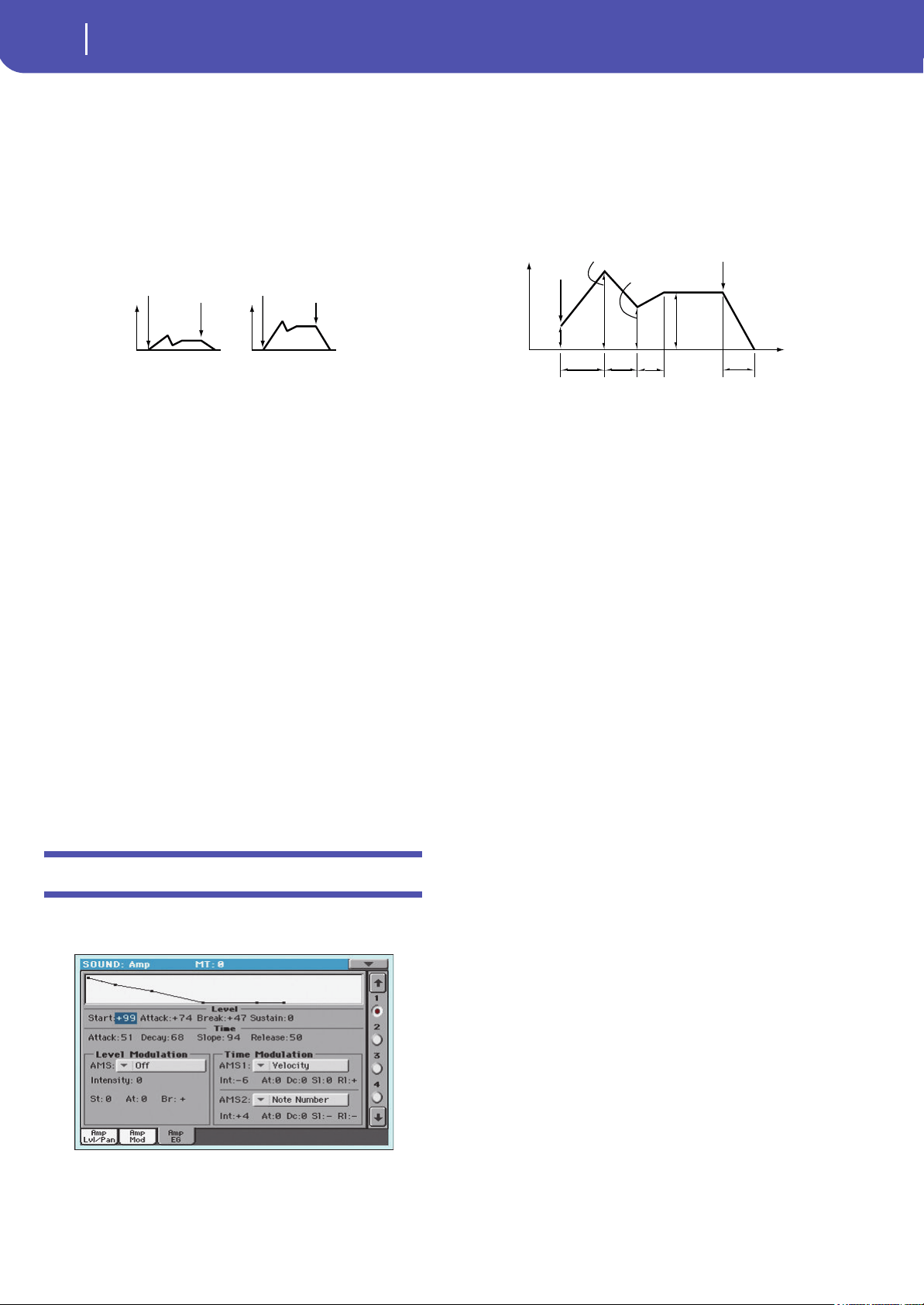
250
Sound Edit
Amp: Amp EG
Amp Modulation
These parameters specify how the volume of the selected oscilla-
tor will be affected by velocity.
Velocity Intensity
With positive (+) values, the volume will increase as you play
more strongly. With negative (–) values, the volume will decrease
as you play more strongly.
-99…+99 Intensity value.
AMS (Alternate Modulation Source)
Selects the source that will control the volume of the amp for the
selected oscillator (See “AMS (Alternate Modulation Source)
list” on page 256). “Velocity” cannot be selected.
Intensity
This parameter specifies the depth and direction of the effect
that “AMS” will have. The actual volume will be determined by
multiplying the value of the changes produced by the amp EG
with the values of Alternate Modulation etc., and if the levels of
the amp EG are low, the modulation applied by Alternate Modu-
lation will also be less.
For example, if “AMS” is set to Joystick Y+, positive (+) values of
this parameter will cause the volume to increase when you move
the Joystick up in the Y axis. However if the EG settings etc. have
already raised the volume to its maximum level, the volume can-
not be increased further.
With negative (–) values of this parameter, the volume will
decrease when pressure is applied to the keyboard.
-99…+99 Intensity value.
Amp: Amp EG
These parameters let you create time-varying changes in the vol-
ume of the selected oscillator.
Diagram
The diagram on top of the page shows the Amplitude envelope
line.
Level
These parameters are the level of the envelope segment.
Start
This parameter specifies the volume level at note-on. If you want
the note to begin at a loud level, set this to a high value.
0…99 Level value.
Attack
This parameter specifies the volume level that will be reached
after the attack time has elapsed.
0…99 Level value.
Break
This parameter specifies the volume level that will be reached
after the decay time has elapsed.
0…99 Level value.
Sustain
This parameter specifies the volume level that will be maintained
from after the slope time has elapsed until note-off occurs.
0…99 Level value.
Time
These parameters specify the time over which the volume
change will occur.
Attack
This parameter specifies the time over which the volume will
change after note-on until it reaches the attack level. If the start
level is 0, this will be the rise time of the sound.
0…99 Time value.
Decay
This parameter specifies the time over which the volume will
change from when it reaches the attack level until it reaches the
break point level.
0…99 Time value.
Volume change (with positive (+) values of this parameter)
Softly played
Strongly played
Note-on
Note-off
Note-on
Note-off
Note-on
Note-off
Attack
Time
Decay
Time
Release Time
Attack Level
Sustain
Level
Time
Break Point
Start
Level
Slope
Time
Amplifier EG
Volume
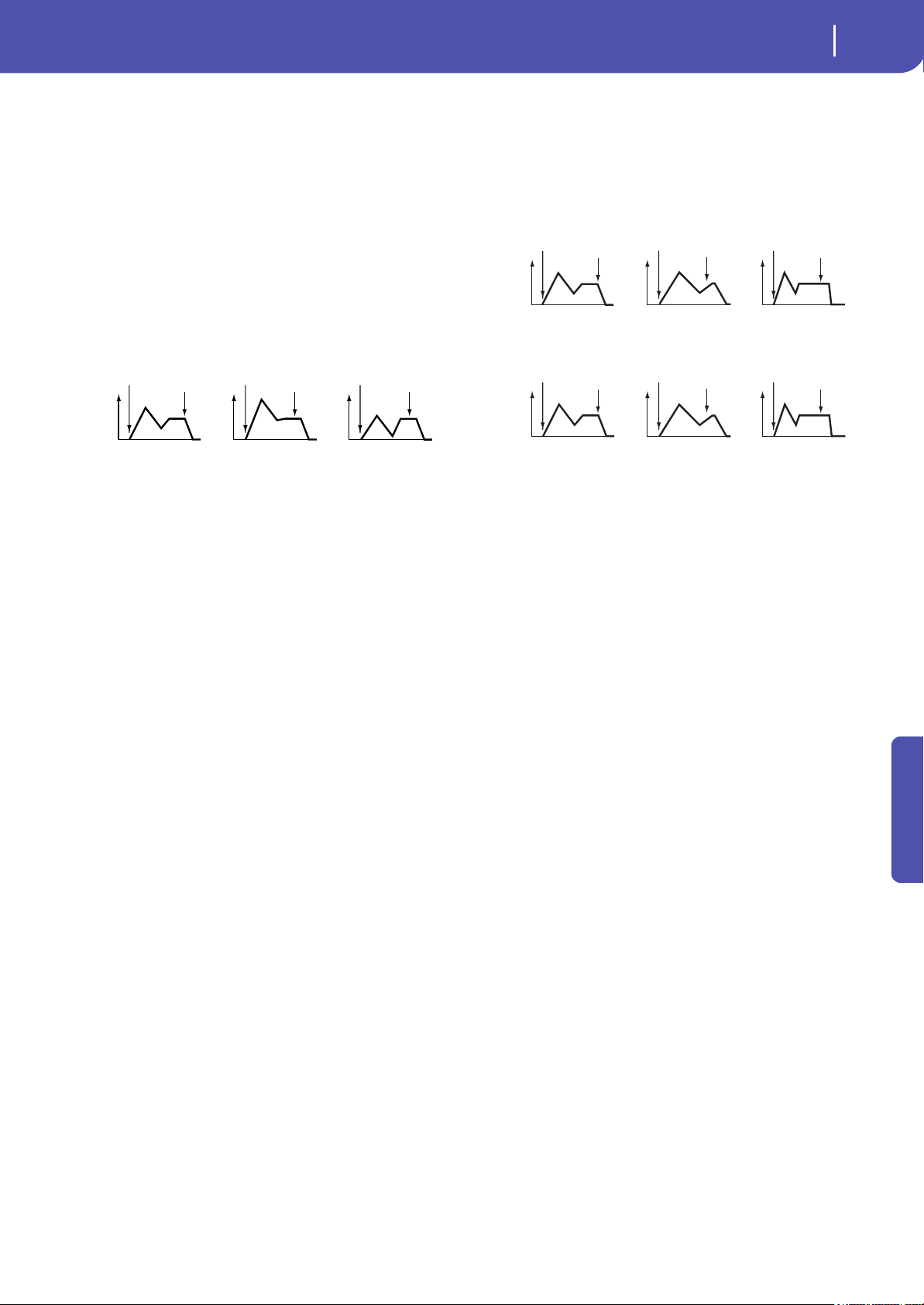
251
Sound Edit
Amp: Amp EG
Reference
Slope
This parameter specifies the time over which the volume will
change from when it reaches the break point level until it reaches
the sustain level.
0…99 Time value.
Release
This parameter specifies the time over which the volume will
change after note-off until it reaches 0.
0…99 Time value.
Level Modulation
AMS (Alternate Modulation Source)
This parameter specifies the source that will control the “Level”
parameters of the amp EG. See “AMS (Alternate Modulation
Source) list” on page 256.
Intensity
This parameter specifies the depth and direction of the effect
that “AMS” will have. For example, if “AMS” is Velocity, setting
“St (Start Level Swing)”, “At (Attack Level Swing)” and “Br
(Break Point Level Swing)” to + and setting “Intensity” to a posi-
tive (+) value will cause the amp EG volume levels to increase as
you play more strongly. Setting “Intensity” to a negative (–) val-
ues will cause the amp EG volume levels to decrease as you play
more strongly. With a setting of 0, the levels will be as specified
on “Amp: Amp EG”.
-99…+99 Intensity value.
St (Start Level Swing)
This parameter specifies the direction in which “AMS” will
change “Start”. If “Intensity” is set to a positive (+) value, setting
this parameter to + will allow AMS to increase the EG level, and
setting this parameter to – will allow AMS to decrease the EG
level. With a setting of 0, no change will occur.
At (Attack Level Swing)
This parameter specifies the direction in which “AMS” will
change “Attack”. If “Intensity” is set to a positive (+) value, set-
ting this parameter to + will allow AMS to increase the EG level,
and setting this parameter to – will allow AMS to decrease the
EG level. With a setting of 0, no change will occur.
Br (Break Point Level Swing)
This parameter specifies the direction in which “AMS” will
change “Break”. If “Intensity” is set to a positive (+) value, setting
this parameter to + will allow AMS to increase the EG level, and
setting this parameter to – will allow AMS to decrease the EG
level. With a setting of 0, no change will occur.
Time Modulation
These parameters let you use an alternate modulation source to
modify the amp EG times that were specified in “Time” on
page 250.
AMS1 (Alternate Modulation Source 1 - Time)
This parameter specifies the source that will control the “Time”
parameters of the amp EG (see “AMS (Alternate Modulation
Source) list” on page 256). With a setting of Off, there will be no
modulation.
Intensity
This parameter specifies the depth and direction of the effect
that “AMS1” will have. For example, if “AMS1(T)” is Amp KTrk
+/+, the (Amp) Keyboard Track settings (see “Keyboard Track-
ing” on page 249) will control the EG “Time” parameters. With
positive (+) values of this parameter, positive (+) values of
“Ramp (Ramp Setting) will cause EG times to be lengthened,
and negative (–) values of “Ramp (Ramp Setting)” will cause EG
times to be shortened. The direction of the change is specified by
“At (Attack Time Swing)”, “Dc (Decay Time Swing)”, “Sl (Slope
Time Swing)”, and “Rl (Release Time)”.
When “AMS1(T)” is Velocity, positive (+) values will cause EG
times to lengthen as you play more strongly, and negative (–)
values will cause EG times to shorten as you play more strongly.
With a setting of 0, the EG times will be as specified by the
“Level” parameters (see page 250).
At (Attack Time Swing)
This parameter specifies the direction of the effect that “AMS1”
will have on “Attack”. With positive (+) values of “Intensity”, set-
ting this parameter to + will allow AMS1 to lengthen the time,
and setting it to – will allow AMS1 to shorten the time. With a
setting of 0 there will be no effect.
Dc (Decay Time Swing)
This parameter specifies the direction of the effect that “AMS1”
will have on “Decay”. With positive (+) values of “Intensity”, set-
ting this parameter to + will allow AMS1 to lengthen the time,
and setting it to – will allow AMS1 to shorten the time. With a
setting of 0 there will be no effect.
Amp 1 EG changes (Level) (AMS=Velocity, Intensity = a positive (+) value)
Note-on
Note-off
Note-on
Note-off
Note-on
Note-off
Softly played note when Start Level
Swing=0 and Attack Level Swing
and Break Level Swing are set to +
Strongly played note when Start Level
Swing=0 and Attack Level Swing and
Break Level Swing are set to +
Strongly played note when Start Level
Swing=0 and Attack Level Swing and
Break Level Swing are set to +
Amp 1 EG changes (Time) (AMS=Velocity, Intensity= a positive (+) value)
Amp 1 EG changes (Time)
(AMS=Amp KTrk +/+, Intensity = a positive (+) value)
(When Amp Keyboard Track “Low Ramp”= a positive (+) value, and
“High Ramp” = a positive (+) value)
Note-on
Note-off
Note-on
Note-off
Note-on
Note-off
Note-on
Note-off
Note-on
Note-off
Note-on
Note-off
Low-pitched note played with
Attack, Decay, Slope, and
Release Time Swing at +
Softly played note with
Attack, Decay, Slope and
Release Time Swing at +
High -pitched note played with
Attack, Decay, Slope, and
Release Time Swing at –
Strongly played note with
Attack, Decay, Slope and
Release Time Swing at +
Strongly played note with
Attack, Decay, Slope and
Release Time Swing at –
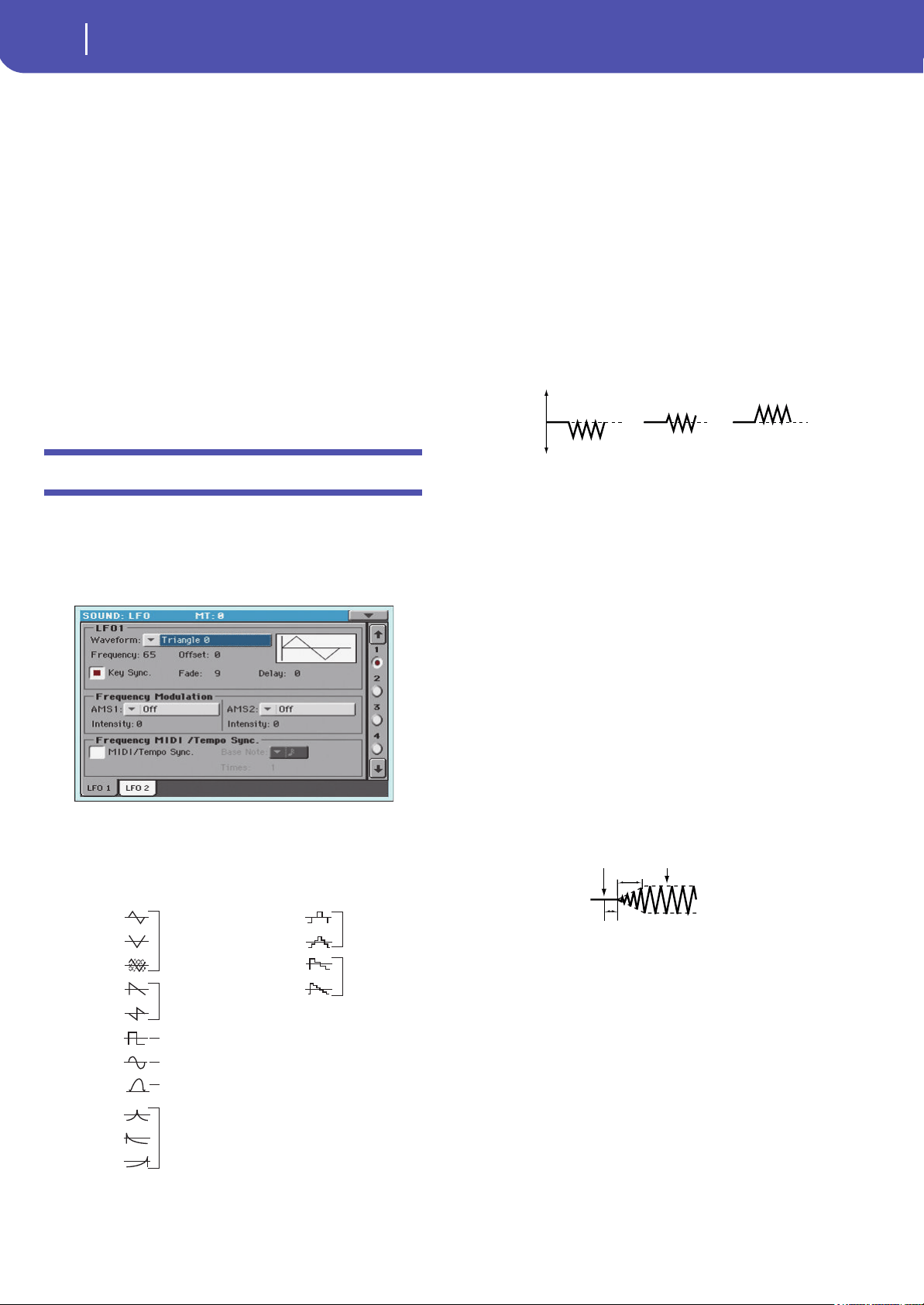
252
Sound Edit
LFO: LFO1
Sl (Slope Time Swing)
This parameter specifies the direction of the effect that “AMS1”
will have on “Slope”. With positive (+) values of “Intensity”, set-
ting this parameter to + will allow AMS1 to lengthen the time,
and setting it to – will allow AMS1 to shorten the time. With a
setting of 0 there will be no effect.
Rl (Release Time)
This parameter specifies the direction of the effect that “AMS1”
will have on “Release”. With positive (+) values of “Intensity”,
setting this parameter to + will allow AMS1 to lengthen the time,
and setting it to – will allow AMS1 to shorten the time. With a
setting of 0 there will be no effect.
AMS2 (Alternate Modulation Source 2)
This is another alternate modulation source for the Amp EG. See
above “AMS1” parameters.
LFO: LFO1
In this and the next page you can make settings for the LFO that
can be used to cyclically modulate the Pitch, Filter, and Amp of
each oscillator. There are two LFO units for each oscillator. By
setting the LFO1 or LFO2 Intensity to a negative (–) value for
Pitch, Filter, or Amp, you can invert the LFO waveform.
Waveform
This parameter selects the LFO waveform. The numbers that
appear at the right of some of the LFO waveforms indicate the
phase at which the waveform will begin.
Frequency
Set the LFO frequency. A setting of 99 is the fastest.
00…99 Frequency rate.
Offset
This parameter specifies the central value of the LFO waveform.
For example, with a setting of 0 as shown in the following dia-
gram, the vibrato that is applied will be centered on the note-on
pitch. With a setting of +99, the vibrato will only raise the pitch
above the note-on pitch, in the way in which vibrato is applied
on a guitar.
When “Waveform” is set to Guitar, the modulation will occur
only in the positive (+) direction even if you set “Offset” to 0.
Here are offset settings and pitch change produced by vibrato:
-99…+99 Offset value.
Key Sync
This parameter specifies if the LFO is synchronized to key
strokes.
On The LFO will start each time you play a note, and
an independent LFO will operate for each note.
Off The LFO effect that was started by the first-
played note will continue to be applied to each
newly-played note. (In this case, Delay and Fade
will be applied only to the LFO when it is first
started).
Fade
This parameter specifies the time from when the LFO begins to
apply until it reaches the maximum amplitude. When “Key
Sync.” is Off, the fade will apply only when the LFO is first
started.
Here is how “Fade” affects the LFO (when “Key Sync” is On):
00…99 Fade rate.
Delay
This parameter specifies the time from note-on until the LFO
effect begins to apply. When “Key Sync” is Off, the delay will
apply only when the LFO is first started.
0…99 Delay time.
Frequency Modulation
You can use two alternate modulation sources to adjust the
speed of the LFO1 for the selected oscillator.
Triangle wave
Phase will change
randomly at each key-in
Sawtooth down Ø
Square wave
Sine wave
Guitar vibrato
Triangle 0
Triangle 90
Triangle
Random
Saw 0
Saw 180
Square
Sine
Guitar
Exponential
Triangle
Exponential
Saw Down
Exponential
Saw Up
Step Triangle – 4
Step Triangle – 6
Step Saw – 4
Step Saw – 6
Random1 (S/H):
Conventional sample & hold (S/H) in which the
level changes randomly at fixed intervals of
time
Random2 (S/H):
Both the levels and the time intervals will
change randomly.
Random3 (S/H):
The maximum level and minimum level will
alternate at random intervals of time (i.e., a
square wave with random period).
Random4 (Vector)
Random5 (Vector)
Random6 (Vector)
These types cause Random 1–3 to change
smoothly. They can be used to simulate the
instability of acoustic instruments etc.
offset = –99 offset = 0 offset = +99Pitch
Pitch at note-on
Note-on Note-off
Fade
Delay
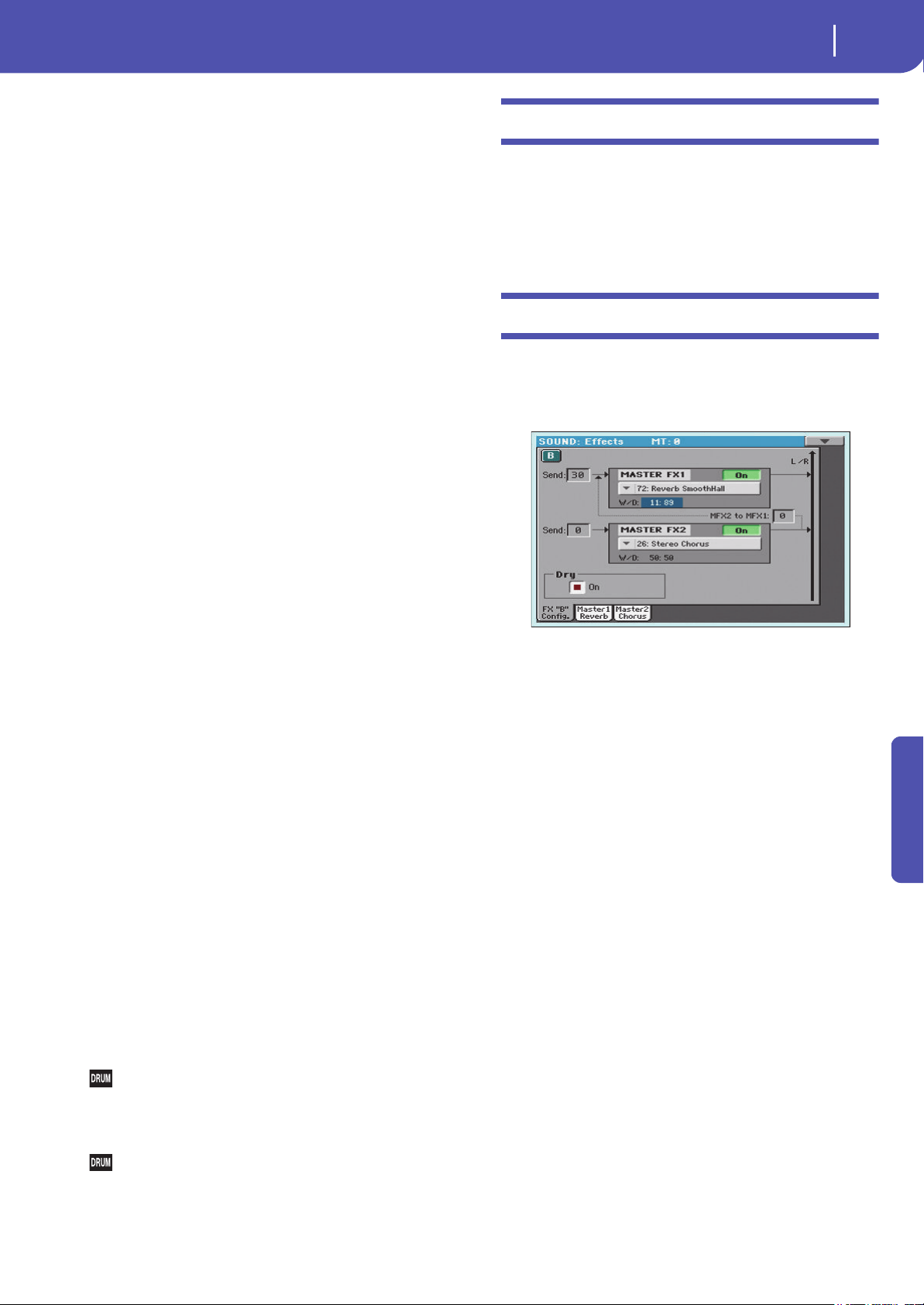
253
Sound Edit
LFO: LFO2
Reference
AMS1 (Alternate Modulation Source1)
Selects the source that will adjust the frequency of the selected
oscillator LFO1 (see “AMS (Alternate Modulation Source) list”
on page 256). LFO1 can be modulated by LFO2.
Intensity (AMS1 Intensity)
This parameter specifies the depth and direction of the effect
that “AMS1(F)” will have. When this parameter is set to a value
of 16, 33, 49, 66, 82, or 99, the LFO frequency being can be
increased by a maximum of 2, 4, 8, 16, 32, or 64 times respec-
tively (or decreased by 1/2, 1/4, 1/8, 1/16, 1/32, or 1/64 respec-
tively).
For example, if “AMS1(F)” is Note Number, positive (+) values
of this parameter will cause the oscillator LFO to speed up as you
play higher notes. Negative (–) values will cause the oscillator
LFO to slow down as you play higher notes. This change will be
centered on the C4 note.
If “AMS1(F)” is set to JS +Y, raising the value of this parameter
will cause the oscillator LFO1 speed to increase as the joystick is
moved away from yourself. With a setting of +99, moving the
joystick all the way away from yourself will increase the LFO
speed by approximately 64 times.
-99…+99 Intensity value.
AMS2 (Alternate Modulation Source2)
Intensity (AMS2 Intensity)
Make settings for a second alternate modulation source that will
adjust the frequency of the oscillator LFO1 (see above “AMS1 (Alter-
nate Modulation Source1)” and “Intensity (AMS1 Intensity)”).
Frequency MIDI/Tempo Sync
MIDI/Tempo Sync
This parameter enables/disables the LFO synchronization with
Sequencer 1 Tempo.
On The LFO frequency will synchronize to the
tempo (MIDI Clock) of Sequencer 1. In this case,
the values you specified for “Frequency” (see
page 252) and “Frequency Modulation” (see
page 252) will be ignored.
Base Note
When “MIDI/Tempo Sync” is On, these parameters set a note
length relative to “q (Tempo)” and the multiple (“Times”) that
will be applied to it. These parameters will determine the fre-
quency of the LFO1. For example if “Base Note” is q (quarter
note) and “Times” is 04, the LFO will perform one cycle every
four beats.
Even if you change the “q (Tempo)” setting of Sequencer 1, the
LFO will always perform one cycle every four beats.
This parameter is not available when editing a Drum Kit.
Note Note value.
Times
This parameter is not available when editing a Drum Kit.
1...16 Beats before restarting the cycle.
LFO: LFO2
Here you can make settings for the LFO2, which is the second
LFO that can be applied to the selected oscillator. See “LFO:
LFO1” for more information on the parameters value.
However in “Frequency Modulation”, the LFO cannot be
selected as a modulation source in “AMS1” or “AMS2.”
Effects: “B” FX Config
This page allows you to select the effects for the Sound (B
Group). The effect types and the FX matrix are the same seen for
the Style Play mode (see “Effects: A/B FX Configuration” on
page 100 of the User’s Manual).
FX Name
Use this pop-up menu to choose one of the available effects. For
a list of the available effects, see “Effect list” on page 282.
FX parameters
All other parameters in this page are the same seen for the Style
Play mode (see “Effects: A/B FX Configuration” on page 100 in
the User’s Manual).
Send to Master
Use these parameters to set the level of the Sound signal going
from the Insert FX to the Master FXs.
0…127 Level of the sent signal.
Dry
Use this checkbox to mix the dry, direct Sound signal to the effects.
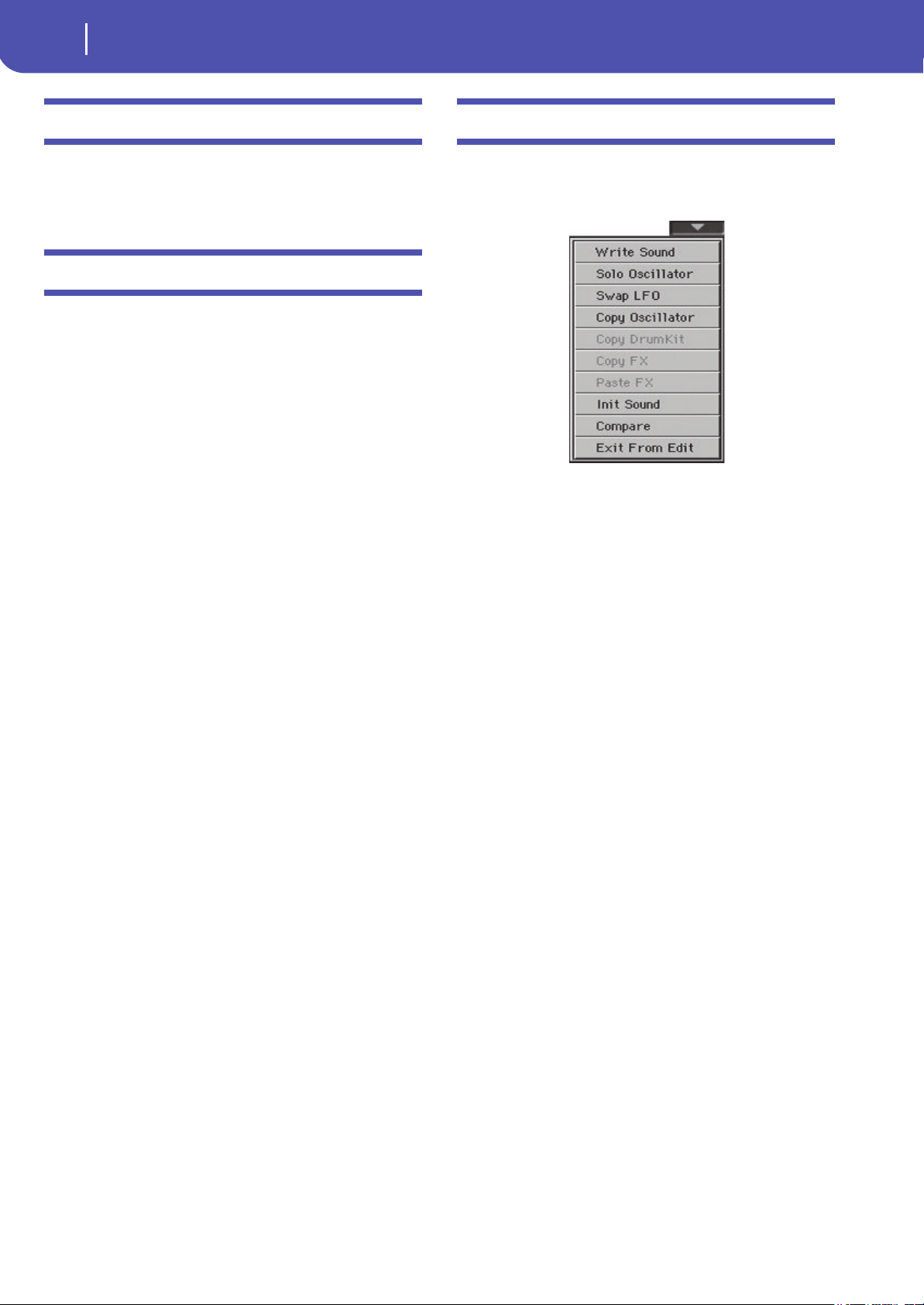
254
Sound Edit
Effects: Master 1 / Reverb
Effects: Master 1 / Reverb
In this page you can edit the effect assigned to the Master FX 1
effect processor (usually Reverb). See “Effects” on page 282 for
more information.
Effects: Master 2 / Chorus
In this page you can edit the effect assigned to the Master FX 2
effect processor (usually Chorus). See “Effects” on page 282 for
more information.
Page menu
Touch the page menu icon to open the menu. Touch a command
to select it. Touch anywhere in the display to close the menu
without selecting a command.
Write Sound
Select this command to open the Write Sound dialog box, and
save all editing parameters to a Sound.
See “Write Sound dialog box” on page 255 for more information.
Solo Oscillator
Select this command to solo the selected oscillator, and mute the
other oscillators. Select it again to unmute the other oscillators.
When this function is activated, the “Solo OSC [n]” indicator (n
= oscillator number) blinks on the page header. While in this sit-
uation, you can select a different oscillator to be soloed.
Swap LFO
Select this command to replace LFO1 with LFO2, and vice-versa.
Copy Oscillator
Select this command to copy all settings between oscillators. See
“Copy Oscillator dialog box” on page 255 for more information.
Copy/Paste FX
Use this command to copy a single effect, or both effects of an
FX group (A or B). See “Copy/Paste FX” on page 108 for detailed
instructions.
Copy Drum Kit
Select this command to copy the Drum Kit from a different
Drum Kit. See “Copy Drum Kit dialog box” on page 255 for
more information.
Init Sound
Select this command to delete all parameters, and set them to a
default value.
Compare
When this command is checked, original Sound parameter values
are temporarily recalled, to compare them with edited parameters.
You cannot edit the Sound while you are in Compare mode.
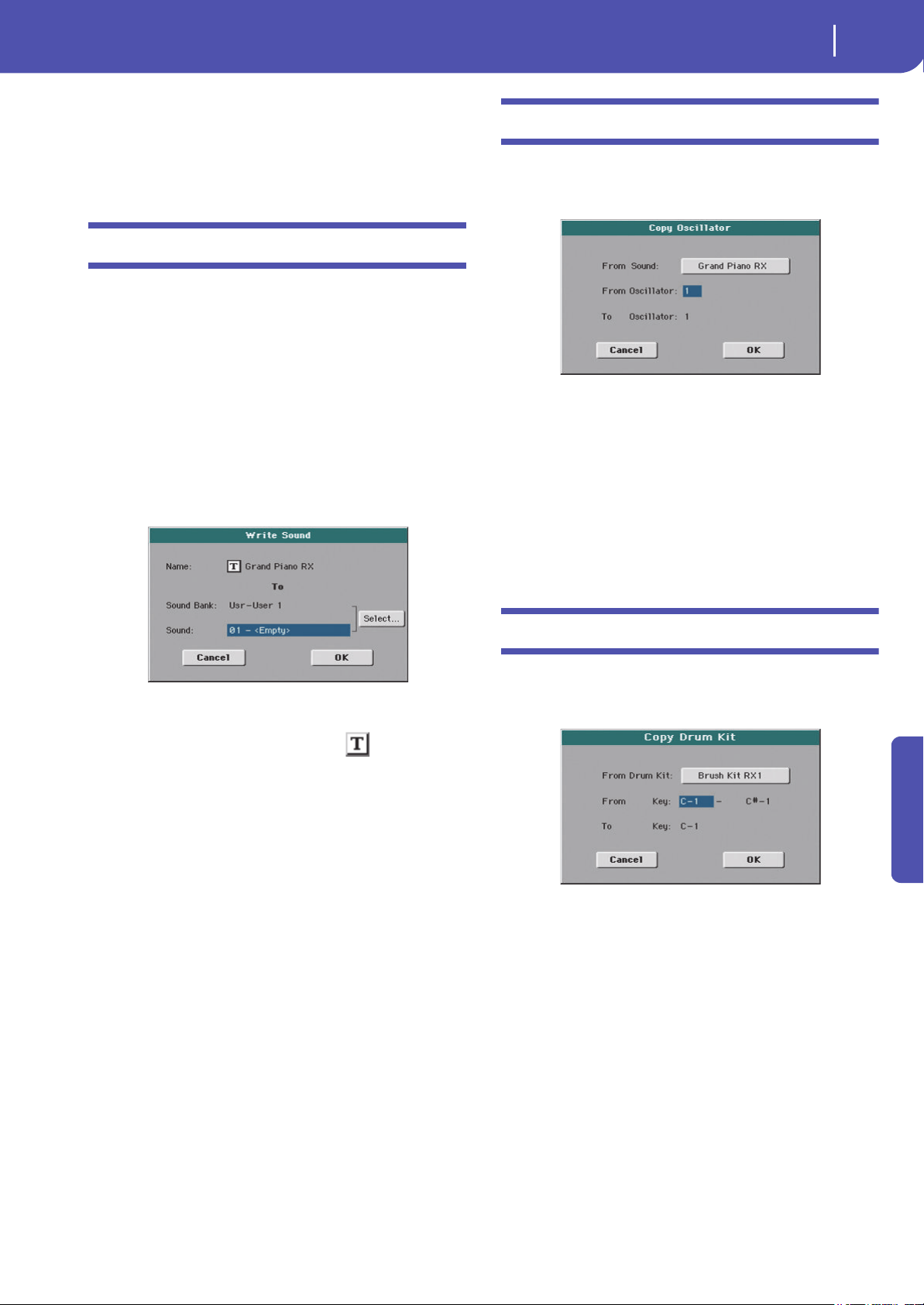
255
Sound Edit
Write Sound dialog box
Reference
While this function is on, the Compare indicator blinks on the
page header.
Exit from Edit
Choose this command to exit from Sound editing.
Write Sound dialog box
Open this window by selecting the Write Sound item from the
page menu. Here, you can save all Sound parameters to a User
Sound location in memory.
Wa r ni ng : If you write over an existing Sound, the Sound will be
deleted and replaced by the one you are saving (“overwrite”).
Please save on a storage device any User Sound you don’t want to
lose.
Note: Drum Kits cannot be written over standard Sounds, nor vice
versa.
To restore the original data, please use the “Factory Restore” com-
mand in the Utility page of the Media mode (see page 179 for more
information).
Name
Name of the Sound to be saved. Touch the (Text Edit) but-
ton next to the name to open the Text Edit window.
Sound Bank
Target bank of Sounds. Use the VALUE controls to select a dif-
ferent bank.
Sound
Target Sound location in the selected bank. Use the VALUE con-
trols to select a different location.
Select…
Touch this button to open the Sound Select window, and select a
target location.
Copy Oscillator dialog box
Open this window by selecting the Copy Oscillator item from
the page menu. Here, you can copy all settings between oscilla-
tors.
From Sound
Touch this button to open the Sound Select window, and select
the source Sound.
From Oscillator
Select the source oscillator to copy from.
To Oscillator
Target oscillator where to copy the source settings to.
Copy Drum Kit dialog box
Open this window by selecting the Copy Drum Kit item from
the page menu. Here, you can copy settings from a range of keys
of a Drum Kit.
From Drum Kit
Touch this button to open the Sound Select window, and select
the source Drum Kit.
From Key
Select the source range of keys to copy from.
To Key
Target key. Settings are copied starting from this key, and
upwards.
256
Sound Edit
AMS (Alternate Modulation Source) list
AMS (Alternate Modulation Source) list
Flt KTrk +/+ (Filter Keyboard Track +/+)
Flt KTrk +/– (Filter Keyboard Track +/)
Flt KTrk 0/+ (Filter Keyboard Track 0/+)
Flt KTrk +/0 (Filter Keyboard Track +/0)
Amp KTrk +/+ (Amp Keyboard Track +/+)
Amp KTrk +/– (Amp Keyboard Track +/–)
Amp KTrk 0/+ (Amp Keyboard Track 0/+)
Amp KTrk +/0 (Amp Keyboard Track +/0)
+/+ The direction of the effect will be determined by
the sign (positive or negative) of the “Ramp Low”
or “Ramp High” setting.
+/– The direction of the effect will be determined by
the sign of the “Ramp Low” setting, and by the
opposite sign of the “Ramp High” setting (50 for a
setting of +50, and +50 for a setting of 50).
Off Do not use Alternate Modulation
Pitch EG Pitch EG
Filter EG Filter EG within the same oscillator
Amp EG Amp EG within the same oscillator
LFO1 LFO1 within the same oscillator
LFO2 LFO2 within the same oscillator
Flt KTrk +/+ (Filter Keyboard Track +/+) Filter keyboard tracking within the same oscillator
Flt KTrk +/– (Filter Keyboard Track +/) Filter keyboard tracking within the same oscillator
Flt KTrk 0/+ (Filter Keyboard Track 0/+) Filter keyboard tracking within the same oscillator
Flt KTrk +/0 (Filter Keyboard Track +/0) Filter keyboard tracking within the same oscillator
Amp KTrk +/+ (Amp Keyboard Track +/+) Amp keyboard tracking within the same oscillator
Amp KTrk +/ (Amp Keyboard Track +/) Amp keyboard tracking within the same oscillator
Amp KTrk 0/+ (Amp Keyboard Track 0/+) Amp keyboard tracking within the same oscillator
Amp KTrk +/0 (Amp Keyboard Track +/0) Amp keyboard tracking within the same oscillator
Note Number Note number
Velocity Velocity
Poly AT (Poly After Touch) Polyphonic After Touch (received/transmitted via MIDI or contained in Standard MIDI Files)
Channel AT (Channel After Touch) After Touch (Channel After Touch) (received/transmitted via MIDI or contained in Standard MIDI Files)
Joystick X Joystick X (horizontal) axis
Joystick +Y Joystick +Y (vertical upward) direction (CC#01)
Joystick Y Joystick Y (vertical downward) direction (CC#02)
JS+Y & AT/2 (Joy Stick +Y & After Touch/2) Joystick +Y (vertical upward) direction and After Touch (received/transmitted via MIDI or contained in Stan-
dard MIDI Files)
JS–Y & AT/2 (Joy Stick Y & After Touch/2) Joystick Y (vertical downward) direction and After Touch (received/transmitted via MIDI or contained in
Standard MIDI Files)
Assign. Pedal Assignable foot pedal (CC#04)
Ribbon Ctl. Ribbon controller (CC#16) (received/transmitted via MIDI or contained in Standard MIDI Files)
CC#18 CC#18
CC#17 CC#17
CC#19 CC#19
CC#20 CC#20
CC#21 CC#21
Damper Damper pedal (CC#64)
CC#65 Portamento switch (CC#65)
Sostenuto Sostenuto pedal (CC#66)
CC#80 CC#80
CC#81 CC#81
CC#82 CC#82
CC#83 CC#83
Tempo Tempo (tempo data from Sequencer 1 clock or external MIDI clock)
Velocity Plus Key On and Key Off Velocity are used
Velocity Exp Velocity with Exponential curve (higher velocity notes are even louder)
Velocity Log Velocity with Logarithmic curve (higher velocity notes are weaker than with the linear Velocity)
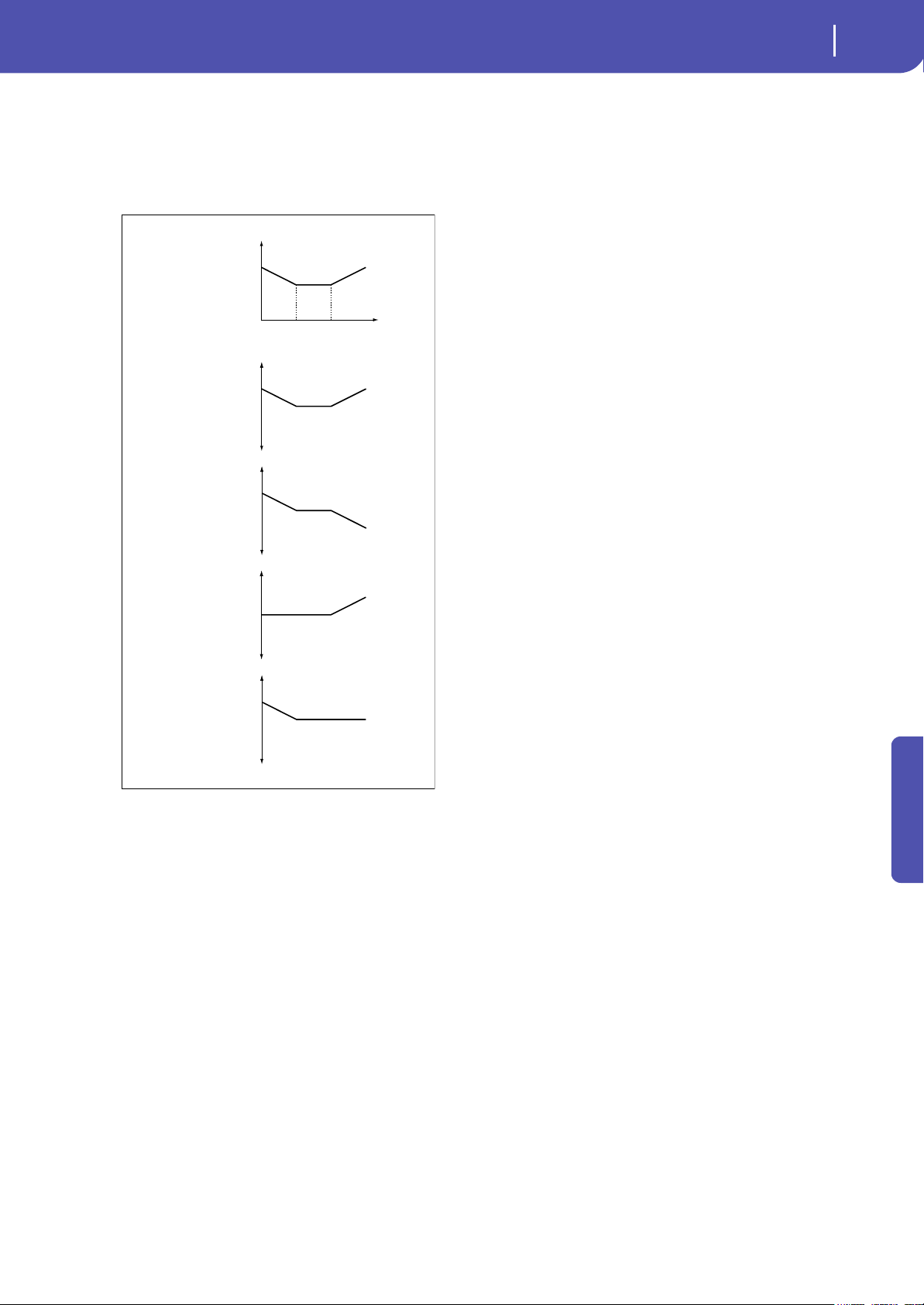
257
Sound Edit
AMS (Alternate Modulation Source) list
Reference
0/+ “Ramp Low” will have no AMS effect. The sign of
the “Ramp High” setting will determine the direc-
tion of its effect.
+/0 The sign of the “Ramp Low” setting will deter-
mine the direction of its effect. “Ramp High” will
have no AMS effect.
JS +Y & AT/2 (Joy Stick +Y & After Touch/2)
The effect will be controlled by the joystick +Y (vertically
upward) and by after touch. In this case, the effect of after touch
will be only half of the specified intensity (received/transmitted
via MIDI or contained in Standard MIDI Files).
JS Y & AT/2 (Joy Stick –Y & After Touch/2)
The effect will be controlled by the joystick Y (vertically down-
ward) and by after touch. In this case, the effect of after touch
will be only half of the specified intensity (received/transmitted
via MIDI or contained in Standard MIDI Files).
Note Number
Amp
Key Low
Key High
AMS = Amp KTrk +/+
AMS Intensity = positive (+) value
Ramp Low
= +50
Ramp High
= +50
Depth and direction of modulation
zero
+ max
- max
example of Amp
Keyboard Track settings
AMS = Amp KTrk +/—
AMS Intensity = positive (+) value
Depth and direction of modulation
zero
+ max
- max
AMS = Amp KTrk 0/+
AMS Intensity = positive (+) value
Depth and direction of modulation
zero
+ max
- max
AMS = Amp KTrk +/0
AMS Intensity = positive (+) value
Depth and direction of modulation
zero
+ max
- max
258
MIDI
What is MIDI?
What is MIDI?
Here is a brief overview of MIDI, as related to the Pa300. If inter-
ested, you may find more information on the general use of
MIDI in the various specialized magazines and dedicated books.
In general
MIDI stands for Musical Instruments Digital Interface. This pro-
tocol lets you connect two musical instruments, or a computer
and various musical instruments.
From a software point of view, MIDI is a protocol that describes
messages for playing notes and controlling them. It is sort of a
grammar to let different instruments and computers speak the
same language, and let the one tell the other what to do.
From a physical point of view, MIDI messages travel across the
USB Device port, a modern connector replacing the MIDI ports
found in older musical instruments with a single port and cable.
To use it for MIDI connection, it is advisable to install the KORG
USB-MIDI Driver supplied in the Accessory Disc, or download-
able from our web site (
www.korg.com).
Channels and messages
Basically, an USB cable transmits 16 channels of MIDI data.
Think to each MIDI channel as a TV channel: the receiver must
be set on the same channel of the transmitter. The same happens
with MIDI messages: when you send a Note On message on
channel 1, it will be received on channel 1 only. This allows for
multitimbricity: you can have more than one sound playing on
the same MIDI instrument.
There are various messages, but here are the most commonly
used:
Note On – This message instructs an instrument to play a note
on a specific channel. Notes have both a name (C4 standing for
the center C) and a number (60 being the equivalent for C4). A
Note Off message is often used to say the note has been released.
In some case, a Note On with value “0” is used instead.
Together with the Note On message, a Velocity value is always
sent. This value tells the instrument how loud the note must play.
Pitch Bend (PB) – You can generate this message acting on the
joystick (X direction). The pitch is translated up or down.
Program Change (PC) – When you select a Sound, a Program
Change message is generated on the channel. Use this message,
together with Control Change 00 and 32, to remotely select
Pa300 data from a sequencer or a master keyboard.
Control Change (CC) – This is a wide array of messages, con-
trolling most of the instrument parameters. Some examples:
• CC00, or Bank Select MSB, and CC32, or Bank Select LSB.
This message pair is used to select a Sound Bank. Together
with the Program Change message, they are used to select a
Sound.
• CC01, or Modulation. This is the equivalent of pressing up
the joystick. A vibrato effect is usually triggered on.
• CC07, or Master Volume. Use this controller to set the
channel’s volume.
• CC10, or Pan. This one sets the channel’s position on the
stereo front.
• CC11, or Expression. Use this controller to set the relative
volume of tracks, with the maximum value matching the
current setting of the CC07 control.
• CC64, or Damper Pedal. Use this controller to simulate the
Damper pedal.
Tempo
Tempo is a global MIDI message, that is not tied to a particular
channel. Each Song includes Tempo data.
Lyrics
Lyrics are non-standard MIDI events, intended to display text
together with the music. Pa300 can read many of the available
Lyrics format on the market.
MIDI and personal computers
Most Pa300 MIDI features can be used on a Windows or Mac
computer with no need of special software. However, for full and
easy use of all MIDI features, we suggest that you to install the
“KORG USB MIDI Driver”, a special software that you can find
in the Accessory Disc that comes with your Pa300, or download
from our web site (
www.korg.com). Relevant instructions come
with the software itself. See “Installing the Korg USB MIDI Driv-
er” on page 362.
MIDI
259
MIDI
Standard MIDI Files
Reference
Standard MIDI Files
Standard MIDI Files (a.k.a. SMF) are a practical way of exchang-
ing songs between different instruments and computers. Pa300
uses the SMF format as its default song format, so reading a song
from a computer, or saving a song that a computer software can
read, is not a problem at all.
The internal Player is compatible with SMFs format 0 (all data in
one track; it is the most common format) and 1 (multitrack).
Pa300 can read SMFs in Song Play mode and modify/save them
in Sequencer mode. It can save a Song in SMF format 0 from
Sequencer mode.
When in Song Play mode, Pa300 can also display SMF lyrics in
Solton, M-Live (Midisoft), Tune1000, Edirol, GMX, HitBit, and
XF formats, and the chord abbreviations of SMF in Solton, M-
Live (Midisoft), GMX, and XF format.
Note: The above trademarks are the property of their respective
holders. No endorsement is intended by their inclusion in this list.
Standard MIDI Files usually have the “.MID” or “.KAR” filename
extension.
The General MIDI standard
Some years ago, the musical instruments world felt a need for
some further standardization. Then, the General MIDI Standard
(GM) was born. This extension of the basic MIDI sets new rules
for compatibility between instruments:
• A minimum of 16 MIDI channels was required.
• A basic set of 128 Sounds, correctly ordered, was mandatory.
• The Drum Kit had a standard order.
• Channel 10 had to be devoted to the Drum Kit.
A most recent extension is the GM2, that further expands the
Sounds database. Pa300 is sound-compatible with the GM2
standard.
The Global channel
Any channels with the Global option assigned (see “MIDI: MIDI
In Channels” on page 159) can simulate the Pa300 integrated
keyboard. When the Pa300 is connected to a master keyboard,
transmission should take place over the Global channel of the
Pa300.
The MIDI messages received over a Global channel and not over
a standard channel are affected by the status of the SPLIT button,
as well from the split point. Therefore, if the SPLIT button’s LED
is lit up, notes arriving to Pa300 over this channel will be divided
by the split point into the Upper (above the split point) and
Lower (below the split point) parts.
Notes arriving to a Global channel are used for the chord recog-
nition of the automatic accompaniment. If the SPLIT LED is
turned on, only the notes below the split point will be used.
The Control channel
You can set a MIDI IN channel as the Control channel (see
page 159), to select Styles, Performance and SongBook Entries
from an external device. See the Appendix for a list of messages
corresponding to Pa300 internal data.
MIDI Presets
You can play Pa300 with an external controller, and use it simply
as a powerful sound generator. To help you configure the MIDI
channels, we have provided a set of MIDI Presets that can be
accessed in the Global > MIDI > General Controls page (see
“Preset” on page 158).
We recommend you to consider each MIDI Preset as a starting
point you can freely tweak. Once you have selected the most
appropriate MIDI Preset for the connection to be made, you can
modify the parameters as needed and save them into a MIDI
Preset (see “Write Midi Preset dialog box” on page 163).

260
MIDI
Connecting Pa300 to a personal computer
Connecting Pa300 to a personal computer
You can program a new song on an external sequencer running
on a personal computer, using Pa300 as a multi-timbral
expander.
Connections and settings
In order to connect Pa300 to a computer, you need a computer
with an USB port.
1. Install the Korg USB MIDI Driver, as explained in “Install-
ing the Korg USB MIDI Driver” on page 362.
2. Connect Pa300 and the computer via the USB Device port.
3. Activate the “MIDI Thru” function on the external
sequencer. Please refer to the sequencer’s user manual.
4. On Pa300, select the “Extern.Seq.” MIDI Preset. You can do
this by going to the “MIDI: General Controls” page of the
Global mode. Note that this MIDI Preset will be remain
unchanged even when the instrument enters standby.
5. Go to the “MIDI: General Controls” page, and uncheck the
“Local Control On” parameter (see page 158). This is called
the “Local Off status”.
Note: Settings may change when new Global data is loaded
from a storage device. To protect settings from loading, use
the Global Protect function (see “Global Protect” on
page 154).
6. Press SEQUENCER to go to the Sequencer mode.
7. Play the keyboard. Notes played on the keyboard will go
from the USB port of Pa300 to the USB port of the com-
puter.
Notes generated by the computer (i.e. a song played by its
sequencer) are sent from the USB port of the computer to
the USB port of Pa300.
The Local Off
When Pa300 is connected to an external sequencer, we recom-
mend you to set the Pa300 in Local Off mode (see “Local Con-
trol On” on page 158) to avoid that the notes are simultaneously
played by the keyboard and by the MIDI events sent by the
external sequencer.
When Pa300 is in Local Off, the keyboard of Pa300 transmits
data to the external sequencer, but not to the internal sound gen-
eration. The sequencer will receive notes played on the keyboard
of Pa300 and will send them to the selected track of the song.
The track will then transmit data to the internal sound genera-
tion of Pa300.
Note: In order to send data to the sound generation of Pa300, the
“MIDI Thru” function must be activated in the external sequencer
(normally active; the name may be different according to the type
of sequencer). For more information refer to the instructions man-
ual of the sequencer.
The Sounds
The song that is played back by the sequencer can select Pa300
Sounds through the MIDI messages Bank Select MSB, Bank
Select LSB (bank selection, two messages), and Program Change
(Sound selection). For a list of Sounds and MIDI values, see
“Sounds” on page 266.
As a hint for those who program songs on computer: even
though it is not mandatory, for a wider compatibility you should
set the bass on channel 2, melody on channel 4, drum kit on
channel 10, controls for an harmonizer on channel 5.

262
Factory data
Styles
Styles
The following table lists all Pa300 Factory Styles. The table also
includes MIDI data used to remotely select the Styles over the
Control channel (see “MIDI: MIDI In Channels” on page 159).
Legend: CC00: Control Change 0, or Bank Select MSB. CC32:
Control Change 32, or Bank Select LSB. PC: Program Change.
Bank: Style Select window’s side tab.
Note: The Program Change numbers are given according to the 0-
127 numbering system.
Factory data
# Name CC00 CC32 PC
Bank: Pop
1 Guitar Pop 0 0 0
2 Guitar Beat 1
3Standard 8 Beat 2
4 Standard 16 Beat 3
5 Modern Beat 4
6 Pop Ballad 5
7Pop Chart 1 6
8Pop Chart 2 7
9Easy Pop 1 8
10 Easy Pop 2 9
11 British Pop 10
12 Slow Latin Pop 11
13 6/8 Slow Pop 12
14 12/8 Pop 13
15 Pop Shuffle 1 14
16 Pop Shuffle 2 15
17 Easy Beat 1 16
18 Easy Beat 2 17
19 Real 8 Beat 18
20 Real 16 Beat 19
21 Soft 8 Beat 20
22 Soft 16 Beat 21
23 Analog Beat 1 22
24 Analog Beat 2 23
Bank: Ballad
1 Modern Ballad 1 0 1 0
2 Modern Ballad 2 1
3 Moonlight Ballad 2
4 Soft Ballad 3
5Funky Ballad 4
6 Guitar Ballad 5
7Easy Ballad 6
8 Organ Ballad 7
9 Folk Ballad 8
10 Orchestral Bld 9
11 Groove Ballad 10
12 Blues Ballad 11
13 Analog Ballad 1 12
14 Analog Ballad 2 13
15 Rock Ballad 1 14
16 Rock Ballad 2 15
17 Waltz Ballad 16
18 6/8 Slow 17
19 6/8 Ballad 1 18
20 6/8 Ballad 2 19
Bank: Ballroom
1 Quick Step 0 2 0
2 Paso Dance 1
3Jive 1 2
4Jive 2 3
5 Argentina Tango 4
6 Modern Tango 5
7Slow Fox 6
8 Organ Foxtrot 7
9 Slow Waltz 1 8
10 Slow Waltz 2 9
11 Slow Waltz 3 10
12 Organ Waltz 11
13 Foxtrot 1 12
14 Foxtrot 2 13
15 Slow Band 14
16 Big Band Jump 15
17 Big Band Fox 16
18 40's Big Band 17
19 Fox Shuffle 1 18
20 Fox Shuffle 2 19
21 Italian Tango 1 20
22 Italian Tango 2 21
23 Twist 22
24 Hully Gully 23
Bank: Dance
1 70's Disco Remix 0 3 0
2 70's Disco 1 1
3 70's Disco 2 2
4 80's Dance 3
5 90's Dance 4
6 Electro Dance 5
7Dance Chart 1 6
8Dance Chart 2 7
9 Funky Disco 8
10 Techno 9
11 Garage 10
# Name CC00 CC32 PC
263
Factory data
Styles
Appendix
12 House 11
13 Club House 12
14 Euro Trance 13
15 Fashion Funk 14
16 Dance Fever 15
17 Barry Dance 16
18 Sister & Girl 17
19 Philly Disco 18
20 Miami Disco 19
21 Love Disco 20
Bank: Rock
1Pop Rock 040
2 English Rock 1
3 Fire Rock 2
4 Hard Rock 3
5 Open Rock 1 4
6 Open Rock 2 5
7 Heavy Rock 6
8 Funky Rock 7
9Rock Oldie 8
10 Rock & Roll 9
11 South Shuffle 10
12 Slow Latin Rock 11
13 Latin Rock 1 12
14 Latin Rock 2 13
15 Surf Rock 14
16 60's Rock 15
17 Slow Rock 1 16
18 Slow Rock 2 17
19 60's Slow Rock 18
20 6/8 Rock 19
21 Steely Rock 20
22 Abbey Rock 21
Bank: Unplugged
1 Unplugged Heaven 0 5 0
2 Sally Groove 1
3 Unplugged Ballad 1 2
4 Unplugged Ballad 2 3
5 Unplugged Ballad 3 4
6 Unplugged Slow 5
7 Desert Shuffle 6
8Serenade 7
9 Unplugged 8
10 Meditando 9
11 Unplugged 8 Bt 10
12 Unplugged 16 Bt 11
13 Unplugged Gtr 1 12
14 Unplugged Gtr 2 13
15 Unplugged Gtr 3 14
16 Unplugged Gtr 4 15
17 Slide Blues 16
18 Unplugged Rock 17
# Name CC00 CC32 PC
19 Unplugged Latin 18
20 Unplugged Swing 19
21 3/4 Acoustic Bld 20
Bank: Country
1Easy Country 060
2 Country Blues 1
3 Country Strum 2
4 Country QuikStep 3
5 Country Beat 1 4
6 Country Beat 2 5
7 Country Ballad 1 6
8 Country Ballad 2 7
9 Finger Picking 8
10 3/4 Country 9
11 Modern Country 10
12 Country Pop 11
13 Bar Country 12
14 Bluegrass 13
15 Country Boogie 14
16 Country Shuffle 15
Bank: Traditional
1 German Waltz 0 7 0
2Vienna Waltz 1
3 Italian Waltz 2
4 Musette Waltz 3
5French Waltz 4
6 Irish Waltz 5
7 Laendler Waltz 6
8 German Polka 7
9 Italian Polka 8
10 Italian Mazurka 9
11 9/8 10
12 Vahde 11
13 2/4 Oyun 12
14 Ciftetelli 13
15 Halay 14
16 5/8 15
Bank: Latin
1 Samba Brazil 0 8 0
2 Bossa Nova 1
3 Classic Salsa 2
4 Classic Cha Cha 3
5 Classic Mambo 4
6 Classic Merengue 5
7 Classic Bachata 6
8Guajira 7
9 6/8 Afro 8
10 Cumbia 9
11 Rhumba 1 10
12 Rhumba 2 11
13 Salsa 1 12
14 Salsa 2 13
# Name CC00 CC32 PC

264
Factory data
Styles
15 Cool Latin Jazz 14
16 Latin Big Band 15
17 Meditation Bossa 16
18 Organ Bossa 17
19 Orch. Bossa 1 18
20 Orch. Bossa 2 19
21 Fast Bossa 20
22 Cool Bossa 21
23 Natural Bossa 22
24 Pop Cha Cha 23
Bank: Latin Dance
1 Reggaeton 0 9 0
2 Lambada 1
3 Meneaito 2
4Macarena 3
5 Bomba Dance 4
6 Tortura Dance 5
7 Gipsy Dance 6
8 Sambalegre 7
9 Samba Dance 8
10 Disco Samba 9
11 Mambo Party 10
12 Modern Bachata 11
13 Classic Beguine 12
14 Bayon 13
15 Modern Bossa 14
16 Disco Cha Cha 15
17 Calypso 16
18 Reggae 17
Bank: Jazz
1 Bigger Band 0 10 0
2 Serenade Band 1
3 Jazz Club 2
4 BeBop 3
5 Medium BigBand1 4
6 Medium BigBand2 5
7 Fast Big Band 1 6
8 Fast Big Band 2 7
9 Slow Swing Brush 8
10 Swing Ballad 1 9
11 Swing Ballad 2 10
12 Swing Ballad 3 11
13 Orchestral Swing 12
14 Jazz Brush 13
15 Medium JazzWaltz 14
16 Slow Jazz Waltz 15
17 Jazzy Blues 16
18 Organ Swing 17
19 Organ Blues 18
20 Swing Quintet 19
21 Medium Swing 20
22 Vocal Swing 21
# Name CC00 CC32 PC
Bank: Movie & Show
1 Orchestral Movie 0 11 0
2Broadway 1
3 Show Time 2
4 Ritz Swing 3
5 Hollywood 1 4
6 Hollywood 2 5
7 Tap Dance 6
8 Movie Ballad 7
9 Movie Swing 8
10 Safari Swing 9
11 Western Movie 10
12 Mystery Man 11
13 Cartoon Time 12
14 Horror Movie 13
15 Love Movie 14
16 Artie's Theme 15
17 Christmas Waltz 16
18 Chrismas Swing 17
19 Theatre Swing 18
20 Theatre March 19
Bank: Funk & Soul
1Funk R&B 0 12 0
2Kool Funk 1
3Al Funk 2
4Elektrik Funk 3
5 Classic Funk 4
6 Urban Funk 5
7 Talkin' Jazz 6
8 Funky Sisters 7
9Rhythm & Blues 8
10 Blues 9
11 Soul 10
12 Gospel 11
13 Gospel Swing 12
14 Gospel Shuffle 13
15 Modern Gospel 1 14
16 Modern Gospel 2 15
17 Al Swing 16
18 Groove 17
19 Groove Funk 18
20 Jazz Funk 19
Bank: World
1 Spanish Dance 0 13 0
2 4/4 Flamenco 1
3 3/4 Flamenco 2
4 Casatchock 3
5 Greek Rumba 4
6 Xasapiko 5
7Sirtaki 6
8Zouk 7
9 Hawaiian 8
# Name CC00 CC32 PC
265
Factory data
Styles
Appendix
10 Mexican Waltz 9
11 Norteno 10
12 Kebradita 11
13 Bolero Ranchero 12
14 Mariachi Polka 13
15 Mariachi Valz 14
16 Mariachi Cumbia 15
17 Alpen Schlager 16
18 Classic Schlager 17
19 Modern Schlager 18
20 Vienna Waltz 19
21 Tarantella 20
22 Rumba Napoletana 21
23 Raspa 22
24 Mad Ska 23
25 Celtic Dream 24
26 Celtic Waltz 25
27 Celtic Ballad 26
28 Scottish Reel 27
# Name CC00 CC32 PC
Bank: Contemporary
1Funky R&B 0 14 0
2 AM : PM 1
3 Contemporary Bld 2
4 Island View 3
5 Fast Smooth Jazz 4
6 Slow Smooth Jazz 5
7 Slow & Jazzy 6
8 Take Beat 7
9 Swing HipHop 8
10 Slow Mood 9
11 Hip Hindi Hop 10
12 Soft HipHop 11
13 New Age 12
14 Kyoto Lounge 13
15 Jazzy Funk 14
16 Slow Funk 15
# Name CC00 CC32 PC
266
Factory data
Sounds
Sounds
The following table lists all Pa300 Factory Sounds as they appear
in the Sound Select window. The table also includes MIDI data
used to remotely select the Sounds over the Control channel (see
“MIDI: MIDI In Channels” on page 159).
Legend: CC00: Control Change 0, or Bank Select MSB. CC32:
Control Change 32, or Bank Select LSB. PC: Program Change.
Bank: Sound Select window’s side tabs.
Note: The Program Change numbers are given according to the 0-
127 numbering system.
Name CC00 CC32 PC
Factory: Piano
Grand Piano RX 121 10 0
Bright Piano RX 121 5 1
Classic Piano 121 4 0
Jazz Piano 121 5 0
Rock Piano 121 8 0
Piano Layers 121 6 2
G.Piano Stack 1 121 8 2
G.Piano Stack 2 121 9 2
Grand&MovingPad 121 9 0
Piano & Strings 121 7 0
Piano & Pad 121 4 1
Grand & FM Stack 121 7 2
E. Grand Phaser 121 10 2
Clav RX 121 5 7
Synth Clav RX 121 6 7
Clav Wah RX 121 2 7
Piano & Vibes 121 6 0
Grand RX DEMO 121 11 0
Factory: E. Piano
EP+Damper 1 RX 121 25 4
EP+Damper 2 RX 121 26 4
Digi E. Piano 121 14 5
Classic Tines 121 9 5
Tine E.Piano RX 121 18 4
Club E. Piano 121 11 4
Suit E.Piano 1 121 20 4
Suit E.Piano 2 121 21 4
Classic Wurly 1 121 17 4
Classic Wurly 2 121 12 4
Tremolo Wurly 121 16 4
R&B E. Piano 121 8 4
DW8000 EP 121 11 5
FM Pad EP 121 15 5
White Pad EP 121 13 5
Thin E. Piano 121 9 4
Dyno Tine EP 1 121 10 4
Dyno Tine EP 2 121 22 4
Tine E. Piano 121 19 4
Studio EP 121 7 4
Pro Dyno EP 121 5 4
Pro Stage EP 121 6 4
Bell E. Piano 1 121 23 4
Bell E. Piano 2 121 24 4
Factory: Mallet & Bell
Vibraphone 1 121 2 11
Marimba 121 7 12
Marimba Key Off 121 2 12
Xylophone 121 1 13
Glockenspiel 121 2 9
Celesta 121 1 8
Music Box 121 2 10
Balaphon 121 6 12
Kalimba 1 121 2 108
Kalimba 2 121 1 108
Sistro 121 1 9
Orgel 121 1 10
Warm Steel 121 1 114
Vs Bell Boy 121 2 98
Tubular Bell 121 4 14
Bells 121 3 14
Santur 121 1 15
Mallet Clock 121 5 12
Factory: Accordion
Harmonica RX 121 5 22
Cassotto 16' 121 12 21
Cassotto 121 9 21
Master Accordion 121 23 21
Sweet Musette 121 11 21
French Musette 121 18 21
2 Voices Musette 121 16 21
3 Voices Musette 121 17 21
Accordion16,8,4' 121 3 23
Cassotto Or.Tune 121 13 21
Acc.Clarinet OT 121 19 21
Acc. Piccolo OT 121 21 21
Harmonica 1 121 3 22
Harmonica 2 121 4 22
Harmonica 3 121 2 22
Fisa Master 121 8 21
Accordion 16,8' 121 2 23
Acc.16,8,4' Plus 121 8 23
Fisa 16,8' 121 6 21
Accordion 16,4' 121 7 23
Musette 1 121 3 21
Musette 2 121 4 21
Fisa 16,4' 121 7 21
Fisa Tango! 121 1 23
Tango Accordion 121 10 23
Accordion 121 24 21
Acc.16,8' & Bass 121 4 23
Acc. & Acc. Bass 121 9 23
Name CC00 CC32 PC
267
Factory data
Sounds
Appendix
Steirisch.Akk.1 121 25 21
Steirisch.Akk.2 121 26 21
Steirisch.Akk.3 121 27 21
Steirisch.Akk.4 121 28 21
Accordion Bass 121 5 23
Acc.Voice Change 121 6 23
Factory: Organ
Jimmy Organ 121 13 18
Perc. Organ 1 121 10 17
Perc. Organ 2V. 121 9 17
Perc. Organ 3V. 121 11 17
BX3 Rock 1 V. 121 10 16
BX3 Rock 2 V. 121 1 18
BX3 Rock 3 V. 121 5 18
BX3 Rock 4 V. 121 12 18
BX3 Full V. 121 6 16
BX3 Jazz V. 121 20 16
BX3 Jazz Pc. V. 121 9 18
BX3 Gospel V. 121 21 16
Gospel Organ V. 121 13 16
Drawbars Slow V. 121 19 16
Drawbars Fast V. 121 18 16
Drawbars Organ 121 14 16
Jimmy Organ V. 121 10 18
Jazz Organ 121 8 16
Organ Hi V. 121 17 16
Organ LowPc V. 121 4 17
Organ Low 1 V. 121 4 16
Organ Low 2 V. 121 15 16
Organ Mid V. 121 16 16
Big Theatre Org. 121 30 16
Theatre Organ 1 121 22 16
Theatre Organ 2 121 23 16
Church Pipes 121 4 19
Full Pipes 121 5 19
Pipe Tutti 1 121 6 19
Pipe Tutti 2 121 8 19
Pipe Tutti 3 121 9 19
Pipe Tutti 4 121 10 19
Pipe Flute 1 121 4 20
Pipe Flute 2 121 5 20
Pipe Mixture 121 3 19
Flauto Pipes 121 3 20
Small Pipe 121 2 20
Positive Organ 121 7 19
Factory: Guitar
RealNylon Gtr ST 121 16 24
Real Nylon Gtr 121 17 24
Crunch Gtr RX 121 3 29
RealSteel Gtr ST 121 28 25
RealFolk Gtr ST1 121 29 25
RealFolk Gtr ST2 121 30 25
Name CC00 CC32 PC
Steel Gtr RX 121 35 25
Jazz Gtr RX 121 7 26
Soft Jazz Guitar 121 5 26
Single Coil Pro 121 14 27
Nylon Guitar RX 121 18 24
Natural Nylon 121 19 24
RealFolk Gtr RX 121 34 25
Real 12 Strings 121 33 25
Nylon Gtr Pro1 121 8 24
Nylon Gtr Pro2 121 11 24
Nylon Slide Pro 121 14 24
Steel Guitar Pro 121 19 25
12 Strings Pro 121 17 25
Steel 12 Strings 121 5 25
Real Steel Gtr 121 31 25
Real Folk Gtr 121 32 25
Real El. Gtr ST1 121 28 27
Real El. Gtr ST2 121 29 27
Real El. Guitar1 121 30 27
Real El. Guitar2 121 31 27
JazzGtr SlidePro 121 6 26
Club Jazz Gtr 1 121 2 26
Clean Jazz 1 121 22 27
Clean Jazz 2 121 23 27
Pop Steel Gtr 1 121 21 25
Pop Steel Gtr 2 121 22 25
5th Mute Gtr 121 21 28
Stereo Dist.Gtr 121 8 30
Solid Guitar 121 21 27
Clean Guitar 1 121 20 27
Steel Slide Pro1 121 13 25
Steel Slide Pro2 121 14 25
Clean Funk RX1 121 10 28
Clean Funk RX2 121 11 28
Dist. Guitar RX1 121 9 30
Dist. Guitar RX2 121 10 30
Vintage S. 1 121 19 27
Vintage S. 2 121 4 27
Steel Guitar 1 121 4 25
Steel Guitar 2 121 20 25
Ac.Guitar KeyOff 121 5 24
Clean Mute Gtr 121 6 28
Clean Gtr Pro 1 121 13 27
Clean Gtr Pro 2 121 15 27
Dist. Clean Gtr 121 11 30
Chorus Gtr Pro 121 18 27
Pedal Steel 121 4 26
'54 E. Guitar 121 24 27
Stra. Vel. Pro 121 16 27
New Stra.Guitar 121 7 27
Single Coil 121 6 27
Soft Overdrive 121 2 29
Chorus Guitar 121 3 27
Name CC00 CC32 PC
268
Factory data
Sounds
Processed E.Gtr 121 5 27
L&R E.Guitar 1 121 9 27
R&R Guitar 121 4 28
Power Chords 121 4 30
Mute Monster 121 5 30
Disto Mute 121 9 28
Vox Wah Chick RX 121 3 120
Funky Wah RX 121 12 27
12 Strings RX 121 18 25
Nylon Gtr RX1 121 12 24
Nylon Gtr RX2 121 13 24
Steel Guitar RX1 121 15 25
Steel Guitar RX2 121 16 25
Pop SteelGtr RX1 121 24 25
Pop SteelGtr RX2 121 25 25
Clean Guitar RX1 121 14 28
Clean Guitar RX2 121 15 28
Clean Guitar RX3 121 16 28
Clean Guitar RX4 121 17 28
Clean Guitar RX5 121 18 28
Clean Guitar RX6 121 20 28
Funk Stein RX1 121 12 28
Funk Stein RX2 121 13 28
Factory: Strings & Vocal
Movie Str.1 RX 121 7 49
Movie Str.2 RX 121 8 49
Scat Voices RX1 121 20 52
Classic Harp 121 2 46
Movie Strings 1 121 5 49
Movie Strings 2 121 6 49
Violin Expr. 1 121 2 40
Violin Expr. 2 121 4 40
Concert Str.RX 121 23 48
Strings Ens. RX 121 22 48
Full Strings 121 2 49
Ensemble & Solo 121 11 48
Tremolo Strings 121 1 44
Class.Contrabass 121 1 43
Cello 121 1 42
Viola Expr. 121 1 41
Violin & Viola 121 2 41
Slow Violin 121 3 40
Strings Quartet 121 9 48
Chamber Strings 121 12 48
Orchestra Tutti1 121 14 48
Orchestra Tutti2 121 19 48
Orch. & Oboe 1 121 16 48
Orch. & Oboe 2 121 17 48
Orchestra&Flute 121 20 48
Strings & Horns 121 15 48
Strings & Glock. 121 18 48
Octave Strings 121 8 48
Pizz. Ensemble 121 1 45
Name CC00 CC32 PC
Pizz. Section 121 2 45
Spiccato Strings 121 4 49
Symphonic Bows 121 10 48
Analog Strings 1 121 5 50
Synth Strings 1 121 6 50
Scat V.& Bass1 121 17 52
Scat V.& Bass2 121 18 52
Wuuh Choir 121 8 52
Oh-Ah Voices 121 9 52
Femal&Male Scat 121 14 52
Take Voices 1 121 4 52
Ooh Slow Voice 121 3 52
Scat Voices RX2 121 19 52
Male Scat 121 16 52
Femal Scat 121 15 52
Grand Choir 121 11 52
Ooh Choir 121 6 52
Ooh Voices 121 2 52
Choir Light 121 12 52
Synth Voices 121 6 54
Full Vox Pad 121 9 91
Vocalesque 121 2 54
Fresh Breath 121 7 91
Vocalscape 121 3 54
Heaven 121 3 91
Airways 121 3 53
Factory: Trumpet & Trbn.
Jazz Trumpet RX 121 24 56
Jazz Cornet RX 121 25 56
Cornet Expr. 121 21 56
Trombone RX 121 13 57
Trumpet Expr.1 121 15 56
Trumpet Expr.2 121 4 56
Wah Trumpet 121 2 59
Mute Trumpet 121 5 59
Sweet FlugelHorn 121 12 56
Trumpet Pro 1 121 10 56
Trumpet Pro 2 121 11 56
Trumpet Pro 3 121 16 56
Trombone Expr. 1 121 6 57
Trombone Expr. 2 121 7 57
Cornet Pro 1 121 22 56
Cornet Pro 2 121 23 56
Trumpet Overb. 121 2 56
Trombone Vel. 1 121 8 57
Trombone Vel. 2 121 9 57
Trombone Vel. 3 121 10 57
Flugel Horn Pro 121 13 56
Concert Trumpet 121 19 56
Concert Trp. Pro 121 20 56
Dual Trumpets 121 6 56
Hard Trombone 121 3 57
Trombone Pro Vel 121 11 57
Name CC00 CC32 PC
269
Factory data
Sounds
Appendix
Alp Trumpet 121 17 56
Trumpet 121 14 56
Trumpet Shake Y+ 121 18 56
Trumpet Pitch 121 5 56
Tuba Gold 121 2 58
Oberkr. Tuba 121 1 58
Factory: Brass
Big Band Brass 1 121 32 61
Big Band Brass 2 121 4 61
Trpts &Trombs 121 34 61
Tight Brass Pro 121 28 61
Tight Brass 1 121 27 61
Tight Brass 2 121 29 61
Tight Brass 3 121 2 61
Tight Brass 4 121 12 61
Trumpet Ens2 Y+ 121 36 61
Trumpet Ens. 121 9 61
Trombone Ens. 121 10 61
Trombones 121 11 61
Dyna Brass 1 121 14 61
Trpts & Brass 121 7 61
Fat Brass 121 13 61
Brass of Power 121 30 61
Glenn & Friends 121 3 61
Glenn & Boys 121 6 61
Sax & Brass 121 5 61
Brass & Sax 121 16 61
Mute Ensemble 1 121 3 59
Mute Ensemble 2 121 4 59
Sforzato Brass 121 23 61
Movie Brass 121 20 61
Flute Muted 121 6 73
French Section 121 2 60
Horns & Ensemble 121 4 60
Classic Horns 121 3 60
Synth Brass 1 121 5 62
Electrik Brass 121 4 62
Brass Section 121 31 61
Brass Fall 121 26 61
Brass Impact 121 4 55
Brass Hit 121 25 61
Factory: Sax
Alto Sax RX1 121 12 65
Tenor Sax RX 121 12 66
Alto Sax RX2 121 10 65
Jazz Tenor RX 121 9 66
Sweet Soprano 1 121 3 64
Sweet Soprano 2 121 4 64
Sweet Soprano 3 121 1 64
Soprano Pro 121 2 64
Sweet Alto Sax1 121 5 65
Sweet Alto Sax 2 121 6 65
Name CC00 CC32 PC
Soft Alto Sax 121 7 65
Alto Sax Pro 121 8 65
Tenor SaxNoise1 121 1 66
Tenor Sax Noise2 121 6 66
Baritone Sax Pro 121 3 67
Baritone Sax 121 4 67
Tenor Sax Expr.1 121 7 66
Tenor Sax Expr.2 121 8 66
Jazz Tenor 121 10 66
Alto Sax Expr. 121 9 65
Baritone Growl 121 1 67
Cool Sax Ens. 121 11 65
Sax Ensemble 121 2 65
Reed of Power 121 11 66
Factory: Woodwind
Clarinet RX 121 13 71
Flute RX 121 11 73
Whistle RX1 121 5 78
Blown Bottle 121 1 76
Bassoon 121 1 70
Piccolo 121 3 72
Ocarina 121 1 79
Flute Switch 121 2 73
Jazz Flute RX 121 10 73
Jazz Flute Expr. 121 1 73
Flute Dyn. 5th 121 3 73
Flute Frullato 121 4 73
Clarinet Pro 1 121 8 71
Clarinet Pro 2 121 9 71
Jazz Clarinet 121 1 71
Whistle 121 1 78
Whistle RX2 121 3 78
Whistle RX3 121 4 78
Whistle Breathe 121 2 78
Double Reed 121 1 68
Orchestra Flute 121 5 73
Woodwinds 121 6 71
Small Orchestra 121 1 72
Clarinet Ens. 121 5 71
Section Winds 1 121 3 71
Section Winds 2 121 4 71
Reeds & Saxes 121 10 71
Factory: Synth Pad
Warm Pad 121 15 89
Deep Noise 121 4 127
The Pad 121 4 89
Dark Pad 121 6 89
Analog Pad 1 121 8 89
Analog Pad 2 121 9 89
Analog Pad 3 121 10 89
OB Pad 121 12 89
Dark Anna 121 13 89
Name CC00 CC32 PC
270
Factory data
Sounds
Symphonic Ens. 121 14 89
Future Pad 121 5 91
Air Clouds 121 1 97
Tinklin Pad 121 3 97
Pods In Pad 121 4 97
Vintage Sweep 121 7 95
Money Pad 121 5 89
Tsunami Wave 121 6 91
Ravelian Pad 121 8 91
Meditate 121 2 95
Cinema Pad 121 5 95
Super Sweep 121 4 90
Wave Sweep 121 5 90
Cross Sweep 121 6 90
Digi Ice Pad 121 2 101
Virtual Traveler 121 1 88
Motion Ocean 121 1 96
Moon Cycles 121 5 102
Bell Pad 121 6 98
Big Panner 121 4 63
Rave 121 6 97
Moving Bell 121 5 98
Big Sweep Stab 121 12 90
Fresh Air 1 121 2 91
Fresh Air 2 121 11 91
Pop Synth Pad 1 121 4 91
Pop Synth Pad 2 121 12 91
80's Pop Synth 121 2 93
Wave Cycle 121 3 96
Factory: Synth Lead
Bass Phat Saw 121 12 87
Old Portamento 121 3 80
Power Saw 121 5 81
Octo Lead 121 6 81
Electro Lead 121 2 87
Rich Lead 121 3 87
Thin Analog Lead 121 4 87
Dance Lead 121 4 80
Wave Lead 121 5 80
Sine Wave 121 6 80
Express. Lead 121 5 87
HipHop Lead 121 6 87
Analog Lead 121 7 80
Phat Saw Lead 121 8 81
Glide Lead 121 9 81
Gliding Square 121 9 80
Power Synth 121 3 89
Sine Switch 121 10 80
Cosmic 121 1 93
Fire Wave 121 10 81
Digital PolySix 121 7 90
A Leadload 121 11 87
Noisy Stabb 121 8 90
Name CC00 CC32 PC
Mega Synth 121 9 90
Dark Element 121 3 95
Metallic Rez 121 4 84
Synth Pianoid 121 12 81
Arp Angeles 121 2 88
Big & Raw 121 8 87
Caribbean 121 2 96
OB Lead 121 10 87
Port Whine 121 12 80
2VCO Planet Lead 121 13 80
VCF Modulation 121 3 101
Factory: Ethnic
Sitar 121 8 104
Fiddle 121 1 110
Mandolin Ens. 1 121 26 25
Mandolin Ens. 2 121 27 25
Mandolin Trem. 121 11 25
Banjo Key Off 121 1 105
Banjo RX 121 4 105
Sitar Tambou 121 2 104
Kanoun 1 121 5 107
Kanoun 2 121 2 107
Kanoun Trem. 1 121 6 107
Kanoun Trem. 2 121 3 107
Kanoun Mix 121 4 107
Bouzouki 121 5 104
Oud 1 121 5 105
Oud 2 121 2 105
Nay 121 2 72
Clarinet G 121 2 71
Klarnet 1 121 11 71
Klarnet 2 121 12 71
Kawala 121 1 75
Hichiriki 121 2 111
HighlandBagPipes 121 3 109
Uillean BagPipes 121 2 109
Old Shakuhachi 121 1 77
Indian Frets 121 4 104
Zurna 1 121 3 111
Zurna 2 121 1 111
Ac. Baglama 1 121 7 107
Ac. Baglama 2 121 8 107
Ac. Baglama Grp. 121 9 107
Gamelan 121 1 112
Garbage Mall 121 3 112
Jaw Harp 121 3 105
Factory: Bass
Finger Bass RX1 121 16 33
Jazz Bass 121 9 32
Acous. Bass Pro1 121 3 32
Acous. Bass Pro2 121 4 32
Finger Bass 1 121 6 33
Name CC00 CC32 PC
271
Factory data
Sounds
Appendix
Finger Bass 2 121 7 33
Finger Bass 3 121 10 33
Finger Bass 4 121 15 33
Acoustic Bass 121 8 32
Finger Slap 121 12 33
The Other Slap 121 5 37
Thumb Bass 121 1 37
Pick Bass 1 121 7 34
Pick Bass 2 121 8 34
Super Bass 1 121 1 36
Super Bass 2 121 2 36
Sweet Fretless 121 3 35
Finger E.Bass 1 121 2 33
Finger E.Bass 2 121 3 33
Finger E.Bass 3 121 4 33
Fretless Bass 1 121 1 35
Fretless Bass 2 121 2 35
Bass & Ride 1 121 6 32
Bass & Ride 2 121 2 32
Bright Finger B. 121 9 33
Picked E.Bass 1 121 1 34
Picked E.Bass 2 121 2 34
Picked E.Bass 3 121 11 34
Chorus Fing.Bass 121 8 33
Bass Mute 121 5 34
Synth Bass 1 121 18 38
Synth Bass 2 121 15 39
Bass&Gtr Double 121 6 34
FingerB.& Guitar 121 14 33
Bass & Guitar 121 4 34
30303 Bass 121 5 38
Digi Bass 1 121 9 38
Digi Bass 2 121 10 38
Digi Bass 3 121 11 38
Jungle Rez 121 5 39
Syn Bass Res 121 8 38
Jungle Bass 121 13 38
Hybrid Bass 121 15 38
Stein Bass 121 3 34
Organ Pedal 1 121 10 32
Organ Pedal 2 121 11 32
Acous. Bass RX 121 7 32
Finger Bass RX2 121 13 33
SlapFing Bass RX 121 4 36
Picked Bass RX 121 10 34
SlapPick Bass RX 121 5 36
FunkSlap Bass RX 121 3 36
Factory: Drum & SFX
Standard Kit RX1 120 0 5
Standard Kit RX2 120 0 1
Standard Kit RX3 120 0 2
Standard Kit RX4 120 0 6
Ambient Kit RX 120 0 3
Name CC00 CC32 PC
Pop Std. Kit RX 120 0 4
Electro Kit RX1 120 0 75
Electro Kit RX2 120 0 76
Brush Kit RX1 120 0 42
Brush Kit RX2 120 0 43
Brush Kit RX3 120 0 44
HipHop Kit RX 120 0 72
Jazz Kit RX1 120 0 33
Jazz Kit RX2 120 0 34
Jazz Kit RX3 120 0 35
Techno Kit RX 120 0 73
House Kit RX1 120 0 30
House Kit RX2 120 0 31
Power Kit RX1 120 0 18
Power Kit RX2 120 0 19
Dance Kit RX 120 0 74
Analog Kit 120 0 123
Jungle Kit 120 0 10
Electro Kit 120 0 122
Room Kit 1 120 0 120
HipHop Kit 1 120 0 9
Techno Kit 1 120 0 11
Pop Std. Kit 1 120 0 89
Pop Std. Kit 2 120 0 90
Elektro Kit 1 120 0 96
Elektro Kit 2 120 0 97
Standard PercKit 120 0 69
Arabian Kit 1 120 0 51
Arabian Kit 2 120 0 117
Turkish Kit 120 0 118
Oriental PercKit 120 0 119
Percussion Kit 120 0 64
Latin Perc.Kit 1 120 0 65
Latin Perc.Kit 2 120 0 68
Trinity Perc.Kit 120 0 66
i30 Perc. Kit 120 0 67
Synth Kit 120 0 58
SFX Kit 1 120 0 60
SFX Kit 2 120 0 57
Legacy: Piano
Grand Piano 121 3 0
M1 Piano 121 2 2
Piano Pad 1 121 2 1
Piano Pad 2 121 3 1
90's Piano 121 3 2
2000's Piano 121 4 2
Chorus Piano 121 5 2
Honky-Tonk 121 4 3
Harpsi 16' RX 121 5 6
Harpsi Korg 121 4 6
Clav Snap 121 3 7
Sticky Clav 121 4 7
Name CC00 CC32 PC
272
Factory data
Sounds
Legacy: E. Piano
Vintage EP 121 4 4
Stereo Dig. EP 121 6 5
FM Stack EP 121 16 5
Hybrid EP 121 8 5
Phantom Tine 121 10 5
Soft Wurly 121 13 4
Hard Wurly 121 14 4
Velo Wurly 121 15 4
Sweeping EP 121 12 5
Classic Dig. EP 121 7 5
Syn Piano X 121 5 5
Legacy: Mallet & Bell
Vibraphone 2 121 3 11
Monkey Skuls 121 3 12
Digi Bell 121 4 98
Krystal Bell 121 3 98
Legacy: Accordion
Sweet Harmonica 121 1 22
Akordeon 121 2 21
Cassotto NorTune 121 14 21
Acc. Clarinet NT 121 20 21
Acc. Piccolo NT 121 22 21
Detune Accordion 121 15 21
Musette Clar. 121 5 21
Arabic Accordion 121 10 21
Legacy: Organ
Classic Click 121 4 18
Perc.Short Decay 121 8 18
Rock Organ 2 121 11 18
Dirty B 121 3 18
Killer B 121 2 18
BX3 Short Decay 121 7 17
Super BX Perc. 121 6 18
Gospel Organ 121 9 16
Old Wheels 121 3 17
Dark Organ 1 121 7 16
Dark Organ 2 121 5 16
Rotary Organ 121 8 17
VOX Legend 121 11 16
M1 Organ 121 5 17
Dirty JazzOrgan 121 7 18
Arabian Organ 121 12 16
Theatre Organ 3 121 24 16
Theatre Organ 4 121 25 16
Tibia 121 26 16
Tibia 16+8+4' 121 27 16
Tibia & Vox 121 28 16
Post Horn Trem. 121 29 16
Tibia & Kinura 121 31 16
Tibia Vox Glock 121 32 16
Techno Org.Bass 121 6 17
Name CC00 CC32 PC
Legacy: Guitar
Nylon Bossa 121 4 24
Nylon Vel. Harm. 121 10 24
Spanish Guitar 121 6 24
Nylon Guitar 121 15 24
Brazilian Guitar 121 9 24
Steel Folk Gtr 121 9 25
Guitar Strings 121 7 24
Finger Key Off 121 7 25
Club Jazz Gtr 2 121 3 26
Pop Steel Slide 121 23 25
Finger Tips 121 8 25
Country Nu 121 11 27
Reso Guitar 121 12 25
Tel. Midddle 121 26 27
Clean Funk 121 8 28
Wet Dist. Guitar 121 6 30
Hackbrett 121 6 25
Tel. Bridge 121 27 27
Guitarish 121 8 27
Stra. Gtr Slide 121 17 27
Stra. Chime 121 5 28
Clean Guitar 2 121 25 27
L&R E.Guitar 2 121 10 27
Rhythm E.Guitar 121 7 28
Muted Guitar 121 19 28
E.Gtr Harmonics 121 2 31
Solo Dist.Guitar 121 7 30
Dist. Steel Gtr 121 12 30
Joystick Gtr Y- 121 3 30
Legacy: Strings & Vocal
Strings Ens. 1 121 21 48
Strings Ens. 2 121 3 49
i3 Strings 121 5 48
Stereo Strings 121 3 48
Master Pad 121 2 89
N Strings 121 6 48
Arco Strings 121 7 48
Legato Strings 121 4 48
Double Strings 121 3 45
Arabic Strings 121 13 48
Sweeper Strings 121 1 49
Analog Strings 2 121 2 50
Synth Strings 2 121 1 51
Take Voices 2 121 5 52
Aah Choir 121 7 52
Slow Choir 121 10 52
Cyber Choir 121 2 85
Odissey 121 4 50
Strings Choir 121 13 52
Analog Velve 121 3 50
Ether Voices 121 1 85
Name CC00 CC32 PC
273
Factory data
Sounds
Appendix
Dream Voice 121 5 54
Classic Vox 121 4 54
Doolally 121 2 53
Legacy: Trumpet & Trbn.
Mono Trumpet 121 3 56
Warm Flugel 121 8 56
Pitch Trombone 121 5 57
Soft Trombone 121 4 57
Trombone 121 12 57
BeBop Cornet 121 9 56
Flugel Horn 121 7 56
Dynabone 121 3 58
Ob.Tuba&E.Bass 1 121 4 58
Ob.Tuba&E.Bass 2 121 5 58
Legacy: Brass
Attack Brass 121 8 61
Big BandShake Y+ 121 33 61
Trumpet Ens1 Y+ 121 35 61
Dyna Brass 2 121 22 61
Double Brass 121 24 61
Power Brass 121 21 61
Brass Expr. 121 15 61
Film Brass 121 17 61
Brass Slow 121 18 61
Fanfare 121 19 61
Synth Brass 2 121 5 63
Brass Pad 121 3 63
Netherland Hit 121 8 55
Legacy: Sax
Folk Sax 121 5 66
Breathy Baritone 121 2 67
Alto Breath 121 1 65
Tenor Breath 121 3 66
Breathy Alto Sax 121 3 65
Alto Sax Growl 121 4 65
Soft Tenor 121 2 66
Tenor Growl 121 4 66
Legacy: Woodwind
Folk Clarinet 121 7 71
Flute 121 9 73
Wooden Flute 121 7 73
Bambu Flute 121 8 73
English Horn 121 1 69
Recorder 1 121 1 74
Recorder 2 121 2 74
Legacy: Synth Pad
Sky Watcher 121 2 90
Vintage Pad 121 11 89
You Decide 121 8 95
Korgmatose 121 13 90
Reoccuring Astra 121 6 95
Name CC00 CC32 PC
Astral Dream 121 1 95
Reso Down 121 2 97
Crimson 5ths 121 1 86
Freedom Pad 121 7 89
Noble Pad 121 5 97
Mellow Pad 121 4 95
Lonely Spin 121 1 100
Synth Ghostly 121 2 100
Farluce 121 11 90
Bell Choir 121 7 98
Dance ReMix 121 10 91
Elastick Pad 121 7 97
Legacy: Synth Lead
Motion Raver 121 1 101
Synchro City 121 2 84
Wild Arp 121 6 55
Seq Lead 121 7 81
Old & Analog 121 8 80
Flip Blip 121 7 55
Reso Sweep 121 1 90
Synth Sweeper 121 3 90
Sync Kron 121 3 84
Tecno Phonic 121 10 90
Band Passed 121 3 102
Cat Lead 121 9 87
Pan Reso 121 4 102
Square Rez 121 11 80
Rezbo 121 11 81
Auto Pilot 1 121 14 38
Square Bass 121 7 87
Brian Sync 121 5 84
Arp Twins 121 6 84
LoFi Ethnic 121 7 84
Legacy: Ethnic
Shakuhachi 121 2 77
Mandolin Key Off 121 10 25
War Pipes 121 1 109
Sitar Sitar 121 7 104
Hit in India 121 5 55
Tambra 121 6 104
Indian Stars 121 3 104
Bali Gamelan 121 2 112
Ukulele Gtr 121 26 24
Legacy: Bass
Ac. Bass Buzz 121 1 32
Slap Bass 1 121 6 36
Slap Bass 2 121 6 37
Slap Bass 3 121 7 37
Dyna Slap Bass 121 3 37
Chorus Slap Bass 121 4 37
DarkWoody A.Bass 121 5 32
More Mid! Bass 121 11 33
Name CC00 CC32 PC
274
Factory data
Sounds
Woofer Pusher 121 6 35
Dark R&B Bass1 121 4 35
Dyna Bass 121 2 37
Ticktacing Bass 121 9 34
Fretless Bass 3 121 7 35
Stick Bass 121 5 33
Dark R&B Bass2 121 5 35
Auto Pilot 2 121 13 39
Bass4 Da Phunk 121 14 39
Dr. Octave 121 16 38
Monofilter Bass 121 11 39
Synth Bass 80ish 121 9 39
Reso Bass 121 12 39
Autofilter Bass 121 10 39
Drive Bass 121 17 38
Nasty Bass 121 6 39
Euro Bass 121 4 39
30303 Square 121 6 38
Bass Square 121 7 38
Phat Bass 121 7 39
Blind As A Bat 121 12 38
Poinker Bass 121 8 39
Legacy: Drum & SFX
Standard Kit 120 0 7
Bdrum&Sdrum Kit 120 0 50
Room Kit 2 120 0 12
Power Kit 1 120 0 121
Power Kit 2 120 0 17
HipHop Kit 2 120 0 13
Techno Kit 2 120 0 14
Techno Kit 3 120 0 15
House Kit 1 120 0 26
House Kit 2 120 0 27
House Kit 3 120 0 28
Brush Kit 1 120 0 125
Brush Kit 2 120 0 41
Orchestra Kit 120 0 49
Log Drum 121 4 12
Reverse Tom 121 2 117
Reverse Snare 121 3 118
Reverse Cymbal 121 2 119
Dragon Gong 121 1 119
Stadium 121 6 126
Castanets Plus 121 2 115
Timpani 121 1 47
Woodblock 121 3 115
Footstep Walk 121 7 126
GM: Piano
AcousticPiano GM 121 0 0
Ac. Piano Wide 121 1 0
Ac. Piano Dark 121 2 0
Bright Piano GM 121 0 1
Name CC00 CC32 PC
Bright PianoWide 121 1 1
E.Grand Piano GM 121 0 2
E. Grand Wide 121 1 2
Honky-Tonk GM 121 0 3
Honky Wide 121 1 3
E. Piano 1 GM 121 0 4
Detuned EP 1 121 1 4
EP 1 Veloc. Mix 121 2 4
60's E. Piano 121 3 4
E. Piano 2 GM 121 0 5
Detuned EP 2 121 1 5
EP 2 Veloc. Mix 121 2 5
EP Legend 121 3 5
EP Phase 121 4 5
Harpsichord GM 121 0 6
Harpsi OctaveMix 121 1 6
Harpsi Wide 121 2 6
Harpsi Key Off 121 3 6
Clav GM 121 0 7
Pulse Clav 121 1 7
GM: Chrom. Perc.
Celesta GM 121 0 8
Glockenspiel GM 121 0 9
Music Box GM 121 0 10
Vibraphone GM 121 0 11
Vibraphone Wide 121 1 11
Marimba GM 121 0 12
Marimba Wide 121 1 12
Xylophone GM 121 0 13
Tubular Bell GM 121 0 14
Church Bell 121 1 14
Carillon 121 2 14
Dulcimer GM 121 0 15
GM: Organ
Drawbar Org GM 121 0 16
Det. Drawbar Org 121 1 16
It. 60's Organ 121 2 16
Drawbar Org. 2 121 3 16
Perc.Organ GM 121 0 17
Det. Perc. Organ 121 1 17
Perc. Organ 2 121 2 17
Rock Organ GM 121 0 18
Church Organ GM 121 0 19
Church Oct. Mix 121 1 19
Detuned Church 121 2 19
Reed Organ GM 121 0 20
Puff Organ 121 1 20
Accordion GM 121 0 21
Accordion 2 121 1 21
Harmonica GM 121 0 22
Tango Accord.GM 121 0 23
Name CC00 CC32 PC
275
Factory data
Sounds
Appendix
GM: Guitar
Nylon Guitar GM 121 0 24
Ukulele 121 1 24
Nylon Key Off 121 2 24
Nylon Guitar 2 121 3 24
Steel Guitar GM 121 0 25
12 Strings Gtr 121 1 25
Mandoln 121 2 25
Steel Gtr & Body 121 3 25
Jazz Guitar GM 121 0 26
Pedal Steel Gtr 121 1 26
Clean Guitar GM 121 0 27
Det.Clean El.Gtr 121 1 27
Mid Tone Gtr 121 2 27
Muted Guitar GM 121 0 28
Funky Cut El.Gtr 121 1 28
Mute Vel. El.Gtr 121 2 28
Jazz Man 121 3 28
Overdrive Gtr GM 121 0 29
Guitar Pinch 121 1 29
Distortion GtrGM 121 0 30
Feedback DistGtr 121 1 30
Dist. Rhythm Gtr 121 2 30
Gtr Harmonic GM 121 0 31
Guitar Feedback 121 1 31
GM: Bass
Acoustic Bass GM 121 0 32
Finger Bass GM 121 0 33
Finger Slap Bass 121 1 33
Picked E.Bass GM 121 0 34
Fretless Bass GM 121 0 35
Slap Bass 1 GM 121 0 36
Slap Bass 2 GM 121 0 37
Synth Bass 1 GM 121 0 38
Synth Bass Warm 121 1 38
Synth Bass Reso 121 2 38
Clavi Bass 121 3 38
Hammer 121 4 38
Synth Bass 2 GM 121 0 39
SynthBass Attack 121 1 39
SynthBass Rubber 121 2 39
Attack Pulse 121 3 39
GM: Strings
Violin GM 121 0 40
Slow Att. Violin 121 1 40
Viola GM 121 0 41
Cello GM 121 0 42
Contrabass GM 121 0 43
Tremolo Str. GM 121 0 44
Pizzicato Str.GM 121 0 45
Harp GM 121 0 46
Yang Chin 121 1 46
Name CC00 CC32 PC
Timpani GM 121 0 47
GM: Ensemble
Strings Ens.1 GM 121 0 48
Strings & Brass 121 1 48
60's Strings 121 2 48
Strings Ens.2 GM 121 0 49
Synth Strings1GM 121 0 50
Synth Strings 3 121 1 50
Synth Strings2GM 121 0 51
Choir Aahs GM 121 0 52
Choir Aahs 2 121 1 52
Voice Oohs GM 121 0 53
Humming 121 1 53
Synth Voice GM 121 0 54
Analog Voice 121 1 54
Orchestra Hit GM 121 0 55
Bass Hit Plus 121 1 55
6th Hit 121 2 55
Euro Hit 121 3 55
GM: Brass
Trumpet GM 121 0 56
Dark Trumpet 121 1 56
Trombone GM 121 0 57
Trombone 2 121 1 57
Bright Trombone 121 2 57
Tuba GM 121 0 58
Muted Trumpet GM 121 0 59
Muted Trumpet 2 121 1 59
French Horn GM 121 0 60
FrenchHorn Warm 121 1 60
Brass Section GM 121 0 61
Brass Section 2 121 1 61
Synth Brass 1 GM 121 0 62
Synth Brass 3 121 1 62
Analog Brass 1 121 2 62
Jump Brass 121 3 62
Synth Brass 2 GM 121 0 63
Synth Brass 4 121 1 63
Analog Brass 2 121 2 63
GM: Reed
Soprano Sax GM 121 0 64
Alto Sax GM 121 0 65
Tenor Sax GM 121 0 66
Baritone Sax GM 121 0 67
Oboe GM 121 0 68
English Horn GM 121 0 69
Bassoon GM 121 0 70
Clarinet GM 121 0 71
GM: Pipe
Piccolo GM 121 0 72
Flute GM 121 0 73
Recorder GM 121 0 74
Name CC00 CC32 PC
276
Factory data
Sounds
Pan Flute GM 121 0 75
Blown Bottle GM 121 0 76
Shakuhachi GM 121 0 77
Whistle GM 121 0 78
Ocarina GM 121 0 79
GM: Syn Lead / Syn Pad
Lead Square GM 121 0 80
Lead Square 2 121 1 80
Lead Sine 121 2 80
Lead Saw GM 121 0 81
Lead Saw 2 121 1 81
Lead Saw & Pulse 121 2 81
Lead Double Saw 121 3 81
Lead Seq. Analog 121 4 81
Calliope GM 121 0 82
Chiff GM 121 0 83
Charang GM 121 0 84
Wire Lead 121 1 84
Voice Lead GM 121 0 85
Fifths Lead GM 121 0 86
Bass & Lead GM 121 0 87
Lead Soft Wrl 121 1 87
New Age Pad GM 121 0 88
Warm Pad GM 121 0 89
Sine Pad 121 1 89
Polysynth GM 121 0 90
Choir Pad GM 121 0 91
Itopia Pad 121 1 91
Bowed Glass GM 121 0 92
Metallic Pad GM 121 0 93
Halo Pad GM 121 0 94
Sweep Pad GM 121 0 95
GM: Synth SFX
Ice Rain GM 121 0 96
Soundtrack GM 121 0 97
Crystal GM 121 0 98
Synth Mallet 121 1 98
Atmosphere GM 121 0 99
Brightness GM 121 0 100
Goblins GM 121 0 101
Echo Drops GM 121 0 102
Echo Bell 121 1 102
Echo Pan 121 2 102
Star Theme GM 121 0 103
GM: Ethnic
Sitar GM 121 0 104
Sitar 2 121 1 104
Banjo GM 121 0 105
Shamisen GM 121 0 106
Koto GM 121 0 107
Taisho Koto 121 1 107
Kalimba GM 121 0 108
Name CC00 CC32 PC
Bag Pipes GM 121 0 109
Fiddle GM 121 0 110
Shanai GM 121 0 111
GM: Percussive
Tinkle Bell GM 121 0 112
Agogo GM 121 0 113
Steel Drums GM 121 0 114
Woodblock GM 121 0 115
Castanets 121 1 115
Taiko Drum GM 121 0 116
Concert BassDrum 121 1 116
Melodic Tom GM 121 0 117
Melodic Tom 2 121 1 117
Synth Drum GM 121 0 118
Rhythm Box Tom 121 1 118
Electric Drum 121 2 118
ReverseCymbalGM 121 0 119
GM: SFX
Gtr FretNoise GM 121 0 120
Guitar Cut Noise 121 1 120
Ac. Bass String 121 2 120
Breath Noise GM 121 0 121
Flute Key Click 121 1 121
Seashore GM 121 0 122
Rain 121 1 122
Thunder 121 2 122
Wind 121 3 122
Stream 121 4 122
Bubble 121 5 122
Bird Tweet GM 121 0 123
Dog 121 1 123
Horse Gallop 121 2 123
Bird Tweet 2 121 3 123
Telephone GM 121 0 124
Telephone 2 121 1 124
Door Creaking 121 2 124
Door 121 3 124
Scratch 121 4 124
Wind Chime 121 5 124
Helicopter GM 121 0 125
Car Engine 121 1 125
Car Stop 121 2 125
Car Pass 121 3 125
Car Crash 121 4 125
Siren 121 5 125
Train 121 6 125
Jetplane 121 7 125
Starship 121 8 125
Burst Noise 121 9 125
Applause GM 121 0 126
Laughing 121 1 126
Screaming 121 2 126
Name CC00 CC32 PC
277
Factory data
Sounds
Appendix
Punch 121 3 126
Heart Beat 121 4 126
Footsteps 121 5 126
Gun Shot GM 121 0 127
Machine Gun 121 1 127
Laser Gun 121 2 127
Explosion 121 3 127
GM: Drum
Standard Kit GM 120 0 0
Room Kit GM 120 0 8
Power Kit GM 120 0 16
Electro Kit GM 120 0 24
Analog Kit GM 120 0 25
Jazz Kit GM 120 0 32
Brush Kit GM 120 0 40
Orchestra Kit GM 120 0 48
SFX Kit GM 120 0 56
Standard Kit1 XG 127 0 0
Standard Kit2 XG 127 0 9
Room Kit XG 127 0 8
Rock Kit XG 127 0 16
Electro Kit XG 127 0 24
Analog Kit XG 127 0 25
Jazz Kit 1 XG 127 0 32
Jazz Kit 2 XG 127 0 48
Brush Kit XG 127 0 40
Classic Kit XG 127 0 17
User: 1
User Sounds 0…127 121 64
0…127
User: 2
User Sounds 0…127 121 65
0…127
User: DK
User Drum Kits 0…127 120 64
0…127
Name CC00 CC32 PC
278
Factory data
Drum Kits
Drum Kits
The following table lists all Pa300 Factory Drum Kits in order of
Bank Select-Program Change number. The table also includes
MIDI data used to remotely select the Drum Kits.
Legend: CC00: Control Change 0, or Bank Select MSB. CC32:
Control Change 32, or Bank Select LSB. PC: Program Change.
Note: The Program Change numbers are given according to the 0-
127 numbering system.
CC00 CC32 PC Name Sound Bank
120 0 0 Standard Kit GM GM: Drum
120 0 1 Standard Kit RX2 Factory: Drum & SFX
120 0 2 Standard Kit RX3 Factory: Drum & SFX
120 0 3 Ambient Kit RX Factory: Drum & SFX
120 0 4 Pop Std. Kit RX Factory: Drum & SFX
120 0 5 Standard Kit RX1 Factory: Drum & SFX
120 0 6 Standard Kit RX4 Factory: Drum & SFX
120 0 7 Standard Kit Legacy: Drum & SFX
120 0 8 Room Kit GM GM: Drum
120 0 9 HipHop Kit 1 Factory: Drum & SFX
120 0 10 Jungle Kit Factory: Drum & SFX
120 0 11 Techno Kit 1 Factory: Drum & SFX
120 0 12 Room Kit 2 Legacy: Drum & SFX
120 0 13 HipHop Kit 2 Legacy: Drum & SFX
120 0 14 Techno Kit 2 Legacy: Drum & SFX
120 0 15 Techno Kit 3 Legacy: Drum & SFX
120 0 16 Power Kit GM GM: Drum
120 0 17 Power Kit 2 Legacy: Drum & SFX
120 0 18 Power Kit RX1 Factory: Drum & SFX
120 0 19 Power Kit RX2 Factory: Drum & SFX
120 0 24 Electro Kit GM GM: Drum
120 0 25 Analog Kit GM GM: Drum
120 0 26 House Kit 1 Legacy: Drum & SFX
120 0 27 House Kit 2 Legacy: Drum & SFX
120 0 28 House Kit 3 Legacy: Drum & SFX
120 0 30 House Kit RX1 Factory: Drum & SFX
120 0 31 House Kit RX2 Factory: Drum & SFX
120 0 32 Jazz Kit GM GM: Drum
120 0 33 Jazz Kit RX1 Factory: Drum & SFX
120 0 34 Jazz Kit RX2 Factory: Drum & SFX
120 0 35 Jazz Kit RX3 Factory: Drum & SFX
120 0 40 Brush Kit GM GM: Drum
120 0 41 Brush Kit 2 Legacy: Drum & SFX
120 0 42 Brush Kit RX1 Factory: Drum & SFX
120 0 43 Brush Kit RX2 Factory: Drum & SFX
120 0 44 Brush Kit RX3 Factory: Drum & SFX
120 0 48 Orchestra Kit GM GM: Drum
120 0 49 Orchestra Kit Legacy: Drum & SFX
120 0 50 Bdrum&Sdrum Kit Legacy: Drum & SFX
120 0 51 Arabian Kit 1 Factory: Drum & SFX
120 0 56 SFX Kit GM GM: Drum
120 0 57 SFX Kit 2 Factory: Drum & SFX
120 0 58 Synth Kit Factory: Drum & SFX
120 0 60 SFX Kit 1 Factory: Drum & SFX
120 0 64 Percussion Kit Factory: Drum & SFX
120 0 65 Latin Perc.Kit 1 Factory: Drum & SFX
120 0 66 Trinity Perc.Kit Factory: Drum & SFX
120 0 67 i30 Perc. Kit Factory: Drum & SFX
120 0 68 Latin Perc.Kit 2 Factory: Drum & SFX
120 0 69 Standard PercKit Factory: Drum & SFX
120 0 72 HipHop Kit RX Factory: Drum & SFX
120 0 73 Techno Kit RX Factory: Drum & SFX
120 0 74 Dance Kit RX Factory: Drum & SFX
120 0 75 Electro Kit RX1 Factory: Drum & SFX
120 0 76 Electro Kit RX2 Factory: Drum & SFX
120 0 89 Pop Std. Kit 1 Factory: Drum & SFX
120 0 90 Pop Std. Kit 2 Factory: Drum & SFX
120 0 96 Elektro Kit 1 Factory: Drum & SFX
120 0 97 Elektro Kit 2 Factory: Drum & SFX
120 0 117 Arabian Kit 2 Factory: Drum & SFX
120 0 118 Turkish Kit Factory: Drum & SFX
120 0 119 Oriental PercKit Factory: Drum & SFX
120 0 120 Room Kit 1 Factory: Drum & SFX
120 0 121 Power Kit 1 Legacy: Drum & SFX
120 0 122 Electro Kit Factory: Drum & SFX
120 0 123 Analog Kit Factory: Drum & SFX
120 0 125 Brush Kit 1 Legacy: Drum & SFX
127 0 0 Standard Kit1 XG GM: Drum
127 0 9 Standard Kit2 XG GM: Drum
127 0 8 Room Kit XG GM: Drum
127 0 16 Rock Kit XG GM: Drum
127 0 24 Electro Kit XG GM: Drum
127 0 25 Analog Kit XG GM: Drum
127 0 32 Jazz Kit 1 XG GM: Drum
127 0 48 Jazz Kit 2 XG GM: Drum
127 0 40 Brush Kit XG GM: Drum
127 0 17 Classic Kit XG GM: Drum
120 64 0-127 … User DK
CC00 CC32 PC Name Sound Bank
279
Factory data
Pads
Appendix
Pads
You can assign the following Hits or Sequences to the four Pads. Older sounds might be still assigned to the Pads when loading musical
resources generated with an older operating system (see the following section).
# HIT - Drum # HIT - Percussion # HIT - World 1 # Hit - World 2 # HIT - Orchestral
1 88 Cowbell 1 Agogo 1 1 Baja 1 1 Kup 1 1 Brass Fall
2 88 Crash 2 Agogo 2 2 Baja 2 2 Kup 2 2 Orch.Cymbal 1
3 China 3 Castanet 1 3 China Gong 3 Kup 3 3 Orch.Cymbal 2
4 Crash 1 4 Castanet 2 4 Darbuka 1 4 Kup 4 4 Orch. Hit
5 Crash 2 5 Conga Hi 5 Darbuka 2 5 Ramazan 1 5 Orch. Snare
6 Rev. Cymbal 6 Conga Low 6 Darbuka 3 6 Ramazan 2 6 Orch. Sn. Roll
7 Ride 1 7 Conga Mute 7 Darbuka 4 7 Ramazan 3 7 Timpani 1
8 Ride 2 8 Conga Slap 8 Darbuka 5 8 Rek Dom Ak 8 Timpani 2
9 Ride Bell 9 Cowbell 9 Darbuka 6 9 Rik 1 9 Timpani 3
10 Splash 10 Cuica 1 10 Darbuka 7 10 Rik 2 10 Timpani 4
11 Sticks 11 Cuica 2 11 Darbuka 8 11 Rik 3 11 Orchestra Tutti
12 Rim-Shot 12 Jingle Bell 12 Davul 12 Sagat 1 12
13 Hi Tom Flam 13 Long Guiro 13 Douf Rim Ak 13 Sagat 2 13
14 Mid Tom Flam 14 Short Guiro 14 Dragon Gong 14 Tef 1 14
15 Low Tom Flam 15 Open Bells 15 Hollo 1 15 Tef 2 15
16 Tom Flam End 16 Rain Stick 16 Hollo 2 16 Tef 3 16
17 Drum Single A 17 Tamb. Acc. 1 17 17 Tef 4 17
18 Drum Single B 18 Tamb. Acc. 2 18 18 Tef 5 18
19 Drum Single C 19 Tamb. Open 19 19 Tef 6 19
20 Drum Single D 20 Tamb. Push 20 20 20
21 Drum Sing.HouseA 21 Timbale Hi 21 21 21
22 Drum Sing.HouseB 22 Timbale Low 22 22 22
23 Drum Sing.HouseC 23 Timbale Rim 1 23 23 23
24 Drum Sing.HouseD 24 Timbale Rim 2 24 24 24
25 Drum Kit A 25 Triangle 1 25 25 25
26 Drum Kit B 26 Triangle 2 26 26 26
27 Drum Kit C 27 Vibra Slap 27 27 27
28 Drum Kit D 28 Whistle 1 28 28 28
29 Drum Kit E 29 Whistle 2 29 29 29
30 Drum Kit F 30 Windchimes 1 30 30 30
31 31 Windchimes 2 31 31 31
32 32 Windchimes 3 32 32 32
280
Factory data
Pads
# HIT - Synth&Pad HIT - Voice # HIT - Blocks # HIT - Misc&SFX 1 # HIT - Misc&SFX 2
1 Cosmic 1 Aah ! 1 Blk Funk 1 A 1 Applause 1 Bubble
2 VCF Modulation 2 Hit it ! 2 Blk Funk 1 B 2 Bird 1 2 Car Crash
3 Planet Lead 3 Laughing 3 Blk Funk 1 C 3 Bird 2 3 Car Engine
4 Brightness 4 Scream 4 Blk Funk 1 D 4 Cat 4 Car Pass
5 Crystal 5 Uuh ! 5 Blk Funk 2 A 5 Church Bell 5 Car Stop
6 New Age Pad 6 Yeah ! 1 6 Blk Funk 2 B 6 Crickets 6 Explosion
7 Fifths Lead 7 Yeah ! 2 7 Blk Funk 2 C 7 Dist. Slide 1 7 Gun Shot
8 Calliope 8 8 Blk Funk 2 D 8 Dist. Slide 2 8 Helicopter
9 Caribbean 9 9 Blk Organ A 9 Dog 9 Jet Plane
10Rezbo 10 10Blk Organ B 10Door Creak 10Laser Gun
11 Digital Polisix 11 11 Blk Organ C 11 Door Slam 11 Machine Gun
12 Motion Raver 12 12 Blk Organ D 12 Foosteps 1 12 Phone Ring
13 Moving Bell 13 13 Blk Choir A 13 Foosteps 2 13 Punch
14 Elastick Pad 14 14 Blk Choir B 14 Heart Beat 14 River
15 Rave 15 15 Blk Choir C 15 Horse Gallop 15 Seashore
16 Dance Remix 16 16 Blk Choir D 16 Lion 16 Siren
17 Vintage Sweep 17 17 17 Scratch 1 17 Starship
18 You Decide 18 18 18 Scratch 2 18 Thunder
19 19 19 19 Scratch 3 19 Train
20 20 20 20 Scratch 4 20 Wind
21 21 21 21 Scratch 5 21
22 22 22 22 Scratch 6 22
23 23 23 23 Stadium 23
24 24 24 24 24
25 25 25 25 25
26 26 26 26 26
27 27 27 27 27
28 28 28 28 28
29 29 29 29 29
30 30 30 30 30
31 31 31 31 31
32 32 32 32 32
# SEQ - Drum # SEQ - Percussion # SEQ - Groove # SEQ - Bass # SEQ - Piano
1 Drum DrumBasSolo 1 Perc FingerSnap 1 Grv Drum 1 1 Bass Pick Easy 1 Piano Accomp 1
2 Drum Snare Solo 2 Perc Triang.+HH 2 Grv Drum 2 2 Bass Pick Med. 2 Piano Accomp 2
3 Drum 8 Bt Easy 3 Perc Latin 1 3 Grv Brush 3 Bass Pick Busy 3 Piano Accomp 3
4 Drum 8 Bt Medium 4 Perc Latin 2 4 Grv Jazzy 4 Bass Finger Easy 4 Piano Accomp 4
5 Drum Rock 1 5 Perc Latin 3 5 Grv Latin 5 Bass Finger Med. 5 Piano Accomp 5
6 Drum Rock 2 6 Perc Mix 6 Grv HipHop 1 6 Bass Finger Walk 6 Piano Accomp 6
7 Drum Brush 1 3/4 7 Perc Soft 7 Grv HipHop 2 7 Bass Latin 7 Piano Accomp 7
8 Drum Brush 2 3/4 8 Perc Conga 8 Grv HipHop 3 8 Bass Slap 8 Piano Accomp 8
9 Drum Disco 1 9 Perc Conga+Ride 9 Grv HipHop 4 9 Bass Digital 9 Piano Accomp 9
10 Drum Disco 2 10 Perc Conga+Mix 10 Grv HipHop 5 10 Bass Synth 10 Piano Arpeg. 1
11 Drum Disco 3 11 Perc Conga+Bongo 11 Grv HipHop 6 11 Bass DigiFilter1 11 Piano Arpeg. 2
12 Drum Disco 4 12 Perc Conga+Tamb. 12 Grv Funk 1 12 Bass DigiFilter2 12 Piano Arp 1 3/4
13 Drum Funk 1 13 Perc Shaker 13 Grv Funk 2 13 Bass DigiFilter3 13 Piano Arp 2 3/4
14 Drum Funk 2 14 Perc Shak+Tamb 1 14 Grv Funk 3 14 14 Piano Arp Down
15 Drum Brush Shuff 15 Perc Shak+Tamb 2 15 Grv House 1 15 15 Piano Arp Up
16 Drum Latin 16 Perc Shak+Cong 1 16 Grv House 2 16 16 Piano Rhythm 1/8
17 Drum Progressiv1 17 Perc Shak+Cong 2 17 Grv Analog 17 17 Piano Rhythm1/8T
18 Drum Progressiv2 18 Perc Tambourine1 18 Grv Garage 1 18 18 Piano Latin Rock
19 Drum Fill 1 19 Perc Tambourine2 19 Grv Garage 2 19 19 Piano Salsa 1
20 Drum Fill 2 20 Perc Tamb+Conga1 20 Grv Dance 1 20 20 Piano Salsa 2
21 Drum Break 21 Perc Tamb+Conga2 21 Grv Dance 2 21 21 Pno GlissDwnWhit
22 Drum End 22 Perc Guiro+Bongo 22 Grv Techno 1 22 22 Pno GlissUpWhite
23 23 Perc Cowbel+Tamb 23 Grv Techno 2 23 23 Pno GlissDwnBlak
24 24 Perc 3/4 24 24 24 Pno GlissUpBlack
25 25 Perc 6/8 25 25 25 Honky End
26 26 26 26 26
281
Factory data
Pads
Appendix
27 27 27 27 27
28 28 28 28 28
29 29 29 29 29
30 30 30 30 30
31 31 31 31 31
32 32 32 32 32
# SEQ - Guitar # SEQ - Orchestral # SEQ - Solo # SEQ - Synth&Pad # SEQ - Misc&SFX
1 Gtr Steel Strum1 1 Timpani Roll 1 1 Solo Marimba 1 Synth Seq 1 1 Military 1
2 Gtr Steel Strum2 2 Timpani Roll 2 2 Solo Kalimba 1 2 Synth Seq 2 2 Military 2
3 Gtr Steel Strum3 3 Orch. Tutti 1 3 Solo Kalimba 2 3 Synth Seq 3 3 Military 3
4 Gtr Steel Strum4 4 Orch. Tutti 2 4 Solo Steel Drums 4 Synth Seq 4 4 Military 4
5 Gtr Steel Strum5 5 Orch. Tutti 3 5 Solo Vibes 5 Synth Seq 5 5 Horror 1
6 Gtr Steel Strum6 6 Orch. Tutti 4 6 Solo Gtr Dist. 6 Synth Seq 6 6 Horror 2
7 GtSteelStrum 3/4 7 Orch. Harp 1 7 Solo Slide Steel 7 Synth Seq 7 7 Horror 3
8 Gtr Steel Arp 1 8 Orch. Harp 2 8 Solo Banjo 8 Synth Seq 8 8 Horror 4
9 Gtr Steel Arp 2 9 Orch. Harp 3 9 Solo Violin 9 Synth Seq 9 9 Lullaby 1
10 Gtr Steel Arp 3 10 Orch. Harp 4 10 Solo Harpsi 3/4 10 Synth Seq 10 10 Lullaby 2
11 GtrSteel Arp 6/8 11 Orch. Harp 5 11 Solo Harpsi 4/4 11 Synth Seq 11 11 Nature - River
12 Gtr Steel Mute 1 12 French Horns 1 12 Solo Gtr Funk 12 Synth Portam. 1 12 Nature - Storm
13 Gtr Steel Mute 2 13 French Horns 2 13 Solo Piano 1 13 Synth Portam. 2 13 Metronome 3/4
14 Guitar Country 14 Strings 1 14 Solo Piano 2 14 Synth Portam. 3 14 PreCount 3/4
15 Gtr Nylon Strum1 15 Strings 2 15 Solo Piano 3 15 Synth Portam. 4 15 Metronome 4/4
16 Gtr Nylon Strum2 16 Strings 3 16 Solo Piano 4 16 Synth Filter 1 16 PreCount 4/4
17 Gtr Nylon Strum3 17 Strings 4 17 Solo Synth 1 17 Synth Filter 2 17 PreCount 4/4 Dbl
18 Gtr Nylon Strum4 18 Strings 5 18 Solo Synth 2 18 Synth Pad Panned 18 Toccata
19 Gtr Nylon Strum5 19 Strings 6 19 Solo Synth 3 19 Synth Master Pad 19 5th Intro
20 Gtr Nylon Strum6 20 Strings 7 20 Solo Synth 4 20 Synth Dark Pad 20 Primavera
21 Gtr Nylon Arp 1 21 21 Solo Synth 5 21 21 Circus 1
22 Gtr Nylon Arp 2 22 22 Solo Synth 6 22 22 Circus 2
23 Gtr Nylon Arp 3 23 23 Solo Guitar 1 23 23
24 GtrNylon Arp 3/4 24 24 Solo Guitar 2 24 24
25 25 25 Solo Guitar 3 25 25
26 26 26 26 26
27 27 27 27 27
28 28 28 28 28
29 29 29 29 29
30 30 30 30 30
31 31 31 31 31
32 32 32 32 32

282
Effects
Effect list
Effect list
This list shows all the Factory Effects. Detailed information on each effect’s parameter are contained in the following pages.
For FX Master 1/2
0 No Effect
1 Stereo Compressor
2 Stereo Limiter
3 Multiband Limiter
4 St.MasteringLimtr
5 Stereo Gate
6 St.Parametric4EQ
7 St. Graphic 7EQ
8 St.Exciter/Enhncr
9 Stereo Isolator
10 St. Wah/Auto Wah
11 St. Vintage Wah
12 St. Random Filter
13 St. MultiModeFilter
14 St. Sub Oscillator
15 Talking Modulator
16 Stereo Decimator
17 St. Analog Record
18 OD/Hi.Gain Wah
19 St. Guitar Cabinet
20 St. Bass Cabinet
21 Bass Amp Model
22 Bass Amp+Cabinet
23 Tube PreAmp Model
24 St. Tube PreAmp
25 MicModel+PreAmp
26 Stereo Chorus
27 Black Chorus/Flanger
28 St.HarmonicChorus
29 St. Biphase Mod.
30 Multitap Cho/Delay
31 Ensemble
32 Polysix Ensemble
33 Stereo Flanger
34 St. Random Flanger
35 St. Env. Flanger
36 Stereo Phaser
37 St. Random Phaser
38 St. Env. Phaser
39 Stereo Vibrato
40 St. Auto Fade Mod.
41 2Voice Resonator
42 Doppler
43 Scratch
44 Grain Shifter
45 Stereo Tremolo
46 St. Env. Tremolo
47 Stereo Auto Pan
48 St. Phaser + Trml
49 St. Ring Modulator
50 Detune
51 Pitch Shifter
52 Pitch Shifter BPM
53 Pitch Shift Mod.
54 Organ Vib/Chorus
55 Rotary Speaker
56 L/C/R Delay
57 Stereo/CrossDelay
58 St. Multitap Delay
59 St. Mod Delay
60 St. Dynamic Delay
61 St. AutoPanningDly
62 Tape Echo
63 Auto Reverse
64 Sequence BPM Dly
65 L/C/R BPM Delay
66 Stereo BPM Delay
67 St.BPM Mtap Delay
68 St.BPM Mod. Delay
69 St.BPMAutoPanDly
70 Tape Echo BPM
71 Reverb Hall
72 Reverb SmoothHall
73 Reverb Wet Plate
74 Reverb Dry Plate
75 Reverb Room
76 ReverbBrightRoom
77 Early Reflections
78 P4EQ - Exciter
79 P4EQ - Wah
80 P4EQ - Cho/Flng
81 P4EQ - Phaser
82 P4EQ - Mt. Delay
83 Comp - Wah
84 Comp - Amp Sim
85 Comp - OD/HiGain
86 Comp - P4EQ
87 Comp - Cho/Flng
88 Comp - Phaser
89 Comp - Mt. Delay
90 Limiter - P4EQ
91 Limiter-Cho/Flng
92 Limiter - Phaser
93 Limiter - Mt.Delay
94 Exciter - Comp
95 Exciter - Limiter
96 Exciter-Cho/Flng
97 Exciter - Phaser
98 Exciter - Mt.Delay
99 OD/HG - Amp Sim
100 OD/HG - Cho/Flng
101 OD/HG - Phaser
102 OD/HG - Mt.Delay
103 Wah - Amp Sim
104 Decimator - Amp
105 Decimator - Comp
106 AmpSim - Tremolo
107 Cho/Flng - Mt.Dly
108 Phaser - Cho/Flng
109 Reverb - Gate
For FX Master 2 only
110 St.Mltband Limiter
111 PianoBody/Damper
112 OD/HyperGain Wah
113 GuitarAmp + P4EQ
114 BassTubeAmp+Cab.
115 St. Mic + PreAmp
116 Multitap Cho/Delay
117 St. Pitch Shifter
118 St. PitchShift BPM
119 Rotary SpeakerOD
120 L/C/R Long Delay
121 St/Cross Long Dly
122 Hold Delay
123 LCR BPM Long Dly
124 St. BPM Long Dly
125 Early Reflections
Effects
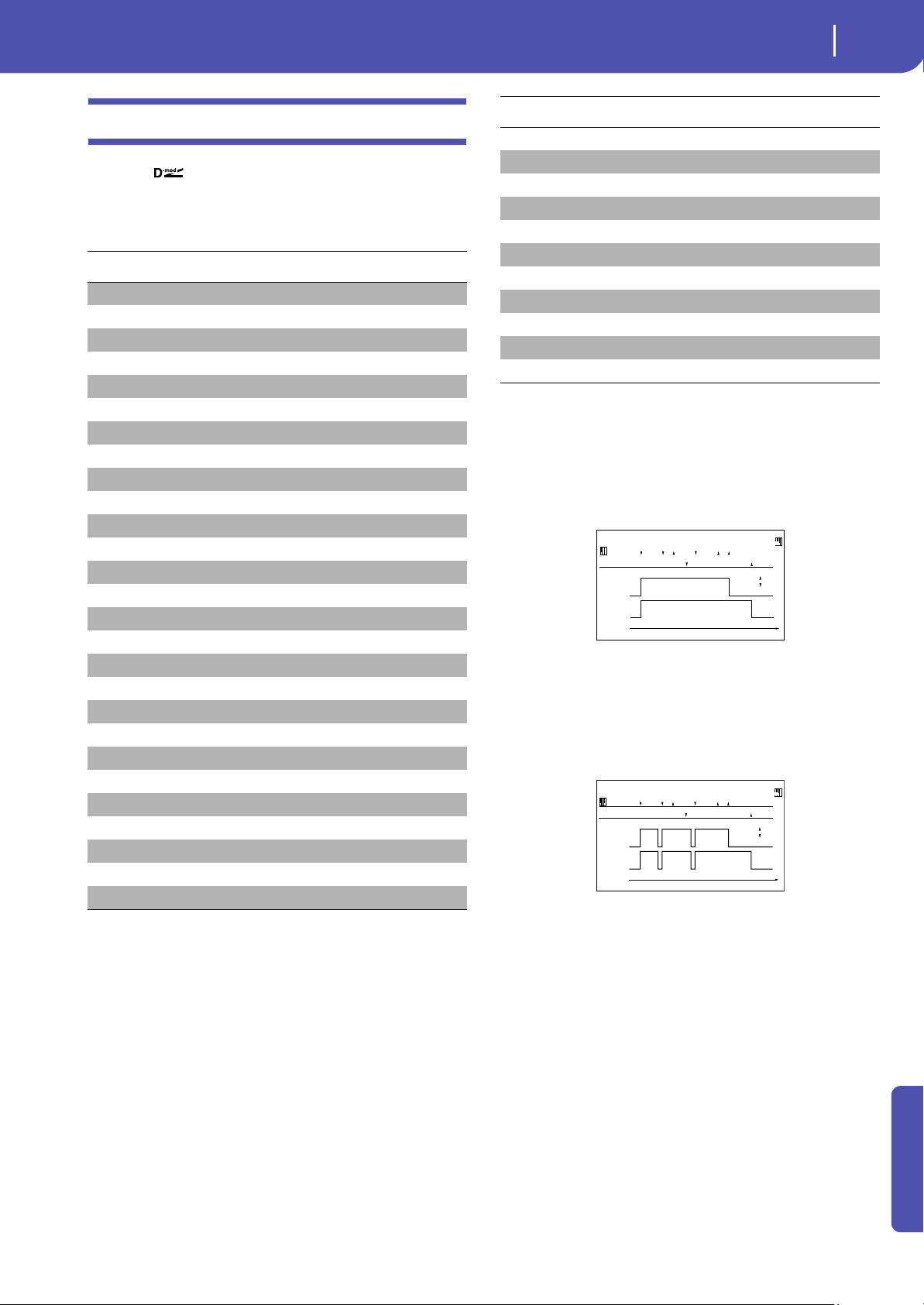
283
Effects
Dynamic Modulation sources
Appendix
Dynamic Modulation sources
When the symbol is encoutered, a Dynamic Modulation
can be applied to the corresponding parameter. Dynamic Modu-
lation allows for realtime control of the effect. The following
table shows the available modulation sources.
Some notes on the Gate parameters follow.
Gate1, Gate1+Dmpr (Gate1+Damper)
The effect is at maximum during note-on, and will stop when all
keys are released. With Gate1 + Dmpr, the effect will remain at
maximum even after the keys are released, as long as the damper
(sustain) pedal is pressed.
Gate2, Gate2+Dmpr (Gate2+Damper)
This is essentially the same as for Gate 1 or Gate 1 + Dmpr. How-
ever when Gate 2 or Gate 2 + Dmpr are used as a dynamic mod-
ulation source for the EG, a trigger will occur at each note-on.
(In the case of Gate 1 and Gate 1 + Dmpr, the trigger occurs only
for the first note-on.)
Modulation source Note
Off No modulation
Gate1
Gate1+Dmpr
Gate2
Gate2+Dmpr
Note Nr Note Number
Velocity Note Velocity
Expo Velocity Exponential Note Velocity
AfterTouch After Touch
JS X Joystick Left/Right
JS+Y: CC#01 Joystick Forward
JS-Y: CC#02 Joystick Backward
MIDI(CC#04)
MIDI(CC#12)
MIDI(CC#13)
Ribb.(CC#16) Ribbon Controller
MIDI(CC#18)
MIDI(CC#17)
MIDI(CC#19)
MIDI(CC#20)
MIDI(CC#21)
MIDI(CC#17+)
MIDI(CC#19+)
MIDI(CC#20+)
MIDI(CC#21+)
Damper: #64
Prta.SW: #65 Portamento Switch
Sostenu: #66 Sostenuto Pedal
MIDI(CC#67)
MIDI(CC#80)
MIDI(CC#81)
MIDI(CC#82)
MIDI(CC#83)
MIDI(CC#85)
MIDI(CC#86)
MIDI(CC#87)
MIDI(CC#88)
Tempo
Modulation source Note
Gate1,Gate1+Dmpr
Gate1
Note
Dmpr
1
2
3
1
2
3
DamperPedal
Gate1+Dmpr
Time
On
Off
Gate2,Gate2+Dmpr
Gate2
Note
Dmpr
1
2
3
1
2
3
Damper Pedal
Gate2+Dmpr
Time
On
Off
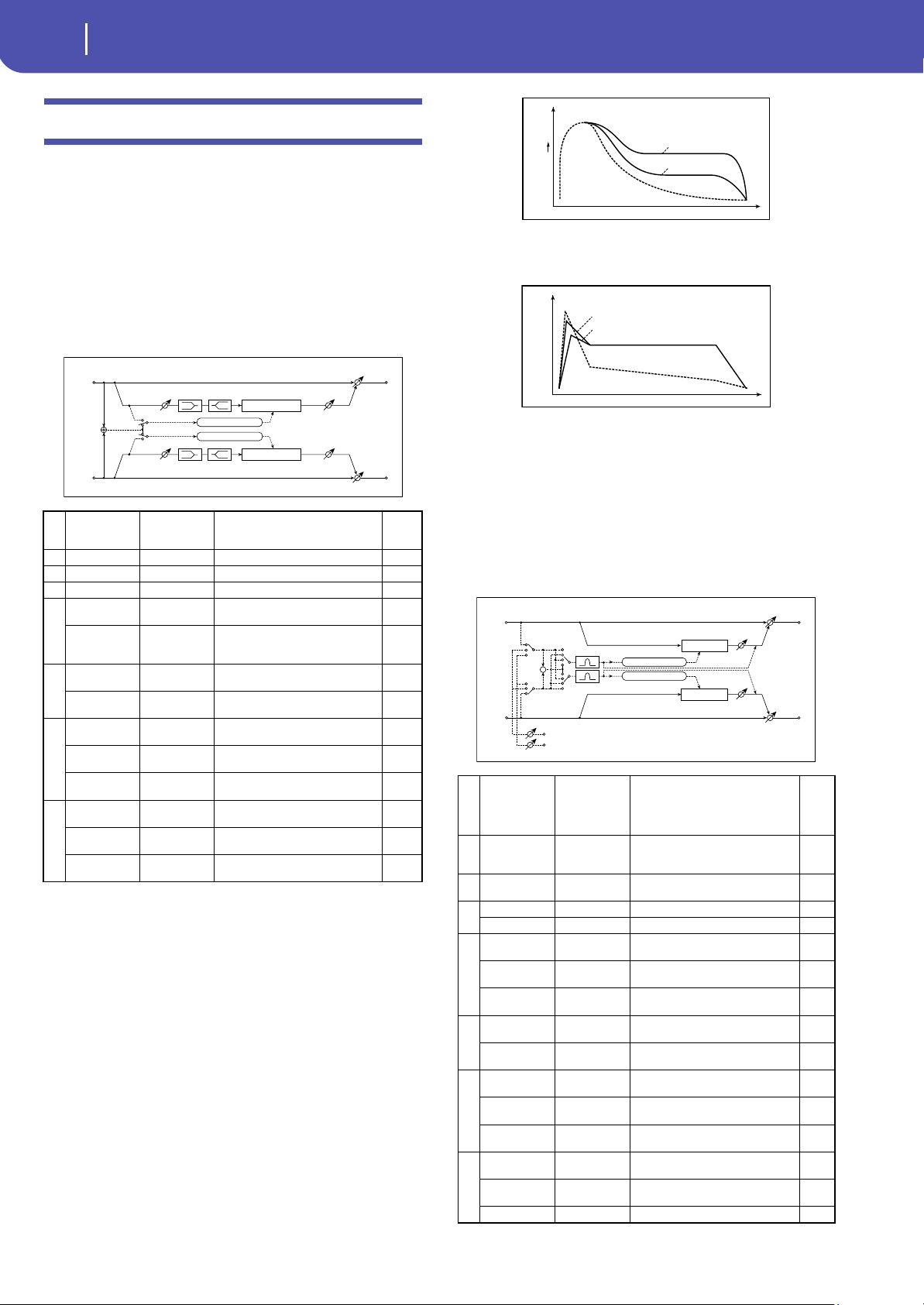
284
Effects
Dynamics (Dynamic)
Dynamics (Dynamic)
0: No Effect
Select this option when you do not use any effects.
1: Stereo Compressor
This effect compresses the input signal to regulate the level and
give a “punchy” effect. It is useful for guitar, piano, and drum
sounds. This is a stereo compressor. You can link left and right
channels, or use each channel separately.
a: Envelope Select
This parameter selects whether the left and right channels are
linked to control both signals simultaneously, or whether each
channel is controlled independently.
b: Sensitivity
g: Output Level
The “Sensitivity” parameter sets the sensitivity of the compres-
sor. If this parameter is set to a higher value, lower level sounds
will be boosted. With a higher Sensitivity, the overall volume
level is higher. To adjust the final volume level, use the “Output
Level” parameter.
c: Attack
This parameter controls the attack level.
2: Stereo Limiter
The Limiter regulates the input signal level. It is similar to the
Compressor, except that the Limiter compresses only signals that
exceed the specified level to lower unnecessary peak signals. The
Limiter applies a peaking-type EQ to the trigger signal (which
controls the degree of the Limiter effect), allowing you to set any
band width to be covered. This effect is a stereo limiter. You can
link left and right channels, or use each channel individually.
a
Envelope
Select
L/R Mix,
L/R Individ-
ually
Determines whether the left and
right channels are linked or used
separately
b Sensitivity 1...100 Sets the sensitivity
c Attack 1...100 Sets the attack level
d EQ Trim 0...100 Sets the EQ input level
e
Pre LEQ Fc
Low,
Mid-Low
Selects the cutoff frequency (low or
mid-low) of the low-range equalizer
Pre HEQ Fc
High,
Mid-High
Selects the cutoff frequency (high
or mid-high) of the high-range
equalizer
f
Pre LEQ Gain
[dB]
–15.0...+15.0 Sets the gain of the Low EQ
Pre HEQ Gain
[dB]
–15.0...+15.0 Sets the gain of the High EQ
g
Output Level 0...100
Sets the output level of the
compressor
Src Off...Tempo
Selects the modulation source for
the compressor output level
Amt –100...+100
Sets the modulation amount for the
compressor output level
h
Wet/Dry
Dry, 1:99...99:1,
Wet
Sets the Balance between the wet
and dry signal
Src Off...Tempo
Selects a modulation source for
Wet/Dry
Amt –100...+100
Sets the modulation amount for
Wet/Dry
Left
Right
FX Amt
FX Amt
Stereo In - Stereo Out
EQ Trim
EQ Trim
LEQ HEQ
LEQ
HEQ
Compressor
Compressor
Envelope Select
Output Level
Output Level
Envelope - Control
Envelope - Control
a
Envelope
Select
L/R Mix,
L Only, R Only,
L/R Individ-
ually
Selects from linking both channels,
controlling only from left channel,
only from the right channel, or
controlling each channel individ-
ually
bRatio
1.0 : 1…
50.0 : 1,
Inf : 1
Sets the signal compression ratio
c Threshold [dB] –40...0
Sets the level above which the
compressor is applied
v
Attack 1...100 Sets the attack time
Release 1...100 Sets the release time
e
Gain Adjust
[dB]
–Inf,
–38...+24
Sets the output gain
Src Off...Tempo
Selects the modulation source for
the output gain
Amt –63...+63
Sets the modulation amount of the
output gain
f
Side PEQ Insert Off, On
Toggles between on/off of the
trigger signal’s EQ
Trigger
Monitor
Off, On
Switches between effect output
monitor and trigger signal monitor
g
Side PEQ
Cutoff [Hz]
20...12.00k
Sets the EQ center frequency for the
trigger signal
Q 0.5...10.0
Sets the EQ bandwidth for the
trigger signal
Gain [dB] –18.0...+18.0
Sets the EQ gain for the trigger
signal
h
Wet/Dry
Dry, 1:99...99:1,
Wet
Balance between the wet and dry
signal
Src Off...Tempo
Table , “Dynamic Modulation
sources,” on page 283
Amt –100...+100 Amount of modulation source
Sensitivity=100
Sensitivity=40
Dry
Wet
Time
Level
Compressor - Sensitivity
Louder
Dry
Wet
Time
Level
Attack=80
Attack=20
Compressor - Attack
Left
Right
FX Control BUS 1
FX Control BUS 2
FX Amt
FX Amt
Stereo In - Stereo Out
Limiter
Limiter
Envelope Source
Gain Adjust
Gain Adjust
Side PEQ
Envelope - Control
Envelope - Control
Trigger Monitor
+
Envelope Select
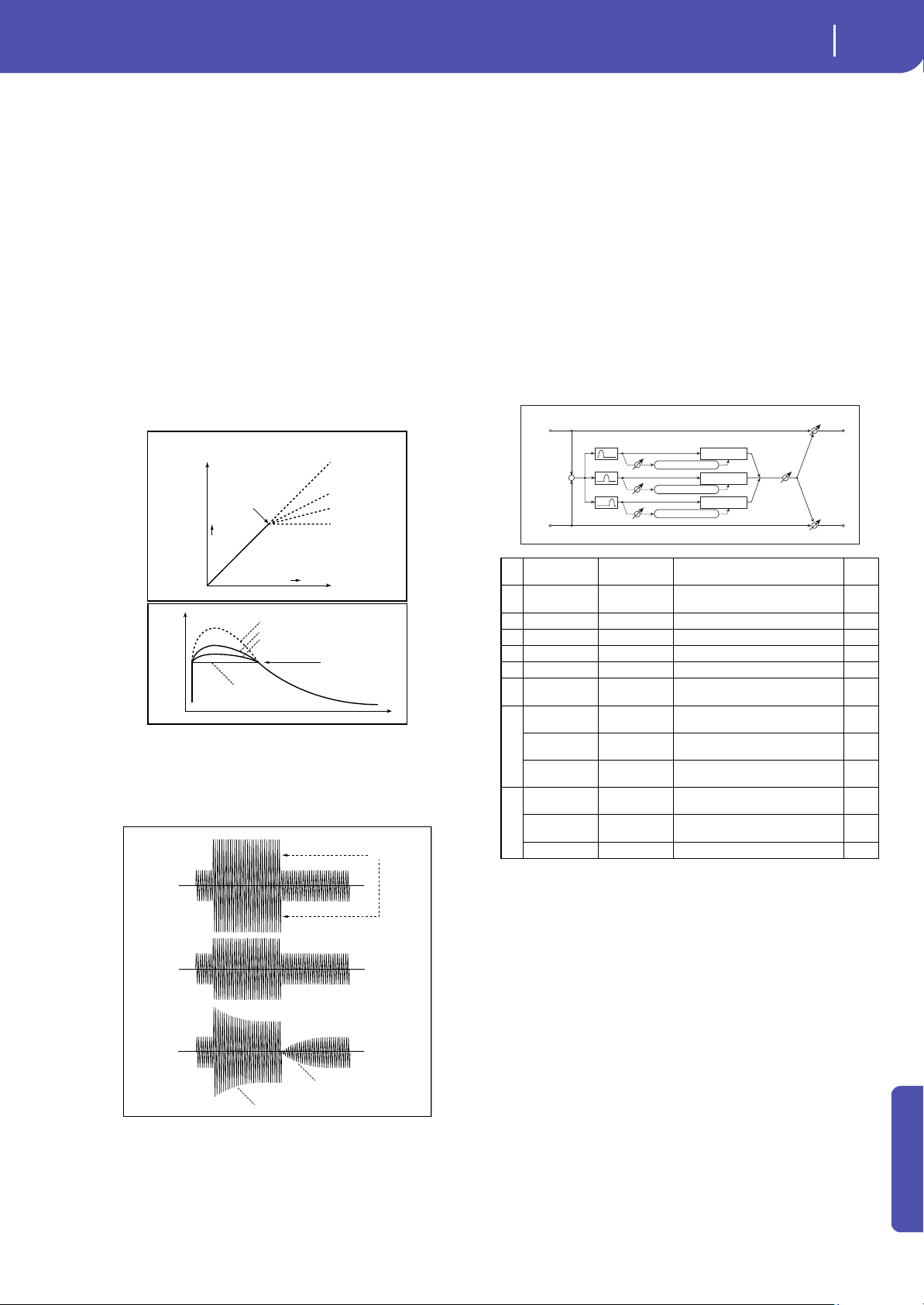
285
Effects
Dynamics (Dynamic)
Appendix
a: Envelope Select
When L/R Mix is selected for this parameter, the left and right
channels are linked to control the Limiter using the mixed sig-
nal. If L Only (or R Only) is selected, the left and right channels
are linked, and the Limiter is controlled via only the left (or
right) channel.
With L/R individually, the left and right channels control the
Limiter individually.
b: Ratio
c: Threshold [dB]
e: Gain Adjust [dB]
This parameter sets the signal compression “Ratio”. Compres-
sion is applied only when the signal level exceeds the “Thresh-
old” value.
Adjust the output level using the “Gain Adjust” parameter, since
compression causes the entire level to be reduced.
d: Attack
d: Release
These parameters set the attack time and release time. A higher
attack time will cause the compression to be applied more slowly.
f: Trigger Monitor
Setting this parameter On will cause the trigger signal to be out-
put, instead of the effect sound. Use this parameter to check the
trigger signal with EQ applied.
Usually, set this to Off.
f: Side PEQ Insert
g: Side PEQ Cutoff [Hz]
g: Q
g: Gain [dB]
These parameters are used to set the EQ applied to the trigger
signal.
The Limiter determines whether the compression is applied or
not, based on the post-EQ trigger signal. Setting the equalizer
allows you to set the Limiter to respond to any frequency band.
3: Multiband Limiter
This effect applies the Limiter to the low range, mid range, and
high range of the input signal. You can control dynamics for each
range to adjust the sound pressure of the low range, mid range,
and high range in a different way from the EQ.
e: Low Offset [dB]
f: Mid Offset [dB]
g: High Offset [dB]
These parameters set the gain of the trigger signal.
For example, if you do not want to apply compression to the high
range, reduce the “High Offset” value down below the “Thresh-
old” level. In this way, the high range limiter will not respond,
and compression will not be applied.
Input Level
Output Level
Threshold
Ratio=1.0 : 1
Ratio=2.0 : 1
Ratio=4.0 : 1
Ration=Inf : 1
Louder
Louder
Time
Level
Threshold
Ratio=Inf : 1
Ratio=2.0 : 1
Ratio=4.0 : 1
Dry
Ratio=1.0 : 1
Limiter - Threshold / Ratio
Threshold
Ratio=Inf : 1
Attack=1
Release=1
Ratio=Inf : 1
Attack=100
Release=100
Dry
Wet
Wet
Release
Attack
Limiter - Attack / Release
aRatio
1.0 : 1...50.0 : 1,
Inf : 1
Sets the signal compression ratio
b Threshold [dB] –40...0
Sets the level above which the
compressor is applied
c Attack 1...100 Sets the attack time
d Release 1...100 Sets the release time
e Low Offset [dB] –40...0 Gain of the low-range trigger signal
f Mid Offset [dB] –40...0 Gain of the mid-range trigger signal
g
High Offset
[dB]
–40...0 Gain of the high-range trigger signal
h
Gain Adjust
[dB]
–Inf,
–38...+24
Sets the output gain
Src Off...Tempo
Selects the modulation source for
the output gain
Amt –63...+63
Sets the modulation amount of the
output gain
i
Wet/Dry
Dry, 1:99...99:1,
Wet
Balance between the wet and dry
signal
Src Off...Tempo
Table , “Dynamic Modulation
sources,” on page 283
Amt –100...+100 Amount of modulation source
Left
Right
FX Amt
FX Amt
FX Amt = 100: Mono In - Mono Out / FX Amt = 0: Stereo In - Stereo Out
Gain Adjust
Mid Offset
Low Offset
High Offset
Envelope - Control
Envelope - Control
Envelope - Control
Low
Mid
High
Band-Pass Filters
+
Limiter
Limiter
Limiter
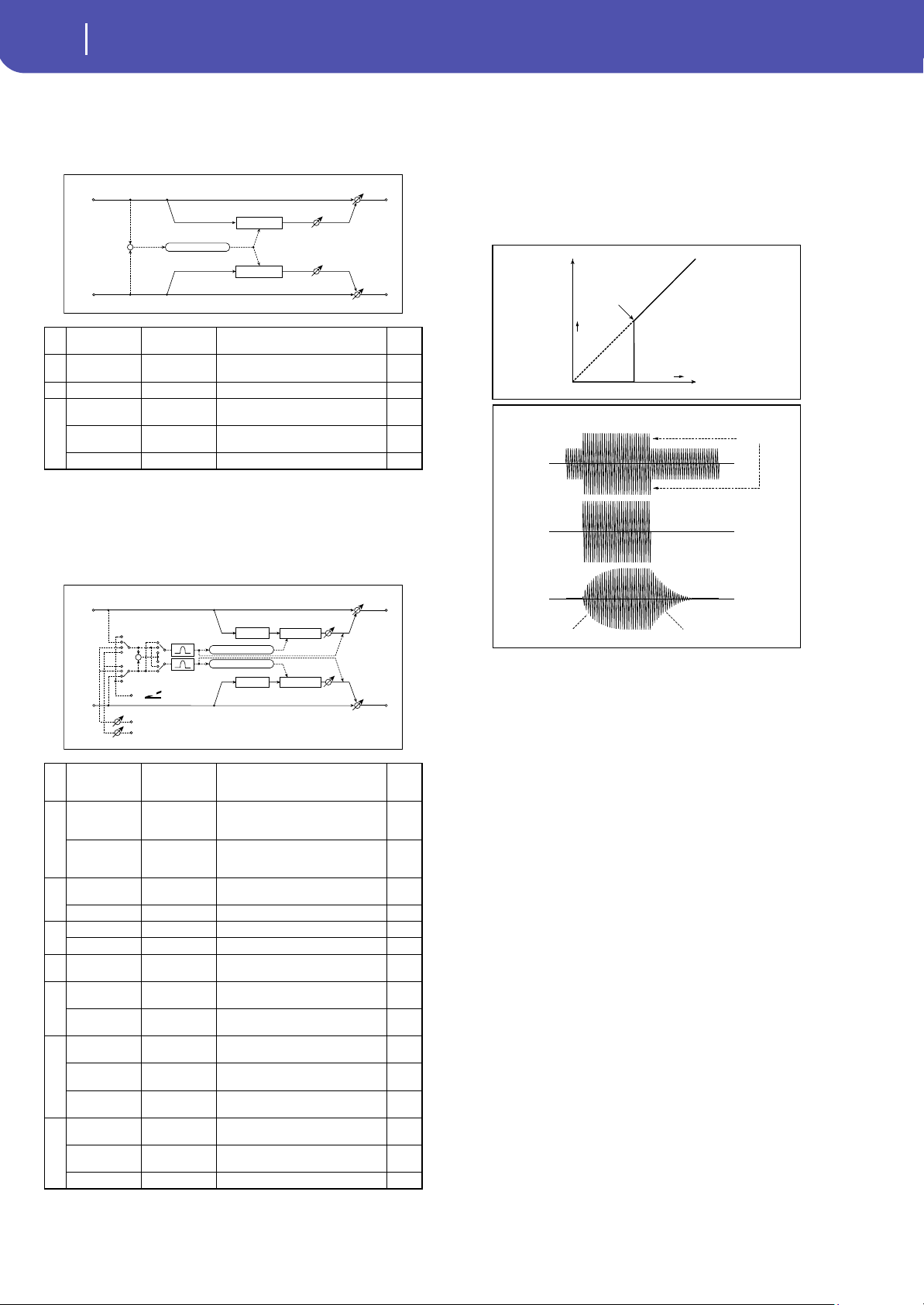
286
Effects
Dynamics (Dynamic)
4: St.MasteringLimtr
(Stereo Mastering Limiter)
This is a stereo limiter that is optimized for mastering songs.
5: Stereo Gate
This effect mutes the input signal when it falls below a specified
level. You can also invert the on/off status of the gate, or use
note-on/off messages to turn the gate on/off directly.
c: Threshold
d: Attack
d: Release
“Threshold” specifies the level at which gating occurs when
“Envelope Select” is set to L/R Mix, L Only, or R Only.
“Attack” and “Release” specify the attack time and release time of
the gate.
c: Polarity
This inverts the polarity of the gate on/off operation. With the
“–” setting, the gate will close when the input signal exceeds the
specified level. The direction in which the modulation source
opens or closes the gate will also be reversed.
e: Delay Time [msec]
This sets the delay time for the input to the gate. When using
shorter Attack Time settings, you can lengthen the Delay Time
so that the sound is input after the gate opens.
a Threshold [dB] –30.0...0.0
Sets the level above which the
compressor is applied
b
Out Ceiling
[dB]
–30.0...0.0 Sets the output gain
c Release [msec] 0.50...1000.0 Sets the release time
d
Wet/Dry
Dry, 1:99...99:1,
Wet
Balance between the wet and dry
signal
Src Off...Tempo
Table , “Dynamic Modulation
sources,” on page 283
Amt –100...+100 Amount of modulation source
a
Envelope
Source
D-mod, Input
Selects the source to control the
gate: D-mod control, or use the
input signal as a trigger
b
Envelope
Select
L/R Mix,
L Only,
R Only
Selects the control signal: left and
right linked, left only, or right only
Src Off...Tempo
Selects the source that will control
the gate when Envelope Src = D-
mod
c
Threshold 0...100
Sets the level at which gating is
applied
Polarity +, – Switches the polarity of gating
d
Attack 1...100 Sets the attack time
Release 1...100 Sets the release time
e
Delay Time
[msec]
0...100
Sets the delay time for the gate
input
f
Side PEQ Insert Off, On
Switches the trigger signal equalizer
on/off
Trigger
Monitor
Off, On
Switches between monitoring the
effect output and the trigger signal
g
Side PEQ
Cutoff [Hz]
20...12.00k
Sets the center frequency of the
equalizer for the trigger signal
Q 0.5...10.0
Sets the bandwidth of the equalizer
for the trigger signal
Gain [dB] –18.0...+18.0
Sets the gain of the equalizer for the
trigger signal
h
Wet/Dry
Dry, 1:99...99:1,
Wet
Balance between the wet and dry
signal
Src Off...Tempo
Table , “Dynamic Modulation
sources,” on page 283
Amt –100...+100 Amount of modulation source
Left
Right
FX Amt
FX Amt
Stereo In - Stereo Out
Limiter
Limiter
Out Ceiling
Out Ceiling
Envelope - Control
+
Left
Right
FX Control BUS 1
FX Control BUS 2
FX Amt
FX Amt
Stereo In - Stereo Out
Envelope Source
Gain Adjust
Gain Adjust
Side PEQ
Envelope - Control
Envelope - Control
Trigger Monitor
+
Envelope Select
Gate
Delay
Gate
Delay
D
-mod
Input Level
Output Level
Threshold
Louder
Louder
Threshold
Attack=1
Release=1
Attack=100
Release=100
Dry
Wet
Wet
Attack
Release
Gate - Attack / Release
Gate - Threshold
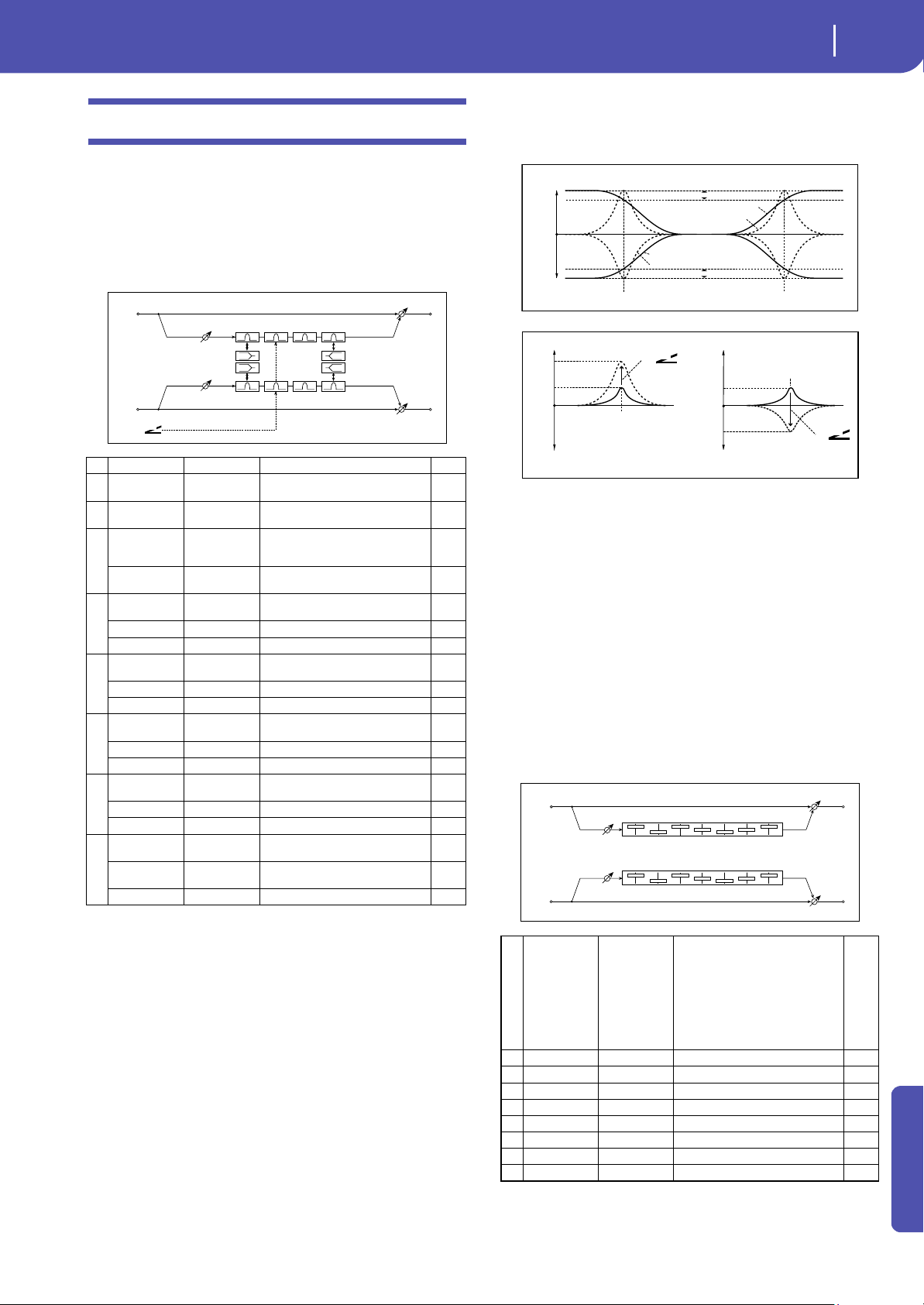
287
Effects
EQ and Filters (EQ/Filter)
Appendix
EQ and Filters (EQ/Filter)
6: St.Parametric4EQ
(Stereo Parametric 4-Band EQ)
This is a stereo 4-band parametric equalizer. You can select
peaking type or shelving type for Band 1 and 4. The gain of Band
2 can be controlled by dynamic modulation.
b: Band1 Type
c: Band4 Type
Selects a filter type for Band 1 and 4.
e, f, g, h: Q
These parameters set the bandwidth of each equalizer. The
higher the value, the narrower the band becomes.
d: Band2 Dynamic Gain Src
d: Amt [dB]
You can control the gain of Band 2 using the modulation source.
7: St. Graphic 7EQ
(Stereo Graphic 7-Band EQ)
This is a stereo 7-band graphic equalizer. The bar graph of the
gain setting for each band gives you a clear, visual idea of fre-
quency responses. You can select a center frequency setting for
each band from twelve types, according to the sound.
a Trim 0...100 Sets the input level
bBand1 Type
Peaking,
Shelving-Low
Selects the type of Band 1
cBand4 Type
Peaking,
Shelving-High
Selects the type of Band 4
d
Band2
Dynamic Gain
Src
Off...Tempo
Selects the modulation source of the
Band 2 gain
Amt [dB] –18.0...+18.0
Sets the modulation amount of
Band 2 gain
e
Band1 Cutoff
[Hz]
20...1.00k Sets the center frequency of Band 1
Q 0.5...10.0 Sets the bandwidth of Band 1
Gain [dB] –18.0...+18.0 Sets the gain of Band 1
f
Band2 Cutoff
[Hz]
50...10.00k Sets the center frequency of Band 2
Q 0.5...10.0 Sets the bandwidth of Band 2
Gain [dB] –18.0...+18.0 Sets the gain of Band 2
g
Band3 Cutoff
[Hz]
300...10.00k Sets the center frequency of Band 3
Q 0.5...10.0 Sets the bandwidth of Band 3
Gain [dB] –18.0...+18.0 Sets the gain of Band 3
h
Band4 Cutoff
[Hz]
500...20.00k Sets the center frequency of Band 4
Q 0.5...10.0 Sets the bandwidth of Band 4
Gain [dB] –18.0...+18.0 Sets the gain of Band 4
i
Wet/Dry
Dry, 1:99...99:1,
Wet
Balance between the wet and dry
signal
Src Off...Tempo
Table , “Dynamic Modulation
sources,” on page 283
Amt –100...+100 Amount of modulation source
Left
Right
FX Amt
FX Amt
Stereo In - Stereo Out
Band1 Band2 Band3 Band4
PEQ PEQ PEQ PEQ
LEQ
LEQ
HEQ
HEQ
PEQ PEQ PEQ PEQ
Trim
Trim
D
-mod
aType
1:Wide 1, 2:Wide
2, 3:Wide 3,
4:Half Wide 1,
5:Half Wide 2,
6:Half Wide 3,
7:Low,
8:Wide Low,
9:Mid, 10:Wide
Mid, 11:High,
12:Wide High
Selects a combination of center
frequencies for each band
b Trim 0...100 Sets the input level
c Band1 [dB] –18.0...+18.0 Sets the gain of Band 1
d Band2 [dB] –18.0...+18.0 Sets the gain of Band 2
e Band3 [dB] –18.0...+18.0 Sets the gain of Band 3
f Band4 [dB] –18.0...+18.0 Sets the gain of Band 4
g Band5 [dB] –18.0...+18.0 Sets the gain of Band 5
h Band6 [dB] –18.0...+18.0 Sets the gain of Band 6
i Band7 [dB] –18.0...+18.0 Sets the gain of Band 7
3dB
3dB
Band1 Cutoff
Band4 Cutoff
0dB
+Gain
–Gain
Band1 Type=Peaking
Band1 Type=Shelving Low
Band4 Type=Peaking
Band4 Type=Shelving High
Parametric 4EQ - Band1, Band4 Type
Band2 Cutoff
Band2 Cutoff
0dB
+6dB
+15dB
Band2 Gain[dB]= +6.0
Band2 Gain Mod Amount[dB]= +9.0
D
-mod
0dB
+6dB
–9dB
Band2 Gain[dB]= +6.0
Band2 Gain Mod Amount[dB]= –15.0
D
-mod
Parametric 4EQ - Band2 Gain Mod
Left
Right
FX Amt
FX Amt
Stereo In - Stereo Out
Band1 Band2 Band3 Band4
Trim
Trim
Band5 Band6 Band7
Band1 Band2 Band3 Band4 Band5 Band6 Band7
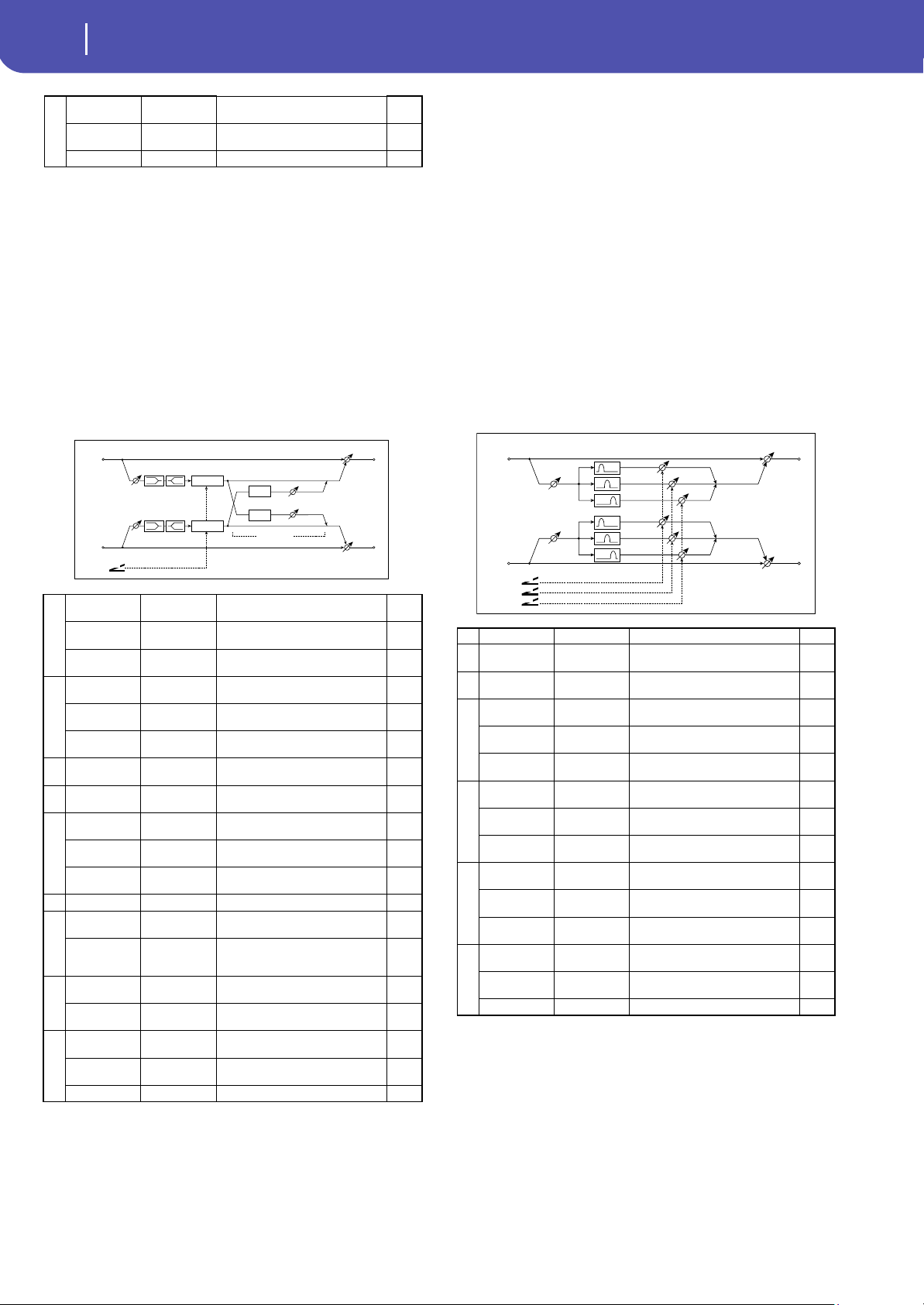
288
Effects
EQ and Filters (EQ/Filter)
a: Type
This parameter selects a combination of center frequencies for
each band. The center frequency of each band is shown in the
right of the screen.
You can configure a 21-Band Graphic EQ ranging from 80 Hz to
18 kHz if you route three Graphic 7-Band EQ effects in series,
with a setting of 7:Low, 9:Mid, and 11:High for each EQ.
8: St.Exciter/Enhncr
(Stereo Exciter/Enhancer)
This effect is a combination of the Exciter, which adds a punch
to the sound and the Enhancer, which adds spread and presence.
a: Exciter Blend
This parameter sets the depth (intensity) of the Exciter effect.
Positive values give a frequency pattern (to be emphasized) dif-
ferent from negative values.
b: Emphasis Freq
This parameter sets the frequency to be emphasized. Higher val-
ues will emphasize lower frequencies.
c: Enhancer Delay L [msec]
d: Enhancer Delay R [msec]
These parameters set the delay time for the Enhancer left and
right channel. Specifying a slightly different delay time for the
left and right channel will add a stereo image, depth, and width
to the sound.
9: Stereo Isolator
This is a stereo effect that separates the input signal into low,
mid, and high-frequency bands, and controls the volume of each
band independently. For example you can separately boost or cut
the kick, snare, and hi-hat sounds from a drum signal in real-
time.
j
Wet/Dry
Dry, 1:99...99:1,
Wet
Balance between the wet and dry
signal
Src Off...Tempo
Table , “Dynamic Modulation
sources,” on page 283
Amt –100...+100 Amount of modulation source
a
Exciter Blend –100...+100
Sets the intensity (depth) of the
Exciter effect
Src Off...Tempo
Selects the modulation source of the
Exciter intensity
Amt –100...+100
Sets the modulation amount of the
Exciter intensity
b
Emphasis Freq 0...70
Sets the frequency to be empha-
sized
Src Off...Tempo
Selects the modulation source of the
frequency to be emphasized
Amt –70...+70
Sets the amount of modulation of the
frequency to be emphasized
c
Enhancer
Delay L [msec]
0.0...50.0
Sets the delay time for the Enhancer
left channel
d
Enhancer
Delay R [msec]
0.0...50.0
Sets the delay time for the Enhancer
right channel
e
Enhancer
Depth
0...100
Sets the determines to what degree
the Enhancer effect is applied
Src Off...Tempo
Selects the modulation source of the
Enhancer width
Amt –100...+100
Sets the modulation amount of the
Enhancer width
f EQ Trim 0...100 Sets the 2-band EQ input level
g
Pre LEQ Fc
Low,
Mid-Low
Selects the cutoff frequency (low or
mid-low) of the low-range equalizer
Pre HEQ Fc
High,
Mid-High
Selects the cutoff frequency (high or
mid-high) of the high-range
equalizer
h
Pre LEQ Gain
[dB]
–15.0...+15.0 Gain of the Lo EQ
Pre HEQ Gain
[dB]
–15.0...+15.0 Gain of the High EQ
i
Wet/Dry
Dry, 1:99...99:1,
Wet
Balance between the wet and dry
signal
Src Off...Tempo
Table , “Dynamic Modulation
sources,” on page 283
Amt –100...+100 Amount of modulation source
Left
Right
FX Amt
FX Amt
Stereo In - Stereo Out
EQ Trim
LEQ HEQ
EQ Trim
Delay
Delay
Depth
D
-mod
Exciter
Exciter
Enhancer
a Trim 0...100 Sets the input level
b Low/Mid [Hz] 100...500
Sets the frequency at which the low
and mid bands are divided
c Mid/High [Hz] 2000...6000
Sets the frequency at which the mid
and high bands are divided
d
Low Gain [dB]
–Inf,
–59...+12
Sets the low-frequency gain
Src Off...Tempo
Selects the source that will
modulate low-frequency gain
Amt –72...+72
Sets the amount by which the low-
frequency gain will be modulated
e
Mid Gain [dB]
–Inf,
–59...+12
Sets the mid-frequency gain
Src Off...Tempo
Selects the modulation source for
mid-frequency gain
Amt –72...+72
Sets the amount by which the mid-
frequency gain will be modulated
f
High Gain [dB]
–Inf,
–59...+12
Sets the high-frequency gain
Src Off...Tempo
Selects the modulation source for
high-frequency gain
Amt –72...+72
Sets the amount by which the high-
frequency gain will be modulated
g
Wet/Dry
Dry, 1:99...99:1,
Wet
Balance between the wet and dry
signal
Src Off...Tempo
Table , “Dynamic Modulation
sources,” on page 283
Amt –100...+100 Amount of modulation source
D
-mod
D
-mod
D
-mod
Left
Right
FX Amt
FX Amt
Stereo In - Stereo Out
Trim
Isolator
Low
Mid
High
Trim
Low
Mid
High
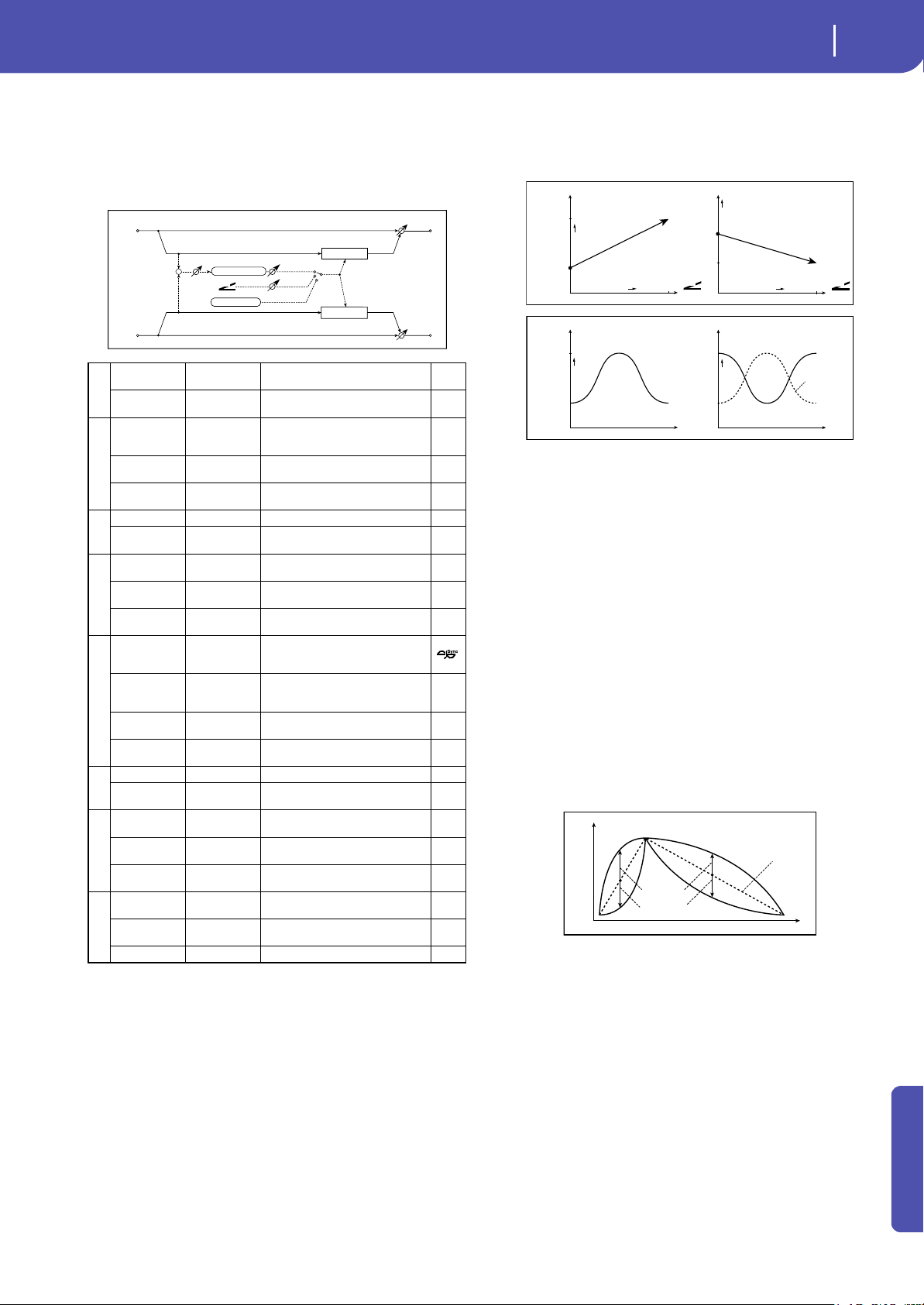
289
Effects
EQ and Filters (EQ/Filter)
Appendix
10: St. Wah/Auto Wah
(Stereo Wah/Auto Wah)
This stereo wah effect allows you to create sounds from vintage
wah pedal simulation to auto-wah simulation, and much
broader range settings.
a: Frequency Bottom
a: Frequency Top
The sweep width and direction of the wah filter are determined
by the “Frequency Top” and “Frequency Bottom” settings.
b: Sweep Mode
This parameter changes the wah control mode. Setting “Sweep
Mode” to Auto will select an auto-wah that sweeps according to
envelope changes in the input signal level. Auto-wah is fre-
quently used for funk guitar parts and clav sounds.
When “Sweep Mode” is set to D-mod, you can control the filter
directly via the modulation source in the same way as a wah
pedal.
When “Sweep Mode” is set to LFO, the effect uses LFO to sweep
in cycle.
c: Envelope Sens
This parameter sets the sensitivity of auto-wah. Increase the
value if the input signal is too low to sweep. Reduce the value if
the input signal is so high that the filter is stopped temporarily.
c: Envelope Shape
This parameter determines the sweep curve for auto-wah.
d: LFO Frequency [Hz]
e: MIDI Sync
When “MIDI/Tempo Sync”=Off, the LFO speed uses the LFO
Frequency parameter setting. When “MIDI/Tempo Sync”=On,
the LFO speed follows the “BPM”, “Base Note”, and “Times” set-
tings.
e: BPM
e: Base Note
e: Times
One cycle of LFO sweep is obtained by multiplying the length of
a note (r…w) (selected for “Base Note”, in relation to the tempo
specified in “BPM”, or the MIDI Clock tempo if “BPM” is set to
MIDI) by the number specified in the Times parameter.
a
Frequency
Bottom
0...100
Sets the lower limit of the wah
center frequency
Frequency Top 0...100
Sets the upper limit of the wah
center frequency
b
Sweep Mode
Auto,
D-mod,
LFO
Selects the control from auto-wah,
modulation source, and LFO
Src Off...Tempo
Selects the modulation source for
the wah when Sweep Mode=D-mod
Respon 0...100
Sets the response speed when
Sweep Mode = Auto or D-mod
c
Envelope Sens 0...100 Sets the sensitivity of auto-wah
Envelope
Shape
–100...+100 Sets the sweep curve of auto-wah
d
LFO Frequency
[Hz]
0.02...20.00 Sets the speed of the LFO
Src Off...Tempo
Selects a modulation source for LFO
speed
Amt
–20.00...
+20.00
Sets the modulation amount of LFO
speed
e
MIDI Sync Off, On
When this is on, the LFO speed is set
by BPM, Base Note, and Times,
instead of Frequency
BPM
MIDI,
40.00...
300.00
MIDI syncs to the system tempo; 40–
300 sets the tempo manually for this
individual effect
Base Note r...w
Selects the type of notes that
specify the LFO speed
Times x1...x32
Sets the number of notes that
specify the LFO speed
f
Resonance 0...100 Sets the resonance amount
Low Pass Filter Off, On
Switches the wah low pass filter on
and off
g
Output Level 0...100
Sets the output level of the effect
sound
Src Off...Tempo
Selects the modulation source that
will control the effect output level
Amt –100...+100
Sets the modulation amount of the
effect output level
h
Wet/Dry
Dry, 1:99...99:1,
Wet
Balance between the wet and dry
signal
Src Off...Tempo
Table , “Dynamic Modulation
sources,” on page 283
Amt –100...+100 Amount of modulation source
Stereo In - Stereo Out
D
-mod
Envelope Sens
Envelope Shape
Response
FX Amt
Wah
Sweep Mode
D-mod
Auto
Left
Right
FX Amt
LFO
LFO
Wah
+
Max
D
-mod
Frequency
Bottom=25
Top=75
Higher
Max
Zero
Higher
D
-mod
Frequency
Bottom=60
Top=30
Higher
Zero
Higher
Frequency
Bottom=25
Top=75
Higher
Frequency
Bottom=75
Top=25
Higher
Sweep Mode=Auto
Envelope
Envelope
Time
Wah
Woo
Woo
Woo
Envelope
Wah Wah
Time
Woo
Woo
Wah
Wah
Sweep Mode=D-mod
Time
Level
Envelope
value = 0...–100
value = 0...+100
Envelope Shape
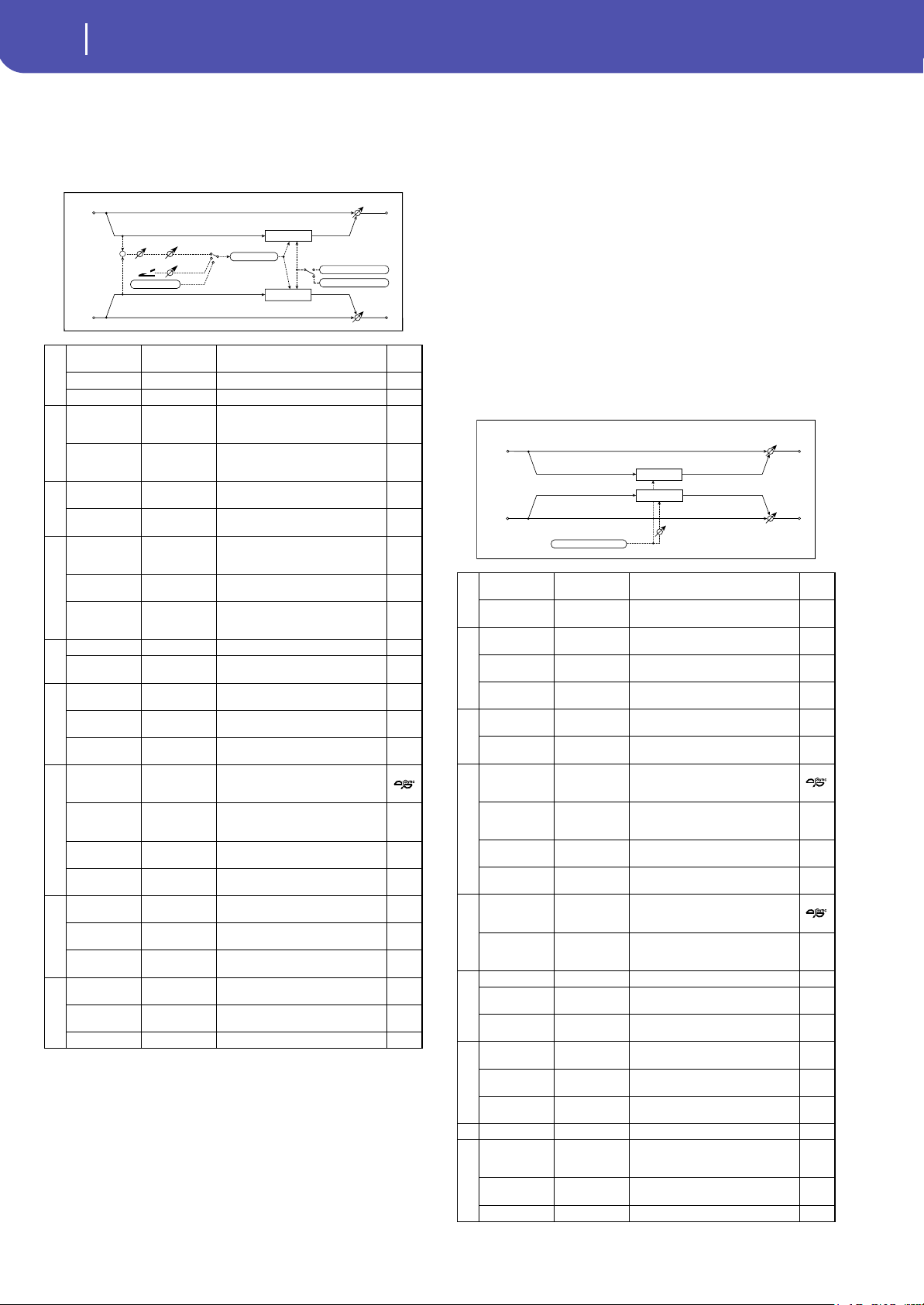
290
Effects
EQ and Filters (EQ/Filter)
11: St. Vintage Wah
(Stereo Vintage/Custom Wah)
This effect simulates the tonal character of a vintage wah pedal.
You can customize the tone and range settings.
a: Shape
This parameter specifies the sweep curve of the wah. It applies to
all control via auto-wah, modulation source, and LFO, and lets
you adjust subtle nuances of the wah effect.
a: Mode
b: Frequency Bottom
b: Frequency Top
c: Resonance Bottom
c: Resonance Top
If Mode=Preset, this simulates a vintage wah pedal. In this case,
internally fixed values are used for Frequency Bottom/Top and
Resonance Bottom/Top, and these settings will be ignored. The
settings for Frequency Bottom/Top and Resonance Bottom/Top
are valid if Mode=Custom.
12: St. Random Filter
(Stereo Random Filter)
This stereo band pass filter uses a step-shape waveform and ran-
dom LFO for modulation. You can create a special effect from
filter oscillation.
a
Mode Preset, Custom
Selects either preset or custom
settings
Shape –100...+100 Sets the curve of the sweep
Invert Off, On Inverts the polarity of the sweep
b
Frequency
Bottom
0...100
Sets the lower limit of the wah
center frequency when Mode =
Custom
Frequency Top 0...100
Sets the upper limit of the wah
center frequency when Mode =
Custom
c
Resonance
Bottom
0...100
Sets the lower limit of resonance
amount when Mode=Custom
Resonance Top 0...100
Sets the upper limit of resonance
amount when Mode=Custom
d
Sweep Mode
Auto,
D-mod,
LFO
Selects the control from auto-wah,
modulation source, and LFO
Src Off...Tempo
Selects the modulation source for
the wah when Sweep Mode=D-mod
Manual 0...100
Sets the center frequency when
Sweep Mode=D-mod and
Source=Off
e
Envelope Sens 0...100 Sets the auto-wah sensitivity
Response 0...100
Sets the speed of response when
Sweep Mode=Auto or D-mod
f
LFO Frequency
[Hz]
0.02...20.00 Sets the speed of the LFO
Src Off...Tempo
Selects a modulation source for LFO
speed
Amt
–20.00...
+20.00
Sets the modulation amount of LFO
speed
g
MIDI Sync Off, On
When this is on, the LFO speed is set
by BPM, Base Note, and Times,
instead of Frequency
BPM
MIDI,
40.00...
300.00
MIDI syncs to the system tempo; 40–
300 sets the tempo manually for this
individual effect
Base Note r...w
Selects the type of notes that
specify the LFO speed
Times x1...x32
Sets the number of notes that
specify the LFO speed
h
Output Level 0...100
Sets the output level of the effect
sound
Src Off...Tempo
Selects the modulation source that
will control the effect output level
Amt –100...+100
Sets the modulation amount of the
effect output level
i
Wet/Dry
Dry, 1:99...99:1,
Wet
Balance between the wet and dry
signal
Src Off...Tempo
Table , “Dynamic Modulation
sources,” on page 283
Amt –100...+100 Amount of modulation source
Mode
Preset Setting
Custom Parameters
Stereo In - Stereo Out
D
-mod
Envelope Sens
Shape / Invert
Response
FX Amt
Wah
Sweep Mode
D-mod
Auto
Left
Right
FX Amt
LFO
LFO
Wah
+
a
LFO Waveform
Step-Tri,
Random
Selects the LFO Waveform
LFO Phase
[degree]
–180...+180
Sets the LFO phase difference
between the left and right
b
LFO Frequency
[Hz]
0.02...20.00 Sets the speed of the LFO
Src Off...Tempo
Selects the modulation source used
for both LFO speed and step speed
Amt
–20.00...
+20.00
Sets the modulation amount of LFO
speed
c
LFO Step Freq
[Hz]
0.05...50.00
Sets the LFO step speed (speed that
changes in steps
Amt
–50.00...
+50.00
Sets the modulation amount of LFO
step speed
d
MIDI Sync Off, On
When this is on, the LFO speed is set
by BPM, Base Note, and Times,
instead of Frequency
BPM
MIDI,
40.00...
300.00
MIDI syncs to the system tempo; 40–
300 sets the tempo manually for this
individual effect
Base Note r...w
Selects the type of notes that
specify the LFO speed
Times x1...x32
Sets the number of notes that
specify the LFO speed
e
Step Base Note r...w
Selects the type of notes to specify
the LFO step speed
Times x1...x32
Sets the number of notes to specify
the LFO step speed
f
Manual 0...100 Sets the filter center frequency
Src Off...Tempo
Selects the modulation source for
the filter center frequency
Amt –100...+100
Sets the modulation amount for the
filter center frequency
g
Depth 0...100
Sets the modulation depth of filter
center frequency
Src Off...Tempo
Selects the modulation source of
filter modulation
Amt –100...+100
Sets the modulation amount of filter
modulation
h Resonance 0...100 Sets the resonance amount
i
Wet/Dry
-Wet, -
1:99...Dry...99:1
, Wet
Balance between the wet and dry
signal
Src Off...Tempo
Table , “Dynamic Modulation
sources,” on page 283
Amt –100...+100 Amount of modulation source
Filter
Left
Right
FX Amt
FX Amt
Stereo In - Stereo Out
Filter
LFO Phase
LFO: Step-Tri/Random
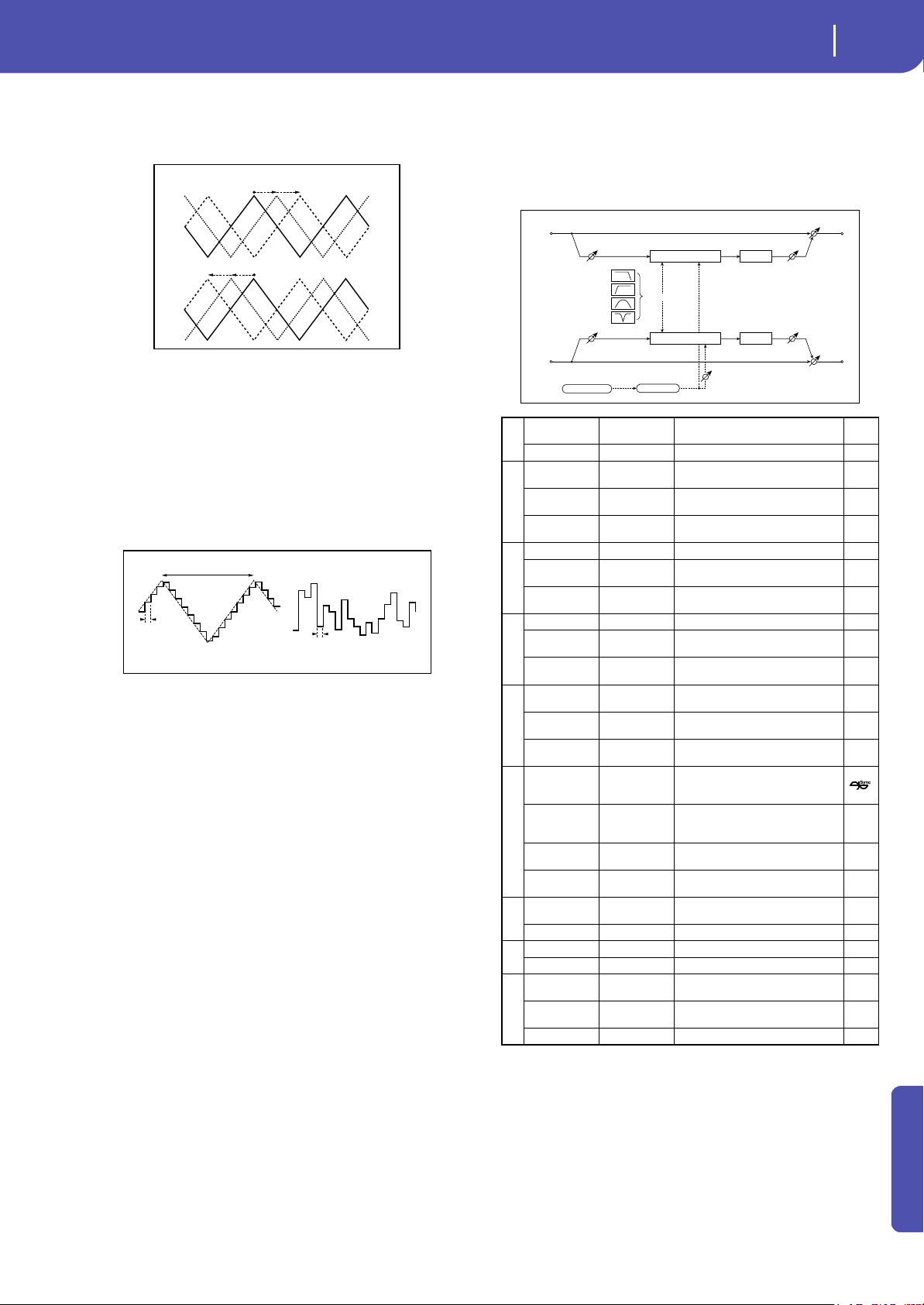
291
Effects
EQ and Filters (EQ/Filter)
Appendix
a: LFO Phase [degree]
Offsetting the left and right phases alters how modulation is
applied to the left and right channels, creating a swelling affect.
a: LFO Waveform
b: LFO Frequency [Hz]
c: LFO Step Freq [Hz]
When “LFO Waveform” is set to Step-Tri, LFO is a step-shape,
triangle waveform. The “LFO Frequency” parameter sets the
original triangle waveform speed. Changing the “LFO Step Freq”
parameter enables you to adjust the width of the steps.
When “LFO Waveform” is set to Random, the “LFO Step Freq”
parameter uses a random LFO cycle.
d: BPM
e: Step Base Note
e: Times
The width of an LFO step, or a cycle of random LFO, is obtained
by multiplying the length of a note (r…w) (selected for “Step
Base Note”, in relation to the tempo specified in “BPM,” or the
MIDI Clock tempo if “BPM” is set to MIDI) by the number
specified in the “Times” parameter.
i: Wet/Dry
The effect sound’s phase will be reversed when you set this
parameter in the negative range of values.
13: St. MultiModeFilter
(Stereo Multi Mode Filter)
This is a multi-mode filter with four types; low pass, high pass,
band pass, and band reject. You can use LFO or dynamic modu-
lation to vary the cutoff frequency or resonance.
0 +90
+180 [degree]
0 [degree]
–90
–180
LFO Phase
Step Frequency
LFO Frequency
Step Frequency
Step-Tri
Random
Random Filter LFO
a
Type
LPF, HPF, BPF,
BRF
Selects the type of filter
Trim 0...100 Sets the input level
b
Cutoff 0...100
Sets the cutoff frequency (center
frequency)
Src Off...Tempo
Selects the modulation source of
the cutoff
Amt –100...+100
Sets the modulation amount of the
cutoff
c
Resonance 0...100 Sets the resonance amount
Src Off...Tempo
Selects the source that will
modulate the amount of resonance
Amt –100...+100
Sets the amount by which the
resonance will be modulated
d
LFO Waveform Triangle, Sine Selects the LFO Waveform
Phase [degree] –180...+180
Sets the LFO phase difference
between the left and right
Depth 0...100
Sets the depth to which the LFO will
modulate the cutoff frequency
e
LFO Frequency
[Hz]
0.02...20.00 Sets the speed of the LFO
Src Off...Tempo
Selects a modulation source for LFO
speed
Amt
–20.00...
+20.00
Sets the modulation amount of LFO
speed
f
MIDI Sync Off, On
When this is on, the LFO speed is set
by BPM, Base Note, and Times,
instead of Frequency
BPM
MIDI,
40.00...
300.00
MIDI syncs to the system tempo; 40–
300 sets the tempo manually for this
individual effect
Base Note r...w
Selects the type of notes that
specify the LFO speed
Times x1...x32
Sets the number of notes that
specify the LFO speed
g
Drive SW Off, On
Switches distortion on/off within
the filter
Output Level 0...100 Sets the output level
h
Drive Gain 0...100 Sets the distortion amount
Low Boost 0...100 Sets the amount of low-range boost
i
Wet/Dry
Dry, 1:99...99:1,
Wet
Balance between the wet and dry
signal
Src Off...Tempo
Table , “Dynamic Modulation
sources,” on page 283
Amt –100...+100 Amount of modulation source
Left
Right
FX Amt
FX Amt
Stereo In - Stereo Out
Multimode Filter Driver
Driver
Trim Output
OutputTrim
LFO Phase
LFO: Tri / Sine
LFO Shape
LPF
HPF
BPF
BRF
Filter Type
Multimode Filter
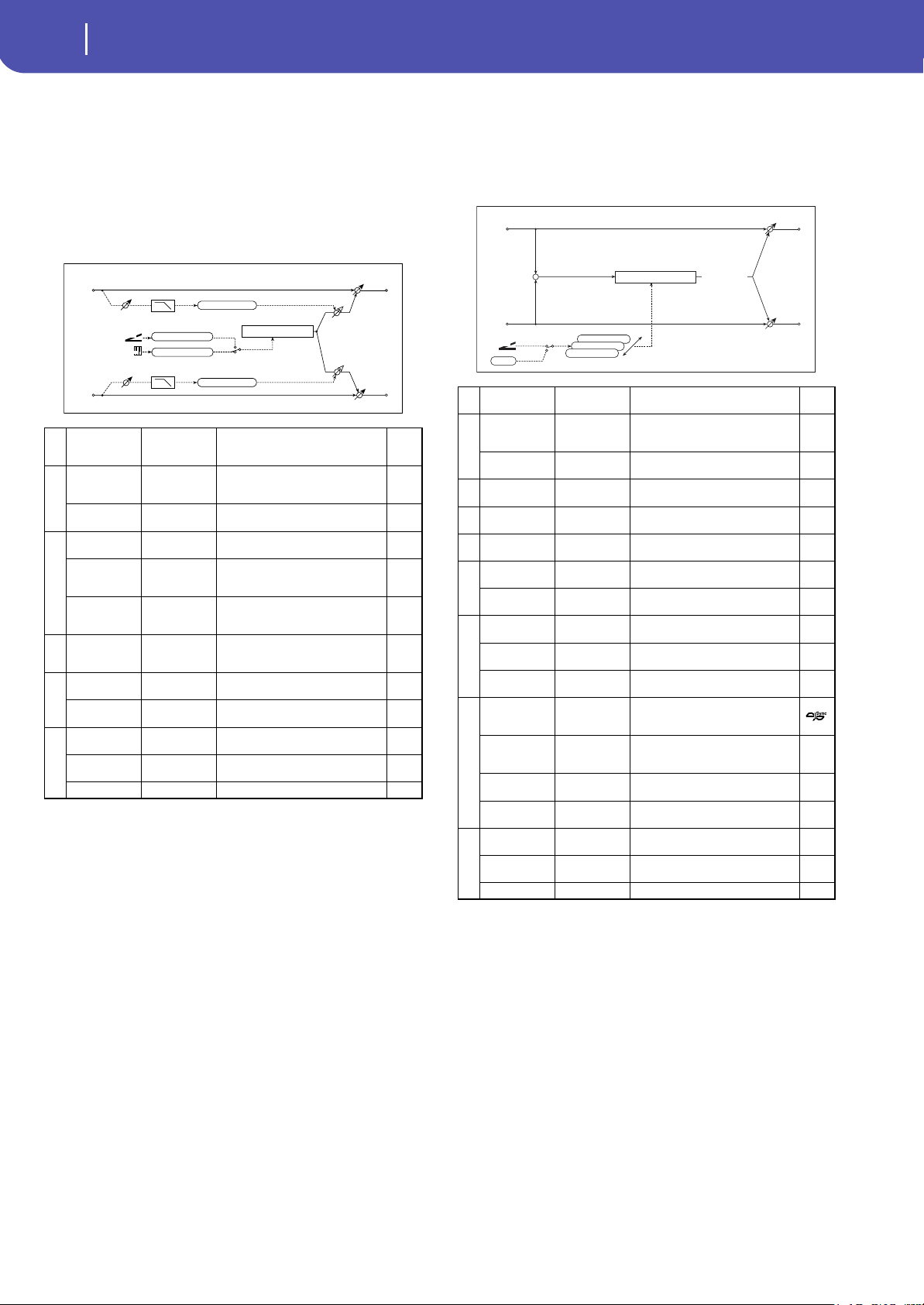
292
Effects
EQ and Filters (EQ/Filter)
14: St. Sub Oscillator
(Stereo Sub Oscillator)
This effect adds very low frequencies to the input signal. It is
very useful when simulating a roaring drum sound or emphasiz-
ing powerful low range. This effect is different from the equal-
izer in that you can add very low range harmonics. You can also
adjust the oscillator frequency to match a particular note num-
ber, for use as an octaver.
a: OSC Mode
b: Note Interval
b: Note Fine
The “OSC Mode” parameter selects the oscillator operation
mode. When Note (Key Follow) is selected, the oscillator’s fre-
quency is determined based on the note number, allowing you to
use it as an octaver. The “Note Interval” parameter sets the pitch
offset from the original note number by semitone steps. The
“Note Fine” parameter allows you to fine-tune in steps of cents.
d: Envelope Pre LPF
This parameter sets the upper limit of the frequency range to
which very low harmonics are added. Adjust this parameter if
you do not want to add lower harmonics to the higher range.
15: Talking Modulator
This effect adds an unusual character, like a human voice, to the
input signal. Modulating the tone via dynamic modulation, you
can create an interesting effect that sounds as if the guitar or syn-
thesizer is talking.
aOSC Mode
Note (Key
Follow), Fixed
Determines whether the oscillator
frequency follows the note number
or whether it is fixed
b
Note Interval –48...0
Sets the pitch difference from the
note number when OSC
Mode=Note (Key Follow)
Note Fine –100...+100
Fine adjustment of the oscillator
frequency
c
Fixed
Frequency [Hz]
10.0...80.0
Sets the oscillator frequency when
OSC Mode=Fixed
Src Off...Tempo
Selects the modulation source for
the oscillator frequency when OSC
Mode=Fixed
Amt –80...+80
Sets the oscillator frequency
modulation amount when OSC
Mode=Fixed
d
Envelope Pre
LPF
1...100
Sets the upper limit of the frequency
range for which very low harmonics
are added
e
Envelope Sens 0...100
Sets the sensitivity with which very
low harmonics are added
Envelope
Shape
–100...+100
Sets the oscillator’s volume
envelope curve
f
Wet/Dry
Dry, 1:99...99:1,
Wet
Balance between the wet and dry
signal
Src Off...Tempo
Table , “Dynamic Modulation
sources,” on page 283
Amt –100...+100 Amount of modulation source
FX Amt
Note No.
OSC Mode
Fixed
Note (Key Follow)
Sine Oscillator
Fixed Frequency
Pitch
Note Interval, Fine
Stereo In - Stereo Out
Left
Right
FX Amt
Envelope Sens
Envelope Shape
Envelope Shape
D
-mod
Pre LPF
Envelope Sens
Pre LPF
a Sweep Mode D-mod, LFO
Switches between modulation
source control and LFO control
b
Manual Voice
Control
Bottom, 1...49,
Center, 51...99,
Top
Voice pattern control
Src Off...Tempo
Selects the modulation source that
controls the voice pattern
c Voice Top A, I, U, E, O
Selects a vowel sound at the top
end of control
d Voice Center A, I, U, E, O
Selects a vowel sound in the center
of control
e Voice Bottom A, I, U, E, O
Selects a vowel sound at the bottom
end of control
f
Formant Shift –100...+100
Sets the frequency to which the
effect is applied
Resonance 0...100
Sets the Level of resonance of the
voice pattern
g
LFO Frequency
[Hz]
0.02...20.00 Sets the speed of the LFO
Src Off...Tempo
Selects a modulation source for LFO
speed
Amt
–20.00...
+20.00
Sets the modulation amount of LFO
speed
h
MIDI Sync Off, On
When this is on, the LFO speed is set
by BPM, Base Note, and Times,
instead of Frequency
BPM
MIDI,
40.00...
300.00
MIDI syncs to the system tempo; 40–
300 sets the tempo manually for this
individual effect
Base Note r...w
Selects the type of notes that
specify the LFO speed
Times x1...x32
Sets the number of notes that
specify the LFO speed
i
Wet/Dry
Dry, 1:99...99:1,
Wet
Balance between the wet and dry
signal
Src Off...Tempo
Table , “Dynamic Modulation
sources,” on page 283
Amt –100...+100 Amount of modulation source
FX Amt = 100: Mono In - Mono Out / FX Amt = 0: Stereo In - Stereo Out
Left
Right
FX Amt
FX Amt
+
D
-mod
Voice Top: A
Voice Center: I
Voice Bottom: U
A
-
I
-
U
-
E
-
O
Talking Modulator
LFO
D-mod
LFO
Sweep Mode
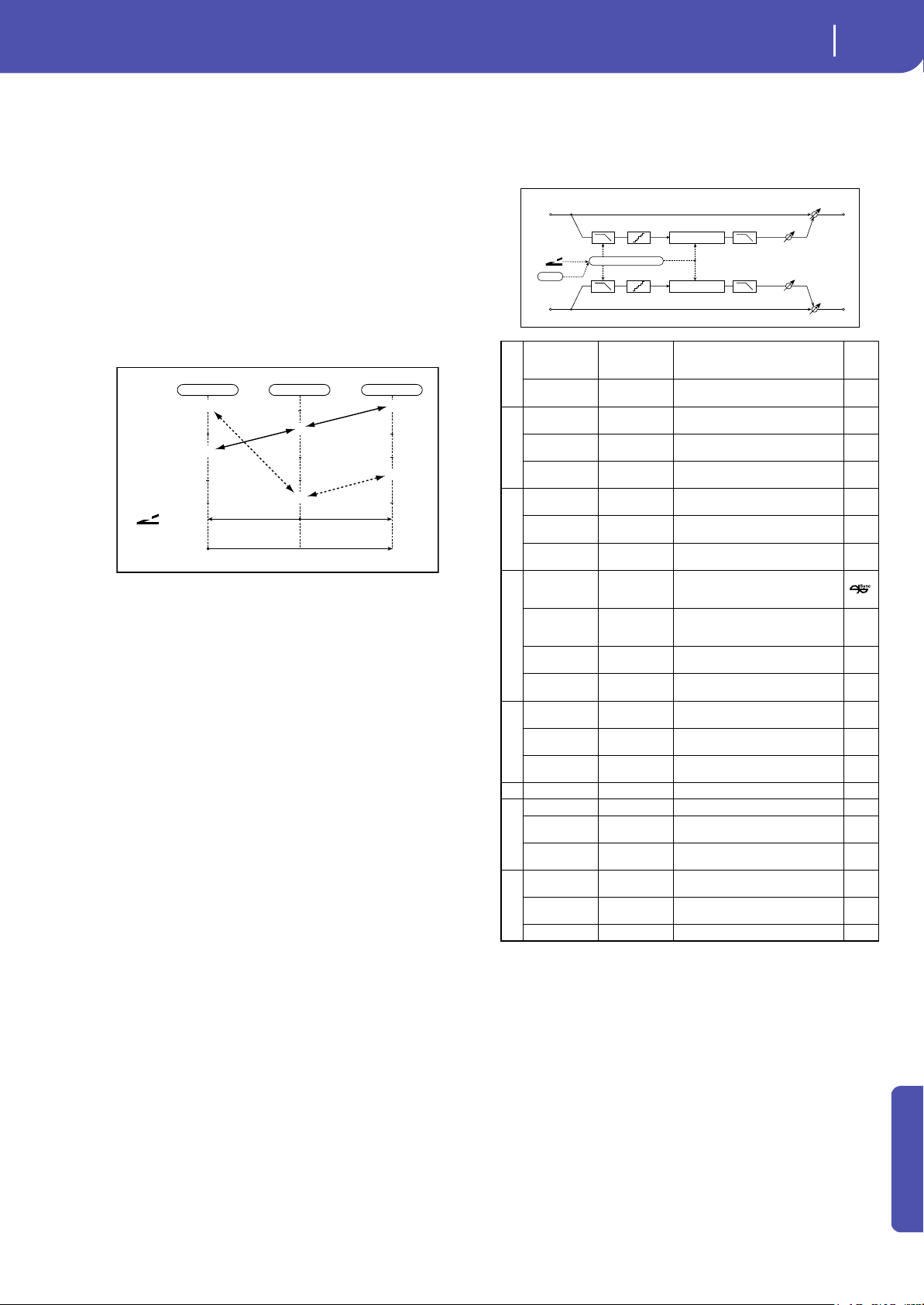
293
Effects
EQ and Filters (EQ/Filter)
Appendix
c: Voice Top
d: Voice Center
e: Voice Bottom
These parameters assign vowels to the top, center, and bottom
position of the controller.
E.g.: When “Voice Top”=A, “Voice Center”=I, and
“Voice Bottom”=U:
If “Sweep Mode”is set to D-mod and Ribbon is selected as the
modulation source, moving your finger from the right to left of
the ribbon controller will change the sound from “a” to “i,” then
“u.”
If Sweep Mode is set to LFO, the sound will change cyclically
from “a” to “i,” “u,” “i,” then “a.”
f: Formant Shift
This parameter adjusts the frequency level to which the effect is
applied. If you wish to apply the effect to a higher-range sound,
set this parameter to a higher value; to apply the effect to a
lower-range sound, set this to a lower value.
f: Resonance
This parameter sets the intensity of resonance for the voice pat-
tern. A larger value will add more character to the sound.
16: Stereo Decimator
This effect creates a rough sound like a cheap sampler by lower-
ing the sampling frequency and data bit length. You can also
simulate noise unique to a sampler (aliasing).
a: Pre LPF
If a sampler with a very low sampling frequency receives very
high-pitched sound that could not be heard during playback, it
could generate pitch noise that is unrelated to the original sound.
Set “Pre LPF” to On to prevent this noise from being generated.
If you set the “Sampling Freq” to about 3 kHz and set “Pre LPF”
to Off, you can create a sound like a ring modulator.
f: Resolution
g: Output Level
If you set a smaller value for the “Resolution” parameter, the
sound may be distorted. The volume level may also be changed.
Use “Output Level” to adjust the level.
+ Max
Zero
D
-mod
– Max
Voice Bottom Voice Center Voice Top
U
I
A
A
O
E
JS X
Ribbon
JS +Y
JS –Y
etc…
Zero
+ Max
Talking Modulator Control
a
Pre LPF Off, On
Selects whether the harmonic noise
caused by a decrease in sampling
frequency is generated or not
High Damp [%] 0...100
Sets the ratio of cut of the high
range
b
Sampling Freq
[Hz]
1.00k...
48.00k
Sets the sampling frequency
Src Off...Tempo
Selects the modulation source of
the sampling frequency
Amt
–48.00k...
+48.00k
Sets the modulation amount of the
sampling frequency
c
LFO Frequency
[Hz]
0.02...20.00 Sets the speed of the LFO
Src Off...Tempo
Selects a modulation source for LFO
speed
Amt
–20.00...
+20.00
Sets the modulation amount of LFO
speed
d
MIDI Sync Off, On
When this is on, the LFO speed is set
by BPM, Base Note, and Times,
instead of Frequency
BPM
MIDI,
40.00...
300.00
MIDI syncs to the system tempo; 40–
300 sets the tempo manually for this
individual effect
Base Note r...w
Selects the type of notes that
specify the LFO speed
Times x1...x32
Sets the number of notes that
specify the LFO speed
e
Depth 0...100
Sets the depth of the sampling
frequency LFO modulation
Src Off...Tempo
Selects the LFO modulation source
of the sampling frequency
Amt –100...+100
Sets the LFO modulation amount of
the sampling frequency
f Resolution 4...24 Sets the data bit length
g
Output Level 0...100 Sets the output level
Src Off...Tempo
Selects the modulation source for
the output level
Amt –100...+100
Sets the modulation amount of the
output level
h
Wet/Dry
Dry, 1:99...99:1,
Wet
Balance between the wet and dry
signal
Src Off...Tempo
Table , “Dynamic Modulation
sources,” on page 283
Amt –100...+100 Amount of modulation source
Left
Right
FX Amt
FX Amt
Stereo In - Stereo Out
Pre LPF
Pre LPF
High Damp Output Level
High Damp Output Level
Sampling Frequency
Decimator
Decimator
D
-mod
LFO
Resolution
Resolution

294
Effects
Overdrive, Amp models, and Mic models (OD Amp Mic)
17: St. Analog Record
(Stereo Analog Record)
This effect simulates the noise caused by scratches and dust on
analog records. It also reproduces some of the modulation
caused by a warped turntable.
b: Flutter
This parameter enables you to set the depth of the modulation
caused by a warped turntable.
e: Click Level
This parameter enables you to set the level of the click noise that
occurs once every rotation of the turntable. This simulation
reproduces record noise, and the noise generated after the music
on a vinyl record finishes.
Overdrive, Amp models, and Mic models
(OD Amp Mic)
18: OD/Hi.Gain Wah
(Overdrive/Hi.Gain Wah)
This distortion effect utilizes an Overdrive mode and a Hi-Gain
mode. Controlling the wah effect, the 3-band EQ, and the amp
simulation will allow you to create versatile distortion sounds.
This effect is suitable for guitar and organ sounds.
a Speed [RPM]
33 1/3, 45, 78
Sets the r.p.m. of a record
b Flutter 0...100
Sets the modulation depth
c
Noise Density
0...100 Sets the noise density
Noise Tone 0...100 Sets the noise tone
d
Noise Level 0...100 Sets the noise level
Src Off...Tempo
Selects the modulation source for
the noise level
Amt –100...+100
Sets the modulation amount of the
noise level
e
Click Level 0...100
Sets the click noise level
Src Off...Tempo
Selects the modulation source for
the click noise level
Amt –100...+100
Sets the modulation amount of the
click noise level
f EQ Trim 0...100 Sets the EQ input level
g
Pre EQ Cutoff
[Hz]
300...10.00k Sets the EQ center frequency
Q 0.5...10.0 Sets the EQ band width
Gain [dB] –18.0...+18.0 Sets the EQ gain
h
Wet/Dry
Dry, 1:99...99:1,
Wet
Balance between the wet and dry
signal
Src Off...Tempo
Table , “Dynamic Modulation
sources,” on page 283
Amt –100...+100 Amount of modulation source
Left
Right
FX Amt
FX Amt
Stereo In - Stereo Out
Analog Record
Simulation
Pre EQ
Pre EQ
EQ Trim
EQ Trim
a
Wah Off, On Switches Wah on/off
Src Off...Tempo
Selects the modulation source that
switches the Wah on and off
Sw
Toggle,
Moment
Selects the switching mode for the
modulation source that switches the
Wah on and off
b
Wah Sweep
Range
–10...+10 Sets the range of Wah
Wah Sweep Src Off...Tempo
Selects the modulation source that
controls the Wah
cDrive Mode
Overdrive, Hi-
Gain
Switches between overdrive and hi-
gain distortion
d
Drive 1...100
Sets the degree of distortion
Pre Low-cut 0...10
Sets the low range cut amount of
the distortion input
e
Output Level 0...50 Sets the output level
Src Off...Tempo
Selects the modulation source for
the output level
Amt –50...+50
Sets the modulation amount of the
output level
f
Low Cutoff [Hz] 20...1.00k
Sets the center frequency for Low
EQ (shelving type)
Gain [dB] –18...+18 Sets the gain of Low EQ
g
Mid1Cutoff
[Hz]
300...10.00k
Sets the center frequency for Mid/
High EQ 1 (peaking type)
Q 0.5...10.0
Sets the band width of Mid/High EQ
1
Gain [dB] –18...+18 Sets the gain of Mid/High EQ 1
h
Mid2 Cutoff
[Hz]
500...20.00k
Sets the center frequency for Mid/
High EQ 2 (peaking type)
Q 0.5...10.0
Sets the band width of Mid/High EQ
2
Gain [dB] –18...+18 Sets the gain of Mid/High EQ 2
i
Direct Mix 0...50
Sets the amount of the dry sound
mixed to the distortion
Speaker
Simulation
Off, On
Switches the speaker simulation on/
off
j
Wet/Dry
Dry, 1:99...99:1,
Wet
Balance between the wet and dry
signal
Src Off...Tempo
Table , “Dynamic Modulation
sources,” on page 283
Amt –100...+100 Amount of modulation source
Left
Right
FX Amt
FX Amt
FX Amt = 100: Mono In - Mono Out / FX Amt = 0: Stereo In - Stereo Out
+
Amp Simulation
3 Band PEQ
Output Level
Direct Mix
Pre Low-cut
D
-mod
Wah
Mode: Overdrive / Hi-Gain
Drive
Driver
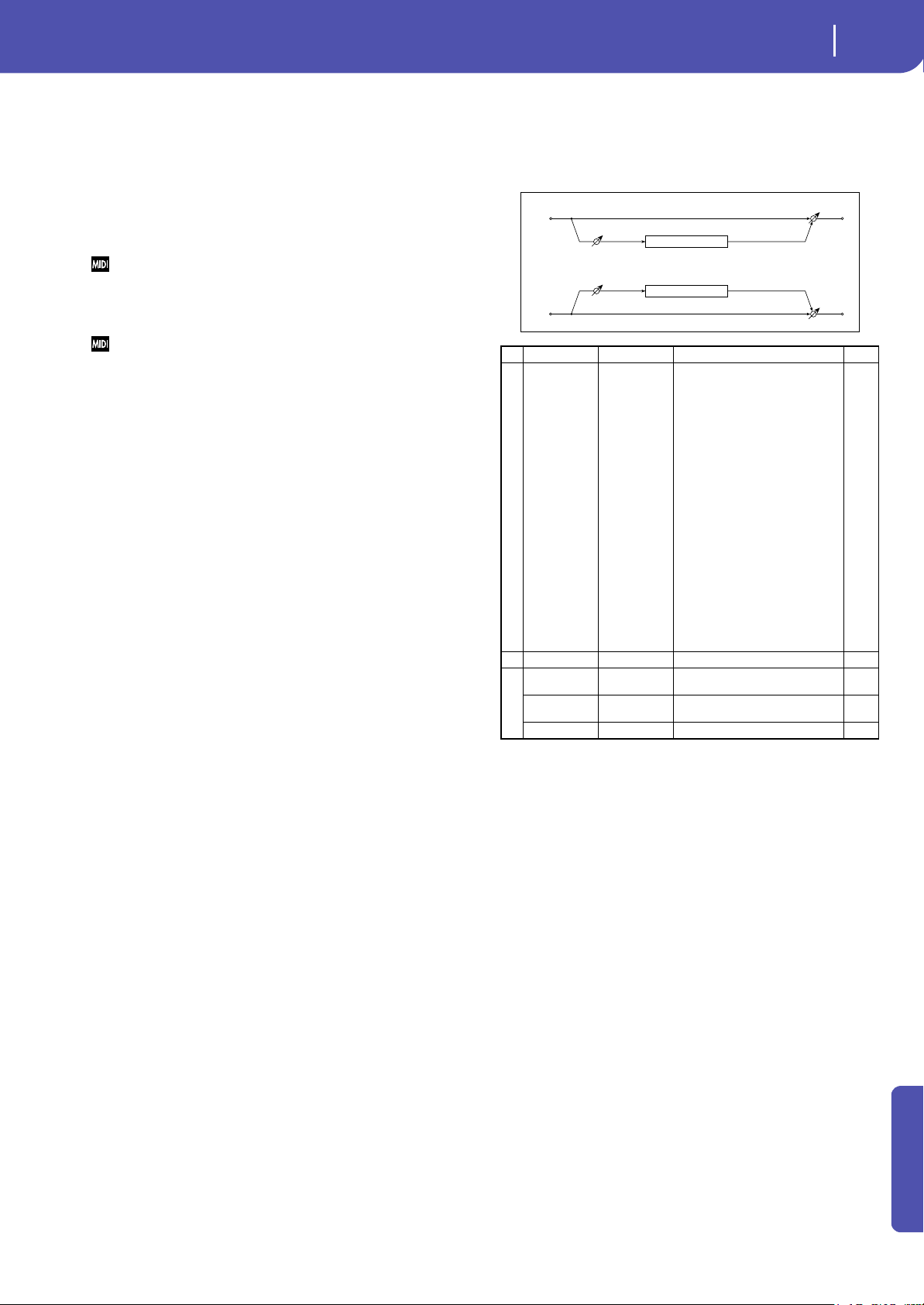
295
Effects
Overdrive, Amp models, and Mic models (OD Amp Mic)
Appendix
a: Wah
The Wah parameter switches the wah effect on/off.
a: Sw
This parameter sets how the wah effect is switched on and off via
the modulation source.
When “Sw” = Moment, the wah effect is usually turned off. It is
turned on only when you press the pedal or operate the joystick.
When a value for the modulation source is less than 64, “off ” speed is
selected, and when the value is 64 or higher, “on” is selected.
When “Sw” = Toggle, the wah effect is switched between on and
off each time you press the pedal or operate the joystick.
The switch will be turned on/off each time the value of the
modulation source exceeds 64.
b: Wah Sweep Range
b: Wah Sweep Src
This parameter sets the sweep range of the wah center frequency.
A negative value will reverse the direction of sweep. The wah
center frequency can be controlled by the modulation source
specified in the “Wah Sweep Src” parameter.
d: Pre Low-cut
Cutting the signal in the low range before it is input to the Dis-
tortion will create a sharp distortion.
d: Drive
e: Output Level
The degree of distortion is determined by the level of input sig-
nal and the setting of “Drive”. Raising the “Drive” setting will
cause the entire volume level to increase. Use the “Output Level”
parameter to adjust the volume level. The “Output Level” param-
eter uses the signal level input to the 3-Band EQ. If clipping
occurs at the 3-Band EQ, adjust the “Output Level” parameter.
19: St. Guitar Cabinet
(Stereo Guitar Cabinet)
This simulates the acoustical character of a guitar amp’s speaker
cabinet.
a Trim 0...100 Sets the input level
bType
Selects the type of the cabinet
TWEED - 1x12
Open-back cabinet with one 12"
speaker, typically used for blues
TWEED - 4x10
Open-back cabinet with four 10"
speakers
BLACK - 2x10
Open-back cabinet with two 10"
speakers
BLACK - 2x12
American open-back cabinet with
two12" speakers
VOX AC15 -
1x12
Vox AC15 open-back cabinet with
one 12" “Blue” speaker
VOX AC30 -
2x12
Vox AC30 open-back cabinet with
two 12" “Blue” speakers
VOX AD412 -
4x12
VOX AD412 closed-back cabinet
with four 12" speakers
UK H30 - 4x12
Closed-back classic cabinet with
four 30W 12" speakers
UK T75 - 4x12
Closed-back cabinet with four 75W
12" speakers
US V30 - 4x12
Closed-back cabinet with four 30W
12" speakers
c Air 0...100 Sets the mic position
d
Wet/Dry
Dry, 1:99...99:1,
Wet
Balance between the wet and dry
signal
Src Off...Tempo
Table , “Dynamic Modulation
sources,” on page 283
Amt –100...+100 Amount of modulation source
Left
Trim
Trim
Right
FX Amt
FX Amt
Stereo In - Stereo Out
Cabinet Simulator
Cabinet Simulator
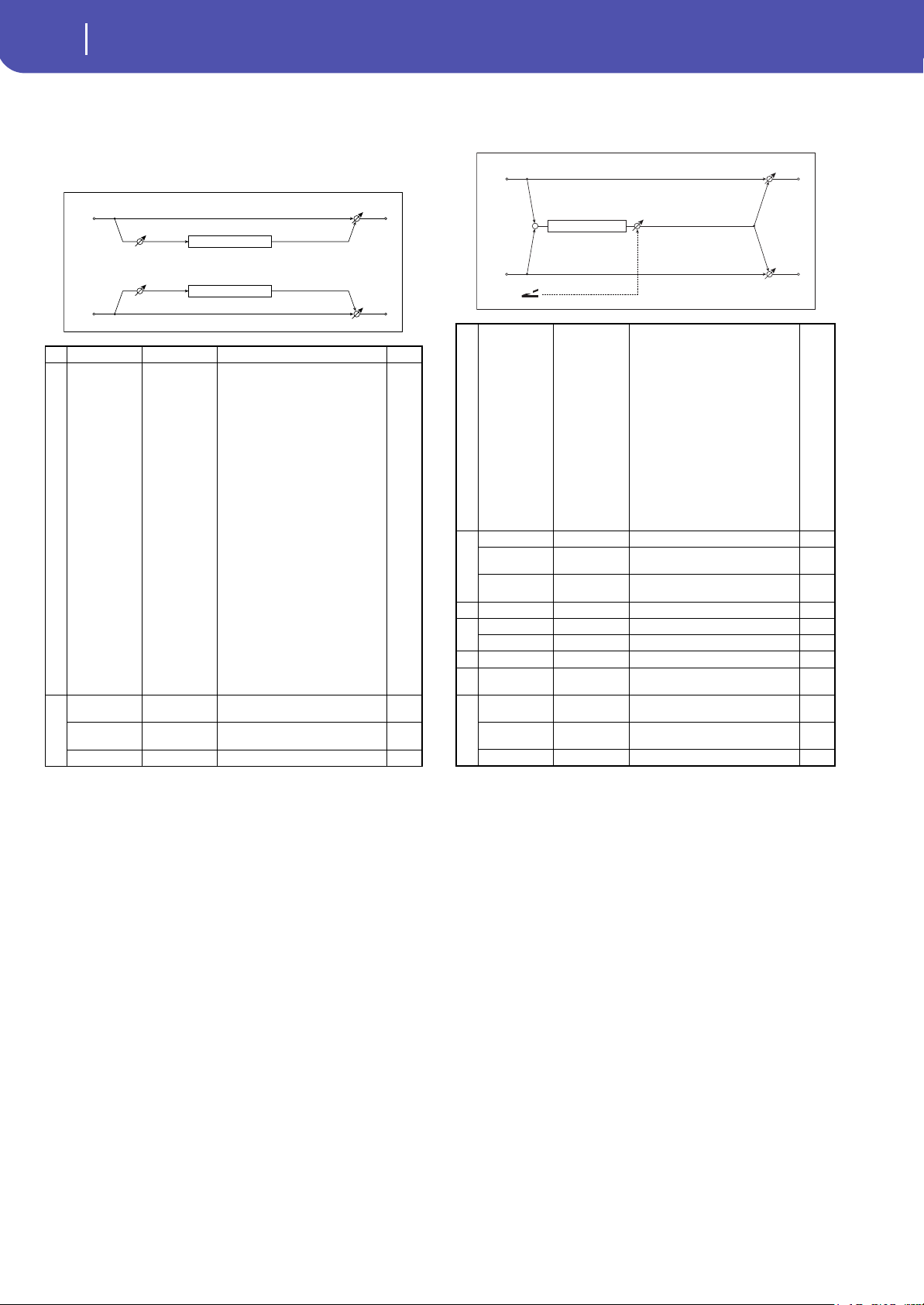
296
Effects
Overdrive, Amp models, and Mic models (OD Amp Mic)
20: St. Bass Cabinet
(Stereo Bass Cabinet)
This simulates the acoustical character of a bass amp’s speaker
cabinet.
21: Bass Amp Model
This simulates a bass amp.
a Trim 0...100 Sets the input level
bCabinet Type
Selects the cabinet type
LA - 4x10
Four 10" speakers / LA sound
cabinet
MODERN -
4x10
Four 10" aluminum-cone speakers /
modern cabinet
METAL - 4x10
Four 10" aluminum-cone speakers /
modern cabinet
CLASSIC - 8x10 Eight 10" speakers / classic cabinet
UK - 4x12
Four 12" speakers / UK-manufac-
tured cabinet
STUDIO - 1x15
One 15" speaker / studio combo
cabinet
JAZZ - 1x15
One 15" speaker / jazz combo
cabinet
VOX AC100 -
2x15
Two 15" speakers / cabinet for Vox
AC100
US - 2x15
Two 15" speakers / US-manufac-
tured cabinet
UK - 4x15
Four 15" speakers / UK-manufac-
tured cabinet
LA - 1x18
One 18" speaker /
LA sound cabinet
COMBI - 1x12
& 1x18
One 12" and one 18" speaker combi-
nation cabinet
c
Wet/Dry
Dry, 1:99...99:1,
Wet
Balance between the wet and dry
signal
Src Off...Tempo
Table , “Dynamic Modulation
sources,” on page 283
Amt –100...+100 Amount of modulation source
Left
Trim
Trim
Right
FX Amt
FX Amt
Stereo In - Stereo Out
Cabinet Simulator
Cabinet Simulator
aAmp Type
Selects the amplifier type
LA STUDIO
An amp that is typical of the LA
sound.
JAZZ
A combo amp favored by jazz
bassists.
GOLD PANEL
An amp distinctive for its eye-
catching gold panel and clean
sound.
SCOOPED An amp typical of 80’s sounds.
VALVE2 A tube amp suitable for rock.
VALVE
A tube amp with the ULTRA LO
switch turned ON.
CLASSIC
A tube amp whose basic character
changes according to the setting of
the value dial.
b
Volume 0...100 Sets the output level
Src Off...Tempo
Selects the modulation source for
the output level
Amt –100...+100
Sets the modulation amount of the
output level
c Bass 0...100 Sets the bass (low range) level
d
Middle 0...100 Sets the middle (mid range) level
Mid Range 0...4 Sets the mid-frequency range
e Treble 0...100 Sets the treble (high range) level
f Presence 0...100
Sets the presence (high-frequency
tone)
g
Wet/Dry
Dry, 1:99...99:1,
Wet
Balance between the wet and dry
signal
Src Off...Tempo
Table , “Dynamic Modulation
sources,” on page 283
Amt –100...+100 Amount of modulation source
+
Left
Right
FX Amt
Volume
FX Amt
FX Amt = 100: Mono In - Mono Out / FX Amt = 0: Stereo In - Stereo Out
D
-mod
Bass Amp Model
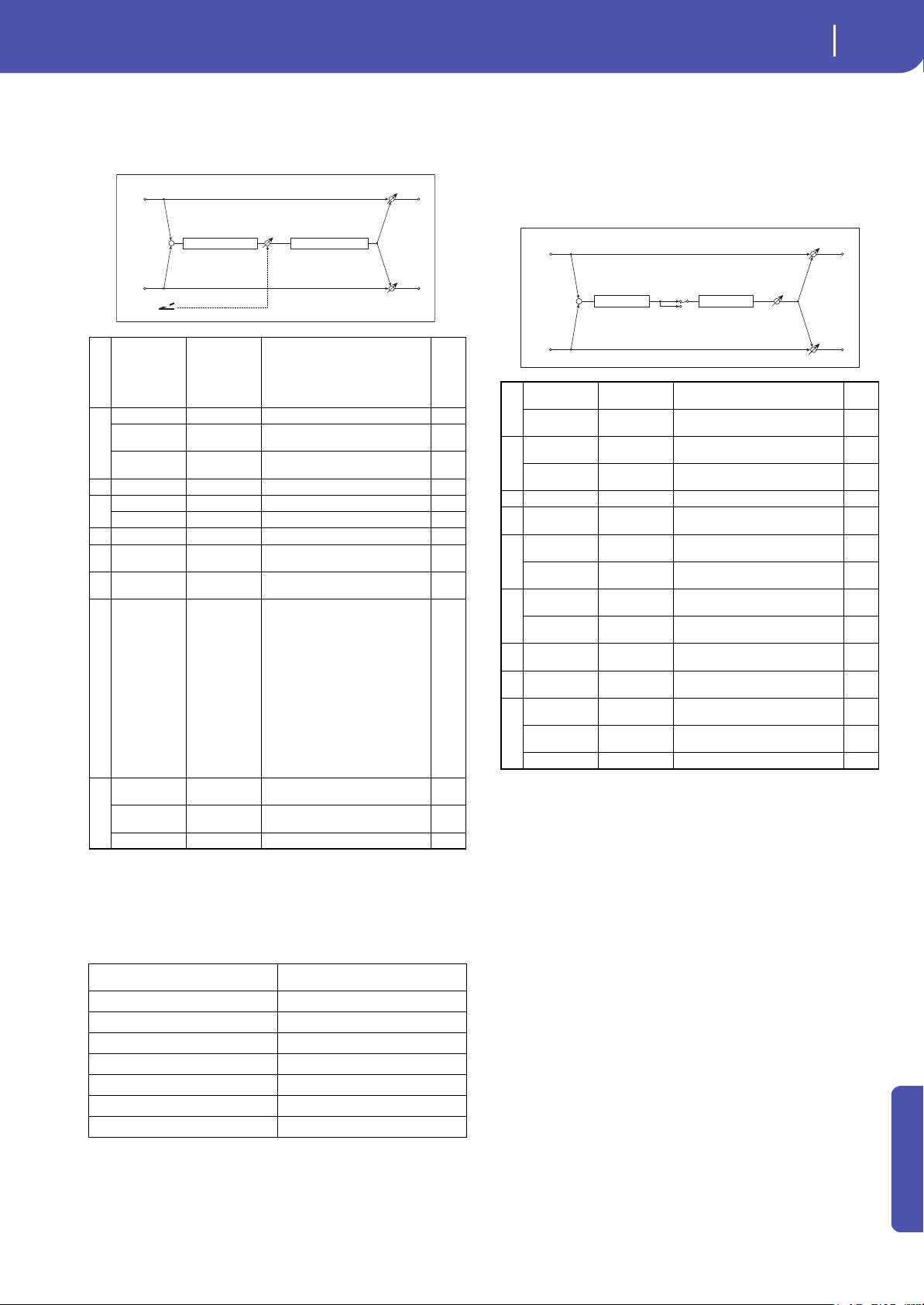
297
Effects
Overdrive, Amp models, and Mic models (OD Amp Mic)
Appendix
22: Bass Amp+Cabinet
(Bass Amp Model+Cabinet)
This simulates a bass amp and speaker cabinet.
a: Amp Type
h: Cabinet Type
Recommended Combinations of Bass Amp Models and Cabi-
nets:
23: Tube PreAmp Model
(Tube PreAmp Modeling)
This effect simulates a two-stage vacuum tube preamp. You can
make individual settings for two vacuum tubes connected in
series. This lets you create the warm sound typical of vacuum
tubes.
aAmp Type
LA STUDIO,
JAZZ ,
GOLD PANEL
,
SCOOPED,
VALVE2, VALVE,
CLASSIC
Selects the type of the amplifier
b
Volume 0...100 Sets the output level
Src Off...Tempo
Selects the modulation source for
the output level
Amt –100...+100
Sets the modulation amount of the
output level
c Bass 0...100 Sets the bass (low range) level
d
Middle 0...100 Sets the middle (mid range) level
Mid Range 0...4 Sets the mid-frequency range
e Treble 0...100 Sets the treble (high range) level
f Presence 0...100
Sets the presence (high-frequency
tone)
g
Cabinet
Simulater
Off, On
Switches the cabinet simulator on/
off
hCabinet Type
LA - 4x10,
MODERN -
4x10,
METAL - 4x10,
CLASSIC -
8x10,
UK - 4x12,
STUDIO - 1x15,
JAZZ - 1x15,
VOX AC100 -
2x15,
US - 2x15,
UK - 4x15,
LA - 1x18,
COMBI - 1x12
& 1x18
Selects the cabinet type
i
Wet/Dry
Dry, 1:99...99:1,
Wet
Balance between the wet and dry
signal
Src Off...Tempo
Table , “Dynamic Modulation
sources,” on page 283
Amt –100...+100 Amount of modulation source
Amp Type Cabinet Type
LA STUDIO LA - 4x10, LA - 1x18
JAZZ JAZZ - 1x15
GOLD PANEL MODERN - 4x10
SCOOPED METAL - 4x10
VALVE2 CLASSIC - 8x10
VALVE CLASSIC - 8x10
CLASSIC COMBI - 1x12 & 1x18
+
Left
Right
FX Amt
Volume
FX Amt
FX Amt = 100: Mono In - Mono Out / FX Amt = 0: Stereo In - Stereo Out
D
-mod
Bass Amp Model1
Cabinet Simulator
a
Tube1 Low Cut
[Hz]
Thru, 21...8.00k
Sets the cutoff frequency for the low
cut filter of stage 1
High Cut [Hz]
53...20.00k,
Thru
Sets the cutoff frequency for the
high cut filter of stage 1
b
Tube1 Gain
[dB]
–24.0...+24.0 Sets the input gain for stage 1
Saturation [%] 0...100
Sets the input/output response for
stage 1
c Tube1 Bias 0...100 Sets the bias voltage for stage 1
dTube1 Phase
Normal,
Wet Invert
Turns phase reversal on/off
e
Tube2 Low Cut
[Hz]
Thru, 21...8.00k
Sets the cutoff frequency for the low
cut filter of stage 2
High Cut [Hz]
53...20.00k,
Thru
Sets the cutoff frequency for the
high cut filter of stage 2
f
Tube2 Gain
[dB]
–24.0...+24.0 Sets the input gain for stage 2
Saturation [%] 0...100
Sets the input/output response for
stage 2
g Tube2 Bias 0...100
Sets the bias voltage for stage 2
h
Tube2 Output
Level [dB]
–48.0...+0.0 Sets the output level
i
Wet/Dry
Dry, 1:99...99:1,
Wet
Balance between the wet and dry
signal
Src Off...Tempo
Table , “Dynamic Modulation
sources,” on page 283
Amt –100...+100 Amount of modulation source
+
Tube Pre Amp1 Tube Pre Amp2
Left
Right
FX Amt
Output Level
FX Amt
FX Amt = 100: Mono In - Mono Out / FX Amt = 0: Stereo In - Stereo Out
–
+
Invert
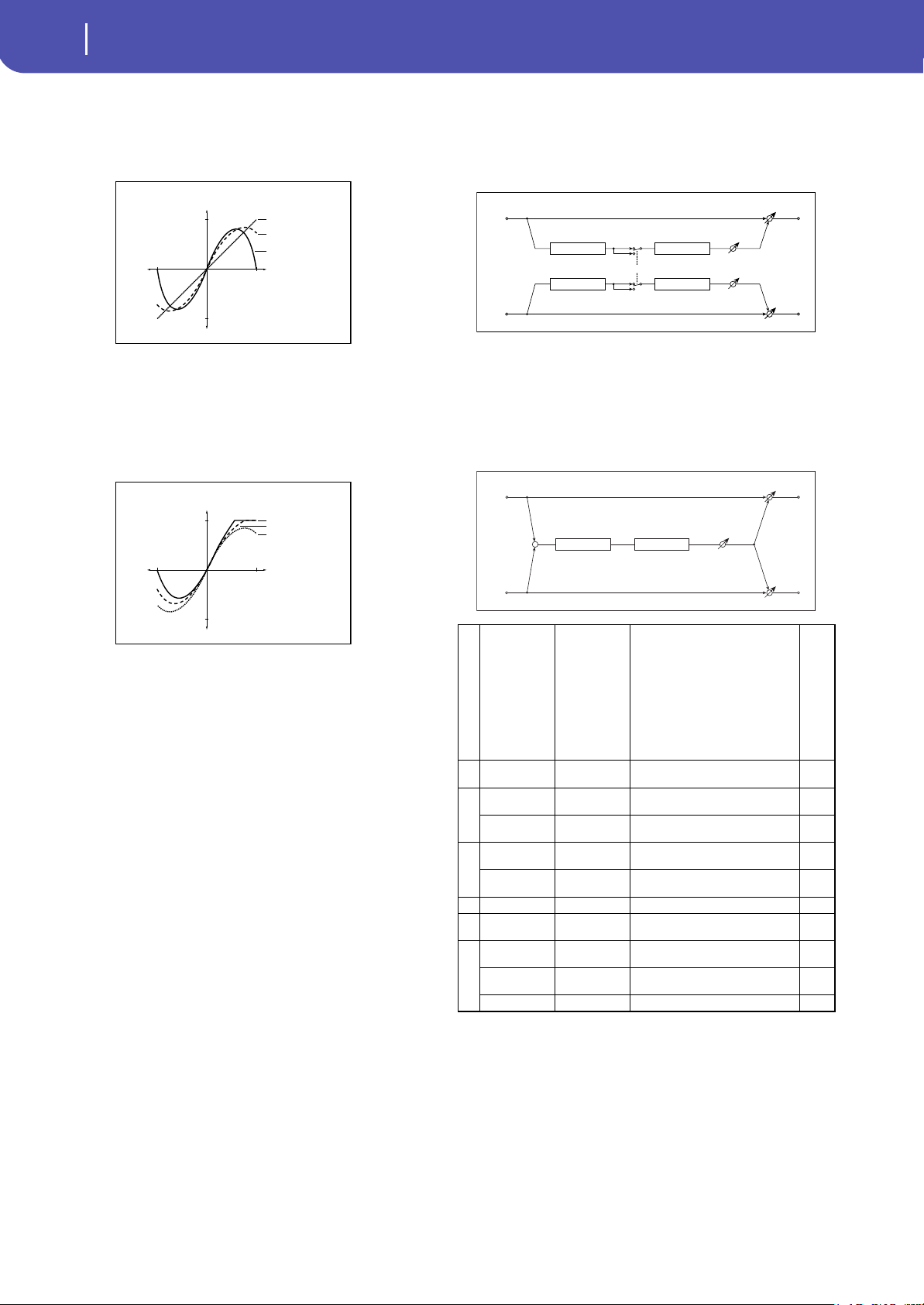
298
Effects
Overdrive, Amp models, and Mic models (OD Amp Mic)
b, f: Saturation [%]
With higher settings of this value, the waveform will change at
high gain levels, tending to cause distortion. Lower settings of
this value will produce linear response.
c: Tube1 Bias
This expresses the effect that changes in vacuum tube bias have
on the distortion of the waveform. Higher settings of this value
will produce distortion even at low gain levels. Since this will
also change the overtone structure, you can use it to control the
tonal character.
d: Tube1 Phase
With the Wet Invert setting, the phase of the signal will be
inverted between stage 1 and stage 2. Since “Bias” is applied to
the inverted signal in stage 2, this will change the tonal character.
24: St. Tube PreAmp
(Stereo Tube PreAmp Modeling)
This is a stereo vacuum tube preamp simulator (See “Tube Pre-
Amp Model (Tube PreAmp Modeling)” on page 297.).
25: Mic Model+PreAmp
(Mic Modeling + PreAmp)
This effect simulates a mic and vacuum tube preamp. You can
choose from various types of mic and positions to create differ-
ing sonic characters.
b: Mic Position
This expresses the effect that the mic position has on the sound.
The Close setting is the closest mic position, and the Far setting
is the farthest.
Mic/Pre Amp - Saturation
In
Out
Saturation = 0
Saturation = 50
Saturation = 100
Bias = 0
In
Out
Satulation = 50
Bias = 0
Bias = 50
Bias = 100
Mic/Pre Amp - Bias
aMic Type
Vintage
Dynamic, Multi
Condenser,
Percussion
Condenser,
Drums Dynamic,
Vocal Dynamic,
Multi Dynamic,
Vocal
Condenser,
Vocal Tube,
Kick Dynamic
Selects the type of mic
bMic Position
Close, On, Off,
Far
Sets the mic placement distance
c
Tube Low Cut
[Hz]
Thru, 21...8.00k
Sets the frequency of the low cut
filter
High Cut [Hz]
53...20.00k,
Thru
Sets the frequency of the high cut
filter
d
Tube Gain [dB] –24.0...+24.0
Sets the input gain to the vacuum
tube preamp
Saturation [%] 0...100
Sets the input/output response of
the preamp
e Tube Bias 0...100 Sets the bias level of the preamp
f
Tube Output
Level [dB]
–48.0...+0.0 Sets the output level of the preamp
g
Wet/Dry
Dry, 1:99...99:1,
Wet
Balance between the wet and dry
signal
Src Off...Tempo
Table , “Dynamic Modulation
sources,” on page 283
Amt –100...+100 Amount of modulation source
Left
Right
FX Amt
Output Level
FX Amt
Stereo In - Stereo Out
Tube Pre Amp1 Tube Pre Amp2
Tube Pre Amp1 Tube Pre Amp2
Left
Right
FX Amt
FX Amt
–
+
–
+
Invert
+
Tube Pre AmpMic Simulation
Left
Right
FX Amt
Output Level
FX Amt
FX Amt = 100: Mono In - Mono Out / FX Amt = 0: Stereo In - Stereo Out
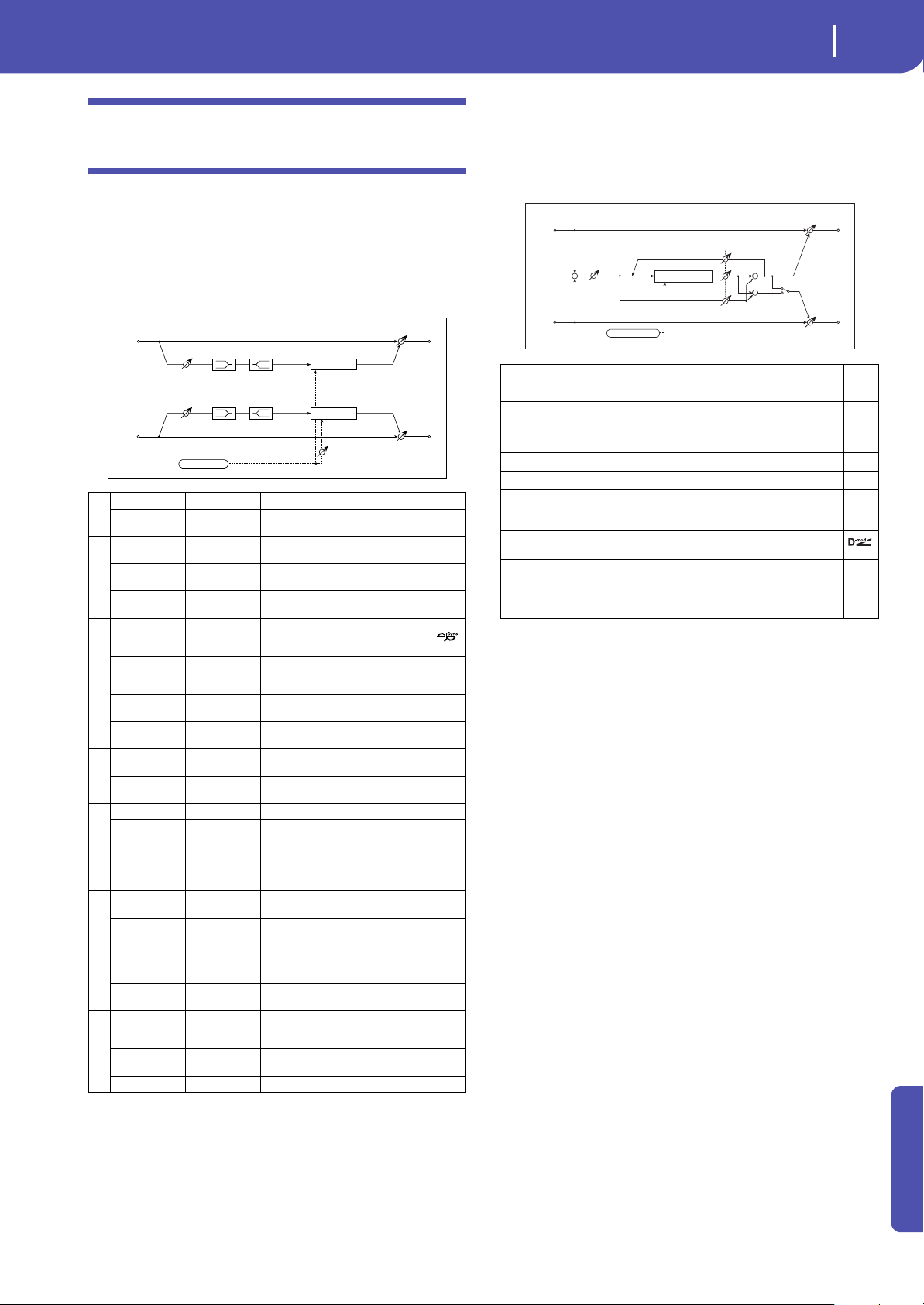
299
Effects
Chorus, Flanger, and Phaser (Cho/Fln Phaser)
Appendix
Chorus, Flanger, and Phaser (Cho/Fln
Phaser)
26: Stereo Chorus
This effect adds thickness and warmth to the sound by modulat-
ing the delay time of the input signal. You can add spread to the
sound by offsetting the phase of the left and right LFOs from
each other.
d: L Pre Delay [msec]
d: R Pre Delay [msec]
Setting the left and right delay time individually allows you to
control the stereo image.
27: Black Chorus/Flanger
This models a Danish-made stereo chorus + pitch modulator &
flanger. Although this effect was originally intended for guitar, it
was also used by numerous keyboard players. Used with electric
piano, it produces a distinctive tone.
Mode
Intensity
Increasing the “Intensity” value will strengthen the modulation
effect. This controls the effect, direct, and feedback values. The
values that are controlled will depend on the “Mode” setting.
a
LFO Waveform Triangle, Sine Selects the LFO Waveform
LFO Phase
[degree]
–180...+180
Sets the LFO phase difference
between the left and right
b
LFO Frequency
[Hz]
0.02...20.00 Sets the speed of the LFO
Src Off...Tempo
Selects a modulation source for LFO
speed
Amt
–20.00...
+20.00
Sets the modulation amount of LFO
speed
c
MIDI Sync Off, On
When this is on, the LFO speed is set
by BPM, Base Note, and Times,
instead of Frequency
BPM
MIDI,
40.00...
300.00
MIDI syncs to the system tempo; 40–
300 sets the tempo manually for this
individual effect
Base Note r...w
Selects the type of notes that
specify the LFO speed
Times x1...x32
Sets the number of notes that
specify the LFO speed
d
L Pre Delay
[msec]
0.0...50.0
Sets the delay time for the left
channel
R Pre Delay
[msec]
0.0...50.0
Sets the delay time for the right
channel
e
Depth 0...100 Sets the depth of LFO modulation
Src Off...Tempo
Selects the modulation source for
the LFO modulation depth
Amt –100...+100
Sets the modulation amount of the
LFO modulation depth
f EQ Trim 0...100 Sets the EQ input level
g
Pre LEQ Fc
Low,
Mid-Low
Selects the cutoff frequency (low or
mid-low) of the low-range equalizer
Pre HEQ Fc
High,
Mid-High
Selects the cutoff frequency (high or
mid-high) of the high-range
equalizer
h
Pre LEQ Gain
[dB]
–15.0...+15.0 Gain of the Low EQ
Pre HEQ Gain
[dB]
–15.0...+15.0 Gain of the High EQ
i
Wet/Dry
-Wet, -
1:99...Dry...99:1
, Wet
Balance between the wet and dry
signal
Src Off...Tempo
Table , “Dynamic Modulation
sources,” on page 283
Amt –100...+100 Amount of modulation source
Chorus
Chorus
Left
Right
LFO Phase
FX Amt
FX Amt
Stereo In - Stereo Out
EQ Trim
EQ Trim
LEQ
HEQ
LEQ
HEQ
LFO: Tri / Sine
Speed [Hz] 0.10...10.0 Sets the LFO speed
Intensity 1...100 Sets the intensity of LFO modulation
Mode 0, 1, 2
Select a mode
0: Chorus
1: Pitch Modulation
2: Flanger
Width 0...2 Sets the LFO modulation depth
Input Gain 1...100 Sets the input gain
Output Mode 0, 1
Select a output mode
0: Mono
1: Stereo
Wet/Dry
Dry, 1:99 ...
99:1, Wet
Balance between the wet and dry signal
Source Off...Tempo
Table , “Selects a modulation source for
Wet/Dry,” on page 284
Amount –100 ... +100
Table , “Sets the modulation amount for
Wet/Dry,” on page 284
Left
Right
Wet / Dry
Wet / Dry
Wet: Mono In - Stereo Out / Dry: Stereo In - Stereo Out
+
Chorus
LFO
Input Gain
Mode & Intensity
Mono
Stereo
Output Mode
-
+
+
+
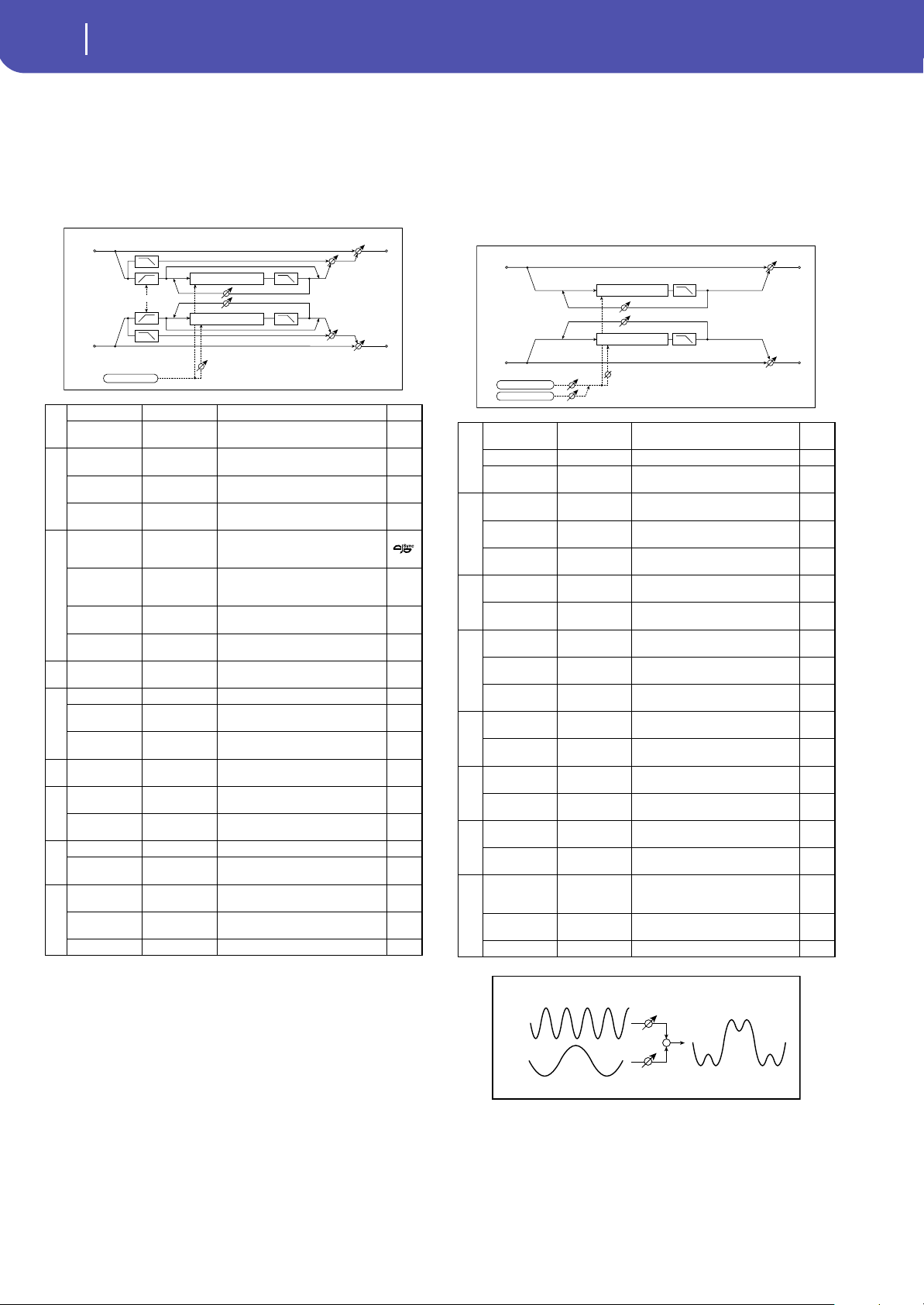
300
Effects
Chorus, Flanger, and Phaser (Cho/Fln Phaser)
28: St.HarmonicChorus
(Stereo Harmonic Chorus)
This effect applies chorus only to higher frequencies. This can be
used to apply a chorus effect to a bass sound without making the
sound thinner. You can also use this chorus block with feedback
as a flanger.
f: High/Low Split Point
This parameter sets the frequency that splits the high and low
range. Only the high range will be sent to the chorus block.
g: Feedback
Sets the feedback amount of the chorus block. Increasing the
feedback will allow you to use the effect as a flanger.
29: St. Biphase Mod.
(Stereo Biphase Modulation)
This stereo chorus effect adds two different LFOs together. You
can set the Frequency and Depth parameters for each LFO indi-
vidually. Depending on the setting of these LFOs, very complex
waveforms will create an analog-type, unstable modulated
sound.
a
LFO Waveform Triangle, Sine Selects the LFO Waveform
LFO Phase
[degree]
–180...+180
Sets the LFO phase difference
between the left and right
b
LFO Frequency
[Hz]
0.02...20.00 Sets the speed of the LFO
Src Off...Tempo
Selects a modulation source for LFO
speed
Amt
–20.00...
+20.00
Sets the modulation amount of LFO
speed
c
MIDI Sync Off, On
When this is on, the LFO speed is set
by BPM, Base Note, and Times,
instead of Frequency
BPM
MIDI,
40.00...
300.00
MIDI syncs to the system tempo; 40–
300 sets the tempo manually for this
individual effect
Base Note r...w
Selects the type of notes that
specify the LFO speed
Times x1...x32
Sets the number of notes that
specify the LFO speed
d
Pre Delay
[msec]
0.0...50.0
Sets the delay time from the original
sound
e
Depth 0...100 Sets the depth of LFO modulation
Src Off...Tempo
Selects the modulation source of
the LFO modulation depth
Amt –100...+100
Sets the modulation amount of the
LFO modulation depth
f
High/Low Split
Point
1...100
Sets the frequency split point
between the low and high range
g
Feedback –100...+100
Sets the feed back amount of the
chorus block
High Damp [%] 0...100
Sets the high range damping
amount of the chorus block
h
Low Level 0...100 Sets the low range output level
High Level 0...100
Sets the high range (chorus) output
level
i
Wet/Dry
Dry, 1:99...99:1,
Wet
Balance between the wet and dry
signal
Src Off...Tempo
Table , “Dynamic Modulation
sources,” on page 283
Amt –100...+100 Amount of modulation source
Left
Right
Feedback
LFO Phase
LFO: Tri / Sine
FX Amt
FX Amt
High Damp
Stereo In - Stereo Out
Low Level
Low Level
High Level
High Level
High/Low Split Point
High Damp
Chorus/Flanger
Chorus/Flanger
a
LFO1
Waveform
Triangle, Sine Selects LFO1 waveform
LFO2 Triangle, Sine Selects LFO2 waveform
Phase Sw
0 deg,
180 deg
Switches the LFO phase difference
between left and right
b
LFO1
Frequency [Hz]
0.02...30.00 Sets the LFO1 speed
Src Off...Tempo
Selects the modulation source of
LFO1&2 speed
LFO1 Amt
–30.00...
+30.00
Sets the modulation amount of
LFO1 speed
c
LFO2
Frequency [Hz]
0.02...30.00 Sets the LFO2 speed
Amt
–30.00...
+30.00
Sets the modulation amount of
LFO2 speed
d
Depth1 0...100
Sets the depth of LFO1
modulation
Src Off...Tempo
Selects the modulation source of
LFO1&2 modulation depth
Amt –100...+100
Sets the modulation amount of
LFO1 modulation depth
e
Depth2 0...100
Sets the depth of LFO2
modulation
Amt –100...+100
Sets the modulation amount of
LFO2 modulation depth
f
L Pre Delay
[msec]
0.0...50.0
Sets the delay time for the left
channel
R Pre Delay
[msec]
0.0...50.0
Sets the delay time for the right
channel
g
Feedback –100...+100
Sets the feedback amount
High Damp
[%]
0...100
Sets the damping amount in the
high range
h
Wet/Dry
-Wet, -
1:99...Dry...99:1
, Wet
Balance between the wet and dry
signal
Src Off...Tempo
Table , “Dynamic Modulation
sources,” on page 283
Amt –100...+100 Amount of modulation source
Chorus/Flanger
Left
Right
Feedback
180 [degree]
FX Amt
FX Amt
High Damp
Stereo In - Stereo Out
LFO1: Tri / Sine
LFO2: Tri / Sine
Chorus/Flanger
High Damp
LFO1
LFO2
Bi-Phase Modulation LFO
Depth1
Depth2
+
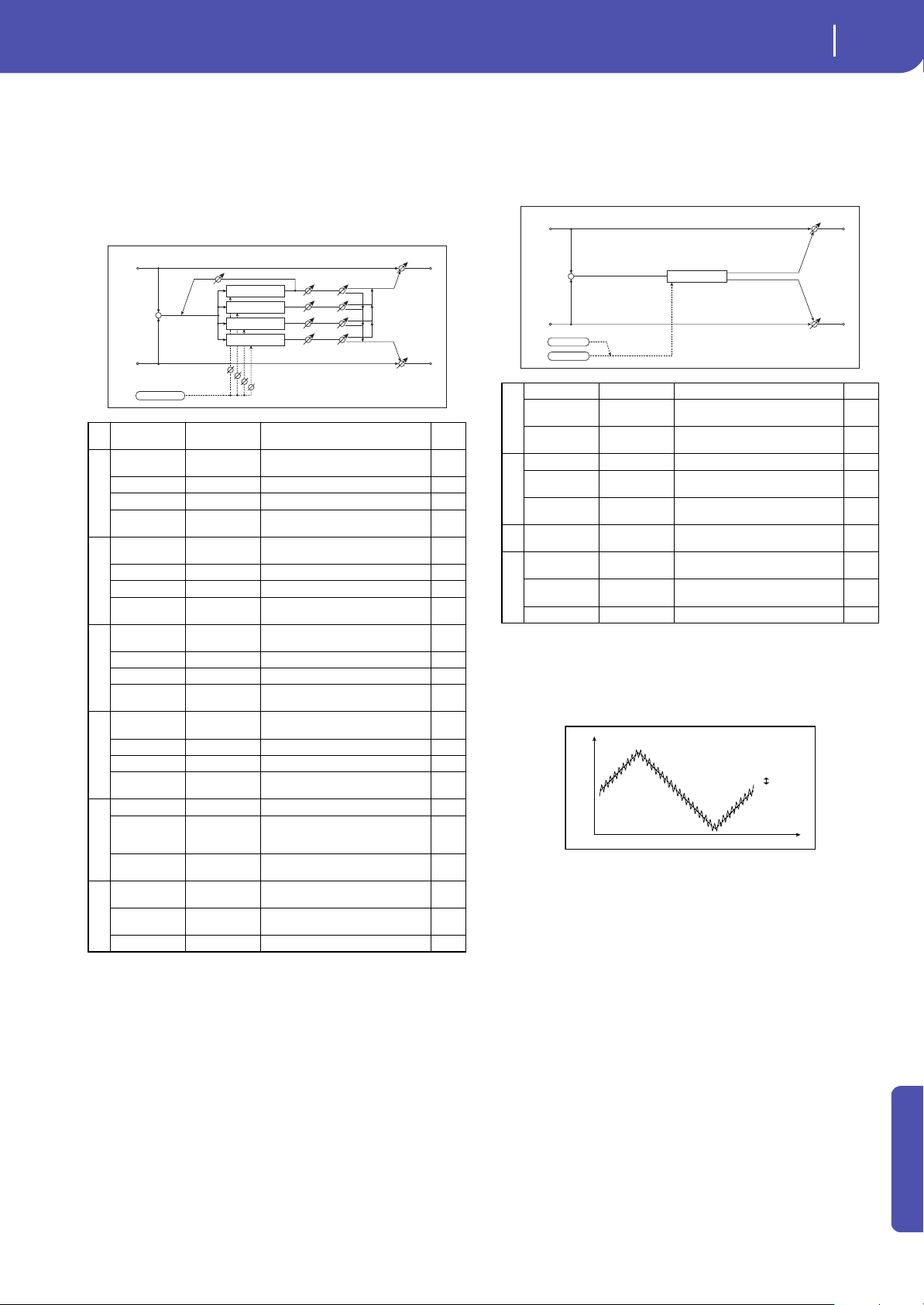
301
Effects
Chorus, Flanger, and Phaser (Cho/Fln Phaser)
Appendix
30: Multitap Cho/Delay
(Multitap Chorus/Delay)
This effect has four chorus blocks with a different LFO phase.
You can create a complex stereo image by setting each block’s
delay time, depth, output level, and pan individually. You can
also fix some of the chorus blocks to combine the chorus and
delay effects.
31: Ensemble
This Ensemble effect has three chorus blocks that use LFO to
create subtle shimmering, and gives three dimensional depth
and spread to the sound, because the signal is output from the
left, right, and center.
c: Shimmer
This parameter sets the amount of shimmering of the LFO wave-
form. Increasing this value adds more shimmering, making the
chorus effect more complex and richer.
a
LFO Frequency
[Hz]
0.02...13.00 Sets the speed of the LFO
b
Tap1 (000)
[msec]
0...1000
Sets the Tap1 (LFO phase=0
degrees) delay time
Depth 0...30 Sets the Tap1 chorus depth
Level 0...30 Sets the Tap1 output level
Pan
L6...L1, C,
R1...R6
Sets the Tap1 stereo image
c
Tap2 (180)
[msec]
0...1000
Sets the Tap2 (LFO phase=180
degrees) delay time
Depth 0...30 Sets the Tap2 chorus depth
Level 0...30 Sets the Tap2 output level
Pan
L6...L1, C,
R1...R6
Sets the Tap2 stereo image
d
Tap3 (090)
[msec]
0...1000
Sets the Tap3 (LFO phase=90
degrees) delay time
Depth 0...30 Sets the Tap3 chorus depth
Level 0...30 Sets the Tap3 output level
Pan
L6...L1, C,
R1...R6
Sets the Tap3 stereo image
e
Tap4 (270)
[msec]
0...1000
Sets the Tap4 (LFO phase=270
degrees) delay time
Depth 0...30 Sets the Tap4 chorus depth
Level 0...30 Sets the Tap4 output level
Pan
L6...L1, C,
R1...R6
Sets the Tap4 stereo image
f
Tap1 Feedback –100...+100 Sets the Tap1 feedback amount
Src Off...Tempo
Selects the modulation source of
Tap1 feedback amount and effect
balance
Amt –100...+100
Sets the Tap1 feedback amount and
modulation amount
g
Wet/Dry
Dry, 1:99...99:1,
Wet
Balance between the wet and dry
signal
Src Off...Tempo
Table , “Dynamic Modulation
sources,” on page 283
Amt –100...+100 Amount of modulation source
Left
Right
Feedback
FX Amt
FX Amt
FX Amt = 100: Mono In - Stereo Out / FX Amt = 0: Stereo In -Stereo Out
+
Level
Level
Level
Level
Pan
Pan
Pan
Pan
LFO: Triangle
Tap1 Delay
Tap2 Delay
Tap3 Delay
Tap4 Delay
0 [degree]
180 [degree]
90 [degree]
270 [degree]
a
Speed 1...100 Sets the speed of the LFO
Src Off...Tempo
Selects a modulation source for LFO
speed
Amt –100...+100
Sets the modulation amount of LFO
speed
b
Depth 0...100 Sets the depth of LFO modulation
Src Off...Tempo
Selects the modulation source of
the LFO modulation depth
Amt –100...+100
Sets the modulation amount of the
LFO modulation depth
c Shimmer 0...100
Sets the amount of shimmering of
the LFO waveform
d
Wet/Dry
Dry, 1:99...99:1,
Wet
Balance between the wet and dry
signal
Src Off...Tempo
Table , “Dynamic Modulation
sources,” on page 283
Amt –100...+100 Amount of modulation source
Left
Right
FX Amt
FX Amt
FX Amt = 100: Mono In - Stereo Out / FX Amt = 0: Stereo In - Stereo Out
LFO
Shimmer
+
Ensemble
Time
Level
Ensemble LFO
Shimmer
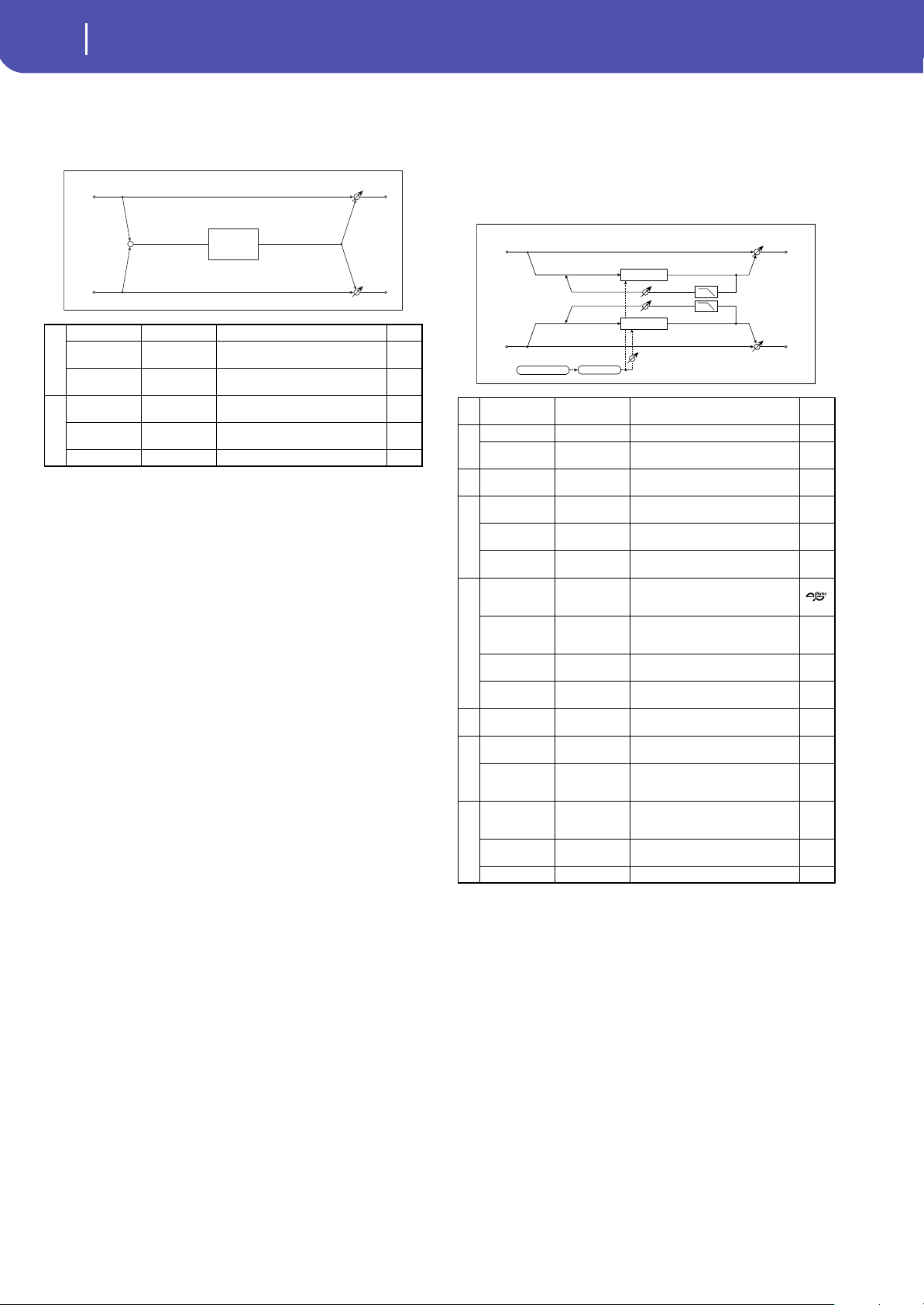
302
Effects
Chorus, Flanger, and Phaser (Cho/Fln Phaser)
32: Polysix Ensemble
This models the ensemble effect built into the classic Korg
PolySix programmable polyphonic synthesizer.
33: Stereo Flanger
This effect gives a significant swell and movement of pitch to the
sound. It is more effective when applied to a sound with a lot of
harmonics. This is a stereo flanger. You can add spread to the
sound by offsetting the phase of the left and right LFOs from
each other.
g: Feedback
h: Wet/Dry
The peak shape of the positive and negative “Feedback” value is
different. The harmonics will be emphasized when the effect
sound is mixed with the dry sound if you set a positive value for
both “Feedback” and “Wet/Dry”, and if you set a negative value
for both “Feedback” and “Wet/Dry”.
g: High Damp [%]
This parameter sets the amount of damping of the feedback in
the high range. Increasing the value will cut high-range harmon-
ics.
a
Depth 0...100 Sets the depth of the effect
Src Off...Tempo
Selects the modulation source that
will control the effect depth
Amt –100...+100
Sets the amount by which the effect
depth will be modulated
b
Wet/Dry
Dry, 1:99...99:1,
Wet
Balance between the wet and dry
signal
Src Off...Tempo
Table , “Dynamic Modulation
sources,” on page 283
Amt –100...+100 Amount of modulation source
+
Polysix
Ensemble
Left
Right
FX Amt
FX Amt
FX Amt = 100: Mono In - Mono Out / FX Amt = 0: Stereo In - Stereo Out
a
Delay Time
[msec]
0.0...50.0
Sets the delay time from the original
sound
b
LFO Waveform Triangle, Sine Selects the LFO Waveform
LFO Shape –100...+100
Changes the curvature of the LFO
Waveform
c
LFO Phase
[degree]
–180...+180
Sets the LFO phase difference
between the left and right
d
LFO Frequency
[Hz]
0.02...20.00 Sets the speed of the LFO
Src Off...Tempo
Selects a modulation source for LFO
speed
Amt
–20.00...
+20.00
Sets the modulation amount of LFO
speed
e
MIDI Sync Off, On
When this is on, the LFO speed is set
by BPM, Base Note, and Times,
instead of Frequency
BPM
MIDI,
40.00...
300.00
MIDI syncs to the system tempo; 40–
300 sets the tempo manually for this
individual effect
Base Note r...w
Selects the type of notes that
specify the LFO speed
Times x1...x32
Sets the number of notes that
specify the LFO speed
f Depth 0...100
Sets the depth of LFO
modulation
g
Feedback –100...+100
Sets the feedback amount
High Damp [%] 0...100
Sets the feedback damping amount
in the high range
h
Wet/Dry
-Wet, -
1:99...Dry...99:1
, Wet
Balance between the wet and dry
signal
Src Off...Tempo
Table , “Dynamic Modulation
sources,” on page 283
Amt –100...+100 Amount of modulation source
Flanger
Flanger
Left
Right
Feedback
LFO Shape
LFO Phase
LFO: Tri / Sine
FX Amt
FX Amt
High Damp
Stereo In - Stereo Out
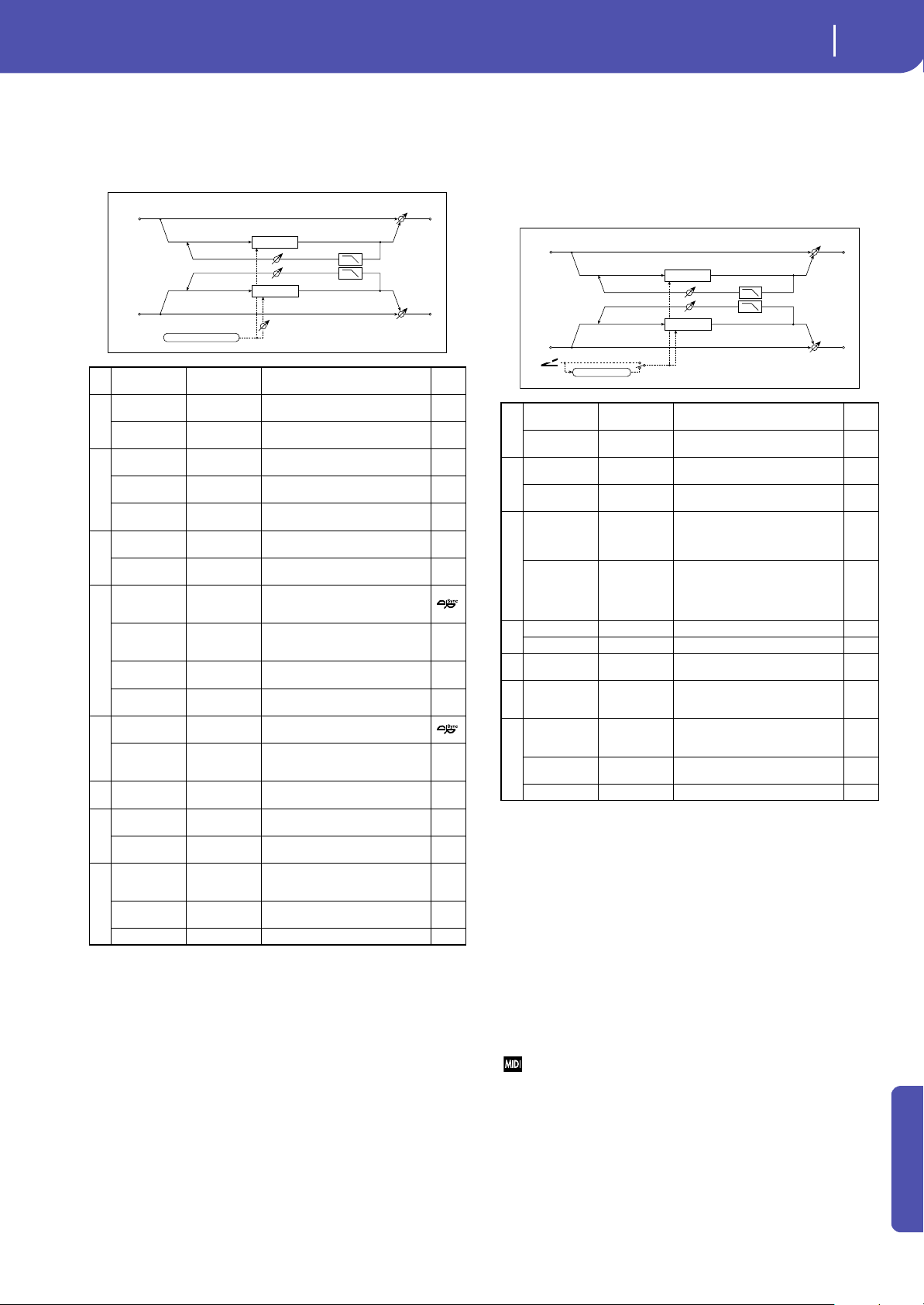
303
Effects
Chorus, Flanger, and Phaser (Cho/Fln Phaser)
Appendix
34: St. Random Flanger
(Stereo Random Flanger)
The stereo effect uses a step-shape waveform and random LFO
for modulation, creating a unique flanging effect.
35: St. Env. Flanger
(Stereo Envelope Flanger)
This Flanger uses an envelope generator for modulation. You
will obtain the same pattern of flanging each time you play. You
can also control the Flanger directly using the modulation
source.
c: Sweep Mode
c: Src
This parameter switches the flanger control mode. With “Sweep
Mode” = EG, the flanger will sweep using the envelope genera-
tor. This envelope generator is included in the envelope flanger,
and not related to the Pitch EG, Filter EG, or Amp EG.
The “Src” parameter selects the source that starts the envelope
generator. If you select, for example, Gate, the envelope genera-
tor will start when the note-on message is received.
When “Sweep Mode” = D-mod, the modulation source can con-
trol the flanger directly. Select the modulation source using the
“Src” parameter.
The effect is off when a value for the modulation source specified for
the “Src” parameter is smaller than 64, and the effect is on when the
value is 64 or higher. The Envelope Generator is triggered when the
value changes from 63 or smaller to 64 or higher.
d: EG Attack
d: EG Decay
Attack and Decay speed are the only adjustable parameters on
this EG.
a
Delay Time
[msec]
0.0...50.0
Sets the delay time from the original
sound
b
LFO Waveform
Step-Tri,
Random
Selects the LFO Waveform
LFO Phase
[degree]
–180...+180
Sets the LFO phase difference
between the left and right
c
LFO Frequency
[Hz]
0.02...20.00 Sets the speed of the LFO
Src Off...Tempo
Selects the modulation source used
for both LFO speed and step speed
Amt
–20.00...
+20.00
Sets the modulation amount of LFO
speed
d
LFO Step Freq
[Hz]
0.05...50.00
Sets the LFO step speed (speed that
changes in steps)
Step Amt
–50.00...
+50.00
Sets the modulation amount of LFO
step speed
e
MIDI Sync Off, On
When this is on, the LFO speed is set
by BPM, Base Note, and Times,
instead of Frequency
BPM
MIDI,
40.00...
300.00
MIDI syncs to the system tempo; 40–
300 sets the tempo manually for this
individual effect
Base Note r...w
Selects the type of notes that
specify the LFO speed
Times x1...x32
Sets the number of notes that
specify the LFO speed
f
Step Base Note r...w
Selects the type of notes to specify
the LFO step speed
Times x1...x32
Sets the number of notes to specify
the LFO step speed
g Depth 0...100
Sets the depth of LFO
modulation
h
Feedback –100...+100
Sets the feedback amount
High Damp [%] 0...100
Sets the feedback damping amount
in the high range
i
Wet/Dry
-Wet, -
1:99...Dry...99:1
, Wet
Balance between the wet and dry
signal
Src Off...Tempo
Table , “Dynamic Modulation
sources,” on page 283
Amt –100...+100 Amount of modulation source
LFO: Step-Tri/Random
Left
Right
Feedback
LFO Phase
FX Amt
FX Amt
High Damp
Stereo In - Stereo Out
Flanger
Flanger
a
L Dly Bottom
[msec]
0.0...50.0
Sets the lower limit of the left-
channel delay time
L Dly Top
[msec]
0.0...50.0
Sets the upper limit of the left-
channel delay time
b
R Dly Bottom
[msec]
0.0...50.0
Sets the lower limit of the right-
channel delay time
R Dly Top
[msec]
0.0...50.0
Sets the upper limit of the right-
channel delay time
c
Sweep Mode EG, D-mod
Determines whether the flanger is
controlled by the envelope
generator or by the modulation
source
Src Off...Tempo
Selects the modulation source that
triggers the EG (when Sweep Mode =
EG), or the modulation source that
causes the flanger to sweep (when
Sweep Mode = D-mod)
d
EG Attack 1...100 Sets the EG attack speed
EG Decay 1...100 Sets the EG decay speed
e Feedback –100...+100
Sets the feedback amount
f High Damp [%] 0...100
Sets the feedback damping amount
in the high range
g
Wet/Dry
-Wet, -
1:99...Dry...99:1
, Wet
Balance between the wet and dry
signal
Src Off...Tempo
Table , “Dynamic Modulation
sources,” on page 283
Amt –100...+100 Amount of modulation source
EG Attack/Decay
EG
D-mod
Sweep Mode
D
-mod
Flanger
Flanger
Left
Right
Feedback
FX Amt
FX Amt
High Damp
Stereo In - Stereo Out
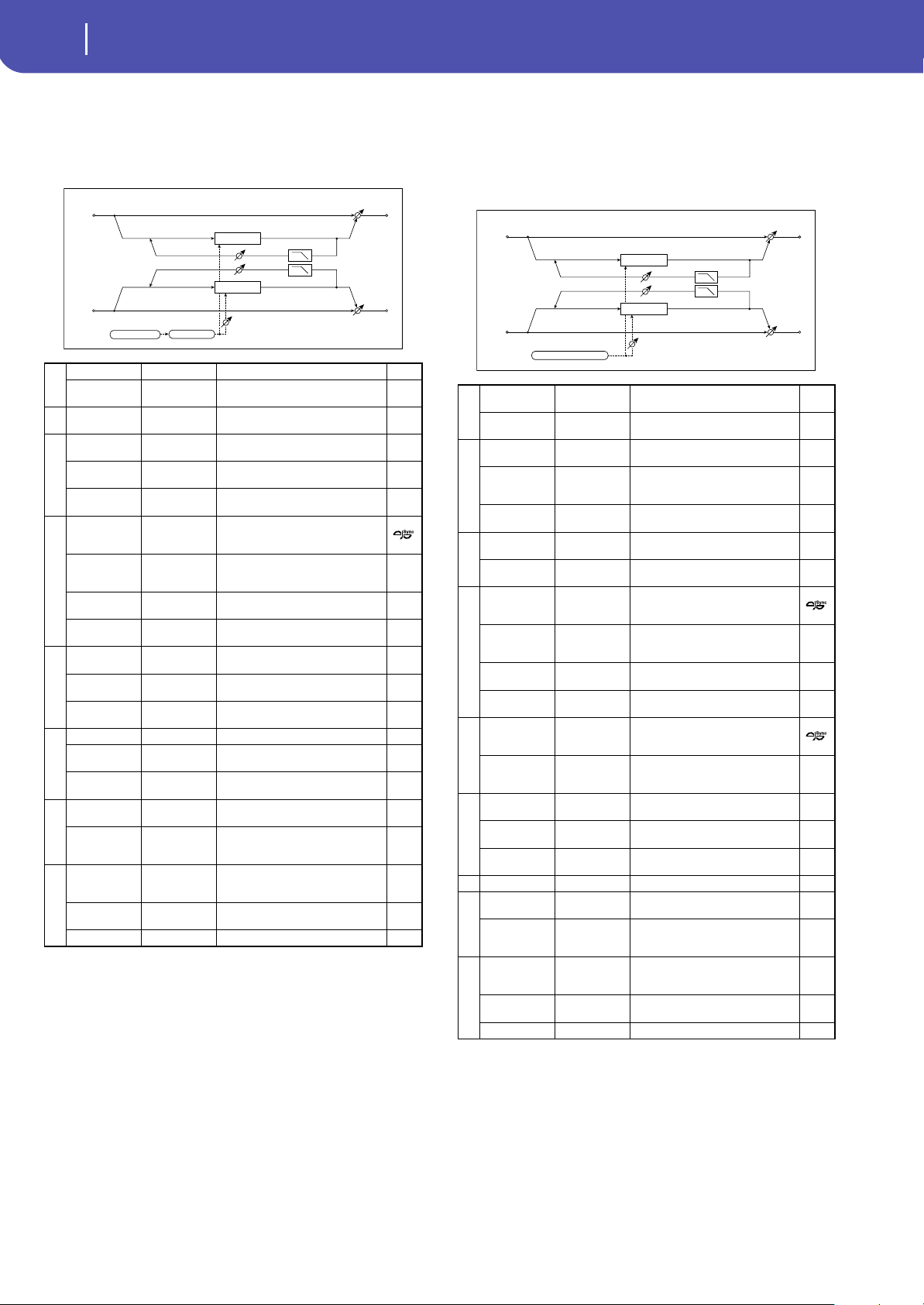
304
Effects
Chorus, Flanger, and Phaser (Cho/Fln Phaser)
36: Stereo Phaser
This effect creates a swell by shifting the phase. It is very effective
on electric piano sounds. You can add spread to the sound by
offsetting the phase of the left and right LFOs from each other.
h: Resonance
i: Wet/Dry
The peak shape of the positive and negative Feedback value is
different. The harmonics will be emphasized when the effect
sound is mixed with the dry sound, if you set a positive value for
both “Resonance” and “Wet/Dry”, and if you set a negative value
for both “Resonance” and “Wet/Dry”.
h: High Damp [%]
This parameter sets the amount of damping of the resonance in
the high range. Increasing the value will cut high-range harmon-
ics.
37: St. Random Phaser
(Stereo Random Phaser)
This is a stereo phaser. The effect uses a step-shape waveform
and random LFO for modulation, creating a unique phasing
effect.
a
LFO Waveform Triangle, Sine Selects the LFO Waveform
LFO Shape –100...+100
Changes the curvature of the LFO
Waveform
b
LFO Phase
[degree]
–180...+180
Sets the LFO phase difference
between the left and right
c
LFO Frequency
[Hz]
0.02...20.00 Sets the speed of the LFO
Src Off...Tempo
Selects a modulation source for LFO
speed
Amt
–20.00...
+20.00
Sets the modulation amount of LFO
speed
d
MIDI Sync Off, On
When this is on, the LFO speed is set
by BPM, Base Note, and Times,
instead of Frequency
BPM
MIDI,
40.00...
300.00
MIDI syncs to the system tempo; 40–
300 sets the tempo manually for this
individual effect
Base Note r...w
Selects the type of notes that
specify the LFO speed
Times x1...x32
Sets the number of notes that
specify the LFO speed
e
Manual 0...100
Sets the frequency to which the
effect is applied
Src Off...Tempo
Selects the modulation source for
the LFO modulation
Amt –100...+100
Sets the modulation amount of the
LFO modulation
f
Depth 0...100 Sets the depth of LFO modulation
Src Off...Tempo
Selects the modulation source for
the LFO modulation depth
Amt –100...+100
Sets the modulation amount of the
LFO modulation depth
h
Resonance –100...+100
Sets the resonance amount
High Damp [%] 0...100
Sets the resonance damping
amount in the high range
j
Wet/Dry
-Wet, -
1:99...Dry...99:1
, Wet
Balance between the wet and dry
signal
Src Off...Tempo
Table , “Dynamic Modulation
sources,” on page 283
Amt –100...+100 Amount of modulation source
Left
Right
Resonance
LFO Shape
LFO Phase
LFO: Tri / Sine
FX Amt
FX Amt
High Damp
Stereo In - Stereo Out
Phaser
Phaser
a
LFO Waveform
Step-Tri, Step-
Sin, Random
Selects the LFO Waveform
LFO Phase
[degree]
–180...+180
Sets the LFO phase difference
between the left and right
b
LFO Frequency
[Hz]
0.02...20.00 Sets the speed of the LFO
Src Off...Tempo
Selects the modulation source
commonly used for LFO speed and
step speed
Amt
–20.00...
+20.00
Sets the modulation amount of LFO
speed
c
LFO Step Freq
[Hz]
0.05...50.00 Sets the LFO step speed
Amt
–50.00...
+50.00
Sets the modulation amount of LFO
step speed
d
MIDI Sync Off, On
When this is on, the LFO speed is set
by BPM, Base Note, and Times,
instead of Frequency
BPM
MIDI,
40.00...
300.00
MIDI syncs to the system tempo; 40–
300 sets the tempo manually for this
individual effect
Base Note r...w
Selects the type of notes that
specify the LFO speed
Times x1...x32
Sets the number of notes that
specify the LFO speed
e
Step Base Note r...w
Selects the type of notes to specify
the LFO step speed
Times x1...x32
Sets the number of notes to specify
the LFO step speed
f
Manual 0...100
Sets the frequency to which the
effect is applied
Src Off...Tempo
Selects the modulation source for
the LFO modulation
Amt –100...+100
Sets the modulation amount of the
LFO modulation
g Depth 0...100 Sets the depth of LFO modulation
h
Resonance –100...+100
Sets the resonance amount
High Damp [%] 0...100
Sets the resonance damping
amount in the high range
i
Wet/Dry
-Wet, -
1:99...Dry...99:1
, Wet
Balance between the wet and dry
signal
Src Off...Tempo
Table , “Dynamic Modulation
sources,” on page 283
Amt –100...+100 Amount of modulation source
LFO: Step-Tri/Random
Left
Right
Resonance
LFO Phase
FX Amt
FX Amt
High Damp
Stereo In - Stereo Out
Phaser
Phaser
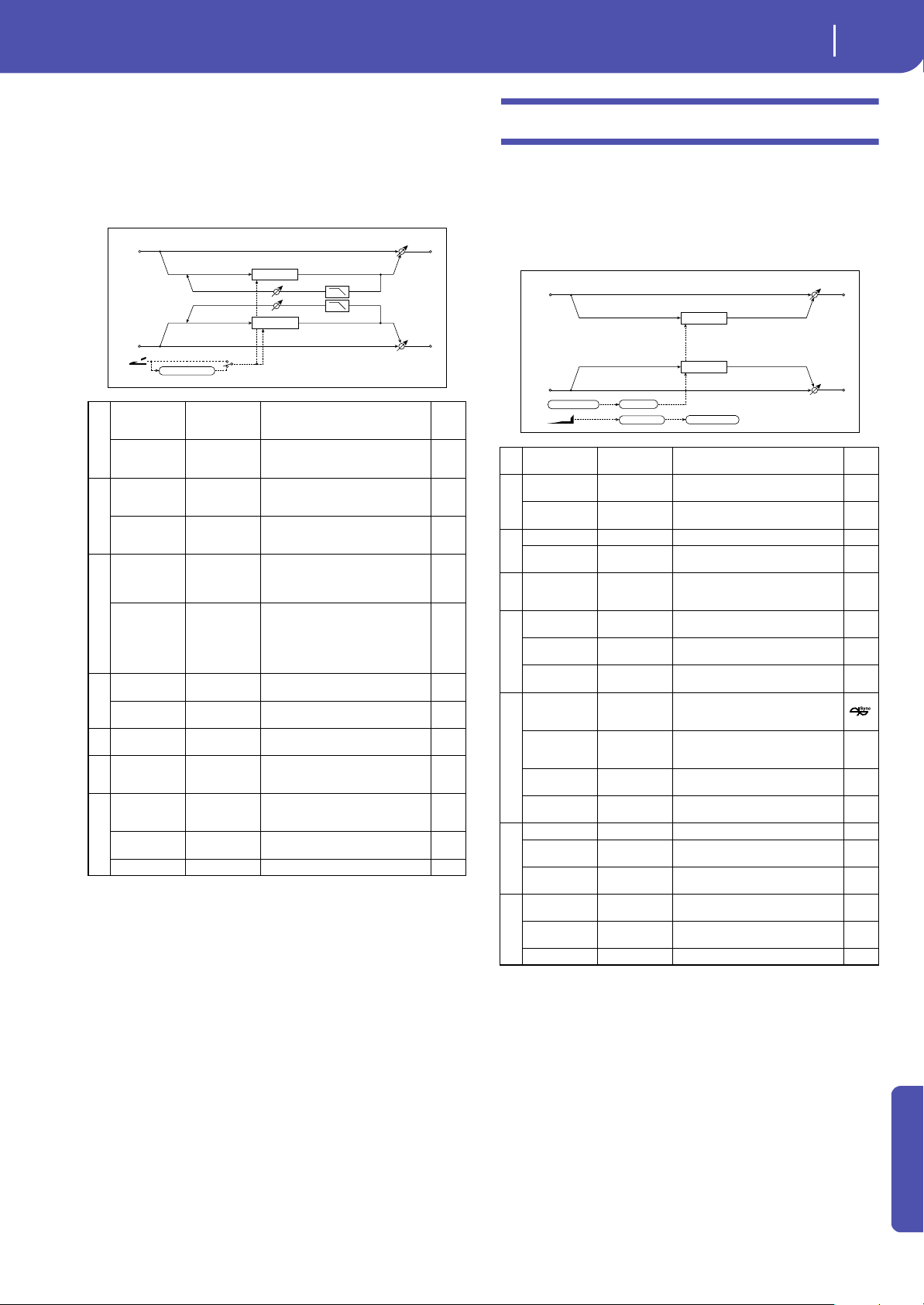
305
Effects
Modulation and Pitch Shift (Mod./P.Shift)
Appendix
38: St. Env. Phaser
(Stereo Envelope Phaser)
This stereo phaser uses an envelope generator for modulation.
You will obtain the same pattern of phasing each time you play.
You can also control the Phaser directly using the modulation
source.
Modulation and Pitch Shift (Mod./P.Shift)
39: Stereo Vibrato
This effect causes the pitch of the input signal to shimmer. Using
the AutoFade allows you to increase or decrease the shimmering
speed.
a
L Manu
Bottom
0...100
Sets the lower limit of the frequency
range for the effect on the left
channel
L Manu Top 0...100
Sets the upper limit of the frequency
range for the effect on the left
channel
b
R Manu
Bottom
0...100
Sets the lower limit of the frequency
range for the effect on the right
channel
R Manu Top 0...100
Sets the upper limit of the frequency
range for the effect on the right
channel
c
Sweep Mode EG, D-mod
Determines whether the flanger is
controlled by the envelope
generator or by the modulation
source
Src Off...Tempo
Selects the modulation source that
triggers the EG (when EG is selected
for Sweep Mode), or modulation
source that causes the flanger to
sweep (when D-mod is selected for
Sweep Mode)
d
EG Attack 1...100
Sets the EG attack speed
EG Decay 1...100
Sets the EG decay speed
e Resonance –100...+100
Sets the resonance amount
f High Damp [%] 0...100
Sets the resonance damping
amount in the high range
g
Wet/Dry
-Wet, -
1:99...Dry...99:1
, Wet
Balance between the wet and dry
signal
Src Off...Tempo
Table , “Dynamic Modulation
sources,” on page 283
Amt –100...+100 Amount of modulation source
EG Attack/Decay
EG
D-mod
Sweep Mode
D
-mod
Phaser
Phaser
Left
Right
Resonance
FX Amt
FX Amt
High Damp
Stereo In - Stereo Out
a AUTOFADE Src Off...Tempo
Selects the modulation source that
starts AutoFade
b
Fade-In Delay
[msec]
00...2000
Sets the fade-in delay time
Fade-In Rate 1...100
Sets the rate of fade-in
c
LFO Waveform Triangle, Sine Selects the LFO Waveform
LFO Shape –100...+100
Changes the curvature of the LFO
Waveform
d
LFO Frequency
Mod
D-mod,
AUTOFADE
Switches between D-mod and
AUTOFADE for the LFO frequency
modulation
e
LFO Frequency
[Hz]
0.02...20.00 Sets the speed of the LFO
Src Off...Tempo
Selects a modulation source for LFO
speed
Amt
–20.00...
+20.00
Sets the modulation amount of LFO
speed
f
MIDI Sync Off, On
When this is on, the LFO speed is set
by BPM, Base Note, and Times,
instead of Frequency
BPM
MIDI,
40.00...
300.00
MIDI syncs to the system tempo; 40–
300 sets the tempo manually for this
individual effect
Base Note r...w
Selects the type of notes that specify
the LFO speed
Times x1...x32
Sets the number of notes that
specify the LFO speed
g
Depth 0...100 Sets the depth of LFO modulation
Src Off...Tempo
Selects the modulation source of the
LFO modulation depth
Amt –100...+100
Sets the modulation amount of the
LFO modulation depth
h
Wet/Dry
Dry, 1:99...99:1,
Wet
Balance between the wet and dry
signal
Src Off...Tempo
Table , “Dynamic Modulation
sources,” on page 283
Amt –100...+100 Amount of modulation source
Vibrato
Vibrato
Left
Right
FX Amt
FX Amt
Stereo In - Stereo Out
LFO: Tri / Sine LFO Shape
Fade-In Delay LFO Frequency
AutoFade
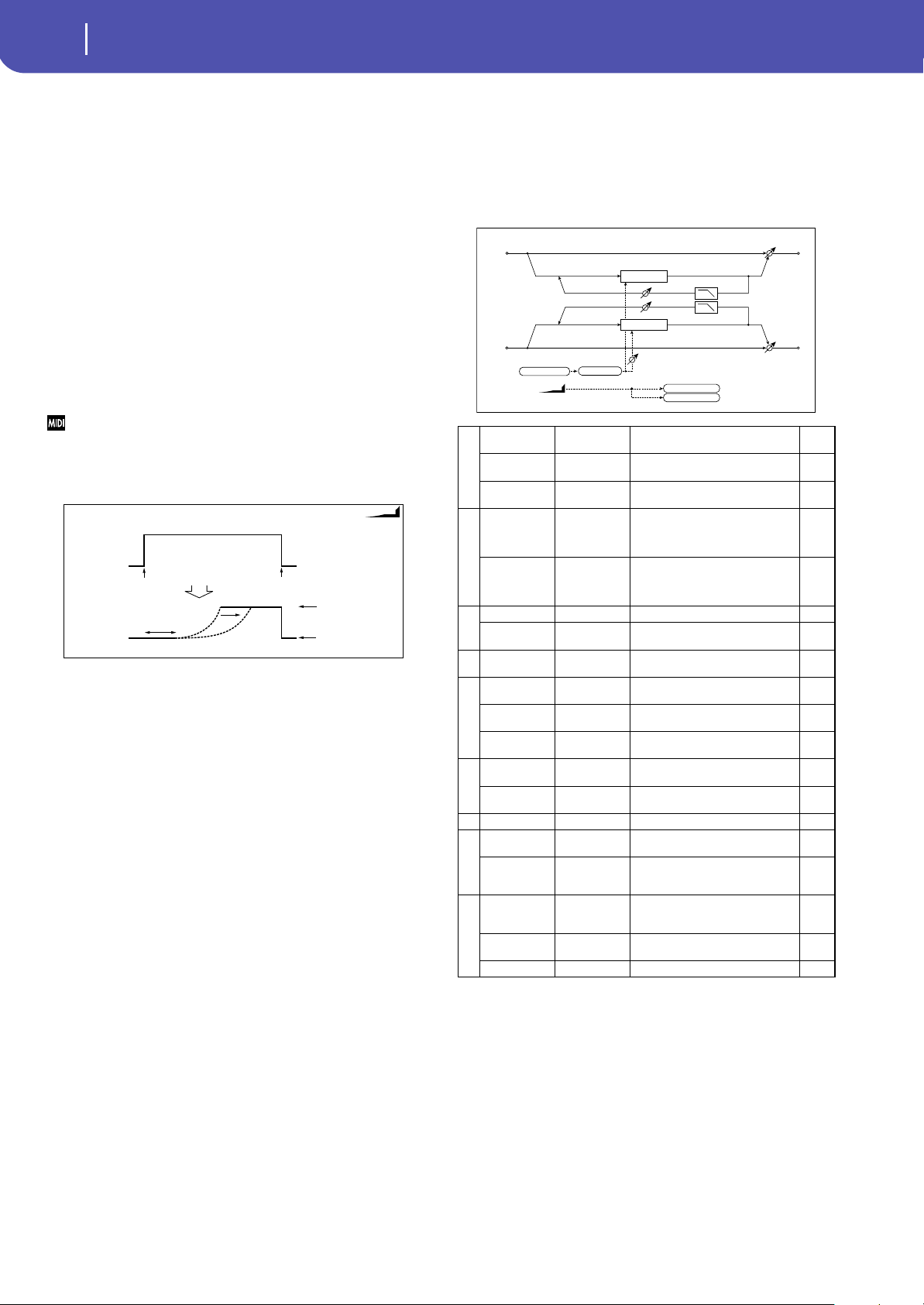
306
Effects
Modulation and Pitch Shift (Mod./P.Shift)
a: AUTOFADE Src
b: Fade-In Delay [msec]
b: Fade-In Rate
d: LFO Frequency Mod
When “LFO Frequency Mod” is set to AUTOFADE, you can use
the modulation source selected in “AUTOFADE Src” as a trigger
to automatically fade in the modulation amount. When “MIDI
Sync” is set to On, you cannot use this.
The “Fade-In Rate” parameter specifies the rate of fade-in. The
“Fade-In Delay” parameter determines the time from AutoFade
modulation source On until the fade-in starts.
The following is an example of fade-in where the LFO speed is
increased from “1.0Hz” to “4.0Hz” when a note-on message is
received.
AUTOFADE Src=Gate1, LFO Frequency Mod=AUTOFADE,
LFO Frequency [Hz]=1.0, Amt=3.0
The effect is off when a value for the dynamic modulation source
specified for the “AUTOFADE Src” parameter is smaller than 64, and
the effect is on when the value is 64 or higher. The AutoFade function
is triggered when the value changes from 63 or smaller to 64 or
higher.
40: St. Auto Fade Mod.
(Stereo Auto Fade Modulatiom)
This stereo chorus/flanger effect enables you to control the LFO
speed and effect balance using auto fade, and you can spread the
sound by offsetting the phase of the left and right LFOs from
each other.
AUTOFADE
AutoFade
Note On
All Note Off
Fade-In Rate
Source=Gate1
LFO Freq. Mod=AUTOFADE
LFO Frequency[Hz]=1.0
Amount=+3.0
LFO Frequency
=1.0+3.0=4.0Hz
LFO Frequency
=1.0Hz
Gate1 Signal
AUTOFADE
Fade-In Dealy
a
AUTOFADE Src Off...Tempo
Selects the modulation source that
starts AutoFade
Fade-In Delay
[msec]
00...2000
Sets the fade-in delay time
Rate 1...100
Sets the rate of fade-in
b
LFO Frequency
Mod
D-mod,
AUTOFADE
Switches between D-mod and
AUTOFADE for the LFO frequency
modulation
Wet/Dry Mod
D-mod,
AUTOFADE
Switches between D-mod and
AUTOFADE for the effect balance
modulation
c
LFO Waveform Triangle, Sine Selects the LFO Waveform
LFO Shape –100...+100
Changes the curvature of the LFO
Waveform
d
LFO Phase
[degree]
–180...+180
Sets the LFO phase difference
between the left and right
e
LFO Frequency
[Hz]
0.02...20.00 Sets the speed of the LFO
Src Off...Tempo
Selects a modulation source for LFO
speed
Amt
–20.00...
+20.00
Sets the modulation amount of LFO
speed
f
L Delay Time
[msec]
0.0...500.0 Sets the left channel delay time
R Delay Time
[msec]
0.0...500.0 Sets the right channel delay time
g Depth 0...200 Sets the depth of LFO modulation
h
Feedback –100...+100
Sets the feedback amount
High Damp [%] 0...100
Sets the feedback damping amount
in the high range
i
Wet/Dry
-Wet, -
1:99...Dry...99:1
, Wet
Balance between the wet and dry
signal
Src Off...Tempo
Table , “Dynamic Modulation
sources,” on page 283
Amt –100...+100 Amount of modulation source
AutoFade
LFO Frequency
FX Amt
Delay
Delay
Left
Right
Feedback
LFO Shape
LFO Phase
LFO: Tri / Sine
FX Amt
FX Amt
High Damp
Stereo In - Stereo Out
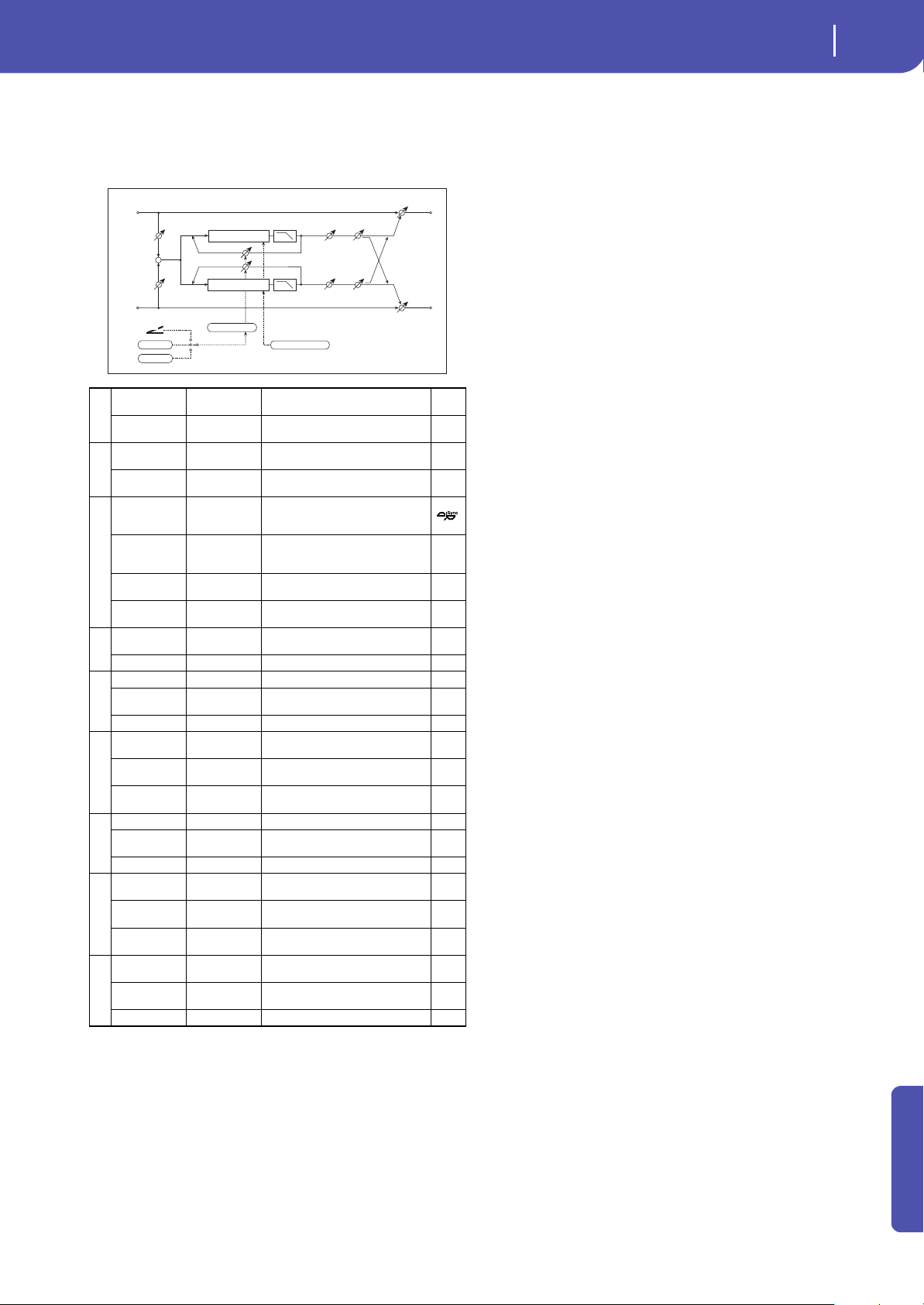
307
Effects
Modulation and Pitch Shift (Mod./P.Shift)
Appendix
41: 2Voice Resonator
This effect resonates the input signal at a specified pitch. You can
set the pitch, output level, and pan settings for two resonators
individually. You can control the resonance intensity via an LFO.
a: Control Mode
f: Voice 1: Resonance
h: Voice 2: Resonance
This parameter determines the resonance intensity.
When “Control Mode” = Manual, the “Resonance” parameter
sets the intensity of resonance. If the “Resonance” parameter has
a negative value, harmonics will be changed, and resonance will
occur at a pitch one octave lower.
When “Control Mode” = LFO, the intensity of resonance varies
according to the LFO. The LFO sways between positive and neg-
ative values, causing resonance to occur between specified
pitches an octave apart in turn.
When “Control Mode” = D-mod, the resonance is controlled by
the dynamic modulation source. If JS X or Ribbon is assigned as
the modulation source, the pitch an octave higher and lower can
be controlled, similar to when LFO is selected for Control Mode.
a: LFO/D-mod Invert
When “Control Mode” = LFO or D-mod, the controlled phase of
either Voice 1 or 2 will be reversed. When the resonance pitch is
set for Voice 1 (Resonance has a positive value), Voice 2 will res-
onate at a pitch an octave below (Resonance has a negative
value).
f: Voice 1: Pitch
f: Fine [cents]
h: Voice 2: Pitch
h: Fine [cents]
The Pitch parameter specifies the pitch of resonance by note
name. The “Fine” parameter allows for fine adjustment in steps
of cents.
g: High Damp [%]
i: High Damp [%]
This sets the amount of damping amount for the high frequen-
cies of the resonant sound. Lower values create a metallic sound
with a higher range of harmonics.
a
Control Mode
Manual, LFO,
D-mod
Switches the controls of resonance
intensity
LFO/D-mod
Invert
Off, On
Reverses the Voice 1 and 2 control
when LFO/D-mod is selected
b
LFO Frequency
[Hz]
0.02...20.00 Sets the speed of the LFO
D-mod Src Off...Tempo
Selects the modulation source that
controls resonance intensity
c
MIDI Sync Off, On
When this is on, the LFO speed is set
by BPM, Base Note, and Times,
instead of Frequency
BPM
MIDI,
40.00...
300.00
MIDI syncs to the system tempo; 40–
300 sets the tempo manually for this
individual effect
Base Note r...w
Selects the type of notes that
specify the LFO speed
Times x1...x32
Sets the number of notes that
specify the LFO speed
d
Mod. Depth –100...+100
Sets the amount of resonance
intensity control via LFO/D-mod
Trim 0...100 Sets the input level at the resonator
e
Voice1: Pitch C0...B8 Sets the voice1 Pitch for resonance
Fine [cents] –50...+50
Fine-adjusts the voice 1 pitch for
resonance
Level 0...100 Sets the Voice1 output level
f
Voice1:
Resonance
–100...+100
Sets the intensity of resonance
when Control Mode = Manual
High Damp [%] 0...100
Sets the damping amount of
resonant sound in the high range
Pan
L6...L1, C,
R1...R6
Sets the Voice1 stereo image
g
Voice2: Pitch C0...B8 Sets the voice 2 Pitch for resonance
Fine [cents] –50...+50
Fine-adjusts the voice 2 pitch for
resonance
Level 0...100 Sets the Voice2 output level
h
Voice2:
Resonance
–100...+100
Sets the intensity of resonance
when Control Mode = Manual
High Damp [%] 0...100
Sets the damping amount of
resonant sound in the high range
Pan
L6...L1, C,
R1...R6
Sets the Voice2 stereo image
i
Wet/Dry
Dry, 1:99...99:1,
Wet
Balance between the wet and dry
signal
Src Off...Tempo
Table , “Dynamic Modulation
sources,” on page 283
Amt –100...+100 Amount of modulation source
Left
Right
Resonance
FX Amt
FX Amt
FX Amt = 100: Mono In - Stereo Out / FX Amt = 0: Stereo In - Stereo Out
High Damp
High Damp
Trim
Trim
+
Level
Level
Pan
Pan
Control Mode
D
-mod
LFO
Manual
Invert: On/Off
Resonator
Resonator
Pitch, Fine [cents]
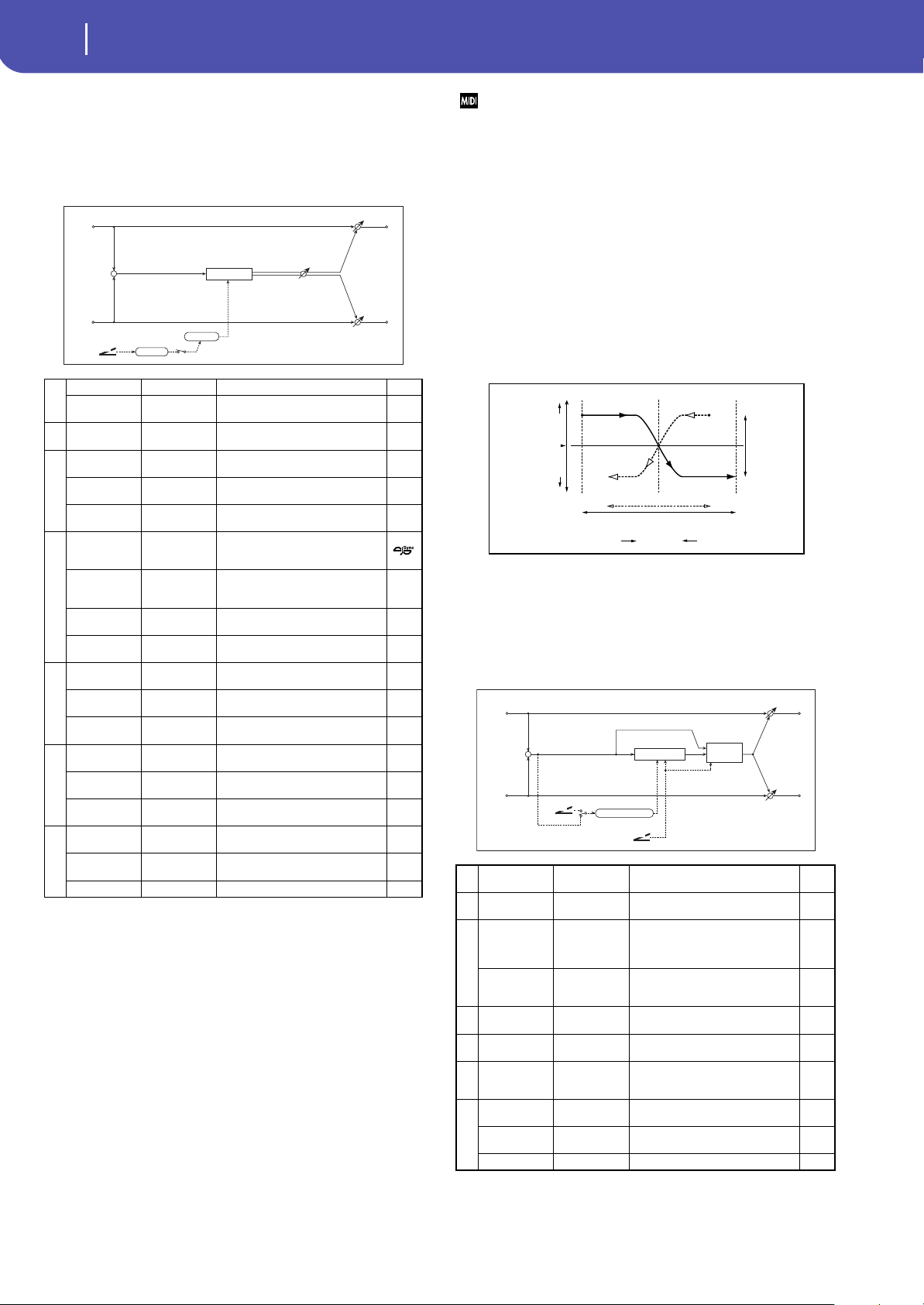
308
Effects
Modulation and Pitch Shift (Mod./P.Shift)
42: Doppler
This effect simulates the “Doppler effect” of a moving sound
with a changing pitch, similar to the siren of an passing ambu-
lance. Mixing the effect sound with the dry sound will create a
unique chorus effect.
a: LFO Mode
a: Src
b: LFO Sync
The “LFO Mode” parameter switches LFO operation mode.
When Loop is selected, the Doppler effect will be created repeat-
edly. If “LFO Sync” is set to On, the LFO will be reset when the
modulation source specified with the “Src” parameter is turned
on.
When “LFO Mode” is set to 1-Shot, the Doppler effect is created
only once when the modulation source specified in the “Src”
field is turned on. At this time if you do not set the “Src” param-
eter, the Doppler effect will not be created, and no effect sound
will be output.
The effect is off when a value for the modulation source specified for
the “Src” parameter is smaller than 64, and the effect is on when the
value is 64 or higher. The Doppler effect is triggered when the value
changes from 63 or smaller to 64 or higher.
e: Pitch Depth
With the Doppler effect, the pitch is raised when the sound
approaches, and the pitch is lowered when the sound goes away.
This parameter sets this pitch variation.
f: Pan Depth
This parameter sets the width of the stereo image of the effect
sound. With larger values, the sound seems to come and go from
much further away. With positive values, the sound moves from
left to right; with negative values, the sound moves from right to
left.
43: Scratch
This effect is applied by recording the input signal and moving
the modulation source. It simulates the sound of scratches you
can make using a turntable.
a
LFO Mode Loop, 1-Shot Switches LFO operation mode
Src Off...Tempo
Selects the modulation source of
LFO reset
bLFO Sync Off, On
Switches between LFO reset on and
off when LFO Mode is set to Loop
c
LFO Frequency
[Hz]
0.02...20.00 Sets the speed of the LFO
Src Off...Tempo
Selects a modulation source for LFO
speed
Amt
–20.00...
+20.00
Sets the modulation amount of LFO
speed
d
MIDI Sync Off, On
When this is on, the LFO speed is set
by BPM, Base Note, and Times,
instead of Frequency
BPM
MIDI,
40.00...
300.00
MIDI syncs to the system tempo; 40–
300 sets the tempo manually for this
individual effect
Base Note r...w
Selects the type of notes that
specify the LFO speed
Times x1...x32
Sets the number of notes that
specify the LFO speed
e
Pitch Depth 0...100
Sets the pitch variation of the
moving sound
Src Off...Tempo
Selects the modulation source of
pitch variation
Amt –100...+100
Sets the modulation amount of
pitch variation
f
Pan Depth –100...+100
Sets the panning of the moving
sound
Src Off...Tempo
Selects the modulation source of
panning
Amt –100...+100
Sets the modulation amount of
panning
g
Wet/Dry
Dry, 1:99...99:1,
Wet
Balance between the wet and dry
signal
Src Off...Tempo
Table , “Dynamic Modulation
sources,” on page 283
Amt –100...+100 Amount of modulation source
Left
Right
FX Amt
FX Amt
FX Amt = 100: Mono In - Stereo Out / FX Amt = 0: Stereo In - Stereo Out
Pan Depth
D
-mod
+
Trigger
LFO Mode = 1-Shot
Doppler
LFO
a Scratch Source Off...Tempo
Selects the modulation source for
simulation control
b Response 0...100
Sets the speed of the response to
the Scratch Src
c
Envelope
Select
D-mod, Input
Selects whether the start and end of
recording is controlled via the
modulation source or the input
signal level
Src Off...Tempo
Selects the modulation source that
controls recording when Envelope
Select is set to D-mod
d Threshold 0...100
Sets the recording start level when
Envelope Select is set to Input
e Response 0...100
Sets the speed of the response to
the end of recording
fDirect Mix
Always On,
Always Off,
Cross Fade
Selects how a dry sound is mixed
g
Wet/Dry
Dry, 1:99...99:1,
Wet
Balance between the wet and dry
signal
Src Off...Tempo
Table , “Dynamic Modulation
sources,” on page 283
Amt –100...+100 Amount of modulation source
Pitch
Higher
Doppler - Pitch / Pan Depth
Lower
Original Pitch
Left
Center
Right
Pitch Depth
Pan Depth
< < < < < <<<<<< >>>>>> > > > > >
VolumeLouder
Louder
Pan Depth
= (–) value
Pan Depth
= (+) value
Input
D-mod
Envelope Select
D
-mod
Envelope Control
Left
Right
FX Amt
FX Amt
FX Amt = 100: Mono In - Mono Out / FX Amt = 0: Stereo In - Stereo Out
+
Scratch
Direct
Mix
D
-mod
Rec Control
Scratch
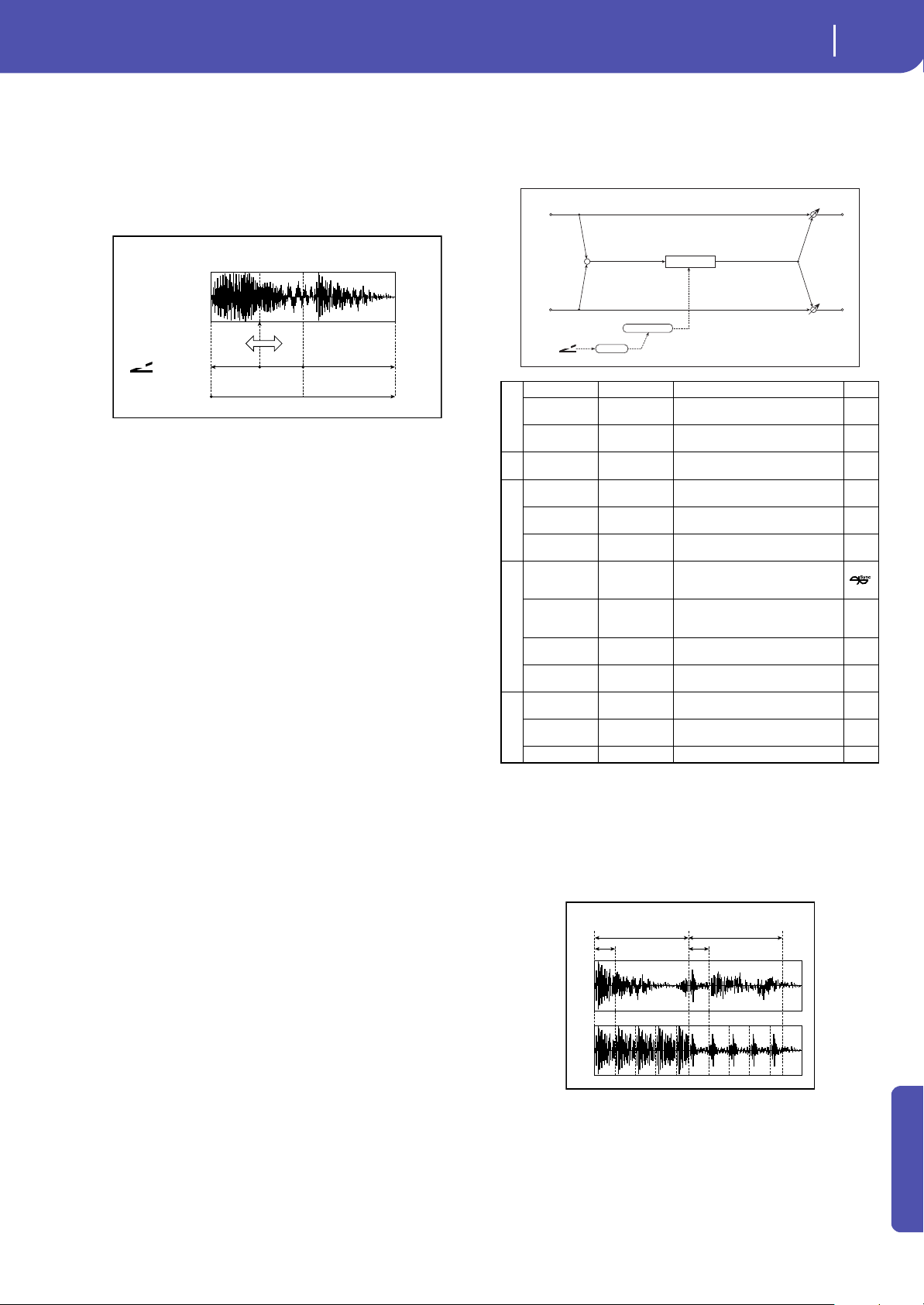
309
Effects
Modulation and Pitch Shift (Mod./P.Shift)
Appendix
a: Scratch Source
b: Response
The Scratch Source parameter enables you to select the modula-
tion source that controls simulation. The value of the modula-
tion source corresponds to the playback position. The Response
parameter enables you to set the speed of the response to the
modulation source.
c: Envelope Select
c: Src
d: Threshold
When “Envelope Select” is set to D-mod, the input signal will be
recorded only when the modulation source value is 64 or higher.
When “Envelope Select” is set to Input, the input signal will be
recorded only when its level is over the Threshold value.
The maximum recording time is 2,730msec. If this is exceeded,
the recorded data will start being erased from the top.
e: Response
This parameter enables you to set the speed of the response to
the end of recording. Set a smaller value when you are recording
a phrase or rhythm pattern, and set a higher value if you are
recording only one note.
f: Direct Mix
With Always On, a dry sound is usually output. With Always
Off, dry sounds are not output. With Cross Fade, a dry sound is
usually output, and it is muted only when scratching.
Set Wet/Dry to 100 to use this parameter effectively.
44: Grain Shifter
This effect cuts extremely short samples (“grains”) from the
input signal waveform and plays them repeatedly, giving a
mechanical character to the sound.
a: Duration
c: LFO Sample Cycle [Hz]
Duration sets the length of the sampled grain, and the LFO
Sample Cycle controls how often a new grain is sampled. In
between Sample Cycles, the current grain is repeated continu-
ously.
+ Max
Zero
Scratch!
D
-mod
– Max
JS X
Ribbon
JS+Y
JS–Y
etc…
Zero
+ Max
Scratch Source
Recorded Sound
Scratch Source
Start Playback Position End
a
Duration 0...100 Sets the duration of the grain
Src Off...Tempo
Selects the source that will
modulate the duration of the grain
Amt –100...+100
Sets the amount by which the grain
duration will be modulated
b LFO Sync Src Off...Tempo
Selects the modulation source that
will reset the LFO
c
LFO Sample
Cycle [Hz]
0.02...20.00
Sets the frequency at which the
grain will be switched
Src Off...Tempo
Selects a modulation source for LFO
speed
Amt
–20.00...
+20.00
Sets the modulation amount of LFO
speed
d
MIDI Sync Off, On
When this is on, the LFO speed is set
by BPM, Base Note, and Times,
instead of Frequency
BPM
MIDI,
40.00...
300.00
MIDI syncs to the system tempo; 40–
300 sets the tempo manually for this
individual effect
Base Note r...w
Selects the type of notes that
specify the LFO speed
Times x1...x32
Sets the number of notes that
specify the LFO speed
e
Wet/Dry
Dry, 1:99...99:1,
Wet
Balance between the wet and dry
signal
Src Off...Tempo
Table , “Dynamic Modulation
sources,” on page 283
Amt –100...+100 Amount of modulation source
+
Left
Right
Sample Cycle
FX Amt
FX Amt
FX Amt = 100: Mono In - Mono Out / FX Amt = 0: Stereo In - Stereo Out
LFO
D
-mod
Trigger
Grain Shifter
In
Out
Sample Cycle / Duration
Sample Cycle
Duration
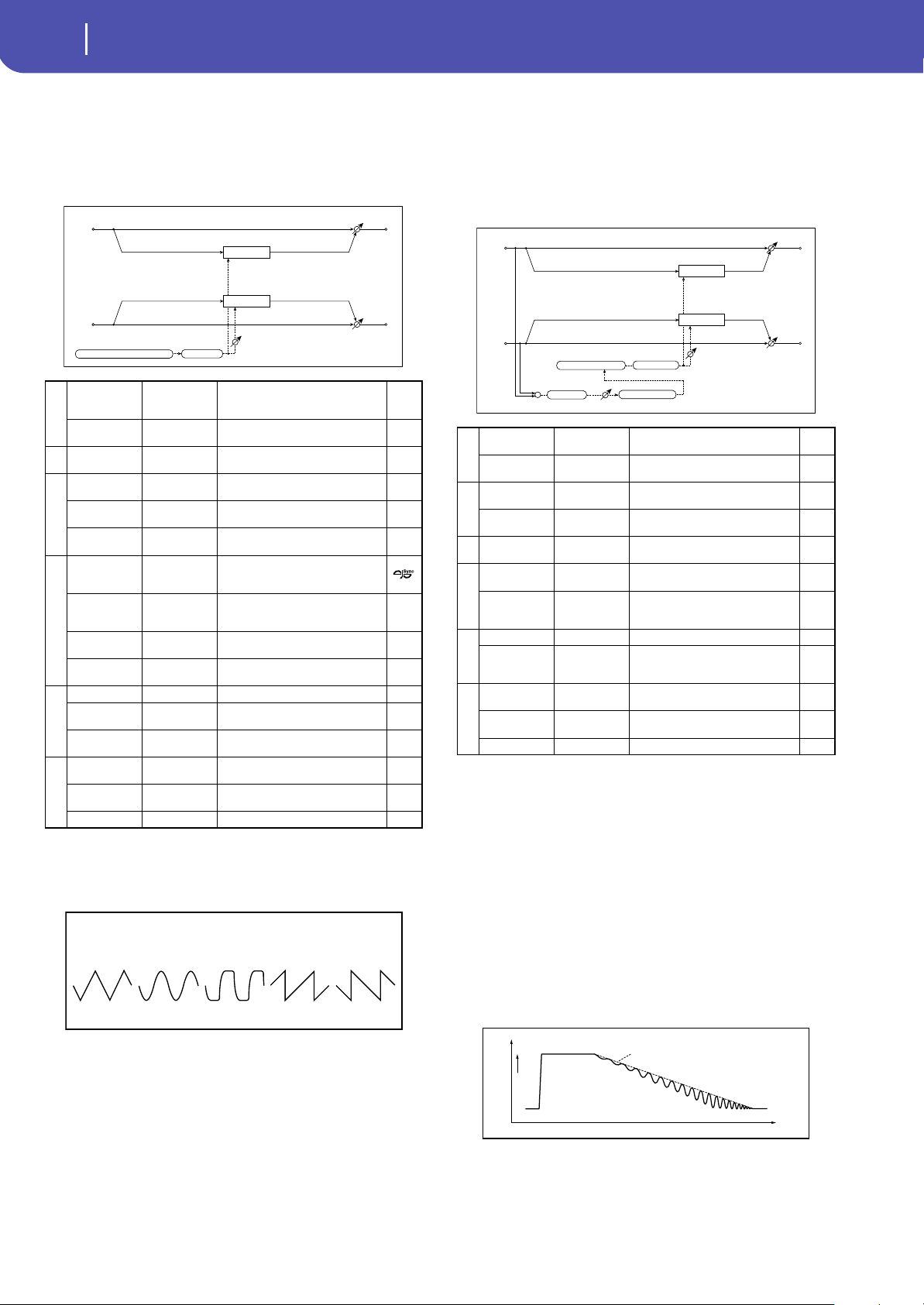
310
Effects
Modulation and Pitch Shift (Mod./P.Shift)
45: Stereo Tremolo
This effect modulates the volume level of the input signal. The
effect is stereo, and offsetting the LFO of the left and right phases
from each other produces a tremolo effect between left and
right.
a: LFO Waveform
This parameter sets the basic shape of the LFO. The Vintage
waveform models classic guitar-amp tremolo.
b: LFO Phase [degree]
This parameter determines the difference between the left and
right LFO phases. A higher value will simulate the auto-pan
effect in which the sound is panned between left and right.
46: St. Env. Tremolo
(Stereo Envelope Tremolo)
This effect uses the input signal level to modulate a stereo trem-
olo (LFO volume modulation). For instance, you can create a
tremolo effect that becomes deeper and faster as the input gets
more quiet.
d: LFO Frequency [Hz]
d: Envelope Amount [Hz]
e: Depth
e: Envelope Amount
The graphic below shows an example of tremolo modulation
with negative modulation of both Depth and Frequency. At the
start of the note, the input is at maximum volume. This slows
down the LFO Frequency to 1.0Hz, but also modulates the
Depth to 0–so the tremolo doesn’t have any effect.
As the input volume dies down, the Frequency speeds up; the
Depth also increases, making the tremolo effect increasingly
audible. When the input volume approaches silence, the Depth
is at its maximum (100) and Frequency is at 8Hz.
a
LFO Waveform
Triangle, Sine,
Vintage, Up,
Down
Selects the LFO Waveform
LFO Shape –100...+100
Changes the curvature of the LFO
Waveform
b
LFO Phase
[degree]
–180...+180
Sets the LFO phase difference
between the left and right
c
LFO Frequency
[Hz]
0.02...20.00 Sets the speed of the LFO
Src Off...Tempo
Selects a modulation source for LFO
speed
Amt
–20.00...
+20.00
Sets the modulation amount of LFO
speed
d
MIDI Sync Off, On
When this is on, the LFO speed is set
by BPM, Base Note, and Times,
instead of Frequency
BPM
MIDI,
40.00...
300.00
MIDI syncs to the system tempo; 40–
300 sets the tempo manually for this
individual effect
Base Note r...w
Selects the type of notes that
specify the LFO speed
Times x1...x32
Sets the number of notes that
specify the LFO speed
e
Depth 0...100 Sets the depth of LFO modulation
Src Off...Tempo
Selects the modulation source of
the depth of modulation
Amt –100...+100
Sets the modulation amount of the
depth of modulation
f
Wet/Dry
Dry, 1:99...99:1,
Wet
Balance between the wet and dry
signal
Src Off...Tempo
Table , “Dynamic Modulation
sources,” on page 283
Amt –100...+100 Amount of modulation source
Left
Right
FX Amt
FX Amt
Stereo In - Stereo Out
LFO Phase
LFO: Tri/Sin/Vintage/Up/Down
LFO Shape
Tremolo
Tremolo
Tremolo - LFO Waveform
Triangle Sine Vintage Up Down
a
Envelope Sens 0...100
Sets the envelope’s sensitivity to the
input signal
Envelope
Shape
–100...+100 Sets the envelope’s curvature
b
LFO Waveform
Triangle, Sine,
Vintage
Selects the LFO Waveform
LFO Shape –100...+100
Changes the curvature of the LFO
Waveform
c
LFO Phase
[degree]
–180...+180
Sets the LFO phase difference
between the left and right
d
LFO Frequency
[Hz]
0.02...20.00 Sets the speed of the LFO
Envelope
Amount [Hz]
–20.00...
+20.00
Sets the amount added to or
subtracted from the Frequency
when the envelope is at maximum
e
Depth 0...100 Sets the initial amount of tremolo
Envelope
Amount
–100...+100
Sets the amount added to or
subtracted from the Depth when
the envelope is at maximum
f
Wet/Dry
Dry, 1:99...99:1,
Wet
Balance between the wet and dry
signal
Src Off...Tempo
Table , “Dynamic Modulation
sources,” on page 283
Amt –100...+100 Amount of modulation source
Left
Right
FX Amt
FX Amt
Stereo In - Stereo Out
LFO Phase
LFO Shape
Envelope Sens
+
Envelope
LFO: Tri/Sin/Vintage
Envelope Shape
Tremolo
Tremolo
Level
Louder
Time
Shimmer
LFO Frequency[Hz]=8.0
Envelope Amount[Hz]= –7.0Hz
Depth=100
Envelope Amount= –100
Dry Envelope
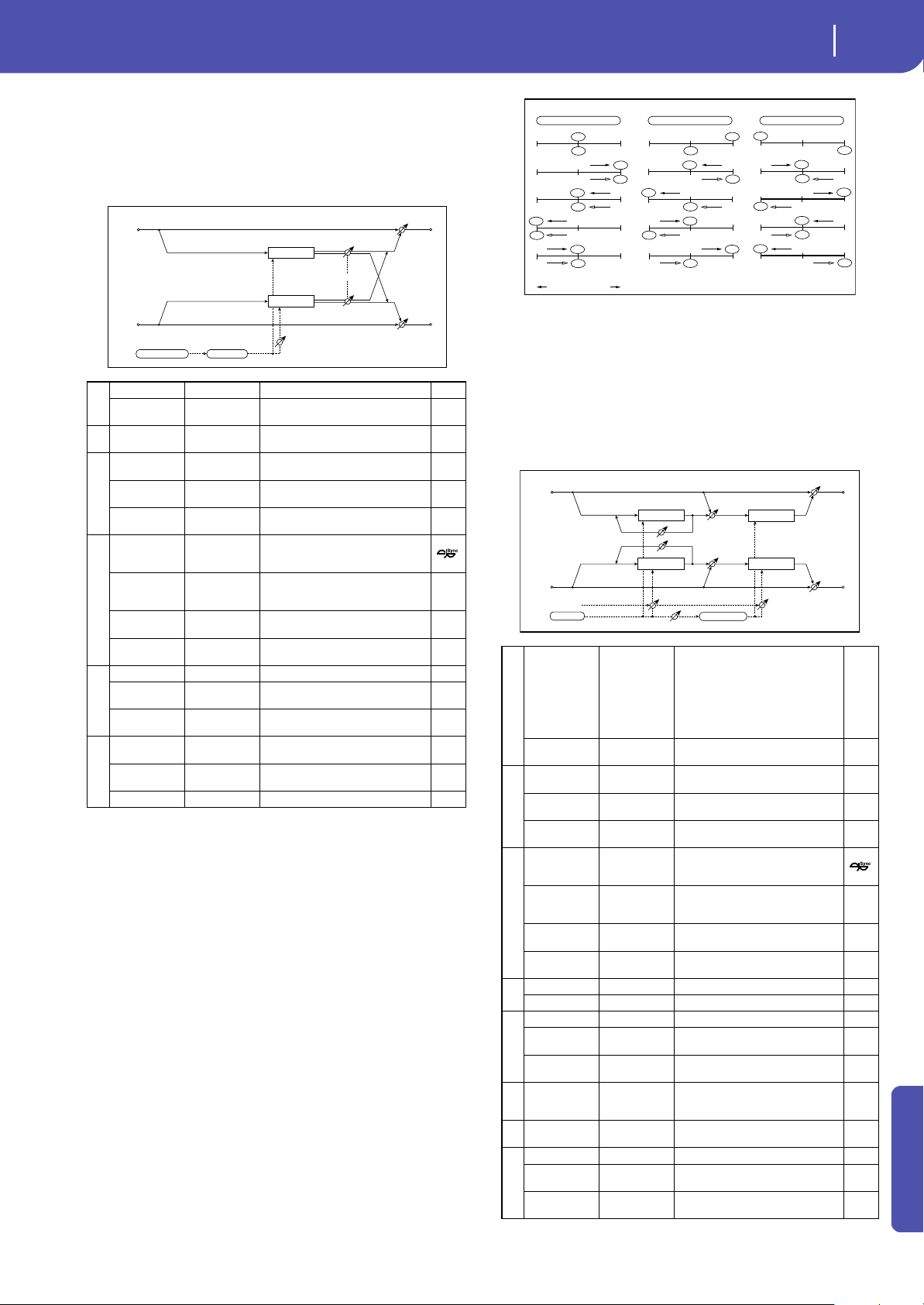
311
Effects
Modulation and Pitch Shift (Mod./P.Shift)
Appendix
47: Stereo Auto Pan
This is a stereo-in, stereo-out auto-panner. The Phase and Shape
parameters lets you create various panning effects, such as mak-
ing the left and right inputs seem to chase each other around the
stereo field.
a: LFO Shape
You can change the panning curve by modifying the LFO’s
Shape.
b: LFO Phase [degree]
This determines the phase difference between the left and right
LFOs. When you gradually change the value away from 0, the
sounds from the left and right channels will seem to chase each
other around. If you set the parameter to +180 or –180, the
sounds from each channel will cross over each other.
You’ll only hear the effect of this parameter if the input is true
stereo, with different signals in the left and right channels.
48: St. Phaser + Trml
(Stereo Phaser + Tremolo)
This effect combines a stereo phaser and tremolo, with linked
LFOs. Swelling phaser modulation and tremolo effects synchro-
nize with each other, creating a soothing modulation effect par-
ticularly suitable for electric piano.
a
LFO Waveform Triangle, Sine Selects the LFO Waveform
LFO Shape –100...+100
Changes the curvature of the LFO
Waveform
b
LFO Phase
[degree]
–180...+180
Sets the LFO phase difference
between the left and right
c
LFO Frequency
[Hz]
0.02...20.00 Sets the speed of the LFO
Src Off...Tempo
Selects a modulation source for LFO
speed
Amt
–20.00...
+20.00
Sets the modulation amount of LFO
speed
d
MIDI Sync Off, On
When this is on, the LFO speed is set
by BPM, Base Note, and Times,
instead of Frequency
BPM
MIDI,
40.00...
300.00
MIDI syncs to the system tempo; 40–
300 sets the tempo manually for this
individual effect
Base Note r...w
Selects the type of notes that specify
the LFO speed
Times x1...x32
Sets the number of notes that
specify the LFO speed
e
Depth 0...100 Sets the depth of LFO modulation
Src Off...Tempo
Selects the modulation source of the
depth of modulation
Amt –100...+100
Sets the modulation amount of the
depth of modulation
f
Wet/Dry
Dry, 1:99...99:1,
Wet
Balance between the wet and dry
signal
Src Off...Tempo
Table , “Dynamic Modulation
sources,” on page 283
Amt –100...+100 Amount of modulation source
Left
Right
FX Amt
FX Amt
Stereo In - Stereo Out
LFO Phase
LFO Shape
Pan
Pan
LFO: Tri / Sin
Depth
a
Type
Phs - Trml,
...
Phs LR - Trml
LR
Selects the type of the tremolo and
phaser LFOs
Phaser - Tremolo,
Phaser - Tremolo Spin,
Phaser - Tremolo LR,
Phaser LR - Tremolo,
Phaser LR - Tremolo Spin, Phaser LR -
Tremolo LR
LFO Phase
[degree]
–180...+180
Sets the phase difference between
the tremolo and phaser LFOs
b
LFO Frequency
[Hz]
0.02...20.00 Sets the speed of the LFO
Src Off...Tempo
Selects a modulation source for LFO
speed
Amt
–20.00...
+20.00
Sets the LFO speed modulation
amount
c
MIDI Sync Off, On
When this is on, the LFO speed is set
by BPM, Base Note, and Times,
instead of Frequency
BPM
MIDI,
40.00...
300.00
MIDI syncs to the system tempo; 40–
300 sets the tempo manually for this
individual effect
Base Note r...w
Selects the type of notes that
specify the LFO speed
Times x1...x32
Sets the number of notes that
specify the LFO speed
d
Phaser Manual 0...100 Sets the phaser frequency range
Resonance –100...+100 Sets the phaser resonance amount
e
Phaser Depth 0...100 Sets the phaser modulation depth
Src Off...Tempo
Selects the modulation source for
the phaser modulation depth
Amt –100...+100
Sets the modulation amount for the
phaser modulation depth
f
Phaser Wet/
Dry
–Wet, –2 :
98...Dry... 2 : 98,
Wet
Sets the balance between the
phaser effect and dry sounds
g Tremolo Shape –100...+100
Sets the degree of the tremolo LFO
shaping
h
Tremolo Depth 0...100 Sets the tremolo modulation depth
Src Off...Tempo
Selects the modulation source for
the tremolo modulation depth
Amt –100...+100
Sets the modulation amount of the
tremolo modulation depth
L-In
Left
Center
Right
Output Stereo Image
R-In
L-In
R-In
L-In
R-In
L-In
R-In
L-In
R-In
L-In
R-In
L-In
R-In
L-In
R-In
L-In
R-In
L-In
R-In
L-In
R-In
L-In
R-In
L-In
R-In
L-In
R-In
L-In
R-In
LFO Phase = 0 degrees LFO Phase = 90 degrees LFO Phase = 180 degrees
Stereo Auto Pan - LFO Phase
Phaser
Phaser
Left
Right
Resonance
LFO Type
FX Amt
FX Amt
Stereo In - Stereo Out
Phaser FX Amt
Phaser FX Amt
LFO
LFO Phase
LFO Shape
Tremolo
Tremolo
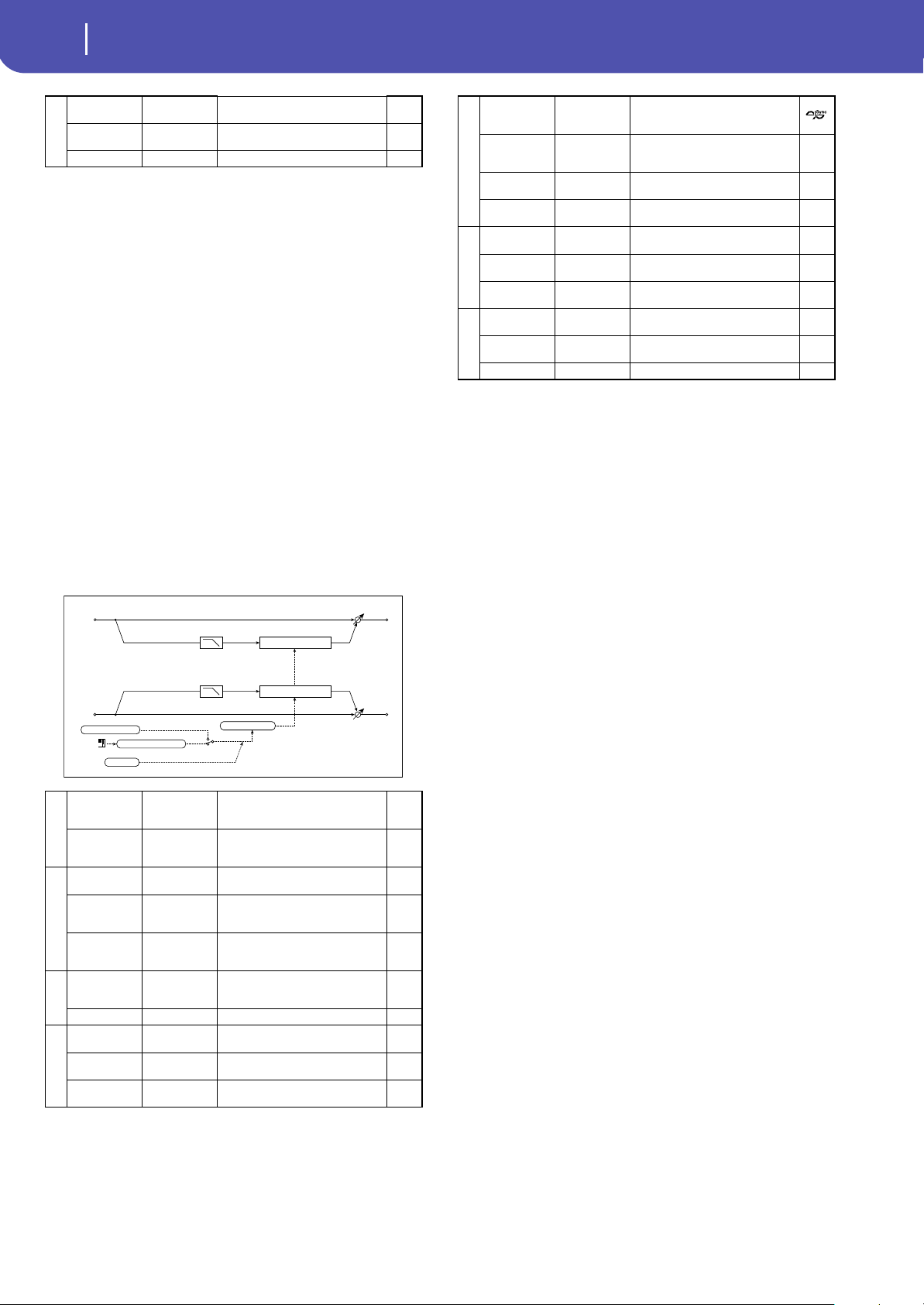
312
Effects
Modulation and Pitch Shift (Mod./P.Shift)
a: Type
a: LFO Phase [degree]
Select the type of phaser LFO and tremolo LFO for the “Type”
parameter. How the effect sound moves or rotates depends on
the type of LFO. Selecting “LFO Phase” enables you to offset the
timing of the phaser peak and control a subtle movement and
rotation of the sound.
f: Phaser Wet/Dry
i: Wet/Dry
PHASER Wet/Dry sets the balance between the phaser output
and the dry sound. OUTPUT Wet/Dry sets the balance between
the final phaser and tremolo output level and the dry sound.
49: St. Ring Modulator
(Stereo Ring Modulator)
This effect creates a metallic sound by applying the oscillators to
the input signal. Use the LFO or Dynamic Modulation to modu-
late the oscillator to create a radical modulation. Matching the
oscillator frequency with a note number will produce a ring
modulation effect in specific key ranges.
a: OSC Mode
This parameter determines whether or not the oscillator fre-
quency follows the note number.
a: Pre LPF
This parameter enables you to set the damping amount of the
high range sound input to the ring modulator. If the input sound
contains lots of harmonics, the effect may sound dirty. In this
case, cut a certain amount of high range.
b: Fixed Frequency [Hz]
This parameter sets the oscillator frequency when “OSC Mode”
is set to Fixed.
c: Note Offset
c: Note Fine
These parameters for the oscillator are used when “OSC Mode”
is set to Note (Key Follow). The “Note Offset” sets the pitch dif-
ference from the original note in semitone steps. The “Note
Fine” parameter fine-adjusts the pitch in cent steps. Matching
the oscillator frequency with the note number produces a ring
modulation effect in the correct key.
i
Wet/Dry
Dry, 1:99...99:1,
Wet
Balance between the wet and dry
signal
Src Off...Tempo
Table , “Dynamic Modulation
sources,” on page 283
Amt –100...+100 Amount of modulation source
a
OSC Mode
Fixed, Note
(Key Follow)
Switching between specifying the
oscillator frequency and using a
note number
Pre LPF 0...100
Sets the damping amount of the
high range input to the ring
modulator
b
Fixed
Frequency [Hz]
0...12.00k
Sets the oscillator frequency when
OSC Mode is set to Fixed
Src Off...Tempo
Selects the modulation source for
the oscillator frequency when OSC
Mode is set to Fixed
Amt
–12.00k...
+12.00k
Sets the modulation amount of the
oscillator frequency when OSC
Mode is set to Fixed
c
Note Offset –48...+48
Sets the pitch difference from the
original note when OSC Mode is set to
Note (Key Follow)
Note Fine –100...+100 Fine-adjusts the oscillator frequency
d
LFO Frequency
[Hz]
0.02...20.00 Sets the speed of the LFO
Src Off...Tempo
Selects a modulation source for LFO
speed
Amt
–20.00...
+20.00
Sets the modulation amount of LFO
speed
Left
Right
FX Amt
FX Amt
Stereo In - Stereo Out
Pre LPF
Ring Modulator
Pre LPF
Ring Modulator
Note No.
OSC Mode
Fixed
Note (Key Follow)
Fixed Frequency
Pitch
Note Offset, Fine
Sine Oscillator
LFO
e
MIDI Sync Off, On
When this is on, the LFO speed is set
by BPM, Base Note, and Times,
instead of Frequency
BPM
MIDI,
40.00...
300.00
MIDI syncs to the system tempo; 40–
300 sets the tempo manually for this
individual effect
Base Note r...w
Selects the type of notes that
specify the LFO speed
Times x1...x32
Sets the number of notes that
specify the LFO speed
f
LFO Depth 0...100
Sets the depth of LFO modulation
for the oscillator frequency
Src Off...Tempo
Selects the modulation source of
the depth of modulation
Amt –100...+100
Sets the modulation amount of the
depth of modulation
g
Wet/Dry
Dry, 1:99...99:1,
Wet
Balance between the wet and dry
signal
Src Off...Tempo
Table , “Dynamic Modulation
sources,” on page 283
Amt –100...+100 Amount of modulation source
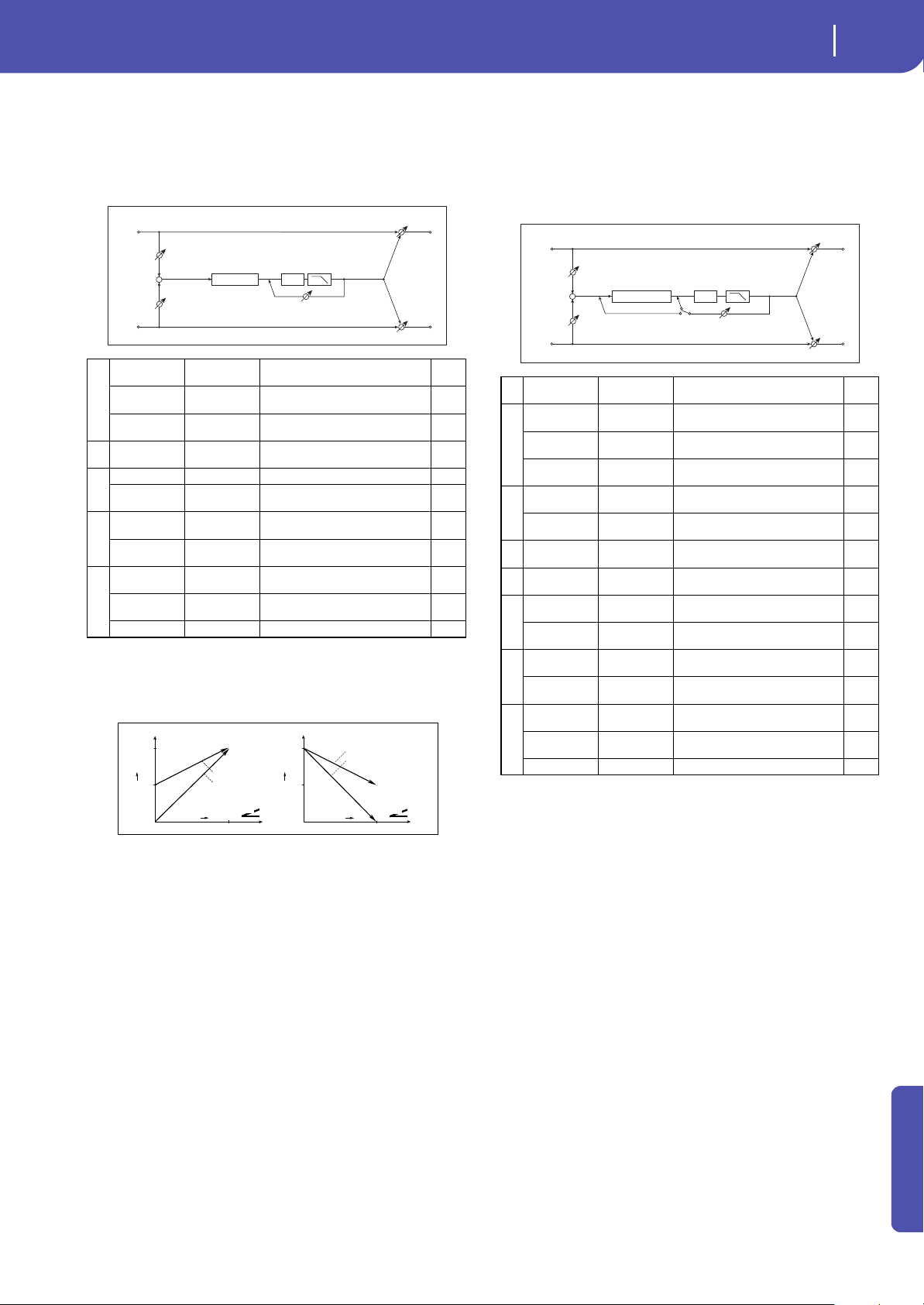
313
Effects
Modulation and Pitch Shift (Mod./P.Shift)
Appendix
50: Detune
Using this effect, you can obtain a detune effect that offsets the
pitch of the effect sound slightly from the pitch of the input sig-
nal. Compared to the chorus effect, a more natural sound thick-
ness will be created.
d: Input Level Dmod [%]
d: Src
This parameter sets the dynamic modulation of the input level.
51: Pitch Shifter
This effect changes the pitch of the input signal. You can select
from three types: Fast (quick response), Medium, and Slow (pre-
serves tonal quality). You can also create an effect in which the
pitch is gradually raised (or dropped) using the delay with feed-
back.
a: Mode
This parameter switches the pitch shifter operating mode. With
Slow, tonal quality will not be changed too much. With Fast, the
effect becomes a Pitch Shifter that has a quick response, but may
change the tone. Medium is in-between these two. If you do not
need to set too much pitch shift amount, set this parameter to
Slow. If you wish to change the pitch significantly, use Fast.
b: Pitch Shift [1/2tone]
b: Src
b: Amt
c: Fine [cents]
c: Amt
The amount of pitch shift will use the value of the Pitch Shift
plus the Fine value. The amount of modulation will use the b:
Amt value plus the c: Amt.
The same Modulation Source is used for both Pitch Shift and
Fine.
e: Feedback Position
f: Feedback
When Feedback Position is set to Pre, the pitch shifter output is
again input to the pitch shifter. Therefore, if you specify a higher
a
Pitch Shift
[cents]
–100...+100
Sets the pitch difference from the
input signal
Src Off...Tempo
Selects a modulation source for
pitch shift
Amt –100...+100
Sets the modulation amount for
pitch shift
b
Delay Time
[msec]
0...1000 Sets the delay time
c
Feedback –100...+100 Sets the feedback amount
High Damp [%] 0...100
Sets the damping amount in the
high range
d
Input Level
Dmod [%]
–100...+100
Sets the modulation amount of the
input level
Src Off...Tempo
Selects the modulation source for
the input level
e
Wet/Dry
Dry, 1:99...99:1,
Wet
Balance between the wet and dry
signal
Src Off...Tempo
Table , “Dynamic Modulation
sources,” on page 283
Amt –100...+100 Amount of modulation source
Left
Right
FX Amt
FX Amt
FX Amt = 100: Mono In - Mono Out / FX Amt = 0: Stereo In - Stereo Out
Input Level
Input Level
+
High Damp
Delay
Feedback
Detune
Input Level
Louder
Max
Zero
Higher
D
-mod
Input Level
Max
Zero
Higher
D
-mod
x1.0
x0.5
Input Level Dmod= +100
Input Level Dmod= +50
Louder
x1.0
x0.5
Input Level Dmod= –100
Input Level Dmod= –50
Input Level Dmod
aMode
Slow, Medium,
Fast
Switches Pitch Shifter mode
b
Pitch Shift [1/
2tone]
–24...+24
Sets the pitch shift amount by steps
of a semitone
Src Off...Tempo
Selects the modulation source of
pitch shift amount
Amt –24...+24
Sets the modulation amount of
pitch shift amount
c
Fine [cents] –100...+100
Sets the pitch shift amount by steps
of a cent
Amt –100...+100
Sets the modulation amount of
pitch shift amount
d
Delay Time
[msec]
0...2000 Sets the delay time
e
Feedback
Position
Pre, Post Switches the feedback connection
f
Feedback –100...+100
Sets the feedback amount
High Damp [%] 0...100
Sets the damping amount in the
high range
g
Input Level
Dmod [%]
–100...+100
Sets the modulation amount of the
input level
Src Off...Tempo
Selects the modulation source for
the input level
h
Wet/Dry
Dry, 1:99...99:1,
Wet
Balance between the wet and dry
signal
Src Off...Tempo
Table , “Dynamic Modulation
sources,” on page 283
Amt –100...+100 Amount of modulation source
Left
Right
FX Amt
FX Amt
FX Amt = 100: Mono In - Mono Out / FX Amt = 0: Stereo In - Stereo Out
Input Level
Input Level
+
High Damp
Delay
Feedback
Pitch Shifter
Feedback Position
Pre
Post

314
Effects
Modulation and Pitch Shift (Mod./P.Shift)
value for the Feedback parameter, the pitch will be raised (or
lowered) more and more each time feedback is repeated.
If Feedback Position is set to Post, the feedback signal will not
pass through the pitch shifter again. Even if you specify a higher
value for the Feedback parameter, the pitch-shifted sound will
be repeated at the same pitch.
52: Pitch Shifter BPM
This pitch shifter enables you to set the delay time to match the
song tempo.
d: BPM
e: Delay Base Note
e: Times
The delay time is the duration of “Times” number of “Delay Base
Note” note values at the “BPM” tempo (or if “BPM” is set to
MIDI, the tempo determined by MIDI Clock).
d: Time Over?
You can set the delay time up to 5,290msec. If the delay time
exceeds this limit, the error message “OVER!” appears on the
display. Set the delay time parameters so that this message will
not appear. “Time Over?” is only a display parameter.
53: Pitch Shift Mod.
(Pitch Shift Modulation)
This effect modulates the detuned pitch shift amount using an
LFO, adding a clear spread and width to the sound by panning
the effect sound and dry sound to the left and right. This is espe-
cially effective when the effect sound and dry sound output from
stereo speakers are mixed.
a: Pitch Shift [cents]
e: Depth
These parameters set the amount of pitch shift and amount of
modulation by means of the LFO.
g: Pan
h: Wet/Dry
The Pan parameter pans the effect sound and dry sound to the
left and right. With L, the effect sound is panned left, and the dry
sound is panned right. With a Wet/Dry = Wet setting, the effect
and dry sound will be output in a proportion of 1:1.
aMode
Slow, Medium,
Fast
Switches Pitch Shifter mode
b
Pitch Shift [1/
2tone]
–24...+24
Sets the pitch shift amount in steps
of a semitone
Src Off...Tempo
Selects the modulation source of
pitch shift amount
Amt –24...+24
Sets the modulation amount of
pitch shift amount
c
Fine [cents] –100...+100
Sets the pitch shift amount in steps
of one cent
Amt –100...+100
Sets the modulation amount of
pitch shift amount
d
BPM
MIDI,
40.00...
300.00
MIDI syncs to the system tempo; 40–
300 sets the tempo manually for this
individual effect
Time Over? ---, OVER!
Displays an error message when the
delay time exceeds the upper limit
e
Delay Base
Note
r...w
Selects the type of notes to specify
the delay time
Times x1...x32
Sets the number of notes to specify
the delay time
f
Feedback
Position
Pre, Post
Switches the feedback
connection
g
Feedback –100...+100
Sets the feedback amount
High Damp [%] 0...100
Sets the damping amount in the
high range
h
Input Level
Dmod [%]
–100...+100
Sets the modulation amount of the
input level
Src Off...Tempo
Selects the modulation source for
the input level
i
Wet/Dry
Dry, 1:99...99:1,
Wet
Balance between the wet and dry
signal
Src Off...Tempo
Table , “Dynamic Modulation
sources,” on page 283
Amt –100...+100 Amount of modulation source
BPM
BPM
Base Note x Times
Left
Right
FX Amt
FX Amt
FX Amt = 100: Mono In - Mono Out / FX Amt = 0: Stereo In - Stereo Out
Input Level
Input Level
+
High Damp
Delay
Feedback
Pitch Shifter
Feedback Position
Pre
Post
Tempo
a
Pitch Shift
[cents]
–100...+100
Sets the pitch difference from the
input signal
bLFO Waveform
Triangle,
Square
Selects the LFO Waveform
c
LFO Frequency
[Hz]
0.02...20.00 Sets the speed of the LFO
Src Off...Tempo
Selects a modulation source for LFO
speed
Amt
–20.00...
+20.00
Sets the modulation amount of LFO
speed
d
MIDI Sync Off, On
When this is on, the LFO speed is set
by BPM, Base Note, and Times,
instead of Frequency
BPM
MIDI,
40.00...
300.00
MIDI syncs to the system tempo; 40–
300 sets the tempo manually for this
individual effect
Base Note r...w
Selects the type of notes that
specify the LFO speed
Times x1...x32
Sets the number of notes that
specify the LFO speed
e
Depth –100...+100
Sets the LFO modulation depth for
pitch shift amount
Src Off...Tempo
Selects the modulation source of
the depth of modulation
Amt –100...+100
Sets the modulation amount of the
depth of modulation
fPan
L, 1 : 99...99 : 1,
R
Sets the panning effect sound and
dry sound separately
g
Wet/Dry
Dry, 1:99...99:1,
Wet
Balance between the wet and dry
signal
Src Off...Tempo
Table , “Dynamic Modulation
sources,” on page 283
Amt –100...+100 Amount of modulation source
Left
Right
FX Amt
FX Amt
FX Amt = 100: Mono In - Stereo Out / FX Amt = 0: Stereo In - Stereo Out
LFO: Tri / Sqr
Pan
+
Pitch Shifter
Pitch
Higher
Pitch Shift Mod - Pitch Shift / Depth
Lower
Original Pitch
Pitch Shift (+ value)
LFO Waveform=Triangle
Depth (+value)
LFO Waveform=Square
Depth (–value)
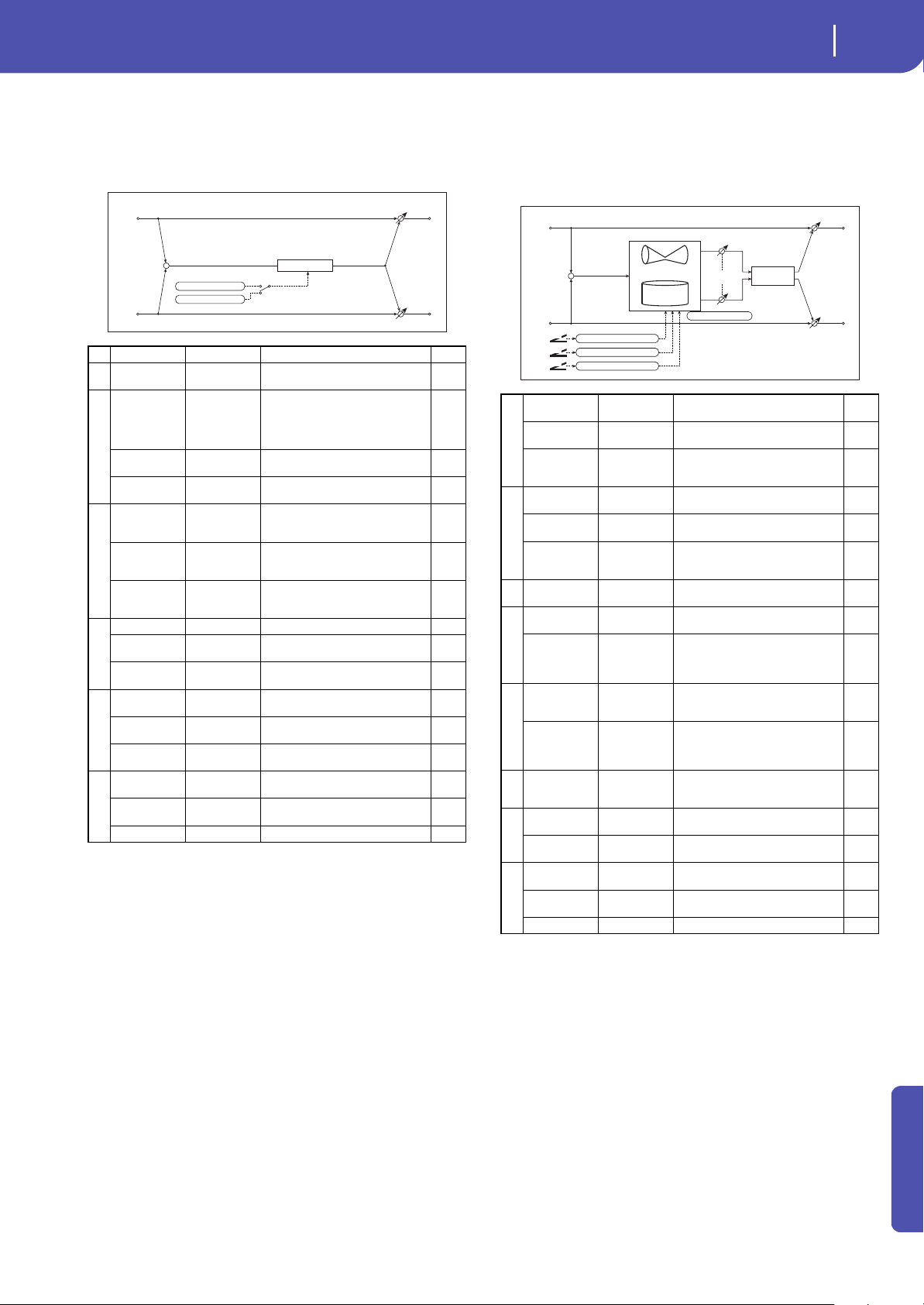
315
Effects
Modulation and Pitch Shift (Mod./P.Shift)
Appendix
54: Organ Vib/Chorus
(Organ Vibrato/Chorus)
This effect simulates the chorus and vibrato circuitry of a vintage
organ. The modulation speed and depth can be customized.
b: Control Mode
c: Preset Type
d: Custom Mix
e: Custom Depth
f: Custom Speed [Hz]
If Control Mode=Preset, you can use c: Preset Type to select the
effect. In this case, the Custom Mix/Depth/Speed settings are
ignored. If Control Mode=Custom, the Custom Mix/Depth/
Speed settings are valid, and the c: Preset Type setting is ignored.
c: Amt
If Preset Type=V1 and Src=JS+Y, you can set this to +5 and
move JS +Y to control the effect in the order of
V1 C1 V2 C2 V3 C3.
55: Rotary Speaker
This effect simulates a rotary speaker, and obtains a more realis-
tic sound by simulating the rotor in the low range and the horn
in the high range separately. The effect also simulates the stereo
microphone settings.
a: Mode
This parameter sets how the modulation source switches
between rotation and stop.
When Mode = Togg le, the speaker rotates or stops alternately
each time you press the pedal or move the joystick. Via MIDI,
rotation will switch between start and stop each time the modu-
lation amount exceeds 64.
When Mode = Moment, the speaker rotates by default, and
stops only when you press the pedal or move the joystick. Via
MIDI, modulation values above 64 make the speaker rotate, and
values below 64 make it stop.
a Input Trim 0...100 Sets the input level
b Control Mode Preset, Custom
Selects either preset or custom
settings
c
Preset Type
V1, C1, V2, C2,
V3, C3
Selects the effect type when
Mode=Preset
V1/V2/V3 are variations of vibrato,
and C1/C2/C3 are variations of
chorus
Src Off...Tempo
Selects the modulation source that
will change the effect type
Amt –5...+5
Sets the modulation amount for
changing the effect type
d
Custom Mix
Vibrato,
1:99...99:1,
Chorus
Sets the mix level of the direct
sound when Mode=Preset
Src Off...Tempo
Selects the modulation source that
will control the mix level of the
direct sound
Amt –100...+100
Sets the modulation amount for
controlling the mix level of the
direct sound
e
Custom Depth 0...100 Sets the vibrato depth
Src Off...Tempo
Selects the modulation source that
will control vibrato depth
Amt –100...+100
Sets the modulation amount for
controlling the vibrato depth
f
Custom Speed
[Hz]
0.02...20.00 Sets the vibrato speed
Src Off...Tempo
Selects the modulation source for
controlling the vibrato speed
Amt
–20.00...
+20.00
Sets the modulation amount for
controlling the vibrato speed
g
Wet/Dry
Dry, 1:99...99:1,
Wet
Balance between the wet and dry
signal
Src Off...Tempo
Table , “Dynamic Modulation
sources,” on page 283
Amt –100...+100 Amount of modulation source
+
Vibrato/Chorus
Mode
Preset Setting
Custom Parameters
Left
Right
FX Amt
FX Amt
FX Amt = 100: Mono In - Mono Out / FX Amt = 0: Stereo In - Stereo Out
a
Mode Switch Rotate, Stop
Switches between speaker rotation
and stop
Src Off...Tempo
Selects a modulation source for
Rotate/Stop
Mode
Toggle,
Moment
Sets the switch mode for Rotate/
Stop modulation
b
Speed Switch Slow, Fast
Switches the speaker rotation speed
between slow and fast
Src Off...Tempo
Selects a modulation source for
Slow/Fast
Mode
Toggle,
Moment
Sets the switch mode for Slow/Fast
modulation
c
Manual Speed
Ctrl
Off...Tempo
Sets a modulation source for direct
control of rotation speed
d
Hore
Acceleration
0...100
How quickly the horn rotation
speed in the high range is switched
Hore Ratio
Stop,
0.50...2.00
Adjusts the (high-range side) horn
rotation speed. Standard value is
1.00. Selecting “Stop” will stop the
rotation
e
Rotor
Acceleration
0...100
Determines how quickly the rotor
rotation speed in the low range is
switched
Rotor Ratio
Stop,
0.50...2.00
Adjusts the (low-frequency) rotor
speed. Standard value is 1.00.
Selecting “Stop” will stop the
rotation
f
Horn/Rotor
Balance
Rotor, 1...99,
Horn
Sets the level balance between the
high-frequency horn and low-
frequency rotor
g
Mic Distance 0...100
Sets the distance between the
microphone and rotary speaker
Mic Spread 0...100
Sets the angle of left and right
microphones
h
Wet/Dry
Dry, 1:99...99:1,
Wet
Balance between the wet and dry
signal
Src Off...Tempo
Table , “Dynamic Modulation
sources,” on page 283
Amt –100...+100 Amount of modulation source
Left
Right
FX Amt
FX Amt
FX Amt = 100: Mono In - Stereo Out / FX Amt = 0: Stereo In - Stereo Out
D
-mod
D
-mod
D
-mod
Mode Switch: Rotate/Stop
Speed Switch: Slow/Fast
Manual Speed Control
Speaker Simulation
Mic Distance
Mic Spread
Horn/Rotor
Balance
Horn
Rotary Speaker
Rotor
+
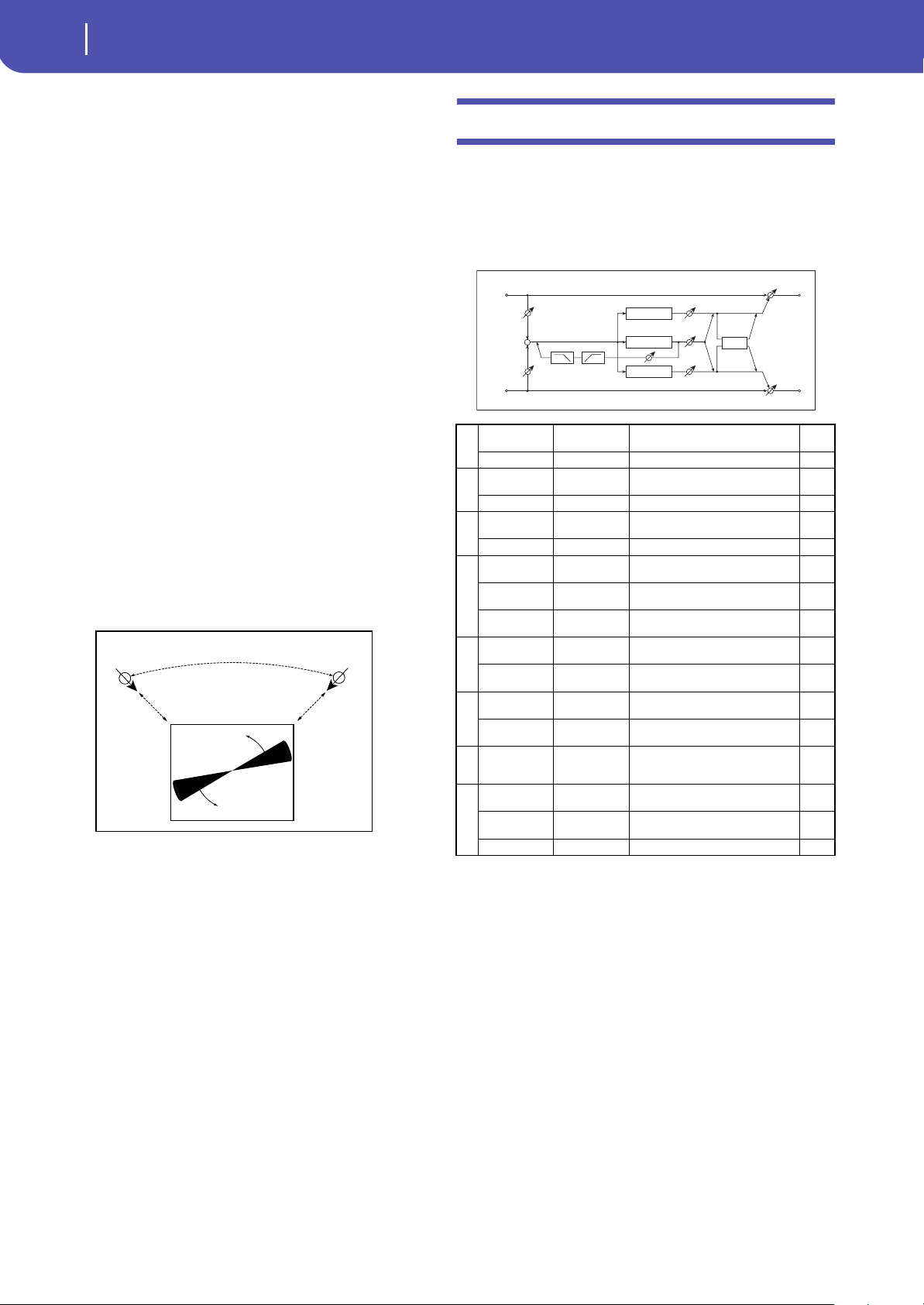
316
Effects
Delay
b: Speed Switch
This parameter controls how the rotation speed (slow and fast) is
switched via the modulation source.
When Mode = Togg le, the speed will switch between slow and
fast each time you press the pedal or move the joystick. Via
MIDI, the speed will switch each time the modulation amount
exceeds 64.
When Mode = Moment, the speed is usually slow. It becomes
fast only when you press the pedal or move the joystick. Via
MIDI, modulation values above 64 set the speed to Fast, and val-
ues below 64 set it to Slow.
c: Manual Speed Ctrl
If you wish to control the rotation speed manually, instead of
switching between Slow and Fast, select a modulation source in
the Manual Speed Ctrl parameter. If you don’t want to use man-
ual control, set this to Off.
d: Horn Acceleration
e: Rotor Acceleration
On a real rotary speaker, the rotation speed accelerates or decel-
erates gradually after you switch the speed. The Horn and Rotor
Acceleration parameters set the transition times between fast
and slow speeds.
g: Mic Distance
g: Mic Spread
This is a simulation of stereo microphone settings.
Delay
56: L/C/R Delay
This multitap delay outputs three Tap signals to the left, right,
and center respectively. You can also adjust the left and right
spread of the delay sound.
e: High Damp [%]
e: Low Damp [%]
These parameters set the damping amount of high range and low
range. The tone of the delayed sound becomes darker and lighter
as it feeds back.
g: Spread
This parameter sets the pan width of the effect sound. The stereo
image is widest with a value of 50, and the effect sound of both
channels is output from the center with a value of 0.
Mic Spread
Microphone
Microphone
Mic Distance
Mic Distance
Rotary Speaker (Top View)
Rotary Speaker - Mic Placement
a
L Delay Time
[msec]
0...2730 Sets the delay time of TapL
Level 0...50 Sets the output level of TapL
b
C Delay Time
[msec]
0...2730 Sets the delay time of TapC
Level 0...50 Sets the output level of TapC
c
R Delay Time
[msec]
0...2730 Sets the delay time of TapR
Level 0...50 Sets the output level of TapR
d
Feedback
(C Delay)
–100...+100 Sets the feedback amount of TapC
Src Off...Tempo
Selects the modulation source of the
TapC feedback amount
Amt –100...+100
Sets the modulation amount of the
TapC feedback amount
e
High Damp [%] 0...100
Sets the damping amount in the
high range
Low Damp [%] 0...100
Sets the damping amount in the low
range
f
Input Level
Dmod [%]
–100...+100
Sets the modulation amount of the
input level
Src Off...Tempo
Selects the modulation source for
the input level
g Spread 0...50
Sets the width of the stereo image of
the effect sound
h
Wet/Dry
Dry, 1:99...99:1,
Wet
Balance between the wet and dry
signal
Src Off...Tempo
Table , “Dynamic Modulation
sources,” on page 283
Amt –100...+100 Amount of modulation source
C Delay
R Delay
Left
Right
Feedback
Spread
FX Amt
FX Amt
FX Amt = 100: Mono In - Stereo Out / FX Amt = 0: Stereo In -Stereo Out
Input Level D-mod
High Damp
Low Damp
L Delay
Input Level D-mod
+
Level
Level
Level
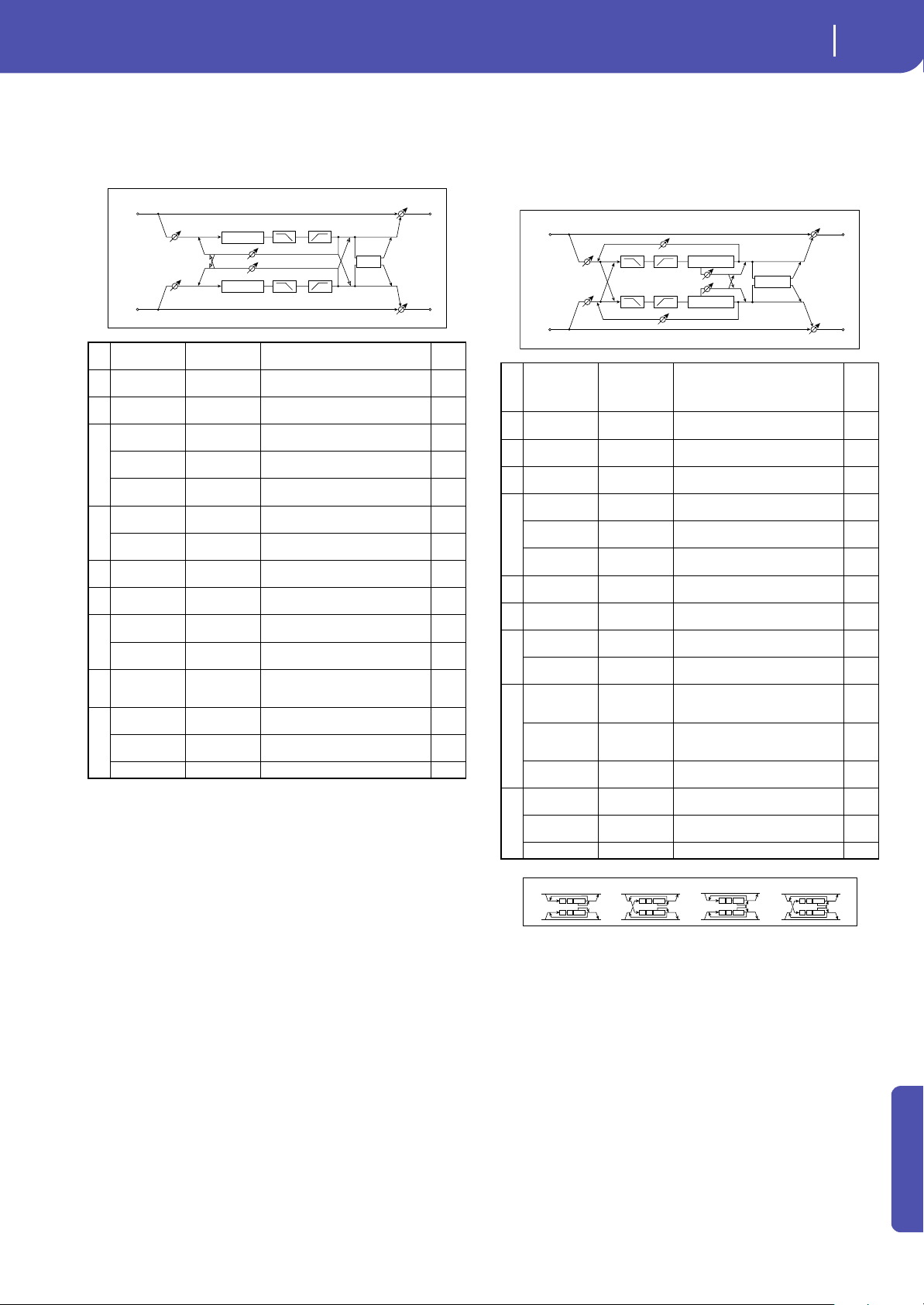
317
Effects
Delay
Appendix
57: Stereo/CrossDelay
This is a stereo delay, and can by used as a cross-feedback delay
effect in which the delay sounds cross over between the left and
right by changing the feedback routing.
58: St. Multitap Delay
(Stereo Multitap Delay)
The left and right Multitap Delays have two taps respectively.
Changing the routing of feedback and tap output allows you to
create various patterns of complex effect sounds.
a: Mode
You can change how the left and right delay signals are panned
by modifying the routing of the left and right delay as shown in
the figure above. You need to input different sounds to each
channel in order for this parameter to be effective.
d: Tap1 Level
This parameter sets the output level of Tap1. Setting a different
level from Tap2 will add a unique touch to a monotonous delay
and feedback.
a Stereo/Cross Stereo, Cross
Switches between stereo delay and
cross-feedback delay
b
L Delay Time
[msec]
0.0...1360.0
Sets the delay time for the left
channel
c
R Delay Time
[msec]
0.0...1360.0
Sets the delay time for the right
channel
d
L Feedback –100...+100
Sets the feedback amount for the
left channel
Src Off...Tempo
Selects the modulation source of
feedback amount
Amt L –100...+100
Sets the modulation amount of the
left channel feedback
e
R Feedback –100...+100
Sets the feedback amount for the
right channel
Amt R –100...+100
Sets the modulation amount of the
right channel feedback
f High Damp [%] 0...100
Sets the damping amount in the
high range
g Low Damp [%] 0...100
Sets the damping amount in the low
range
h
Input Level
Dmod [%]
–100...+100
Sets the modulation amount of the
input level
Src Off...Tempo
Selects the modulation source for
the input level
i Spread –50...+50
Sets the width of the stereo image
of the effect sound
j
Wet/Dry
Dry, 1:99...99:1,
Wet
Balance between the wet and dry
signal
Src Off...Tempo
Table , “Dynamic Modulation
sources,” on page 283
Amt –100...+100 Amount of modulation source
Delay
Delay
Stereo/Cross
Left
Right
Feedback
FX Amt
FX Amt
Stereo In - Stereo Out
Input Level D-mod
Input Level D-mod
High Damp Low Damp
High Damp
Low Damp
Spread
Stereo/Cross
aMode
Normal, Cross
Feedback,
Cross Pan1,
Cross Pan2
Switches the left and right delay
routing
b
Tap1 Time
[msec]
0.0...1360.0 Sets the Tap1 delay time
c
Tap2 Time
[msec]
0.0...1360.0 Sets the Tap2 delay time
d Tap1 Level 0...100
Sets the Tap1 output level
e
Feedback
(Tap2)
–100...+100 Sets the Tap2 feedback amount
Src Off...Tempo
Selects the modulation source of
the Tap2 feedback amount
Amt –100...+100
Sets the modulation amount of the
Tap2 feedback amount
f High Damp [%] 0...100
Sets the damping amount in the
high range
g Low Damp [%] 0...100
Sets the damping amount in the low
range
h
Input Level
Dmod [%]
–100...+100
Sets the modulation amount of the
input level
Src Off...Tempo
Selects the modulation source for
the input level
i
Spread –100...+100
Sets the width of the stereo image
of the effect sound
Src Off...Tempo
Selects the modulation source of
the effect sound’s stereo image
width
Amt –100...+100
Sets the modulation amount of the
effect sound’s stereo image width
j
Wet/Dry
Dry, 1:99...99:1,
Wet
Balance between the wet and dry
signal
Src Off...Tempo
Table , “Dynamic Modulation
sources,” on page 283
Amt –100...+100 Amount of modulation source
Left
Right
Feedback
Spread
FX Amt
FX Amt
Stereo In - Stereo Out
Input Level D-mod
Input Level D-mod
High Damp
Low Damp
High Damp
Low Damp
Delay
Delay
Feedback
Tap1 Level
Mode
Mode
(1)
(2)
(1)
(2)
Tap1=(1)
Tap2=(2)
Mode: Normal Mode: Cross Feedback Mode: Cross Pan1 Mode: Cross Pan2
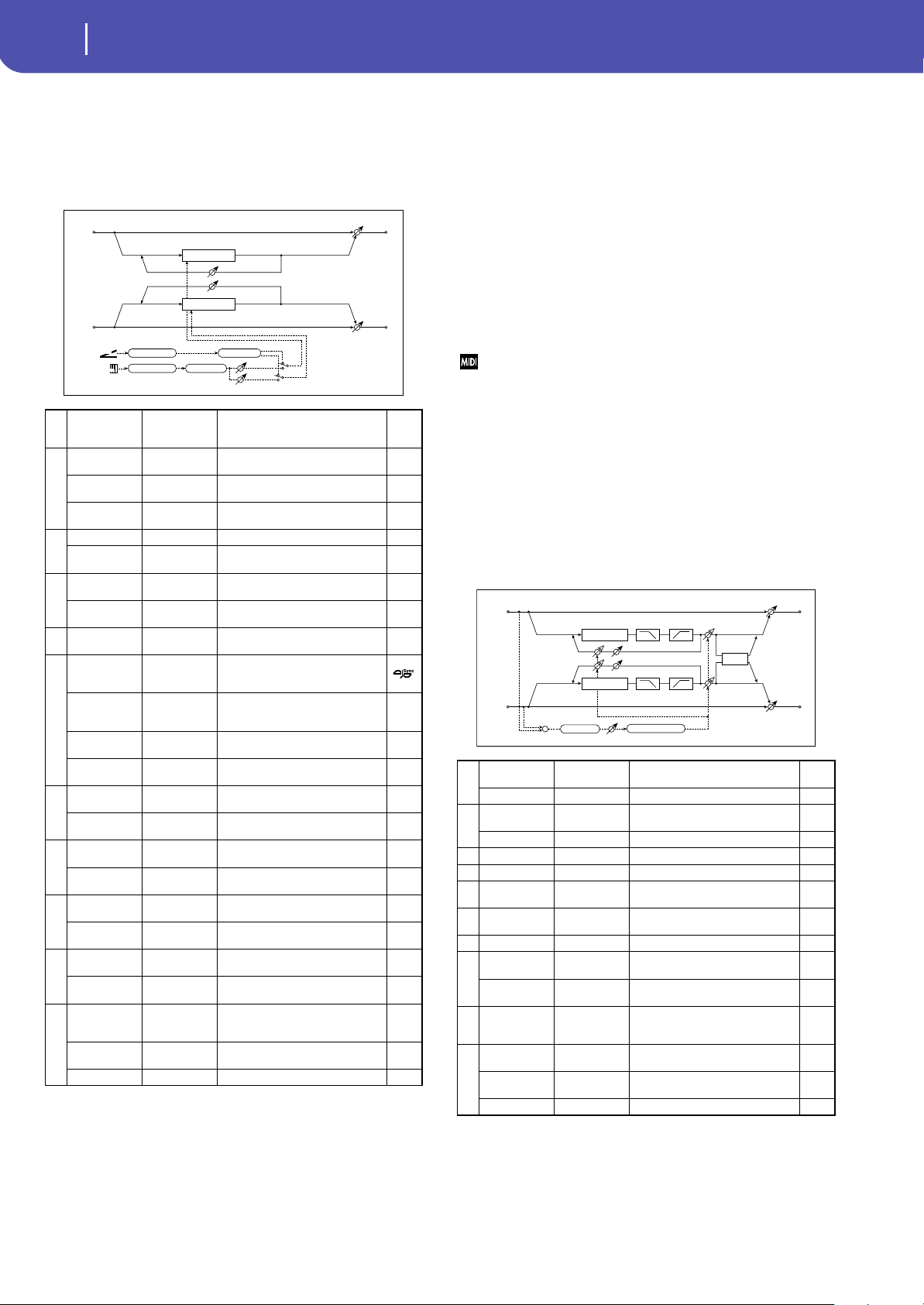
318
Effects
Delay
59: St. Mod Delay
(Stereo Modulation Delay)
This stereo delay uses an LFO to sweep the delay time. The pitch
also varies, creating a delay sound which swells and shimmers.
You can also control the delay time using a modulation source.
b: D-mod Modulation
When the modulation source is used for control, this parameter
reverses the left and right modulation direction.
d: LFO Sync
d: Src
g: L LFO Phase [deg]
h: R LFO Phase [deg]
If “LFO Sync” is On, the LFO will be reset by the modulation
source that is received.
The “Src” parameter sets the modulation source that resets the
LFO. For example, you can assign Gate as a modulation source
so that the sweep always starts from the specified point.
“L LFO Phase” and “R LFO Phase” set the phase obtained when
the left and right LFOs are reset. In this way, you can create
changes in pitch sweep for the left and right channels individu-
ally.
The effect is off when a value of the modulation source specified in
the “Src” parameter is 63 or smaller, and the effect is on when the
value is 64 or higher. The LFO is triggered and reset to the “L LFO
Phase” and “R LFO Phase” settings when the value changes from 63
or smaller to 64 or higher.
60: St. Dynamic Delay
(Stereo Dynamic Delay)
This stereo delay controls the level of delay according to the
input signal level. You can use this as a ducking delay that applies
delay to the sound only when you play keys at a high velocity or
only when the volume level is low.
a
Modulation
Mode
LFO, D-mod
Switches between LFO modulation
control and modulation source
control
b
D-mod
Modulation
L/R:+/+,
L/R:+/–
Reversed L/R control by modulation
source
Src Off...Tempo
Selects the modulation source that
controls delay time
Response 0...30
Sets the rate of response to the
modulation source
c
LFO Waveform Triangle, Sine Selects the LFO Waveform
LFO Shape –100...+100
Changes the curvature of the LFO
Waveform
d
LFO Sync Off, On
Switches LFO reset off/on
Src Off...Tempo
Selects the modulation source that
resets the LFO
e
LFO Frequency
[Hz]
0.02...20.00 Sets the speed of the LFO
f
MIDI Sync Off, On
When this is on, the LFO speed is set
by BPM, Base Note, and Times,
instead of Frequency
BPM
MIDI,
40.00...
300.00
MIDI syncs to the system tempo; 40–
300 sets the tempo manually for this
individual effect
Base Note r...w
Selects the type of notes that
specify the LFO speed
Times x1...x32
Sets the number of notes that
specify the LFO speed
g
L LFO Phase
[deg]
–180...+180
Sets the phase obtained when the
left LFO is reset
L Depth 0...200
Sets the depth of the left LFO
modulation
h
R LFO Phase
[deg]
–180...+180
Sets the phase obtained when the
right LFO is reset
R Depth 0...200
Sets the depth of the right LFO
modulation
i
L Delay Time
[msec]
0.0...1000.0
Sets the delay time for the left
channel
L Feedback –100...+100
Sets the feedback amount of left
delay
j
R Delay Time
[msec]
0.0...1000.0
Sets the delay time for the right
channel
R Feedback –100...+100
Sets the feedback amount of right
delay
k
Wet/Dry
-Wet, -
1:99...Dry...99:1
, Wet
Balance between the wet and dry
signal
Src Off...Tempo
Table , “Dynamic Modulation
sources,” on page 283
Amt –100...+100 Amount of modulation source
Left
Right
Feedback
LFO Phase
FX Amt
FX Amt
Stereo In - Stereo Out
LFO: Tri / Sine
Modulation Mode
D-mod
LFO
D
-mod
Delay
Delay
L/R: +/+ +/–
LFO Shape
Response
LFO Sync
a
Control Target None, Out, FB
Selects from no control, output, and
feedback
Polarity +, – Reverses level control
b
Threshold 0...100
Sets the level to which the effect is
applied
Offset 0...100 Sets the offset of level control
c Attack 1...100 Sets the attack time of level control
d Release 1...100 Sets the release time of level control
e
L Delay Time
[msec]
0.0...1360.0
Sets the delay time for the left
channel
f
R Delay Time
[msec]
0.0...1360.0
Sets the delay time for the right
channel
g Feedback –100...+100 Sets the feedback amount
h
High Damp [%] 0...100
Sets the damping amount in the
high range
Low Damp [%] 0...100
Sets the damping amount in the low
range
i Spread –100...+100
Sets the width of the stereo image
of the effect sound
j
Wet/Dry
Dry, 1:99...99:1,
Wet
Balance between the wet and dry
signal
Src Off...Tempo
Table , “Dynamic Modulation
sources,” on page 283
Amt –100...+100 Amount of modulation source
Delay
Left
Right
Feedback
Spread
FX Amt
FX Amt
Stereo In - Stereo Out
High Damp Low Damp
High Damp
Low Damp
Threshold
Delay
FB
Out
Control Target
Attack, Release
Envelope
+
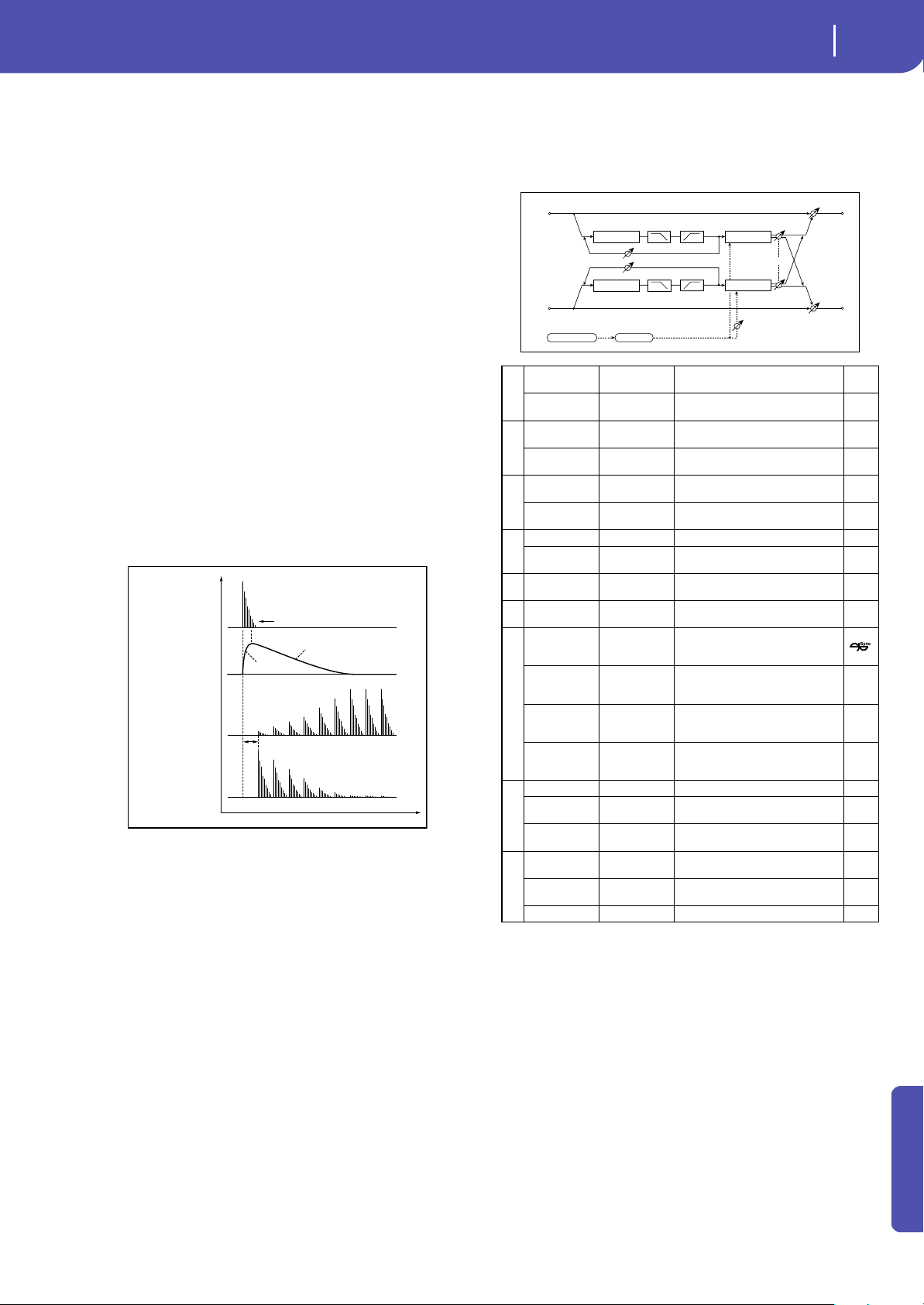
319
Effects
Delay
Appendix
a: Control Target
This parameter selects no level control, delay output control
(effect balance), or feedback amount control.
a: Polarity
b: Threshold
b: Offset
c: Attack
d: Release
The “Offset” parameter specifies the value for the “Control Tar-
get” parameter (that is set to None), expressed as the ratio rela-
tive to the parameter value (the “Wet/Dry” value with “Control
Target”=Output level, or the “Feedback” value with “Control
Target”=Feedback).
When “Polarity” is positive, the “Control Target” value is
obtained by multiplying the parameter value by the “Offset”
value (if the input level is below the threshold), or equals the
parameter value if the input level exceeds the threshold.
When “Polarity” is negative, Control Target value equals the
parameter value if the input level is below the threshold, or is
obtained by multiplying the parameter value by the “Offset”
value if the level exceeds the threshold.
The “Attack” and “Release” parameters specify attack time and
release time of delay level control.
61: St. AutoPanningDly
(Stereo Auto Panning Delay)
This stereo delay effect pans the delay sound left and right using
the LFO.
Dynamic Delay
Threshold
Dry
Envelope
Wet
Target=Output Level
Polarity= (–)
Wet
Target=Output Level
Polarity= (+)
Delay Time
Time
(Ducking Delay)
Release
Attack
Level
a
L Delay Time
[msec]
0.0...1360.0
Sets the delay time for the left
channel
L Feedback –100...+100
Sets the feedback amount for the
left channel
b
R Delay Time
[msec]
0.0...1360.0
Sets the delay time for the right
channel
R Feedback –100...+100
Sets the feedback amount for the
right channel
c
High Damp [%] 0...100
Sets the damping amount in the
high range
Low Damp [%] 0...100
Sets the damping amount in the low
range
d
LFO Waveform Triangle, Sine Selects the LFO Waveform
LFO Shape –100...+100
Changes the curvature of the LFO
Waveform
e Phase [degree] –180...+180
Sets the LFO phase difference
between the left and right
f
Panning Freq
[Hz]
0.02...20.00 Sets the panning speed
g
MIDI Sync Off, On
Switches between using the
frequency of the panning speed and
using the tempo and notes
BPM
MIDI,
40.00...
300.00
MIDI syncs to the system tempo; 40–
300 sets the tempo manually for this
individual effect
Base Note r...w
Selects the type of notes to specify
the delay time for the panning
speed
Times x1...x32
Sets the number of notes to specify
the delay time for the panning
speed
h
Panning Depth 0...100 Sets the panning width
Src Off...Tempo
Selects the modulation source for
the panning width
Amt –100...+100
Set the modulation amount of the
panning width
i
Wet/Dry
Dry, 1:99...99:1,
Wet
Balance between the wet and dry
signal
Src Off...Tempo
Table , “Dynamic Modulation
sources,” on page 283
Amt –100...+100 Amount of modulation source
Left
Right
FX Amt
FX Amt
Stereo In - Stereo Out
LFO Phase
LFO Shape
Pan
Pan
LFO: Tri / Sin
Depth
Delay
Delay
High Damp Low Damp
High Damp
Low Damp
Feedback
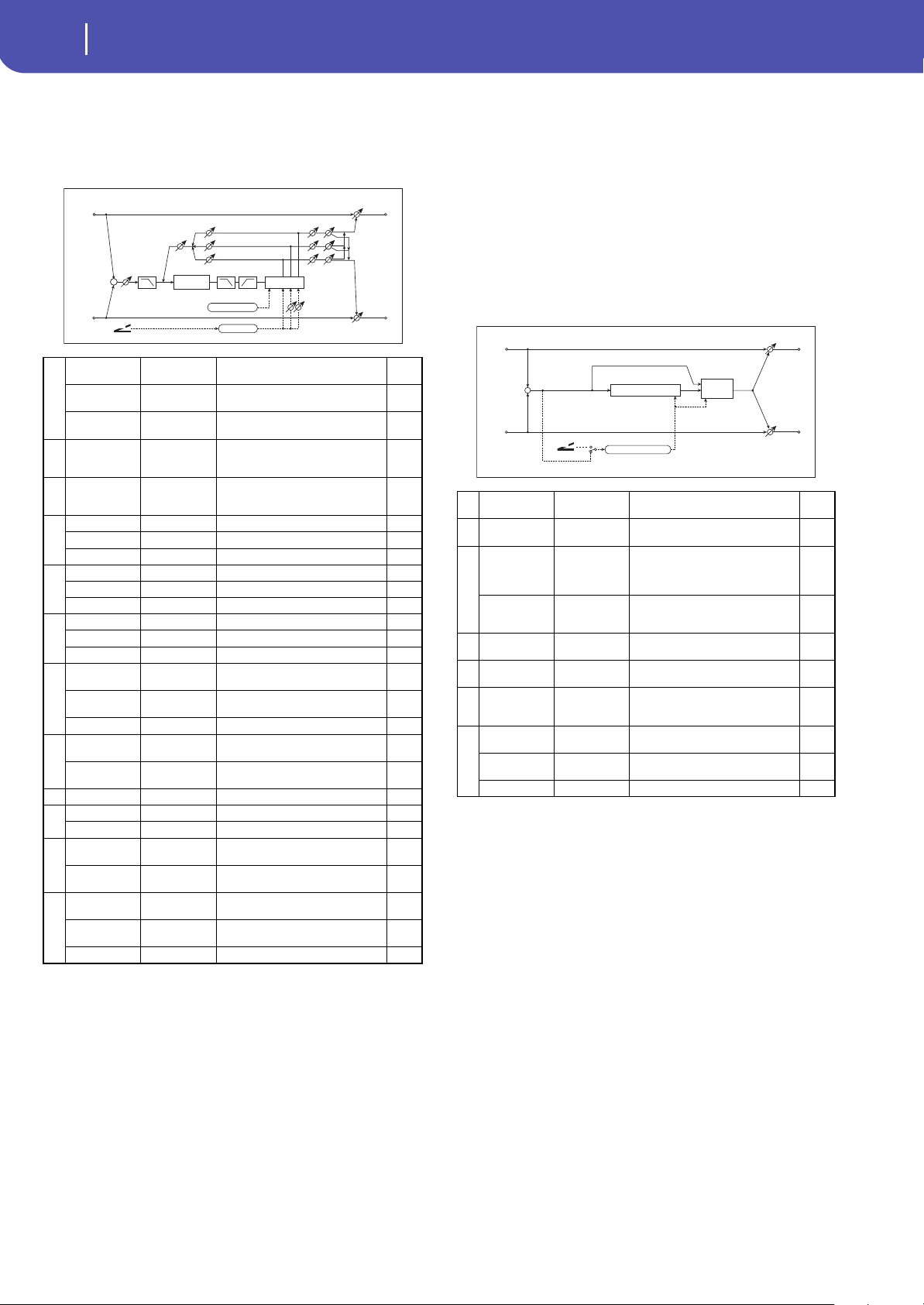
320
Effects
Delay
62: Tape Echo
This effect simulates a tape echo unit with three playback heads.
The distortion and tonal change typical of magnetic tape are also
reproduced.
a: Delay (Tap1) [msec]
a: Src
a: Amt
b: Tap2 Position [%]
b: Tap3 Position [%]
The delay time for Tap 2 and 3 is specified as a proportion (%)
relative to “Delay (Tap1).” Even if you use dynamic modulation
to control “Delay (Tap1),” Tap 2 and 3 will change at the same
proportion.
d: FB Amt
e: FB Amt
f: FB Amt
g: Feedback
The feedback output from Tap 1, 2, and 3 is mixed according to
the “FB Amt,” and then the final amount of feedback is specified
by “Feedback.”
63: Auto Reverse
This effect records the input signal and automatically plays it in
reverse (the effect is similar to a tape reverse sound).
a: Rec Mode
b: Reverse Time [msec]
When “Rec Mode” is set to Single, you can set up to 2,640msec
for “Reverse Time.” If recording starts during the reverse play-
back, the playback will be interrupted.
When “Rec Mode” is set to Multi, you can make another record-
ing during the reverse playback. However, the maximum
Reverse Time is limited to 1,320msec.
If you wish to record a phrase or rhythm pattern, set “Rec Mode”
to Single. If you record only one note, set “Rec Mode” to Multi.
The “Reverse Time” parameter specifies the maximum duration
of the reverse playback. The part in excess of this limit will not
be played in reverse. If you wish to add short pieces of the
reverse playback of single notes, make the “Reverse Time”
shorter.
a
Delay (Tap1)
[msec]
0...2700
Sets the delay time (tap1)
Src Off...Tempo
Selects the modulation source of the
delay time
Amt
–2700...
+2700
Sets the modulation amount of
delay time
b
Tap2 Position
[%]
0...100
Sets the position of Tap 2 relative to
the Tap 1 delay time the depth of
pitch variation
c
Tap3 Position
[%]
0...100
Sets the position of Tap 3 relative to
the Tap 1 delay time the depth of
pitch variation
d
Tap1 Level 0...100 Sets the Tap1 output level
Pan L, 1...99, R Sets the stereo image of tap1
FB Amt –100...+100 Sets the Tap1 feedback amount
e
Tap2 Level 0...100 Sets the Tap2 output level
Pan L, 1...99, R Sets the stereo image of tap2
FB Amt –100...+100 Sets the Tap2 feedback amount
f
Tap3 Level 0...100 Sets the Tap3 output level
Pan L, 1...99, R Sets the stereo image of tap3
FB Amt –100...+100 Sets the Tap3 feedback amount
g
Feedback 0...100
Sets the amount of feedback for
Taps 1, 2, and 3
Src Off...Tempo
Selects the modulation source of
feedback amount
Amt –100...+100 Sets the feedback amount
h
High Damp [%] 0...100
Sets the damping amount in the
high range
Low Damp [%] 0...100
Sets the damping amount in the low
range
i Saturation 0...100 Sets the distortion amount
j
Input Trim 0...100 Sets the input gain
Pre Tone 0...100 Sets the tone of the input
k
Wow Flutter
[Hz]
0.02...1.00
Sets the frequency at which pitch
variation will occur
Wow Flutter
depth
0...100 Sets the depth of pitch variation
l
Wet/Dry
Dry, 1:99...99:1,
Wet
Balance between the wet and dry
signal
Src Off...Tempo
Table , “Dynamic Modulation
sources,” on page 283
Amt –100...+100 Amount of modulation source
Wah Flatter
D
-mod
Tap2/3
Position
+
Tape
Saturation
Left
Right
FX Amt
Trim
PanLevel
FX Amt
FX Amt = 100: Mono In - Stereo Out / FX Amt = 0: Stereo In - Stereo Out
Feedback
Feedback Amt
High / Low DampPre Tone
Delay
(1)
(2)
(3)
Delay Time
aRec Mode Single, Multi
Sets the recording mode
b
Reverse Time
[msec]
20...2640
Sets the maximum duration of the
reverse playback
c
Envelope
Select
D-mod, Input
Selects whether the start and end of
recording is controlled via the
modulation source or the input
signal level
Src Off...Tempo
Selects the modulation source that
controls recording when Envelope
Select is set to D-mod
d Threshold 0...100
Sets the recording start level when
Envelope Select is set to Input
e Response 0...100
Sets the speed of the response to
the end of recording
fDirect Mix
Always On,
Always Off,
Cross Fade
Selects how a dry sound is mixed
g
Wet/Dry
Dry, 1:99...99:1,
Wet
Balance between the wet and dry
signal
Src Off...Tempo
Table , “Dynamic Modulation
sources,” on page 283
Amt –100...+100 Amount of modulation source
Input
D-mod
Envelope Select
D
-mod
Envelope Control
Left
Right
FX Amt
FX Amt
FX Amt = 100: Mono In - Mono Out / FX Amt = 0: Stereo In - Stereo Out
+
Auto Reverse
Direct
Mix
Rec/Reverse Play
Control
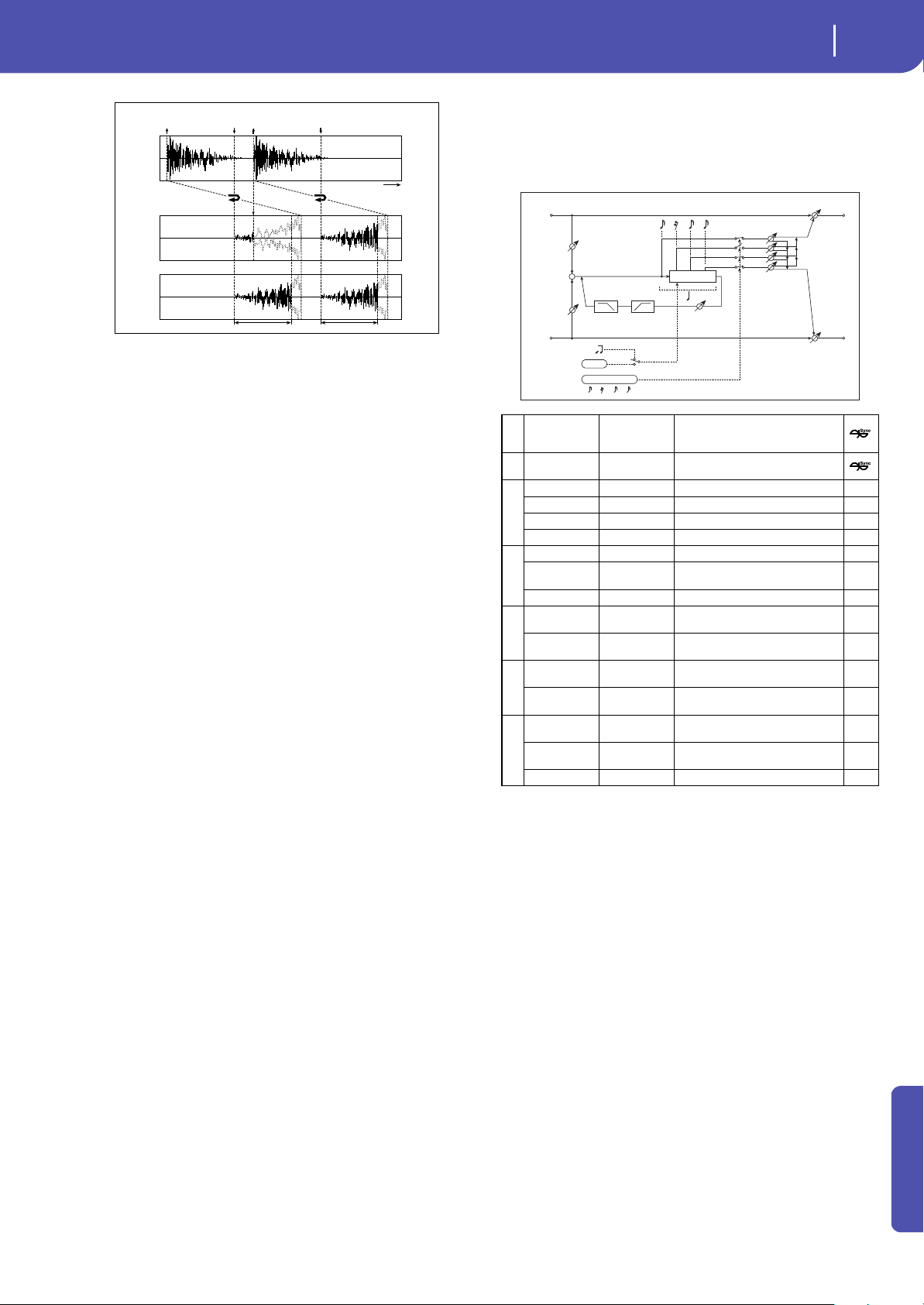
321
Effects
Delay
Appendix
c: Envelope Select
c: Src
d: Threshold
These parameters select the source to control the start and end
of recording.
When “Envelope Select” is set to D-mod, the input signal will be
recorded only when the value of the modulation source selected
by the Src parameter is 64 or higher.
When “Envelope Select” is set to Input, the input signal will be
recorded only when its level exceeds the Threshold level.
When recording is completed, reverse playback starts immedi-
ately.
64: Sequence BPM Dly
(Sequence BPM Delay)
This four-tap delay enables you to select a tempo and rhythm
pattern to set up each tap.
a: BPM
b: Rhythm Pattern
With the tempo specified by the “BPM” parameter (or the MIDI
Clock tempo if “BPM” is set to MIDI), the length of one beat
equals the feedback delay time, and the interval between taps
becomes equal. Selecting a rhythm pattern will automatically
turn the tap outputs on and off. When “BPM” is set to MIDI, the
lower limit of the “BPM” is 44.
RecRec
Mode/Reverse Time
Input
Mode = Single
Mode = Multi
Time
Reverse Time Reverse Time
Envelope Select = Input
Reverse Reverse
aBPM
MIDI,
40.00...
300.00
MIDI syncs to the system tempo; 40–
300 sets the tempo manually for this
individual effect
b
Rhythm
Pattern
x...eee
3
Selects a rhythm pattern
c
Tap1 Pan L, 1...99, R Sets the panning of Tap1
Tap2 Pan L, 1...99, R Sets the panning of Tap2
Tap3 Pan L, 1...99, R Sets the panning of Tap3
Tap4 Pan L, 1...99, R Sets the panning of Tap4
d
Feedback –100...+100 Sets the feedback amount
Src Off...Tempo
Selects the modulation source of
feedback amount
Amt –100...+100 Sets the feedback amount
e
High Damp [%] 0...100
Sets the damping amount in the
high range
Low Damp [%] 0...100
Sets the damping amount in the low
range
f
Input Level
Dmod [%]
–100...+100
Sets the modulation amount of the
input level
Src Off...Tempo
Selects the modulation source for
the input level
g
Wet/Dry
Dry, 1:99...99:1,
Wet
Balance between the wet and dry
signal
Src Off...Tempo
Table , “Dynamic Modulation
sources,” on page 283
Amt –100...+100 Amount of modulation source
Delay
Left
Right
Feedback
FX Amt
FX Amt
FX Amt = 100: Mono In - Stereo Out / FX Amt = 0: Stereo In -Stereo Out
Input Level D-mod
High Damp Low Damp
Input Level D-mod
+
Tempo
BPM
BPM
Rythm Pattern
Pan
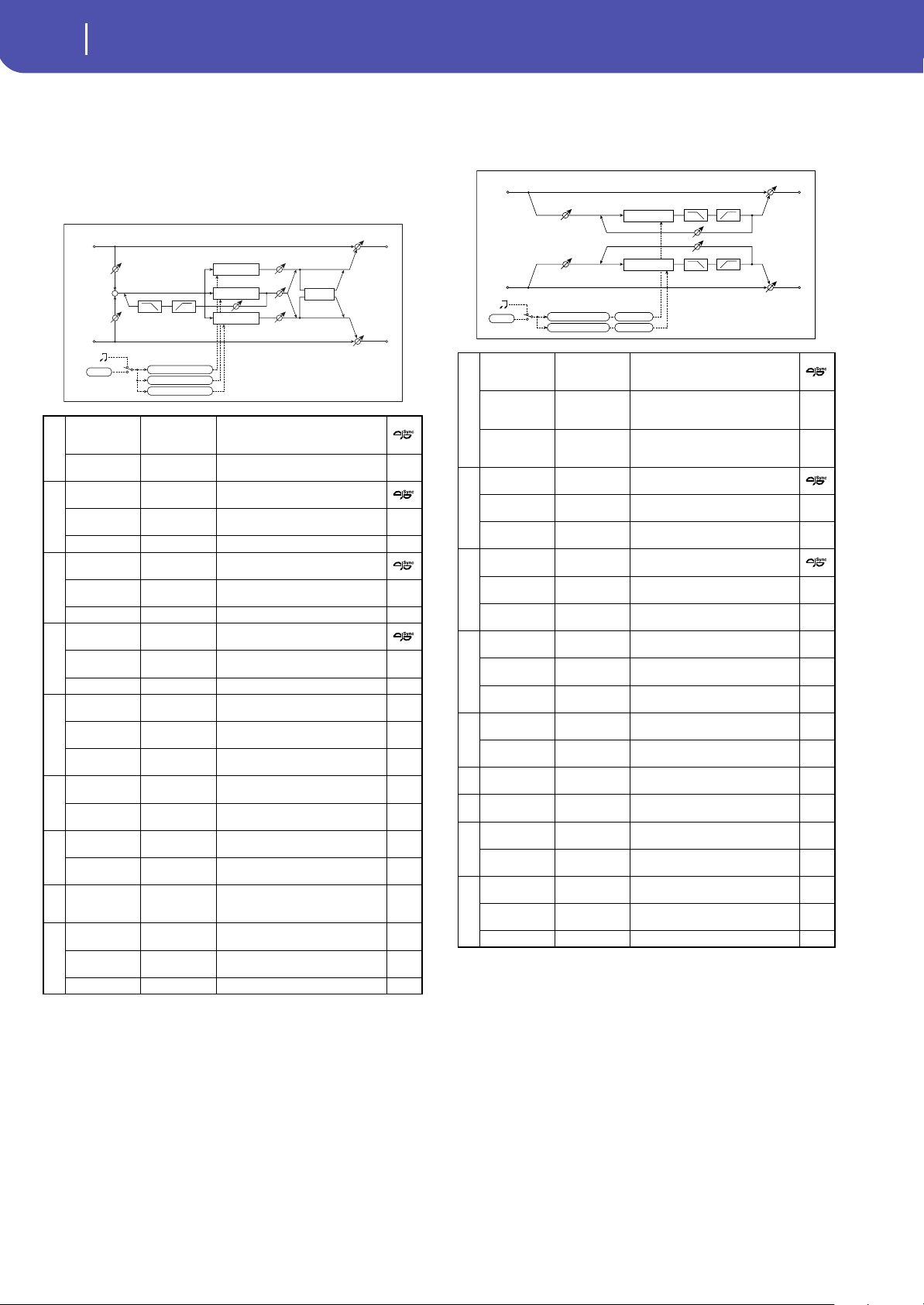
322
Effects
Delay
65: L/C/R BPM Delay
The L/C/R delay enables you to match the delay time with the
song tempo. You can also synchronize the delay time with the
arpeggiator or sequencer. If you program the tempo before per-
formance, you can achieve a delay effect that synchronizes with
the song in real-time. Delay time is set by notes.
a: Time Over?
You can set the delay time up to 5,460msec. If the delay time
exceeds this limit, the error message “OVER!” appears in the dis-
play. Set the delay time parameters so that this message will not
appear. “Time Over?” is only a display parameter.
66: Stereo BPM Delay
This stereo delay enables you to set the delay time to match the
song tempo.
a: Time Over? L, R
You can set the delay time up to 2,730msec. If the delay time
exceeds this limit, the error message “OVER!” appears in the dis-
play. Set the delay time parameters so that this message will not
appear. “Time Over?” is only a display parameter.
a
BPM
MIDI,
40.00...
300.00
MIDI syncs to the system tempo; 40–
300 sets the tempo manually for this
individual effect
Time Over? ---, OVER!
Displays an error message when the
delay time exceeds the upper limit
b
L Delay Base
Note
r...w
Selects the type of notes to specify
the delay time for TapL
Times x1...x32
Sets the number of notes to specify
the delay time for TapL
Level 0...50 Sets the output level of TapL
c
C Delay Base
Note
r...w
elects the type of notes to specify
the delay time for TapC
Times x1...x32
Sets the number of notes to specify
the delay time for TapC
Level 0...50 Sets the output level of TapC
d
R Delay Base
Note
r...w
Selects the type of notes to specify
the delay time for TapR
Times x1...x32
Sets the number of notes to specify
the delay time for TapR
Level 0...50 Sets the output level of TapR
e
Feedback
(C Delay)
–100...+100 Sets the feedback amount of TapC
Src Off...Tempo
Selects the modulation source for
the TapC feedback
Amt –100...+100
Sets the modulation amount of the
TapC feedback
f
High Damp [%] 0...100
Sets the damping amount in the
high range
Low Damp [%] 0...100
Sets the damping amount in the low
range
g
Input Level
Dmod [%]
–100...+100
Sets the modulation amount of the
input level
Src Off...Tempo
Selects the modulation source for
the input level
h Spread 0...50
Sets the width of the stereo image of
the effect sound
i
Wet/Dry
Dry, 1:99...99:1,
Wet
Balance between the wet and dry
signal
Src Off...Tempo
Table , “Dynamic Modulation
sources,” on page 283
Amt –100...+100 Amount of modulation source
C Delay
Left
Right
Feedback
Spread
FX Amt
FX Amt
FX Amt = 100: Mono In - Stereo Out / FX Amt = 0: Stereo In -Stereo Out
Input Level D-mod
High Damp
Low Damp
L Delay
Input Level D-mod
+
Level
Level
Level
Tempo
BPM
BPM
Base Note x Times
Base Note x Times
Base Note x Times
R Delay
a
BPM
MIDI,
40.00...
300.00
MIDI syncs to the system tempo; 40–
300 sets the tempo manually for this
individual effect
Time Over? L ---, OVER!
Display the error message if the left
channel delay time exceeds the
upper limit
R---, OVER!
Display the error message if the
right channel delay time exceeds
the upper limit
b
L Delay Base
Note
r...w
Selects the type of notes to specify
the left channel delay time
Times x1...x32
Sets the number of notes to specify
the left channel delay time
Adjust [%] –2.50...+2.50
Fine-adjust the left channel delay
time
c
R Delay Base
Note
r...w
Selects the type of notes to specify
the right channel delay time
Times x1...x32
Sets the number of notes to specify
the right channel delay time
Adjust [%] –2.50...+2.50
Fine-adjust the right channel delay
time
d
L Feedback –100...+100
Sets the feedback amount for the
left channel
Src Off...Tempo
Selects the modulation source of
feedback amount
Amt L –100...+100
Sets the modulation amount of the
left channel feedback
e
R Feedback –100...+100
Sets the feedback amount for the
right channel
Amt R –100...+100
Sets the modulation amount of the
right channel feedback
f High Damp [%] 0...100
Sets the damping amount in the
high range
g Low Damp [%] 0...100
Sets the damping amount in the low
range
h
Input Level
Dmod [%]
–100...+100
Sets the modulation amount of the
input level
Src Off...Tempo
Selects the modulation source for
the input level
i
Wet/Dry
Dry, 1:99...99:1,
Wet
Balance between the wet and dry
signal
Src Off...Tempo
Table , “Dynamic Modulation
sources,” on page 283
Amt –100...+100 Amount of modulation source
Left
Right
Feedback
FX Amt
FX Amt
Stereo In - Stereo Out
Input Level D-mod
Input Level D-mod
High Damp Low Damp
High Damp
Low Damp
Tempo
BPM
BPM
Base Note x Times
Base Note x Times
Adjust [%]
Adjust [%]
Delay
Delay
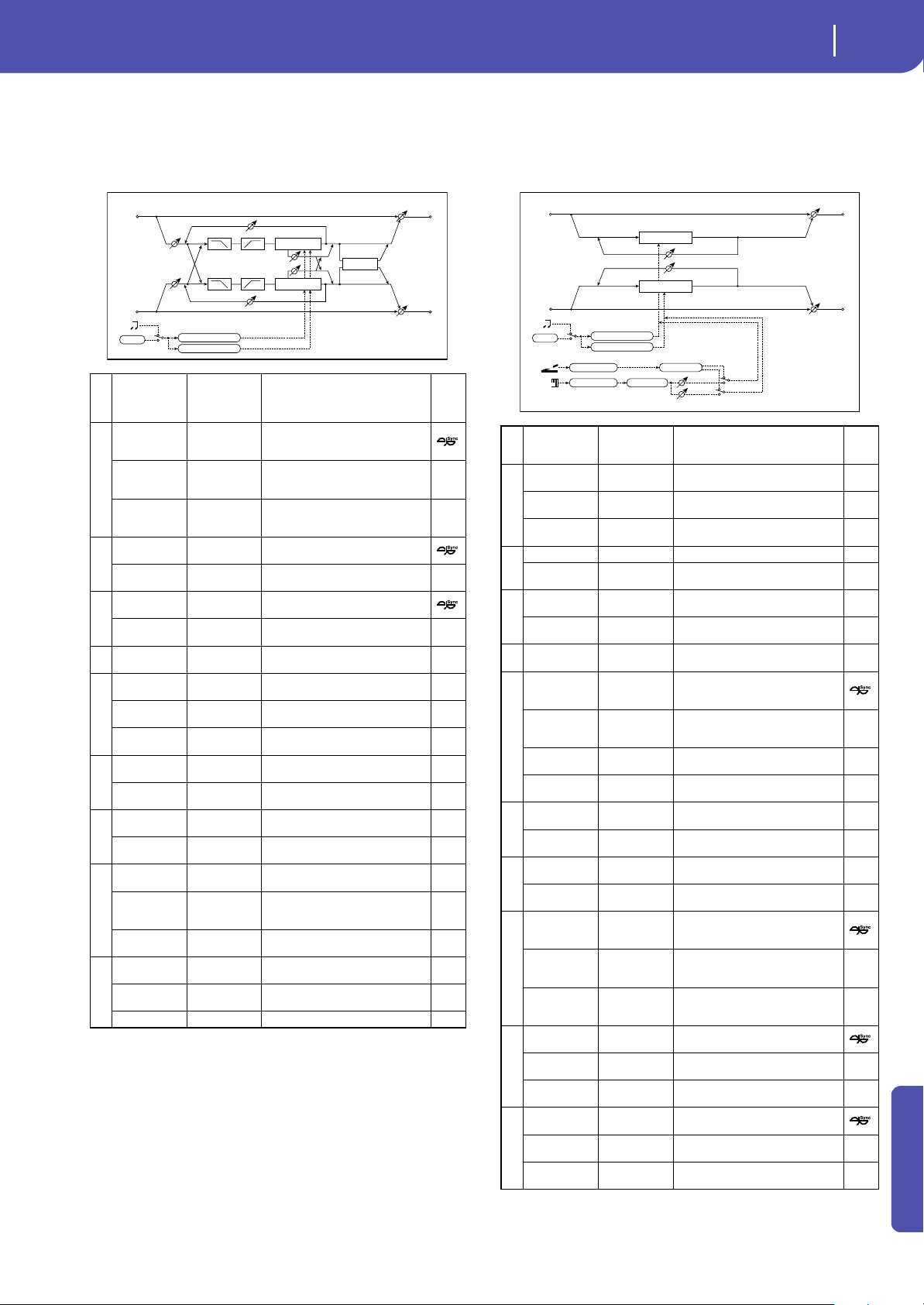
323
Effects
Delay
Appendix
67: St.BPM Mtap Delay
(Stereo BPM Multi tap Delay)
This four-tap delay enables you to select a tempo and rhythm
pattern to set up each tap.
68: St.BPM Mod. Delay
(Stereo BPM Modulation Delay)
This is a stereo modulation delay that lets you synchronize the
delay time to the tempo of the song.
aMode
Normal, Cross
Feedback,
Cross Pan1,
Cross Pan2
Switches the left and right delay
routing
b
BPM
MIDI,
40.00...
300.00
MIDI syncs to the system tempo;
40–300 sets the tempo manually for
this individual effect
Time Over? 1 ---, OVER!
Displays an error message when the
delay time for Tap1 exceeds the
upper limit
2 ---, OVER!
Displays an error message when the
delay time for Tap2 exceeds the
upper limit
c
Tap 1 Base
Note
r...w
Selects the type of notes to specify
the delay time for Tap1
Times x1...x32
Sets the number of notes to specify
the delay time for Tap1
d
Tap 2 Base
Note
r...w
Selects the type of notes to specify
the delay time for Tap2
Times x1...x32
Sets the number of notes to specify
the delay time for Tap2
e Tap1 Level 0...100
Sets the Tap1 output level
f
Feedback
(Tap2)
–100...+100 Sets the Tap2 feedback amount
Src Off...Tempo
Selects the modulation source of
the Tap2 feedback amount
Amt –100...+100
Sets the modulation amount of the
Tap2 feedback amount
g
High Damp [%] 0...100
Sets the damping amount in the
high range
Low Damp [%] 0...100
Sets the damping amount in the
low range
h
Input Level
Dmod [%]
–100...+100
Sets the modulation amount of the
input level
Src Off...Tempo
Selects the modulation source for
the input level
i
Spread –100...+100
Sets the width of the stereo image
of the effect sound
Src Off...Tempo
Selects the modulation source of
the effect sound’s stereo image
width
Amt –100...+100
Sets the modulation amount of the
effect sound’s stereo image width
j
Wet/Dry
Dry, 1:99...99:1,
Wet
Balance between the wet and dry
signal
Src Off...Tempo
Table , “Dynamic Modulation
sources,” on page 283
Amt –100...+100 Amount of modulation source
Tempo
BPM
BPM
Base Note x Times
Base Note x Times
Left
Right
Feedback
Spread
FX Amt
FX Amt
Stereo In - Stereo Out
Input Level D-mod
Input Level D-mod
High Damp
Low Damp
High Damp
Low Damp
Delay
Delay
Feedback
Tap1 Level
Mode
Mode
(1)
(2)
(1)
(2)
Tap1=(1)
Tap2=(2)
a
Modulation
Mode
LFO, D-mod
Switches between LFO modulation
control and modulation source
control
b
D-mod
Modulation
L/R:+/+,
L/R:+/–
Reversed L/R control by modulation
source
Src Off...Tempo
Selects the modulation source that
controls delay time
Response 0...30
Sets the rate of response to the
modulation source
c
LFO Waveform Triangle, Sine Selects the LFO Waveform
LFO Shape –100...+100
Changes the curvature of the LFO
Waveform
d
LFO Sync Off, On
Switches LFO reset off/on
Src Off...Tempo
Selects the modulation source that
resets the LFO
e
LFO Frequency
[Hz]
0.02...20.00 Sets the speed of the LFO
f
MIDI Sync Off, On
When this is on, the LFO speed is set
by BPM, Base Note, and Times,
instead of Frequency
BPM
MIDI,
40.00...
300.00
MIDI syncs to the system tempo; 40–
300 sets the tempo manually for this
individual effect
Base Note r...w
Selects the type of notes that
specify the LFO speed
Times x1...x32
Sets the number of notes that
specify the LFO speed
g
L LFO Phase
[deg]
–180...+180
Sets the phase obtained when the
left LFO is reset
Depth 0...200
Sets the depth of the left LFO
modulation
h
R LFO Phase
[deg]
–180...+180
Sets the phase obtained when the
right LFO is reset
Depth 0...200
Sets the depth of the right LFO
modulation
i
BPM(Delay)
MIDI,
40.00...
300.00
MIDI syncs to the system tempo; 40–
300 sets the tempo manually for this
individual effect
Time Over? L ---, OVER!
Display the error message if the left
channel delay time exceeds the
upper limit
R ---, OVER!
Display the error message if the
right channel delay time exceeds
the upper limit
j
L Delay Base
Note
r...w
Selects the type of notes to specify
the left channel delay time
Times x1...x32
Sets the number of notes to specify
the left channel delay time
Feedback –100...+100
Sets the feedback amount of left
delay
k
R Delay Base
Note
r...w
Selects the type of notes to specify
the right channel delay time
Times x1...x32
Sets the number of notes to specify
the right channel delay time
Feedback –100...+100
Sets the feedback amount of right
delay
Tempo
BPM
BPM
Base Note x Times
Base Note x Times
Left
Right
Feedback
LFO Phase
FX Amt
FX Amt
Stereo In - Stereo Out
LFO: Tri / Sine
Modulation Mode
D-mod
LFO
D
-mod
Delay
Delay
L/R: +/+ +/–
LFO Shape
Response
LFO Sync
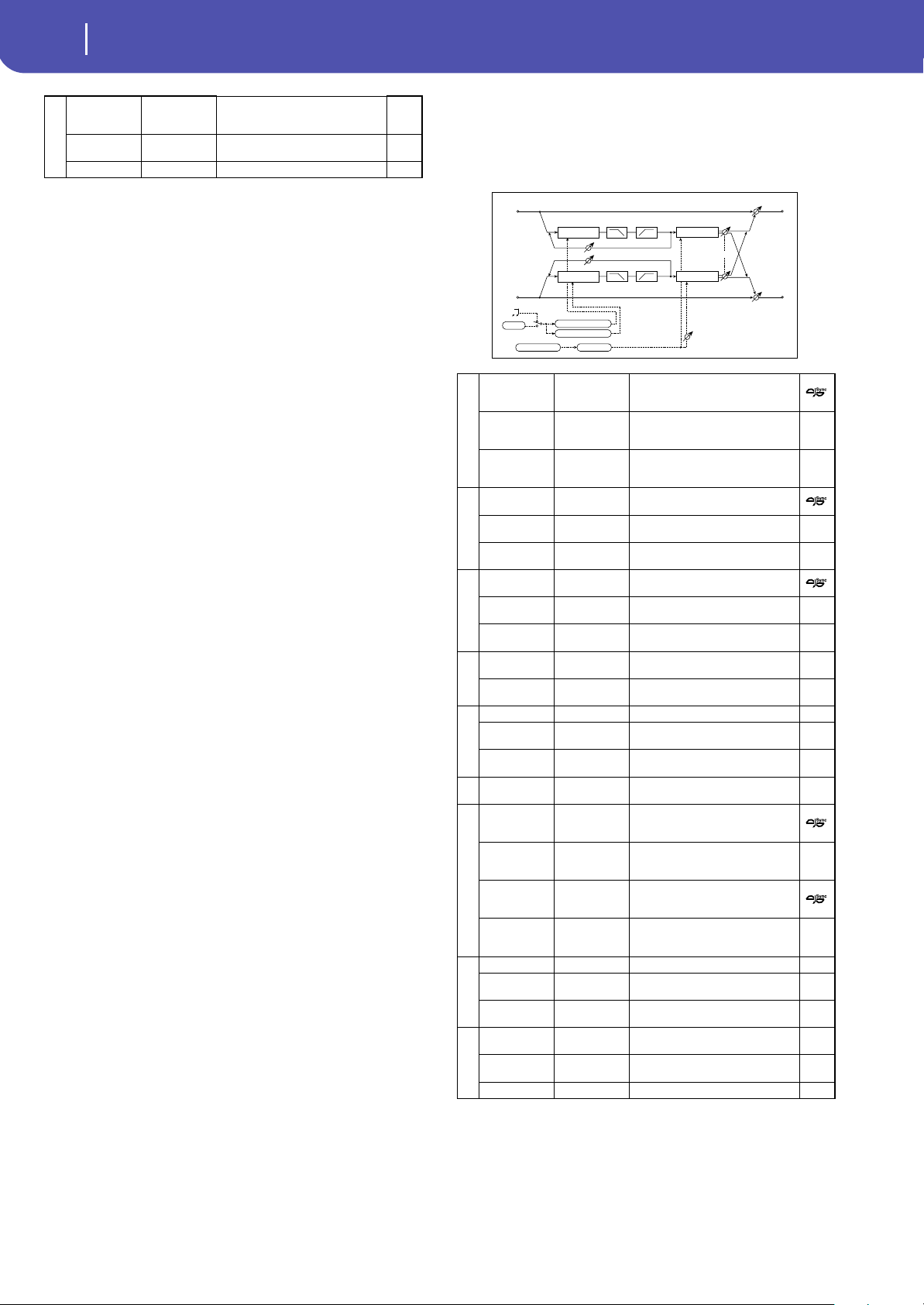
324
Effects
Delay
i: Time Over? L, R
You can set the delay time up to 2,550msec. If the delay time
exceeds this limit, the error message “OVER!” appears in the dis-
play. Set the delay time parameters so that this message will not
appear. “Time Over?” is only a display parameter.
69: St.BPMAutoPanDly
(Stereo BPM Auto Panning Delay)
This stereo auto panning delay enables you to set the delay time
to match the song tempo.
l
Wet/Dry
-Wet, -
1:99...Dry...99:1
, Wet
Balance between the wet and dry
signal
Src Off...Tempo
Table , “Dynamic Modulation
sources,” on page 283
Amt –100...+100 Amount of modulation source
a
BPM
MIDI,
40.00...
300.00
MIDI syncs to the system tempo; 40–
300 sets the tempo manually for this
individual effect
Time Over? L ---, OVER!
Display the error message if the left
channel delay time exceeds the
upper limit
R---, OVER!
Display the error message if the
right channel delay time exceeds
the upper limit
b
L Delay Base
Note
r...w
Selects the type of notes to specify
the left channel delay time
Times x1...x32
Sets the number of notes to specify
the left channel delay time
Feedback –100...+100
Sets the feedback amount for the
left channel
c
R Delay Base
Note
r...w
Selects the type of notes to specify
the right channel delay time
Times x1...x32
Sets the number of notes to specify
the right channel delay time
Feedback –100...+100
Sets the feedback amount for the
right channel
d
High Damp [%] 0...100
Sets the damping amount in the
high range
Low Damp [%] 0...100
Sets the damping amount in the low
range
e
LFO Waveform Triangle, Sine Selects the LFO Waveform
Shape –100...+100
Changes the curvature of the LFO
Waveform
LFO Phase –180...+180
Sets the LFO phase difference
between the left and right
f
Panning Freq
[Hz]
0.02...20.00 Sets the panning speed
g
MIDI Sync Off, On
When this is on, the pan LFO speed
is set by BPM, Base Note, and Times,
instead of Frequency
BPM
MIDI,
40.00...
300.00
MIDI syncs to the system tempo; 40–
300 sets the tempo manually for this
individual effect
Base Note r...w
Selects the type of notes to specify
the delay time for the panning
speed
Times x1...x32
Sets the number of notes to specify
the delay time for the panning
speed
h
Panning Depth 0...100 Sets the panning width
Src Off...Tempo
Selects the modulation source for
the panning width
Amt –100...+100
Set the modulation amount of the
panning width
i
Wet/Dry
Dry, 1:99...99:1,
Wet
Balance between the wet and dry
signal
Src Off...Tempo
Table , “Dynamic Modulation
sources,” on page 283
Amt –100...+100 Amount of modulation source
Tempo
BPM
BPM
Base Note x Times
Base Note x Times
Left
Right
FX Amt
FX Amt
Stereo In - Stereo Out
LFO Phase
LFO Shape
Pan
Pan
LFO: Tri / Sin
Depth
Delay
Delay
High Damp Low Damp
High Damp
Low Damp
Feedback
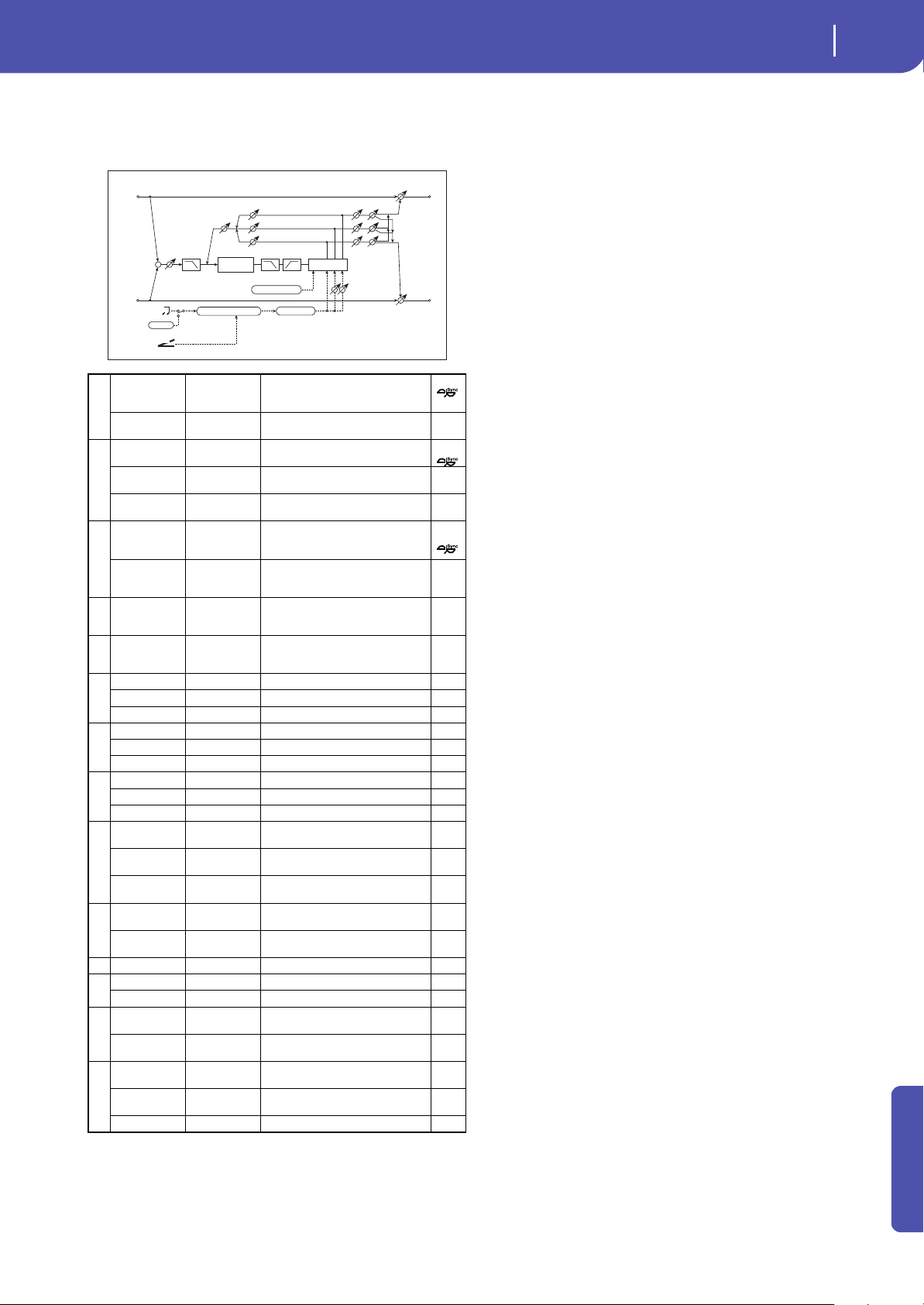
325
Effects
Delay
Appendix
70: Tape Echo BPM
This is a tape echo that lets you synchronize the delay time to the
tempo of the song.
a: Tap1 Dmod Src
b: Tap1 Delay Note
b: Times
c: Tap1 Dmod Note
c: Times
If “Tap1 Dmod Src” is Off or the selected modulation is at 0, the
delay time will be the length specified by “Tap1 Delay Note” and
“Times.”
If “Tap1 Dmod Src” is other than Off, the delay time will change
so that it will be as specified by “Tap1 Dmod Note” and “Times”
when the maximum modulation is reached.
b: Time Over?
You can set the delay time up to 5,400msec. If the delay time
exceeds this limit, the error message “OVER!” appears in the dis-
play. Set the delay time parameters so that this message will not
appear. “Time Over?” is only a display parameter.
a
BPM (Delay)
MIDI,
40.00...
300.00
MIDI syncs to the system tempo; 40–
300 sets the tempo manually for this
individual effect
Tap1 Dmod Src Off...Tempo
Selects the modulation source of
the delay time
b
Tap1 Delay
Note
r...w
Selects the type of notes to specify
the delay time (tap1)
Times x1...x32
Sets the number of notes to specify
the delay time (tap1)
Time Over? ---, OVER!
Displays an error message when the
delay time exceeds the upper limit
c
Tap1 Dmod
Note
r...w
Selects the note value used to
specify the delay time when the
modulation is at maximum
Times x1...x32
Specifies the number of notes used
to specify the delay time when the
modulation is at maximum
d
Tap2 Position
[%]
0...100
Sets the position of Tap 2 relative to
the Tap 1 delay time the depth of
pitch variation
e
Tap3 Position
[%]
0...100
Sets the position of Tap 3 relative to
the Tap 1 delay time the depth of
pitch variation
f
Tap1 Level 0...100 Sets the Tap1 output level
Pan L, 1...99, R Sets the stereo image of tap1
FB Amt –100...+100 Sets the Tap1 feedback amount
g
Tap2 Level 0...100 Sets the Tap2 output level
Pan L, 1...99, R Sets the stereo image of tap2
FB Amt –100...+100 Sets the Tap2 feedback amount
h
Tap3 Level 0...100 Sets the Tap3 output level
Pan L, 1...99, R Sets the stereo image of tap3
FB Amt –100...+100 Sets the Tap3 feedback amount
i
Feedback 0...100
Sets the amount of feedback for
Taps 1, 2, and 3
Src Off...Tempo
Selects the modulation source of
feedback amount
Amt –100...+100
Sets the depth by which feedback
amount will be modulated
j
High Damp [%] 0...100
Sets the damping amount in the
high range
Low Damp [%] 0...100
Sets the damping amount in the low
range
k Saturation 0...100 Sets the distortion amount
l
Input Trim 0...100 Sets the input gain
Pre Tone 0...100 Sets the tone of the input
m
Wow Flutter
[Hz]
0.02...1.00
Sets the frequency at which pitch
variation will occur
Wow Flutter
depth
0...100 Sets the depth of pitch variation
n
Wet/Dry
Dry, 1:99...99:1,
Wet
Balance between the wet and dry
signal
Src Off...Tempo
Table , “Dynamic Modulation
sources,” on page 283
Amt –100...+100 Amount of modulation source
Wah Flatter
D
-mod
Tap2/3 Position
+
Tape
Saturation
Left
Right
FX Amt
Trim
PanLevel
FX Amt
FX Amt = 100: Mono In - Stereo Out / FX Amt = 0: Stereo In - Stereo Out
Feedback
Feedback Amt
High / Low DampPre Tone
Delay
(1)
(2)
(3)
Delay Time
BPM
BPM
Base Note x Times
Tempo
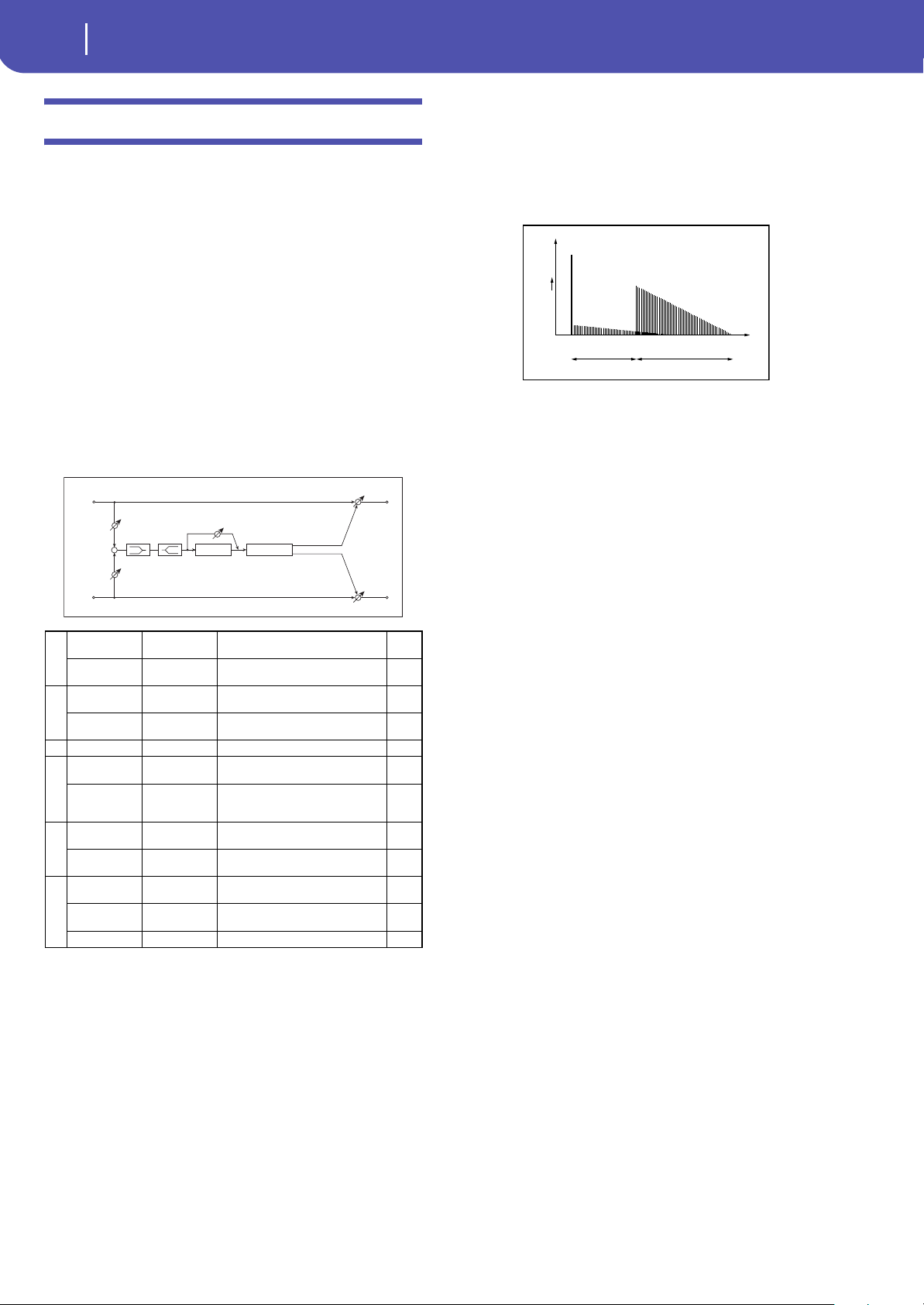
326
Effects
Reverb and Early Reflections (Reverb ER)
Reverb and Early Reflections (Reverb ER)
71: Reverb Hall
This hall-type reverb simulates the reverberation of mid-size
concert halls or ensemble halls.
72: Reverb SmoothHall
This hall-type reverb simulates the reverberation of larger halls
and stadiums, and creates a smooth release.
73: Reverb Wet Plate
This plate reverb simulates warm (dense) reverberation.
74: Reverb Dry Plate
This plate reverb simulates dry (light) reverberation.
b: Pre Delay [msec]
b: Pre Delay Thru [%]
The “Pre Delay” sets the delay time to the reverb input, allowing
you to control spaciousness.
Using the “Pre Delay Thru” parameter, you can mix the dry
sound without delay, emphasizing the attack of the sound.
75: Reverb Room
This room-type reverb emphasizes the early reflections that
make the sound tighter. Changing the balance between the early
reflections and reverb sound allows you to simulate nuances,
such as the type of walls of a room.
a
Reverb Time
[sec]
0.1...10.0 Sets the reverberation time
High Damp [%] 0...100
Sets the damping amount in the
high range
b
Pre Delay
[msec]
0...200
Sets the delay time from the dry
sound
Pre Delay Thru
[%]
0...100
Sets the mix ratio of non-delay
sound
c EQ Trim 0...100 Sets the EQ input level
d
Pre LEQ Fc
Low,
Mid-Low
Selects the cutoff frequency (low or
mid-low) of the low-range equalizer
Pre HEQ Fc
High,
Mid-High
Selects the cutoff frequency (high or
mid-high) of the high-range
equalizer
e
Pre LEQ Gain
[dB]
–15.0...+15.0 Sets the gain of Low EQ
Pre HEQ Gain
[dB]
–15.0...+15.0 Sets the gain of High EQ
f
Wet/Dry
Dry, 1:99...99:1,
Wet
Balance between the wet and dry
signal
Src Off...Tempo
Table , “Dynamic Modulation
sources,” on page 283
Amt –100...+100 Amount of modulation source
Left
Right
FX Amt
FX Amt
FX Amt = 100: Mono In - Stereo Out / FX Amt = 0: Stereo In - Stereo Out
EQ Trim
+
EQ Trim
LEQ HEQ
Pre Delay
Reverb
Pre Delay Thru
Time
Reverb - Hall / Plate Type
Level
Louder
Dry
Reverb
Pre Delay Thru
Pre Delay
Reverb Time
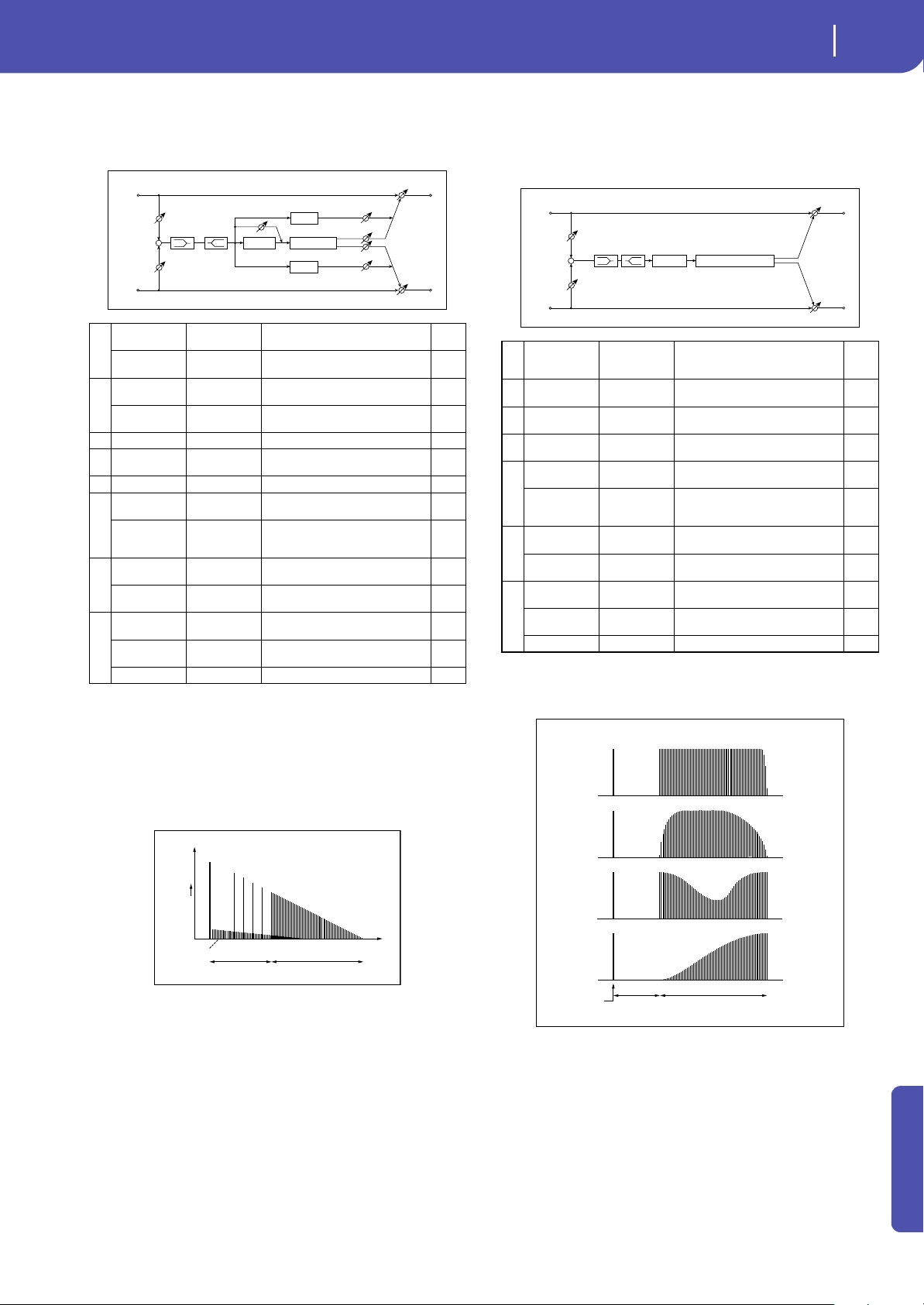
327
Effects
Reverb and Early Reflections (Reverb ER)
Appendix
76: Reverb BrightRoom
This room-type reverb emphasizes the early reflections that
make the sound brighter.
c: ER Level
d: Reverb Level
These parameters set the early reflection level and reverb level.
Changing these parameter values allows you to simulate the type
of walls in the room. That is, a larger “ER Level” simulates a hard
wall, and a larger “Reverb Level” simulates a soft wall.
77: Early Reflections
This effect is only the early reflection part of a reverberation
sound, and adds presence to the sound. You can select one of the
four decay curves.
a: Type
This parameter selects the decay curve for the early reflection.
a
Reverb Time
[sec]
0.1...3.0 Sets the reverberation time
High Damp [%] 0...100
Sets the damping amount in the
high range
b
Pre Delay
[msec]
0...200
Sets the delay time from the dry
sound
Pre Delay Thru
[%]
0...100
Sets the mix ratio of non-delay
sound
c ER Level 0...100 Sets the level of early reflections
d Reverb Level 0...100
Sets the reverberation level
e EQ Trim 0...100 Sets the EQ input level
f
Pre LEQ Fc
Low,
Mid-Low
Selects the cutoff frequency (low or
mid-low) of the low-range equalizer
Pre HEQ Fc
High,
Mid-High
Selects the cutoff frequency (high or
mid-high) of the high-range
equalizer
g
Pre LEQ Gain
[dB]
–15.0...+15.0 Sets the gain of Low EQ
Pre HEQ Gain
[dB]
–15.0...+15.0 Sets the gain of High EQ
h
Wet/Dry
Dry, 1:99...99:1,
Wet
Balance between the wet and dry
signal
Src Off...Tempo
Table , “Dynamic Modulation
sources,” on page 283
Amt –100...+100 Amount of modulation source
Left
Right
FX Amt
FX Amt
FX Amt = 100: Mono In - Stereo Out / FX Amt = 0: Stereo In - Stereo Out
EQ Trim
+
EQ Trim
LEQ HEQ
Pre Delay
Reverb
Reverb Level
ER Level
ER Level
Pre Delay Thru
ERs
ERs
Reverb - Room Type
Time
Level
Louder
ER
(Early Reflections)
Dry
Reverb
Pre Delay Thru
Pre Delay
Reverb Time
aType
Sharp, Loose,
Modulated,
Reverse
Selects the decay curve for the early
reflection
b ER Time [msec] 10...800
Sets the time length of early
reflection
c
Pre Delay
[msec]
0...200
Sets the time taken from the original
sound to the first early reflection
d EQ Trim 0...100
Sets the input level of EQ applied to
the effect sound
e
Pre LEQ Fc
Low,
Mid-Low
Selects the cutoff frequency (low or
mid-low) of the low-range equalizer
Pre HEQ Fc
High,
Mid-High
Selects the cutoff frequency (high or
mid-high) of the high-range
equalizer
f
Pre LEQ Gain
[dB]
–15.0...+15.0 Gain of the Low EQ
Pre HEQ Gain
[dB]
–15.0...+15.0 Gain of the High EQ
g
Wet/Dry
Dry, 1:99...99:1,
Wet
Balance between the wet and dry
signal
Src Off...Tempo
Table , “Dynamic Modulation
sources,” on page 283
Amt –100...+100 Amount of modulation source
Left
Right
FX Amt
FX Amt
FX Amt = 100: Mono In - Stereo Out / FX Amt = 0: Stereo In - Stereo Out
EQ Trim
+
EQ Trim
Pre Delay
Early Reflections
LEQ HEQ
Sharp
Loose
Modulated
Early Reflections - Type
Reverse
Dry
Pre Delay
ER Time
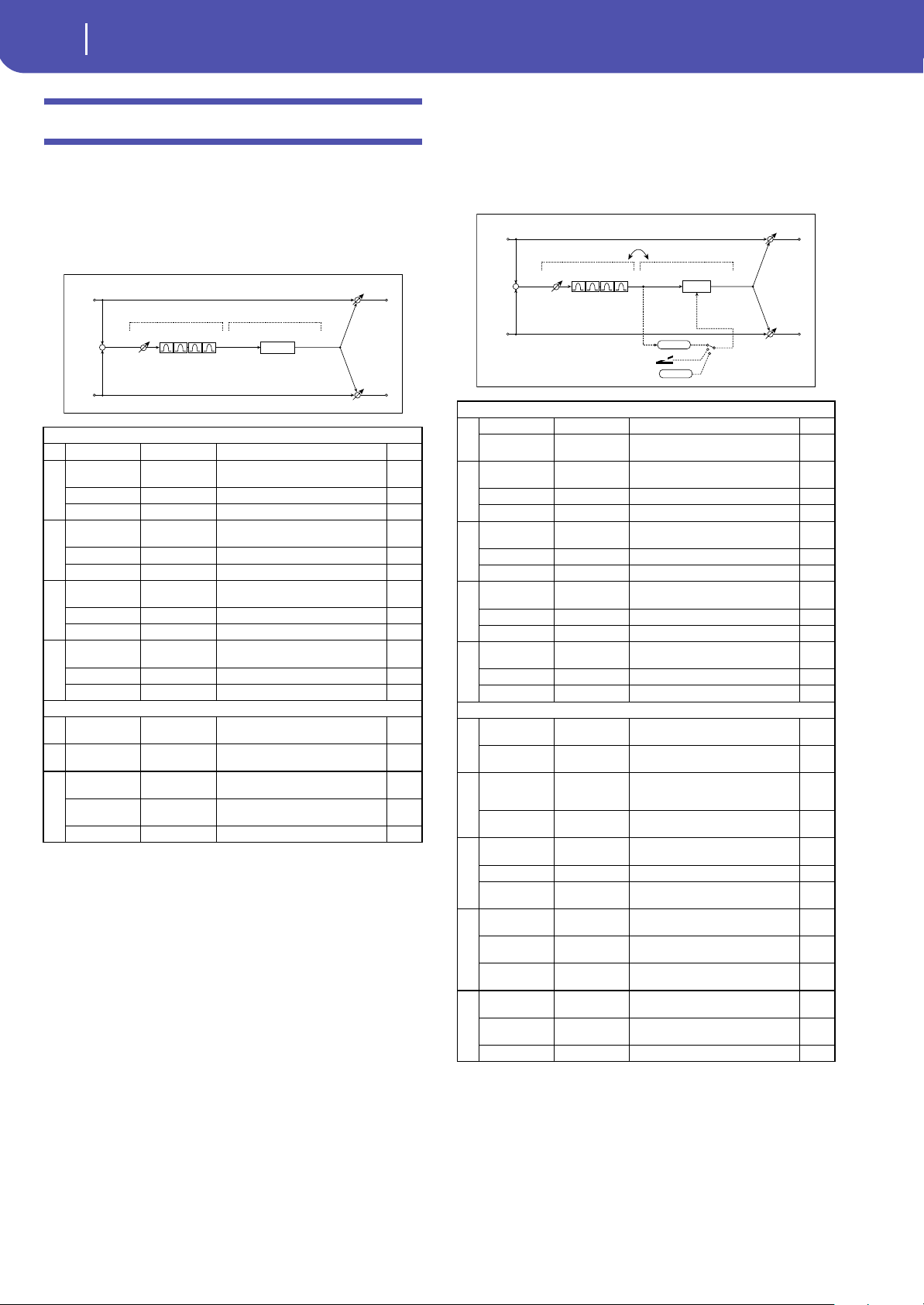
328
Effects
Mono-Mono Serial (Mono-Mono)
Mono-Mono Serial (Mono-Mono)
78: P4EQ - Exciter
(Parametric 4-Band EQ - Exciter)
This effect combines a mono four-band parametric equalizer
and an exciter.
79: P4EQ - Wah
(Parametric 4-Band EQ -
Wah/Auto Wah)
This effect combines a mono four-band parametric equalizer
and a wah. You can change the order of the connection.
P4EQ
a [E]Trim 0...100 Sets the parametric EQ input level
b
[E]B1 Cutoff
[Hz]
20...1.00k Sets the center frequency of Band 1
Q 0.5...10.0 Sets the bandwidth of Band 1
Gain [dB] –18...+18 Sets the gain of Band 1
c
[E]B2 Cutoff
[Hz]
50...5.00k Sets the center frequency of Band 2
Q 0.5...10.0 Sets the bandwidth of Band 2
Gain [dB] –18...+18 Sets the gain of Band 2
d
[E]B3 Cutoff
[Hz]
300...10.00k Sets the center frequency of Band 3
Q 0.5...10.0 Sets the bandwidth of Band 3
Gain [dB] –18...+18 Sets the gain of Band 3
e
[E]B4 Cutoff
[Hz]
500...20.00k Sets the center frequency of Band 4
Q 0.5...10.0 Sets the bandwidth of Band 4
Gain [dB] –18...+18 Sets the gain of Band 4
EXCITER
f
[X]Exciter
Blend
–100...+100
Sets the intensity (depth) of the
Exciter effect
g
[X]Emphasis
Freq
0...70
Sets the frequency range to be
emphasized
h
Wet/Dry
Dry, 1:99...99:1,
Wet
Balance between the wet and dry
signal
Src Off...Tempo
Table , “Dynamic Modulation
sources,” on page 283
Amt –100...+100 Amount of modulation source
Left
Right
FX Amt
FX Amt
FX Amt = 100: Mono In - Mono Out / FX Amt = 0: Stereo In - Stereo Out
Trim
+
Exciter
Parametric 4Band EQ Exciter
P4EQ
a
[E]Trim 0...100 Sets the parametric EQ input level
Routing
P4EQ Wah,
Wah P4EQ
Changes the order of the parametric
equalizer and wah connection
b
[E]B1 Cutoff
[Hz]
20...1.00k Sets the center frequency of Band 1
Q 0.5...10.0 Sets the bandwidth of Band 1
Gain [dB] –18...+18 Sets the gain of Band 1
c
[E]B2 Cutoff
[Hz]
50...5.00k Sets the center frequency of Band 2
Q 0.5...10.0 Sets the bandwidth of Band 2
Gain [dB] –18...+18 Sets the gain of Band 2
d
[E]B3 Cutoff
[Hz]
300...10.00k Sets the center frequency of Band 3
Q 0.5...10.0 Sets the bandwidth of Band 3
Gain [dB] –18...+18 Sets the gain of Band 3
e
[E]B4 Cutoff
[Hz]
500...20.00k Sets the center frequency of Band 4
Q 0.5...10.0 Sets the bandwidth of Band 4
Gain [dB] –18...+18 Sets the gain of Band 4
WAH
f
[W]Frequency
Bottom
0...100
Sets the lower limit of the wah
center frequency
Frequency Top 0...100
Sets the upper limit of the wah
center frequency
g
[W]Sweep
Mode
Auto,
D-mod,
LFO
Selects the control from auto-wah,
modulation source, and LFO
Src Off...Tempo
Selects the modulation source for
the wah when Sweep Mode=D-mod
h
[W]LFO
Frequency [Hz]
0.02...20.00 Sets the speed of the LFO
Resonance 0...100 Sets the resonance amount
LPF Off, On
Switches the wah low pass filter on
and off
i
[W] Wet/Dry
Dry,1 : 99... 99 :
1, Wet
Sets the wah effect balance
Src Off...Tempo
Selects the Wet/Dry modulation
source for the wah
Amt –100...+100
Sets the
Wet/Dry
modulation
amount for the wah
j
Wet/Dry
Dry, 1:99...99:1,
Wet
Balance between the wet and dry
signal
Src Off...Tempo
Table , “Dynamic Modulation
sources,” on page 283
Amt –100...+100 Amount of modulation source
Left
Right
FX Amt
FX Amt
FX Amt = 100: Mono In - Mono Out / FX Amt = 0: Stereo In - Stereo Out
Trim
+
Parametric 4Band EQ
Routing
Wah/Auto Wah
D
-mod
Envelope
Sweep Mode
D-mod
Auto
LFO
LFO
Wah
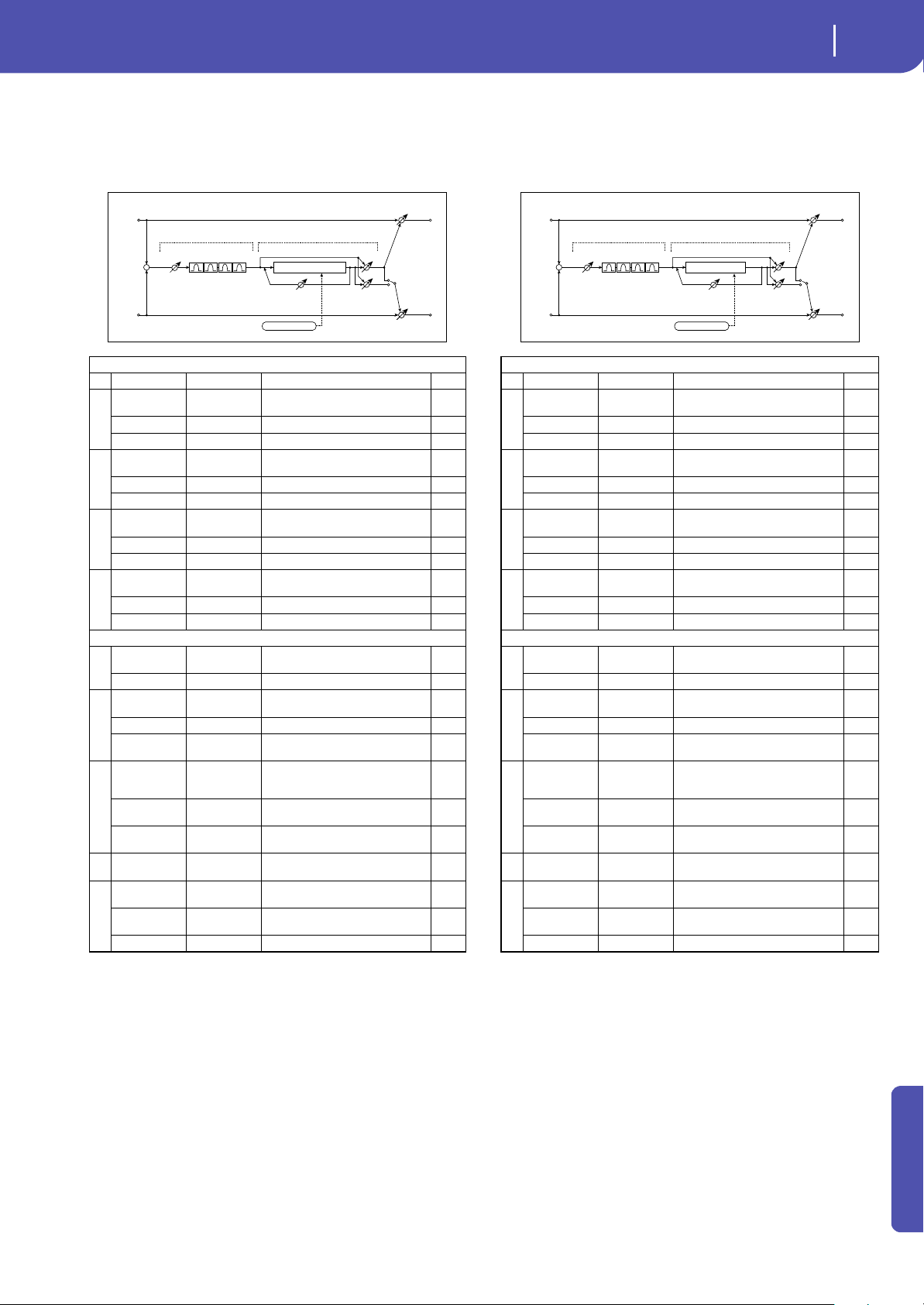
329
Effects
Mono-Mono Serial (Mono-Mono)
Appendix
80: P4EQ - Cho/Flng
(Parametric 4-Band EQ - Chorus/Flanger)
This effect combines a mono four-band parametric equalizer
and a chorus/flanger.
i: Output Mode
When Wet Invert is selected, the right channel phase of the cho-
rus/flanger effect sound is inverted. This creates pseudo-stereo
effects and adds spread.
However, if a mono-input type effect is connected after this
effect, the left and right sounds may cancel each other, eliminat-
ing the chorus/flanger effects.
81: P4EQ - Phaser
(Parametric 4-Band EQ - Phaser)
This effect combines a mono four-band parametric equalizer
and a phaser.
P4EQ
a [E]Trim 0...100 Sets the parametric EQ input level
b
[E]B1 Cutoff
[Hz]
20...1.00k Sets the center frequency of Band 1
Q 0.5...10.0 Sets the bandwidth of Band 1
Gain [dB] –18...+18 Sets the gain of Band 1
c
[E]B2 Cutoff
[Hz]
50...5.00k Sets the center frequency of Band 2
Q 0.5...10.0 Sets the bandwidth of Band 2
Gain [dB] –18...+18 Sets the gain of Band 2
d
[E]B3 Cutoff
[Hz]
300...10.00k Sets the center frequency of Band 3
Q 0.5...10.0 Sets the bandwidth of Band 3
Gain [dB] –18...+18 Sets the gain of Band 3
e
[E]B4 Cutoff
[Hz]
500...20.00k Sets the center frequency of Band 4
Q 0.5...10.0 Sets the bandwidth of Band 4
Gain [dB] –18...+18 Sets the gain of Band 4
CHORUS/FLANGER
f
[F]LFO
Frequency [Hz]
0.02...20.00 Sets the speed of the LFO
LFO Waveform Triangle, Sine Selects the LFO Waveform
g
[F]Delay Time
[msec]
0.0...1350.0 Sets the delay time
Depth 0...100 Sets the depth of LFO modulation
Feedback –100...+100
Sets the feedback amount
h
[F]Cho/Flng
Wet/Dry
-Wet, -
1:99...Dry...99:1
, Wet
Sets the effect balance of the
chorus/flanger
Src Off...Tempo
Selects the Wet/Dry modulation
source for the chorus/flanger
Amt –100...+100
Sets the Wet/Dry modulation
amount for the chorus/flanger
i
[F]Output
Mode
Normal,
Wet Invert
Selects the output mode for the
chorus/flanger
j
Wet/Dry
Dry, 1:99...99:1,
Wet
Balance between the wet and dry
signal
Src Off...Tempo
Table , “Dynamic Modulation
sources,” on page 283
Amt –100...+100 Amount of modulation source
Left
Right
FX Amt
FX Amt = 100: Mono In - Stereo Out / FX Amt = 0: Stereo In - Stereo Out
Trim
+
Parametric 4Band EQ
Chorus/Flanger
FX Amt
Chorus/Flanger
Feedback
LFO: Tri / Sine
Cho/Flng FX Amt
Normal
Wet Invert
Output Mode
+
–
P4EQ
a [E]Trim 0...100 Sets the parametric EQ input level
b
[E]B1 Cutoff
[Hz]
20...1.00k Sets the center frequency of Band 1
Q 0.5...10.0 Sets the bandwidth of Band 1
Gain [dB] –18...+18 Sets the gain of Band 1
c
[E]B2 Cutoff
[Hz]
50...5.00k Sets the center frequency of Band 2
Q 0.5...10.0 Sets the bandwidth of Band 2
Gain [dB] –18...+18 Sets the gain of Band 2
d
[E]B3 Cutoff
[Hz]
300...10.00k Sets the center frequency of Band 3
Q 0.5...10.0 Sets the bandwidth of Band 3
Gain [dB] –18...+18 Sets the gain of Band 3
e
[E]B4 Cutoff
[Hz]
500...20.00k Sets the center frequency of Band 4
Q 0.5...10.0 Sets the bandwidth of Band 4
Gain [dB] –18...+18 Sets the gain of Band 4
PHASER
f
[P]LFO
Frequency [Hz]
0.02...20.00 Sets the speed of the LFO
LFO Waveform Triangle, Sine Selects the LFO Waveform
g
[P]Manual 0...100
Sets the frequency to which the
effect is applied
Depth 0...100 Sets the depth of LFO modulation
Resonance –100...+100
Sets the resonance amount
h
[P]Phaser Wet/
Dry
-Wet, -
1:99...Dry...99:1
, Wet
Sets the phaser effect balance
Src Off...Tempo
Selects the Wet/Dry modulation
source for the phaser
Amt –100...+100
Sets the Wet/Dry modulation
amount for the phaser
i
[P]Output
Mode
Normal,
Wet Invert
Selects the phaser output mode
j
Wet/Dry
Dry, 1:99...99:1,
Wet
Balance between the wet and dry
signal
Src Off...Tempo
Table , “Dynamic Modulation
sources,” on page 283
Amt –100...+100 Amount of modulation source
Left
Right
FX Amt
FX Amt
FX Amt = 100: Mono In - Stereo Out / FX Amt = 0: Stereo In - Stereo Out
Trim
+
Parametric 4Band EQ Phaser
Phaser
Resonance
LFO: Tri / Sine
Phaser FX Amt
Normal
Wet Invert
Output Mode
–
+
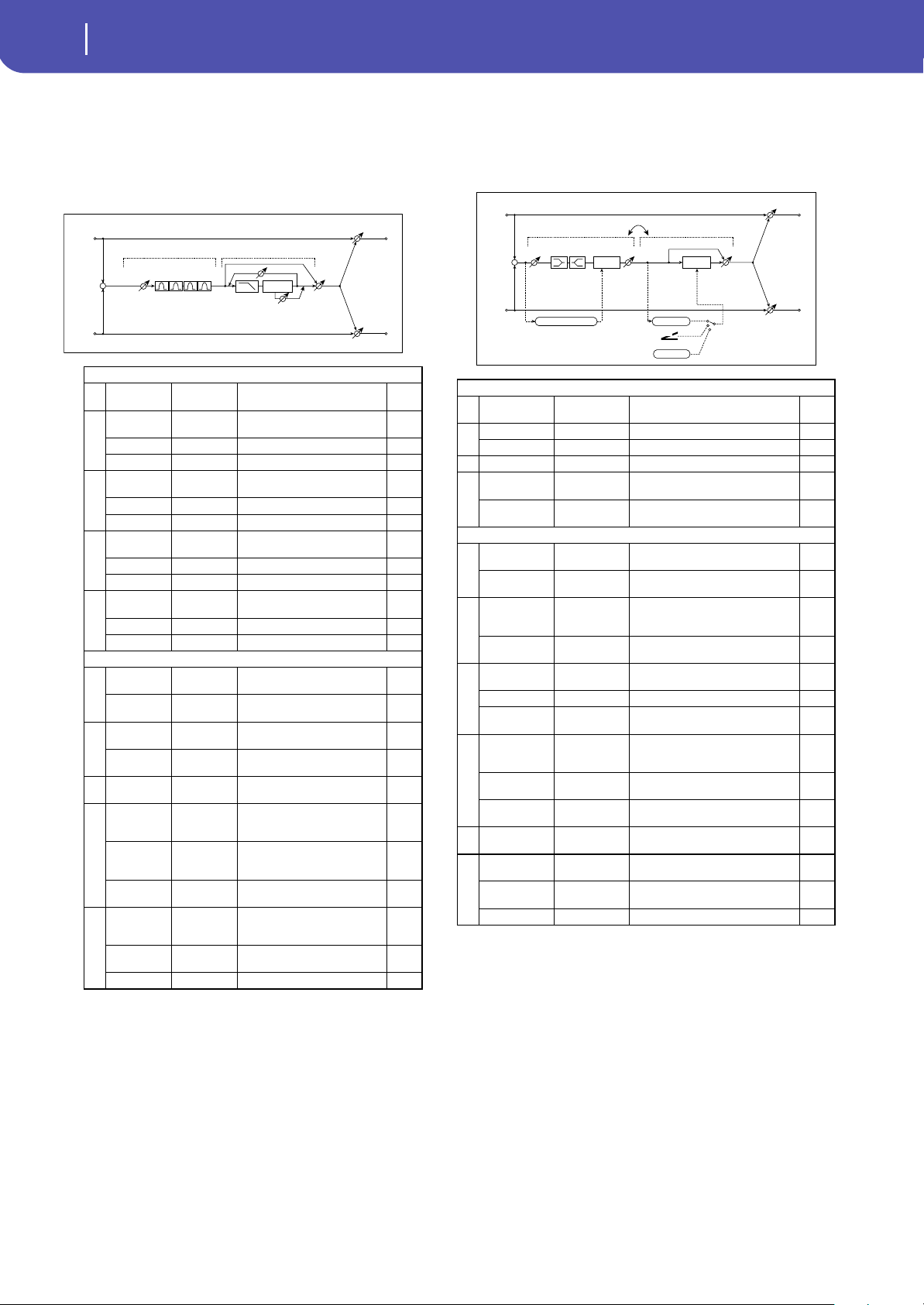
330
Effects
Mono-Mono Serial (Mono-Mono)
82: P4EQ - Mt. Delay
(Parametric 4-Band EQ -
Multitap Delay)
This effect combines a mono four-band parametric equalizer
and a multitap delay.
83: Comp - Wah
(Compressor - Wah/Auto Wah)
This effect combines a mono compressor and a wah. You can
change the order of the connection.
P4EQ
a [E]Trim 0...100
Sets the parametric EQ input
level
b
[E]B1 Cutoff
[Hz]
20...1.00k
Sets the center frequency of
Band 1
Q 0.5...10.0 Sets the bandwidth of Band 1
Gain [dB] –18...+18 Sets the gain of Band 1
c
[E]B2 Cutoff
[Hz]
50...5.00k
Sets the center frequency of
Band 2
Q 0.5...10.0 Sets the bandwidth of Band 2
Gain [dB] –18...+18 Sets the gain of Band 2
d
[E]B3 Cutoff
[Hz]
300...10.00k
Sets the center frequency of
Band 3
Q 0.5...10.0 Sets the bandwidth of Band 3
Gain [dB] –18...+18 Sets the gain of Band 3
e
[E]B4 Cutoff
[Hz]
500...20.00k
Sets the center frequency of
Band 4
Q 0.5...10.0 Sets the bandwidth of Band 4
Gain [dB] –18...+18 Sets the gain of Band 4
MULTITAP DELAY
f
[D]Tap1 Time
[msec]
0.0...1360.0 Sets the Tap1 delay time
Tap1 Level 0...100
Sets the Tap1 output level
g
[D]Tap2 Time
[msec]
0.0...1360.0 Sets the Tap2 delay time
Feedback
(Tap2)
–100...+100 Sets the Tap2 feedback amount
h
[D]High
Damp [%]
0...100
Sets the damping amount in
the high range
i
[D]Mt.Delay
Wet/Dry
Dry,
1:99...99:1,
Wet
Sets the multitap delay effect
balance
Src Off...Tempo
Selects the Wet/Dry
modulation source for the
multitap delay
Amt –100...+100
Sets the Wet/Dry modulation
amount for the multitap delay
j
Wet/Dry
Dry,
1:99...99:1,
Wet
Balance between the wet and
dry signal
Src Off...Tempo
Table , “Dynamic Modulation
sources,” on page 283
Amt –100...+100 Amount of modulation source
Left
Right
FX Amt
FX Amt
FX Amt = 100: Mono In - Mono Out / FX Amt = 0: Stereo In - Stereo Out
Trim
+
Parametric 4Band EQ Multitap Delay
Feedback
High Damp
Delay
(2)
(1)
Mt.Dly FX Amt
COMPRESSOR
a
[C]
Sensitivity
1...100 Sets the sensitivity
b
[C]Attack 1...100 Sets the attack level
Output Level 0...100 Sets the compressor output level
c [C]EQ Trim 0...100 Sets the EQ input level
d
[C]Pre LEQ
Gain [dB]
–15...+15 Sets the gain of Low EQ
Pre HEQ Gain
[dB]
–15...+15 Sets the gain of High EQ
WAH
e
[W]Frequency
Bottom
0...100
Sets the lower limit of the wah
center frequency
Frequency Top 0...100
Sets the upper limit of the wah
center frequency
f
[w]Sweep
Mode
Auto,
D-mod,
LFO
Selects the control from auto-wah,
modulation source, and LFO
Src Off...Tempo
Selects the modulation source for
the wah when Sweep Mode=D-mod
g
[W]LFO
Frequency [Hz]
0.02...20.00 Sets the speed of the LFO
Resonance 0...100 Sets the resonance amount
LPF Off, On
Switches the wah low pass filter on
and off
h
[W]Wet/Dry
Dry,
1 : 99...99 : 1,
Wet
Sets the wah effect balance
Src Off...Tempo
Selects the Wet/Dry modulation
source for the wah
Amt –100...+100
Sets the Wet/Dry modulation
amount for the wah
iRouting
Comp Wah,
Wah Comp
Switches the order of the
compressor and wah
j
Wet/Dry
Dry, 1:99...99:1,
Wet
Balance between the wet and dry
signal
Src Off...Tempo
Table , “Dynamic Modulation
sources,” on page 283
Amt –100...+100 Amount of modulation source
Left
Right
FX Amt
FX Amt
FX Amt
FX Amt = 100: Mono In - Mono Out / FX Amt = 0: Stereo In - Stereo Out
+
Compressor
Routing
Wah/Auto Wah
Wah
D
-mod
Envelope
Sweep Mode
D-mod
Auto
LFO
LFO
LEQ HEQ
EQ Trim
Output Level
Envelope - Control
Comp
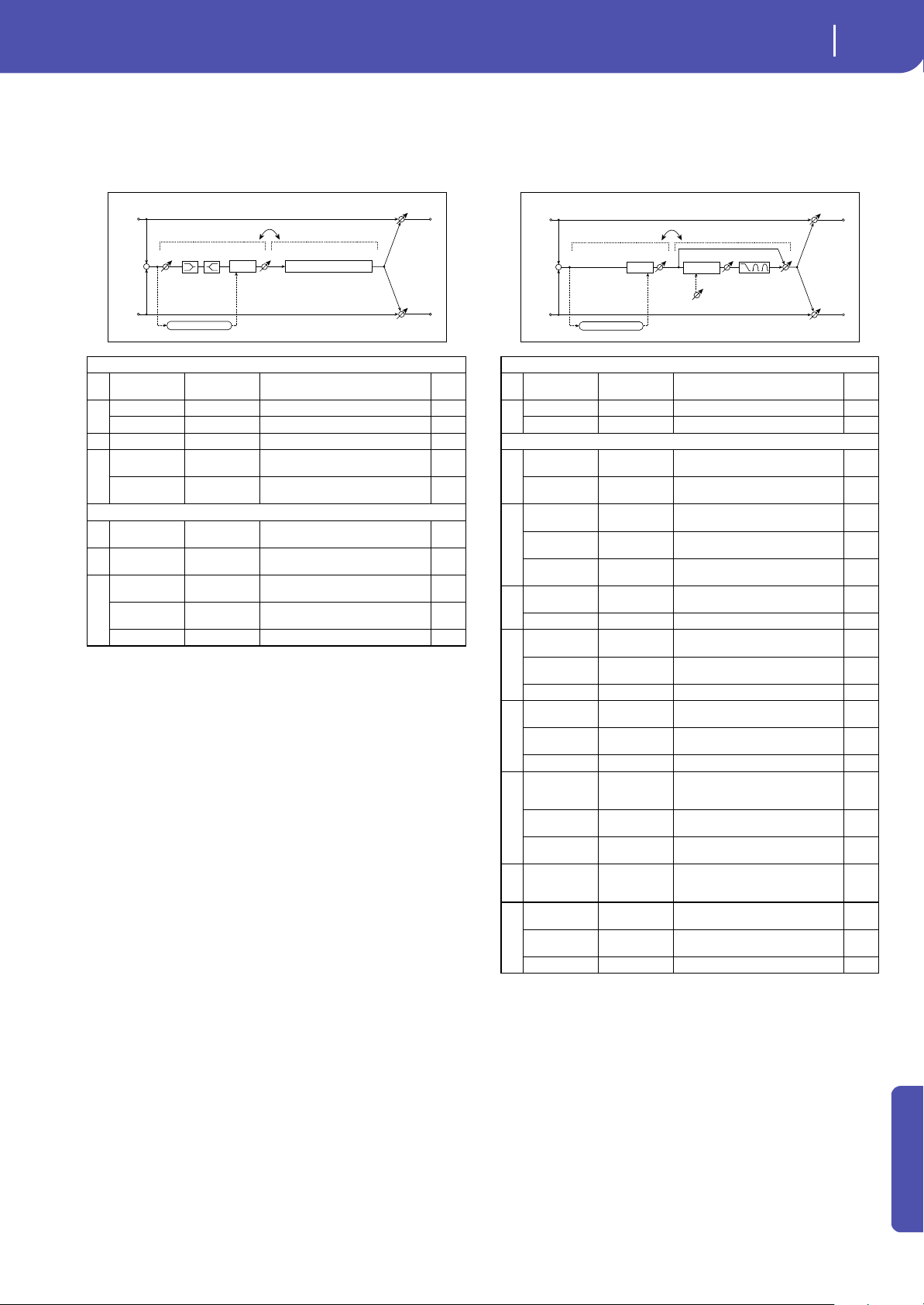
331
Effects
Mono-Mono Serial (Mono-Mono)
Appendix
84: Comp - Amp Sim
(Compressor - Amp Simulation)
This effect combines a mono compressor and an amp simula-
tion. You can change the order of the effects.
85: Comp - OD/HiGain
(Compressor - Overdrive/Hi.Gain)
This effect combines a mono compressor and an overdrive/high-
gain distortion. You can change the order of the effects.
COMPRESSOR
a
[C]
Sensitivity
1...100 Sets the sensitivity
b
[C]Attack 1...100 Sets the attack level
Output Level 0...100 Sets the compressor output level
c [C]EQ Trim 0...100 Sets the EQ input level
d
[C]Pre LEQ
Gain [dB]
–15...+15 Sets the gain of Low EQ
Pre HEQ Gain
[dB]
–15...+15 Sets the gain of High EQ
AMP SIM
e
[A]Amplifier
Type
SS, EL84, 6L6 Selects the type of guitar amplifier
fRouting
Comp Amp,
Amp Comp
Switches the order of the
compressor and amp simulation
g
Wet/Dry
Dry, 1:99...99:1,
Wet
Balance between the wet and dry
signal
Src Off...Tempo
Table , “Dynamic Modulation
sources,” on page 283
Amt –100...+100 Amount of modulation source
Left
Right
FX Amt
FX Amt
FX Amt = 100: Mono In - Mono Out / FX Amt = 0: Stereo In - Stereo Out
+
Compressor
Routing
Amp Simulation
Amp Simulation Filter
LEQ HEQ
EQ Trim
Output Level
Envelope - Control
Comp
COMPRESSOR
a
[C]
Sensitivity
1...100 Sets the sensitivity
b
[C]Attack 1...100 Sets the attack level
Output Level 0...100 Sets the compressor output level
OD/HI-GAIN
c
[O]
Drive Mode
Overdrive, Hi-
Gain
Switches between overdrive and
high-gain distortion
Drive 1...100
Sets the degree of distortion
d
[O]Output
Level
0...50 Sets the overdrive output level
Src Off...Tempo
Selects the modulation source for
the overdrive output level
Amt –50...+50
Sets the modulation amount of the
overdrive output level
e
[O]Low Cutoff
[Hz]
20...1.00k
Sets the center frequency for Low
EQ (shelving type)
Gain [dB] –18...+18 Sets the gain of Low EQ
f
[O]Mid1 Cutoff
[Hz]
300...10.00k
Sets the center frequency for Mid/
High EQ 1 (peaking type)
Q 0.5...10.0
Sets the band width of Mid/High EQ
1
Gain [dB] –18...+18 Sets the gain of Mid/High EQ 1
g
[O]Mid2 Cutoff
[Hz]
500...20.00k
Sets the center frequency for Mid/
High EQ 2 (peaking type)
Q 0.5...10.0
Sets the band width of Mid/High EQ
2
Gain [dB] –18...+18 Sets the gain of Mid/High EQ 2
h
[O]Wet/Dry
Dry,
1 : 99...99 : 1,
Wet
Sets the overdrive effect balance
Src Off...Tempo
Selects the Wet/Dry modulation
source for the overdrive
Amt –100...+100
Sets the Wet/Dry modulation
amount for the overdrive
iRouting
Comp OD/
HG, OD/HG
Comp
Switches the order of the
compressor and overdrive
j
Wet/Dry
Dry, 1:99...99:1,
Wet
Balance between the wet and dry
signal
Src Off...Tempo
Table , “Dynamic Modulation
sources,” on page 283
Amt –100...+100 Amount of modulation source
Left
Right
FX Amt
FX Amt
FX Amt = 100: Mono In - Mono Out / FX Amt = 0: Stereo In - Stereo Out
+
Routing
Overdrive / Hi-Gain
3 Band PEQ
Output Level
Mode: Overdrive / Hi-Gain
Drive
Driver
Compressor
Output Level
Envelope - Control
Comp
FX Amt
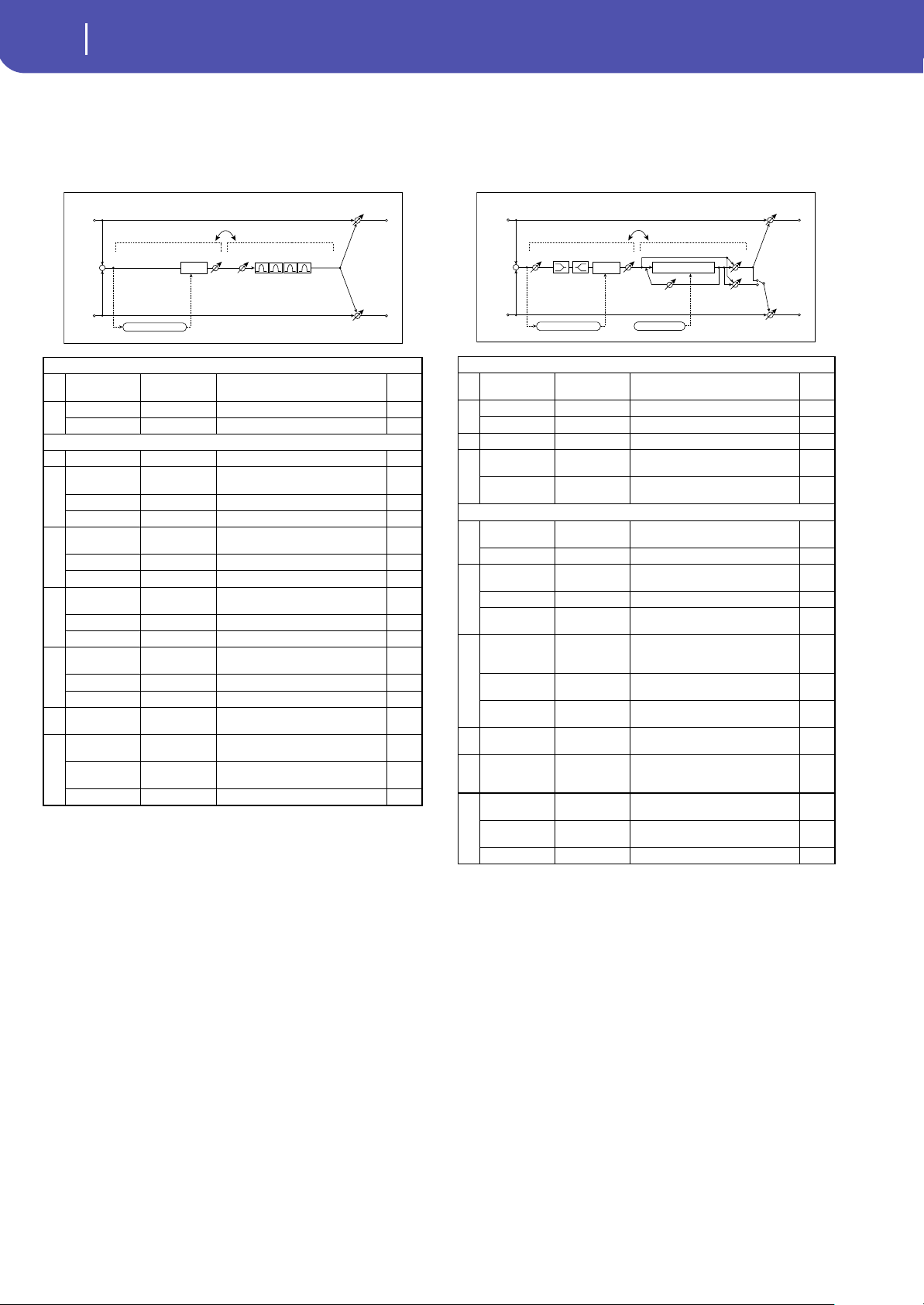
332
Effects
Mono-Mono Serial (Mono-Mono)
86: Comp - P4EQ
(Compressor - Parametric 4-Band EQ)
This effect combines a mono compressor and a four-band para-
metric equalizer. You can change the order of the effects.
87: Comp - Cho/Flng
(Compressor - Chorus/Flanger)
This effect combines a mono compressor and a chorus/flanger.
You can change the order of the effects.
h: [F]Output Mode
i: Routing
When Wet Invert is selected, the right channel phase of the cho-
rus/flanger effect sound is inverted. This creates pseudo-stereo
effects and adds spread.
However, if a mono-input type effect is connected after this
effect, the left and right sounds may cancel each other, eliminat-
ing the chorus/flanger effects.
When “Routing” is set to Flanger→ Comp, “[F]Output Mode”
will be set to Normal.
COMPRESSOR
a
[C]
Sensitivity
1...100 Sets the sensitivity
b
[C]Attack 1...100 Sets the attack level
Output Level 0...100 Sets the compressor output level
P4EQ
c [E]Trim 0...100 Sets the parametric EQ input level
d
[E]B1 Cutoff
[Hz]
20...1.00k Sets the center frequency of Band 1
Q 0.5...10.0 Sets the bandwidth of Band 1
Gain [dB] –18...+18 Sets the gain of Band 1
e
[E]B2 Cutoff
[Hz]
50...5.00k Sets the center frequency of Band 2
Q 0.5...10.0 Sets the bandwidth of Band 2
Gain [dB] –18...+18 Sets the gain of Band 2
f
[E]B3 Cutoff
[Hz]
300...10.00k Sets the center frequency of Band 3
Q 0.5...10.0 Sets the bandwidth of Band 3
Gain [dB] –18...+18 Sets the gain of Band 3
g
[E]B4 Cutoff
[Hz]
500...20.00k Sets the center frequency of Band 4
Q 0.5...10.0 Sets the bandwidth of Band 4
Gain [dB] –18...+18 Sets the gain of Band 4
hRouting
Comp P4EQ,
P4EQ Comp
Switches the order of the
compressor and parametric EQ
i
Wet/Dry
Dry, 1:99...99:1,
Wet
Balance between the wet and dry
signal
Src Off...Tempo
Table , “Dynamic Modulation
sources,” on page 283
Amt –100...+100 Amount of modulation source
Left
Right
FX Amt
FX Amt
FX Amt = 100: Mono In - Mono Out / FX Amt = 0: Stereo In - Stereo Out
+
Routing
Compressor
Trim
Parametric 4Band EQ
Output Level
Envelope - Control
Comp
COMPRESSOR
a
[C]
Sensitivity
1...100 Sets the sensitivity
b
[C]Attack 1...100 Sets the attack level
Output Level 0...100 Sets the compressor output level
c [C]EQ Trim 0...100 Sets the EQ input level
d
[C]Pre LEQ
Gain [dB]
–15...+15 Sets the gain of Low EQ
Pre HEQ Gain
[dB]
–15...+15 Sets the gain of High EQ
CHORUS/FLANGER
e
[F]LFO
Frequency [Hz]
0.02...20.00 Sets the speed of the LFO
LFO Waveform Triangle, Sine Selects the LFO Waveform
f
[F]Delay Time
[msec]
0.0...1350.0 Sets the delay time
Depth 0...100 Sets the depth of LFO modulation
Feedback –100...+100
Sets the feedback amount
g
[F]Cho/Flng
Wet/Dry
-Wet, -
1:99...Dry...99:1
, Wet
Sets the effect balance of the
chorus/flanger
,
Src Off...Tempo
Selects the Wet/Dry modulation
source for the chorus/flanger
Amt –100...+100
Sets the Wet/Dry modulation
amount for the chorus/flanger
h
[F]Output
Mode
Normal,
Wet Invert
Selects the output mode for the
chorus/flanger
iRouting
Comp
Flanger,
Flanger Comp
Switches the order of the
compressor and chorus/flanger
j
Wet/Dry
Dry, 1:99...99:1,
Wet
Balance between the wet and dry
signal
Src Off...Tempo
Table , “Dynamic Modulation
sources,” on page 283
Amt –100...+100 Amount of modulation source
Left
Right
FX Amt
FX Amt
FX Amt = 100: Mono In - Stereo Out / FX Amt = 0: Stereo In - Stereo Out
+
Routing
Compressor
Chorus/Flanger
Chorus/Flanger
Feedback
LFO: Tri / Sine
Cho/Flng FX Amt
Normal
Wet Invert
Output Mode
–
+
LEQ HEQ
EQ Trim
Comp
Output Level
Envelope - Control
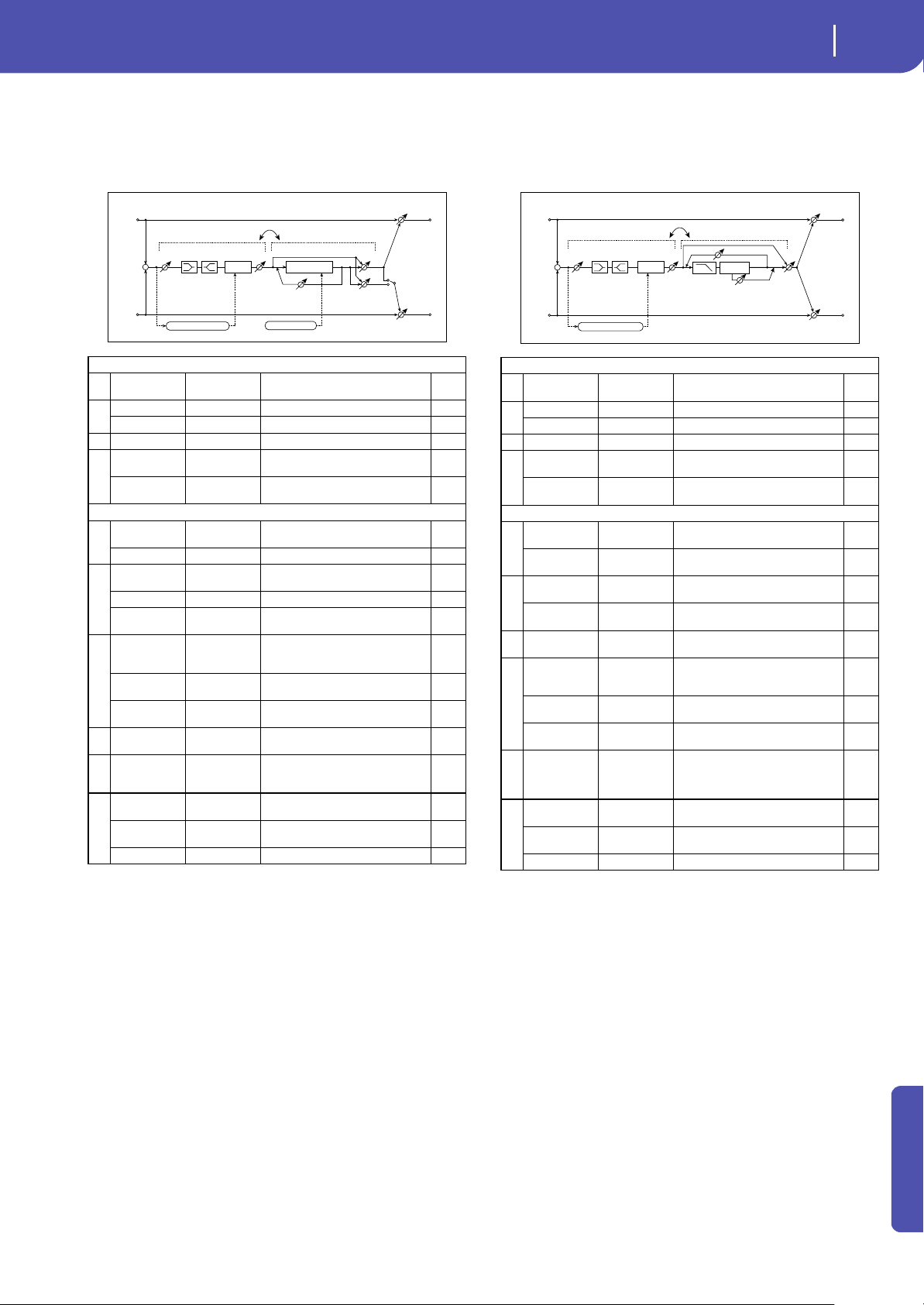
333
Effects
Mono-Mono Serial (Mono-Mono)
Appendix
88: Comp - Phaser
(Compressor - Phaser)
This effect combines a mono compressor and a phaser. You can
change the order of the effects.
89: Comp - Mt. Delay
(Compressor - Multitap Delay)
This effect combines a mono compressor and a multitap delay.
You can change the order of the effects.
COMPRESSOR
a
[C]
Sensitivity
1...100 Sets the sensitivity
b
[C]Attack 1...100 Sets the attack level
Output Level 0...100 Sets the compressor output level
c [C]EQ Trim 0...100 Sets the EQ input level
d
[C]Pre LEQ
Gain [dB]
–15...+15 Sets the gain of Low EQ
Pre HEQ Gain
[dB]
–15...+15 Sets the gain of High EQ
PHASER
e
[P]LFO
Frequency [Hz]
0.02...20.00 Sets the speed of the LFO
LFO Waveform Triangle, Sine Selects the LFO Waveform
f
[P]Manual 0...100
Sets the frequency to which the
effect is applied
Depth 0...100 Sets the depth of LFO modulation
Resonance –100...+100
Sets the resonance amount
g
[P]Phaser Wet/
Dry
-Wet, -
1:99...Dry...99:1
, Wet
Sets the phaser effect balance
Src Off...Tempo
Selects the Wet/Dry modulation
source for the phaser
Amt –100...+100
Sets the Wet/Dry modulation
amount for the phaser
h
[F]Output
Mode
Normal,
Wet Invert
Selects the phaser output mode
iRouting
Comp Phaser,
Phaser Comp
Switches the order of the
compressor and phaser
j
Wet/Dry
Dry, 1:99...99:1,
Wet
Balance between the wet and dry
signal
Src Off...Tempo
Table , “Dynamic Modulation
sources,” on page 283
Amt –100...+100 Amount of modulation source
Left
Right
FX Amt
FX Amt
FX Amt = 100: Mono In - Stereo Out / FX Amt = 0: Stereo In - Stereo Out
+
Routing
Compressor
LEQ HEQ
EQ Trim
Comp
Output Level
Envelope - Control
Phaser
Phaser
Resonance
LFO: Tri / Sine
Phaser FX Amt
Normal
Wet Invert
Output Mode
–
+
COMPRESSOR
a
[C]
Sensitivity
1...100 Sets the sensitivity
b
[C]Attack 1...100 Sets the attack level
Output Level 0...100 Sets the compressor output level
c [C]EQ Trim 0...100 Sets the EQ input level
d
[C]Pre LEQ
Gain [dB]
–15...+15 Sets the gain of Low EQ
Pre HEQ Gain
[dB]
–15...+15 Sets the gain of High EQ
MULTITAP DELAY
e
[D]Tap1 Time
[msec]
0.0...1360.0 Sets the Tap1 delay time
Tap1 Level 0...100
Sets the Tap1 output level
f
[D]Tap2 Time
[msec]
0.0...1360.0 Sets the Tap2 delay time
Feedback
(Tap2)
–100...+100 Sets the Tap2 feedback amount
g
[D]High Damp
[%]
0...100
Sets the damping amount in the
high range
h
[D]Mt.Delay
Wet/Dry
Dry,
1 : 99...99 : 1,
Wet
Sets the multitap delay effect
balance
Src Off...Tempo
Selects the Wet/Dry modulation
source for the multitap delay
Amt –100...+100
Sets the Wet/Dry modulation
amount for the multitap delay
iRouting
Comp
Mt.Delay,
Mt.Delay
Comp
Switches the order of the
compressor and multitap delay
j
Wet/Dry
Dry, 1:99...99:1,
Wet
Balance between the wet and dry
signal
Src Off...Tempo
Table , “Dynamic Modulation
sources,” on page 283
Amt –100...+100 Amount of modulation source
Left
Right
FX Amt
FX Amt
FX Amt = 100: Mono In - Mono Out / FX Amt = 0: Stereo In - Stereo Out
+
Routing
Compressor
LEQ HEQ
EQ Trim
Output Level
Envelope - Control
Multitap Delay
Feedback
High Damp
Delay
(2)
(1)
Mt.Dly FX Amt
Comp
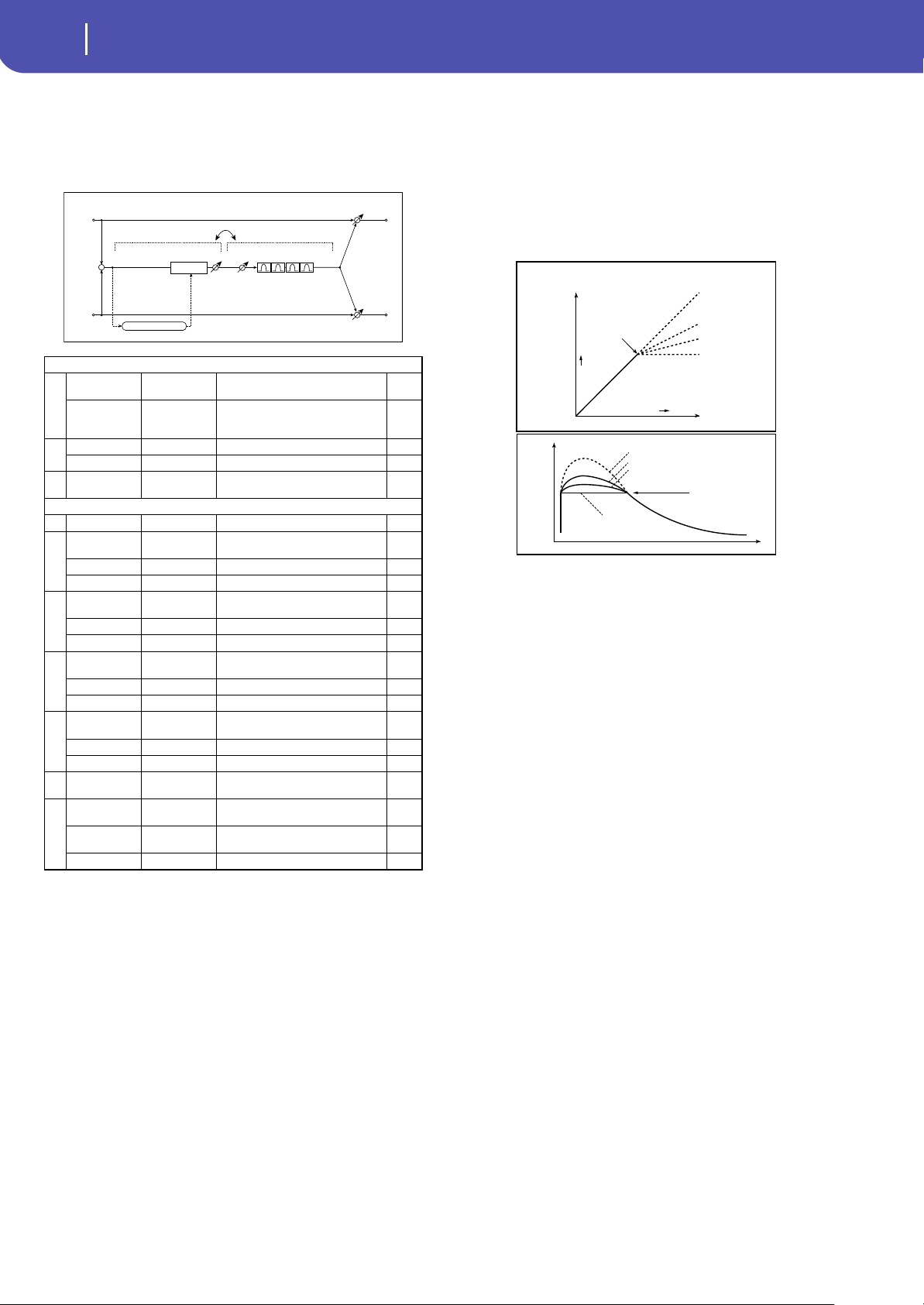
334
Effects
Mono-Mono Serial (Mono-Mono)
90: Limiter - P4EQ
(Limiter - Parametric 4-Band EQ)
This effect combines a mono limiter and a four-band parametric
equalizer. You can change the order of the effects.
a: [L]Ratio
a: Threshold [dB]
c: [L]Gain Adjust [dB]
This parameter sets the signal compression “[L]Ratio”. Compres-
sion is applied only when the signal level exceeds the “Thresh-
old” value.
Adjust the output level using the “Gain Adjust” parameter, since
compression causes the entire level to be reduced.
LIMITER
a
[L]Ratio
1.0 : 1...
50.0 : 1, Inf : 1
Sets the signal compression ratio
Threshold [dB] –40...0
Sets the level above which the
compressor is applied
b
[L]Attack 1...100 Sets the attack time
Release 1...100 Sets the release time
c
[L]Gain Adjust
[dB]
–Inf,
–38...+24
Sets the limiter output gain
P4EQ
d [E]Trim 0...100 Sets the parametric EQ input level
e
[E]B1 Cutoff
[Hz]
20...1.00k Sets the center frequency of Band 1
Q 0.5...10.0 Sets the bandwidth of Band 1
Gain [dB] –18...+18 Sets the gain of Band 1
f
[E]B2 Cutoff
[Hz]
50...5.00k Sets the center frequency of Band 2
Q 0.5...10.0 Sets the bandwidth of Band 2
Gain [dB] –18...+18 Sets the gain of Band 2
g
[E]B3 Cutoff
[Hz]
300...10.00k Sets the center frequency of Band 3
Q 0.5...10.0 Sets the bandwidth of Band 3
Gain [dB] –18...+18 Sets the gain of Band 3
h
[E]B4 Cutoff
[Hz]
500...20.00k Sets the center frequency of Band 4
Q 0.5...10.0 Sets the bandwidth of Band 4
Gain [dB] –18...+18 Sets the gain of Band 4
iRouting
Limiter P4EQ,
P4EQ Limiter
Switches the order of the limiter and
parametric EQ
j
Wet/Dry
Dry, 1:99...99:1,
Wet
Balance between the wet and dry
signal
Src Off...Tempo
Table , “Dynamic Modulation
sources,” on page 283
Amt –100...+100 Amount of modulation source
Left
Right
FX Amt
FX Amt
FX Amt = 100: Mono In - Mono Out / FX Amt = 0: Stereo In - Stereo Out
+
Routing
Limiter
Trim
Parametric 4Band EQ
Limiter
Gain Adjust
Envelope - Control
Input Level
Output Level
Threshold
Ratio=1.0 : 1
Ratio=2.0 : 1
Ratio=4.0 : 1
Ration=Inf : 1
Louder
Louder
Time
Level
Threshold
Ratio=Inf : 1
Ratio=2.0 : 1
Ratio=4.0 : 1
Dry
Ratio=1.0 : 1
Limiter - Threshold / Ratio
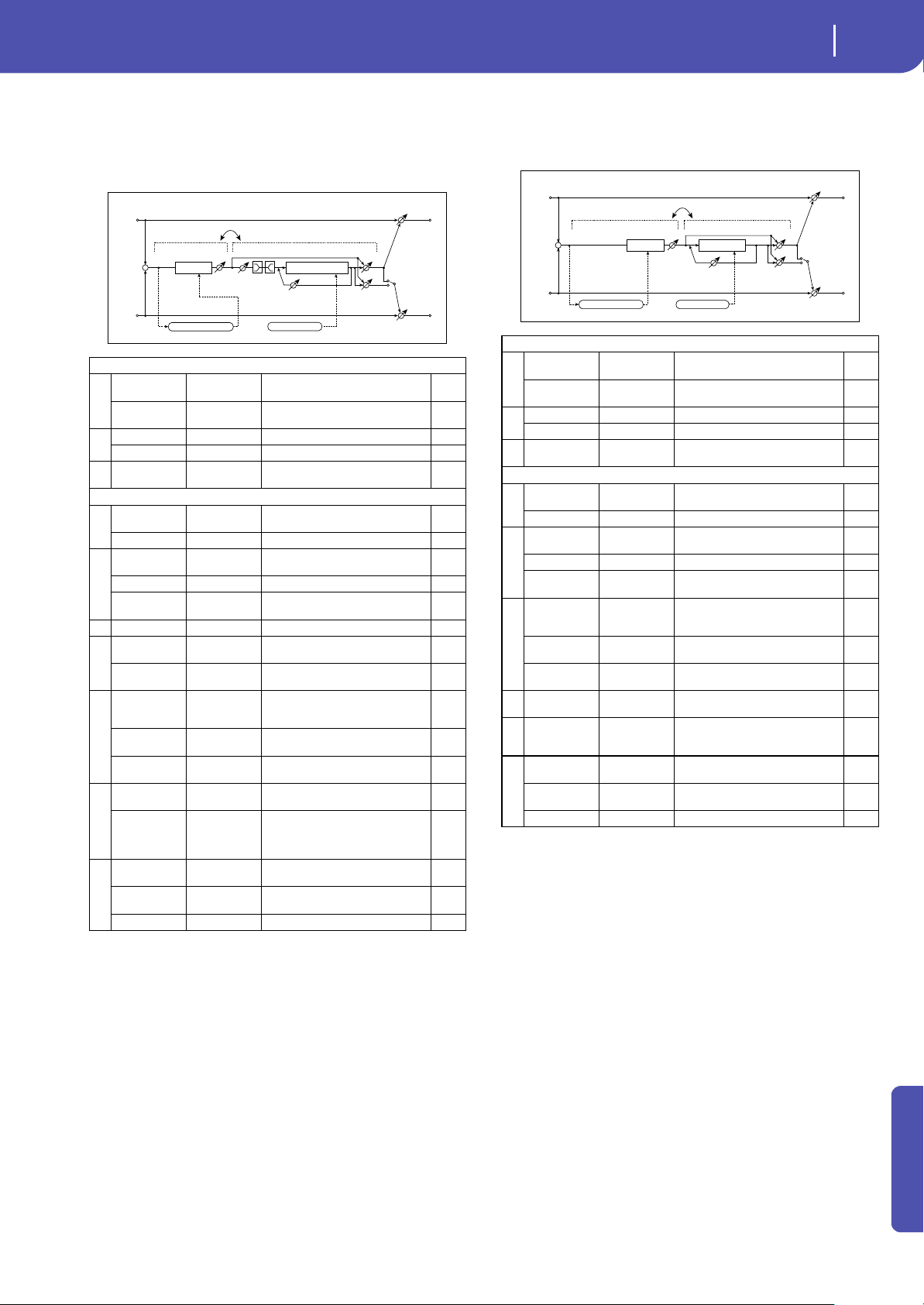
335
Effects
Mono-Mono Serial (Mono-Mono)
Appendix
91: Limiter - Cho/Flng
(Limiter - Chorus/Flanger)
This effect combines a mono limiter and a chorus/flanger. You
can change the order of the effects.
92: Limiter - Phaser
This effect combines a mono limiter and a phaser. You can
change the order of the effects.
LIMITER
a
[L]Ratio
1.0 : 1...
50.0 : 1, Inf : 1
Sets the signal compression ratio
Threshold [dB] –40...0
Sets the level above which the
compressor is applied
b
[L]Attack 1...100 Sets the attack time
Release 1...100 Sets the release time
c
[L]Gain Adjust
[dB]
–Inf,
–38...+24
Sets the limiter output gain
CHORUS/FLANGER
d
[F]LFO
Frequency [Hz]
0.02...20.00 Sets the speed of the LFO
LFO Waveform Triangle, Sine Selects the LFO Waveform
e
[F]Delay Time
[msec]
0.0...1350.0 Sets the delay time
Depth 0...100 Sets the depth of LFO modulation
Feedback –100...+100
Sets the feedback amount
f [F]EQ Trim 0...100 Sets the EQ input level
g
[F]Pre LEQ
Gain [dB]
–15...+15 Sets the gain of Low EQ
Pre HEQ Gain
[dB]
–15...+15 Sets the gain of High EQ
h
[F]Cho/Flng
Wet/Dry
-Wet, -
1:99...Dry...99:1
, Wet
Sets the effect balance of the
chorus/flanger
Src Off...Tempo
Selects the Wet/Dry modulation
source for the chorus/flanger
Amt –100...+100
Sets the Wet/Dry modulation
amount for the chorus/flanger
i
[F]Output
Mode
Normal,
Wet Invert
Selects the output mode for the
chorus/flanger
Routing
Limiter
Flanger,
Flanger
Limiter
Switches the order of the limiter and
chorus/flanger
j
Wet/Dry
Dry, 1:99...99:1,
Wet
Balance between the wet and dry
signal
Src Off...Tempo
Table , “Dynamic Modulation
sources,” on page 283
Amt –100...+100 Amount of modulation source
Left
Right
FX Amt
FX Amt
FX Amt = 100: Mono In - Stereo Out / FX Amt = 0: Stereo In - Stereo Out
+
Routing
Chorus/Flanger
Feedback
Cho/Flng FX Amt
Normal
Wet Invert
Output Mode
–
+
Limiter
Limiter
Gain Adjust
Envelope - Control
LEQ
HEQ
EQ Trim
Chorus/Flanger
LFO: Tri / Sine
LIMITER
a
[L]Ratio
1.0 : 1...
50.0 : 1, Inf : 1
Sets the signal compression ratio
Threshold [dB] –40...0
Sets the level above which the
compressor is applied
b
[L]Attack 1...100 Sets the attack time
Release 1...100 Sets the release time
c
[L]Gain Adjust
[dB]
–Inf,
–38...+24
Sets the limiter output gain
PHASER
d
[P]LFO
Frequency [Hz]
0.02...20.00 Sets the speed of the LFO
LFO Waveform Triangle, Sine Selects the LFO Waveform
e
[P]Manual 0...100
Sets the frequency to which the
effect is applied
Depth 0...100 Sets the depth of LFO modulation
Resonance –100...+100
Sets the resonance amount
f
[P]Phaser Wet/
Dry
-Wet, -
1:99...Dry...99:1
, Wet
Sets the phaser effect balance
Src Off...Tempo
Selects the phaser’s Wet/Dry
modulation source
Amt –100...+100
Sets the phaser’s Wet/Dry
modulation amount
g
[P]Output
Mode
Normal,
Wet Invert
Selects the phaser output mode
hRouting
Limiter
Phaser, Phaser
Limiter
Switches the order of the limiter and
phaser
i
Wet/Dry
Dry, 1:99...99:1,
Wet
Balance between the wet and dry
signal
Src Off...Tempo
Table , “Dynamic Modulation
sources,” on page 283
Amt –100...+100 Amount of modulation source
Left
Right
FX Amt
FX Amt
FX Amt = 100: Mono In - Stereo Out / FX Amt = 0: Stereo In - Stereo Out
+
Routing
Limiter
Limiter
Gain Adjust
Envelope - Control
Phaser
Phaser
Resonance
LFO: Tri / Sine
Phaser FX Amt
Normal
Wet Invert
Output Mode
–
+
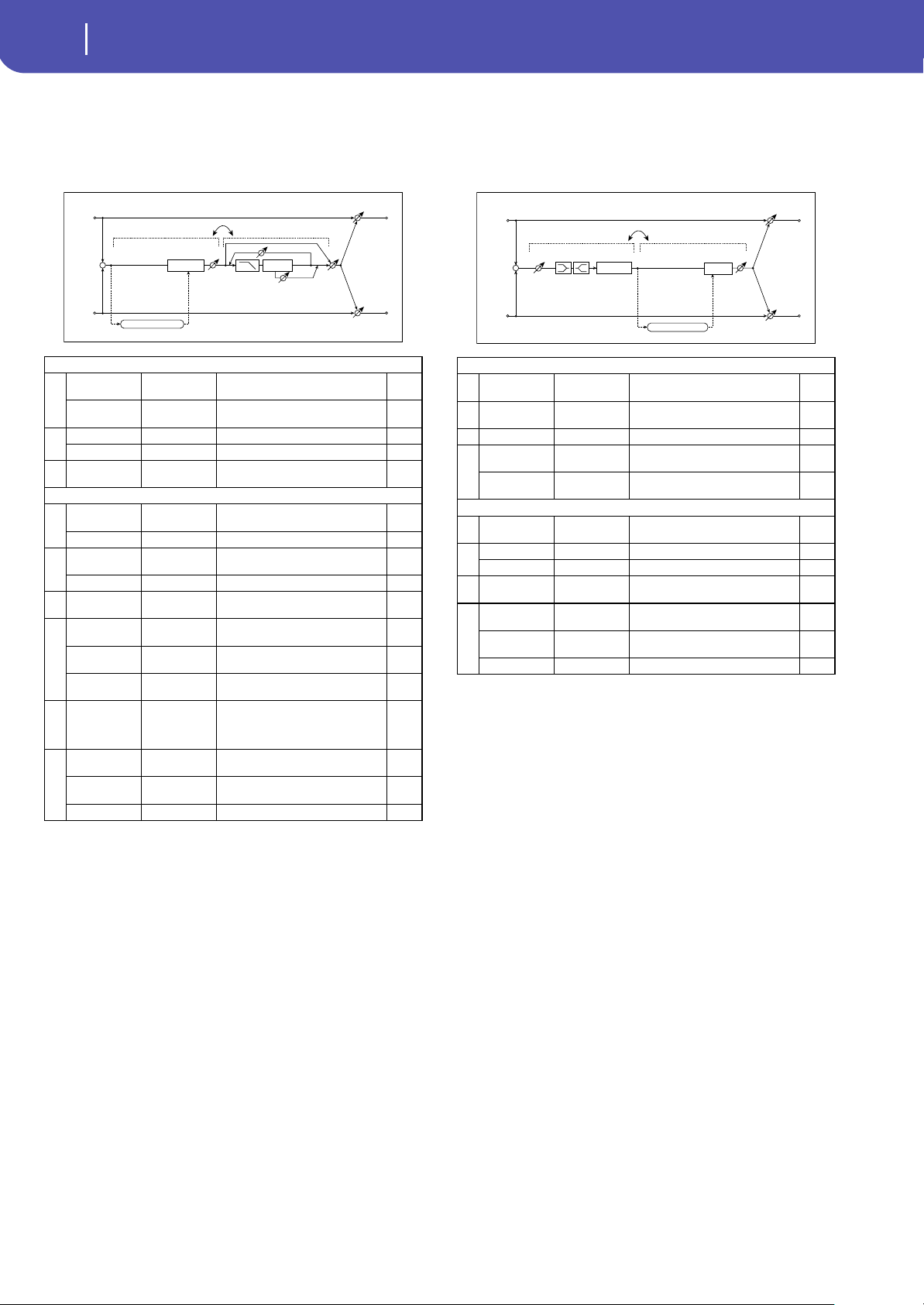
336
Effects
Mono-Mono Serial (Mono-Mono)
93: Limiter - Mt.Delay
(Limiter - Multitap Delay)
This effect combines a mono limiter and a multitap delay. You
can change the order of the effects.
94: Exciter - Comp
(Exciter -Compressor)
This effect combines a mono exciter and a compressor. You can
change the order of the effects.
LIMITER
a
[L]Ratio
1.0 : 1...
50.0 : 1, Inf : 1
Sets the signal compression ratio
Threshold [dB] –40...0
Sets the level above which the
compressor is applied
b
[L]Attack 1...100 Sets the attack time
Release 1...100 Sets the release time
c
[L]Gain Adjust
[dB]
–Inf,
–38...+24
Sets the limiter output gain
MULTITAP DELAY
d
[D]Tap1 Time
[msec]
0.0...1360.0 Sets the Tap1 delay time
Tap1 Level 0...100 Sets the Tap1 output level
e
[D]Tap2 Time
[msec]
0.0...1360.0 Sets the Tap2 delay time
Feedback –100...+100 Sets the Tap2 feedback amount
f
[D]High Damp
[%]
0...100
Sets the damping amount in the
high range
g
[D]Mt.Delay
Wet/Dry
Dry, 1:99...99:1,
Wet
Sets the multitap delay effect
balance
Src Off...Tempo
Selects the multitap delay’s Wet/Dry
modulation source
Amt –100...+100
Sets the multitap delay’s Wet/Dry
modulation amount
hRouting
Limiter
Mt.Delay,
Mt.Delay
Limiter
Switches the order of the limiter and
multitap delay
i
Wet/Dry
Dry, 1:99...99:1,
Wet
Balance between the wet and dry
signal
Src Off...Tempo
Table , “Dynamic Modulation
sources,” on page 283
Amt –100...+100 Amount of modulation source
Left
Right
FX Amt
FX Amt
FX Amt = 100: Mono In - Mono Out / FX Amt = 0: Stereo In - Stereo Out
+
Routing
Multitap Delay
Feedback
High Damp
Delay
(2)
(1)
Mt.Dly FX Amt
Limiter
Limiter
Gain Adjust
Envelope - Control
EXCITER
a
[X]Exciter
Blend
–100...+100
Sets the intensity (depth) of the
Exciter effect
b
[X]Emphasis
Frequency
0...70
Sets the frequency range to be
emphasized
c [X]EQ Trim 0...100 Sets the EQ input level
d
[X]Pre LEQ
Gain [dB]
–15...+15 Sets the gain of Low EQ
Pre HEQ Gain
[dB]
–15...+15 Sets the gain of High EQ
COMPRESSOR
e
[C]
Sensitivity
1...100 Sets the sensitivity
f
[C]Attack 1...100 Sets the attack level
Output Level 0...100 Sets the compressor output level
gRouting
Exciter Comp,
Comp Exciter
Switches the order of the exciter and
compressor
h
Wet/Dry
Dry, 1:99...99:1,
Wet
Balance between the wet and dry
signal
Src Off...Tempo
Table , “Dynamic Modulation
sources,” on page 283
Amt –100...+100 Amount of modulation source
Left
Right
FX Amt
FX Amt
FX Amt = 100: Mono In - Mono Out / FX Amt = 0: Stereo In - Stereo Out
+
Routing
Compressor
LEQ HEQ
EQ Trim
Comp
Output Level
Envelope - Control
Exciter
Exciter
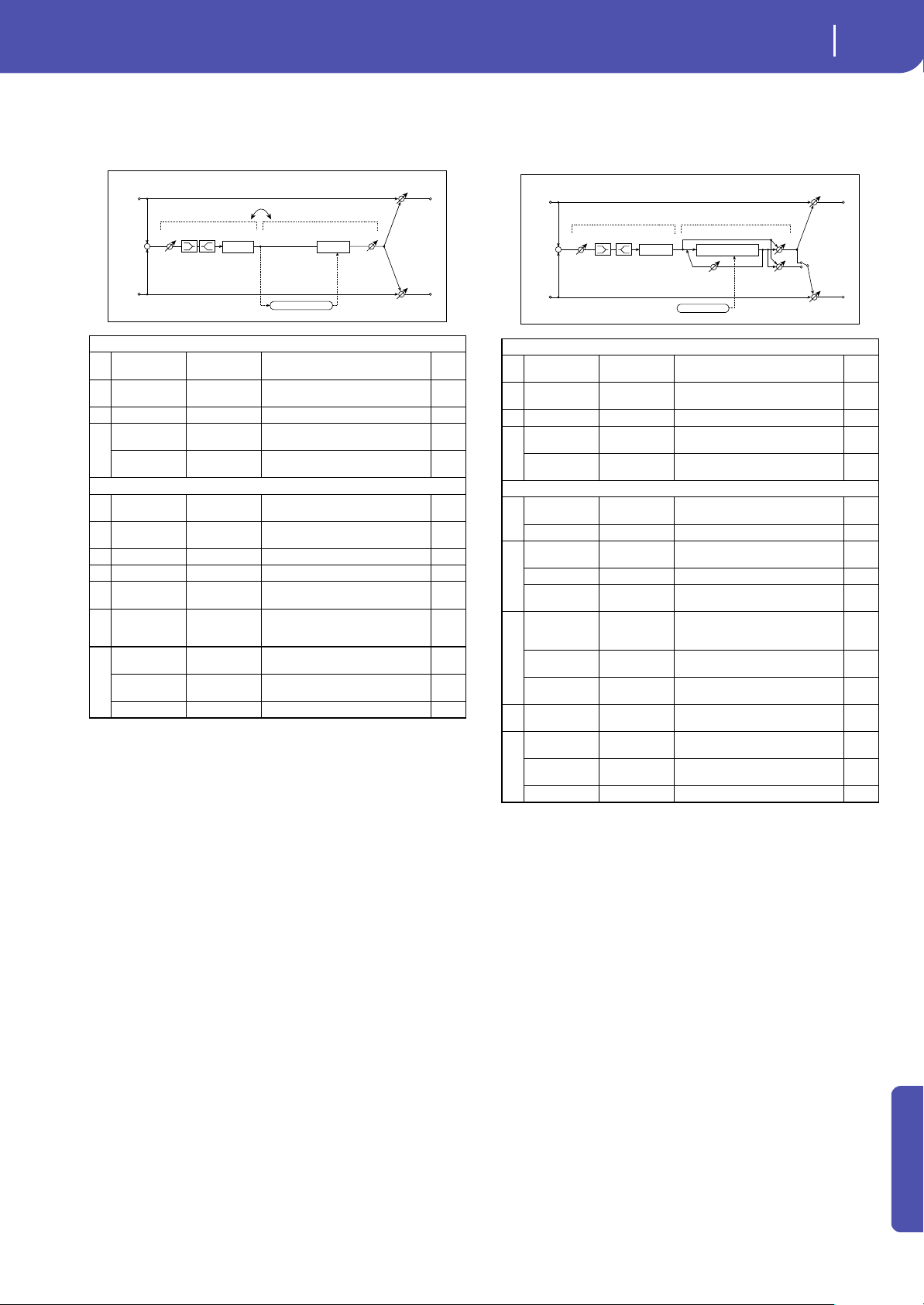
337
Effects
Mono-Mono Serial (Mono-Mono)
Appendix
95: Exciter - Limiter
This effect combines a mono exciter and a limiter. You can
change the order of the effects.
96: Exciter - Cho/Flng
(Exciter - Chorus/Flanger)
This effect combines a mono limiter and a chorus/flanger.
EXCITER
a
[X]Exciter
Blend
–100...+100
Sets the intensity (depth) of the
Exciter effect
b
[X]Emphasis
Frequency
0...70
Sets the frequency range to be
emphasized
c [X]Trim 0...100 Sets the EQ input level
d
[X]Pre LEQ
Gain [dB]
–15...+15 Sets the gain of Low EQ
Pre HEQ Gain
[dB]
–15...+15 Sets the gain of High EQ
LIMITER
e[L]Ratio
1.0 : 1...
50.0 : 1, Inf : 1
Sets the signal compression ratio
f
[L]Threshold
[dB]
–40...0
Sets the level above which the
compressor is applied
g [L]Attack 1...100 Sets the attack time
Release 1...100 Sets the release time
h
[L]Gain Adjust
[dB]
–Inf,
–38...+24
Sets the limiter output gain
iRouting
Exciter
Limiter, Limiter
Exciter
Switches the order of the exciter
and limiter
j
Wet/Dry
Dry, 1:99...99:1,
Wet
Balance between the wet and dry
signal
Src Off...Tempo
Table , “Dynamic Modulation
sources,” on page 283
Amt –100...+100 Amount of modulation source
Left
Right
FX Amt
FX Amt
FX Amt = 100: Mono In - Mono Out / FX Amt = 0: Stereo In - Stereo Out
+
Routing
LEQ HEQ
EQ Trim
Exciter
Exciter
Limiter
Limiter
Gain Adjust
Envelope - Control
EXCITER
a
[X]Exciter
Blend
–100...+100
Sets the intensity (depth) of the
Exciter effect
b
[X]Emphasis
Frequency
0...70
Sets the frequency range to be
emphasized
c [X]Trim 0...100 Sets the EQ input level
d
[X]Pre LEQ
Gain [dB]
–15...+15 Sets the gain of Low EQ
Pre HEQ Gain
[dB]
–15...+15 Sets the gain of High EQ
CHORUS/FLANGER
e
[F]LFO
Frequency [Hz]
0.02...20.00 Sets the speed of the LFO
LFO Waveform Triangle, Sine Selects the LFO Waveform
f
[F]Delay Time
[msec]
0.0...1350.0 Sets the delay time
Depth 0...100 Sets the depth of LFO modulation
Feedback –100...+100
Sets the feedback amount
g
[F]Cho/Flng
Wet/Dry
-Wet, -
1:99...Dry...99:1
, Wet
Sets the effect balance of the
chorus/flanger
Src Off...Tempo
Selects the Wet/Dry modulation
source for the chorus/flanger
Amt –100...+100
Sets the Wet/Dry modulation
amount for the chorus/flanger
h
[F]Output
Mode
Normal,
Wet Invert
Selects the output mode for the
chorus/flanger
i
Wet/Dry
Dry, 1:99...99:1,
Wet
Balance between the wet and dry
signal
Src Off...Tempo
Table , “Dynamic Modulation
sources,” on page 283
Amt –100...+100 Amount of modulation source
Left
Right
FX Amt
FX Amt
FX Amt = 100: Mono In - Stereo Out / FX Amt = 0: Stereo In - Stereo Out
+
Chorus/Flanger
Chorus/Flanger
Feedback
LFO: Tri / Sine
Cho/Flng FX Amt
Normal
Wet Invert
Output Mode
–
+
LEQ HEQ
EQ Trim
Exciter
Exciter
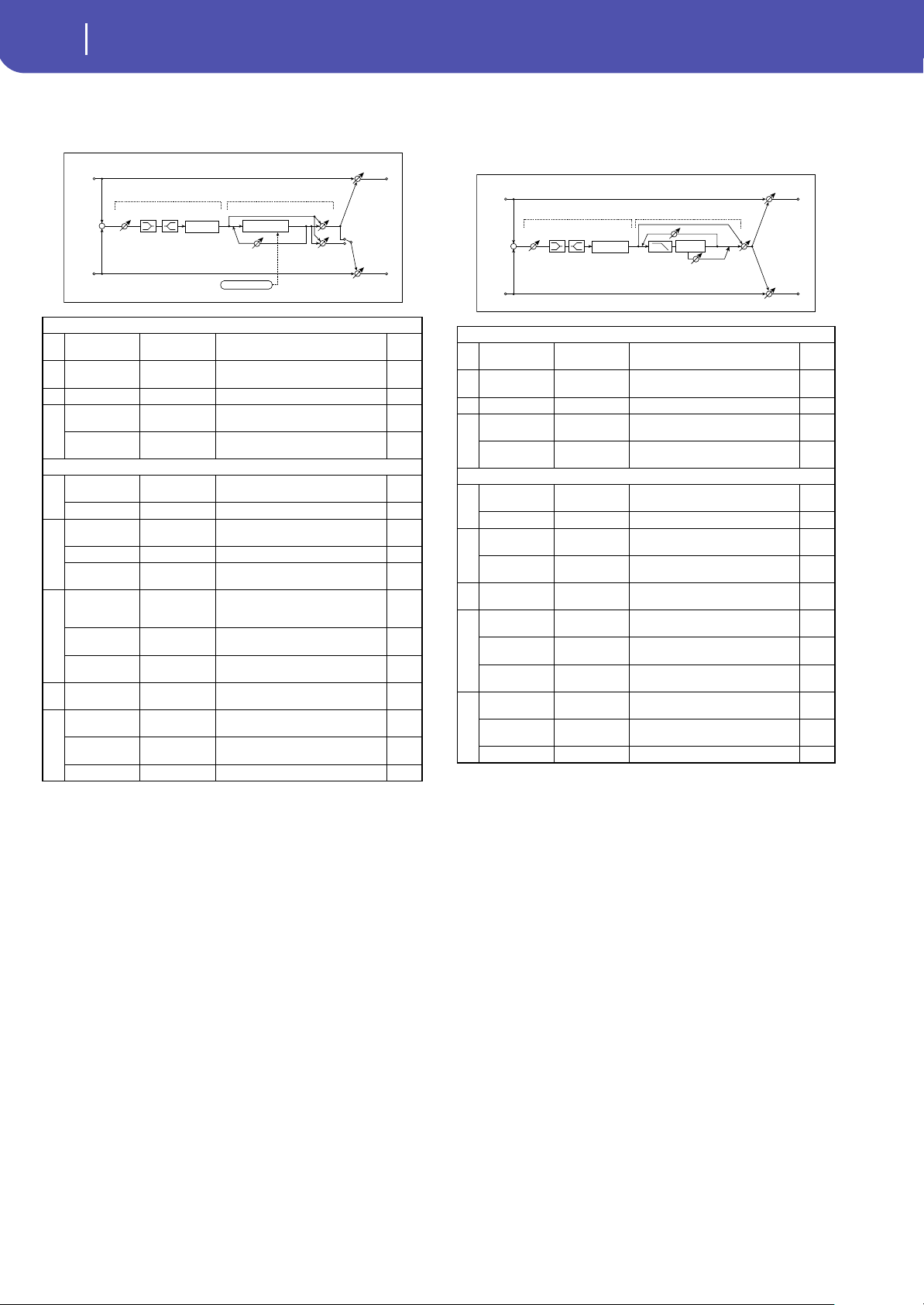
338
Effects
Mono-Mono Serial (Mono-Mono)
97: Exciter - Phaser
This effect combines a mono limiter and a phaser.
98: Exciter - Mt.Delay
(Exciter - Multitap Delay)
This effect combines a mono exciter and a multitap delay.
EXCITER
a
[X]Exciter
Blend
–100...+100
Sets the intensity (depth) of the
Exciter effect
b
[X]Emphasis
Frequency
0...70
Sets the frequency range to be
emphasized
c [X]Trim 0...100 Sets the EQ input level
d
[X]Pre LEQ
Gain [dB]
–15...+15 Sets the gain of Low EQ
Pre HEQ Gain
[dB]
–15...+15 Sets the gain of High EQ
PHASER
e
[P]LFO
Frequency [Hz]
0.02...20.00 Sets the speed of the LFO
LFO Waveform Triangle, Sine Selects the LFO Waveform
f
[P]Manual 0...100
Sets the frequency to which the
effect is applied
Depth 0...100 Sets the depth of LFO modulation
Resonance –100...+100
Sets the resonance amount
g
[P]Phaser Wet/
Dry
-Wet, -
1:99...Dry...99:1,
Wet
Sets the phaser effect balance
Src Off...Tempo
Selects the Wet/Dry modulation
source for the phaser
Amt –100...+100
Sets the Wet/Dry modulation
amount for the phaser
h
[P]Output
Mode
Normal,
Wet Invert
Selects the phaser output mode
i
Wet/Dry
Dry, 1:99...99:1,
Wet
Balance between the wet and dry
signal
Src Off...Tempo
Table , “Dynamic Modulation
sources,” on page 283
Amt –100...+100 Amount of modulation source
Left
Right
FX Amt
FX Amt
FX Amt = 100: Mono In - Stereo Out / FX Amt = 0: Stereo In - Stereo Out
+
LEQ
HEQ
EQ Trim
Exciter
Exciter
Phaser
Phaser
Resonance
LFO: Tri / Sine
Phaser FX Amt
Normal
Wet Invert
Output Mode
–
+
EXCITER
a
[X]Exciter
Blend
–100...+100
Sets the intensity (depth) of the
Exciter effect
b
[X]Emphasis
Frequency
0...70
Sets the frequency range to be
emphasized
c [X]Trim 0...100 Sets the EQ input level
d
[X]Pre LEQ
Gain [dB]
–15...+15 Sets the gain of Low EQ
Pre HEQ Gain
[dB]
–15...+15 Sets the gain of High EQ
MULTITAP DELAY
e
[D]Tap1 Time
[msec]
0.0...1360.0 Sets the Tap1 delay time
Tap1 Level 0...100 Sets the Tap1 output level
f
[D]Tap2 Time
[msec]
0.0...1360.0 Sets the Tap2 delay time
Feedback
(Tap2)
–100...+100 Sets the Tap2 feedback amount
g
[D]High Damp
[%]
0...100
Sets the damping amount in the
high range
h
[D]Mt.Delay
Wet/Dry
Dry, 1:99...99:1,
Wet
Sets the multitap delay effect
balance
Src Off...Tempo
Selects the Wet/Dry modulation
source for the multitap delay
Amt –100...+100
Sets the Wet/Dry modulation
amount for the multitap delay
i
Wet/Dry
Dry, 1:99...99:1,
Wet
Balance between the wet and dry
signal
Src Off...Tempo
Table , “Dynamic Modulation
sources,” on page 283
Amt –100...+100 Amount of modulation source
Left
Right
FX Amt
FX Amt
FX Amt = 100: Mono In - Mono Out / FX Amt = 0: Stereo In - Stereo Out
+
Multitap Delay
Feedback
High Damp
Delay
(2)
(1)
Mt.Dly FX Amt
LEQ HEQ
EQ Trim
Exciter
Exciter
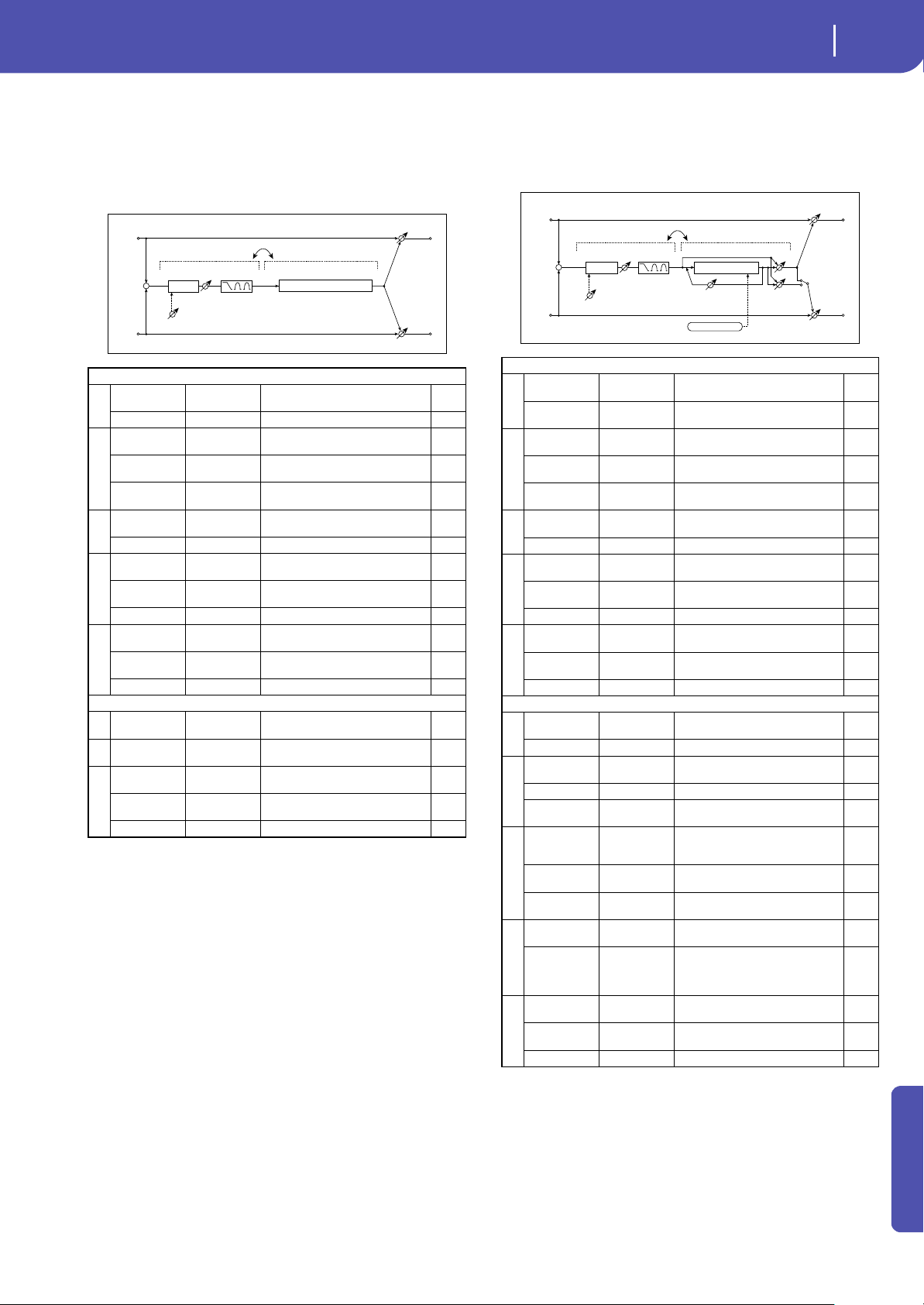
339
Effects
Mono-Mono Serial (Mono-Mono)
Appendix
99: OD/HG - Amp Sim
(Overdrive/Hi.Gain -
Amp Simulation)
This effect combines a mono overdrive/high-gain distortion and
an amp simulation. You can change the order of the effects.
100: OD/HG - Cho/Flng
(Overdrive/Hi.Gain - Chorus/Flanger)
This effect combines a mono overdrive/high-gain distortion and
a chorus/flanger. You can change the order of the effects.
OD/HI-GAIN
a
[O]Drive Mode
Overdrive, Hi-
Gain
Switches between overdrive and
high-gain distortion
Drive 1...100 Sets the degree of distortion
b
[O]Output
Level
0...50 Sets the overdrive output level
Src Off...Tempo
Selects the modulation source for
the overdrive output level
Amt –50...+50
Sets the modulation amount of the
overdrive output level
e
[O]Low Cutoff
[Hz]
20...1.00k
Sets the center frequency for Low
EQ (shelving type)
Gain [dB] –18...+18 Sets the gain of Low EQ
f
[O]Mid1 Cutoff
[Hz]
300...10.00k
Sets the center frequency for Mid/
High EQ 1 (peaking type)
Q 0.5...10.0
Sets the band width of Mid/High EQ
1
Gain [dB] –18...+18 Sets the gain of Mid/High EQ 1
g
[O]Mid2 Cutoff
[Hz]
500...20.00k
Sets the center frequency for Mid/
High EQ 2 (peaking type)
Q 0.5...10.0
Sets the band width of Mid/High EQ
2
Gain [dB] –18...+18 Sets the gain of Mid/High EQ 2
AMP SIM
h
[A]Amplifier
Type
SS, EL84, 6L6 Selects the type of guitar amplifie
iRouting
OD/HG Amp,
Amp OD/HG
Switches the order of the overdrive
and amp
j
Wet/Dry
Dry, 1:99...99:1,
Wet
Balance between the wet and dry
signal
Src Off...Tempo
Table , “Dynamic Modulation
sources,” on page 283
Amt –100...+100 Amount of modulation source
Left
Right
FX Amt
FX Amt
FX Amt = 100: Mono In - Mono Out / FX Amt = 0: Stereo In - Stereo Out
+
Routing
Amp Simulation
Amp Simulation Filter
Overdrive / Hi-Gain
3 Band PEQ
Output Level
Mode: Overdrive / Hi-Gain
Drive
Driver
OD/HI-GAIN
a
[O]Drive Mode
Overdrive, Hi-
Gain
Switches between overdrive and
high-gain distortion
Drive 1...100
Sets the degree of distortion
b
[O]Output
Level
0...50 Sets the overdrive output level
Src Off...Tempo
Selects the modulation source for
the overdrive output level
Amt –50...+50
Sets the modulation amount of the
overdrive output level
e
[O]Low Cutoff
[Hz]
20...1.00k
Sets the center frequency for Low
EQ (shelving type)
Gain [dB] –18...+18 Sets the gain of Low EQ
f
[O]Mid1 Cutoff
[Hz]
300...10.00k
Sets the center frequency for Mid/
High EQ 1 (peaking type)
Q 0.5...10.0
Sets the band width of Mid/High EQ
1
Gain [dB] –18...+18 Sets the gain of Mid/High EQ 1
g
[O]Mid2 Cutoff
[Hz]
500...20.00k
Sets the center frequency for Mid/
High EQ 2 (peaking type)
Q 0.5...10.0
Sets the band width of Mid/High EQ
2
Gain [dB] –18...+18 Sets the gain of Mid/High EQ 2
CHORUS/FLANGER
h
[F]LFO
Frequency [Hz]
0.02...20.00 Sets the speed of the LFO
LFO Waveform Triangle, Sine Selects the LFO Waveform
i
[F]Delay Time
[msec]
0.0...1350.0 Sets the delay time
Depth 0...100 Sets the depth of LFO modulation
Feedback –100...+100
Sets the feedback amount
j
[F]Cho/Flng
Wet/Dry
-Wet, -
1:99...Dry...99:1
, Wet
Sets the effect balance of the
chorus/flanger
Src Off...Tempo
Selects the Wet/Dry modulation
source for the chorus/flanger
Amt –100...+100
Sets the Wet/Dry modulation
amount for the chorus/flanger
k
[F]Output
Mode
Normal, Wet
Invert
Selects the output mode for the
chorus/flanger
Routing
OD/HG
Flanger,
Flanger OD/
HG
Switches the order of the overdrive
and chorus / flanger
l
Wet/Dry
Dry, 1:99...99:1,
Wet
Balance between the wet and dry
signal
Src Off...Tempo
Table , “Dynamic Modulation
sources,” on page 283
Amt –100...+100 Amount of modulation source
Left
Right
FX Amt
FX Amt
FX Amt = 100: Mono In - Stereo Out / FX Amt = 0: Stereo In - Stereo Out
+
Routing
Chorus/Flanger
Chorus/Flanger
Feedback
LFO: Tri / Sine
Cho/Flng FX Amt
Normal
Wet Invert
Output Mode
–
+
Overdrive / Hi-Gain
3 Band PEQ
Output Level
Mode: Overdrive / Hi-Gain
Drive
Driver

340
Effects
Mono-Mono Serial (Mono-Mono)
101: OD/HG - Phaser
(Overdrive/Hi.Gain - Phaser)
This effect combines a mono overdrive/high-gain distortion and
a phaser. You can change the order of the effects.
102: OD/HG - Mt.Delay
(Overdrive/Hi.Gain - Multitap Delay)
This effect combines a mono overdrive/high-gain distortion and
a multitap delay.
OD/HI-GAIN
a
[O]Drive Mode
Overdrive, Hi-
Gain
Switches between overdrive and
high-gain distortion
Drive 1...100
Sets the degree of distortion
b
[O]Output
Level
0...50 Sets the overdrive output level
Src Off...Tempo
Selects the modulation source for
the overdrive output level
Amt –50...+50
Sets the modulation amount of the
overdrive output level
e
[O]Low Cutoff
[Hz]
20...1.00k
Sets the center frequency for Low
EQ (shelving type)
Gain [dB] –18...+18 Sets the gain of Low EQ
f
[O]Mid1 Cutoff
[Hz]
300...10.00k
Sets the center frequency for Mid/
High EQ 1 (peaking type)
Q 0.5...10.0
Sets the band width of Mid/High EQ
1
Gain [dB] –18...+18 Sets the gain of Mid/High EQ 1
g
[O]Mid2 Cutoff
[Hz]
500...20.00k
Sets the center frequency for Mid/
High EQ 2 (peaking type)
Q 0.5...10.0
Sets the band width of Mid/High EQ
2
Gain [dB] –18...+18 Sets the gain of Mid/High EQ 2
PHASER
h
[P]LFO
Frequency [Hz]
0.02...20.00 Sets the speed of the LFO
LFO Waveform Triangle, Sine Selects the LFO Waveform
i
[P]Manual 0...100
Sets the frequency to which the
effect is applied
Depth 0...100 Sets the depth of LFO modulation
Resonance –100...+100
Sets the resonance amount
j
[P]Phaser Wet/
Dry
-Wet, -
1:99...Dry...99:1
, Wet
Sets the phaser effect balance
Src Off...Tempo
Selects the Wet/Dry modulation
source for the phaser
Amt –100...+100
Sets the Wet/Dry modulation
amount for the phaser
k
[P]Output
Mode
Normal,
Wet Invert
Selects the phaser output mode
Routing
OD/HG
Phaser, Phaser
OD/HG
Switches the order of the overdrive
and phaser
l
Wet/Dry
Dry, 1:99...99:1,
Wet
Balance between the wet and dry
signal
Src Off...Tempo
Table , “Dynamic Modulation
sources,” on page 283
Amt –100...+100 Amount of modulation source
Left
Right
FX Amt
FX Amt
FX Amt = 100: Mono In - Stereo Out / FX Amt = 0: Stereo In - Stereo Out
+
Routing
Overdrive / Hi-Gain
3 Band PEQ
Output Level
Mode: Overdrive / Hi-Gain
Drive
Driver
Phaser
Phaser
Resonance
LFO: Tri / Sine
Phaser FX Amt
Normal
Wet Invert
Output Mode
–
+
OD/HI-GAIN
a
[O]Drive Mode
Overdrive, Hi-
Gain
Switches between overdrive and
high-gain distortion
Drive 1...100
Sets the degree of distortion
b
[O]Output
Level
0...50 Sets the overdrive output level
Src Off...Tempo
Selects the modulation source for
the overdrive output level
Amt –50...+50
Sets the modulation amount of the
overdrive output level
e
[O]Low Cutoff
[Hz]
20...1.00k
Sets the center frequency for Low
EQ (shelving type)
Gain [dB] –18...+18 Sets the gain of Low EQ
f
[O]Mid1 Cutoff
[Hz]
300...10.00k
Sets the center frequency for Mid/
High EQ 1 (peaking type)
Q 0.5...10.0
Sets the band width of Mid/High EQ
1
Gain [dB] –18...+18 Sets the gain of Mid/High EQ 1
g
[O]Mid2 Cutoff
[Hz]
500...20.00k
Sets the center frequency for Mid/
High EQ 2 (peaking type)
Q 0.5...10.0
Sets the band width of Mid/High EQ
2
Gain [dB] –18...+18 Sets the gain of Mid/High EQ 2
MULTITAP DELAY
h
[D]Tap1 Time
[msec]
0.0...1360.0 Sets the Tap1 delay time
Tap1 Level 0...100
Sets the Tap1 output level
i
[D]Tap2 Time
[msec]
0.0...1360.0 Sets the Tap2 delay time
Feedback –100...+100 Sets the Tap2 feedback amount
j
[D]High Damp
[%]
0...100
Sets the damping amount in the
high range
k
[D]Mt.Delay
Wet/Dry
Dry, 1:99...99:1,
Wet
Sets the multitap delay effect
balance
Src Off...Tempo
Selects the Wet/Dry modulation
source for the multitap delay
Amt –100...+100
Sets the Wet/Dry modulation
amount for the multitap delay
l
Wet/Dry
Dry, 1:99...99:1,
Wet
Balance between the wet and dry
signal
Src Off...Tempo
Table , “Dynamic Modulation
sources,” on page 283
Amt –100...+100 Amount of modulation source
Left
Right
FX Amt
FX Amt
FX Amt = 100: Mono In - Mono Out / FX Amt = 0: Stereo In - Stereo Out
+
Multitap Delay
Feedback
High Damp
Delay
(2)
(1)
Mt.Dly FX Amt
Overdrive / Hi-Gain
3 Band PEQ
Output Level
Mode: Overdrive / Hi-Gain
Drive
Driver
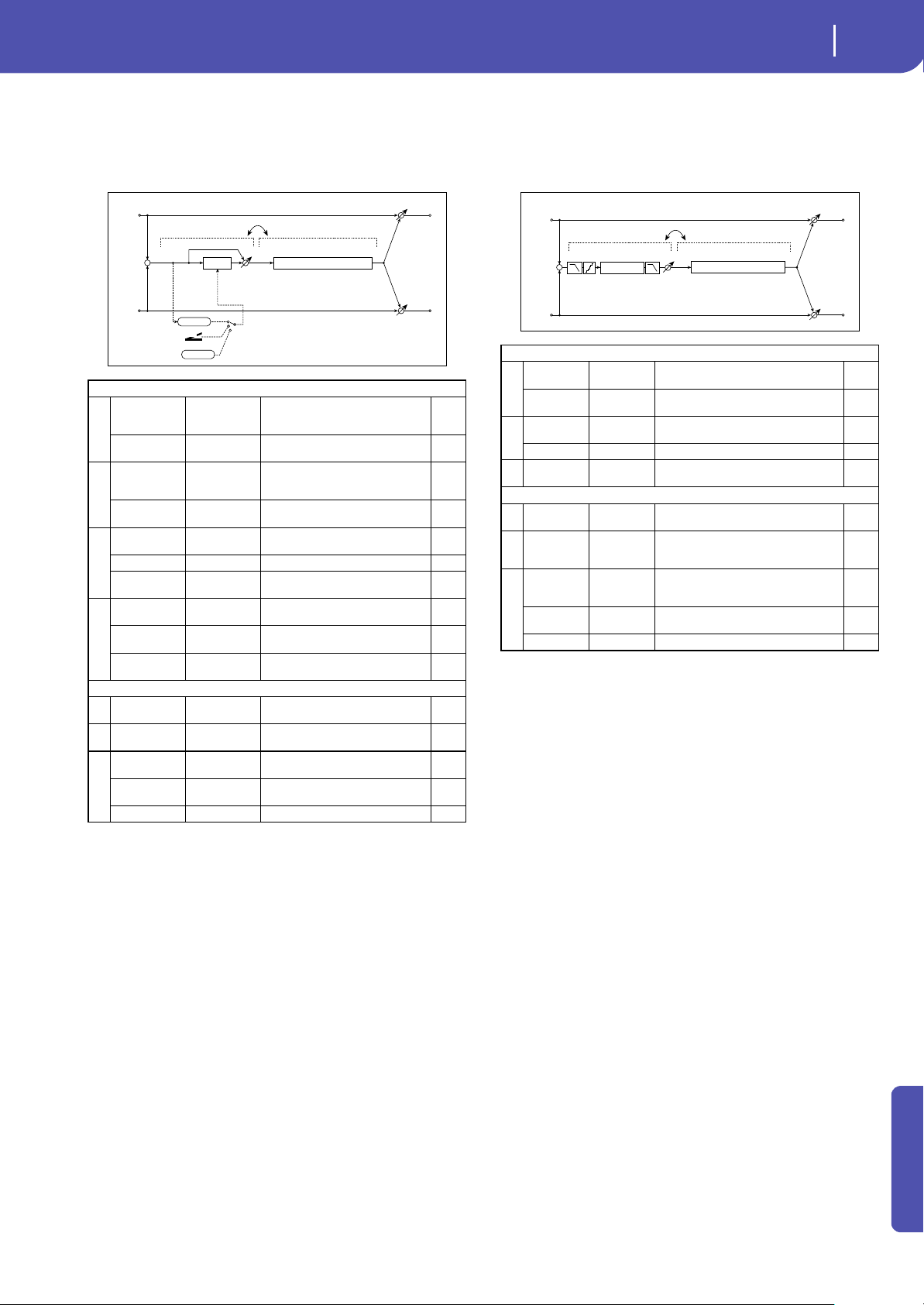
341
Effects
Mono-Mono Serial (Mono-Mono)
Appendix
103: Wah - Amp Sim
(Wah - Amp Simulation)
This effect combines a mono wah and an amp simulation. You
can change the order of the effects.
104: Decimator - Amp
(Decimator - Amp Simulation)
This effect combines a mono decimator and an amp simulation.
You can change the order of the effects.
WAH
a
[W]
Frequency
Bottom
0...100
Sets the lower limit of the wah
center frequency
Frequency Top 0...100
Sets the upper limit of the wah
center frequency
b
[W]Sweep
Mode
Auto,
D-mod,
LFO
Selects the control from auto-wah,
modulation source, and LFO
Src Off...Tempo
Selects the modulation source for
the wah when Sweep Mode=D-mod
c
[W]LFO
Frequency [Hz]
0.02...20.00 Sets the speed of the LFO
Resonance 0...100 Sets the resonance amount
LPF Off, On
Switches the wah low pass filter on
and off
d
[W]Wet/Dry
Dry, 1:99...99:1,
Wet
Sets the wah effect balance
Src Off...Tempo
Selects the Wet/Dry modulation
source for the wah
Amt –100...+100
Sets the Wet/Dry modulation
amount for the wah
AMP SIM
e
[A]Amplifier
Type
SS, EL84, 6L6 Selects the type of guitar amplifier
fRouting
Wah
Amp,
Amp
Wah
Switches the order of the wah and
amp simulation
g
Wet/Dry
Dry, 1:99...99:1,
Wet
Balance between the wet and dry
signal
Src Off...Tempo
Table , “Dynamic Modulation
sources,” on page 283
Amt –100...+100 Amount of modulation source
FX Amt
Left
Right
FX Amt
FX Amt
FX Amt = 100: Mono In - Mono Out / FX Amt = 0: Stereo In - Stereo Out
+
Routing
Amp Simulation
Amp Simulation Filter
Wah/Auto Wah
Wah
D
-mod
Envelope
Sweep Mode
D-mod
Auto
LFO
LFO
DECIMATOR
a
[D]Pre LPF Off, On
Turn the harmonic noise caused by
lowered sampling on and off
High Damp
[%]
0...100 Sets the ratio of high-range damping
b
[D]Sampling
Freq [Hz]
1.00k...48.00k
Sets the sampling frequency
Resolution 4...24 Sets the data bit length
c
[D]Output
Level
0...100 Sets the decimator output level
AMP SIM
d
[A]Amplifier
Type
SS, EL84, 6L6 Selects the type of guitar amplifier
eRouting
Decimator
Amp, Amp
Decimator
Switches the order of the decimator and
amp simulation
f
Wet/Dry
Dry,
1:99...99:1,
Wet
Balance between the wet and dry signal
Src Off...Tempo
Table , “Dynamic Modulation sources,”
on page 283
Amt –100...+100 Amount of modulation source
Left
Right
FX Amt
FX Amt
FX Amt = 100: Mono In - Mono Out / FX Amt = 0: Stereo In - Stereo Out
+
Decimator
Routing
Amp Simulation
Amp Simulation Filter
Pre LPF
High Damp
Output Level
Decimator
Resolution
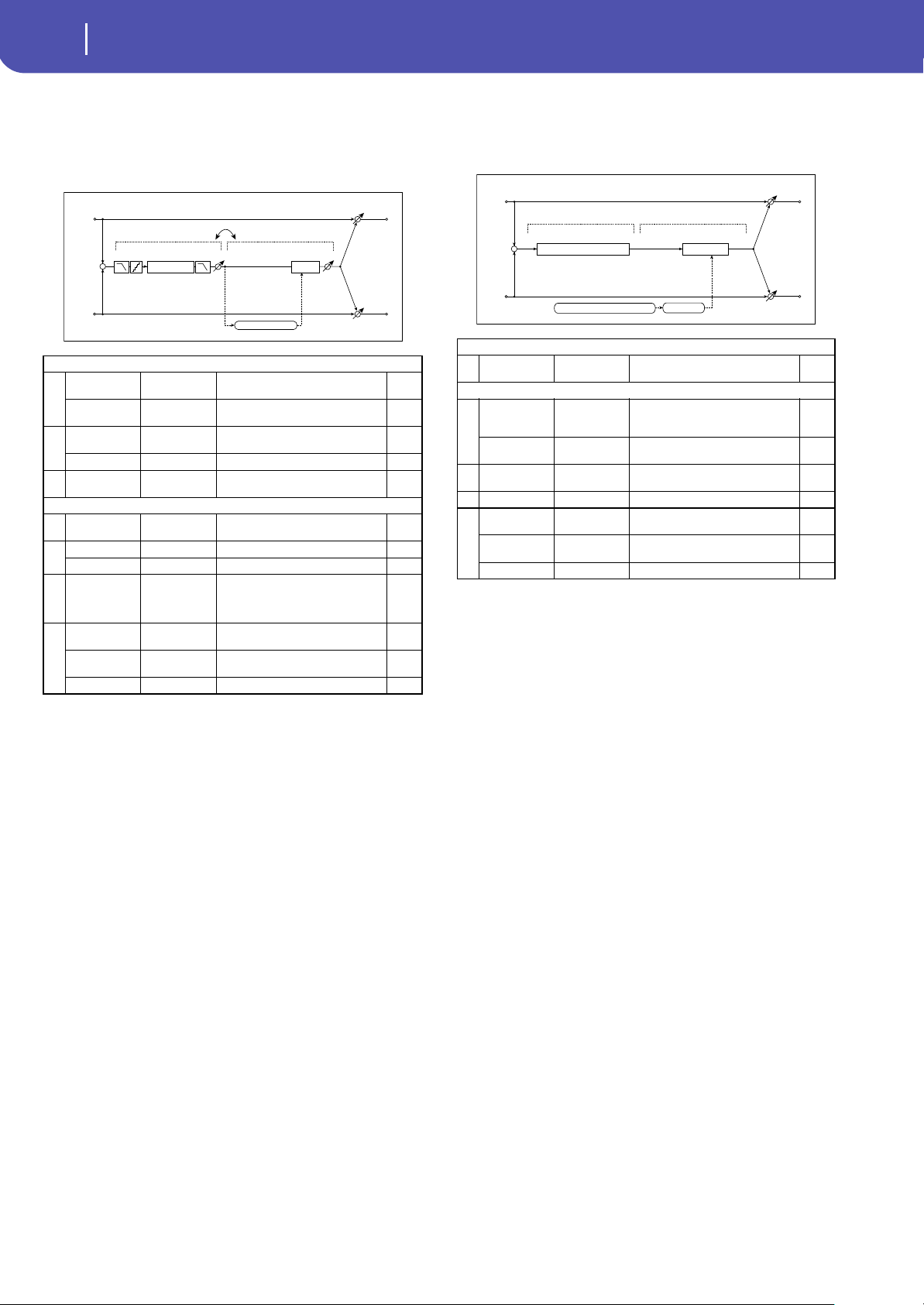
342
Effects
Mono-Mono Serial (Mono-Mono)
105: Decimator - Comp
(Decimator - Compressor)
This effect combines a mono decimator and a compressor. You
can change the order of the effects.
106: AmpSim - Tremolo
(Amp Simulation- Tremolo)
This effect combines a mono amp simulation and a tremolo.
DECIMATOR
a
[D]Pre LPF Off, On
Turn the harmonic noise caused by
lowered sampling on and off
High Damp [%] 0...100
Sets the ratio of high-range
damping
b
[D]Sampling
Freq [Hz]
1.00k...48.00k
Sets the sampling frequency
Resolution 4...24 Sets the data bit length
c
[D]Output
Level
0...100 Sets the decimator output level
COMPRESSOR
d
[C]
Sensitivity
1...100 Sets the sensitivity
e
[C]Attack 1...100 Sets the attack level
Output Level 0...100 Sets the compressor output level
fRouting
Decimator
Comp,
Comp
Decimator
Switches the order of the decimator
and compressor
g
Wet/Dry
Dry, 1:99...99:1,
Wet
Balance between the wet and dry
signal
Src Off...Tempo
Table , “Dynamic Modulation
sources,” on page 283
Amt –100...+100 Amount of modulation source
Left
Right
FX Amt
FX Amt
FX Amt = 100: Mono In - Mono Out / FX Amt = 0: Stereo In - Stereo Out
+
Decimator
Routing
Pre LPF
High Damp
Output Level
Decimator
Resolution
Compressor
Comp
Output Level
Envelope - Control
AMP SIM
a
[A]Amplifier
Type
SS, EL84, 6L6 Selects the type of guitar amplifier
TREMOLO
b
[T]LFO
Waveform
Triangle, Sine,
Vintage, Up,
Down
Selects the LFO Waveform
LFO Shape –100...+100
Changes the curvature of the LFO
Waveform
c
[T]LFO
Frequency [Hz]
0.02...20.00 Sets the speed of the LFO
d [T]Depth 0...100 Sets the depth of LFO modulation
e
Wet/Dry
Dry, 1:99...99:1,
Wet
Balance between the wet and dry
signal
Src Off...Tempo
Table , “Dynamic Modulation
sources,” on page 283
Amt –100...+100 Amount of modulation source
Left
Right
FX Amt
FX Amt
FX Amt = 100: Mono In - Mono Out / FX Amt = 0: Stereo In - Stereo Out
+
Amp Simulation Tremolo
Amp Simulation Filter
Tremolo
LFO: Tri/Sin/Vintage/Up/Down
LFO Shape
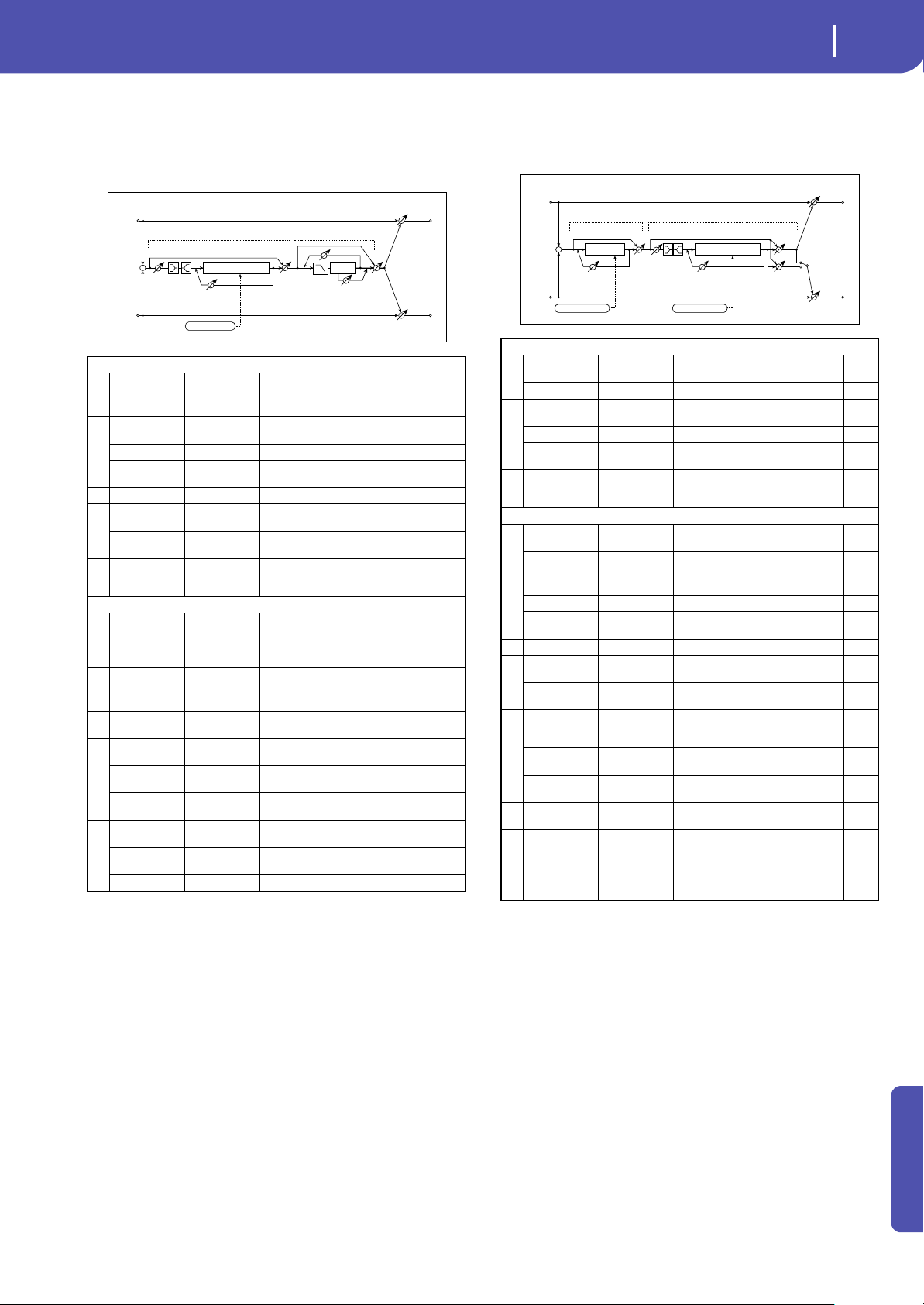
343
Effects
Mono-Mono Serial (Mono-Mono)
Appendix
107: Cho/Flng - Mt.Dly
(Chorus/Flanger - Multitap Delay)
This effect combines a mono chorus/flanger and a multitap
delay.
108: Phaser - Cho/Flng
(Phaser - Chorus/Flanger)
This effect combines a mono phaser and a chorus/flanger.
CHORUS/FLANGER
a
[F]LFO
Frequency [Hz]
0.02...20.00 Sets the speed of the LFO
LFO Waveform Triangle, Sine Selects the LFO Waveform
b
[F]Delay Time
[msec]
0.0...1350.0 Sets the delay time
Depth 0...100 Sets the depth of LFO modulation
Feedback –100...+100
Sets the feedback amount
c [F]EQ Trim 0...100 Sets the EQ input level
d
[F]PreLEQ Gain
[dB]
–15...+15 Sets the gain of Low EQ
PreHEQ Gain
[dB]
–15...+15 Sets the gain of High EQ
e
[F]Cho/Flng
Wet/Dry
–Wet...–1 : 99,
Dry,
1 : 99...Wet
Sets the effect balance of the
chorus/flanger
MULTITAP DELAY
a
[D]Tap1 Time
[msec]
0.0...1360.0 Sets the Tap1 delay time
Tap1 Level 0...100
Sets the Tap1 output level
b
[D]Tap2 Time
[msec]
0.0...1360.0 Sets the Tap2 delay time
Feedback –100...+100 Sets the Tap2 feedback amount
c
[D]High Damp
[%]
0...100
Sets the damping amount in the
high range
d
[D]Mt.DelayWe
t/Dry
Dry, 1:99...99:1,
Wet
Sets the multitap delay effect
balance
Src Off...Tempo
Selects the Wet/Dry modulation
source for the multitap delay
Amt –100...+100
Sets the Wet/Dry modulation
amount for the multitap delay
e
Wet/Dry
Dry, 1:99...99:1,
Wet
Balance between the wet and dry
signal
Src Off...Tempo
Table , “Dynamic Modulation
sources,” on page 283
Amt –100...+100 Amount of modulation source
Left
Right
FX Amt
FX Amt
FX Amt = 100: Mono In - Mono Out / FX Amt = 0: Stereo In - Stereo Out
+
LEQ HEQ
EQ
Trim
Multitap Delay
Feedback
High Damp
Delay
(2)
(1)
Chorus/Flanger
Cho/Flng
FX Amt
Mt.Dly
FX Amt
Chorus/Flanger
Feedback
LFO: Tri / Sine
PHASER
a
[P]LFO
Frequency [Hz]
0.02...20.00 Sets the speed of the LFO
LFO Waveform Triangle, Sine Selects the LFO Waveform
b
[P]Manual 0...100
Sets the frequency to which the
effect is applied
Depth 0...100 Sets the depth of LFO modulation
Resonance –100...+100
Sets the resonance amount
c
[P]Phaser Wet/
Dry
-Wet, -
1:99...Dry...99:1
, Wet
Sets the phaser effect balance
CHORUS/FLANGER
d
[F]LFO
Frequency [Hz]
0.02...20.00 Sets the speed of the LFO
LFO Waveform Triangle, Sine Selects the LFO Waveform
e
[F]Delay Time
[msec]
0.0...1350.0 Sets the delay time
Depth 0...100 Sets the depth of LFO modulation
Feedback –100...+100
Sets the feedback amount
f [F]EQ Trim 0...100 Sets the EQ input level
g
[F]PreLEQ Gain
[dB]
–15...+15 Sets the gain of Low EQ
PreHEQ Gain
[dB]
–15...+15 Sets the gain of High EQ
h
[F]Cho/Flng
Wet/Dry
-Wet, -
1:99...Dry...99:1
, Wet
Sets the effect balance of the
chorus/flanger
Src Off...Tempo
Selects the Wet/Dry modulation
source for the chorus/flanger
Amt –100...+100
Sets the Wet/Dry modulation
amount for the chorus/flanger
i
[F]Output
Mode
Normal,
Wet Invert
Selects the output mode for the
chorus/flanger
j
Wet/Dry
Dry, 1:99...99:1,
Wet
Balance between the wet and dry
signal
Src Off...Tempo
Table , “Dynamic Modulation
sources,” on page 283
Amt –100...+100 Amount of modulation source
Left
Right
FX Amt
FX Amt
FX Amt = 100: Mono In - Stereo Out / FX Amt = 0: Stereo In - Stereo Out
+
Chorus/Flanger
Cho/Flng
FX Amt
LEQ
HEQ
EQ
Trim
Chorus/Flanger
Feedback
Phaser
Phaser
FX Amt
Phaser
Resonance
LFO: Tri / Sine
LFO: Tri / Sine
Normal
Wet Invert
Output Mode
–
+
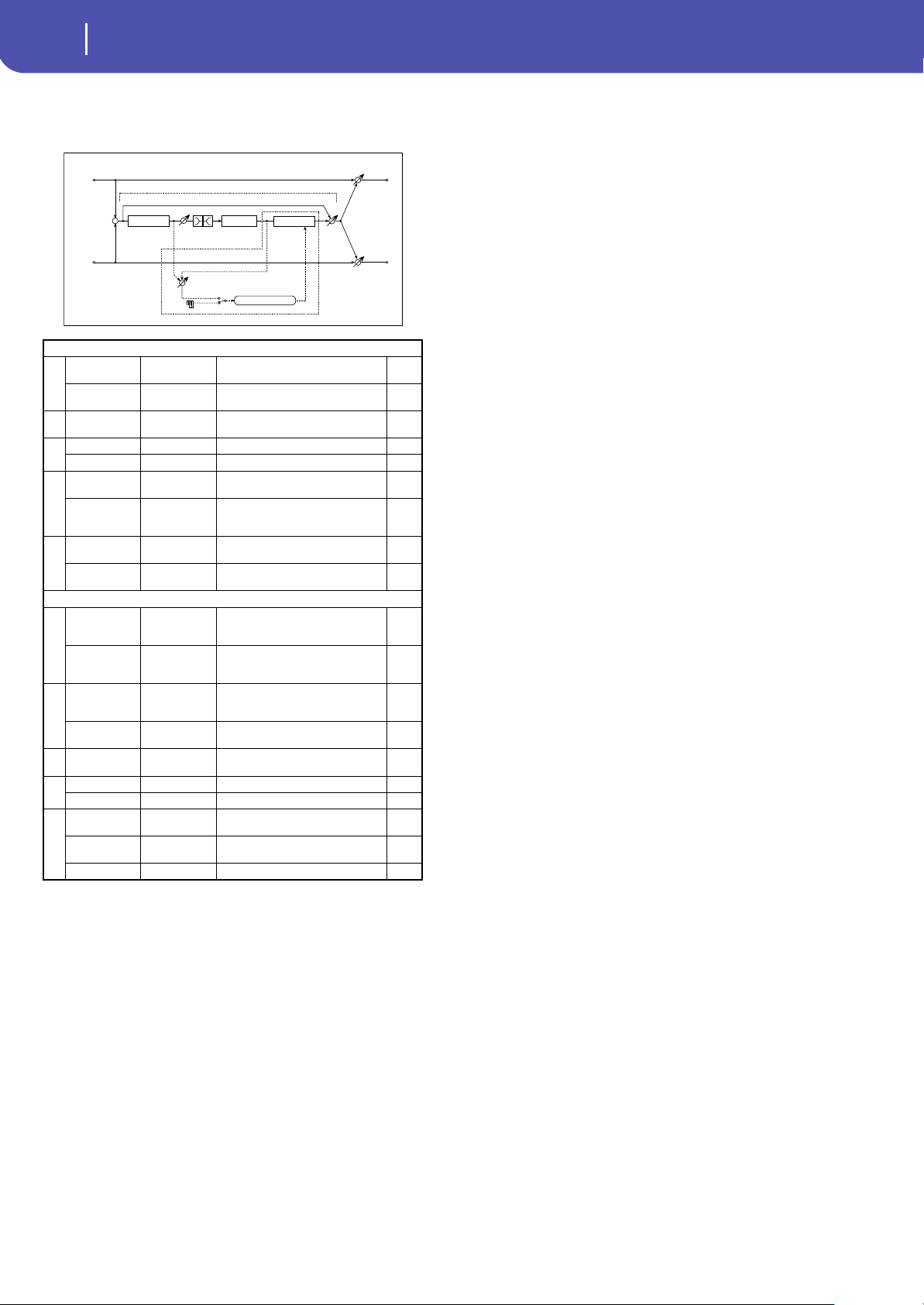
344
Effects
Mono-Mono Serial (Mono-Mono)
109: Reverb - Gate
This effect combines a mono reverb and a gate.
f: [G]Envelope Select
f: Src
g: [G]Input Reverb Mix
g: Threshold
The “[G]Envelope Select” parameter enables you to select
whether turning the gate on and off is triggered by the input sig-
nal level or controlled directly by the modulation source. You
can select from Off to Tempo for the Src parameter to specify the
modulation source.
When “[G]Envelope Select” is set to Input, the gate is controlled
by the level of signals that are the combination of the dry sound
and the reverb sound. When the signal level exceeds the thresh-
old, the gate opens and the reverb sound is output.
Normally, set “[G]Input Reverb Mix” to Dry (the gate is con-
trolled only by the dry sound). If you wish to extend the gate
time, set the “[G]Input Reverb Mix” value higher and adjust the
“Threshold” value.
REVERB
a
[R]Reverb Time
[sec]
0.1...10.0 Sets the reverberation time
High Damp [%] 0...100
Sets the damping amount in the
high range
b
[R]Pre Delay
[msec]
0...200
Sets the delay time of the reverb
sound and gate control signal
c
[R]EQ Trim 0...100 Sets the EQ input level
Reverb Balance 0...100 Sets the reverb effect balance
d
[R]PreLEQ Fc
Low,
Mid-Low
Selects the cutoff frequency (low or
mid-low) of the low-range equalizer
Pre HEQ Fc
High,
Mid-High
Selects the cutoff frequency (high or
mid-high) of the high-range
equalizer
e
[R]PreLEQ Gain
[dB]
–15.0...+15.0 Sets the gain of Low EQ
Pre HEQ Gain
[dB]
–15.0...+15.0 Sets the gain of High EQ
GATE
f
[G]Envelope
Select
D-mod, Input
Switches between modulation
source control and input signal
control
Src Off...Tempo
Selects the modulation source that
controls the gate when Envelope
Select is set to D-mod
g
[G]Input
Reverb Mix
0...100
Sets the balance between the dry
and reverb sounds of the gate
control signal
Threshold 0...100
Sets the gate threshold level
h[G]Polarity +, –
Switches between non-invert and
invert of the gate on/off state
i
[G]Attack 1...100 Sets the attack time
Release 1...100 Sets the release time
j
Wet/Dry
Dry, 1:99...99:1,
Wet
Balance between the wet and dry
signal
Src Off...Tempo
Table , “Dynamic Modulation
sources,” on page 283
Amt –100...+100 Amount of modulation source
Left
Right
FX Amt
FX Amt
Reverb
Balance
FX Amt = 100: Mono In - Mono Out / FX Amt = 0: Stereo In - Stereo Out
+
LEQ
HEQ
EQ Trim
Reverb
Pre Delay
Envelope - Control
D-mod
Input
Envelope Select
Gate
Input Reverb Mix
Reverb
Gate
Gate+Dmpr
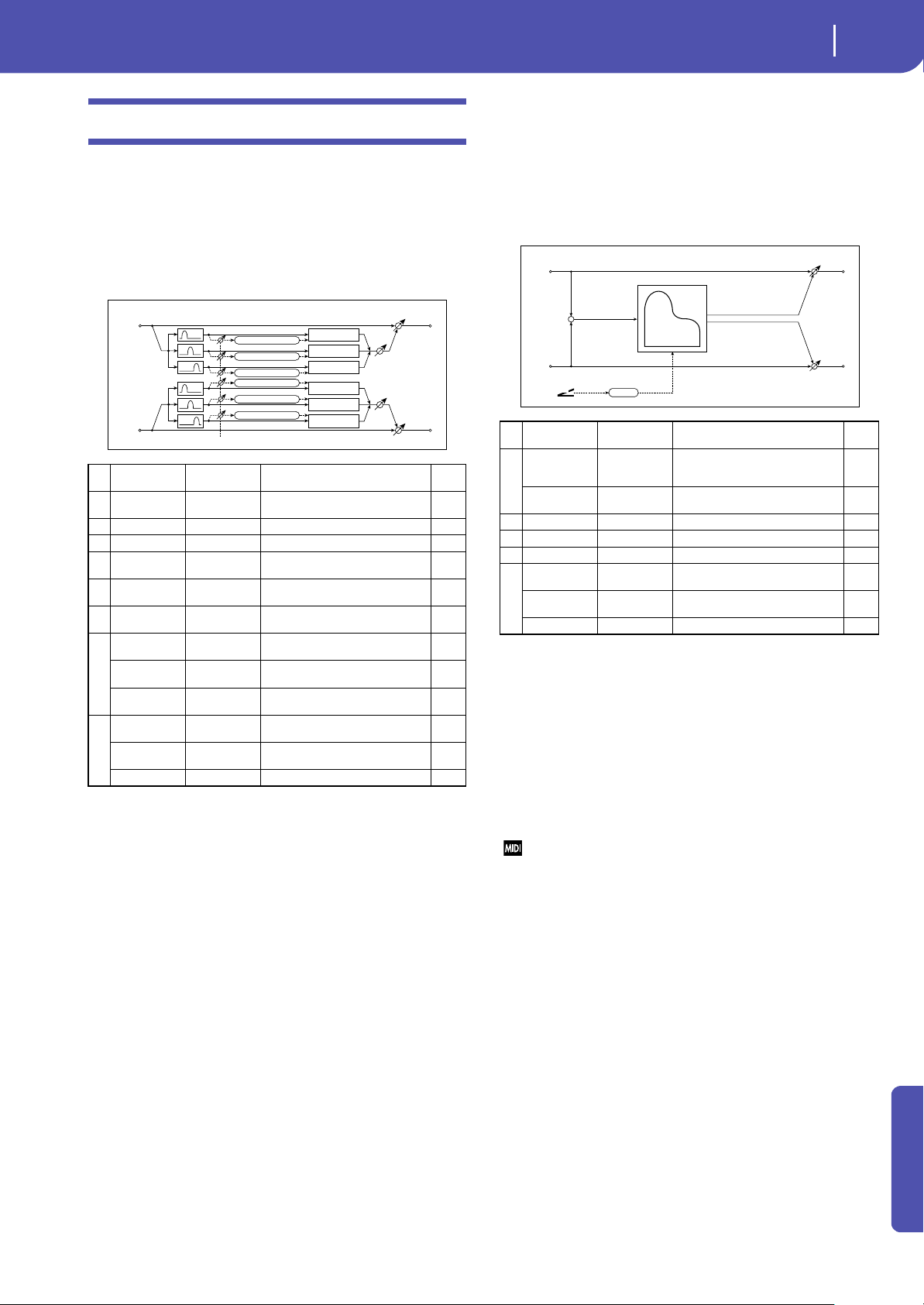
345
Effects
Double Size
Appendix
Double Size
Double-size effects can only be assigned to the FX2 processors
(either in the A or B FX group).
110: St. Mltband Limiter
(Stereo Mltband Limiter)
This is a stereo multiband limiter.
111: PianoBody/Damper
(PianoBody/Damper Simulation)
This effect simulates the resonance of the piano sound board
caused by the string vibration, and also simulates the resonance
of other strings that are not being played when you press the
damper pedal. It will create a very realistic sound when applied
to acoustic piano sounds.
a: Sound Board Depth
This parameter sets the intensity of resonance of the piano
sound board.
b: Damper Depth
b: Src
This parameter sets the resonance intensity of the other strings
created when the damper pedal is pressed. The “Src” parameter
selects the modulation source from which the damper effect is
applied. Usually, select Damper #64 Pdl (Damper pedal).
The effect is off when a value for the modulation source specified for
the “Src” parameter is 63 or smaller, and the effect is on when the
value is 64 or higher.
c: Tone
d: Mid Shape
These parameters control the tonal quality of the effect sound.
e: Tune
Since this effect simulates the resonance of the strings, the sound
varies depending on the pitch. If you have changed tuning using
the “Master Tuning” (Global > General Controls > Basic), adjust
this parameter value.
aRatio
1.0 : 1...
50.0 : 1, Inf : 1
Sets the signal compression ratio
b Threshold [dB] –40...0
Sets the level above which the
compressor is applied
c Attack 1...100 Sets the attack time
d Release 1...100 Sets the release time
e Low Offset [dB] –40...0
Sets the low range gain of trigger
signal
f Mid Offset [dB] –40...0
Sets the mid range gain of trigger
signal
g
High Offset
[dB]
–40...0
Sets the high range gain of trigger
signal
h
Gain Adjust
[dB]
–Inf,
–38...+24
Sets the output gain
Src Off...Tempo
Selects the modulation source for
the output gain
Amt –63...+63
Sets the modulation amount of the
output gain
i
Wet/Dry
Dry, 1:99...99:1,
Wet
Balance between the wet and dry
signal
Src Off...Tempo
Table , “Dynamic Modulation
sources,” on page 283
Amt –100...+100 Amount of modulation source
Left
Right
FX Amt
FX Amt
Stereo In - Stereo Out
Gain Adjust
Limiter
Limiter
Limiter
Envelope - Control
Envelope - Control
Envelope - Control
Gain Adjust
Limiter
Limiter
Low
Mid
High
Envelope - Control
Envelope - Control
Envelope - Control
Low
Mid
High
Offset
Band-Pass Filters
Limiter
a
Sound Board
Depth
0...100
Sets the intensity of resonance of
the sound board
b
Damper Depth 0...100
Sets the intensity of the string
resonance created when the
damper pedal is pressed
Src Off...Tempo
Selects the modulation source of
damper effect
c Tone 1...100 Sets tonal quality of effect sound
d Mid Shape 0...36 Sets the mid range of tonal quality
e Tune –50...+50 Fine tuning
f
Wet/Dry
Dry, 1:99...99:1,
Wet
Balance between the wet and dry
signal
Src Off...Tempo
Table , “Dynamic Modulation
sources,” on page 283
Amt –100...+100 Amount of modulation source
Left
Right
FX Amt
FX Amt
FX Amt = 100: Mono In - Stereo Out / FX Amt = 0: Stereo In - Stereo Out
D
-mod
Piano
Body/Damper
Simulation
Damper
+
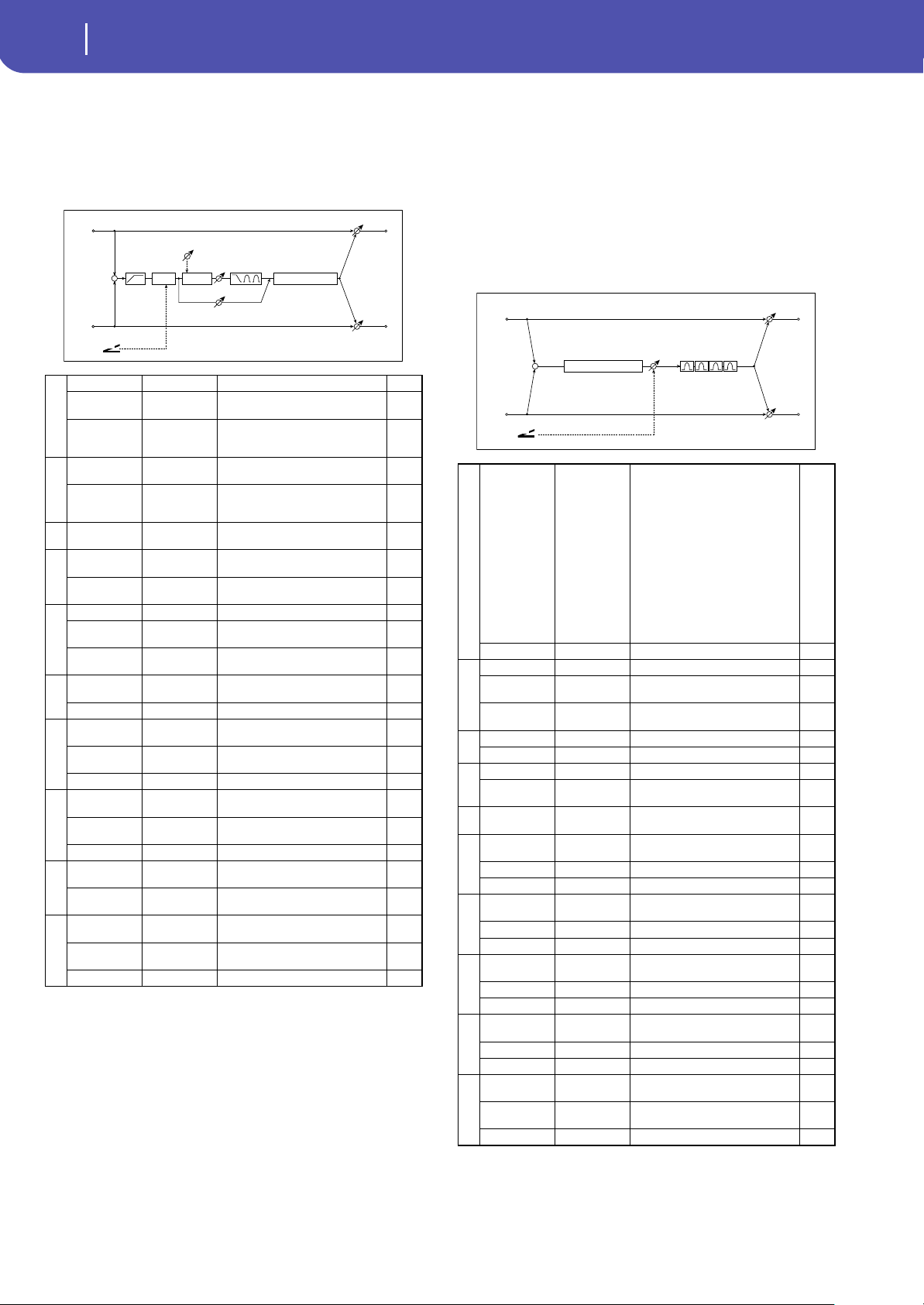
346
Effects
Double Size
112: OD/HyperGain Wah
(Overdrive/Hyper Gain Wah)
This distortion effect has two modes: overdrive and hyper-gain
that produces a strong distortion. A higher high-gain setting is
required for this effect relative to a normal-size effect.
113: GuitarAmp + P4EQ
(Guitar Amp Model +
Parametric 4-Band EQ)
This combines a guitar amp simulation (which even faithfully
replicates the distortion and tone control circuitry) with a four-
band equalizer.
By using this in conjunction with “St. Guitar Cabinet (Stereo
Guitar Cabinet)” on page 295, you can obtain an even more real-
istic guitar sound that simulates a guitar amp + speaker cabinet.
a
Wah Off, On Switches Wah on/off
Src Off...Tempo
Selects the modulation source that
switches the Wah on and off
Sw
Toggle,
Moment
Selects the switching mode for the
modulation source that switches the
Wah on and off
b
Wah Sweep
Range
–10...+10 Sets the range of Wah
Wah Sweep Src Off...Tempo
Selects the modulation source that
controls the Wah
cDrive Mode
Overdrive,
Hyper-Gain
Switches between overdrive and hi-
gain distortion
d
Drive 1...120
Sets the degree of distortion
Pre Low-cut 0...10
Sets the low range cut amount of
the distortion input
e
Output Level 0...50 Sets the output level
Src Off...Tempo
Selects the modulation source for
the output level
Amt –50...+50
Sets the modulation amount of the
output level
f
Low Cutoff
[Hz]
20...1.00k
Sets the center frequency for Low
EQ (shelving type)
Gain [dB] –18...+18 Sets the gain of Low EQ
g
Mid1 Cutoff
[Hz]
300...10.00k
Sets the center frequency for Mid/
High EQ 1 (peaking type)
Q 0.5...10.0
Sets the band width of Mid/High EQ
1
Gain [dB] –18...+18 Sets the gain of Mid/High EQ 1
h
Mid2 Cutoff
[Hz]
500...20.00k
Sets the center frequency for Mid/
High EQ 2 (peaking type)
Q 0.5...10.0
Sets the band width of Mid/High EQ
2
Gain [dB] –18...+18 Sets the gain of Mid/High EQ 2
i
Direct Mix 0...50
Sets the amount of the dry sound
mixed to the distortion
Speaker
Simulation
Off, On
Switches the speaker simulation on/
off
j
Wet/Dry
Dry, 1:99...99:1,
Wet
Balance between the wet and dry
signal
Src Off...Tempo
Table , “Dynamic Modulation
sources,” on page 283
Amt –100...+100 Amount of modulation source
Left
Right
FX Amt
FX Amt
FX Amt = 100: Mono In - Mono Out / FX Amt = 0: Stereo In - Stereo Out
Amp Simulation
3 Band EQ
Output Level
Direct Mix
Pre Low-cut
D
-mod
Wah
Mode: Overdrive / Hyper-Gain
Drive
Driver
+
a
Amp Type
VOX AC15,
VOX AC15TB,
VOX AC30,
VOX AC30TB,
UK BLUES, UK
70'S,
UK 80'S,
UK 90'S,
UK MODERN,
US MODERN,
US HIGAIN,
BOUTIQUE OD,
BOUTIQUE CL,
BLACK 2x12,
TWEED - 1x12,
TWEED - 4x10
Selects the type of the amplifier
Drive Gain 0...100 Sets the input gain
b
Volume 0...100 Sets the output level
Src Off...Tempo
Selects the modulation source for
the output level
Amt –100...+100
Sets the modulation amount of the
output level
c
Bass 0...100 Sets the bass (low range) level
Middle 0...100 Sets the middle (mid range) level
d
Treble 0...100 Sets the treble (high range) level
Presence 0...100
Sets the presence (high-frequency
tone)
ePost P4EQ Thru, On
Selects through or on for the
equalizer
e
Band1 Cutoff
[Hz]
20...1.00k
Sets the center frequency of
Band 1
Q 0.5...10.0 Sets Band 1’s bandwidth
Gain [dB] –18...+18 Sets the gain of Band 1
f
Band2 Cutoff
[Hz]
50...5.00k
Sets the center frequency of
Band 2
Q 0.5...10.0 Sets Band 2’s bandwidth
Gain [dB] –18...+18 Sets the gain of Band 2
g
Band3 Cutoff
[Hz]
300...10.00k
Sets the center frequency of
Band 3
Q 0.5...10.0 Sets Band 3’s bandwidth
Gain [dB] –18...+18 Sets the gain of Band 3
h
Band4 Cutoff
[Hz]
500...20.00k
Sets the center frequency of
Band 4
Q 0.5...10.0 Sets Band 4’s bandwidth
Gain [dB] –18...+18 Sets the gain of Band 4
i
Wet/Dry
Dry, 1:99...99:1,
Wet
Balance between the wet and dry
signal
Src Off...Tempo
Table , “Dynamic Modulation
sources,” on page 283
Amt –100...+100 Amount of modulation source
+
Left
Right
FX Amt
Volume
FX Amt
FX Amt = 100: Mono In - Mono Out / FX Amt = 0: Stereo In - Stereo Out
Parametric 4Band EQ
D
-mod
Guitar Amp Model
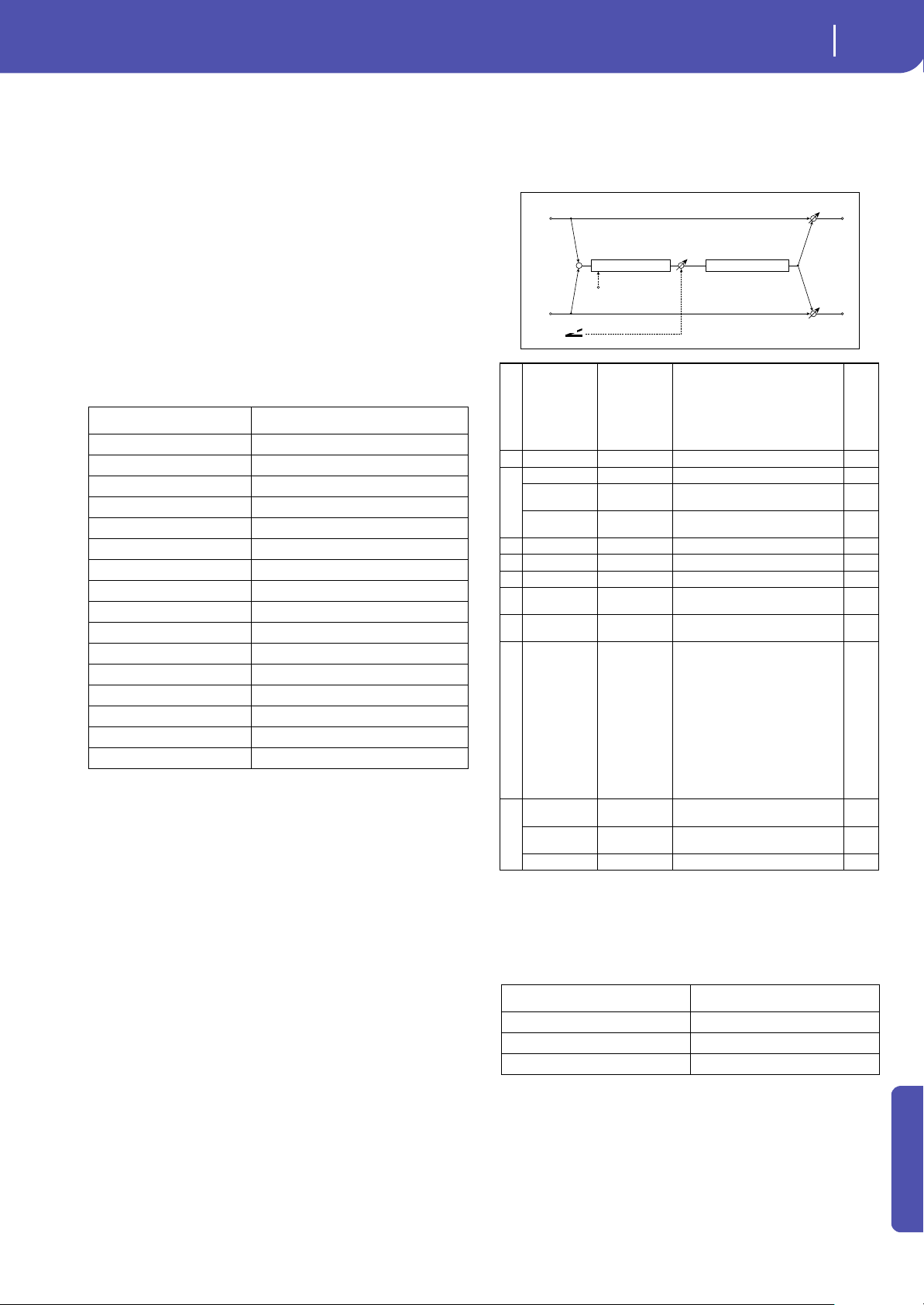
347
Effects
Double Size
Appendix
a: Amp Type
d: Presence
If the Amp Type is VOX AC15...VOX AC30TB, this sets the
attenuation of the high-frequency range. For other types, this
sets the boost of the high-frequency range.
This corresponds to the Cut knob control of amps made by the
VOX Corporation.
e: Post P4EQ
By chaining this with 19: St.Guitar Cabinet you can simulate the
combination of a guitar amp and speaker cabinet. In this case,
we recommend that you set Post P4EQ to “Thru,” but if neces-
sary you can turn it “On” and adjust the tone.
Recommended Combinations of Guitar Amp Models and Cab-
inet Simulators:
114: BassTubeAmp+Cab.
(Bass Tube Amp Model + Cabinet)
This simulates a bass amp (with gain and drive) and speaker cab-
inet.
a: Amp Type
i: Cabinet Type
Recommended Combinations of Bass Amp Models and Cabi-
nets:
Amp Type Cabinet Type
VOX AC15 VOX AC15 - 1x12
VOX AC15TB VOX AC15 - 1x12
VOX AC30 VOX AC30 - 2x12
VOX AC30TB VOX AC30 - 2x12
UK BLUES UK H30 - 4x12
UK 70'S UK H30 - 4x12
UK 80'S UK T75 - 4x12
UK 90'S UK T75 - 4x12
UK MODERN UK T75 - 4x12, US V30 - 4x12
US MODERN US V30 - 4x12
US HIGAIN US V30 - 4x12, UK T75 - 4x12
BOUTIQUE OD UK H30 - 4x12
BOUTIQUE CL UK H30 - 4x12
BLACK 2x12 BLACK - 2x12
TWEED - 1x12 TWEED - 1x12
TWEED - 4x10 TWEED - 4x10
aAmp Type
Selects the type of the amplifier
STUDIO
COMBO
A tube combo ideal for the Motown
sound
VOX AC100
A 100W tube amp AC100 made by
Vox
UK MAJOR A 200W tube amp made in the UK
b Drive Gain 0...100 Sets the input gain
c
Volume 0...100 Sets the output level
Src Off...Tempo
Selects the modulation source for
the output level
Amt –100...+100
Sets the modulation amount of the
output level
d Bass 0...100 Sets the bass (low range) level
e Middle 0...100 Sets the middle (mid range) level
f Treble 0...100 Sets the treble (high range) level
g Presence 0...100
Sets the presence (high-frequency
tone)
h
Cabinet
Simulator
Off, On
Switches the cabinet simulator on/
off
iCabinet Type
LA - 4x10,
MODERN - 4x10,
METAL - 4x10,
CLASSIC -8x10,
UK - 4x12,
STUDIO - 1x15,
JAZZ
- 1x15,
VOX AC100 -
2x15,
US - 2x15,
UK - 4x15,
LA - 1x18,
COMBI - 1x12 &
1x18
Selects the cabinet type
j
Wet/Dry
Dry, 1:99...99:1,
Wet
Balance between the wet and dry
signal
Src Off...Tempo
Table , “Dynamic Modulation
sources,” on page 283
Amt –100...+100 Amount of modulation source
Amp Type Cabinet Type
STUDIO COMBO STUDIO - 1x15
AC100 VOX AC100 - 2x15
UK MAJOR UK - 4x15, UK - 4x12
+
Left
Right
FX Amt
Volume
Drive
FX Amt
FX Amt = 100: Mono In - Mono Out / FX Amt = 0: Stereo In - Stereo Out
D
-mod
Bass Amp Model2
Cabinet Simulator
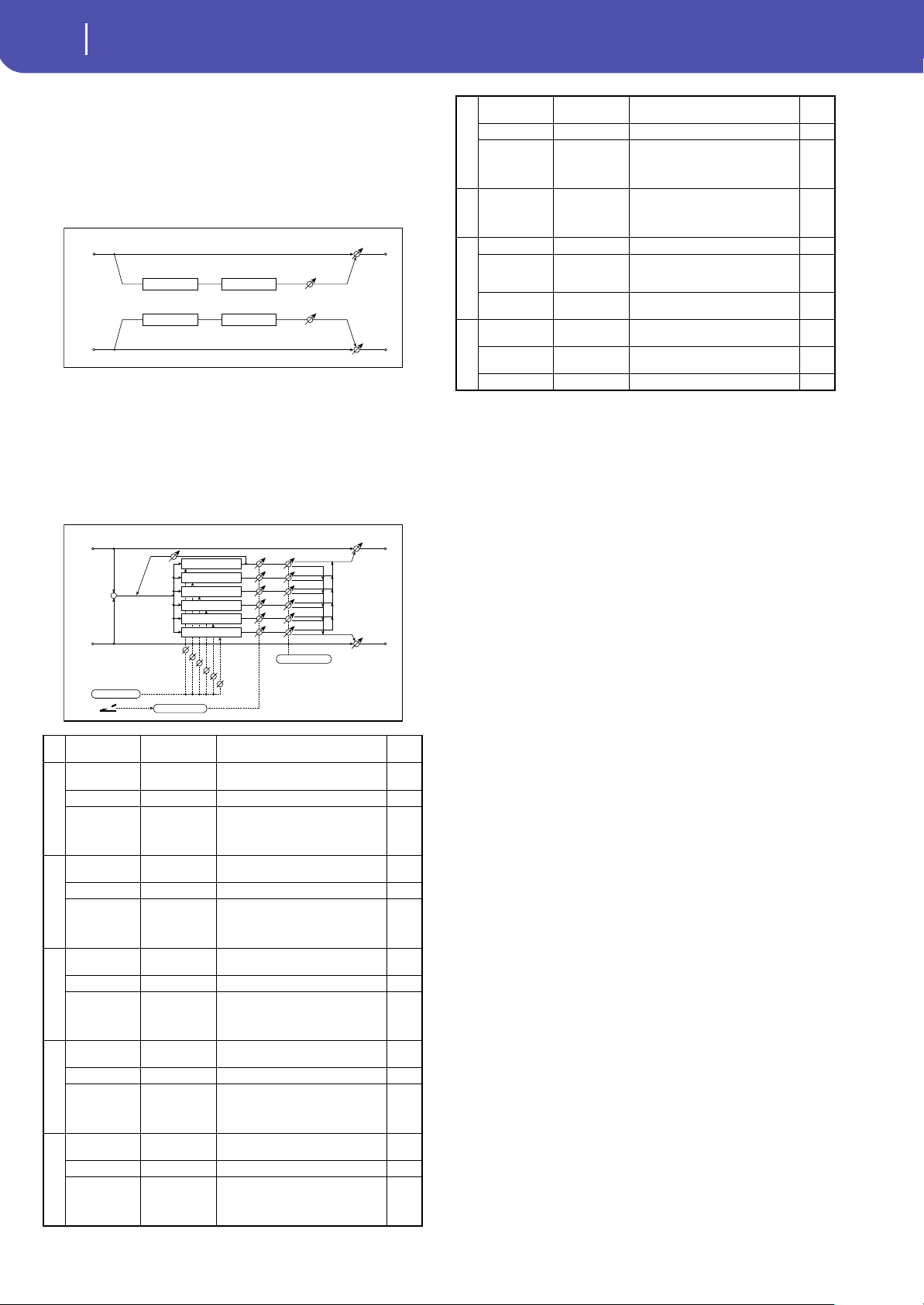
348
Effects
Double Size
115: St. Mic + PreAmp
(Stereo Mic Modeling + PreAmp)
This is a stereo mic and preamp simulator (See “Mic Model+Pre-
Amp (Mic Modeling + PreAmp)” on page 298.). For example
you might use this to simulate micing of a stereo source such as a
rotary speaker.
116: Multitap Cho/Delay
(Multitap Chorus/Delay)
This effect has six chorus blocks with different LFO phases. You
can produce a complex stereo image by setting a different delay
time and depth for each block. You can control the delay output
level via a modulation source.
b, c, d, e, f, g: Status
These parameters set the output status of each Tap.
Always On: Output is always on. (No modulation)
Always Off: Output is always off. (No modulation)
On→ Off (dm): Output level is switched from on to off depend-
ing on the modulation source.
Off→ On (dm): Output level is switched from off to on depend-
ing on the modulation source.
Combining these parameters, you can change from 4-phase cho-
rus to two-tap delay by crossfading them gradually via the mod-
ulation source during a performance.
h: Panning Preset
This parameter selects combinations of stereo images of the tap
outputs.
a
LFO Frequency
[Hz]
0.02...13.00 Sets the speed of the LFO
b
Tap1 (000)
[msec]
0...2000
Sets the Tap1 (LFO phase=0
degrees) delay time
Depth 0...30 Sets the Tap1 chorus depth
Status
Always On,
Always Off,
On Off (Dm),
Off On (Dm)
Selects on, off, or modulation source
for the control of Tap1 output
c
Tap2 (180)
[msec]
0...2000
Sets the Tap2 (LFO phase=180
degrees) delay time
Depth 0...30 Sets the Tap2 chorus depth
Status
Always On,
Always Off,
On
Off (Dm),
Off
On (Dm)
Selects on, off, or modulation source
for the control of Tap2 output
d
Tap3 (060)
[msec]
0...2000
Sets the Tap3 (LFO phase=60
degrees) delay time
Depth 0...30 Sets the Tap3 chorus depth
Status
Always On,
Always Off,
On Off (Dm),
Off On (Dm)
Selects on, off, or modulation source
for the control of Tap3 output
e
Tap4 (240)
[msec]
0...2000
Sets the Tap4 (LFO phase=240
degrees) delay time
Depth 0...30 Sets the Tap4 chorus depth
Status
Always On,
Always Off,
On Off (Dm),
Off On (Dm)
Selects on, off, or modulation source
for the control of Tap4 output
f
Tap5 (120)
[msec]
0...2000
Sets the Tap5 (LFO phase=120
degrees) delay time
Depth 0...30 Sets the Tap5 chorus depth
Status
Always On,
Always Off,
On Off (Dm),
Off On (Dm)
Selects on, off, or modulation source
for the control of Tap5 output
Tube Pre AmpMic Simulation
Tube Pre AmpMic Simulation
Left
Right
FX Amt
Output Level
FX Amt
Stereo In - Stereo Out
Left
Right
Feedback
FX Amt
FX Amt
FX Amt = 100: Mono In - Stereo Out / FX Amt = 0: Stereo In -Stereo Out
+
LFO: Triangle
0 [degree]
180 [degree]
60 [degree]
240 [degree]
120 [degree]
300 [degree]
Tap1 Delay
Tap2 Delay
Tap3 Delay
Tap5 Delay
Tap6 Delay
Tap4 Delay
D
-mod
On/Off Control
Panning Preset
g
Tap6 (300)
[msec]
0...2000
Sets the Tap1 (LFO phase=300
degrees) delay time
Depth 0...30 Sets the Tap6 chorus depth
Status
Always On,
Always Off,
On Off (Dm),
Off On (Dm)
Selects on, off, or modulation source
for the control of Tap6 output
h Panning Preset
1 : L 1 2 3 4 5 6 R,
2 : L 135 246 R,
3 : L 1 3 5 2 4 6 R,
4 : L 1 4 5 6 3 2 R
Selects the stereo panning pattern
for each tap
i
Tap1 Feedback –100...+100 Sets the Tap1 feedback amount
Src Off...Tempo
Selects the modulation source for
the Tap output level, feedback
amount, and effect balance
Amt –100...+100
Sets the modulation amount of Tap1
feedback amount
j
Wet/Dry
Dry, 1:99...99:1,
Wet
Balance between the wet and dry
signal
Src Off...Tempo
Table , “Dynamic Modulation
sources,” on page 283
Amt –100...+100 Amount of modulation source
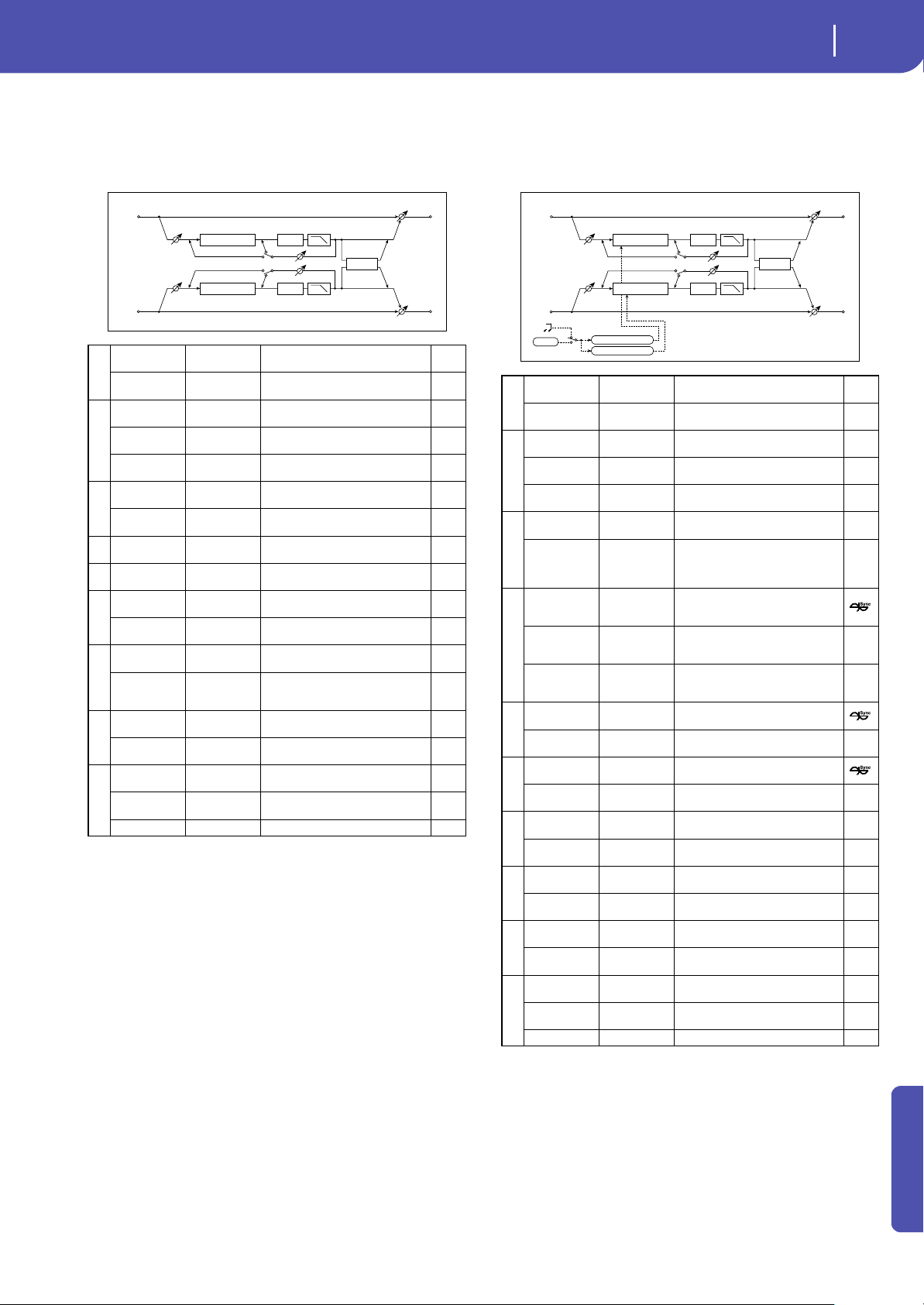
349
Effects
Double Size
Appendix
117: St. Pitch Shifter
(Stereo Pitch Shifter)
This is a stereo pitch shifter. The pitch shift amount for the left
and right channels can be reversed from each other.
a: L/R Pitch
When you select Up/Down for this parameter, the pitch shift
amount for the right channel will be reversed. If the pitch shift
amount is positive, the pitch of the left channel is raised, and the
pitch of the right channel is lowered.
118: St. PitchShift BPM
(Stereo Pitch Shifter BPM)
This stereo pitch shifter enables you to set the delay time to
match the song tempo.
a
Mode
Slow, Medium,
Fast
Switches Pitch Shifter mode
L/R Pitch
Normal,
Up/Down
Determines whether or not the L/R
pitch shift amount is inverted
b
Pitch Shift [1/
2tone]
–24...+24
Sets the pitch shift amount in steps
of a semitone
Src Off...Tempo
Selects the modulation source of
pitch shift amount
Amt –24...+24
Sets the modulation amount of
pitch shift amount
c
Fine [cents] –100...+100
Sets the pitch shift amount in steps
of one cent
Amt –100...+100
Sets the modulation amount of
pitch shift amount
d L Delay [msec] 0...2000
Sets the delay time for the left
channel
e R Delay [msec] 0...2000
Sets the delay time for the right
channel
f
Feedback –100...+100
Sets the feedback amount
High Damp [%] 0...100
Sets the damping amount in the
high range
g
Feedback
Position
Pre, Post Switches the feedback connection
Spread –100...+100
Sets the width of the stereo image
of the effect sound
h
Input Level
Dmod [%]
–100...+100
Sets the modulation amount of the
input level
Src Off...Tempo
Selects the modulation source for
the input level
i
Wet/Dry
Dry, 1:99...99:1,
Wet
Balance between the wet and dry
signal
Src Off...Tempo
Table , “Dynamic Modulation
sources,” on page 283
Amt –100...+100 Amount of modulation source
Left
Right
Feedback
Spread
FX Amt
FX Amt
Stereo In - Stereo Out
High Damp
High Damp
Input Level
Input Level
Feedback Position
Pre
Pre
Post
Post
Delay
Pitch Shifter
Delay
Pitch Shifter
a
Mode
Slow, Medium,
Fast
Switches Pitch Shifter mode
L/R Pitch
Normal,
Up/Down
Determines whether or not the L/R
pitch shift amount is inverted
b
Pitch Shift [1/
2tone]
–24...+24
Sets the pitch shift amount in steps
of a semitone
Src Off...Tempo
Selects the modulation source of
pitch shift amount
Amt –24...+24
Sets the modulation amount of
pitch shift amount
c
Fine [cents] –100...+100
Sets the pitch shift amount in steps
of one cent
Amt –100...+100
Sets the modulation amount of
pitch shift amount Sets the
modulation amount of pitch shift
amount
d
BPM
MIDI,
40.00...
300.00
MIDI syncs to the system tempo; 40–
300 sets the tempo manually for this
individual effect
Time Over? L ---, OVER!
Display the error message if the left
channel delay time exceeds the
upper limit
R ---, OVER!
Display the error message if the
right channel delay time exceeds
the upper limit
e
L Delay Base
Note
r...w
Selects the type of notes to specify
the left channel delay time
Times x1...x32
Sets the number of notes to specify
the left channel delay time
f
R Delay Base
Note
r...w
Selects the type of notes to specify
the right channel delay time
Times x1...x32
Sets the number of notes to specify
the right channel delay time
g
Feedback
Position
Pre, Post Switches the feedback connection
Spread –100...+100
Sets the width of the stereo image
of the effect sound
h
Feedback –100...+100
Sets the feedback amount
High Damp [%] 0...100
Sets the damping amount in the
high range
i
Input Level
Dmod [%]
–100...+100
Sets the modulation amount of the
input level
Src Off...Tempo
Selects the modulation source for
the input level
j
Wet/Dry
Dry, 1:99...99:1,
Wet
Balance between the wet and dry
signal
Src Off...Tempo
Table , “Dynamic Modulation
sources,” on page 283
Amt –100...+100 Amount of modulation source
Tempo
BPM
BPM
Base Note x Times
Base Note x Times
Left
Right
Feedback
Spread
FX Amt
FX Amt
Stereo In - Stereo Out
High Damp
High Damp
Input Level
Input Level
Feedback Position
Pre
Pre
Post
Post
Delay
Pitch Shifter
Delay
Pitch Shifter
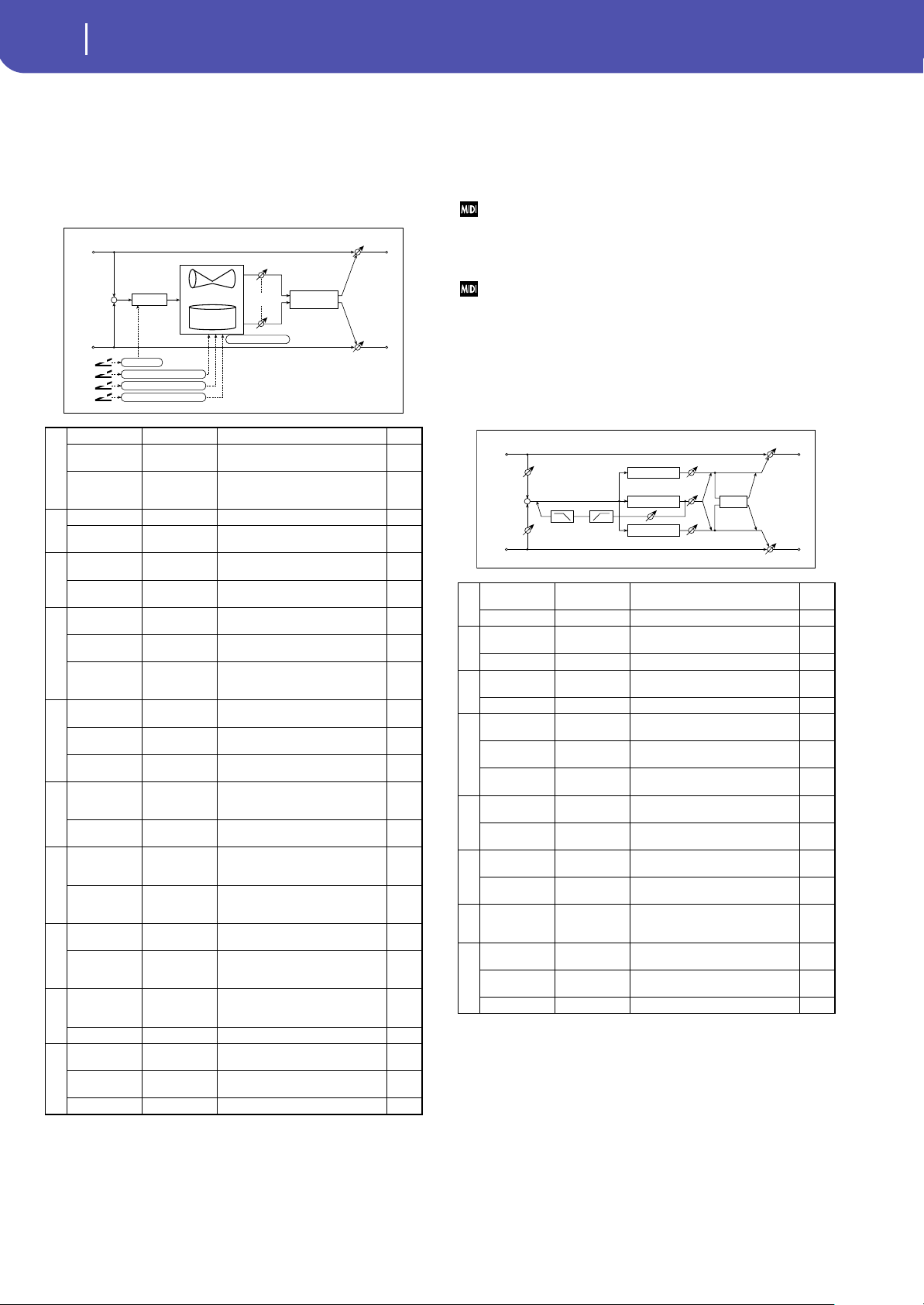
350
Effects
Double Size
119: Rotary SpeakerOD
(Rotary Speaker Overdrive)
This is a stereo rotary speaker effect. It has an internal speaker
simulator that simulates overdrive (recreating the amp distor-
tion) and characteristics of the rotary speaker, producing a very
realistic rotary speaker sound.
a: Sw
This parameter determines how to switch on/off the overdrive
via a modulation source.
When “Sw” = Toggle, overdrive is turned on/off each time the
pedal or joystick is operated.
Overdrive will be switched on/off each time the value of the
modulation source exceeds 64.
When “Sw” = Moment, overdrive is applied only when you press
the pedal or operate the joystick.
Only when the value for the modulation source is 64 or higher, the
overdrive effect is applied.
120: L/C/R Long Delay
This multitap delay outputs three Tap signals to left, right and
center respectively. You can set a maximum of 5,460msec for the
delay time.
a
Overdrive Off, On Switches overdrive on/off
Src Off...Tempo
Selects a modulation source to
switch overdrive on/off
Sw
Toggle,
Moment
Sets the switch mode for overdrive
on/off modulation
b
Overdrive Gain 0...100 Determines the degree of distortion
Overdrive
Level
0...100 Sets the overdrive output level
C
Overdrive Tone 0...15
Sets the tonal quality of the
overdrive
Speaker
Simulator
Off, On
Switches the speaker simulation on/
off
d
Mode Switch Rotate, Stop
Switches between speaker rotation
and stop
Src Off...Tempo
Selects a modulation source for
Rotate/Stop
Sw
Toggle,
Moment
Sets the switch mode for Rotate/
Stop modulation
e
Speed Switch Slow, Fast
Switches the speaker rotation speed
between slow and fast
Src Off...Tempo
Selects a modulation source for
Slow/Fast
Sw
Toggle,
Moment
Sets the switch mode for Slow/Fast
modulation
f
Horn/Rotor
Balance
Rotor, 1...99,
Horn
Sets the volume balance between
the high-range horn and low-range
rotor
Manual
SpeedCtrl
Off...Tempo
Sets a modulation source for direct
control of rotation speed
g
Horn
Acceleration
0...100
Sets how quickly the horn rotation
speed changes
Horn Ratio
Stop,
0.50...2.00
Adjusts the (high-frequency) horn
rotation speed. Standard value is
1.00. “Stop” stops the rotation
h
Rotor
Acceleration
0...100
Sets how quickly the rotor speed
changes
Rotor Ratio
Stop,
0.50...2.00
Adjusts the (low-frequency) rotor
rotation speed. Standard value is
1.0. “Stop” stops the rotation
i
Mic Distance 0...100
Distance between the microphone
and rotary speaker
Mic Spread 0...100 Angle of left and right microphones
j
Wet/Dry
Dry, 1:99...99:1,
Wet
Balance between the wet and dry
signal
Src Off...Tempo
Table , “Dynamic Modulation
sources,” on page 283
Amt –100...+100 Amount of modulation source
Left
Right
FX Amt
FX Amt
FX Amt = 100: Mono In - Stereo Out / FX Amt = 0: Stereo In - Stereo Out
Mic Distance
Mic Spread
Horn/Rotor
Balance
D
-mod
D
-mod
D
-mod
D
-mod
Mode Switch: Rotate/Stop
Speed Switch: Slow/Fast
Manual Speed Control
On/Off
Speaker Simulation
Overdrive
Horn
Rotary Speaker
Rotor
+
a
L Delay Time
[msec]
0...5460 Sets the delay time of TapL
Level 0...50 Sets the output level of TapL
b
C Delay Time
[msec]
0...5460 Sets the delay time of TapC
Level 0...50 Sets the output level of TapC
c
R Delay Time
[msec]
0...5460 Sets the delay time of TapR
Level 0...50 Sets the output level of TapR
d
Feedback
(C Delay)
–100...+100 Sets the feedback amount of TapC
Src Off...Tempo
Selects the modulation source for
the TapC feedback
Amt –100...+100
Sets the modulation amount of the
TapC feedback
e
High Damp [%] 0...100
Sets the damping amount in the
high range
Low Damp [%] 0...100
Sets the damping amount in the low
range
f
Input Level
Dmod [%]
–100...+100
Sets the modulation amount of the
input level
Src Off...Tempo
Selects the modulation source for
the input level
g Spread 0...50
Sets the width of the stereo image
of the effect sound
h
Wet/Dry
Dry, 1:99...99:1,
Wet
Balance between the wet and dry
signal
Src Off...Tempo
Table , “Dynamic Modulation
sources,” on page 283
Amt –100...+100 Amount of modulation source
C Delay
R Delay
Left
Right
Feedback
Spread
FX Amt
FX Amt
FX Amt = 100: Mono In - Stereo Out / FX Amt = 0: Stereo In -Stereo Out
Input Level D-mod
High Damp Low Damp
L Delay
Input Level D-mod
+
Level
Level
Level
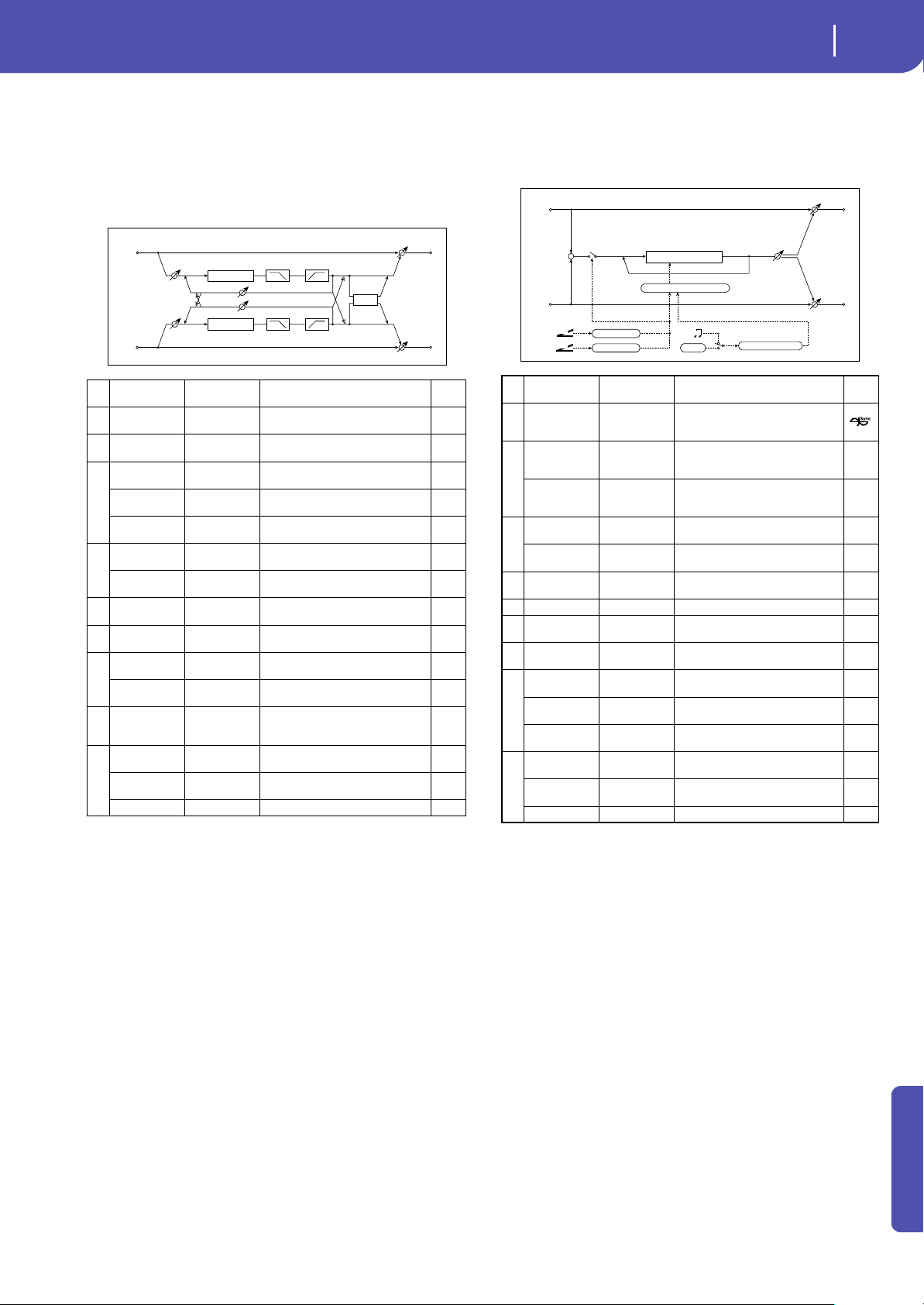
351
Effects
Double Size
Appendix
121: St/Cross Long Delay
(Stereo/Cross Long Delay)
This is a stereo delay, and can by used as a cross-feedback delay
effect in which the delay sounds cross over between left and
right by changing the feedback routing. You can set a maximum
of 2,730msec for the delay time.
122: Hold Delay
This effect records the input signal and plays it back repeatedly.
You can control the start of recording and reset via a modulation
source. Easy to use for real-time performances.
a: Loop Time [msec]
With Auto, the loop time is automatically set. Otherwise, you
can specify the loop time.
When Auto is selected, the Loop Time is automatically set to the
time it takes for a performance recorded while the Modulation
Source or “Manual REC Control” is on. However, if the time
length exceeds 10,800msec, the loop time will be automatically
set to 10,800msec.
c: Time Over?
You can set the delay time up to 10,800msec. If the delay time
exceeds this limit, the error message “OVER!” appears in the dis-
play. Set the delay time parameters so that this message will not
appear. “Time Over?” is only a display parameter.
b: Loop BPM Sync
c: BPM
d: Loop Base Note
d: Times
If “Loop BPM Sync” is on, the “Times” setting is ignored; the
loop time is determined by “BPM,” “Loop Base Note,” and
a Stereo/Cross Stereo, Cross
Switches between stereo delay and
cross-feedback delay
b
L Delay Time
[msec]
0.0...2730.0
Sets the delay time for the left
channel
c
R Delay Time
[msec]
0.0...2730.0
Sets the delay time for the right
channel
d
L Feedback –100...+100
Sets the feedback amount for the
left channel
Src Off...Tempo
Selects the modulation source of
feedback amount
Amt –100...+100
Sets the modulation amount of the
left channel feedback
e
R Feedback –100...+100
Sets the feedback amount for the
right channel
Amt –100...+100
Sets the modulation amount of the
right channel feedback
f High Damp [%] 0...100
Sets the damping amount in the
high range
g Low Damp [%] 0...100
Sets the damping amount in the low
range
h
Input Level
Dmod [%]
–100...+100
Sets the modulation amount of the
input level
Src Off...Tempo
Selects the modulation source for
the input level
i Spread –50...+50
Sets the width of the stereo image of
the effect sound
j
Wet/Dry
Dry, 1:99...99:1,
Wet
Balance between the wet and dry
signal
Src Off...Tempo
Table , “Dynamic Modulation
sources,” on page 283
Amt –100...+100 Amount of modulation source
Delay
Delay
Stereo/Cross
Left
Right
Feedback
FX Amt
FX Amt
Stereo In - Stereo Out
Input Level D-mod
Input Level D-mod
High Damp Low Damp
High Damp
Low Damp
Spread
Stereo/Cross
a
Loop Time
[msec]
Auto, 1...10800
Sets Automatic loop time setup
mode or specifies loop time
b
Loop BPM
Sync
Off, On
Specifies whether delay time is set
in milliseconds, or as a note value
relative to tempo
c
BPM
MIDI,
40.00...
300.00
MIDI syncs to the system tempo; 40–
300 sets the tempo manually for this
individual effect
Time Over? ---, OVER!
An error indication that appears if
delay time exceeds the upper limit
when MIDI/Tempo Sync=On
d
Loop Base
Note
r...w
Selects the type of notes to specify
the delay time
Times x1...x32
Sets the number of notes to specify
the delay time
e
REC Control
Src
Off...Tempo Selects control source for recording
f RST Control Src Off...Tempo Selects control source for reset
g
Manual REC
Control
REC Off,
REC On
Sets the recording switch
h
Manual RST
Control
Off, RESET Sets the reset switch
i
Pan
L100...L1, C,
R1...R100
Sets the stereo image of the effect
Src Off...Tempo
Selects the modulation source of
stereo image of the effect
Amt –100...+100
Sets the modulation amount of
stereo image of the effect
j
Wet/Dry
Dry, 1:99...99:1,
Wet
Balance between the wet and dry
signal
Src Off...Tempo
Table , “Dynamic Modulation
sources,” on page 283
Amt –100...+100 Amount of modulation source
Left
Right
FX Amt
FX Amt
FX Amt = 100: Mono In - Stereo Out / FX Amt = 0: Stereo In - Stereo Out
Pan
Delay
D
-mod
D
-mod
Loop Time: Auto/ ...5400ms
+
Tempo
BPM
BPM
Base Note x Times
REC Control
RST Control
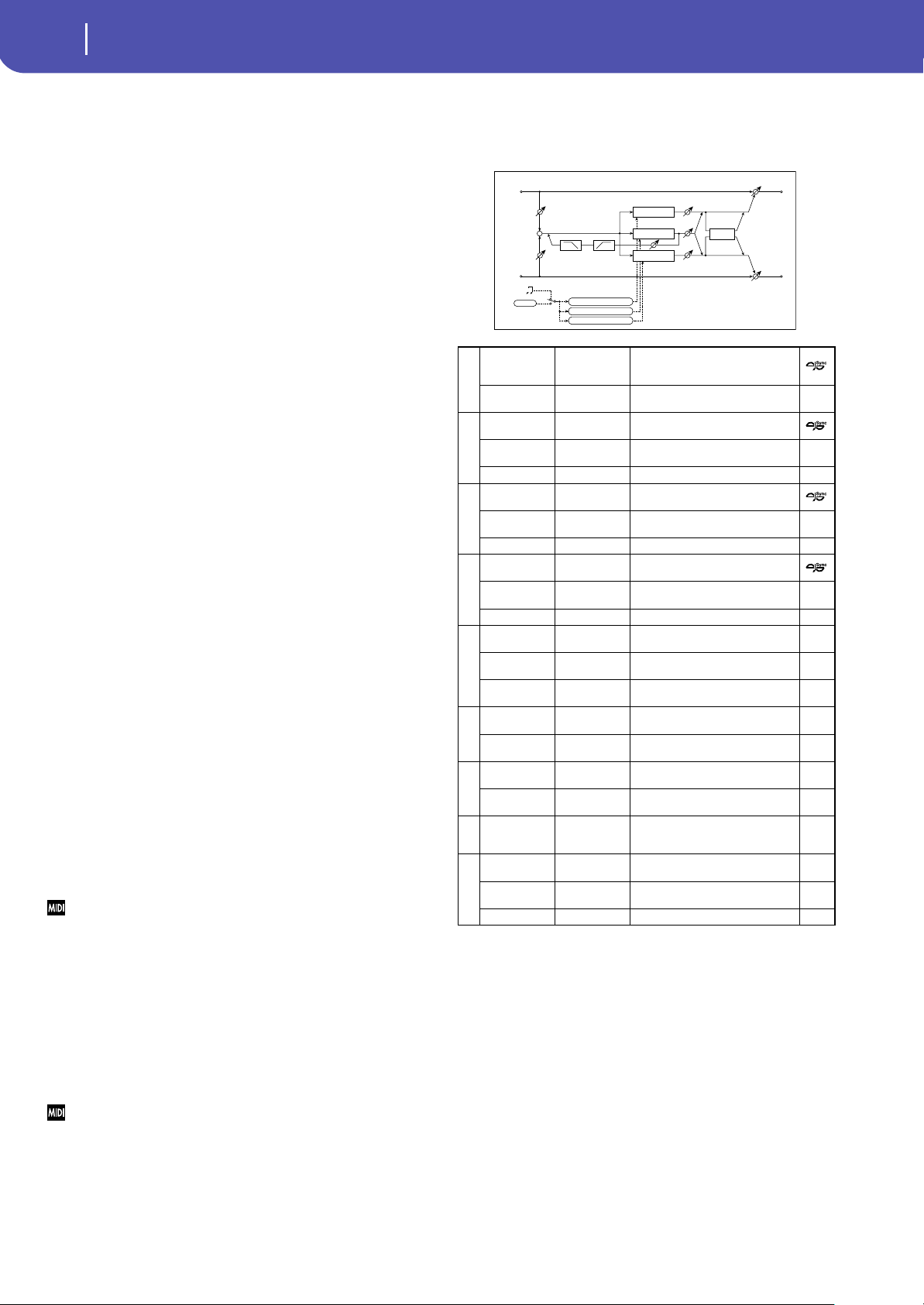
352
Effects
Double Size
“Times.” Even in this case, the delay time cannot exceed 10,800
msec.
“Hold” procedure (when Loop Time = Auto)
1. “Rec Src”JS +Y: #01
“Reset Src”JS –Y: #02
“Manual REC Control”REC Off
“Manual RST Control”RESET
“Loop Time [msec]”Auto
“MIDI/Tempo Sync”Off
It should be noted that all recordings will be deleted while
Reset is On.
2. “Manual RST Control”Off
Reset is cancelled and the unit enters Rec ready mode.
3. Push the joystick in the +Y direction (forward) and play a
phrase you wish to hold. When you pull the joystick to its
original position, the recording will be finished and the
phrase you just played will be held.
Loop Time is automatically set only for the first recording
after resetting. If the time length exceeds 10,800msec, Loop
Time will be automatically set to 10,800msec. (If you have
set “Times” to 1–10,800msec, the specified loop time will
be used regardless of the time taken from pushing the joy-
stick forward until it is pulled back. However, the recording
method remains the same. The phrase being played while
the joystick is pushed forward will be held.)
4. If you made a mistake during recording, pull the joystick in
the –Y direction (back) to reset. In this way, the recording
will be erased. Repeat step 4. again.
5. The recorded phrase will be repeated again and again. You
can use this to create an accompaniment.
6. By pushing the joystick in the +Y direction (forward), you
can also overdub performances over the phrase that is
being held.
e: REC Control Src
g: Manual REC Control
“REC Control Src” selects the modulation source that controls
recording.
If this modulation is on, or if “Manual REC Control” is set to On,
you can record the input signal. If a recording has already been
carried out, additional signals will be overdubbed.
The effect is off when a value for the modulation source specified for
the “REC Control Src” parameter is 63 or smaller, and the effect is on
when the value is 64 or higher.
f: RST Control Src
h: Manual RST Control
The “RST Control Src” parameter specifies the modulation
source that controls the reset operation.
When you set this modulation source to On, or “Manual RST
Control” to RESET, you can erase what you recorded. If the Loop
Time parameter has been set to Auto, the loop time is also reset.
The effect is off when a value for the modulation source specified for
the “RST Control Src” parameter is 63 or smaller, and the effect is on
when the value is 64 or higher.
123: LCR BPM Long Dly
The L/C/R delay enables you to match the delay time with the
song tempo.
a: Time Over?
You can set the delay time up to 10,920msec. If the delay time
exceeds this limit, the error message “OVER!” appears in the dis-
play. Set the delay time parameters so that this message will not
appear. “Time Over?” is only a display parameter.
a
BPM
MIDI,
40.00...
300.00
MIDI syncs to the system tempo; 40–
300 sets the tempo manually for this
individual effect
Time Over? ---, OVER!
Displays an error message when the
delay time exceeds the upper limit
b
L Delay Base
Note
r...w
Selects the type of notes to specify
the delay time for TapL
Times x1...x32
Sets the number of notes to specify
the delay time for TapL
Level 0...50 Sets the output level of TapL
c
C Delay Base
Note
r...w
elects the type of notes to specify
the delay time for TapC
Times x1...x32
Sets the number of notes to specify
the delay time for TapC
Level 0...50 Sets the output level of TapC
d
R Delay Base
Note
r...w
Selects the type of notes to specify
the delay time for TapR
Times x1...x32
Sets the number of notes to specify
the delay time for TapR
Level 0...50 Sets the output level of TapR
e
Feedback
(C Delay)
–100...+100 Sets the feedback amount of TapC
Src Off...Tempo
Selects the modulation source for
the TapC feedback
Amt –100...+100
Sets the modulation amount of the
TapC feedback
f
High Damp [%] 0...100
Sets the damping amount in the
high range
Low Damp [%] 0...100
Sets the damping amount in the low
range
g
Input Level
Dmod [%]
–100...+100
Sets the modulation amount of the
input level
Src Off...Tempo
Selects the modulation source for
the input level
h Spread 0...50
Sets the width of the stereo image
of the effect sound
i
Wet/Dry
Dry, 1:99...99:1,
Wet
Balance between the wet and dry
signal
Src Off...Tempo
Table , “Dynamic Modulation
sources,” on page 283
Amt –100...+100 Amount of modulation source
C Delay
R Delay
Left
Right
Feedback
Spread
FX Amt
FX Amt
FX Amt = 100: Mono In - Stereo Out / FX Amt = 0: Stereo In -Stereo Out
Input Level D-mod
High Damp
Low Damp
L Delay
Input Level D-mod
+
Level
Level
Level
Tempo
BPM
BPM
Base Note x Times
Base Note x Times
Base Note x Times
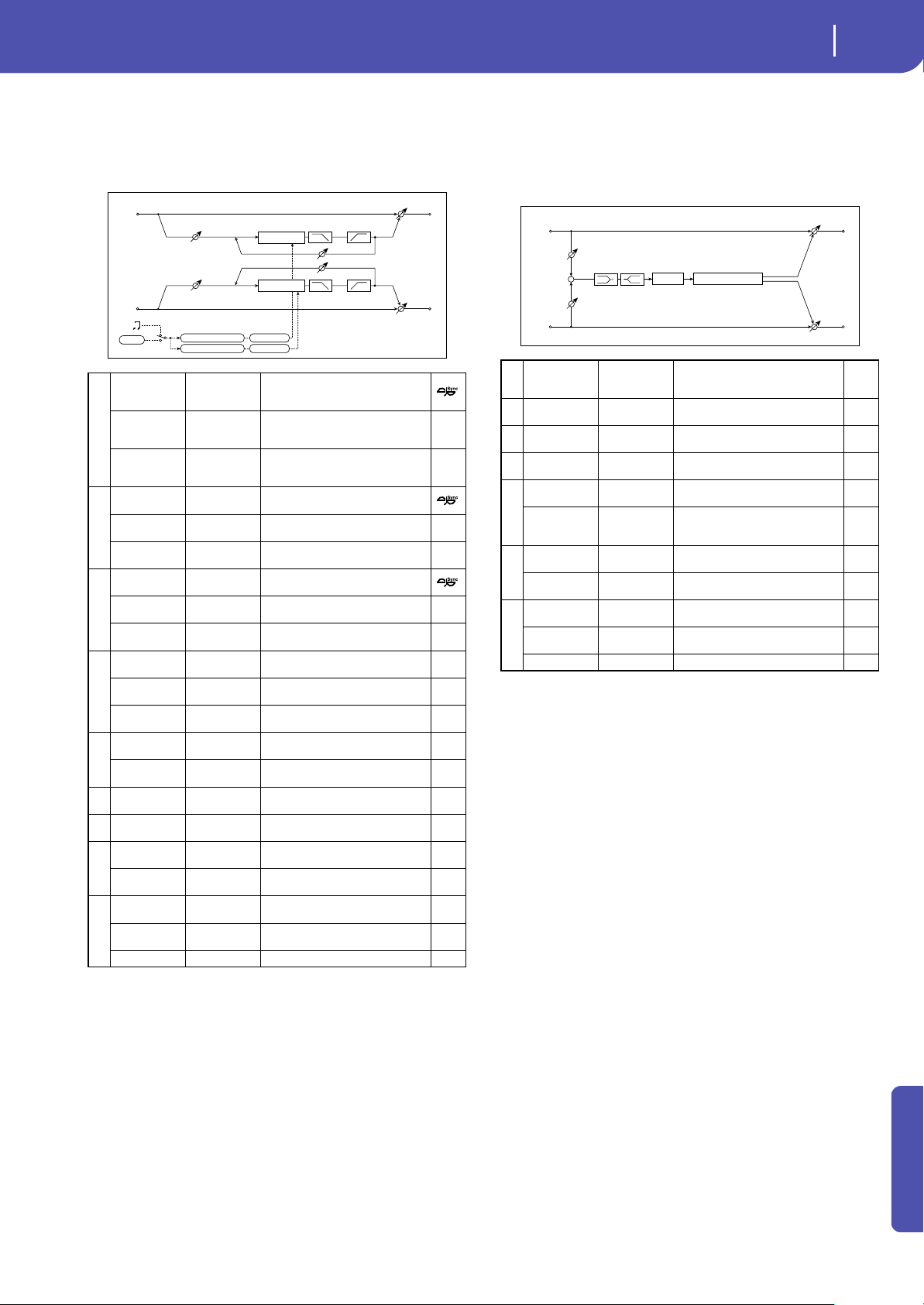
353
Effects
Double Size
Appendix
124: St. BPM Long Dly
(Stereo BPM Long Delay)
The stereo delay enables you to match the delay time with the
song tempo.
a: Time Over? L, R
You can set the delay time up to 5,460msec. If the delay time
exceeds this limit, the error message “OVER!” appears in the dis-
play. Set the delay time parameters so that this message will not
appear. “Time Over?” is only a display parameter.
125: Early Reflections
This early reflection effect has more precise early reflections
with twice the maximum length of a normal-size effect (See
“Early Reflections” on page 327.). You can create a very smooth
and dense sound.
a
BPM
MIDI,
40.00...
300.00
MIDI syncs to the system tempo; 40–
300 sets the tempo manually for this
individual effect
Time Over? L ---, OVER!
Display the error message if the left
channel delay time exceeds the
upper limit
R ---, OVER!
Display the error message if the
right channel delay time exceeds
the upper limit
b
L Delay Base
Note
r...w
Selects the type of notes to specify
the left channel delay time
Times x1...x32
Sets the number of notes to specify
the left channel delay time
Adjust [%] –2.50...+2.50
Fine-adjust the left channel delay
time
c
R Delay Base
Note
r...w
Selects the type of notes to specify
the right channel delay time
Times x1...x32
Sets the number of notes to specify
the right channel delay time
Adjust [%] –2.50...+2.50
Fine-adjust the right channel delay
time
d
L Feedback –100...+100
Sets the feedback amount for the
left channel
Src Off...Tempo
Selects the modulation source of
feedback amount
L Amt –100...+100
Sets the modulation amount of the
left channel feedback
e
R Feedback –100...+100
Sets the feedback amount for the
right channel
R Amt –100...+100
Sets the modulation amount of the
right channel feedback
f High Damp [%] 0...100
Sets the damping amount in the
high range
g Low Damp [%] 0...100
Sets the damping amount in the low
range
h
Input Level
Dmod [%]
–100...+100
Sets the modulation amount of the
input level
Src Off...Tempo
Selects the modulation source for
the input level
i
Wet/Dry
Dry, 1:99...99:1,
Wet
Balance between the wet and dry
signal
Src Off...Tempo
Table , “Dynamic Modulation
sources,” on page 283
Amt –100...+100 Amount of modulation source
Left
Right
Feedback
FX Amt
FX Amt
Stereo In - Stereo Out
Input Level D-mod
Input Level D-mod
High Damp Low Damp
High Damp
Low Damp
Tempo
BPM
BPM
Base Note x Times
Adjust [%]
Base Note x Times
Adjust [%]
Delay
Delay
aType
Sharp, Loose,
Modulated,
Reverse
Selects the decay curve for the early
reflection
b ER Time [msec] 10...1600
Sets the time length of early
reflection
c
Pre Delay
[msec]
0...200
Sets the time taken from the original
sound to the first early reflection
d EQ Trim 0...100
Sets the input level of EQ applied to
the effect sound
e
Pre LEQ Fc
Low,
Mid-Low
Selects the cutoff frequency (low or
mid-low) of the low-range equalizer
Pre HEQ Fc
High,
Mid-High
Selects the cutoff frequency (high or
mid-high) of the high-range
equalizer
f
Pre LEQ Gain
[dB]
–15.0...+15.0 Sets the gain of Low EQ
Pre HEQ Gain
[dB]
–15.0...+15.0 Sets the gain of High EQ
g
Wet/Dry
Dry, 1:99...99:1,
Wet
Balance between the wet and dry
signal
Src Off...Tempo
Table , “Dynamic Modulation
sources,” on page 283
Amt –100...+100 Amount of modulation source
Left
Right
FX Amt
FX Amt
FX Amt = 100: Mono In - Stereo Out / FX Amt = 0: Stereo In - Stereo Out
EQ Trim
+
EQ Trim
Pre Delay
Early Reflections
LEQ HEQ
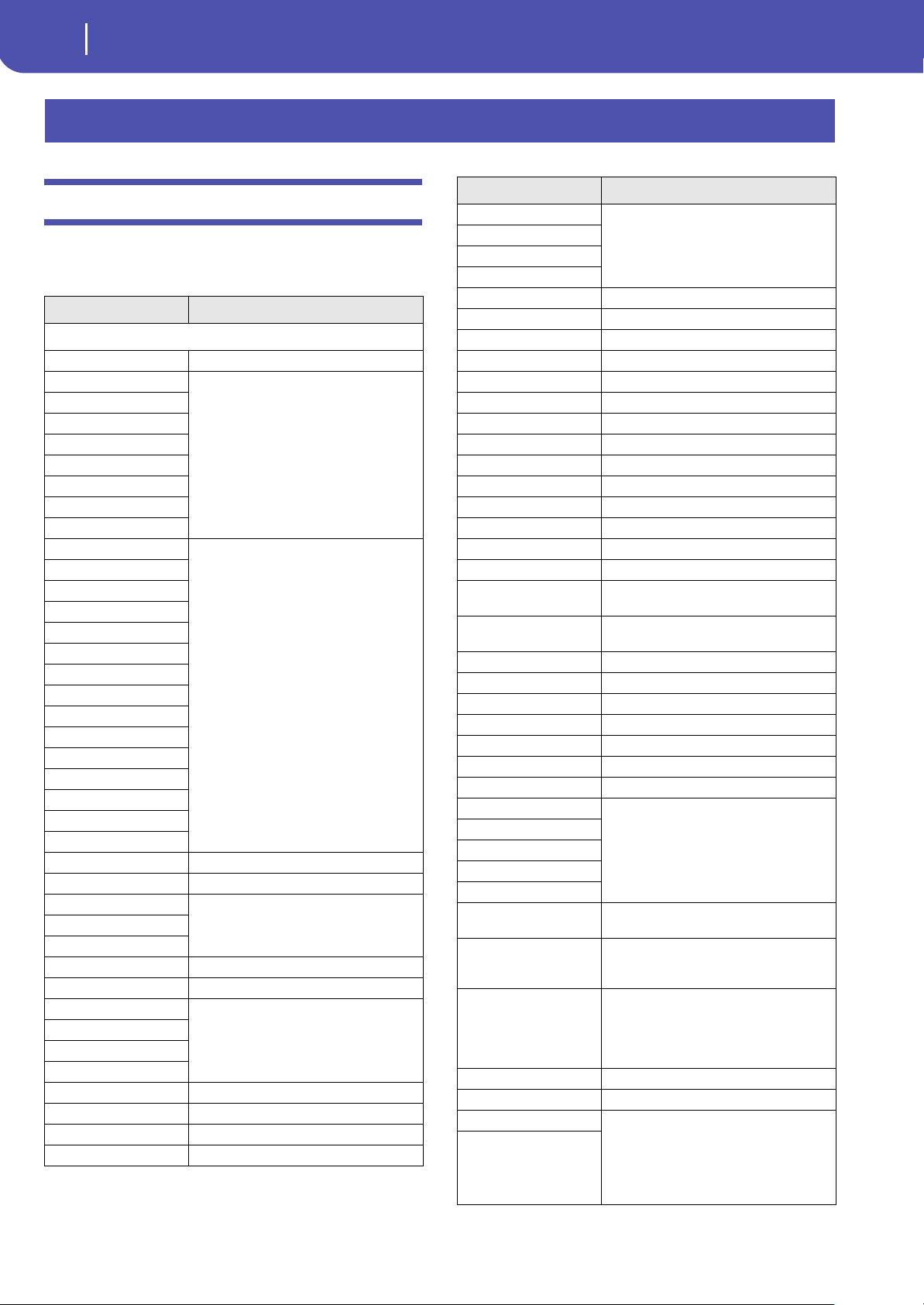
354
Assignable parameters
List of Pedal/Footswitch functions
List of Pedal/Footswitch functions
The following functions can be assigned to an Assignable Foot-
switch or Pedal.
Assignable parameters
Function Meaning
Functions assignable to a Footswitch
Off No function assigned
Style/Player Start/Stop
Same functions of the control panel buttons
with the same name
Go to Beginning - Player
Chord Seq. Record
Chord Seq. Play
Synchro Start
Synchro Stop
Tap Tempo/Reset
Tempo Lock
Intro 1
Same functions of the control panel buttons
with the same name
Intro 2
Intro 3/Count In
Ending 1
Ending 2
Ending 3
Fill 1
Fill 2
Fill 3
Fill 4
Break
Variation 1
Variation 2
Variation 3
Variation 4
Variation Up Selects the next Variation
Variation Down Selects the previous Variation
Memory
Same functions of the control panel buttons
with the same name
Bass Inversion
Manual Bass
Style Up Selects the next Style
Style Down Selects the previous Style
STS1
Same functions of the control panel buttons
with the same name
STS2
STS3
STS4
STS Up Selects the next STS
STS Down Selects the previous STS
Perform. Up Selects the next Performance
Perform. Down Selects the previous Performance
Transpose Down
Same functions of the control panel buttons
with the same name
Transpose Up
Upper Octave Up
Upper Octave Down
Punch In/Out Turns Punch Recording on/off
Style-Upper1 Mute
Style-Upper2 Mute
Style-Upper3 Mute
Style-Lower Mute
Style-Drum Mute
Style-Percussion Mute
Style-Bass Mute
Style-Acc1 Mute
Style-Acc2 Mute
Style-Acc3 Mute
Style-Acc4 Mute
Style-Acc5 Mute
Style-Acc 1-5 Mute
Song-Melody Mute Mute of Song track 4 (usually, the Melody
track) in Standard MIDI Files
Song-Drum&Bass Mode Mute of all tracks, apart for track 2 (usually
Bass) and 10 (usually Drum)
Solo Selected Track
Damper Pedal
Soft Pedal
Sostenuto Pedal
Bass&Lower Backing Mutes all tracks, except for Bass and Lower
Ensemble On/Off
QuarterTone Turns Quarter Tone on/off
Global-Scale
Scale selection
SubScale Preset1-SC1
SubScale Preset2-SC2
SubScale Preset3-SC3
SubScale Preset4-SC4
Chord Latch Holds the recognized chord until the pedal is
released
Chord Latch + Damper Holds the recognized chord until the pedal is
released, and sustains the tracks where the
Damper has been turned on
Glide When the pedal is pressed, affected notes on
Upper tracks are bent down, according to set-
tings for the Pitch Bend on the same tracks.
When the pedal is released, notes return to
the normal pitch.
Rotary Spkr On/Off
Rotary Spkr Fast/Slow
Text Page Down These options let you move to the previous or
next page, when reading a text file loaded
with a Song (see “Text files loaded with Stan-
dard MIDI Files and MP3 files” on page 192) or
Song Book entry (see “On-the-fly TXT loading”
on page 192).
Text Page Up
Function Meaning
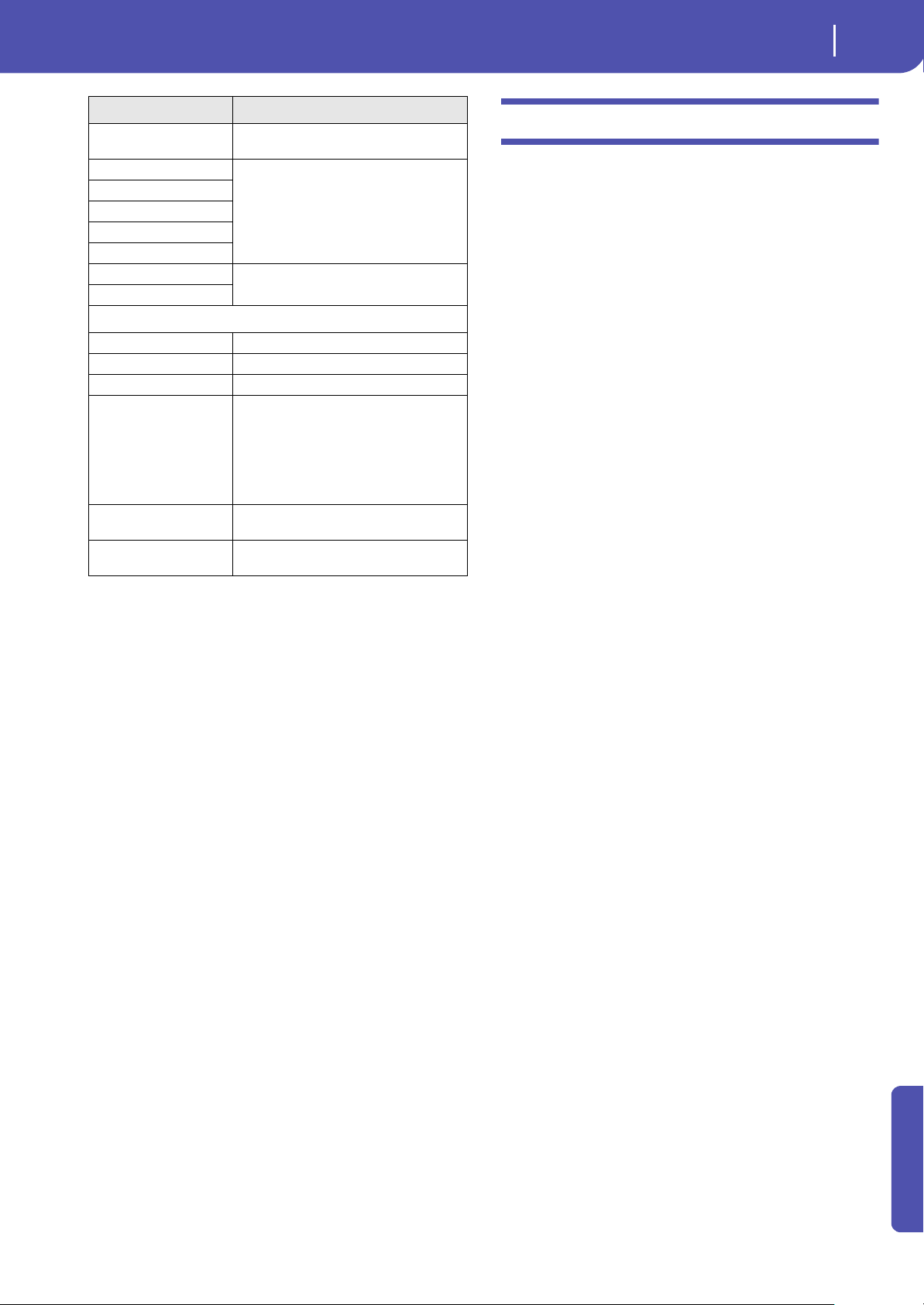
355
Assignable parameters
Scales
Appendix
Scales
The following is a list of scales (or tunings) you can select in var-
ious operating modes.
Equal Equal tuning, the standard scale for modern
Western music. It is made of 12 identical semi-
tones.
Pure Major Major chords in the selected key are perfectly
tuned.
Pure Minor Minor chords in the selected key are perfected
tuned.
Arabic An arabic scale, using quarters of tone. Set the
Key parameter as follow:
C - for the “rast C/bayati D” scale
D - for the “rast D/bayati E” scale
F - for the “rast F/bayati G” scale
G - for the “rast G/bayati A” scale
A# - for the “rast Bb/bayati C” scale
Pythagorean Pythagorean scale, based on the music theories of
the great Greek philosopher and matematician. It
is most suitable for melodies.
Werckmeister Late Baroque/Classic Age scale. Very suitable for
XVIII Century music.
Kirnberger Harpsichord scale, very common during the
XVIII Century.
Slendro Scale of the Indonesian Gamelan. The octave is
divided in 5 notes (C, D, F, G, A). The remaining
notes are tuned as in the Equal tuning.
Pelog Scale of the Indonesian Gamelan. The octave is
divided in 7 notes (all white keys, when Key is =
C). The black keys are tuned as in the Equal tun-
ing.
Stretch Simulates the “stretched” tuning of an acoustic
piano. Basically an equal tuning, the lowest notes
are slightly lower, while the highest notes are
slightly higher than the standard.
User User scale, i.e. scale programmed by the user for
the Style Play, Backing Sequence and Song Play
modes. The user scale can be saved to a Perfor-
mance, Style Settings, STS or Song. You can’t
select a User scale in Global mode.
SongBook Next Moves to the next SongBook entry in the
selected Custom List.
Pad 1
Same functions of the control panel buttons
with the same name
Pad 2
Pad 3
Pad 4
Pad Stop
Sound Controller 1
Controls assigned to selected Sounds parame-
ters
Sound Controller 2
Functions assignable to a Pedal
Master Volume
Accompaniment Volume
Keyboard Expression
Pad Volume With this function assigned, you can control
the proportional volume of all four Pads at the
same time. Please note that the status of the
Pad’s volume, after having been modified with
a pedal or slider, is made current, and will be
saved in a Performance or STS by using the rel-
evant Write procedure.
Upper VDF Cutoff Filter cutoff (for Sounds assigned to the Upper
tracks)
Upper VDF Resonance Filter resonance (for Sounds assigned to the
Upper tracks)
Function Meaning

356
Recognized chords
The following pages show the most important chords recognized by the Pa300, when the selected Chord Recognition mode is Fingered
(see “Chord Recognition” on page 152 of the User’s Manual).
Recognized chords
2-note
T
T
T
T
3-note
T
T
T T
T
Major
2-note
4-note
T
T
Major 6th
3-note
T
4-note
T
T
Major 7th
2-note
T
T= constituent notes of the chord = can be used as tension
3-note
T
T
Sus 4
2-note
3-note
Sus 2
3-note
T T
T T
2-note
T T
T
4-note
T T
TT T
Dominant 7th
4-note
T
T
Dominant 7th Sus 4
3-note
T
T
3-note
Flat 5th
4-note
T
T
Major 7th Sus 4
T
4-note
Major 7th 5
T T
T T
4-note
Dominant 7th 5
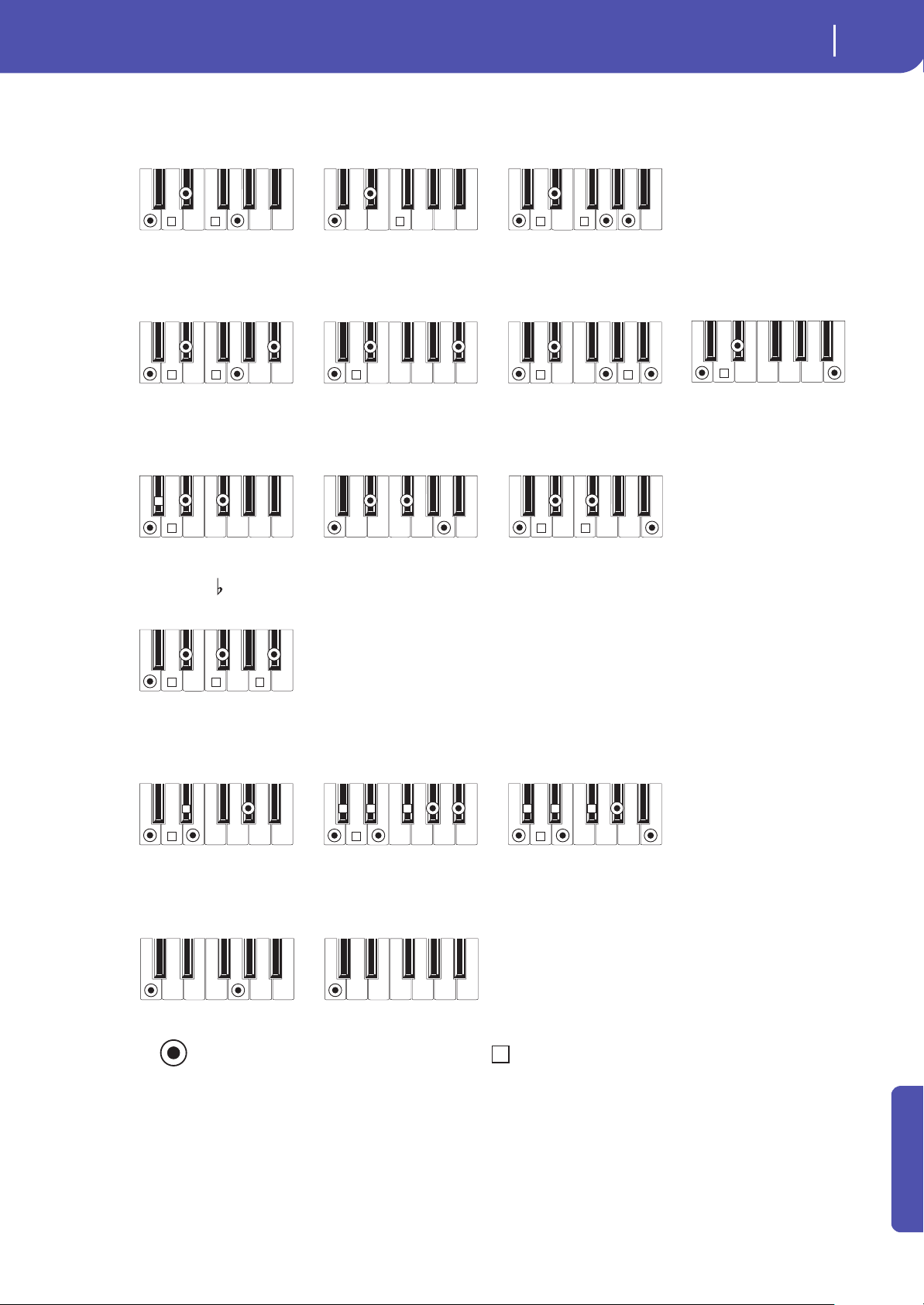
357
Recognized chords
Appendix
T
= constituent notes of the chord = can be used as tension
4-note
TT
Minor 7th
3-note
T
4-note
T T
Minor-Major 7th
3-note
T
3-note
T
T
Diminished
4-note
Diminished 7th
4-note
TT
Diminished Major 7th
4-note
TTT
Minor 7th 5
3-note
T
T
Augmented
4-note
TT T
T
Augmented 7th
4-note
TT T
T
Augmented Major 7th
No 3rd, no 5th
No 3rd
1-note2-note
3-note
T T
Minor
2-note
T
4-note
T T
Minor 6th
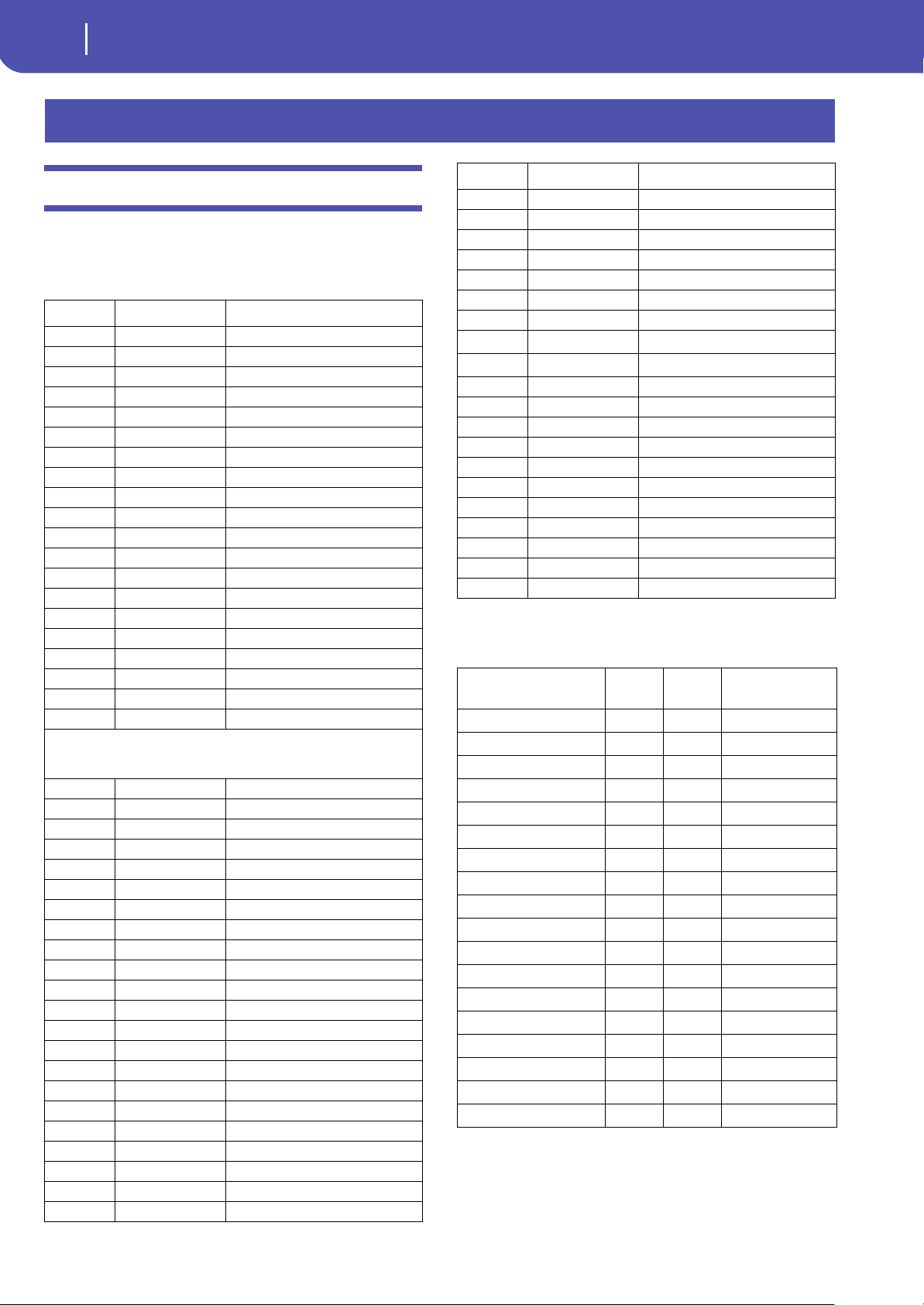
358
MIDI Data
MIDI Controllers
MIDI Controllers
The following is a table including all Control Change messages,
and their effect on various Pa300 functions. Note that not all
controllers are available in all operative modes.
(*) The following NRPN messages are recognized by Pa300 in
Song Play and Sequencer mode only:
Note: These controls are reset when stopping the Song, or choosing
a new Song.
MIDI Data
CC# CC Name Pa300 Function
0 Bank Select Sound selection
1 Mod1 (Y+) Joystick forward
2 Mod2 (Y-) Joystick backward
3Undef. ctl
4Foot ctl
5 Port.time
6 Data ent.
7Volume Track volume
8Balance
9Undef. ctl
10 Pan Pot Track panning
11 Expression Expression
12 Fx Ctl 1 CC#12
13 Fx Ctl 2 CC#13
14-15 Undef. ctlþ
16 Gen.pc.1
17 Gen.pc.2
18 Slider
19 Gen.pc.4
20-31 Undef. ctlþþ
Control Change #32-63 are the LSB (Least Significant Bytet) of Control
Change #0-31, i.e. the MSB (Most Significant Byte), and are changed accord-
ing to their MSB counterparts.
64 Damper Damper pedal
65 Portamento
66 Sostenuto Sostenuto pedal
67 Soft Soft pedal
68 Legato
69 Hold 2
70 Sustain level
71 F.Res.Hp Filter resonance
72 Release Release time
73 Attack Attack time
74 F.CutOff Filter cutoff (Brilliance)
75 Decay T. Decay time
76 Lfo1 Sp. Vibrato speed
77 Lfo1 Dpt Vibrato depth
78 Lfo1 Dly Vibrato initial delay
79 FilterEgþ
80 Gen.pc.5 Sound Controller 1
81 Gen.pc.6 Sound Controller 2
82 Gen.pc.7
83 Gen.pc.8
84 Port.ctl
85-90 Undef. ctl
91 Fx 1 depth A/B Master FX 1 (reverb) send level
92 Fx 2 ctl
93 Fx 3 depth A/B Master FX 2 (modul.) send level
94 Fx 4 ctl
95 Fx 5 ctl
96 Data Inc
97 Data Dec
98 NRPN Lsb
See tables below
(*)
99 NRPN Msb*
See tables below
(*)
100 RPN Lsb See MIDI Implementation Chart
101 RPN Msb See MIDI Implementation Chart
102-119 Undefined ctl
120 AllSOff
121 Res Ctl Reset All Controllers
122 LocalCt
123 NoteOff
124 OmniOff
125 Omni On
126 Mono On
127 Poly On
NRPN
CC#99
(MSB)
CC#98
(LSB)
CC#06
(Data Entry)
Vibrato Rate 1 8
0…127
(a)
(a). 64 = No change to the original parameter’s value
Vibrato Depth 1 9
0…127
(a)
Vibrato Decay 1 10
0…127
(a)
Filter Cutoff 1 32
0…127
(a)
Resonance 1 33
0…127
(a)
EG Attack Time 1 99
0…127
(a)
EG Decay Time 1 100
0…127
(a)
EG Release Time 1 102
0…127
(a)
Drum Filter Cutoff 20
dd
(b)
(b). dd = Drum Instrument No. 0…127 (C0…C8)
0…127
(a)
Drum Filter Resonance 21
dd
(b)
0…127
(a)
Drum EG Attack Time 22
dd
(b)
0…127
(a)
Drum EG Decay Time 23
dd
(b)
0…127
(a)
Drum Coarse Tune 24
dd
(b)
0…127
(a)
Drum Fine Tune 25
dd
(b)
0…127
(a)
Drum Volume 26
dd
(b)
0…127
Drum Panpot 28
dd
(b)
0…127
(a)
Drum Rev Send (FX 1) 29
dd
(b)
0…127
(a)
Drum Mod Send (FX 2) 30
dd
(b)
0…127
(a)
CC# CC Name Pa300 Function
359
MIDI Data
MIDI Controllers
Appendix
(*) The following NRPN messages are recognized by Pa300 in
Style Play and Song Play mode only:
NRPN
CC#99
(MSB)
CC#98
(LSB)
CC#06
(Data Entry)
SongBook Entry 2 64 0…99
360
MIDI Data
Style Element controls
Style Element controls
Note: You can remotely select the various Style Elements on the Pa300, by sending it Program Change messages on the Control channel (see
“MIDI: MIDI In Channels” on page 159).
Note: The above Program Change numbers are given according to the 0-127 numbering system.
Style and Player controls
Note: You can remotely send various commands to the Style and Player of the Pa300, by sending it Program Change messages on the Con-
trol channel (see “MIDI: MIDI In Channels” on page 159).
Note: The above Program Change numbers are given according to the 0-127 numbering system.
Single Touch Settings (STS) controls
Note: You can remotely select Single Touch Settings (STS) on the Pa300, by sending it Bank Select MSB (CC#0), Bank Select LSB (CC#32)
and Program Change messages on the Control channel (see “MIDI: MIDI In Channels” on page 159). If a Style is already selected, just send
the Program Change message.
Note: The above Control Change and Program Change numbers are given according to the 0-127 numbering system.
PC Style Element PC Style Element PC Style Element PC Style Element PC Style Element
80 Intro 1 81 Intro 2 82 Intro 3/Count In 83 Variation 1 84 Variation 2
85 Variation 3 86 Variation 4 87 Fill 1 88 Fill 2 89 Fill 3
90 Fill 4 91 Break 92 Ending 1 93 Ending 2 94 Ending 3
PC Style Element PC Style Element PC Style Element PC Style Element PC Style Element
97 Auto Fill 98 Memory 99 Bass Inversion 100 Manual Bass 101 Tempo Lock
103 Start/Stop (Style) 104 Start/Stop (Player)
CC#0 CC#32 PC STS PC STS PC STS PC STS
The same as the Style to which the STS belongs 64 STS 1 65 STS 2 66 STS 3 67 STS 4
361
MIDI Data
MIDI Presets
Appendix
MIDI Presets
Default Master Kbd Player Extern. Seq
MIDI IN
Channel
1 Ply Tr 1 Global Ply Tr 1 Ply Tr 1
2 Ply Tr 2 Control Ply Tr 2 Ply Tr 2
3 Ply Tr 3 - Ply Tr 3 Ply Tr 3
4 Ply Tr 4 - Ply Tr 4 Ply Tr 4
5 Ply Tr 5 - Ply Tr 5 Ply Tr 5
6 Ply Tr 6 - Ply Tr 6 Ply Tr 6
7 Ply Tr 7 - Ply Tr 7 Ply Tr 7
8 Ply Tr 8 - Ply Tr 8 Ply Tr 8
9 Ply Tr 9 - Ply Tr 9 Ply Tr 9
10 Ply Tr 10 - Ply Tr 10 Ply Tr 10
11 Ply Tr 11 - Ply Tr 11 Ply Tr 11
12 Ply Tr 12 - Ply Tr 12 Ply Tr 12
13 Ply Tr 13 - Ply Tr 13 Ply Tr 13
14 Ply Tr 14 - Ply Tr 14 Ply Tr 14
15 Ply Tr 15 - Ply Tr 15 Ply Tr 15
16 Ply Tr 16 - Ply Tr 16 Ply Tr 16
MIDI OUT
Channel
1 Upper 1 Upper 1 Ply Tr 1 Upper 1
2 Upper 2 Upper 2 Ply Tr 2 -
3 Upper 3 Upper 3 Ply Tr 3 -
4 Lower Lower Ply Tr 4 -
5 - - Ply Tr 5 -
6 - - Ply Tr 6 -
7 - - Ply Tr 7 -
8 - - Ply Tr 8 -
9 - - Ply Tr 9 -
10 - - Ply Tr 10 -
11 - - Ply Tr 11 -
12 - - Ply Tr 12 -
13 - - Ply Tr 13 -
14 - - Ply Tr 14 -
15 - - Ply Tr 15 -
16 - - Ply Tr 16 -
MIDI IN Oct. Trp.
On On On On
MIDI IN Track Mute
-On–On
362
Installing the Korg USB MIDI Driver
Connecting Pa300 to a personal computer
The USB Device port can be used to transfer MIDI data between
the Pa300 and a personal computer (this is called the MIDI Over
USB function).
Connecting Pa300 to a personal computer
Please install the KORG USB-MIDI Driver, before connecting
Pa300 to a personal computer. Be sure your personal computer
meets the requirement shown on “KORG USB-MIDI Driver sys-
tem requirements” below.
KORG USB-MIDI Driver system
requirements
Windows
Computer: A computer with an USB port, that satisfies the
requirements of Microsoft Windows XP, Vista, 7 or 8.
Operating system: Microsoft Windows XP Home Edition / Pro-
fessional / x64 Edition, Vista, 7, 8.
Mac
Computer: An Apple Mac with an USB port that satisfies the
requirements of Mac OS X.
Operating system: Mac OS X version 10.5.8 or later.
Please note before use
Copyright to all software included in this product is the property
of Korg Inc.
The license agreement for this software is provided separately.
You must read this license agreement before you install this soft-
ware. Your installation of this software will be taken to indicate
your acceptance of this agreement.
Windows: Installing the KORG USB-MIDI
Driver
Please connect Pa300 to the computer via an USB cable only
after having installed the KORG USB-MIDI Driver Tools.
1. Insert the included Accessory Disc into the optical drive of
your Windows PC.
2. Open the folder DVD-ROM\USB-MIDI Driver\Win -
KORG USB-MIDI Driver v.n.nn\ and double-click on
“KORG USB-MIDI Driver Tools Setup v.n.nn.exe” to run
the installer (“n.nn” meaning the version number).
3. Follow the instructions appearing on screen. At the end,
the tools will be installed.
4. When installation is completed, connect the DEVICE USB
port of your Pa300 to one of the USB ports of your Win-
dows PC by using a standard USB cable. The Auto Installer
will immediately start.
5. When finished, the USB-MIDI driver will be installed, and
Pa300 will be able to communicate with your computer via
USB.
You can access the tools and manuals from the Start menu.
Driver’s ports
After installation, the following ports will be shown in you MIDI
application (e.g., sequencer) among the other MIDI devices:
Pa300 KEYBOARD: This allows for reception of MIDI messages
from the Pa300 (keyboard and controller’s data) to the MIDI
application running on the computer.
Pa300 SOUND: This allows for transmission of MIDI messages
from the MIDI application running on the computer, to the
internal tone generator of Pa300.
Installing the Korg USB MIDI Driver

363
Installing the Korg USB MIDI Driver
Mac OS X: Installing the KORG USB-MIDI Driver
Appendix
Mac OS X: Installing the KORG USB-MIDI
Driver
1. Insert the included Accessory Disc into the optical drive of
your Mac.
2. If the DVD content does not appear on screen, double-click
the DVD icon to open a window in the Finder.
3. Open the folder /USB-MIDI Driver/Mac - KORG USB-
MIDI Driver v.n.nn/ and double-click on “KORG USB-
MIDI Driver v.n.n.n.dmg” to open a virtual drive in the
Finder (“n.n.n” meaning the version number).
4. Double-click on “KORG USB-MIDI Driver.pkg” to run the
installer.
5. Follow the instructions appearing on screen.
6. When installation is completed, eject the virtual drive, and
connect the DEVICE USB port of your Pa300 to one of the
USB ports of your Mac by using a standard USB cable.
Driver’s ports
After installation, the following ports will be shown in you MIDI
application (e.g., sequencer) among the other MIDI devices:
Pa300 KEYBOARD: This allows for reception of MIDI messages
from Pa300 (keyboard and controller’s data) to the MIDI appli-
cation running on the Mac.
Pa300 SOUND: This allows for transmission of MIDI messages
from the MIDI application running on the Mac, to the internal
tone generator of Pa300.
364
Shortcuts
Shift functions
You can keep the SHIFT button pressed, and press another but-
ton on the control panel to directly jump to an edit page or dia-
log box.
Long keypress
You can keep a button pressed for about one second to directly
jump to an edit page or dialog box.
Special functions
Other available shortcuts are the following ones.
Shortcuts
Shift + Functions
Various modes
Dial Tempo Change
Scroll Arrows When a list is shown: Goes to Next/Previous alpha-
betical section of the currently selected column
Song Play Selects the Global > Mode Preferences > Song &
Seq page
Sequencer Selects the Global > Mode Preferences > Song &
Seq page
Global Selects the Global > MIDI > General Controls page.
This is a quick way to jump to MIDI editing pages.
Media Selects the Global > Mode Preferences > Media
page
Start/Stop Panic
Style Play Selects the Global > Mode Preferences > Style page
Accomp.
Memory
Synchro Selects the Clock Source parameter in the Global >
MIDI > General Controls page
Tempo +/- With a track selected, proportionally adjusts the
volume level of all the tracks of the same type
Tempo Lock Selects the Global > General Controls > Lock page
Metro Selects the Metronome section of the Global >
General Controls > Basic page
SongBook Selects the SongBook > Custom List page
Upper Octave (either) Selects the Mixer/Tuning > Tuning page
Transpose (either) Selects the Global > Tuning > Transpose Controls
page
Style Play mode
Variation Selects the corresponding Variation in the Style
Play > Controls > Drum Map page
Ensemble Selects the Ensemble Type parameter in the Style
Play > Keyboard/Ensemble > Ensemble page
Pad (any) Selects the Style Play > Pad > Pad page
Song Play mode
Ensemble Selects the Ensemble Type parameter in the Song
Play > Keyboard/Ensemble > Ensemble page
Pad (any) Selects the Song Play > Pad > Pad page
JukeBox
>> Play the next Song in the JukeBox list
<< Play the previous Song in the JukeBox list
Lyrics
Display Load a TXT file
Style Record mode
Tempo+/- When the Sound/Expression page is shown: Propor-
tionally adjusts the Expression level of the Style
tracks
Long keypress Functions
Various modes
Global Touch Panel Calibration
Split Opens the Split Point dialog box. Play a note to set
the new Split Point.
My Setting Opens the “Write My Setting” window
Performance Opens the “Write Performance” window
SongBook Create a new SongBook Entry and open the "Write
Song" window (only if pressed outside the Song-
Book)
Style Play mode
Style Opens the “Write Current Style Settings” window
STS Opens the “Write STS” window
Style Play mode
Tempo +/– (together) Original Tempo
Transpose #/b
(together)
Set the Master Transpose to 0
Upper Octave +/-
(together)
Set the Upper Octave to the saved setting
365
Troubleshooting
Appendix
Troubleshooting
Problem Solution Page
General problems
Power does not turn on Make sure that (1) the power cable is plugged into the outlet, (2) the cable is plugged into the connector on
the back of the instrument, (3) and is not damaged, (4) there are no problems with the mains.
Is the POWER LED turned on?
If the power still does not turn on, contact your dealer or the nearest Korg Service Center.
Power does not turn off Press the POWER button again and keep it pressed for a few seconds. At the end, the button’s LED will turn
off, and the instrument will be set to standby.
No sound Is the MASTER VOLUME knob of the Pa300 set to a position other than “0”?
Is a jack inserted into the “PHONES/AUDIO OUT” connector? Unplug it. 17
Check the connections to your amp or mixer.
Make sure that all the components of the amplifying system are turned on.
Is the Local parameter set to off? Turn it on. 158
Is the Attack parameter value too high? Set it to a lower value, to let the sound start faster. Is the Volume
parameter too low? Set it to a higher value.
95, 103
Lowest note are not played When the SPLIT LED is turned on, the keyboard is divided into a Lower part (lower notes, below the split
point) and an Upper part (higher notes, above the split point). Is the Lower track muted? Unmute it.
Wrong sounds Do the USER banks contain modified data? Load the appropriate data for the Song or the Style you wish to
playback.
169
Has one of the USER Drum Kits been replaced? Load the appropriate Drum Kits. 169
Have the Styles or Performances been replaced? Load the appropriate data (Styles or Performances). 169
Sound does not stop Make sure that the Damper pedal calibration is correctly set. 155
The selected Style or Song cannot
start
Make sure that the Clock parameter is set to Internal. If you are using the MIDI Clock of another device (like
a sequencer), you must set the MIDI Clock parameter to USB, and make sure that the external device trans-
mits MIDI Clock data.
158
Does not respond to MIDI messages Make sure that the USB cable is connected correctly. 258
Make sure that the external device is transmitting through MIDI channels enabled to receive in the Pa300. 159
Make sure that the MIDI IN Filters of the Pa300 do not prevent the reception of messages. 160
Percussive instruments are not played
correctly
Make sure that the Drum track is set to Drum Mode and the external device has not transposition applied. 101, 138
Some “clicks” can be heard when
playing a percussive instrument
This is part of the sound, and not a problem.
A background noise can be heard
after selecting a Performance, Style or
STS
The selected Performance, Style or STS recalled the effect “17 St. Analog Record”, simulating the noise of a
old vinyl recording.
Media related problems
Cannot format a device Is the USB cable correctly connected?
Is the USB device correctly powered?
Is the device inserted correctly?
Is the write protect tab of the disk or card in the protect position? Unprotect it.
Cannot save data to a device Is the device formatted? 177
Is the device inserted correctly?
Is the write protect tab of the disk or card in the protect position? Unprotect it.
Cannot load data from a device Is the device inserted correctly?
Does the device contain data compatible with the Pa300? 166
The message “Over Current Condition
Detected on USB port: please remove
the USB media” appears in the display
The USB device is probably defective, due to a short circuit, and cannot be used. While this will not damage
the Pa300, it is advisable to remove the device.
366
Technical specifications
Specifications and appearance are subject to change without notice
for improvement.
Technical specifications
KORG Pa300 Features
Keyboard 61 keys with Velocity
Display 5” 480 x 272 TFT Graphical Color TouchView
Sounds Factory: More than 950 (including Stereo Piano and
GM 2 Sounds), 64 Drum Kits
User: 256 Sounds, 128 Drum Kits
Tone Generator: 128 voices - Filters with Resonance
Full Sounds/Drumkits editing capability
Effects & EQ 4 Stereo Master FX / 125 Effects types
Three band EQ for each track
Master 4 band Parametric EQ
Controllers Joystick
Styles Factory: More than 310 preloaded Styles
User: Up to 1,040 available Style locations including
the Favorite/User banks
Structure: Eight Style tracks, 4 Single Touch Settings
and one Style Performance per Style, 4 Pads
Style controls: 3 Intros, 4 Variations, Break, 3 Endings,
Autofill (4 Fills), Synchro Start/Stop, Tap Tempo/Reset,
Manual Bass, Bass Inversion, Memory, Accompani-
ment On/Off, Snare & Kick Designation
Others: Guitar Mode 2, Parallel and Fixed NTT
Style Record with Step Record, Track and Event Edit
functions
Performance/STS 240 Realtime Performance locations
STS: Memorize Realtime tracks
Up to 4 x Styles, up to 4 x SongBook entries
My Setting special Performance
Realtime Tracks Four Keyboard tracks (Upper 1, 2, 3, Lower)
Pads 4 Pad tracks + Stop button
Pad Record with Step Record, Track and Event Edit
functions
Song Play Player with Select, Start/Stop, Home, Rewind and Fast
Forward controls
Jukebox function - Compatible with SMF (formats 0
and 1) and MP3 – Lyrics (compatible with CDG), Score
Sequencer Quick Record (Backing Sequence), Multitrack and
Step Record functions
Full featured sequencer - 16 tracks - Up to 100,000
events - SMF format
SongBook Fully programmable music database, based on Styles,
SMF, Karaoke, MP3 with automatic selection of Style
Play and Song Play modes - User-definable custom
lists - Filtering options
Search Style, Song, Performance, SongBook, Sound and
Lyrics TXT
Compatibility i-Series: Style
Pa-Series: Style, Performance, Sound, Song, Song-
Book and Pad
General Controls Master Volume, Real Time-Acc/Seq Balance Volume,
Ensemble, Octave Transpose, Master Transpose,
Tempo Lock, Quarter Tone Arabic Scale, User Scale
memorized inside Performance/STS, Search, Lyrics,
Score, Dial, Tempo, Metronome, Split
Connections Control Input: Assignable Pedal/Footswitch (Damper)
Headphone/Audio Out: Unbalanced Stereo Jack
USB to MIDI using the USB Device port - 8 user-defin-
able MIDI Presets
USB USB-MIDI Interface
To Device: 1 (Rear)
To Host: 1 (Rear)
2.0 Hi-Speed connections
Mass Storage/Disk USB
Amp/Speaker
System
Amplification: 13W x 2
Speakers: 100 mm x 2 Double Cone Speakers in Bass
Reflex Box
Power Extenral Power Supply: AC 100-240 V
Power Consumption: 18 Watt
Dimensions
(W x D x H) without
music rest
1,030 x 378.3 x 127 mm
40.55 x 14.89 x 5 in
Weight 8.35 kg – 18.41 lbs
Accessories Owner’s Manual, Music Stand, Accessory DVD (includ-
ing Video Manual), External Power Supply Adapter
and Power Cable
Options EXP2, XVP10 Expression Pedal
DS1H Damper Pedal
PS1, PS3 Switch Pedal
KORG Pa300 Features
367
MIDI Implementation Chart
Appendix
MIDI Implementation Chart
Function Transmitted Recognized Remarks
Basic Channel
Default 1–16 1–16 Memorized
Changed 1–16 1–16
Mode
Default 3
Messages X X
Altered ****************
Note
Number:
0–127 0–127
True Voice **************** 0–127
Ve lo ci ty
Note On O 9n, V=1–127 O 9n, V=1–127
Note Off O 8n, V=0–127 O 8n, V=0–127
Aftertouch
Poly (Key) O O Player data only *1
Mono (Channel) O O Player data only *1
Pitch Bend
OO
Control
Change
0, 32 O O Bank Select (MSB, LSB) *1
1, 2 O O Modulations *1
6 O O Data Entry MSB *1
38 O O Data Entry LSB *1
7, 11 O O Volume, Expression *1
10, 91, 93 O O Panpot, A/B Master FX Send *1
64, 66, 67 O O Damper, Sostenuto, Soft *1
65, 5 O O Portamento On/Off, Portamento Time *1
71, 72, 73 O O Harmonic Content, EG time (Release, Attack) *1
74, 75 O O Brightness, Decay Time *1
76, 77, 78 O O Vibrato Rate, Depth, Delay *1
80, 81 O O Sound Controller (1, 2) *1
98, 99 O O NRPN (LSB, MSB) *1, 2
100, 101 O O RPN (LSB, MSB) *1, 3
120, 121 X O All sounds off, Reset all controllers *1
Program
Change
O 0–127 O 0–127 *1
True # **************** 0–127
System Exclusive
OO *4
System
Common
Song Position X X
Song Select X X
Tune X X
System
Real Time
Clock O O *5
Commands O O *5
Aux
Messages
Local On/Off X X
All Notes Off X O (123-124)
Active Sense O O
Reset X X
Notes
*1: Sent and received when MIDI Filters In and Out are set to Off in Global mode.
*2: Sound parameters, Selection of SongBook Entries, Drum Kit Family settings.
*3: LSB, MSB = 00,00: Pitch Bend range, =01,00: Fine Tune, =02,00: Coarse Tune.
*4: Includes Inquiry and Master Volume messages, FX settings, Quarter Tone settings. GM Mode On.
*5: Transmitted only when the Clock Send parameter (Global mode) is set to on.
Mode 1:OMNI ON, POLY
Mode 3:OMNI OFF, POLY
Mode 2:OMNI ON, MONO
Mode 4:OMNI OFF, MONO
O: Yes
X: No
KORG Pa300
OS Version 1.5 - March 01, 2014

368
MIDI Implementation Chart

369
Index
Index
A
Amp EG 251
AMS(Alternate Modulation Source)
Amp EG 251
Filter Cutoff 246
Filter EG 246
Filter LFO 246
Pan 249
Pitch 241
Pitch EG 243
Resonance 244
Arabic Scale 94, 98
Attack Level
Amp EG 251
Attack Time
Filter EG 248
Auto Style/Perf/Sound Select 149
B
Backup 7
Balance (Keyboard/Style or Ply) 9
Bank Select 260
Bass & Lower Backing 153
BPM
MIDI/Tempo Sync., LFO 253
C
Chord Scanning
Lock 150
Contrast 13, 14
Cutoff Frequency 244
D
Damper 106
Decay Time
Filter EG 248
Delay
LFO 252
Display contrast 13, 14
Double Player 11
Drum tracks 102, 107
E
Effects
Copy 108, 122, 145, 254
Sequencer mode 136, 137
Song Play mode 117, 119
Style Play mode 96, 100, 137
Ending 12
Ensemble 105
F
Fade (Sound parameter)
LFO 252
Favorite Styles 110
Filter
Cutoff Frequency 244
Filter Type 244
Filter Cutoff 246
Filter EG 246
Filter LFO 246
Footswitch 155
Format 177
G
General MIDI 259
Global 147–164
Global channel 259
I
Intro 12
J
Jukebox 116, 120
K
Keyboard Mode (Split) 14
Lock 150
L
Level (Sound parameter)
Trim 244
LFO
Waveform, LFO waveform 252
Local Off 158, 260
Lower Lock 150
M
Master Transpose 15, 156
Master Tune 156
Media 165–181
Format 177
Menu 14
MIDI
Clock 111, 158
General MIDI 259
Global channel 259
IN channels 159
Interface 260
OUT channels 160
Preset 158, 259
Standard MIDI File 111, 123
MIDI interface 260
MIDI Preset 158, 259
Write 163
Midifile 111, 123, 259
Mode
Sequencer 123–146
Index

370
Index
Song Play 111–113
SongBook 182–190
Sound 229–257
Style Play 88–110
Style Record 194–228
MP3 113, 120, 182, 191
O
Octave Transpose 15, 98
Auto Octave 149
Midi In 159
Offset
Offset, LFO 252
Operating Modes 9
OS (Operating System)
Backup 7
Update 7
P
Pads 11, 106
Pan
Pads 106
Sound 240, 249
Style tracks 96
PANIC (SHIFT+START/STOP) 12
Pedals 155
Performance
Selecting 84
Writing 109
Pitch 241
Pitch Bend 98, 137
Pitch EG 243
Player
Transport controls 11
Portamento
AMS 256
Program Change 260
Q
Quarter Tone 94, 98
R
Resonance 244
RX 143
S
Scale
Main scale 157
Sequencer mode 123–146
Shift 13
Single Touch 13
Single Touch Setting (STS) 13
Selecting 13, 85
Writing 109
Song
Play from disk 85, 145
Recording 125–135
Selecting 85, 145
Standard MIDI File 259
Song Play mode 111–113
SongBook 182–190
Sound
Editing 103, 120, 138
Selecting 83
Writing 255
Sound mode 229–257
Split (Keyboard Mode) 14
Lock 150
Split Point 94, 259
Standard MIDI File 111, 123, 259
Style
Ending 12
Intro 12
Recording 194–228
Selecting 11, 82
Variation 12
Style Play mode 88–110
Style Record mode 194–228
Style Settings
Selecting, see Style
Writing 109
Sync.
Key Sync., LFO 252
MIDI/Tempo, LFO 253
Synchro Start/Stop 12
T
Tap Tempo 12
Tempo/Value section 14
Touch Panel
Calibration 162
Track Select 13
Tracks
Drum/Percussion 102, 107
Keyboard tracks 112
Octave Transpose 15
Volume 95, 117, 136
Transpose 15, 98
Auto Octave 149
Midi In 159
Tune
Tune (Sound parameter) 233
U
Upper Volume Link 95
USB 179
V
Variation 12
Velocity
AMS 256
Velocity Intensity, Amp Mod. 250
Velocity, Filter EG 245
Velocity Curve 155
Volume
Balance 88, 111
Balance (Keyboard/Style or Ply) 9
Individual tracks
Sequencer 136
Song Play 117


372
Index

© KORG Italy 2014. All rights reserved
Address
KORG ITALY SpA
Via Cagiata, 85
I-60027 Osimo (An)
Italy
Web
www.korg.com
www.korg.co.jp
www.korg.co.uk