Owner's
Instructions
l Warninq ! Important
Safety Instructions
CAUTION
CAUTION: TO REDUCE THE RISK OF ELECTRIC SHOCK, DO NOT
REMOVE COVER (OR BACK). NO USER SERVICEABLE PARTS INSIDE.
REFER SERVICING TO QUALIFIED SERVICE PERSONNEL.
This symbol indicates high voltage is present inside, It is
dangerous to make any kind of contact with any inside part of
this product.
This symbol alerts you that important literature concerning
operation and maintenance has been included with this producL
Note to CATV system installer: This reminder is provided to call CATV system
installer's attention to Article 820 40 of the National Electrical Code (Section 54 of
Canadian Electrical Code, Part I), that provides guidelines for proper grounding
and, in particular, specifies that the cable ground shall be connected to the
grounding system of the building as close to the point of cable entry as practical.
Caution: FCC/CSA regulations state that any unauthorized ehanges or modillca
tlons to this equipment may void the user's authority to operate it.
Caution: To prevent etectric shoek, match the wide Made of plug to the wide slot,
and fully insert the plug.
Attention: pour eviter les chocs electriques, introduire la lame le ptus large de la
fiche dans la borne correspondante de la prise et pousserjusqu'au fond.
Important: One Federal Court has held that unauthorized recording of
copyrighted TV programs is an infringement of U.S. copyright laws.
Certain Canadian programs may also be copyrighted and any unauthorized
recording in whole or in part may be in violation of these rights.
To prevent damage which may result in fire or electric shock
hazard, do not expose this appliance to rain or moisture.
As an ENERGY STAR Partner,
Samstmg Electronics America, Inc. has determined that this product or product
model meets the ENERGY STAR guidelines for energy efficiency
Thank You for Choosing Samsung
Thank you for choosing Samsung! Your new Samsung TV represents the latest in television
technolo[L_z We designed it with easy to use on screen menus and closed captioning capabili
ties, making it one of the best products in its class. We are proud to offer you a product that
will provide convenient, dependable service and eiljoyment for years to come.
Important Safety Information
Always be careful when using your TV receiver. To reduce the risk of fire, electrical shock,
and other injuries, keep these safety precautions in mind when installing, using, and
maintaining your machine.
• Read all safety and operating instructions before operating your T_
• Keep the safety and operating instructions for future I-eference.
• Heed all warnings on the TV receiver and in the operating instructions.
• Follow all operating and use instructions.
• Unplug the TV receiver from the wall outlet before cleaning. Use a damp cloth; do not use
liquid or aerosol cleaners.
• Never add any attachments and/or equipment without approval of the manufacturer. Such
additions can inci-ease the risk of fire, electric shock, oi-other personal injury,
• Do not use the TV receiver where contact with or immersion in water is a possibility, such as
near bath tubs, sinks, washing machines, swimming pools, etc.
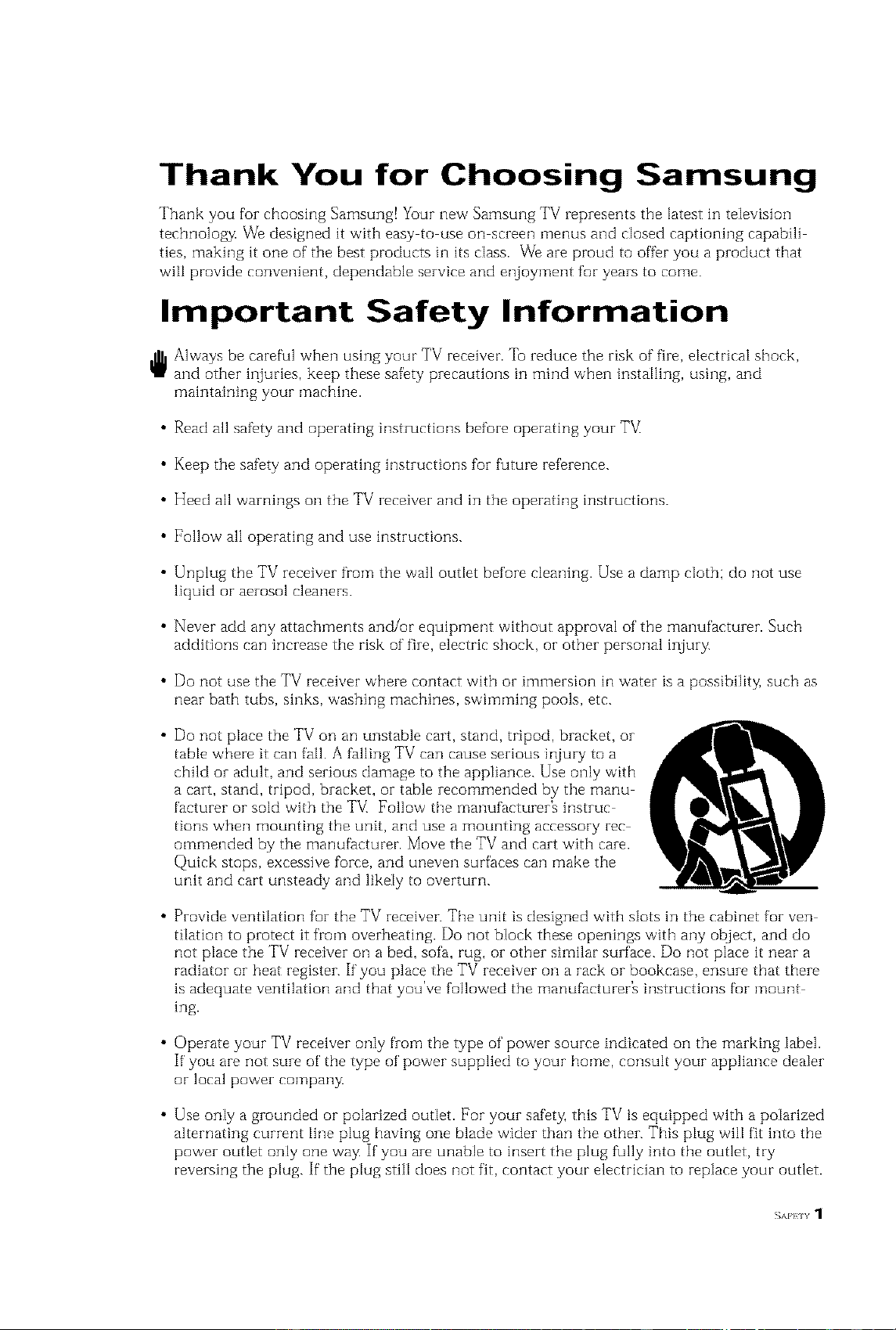
• Do not place the TV on an unstable cart, stand, tripod, bracket, or
table where it can fail. A falling TV can cause serious injury to a
child or adult, and serious damage to the appliance. Use only with
a cart, stand, tripod, bracket or table recommended by the manu
facturer or sold with the TV_ Follow the manufacturer% instruc
tions when mounting the unit, and use a mounting accessory rec
ommended by the manufacturer. Move the FV and cart with care.
Quick stops, excessive force, and uneven surfaces can make the
unit and cart unsteady and likely to overturn.
• Provide ventilation for the TV receiver. The unit is designed with slots in the cabinet for yen
tilation to protect it from overheating. Do not block these openings with any object, and do
not place the TV receiver on a bed, sd'a, rug, or other similar surface. Do not place it near a
radiator or heat register. If you place the FV receiver on a rack or bookcase, ensure that there
is adequate ventilation and that you've followed the manufacturer% instructions fur mount
ing.
• Operate your TV receiver only from the type of power source indicated on the marking label.
If you are not sure of the type of power supplied to your home, consult your appliance dealer
or local power company,
• Use only a grounded or polarized outlet. For your safety, this TV is equipped with a polarized
alternating current line plug having one blade wider than the other. This plug will fit into the
power outlet only one way, If you are unable to insert the plug fully into the outlet, try
reversing the plug. If the plug still does not fit, contact your electrician to replace your outlet.
EAFFIY 1
• Protect the power cord. Power supply cords should be routed so that they won't be walked
on or pinched by objects placed on or against them. Pay particular attention to cords at
plugs, convenience receptacles, and the point where they exit from the unit.
• Unplug the TV from the wall outlet and disconnect the antenna or cable system during a
lightning storm or when left unattended and unused fur long periods of thne. This will pre
vent damage to the unit due to lightning and power line surges.
• Avoid overhead power lines. An outside antenna system should not be placed in the vicinity
of overhead power lines or other electric light or power circuits or where it can fail into such
power lines or circuits. When installing an outside antenna system, be extremely careful to
keep from touching the power lines or circuits. Contact with such lines can be fatal.
• Do not overload the wall outlet or extension cords. Overloading can i-esult in fire or electric
shock.
• Do not insert anything through the openings in the unit, where they can touch dangerous
voltage points or damage parts. Never spill liquid of any kind on the TV[
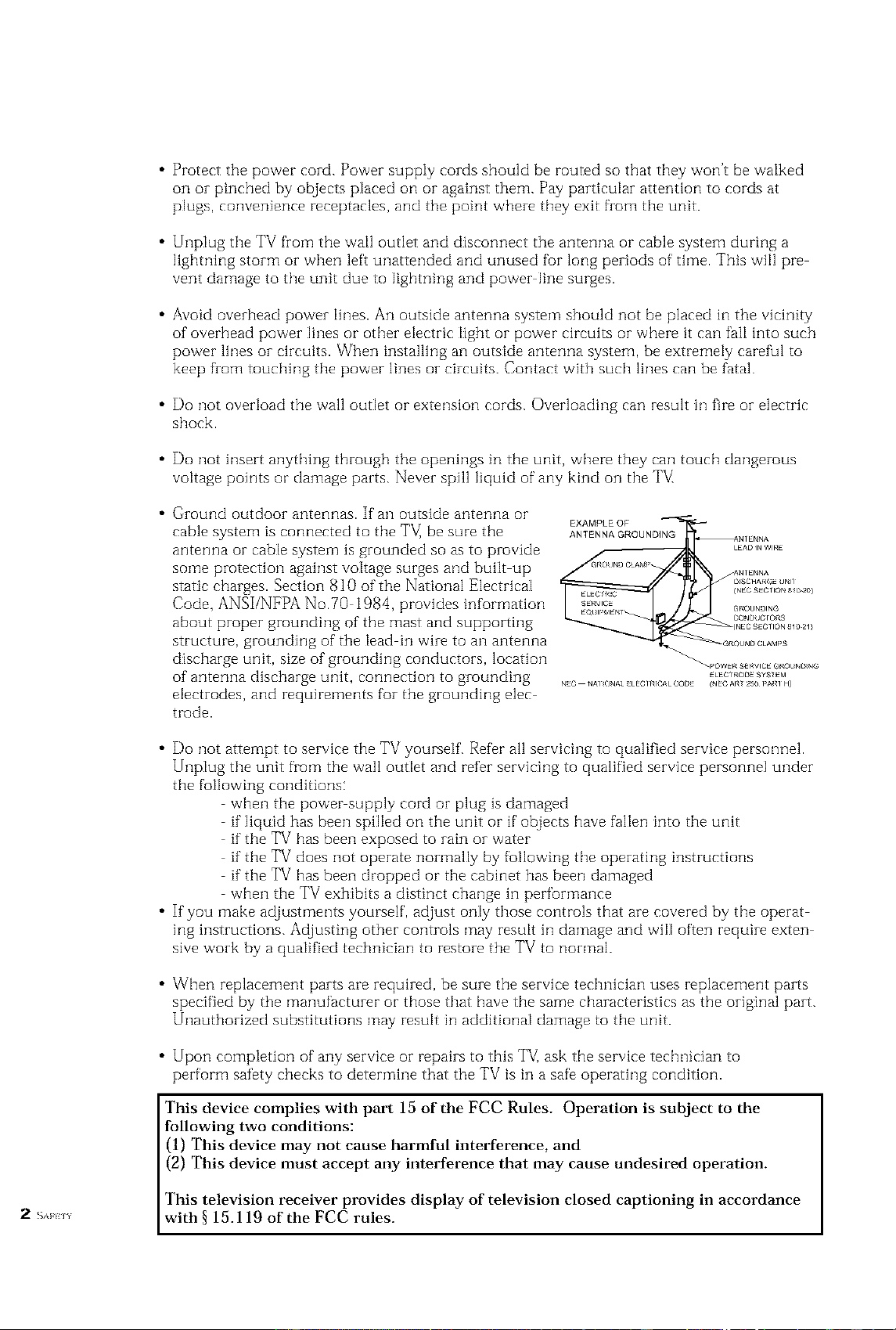
• Ground outdoor antennas. If an outside antenna or
cable system is connected to the TV, be sure the
antenna or cable system is grounded so as to provide
some protection against voltage surges and built up
static charges. Section 810 of the National Electrical
Code, ANSI/NFPA No.70 1984, provides information
about proper grounding of the mast and supporting
structure, grounding of the lead in wire to an antenna
discharge unit, size of grounding conductors, location
of antenna discharge unit, connection to grounding
electrodes, and requirements for the grounding elec
trode.
_'OWER SERVICE GROL_N_N_
_LEC/_OOESY$1EM
_EC N_I_ONA_eLEC/RICALCODE _NE_A_1250. PA_IH)
• Do not attel_qpt to service the TV yourself. Refer all servicing to qualified service personnel.
Unplug the unit from the wall outlet and refer servicing to qualified service personnel under
the following conditions:
when the power supply cord or plug is damaged
if"liquid has been spilled on the unit or if' objects have fallen into the unit
if"the TV has been exposed to rain or water
if"the TV does not operate normally by following the operating instructions
if"the TV has been dropped or the cabinet has been damaged
when the TV exhibits a distinct change in performance
• If you make adjustments yourself', adjust only those controls that are covered by the operat
ing instructions. Adjusting other controls may result in damage and wiII often require exten
sive work by a qualified technician to restore the TV to normal.
• When replacement parts are required, be sure the service technician uses i-eplacement parts
specified by the manufacturer or those that have the same characteristics as the original part.
Unauthorized substitutions may result in additional damage to the unit.
• Upon completion of any service or repairs to this T_/]ask the service techniciarl to
perform safety checks to determine that the TV is in a safe operating condition.
This device complies with part 15 of the FCC Rules. Operation is subject to the
following two conditions:
(1) This device may not cause harmful interference, and
(2) This device must accept any interference that may cause undesired operation.
This television receiver provides display of television closed captioning in accordance
2 s_ _v with § 15.1 19 of the FCC rules.
1) Read these hlstructions.
Keep these instructions.
Heed all warnings.
4) Follow aI[ hlstruetions.
Do not use this apparatus near water.
Clean only with dry cloth.
[_ OUBLE INSULATED When servidng
use only identical replacement parts.
Do not block any ventilation openings, Install hi accordance with the manufacturerZ
instructions.
Do not insta[] near any heat sources such as radiators, heat registers, or other apparatus
(including amplifiers) that produce heat.
9) Do not defeat the safety purpose of the polarized or grounding type plug. A polarized
plug has two blades with one wider than the other. A grounding type plug has two blades
and a third grounding prong. The wide blade or the third prong are provided for your
safety. If the provided plug does not fit into your outlet, consult an electrician for replace
ment of the obsolete outlet.
10) Protect the power cord from being from being walked on or pinched particularly at plugs,
convenience receptacles, and the point where they exit from the apparatus.
11) Only use attachments/accessories specified by the manufacturer.
12) Use only with cart, stand, tripod, bracket, or table specified by the manufacturer, or sold
with the apparatus. When a used, caution when moving the cart/apparatus combination to
avoid injury from tip over.
13) Unplug this apparatus. When a cart is used, use caution when moving the cart/apparatus
combination to avoid injury from tip over.
14) Refer all servicing to qualified service personnel. Servicing is required when the apparatus
has been damaged in any way, such as power supply cord or plug is damaged, liquid has
been spilled or objects have fallen into the apparatus, the apparatus has been exposed to
rain or moisture, does not operate normally, or has been dropped.
EAFKIY3
CONTENTS ]
Chapter 1: Your New TV ............... 1.1
List of Featuzes ......................................... 1.l
Familiarizing Yuurself with The TV.......................... 1.2
Front Panel Buttons .............................. 1.2
Front Pand lacks ................................ 1.3
Rear Panel Jacks ................................. 1.4
Remote Control ................................. 1.5
Chapter 2: Installation ................ 2.1
Connecting VHF and UHF Antennas ........................ 2.1
Antennas with 300 ohm Flat ]bvin Leads .............. 2.1
Antennas with 75 ohm Round Leads ................. 2.2
Separate VHF and UHF ArlteDlqas.................... fi.fi
Connecting Cable TV .................................... 2.2
Cable without a Cable Box ......................... 2.2
Connecting to a Cable Boxthat Descrambies AllChanne]s. . 2.3
Connecting to a Cable Boxthat Descran/bles Some Channels . . 2.3
Connecting a VCR ...................................... 2.4
Corlnecting an S VHS VCR......................... 2.6
Connecting a Second VCR to Record from the TV ....... 2.7
Connecting a DVD Player (480i/480p) ....................... 2.7
Connecting a Digital TV Set Top Box (480p/1080i) ............. 2.8
Connecting a Camcorder ................................. 2.9
Chapter 3: Operation .................. 3.1
"l_rning tile TV On and Off................................ 3.1
Plug & Play Feature ..................................... 3.1
Viewing the Menus and On Screen Displays ................... 3.3
Viewing the Menus ............................... 3.{_
Viewing the Display .............................. 3.{_
Selecting a Menu Language ................................ 3.4
Memorizing the Channels ................................. {3.5
Selecting the Video Signal source .................... {3.5
Storing Channels in Memory (Automatic Method) ....... 3.6
Adding and Ezasing Channels (Manual Method) ........ 3.7
Changing Channels ..................................... 3.8
Using the Channel Buttons ......................... 3.8
Dizectly Accessing Channels ........................ 3.8
Using the PRE CH Button to select the Previous Channel.. 3.8
Adjusting the Vulume .................................... {3.8
Using Mute ..................................... 3.8
Labeling the Channels ................................... 3.9
Setting the Clock ....................................... {3.10
Option l: Setting the Clock Manually ................ 3.10
Option 2: Using the Local PBS Channel to
Automatically Set the TV Clock ..................... {3.11
Customizing the Picture .................................. {3.13
Using Automatic Picture Settings ........................... 3.14
Customizing the Sound .................................. {3.15
Using Automatic Sound Settings ............................ {3.1B
Viewing an External Signal Source .......................... {3.17
(}o _ /s 1
CONTENTS
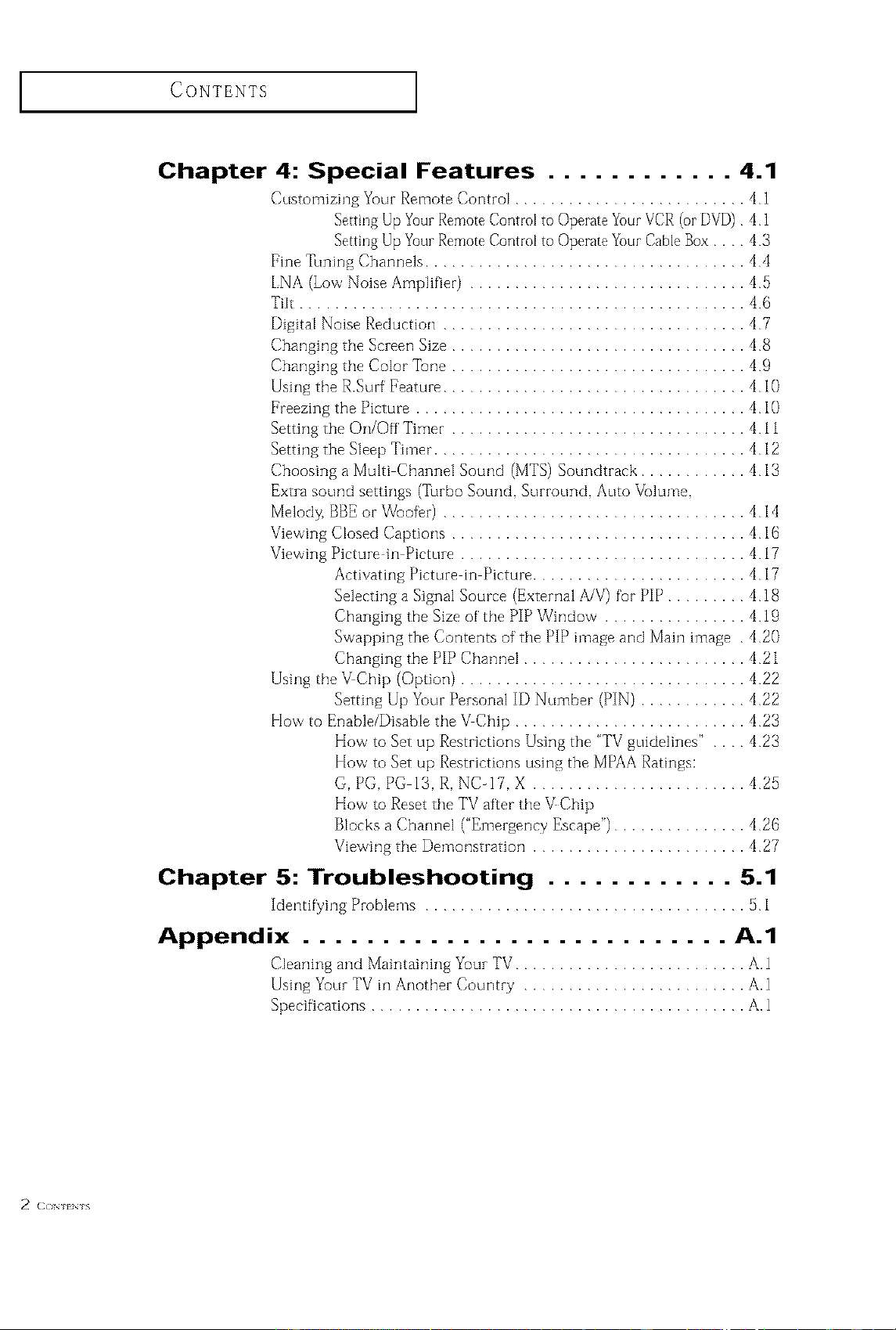
Chapter 4: Special Features ............ 4.1
Customizing Yc_urRemote Control .......................... 4 1
Setting Up Your Remote Control to Operate Your VCR (or DVD) 41
Setting Up YourRemote Control to Operate YourCable Box.... 43
Fine llming Channels .................................... 44
LNA (LowNoise Amplifier) ............................... 45
Tilt .................................................. 46
Digital Noise Reduction .................................. 47
Changing the Screen Size ................................. 48
Changing the Color Tone ................................. 49
Using the R.Surf Feature .................................. 410
Freezing the Picture ..................................... 4 if)
Setting the On/Off Timer ................................. 4 11
Setting the Sleep Thner ................................... 4 12
Choosing a Multi Channel Sound (MTS) Sonndtrack ............ 4 13
Extra sound settings (Turbo Sound Surround Anto Vc_lume
Melody. BBE or Woofer) .................................. 414
Viewing Closed Captions ................................. 416
Viewing Picture in Picture ................................ 417
Activating Picture in Picture ........................ 417
Selecting a Signal Source (External A/V) for PIP ......... 418
Changing the Size of the PIP Window ................ 419
Swapping the Contents of the PIP image and Main image 420
Changing the PIP Channel ......................... 4 21
Using the _Chip (Option) ................................ 422
Setting Up Yonr Personal ID Number (PIN) ............ 422
How to Enable/Disable the _Chip .......................... 423
kIow to Set up Restrictions Using the "TV gnidelines" . 423
k[ow to Set up Restrictions using the MPAA Ratings:
(;.PG. PG 13. R. NC-17 X ........................ 425
How to Reset the TV after the _Chip
Blocks a Channel ("Emergency Escape") ............... 426
Viewing the Demorlstratiorl ........................ 427
Chapter 5: Troubleshooting ............ 5.1
Identifying Problems .................................... 51
Appendix ........................... a.1
Cleaning and Maintaining Your TV .......................... A.1
Using Yc0urTV in Another Country ......................... A.1
Specifications .......................................... A. 1
2 (ION I_N l%
Your NEw TV
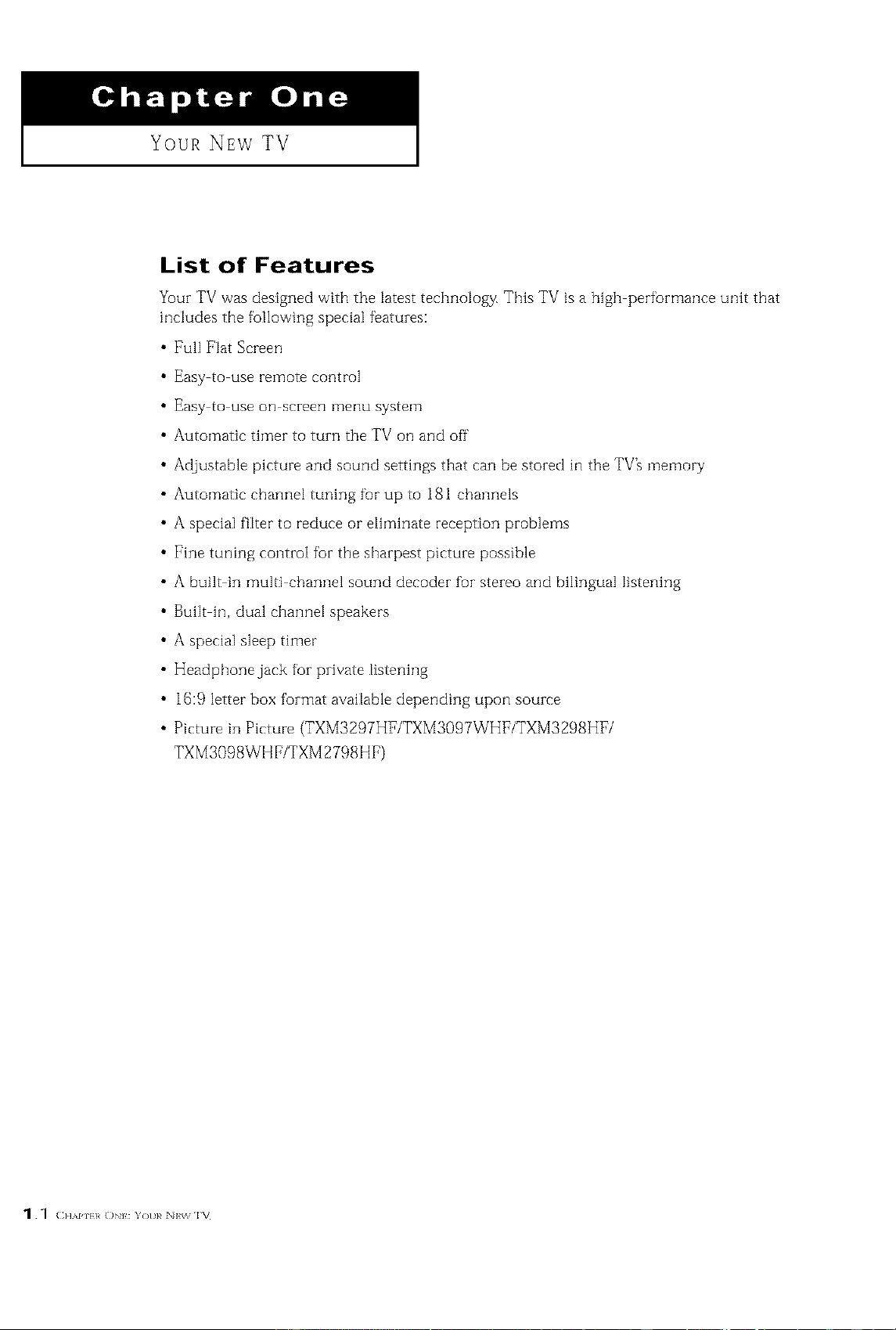
List of Features
_uz TV was designedwith the latest technology. This TV is a high per_zmance unit that
includes the following special featuzes:
• Full Flat Screen
Easy to use remote control
Easy to use on screen menu system
Automatic timer to tuzn the TV on and off
Adjustable picture and sound settings that can be stozed in the TVh memory
Automatic channel tuning for up to 181 channels
A special filter to reduce or etiminate reception pzoblems
Fine tuning contzoI foz the shazpest pictuze possible
A built in multi channel sound decodez for stezeo and bilingual listening
Built in, dual channel speakers
A special sleep timer
Headphone jack foz pzivate listening
16:9 letter box fozmat avaitable depending upon souzce
Picture in Picture (TXMS297HF/TXMS097WHF/TXMS298HF/
TXMSO98WHF/TXM 2798HF)
_._ ( ]IAPI}I O :Yo/ }<N %%1_
I Your NEw TV
Familiarizing Yourself with The TV
Front Panel Buttons
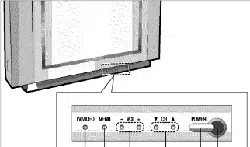
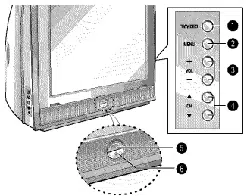
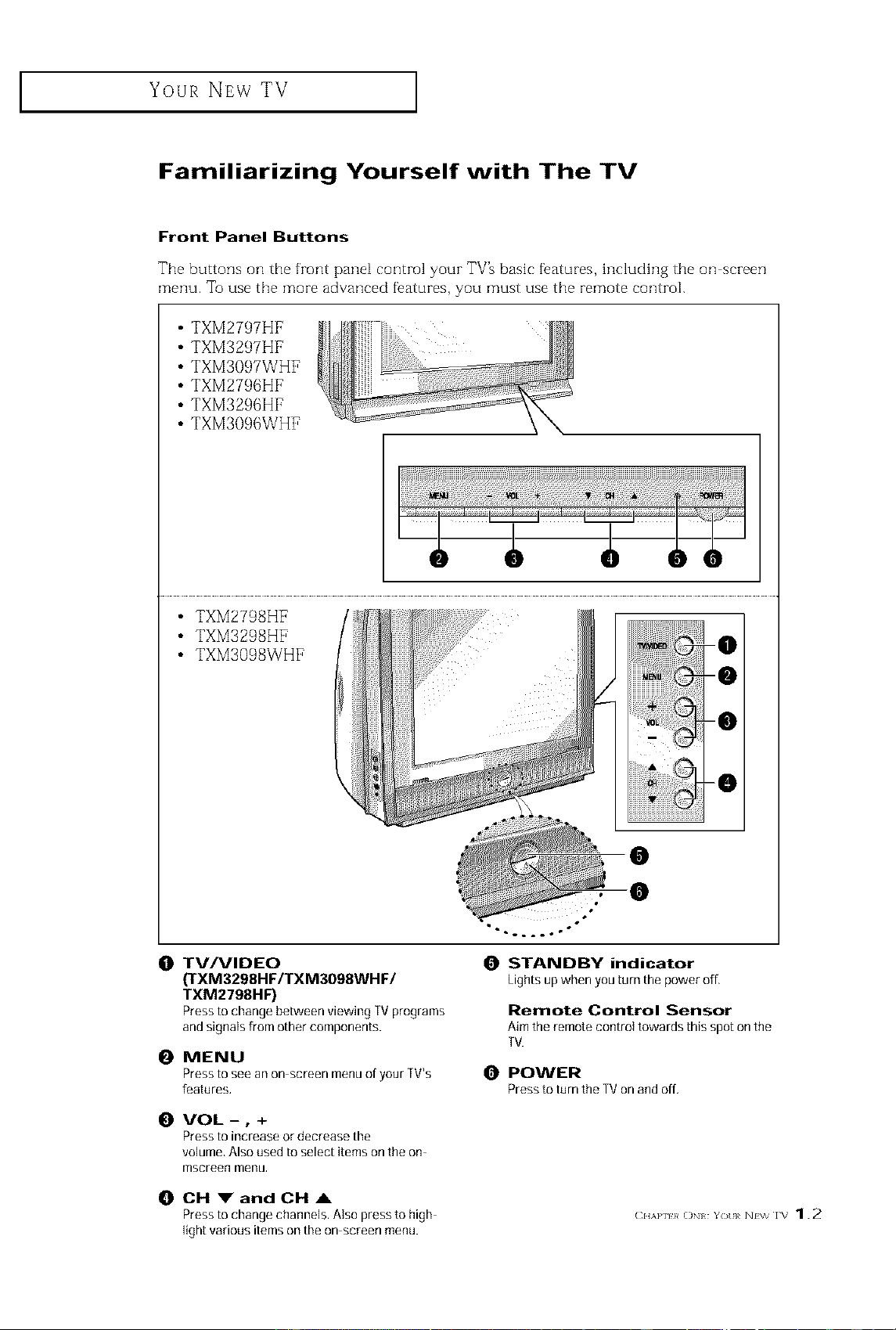
The buttons on the front pane[ control your TV_ basic fbatures, hlcludhlg the on screen
menu. To use the more advanced f_atures, you must use the remote control.
TXM2797HF
TXM3297HF
TXM3097WHF
TXM2796HF
TXM3296HF
TXM3096WHF
• TXM2798HF
• TXM3298HF
• TXM3098WHF
-0
-0
-0
-0
O TV/VIDEO
(TXM3298HF/TXM3098WHF/
TXM2798HF)
Pressto changebetweenviewingTVproprams
andsignalsfromothercomponents.
0 MENU
Press to see an on screen menu of your TV's
features.
O VOL-, +
Press to increase or decrease the
volume. Also used to select items on the on
mscreen menu,
O
O
"-.°..°.=°"
0 STANDBY indicator
Lights up when you turn the power off,
Remote Control Sensor
Aim the remote control towards this spot on the
TV.
POWER
Press to turn the TV on and off,
0 CH _'andCH &
Press to change channels, Also press to high (_u_m }_o_ Y_ _<N \_ rv 1.2
light various items on the on screen menu.
I Your NEw TV I
Front Panel Jacks
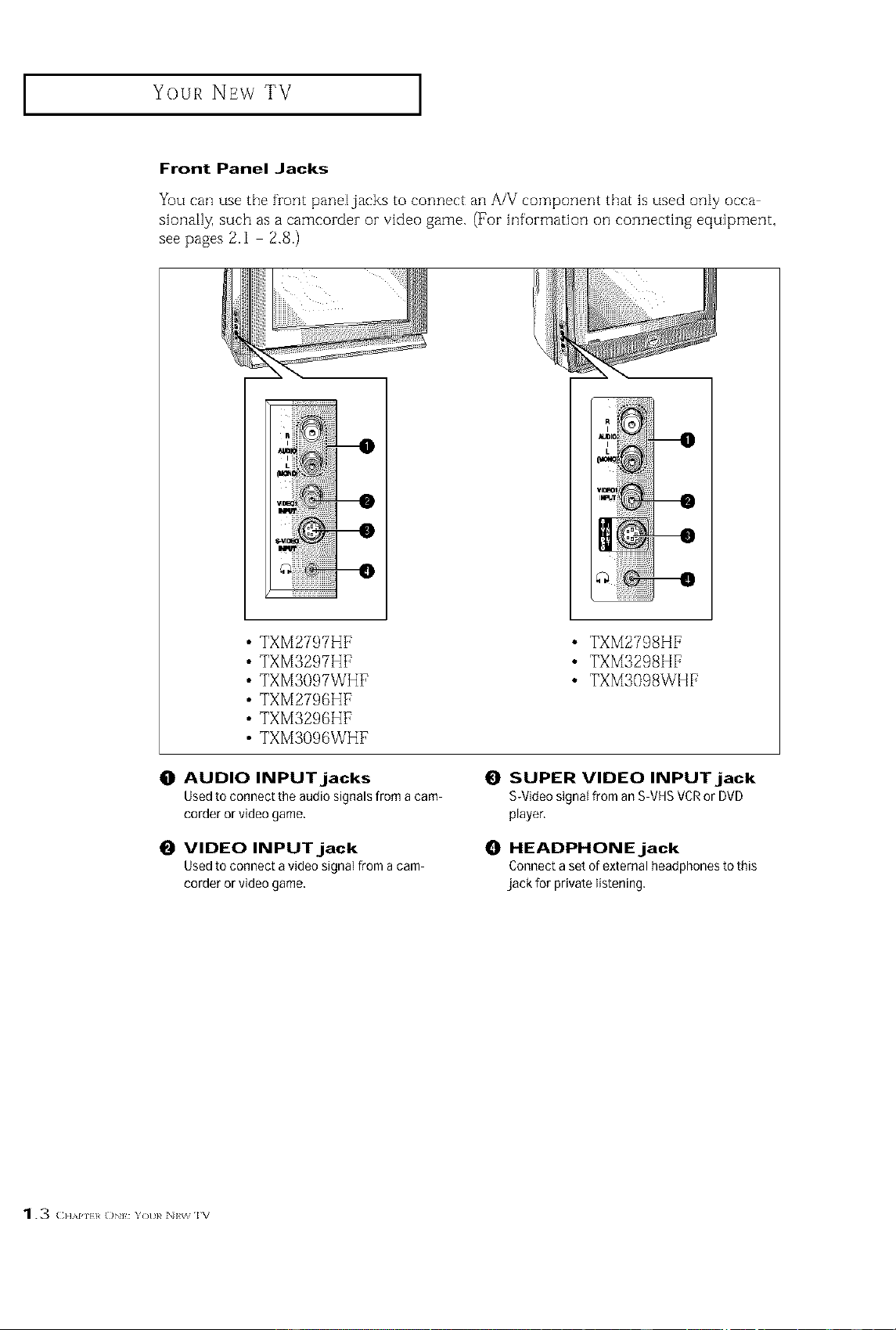
You can use the front pane[jacks to connect an A/V component that is used on[y occa
siona[l_ such as a camcorder or video game. (For information on connecting equipment,
see pages 2.1 2.8.)
TXM2797HF
TXM3297HF
TXM3097WHF
TXM2796HF
TXM3296HF
TXM3096WHF
O AUDIO INPUT jacks
Used to connect the audio signals from a cam
corder or video game.
O VIDEO INPUT jack
Used to connect a video signal from a cam
corder or video game.
• TXM2798HF
• TXM3298HF
• TXM3098WHF
O SUPER VIDEO INPUT jack
S-Video signal from an S VHSVCRor DVD
player,
HEADPHONE jack
Connect a set of external headphones to this
jack for private listening.
1.3 (;]]API}I D : Yot}¢ Nt_ IV
I Your NEw TV
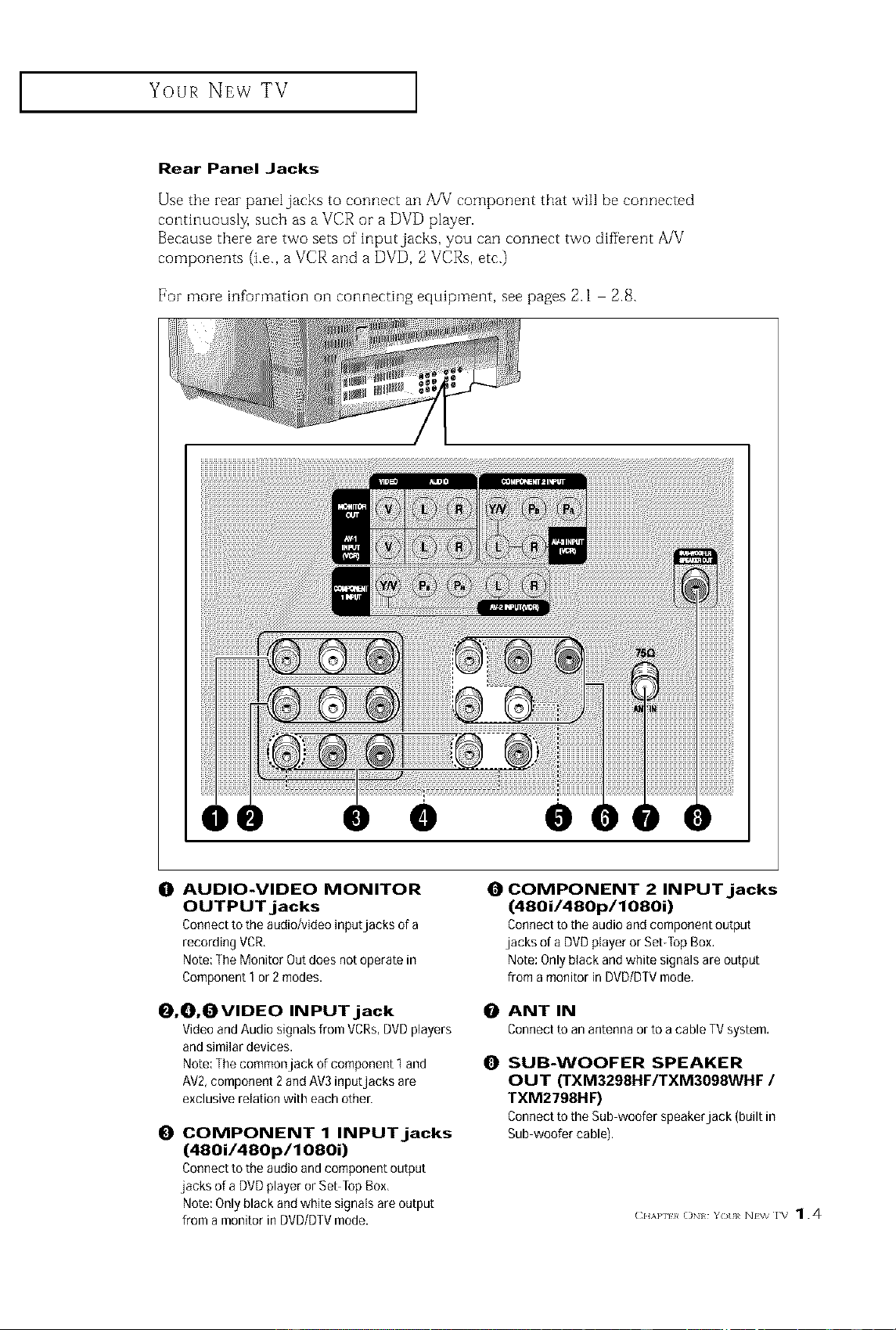
Rear Panel Jacks
Use the zeaz panel jacks to connect an AA/component that will be connected
continuousl_ such as a VCR or a DVD playez.
Because theze are two sets of inputjacks, you can connect two different A/V
components (i.e., a VCR and a DVD, 2 VCRs, etc.)
For more infurmation oil connecting equipment, see pages 2.1 2.8.
e • e
0 AUDIO-VIDEO MONITOR
OUTPUT jacks
Connect to the audio/video inputjacks of a
recording VCR,
Note: The Monitor Out does not operate in
Component 1or 2 modes,
O COMPONENT 2 INPUT jacks
(480i/480p/1080i)
Connect to the audio and component output
jacks of a DVD player or Set-TopBox,
Note: Only black and white signals are output
from a monitor in DVD/DTV mode.
O,0,OVIDEO INPUT jack
Video and Audio signals from VCRs,DVD players
and similar devices,
Note: The commonjack of component 1 and i_1
AV2,component 2 and AV3input jacks are
exclusive relation with each otheE
COMPONENT 1 INPUT jacks
(480i/480p/1080i)
Connect to the audio and component output
jacks of a DVD player or Set TopBox,
Note: Only black and white signals are output
from a monitor in DVD/DTVmode.
0
ANT IN
Connectto an antennaorto a cableTVsystem,
SUB-WOOFER SPEAKER
OUT (TXM3298HF/TXM3098WHF /
TXM2798HF)
Connectto theSubwooferspeakerjack (builtin
Subwoofercable),
Your NEw TV ]
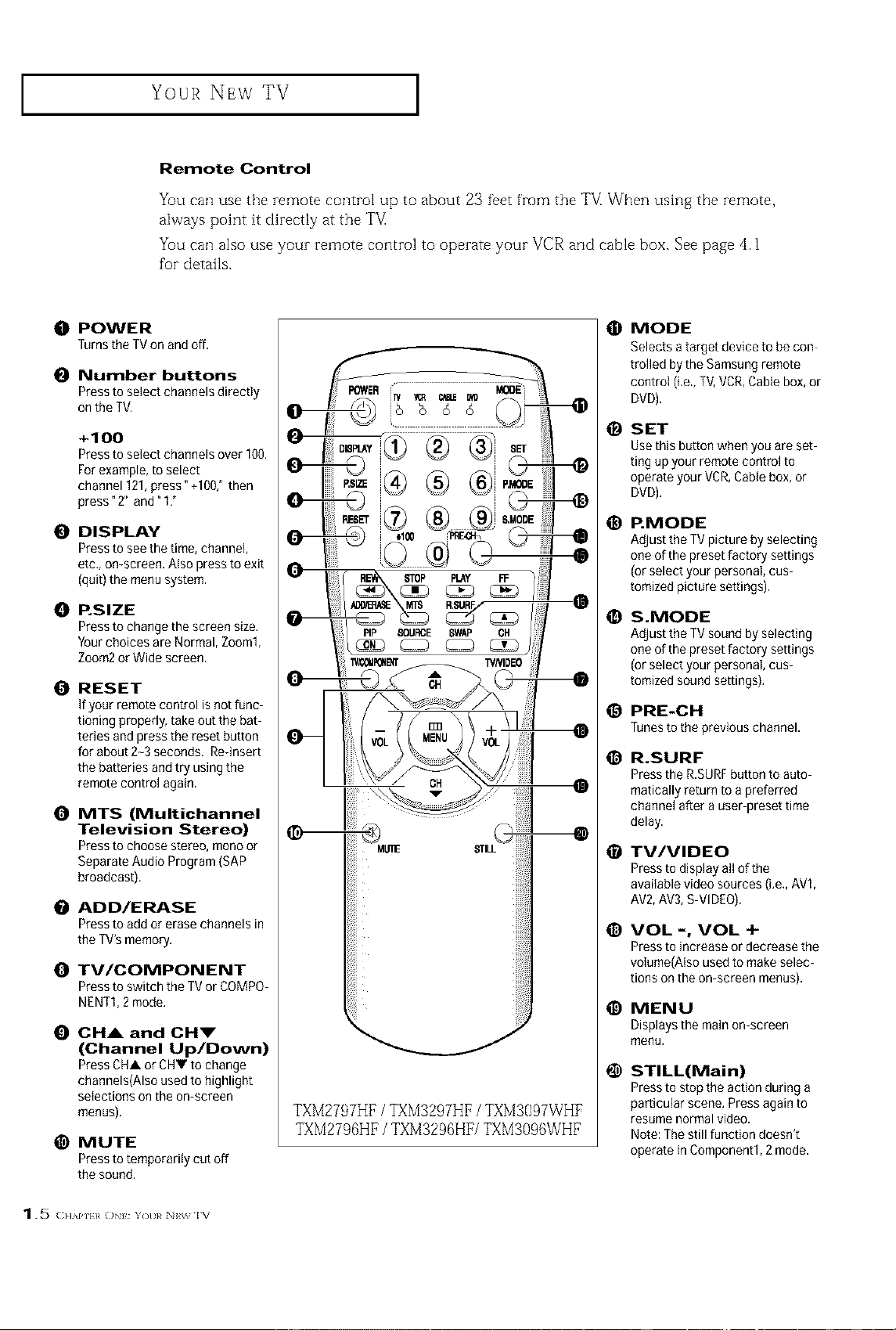
Remote Control
You can use the remote control up to about 23 feet from the T_/[When using the remote,
always point it dh-ectly at the T#
You can also use your remote control to operate your VCR and cable box. See page 4.1
for details.
O POWER
[urns the TV on and off,
O Number buttons
Press to select channels directly
on the TV.
+100
Press to select channels over 100.
For example, to select
channel 121,press" +100/' then
press" 2" and" I,"
O DISPLAY
Press to see the time, channel,
etc., on-screen. Also press to exit
(quit) the menu system.
O P.SIZE
Press to change the screen size,
Your choices are Normal, Zoom1,
Zoom2 or Wide screen.
O RESET
If your remote control is not func
tioning properly, take out the bat
teries and press the reset button
for about 2-3 seconds. Rednsert
the batteries and try using the
remote control again,
O MTS (Multichannel
Television Stereo)
Press to choose stereo, mono or
Separate Audio Program (SAP
broadcast).
ADD/ERASE
Press to add or erase channels in
the TV's memory.
O TV/COMPONENT
Press to switch tile TV or COMPO
NENT1, 2 mode,
O CHA and CHI"
(Channel Up/Down)
Press CHA or CHV to change
channels(Also used to highlight
selections on the on screen
menus).
@ MUTE
Press to temporarily cut off
the sound,
O MODE
Selects a target device to be con
trolled by the Samsung remote
control (i.e., TV,VCR,Cable box, or
DVD),
O SET
Use this button when you are set
ting up your remote control to
operate your VCR,Cable box, or
DVD),
_) P.MODE
Adjust tile TV picture by selecting
one of the preset factory settings
(or select your personal, cus
tomized picture settings).
TXM2797HF / TXM3297HF/ TXM3097WHF
TXM2796HF/ TXM3296HF/TXM3096WHF
O S.MODE
Adjust tile TV sound by selecting
one of the preset factory settings
(or select your personal, cus
tomized sound settings),
_) PRE-CH
runes to the previous channel.
_) R.SURF
Press the R.SURFbutton to auto
matically return to a preferred
channel after a user preset time
delay.
0 TV/VIDEO
Press to display all of the
avai{able video sources (Le., AV1,
AV2,AV3,S VIDEO).
VOL -, VOL +
Press to increase or decrease the
volume(Also used to make selec
tions on the on screen menus).
_) MENU
Displays the main on screen
menu,
O STILL(Main)
Press to stop the action during a
particular scene. Press again to
resume normal video.
Note: Thestill function doesn't
operate in Component1,2 mode.
J Your NEw TV
Remote Control
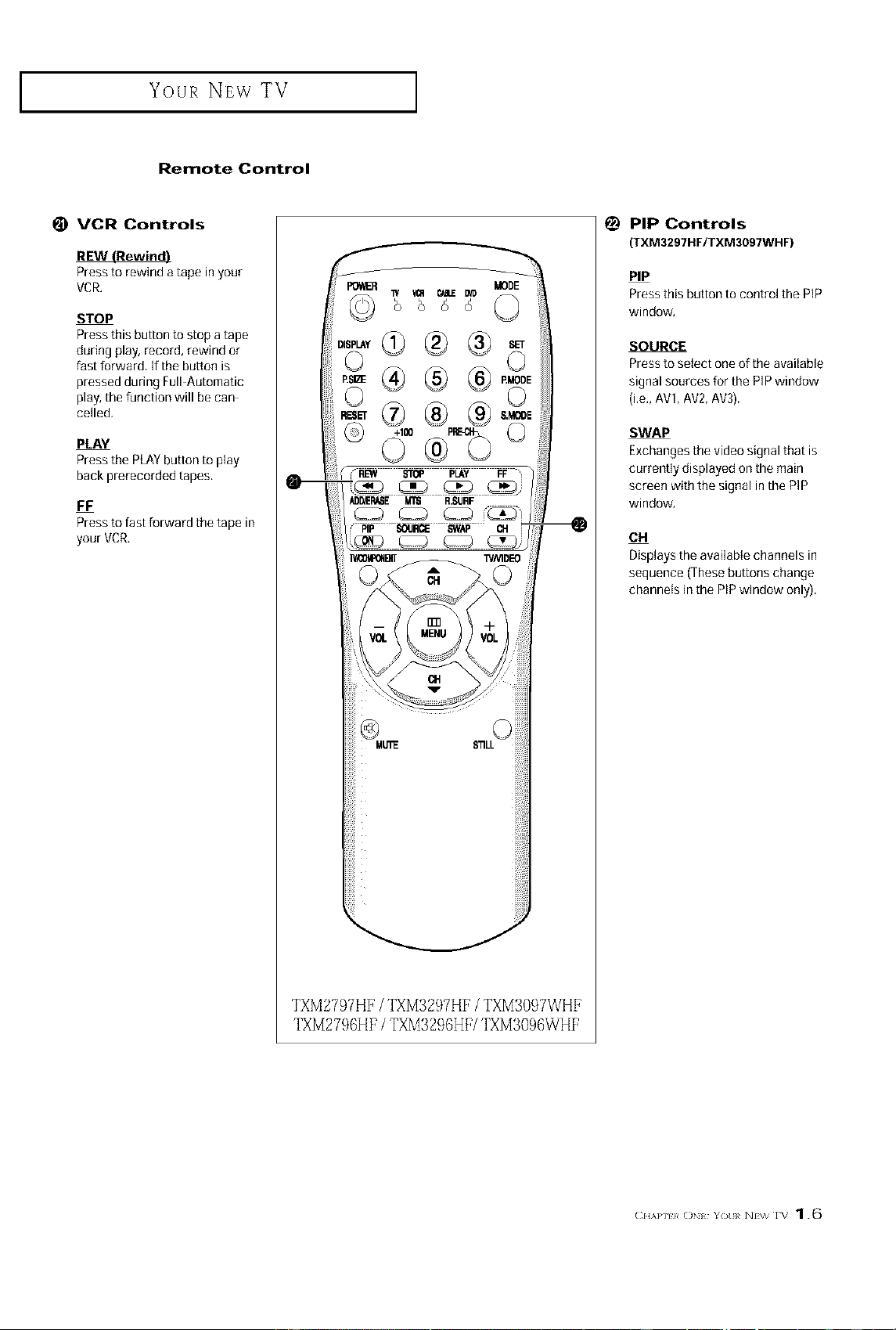
VCR Controls
Press to rewind a tape in your
VCR,
STOP
Pressthis button to stop a tape
during play, record, rewind or
fast forward, If the button is
pressed during Full Automatic
play, the function will be can
celled,
PLAY
Press the PLAYbutton to play
back prerecorded tapes.
FF
Press to fast forward the tape in
your VCR.
TXM2797HF / TXM329?HF/ TXM3097WHF
TXM2736HF/ TXM3236HF/TXM3096WHF
_) PIP Controls
(TXM3297HF/TXM3097WHF)
PIP
Press this button to control the PIP
window,
SOURCE
Press to select one of the available
signal sources for the PIPwindow
(i,e,, AV1,AV2,AV3).
SWAP
Exchanges the video signal that is
currently displayed on the main
screen with the signal in the PIP
window,
CH
Displays the available channels in
sequence (These buttons change
channels inthe PiP window only).
Your NEw TV ]
Remote Control
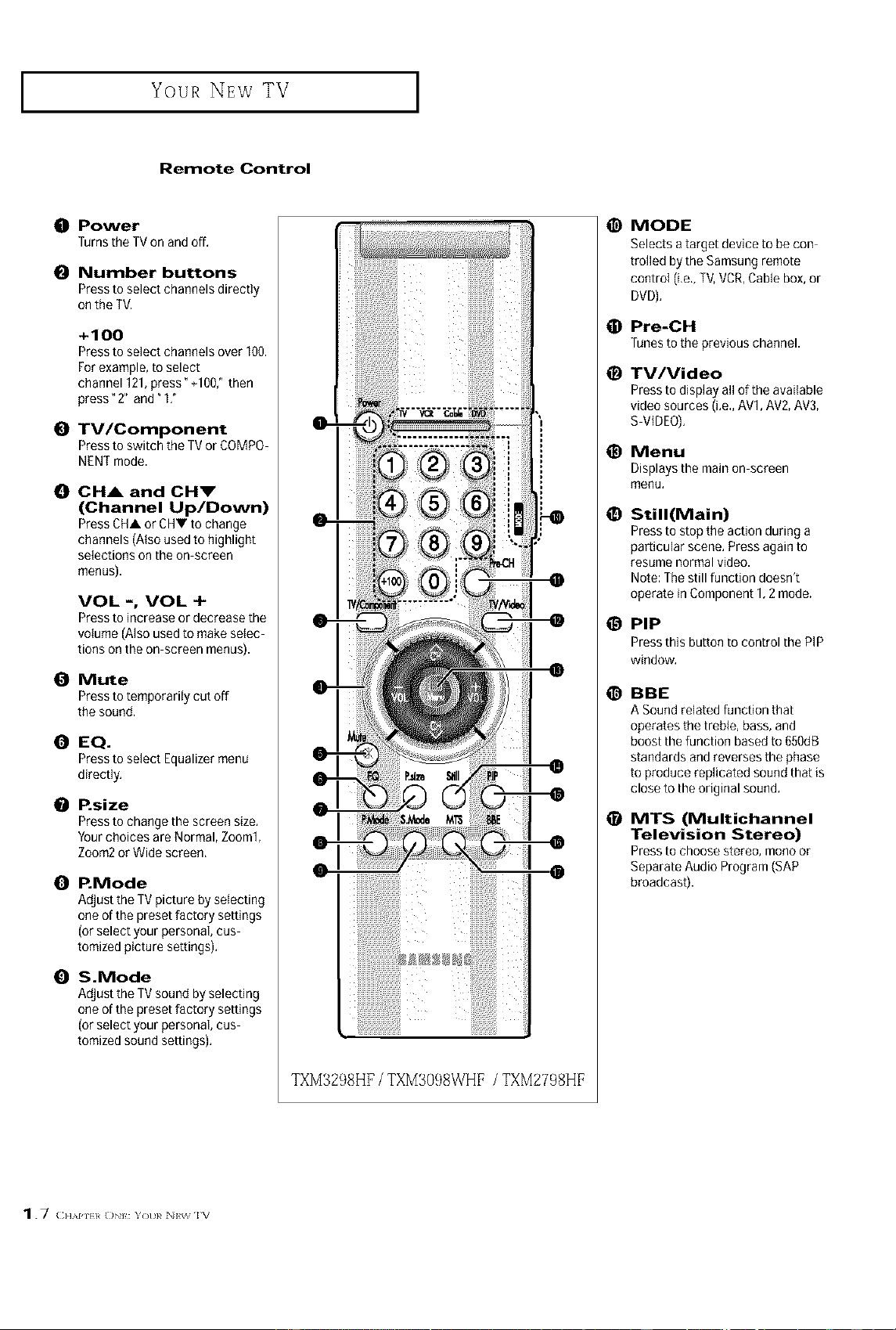
O Power
Turns the TVon and off,
O Number buttons
Press to select channels directly
on the TV.
+100
Press to select channels over 100.
For example, to select
channel 121,press" +1007 then
press" 2" and" 1:
@ TV/Component
Press to switch the TV or COMPO
NENTmode.
O OH& and OHm"
(Channel Up/Down)
Press CHA or CHV to change
channels (Also used to highlight
selections on the on screen
menus).
VOL -, VOL +
Press to increase or decrease the
volume (Also used to make selec
tions on the on screen menus).
@ Mute
Press to temporarily cut off
the sound,
EQ.
Press to select Equalizer menu
directly,
P.size
Press to change the screen size,
Your choices are Normal, Zoom1,
Zoom2 or Wide screen,
O P.Mode
AdJustthe TV picture by selecting
one of the preset factory settings
(or select your personal, cus
tomized picture settings).
O S.Mode
Adjust the TV sound by selecting
one of the preset factory settings
(or select your personal, cus
tomized sound settings),
TXM3298HF / TXM3098WHF / TXM2798HF
@
@
@
@
@
@
@
@
MODE
Selects a target device to be con
trolled by the Samsung remote
control (i.e., TV,VCR,Cable box, or
DVD),
Pre-CH
runesto tile previouschannel.
TV/Video
Press to display all of the available
video sources (i.e., AV1,AV2, AV3,
S VIDEO).
Menu
Displays the main on screen
menu,
Still(Main)
Press to stop the action during a
particular scene, Press again to
resume normal video.
Note: Thestill function doesn't
operate in Component 1,2 mode.
PiP
Press this button to control the PIP
window,
BBE
A Sound related function that
operates the treble, bass, and
boost the function based to 650dB
standards and reverses the phase
to produce replicated sound that is
close to the original sound.
MTS (Multichannel
Television Stereo)
Press to choose stereo, mono or
Separate Audio Program (SAP
broadcast).
1.7 CHAPU*0 :Yotl_ N_ I_
I Your NEw TV
Remote Control
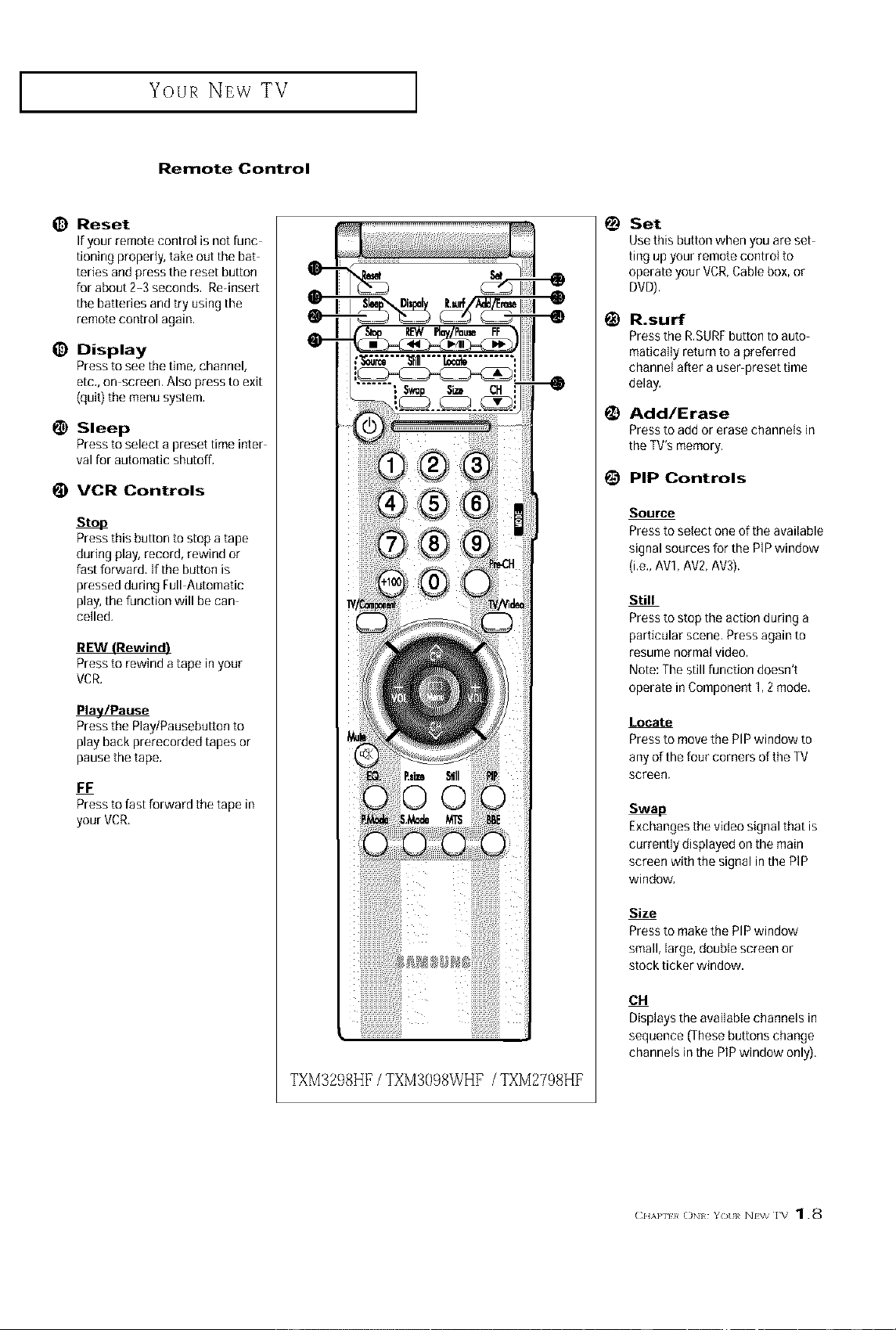
_) Reset
If your remote control is not func
tioning properly, take out the bat
teries and press the reset button
for about 2-3 seconds, Re-insert
the batteries and try using the
remote control again.
_) Display
Press to see the time, channel,
etc,, on screen, Also press to exit
(quit) the menu system.
!_ Sleep
Press to select a preset time inter
val for automatic shutoff.
VCR Controls
sto_
Press this button to stop a tape
during play, record, rewind or
fast forward, If the button is
pressed during Full Automatic
play, the function will be can
celled.
Press to rewind a tape in your
VCR.
k/Pause
Press the P]ay/Pausebutton to
play back prerecorded tapes or
pause the tape.
FF
Press to fast forward the tape in
your VCR,
(
TXM3238HF/ TXM3098WHF / TXM2798HF
@
Set
Use this button when you are set-
ting up your remote control to
operate your VCR,Cable box, or
DVD),
R.surf
Press the R,SURFbutton to auto
matica]ly return to a preferred
channel after a user preset time
delay,
Add/Erase
Pressto addor erasechannelsin
theTV'smemory,
PIP Controls
Source
Press to select one of the available
signal sources for the PIP window
(i.e., AV1, AV2, AV3),
Still
Press to stop the action during a
particular scene, Press again to
resume normal video.
Note: The still function doesn't
operate in Component 1,2 mode.
Locate
Press to movethe PIP window to
any of the four corners of the TV
screen.
Exchanges the video signal that is
currently displayed on the main
screen with the signal in the PIP
window,
Size
Press to makethe PIP window
small, large,double screen or
stock ticker window.
CH
Displays the available channels in
sequence (These buttons change
channels in the PlP window only).
(:.w.}_o,_ Y)t N_wrb 1.8
INSTALLATION
Connecting VHF and UHF Antennas
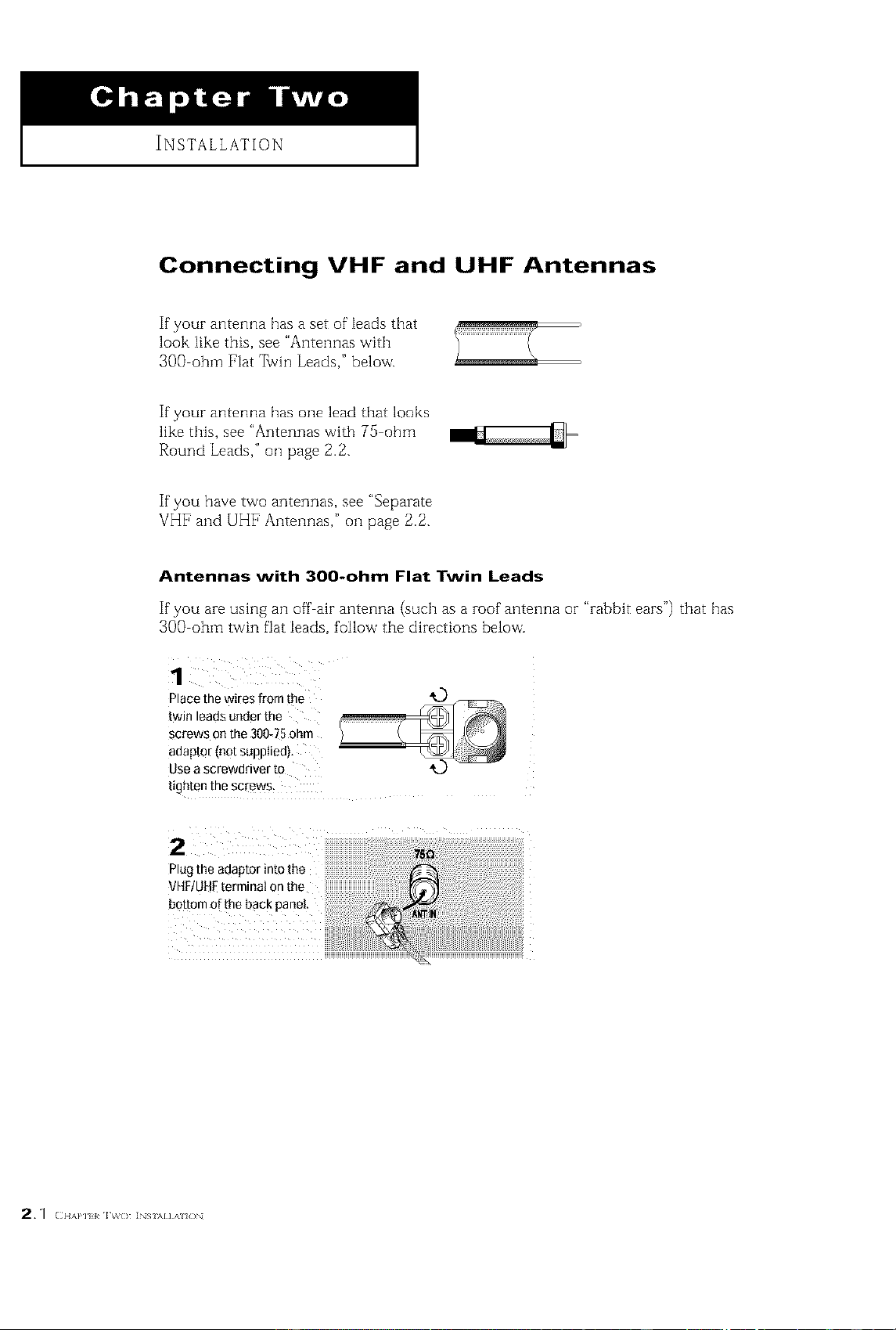
If your antenna has a set of leads that
look like this, see "Antennas with
3OO ohm Fiat 7%vinLeads," below.
If your antenna has one lead that looks
like this, see "Antennas with 75 ohm
Round Leads," oil page 2.2.
If you have two antennas, see "Separate
VHF and UHF Antennas," oil page 2.2.
Antennas with 300-ohm Flat Twin Leads
If"you are using an off air antenna (such as a roof antenna or "rabbit ears") that has
300 ohm twin fiat leads, follow the directions below.
1
Place the wires from the
twin leads under the
screws on the 300-75 ohm
aoap[o/_no[ SUpD_Ie{]_
use a screw[lrlver [o
[tg_ten file SC_W_
Plugthe adaptor into the
VHF/UH[ terminal on the
bottom of the back panel.
2,1 (I{APltl iv(> ] Si\l],\i{)
INSTALLATION ]
Antennas with 75-ohm Round Leads
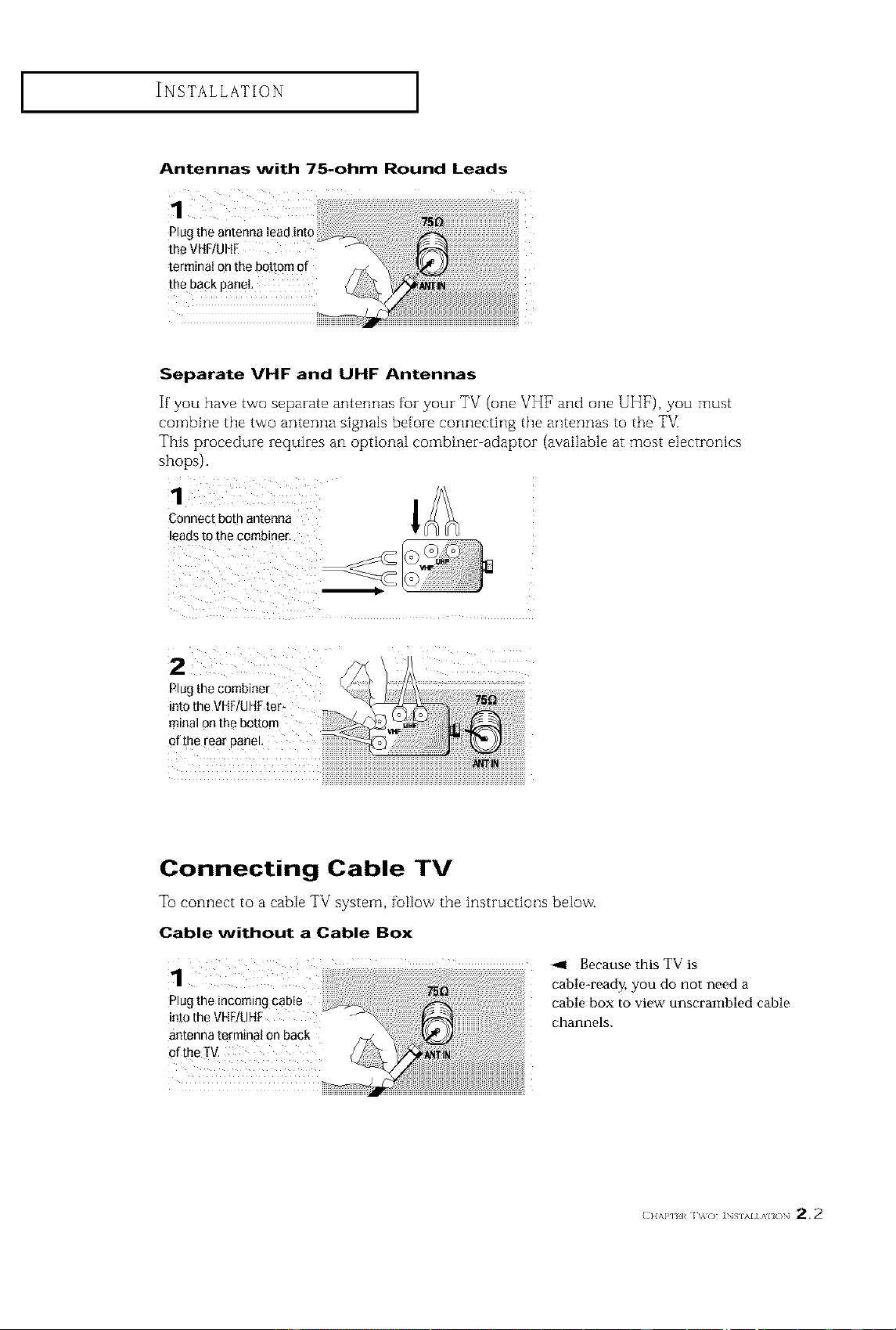
Plug the antenna lead into
the VHF/UHE
terminal on the bottom of
the back panel
Separate VHF and UHF Antennas
If you have two separate antennas for your TV (one VH1_and one UHF), you must
combine the two antenna signals before connecting the antennas to the T_
This procedure requires an optional combiner-adaptor (available at most electronics
shops).
Connect both antenna
leadsto the combiner.
2
Plug the combiner
into the VHF/UHFter_
minal on the bottom
of the rear panel,
Connecting Cable TV
To connect to a cable TV system, follow the instructions below.
Cable without a Cable Box
1
Plug the incoming cable
into the VHF/UHF
antenna terminal on back
ofthe TV.
-,11 Because this TV is
cable-ready, you do not need a
cable box to view unscrambled cable
channels.
(} lAP] ] _( } ]NSIAI AI( }N 2,2
INSTALLATION ]
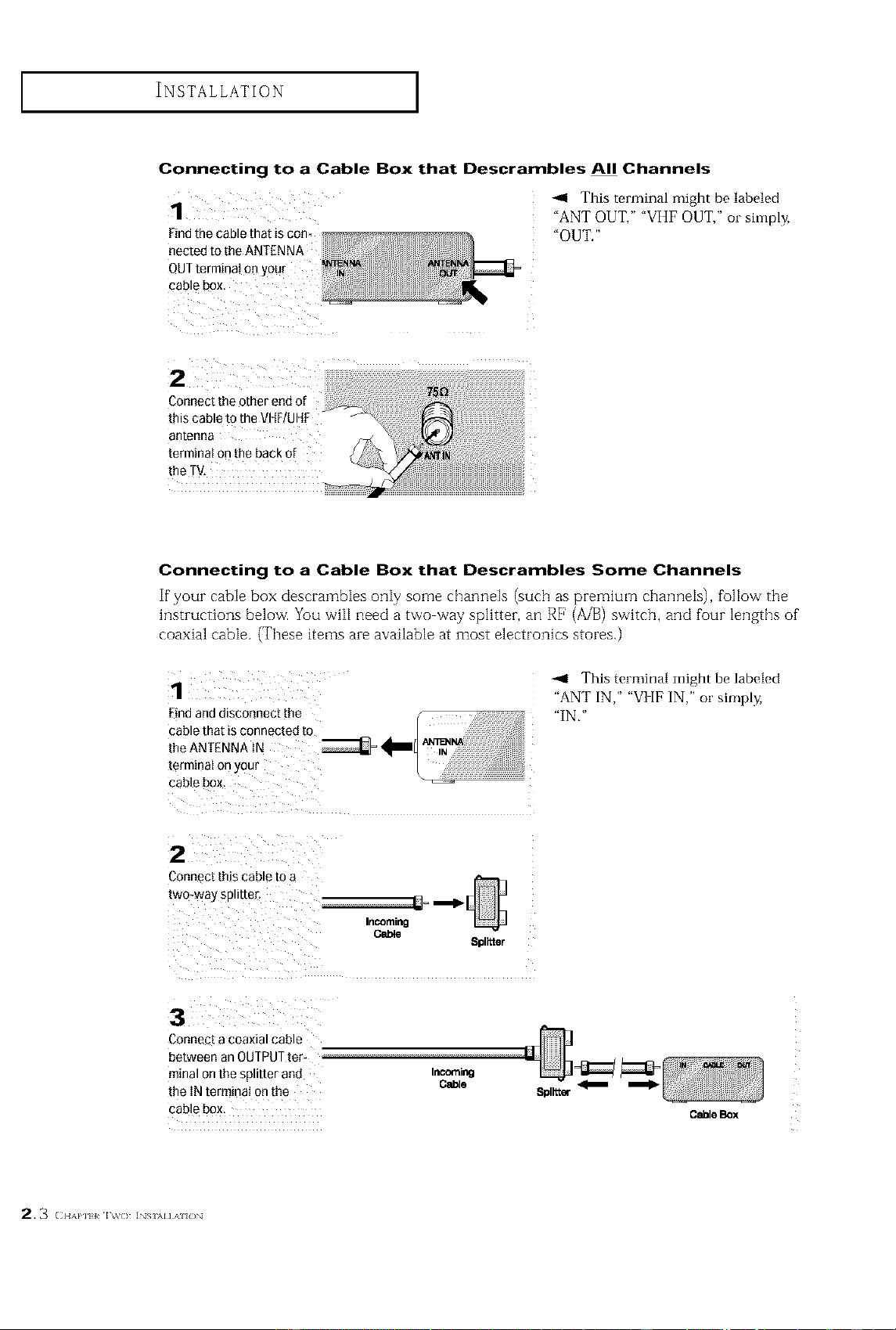
Connecting to a Cable Box that Descrambles All Channels
Find the cable that is corn
nected to the ANTENNA
QUTterminal on your
cable box.
_,9 This terminal might be labeled
"ANT OUT," "VHF OUT," or simply,
"OUT."
Connect the other end of
this cable
antenna
terminal on the back of
the TV,
Connecting to a Cable Box that Descrambles Some Channels
If your cable box descrambles only some charmels (such as premium channels), follow the
instructions below. You will need a two way splitter, an RE (A/B) switch, and four lengths of"
coaxial cable. (These items are available at most electronics stores.)
1
Find and dlSCo-nect the
cable that is connected to
[he ANTENNA tN
[ermmat or] your
cable box.
-ql This terminal might be labeled
"ANT IN ," "VI [F IN," or simply,
"IN."
2
Connect this cable to a
[wo-way Spll[[eE
_=,--_[
Incoming
Cable
8pl_ter
3
CoRnet[ a coaxial cable
between an OUTPUT[er- --
minal on the splitter and Incemi_l
[he IN terminal on the Cable
cable box.
m
8plltt_
2.3 (IIAP] I IV(} ]NSI\I],\I f_N
Cable Box
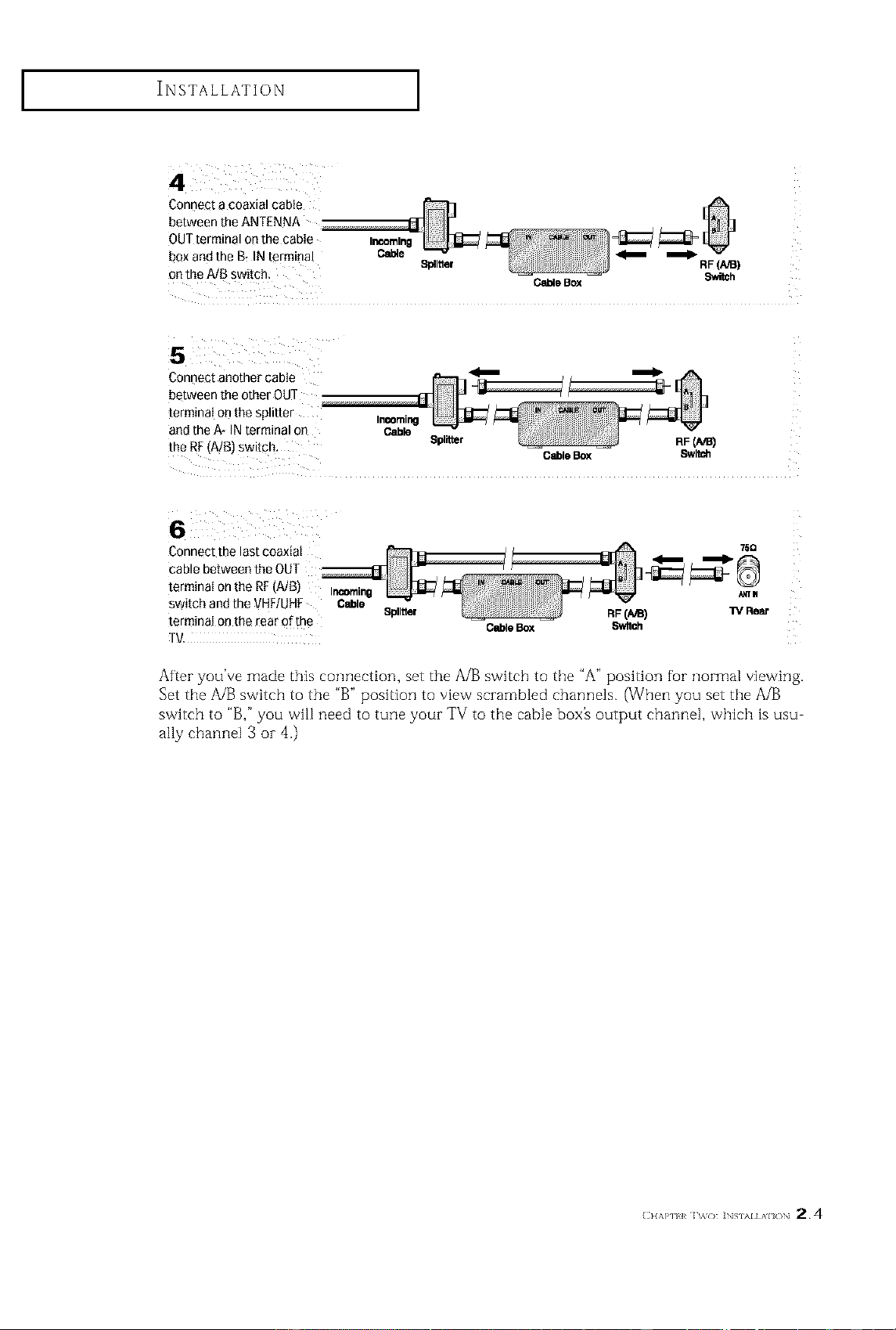
INSTALLATION ]
Connect a coaxial cable
between the ANTENNA
OUT terminal on the cabIe In_om/ng
bQxand the B_INterminal Cable Splitter _ _ RF(A/B)
on the MB switch. O_o BOX SwiSh
5
Connect another cable _
between the other OU]
terminai on the splitter InComing
and the A* IN terminal on CabkD
the RF (A/B) switch. Splitter RF(,_/B)
CableBox 8witch
Connect the last coaxiat
cable between the OUT
terminat on the RF(A/B) Ir._raing
switch and the VHFiUHF Cable
terminaJ on the rear of the
[V,
Splitter RF (A_) "rv Rear
Cable Box Switch
After you've made this connection, set the A/B switch to the "A" poMtion fur normal viewing.
Set tile A/B switch to the "B" poMtion to view scrambled channels. (When you set tile A/B
switch to "B," you will need to tune your TV to tile cable box_ output channel, which is usu
ally channel 3 oi- 4.)
(} I,\P] 1%_( 1 ]NSIAI AI(/N 2.4
INSTALLATION ]
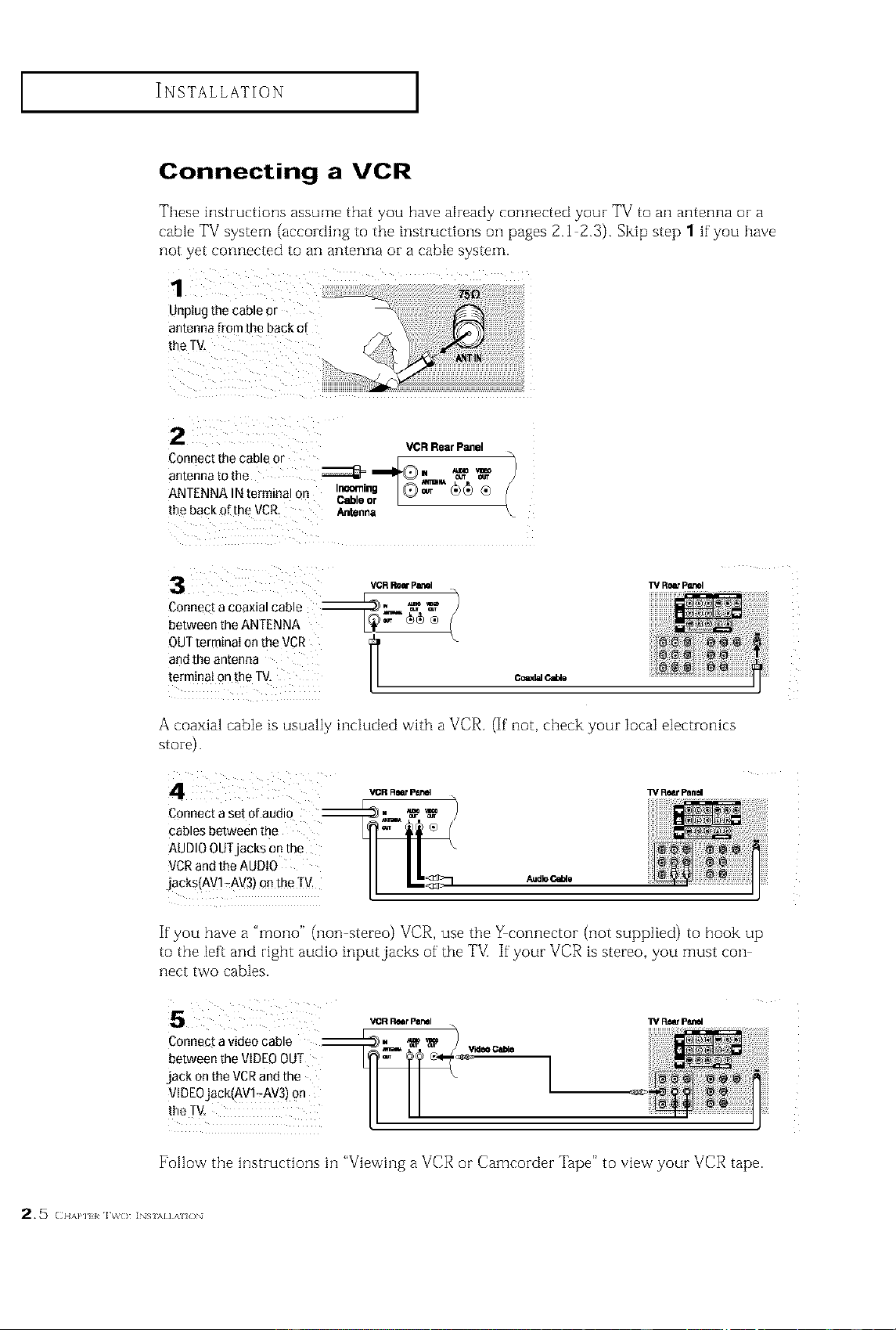
Connecting a VCR
These instzuctions assume that you have already connected your TV to an antenna or a
cable TV system (accozding to the instructions oil pages 2.1 2.3). Skip step 1 if you have
not yet connected to an antenna or a cable system.
1
unplug the cable or
antenna from the back of
Ihe T_Z
2
Connect the cable o-
antenna tOthe
ANTENNA IN terminal on
{he back of the VCR,
VCR Rear Panel
m _ _mo
Cable or L
_nna
3 '_CRRaw P_I
[
Connec[ _coaxial cable _ _ _
between the ANTENNA
®
OUTterminaI on the VCR
and tile antenna
[erm_naion the TV
C_181 C_lo
TV Rw pL_I
A coaxia -able is usuali, iHcluded with a VCR. (if not, check your local electrouics
st oi-e).
Connect a set of audio --
cables between the
AUDIOOUTjacks on the
VCRand the AUDIO
`jacks AV1_AV3)onthe TV.
VCR Rear psr_ W ReSt Panel
If you have a "rnono" (non stereo) VCR, use the _connector (not supplied) to hook up
to the [eft and right audio input jacks of the TVI If your VCR is stereo, you must con
nect two cables.
VCR _r par_l
Connect a videocable _. _ _" _)
between the VIDEOOUT __ ca_e
jackontheVCRandthe II I I
VIDEO'Jack(AV!7Av3) on II I I
t"eTv- LL "
w _ pei1el
17ollow the instIuctions hi "Viewing a VCR or Camcozdez '["ape" to view your VCR tape.
25 (HAP] I IV(> ]NS \l],& {)N
INSTALLATION ]
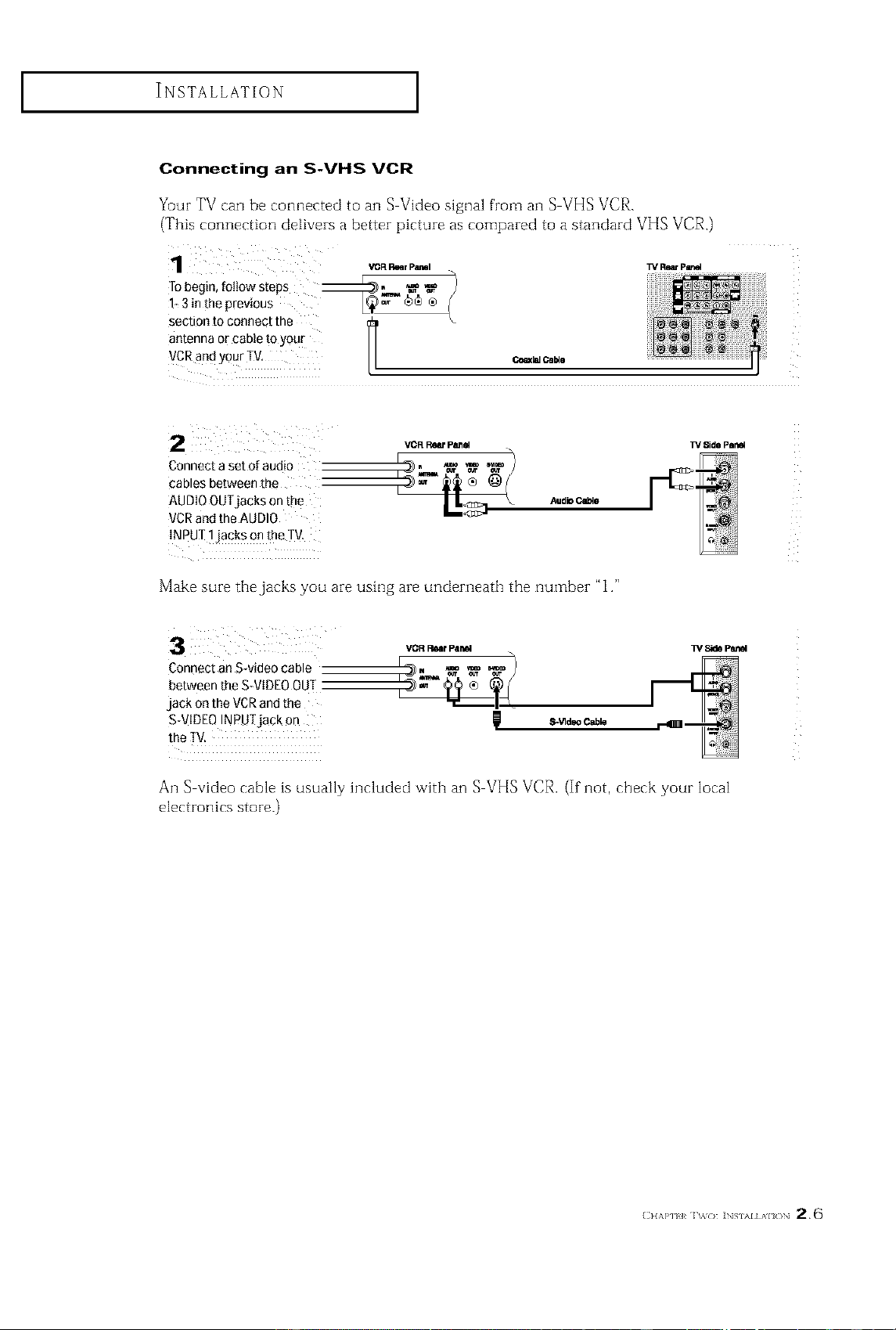
Connecting an S-VHS VCR
Your TV can be connected to an S Video signal from an S VHS VCR.
(This connection delivers a better picture as compared to a standard VHS VCR,)
WRwP_VORl_mr PHI
Tobegin, follow steps _, _'_ '_
l_ 3 in the previous L_ cb_ ®
section to connect the
antenna or cable to your
VCRand your TV, c_ _.
Connect a set of audio
cables between the
AUDIOOUTjacks on the
VCRand the AUDIO
INPUI ]jack s o n the W
Make sure the jacks you are using are underneath the number "1."
3
Connect an S-video cable
between the S-VIDEOOU]
jack on the VCRand the
S-VIDEO INPUTjack on
VOR ROarpIIr_l
S-'_IdeoCable
IV Side Pan_
An S video cable is usually hlcluded with an S VHS VCR. (If not, check your local
electronics store.)
(]} I,\P] {I 1%%( } ]NSIAI AI ( }N 2,6
INSTALLATION ]
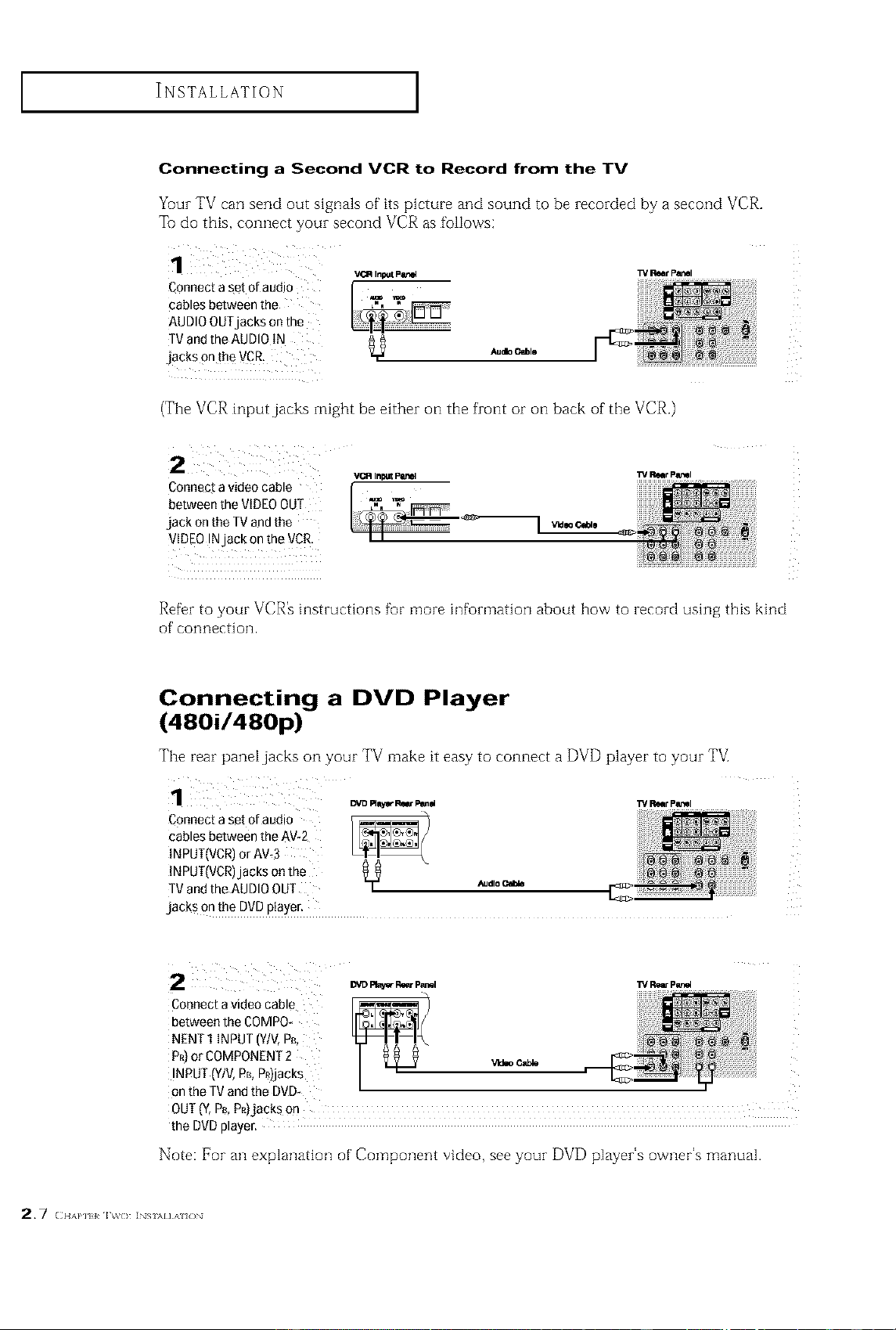
Connecting a Second VCR to Record from the TV
Your TV can send out signals of its picture and sound to be recorded by a second VCR.
To do this, connect your second VCR as follows:
Connect a set o[aadJo
cables between the
AUDIO OUTjacks on the
TVand LheAUDIO IN
jacks 0n the VCR:
VC_ Input p_e_] TV Rear P_I
Audio_lo
(The VCR input jacks might be either on the front or on back of the VCR.)
V_ InpUt P_
Connecta videocable
betweenthe VIDEOOUT
jack onthe TVandthe
VIDEOINjackontheVCR I I
VId_ CWale
TV _t patrol
Refer to your VCR's instructions for more information about how to record using this kind
of' connection.
Connecting a DVD Player
(480i/480p)
The rear paneljacks on your TV make it easy to connect a DVD player to your TV[
Connecta set of audio
cablesbetweentheAV-2
INPUT(VCR)orAW3
INPUT(VCR)jacksonthe
TVandtheAUDIOOUT _dloc_
jacks on the DVDplayer.
TVRoarpeeml
Cennecta videocable
betweentheCOMPO_
NENT1iNPUT(Y/V,pm
PR)orCOMPONENT2 v_o
INPUT(Y/V,PB,P£)jacks
ontheTVandthe DVD-
OUT(Y,PmPR)jackson
the DVDplayer.
Note: For an explanation of' Component video, see your DVD player's owner's manual.
2.7 (llA}*] I INS \I]A (3N
INSTALLATION ]
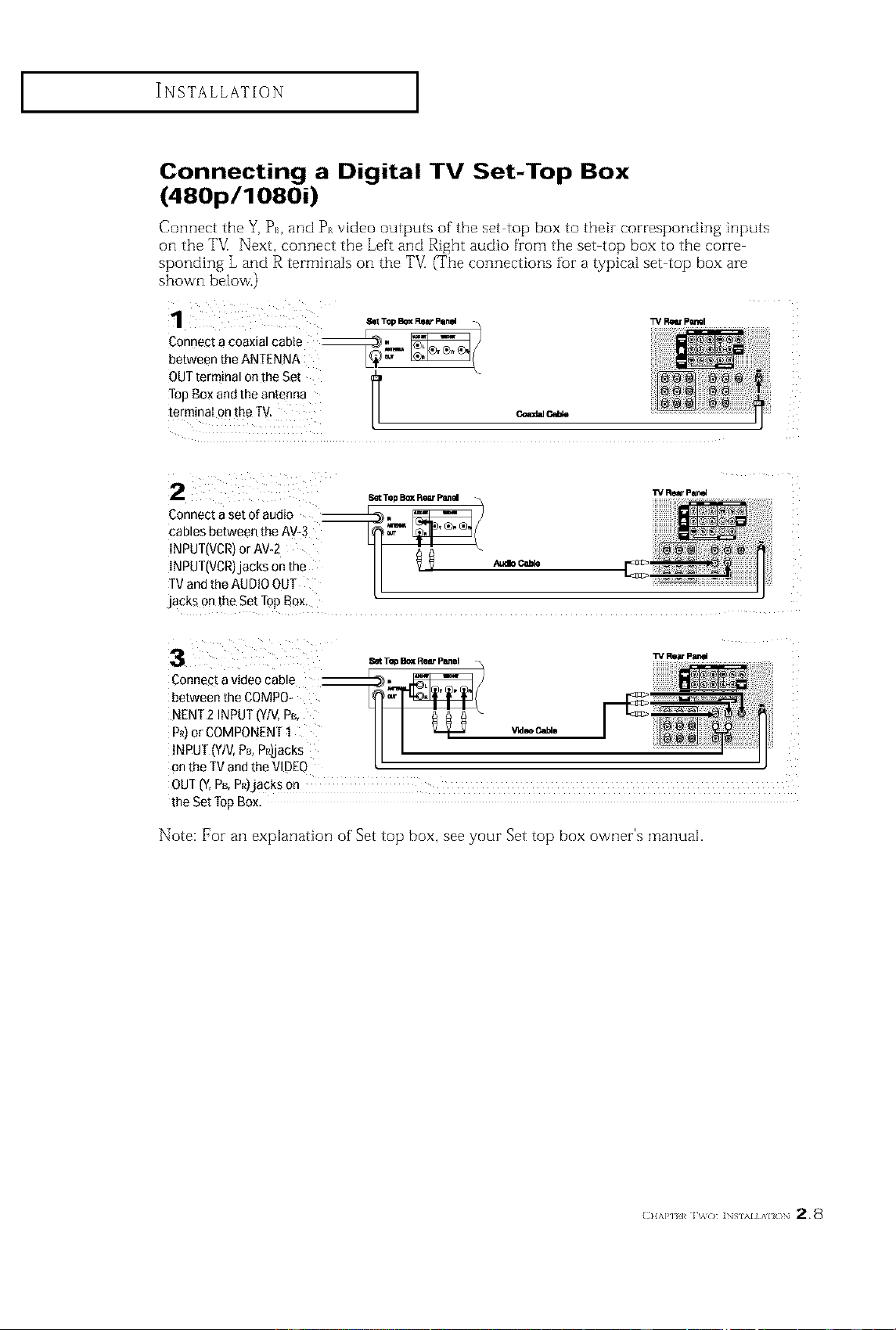
Connecting a Digital TV Set-Top Box
(480p/1080i)
Connect the Y, P,, and P_ video outputs of the set top box to their corresponding inputs
on the TVI Next, connect the Left and Right audio from the set top box to the corre
sponding L and R terminals on the TV[ (The connections for a typical set top box are
shown below'.)
_ Top EI_XRear I_nel _ TV Re_ P_I
between the ANTENNA
OUTterminal on the Set
/I
lop Box and the antenna
terminaI on the TV. v,o,_ c_
Connect a set of audio --
cables between the AV-3
INPUT(VCR)or AW2
INPUT(VCR)jacks on the _ab c_
TVand the AUDIOOUT
jacks on the Set Top Box,
Connect a video cable --
between the COMPO
NENT 2 INPUT (Y/V,PB,
P_)or COMPONENT1 w.oc_.
!NPUT (Y/V,PB,PR)jacks
on the TV and the VIDEO
OUT (Y,PB,P_)jacks on
the Set Iep Box,
Note: For an explanation of Set top box, see your Set top box owner's manual.
(} l,\P] l _&( ) ]NSIAI AI ( )N 2.8
INSTALLATION ]
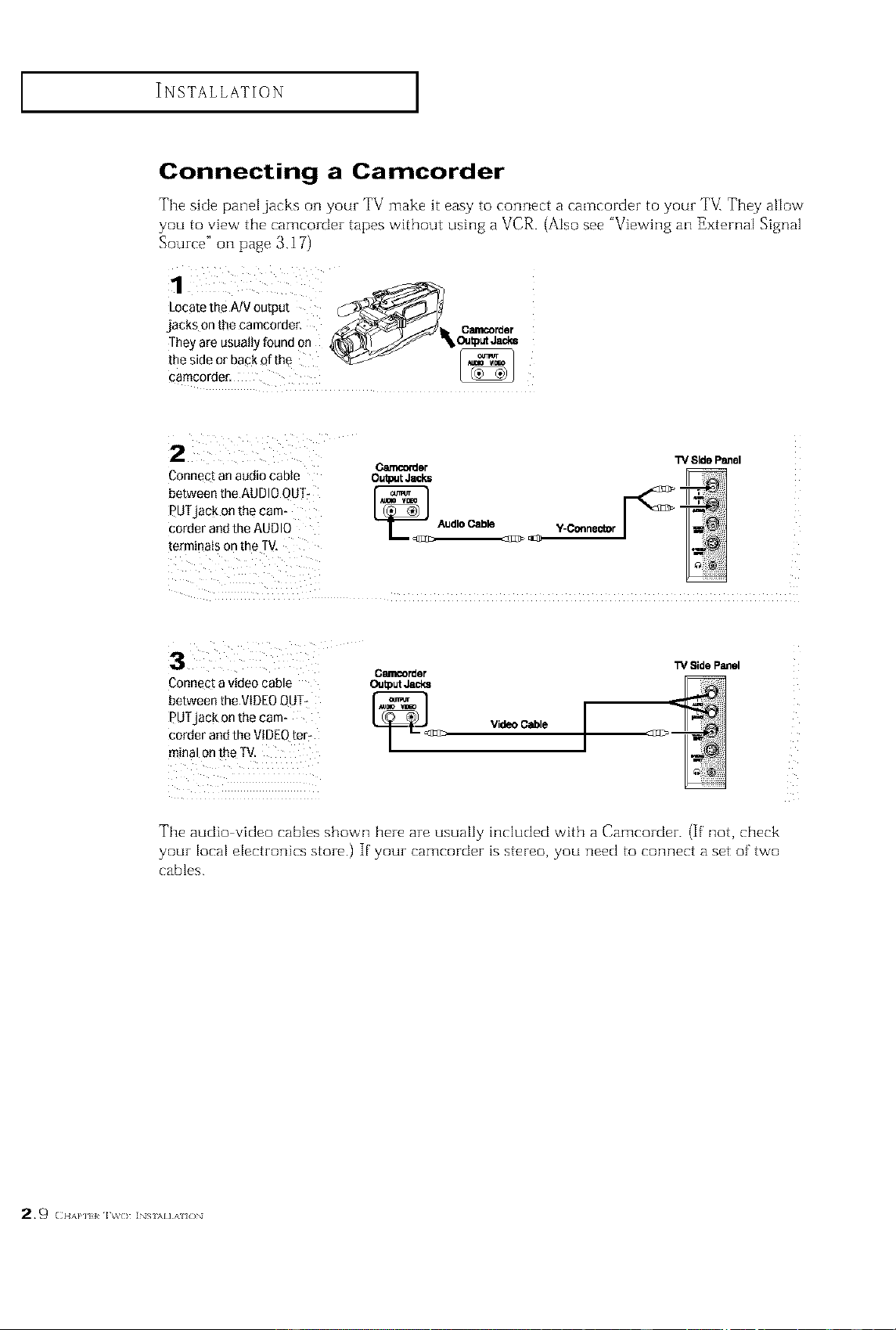
Connecting a Camcorder
The side pane[ jacks on your TV make it easy to connect a camcorder to your TVI They allow
you to vie_ Vthe cameorder tapes without using a VCR. (Also see "Viewhlg an External Signal
Source" on page 3,17)
Locate the A/V output
jacks on the camcorder. /_"_ _ Can_order
they are usuatty found on _'_r_ _lr_o_tputJacks
the side or bagko!the _ _]
camcorde r,
Connect an audio cable
between the AUDIOOUTs
PUTjack on the cam-
corder and the AUDIO
terminals on the TV,
C41f_der
Out_t Jacks
Au_'0 Cable _-
Y-C_ne6tor
"_ Side Panel
Gamcorder
Connect a video cable OutputJacks
between the VIDEOOUT-
eUTjack on the cam- L_<[]:rc VideoCable
corder and the VIDEOter_
minal on the TV.
TV Side Panel
The audio vkleo cables shown here are usualiy included with a Camcorder. (If' not, check
your local e[ectrorfics store.) If' your camcorder is stereo, you rleed to connect a set of two
cables.
29 (IIA}*] I IV() INS \I]A /)N
INSTALLATION ]
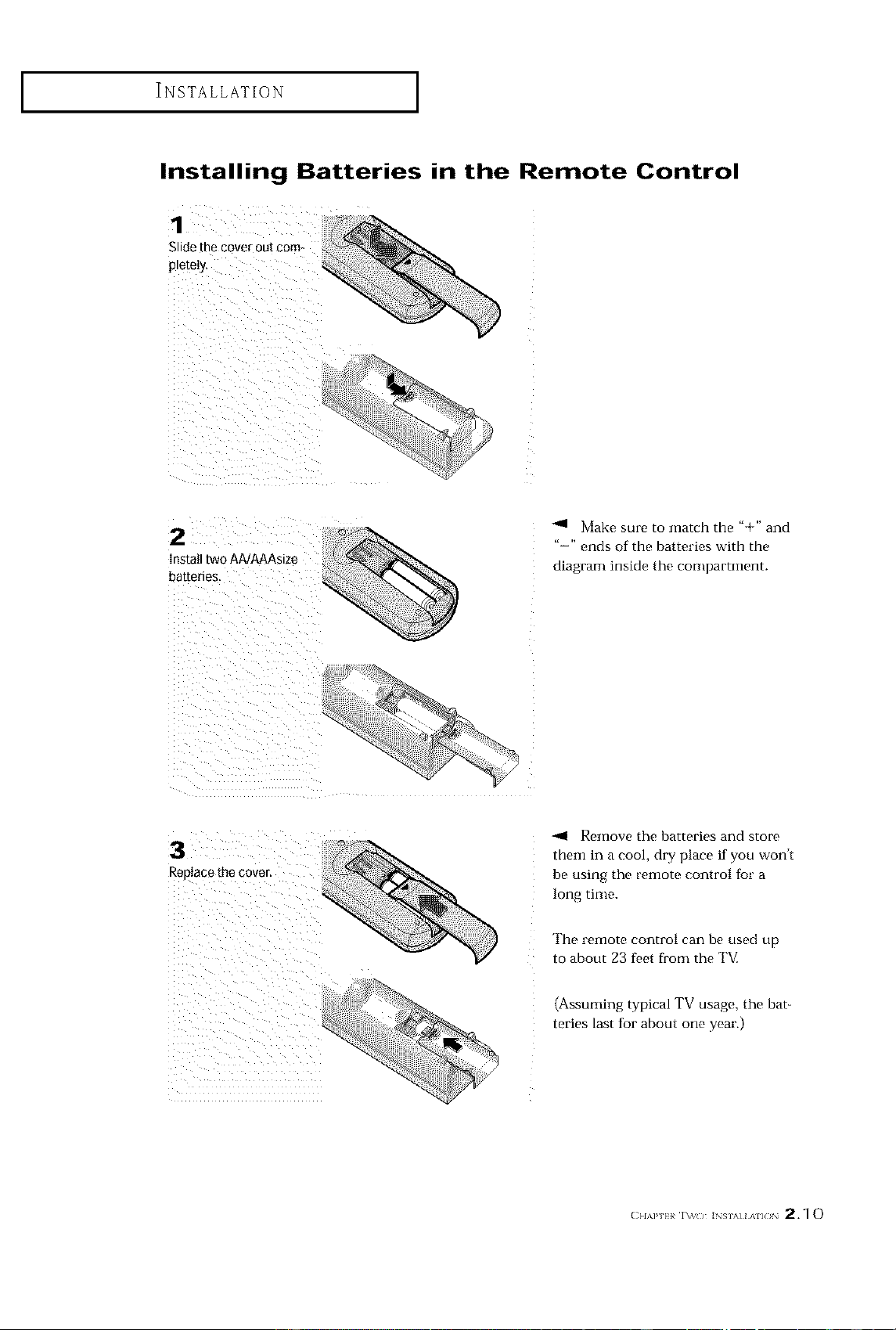
Installing Batteries in the Remote Control
Make sure to match the "+" and
"-" ends of the batteries with the
diagram inside the compartment.
_,9 Remove the batteries and store
them in a cool, dry place if you wonk
be using the remote control fbr a
long time.
_ _iiiii%!ii% i_!iii
_%_ liiiilllllllii(
_,ii ii iii
_'% iiiiii
The remote control can be used up
to about 23 ff,et fl'om the Tg[
(Assuming typical TV usage, the bat-
teries last for about one year.)
OPERATION
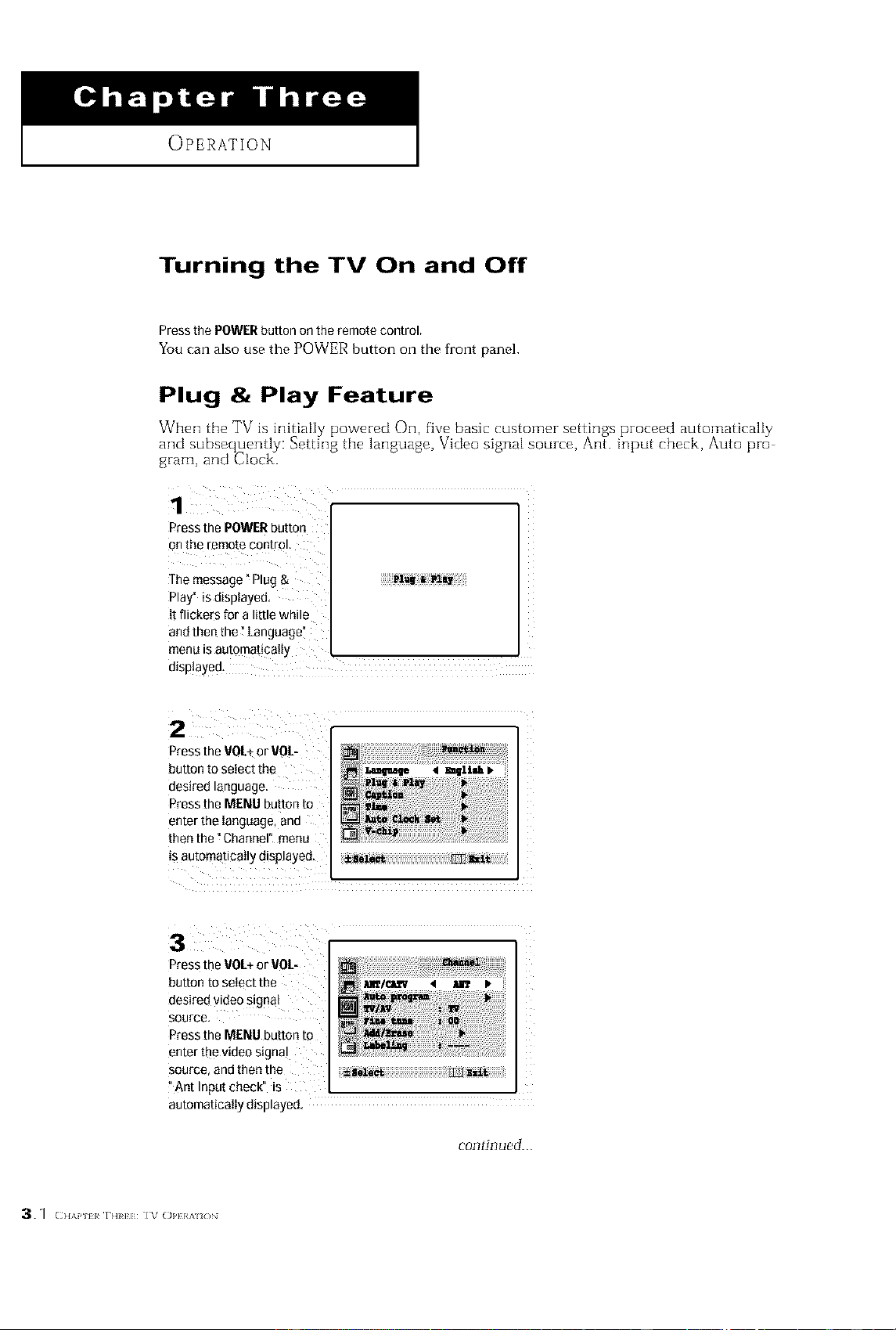
Turning the TV On and Off
Press the POWERbutton on the remote control.
You can also use the POWER button on the front panel.
Plug & Play Feature
When the TV is initially powered On, five basic customer settings proceed automatically
and subset uently: Setting tile language, Video signal source, Ant. input check, Auto pro
gram, and Coek.
Press the POWERbutton
on the remote control,
1"hemessage _Plug &
Play_is displayed,
it flickers for a little while
and then the _Language _
menu is automatically
displayed,
Press the VOL_or VO_--
button to select the
desired language.
Press the MENU button to
enter the language, and
then the t Channel" menu
is automatica}ly displayed.
:3
Press the VOL+or VOL-
button to aetectthe _leeL_ • u_e *
desired video signat
source,
Dess the MENU button to
enter the v deo s gnal
source, and then the
}Ant Input check" is
automatically displayed,
i_ii_t_!_}iiiiiiiiiiiiiiiiiiiiiiiiiiiiiiiii_¸ii_i_iiiiiiii
continued...
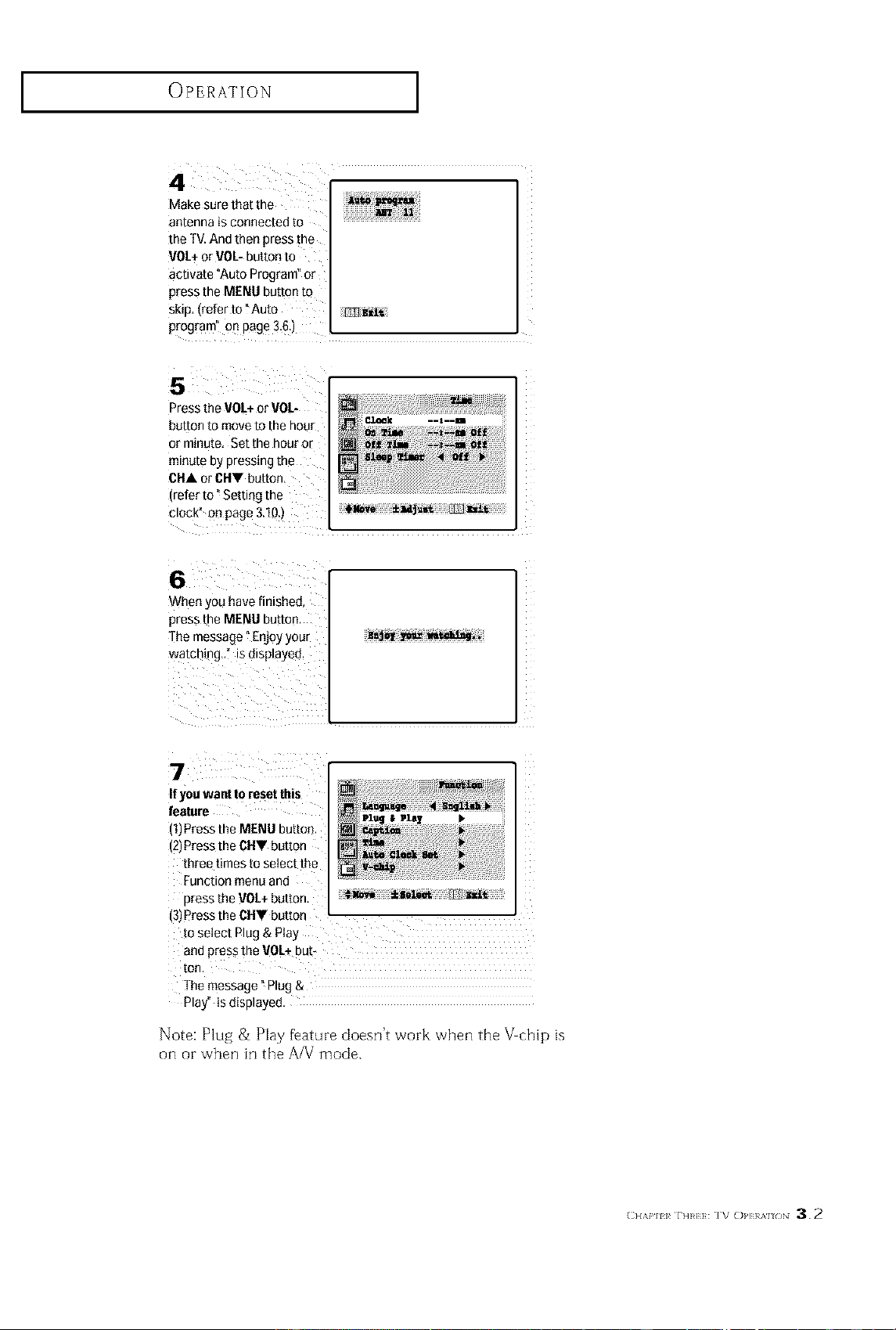
OPERATION ]
4
Make sure that the
an[enna IS connec[eQ re
the TV.And then press me
VOL+or VOL-button to
acuva[e Auto Program or
press the MENU button to
skiD,(refer to "Auto Em_zit
program on page 3,6.)
5
Press the VOL+or VOL-
button to move to [he hour
or m_nute. Set the hour or
mmnu[eBypressing the
CHA or CtlV button,
*efer to ° Sett 3g me
CLOCKOnpage 3.10 _
6
When/ou lave finished,
press the MENU button.
The message" Enjoy your
watcn_ng., s omsplayeo.
)_ Tim --_--m off
' C.1A_k .-s.-Im
7
If you want to reset this
feature
)lPress the MENU button
(21Pressthe CHV button
three t(mes to select the
Function menu and
Dressthe _/O1+button,
i31Pressthe OHV button L
1osetect Plug & Play
ano press the VOL_out*
[on
Themessage" Plug &
Play 5 e_splayee.
Note: Plug & Play fFature doesn't work when the _chip is
on or when in the A/V mode.
(;H,_,. r]]_]]: 1% OI,]}l;_l_N 3.2
OPERATION ]
Viewing the Menus and On-Screen Displays
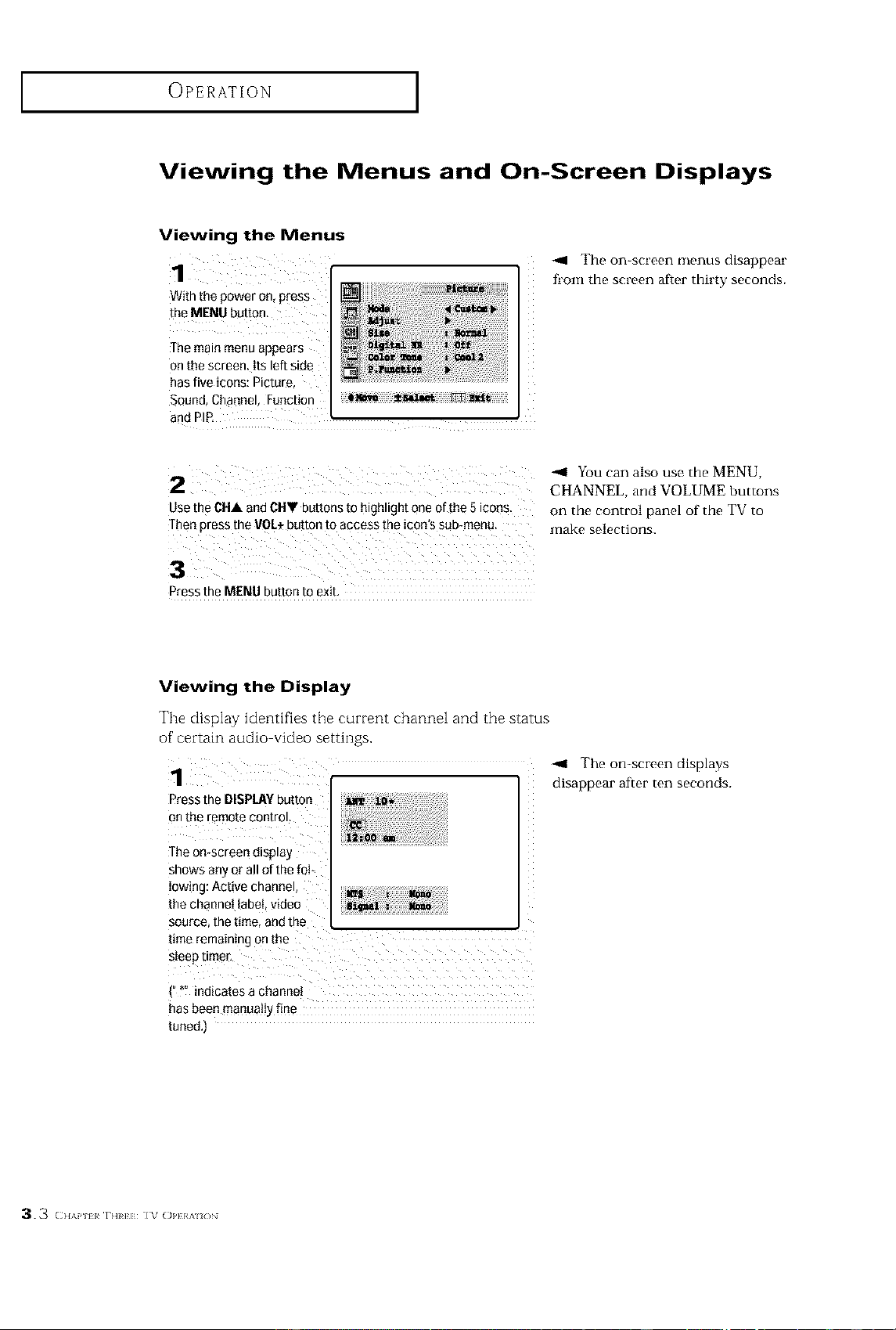
Viewing the Menus
With the power on, press
the MENU button,
The main menu appears
on the screen. Its left si
has five icons: Picture,
SQund,Channel, Function
and PIR
The on-screen menus disappear
fl'om the screen afier thirty seconds.
2
Use the CHA and CHV buttons to highlight one of the 5 icons.
Then press the VOL÷button to access the icon's sub-menu.
-91 You can also use the MENU,
CHANNEL, and VOLUMEbuttons
on the control panel of the TV to
make selections.
Press the MENU button to exit,
Viewing the Display
The display identifies the current channel and the status
of'certain audio video settings.
Press the DISPLAYbutton
on the f_mote control.
_he on-screen display
shows any er a!l of the fok !
Iowing: Active channel,
the channel label, video
source, the time, and the
time remaining on the
-91 The on screen displays
disappear after ten seconds.
has been manuat{y fine
tuned.)
3.3 (}I,\P 11 rim];];:1%'(>_.}}_,.,i_,N
OPERATION ]
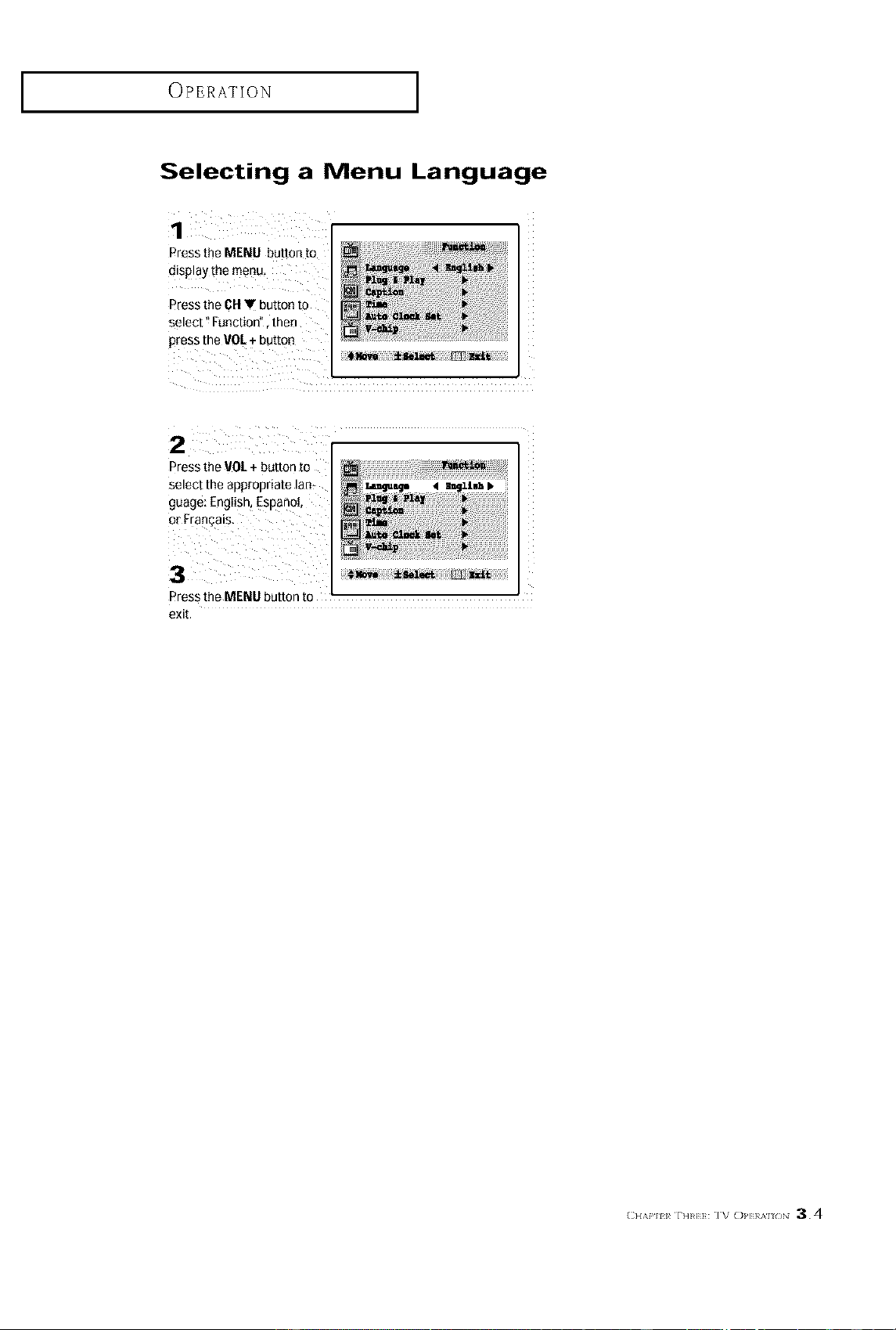
Selecting a Menu Language
1
Press the MENU button to
display the menu
Press the OH• button to
select" Function", then
press the VOL+ button
i77!__ !_ i_ i _i iiiill¸7_ ii_i! _i )!
2
Press the VOL + button to
select the appropriate laB-
guage: Engtish Esoanot
or Fran_a_s.
3
Press the MENU button to
exit,
OPERATION ]
Memorizing the Channels
Your TV can memorize and store all of the available channels for both "off air" (antenna)
and cable channets. After the available channels are memorized, use the CH • and
CN • buttons to scan through the channels. This eliminates the need to change chan
nets by entering the channel digits. There are three steps for memorizing channels:
selecting a broadcast source, memorizing the channels (automatic) and adding and delet
ing channels (manual).
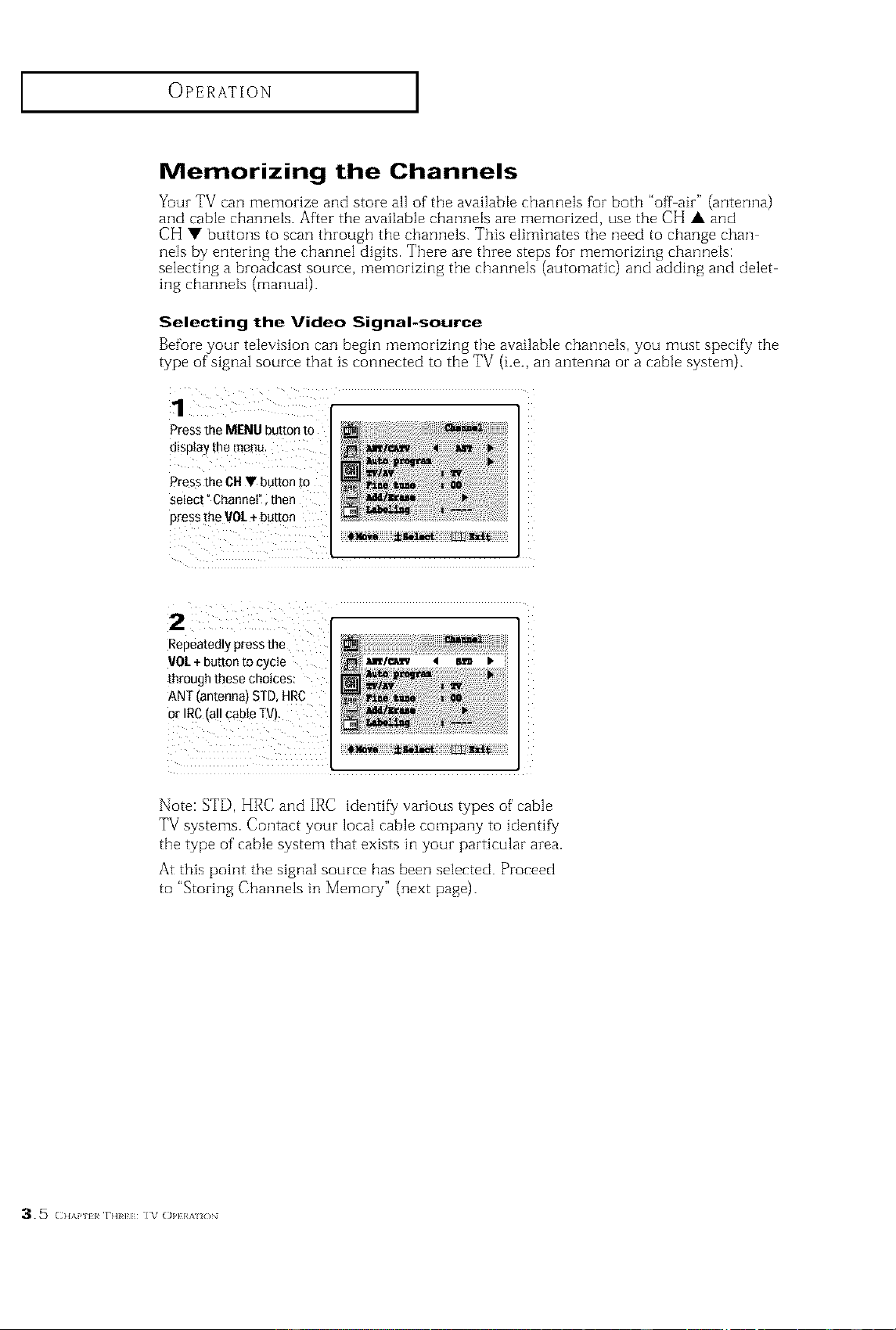
Selecting the Video Signal-source
Before your television can begin i;qemorizing the available channels, you must specify the
type of signal source that is connected to the TV (i.e., an antenna of a cable system).
1
Press the MENU button to
oIsptay me menu
Press the CU V button m
select" Channel' men
Dress the VOI.+ button
2
Repeatedly press the
VOI.+ button to cycle _,_/eaw _ s_
through these choices:
ANT (antenna) STD, HRC
or IRC(all cable TV).
Note: STD, HRC and IRC identify/various types of cable
TV systems. Contact your local cable company to identify/
the type of cable system that exists in your particular area.
At this point the signal source has been setected. Proceed
to "Storing Channels in Memory" (next page).
35 (}l,\p l_ rim]]: 1_,o,,}},,,,i,,N
OPERATION ]
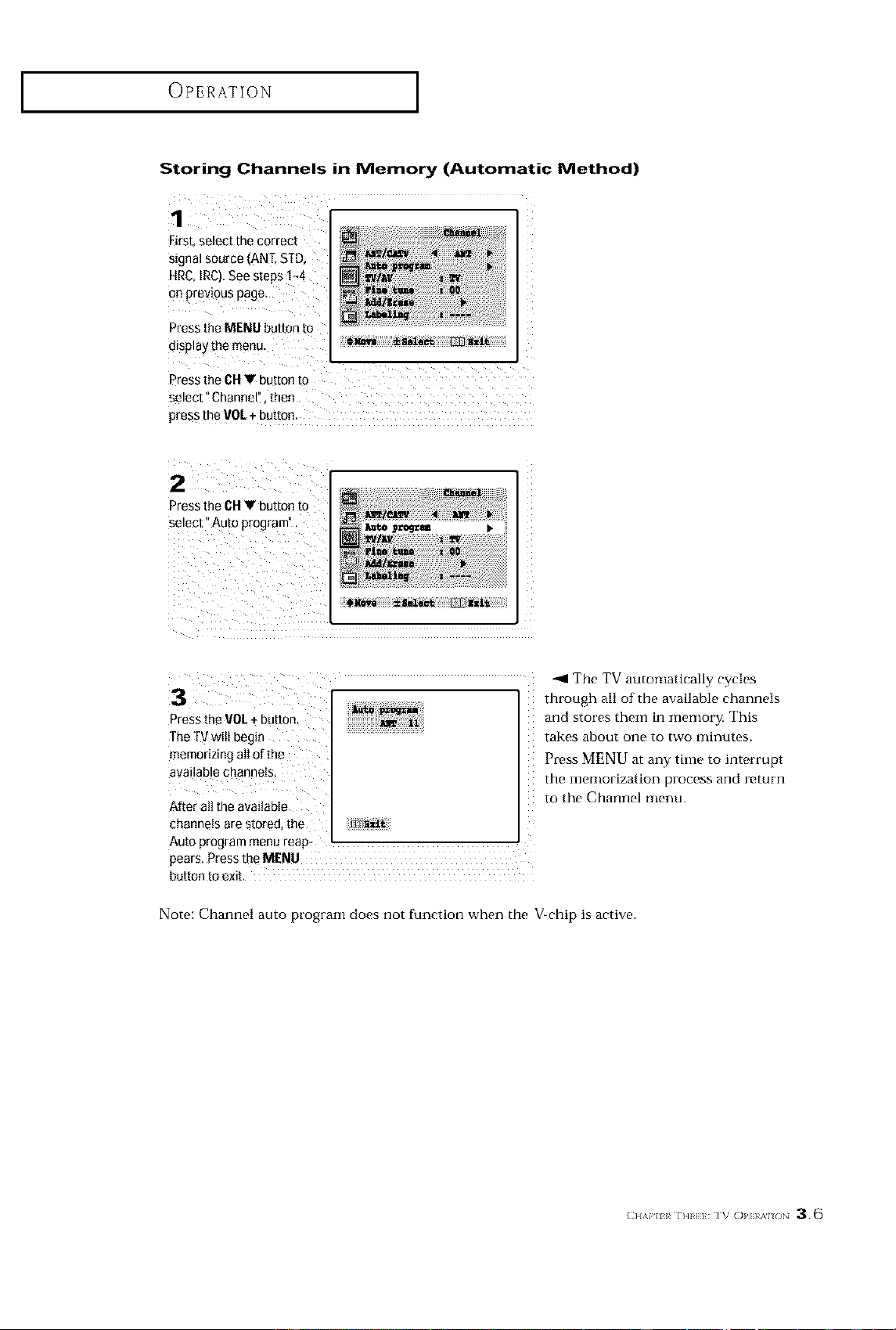
Storing Channels in Memory (Automatic Method)
First, select the correct
signal source (1
HRC, IRC).See steps ! _4
Onprevious page.
Press the MENU button to
disPlaYth e menu,
Press the CHV button to
select" Channel!, then
presMhe VOLt button.
2 ¸ [
Press the CHV button to
select" Auto
3 _ The TV automatically cycles
Press the VOK+ button, and stores them in memory. This
The TVwilt begin
memorizing all of the
available channels,
After att the available
channels are stored, the
Auto program menu reap_
pears, Press th_ MENU
button to exit,
through all of the available channels
takes about one to two minutes.
Press MENU at any time to interrupt
the illelllortzation process and return
to the Channel menu.
Note: Channel auto pl'ogram does not function when the V_chip is active.
OPERATION ]
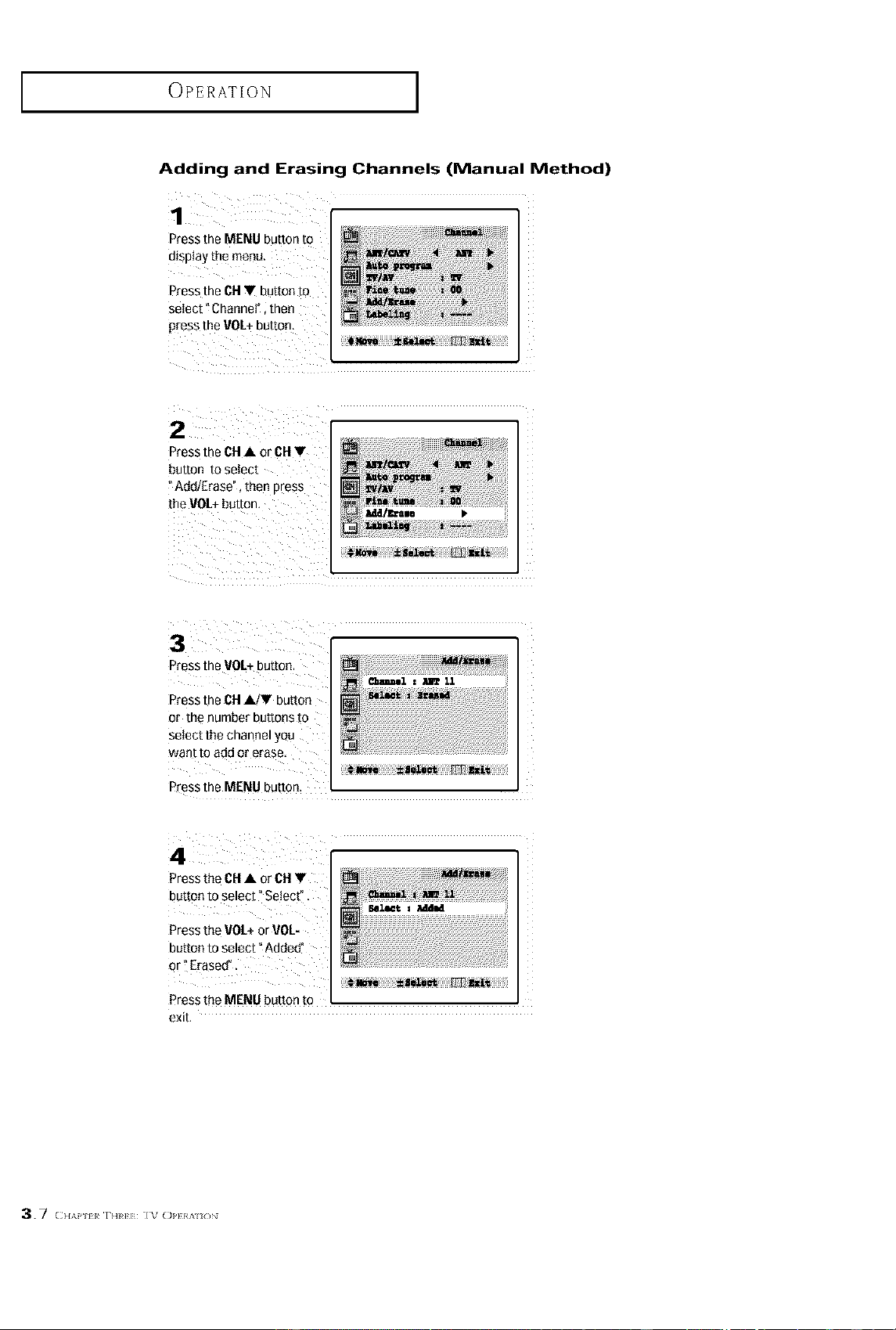
Adding and Erasing Channels (Manual Method)
1
Press the MENU button to
display the menu.
Press the CH• button to
select t Channet" i then
Press the VOL+button.
Press the CH • or CH •
button to select
Add/Erase", then press
the VOL+ button,
Press the VOL+button.
n
Press the CH•/• button
or the number buttons to
select the channel you
wantto add or erase
Press the MENU button.
Pressthe CHA or CH•
button to select ° Setect_.
Press the VOL+or 90L-
button to select" Added!
Press the MENU button to
exit.
3.7 (}I,\P iI ri]R];];:1%'o_,}}_,,,i_,N
OPERATION ]
Changing Channels
Using the Channel Buttons
Press the CH• or CH _ button to change channels,
When you press CH • or CH V, the TV changes channels in sequence. You will see all the
channels that the TV has memorized. (The TV must have memorized at least three channels.)
You will not see channels that were either erased or not memorized.
Directly Accessing Channels
Use the number buttons to quickly tune to any channel.
Press the number buttons to go directly to a channel,
For example, to select channel 27, press" 2" then _7%
The TVwill change channels when you press the
second number.
When you use the number buttons, you can directly select channels that were either erased or
not illelilOrized.
To select a channel over 100, press the +100 button.
(For channel 122, press "+100" then "2" then "2".)
To change to single-digit channels (0 9) thster, press "0" before the single digit.
(For channel "4" press "0" then "4".)
Using the PRE-CH Button to select the Previous Channel
-,!11 Xb quickly switch between two
channels that are far apait, tune to
Press the PRE-CHbutton, one channel, then use the number
The W wilt switch to the last channeI viewed, button to select the second channel
Then use the PRE CII button to
quickly alternate between them.
Adjusting the Volume
Press V0L + or - V0L to increase or decrease the volume.
Using Mute
At any time, you can temporarily cut off the sound using the Mute button.
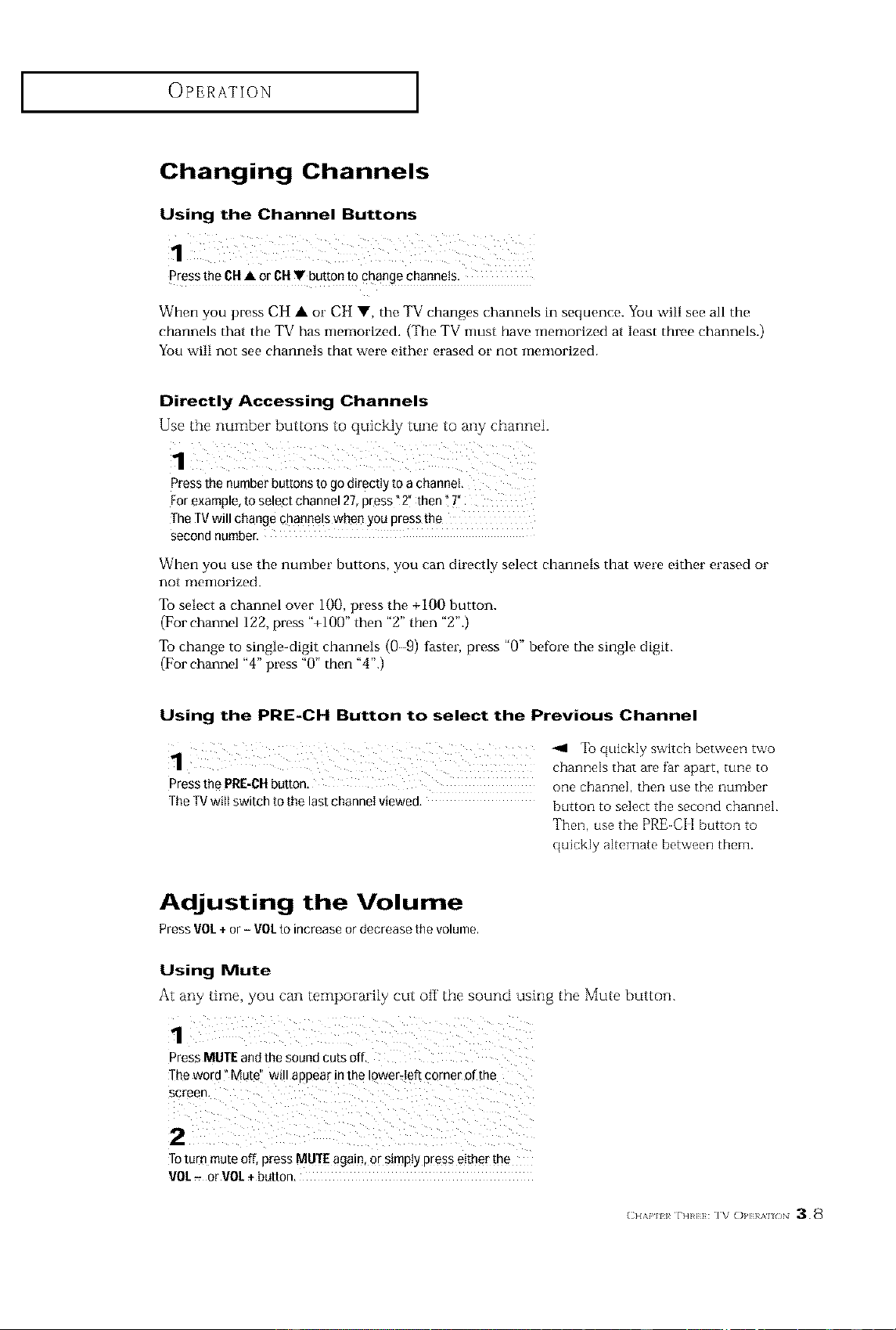
1
Press MUTE and the sound cuts off
The word _Mute Wtll aDDe_lr In IRe ioweFIeft corner c" me
screen,
2
Toturf mute ofI oress MUTE again, or simply 3ress either the
VOL- or VOL+ button,
(;H,v, *_ r._H: I_ OI'I}/A /_N 3.8
OPERATION ]
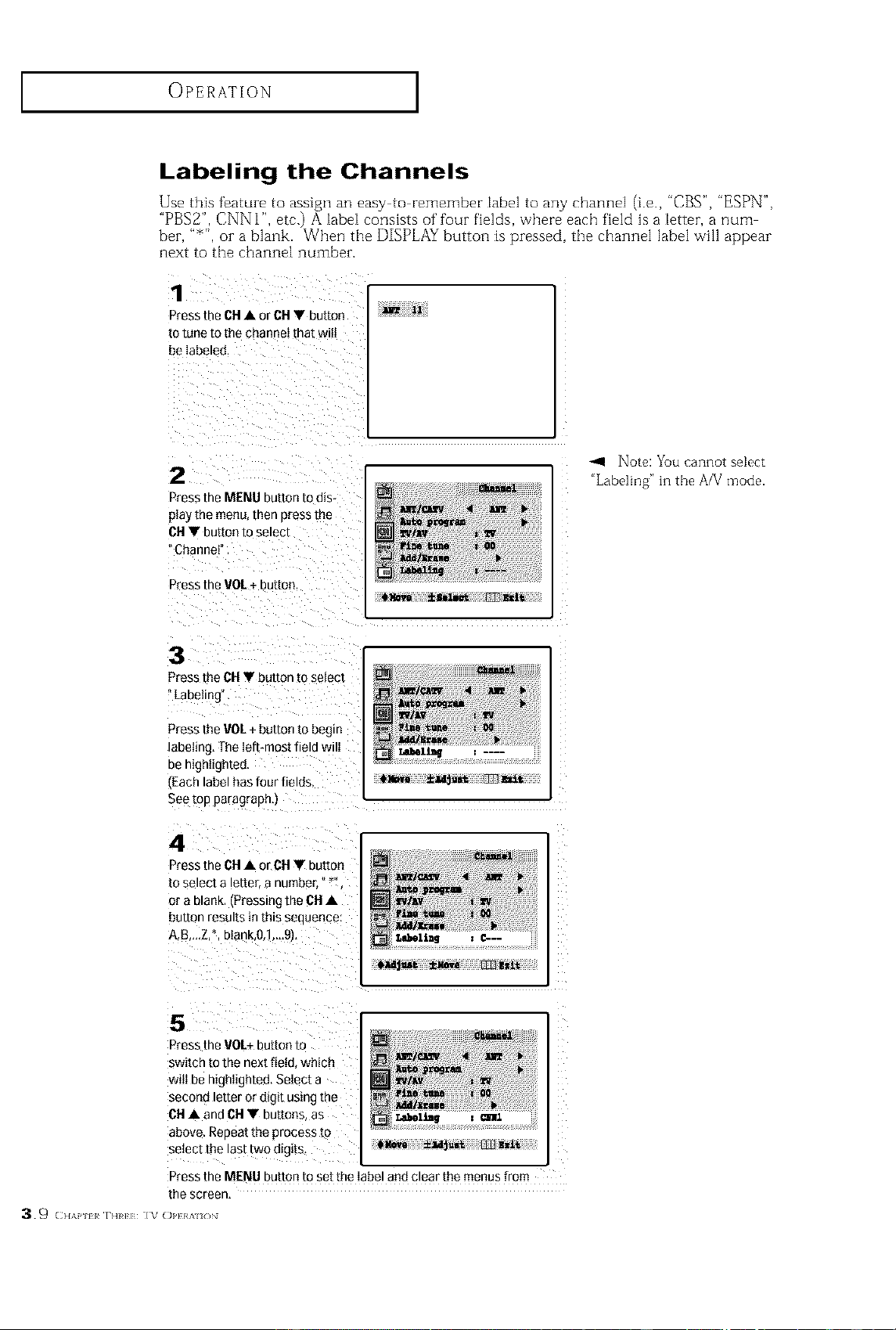
Labeling the Channels
Use this feature to assign an easy to remember label to any channel (i.e., "CBS", "ESPN",
"PUS2",CNN l", etc.) A label consists of'four fields, where each field is a letter, a num
ber, "_", ora blank. When the DISPLAYbutton is pressed, the channel label will appear
next to the channel number.
1
Press the CH • or CH • button
to tune [o [he channe[ tNat Wll
be Iabelec
m 11
2
Press LheMENU button to dis.
pla_ the menu, ther Bresstbe
CH•bu_ontoselect
_Channet
Press the VOL+ DUE[On
-<1 Note: You cannot select
"Labe]ing" in the A/V mode.
3
aress the CH• button to select
Labeling
_ress the VOL+ button to begin
abehng, The left-most field wilt
3e hightigntee
'Each label has four fields
See top paragrapn.J
e)8ove ±ld_just _nzi_
4
Press the CH• or CH • button
to select a lette[ a number, _ '' ,
or a Blank IPressing the CH•
button results in this seauence
A,B-,.Z,'. blank,O,1 ,9},
Press the VOL+ DU[[On tO
switch tO the next field which
willbe highlighted.Select a
second letter or dig_t using the
CH • and OH • buttons as
above. Repeat the process m
select [_te last two otgI[s
_1_ z CIlIJ.
Press the MENU button to set the label and clear the menus from
the screen,
39 (}I,\P 11 rIIRH: 1_,'c>_,}}_,,,i_,N
OPERATION ]
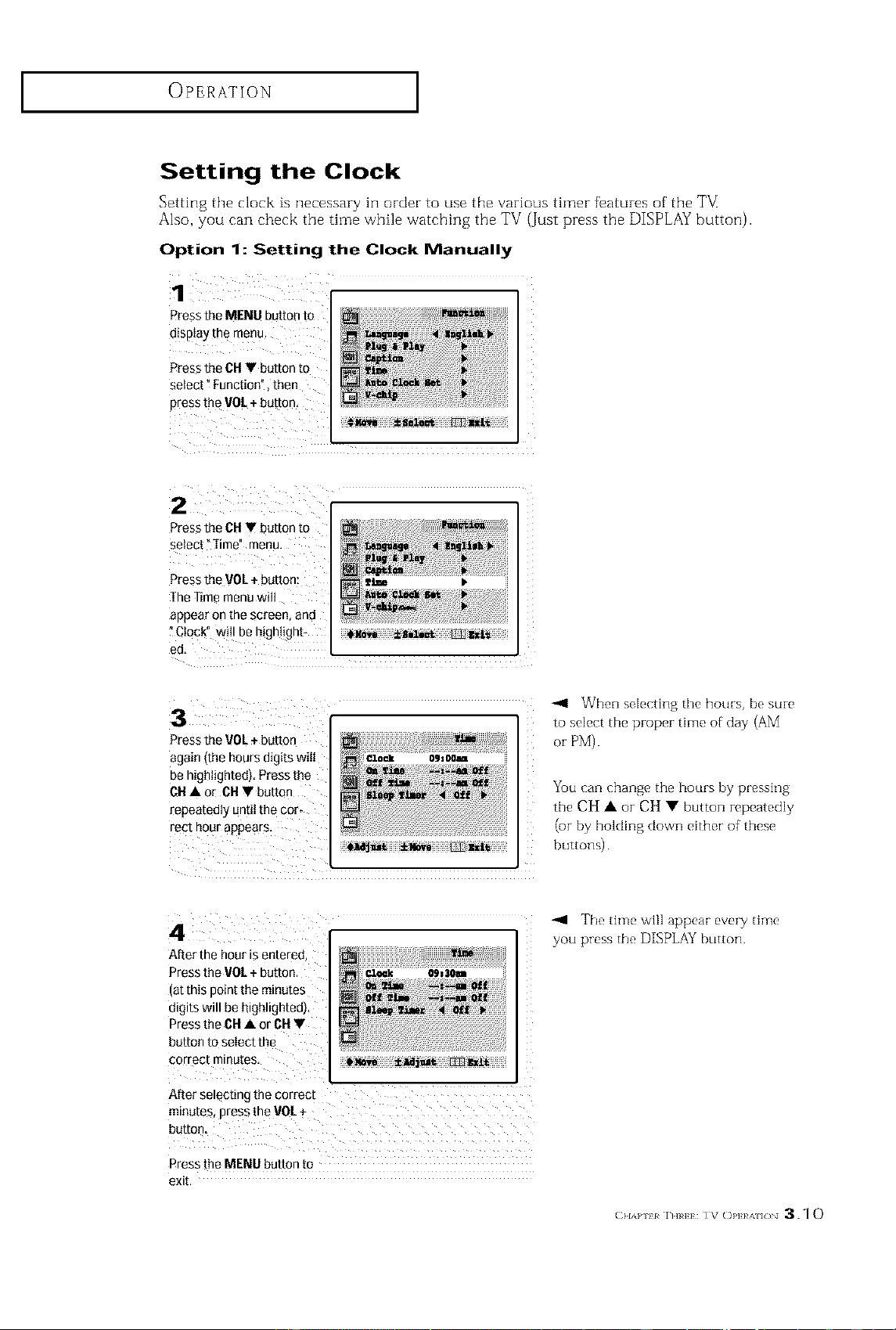
Setting the Clock
Setting the clock is necessary in order to use the various timer features of' the TM
Also, you can check the time while watching the TV (Just press the DISPLAY button).
Option 1: Setting the Clock Manually
1 ¸
Press the MENU button to
disptay the menu.
Press the Ctl Y button t0
select _Function", then
ptess the VOL +buttQn,
2
Press the CH• button to
select _]ime" menu,
Press the VOL÷ button:
The Time menu wili
appear onthe screen, and
Clock" witl be h!gh+!ght+
ed,
Press the VOL÷ button
again (the hours digits wilI CZoek ogsoom
be high+ighted)Press the
CH• or CHY button
repeatedly until the cot+
rect hour appears,
-ql When seIecting the hours, be sure
to select the proper time of day (AM
or PM).
You can change the hours by pressing
the CH • or CH • button repeatedly
(or by holding down either of these
buttons)
After the hour is entered,
Press the V0L +button. Clock 09_30_
(at this point the minutes
digits will be highlighted),
Pressthe CHA or CH V
button to select the
correct minutes
After selecting the correct
minutes, press the V0[ +
Press the MENU button to
exit.
The time will appear every time
you press the DISPLAY button.
(;HA+'H r._+_: IV C)l,]}e'_/_ 3.10
OPERATJ_ON [
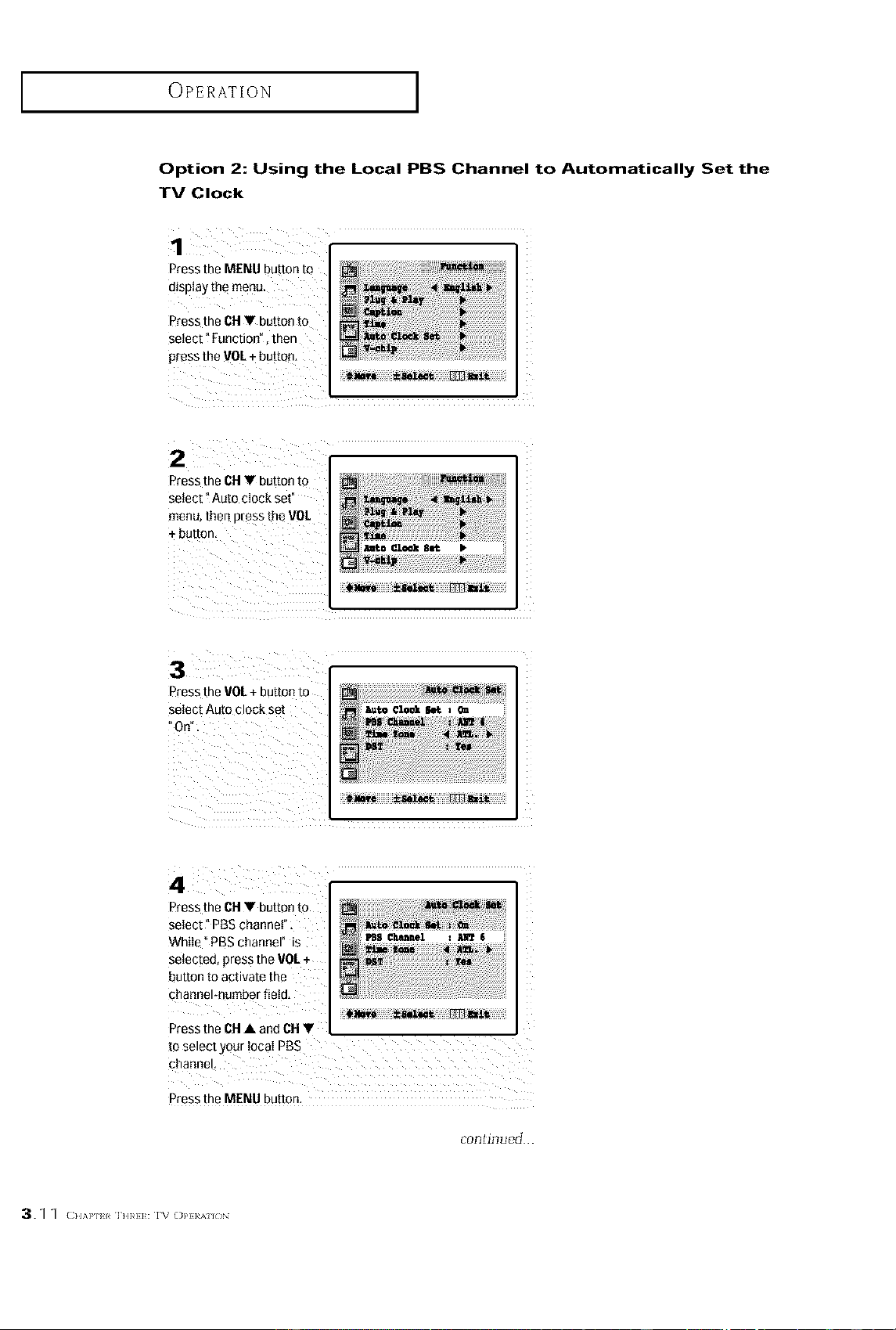
Option 2: Using the Local PBS Channel to Automatically Set the
TV Clock
1
Press the MENU button to
dispJay the menu.
Press the CH_ button to
select "Funetioo", then
press the VOL+ button,
Press the CH Y button to
select _Auto clock set"
menu then press the VOI.
P_ess theVOL+ button to
select Auto clock set
Or)",
Press the CH V button to
select" PBS channel" :
While°PBS channel"is
selected,presstheVOL +
button to activate the
channel-number field,
Press the CN• a
to select_
i!!_iiiiiiiii_ _ _ _iiiiiiii_i_ iiiiiii_
Press the MENU button,
continued...
OPERATION ]
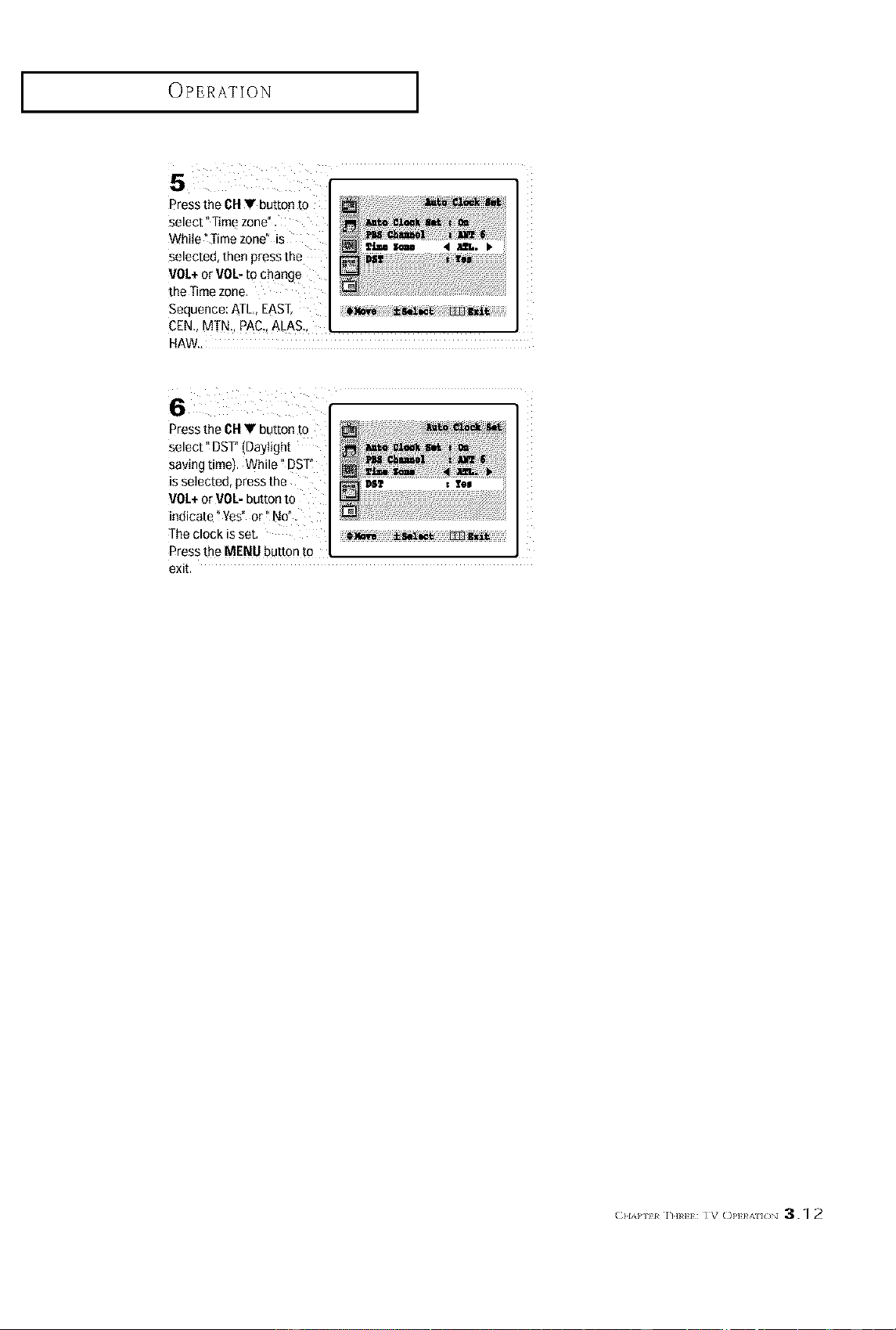
5
Press the CHV button to
select" Time zone"
While "Time zone" is
SeleCiec [net press IRe
VOL+or VOL-to change
the Time zone
Seouence: ATL. EAST _,_,_ ±hz_ m]l_t.t
CEN. MTN. PAC.,ALAS.
HAW..
6
Press the CHV button to
select" DST"(Daylight
saving time). While _DSF
is seIected, press the lee
VOL+or VOL-button to
indicate ?Yes" or" NO"
The clock is set,
Press the MENU button to
exit.
(;HA_' H r._H: IV Ol'l}/'_ /_ 3.1 2
OPERATION ]
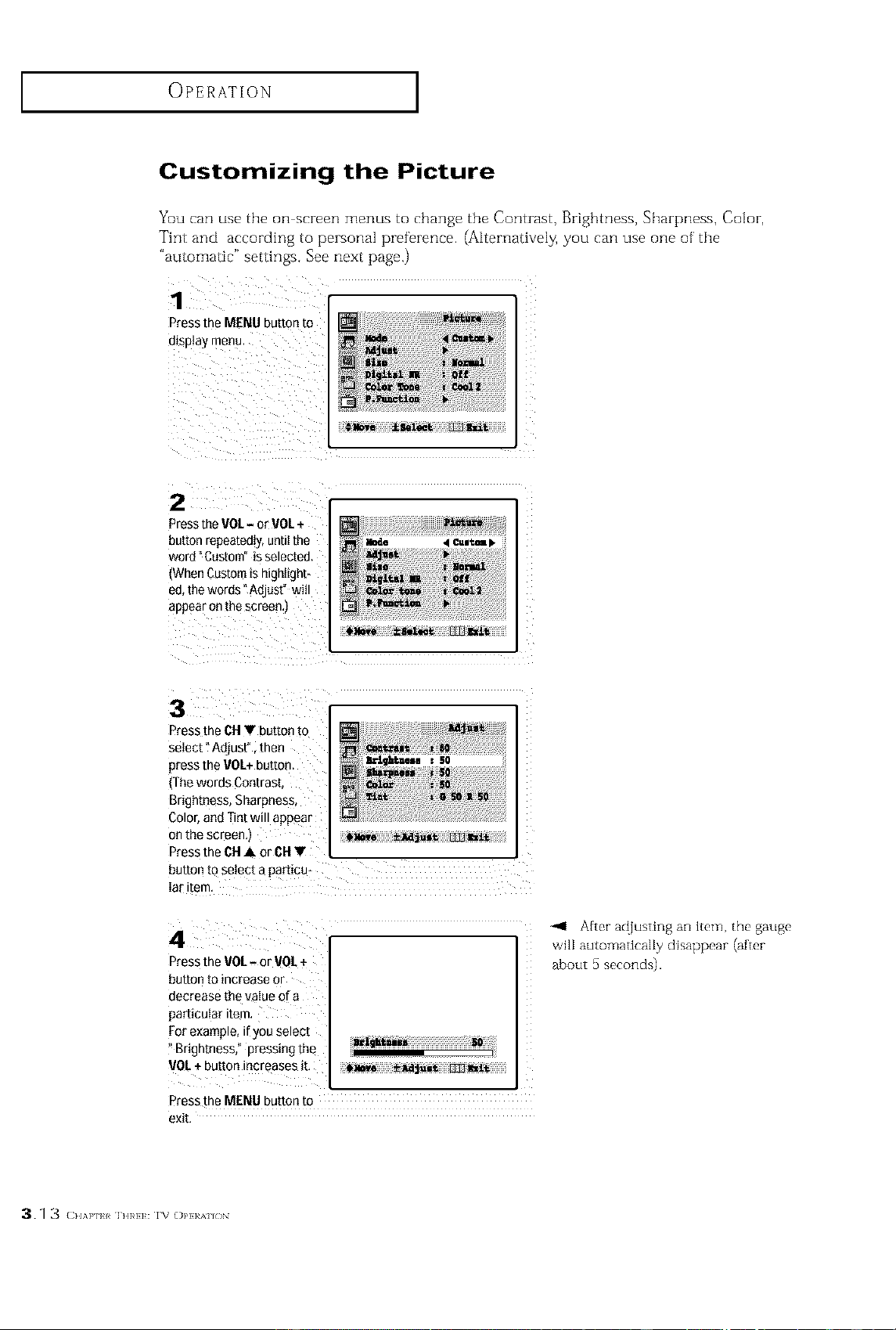
Customizing the Picture
You can use the on screen menus to change the Contzast, Brightness, Shazpness, Color,
Tint and according to pezsonal preference. (Alternatively, you can use one of' the
"automatic" settings. See next page.)
1
Press the MENU button to
display ment
2
Press the VOL- or VOL+
outran repeatedly, untilthe
word °Custom" isselected
_WhenCustomis higel_get-
ec the words"Adjust" will
aooear on the screen,i
3
Press the CU• button to
select "Aejus[. men
presstheVOt+ button I_gh_u = 50
fee words Contrast
Brightness. Sharpness
Color and Tint will appear
on the screen, _y_,e ±_{_ _=lt
Press the OHA or 6U •
button to select a 3articu*
lar tem
Press the VOL- or V0L +
button to increase or
decrease the value of a
particular item.
For example, if you select
Brightness," pressing the
VOL+button increases it,
Press the MENU button to
exit,
-_1 After ac{justing an item. the gauge
will automaticaBy disappear (after
about 5 seconds).
3q 3 (H.v, _[ h]R}]:rv o_.}}_/,i_,N
OPERATION ]
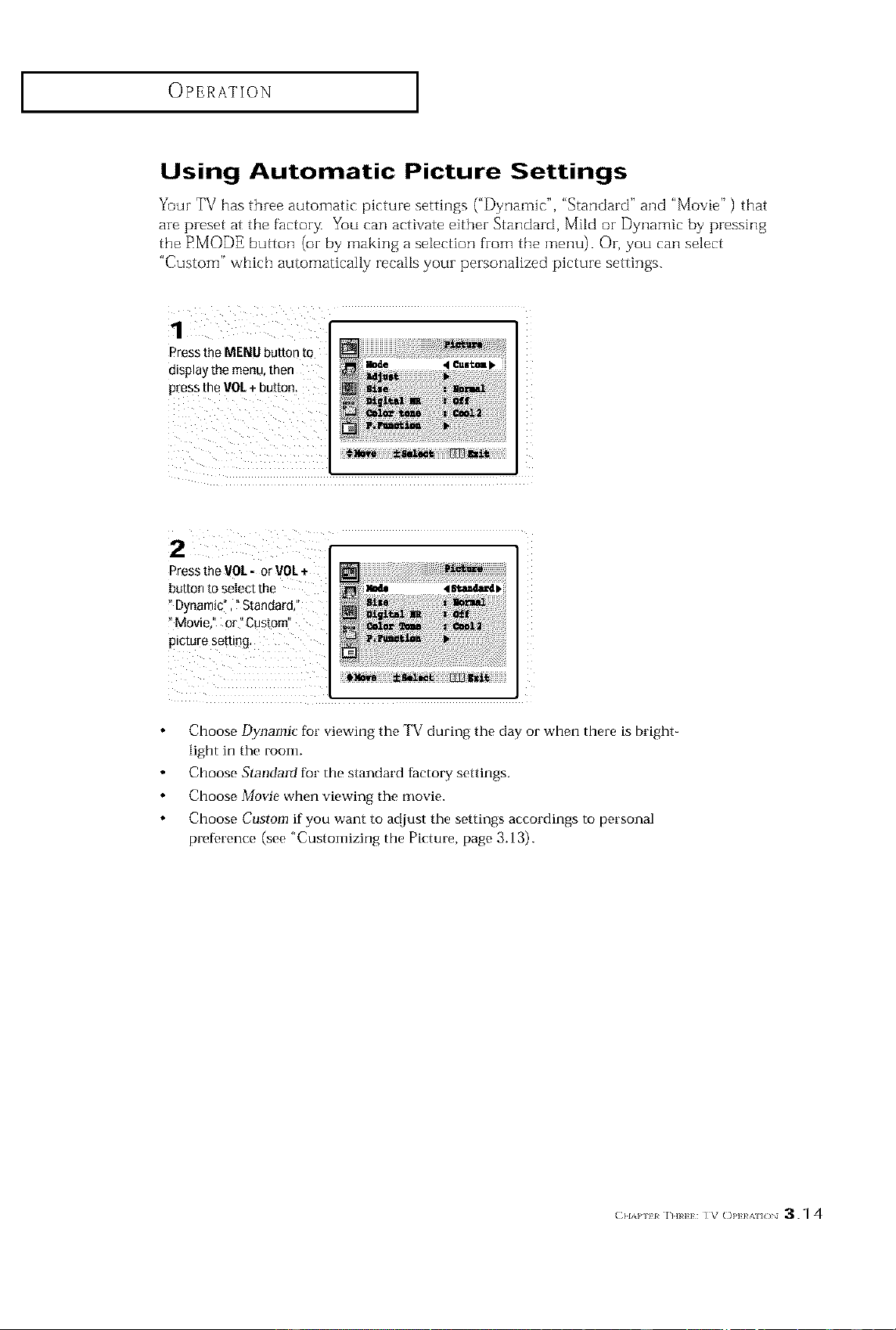
Using Automatic Picture Settings
Yuur TV has three automatic picture settings ("Dynamic", "Standard" and "Movie" ) that
are preset at the factor_ You can activate either Standard, Mild or Dynamic by pressing
the RMODE button (oi by making a selection from the menu). Or, you can select
"Custom" which automatically recalls your personalized picture settings.
1
Press the MENU button m
display the menu, then
Dressthe VOL+ button
2 [
PresstheVOL- orVOL+
buttontoselectthe _61.a_.__
Dynamic_,"Standard,I'
Movie," or_Custom_
Picturesetting.
Choose Dynamic for viewing the TV during the day or when there is bright-
light in the room.
Choose Standard for the standard tactory settings.
Choose Movie when viewing the movie.
Choose Custom if you want to ad.just the settings accordings to personal
preDrence (see "Customizing the Picture, page 3.13).
OPERATION ]
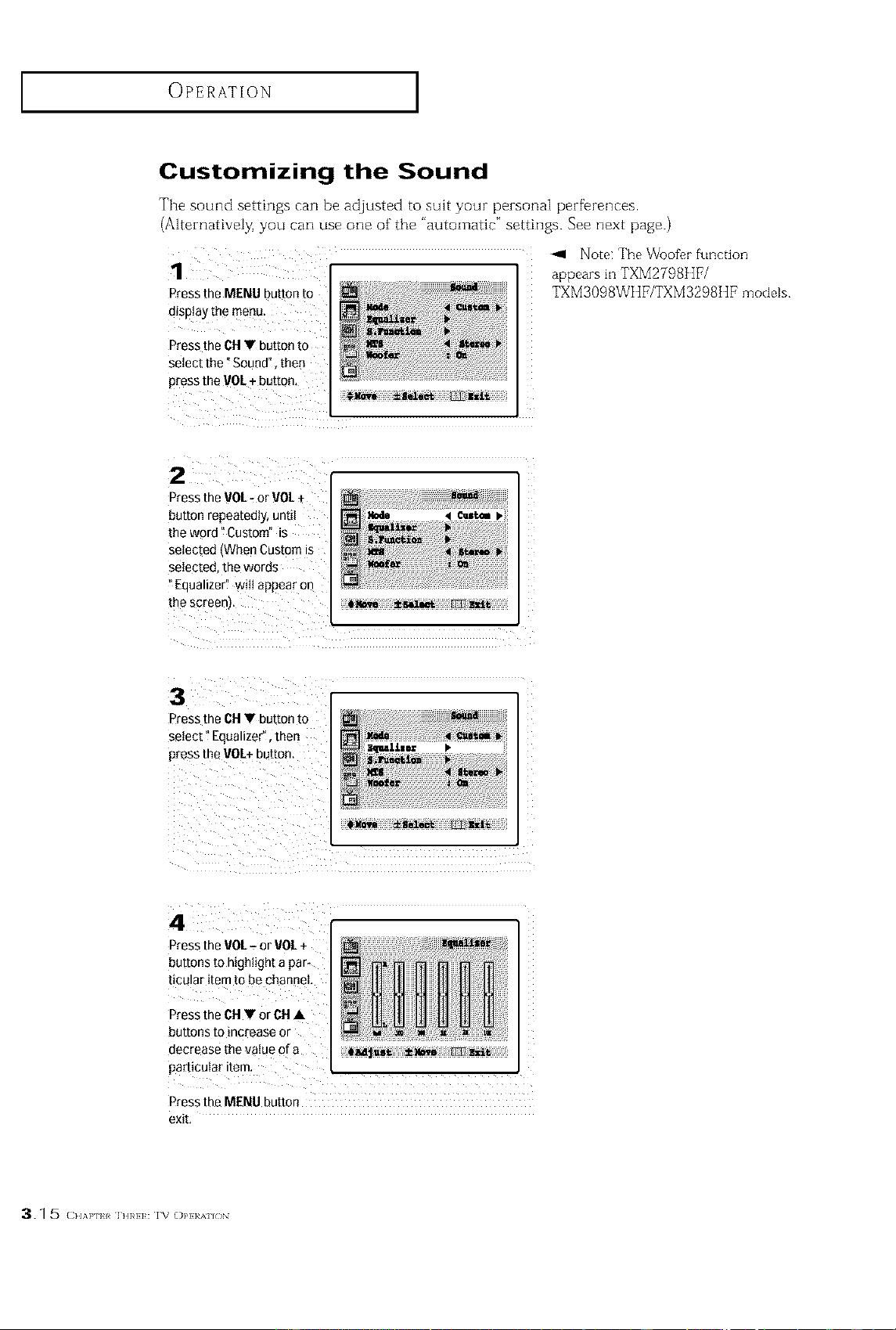
Customizing the Sound
The sound settings can be adjusted to suit your personal perfbrences.
(Alternatively, you can use one of the "automatic" settings. See next page.)
-_1 Note: The Wooff,r function
Press the MENU button to
display the menu.
Press the CH• button to
select the "Sound", then
press the VU[ + button.
TXM3098WI tF/TXM3298I IF models
Press the VOL- or VOL
button repeatedly, until
the word _Custom" is
selected (When Custom is
selected, the words
Equalizer! will appear on
the screen).
Press the CH• button to
select" Equalizer", then
pres s tb_ rot÷ butto n.
Press the rot- or rot +
buttons to highlight a par.
ticoler item to be channel.
Press the C11• or C11•
buttons to increase or
decrease the value of a
particular item.
Press the MENU button
exit,
a.1 5 (.,,1,. _11,_,1;:rv' o_,}}_,,,n,N
OPERATION ]
Using Automatic Sound Settings
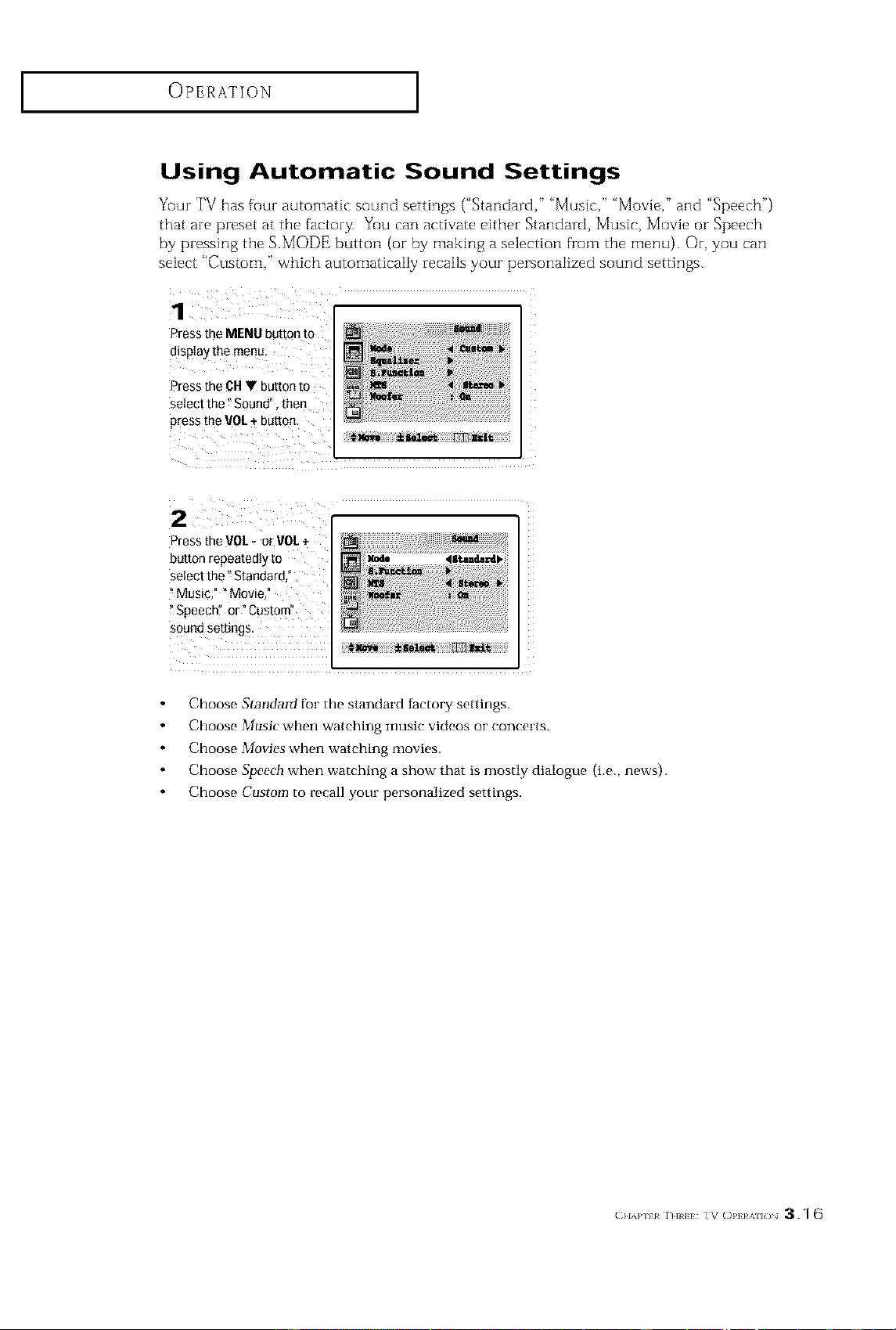
Yuur TV has four automatic sound settings ("Standard," "Music," "Movie," and "Speech")
that are preset at the factory. Yuu can activate either Standard, Music, Movie or Speech
by pressing the &MODE button (or by making a selection from the menu). Or, you can
select "Custom," which automatically recalls your personalized sound settings.
Press the MENU button to
dispIay the menu,
Press the CHV button to
select the _Sound", then
press the VO[ + butten.
2
Press the VO[ - or got +
nuEon repeatedly to
select the °Stanoam,
Music," "Movie,"
Speech" or" Custom
sound settmgs.
Choose Standalff for the standard factory settings.
Choose Music when watching music videos or concerts.
Choose Movies when watching movies.
Choose Speech when watching a show that is mostly dialogue (i.e., news).
Choose Custom to recall your personalized settings.
(;.,,,_,H r._H: IV Ol,I}/'_/_ 3.1 6
OPERATION ]
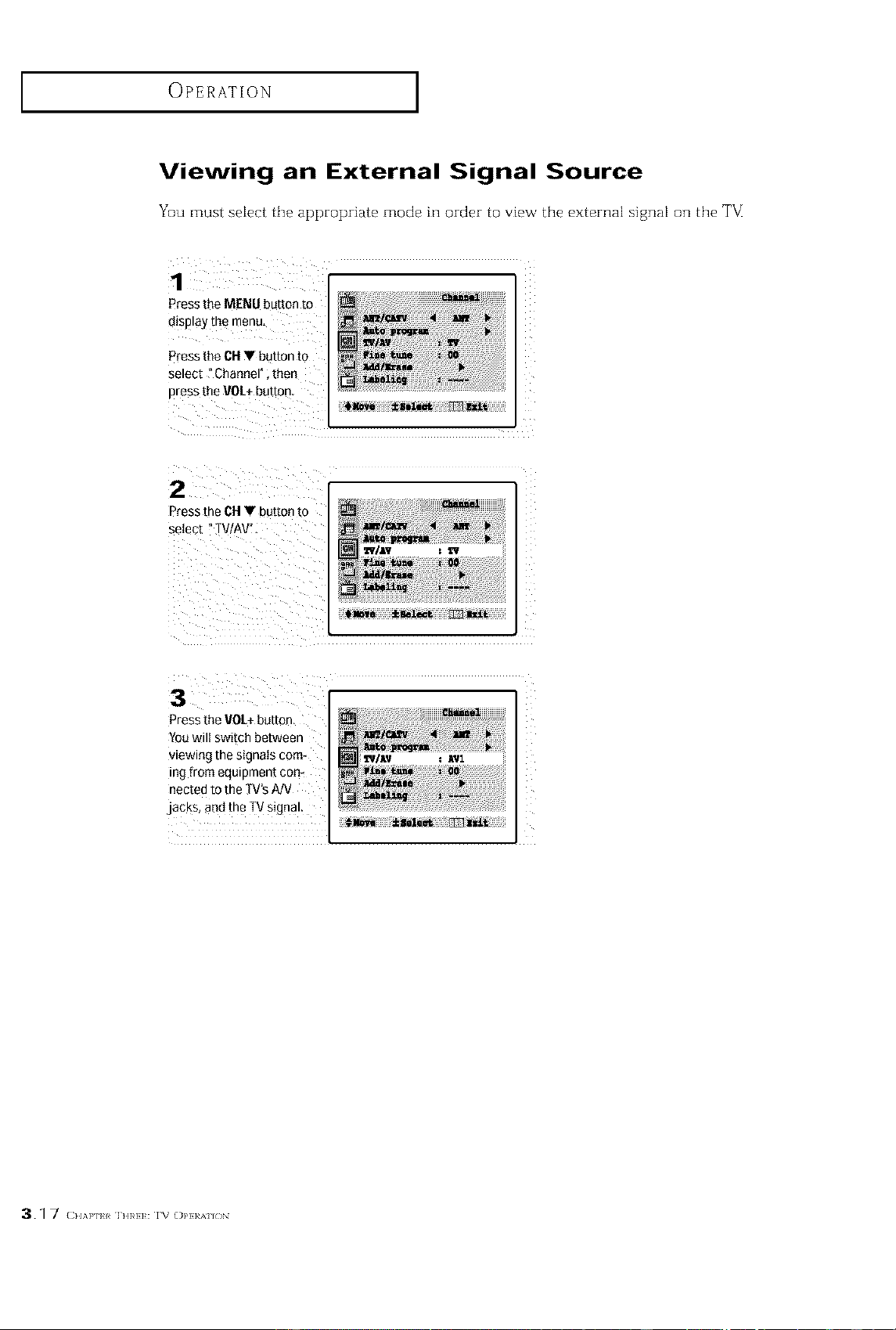
Viewing an External Signal Source
You must select the appropriate mode in order to view the external signal on the T_
1
Press the MENU button to
o_splayme menu,
Press the CH_ button to
select "Channel , then
aress the VOL+button.
2
Press [he CHVbuttonto
setect _TV _V"
3
Press the VOL+button,
Youwilt switch between
viewing me stgnats com-
ing from equipmen( con*
nected to the IV's A/V
jacks, and the TVsignal
3.1 7 c.,,],T, h]RH: rv o_,}}_,',i_,N
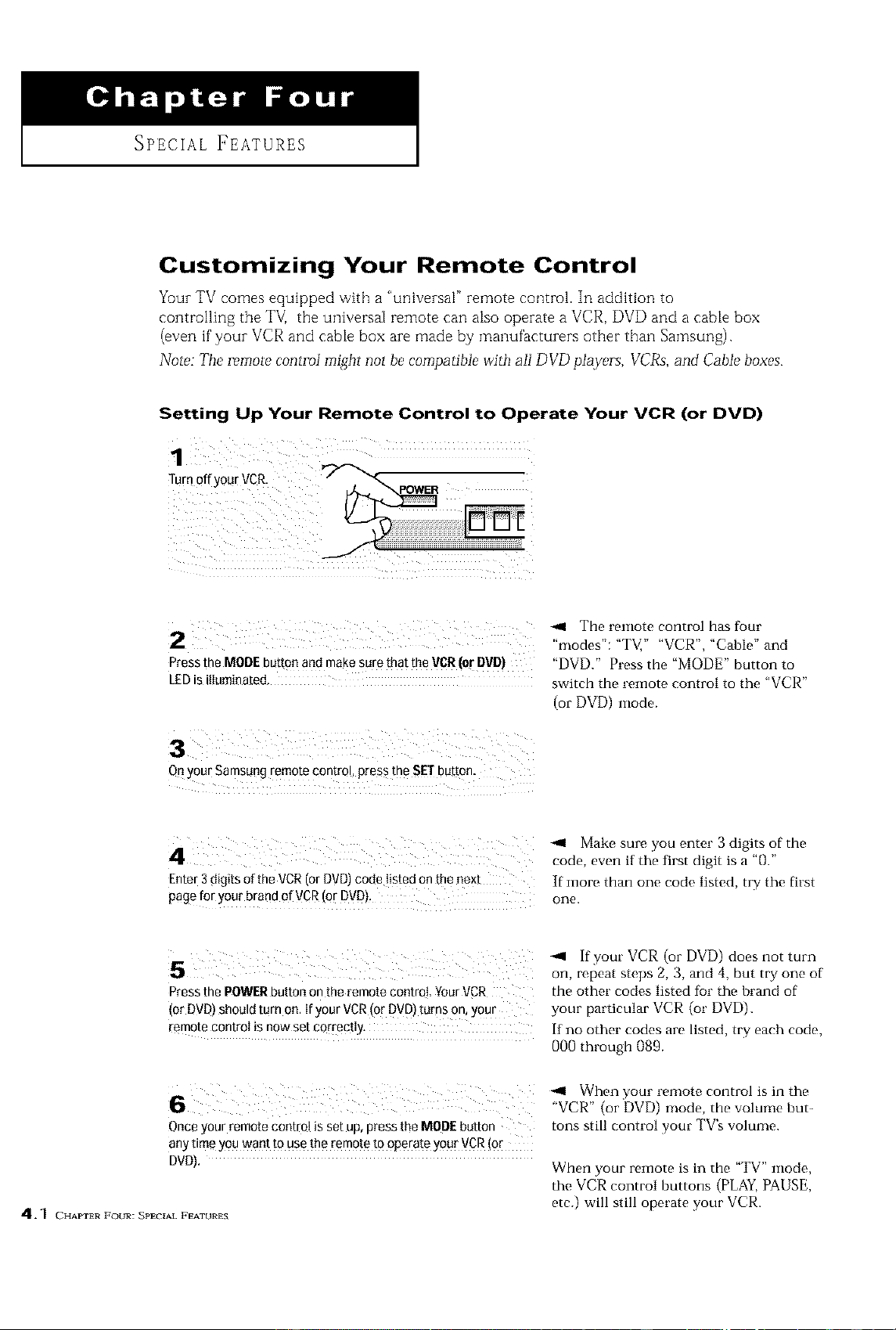
SPECIAL FEATURES
Customizing Your Remote Control
Y_mr TV comes equipped with a "universal" remote control. In addition to
controlling the TV] the universal remote can also operate a VCR, DVD and a cable box
(even if your VCR and cable box are made by manufacturers other than Samsung).
Note: Tbe minute control migfit not be compatible with all DVD pla,ye_s, VCRs, and Cable boxes.
Setting Up Your Remote Control to Operate Your VCR (or DVD)
_ The remote control has four
modes : 'TV, VCR , 'Cable and
Press the MODEbutton and make sur e that the VCR(or DVD) "DVD." Press the "MODE" button to
LEDis illuminated switch the remote control to the "VCR"
(or DVD) mode.
On your Samsang remote control, press the SET button.
Enter 3digits of the VCR(or DVD)code listed on the next
page for your brand o[ VCR(or DVD).
_1 Make sure you enter 3 digits of the
code, even if the first digit is a "0."
If more than one code listed, try the first
one.
5 _ If your VCR (or DVD) does not turn
on, repeat steps 2, 3, and 4, but try one of
Press the POWERbuttoo on the remote control Your VCR the other codes listed tbr the brand of
(or DVD)should turn on. If your VCR(or DVD)turns on, your your particular VCR (or DVD).
remote conl_oI is now set correctly. If no other codes are listed, try each code,
000 through 089.
., Whenyourremotecontrolisi.the
"VCR" (or DVD) n,ode, the volume but-
Once your remote control is set up, press the MODEbutton tons still control your TV's volunm.
any time you want to use the remote to operate your VCR (or
DVD). When your remote is in the "TV" mode,
the VCR control buttons (PLAY,PAUSE,
etc.) will still operate your VCR.
4.1 CHAPTER FOUR: SPECIAL FEATURES
SPECIAL FEATURES ]
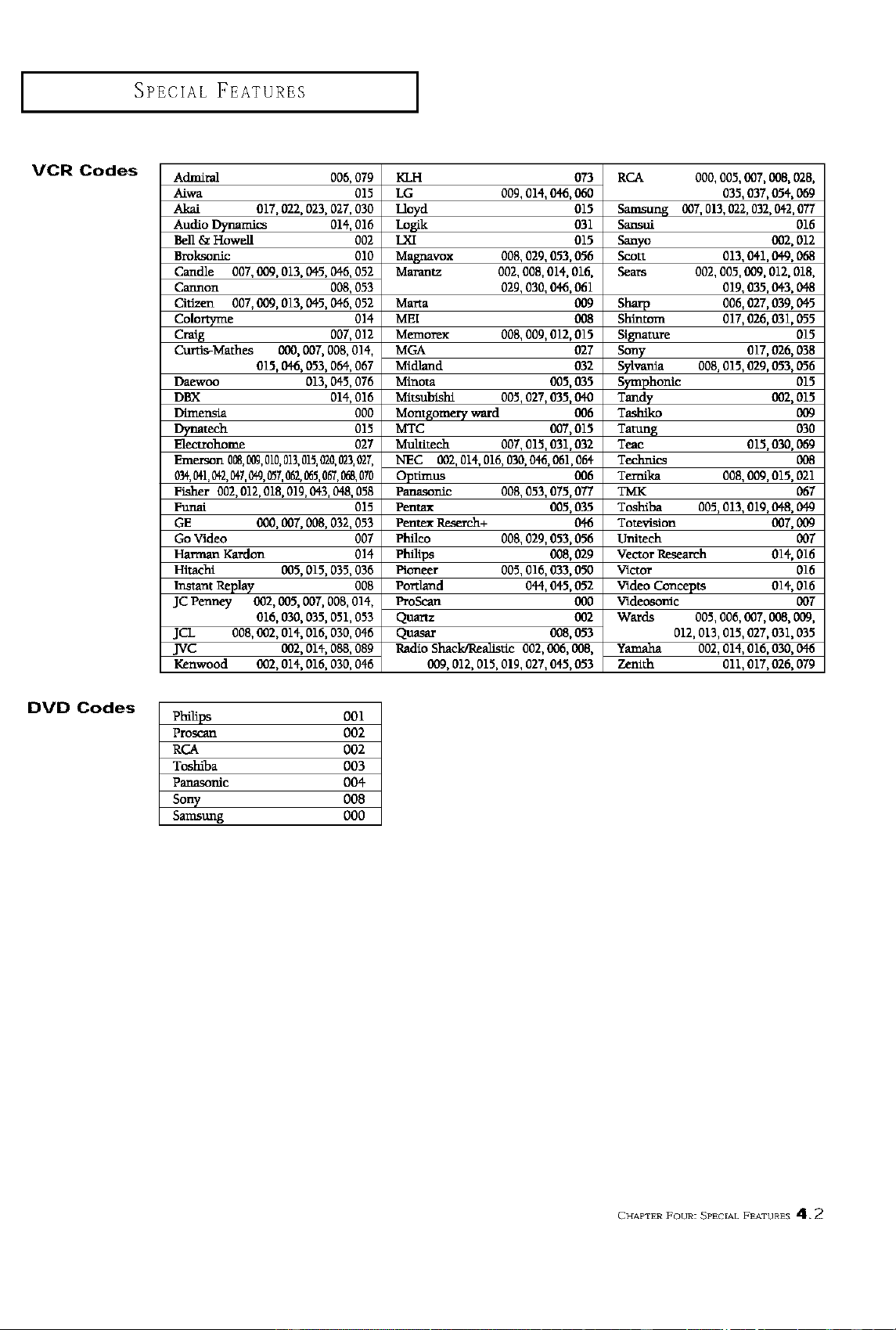
VCR Codes
Admiral 006, 079
Aiwa 015
Akai 017, 022, 023, 027, 030
Audio Dynarr_:s 014, 016
Bell & Howell 002
Broksonic 010
Candle 007, 009, 013, 045, 046, 052
Cannon 008, 053
Citizen 007, 009, 013, 045, 046, 052
Coloro/me 014
Craig 007, 012
Curds-Mathes 000, 007, 008, 014,
015, 046, 053, 064, 067
Daewoo 013, 045, 076
DBX 014, 016
Dimensia 000
I)),na_b_ 015
Eleaxohome 027
Emerson 0_,[gg, 010,011,015,020,023,027,
034,041,042,047,049,057,062,_5, 067,1_8,070
Fisher 002,012,018,010,043,048,058
Funai 015
GE 000, 007, 008, 032, 053
Go Video 007
Harman Kardon 014
Hitachi 005, 015, 035, 036
Instant Replay 008
JC Penney 002, 005, 007, 008, 014,
016, 030, 035, 051, 053
JCL 008, 002, 014, 016, 030, 046
JVC 002, 014,088, 089
Kenwood 002, 014, 016, 030, 046
KLH 073
LG 00g, 014, 046,060
Lk_d 015
Logik 031
IXI 015
Magnavox 008, 029, 053,056
Marantz 002, 008, 014, 016,
029, 030, 046,061
Marta 099
MEI 008
Memorex 008, 009, 012,015
MGA 027
Midland 032
Minota 005,035
I_ltsubishi 005, 027, 035,040
Momgome_ ward 006
MTC 007,015
Multitech 007, 015, 031,032
NEC 002, 014,016,030, 046,061,064
Optimus 006
Panason_ 008, 053, 075,077
Pentax 005,035
Pentex Resereh+ 046
phflco 008, 029, 053,056
Phflips 008,029
Pioneer 005, 016, 033,050
Portland 044, 045,052
ProScan 000
Quartz 002
Quasar 008,053
Radio Shack/Bealistic 002, 006, 008,
009, 012, 015, 019, 027, 045,053
RCA 000, 005, 007, 008, 028,
035, 037,054, 069
Semsang 007,013, 022,032,042,077
Sar-sui 016
Sanyo 002, 012
Scott 013, 041,049, O_
Sears 002, 005, 009, 012, 018,
019, 035,043, 048
Sharp 006, 027,039, 045
Slfmtom 017, 026,031,055
Signature 015
Sony 017,026, 038
Sylvania 008,015, 029,053, 056
Symphorflc 015
Tandy 002_015
Tashiko O00
Tatung 030
Teac 015,030, 069
T_ 008
Termka 008, 009,015, 021
TMK 067
Toshiba 005, 013, 019,048,049
Totevision 0_7,009
Unitech 007
Vector Research 014, 016
Victor 016
VideoConcepts 014, 016
Vide_c 007
Wards 005, 006, 007,008,009,
012, 013, 015, 027,031,035
Yamaha 002,014,016,000,046
Zenith 011,017,026, 079
DVD Codes
Philips 001
Proscan 002
RCA 002
Toshiba 003
Pfunasomc 004
Sony 008
Samsung 000
CHAPTER 17OURZ SPECIAL FEATURES 4.2
SPECIAL FEATURES ]
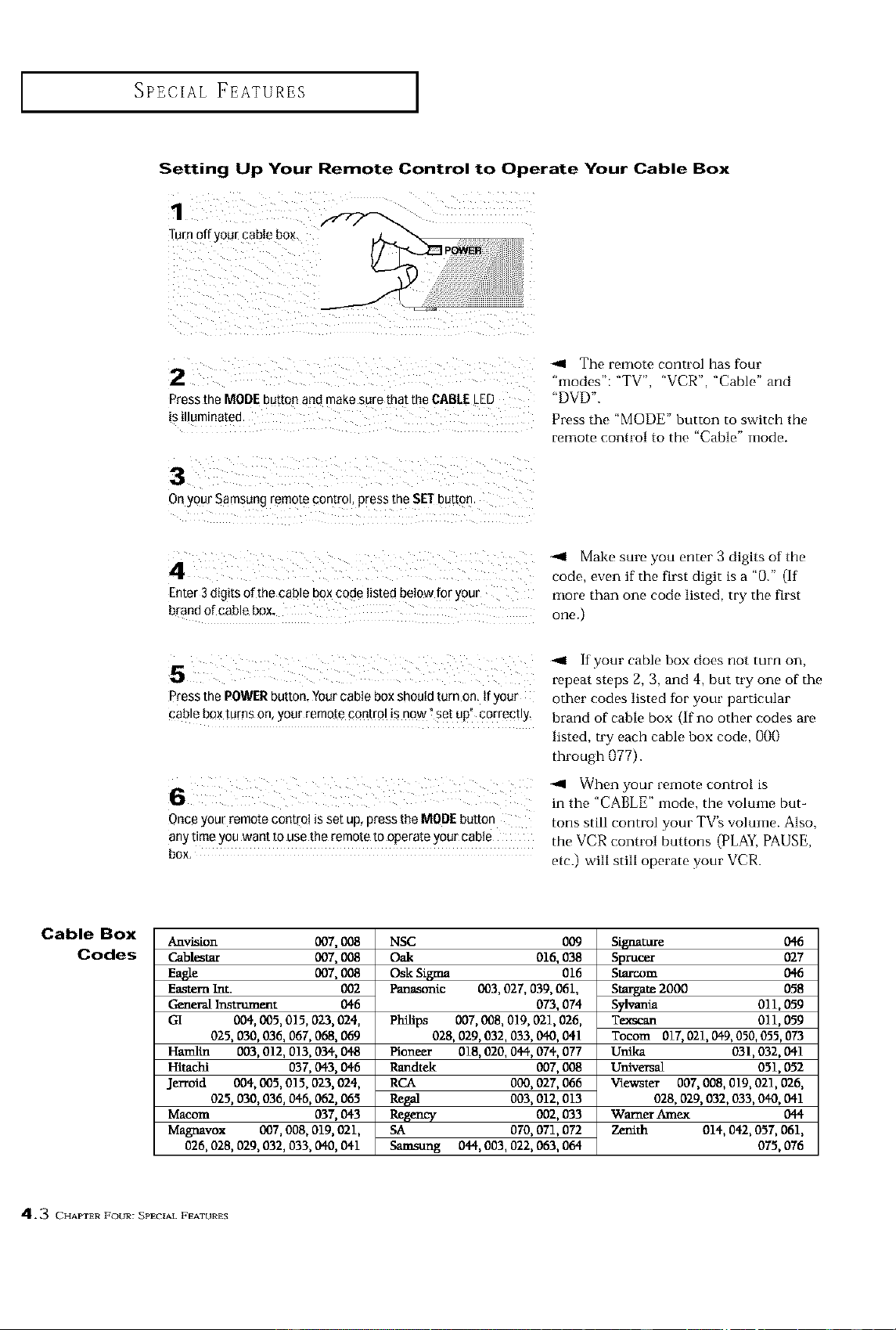
Setting Up Your Remote Control to Operate Your Cable Box
1
Turn off yOUrcane box
2
Press the MODE button and make sure that the CABLE _ED
IS iiiumlnatec
3
Onyour Samsung remote control press the SET buttor
The remote control has four
'modes": "TV', "VCR', "Cable" and
"DVD'.
Press the "MODE" button to switch the
remote control to the "Cable" mode.
Enter 3digits of the cable box code listed beIow for your
Make sure you enter 3 digits of the
code, even if the first digit is a "0." (if
more than one code listed, try the first
one.)
.. ifyourcableboxdoesnotturoon,
5 repeat steps 2, 3, and 4, but try one of the
Press the POWERbutton, Your cable box should turn on, Ifyour other codes listed tbr your particular
cable box tarns on, your remote control is now _set up" correctly, brand of cable box (if no other codes are
listed, try each cable box code, 000
through 1)77).
When your remote control is
in the "CABLE" mode, the volume but-
Once your remote c0ntto! is set up, press the MODE button tons still control your TV's volume. Also,
any time you want to use the remote to operate your cable the VCR control buttons (PLAY, PAUSE,
box, etc.) will still operate your VCR.
Cable Box
Codes
Anvision 007, 008
Cablesmr 007, 008
Eagle 007, 008
EasternInt. 002
General Instrument 046
GI 004, 005, 015, 023, 024,
025, 030, 036, 067, 068, 069
Ham]in 003, 012, 013, 034, 048
Hitachi 037, 043, 046
Jerroid 004, 005, 015, 023, 024,
025, 030, 036, 046, 062, 065
Maeom 037, 043
Magnavox 007, 008, 019, 021,
026, 028, 029, 032, 033, 040, 041
NSC 009
Oak 016, 038
Oak Sigma 016
Panasonic 003, 027, 039, 061,
073, 074
Philips 007, 008, 019, 021,026,
028, 029, 032, 033, 040, 041
Pioneer 018, 020, 044, 074, 077
Rendtek 007, 008
RCA 000, 027, 066
Regal 003, 012, 013
Regency 002, 033
SA 070, 071,072
Samsang 014,003, 022, 063, 064
Signature 046
Sprucer 027
Starcom 046
Stargate 2000 058
Sylvania 01 i,059
Te:mcan 011,059
To€ore 017,021,049,050,055,073
Unika 031,032, 041
Uinversal 051, 052
Viewster 007, 008, 019, 021,026,
028, 029, 032, 033, 040, 041
Warner Amex 044
Zenith 014, 042, 057, 061,
075, 076
4.3 CHAPTER FOUR: SPECIAL FEATURES
SPECIAL FEATURES ]
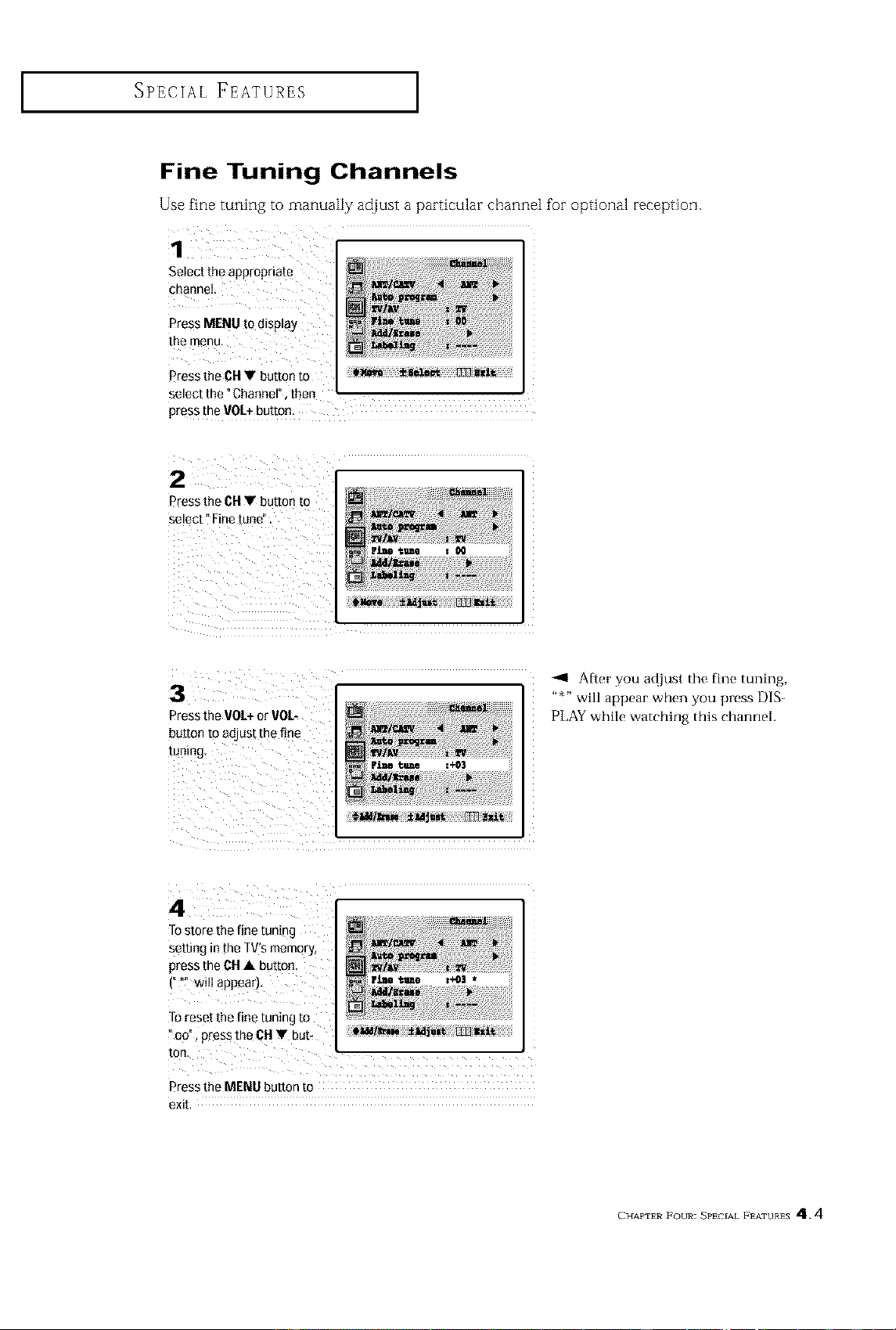
Fine Tuning Channels
Use fine tuning to manually adjust a particular channel for optional reception.
Select the appropriat e
channel
Press MENU to display
Press the CH• button to
select the t Channel", then
press the VOL+butto n.
Press the 6H Y button to
select" Fine tune".
PresstheVOL+orVOL-
buttonto adjustthefine
<1 Afl:er you at!just the fine tuning,
"*" will appear when you press DIS_
PLAY while watching this channel.
Z
Tostore the fine tuning
setting in the TV's memory,
press the CH• button.
('i_" wi!) appear)
TOreset the fine tuning to
_oo", press the CHV but_
Press the MENU button to
exit.
CHAPTER FOUR: SPECIAL FEATURES 4.4
SPECIAL FEATURES ]
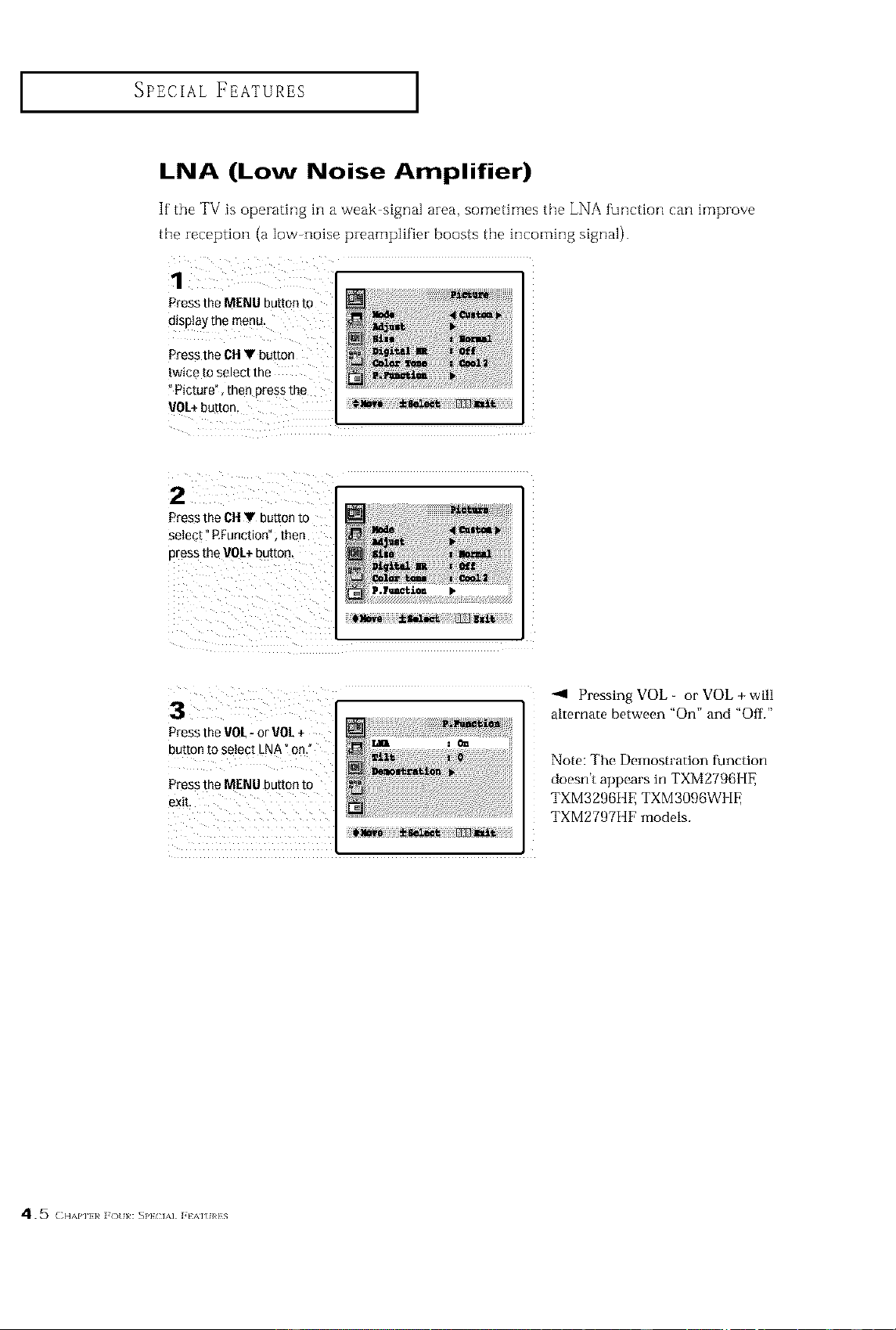
LNA (Low Noise Amplifier)
If" the TV is operating in a weak signal area, sometimes the LNA function can improve
the reception (a low-noise preamplifier boosts the incoming signal).
Press the MENU button to
display the menu,
Press the CHV button
twice to select the
"Picture", then press the
VOL+button
Press the VOL, or VOL+
button to select LNA ?on."
Press the MENU button to
exit
-41 Pressing VOL - or VOL + will
alternate between "On" and "OfL"
Note: The Demostration function
doesn't appears in TXM2796HE
TXM3296HE TXM3096WHE
TXM2797HF models.
45 ( ,_,,,,1,111¢]_o,,:s,,}(,,1 it,,,,],}s
SPECIAL FEATURES ]
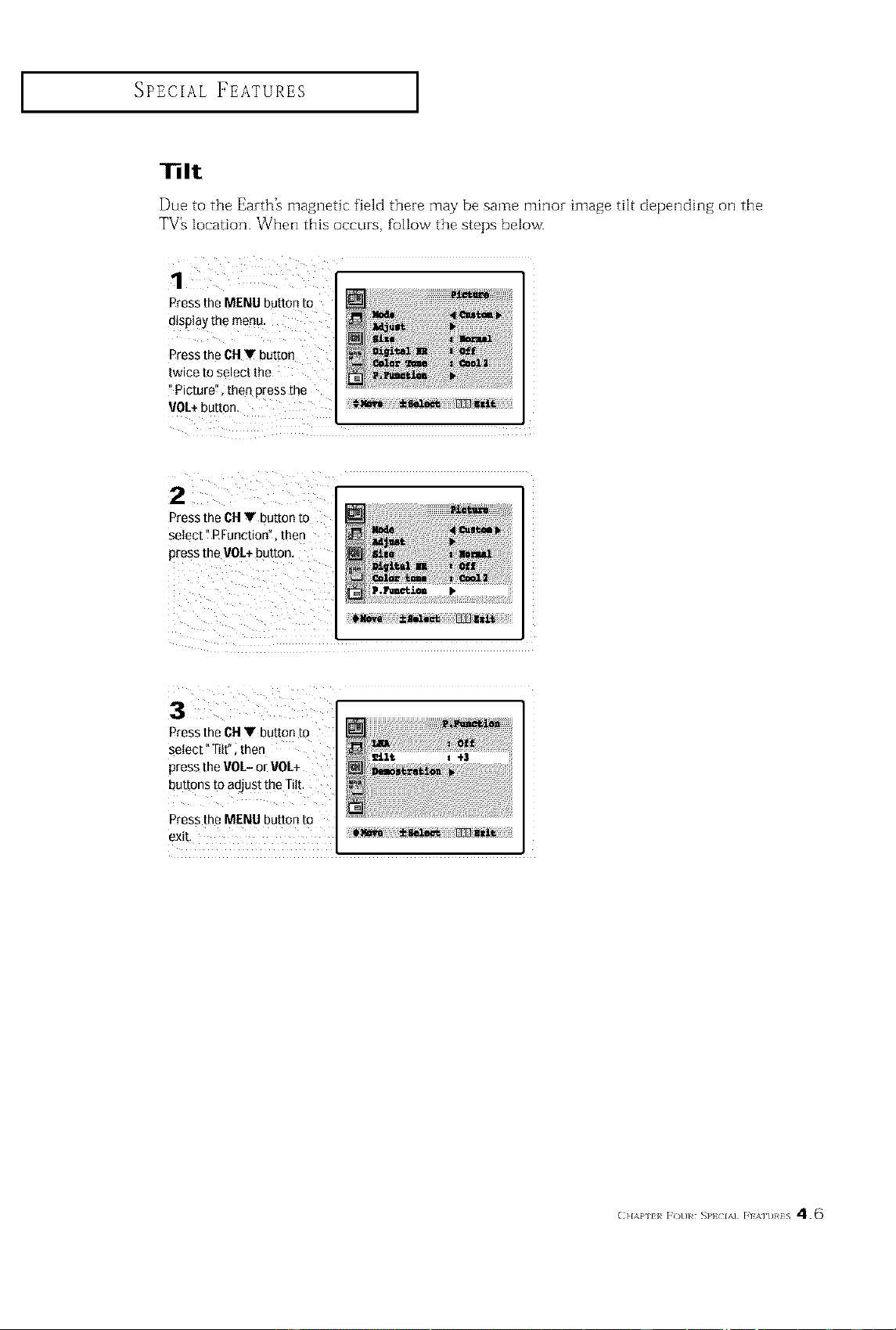
13It
Due to the Earth_ magnetic field there may be same minor image tilt depending on the
TV's location. When this occurs, follow the steps below.
Press the MENU button to
disp ay the menu.
Press the CNT button
twice to select the
Picture", then press the
',JOE+button.
Press the Clty button to
seIect" RFunction", then
press the VOL+button,
II,hI[_iu •
Press the CHV button to
seiect" Titf' then
press
buttons to adjust the TitL
Press
exit,
(}l,\p 1[ F(tH SP} IA] FIK]t)}#iS 4.6
SPECIAL FEATURES ]
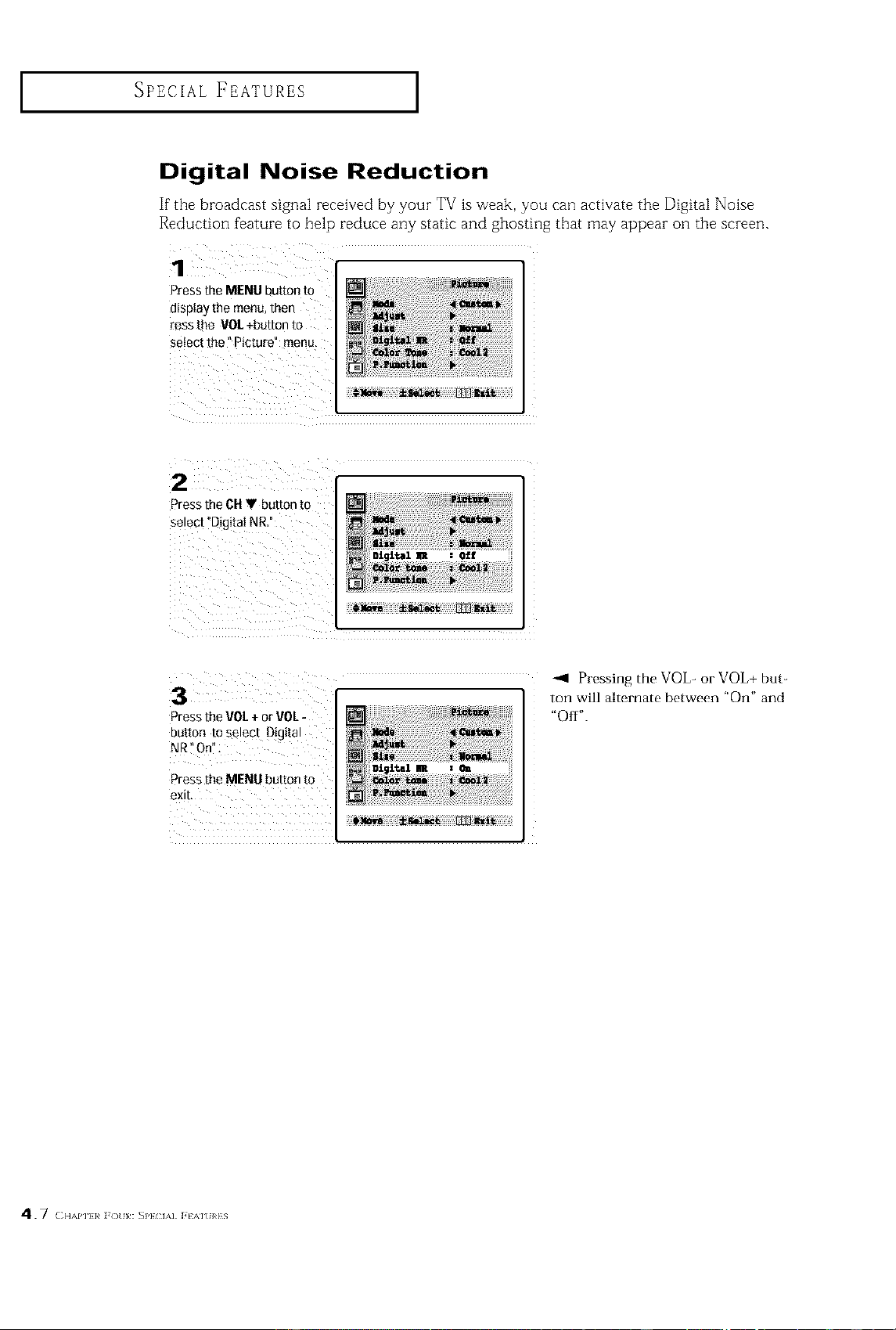
Digital Noise Reduction
If"the broadcast signal received by your TV is weak, you can activate the Digital Noise
Reduction feature to help reduce any static and ghosting that may appear on the screen.
Press the MENU button to
display the menu, then
tess the VOL +button to
select the" picture" menu
Z
Pressthe CHV button to
select"DigitaI NR"
O£f
Pressing the VOL- or VOL+ but_
ton will alternate between "On" and
Press the VOL+ or VOL- "Off".
button to select Digital
NR"On%
Press the MENU button to
exit.
4.7 ( .A,,.,¢]_) ,,:s,,,(,., ].,,, ,,s
SPECIAL FEATURES ]
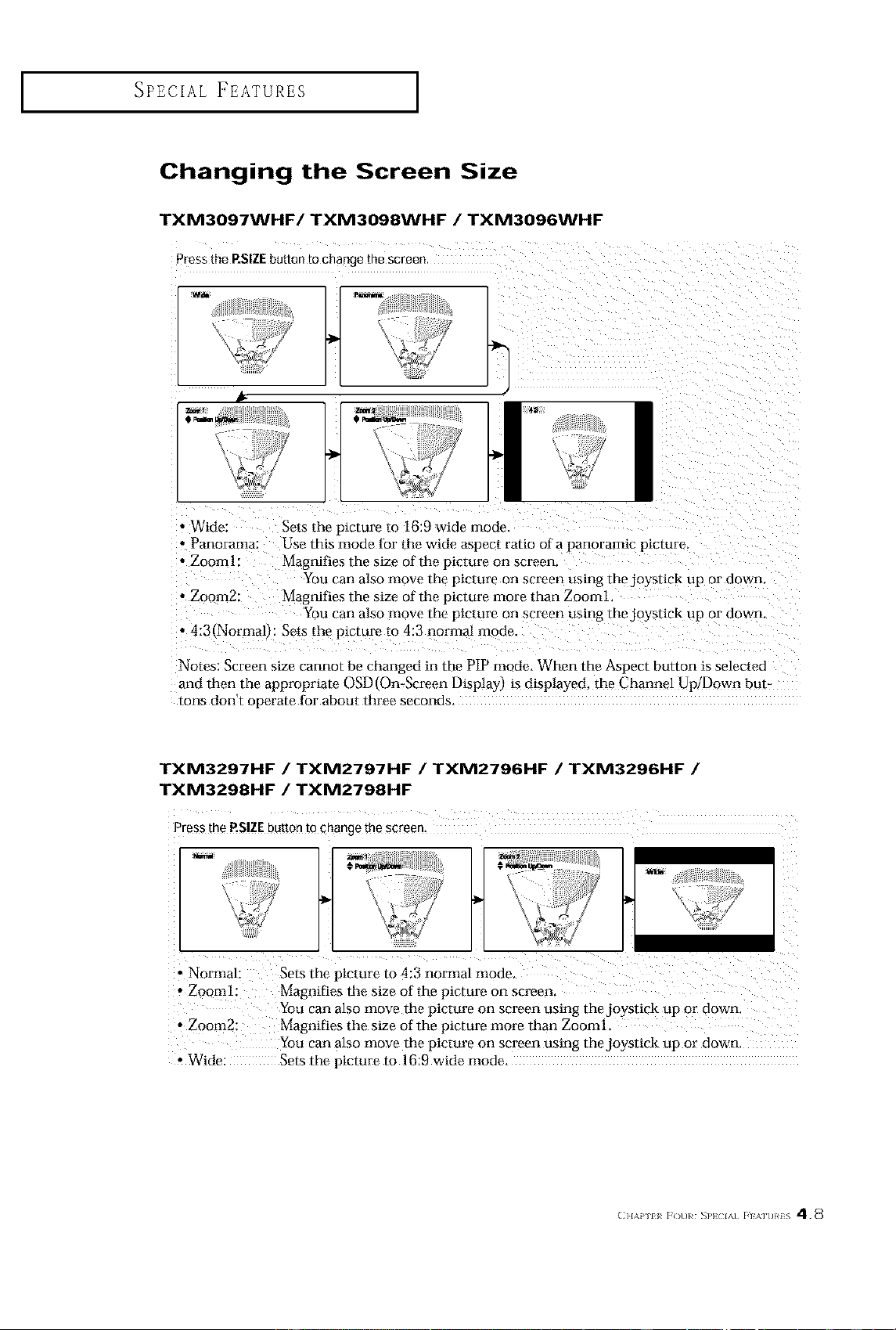
Changing the Screen Size
TXM3097WHF/TXM3098WHF / TXM3096WHF
Press the RSIZE button to change me screen
k
• Wide: Sets the picture to 16:9 wide mode.
• Panorama: Use this mode tor the wide aspect ratio ni a panoramic picture.
• Zooml: Magnifies the size of the picture on screen.
You can also move the picture on screen using thejoystick up or down.
• Zoom2: Magnifies the size of the picture more than Zooml.
You can also mow th_ picture on screen using the.joystick up or down.
• 4:3(Normal_: Sets the picture to 4:3 normal mode.
Notes: Screen size cannot bo changed in the PIP mode. When the Aspect button is selected
and then the appropriate OSD On-Screen Dksplay) is displayed, the Channel Up/Down but-
torts don't operate lor about three seconds.
TXM3297HF / TXM2797HF / TXM2796HF / TXM3296HF /
TXM3298HF / TXM2798HF
• Normal: Sets the picture to 4:3 normal mode.
, Zoo m 1: Magnifies the size of the picture on screen.
You can also move the picture on screen using the joystick up or down.
• Zoom2: Magni[_es the size of the picture more than Zooml.
You can also move the picture on screen using thejoystick up or down.
Wide: Sets the picture to 16:9 wide mode.
(ll,\P l_ F()uI _l'} IA] FIMUI¢:S 4.8
SPECIAL FEATURES ]
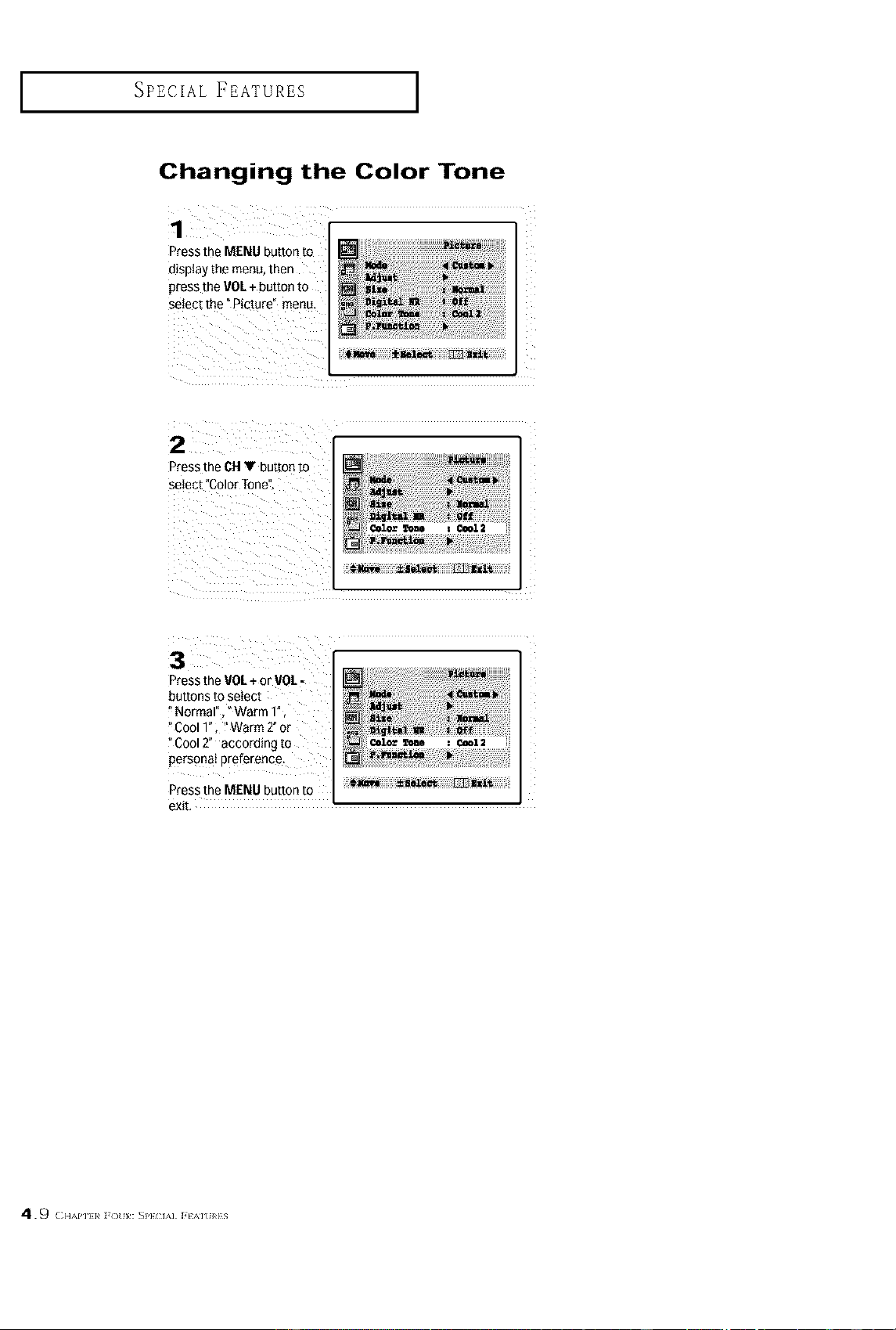
Changing the Color Tone
Press th
display the menu, then
press the VOL+ button to
select the "Picture" menu.
2
Press the CHV button to
seIect°ColorTone".
3
Press the VOL+ or VOL -
buttons to select
"Normal"" Warm 1",
'Cool 1"; !'Warm 2" or
° Cool2" according to
persenai Preference.
Press the MENU button to
exit,
4.9 ( ,,.,,,,,,,,_];,3,,:s,,,(,., ].,,,, ,,s
SPECIAL FEATURES ]
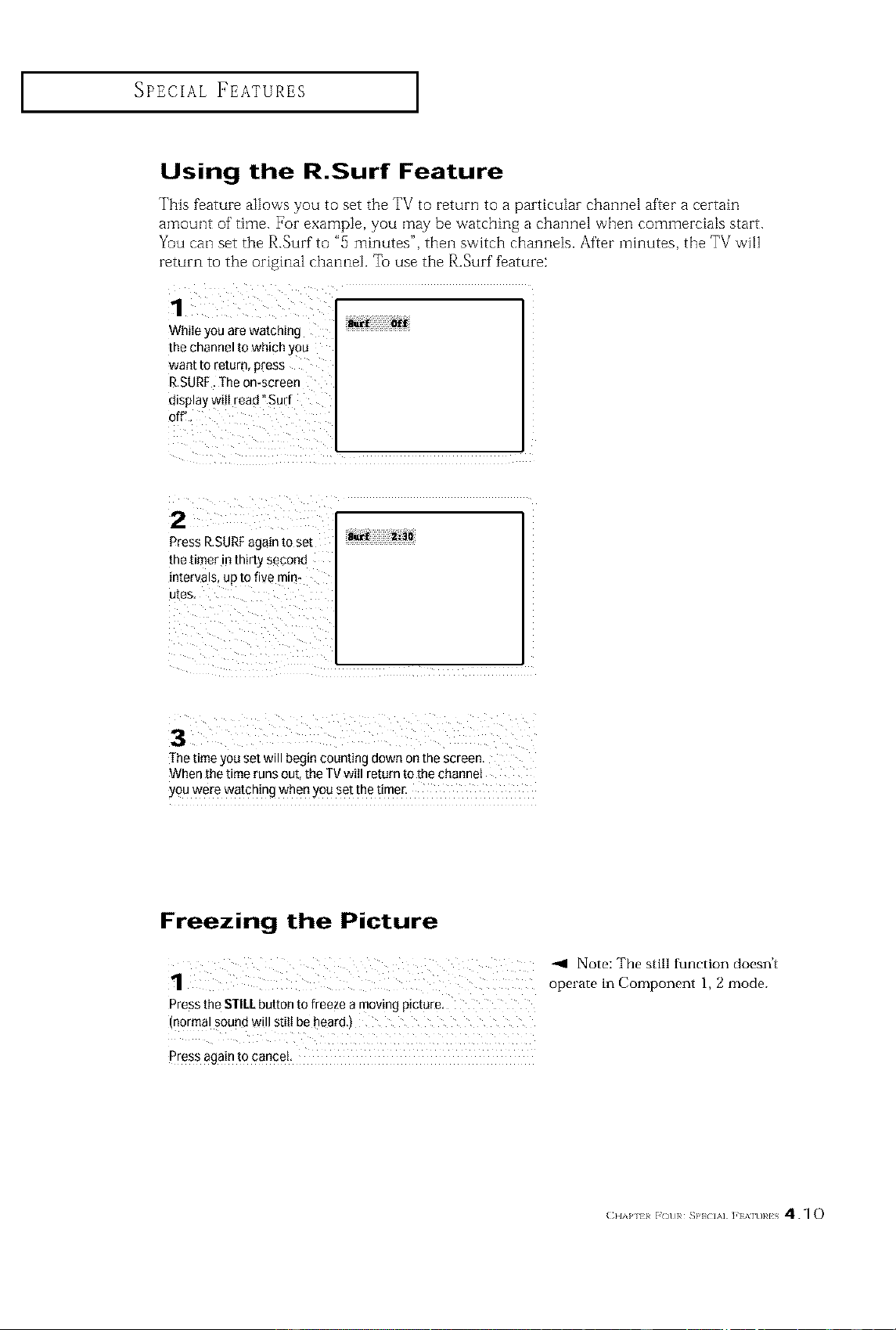
Using the R.Surf Feature
This feature allows you to set the TV to return to a particular channel after a certain
amount of time. For example, you may be watching a channel when commercials start.
Yuu can set the R.Surf to "5 minutes", then switch channels. After mhlutes, the TV vvri[]
return to the original channel To use the R.Surf feature:
WhiIe you are watching
the channel to which you
want to return, p[ess
R,SURF_The omscreen
display wig lead "Surf
on,
Press R.SURFagain to set
the timer in thirty second
intervals! up to five mint
utes.............................
The time you set will begin counting down on the screen.
When the time runs out, the TV will return to the channel
you were watching when you set the timer,
Freezing the Picture
Press the STILLbutton to freeze a moving picture,
(normal sound will still be heard,)
press again to cance L
-,9 Note: The still function doesn't
operate in Component 1, 2 mode.
( }lAP 11 [OUR SP} IA] ]'] %]t)RIS 4.1 o
SPECIAL FEATURES ]
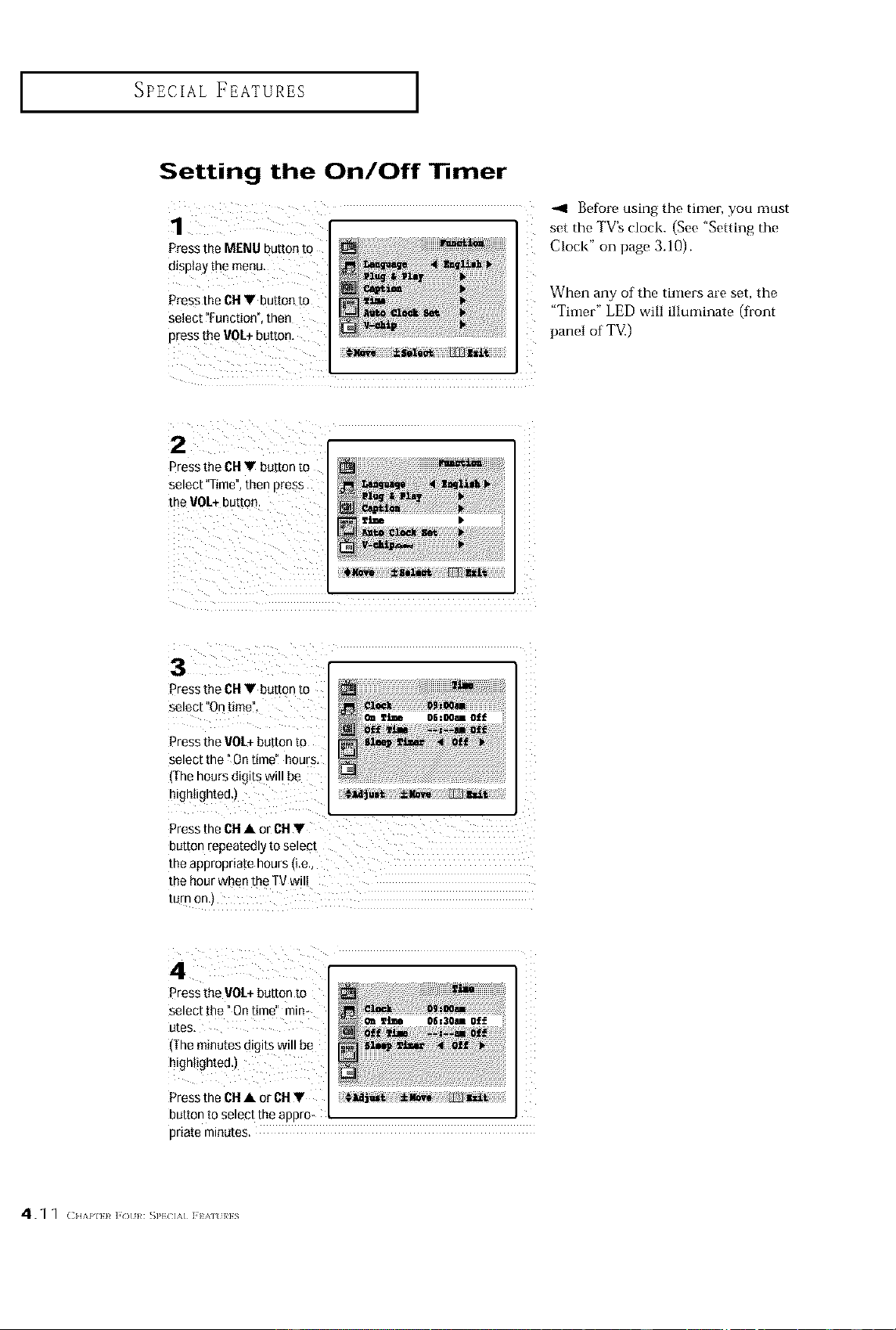
Setting the On/Off Timer
display the menu.
Pressthe CHY button to
select ?Function",then
press the VOL+button,
-_l Before using the tinier, you must
set the TV's clock. (See "Setting the
Clock" on page 3.10).
When any of the timers are set, the
"Timer" LED will illuminate (front
panel of TV.)
Press the CHV button to
select "Time", then press
the VOL+button.
3 i
Press the CHV button to
select "On timeY,
Press the VOL÷button to
select the vOntime" hours,
(The hours digits will be
highlighted.)
Press the Ctl • or CI1T
button repeatedly to select
the appropriate hours (Le.,
the hour when the TV wil!
turn on,)
4
Press the VOL+button to
select the _Ontime" mira om_tJ_ oez3omoff
utes,
(The minutes digits will be
highlighted.)
Press the CH• or CH Y
button to select the appro-
priate minutes.
4.1 1 ( HAPIi}¢],o }Q:S]'iL]M] }A]%}QiS
i SPECIAL FEATURES i
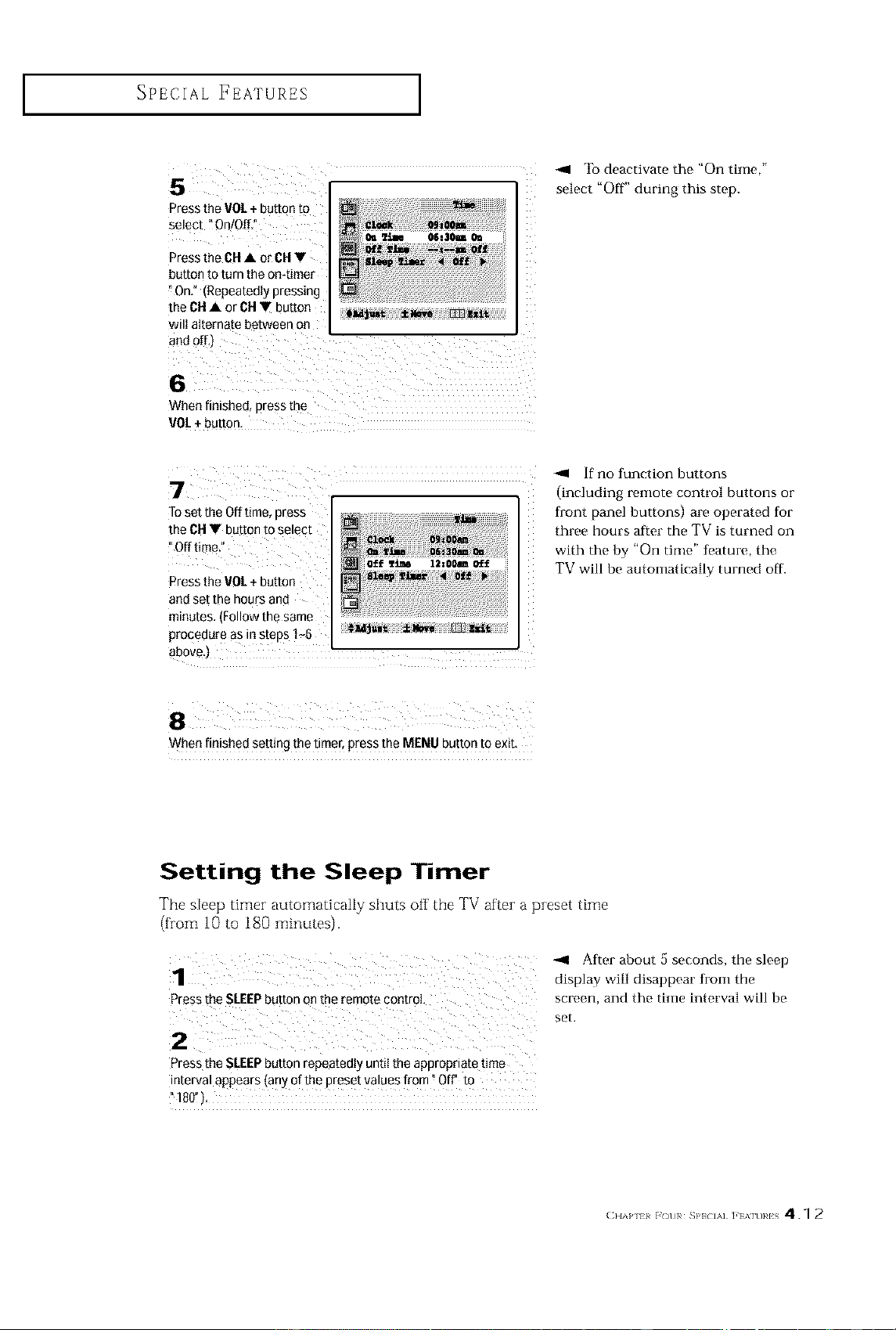
Press the VO/÷ button to
select ?On/Off"
Press the OH• or 61-1•
button to turn the on4imer
On.* (Repeatedly pressing
the OH• or OH• button
wilt alternate between on
To deactivate the "On time,"
select "Off" during this step.
When finished, press the
rOt +button.
Toset the Offtime, press
the OH• button to select
Press the goL +button
and set the hours and
minutes. (Follow the same
procedure as in steps I_6
-,4 if no flmction buttons
(including remote control buttons or
front panel buttons) are operated for
three hours afl:er the TV is turned on
with the by "On time" feature, the
TV will be automatically turned off.
When finished setting the timer, press the MENU button to exit,
Setting the Sleep Timer
The sleep timer automatically shuts off the TV after a preset time
(from 10 to 180 minutes).
_1 After about 5 seconds, the sleep
1 display will disappear from the
screen, and the time interval will be
set.
Press the SLEEPbutton repeatedly until the appropriate time
interval appears (any of the preset values from _Off" to
"tS_')
( }lAP 11 _()UR SP} IA] ]'1%]URIS 4.1 2
SPECIAL FEATURES ]
Choosing a Multi-Channel Sound (MTS)
Soundtrack
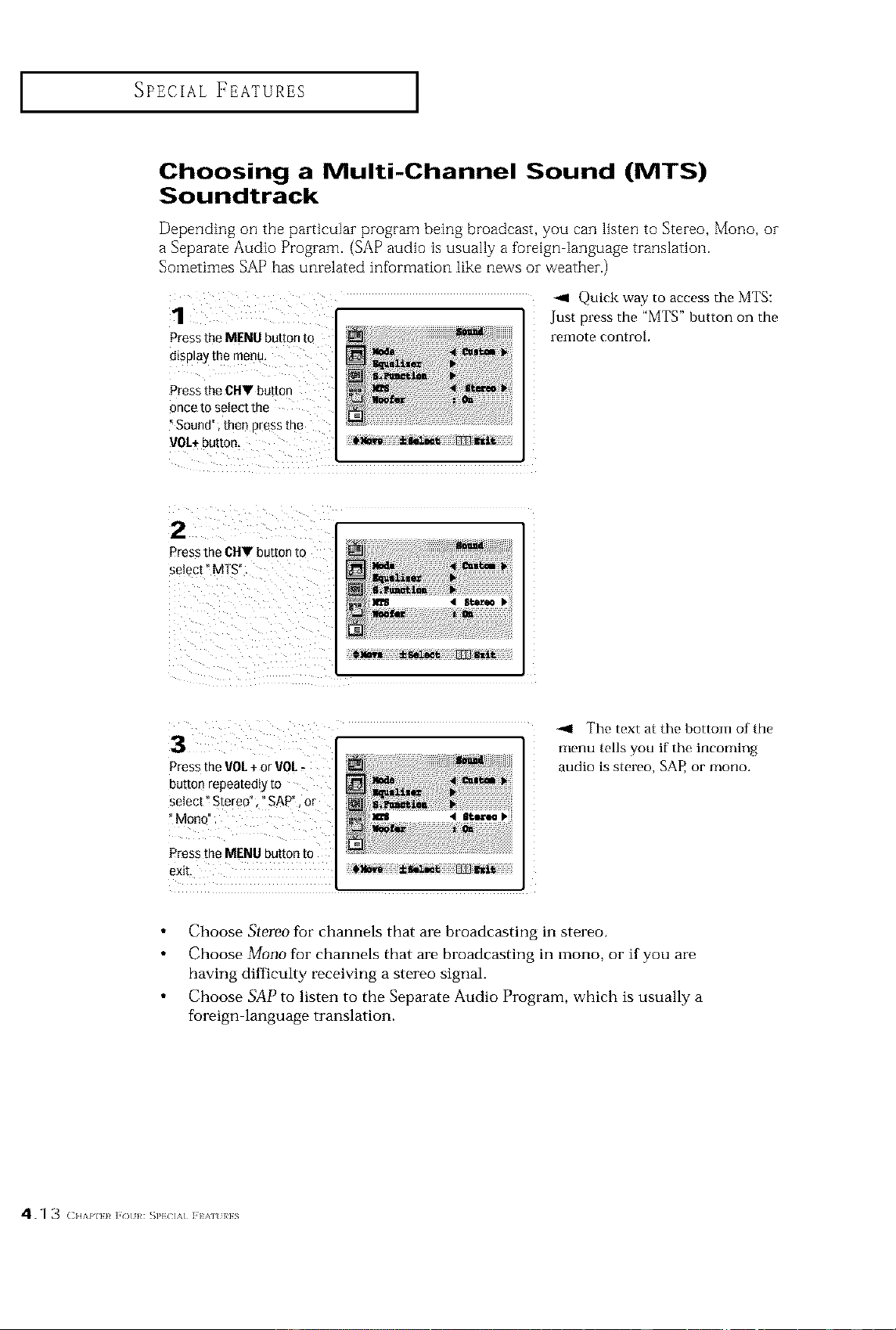
Depending on the particular program being broadcast, you can listen to Stereo, Mono, oi-
a Separate Audio Program. (SAP audio is usually a foreign language translation.
Sometimes SAP has unrelated information like news or weather.)
1
Press the MENU button to
display the menu,
Press the CHV button
once to select the
"Sound", then press the
VOL+button,
-,9 Quick way to access the MTS:
Just press the "MTS" button on the
£elllOte control
Press the CHY button to
:_ _i i !iii i
Press the VOL+or VOL
button repeatedly to
select %tereo", ° SAP", or
Press the MENU button to
exit,
The text at the bottom of the
menu tells you if the incoming
audio is stereo, SAP, or mono.
Choose Stereo for channels that are broadcasting in stereo.
Choose Mono for channels that are broadcasting in mono, or if you are
having difficulty receiving a stereo signal.
Choose SAP to listen to the Separate Audio Program, which is usually a
foreign language translation.
4.1 3 ( H/,,PI}}¢],) }_:s],}c]M];}A]%}a}S
SPECIAL FEATURES ]
Extra sound settings (Turbo Sound,
Surround, Auto Volume, Melody, BBE or
Woofer)
The following sound settings can be adjuster] to suit your personal preferences.
• Turbo Sound (TXM2796HF / TXM3296HF / TXM3096WHF)
Turbo sound emphasizes the bass and treble frequencies to add fullness to the sound.
• Surround
Yuur Samsung TV can create a "surround" effect such that the sound seems to come
from all directions. Once the "Surround" is set to "On", the setting applies to sound
effects such as Standard, Music, Movie and Speech.
• Auto Volume
Each broadcasting station has its own signal conditions, which can make it necessary
to adjust the volume every time the channel is changed. "Auto volume" lets you
automat ically adjust the volume of the desh-ed channel by lowerh]g the sound output
when the modulation signal is high or by raising the sound output when the modula
tion sig hal is low.
• Melody
You can hear clear a melody sound vvhen the TV is powered on OF Off'.
• BBE(TXM3297HF / TXM3097WHF / TXM2797HF / TXM3298HF /
TXM3098WHF / TXM2798HF)
A Sound related function that operates the treble, bass, and boost the function based
to 650dB standards and reverses the phase to produce replicated sound that is close to
the original sound.
• Woofer (TXM2798HF / TXM3298HF / TXM3098WHF)
Woofer sound emphasizes the bass frequencies to add fullness to the sound.
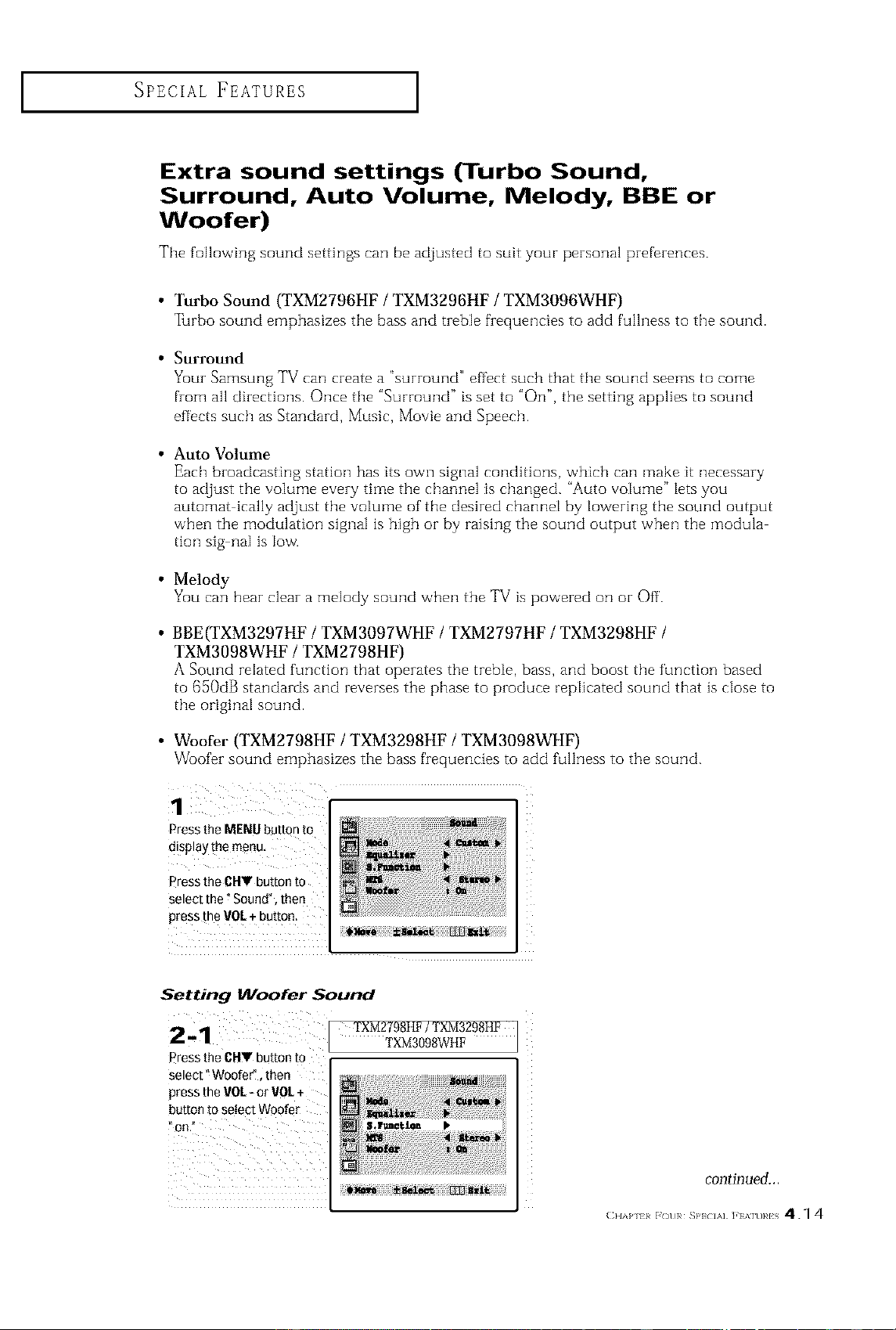
Press the MENU button to
display the menu,
Press the CHV button to
select the _Sound ", then
press the v01. + button.
Setting Woofer Sound
2-1
r_esstheCHV buttonto
select" Woofer",then
presstheVOL- or VOL+
buttontoselectWoofer
on
TXM2798I tF /TXM3298HF
TXM3098WtIF
continued...
( }lAP ii _( t)}_ SP} IA] ],] %]t)}_lS 4. _ 4
SPECIAL FEATURES ]
Settings Turbo Sound. Surround, Auto
Volume, Melody or BBE
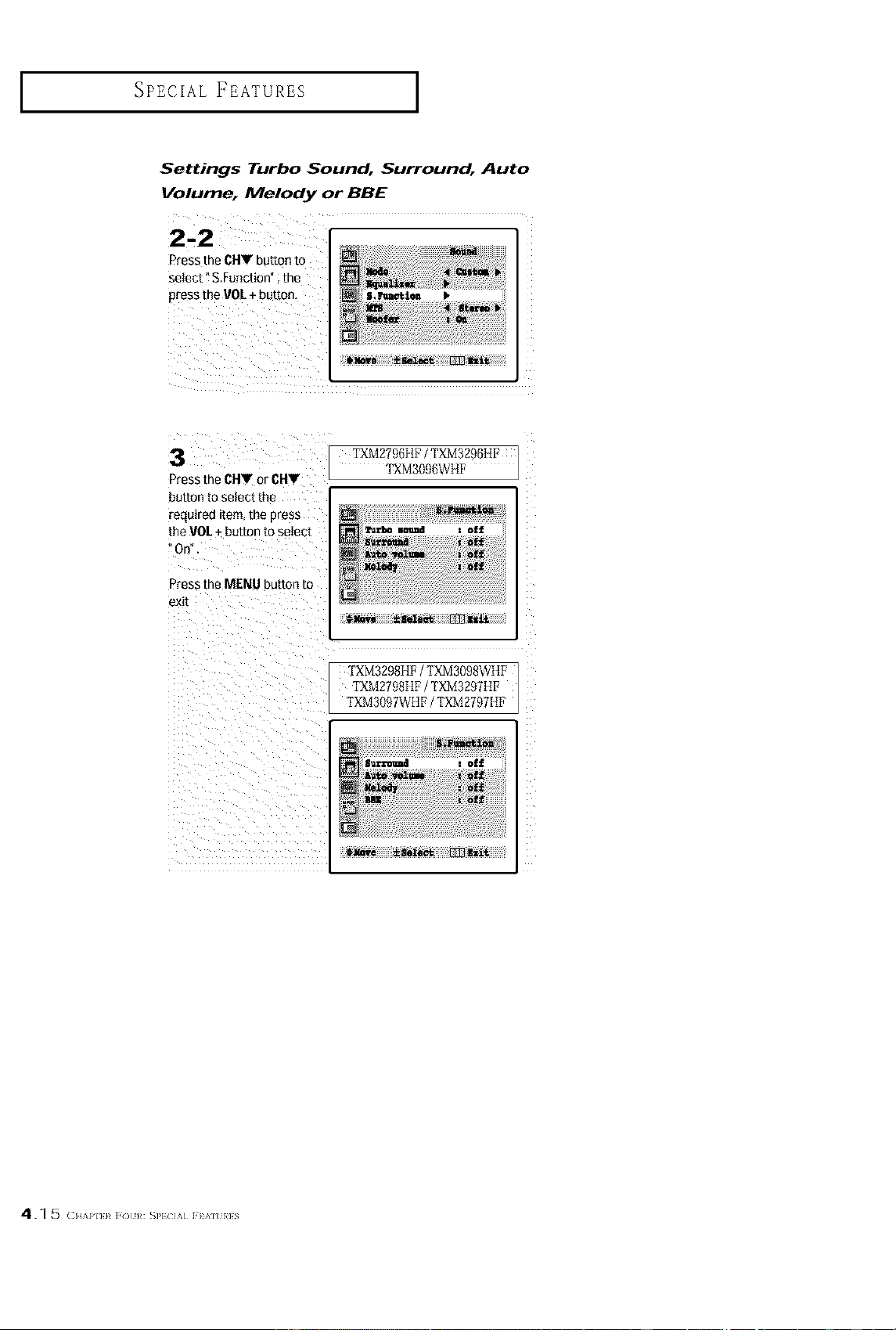
Press the CHY button to
select "S.Function" ; the
press the VOL+ button, i._i_ _,
3
Press the CHV or CHV
button to select the
required Eem, me D_ess
[he VOL + button to selec]
_On
Press the MENU button to
exl[
TXM2796I tF /TXM3296ItF
TXM3096WttF
_llmm _lleleet [133hl'_
TXM3298ItF / TXM3098WIIF
TXM2798I tF /TXM3297ttF
TXM3097WHF / TXM2797IIF
4.1 5 (;HAI'I}1¢]'o I/:SP}?(2]'_]] I/k]%}/}?s
SPECIAL FEATURES ]
Viewing Closed Captions
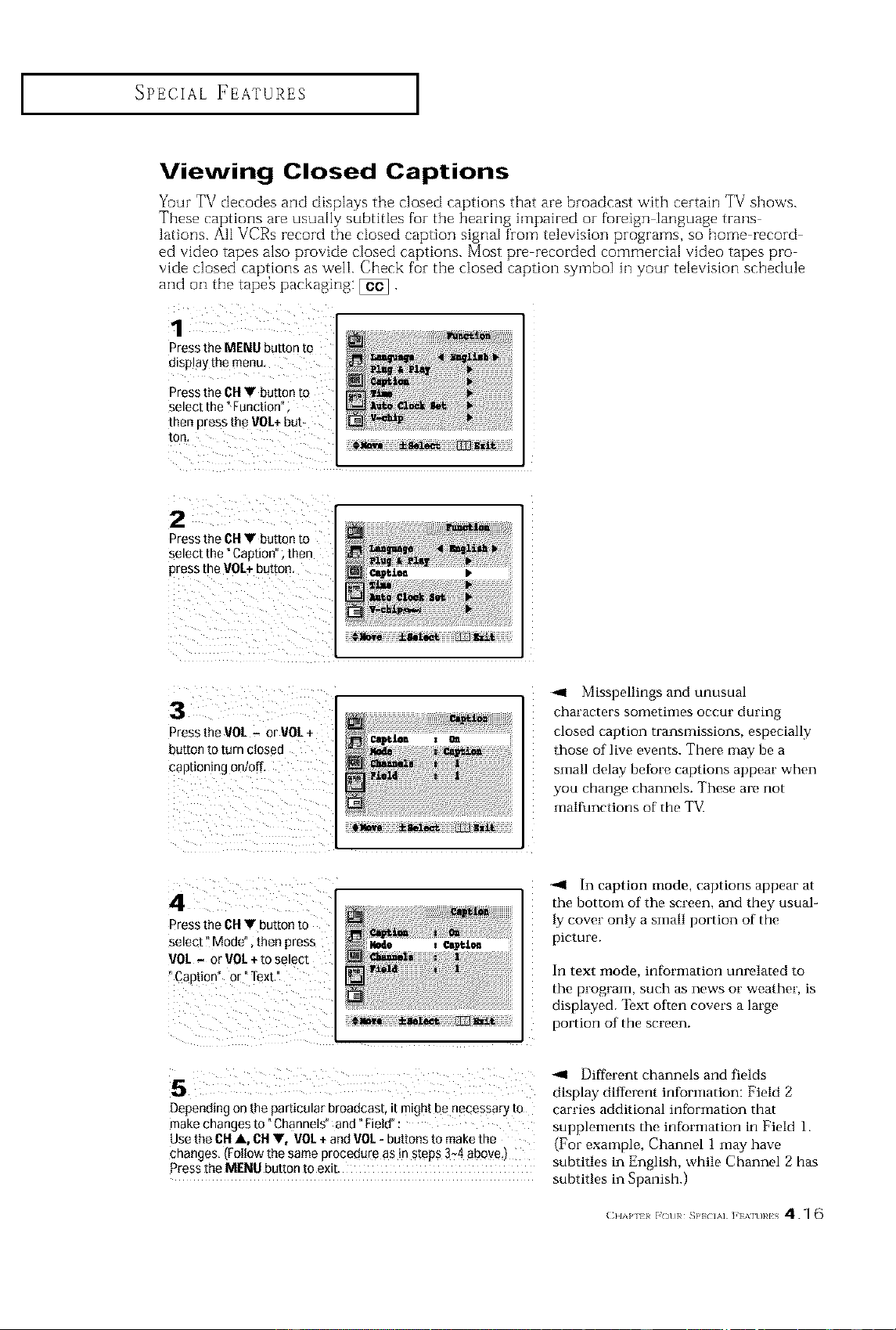
Yuur TV decodes and displays the closed captions that are broadcast with certain TV shows.
These captions are usually subtitles for the bearing impaired oi- foreign language trails
lations. All VCRs record the closed caption signal from television programs, so home record
ed video tapes also provide closed captions. Most pre recorded commercial video tapes pro
vide closed captions as welI. Check for the closed caption symbol in your television schedule
and on the tape_ packaging: [_,
Press the MENU button to
display the menu,
Press the OH• button to
select the" Function"
then press the VOI.+but-
ton.
12 i i _ii i _ i i
Press the OH• button to
select the "Caption"; then
press the VOL#button,
3
Press the VOI. - or VOI.+
DU[[On[Oturn closea
captioning on/off.
Misspellings and unusual
characters soi_letiiiles occur during
closed caption transmissions, especially
those of live events. There may be a
small delay befbre captions appear when
you change channels. These are not
malfunctions of the TV
4
Press the (}H • DUt[ORtO
select" Mode" me_ press
VOI. - or VOI.+ to select
°Caotior or Text
-ql in caption mode, captions appear at
the bottom of the screen, and they usual-
ly cover only a small portion of the
picture.
In text mode, information unrelated to
the program, such as news or weather, is
displayed. %xt of ran covers a lm_,e
portion of the screen.
Diftk,rent channels and fields
display different information: Field 2
Depending on the particular broadcast _tm_gnt ee necessary to carries additional infornlation that
make cnanges to "Channels"and _Field supplements the information in Field 1.
Use the OHA, OH•, gel +and VOL- buttons to make the (For example, Channel 1 may have
cnanges, IFoltow the same oroceaure as tn steos 3-4 above
Press the MENU button to exit. subtitles in English, while Channel 2 has
subtitles in Spanish.)
( }l,%P 11 _()u}¢ Sp} IA] ]'1%]U}¢IS 4.1 6
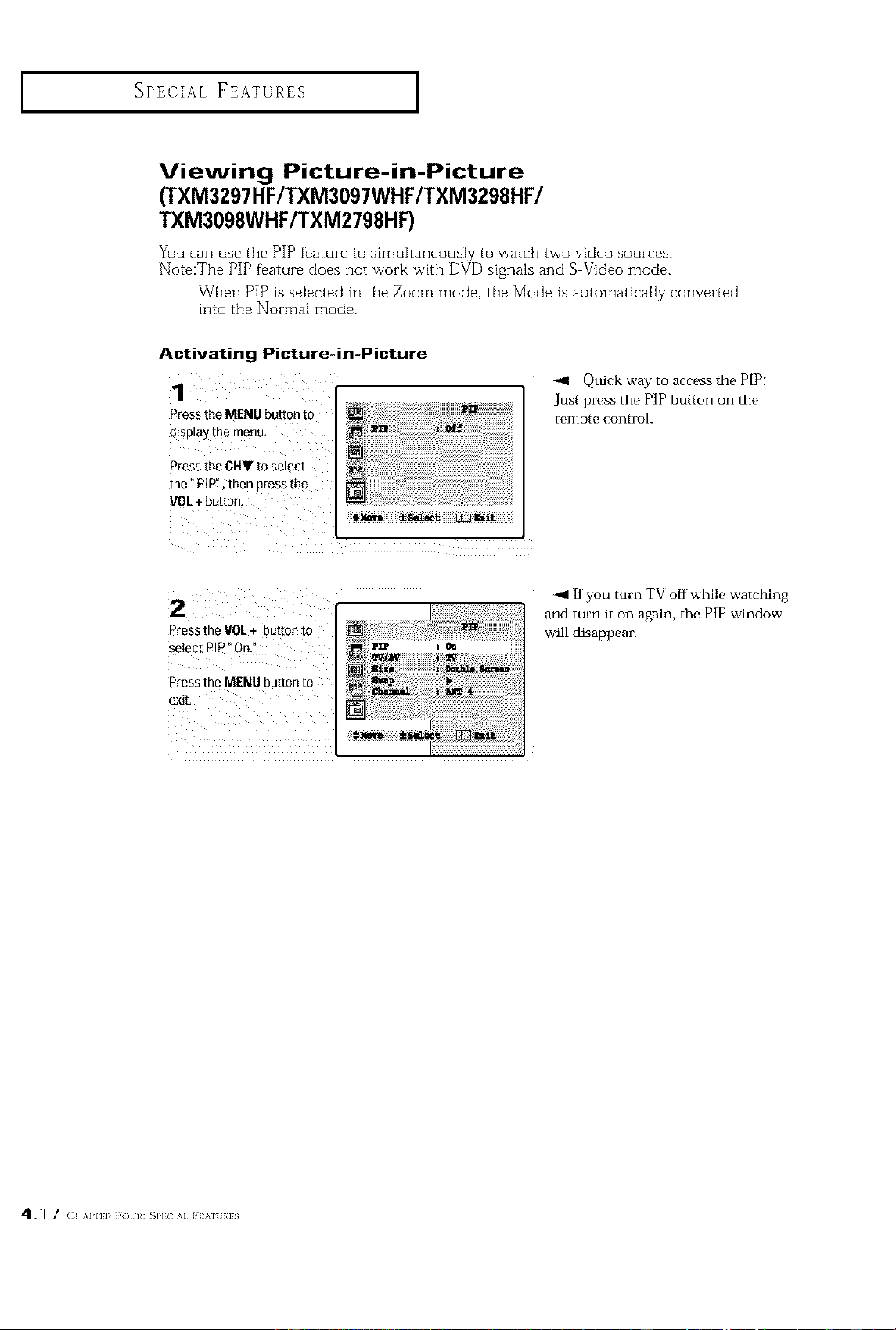
SPECIAL FEATURES ]
Viewing Picture-in-Picture
(TXM3297HF/TXM3097WHF/TXM3298HF/
TXM3098WHF/TXM2798HF)
You can use the PIP feature to simultaneously to watch two video sources.
Note:The PIP feature does not work with DVD signals and S Video mode.
When PIP is selected in the Zoom mode, the Mode is automatically converted
into the Normal mode.
Activating Picture-in-Picture
Press the MENU button to
disPlaY the menu,
Press the CFI_ to select
the _PiP"; then press the
VOL+ button,
Quick way to access the PIP:
Just press the PIP button on the
remote control
2
Press the VOL+ button to
select PIP On
Dress the MENU button to
exit
If you turn TV off while watching
and turn it on again, the PIP window
will disappear.
4.1 7 ( HAPIi}¢],o }_:_],1(]M] },%]%}ais
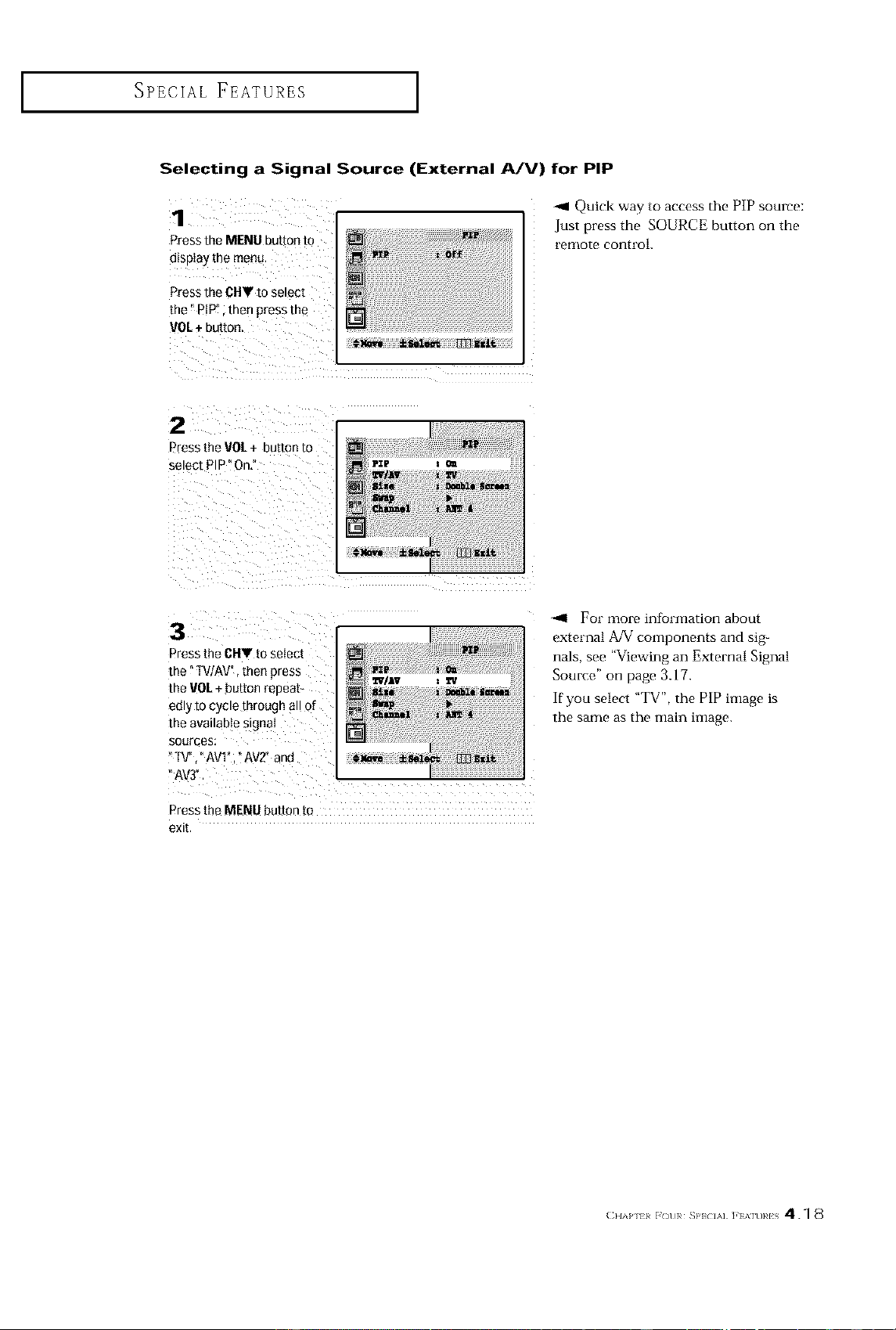
SPECIAL FEATURES ]
Selecting a Signal Source (External A/V) for PIP
1
Press the MENU button to
o_sp_ay _ne menu
Pressthe CHVtoselect
the °PIP" tnen pressme
VOL+bu_on
Quick way to access the PIP source:
Just press the SOURCE button on the
remote control.
2zl_
2
r_'ess the VOL+ button to
select PIP On,°
3
Press the CHV to select
ihe "TVIAV men press
theVOL + buttonreoea[_
edly to cycle through all Of
[r]e aV_IIBDie Slgrlal
SOUFCeS:
_TV AV1 "AV2" and
"AV3"
Press the MENU button to
eXit
Tq/&q z TV
,<1 For more information about
external A/V components and sig-
nals, see "Viewing an External Signal
Source" on page 3.17.
If you select "TV', the PIP image is
the same as the main image.
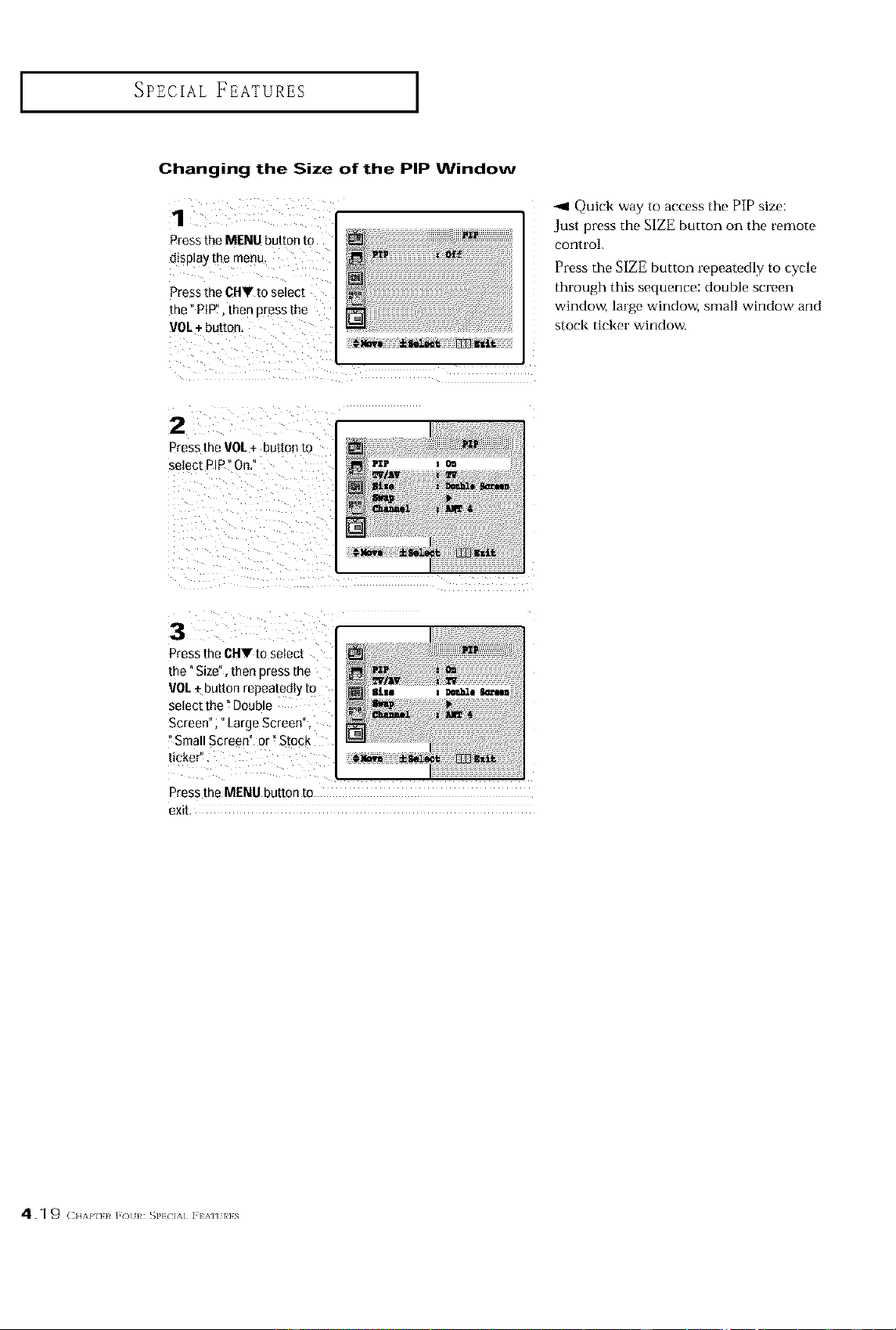
SPECIAL FEATURES ]
Changing the Size of the PIP Window
1
Pressthe MENU button to
display the menu
Press the CHV to select
the _PiP" then oress the
VOL+ button,
-.,el Quick way to access the PIP size:
Just press the SIZE button on the remote
control.
Press the SIZE button repeatedly to cycle
through this sequence: double screen
window, large window, small window and
stock ticker window.
2
Press the V0L+ bu_mnm
se_ec[ PiP°On
PIP t
_SLse _ _e See,_
3
Press the CHT to se_ec[
the "Size', then press me
VOL ÷button repeatedly to
select the" Doable
Screen_, _Large Screen",
Small Screen" or" Stock
ticker".
Press the MENU button to
exit,
4.1 9 ( HAl,I}1_],) R:_PiL]M] }A]%171S
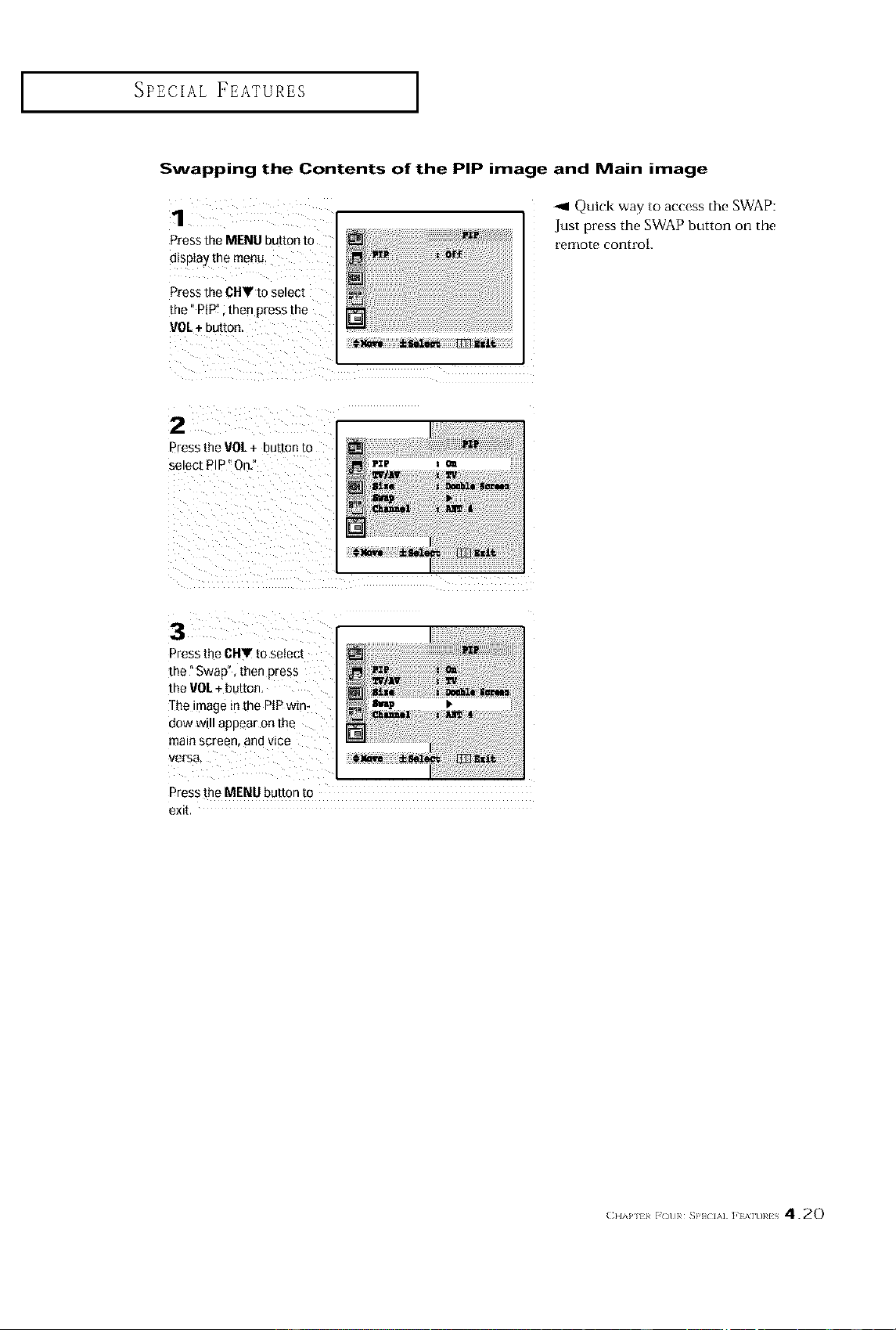
SPECIAL FEATURES ]
Swapping the Contents of the PiP image and Main image
1
Press the MENU button to
oIsplay [Be menu
Press the CUV to selec_
the"PiP" [hen press the
VOL + button
-_ Quick way to access the SWAP:
,Justpress the SWAP button on the
l'elllote cont 1"oi.
2
D'ess the VOE + button to
select PIP" On."
/
_PIF I O=
Iltrap 1. .
l_ _=_1, t []3_gzlt
3
Press the CHT to select
the" Swap, men press
the VOL + button,
The mage m me PiP win-
ctow w appear ORthe
main screeR, anti ViCe
versEl
Press the MENU button to
exit,
(}l,%P ii F()UR _}'} IA] ]'1%]URIS 4.20
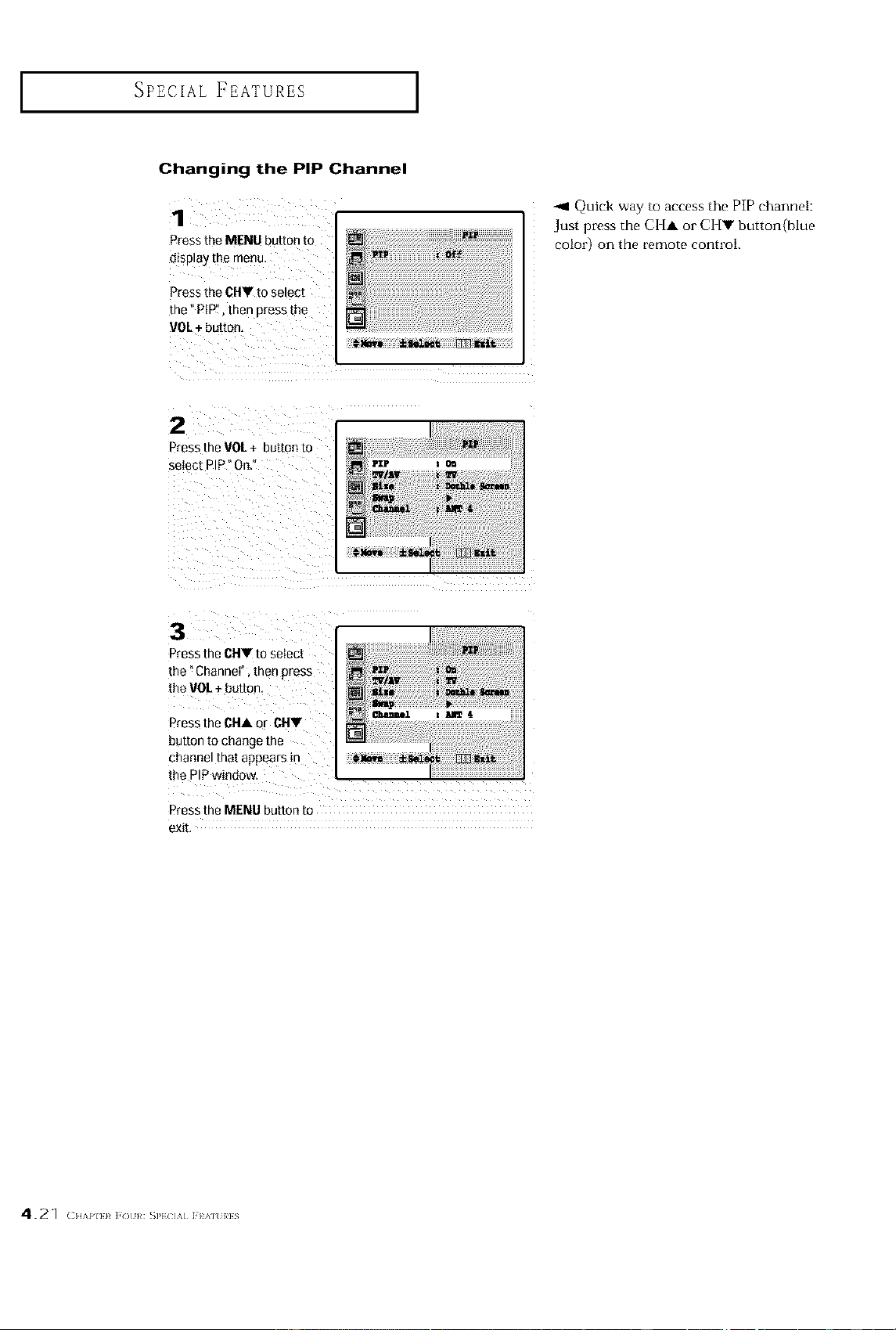
SPECIAL FEATURES ]
Changing the PiP Channel
1
Press the MENU button [o
display me menu
Press the CHV [o se_ec[
the _PiP" men nress the
VOL + button,
_1 Quick way to access the PIP channel:
Just press the CHA or CHY button(blue
color) on the remote control.
2
Press the VOL+ button to
select PiP _On."
3
Press the CHV to select
[he"Channel inert pres._
the VOL + button.
Press [he CHA c* CHV
button to cha_ge [ne
channel that appears _n
[ne PIPwindow.
Press the MENU button to
exl[
4.21 ( HAPIE}¢ ]? ) }/: _PECIA] J'E_] RES
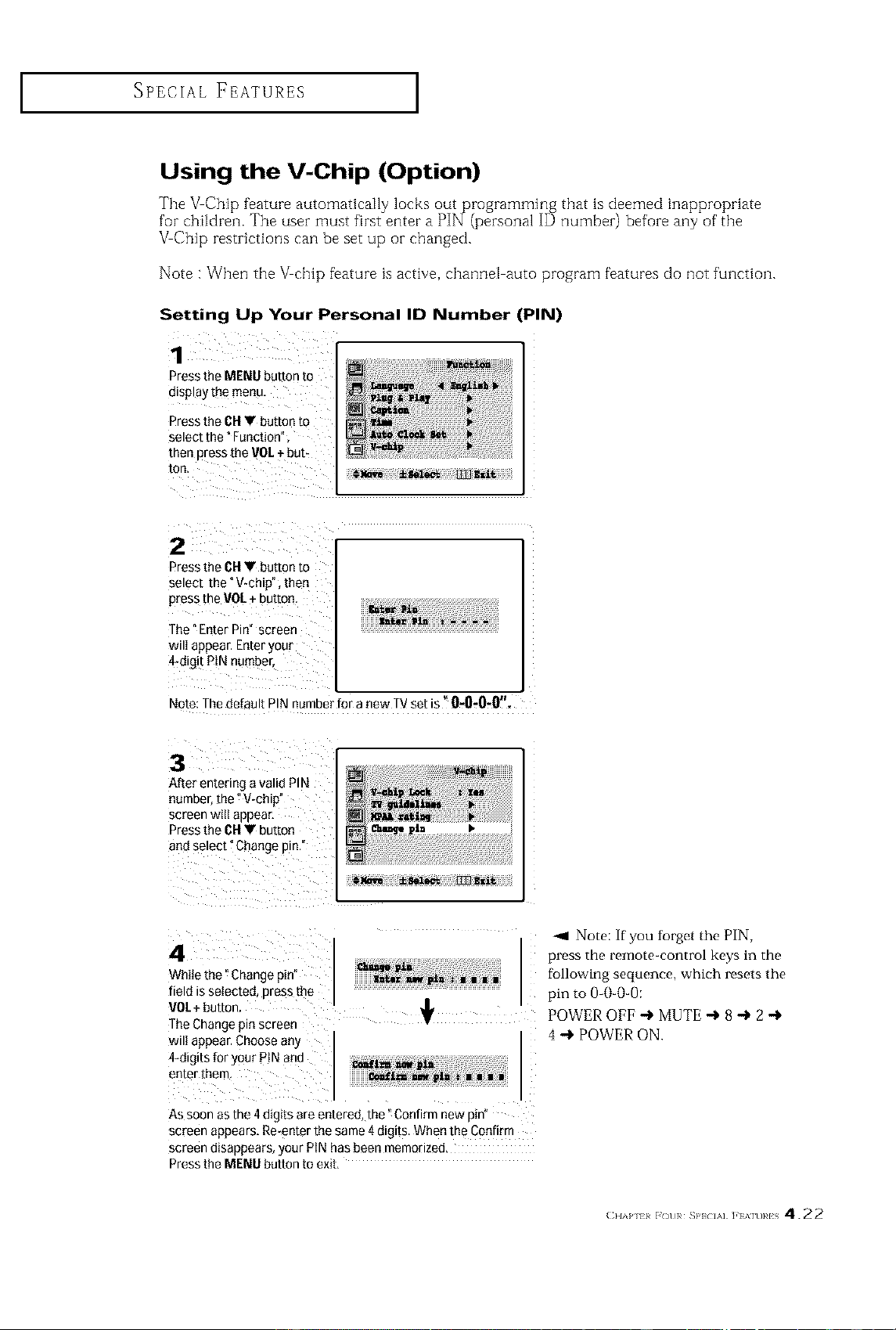
SPECIAL FEATURES ]
Using the V-Chip (Option)
The VChip feature automatically locks out programming that is deemed inappropriate
for children. The user must first enter a PIN (personal ID number) before any of' the
_Chip restrictions can be set up oi- changed.
Note : When the k/chip feature is active, channel auto program features do not function.
Setting Up Your Personal ID Number (PIN)
1
Press the MENU button to
display me menL.
Press the CH • button to
select the" Function
inert Dress[he VOL + but-
[oF
2
Press the CU• button to
select the _V-chip", then
press the VOI + button.
The" Enter Pin" screer
wilt appear. Enter your
4-d,g,t PIN number,
Note: The default PIN number for a new TV set is 0-0-0-0 .
3
After entering a valid PIN
number the ° V-ch,p
screen Wttt aDDear,
Press the CH• button
and select °Change p,n
4
While the "Change pin'
field is selected Dressthe
VOL+ button,
[he Change p _screer
wilt appear. Choose any
4-digits for your PIN and
enter the-
As soon as the 4 dig_tsare enterea the "Confirm new pin"
screen appears, Re-enter the same 4 d,g,[s,When the Confirm
screen a_sappears,your PIN has 3een memorizea,
Press the MENU button to exit,
-_ Note: if you turget the PIN,
press the remote-control keys in the
following sequence, which resets the
pin to 0-()-0-0:
POWER OFF + MUTE -} 8 -} 2 -}
4 -} POWER ON.
(}D%P 11 _ou}¢ S}'_ IA] ]'] %]U}¢IS 422
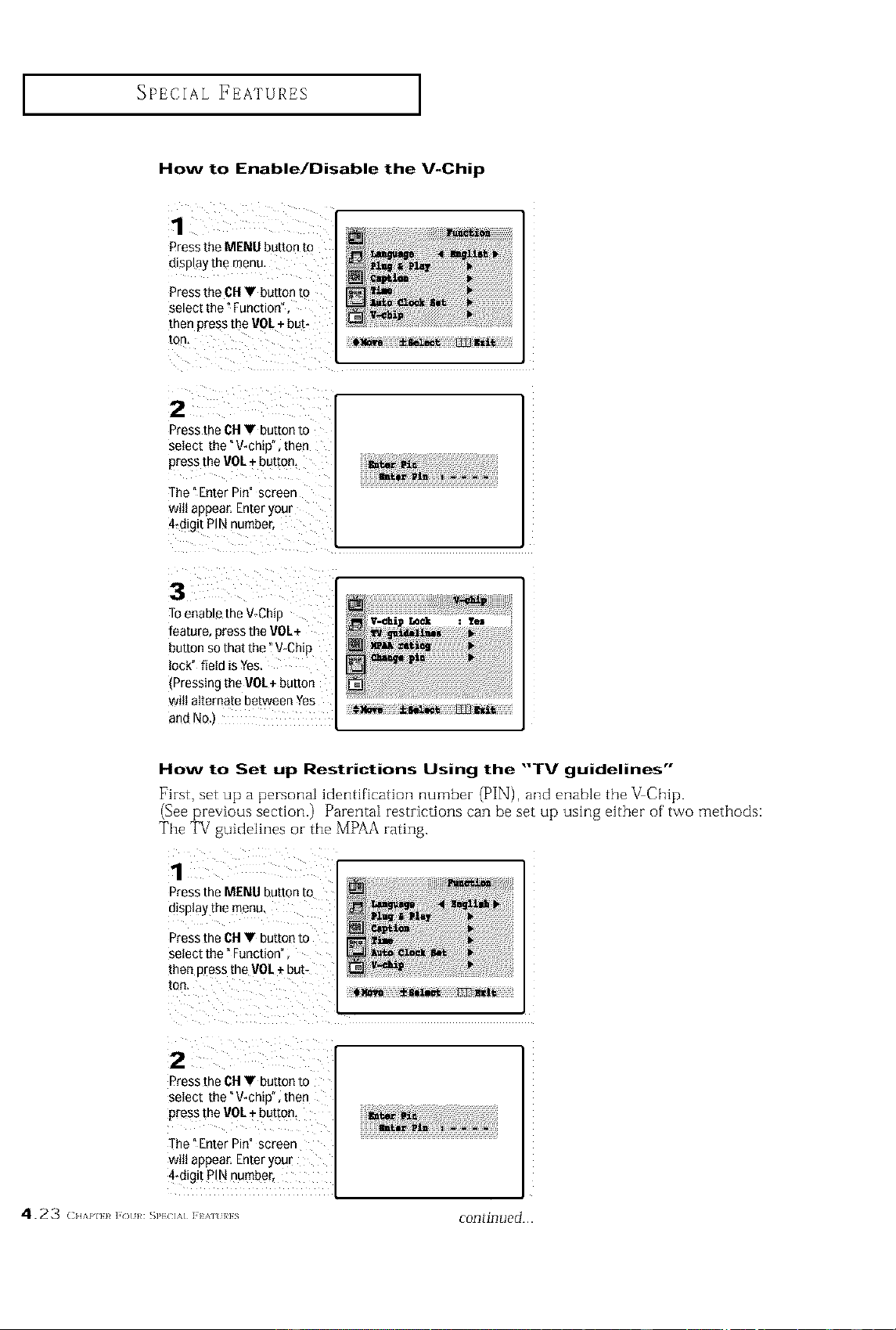
SPECIAL FEATURES ]
How to Enable/Disable the V-Chip
1
Press the MENU button to
o_sp_aythe menu,
Press the CH• button to
select the _Function
men Dressthe V0L + but-
ton,
2
Press EneCH• button to
select the"V*chiD men
Dress[Re VOL + button,
The" Enter Pin" screer
witl appear Enter your
4*di§ t PIN number
3
Toenable the V-Chip
[eature, press the VOL+
button so that the "V_Chip
lock" field is Yes
3ressing the VOL+ button
witl alternate between Yes
and No
i!!!__iiiiiiiii_i _ _ _iiiiiii!i_ i¸__ iiiiiii_ii
How to Set up Restrictions Using the "TV guidelines"
First, set up a personal identification number (PIN), and enable the V Chip.
(See previous section.) Parental restrictions can be set up using either of two methods:
The TV guidelines or the MPAA rating,
Press the MENU button to
display the menu,
Press the Old• button to
select the" Function"
then press the VOL÷ but-
ton.
2
Press the CH• button to
select the"V chip" then
Press the VOL+ button,
The" Enter Pin" screen
wilt appear, Enter your
4_digit P!N number,
4.23 ( HAI'I}}# ]'(3 }/: SP}(]]%] ] }A]% }/}S
continued...
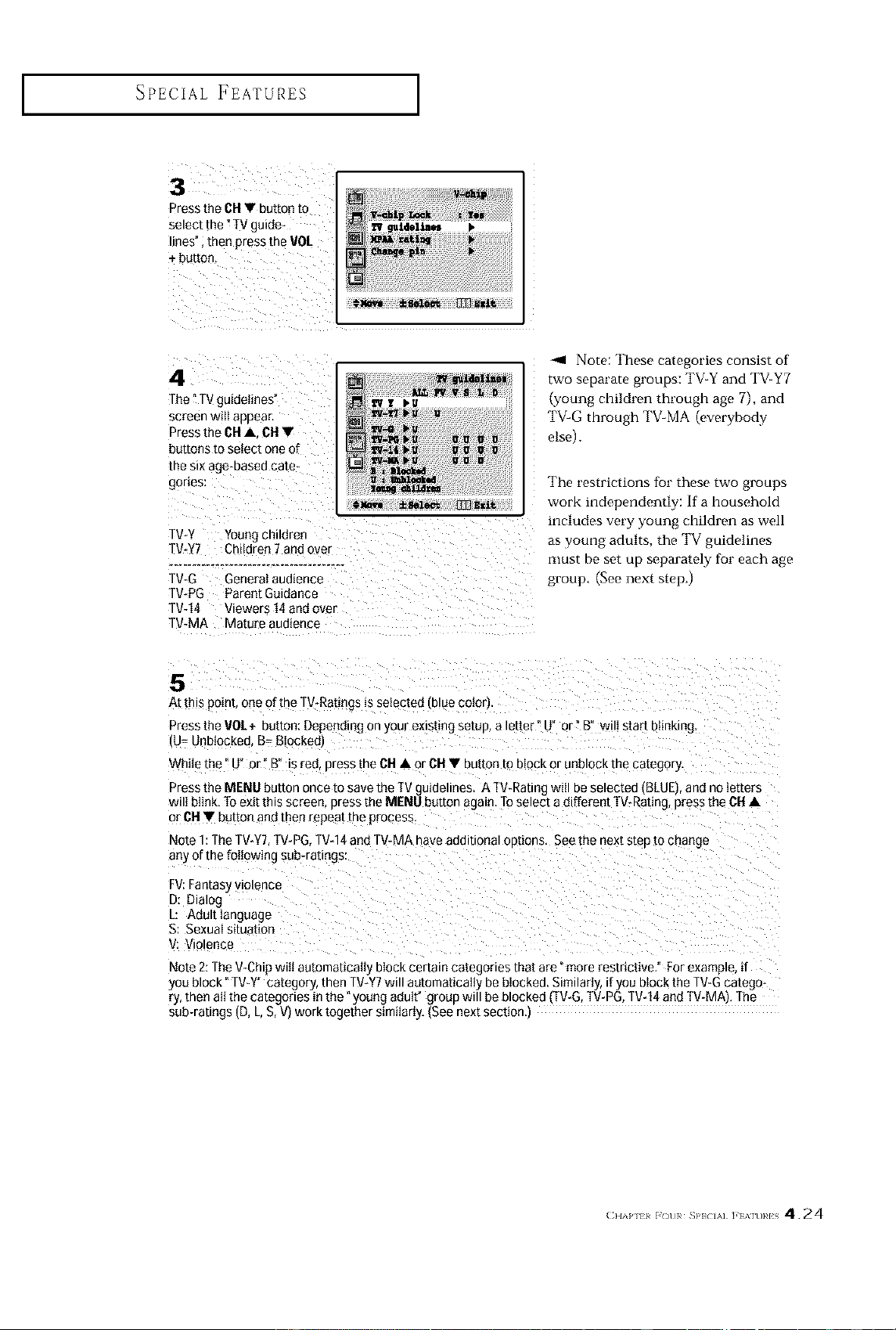
I SPECIAL FEATURES ]
Press the 6H • button to
select the _TV guide-
lines" ; then press the VOL
4
The "TVguidelines'
5Green Wttt aDDea[,
Press the CH• CN•
buttons to setect one of
[Re SiX age-Dasefl care
gor{es:
TV*Y Youngchildrer
W-Y7 Children 7 and ovPr
TV*G General audience
TV*PG Parent Guidance
W-14 Viewers 14 and over
W-MA Mature audience
@NOVS ilIlee_ _Izlt
-.,I Note: These categories consist ot
two separate groups: TV-Y and TV-Y7
Lyoung children througn a_e 7}. and
TV-G through TV-MA everybody
elsel
The restrictions {br these two groups
work independently: If a household
includes very young children as well
as young adults, the TV guidelines
must De set up separately _br each age
group. See next stepj
5
At this point, one of the W-Ratings _sselected IblUecotorl
Press the re/+ button: DeDenomg on your ex sting setup, a letter" U" or" B" wilt start D{{nKmg
J= UnDtOCked.B= Bloekedl
While the" U" or" B' s rea oress the CH • or CH• button [o biOCKor UNOIOCKme category.
PresstheMENUbuttononcetosavetheTVguideline_ ATWRatingwHtDesetectealBLUE andnoIetters
wilt blink. ]o exit this screen Bress the MENU button again. Toselect a different TV-Raung, press the ON•
or CH • button arc{ [Ben repeat [Re process.
Note 1:The TV*YT.IV-PG TVd 4and TV4.tA have additionat oBtions. Seethe next sLeD1ochange
any of the following sub-ratings:
FV:Fantasy vtotence
D: Dialog
L: Adult language
S: Sexual situation
V: Violence
Note 2:The V-CL o Wlttautomabcatt3 DIOCKcerLalncategories that are "more restrictive." For exampte if
you block "TV_Y" category, then TV-Y7will automaticaII, be blocked. Similarly, if you block the TV_Gcatego-
ry, then alt the categories m the young adutt" group will be blocked [V-G. TV-PG.TV-14 and TV-MA The
sub-ratings (D, L S. Vl work together s_mtiarU.{See next section
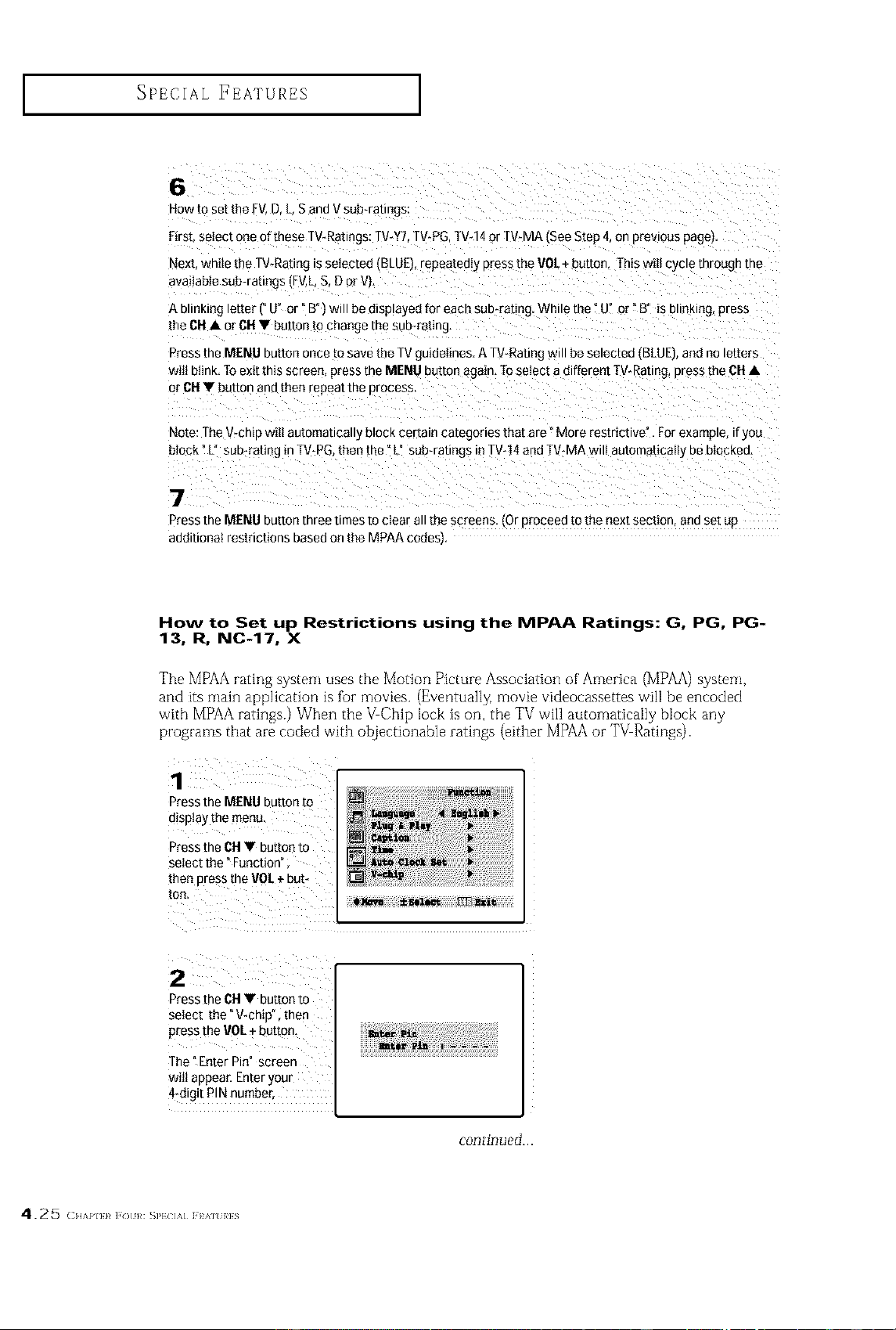
SPECIAL FEATURES ]
6
How to set the FV.D. L S and V sub-ratings:
First, select one of these TV-Ra[tngs:TV-YT.TV-PG,TV-14 or TV_MAtSee Steo 4, on prevtous page_.
Next while the TV_Ratingis selected (BLUE), repeatedly press the VOL+ button, This wi_ cycte in/ouch [ne
available suD-ra[tngs (FV,L B, D or Vl,
A blinking etter f" U" or" B°_will be disptayed for each sub-rating. While the" U" or" B" is DttnKtng,press
the CH• or CNV button to change the sub-rating,
Press the MENU button once to save the TVguidelines. A TWRating will be selected {BLUE ane no te[ters
wilt blink, To exit this screen, press [ne MENU button again, Fo select a different TV*Rating, press the OH•
or CI-I• button and then repeat me orocess
Note: The wcnio wtttautomation • block certain categories that are" More restrictive". For example, if you
block L suo-raung {n[V-PG. then the" L" sub-raengs in TV*14and TV-MA wilt automatically be blocked,
7
Press the MENU button three times to clear all the screens, tOr eroceed to the next section, ann set uo
additional restrictions based on the MPAA codes
How to Set up Restrictions using the MPAA Ratings: G, PG, PG-
13, R, NC-17, X
The MPAA rating system uses the Motion Picture Association of' America (MPAA) system,
and its main application is lbr movies. (Eventually: movie videocassettes will be encoded
with MPAA ratings.) When the VChip lock is on, the TV wi]l automatically block any
programs that are coded with oiqiectionable ratings (either MPAA or TV Ratings).
Press the MENU button to
display the menu.
Press the OH• button to
select the" Function"
2
Press the CH• button to
select the"V chip" then
press the ViOL+button,
The _Enter Pin" screen
wilt appear. Enter your
4 digit P!N number,
continued...
4.25 ( HA['I}}# ]'(3 }/: SP}(71%] I IA]% }/}S
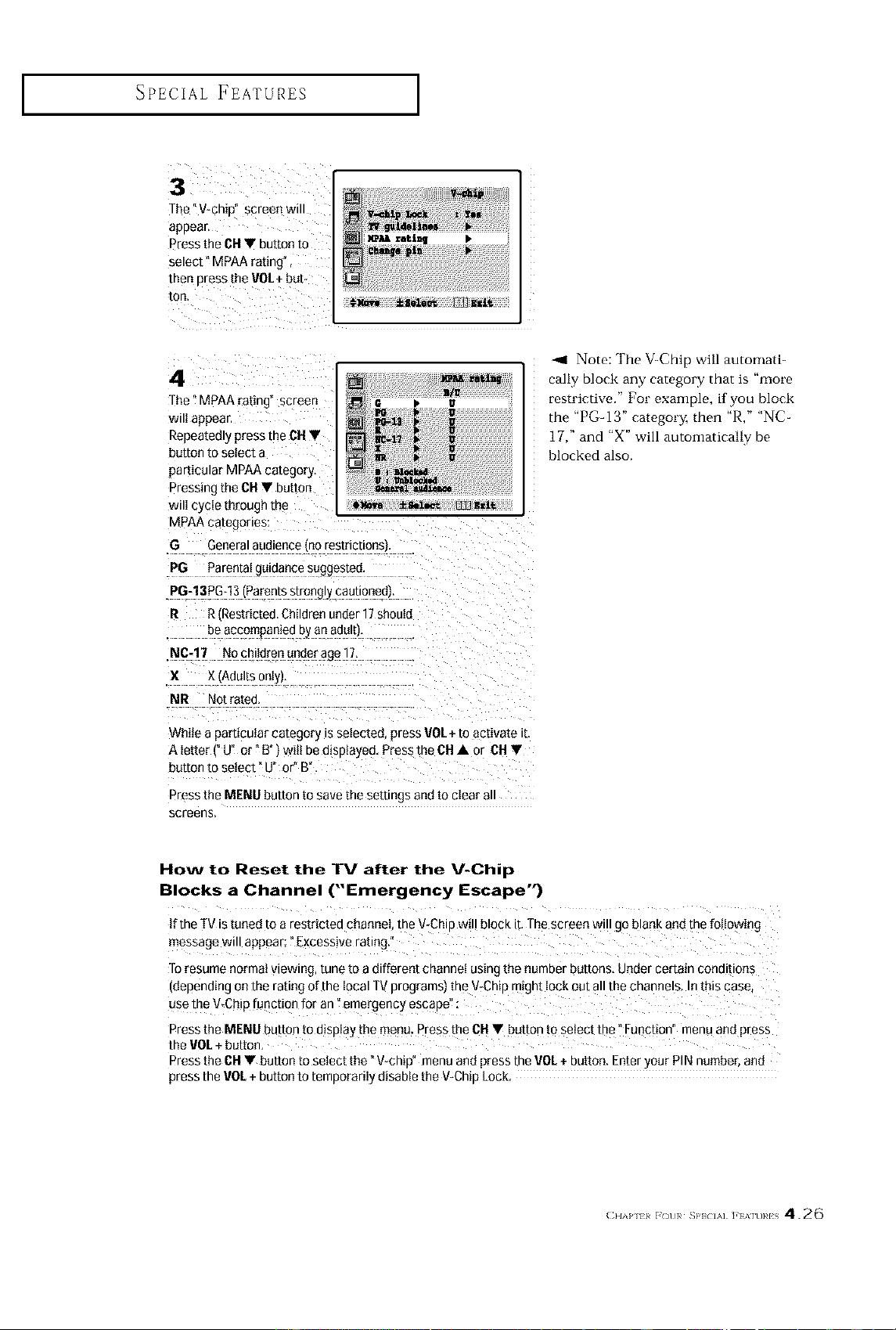
SPECIAL FEATURES ]
3
The"V_chip" spreen will
appear.
Press the CHV button to _'
select" MPAA rating",
then press the VOL+ but-
ton.
4
The" MPAA rating screen u
wilt appea-
Repeatedly press the CH V
DUt[On lO SeleCl a
particular MPAA category
Pressing the CH• butto_
wilt cycle through the #_ ±_l_ 133]_zl_
MPAA categortes:
G Generalaudience ,qo restrictions
PG Parental gutaancesuggesree,
.PG-13PG*13 tParentsstrongt_ cauuonee
R R 'Restricted. Childrenunder 17shoutd
be accomDallieooyan aaul[I,
NC-17 No children under age 17,
X X rAdultson_yt,
NR \lot rated.
While a pamcu{ar category tsselected press VOL+ to activate it.
Aletter J" or"B'rlwiiibeo_sp_ayeo. PresstheCHAor CH•
button to select ° u" or" B'
Press the MENU button to save the settings and to ctear a
screens,
-,9 Note: The V-Chm will automatb
callv block any category that is mor_
cestrictivo." [?or examt_]e, if vou block
rn( "PG- 13" category, then "R." "NC-
17." and "X" will automatically be
blocked also.
How to Reset the TV after the V-Chip
Blocks a Channel ("Emergency Escape")
If the TV is tuned to a restricted channel, the V_Chipw!l! bloqk ib The screen wi!l go blank and the following
message will appear; ?Excessive rating."
Toresume normat viewing, tune to a different channei using the number buttons, Under certain conditions
(depending on the rating of the iocal W programs) the V_Chip might iock out all the channels, In this case,
use the V_Chip [unction for an _emergency espape'!:
Press the MENU button to dispiay the menu. Press the CH• button to select the" Function" menu and press
the VOL+ button,
Press the CH• button to select the "V_chip" menu and press the VOL+ button. Enter your PIN number, and
press the VOL+ button to temporariiy disable the V_ChipLock
(}lAP ii F()UR _}'} IA] ]'1%]U}#IS 426
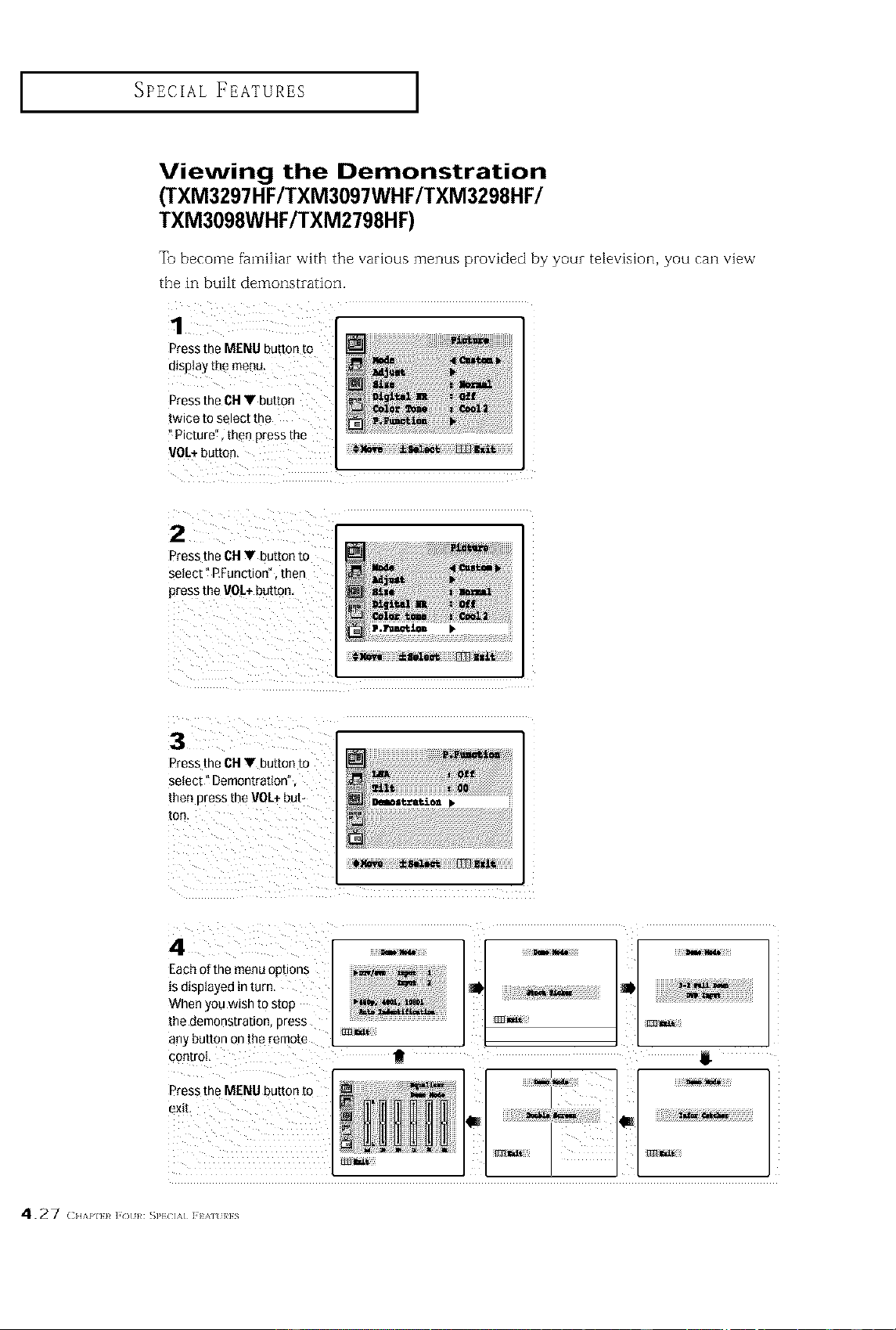
SPECIAL FEATURES ]
Viewing the Demonstration
[fXM3297HF/TXM3097WHF/TXM3298HF/
TXM3098WHF/TXM2798HF)
Tu become fm<ni]iarwit}]thevariousmenus pro'_idedby yourtelevision,you cP_nv[e_r
the in built demonstration.
1
PresstheMENUbutton[o
a_soleythemenu
)tess the CH V button
twice io SeleCt [n_,
Picture' men Dress[no
VOL+ button,
2
Press the CH• button to
Setect" P.Eunction't[_en
press the VOL+button.
3
Press the CH • button to
seiect" Demontration
then Bress [no VOL+ but-
0_ ±_1_ / Iz]3_y4t
4
Each of the menu options
s a_bDayeo in [urn.
When you wish to stop
the demonstrabon Bress
any DUEORon [[18 remo[e
cootroI,
P[ess the MENU button to
eXI[,
-'-I"
f
I
=_)i!i!iiiiiiiiii!)_i_)i)i)i)i)i)i)i)i)i)i)i)il
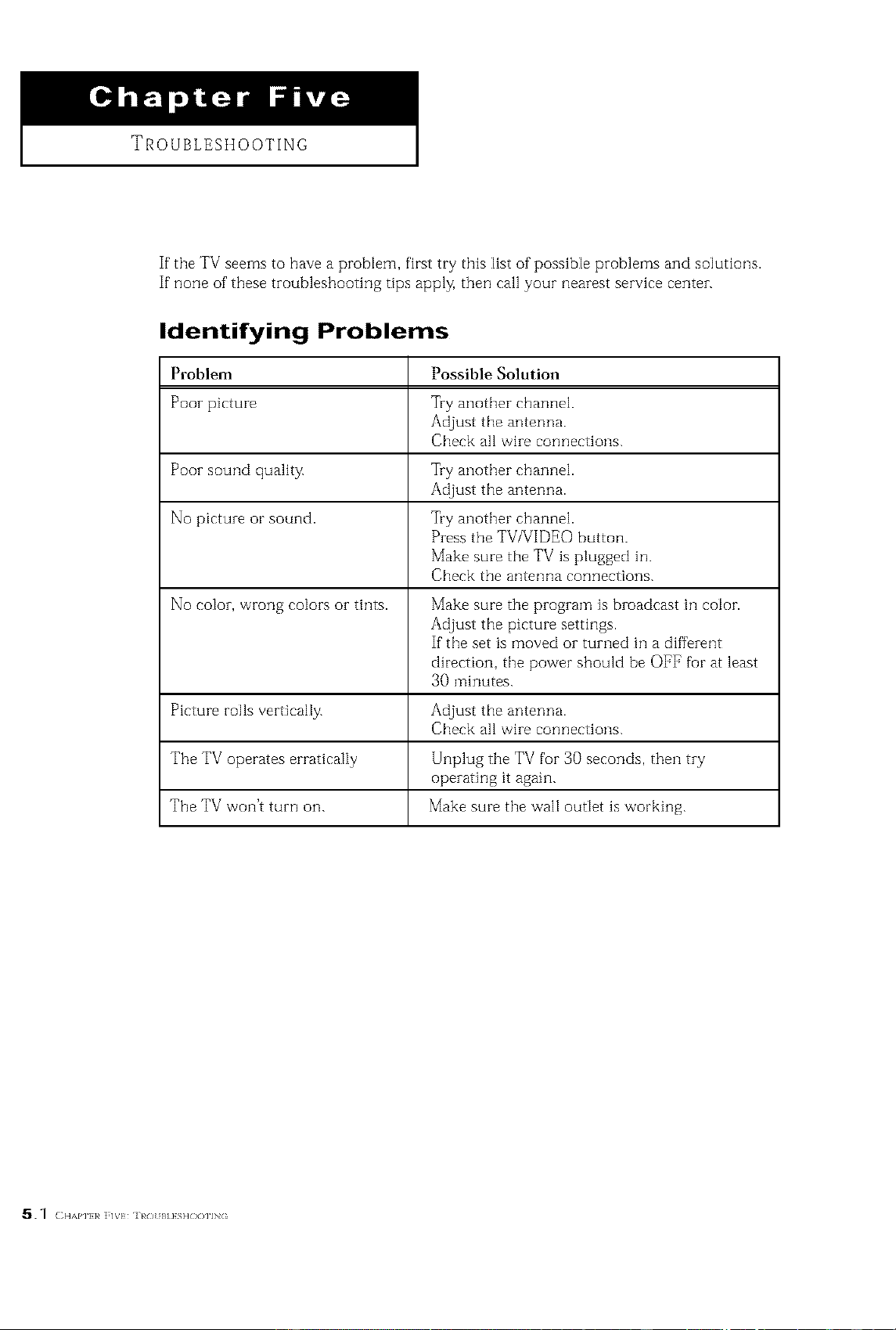
TROUBLESHOOTING
If the TV seems to have a problem, first try this list of possible problems and solutions.
If none of these troubleshooting tips apply, then call your nearest service center.
Identifying Problems
Problem Possible Solution
Poor picture Try another channel.
Adjust the antenna.
Check all wire connections.
Poor sound quality. Try another channel.
Adjust the antenna.
No picture or sound. Try another channel.
Press the TV/VIDEO button.
Make sure the TV is plugged in.
Check the antenna connections.
No color, wrong colors or tints. Make sure the program is broadcast in color.
Adjust tile picture settings.
If the set is moved oi turned in a different
direction, the power should be OFF fur at least
30 minutes.
Picture rolls vertically. Adjust the antenna.
Check all wire connections.
The TV operates erratically Unplug the TV for 30 seconds, then try
operating it again.
The TV won't turn on. Make sure the wall outlet is working.
5.1 ( HAP]ER ]?IVE ROt I_IESi]©OIIN(
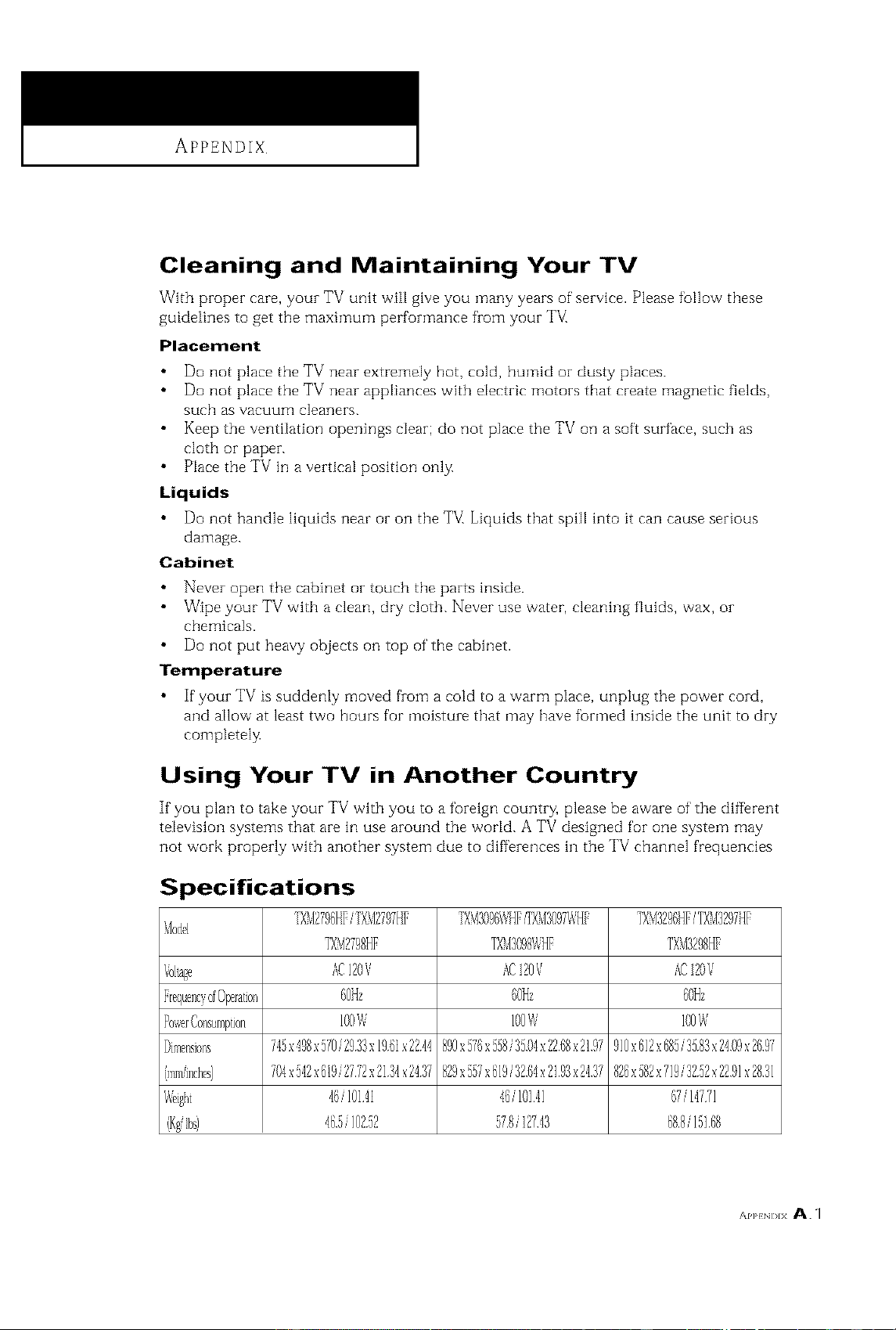
APPENDIX
Cleaning and Maintaining Your TV
With proper care, your TV unit will give you many years of service. Please fo]lo_;v these
guidelines to get the maximum performance from your T_/_
Placement
Do not place the TV near extremely hot, cold, humid or dusty places.
Do not place the TV near appliances with electric motors that create magnetic fields,
such as vacuuE;] cleaners.
Keep the ventilation openings clear; do not place the TV on a soft surface, such as
cloth or paper.
Place the TV in a vertical position only.
Liquids
Do not handle liquids near or on the T_/_Liquids that spill into it can cause serious
damage.
Cabinet
• Never open the cabinet or touch the parts inside.
• Wipe your TV with a clean, dry cloth. Never use water, cleaning fluids, wax, or
chemicals.
Do not put heavy objects on top of the cabinet
Temperature
If"your TV is suddenly moved from a cold to a warTi1 place, unplug the power cord,
and allow at least two hours for moisture that may have formed inside the unit to dry
completel_
Using Your TV in Another Country
]f you plan to take your TV with you to a foreign country, please be aware of the different
television systems that are in use around the worM. A TV designed for one system may
not work properly with another system due to diff'erences in the TV channel frequencies
Specifications
TXM2796HFiT)CM2797HFTXTIS096%iHE:f)OclBO97WH 7XM3296HFiT_cI3297HF
Model
TXNI2798HE ]XM3098WHE TXNISE08HF
AC12OV ACEOV ACEOV
60Hz 6OHz 6OHz
IOOW 100W 100W
DimenslOm 745x@Sx5?OiE933x1961x22:14890x576x558i3504x2268x2197910x612x685i3583x2409x2697
704x542x619i2772x213:lx2_37829x557x619i3261x2193x2437826xSS2x?19i3252x2291x2831
'16/10HI ,16/10141 67/M771
465/10252 578/I2743 68,8/15168,
APPENDIX A. 1

MEMO
A.2 A_,p_NI)JX

MEMO ]

MEMO
A.4 A_,p_NI)JX

ELECTRONICS