Owner's
Instructions
Warning ! Important
Safety Instructions
CAUTION
CAUTION: TO REDUCE THE RISK OF ELECTRIC SHOCK, DO NOT
REMOVE COVER (OR BACK). NO USER SERVICEABLE PARTS INSIDE.
REFER SERVICING TO QUALIFIED SERVICE PERSONNEL.
This symbol indicates high voltage is present inside It is
dangerous to make any kind of contact _ith any inside part of
this producl
This symbol alerts you that important literature concerning
operation and maintenance has been included with this product¸
Note to CATV s._s/em installer: This reminder is provided 1o call CATV system
inslallerg allention 1o Article 820-40 of lhe Nalional Electrical Code (5eclion 54- of
Canadian Electrical Code, Part I), lhal provides guidelines lor proper grounding
and, in particular, specifies lhal lhe cable ground shall be connected lo the
grounding sxslem (if lhe building as close to the point of cahle enlry as praclical
Caution: FCC/C SA rx:gulati, ms state that an.v unauthorized cha_ges or .lod{_ica-
tio!_s to this equipmem ma.v _oid the user_ authori(v to operate it.
Ca_*tion: To pre_enl electric shock, match the wide blade of ph*g to tile _ide slot,
and filll.v ius_ rt tile phtg.
Attelai, m: pour e_ iter Ies chocs elecoiques, introduirc la lame Ie plus large de la
fiche darts Ia borlw comspondante de la prise et pousser jusqu'au _tmd.
Important: One Federal Court has held that unauthorized recording of
copyrighted TV programs is an inlringement of US copyright lax_s
Certain Canadian programs may also he copyrighted and any unauthorized
recording in x_hole or in part *nay be in violation of these rights
To prexent damage which may result in fire or electric shock
hazard, do not expose this appliance to rain or moisture.
As an ENERGY STAR Parmer,
Samsung Eleclronics America, Inc. has delennincd Ihat fl_is pr_xluct or pRxlucl
2 m_xM meels file ENERGY STAR guidelines for energy effick,nc)_
Thank You for Choosing Samsung
Thank you for choosing Samsung! _-\_urnew Samsung TV represents die latest in television
technologp We designed it with easy-to<tse on-screen menus and closed captioning capabili-
ties, making it one of tile best ploducts in its class We are proud to offer you a Doduct that
will provide convenient, dependable seivice and enjoyment for years to come
Important Safety Information
_ Always be careful x<hen using your TV receixer To reduce tile risk of fire, electrical shock,
and other itj uries, keep these safety precautions in mind when installing, using, and
maintaining your machine
• Read all saf_'tyand operating instructions before operating your TV
• Keep the salcty and operating instructions tor future rebrence
• Heed all warnings on the TV receiver and in tile operating instructions
• Follow all operating and use instructions
• Unplug the TV receiver from the wall outlet before cleaning Use a damp cloth; do not use
liquid or aerosol cleaners
• Never add any attachments and/or equipment without approval of tile manufacturer Such
additions can increase tile risk of fire, electric shock, or other pemonal i*j urp
• Do not use the TV receiver where contact with or immerqion in water is a possibilit}; such as
near bath tubs, sinks, washing machines, swmmmlg pools, etc
• Do not place tile TV on an unstable cart, stand, tripod, bracket, or
table where it can fall A fidlmg TV can cause serious i_jury to a
child or adult, and serious damage to tile appliance Use only with
acmt, stand, uipod, bracket, or table recommended by the manu-
factmei or sold with the T\{ Follow the manufacturel_ insuuc-
tions when mounting the unit, and use a mounting accessory rec-
ommended by tile manufacturer Move the TV and cart with care
Quick stops, excessive folce, and uneven surfaces can make tile
unit and cart unsteady and likely to oveitmn
• Provide ventilation for the TV receiver Tile unit is designed with slots in the cabinet for ven-
tilation to protect it from overheating Do not block these openings with any object, and do
not place the TV receiver on a bed, sofa, rug, or other similar surface Do not place it near a
radiator or heat resister If yogi place the TV receiver on a rack or bookcase, ensure that there
is adequate ventilation and that you've followed tile manufacturer_ instructions for mount-
ins
• Operate your TV receiver only from tile type of power source indicated on the marking label
If you are not sine of tile type of power supplied to your home, consult your appliance dealei
or local power compans:
• Use only a grounded or polarized outlet For your safeb; this TV is equipped with a polarized
ahemating current line plug having one blade widei than the other This plug will fit into tile
powei outlet only one wa> If yogiare unable to inseit the plug fidly into the outlet, try
reveising tile plug If tile plug still does *lot fit, contact your electrician to replace your outlet
3
• Protect the power cord Power supply cords should he routed so that they v,on't be _aalkecl
on or pic_clled by obiects placed on or against them Pay particular attention to cords at
plugs, comenience receptacles, arid the point whele they exit from the unit
• Uc@ug the TV from the wall outlet and disconnect the antecma or cahle system during a
lightnic_gstorm o1 v.hen left unattec<led arid Utlused for long peliods ot time This vvillpre
vent damage to the unit due to lighming and powel line stages
• Avoid ovahead power lines An outside amenna systenl should not be placed in the vicinity
of ovedlead power lines ol othel elecuic light o1 power circuits o1 vvhele it can fall into such
power lines ol circuits When installing an outside amenna systenl, he extlenlely caretul to
keep flora touching the powel lines or cilcuits Contact with such lines can he tatal
• Do riot overload the wall outlet or extec_sioncords Overloading can resuh itl fire or electric
shock
• Do not insert anything through the openings in tile unit, where they can touch dangerous
vohage points or damage parts Nexer spill liquid of any kind on the T\{
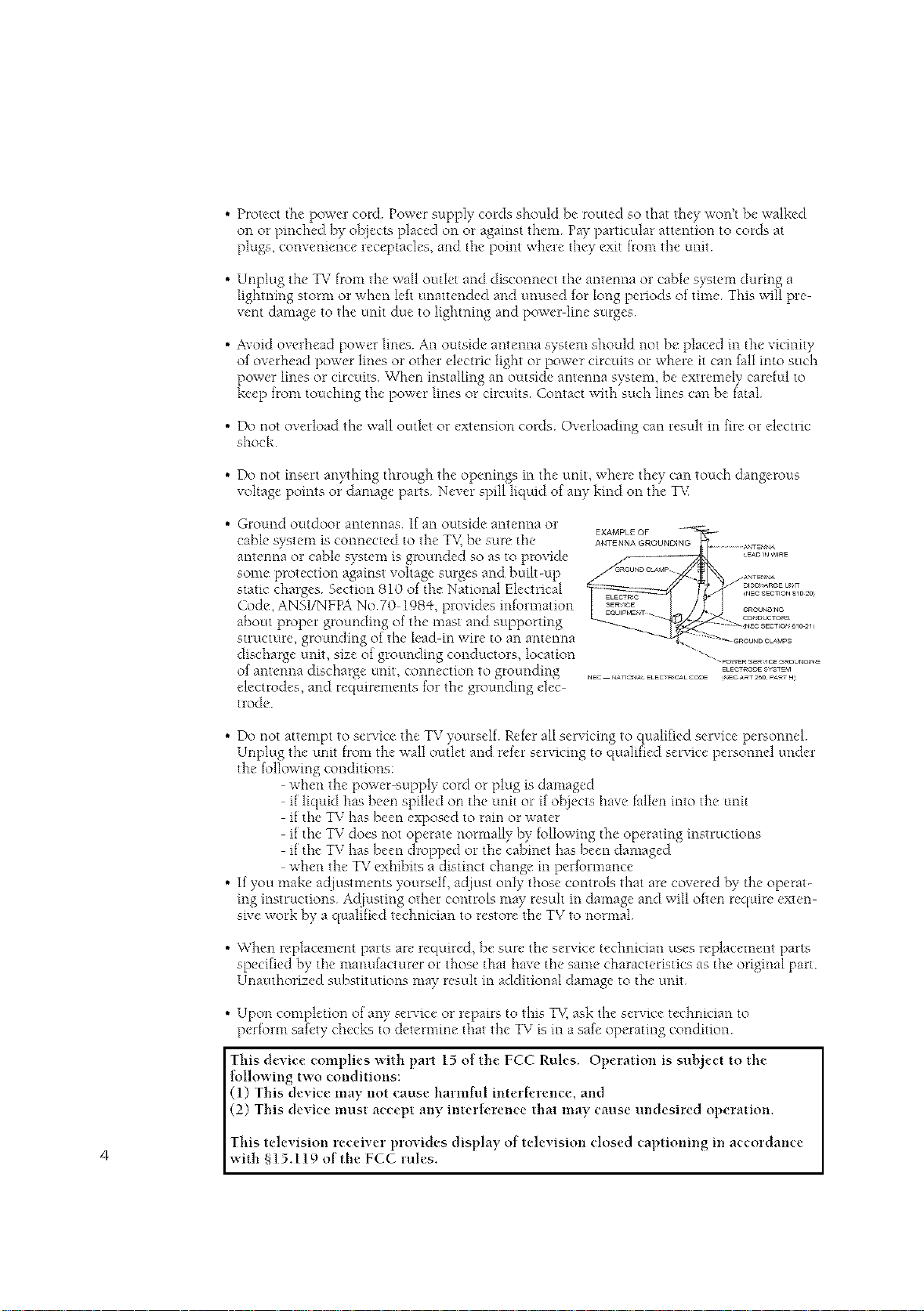
• Ground outdoor antennas If an outside antenna or
EXAMPL£ OF _ -
cable system is connected to the T\( he sure the ANTENNAG_OOND_NG..............._:J_N_
antecma or cable system is groutlded so as to provide /_ _-- _E.,O,._,,,R_
some protectioc_ against vohage surges and built-up ___°_"_°_ _._,N_
static: charges Section 810 ot the National Elecuical _v_ ..... _2o%_%_,%_,'_]0:0
Cool°, ANSI/NFPA No70 I98q _,ploxicles icdomlation _]',_ ..... _.......
about propel glounding of tile nlast and supporting - °_'°"°_?_
s.uctule,g o.nd ngoft>1,.din,,iF,.toan,,nten l , .....
discharge unit, size of grounding conductols, location "" ""- ............ .............
of ant°tins discharge unit tion to groutlcling _ ._OOE_.*'_
: , connec ._° t4_r<S_aCELECrRG,_LC_E,_,ECA_r250p4RrH
electrodes, and requirements tol the grounditlg dec-
uode
• Do not attempt to service the TV yourselt Ret_'r all servicing to qualified service personnel
Unplug the unit flora the wall outlet and retcr servicing to qualified service personnel under
the k_llowing conditions:
when the power supply cord or plug is damaged
it liquid has been spilled on the unit or if obiects have tallen into the unit
it tile TV has been exposed to ram or water
it tile TV does not operate normally by following tile operating instructions
it tile TV has been dropped or tile cabinet has heen damaged
when the TV exhibits a distinct change in performance
• If you make adiustments yourself, acliust only those controls that are covered by the operat-
ing instructions Acliusting other controls nmy result m damage and will otten require exten
sn'e work by a qualified technician to restore tile TV to normal
• When replacement parts are required, he sure tile service technician uses replacement parts
specified by tile manufacturer or those that have tile same characteristics as tile original [)art
Unauthorized substitutions may resuh in additional damage to tile unit
• Upon completion of an,,.'serxice or repairs to this T_,;ask the service technician to
pertoHn safety checks to detern'mle that the TV is in a safe operating condition
This device complies with part 15 of the FCC Rules. Operation is suhlect to the
lollowing two conditions:
(1) This device may not cause harmfiH interh'rence, and
(2) This device must accept any interh, rence that may cause undesired operation.
This televisiori receiver prmides display of tele,,'ision closed captioning in accordance
4 with §15.119 of the FCC rules.
Important Warranty Information
Regarding Television Format
Viewing
Standard screen format televisions (4:3, the aspect ratio of the screen width to height) are
primarily designed to view standard format full-motion video The images displayed on
them should primarily be in the standard 4:3 ratio f,_rmat and constantly moving
Displaying stationary graphics and images on screen, such as the dark top and bottom
letterbox bars (wide screen pictures), should be limited to no more than 15% of the total
television viewing per week
b\qde screen format televisions (16:9, the aspect ratio of the screen width to height) are
primarily designed to view wide screen format full motion video The images displayed
on them should primarily be in the wide screen 16:9 ratio format, or expanded to fill the
screen if your model off¢'rs this frature, and constantly moving Displaying stationary
glaphics and images on screen, such as the dark side bars on non expanded standard
format television video and programming, should be limited to no more than 15% of the
total television viewing per week
Additionall),, viewing other stationary images and text such as stock market reports,
video game displa),s, station logos, web sites or computer graphics and patterns, should
be limited as described above for all televisions Displaying any stationary images that
exceed the above guidelines can cause uneven aging of picture tubes (CRTs) that leave subtle,
but permanent burned m ghost images in the television picture To avoid this, vary the pro
glare ruing
and images, and primarily display full screen moving images, not stationary patterns or
dark bara On television models that offrr picture sizing fratures, use these controls to
view the diff.'rent formats as a fldl screen picture
Be careful m the selection and duration of television formats used fol viewing Uneven
CRT aging as a result of format selection and use, as well as other burned-m images, is
not covered by your Samsung limited warrant),
5
CONTENTS J
Chapter 1: Your New TV ................ 8
List ot Featmc,s ........................................... 8
Familiadzing l\_ursclf with The TV ............................ 9
Front Panel Buttons ................................ 9
Side Panvl Jacks .................................. 10
Real Panel Jacks .................................. 11
Remote Contwl ................................... l 2
Chapter 2: Installation ................. 14
Conn_'cting VHF and UHF Antennas ......................... 14
Antennas with 300 ohm Flat Twin Leads ............... 14
Antennas with 75 ohm Round Leads .................. 15
Separate VHF and UHF Antennas ..................... 15
Connecting Cable TV ..................................... 15
Cable without a Cahle Box .......................... 15
Connecting to a Cable Box that Descrambles All Channels .... 16
Connecting to a Cable Box that Descrambles Some Channels ..... 16
Connecting a VCR ........................................ 18
Com_ecting an S VHS VCR .......................... 19
Connecting a Second VCR to Recoid from the TV ......... 20
Connecting a DVD Player (480iP+80p) ........................ 20
Connecting a Digital 157 Set-Top Box ('+80p/1080i) ............... 21
Connecting to Y,Pb,Pr .............................. 21
Co*mectmg to DVI (Digital Visual Interface) ............. 22
Connecting a Camcorder ................................... 23
Installing Batteries m the Remote Control ...................... 24
Chapter 3: Operation .................. 25
Tuining the _' On and Off ................................. 25
Plug & Play Featuie ...................................... 25
Vievdng the Menus and On Screen Displayq .................... 27
Viewing the Menus ................................ 27
\Tiewing the Display ............................... 27
Selecting a Menu Language ................................. 28
Memorizing the Channels .................................. 29
Selecting ti_e Video Signal-source ..................... 29
Storing Channels in Memoiy (Automatic Method) ........ 30
Adding and Erasing Channels (Manual Method) .......... 31
Changing Channels ....................................... 32
Using the Channel Buuons .......................... 32
Directly Accessing Channels ......................... 32
Using the PRE-CH Button to select the Previous Channel 32
Adjusting the Volume ..................................... 32
Using Mute ...................................... 32
Labeling the ChamaeE ..................................... 33
Setting the Clock ......................................... 34
Option I: Setting the Clock Manually .................. 34
Option 2: Using the Local PBS Channel to
Automatically Set the 157 Clock ...................... 35
Customimng the Pictme ................................... 37
Using Automatic Picture Settings ............................ 38
Customimng the Sound .................................... 39
Using Automatic Sound Settingq ............................. 40
Vievdng an External Signal Source ........................... 41
6
CONTENTS [
Chapter 4: Special Features ............. 42
Customizing _\_vuRemote,Lont_ol ........................... 42
SettingUp "_btlrR_'moWControl ro L)DrateYour\CR (or DVD) 42
SettingUp "_\mrR_'moteControl ro L)p_'rat_"Your(hbk" Box ..... 44
Fine Tuning ChamM_ ..................................... 45
LNA (Low Noise Amplifier) ................................. 46
Tilt ................................................... 47
DNIN" (Digital Natural Image engine) ........................ 48
Digital Noise Reduction ................................... 49
Changing the Screen Size .................................. 50
Changing the Color Tone .................................. 51
Using the RSurf Feature ................................... 52
Fleezing the Picture ...................................... 52
Setting the On/Off Timei ................................... 53
Setting the Sleep Timer .................................... 54
Choosing a Multi Channel Sound (MTS) Soundnack ............. 55
Exua sound settings (Tmbo Sound, Sulround, Auto Volume,
Melod> BBEor Woofei) ................................... 56
Viewing Closed Captions .................................. 59
Viewing Pictuie-in-Pict ure ................................. 60
Activating Pictule-in-Picture ......................... 60
Selecting a Signal Source (Exteinal A/V) for PiP .......... 61
Changing the Size of the PiP Window ................. 62
Swapping the Contents of the PiP image and Main image 63
Changing the PIP Channel .......................... 64
Using the VChip (USA) ................................... 65
Setting Up Youi Personal ID Number (PIN) ............. 65
How to Enabl¢'/Disable the \aChip .................... 66
How to Set up Restrictions Using the "TV guidelines" ..... 66
How to Set up Restrictions using the MPAA Ratings:
G, PG, PG 13, R, NC 17, X.......................... 68
How to Reset the TV aftei the VChip
Blocks a Channel (_Eme*genc), Escape") ................ 69
Using the VChip (Canada) ................................. 70
Setting Up Your Personal ID Number (PIN) ............. 70
How to Enable/Disable the \"-Chip .................... 71
How to Set up Restrictions Using the "TV guidelines" ..... 71
How to Set up Restrictions using the MPAA Ratings:
G, PG, PG 13, R, NC 17, X.......................... 73
How to Set up Restrictions Using the Canadian English .... 74
How to Set up Restrictions Using the Canadian French 75
How to Reset the TV aftel the VChip
Blocks a Channel ("Emmgency Escape") ................ 76
Viewing the Demonstration .......................... 77
Chapter 5: Troubleshooting ............. 78
Identifying Problems ...................................... 78
Appendix ............................ 79
Clvaning and Maintaining _\mt TV ........................... 79
Using _\_u_TV m Anothei Lounuy ........................... 79
Specifications ........................................... 79
7
YOURNEWTV
List of Features
_ur TV was designed with the htest tecbnolog_ This TV ix a high per_rmance unit that
includes the tollowing special _atures:
Full Flat Scle_'n
Easy to us_' remow control
Easy to use Oil scrf_ell I_21C'IlH system
Automatic timer to turn the TV on and off
Adjustable, picture" and sound settings that can be stored m the" TVs memory
Automatic cha*mel tuning for up to 18I channels
A special tilter to reduce or eliminate reception problems
Free tuning control for the sharpest picture possible
A built-in muhi channel sound decoder for stereo and bilingual listening
Built-m, dual channel speakers
A special sleep timer
Headphone jack for private listening
16:9 letter box format available depending upon source
Picture m Picture (TXN2798HF/TXN3098WHF/TXN3298HF)
YouP. NEw' TV ]
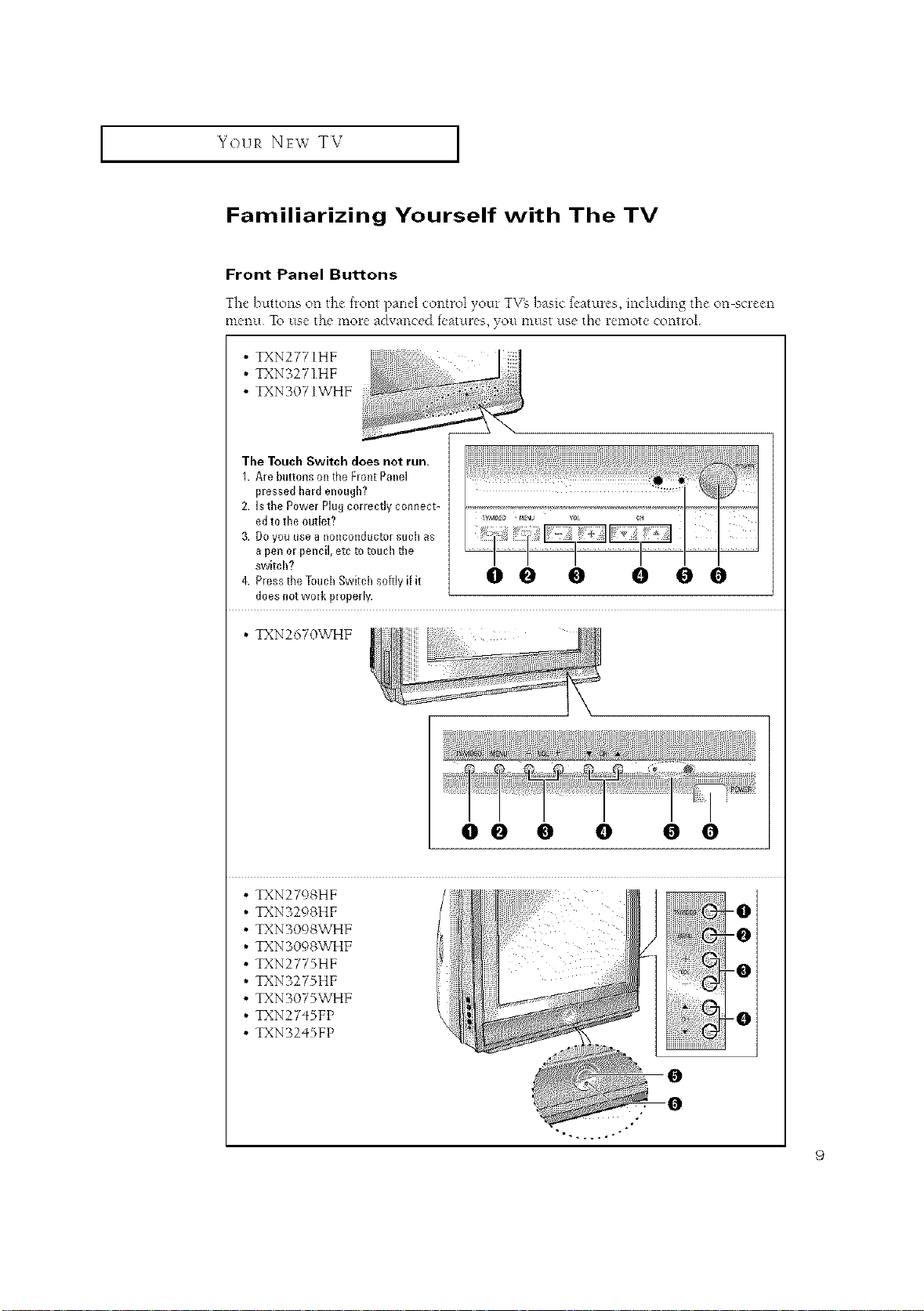
Familiarizing Yourself with The TV
Front Panel Buttons
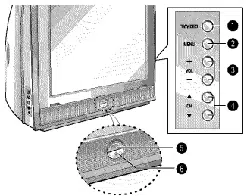
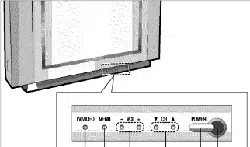
The buttons on d_c fRmt pand contR}l your TVg basic features, hwludmg the on scR*en
mellU To use _l_emore advanced features, VOLI must use the remote control
• TXN277IHF
• TXNo27IHF
• TXNo07IWHF
The Touch Switch does not run.
1. Are buttons on the FIont Panel
plessed hald enough?
2. Is the Power Plug correctly connect-
ed to the outlet?
3. DO you Use a 11ollcollductor such as
a pen ol pencil, ere to touch the
switch?
does not wolk ploperly.
• TXN2670WHF
00 0 0 0 0
• TXN2798HF
• TXNB298HF
• TXN 3098WHF
• TXN 3098WHF
• TXN2775HF _0
• TXN3275HF
• TXN3075WHF
• TXN27qSFP _0
• TXN32qSFP
9
YOUR NEw TV ]
• TXN323_HF
_ %_i iJHiii;;i¸ ZI_i_;
[ •
e e 0 0 O
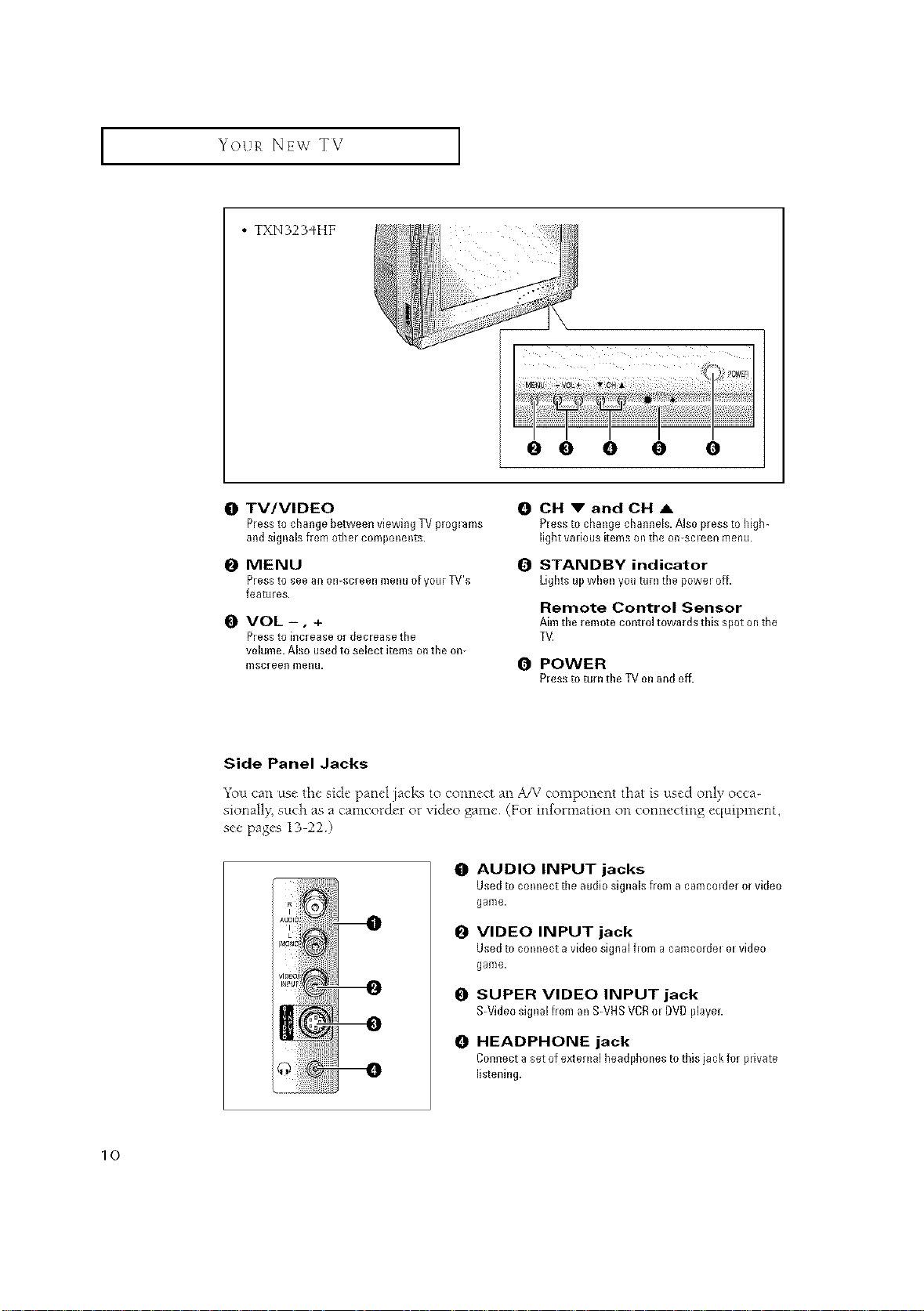
0 TV/VIDEO
PresstocMngebetweenviewingTVpr0glams
andsignalsfromothercomponents.
0 MENU
Pressto see an oI1-screell meI1u o[ your TV's
fea[tlres.
O VOL -, +
Press to iRcrease 0r deciease the
volume. Also used to select items on the on-
mscreell meRu.
0 CH V andCH A
Plesstochangechannels.Alsopresstohigh-
light valious items oil tile o{I-sol ee{1 m e{I tl.
i_ STANDBY indicator
Lightsupwhenyouturnthepoweloff.
Remote Control Sensor
Aim the remote contlol towards this spot ontile
TV.
0 POWER
PlesstoturntheTVonandoff.
Side Panel Jacks
You can use the side panel jacks to connect an A/V component that is used only occa-
sionall/, such as a camcorder or video game (For information on connecting equipment,
see pages 13 22 )
0
O
O
0
AUDIO INPUT jacks
Used to comlect tile audio signals from a canlcolder or video
game.
VIDEO INPUT jack
Used to comlect avideo signal f=oma camcordel el video
game.
SUPER VIDEO INPUT jack
S-VideosignalfromanS-VHSVCRel DVDpiayeL
HEADPHONE jack
Connect a set of extenlal headphones to this iack for plivate
listening.
10
YOUR NEW TV [
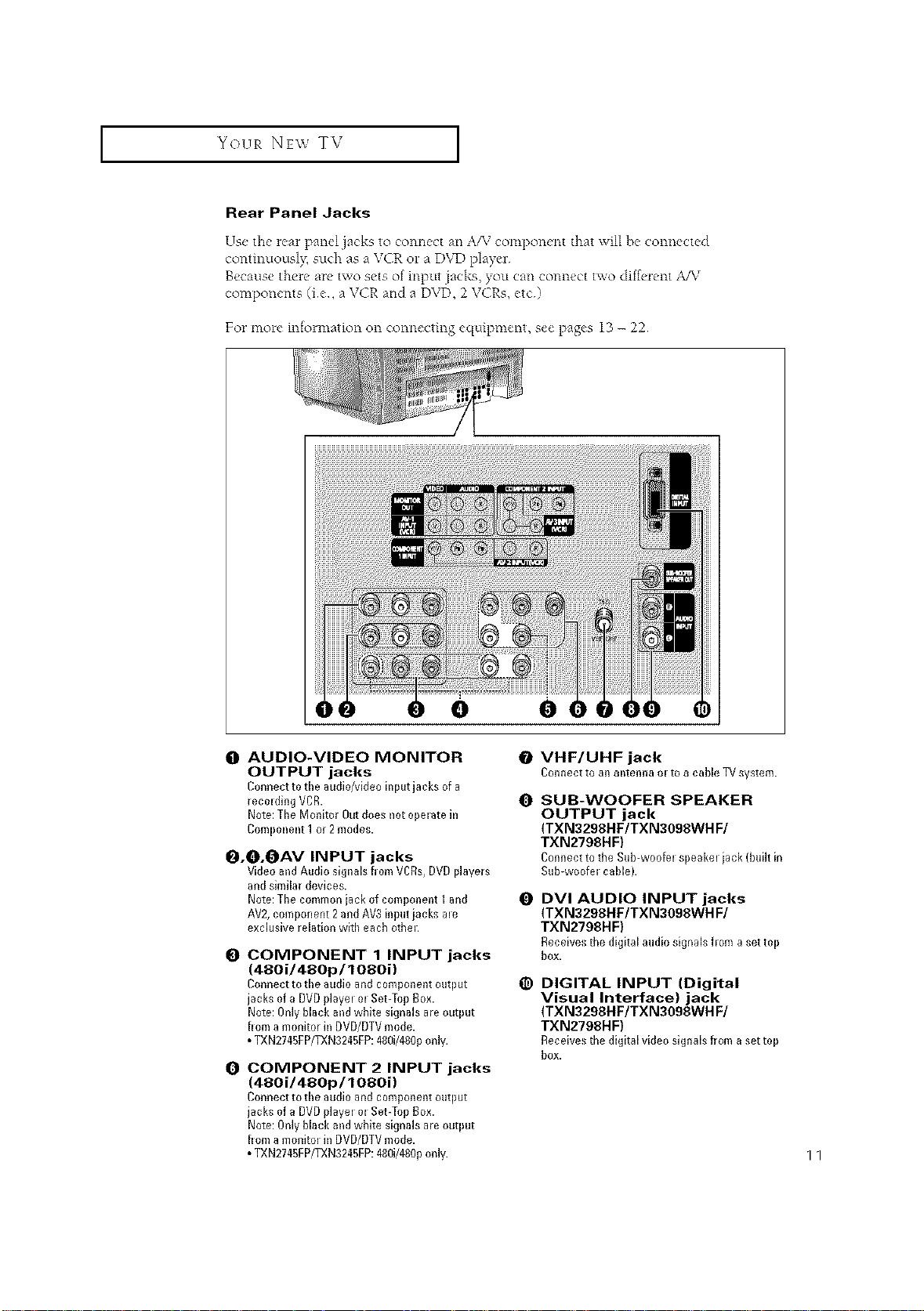
Rear Panel Jacks
Use the rear panel jacks to connect an A/M component that will he connected
continuously, such as a VCR or a DVD player
Because there are two sets of input jacks, you can connect two diff¢-rent A/V
components (ie, a VCR and a DVD, 2 VCRs, etc)
For more information on connecting equipment, see pages 13 - 22
e e
O AUDIO-VIDEO MONITOR
OUTPUT jacks
Connectto the audi0/videoinputjacks ofa
recolding VCR.
Note:TheMonitorOutdoesnotoperatein
Component1or 2modes.
O.O.OAV INPUT jacks
Video andAudio signals bom VCRs,DVDplayers
andshnilar devices.
Note:Tile common iack of component I and
AV2,component 2andAV3 inputiacks ale
exclusive relation witll eacb otbel:
O
COMPONENT 1 INPUT jacks
(48Oi/480p/108Oi)
Connect to the audio and component output
jacks of a DVDplayel el Set-Top Box.
Note: Only black andwhite signals are output
bom a monitor in DVD/DTVmode.
• TXN2745FP/TXN3245FP:480i/480ponly.
COMPONENT 2 INPUT jacks
(480i/480p/1080i)
Connect to the audio and component output
jacks of a DVDplayel el Set-Top Box.
Note: Only black andwhite signals are output
born a monitol in DVD/DTVmode.
• TXN2745FP/TXN3245FP:480i/480ponly.
VHF/UHF jack
Connect to an antenna el to a cable TV system.
0 SUB-WOOFER SPEAKER
OUTPUT jack
(TXN3298HF/TXN3098WH F/
TXN2798HF)
ConnecttotbeSub-woo(elspeakeliack(buihin
Sub-woo(el cable).
0 DVI AUDIO INPUT jacks
(TXN3298HF/TXN3098WH F/
TXN2798HF)
Receivestbedigitalaudiosignalsflom asettop
box.
_) DIGITAL INPUT (Digital
Visual Interface) jack
(TXN3298HF/TXN3098WH F/
TXN2798HF)
Receivestbedigitalvideosignalsfromasettop
box.
11
I Your NEW TV I
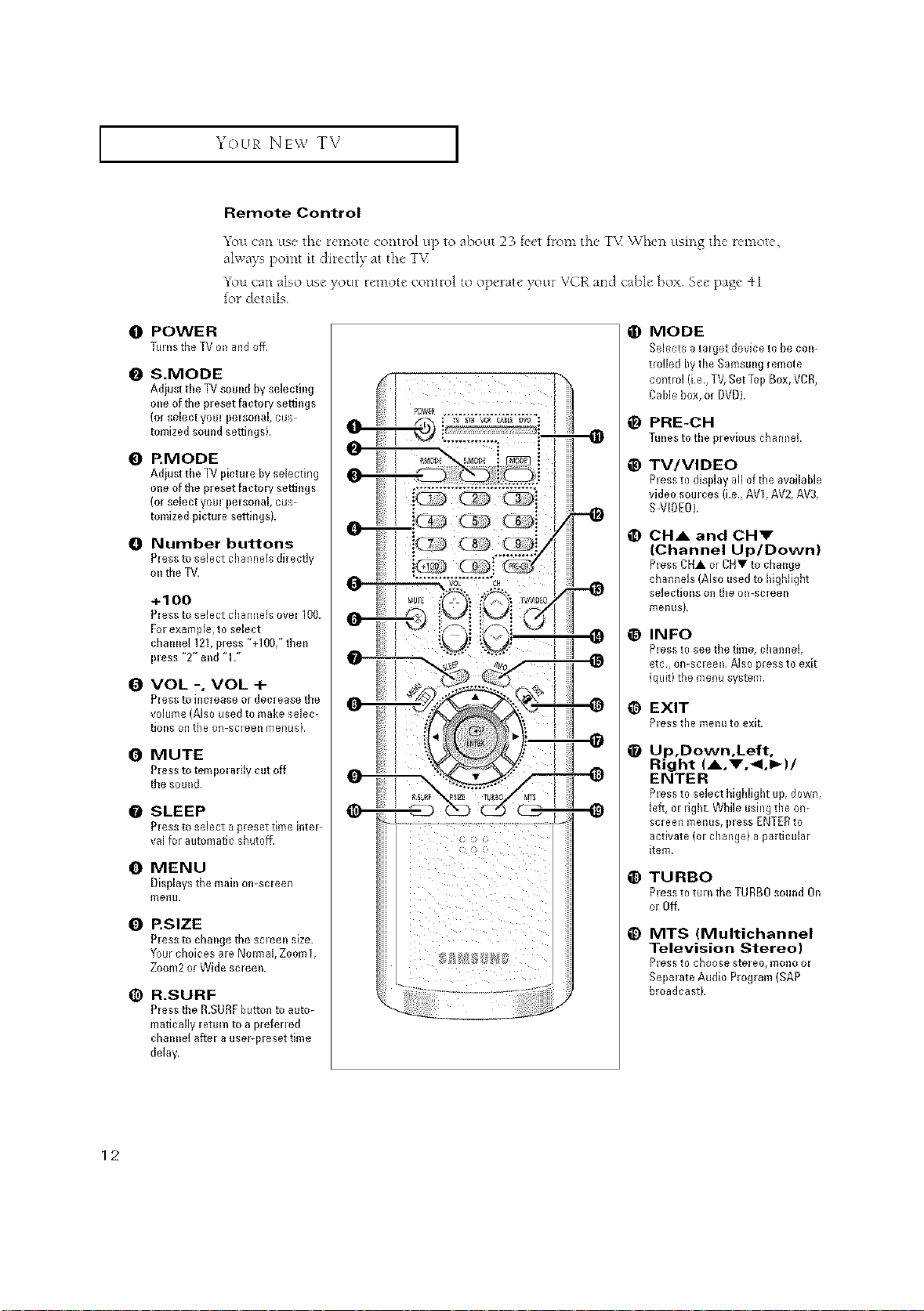
Remote Control
You can use the remote control up to about 23 feet from the T\{ "When using the remote,
always point it directly at the TV
You can also use your remote control to operate your VCR and cable box See page 41
for details
O POWER
Turnstile TVonandoff.
I_ S.MODE
Adiust tile TV sound by selecting
one of tile preset facto H settings
(or select yore pelsonal, cus-
tomized sound settings).
@ RMODE
Adiust tile TVpictm e byselecdng
one oftile preset factoH settings
(orselect yore pelsonal, cus-
tomized picture settingsb
Number buttons
Pless to select cbannels directly
onthe TV.
+1OO
Pless to select cbannels ovel 100.
Fol example, to select
chmme1121, press "+I00," then
pless "2" and "17
I_ VOL -, VOL +
Pless to blcrease 0[ decrease tbe
volume (Also used to make selec-
tions on tbe on-scleen meRusb
0 MUTE
P_essto ternpo_arily cut off
the sound.
O SLEEP
PI ass to select a preset time i{it el-
val for automatic sbuto_.
0 MENU
Displays tbe mabl orl-scIeen
me{lu.
Q P.SIZE
Pless to cbaBIge tbe scleeBI size.
Your cboices are Nolmal, Zooml,
Zoom2 or Wide screen.
(_) R.SURF
Pless tbe R.SURF button to auto-
matically return to a prefened
cballllel ariel a usePpleset time
delay.
O MODE
Selects a talget device to be coil-
trolled by tbe Samsung remote
control (i.e., TV, Set Top Box, VCR,
Cable box, or DVD).
_) PRE-CH
Tunestotile previous cbamlel.
_) TV/VIDEO
Pless to display all oftbe available
video sources (i.e., AVI, AV2, AV3,
S-VIDEO).
CHA and CHV
(Channel Up/Down)
Pless CHA or CHV to cbange
cbannels (Also used to bigbligbt
selections on tbe on-screen
menusb
_) INFO
Pless to see tbe time, cbannel,
etc., oR-scIeell. AiS0 press to exit
(quit) tbe menu system.
1_) EXIT
PIess tbe mellu to exit.
_) Up,Down,Left,
Right (A,V.<,I_)/
ENTER
P_essto select bigbligbt tip, down,
left, m ugbt. While usblgtile on-
screen menus, I}less ENTERto
activate (01 cbange) a particular
item.
_) TURBO
Pless to tul ntbe TURBRsound On
or Off.
_) MTS (Multichannel
Television Stereo)
Bless to cb00se stereo, m011001
Sol}mate Audio Program (SAP
broadcast).
12
YOUR NEW TV J
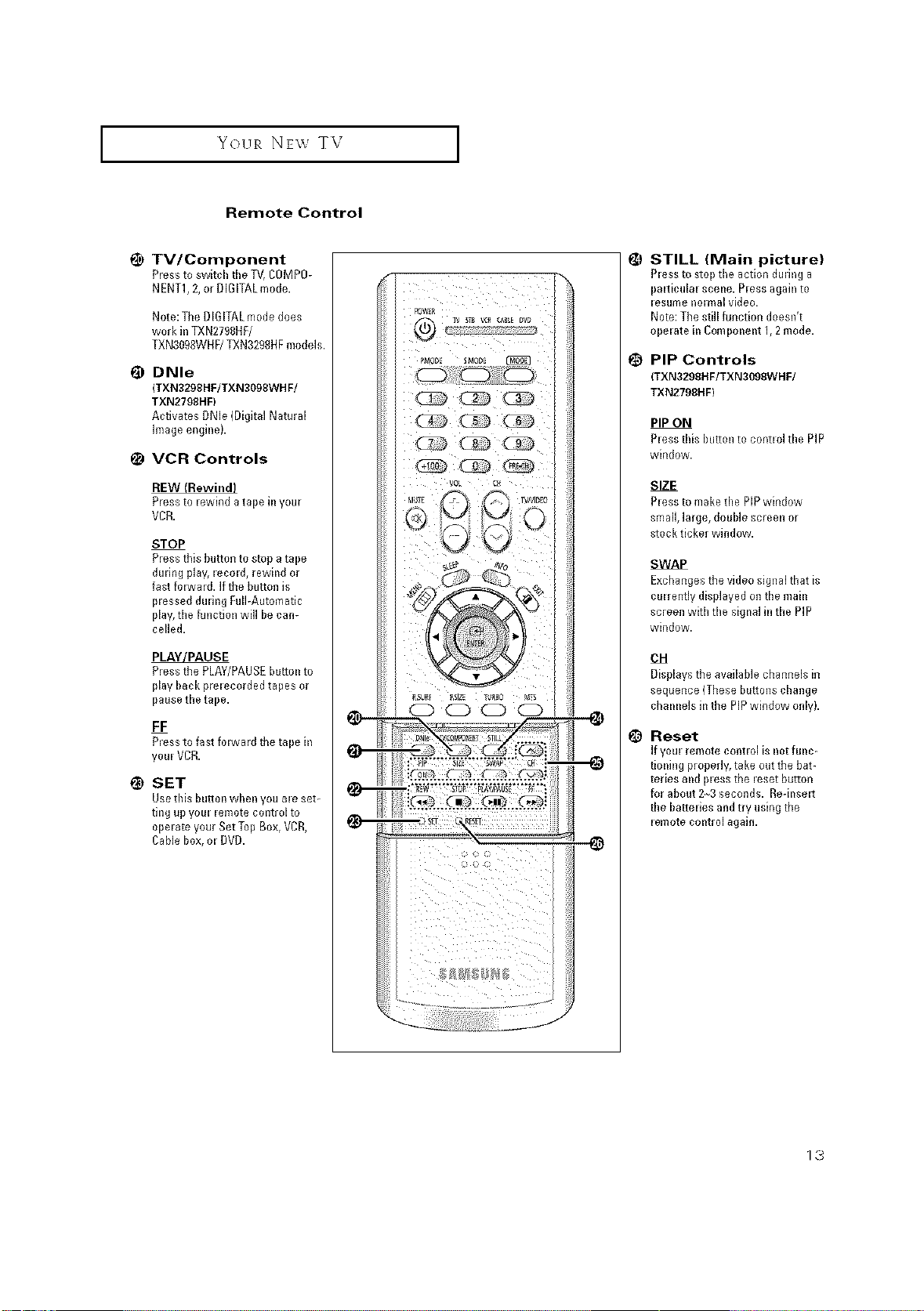
Remote Control
1_ TV/Component
Pressto swkch tile TV,COMP0-
NENT1,2, or DiGiTAL mode.
Note:The DIGITALmode does
work in TXN2798DF/
TXN3098WHF/TXN3298HFmodels.
DNle
(TXN3298HF/TXN3098WH F/
TXN2798HF)
Activates DNle (Digital Natural
image engkleL
1_ VCR Controls
Pressto lewkld atape k_your
VCR.
STOP
Pressthis button to stop atape
during play, leco@, rewkld or
fast folward, ifthe bu_tonis
plessed during RdEAutomatic
play,the function will be cal)-
celled.
PLAYJPAUSE
Pressthe PLAY/PAUSEbutt@lto
play back prelecorded tapes or
pause the tape.
FF
P_essto fast forward the tape k_
youl VCR.
_) SET
Usethis button when you ale set-
ting up youl l emote contl olto
opelate your Set TopBox, VCR,
CaNe box, ol DVD.
STILL (Main picture)
Pless to stop tile action during a
palticulal sceile. P_essagain to
lesume nolma[ video,
Note:The still function doesn't
opelate hi Cornpoi_ei_t1,2mode.
PIP Controls
(TXN3299HF/TXN3099WHF/
TXN2798HF)
PIP ON
Pless this button to contlol the PiP
wkld0w.
SIZE
Pless to make the PIPwindow
small, large, double screen or
stock ticker window.
SWAP
Exchangesthe video signal tllat is
culrently displayed ontile mahl
screen with the sigilal in the PIP
window.
OH
Displays the available channels in
sequence (These buttons change
chamlels hi the PiPwindow only).
_) Reset
Ifyoul remote contlol is notfullc-
tioning properly, take outtile bat-
teries alld pless tile leset button
for about 23 seconds. Re-k_selt
the I)attelies andtry using the
lemote contl olagab).
1,3
INSTALLATION
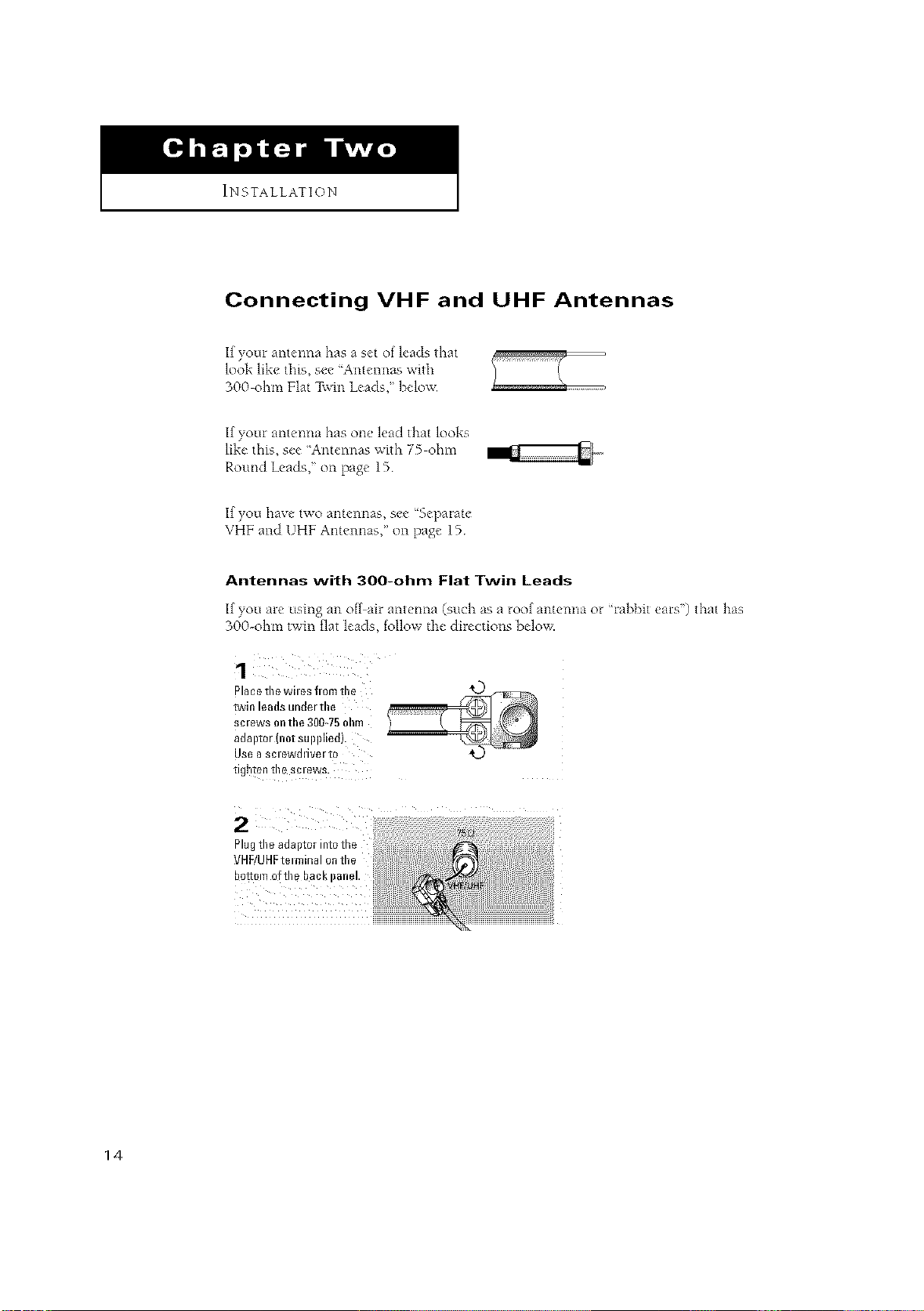
Connecting VHF and UHF Antennas
If your antenna has a set of leads that
look like this, see 'Antennas with
300 ohm Flat Twin Leads," beloxx
If your antenna has one lead that looks
like this, see 'Antenrms with 75 ohm
Round Leads," on page 15
If you have two antemlas, see ¢%eparate
VHF and UHF Antennas," on page 15
Antennas with 300-ohm Flat Twin Leads
If you are using an off air antc, nna (such as a roof antenna ot Chabbit ears') that has
300-ohm tv, in flat leads, follow the cltrections below.
alaee the wiles fi om the
PoJIn leO{Is uRile/lne
;clews on the 300_75 ohm
_OalJiO/inoi SUDDIleQ
USe 0 SCleWi111V_IIO
Ilgrlton In_ SCleWS
Plugthe adaptor into the
VHF/UHFtelminal on the
bottom ofthe bacl_
14
I INSTALLATION [
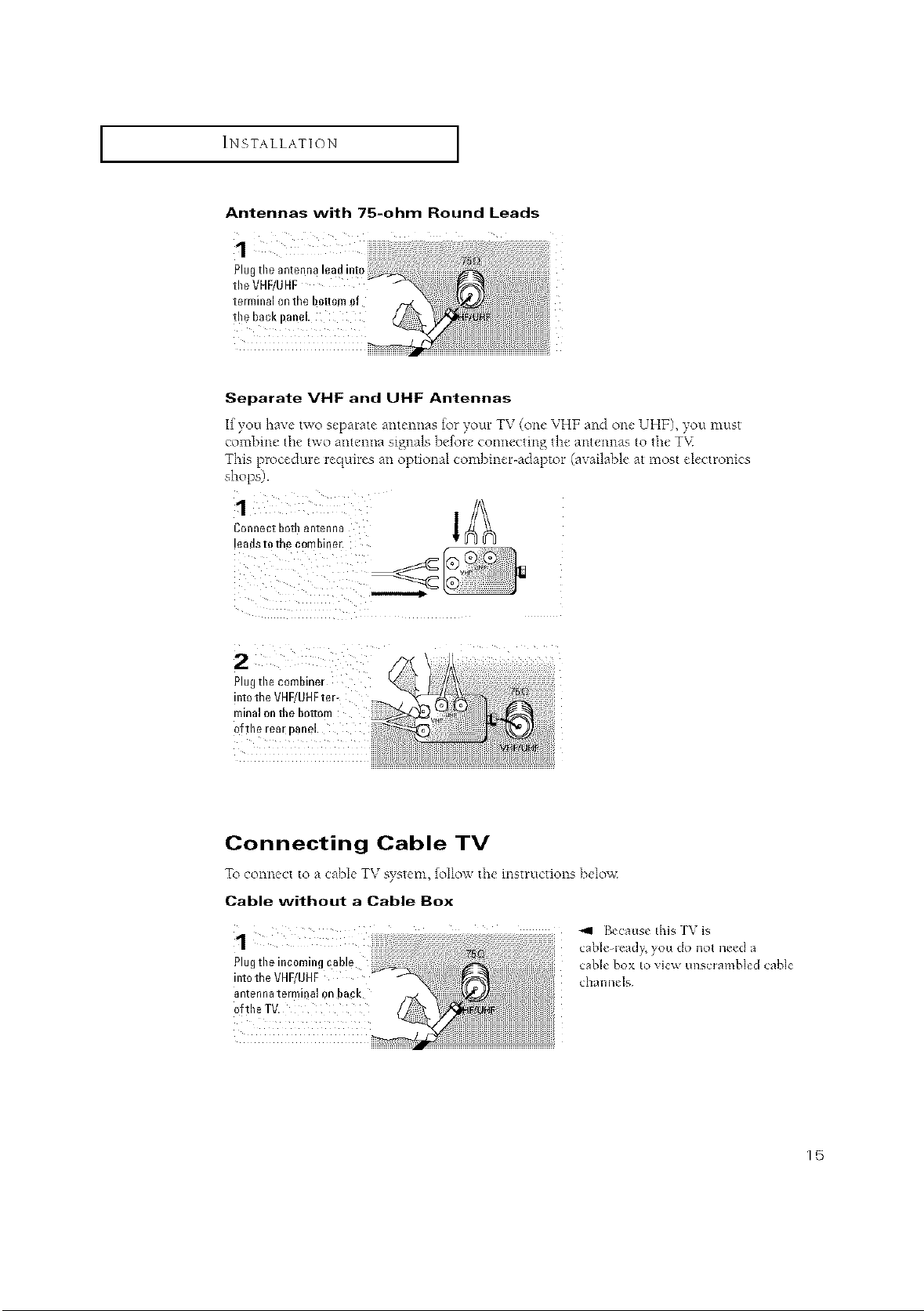
Antennas with 75-ohm Round Leads
Separate VHF and UHF Antennas
If you have two separate antennas for your TV (one VHF and one UHF), you must
combine the two antenna signals before connecting the antennas to the T\<
This procedure requires an optional combiner-adaptor (available at most electronics
shops).
Connect bothantenna
!eadsto the combiner.
2
Plugtile combiner
into the VHF/UHFter-
minal onthe bottom
ofthe rea[ panel
Connecting Cable TV
To connect to a cabb TV system, follo_x the instructions below
Cable without a Cable Box
4'41 Becaus_ this ]\ is
!
cab]_le_]_ ¸,you do not need a
Plug the incoming cab! e cane box to view unscrambled cane
int0the VHF/UHF channels
antenna terminal 0n ba_k
0fthe TV.
15
I INSTALLATION [
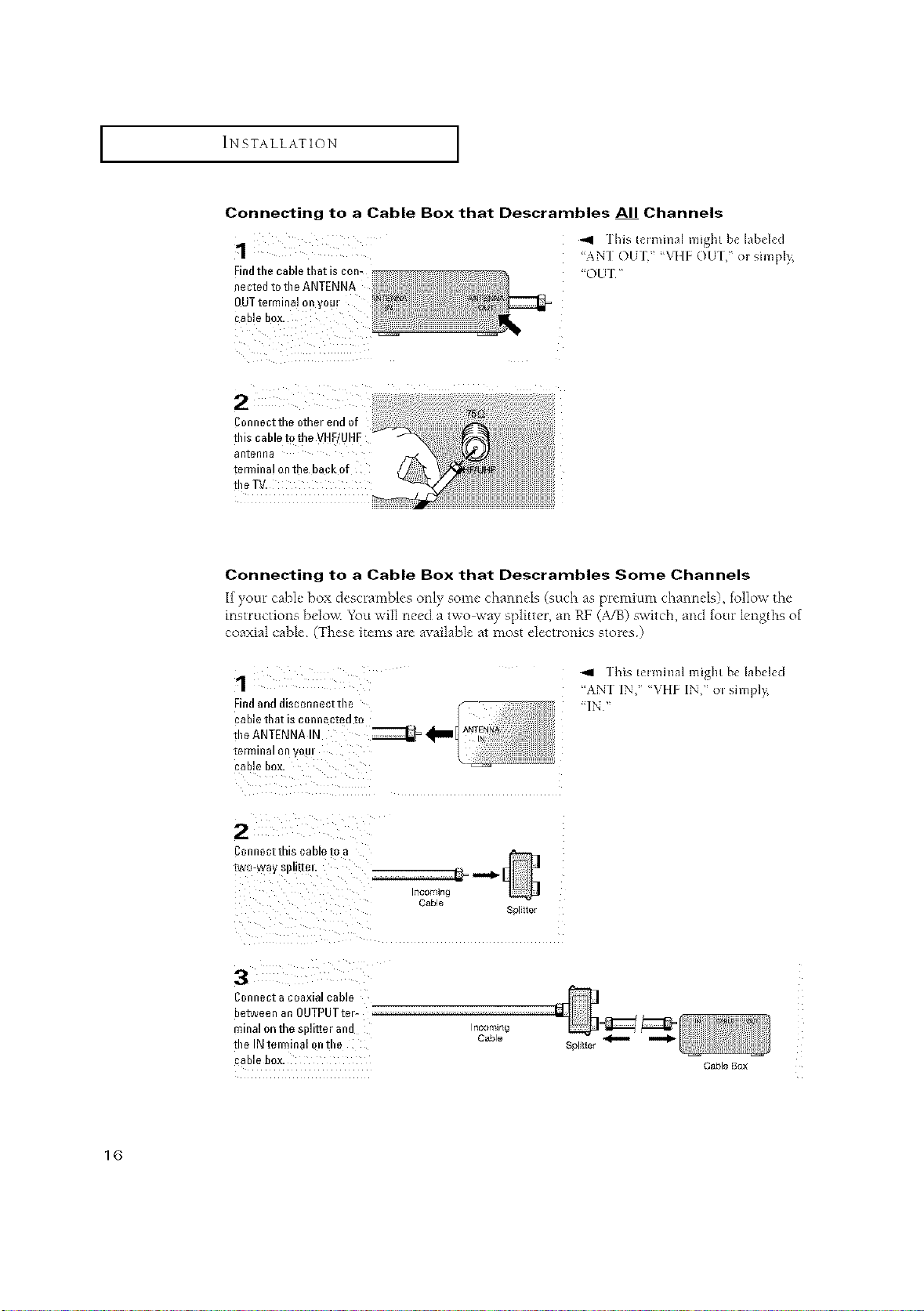
Connecting to a Cable Box that Descrambles All Channels
1
Findtbe cable tbat is con-
nected to tbe ANTENNA
OUTterminal on y0m
",,11 ]his hlmmal might b_ labd_d
"ANT OUT," %q[F OU] ," or simpl} ¸¸,
"OUT"
tbis cable D the VHF/U
aRtenna
terminal on the back of
the TV.
Connecting to a Cable Box that Descrambles Some Channels
If yore cahl_"box desc'umd>k's only some"channels (such as plemium channds), follow the
inst_Ltctionsbelov< You will need a two way splitter, an RF (A/B) switch, and fore lengths of
coaxial cable (These items are available at most electronics stores)
1
Findand disconnect tbe
]his t_lminal might be labeled
"AN] IN," %qlE _IN," or simplv_
cable box.
C0nnect this cable to a
Cable
Splitter
3
Connect acoaxial cable
between an OUTPUTter
minal onth_ splitier and
tbe IN telminal ontbe
cable box.
Incoming
Cable
Cable Box
1(3
I INSTALLATION I
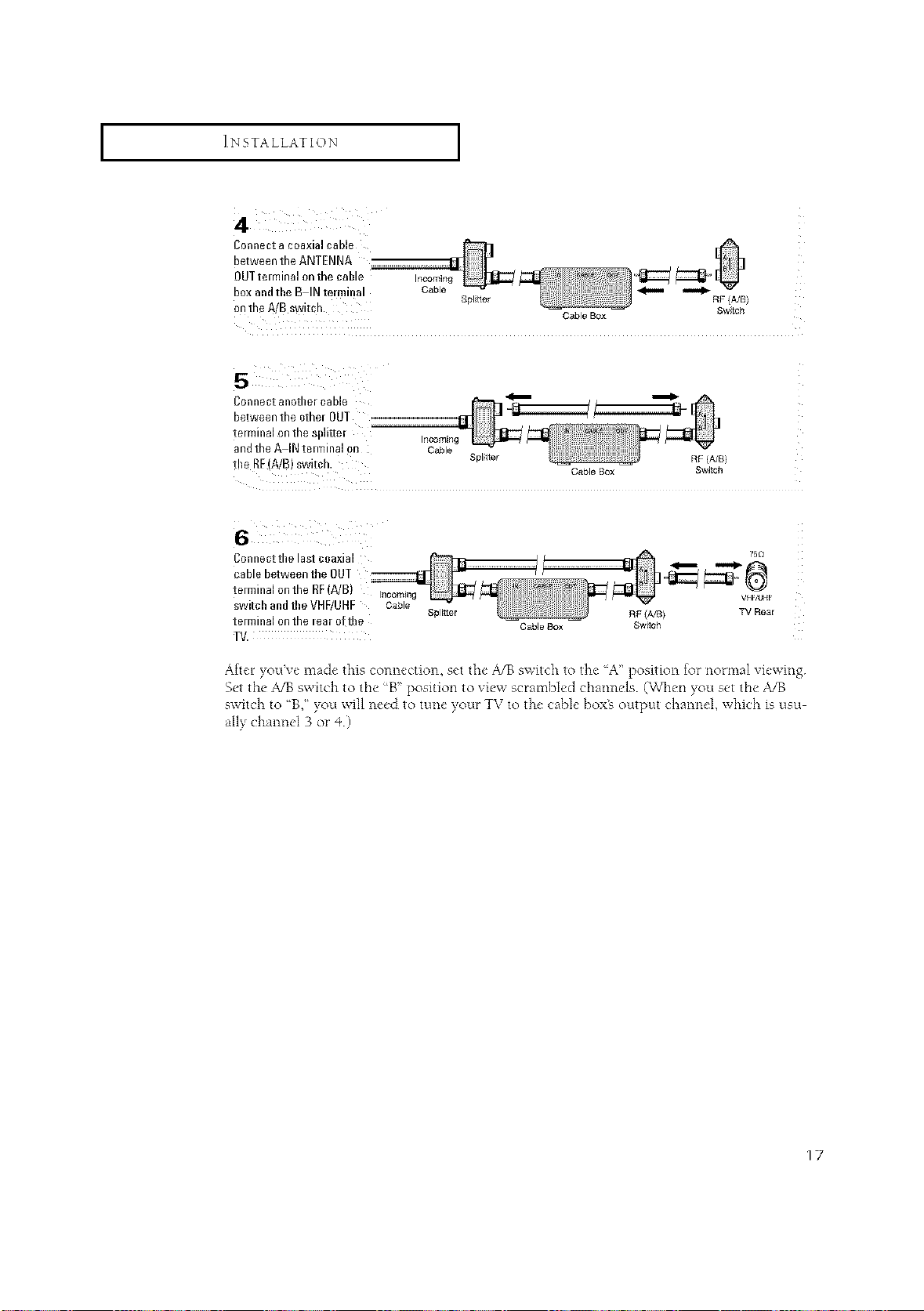
4
Connect a coaxial cable
between the ANTENNA
OUT tm minal on the cable Incomin_
box andtbe B IN terminal Cable _
ontheA/Bswitch. Splttor RF/A/B)
Cable Box Swtch
Connect anotber cable _
between the other OUT
terminal on the splitter incoming
andthe A IN tmminal on Cable
the RE(A/B) switch. Splitter RF (A/B)
Cable Box Switch
Connect tbe last coaxial
cablebetweentheOUT
terminalonthe RF(A/B) Inoomin
switcbandtbeVHF/UHF Cable
terminalonthe learo!tile
TV.
Splr_ter RF (A/8)
Cable Box Switch
75£1
TV Rear
After you've made this connection, set the A/B switch to the A" position for normal viewing
Set the ,_13 switch to the _B" position to view scrambled channels (WI_en you set the A/B
switch to 'B," you will need to tune your TV to the cable boxE output channel, which is usu
ally channel 3 or _+)
17
I INSTALLATION [
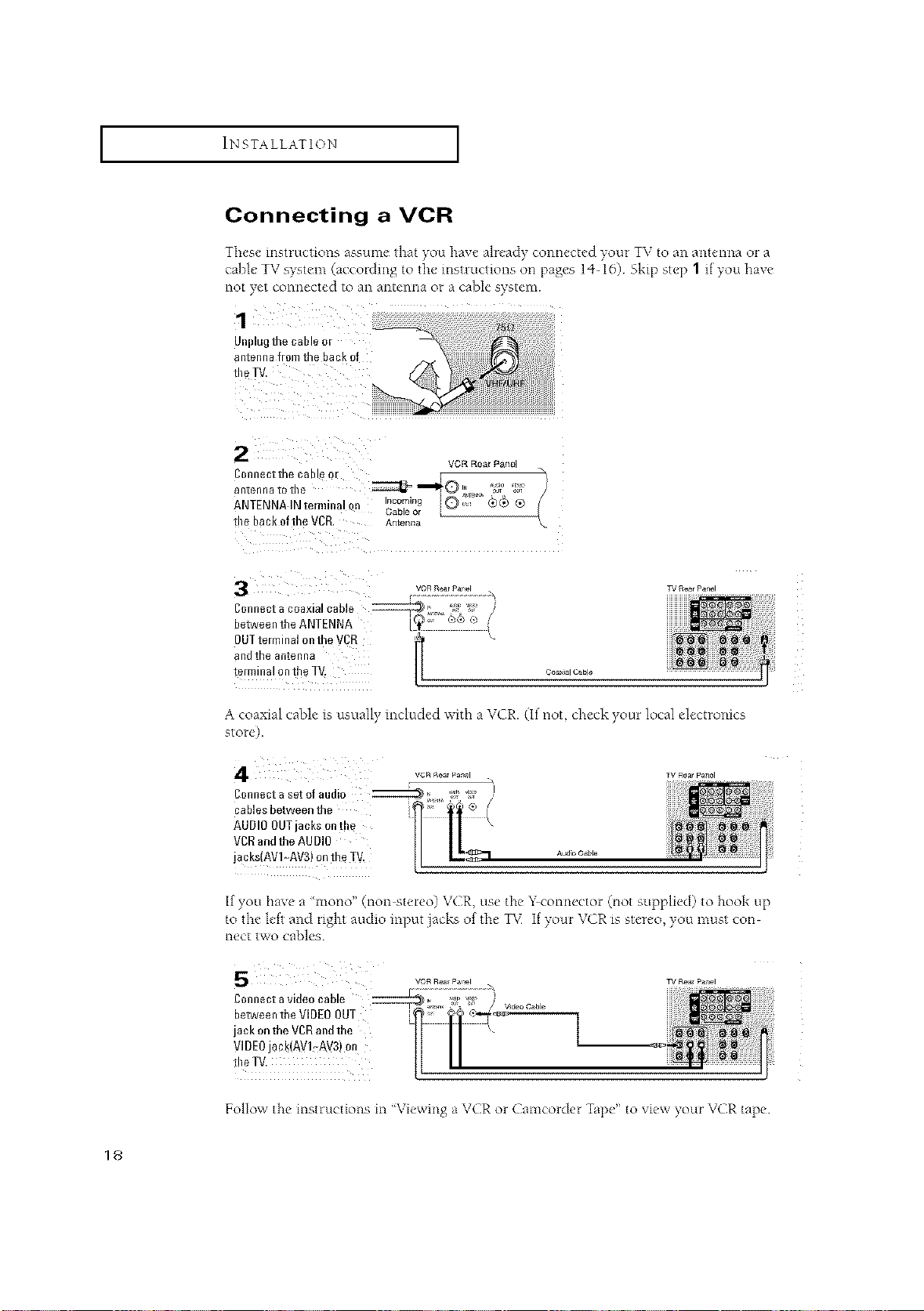
Connecting a VCR
These instruction,s assume that you have alread) connected your TV to an antenna or a
cable TV s)stem (according to tile instructions on [)ages 14- 16) Ski[) step 1 if you haxe
not yet connected to an antenna or a cable system.
JIIplug [no Ca [lie 0[
antenna flora the back of
the TV
]l)nnectthe ( tDle C
antenna [o ine
ANTENNA IN temlina
me Da_oftheVCR
VGR Rear }_ano
._mi.. !Q;"F' _,)®®
Cab e el
antenna
vcRR_arpan_
Connect a coaxial cable
Jetween the ANTENNA
3UTtemlinalontheVCR
lI
ano IRe antenna
te/minalontheT\ Co_,_c_b_
rgR_arPanel
A coaxial cable is usually included with a VCR. (It not, check your local electronics
store).
vCRRea_Panel
eonnectasetofaudi 0 _L,_, _' I_ /I
cables between the t_ [
AUDIO OUTjacks on t!le
VDD andthe AUDIO
jacks(AV !,-AV3) on th e TV.
Aud_O_ble
TV Rea_Pa_el
If you have a 'mono" (non stereo) VCR, use tile Y connector @ot supplied) to hook up
to the left and right audio input jacks of tile TV If your VCR is stereo, you must con-
nect two cables.
VOR Rear pa_l
Connect a v de0 cab e _ i_ W }
betweentheVIDE0OUT l" [l '_-'_
jack onthe VDRandthe ' k
VIDEOjack(AVI_AV3)on
t!)eTV. II //
TV Re_ p_r_el
Follow the instructions in "Viewing a VCR or Camcorder Tape" to vie_x Four VCR tape
18
I INSTALLATION [
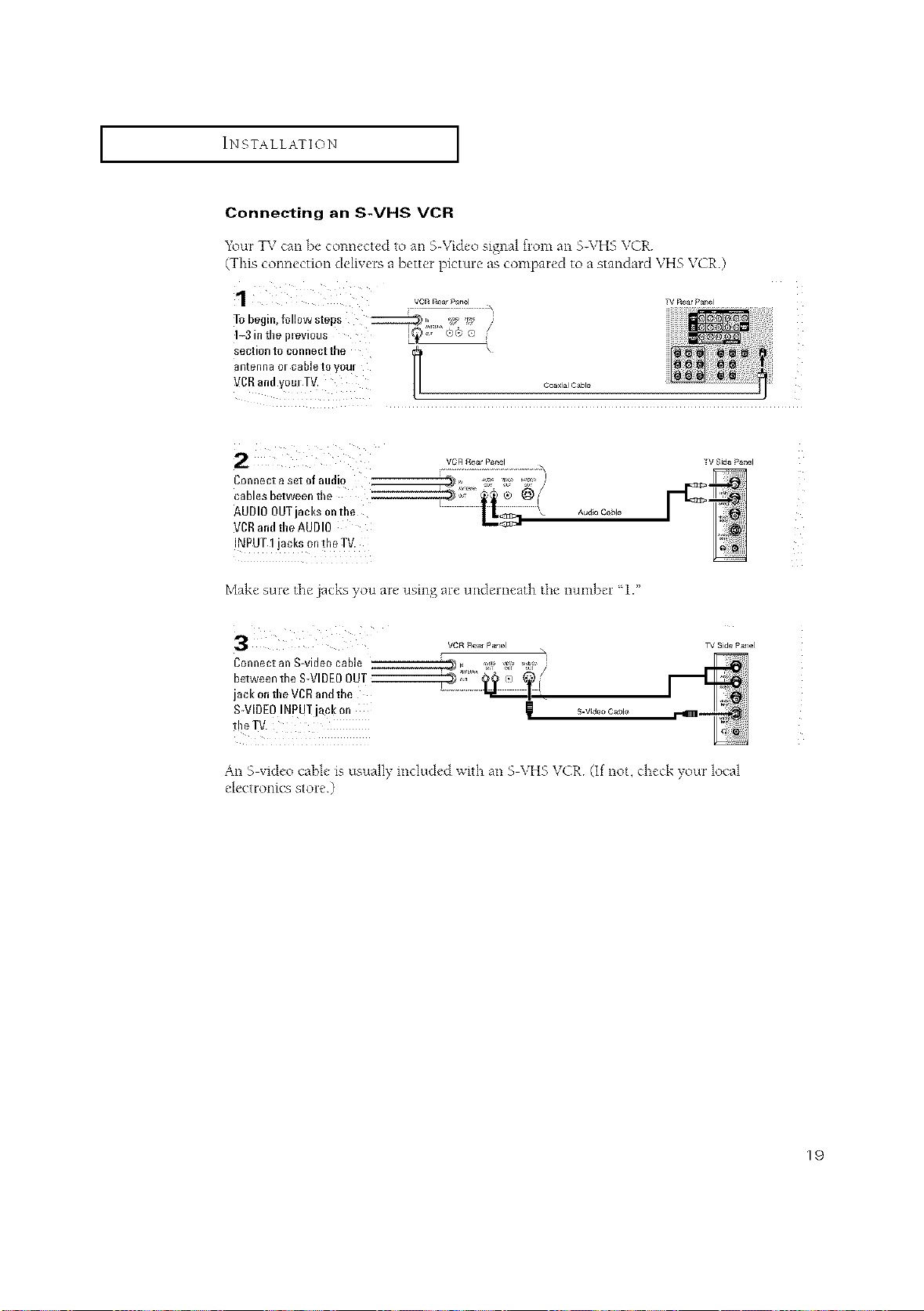
Connecting an S-VHS VCR
1\mr TV can be connected to an 5Wideo signal from an 5-\ZH5 VCR
(This connection delivers a better picture as compared to a standard VHS VCR.)
1
To begin, followsteps ::::::::::::g_ l__ i_" '_:" /
1_3in the il=evious S_), ®e e
section to connect tbe \
_ntenna or cable to yOUr
_CR and yoreTV.
Coax_alC_ble
TVRearPanel
Connect a set of audio
cables between the
AUDIO OUTjacks onthe
VCRandthe AUDIO
INPUT 1jacks ontke TV.
VCR £ear P_el
Audio Cable
_VSide Panel
Make sure tile jacks you are using are underneath tile number 1."
3
Connect an S-video cable
between the S-VIDEOOUT
jack onthe VCDand the
S-VIDEOINpUT jack on
VCR _ea_ PaNel
S.Vide° Cable
TV Side P_ael
An S video cable is usuall) included with an S VHS VCR (If not, check your local
e ec ro llCS S Ole )
19
I INSTALLATION [
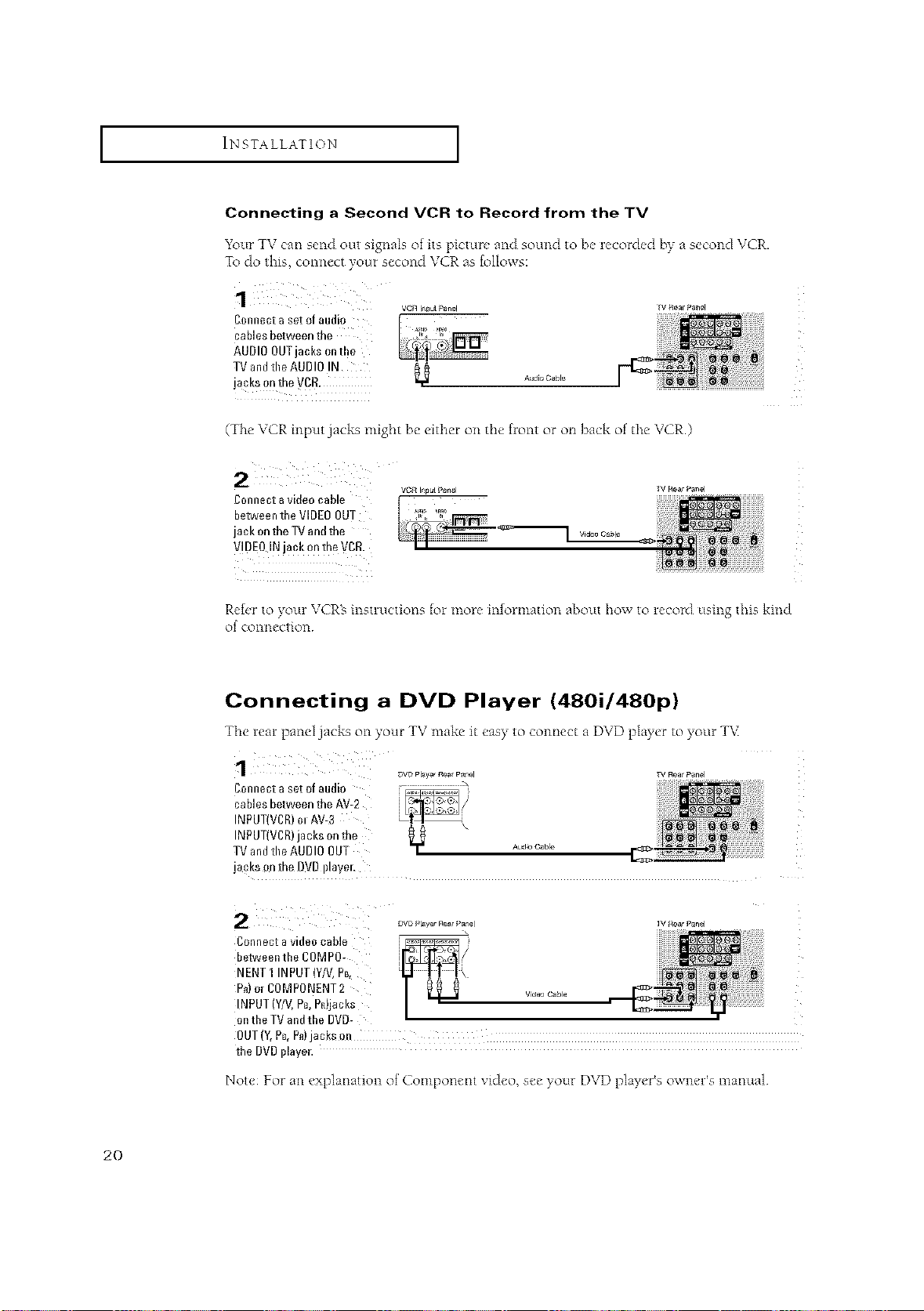
Connecting a Second VCR to Record from the TV
Your TV can send out signals of its picture and sound to be recorded by a second VCR.
To do this, connect your second VCR ;is follows:
vc_ i_pulPanel
Connect aset of audio ,._, _
cables between the
AUDIO OUTjacks onthe
TV andtheAUDIO IN
jacks onthe VCR.
A_ioCaN_
Tv_earPanel
(The VCR input jacks might be either on tile front or oil back of tile VCR.)
Connect avideo cable
between the VIDEOOUT
jack onthe TVandthe
V!DE0 INjack onthe VCD.
Video C_le
TV RearPanel
Refer to your VCRs instructions for more information about how to record using this kind
of connection
Connecting a DVD Player (480i/480p)
Tile rear panel jacks on your TV make it easy to connect a DVD player to your TV
DYe Player r{_arP_n,_l
_/Rea_Panel
Connect aset of audio
cables between the AV-2
INPUT(VCR)m AV-3
INPUT(VCR)jacks onthe
TV andthe AUDIO OUT
jacks onthe DVDillayel,
y Aud4° Cable
Connect a video cable
between the COMP0-
NENTI INPUT(Y/V,PB_
P_)or C0MPONENT 2
INPUT (WV,Pc,Pn)jacks
ontheTVandthe DVD-
i_/R_ar Panel
w_e_ Cable I_
the DVDplayer.
Not< For an explanation of Component vi&,o, se_"your DVD play,'r% owm, l s manual
20
I INSTALLATION [
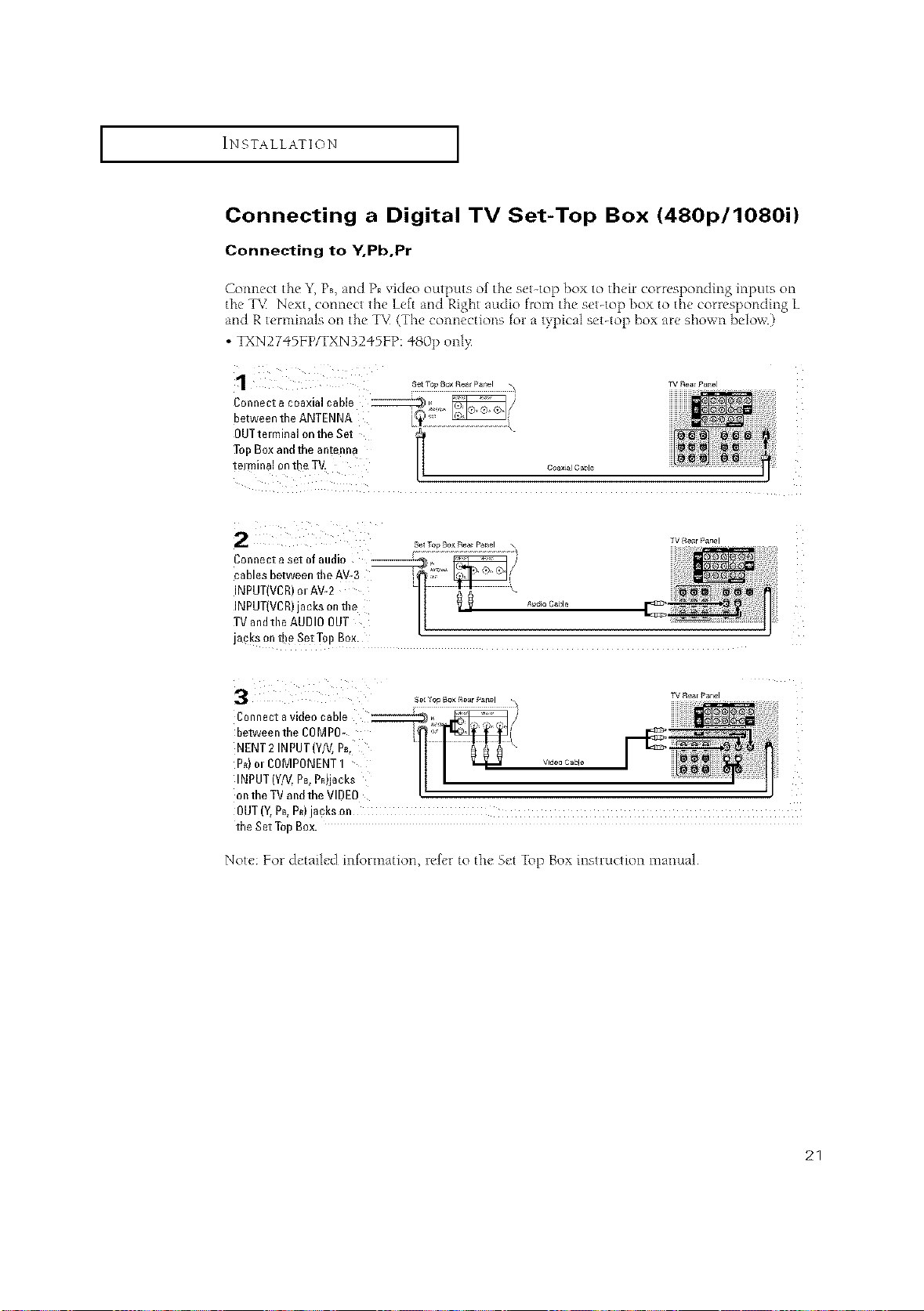
Connecting a Digital TV Set-Top Box (480p/1080i)
Connecting to Y.Pb,Pr
Connect the Y,Ps, and PRvideo outputs of the set-top box to t}_eircorresponding inputs on
the T%1Next, connect the Left and Right audio from the set-top box to the conesponding L
and R terminals on the TV (The connections fol a typical set-top box are shown ]_elow.)
• TXN27"_SFP/TXN3245FP: 480p onl>
¸1¸¸¸¸¸¸¸
OUT terminal on the Set
Top Box and the antenna
tel mina101/the TV. coaxialCaisle
Connectasetofaudio ------_, _ _/_
cables between the AV-3 '_ _i
INPUT(VCR)olAV-2 \
INPUT(VCR)janksonthe _ _ .... _ble
TV andtile AUDI0 OUT
jacks onthe SetTop Box.
Connect avideo cable __
between the COMPO-
NENT2 INPUT(Y/V, P_,
P_) m COMPONENT1
INPUT (Y/V,P_,PR)jacks
on the TVand the VIDEO
OUT(Y,PB,P_)jacks on
the Set TopBox.
Note: For detailed information, refer to the Set Top Box instrwction manual
21
I INSTALLATION [
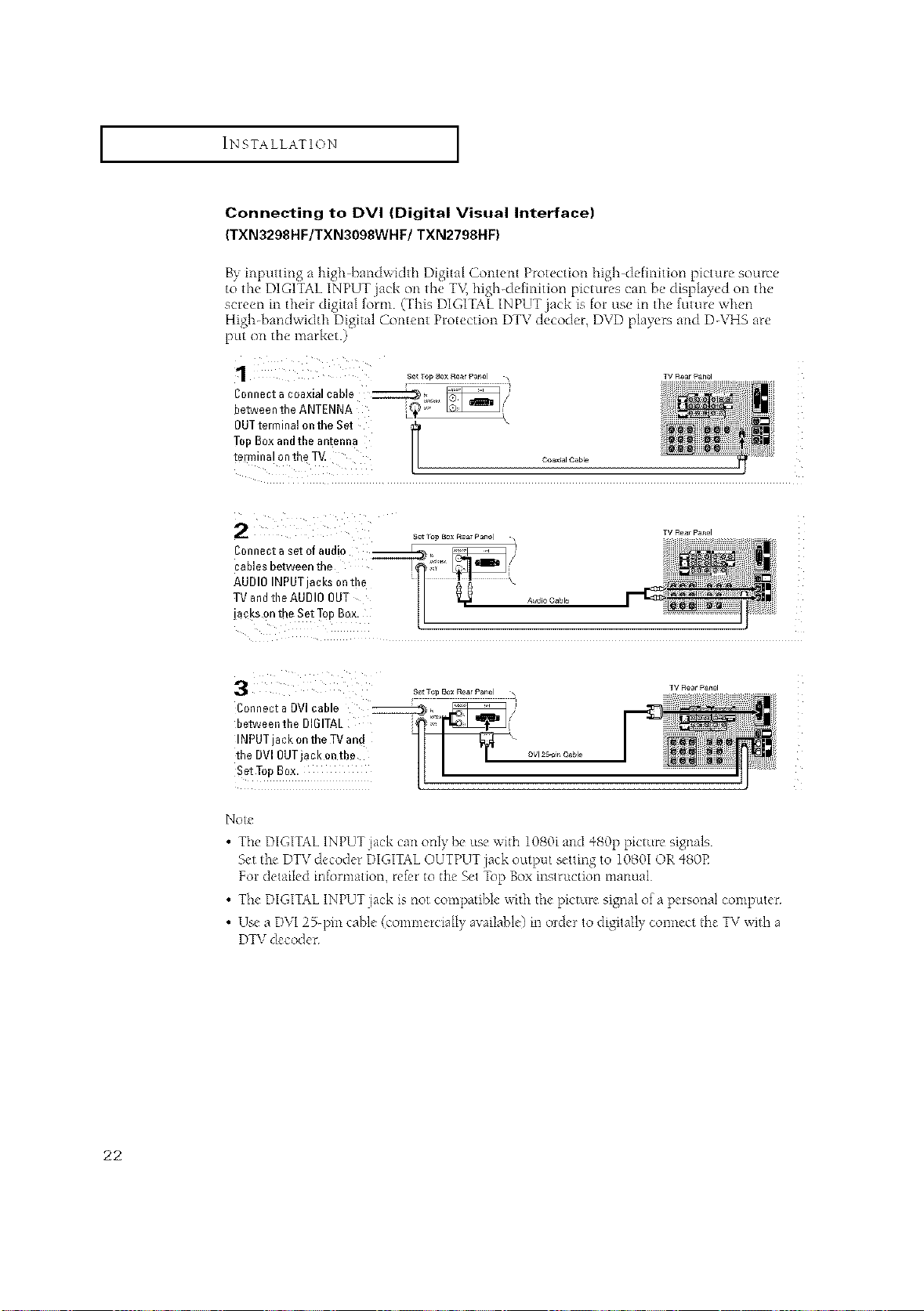
Connecting to DVI (Digital Visual Interface)
(TXN3298HF/TXN3098WHF/TXN2798HF)
B?, inputting a high bandwidth Digital Content Protection high definition picture source
to the DIGITAL INPUT jack on the T\¢ high-definition pictures can be displayed on the
screen in their digital form (This DIGITAL INPUT jack is for use m the future when
High-bandwidth Digital Content Protection DTV decoder, DVD players and D-\q4S are
put on the market.)
C0nnect a coaxial cable _,_ _/}
between the ANTENNA L_;'_
OUTterminal on the Set \
TeI) Box andtbe antenna
terminal onthe T_
rv Rear _an_l
Set Ta_ Box RearPanel , TV Rear
Panel
Connect aset of audio
cables between the
AUDIO INPUTjacks ontbe
TV andtbe AUDIO OUT
jacks onthe Set TopBox.
Connect a DVl cable
between tbe DI61TAL
INPUT jack on the ]'V and
the DVl OUTjack onthe
Set TopBox.
No_e
• The DIGITALINPUTiack can only be use wi_h 1080i and q80p p*cture signals
Set the DTVdecoder DIGITALOUTPUT jack output setting to 1080I OR480P
For detailed info*mation, re,for to the Set Top Box inqructiot_ manual
• The DIGITALINPUTjack is not compatible wi_h the picture signal of a personal computer
• Use a DVI2%pin cane (commercially available) in order to digitally connect _heTV with a
DTVdecoder
22
I INSTALLATION [
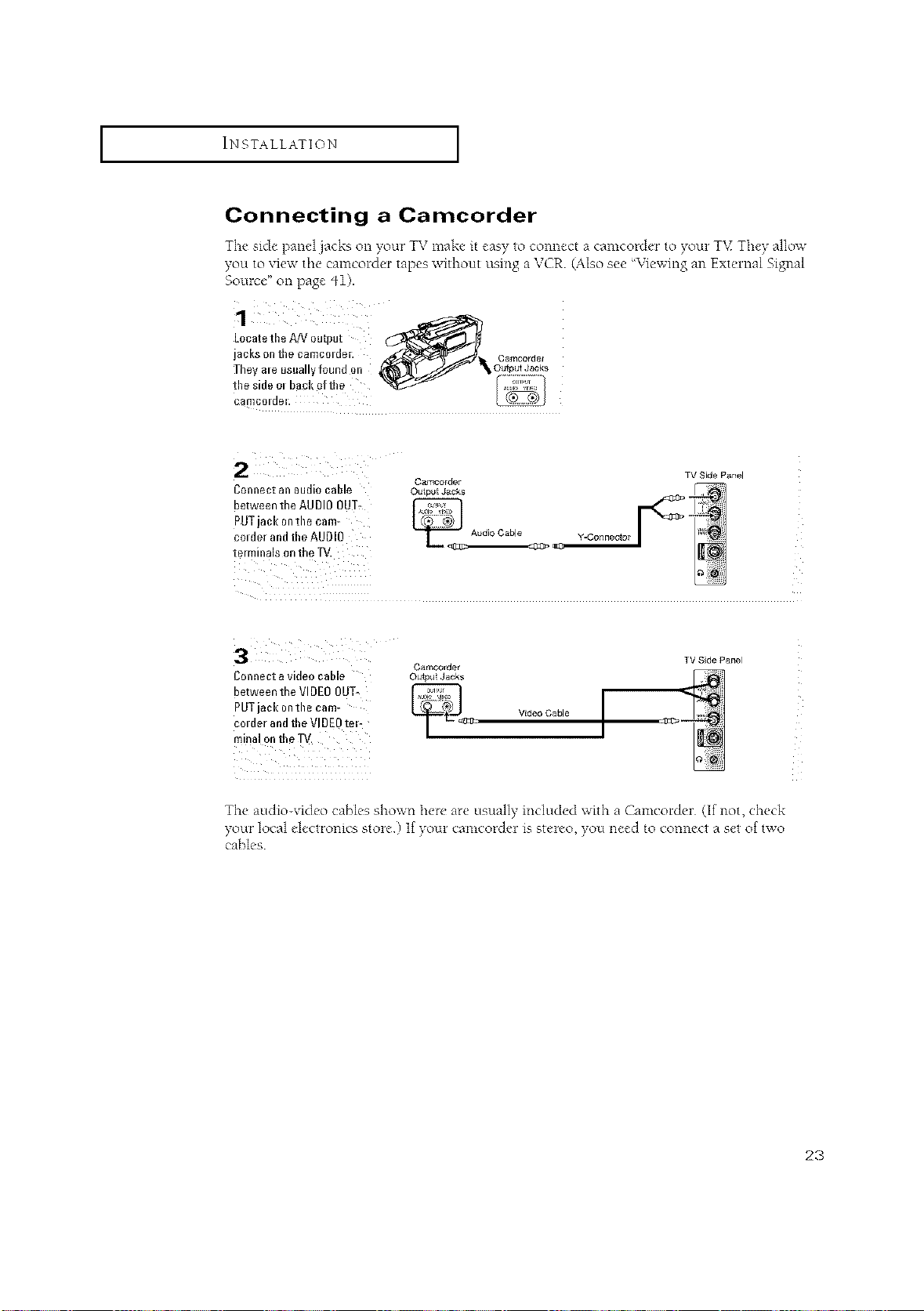
Connecting a Camcorder
The side panel jacks on your TV make it easy to connect a camcorder to your TV They allow
you to xiex_the camcolder tapes without using a VCR. (Also see %qewing an Extelnal Signal
Source" on page 41).
Locate tbe A!V output
jacks ell tbe camcOlder. Camcorde/
Tbey ale usuallyfound on OutputJacks
tbe side o, bad!oftbe
TV Side Panel
Camcorder
Connect all audio cable Outputj&cks
between the AUDIOOUT,
PUTjack ontile cam-
col der andtbe AUDIO Y-Connector
terminals on the TV.
Connect a videocable
between the VIDEOOUT-
PUTjack ontile cam-
col der andtbe VIDEOtel-
minal ontbe gV.
Camcorder
Outpu Jacks
_,=_ciJ Vide°Cable [
TV Sde Panel
The audio-video cables shown here are usually included with a Camcorder (If not, check
yoLirlocal electronics store If your camcorde_ ix stereo you need to connect a set of two
cables
23

INSTALLATION [
Installing Batteries in the Remote Control
1
Slidethe ¢ovei out ¢om-
II!etely.
2
Installtw0AAAsize
ba[teiies.
-9 Mak_ stm to match 11_ <%" and
-i', ends of d_e bal[eties wi[h [he
dia_tal_l ill_i_]e [he COll_paltlllent
3
Replacetl!e covei.
_91 P.emove the bat[cries and stoic
them in a cool, &y place if you won'[
be using the ienlote connol lot a
long time
_he F_I_IO[CCOI3[FOI Call be used tlp
to about 23 f_et fiom the 1\
(Assuming t pical ]\ usage, the bat-
teiies last for about one year¸¸)
24
OPERATION
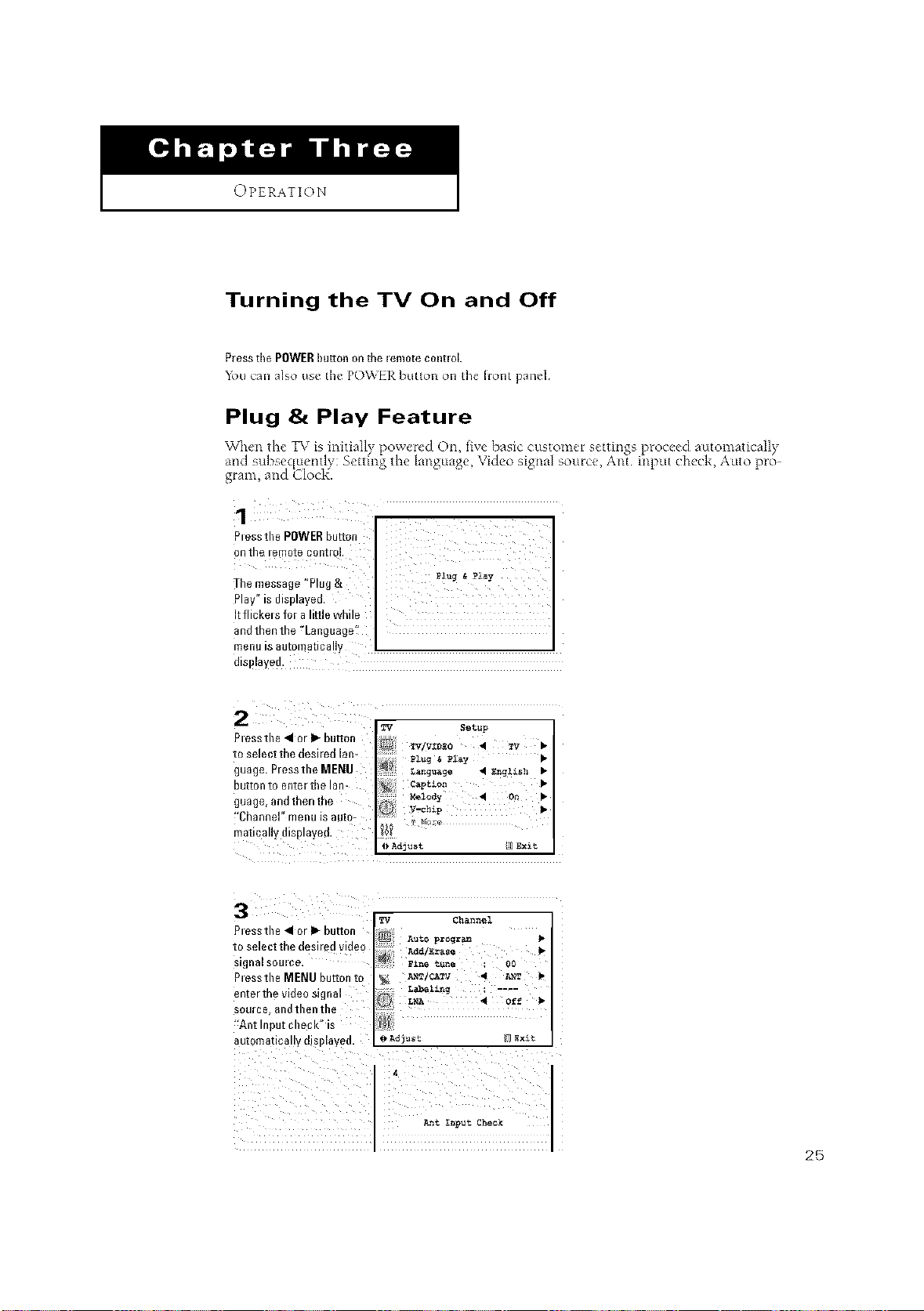
Turning the TV On and Off
P_e_sthePOWERhuron on the lem0te c0ntloL
_bll can also use the p()_EI_ but[on on the fiont panel¸
Plug & Play Feature
Vghe _ le TV s n a y )ower_'d On xe basic customer settings proc_:ed automatically
and subsec[uently: Setting the language, Video signal source, Ant input check, Auto pro-
gram, and Clod{.
1 n
The message "Plug&
Pay" s displayed,
It flickers for aIdl]e while
_iii_:{!_i_ xiiii::{i I
and thenthe 'Language:!
metl_ is automaticaLLy
dSl aye&
Plessthe • or _ bulto
n
ID sele_'t"thed_sJYed _a_-
guage. Pressthe MENU
button to enter the lan-
guage, andthen the
!'Channel" menu is auto-
matically displayed.
pl_/ Setllp
capt_o_ •
_l_dy 4 o_ •
_ Adjust _]8_xit
3
essm_ • _r I_ buttoa
IO Sele C_ _l'l_ d_Sl|ed Vlfle{
_l_nsi SOUl£e
Press1_eMENU button to
ente/tDe video signal
;OUIC_ ano tiler tne
"Ai/t Ii- _u[ Cll egl( IS
8uionl811o8 v _ISD%8_*_
_q Chanz_el
AUtO pz_r_
Add/Erase
2_NT/CATV • _T •
L_elin _ ....
LNA • Off •
_ Ad_'ast 1 _x_t
_t _put Check
25
I OPERATION I
4
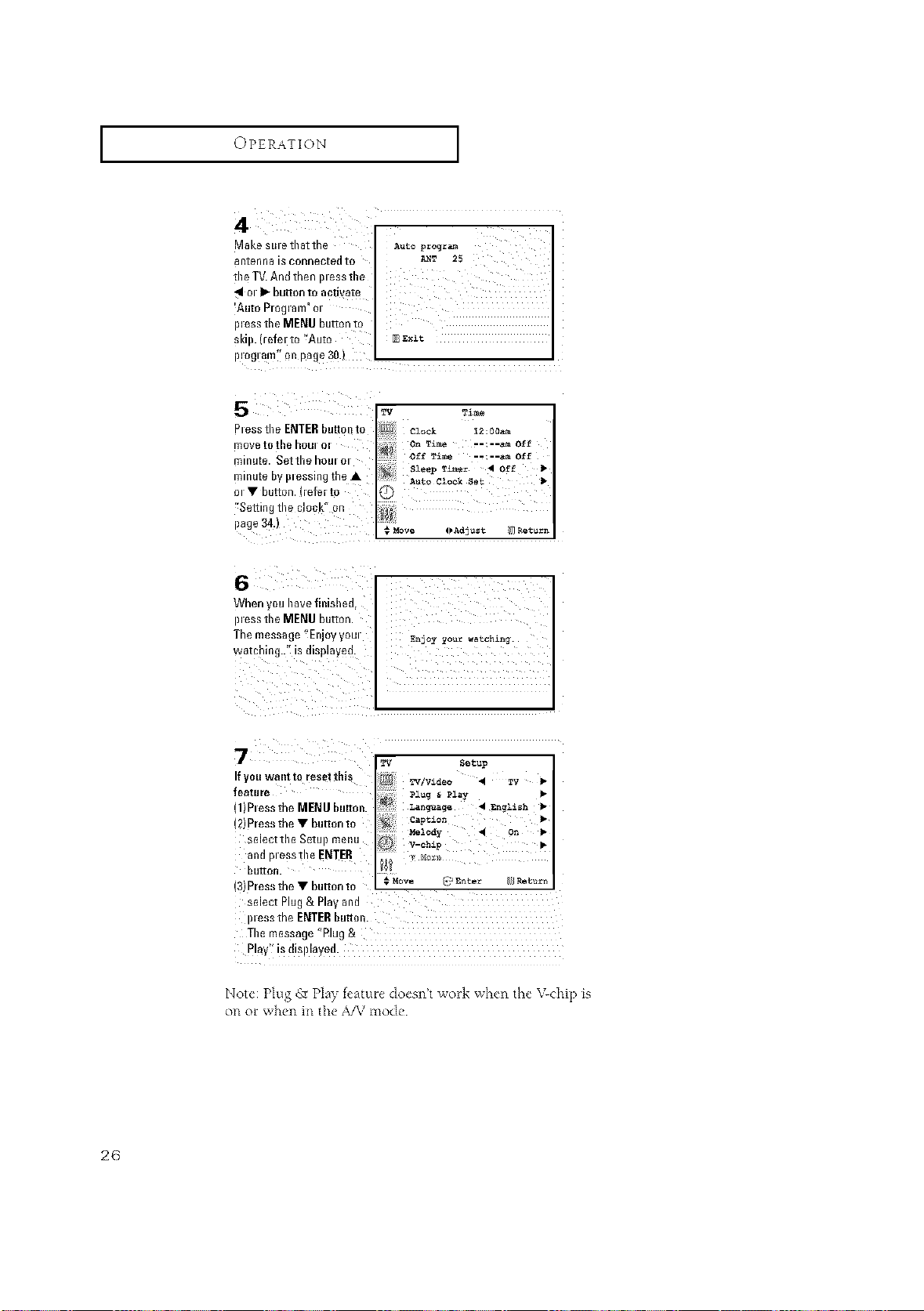
Make sule that the
anteM%a is conn_oted to
the TV.And then pless the
41ol _ button to activate
_AutoProglam" Ol
pless the MENU button t?
skip. (refel to "Auto
A_top=og=_
ploglamTTpn page 3Q.) I
5 I_ T_e
Pless the ENTERbutton to czock 12:0o_
movetothe houl Ol on T_ --;--_ Off
minute. Setthe houl Ol of_ _i_ u;--_ Off
SleepTimer _ Off
minute by plessing the • Auto ci_z_ s_ _"
ol • button. (refer to
_tSettingthe clock" on
!ore 4_Ad_u_t ¢]_tu_n
When you have finished,
i)less tile MENU button.
The message Enjoy youl _njo_,yo_= watching..
watching..'_ is displayed.
7
If YOUwanttQ reset this _¢/video 4 _v
feature ._:._g_ _zpy _-
(1)Plessthe MENU button. Lan_a_ _ Zn_i_h
2 P ess the • button to c_p_io_
Melody • O_
select the Setu I menu v chip •
andp,essthe ENTER
bu_ton. # _ow _y Ente: Return
(3)Pess the • button to
select Plug & Play and
p_essthe ENTERbutton.
The message _Plug &
play" is displayed.
Note: Plug g_ Play teature doesn't work when the V-chip is
on or when in the A/V mode
26
I OPERATION I
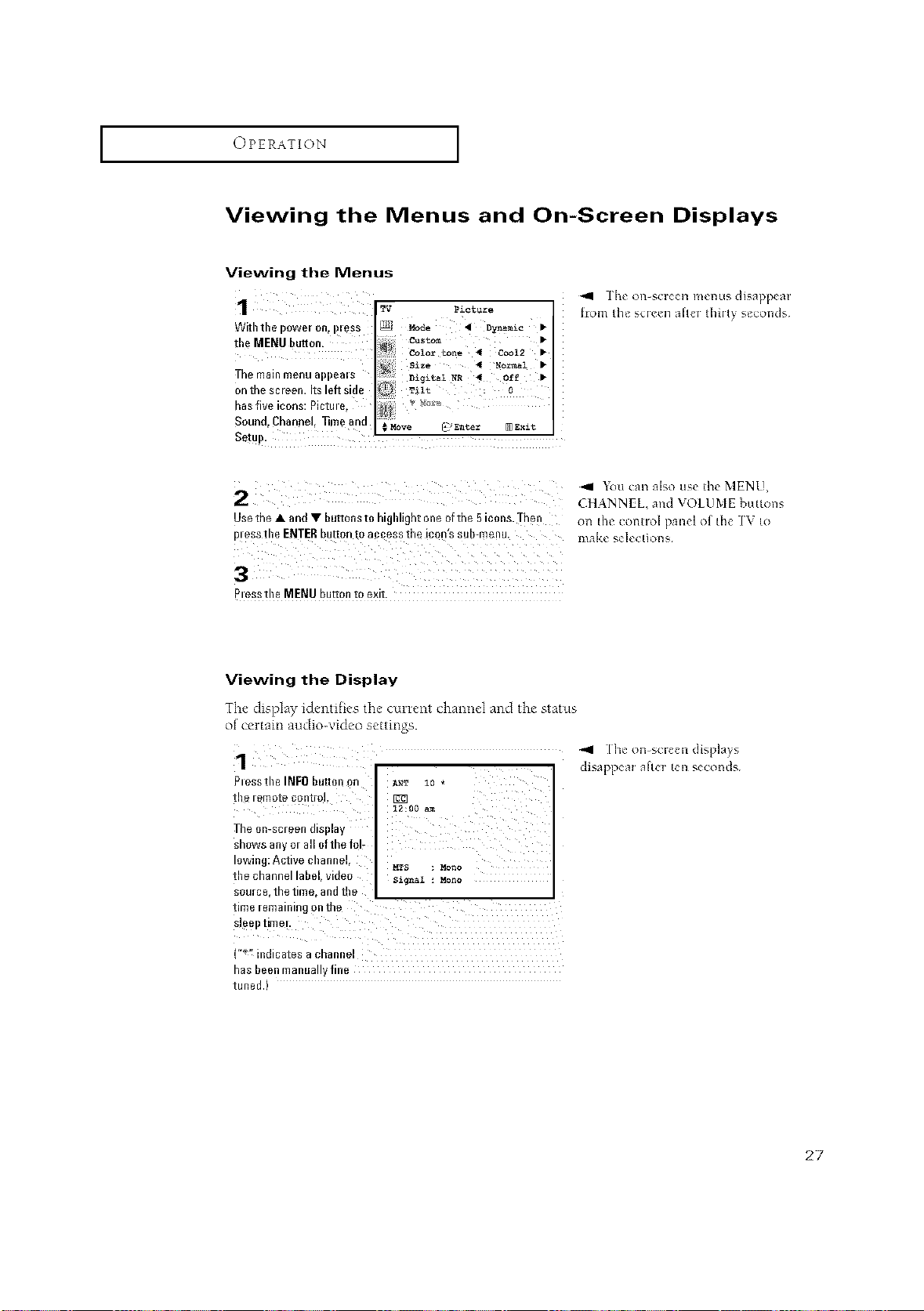
Viewing the Menus and On-Screen Displays
Viewing the Menus
TV picture
With tile power on,i}less
the
MENU button
custom •
Color tone 4 cool2 •
Tile main menu appems
oil the screen, itsleft sid_
has five icons: Pictm%
Sound, Channel, lime and
Setup.
Thg OI]-SLTCCl3I11_1111_ di_appcaF
hom lh_ s(Ieen ariel lhiIly s_ conds
2 _1 _bu (an also use lhc MENU,
CHANNEL, and \ OLUME buttons
UsethelandVbutt°nst°higblight°ne°ftheBic°ns. Then on th_ control panel of the ] \ to
pl essthe ENTERbuttonto access the icon'ssub-menu, mal<_ s&I_ctkms
Pmsstbe MENU button to exit.
Viewing the Display
The display identifies the cunent channel and the status
ot certain audio-video settings.
Plesstbe INFObutton on
the remote control.
The on-screen display
shows any or all ofthe fob
_,9 Ihe on-screen displays
disappear after ten seconds¸
g_
lowing: Active channel,
MTS : Mono
tile channel label, video si_n_z : Mono
source,thetime,andthe
tinleremablblgonthe
sleel}time!.
("*" indicatesachannel
has been manually fine
tuned.)
27
I OPERATION I
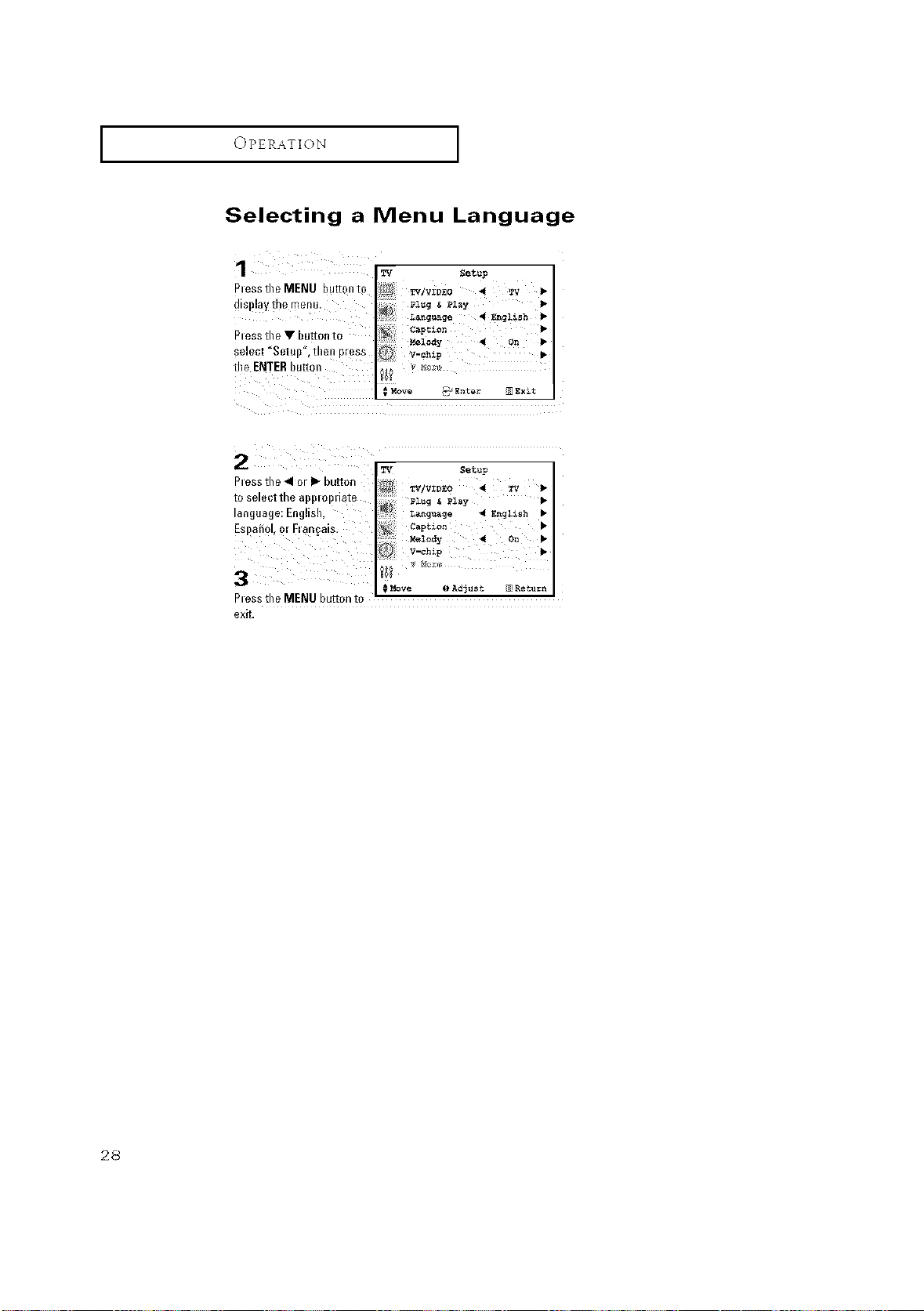
Selecting a Menu Language
_tess the MENU Du_on to
JlSi)laV me raenL
)tess tile • huron to
_elect "Setui) .inen DIeSS
the ENTER huron
TV Setup
_V/VIDEO 4 TV •
plug & Play •
Language 4 _nglish •
Captlon •
_lody 4 on •
V-chlp
_E_te_ _ Exit
I
TV
Setup
Pless the 4 °r I_ butt°n I_ TV/VZDEO 4 _W •
to selectthe app,op,iate Plug _ Play •
language: English, _guage _ E_g1_sh •
Espah°l, m Elan_ais. c,ptio_ •
Melody _ On •
v-_h_p J-
3
_M_ve I) Adjust Return
Ptess the MENU button to
exit.
28
I OPERATION I
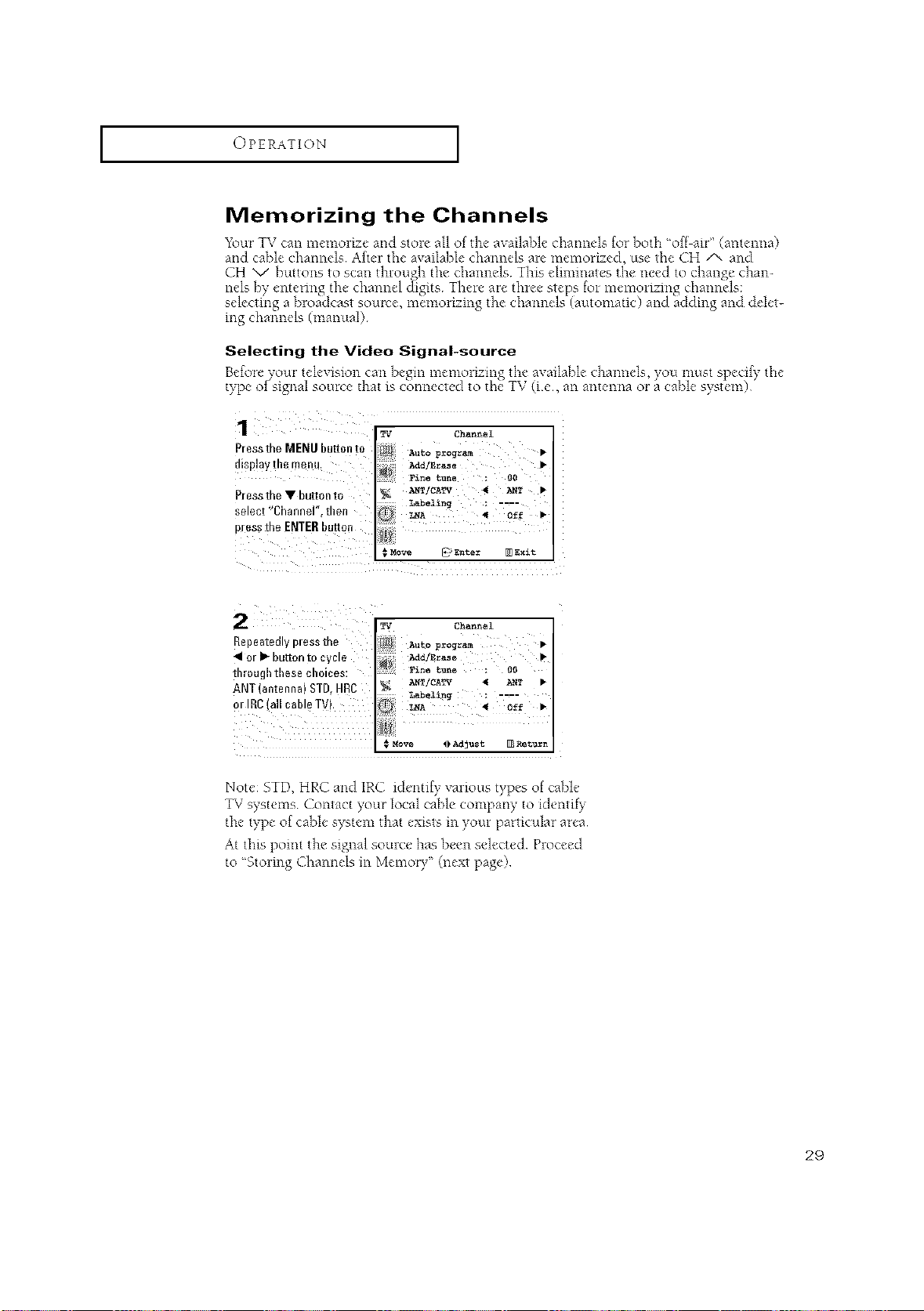
Memorizing the Channels
Your TV can memorize and store all of the available c _a me s for boa '_of a r" (an en m)
and cable channels After the available channels are memorized, use the CH /'- and
CH V buttons to scan through the channels This eliminates the need to change chan-
nes)venerllg leclame dig s Taereare lreese)slormemorizilgclames
se ecting a )roadcast source, memorizing t ae channe s (automatic) ant ado ing and de et-
mg channels (manual)
Selecting the Video Signal-source
Before vou_ tdexision can Ix'gin memolizing the ax ailabk' channels, you must specify the"
type of'signal source that is connected to the TV (ie., an antenna or a cable system)
P/essthe MENU button to
_play ii]e i/i_flU.
Piess the • butt{ am
select "Cllannel" men
bless [ne ENTERbutton
TV Channel
Auto program •
Add/Erase •
Fznetune : O0
A_TlCATV _ ANT •
Labeling ; ....
LNA
_Entez _ E_it
TV Channel
Repeatedly pless the Auto pzog=_ •
41orI'%uttontocycle _a,t/_.... •
through these choices: _,ne tu_e : O0
ANT/CA_V 4 _T •
ANT(antenna) STD HRC _
I Move _ Adjust N :_tu_n
Note: STD, HRC and IRC identify various types of cable
TV systems Contact your local cable company to identity
the type of cable syqtem that exists in yore particular area
At this point the signal source has been selected Proceed
to 5toling Channels in Memory" (next page)
29
I OPERATION I
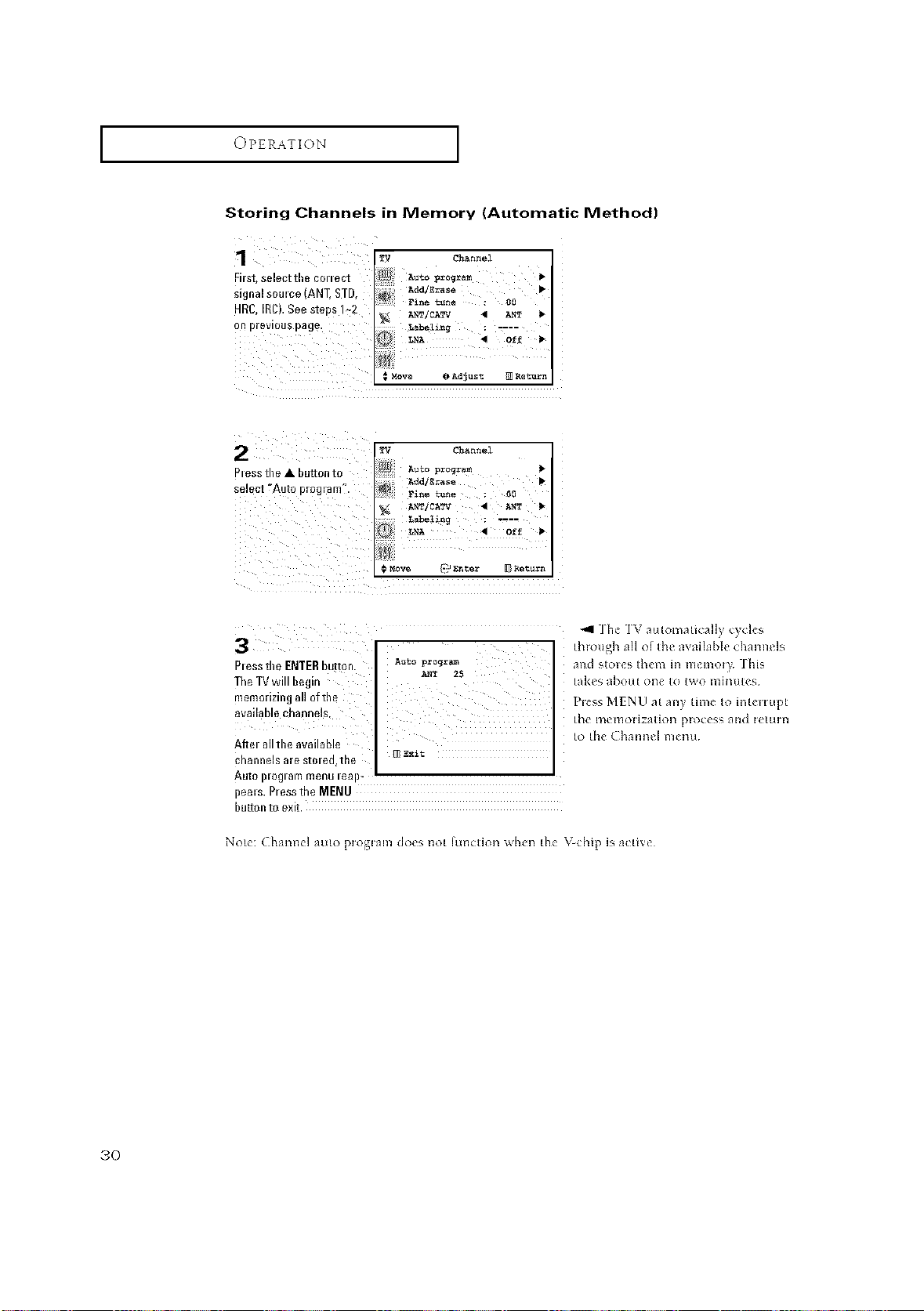
Storing Channels in Memory (Automatic Method)
Firs% select the cot tect
Signal sore ce (ANT,ST[},
HRC, IRC}. See steps I_2
on previous page,
TV Channel
AUto_rog_
Fin_tun_ : 0o
A_T/CA_V _ A_
Labeling ; =...
€ _ve _ Adjust _ Return
2 L_ Channel
Ples_ tlle A button to w _ _"
_*ddlZr_se
sele0t f'Aut0 pr0glanl". Fi_ t_e ; _0
: : / 7
Pt ess tile ENTER button.
Tile IV will begin
memorizJ_g a/J of the
awilable channels,
After allthe avail_ble
channels are stmed_the
Auto plOglammenu leap-
pea=s.Pressthe MENU
but*onto exit.
Piess MENU at any time to int_ittlpt
[o the Channel nleml
Note: Channel auto proglam do_s not [un(tion when the \-chip is actix_
,30
I OPERATION I
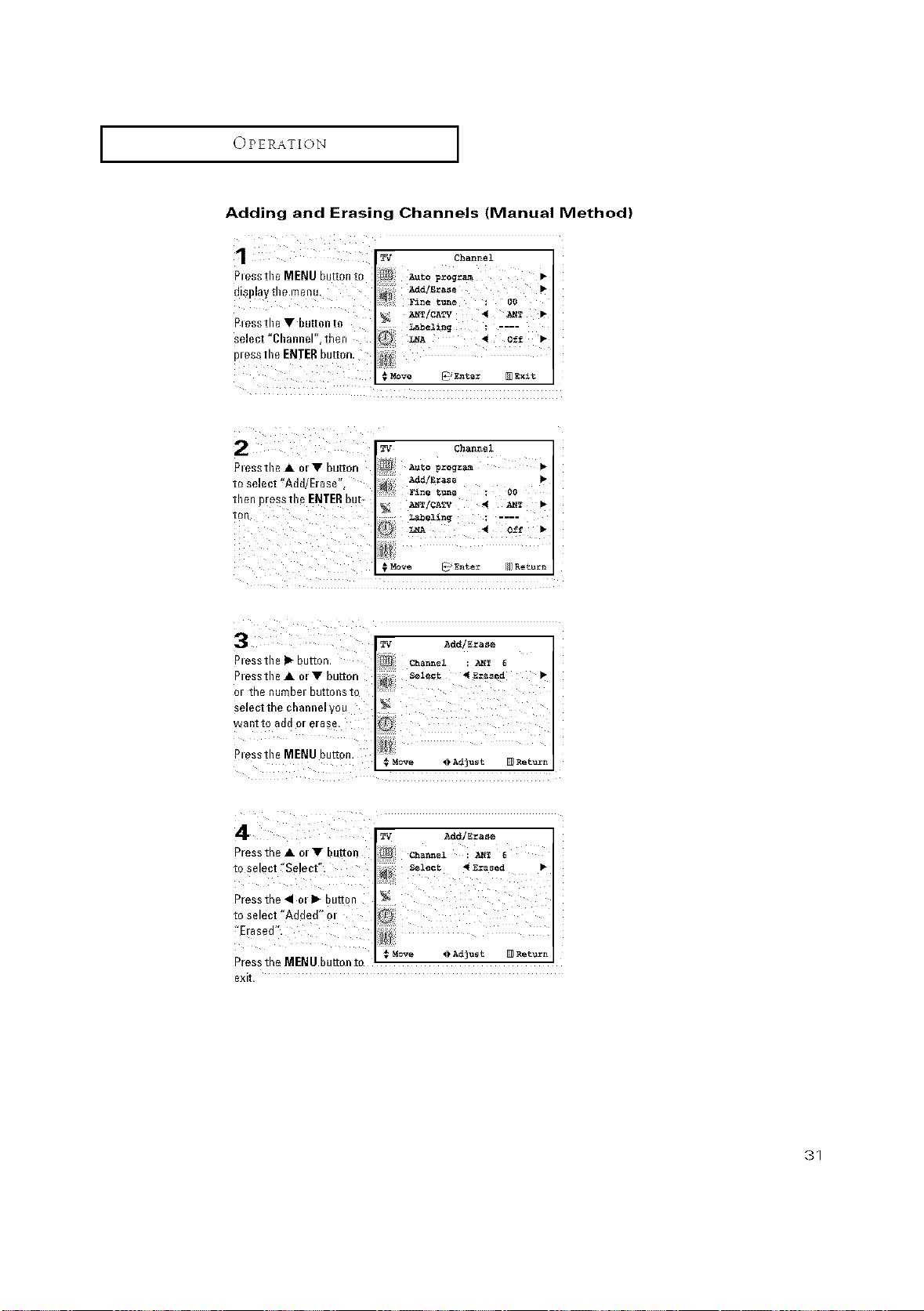
Adding and Erasing Channels (Manual Method)
1 w ch_=ol
Plessthe MENU button to
disl}lay tile menu.
Plessthe • buttonto
select "Channel", then
to select 'Add/Erase%
then p[essthe ENTER but7
ton.
TV Channel
Fine t.... O0
Labeling ; ----
02> _ 4 o_f •
_ _ Add/Erase
Plessthe_button. Channel
PlesstheAol•button
Ol the nun
selectthe channelyo u
wanttoaddorerase, i_!
plessthe MENU button.
@Adjust _R_turn
81
OPERATION I
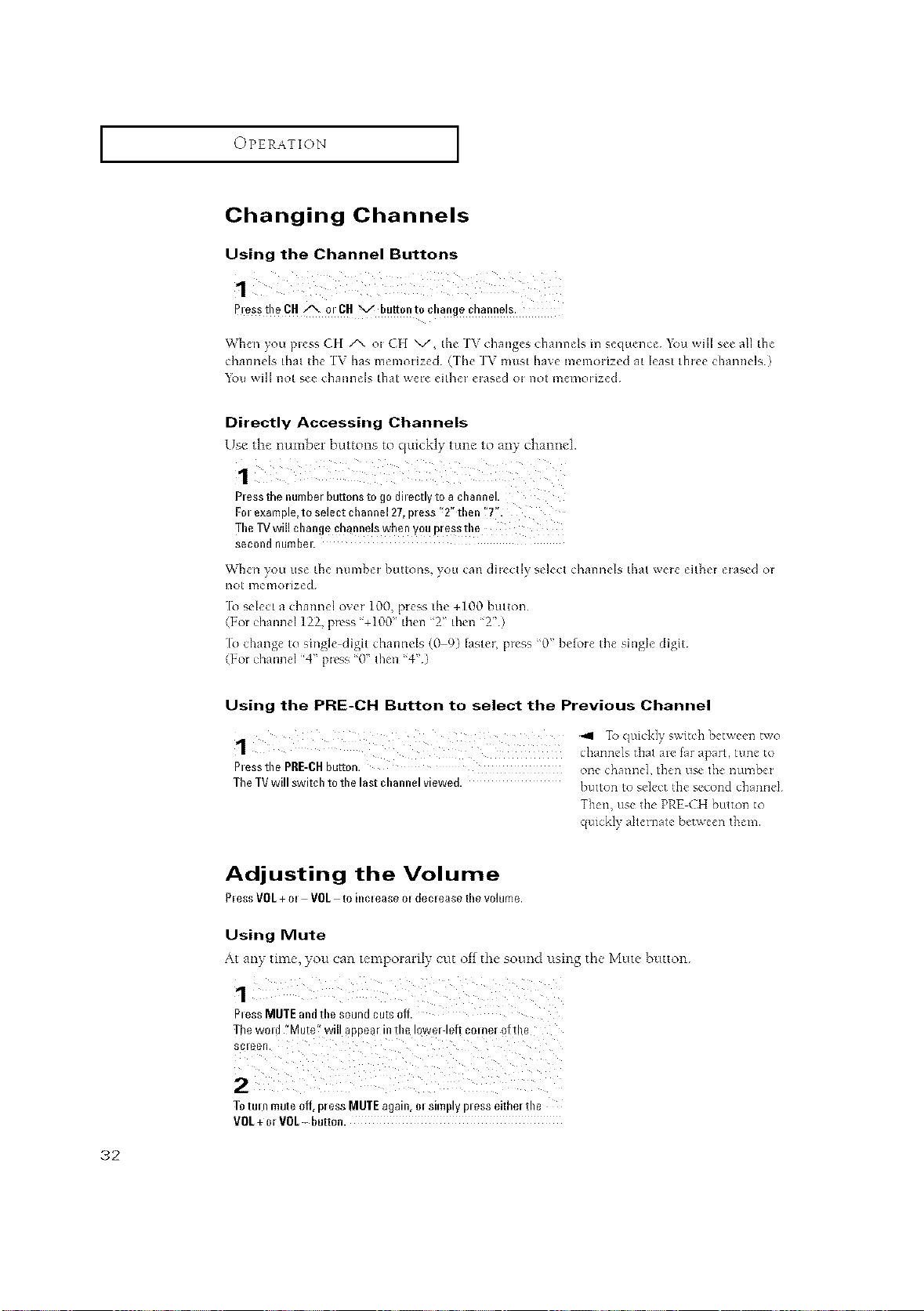
Changing Channels
Using the Channel Buttons
1
PIPsSthe CH/x m CH v buttonto change channels.
_henyouplessCH A oiCH V, th_ 1\ chang_schann_lsms_qtlenc_ _m;_ills_ allthe
channels that the IV has menlorized (1he 1V m_lst have memorized at least three channels¸)
xl_)_l Will I1ot Bee challileIs thai wele eithel ¸ elaf, ed el¸ 11ol Illel]loliz_l
Directly Accessing Channels
Elsethe number buttons to quickly tung to az'_ychant'_el.
Pless the number buttons to go dhectly to a channel.
Fol example, to select channel 27,press "2" then "T'.
TheTV will change channels when you pressthe
Second I1um bel.
_71]en yol_l (is{ th_ n(llllb_ i b(ittonB, yo(i can dile(tl} _,{]ect challnds that '_ele _iLh_l _iaf,_d el
13ol ii_emol ized
1o select a channd ove_ 100, press the +lOO button
(1o_ d_annel ]22, p_css '+ ]00" then '2' then ' 2" )
[o change to single-digit channels (0 9) [aste_; plcss '0" before the single digit
(Io_ d_annel "4' p_vss '0' then '4')
Using the PRE-CH Button to select the Previous Channel
To quickly switch between two
1 channels that a_e far apart, tune to
Pless the PRE-CH button, one channel, t}_en use the number
The TVwill switch to the last channel viewed, button to select the second channd
Then, use the PREACH button to
Adjusting the Volume
PlessVOL+ol VOL toincleaseoldecleasethevoiume.
Using Mute
At any time, you can temporarily cut off the soured using the Mute button
aless MUTE and the sound cuts off.
The wmd "Mute" will aPPea! in the lower-left colne= of the
;cleell.
To tuI13 mute off [)less MUTE _gall3, 61 811TIpl__ es8 effne! [he
VOL + 0r VOL- button.
32
I OPERATION I
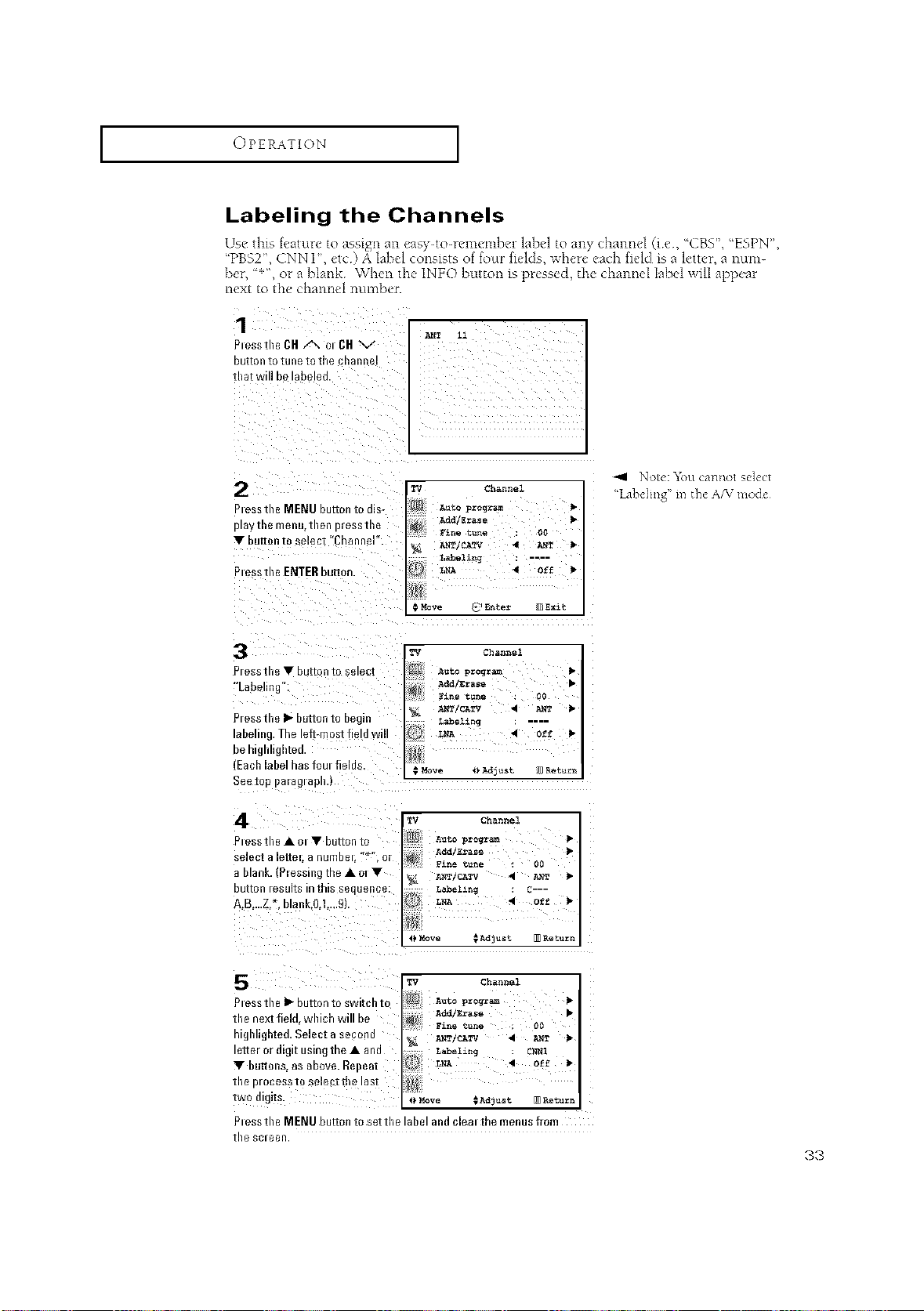
Labeling the Channels
Use this feature to assign an easy-to-remember label to any channel (ie, _:CBS",_:ESPN",
_PBS2", CNN 12 etc) A label consists of four fields, xxher/each field is a letter, a num-
ber, _*", or a blank When tile INFO button is pressed, tile channel label x<illappear
next to tile channel number.
1
ART J.1
PlesstbeCR A o CH V
[}Bite n [o [llne [o [ne cnaM]eI
1 11 Will t}e laDeler
Plesstbe MENU button to dis-
playtne menu.tl]en )lesstne
• button to select "Channel"
Plesstbe ENTERbutton
TV _hannel
Auto pxogr_
Add/Erase
F_ne _ne O0
off
_gxit
TV Channel
A_to prog_
Add/Erase •
gln_ _une • O0
ART/C_TV 4 KWT •
labeling ....
£NA '9 Off •
MOVe _ A4_ust JJ Return
TV Channel
AUtO pr o_ra_
Add/Eras_
Fine t_ne 00
_NT/CATV 4 ANT •
Labellng C---
LNA • Off
OMOVe _AdJUSt _ Return
•V Channel
_dd Erase
F_ne _une 00
ART CAW 4 ANT •
labeling ChuRl
5NA 4 Off
_}Move _Ad]ust _ _turi
NO_(: _()LI cal]nOt S[]dCI
P/ess tbe • button to s£1ec[
"Labehng
P/ess tbe • button to begin
aDe.ng. The le_most fielc ..
De 131_1]11_n[e(].
Eacb label has foul fields
Seetop I}amglapn._
4
Plesstbe•ol • button to
_eleC_a leffel, a 13ufl3bel. _ •or
a Plank }leasing the • el •
DU[[On/es UltS ii3_rllS seaueuce
A B....Z _. bla nk.0.1....9}
5
Pless tbe • button to switcb to
tbe next fiel_ Nnlgrl Will De
nlgn.g ate& Select a second
effel el a _1[ uSll3gthe • and
• buttons as above. Re_em
tne D/OCeS8 [0 Selectlne 18s[
two a _l_s
Pless tile MENU butten to set tile label and clem the menus fmrr
tbe screen.
33
I OPERATION I
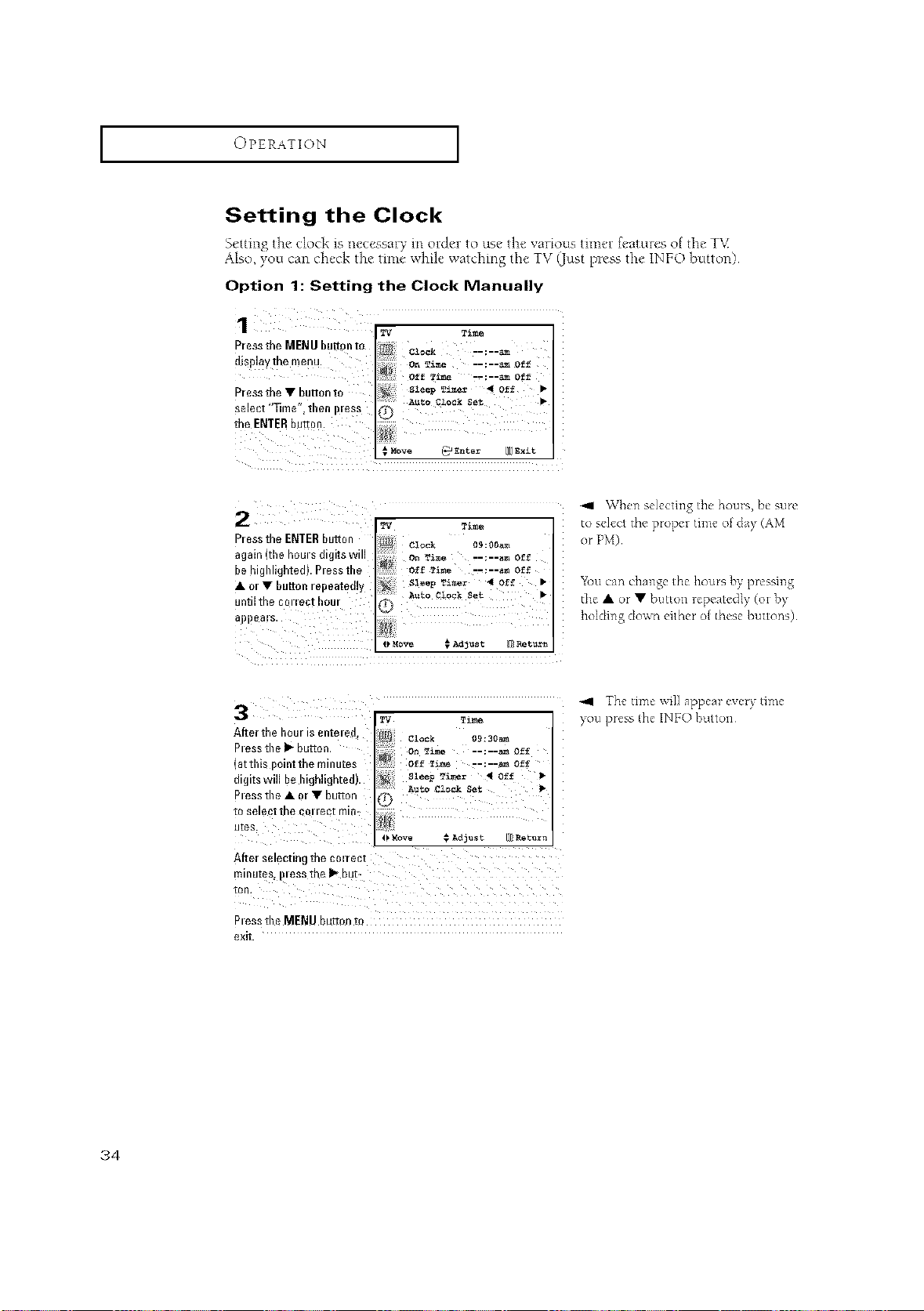
Setting the Clock
Setting the clock is necessary m order to use the vartov[s timer features of the T\,5
Also, you can check the time while watching the TV Oust pless the INFO button)
Option 1: Setting the Clock Manually
Pressthe MENU butt0nt0 clock ==:=-_
displaythe menu: on_e --:--_ o_
off _ --;--_off
Pressthe • button to sleep _i_ _1of_ •
A_O ClockSet •
select "_me", then i)less
the ENTERbutton.
€ Move _ Enter [/[IExit
_,I \Vhell selecting the horns, be sure
2 _v mime to select the prope_ time of oh} (AM
Press the ENTERbutton or PM)
again (the houl s digits will
be highlighted). Pless the
• ol • button repeatedly You can change the ho_lrs by pressing
untilthe c011ect hour the • or • button repeatedly (oi¸by
holding down either of these/_uttons)
*_1 The time x_i}] appca* _vm} time
3
After the hour is enteled, clock
Plessthe I_ button.
(atthis
Piess the • or • button
to sele
utes.
After selecting the cm rect
Pless the MENU button tQ
exit.
34
I OPERATION I
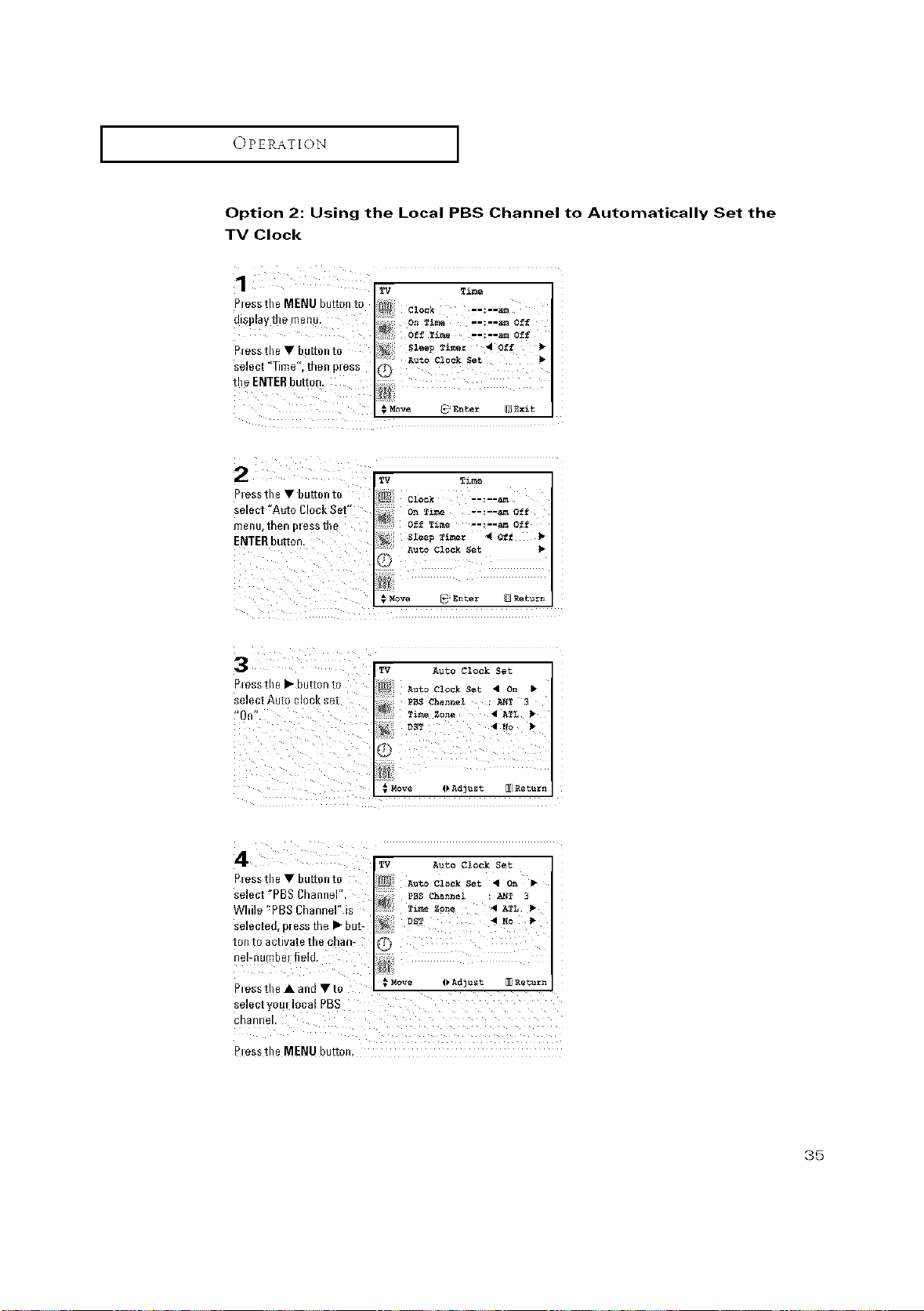
Option 2: Using the Local PBS Channel to Automatically Set the
TV Clock
Plessthe • button to
select 'Auto Clock Set"
menu, then }leSS th_
ENTER button.
TM Time
:5_ On _i........ Off
Off Time --;--am Off
/_ A_t° Clock Set •
kk/
}
# Move _ Enter @ _turn
Plessthe • button to
select Auto clock set
f'On".
TV Avto ClockSet
AutoClockSet • on •
_i_eZ_=e • ATL •
Pmssthe • hu[tonto :lj_ A,at_,czo_k set • o_ •
select "PBS Channel".
While 'PBS Channel" is
selected, press the • but-
ten to activate the chain
nel-numbel field.
Plessthe & and •to €_v_ _Adj_ot _ Ret_
select yom local PBS
channel.
Pmssthe MENU button.
35
I OPERATION I
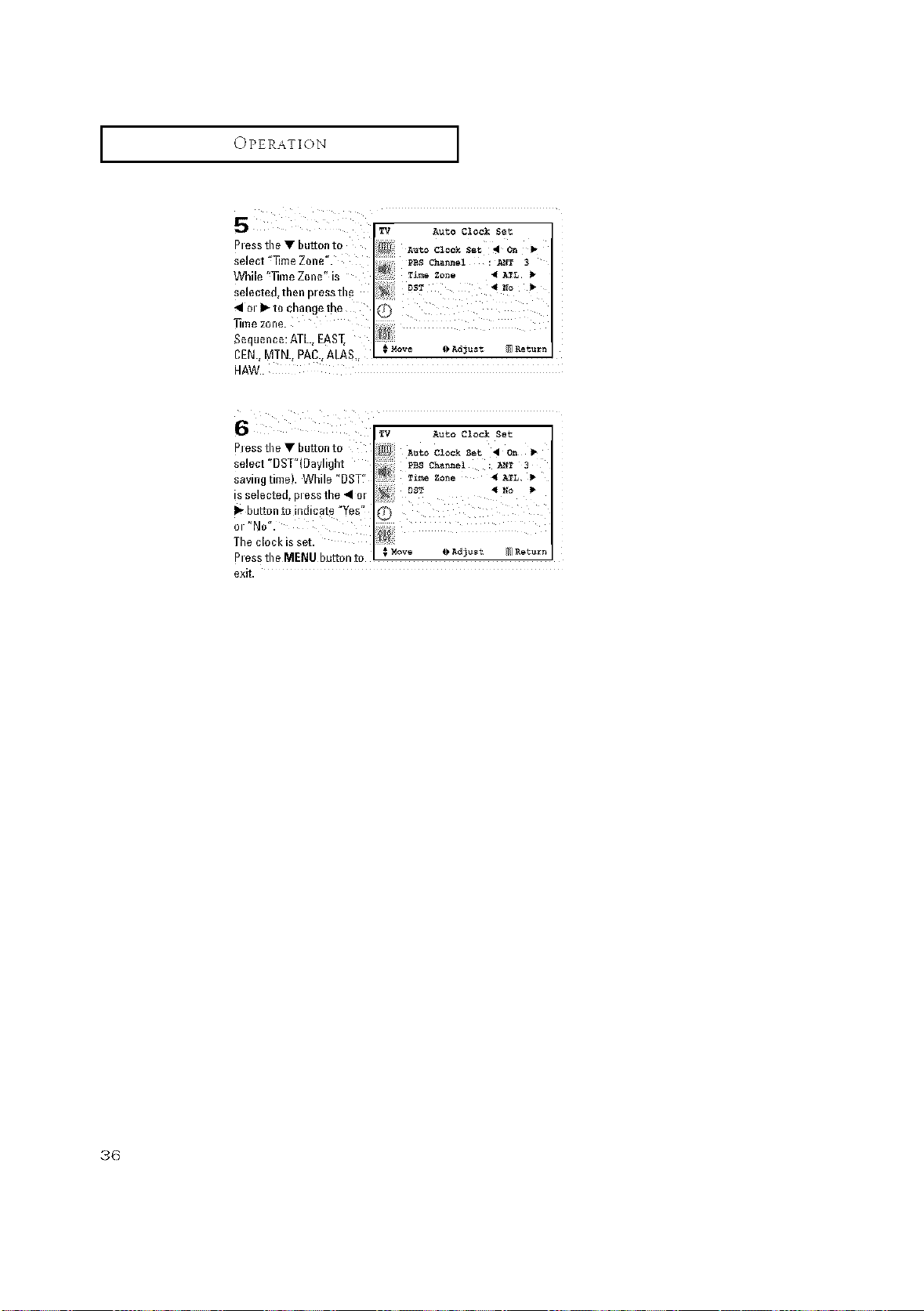
TV Auto Clock Set
PRess tile • button to
select ' _me Zone".
While '_me Zone" iS
4101 I_ to changethe @
mezo°o
Sequence:ATL. EAST _
' ' #Move _)Adjust @R_tur_
BEN.. MTN.. PAC., ALAS,,
HAW..
6
TV Auto Clock Set
Auto Clock Set • On
9BS Channel _ 3
T_me ZOne • ATL.
DS_ • No b
3messthe • button to
;elect "DST' Day.gn[
;avm_ rime While "DST
s seieczea. Oless the • o
I_ buttoR to indicate "Yes
)1 "a
The clock is set
_lesstheMENUhuttonto I ,Mow {_A_3_t _iReturnI
exit.
36
I OPERATION I
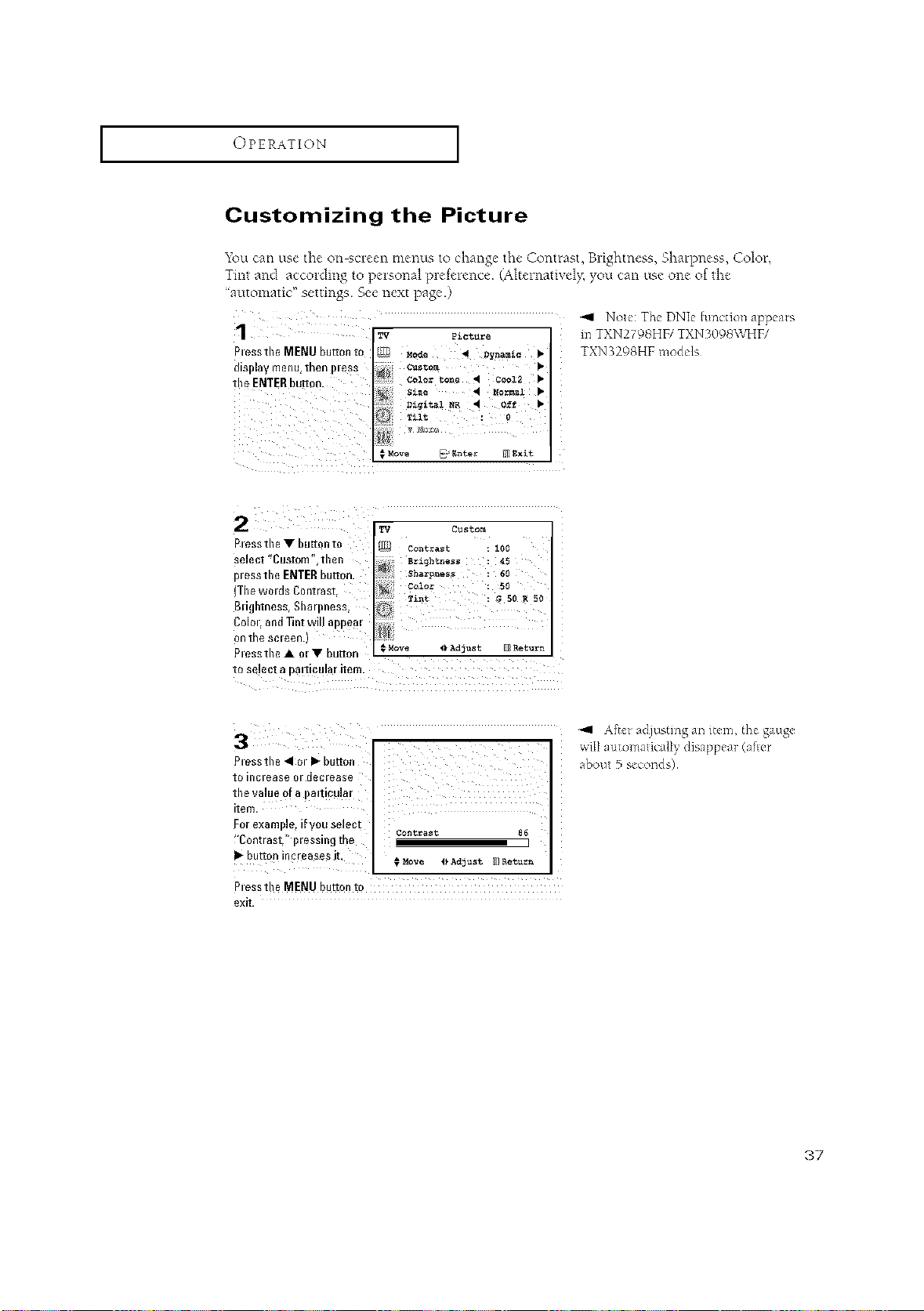
Customizing the Picture
You can use the on screen menus to change the Contrast, Brightness, Sharpness, Color,
Tint and according to personal prefelence. (Ahelnatively, you can use one of the
"automatic" settings. See next page.)
-41 Note: The DNIe [unction appeais
_v Pictur_ in TXN2798HF/TXN 3098\\_IF/
Plessthe MENU button to {F_ ,_,_ _ _ynam_._ • TXN32{}BHF models
display menu_th_n i)leSS
the ENTERbutton.
#Move _ _nter ;q]_xi_
Piessthe • button to
select 'Custom%then
pl essthe ENTERbutton.
(Thewolds Contrast,
Bdghtness, Sharpness,
Colol, and lint will appeal
onthe sc=een.)
PtesstheAm•button
#Move (kAdjust ) F,eturn
to sdect a pa!!icular item.
Plessthe 41Ol• button
to il3CleaSe Ol declease
the value of a imltiCuiar
item.
For example, if you select
!'Contrast," i}lessing the
I_ button increases it,
Plessthe MENU button to
exit.
# MOVe (_ Adjust llJ]Retuz=%
A%r adjusting an ilem, Ih_ gauge
about 5 seconds)
37
I OPERATION I
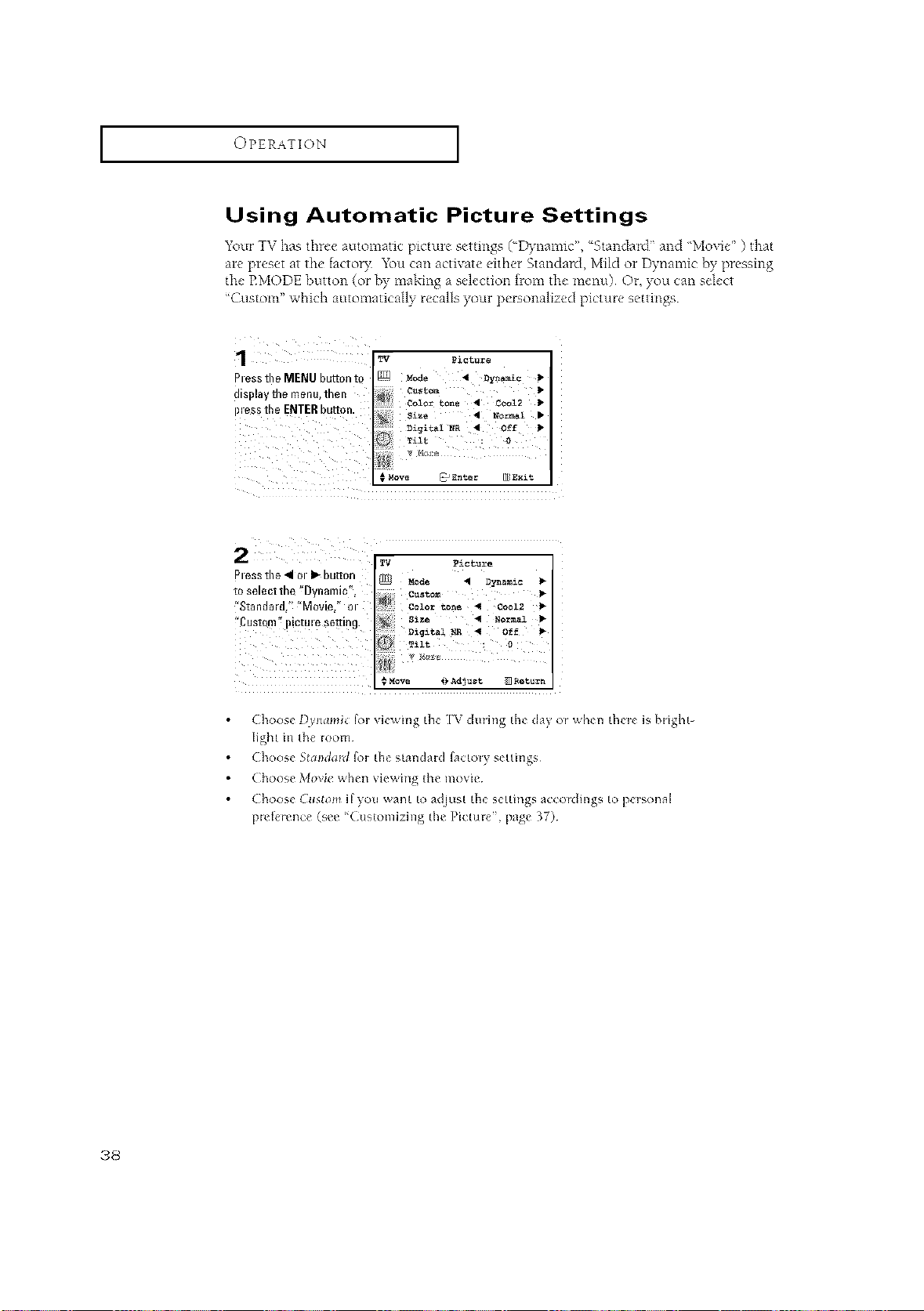
Using Automatic Picture Settings
Your TV has three automatic picture seumgs ("Dynamic", %tanda_d" and 'Movie" ) that
are pleset at the factor3: _bu can activate either Standard, Mild or Dynamic by pressing
the EMODE button (or by making a selection flom the menu) Or, you can select
"Custom" which automatically recalls your personalized picture settings
aless the MENU button 1
JlSi)l_ me menu lnen
_less the ENTER button
"Fg Pzctu_e
Mode ,t Dynaz_ Ib
i*
Move _ En_z gxl_
2¸¸¸¸¸¸¸¸¸¸¸¸¸ [
Piess tile 4 ol I_ button
Mode _ Dynamic •
to select the _Dyn_l_]lC", Cust, om
"Standard,'! "Movie," m color _o_ _ coo12
'Custom" lctulesetting, siz_ _1 _o_l I_
Digit_!NJ_ _ Off
_MoVe i_Adjast _ Retua_n
Choose I)V_lami_ Iol viewhlg the [W dining the (lay ol when thele is blight-
light in the room¸
Choose 5_cl;_d_M _I ¸ the standard _ctoly selting%
Choose Movi_ when viewing lhe movie¸
Choose Cllslom i[yo_l want to adjust the settings accoldmgs to personal
p_vference (see '_(h_slon3izing the Pict_uv", page ¸37)¸
,38
I OPERATION I
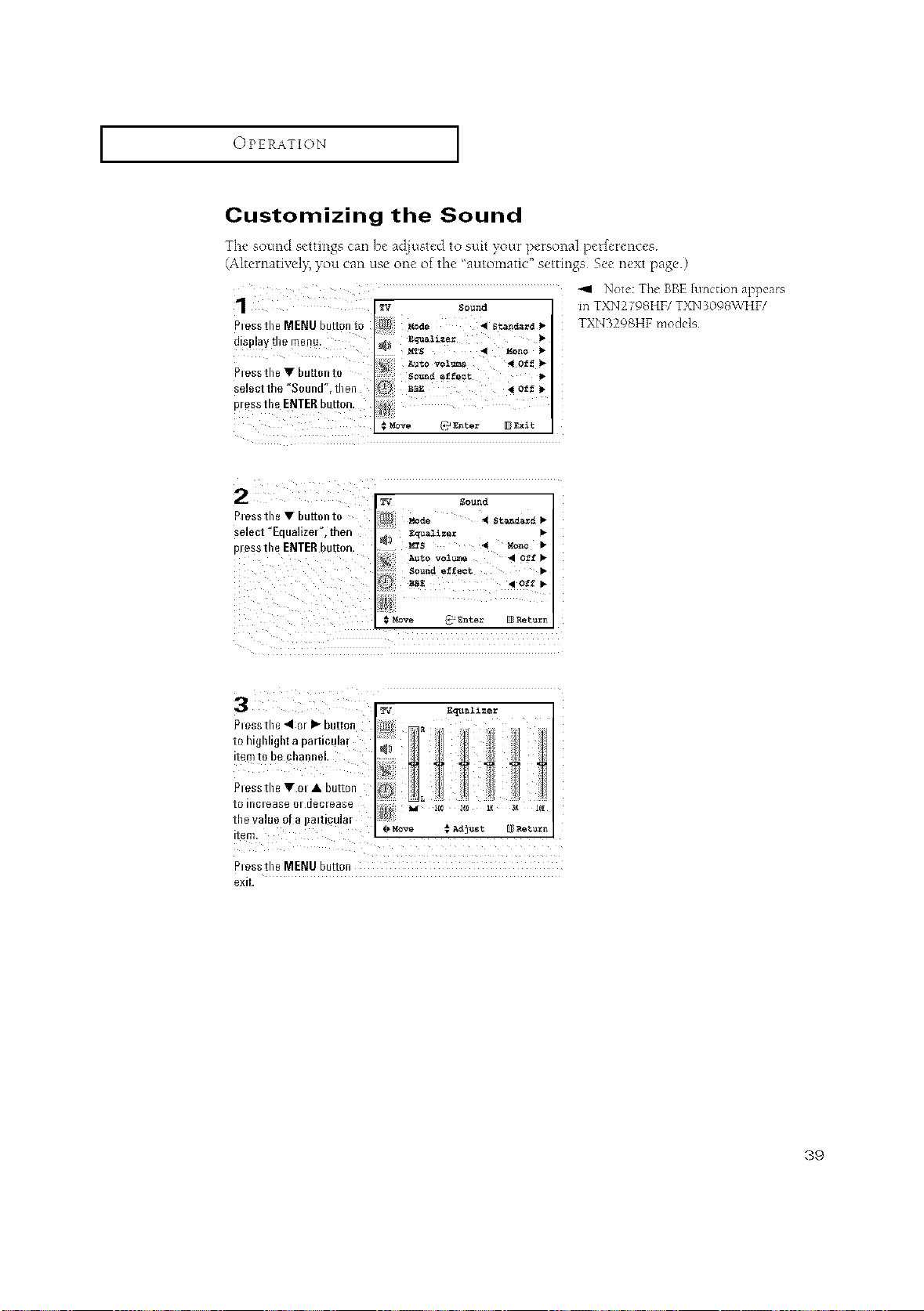
Customizing the Sound
The sound settings can be acliusled to suit your personal perferences
(Alternatively, you can use one of the 'automatic" settings See next page)
-.11 Note: The BBE [unction appears
1 _ soood inTXN27OSHF/TXN3098\VHF/
Plessthe MENU button to _ Mod_ _ stan_rd • TXN3298HF models
display the menu. _a=_i=e=
Plessthe Y huron to AUtov_l_ ,I 0_ !_
_ound ef f_ct •
select the "Sound", then B_ 4 o_f _-
pressthe ENTERbutton.
# Rove _ Enter _ Exit
2 = ,ooo,
Piessthe • huron to _de _ sta_=d •
select '_Equalizel%then _liz_r •
pJessthe ENTERbutton. _s _I Mono •
A_to vol_me _ Off •
Sound e_£ect •
P_essthe MENU button
exit.
89
I OPERATION I
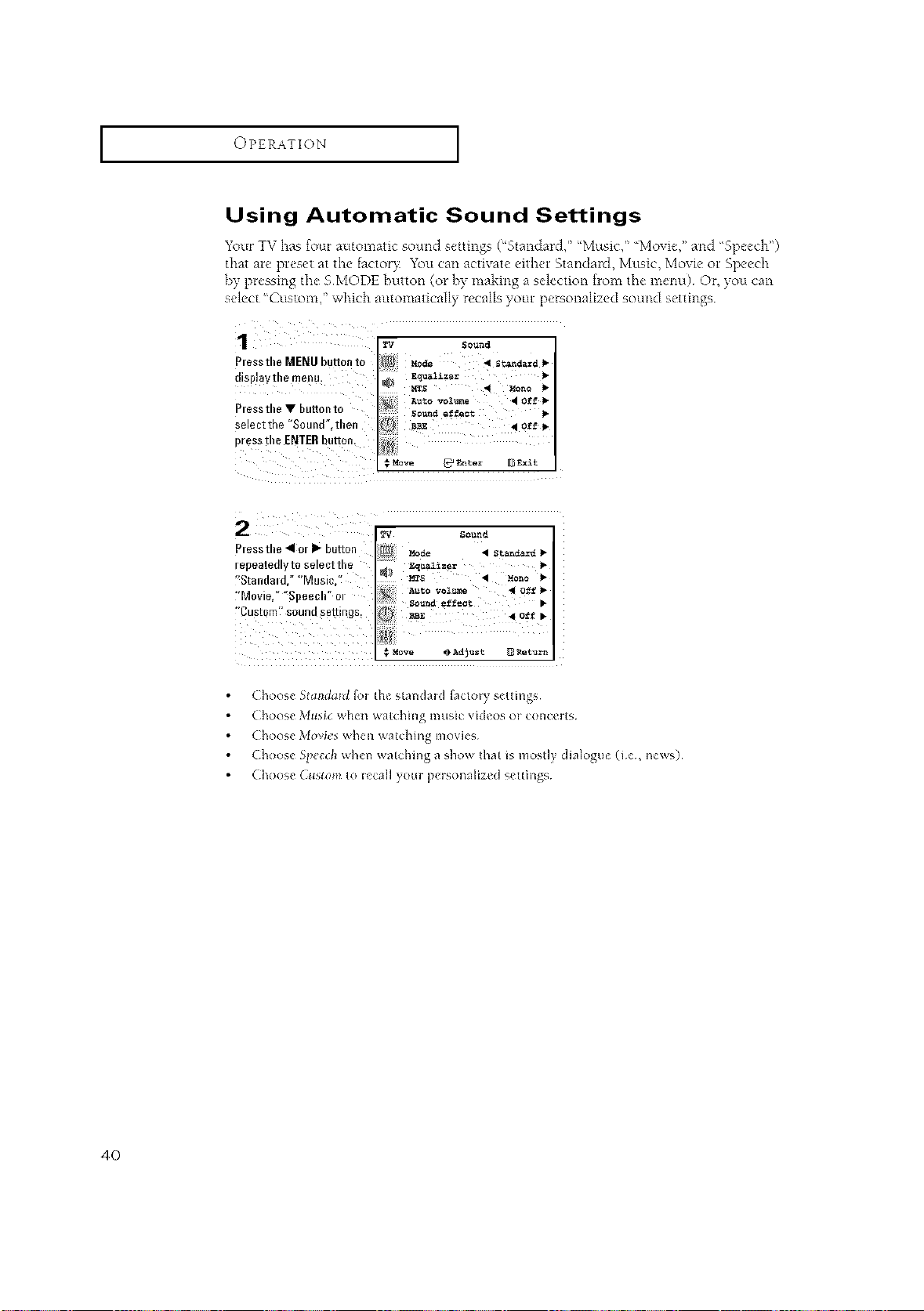
Using Automatic Sound Settings
Your TV has {our automatic sound settings (€:Standard," €:Music,"Movie," and 'Speech")
that are pleset at the tactor): You can activate eithel 5tandald, Music, Movie ol Speech
by pressing the SMODE breton (or ]_ymaking a selection {tom the menu) Or, you can
select 'Custom," which antomatically recalls your pemonalized sound settings
Sound
Piessthe MENUbutton to
dis!llay the menu:
P_essthe V button to
select the °Sound',then
pressthe ENTER bgtto 9,
$ _[ove _ Enter [[gExit
P_essthe _I m • button
_Dea[_(]l [o SelBcIIne
Standald.° "Music.
Movie.° _8 eecn o
Bustom" sound settings.
_/ Sound
Mo_e • StanS_rd
_q_z_lizer •
_2S • Mon¢ •
Auto vo1_me 4 Off
Sound effect •
BBE _ Off •
blove 0 AdjUst _ Retxla:_
Choose 5tatldal{l foi the standaid factol T settings
Choose M_lsi_ when walchmg music videos ol ¸ concerls
Choose Mo_ics when walching movies¸
Choose 51_cc_h when watching a show that is moslly dialogue (ie, news)¸
Choose (Tlls_om to lecall v_/_li¸ personalized settings¸
40
I OPERATION I
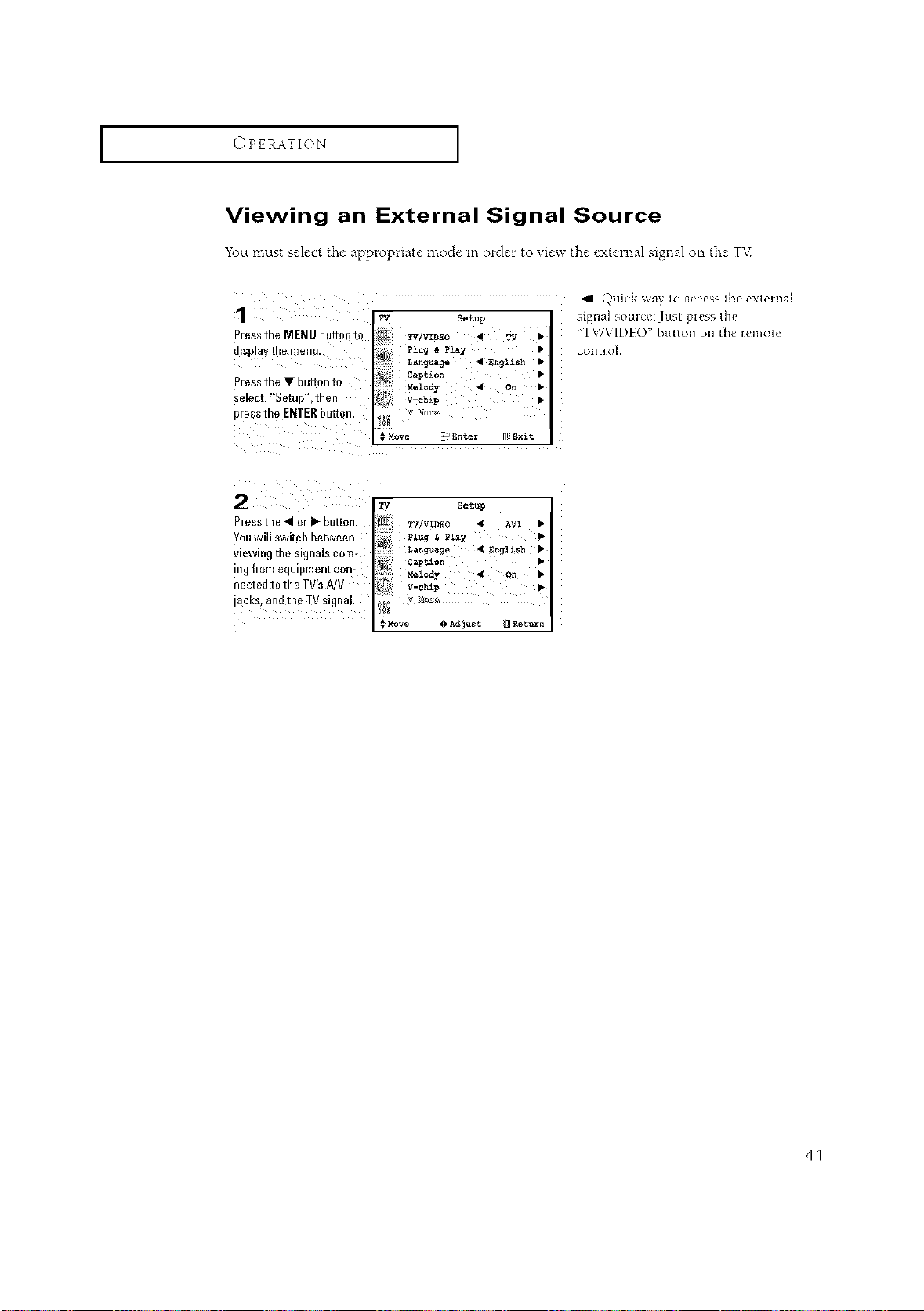
Viewing an External Signal Source
_\_u must sPlect the appropriate mode m order to view the extvlnal signal on the T\_
P/ess the MENU buuon _o
llSpla I tne menk
P/ess the • button to
_£1e_t "S_tL } inert
mess me ENTERbutton
Setup
TVIVIDEO • TV
Plug & Pla_
Lan_aage _ EB_1£sh
#Move _Enter _ Exit
Quick way to access the exteinal
signal souice: Jusl press the
'T\/VIDI O" button on the remole
COI][IOI
Pl ess tile 41 or I_ button. _v/wD_{o _ _.vl l*
You willswitch between ii; ill Pl_ _ Play _"
viewing the signals corn- _{ ¢_p_i_n
ingfloraequipmentcon- iiiii¸ _oa_, ._ _
nettedtotheTV'sA/V _ V-ch:kp
jacks,andtheTVsignal, i __o _,
MoVe _}Adjust _ Return
41
_PECIAL FEATURES
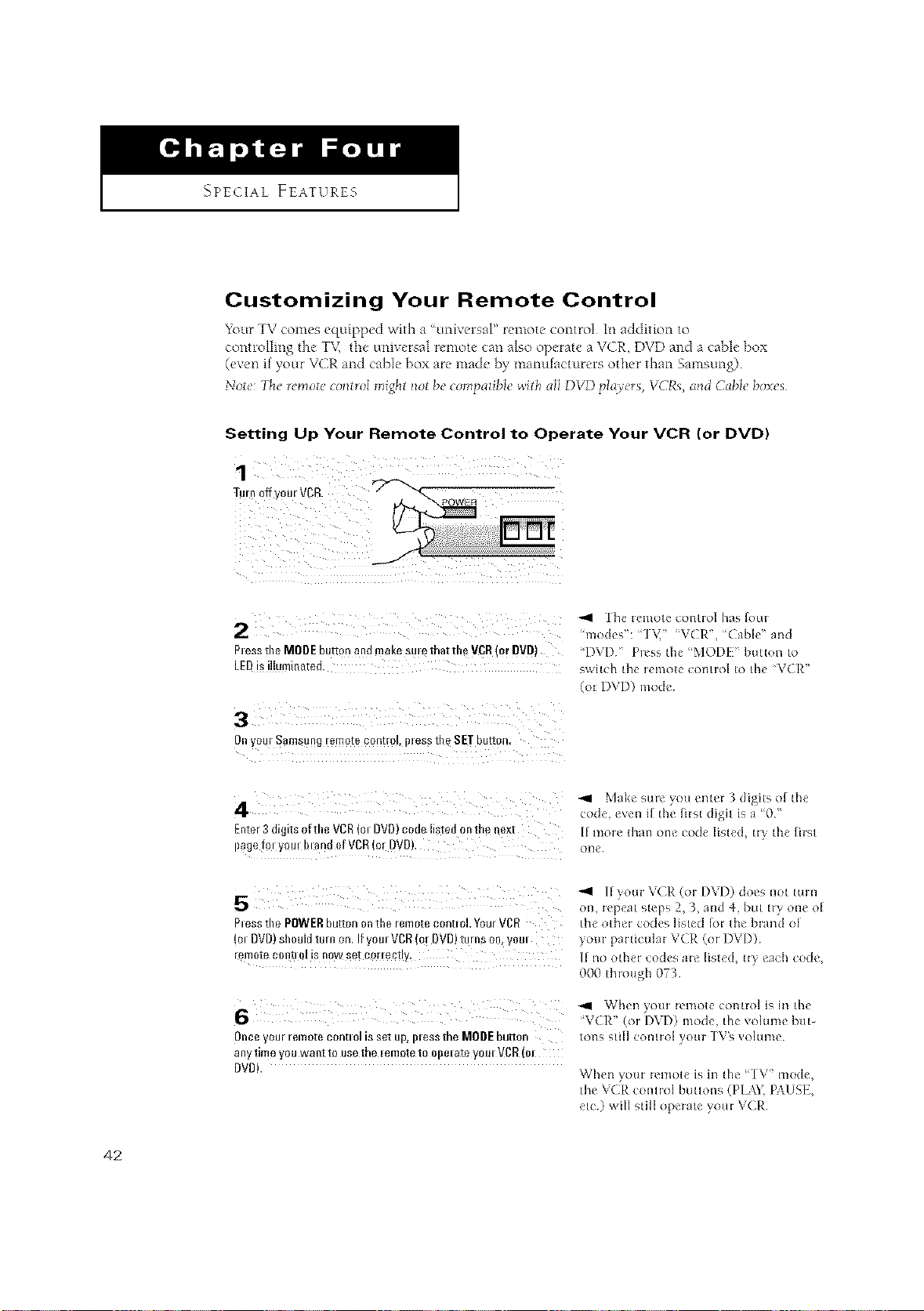
Customizing Your Remote Control
Your TV comes equipped with a ¢_universal" remote control In addition to
controlling the T'v_ the universal remote can also operate a VCR, DVD and a cable box
(even if your VCR and cable box are made by manufacturers other than Samsung)
Note: The remote control might not bc compatible _dth all DVD p/a_crs, VCRs, and Cabh" boxes
Setting Up Your Remote Control to Operate Your VCR (or DVD)
1
Turn offyou= VgB.
Pless the MODEbutbn and make sme that the VCR(or DVD)
LEDis illuminated,
OnyourSamsungremotecontrol,I)leSStheSETbutton
Enter3 digits ofthe VCR(m DVD)code listed onthe next
I)agefm you! bland of VCR(or DVD).
5
Pless the POWERbutton ontile remote contRol.YourVCR
(el DVD)shouldturn on. Ifyore VCR(or BVD)turns oil, yore
[emote contiQI isnow set cottectl_.
Onceyour remote control is set up, pless the MOREbutton
anytime you wantto use the lenlote tQ Ol)olate youl VCB(m
DVD).
-41 The remote control has fern
modes': '1 \,' 'W( R", '(able" and
"DVD " Pi_ss the _MODE!" button to
switch the remote control to the _V(II_."
(or DVI)) mode¸
Make sule ?ou ent_I 3 digits of the
code. even it the first digit is a _0"
If more than one code listed, try the first
onc
-,4 If}oul \ (;R (or D\ D) do_ s not tuln
on, repeat steps 2, 3, and 4. but try one o[
the other codes listed _i ¸ the brand el¸
yore ¸ particular VCP. (or DVD)
If no other codes are listed, try each code,
000 thl_ugh 07¸3¸
"11 Whln _Otll lemo[e (OR[IOI is ill [h{
'\ (IR" (el D\I)) me&. the vohlm_ but-
tons still contlol }oul ]V'_ _ohnm
When ?out iemote is in the '1\" mode,
the VCR control buttons (I I_k_ [AUSI-,
etc) will still operate your VCR
42
I SPECIAL FEATURES I
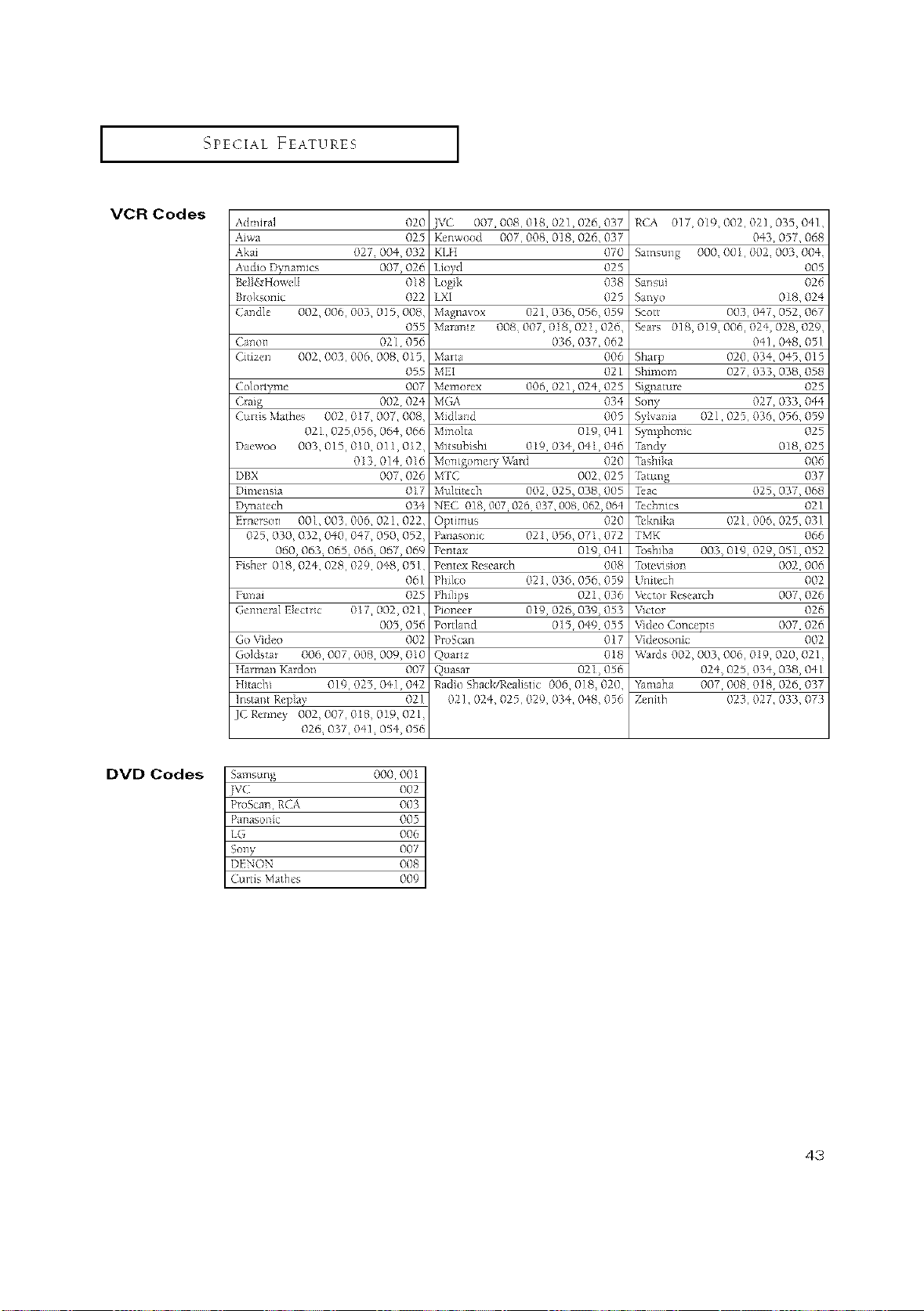
VCR Codes
Adl liral 020
Aiwa 025
Akai 027 O(/4,032
Audio )ynamics 007, 02d
Be[ &_Howell 0/8
Bro/sonic 022
Candle 002,006,003, 015,008,
055
Ca_on 02/056
Citizen 002,003,006, 008,015
055
Co/ortyme 007
Craig 002 024
Curis Mathes 002,017, 007,008,
021,025,056, 064,066
)aewoo 003 015,010 011,012,
013 014 016
DBX 007,026
Dimens{a 017
)x_ ttech 035
Ernerson 001,003,006, 02 l, 022,
025,030,032, 0if0, 047, 050,052,
060,063_ 065,066_ 067,069
Fisher 018,024 028,029 0,1-8,05]
06]
Funai 025
Genneml E!ect ic 017,002, 021,
005,056
Go Vide() 002
Go]ds ar 006 007,008 009,010
Harman Ka*don 007
Httacl- O] 9,025, O'tI, 042
]nstal_t Repa_ 02]
jCRemey 002007,018019,021
026 037,041= 054,056
]VC 007,008, 0/8, 02], 026,037
Ke*[wood 007,008, 018, 026, 037
KLII 0/0
Iioyd 025
Logik 0_8
LXI 025
Magnavox 02L 036, 056,059
Maramz 008 007, 0 8, 02 [, 026,
036,037,062
Martt 006
MEI 021
Memmex 006, 02], 024, 025
MGA 034
Midlamd 005
Minolla 019,041
Mitsubshi 019,034,04 046
MCTIgomely Ward 020
M'IC 002,025
Muki!cch 002,025,038,005
NEC 018, 007 020 037 008, 002,064
O])ttalus 020
Pal!asonic 02,056,071,072
Pop.tax 019,041
Pointex Reseai_h 008
PhJlco 02/, 03d, 056,059
02,036
Pioneer 019,026, 039,053
Port/a*-d O]5, 0a9,055
PmS(:an 0/7
Quanz 018
Quaqal 021,056
Radio Shack/Realist c 006 O]8,020,
02], 024, 02b, 029,034,048,056
RCA 017 0/9, 002, 02/, 035,04],
043, 0"W, 068
Samsung 000_ 00[, 002_ 003,004_
0O5
SaT/sui 028
Sanyo 0[8, 02 _
Scoll 003,047,052,067
Sears O] 8, 019_ O06,024, O28,029,
0_,], 048, 05]
Sharp 020, 03 _, 045, 015
Shmmm 027,033, 038,058
Sigualure 025
SoW 027,033,044
021,025,036, 0_6,059
Symphonic 025
Tandy 0[8,025
_shika 006
_m_g 037
Teac 025,037,068
Technics 02]
_kmka 02/, 006,025, 03]
TMK 066
Toshiba 003, 019,029, 05], 052
Tote_sio_ 002,006
Unitech 002
_ctor Research 007,026
_clor 026
V_deo Concepts 007,026
Videosonic 002
Wards 002,003,006,019, 020, 02]_
024, 025,034, 038, 04]
Yamaha 007_ 008,018_ 026,037
_nith 023,027,033, 07!/
DVD Codes
Samsung 000 00l
jvc o02
ProScau, RCA 003
Parlasoll c 005
L(, 006
Sony 007
DENON 008
Curtis Mathes 009
43
_qPECIAL FEATURES [
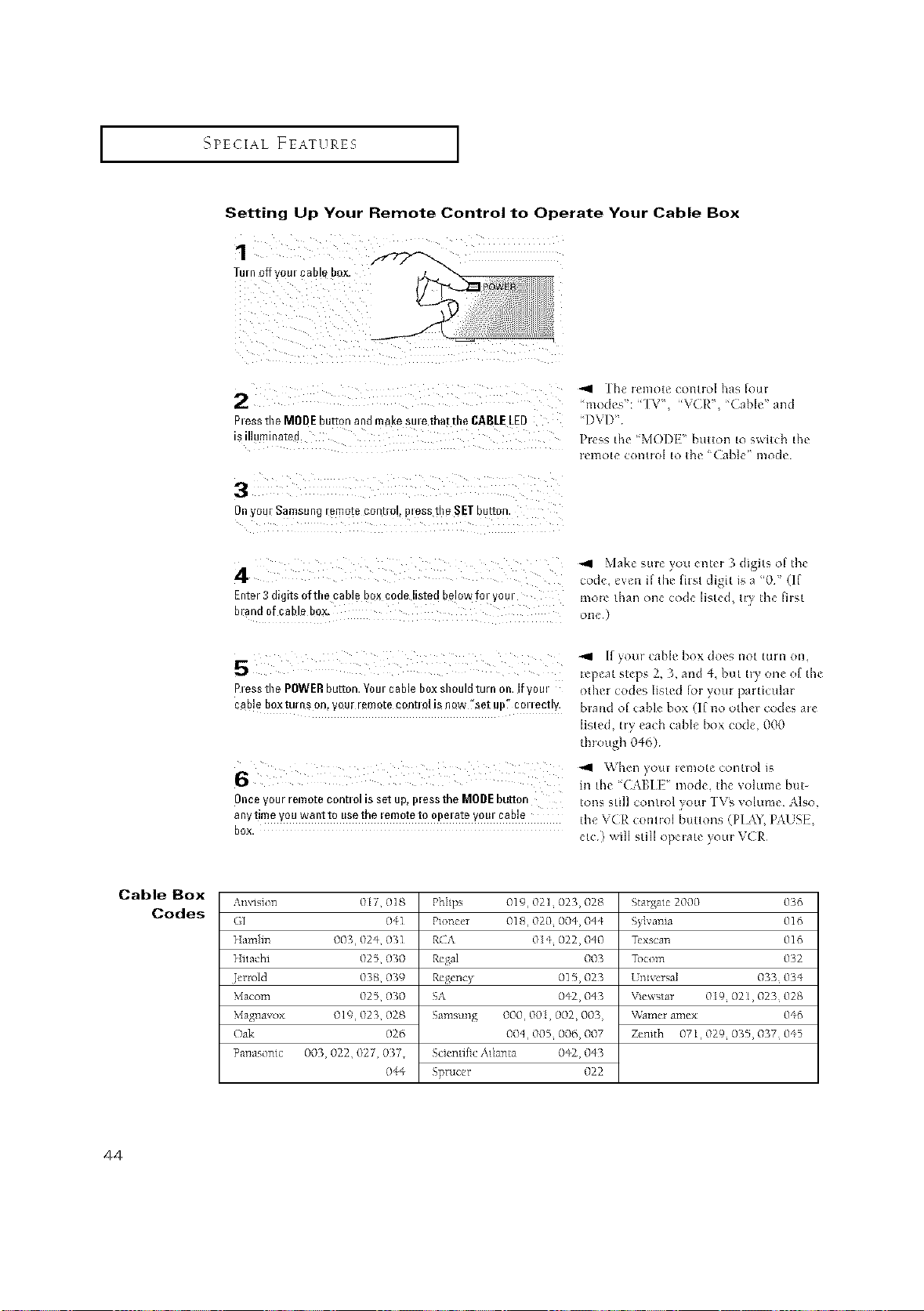
Setting Up Your Remote Control to Operate Your Cable Box
1
gu/n off ,DuI _SDle D0_
aiess the MODE button and make suie that the CABLE LED
s iiiumlnateu
The iemote contiol has h>ui
<modes": <<IYV", <<VCP.", 'Cable" and
"DVD"
Pi_ss the "MODE" button to switch the
remote control to the <_Cable" mode¸
Onyou_ Samsungremote oontro!, piess tl)e SET button.
Make stm }oil ent_i 3 digits of the
code, even if the first digit is a <<0" (If
Enter 3 digits ofthe cable box code listed below foi youl more than one code listed, try the first
b and 0 cable box, one¸)
If youl cable box does not ruin on,
repeat steps 2, 3, and 4, but tiT one of the
Piess the POWERbutton.Y0uicable boxshould turn on. IfV0Ui othei codes listed [ui yoor paiticulal
cable b°xturns 0n:y0u[ !_mQtecont!N !sn0w "set uP" e°!reet!Y, hiand o{cahlc box (If no ethyl codes air
listed, tiy each cable box code, 000
thJot@l 046)
6
intht'( \Illi"modc, thcvoluml hut-
Once your remote eontiol is set up, iliess the MODEbutton toils still contlol _iotli "1V's volume \]so,
anytime you want to use the iemote to 0peiate goui cable the V(R _ontiol btlttons (PI 5\Y, P \US[ ,
box. etc) _ill still opelate 5oul \ ( R
Cable Box
Codes
Am lsion 017 018
GI 041
Hamhn 003,024 031
Hitachi 025 030
lerro]d 038 039
Macom 025 030
Magnavox 019,023 028
Oak 026
Panasonic 003,022,027, 0137,
044
P[_Iips 019,021,023,028
Pioneer 018,020, 004,044
RCA 0{4 022,040
Regal 003
Rcgcncy 015,023
5A 042,043
5amsung 000, 00!, 002,003,
004,005,006,007
5cicn_ihc Atlan!a 042,043
Sprucer 022
5targate 2000 036
Sylvania 016
Tcxscan 016
Totem 032
Lmxersal 033 03'1
\qewsar 09 02t,023 028
V_ame_ amex 06
Zenith 07t,029,035,037 0 5
44
SPECIALFEATURES ]
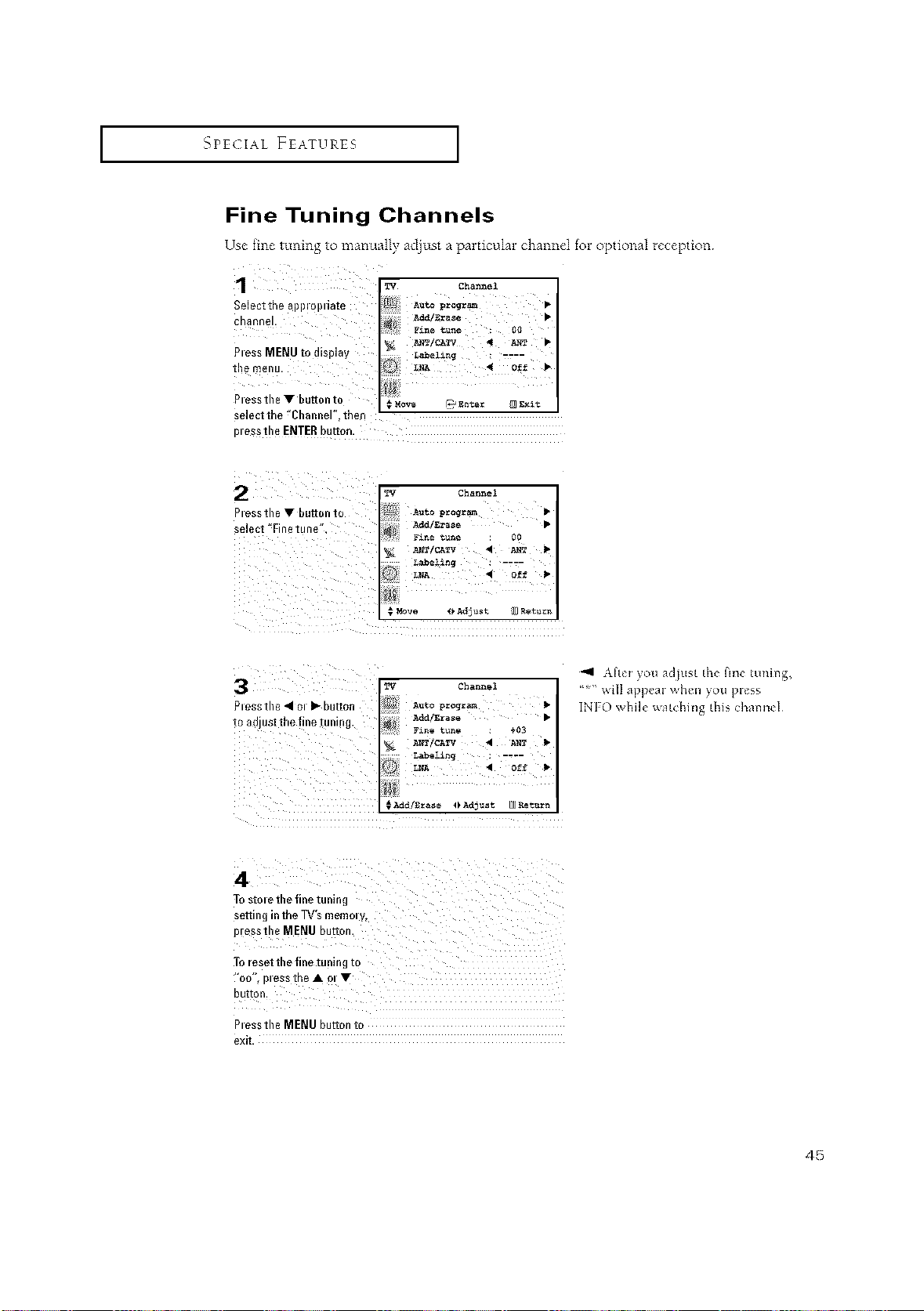
Fine Tuning Channels
Use fine tuning to manually adjust a particular channel for optional reception
I TV Channel
Select the applopliate
cbannel,
Pless MENU to display
the menu.
?msstbe_ buttsnto o_ _P Enter _ E_it
select the 'Charmer', tben
Dessth e ENTER button-
_ine tla_e ; ¢a_
hessthe • bu
select "Finetune",
TV Channel
Labe$ing : -r2"
{; Move _ Ad_ast _ Retlarn
_ _ i i i i ZIIIIIII:IIIIIIIIIIIIIIIIII:IIIIIIII:II
Plessthe 41Ol• button
to adiust the fine tuning.
_iI_II:III_ i iii_ ii
iiill <_ii iI /ii ii_ <_
_q Chan%_l
LNA _ off •
Add/Ea:aseO AdjUst Ll_R_t_rn
\fhl _iou adiust the fine tuning,
'_" will appea_ ¸ when 'iou p_es'_
INFO while watching this channel
_o stole the finetunin£
setting in the TV'smemory,
p esst e MENU button, i
i
To reset the fine tuning to
%o" p_esstl eA o •
P essthe MENU burton to
exit
45
I SPECIAL FEATURES I
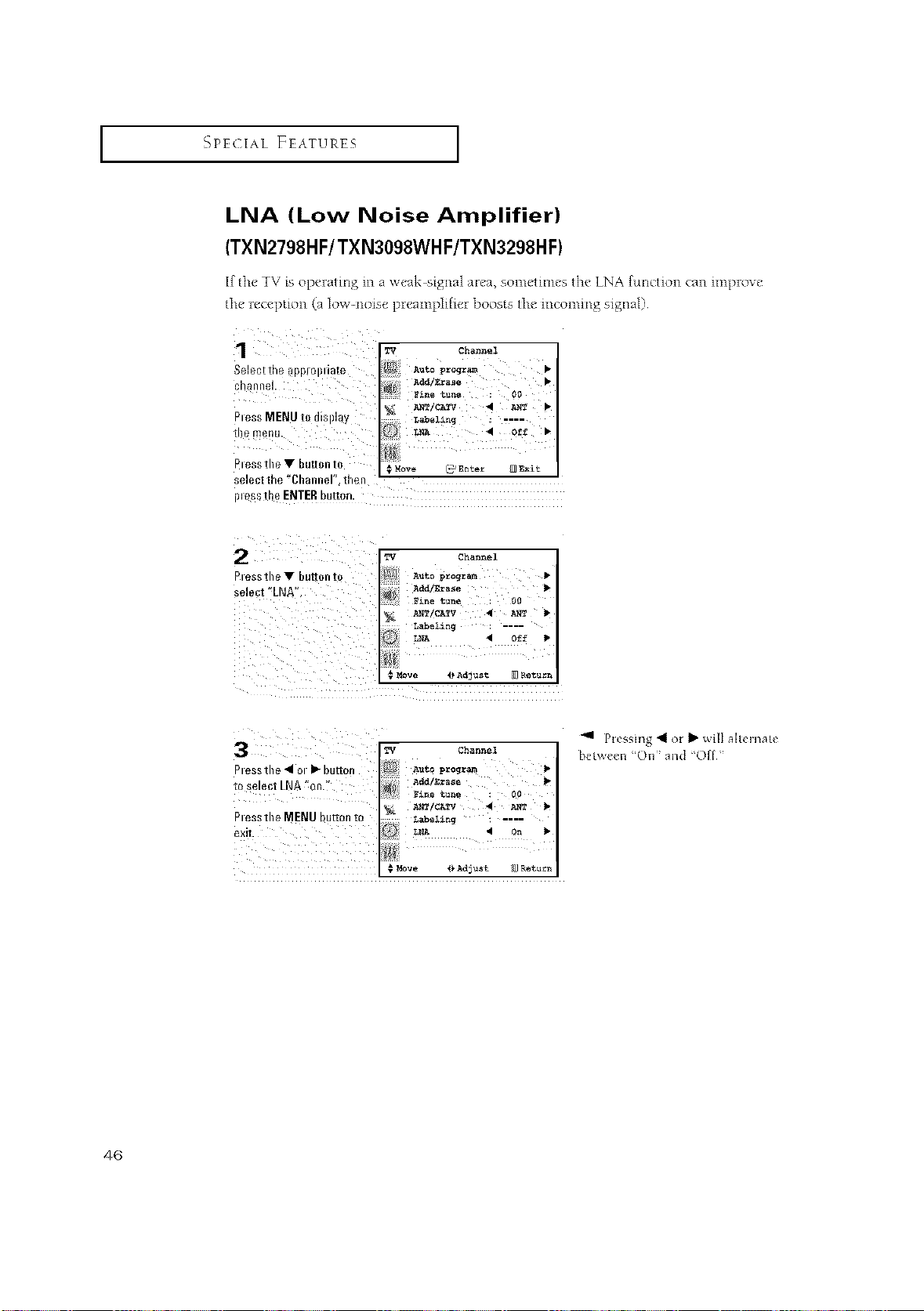
LNA (Low Noise Amplifier)
(TXN2798HF] TXN3098WHF/TXN3298HF)
If the TV is operating in a x<eak s g lal area, sometimes ilae LNA function can improve
the reception (a low-noise preamplilfer boosts tile lcom _gs gnaD
?
ITV Chann_l
Select the appropdate
cl]annel" Fine tllne : 00
PlessMENU to di_illay
the menu,
Plessthe T huttol_ to _MOVe _] Enta_ _i_
select the _'Channel',then
Illessthe ENTERbutton, i
P_esstheY button to
select "LNA".
Channel
Pressthe MENU
Pressing _ ot Ib x_illa]t_ inat_
betx_ n "On" and 'Off"
4_
I SpEC1AL FEATURES I
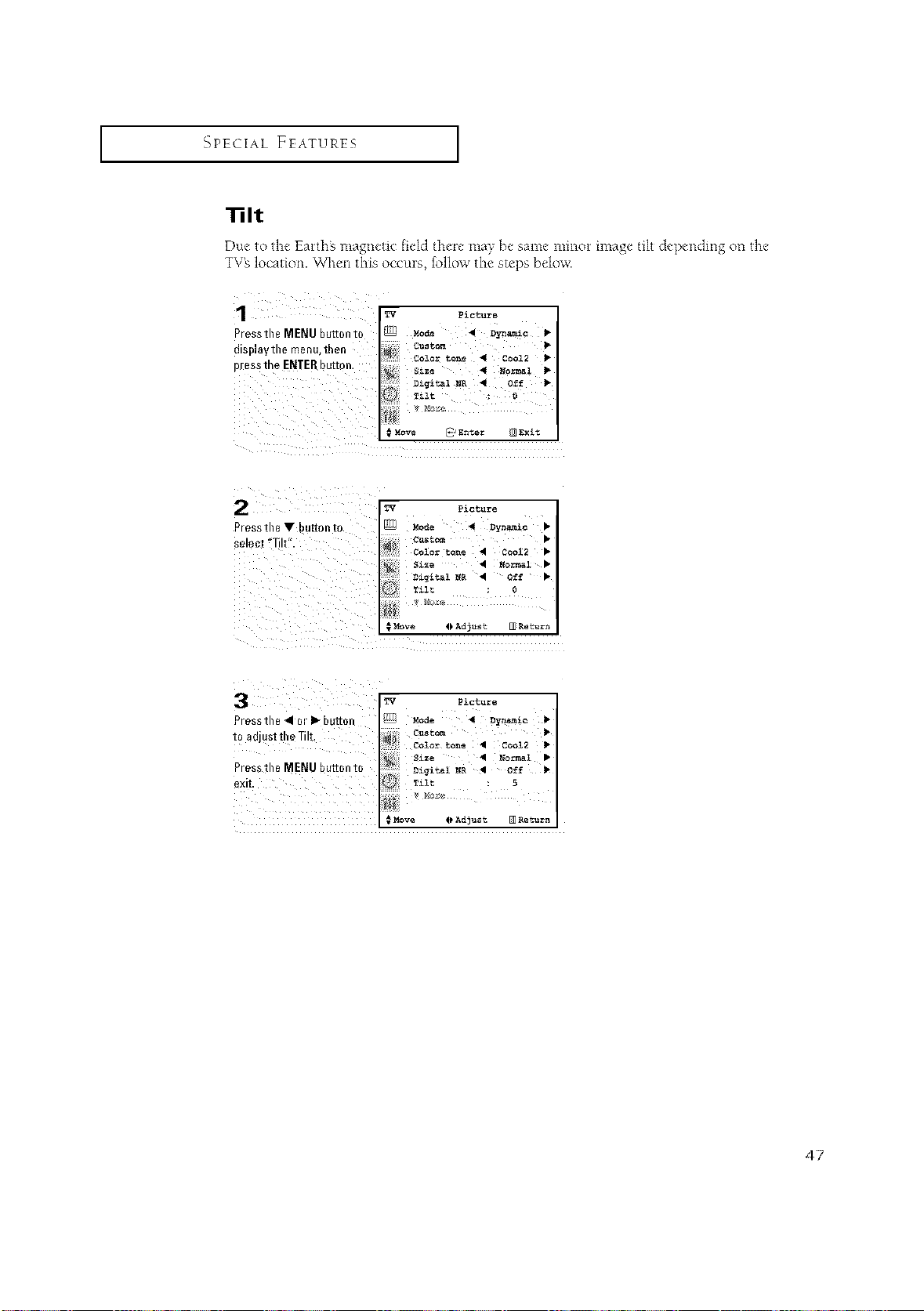
1ilt
Due to the Earths zuagn_tic field there"may be sam_-mi_or image tih depet_dmg on th{"
TV'_lo{ation. When this o{culs, _ollow th("stq_s bdow.
1 (2
Pressthe MENU button 1_
diSl}laythB mB_u, the_
p_e_the ENTERbu on.
_icture
v*MOW _a g_ter _it
IT'," ?$ctu;e
Pressthe • buffonto _ _* _ _c
Move 4_AdJust _F-eturn
Pressthe41m l_buffpn
to adjusttl!e_It.
@ Adjust _ Re_urn
47
I SPECIAL FEATURES I
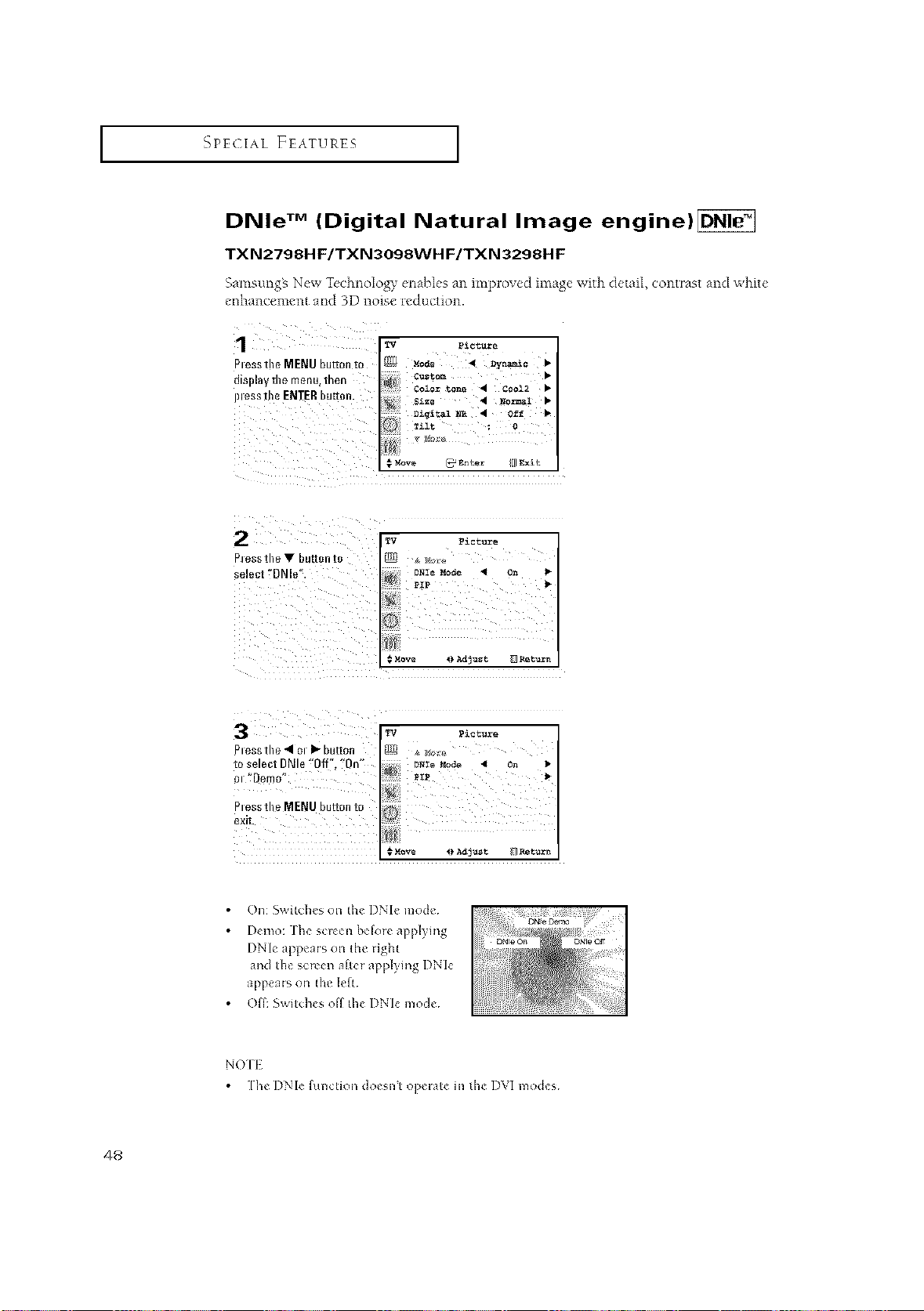
DNle TM (Digital Natural Image engine)_
TXN2798H F/TXN3098WH F/TXN3298H F
Samsung_ New Technology enables an improved image with detail, contrast and white
enhancement and 3D noise reduction.
1 w
Plessthe MENU button to
display tile menu, then
I}lesstheENTERbutton.
# _:ove _q__nter IXl]Exit
Picture
• C0012 •
On: 5_itch_s on the DNh rood*
I)emo: ]he sclcen bek}_e applying
DNIe appeals on lhe iight
and lhe scR'en affe_ applying DNIe
appea_s on the left
Off: 5wilches off the DNIe mode
NO['I
[h_ DNIe function doesn't oDIate in the D\q Inod_s
48
_PECIAL FEATURE5 ]
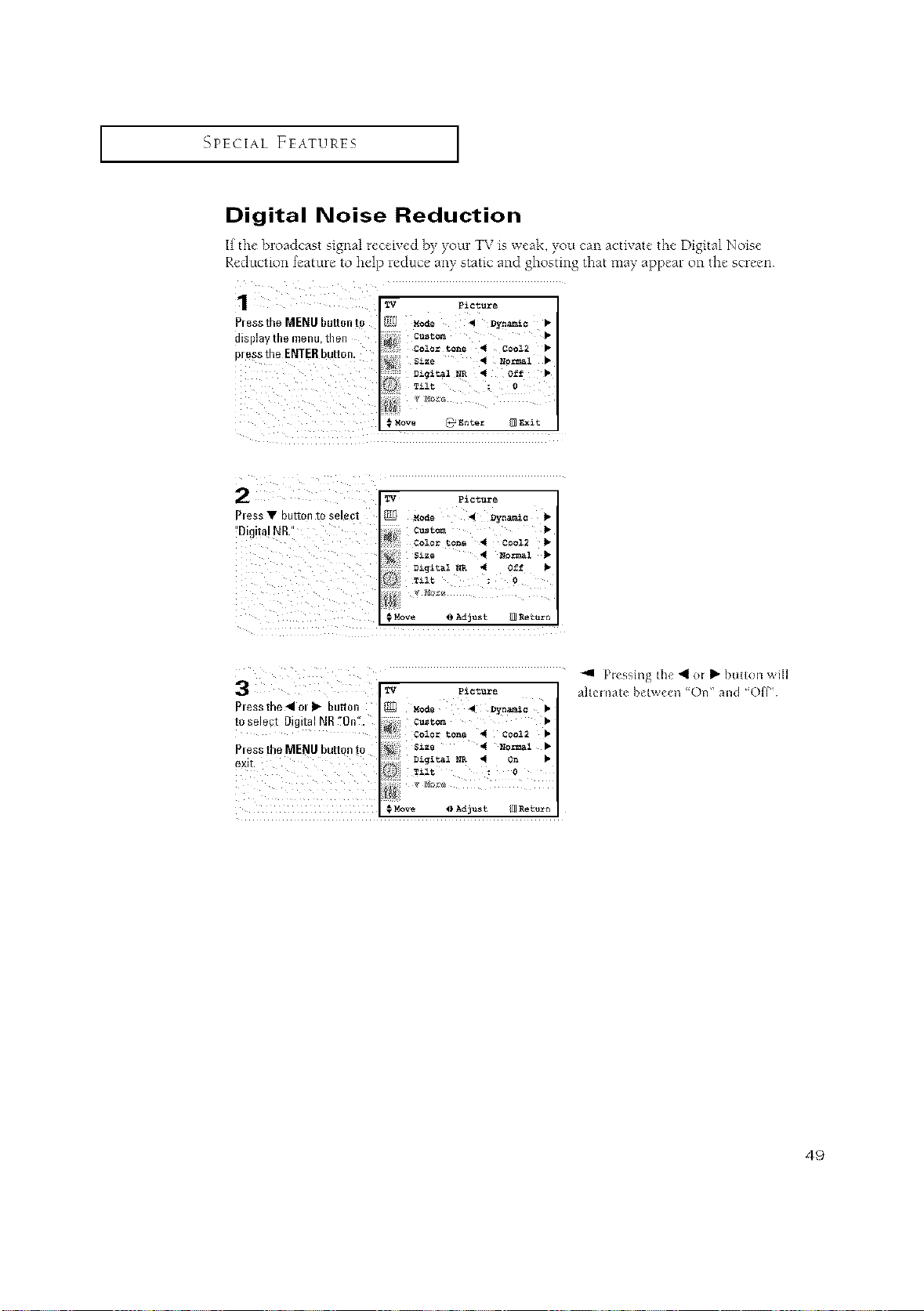
Digital Noise Reduction
If the broadcast signa| received by your TV ls weak, you can actixate the Digital Noise
Reduction feature to help reduce any static and ghosting that may appear on the screen
1
Pressthe MENU button to
displavthemenu, then
pressthe ENTERbultQn.
TV Picture
_ Mode _ Dynamic •
;i_ i custom •
!!!! Digital _R _ Off •
TiZt 0
T_"'
# Move _q_Enter: {N Exit
3
plessthe 41ol I_ button
to _el_ct Digital NR "On'2
Piess the MENU button to
exit.
TV Picture
m Mode 4 D_n_C •
Custom •
coZor ton= _I ¢ooz2 •
_i=e 4 So=_1 •
#Move _)Adjust _I/1Ret_n
"41 Plessing th_ _ ol I_ button ;_il]
ahelnate b_tx_een "On" and 'OFF'
49
I SPECIAL FEATURES I
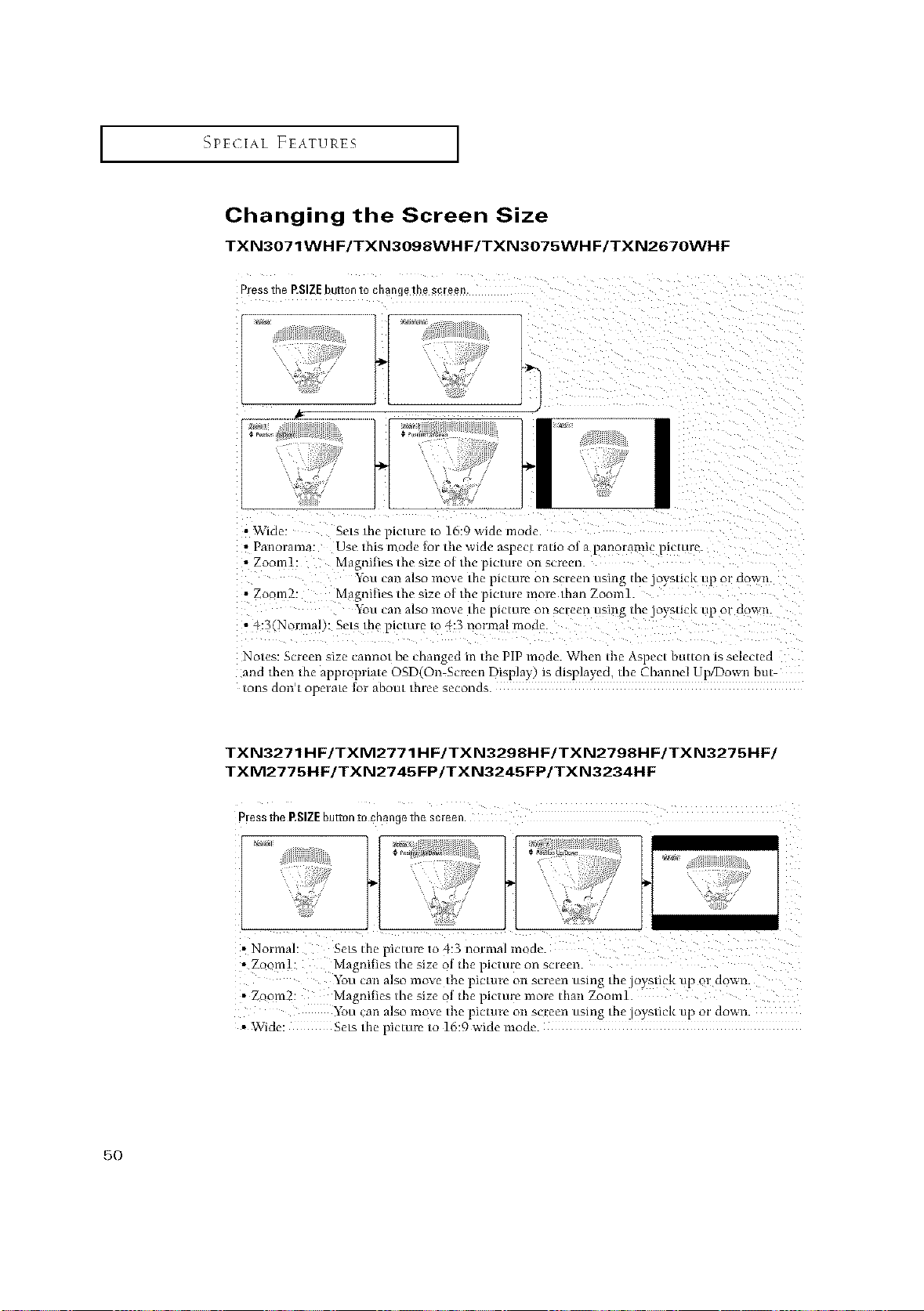
Changing the Screen Size
TXN307 lWH F/TXN3098WH F/TXN3075WH F/TXN2670WHF
PresstheP,SIZEbuttontochangelne screel
• Wide: Sets the pier,uP to 16:9 v, ide mode
• Panoranla: Use this tootle [or [ne "_loe aspect ratio o] a panolalnt_ plCtLtre.
• Zootnl: _lagllliles ttle stze ol tn_' _lCttlre o[1 s_ l_eell.
"lotl can also move the lcmre Ol! screel3 using the joystick up ol clown.
• Zoom2: Magnities the size of the _dcture more than Zoom1.
x*otl cal! also move die picture ol! screel_ USHlg the JU}SLICK Lit _1 clov_'n.
• }
4:3(Nc final): Sets the plcLWe to 4:3 normal mode
Notes: Screen size cannot be changed in the PiP mc de. When the As_ -ct button Is selected
and then the apptolniate OSD( )n Screen DispJay *s mspm}cu the Channel U }/Do_x n but
tons 8oll t opel'ate ]ol about tt]l'Pe $eeOl/OS.
TXN3271HF/TXM2771HF/TXN3298HF/TXN2798HF/TXN3275HF!
TXM2775HF/TXN2745FP!TXN3245FP!TXN3234HF
Pless the RSIZEbutton to change the screen.
• Zoom1: Magnities the size of the pict ure on screen.
You can also move the pictme on screen using the joystick up or down.
• Zoom2: Magnities the size of the pictme mo*v than ZoomL
"_Z>ucan also move the pictuw on screen using the joystick up or down.
• Wide: Sets the picture to 16:9 wide mode.
5O
_PECIAL FEATURE5 ]
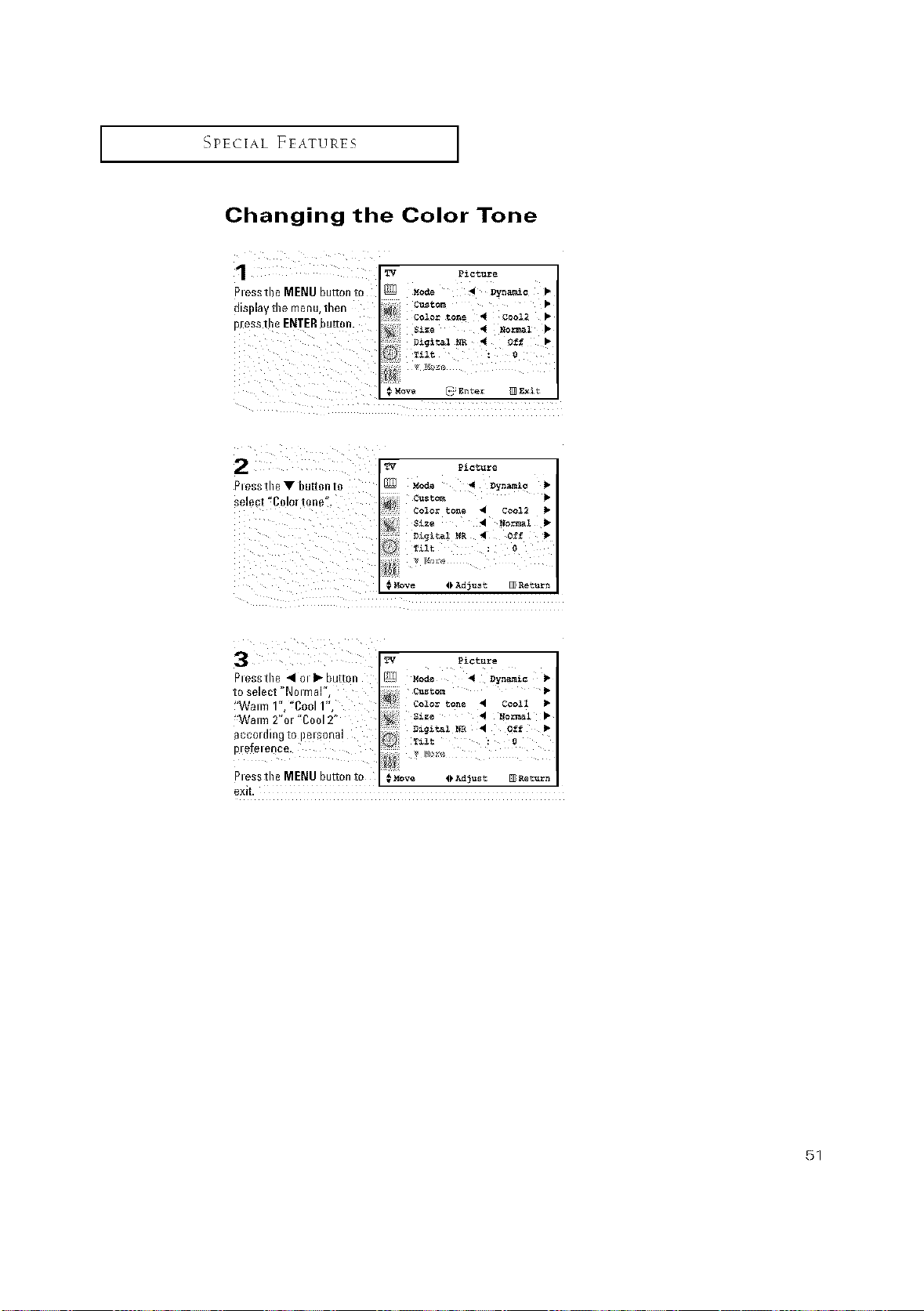
Changing the Color Tone
TV Picture
Plessthe MENU bu_onto _ Moee _ Dy_= •
disi}lay the menu, tben custom •
Color tone _ CQOI2 •
press
the ENTERbuttc,n.
Six, _ .or_l •
o. •
Tilt : 0
Picture
Plessthe _ OlII* button _]_ Mode 4 Pyritic •
to select "Nolmal",
!'Wmm 1%'Cool 12
Waml 2"el _Co_12"
according to pel_ona!
p,ofo,e,,oo. 'ii_ _"....
Plessthe MENU but2onto #_ve 4_Ad_us_ @_rn
exit.
51
I SPECIAL FEATURES I
Using the R.Surf Feature
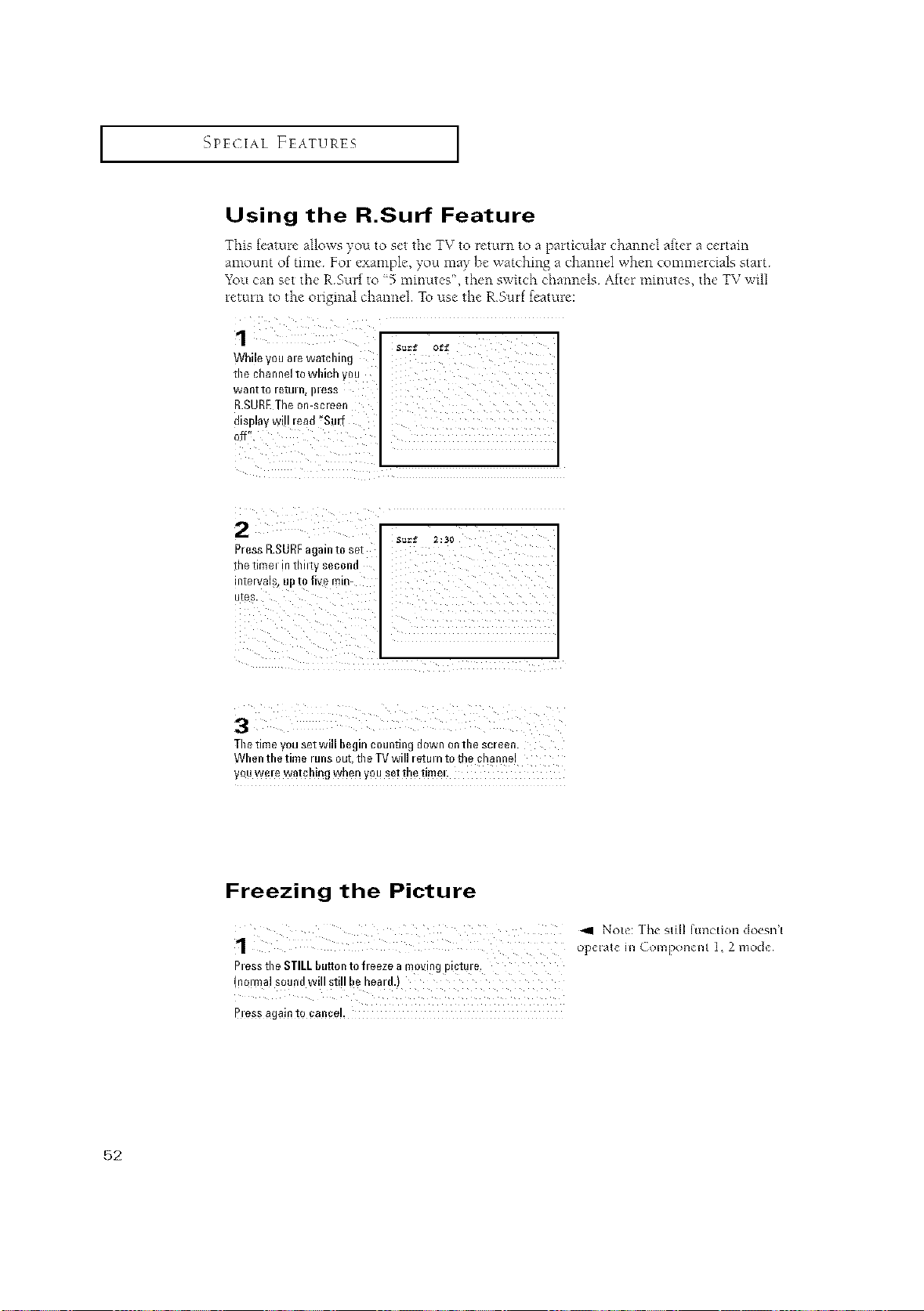
This feature allows you to set the TV to return to a particular channel after a certain
amount of time For example, you may he watching a channel when commercials start
You can set the RSurf to _5 minutes", then switch channels Afro1 minutes, the TV will
return to the original channel. To use the RSurf feature:
While you ale watcbing
tbe channel to wbich yeu
want to retuln, i}less
R.SUREThe on-screen
display wi!l lead _Surf
off"
Press R.SURF again to set
the timel in tbbty second
intervals, up to five min-
utes.
ii ii i_ ii iii
Tbetime you set will begin counting down ontbe screen.
Wben tbe time runs out, tbe TVwill retm nto the channel
y£u wele watcbing when you set the timeL
Freezing the Picture
,_1 Not< [he still hmction doesn't
1 operate in Component 1, 2 mode¸
Pless tbe SIILLbutton to fi eeze a moving pictm e.
(nQimalsound will still be heard.)
Press again to cancel,
52
_PECIAL FEATURE5 ]
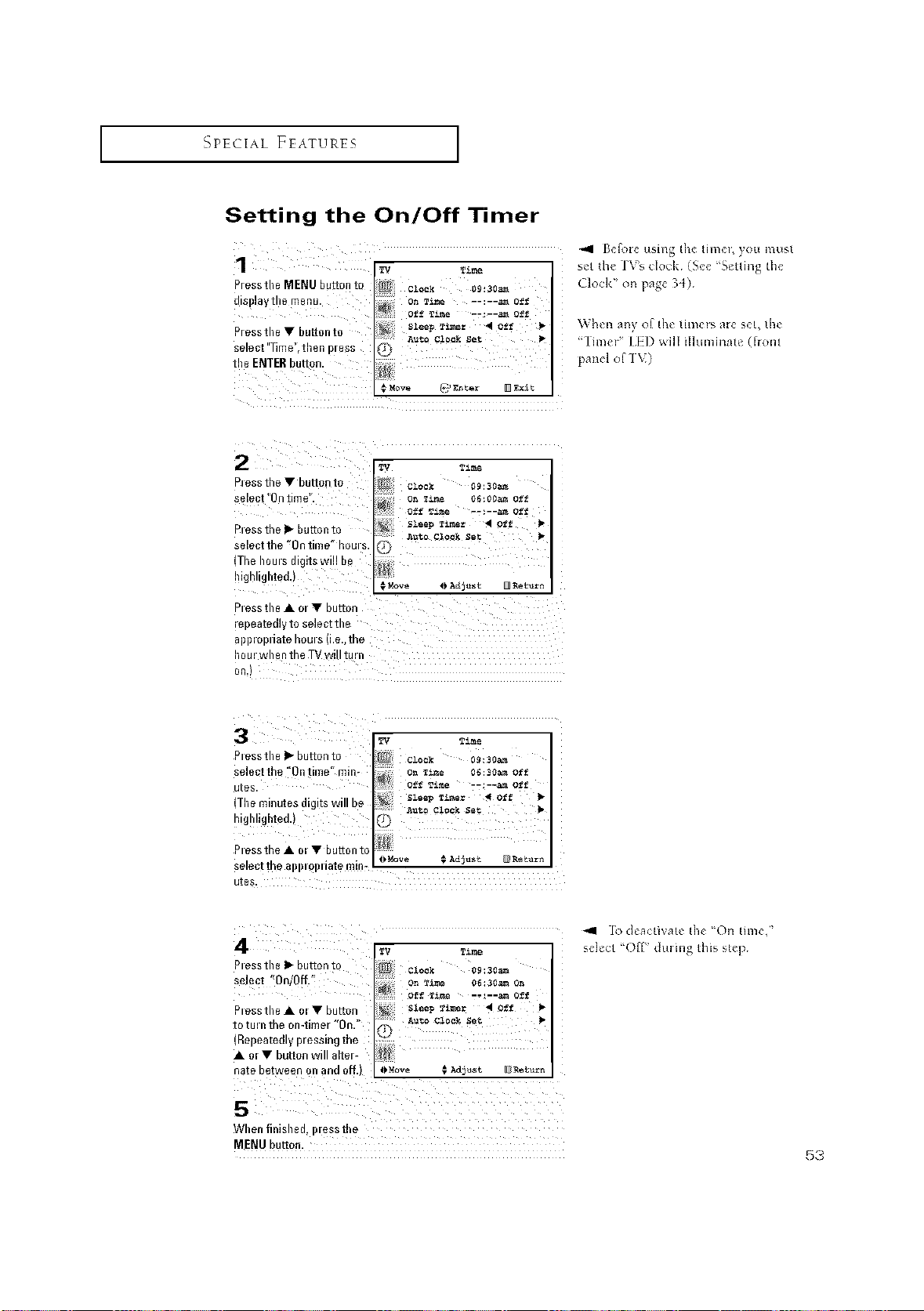
Setting the On/Off Timer
_=1 [h f_te using the tim_I, you must
T£_e se[ the TV's clock¸ (See "Selting the
Pressthe MENU button tc
dis!!laytl!e menu.
Pressthe • buttonto
select "_mg'_then press
the ENTERbutton.
Move
Clock" on page 34)
\_,hen any of the time_s ale set, the
"Time€' liD will ilhmfinate (lion[
panel of'l V)
Pless the • but*onto Clo_k 09:30_
select "OntinW'.
on Time 06:00amOff
P_essthe I_ button to
select the 'On time" hems.
(Thehems digits will b_
waMove I_Adjust _ Bet_rl
Pless the A or • but*on
repeatedlyto select the
appmpdate horn s (i.e.,the
_ T_
P,essthe I="but*on to Clock 0_130_
Selectthe 'Ontime" rain- o_ _me o6:soomoff
utes. off '."i.me -e:--_ off
. . _ SleepTibet _ off
/he minutes algltS Will De
...... AUtO Clock Set
hlghhgllted.) '(D
I OMove #Adjust Return
select the al}l)lq)uate mm-
utes.
Piess the II_but*°n t° Clock 09:30_
select '<0nlOff.'f
P_essthe • o=• button
to tm nthe on-timer '*On."
(Repeatedly pressing the
• or • button will alter-
hatebetweenonand off.) _)Mov_ € Adjust [I_Return
"_ ]b deacti\ate the 'On time,"
selecl '()fU dulhlg d_isstep
When finished, p[ess the
MENU but*on.
53
SPECIAL FEATURES ]
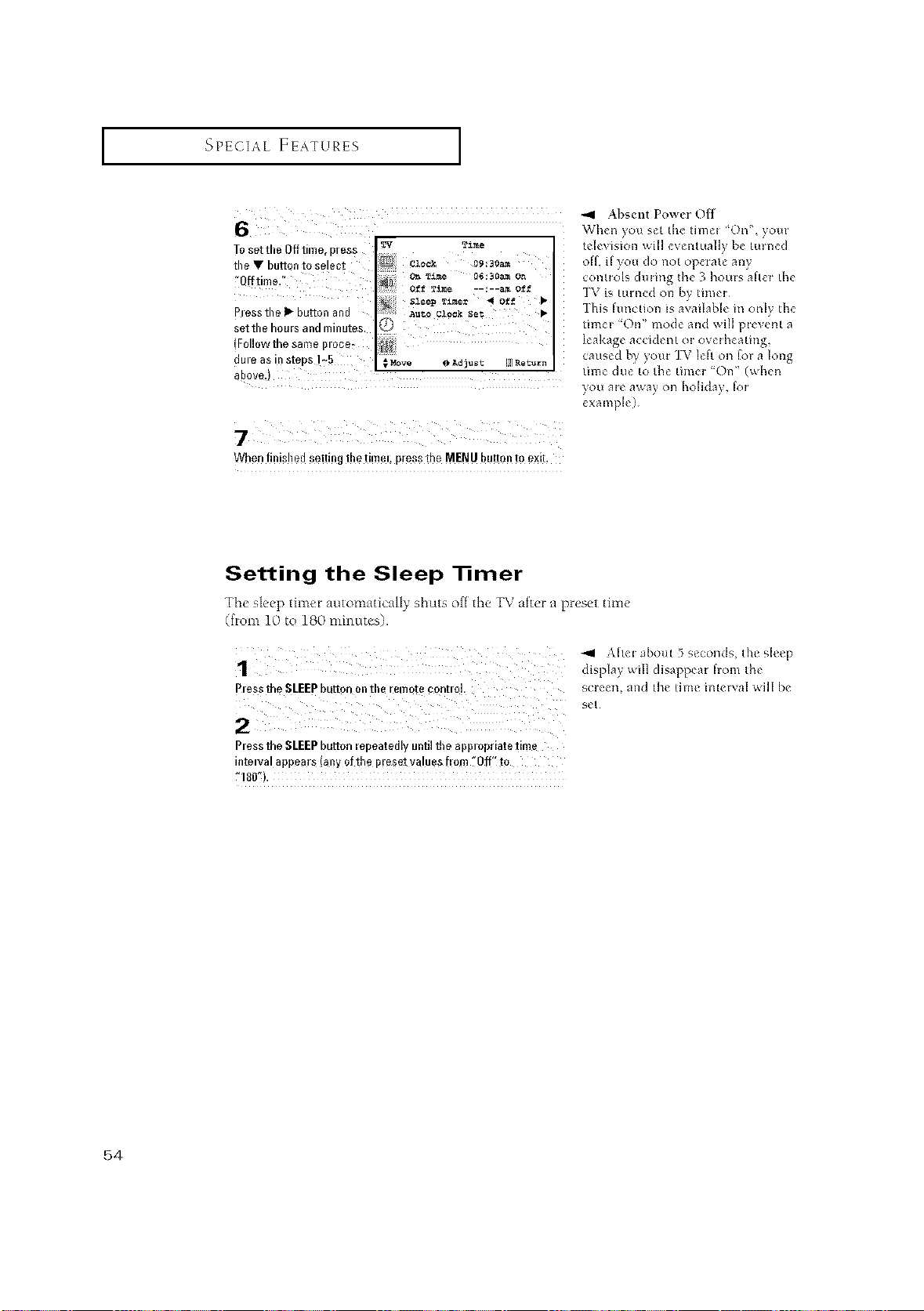
To set tbe Offtime, press
tbe • button to select
_'Offtime.'_
i _iii i
Piess tile I_ button and
set tile houis and minutes_
{Followthe same ilioee_ i
duie as insteps 175 ii
I_'V Time
clook o9:_o=
OffTime --:--amOff
SleeD _im_ _ Off •
A_tQ Clock Set •
)
;MOVe _ Adjust l!I]Return
above.)
Absent Power Off
When you set the timm ' On", yore
tdevis_n will eventually be turned
oil if yo_ do not operate any
controls during the 3 hours after the
IV is turned on by timer¸
This hmction is available m only the
timer "On" mode and will prevent a
leakage accident or ovelheatmg,
caused _ your ]TV left on _ a long
time due'to the thner "Oi1" (when
)ou al* a_a} on holklay, for
example)
When finisl!ed setting t!le time,; press theMENU button to exit,
Setting the Sleep _mer
The, sleep time_ automatically shuts oft thv TV atter n pr_,sct time"
(from lb) to 180 minnows).
PlesS the SLEEP button on tbe remote cOntlol.
_4 Ahel about 5 seconds, the sleep
display will disappear horn the
screen, and the time mtelval will be
SeE
Ptessthe SLEEPbutton lepeatedly until tbe apptopriatetime
interval appear8 (anyofthe pie$et values [mm "Off'! to
7180").
54
_PECIAL FEATURES ]
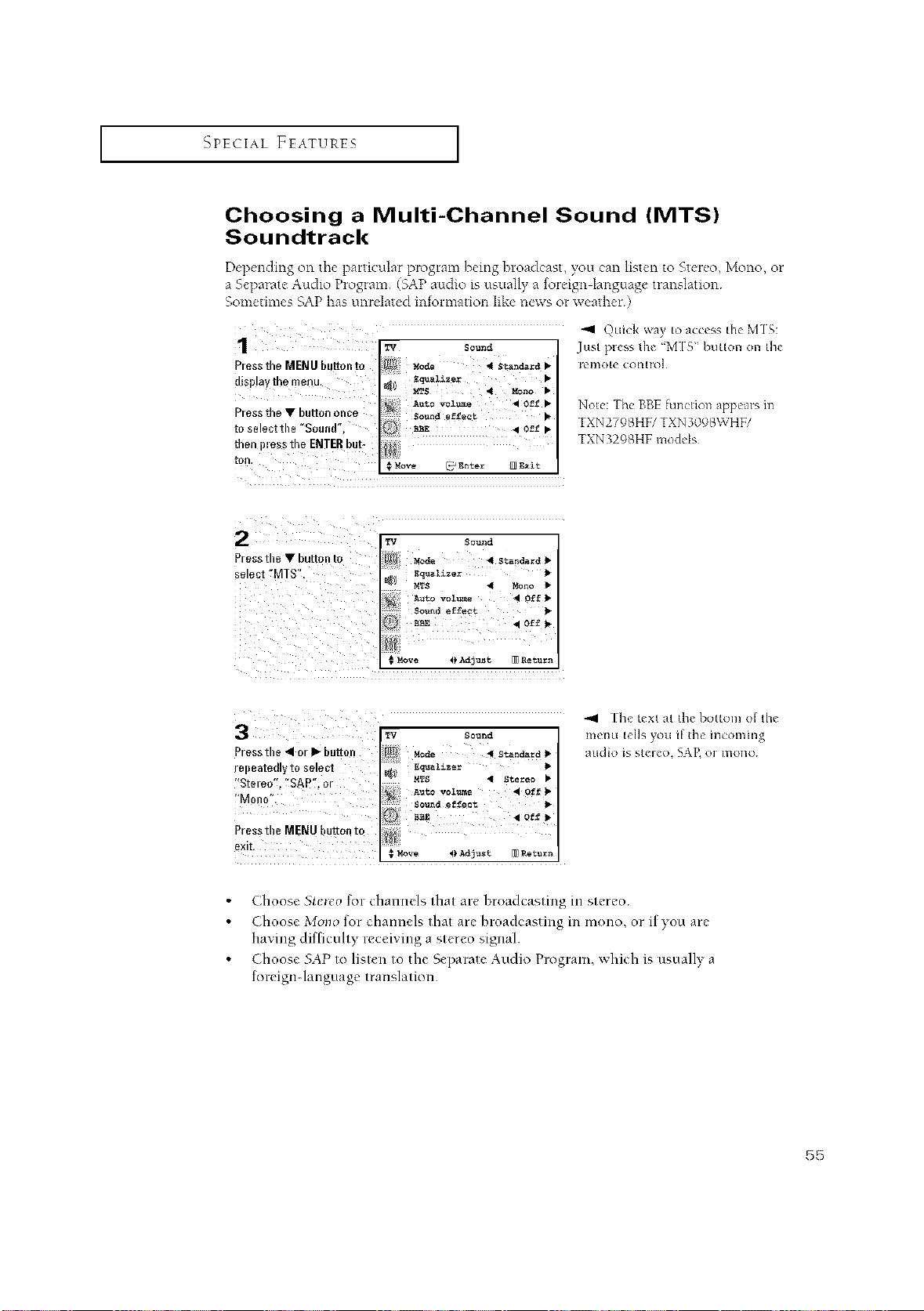
Choosing a Multi-Channel Sound (MTS)
Soundtrack
Depending on the particular program being broadcast, you can listen to Stereo, Mono, or
a Separate Audio Program (SAP audio is usually a foreign language translation
Sometimes SAP has unrelated information like news or weather)
1
Pressthe MENUbuttonto
displaythe menu.
Press the • button once
toselectthe "Sound",
"41 Quick wa} to a(cess the M] S:
Just pless th_ "MIS" button on the
TXN279SHF/TXN 30_)SVv'HF/
TXN329SHF models
Pressthe • button to
select tMTS°.
Pressthe41or• button
repeatedlyto select
"Steleo%1SAP",or
f'Mono".
PresstheMENUbuttonto
exit.
-91 [h_ text at the bottonl ol d_e
m_nu tdls you if d_ h_coming
a_ldio is stereo. SAP, or NIO]IO
Choose Stetco lor channels that are broadcasting in stereo
Choose Morn) for channels thai are firoadcaslmg in mono, or if you are
flaying difficulty receivmg a stereo signal
Choose SAP to listen to lhe Separale Audio Program, which is usually a
loreign-language translation
55
I SPECIAL FEATURES I
Extra sound settings (Turbo Sound.
Surround, Auto Volume, Melody, BBE or
Woofer)
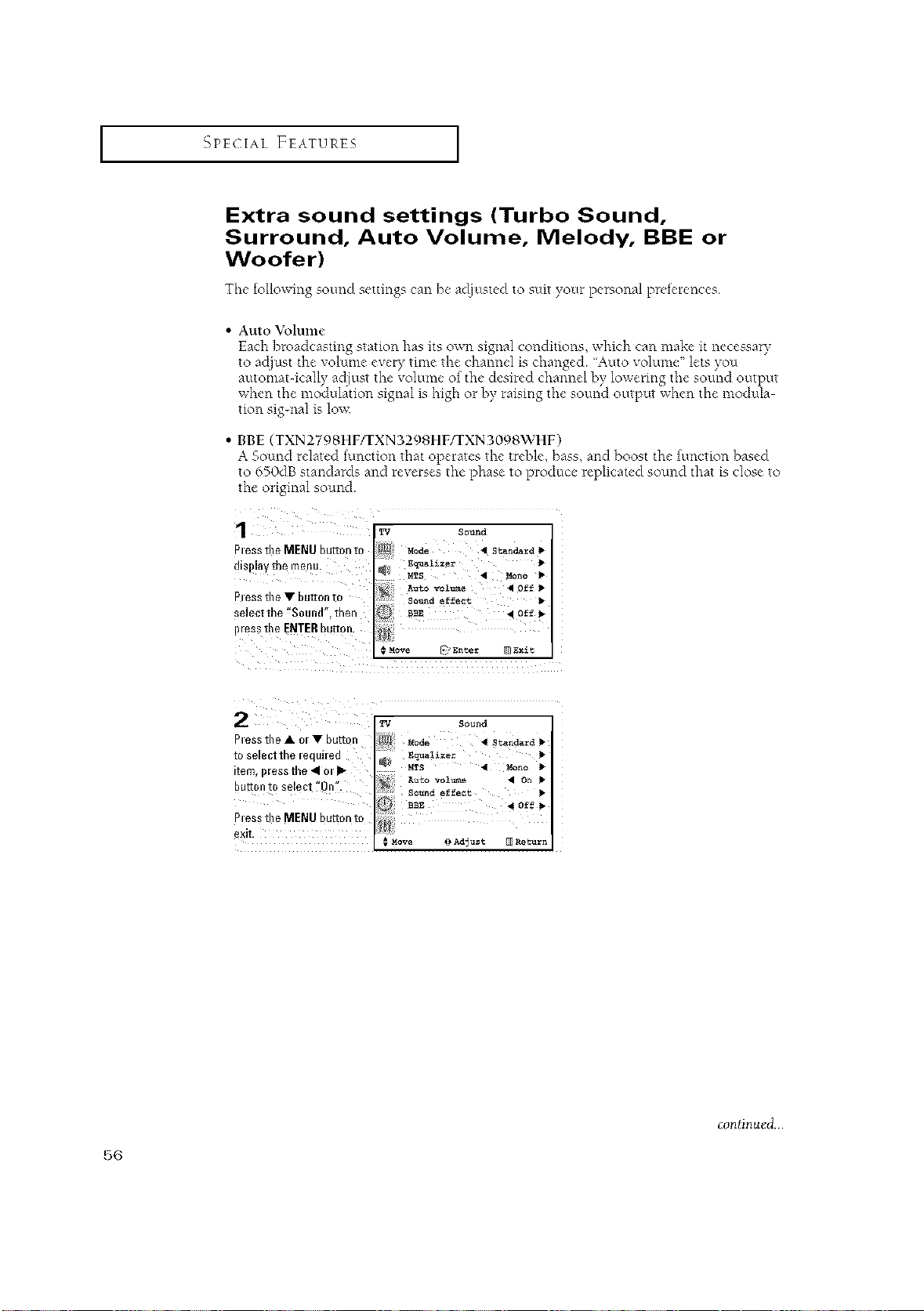
The following sound settings can be adjusted to suit your personal preferences
• Auto Volmne
Each broadcasting station has its own signal conditions, which can make it necessary
to adjust the volume every time the channel is changed 'Auto volume" lets you
automatdcally adiust the volume of the desired channel by lowering the sound output
when the modulation signal m high or by raising the sound output when the modula
tion sig-nal is lov<
• BBE (TXN2798HF/rXN3298HF/TXN3098WHF)
A Sound related function that operates the ueble, bass, and boost the function based
to 650dB standards and reverses the phase to produce replicated sound that is close to
the original sound.
_t ess the MENU button t_
!lSl}l_ lrle iTlenu.
}tess the • button m
;elect the "Sound'. then
_ress the ENTER button
MTS 4 Mono
Move _ gnte= _ Exit
2
Ptess the • ot • butt
to select the required
item,pless the • m
button to select "On".
Pressthe MENU button to
exit.
continued...
5G
I SPECIAL FEATURES I
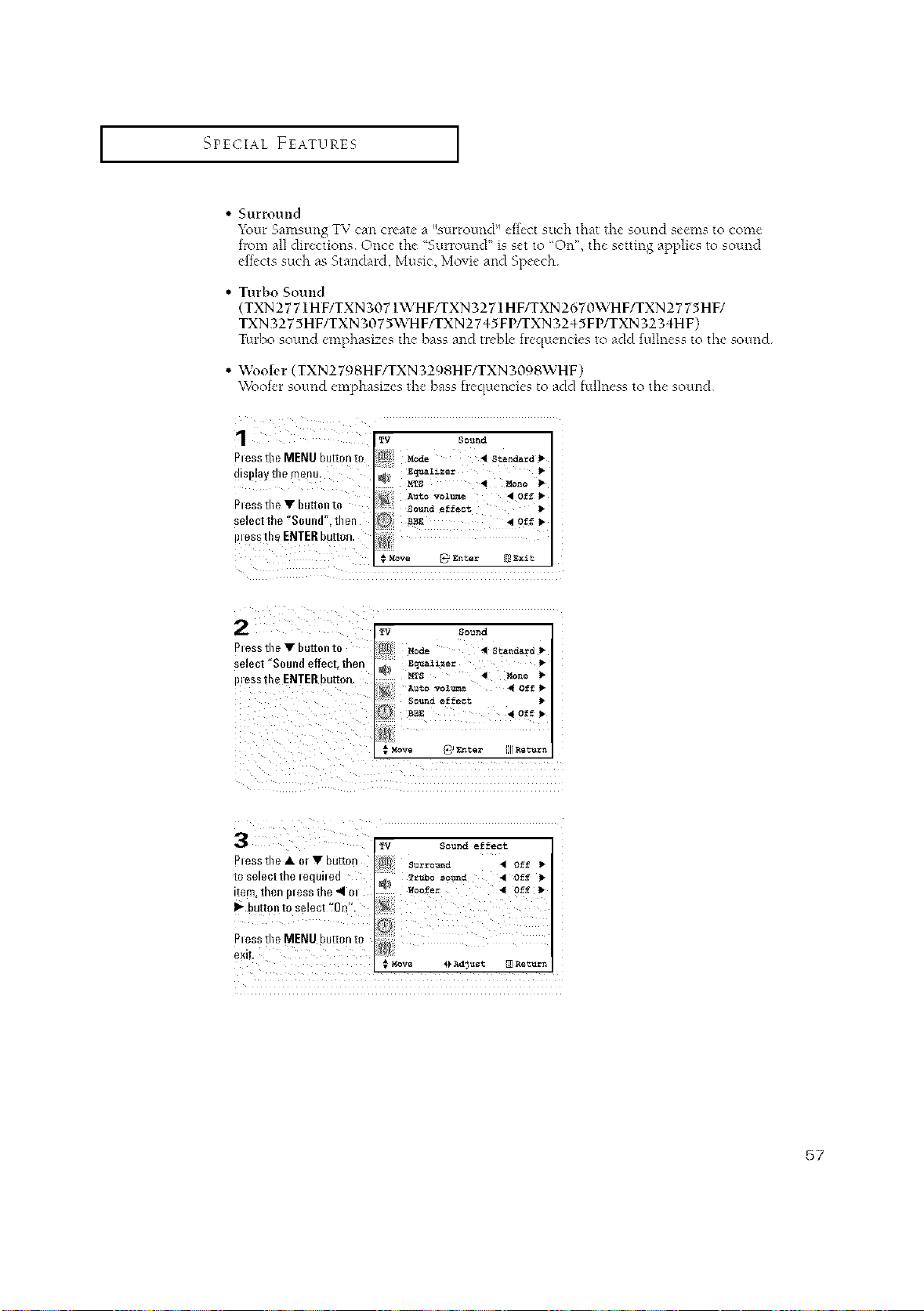
• Surround
Your SaFns/tng _,zcan cleate a %urround" effect SLtCil tilat the sound seems to come
from all directions Once the "Sunound" is set to 'On", the setting applies to sound
effects such as Standard, Music, Movie and Speech
• Turbo Sound
(TXN 2771H F/TXN 3071WHF/TXN 3271HF/TXN 2670WHF/TXN 2775 HF/
TXN3275HF/TXN3075WHF/TXN2745FP/TXN3245FWTXN3234HF)
Tmho sound emphasizes the bass and treble f[equencies to add fullness to the sound
• Wootcr (TXN2798HF/TXN3298HF/TXN3098WHF)
Woofer sotmcl emphasizes the bass frequencies to acid fullness to the sound
1
Pless tile MENU button to
display the menu.
Piess the • huron to
select the "Sound", then
TV Sound
Mode _I Standard
Equalizer I_
MTS 4 Mono
So_d eff_ct
p_essthe ENTER button.
._Mow _ Enter @_xit
Sound
Piess tile • button to Mode _ stana_rd I.
seleot 'Sound effect, then Equalizer
IllesstheENTERbutton, _ ms 4 _ono 1,
i_!i!Autovo_ _ off
# Move @ _nter IXI)_tu_n
Surround • off
toselectthelequhed Tr_o sound _ Off
item, then pleSS the _ el _oofer • Off
I_ button to select 'On".
P_essthe MIENUbutton to
exit.
@ Adjust _ Return
57
_qPECIAL FEATURES [
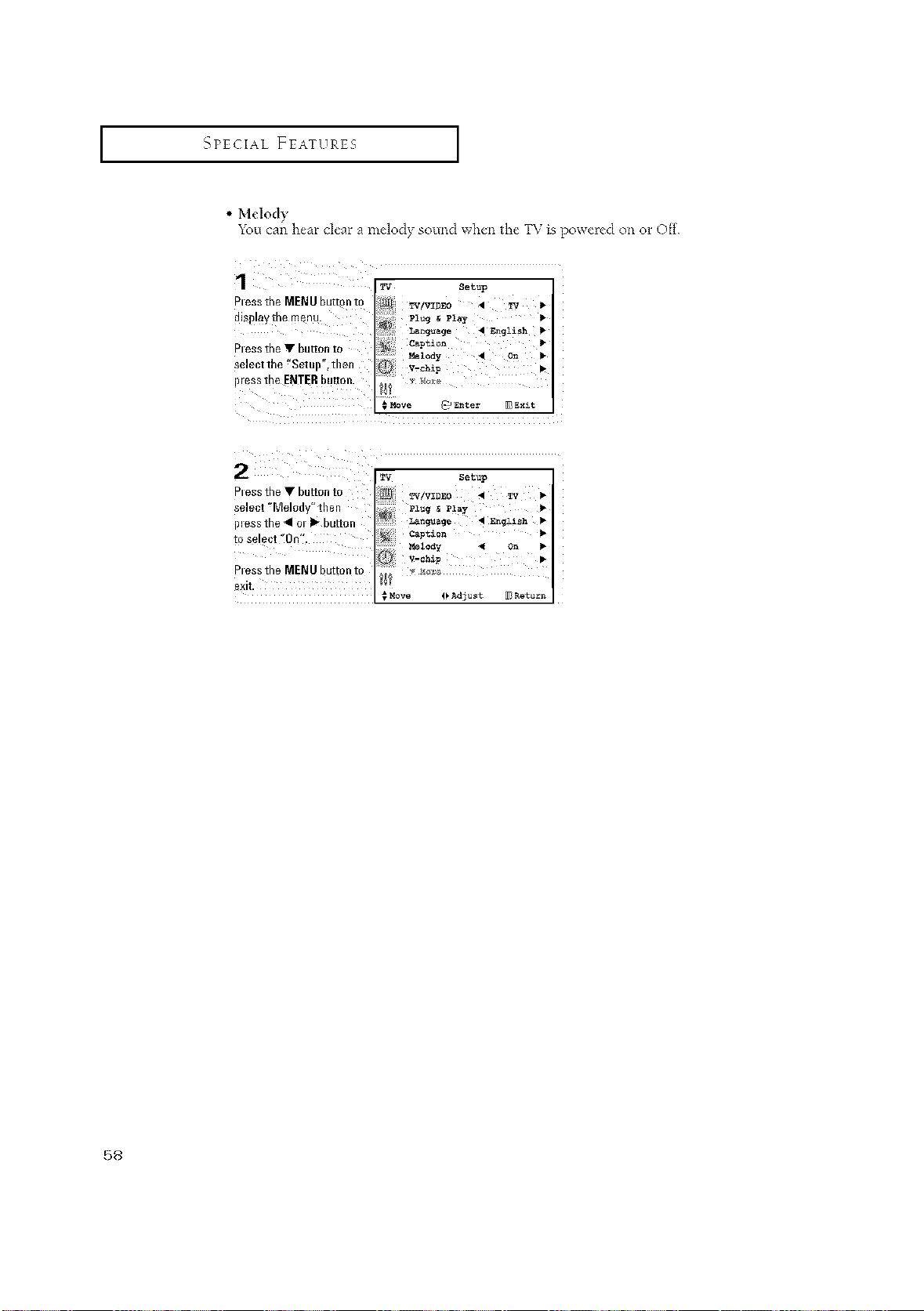
• Melody
_bu can hear dear a melody sound when the TV is powered on o1 Off
_tess the MENU but[on t_
algDlal irle menu.
atesstheVbuRonto
selectthe"SetuB'.then
i_ressthe ENTER buRon
Setup
G Melody • On
V-chip •
_nter _ Exit
58
_PECIAL FEATURES [
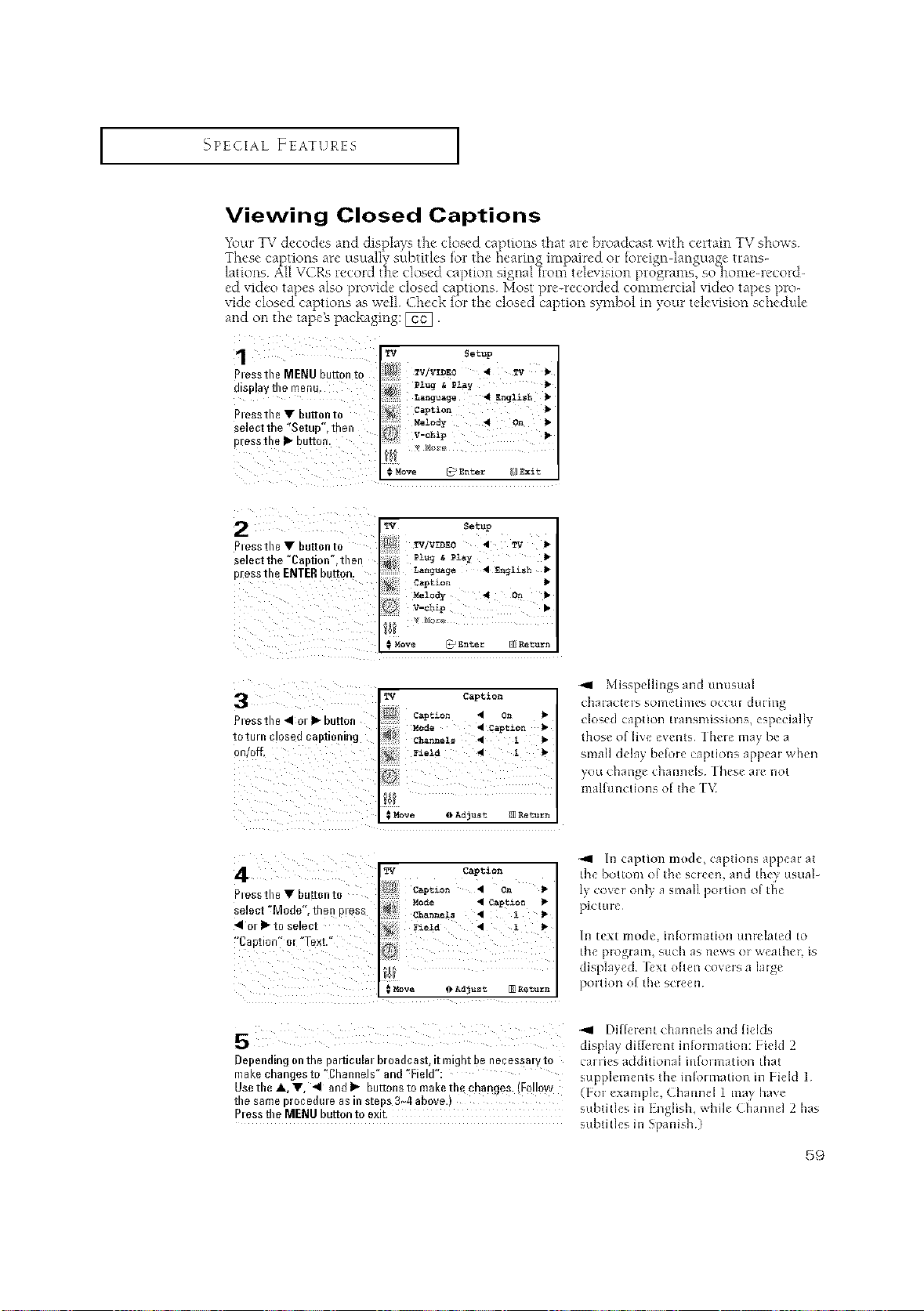
Viewing Closed Captions
"b_urTV decodes ac,d displays the closed ca )tions that are broadcast with certain TV shows
T_esecap ol]saretsLa vsL9 es ol _e ]ealing nlparec or olegn angtage rals-
latioc,s All VCRs lecord d_e closed caption sigc,al<i_romtelevision programs, so home-lecord-
ed video ta >esalso >roxide closed captions Most >re-recorded commercial video ta )es )ro-
xide closed captions as well Check for the closed caption symbol in your television schedule
ac,d oc, the tape's packaging: []_].
1 _v s*t,,p
Ptossthe MENU button to
displaythemenu,
Ptessthe• huttonto
select the '_Setup",then
ptessthe • button.
Ptessthe • button to
select the "Caption",then
pressthe ENTER button.
Ptessthe • c _button
IOIU/n CIOSe_ 08 IzI0nln_
m/off.
Z_/ Cap_lon
4 On P
Caption
Move _ A_3U_ _ _etu_n
Misspellings and unusual
chalac[_ls SOllle[illles OCCUI ¸ dLlling
closed caption transmissions, especially
those of live events¸ There may be a
small delay be_re captions appear when
you change channels¸ I hese are not
malfmlctions o[ the _[7_
4
Piessthe • [ _nto
_e[ect '*Mode iflen DI_SS
• o/• to selecl
"Caotion" ol "Text. '¸
On
_ve 4kAdjuat _ Return
_1 In caption mode, captions appear at
the bottom ol the screen, and they usuab
ly cow_ only a small pmtion of the
pictme
In text lnode, in[oHnation umelated to
the pl_Ial]l, such as IleWS Ol ¸ wea[hel\ is
displayed¸ ]_xt often covers a large
portion of the sci_en
_1 Different channcl_ and liclds
5 displa_ diHclcm inlolmat_on: [Md 2
Depending on the paFucUISI DlOaUCasI [ ITI ]nt D_ ne_esssiv to cal fl_% addltiol3al iilf_/i i_latiol3 [hat
1laKe cnanges to "Channels" and "Field' s,pplvment_ the mlormation m I ickt 1
UsetlleA •. _1 andl_ ou_onsto ma_eme cnanges.(Follow (1 ol vxanlph-. ( hanncl 1 ma_ have
,ne same Oloee_Jul_ as In S[_uS 3_4 8hove
Ptessthe MENU button to exit¸ _lbtith'_ in I nghsh, whdc ( hannvl 2 has
_lbtith-_ in Spanish¸)
.59
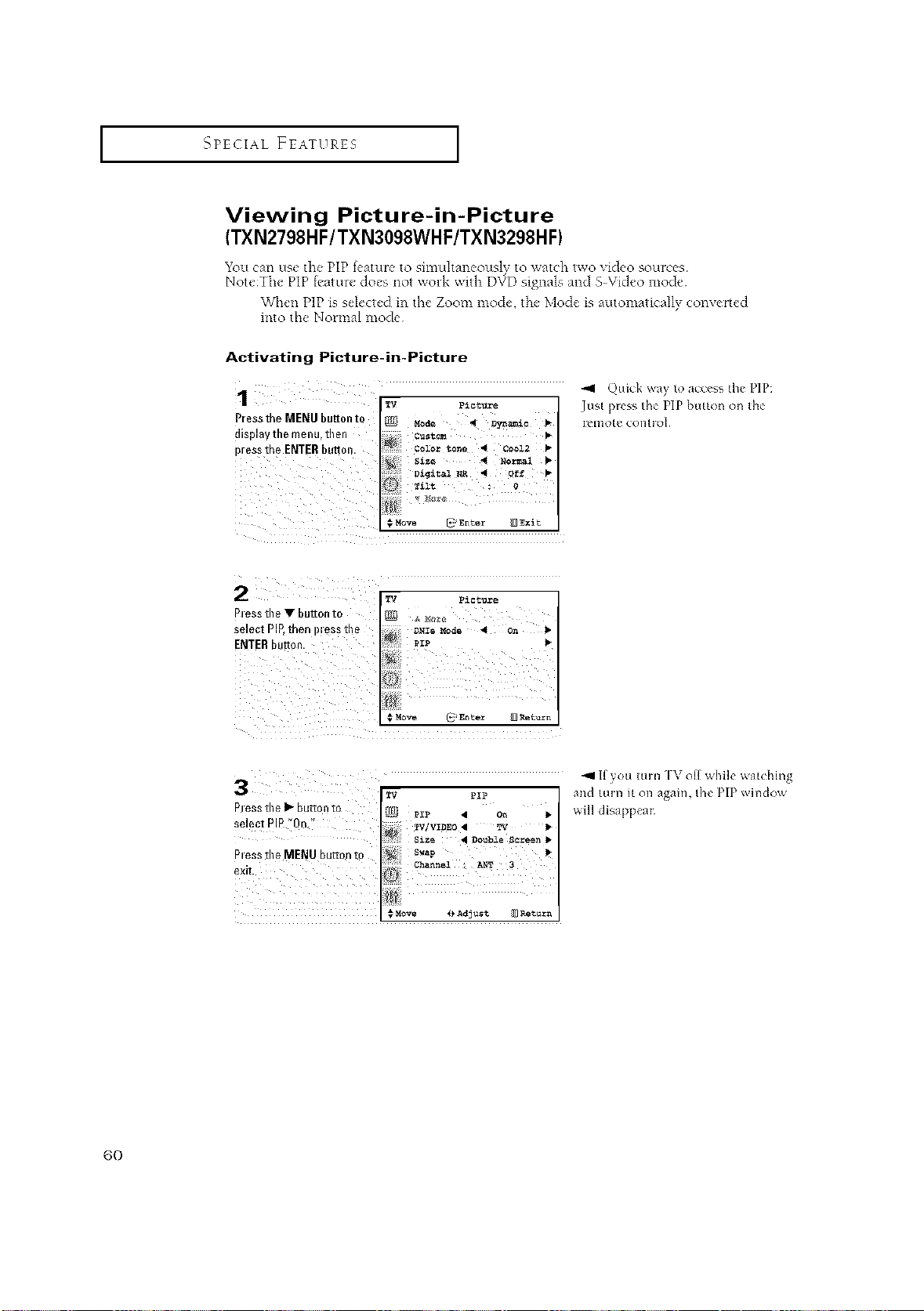
SPECIAL FEATURES [
Viewing Picture-in-Picture
(TXN2798HF/TXN3098WHF/TXN3298HF)
You can use the PIP tvature to simultaneously to watch two video sources
Note:The PiP feature does not work with D\_D signals and S Video mode
Wl_en PiP is selected in the Zoom mode, the Mode is automatically converted
into the Normal mode
Activating Picture-in-Picture
PresstheMENUbuttontQ _ _o_e _1 _y_
displaythe menu, then
pressthe ENTERbutton.
Quick wa} to access the PIP:
Just p_ess the PiP button on the
I elllO [Q COll[l OI
p'ess the I_ butt°n te [J/J] _z_ • o_ _-
select PIP "0n," ,_ _V/VZDEO• _¢
_I_ Size _ DoubleSc=emn
PIesstile MENU button to s_p
Chan_l ; A,_ 3
I i
ore 4)Adjust _ Return
-_1 l[ you, ruin [ \ off while watching
and turn it on again, the PiP window
w,iii disappear¸
6O
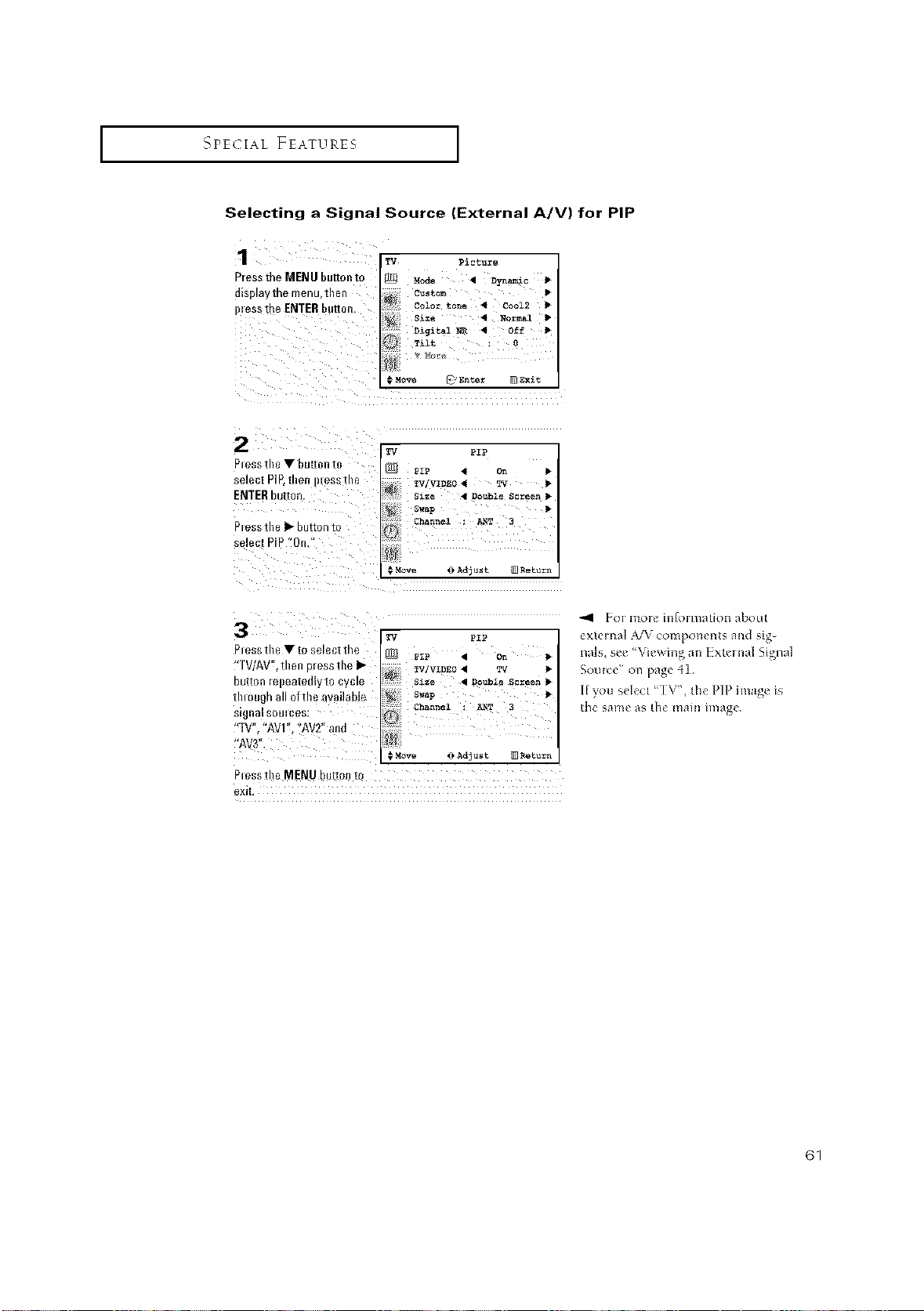
I SPECIAL FEATURES I
Selecting a Signal Source (External A/V) for PIP
1
hess the MENU button t_
81Splay IRe menu men
)less the ENTERbutter
_V Picture
_ MO4_ • Dyna_e •
2olo1" t_ne _ Cooi2 •
Dig&_al i_ _ Off I_
Tilt _
#Move C Entez [3Exit
TV 91p
pip
On
TV/VIDEO _ TV
_ize _ Double Screen
Swap P
Chann_l : ANT 3
_MoVe _)A_jUSt _ Return
_1 pip
_E_ pip
TV/VII_EO _ •
S±ze • Double Screen I_
Swap I_
Channel I_T 3
_ve I) Adjust 1_Return
Plessthe • button to
;elect PIP.then )lessme
ENTER DU_On
P_essthe I_ button to
;elect PIP "0
Pmssthe • to select the
[V/A_ [ner Dressthe I_
DR[[Orl |epeazealy to cycle
mmugh all ofthe avai able
;Ignal SOUICes
'TV". "AVl". "AV2" and
"AV3".
Pmssthe MENU button tc
exit
"ll eol mole il][Oll_latiol3 about
exteHlal _/V components and sig-
na]s, see "Viewing an I xteH3al Signal
Source" on page 41
If you select ' IV", the PiP image is
the same aS [he Illall] image
61
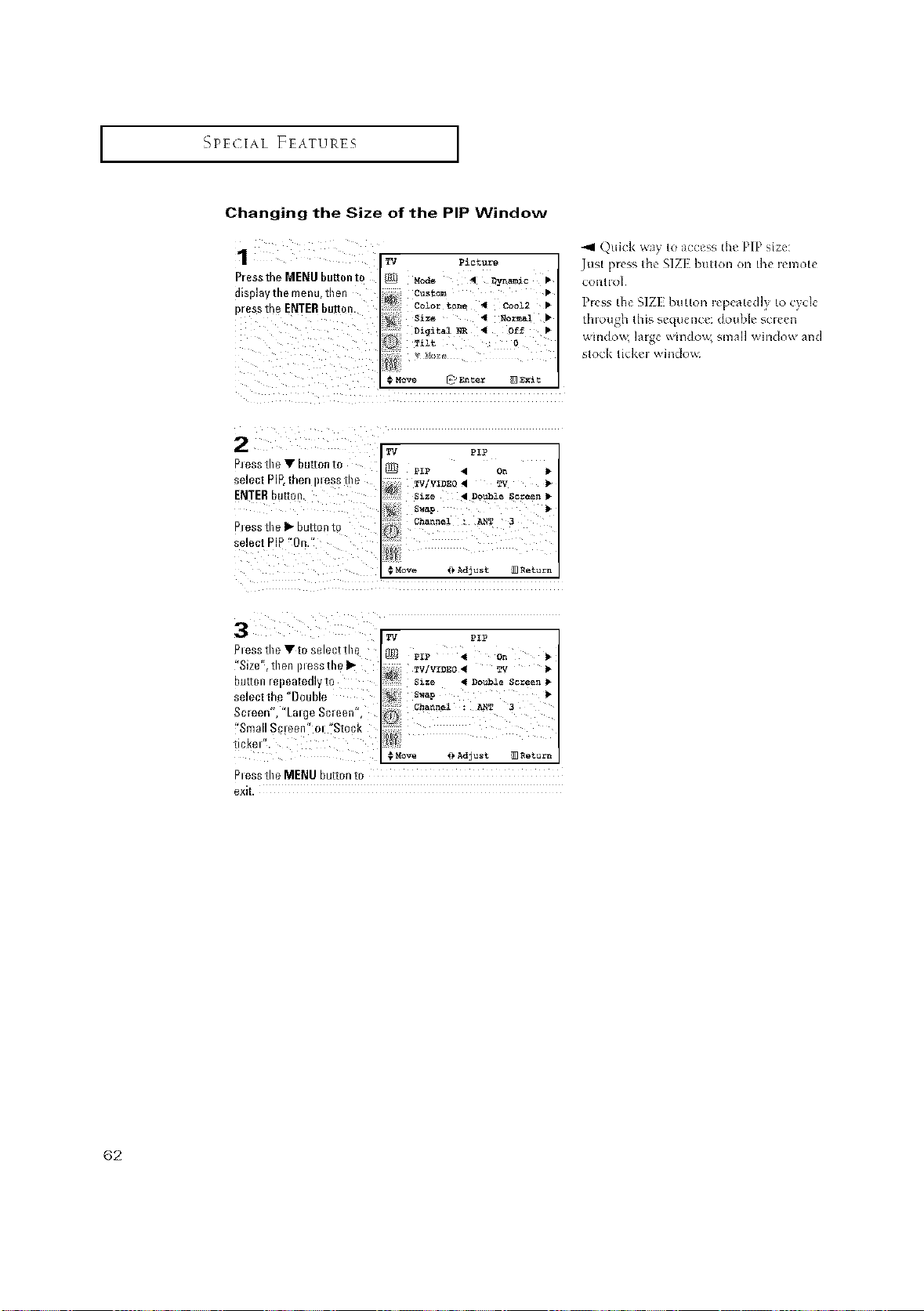
I SPECIAL FEATURES I
Changing the Size of the PIP Window
displaytile menu, then
pressthe ENTERbL
Quick '_a 1o access th_ PIP size:
J_lst press [he SIZE b_l[[on on the remote
L!Ol][iol
PRss the 5IZI button _epeated]y to cycle
thlough this sequence: double sclven
windox_ large windox_ small window and
stock tickel winclo_<
}less the • button to
_electPIE men ,,ess me
ENTERDUtZOn.
_leSSthe I_ butto [0
;elect PP "On
'l_ pip
PIP • On
_]VIDEO • TV
Szze • Dot_l_ Screen
Swap
Channel • _ 3
_Move _)Ad3ust _ Return
TV pip
_3_ PxP 4 on I_
TV/V_D_O4 TV
SIZe "I Double Screen
Swap •
Channel : J_NT 3
ove _)AdJus_ _ Return
3
Pless the • to select the
"Size ther messthe•
DU[tOn/el}eate£llV to
_elect the "Double
Screel3 ¸ L_ ye S£lee[
"Small Seen" ol _Stoc
_IOKel
heSS the MENU button t[
exit
62
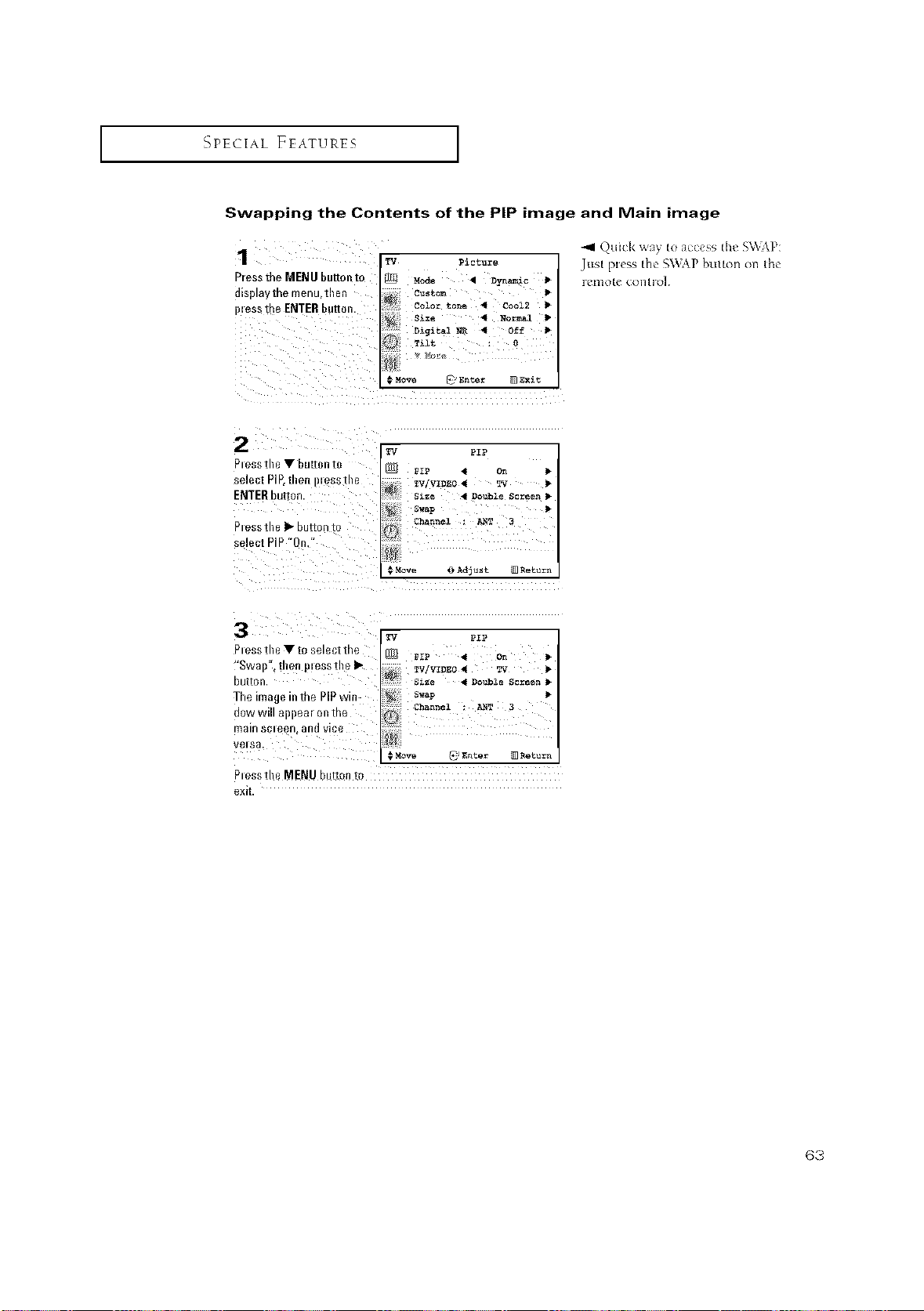
_PECIAL FEATURES ]
Swapping the Contents of the PiP image and Main image
P/ess the MENU button [_
81splay me menu,then
)less the ENTER butter
_V Picture
_elel" t_ne _ Cooi2 •
Tilt _
#Move C Entez [3Exit
TV 91p
pip
On
TV/VIDEO _ TV
_ize _ Double Screen
Swap P
Channel : ANT 3
_MoVe _}A_]USt _ Return
_1 pip
_E_ pip q On
TW VZDEO _ TV
Slze 4 Double Screen
nel : A_T 3
.Move t Ente_ N Neturrl
-_1 Quick w:ty to access th_ S\kTkP:
Jt_st pi*ss the S\_\P button on the
Plessthe • butten te
;elect PIP.then }lessme
ENTERDu_on
Plessthe I_ buffer -
;elect PIP "On
Plessthe • to select the
'Swal} .men OleSSthe I_
DU[[O rl
The inl_,_ inthe PIPwin-
OOW Will a,,,,ea | OR IRe
I_laln scleen aR[I vice
_1s8
P_esstne MENU button t[
exit
63
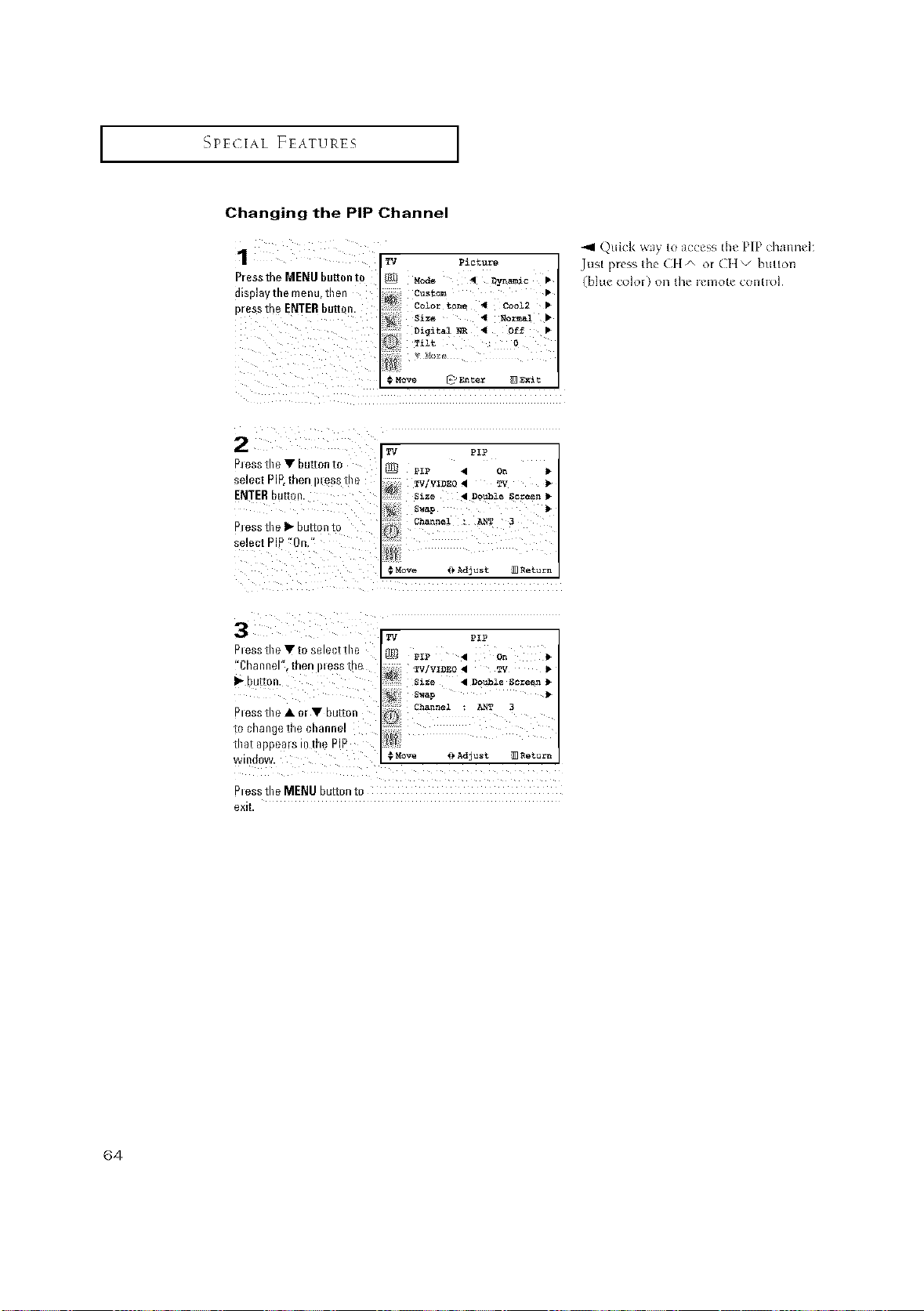
I SPECIAL FEATURES I
Changing the PiP Channel
1
P/essthe MENU but[on to
_lsI)layme menu men
mess theENTERbuttm-
TV Picture
;ustom •
_ _olor tone _ Cool2 •
_ D_git_l NR 4 Off •
• ilt 0
.MoVe _ Enter _Exit
TV pip
PIP • On
TV] VIDEO • TV J*
Slze • Do_ble Screen
Swap
._ Channel • _N_ 3
_Move _)Ad3ust _ Return
TV pip
JS_ pip • On
TV! VIDEO • TV J*
Slze • Double Screen
Swap
Channel ANT
eve _)Adjust _ Return
-,9 Quick _t_ Io access th_ PIP channek
J_lst press lhe (lit A ol¸ CI] _ b_l[[on
(bhle COIOI ¸) 013 lhe IelllO[e COll[lol
}messthe • button to
;elect PIE men }less i le
ENTERbut[on.
_1eSStile • button to
;elect PIP On
3
}mess the • to select the
"Channe iFler i}leSS ii/e
• bu[[or
}tess the • m • bu_on
io Cllange ire cnannel
ma[afmears the PIP
Nlna{
_tessthe MENU button t_
exit.
64
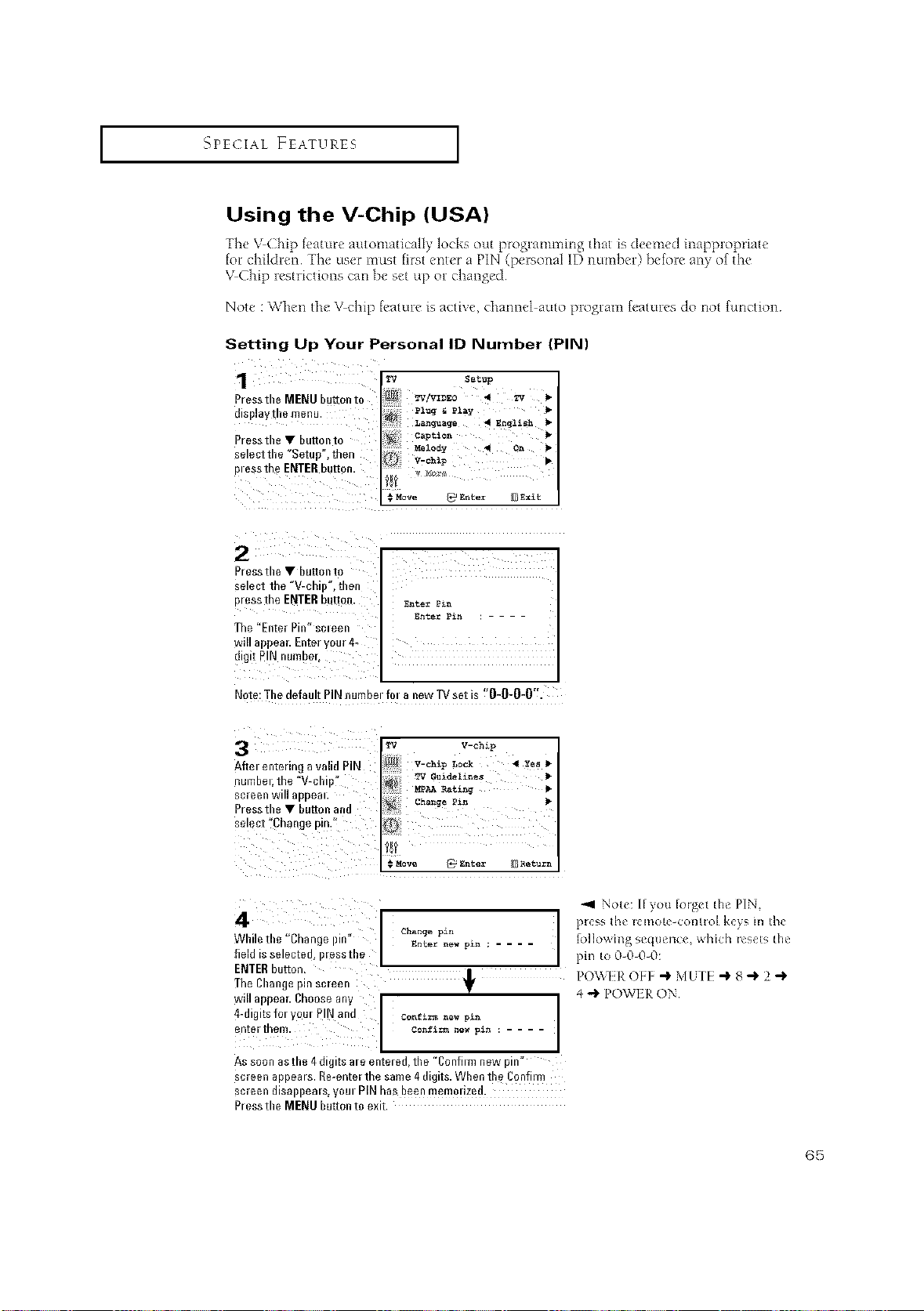
I SPECIAL FEATURES I
Using the V-Chip (USA)
The \,tChip feature automatically locks out programming that is deemed inappropriate
fol children The user must first enter a PIN (personal ID numbel) before an}, of the
VChip lestrictions car_be set up ol changed
Note : When the V chip feature is active, channel auto program features do not function
Setting Up Your Personal ID Number (PIN)
Pressthe MENU button to
display die menu•
Pressthe • button to
select the "Setup", then
pless the ENTERbutton.
ITV Setup
/_i w/v=D_ .t r,,
c ptio
Melody _ On •
€ MOVe _ Enter _ Exit
Diessthe • button to
sele0t the "V-of i) •inen
)iessthe ENTER button Ent_ P_n
Enter P_n
the "Entei Pin" sciee_
RIll appeal. Entel VOUl 4¸
digit PIN numoei
Note: Tile defaul PIN numbei foi a new TV set is '0-0-0-0".
3
Aftei enteiing avalid PIN
3umbel. tile V-till
seleen WUl a Ill)ea
Piessthe • button and
seiecl >Change pin."
TV V-chip
V-chlp Lock _ Yes
M_Rat_ng
Change Pzn
q
_Enter Return
4
While tile "Change i)ln
%ld is selected )lessine
ENTERbutton,
[he Change F n sciee_
NIII aDIJeaL Choose al/
4-digits foi youi PINand
I change pzn
EnLer new pxn ....
i
I Conf_rmnew p_A
5n[eliRe_ cogfl_a_ew p_n .....
As soon astile 4dl§.[s ale enle/ee tile "CoRfhm flew1"'_
scieen anoeais. Re-enteithe same 4d g is. When tile Confiim
scleen 81sa )lleals._ Ji PINhas Been memollZeO
_iessthe MENU huron to exit
_4 Note: [f}ou foigct the PIN,
pt_'ss thv IClllOtc COI][IOI l<_>ygII1 the
lollo'_lng SVtltlvncc, which lc_vts the
pin to0000:
PO\\ l R t)l I Hi M UI 1 + 8 + 2 -_
4 -i_ POWIR O\
65
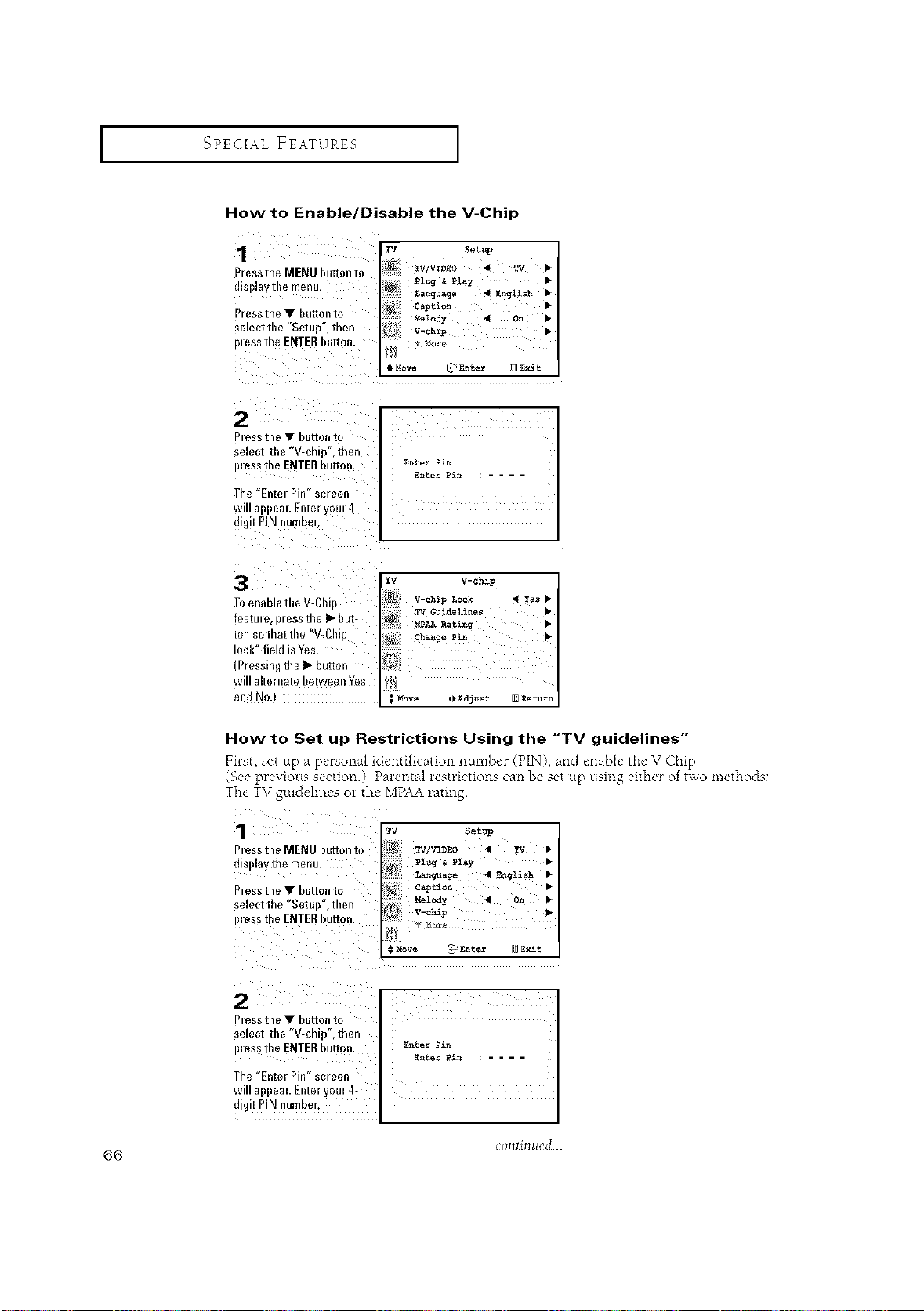
_qPECIAL FEATURES [
How to Enable/Disable the V-Chip
D/essthe MENU button t(
rllSl)laV ine menu.
Press the • button to
selectthe °Setuo .me[
_tess the ENTER button
TV Setup
_ TVIVIDEO TV •
4 English •
caption •
Melody 4 On •
_.Move f* Enh_r _gxit
hess tile • button to
_elect the "Wchtp ,men
mess the ENTERbutton.
The "Entel Pin" scleer
NIII 8BDeSL Enter 31114-
Jtgtt PIN number
Enter P_n
Enter Pin ....
To enable the V-C
feature. Bressthe I_ but-
ton so that the "WC #
ock" field is Yes.
(P/essing the • button
NIII alternate between Yes
and No
TV V-chip
V-ehzp Lock
_han_e Pin
i_M0ve _ Ad3ust
< Yes •
_Return
How to Set up Restrictions Using the "TV guidelines"
First, set up a personal identification numbc.r (PIN), and enable, the"VChip
(See previous section) Parental restrictions can be set up using either ot two methods:
The TV guidelines or tee MPAArating.
1 I_ s_t=p
Pressthe MENU button to _V/WDEO _1 W •
display the menu.
Pressthe • button to c_pt_ •
Melody "9 On •
select the "Setull",then V-_h_
')leSSthe ENTERbutton" ii ' ....
select the "V-chip °, then
i)less the ENTERbutton,
The "Enter Pin" screen
will appeal Enteryoul 4- ,
digit piN numbert
Enter Pin
Enter£&n ; ....
66
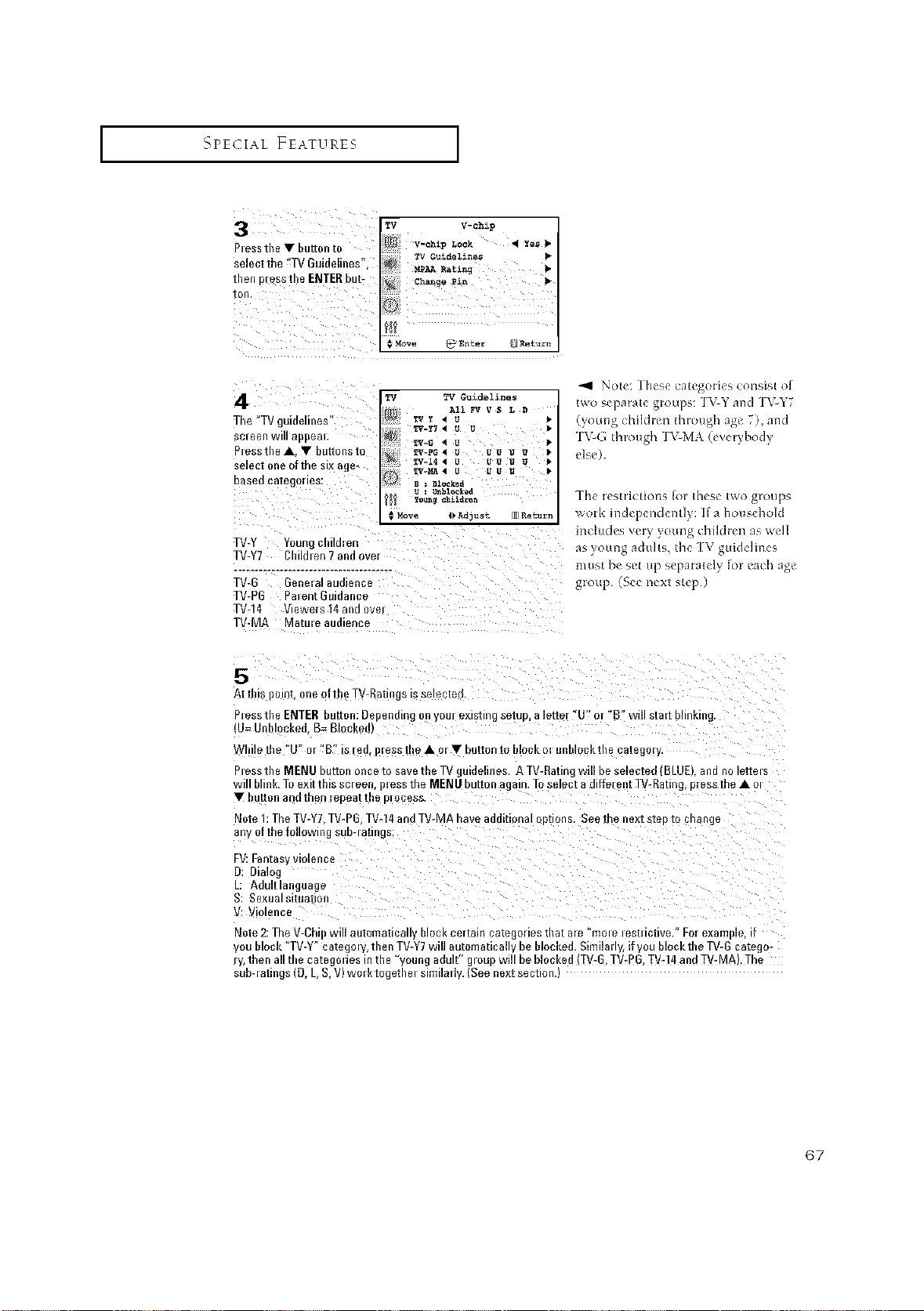
SPECIAL FEATURES [
Tile "TV guidelines"
screen will appeal.
Plessthe A, • buttons to
select one oftbe six age-
based categories:
TV TV Guidelines
TV Y _AUIIFV V S L D •
TV-y__ U U •
_V-p__ U U U U
: _nb1_ked
# Move 4_Adjust []Return
_41 Note: These calegolies consist of
two sepa_ale gloups: ]VY and ]VY7
(young chikhen lhlough age 7), and
TVG lh_ough ]_MA (eveubody
else)
]he t_ stlictiol?s fol lhese lv_o gloups
work hld_ p_ rich ntly: If a household
includes Nit) }oung (hildlen as _elJ
Is young adtllts, lh_ [7\ gtlide]mes
TV-Y7 Childlen 7 and over
mtlst be s_t up sq>atalel? [ol each age
group¸ (Bee next step¸)
_V_PB Palent Guidanne
TVq4 Viewers 14 and 0vel
TV-MA Matule audience
5
Atth s )oln[. oneof the TV-Ratings is Selecte_
P_essthe ENTERbutton:D_penmngl -youl exlsnngsemD, alette_"U'o_ "E wn_s[alzD.n_mg
u= unmocKea. B=Blocked
fhllen)e"U"ol"S"is/ea.i)leSStl)eAol•button_ DIOOKOIBRDIOOKInea[ego/y.
P_essthe MENU button once to savethe TV ouidelines. A TV-Ratir I wm #ese_ec[ea BLUEI ana no _eue_s
_ill blink.To exitthis sc_eer )_essthe I_IENUbutton aga n.Toselect adifferent Tg-Rating, p_essthe A o_
button an(]men leDea[ u)e 131Joegs.
Note I: The TV-Y7 TV-PB TV-14andT_-MA have addil onto o#tions. Seethe nexl step to cnange
any of thefollowing suD4anngs
FV:Fantasywo_ence
D: Dial%
Adultlanguage
_: Sexualsituatior
V: V ence
Note2:TheV-Ch automa[ica DlOeKce/[alnca[egorles[naIare mOleleStlictive."Folexam e. •
you block "TV-Y" category, then TV-Y7will automatical ¢be blocked. Similm v if you blockthe TV-Gcatego-
ry, then all the categmies in the "young adult" g_oupwill beblocked (TV-G,TV-P6,TV-14 andTV-MA). The
sub-_atings (D, L,S,V) wo_ktogethe_ similarly. (Seenext section.)
67
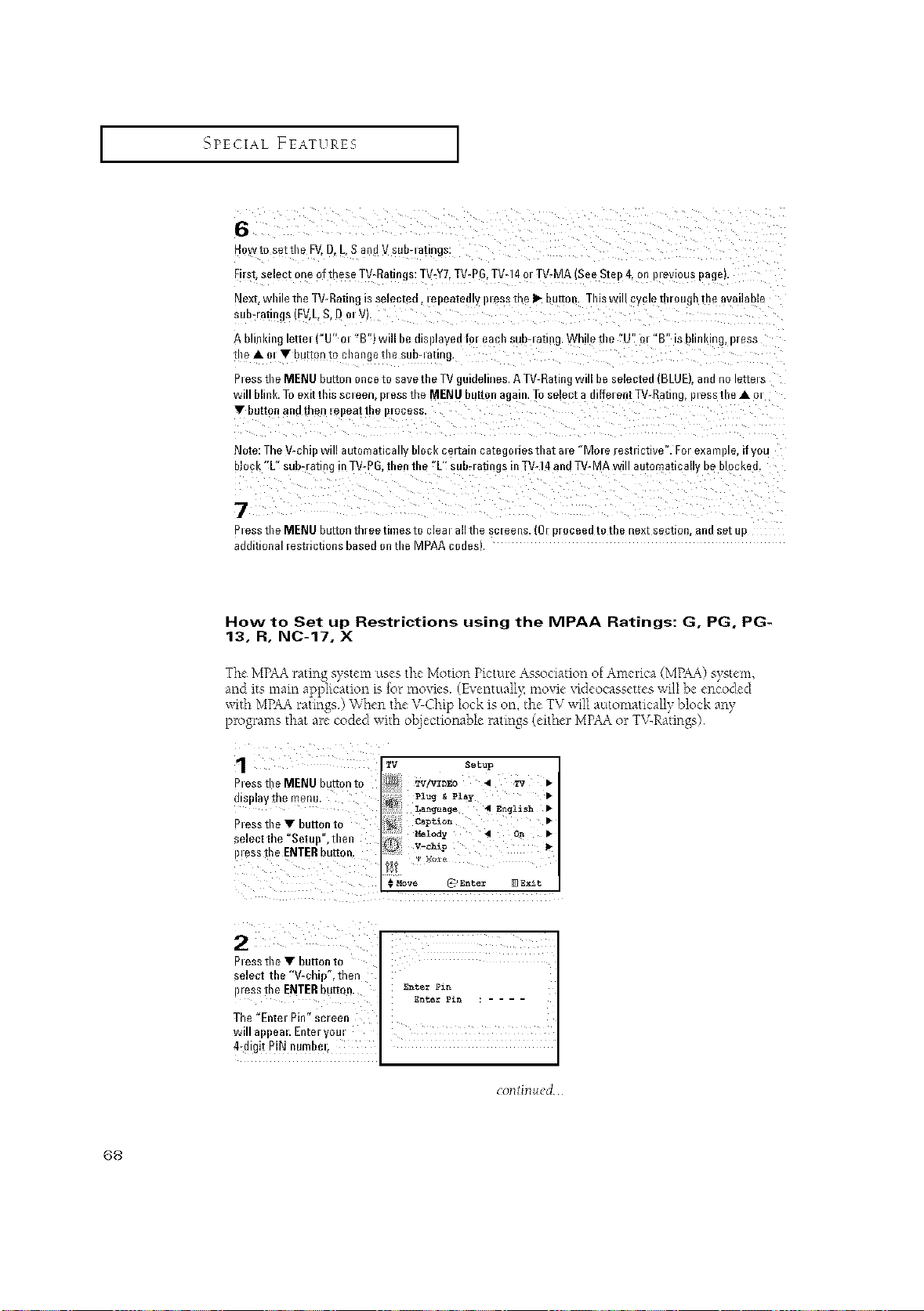
_qPECIAL FEATURES [
6
Mow[( sezme FV.D.L S andV sub-ratings:
First select one of these TV-Ratinjs: TV-Y7.TV-P6 TVq4 ot TV-MA SeeStet)4. on B evlous _age
Nex! whiletheTV-Rat igtsselectea,tel)eazealy essthel_buEon I'hiswillcycletnrougnmeava.a#m
;uD-/anngs (FV,L S. Dot V).
Abhn nglelteti"U"ot"B"lwillbedi_)t_ _dforeachsuh4ati ] Whtlethe"L m"B'ishlinldn9, [ess
the • ol • button to chanje [I)e suD-la[Ing
_tesstheMENUhuttononcetosavetheTVjuidelines. ATV-Ratinot_.lDesemc[eo 3LUE anenotettets
Nillblink. Toexitthisscteel 3resstheMENUbuttonagain. ToselectadifferentTV-Ral g, ptesslleAot
• button anairon lel)ea[[ne )lOCeSs.
Note:TheV-c WlllaU[oma[ica DlOCl_Cel,alnca[e_odesthatale"Uole estdctive".For exa llfle, ifw_
JmcK , su#4anng nTV-PG.thenthe"L sub-ratmgsinTV-14andTV-MAwillautomatica i#emocKea
7
alesstheMENUhuttonthreetimestocJea )llIReS( eens.{[ Droceeaioillenex[segiIon. an[IseiLJ
additional restrictionsbased onthe MPAA codes).
How to Set up Restrictions using the MPAA Ratings: G, PG. PG-
13, R, NC-17. X
The MPAArating system uses the Motion Picture Association ofAmerica (MPM) system,
and its main application is for mov*es (Eventuall> movie videocassettes will be encoded
wi_h MPAAratings) When the VChip lock is on, the TV will automatically block aW
programs that me coded with objecttortabk ratings (either MPAAor TV-Ratings)
1 ITv setup
Pressthe MENU button to W/vzDz0 • w •
displaythe menu. Pzug _ PZay •
Language • English •
Pressthe • hutt0n t0 captio_ •
_elody • O_ •
select the °Setup",then V-_hip 1_
P!eSS fl'e ENTERbutt°n" {ii Z x__,,
# _Iove _ Enter EDgx£t
baaonl;
select the "V-chip', then
press tile ENTERb#tt{)n.
The "Entel Pin" screen
will appeal Enteryore
4:digit PiN number;
Ente_ _in
EnterPin : ....
co_ti_ued
68
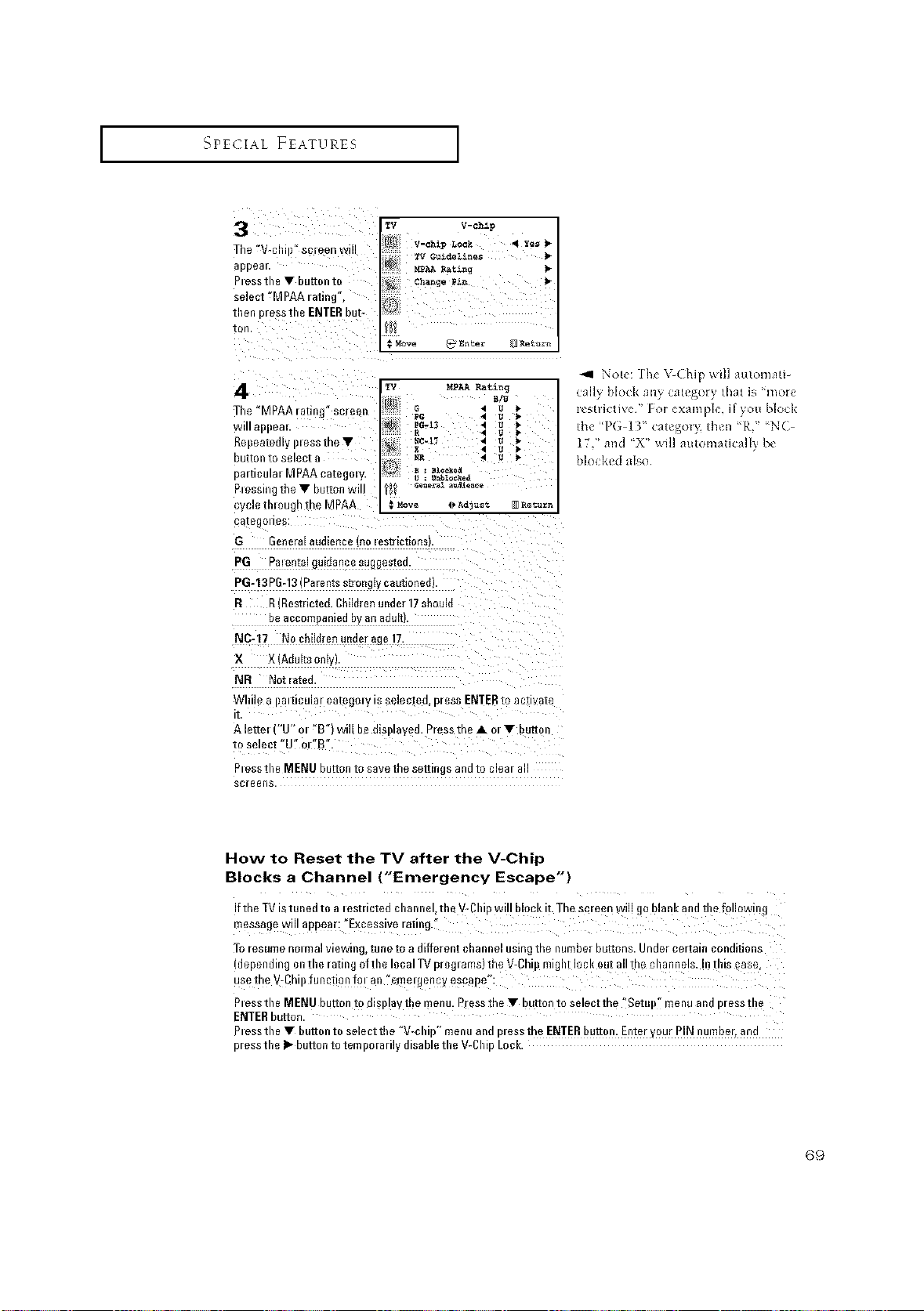
I SPECIAL FEATURES I
3
The"V< screen wi
]DDeal
PtesstheVbuRont_
select"MPAAratin_
men B/essthe ENTERbut-
lOl
[_ V-chip
_AARat_nq
Change _n
!n
• Mo_ _ Enter _ Return
4
The "MPAA/ating scieen
NIII aBBea
Repeatedly _ess the •
Du[mnm selec[ a
oa/ticulal MPAAeate£ _.,.
Press gthe • button w
cycle [moughthe MPAA
,a[egoues
G _erle_al aud_erlce qo le_c[_orl_
PG Palenta gmaance suggestec
F'G-13P6-13 IDalents stlongEy cautlonea
R R Restricted. ChiN_en unde_ 1_ sn_um
De accom_)a[_16(1JJv_rl aauN
N0-17 No ch_N_eR unde_ age 1-
X X(Aduffson
NR Not lated.
Nlllle a DaltlOUia/oa[E iOly is seiec[eo. D/aSs ENTER to a o[Iva[e
[
A lotto "U" ot "B"l will be _ smaved. Press the • ot • uutton
toselect"u o E
Pt ass the MENU button to save the settings ana m cmar a
se/eeus.
Note lbeVkhpwdlautomatl
caIIv OlOCK all), c_ll %or_ thai i_ nlote
_t,ct_ve ! or cxamplv, i_ou block
tl_c 'P_ ] ;' ca[egoi_ then R. ¸' Nk
1_ ld X ¸"wdl au[omadca y by
blod<_d al_o.
How to Reset the TV after the V-Chip
Blocks a Channel ("Emergency Escape")
Iftbe TV is tuned to a restrictedcllannel, tile V-till pwill block it.Tbe screen wil! goblank and tl!e following
message will appear: "Excessiverating/'
To resume normal viewing, tune to a different channel using the number buttons. Under certain conditions
(depending onthe rating ofthe local TVprograms) the V-Chipmight lock out a!!the channels, Int!fis paso,
use tbe V-Chipfunctign for an "eme!gency ese#peii:
Ptessthe MENU button to display the menu. P[ess "the• button to select the _Setup" menu andpressure
ENTERbutton.
ptasstim • button to select the "V-clfip" menu and ptass the ENTERbutton. Ente[ your p!N number, and
press the • button to ternporariiy disablethe V-Chip Lock.
69
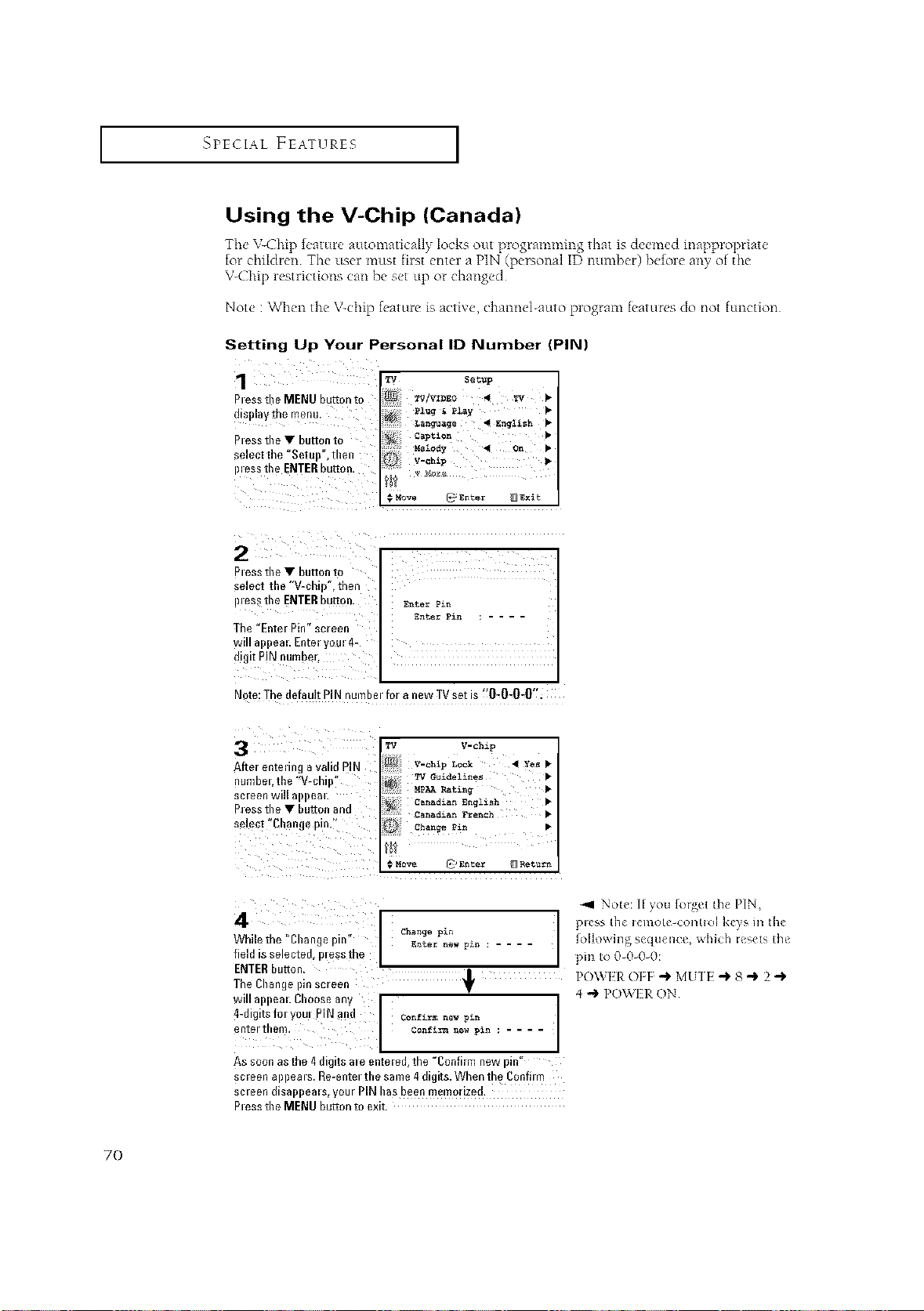
SPECIAL FEATURES [
Using the V-Chip (Canada)
The \nChip feature amomatically locks out programming tlaat is deemed irmppropriate
for childrer_ The usei must filst er_tela PIN (personal ID r_umber) befole any of the
V-Chip lestiictions can be set up or changed
Note :When tlae \/<:hip feaRire is actixe, chanr_el-auto program feaRires do r_otfunction
Setting Up Your Personal ID Number (PIN)
Nessthe • button to
_elect the "V-chif_° then
}less the ENTERbutton
The "Enter Pin sc/eer
mttappeal Enteryoul 4-
]lglt PiN numbeL
Enter £_n
Enter £zn ....
No e: The default PIN numbel for a new TVse is 0-0-0-0".
Aftel entedn_ a valid PIN
nuniDel_ the "V-or
;e|eell Will 8 )e8
atess the • button and
;elec[ "Change pit
TV V-chip
V-chip L_c_ 4 Ye_ •
TVGu±del_nes •
MpAAR_ting •
:anad£an English •
:anad_an French •
:hange _in •
Ent_ _ Return
Change pin
gnte_ n_w p_n ....
Confir_ new p_n
Conf£r_new p_n ....
4
While the "Change pm
field is selected, bless me
ENTERbutton,
The Change nscieer
NIII a eaL Choose aR
4-digits for your PIN and
e Rie/ill ell"
As SOOllas the 4 dlgl[S ale ell[e leU the "Collfirm Rew DIP
;creen a )eat s. Re-enter the same 4 digits. When the Confit m
;c|eell (lisa }eals.VOtli PIN has beel/mem(liized.
atess the MENU button to exit.
-_1 Note: If you forge[ the PIN,
pRss the remote-cont_ol keys m d_e
_l]owing sequence, which resets [he
pin [o 0_0_0_0:
POWI-R OFF -i_ MU] I- _ 8 -) 2
4 "9 POVCH_ ON
7O
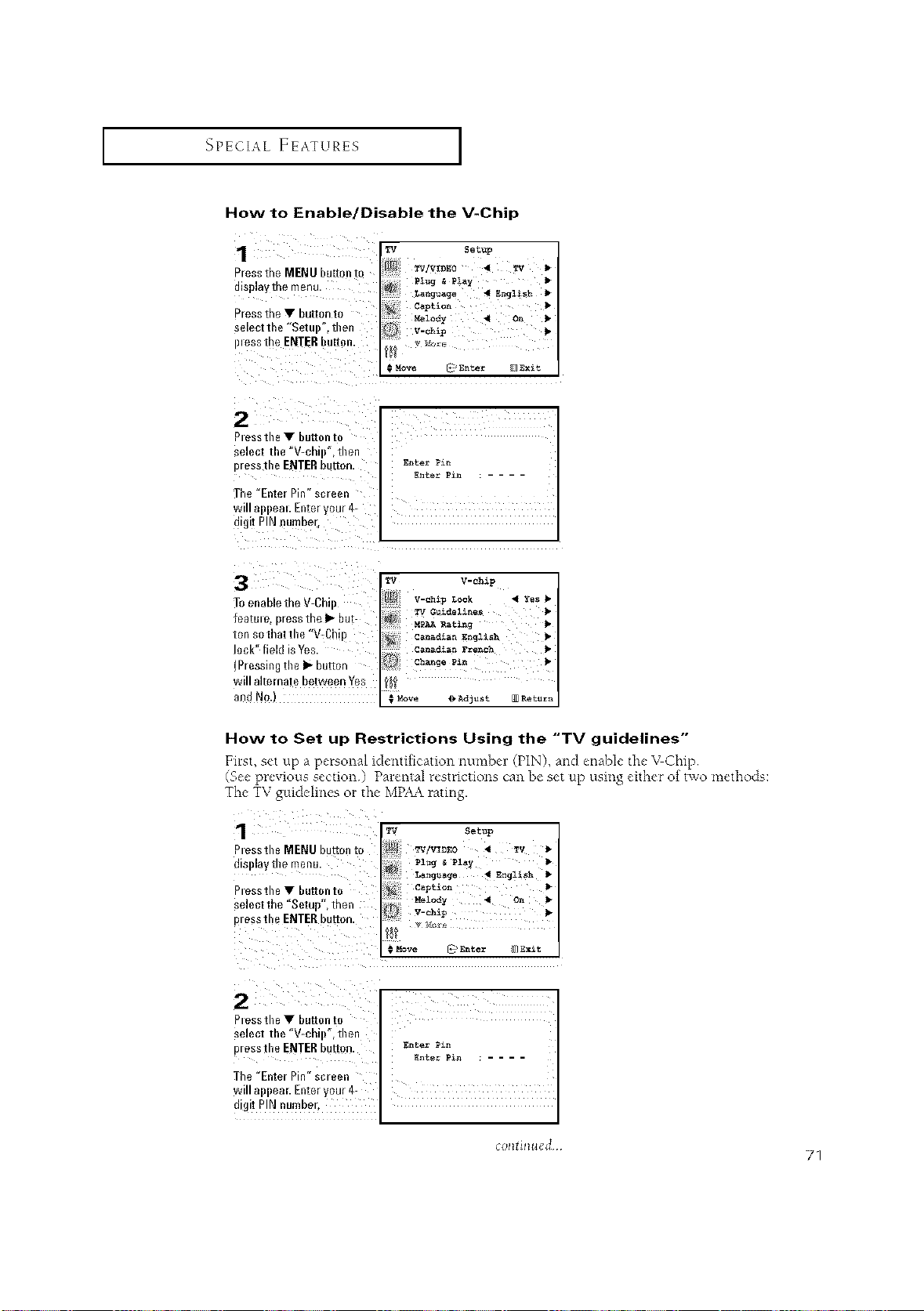
SPECIAL FEATURES ]
How to Enable/Disable the V-Chip
1
_/ess the MENU button te
UlSpiay The m_Ru.
aress the • button m
selectthe "Setut) .men
_less the ENTER button
rV SetUp
_/_ TVIVIDEO 4 TV
EnglSsh
Caption I*
Melody < O_ •
V-chip
._Move _ Entar [_Exit
2
Ptessthe• button to
select the "V-chip", then
oressthe ENTER button.
The "Enter Pin" sciee
NIIIaDDeal.Enteryou/4-
Jtgtt PINnumbel
Ente_ Pan
Ente_ P_n
rV V-chip
Yes •
m
2anadaanEnglish
2a_adianFrench _
2hange Pi_
_ Ad]ust _ Ret_r_
3
To enable the V-Ch
featute. D/eSSthe I_ but-
ton so that the "V-Chin
ock ° field is Yes
(Pressb _the I_ button
NIII alternate between Yes
md No
How to Set up Restrictions Using the "TV guidelines"
First, set up a personal identification numbc'l (PIN), and enable"the"%_Chip
(See previous section) Parental restrictions can be set up using either of t_o methods:
The TV guidelines or the MPAArating.
1 l_ sot=p
Ptesstlle MENU button to _V/WDEO < Tv
displaythemenu. Pz_g _ Pz_y
La_ge < E_gg_o_
Ptessthe • buttonto c_p_i*_
Select the "Setup", then M_lo_y _ On
I_'essth" ENTERbutt°n" iii _:,e
# Move _q__ntez Ill]I_xit
a
Ptessthe • button to
select the "V-ehil)", then
pressthe ENTERbutton. _,_e= _,
_nte_ _in
The "Enter Pin" screen
will appear. Enteryour 4- ,
digit piN numbert
collti*lued
71
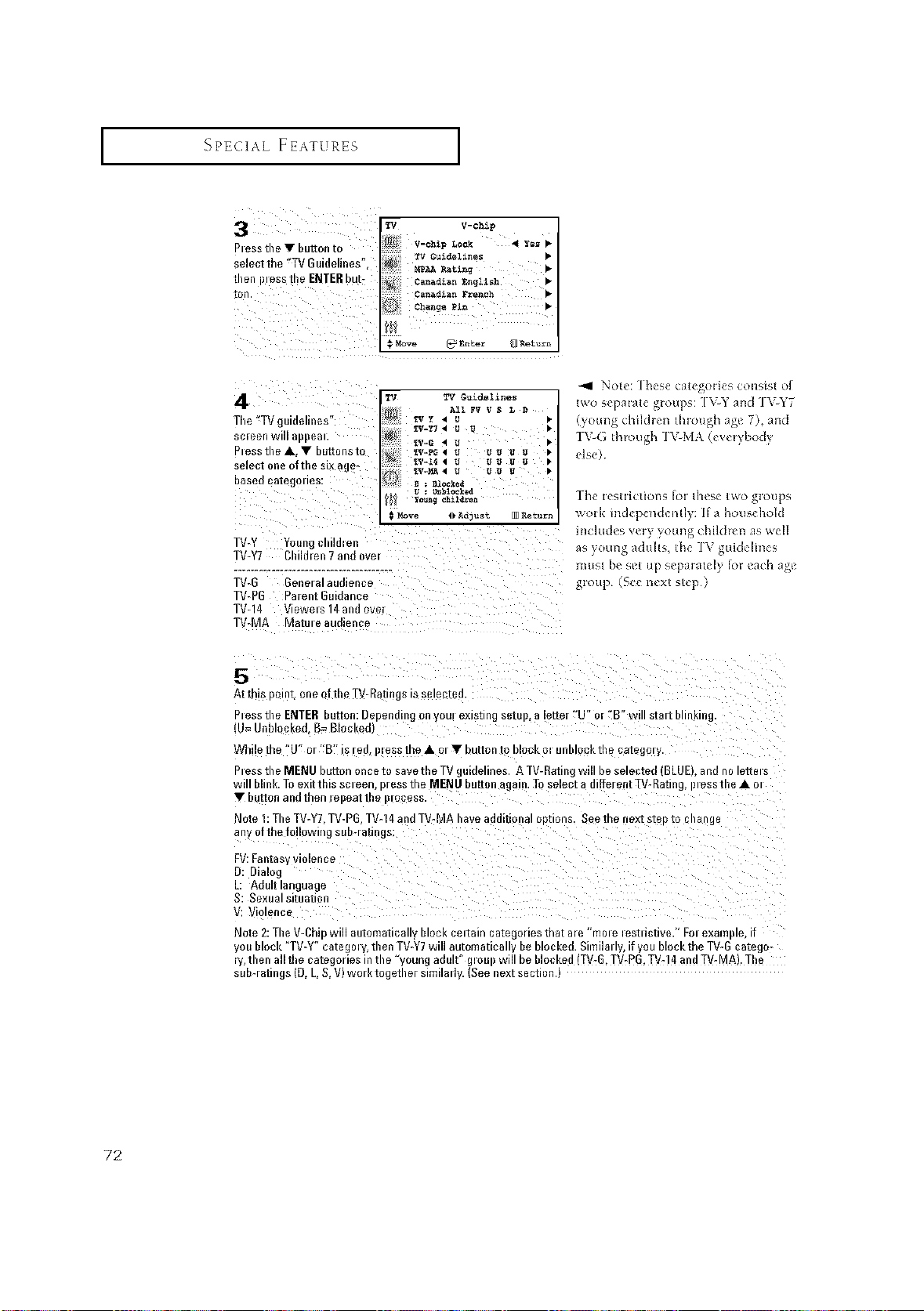
SPECIAL FEATURES I
TV
Ptess tile V button to
select the 'TV Guidelines",
then Illess tl)e ENTER but:
V-chip
Canadian English •
Canadian French •
Cha_ge Pin •
# Move _Bnte_ _Ret_rn
4
Tile "TV gumetmes
_creen w aBi3e8
Ness the., • DuEons IO
mlect one ofthe six age-
Dase(] categOlleS
TV-Y Your I 1.mer
• V-Y7 Children 7 and over
TV-G Gene/al audience
TWPG Parent Guidance
TVd4 Viewels 14 and ovel
TV-MA Vlatut e audience
TV TV Guidellnes
{I_3 All FV V S L D
TVY4U _
• v-_74 U U
_G4u •
_/_pG4 u uu u u _
_ _144 u uu u u •
T#_MI_4 U UU U
yn_g ch±la_en
_ve 4_Adju_t _ Re_urn
two svpataLc gloups: l\ Y and ]\ h'7
kx, oung t nll£1 Ion [I]l otl_l_ 3_/v 7 }. anti
IV(,thlou_[l IVMk vxvlwx>m
else
Ihc Fe%[FIC[IOlI_ )[ tn_bc two _[t>up_
WOrK H1_ _pcrlovntl_ D a hoLl_chok_
II]CIULI_% VUI? VoIln£ chilli(I] as x%
_s VOU 1_ adults [by IV _2lltleUl]Cs
gloup bee nt'xt stt'l_
5
AtthlsDo t oneoftheTV-Da[mgstssetec[e[
Ness the ENTER button: DeDenm ] on your exts_mg sum . a leEer "U" or °E vm star DUnKing
lu= unDt_ Ked. B= Blocked
Wh ethe_U"or'B " _/eu i)lesstheAolTbutton[ DIOCKOIUnDIOCK[n_ cat_goly
N ess the MENU button once to save the TV _uidelines. A TV-Ratir I wnt De setecle_ BLUEI an_ no tenet s
_illblink. Toexitthisscteer )/esstheMENUbutt_n tgain. Toselecta diffe/ent_V-Rating, lneSStlleAot
• bur[on ano men leBeat [ne BIOCeS_
_lote I: The _V-Y? TV-PG TV-14 and TV-MA have addinonat options. See me nexz szep to cnang_
any of the follow g suD-/anngs
FV:Fantas, ViOlenCe
D: Dialog
Agultlanguage
S: Sexual situanon
V: V once
Note 2:The V-0f D uau[oma[ica DIOCKCellaln cazegorlesmar are mole leStUCtiVe."Folexam e •
you block "TV-Y" categ_, y then TV-Y7will automatical be blocked. Similar v if you No&the TV-G catego-
ry,then all the catego|ies in the "young adult'_g_cup will be blocked (•V-G, TV-PG,TV-14and TV-MA). The
sub-|atings (D, L,S,V) wet ktogethe_ similarly. (Seenext section.)
72
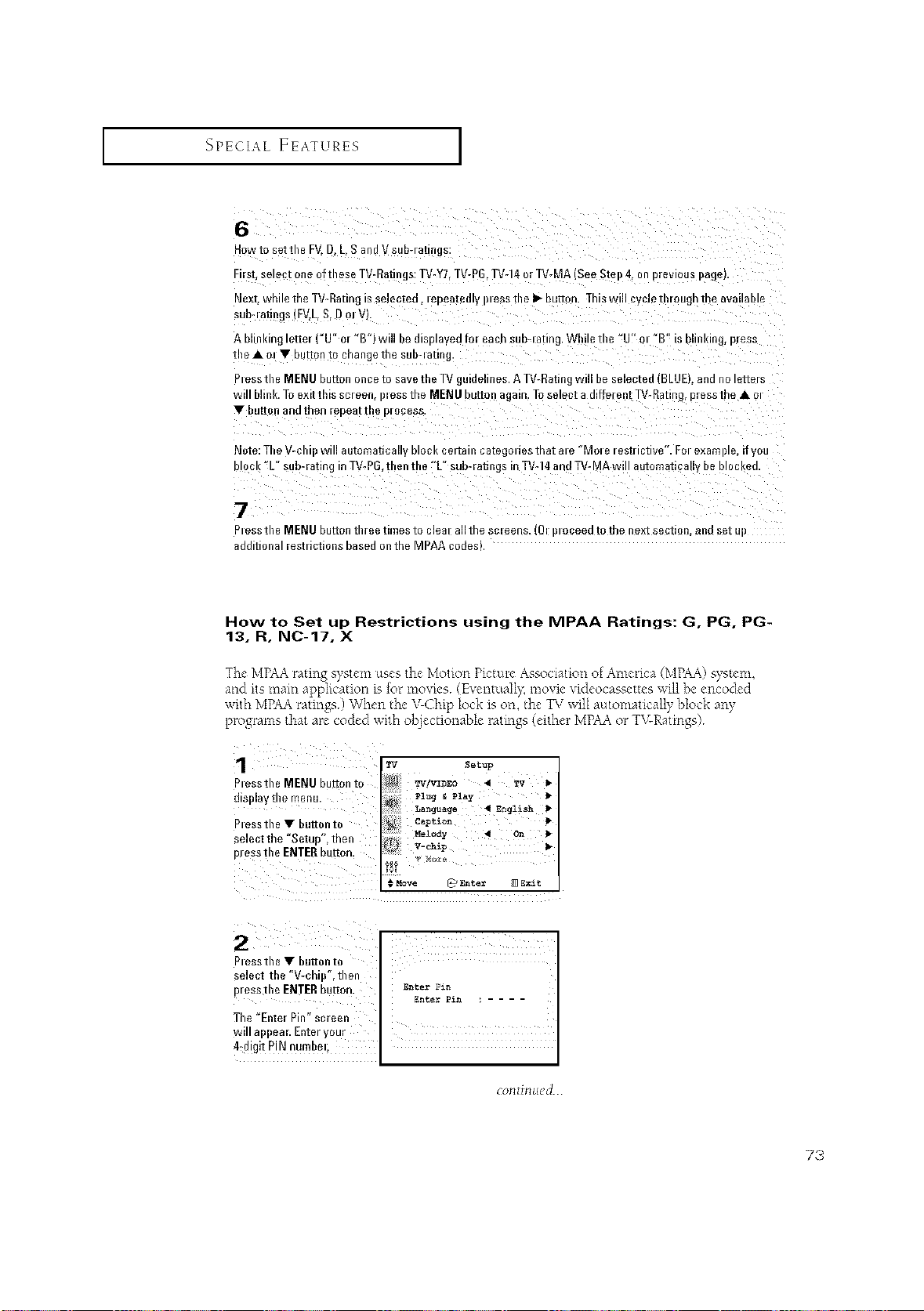
SPECIAL FEATURES ]
6
How to set tile FV.D L S andV sub-/atings:
Fiist select oneof these TV-Ratinjs: TV-¥7.TV-P6. TV-14or TV-MA See ;te_ ,I on previous page
Nexl while the TV-Rating s smectea, teDea[ee ess me I_ button. This will cyciem/ougn me ova ame
mo-ianr _s(FV,L. S.Do
A blinking lelte/("U" m "*g") will be dismavea for each suh-t anng WMe the % ot "B" is h.nKing Dress
the • Ol • [ ]3tton [o change ire StlD-I aHn_
PtesstheMENUhuttononcetosavetheTV_uidelines. ATV-Ratin_ .. liDeselecteo 3LUE ananoteue|_
Nill blink. To exitthis sc|eer )less the MENU button auain. Toselect a diffe/ent TV-Rating, pressthe A ot
• buttonanoinen eDea[1 ]D/OCeSS.
Note: The V-e Will automa[ica DIOOKgel,all] categolies tl/at ale "[_Ol e/estlictiw". Fol e×an lie. if you
olock "L sub-rating in TV-PG,then the "L sub-lat _gs in TV-14 and TV-MA will automatica De DtocKea
7
Ptess the MENU button thiee tittles to clea allthe smeens. 1[ oceea m me next sectmn, ana set L
_dditional restrictionsbased onthe MPAA codes
How to Set up Restrictions using the MPAA Ratings: G, PG, PG-
13. R, N0-17. X
The MPAArating system uses the Motion Pictm-c,Association ofAmerica (MPAA)_,yst_'m,
a_d its main applicatiot_ > for movies (Eventuall?; mov*cvideocasseucs will be encoded
with MPAAratings) When th{'N'Chip lock is on, th{'TV will automatically block aW
programs that am coded with objectionable ratulgs (either MPAAor TV-Ratings)
2
Ptessthe • button to
select tile "V-chip', thei
pressdle ENTERbutton. _nee=Pi_
The "Enter Pin" screen
will appeal Enteryour
4:digit PIN number;
73
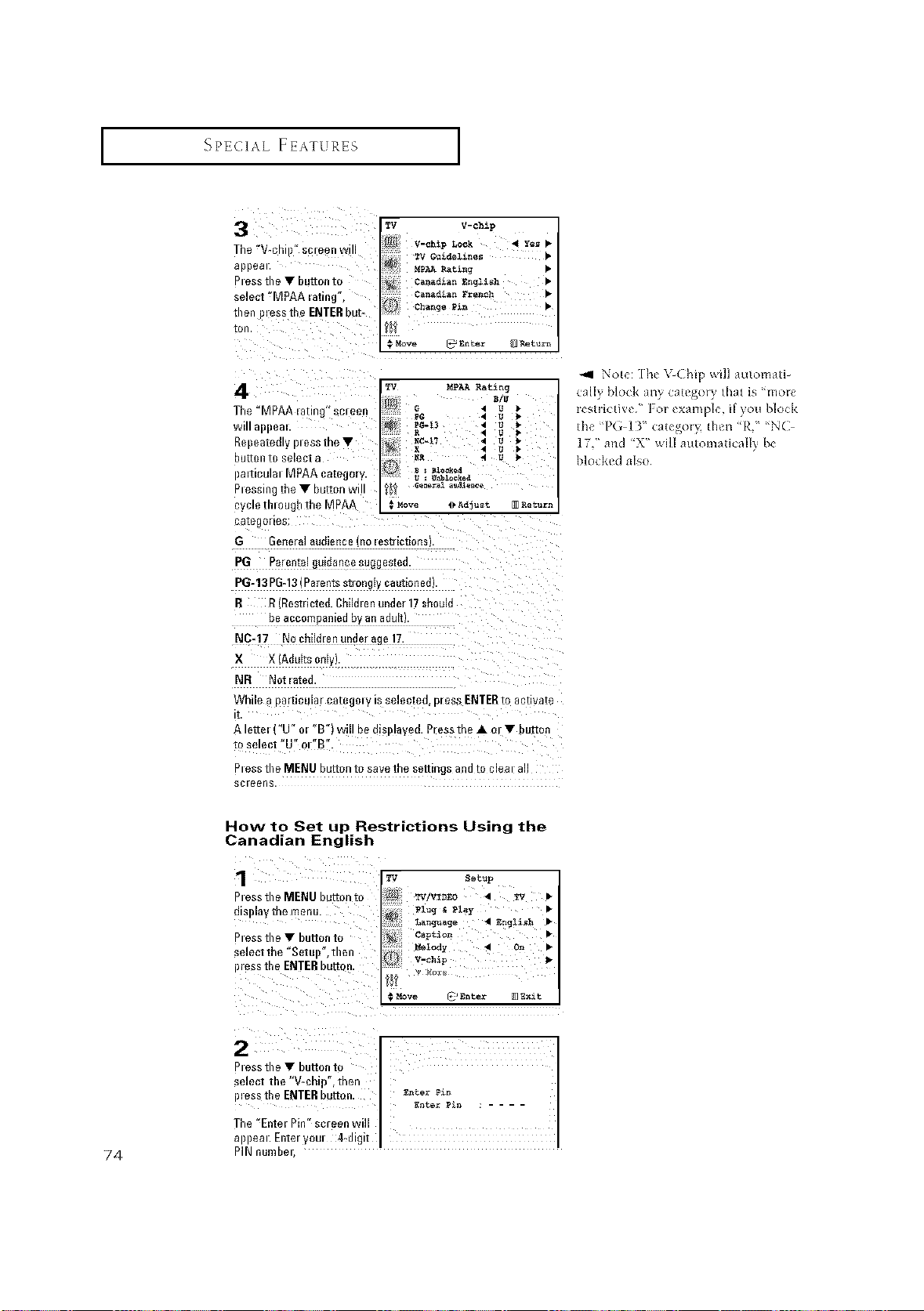
SPECIAL FEATURES I
3
The "V-el sc/een wl
_DDea
Nesstile • button to
_elect"M PAAlati%
men _ _ssthe ENTERhu[-
[Oil
rV V-chip
V-chip Lo_ 4 Yes •
_idel_nes •
M£AARat_ng •
Canadian _n_lish •
Canadian French •
Ch_n_e P_n •
Move _Enter m Return
4
The °MPA_ anr ] screen
Will ai)Bea
Repeatedly ptess the •
DUll[In [0 seieo[ a
)adculat MPAA categer!
Nessing the • button w
:ycte mtoughthe MPAA
ca[egolles:
G _erle_l _lAdleRce lo leS[Hc[iorl_
_G 3alerlta gul_aR_e slAg_es[ec
PG-13 PG-13 (Pa_ents st_ongy caut_onee
R R Restricted. Childlen unde_ 17 shade
De accom_3_r_le(1DV_R a(Iufl
N0-17 Ne childlen unde_ age 17
_{ X (AduRs on
NR Not _ated.
While a Dafflcula/ca[egoty ts _electeQ. n_ess ENTERto activate
[
A Idte "U" o_ "B") wnt De o_s_taved. Pressthe • ot • .ut_on
to select "U" ot "B"
N ess tile MENU button to save the seRings ana [e c_eat a
;Cleens.
*_1 Note: [he b(hip wi]] automa[b
tally block any ca[ego_} that is 'mo_
ieslrictive " For example, if you block
the '?(;43" calego_ then "IL" "NC
17," and "X" will a_l[oma[ically be
b]ocl<edalso¸
74
How to Set up Restrictions Using the
Canadian English
Pless the MENU button to W/W_O _ W •
dis )lay the menu. _,_e _ _'_,z •
press the • button to ca:_lon •
se ectthe "Setu I " t en _i_dy _1 o= •
' V.chip
press tile ENTERbutton.
#Move p? Enter _Exit
select the "Wchip", then
p,esstheENTERh.tton. ......
appeat. Enteryout 44igit
The '_Ente_Pin" screen will
PIN number;
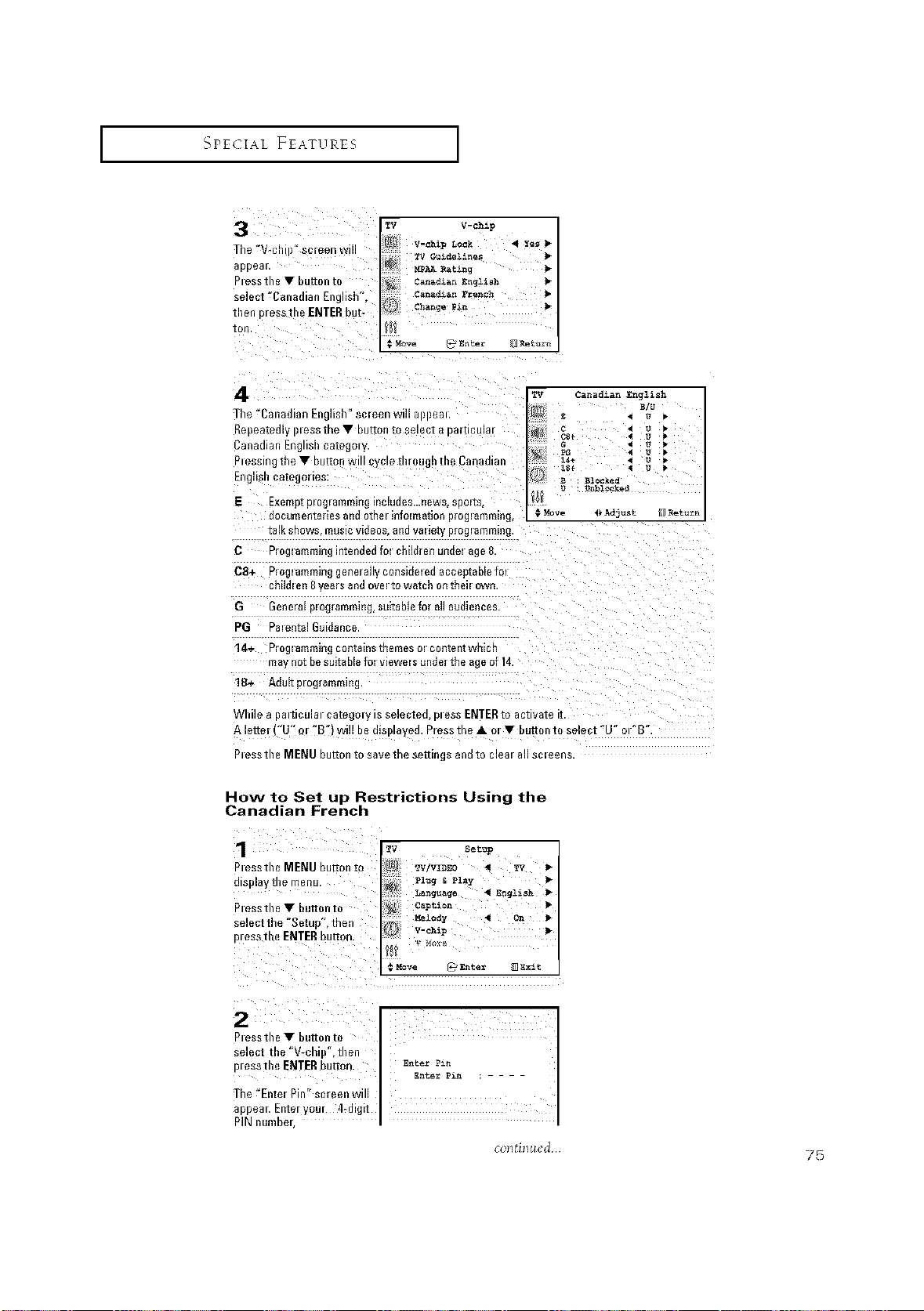
I SPECIAL FEATURES I
3
The "V< screen wl
]DDeal
Ptessthe • button to
select "Canadian El glis_
men bless1 le ENTERbut-
I011
[_ V-chAp
M_AARatzng •
Cana_lan English •
Cana_an French
Change Pen •
• Move _ Enter _ Return
4
The "Canadian Er ]1sn sore{in Will al)l)eal
Repeatedly _less the • button to select a Dal[icular
3anadian Engusn category
Ptessingthe•buttonw cvctemr__j the Canadian
English ( _tegorles
Exemp[plOglammlR_ _u(le_...new_ SDOIT_
documentmies and othel infolmation pmglammmg
TV 2anadianEnglish
l_/t 1
g .t U
14+ _ L_ _-
g&ocked
Ur_l¢_ked
Nove II A_jtlst R_ttl_n
C P_ogmmminp intended fo_ children unde_ age&
C8+ Proglamming generally consideled acceptable fo_
_h_ldlell 8 Jea/s a[_J OVel _owa[cl3 or_[nell OWr_
G 6enmal programming suffaNefo_all audiences
PG Palental 6uidance
14+ P/ogl 8mmlr_ _or_[a_13__Remes Ol cor_[el_[wR_cn
me not be suitable fo_ viewers unde_the age of 14
18+ Adu_[p_og_ammmg
Nhllea al[iculal ca[egolylssemcze_,ptessENTERtoactivateit
A letter u "B"I will bealst)taved. Pressthe • o/• button t_ sele t "U" ot'_B'
Pless the MENU button to save the setti[ ,s aim m clea/all SCleens
How to Set up Restrictions Using the
Canadian French
Ptessthe MENU button
display themenu.
Ptessthe • buttonto
select the "Setup', then
ptess the ENTERbutton.
o::i'i:Vi: :nll,
select the "V-chip", then
presstlle ENTERbutton. _e= ?=-_
The/'Enter Pin" screen will
appear. Enteryeur 4_digit
PIN number,
colltillued
75
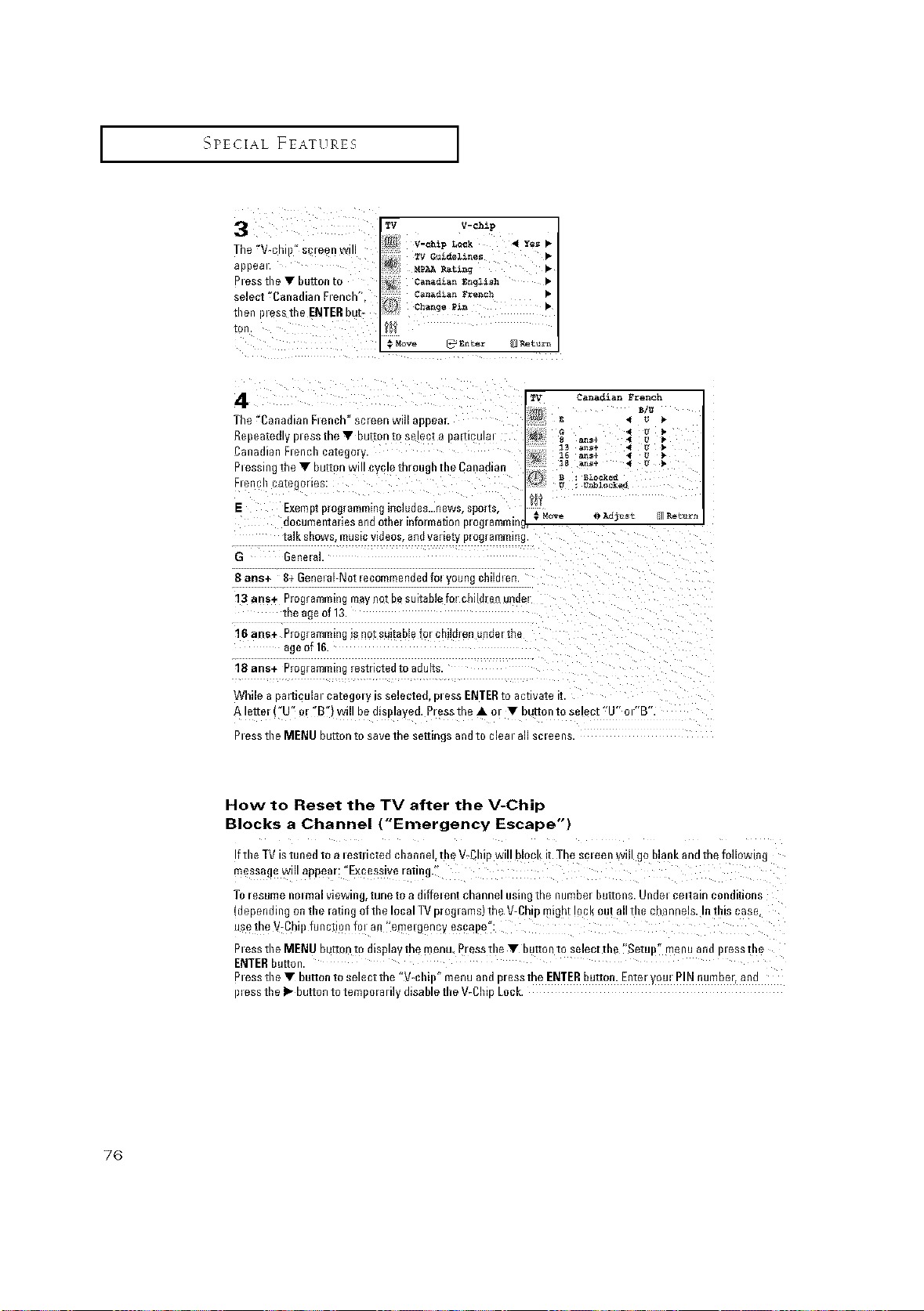
_qPECIAL FEATURES [
_£nter _?oaturn
4
CanadianFrench
B/U
The "Canadian Flench"scleen will a_sear • • •
ReDeatedlvDlesstheVbuttontoselecia aizlCUla _v _ _s+ _ ou _
2anadian Flencb category 13 _+ :
)lessing the_IFbutton will Cyclemrc__ 1le Canadian _ z8 a_+ • _
U
B : BZ_ke_
Flennb caiegOlleS: g : UWolocke_
E Exerllpl plograrllnlmg iciuo _s...13ews. SDOI[S _Move I_Ad]u_t
_ocumeIl_aHes an_ ome! mro_nla_loi plog_anlnl_I
talkSNOWS._lUSmvloeosan(IVaNeD/plog_anlnlmg
Sans+ g+ General-Not_ecommet_dedfo_you_g cmm_en
13 ans+ Programmingmay no_oesuitable fo_d' _men un_e
me ageof 13.
I 6 arts+ P )g_ammmg_sno_su_[ameto, cn._ren un_e, me
_geof 16
18
ans+ Programmingresmc_e_m a_u_s
Return
While a DarUcUlal cg[egoly IS selectee, pl ess ENTER (o ac[ivaie ii
A lettel U" el "B"} will De OlSl)la ed. Press the • el • button to select "U" Ol"B
)_ess tbe MENU button to save the settings ano to clem an smeens
How to Reset the TV after the V-Chip
Blocks a Channel ("Emergency Escape")
Iftbe TV istunedto a _estlicted cbannel, tbe V_Cbipwi!!block it.The so=eenwill go blankand the following
nlessage will appear; "Excessive ratingi_
To resume nmmal viewing, tune to a differentchannel using the number buitons. Unde_certain conditions
(depending on tbe rating oftbe local TVprog_ares)the V-Chip might !0okout allthe channels. Int!ffs case,
use the V-Chip function fm an "eme!genc y escal!e":
P_esstbe MENU buttontO display the menu Presstl)e _ button to selecttbe _'Setup" menu and p_esstl)e
ENTERbutton.
P_esstbe • button to select the "V-cbip" menu and pressthe ENTERbutton. Enteryore PINnumber, and
p=esstbe I_ button to teml)o=arily disable tbe V-Cbip Lock.
76
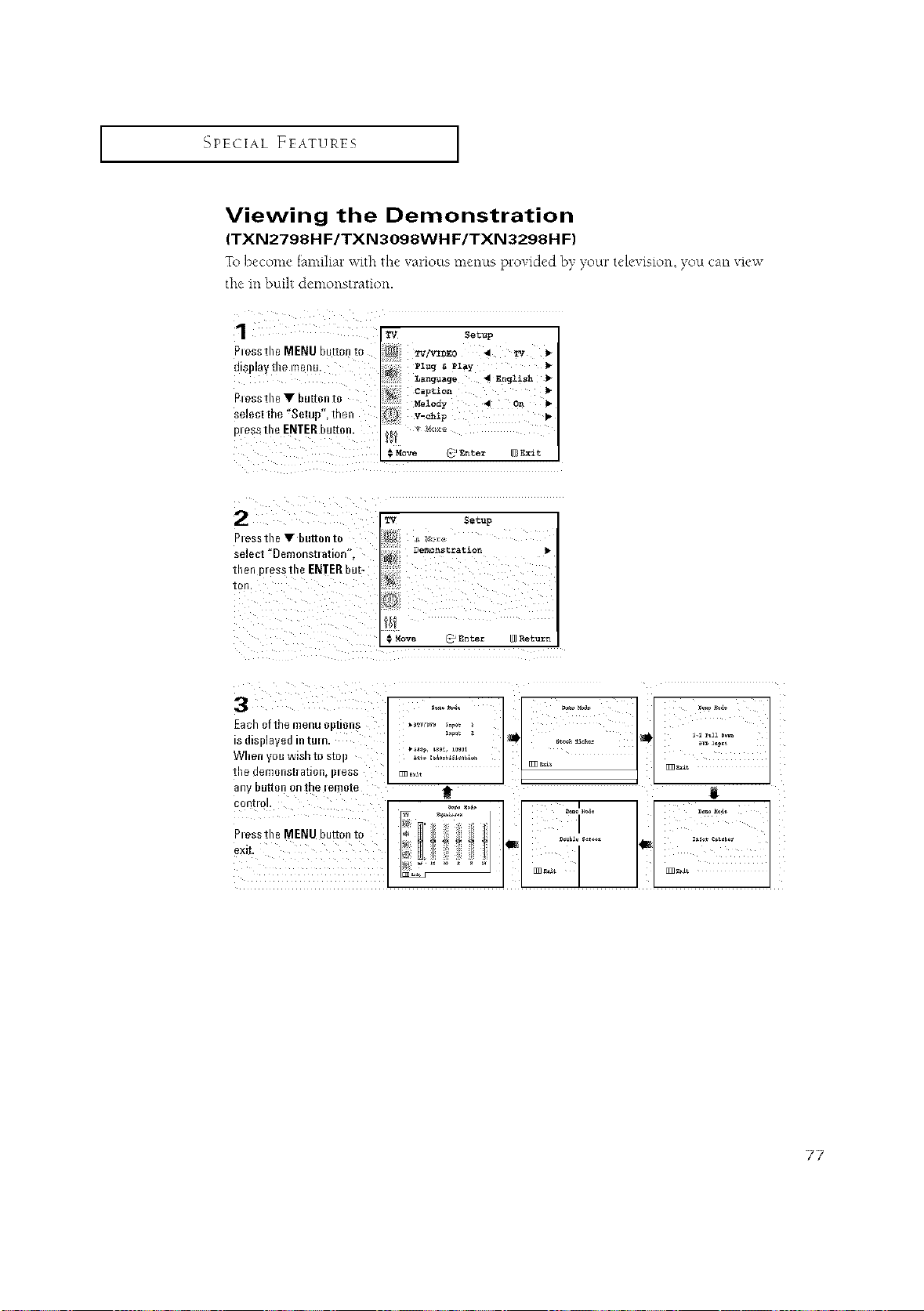
_PECIAL FEATURE5 ]
Viewing the Demonstration
(TXN2798H F/TXN3098WH F/TXN3298H F)
To )tCOYl( _ anl al_V 1 I('Val'O[S]211¢II[SDIOVC¢C BvvoL[ _'(_\ SOll VO_ canv(%v
the in buih demonstraUon.
1 w s_t:p
Ptessthe MENU buffol] to
dis}lay the menu.
Ptessthe Y huron to
select the 'Setup", then
pt essth_ ENTER huron.
#_4ove _' _ter [_i_xit
Ptessthe • buttonto
select "Demonsttation
men o/essthe ENTER but-
TV Setup
CEnter Return
3
Each ofthe menu _nons
8 alsDlaveu In IIJI n
fh_l ou WISR IO SIO
]£11e Uel_l o nStlaZio [ i)leS_
iBM EIU[TOn oRine lel_lOie
2ORUO
Ptessthe MENU _u[zontc
exff
l .......
°
F
77
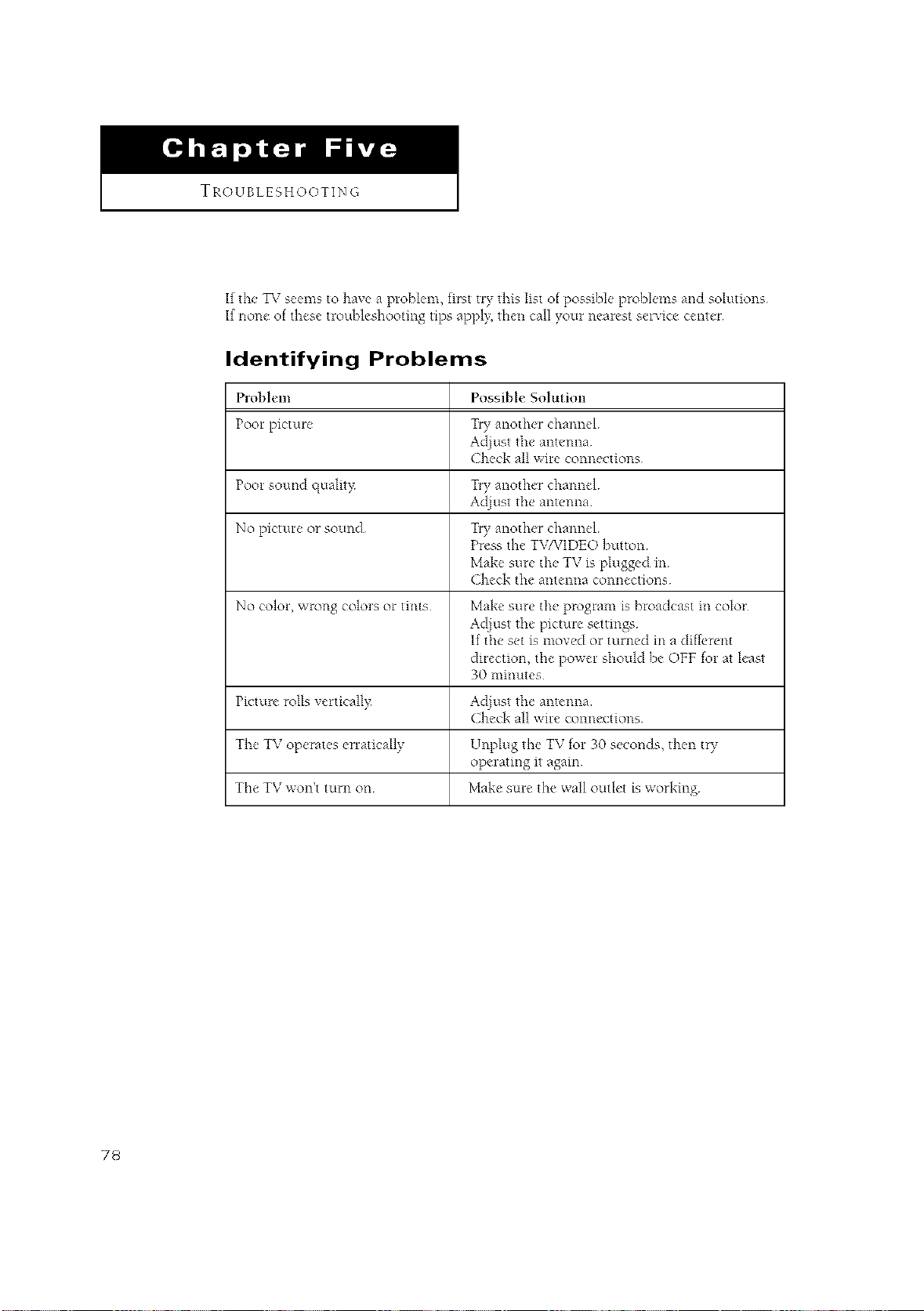
TROUBLESHOOTING
If the qS; seems to have a problem, first try this list of possihle problems arid solutions
If none of these troubleshooting tips apply, then call your nearest service center
Identifying Problems
Prohh'n_ Possihh" Solution
Poor picture Try another channel
Adiust the antenna
Check all wire connections
Poor sound c[ualitp Try another channel
Adjust the antenna
No picture or sound Try another channel
Press the TVAZIDEO button
Make sure the TV is plugged in
Check the antenna connections
No color, wrong colors or tints Make sure the program is broadcast in color
Adjust the picture settings
If the set is moved or turned in a different
direction, the power should he OFF for at least
30 nmmtes
Picture roils verticallp Adjust the antenna
Check all wire connections
The TV operates erratically Unplug the TV for 30 seconds, then try
operating it again
The TV won't turn on Make sure the ,,,,'all outlet is working
78
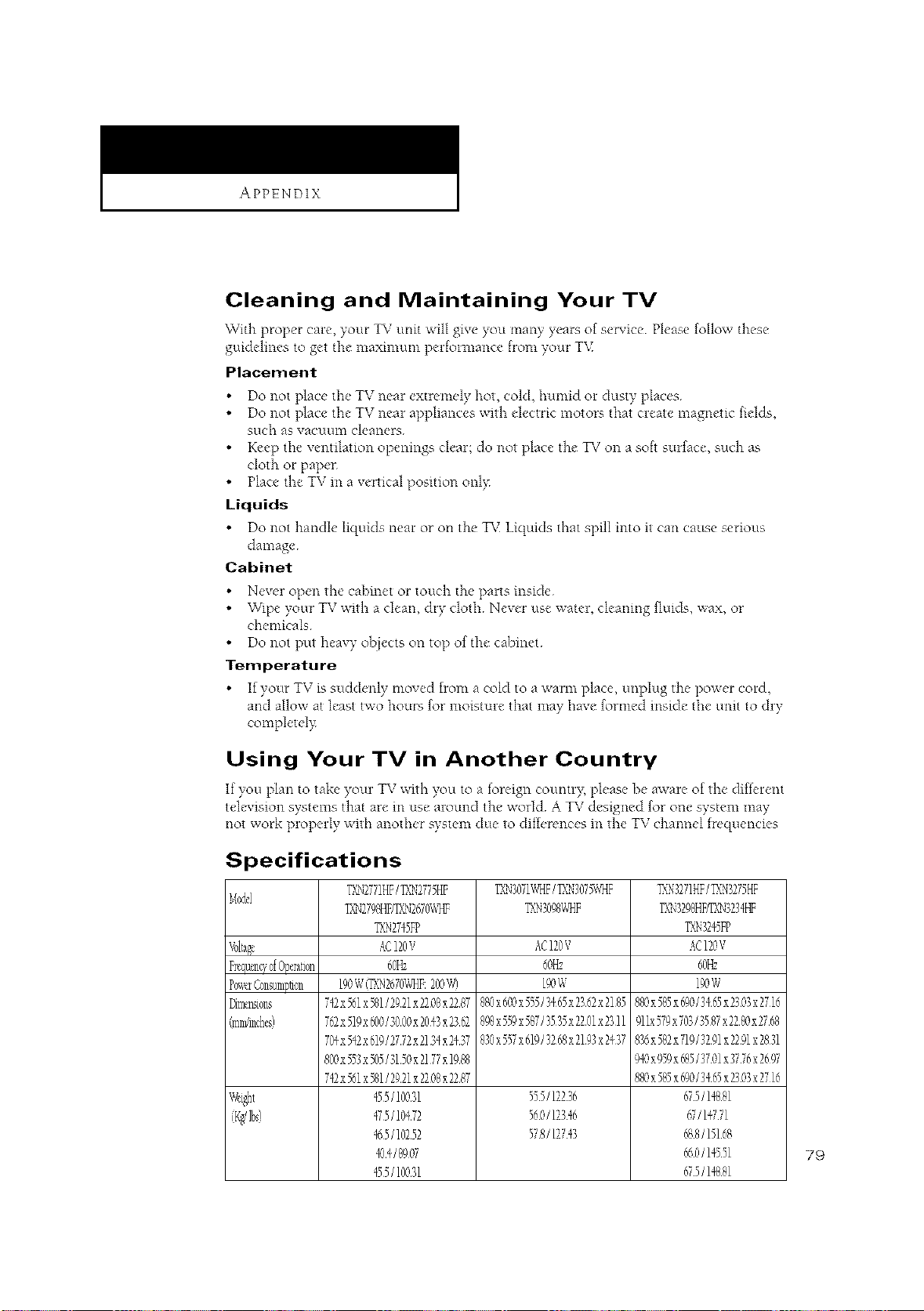
APPENDIX
Cleaning and Maintaining Your TV
_\qth proper care, your TV unit will give you many years of service Please follow these
guidelines to get tile maximum perlonnance horn your T_£
Placement
Do not place tile TV near extremely hot, cold, humid or dusty places
Do not place tile TV near appliances with electric motora that create magnetic fields,
Sllch as vacll/ll21 cleaners
Keep tile ventilation openinga clear; do clot place the 12,_on a sob surface, such as
cloth or paper
Place the TV m a vertical position onl?:
Liquids
Do not handle" liquids near ot on the 12< Liquids that spill into it can cause secious
damage
Cabinet
Never open the cabinet or touch the parts inside
W1pe your TV with a clean, dry cloth Never use water, cleaning fluids, wax, or
chemicals
Do not put heavy olJ[ects on top of tile cahinet
Temperature
If yore TV is suddenly moved front a cold to a waml place, unplug the powc'r cord,
and allow at least two hours for moisture that may have formed reside tile unit to dry
completelp
Using Your TV in Another Country
If you plan to take your TV with you to a foreign country, please be aware of the different
television systems that are m use around the world A TV designed for one system may
clot work properly with another system due to difDrences m the TV chamlel hequencies
Specifications
TL_2771HF/IIN2775HF IX_3071_F/EN307)_VHF lIN3271HF/lIN3275HF
M_dd
Ik'q279BHFfIX_2670_ IX_3098_F TX_3298HFaT{_323_It_
TX32_5FP TX_3245FP
120V AC120V kC1NV
60_ 60Hz 60H:
190W 190W
DlnleDsl0ns 7+2x56h581/2921x2208x22878B0x60_x555/3565x2362x2185880x585x690/3465x2303x2716
762x519x600/3iI00x2043x2362898x559x5B7/3535x2201x2311911x579x703/3587x2280x2768
704x5+2x619/2772x21>ix>37830x557x619/3268x2193x2437836x582x719/3291x2291x2831
800x553x50573150x2177x1988 9_x959x68513701x3776x2697
7+2x561x501/ 2921x2200x2287 880x585x690/3465x2303x2716
+55/10031 555/12236 675/1+081
_75/104/2 560/12346 67/14771
_65/10252 578/12743 688/15168
_]I/8907 660/i_551
_55/i0031 675/i_881
79

M EM0 ]
8O

SEP_V ICE DIVISION
400 _€_11¢yR.:_acl. Suile 20t
Mop,it AlIfl_g_a, NJ 0785_
AA68_02983A=00(ENG|