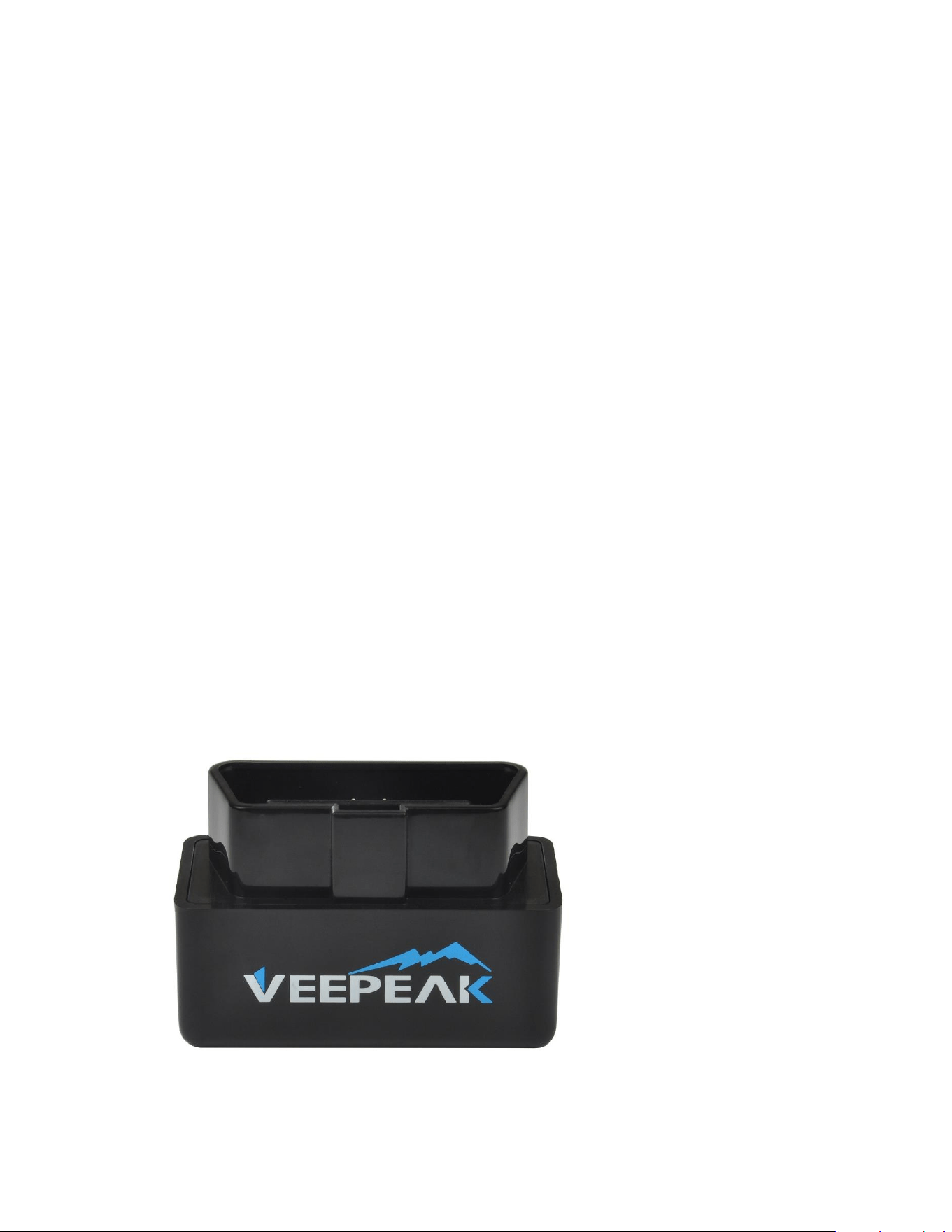
User Instructions for OBDCheck VP01
V1.2312
Content
I. Vehicle Compatibility
II. Apps Recommendations & Connection Tips
III. Quick Setup Guide
IV. FAQs
V. Common Issues & Troubleshooting
VI. Warranty & Support
VII. Disclaimer

I. Vehicle Compatibility
Compatible with cars and light trucks made since the following year (OBD II /
EOBD Compliant):
USA – 1996, Canada – 1998
European Union – 2001 (gas), 2004 (diesel)
Australia – 2006 (gas), 2007 (diesel)
Mexico – 2006, etc.
Note:
1. Above compatibility only applies to generic OBD II features (emission-related check engine diagnostics &
sensor data), and does not include any advanced features like enhanced diagnostics (transmission, ABS, airbag,
body control, TPMS, etc.). Please check the App recommendations for detailed features.
2. For hybrid plug-in or all-electric vehicles, special OBD2 Apps are required (see FAQ 5).
3. OBD I vehicles or commercial vehicles (HD-OBD or J1939) are not compatible.
4. Enhanced diagnostics availability & App recommendations:
(Not for all model years; please check with us or the app support if you are not sure)
Toyota & Lexus: OBD Fusion, Carista OBD
FCA: OBD Fusion, OBD JScan, AlfaOBD
Ford, Lincoln & Mazda: OBD Fusion, FORScan Lite
Nissan & Infiniti: OBD Fusion, Carista OBD
Volkswagen/Audi/Seat/Skoda: Carista OBD
II. Apps Recommendations & Connection Tips
Car Scanner ELM OBD2 (iOS & Android; mostly free)
A vehicle performance / trip computer / diagnostics tool that uses an OBD II adapter to connect to your OBD2
engine management / ECU. It includes a lot of connection profiles that gives you some extra features for many
vehicles.
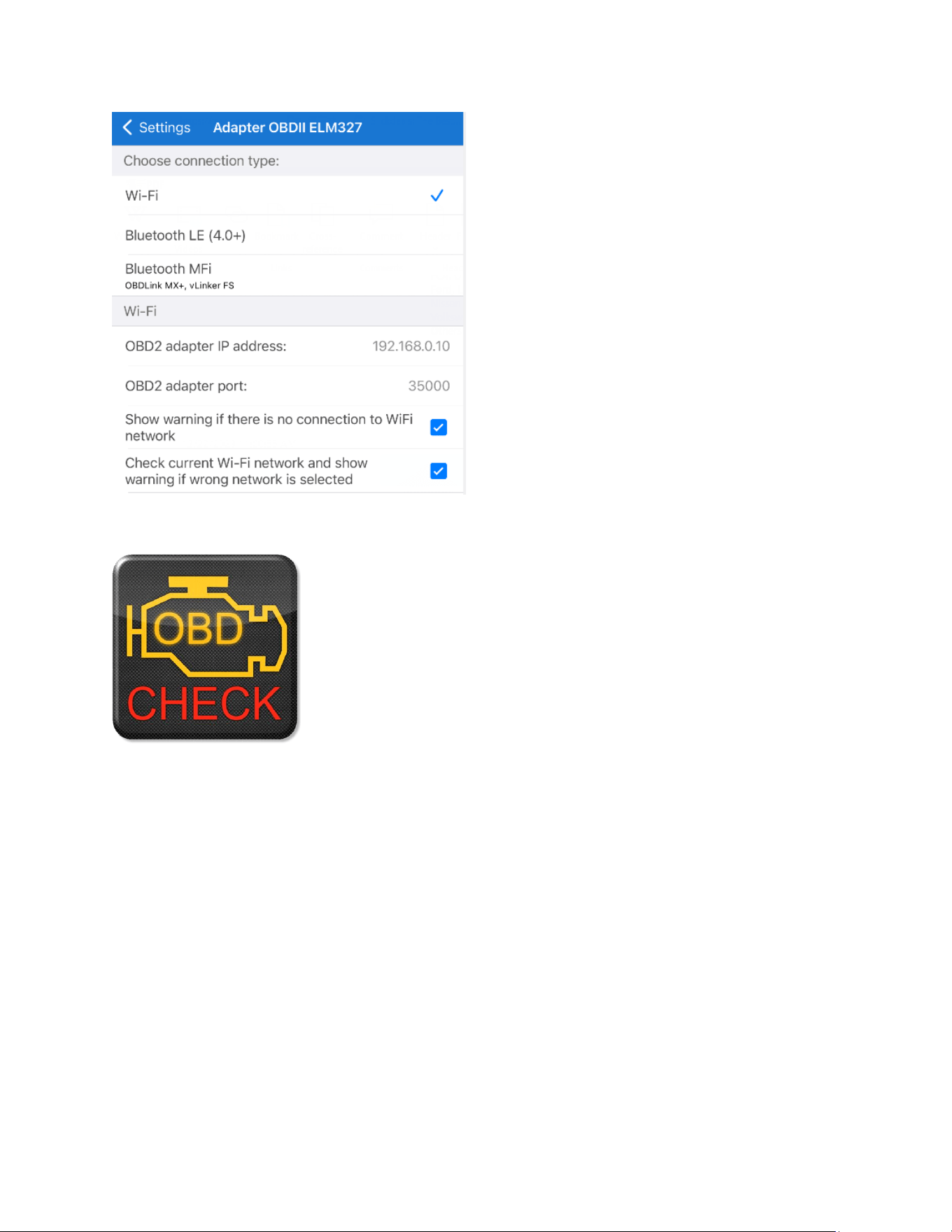
Please go to Settings – Adapter OBDII ELM327, select Wi-Fi as connection type, and do not change the default
IP & port (192.168.0.10, 35000).
Torque Lite/ Pro (Android only, pro version is paid)
Popular vehicle performance, sensors and diagnostics tool.
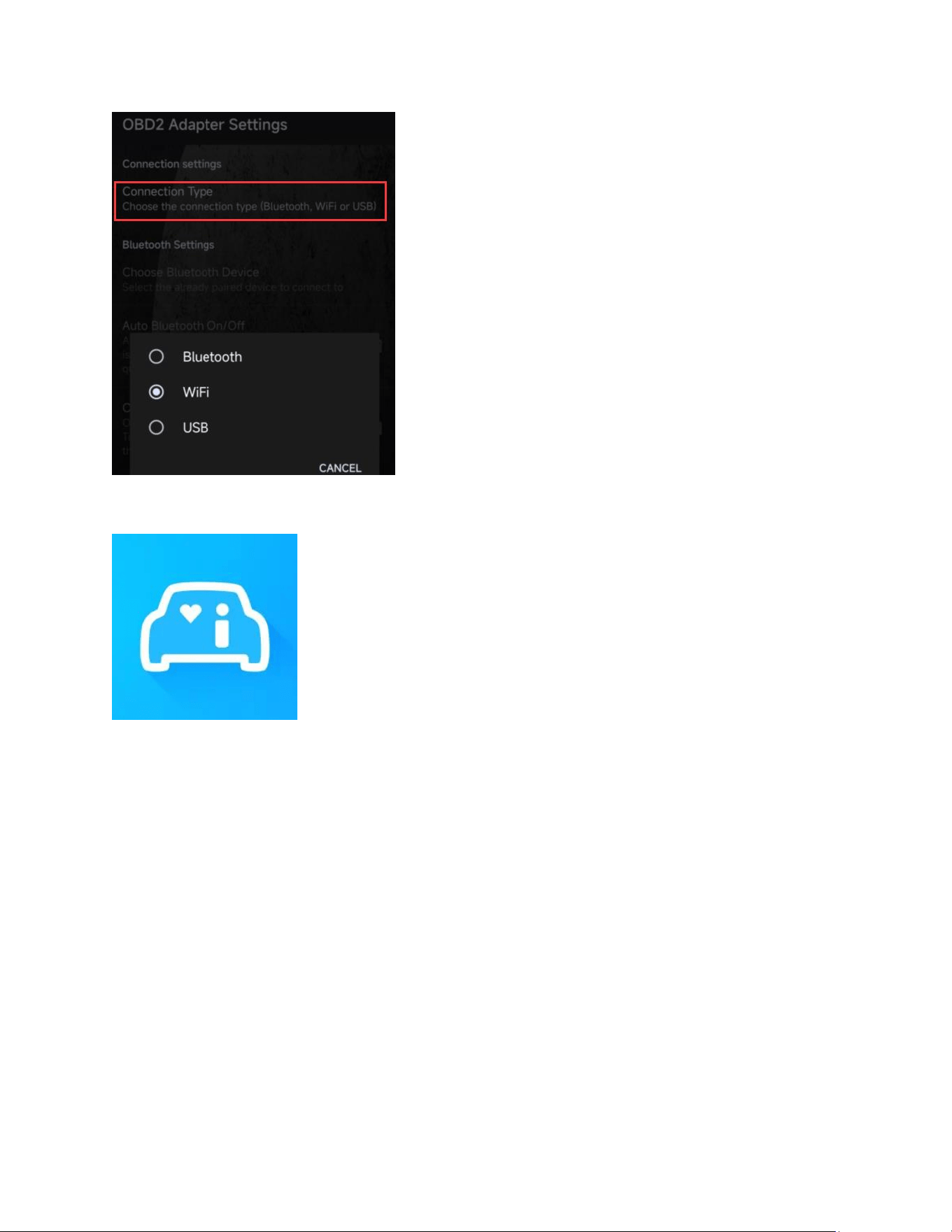
Please go to Settings – OBD2 Adapter Settings, select WiFi as Connection type, and do not change the default
IP & port (192.168.0.10, 35000). Then close the App and re-start it.
Infocar (iOS & Android)
A smart vehicle management app that provides vehicle diagnosis and information on driving style.
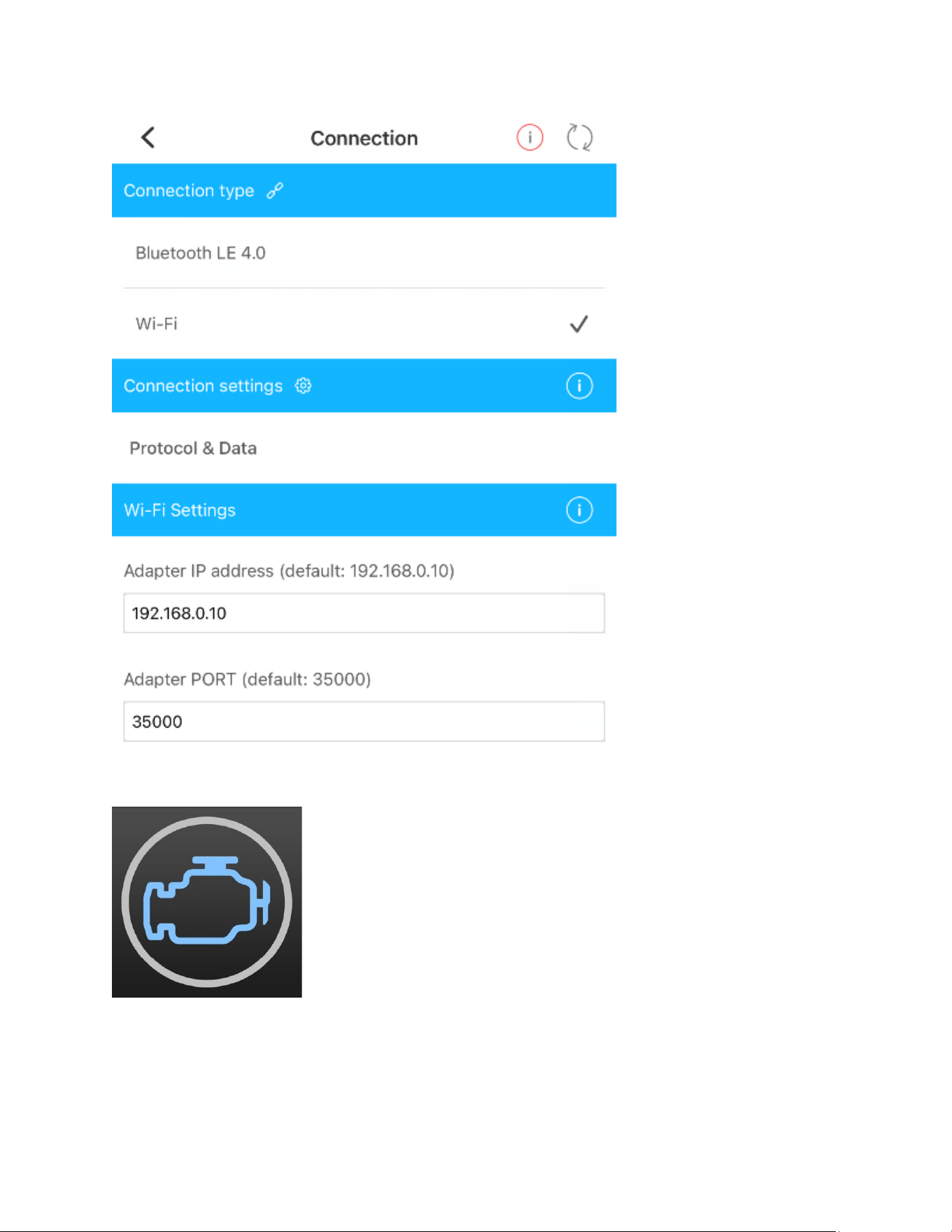
Tap on “Connection” or go to Settings, select Wi-Fi as Connection type, and use the default IP & port:
192.168.0.10, 35000.
OBD Fusion (for iOS version only, paid plus in-app purchase for enhanced
diagnostics)
Read DTCs & clear check engine light, create customized dashboards, estimate fuel economy, and much more,
plus enhanced diagnostics for Ford, Lincoln, Mercury, Mazda, Toyota, Lexus, Scion, Nissan, Infiniti, Dodge, RAM,
Chrysler, Jeep, and some FIAT and Alfa Romeo vehicles.
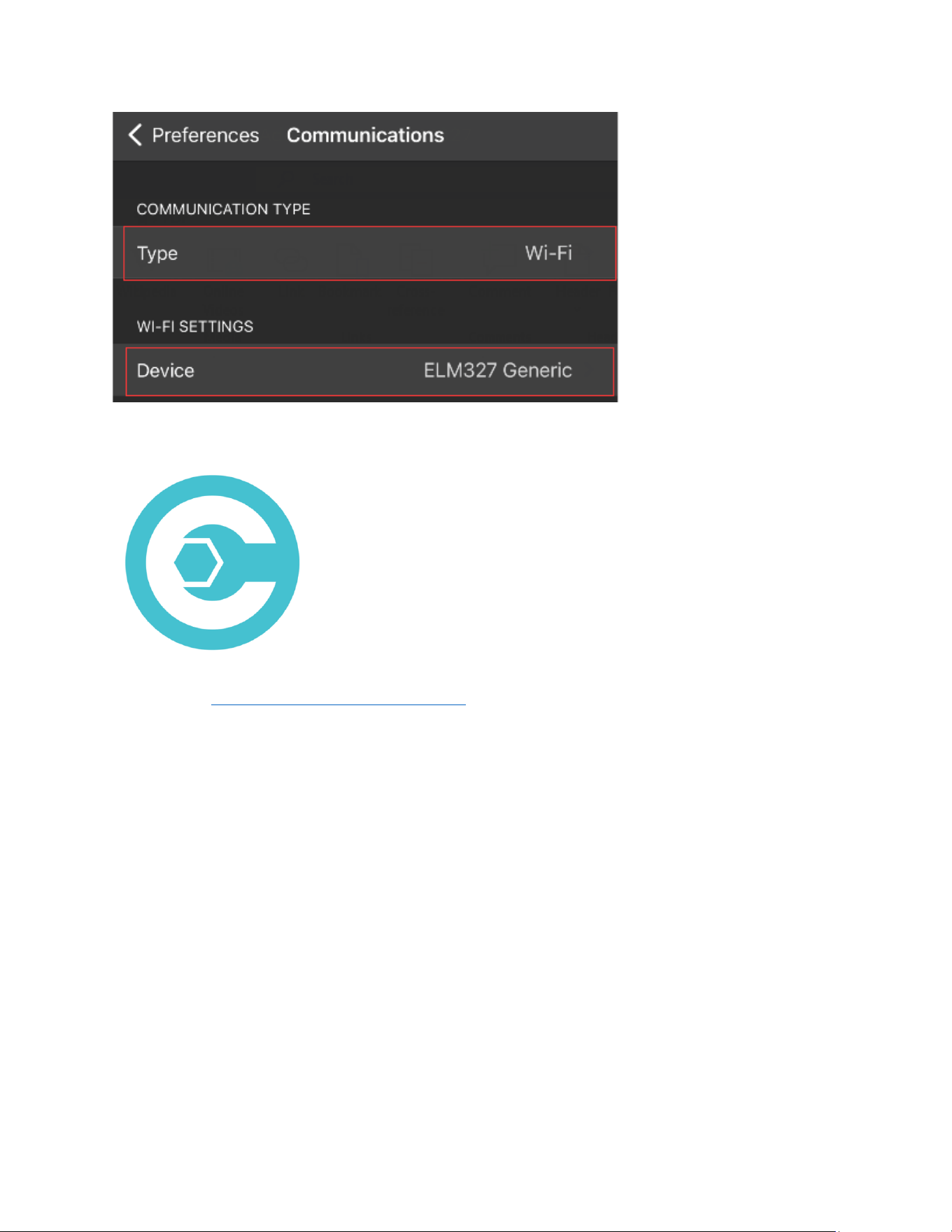
iOS: please go to Settings – Preferences - Communications, select Wi-Fi as the communication type, ELM327
Generic as the device.
Carista OBD (iOS & Android, advanced features require subscription)
Diagnose, customize, and service your car with dealer-level technology for select Audi, VW, Toyota, Lexus, BMW
vehicles (go to https://carista.com/en/supported-cars to check vehicle compatibility).
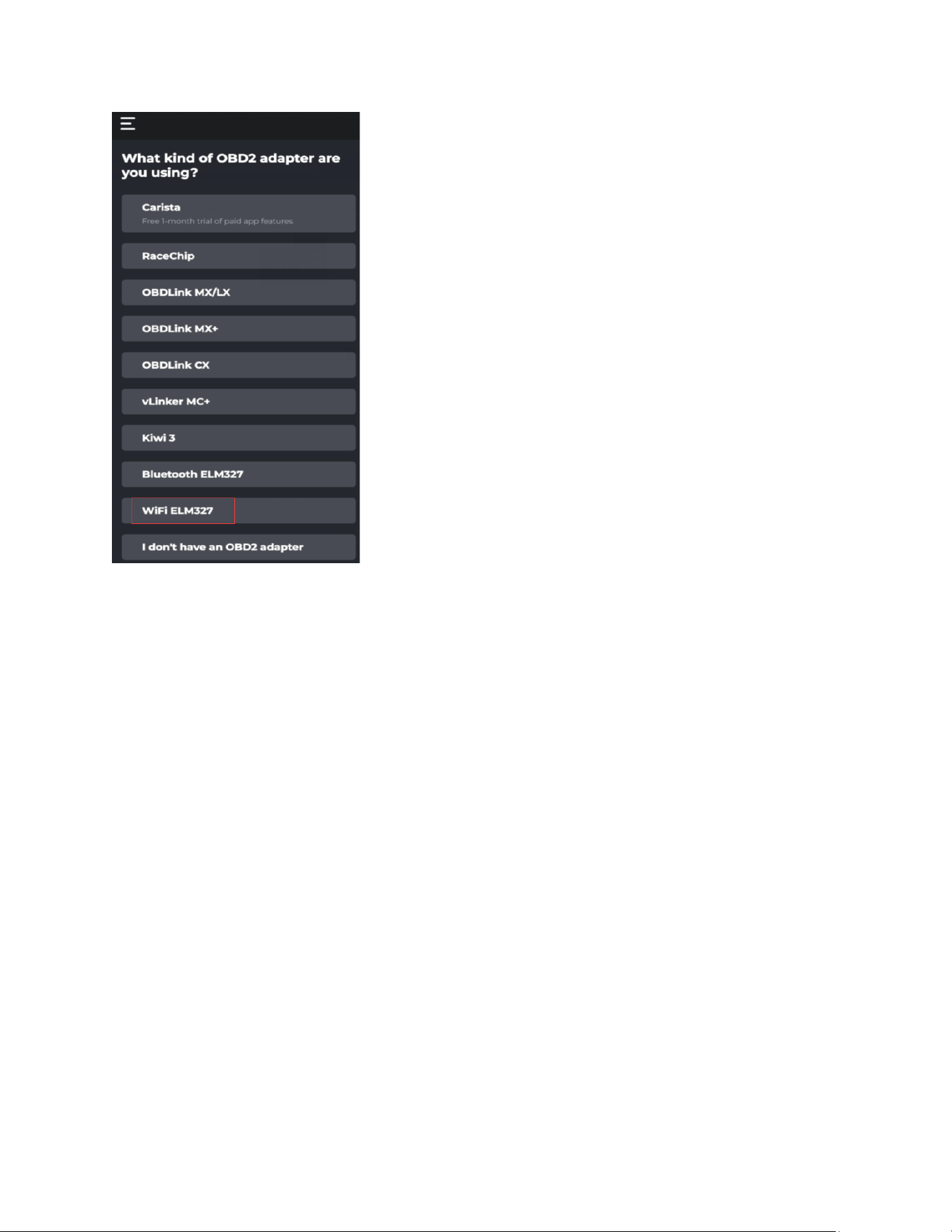
Please select WiFi ELM327 as the adapter.
III. Quick Setup Guide
1: Download and install the APP at your choice according to phone OS (see recommended apps in Part II).
2: Plug the device into the OBD II port on your vehicle. Make sure it fits well.
3: Turn ignition key to the ON position. For Push Button Start vehicles, press the button once to twice without
putting your foot on the brake pedal (check your car manual).
4: Enable WiFi on your phone or tablet, find WiFi named “WiFi_OBDII” and connect with it.
5: Run the APP, make any necessary app settings (see detailed settings in Part II) and connect.
Note:
*Apps can be downloaded from Google Play Store, or Apple App Store. App price is decided by
the developer.
* There is no visible power LED indicator which does not mean the product is not working.
Please check if “WiFi_OBDII” shows up on your phone’s WiFi list.
*It does not have Bluetooth connectivity.
*Some phones may warn you that your phone does not connect to internet. You can ignore it
because the device’s WiFi does not provide internet access.
* Please grant the App “local network” permission.

IV. FAQs
1. Is there an App included with the device? How to choose the app for my vehicle?
No, an OBD2 app is required but not included. There are many great third-party OBD2 apps available to
download (some may require purchase) from Google Play Store and Apple App Store. What features you can
get mainly depends on the chosen App.
For generic OBD2 functions, we recommend Car Scanner ELM OBD2, Inforcar, or OBD Fusion (paid). They cost
from free to about $10.
Some advanced Apps require subscription or are more expensive like Carista or OBD JScan.
For advanced vehicle-specific features, please see App recommendations listed below:
Toyota & Lexus: OBD Fusion, Carista OBD
FCA: OBD Fusion, OBD JScan, AlfaOBD
Ford, Lincoln & Mazda: OBD Fusion, FORScan Lite
Nissan & Infiniti: OBD Fusion, Carista OBD
Volkswagen/Audi/Seat/Skoda: Carista OBD
2. Which devices does it support?
The OBDCheck VP01 is compatible with Apple iOS and Android devices via Wi-Fi. You need to join the WiFi
network created by this device. Note: it does not use Bluetooth; the device’s WiFi does not provide internet
access.
3. What’s the IP address and port number for this device?
192.168.0.10 & 35000. Most OBD2 Apps have these default values so usually you do not need to change them.
4. Is there any led indicator on when it’s plugged in?
The LEDs are blocked by the black enclosure so they are invisible. As long as you see WiFi network “WiFi_OBDII”
on your phone or tablet, it means the device is powered on.
5. Can I leave the device plugged in all the time?
No, Wi-Fi version consumes more power than Bluetooth, and it may drain your car battery if left plugged in all
the time (OBD port is always powered).
6. Does it work with hybrid plug-in (PHEV) or all-electric vehicles (BEV)?
Most EVs (including PHEVs) do not follow standard OBD II specs, so you may need a capable App to connect,
for example Car Scanner ELM OBD2 (select the corresponding connection profile), ABRP, LeafSpy, EVNotify,
EV Watchdog, MyGreenVolt, CanZE, etc.
7. Can it reset my ABS, airbag, and other non-Check Engine lights?
Most OBD2 Apps only provide basic emission-related check engine light diagnostics. You will need a capable
App that can do enhanced diagnostic on your specific vehicle, for example OBD Fusion, OBD JScan, AlfaOBD,
Carista OBD, etc. Contact Veepeak or the app developer to check if it’s available on your vehicle. Oil change or
maintenance required lights cannot be read or reset since there is no error code for them.
8. Which sensor data can I get?
Readable parameters depend on what's installed on the OBDII system by the manufacturer. Generally, newer
vehicles will give more readings and faster refresh speed.
9. Does it read transmission temperature?
The transmission (fluid) temperature is a manufacturer specific PID so it’s not read by most generic OBD2 Apps.
Please contact Veepeak customer support for App recommendation (similar to FAQ 6) or search for the custom
PID information on the web & add it in the App. This applies to other manufacturer specific PIDs.

10. Which apps is the device incompatible?
The OBDCheck VP01 is incompatible with BimmerCode, BimmerLink, OBDeleven, Carly, etc.
11. Where can I find how to connect & use videos?
Please visit the Amazon product page and click “videos” below the product images.
V. Common Issues & Troubleshooting
1. Device does not power up (no power light).
There is no visible power led light when it's plugged in. Please first check if you can find WiFi name "WiFi_OBDII"
on your phone or tablet. It will NOT send out a Bluetooth signal. If no WiFi signal shows up, check the cigar fuse
of your vehicle. You can also try with another vehicle to verify.
2. After connecting with the device’s WiFi, the phone does not have internet access.
For iOS devices, you can tap on the “i” icon next to “WiFi_OBDII” and go to the WiFi configuration page, then
select Manual for IPV4 and enter information below:
IP 192.168.0.11, Subnet Mask 255.255.255.0 and Router 192.168.0.10. Your cellular data will be available for
internet access.
Unfortunately, we do not have a solution for Android. Please download the App before connecting to the device.
3. App not connecting to OBD II Device (ELM connection fails).
Make sure the App is compatible, and you have made the correct App connection settings (set to WiFi, see Part
II) and granted the App permissions (local network);
Remove and re-install the app (especially when you have an OS update);
Try with a different App such as Car Scanner ELM OBD2, Infocar, which are free to test.
4. Cannot connect to vehicle (ECU connection fails).
Make sure your vehicle is OBD2 compliant and the OBD2 connector is in good condition;
Check if your vehicle is supported by the App;
Make sure ignition is turned ON or start the vehicle to try;
Make sure it fits well in the OBD2 port. Try to push it a little harder into the OBD2 port if the contact is loose;
Try it on another vehicle to check if it’s the problem with the device.
5. Connection is not stable and gets disrupted during use.
Keep the device as close as possible to your phone, and close other Apps; do not switch to other WiFi networks
during use (even though it says there is no internet connection); update the app to the most up-to-date version;
try with a different app (Car Scanner ELM OBD2 or Infocar) to see if it happens again.
6. No data is read after it connects to the vehicle.
Try with a different app and see if it makes any difference.
7. Could not read the trouble codes.
Try with a different App. If there are non-check engine lights on the dashboard, you may need a capable App
to read these codes. Contact us with your vehicle make/model/year for App recommendation.
If you could not find the answer or still have troubles getting it to work properly after
troubleshooting, please reach out to Veepeak customer support at supp[email protected] for
assistance or replacement. Please include a screenshot of the error message so we can better
look into the issue. Our customer service is friendly and the replacement process is hassle-

free.
VI. Warranty & Support
We will gladly accept defective products within one year of the original invoice date and get them replaced, as
long as they are purchased from our Amazon stores or authorized distributors. You can contact us through one
of the following ways:
Our website: https://www.veepeak.com/support,
Amazon message (contact seller in order details),
Phone: +1 8333031434 (9:00AM - 5:00PM CST Monday – Friday),
Email: [email protected].
VII. Disclaimer
Currently all features and functions are offered and achieved through third-party Apps.
Product names, logos, brands, vehicle makes/models and other trademarks featured or referred to within this
user instructions are the property of their respective trademark holders. Use of them does not imply any
affiliation with or endorsement by them.
