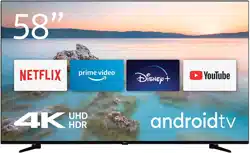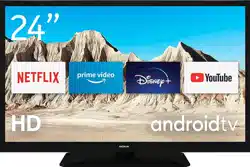

Nokia Smart TV 24”, 32”, 39”, 43”, 50”, 55”, 58”, 65”, 75”
Nokia QLED Smart TV 43”, 50”, 55”, 58”, 65”, 70”
User Manual
Table of contents
1. Safety information 4
1.1. Markings on the product 4
1.2. Warning 5
1.3. Wall mounting warnings 5
1.4. Simplied EU declaration of conformity 5
1.5. Apps and performance 5
1.6. Data protection 6
2. Introduction and stand installation 6
2.1. Unpacking and installation 6
2.2. Antenna connection 10
3. Connections 11
4. Remote control 12
4.1. Inserting the batteries into the remote 13
4.2. To pair remote with the TV 13
4.3. Standby button 13
5. Turning on/o the TV 13
5.1. Magic button (Nokia Smart TV 75”) 14
5.2. On-O button 14
5.3. Turning on/o the Nokia Smart TV 24” 14
6. Initial setup wizard 16
6.1. Welcome message and language selection 16
6.2. Initial setup 16
6.3. Search for accessories 16
6.4. Quick setup 16
6.5. Network connection 16
6.6. Sign in to your Google account 16
6.7. Terms of service 17
6.8. Location 17
6.9. Help improve Android 17
6.10. Country 17
6.11. Password 17
6.12. Select TV mode 17
6.13. Chromecast built-in 17
7. Tuner mode 18
7.1. Antenna 18
7.2. Cable 18
7.3. Satellite 18
7.4. DVBS conguration 18
8. Home Screen 19
9. Live TV mode menu content 20
9.1. Channels 20
9.2. TV options 20

9.3. Record 21
9.4. Device info 21
10. Settings 22
10.1. Network & internet 22
10.2. Channels 22
10.3. Accounts & sign in 26
10.4. Apps 26
10.5. Device preferences 26
10.6. Remote & accessories 29
11. Channel list 30
11.1. Editing the channels and the channel list 30
11.2. Creation of the favourites lists 30
11.3. Managing the favourite channel lists 30
11.4. Channel list selection 31
12. Programme guide 31
13. Connecting to the internet 31
13.1. Wired connection (optional) 32
13.2. Wireless connection 32
14. Multimedia Player 33
14.1. Playback of multimedia from USB storage devices 33
14.2. Playback of multimedia from a mobile device via DMR 34
15. USB recording 34
15.1. Instant recording 35
15.2. Watching recorded programmes 35
15.3. Time Shift recording 35
15.4. Disk format 35
15.5. Schedule list 35
16. HDMI-CEC function 36
17. Chromecast 37
18. HBBTV system 38
18.1. Quick standby search 38
19. Software update 38
19.1. Software update via internet 38
19.2. Software update via the broadcast signal 38
20. Troubleshooting & tips 39
21. Technical specications 40
21.1. VGA input typical display modes 40
21.2. AV and HDMI signal compatibility 41
21.3. Supported le formats for USB mode 42
21.4. Supported DVI resolutions 45
21.5. Specication 45
21.6. Wireless LAN transmitter specications 47
21.7. Country restrictions 47
21.8. Licences 47
FAQs, manuals, help and support:
nokia.com/shop/support
Register your product:
nokia.streamview.com/care

4
1. Safety information
In extreme weather (storms, lightning) and long inactivity periods (going on holiday) disconnect the
TV set from the mains.
The mains plug is used to disconnect TV set from the mains and therefore it must remain readily
operable. If the TV set is not disconnected electrically from the mains, the device will still draw power for all
situations even if the TV is in standby mode or switched o.
Note: Follow the on screen instructions for operating the related features.
Important: Please read these instructions fully before installing or operating
Warning
This device is intended to be used by persons (including children) who are capable / experienced of operating
such a device unsupervised, unless they have been given supervision or instruction concerning the use of
the device by a person responsible for their safety.
• Use this TV set at an altitude of less than 2000 meters above the sea level, in dry locations and in regions
with moderate or tropical climates.
• The TV set is intended for household and similar general use but may also be used in public places.
• For ventilation purposes, leave at least 5cm of free space around the TV.
• The ventilation should not be impeded by covering or blocking the ventilation openings with items, such as
newspapers, tablecloths, curtains, etc.
• The power cord plug should be easily accessible. Do not place the TV, furniture, etc. on the power cord. A
damaged power cord/plug can cause re or give you an electric shock. Handle the power cord by the plug,
do not unplug the TV by pulling the power cord. Never touch the power cord/plug with wet hands as this
could cause a short circuit or electric shock. Never make a knot in the power cord or tie it with other cords.
When damaged it must be replaced, this should only be done by qualied personnel.
• Do not expose the TV to dripping or splashing of liquids and do not place objects lled with liquids, such as
vases, cups, etc. on or over the TV (e.g., on shelves above the unit).
• Do not expose the TV to direct sunlight or do not place open ames such as lit candles on the top of or
near the TV.
• Do not place any heat sources such as electric heaters, radiators, etc. near the TV set.
• Do not place the TV on the oor and inclined surfaces.
• To avoid danger of suocation, keep plastic bags out of the reach of the babies, children and domestic
animals.
• Carefully attach the stand to the TV. If the stand is provided with screws, tighten the screws rmly to
prevent the TV from tilting. Do not over-tighten the screws and mount the stand rubbers properly.
• Do not dispose of the batteries in re or with hazardous or ammable materials.
Warning
• Batteries must not be exposed to excessive heat such as sunshine, re or the like.
• Excessive sound pressure from earphones or headphones can cause hearing loss.
• Use only the following power supply for Nokia Smart TV 2400A: Nokia power adapter PA1240EU
ABOVE ALL - NEVER let anyone, especially children, push or hit the screen, push anything into holes, slots
or any other openings in the case.
1.1. Markings on the product
The following symbols are used on the product as a marker for restrictions and precautions and safety
instructions. Each explanation shall be considered where the product bears related marking only. Note such
information for security reasons.
Class II Equipment: This appliance is designed in such a way that it does not require a safety connection
to electrical earth.
This marking indicates that this product should not be disposed with other household wastes
throughout the EU. Please recycle it responsibly to promote the sustainable reuse of material resources.
To return your used device, please use the return and collection systems or contact the retailer where
the product was purchased.

5
1.2. Warning
Do not ingest the battery, Chemical Burn Hazard This product or the accessories supplied with the product
may contain a coin/button cell battery. If the coin/button cell battery is swallowed, it can cause severe internal
burns in just 2 hours and can lead to death.
Keep new and used batteries away from children. If the battery compartment does not close securely, stop
using the product and keep it away from children.
If you think batteries might have been swallowed or placed inside any part of the body, seek immediate medical
attention.
A television may fall, causing serious personal injury or death. Many injuries, particularly to children, can be
avoided by taking simple precautions such as:
• ALWAYS use cabinets or stands or mounting methods recommended by the manufacturer of the television
set.
• ALWAYS use furniture that can safely support the television set.
• ALWAYS ensure the television set is not overhanging the edge of the supporting furniture.
• ALWAYS educate children about the dangers of climbing on furniture to reach the television set or its controls.
• ALWAYS route cords and cables connected to your tele- vision so they cannot be tripped over, pulled or
grabbed.
• NEVER place a television set in an unstable location.
• NEVER place the television set on tall furniture (for ex- ample, cupboards or bookcases) without anchoring
both the furniture and the television set to a suitable support.
• NEVER place the television set on cloth or other ma- terials that may be located between the television set
and supporting furniture.
• NEVER place items that might tempt children to climb, such as toys and remote controls, on the top of the
television or furniture on which the television is placed.
• The equipment is only suitable for mounting at heights ≤2 m.
If the existing television set is going to be retained and relocated, the same considerations as above should
be applied.
Apparatus connected to the protective earthing of the building installation through the MAINS connection or
through other apparatus with a connection to protective earthing – and to a television distribution system
using coaxial cable, may in some circum- stances create a re hazard. Connection to a television distribution
system has therefore to be provided through a device providing electrical isolation below a certain frequency
range (galvanic isolator).
1.3. Wall mounting warnings
• Read the instructions before mounting your TV on the wall.
• The wall mount kit is optional. You can obtain from your local dealer, if not supplied with your TV.
• Do not install the TV on a ceiling or on an inclined wall.
• Use the specied wall mounting screws and other accessories.
Tighten the wall mounting screws rmly to prevent the TV from fall. Do not over-tighten the screws.
Figures and illustrations in this user manual are provided for reference only and may dier from the actual
product appearance. Product design and specications may be changed without notice.
1.4. Simplied EU declaration of conformity
Hereby, StreamView declares that the radio equipment type product device Smart TV is complying with
Directive 2014/53/EU. The full text of the EU declaration of conformity is available at the following internet
address: nokia.com/shop/support
1.5. Apps and performance
Download speed depends on your Internet connection. Some apps might not be available in your country or
region. Netix is available in selected countries. Streaming membership is required. More information at www.
netix.com. The availability of the language for Google Assistant depends on Google Voice Search support.
6
1.6. Data protection
The application providers and the providers of the services may collect and use technical data and related
information, including but not limited to technical information about this device, system and application
software and peripherals. They may use such information to improve products or to provide services or
technologies, which do not personally identify you. Additionally, some third-party services, already provided
in the device or installed by you after purchasing the product, may request a registration with your personal
data. Some services may collect personal data even without providing additional warnings. StreamView cannot
be held liable for a possible breach of data protection by third-party services.
2. Introduction and stand installation
Thank you for choosing our product. You’ll soon be enjoying your new TV. Please read these instructions
carefully. They contain important information which will help you get the best from your TV and ensure safe
and correct installation and operation.
2.1. Unpacking and installation
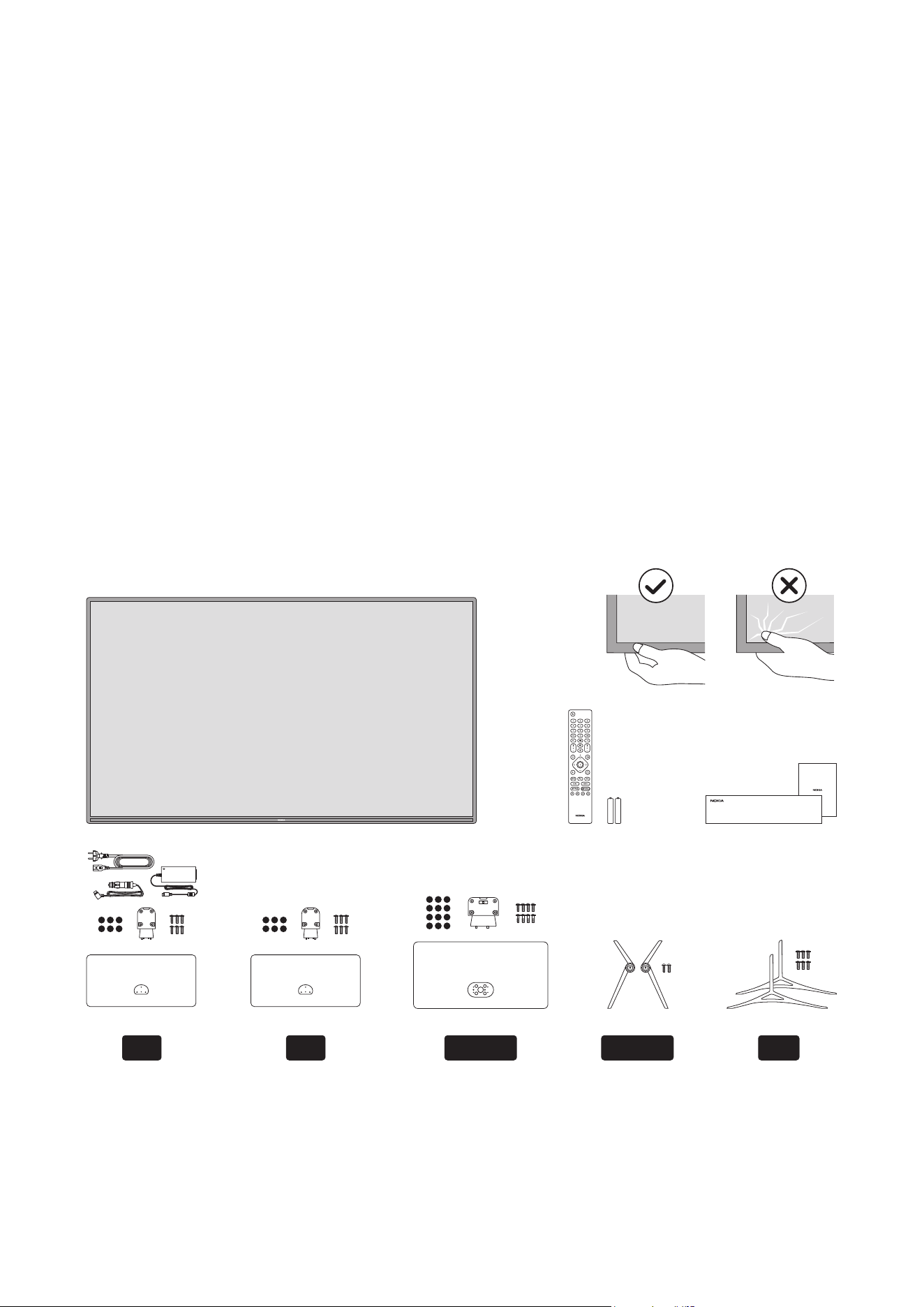
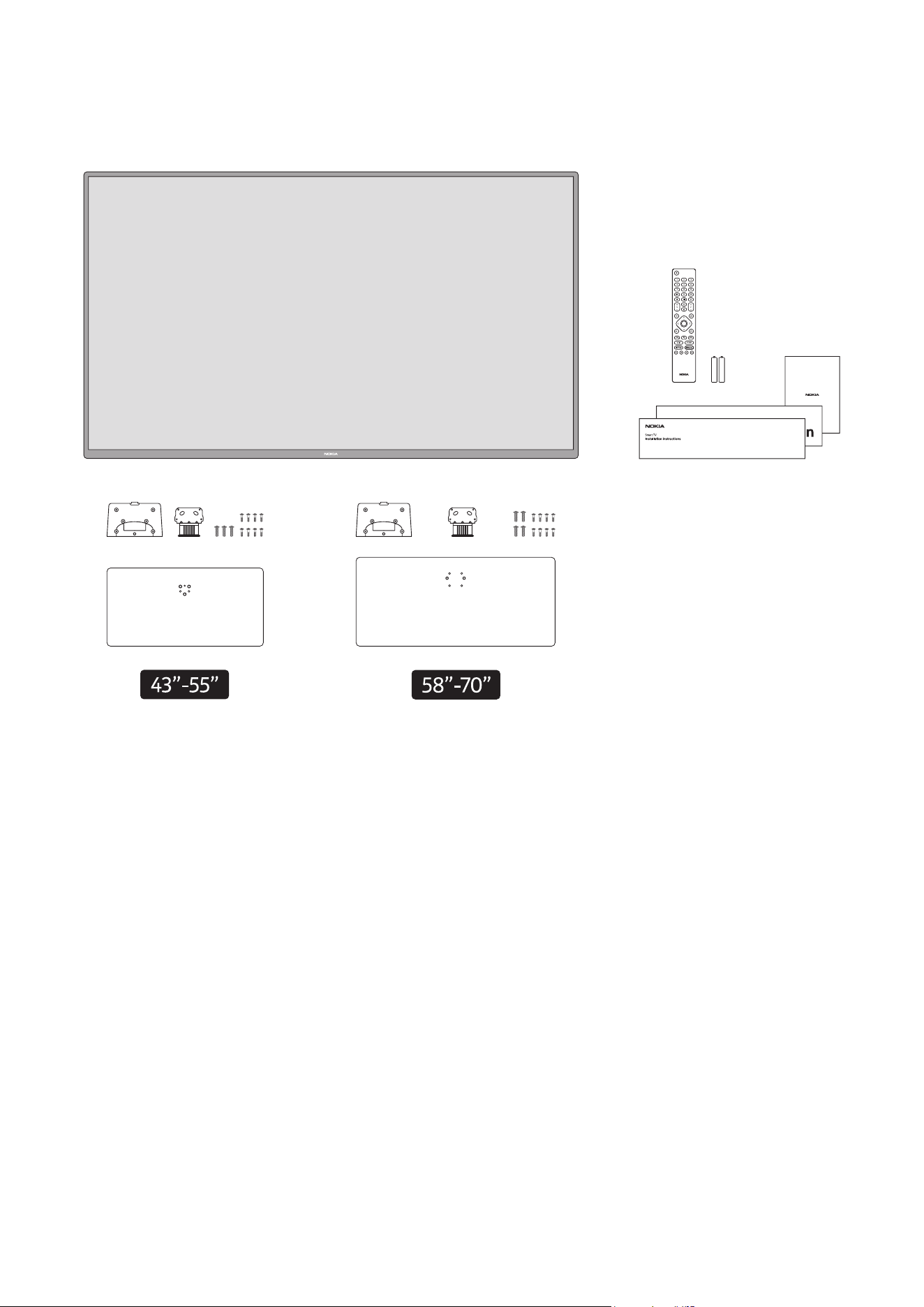
2.1.1. Assembling / removing the pedestal preparations
Take out the pedestal and the TV from the packing case and put the pedestal onto a work table or any other
even surface.
• Use a at and rm table or similar even surface that can support the weight of the TV.
• Do not hold the screen panel part.
• Make sure not to scratch or break the TV.
58”-65” 75”
Smart TV
Installation instructions
32” 39”-55” 24”
7
QLED Smart TV
8
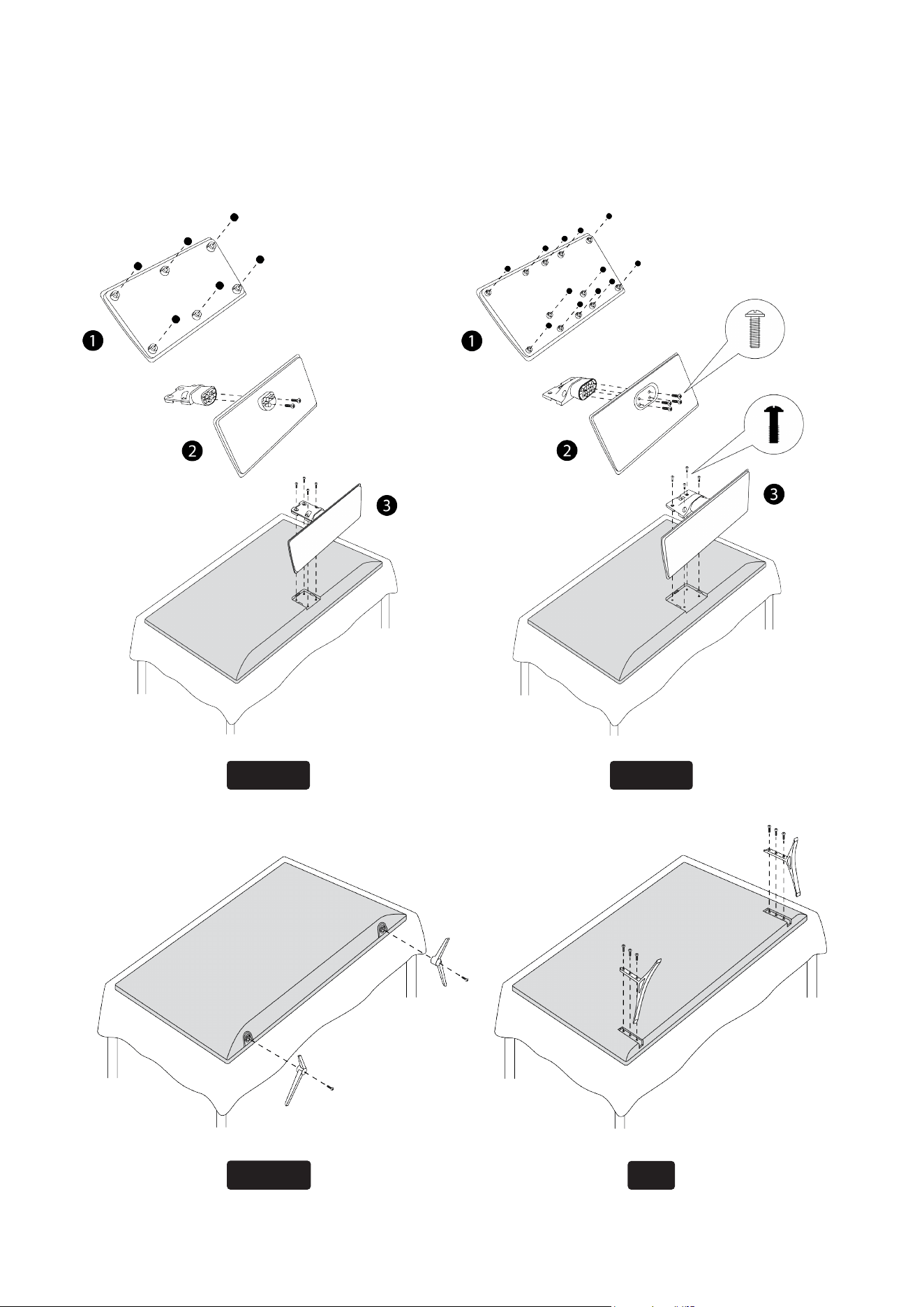
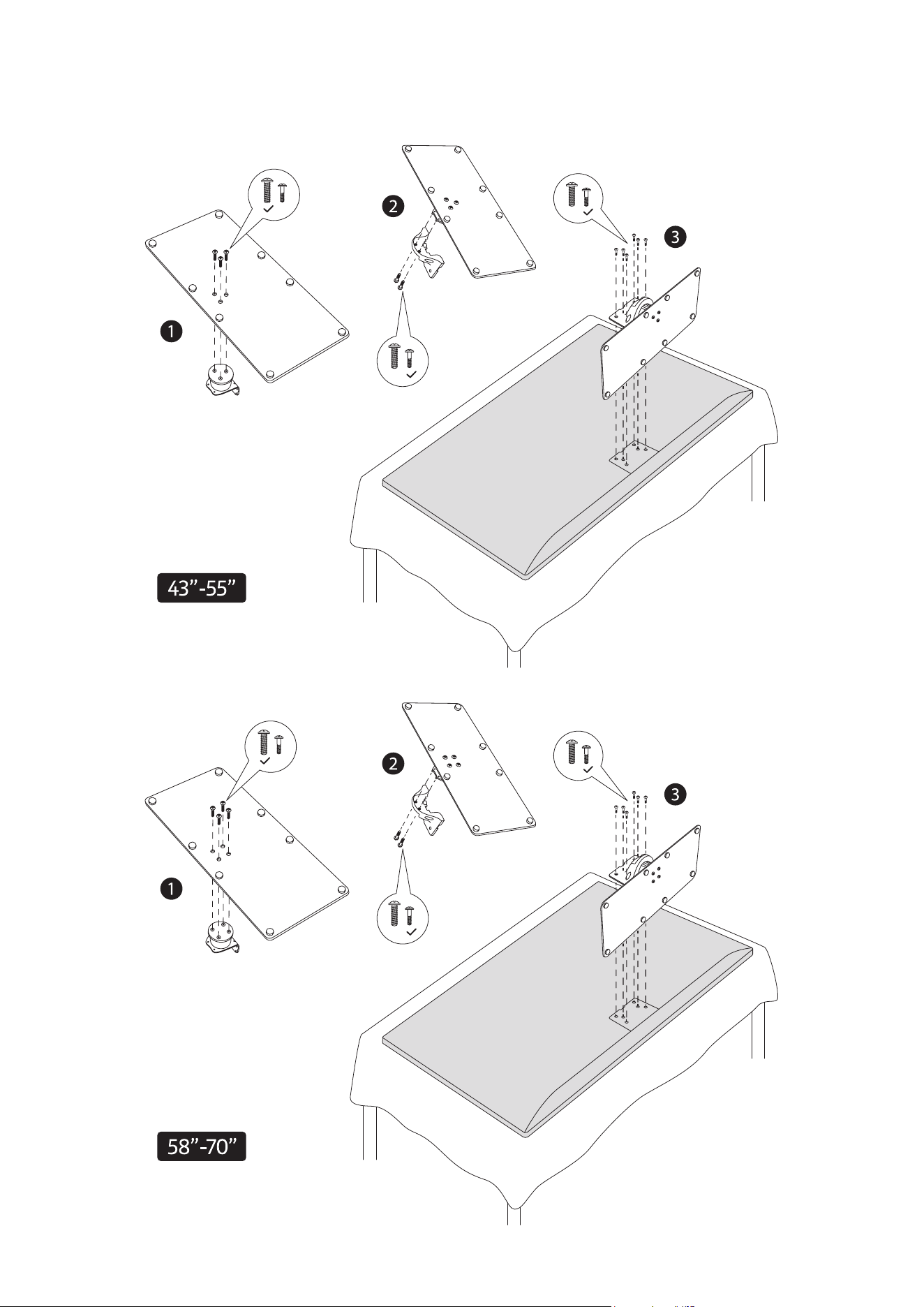
2.1.2. Assembling the pedestal
1. Place the pedestal on the table or similar even surface.
2. Hold the TV over the pedestal so that it coincides with the pedestal mounting point and then lower it to
be mounted with its own weight. If the pedestal is not tted properly, gently press down until the latch/es
snap/s into place.
24”-32”
39”-55”
58”-65”
75”
9
QLED Smart TV
10
2.1.3. Removing the pedestal from the TV
Be sure to remove the pedestal in the following way when using the wall-hanging bracket or repacking the TV.
• Put the TV onto a worktable with the screen panel down on the clean and soft cloth. Leave the pedestal
protruding over the edge of the surface.
• Press the button/s on the rear side of the pedestal to release the latch/es.
• Remove the pedestal by pulling it away from the TV.
2.1.4. When using the wall mount bracket
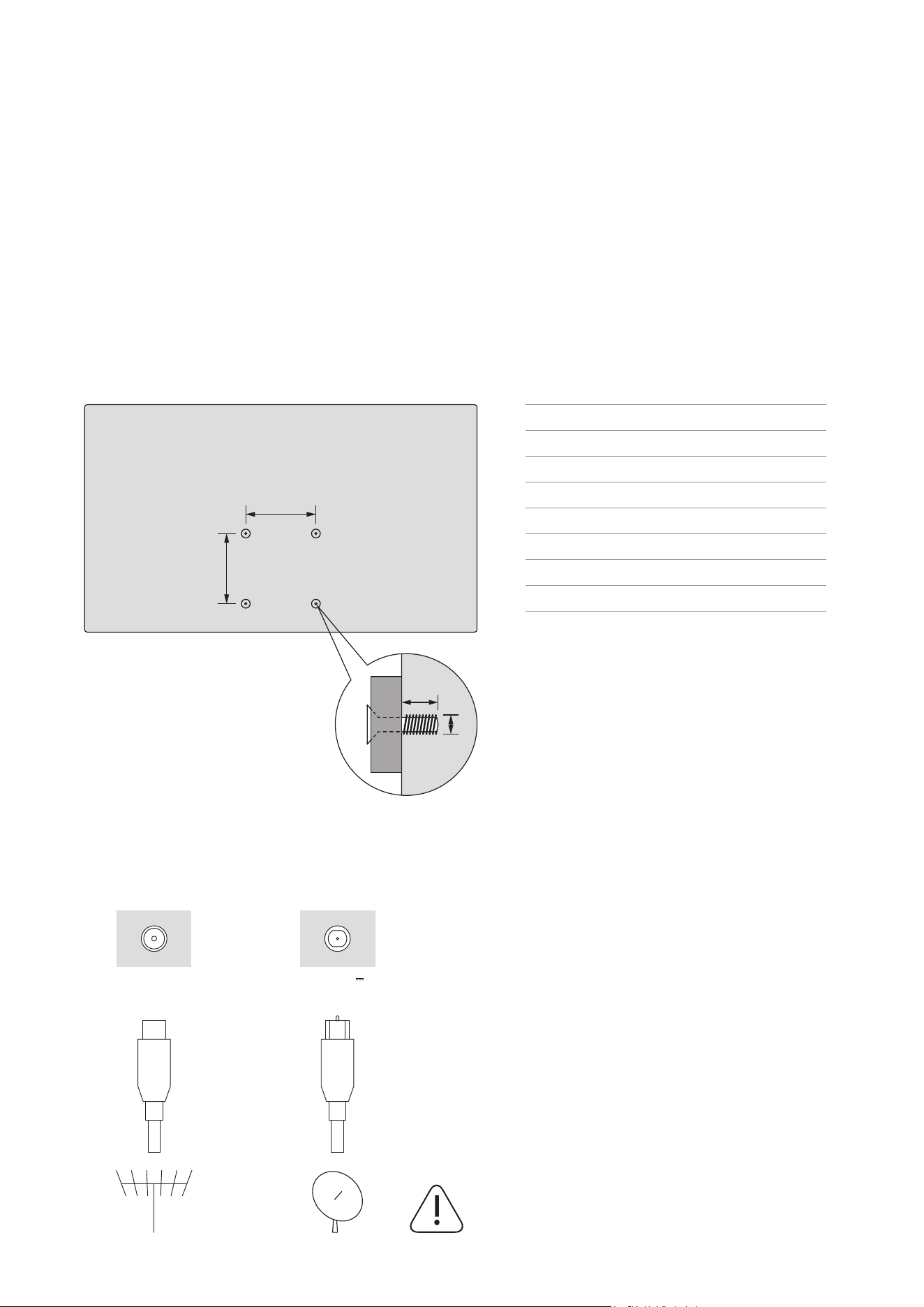
Your TV is also prepared for a VESA-compliant wall mount bracket. If it is not supplied with your TV, contact
your local dealer to purchase the recommended wall mount bracket.
Holes and measurements for wall mount bracket installation;
W
L
D
H
W (mm) H (mm) D (mm) L (mm)
24” 75 75 4 (M4) 5-8
32” 75 75 4
(M4) 5-8
39” 200 200 6
(M6) 10-13
43” 100 100 4
(M4) 7-8
50” 200 200 6
(M6) 10-13
55 200 200 6
(M6) 10-13
58” 200 200 6
(M6) 10-13
65” 400 200 6
(M6) 10-13
75” 600 400 8
(M8) 15-20
W
L
D
H
W
(mm)
H
(mm)
D
(mm)
L
(mm)
24” 75 75 4 (M4) 5-8
32” 75 75 4
(M4) 5-8
39” 200 200 6
(M6) 10-13
43” 100 100 4
(M4) 7-8
50” 200 200 6
(M6) 10-13
55 200 200 6
(M6) 10-13
58” 200 200 6
(M6) 10-13
65” 400 200 6
(M6) 10-13
75” 600 400 8
(M8) 15-20
2.2. Antenna connection
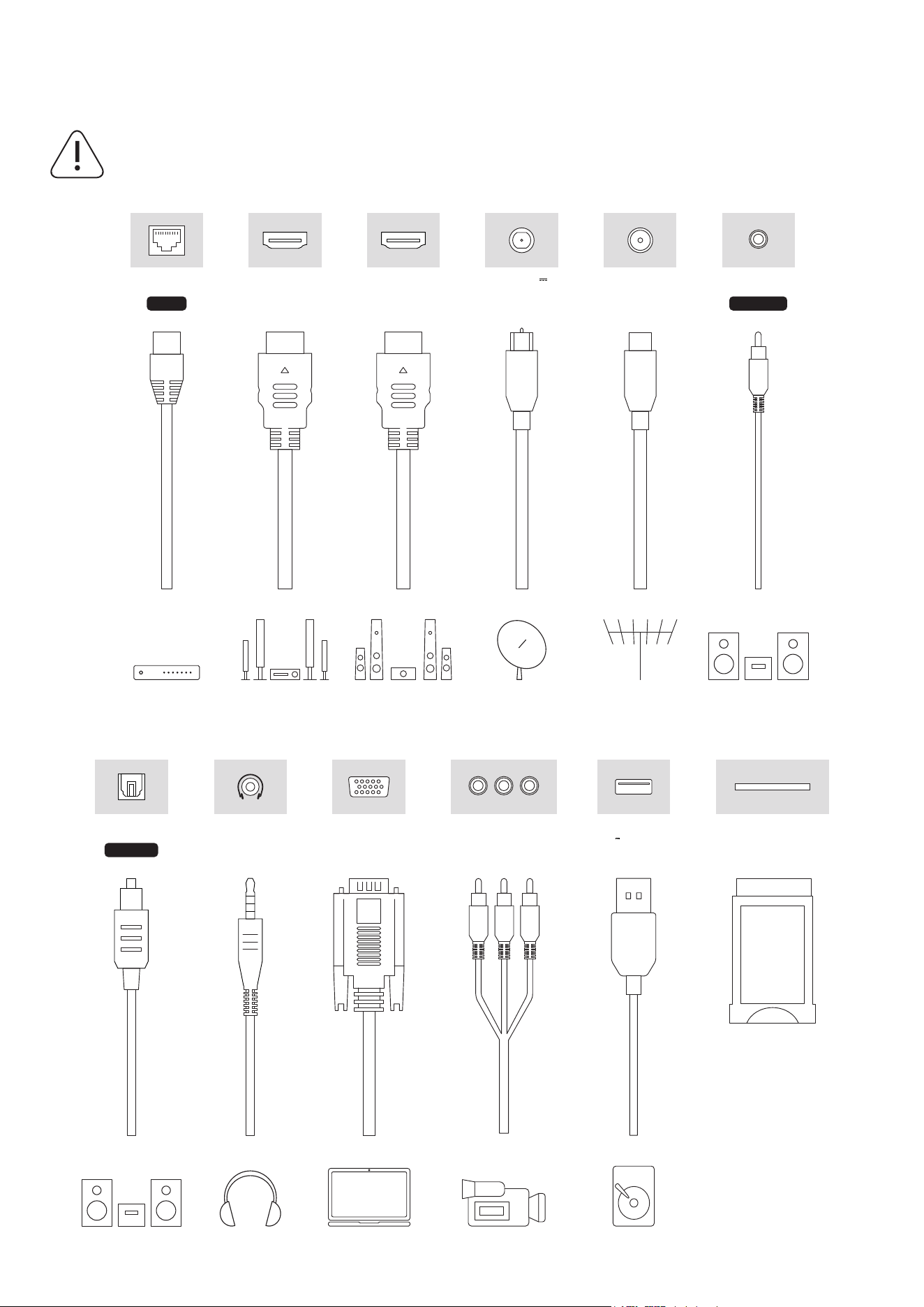
Connect the aerial or cable TV plug to the AERIAL INPUT (ANT) socket or satellite plug to the SATELLITE INPUT
(LNB) socket located on the rear side of the TV.
Caution
If you want to connect a device to the TV, make
sure that both the TV and the device are turned o
before making any connection. After the connection
is done, you can turn on the units and use them.
ANTENNA
13/18 V
300 mA max
ANTENNA
13/18 V
300 mA max
11
3. Connections
LAN
HDMI HDMI (ARC)
USB
5 V max. 500 mA
ANTENNA13/18 V
300 mA max
VGA
COMMON INTERFACE
AV IN
R L VIDEO
AUDIO OUT
AUDIO OUT
HEADPHONES
HD/FHD TV32”-75”
4K UHD TV
LAN
HDMI HDMI (ARC)
USB
5 V max. 500 mA
ANTENNA13/18 V
300 mA max
VGA
COMMON INTERFACE
AV IN
R L VIDEO
AUDIO OUT
AUDIO OUT
HEADPHONES
HD/FHD TV32”-75”
4K UHD TV
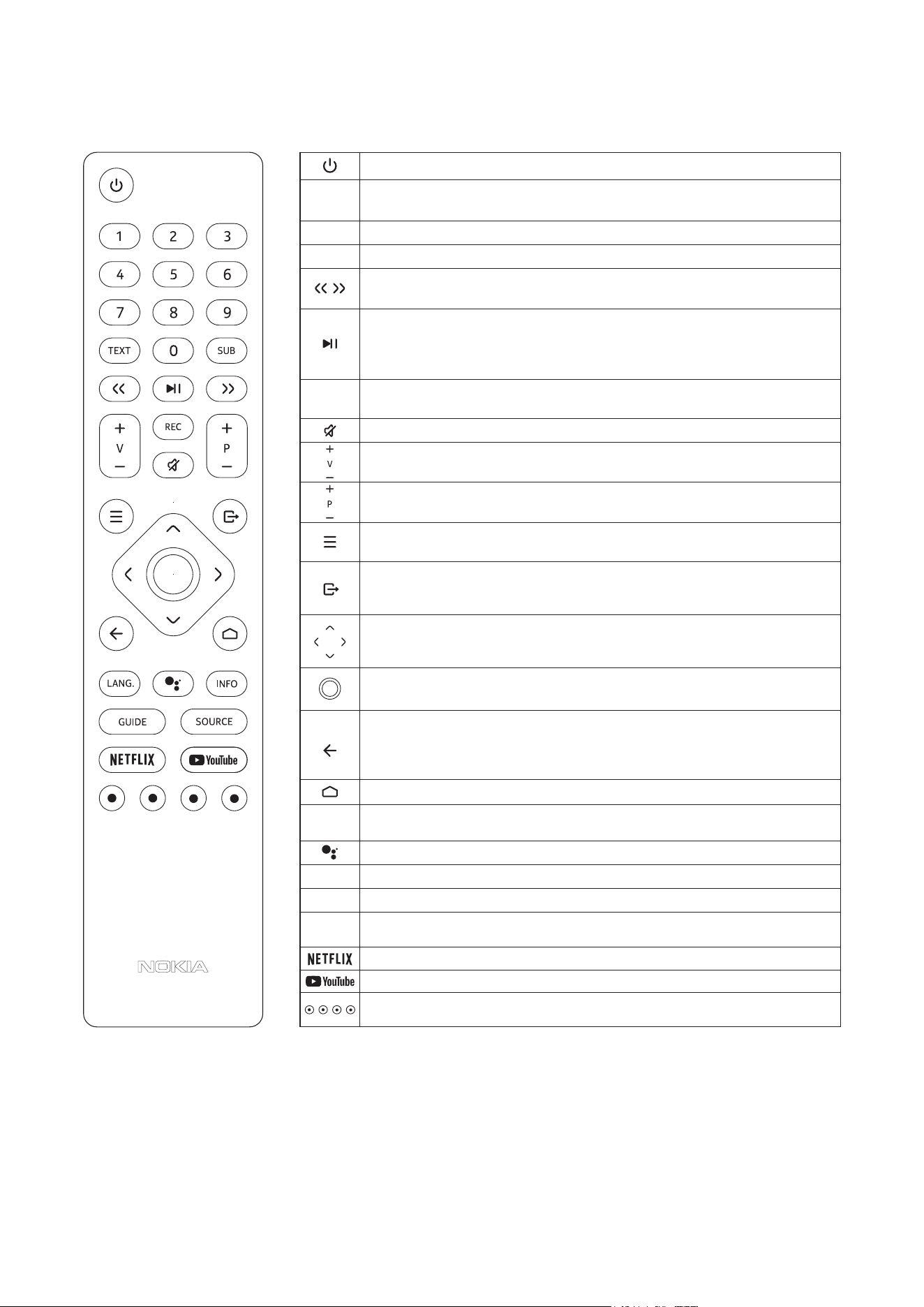
Caution
If you want to connect a device to the TV, make sure that both the TV and the device are turned o before
making any connection. After the connection is done, you can turn on the units and use them.
12
4. Remote control
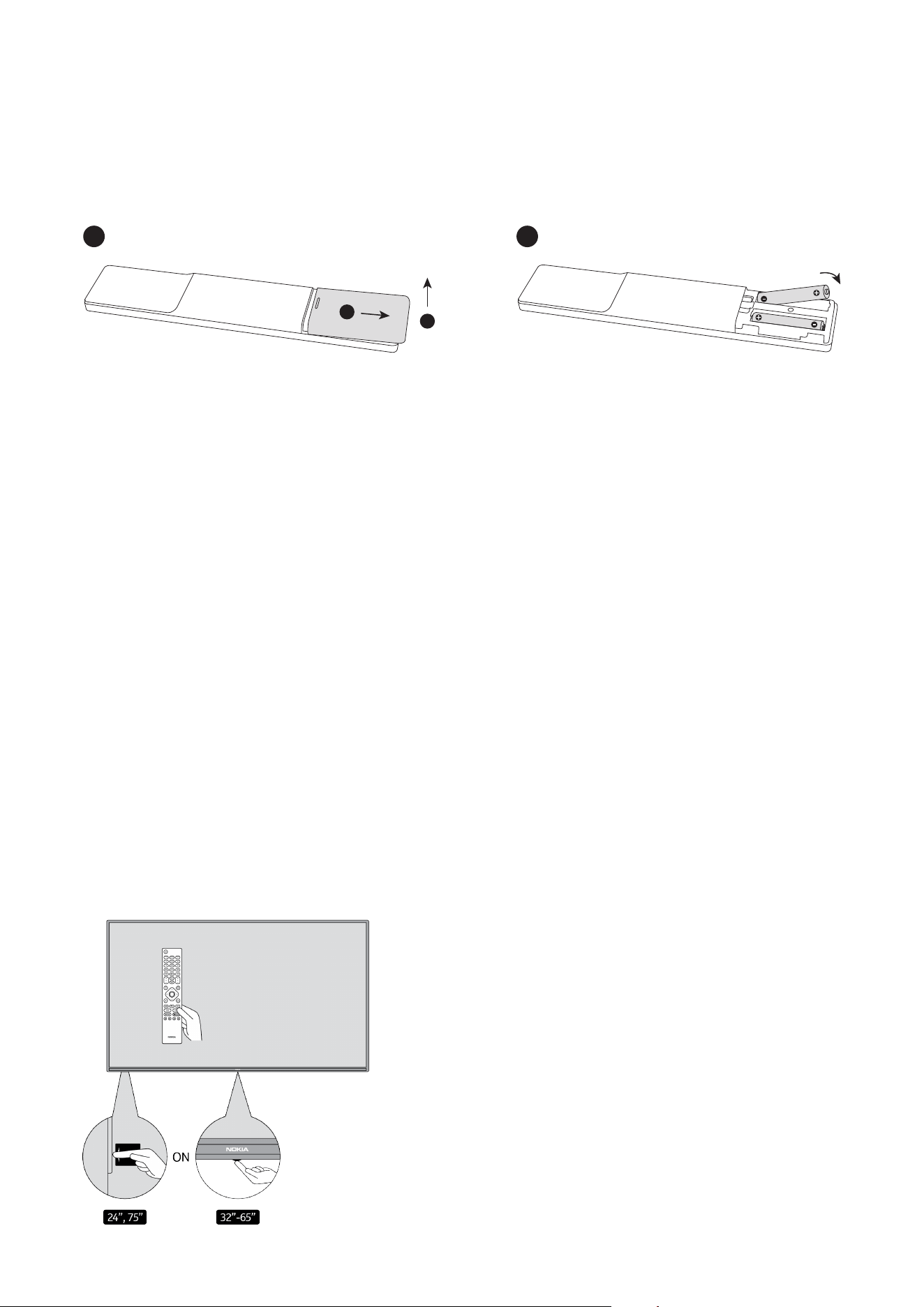
Standby: Quick Standby / Standby / On
0-9
TEXT
SUB
REC
LANG.
INFO
GUIDE
SOURCE
Numeric buttons: Switches the channel in Live TV mode, enters a number
or a letter in the text box on the screen
Tex t : Opens and closes teletext (where available in Live TV mode)
Subtitles: Turns subtitles on and o (where available)
Fast Forward: Moves frames forward in media such as movies
Rewind: Moves frames backwards in media such as movies
Pause: Pauses the media being played
Play: Starts to play selected media
Stop: Press and hold this button for 3 seconds to stop playback of
multimedia les
Fast Forward: Moves frames forward in media such as movies
Rewind: Moves frames backwards in media such as movies
Mute: Completely turns o the volume of the TV
Volume +/-
Programme +/-
Menu: Displays Live TV Settings menu (in Live TV mode), displays available
setting options such as sound and picture
Exit: Closes and exits from Live TV Settings menus, closes the Home
Screen, exits from any running application or menu or OSD banner,
switches to last set source
Directional buttons: Navigates menus, setting options, moves the focus or
cursor etc., sets record time and displays the subpages in Live TV-Teletext
mode when pressed Right or Left. Follow the on-screen instructions
OK: Conrms selections, enters sub-menus, views channel list (in Live TV
mode). Press 5 sec. to switch the backlight of the remote control on/o
Back/Return: Returns to previous menu screen, goes one step back,
closes open windows, closes teletext (in Live TV-Teletext mode). Exits the
playback of multimedia les and returns to the MMP (Multi Medi Player)
overview menu.
Home: Opens the Home Screen
Language: Switches among sound modes (analogue TV), displays and
changes audio language (digital TV, where available)
Microphone: Activates the microphone on the remote
Info: Displays information about on-screen content
Guide: Displays the electronic programme guide in Live TV mode
Source: Shows all available broadcast and content sources, closes the Home
Screen and switches to last set source. Starts pairing of the remote control
Netix: Launches the Netix application
YouTube: Launches the YouTube application
Coloured Buttons: Follow the on-screen instructions for coloured button
functions
13
2
1
1
2
4.1. Inserting the batteries into the remote
Lift the cover gently. Insert two 1.5V - size AAA batteries. Make sure the (+) and (-) signs match (observe correct
polarity). Do not mix old and new batteries. Replace only with same or equivalent type. Place the cover back on.
4.2. To pair remote with the TV
When TV is turned on for the rst time, a search for accessories will be performed after the initial setup starts.
You will need to pair your remote control with your TV at this point.
Press and hold the Source button on the remote until the LED on the remote starts to blink, then release the
Source button. That means the remote is in pairing mode.
Now you will wait for the TV to nd your remote. Select the name of your remote and press OK when it appears
on the TV screen.
When the paring process is successful, the LED on the remote will go o. If the pairing process fails the remote
will enter sleep mode after 30 seconds.
In order to pair your remote later on, you can go to Settings menu, highlight Remotes & Accessories option and
press OK to start a search for accessories.
4.3. Standby button
Press and hold the Standby button on the remote control. Power o dialogue will appear on the screen.
Highlight OK and press the OK button. The TV will switch into standby mode. Press briey and release to switch
the TV into quick standby mode or to switch on the TV when in quick standby or standby mode.
5. Turning on/o the TV
(Turning On/O method may vary depending to model.)

14
5.1. Magic button (Nokia Smart TV 75”)
Connect power
Important: The TV set is designed to operate on 220-240V AC, 50 Hz socket.
After unpacking, allow the TV set to reach the ambient room temperature before you connect the set to the
mains. Plug the power cable to the mains socket outlet. The TV will switch on automatically.
To switch on the TV from standby
If the TV is in standby mode the standby LED lights up. To switch on the TV from standby mode either:
• Press the Standby button on the remote control.
• To turn on the TV set, press the control switch in the center of the TV set.
To switch the TV into standby
The TV cannot be switched into standby mode via control switch. Press and hold the Standby button on the
remote control. Power o dialogue will appear on the screen. Highlight OK and press the OK button. The TV
will switch into standby mode.
To switch o the TV
To power down the TV completely, unplug the power cord from the mains socket.
Quick standby mode
In order to switch the TV into quick standby mode either;
• Press the Standby button on the remote. Press again to go back to operating mode.
• Press the centre of the control switch on the TV in and hold it down for a few seconds. Press again to go back
to operating mode.
5.2. On-O button
Connect power
Important: The TV set is designed to operate on 220-240V AC, 50 Hz socket.
After unpacking, allow the TV set to reach the ambient room temperature before you connect the set to the
mains. Plug the power cable to the mains socket outlet. The TV will switch on automatically.
To switch on the TV from standby
If the TV is in standby mode the standby LED lights up. To switch on the TV from standby mode either:
• Press the Standby button on the remote control.
• Press the control button on the TV. The TV will then switch on.
To switch the TV into standby
The TV cannot be switched into standby mode via control button. Press and hold the Standby button on the
remote control. Power o dialogue will appear on the screen. Highlight OK and press the OK button. The TV
will switch into standby mode.
To switch o the TV
To power down the TV completely, unplug the power cord from the mains socket.
Quick standby mode
In order to switch the TV into quick standby mode either;
• Press the Standby button on the remote. Press again to go back to operating mode.
• Press the control button on the TV. Press the control button again to go back to operating mode.
5.3. Turning on/o the Nokia Smart TV 24”
5.3.1. Connected with power adapter
Connect power
Important: The TV set is designed to operate on a 12 V DC supply. For this, an adaptor is used which gives 12 V voltage.

15
After unpacking, allow the TV set to reach the ambient room temperature before you connect the set to the
mains.
Connect the supplied adaptor to a system that supplies 100-240 V AC, 50/60 Hz. The TV will switch on
automatically.
In order to supply the power via the cigarette lighter socket of your vehicle, plug one end of the cigarette
lighter adaptor cable (car plug - can be purchased separately if not supplied with the TV) into the vehicle socket
and plug the other end of the adaptor cable into the DC 12 V terminal on the back side of the TV.
Be sure to ground the connection properly
Connect the ground terminal of the AC adaptor with the ground terminal provided at the power outlet
using the enclosed power cord. If the provided plug does not t your outlet, consult an electrician for
replacement of the obsolete outlet. Surely connect the ground wire.
To switch on the TV from standby
If the TV is in standby mode the standby LED lights up. To switch on the TV from standby mode either:
• Press the Standby button on the remote control.
• Press the centre of the control switch on the TV in.
The TV will then switch on.
To switch the TV into standby
The TV cannot be switched into standby mode via control switch. Press and hold the Standby button on the
remote control. Power o dialogue will appear on the screen. Highlight OK and press the OK button. The TV
will switch into standby mode.
To switch o the TV
To power down the TV completely, unplug the power adaptor from the mains socket.
Quick standby mode
In order to switch the TV into quick standby mode either;
• Press the Standby button on the remote. Press again to go back to operating mode.
• Press the centre of the control switch on the TV in and hold it down for a few seconds.
• Press again to go back to operating mode.
5.3.2. Connected with low voltage adapter
Switching on the TV using car plug
1. In order to supply the power via the cigarette lighter socket of your vehicle, plug one end of the cigarette
lighter adaptor cable (car plug - can be purchased separately if not supplied with the TV) into the vehicle
socket and plug the other end of the adaptor cable into the DC 12 V terminal on the backside of the TV.
Then the standby LED will light up.
2. Press the Standby button on the remote control or press the centre (optional) of the control switch on the
TV in. The TV will then switch on.
3. Adjust the antenna position for better reception or reinstall TV channels if necessary.
Switching o the TV
1. The TV cannot be switched into standby mode via the control switch. Press and hold the Standby button
on the remote control. Power o dialogue will appear on the screen. Highlight OK and press the OK
button. TV will switch into standby mode.
2. Unplug cable connectors and power plugs.
ATTENTION: 12 V Input
V+
V+
V-V-

16
6. Initial setup wizard
Note: Follow the on-screen instructions to complete the initial setup process. Use the directional buttons and
the OK button on the remote to select, set, conrm and proceed.
When turned on for the rst time, a welcome screen will be displayed. Select your language and press OK.
Follow the on-screen instructions to setup your TV and install channels. The installation wizard will guide you
through the setup process. You can perform initial setup anytime using the Reset option in the Settings >
Device Preferences Menu. You can access the Settings menu from the Home screen or from the TV options
menu in Live TV mode.
6.1. Welcome message and language selection
Welcome message will be displayed along with the language selection options listed on the screen. Select the
desired language from the list and press OK to continue.
6.2. Initial setup
After the country selection you can start the initial setup wizard. Highlight Continue and press OK to proceed.
You will not be able go back and change the language and country once you proceed. If you need to change the
language after this step you will have to switch the TV into standby mode, so the setup process starts from
the beginning when you next switch on the TV. To do this, press and hold the Standby button. A dialogue will
be displayed. Highlight OK and press OK.
6.3. Search for accessories
A search for accessories will be performed after the initial setup has started. Follow the on-screen instructions
to pair your remote control (depends on the model of the remote control) and other wireless accessories with
your TV. Press Back/Return button to end adding accessories and proceed.
6.4. Quick setup
If you didn’t priorly connect your TV to the internet via Ethernet a screen will be displayed where you can
transfer your Android phone’s WLAN network and Google Account to your TV. Highlight Continue and press OK
to proceed. Follow the on-screen instructions on your TV and your phone to complete the process.
You can also skip this step by selecting Skip option. Some steps may be skipped depending on the settings
made in this step.
If you did priorly connect your TV to the internet via Ethernet a message will be displayed stating that you
are connected. You can choose to continue with wired connection or change the network. Highlight Change
network and press OK if you want to use wireless connection instead of wired connection.
6.5. Network connection
You will be directed to the next step automatically, if you connect your TV to internet via Ethernet at this
point. If not, available wireless networks will be searched and listed on the next screen. Select your WLAN
network from the list and press OK to connect. Enter the password using the virtual keyboard if the network
is password protected. Select the Other network option from the list, if the network that you want to connect
has hidden SSID.
If you prefer not to connect to the internet at this point you can skip this step by selecting Skip option. You
can connect to internet later using the Network & Internet menu options in the Settings menu from the Home
Screen or from the TV options menu in Live TV mode.
This step will be skipped if internet connection has been established in the previous step.
6.6. Sign in to your Google account
If connection succeeds, you can sign in to your Google account on the next screen. You need to be signed in
to a Google account in order to use Google services. This step will be skipped if no internet connection has
been established in the previous step or if you already signed in to your Google account in Quick Setup step.

17
By signing in, you will be able to discover new apps for videos, music, and games on Google Play; get personalised
recommendations from apps like YouTube; buy or rent the newest movies and shows on Google Play Movies
& TV; access your entertainment and control your media. Highlight Sign In and press OK to proceed. Sign-in
options are as following:
• Use your phone or computer: You can use a browser on your phone or computer to sign in. Highlight this
option and press OK button. A code will be displayed on the TV screen. Make sure your phone or computer
is on the same network as your TV. Open the given website (androidtv.com/setup, follow on-screen
instructions for the up-to-date website url) in your phone’s or computer’s browser and enter the code
you see on your TV screen into the related entry eld. Then follow the instructions on your device and
complete the process.
• Use your remote: Using this option you can sign in to your Google account by entering your e-mail address
or phone number and your password. If you prefer not to sign in to your Google account at this point you
can skip this step by selecting Skip option.
6.7. Terms of service
Terms of Service screen will be displayed next. By continuing, you will agree to the Google Terms of Service,
the Google Privacy Policy, and the Google Play Terms of Service. Highlight Accept and press OK on the remote
to conrm and proceed. You can also view Terms of Service, Privacy Policy and Play Terms of Service on this
screen. To display the content an internet connection is needed. A message will be displayed mentioning the
web site address on which this information can also be viewed in case internet access is not available.
6.8. Location
On the next screen, you can allow or disallow Google and third-party apps to use your TV’s location information.
Select Yes to conrm and press OK. To skip this step without conrmation, select No and proceed by pressing
the OK button. You can change this setting later using the Settings > Device Preferences > Location Menu on
the Home Screen.
6.9. Help improve Android
Automatically send diagnostic information to Google, like crash reports and usage data from your device and
apps. This information won’t be used to identify you. Select Yes to conrm and press OK. To skip this step
without conrmation, select No and proceed by pressing the OK button. You can change this setting later
using the Settings > Device Preferences > Usage & Diagnostics Menu on the Home Screen.
Information on Google services and some features of your TV will be displayed next. You can turn on person al
results for Assistant by choosing the related option when prompted. Press OK consecutively to proceed.
6.10. Country
In the next step select your Country from the list and press OK to continue.
6.11. Password
Depending on the country selection you made in the previous step you may be asked to dene a password
(PIN) at this point. Press OK to proceed. The selected PIN cannot be 0000. This PIN will be required to access
some menus, contents or to release locked channels, sources etc. You will have to enter it if you are asked to
enter a PIN for any menu operation later.
6.12. Select TV mode
In the following step of the initial setup, you can set the TV’s operation mode either as Home or as Store. Store
option will congure your TV’s settings for store environment. This option is intended only for store use. It is
recommended to select Home for home use.
6.13. Chromecast built-in
Select your Chromecast availability preference. If set as On your TV will be detected as a Google Cast device
and allow Google Assistant and other services to wake your TV up to respond to commands, even when on
standby mode and the screen is o.

18
7. Tuner mode
Note: If you don’t want to perform a tuner scan, select one of the available options anyway. You can skip the
scan at some later stage of the installation wizard. If you skip this step you can perform a channel search later
using the related Channels menu options.
The next step is the selection of the tuner mode. Select your tuner preference to install channels for Live
TV function. Antenna, Cable and Satellite options are available. Highlight the option that corresponds to your
environment and press OK or Right directional button to proceed.
7.1. Antenna
If Antenna option is selected, the TV will search for digital terrestrial and analogue broadcasts. On the next
screen highlight Scan option and press OK to start the search or select Skip Scan to continue without performing
a search.
7.2. Cable
If Cable option is selected, the TV will search for digital cable and analogue broadcasts. If any, available operator
options will be listed on the Select Operator screen. Otherwise, this step will be skipped. You can select only one
operator from the list. Highlight the desired operator and press OK or the Right directional button to proceed.
On the next screen select Scan option to start a search or select Skip Scan to continue without performing a
search. If Scan is selected a conguration screen will be displayed next. Scan Mode, Frequency (kHz), Modulation,
Symbol Rate (kSym/s), Network ID options may need to be set. To perform a full scan set the Scan Mode as Full/
Advance if available. Depending on the selected operator and/or Scan Mode some options may not be available
to be set.
Once you are done with setting available options, press the Right directional button to proceed. The TV will start
to search available broadcasts.
7.3. Satellite
If Satellite option is selected, Satellite Type screen will be displayed next. Preferred Satellite and General Satellite
options will be available. Select one and press OK to proceed.
Note: Preferred Satellite and General Satellite options may not be available depending on the selected country.
In this case the DVBS Conguration Setting screen will be displayed after selecting the tuner mode as Satellite.
If Preferred Satellite option is selected, next screen will be Select Operator screen. You can select only one
operator from the list. Highlight the desired operator and press OK or the Right directional button to proceed.
Some of the following options may be preset depending on the selected operator in this step. Check the
parameters before proceeding and adjust if necessary.
7.4. DVB–S conguration
DVB-S Conguration Setting screen will be displayed next. First Antenna type should be set (This option may be
named as Satellite type depending on the country selection.) Universal, Single Cable and Jess Single cable options
are available. Set the Antenna Type as Universal for Direct and DiSEqC satellite systems. If you set the antenna
type as Universal, press the Right directional button to proceed to the next step. If the antenna type is set as
Single Cable or Jess Single cable, there will be three more additional options on the DVB-S Conguration Setting
screen: Tuner, Band frequency and User Dened. User Dened option will be available if the Band frequency is set
as User Dened. Set these options if available and press the Right directional button to proceed.
Depending on the country and satellite type selections you made in the earlier steps of the initial setup process,
Load Preset List screen may be displayed next. Highlight Load Preset List and press OK or the Right directional
button to proceed with the SatcoDX installation. You can also skip this step by selecting Skip option.
After the parameters on the DVB-S Conguration Setting screen are congured according to your environment
and pre-set list installation preference is selected the next step may be Select Satellite screen. You may be
able to set up dierent satellites depending on the selected antenna type and operator in the previous steps.
Highlight the desired satellite option and press OK to set the parameters (If you have a Direct satellite system,
DiSEqC Set option should be set as DiSEqC A.). The Satellite Status of the rst satellite option will be set as On.

19
In order to congure other settings of the satellite and to enable scan this option should be set as On rst. Press
Back button and select the next satellite you want to set. After you completed the conguration changes, press
the Right directional button to proceed.
If Load Preset List option is selected in the previous step next steps will be skipped and the preset channel list
installation will start. If the correct satellite has not been selected for SatcoDX installation, a warning dialogue will
be displayed on the screen. The satellite/s that can be selected will be listed. Press OK to close the dialogue and
then set the satellite accordingly.
Channel Scan screen will be displayed next. Select Scan and press OK or the Right directional button to proceed
with the scanning congurations. Select Skip Scan to proceed without performing a scan and complete the initial
setup.
DVBS Scan Congure screen will be displayed next if Scan option is selected. Following options will be available:
Scan Mode and Channels. You can choose to perform a full scan or a network scan. Set the Scan Mode accordingly.
If you are going to perform a network scan, make sure that you have adjusted the Frequency, Symbol Rate
(kSym/s) and Polarisation parameters under the Transponder option accurately on the Satellite Setup screen. You
may not be able to change the Scan mode setting depending on the previous selections. If the Channels option
is set as Free encrypted channels will not be installed. Additional options may also be available depending on the
selected operator, congure these settings according to your preferences. Once you are done with setting the
available options, press the Right directional button to start scan while Scan Mode or Channels is highlighted.
While the search continues you can press the Back button to cancel the search. The channels that have already
been found will be stored in the channel list.
When the initial setup is completed, results will be displayed. Press OK to nish the setup.
Home Screen will be displayed. You can highlight Live TV app and press OK to switch to Live TV mode and watch
TV channels.
8. Home Screen
To enjoy the benets of your Android TV, your TV must be connected to the Internet. Connect the TV to a home
network with a high-speed Internet connection. You can connect your TV wirelessly or wired to your modem/
router. Refer to the Network & Internet and Connecting to the Internet sections for further information on how
to connect your TV to the internet.
The Home menu is the centre of your TV. Press the Home button to display the Home Screen. From the Home
menu you can start any application, switch to a TV channel, watch a movie or switch to a connected device.
Depending on your TV setup and your country selection in the initial setup the Home menu may contain dierent
items.
The available options of the Home Screen are positioned in rows. To navigate through the Home Screen options,
use the directional buttons on the remote. Apps, YouTube, Google Play Movies & TV, Google Play Music and
Google Play related rows and rows of the applications you have installed might be available. Select a row then
move the focus to the desired item in the row. Press OK button to make a selection or to enter a sub-menu.
On the upper left of the screen, search tools will be located. You can choose either to type a word to start a
search via the virtual keyboard or try voice search option if your remote has a built-in microphone. Move the
focus to the desired option and press OK to proceed.
On the upper right of the screen, Notications, Inputs, Network & Internet (will be named as Connected or Not
Connected according to the current connection status), Settings and the current time will be displayed. You
can congure your date and time preferences using the Date & time menu options from the Settings>Device
Preferences menu.
First row will be the Apps row. Live TV and Multimedia Player apps will be available alongside with other apps.
Highlight Live TV and press OK to switch to Live TV mode. If the source was previously set to an option other than
TV, press the Source button and select the TV to watch live TV channels.
Highlight Multimedia-Player and press OK to browse the connected USB devices or media servers and play/
display the installed media content on the TV. The audio les can be played through the speakers of the TV or
through the speaker systems connected to the TV. You can congure your sound output preference from the
Speakers option in the “Settings > Device Preferences > Sound” Menu.

20
9. Live TV mode menu content
Switch the TV to Live TV mode rst and then press the Menu button on the remote to see Live TV menu
options. To switch to Live TV mode, you can either press the Exit button or highlight the Live TV app from the
Apps row and press OK on the Home Screen.
9.1. Channels
9.1.1. Add to my favourites
Add the channel that is currently being watched to the previously selected favourite list.
9.1.2. Programme guide
Open the electronic programme guide. Refer to the Programme Guide section for detailed information.
9.1.3. New channels available
Start a search for new channels. Select the channel source application or tuner. Then make the settings
according to your environment and preferences if necessary. You can use the Channel menu options to search
for broadcast channels. Refer to the Channel section for more information. When complete highlight Done and
press OK.
9.2. TV options
9.2.1. Source
Display the list of input sources. Select the desired one and press OK to switch to that source.
9.2.2. Picture Mode
Set the picture mode to suit your preference or requirements. Picture mode can be set to one of these options:
User, Standard, Vivid, Sport, Movie and Game. You can use User mode to create customised settings. Go to
Settings>Device Preferences>Picture for detailed setting options.
9.2.3. Display mode
Set the aspect ratio of the screen. Select one of the predened options according to your preference.
9.2.4. Speakers
To hear the TV audio from the connected compatible audio device set as External Audio System. Set as TV
Speakers to use the speakers of your TV for sound output.
9.2.5. Power
• Sleep Timer: Dene an idle time after which you want your TV to enter sleep mode automatically.
• Picture o: Select this option and press OK to turn the screen o. Press a button on the remote or on the
TV to turn the screen on again. Note that you cannot turn the screen on via the Volume +/-, Mute and
Standby buttons. These buttons will function normally.
• Switch o timer: Dene a time after which you want your TV to switch o automatically. Set as O to
disable.
• No Signal Auto Power O: Set the behaviour of the TV, when no signal is detected from the currently set
input source. Dene a time after which you want your TV to turn itself o or set as O to disable.
9.2.6. CI card
Display available menu options of the CI card in use. This item may not be available depending on the input
source setting.

21
9.2.7. Advanced options
• Audio Language: Set your language preference for audio. This item may not be available depending on the
input source setting.
• Blue Mute: Turn this function on/o according to your preference. When turned on, blue background will be
displayed on the screen when no signal is available.
• Default Channel: Set your default startup channel preference. When the Select Mode is set as User Select,
Show Channels option will become available. Highlight and press OK to see channel list. Highlight a channel
and press OK to make a selection. Selected channel will be displayed, every time the TV is turned back on
from quick standby mode. If the Select Mode is set as Last Status, the last watched channel will be
displayed.
• Interaction Channel: Turn the Interaction Channel function on or o.
• MHEG PIN Protection: Turn the MHEG PIN protection function on or o. This setting enables or disables
access some of the MHEG applications. Disabled applications can be released by entering the right PIN.
• HBBTV Settings: Turn the HBBTV function on or o.
• Do Not Track: Set your preference regarding the tracking behaviour for HBBTV services.
• Cookie Settings: Set your cookie setting preference for HBBTV services.
• Persistent Storage: Turn the Persistent Storage function on or o. If set as On cookies will be stored with an
expiry date in the persistent memory of the TV.
• Block Tracking Sites: Turn the Block Tracking Sites function on or o.
• Device ID: Turn the Device ID function on or o.
• Reset Device ID: Reset the device ID for HBBTV services. Conrmation dialogue will be displayed. Press OK
to proceed, Back to cancel.
• Subtitle:
• Analogue Subtitle: Set this option as O, On or Mute. If Mute option is selected, the analogue subtitle
will be displayed on the screen but the speakers will be muted simultaneously.
• Digital Subtitle: Set this option as O or On.
• Subtitle Tracks: Set your subtitle track preference, if any available.
• Digital Subtitle Language: Set one of the listed language options as rst digital subtitle language
preference.
• Second Digital Subtitle Language: Set one of the listed language options as second digital subtitle
language preference. If the selected language in the Digital Subtitle Language option is not available, the
subtitles will be displayed in this language.
• Subtitle Type: Set this option as Normal or Hearing Impaired. If Hearing Impaired option is selected, it
provides subtitle services to deaf and hard of hearing viewers with additional descriptions.
• Teletext:
• Digital Teletext Language: Set the teletext language for digital broadcasts.
• Decoding Page Language: Set the decoding page language for teletext display.
• BISS Key: Click To Add Biss Key message will be displayed. Press OK button to add a biss key. Frequency,
Symbol Rate (kSym/s), Polarisation, Programme ID and CW Key parameters will be available to be set. Once
you are done with the settings highlight Save Key and press OK to save and add the biss key. This option will
not be available if the Channel Installation Mode under the Settings-> Channel menu is not set as Preferred
Satellite, General Satellite or Satellite. Available options will dier depending on the selected country during
the initial setup process.
• Auto Sleep: Dene an idle time after which you want your TV to enter sleep mode automatically. 4 Hours, 6
Hours and 8 Hours options are available. Set as Never to disable.
• System Information: Display detailed system information on the current channel such as Signal Level, Signal
Quality, Frequency etc.
• Version Info: Display system information such as Model Name and Version.
9.3. Record
9.3.1. Record list
The recordings will be displayed if any available. Highlight a recording of your choice and press the Yellow
button to delete it or press the Blue button to view detailed ianformation. You can use Red and Green buttons
to scroll the page up and down.
9.4. Device info
• Connected USB storage devices will be displayed. Highlight the device of your choice and press OK to see

22
available options.
• Set TimeShift: Tag the selected USB storage device or a partition on it for time shift recording.
• Set PVR: Tag the selected USB storage device or a partition on it for PVR.
• Format: Format the selected USB storage device. Refer to USB Recording section for more information
• Speed Test: Start a speed test for the selected USB storage device. The test result will be displayed when
completed.
• Schedule List: Add reminders or record timers using the Schedule List menu.
• Time Shift Mode: Enable or disable timeshift recording feature. Refer to USB Recording section for more
information.
10. Settings
You can access the Settings menu from the Home Screen or from the TV options menu in Live TV mode.
10.1. Network & internet
You can congure your TV’s network settings using the options of this menu. You can also highlight the
Connected/Not Connected icon on the Home screen and press OK to access this menu.
• Wi-Fi: Turn the wireless LAN (WLAN) function on and o.
When the WLAN function is turned on, available wireless networks will be listed. Highlight See all and press OK
to see all networks. Select one and press OK to connect. You may be asked to enter a password to connect to
the selected network, in case the network is password protected.
• Add new network: Add networks with hidden SSID’s.
• Scanning always available: You can let the location service and other apps scan for networks, even when
WLAN function is turned o. Press OK to turn it on and o.
10.1.1. WoW
Turn the Wake on WLAN function on and o. This function allows you to turn on or awaken your TV via wireless
network.
10.1.2. WoL
Turn the Wake on LAN function on and o. This function allows you to turn on or awaken your TV via network.
10.1.3. Ethernet
Connected/Not connected: Displays the status of the internet connection via Ethernet, IP and MAC addresses.
10.1.4. Proxy settings
Set a HTTP proxy for browser manually. This proxy may not be used by other apps.
10.1.5. IP settings
Congure your TV’s IP settings.
10.2. Channels
Options of this menu may change or become inactive depending on the Channel Installation Mode selection.
10.2.1. Channel installation mode – Antenna
• Automatic Channel Search: Start a scan for analogue and digital channels. You can press the Back button to
cancel the scan. The channels that have already been found will be stored in the channel list.
• Update Scan: Search for updates. Previously added channels will not be deleted, but any newly found
channels will be stored in the channel list.

23
• Analogue Manual Scan: Start a manual scan for analogue channels. Enter the Start Frequency and then
select Scan Up or Scan Down. When a channel is found the scan will be completed and the found channel will
be stored in the channel list.
• Single RF Scan: Select the RF Channel by using the Right/Left directional buttons. Signal Level and Signal
Quality of the selected channel will be shown. Press OK to start scan on the selected RF channel. The found
channels will be stored in the channel list.
• Manual Service Update: Start a service update manually.
• LCN: Set your preference for LCN. LCN is the Logical Channel Number system that organizes available
broadcasts in accordance with a recognizable channel number sequence (if available).
• Channel Scan Type: Set your scan type preference.
• Channel Store Type: Set your store type preference.
• Favourite Network Select: Select your favourite network. This menu option will be active, if more than one
network is available.
• Channel Skip: Set channels to be skipped when switching the channels via Programme +/- buttons on the
remote. Highlight the desired channel/s on the list and press OK to select/unselect.
• Channel Swap: Replace the positions of the two selected channels in the channel list. Highlight the
desired channels on the list and press OK to select. When the second channel is selected, the
position of this channel will be replaced with the position of the rst selected channel. You should set the
LCN option to O or Default in order to enable this feature.
• Channel Move: Move a channel to the position of another channel. Highlight the channel you want to move
and press OK to select. Then do the same for a second channel. When the second channel is selected, the
rst selected channel will be moved to the position of that channel. You should set the LCN option to O or
Default in order to enable this feature.
• Channel Edit: Edit channels in the channel list. Edit the name and channel number of the
selected channel and display Network Name, Frequency, Colour System and Sound System information
related to that channel if available. Depending on the channel other options may also be editable. You can
press the Blue button to delete the highlighted channel.
• Analogue Channel Fine-tune: Fine-tune an analogue channel. A list of available analogue channels will
be displayed. Select the desired one from the list and press OK button. Then change the frequency of the
channel by pressing Left/Right directional buttons. Press OK to store the new frequency for that channel.
Press Back to cancel. This item may not be visible, depending on whether or not the last watched channel
was analogue.
• Clear Channel List: Delete all channels stored in the channel list of the selected channel installation mode.
A dialogue will be displayed for conrmation. Highlight OK and press OK button to proceed. Highlight Cancel
and press OK to cancel.
10.2.2. Channel installation mode – Cable
• Automatic Channel search: The Smart TV searches for digital and analog channels that can be received via
cable. Depending on the country, optional DVB-C cable TV providers are oered during the initial installation
and are listed on the Select operator screen. If you receive the DVB-C signal from a non-dedicated cable TV
provider, select the option Other. Press OK to start the channel search. In the Channel Search menu, you
can select one of the three channel search options: Full, Advanced, or Quick.
• Full: Automatic search of all available DVB-C channels.
• Advanced: Automatic search of all available DVB-C channels. For this option, it is necessary to enter
the DVB-C provider’s reception parameters, frequency and network ID. With this search option, the
channels are sorted by LCN of the cable providers.
• Quick: Automatic search for all available DVB-C channels. This search will search all available cable
transponders with the standard symbols.
• Single RF Scan: Manual search of DVB-C channels by transponder frequency.
• LCN: LCN options for DVB-C channel search.
• Channel Scan Type: Set your scan type preference.
• Channel Store Type: Set your store type preference.
• Favourite Network Select: Select your favourite network. This menu option will be active, if more than one
network is available. This option may not be available depending on the selected country during the initial
setup process.
• Channel Skip: Select the channels to be skipped when switching channels using the Programme +/- buttons
on the remote control. Highlight the desired channels in the list and press OK to select them.
• Channel Swap: Swap the position of two selected channels in the channel list. Highlight the desired channel
in the list and press OK. Select the second desired channel and swap the position of these two channels. You
should set the LCN option to O or Default to enable this feature.

24
• Channel Move: Move a channel to the position of another one. Highlight the channel you want to move and
press OK. Highlight the second channel and it will be moved to the position of the rst channel. You should
set the LCN option to O or Default to enable this feature.
• Channel Edit: Edit channels in the channel list. Edit the name and the channel number of the
selected channel and display information about Network Name, Frequency, Colour System, Sound System,
Modulation and Symbol Rate. Depending on the channel other options may also be editable. You can press
the Blue button to delete the highlighted channel.
• Analogue Channel Fine-tune: Fine-tune an analogue channel. A list of available
analogue channels will be displayed. Select the desired channel from the list and press OK. Then change the
frequency of the channel by pressing Left/Right directional buttons. Press OK to store the new frequency
for that channel. Press Back to cancel. This item may not be visible, depending on whether the last watched
channel was analogue or not.
• Clear Channel List: Delete all channels stored in the channel list of the selected channel installation
mode. A dialogue will be displayed for conrmation. Highlight OK and press OK to proceed. Highlight Cancel
and press OK to cancel the deletion process.
Note: Some options may not be available and appear as grayed out depending on the operator selection and
operator related settings.
10.2.3. Channel installation Mode-Preferred Satellite
• Satellite Re-scan: The satellite search process will be performed again.
• Satellite Add: This function is useful when the General Satellite option is selected as the TV signal type.
When the Preferred Satellite option is selected, DiSEqC settings will be automatically determined and
channels from new satellite providers will be added from new selected satellites, depending on the selected
satellite provider.
• Satellite Update: If you select the Scan function, the receivable satellites and the corresponding DiSEqC
settings will be determined automatically and the new channels will be added.
• Satellite Manual Tuning: Select the satellite on which you want to perform the manual search of the
satellite transponder and press OK. Set the exact reception parameters of the desired satellite transponder
(frequency, symbol rate and polarization). Make sure that the signal quality and signal level indicate a
sucient value and press the Back button. Press the Right directional button to start the search. The
found programs will be saved at the end of the program list.
• Channel Skip: Select the channels to be skipped when switching channels using the Programme +/- buttons
on the remote control. Highlight the desired channels in the list and press OK to select them.
• Channel Swap: Swap the position of two selected channels in the channel list. Highlight the desired channel
in the list and press OK. Select the second desired channel and swap the position of these two channels. You
should set the LCN option to O or Default to enable this feature.
• Channel Move: This function is partially available in the “Preferred Satellite” satellite installation mode. The
channel list of the selected providers cannot be edited.
• Channel Edit: Edit channels in the channel list. Edit the name and the channel number of the selected
channel and display information about Network Name, Frequency, Colour System, Sound System,
Modulation and Symbol Rate. Depending on the channel other options may also be editable. You can press
the Blue button to delete the highlighted channel.
• Clear Channel List: Delete all channels stored in the channel list of the selected channel installation mode.
A dialogue will be displayed for conrmation. Highlight OK and press OK to proceed. Highlight Cancel and
press OK to cancel the deletion process.
10.2.4. Channel installation Mode-General Satellite
• Satellite Re-scan: The satellite search process will be performed again. As an option, you can activate
another receivable satellite and add it to the automatic search. Select another satellite and press OK.
Set the exact reception parameters of the desired satellite, the DiSEqC connections and the reception
parameters of a receivable satellite transponder (the frequency, the symbol rate and the polarization). Make
sure that the signal quality and signal level indicate a sucient value and press the Back button. Press the
Right directional button to start the scan. The found programs will be saved at the end of the program list.
• Satellite Add: Press OK to set the reception parameters of the satellite you want to add. Activate the
satellite in the satellite status and set the exact reception parameters of the desired satellite. Set the
DiSEqC ports and the reception parameters of a receivable satellite transponder (the frequency, the symbol
rate and the polarization). Make sure that the signal quality and signal level indicate a sucient value and
press the Back button. Press the Right directional button to start the scan. The found channels will be

25
stored at the end of the channel list.
• Satellite Update: The channel scan of the selected satellites will be started and new channels will be added
to the channel list automatically.
• Satellite Manual Tuning: Select the satellite on which you want to perform the manual search of the
satellite transponder and press OK. Set the exact reception parameters of the desired satellite transponder
(frequency, symbol rate and polarization). Make sure that the signal quality and signal level indicate a
sucient value and press the Back button. Press the Right directional button to start the search. The found
programs will be saved at the end of the program list.
• Channel Skip: Select the channels to be skipped when switching channels using the Programme +/- buttons
on the remote control. Highlight the desired channels in the list and press OK to select them.
• Channel Swap: Swap the position of two selected channels in the channel list. Highlight the desired channel
in the list and press OK. Select the second desired channel and swap the position of these two channels. You
should set the LCN option to O or Default to enable this feature.
• Channel Move: Move a channel to the position of another channel. Highlight the channel you want to move,
press OK to select it and choose a new position using the number keys.
• Channel Edit: : Edit channels in the channel list. Edit the name and the channel number of the selected
channel and display information about Network Name, Frequency, Colour System, Sound System,
Modulation and Symbol Rate. Depending on the channel other options may also be editable. You can press
the Blue button to delete the highlighted channel.
• Clear Channel List: Delete all channels stored in the channel list of the selected channel installation mode.
A dialogue will be displayed for conrmation. Highlight OK and press OK to proceed. Highlight Cancel and
press OK to cancel the deletion process.
10.2.5. Auto channel update
Turn the auto channel update function on or o.
10.2.6. Channel update message
Turn the channel update message function on or o. This item may not be visible, depending on the Channel
Installation Mode selection.
10.2.7. Parental controls
To enter this menu the PIN should be entered rst. Default PIN is set to 1234. If you have dened a new PIN
after the initial setup process, use the PIN that you have dened. Some options may not be available or vary
depending on the country selection during the initial setup.
• Channels Blocked: Select channel/s to be blocked from the channel list. Highlight a channel and press OK to
select/unselect. To watch a blocked channel PIN should be entered rst.
• Programme Restrictions: Block programmes according to the age rating information that is being
broad- casted with them. You can turn on or o restrictions, set rating systems, restriction levels and age
limits using the options of this menu.
• Inputs Blocked: Prevent access to the selected input source content. Highlight the desired input option and
press OK to select/unselect. To switch to a blocked input source PIN should be entered rst.
• Change PIN: Change the default PIN. Highlight this option and press OK. You will need to enter the old PIN
rst. Then new PIN entry screen will be displayed. Enter the new PIN twice for conrmation.
10.2.8. Audio channel
Set the audio channel preference, if available. This item may not be visible, depending on whether or not the
last watched channel was analogue.
10.2.9. Audio language
Set one of the listed language options as rst audio language preference. This item may not be visible, de-
pending on whether the last watched channel was digital.

26
10.2.10. Second audio language
Set one of the listed language options as second audio language preference. If in the Audio Language setting
selected language option is not supported, this language preference will be considered. This item may not be
visible, depending on whether the last watched channel was digital.
10.2.11. Open source licenses
Displays Open Source Software license information.
10.2.12. Version
Displays system version number.
10.3. Accounts & sign in
• Google: This option will be available if you have signed in to your Google account. You can congure your
data syncing preferences or remove your registered account on the TV. Highlight a service listed in the Choose
synced apps section and press OK to enable/disable data sync. Highlight Sync now and press OK to sync all
enabled services at once.
• Add account: Add a new one to available accounts by signing in to it.
10.4. Apps
Using the options of this menu, you can manage the apps on your TV.
• Recently opened apps: You can display recently opened apps. Highlight See all apps and press OK to see all
the apps installed on your TV. The amount of storage space that they needed will also be displayed. You can
see the version of the app, open or force to stop the running of the app, uninstall a downloaded app, see
the permissions, and turn them on/o, turn on/o the notications, clear the data and cache etc. Highlight
an app and press OK to see available options.
• Permissions: Manage the permissions and some other features of the apps.
• App permissions: The apps will be sorted by permission type categories. You can enable disable
permissions for the apps from within these categories.
• Special app access: Congure some app features and special permissions.
• Security & restrictions: Using the options of this menu; You can allow or restrict installation of apps
from sources other than the Google Play Store. Set the TV to disallow or warn before installation of
apps that may cause harm.
10.5. Device preferences
10.5.1. About
Check for system updates, change the device name, restart the TV and display system information such as
network addresses, serial numbers, versions etc. You can also display legal information, manage advertisings,
display your advertising ID, reset it and turn on/o the personalised advertisings based on your interests.
• Netix ESN: Display your ESN number. ESN number is a unique ID number for Netix, created especially to
identify your TV.
10.5.2. Date & time
Set the date and time options of your TV. You can set your TV to automatically update the time and date data
over the network or over the broadcasts. Set corresponding to your environment and preference. Disable by
setting as O if you want to manually change the date or time. Then set date, time, time zone and hour format
options.
10.5.3. Timer
• Power On Time Type: Set your TV to turn on by itself. Set this option as On or Once to enable a power on
timer to be set, set as O to disable. If set as Once the TV will turn on only once at the dened time in Auto
Power On Time option below.

27
• Auto Power On Time: Available if the Power On Time Type is enabled. Set the desired time for your TV to
come on from standby using the directional buttons and press OK to save the new set time.
• Power O Time Type: Set your TV to turn o by itself. Set this option as On or Once to enable a power o
timer to be set, set as O to disable. If set as Once the TV will turn o only once at the dened time in Auto
Power O Time option below.
• Auto Power O Time: Available if the Power O Time Type is enabled. Set the desired time for your TV to go
to standby using the directional buttons and press OK to save the new set time.
10.5.4. Language
Set your language preference.
10.5.5. Keyboard
Select your keyboard type and manage keyboard settings.
10.5.6. Inputs
Show or hide an input terminal, change the label for an input terminal, and congure the options for HDMI
CEC(Consumer Electronic Control) function and display the CEC device list.
10.5.7. Power
• Sleep Timer: Dene an idle time after which you want your TV to enter sleep mode automatically.
• Picture o: Select this option and press OK to turn the screen o. Press a button on the remote or on the
TV to turn the screen on again. Note that you cannot turn the screen on via the Volume +/-, Mute and Standby
buttons. These buttons will function normally.
• Switch o Timer: Dene a time after which you want your TV to switch o automatically. Set as O to disable.
• No Signal Auto Power O: Set the behaviour of the TV, when no signal is detected from the currently set
input source. Dene a time after which you want your TV to turn itself o or set as O to disable.
10.5.8. Picture
• Picture Mode: Set the picture mode to suit your preference or requirements. Picture mode can be set
to one of these options: User, Standard, Vivid, Sport, Movie and Game. You can use User mode to create
customised settings.
• Backlight, Brightness, Contrast, Colour, Hue, Sharpness settings will be adjusted according to the selected
picture mode. If one of these settings is changed manually, Picture Mode option will be changed to User, if
not already set as User.
• Auto Backlight: Set your auto backlight preference. O, Low, Middle and Eco options will be available. Set as
O to disable.
• Backlight: Adjust the backlight level of the screen manually. This item will not be available if the Auto
Backlight is not set as O.
• Brightness: Adjust the brightness value of the screen.
• Contrast: Adjust the contrast value of the screen.
• Colour: Adjust the colour saturation value of the screen.
• Hue: Adjust the hue value of the screen.
• Sharpness: Adjust the sharpness value for the objects displayed on the screen.
• Gamma: Set your gamma preference. Dark, Middle and Bright options will be available.
• Colour Temperature: Set your colour temperature preference. User, Cool, Standard and Warm options
will be available. You can adjust red, green and blue gain values manually. If one of these values is changed
manually, Colour Temperature option will be changed to User, if not already set as User.
• Display Mode: Set the aspect ratio of the screen. Select one of the predened options according to your
preference.
• HDR: Turn the HDR function on or o. This item will be available if HDR content is detected.
10.5.9. Advanced video
• DNR: Dynamic Noise Reduction (DNR) is the process of removing noise from digital or analogue signal. Set
your DNR preference as Low, Medi- um, Strong, Auto or turn it o by setting as O.
• MPEG NR: MPEG Noise Reduction cleans up block noise around outlines and noise on the back- ground. Set

28
your MPEG NR preference as Low, Medium, Strong or turn it o by setting as O.
• Adaptive Luma Control: Adaptive Luma control adjusts contrast settings globally according to content
histogram in order to provide deeper black and brighter white perception. Set your Adaptive Luma Control
preference as Low, Medium, Strong or turn it o by setting as O.
• DI Film Mode: It is the function for 3:2 or 2:2 cadence detection for 24 fps lm contents and improves the
side eects (like interlacing eect or judder) which are caused by these pull down methods. Set your DI Film
Mode preference as Auto or turn it o by setting as O. This item will not be available if Game Mode or PC
Mode (optional) is turned on.
• Blue Stretch: Human eye perceives cooler whites as brighter white, Blue Stretch feature changes White
balance of mid-high grey levels to cooler colour temperature. Turn the Blue Stretch function on or o.
• Game Mode: Game mode is the mode which cuts down some of the picture processing algorithms to keep
up with video games that have fast frame rates. Turn the Game Mode function on or o.
• PC Mode (optional): PC Mode is the mode which cuts down some of the picture processing algorithms to
keep signal type as it is. It can be usable especially for RGB inputs. Turn the PC Mode function on or o.
• HDMI RGB Range: This setting should be adjusted according to input RGB signal range on HDMI source. It
can be limited range (16-235) or full range (0-255). Set your HDMI RGB range preference. Auto, Full and Limit
options will be available. This item will not be available, if the input source is not set as HDMI.
• Colour Tuner: Colour saturation, hue, brightness can be adjustable for red, green, blue, cyan,
magenta, yellow and esh tone (skin tone) for having more vivid or more natural image. Set the Hue, Colour,
Brightness, Oset and Gain values manually. Highlight Enable and press OK to turn this function on.
• 11 Point White Balance Correction: White balance feature calibrates TV’s colour temperature in detailed
grey levels. By visually or measurement, grey scale uniformity can be improved. Adjust the strength of the
Red, Green, Blue colours and Gain value manually. Highlight Enable and press OK to turn this function on.
• Reset to Default: Reset the video settings to factory default settings.
Note: Depending on the currently set input source some menu options may not be available.
10.5.10. Sound
• System Sounds: System sound is the sound played when navigating or selecting an item on the TV screen.
Highlight this option and press OK to turn this function on or o.
• Sound Style: For easy sound adjustment, you can select a preset setting. User, Standard, Vivid, Sport,
Movie, Music or News options will be available. Sound settings will be adjusted according to the selected
sound style. Some other sound options may become unavailable depending on the selection.
• Balance: Adjust the left and right volume balance for speakers and headphones.
• Equaliser Detail: Adjust the equaliser values according to your preferences.
• Speakers: To hear the TV audio from the connected compatible audio device set as External Audio System.
Set as TV Speakers to use the speakers of your TV for sound output.
• Digital Output: Set the digital sound output preference. Auto, Bypass, PCM, Dolby Digital Plus and Dolby
Digital options will be available. Highlight the option you prefer and press OK to set.
• SPDIF Delay: Adjust the SPDIF delay value.
• Auto Volume Control: With Auto Volume Control, you can set the TV to automatically level out
sudden volume dierences. Typically at the beginning of adverts or when you are switching channels. Turn
this option on/o by pressing OK.
• Downmix Mode: Set your preference to convert multi-channel audio signals to two-channel audio signals.
Press OK to see the options and set. Stereo and Surround options will be available. Highlight the option you
prefer and press OK to set.
• Dolby Audio Processing: With Dolby Audio Processing, you can improve the sound quality of your TV. Press
OK to see the options and set. Some other sound options may become unavailable and appear as grayed
out depending on the settings made here.
• Dolby Audio Processing: Highlight this option and press OK to turn this function on/o.
• Sound Mode: If the Dolby Audio Processing option is turned on Sound Mode option will be available to
set. Highlight the Sound Mode option and press OK to see the preset sound modes. Smart, Movie, Music
and News options will be available. Highlight the option you prefer and press OK to set.
• Reset to Default: Resets the sound settings to factory defaults.
10.5.11. Storage
View the total storage space status of the TV and connected devices if available. To see detailed information on
the usage details highlight and press OK. There will also be options for ejecting and formatting the connected
storage devices

29
10.5.12. Home Screen
Customise your home screen. Select channels which will be displayed on the home screen. Organize apps and
games, change their order or get more of them.
10.5.13. Store mode
Highlight Store mode and press OK. Highlight Continue and press OK if you want to proceed. Then highlight
On to activate or O to deactivate and press OK. In store mode your TV’s settings will be congured for store
environment and the supported features will be displayed on the screen. Once activated, Store messaging
setting will become available. Set according to your preferences. It is recommended not to activate store mode
for home use.
10.5.14. Google assistant
Select your active account, view permissions, select which apps to include in search results, activate safe search
lter, activate oensive word blocking and view open source licenses.
10.5.15. Screen saver
Set screensaver and sleep mode options for your TV. You can choose a screensaver, set wait time for the
screensaver, set when the TV goes into sleep mode or start the screensaver mode.
10.5.16. Location
You can allow the use of the wireless connection to estimate the location, see the recent location requests and
allow or restrict the listed apps to use your location information.
10.5.17. Usage & diagnostics
Automatically send usage data and diagnostic information to Google. Set according to your preference.
• Visually Impaired: Digital TV channels can broadcast special audio commentary describing on-screen action,
body language, expressions and movements for people with visual disabilities.
• Speaker: Turn this option on if you want to hear the audio commentary through the TV speakers.
• Headphone: Turn this option on if you want to route the sound of the audio commentary to the TV’s
headphone output.
• Volume: Adjust the volume level of the audio commentary.
• Pan and Fade: Turn this option on if you want to hear the audio commentary more clearly, when it is
available through broadcast.
• Audio for the Visually Impaired: Set the audio type for visually impaired. Options will be available depending
on the selected broadcast.
• Fader Control: Adjust the volume balance between the main TV audio (Main) and audio commentary (AD).
10.5.18. Reset
Reset all TV settings to the factory default. Highlight Reset and press OK. A conrmation message will be
displayed, select Erase everything to proceed with resetting. The TV will switch o/on rst and the initial setup
will start. Select Cancel to exit.
10.6. Remote & accessories
You can use wireless accessories, such as your remote control (depends on the model of the remote control),
headphones, keyboards, or game controllers with your Android TV. Add devices to use them with your TV. Select
this option and press OK to start searching available devices to pair them with your TV. If available highlight
Add accessory option and press OK to start the search. Set your device to pairing mode. Available devices will
be recognized and listed, or pairing request will be displayed. Select your device from the list and press OK or
highlight OK and press OK to start pairing.
Connected devices will also be listed here. To unpair a device, highlight it and press OK. Then highlight Unpair
option and press OK. Then select OK and press OK again to unpair the device from the TV. You can also change
the name of a connected device. Highlight the device and press OK, then highlight Change name and press OK

30
again. Press OK again and use the virtual keyboard to change the name of the device.
11. Channel list
The TV sorts all stored channels in the Channel List. Press the OK button to open the Channel List in Live TV
mode. Press the red button to scroll up the list page by page or the green button to scroll down.
If desired, you can lter or sort the channels to nd a channel in the channel list. Press the Yellow button
to display the Select More options. Available options are Select Type, Sort and Find. Sort option may not be
available depending on the country selected during the initial setup process.
To lter the channels highlight Select Type and press the OK button. You can select among Digital, Radio, Free,
Encrypted, Analogue, Favourite and Network options to lter the channel list or select Broadcast option to see
all installed channels in the channel list.
To sort the channels, highlight Sort and press the OK button. Select one of the available options and press OK
again. The channels will be sorted according to your selection.
To nd a channel highlight Find and press the OK button. Virtual keyboard will be displayed. Enter all or a portion
of the name or number of the channel you want to nd, highlight the check mark symbol on the keyboard and
press OK. Matching results will be listed.
11.1. Editing the channels and the channel list
You can edit the channels and the channel list with the options Channel Skip, Channel Swap, Channel Move
and Channel Edit in the Settings>Channel>Channels menu. You can access the Settings menu from the Home
screen or from the TV Options menu in Live TV mode.
Note: The options Channel Swap, Channel Move and Channel Edit may not be available and may be greyed
out depending on the operator selection and operator related settings. You can disable the LCN setting in the
Settings>Channel menu, as it prevents channel editing. Depending on the country selected during the initial
setup process, this option might be set to On by default.
11.2. Creation of the favourites lists
You can create up to four dierent Favourites lists. These lists contain only those channels that you have
selected and added to the Favourites list.
Press the OK button on the remote control to display the channel list on the TV screen. Select the preferred
channel and press the OK button to conrm your selection and to display the channel on the TV screen. You can
also select the preferred channel by pressing the P+/- buttons or by entering the channel number directly with
the numeric buttons on the remote control.
Press the Menu button on your remote control to display the setting options on the TV screen. Then press the
upper arrow button to display the “Channels” Menu. Select the submenu “Add to my Favourites” and press the
OK button. The menu name is changed from “Add to my Favourites” to “My Favourites”. The selected channel
currently playing on the TV is added to the Favourites.
Press the Exit button to exit the menu.
Only the channel currently being watched can be added to the Favourites list. If you want to add more channels
to the list of selected favourites channels, you need to repeat this procedure.
If you want to create more Favourites lists, press OK button to display the channel list and then press the Blue
button to display Favourites list. Press the Left or Right arrow button to select the next Favourites list. Add the
preferred channels to the selected Favourites list as described above.
11.3. Managing the favourite channel lists
Press the OK button to display the channel list. Then press the Blue button to access the favourite lists. When one
of the lists is displayed on the screen, you can switch between the lists with the Left or Right directional button.

31
To change the position of a channel, highlight that channel and press the Yellow button. Then use the Up and
Down directional buttons to move the channel to the desired position and press OK.
Highlight a channel in the list and press the OK button to watch it.
To remove a channel from the list, open the Favourites list, highlight the channel and press the Blue button.
11.4. Channel list selection
You can change the type of Channel List displayed on the TV screen by pressing the OK button.
Press the OK button on your remote control in Live TV mode and then press the Yellow button described as
“Select More”. Select “Select Type” and press the OK button. This submenu displays the dierent types of
channel lists.
For example, if you want to display only the Favourite channel list when you press the OK button in Live TV mode,
select “Favourite” and press the OK button. Select a channel from the Favourites list and press the OK button.
In this menu, if available, you can continue the Favourites list (1-4) by pressing the Left or Right button.
In this way, when you press the OK button in Live TV mode, the Favourite Channel list will always be displayed. If
you want to display the General Channel List again, repeat the procedure described above.
12. Programme guide
By means of Electronic Programme Guide (EPG) function of your TV you can browse the event schedule of the
currently installed channels on your channel list. It depends on the related broadcast whether this feature is
supported or not.
In order to access the Electronic Programme Guide on the Home Screen press the Guide button on the remote.
Electronic Programme Guide is also available in Live TV mode. You can switch to Live TV mode by either launching
the Live TV application on the Home Screen or selecting Channels input source from the Inputs menu on the
Home Screen. To access the programme guide while in Live TV mode, press the Guide button on your remote.
Use the directional buttons to navigate through the programme guide. You can use the Up/Down directional
buttons or Programme +/- buttons to switch to previous/next channel on the list and Right/ Left directional
buttons to select a desired event of the currently highlighted channel. If available, the full name, start-end time
and date, genre of the highlighted event and a brief information about it will be displayed on the bottom of the
screen.
Press Blue button to lter the events. Due to the large variety of lter options you can nd events of the desired
type quicker. Press Yellow button to see detailed information on the highlighted event. You can also use Red
and Green buttons to see events of previous day and next day. The functions will be assigned to the coloured
buttons on the remote when they are available. Follow the on-screen information for accurate button functions.
The guide cannot be displayed if the TV input source is blocked in the Settings > Channel > Parental Controls >
Inputs Blocked menu in Live TV mode or on Home Screen.
13. Connecting to the internet
You can access the Internet via your TV, by connecting it to a broadband system. It is necessary to congure the
network settings in order to enjoy a variety of streaming content and internet applications. These settings can
be congured from Settings-> Network & Internet menu. You can also highlight the Connected/ Not Connected
icon on the Home screen and press OK to access this menu. For further information refer to Network & Internet
section under the title of Settings.
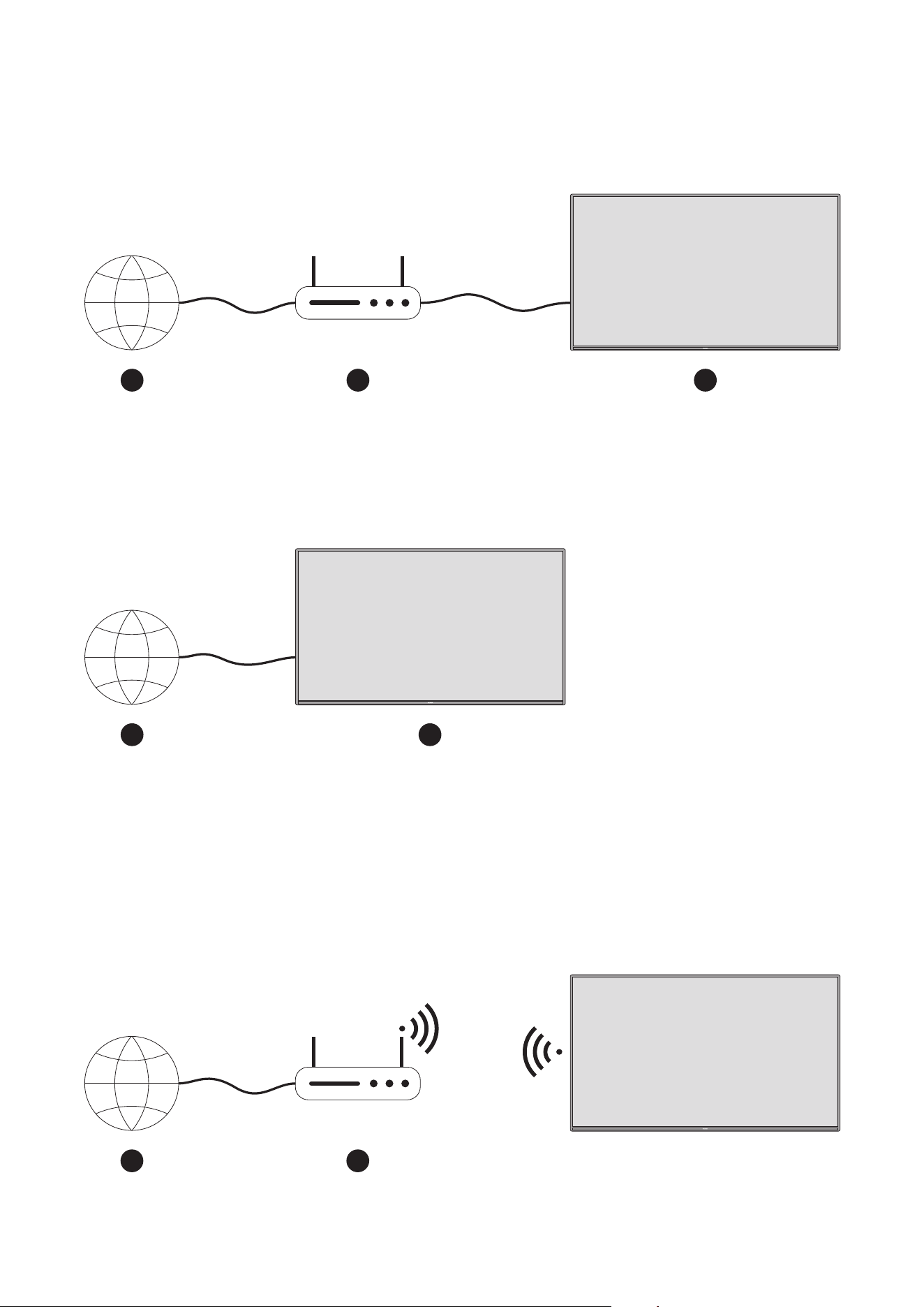
32
13.1. Wired connection (optional)
Connect your TV to your modem/router via an Ethernet cable. There is a LAN port on the rear side of your TV.
The status of the connection under the Ethernet section in the Network & Internet menu will changed from Not
connected to Connected.
1. Broadband ISP connection
2. LAN (Ethernet) cable
3. LAN input on the rear side of the TV (optional) You might be able to connect your TV to a network wall socket
depending on your network’s conguration. In that case, you can connect your TV directly to the network using
an Ethernet cable.
1. Broadband ISP connection
1. Network wall socket
2. LAN input on the rear side of the TV (optional)
13.2. Wireless connection
A wireless LAN modem/router is required to connect the TV to the Internet via wireless LAN.
Highlight Wi-Fi option in the Network & Internet menu and press OK to enable wireless connection. Available
networks will be listed. For more information refer to Network & Internet>Wi-Fi section under the title of
Settings.
21 3
21
21 3
21
21
LAN-Kabel

33
A network with hidden SSID can not be detected by other devices. If you want to connect to a network with
hidden SSID, highlight the Add new network option under the Settings-> Network & Internet menu on the Home
Screen and press OK. Add the network by entering its name manually using the related option. A Wireless-N
router (IEEE 802.11a/b/g/n/ac) with simultaneous 2.4 and 5 GHz bands is designed to increase bandwidth.
These are optimized for smoother and faster HD video streaming, le transfers and wireless gaming.
Use a LAN connection for quicker data transfer between other devices like computers.
The transmission speed diers depending on the distance and number of obstructions between the transmission
products, the conguration of these products, the radio wave conditions, the line trac and the products that
you use. The transmission may also be cut o or may get disconnected depending on the radio wave conditions,
DECT phones or any other WLAN 11b appliances. The standard values of the transmission speed are the
theoretical maximum values for the wireless standards. They are not the actual speeds of data transmission.
The location where the transmission is most eective diers depending on the usage environment.
The Wireless feature of the TV supports 802.11 a,b,g,n & ac type modems. It is highly recommended that you
should use the IEEE 802.11n communication protocol in order to avoid any possible problems while watching
videos.
You must change your modem’s SSID when there are any other modems around with the same SSID. You can
encounter connection problems otherwise. Use a wired connection if you experience problems with a wireless
connection.
A stable connection speed is required to play back streaming content. Use an Ethernet connection if the wireless
LAN speed is unstable.
14. Multimedia Player
On the Home Screen scroll to the Apps row, select the Multimedia Player (MMP) and press the OK button to
launch.
Select the media type on the main media player screen. On the next screen, you can press the Menu button to
access a list of menu options while the focus is on a folder or a media le. Using the options of this menu you
can change the media type, sort the les, change the thumbnail size and turn your TV into a digital photo frame.
You will also be able to copy, paste and delete the media les using the related options of this menu, if a FAT32
formatted USB storage device is connected to the TV. Additionally you can switch the viewing style by selecting
either Normal Parser or Recursive Parser. In Normal Parser mode the les will be displayed with folders if any
available. So only the selected type of media les in the root folder or in the selected folder will be displayed. If
there isn’t any media les of the selected type, the folder will be assumed as empty. In Recursive Parser mode
the source will be searched for all available media les of the selected type and the found les will be listed.
Press the Back/Return button to close this menu.
While browsing for the video les a preview of the highlighted video will be displayed in a small window on the
left side of the screen if the view style is set to List View. Press the Blue button to switch between the List View
and Grid View.
14.1. Multimedia playback from USB storage devices
Important: Back up the les on your USB storage devices before connecting them to the TV. Manufacturer
will not be responsible for any le damage or data loss. Certain types of USB devices (e.g. MP3 Players) or
USB hard disk drives/ memory sticks may not be compatible with this TV. The TV supports FAT32 and NTFS
disk formatting. FAT32 formatted devices with a storage capacity larger than 192TB are not supported. NTFS
formatted devices with a storage capacity larger than 2TB are not supported.
Note: External storage media formatted in FAT32 or NTFS le system are recognised by the TV. Storage media
formatted in exFAT format must rst be formatted in NTFS on the PC and then connected to the USB port of
the TV.
You can view your photos or play your music and video les installed on a connected USB storage device on the
TV. Plug in the USB storage device to one of the USB inputs on the TV.

34
On the main media player screen select the desired media type. On the next screen, highlight a le name from
the list of available media les and press the OK button. Follow the on-screen instructions for more information
on other available button functions.
Note: Wait a little while before each plugging and unplugging as the player may still be reading les. Failure to
do so may cause physical damage to the USB player and the USB device itself. Do not pull out your drive while
playing a le.
14.2. Multimedia playback from a mobile device via DMR
Make sure that your mobile device is connected to the same network as your TV. On the TV, scroll to Apps row
on the Home Screen, select the Multimedia Player (MMP) and press the OK button to launch. Select the media
type on the main media player screen. On the next screen, press the Blue button to switch the List View layout.
Then press the Back button. DMR (Digital Media Renderer) option will appear among the media type options.
Highlight the DMR option and press the OK button. The TV is ready to receive the media le sent from your
mobile device. On the mobile device, open the le you want to share and tap on the sharing icon or on the
related option from the options menu of your mobile device. Available devices will be listed. Select your TV
from the list. You can get the device name of your TV from the Settings>Device Preferences>About menu on
the Home screen. If desired, the name of the TV can also be changed by either selecting one of the predened
names or entering a custom name using the options of the Device name menu. If the connection is successfully
established the selected media le will be played/ displayed on your TV.
15. USB recording
IMPORTANT! Back up les from your USB storage devices before connecting them to the TV. The manufacturer
will not be responsible for any le damage or data loss. Certain types of USB devices (e.g. MP3 players) or USB
hard disk drives/memory sticks may not be compatible with this TV. The TV supports FAT32 (storage capacity
up to 192 TB) and NTFS (storage capacity up to 2 TB) disk formatting.
Note: External storage media formatted in FAT32 or NTFS le system are recognised by the TV. Storage media
formatted in exFAT format must rst be formatted in NTFS on the PC and then connected to the USB port of
the TV.
Open the Live TV application. Plug in your USB storage device formatted in FAT32 or NTFS format to a USB port
of the TV. When your USB device is recognized by the TV, you will get a conrmation message on the screen that
the USB device is connected. The appearance of this message on the TV screen is also a conrmation that your
connected USB storage device is recognized by the TV and ready to use.
To use the USB recording function on your TV, the connected USB storage device must be formatted to FAT32
data format beforehand. Please, follow these instructions to congure your connected USB storage device for
the recording function of the TV.
Press the Menu button on your remote control and then the DOWN button to display the menu “Record”. Select
the Device Info submenu, select your connected USB storage device and press the OK button to display the
options for your USB storage device.
• Select the Format option to format your USB storage device to FAT32 format.
• Select the option SET Time Shift to congure your USB storage device for Time Shift recording.
• Select the option SET PVR to congure your USB storage device for PVR recording.
It is recommended to use USB hard disk drives (HDD) for recording of HD broadcasts and programs with a long
runtime, such as movies. Do not pull out the USB/HDD during a recording. This could damage the connected
USB/HDD.
Recorded broadcasts are stored on the connected USB storage device. You can save the recordings
The recorded programs can be played back only through the Menu “Record/Record List” of the Live TV app.
They cannot be played back via multimedia applications installed on the TV.
If the writing speed of the connected USB storage device is slow, there may be a delay in lip sync during Time
Shift recording or the recording may fail.
A timer recording cannot be started while teletext is switched on. Highlight Yes in the dialogue that appears and

35
then OK. Teletext will close and the recording will start.
Recording of radio programs is supported.
15.1. Instant recording
Press the REC button to start recording an event instantly while watching a programme.
Press and hold REC button for 3 seconds to stop and save the instant recording.
You can not switch broadcasts during the recording mode.
15.2. Watching recorded programmes
Select Record List from the Record menu in Live TV mode and press OK. Select a recorded item from the list (if
previously recorded). Press the OK button to watch.
Press and hold REC button for 3 seconds or press Back/Return button to stop a playback.
The recordings will be named in the following format: Channel Name_Date(Year/Month/Day)_ Duration(Hour/
Minute/Second) _Programme Name.
15.3. Time Shift recording
In Time Shift recording mode, the program is paused and simultaneously recorded to the connected USB storage
device. The Time Shift recording function must rst be activated in the menu “Record > Time Shift Mode > OK”.
To activate time-shift recording while watching a programme in Live TV mode, press the Play/Pause button on
your remote control.
Note: When using the Time Shift function for the rst time, a Disk Setup conguration dialog will be displayed
on the TV screen. Select the oered conguration options and follow the steps in the Time Shift conguration
menu. You can either choose Auto or Manual setup mode. In Manual mode, if you prefer, you can format your
USB storage device and specify the storage space that will be used for Time Shift recording.
Press Pause/Play button again to resume the paused program from where you stopped. Press and hold REC
button for 3 seconds to stop Time Shift recording and return to the Live TV broadcast.
When this feature is used for the rst time, the Disk Setup wizard will be displayed when the Pause/Play button
is pressed. When the setup is complete, the Disk Setup Result will be displayed. Press Exit button.
Time Shift recording function will not be available for radio broadcasts.
15.4. Disk format
When using a new USB storage device, it is recommended that you rst format it by using the Format option
in the menu “Record > Device” Info menu in Live TV mode. Highlight the connected device on the Device Info
screen and press OK or Right directional button to see the list of available options. Then highlight Format and
press OK to proceed. A conrmation dialogue will be displayed. Highlight Yes and press OK to start formatting.
IMPORTANT: Formatting your USB storage device will erase ALL the data on it and its le system will be converted
to FAT32. In most cases operation errors will be xed after a format but you will lose ALL your data.
15.5. Schedule list
You can add Reminders or Record Timers using the Schedule List menu. You can access the Schedule List from
the Record menu in Live TV mode. Highlight Schedule List and press OK. Previously set Timers will be listed if
any available.
Press Record button to add a timer while the Schedule List menu is displayed on the screen. You can dene the
type of the timer by setting the Schedule Type option as Reminder or Record. When other parameters are set
highlight Add and press OK. The timer will be added to the list.

36
If any available, you can also edit or delete the timers on this list. Highlight the timer of your choice and press
OK. Edit and Delete options will appear at the bottom of the screen. Highlight the desired option and press OK.
After you edited a Timer you can choose either to replace it or add it as a new Timer. If you choose the Replace
option, the Timer will be saved with the new settings. If you choose the Add option, the timer will be added to
the list as a new timer. Highlight Replace or Add according to your preference and press OK to proceed. When
you choose to delete a timer a conrmation dialogue will be displayed on the screen. Highlight Yes and press
OK to delete the selected timer.
A warning message will be displayed if the time intervals of two Timers overlap. You cannot set more than one
Timer for the same time interval.
Press EXIT button to close the Schedule List.
16. HDMI-CEC function
With CEC function of your TV you can operate a connected device with the TV remote control. This function uses
HDMI CEC (Consumer Electronics Control) to communicate with the connected devices. Devices must support
HDMI CEC and must be connected with an HDMI connection.
The TV comes with the CEC function switched on. Make sure that all CEC settings are properly set up on the
connected CEC device. The CEC functionality has dierent names on dierent brands. CEC function might not
work with all devices. If you connect a device with HDMI CEC support to your TV, the related HDMI input source
will be renamed with the connected device’s name.
To operate the connected CEC device, select the related HDMI input source from the Inputs menu on the Home
Screen. Or press the Source button if the TV is in Live TV mode and select the related HDMI input source from
the list. To terminate this operation and control the TV via the remote again, press the Source button, which will
still be functional, on the remote and switch to another source.
The TV remote is automatically able to control the device once the connected HDMI source has been selected.
However not all buttons will be forwarded to the device. Only devices that support CEC Remote Control function
will respond to the TV remote control.
The TV also supports ARC (Audio Return Channel) feature. This feature is an audio link meant to replace other
cables between the TV and the audio system (A/V receiver or speaker system). Connect the audio system to the
HDMI2 input on the TV to enable ARC feature.
In order to activate ARC feature the Speakers option should be set as External Audio System. You can access
this option from the menu “TV options > Settings > Device Preferences > Sound” in Live TV mode or from
“Settings > Device Preferences > Sound” menu on the Home Screen. When ARC is active, TV will mute its other
audio outputs automatically. So you will hear audio from connected audio device only. The volume control
buttons of the remote will be directed to connected audio device and you will be able to control the volume of
the connected device with your TV remote.
Note: ARC is supported only via the HDMI2 input.
The CEC functions are set to On by default. To switch o completely do the following:
1 - Enter the “Settings > Device Preferences > Inputs” Menu on the Home Screen or menu “TV options > Settings
> Device Preferences > Inputs” in Live TV mode.
2 - Scroll down to Consumer Electronic Control (CEC) section. Highlight HDMI control option and press OK.

37
17. Chromecast
The Nokia Smart TV has Chromecast is built-in. It allows you to cast content from Apps on your mobile device
straight to your TV. Please make sure that your mobile device is connected to the same network as your TV.
Chromecast also enables you to wirelessly mirror the screen of your device to your TV using the screen
mirroring application installed on your mobile device. When the App supports the Chromecast function, tap the
Chromecast symbol on your Android device. Available devices will be detected and listed. Select your TV from
the list and tap on it to start streaming.
To cast your device’s screen to the TV screen
1. On your Android device, go to ‘Settings’ from the notication panel or Home screen
2. Tap on ‘Device Connectivity’
3. Tap on the ‘Easy projection’ and enable ‘Wireless projection’. Available devices will be listed
4. Select the Nokia Smart TV
OR
1. Slide down the notication panel
2. Tap on ‘Wireless projection’
3. Select the Nokia Smart TV
If the mobile app supports Chromecast feature, such as YouTube, Dailymotion, Netix, you can cast your app to
your TV. On the mobile app, look for the Chromecast icon and tap on it. Available devices will be detected and
listed. Select your Nokia Smart TV from the list and tap on it to start casting.
To cast an app to the TV screen
1. On your smartphone or tablet, open an app that supports Chromecast
2. Tap the Chromecast icon
3. Select the Nokia Smart TV
4. The app you selected should start playing on the Nokia Smart TV
Notes:
Chromecast works on Android and iOS. Make sure that your mobile device is connected to the same network
as your TV.
The menu options and naming for Chromecast function on your Android device can dier from brand to brand
and can change with time. Please refer to your mobile device’s manual for latest information on Chromecast
function.

38
18. HBBTV system
HbbTV (Hybrid Broadcast Broadband TV) is a stand- ard that seamlessly combines TV services delivered via
broadcast with services delivered via broadband and also enables access to Internet only services for consumers
using connected TVs and set-top boxes. Services delivered through HbbTV include traditional broadcast
TV channels, catch-up services, video-on-demand, electronic programme guide, in- teractive advertising,
personalisation, voting, games, social networking and other multimedia applications.
HbbTV applications are available on channels where they are signalled by the broadcaster.
The HbbTV applications are generally launched with the press of a coloured button on the remote. Generally a
small red button icon will appear on the screen in order to notify the user that there is an HbbTV application on
that channel. Press the button indicated on the screen to launch the application.
HbbTV applications use the buttons on the remote control to interact with the user. When an HbbTV application
is launched, the control of some buttons are owned by the application. For example, numeric channel selection
may not work on a teletext applica- tion where the numbers indicate teletext pages.
HbbTV requires AV streaming capability for the plat- form. There are numerous applications providing VOD
(video on demand) and catch-up TV services. The OK (play&pause), Stop (press and hold REC button for 3
seconds), Fast forward, and Rewind buttons on the remote control can be used to interact with the AV content.
Note: You can enable or disable this feature from the TV Options-> Advanced Options-> HBBTV Settings menu
in Live TV mode.
18.1. Quick standby search
If earlier an automatic search is performed, your TV will search for new or missing digital channels at 05:00 am
every morning while in quick standby mode.
And if the Auto Channel Update option in the Settings>Channel menu is enabled the TV will wake up within 5
minutes after it is switched into quick standby mode and search for channels. Standby LED will blink during this
process. Once the standby LED stops blinking the search process is completed. Any newfound channels will be
added to the channel list. If the channel list is updated, you will be informed on the changes at the next power
on.
19. Software update
Your TV can nd and update the rmware automatically via Internet.
To experience the best use of your TV and benet from the latest improvements make sure your system is
always up to date.
19.1. Software update via internet
On the Home Screen enter the “Settings > Device Preferences > About” menu in order to update your Android
system version. Move the focus to the System update option and press OK. You will be informed about the
system status and the time at which the device was last checked for an update will be displayed. The Check for
update option will be highlighted, press OK if you want to check for an available update.
Note: Do not unplug the power cord during the reboot process. If the TV fails to come on after the upgrade,
unplug, wait for two minutes then plug it back in.
19.2. Software update via the broadcast signal
In Live TV mode, call up the menu “TV options > Advanced options > OAD”. Use the Menu key to access the
setting options. You can enable or disable the automatic download option for software upgrade.
To start a manual download: Highlight the Manual OAD Download option in the TV Options menu and press OK
to manually search for an available software upgrade via the DTV broadcast signals.
Note: Do not unplug the power supply cable during the reboot. If the TV does not turn on after the upgrade,
unplug the power cord, wait two minutes, and then plug it back in.

39
20. Troubleshooting & tips
TV does not switch on
• Make sure the power cord is plugged in securely to power outlet.
• Disconnect the power cable from the power outlet. Wait for one minute then reconnect it.
• Press the Standby/On button on the TV.
TV does not respond to the remote control
• The TV requires some time to start up. During this time, the TV does not respond to the remote control or
TV controls. This is normal behaviour.
• Check if the remote control is working by means of a mobile phone camera. Put the phone in camera mode
and point the remote control to the camera lens. If you press any key on the remote control and you notice
the infrared LED icker through the camera, the remote control is working. The TV needs to be checked.
If you do not notice the ickering, the batteries may be exhausted. Replace the batteries. If the remote is still
not working, the remote control might be broken and needs to be checked.
This method of checking the remote control is not possible with remote controls which are wirelessly paired
with the TV.
No channels
• Make sure that all cables are properly connected and that the correct network is selected.
• Make sure that the correct channel list is selected.
• Make sure that you have entered the correct channel frequency if you have done manual tuning.
No picture / distorted picture
• Make sure that the antenna is properly connected to the TV.
• Make sure that the antenna cable is not damaged.
• Make sure that the correct device is selected as the input source.
• Make sure that the external device or source is properly connected.
• Make sure that the picture settings are set correctly.
• Loudspeakers, unearthed audio devices, neon lights, high buildings and other large objects
can inuence reception quality. If possible, try to improve the reception quality by changing the antenna
direction or moving devices away from the TV.
• Change to a dierent picture format, if the picture does not t the screen
• Make sure that your PC uses the supported resolution and refresh rate.
No sound / poor sound
• Make sure that the sound settings are correctly set.
• Make sure that all cables are properly connected.
• Make sure that the volume is not muted or set to zero, increase the volume to check.
• Make sure that the TV audio output is connected to the audio input on the external sound system.
• Sound may be coming from only one speaker. Check the balance settings from Sound menu.
Input sources - can not be selected
• Make sure that the device is connected to the TV.
• Make sure that all cables are properly connected.
• Make sure that you select the right input source which is dedicated to the connected device.
• Make sure that the right input source is not hidden from the Inputs menu.

40
21. Technical specications
21.1. VGA input typical display mode
The following table is an illustration of some of the typical video display modes. Your TV may not support all
resolutions.
Resolution Frequency
640x480
640x480
640x480
800x600
800x600
800x600
800x600
1024x768
1024x768
1024x768
1152x864
1280x768
1280x768
1280x960
1280x960
1280x1024
1280x1024
1360x768
1366x768
1400x1050
1400x1050
1400x1050
1440x900
1440x900
1600x1200
1680x1050
1680x1050
1920x1080
60 Hz
72 Hz
75 Hz
56 Hz
60 Hz
72 Hz
75 Hz
60 Hz
70 Hz
75 Hz
75 Hz
60 Hz
75 Hz
60 Hz
75 Hz
60 Hz
75 Hz
60 Hz
60 Hz
59 Hz
60Hz
75Hz
60Hz
75Hz
60Hz
59Hz
60Hz
60Hz
1
2
3
4
5
6
7
8
9
10
11
12
13
14
15
16
17
18
19
20
21
22
23
24
25
26
27
28
Index
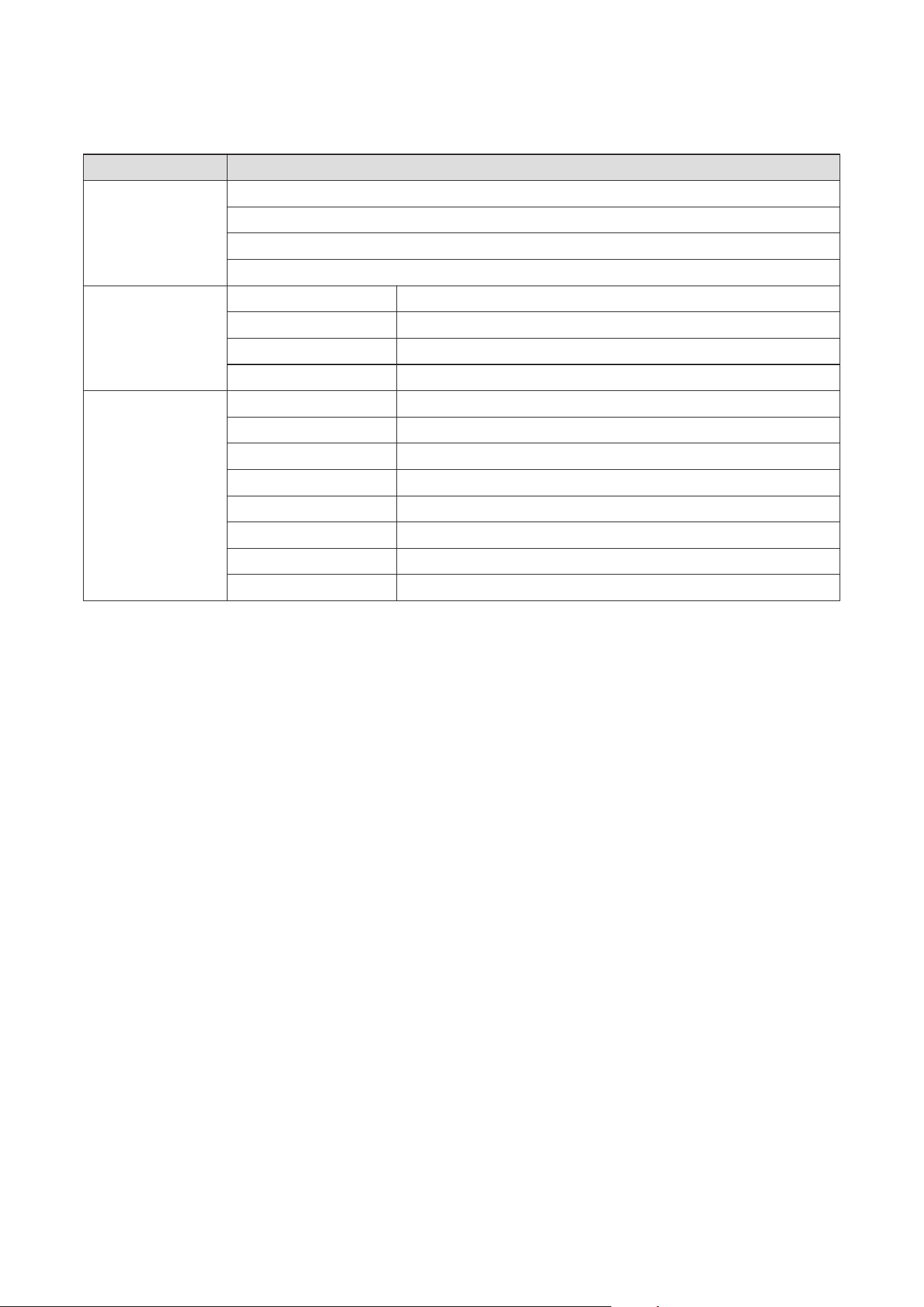
41
21.2. AV and HDMI signal compatibility
Supported signals
PAL
SECAM
NTSC4.43
NTSC3.58
480i, 480p
576i, 576p
720p
1080i
480i
480p
576i, 576p
720p
1080i
1080p
3840x2160p
4096x2160p
60 Hz
50 Hz
50 Hz,60 Hz
50 Hz,60 Hz
60 Hz
60 Hz
50 Hz
50 Hz,60 Hz
50 Hz,60 Hz
24 Hz, 25 Hz, 30 Hz, 50 Hz, 60 Hz
24 Hz, 25 Hz, 30 Hz, 50 Hz, 60 Hz
24 Hz, 25 Hz, 30 Hz, 50 Hz, 60 Hz
Input
Composite
/ Back AV
Component
/ YPbPr
HDMI
In some cases a signal on the TV may not be displayed properly. The problem may be an inconsistency with
standards from the source equipment (DVD, Set-top box, etc.). If you do experience such a problem please
contact your dealer and also the manufacturer of the source equipment.

42
21.3. Supported le formats for USB mode
21.3.1. Video
Die folgende Tabelle zeigt einige der typischen Videoanzeigemodi. Ihr Fernsehergerät unterstützt möglicherweise
nicht alle Auösungen.
Resolution Bit rate Prole Container
H.263
H.264
HEVC/H.265
MVC
AVS
AVS+
WMV3
VC1
Motion JPEG
VP8
VP9
RV30/RV40
40Mbps
135Mbps
100Mbps
80Mbps
40Mbps
50Mbps
40Mbps
40Mbps
10Mbps
20Mbps
100Mbps
40Mbps
MP@HL
Prole 0/2
1080P@60fps
4096x2176@60fps
1080P@30fps
1080P@60fps
1080P@60fps
1080P@60fps
1080P@60fps
1080P@30fps
1080P@60fps
4096x2176@60fps
1080P@60fps
4096x2176@60fps
1080P@60fps
Simple Prole,
Advanced Simple Prole @ Level 5,
GMC is not supported
MPEG program stream (.DAT, .VOB, .MPG,
.MPEG), MPEG transport stream (.ts, .trp, .tp),
MP4 (.mp4, .mov), 3GPP (.3gpp, .3gp), AVI (.avi),
MKV (.mkv), ASF (.asf)
FLV (.v), MP4 (.mp4, .mov),
3GPP (.3gpp, .3gp), MPEG transport
stream (.ts, .trp, .tp), ASF (.asf),
WMV (.wmv), AVI (.avi), MKV (.mkv)
MPEG program stream (.MPG, .MPEG),
MP4 (.mp4, .mov), 3GPP (.3gpp, .3gp),
AVI (.avi), MKV (.mkv), ASF (.asf)
MPEG program stream (.MPG, .MPEG), MPEG
transport stream (.ts, .trp, .tp), ASF (.asf), WMV
(.wmv), AVI (.avi), MKV (.mkv)
MP4 (.mp4, .mov), 3GPP (.3gpp, .3gp), MPEG
transport stream (.ts, .trp, .tp),
MKV (.mkv)
MP4 (.mp4, .mov), 3GPP (.3gpp, .3gp),
AVI (.avi), MKV (.mkv)
ASF (.asf), AVI (.avi), MKV (.mkv),
WMV (.wmv)
AVI (.avi), 3GPP (.3gpp, .3gp), MP4
(.mp4, .mov), MKV (.mkv), ASF (.asf)
FLV (.v), AVI (.avi), SWF(.swf)
MPEG transport stream (.ts, .trp, .tp)
MPEG transport stream (.ts, .trp, .tp)
MPEG transport stream (.ts, .trp, .tp)
MKV (.mkv), WebM (.webm)
MKV (.mkv), WebM (.webm)
RM (.rm, .rmvb)
Advanced Prole @ Level 3,
Simple Prole,
Main Prole
Main Prole,
High Prole @ Level 5.1
Main/Main10 Prole,
High Tier @ Level 5.1
Broadcasting prole @
Level 6.0.1.08.60
Jizhun prole @ Level 6.0
Video Codec
40Mbps
1080P@60fps
Sorenson H.263
40Mbps1080P@60fpsMPEG4
80Mbps1080P@60fpsMPEG 1/2

43
21.3.2. Audio
Sample Rate Channel Bit rate Container Note
MPEG1/2 Layer1
MPEG1/2 Layer2
MPEG1/2 Layer3
AC3
EAC3
AAC-LC, HEAAC
WMA
WMA 10 Pro M0
WMA 10 Pro M1
WMA 10 Pro M2
VORBIS
DTS
LPCM
32Kbps ~ 448Kbps
8Kbps ~ 384Kbps
8Kbps ~ 320Kbps
32Kbps ~ 640 Kbps
32Kbps ~ 6 Mbps
128bps ~ 320Kbps
< 192kbps
< 384kbps
< 768kbps
< 1.5Mbps
64Kbps ~ 1.5Mbps
384Kbps
64Kbps ~ 128Kbps
Up to 2
Up to 2
Up to 2
Up to 5.1
Up to 5.1
Up to 5.1
Up to 2
Up to 2
Up to 5.1
Up to 5.1
Up to 2
Up to 5.1
Up to 5.1
Up to 2
Up to 2
16 kHz ~ 48 kHz
16 kHz ~ 48 kHz
16 kHz ~ 48 kHz
32 kHz, 44.1 kHz,
48 kHz
32 kHz, 44.1 kHz,
48 kHz
8 kHz ~ 48 kHz
8 kHz ~ 48 kHz
48 kHz
48 kHz
96 kHz
8 kHz ~ 48 kHz
8 kHz ~ 48 kHz
8 kHz
Movie: AVI (.avi), ASF (.asf), Matroska (.mkv),
MPEG transport stream (.ts, .trp, .tp),
MPEG program stream (.DAT, .VOB, .MPG, .MPEG)
Music: MP3 (.mp3), WAV (.wav)
Movie: AVI (.avi), ASF (.asf), Matroska (.mkv), MPEG
transport stream (.ts, .trp, .tp), MPEG program
stream (.DAT, .VOB, .MPG, .MPEG)
Music: MP3 (.mp3), WAV (.wav)
Movie: AVI (.avi), Matroska (.mkv),
3GPP (.3gpp, .3gp), MP4 (.mp4, .mov)
Music: WAV (.wav), MP4 (.m4a)
Movie: AVI (.avi), Matroska (.mkv),
3GPP (.3gpp, .3gp), MP4 (.mp4, .mov)
Music: WAV (.wav), MP4 (.m4a)
Movie: AVI (.avi), ASF (.asf), Matroska (.mkv), MPEG
transport stream (.ts, .trp, .tp), MPEG program
stream (.DAT, .VOB, .MPG, .MPEG)
Music: MP3 (.mp3), WAV (.wav)
Movie: ASF (.wmv, .asf), AVI (.avi), Matroska (.mkv)
Music: ASF (.wma)
Movie: ASF (.wmv, .asf), AVI (.avi), Matroska (.mkv)
Music: ASF (.wma)
Movie: ASF (.wmv, .asf), AVI (.avi), Matroska (.mkv)
Music: ASF (.wma)
Movie: ASF (.wmv, .asf), AVI (.avi), Matroska (.mkv)
Music: ASF (.wma)
Movie: Matroska (.mkv), WebM (.webm),
3GPP (.3gpp, .3gp), MP4 (.mp4, .mov)
Music: MP4 (.m4a), OGG (.ogg)
Movie: MPEG transport stream (.ts,
.trp, .tp), MPEG program stream (.DAT, .VOB, .MPG,
.MPEG), MP4 (.mp4, .mov), Matroska (.mkv)
Movie: 3GPP (.3gpp, .3gp), MP4 (.mp4, .mov), MPEG
transport stream (.ts, .trp, .tp), MPEG program
stream (.DAT, .VOB, .MPG, .MPEG)
Music: EAC3 (.ec3), MP4 (.m4a)
Movie: AVI (.avi), Matroska (.mkv), 3GPP (.3gpp, .3gp),
MP4 (.mp4, .mov), MPEG transport stream (.ts,
.trp, .tp), MPEG program stream, (.DAT, .VOB, .MPG,
.MPEG) Music: WAV (.wav), MP4 (.m4a)
Movie: AVI (.avi), Matroska (.mkv), 3GPP (.3gpp, .3gp),
MP4 (.mp4, .mov), MPEG transport stream (.ts, .trp, .tp),
MPEG program stream (.DAT, .VOB, .MPG, .MPEG), FLV
(.v), RM (.rm, .rmvb) Music: AAC (.aac), MP4 (.m4a)
WMA 7, WMA 8,
WMA 9, Standard
Supports stereo
decoding only
No LBR mode
IMA-ADPCM
MS-ADPCM
G711 A/mu-law
Movie: AVI (.avi), Matroska (.mkv), 3GPP (.3gpp, .3gp),
MP4 (.mp4, .mov), MPEG transport stream (.ts, .trp,
.tp), MPEG program stream (.DAT, .VOB, .MPG, .MPEG)
Music: AC3 (.ac3), MP4 (.m4a)
Audio Codec
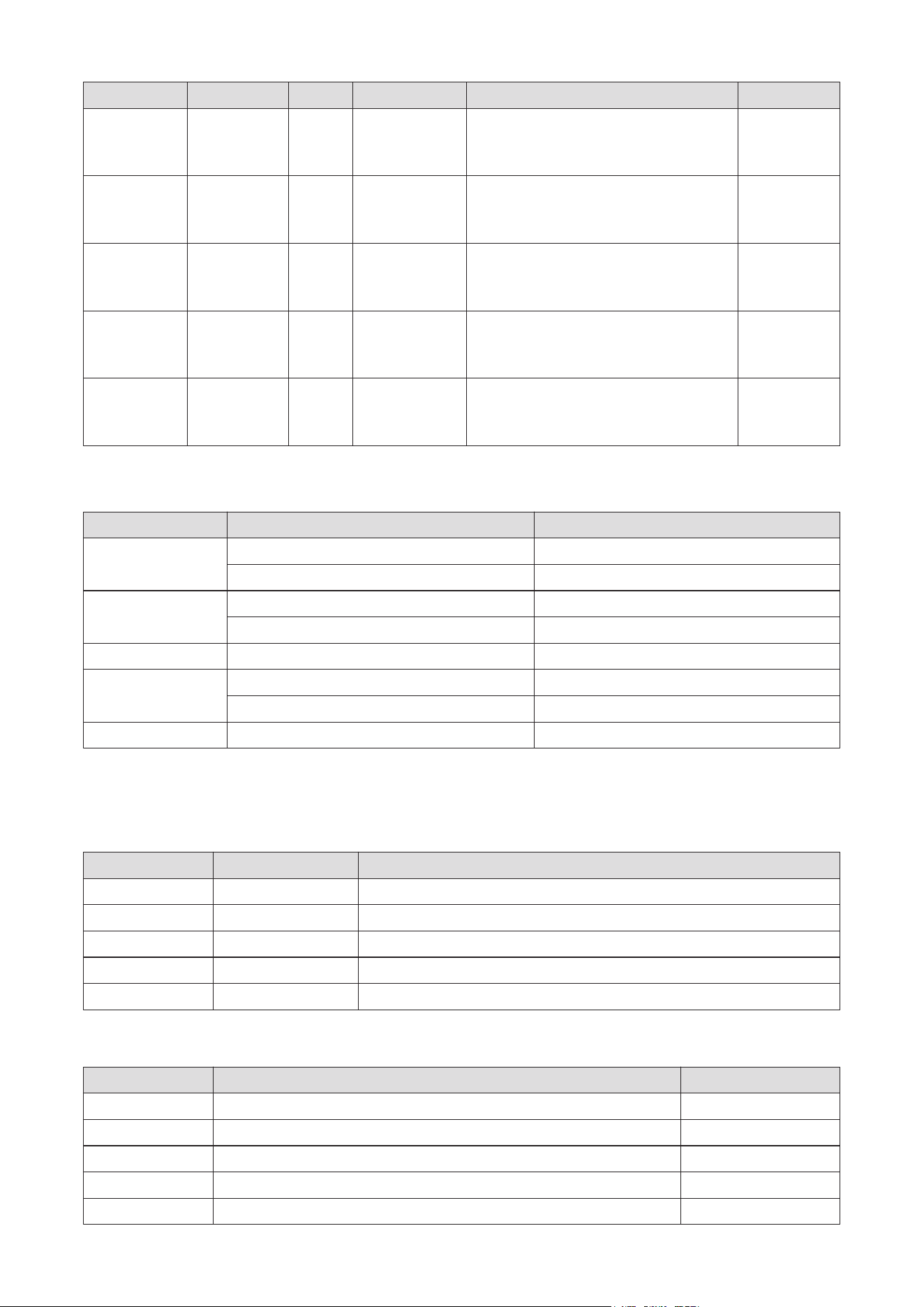
44
Sample Rate Channel Bit Rate Container Note
LBR (cook)
FLAC
DTS LBR
DTS XLL
DRA
6Kbps ~ 128Kbps
< 1.6Mbps
up to 2Mbps
< 1533Kbps
Up to 5.1
Up to 5.1
Up to 5.1
Up to 6
Up to 7.1
8 kHz
11.025 kHz,
22.05 kHz,
44.1 kHz
12 kHz, 22 kHz,
24 kHz, 44.1 kHz,
48 kHz
8 kHz~96 kHz
Up to 96 kHz
8 kHZ~96 kHz
Movie: RM (.rm, .rmvb)
Movie: MPEG transport stream (.ts, .trp)
Movie: Matroska (.mkv, .mka)
Music: FLAC(.ac)
Movie: MPEG transport stream (.ts,
.trp, .tp), MP4 (.mp4, .mov)
Movie: MP4 (.mp4, .mov)
Audio Code
21.3.3. Picture
21.3.4. Subtitle
Internal
External
Photo
Container
Subtitle Parser
Resolutions (width x height)
Subtitle Code
Note
Base-line
Progressive
non-interlace
interlace
Base-line
Progressive
MPG, MPEG
TS
MP4
MKV
AVI (1.0, 2.0), DMF0, 1, 2
SubRip
SubStation Alpha
SAMI
SubViewer, MicroDVD, DVDSubtitle, System SubIdx (VobSub)
TMPlayer
dat, mpg, mpeg, vob
ts, trp, tp
mp4
mkv
avi
.srt
.ssa / .ass
.smi
.sub
.txt
15360x8640 (1920x8 x 1080x8)
1024x768
9600x6400
1200x800
9600x6400
15360x8640 (1920x8 x 1080x8)
1024x768
6400x4800 (800x8 x 600x8)
DVD Subtitle
DVB Subtitle
DVD Subtitle, UTF-8 Plain Text
ASS, SSA, UTF-8 Plain Text, VobSub, DVD Subtitle
XSUB, XSUB+
SubViewer 1.0 & 2.0 Only
JPEG
PNG
MPO
BMP
GIF
Image
File Extension
File Extension
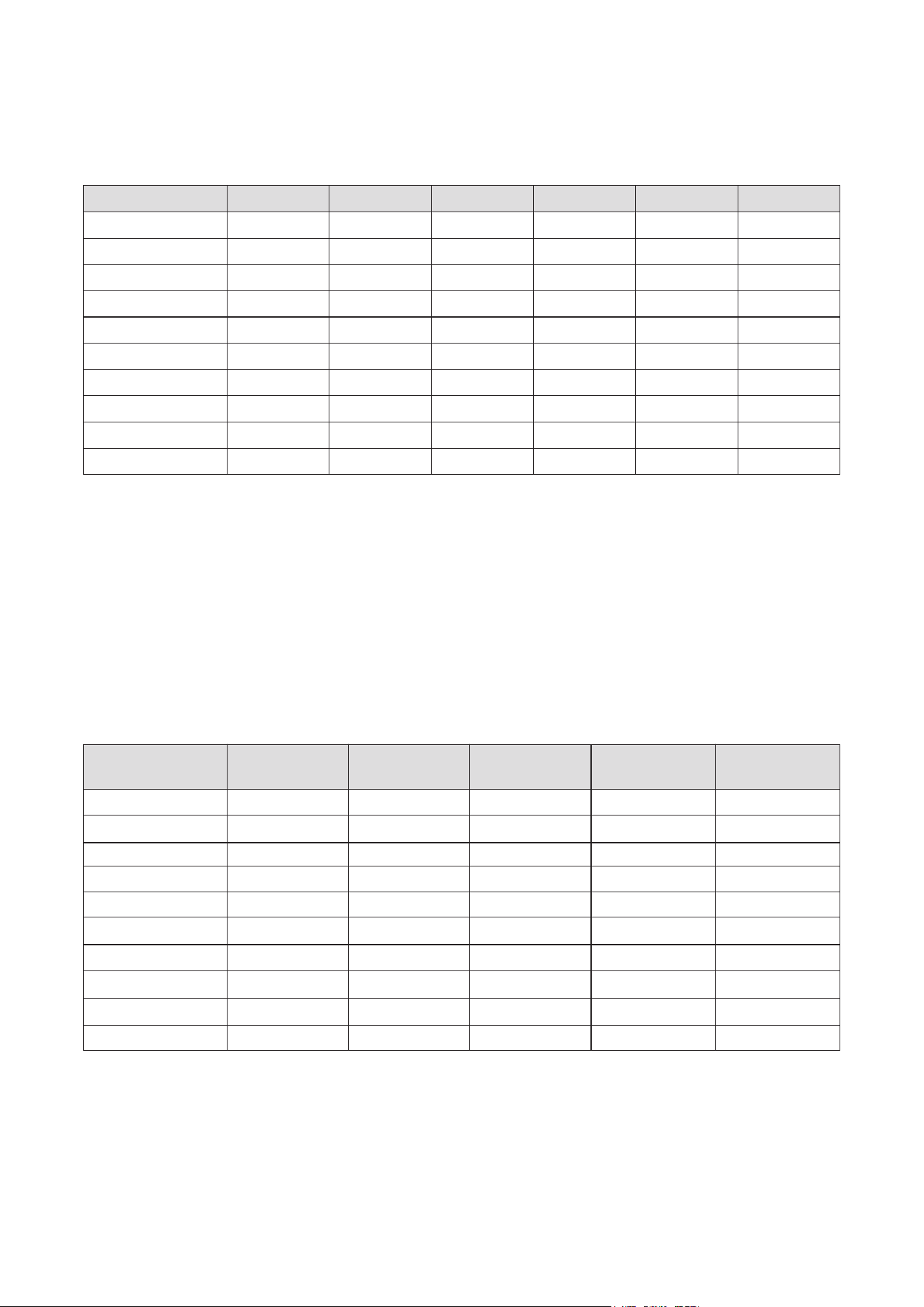
45
21.4. Supported DVI resolutions
When connecting devices to your TV’s connectors by using DVI converter cable (DVI to HDMI cable - not supplied),
you can refer to the following resolution information.
56 HzResolution 70 Hz60 Hz 72 Hz66 Hz 75 Hz
√
√
√
√
√
√
√
√
√
√
√
√
√
√
√
√
√
√
640x480
800x600
1024x768
1280x768
1280x960
1360x768
1366x768
1280x1024
1400x1050
1600x900
21.5. Specication
TV broadcasting: PAL BG/I/DK SECAM BG/DK
Receiving channels: VHF (BAND I/III) - UHF (BAND U) hyperband
Digital reception: fully integrated digital terrestrial, cable and satellite TV (DVB-T/T2-C-S/S2)
Number of preset channels: 12 200
Channel indicator: on-screen display
RF aerial input: 75 Ohm (unbalanced)
Operation temperature and humidity: 0ºC up to 40ºC, 85% humidity max
3900A
HNE39GV210
HNA39GV210
4300A
UNE43GV210
UNA43GV210
2400A
HNE24GV210
HNA24GV210
3200B
HNE32GV210
HNE32GV210
220-240V AC, 50Hz.
no
2x 8
75 W
< 0,5
8,6
892 x 235 x 571
892 x 95 x 517
39”/98 cm
220-240V AC, 50Hz.
yes
2x 10
120 W
< 0,5
7,95
964 x 235 x 611
964 x 66 x 560
43”/108cm
220-240V AC, 50Hz.
12 V = 4.0 A, 48 W
no
2x 2,5
47 W
< 0,5
3,85
553 x 135 x 365
553 x 63 x 334
24”/60 cm
220-240V AC, 50Hz.
no
2x 6
65 W
< 0,5
6,79/4,80
726 x 184 x 474
726 x 66 x 428
32”/80 cm
Operating Voltage
Display
Audio Output Power
(WRMS.) (10% THD)
Networked Standby Power
Consumption (W)
TV Dimensions DxLxH
(with foot) (mm)
TV Dimensions DxLxH
(without foot) (mm)
Audio (DTS HD)
Power Consumption (W)
Weight (Kg)
AC Adaptor Specications
(Output)
3200A
FNE32GV210
FNR32GV210
220-240V AC, 50Hz.
no
2x 6
65 W
< 0,5
7, 5
726 x 184 x 474
726 x 66 x 428
32”/80 cm
46
5500A
UNE55GV210I
5800A
UNE58GV220I
4300B
FNE43GV210
FNA43GV210
5000A
UNE50GV210I
UNA50GV210I
220-240V AC, 50Hz.
yes
2x 10
140
< 0,5
14,35
1233 x 235 x 763
1233 x 66 x 711
55”/139cm
220-240V AC, 50Hz.
yes
2x 10
150
< 0,5
14,90
1294 x 240 x 786
1294 x 66 x 752
58”/146cm
220-240V AC, 50Hz.
no
2x 8
75
< 0,5
7,6 5
964 x 2 35 x 611
964 x 66 x 560
43”/108 cm
220-240V AC, 50Hz.
yes
2x 10
135
< 0,5
11,25
1119 x 235 x 699
1119 x 66 x 647
50”/126cm
6500A
UNE65GV220I
7500A
UNE75GV220I
220-240V AC, 50Hz.
yes
2x 12
200
< 0,5
16,65
1452 x 240 x 873
1452 x 72 x 836
65”/164cm
220-240V AC, 50Hz.
yes
2x 12
260
< 0,5
37,20
1684 x 370 x 1026
1684 x 73 x 967
75”/189cm
220-240 V AV, 50 Hz.
yes
24 W
120
< 0,5
8,62
964 x 221 x 603
964 x 66 x 560
43”/ 108 cm
QLED Smart TV
Operating Voltage
Display
Audio Output Power
(WRMS.) (10% THD)
Networked Standby Power
Consumption (W)
TV Dimensions DxLxH
(with foot) (mm)
TV Dimensions DxLxH
(without foot) (mm)
Audio (DTS HD)
Power Consumption (W)
Weight (Kg)
Operating Voltage
Display
Audio Output Power
(WRMS.) (10% THD)
Networked Standby Power
Consumption (W)
TV Dimensions DxLxH
(with foot) (mm)
TV Dimensions DxLxH
(without foot) (mm)
Audio (DTS HD)
Power Consumption (W)
Weight (Kg)
Operating Voltage
Display
Audio Output Power
(WRMS.) (10% THD)
Networked Standby Power
Consumption (W)
TV Dimensions DxLxH
(with foot) (mm)
TV Dimensions DxLxH
(without foot) (mm)
Audio (DTS HD)
Power Consumption (W)
Weight (Kg)
220-240 V AV, 50 Hz.
yes
36 W
135
< 0,5
8,62
1119 x 221 x 692
1119 x 66 x 647
50“/126 cm
5500D
QNR55GV215ISW
5800D
QNR58GV215ISW
4300D
QNA43GV210
QNR43GV215
5000D
QNR50GV215ISW
QNA50GV210ISW
220-240V AC, 50Hz.
yes
36 W
200
< 0,5
25,20
1452 x 250 x 885
1452 x 72 x 836
65”/ 164cm
Operating Voltage
Display
Audio Output Power
(WRMS.) (10% THD)
Networked Standby Power
Consumption (W)
TV Dimensions DxLxH
(with foot) (mm)
TV Dimensions DxLxH
(without foot) (mm)
Audio (DTS HD)
Power Consumption (W)
Weight (Kg)
220-240V AC, 50Hz.
yes
36 W
250
< 0,5
34
1575 x 281 x 939
1575 x 72 x 881
70”/ 177cm
6500D
QNR65GV215ISW
QNA65GV215ISW
7000D
QNR70GV215ISW
220-240 V AV, 50 Hz.
yes
32 W
140
< 0,5
12,90
1233 x 250 x 767
1233 x 66 x 711
55”/ 139 cm
220-240 V AV, 50 Hz.
yes
36 W
150
< 0,5
14,35
1294 x 250 x 786
1294 x 72 x 752
58”/ 146 cm

47
21.6. Wireless LAN transmitter specications
21.7. Country restrictions
Intended for indoor use only in EU member states and EFTA states.
Max Output Power
< 100 mW
< 200 mW (*)
< 200 mW (*)
< 200 mW (*)
2400 - 2483,5 MHz (CH1-CH13)
5150 - 5250 MHz (CH36 - CH48)
5250 - 5350 MHz (CH52 - CH64)
5470 - 5725 MHz (CH100 - CH140)
Frequency Ranges
21.8. Licences
This product is licensed under the AVC patent portfolio license for the personal and non-commercial use of a
consumer to (i) encode video in compliance with the AVC standard (“AVC VIDEO”) and/or (ii) decode AVC video
that was encoded by a consumer engaged in a personal and non-commercial activity and/or was obtained
from a video provider licensed to provide AVC video. No license is granted or shall be implied for any other
use. Additional information may be obtained from MPEG LA, L.L.C. see http://www.mpegla.com This product
contains one or more programs protected under international and U.S. copyright laws as unpublished works.
They are condential and proprietary to Dolby Laboratories. Their reproduction or disclosure, in whole or in
part, or the production of derivative works therefrom without the express permission of Dolby Laboratories
is prohibited. Copyright 2003-2009 by Dolby Laboratories. All rights reserved. Subject to alterations. In
consequence of continuous research and development technical specications, design and appearance of
products may change. Google, Google Play, Android TV, Chromecast built-in and other marks are trademarks of
Google LLC. Google Assistant is not available in certain languages and countries. Availability of services varies
by country and language. Apple TV is a trademark of Apple Inc., registered in the U.S. and other countries and
regions. Netix is a registered trademark of Netix, Inc. Wi-Fi is a registered trademark of Wi-Fi Alliance®. The
terms HDMI and HDMI High-Denition Multimedia Interface, and the HDMI logo are trademarks or registered
marks of HDMI Licensing Administrator, Inc. in the United States and other countries. Dolby, Dolby Vision, Dolby
Audio, and the double-D symbol are trademarks of Dolby Laboratories Licensing Corporation. Manufactured
under license from Dolby Laboratories. For DTS patents, see http://patents.dts.com. All product names are
trademarks or registered trademarks of their respective owners.
© 2022 StreamView GmbH, Franz-Josefs-Kai 13, 1010 Vienna, Austria. All rights reserved. Nokia is a registered
trademark of Nokia Corporation, used under license by StreamView GmbH.
(*) ‘< 100 mW’ for the Ukraine
28022022V01