User manual
1. Overview

2. Box contents
- Hercules DJControl Inpulse 500
- USB cable
- Installation and quick start guide
- Warranty information

3. Controller specifications
3.1. Mechanical specifications
- Dimensions: 21.3 x 11.7 x 2.2 inches / 54 x 29.6 x 5.6 cm (width
x depth x height, with feet retracted, i.e. folded in) — 21.3 x
11.7 x 3.6 inches / 54 x 29.6 x 9.1 cm (width x depth x height,
with feet extended, i.e. folded out)
- Weight: 7.1 lb / 3.2 kg
3.2. Technical specifications
USB MIDI controller, featuring:
2 DECKS
- 2 x 4 transport buttons: SHIFT / PLAY / CUE / SYNC
- 2 sets of 8 pads = 16 in total; and 2 sets of 4 mode buttons for
pads = 8 in total (HOT CUE, LOOP, SLICER, SAMPLER, MODE 5,
MODE 6, MODE 7, MODE 8)
- 2 x 3 LOOP controls: LOOP IN and LOOP OUT buttons on each deck;
1 LOOP SIZE rotary encoder on each deck with built-in push button;
Reloop (exit the loop)
- 2 x 3 mode buttons: Vinyl / Slip / Quantize
- 2 jog wheels with capacitive touch detection
- 2 pitch faders
- 2 x 2 light guides (Tempo and Phase), to help with beatmatching
MIXER
- Navigation controls:
o 1 rotary encoder with built-in push button to navigate through
the music library, and 1 backlit ring showing the energy level
of the master track
o 2 buttons to load tracks onto the decks (virtual turntables)
o 1 Assistant button, to help you select tracks to be played
o 1 Beatmatch Guide button
- Deck mixing controls:
o 2 three-band equalizers with HIGH (treble), MID (medium)
and LOW (bass) frequency knobs
o 2 deck gain knobs
o 2 deck volume faders
o 2 deck volume VU-meters, with 9 levels each
o 2 buttons to enable/disable monitoring of the decks on
headphones, and 1 button to enable/disable monitoring of the
Master output on headphones
o 1 crossfader, plus 1 switch to select between the 3 different
crossfader curves

- Filter/Fx controls:
o 2 filter/effects knobs
o 4 effects buttons to enable an effect controlled via the
filter/effects knobs
- Mixing controls for inputs and outputs (via hardware):
o Microphone input: 1 microphone volume knob; 2 microphone
equalizer knobs for HIGH (treble) and LOW (bass)
frequencies; 1 two-color VU-meter (off = no audio signal /
green = audio signal / red = audio signal saturation)
(hardware adjustment)
o Aux input: 1 auxiliary input volume knob and 1 auxiliary filter
knob (hardware adjustment); 1 two-color VU-meter (off = no
audio signal / green = audio signal / red = audio signal
saturation) (hardware adjustment)
o Headphones output: 1 headphones volume knob; 1
Cue/Master knob to select what you hear on your headphones
(hardware adjustment)
o Master output: 1 master volume knob; 1 master VU-meter,
with 5 levels (hardware adjustment)

Built-in multichannel audio interface
Audio resolution: 24-bit
Sample rate = 44.1 kHz
Outputs:
- Speakers output (= 1-2): 2 x RCA outputs + 2 x 1/4” / 6.35 mm
jack outputs
- Headphones output (= 3-4): 1/8” / 3.5 mm stereo mini-jack + 1/4”
/ 6.35 mm stereo jack outputs
Inputs:
- AUX auxiliary input (= 1-2): 2 x RCA inputs + 1 x 1/8” / 3.5 mm
stereo mini-jack input
- MIC microphone input: balanced 1/4” / 6.35 mm jack input
4. Installation
4.1. Connections
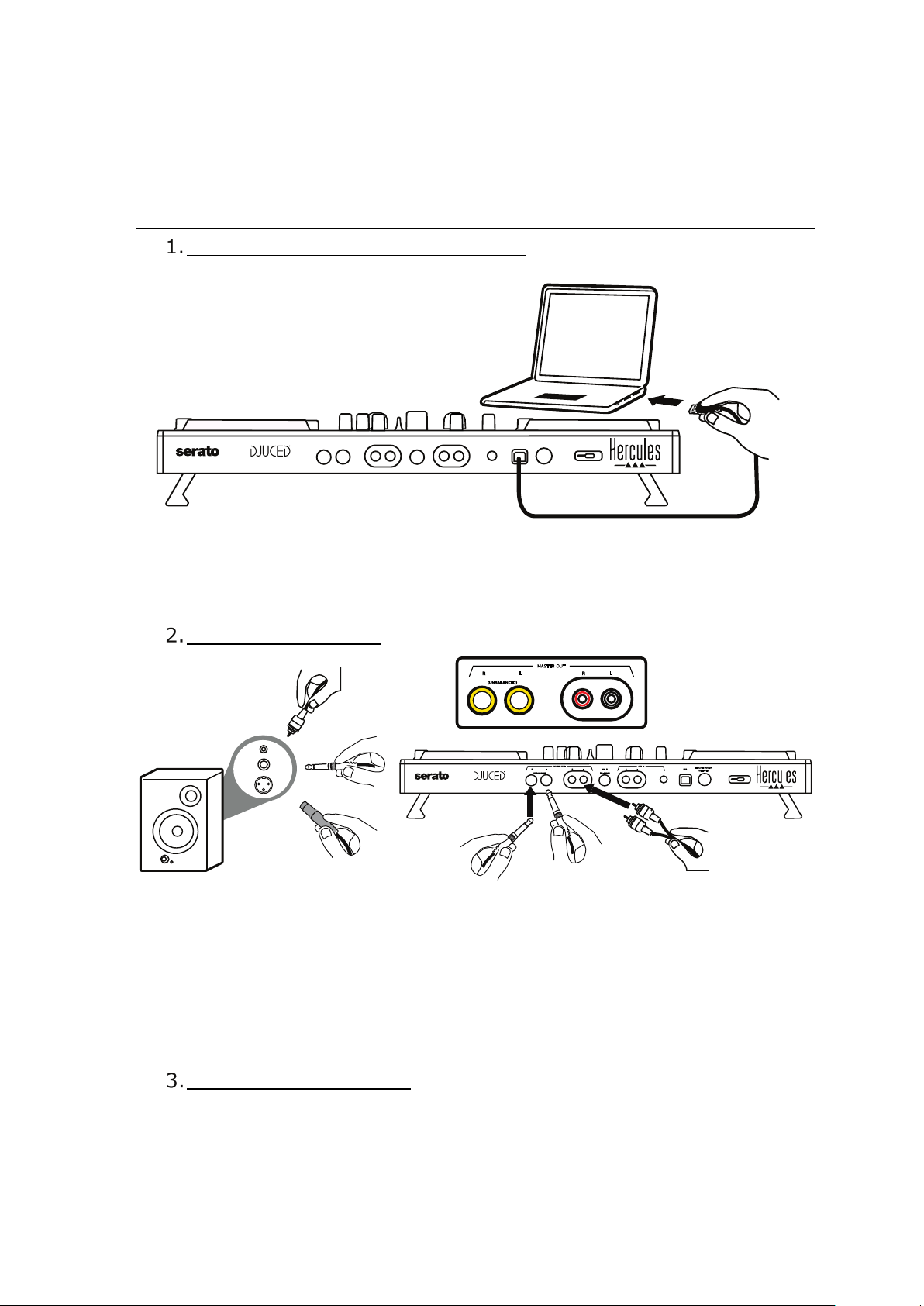
Connection to a computer (via USB)
Note: An LED illumination sequence (called Vegas Mode) starts up each
time you connect the controller to your computer, showing you where the
LEDs are located.
Connecting speakers
Connect the inputs on your active speakers to the Master outputs on the
DJControl Inpulse 500 (2 x RCA, or 2 x 1/4” / 6.35 mm jack).
You can use both output formats at the same time: for example, by
connecting one pair of output connectors to your main speakers that will
play your mix for the audience, and the second pair of output connectors
to your monitoring speakers.
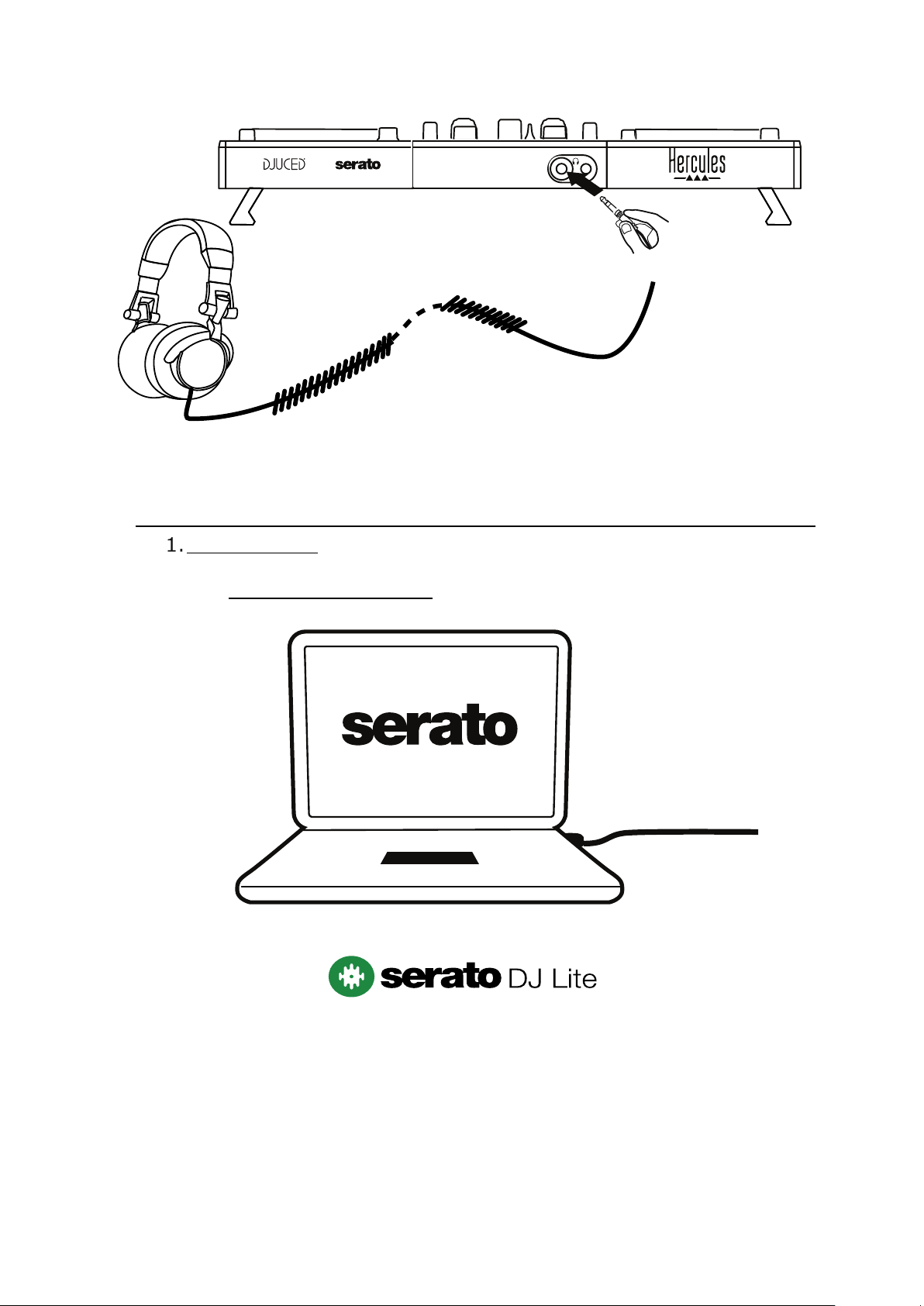
Connecting headphones
Connect your headphones to the 1/4” / 6.35 mm stereo jack output or the
1/8” / 3.5 mm stereo mini-jack output on the front panel of the DJControl
Inpulse 500.
4.2. Downloading the software
Serato DJ Lite
Please visit: https://serato.com
Download and install Serato DJ Lite.
Note: DJControl Inpulse 500 includes a license for Serato DJ Lite, not a
license for Serato DJ Pro. If you install Serato DJ Pro instead of Serato DJ
Lite, Serato DJ Pro will work with your DJControl Inpulse 500 for the
duration of a trial period. Should you wish to keep on using Serato DJ Pro
at the end of the trial period, you will have to purchase a license for
Serato DJ Pro.
DJUCED
®
Please visit: https://www.djuced.com/hercules
Download and install DJUCED
®
.
Hercules drivers
Please visit:
https://support.hercules.com/product/djcontrolinpulse500/
Download the driver pack for your computer’s operating system.
- For macOS
®
: HDJCSeries Mac
- For Windows
®
: HDJCSeries PC
Windows
®
needs the drivers in order to use DJControl Inpulse 500 in ASIO
mode, which reduces the latency in relation to WASAPI mode, and is
generally more stable.
The drivers also let you test your DJControl Inpulse 500 and verify the
firmware version in both Windows
®
and macOS
®
.
4.3. Getting started with DJUCED
®
Detection
When DJUCED
®
starts up, the software displays the message
“DJCONTROL INPULSE 500”, indicating that the controller is detected.
Connections
When you run the software for the first time, DJUCED
®
guides you
through connecting your headphones and active speakers (or lets you use
the speakers built into your computer, if you don’t have external active
speakers).
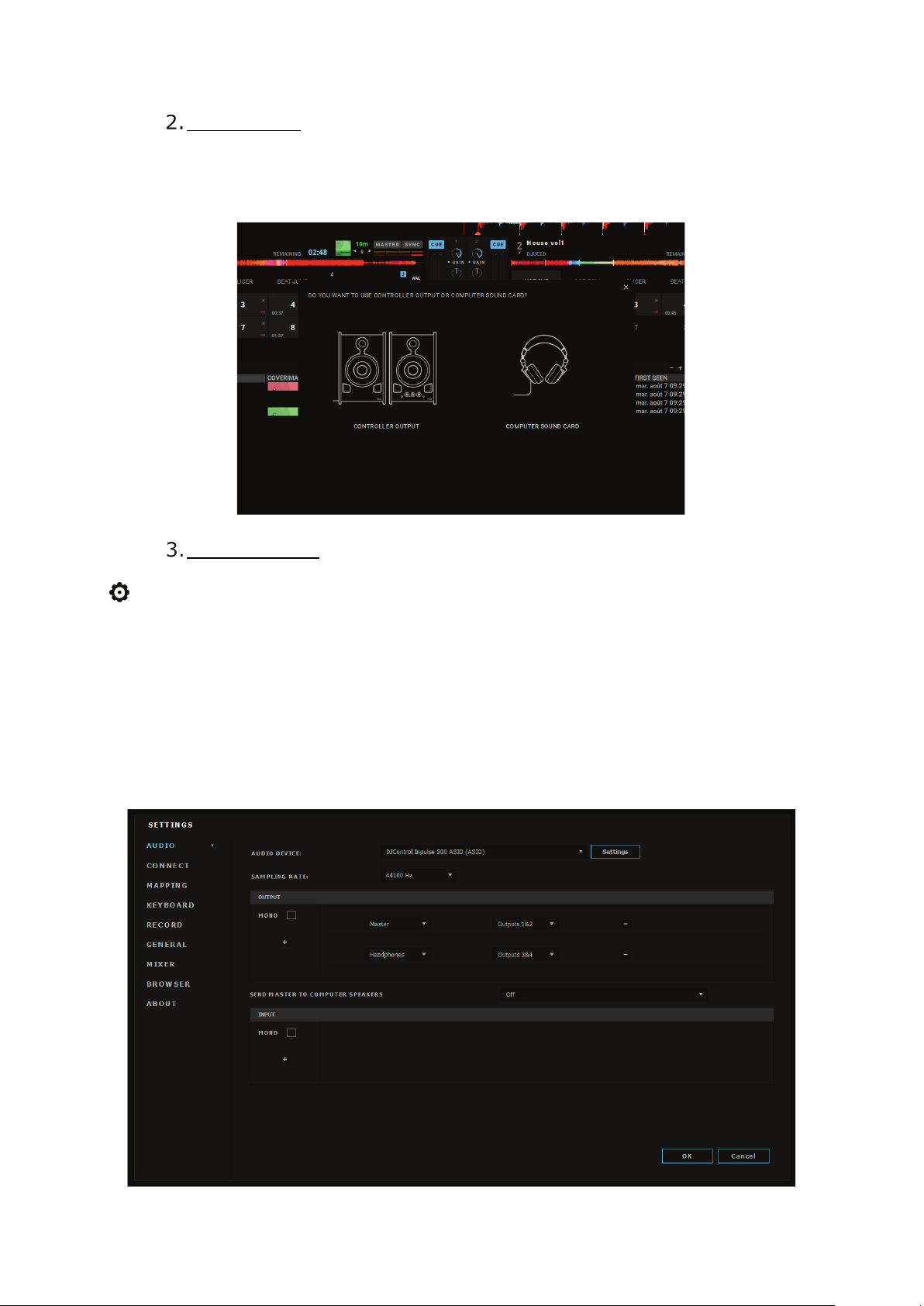
Audio settings
To modify the sound card settings in DJUCED
®
, click the gear wheel icon
in the upper right-hand part of the screen, which opens up the
Settings menu.
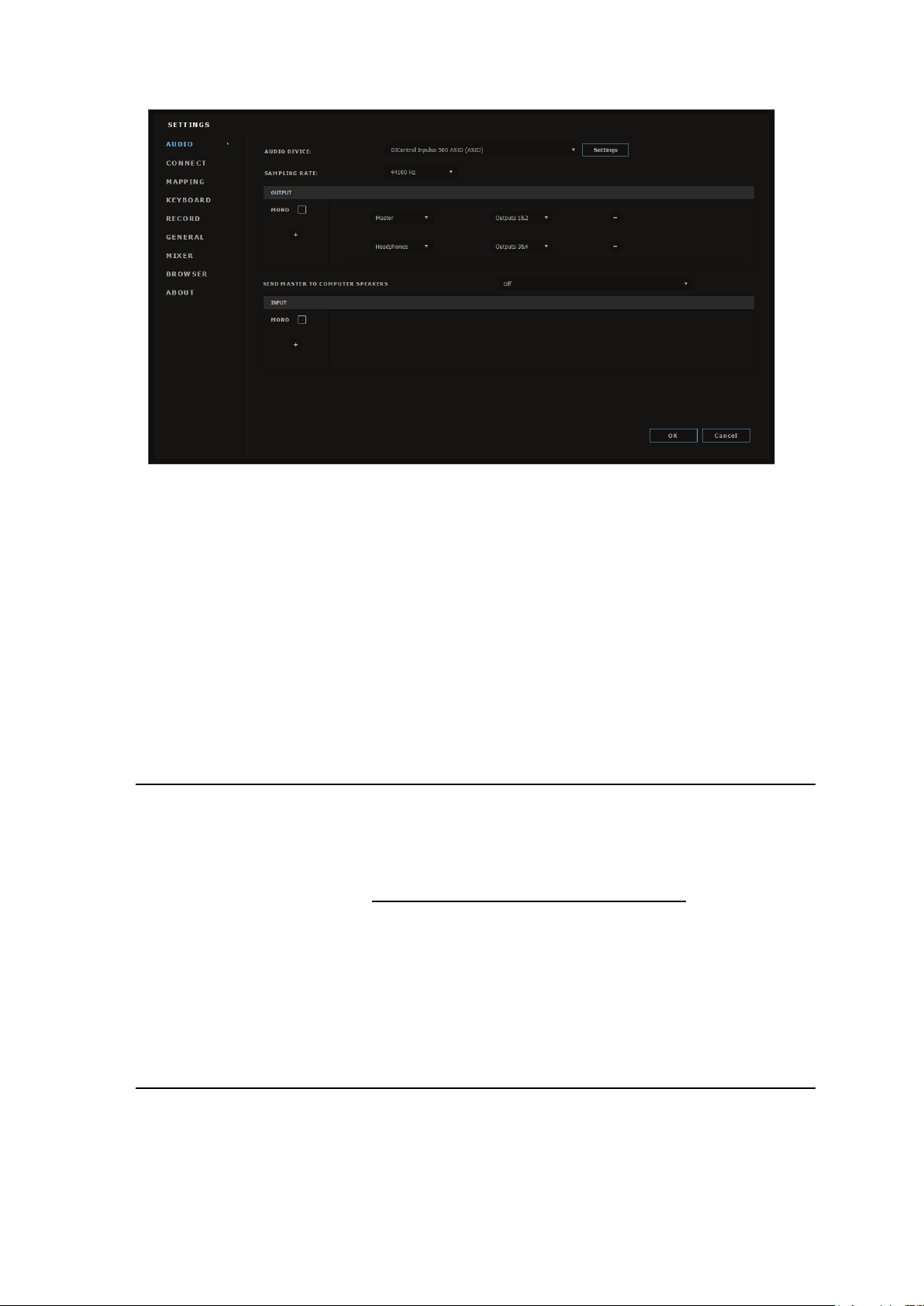
In the Settings menu, the Audio menu lets you select your sound card
and assign the headphones and speakers outputs.
The standard setup for Windows
®
is as follows:
Audio device: DJControl Inpulse 500 ASIO (ASIO)
Output:
Master: Outputs 1&2
Headphones: Outputs 3&4
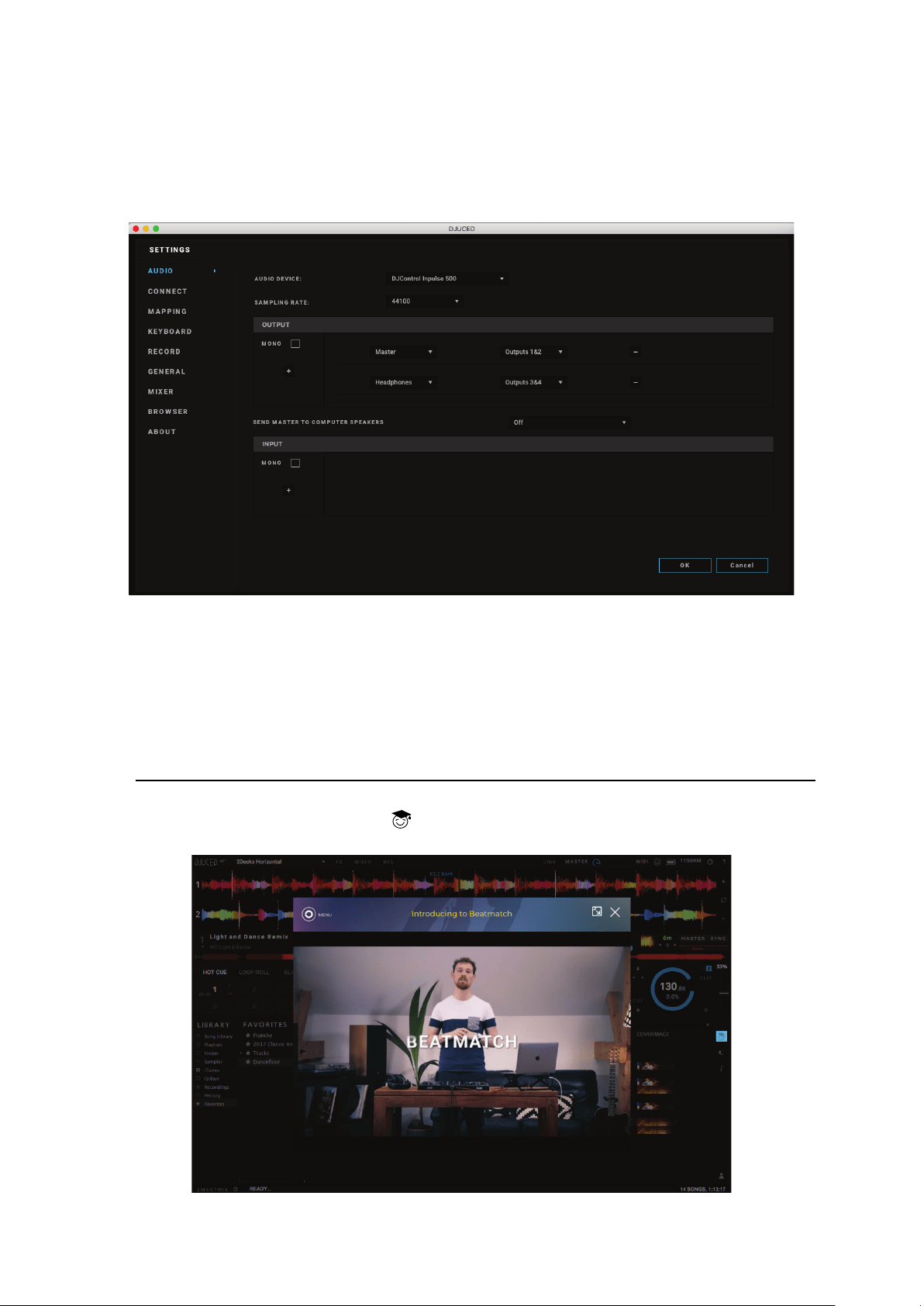
The standard setup for macOS
®
is as follows:
Audio device: DJControl Inpulse 500
Output:
Master: Outputs 1&2
Headphones: Outputs 3&4
DJControl Inpulse 500 mixes the inputs in hardware mode (via hardware
mixing). Don’t bother enabling the inputs (1-2 = Aux and Mic) in the
software’s audio menu, unless you plan on recording (or broadcasting)
these inputs.
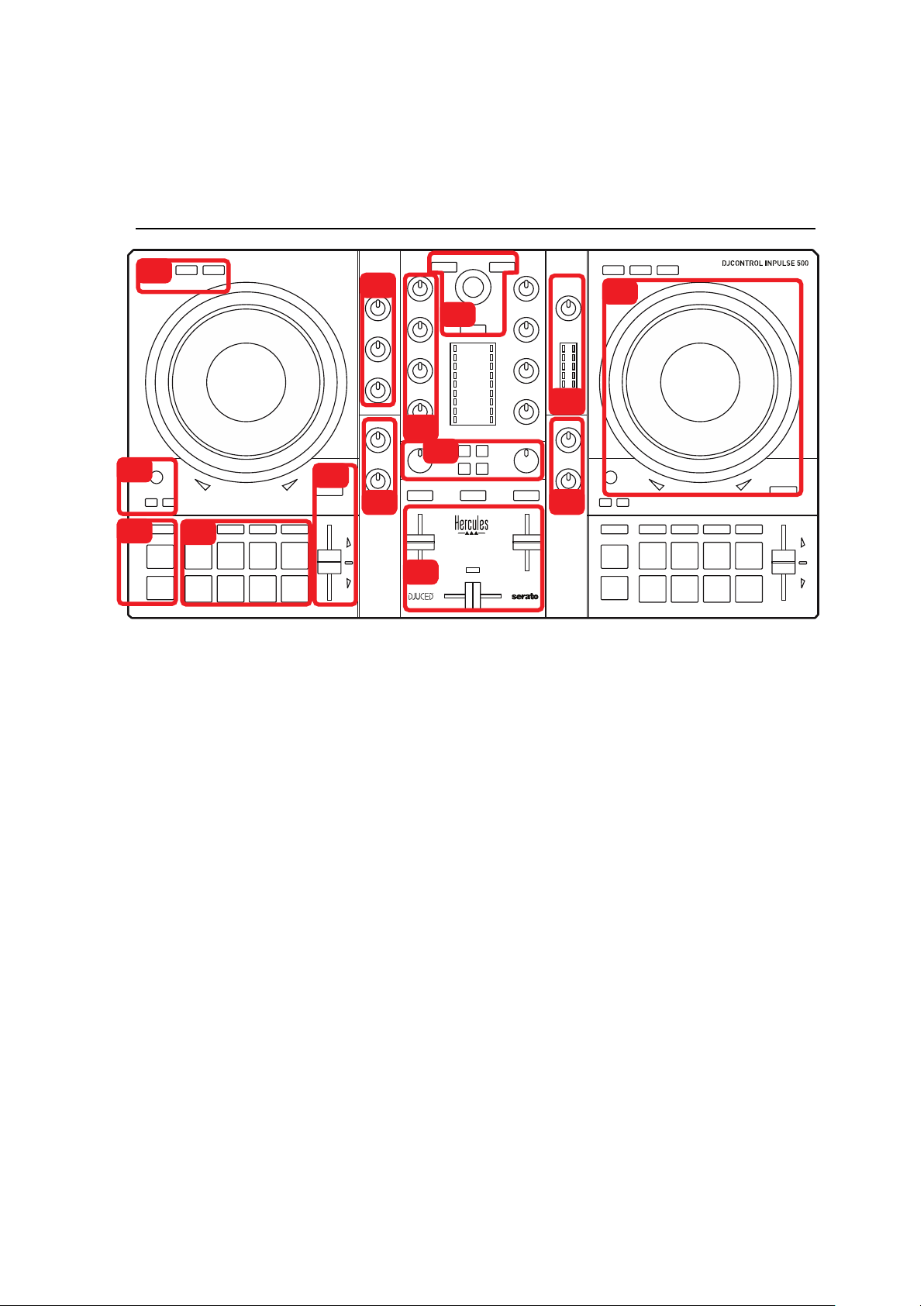
4.4. Hercules DJ Academy
The Hercules DJ Academy video tutorials built into DJUCED
®
can be
accessed by clicking on the graduation cap icon, to the right of the
audio library.
5. Overview of features
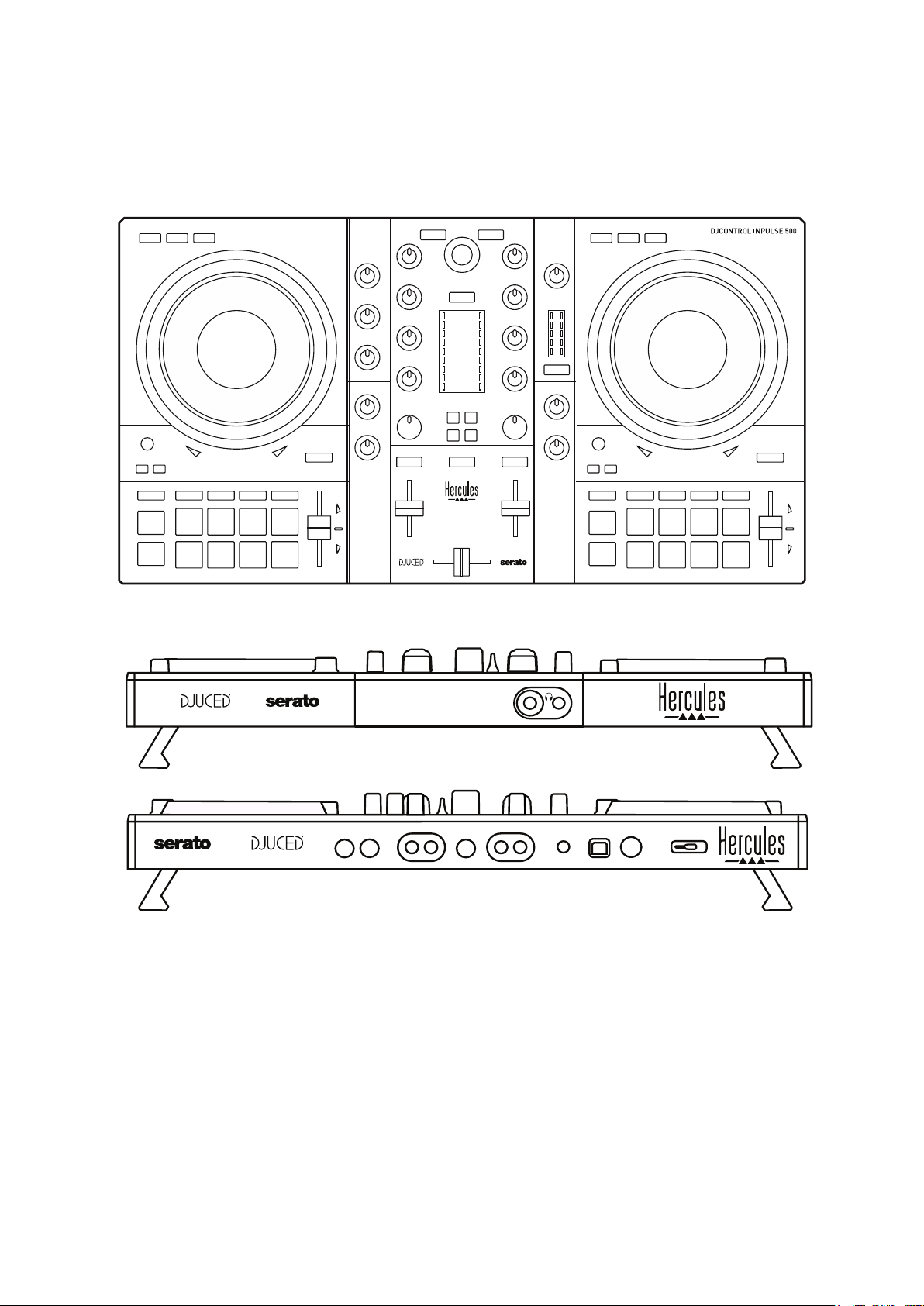
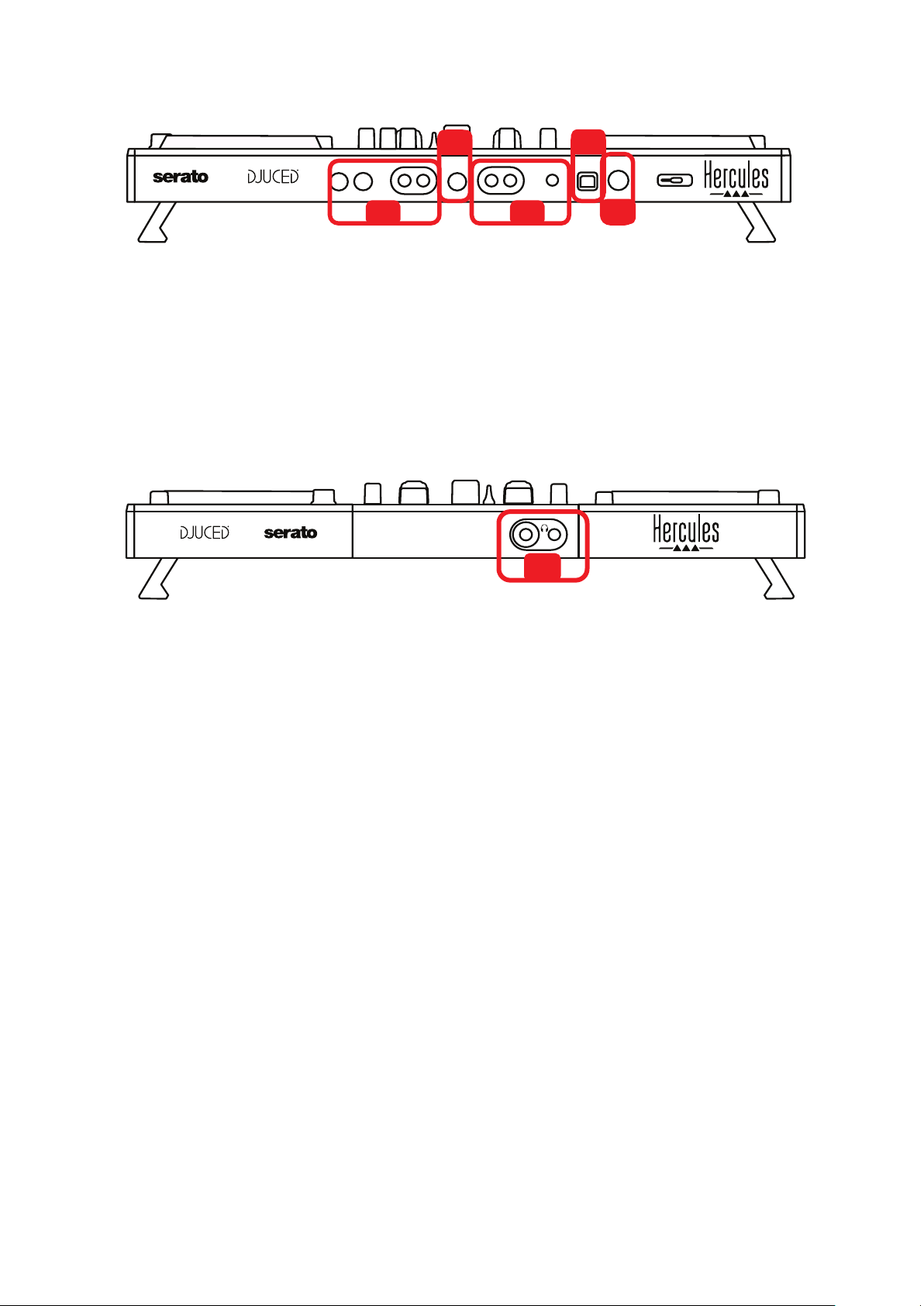
5.1. General DJControl Inpulse 500 overview
1. Transport buttons: play/pause, Cue point, SHIFT
2. Performance pads
3. Tempo fader with beatmatching help (glowing red arrows), green LED
showing the original tempo, and SYNC (synchronization) button
4. Loop In/Out (start of the loop/end of the loop), size of the loop, and
Reloop (exit the loop)
5. Mode: Vinyl (scratch), Slip and Quantize
6. Navigation through the music library, buttons to load tracks on the
corresponding deck, Assistant and backlit ring showing the energy level
(in DJUCED
®
) or the rhythm (in Serato)
7. Gain and 3-band equalizer (HIGH / MID / LOW)
8. Filter/FX: filters and effects
9. Mixing with volume faders, crossfader, and switch to select between 3
different crossfader curves
10. Microphone volume and 2-band equalizer for the microphone input
(hardware functions = independent of the software being used)
11. Aux (auxiliary) input volume and filter on the auxiliary input (hardware
functions = independent of the software being used)
12. Master volume knob and master volume VU-meter (hardware functions =
independent of the software being used)
13. Headphones volume knob and Cue/Master knob to select what you hear
on your headphones (hardware functions = independent of the software
being used)
14. Jog wheel with capacitive touch detection, with beatmatching help
(glowing red arrows)
1
7
6
5
4
3
2
12
11
10
9
8
13
14
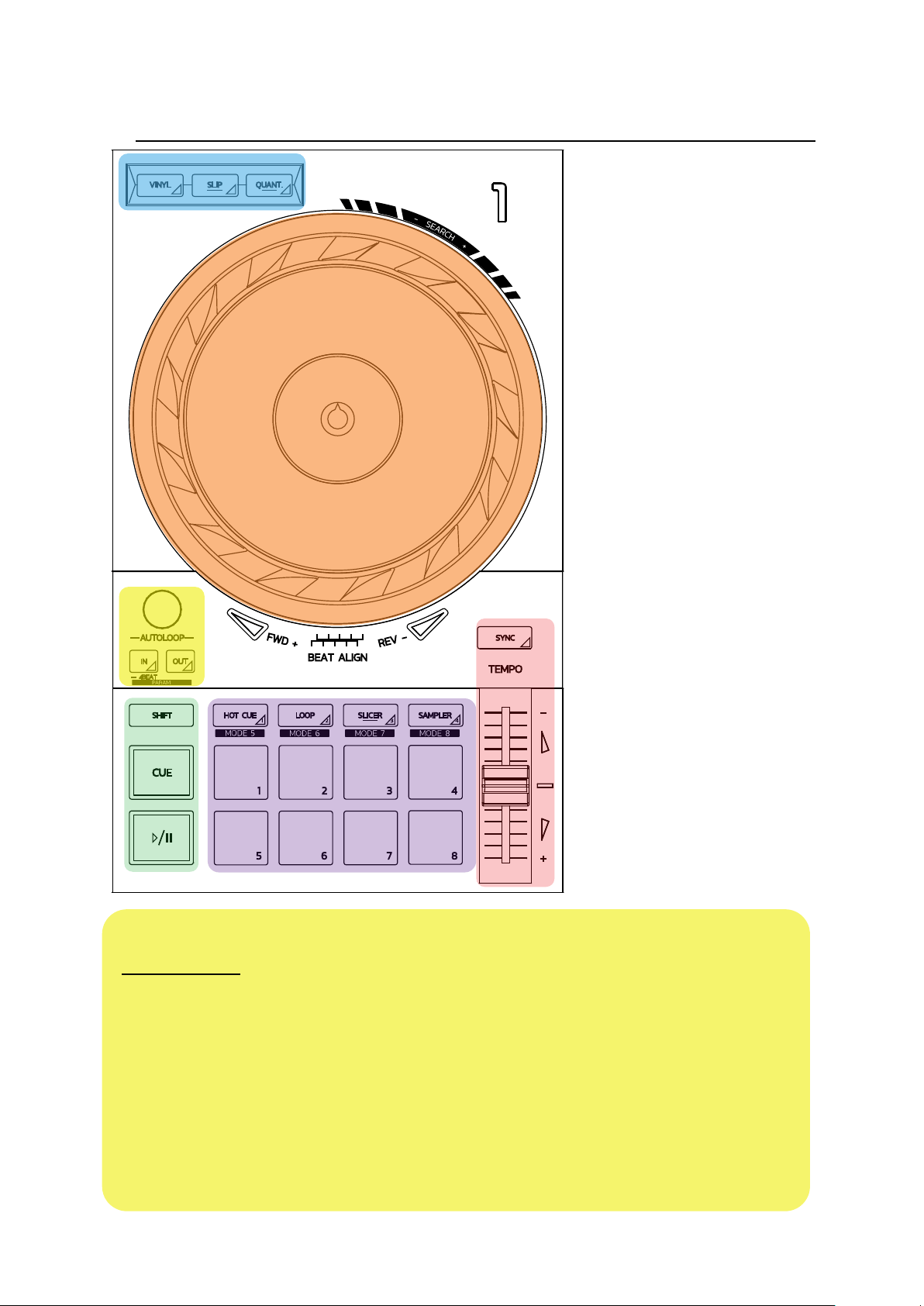
15. MASTER output (or Main or Mix) = channels 1-2 (2 x RCA, and 2 x 1/4” /
6.35 mm mono jack), for connecting active speakers
16. MIC (microphone) input (1/4” / 6.35 mm mono jack): balanced input,
compatible with both balanced and unbalanced microphones
17. AUX (auxiliary) stereo input (2 x RCA, and 1 x 1/8” / 3.5 mm stereo mini-
jack)
18. USB port (type B)
19. Hercules Add-On Reserved: reserved extension port
20. Stereo headphones output (1/4” / 6.35 mm stereo jack, and 1/8” / 3.5
mm stereo mini-jack)
16 18
19
17
15
20
5.2. Decks
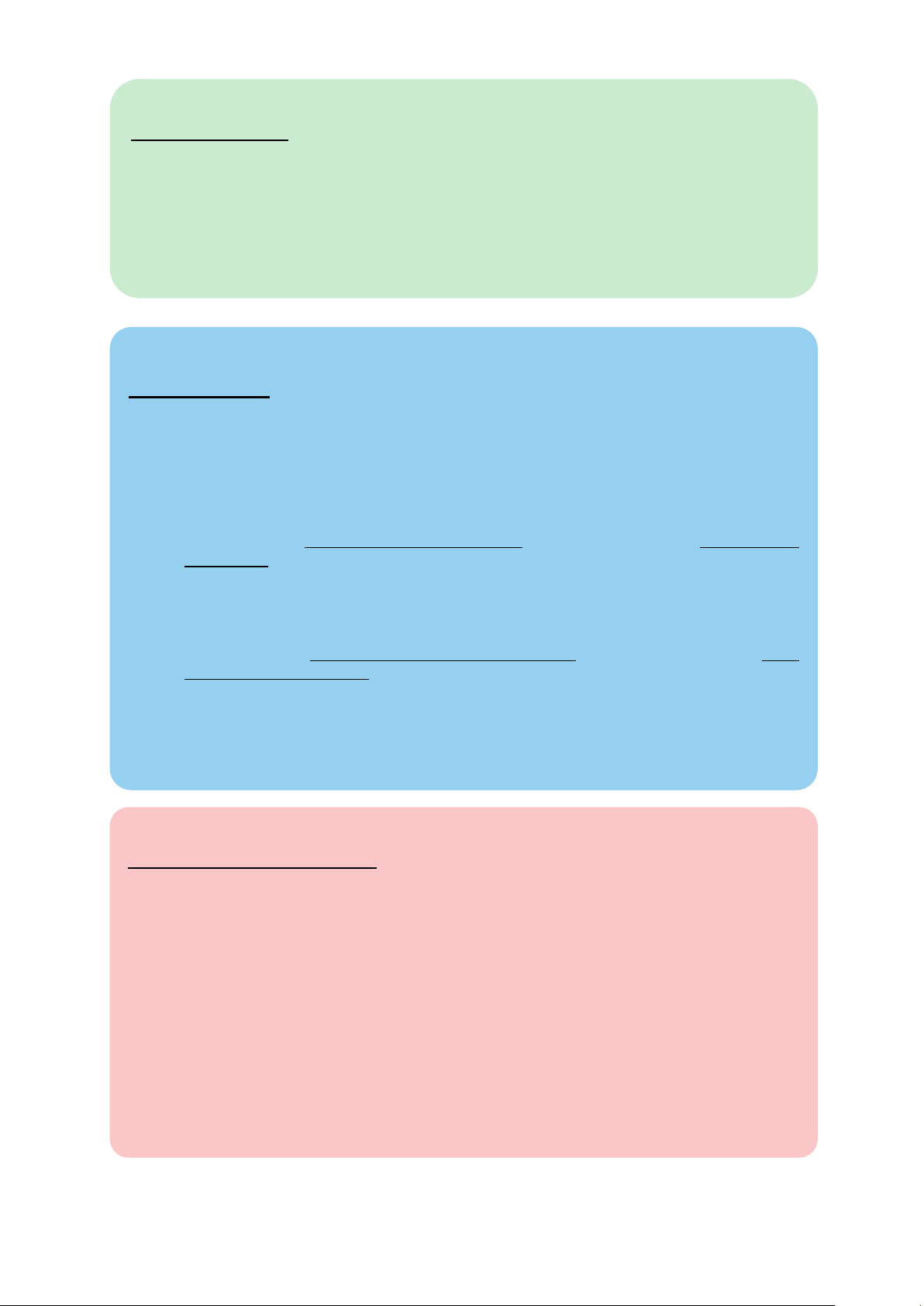
Loop controls
In = Loop In: inserts the marker for the start of the loop.
In (long press): starts a 4-beat loop.
Out = Loop Out: inserts the marker for the end of the loop, and starts playing the
loop.
Shift+In/Shift+Out: divides the length of the loop by 2/doubles the length of the
loop.
Autoloop: turning the encoder changes the length of the loop.
To exit the loop:
- In Serato: press the encoder = Reloop.
- In DJUCED
®
: press the Out button.
Playback modes
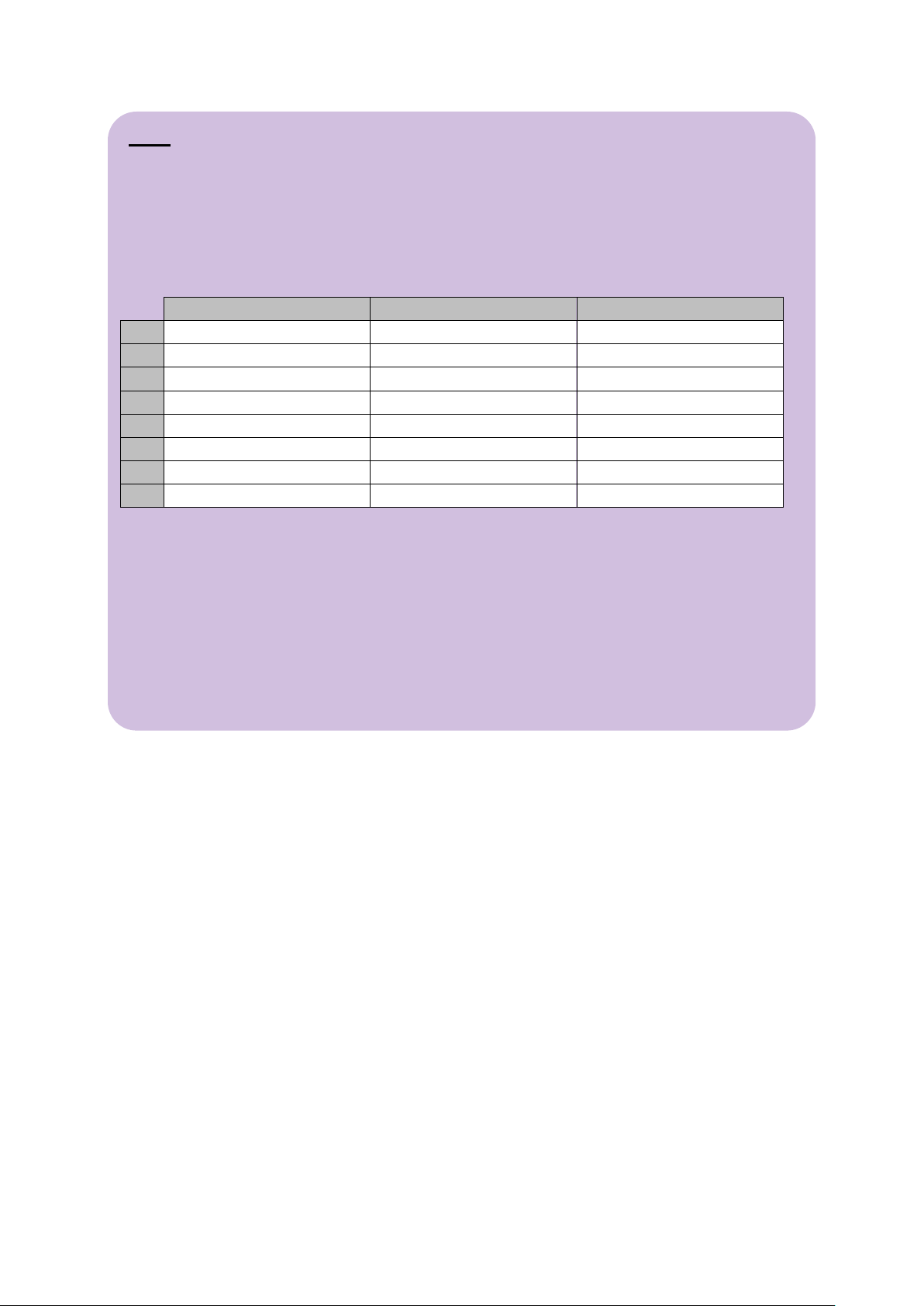
Vinyl (or Scratch): puts the jog wheel in vinyl mode, allowing you to scratch when
you place your hand on the top of the jog wheel.
Shift+Vinyl: In DJUCED
®
, turning the jog wheel using the ring on its edge in
Shift+Vinyl mode creates a Beatjump effect.
Slip: mode which plays the track at its normal speed in the background; at the end
of a scratch, it returns to the point where you would have been if you hadn't
scratched, thereby keeping the track's original phrasing.
- Serato DJ Lite does not include Slip mode, while Serato DJ Pro does include
Slip mode.
- DJUCED
®
includes Slip mode.
Quantize: mode which lines up actions with marks on the beat grid, in order to
synchronize the triggering of a sample or the placement of a cue point with the
rhythm of the track.
- Serato DJ Lite does not include Quantize mode, while Serato DJ Pro does
include Quantize mode.
- DJUCED
®
includes Quantize mode.
Shift+Quantize: in Serato, Shift+Quantize changes the pitch scale (for example:
+8%, +16%, +50%).
Tempo controls (pitch/BPM)
Tempo fader (pitch fader): adjusts the playback speed of the track.
Shift+tempo guide: in Serato, you can move the tempo fader without changing the
speed, to shift the tempo scale (for example, switch from a tempo scale of -8% –
+8% to 0 – +16%).
Tempo guide: glowing arrows indicating the direction in which you should move the
tempo fader in order to play the track at the same BPM as the track on the other
deck.
Sync button: instantly adjusts the speed of the track to match the BPM value of the
track being played on the other deck.
- In DJUCED
®
, Sync locks the BPM value of the “slave” track to that of the
“master” track continuously.
- In Serato, Sync is a one-off action: the BPM value is instantly adjusted, but
not locked to that of the other track being played.
Transport buttons
Play/Pause: plays the track/pauses playback.
Cue: when stopped, inserts a marker at the current point in the track / during
playback, moves playback to this location.
Shift: use this button in conjunction with other buttons — for example, Shift+Cue =
return to the start; Shift+Hot Cue = erases the hot cue; Shift+Sample = stops
playback of the sample…
Pads
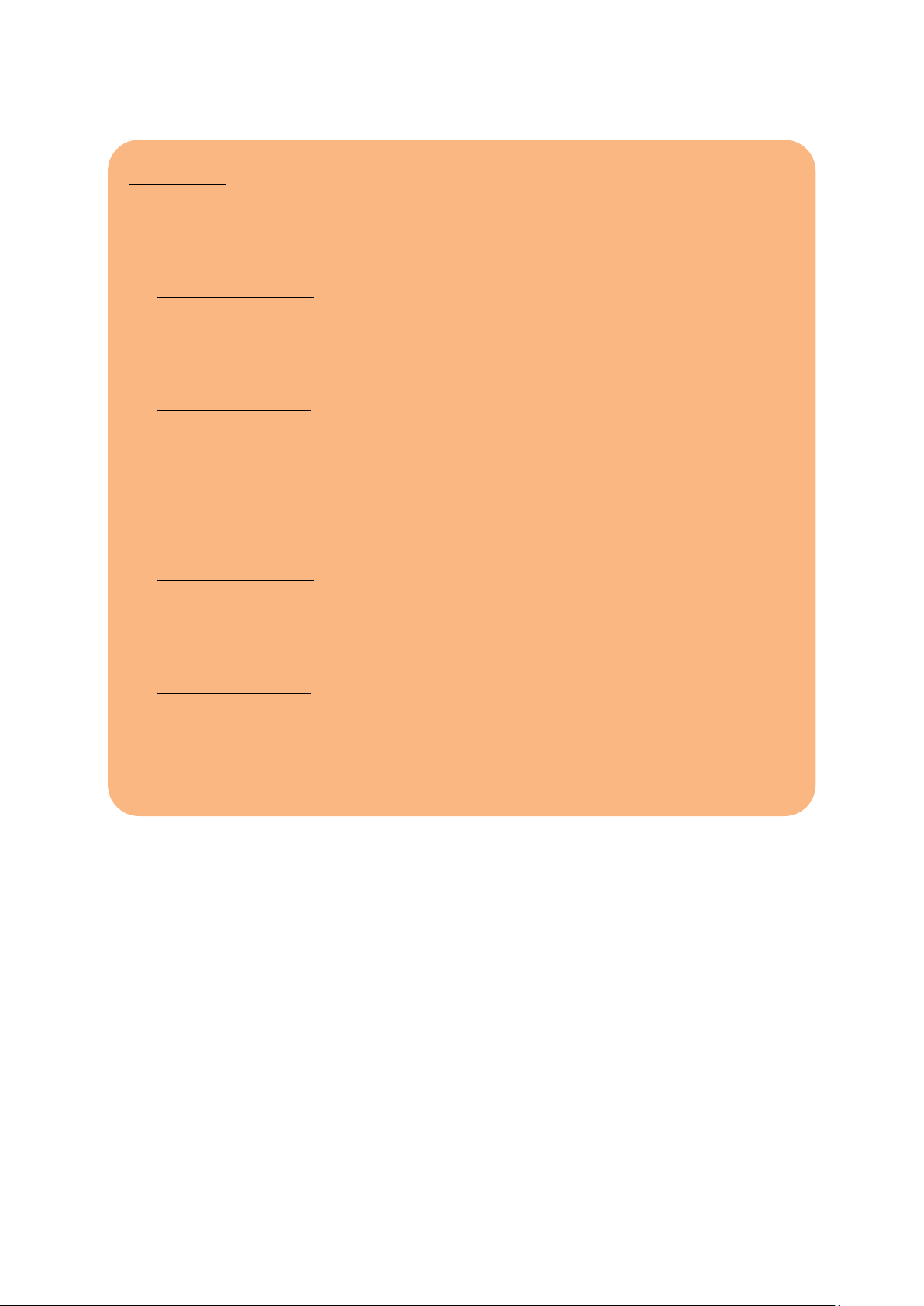
Pads 1 to 8: in Serato DJ Lite, pads 1 to 4 carry out the actions of the selected
mode, while pads 5 to 8 carry out the Reverse, Rewind, Fast Forward and Censor
actions.
In DJUCED
®
and Serato DJ Pro, pads 1 to 8 carry out the actions of the selected
mode.
Pad modes
DJUCED
®
Serato DJ Lite
Serato DJ Pro
*
1
Hot Cue
Hot Cue
Hot Cue
2
Loop Roll
Manual Loop
Manual Loop
3
Slicer
Auto Loop
Slicer
4
Sampler
Sampler
Sampler
5
TonePlay
–
Pitch Play
6
FX
–
Loop Roll
7
Slicer Loop
–
Auto Loop
8
Beat Jump
–
Beat Grid
*Serato DJ Pro licence not included
- In Serato DJ Lite, modes 1 to 4 (Hot Cue, Loop, Slicer, Sampler) enable the
following modes on pads 1 to 4: 1 = Hot Cue; 2 = Manual Loop (Loop In, Loop
Out, Reloop); 3 = Autoloop; and 4 = Sampler.
- In Serato DJ Pro, modes 1 to 8 enable the following modes on the pads: 1 = Hot
Cue; 2 = Manual Loop; 3 = Slicer; 4 = Sampler; 5 = Pitch Play; 6 = Loop Roll; 7
= Autoloop; 8 = Beatgrid.
- In DJUCED
®
, modes 1 to 8 enable the following modes on the pads: 1 = Hot
Cue; 2 = Loop Roll; 3 = Slicer; 4 = Sampler; 5 = TonePlay; 6 = FX; 7 =
SlicerLoop; 8 = BeatJump.
Jog wheels
The jog wheels let you move within tracks, and modify the playback depending on
the part of the jog wheel that you touch (the ring [edge] or the top), and the
selected mode (Vinyl mode enabled or disabled).
In Serato DJ Lite and Pro:
- Vinyl mode disabled
o During playback: speeds up or slows down playback (= pitch bend).
o When no music is playing: slow movement when you touch the jog
wheel's ring (edge); medium-speed movement when you touch the jog
wheel's top.
o Shift + jog wheel: beatjump = very fast movement.
- Vinyl mode enabled
o During playback: scratch on top of the jog wheel; pitch bend on the jog
wheel's ring (edge).
o When no music is playing: slow movement when you touch the jog
wheel's ring (edge); medium-speed movement when you touch the jog
wheel's top.
o Shift + jog wheel: beatjump = very fast movement.
In DJUCED
®
- Vinyl mode disabled
o During playback: speeds up or slows down playback (= pitch bend).
o When no music is playing: slow movement when you touch the jog
wheel's ring (edge); medium-speed movement when you touch the jog
wheel's top.
o Shift + jog wheel's ring (edge): beatjump = very fast movement.
- Vinyl mode enabled
o During playback: scratch on top of the jog wheel; pitch bend on the jog
wheel's ring (edge).
o When no music is playing: medium-speed movement when you touch the
jog wheel's ring (edge) or top.
o Shift + jog wheel's ring (edge): beatjump = very fast movement.
5.3. Software mixing
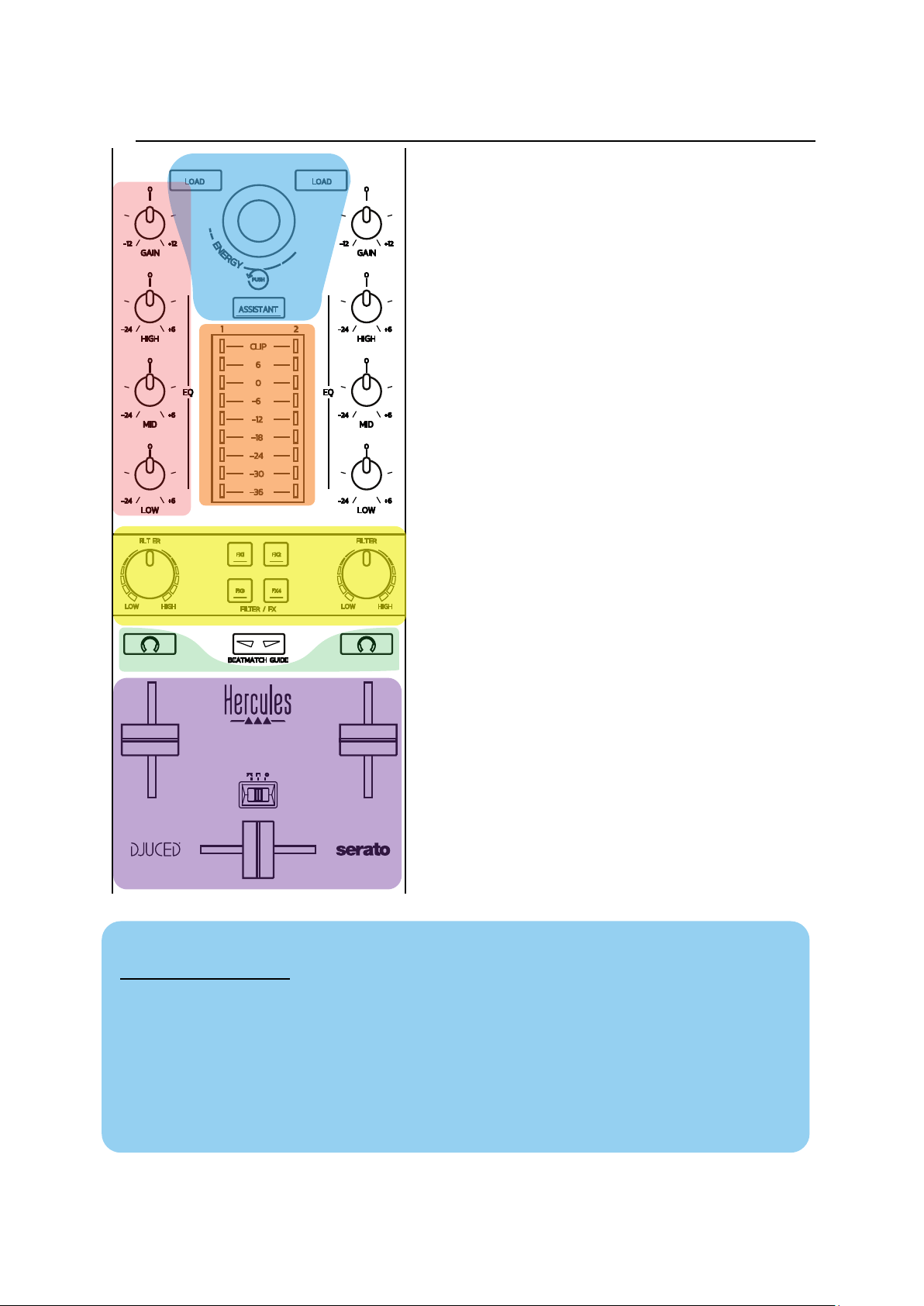
Navigation controls
Rotary encoder: turn the encoder = move through your audio library; press the
encoder = change levels.
Light ring around the rotary encoder: displays the energy level of the master
track in DJUCED
®
; displays the rhythm in Serato.
Load: loads a track onto deck 1 or 2.
Assistant: in DJUCED
®
, brings up the Assistant, which suggests well-suited tracks to
be played; in Serato, enables Automix (automatic mixing of tracks).
Gain and EQ line
Gain: gain (= volume before the volume fader is taken into account) on deck 1 or 2.
3-band equalization: lets you adjust the HIGH (treble), MID (medium) and LOW
(bass) frequencies on each deck.
Mixing
Volume fader: adjusts the volume for virtual decks 1 and 2.
Crossfader: adjusts the mix of the sound between decks 1 and 2.
Crossfader curve: switch that lets you select between 3 different modes for the
crossfader curve:
- Mix = progressive mixing of the 2 decks.
- Scratch = very fast mixing of the two decks.
- Off = crossfader disabled (to mix using the volume faders only).
Deck VU-meters
VU-meter with 9 levels for each deck.
Filter/FX
Filter: low-pass filter and high-pass filter on each deck, enabled when FX1, 2, 3 and
4 are off.
FX1 to FX4 buttons: applies effects FX1 to FX4 (modulated via the Filter knob) on
deck 1 or 2.
- In DJUCED
®
, FX1, 2, 3 and 4 are selected in Settings > Mixer.
- In Serato, FX1, 2 and 3 are the effects loaded on the slots for the virtual decks,
while FX4 lets you activate the Beats setting to assign to the effects.
Monitoring
The buttons with a headphones symbol on them let you play the sound from the
corresponding deck on your headphones, when the Cue/Master knob (for the
headphones) is set to Cue mode.
5.4. Hardware mixing: inputs and outputs
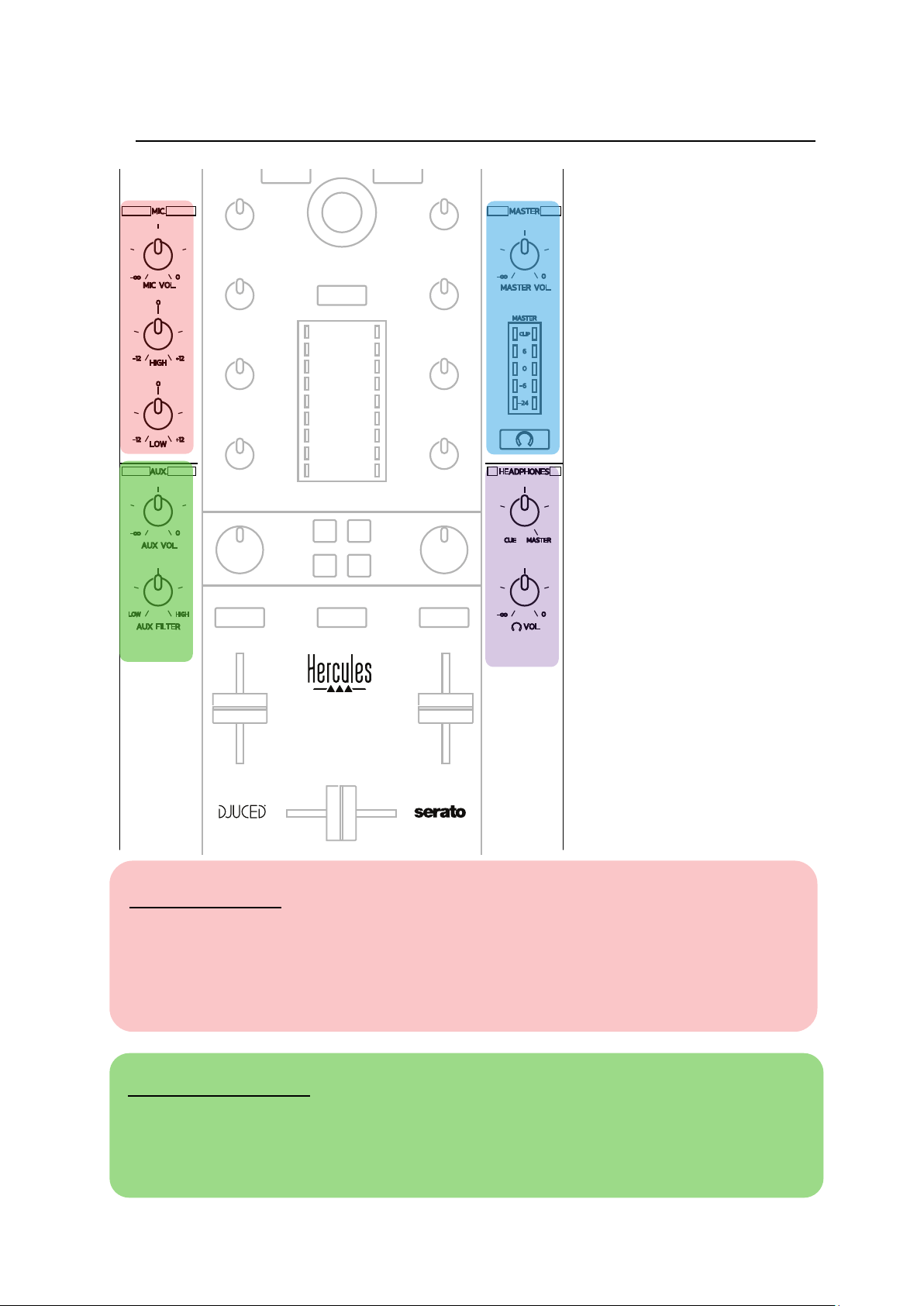
Microphone input
MIC VOL: controls the microphone volume (hardware adjustment).
Light ring:
off = no audio signal / green = audio signal / red = audio signal
saturation.
2-band EQ: lets you adjust the HIGH (treble) and LOW (bass) frequencies for the
microphone.
Aux (auxiliary) input
AUX VOL: controls the volume for the Aux input (hardware adjustment).
Light ring:
off = no audio signal / green = audio signal / red = audio signal
saturation.
AUX FILTER: filter for the Aux input.

Master output
MASTER VOL: controls the master volume (hardware adjustment).
VU-meter: displays the volume level on the Master output (two RCA outputs, and
two 1/4” / 6.35 mm mono jack outputs).
Button with headphones icon: plays the Master output on your headphones.
Headphones output
Cue/Master knob: adjusts the signal being played on your headphones between Cue
for monitoring upcoming tracks (decks 1 and 2, depending on the function selected
using the two buttons above the volume faders), and the Master output.
Headphones volume: adjusts the volume for the headphones output.
5.5. Multichannel sound card
The controller features a built-in multichannel sound card, allowing you to:
- Play your mix on speakers for the audience (Master output);
- Monitor the next track that you’re preparing on your headphones
(headphones output);
- Use a microphone and/or a device featuring a line level output as an
audio source.
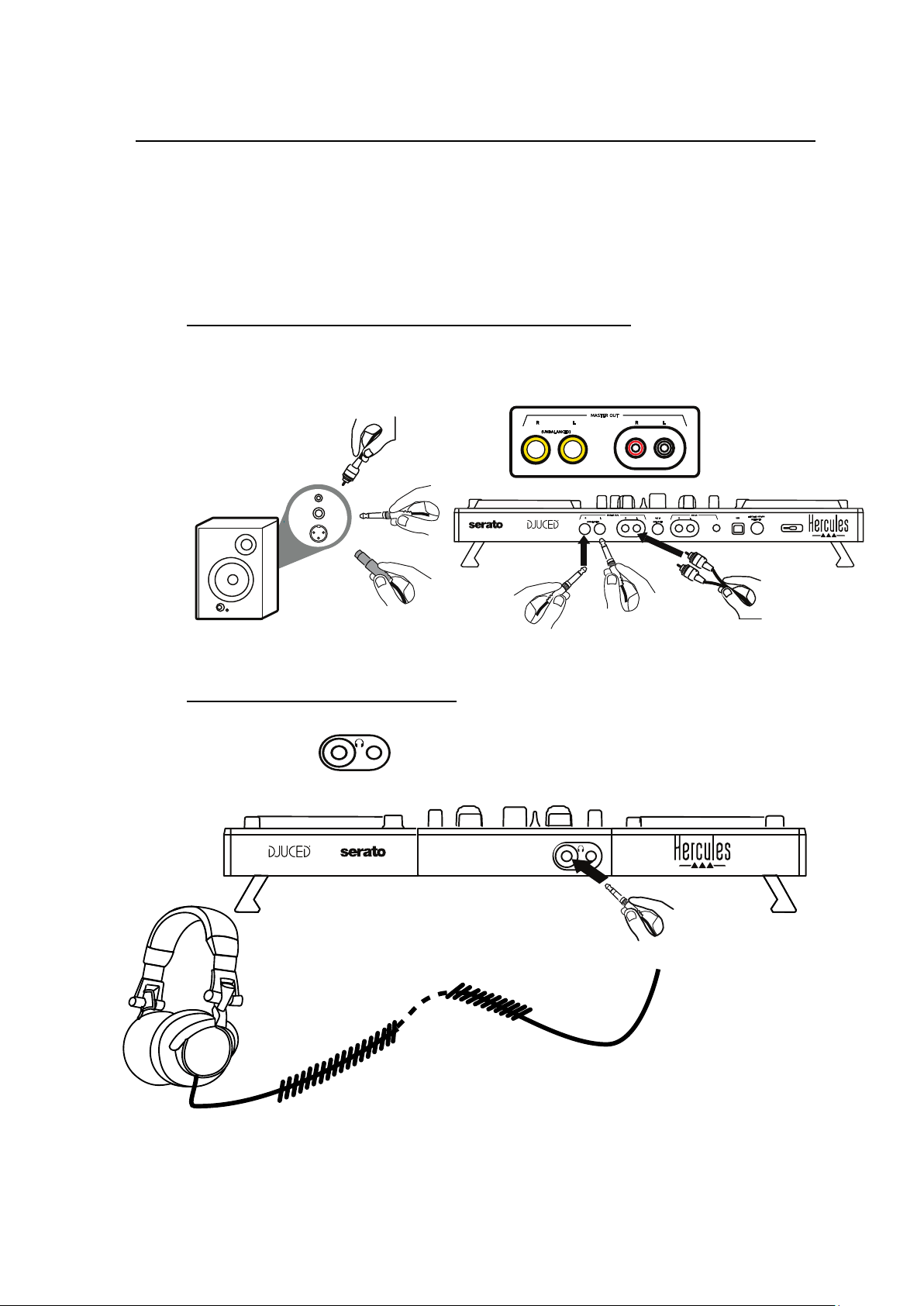
1. Speakers on the Master output (= outputs 1-2)
Your speakers must be connected to one of the two stereo speakers
outputs located on the controller’s rear panel: 2 x RCA, or 2 x 1/4” / 6.35
mm mono jack.
2. Headphones (= outputs 3-4)
Your headphones must be connected to one of the two
headphones outputs (1/8” / 3.5 mm stereo mini-jack, or 1/4” /
6.35 mm stereo jack) located on the controller’s front panel.
By default, the headphones output is assigned to channels 3-4 for
monitoring tracks in all DJ software — including Serato DJ Lite and
DJUCED
®
.
However, to listen to music played by non-DJ software such as iTunes,
Media Player or VLC on your headphones, you must play the Master
output on your headphones by pressing the button with a headphones
icon below the Master VU-meter.
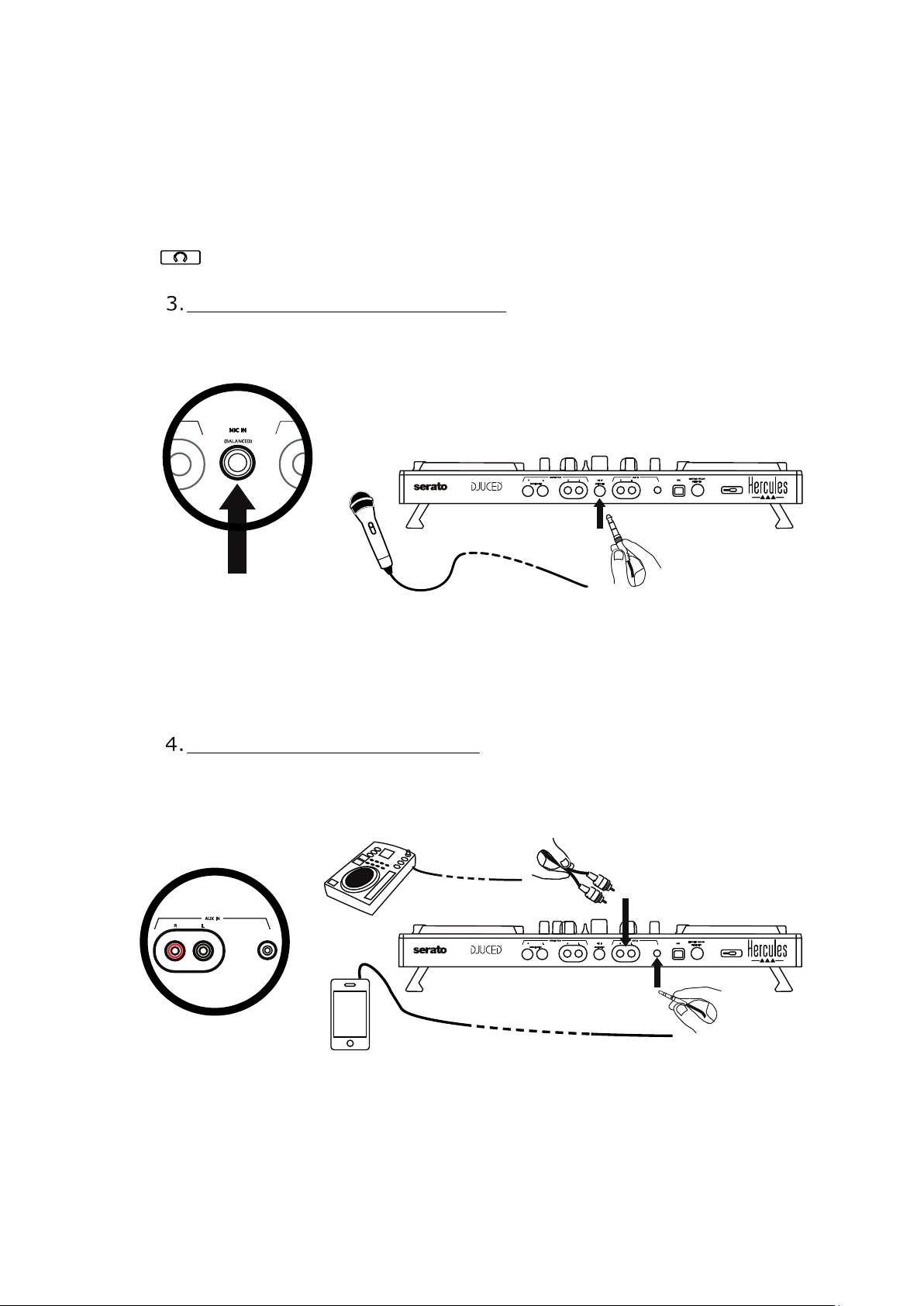
Microphone (= Mic/Aux 1-2 input)
Connect the microphone to the Mic In input (1/4” / 6.35 mm jack) located
on the controller’s rear panel.
The microphone input is balanced (or symmetrical), allowing you to
connect either a balanced or unbalanced microphone. The advantage of
using a balanced microphone is that it provides better sound, with less
breathing noise and other noise.
Auxiliary (= Mic/Aux 1-2 input)
Connect an auxiliary audio source such as a smartphone or CD player to
the Aux In inputs on the controller’s rear panel (2 x RCA inputs, and 1 x
1/8” / 3.5 mm stereo mini-jack input).
6. Drivers and control panel
DJControl Inpulse 500 is a USB Audio and USB MIDI plug and play DJ
controller, and can function without drivers in the DJUCED
®
software — in
both Windows
®
and macOS
®
. Nevertheless, it comes with a pack including
drivers and a control panel, allowing you to get the most out of your
controller.
6.1. ASIO drivers (for Windows
®
)
A pack of drivers including the ASIO drivers is available on the Hercules
support website (https://support.hercules.com): ASIO lets you reduce the
audio latency compared with WASAPI mode in Windows
®
, which is useful
for scratching.
In Windows
®
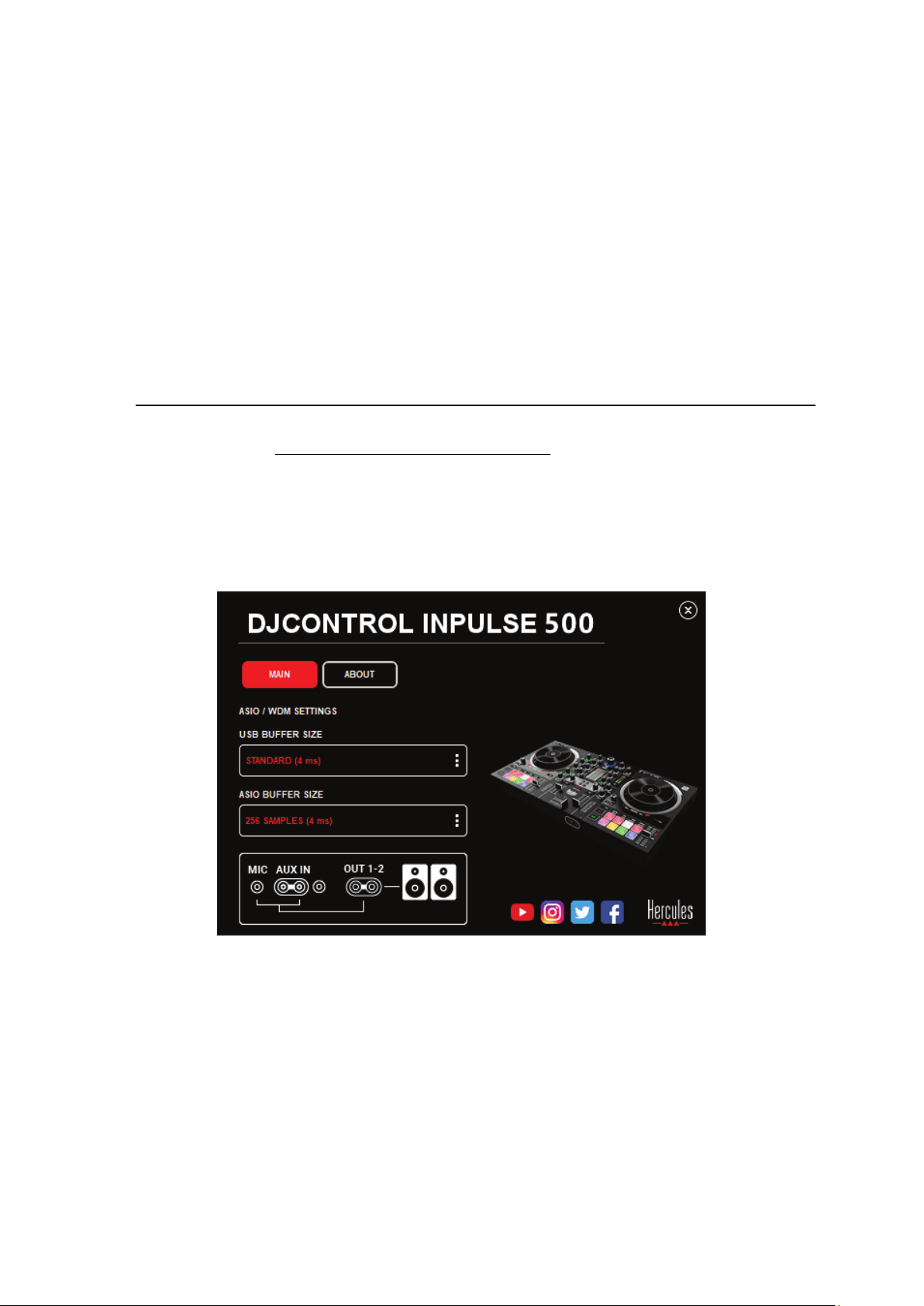
, the Hercules DJControl Inpulse 500 control panel lets you
adjust the ASIO buffer size, thereby adjusting the latency.
The procedure to adjust the ASIO settings is as follows:
- First, set the USB buffer size to Standard (4 ms).
- Select an ASIO buffer size, for example 256 Samples (4 ms).
- Start up your DJ software (Serato DJ Lite or DJUCED
®
).
- In DJUCED
®
, select the DJControl Inpulse 500 ASIO (ASIO) audio
device:
Once the software has loaded the ASIO device, the ASIO settings in the
control panel can no longer be modified.
If you hear clipping, clicks or crackling in the DJ software’s audio, the
latency must be adjusted by increasing the buffer size. In that case, close
the DJ software and adjust the ASIO buffer by one value in each test:
- Reduce the buffer size to decrease the latency.
- Increase the buffer size in the event of audio clipping or artefacts.
Repeat this procedure until you have found an optimal buffer size for your
system.
6.2. Updating the firmware
The drivers for the DJControl Inpulse 500 update the controller’s
firmware: if the Hercules DJ drivers are installed and up to date, they will
display instructions onscreen explaining how to update the firmware, if
necessary.
The drivers are available at https://support.hercules.com
The control panel displays the version of the firmware on the controller
and the drivers installed on your computer, in the ABOUT tab. Please have
this information ready if you need to contact Hercules’ technical support
team.
6.3. Testing the DJ controller in the control panel
The DJControl Inpulse 500 control panel lets you test the audio, MIDI and
lighting for the DJ controller (in the ABOUT tab).
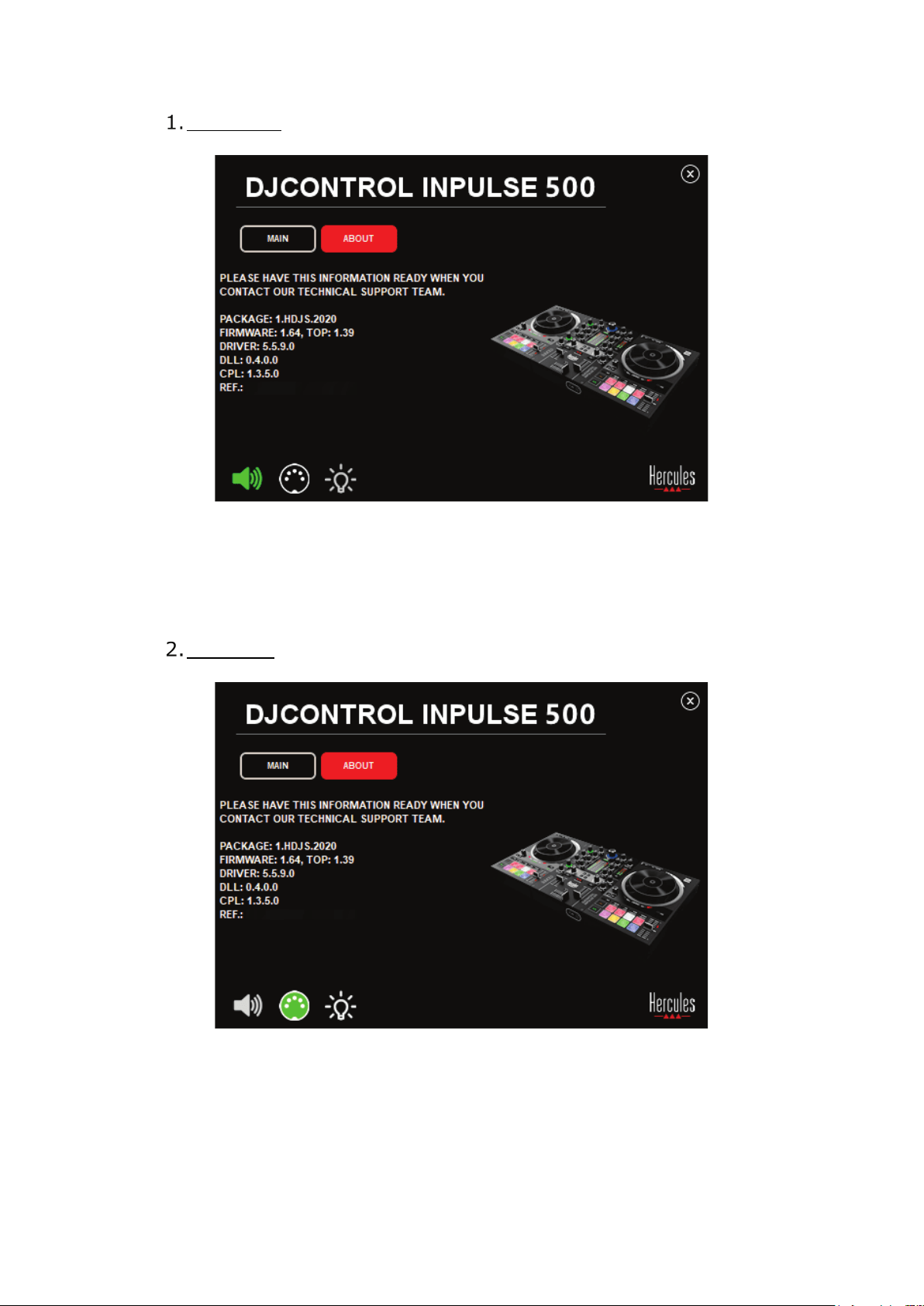
Audio test
To test the DJ controller’s audio, click the speaker icon in the bottom left-
hand corner of the control panel: the icon turns green during the test, and
the program plays a sound on the controller’s outputs (for the speakers
and headphones).
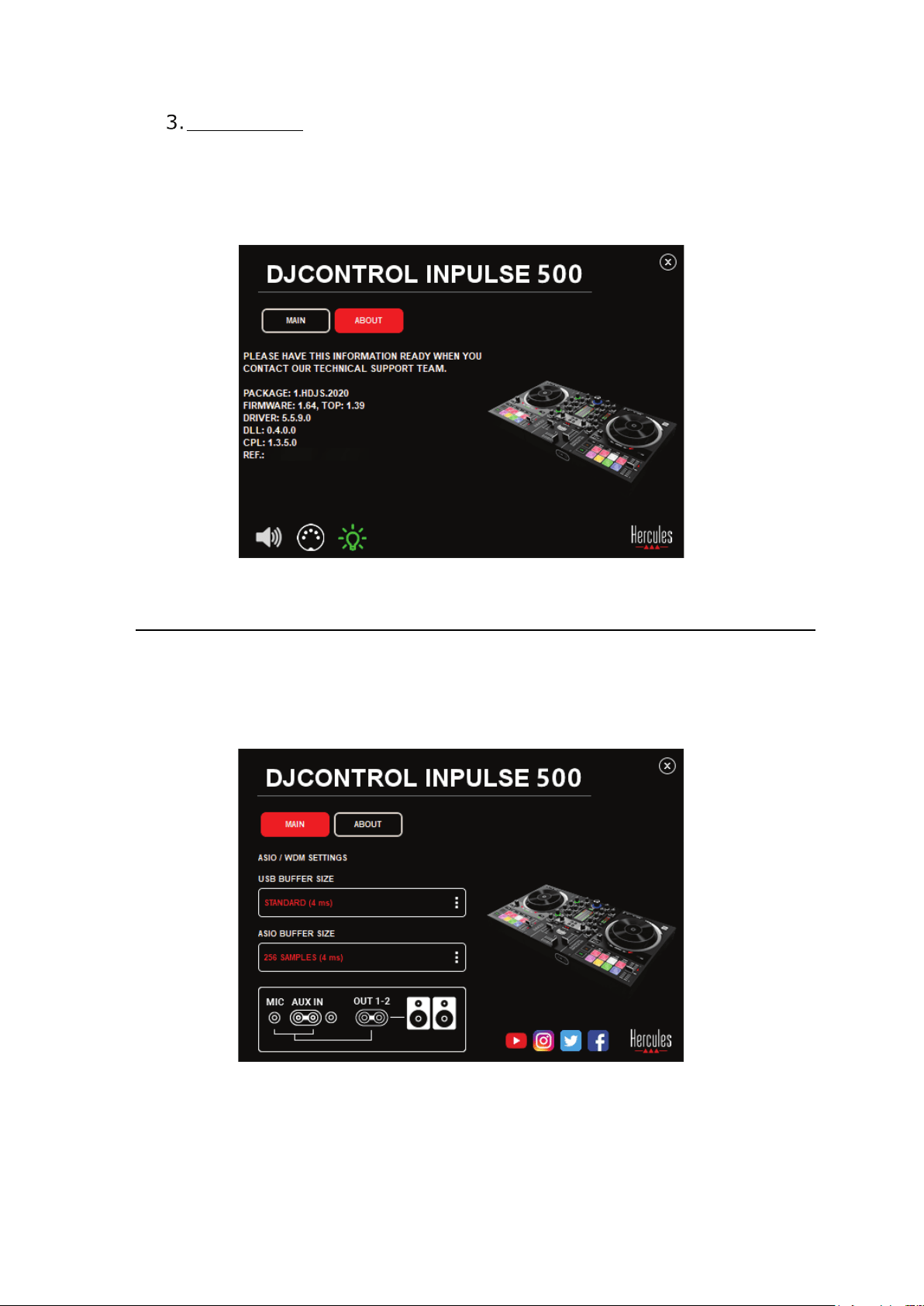
MIDI test
Press the buttons that you want to test on the DJ controller: if the DIN
connector icon (with 5 dots) in the bottom left-hand corner of the control
panel turns green, it means that a MIDI command is being received.
Lighting test
Click the light bulb icon in the bottom left-hand corner of the control
panel, to light up the controller’s LEDs: when the icon is green, the LEDs
are lit up.
6.4. Disabling the audio input
The Microphone and Auxiliary audio input is enabled by default via
hardware mixing (i.e. without going through the DJ software being used).
If you wish to disable the input, click the icon representing the MIC and
AUX IN input (linked to output 1-2).
A red X appears on this icon if the sound from the input is no longer being
played on output 1-2.

7. Demo mode
This mode is a light show that starts up automatically when you connect
the controller to a USB power supply. In this case, the DJ controller is not
operational, but is in demo mode: a demo sequence keeps on repeating
itself.

8. Tips and tricks
8.1. Switching on all of the LEDs
Press the Loop In and Loop Out buttons on decks 1 and 2.
8.2. Switching on/switching off the 4 LEDs under the
controller’s feet
Press pads 1 and 5 on deck 1, along with pads 4 and 8 on deck 2.
8.3. In Serato DJ Lite
Changing the tempo scale (from 8% to 16% or 50%)
Press the Shift + Quant buttons.
Moving the tempo scale while maintaining the same precision
Enable Sync mode on the virtual deck, press the Shift button and move
the tempo fader: the software stops following the tempo fader’s
movement while the Shift button is held down, and resumes following its
direction of movement when the Shift button is released.
Example: switching from a tempo scale of -8% – +8% to +8% – +24%.
1) Enable Sync.
2) Move the tempo fader completely to the bottom (+8%).
3) Press the Shift button and move the tempo fader completely to
the top: the software remains at +8%.
4) Release the Shift button: the minimum position (at the very top)
gives you a tempo at +8%, while the maximum position (at the
very bottom) is at +24%.
9. FAQs
9.1. No sound is coming out of my headphones.
Make sure that you have connected your headphones at the front of the
controller: headphones must not be connected anywhere else.
By default, monitoring of the two virtual decks is enabled when the
software is first launched. You can then select either deck that you want
to listen to on your headphones, or the Master output.
9.2. No sound is coming out of my speakers.
Make sure that you have connected your speakers to the 2 x RCA, or 2 x
1/4” / 6.35 mm jack connectors on the controller’s rear panel.
9.3. No sound is coming out of my laptop computer
speakers.
The controller has been designed to play music via its built-in audio
interface, and not via a laptop computer’s speakers.
In Serato DJ Lite, you must connect the speakers to the DJControl Inpulse
500.
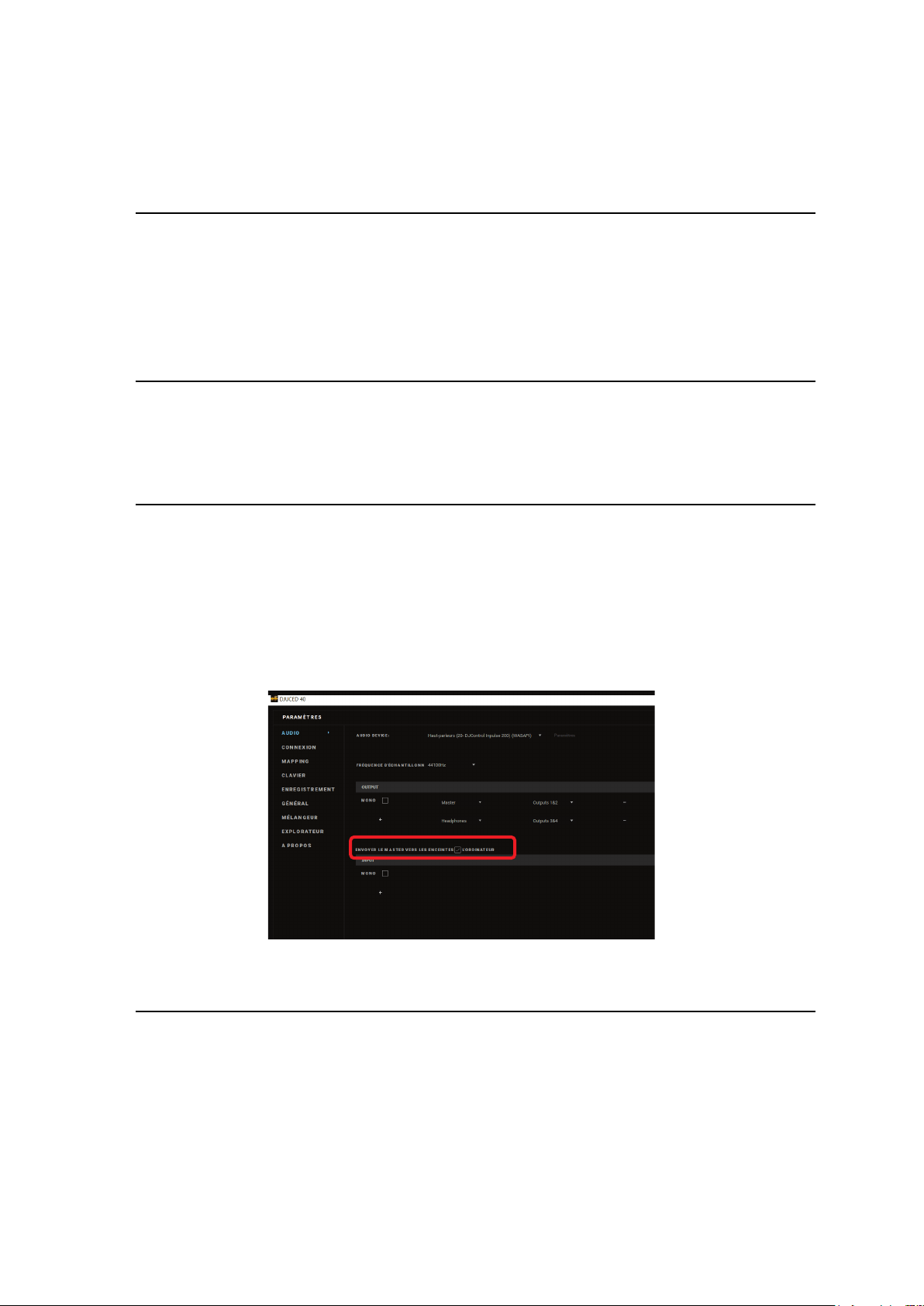
In DJUCED
®
, if you want to use the speakers built into your laptop
computer, select the SEND THE MASTER TO THE SPEAKERS option in
the DJUCED
®
audio settings.
9.4. No sound is coming out of my headphones, or my laptop
computer speakers.
The controller has been designed to play music via its built-in audio
interface, and not via a laptop computer’s headphones output or speakers.
In Serato DJ Lite, you must connect the speakers and the headphones to
the DJControl Inpulse 500.
In DJUCED
®
, if you want to use the speakers built into your laptop
computer, select the SEND THE MASTER TO THE SPEAKERS option in
the DJUCED
®
audio settings. Then, connect your headphones to

headphones output on your DJControl Inpulse 500. On a laptop computer,
the headphones output plays the same signal as the built-in speakers:
therefore, you will not be able to monitor upcoming tracks on your
headphones if the headphones are connected to your laptop computer.
9.5. I can’t connect my active speakers to my DJ controller.
If your speakers’ connectors differ from the connectors on the DJ
controller, you can use:
- A dual RCA to 1/8” / 3.5 mm stereo mini-jack cable (not included)
to connect multimedia speakers; or
- Two XLR to 1/4” / 6.35 mm jack cables to connect PA speakers; or
- Any other format corresponding to your speakers.
You can test out your multimedia speakers by connecting them to the
headphones output on your DJControl Inpulse 500. Play the sound of the
mix on the headphones output by pressing the button with the
headphones symbol in the Master area on the DJ controller.
9.6. How can I connect the DJ controller to a USB-C port, or
a Thunderbolt 3 port?
You can connect the DJ controller to a USB-C (or Thunderbolt 3) port in 3
different ways:
- By using an adapter (male USB-C (or Thunderbolt 3) to female USB
type A) between the DJ controller and the computer. Please note
that some low-cost adapters will not work properly, as they cut off a
part of the power supply.
- By using a USB-C (or Thunderbolt 3) dock between the computer
and the DJ controller. Make sure that the dock has a dedicated
power supply, as a dock powered only via the USB-C (or
Thunderbolt 3) port may not have enough power.
- By replacing the included USB cable with a USB-C (or Thunderbolt
3) to USB 2 type B cable.

10. Trademarks
Intel
®
and Intel
®
Core are registered trademarks of Intel Corporation.
Microsoft
®
Windows
®
8 and 10 are registered trademarks or trademarks
of Microsoft Corporation in the United States and/or in other countries.
Mac and macOS are trademarks of Apple Inc., registered in the U.S. and
other countries.
Serato, Serato DJ Lite and Serato DJ Pro are registered trademarks of
Serato Audio Research Limited.
The DJUCED
®
brand and graphic elements related to DJUCED
®
are the
property of Guillemot Corporation.
Velvet Sound is a trademark of Asahi Kasei Microdevices (AKM).
ASIO is a trademark of Steinberg Media Technologies GmbH.
All other trademarks and trade names are hereby acknowledged in this
document and are the property of their respective owners. Illustrations
not binding. Contents, designs and specifications in this document are
subject to change without notice and may vary from one country to
another.

11. Copyright
No part of this manual may be reproduced, summarized, transmitted,
transcribed, stored in a retrieval system, or translated into any language
or computer language, in any form or by any means, electronic,
mechanical, magnetic, manual, via photocopying, recording, or other,
without the express written consent of Guillemot Corporation S.A.

12. End User License Agreements applicable to the
DJUCED
®
and Serato DJ Lite software
Please read the End User License Agreements displayed during installation
of the DJ software carefully.