
2
En
How to read this manual
Thank you for choosing this Pioneer DJ product.
Be sure to read this manual, the “Quick Start Guide” and the
“Precautions for Use” which are included with this product. These
documents include important information that you should understand
before using the unit. In particular, be sure to read the IMPORTANT
SAFETY INSTRUCTIONS.
• In this manual, the names of buttons, knobs, and terminals that
appear on the product, and the names of buttons, menus, etc. in the
software on your PC/Mac or mobile device, are indicated within
square brackets ([ ]). (e.g. [File], [CUE] button)
• Please note that the software screens and their specifications, as
well as the external appearance and specifications of the hardware,
are subject to change without notice.
• Please note that depending on the operating system version, web
browser settings, etc. operation may differ from the ways described
in this manual.
• Please note that the language on the screens of the software
described in this manual may differ from the language on your
screen.

3
En
What’s in the box
• USB cable
• Warranty (for some regions)*
• Quick Start Guide
• Precautions for Use
* Only products in North America and Europe.

4
En
Contents
How to read this manual............................................................... 2
What’s in the box .......................................................................... 3
Before you start......................................................................... 6
User guides................................................................................... 6
DJ software................................................................................... 7
Part names and functions ...................................................... 10
Top panel.................................................................................... 11
Browse section ........................................................................... 12
Deck section ............................................................................... 15
Mixer section............................................................................... 25
Effects section ............................................................................ 31
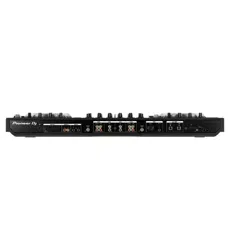
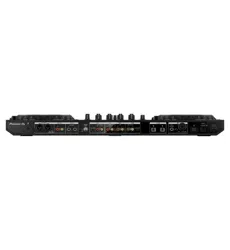
Rear panel .................................................................................. 34
Front panel.................................................................................. 36
Connections............................................................................. 37
Connection examples ................................................................. 39
rekordbox for Mac/Windows .................................................. 45
Installing rekordbox for Mac/Windows ........................................ 45
Basic use .................................................................................... 48
Advanced use ............................................................................. 54
Changing the settings in rekordbox for Mac/Windows................ 77
Serato DJ Lite .......................................................................... 81
Installing Serato DJ Lite.............................................................. 81
Basic use .................................................................................... 84
Advanced use ............................................................................. 91

5
En
rekordbox for iOS/Android ................................................... 107
Installing rekordbox for iOS/Android ......................................... 107
Basic use .................................................................................. 109
Advanced use ........................................................................... 120
Changing the settings in rekordbox for iOS/Android................. 140
Changing the settings........................................................... 144
Launching Utilities mode........................................................... 144
Utilities mode settings............................................................... 145
Changing the Bluetooth
®
MIDI device name ............................ 148
Additional information.......................................................... 150
Troubleshooting ........................................................................ 150
Specifications............................................................................ 159
Using the unit as a controller for other DJ applications ............ 161
Trademarks and registered trademarks.................................... 162
Software license notice............................................................. 163
Cautions on copyrights ............................................................. 165
6
En
Before you start
User guides
rekordbox Introduction, Instruction Manual
Refer to the “rekordbox Introduction” to find out how to set up
rekordbox for Mac/Windows, and see the “rekordbox Instruction
Manual” to find out how to use rekordbox for Mac/Windows.
rekordbox.com/manual
Serato DJ Lite software manual
Visit the Serato DJ Lite website.
serato.com/dj/lite/downloads

Before you start
7
En
DJ software
rekordbox for Mac/Windows
• rekordbox for Mac/Windows is a complete DJ application you can
use to manage your music and perform.
• Even if you don’t have a paid subscription plan, you can use
Performance mode by connecting this unit to your PC/Mac with
rekordbox for Mac/Windows installed. This is called Hardware
Unlock.
• You’ll find details of the functions available via Hardware Unlock on
[Hardware Unlock] under [Support] at
rekordbox.com
• The rekordbox for Mac/Windows software is not included with the
unit. Download the software from the URL below.
rekordbox.com
• For information on the latest system requirements, compatibility, and
supported operating systems of rekordbox for Mac/Windows, check
[System requirements] under [Support] at rekordbox.com.
• Operation isn’t guaranteed on all PC/Mac models, even if the system
requirements are met.
• Depending on power-saving settings and other conditions of the PC/
Mac, the CPU and hard disk may not provide sufficient processing
capabilities. For laptops in particular, make sure the PC/Mac is in the
best condition to provide constant high-level performance when
using rekordbox for Mac/Windows (for example by keeping the AC
power connected).
• To use the internet, you need a separate contract with an internet
service provider, which you may have to pay for.
• Operating system support always assumes you’re using the latest
point release for that version.

Before you start
8
En
Serato DJ Lite
Serato DJ Lite is DJ software from Serato Limited.
This unit unlocks the software, which you can download from the
Serato website.
serato.com/dj/lite/downloads
• If you haven’t registered an account, follow the steps below.
– Follow the instructions on the screen to enter your email address
and create a password, then click the [Create account] icon.
Follow the instructions on the screen to download the Serato DJ
Lite software.
– Once you’ve registered an account, you’ll receive an email. Check
the contents of the email.
• Be careful not to forget the email address and password you used to
register. You’ll need them to update the software in future.
• The personal information you entered when registering your user
account may be collected, processed, and used based on the privacy
policy published on the Serato website.
• For information on the latest system requirements, compatibility, and
supported operating systems of Serato DJ Lite, visit the website
below.
serato.com/dj/lite/downloads
• Operation isn’t guaranteed on all PC/Mac models, even if the system
requirements are met.
• Depending on power-saving settings and other conditions of the PC/
Mac, the CPU and hard disk may not provide sufficient processing
capabilities. For laptops in particular, make sure the PC/Mac is in the
best condition to provide constant high-level performance when
using Serato DJ Lite (for example by keeping the AC power
connected).

Before you start
9
En
rekordbox for iOS/Android
• rekordbox for iOS/Android is a mobile device application you can use
to manage your music and perform.
• By connecting a mobile device running rekordbox for iOS/Android to
the unit via a USB cable or Bluetooth, you can perform with music
files stored on the device or from a compatible streaming service.
• Install the latest version of rekordbox for iOS/Android from the App
Store or Google Play (page 107).
• rekordbox for iOS can be used on iOS and iPad OS devices.
rekordbox for Android can be used on Android devices. For
information on the latest supported operating systems and devices,
check [Mobile] under [FEATURES] at rekordbox.com.
• Operation isn't guaranteed on all mobile devices listed on the above
website.
• To power the unit, use a USB power adapter or mobile battery.
10
En
Part names and functions
This unit supports the following DJ software.
• rekordbox for Mac/Windows
• rekordbox for iOS/Android
• Serato DJ Lite
• Serato DJ Pro (paid license needed.)
The following section shows functions of rekordbox for Mac/Windows,
rekordbox for iOS/Android, and Serato DJ Lite separately.
About “ Using rekordbox for Mac/Windows or rekordbox for
iOS/Android”
Functions available only in rekordbox for Mac/Windows are shown with
.
Functions available only in rekordbox for iOS/Android are shown with
.
Functions available for Mac/Windows/iOS/Android are shown without
the above symbols.
About “
Using Serato DJ Lite”
This section mainly relates to Serato DJ Lite.
Functions available only in Serato DJ Pro are shown with
.
Mac/Windows
iOS/Android
Serato DJ Pro
Part names and functions
11
En
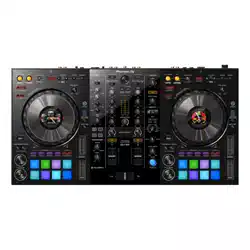
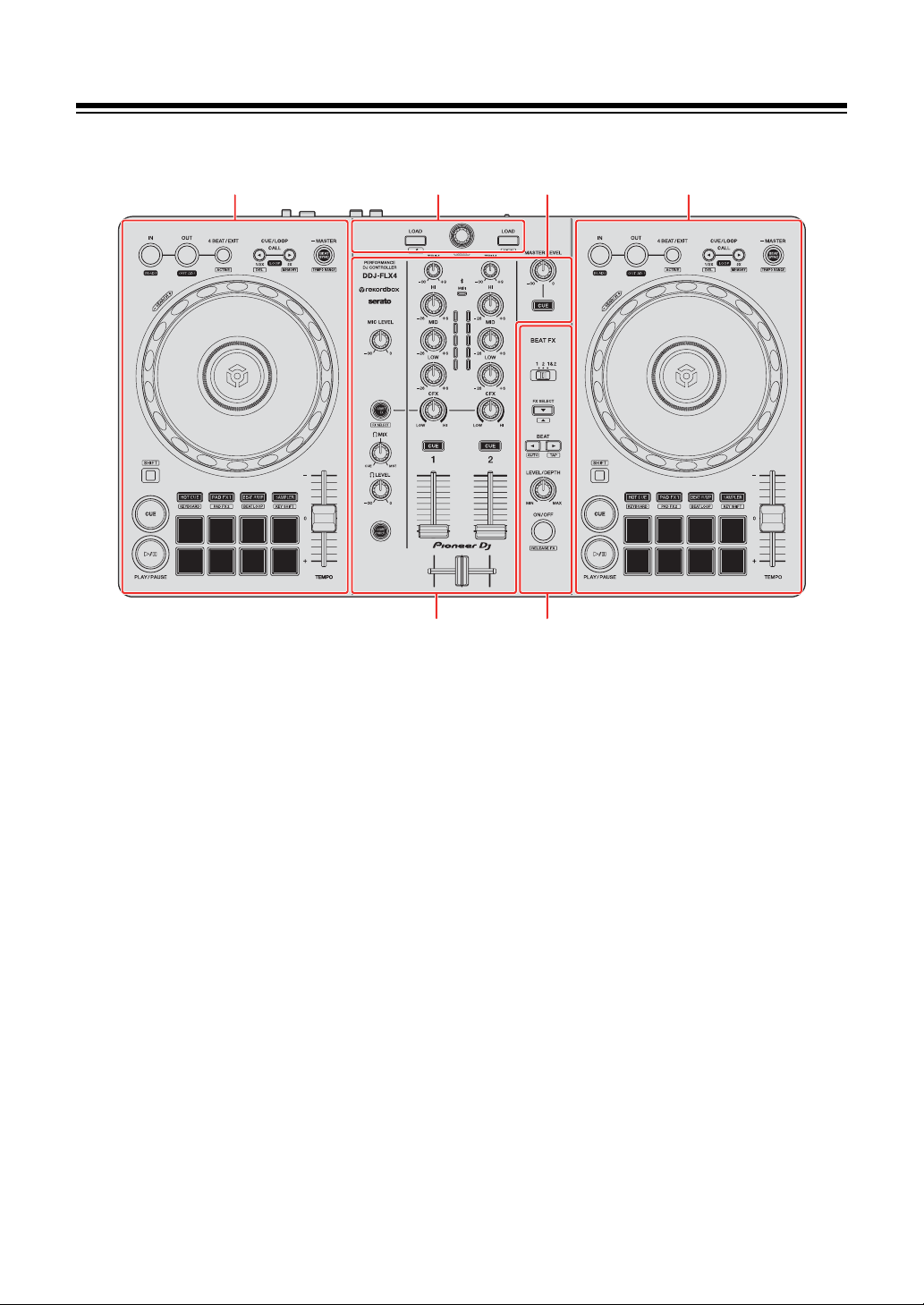
Top panel
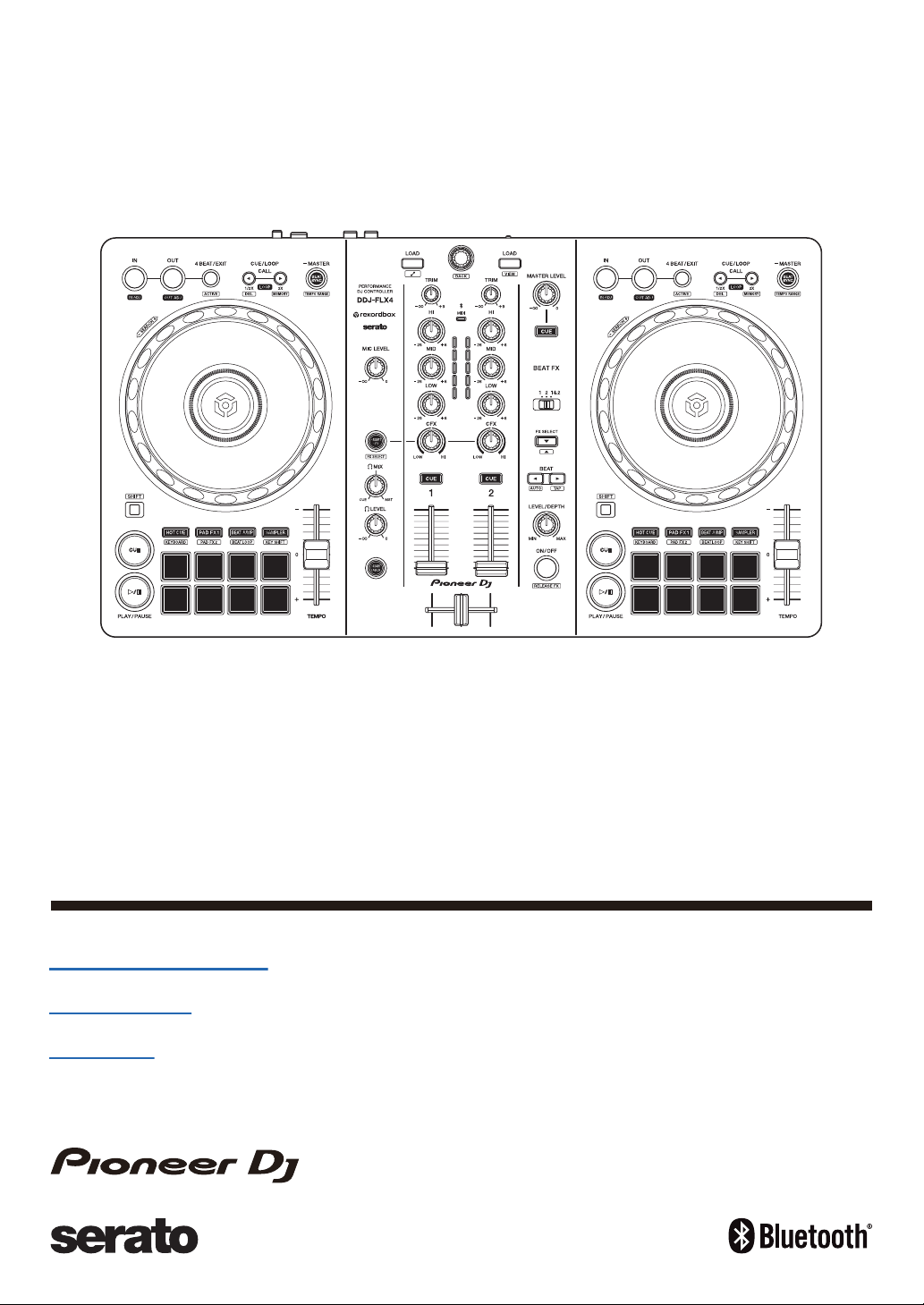
1 Browse section
Selects tracks and loads them to the decks.
2 Deck sections
Control each deck. There are knobs and buttons on the left side to control deck
1, and on the right side to control deck 2.
3 Mixer section
Controls the level adjustment for each channel, track mixing, etc.
4 Effects section
Controls the effect units.
43
2
213
Part names and functions
12
En
Browse section
Using rekordbox for Mac/Windows or rekordbox for iOS/
Android
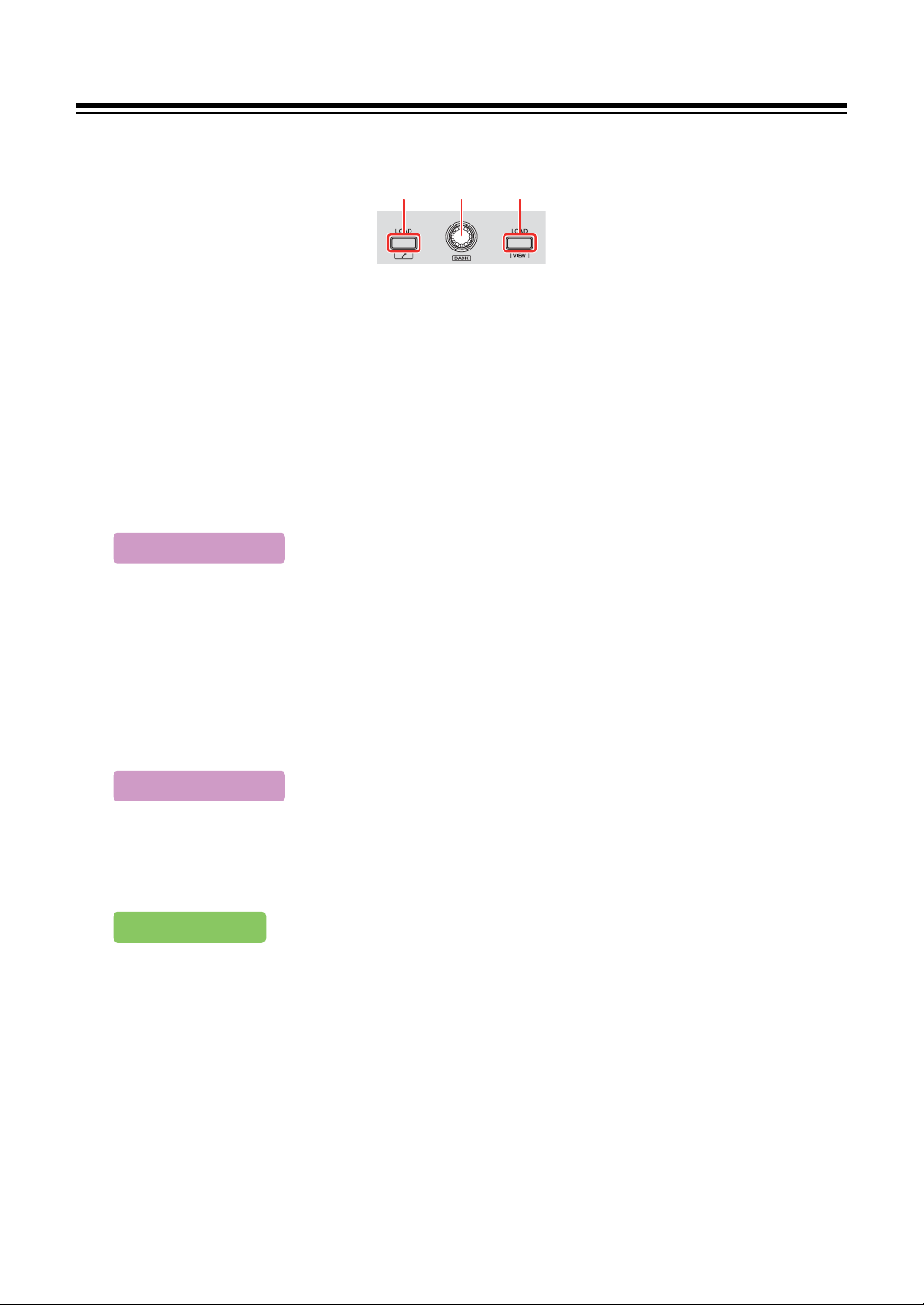
1LOAD buttons
Press:
Load the selected track to the respective deck.
Press twice:
Load the track from the deck that isn’t playing onto the deck that is playing. If
you do this while the track is playing, it plays from the same position (Instant
Doubles).
[SHIFT] + press:
Deck 1: Moves the cursor into [Related Tracks] in the tree view.
Deck 2: Shrinks the deck display in rekordbox and enlarges the browse
section. When the button is pressed again, the original state is restored.
Deck 1: Displays the browse window and shows [Related Tracks].
Deck 2: Displays the browse window.
1 2 1
Mac/Windows
Mac/Windows
iOS/Android
Part names and functions
13
En
2 Rotary selector
Turn:
Moves the cursor in rekordbox.
[SHIFT] + turn:
Enlarges or shrinks the enlarged waveform in rekordbox.
Turn to the right to enlarge, or the left to shrink it.
Press:
Moves the cursor between the tree view and track list each time you press the
button. If the cursor is pointed to a folder, the folder opens.
• If the playlist palette is displayed, you can also move the cursor to the
playlist.
• The tree view, track list, and playlist palette are displayed in the browse
section of rekordbox. For details on each, read the “rekordbox Instruction
Manual”.
Moves the cursor to the next level down.
[SHIFT] + press:
Moves the cursor between the tree view and track list each time you press the
button. If the cursor is pointed to a folder, the folder closes.
Moves the cursor to the next level up.
Mac/Windows
Mac/Windows
iOS/Android
Mac/Windows
iOS/Android

Part names and functions
14
En
Using Serato DJ Lite
1LOAD buttons
Press:
Load the selected track to the respective deck.
Press twice:
Load the track from the deck that isn’t playing onto the deck that is playing. If
you do this while the track is playing, it plays from the same position (Instant
Doubles).
[SHIFT] + press:
Sorts the track list in the library as follows, depending on the [LOAD] button
you press:
Deck 1: Sorts by BPM.
Deck 2: Sorts by artist name.
2 Rotary selector
Turn:
Moves the cursor up or down in the library or in the [crates] panel.
Press:
Moves the cursor between the library and [crates] panel each time you press
the button.
If the cursor is on the [Files] panel, it moves to the next level down.
[SHIFT] + press:
If the cursor is on the [crates] panel, the [subcrates] panel opens or closes.
If the cursor is on the library, it moves to the [crates] panel.
If the cursor is on the [Files] panel, it moves up one level.
Part names and functions
15
En
Deck section
Using rekordbox for Mac/Windows or rekordbox for iOS/
Android
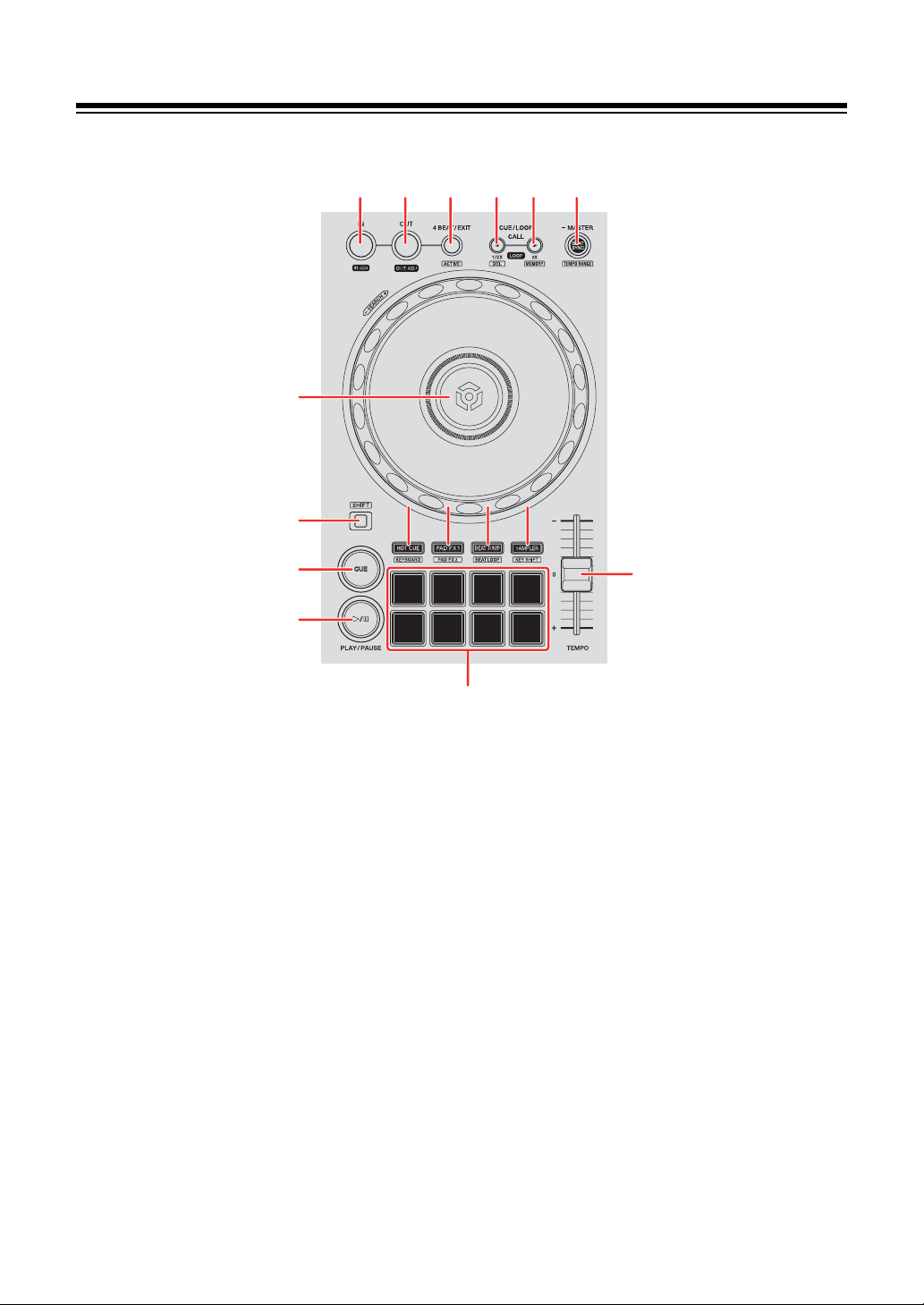
1 IN button
Press:
Sets the loop in point.
Press (during loop playback):
Adjusts the loop in point using the jog wheel.
2 OUT button
Press:
Sets the loop out point, and loop playback begins.
1
16
15
7
14
13
12
2 3 4 5 6
888 99 101010 111111

Part names and functions
16
En
Press (during loop playback):
Adjusts loop out point using the jog wheel.
3 4 BEAT/EXIT button
Press:
Starts Auto Beat Loop of 4 beats.
Press (during loop playback):
Cancels loop playback.
[SHIFT] + press:
Sets/cancels the loop nearest the playback position as Active Loop. This is
enabled for loops saved on the track or set in Hot Cue mode.
• If Active Loop is set, the loop playback automatically starts when the
playback position reaches the loop in point.
4 CUE/LOOP CALL
button
Press:
Selects and calls up the cue point or loop point.
Press (during loop playback):
Halves the loop playback length.
[SHIFT] + press:
Deletes the called-up cue point or loop points.
5 CUE/LOOP CALL
button
Press:
Selects and calls up the cue point or loop point.
Press (during loop playback):
Doubles the loop playback length.

Part names and functions
17
En
[SHIFT] + press:
During cue standby, saves the cue point.
During loop playback, saves the loop.
6 BEAT SYNC button
Press:
Automatically synchronizes the tempo (BPM) and beatgrid with the deck set as
the master.
Press (during Beat Sync):
Cancels Beat Sync.
Press for at least a second:
Sets the relevant deck as the master.
[SHIFT] + press:
Switches the range of the [TEMPO] slider each time the button is pressed
while holding the [SHIFT] button.
Switch between [±6%] [±10%] [±16%] [WIDE] [±6%].
Hold down the [BEAT SYNC] buttons on deck 1 and deck 2 for at least one
second at the same time:
The Bluetooth connection of the iOS/Android device is canceled.
7 TEMPO slider
Adjusts the playing speed of the track.
8 HOT CUE mode button
Press:
Enters Hot Cue mode.
Read more: Using Hot Cues (page 56)
[SHIFT] + press:
Enters Keyboard mode.
iOS/Android

Part names and functions
18
En
Read more: Using Keyboard mode (page 62)
9 PAD FX1 mode button
Press:
Enters Pad FX mode 1.
Read more: Using Pad FX (page 58)
[SHIFT] + press:
Enters Pad FX mode 2.
Read more: Using Pad FX (page 58)
10 BEAT JUMP mode button
Press:
Enters Beat Jump mode.
Read more: Using Beat Jump (page 59)
[SHIFT] + press:
Enters Beat Loop mode.
Read more: Using Beat Loop (page 64)
11 SAMPLER mode button
Press:
Enters Sampler mode.
Read more: Using Sampler (page 60)
[SHIFT] + press:
Enters Key Shift mode.
Read more: Using Key Shift (page 65)
12 Performance Pads
Press:
You can use Performance Pads to trigger various features.
Read more: Using the Performance Pads (page 56)

Part names and functions
19
En
13 PLAY/PAUSE
button
Press:
Plays/pauses a track.
14 CUE button
Press:
Sets, calls up, and plays a cue point.
• Press the button when the track is paused to set the cue point.
• Press the button when the track is playing to return to the cue point and
pause. (Back Cue)
• Press the button and hold it after the track returns to the cue point and
playback will continue until you release the button. (Cue Point Sampler)
[SHIFT] + press:
Returns the playback position to the beginning of the track.
15 SHIFT button
Press another button while holding the [SHIFT] button to use a different feature
assigned to the button.
16 Jog wheel
Turn the top when Vinyl mode is on:
Scratches the track.
Turn the top:
Scratches the track.
Turn the outer section or turn the top when Vinyl mode is off:
Bends the pitch (Pitch Bend – slows down or speeds up the track).
• You can turn Vinyl mode on and off using shortcut keys in rekordbox.
Mac/Windows
iOS/Android
Mac/Windows

Part names and functions
20
En
Turn the outer section:
Bends the pitch (Pitch Bend – slows down or speeds up the track).
[SHIFT] + turn the top:
Fast-forward or fast-reverse the track with extra speed.
Using Serato DJ Lite
1 IN button
Press:
Sets the loop in point.
Press (during loop playback):
Adjusts the loop in point using the jog wheel.
2 OUT button
Press:
Sets the loop out point, and loop playback begins.
Press (during loop playback):
Adjusts loop out point using the jog wheel.
[SHIFT] + press:
Turns Vinyl mode on/off.
3 4 BEAT/EXIT button
Press:
Starts Auto Beat Loop of 4 beats.
Press (during loop playback):
Cancels loop playback.
[SHIFT] + press:
Switches the active/non-active status of the loop.
iOS/Android

Part names and functions
21
En
4 CUE/LOOP CALL
button
Press (during loop playback):
Halves the loop playback length.
Press:
Selects the loop slot.
5 CUE/LOOP CALL
button
Press (during loop playback):
Doubles the loop playback length.
Press:
Selects the loop slot.
6 BEAT SYNC button
Press:
The tempo (BPM) and beatgrid of multiple decks are automatically
synchronized.
[SHIFT] + press:
Switches the range of the [TEMPO] slider each time the button is pressed
while holding the [SHIFT] button.
Switch between [±8%] [±16%] [±50%] [±8%].
Press for at least a second:
Cancels Beat Sync.
7 TEMPO slider
Adjusts the playing speed of the track.
Serato DJ Pro
Serato DJ Pro

Part names and functions
22
En
8 HOT CUE mode button
Press:
Enters Hot Cue mode.
Read more: Using Hot Cues (page 92)
[SHIFT] + press:
Enters Pitch Play mode.
Read more: Using Pitch Play (page 96)
9 PAD FX1 mode button
Press:
Enters Pad FX mode.
Read more: Using Pad FX (page 93)
[SHIFT] + press:
Enters Roll mode.
Read more: Using Roll (page 97)
10 BEAT JUMP mode button
Press:
Enters Beat Jump mode.
Read more: Using Beat Jump (page 94)
[SHIFT] + press:
Enters Auto Loop mode.
Read more: Using Auto Loop (page 98)
11 SAMPLER mode button
Press:
Enters Sampler mode.
Read more: Using Sampler (page 95)
Serato DJ Pro
Serato DJ Pro

Part names and functions
23
En
[SHIFT] + press:
Enters Key Shift mode.
Read more: Using Key Shift (page 99)
12 Performance Pads
Press:
You can use Performance Pads to trigger various features.
Read more: Using the Performance Pads (page 92)
13 PLAY/PAUSE
button
Press:
Plays/pauses a track.
[SHIFT] + press:
Returns to the temporary cue point and playback starts (Stutter).
14 CUE button
Press:
Sets, calls up, and plays a cue point.
• Press the button when the track is paused to set the cue point.
• Press the button when the track is playing to return to the cue point and
pause. (Back Cue)
• Press the button and hold it after the track returns to the cue point and
playback will continue until you release the button. (Cue Point Sampler)
[SHIFT] + press:
Returns the playback position to the beginning of the track.
15 SHIFT button
Press another button while holding the [SHIFT] button to use a different feature
assigned to the button.
Serato DJ Pro

Part names and functions
24
En
16 Jog wheel
Turn the top when Vinyl mode is on:
Scratches the track.
Turn the outer section or turn the top when Vinyl mode is off:
Bends the pitch (Pitch Bend – slows down or speeds up the track).
[SHIFT] + turn the top:
Fast-forward or fast-reverse the track with extra speed when Vinyl mode is on.
The playback position skips in sync with the beat when Vinyl mode is off (Skip
mode).
• Skip mode can’t be used with tracks that have no beatgrid set. For details on
setting beatgrids, see the Serato DJ Pro software manual.
• To use Skip mode, open the [DJ PREFERENCE] tab of the [SETUP] menu
in Serato DJ Pro > [SYNC MODE] and select [Smart Sync].
Serato DJ Pro
Part names and functions
25
En
Mixer section
Using rekordbox for Mac/Windows or rekordbox for iOS/
Android
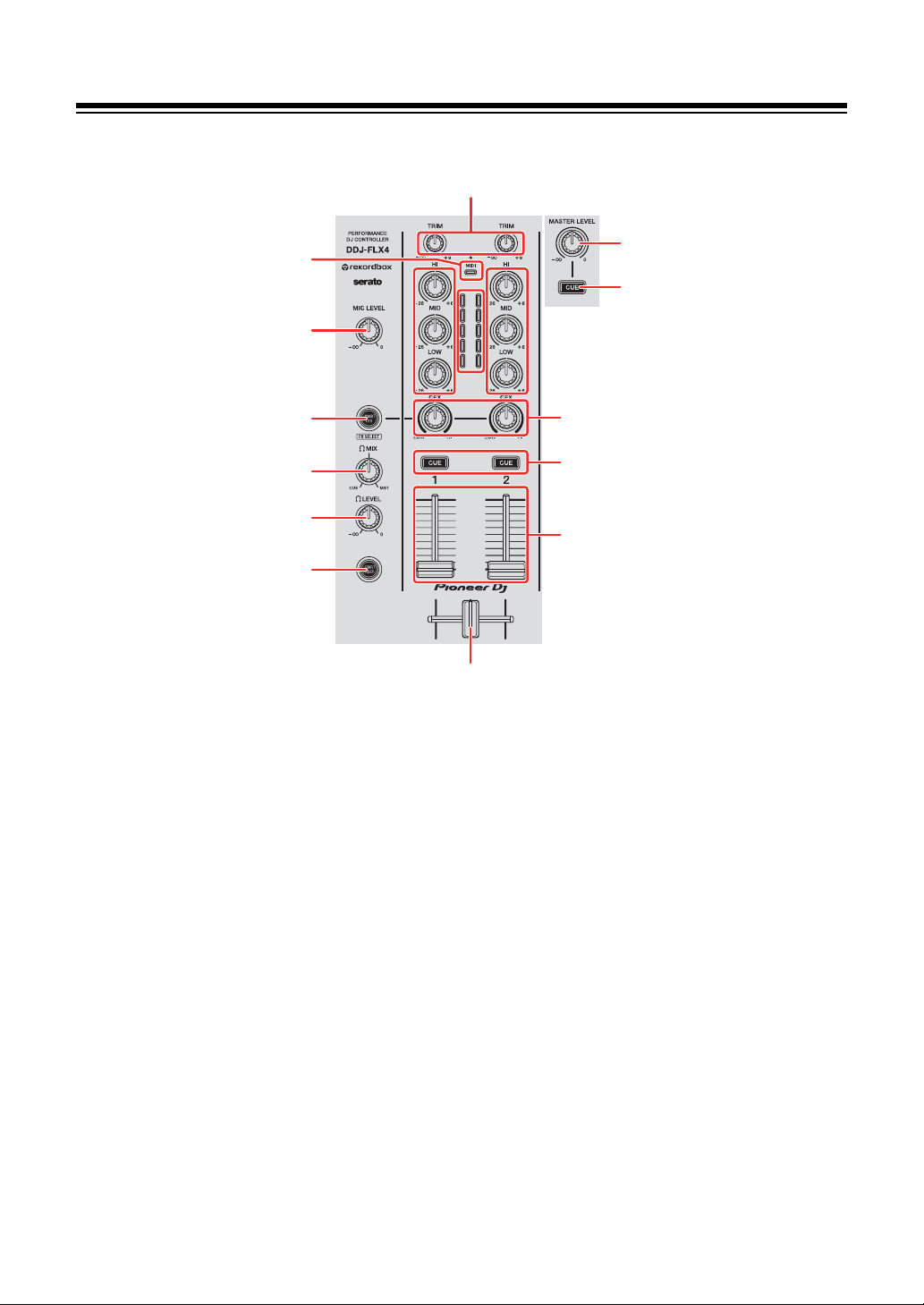
1 TRIM knobs
Adjust the volume of each channel’s sound.
2 MASTER LEVEL knob
Adjusts the volume of the master output sound.
3 Headphones CUE button (master)
Press:
Plays the master sound through your headphones.
4 Bluetooth MIDI indicator
Flashes: The iOS/Android device is not connected via Bluetooth.
Lights up: The iOS/Android device is connected via Bluetooth.
1
2
3
15
4
7
9
11
12
13
8
10
14
66 66
55

Part names and functions
26
En
Turns off: The unit has recognized the connection with a DJ application using
the USB cable.
• When using rekordbox for iOS/Android with the unit being powered via the
USB port of your PC/Mac, do not start a DJ application on your PC/Mac.
5 Channel level indicators
Indicate the volume of the sound of the respective channels before it passes
through the channel faders.
6 EQ (HI, MID, LOW) knobs
Boost or reduce the relevant frequency for the selected channel.
7 MIC LEVEL knob
Adjusts the volume of input sound from the [MIC] input terminal.
8 CFX knobs
When the [SMART CFX] button is off:
Control Sound Color FX for each channel.
When a knob is set to the center position, the sound is unchanged.
When the [SMART CFX] button is on:
Control Smart CFX for each channel.
When a knob is set to the center position, the sound is unchanged.
When the [SMART CFX] button is off:
The sound is unchanged.
When the [SMART CFX] button is on:
Control Sound Color FX for each channel.
When a knob is set to the center position, the sound is unchanged.
Mac/Windows
iOS/Android
Part names and functions
27
En
9 SMART CFX button
Press:
Turns Smart CFX mode on/off.
Turns Sound Color FX on/off.
[SHIFT] + press:
Changes the preset for Smart CFX.
Changes the Sound Color FX type.
10 Headphones CUE buttons (channel)
Press:
Play the sound of the relevant channel through your headphones.
[SHIFT] + press:
Hold the [SHIFT] button and tap the headphones [CUE] button to set the
tempo of the respective deck in time with your tapping. (Tapping function)
11 HEADPHONES MIX knob
Adjusts the monitor volume balance between sounds from the channels which
have the headphones [CUE] button pressed, and the master channel.
12 HEADPHONES LEVEL knob
Adjusts the level of the headphones sound.
13 SMART FADER button
Turns Smart Fader mode on/off.
Mac/Windows
iOS/Android
Mac/Windows
iOS/Android
Mac/Windows

Part names and functions
28
En
14 Channel faders
Slide:
Adjust the volume of the sound for each channel.
[SHIFT] + slide:
Triggers Fader Start.
15 Crossfader
Slide:
Adjusts the sound balance between the left and right channels depending on
the crossfader curve setting.
[SHIFT] + slide:
Triggers Fader Start.
Using Serato DJ Lite
1 TRIM knobs
Adjust the volume of each channel’s sound.
2 MASTER LEVEL knob
Adjusts the volume of the master output sound.
3 Headphones CUE button (master)
Press:
Plays the master sound through your headphones.
4 Bluetooth MIDI indicator
Flashes: The iOS/Android device is not connected via Bluetooth.
Lights up: The iOS/Android device is connected via Bluetooth.
Turns off: The unit has recognized the connection with a DJ application using
the USB cable.
5 Channel level indicators
Indicate the volume of the sound of the respective channels before it passes
through the channel faders.

Part names and functions
29
En
6 EQ (HI, MID, LOW) knobs
Boost or reduce the relevant frequency for the selected channel.
7 MIC LEVEL knob
Adjusts the volume of input sound from the [MIC] input terminal.
8 CFX knobs
When the [SMART CFX] button is off:
Control the filter effect for each channel.
When a knob is set to the center position, the sound is unchanged.
Turn counterclockwise:
Gradually decreases the low-pass filter's cutoff frequency.
Turn clockwise:
Gradually increases the high-pass filter's cutoff frequency.
When the [SMART CFX] button is on:
Control Smart CFX for each channel.
When a knob is set to the center position, the sound is unchanged.
9 SMART CFX button
Press:
Turns Smart CFX mode (Preset 1) on/off.
[SHIFT] + press:
Turns Smart CFX mode (Preset 2) on/off.
10 Headphones CUE buttons (channel)
Press:
Play the sound of the relevant channel through your headphones.
[SHIFT] + press:
Hold the [SHIFT] button and tap the headphones [CUE] button to set the
tempo of the respective deck in time with your tapping. (Tapping function)

Part names and functions
30
En
11 HEADPHONES MIX knob
Adjusts the monitor volume balance between sounds from the channels which
have the headphones [CUE] button pressed, and the master channel.
12 HEADPHONES LEVEL knob
Adjusts the level of the headphones sound.
13 SMART FADER button
Press:
Turns Smart Fader mode (Preset 1) on/off.
[SHIFT] + press:
Turns Smart Fader mode (Preset 2) on/off.
14 Channel faders
Slide:
Adjust the volume of the sound for each channel.
[SHIFT] + slide:
Triggers Fader Start.
15 Crossfader
Slide:
Adjusts the sound balance between the left and right channels depending on
the crossfader curve setting.
[SHIFT] + slide:
Triggers Fader Start.
Part names and functions
31
En
Effects section
Using rekordbox for Mac/Windows or rekordbox for iOS/
Android
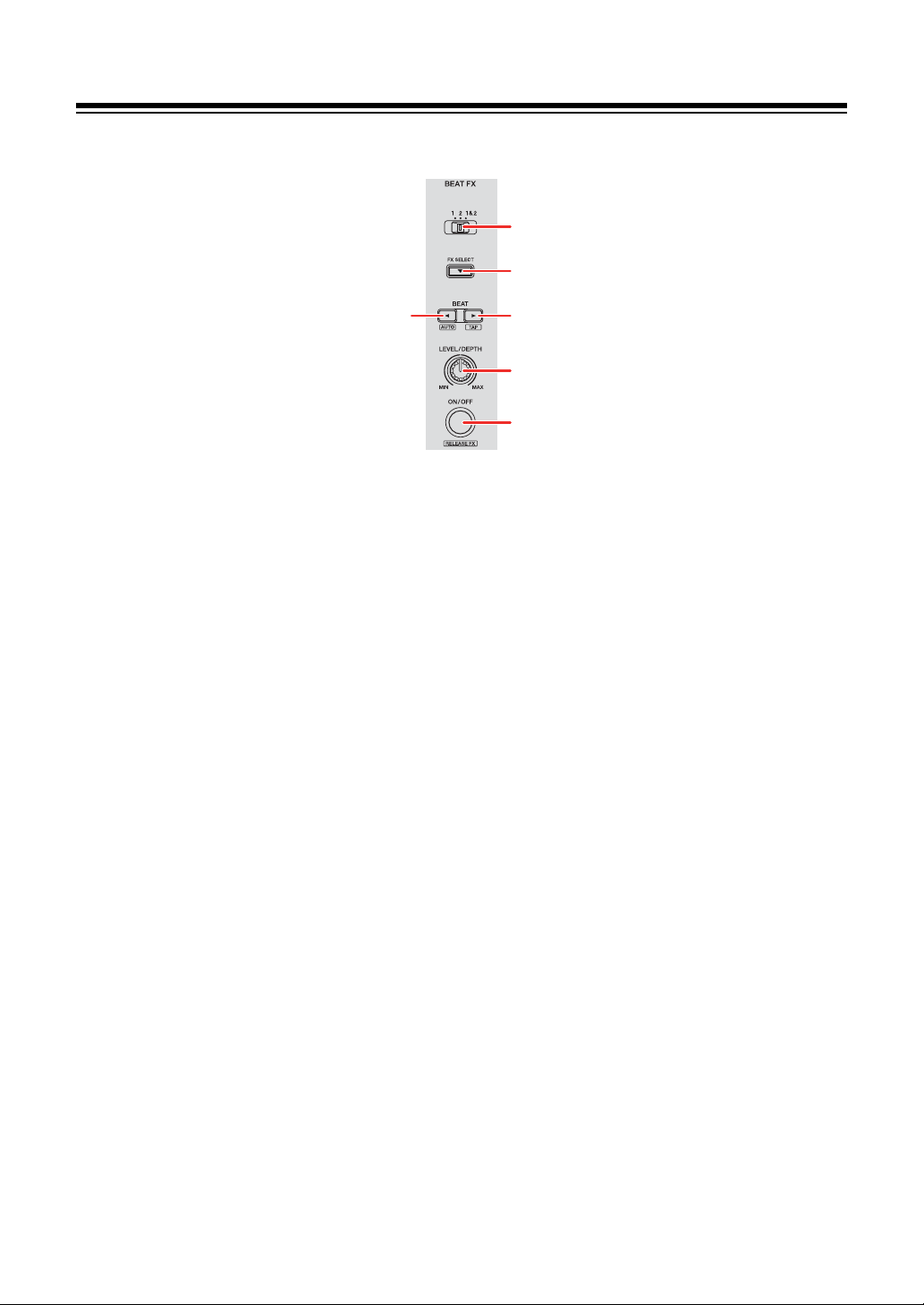
1 BEAT FX CH SELECT switch
Slide:
Changes the channel that Beat FX will be applied to.
2 BEAT FX SELECT button
Press:
Changes the Beat FX each time the button is pressed.
[SHIFT] + press:
Changes the Beat FX in the reverse order each time the button is pressed.
3BEAT
button
Press:
Decreases the number of beats for synchronizing the Beat FX sound each time
the button is pressed.
[SHIFT] + press:
Sets the Beat FX Tempo mode to BPM Auto mode. The track’s BPM is used as
the basis for the Beat FX tempo.
3 4
5
6
1
2

Part names and functions
32
En
4BEAT
button
Press:
Increases the number of beats for synchronizing the Beat FX sound each time
the button is pressed.
[SHIFT] + press:
Sets the Beat FX Tempo mode to BPM Tap mode. The BPM used as the basis
for Beat FX is set in time with your tapping of the button.
5 BEAT FX LEVEL/DEPTH knob
Adjusts the parameter of Beat FX.
6 BEAT FX ON/OFF button
Press:
Turns Beat FX on/off.
[SHIFT] + press:
Turns Release FX on/off.
Using Serato DJ Lite
1 FX CH SELECT switch
Slide:
Changes the channel that effects will be applied to.
2 FX SELECT button
Press:
Changes the FX each time the button is pressed.
[SHIFT] + press:
Changes the FX in the reverse order each time the button is pressed.
Serato DJ Pro

Part names and functions
33
En
3BEAT
button
Press:
Decreases the number of beats for synchronizing the FX sound each time the
button is pressed.
[SHIFT] + press:
Sets the FX Tempo mode to BPM Auto mode. The track’s BPM is used as the
basis for the FX tempo.
4BEAT button
Press:
Increases the number of beats for synchronizing the FX sound each time the
button is pressed.
[SHIFT] + press:
Sets the FX Tempo mode to BPM Tap mode. The BPM used as the basis for
FX is set in time with your tapping of the button.
5 FX LEVEL/DEPTH knob
Adjusts the parameter of FX.
6 FX ON/OFF button
Press:
Turns FX on/off.
Part names and functions
34
En
Rear panel
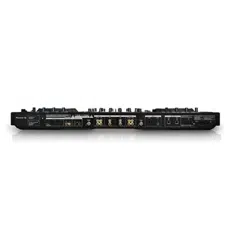
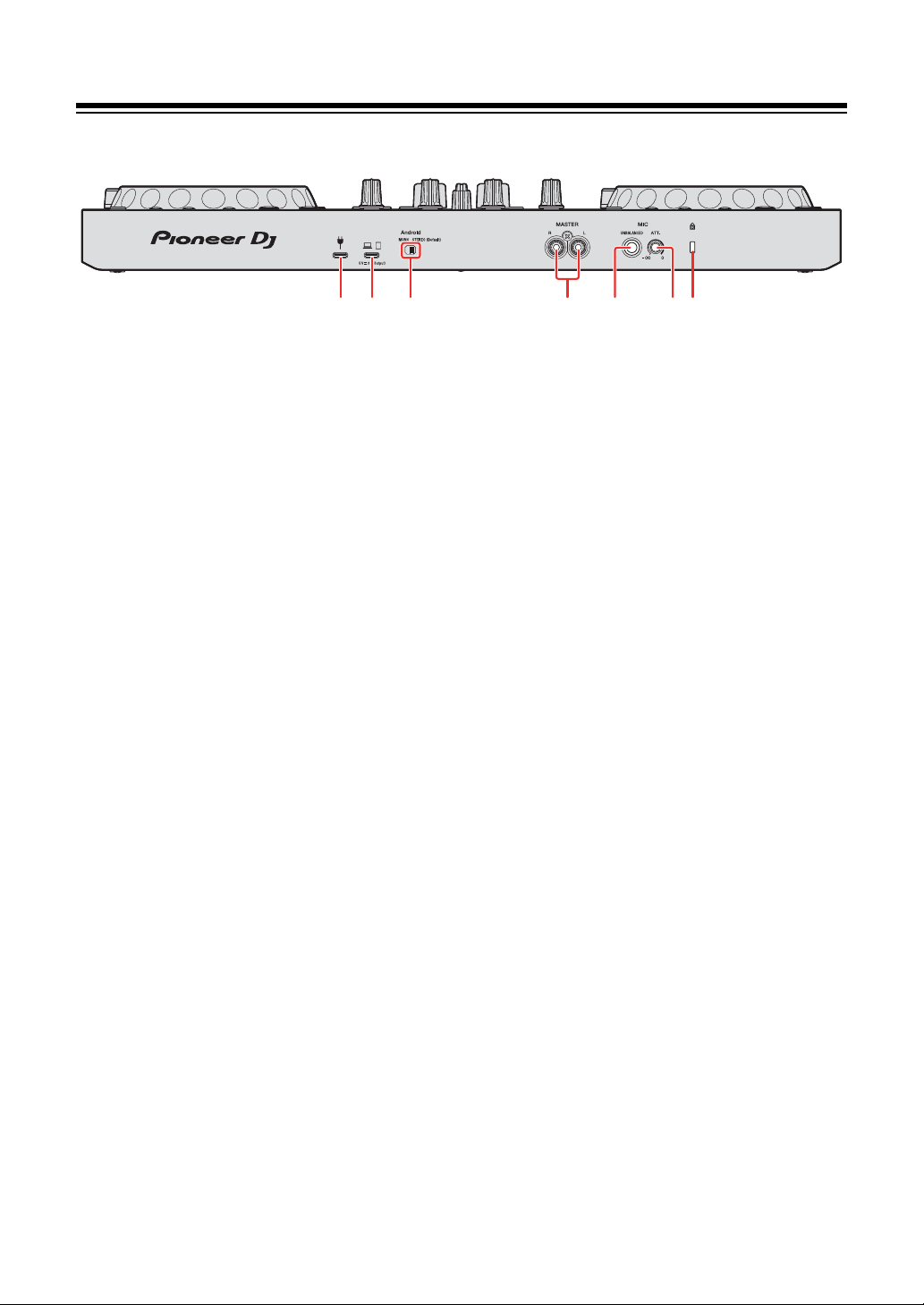
1 USB port (for power supply)
Connection for a USB power adapter (not supplied) or mobile battery (not
supplied).
• Use a USB cable certified to the appropriate standard.
• When using a USB hub, be sure it's a product recommended by the
manufacturer of your PC/Mac.
2 USB port (for device connection)
Connection for a PC/Mac/iOS/Android device.
• Be sure to use the USB cable specified below.
– To connect to a device with a USB Type-C port: use the USB cable
supplied with the unit
– To connect to a device with a USB Type-A port: use a USB cable certified
to the appropriate standard with a length of 3 m or less
– To connect to a device with a Lightning terminal: use an Apple certified
cable with a length of 3 m or less
• When using a USB hub, be sure it's a product recommended by the
manufacturer of your PC/Mac.
3 Android MONO/STEREO switch
When connecting to an Android device, select the audio output format.
• Depending on the Android device, stereo sound may not output correctly.
In some cases, the Master output sound may be distorted or sound may not
output from the headphones. In that case, slide this switch to [MONO].
• [MONO]: Sound plays in mono.
• [STEREO (Default)]: Sound plays in stereo (Default).
432 75 61

Part names and functions
35
En
4 MASTER output terminals (RCA pin jack type)
Connection for a powered speaker, a power amplifier, etc.
• Compatible with RCA pin jack-type unbalanced outputs.
5 MIC input terminal (1/4" TS Jack)
Connection for a microphone.
• Only a phone plug (1/4") can be used.
• Only an unbalanced input can be used.
6 MIC ATT. (Attenuator) knob
Adjusts the volume of input sound from the [MIC] input terminal.
• Depending on the microphone, the gain of microphone sound differs. Use
this knob to adjust the volume for your microphone before using it. While
DJing, use the [MIC LEVEL] knob on the top panel to adjust the microphone
volume.
7 Kensington security slot
Connection for a cable lock for security.
Part names and functions
36
En
Front panel
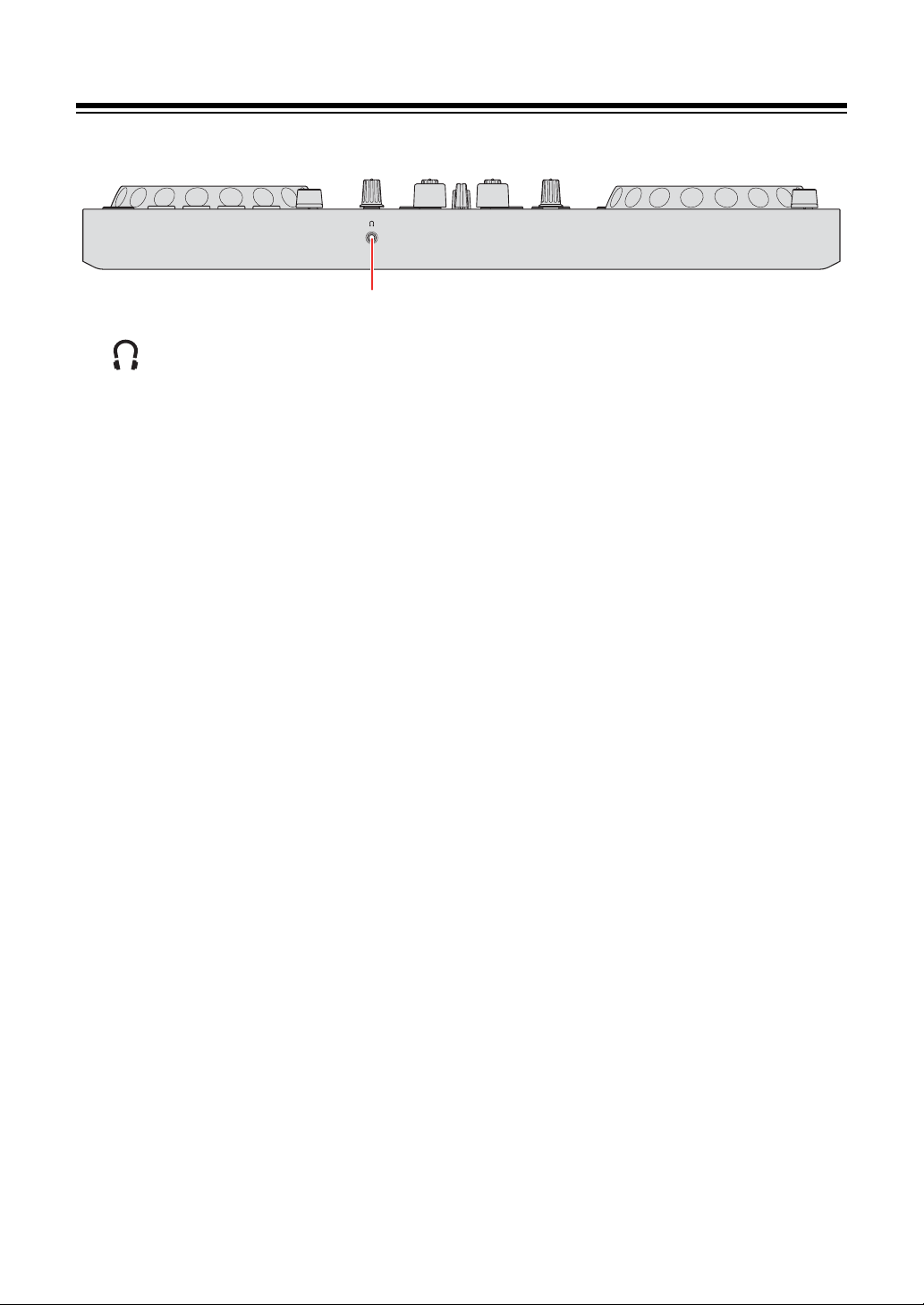
1 (headphones) output terminal
Connection for your headphones.
Stereo mini phone plugs (ø 3.5 mm) can be used with the unit.
• Only use headphones with 32 Ω or more impedance. Headphones with
impedance lower than 32 Ω won’t work with the unit.
1

37
En
Connections
• Be sure to disconnect the USB cable before connecting different
devices or changing connections.
Refer to the instruction manuals for devices to be connected.
• For connection to PC/Mac or a mobile device, be sure to use the USB
cable specified below.
– To connect to a device with a USB Type-C port: use the USB cable
supplied with the unit
– To connect to a device with a USB Type-A port: use a USB cable
certified to the appropriate standard with a length of 3 m or less
– To connect to a device with a Lightning terminal: use an Apple
certified cable with a length of 3 m or less
• When using a USB hub, be sure it's a product recommended by the
manufacturer of your PC/Mac.
• When connecting to a PC/Mac, you can use the unit with a single
connection to your computer (USB bus power). This unit can’t be
used with USB bus power in the following situations:
– The power supply capacity of the USB port on your PC/Mac is too
low.
– Your PC/Mac is connected with other devices.
– The impedance of the connected headphones is lower than 32 Ω.
– A mono-jack plug is connected to the headphones output terminal.
• When using the unit with a mobile device, you can connect a USB
power adapter or mobile battery to power the unit.
• When using the unit with a mobile device with a Micro USB Type-B
port, connect it via Bluetooth.
When connecting with a USB cable, we can't guarantee proper
operation of the unit.

Connections
38
En
• When using the unit with a USB power adapter or mobile battery
connected to the USB port (for power supply), make sure it has a
maximum voltage of 24V or less and DC 9V 3A.
Use a USB cable certified to the appropriate standard.
Use a mobile battery without a power-saving function.
• The [MIC] input terminal only supports an unbalanced input.
When not using the microphone, turn the [MIC LEVEL] knob to the
minimum level.
Connections
39
En
Connection examples
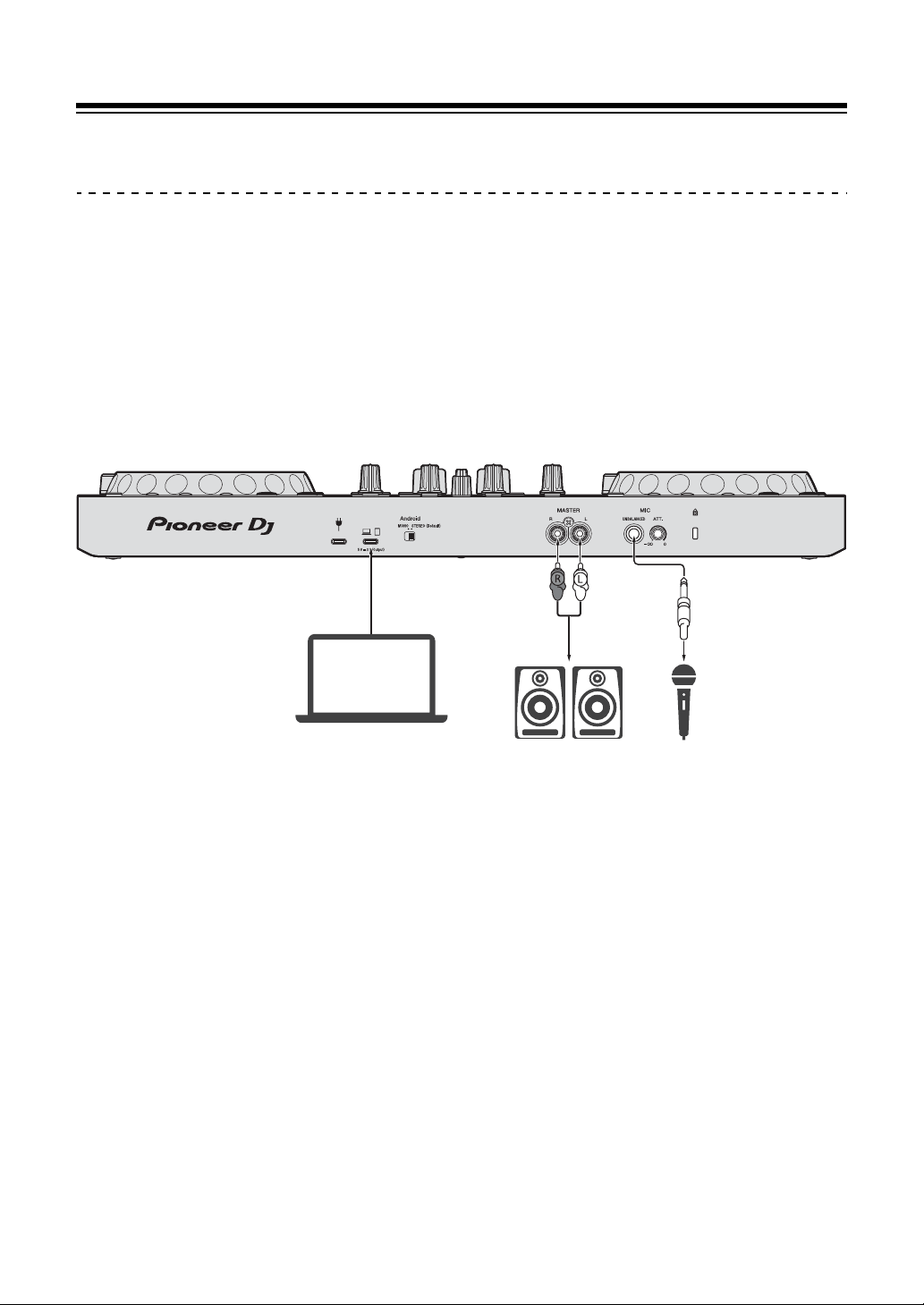
Connecting input / output terminals
Rear panel
For PC/Mac
(1) PC/Mac
(2) Powered speakers, power amplifier, etc.
(3) Microphone
(3)(2)(1)
Connections
40
En
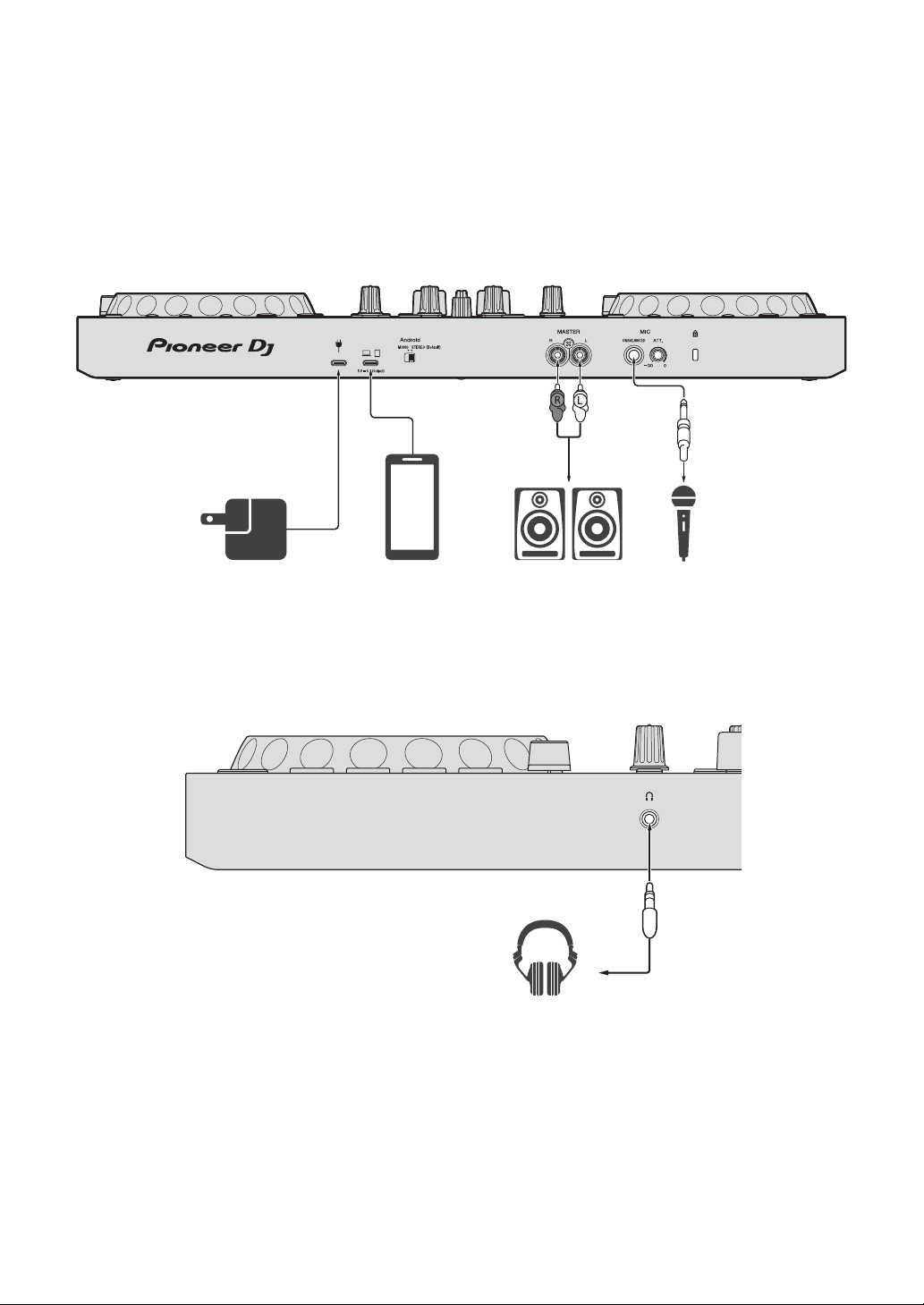
For a mobile device
(1) USB power adapter, mobile battery
(2) Mobile device
(3) Powered speakers, power amplifier, etc.
(4) Microphone
Front panel
(1) Headphones
(3)(2)(1)(4)
DC 9V 3A
(1)
Connections
41
En
Connecting
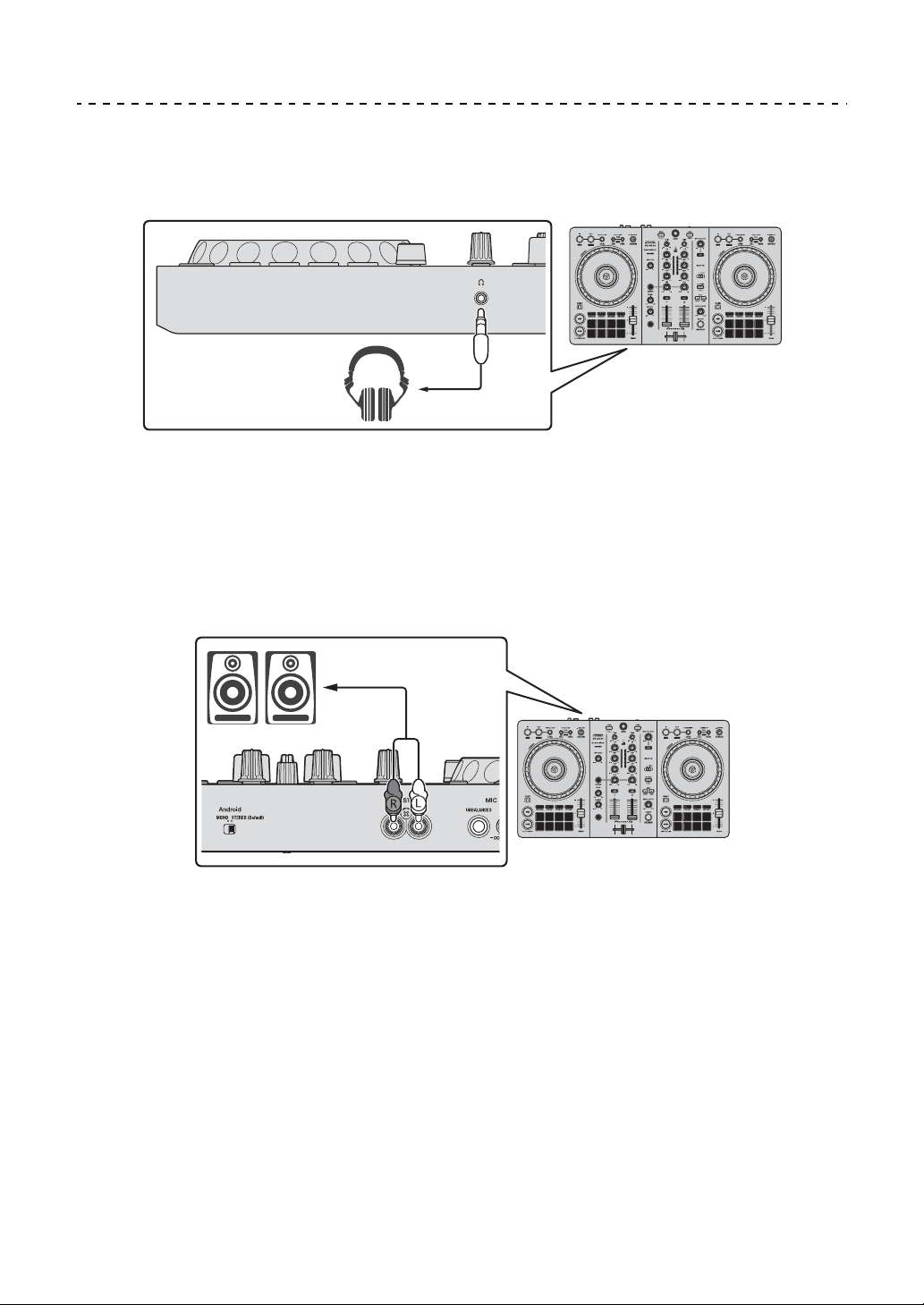
1 Connect your headphones to the headphones output terminal.
.
• Only connect headphones with 32 Ω or more impedance. Headphones with
impedance lower than 32 Ω won’t work with the unit.
2 Connect powered speakers, a power amplifier, etc. to the
[MASTER] output terminals.
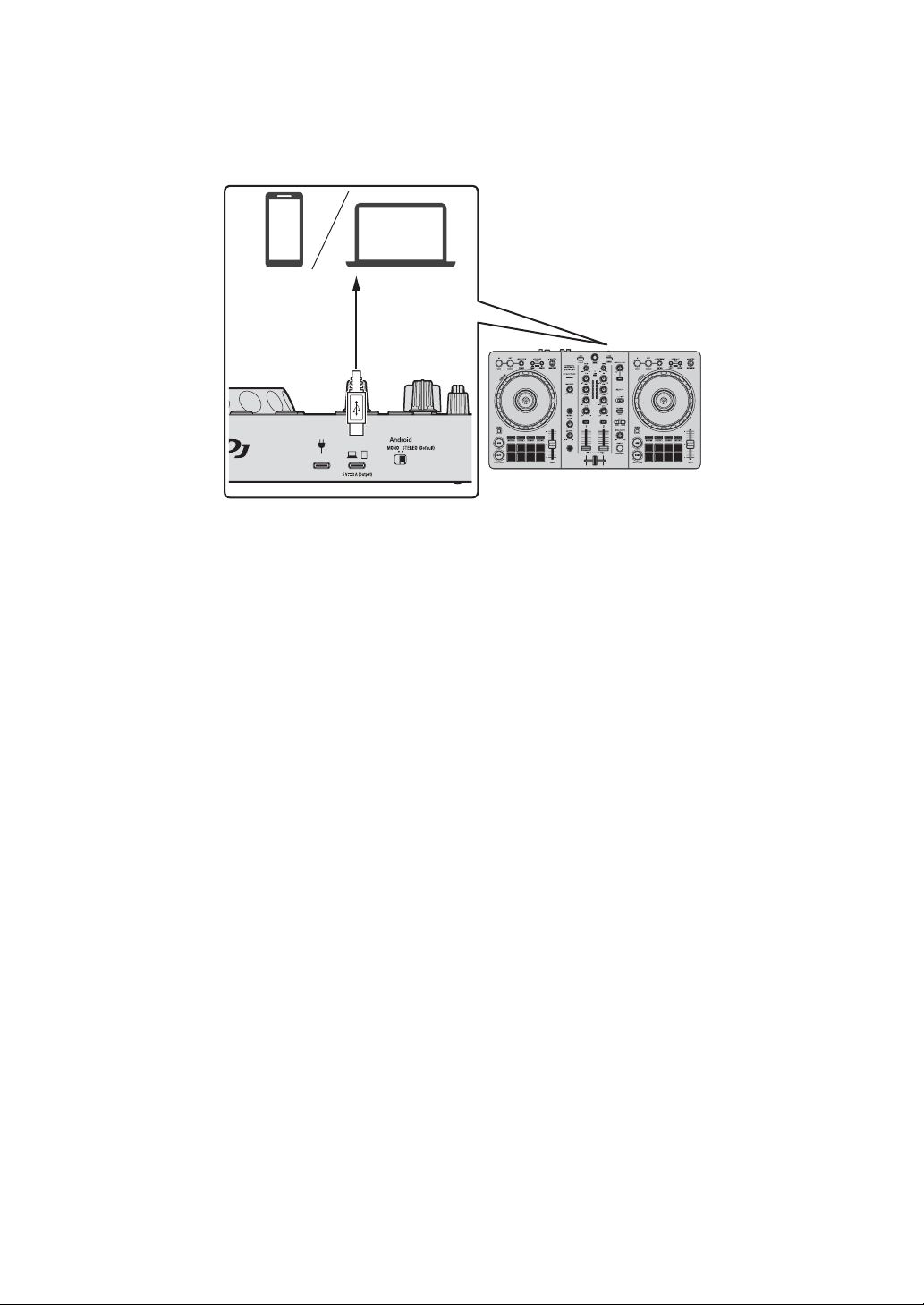
Connections
42
En
3 Connect your PC/Mac or mobile device to the USB port (for device
connection) via a USB cable.
4 Turn on your PC/Mac or mobile device.
5 When using with a mobile device, connect a USB power adapter or
mobile battery to the USB port (for power supply).
6 Turn on the devices connected to the terminals (powered speakers,
microphone, etc.).
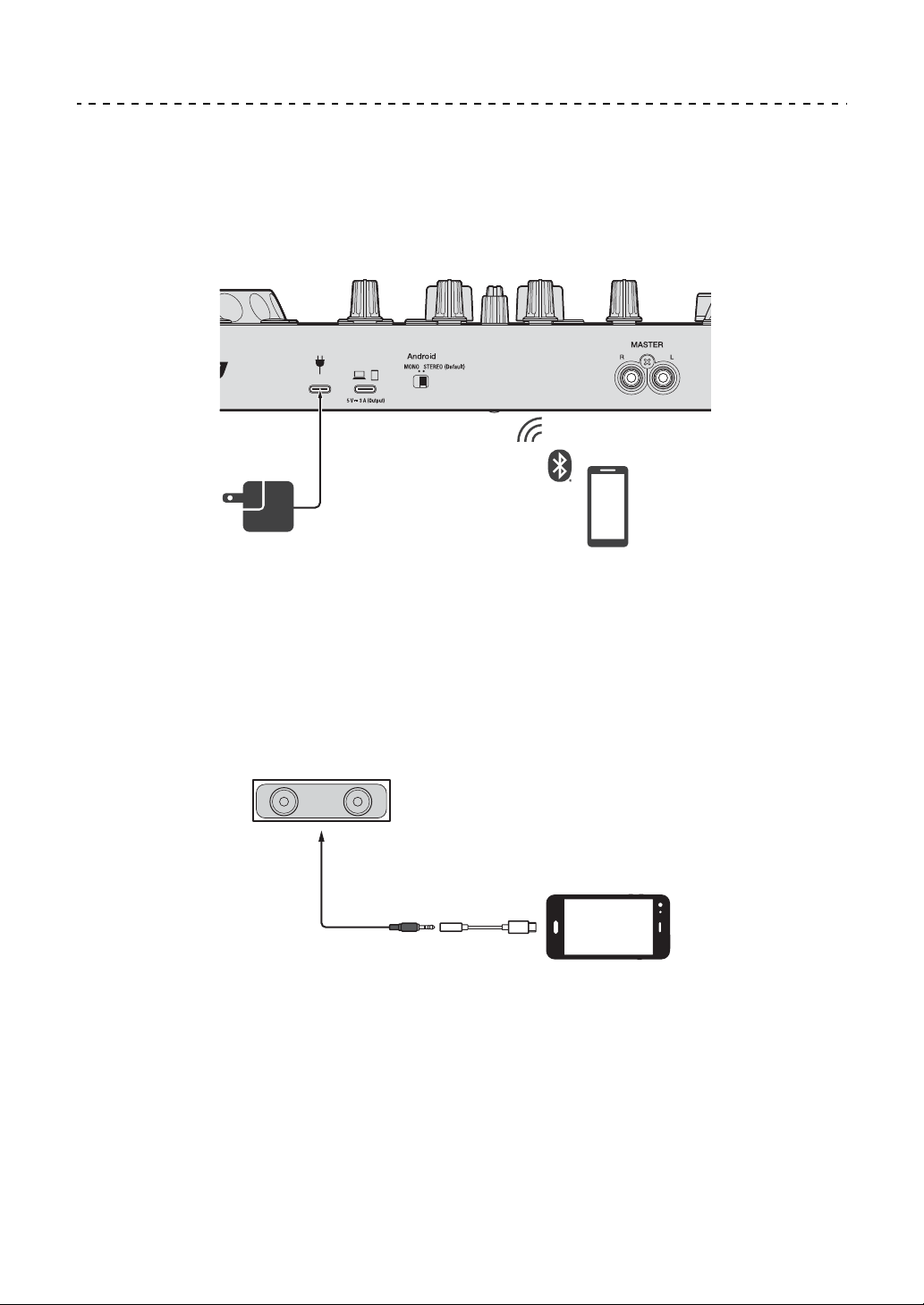
Connections
43
En
Connecting via Bluetooth
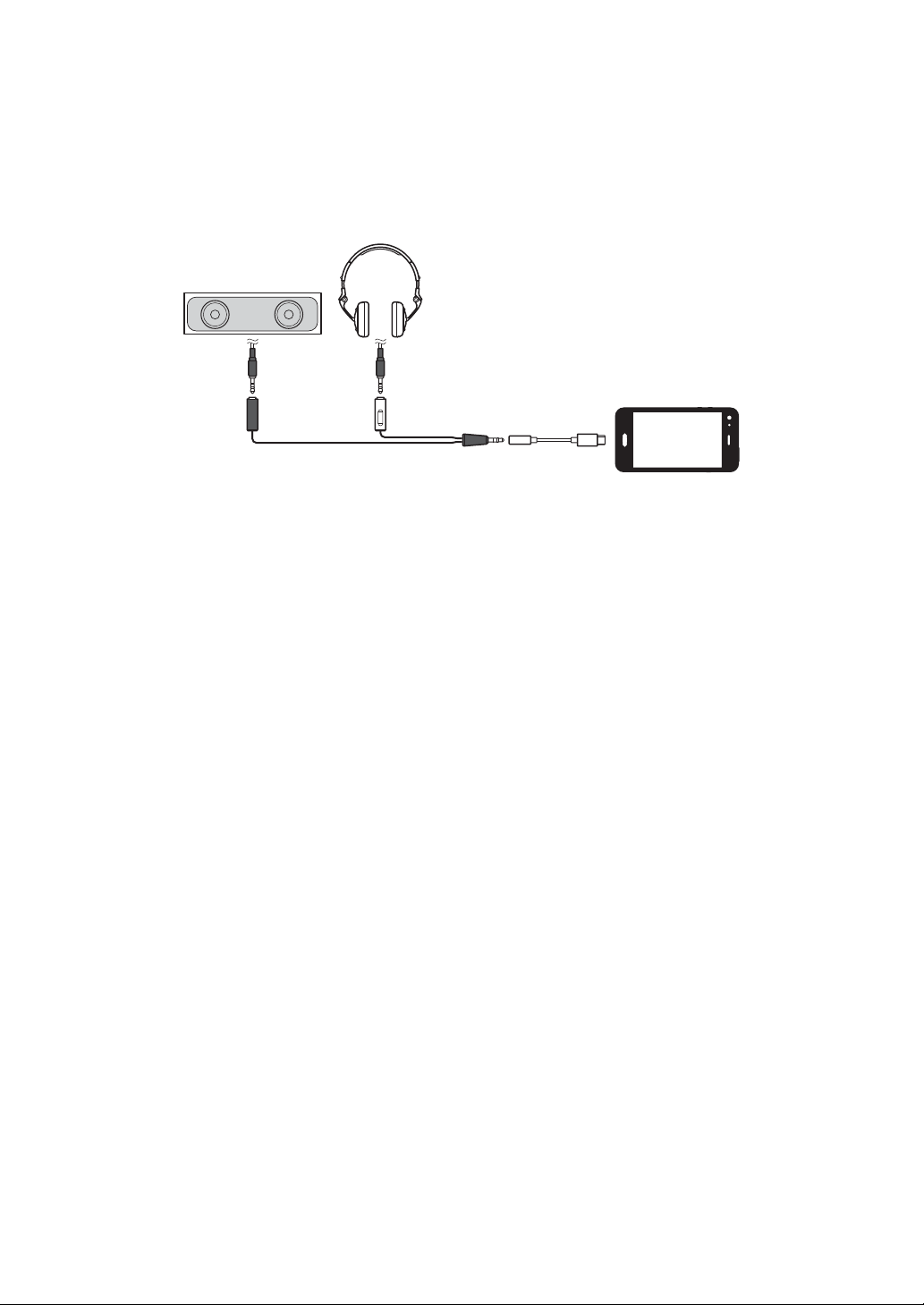
You can connect your mobile device via Bluetooth.
Sound does not output from the unit via Bluetooth. Instead, connect a
cable from the mobile device to an audio output device before use.
Connecting to an audio device (example 1)
In this example, the master sound plays in stereo and there is no sound
output to the headphones.
(1) Speaker with built-in amplifier, etc.
(2) USB/Lightning to 3.5 mm headphones jack (not supplied)
DC 9V 3A
(1)
(2)
Connections
44
En
Connecting to an audio output device (example 2)
In this example, the master sound and the headphones monitor sound
both play in mono.
(1) Speaker with built-in amplifier, etc.
(2) Headphones
(3) Plug for the speaker with built-in amplifier, etc.
(4) Plug for the headphones
(5) Split cable (not supplied)
(6) USB/Lightning to 3.5 mm headphones jack (not supplied)
When connecting via Bluetooth, you'll need to make the correct setting
in rekordbox for iOS/Android.
Read more: Starting rekordbox for iOS/Android (page 109)
(6)
(2)
(1)
(3) (4)
(5)
45
En
rekordbox for Mac/Windows
Installing rekordbox for Mac/Windows
Getting started with rekordbox for Mac/Windows
If you’re using rekordbox for Mac/Windows for the first time, download
the latest version from rekordbox.com and install it in the following way.
If you already have rekordbox for Mac/Windows installed, update to the
latest version using the Update Manager which you’ll see when you
start rekordbox for Mac/Windows.
• You are responsible for preparing your PC/Mac, network devices,
and other elements.
Installing rekordbox for Mac/Windows
Procedures may differ depending on the operating system (OS) of your
PC/Mac.
Installing (Mac)
Do not connect the unit to your Mac until installation is complete.
• Close all programs on your Mac.
1 Unzip the downloaded rekordbox for Mac/Windows software file.
2 Double-click the unzipped software file to launch the installer.
rekordbox for Mac/Windows
46
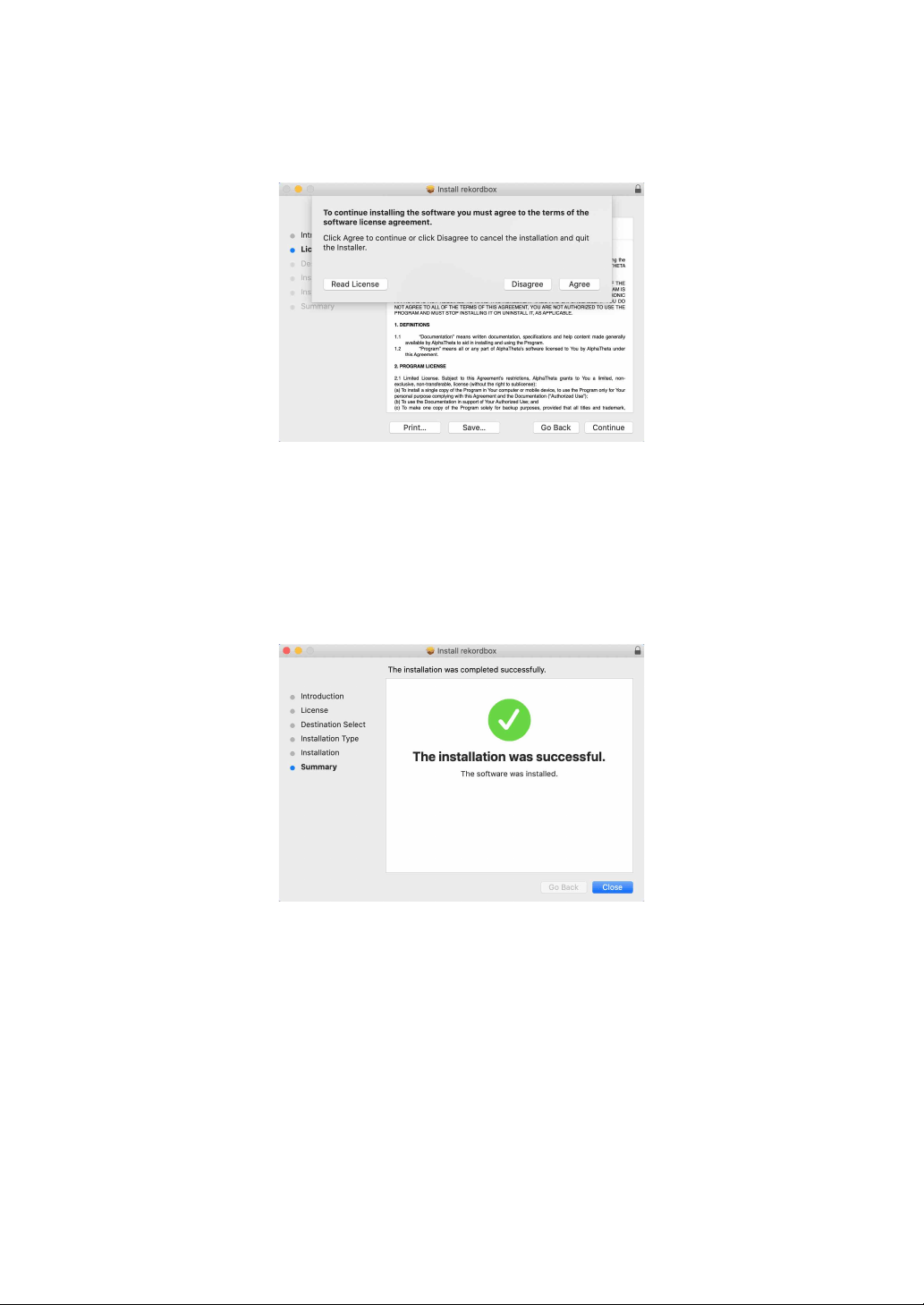
En
3 Read the terms of the License Agreement carefully and if you agree
to them, click [Agree].
• If you do not agree to the contents of the License Agreement, click
[Disagree] to cancel the installation.
4 When the screen for completing the installation appears, click
[Close] to end the installation.
Installing (Windows)
Do not connect the unit to your PC until installation is complete.
• Log into your PC as an administrator before starting the installation.
• Close all programs on your PC.
1 Unzip the downloaded rekordbox for Mac/Windows software file.
2 Double-click the unzipped software file to launch the installer.
rekordbox for Mac/Windows
47
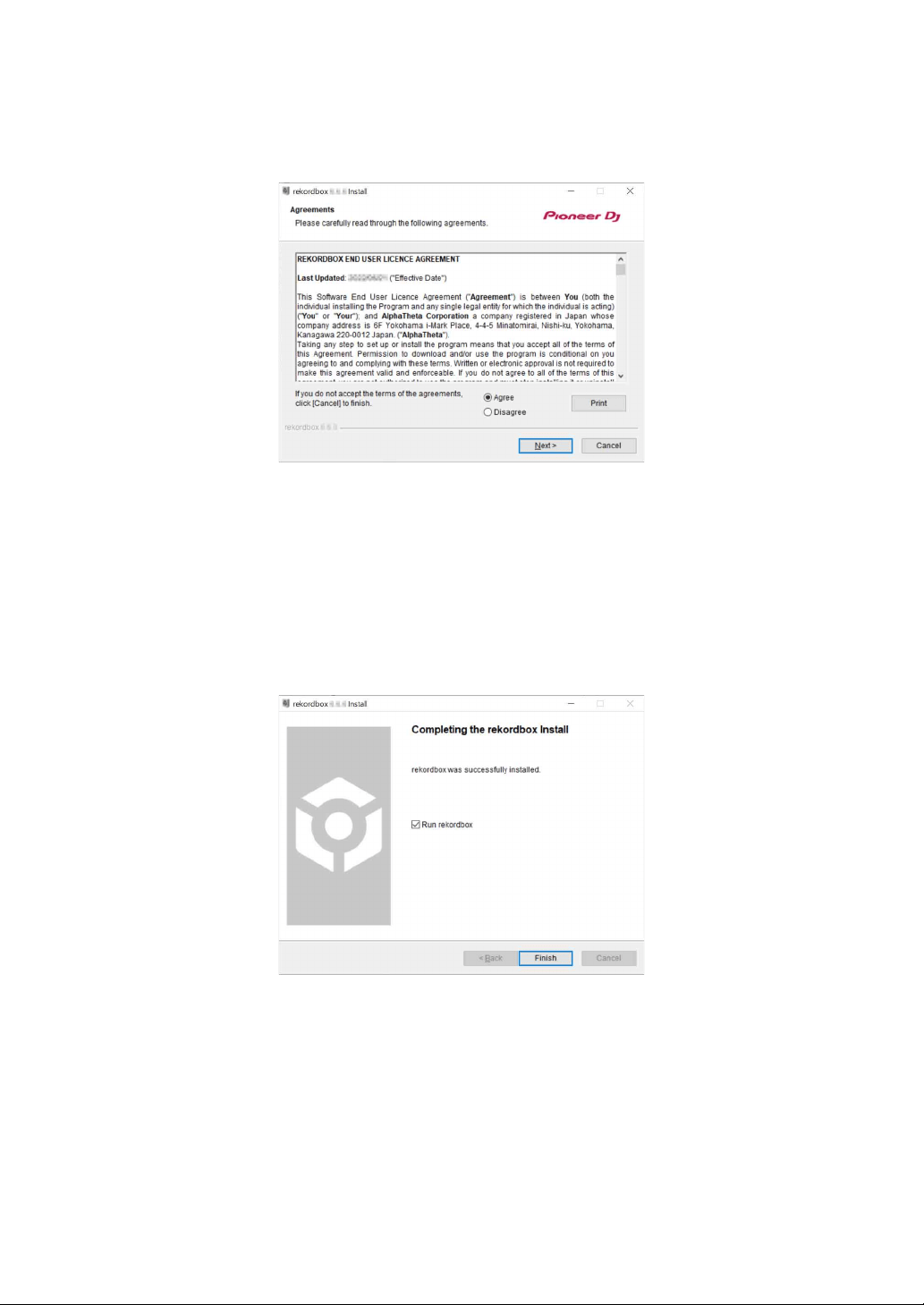
En
3 Read the terms of the License Agreement carefully and if you agree
to them, select [Agree], then click [Next].
• If you do not agree to the contents of the license agreement, click [Cancel]
to cancel the installation.
• After specifying the destination, the installation will start.
When the installation is finished, a completion message will be displayed.
4Click [Finish] to complete the installation.
Installation is complete.

rekordbox for Mac/Windows
48
En
Basic use
Starting rekordbox for Mac/Windows
You need to register a Pioneer DJ account to use rekordbox for Mac/
Windows.
For details, see “rekordbox Introduction”.
For Mac
In Finder, open the [Applications] folder, then double-click the
[rekordbox 6] > [rekordbox.app] icon.
For Windows 11
In the [Start] menu, open the [All apps] screen, then click the
[rekordbox 6] icon under [Pioneer].
For Windows 10
In the [Start] menu, click the [rekordbox 6] icon under [Pioneer].

rekordbox for Mac/Windows
49
En
Checking audio setup
Check that the [Audio] settings in [Preferences] in rekordbox for Mac/
Windows are set as follows:
For Mac
[Audio]: [DDJ-FLX4]
[Output channels]:
[Master Output]: [DDJ-FLX4 : MASTER + audio device name on
Mac]
[Headphones Output]: [DDJ-FLX4 : PHONES]
• When PC MASTER OUT is off, [Master Output] in the [Audio]
setting is [DDJ-FLX4 : MASTER].
For Windows
[Audio]: [DDJ-FLX4 WASAPI]
[Output channels]:
[Master Output]: [DDJ-FLX4 WASAPI : MASTER + audio device
name on PC]
[Headphones Output]: [DDJ-FLX4 WASAPI : PHONES]
• When PC MASTER OUT is off, [Master Output] in the [Audio]
setting is [DDJ-FLX4 WASAPI : MASTER].
• PC MASTER OUT is a function that can output the master sound of
rekordbox for Mac/Windows from the speaker(s) of the connected
PC/Mac. By default, PC MASTER OUT is set to on.
• To cancel outputting the master sound of rekordbox for Mac/
Windows from the speaker(s) of the connected PC/Mac, click in
the top-right area of the rekordbox for Mac/Windows screen so its
light switches off.

rekordbox for Mac/Windows
50
En
Adding music files into your Collection
The [Collection] screen contains a list of music files managed by
rekordbox for Mac/Windows.
Add music files on your PC/Mac to your Collection so the software can
analyze them and they can be used in rekordbox for Mac/Windows.
1Click [Collection] on the tree view.
A list of tracks in your [Collection] is displayed.
2 Open Finder (Mac) or Explorer (Windows) and drag and drop music
files, or folders containing music files, into the track list.
Music files are added into the [Collection] and analysis for the music files
begins. Wait until analysis of all music files is complete.
Loading an audio track onto a deck
The following explains how to load a track onto deck 1 as an example.
Turn the rotary selector to select a track in your [Collection] and press
the [LOAD] button for deck 1 (left).
The track loads onto deck 1.
rekordbox for Mac/Windows
51
En
Playing a track
This section explains how to play sound from deck 1 (left) as an
example.
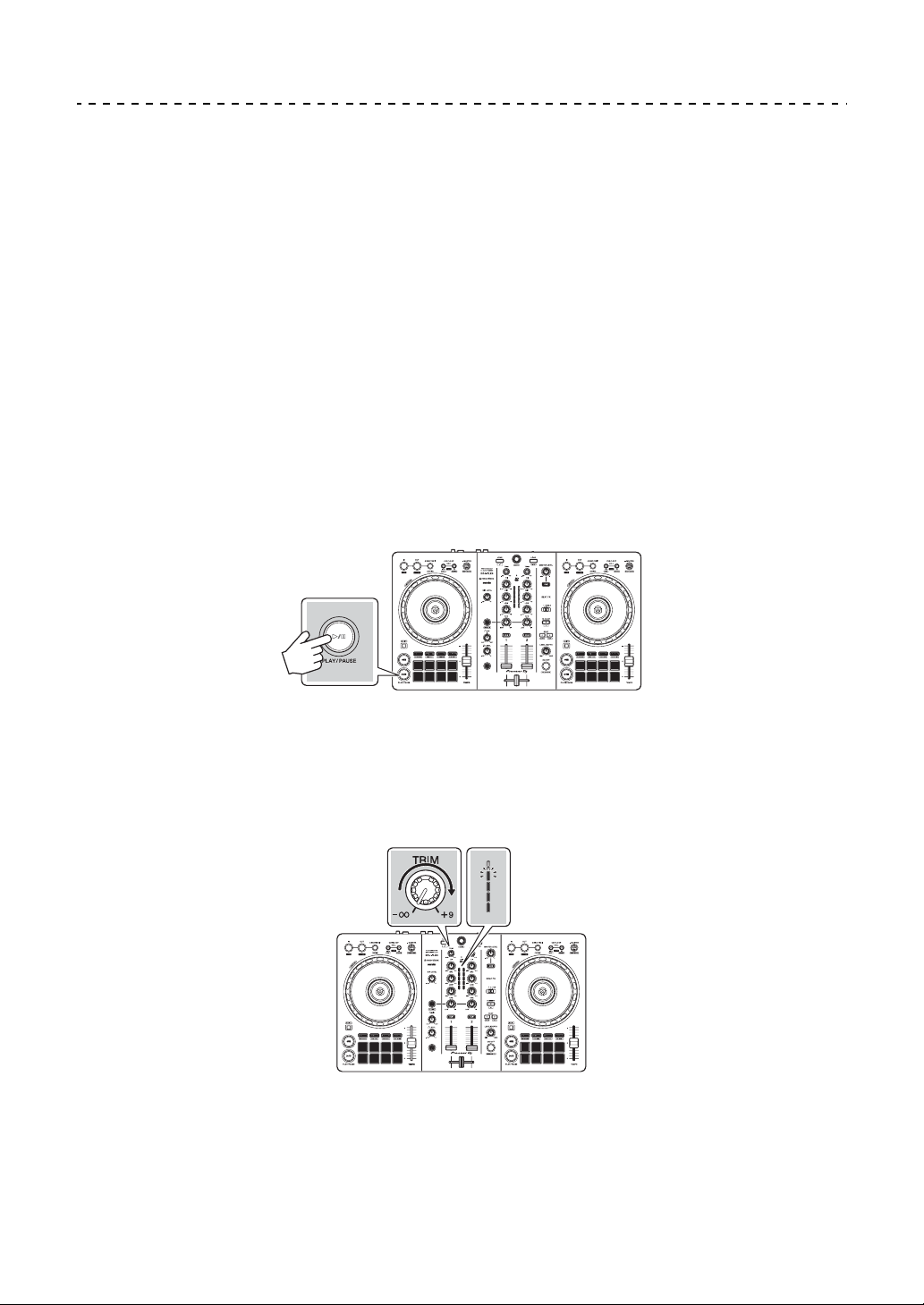
1 Set the positions of the knobs, etc. as follows:
•[TRIM] knob: turned fully counterclockwise
• EQ [HI/MID/LOW] knobs: center position (12 o’clock)
•[CFX] knob: center position
• Channel fader: bottom position
• [MASTER LEVEL] knob: turned fully counterclockwise
• Crossfader: center position
2 Press the [PLAY/PAUSE
] button to play the track.
3 Turn the [TRIM] knob.
Adjust the [TRIM] knob so the channel level indicator lights up orange at the
loudest part of the track.

rekordbox for Mac/Windows
52
En
4 Move the channel fader to the top.
5 Turn the [MASTER LEVEL] knob to adjust the volume of the
speakers to a level you’re happy with.
• If you’re outputting sound from the speaker of your PC/Mac, adjust the
speaker volume on the PC/Mac instead of using the [MASTER LEVEL]
knob.
• If you can’t output sound from the [MASTER] output terminals or the unit isn’t
recognized by your PC/Mac, refer to the [FAQ] on the Pioneer DJ support
website.
pioneerdj.com/support/

rekordbox for Mac/Windows
53
En
Monitoring with headphones
This section explains how to play sound from deck 1 (left) as an
example.
1 Set the positions of knobs, etc. as shown below.
• [HEADPHONES MIX] knob: Center
• [HEADPHONES LEVEL] knob: Turned fully counterclockwise
2 Press the headphones [CUE] button for channel 1.
3 Turn the [HEADPHONES LEVEL] knob.
Adjust the headphones volume to a level you’re happy with.
Quitting rekordbox for Mac/Windows
Click the [x] button or select [Exit] from the [File] menu.
Turning off the unit
Disconnect the USB cable to turn off the unit.

rekordbox for Mac/Windows
54
En
Advanced use
Using 4 Beat Loop
While a track is playing, press the [4 BEAT/EXIT] button.
Loop playback starts with 4 beats from the point where you press the
button.
• When the Quantize function is turned on, you might notice a slight
delay as the loop synchronizes to the beat.
Canceling loop playback
Press the [4 BEAT/EXIT] button.
When the loop out point is reached, the rest of the track continues to
play without returning to the loop in point.
Using Manual Loop
You can use Manual Loop to choose the section you want to loop in a
track.
• When the Quantize function is turned on, you might notice a slight
delay as the loop synchronizes to the beat.
1 During playback, press the [IN] button at the point you want to start
looping (the loop in point).
2 Press the [OUT] button at the point you want the loop to end (the
loop out point).
Loop playback starts.

rekordbox for Mac/Windows
55
En
Cutting the loop
Press the [CUE/LOOP CALL
] button during loop playback.
Each time you press the button, the loop cuts in half.
• You can cut the loop length in half even during 4 Beat Loop playback.
Extending the loop
Press the [CUE/LOOP CALL
] button during loop playback.
Each time you press the button, the loop doubles in length.
• You can double the loop length even during 4 Beat Loop playback.
Canceling a loop
Press the [4 BEAT/EXIT] button.
The rest of the track continues to play without returning to the loop in
point.
Changing the loop in point
Press the [IN] button and turn the jog wheel during loop playback.
The loop in point changes.
Changing the loop out point
Press the [OUT] button and turn the jog wheel during loop playback.
The loop out point changes.
rekordbox for Mac/Windows
56
En
Using the Performance Pads
Using Hot Cues
You can start playback instantly from the position where a Hot Cue is
set. Loops can also be set and called up instantly.
• Up to 16 Hot Cues can be set and saved for each track in rekordbox
for Mac/Windows. On the unit, up to 8 Hot Cues can be set and
saved per track.
Setting and calling up a Hot Cue
1 Press the [HOT CUE] mode button.
The unit enters Hot Cue mode.
2 When the track is playing or paused, press a Performance Pad to
set a Hot Cue.
Hot Cues are set to Performance Pads as follows:
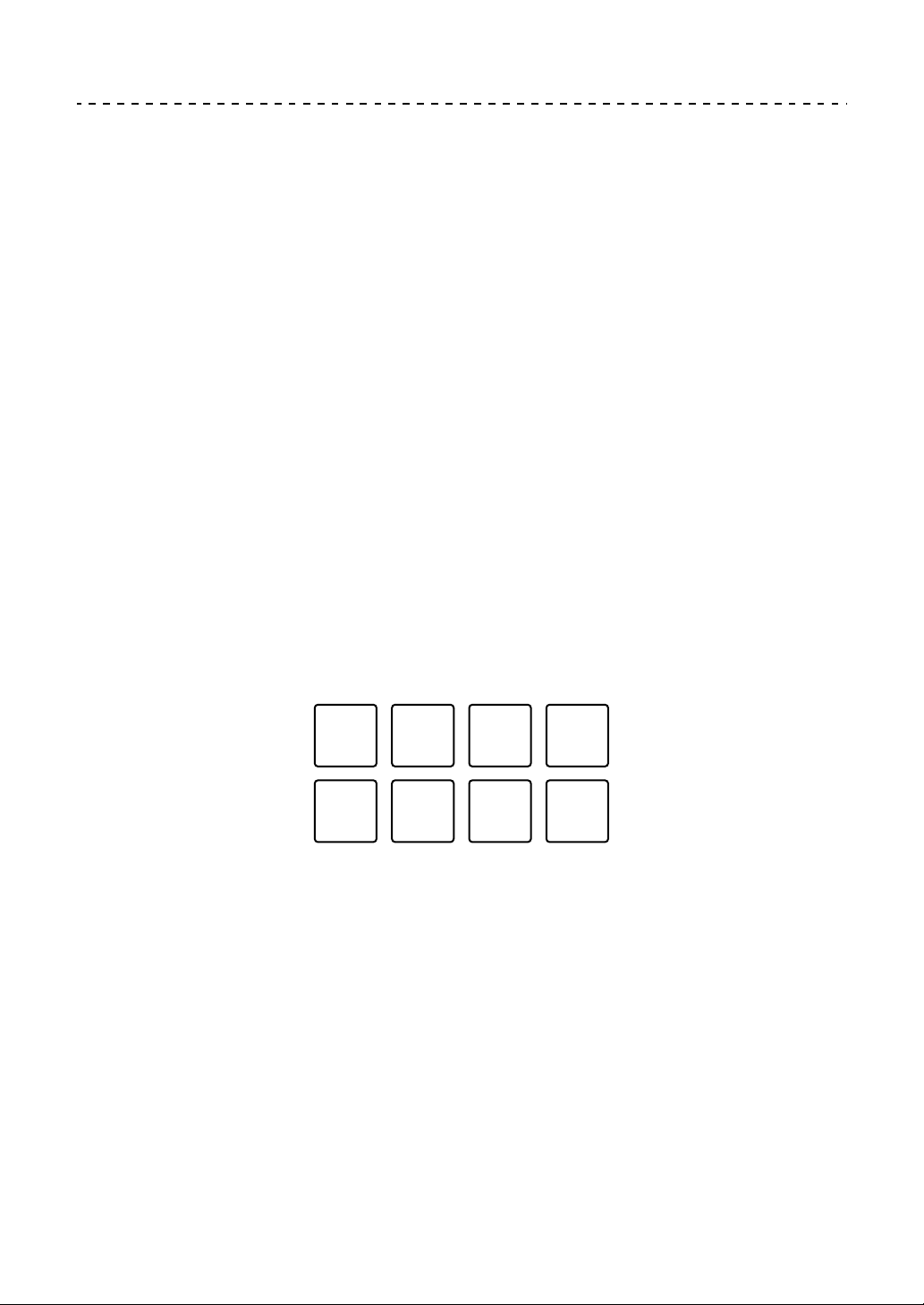
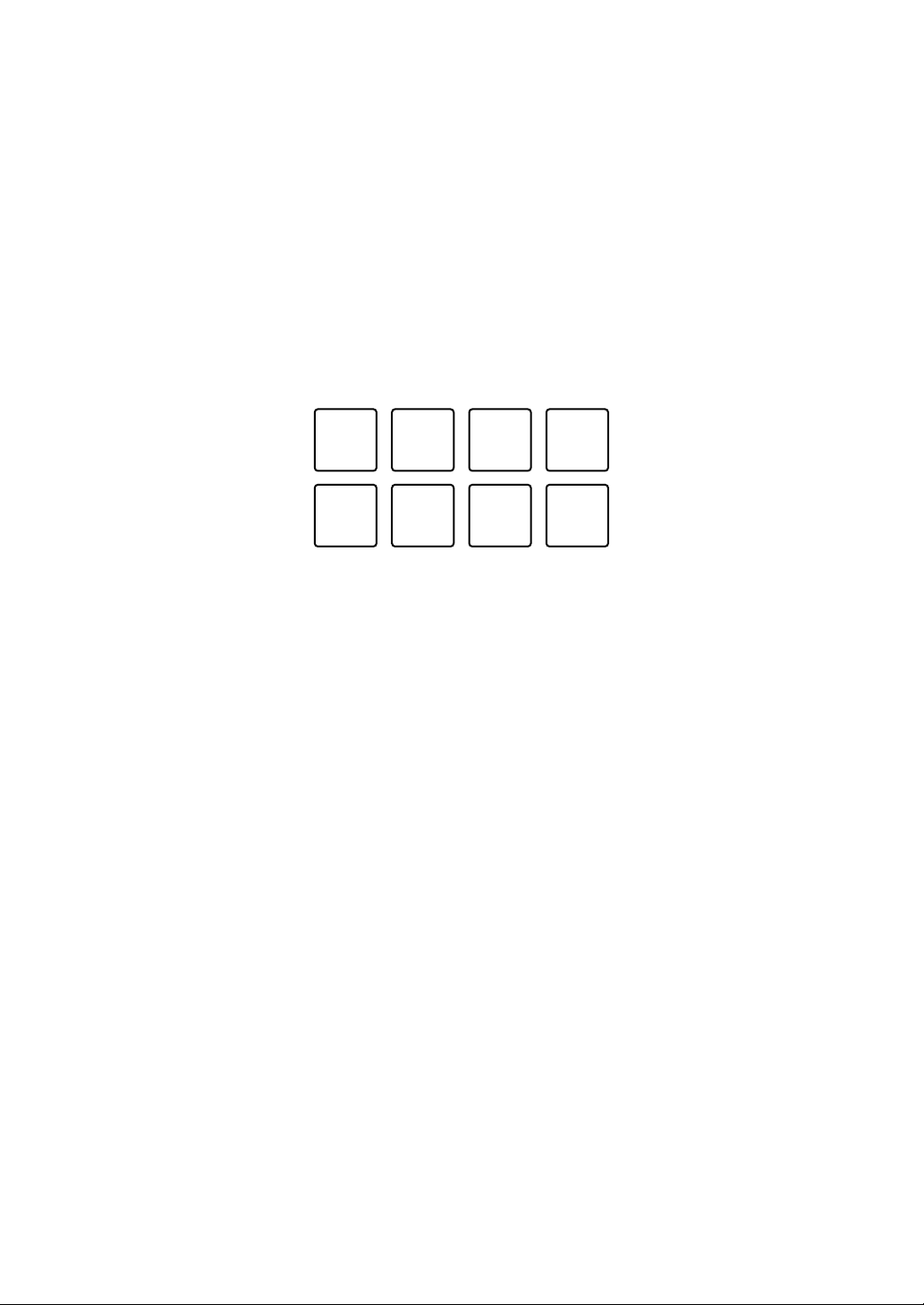
1: Hot Cue A, 2: Hot Cue B, 3: Hot Cue C, 4: Hot Cue D,
5: Hot Cue E, 6: Hot Cue F, 7: Hot Cue G, 8: Hot Cue H
3 Press a Performance Pad you’ve set a Hot Cue for.
Playback starts from the Hot Cue point.
• You can clear Hot Cues by pressing a Performance Pad while holding the
[SHIFT] button.
1234
5678

rekordbox for Mac/Windows
57
En
Setting and calling up 4 Beat Loop
1 Press the [HOT CUE] mode button.
The unit enters Hot Cue mode.
2 Press and hold the [4 BEAT/EXIT] button during playback.
A loop with 4 beats is set at the position where you pressed the button, and
loop playback starts.
3 Press a Performance Pad to set a loop during loop playback.
4 Press the Performance Pad.
Loop playback starts from the loop in point.
• You can clear the loop by pressing the Performance Pad while holding the
[SHIFT] button.
Setting and calling up Manual Loop
1 Press the [HOT CUE] mode button.
The unit enters Hot Cue mode.
2 Press the [IN] button during playback, and press the [OUT] button.
Loop playback starts.
3 Press a Performance Pad to set a loop during the loop playback.
4 Press the Performance Pad.
Loop playback starts from the loop in point.
• You can clear the loop by pressing the Performance Pad while holding the
[SHIFT] button.
rekordbox for Mac/Windows
58
En
Using Pad FX
You can add a wide range of effects to your performances simply by
pressing and releasing the Performance Pads.
1 Turn on Pad FX mode 1 or Pad FX mode 2.
• Pad FX mode 1: Press the [PAD FX1] mode button.
• Pad FX mode 2: Press the [PAD FX1] mode button while holding the [SHIFT]
button.
Effects are set to the Performance Pads as follows:
Without holding the [SHIFT] button (Pad FX mode 1)
1: Effect A, 2: Effect B, 3: Effect C, 4: Effect D,
5: Effect E, 6: Effect F, 7: Effect G, 8: Effect H
While holding the [SHIFT] button (Pad FX mode 1)
1: Effect I, 2: Effect J, 3: Effect K, 4: Effect L,
5: Effect M, 6: Effect N, 7: Effect O, 8: Effect P
Without holding the [SHIFT] button (Pad FX mode 2)
1: Effect Q, 2: Effect R, 3: Effect S, 4: Effect T,
5: Effect U, 6: Effect V, 7: Effect W, 8: Effect X
While holding the [SHIFT] button (Pad FX mode 2)
1: Effect Y, 2: Effect Z, 3: Effect AA, 4: Effect AB,
5: Effect AC, 6: Effect AD, 7: Effect AE, 8: Effect AF
1234
5678

rekordbox for Mac/Windows
59
En
2 Press and hold down a Performance Pad, or press and hold down
a Performance Pad while holding the [SHIFT] button.
The effect turns on. The sound changes according to the type of effect and the
number of beats in the settings assigned to that pad.
3 Release the Performance Pad.
The effect turns off.
Using Release FX of Pad FX
You need to assign a Release FX to a Performance Pad in advance.
1 Press and hold down a Performance Pad that has an effect other
than a Release FX assigned to it, or press and hold down a
Performance Pad while holding the [SHIFT] button.
The effect turns on. The sound changes according to the type of effect and the
number of beats in the settings assigned to that pad.
2 Press the Performance Pad that has a Release FX assigned to it,
and release it.
Or, press a Performance Pad while holding the [SHIFT] button, and
release it.
The effect turns off, and the Release FX is added.
Using Beat Jump
You can move the playback position instantly, without breaking the
rhythm of the track that’s playing.
1 Press the [BEAT JUMP] mode button.
The unit enters Beat Jump mode.
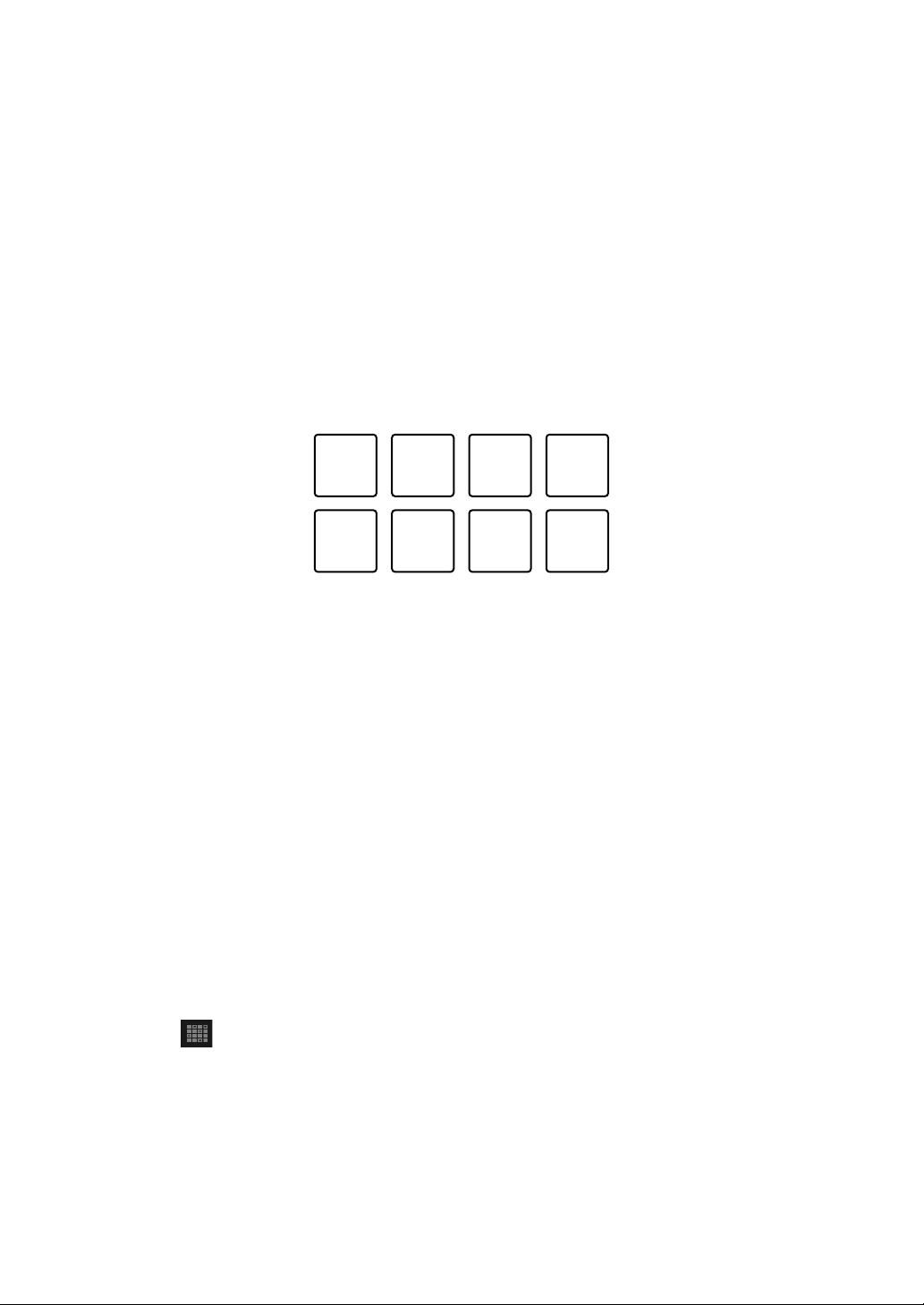
The number of beats set to the Performance Pads are as follows (Default):
1234
5678
rekordbox for Mac/Windows
60
En
1: 1 beat (left direction), 2: 1 beat (right direction), 3: 2 beats (left direction),
4: 2 beats (right direction), 5: 4 beats (left direction), 6: 4 beats (right direction),
7: 8 beats (left direction), 8: 8 beats (right direction)
2 Press Performance Pad 7 or 8 while holding the [SHIFT] button to
change the number of beats set to the Performance Pad.
When pressing Performance Pad 7 while holding the [SHIFT] button, the
number of beats decreases.
When pressing Performance Pad 8 while holding the [SHIFT] button, the
number of beats increases.
7: Number of beats goes down, 8: Number of beats goes up
3 Press a Performance Pad.
• Pad 1, 3, 5 or 7: The playback position is moved to the left by the number of
beats set on the pad.
• Pad 2, 4, 6 or 8: The playback position is moved to the right by the number
of beats set on the pad.
Using Sampler
You can use the Performance Pads to play tracks or sounds assigned
to the Sampler slots.
Preparing to use Sampler
Click the button at the top-left of the rekordbox for Mac/Windows
screen to display the [SAMPLER] panel.
78

rekordbox for Mac/Windows
61
En
Loading a track into a Sampler slot
1 Press the [SAMPLER] mode button.
The unit enters Sampler mode.
2 Click the button at the right of [BANK] on the [SAMPLER] panel in
rekordbox for Mac/Windows to change the Sampler bank.
In rekordbox for Mac/Windows, the sampler has 4 banks, and each bank has
16 slots.
3 Press the rotary selector to move the cursor to the track list.
4 Turn the rotary selector.
Select a track you want to load into a Sampler slot.
5 Press a Performance Pad while holding the [SHIFT] button.
The selected track is loaded into the Sampler slot.
• Loading a sound into a slot that already has a sound loaded may not be
possible depending on the [Preferences] settings in rekordbox for Mac/
Windows. You may need to clear the slot before loading the new sound.
Playing Sampler sounds with Performance Pads
1 Press the [SAMPLER] mode button.
The unit enters Sampler mode.
2 Click the button to the right of [BANK] on the [SAMPLER] panel in
rekordbox for Mac/Windows to change the Sampler bank.
3 Turn the [GAIN] on the [SAMPLER] panel to adjust the Sampler
volume.
4 Press a Performance Pad.
The track or sound assigned to the relevant slot is played.

rekordbox for Mac/Windows
62
En
• Sampler slots are set to Performance Pads as follows. (The slots in brackets
are for when the Pad mode of deck 2 is set to Sampler mode.)
1: Slot 1 (slot 9), 2: Slot 2 (slot 10), 3: Slot 3 (slot 11), 4: Slot 4 (slot 12),
5: Slot 5 (slot 13), 6: Slot 6 (slot 14), 7: Slot 7 (slot 15), 8: Slot 8 (slot 16)
5 During Sampler playback, press the Performance Pad again.
The sound plays from the beginning again.
6 Press a Performance Pad while holding the [SHIFT] button during
Sampler playback.
The sound of the slot that is currently playing stops.
Using Keyboard mode
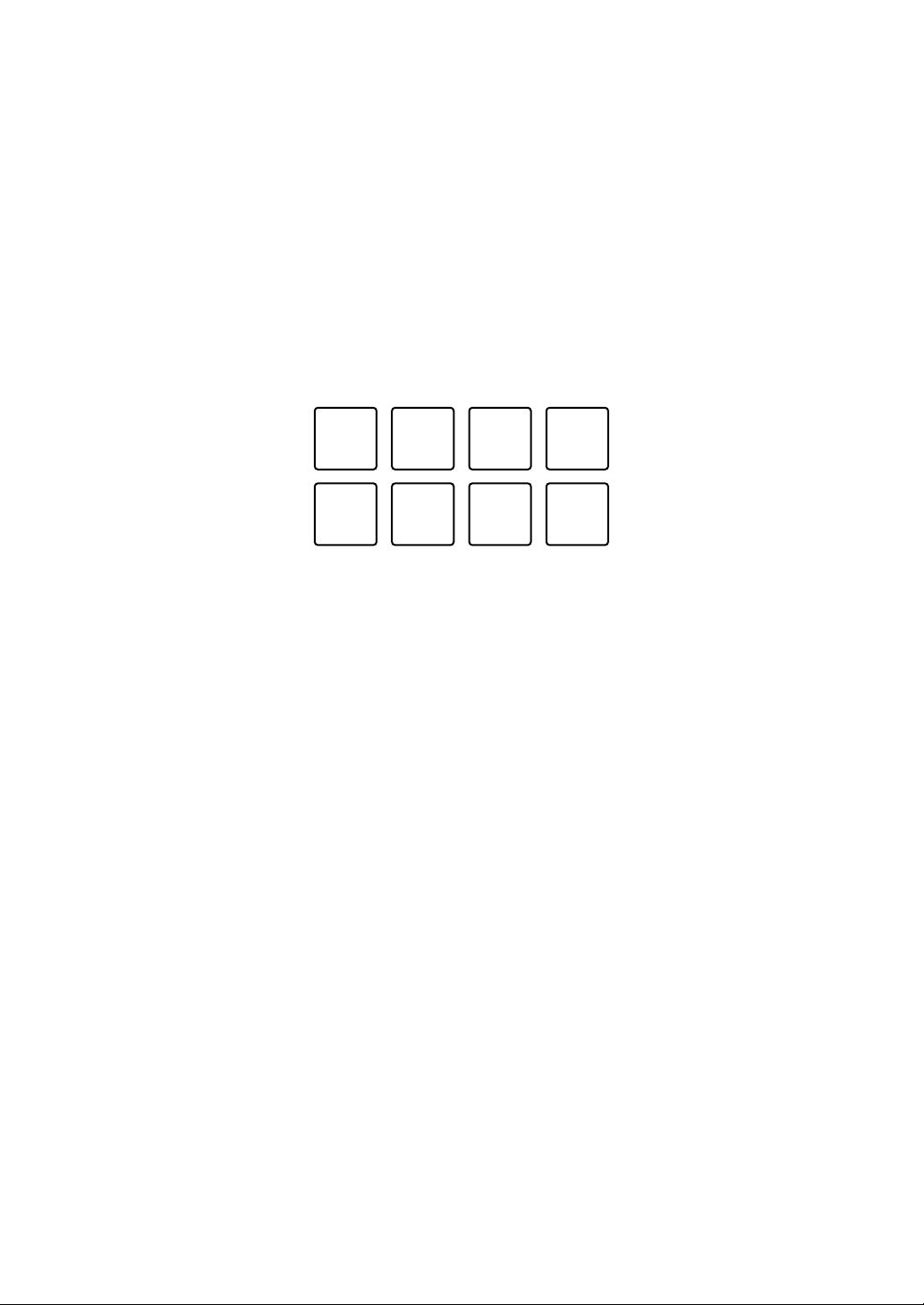
Use Performance Pads to play a Hot Cue in different pitches, as if
you’re using a keyboard.
1 Press the [HOT CUE] mode button while holding the [SHIFT]
button.
The unit enters Keyboard mode.
2 Press a Performance Pad.
Select the Hot Cue you want to use with Keyboard mode.
• If no Hot Cue is set, the current playback position is set as a Hot Cue. After
selecting the Hot Cue which you set, the Hot Cue is used with Keyboard
mode.
• To reselect a Hot Cue, press the [HOT CUE] mode button while holding the
[SHIFT] button.
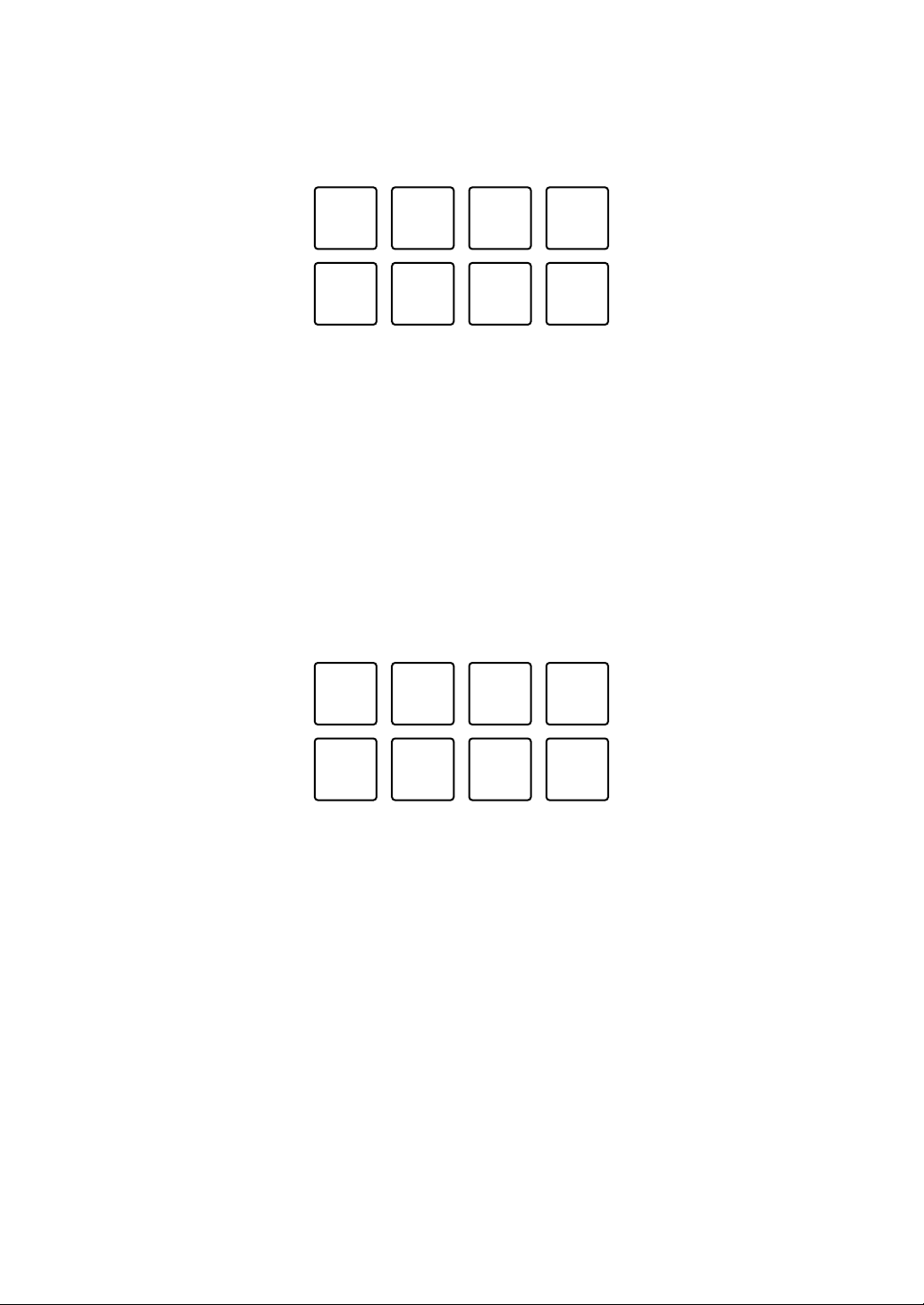
1234
5678
rekordbox for Mac/Windows
63
En
When the Hot Cue is selected, the various pitches are set to the Performance
Pads as follows (Default):
1: +4 Semitones, 2: +5 Semitones, 3: +6 Semitones, 4: +7 Semitones,
5: ±0 Semitones, 6: +1 Semitone, 7: +2 Semitones, 8: +3 Semitones
A semitone is a unit used to determine the pitch of a sound. +1 semitone
means the sound is higher in pitch than the original sound by half.
3 Press Performance Pad 7 or 8 while holding the [SHIFT] button to
change the pitch set to the Performance Pad.
• Pad 7: The display changes and the pitch of the sound rises.
• Pad 8: The display changes and the pitch of the sound falls.
1 through 6: Delete Hot Cue, 7: Changing display, 8: Changing display
4 Press a Performance Pad.
Playback starts from the Hot Cue point, with the sound pitch assigned to that
pad.
• To delete the Hot Cue, press Performance Pad 1 through 6 while holding the
[SHIFT] button.
1234
5678
1234
5678
rekordbox for Mac/Windows
64
En
Using Beat Loop
If you press a Performance Pad, a loop with the number of beats
assigned to the pad is set. The loop keeps playing after you remove
your finger from the pad.
1 Press the [BEAT JUMP] mode button while holding the [SHIFT]
button.
The unit enters Beat Loop mode.
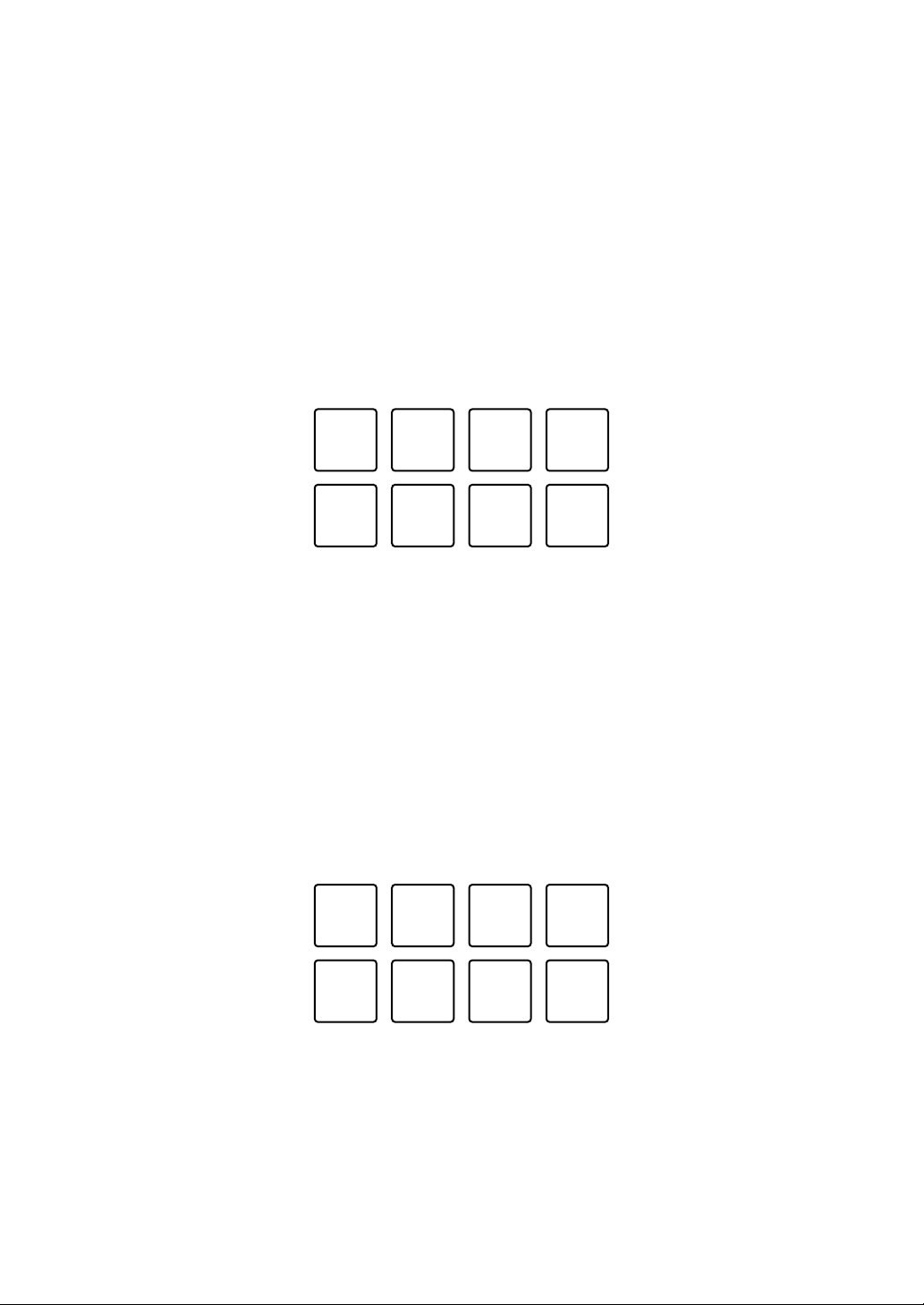
The number of beats set to the Performance Pads are as follows:
1: Beat Loop 1/4 beat, 2: Beat Loop 1/2 beat, 3: Beat Loop 1 beat,
4: Beat Loop 2 beats, 5: Beat Loop 4 beats, 6: Beat Loop 8 beats,
7: Beat Loop 16 beats, 8: Beat Loop 32 beats
2 Press a Performance Pad.
The loop plays with the number of beats set on that pad.
3 Press the same Performance Pad again.
The loop is canceled and the rest of the track continues to play.
1234
5678
rekordbox for Mac/Windows
65
En
Using Key Shift
When you press a Performance Pad in Key Shift mode, the key of the
track that’s currently playing is changed to the pitch set to the pressed
pad.
1 Press the [SAMPLER] mode button while holding the [SHIFT]
button.
The unit enters Key Shift mode.
The various pitches are set to the Performance Pads as follows (Default):
1: +4 Semitones, 2: +5 Semitones, 3: +6 Semitones, 4: +7 Semitones,
5: ±0 Semitones, 6: +1 Semitone, 7: +2 Semitones, 8: +3 Semitones
A semitone is a unit used to determine the pitch of a sound. +1 semitone
means the sound is higher in pitch than the original sound by half.
2 Press Performance Pad 7 or 8 while holding the [SHIFT] button to
change the pitch set to the Performance Pad.
• Pad 7: The display changes and the pitch of the sound rises.
• Pad 8: The display changes and the pitch of the sound falls.
7: Changing display, 8: Changing display
3 Press a Performance Pad.
The track’s key is changed to the pitch assigned to the pad.
1234
5678
78

rekordbox for Mac/Windows
66
En
Setting and calling up a cue point or loop point
Setting a cue point or loop point
1 Pause the track and move the playback position to where you want
to set a cue point or loop point.
2 Press the [CUE] button while the track is paused.
3 Press the [CUE/LOOP CALL
] button while holding the [SHIFT]
button.
The cue point or loop point is saved.
Calling up the cue point or loop point
Press the [CUE/LOOP CALL ] or [CUE/LOOP CALL ] button.
The cue point or loop point is called up.
Deleting the cue point or loop point
1 Press the [CUE/LOOP CALL
] or [CUE/LOOP CALL ] button.
The cue point or loop point is called up.
2 Press the [CUE/LOOP CALL
] button while holding the [SHIFT]
button.
The cue point or loop point is deleted.

rekordbox for Mac/Windows
67
En
Using Fader Start
Using Channel Fader Start
1 Set the cue point.
Pause the track at the position you want to start playback from, then press the
[CUE] button on that deck.
2 While holding the [SHIFT] button, move the channel fader from the
bottom to the top.
Playback starts from the cue point.
• If you move the channel fader back to the bottom while holding the [SHIFT]
button during playback, the track instantly jumps back to the cue point and
playback pauses. (Back Cue)
When no cue point is set, playback starts from the beginning of the track.
Using Crossfader Start
1 Set the cue point.
Pause the track at the position you want to start playback from, then press the
[CUE] button on that deck.
2 Move the crossfader all the way to the left or right side.
If you want to use Crossfader Start to trigger playback on channel 2, set the
crossfader to the left side, and vice versa.
3 While holding the [SHIFT] button, move the crossfader towards the
opposite side from where it’s set.
Playback starts from the cue point.
• If you move the crossfader back while holding the [SHIFT] button during
playback, the playback position instantly jumps back to the cue point and
pauses. (Back Cue)
When no cue point is set, playback starts from the beginning of the track.
rekordbox for Mac/Windows
68
En
Analyzing tracks
Track analysis starts when you drag and drop a music file, or a folder
containing music files, into the Track List in rekordbox for Mac/
Windows.
• If a track is loaded to a deck before analysis is complete, it may take
some time to display its BPM and waveform.
• Depending on the number of tracks, analysis may take some time.
Using Beat FX
You can apply effects that match the tempo (BPM) of the track loaded
on the deck.
1 Click in the top-left of the rekordbox for Mac/Windows screen
to display the FX panel, and click to choose settings for Multi
mode.
2 Press the [BEAT FX SELECT] button on the unit.
The selected Beat FX changes each time you press the button:.
If you press the [BEAT FX SELECT] button while holding the [SHIFT] button,
the selected Beat FX changes in the reverse order.
3 Slide the [BEAT FX CH SELECT] switch.
The channel that Beat FX will be applied to changes each time you slide the
switch.
– [1]: Applies Beat FX to the sound of channel 1.
– [2]: Applies Beat FX to the sound of channel 2.
– [1&2]: Applies Beat FX to the sound of channel 1 and channel 2.
For [1&2], the beat, effect type, etc. are synchronized between the unit 1 and
unit 2 of Beat FX. The beat settings may not be synchronized due to
differences in the BPM of the tracks loaded on the decks. Also, the
synchronization doesn't work when the effect is set to Single mode.

rekordbox for Mac/Windows
69
En
4 Press the [BEAT
] or [BEAT ] button.
Set the number of beats (or parameters) synchronized to the effect sound.
5 Press the [BEAT FX ON/OFF] button.
The Beat FX is applied to the sound of the channel you set in step 3.
You can adjust the parameter of Beat FX by turning the [BEAT FX LEVEL/
DEPTH] knob.
When Beat FX is turned on, the button flashes.
• Press the [BEAT FX ON/OFF] button again to turn off Beat FX.
6 Press the [BEAT FX ON/OFF] button and release it while holding
the [SHIFT] button.
Beat FX is turned off, and Release FX is applied.
Switching Beat FX Tempo mode
To set the tempo for Beat FX, there are 2 modes you can use: BPM
Auto mode and BPM Tap mode.
• The default setting is BPM Auto mode.
BPM Auto mode
The track’s BPM is used as the base for the effect’s tempo.
BPM Tap mode
The BPM used as the base for Beat FX is set to match the tempo at
which you tap the [BEAT
] button while holding the [SHIFT] button.
Setting to BPM Auto mode/BPM Tap mode
Press the [BEAT ] button while holding the [SHIFT] button to set to
BPM Tap mode.
Press the [BEAT ] button while holding the [SHIFT] button to set to
BPM Auto mode.
rekordbox for Mac/Windows
70
En
Using Smart CFX
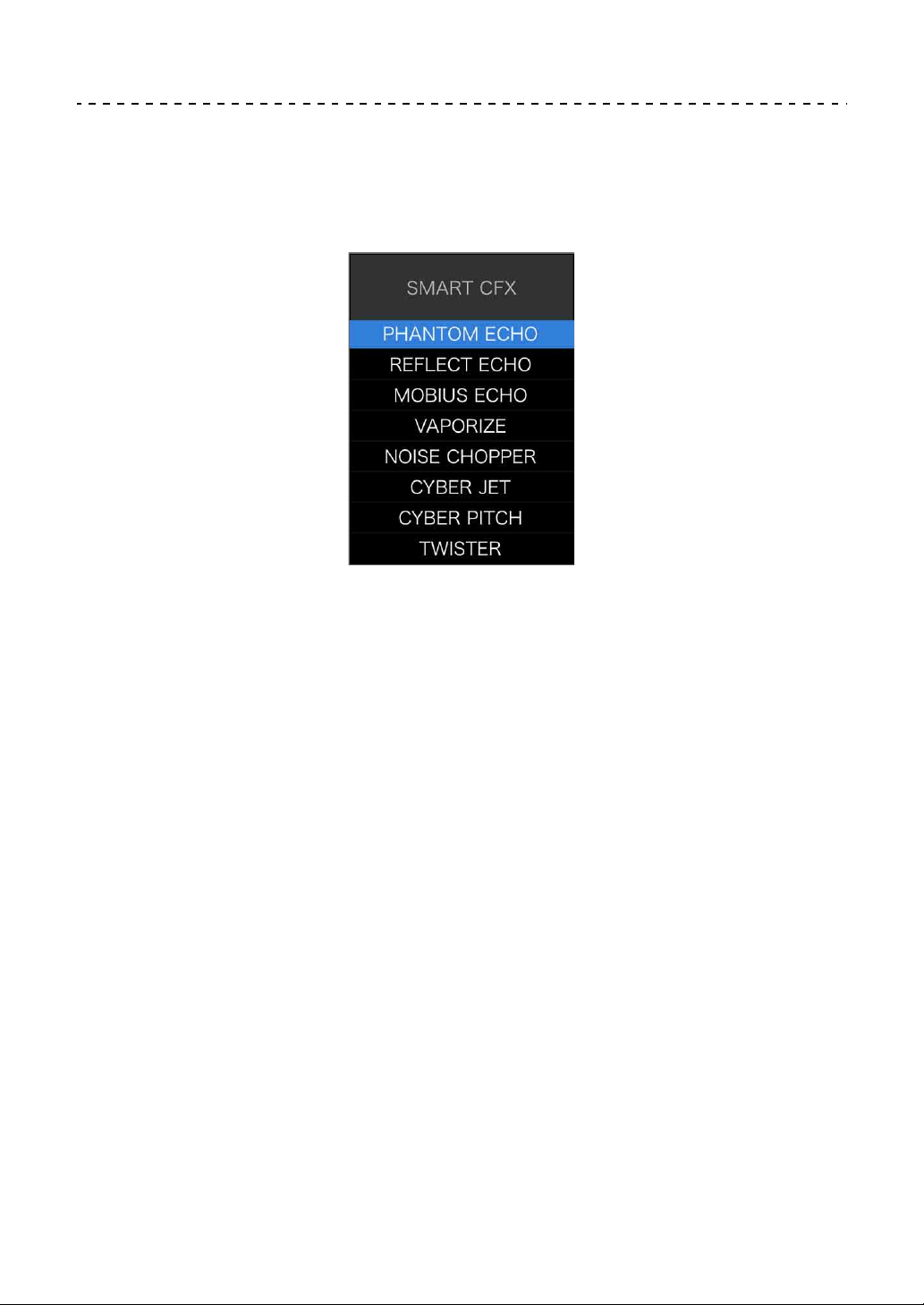
1 Press the [SMART CFX] button while holding the [SHIFT] button.
The preset screen for Smart CFX is displayed to change the effect type.
2 Press the [SMART CFX] button.
Smart CFX turns on.
3 Turn the [CFX] knob.
The effect sound, etc. changes.
• Depending on the effect type, loops and keys are changed in addition to the
effect.
• When Smart CFX is turned on, some effects, trims, etc. can't be controlled
on the rekordbox for Mac/Windows screen.
Canceling Smart CFX
Press the [SMART CFX] button.
Smart CFX is turned off.

rekordbox for Mac/Windows
71
En
Using Smart Fader
1 Load tracks onto deck 1 and deck 2.
2 Press the [SMART FADER] button.
Smart Fader turns on.
• When Smart Fader is turned on, Beat Sync turns on. (Beat Sync can't be
canceled.)
• When Smart Fader is turned on, some effects, EQ LOW, and Beat Sync can't
be controlled on the rekordbox for Mac/Windows screen.
3 Slide the channel faders and crossfader to mix tracks.
• Adjust the BPM for playback according to fader operation and the track.
• EQ LOW is automatically adjusted according to fader operation.
• The echo effect is automatically applied according to fader operation.
• When sound outputs only from deck 1 due to fader operation, the BPM is
adjusted to the real BPM of the track on deck 1. When sound outputs only
from deck 2 due to fader operation, the BPM is adjusted to the real BPM of
the track on deck 2. When sound outputs from deck 1 and deck 2 at the same
volume, the BPM is adjusted to find the middle point of the difference
between the BPM of the tracks on deck 1 and deck 2.
• If the BPM of the tracks on deck 1 and deck 2 are significantly different,
Smart Fader may not work properly because it is out of the tempo range.
rekordbox for Mac/Windows
72
En
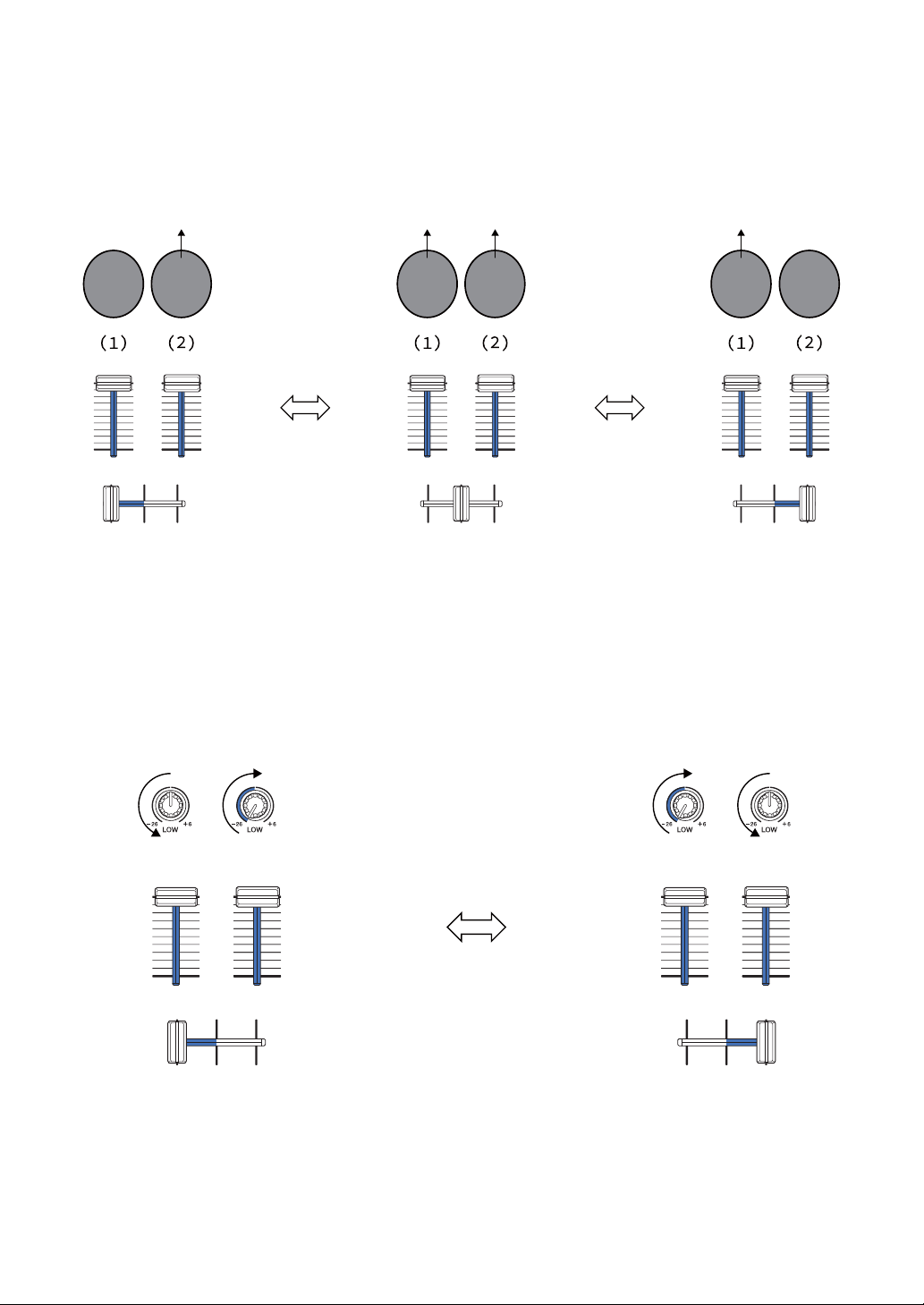
Operation examples
(1): Deck 1, (2): Deck 2
In this example, the BPM changes between 100 and 120.
120
BPM
100
BPM
120
BPM
120
BPM
100
BPM
110
BPM
120
BPM
100
BPM
110
BPM
100
BPM
Sound outputs only
from deck 1:
Plays with the BPM
at 100.
Sound outputs from
deck 1 and deck 2 at the
same volume:
Plays with the BPM at
110.
Sound outputs only
from deck 2:
Plays with the BPM
at 120.
Sound outputs only from
deck 1:
EQ LOW on deck 2 is set to
the minimum value.
Sound outputs only from
deck 2:
EQ LOW on deck 1 is set to
the minimum value.
rekordbox for Mac/Windows
73
En
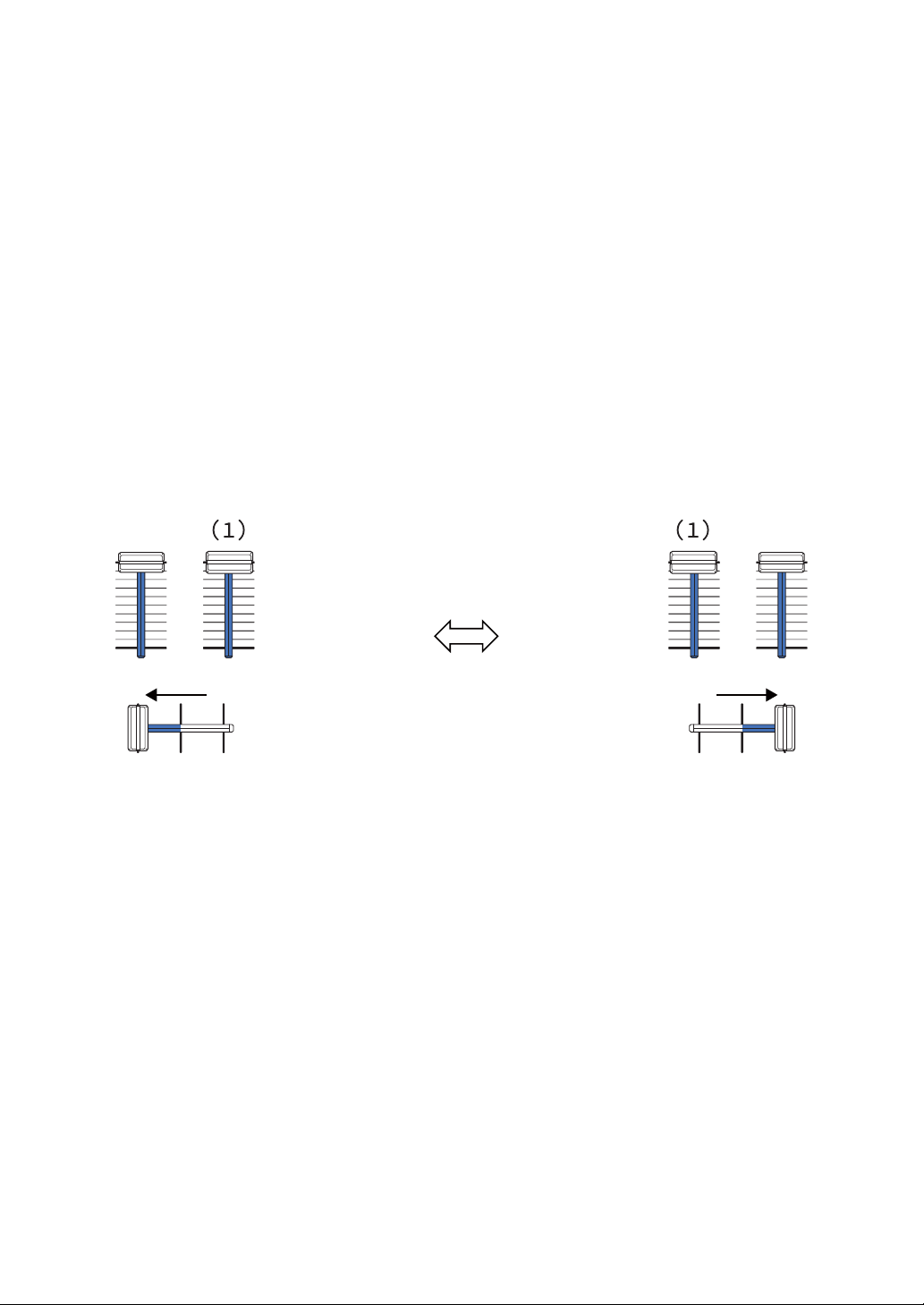
In this example, it changes as follows.
• Channel 1: When the crossfader position is between 1/3 and 2/3 from
the left, the EQ LOW knob position changes from the center position
to the minimum value.
• Channel 2: When crossfader position is between 1/3 and 2/3 from the
left, the EQ LOW knob position changes from the minimum value to
the center position.
* The EQ LOW curve differs depending on the EQ LOW knob position
and fader position, and mixing is automatically smooth.
* The actual EQ LOW knob position isn’t reflected on the rekordbox for
Mac/Windows screen, only the sound changes.
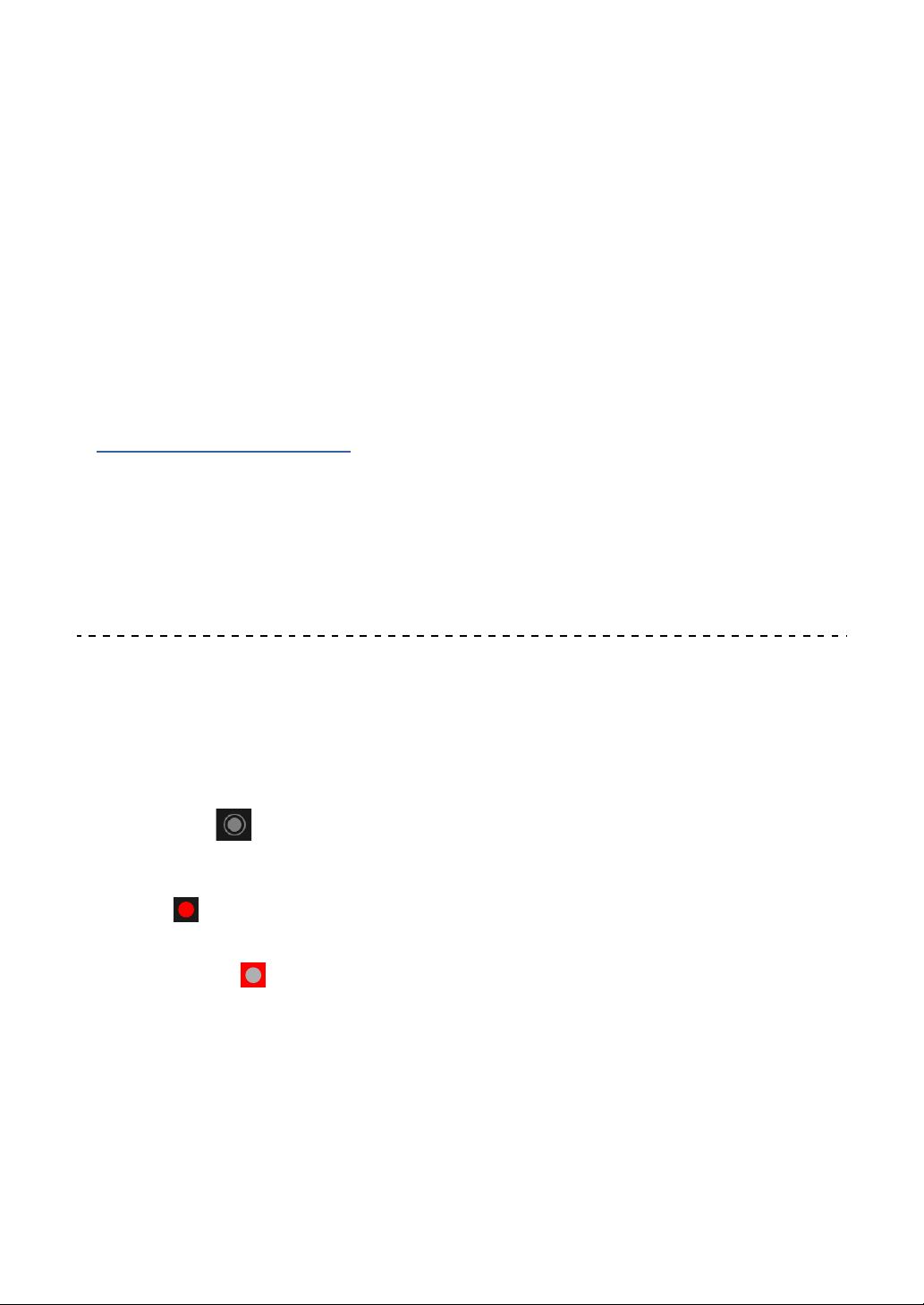
In this example, it changes as follows.
• Deck 1: The echo effect is applied when the crossfader is moved all
the way to the right edge.
* The echo effect isn’t applied when the crossfader is moved to the
left starting from the right edge.
• Deck 2: The echo effect is applied when the crossfader is moved to
the left edge.
Sound outputs only from
deck 1:
The echo effect is applied to
the track on deck 2.
Sound outputs only from
deck 2:
The echo effect is applied to
the track on deck 1.
(1): Echo effect applied
rekordbox for Mac/Windows
74
En
* The echo effect isn’t applied when the crossfader is moved to the
right starting from the left edge.
• You can select the fader to control Smart Fader in [Preferences] >
[Controller] > [Mixer] > [SMART FADER] > [Fader Used with
SMART FADER] in rekordbox for Mac/Windows.
• For Smart Fader, set the left side to channel 1 and the right side to
channel 2 in the crossfader assignment.
For details about the crossfader assignment, see “rekordbox
Instruction Manual”.
rekordbox.com/manual
Canceling Smart Fader
Press the [SMART FADER] button.
Smart Fader turns off.
Recording
rekordbox for Mac/Windows has a recording feature that you can use
to capture your performances. For detailed instructions on recording,
see the rekordbox Instruction Manual.
1 Click the button at the top-left of the rekordbox for Mac/
Windows screen to display the [REC] panel.
2 Click on the [REC] panel in rekordbox for Mac/Windows to start
recording.
• If you click again, recording stops.
• When recording is complete, the file is automatically saved.
• You can change the saving destination of files in the [Preferences] >
[Controller] > [Recordings] tab in rekordbox for Mac/Windows.
rekordbox for Mac/Windows
75
En
• If [Microphone Input] in rekordbox for Mac/Windows is set to [Low Latency
Mode], the sound from the [MIC] input terminal of the unit can't be recorded.
To record the sound from the [MIC] input terminal, set [Microphone Input]
in rekordbox for Mac/Windows to [Effect Mode].
Using a microphone
1 Connect a microphone to the [MIC] input terminal.
2 Click the button at the top-right of the rekordbox for Mac/
Windows screen to display the mixer panel, then click so it
lights up.
• To output the microphone sound from the unit via a PC/Mac, you'll need to
do this. To output the microphone sound from the unit another away, skip this
step.
3 Turn the [MIC LEVEL] knob.
Adjust the volume of the sound output from the [MIC] input terminal.
• The sound comes out at a high volume if the knob is turned all the way to the
right.
4 Input audio to the microphone.
When outputting microphone sound from the unit via a PC/Mac, you can use
the microphone EQ, microphone effect, TALKOVER, FEEDBACK REDUCER,
etc.
• To output the microphone sound from this unit via a PC/Mac, set
[Microphone Input] to [Effect Mode].
Read: [Microphone Input] setting (page 78)
• If [Microphone Input] is set to [Low Latency Mode] in rekordbox for Mac/
Windows, the microphone sound outputs from the unit another way.

rekordbox for Mac/Windows
76
En
The following shows the function differences depending on the above
settings.
• MIC LEVEL knob
— Via PC/Mac: Enabled
— Not via PC/Mac: Enabled
• Limiter for the microphone sound output to the Master
— Via PC/Mac: Enabled
— Not via PC/Mac: Disabled
• Microphone EQ
— Via PC/Mac: Enabled
— Not via PC/Mac: Disabled
• Microphone effect
— Via PC/Mac: Enabled
— Not via PC/Mac: Disabled
• TALKOVER
— Via PC/Mac: Enabled
— Not via PC/Mac: Disabled
• FEEDBACK REDUCER
— Via PC/Mac: Enabled
— Not via PC/Mac: Disabled
For details about functions for the microphone, see “rekordbox Instruction
Manual”.
rekordbox.com/manual

rekordbox for Mac/Windows
77
En
Changing the settings in rekordbox for Mac/
Windows
You can change the settings of the unit in rekordbox for Mac/Windows
under [Controller] in [Preferences].
When you connect the unit to rekordbox for Mac/Windows, you can
change the following settings:
[Controller] > [Deck] tab:
[Back Spin Length] setting
When using the Back Spin feature with the jog wheel, the length of the
Back Spin is different from the length of the jog wheel rotation.
You can choose the length of the Back Spin from 3 options: short,
normal, or long.
•[short]: Back Spin length short
•[normal]: Back Spin length normal
• [long]: Back Spin length long
[Controller] > [Mixer] tab:
[Fader Start] setting
Change the setting of the Fader Start function.
Select [Activate the fader start when moving a channel fader or the
crossfader while pressing the SHIFT button.] to turn the setting on.
[CROSSFADER] > [REVERSE] setting
Assign the decks to different sides of the crossfader.
•[On]: The left side of the crossfader is assigned to [DECK2] and the
right side is [DECK1].
• [Off]: The left side of the crossfader is assigned to [DECK1] and the
right side is [DECK2].

rekordbox for Mac/Windows
78
En
[CROSSFADER] > [Cut Lag] setting
Adjust the Cut Lag on both edges of the crossfader.
Units of 0.1 mm can be adjusted from 0.3 mm to 5.5 mm.
• The default Cut Lag is 1.0 mm.
• This Cut Lag setting is a guide, and may not be exact.
[Level Meter] setting
Select the channel level meter or master level meter to show on the
level meter in the mixer section.
The default setting is [Channel Level].
• [Channel Level]: Channel level meter
• [Master Level]: Master level meter
[Microphone Input] setting
• [Effect Mode]: Microphone sound can be output from the unit via a
PC/Mac. You can apply effects such as the microphone FX in
rekordbox for Mac/Windows to the microphone sound.
• [Low Latency Mode]: Microphone sound can be output from the unit
another way (i.e. not a PC/Mac). You can't apply effects such as the
microphone FX in rekordbox for Mac/Windows to the microphone
sound, but the time lag due to the transmission delay (latency) of the
sound data can be reduced compared to Effect mode.

rekordbox for Mac/Windows
79
En
[Talkover Mode] setting
Change Talkover mode.
• [Advanced]: Only the mid-range sound, other than the microphone
channel, is attenuated according to the set value of the Talkover
level.
•[Normal]: Sound, other than the microphone channel, is attenuated
according to the set value of the Talkover level.
[Talkover Level] setting
Set the audio attenuation level of Talkover mode.
Setting values: -6 dB / -12 dB / -18 dB / -24 dB
Volume
Frequency
Volume
Frequency

rekordbox for Mac/Windows
80
En
[SMART FADER] setting
Select the fader to be used for Smart Fader.
• [CROSSFADER and Channel Fader]: Smart Fader turns on when
you move the crossfader or a channel fader.
• [CROSSFADER]: Smart Fader turns on when you move the
crossfader.
• [Channel Fader]: Smart Fader turns on when you move a channel
fader.
When [Use the recommended SMART FADER curve] is set, the
curve changes to the recommendation for Smart Fader.
When [Use the recommended SMART FADER curve] isn’t set, the
curve changes according to the setting of [CROSSFADER Curve] or
[Channel Fader Curve] in [Preferences] > [Controller] > [Mixer].
[Controller] > [Effect] tab:
[SMART CFX] setting
Change the position of the SMART CFX preset window from [Top
Left], [Top Right], [Center], [Bottom Left], and [Bottom Right].
The default setting is [Center].
[Controller] > [DDJ-FLX4] tab:
[Master output] > [Monaural/Stereo Selection] setting
Change whether mono or stereo sound is output from the [MASTER]
output terminal.
• [Monaural]: Outputs in mono.
• [Stereo]: Outputs in stereo.
[Master output] > [Peak Limiter] setting
Prevent sudden and unpleasant digital clipping of audio output from
the [MASTER] output terminal.
•[Enable]: The peak limiter of the master output is enabled.
• [Disable]: The peak limiter of the master output is disabled.
81
En
Serato DJ Lite
Installing Serato DJ Lite
Installing (Mac)
Do not connect the unit to your Mac until installation is complete.
• Close all programs on your Mac.
1 Unzip the downloaded Serato DJ Lite software file.
2 Double-click the unzipped software file to launch the installer.
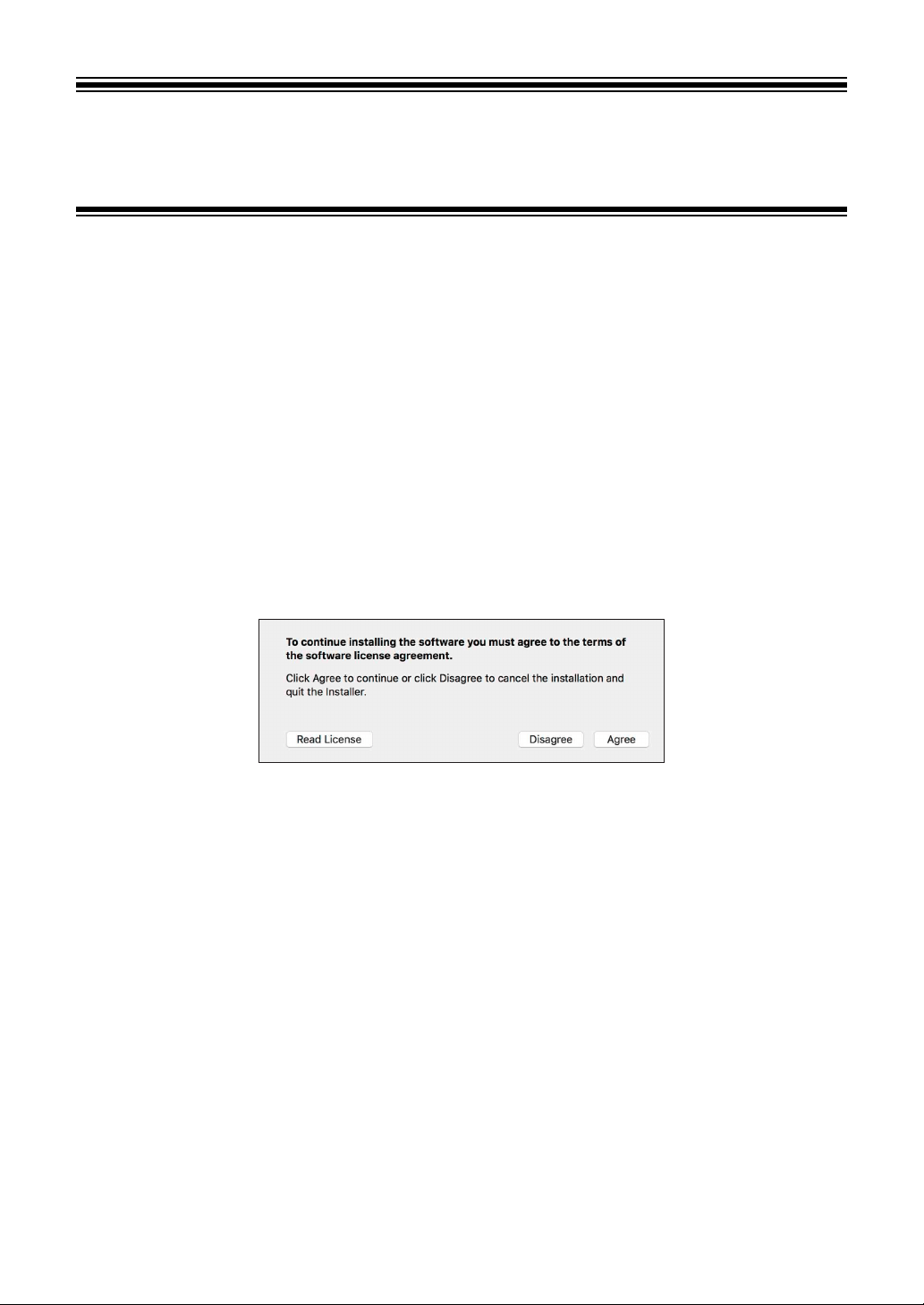
3 Read the terms of the License Agreement carefully and if you
agree, click [Agree].
• If you don’t agree to the contents of the License Agreement, click [Disagree]
to cancel the installation.
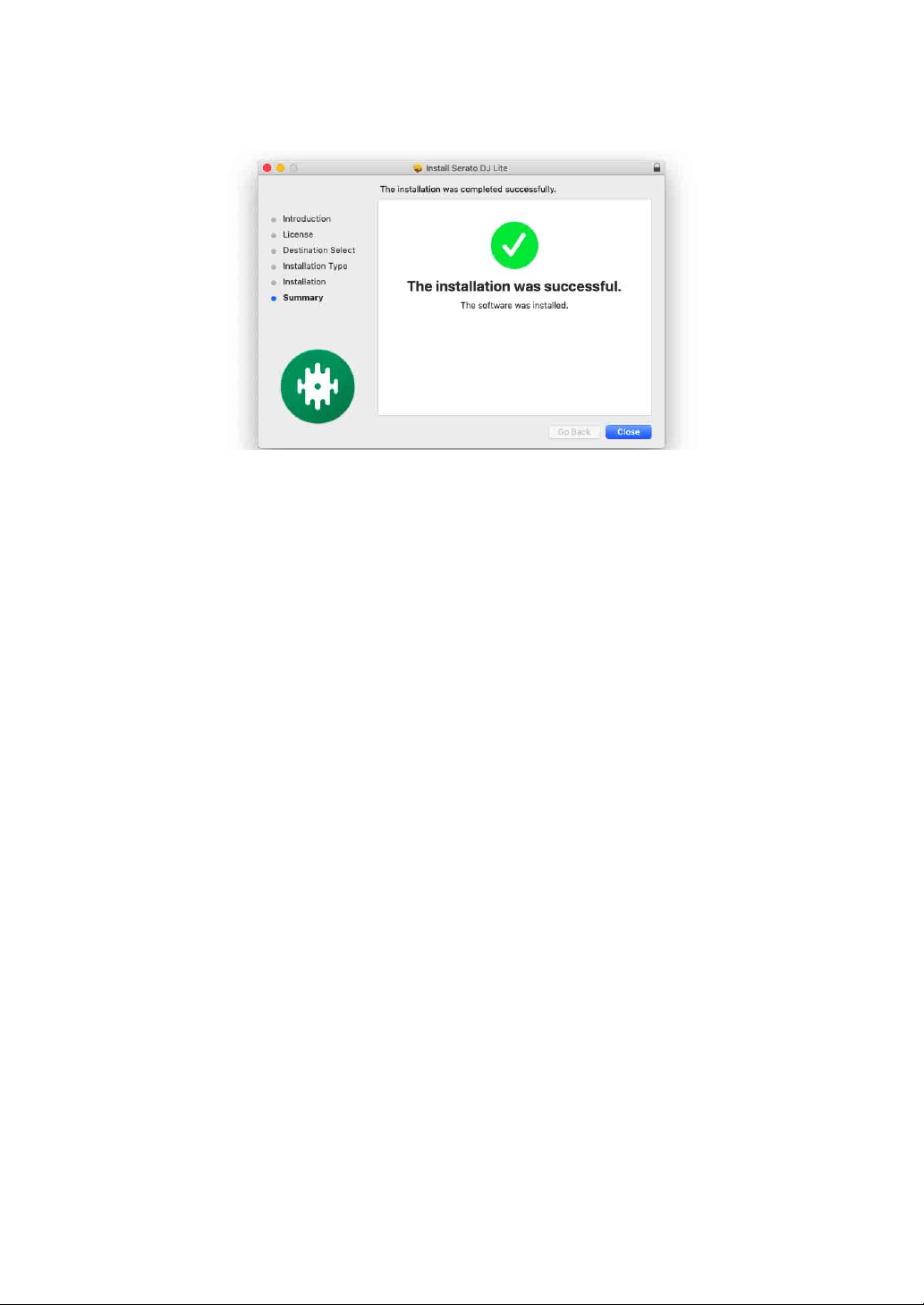
4Click [Install].
5 Follow the on-screen instructions to install the software.
Serato DJ Lite
82
En
6Click [Close] to quit the installer.

Serato DJ Lite
83
En
Installing (Windows)
Do not connect the unit to your PC until installation is complete.
• Log into your PC as an administrator before starting the installation.
• Close all programs on your PC.
1 Unzip the downloaded Serato DJ Lite software file.
2 Double-click the unzipped software file to launch the installer.
3 Read the terms of the License Agreement carefully and if you
agree, select [I agree to the license terms and conditions], then
click [Install].
• If you don’t agree to the contents of the License Agreement, click [Close] to
cancel the installation.
A message indicating successful installation appears when installation is
complete.
4Click [Close] to quit the Serato DJ Lite installer.
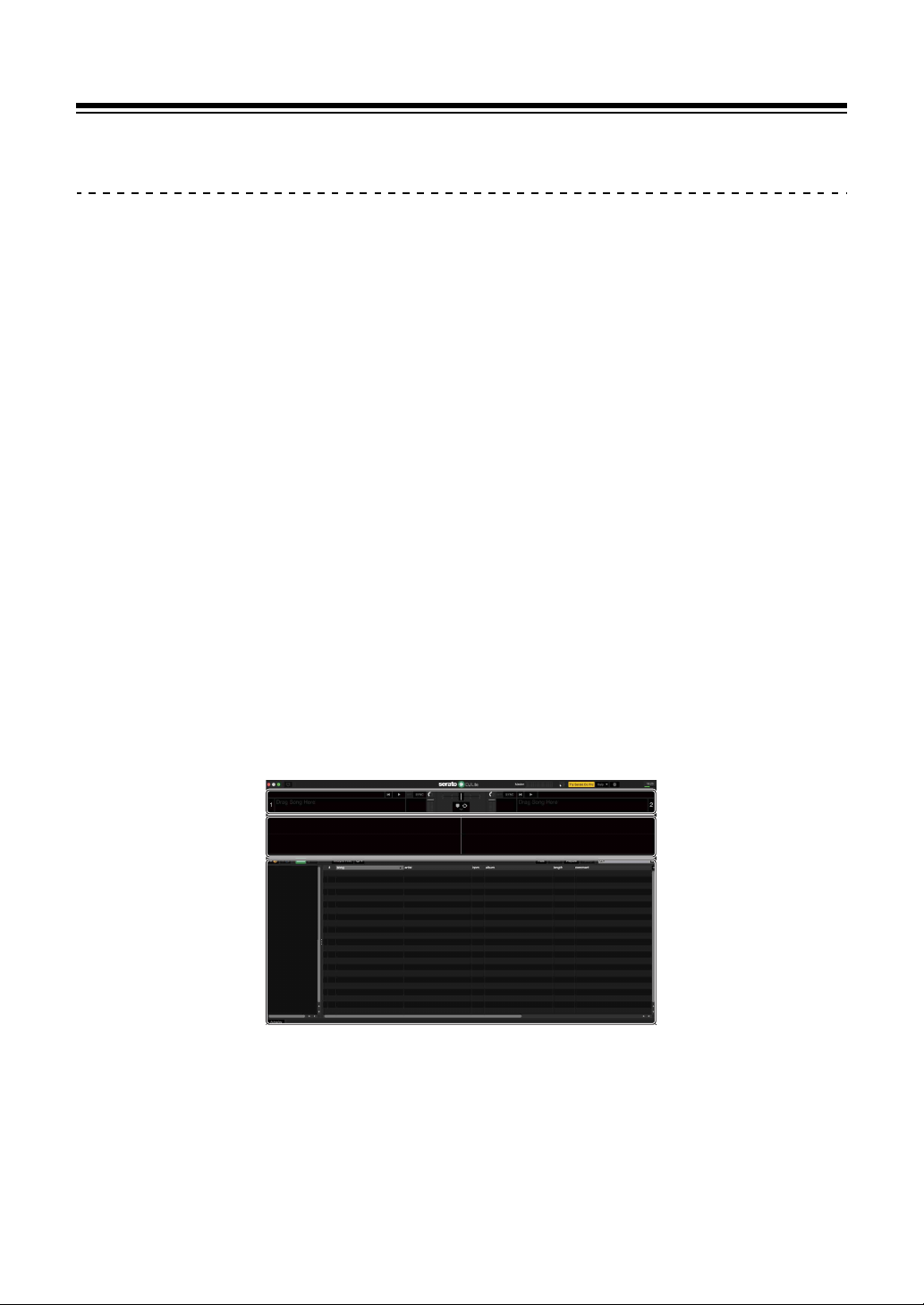
Serato DJ Lite
84
En
Basic use
Starting Serato DJ Lite
This manual mainly focuses on explaining the hardware functions of
the unit. For detailed instructions on using the Serato DJ Lite software,
see the Serato DJ Lite software manual.
For Mac
In Finder, open the [Applications] folder, then double-click the
[Serato DJ Lite] icon.
For Windows 11
In the [Start] menu, open the [All apps] screen, then click the [Serato
DJ Lite] icon under [Serato].
For Windows 10
From the [Start] menu, click [Serato] > [Serato DJ Lite] icon.
The following screen shows after Serato DJ Lite starts.
A
B
C
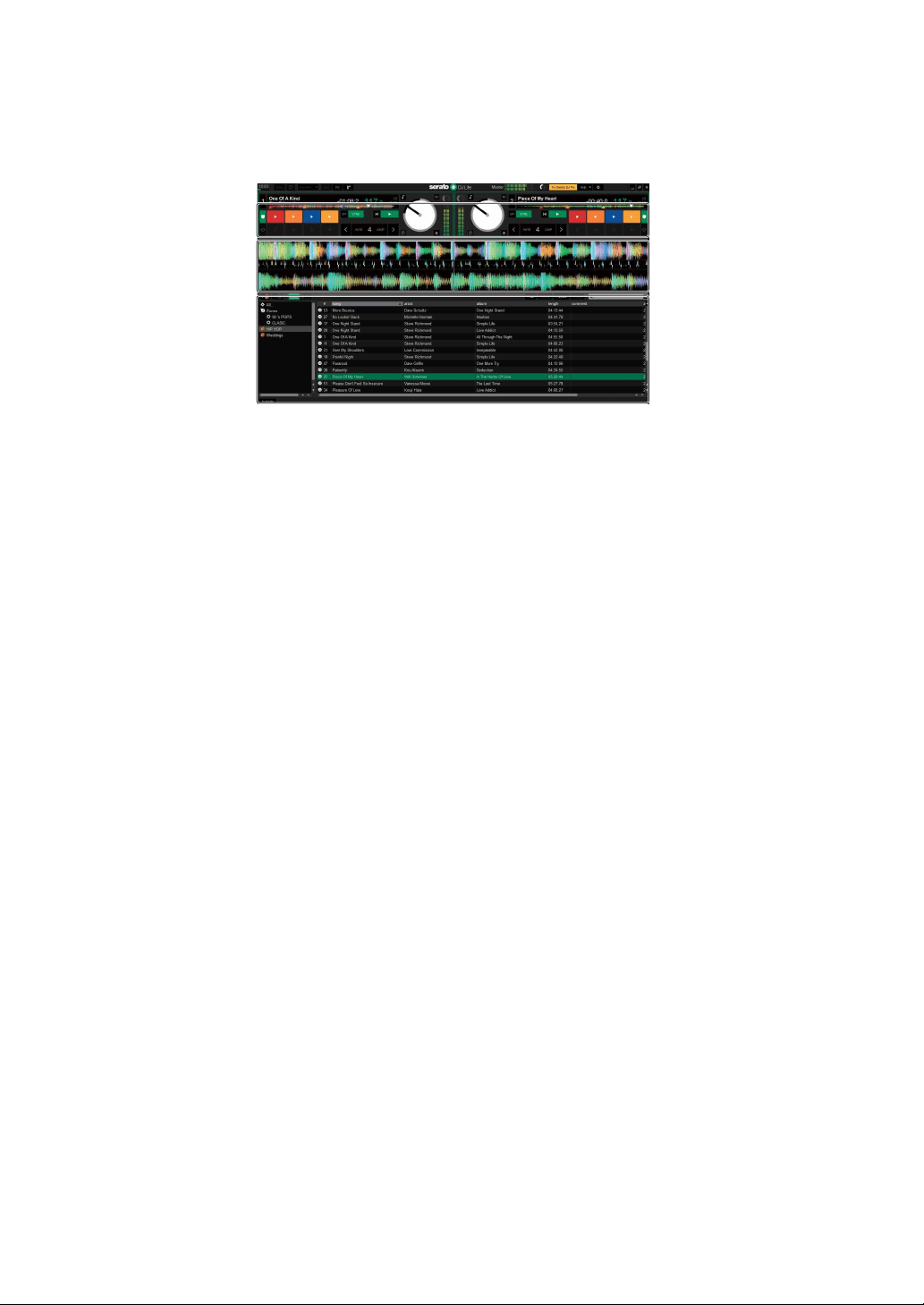
Serato DJ Lite
85
En
The following screen shows when tracks are loaded onto decks
in Serato DJ Lite.
A Deck section
Track information (track name, artist name, BPM, etc.), the overall
waveform, and other information about the loaded track is displayed.
B Waveform display
The waveform of the loaded track is displayed.
C Browse section
Tracks in the library, or crates containing multiple tracks, are displayed.
A
B
C
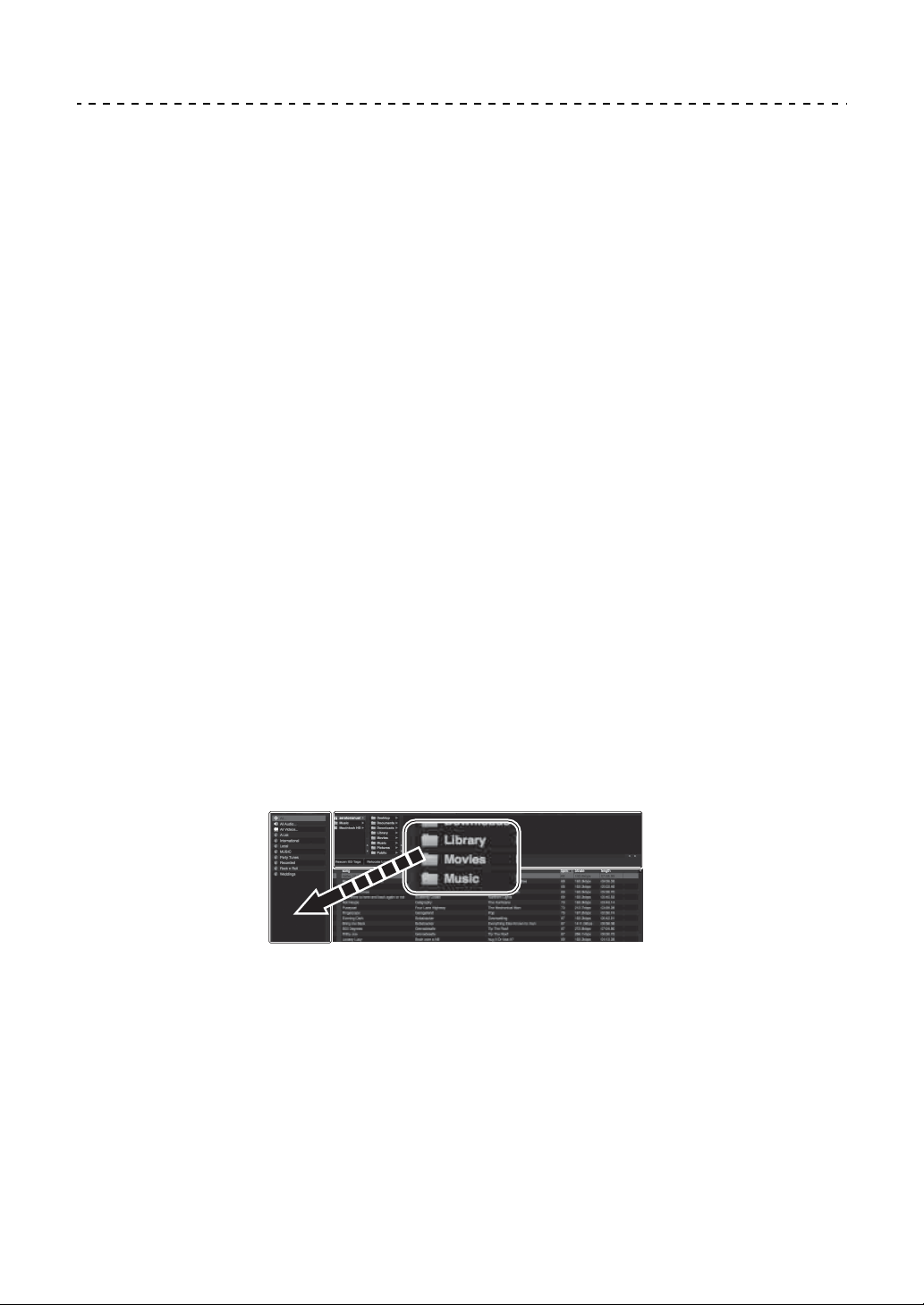
Serato DJ Lite
86
En
Importing music files (tracks)
• There are various ways to import tracks into Serato DJ Lite. For
details, see the Serato DJ Lite software manual.
• If you've previously used Serato Limited’s DJ software (e.g. Scratch
Live, ITCH, Serato DJ Intro, Serato DJ, or Serato DJ Pro) and you’ve
already created track libraries, you can use these libraries with
Serato DJ Lite.
• If you've previously used Serato DJ Intro and you’ve already created
track libraries, you may need to reanalyze tracks to use them with
Serato DJ Lite.
The typical way to import music files (tracks) is as follows.
1 Click the [Files] button in the Serato DJ Lite screen to open the
[Files] panel.
The contents of your PC/Mac or the hard drive/device connected to the PC/
Mac are displayed in the [Files] panel.
2 Click the folder containing the tracks you want to add to your library.
3 Drag and drop the selected folder to the crates panel.
A crate is created and the tracks are added to your library.
a [Files] panel
b Crates panel
a
b
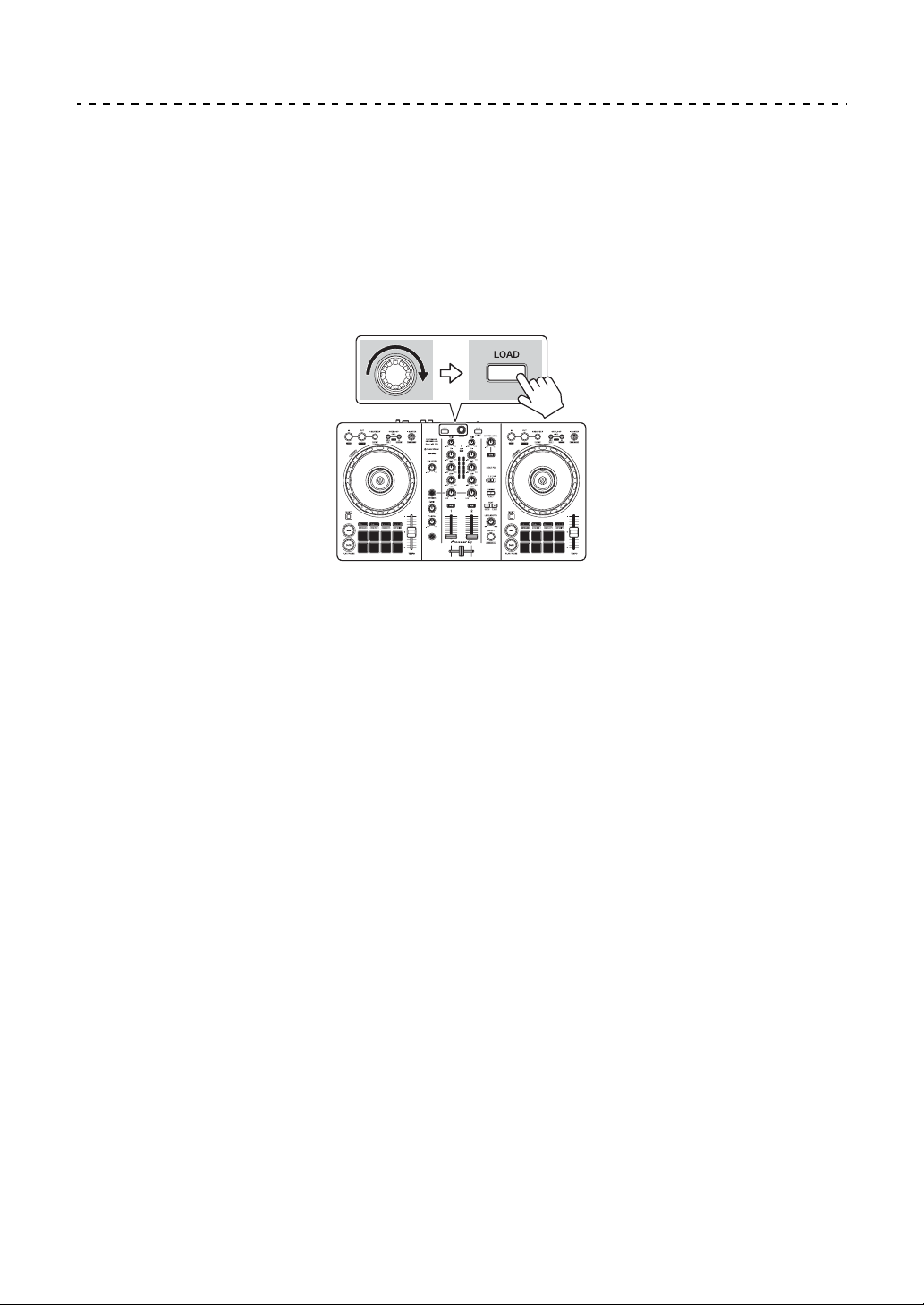
Serato DJ Lite
87
En
Loading an audio track onto a deck
The following explains how to load a track onto deck 1 as an example.
Turn the rotary selector to select a track from the library, then press the
[LOAD] button for deck 1 (left).
The track is loaded onto the deck.

Serato DJ Lite
88
En
Playing a track
This section explains how to play sound from deck 1 (left) as an
example.
1 Set the positions of the knobs etc. as shown below.
•[TRIM] knob: turned fully counterclockwise
• EQ [HI/MID/LOW] knobs: center position (12 o’clock)
•[CFX] knob: center position
• Channel fader: bottom position
• [MASTER LEVEL] knob: turned fully counterclockwise
• Crossfader: center position
2 Press the [PLAY/PAUSE
] button to play the track.
3 Turn the [TRIM] knob.
Adjust the [TRIM] knob so the channel level indicator lights up orange at the
loudest part of the track.
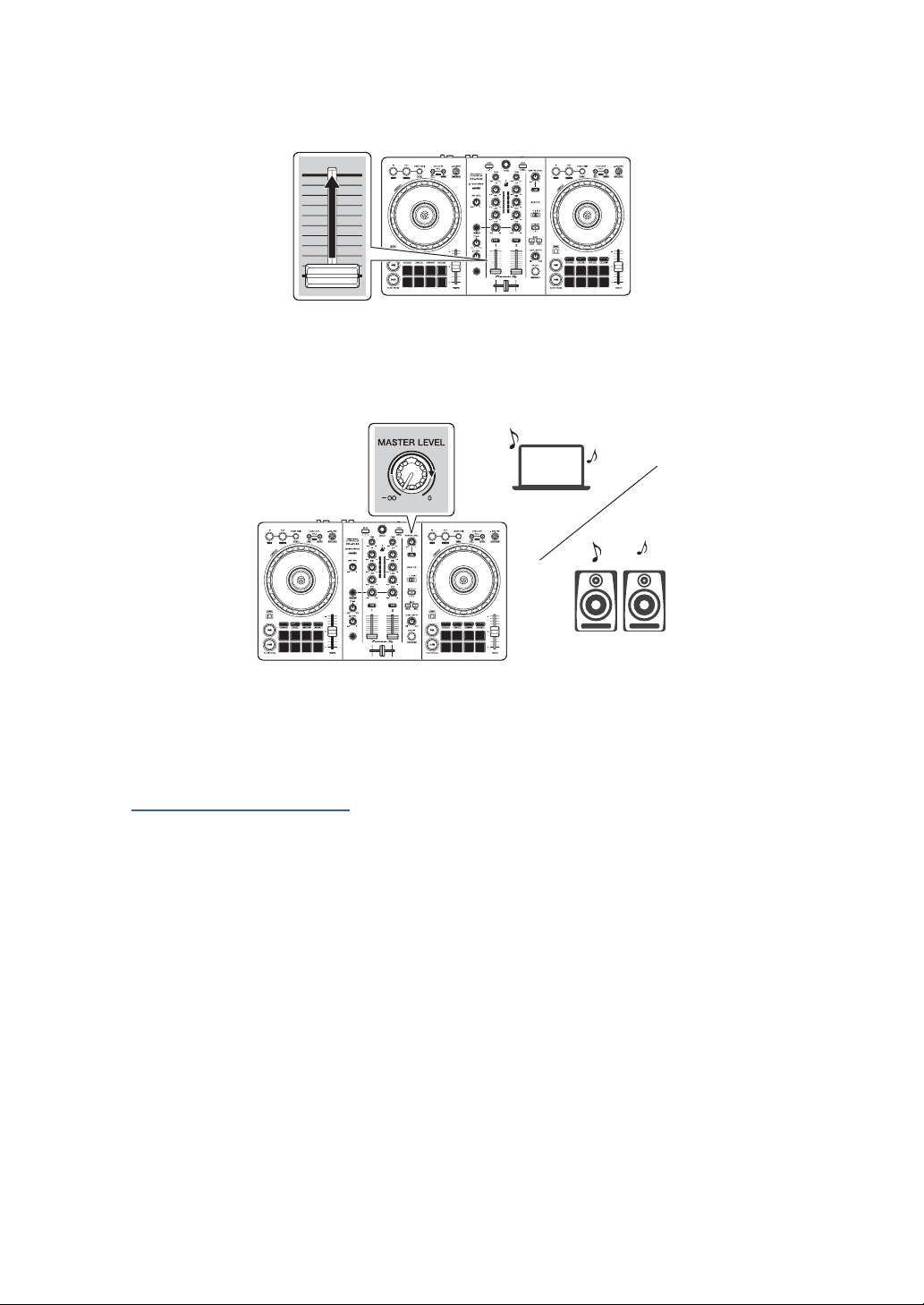
Serato DJ Lite
89
En
4 Move the channel fader to the top.
5 Turn the [MASTER LEVEL] knob to adjust the volume of the
speakers to a level you’re happy with.
• If you can’t output sound from the [MASTER] output terminals or the unit isn’t
recognized by your PC/Mac, refer to the [FAQ] on the Pioneer DJ support
website.
pioneerdj.com/support/

Serato DJ Lite
90
En
Monitoring with headphones
This section explains how to play sound from deck 1 (left) as an
example.
1 Set the positions of knobs etc. as shown below.
• [HEADPHONES MIX] knob: Center
• [HEADPHONES LEVEL] knob: Turned fully counterclockwise
2 Press the headphones [CUE] button for channel 1.
3 Turn the [HEADPHONES LEVEL] knob.
Adjust the headphones volume to a level you’re happy with.
Quitting Serato DJ Lite
Click the [x] button.
Turning off the unit
Disconnect the USB cable to turn off the unit.

Serato DJ Lite
91
En
Advanced use
Using 4 Beat Loop
While a track is playing, press the [4 BEAT/EXIT] button.
Loop playback starts with 4 beats from the point where you press the
button.
Canceling loop playback
Press the [4 BEAT/EXIT] button.
When the loop out point is reached, the rest of the track continues to
play without returning to the loop in point.
Using Manual Loop
You can use Manual Loop to choose the section you want to loop in a
track.
1 During playback, press the [IN] button at the point you want to start
looping (the loop in point).
2 Press the Loop [OUT] button at the point you want the loop to end
(the loop out point).
Loop playback starts.
Cutting the loop
Press the [CUE/LOOP CALL
] button during loop playback.
Each time you press the button, the loop cuts in half.
• You can cut the loop length in half even during 4 Beat Loop playback.

Serato DJ Lite
92
En
Extending the loop
Press the [CUE/LOOP CALL
] button during loop playback.
Each time you press the button, the loop doubles in length.
• You can double the loop length even during 4 Beat Loop playback.
Canceling a loop
Press the [4 BEAT/EXIT] button.
The rest of the track continues to play without returning to the loop in
point.
Using the Performance Pads
This section mainly relates to Serato DJ Lite. Functions in Serato DJ
Pro are shown with .
You can switch functions using the buttons for respective Pad modes:
[HOT CUE], [PAD FX1], [BEAT JUMP], and [SAMPLER].
Using Hot Cues
You can start playback instantly from the position where a Hot Cue is
set.
• Up to 4 Hot Cues can be set and saved for each track in Serato DJ
Lite.
1 Press the [HOT CUE] mode button.
The unit enters Hot Cue mode.
2 When the track is playing or paused, press a Performance Pad to
set a Hot Cue.
The pad's settings are as shown below.
Serato DJ Pro
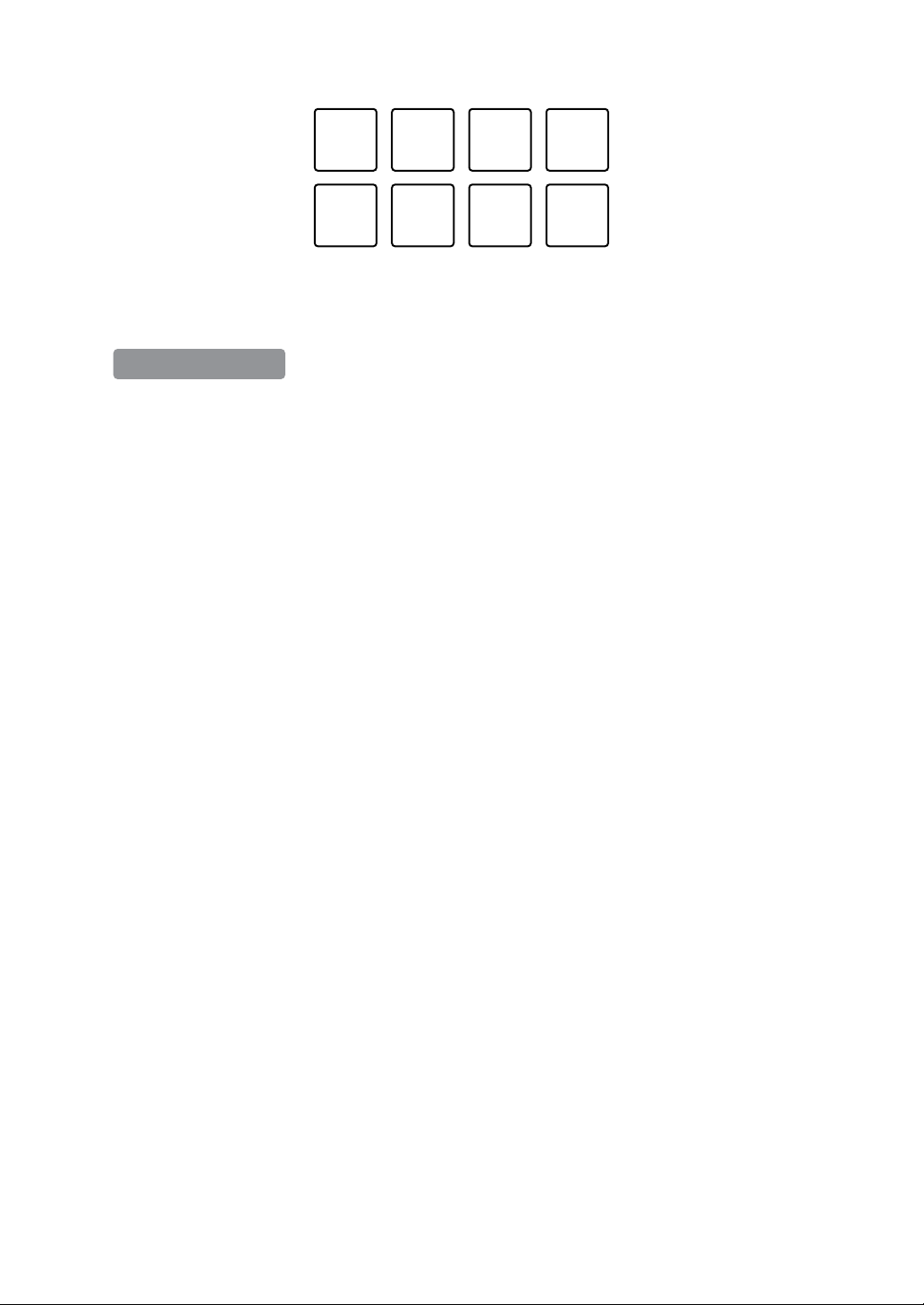
Serato DJ Lite
93
En
1: Hot Cue A, 2: Hot Cue B, 3: Hot Cue C, 4: Hot Cue D,
5: Previous track, 6: Search , 7: Search , 8: Censor
1: Hot Cue A, 2: Hot Cue B, 3: Hot Cue C, 4: Hot Cue D,
5: Hot Cue E, 6: Hot Cue F, 7: Hot Cue G, 8: Hot Cue H
• Censor: Hold down the Performance Pad 8 to play the track in reverse
direction. Normal playback resumes when the pad is released.
3 Press a Performance Pad you’ve set a Hot Cue for.
Playback starts from the Hot Cue point.
• You can clear Hot Cues by pressing a Performance Pad while holding the
[SHIFT] button.
Using Pad FX
You can add a wide range of effects to your performances simply by
pressing and releasing the Performance Pads.
1 Press the [PAD FX1] mode button.
The unit enters Pad FX mode.
2 Press and hold down a Performance Pad.
The effect set on the Performance Pad turns on.
The pad's settings are as shown below.
1234
5678
Serato DJ Pro
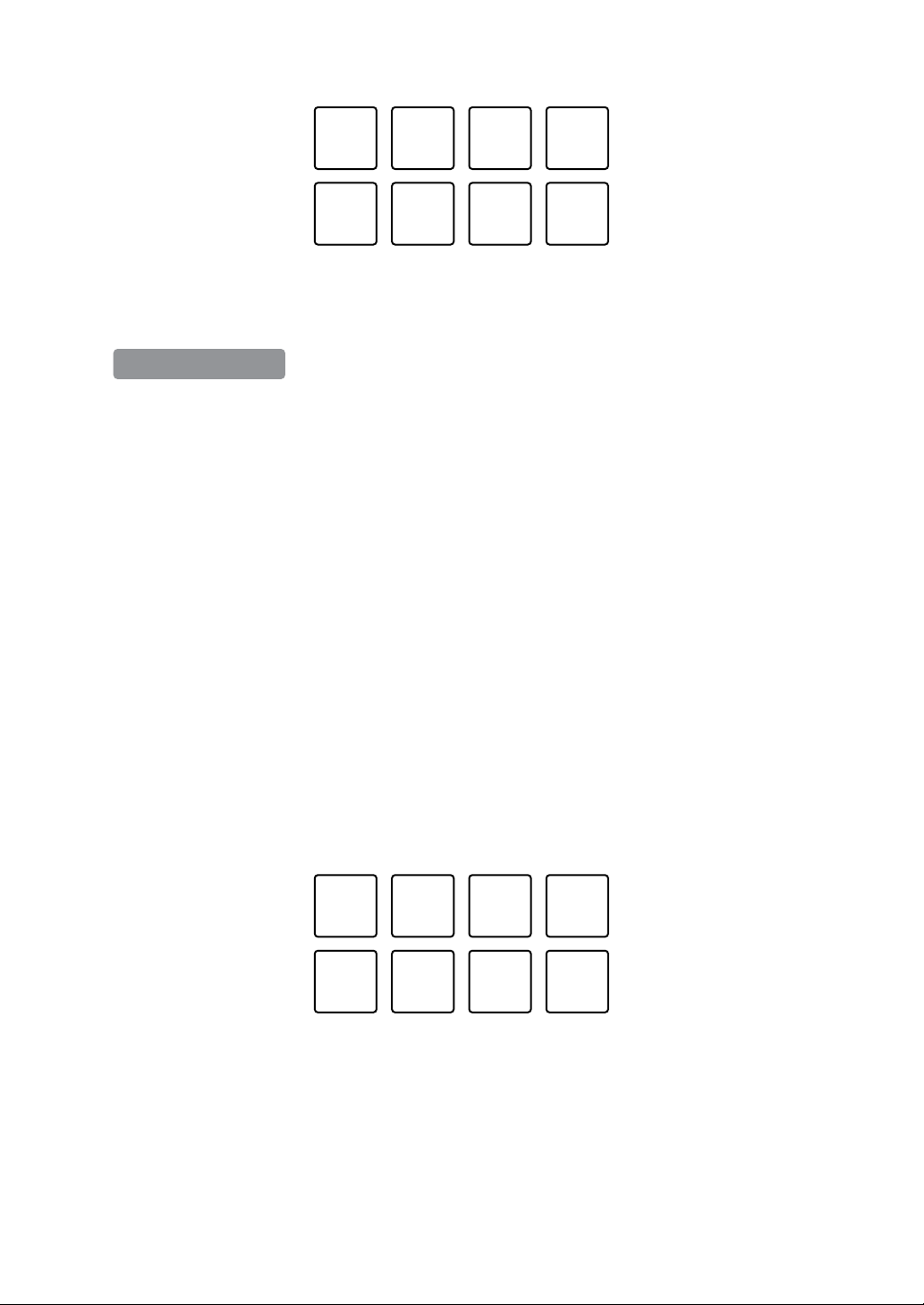
Serato DJ Lite
94
En
1: Effect A, 2: Effect B, 3: Effect C, 4: Effect D,
5: Previous track, 6: Search , 7: Search , 8: Censor
1: Effect A, 2: Effect B, 3: Effect C, 4: Effect D,
5: Effect E, 6: Effect F, 7: Effect G, 8: Effect H
3 Release the Performance Pad.
The effect turns off.
Using Beat Jump
You can use Beat Jump to move the playback position by different
numbers of beats.
1 Press the [BEAT JUMP] mode button.
The unit enters Beat Jump mode.
2 Press a Performance Pad when the track is playing or paused.
The pad's settings are as shown below.
1: Beat Jump to the left, 2: Halve the Beat Jump length,
3: Double the Beat Jump length, 4: Beat Jump to the right,
5: Previous track, 6: Search , 7: Search , 8: Censor
1234
5678
Serato DJ Pro
1234
5678
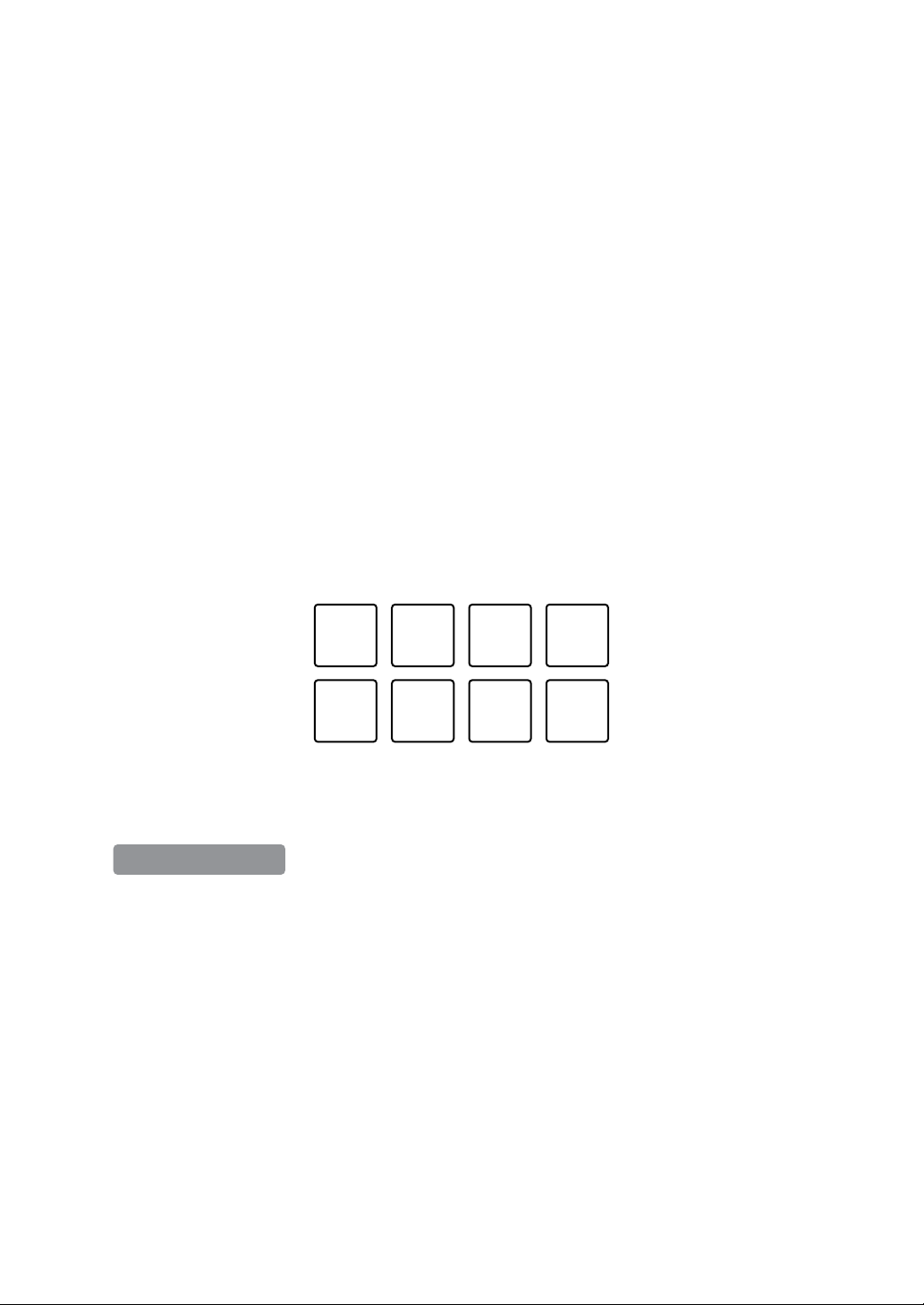
Serato DJ Lite
95
En
Using Sampler
You can use the Performance Pads to play tracks or sounds assigned
to the Sampler slots.
1 Open the [SAMPLER] panel in Serato DJ Lite.
2 Press the [SAMPLER] mode button on the unit.
The unit enters Sampler mode.
3 Drag and drop tracks or sounds from the library to load them into
the [SAMPLER] slots.
The sampler settings and loaded tracks are saved.
4 Press a Performance Pad.
The track or sound assigned to the relevant slot is played.
The pad's settings are as shown below.
1: Slot 1, 2: Slot 2, 3: Slot 3, 4: Slot 4,
5: Previous track, 6: Search , 7: Search , 8: Censor
1: Slot 1, 2; Slot 2, 3; Slot 3, 4; Slot 4,
5: Slot 5, 6: Slot 6, 7; Slot 7, 8; Slot 8
• When you press a Performance Pad while holding the [SHIFT] button, the
sound assigned to the slot that is currently playing stops.
1234
5678
Serato DJ Pro
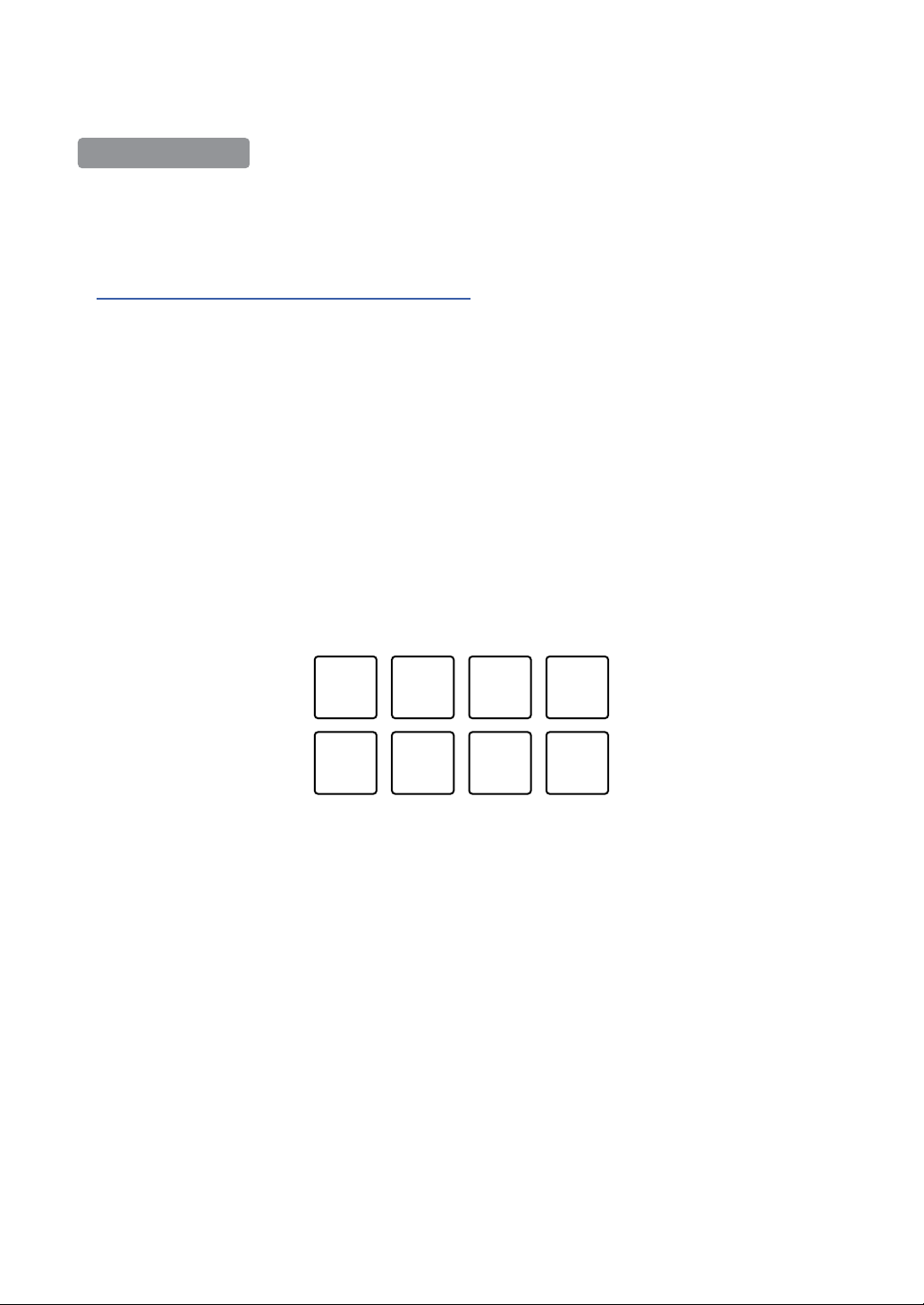
Serato DJ Lite
96
En
Using Pitch Play
Pitch Play is a function of the Pitch ’n Time DJ expansion pack.
• To use Pitch ’n Time DJ, you'll need to activate it first.
For details, visit the website below.
serato.com/activation/pitch-n-time
1 Press the [HOT CUE] mode button while holding the [SHIFT]
button.
The unit enters Pitch Play mode.
2 Press a Performance Pad while holding the [SHIFT] button.
The Hot Cue point set on the Performance Pad is selected.
3 Press a Performance Pad.
Playback starts from the selected Hot Cue point with the pitch set to the
Performance Pad as follows.
1: ±0 Semitones, 2: +1 Semitone, 3: +2 Semitones, 4: +3 Semitones,
5: -4 Semitones, 6: -3 Semitones, 7: -2 Semitones, 8: -1 Semitone
Serato DJ Pro
1234
5678
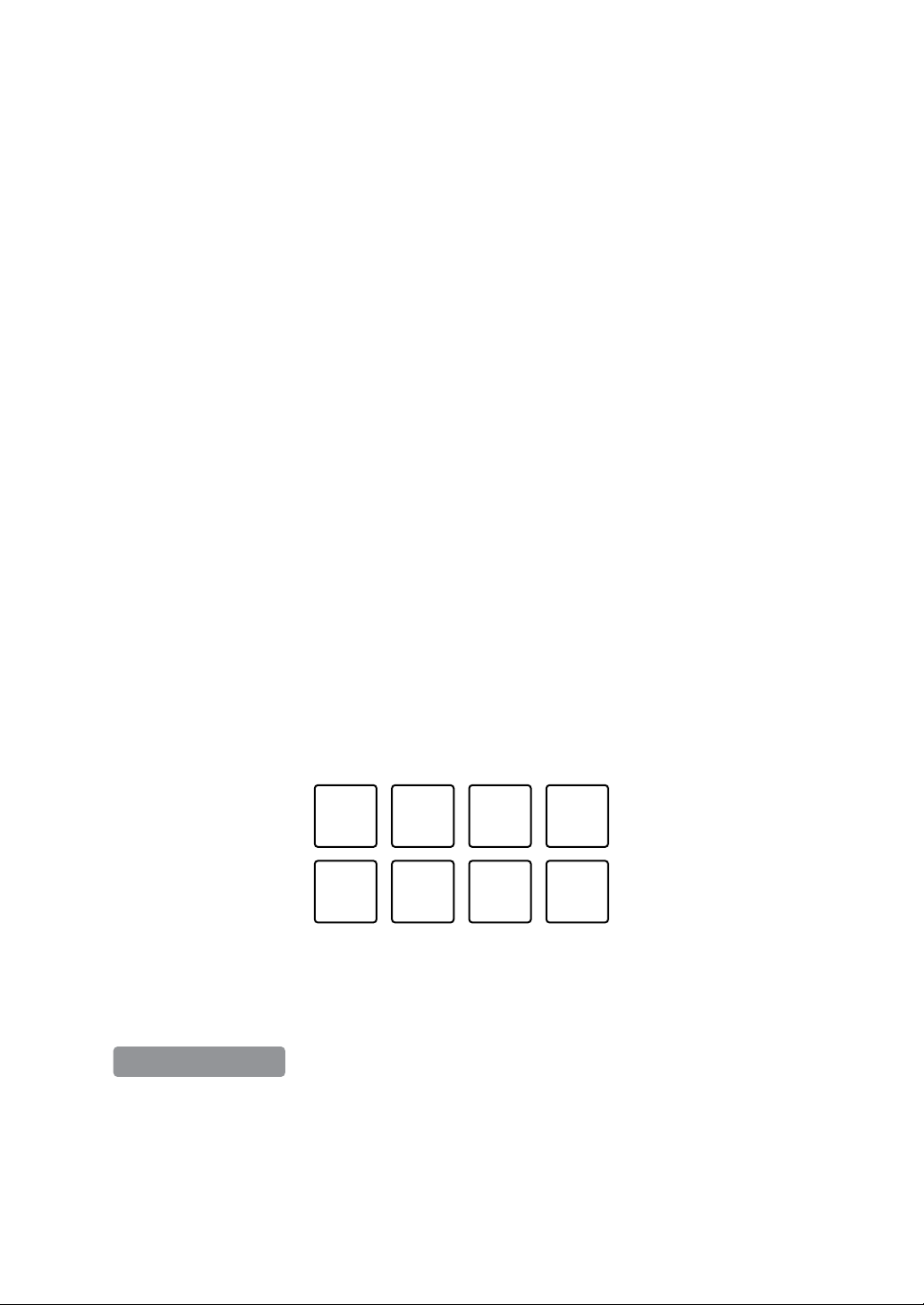
Serato DJ Lite
97
En
Using Roll
If you press a Performance Pad when the unit is in Roll mode, a loop
with the number of beats assigned to the pad is set and the loop plays
until you release the pad.
During Loop Roll playback, normal playback with the original rhythm
continues in the background (but you can only hear the Loop Roll).
When you cancel Loop Roll, playback resumes from the position
reached in the background.
1 Press the [PAD FX1] mode button while holding the [SHIFT] button.
The unit enters Roll mode.
2 Press and hold down a Performance Pad.
Loop Roll playback starts with the number of beats in the settings assigned to
that pad.
Playback continues in the background during Loop Roll playback (but you can
only hear the Loop Roll).
• Press the [CUE/LOOP CALL
] or [CUE/LOOP CALL ] button during
Loop Roll to change the number of beats for the Loop Roll that’s currently
playing.
The pad’s settings are as shown below.
1: 1/4 beat, 2: 1/2 beat, 3: 1 beat, 4: 2 beats,
5: Previous track, 6: Search , 7: Search , 8: Censor
1: 1/32 beat, 2: 1/16 beat, 3: 1/8 beat, 4: 1/4 beat,
5: 1/2 beat, 6: 1 beat, 7: 2 beats, 8: 4 beats
1234
5678
Serato DJ Pro
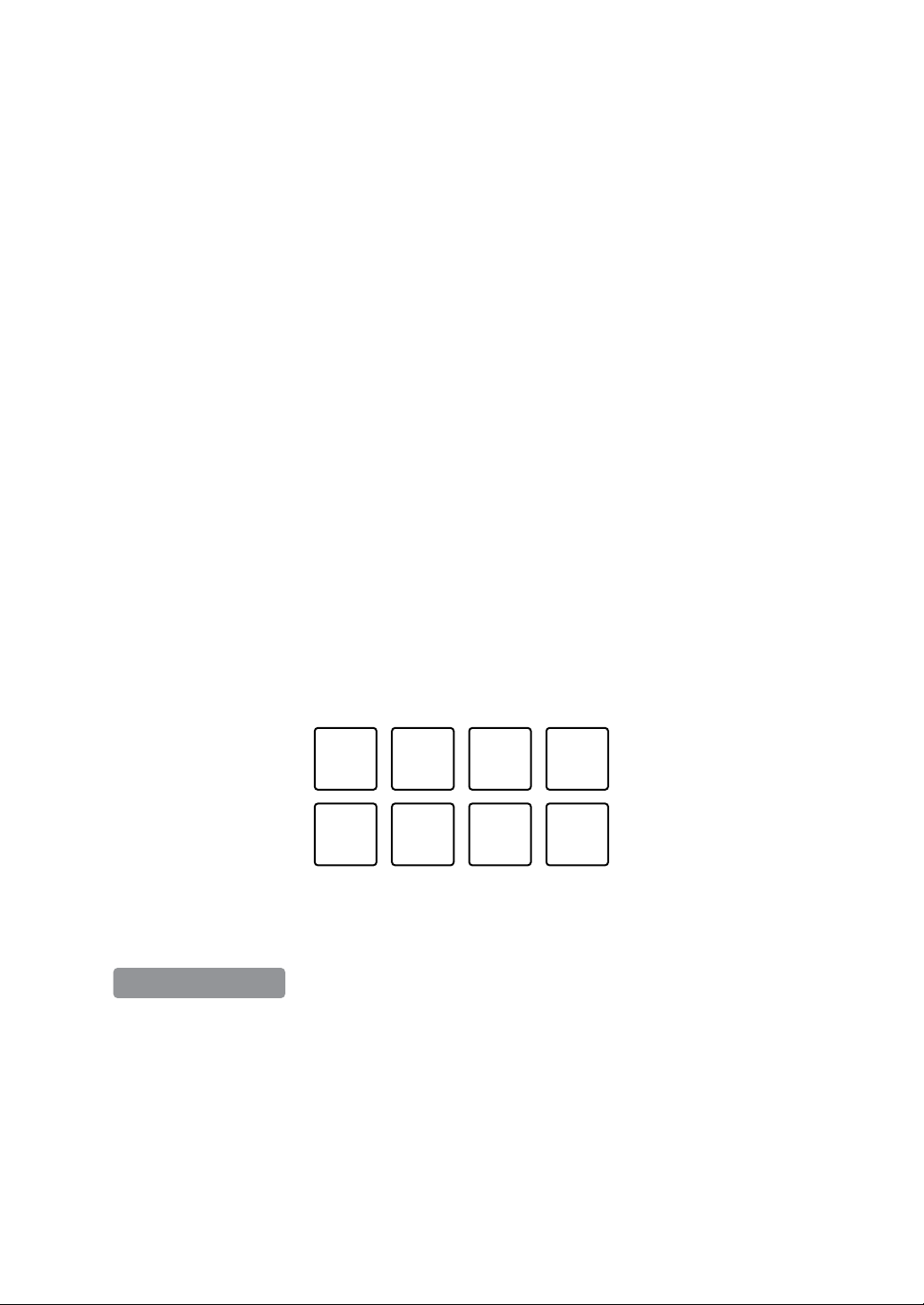
Serato DJ Lite
98
En
3 Release the Performance Pad.
Loop Roll is canceled, and playback resumes from the position reached in the
background.
Using Auto Loop
When you press a Performance Pad in Auto Loop mode, a loop with
the number of beats assigned to the pad is set and the loop plays until
you release the pad.
1 Press the [BEAT JUMP] mode button while holding the [SHIFT]
button.
The unit enters Auto Loop mode.
2 Press a Performance Pad during playback.
Loop playback starts with the number of beats in the setting assigned to that
pad.
• When you press the same Performance Pad again, loop playback is
canceled.
The pad's settings are as shown below.
1: 1 beat, 2: 2 beats, 3: 4 beats, 4: 8 beats, 5: Previous track, 6: Search ,
7: Search , 8: Censor
1: 1/8 beat, 2: 1/4 beat, 3: 1/2 beat, 4: 1 beat,
5: 2 beats, 6: 4 beats, 7: 8 beats, 8: 16 beats
1234
5678
Serato DJ Pro

Serato DJ Lite
99
En
Using Key Shift
Key Shift is a function of the Pitch ’n Time DJ expansion pack.
• To use Pitch ’n Time DJ, you'll need to activate it first.
For details, visit the website below.
serato.com/activation/pitch-n-time
When you press a Performance Pad in Key Shift mode, the key of the
track that’s currently playing is changed to the pitch set to the pressed
pad.
1 Press the [SAMPLER] mode button while holding the [SHIFT]
button.
The unit enters Key Shift mode.
The pad's settings are as shown below.
1: ±0 Semitones, 2: +1 Semitone, 3: +2 Semitones, 4: +3 Semitones,
5: -4 Semitones, 6: -3 Semitones, 7: -2 Semitones, 8: -1 Semitone
A semitone is a unit used to determine the pitch of a sound. +1 semitone
means the sound is higher in pitch than the original sound by half.
2 Press a Performance Pad.
The track’s key is changed to the pitch assigned to the pad.
Serato DJ Pro
1234
5678

Serato DJ Lite
100
En
Using Fader Start
Using Channel Fader Start
1 Set the temporary cue point.
Pause the track at the position you want to start playback from, then press the
[CUE] button on that deck.
2 While holding the [SHIFT] button, move the channel fader from the
bottom to the top.
Playback starts from the temporary cue point.
• If you move the channel fader back to the bottom while holding the [SHIFT]
button during playback, the track instantly jumps back to the temporary cue
point and playback pauses (Back Cue).
When no temporary cue point is set, playback starts from the beginning of the
track.
Using Crossfader Start
1 Set the temporary cue point.
Pause the track at the position you want to start playback from, then press the
[CUE] button on that deck.
2 Move the crossfader all the way to the left or right side.
If you want to use Crossfader Start to trigger playback on channel 2, set the
crossfader to the left side, and vice versa.
3 While holding the [SHIFT] button, move the crossfader towards the
opposite side from where it’s set.
Playback starts from the temporary cue point.
• If you move the crossfader back while holding the [SHIFT] button during
playback, the playback position instantly jumps back to the temporary cue
point and pauses (Back Cue).
When no temporary cue point is set, playback starts from the beginning of the
track.
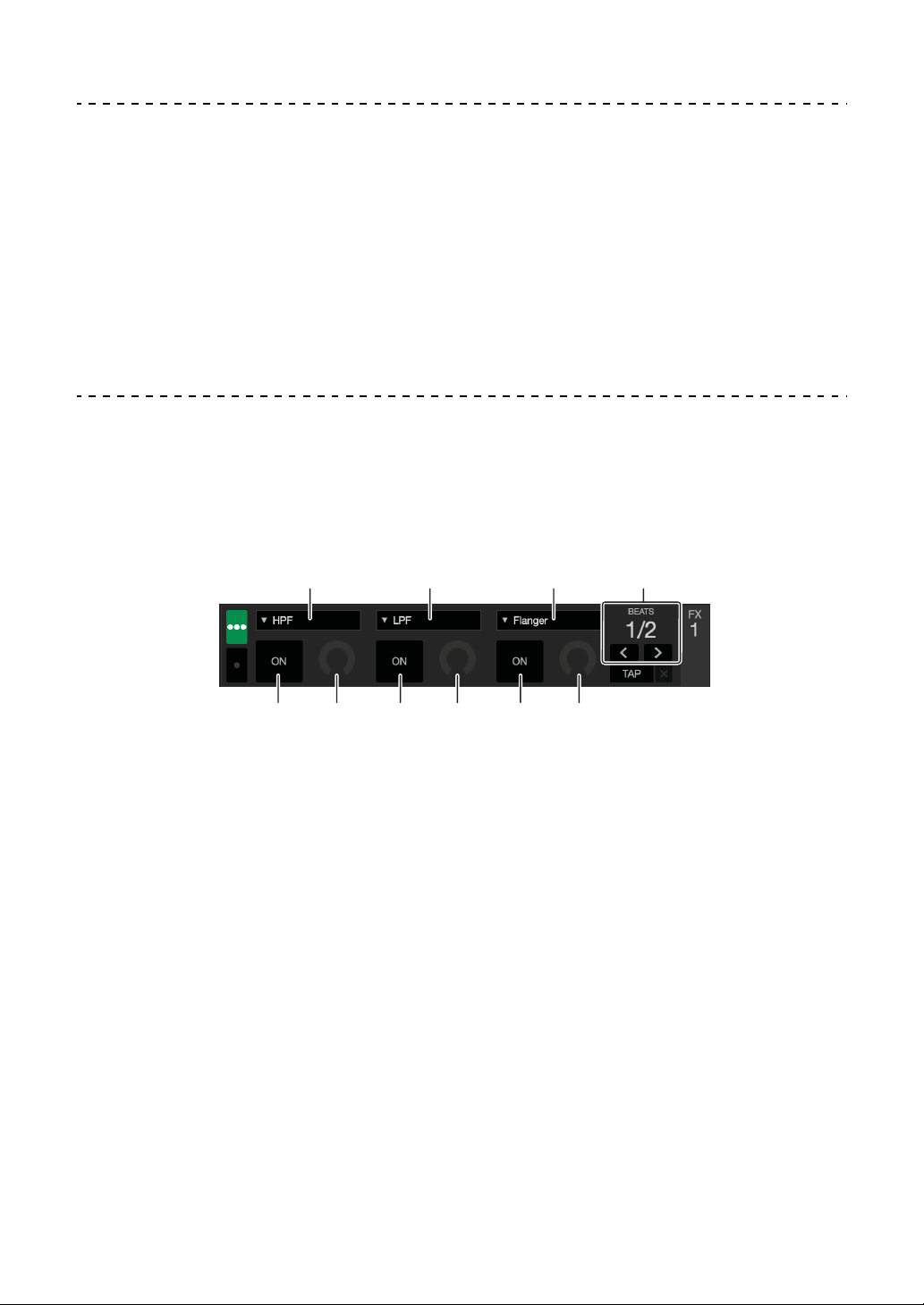
Serato DJ Lite
101
En
Analyzing tracks
Click the [Analyze Files] button in Serato DJ Lite to analyze tracks in
your library that haven't been analyzed yet. You can also analyze the
track by dragging and dropping it on the [Analyze Files] button.
• If a track is loaded to a deck before analysis is complete, it may take
some time to display its BPM and waveform.
• Depending on the number of tracks, analysis may take some time.
Using effects
Serato DJ Lite has 2 types of effects: FX1 and FX2.
The following screen shows effect units in Serato DJ Lite.
1: Type of effect, 2: Beats of effect, 3: Effect level, 4: Effect ON/OFF
1
434343
112
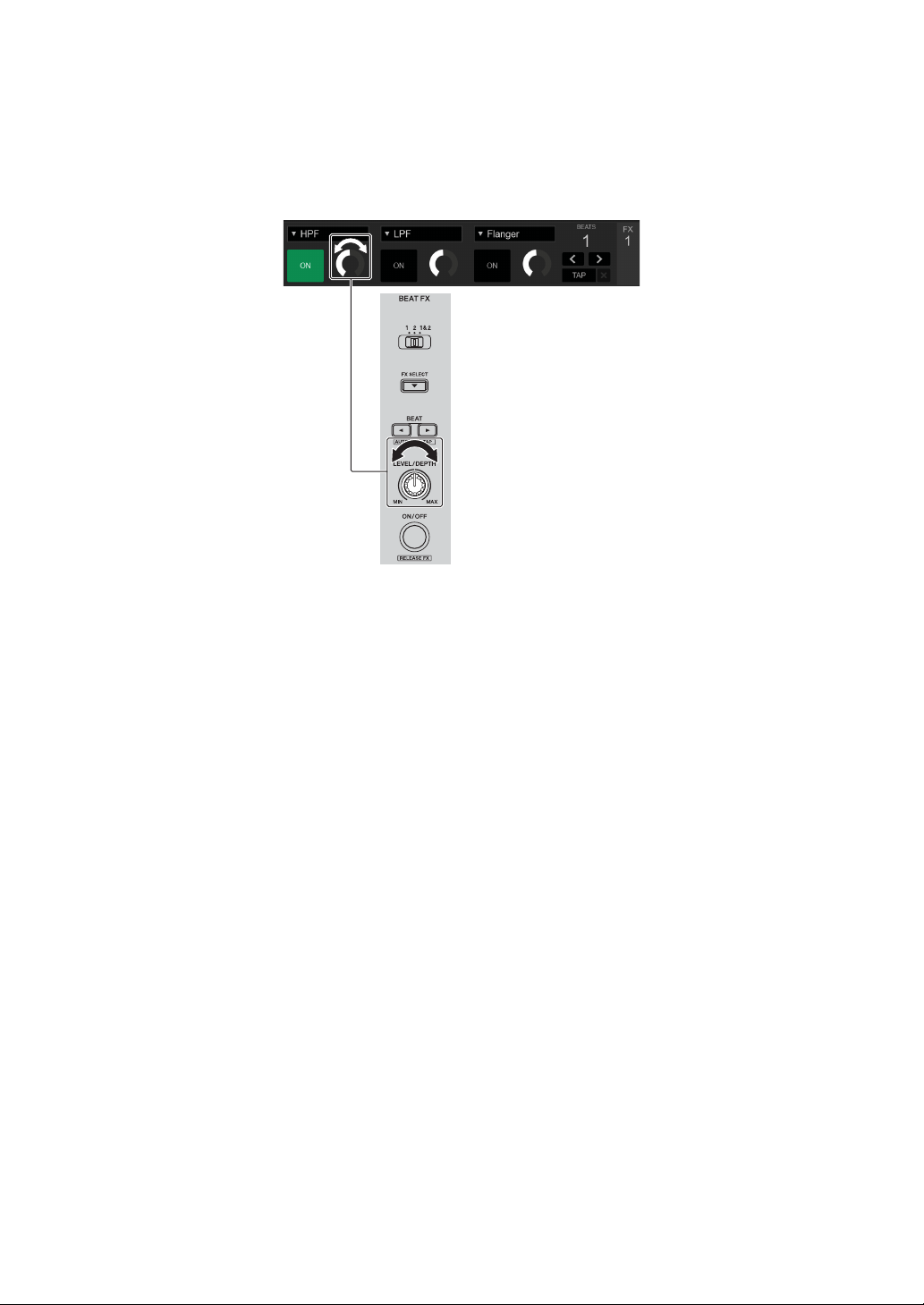
Serato DJ Lite
102
En
Using an effect
The following explains how to operate the slot 1 effect for FX1 on the
Serato DJ Lite screen.
1 Display the [FX] panel on the Serato DJ Lite screen.
2 Press the [FX SELECT] button.
The effect changes each time you press the button.
3 Slide the [FX CH SELECT] switch.
– [1]: Applies the effect to the sound of channel 1.
– [2]: Applies the effect to the sound of channel 2.
– [1&2]: Applies the effect to the sound of channel 1 and channel 2.
4 Press the [BEAT
] button or [BEAT] button.
Set the number of beats synchronized to the effect sound.
5 Turn the [FX LEVEL/DEPTH] knob to adjust the parameter of the
effect.
The parameter on slot 1 of FX1 on the Serato DJ Lite screen is applied.
6 Press the [FX ON/OFF] button.
The effect is applied to the sound of the channel you set in step 3.
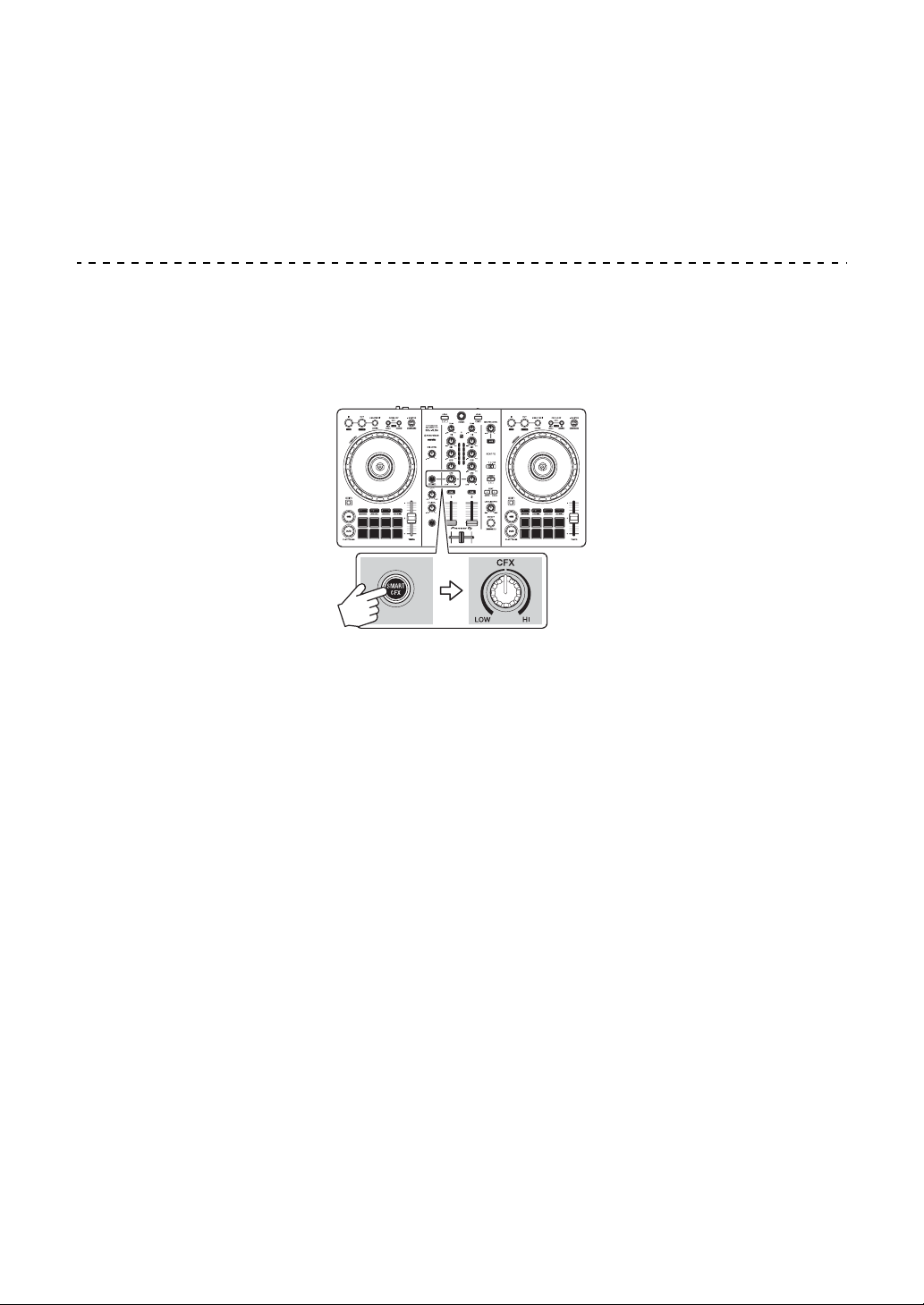
Serato DJ Lite
103
En
You can adjust the parameter of the effect by turning the [FX LEVEL/DEPTH]
knob.
When the effect is turned on, the [FX ON/OFF] button flashes.
• Press the [FX ON/OFF] button again to turn off the effect.
Using Smart CFX
Using the [CFX] knob, you can add a dynamic effect to liven up the
track.
1 Press the [SMART CFX] button.
The Smart CFX preset 1 (Echo type) is turned on.
• If you press the [SMART CFX] button while holding the [SHIFT] button, the
Smart CFX preset 2 (Reverb type) is turned on.
2 Turn the [CFX] knob.
The effect is applied to the track that's playing.
Turn the [CFX] knob to change the effect sound.
• When the knob is at the center position, the effect isn’t applied.
3 Press the [SMART CFX] button again.
Smart CFX turns off.
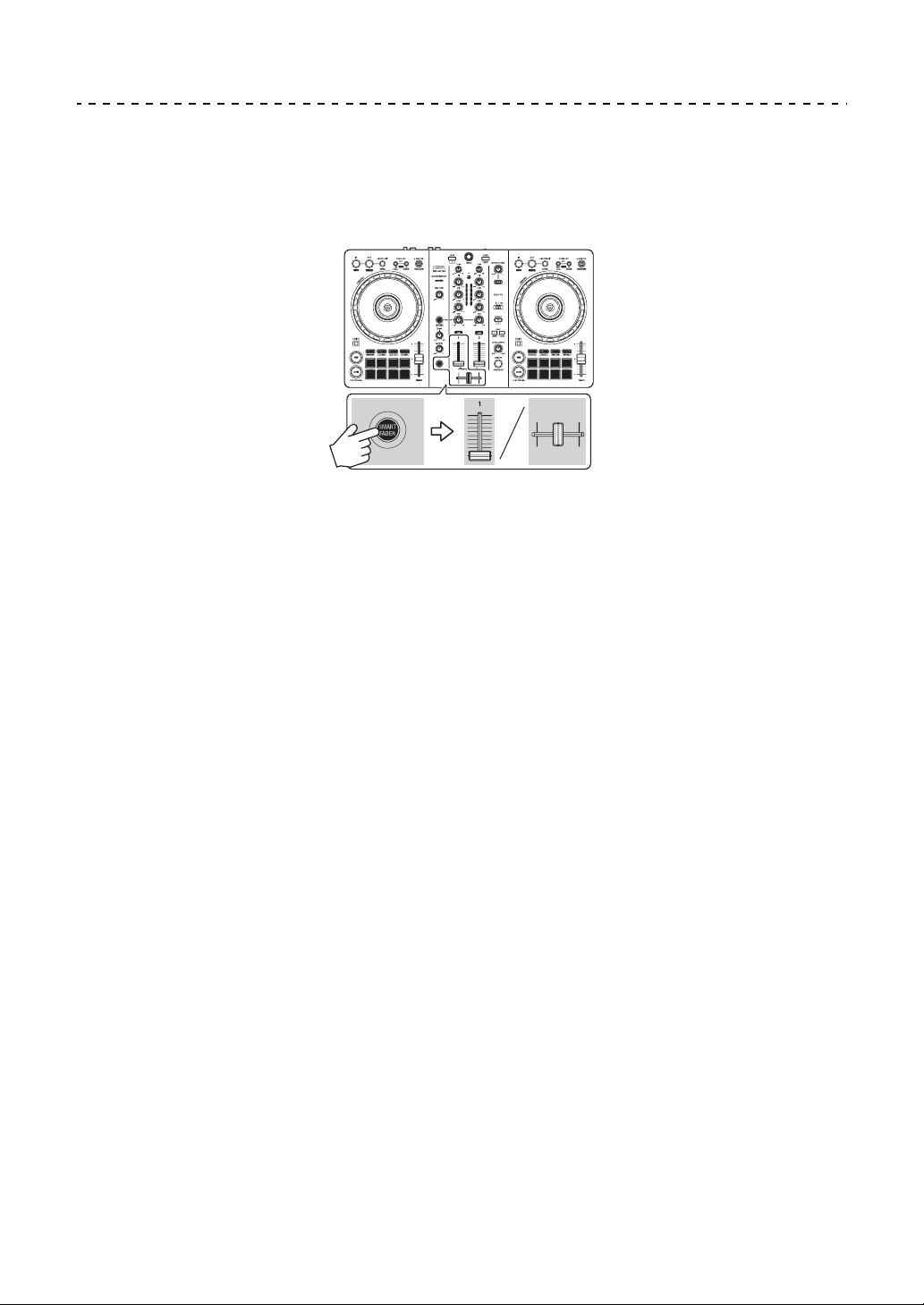
Serato DJ Lite
104
En
Using Smart Fader
With Smart Fader, you can use the crossfader or channel faders to
create an exciting transition as you mix from one track to the next.
1 Press the [SMART FADER] button.
The Smart Fader preset 1 (Echo type) is turned on.
• If you press the [SMART FADER] button while holding the [SHIFT] button,
the Smart Fader preset 2 (Reverb type) is turned on.
2 Slide the channel faders and crossfader.
The effect is automatically applied according to the fader operation.
3 Press the [SMART FADER] button again.
Smart Fader turns off.
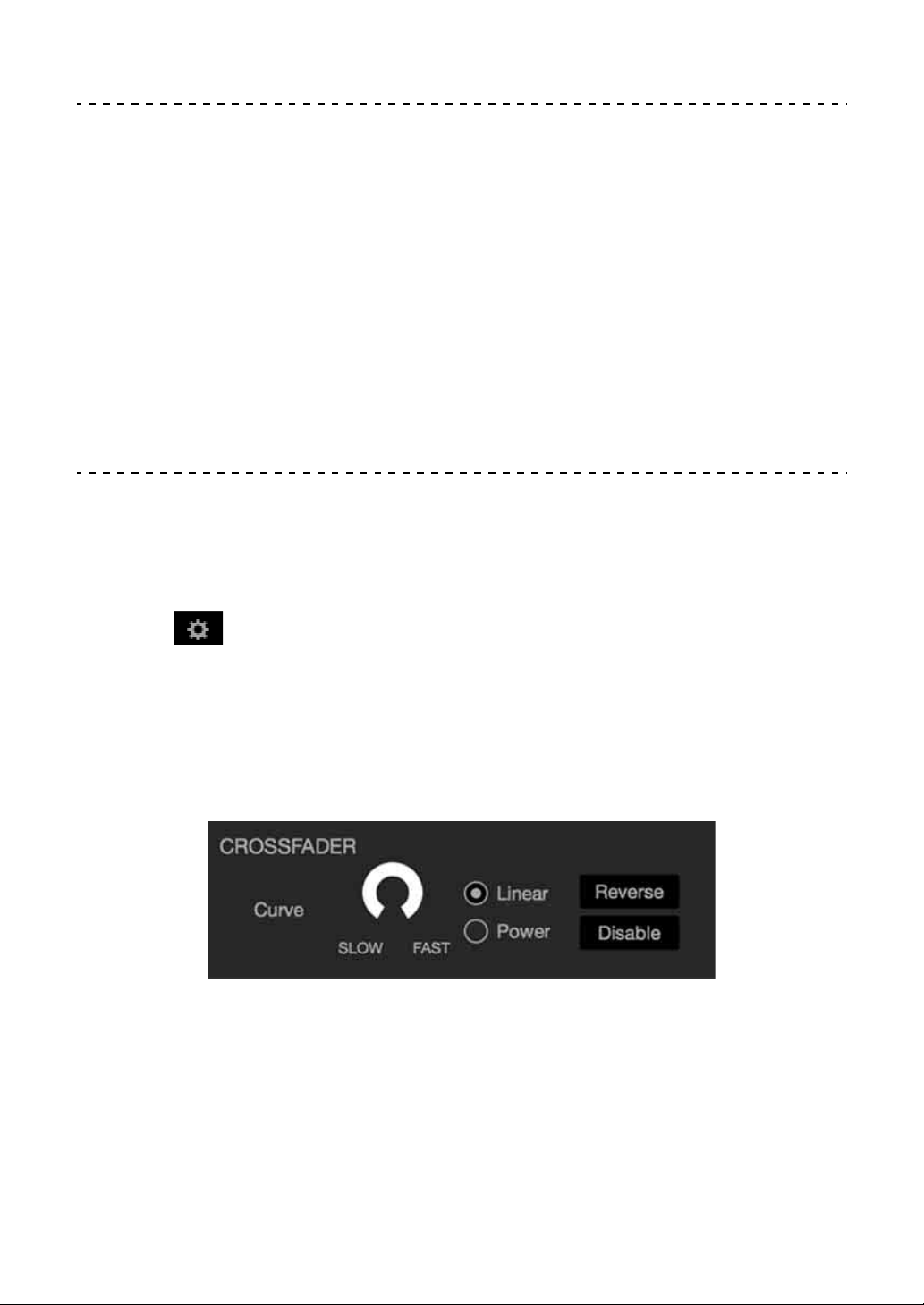
Serato DJ Lite
105
En
Using a microphone
1 Connect a microphone to the [MIC] input terminal.
2 Turn the [MIC LEVEL] knob.
Adjust the volume of the sound output from the [MIC] channel.
• The sound comes out at a high volume if the knob is turned all the way to the
right.
3 Talk into the microphone.
• You can’t add effects to the microphone sound on this unit.
Changing the crossfader assign
You can select [Reverse] or [Disable] on the Serato DJ Lite screen to
change the way the crossfader works.
1 Click in Serato DJ Lite.
2 Click the [Mixer] tab.
• [Reverse]: Reverses the crossfader assign.
• [Disable]: Deactivates the crossfader and allows sound from any channel to
pass through.

Serato DJ Lite
106
En
Setting the crossfader curve
You can set the crossfader curve on the Serato DJ Lite screen.
1 Click in Serato DJ Lite.
2 Click the [Mixer] tab.
3 Adjust the crossfader curve.
• The more you turn it toward [SLOW], the more gradual the rise of the curve.
• The more you turn it toward [FAST], the sharper the rise of the curve.
107
En
rekordbox for iOS/Android
Installing rekordbox for iOS/Android
Getting started with rekordbox for iOS/Android
If you’re using rekordbox for iOS/Android for the first time, install the
latest version.
If you already have rekordbox for iOS/Android installed, update to the
latest version using App Store or Google Play.
• You are responsible for preparing your mobile device and other
elements.
Installing rekordbox for iOS/Android
Procedures may differ depending on the operating system (OS) of your
mobile device.
Installing (iOS/iPadOS)
1 Scan the QR code or visit the URL below to open the App Store.
https://apps.apple.com/app/id1487048203
rekordbox for iOS/Android
108
En
2 Install rekordbox for iOS.
When installation is finished, tap [Open] to start rekordbox for iOS.
Installing (Android)
1 Scan the QR code or visit the URL below to open Google Play.
2 Install rekordbox for Android.
When installation is finished, tap [Open] to start rekordbox for Android.
https://play.google.com/store/apps/details?id=com.pioneerdj.rekordbox
rekordbox for iOS/Android
109
En
Basic use
Starting rekordbox for iOS/Android
Tap the rekordbox icon.
rekordbox will ask for permission to access your mobile library
(including music). Tap [OK].
Read the terms of the license agreement carefully and if you agree to
them, check [I have read the above software use, license
agreement], then tap [Agree].
Connecting your mobile device to the unit
Connecting with a USB cable
1 Connect your USB power adapter or mobile battery to the unit's
USB port (for power supply) using a USB cable to turn the unit on.
2 Connect your mobile device to the unit's USB port (for device
connection) using a USB cable.
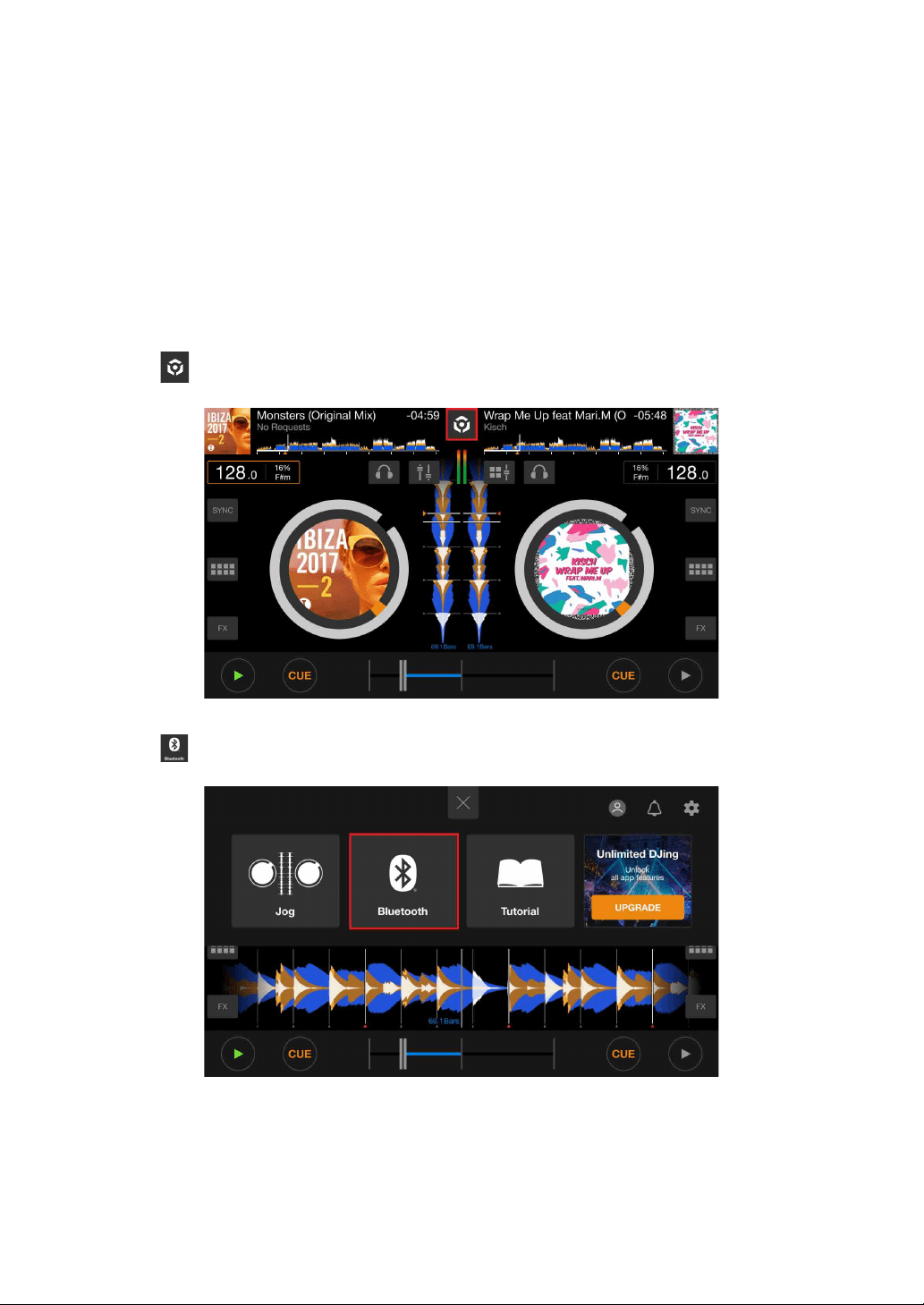
rekordbox for iOS/Android
110
En
Connecting via Bluetooth
1 Connect your USB power adapter or mobile battery to the unit's
USB port (for power supply) using a USB cable to turn the unit on.
2 Start rekordbox for iOS/Android and turn your mobile device screen
horizontal to close the browse screen.
The screen in step 3 is displayed.
3 Tap at the top-center of the screen.
4Tap .
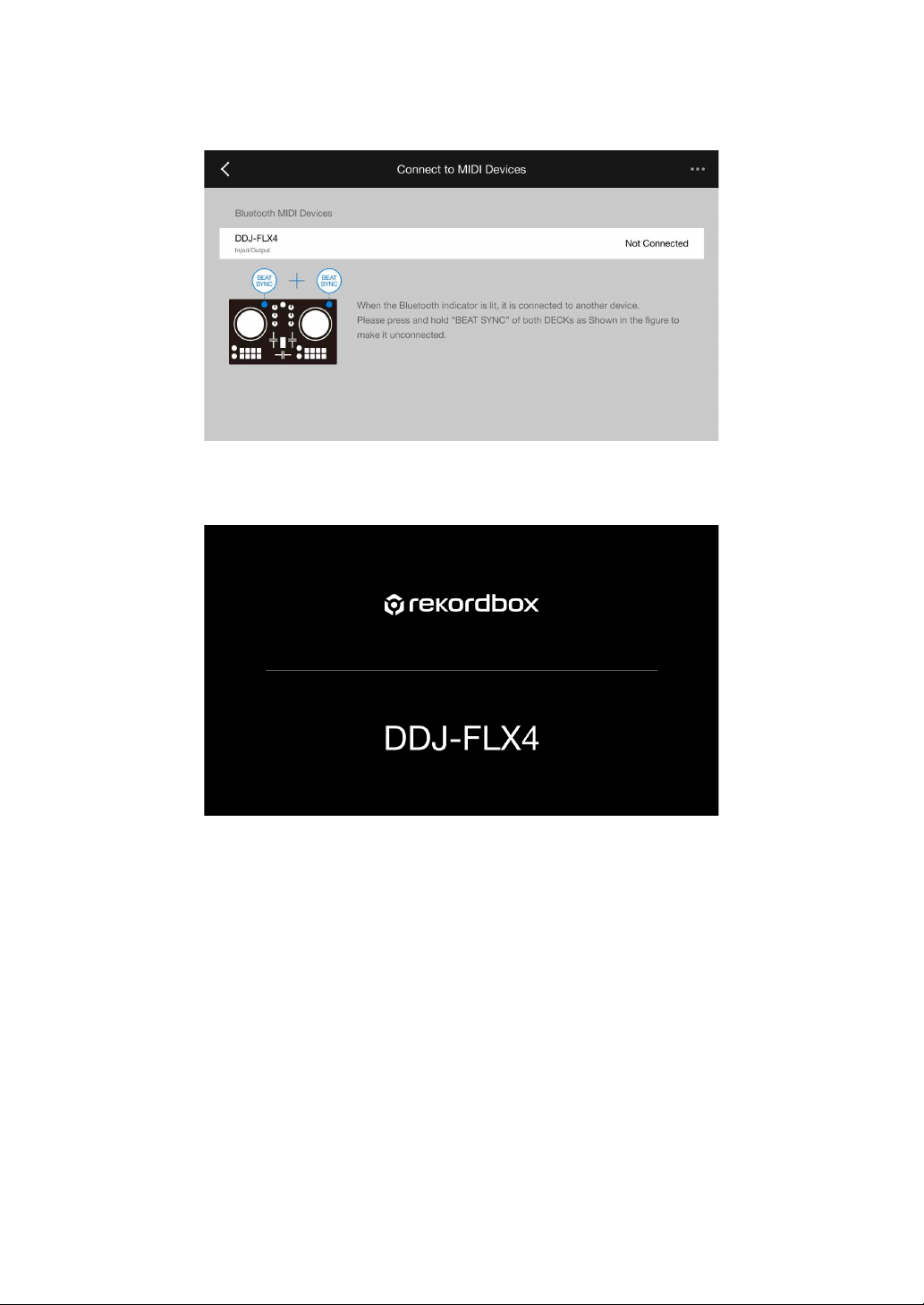
rekordbox for iOS/Android
111
En
5Tap [DDJ-FLX4].
When connection is complete, the following screen appears.
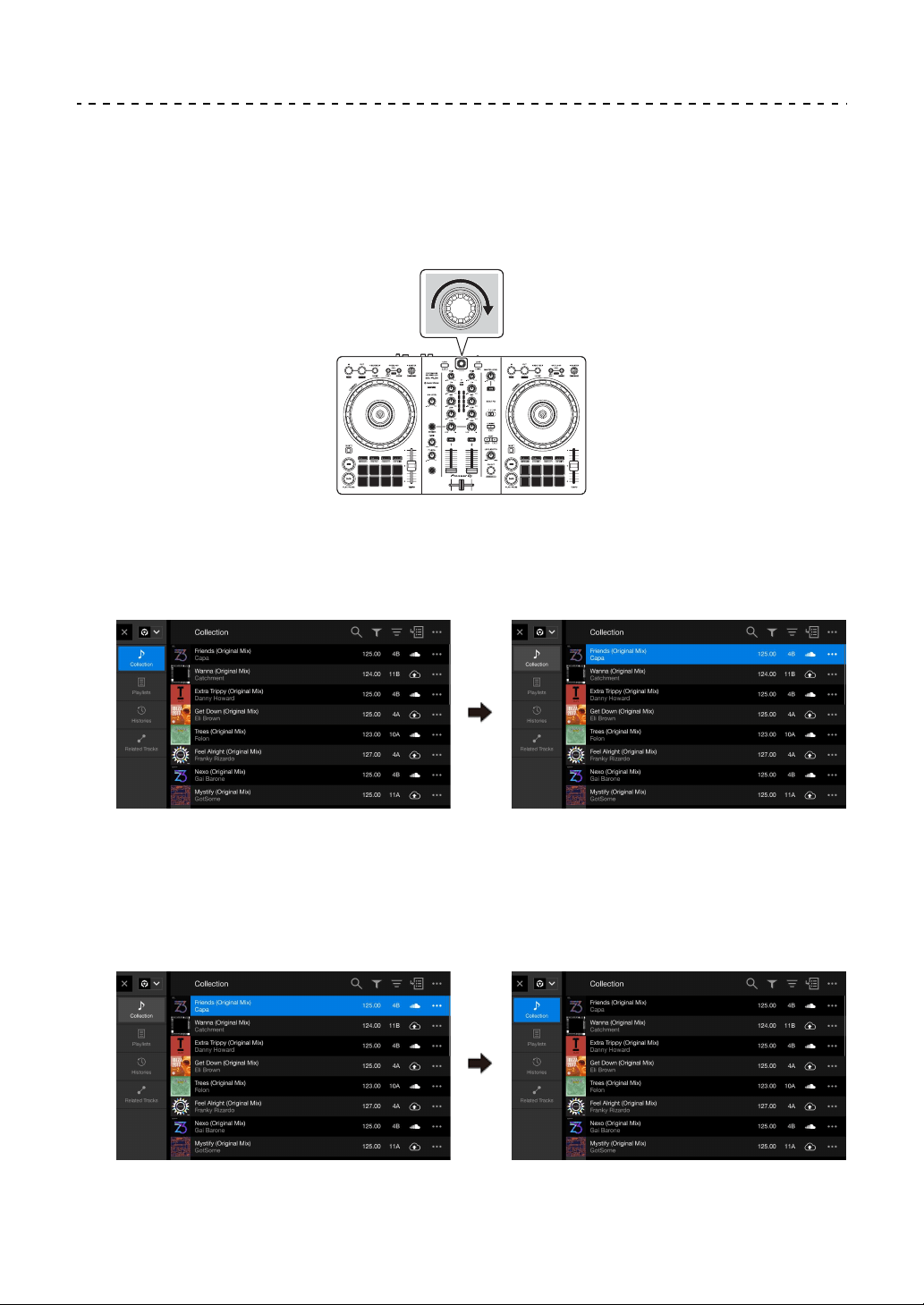
rekordbox for iOS/Android
112
En
Loading an audio track onto a deck
The following explains how to load a track onto deck 1 as an example.
1 Turn the rotary selector to select a track.
• Press the rotary selector to move the cursor to the next level down.
• Press the rotary selector while holding the [SHIFT] button to move the cursor
to the next level up.
Cursor on the upper level Cursor on the lower level
Cursor on the lower level Cursor on the upper level
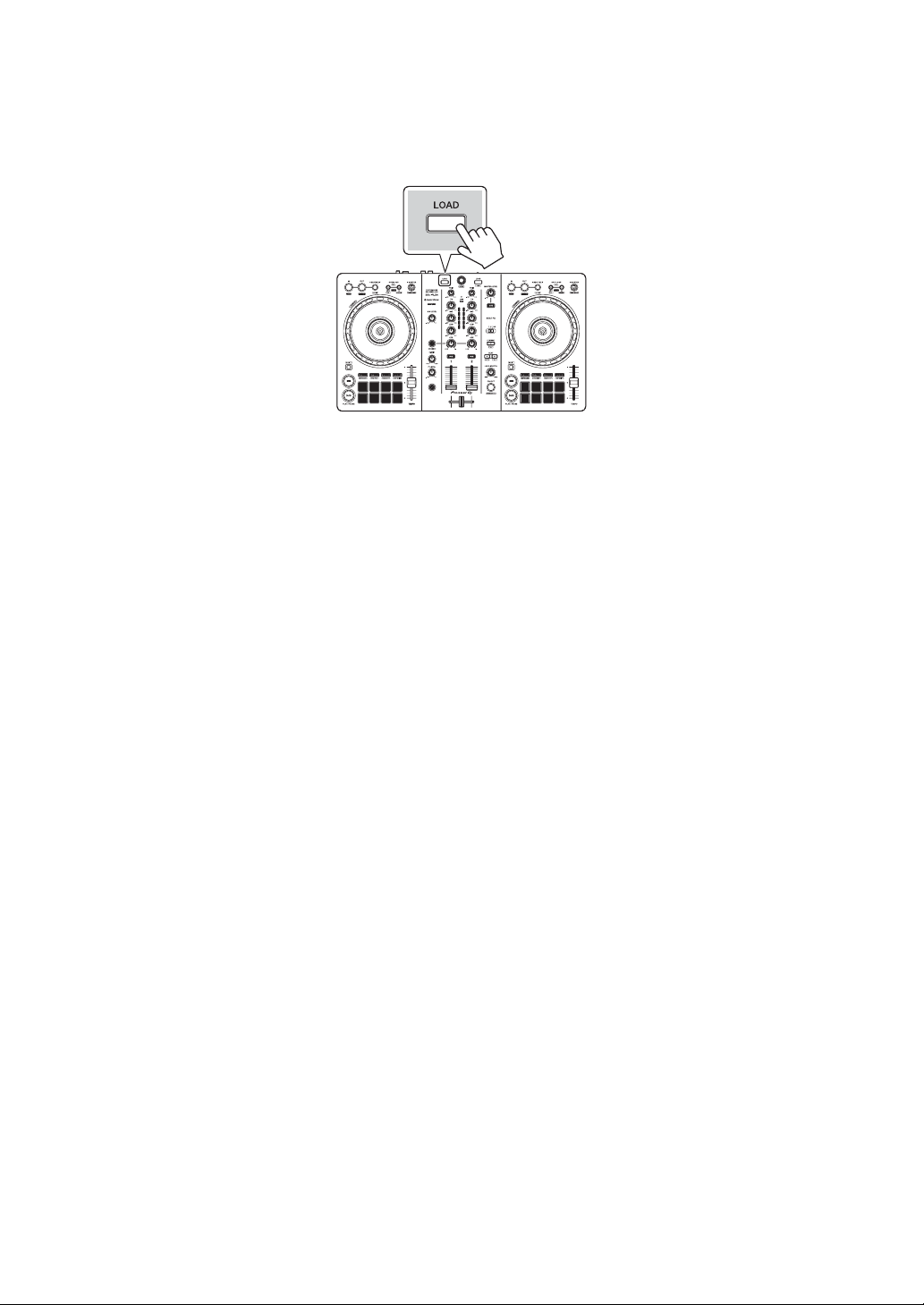
rekordbox for iOS/Android
113
En
2 Press the [LOAD] button for deck 1 (left).
The track loads onto the deck.
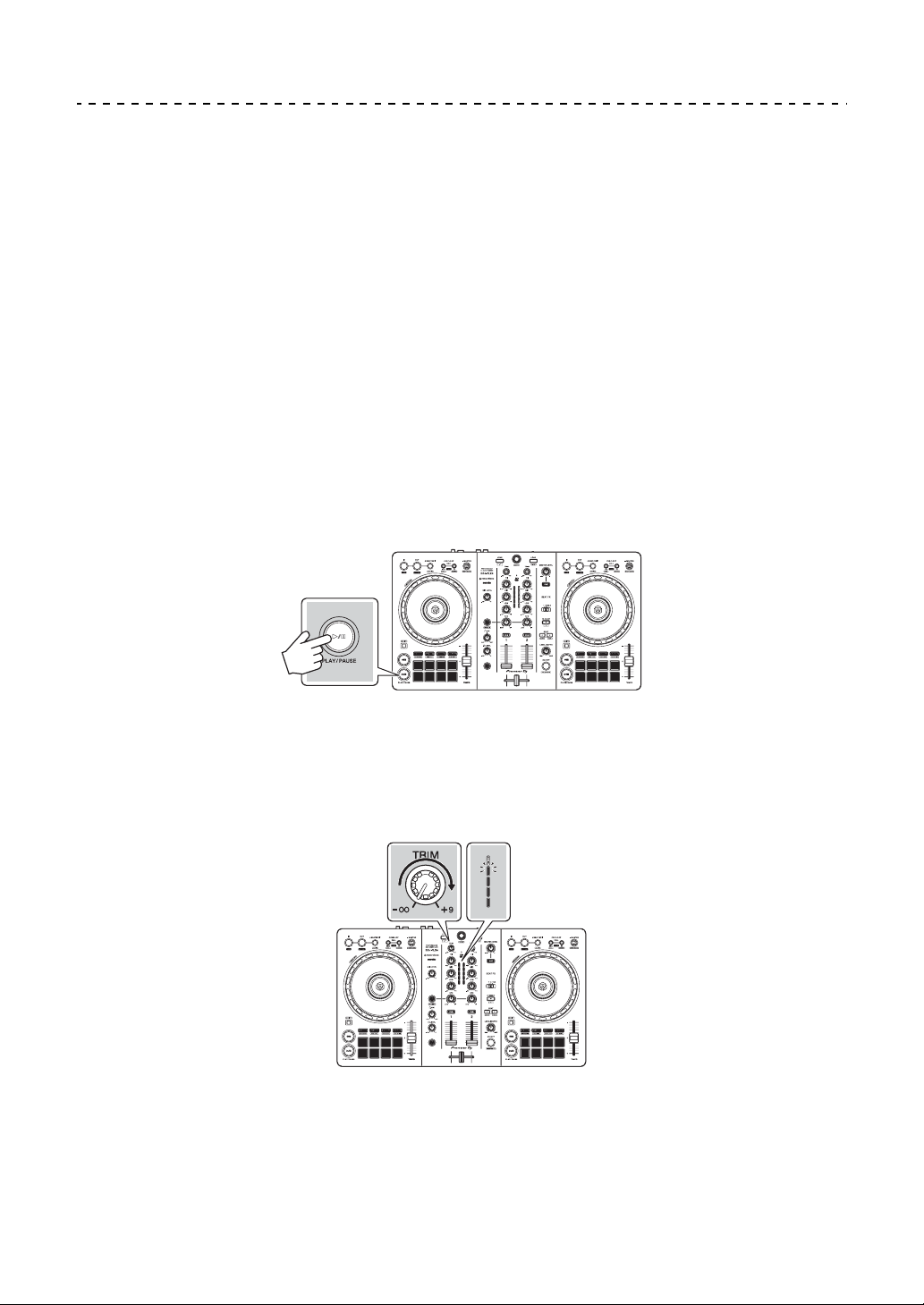
rekordbox for iOS/Android
114
En
Playing a track
This section explains how to play sound from deck 1 (left) as an
example.
1 Set the positions of the knobs etc. as follows:
•[TRIM] knob: turned fully counterclockwise
• EQ [HI/MID/LOW] knobs: center position (12 o’clock)
•[CFX] knob: center position
• Channel fader: bottom position
• [MASTER LEVEL] knob: turned fully counterclockwise
• Crossfader: center position
2 Press the [PLAY/PAUSE
] button to play the track.
3 Turn the [TRIM] knob.
Adjust the [TRIM] knob so the channel level indicator lights up orange at the
loudest part of the track.
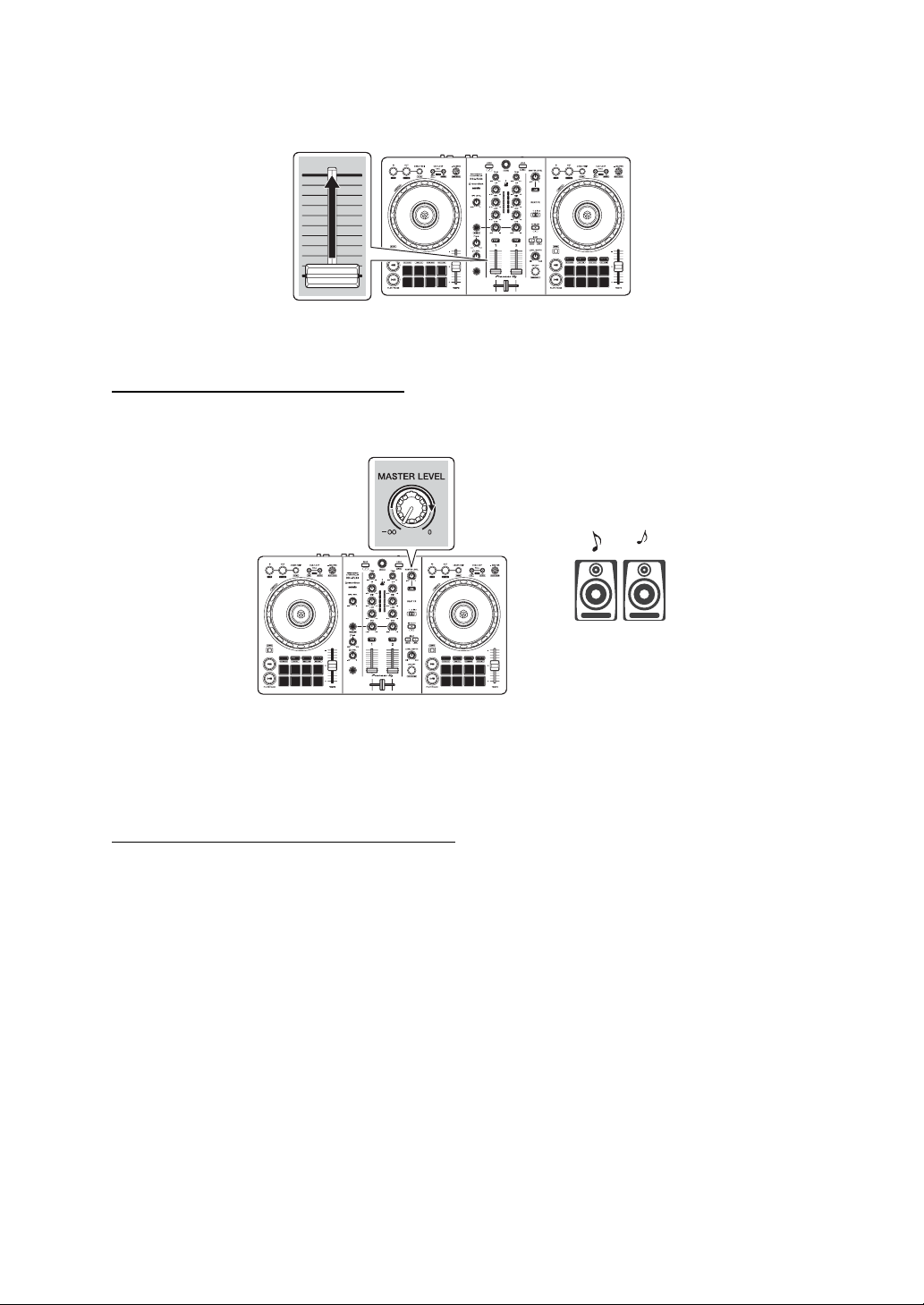
rekordbox for iOS/Android
115
En
4 Move the channel fader to the top.
5 Adjust the volume of the speakers to a level you're happy with.
When using a USB connection:
Turn the [MASTER LEVEL] knob to adjust the
volume of sound from the [MASTER] output terminal.
• If you can’t output sound from the [MASTER] output terminals or the unit isn’t
recognized by your mobile device, see: Troubleshooting (page 150).
When using a Bluetooth connection: Sound outputs from your mobile device.
• Adjust the volume of the speakers of the mobile device, or speakers
connected to your mobile device, instead of using the [MASTER LEVEL]
knob.

rekordbox for iOS/Android
116
En
Monitoring with headphones when using a USB
connection
When your mobile device is connected to the unit with a USB cable,
you can monitor with headphones from the headphones output
terminal on the unit.
This section explains how to play sound from deck 1 (left) as an
example.
1 Connect your headphones to the headphones output terminal on
the unit.
2 Set the positions of knobs etc. as shown below.
• [HEADPHONES MIX] knob: Center
• [HEADPHONES LEVEL] knob: Turned fully counterclockwise
3 Press the headphones [CUE] button for channel 1.
4 Turn the [HEADPHONES LEVEL] knob.
Adjust the headphones volume to a level you’re happy with.
Monitoring with headphones when using a Bluetooth
connection
This section explains how to play sound from deck 1 (left) as an
example.
1 Connect a split cable (not supplied) to your mobile device.
The split cable is for splitting sound from the stereo headphones jack to the left
and right channels.
2 Connect the speaker to the left channel of the split cable and
headphones to the right channel.
The [MASTER] output terminal and headphones output terminal on the unit
can't be used.
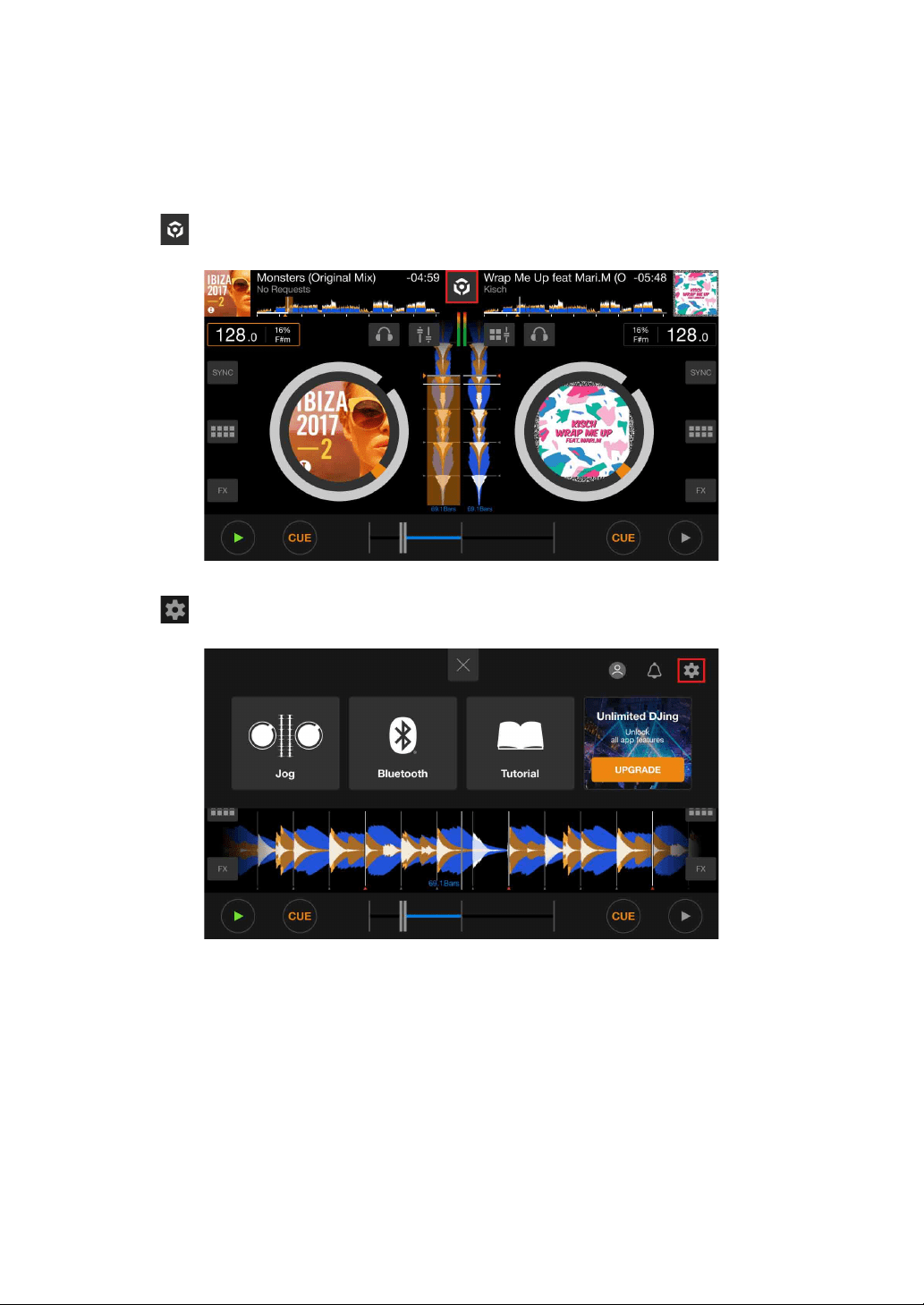
rekordbox for iOS/Android
117
En
3 Start rekordbox for iOS/Android and turn your mobile device screen
horizontal to close the browse screen.
The screen in step 4 is displayed.
4 Tap at the top-center of the screen.
5 Tap to open the [Settings] screen.
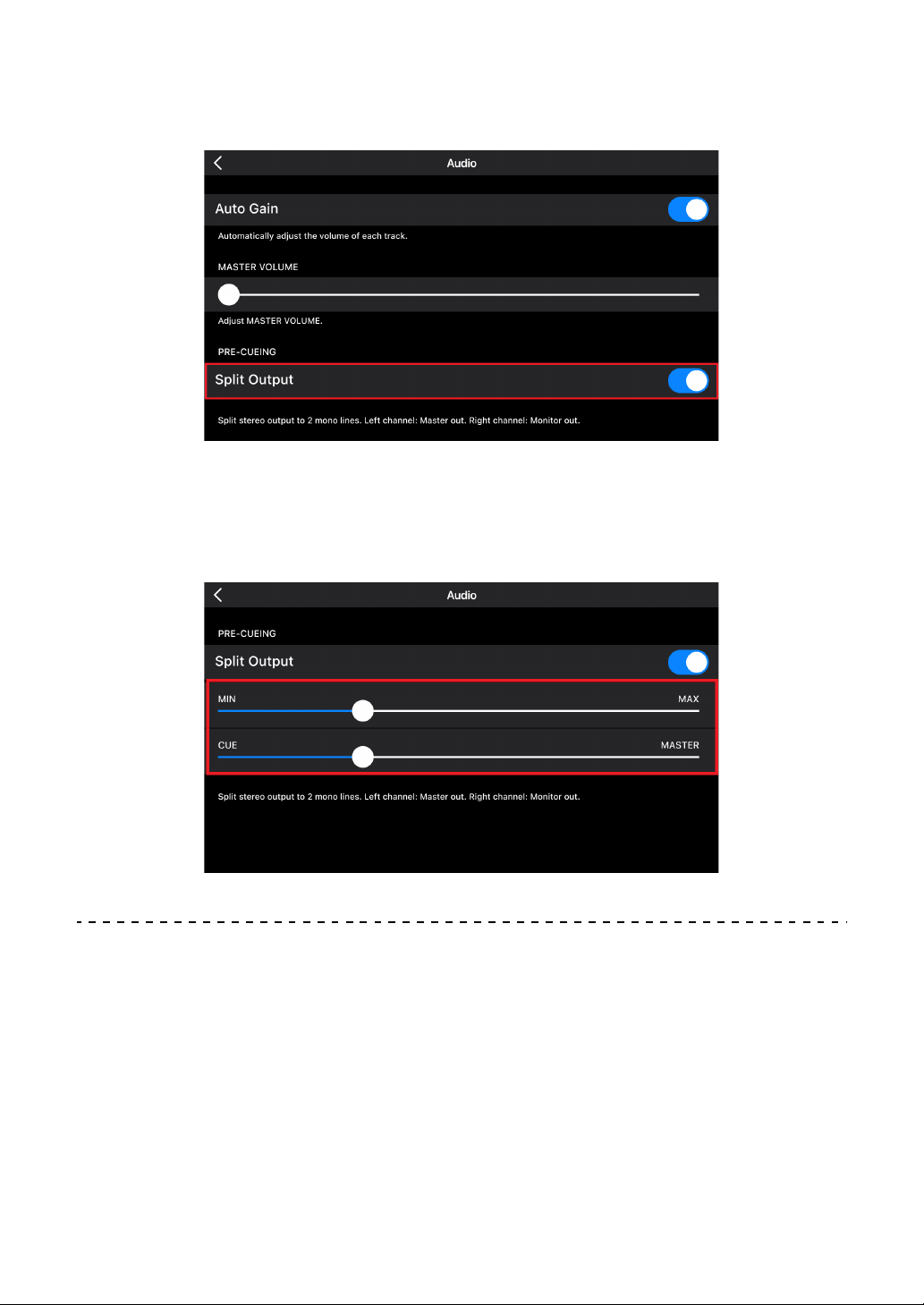
rekordbox for iOS/Android
118
En
6Tap [Audio] > [PRE-CUEING] > [Split Output] to turn it on.
7 Press the headphones [CUE] button of channel 1 on the unit.
8Tap [Audio] > [PRE-CUEING] to adjust the volume.
If stereo sound doesn't output correctly
If your Android device is connected with a USB cable, it may not
connect correctly and the stereo sound may not output normally. In this
case, set [Android MONO/STEREO] to [MONO] on the rear panel.

rekordbox for iOS/Android
119
En
Turning off the unit
Disconnect the USB cable to turn off the unit.

rekordbox for iOS/Android
120
En
Advanced use
Using 4 Beat Loop
While a track is playing, press the [4 BEAT/EXIT] button.
Loop playback starts with 4 beats from the point where you press the
button.
• When the Quantize function is turned on, you might notice a slight
delay as the loop synchronizes to the beat.
Canceling loop playback
Press the [4 BEAT/EXIT] button.
When the loop out point is reached, the rest of the track continues to
play without returning to the loop in point.
Using Manual Loop
You can use Manual Loop to choose the section you want to loop in a
track.
• When the Quantize function is turned on, you might notice a slight
delay as the loop synchronizes to the beat.
1 During playback, press the [IN] button at the point you want to start
looping (the loop in point).
2 Press the [OUT] button at the point you want the loop to end (the
loop out point).
Loop playback starts.

rekordbox for iOS/Android
121
En
Cutting the loop
Press the [CUE/LOOP CALL
] button.
Each time you press the button, the loop cuts in half.
• You can cut the loop length in half even during 4 Beat Loop playback.
Extending the loop
Press the [CUE/LOOP CALL
] button.
Each time you press the button, the loop doubles in length.
• You can double the loop length even during 4 Beat Loop playback.
Canceling a loop
Press the [4 BEAT/EXIT] button.
The rest of the track continues to play without returning to the loop in
point.
Changing the loop in point
Press the [IN] button and turn the jog wheel during loop playback.
The loop in point changes.
Changing the loop out point
Press the [OUT] button and turn the jog wheel during loop playback.
The loop out point changes.

rekordbox for iOS/Android
122
En
Using the Performance Pads
Using Hot Cues
You can start playback instantly from the position where a Hot Cue is
set. Loops can also be set and called up instantly.
• Up to 8 Hot Cues can be set and saved for each track in rekordbox
for iOS/Android.
Setting and calling up a Hot Cue
1 Press the [HOT CUE] mode button.
The unit enters Hot Cue mode.
2 When the track is playing or paused, press a Performance Pad to
set a Hot Cue.
Hot Cues are set to Performance Pads as follows:
3 Press a Performance Pad you’ve set a Hot Cue for.
Playback starts from the Hot Cue point.
• You can clear Hot Cues by pressing a Performance Pad while holding the
[SHIFT] button.

rekordbox for iOS/Android
123
En
Setting and calling up 4 Beat Loop
1 Press the [HOT CUE] mode button.
The unit enters Hot Cue mode.
2 Press and hold the [4 BEAT/EXIT] button during playback.
A loop with 4 beats is set at the position where you pressed the button, and
loop playback starts.
3 Press a Performance Pad to set a loop during loop playback.
4 Press the Performance Pad.
Loop playback starts from the loop in point.
• You can clear the loop by pressing the Performance Pad while holding the
[SHIFT] button.
Setting and calling up Manual Loop
1 Press the [HOT CUE] mode button.
The unit enters Hot Cue mode.
2 Press the [IN] button during playback, and press the [OUT] button.
Loop playback starts.
3 Press a Performance Pad to set a loop during the loop playback.
4 Press the Performance Pad.
Loop playback starts from the loop in point.
• You can clear the loop by pressing the Performance Pad while holding the
[SHIFT] button.
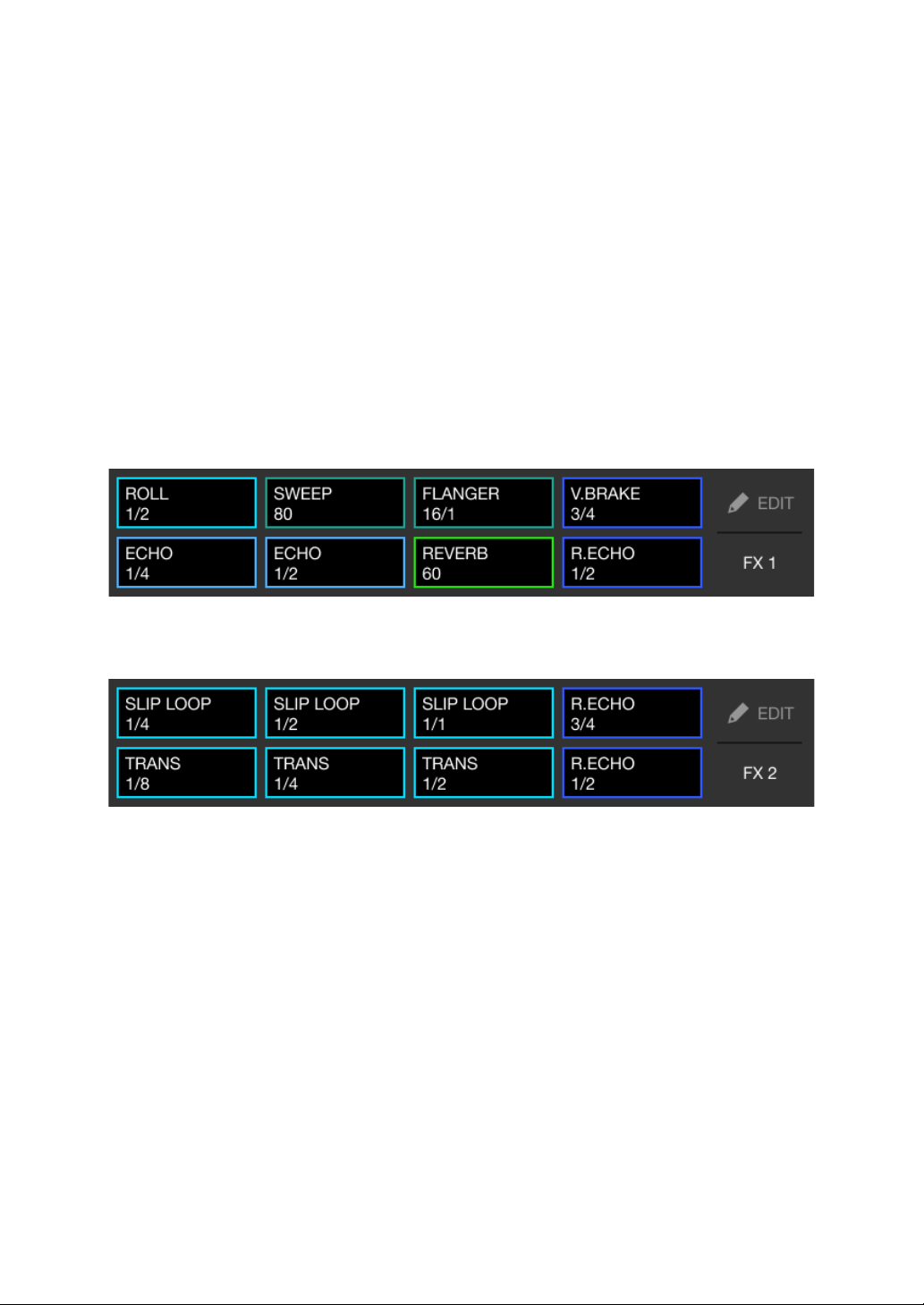
rekordbox for iOS/Android
124
En
Using Pad FX
You can add a wide range of effects to your performances simply by
pressing and releasing the Performance Pads.
1 Turn on Pad FX mode 1 or Pad FX mode 2.
• Pad FX mode 1: Press the [PAD FX1] mode button.
• Pad FX mode 2: Press the [PAD FX1] mode button while holding the [SHIFT]
button.
When switching between Pad FX mode 1 and Pad FX mode 2, effects set to
the Performance Pads are changed.
Pad FX mode 1
Pad FX mode 2
2 Press and hold down a Performance Pad.
The effect turns on. The sound changes according to the type of effect and the
number of beats in the settings assigned to that pad.
3 Release the Performance Pad.
The effect turns off.
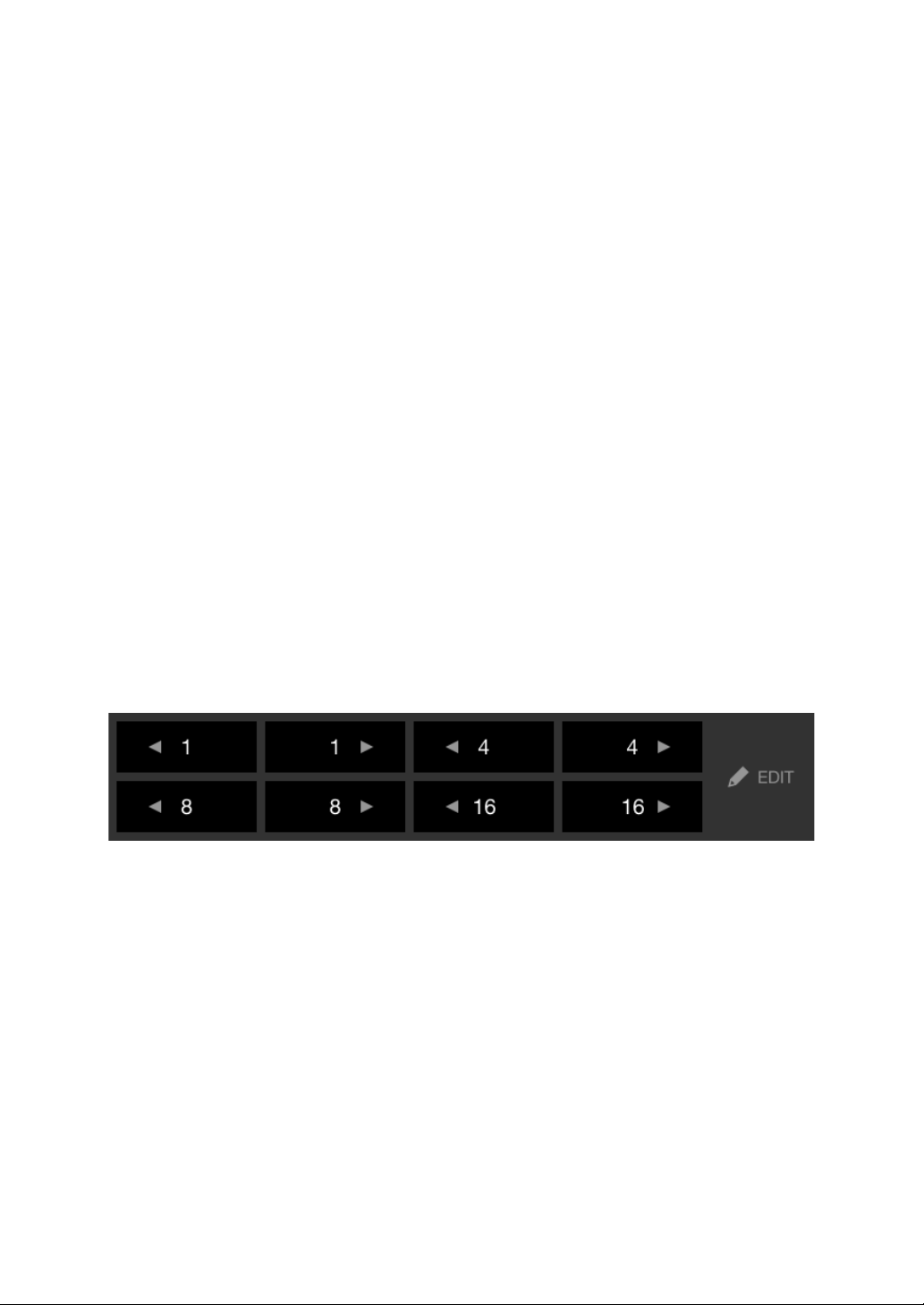
rekordbox for iOS/Android
125
En
Using Release FX of Pad FX
You need to assign a Release FX to a Performance Pad in advance.
1 Press and hold down a Performance Pad that has an effect other
than a Release FX assigned to it.
The effect turns on. The sound changes according to the type of effect and the
number of beats in the settings assigned to that pad.
2 Press the Performance Pad that has a Release FX assigned to it,
and release it.
The effect turns off, and the Release FX is added.
Using Beat Jump
You can move the playback position instantly, without breaking the
rhythm of the track that’s playing.
1 Press the [BEAT JUMP] mode button.
The unit enters Beat Jump mode.
The number and direction of beats set to the Performance Pads are as follows:
2 Press a Performance Pad.
The playback position is moved by the number and direction of beats set on
the pad.

rekordbox for iOS/Android
126
En
Using Sampler
You can use the Performance Pads to play tracks or sounds assigned
to the Sampler slots.
1 Press the [SAMPLER] mode button.
The unit enters Sampler mode.
2 Adjust the sampler volume.
3 Press a Performance Pad.
The track or sound assigned to the relevant slot is played.
• Samplers set to the Performance Pads on deck 1 and deck 2 are different.
4 During Sampler playback, press the Performance Pad again.
The sound plays from the beginning again.
5 Press a Performance Pad while holding the [SHIFT] button during
Sampler playback.
The sound of the slot that is currently playing stops.
Deck 1 Deck 2
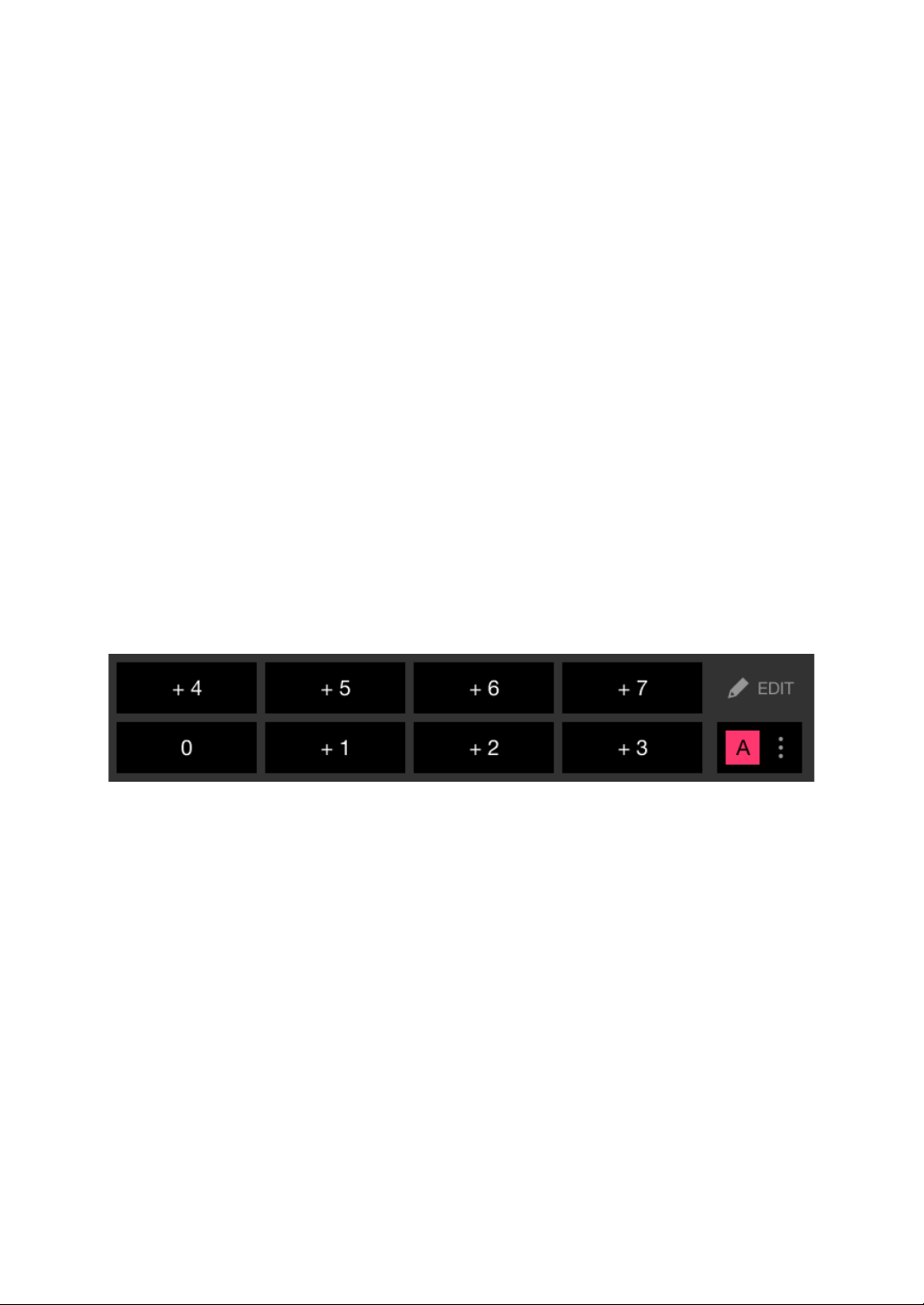
rekordbox for iOS/Android
127
En
Using Keyboard mode
Use Performance Pads to play a Hot Cue in different pitches, as if
you’re using a keyboard.
1 Press the [HOT CUE] mode button while holding the [SHIFT]
button.
The unit enters Keyboard mode.
2 Press a Performance Pad.
Select the Hot Cue you want to use with Keyboard mode.
• If no Hot Cue is set, the current playback position is set as a Hot Cue. After
selecting the Hot Cue which you set, the Hot Cue is used with Keyboard
mode.
• To reselect a Hot Cue, press the [HOT CUE] mode button while holding the
[SHIFT] button.
When the Hot Cue is selected, the various pitches are set to the Performance
Pads as follows (Default):
The number displayed on each pad shows the semitones number.
Example) +4: +4 Semitones
A semitone is a unit used to determine the pitch of a sound. +1 semitone
means the sound is higher in pitch than the original sound by half.
3 Press a Performance Pad.
Playback starts from the Hot Cue point, with the sound pitch assigned to that
pad.
• You can clear Hot Cues by pressing a Performance Pad while holding the
[SHIFT] button.
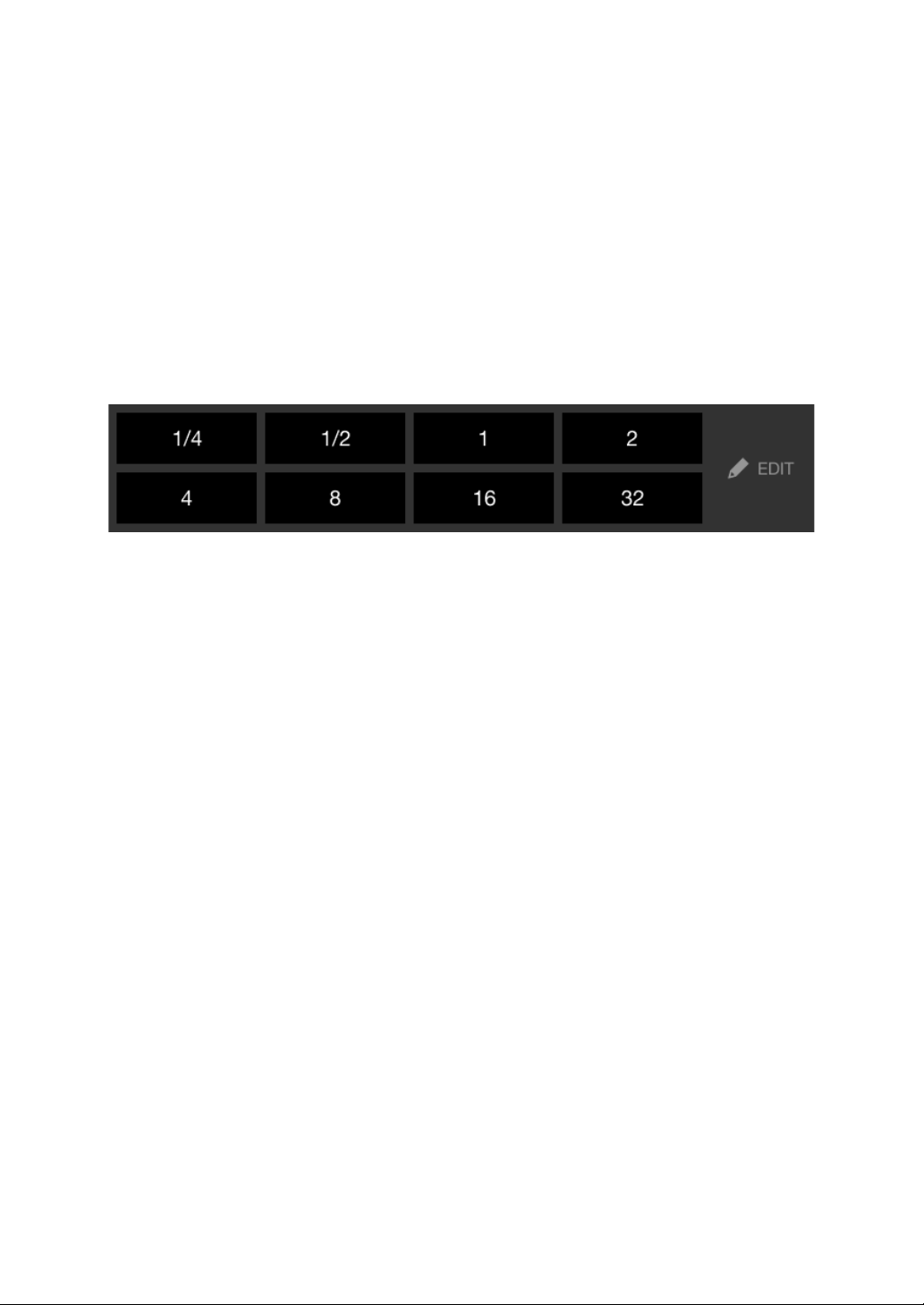
rekordbox for iOS/Android
128
En
Using Beat Loop
If you press a Performance Pad, a loop with the number of beats
assigned to the pad is set. The loop keeps playing after you remove
your finger from the pad.
1 Press the [BEAT JUMP] mode button while holding the [SHIFT]
button.
The unit enters Beat Loop mode.
The number of beats set to the Performance Pads are as follows:
The number displayed on each pad shows the number of beats for Beat Jump.
2 Press a Performance Pad.
The loop plays with the number of beats set on that pad.
3 Press the same Performance Pad again.
The loop is canceled and the rest of the track continues to play.
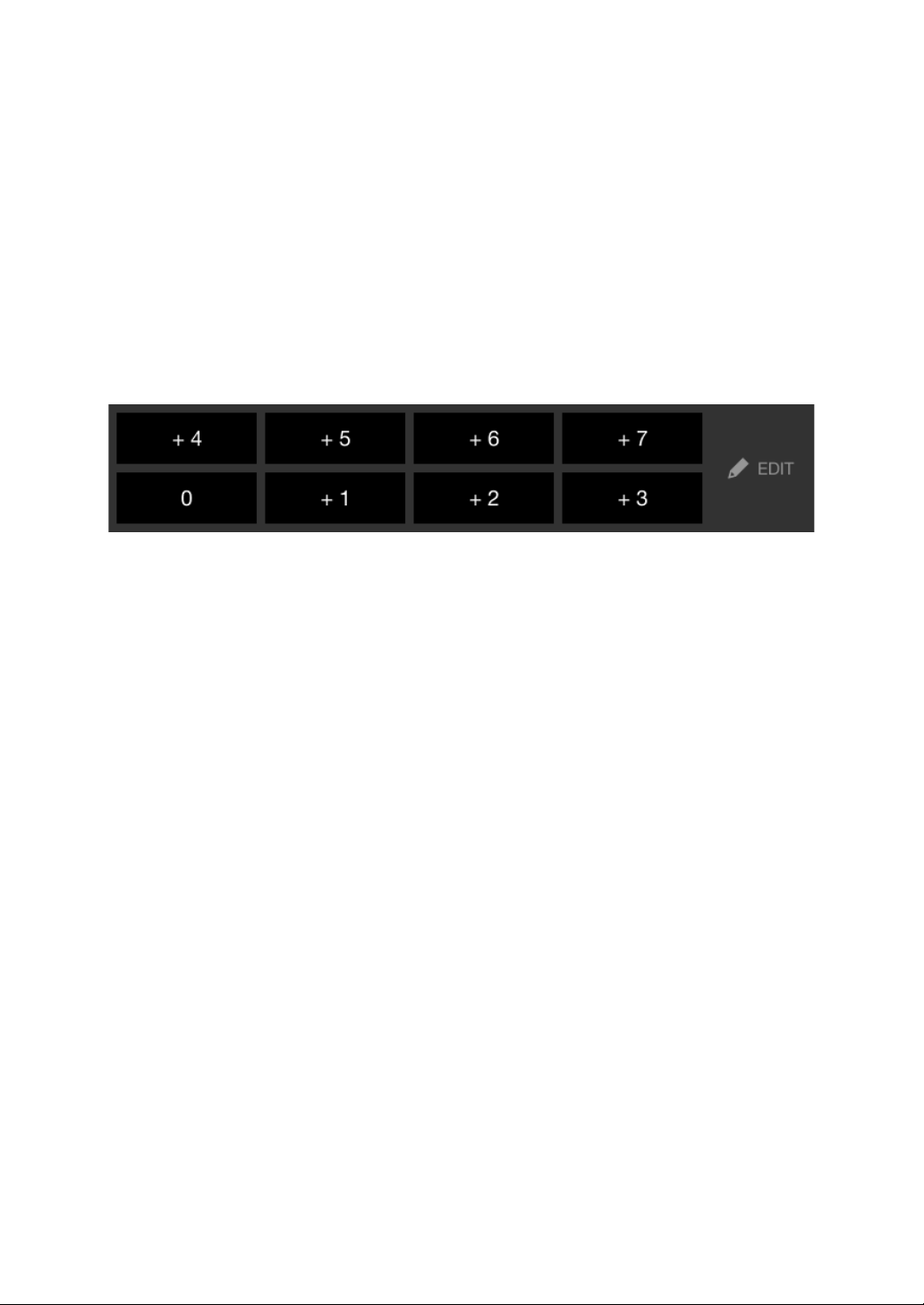
rekordbox for iOS/Android
129
En
Using Key Shift
When you press a Performance Pad in Key Shift mode, the key of the
track that’s currently playing is changed to the pitch set to the pressed
pad.
1 Press the [SAMPLER] mode button while holding the [SHIFT]
button.
The unit enters Key Shift mode.
The various pitches are set to the Performance Pads as follows (Default):
The number displayed on each pad shows the semitones number.
Example) +4: +4 Semitones
A semitone is a unit used to determine the pitch of a sound. +1 semitone
means the sound is higher in pitch than the original sound by half.
2 Press a Performance Pad.
The track’s key is changed to the pitch assigned to the pad.

rekordbox for iOS/Android
130
En
Setting and calling up a cue point or loop point
Setting a cue point or loop point
1 Pause the track and move the playback position to where you want
to set a cue point or loop point.
2 Press the [CUE] button while the track is paused.
3 Press the [CUE/LOOP CALL
] button while holding the [SHIFT]
button.
The cue point or loop point is saved.
Calling up the cue point or loop point
Press the [CUE/LOOP CALL ] or [CUE/LOOP CALL ] button.
The cue point or loop point is called up.
Deleting the cue point or loop point
1 Press the [CUE/LOOP CALL
] or [CUE/LOOP CALL ] button.
The cue point or loop point is called up.
2 Press the [CUE/LOOP CALL
] button while holding the [SHIFT]
button.
The cue point or loop point is deleted.

rekordbox for iOS/Android
131
En
Using Fader Start
Using Channel Fader Start
1 Set the cue point.
Pause the track at the position you want to start playback from, then press the
[CUE] button on that deck.
2 While holding the [SHIFT] button, move the channel fader from the
bottom to the top.
Playback starts from the cue point.
• If you move the channel fader back to the bottom while holding the [SHIFT]
button during playback, the track instantly jumps back to the cue point and
playback pauses. (Back Cue)
When no cue point is set, playback starts from the beginning of the track.
Using Crossfader Start
1 Set the cue point.
Pause the track at the position you want to start playback from, then press the
[CUE] button on that deck.
2 Move the crossfader all the way to the left or right side.
If you want to use Crossfader Start to trigger playback on channel 2, set the
crossfader to the left side, and vice versa.
3 While holding the [SHIFT] button, move the crossfader towards the
opposite side from where it’s set.
Playback starts from the cue point.
• If you move the crossfader back while holding the [SHIFT] button during
playback, the playback position instantly jumps back to the cue point and
pauses. (Back Cue)
When no cue point is set, playback starts from the beginning of the track.

rekordbox for iOS/Android
132
En
Analyzing tracks
Set [Settings] > [In-app player settings] > [Track Analysis] > [Auto
Analysis] on the vertical screen or [Settings] > [General] > [Track
Analysis] > [Auto Analysis] on the horizontal screen to start track
analysis.
• If a track is loaded to a deck before analysis is complete, it may take
some time to display its BPM and waveform.
• Depending on the number of tracks, analysis may take some time.
Using Beat FX
You can apply effects that match the tempo (BPM) of the track loaded
on the deck.
1 Press the [BEAT FX SELECT] button on the unit.
The selected Beat FX changes each time you press the button:.
If you press the [BEAT FX SELECT] button while holding the [SHIFT] button,
the selected Beat FX changes in the reverse order.
2 Slide the [BEAT FX CH SELECT] switch.
The channel that Beat FX will be applied to changes each time you slide the
switch.
– [1]: Applies Beat FX to the sound of channel 1.
– [2]: Applies Beat FX to the sound of channel 2.
– [1&2]: Applies Beat FX to the sound of channel 1 and channel 2.
For [1&2], the beat, effect type, etc. are synchronized between the unit 1 and
unit 2 of Beat FX. The beat settings may not be synchronized due to
differences in the BPM of the tracks loaded on the decks.
3 Press the [BEAT
] or [BEAT ] button.
Set the number of beats (or parameters) synchronized to the effect sound.

rekordbox for iOS/Android
133
En
4 Press the [BEAT FX ON/OFF] button.
The Beat FX is applied to the sound of the channel you set in step 2.
You can adjust the parameter of Beat FX by turning the [BEAT FX LEVEL/
DEPTH] knob.
When Beat FX is turned on, the button flashes.
• Press the [BEAT FX ON/OFF] button again to turn off Beat FX.
5 Press the [BEAT FX ON/OFF] button and release it while holding
the [SHIFT] button.
Beat FX is turned off, and Release FX is applied.
Switching Beat FX Tempo mode
To set the tempo for Beat FX, there are 2 modes you can use: BPM
Auto mode and BPM Tap mode.
• The default setting is BPM Auto mode.
BPM Auto mode
The track’s BPM is used as the base for the effect’s tempo.
BPM Tap mode
The BPM used as the base for Beat FX is set to match the tempo at
which you tap the [BEAT
] button while holding the [SHIFT] button.
Setting to BPM Auto mode/BPM Tap mode
Press the [BEAT
] button while holding the [SHIFT] button to set to
BPM Tap mode.
Press the [BEAT
] button while holding the [SHIFT] button to set to
BPM Auto mode.
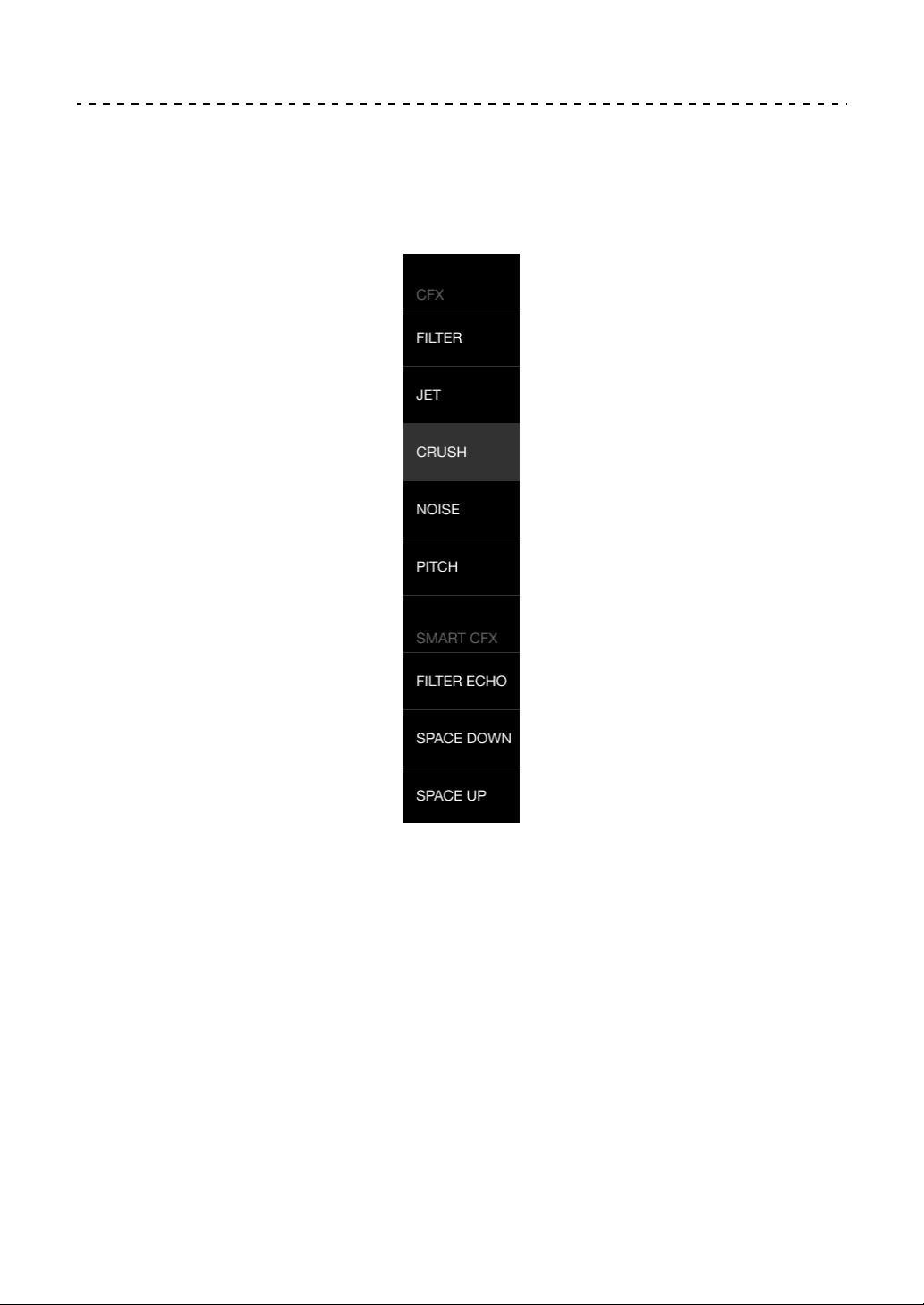
rekordbox for iOS/Android
134
En
Using Smart CFX
1 Press the [SMART CFX] button while holding the [SHIFT] button.
The preset screen for Smart CFX is displayed to change the effect type.
2 Press the [SMART CFX] button.
Smart CFX turns on.
3 Turn the [CFX] knob.
The effect sound, etc. changes.
Canceling Smart CFX
Press the [SMART CFX] button.
Smart CFX is turned off.

rekordbox for iOS/Android
135
En
Using Smart Fader
1 Load tracks onto deck 1 and deck 2.
2 Press the [SMART FADER] button.
Smart Fader turns on.
• When Smart Fader is turned on, Beat Sync turns on. (Beat Sync can't be
canceled.)
• When Smart Fader is turned on, some effects, EQ LOW, Beat Sync, etc.
can't be controlled on the rekordbox for iOS/Android screen.
3 Slide the channel faders and crossfader to mix tracks.
• Adjust the BPM for playback according to fader operation and the track.
• EQ LOW is automatically adjusted according to fader operation.
• The echo effect is automatically applied according to fader operation.
• When sound outputs only from deck 1 due to fader operation, the BPM is
adjusted to the real BPM of the track on deck 1. When sound outputs only
from deck 2 due to fader operation, the BPM is adjusted to the real BPM of
the track on deck 2. When sound outputs from deck 1 and deck 2 at the same
volume, the BPM is adjusted to find the middle point of the difference
between the BPM of the tracks on deck 1 and deck 2.
• If the BPM of the tracks on deck 1 and deck 2 are significantly different,
Smart Fader may not work properly because it is out of the tempo range.

rekordbox for iOS/Android
136
En
Operation examples
(1): Deck 1, (2): Deck 2
In this example, the BPM changes between 100 and 120.
120
BPM
100
BPM
120
BPM
120
BPM
100
BPM
110
BPM
120
BPM
100
BPM
110
BPM
100
BPM
Sound outputs only
from deck 1:
Plays with the BPM
at 100.
Sound outputs from
deck 1 and deck 2 at the
same volume:
Plays with the BPM at
110.
Sound outputs only
from deck 2:
Plays with the BPM
at 120.
Sound outputs only from
deck 1:
EQ LOW on deck 2 is set to
the minimum value.
Sound outputs only from
deck 2:
EQ LOW on deck 1 is set to
the minimum value.
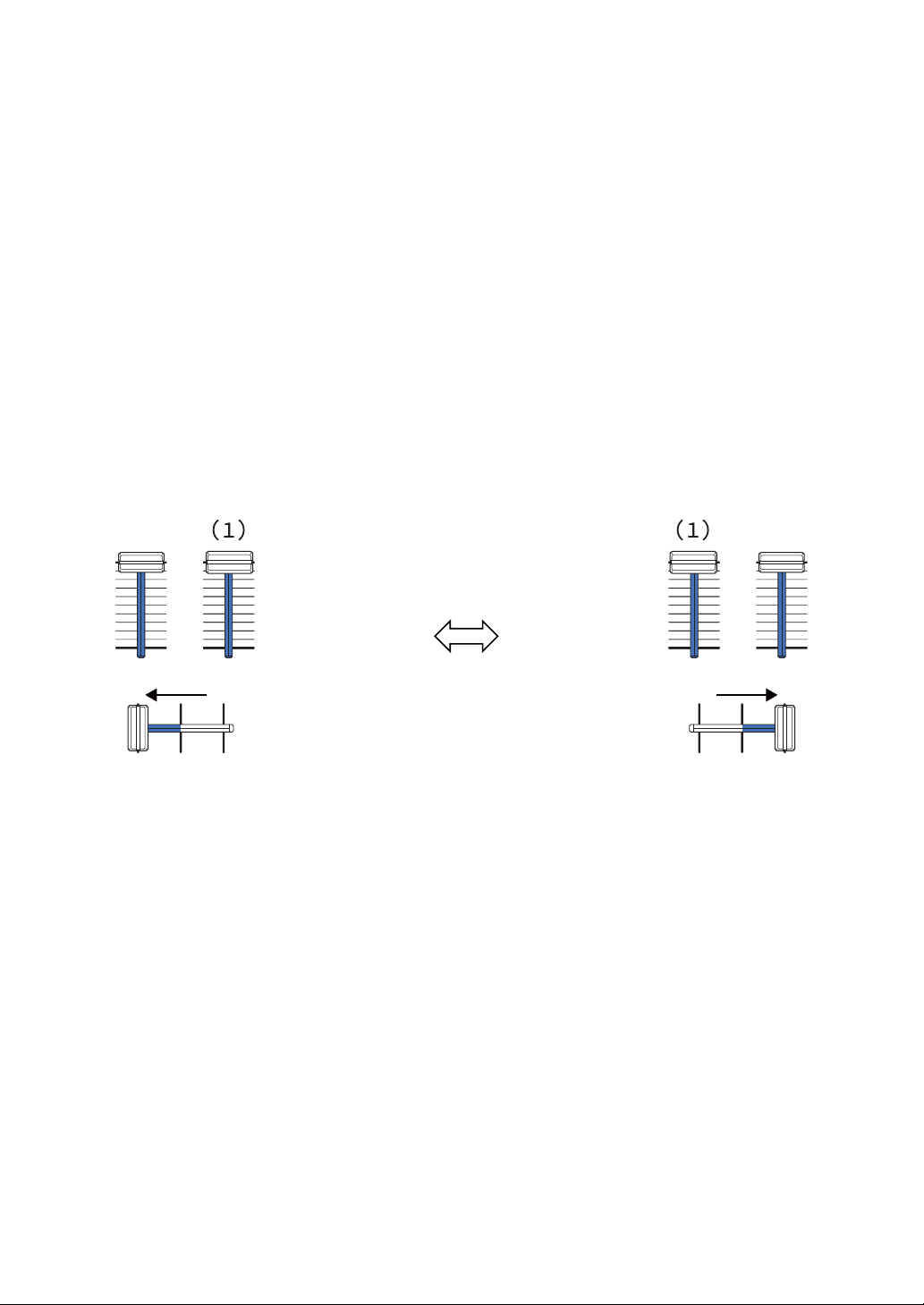
rekordbox for iOS/Android
137
En
In this example, it changes as follows.
• Channel 1: When the crossfader position is between 1/3 and 2/3 from
the left, the EQ LOW knob position changes from the center position
to the minimum value.
• Channel 2: When crossfader position is between 1/3 and 2/3 from the
left, the EQ LOW knob position changes from the minimum value to
the center position.
* The EQ LOW curve differs depending on the EQ LOW knob position
and fader position, and mixing is automatically smooth.
* The actual EQ LOW knob position isn’t reflected on the rekordbox for
iOS/Android screen, only the sound changes.
In this example, it changes as follows.
• Deck 1: The echo effect is applied when the crossfader is moved all
the way to the right edge.
* The echo effect isn’t applied when the crossfader is moved to the
left starting from the right edge.
• Deck 2: The echo effect is applied when the crossfader is moved to
the left edge.
Sound outputs only from
deck 1:
The echo effect is applied to
the track on deck 2.
Sound outputs only from
deck 2:
The echo effect is applied to
the track on deck 1.
(1): Echo effect applied
rekordbox for iOS/Android
138
En
* The echo effect isn’t applied when the crossfader is moved to the
right starting from the left edge.
• You can select the fader to control Smart Fader in [Settings] >
[DDJ-FLX4 settings] > [Fader Used with SMART FADER] in
rekordbox for iOS/Android.
Canceling Smart Fader
Press the [SMART FADER] button.
Smart Fader turns off.
Using a microphone
When connecting your mobile device to the unit with a USB cable, the
microphone sound outputs from the [MASTER] output terminal or
headphones output terminal of the unit.
• For microphone sound, there are [Effect Mode] which applies an
effect to the sound and [Low Latency Mode] which doesn't apply an
effect to the sound. Set [Settings] > [DDJ-FLX4 settings] >
[Microphone Input] to [Effect Mode] (default) or [Low Latency
Mode].
Read: [Microphone Input] setting (page 141)
• When connecting your mobile device to the unit via Bluetooth, the
microphone sound doesn't output from the [MASTER] output
terminal or headphones output terminal of the unit.
Using Effect Mode
1 Connect a microphone to the [MIC] input terminal.
2 Tap the button on the rekordbox for iOS/Android screen to
display the MIC panel, then tap .
3 Turn the [MIC LEVEL] knob.
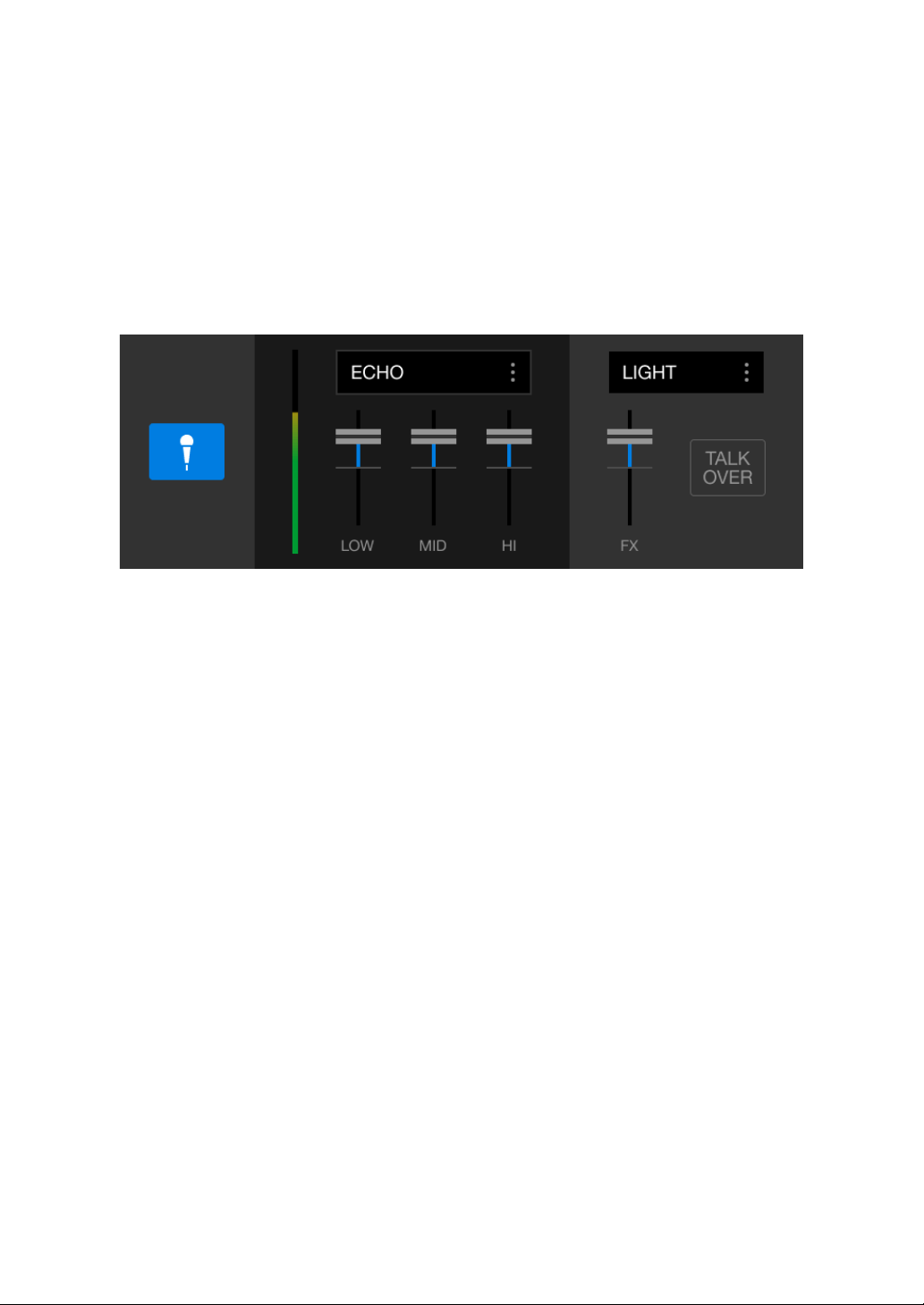
rekordbox for iOS/Android
139
En
Adjust the volume of the sound output from the [MIC] input terminal.
• The sound comes out at a high volume if the knob is turned all the way to the
right.
4 Input audio to the microphone.
You can use the microphone EQ, microphone effect, TALKOVER, FEEDBACK
REDUCER, etc.
• To output the microphone sound from this unit via a mobile device, set
[Microphone Input] to [Effect Mode].
Read: [Microphone Input] setting (page 141)
• If [Microphone Input] is set to [Low Latency Mode] in rekordbox for iOS/
Android, the microphone sound outputs from the unit another way.

rekordbox for iOS/Android
140
En
Changing the settings in rekordbox for iOS/
Android
You can change the settings of the unit in rekordbox for iOS/Android
under [DDJ-FLX4 Settings] in [Settings].
When you connect the unit to rekordbox for iOS/Android, you can
change the following settings:
[BACK SPIN LENGTH] setting
When using the Back Spin feature with the jog wheel, the length of the
Back Spin is different from the length of the jog wheel rotation.
You can choose the length of the Back Spin from 3 options: short,
normal, or long.
•[short]: Back Spin length short
•[normal]: Back Spin length normal
• [long]: Back Spin length long
[Fader Start] setting
Change the setting of the Fader Start function.
[CROSSFADER] > [REVERSE] setting
Assign the decks to different sides of the crossfader.
• ON: The left side of the crossfader is assigned to [DECK2] and the
right side is [DECK1].
• OFF: The left side of the crossfader is assigned to [DECK1] and the
right side is [DECK2].
[CROSSFADER] > [Cut Lag] setting
Adjust the Cut Lag on both edges of the crossfader.
Units of 0.1 mm can be adjusted from 0.3 mm to 5.5 mm.
• The default Cut Lag is 1.0 mm.
• This Cut Lag setting is a guide, and may not be exact.
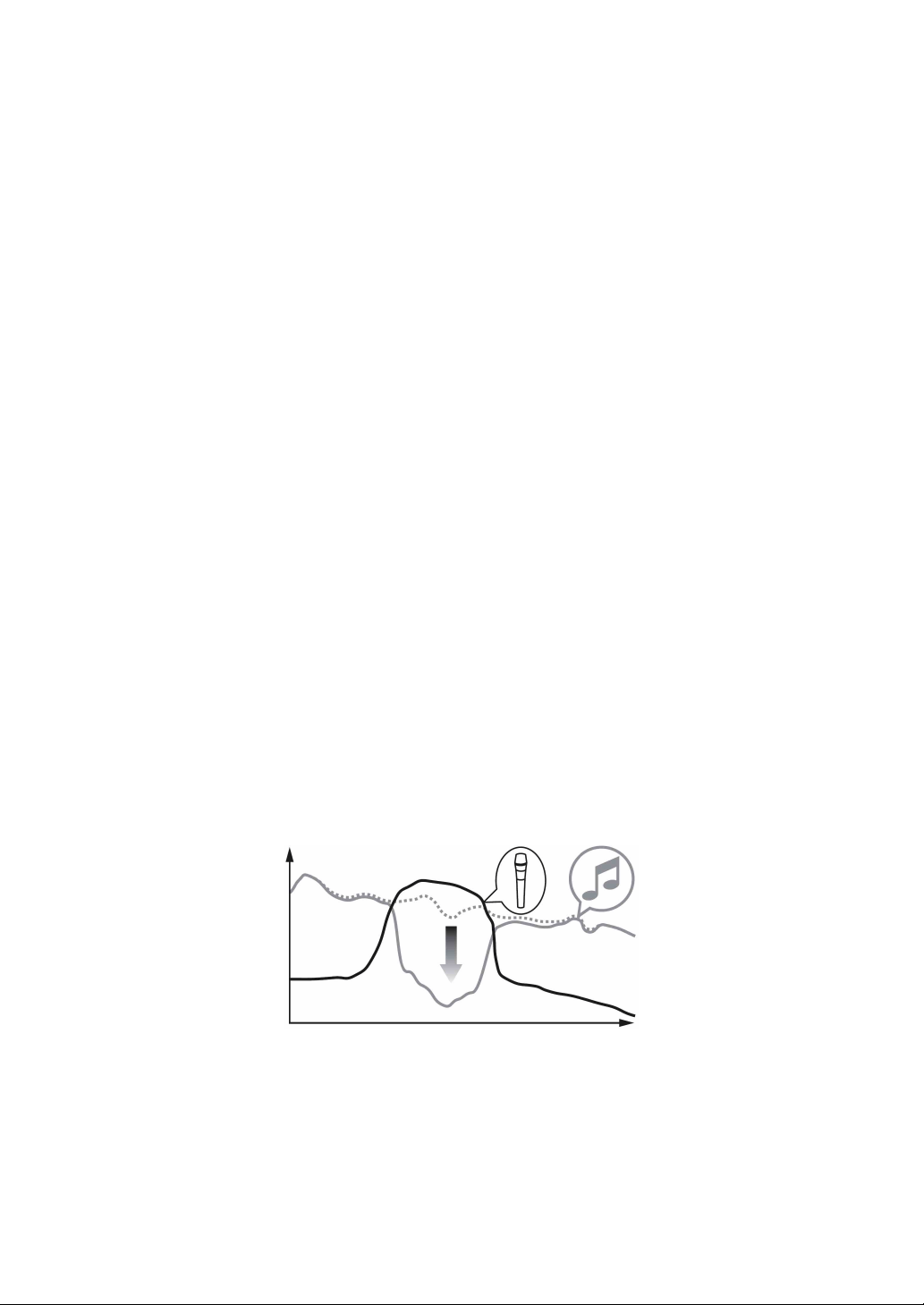
rekordbox for iOS/Android
141
En
[Level Meter] setting
Select the channel level meter or master level meter to show on the
level meter in the mixer section.
The default setting is [Channel Level].
• [Channel Level]: Channel level meter
• [Master Level]: Master level meter
[Microphone Input] setting
• [Effect Mode]: Microphone sound can be output from the unit via a
mobile device. You can apply effects such as the microphone FX in
rekordbox for iOS/Android to the microphone sound.
• [Low Latency Mode]: Microphone sound can be output from the unit
another way (i.e. not a mobile device). You can't apply effects such
as the microphone FX in rekordbox for iOS/Android to the
microphone sound, but the time lag due to the transmission delay
(latency) of the sound data can be reduced compared to Effect mode.
[Talkover Mode] setting
Change MIC Talkover mode.
• [Advanced]: Only the mid-range sound, other than the microphone
channel, is attenuated according to the set value of the MIC talkover
level.
Volume
Frequency
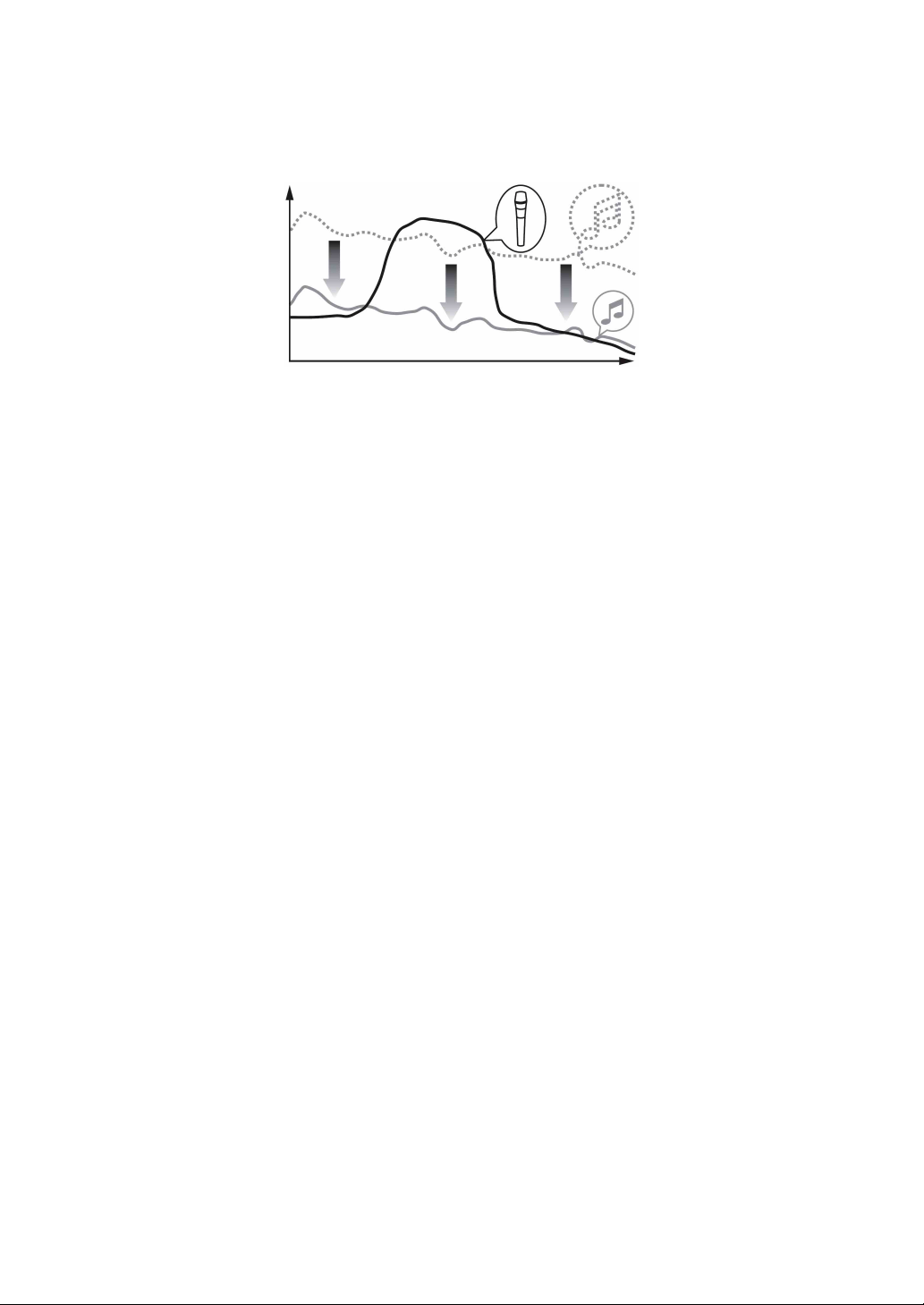
rekordbox for iOS/Android
142
En
•[Normal]: Sound, other than the microphone channel, is attenuated
according to the set value of the MIC talkover level.
[Talkover Level] setting
Set the audio attenuation level of Mic talkover mode.
Setting values: -6 dB / -12 dB / -18 dB / -24 dB
SMART FADER setting
Select the fader to be used for Smart Fader.
• [CROSSFADER and Channel fader]: Smart Fader turns on when
you move the crossfader or a channel fader.
• [CROSSFADER]: Smart Fader turns on when you move the
crossfader.
• [Channel fader]: Smart Fader turns on when you move a channel
fader.
When [Use the recommended SMART FADER curve] is on, the
curve changes to the recommendation for Smart Fader.
[Master output] > [Monaural/Stereo Selection] setting
Change whether mono or stereo sound is output from the [MASTER]
output terminal.
• [Monaural]: Outputs in mono.
• [Stereo]: Outputs in stereo.
Volume
Frequency

rekordbox for iOS/Android
143
En
[Master output] > [Peak Limiter] setting
Prevent sudden and unpleasant digital clipping of audio output from
the [MASTER] output terminal.
• ON: The peak limiter of the master output is enabled.
• OFF: The peak limiter of the master output is disabled.

144
En
Changing the settings
Launching Utilities mode
Be sure to close your DJ application and then launch Utilities mode.
To use Utilities mode when connected to rekordbox for Mac/Windows
or rekordbox for iOS/Android, set it on the preferences screen in
rekordbox for Mac/Windows or rekordbox for iOS/Android.
Read: Changing the settings in rekordbox for Mac/Windows
(page 77)
Read: Changing the settings in rekordbox for iOS/Android
(page 140)
(To use Demo mode, set it on the unit.)
1 Disconnect the USB cable.
2 Hold both the [SHIFT] and [PLAY/PAUSE
] buttons on the left
deck and connect the USB cable.
Utilities mode launches.
3 Change the settings.
When you change the settings, they will be saved. While saving, the bottom
row of Performance Pads on the left deck flashes. If you disconnect the USB
cable while the pads are flashing, settings may not be saved.
4 Disconnect the USB cable to turn off the unit.
Utilities mode turns off.

Changing the settings
145
En
Utilities mode settings
You can change the following settings in Utilities mode:
• Back Spin Length
• Fader Start
• Crossfader Reverse
• Crossfader Cut Lag
• Demo mode
Back Spin Length
When using a jog wheel to perform a Back Spin, you can make the
Back Spin longer or shorter than the amount you rotate the jog wheel
by.
You can set the Back Spin Length to short, normal, or long.
Press one of the Performance Pads 5 through 7 on the left deck.
• Pad 5 is lit: Back Spin Length short
• Pad 6 is lit: Back Spin Length normal (Default)
• Pad 7 is lit: Back Spin Length long
Fader Start
Press the [HOT CUE] mode button on the left deck.
• [HOT CUE] mode button is lit: Fader Start is turned on. (Default)
• [HOT CUE] mode button is not lit: Fader Start is turned off.
Crossfader Reverse
You can switch the left and right of the crossfader to the opposite side.
Press the [PAD FX1] mode button on the left deck.
• The [PAD FX1] mode button is lit: Cross Reverse is turned on.
The left side of the crossfader is now for deck 2 and the right side is
for deck 1.

Changing the settings
146
En
• The [PAD FX1] mode button is not lit: Cross Reverse is turned off.
(Default)
The left side of the crossfader is for deck 1 and the right side is for
deck 2.
Crossfader Cut Lag
You can adjust the cut lag (the range where no sound is heard from the
relevant deck) at both edges of the crossfader.
You can make adjustments in increments of 0.1 mm within a range of
0.3 mm to 5.5 mm. (Setting value: 1 through 53)
• The setting amount for the Cut Lag is a guide, and may not be exact.
• The default Cut Lag amount is 1.0 mm. (Setting value: 8)
Turn the rotary selector.
The number of lights that are lit up on the channel level indicators and
Performance Pads indicates the setting value (1 through 53).
• The number of lights that are lit up on Performance Pads on the right
deck: tens place.
• The sum of the number of lights that are lit up on the channel level
indicators on channel 1 and 2: ones place.
E.g. 2 lights on Performance Pads on the right deck, plus 3 lights on
channel 1, plus 5 lights on channel 2 means the total value is 28 (20
+ 3 + 5 = 28).
Demo mode
In normal conditions, if you don’t use any features for a specified
amount of time, the unit will enter Demo mode.
• When any knob or button on the unit is used during Demo mode,
Demo mode is canceled.
Press one of the Performance Pads 1 through 4 on the left deck.
• Pad 1 is lit: Demo mode is switched off.

Changing the settings
147
En
• Pad 2 is lit: Demo mode starts when you don’t use the unit for 1
minute.
• Pad 3 is lit: Demo mode starts when you don’t use the unit for 5
minutes.
• Pad 4 is lit: Demo mode starts when you don’t use the unit for 10
minutes. (Default)
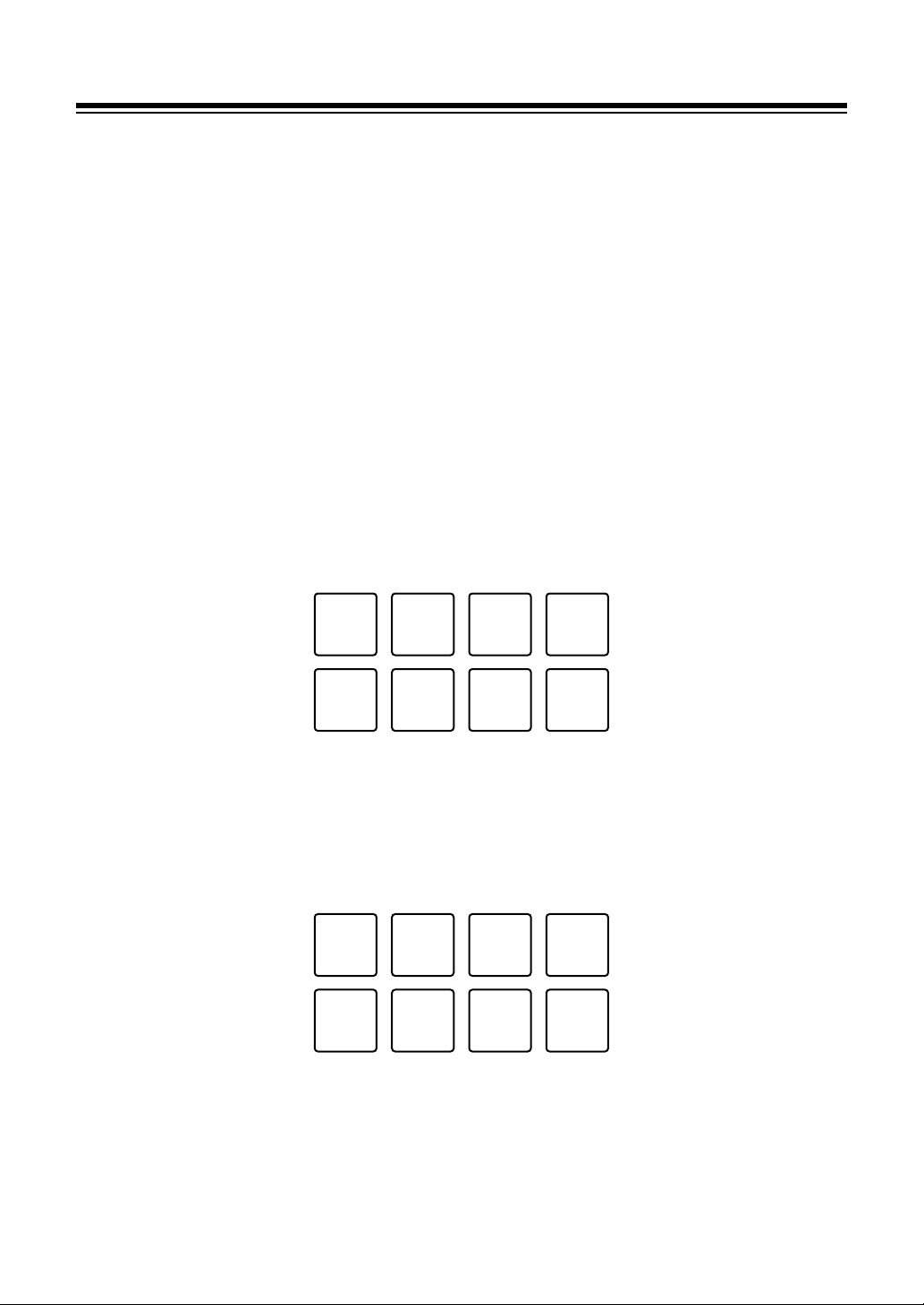
Changing the settings
148
En
Changing the Bluetooth
®
MIDI device name
Before you potentially use other units, you can set the unit to be
identified by your mobile device.
You can change the Bluetooth MIDI device name displayed for the
Bluetooth connection between the unit and your mobile device.
• The Bluetooth MIDI device name setting can’t be saved.
1 Disconnect the USB cable to turn off the unit.
2 Hold down the relevant pad on the left or right deck and connect the
USB cable.
The relationship between Bluetooth MIDI device names and Performance
Pads is as follows.
For deck 1
1: DDJ-FLX4_1, 2: DDJ-FLX4_2, 3: DDJ-FLX4_3, 4: DDJ-FLX4_4,
5: DDJ-FLX4_5, 6: DDJ-FLX4_6, 7: DDJ-FLX4_7, 8: DDJ-FLX4_8
For deck 2
1: DDJ-FLX4_9, 2: DDJ-FLX4_10, 3: DDJ-FLX4_11, 4: DDJ-FLX4_12,
5: DDJ-FLX4_13, 6: DDJ-FLX4_14, 7: DDJ-FLX4_15, 8: DDJ-FLX4_16
1234
5678
1234
5678

150
En
Additional information
Troubleshooting
If you think something is wrong with the unit, check the information
below and refer to the [FAQ] for the DDJ-FLX4 on the Pioneer DJ
website.
pioneerdj.com/support/
Sometimes, the problem may be caused by another device. Inspect
the other devices and electrical appliances you’re using and refer to
their manuals and FAQ if necessary. If the problems continue, read the
Precautions for Use and consult an authorized service company or
your dealer.
• The unit may not work properly if it’s subjected to static electricity or
other external influences. In this case, turn the unit off and on again
to restore proper operation.
Power
The unit does not power up.
• Connect the USB power adapter (or mobile battery) and USB cable
correctly. See: Connections (page 37)
• Change the USB power adapter (or mobile battery) or USB cable.
The unit powers down arbitrarily.
• Use a mobile battery which does not have a power-saving function.
The maximum voltage is 24V or less and DC 9V 3A for the mobile
battery.
Use a USB cable certified to the appropriate standard.

Additional information
151
En
The [IN] button and [OUT] button on both decks flash and don't
work.
• The supply capacity of the USB power adapter or mobile battery
connected to the unit's USB port (for power supply) may be
insufficient. Use a device with DC 9V 3A.
Connection
The unit isn’t recognized by your PC/Mac.
• Connect the supplied USB cable correctly. See: Connections
(page 37)
• When using a USB hub, be sure it's a product recommended by the
manufacturer of your PC/Mac.
• Quit any other open applications including screen savers and
antivirus security software on your PC/Mac. (When quitting antivirus
security software, before doing so, disable the internet connection to
ensure the security of your PC/Mac.)
• Disconnect any external hard disk, keyboard, etc. Use the internal
hard disk only.
• If your PC/Mac has multiple USB ports, try connecting to another
one.
• For Mac, launch the macOS utility software [Audio MIDI Setup], and
click [Windows] on the menu bar and check that > [Show Audio
Devices] > [DDJ-FLX4 Audio Out] is displayed.
• For Mac, the sound setting may not be correct. Disconnect the USB
cable, launch the macOS utility software [Audio MIDI Setup], and
display [MIDI Window] or [MIDI Studio]. Select the [DDJ-FLX4]
icon, and click [Remove Device]. (The icon may be [USB MIDI
Device] instead of [DDJ-FLX4]. In this case, select [USB MIDI
Device].) Connect the unit with the USB cable again. The [DDJ-
FLX4] icon is displayed.
• For Windows, check that [DDJ-FLX4] is displayed under [Device
Manager] > [Sound, video and game controllers].

Additional information
152
En
When using a USB connection, the unit isn't recognized by a
mobile device.
• Connect the USB power adapter (or mobile battery) and USB cable
correctly. See: Connections (page 37).
• Change the USB power adapter (or mobile battery) or USB cable.
Bluetooth connection cannot be established. / Bluetooth
connection is interrupted.
• If devices generating electromagnetic waves in the 2.4 GHz band
(such as a microwave oven, wireless LAN or another Bluetooth
device) are located nearby, move them away from the unit or stop
using them.
• If your mobile device is far away, move it closer to the unit. If there is
a wall, obstacle, etc. which may be interrupting the connection, move
your mobile device or the unit.
Sound
Sound isn’t output, is too quiet, or is distorted.
• Set the [TRIM] knob, channel fader, crossfader, and [MASTER
LEVEL] knob to the correct positions. See: Playing a track (page 51)
(page 88) (page 114)
• Connect the connection cable properly. See: Connections (page 37)
• Clean the terminals and plugs before connecting the cable to the unit.
• If sound is distorted, change the buffer size for your DJ software.
Microphone sound can’t be output.
• Set the [MIC ATT.] knob and [MIC LEVEL] knob to the correct
positions. See: Mixer section (page 25) Rear panel (page 34)

Additional information
153
En
Headphones sound is too quiet.
• When the power supply from the USB port is insufficient, the unit
limits the volume of headphones. Disconnect devices you’re not
using for DJing to direct more power to the unit.
rekordbox for Mac/Windows
rekordbox becomes unstable.
• Update rekordbox to the latest version. See: Installing rekordbox for
Mac/Windows (page 45)
• Quit any other applications on your PC/Mac. If rekordbox remains
unstable, try disabling the wireless network or other wireless
connections, antivirus software, screen saver, low-power mode, etc.
(When quitting antivirus security software, before doing so, disable
the internet connection to ensure the security of your PC/Mac.)
• If another USB device is connected to your PC/Mac, disconnect it.
• When using a USB hub, be sure it's a product recommended by the
manufacturer of your PC/Mac.
• If you’re using battery power for your laptop, connect the laptop to an
AC power supply.
BPM and beatgrid are not displayed correctly./Beatgrid is
misaligned.
• Change the BPM analysis range and analyze the track again. If it
doesn’t work, manually set the beatgrid and BPM.
• Adjust the beatgrid. For details on how to adjust the beatgrid, see the
rekordbox Instruction Manual.
Sound is interrupted while using rekordbox for Mac/Windows.
• Set the buffer size in [Preferences] > [Audio] in rekordbox for Mac/
Windows.

Additional information
154
En
Fader Start doesn’t work.
• Set a cue.
• To activate Fader Start, mark the [Fader Start] check box in
[Preferences] > [Controller] > [Mixer] tab in rekordbox for Mac/
Windows.
When the unit is disconnected, recording isn’t available in
rekordbox.
• If you don’t have one of the relevant subscription plans, you can’t
record without connecting to the unit. Connect the unit or another
Hardware Unlock device, or take out one of the relevant subscription
plans to enable recording.

Additional information
155
En
Serato DJ Lite
Serato DJ Lite becomes unstable.
• Update Serato DJ Lite to the latest version. See: Installing Serato DJ
Lite (page 81)
• Quit any other applications on your PC/Mac. If Serato DJ Lite
remains unstable, try disabling the wireless network or other wireless
connections, antivirus software, screen saver, low-power mode, etc.
(When quitting antivirus security software, disable the internet
connection to ensure the security of you PC/Mac before doing so.)
• If another USB device is connected to your PC/Mac, disconnect it.
• When using a USB hub, be sure it's a product recommended by the
manufacturer of your PC/Mac.
• If you’re using battery power for your laptop, connect the laptop to an
AC power supply.
Tracks aren’t displayed in the library.
• Import music files. See: Importing music files (tracks) (page 86)
• If you selected a crate or subcrate which doesn’t contain any tracks,
select another crate or subcrate which does contain tracks, or import
tracks into the crate or subcrate.
iTunes tracks aren’t displayed in the library.
• Activate [Show iTunes Library] in the [Library + Display] tab of the
[SETUP] menu. If [Show iTunes Library] is already selected,
deactivate it, then activate it again. For details about importing music
files, see the Serato DJ Lite software manual.
• If you selected a crate or subcrate which doesn’t contain any tracks,
select another crate or subcrate which does contain tracks, or import
tracks into the crate or subcrate.

Additional information
156
En
Serato DJ Lite virtual deck isn’t displayed. (Practice mode is
displayed.)
• Connect the supplied USB cable correctly. See: Connections
(page 37)
• Update Serato DJ Lite to the latest version. See: Installing Serato DJ
Lite (page 81)
Fader Start doesn’t work.
• Set temporary cue.
• Use the Utilities mode to activate Fader Start. See: Fader Start
(page 145)
BPM isn’t displayed./SYNC and Auto Loop don’t work.
• Click the gear icon next to the [Analyze Files] button, mark the [Set
BPM] checkbox, then analyze the track. For details on how to
analyze a track, see the Serato DJ Lite software manual.
BPM is not displayed correctly.
• Change the BPM analysis range and analyze the track again. If it still
doesn’t work, manually set the BPM.
The crossfader doesn't work.
• Cancel [Disable] in the crossfader settings in Serato DJ Lite.

Additional information
157
En
rekordbox for iOS/Android
When connecting an Android device, stereo sound doesn’t
output correctly, MASTER output sound is distorted, then no
sound outputs from headphones.
• If your Android device is connected with a USB cable, it may not
connect correctly and the stereo sound may not output normally. In
this case, set [Android MONO/STEREO] to [MONO] on the rear
panel.
When the USB connection is in use, sound doesn’t output from
the mobile device.
• Sound doesn’t output from the mobile device when the USB
connection is in use. Connect a powered speaker, powered amplifier,
etc. to the [MASTER] output terminal on the unit.
When connecting via Bluetooth, sound doesn’t output from
the [MASTER] output terminals or headphones output terminal
on the unit.
• When using the Bluetooth connection, sound can't be output from the
[MASTER] output terminals or headphones output terminal on the
unit. Sound outputs from the mobile device instead.
If connecting with a USB cable, sound can be output from the
[MASTER] output terminals and headphones output terminal on the
unit.

Additional information
158
En
When using the Bluetooth connection, sound from the
microphone connected to the unit doesn’t output.
• Microphone sound can't be output from the [MASTER] output
terminals or headphones output terminal on the unit when the
Bluetooth connection is in use.
When the USB connection is in use, sound can be output from the
[MASTER] output terminals and headphones output terminal on the
unit.
rekordbox becomes unstable.
• Update rekordbox to the latest version. See: Installing rekordbox for
iOS/Android (page 107)
• Quit any other applications on your mobile device. If rekordbox
remains unstable, try disabling the wireless network or other wireless
connections, antivirus application, low-power mode, etc. (When
quitting antivirus security software, before doing so, disable the
internet connection to ensure the security of your mobile device.)
BPM and beatgrid are not displayed correctly./Beatgrid is
misaligned.
• Change the BPM analysis range and analyze the track again. If it
doesn’t work, manually set the beatgrid and BPM.
Fader Start doesn’t work.
• Set a cue.
• To activate Fader Start, set [Fader Start] to on in [Settings] > [DDJ-
FLX4 settings] in rekordbox.

Additional information
159
En
Specifications
General – Main Unit
Rated power supply
When a USB power adapter is used ...............................DC 9 V, 3 A
When a USB bus power is used...............................DC 5 V, 500 mA
Main unit weight........................................................... 2.1 kg (4.6 lbs.)
Max. dimensions (W × D × H)
.................................482 × 272.8 × 59.2 mm (18.98" × 10.74" × 2.33")
Tolerable operating temperature...... +5 °C – +35 °C (+41 °F – +95 °F)
Tolerable operating humidity................. 5 % – 85 % (no condensation)
Audio Section
Sampling rate .............................................................44.1 kHz/48 kHz
A/D, D/A converters ..............................................................16bit/24bit
Frequency characteristic
USB, MIC ..................................................................20 Hz – 20 kHz
S/N ratio (rated output, A-WEIGHTED)
USB ........................................................................................103 dB
Total harmonic distortion (20 Hz to 20 kHz BW)
USB ...................................................................................... 0.005 %
Input impedance
MIC ............................................................................... 3 kΩ or more
Output impedance
MASTER ........................................................................ 1 kΩ or less
Headphones ...................................................................10 Ω or less
Rated output level / Load impedance
MASTER .................................................................. 2.1 Vrms/10 kΩ
Input / Output terminals
MIC input terminal
1/4” TS jack ............................................................................... 1 set

Additional information
160
En
MASTER output terminal
RCA pin jacks ............................................................................ 1 set
Headphones output terminals
3.5 mm stereo mini jack............................................................. 1 set
USB port
USB (Type C) ...........................................................................2 sets
Bluetooth® Section
Wireless system ............................................. Bluetooth Low Energy
Maximum transmission distance
........................ Approximately 10 m* in unobstructed circumstances
Frequency band used........................................................... 2.4 GHz
Modulation method ... FH-SS (Frequency hopping spread spectrum)
* Transmission distances are a guideline. Transmission distance
may change depending on the surrounding environment.
• The specifications and design of this product are subject to change
without notice.

Additional information
161
En
Using the unit as a controller for other DJ
applications
The unit also outputs operating data for the buttons and knobs in MIDI
format. If you connect a PC/Mac with a built-in MIDI-compatible DJ
application via the USB cable, you can control the DJ application with
the unit. (You need to set MIDI details in the DJ application.)
• For details, see your DJ application’s user guide.
About MIDI messages
For details on this unit’s MIDI messages, see the List of MIDI
Messages.
• You can find the List of MIDI Messages on the Pioneer DJ website:
pioneerdj.com/

Additional information
162
En
Trademarks and registered trademarks
• rekordbox
TM
is a trademark or registered trademark of AlphaTheta
Corporation.
• Apple, Apple Logo, Apple Music, Finder, iPad, iPadOS, iTunes, Mac,
MacBook, MacBook Pro, macOS and OS X are trademarks of Apple
Inc., registered in the U.S. and other countries.
• App Store is a service mark of Apple Inc.
• Windows is a registered trademark of Microsoft Corporation in the
United States and other countries.
• iOS is a trademark or registered trademark of Cisco Systems, Inc. in
the U.S. and other countries and is used under license.
• Google Play, Google Play Logo and Android are registered
trademarks of Google LLC.
• Serato DJ Lite, Serato DJ Intro, Serato DJ Pro, Serato DJ and
Scratch Live are registered trademarks of Serato Limited.
• The Bluetooth
®
word mark and logos are registered trademarks
owned by Bluetooth SIG, Inc. and any use of such marks by
AlphaTheta Corporation is under license. Other trademarks and
trade names are those of their respective owners.
Other product, technology and company names, etc. mentioned herein
are trademarks or registered trademarks of their respective owners.
About using MP3 files
This product has been licensed for nonprofit use. This product has not
been licensed for commercial purposes (for profit-making use), such
as broadcasting (terrestrial, satellite, cable or other types of
broadcasting), streaming on the Internet, Intranet (a corporate
network) or other types of networks or distributing of electronic
information (online digital music distribution service). You need to
acquire the corresponding licenses for such uses. For details, refer to
http://www.mp3licensing.com
.

Additional information
163
En
Software license notice
Apache
Copyright (c) 2009-2019 ARM Limited. All rights reserved.
SPDX-License-Identifier: Apache-2.0
Licensed under the Apache License, Version 2.0 (the License); you
may not use this file except in compliance with the License.
You may obtain a copy of the License at
www.apache.org/licenses/LICENSE-2.0
Unless required by applicable law or agreed to in writing, software
distributed under the License is distributed on an AS IS BASIS,
WITHOUT WARRANTIES OR CONDITIONS OF ANY KIND, either
express or implied.
See the License for the specific language governing permissions and
limitations under the License.
BSD
The BSD-3-Clause License
Copyright (c) 2015, Freescale Semiconductor, Inc.
Copyright 2016-2020 NXP
All rights reserved.
Redistribution and use in source and binary forms, with or without
modification, are permitted provided that the following conditions are
met:
1. Redistributions of source code must retain the above copyright
notice, this list of conditions and the following disclaimer.

Additional information
164
En
2. Redistributions in binary form must reproduce the above copyright
notice, this list of conditions and the following disclaimer in the
documentation and/or other materials provided with the distribution.
3. Neither the name of the copyright holder nor the names of its
contributors may be used to endorse or promote products derived
from this software without specific prior written permission.
THIS SOFTWARE IS PROVIDED BY THE COPYRIGHT HOLDERS
AND CONTRIBUTORS "AS IS" AND ANY EXPRESS OR IMPLIED
WARRANTIES, INCLUDING, BUT NOT LIMITED TO, THE IMPLIED
WARRANTIES OF MERCHANTABILITY AND FITNESS FOR A
PARTICULAR PURPOSE ARE DISCLAIMED. IN NO EVENT SHALL
THE COPYRIGHT HOLDER OR CONTRIBUTORS BE LIABLE FOR
ANY DIRECT, INDIRECT, INCIDENTAL, SPECIAL, EXEMPLARY, OR
CONSEQUENTIAL DAMAGES (INCLUDING, BUT NOT LIMITED TO,
PROCUREMENT OF SUBSTITUTE GOODS OR SERVICES; LOSS
OF USE, DATA, OR PROFITS; OR BUSINESS INTERRUPTION)
HOWEVER CAUSED AND ON ANY THEORY OF LIABILITY,
WHETHER IN CONTRACT, STRICT LIABILITY, OR TORT
(INCLUDING NEGLIGENCE OR OTHERWISE) ARISING IN ANY
WAY OUT OF THE USE OF THIS SOFTWARE, EVEN IF ADVISED
OF THE POSSIBILITY OF SUCH DAMAGE.

Additional information
165
En
Cautions on copyrights
rekordbox restricts playback and duplication of copyright-protected
music contents.
• When coded data, etc., for protecting the copyright is embedded in
the music contents, it may not be possible to operate the program
normally.
• When rekordbox detects that coded data, etc., for protecting the
copyright is embedded in the music contents, processing (playback,
reading, etc.) may stop.
Recordings you have made are for your personal enjoyment and
according to copyright laws may not be used without the consent of the
copyright holder.
• Music recorded from CDs, etc., is protected by the copyright laws of
individual countries and by international treaties. It is the full
responsibility of the person who has recorded the music to ensure
that it is used legally.
• When handling music downloaded from the Internet, etc., it is the full
responsibility of the person who has downloaded the music to ensure
that it is used in accordance with the contract concluded with the
download site.
The specifications and design of this product are subject to change
without notice.
© 2022 AlphaTheta Corporation
All rights reserved.
<DRI1804-A>