SAMSUNG
Galaxy
Watch5
Galaxy
Watch5 Pro
User manual

Contents
Getting started
Device Layout: Galaxy Watch5 | Galaxy Watch5 Pro
Set up your device: Charge the battery | Wireless power sharing | Wear the Watch
Start using your device: Turn on your device | Activation | Galaxy Wearable app | Lock
or unlock your device
| Customize keys | Navigation | Change the watch face | Quick
panel
| Tiles | Notifications | Bedtime mode | Do not disturb | Theater mode | Water lock
mode
| Enter text
Apps
Tools: Alarm | Bixby | Calculator | Calendar | Compass | Contacts | Find My Phone |
Reminder | Samsung Global Goals | Samsung Pay | Stopwatch | Timer | Voice Recorder |
Weather | World clock
Media: Buds controller | Gallery | Media controller | Messages | Phone
Health: Samsung Health | Samsung Health Monitor
Google: Play store | Maps
Microsoft: Outlook
Settings
Connections: Bluetooth | Wi-Fi | NFC | Disconnection alerts | Airplane mode | Mobile
networks
| Data usage
Notifications: Notification settings | Advanced notification settings | Wireless
emergency alerts
Sounds and vibration: Sound mode | Vibration | Call vibration | Notification vibration |
Volume | Ringtone | Notification sound |
System vibration
|
System
sounds
2
WEA_R90X_R91X_R92X_EN_UM_VF6_120922_FINAL

Contents
Display: Adjust screen brightness | Always on Display | Screen wake-up | Show media
controls
| Set the screen timeout | Show last app | Font | Touch sensitivity | Show
charging info
Device maintenance: Battery | Power saving mode | Watch only mode | Text to
speech
| Date and time | Orientation | Connect to a new phone | Reset the Watch |
Location
Accessibility: TalkBack | Visibility enhancements | Hearing enhancements | Interaction
and dexterity
| Accessibility | Installed services
Security and privacy: Set a screen lock | Permission manager
Accounts: Samsung account | Google account
Other: Software update | Tips and tutorials | About watch
Learn More
Videos | Samsung Care | Talk to an agent
Legal information
Restricting children’s access to your mobile device
3
Getting started
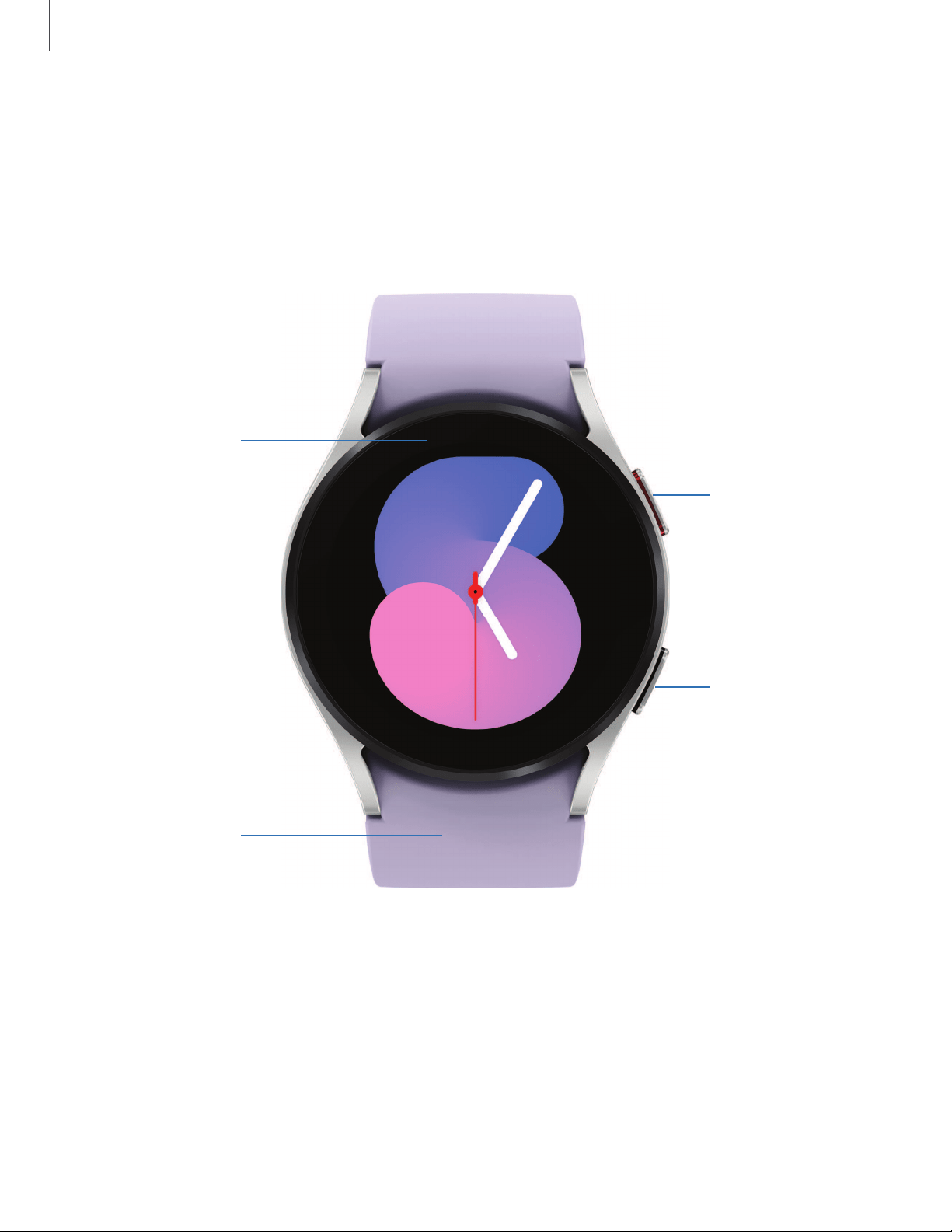
Galaxy Watch5
Touchscreen
Back key
Home key
Band
Devices and software are constantly evolving — the illustrations you see here are for reference only.
5

Getting started
Galaxy Watch5 Pro
Touchscreen
Back key
Home key
Band
Devices and software are constantly evolving — the illustrations you see here are for reference only.
6
I
Getting started
Set up your device
Learn more about your device hardware, assembling and charging, and how to get
started using your new device.
Charge the battery | Wireless power sharing | Wear the Watch
Charge the battery
Your device is powered by a rechargeable battery.
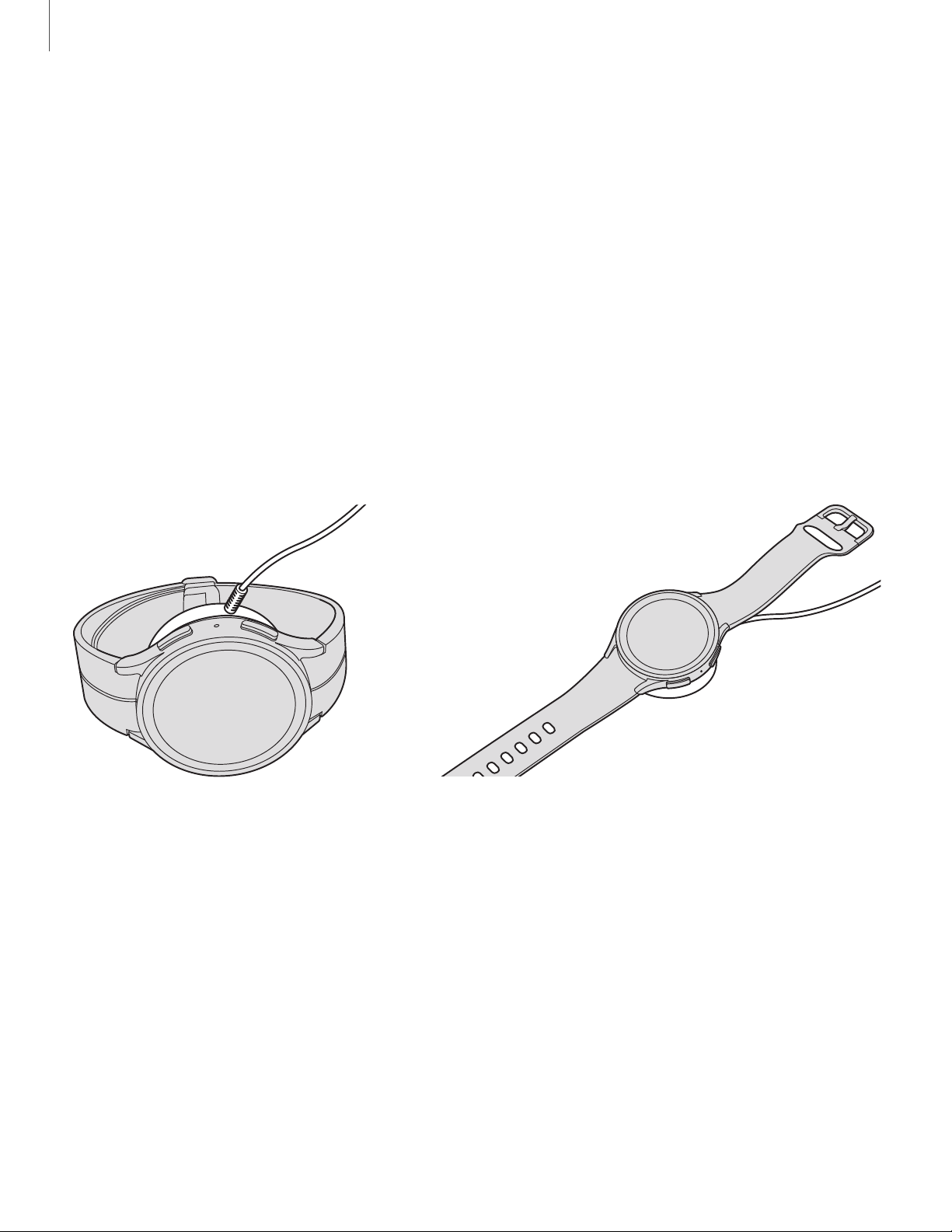
Watch5 Pro
D-Buckle Sport Band
Watch5
1. Connect the wireless charger to a charging port.
2. Place the watch onto the wireless charger, aligning the center of your watch
with the center of the wireless charger.
3. After fully charging, disconnect the watch from the wireless charger.
Devices and software are constantly evolving — the illustrations you see here are for reference only.
7

Getting started
CAUTION The charging head for plugging the USB cable into a wall outlet is not
included. Use only Samsung charging devices rated with an output voltage of 5v
and an output current of over 150mA (sold separately). Samsung accessories are
designed for your device to maximize battery life. Using other accessories may
void your warranty and may cause damage.
NOTE Prevent the USB charger port and the small end of the charger cable from
coming into contact with conductive materials, such as liquids, dust, metal
powders, and pencil leads.
While charging, the device and the charger may become hot. This does not affect the
device’s lifespan or performance and is in the device’s normal range of operation.
Remove the device from the charger and wait for the device to cool down. For more
information, visit
https://www.samsung.com/us/support/answer/ANS00076952.
NOTE Do not disassemble, modify, or repair your device. Placing objects, such as
magnetic stripe cards, including credit cards, phone cards, passbooks, and
boarding passes, next to the device or charger may cause damage from the
charger or device’s magnetic field.
8
Getting started
Wireless power sharing
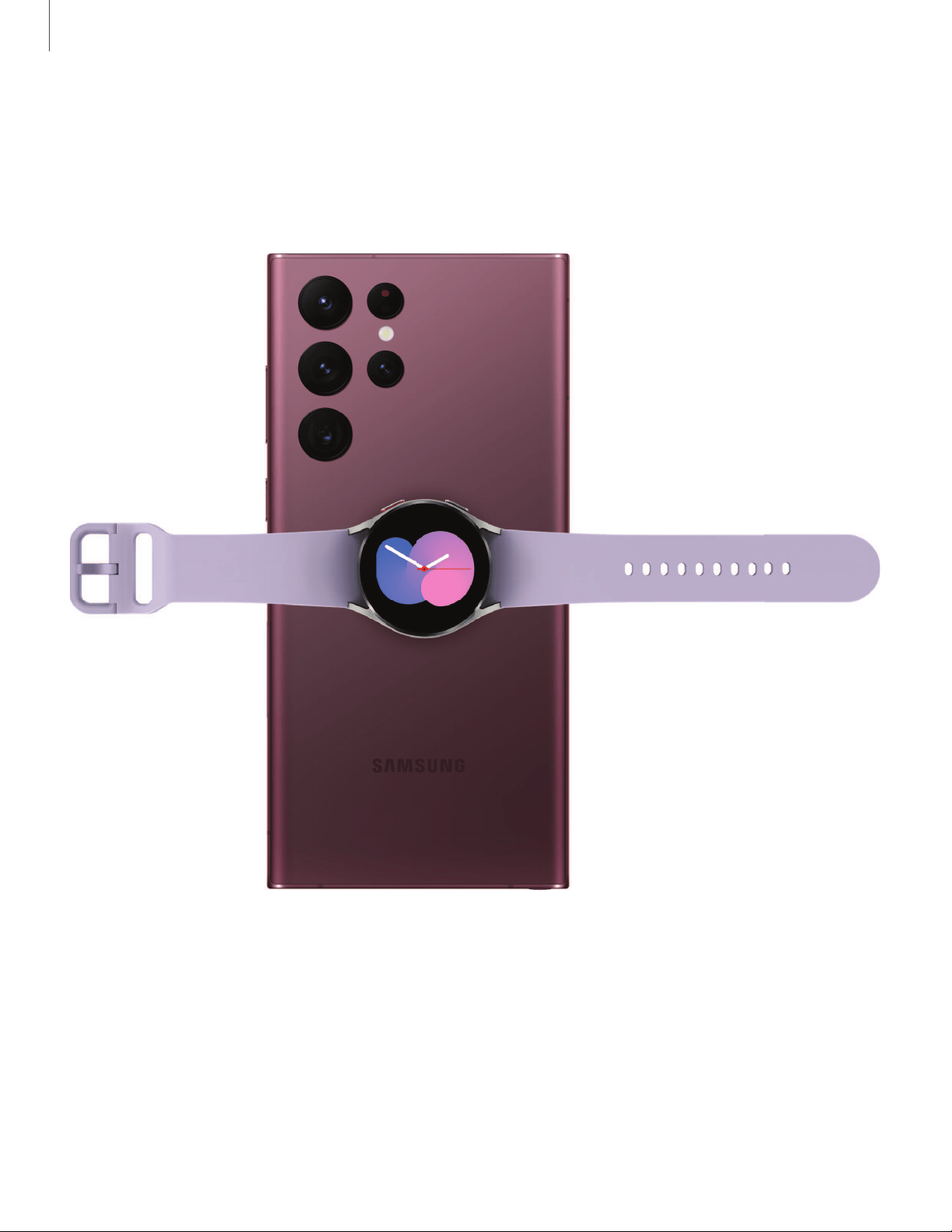
Wirelessly charge your device using a supported Samsung smartphone. Some
features are not available while sharing power.
1. From your phone, enable the Wireless power sharing feature.
2. With the phone face down, place the compatible device on the back of the
phone to charge. A notification sound or vibration occurs when charging begins.
Devices and software are constantly evolving — the illustrations you see here are for reference only.
9

Getting started
NOTE Wireless power sharing works with most Qi-Certified devices. Requires
minimum 30% battery to share. Speed and power efficiency of charge varies by
device. May not work with some accessories, covers, or other manufacturer’s
devices. If you have trouble connecting or charging is slow, remove any cover
from each device.
For best results when using Wireless power sharing, please note:
•
Remove any accessories or cover before using the feature. Depending on the
type of accessory or cover, Wireless power sharing may not work properly.
•
The location of the wireless charging coil may vary by device, so you may need
to adjust the placement to make a connection. When charging starts, a
notification or vibration will occur, so the notification will help you know you've
made a connection. During charging, do not move or use either device.
•
Call reception or data services may be affected, depending on your network
environment.
•
Charging speed or efficiency can vary depending on device condition or
surrounding environment.
•
Do not use headphones.
10
\
Getting started
Wear the Watch
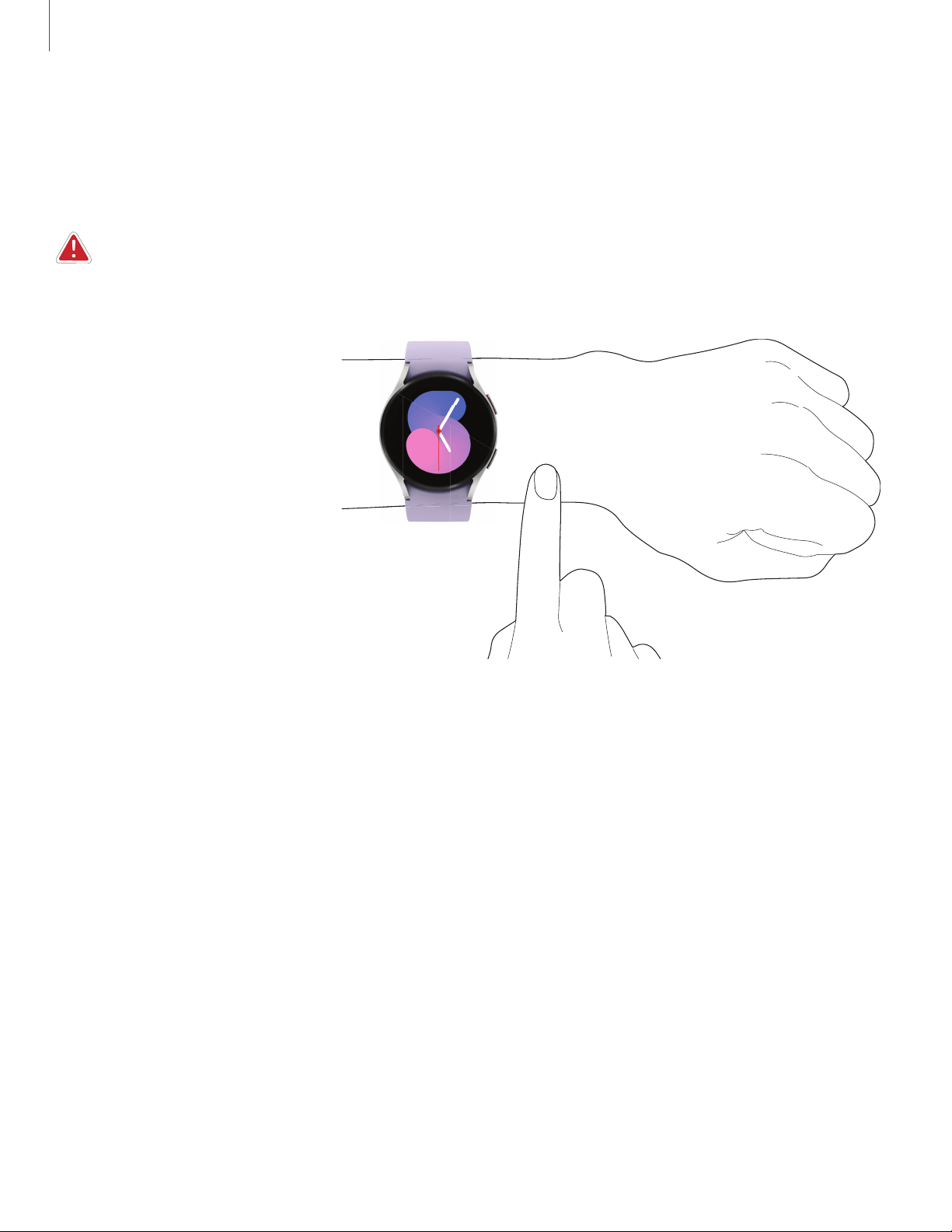
Wrap the watch firmly around your lower arm just above your wrist leaving a finger’s
worth of space as shown below. Do not fasten the watch too tightly.
WARNING Wear the device correctly. If you feel discomfort while using the device,
stop using it. If your device becomes hot, please remove it until it cools.
1. Open the buckle and place the strap around your wrist.
2. Fit the strap to your wrist, insert the pin into an adjustment hole, and then secure
the buckle to close it.
Devices and software are constantly evolving — the illustrations you see here are for reference only.
11
Getting started
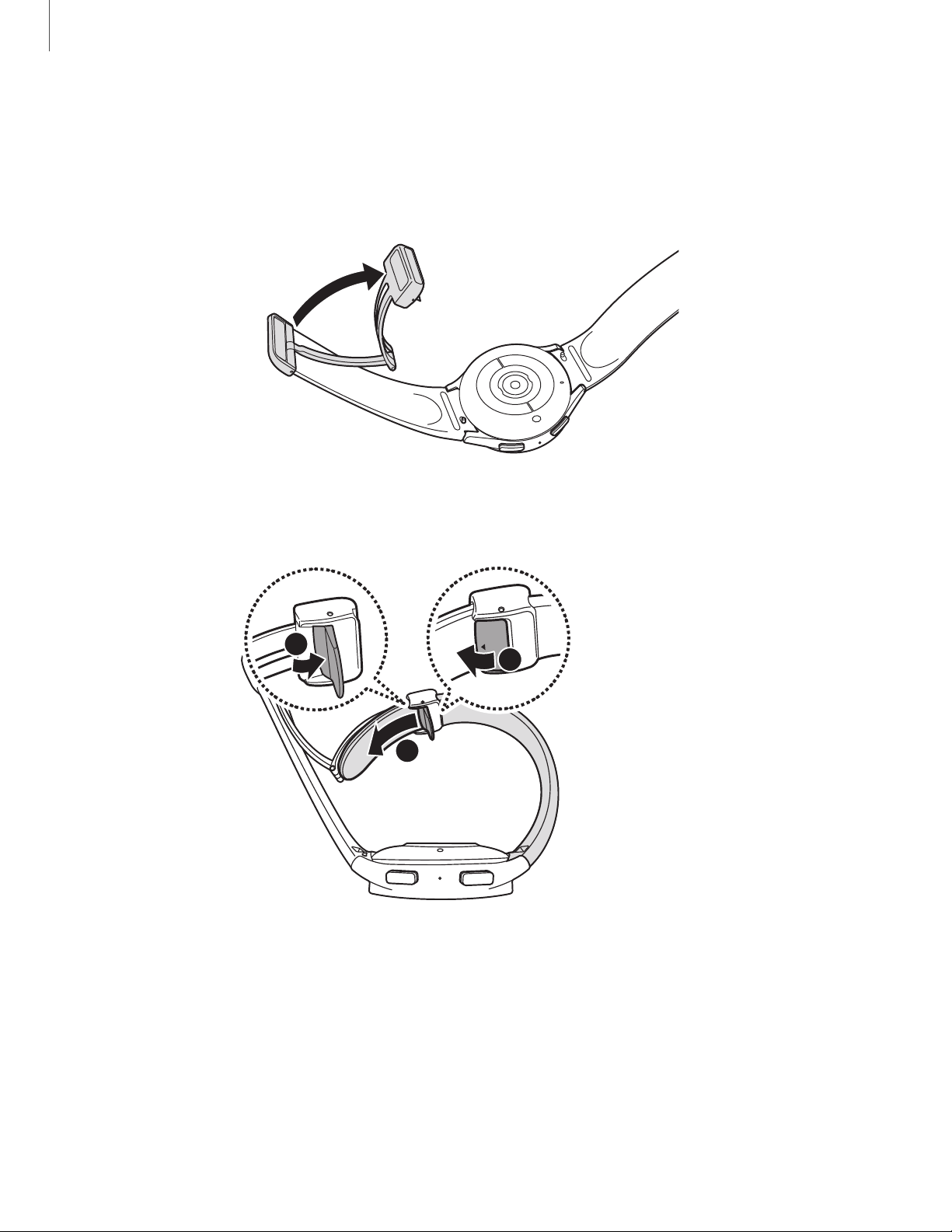
Adjust the D-Buckle Sport Band
The D-Buckle Sport Band can be adjusted for the perfect fit (Watch5 Pro only).
1. Open the magnetic buckle.
2. Open the clasp and slide the end of the band to adjust the length.
2
1
3
Strap tips and precautions
l
Some people may experience discomfort when wearing the watch for prolonged
periods.
l
If you have sensitive skin or fasten the watch too tightly, you may feel some
discomfort.
Devices and software are constantly evolving — the illustrations you see here are for reference only.
12
I
0
0
0
Getting started
l
Do not expose the straps to very wet conditions. Wet straps can cause skin
irritations. Dry the straps first. If you experience skin irritation when wearing the
watch, stop wearing it and consult a physician.
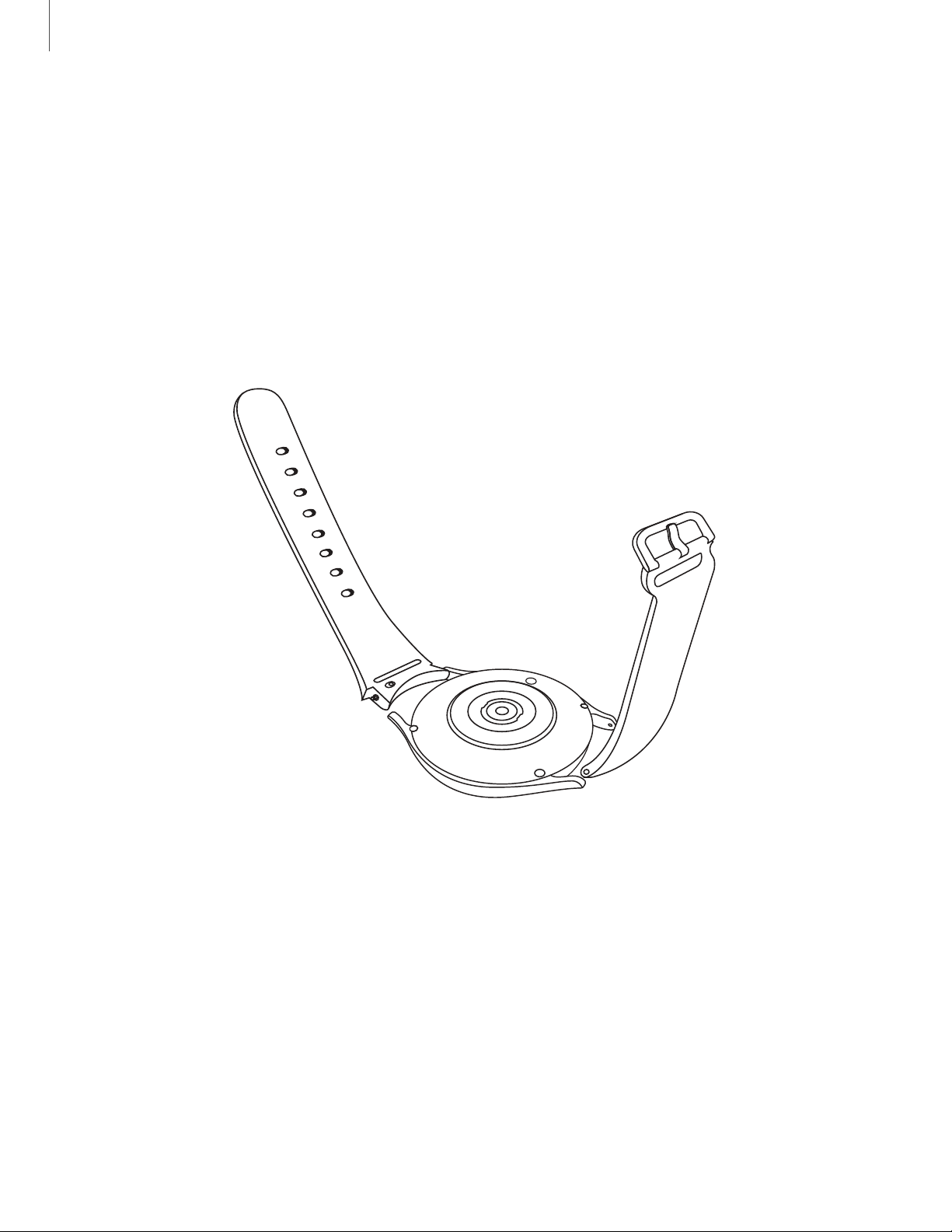
Replace the strap
Detach the strap from the watch to replace it with a new one.
To remove the strap:
◌
Slide the strap’s spring bar inward and pull the strap away from the watch.
To replace the strap:
1. Insert one end of the spring bar into the hole on the side of the watch.
2. Slide the other spring bar inward, and release it once the strap is in place.
Devices and software are constantly evolving — the illustrations you see here are for reference only.
13
Getting started
Start using your device
Turn on your device | Activation | Galaxy Wearable app | Lock or unlock your device |
Customize keys | Navigation | Change the watch face | Quick panel | Tiles |
Notifications | Bedtime mode | Do not disturb | Theater mode | Water lock mode | Enter
text
Turn on your device
Use the Home key to turn your watch on or off.
◌
Press and hold the
Home key.
•
To turn the watch off, swipe down from the top of the watch screen to open
the Quick panel, and tap
> Turn off.
TIP To restart the watch, press and hold the Home and Back keys for more than
seven seconds.
Activation
The Galaxy Watch5 and Watch5 Pro (R905, R915, and R925) are 4G LTE-enabled. Get
texts, alerts, make and receive calls, even when you leave your phone behind. Consult
your service provider for more information about activation.
To manage your watch's mobile plan:
◌
From the smartphone, tap
Wear
Galaxy wearable, tap Watch settings > Mobile
plans.
Galaxy Wearable app
To connect your watch to a smartphone, install the Galaxy Wearable app on the
smartphone. You can download the app from the Galaxy Store or the Google Play
™
store.
Galaxy Wearable is compatible with select devices using Android 8.0 and later with at
least 1.5 GB RAM. Supported devices may vary by carrier and device. Some features
may not be available. For best results, connect with compatible Samsung Galaxy
devices. Visit
samsung.com/us/support/owners/app/galaxy-wearable-watch for a
list of compatible smartphones.
14
Getting started
Connect the watch to a smartphone
Turn on the watch before connecting to your phone.
1.
From the smartphone, tap
Wear
Galaxy Wearable. If necessary, update the app to
the latest version.
2. Tap Start and select your device.
3. When the Bluetooth
®
pairing request window is displayed, confirm the passkeys
displayed on your watch and smartphone match, and then tap
Confirm.
4. Follow the prompts to complete the connection.
When the devices are connected, a tutorial is displayed on the watch’s screen. Follow
the prompts to learn the basic controls.
Back up data
The watch can only be connected to one smartphone at a time. When you connect
the watch to a new smartphone, the watch automatically resets and all data is
removed from its memory. Make sure you back up any important data stored on
your watch.
1.
From the smartphone, tap
Wear
Galaxy Wearable, tap Watch settings.
2.
Tap
Account and backup to customize your backup settings.
Remote connection
Set the watch to remotely connect to the smartphone when a Bluetooth connection
between the devices is not available. With this connection, you can still receive
notifications from your smartphone.
1.
From the smartphone, tap
Wear
Galaxy Wearable, tap Watch settings.
2.
Tap
Advanced features > Remote connection to enable the feature.
Disconnect
To disconnect the watch from your phone:
1.
From the smartphone, tap
Wear
Galaxy Wearable, tap Menu.
2.
Tap
Disconnect by the name of your watch.
15
0 8
0 8
Getting started
Lock or unlock your device
By default your screen is not locked. You can use the screen lock feature to secure
your device. See
Set a screen lock.
When enabled, your watch locks when you remove it from your wrist or when the
screen times out while you are wearing it.
To lock the watch:
◌
Cover the screen with your palm.
To unlock the watch:
◌
Press any key to turn on the watch screen.
•
If you have a lock screen enabled, press any key to enter your pattern or pin
and unlock the watch.
Customize keys
You can customize the shortcuts assigned to the Home and Back keys.
Home key
Configure shortcuts for the Home key.
1.
From
Settings, tap Advanced features > Customize keys.
2. Tap an option under
Home key to choose a shortcut.
l
Double press: Choose which feature is launched when the Home key is
pressed twice. By default this option is set to open Samsung Pay.
l
Press and hold: Choose which feature is launched when you press and hold
the Home key. By default this option is set to wake Bixby.
Back key
Configure shortcuts for the Back key.
1.
From
Settings, tap Advanced features > Customize keys.
2. Tap
Short press and choose a shortcut option. By default this option is set to go to
the previous screen.
16

Getting started
Gestures
1.
From
Settings, tap Advanced features.
2. Tap an option under
Gestures to enable it.
l
Answer calls: Shake your arm twice, bending at the elbow, to answer calls.
l
Dismiss alerts and calls: Rotate your wrist twice to dismiss alarms or decline
incoming calls.
l
Quick launch: Select an app or feature to quick launch.
17
Getting started
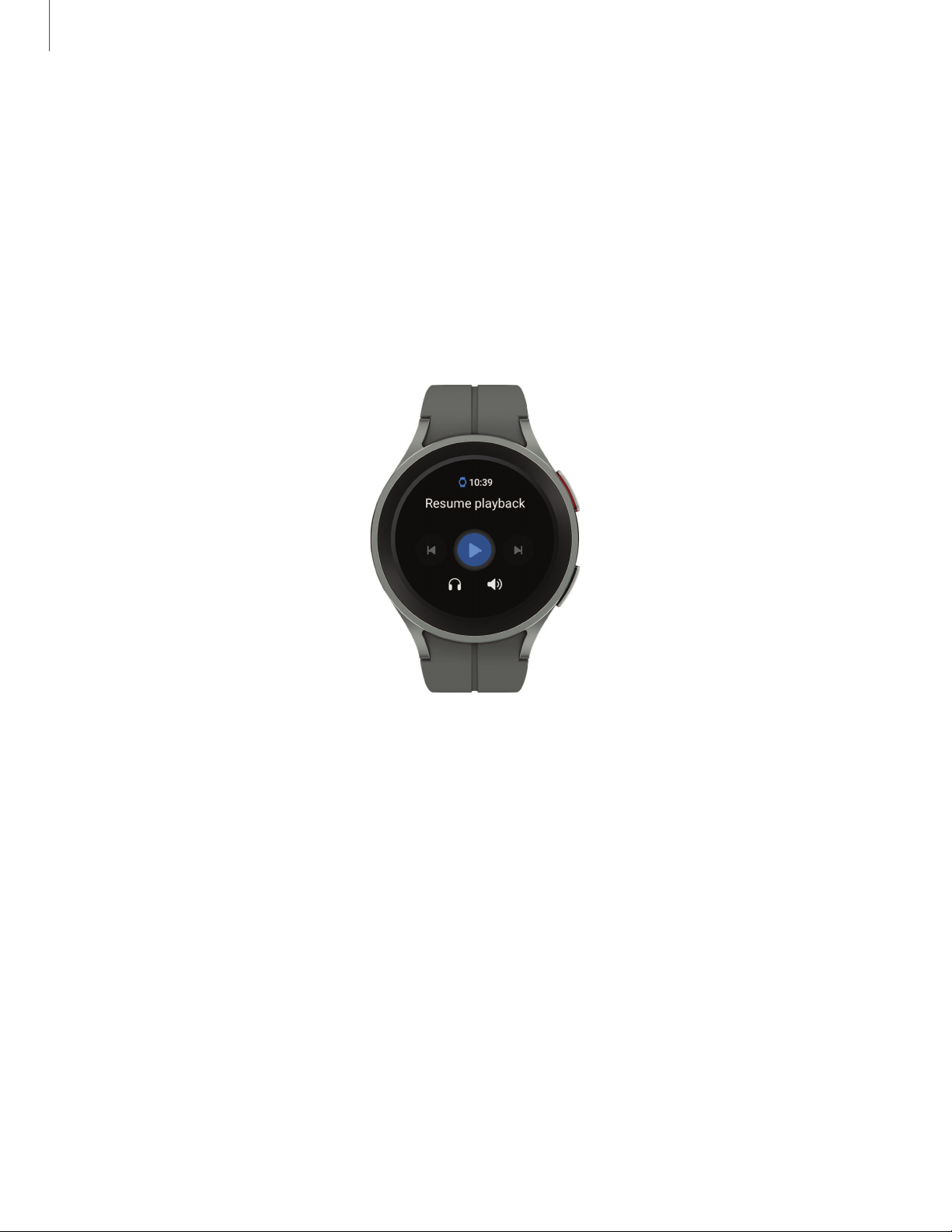
Navigation
The touchscreen responds best to a light touch from the pad of your finger. Using
excessive force or a metallic object on the touchscreen may damage the tempered
glass surface and void the warranty.
Tap
Lightly tap the screen to launch an app or select a menu item.
Devices and software are constantly evolving — the illustrations you see here are for reference only.
18
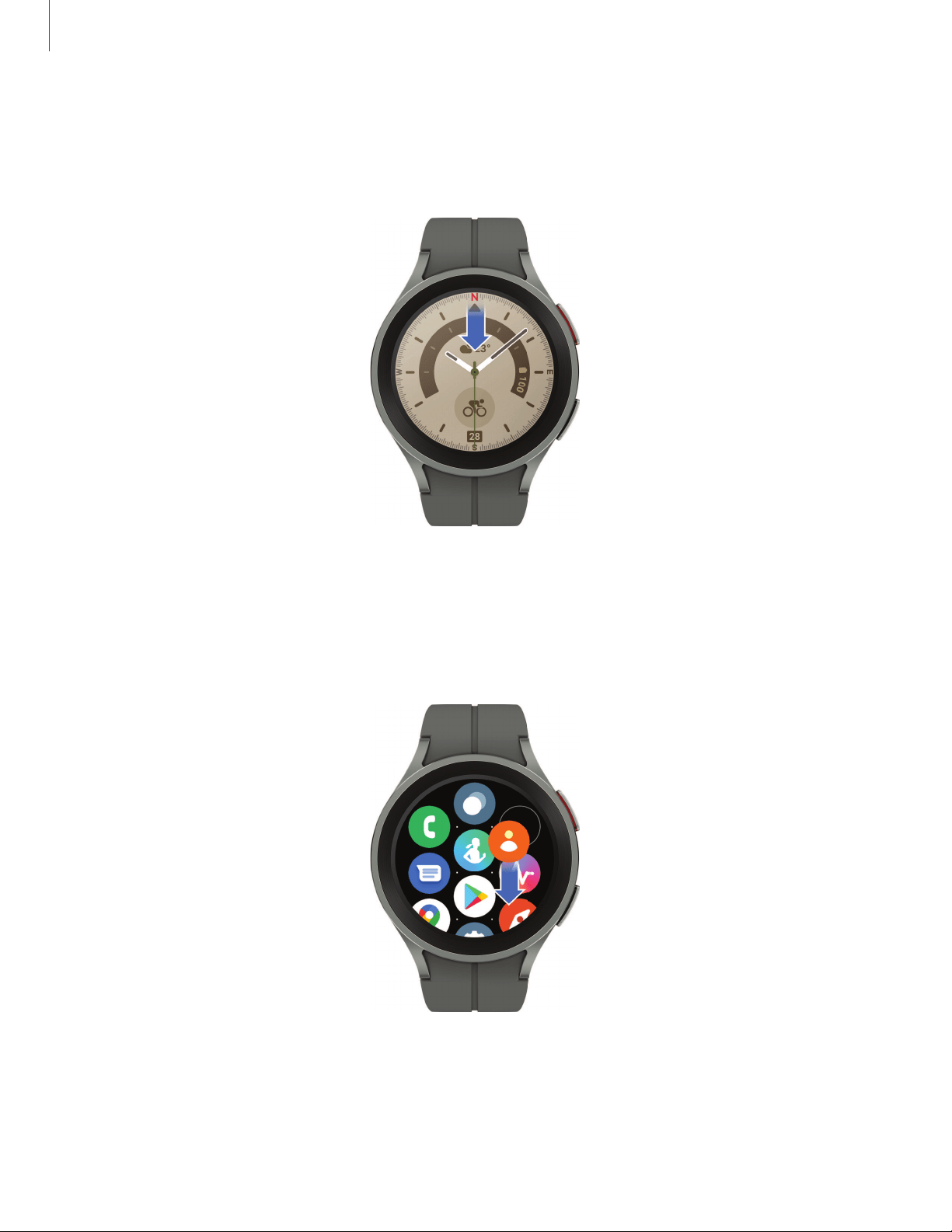
Getting started
Swipe
Lightly drag your finger vertically or horizontally across the screen to view panels.
Drag
Touch and hold an item, and then move it to a new location.
Devices and software are constantly evolving — the illustrations you see here are for reference only.
19

Getting started
Change the watch face
The first screen when you turn on the Galaxy Watch5 and Watch5 Pro is the watch
face. You can choose a watch face with different colors, styles, and information
displayed.
From your phone:
1.
From the smartphone, tap
Wear
Galaxy Wearable > Watch faces.
2. Tap a watch face to select it.
From your watch:
1. Touch and hold the watch face.
2. Swipe left and tap Edit on phone or swipe right and tap Add watch face.
3. Tap
Customize to select a background color and items to display on the watch
face.
20
Getting started
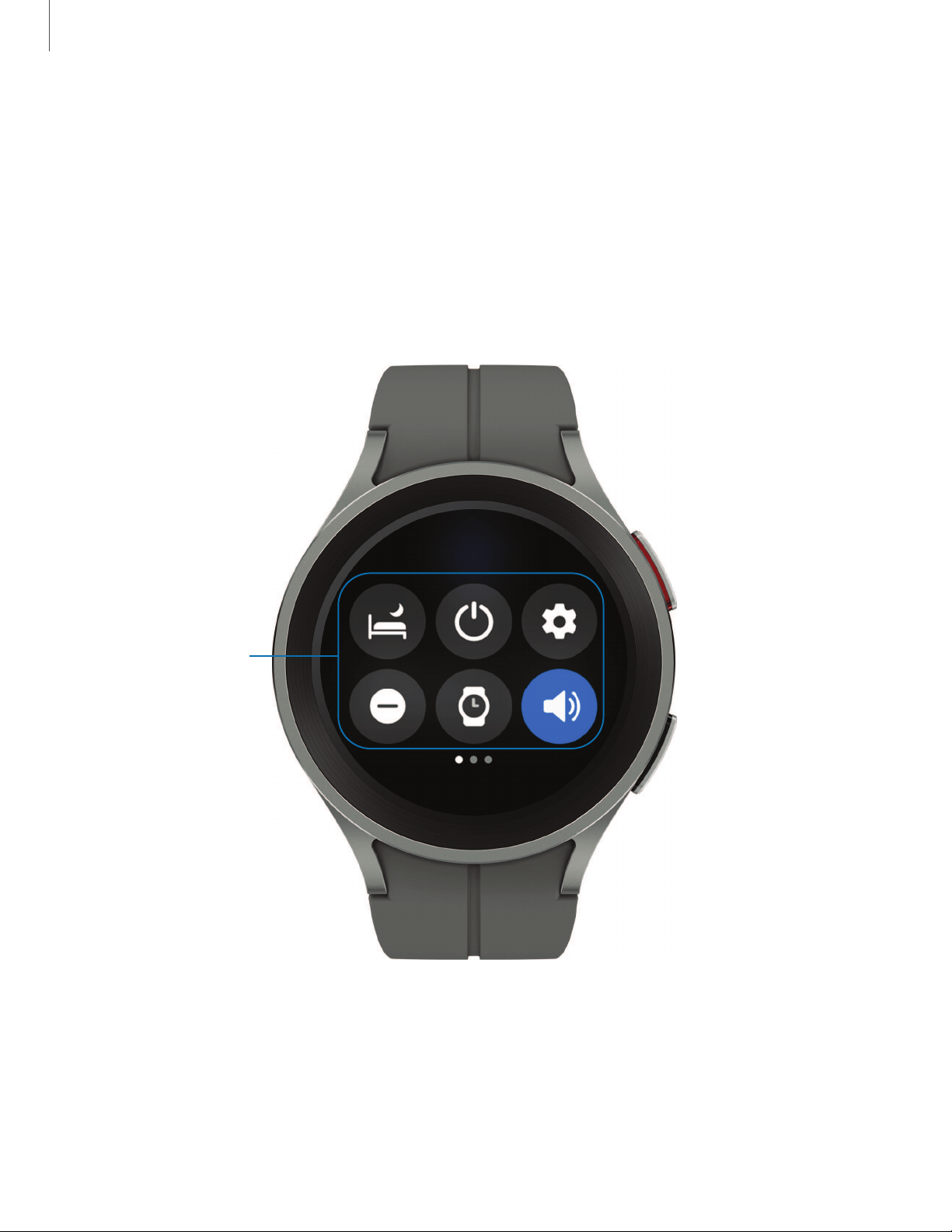
Quick panel
Instead of navigating through the Settings menu, you can access commonly used
settings through the Quick panel, where you can also view the Status bar.
◌
Swipe down from the top of the watch screen to open the Quick panel.
l
Tap a quick setting icon to turn it on or off.
l
Touch and hold a quick setting icon to open the setting.
Quick settings
Devices and software are constantly evolving — the illustrations you see here are for reference only.
21
I
►
t
◄
*
+
-
+
-
Getting started
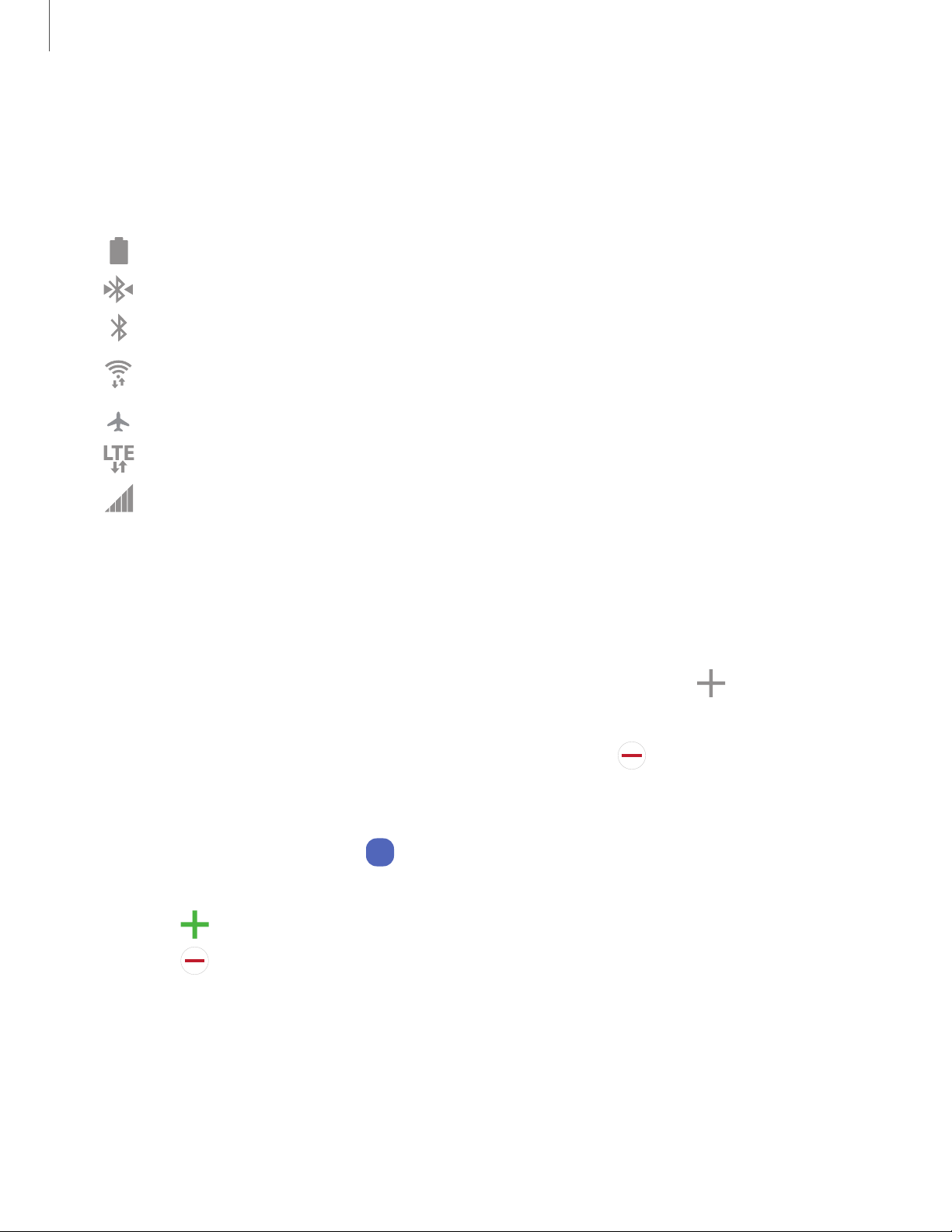
Status bar
Indicator icons display at the top of the screen in the Status bar. Swipe down from the
top of the watch screen to view the Status bar.
Indicator icons
Battery full
Bluetooth connected
Bluetooth enabled, but not connected
Wi-Fi connected
Airplane mode
LTE network connected (LTE model only)
Signal strength (LTE model only)
Tiles
Tiles are shortcuts to apps and features that you can add as a screen on your watch.
◌
From the watch face, swipe left to view tiles.
•
To add tiles, swipe to the end of the tiles screens, and tap
Add tiles.
•
To move tiles, touch and hold a tile, and then drag it to the desired location.
•
To delete tiles, touch and hold a tile, and then tap
Remove.
Manage tiles from your phone
◌
From the smartphone, tap
Wear
Galaxy Wearable, tap Tiles.
•
Drag to reorder tiles.
•
Tap
Add to add the tile.
•
Tap
Remove to delete tiles.
22
Getting started
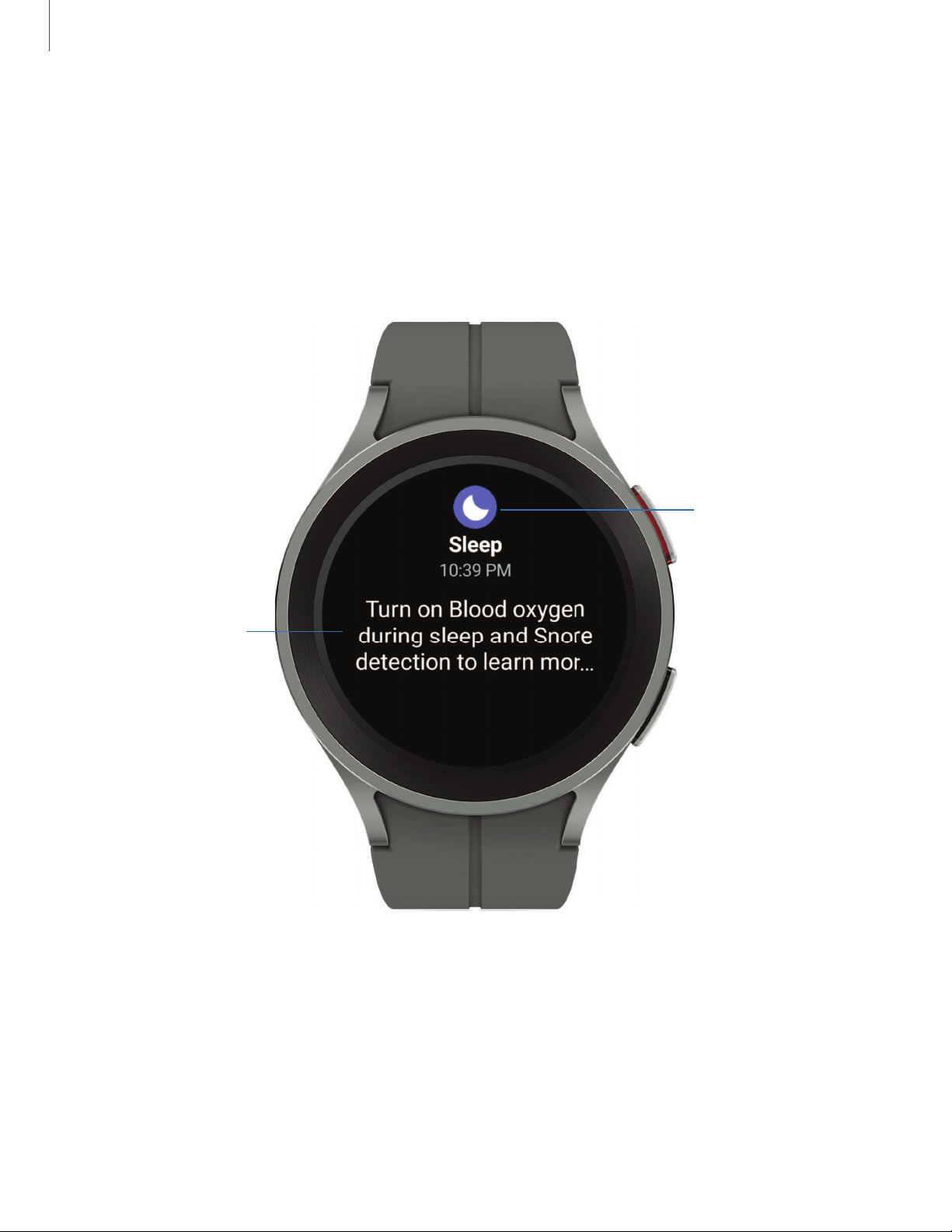
Notifications
Stay up to date with events, notifications, and messages from your smartphone.
When you receive a notification, information about the notification, such as its type, is
displayed on the screen while the watch is vibrating.
◌
From the watch screen, swipe right and tap a notification to view details.
App icon
Notification
Devices and software are constantly evolving — the illustrations you see here are for reference only.
23
0
(:)
e
Getting started
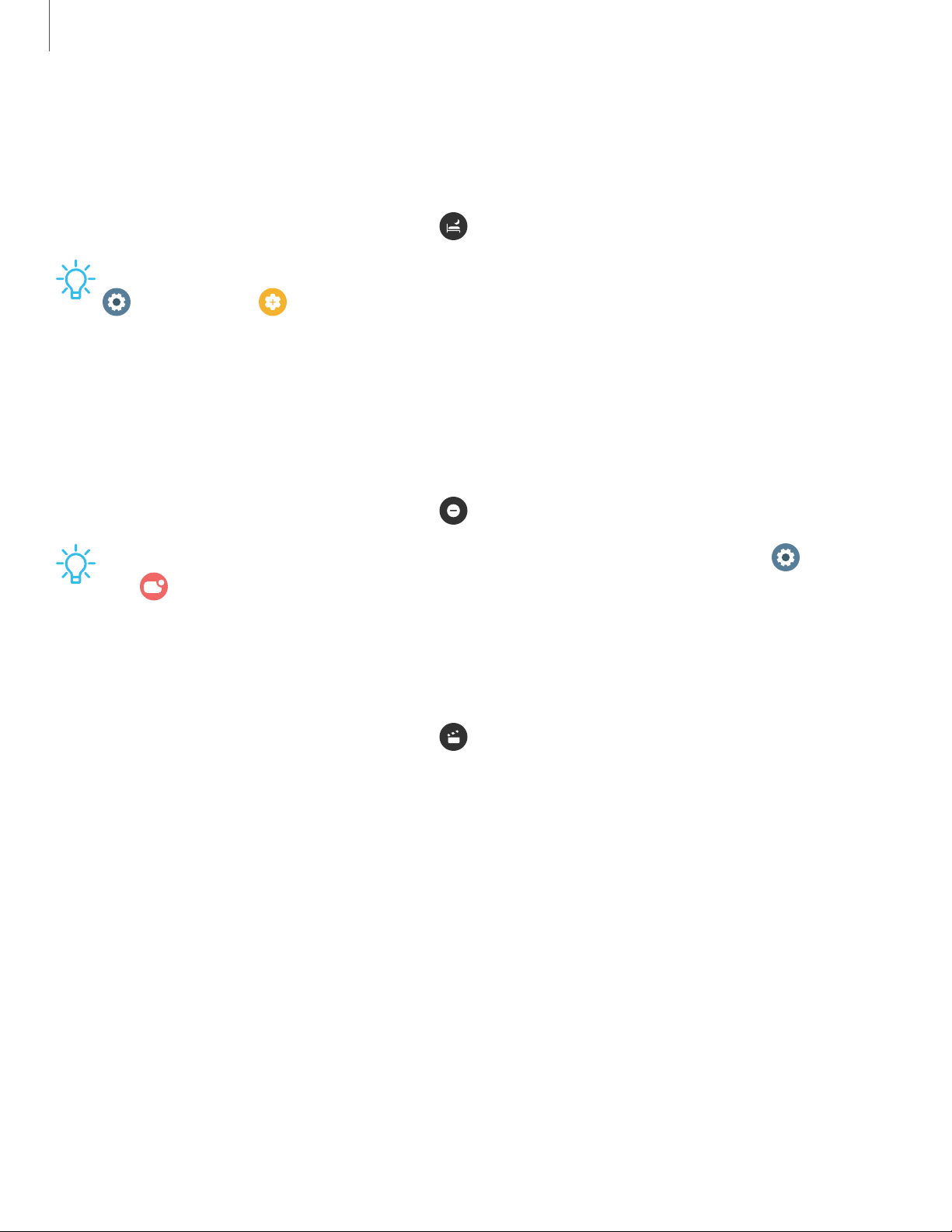
Bedtime mode
Bedtime mode mutes all alerts, except for alarms and notifications. This keeps the
screen off and mutes most sounds while you sleep.
◌
From the Quick settings panel, tap
to put the watch in Bedtime mode.
TIP You can also access Bedtime mode from the Settings menu. From
Settings, tap Advanced features > Bedtime mode. Here you can schedule
bedtime mode.
Do not disturb
Use these options to determine block out time where notifications are turned off, and
during which time periods you want to enter this mode.
◌
From the Quick settings panel, tap
to put the watch in Do not disturb mode.
TIP You can also access Do not disturb from the Settings menu. From Settings,
tap
Notifications > Do not disturb.
Theater mode
Theater mode keeps the screen turned off and silences all sounds.
◌
From the Quick settings panel, tap
to put the watch in Theater mode.
24
0
C>
Getting started
Water lock mode
You can use Water lock mode to exercise in the water while wearing your watch.
While in Water lock mode, touchscreen, wake-up gestures, and watch always on will
be disabled.
◌
From the Quick settings panel, tap
to put the watch in Water lock mode.
TIP You can also enable Water lock mode from the Setting menu. From
Settings, tap Advanced features > Water lock. Tap to enable.
Exit water lock mode
1. Press and hold the
Home key for two seconds to turn off the mode. The watch
will make sounds to eject water from the speaker.
2. Press the
Home key to stop the sound.
3. Shake the watch to remove any water from the pressure sensor.
25
0
Getting started
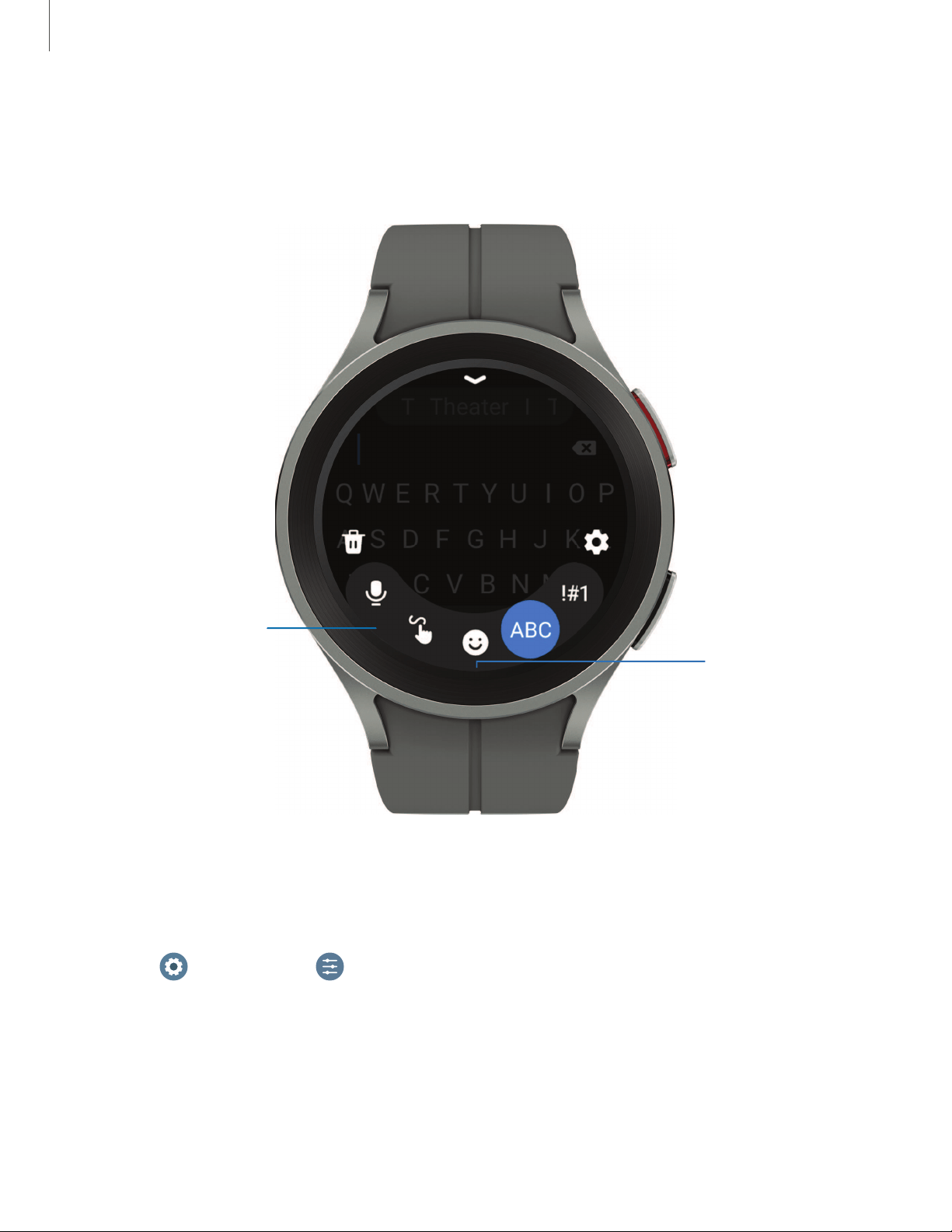
Enter text
Text can be entered by speaking, drawing, or by using a keyboard.
Tap an icon to
change the
keyboard
Swipe up for
additional
keyboards, quick
replies, and more
Default keyboard
Select a default keyboard type for text input.
◌
From
Settings, tap General > Input > Keyboard list and default and select
your default keyboard.
Devices and software are constantly evolving — the illustrations you see here are for reference only.
26
0
e
0
G
-
(:)
(:)
Getting started
Choose a keyboard
When you need to enter text from your watch, you can choose which keyboard you
prefer.
◌
Tap an option for text input:
•
Tap
Voice input and speak the message you want to enter.
•
Tap
Write, and then use your finger to draw letters.
•
Tap
Emoji to add emojis to your message.
•
Tap
Samsung Keyboard to use the QWERTY keyboard.
•
Tap
Numbers and symbols to use add numbers or symbols to your
message.
Keyboard settings
Change the Samsung keyboard settings.
◌
From
Settings, tap General > Input > Samsung keyboard, and tap options to
customize:
•
Input languages: Select languages for text input.
•
Smart typing: Customize features like predictive text, auto capitalize, and
more.
•
Swipe, touch, and feedback: Set the watch to vibrate or play sounds when
you tap a key on the keyboard or enable swipe controls.
•
Keyboard data: Return your keyboard to the default settings and remove
word predictions and personalized data.
Quick responses
◌
From
Settings, tap General > Input > Quick responses to customize:
•
Message suggestions: Get suggested text when you create or reply to a
message.
•
Custom responses: Customize your responses on your phone.
27
0
X
0
0
Apps
Navigate the apps screen
Uninstall apps | Apps Settings
The Apps list displays all preloaded and downloaded apps. Apps can be downloaded
from the Google Play store.
◌
From the watch screen, swipe up from the bottom of the screen to open the
Apps screen.
•
To scroll through the list of apps, swipe up and down.
•
To view recently opened apps, tap
Recent apps.
Uninstall apps
Uninstall apps you have download.
1. From Apps on your watch, touch and hold an app.
2.
Tap
Uninstall. This option is not available for all apps.
Apps Settings
Customize how apps are displayed on the Apps screen.
Default apps
Choose which apps to use for making calls, sending messages, and more.
◌
From
Settings, tap Apps > Choose default apps, and choose an option for
each category.
Health Platform
Choose which Health platform to use.
◌
From
Settings, tap Apps > Health platform, and choose an app.
29

(:)
Apps
App permissions
Configure permissions for each installed app.
1.
From Apps, tap
Settings.
2.
Tap
Apps > Permissions.
3. Tap each feature to enable or disable permission to access or use the feature.
30
0
0
0
0
Apps
Tools
The following apps are useful tools that come pre-installed or downloaded over-the-
air to your device.
Alarm | Bixby | Calculator | Calendar | Compass | Contacts | Find My Phone | Reminder |
Samsung Global Goals | Samsung Pay | Stopwatch | Timer | Voice Recorder | Weather |
World clock
Alarm
Set an alarm to ring at a specific time.
Create an alarm
Create an alarm event. You can set one-time or recurring alarms.
1.
From Apps, tap
Alarm.
2. Tap
Add on watch and enter the time.
3. Tap
Next, and select the days to repeat the alarm.
4. Tap
Save when finished.
NOTE You can also view alarms saved on your phone. To add an alarm on your
phone, tap
Add on phone.
Stop or snooze an alarm
◌
Tap
Cancel to stop an alarm or tap Snooze to snooze.
Delete an alarm
You can disable alarms or delete them.
◌
From
Alarm view the list of alarms on your watch and phone.
•
To disable the alarm, tap
.
•
To delete the alarm, touch and hold the alarm and tap
Delete.
31
0
0
Apps
Bixby
Bixby is a voice service that helps you use your watch more conveniently. You can talk
to Bixby to launch a function or provide you with information. To use Bixby, your mobile
device must be connected to a Wi-Fi or mobile network, and you must sign in to your
Samsung account.
1.
From Apps, tap
Bixby.
2. Follow the prompts to set up Bixby.
TIP You can also press and hold the Home key to access Bixby. For more
information, see
Customize keys.
Calculator
The Calculator app features basic math functions.
◌
From Apps, tap
Calculator, and enter the math equation.
Calendar
View events scheduled on the smartphone.
1.
From Apps, tap
Calendar.
2. Swipe up or down to view a list of upcoming events.
•
Tap
for month view.
•
Tap for week view.
•
Tap
Show on phone to edit and add events.
Compass
View and use your watch as a compass. The first time you use the Compass app the
watch will guide you on how to calibrate your watch.
◌
From Apps, tap
Compass.
32
e
0
e e
e
C9
0
0
0
Apps
Contacts
View your smartphone’s contact list on your watch.
Find a contact
You can search for a contact or scroll through the list to find one by name.
◌
From
Contacts, tap Search, and then enter characters to find contacts
that match.
Call or message a contact
You can send a message or make a phone call from Contacts.
◌
From
Contacts, tap the contact you want to connect with, and tap an option:
•
Call: Begin a phone call with the contact.
•
Message: Type a message to the contact.
Find My Phone
If you misplace your smartphone, your watch can help you find it.
1.
From Apps, tap
Find My Phone.
2. Tap
Start.
•
The Phone vibrates and the screen turns on.
3.
Drag
Dismiss on your smartphone or tap Stop on the watch.
Find your Watch
You can also locate your watch by making it light up and make sounds from the
Galaxy Wearable app.
1.
From
Wear
Galaxy Wearable, tap Find My Watch.
2. Tap
Start.
3.
Tap
Stop on the smartphone or drag
on the watch.
33
0
0
0
0
Apps
Reminder
Add reminders for events and set alarms outside of the Calendar app.
Create a reminder
Set up and track reminders on your watch:
1.
From Apps, tap
Reminder.
2.
Tap
Write, and then enter the reminder information.
3. Tap
Set time, set the time for your reminder, and then tap Next.
4. Set the date and repeat options, then tap
Done.
5. Tap
Save when finished.
Complete a reminder
To mark reminders as complete:
◌
From
Reminder, tap the checkbox beside a reminder to set it as complete.
•
To view completed reminders, tap
Completed.
Samsung Global Goals
Learn more about the Global Goals initiative and contribute towards donations that
support these causes with ads from this app.
Samsung Pay
Pay almost anywhere that accepts a debit, credit, or gift card. Samsung Pay supports
Near Field Communication (NFC) to allow quick and secure payment through
standard credit card readers. For more information, see
samsung.com/us/samsung-
pay.
Set up Samsung Pay
1.
From Apps, tap
Samsung Pay.
2. Follow the prompts to complete the setup.
34
0
e
0
0
0
Apps
Make a payment
1.
From any screen, press and hold the
Back key to launch
Samsung Pay.
2. Swipe to select a card.
3. Hold the watch near an NFC reader to pay.
NOTE You can use Samsung Pay for up to 5 transactions without the smartphone.
This may vary depending on the bank/institution issuing the account.
Stopwatch
The Stopwatch lets you time events down to a hundredth of a second.
1.
From Apps, tap
Stopwatch.
2. Tap
Start to begin timing.
•
To keep track of lap times, tap
Lap.
3. Tap
Stop to end timing.
•
To continue timing after stopping the clock, tap
Resume.
•
To reset the Stopwatch to zero, tap
Reset.
Timer
Set a countdown timer for up to 59 hours, 59 minutes, and 59 seconds.
Set a timer
Create an alarm event. You can set one-time or recurring alarms.
1.
From Apps, tap
Timer.
2.
Tap a time or
Custom to set the Timer.
3.
Tap
Start.
Stop the timer
◌
Drag
Cancel or Restart when the timer goes off.
35
II
■
e
e
e
Apps
Voice Recorder
Use your voice to record memos.
1.
From Apps, tap
Voice Recorder.
2.
Tap
Record and begin recording your message.
•
To convert your speech to text, tap
Speech-to-text before recording.
•
To pause the recording, tap
Pause.
3.
Tap
Stop when you are finished.
•
You can access your voice recordings, from
Recordings.
Weather
View weather information on the watch for locations set on the smartphone.
1.
From Apps, tap
Weather, tap Add and follow the prompts.
2. Swipe through the screens to view the weather information.
3. To add a city, tap the location, and tap
Manage on phone.
World clock
Keep track of the current time in multiple cities around the globe.
1.
From Apps, tap
World clock.
2. Tap a city to view the time and temperature at that location.
•
To add a city to the World clock, tap
Add on phone.
36
II
0
Apps
Media
The following media apps come pre-installed or downloaded over-the-air to your
device.
Buds controller | Gallery | Media controller | Messages | Phone
Buds controller
Control your earbuds with your watch. Connect your earbuds directly to your watch
or to the Galaxy Wearable app on your phone.
1.
From Apps, tap
Buds controller.
2. Follow the instructions to connect your earbuds.
Gallery
View and manage images.
1.
From Apps, tap
Gallery.
2. Swipe through the image list and then tap an image to view it.
•
To zoom in or out, double tap the image.
•
To delete an image, touch and hold the image, and then tap
Delete.
Import and export images
Images can be exchanged between your watch and smartphone.
Import images from your smartphone
Send images or entire albums from your smartphone to your watch.
1.
From the smartphone, tap
Wear
Galaxy Wearable, tap Watch settings.
2. Tap
Manage content > Add images.
3. Select files or albums and tap
Done.
37
0
0
Apps
To automatically sync images on your smartphone with your watch:
1.
From the smartphone, tap
Wear
Galaxy Wearable, tap Watch settings.
2. Tap
Manage content > Auto sync to enable. Images will be synced while the
watch battery power is at least 15 percent.
•
Image limit: Set a limit to the number of images that can be synced to your
watch.
•
Albums to sync: Select which Gallery albums to sync to your watch.
Export images to your phone
Send images from your watch to your phone.
1.
From
Gallery, touch and hold an image.
2.
Tap
Copy to phone.
Take a screenshot
Capture an image of your screen. It is automatically saved to the Gallery app.
◌
From any screen, press the
Home and Back keys at the same time.
38
0
0
Apps
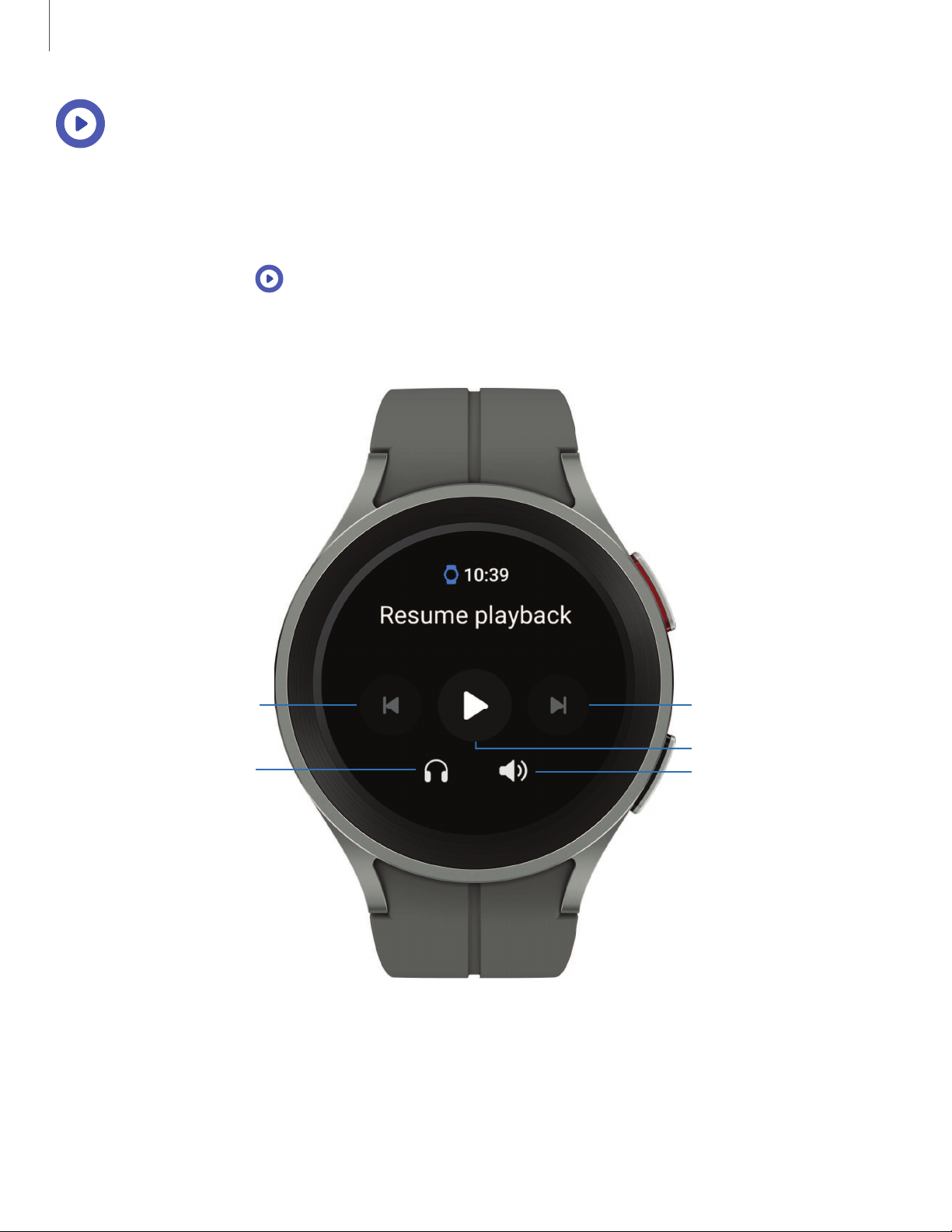
Media controller
You can use the Media controller to connect to a computer, phone, or tablet using
Bluetooth and control media with your watch.
To connect:
1.
From Apps, tap
Media Controller.
2. Tap a device in the list to connect your watch.
3. Use the media controls on your watch.
Volume
Fast-forwardRewind
Output
Play/Pause
Devices and software are constantly evolving — the illustrations you see here are for reference only.
39
Apps
Import music
Import music saved on your smartphone to your watch.
1.
From the smartphone, tap
Wear
Galaxy Wearable, tap Watch settings.
2. Tap
Manage content > Add tracks.
3. Select files and tap
Done.
To sync recently added music on your smartphone with your watch:
1.
From the smartphone, tap
Wear
Galaxy Wearable, tap Watch settings.
2. Tap
Manage content > Auto sync, music will be synced while the watch’s
battery power is at least fifteen percent.
40
e
Apps
Messages
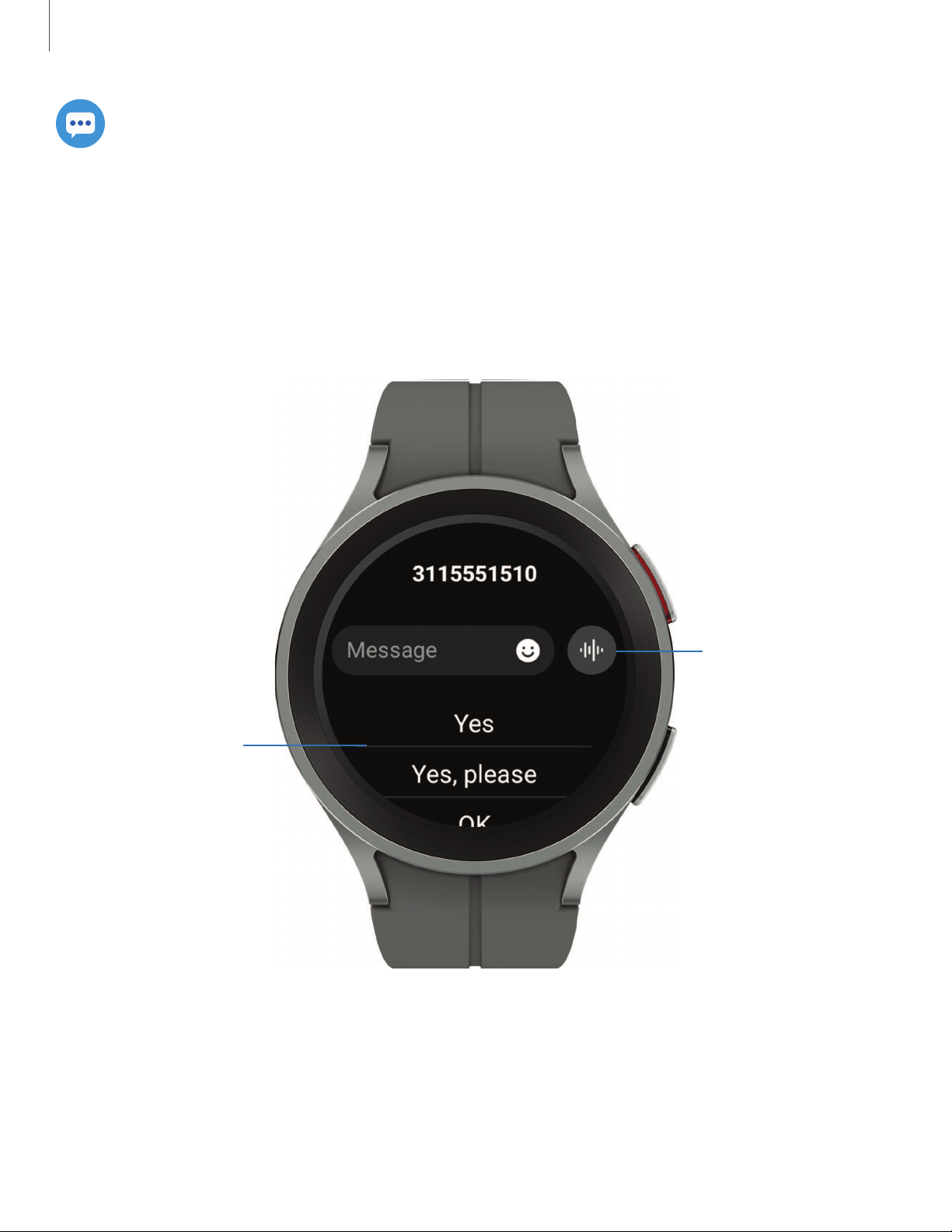
View messages and reply to or call the sender using the watch.
View and Send messages
You may incur additional charges for receiving messages while you are roaming.
◌
From the notifications screen, tap message to view it.
Send a Quick
response
Record voice
message
Devices and software are constantly evolving — the illustrations you see here are for reference only.
41
e G
e
e
Apps
Send messages
Create and send messages from your watch.
1.
From Apps, tap
Messages > Compose.
2.
Tap
Enter recipient to enter a phone number, or
Contacts to add a number
you have saved.
3. Choose a keyboard to compose your message.
4. Tap
Send.
Delete messages
Delete messages from your watch.
◌
From
Messages, touch and hold a conversation to select it, and tap Delete.
SOS messages
Send a message with your location to designated contacts when you are in an
emergency situation.
1.
From
Wear
Galaxy Wearable, tap Watch settings > Safety and emergency > SOS
with Home key.
2. Tap options for when to send SOS messages to enable them:
l
SOS with Home key: To choose the number of times to press the Home key to
send an SOS message, tap either
3 times or 4 times.
l
Hard fall detection: Automatically send SOS messages when a hard fall is
detected.
3. Tap an option to select the emergency contacts that you want to receive your
SOS.
l
Medical info: Emergency responders and others can access this info even
when your phone is locked.
l
Send messages to: Tap the contacts you want to receive your SOS messages.
l
Make SOS call to: Tap the contacts you want to receive your SOS calls.
To send SOS messages:
◌
Press the
Home key quickly three times to send an SOS message.
42
G
Apps
Phone
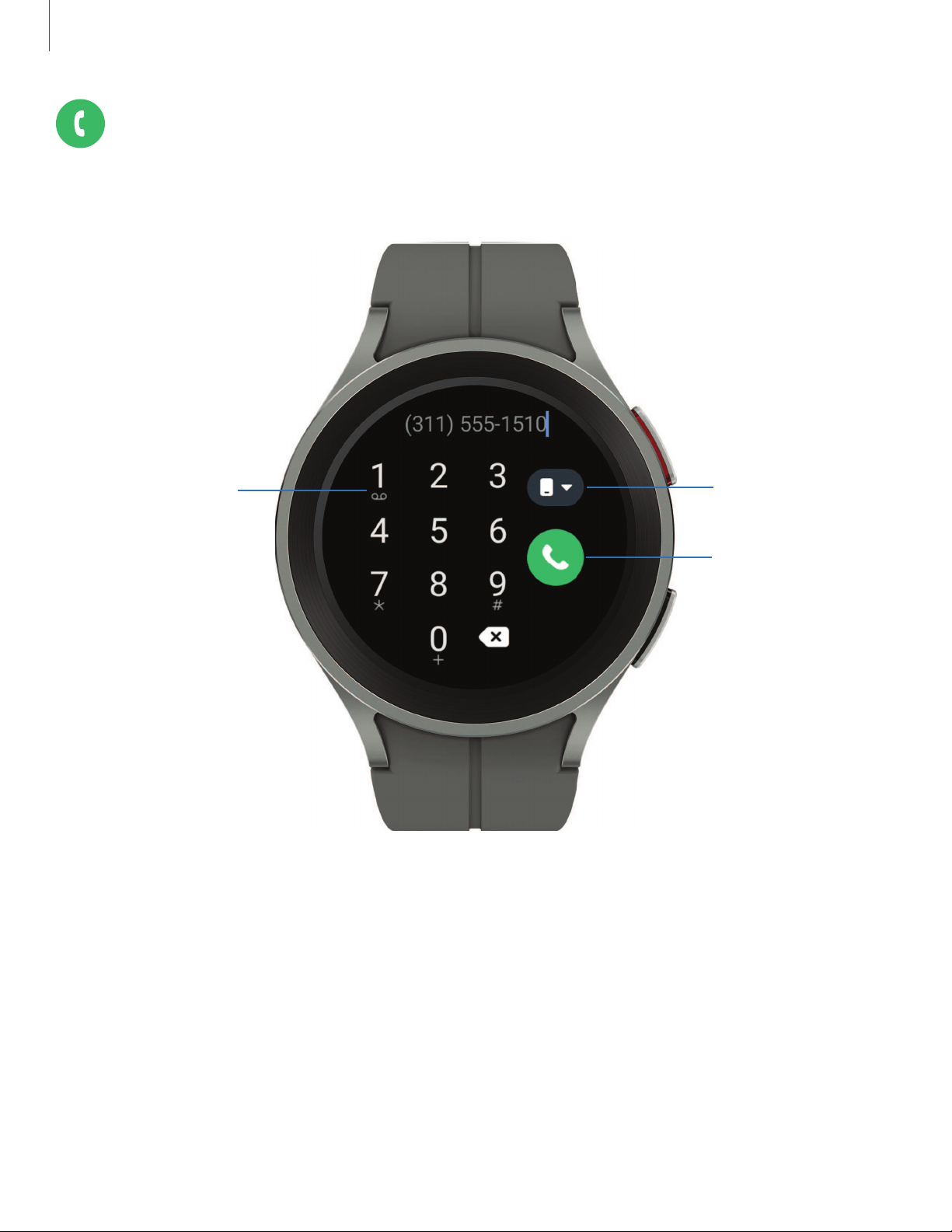
Make and answer calls on your phone from your watch.
Access
Voicemail
Make a call
Switch call
source
Devices and software are constantly evolving — the illustrations you see here are for reference only.
43
8
e
8
8
8
Apps
Make a call
Make a call from your watch.
1.
From Apps, tap
Phone.
2.
Tap
Keypad and enter a number or tap Contacts and select a contact to
call.
3.
Tap
Call.
Answer a call
Answer incoming calls.
◌
On the incoming call screen, drag
Answer to answer the call on your phone.
Reject a call
Reject incoming calls.
◌
Drag
Decline to reject a call and send it to your voicemail.
End a call
End a call from your watch.
◌
Tap
End when you are ready to end your call.
Phone settings
Configure settings for the Phone app. Options may vary by carrier.
◌
From Apps, tap
Phone > Settings and tap an option to customize:
•
Block numbers: View the list of blocked numbers, and choose to block
unknown callers.
•
Preferred number: Choose your phone or watch phone number as default.
This option is only available on LTE devices with a mobile plan.
•
Voicemail: Listen and edit your voicemail message.
•
Supplementary services: Configure any supplementary service settings.
44

(:)
8
Apps
Gestures
Use gestures as shortcuts on the watch.
◌
From
Settings, tap Advanced features, and tap an option under Gestures:
•
Answer calls: Shake your arm twice bending at the elbow to answer
incoming calls.
•
Dismiss alerts and calls: Rotate your wrist twice to dismiss alarms or decline
incoming calls.
•
Quick launch: To quick launch within the first 5 seconds after the screen turns
on, make a fist and bend your wrist down and then up again twice.
45

0
0
Apps
Health
The following health apps come pre-installed or downloaded over-the-air to your
device.
Samsung Health | Samsung Health Monitor
Samsung Health
Samsung Health helps you manage your wellness and fitness. Set fitness goals and
regularly record and check your progress.
When the watch is synced with the Samsung Health app, you can save and manage
health-related data and receive useful information about your health every day.
Only your most recent activity records are stored on your watch. You can view
previous data on the smartphone where the Samsung Health app is installed.
◌
From the Apps screen, tap
Samsung Health.
CAUTION The information gathered from your device, Samsung Health, or related
software is not intended to diagnose, cure, mitigate, treat or prevent disease or
other health conditions. Users should not interpret or take clinical action based
on the device output without consulting a healthcare professional.
The accuracy of your device and its related software, including heart rate readings,
may be affected by environmental conditions, skin conditions, activity performed
while using the device, device settings, user configuration/user-provided information,
placement of the sensor, and other end-user interactions. For more information on
proper wear and use, visit
samsung.com/us/support/answer/ANS00083511/.
Before you start exercising
Although the Samsung Health application is a great companion to your exercise
routine, it is always best to make sure you consult with your physician before
beginning any exercise regimen. While moderate physical activity, such as brisk
walking, is safe for most people, health experts suggest that you talk with your doctor
before you start an exercise program, particularly if you have any of the following
conditions:
46

0
0
0
Apps
l
Heart disease; Asthma or lung disease; Diabetes, or liver or kidney disease; and
Arthritis.
Before beginning your exercise regimen check with your doctor if you have
symptoms suggestive of heart, lung, or other serious disease, such as:
l
Pain or discomfort in your chest, neck, jaw, or arms during physical activity;
l
Dizziness or loss of consciousness;
l
Shortness of breath with mild exertion or at rest, or when lying down or going to
bed;
l
Ankle swelling, especially at night;
l
A heart murmur or a rapid or pronounced heartbeat;
l
Muscle pain when walking upstairs or up a hill that goes away when you rest.
It is recommended that before engaging in an exercise routine, you consult with your
doctor or medical practitioner. If you are unsure of your health status, have several
health problems, or are pregnant, you should speak with your doctor before starting
a new exercise program.
Daily activity
View a summary of your daily activity broken down by your step count, active time,
and active calories.
◌
From
Samsung Health, tap Daily activity and swipe down to view a graph of
your activity.
Steps
Your watch counts your number of steps, measures the distance traveled, calories
burned, and floors climbed.
◌
From
Samsung Health, tap Steps to view a graph of your step count records.
To set your steps target:
1.
From
Samsung Health, tap Steps.
2. Swipe to the bottom of the screen, and tap Set target.
3. Set your target step count, and tap
Done.
47

0
0
0
Apps
Exercise
Record your exercise information using Samsung Health’s exercise feature.
When your watch and smartphone are connected, this feature uses your
smartphone’s location information.
Exercise with the watch
1.
From
Samsung Health, tap Exercise.
2. Tap
Choose workout and swipe to an activity type.
3. Tap the activity to start monitoring your exercise. Your heart rate measurement
will be displayed after you begin your exercise.
4. Press and hold the
Back key to pause the workout.
•
Swipe right to view the exercise controls.
•
Press the
Resume to resume the workout.
•
Tap
Finish to complete your workout and view your workout summary.
5. Swipe to and tap
View log to see your workout log.
TIP You can also press and hold the Back key to quickly access the Exercise list
and begin working out. For more information, see
Customize keys.
Sleep
Automatically track your sleep patterns.
1.
From
Samsung Health, tap Sleep.
2. Swipe up to view your sleep data.
Body composition
Keep track of your Body composition.
1.
From
Samsung Health, tap Body composition.
2. Tap
Measure and enter your information.
3. Follow the prompts to measure your body composition.
•
After a moment, your body composition is displayed on the screen.
48

0
Apps
Women's health
Record and track your menstrual cycle.
◌
From
Samsung Health, tap Women's health.
•
Tap
Enter period to record your menstrual cycle.
•
Swipe up on the screen to view your ovulation and predicted period
information.
•
Tap
Add log to record your symptoms.
49

0
0
0
0
Apps
Heart rate
Measure and record your heart rate. Take heart rate measurements when you are
seated and relaxed.
Stress
Keep track of your stress. Breathing exercises are also available to help reduce stress.
1.
From
Samsung Health, tap Stress.
2. Tap
Measure and follow the prompts to measure your current stress level.
•
After a moment, your stress level is displayed on the screen.
Breathing exercise
Use the Breathe feature to help reduce stress by doing a breathing exercise.
1.
From
Samsung Health, tap Stress.
2. Follow the prompts and swipe up to see the Breathe feature, and adjust the
number of breathing cycles.
3. Tap
Start to begin.
Blood oxygen
View your blood oxygen levels through the Samsung Health app.
1.
From
Samsung Health, tap Blood oxygen, and tap Measure to begin.
2. Follow the prompts to position the device and your arm properly.
3. Tap Ok to start measuring blood oxygen.
Weight management
View your progress in reaching your target weight. Weight management needs to be
enabled and a target weight set through the Samsung Health app on your phone.
1.
From
Samsung Health, tap Weight management.
2. Swipe up on the screen to see your calorie intake and weight status records.
3. Tap
Info for more detailed descriptions of status icons.
50

0
0
0
Apps
To set your daily water target:
1.
From
Samsung Health, tap Water.
2. Swipe to the bottom of the screen and tap
Set target.
3. Set the number for your target, and tap
Done.
Together
Compete with other Samsung Health users.
Steps leaderboard
Add challenges through Samsung Health on your smartphone.
◌
From Apps, tap
Samsung Health > Together > Start. Here you can add friends
and challenges.
Settings
Customize your Samsung Health settings.
1.
From
Samsung Health, tap Settings.
2. Tap an item from one of the following categories to customize:
•
Measurement: Configure automatic heart rate, stress, and blood oxygen
during sleep measurements.
•
Auto detect workouts: Set the watch to recognize and encourage you when
it detects that you are exercising.
•
Inactive time: Set the watch to alert you if you have been still for almost an
hour.
•
Share data with devices and services: Configure connected services such as
the Health platform.
51

0
Apps
Samsung Health Monitor
Use the Samsung Health Monitor app to track your blood pressure and record
electrocardiogram (ECG) measurements, analyze them quickly, and share the results
with experts.
To view detailed reports of your blood pressure and ECG readings on your
smartphone, install the Samsung Health Monitor app. You can download the app from
the Galaxy Store or the Google Play
™
store.
1.
From your watch, tap
Samsung Health Monitor. If necessary, update the app
to the latest version.
2. Tap Continue and create your profile.
Measure ECG
Use your Galaxy watch to record ECG for 30 seconds similar to a standard single-lead
ECG. The ECG Monitor app will also check the recording for signs of Atrial Fibrillation—a
common form of irregular heart rhythm.
Requires Samsung Galaxy smartphone with Android 7 or later, and Samsung Health
Monitor app (available only at the Samsung Galaxy app store).
CAUTION The ECG app is not intended for users with known arrhythmias other
than atrial fibrillation or users under 22 years old. Users should not interpret or
take clinical action based on the device output without consultation of a qualified
healthcare professional. The ECG app is not intended to replace traditional
methods of diagnosis or treatment.
1.
From
Samsung Health Monitor, tap ECG.
2. Rest your finger lightly on the
Home key to begin the ECG.
•
After a moment, your ECG is displayed on the screen.
3. Tap
Add to add any symptoms you are experiencing.
4. Tap
Done when you are finished.
52

0
Apps
Share your report
You can view your ECG readings as daily, weekly, and monthly charts, or view detailed
reports for each measurement. You can share the PDF report of your ECG recording
with your healthcare provider using Samsung Health Monitor app on your compatible
Galaxy phone.
1.
From your smartphone, tap
Samsung Health Monitor.
2. Tap the
ECG tab to view your measurements.
3. Tap
See details to view the latest report or View history to see all available
reports.
4. Tap
Share this report and choose a sharing method to send a PDF.
53
Apps
Google
Enjoy these apps from Google. Certain apps require a Google Account. Visit
google.com to learn more.
Play store | Maps
Play store
Find new, recommended, and essential apps as well as watch faces and games in
the Google Play store.
◌
From Apps, tap
Play store.
Maps
Get directions and other location-based information. You must enable location
services to use Google Maps. For more information, see
Location.
◌
From Apps, tap
Maps.
54

Apps
Microsoft
The following Microsoft apps may be preloaded on your device. Apps can be
downloaded from Galaxy Store and the Google Play store.
Outlook
View new emails on your watch.
1.
From Apps, tap
Outlook.
2. Tap a message to view its content.
View calendar events
View your Outlook calendar events on your watch.
◌
From
Outlook, tap an event to view its content.
Notification settings
Customize Microsoft Outlook
◌
From
Outlook, tap Notifications and tap an option to customize:
•
Mail: Choose to receive notifications in the same way as your phone, or set a
vibration option.
•
Calendar: Choose to receive notifications in the same way as your phone, or
set a vibration option.
55
<
0
0
0
Watch settings
Notifications
Block •
Allow
• Mute notifications o
Sounds and vibration
Samsung Healt
Measurement • Auto d
Home key • Gestures
Battery
Ill
0
Settings
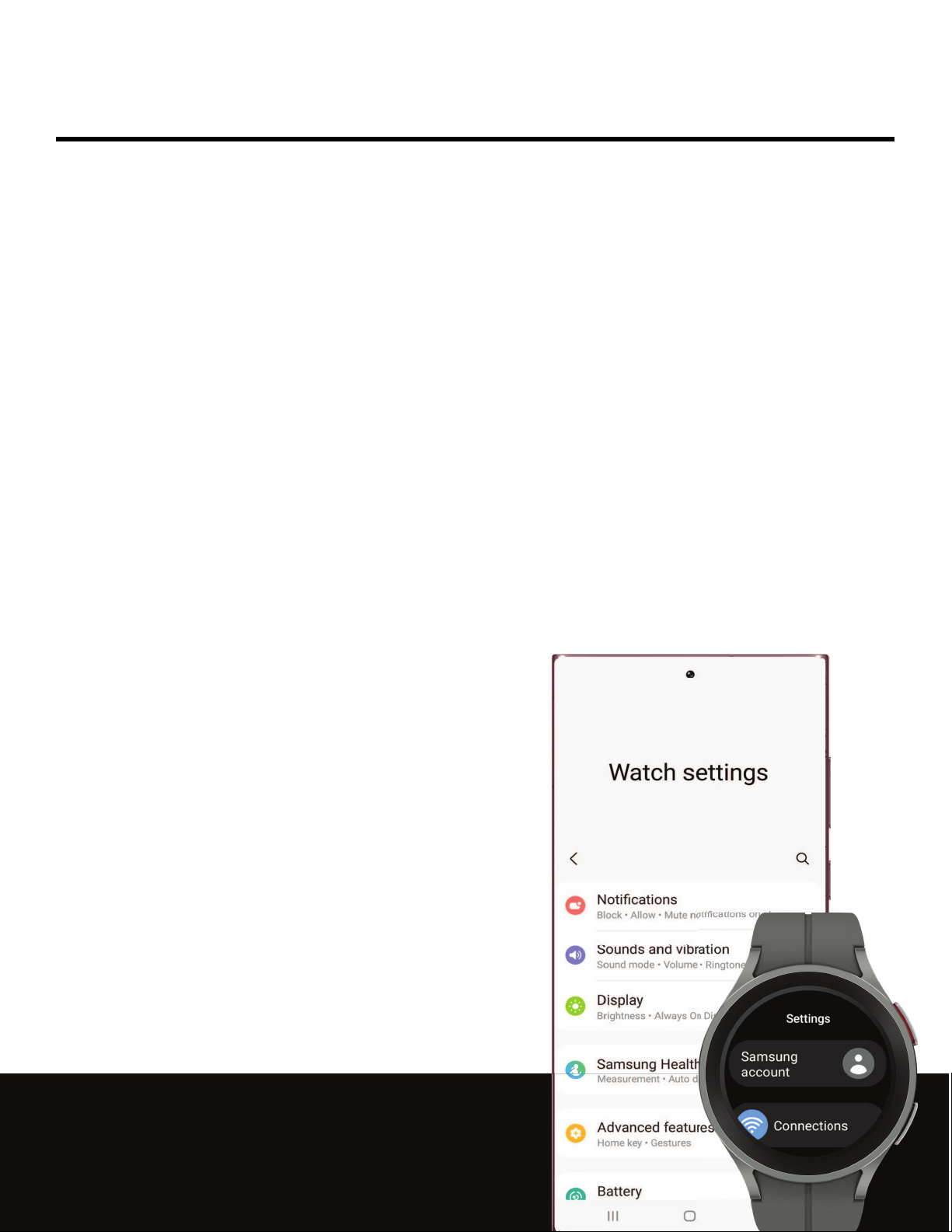
Access Settings
Connections
Notifications
Sounds and vibration
Display
Device maintenance
Accessibility
Security and privacy
Accounts
Other settings
56
(:)
C>
(:)
C>
(:)
0
Settings
Access Settings
You can personalize your device by configuring various setting options.
◌
From Apps, tap
Settings, or swipe down from the top of the screen to open
the status panel and tap
Settings.
Connections
Manage connections between your device and a variety of networks and other
devices.
Bluetooth | Wi-Fi | NFC | Disconnection alerts | Airplane mode | Mobile networks | Data
usage
Bluetooth
Use Bluetooth to connect the watch to a smartphone or an optional headset for
playing music (headset not included).
1.
From
Settings, tap Connections > Bluetooth.
2.
Tap
to turn on the feature.
Wi-Fi
Activate the Wi-Fi feature to connect to a Wi-Fi network.
1.
From
Settings, tap Connections > Wi-Fi.
2.
Tap
to turn on the feature.
57
(:)
(:)
c»
Settings
Connect to a Wi-Fi network
This feature is available when the watch is not connected to the smartphone through
Bluetooth.
1.
From
Settings, tap Connections > Wi-Fi.
2. Tap a network from the
Available networks list.
•
Networks that require a password display a lock icon.
3. Enter the password if required, and tap
Connect.
NOTE Once the watch connects to a Wi-Fi network, the watch reconnects to that
network each time it is available without requiring a password. To prevent the
watch connecting to the network automatically, select the network, and then
tap
Forget.
NFC
Near Field Communication (NFC) allows you to communicate with another device
without connecting to a network. Make payments and buy tickets for transportation
or events after downloading and configuring the required apps.
1.
From
Settings, tap Connections > NFC.
2.
Tap
to enable the feature.
3. Tap
Payment to set the default payment app for mobile payments.
•
To use a payment app that is open, tap
Pay with open app.
58
0
0
0
-'IJ-
0
Settings
Make payments with the NFC feature
Before you can use the NFC feature to make payments, you must register for the
mobile payment service. To register or get more information about the service,
contact your service provider.
◌
Touch the top of the watch’s touchscreen to the credit card reader.
NOTE The payment services list may not include all available payment apps.
Open with NFC
You can select supported apps to open with NFC.
1.
From
Settings, tap Connections > NFC.
2. Tap
Others, and select an app.
Disconnection alerts
Receive alerts when disconnected from Bluetooth.
1.
From
Settings, tap Connections > Disconnection alerts.
2. Tap an alert style to select it.
Airplane mode
Airplane mode disconnects your device from all networks and turns off connectivity
features, such as phone calls and Wi-Fi.
◌
From
Settings, tap Connections > Airplane mode to enable this option.
TIP You can also access Airplane mode from Quick settings. Swipe down from
the top of the watch, and tap
.
59

(:)
(:)
Settings
Mobile networks
Customize your mobile networks. This feature is only available on LTE models. When
you are not subscribed to a service provider's mobile plan, the mobile network is
turned off to save battery power and network services may not be available.
1.
From
Settings, tap Connections.
2. Tap
Mobile networks, and tap an option for mobile network use.
3. Swipe down and tap
Mobile plans to view available mobile plans for your device
Data usage
Explore options for your data plan. This feature is only available on the LTE model.
1.
From Apps, tap
Settings, tap Connections.
2. Tap
Data usage and tap an option:
•
Start billing cycle on: Change the monthly date to align with your carrier's
billing date (if applicable).
•
Set data limit: Enable the data limit feature.
•
Data limit: Customize your data limit.
60
0
0
0
0
Settings
Notifications
You can prioritize and streamline app alerts by changing which apps send
notifications and how notifications alert you.
Notification settings | Advanced notification settings | Wireless emergency alerts
Notification settings
Coordinate notifications between your phone and watch.
◌
From
Settings, tap Notifications, and tap an option to enable it:
•
Show phone notifications on watch: When the phone is not in use receive
phone notifications on your watch.
•
Mute notifications on phone: Notifications on your phone will be muted while
you are wearing your watch.
Advanced notification settings
Use these options to determine block out time where notifications are turned off, and
during which time periods you want to enter this mode.
◌
From
Settings, tap Notifications, and tap options under Advanced settings
to enable:
•
Notification indicator: Show indicator for unread notifications.
•
Read notifications aloud: When headphones are connected the watch can
read your notifications aloud.
•
Show with details: Show the details of new notifications automatically.
•
Turn on screen: Turn on the watch screen when notifications are received.
•
Turn on for new apps: Automatically turn on notifications for newly installed
apps.
61

(:)
(:)
0
Settings
Wireless emergency alerts
Emergency alerts notify you of imminent threats and other situations. There is no
charge for receiving an Emergency alert message.
◌
From
Settings, tap Notifications > Wireless emergency alerts.
•
Allow alerts: Allow your watch to receive wireless emergency alert
notifications.
•
Alerts: Choose which alert types you would like to receive on your watch.
•
Emergency alert history: View previous alerts.
•
Alert preferences: Customize alert reminders, accessibility options, and
more.
Sounds and vibration
Configure the vibrations used to indicate notifications, screen touches, and other
interactions.
Sound mode | Vibration | Call vibration | Notification vibration | Volume | Ringtone |
Notification sound | System vibration | System sounds
Sound mode
Switch between sound modes, while preserving the individual sound settings you
have made.
1.
From
Settings, tap Sounds and vibration.
2. Tap an option under
Sound mode:
•
Sound: Enable sounds for notifications and alerts.
–
Vibrate with sound: Set your device to vibrate in addition to ringing when
you receive an alert(This option is only available if Sound is enabled.)
•
Vibrate: Use vibration only for notifications and alerts.
•
Mute: Set your device to make no sounds.
62

(:)
0
(:)
0
(:)
0
(:)
0
(:)
0
(:)
0
Settings
Vibration
Set how long and intensely the device vibrates for notifications.
1.
From
Settings, tap Sounds and vibration > Vibration.
2. Select options under
Vibration duration and Vibration intensity to set your
preference.
Call vibration
Vibrate for calls.
1.
From
Settings, tap Sounds and vibration.
2. Tap
Call vibration and select a vibration pattern.
Notification vibration
Choose a vibration pattern for new notifications.
◌
From
Settings, tap Sounds and vibration > Notification vibration and select
a vibration pattern.
Volume
Set volume levels.
1.
From
Settings, tap Sounds and vibration > Volume.
2. Tap a mode to customize the volume level.
Ringtone
Choose from preset ringtones or add your own.
1.
From
Settings, tap Sounds and vibration > Ringtone.
2. Tap a ringtone to hear a preview and select it.
Notification sound
Choose from preset notification sounds.
1.
From
Settings, tap Sounds and vibration > Notification sound.
2. Tap a notification sound to hear a preview and select it.
63

0 0
0 0
0 0
Settings
System vibration
Enable vibrations when the watch screen is tapped.
◌
From
Settings, tap Sounds and vibration > System vibration to enable.
System sounds
Enable sounds for actions like tapping the screen and charging the watch.
1.
From
Settings, tap Sounds and vibration.
2. Tap
System sounds, and then an option to enable it:
•
Ticking: Hear a ticking sound.
•
Hourly chime: Hear a sound and feel a vibration at the start of each hour.
•
Touch: Play tones when you touch or tap the screen to make selections.
•
Unlock: Play a sound when you lock or unlock the screen.
•
Charging: Play a sound when a charger is connected.
•
Dialing keypad: Play a tone when dialing numbers on the Phone keypad.
Display
You can configure the screen brightness, timeout delay, font size, and many other
display settings.
Adjust screen brightness | Always on Display | Screen wake-up | Show media controls |
Set the screen timeout | Show last app | Font | Touch sensitivity | Show charging info
Adjust screen brightness
Manually adjust the brightness of the display.
◌
From
Settings, tap Display and select an option:
•
Brightness: Manually adjust the brightness of the display.
•
Auto brightness: Set the watch to automatically adjust the brightness
depending on ambient light conditions.
64
0 0
0 0
0 0
0 0
0 0
Settings
Always on Display
Keep the screen on without unlocking your device using Always On Display (AOD).
◌
From
Settings, tap Display, and tap Always on Display to enable the
feature.
Screen wake-up
Use a gesture to turn on the watch screen.
◌
From
Settings, tap Display, and tap an option under Screen wake-up to
enable:
•
Raise wrist to wake: Lift your wrist to turn on the watch screen.
•
Touch screen to wake: Touch the watch screen to turn it on.
Show media controls
Show controls on your screen when you start playing audio or video on your phone.
◌
From
Settings, tap Display, and tap Show media controls to enable the
feature.
Set the screen timeout
Set the length of time the watch waits before turning off the display’s backlight.
◌
From
Settings, tap Display > Screen timeout, and select a timeout value.
Show last app
Set the length of time the watch displays the last app used when you turn the screen
on.
◌
From
Settings, tap Display > Show last app, and select a timeout value.
65
0 0
0 0
C>
0 0
0
Settings
Font
Customize the font style and size on your watch.
◌
From
Settings, tap Display, and tap an option under Font to customize:
•
Font style: View and select a font.
•
Bold font: Enable to display text in bold.
•
Font size: Choose from small, medium, and large.
Touch sensitivity
Set the watch to allow use of the touch screen with gloves on.
1.
From
Settings, tap Display > Touch sensitivity.
2.
Tap
to enable this feature.
Show charging info
Display the battery level until full.
◌
From
Settings, tap Display > Show charging info to enable the feature.
Device maintenance
View the status of your device’s battery, storage, and memory. You can also
automatically optimize your device’s system resources.
Battery | Power saving mode | Watch only mode | Text to speech | Date and time |
Orientation | Connect to a new phone | Reset the Watch | Location
Battery
View your battery level percentage and remaining hours.
◌
From
Settings, tap Battery to view the remaining battery life for your
watch.
66
(:)
e
(:)
(:)
Settings
Power saving mode
Activate Power saving mode to save battery power by limiting the watch’s functions,
such as:
l
Use a grayscale Home screen.
l
Turn off all functions except calls, messages, and notifications.
l
Turn off Wi-Fi and mobile networks (if applicable).
l
Limit performance.
1.
From
Settings, tap Battery.
2. Tap
Power saving to enable the feature.
To disable Power saving mode:
◌
From the Home screen, swipe from the top of the screen down to open the
Quick settings panel. Tap
Power saving to turn off the feature.
Watch only mode
Activate Watch only mode to save battery power by limiting the watch’s functions to
only showing the time.
1.
From
Settings, tap Battery > Watch only.
2. Tap
Turn on.
•
Press the
Home key to show the time.
•
Press and hold the
Home key to turn watch only mode off.
Text to speech
To set accessibility settings related to Text to speech:
◌
From
Settings, tap General > Text-to-speech and select a mode:
•
Preferred engine: Choose your default TTS engine.
•
TTS engine settings: Install voice data for use with text-to-speech and view
the TTS version information.
•
Language: Choose the language for spoken text.
•
Speech rate: Set the speed at which the text is spoken.
67
(:)
(:)
(:)
(:)
Settings
Date and time
You can set the date and time manually. These options are only available when your
watch is not connected to your mobile device.
◌
From
Settings, tap General > Date and time.
•
Automatic: Use the network to set date and time.
•
Set date: Set the date manually.
•
Set time: Set the time manually.
•
Select time zone: Select the time zone manually.
Orientation
The screen orientation will change based on your choices. For accurate
ECG measurements, choose the orientation the matches how you wear your watch.
◌
From
Settings, tap General > Orientation and select an option:
l
Under Wrist, select the hand you are wearing the watch on.
l
Under Key position, select which side of the screen the keys are on.
Connect to a new phone
Connect your watch to a new mobile device. For more information, see Back up data.
◌
From
Settings, tap General > Connect to new phone and follow the
prompts.
Reset the Watch
Reset settings to their factory default values and delete all data.
1.
From
Settings, tap General > Reset.
2. Tap
Reset again to confirm.
68
C)
0
(:)
C)
8
(:)
Settings
Location
Some apps may require location services to be turned on for full functionality.
1.
From
Settings, tap Location.
2.
Tap
to enable this feature.
3. Tap
Permissions to view apps and features that have permission to access your
location information.
Accessibility
Accessibility services are special features that make using the device easier for those
with certain physical disabilities.
For more information about Accessibility for Samsung products, please contact us at
TalkBack | Visibility enhancements | Hearing enhancements | Interaction and
dexterity
| Accessibility | Installed services
TalkBack
Receive spoken feedback when using your device, such as what you touch, select, or
activate.
1.
From
Settings, tap Accessibility > TalkBack.
2.
Tap
to enable the feature.
l
To configure TalkBack, tap
Settings.
69

(:)
0
Settings
Visibility enhancements
You can configure Accessibility features to assist with visual aspects of your device.
◌
From
Settings, tap Accessibility > Visibility enhancements for the following
options:
•
High contrast fonts: Adjust the color and outline of fonts to increase the
contrast with the background.
•
Color correction: Adjust the color of the screen if you find it difficult to see
some colors.
•
Color inversion: Reverse the display of colors from white text on a black
background to black text on a white background.
•
Add color filter: Adjust the screen colors if you have difficulty reading the text.
•
Remove animations: Remove certain screen effects if you are sensitive to
motion.
•
Reduce transparency and blur: Reduce visual effects on dialogs and menus
to make them easier to see.
•
Magnification: Triple tap to zoom in and out. After zooming out, drag two
fingers apart or together to adjust the zoom level.
•
Bold font: Enable to display text in bold.
•
Font size: Adjust the size of the font.
70
0 0
0 0
Settings
Hearing enhancements
You can configure Accessibility features to assist with audial aspects of the device.
◌
From
Settings, tap Accessibility > Hearing enhancements and tap an
option:
•
Mute all sounds: Turn off all notifications and audio for privacy.
•
Mono audio: Switch audio from stereo to mono when using one earphone.
•
Left/right sound balance: Use the sliders to adjust the left and right balance
for connected audio and device speakers.
Interaction and dexterity
You can configure Accessibility features to assist with limited dexterity when
interacting with your device.
◌
From
Settings, tap Accessibility > Interaction and dexterity and tap an
option:
•
Universal gestures: Control your device with your customized gestures.
•
Touch and hold delay: Select a time interval for this action.
•
Tap duration: Set how long an interaction must be held to be recognized as
a tap.
•
Ignore repeated touches: Set a time duration in which to ignore repeated
touches.
71
0 0
0 0
0 0
Settings
Advanced settings
You can configure Accessibility features.
◌
From
Settings, tap Accessibility > Advanced settings for the following
options:
•
Accessibility shortcuts: Select and enable accessibility function shortcuts.
•
Vibration watch: The watch will use vibrations to communicate the time.
•
Time to take action: Choose how long to show messages that ask you to take
action, but are visible only temporarily (like notifications).
Installed services
You can install additional assistance services for your device.
◌
From
Settings, tap Accessibility > Installed services to see a list of installed
services.
Security and privacy
You can secure your device and protect your data by setting a screen lock.
Set a screen lock | Permission manager
Set a screen lock
It is recommended that you secure your device using a screen lock.
1.
From
Settings, tap Security > Lock.
2. Tap
Type to select a screen lock type:
•
Pattern: Create a pattern that you draw on the screen to unlock your device.
•
PIN: Set a PIN to use for unlocking the device when it is removed from your
wrist and the screen is turned off.
•
None: Do not lock the screen.
3. Tap
Hide information to keep notifications and personal information hidden on
the watch screen.
72
0 0
0
0
Settings
Permission manager
Apps might access features of your watch that you permit them to (like the sensors,
microphone, or location) when they are running in the background, not just when you
are using the app. You can set your watch to notify you when this happens.
1.
From
Settings, tap Privacy > Permission manager.
2. Tap a category, then tap an app to select which permissions you want to be
notified about.
Accounts
Set up and manage your accounts.
Samsung account | Google account
Samsung account
Sign in to your Samsung account to access exclusive Samsung content and make full
use of Samsung apps.
◌
From
Settings, tap Account and backup > Samsung account to add your
account information.
TIP You can also quickly access your Samsung account from the top of the
settings menu.
Google account
Sign in to your Google Account to access your Google Cloud Storage, apps installed
from your account, and make full use of your device’s Android™ features.
◌
From
Settings, tap Account and backup > Google account to add your
account information.
73
0 0
0 0
0
0
Q
Settings
Other settings
Configure features on your device that make it easier to use.
Software update | Tips and tutorials | About watch
Software update
Check for and install available software updates for your device. Options may vary by
carrier.
◌
From
Settings, tap Software update to check for available software
updates.
Tips and tutorials
View tips and techniques as well as tutorials for your device.
◌
From
Settings, tap Tips and tutorials to view tips on your phone, and
tutorials on your watch.
TIP To view the user manual from the
Wear
Galaxy Wearable app on your
smartphone, tap
Tips and user manual.
About watch
View information about the watch.
◌
From
Settings, tap About watch to view information about your watch:
•
Device info: View your device name and Bluetooth identifier.
•
Watch phone number: View the phone number assigned to your watch
(LTE model only).
•
Model number: Check your watch’s model number.
•
Serial number: View your watch’s serial number.
•
IMEI: View your watch’s IMEI number.
•
Storage: Check the available storage space.
•
Device: Access device information about the watch.
74

Settings
•
Legal info: Access legal information related to the watch.
•
Software: Check your watch’s software version and security status.
•
Battery: Check the watch’s battery voltage and capacity.
75

Legal information
READ THIS INFORMATION BEFORE USING YOUR MOBILE DEVICE.
Arbitration Agreement - This Product is subject to a binding arbitration agreement
between you and SAMSUNG ELECTRONICS AMERICA, INC. (“Samsung”). You can opt out of
the agreement within 30 calendar days of the first consumer purchase by emailing
[email protected] or calling 1-800-SAMSUNG (726-7864) and providing the
applicable information.
The full Arbitration Agreement, Standard One-year Limited Warranty, End User License
Agreement (EULA), and Health & Safety Information for your device are available
online at
https://www.samsung.com/us/Legal/Gear-HSGuide.
Restricting children’s access to your
mobile device
Your device is not a toy. Do not allow children to play with it because they could hurt
themselves and others, or damage the device, or make calls that increase your
device bill. Keep the device and all its parts and accessories out of the reach of small
children.
Samsung Electronics America, Inc.
Address:
85 Challenger Road
Ridgefield Park
New Jersey 07660
Phone: 1-800-SAMSUNG (726-7864)
Internet: samsung.com
77

1-11:
HEVd\dvance TM
~ C
Covered
by
Patents
at
patentlist.hevcadvance.com
Legal information
©2022 Samsung Electronics America, Inc. Samsung, Samsung Galaxy, and Samsung
Health are all trademarks of Samsung Electronics Co., Ltd.
Other marks are the property of their respective owners.
Some multimedia (audio/video) files contain Digital Rights Management (DRM)
technology to verify you have the right to use the files. Preloaded apps on your
device may not be compatible with DRM-protected files.
Screen images are simulated. Appearance of device may vary.
Descriptions are based on the device’s default settings. Some content may differ
depending on carrier, model, or software.
The actual available capacity of the internal memory is less than the specified
capacity because the operating system and default applications occupy part of the
memory. The available capacity may change when you upgrade the device.
Please check with your service provider to verify qualifying services/features.
78
