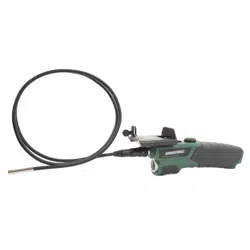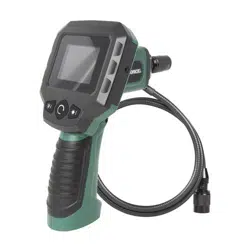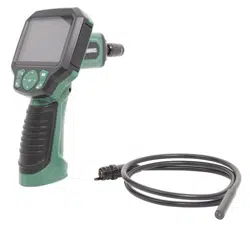
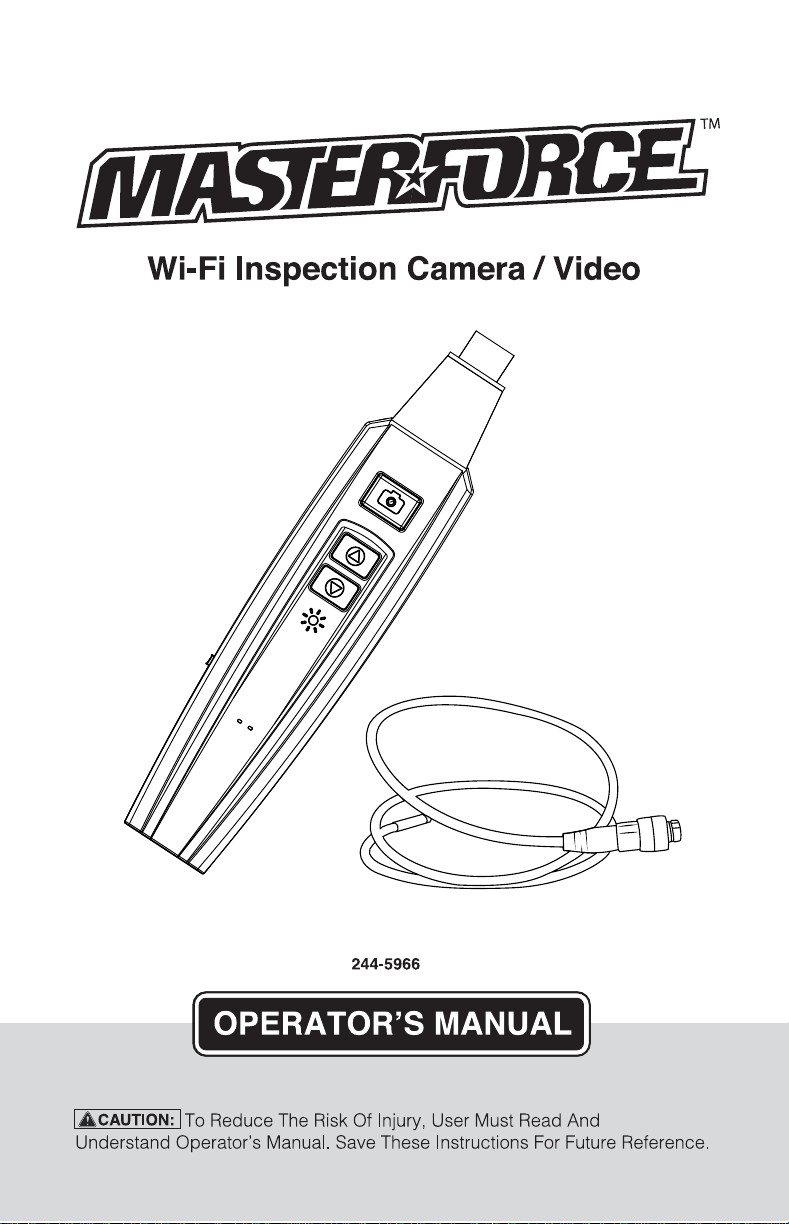
Wi-Fi Inspection Camera / Video
(MIJSTB1EiJRCE£,M
244-5966
[1•1##;f4i
❖
i-iMMWIJ
©
2016 Menard, Inc., Eau Claire, WI 54703
[ACAUTIONJ
To Reduce The Risk Of Injury, User Must Read And
Understand Operator's Manual. Save These Instructions For Future Reference.
TABLE OF CONTENTS
Save This Manual .................................................. ........................... Page 1
Inspection CameraNideo Safety Instructions .................................. Page 1
Electrical Safety ................................................................................ Page 2
Use and Care ................................................................................... Page 2
Overview ........................................................................................... Page 2
Applications ...................................................................................... Page 3
Parts List. .......................................................................................... Page 3
Tool Setup .................................. ....................................................... Page 4
Software Setup (Android ™) ................................................................ Page 4
Software Setup (iPhone®, iPad®) ....................................................... Page 5
Operating Instructions ..................................................................... Page 6
Specifications ....................... ............................................................ Page 9
Notes ...................................... ......................................................... Page 1 O
Warranty/Replacement. .................................................................... Page 14
SAVE THIS MANUAL
• Reference this manual for all safety warnings and precautions , operating and maintenance
procedures , parts list and diagrams .
• Keep your invoice with this manual and write your invoice number on the inside
of the front cover.
• Keep the manual and invoice in a safe, dry place for future reference .
• Be sure to read and understand all safety instructions in this manual, including all safety
alert symbols such as "danger" , "warning", and "caution' before using this tool. Failure to
follow all instructions may result in serious personal injury.
• Save all warnings and instructions for future reference.
INSPECTION CAMERA/ VIDEO SAFETY INSTRUCTIONS
IA .WARNING:!
• Keep work area clean and well lit. Cluttered or dark areas invite accidents .
• Do not operate camera near moving machinery. The cable can be tangled in moving parts,
pulling in the power tool and your hands and arms.
• Do not use near any heat sources such as radiators, heat registers, stoves, or other apparatus
that produce heat.
• Children should not be allowed to use this device.
Page1
Wi-Fi Inspection Camera/ Video
WARRANTY
90-DAY MONEY BACK GUARANTEE
SAVE YOUR RECEIPTS
THIS WARRANTY IS VOID WITHOUT THEM
Page 14
This MASTERFORCE
™
brand tool carries our 90-Day Money Back Guarantee.
If you are not completely satisfied with your MASTERFORCE
™
brand power tool for
any reason within ninety (90) days from the date of purchase, return the tool with your
original receipt to any MENARDS
®
retail store, and we will provide you a refund - no
questions asked.
3 YEAR LIMITED WARRANTY
This MASTERFORCE
™
brand tool carries our famous No Hassle 3 Year Limited
Warranty to the original purchaser. If, during normal use, this MASTERFORCE
™
power
tool breaks or fails due to a defect in material or workmanship, simply bring the tool with
the original sales receipt back to your nearest MENARDS
®
retail store. At its discretion,
MASTERFORCE
™
agrees to have the tool or any defective part(s) repaired or replaced
with the same or similar MASTERFORCE
™
product or part free of charge, within the
stated warranty period, when returned by the original purchaser with original sales
receipt. Not withstanding the foregoing, this 3 year limited warranty does not cover any
damage that has resulted from abuse or misuse of the Merchandise. This warranty: (1)
excludes expendable parts including but not limited to blades, brushes, belts, bits, light
bulbs, and/or batteries; (2) shall be void if this tool is used for commercial and/or rental
purposes; and (3) does not cover any losses, injuries to persons/property or costs. This
warranty does give you specific legal rights and you may have other rights, which vary
from state to state. Be careful, tools are dangerous if improperly used or maintained.
Seller’s employees are not qualified to advise you on the use of this merchandise. Any
oral representation(s) made will not be binding on seller or its employees. The rights
under this 3 year limited warranty are to the original purchaser of the merchandise and
may not be transferred to any subsequent owner. This 3 year limited warranty is in lieu
of all warranties, expressed or implied including warranties or merchantability and
fitness for a particular purpose. Seller shall not be liable for any special, incidental, or
consequential damages. The sole exclusive remedy against the seller will be for the
replacement of any defects as provided herein, as long as the seller is willing or able to
replace this product or is willing to refund the purchase price as provided above. For
insurance purposes seller is not allowed to demonstrate any of these power tools for you.
For questions / comments, technical assistance or repair parts -
Please call toll free at: 1-800-255-7011 (M-F 8am - 6pm CST)
NOTES
Page 13
ELECTRICAL SAFETY
LA CAUTION: I
• Do not use camera to inspect spaces or enclosures known or suspected to contain live
electrical wiring
• The camera is not shock resistant, do not immerse the camera handle or display screen in water.
• Use personal protective equipment. Always wear eye protection. Protective equipment such
as dust mask, non-skid safety shoes, hard hat, or hearing protection used according to
appropriate conditions will reduce personal injuries.
USE AND CARE
• Use personal eye protection according to the particular investigations .. Protective equipment
such as dust mask, non-skid safety shoes, hard hat, or hearing protection used for appropriate
conditions will reduce personal injuries.
• Switch off the instrument when not in use and store in a dry place
• This Visual Inspection Camera is not intended for medical use or personal inspection .
• Store the camera out of the reach of children and do not allow persons unfamiliar with the
camera or these instructions to operate the item.
• Use the camera and its additional cable in accordance with these instructions, taking into
account the working conditions and the work to be performed.
• Use of the camera for operations different from those intended could result in a
hazardous situation.
• Only use accessories specifically recommended for this camera , others may be hazardous
• Clean only with dry cloth or additional soap. Certain cleaning agents and solvents are harmful
to plastics and other insulated parts. Some of these include: gasoline, turpentine, lacquer
thinner, paint thinner, chlorinated cleaning solvents, ammonia and household detergents
containing ammonia.
• Keep the apparatus handle clean, dry and free of oil or grease.
• Do not expose instrument (display) to moisture
• Always remove the batteries before cleaning .
• Replace all batteries at the same time with new ones and use only the size and type
of battery specified
• Attention should be given to the environment aspects of battery disposal
• Permanent damage to the flex tube and loss of operation will occur if the flex tube is
subjected to narrow radius or sharp angle bends.
OVERVIEW
The MASTERFORCE Wi-Fi Inspection Camera/ Video is a portable , hand-held, multifunctional
inspection camera featuring an ultra-compact 8.5mm diameter camera and a high quality
digital sensor that provides crystal clear video output. The camera connects via Wi-Fi to most
smart devices for convenient viewing on any size screen . Using the free downloadable app,
video, still images, and sound can be recorded, saved, and shared. Up to 5 viewing devices
may be connected to the Wi-Fi at one time.
Page2
™
APPLICATIONS
MASTERFORCE Wi-Fi Inspection Camera/ Video has many potential applications , including ,
but not limited to:
• Automotive repair and maintenance
• Inspection of hard to reach or hard to see areas on vehicles, equipment , and structures
• Plumbing and construction
• Heating and air conditioning repair
NOTE: This product is not intended for medical use.
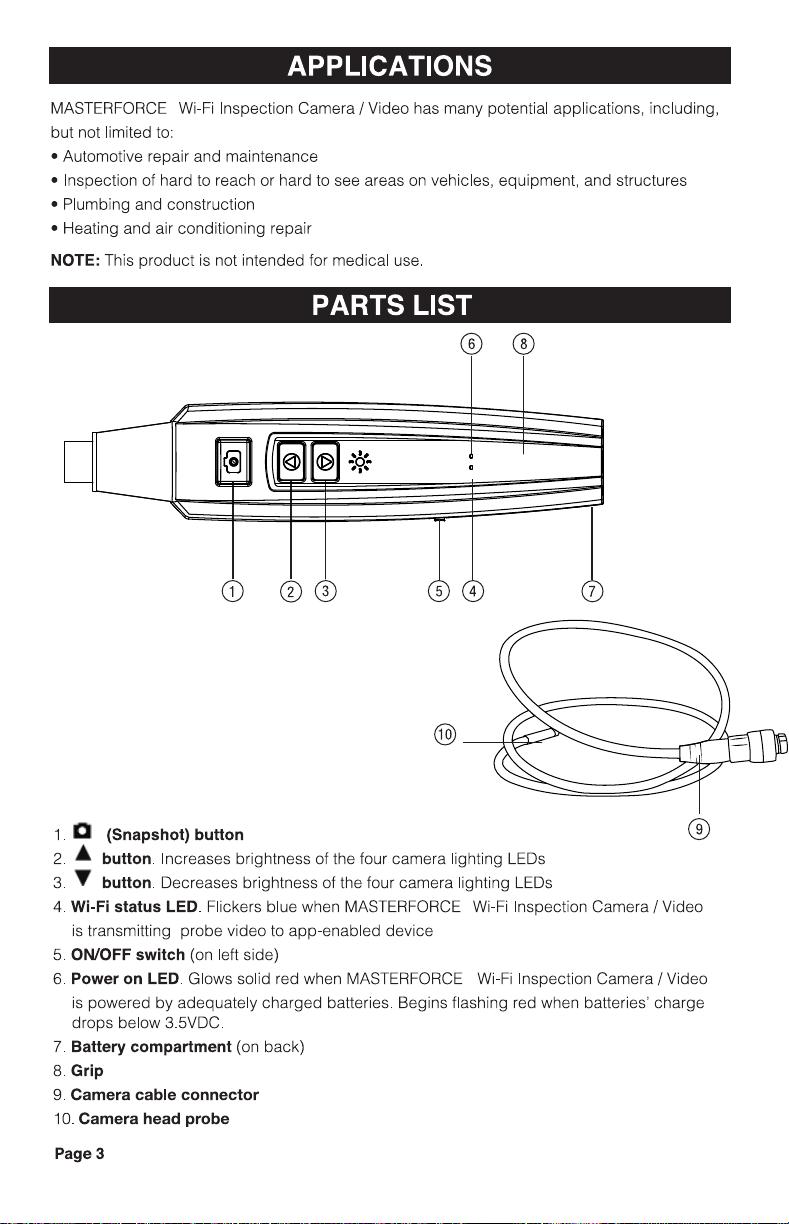
PARTS LIST
.. ,
-a-
,,.
® ®
1. 0 (Snapshot) button ®
2. A button. Increases brightness of the four camera lighting LEDs
3.
'T button. Decreases brightness of the four camera lighting LEDs
4.
Wi-Fi status LED. Flickers blue when MASTERFORCE Wi-Fi Inspection Camera/ Video
is transmitting probe video to app-enabled device
5.
ON/OFF switch (on left side)
6.
Power on LED. Glows solid red when MASTERFORCE Wi-Fi Inspection Camera/ Video
is powered by adequately charged batteries. Begins flashing red when batteries' charge
drops below 3.5VDC.
7.
Battery compartment (on back)
8. Grip
9. Camera cable connector
10. Camera head probe
Page3
NOTES
Page 12
™
™
™
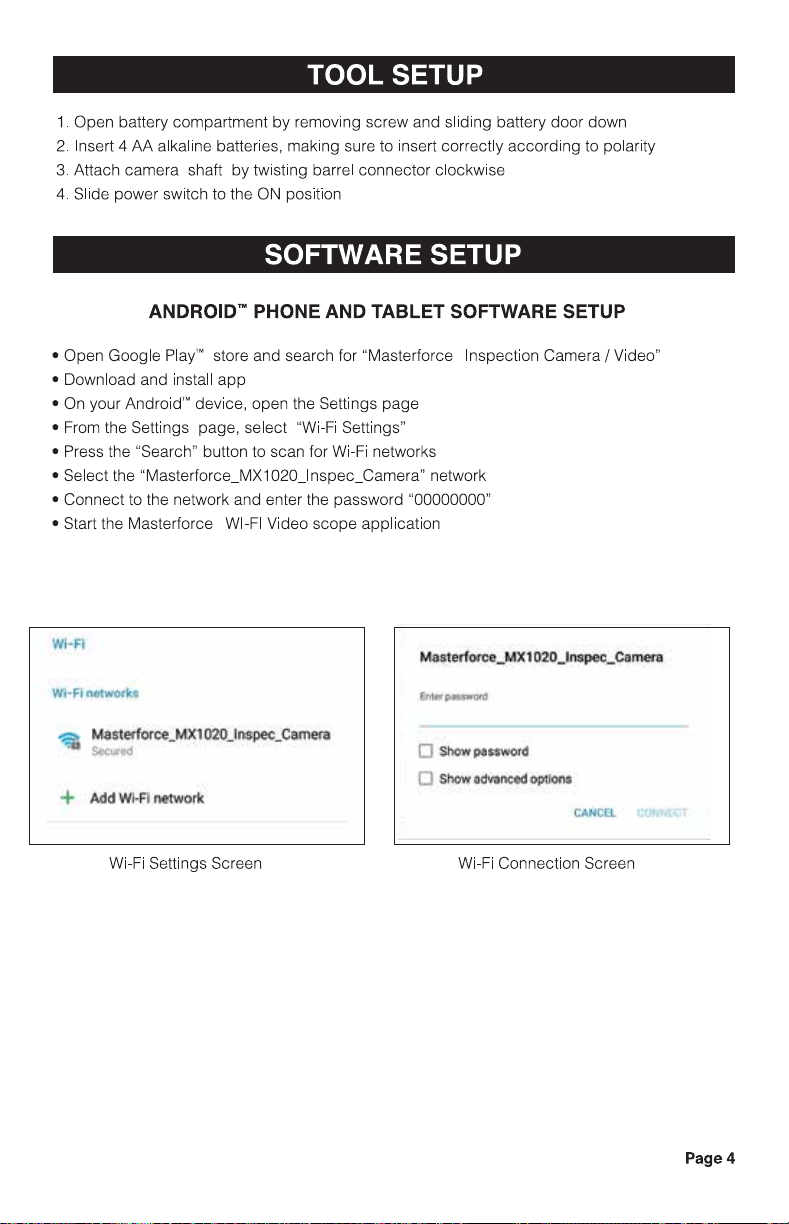
• Connect to the network and enter the password "00000000"
• Start the Masterforce WI-Fl Video scope application
WI-fl
\'lj-Fi natWO<
~
Masterlorce_J,,00 0'20Jns~camera
urrd
+ Add WI• MtWork
0 Sl'low Ptmvord
D Sl'IOYt Q~l'ICed ~$
l:At,ICL:l
Wi-Fi Settings Screen Wi-Fi Connection Screen
Page4
™
NOTES
Page 11
TOOL SETUP
1. Open battery compartment by removing screw and sliding battery door down
2. Insert 4 AA alkaline batteries, making sure to insert correctly according to polarity
3. Attach camera shaft by twisting barrel connector clockwise
4. Slide power switch to the ON position
SOFTWARE SETUP
ANDROID"' PHONE AND TABLET SOFTWARE SETUP
• Open Google Play'" store and search for "Masterforce Inspection Camera/ Video"
• Download and install app
• On your Android'" device, open the Settings page
• From the Settings page, select "Wi-Fi Settings"
• Press the "Search" button to scan for Wi-Fi networks
• Select the "Masterforce_MX1020_1nspec_Camera" network
™
SOFTWARE SETUP
NOTES
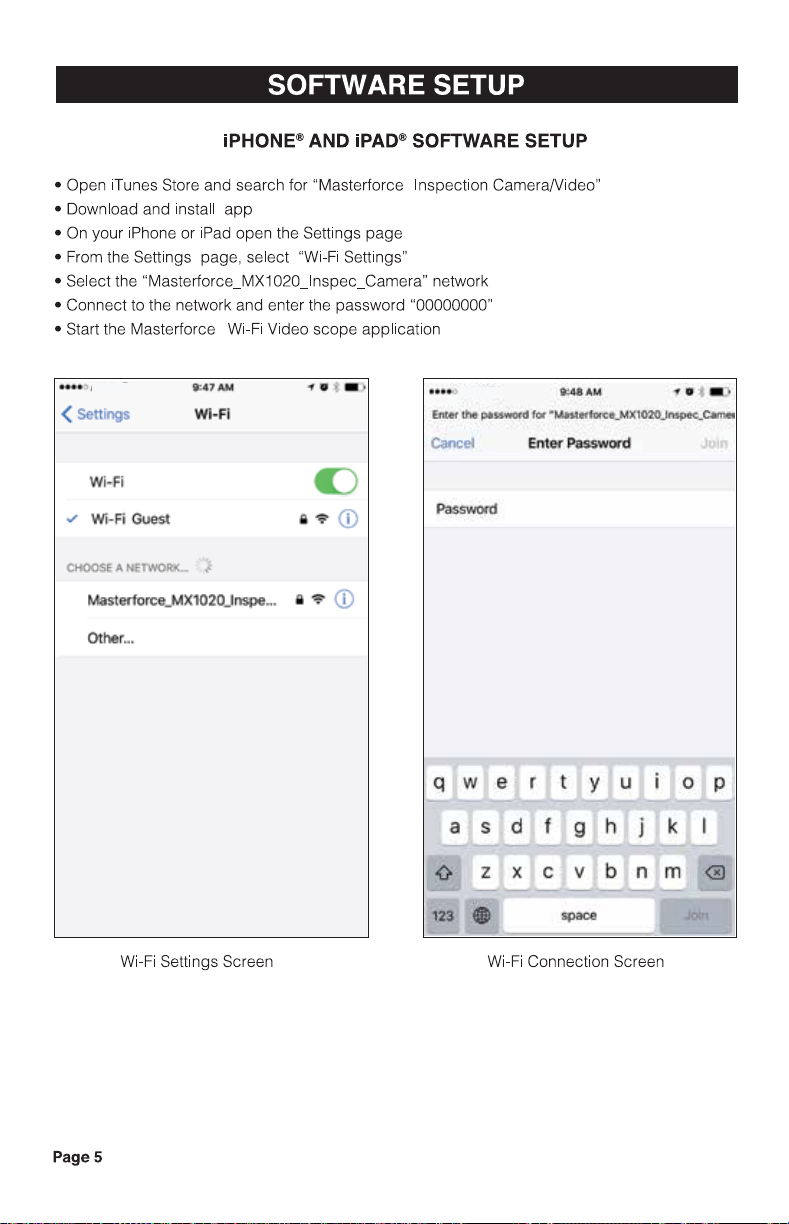
iPHONE® AND iPAD® SOFTWARE SETUP
• Open iTunes Store and search for "Masterforce Inspection CameraNideo"
• Download and install app
• On your iPhone or iPad open the Settings page
• From the Settings page, select "Wi-Fi Settings"
• Select the "Masterforce_MX1020_Inspec_Camera " network
• Connect to the network and enter the password "00000000"
• Start the Masterforce Wi-Fi Video scope application
( Settings WI-Fli
Wi•fi
Masterforee..Mx:102-0Jnspe... a -=s-©
Other~.
Wi-Fi Settings Screen
Pages
q w e
a s
0 z
123 •
Wi-Fi
....
Enter !hi pu wotll fc,, •r,1asu11fo,,:e..MX1020Jnspec_C-
Passwofd
r t y u o p
Connection Screen
Page 10
™
™
OPERATING INSTRUCTIONS
SOFTWARE SETTINGS
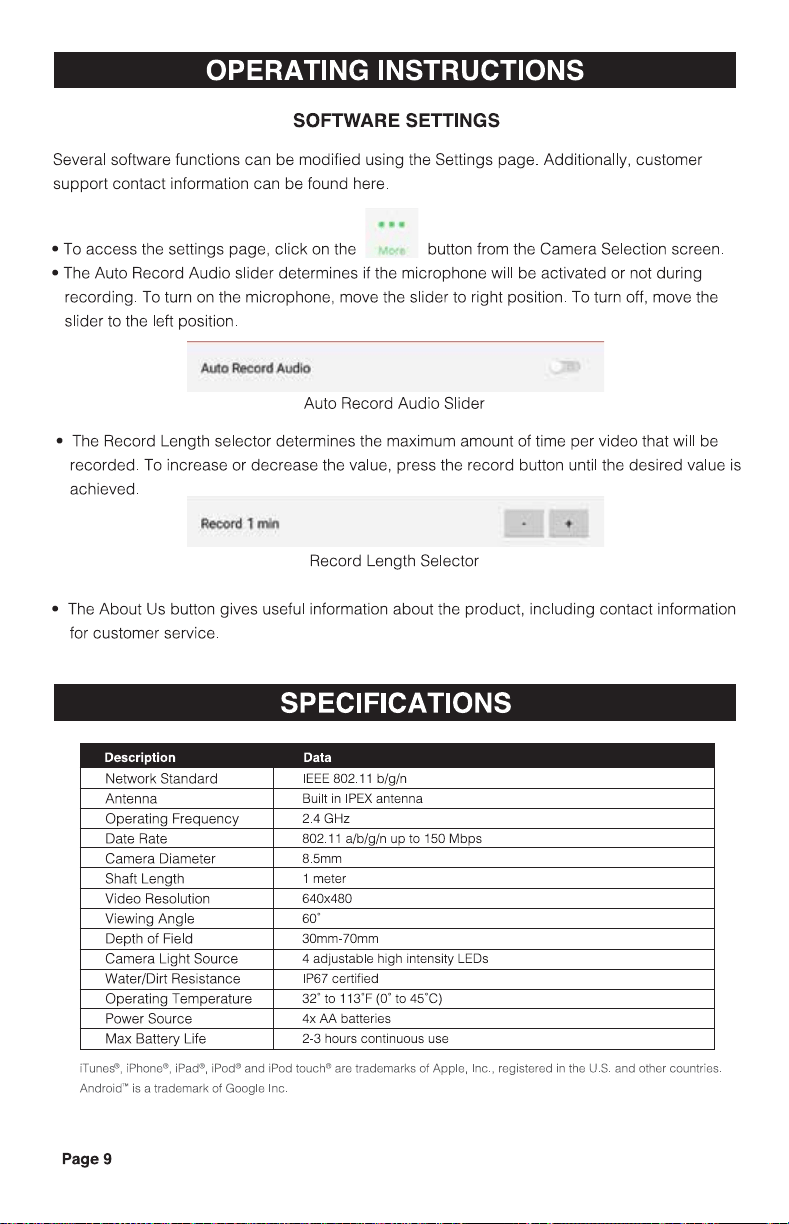
Several software functions can be modified using the Settings page. Additionally , customer
support contact information can be found here .
•
• To access the settings page, click on the button from the Camera Selection screen.
• The Auto Record Audio slider determines if the microphone will be activated or not during
recording .
To turn on the microphone, move the slider to right position. To turn off, move the
slider to the left position.
Auto Old AudlO
Auto Record Audio Slider
• The Record Length selector determines the maximum amount of time per video that will be
recorded . To increase or decrease the value, press the record button until the desired value is
achieved .
Record 1IIWI
Record Length Selector
• The About Us button gives useful information about the product , including contact information
for customer service.
SPECIFICATIONS
Description
Data
Network Standard
IEEE 802.11 b/g/n
Antenna
Built in IPEX antenna
Operating Frequency
2.4 GHz
Date Rate
802. 11 a/b/g/n up to 150 Mbps
Camera Diameter
8.5mm
Shaft Length
1 meter
Video Resolution
640x480
Viewing Angle
60'
Depth of Field
30mm-70mm
Camera Light Source
4 adjustable high intensity LEDs
Water/Dirt Resistance
IP67 certified
Operating Temperature
32' to 113'F (0' to 45'C)
Power Source
4x AA batteries
Max Battery Life
2-3 hours continuous use
iTunes", iPhone®, iPad®, iPod® and iPod touche are trademarks of Apple, Inc., registered in the U.S. and other countries.
Android™ is a trademark of Google Inc.
Page9
OPERATING INSTRUCTIONS
ANDROID"', iPHONE®, AND iPAD®
CAMERA SELECTION PAGE
camen
r.«1020 MUterl«~ Wl"Fi
lnspectioo Carnera,IV!deo
Ml(1021 Maslerfurc:e Wi,Fi
In~ c~nwa,J'I/~
Inspection Camera/Video List Page
CAMERA PREVIEW PAGE
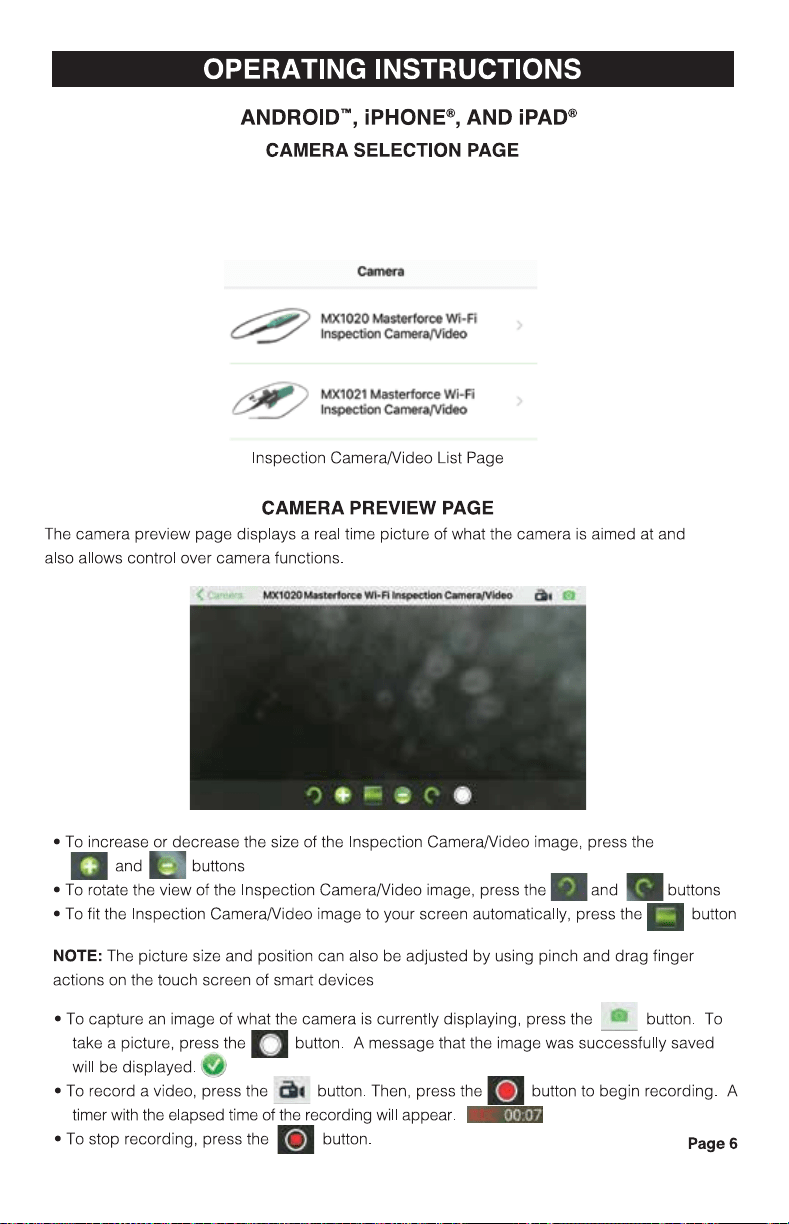
The camera preview page displays a real time picture of what the camera is aimed at and
also allows control over camera functions.
• To increase or decrease the size of the Inspection CameraNideo image, press the
a and buttons
• To rotate the view of the Inspection CameraNideo image, press the . and
• To fit the Inspection CameraNideo image to your screen automatically, press the
NOTE: The picture size and position can also be adjusted by using pinch and drag finger
actions on the touch screen of smart devices
• To capture an image of what the camera is currently displaying , press the button. To
take a picture, press the
f.,:J button. A message that the image was successfully saved
will be displayed .
I I
• To record a video, press the ci button. Then, press the ljJ button to begin recording. A
timer with the elapsed time of the recording will appear.
• To stop recording, press the
liJ button. Page 6
• Ensure camera is powered on
• Launch the Masterforce
™
Wi-Fi Inspection Camera/Video App
• From the Inspection Camera/Video List page, select the MX-1020 Masterforce Wi-Fi Inspection
Camera/Video
OPERATING INSTRUCTIONS
VIEWING AND SHARING SAVED IMAGES AND VIDEOS
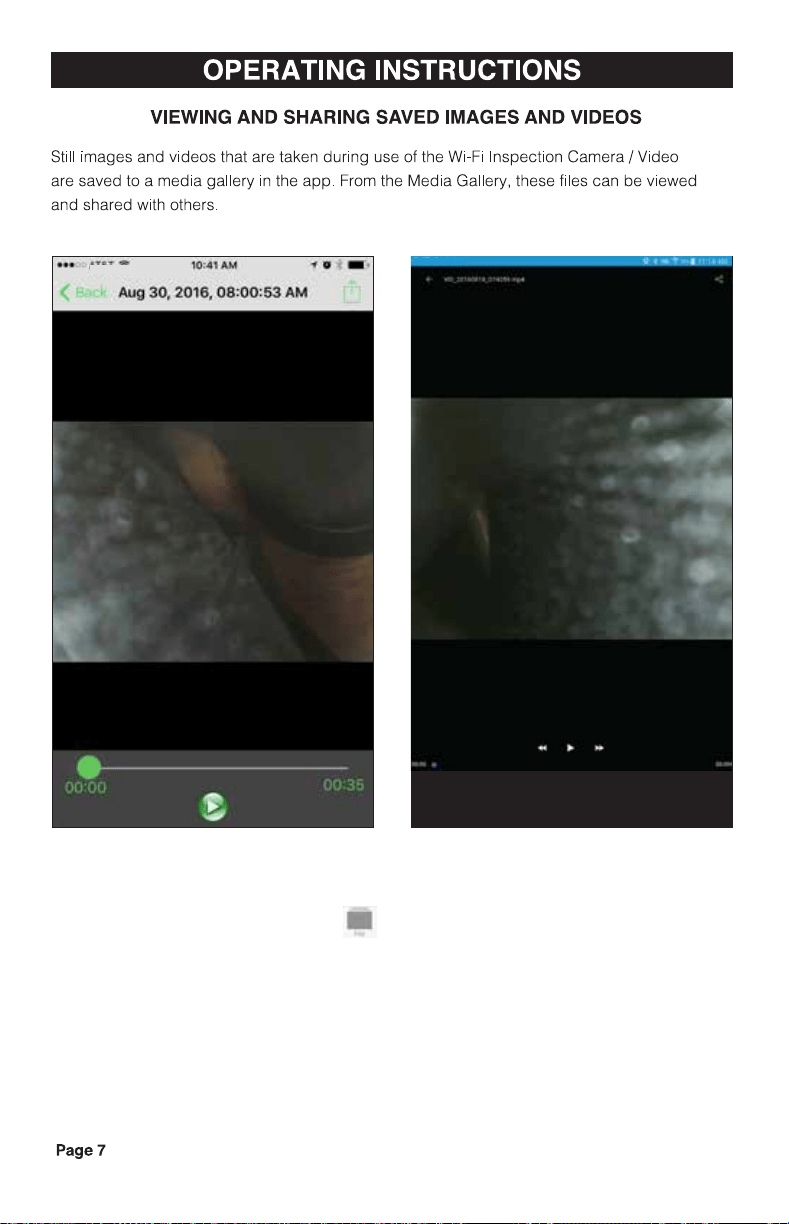
Still images and videos that are taken during use of the Wi-Fi Inspection Camera/ Video
are saved to a media gallery in the app. From the Media Gallery, these files can be viewed
and shared with others.
Page7
ery
elect the checkbox of each file you wish to
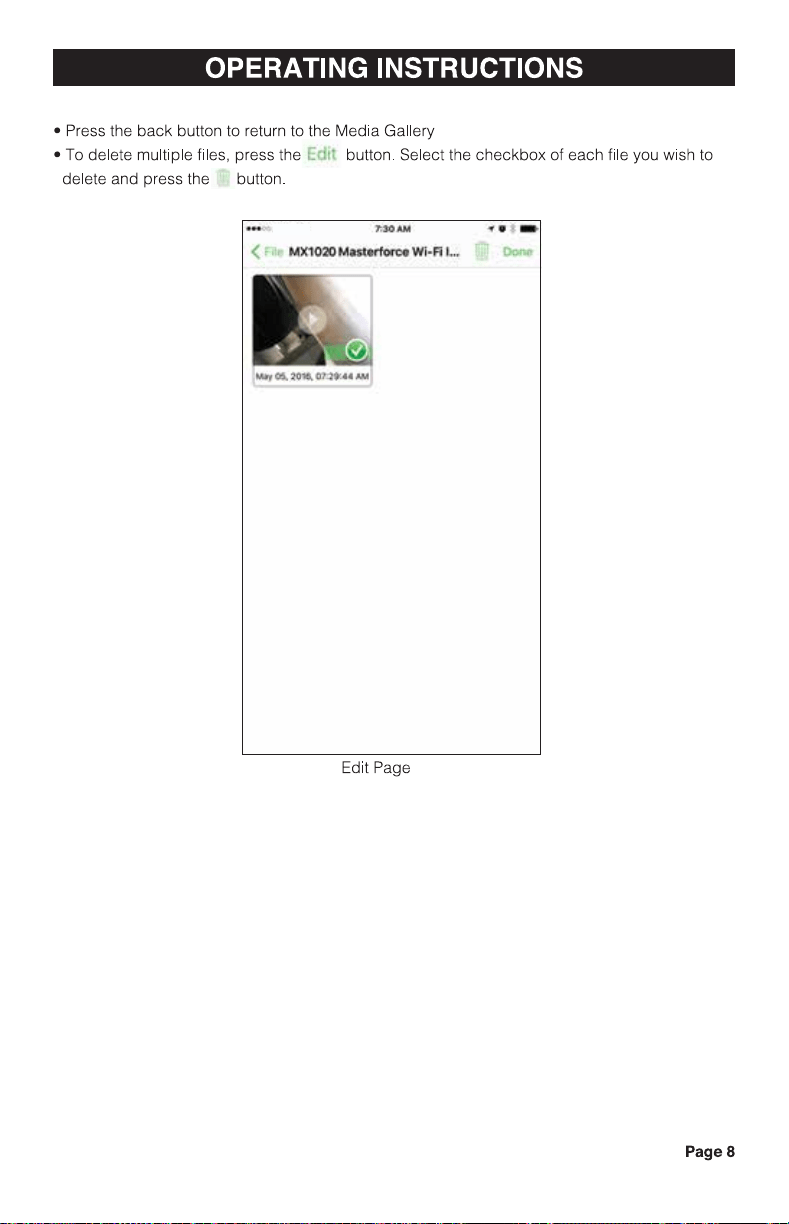
• Press the back button to return to the Media Gall
e E
I button. S
1';30.i\M
M>Ct0"20 Maslti'kM>
• To delete multiple files, press th
delete and press the button.
( ,
..,, . ..
Oii Wl•R 11.,.
OPERATING INSTRUCTIONS
Edit Page
Pages
™
iPhone
®
/ iPad
®
Media Gallery Android Media Gallery
• To access the Media Gallery, click the
button from the Camera Selection page.
• Select the “Masterforce
™
Wi-Fi Inspection Camera / Video” from the Source List. Thumbnails
of all saved items will be displayed.
OPERATING INSTRUCTIONS
VIEWING AND SHARING SAVED IMAGES AND VIDEOS
Still images and videos that are taken during use of the Wi-Fi Inspection Camera/ Video
are saved to a media gallery in the app. From the Media Gallery, these files can be viewed
and shared with others.
Page7
ery
elect the checkbox of each file you wish to
• Press the back button to return to the Media Gall
e E
I button. S
1';30.i\M
M>Ct0"20 Maslti'kM>
• To delete multiple files, press th
delete and press the button.
( ,
..,, . ..
Oii Wl•R 11.,.
OPERATING INSTRUCTIONS
Edit Page
Pages
™
iPhone
®
/ iPad
®
Media Gallery Android Media Gallery
• To access the Media Gallery, click the
button from the Camera Selection page.
• Select the “Masterforce
™
Wi-Fi Inspection Camera / Video” from the Source List. Thumbnails
of all saved items will be displayed.
OPERATING INSTRUCTIONS
SOFTWARE SETTINGS
Several software functions can be modified using the Settings page. Additionally , customer
support contact information can be found here .
•
• To access the settings page, click on the button from the Camera Selection screen.
• The Auto Record Audio slider determines if the microphone will be activated or not during
recording .
To turn on the microphone, move the slider to right position. To turn off, move the
slider to the left position.
Auto Old AudlO
Auto Record Audio Slider
• The Record Length selector determines the maximum amount of time per video that will be
recorded . To increase or decrease the value, press the record button until the desired value is
achieved .
Record 1IIWI
Record Length Selector
• The About Us button gives useful information about the product , including contact information
for customer service.
SPECIFICATIONS
Description
Data
Network Standard
IEEE 802.11 b/g/n
Antenna
Built in IPEX antenna
Operating Frequency
2.4 GHz
Date Rate
802. 11 a/b/g/n up to 150 Mbps
Camera Diameter
8.5mm
Shaft Length
1 meter
Video Resolution
640x480
Viewing Angle
60'
Depth of Field
30mm-70mm
Camera Light Source
4 adjustable high intensity LEDs
Water/Dirt Resistance
IP67 certified
Operating Temperature
32' to 113'F (0' to 45'C)
Power Source
4x AA batteries
Max Battery Life
2-3 hours continuous use
iTunes", iPhone®, iPad®, iPod® and iPod touche are trademarks of Apple, Inc., registered in the U.S. and other countries.
Android™ is a trademark of Google Inc.
Page9
OPERATING INSTRUCTIONS
ANDROID"', iPHONE®, AND iPAD®
CAMERA SELECTION PAGE
camen
r.«1020 MUterl«~ Wl"Fi
lnspectioo Carnera,IV!deo
Ml(1021 Maslerfurc:e Wi,Fi
In~ c~nwa,J'I/~
Inspection Camera/Video List Page
CAMERA PREVIEW PAGE
The camera preview page displays a real time picture of what the camera is aimed at and
also allows control over camera functions.
• To increase or decrease the size of the Inspection CameraNideo image, press the
a and buttons
• To rotate the view of the Inspection CameraNideo image, press the . and
• To fit the Inspection CameraNideo image to your screen automatically, press the
NOTE: The picture size and position can also be adjusted by using pinch and drag finger
actions on the touch screen of smart devices
• To capture an image of what the camera is currently displaying , press the button. To
take a picture, press the
f.,:J button. A message that the image was successfully saved
will be displayed .
I I
• To record a video, press the ci button. Then, press the ljJ button to begin recording. A
timer with the elapsed time of the recording will appear.
• To stop recording, press the
liJ button. Page 6
• Ensure camera is powered on
• Launch the Masterforce
™
Wi-Fi Inspection Camera/Video App
• From the Inspection Camera/Video List page, select the MX-1020 Masterforce Wi-Fi Inspection
Camera/Video
SOFTWARE SETUP
NOTES
iPHONE® AND iPAD® SOFTWARE SETUP
• Open iTunes Store and search for "Masterforce Inspection CameraNideo"
• Download and install app
• On your iPhone or iPad open the Settings page
• From the Settings page, select "Wi-Fi Settings"
• Select the "Masterforce_MX1020_Inspec_Camera " network
• Connect to the network and enter the password "00000000"
• Start the Masterforce Wi-Fi Video scope application
( Settings WI-Fli
Wi•fi
Masterforee..Mx:102-0Jnspe... a -=s-©
Other~.
Wi-Fi Settings Screen
Pages
q w e
a s
0 z
123 •
Wi-Fi
....
Enter !hi pu wotll fc,, •r,1asu11fo,,:e..MX1020Jnspec_C-
Passwofd
r t y u o p
Connection Screen
Page 10
™
™

Wi-Fi Inspection Camera / Video
(MIJSTB1EiJRCE£,M
244-5966
[1•1##;f4i
❖
i-iMMWIJ
©
2016 Menard, Inc., Eau Claire, WI 54703
[ACAUTIONJ
To Reduce The Risk Of Injury, User Must Read And
Understand Operator's Manual. Save These Instructions For Future Reference.