
(M/JSTBKiJRCEkM
©
2016 Menard, Inc., Eau Claire, WI 54703
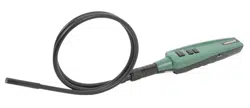
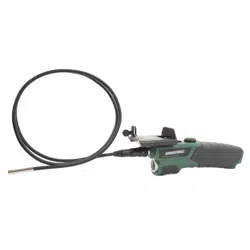
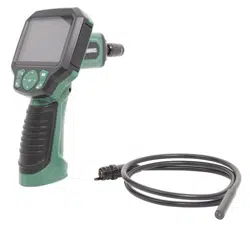
Digital Inspection Camera
with 3.5" Screen
244-5967
[1•1##;f4i
❖
i-iMMWIJ
[ACAUTIONJ
To Reduce The Risk Of Injury, User Must Read And
Understand Operator's Manual. Save These Instructions For Future Reference.

(M/JSTBKiJRCEkM
©
2016 Menard, Inc., Eau Claire, WI 54703
Digital Inspection Camera
with 3.5" Screen
244-5967
[1•1##;f4i
❖
i-iMMWIJ
[ACAUTIONJ
To Reduce The Risk Of Injury, User Must Read And
Understand Operator's Manual. Save These Instructions For Future Reference.

TABLE OF CONTENTS
Save This Manual. ............................................................................ Page 1
Digital Inspection Camera Safety Instructions ................................. Page 2
Electrical Safety................................................................................ Page 2
Use and Care ................................................................................... Page 2
Cleaning and Storage ...................................................................... Page 3
Tool Set Up ....................................................................................... Page 3
Inspection ........................................................................................ Page 4
Operating Instructions ...................................................................... Page 4
Parts List........................................................................................... Page 5
Live Viewing ..................................................................................... Page 7
Capturing Images ............................................................................. Page 7
Playback and Delete ........................................................................ Page 7
Specifications ................................................................................... Page 8
Troubleshooting ................................................................................ Page 8
Notes................................................................................................ Page 9
Warranty/Replacement. .................................................................... Page 10
SAVE THIS MANUAL
• Reference this manual for all safety warnings and precautions, operating and maintenance
procedures , parts list and diagrams .
• Keep your invoice with this manual and write your invoice number on the inside
of the front cover.
• Keep the manual and invoice in a safe, dry place for future reference .
• Be sure to read and understand all safety instructions in this manual, including all safety
alert symbols such as "danger" , "warning", and "caution" before using this tool. Failure to
follow all instructions may result in serious personal injury.
• Save all warnings and instructions for future reference.
Page1
(MAS(Hfl;.DRCS"_____
DigitalInspectionCamera
with3.5" Screen
WARRANTY
90-DAY MONEY BACK GUARANTEE
This MASTERFORCE™brand tool carries our 90-Day Money Back Guarantee.
If you are not completely satisfied with your MASTERFORCE'" brand power tool for
any reason within ninety (90) days from the date of purchase, return the tool with your
original receipt to any MENARDS®retail store, and we will provide you a refund - no
questions asked.
3 YEAR LIMITED WARRANTY
This MASTERFORCE'" brand tool carries our famous No Hassle 3 Year Limited
Warranty to the original purchaser. If, during normal use, this MASTERFORCE'" power
tool breaks or fails due to a defect in material or workmanship, simply bring the tool with
the original sales receipt back to your nearest MENARDS®retail store. At its discretion,
MASTERFORCE ™agrees to have the tool or any defective part(s) repaired or replaced
with the same or similar MASTERFORCE'" product or part free of charge, within the
stated warranty period, when returned by the original purchaser with original sales
receipt. Not withstanding the foregoing, this 3 year limited warranty does not cover any
damage that has resulted from abuse or misuse of the Merchandise. This warranty : (1)
excludes expendable parts including but not limited to blades, brushes, belts, bits, light
bulbs, and/or batteries; (2) shall be void if this tool is used for commercial and/or rental
purposes; and (3) does not cover any losses, injuries to persons/property or costs. This
warranty does give you specific legal rights and you may have other rights, which vary
from state to state. Be careful, tools are dangerous if improperly used or maintained.
Seller's employees are not qualified to advise you on the use of this merchandise. Any
oral representation(s) made will not be binding on seller or its employees. The rights
under this 3 year limited warranty are to the original purchaser of the merchandise and
may not be transferred to any subsequent owner. This 3 year limited warranty is in lieu
of all warranties, expressed or implied including warranties or merchantability and
fitness for a particular purpose. Seller shall not be liable for any special, incidental, or
consequential damages. The sole exclusive remedy against the seller will be for the
replacement of any defects as provided herein, as long as the seller is willing or able to
replace this product or is willing to refund the purchase price as provided above. For
insurance purposes seller is not allowed to demonstrate any of these power tools for you.
For questions/ comments, technical assistance or repair parts -
Please call toll free at: 1-800-255-7011 (M-F 8am - 6pm CST)
Page 10

TABLE OF CONTENTS
Save This Manual. ............................................................................ Page 1
Digital Inspection Camera Safety Instructions ................................. Page 2
Electrical Safety................................................................................ Page 2
Use and Care ................................................................................... Page 2
Cleaning and Storage ...................................................................... Page 3
Tool Set Up ....................................................................................... Page 3
Inspection ........................................................................................ Page 4
Operating Instructions ...................................................................... Page 4
Parts List........................................................................................... Page 5
Live Viewing ..................................................................................... Page 7
Capturing Images ............................................................................. Page 7
Playback and Delete ........................................................................ Page 7
Specifications ................................................................................... Page 8
Troubleshooting ................................................................................ Page 8
Notes................................................................................................ Page 9
Warranty/Replacement. .................................................................... Page 10
SAVE THIS MANUAL
• Reference this manual for all safety warnings and precautions, operating and maintenance
procedures , parts list and diagrams .
• Keep your invoice with this manual and write your invoice number on the inside
of the front cover.
• Keep the manual and invoice in a safe, dry place for future reference .
• Be sure to read and understand all safety instructions in this manual, including all safety
alert symbols such as "danger" , "warning", and "caution" before using this tool. Failure to
follow all instructions may result in serious personal injury.
• Save all warnings and instructions for future reference.
Page1
(MAS(Hfl;.DRCS"_____
DigitalInspectionCamera
with3.5" Screen
WARRANTY
90-DAY MONEY BACK GUARANTEE
This MASTERFORCE™brand tool carries our 90-Day Money Back Guarantee.
If you are not completely satisfied with your MASTERFORCE'" brand power tool for
any reason within ninety (90) days from the date of purchase, return the tool with your
original receipt to any MENARDS®retail store, and we will provide you a refund - no
questions asked.
3 YEAR LIMITED WARRANTY
This MASTERFORCE'" brand tool carries our famous No Hassle 3 Year Limited
Warranty to the original purchaser. If, during normal use, this MASTERFORCE'" power
tool breaks or fails due to a defect in material or workmanship, simply bring the tool with
the original sales receipt back to your nearest MENARDS®retail store. At its discretion,
MASTERFORCE ™agrees to have the tool or any defective part(s) repaired or replaced
with the same or similar MASTERFORCE'" product or part free of charge, within the
stated warranty period, when returned by the original purchaser with original sales
receipt. Not withstanding the foregoing, this 3 year limited warranty does not cover any
damage that has resulted from abuse or misuse of the Merchandise. This warranty : (1)
excludes expendable parts including but not limited to blades, brushes, belts, bits, light
bulbs, and/or batteries; (2) shall be void if this tool is used for commercial and/or rental
purposes; and (3) does not cover any losses, injuries to persons/property or costs. This
warranty does give you specific legal rights and you may have other rights, which vary
from state to state. Be careful, tools are dangerous if improperly used or maintained.
Seller's employees are not qualified to advise you on the use of this merchandise. Any
oral representation(s) made will not be binding on seller or its employees. The rights
under this 3 year limited warranty are to the original purchaser of the merchandise and
may not be transferred to any subsequent owner. This 3 year limited warranty is in lieu
of all warranties, expressed or implied including warranties or merchantability and
fitness for a particular purpose. Seller shall not be liable for any special, incidental, or
consequential damages. The sole exclusive remedy against the seller will be for the
replacement of any defects as provided herein, as long as the seller is willing or able to
replace this product or is willing to refund the purchase price as provided above. For
insurance purposes seller is not allowed to demonstrate any of these power tools for you.
For questions/ comments, technical assistance or repair parts -
Please call toll free at: 1-800-255-7011 (M-F 8am - 6pm CST)
Page 10

NOTES
Page9
DIGITAL INSPECTION CAMERA SAFETY INSTRUCTIONS
I.AWARNING:I
• Keep work area clean and well lit. Cluttered or dark areas invite accidents.
• Do not operate camera near moving machinery. The cable can be tangled in moving parts,
pulling in the power tool and your hands and arms.
• Do not use near any heat sources such as radiators, heat registers, stoves, or other apparatus
that produce heat.
• Children should not be allowed to use this device .
ELECTRICAL SAFETY
IA.CAUTION: I
• Do not use camera to inspect spaces or enclosures known or suspected to contain live
electrical wiring
• The camera is not shock resistant, do not immerse the camera handle or display screen in water.
• Use personal protective equipment. Always wear eye protection. Protective equipment such
as dust mask, non-skid safety shoes, hard hat, or hearing protection used according to
appropriate conditions will reduce personal injuries.
USE AND CARE
• Use personal eye protection according to the particular investigations .. Protective equipment
such as dust mask, non-skid safety shoes, hard hat, or hearing protection used for appropriate
conditions will reduce personal injuries.
• Switch off the instrument when not in use and store in a dry place
• This Visual Inspection Camera is not intended for medical use or personal inspection.
• Store the camera out of the reach of children and do not allow persons unfamiliar with the
camera or these instructions to operate the item.
• Use the camera and its additional cable in accordance with these instructions, taking into
account the working conditions and the work to be performed .
• Use of the camera for operations different from those intended could result in a
hazardous situation.
• Only use accessories specifically recommended for this camera, others may be hazard
• Clean only with dry cloth or additional soap. Certain cleaning agents and solvents are harmful
to plastics and other insulated parts. Some of these include: gasoline , turpentine , lacquer
thinner, paint thinner, chlorinated cleaning solvents, ammonia and household detergents
containing ammonia.
• Keep the apparatus handle clean, dry and free of oil or grease.
• Do not expose instrument (display) to moisture
• Always remove the batteries before cleaning.
• Replace all batteries at the same time with new ones and use only the size and type
of battery specified
• Attention should be given to the environment aspects of battery disposal
• Permanent damage to the flex tube and loss of operation will occur if the flex tube is
subjected to narrow radius or sharp angle bends.
Page2

NOTES
Page9
DIGITAL INSPECTION CAMERA SAFETY INSTRUCTIONS
I.AWARNING:I
• Keep work area clean and well lit. Cluttered or dark areas invite accidents.
• Do not operate camera near moving machinery. The cable can be tangled in moving parts,
pulling in the power tool and your hands and arms.
• Do not use near any heat sources such as radiators, heat registers, stoves, or other apparatus
that produce heat.
• Children should not be allowed to use this device .
ELECTRICAL SAFETY
IA.CAUTION: I
• Do not use camera to inspect spaces or enclosures known or suspected to contain live
electrical wiring
• The camera is not shock resistant, do not immerse the camera handle or display screen in water.
• Use personal protective equipment. Always wear eye protection. Protective equipment such
as dust mask, non-skid safety shoes, hard hat, or hearing protection used according to
appropriate conditions will reduce personal injuries.
USE AND CARE
• Use personal eye protection according to the particular investigations .. Protective equipment
such as dust mask, non-skid safety shoes, hard hat, or hearing protection used for appropriate
conditions will reduce personal injuries.
• Switch off the instrument when not in use and store in a dry place
• This Visual Inspection Camera is not intended for medical use or personal inspection.
• Store the camera out of the reach of children and do not allow persons unfamiliar with the
camera or these instructions to operate the item.
• Use the camera and its additional cable in accordance with these instructions, taking into
account the working conditions and the work to be performed .
• Use of the camera for operations different from those intended could result in a
hazardous situation.
• Only use accessories specifically recommended for this camera, others may be hazard
• Clean only with dry cloth or additional soap. Certain cleaning agents and solvents are harmful
to plastics and other insulated parts. Some of these include: gasoline , turpentine , lacquer
thinner, paint thinner, chlorinated cleaning solvents, ammonia and household detergents
containing ammonia.
• Keep the apparatus handle clean, dry and free of oil or grease.
• Do not expose instrument (display) to moisture
• Always remove the batteries before cleaning.
• Replace all batteries at the same time with new ones and use only the size and type
of battery specified
• Attention should be given to the environment aspects of battery disposal
• Permanent damage to the flex tube and loss of operation will occur if the flex tube is
subjected to narrow radius or sharp angle bends.
Page2

Battery Type
4 x AA 1.5V Alkaline
Display Screen
3.5" TFT LCD (320 x 240)
Handheld Display Unit
Operating Temperature
0°C to 45°C
lmager Head
8.5mm (0.3")
lmager Head Lights
4 x Adjustable LED
Image Sensor
1/9" VGA CMOS
lmager Head Ingress
Protection Rating
IP67 - Protected against the effect of
immersion between 15cm and 1 m
lmager Head and Cable
Operating Temperature
-10°C to B0°C
Video Output
RCA Cable
Memory
Micro SD Card
CLEANING AND STORAGE SPECIFICATIONS
1. AFTER USE, use a mild detergent on a clean cloth to remove any oil, grease or dirt from
the Camera, especially on the buttons and ports , being careful to not put excessive
pressure on the Display Screen.
2. Remove batteries before storage .
3. Store the Camera, cables and accessories in a locked area out of the reach of children.
TOOL SET UP
IAWARNING:I TO PREVENT SERIOUS INJURY FROM ELECTRICAL SHOCK:
Make sure that the Camera is OFF before performing any procedure in this section .
1. Open battery compartment by sliding battery door down
2. Insert 4 AA alkaline batteries, making sure to insert correctly according to polarity
3. Connecting Cable :
TROUBLESHOOTING
a. Carefully push Cable 's key into Cable Connector 's slot.
b. Turn Cable Connector counterclockwise until the Cable and Cable Connector
are securely attached .
4. Disconnecting Cable :
a. Turn Cable Connector clockwise until the Cable and Cable Connector are disconnected.
b. Remove Cable.
PROBLEM POSSIBLE CAUSES LIKELY SOLUTIONS
Display is on, but does 1. Cable connection loose. 1. Check that cable is connected
not show image. 2. lmager Head is dirty. 2. Clean lmager Head.
1. Light is dim at
maximum brightness.
2. Display turns itself off.
Low Batteries Replace Batteries
3. Camera will not turn on.
Slot
c,~
Connector
5. Micro SD Card:
a. Insert the Micro SD Card into the Memory Card Slot, then push down on the
card until it clicks into place .
b. When the card is installed, the
ml icon will appear on the Display Screen.
c. To remove card, push down on the card until it pops up, then remove.
6. Attaching Accessories :
a. Hold the accessory against the lmager Head, placing the Hook in the hole.
b. Match the slot on the Sleeve to the accessory, then slide the Sleeve down the
lmager Head until it covers the Hook.
"
Accessory
lmager Head
Page3 Pages

Battery Type
4 x AA 1.5V Alkaline
Display Screen
3.5" TFT LCD (320 x 240)
Handheld Display Unit
Operating Temperature
0°C to 45°C
lmager Head
8.5mm (0.3")
lmager Head Lights
4 x Adjustable LED
Image Sensor
1/9" VGA CMOS
lmager Head Ingress
Protection Rating
IP67 - Protected against the effect of
immersion between 15cm and 1 m
lmager Head and Cable
Operating Temperature
-10°C to B0°C
Video Output
RCA Cable
Memory
Micro SD Card
CLEANING AND STORAGE SPECIFICATIONS
1. AFTER USE, use a mild detergent on a clean cloth to remove any oil, grease or dirt from
the Camera, especially on the buttons and ports , being careful to not put excessive
pressure on the Display Screen.
2. Remove batteries before storage .
3. Store the Camera, cables and accessories in a locked area out of the reach of children.
TOOL SET UP
IAWARNING:I TO PREVENT SERIOUS INJURY FROM ELECTRICAL SHOCK:
Make sure that the Camera is OFF before performing any procedure in this section .
1. Open battery compartment by sliding battery door down
2. Insert 4 AA alkaline batteries, making sure to insert correctly according to polarity
3. Connecting Cable :
TROUBLESHOOTING
a. Carefully push Cable 's key into Cable Connector 's slot.
b. Turn Cable Connector counterclockwise until the Cable and Cable Connector
are securely attached .
4. Disconnecting Cable :
a. Turn Cable Connector clockwise until the Cable and Cable Connector are disconnected.
b. Remove Cable.
PROBLEM POSSIBLE CAUSES LIKELY SOLUTIONS
Display is on, but does 1. Cable connection loose. 1. Check that cable is connected
not show image. 2. lmager Head is dirty. 2. Clean lmager Head.
1. Light is dim at
maximum brightness.
2. Display turns itself off.
Low Batteries Replace Batteries
3. Camera will not turn on.
Slot
c,~
Connector
5. Micro SD Card:
a. Insert the Micro SD Card into the Memory Card Slot, then push down on the
card until it clicks into place .
b. When the card is installed, the
ml icon will appear on the Display Screen.
c. To remove card, push down on the card until it pops up, then remove.
6. Attaching Accessories :
a. Hold the accessory against the lmager Head, placing the Hook in the hole.
b. Match the slot on the Sleeve to the accessory, then slide the Sleeve down the
lmager Head until it covers the Hook.
"
Accessory
lmager Head
Page3 Pages

Power
Up/ Zoom In
Flip Image / Trash Can
Playback
Left/ Dim Light
Right/ Brighten Light
Settings / Back
Camera
I Video
Down / Zoom Out
LIVE VIEWING
View on Display Screen or use RCA cable to view on external monitor.
1. Adjusting Light: Press Left
◄
button to dim and turn off light.
Press Right
►
button to turn on light and increase brightness .
2. Zooming: Press Up
.A, button to zoom in. Press Down 'T button to zoom out.
3. Flip Image: Press the Flip Image/Trash Can
CVI button to flip image
horizontally and vertically.
CAPTURING IMAGES
Press the CameraNideo •~ button to toggle between camera and video modes .
1. Camera mode: Press OK to capture image .
2. Video mode : Press OK to start video . Press OK again to stop video
PLAYBACK AND DELETE
1. Display Screen :
a. Press the Playback ll:I button to view JPG and AVI files . Use Left/Right and
Up/Down buttons to navigate through files .
b. Press OK to view image or video, press OK to start and stop .
c. To delete file, press Flip Image/ Trash Can
CVI button , select File Delete,
then press OK.
2. External Monitor :
a. Connect Camera to monitor using RCA cable, then follow Display Screen instructions .
3. Another Device :
a. Remove SD card to view files on another device
Page7
TOOL SET UP
5. Connecting to Computer with USS to Mini-B Cable :
a. Plug the Mini-B end into the Mini-B Port, then plug the USS end into a computer .
6. Connecting to External Monitor with RCA Cable :
a. Plug one end into the RCA Video Out. Port on Camera, then plug other end into
RCA Video In Port on monitor or TV.
INSPECTION
1. BEFORE EACH USE, inspect the general condition of the tool. Check for :
a. condensation in lmager Head.
b. cracked or damaged Cable .
c. cracked or broken parts.
d. any other condition that may affect its safe operation.
OPERATING INSTRUCTIONS
1. Press and hold Power button to turn Camera on.
2. Press the Settings/Back • button to enter Setup .
3. Select Advanced Settings then press OK
a. Select Date and Time, then Press OK. Use Left/Right and Up/Down buttons to set
date and time, then Press OK.
b. Select Language , then press OK. Use Left/Right buttons to choose language ,
then press OK.
c. Select TV out, then press OK. Choose NTSC, then press OK.
4. Select Color
or Black/White, then press OK. Use Left/Right buttons to choose color or
black and white , then press OK.
5. Select Format Media, then press OK. Choose No or Yes, then press OK.
Note : Pressing OK while Yes is selected will erase all files from the Micro SD Card .
6. To view firmware version , select Help, then press OK.
Page4

Power
Up/ Zoom In
Flip Image / Trash Can
Playback
Left/ Dim Light
Right/ Brighten Light
Settings / Back
Camera
I Video
Down / Zoom Out
LIVE VIEWING
View on Display Screen or use RCA cable to view on external monitor.
1. Adjusting Light: Press Left
◄
button to dim and turn off light.
Press Right
►
button to turn on light and increase brightness .
2. Zooming: Press Up
.A, button to zoom in. Press Down 'T button to zoom out.
3. Flip Image: Press the Flip Image/Trash Can
CVI button to flip image
horizontally and vertically.
CAPTURING IMAGES
Press the CameraNideo •~ button to toggle between camera and video modes .
1. Camera mode: Press OK to capture image .
2. Video mode : Press OK to start video . Press OK again to stop video
PLAYBACK AND DELETE
1. Display Screen :
a. Press the Playback ll:I button to view JPG and AVI files . Use Left/Right and
Up/Down buttons to navigate through files .
b. Press OK to view image or video, press OK to start and stop .
c. To delete file, press Flip Image/ Trash Can
CVI button , select File Delete,
then press OK.
2. External Monitor :
a. Connect Camera to monitor using RCA cable, then follow Display Screen instructions .
3. Another Device :
a. Remove SD card to view files on another device
Page7
TOOL SET UP
5. Connecting to Computer with USS to Mini-B Cable :
a. Plug the Mini-B end into the Mini-B Port, then plug the USS end into a computer .
6. Connecting to External Monitor with RCA Cable :
a. Plug one end into the RCA Video Out. Port on Camera, then plug other end into
RCA Video In Port on monitor or TV.
INSPECTION
1. BEFORE EACH USE, inspect the general condition of the tool. Check for :
a. condensation in lmager Head.
b. cracked or damaged Cable .
c. cracked or broken parts.
d. any other condition that may affect its safe operation.
OPERATING INSTRUCTIONS
1. Press and hold Power button to turn Camera on.
2. Press the Settings/Back • button to enter Setup .
3. Select Advanced Settings then press OK
a. Select Date and Time, then Press OK. Use Left/Right and Up/Down buttons to set
date and time, then Press OK.
b. Select Language , then press OK. Use Left/Right buttons to choose language ,
then press OK.
c. Select TV out, then press OK. Choose NTSC, then press OK.
4. Select Color
or Black/White, then press OK. Use Left/Right buttons to choose color or
black and white , then press OK.
5. Select Format Media, then press OK. Choose No or Yes, then press OK.
Note : Pressing OK while Yes is selected will erase all files from the Micro SD Card .
6. To view firmware version , select Help, then press OK.
Page4

PARTS LIST
PART# DESCRIPTION QTY
CABLE KEY
2
CABLE
3
IMAGERHEADWITHLIGHT
4
DISPLAYSCREEN
5
HANDHELDDISPLAYUNIT
6
USBTO MINl-8 CABLE
7
RCA CABLE
8
BATTERYCOMPARTMENT
@---f-lfl'-11
@---
@ --f--1#--'UI////
®
Pages
1 pcs
1 pcs
1 pcs
1 pcs
1 pcs
1 pcs
1 pcs
1 pcs
PART# DESCRIPTION QTY
9
HOOK
1
pcs
10 MAGNET
1
pcs
11 MIRROR
1
pcs
12
POWERON LIGHT
1
pcs
13 MEMORYCARD SLOT
1
pcs
14
MINI-SPORT 1
pcs
15 RCAVIDEOOUT PORT
1
pcs
16
4GB MICROSD CARD
1
pcs
CD
0
PARTS LIST
©
Page&

PARTS LIST
PART# DESCRIPTION QTY
CABLE KEY
2
CABLE
3
IMAGERHEADWITHLIGHT
4
DISPLAYSCREEN
5
HANDHELDDISPLAYUNIT
6
USBTO MINl-8 CABLE
7
RCA CABLE
8
BATTERYCOMPARTMENT
@---f-lfl'-11
@---
@ --f--1#--'UI////
®
Pages
1 pcs
1 pcs
1 pcs
1 pcs
1 pcs
1 pcs
1 pcs
1 pcs
PART# DESCRIPTION QTY
9
HOOK
1
pcs
10 MAGNET
1
pcs
11 MIRROR
1
pcs
12
POWERON LIGHT
1
pcs
13 MEMORYCARD SLOT
1
pcs
14
MINI-SPORT 1
pcs
15 RCAVIDEOOUT PORT
1
pcs
16
4GB MICROSD CARD
1
pcs
CD
0
PARTS LIST
©
Page&