E-MANUAL
Thank you for purchasing this Samsung product.
To receive more complete service, please register
your product at
www.samsung.com/register
Model _____________ Serial No. _____________
Contents
Channel Menu
• Using the Channel Menu 1
• Memorizing Channels 17
• Other Features 22
Basic Features
• Changing the Preset Picture Mode 24
• Adjusting Picture Settings 25
• Changing the Picture Size 26
• Changing the Picture Options 31
• Using the TV with Your PC 38
• Changing the Preset Sound Modes 42
• Adjusting Sound Settings 43
Preference Features
• Wired Network Connection 51
• Wireless Network Connection 62
• Setting the Time 88
• Blocking Programs 95
• Economical Solutions 107
• Picture In Picture (PIP) 109
• Other Features 112
• Support Menu 126
Advanced Features
• 3D 139
• AllShare™ 151
• Anynet+(HDMI-CEC) 157
• Using the My Contents 167
• Videos 177
• Music 184
• Photos 186
• My Contents - Additional Functions 188
Other Information
• TroubleShooting 195
• Anti-theft Kensington Lock 207
• License 209
English
▶
❑
Using the Channel Menu
Press the CONTENT button to select Watch TV, and then select the desired menu
item. Choose from Schedule Manager, Channel List, and Channel Manager.
● The displayed image may differ depending on the model.
Watch TV
Schedule Manager
Channel List
Channel Manager
My Contents Source
▶
English
▶
■
Schedule Manager
O
CONTENT
→
Watch TV
→
Schedule Manager
→
ENTER
E
To cancel or set Timer Viewing. Timer Viewing lets you display the channel you
want at the time of your choice.
Using Timer Viewing
You can set the TV to display a desired channel automatically on a day and at a
time of your choice.
N
You must set the current time first using the Time
→
Clock function in the
System menu to use this function.

▶
English
▶
To use Timer Viewing, follow these steps:
1. Press the ENTER
E
button to add a scheduled viewing.
2. Press the
l
/
r
/
u
/
d
buttons to set Antenna, Channel, Repeat, Date, and
Start Time.
●
Antenna: Select the desired antenna source.
●
Channel: Select the desired channel.
●
Repeat: Select Once, Manual, Sat~Sun, Mon~Fri or Everyday. If you
select Manual, you can set the day you want.
N
The
c
mark indicates a day you are selected.

▶
English
▶
●
Date: you can set a desired date.
N
Date is available only when you select Once in Repeat.
●
Start Time: You can set the start time you want.
N
You can only schedule memorized (added) channels.
N
On the Information screen, you can change or cancel a scheduled viewing.
●
Cancel Schedules: Cancel a scheduled viewing.
●
Edit: Change a scheduled viewing.
●
Return: Return to the previous screen.
▶
English
▶
■
Channel List
The Channel List contains the channels your TV displays (Added Channels) when
you press the Channel button on your remote. On the Channel List, you can view
Added Channels, channel information, Favorites, and manage channels.
O
When you press the CH LIST button on the
remote control, the Channel List screen is
displayed at once.
●
Added Channels: Shows all added
(memorized) channels.
●
Favorites 1-5: Shows all favorite channels,
arranged in up to five groups. Each group
has a separate screen.
N
The TV displays Favorites only if you have added favorites using Add to
Favorites.
● The displayed image may differ depending on the
model.
Channel List
Added Channels
6-1 TV#6
7 TV#7
a
3 Air
23 TV#6
33 TV#6
32 TV#6
a
9 Air
a
11 Air
a
Antenna
{
Program View
L
CH Mode
E
Watch
k
Page
Air
▶
English
▶
N
If you want to view the list of favorite channels, press the CH LIST button,
and then press the
r
(CH Mode) button to display Favorites 1-5. If you
have favorites in more than one Favorite Group, press the
L
(CH Mode) to
view the other groups. Press the
l
button to return to the Channel List.
N
Using the colored and function buttons with the Channel List.
●
a
Red (Antenna): Switches the mode and display between Air or Cable.
●
{
Yellow (Program View / Channel View): For digital channels, switches
the display between Program View and Channel View. When you select a
digital channel in Channel View, press once to display a list of programs on
that channel. Press again to re-display the Channel List.

▶
English
▶
●
l
/
r
(CH Mode): Toggles between the Favorites list (if you have added
favorites using Add to Favorites) and the Channel List.
●
E
(Watch / Information): Press to watch the channel you selected /
Displays details of the selected program.
●
k
(Page): Scrolls the Channel List to the next or previous page.
Channel Status Display Icons
Icon Description
a
An analog channel.
)
A reserved program.
▶
English
▶
How to use Timer Viewing in Channel List (digital channels only)
You can use Timer Viewing in Channel List to schedule a digital channel program for
viewing. The TV will turn on and display the digital channel program when the program
begins. To schedule a digital program, follow these steps:
1. Press the CH LIST button, then select a desired digital channel.
2. Press the
{
(Program View) button. The Program List for that channel appears.
3. Press the
u
or
d
buttons to select the desired program, and then press the INFO
button.
4. Press the
l
or
r
buttons to select Timer Viewing, and then press the ENTER
E
button.
5. Press RETURN twice to exit.
N
If you want to cancel Timer Viewing, follow Steps 1 through 3, and then select
Cancel Schedules.
▶
English
▶
■
Channel Manager
O
CONTENT
→
Watch TV
→
Channel Manager
→
ENTER
E
Using Channel Manager, you can add, edit, or delete Added and Favorite
channels. You can also add and edit channel
names - for analog channels only.
●
(
(
) Added Ch.: Shows all added
channels.
●
(
(
) All Channels: Shows all currently
available channels. Includes channels that
have not been added.
●
(
(
) Favorites 1-5: Shows five favorite
channels, arranged in up to five groups. Each group has a separate screen.
N
Using the colored buttons with Channel Manager.
●
a
Red (Antenna): Switches between Air and Cable.
●
}
Blue (Sorting): Sorts the channel list by channel number or by channel
name.
● The displayed image may differ depending on the
model.
Channel Manager
Added Ch.
Selected items : 4 Channel Number
1/1 page
a
Antenna
}
Sorting
k
Page
E
Select
T
Tools
R
Return
Air
▶
English
▶
N
Using the Arrow buttons with Channel Manager
1. Highlight a channel in the first column on the left, and then press the Left
arrow button. The Channel Manager sub-menu appears.
2. Use the Up or Down arrow buttons to select Added Ch., All Channels
or Favorites 1 through 5, and then press ENTER
E
or the Right arrow
button. The cursor enters the screen you selected.
N
If you have no favorites in a Favorite Group, the cursor will not enter that
screen.
Channel Status Display Icons
Icon Description
a
An analog channel.
c
A selected channel.
F
A favorite channel.

▶
English
▶
Channel Manager Option Menu
t
Manage channels using the Channel Manager menu options (Watch, Add to
Favorites / Edit Favorites, Channel Name Edit, Add / Delete, Deselect All, Select
All). The Option menu items that appear may differ depending on the channel status
and type.
1. Use the arrow buttons to select a channel, and then press the ENTER
E
button.
A check appears next to the channel.
N
You can select more than one channel by highlighting each channel with the
cursor, and then pressing ENTER
E
.
N
Pressing ENTER
E
again deselects the channel.
2. Press the TOOLS button on your remote.
3. Select an option, and then press ENTER
E
to activate the option or change its
settings.
N
Exceptions: Select All. See the end of the Channel Manager section for
information.

▶
English
▶
Options
●
Watch: Watch the channel you selected. To use, select Watch on the Option
menu, and then press ENTER
E
.
●
Add to Favorites / Edit Favorites: Add to Favorites appears if the channel
you selected is not already a favorite. Edit Favorites appears if the channel you
selected is already a favorite.
Using Add to Favorites to add a channel to the Favorites List:
1. Select Add to Favorites, and then press the ENTER
E
button. The Add to
Favorites screen appears.
2. The Add to Favorites screen has five groups, Favorites 1, Favorites 2, etc. You
can add a favorite channel to any one of the groups. Select a group using the
up and down arrows on your remote, and then press ENTER
E
.
3. Select OK, press ENTER
E
, and then press ENTER
E
again.

▶
English
▶
Using Edit Favorites to delete a channel from the Favorites List:
1. Select Edit Favorites, and then press the ENTER
E
button. The Edit
Favorites screen appears.
2. The Favorites Group you assigned the channel to is checked. Select the group,
and then press ENTER
E
. The check disappears.
3. Select OK, press ENTER
E
, and then press ENTER
E
again.
Using Edit Favorites to move a channel from one Favorites Group to another:
1. Select Edit Favorites, and then press the ENTER
E
button. The Edit
Favorites screen appears.
2. The Favorites Group you assigned the channel to is checked. Select the group,
and then press ENTER
E
. The check disappears.
3. Use the Up or Down arrow key to highlight a different group, and then press
ENTER
E
. A check appears by the group’s name.
4. Select OK, press ENTER
E
, and then press ENTER
E
again.

▶
English
▶
●
Channel Name Edit (analog channels only): Assign a name of up to five characters
to a channel. For example, Hist, Food, Golf, etc. This makes it easier to find and
select the channel.
●
Add / Delete: Add a channel to or delete a channel from the Channel Manager.
When you use the Channel button on your remote to change channels, your TV
only displays the channels on the Channel Manager.
Deleting a Channel from the Channel List:
1. Select Delete, and then press the ENTER
E
button. The Delete pop-up
appears.
2. Select OK on the pop-up, press ENTER
E
, and then press ENTER
E
again.

▶
English
▶
Adding a Channel to the Channel List:
1. Select a deleted channel on the All Channels list, and then press the
ENTER
E
button.
N
Deleted channels are grayed out.
2. Press the TOOLS button on your remote. The Options menu appears.
3. Select Add, press ENTER
E
, and then press ENTER
E
again.
N
NOTE
●
Your TV will display all channels, including channels you deleted from the
Channel Manager, on the All Channels list.
●
A gray-colored channel on the All Channels list indicates the channel has
been deleted from the Channel Manager.
●
The Add menu only appears for deleted channels.

▶
English
▶
●
Deselect All: Deselect all the selected channels.
N
You can only select Deselect All when you have selected one or more
channels.
●
Select All: Select all the channels in the channel list. To use, choose Select All
in the Options menu, and then press ENTER
E
. All channels are selected and a
check appears by each channel. You can then apply one of the other options on
the Options menu to all the selected channels.

▶
English
▶
❑
Memorizing Channels
O
MENU
m
→
Channel
→
ENTER
E
■
Antenna (Air / Cable)
t
To select Air or Cable, follow these steps:
Your TV memorizes channels and adds the memorized channels to the
Channel Manager with the Auto Program function. Before your TV can memorize
channels, you must specify the signal source, either Air or Cable. If you select
cable, when your start Auto Program, you must also specify the cable system
type, STD, HRC, or IRC. If you don’t know your cable system type, contact your
local cable company for the information. Most cable companies use STD.

▶
English
▶
1. Push MENU
m
→
Channel
→
ENTER
E
on your remote.
2. Select Antenna, and then press ENTER
E
.
3. Select the source of your TV signal, Air or Cable, and then press the RETURN
button.

▶
English
▶
■
Auto Program
Scans for channels automatically and stores them in the TV’s memory.
To start Auto Program, follow these steps:
1. Push MENU
m
→
Channel
→
ENTER
E
on your remote.
2. Select Auto Program, and then press ENTER
E
.
3. Select Air or Cable or both by highlighting and then pressing ENTER
E
.
N
If you selected Air or Cable or both on the Antenna screen, your choice will
already be selected.
4. Select Search or Next, and then press ENTER
E
.
▶
English
▶
5. If you selected Cable, the Cable System screen appears. Select Digital, and
then press ENTER
E
.
N
If you selected Air only, Auto Program starts.
6. Select STD, HRC, or IRC, and then press ENTER
E
.
7. Repeat for Analog.
8. Select Search or Next, and then press ENTER
E
. Auto Program starts.
N
After all the available channels are stored, Auto Program removes scrambled
channels. When done, the Auto Program menu then reappears. This process
can take up to 30 minutes.

▶
English
▶
How to Stop Auto Programming
1. Press the ENTER
E
button.
2. A message will ask Stop Auto Program? Select Yes by pressing the
l
or
r
button.
3. Press the ENTER
E
button.
▶
English
▶
❑
Other Features
O
MENU
m
→
Channel
→
ENTER
E
■
Clear Scrambled Channel
This function is filters out scrambled channels after Auto Program is completed.
This process may take up to 20~30 minutes.
How to Stop the clear Scrambled Channels function
1. Press the ENTER
E
button to select Stop.
2. Press the
u
button to select Yes.
3. Press the ENTER
E
button.
N
This function is only available in Cable mode.

▶
English
▶
■
Fine Tune
(analog channels only)
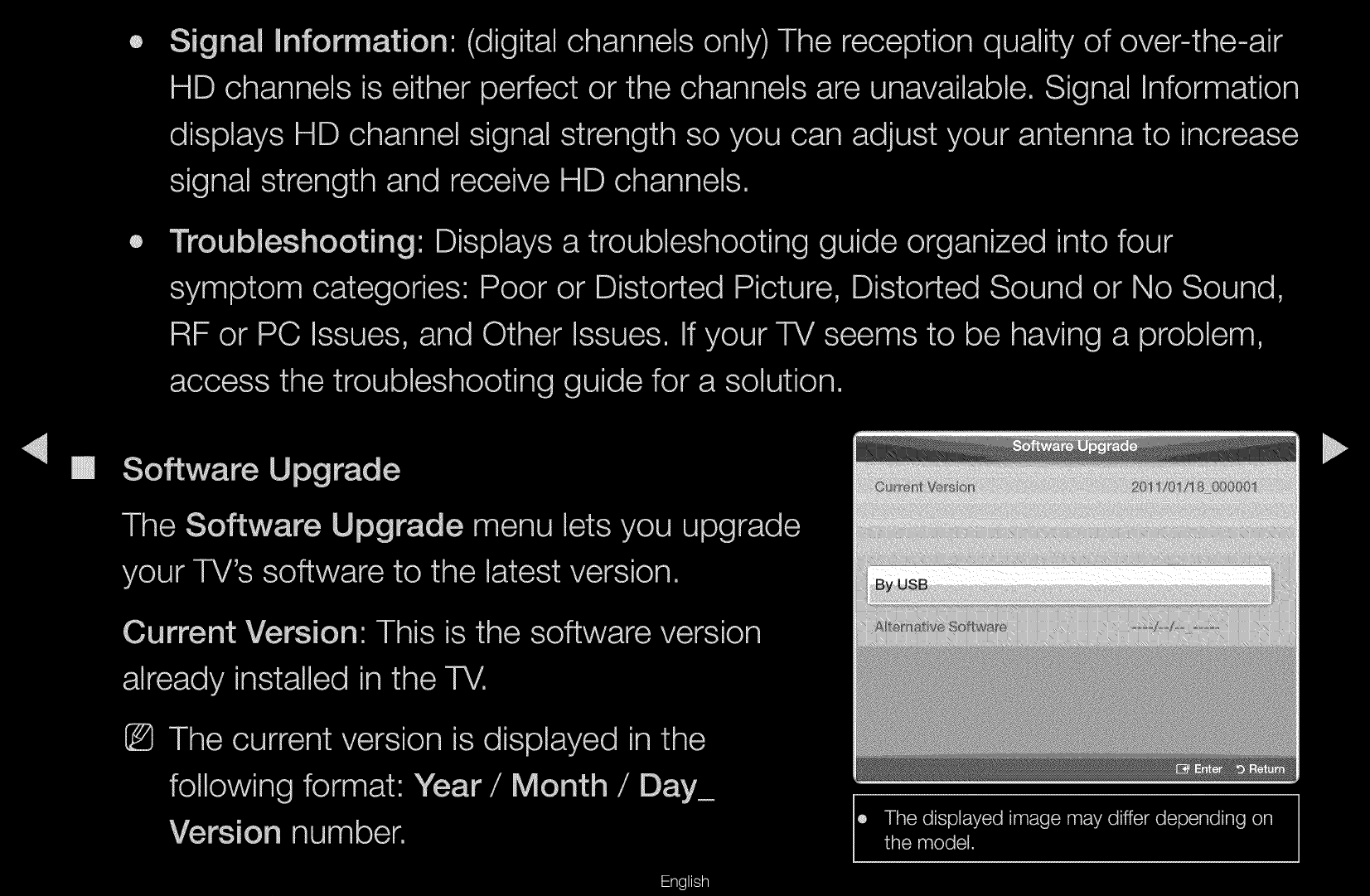
If the reception is clear, you do not have to fine tune the channel, as this is done
automatically during the search and store operation. If the signal is weak or
distorted, fine tune the channel manually. Scroll to the left or right until the image is
clear.
N
Settings are applied to the channel you’re currently watching.
N
Fine tuned channels that have been saved are marked with an asterisk “*” on
the right-hand side of the channel number in the channel banner.
N
To reset the fine-tuning, select Reset.
▶
EnglishPicture Menu
▶
❑
Changing the Preset Picture Mode
O
MENU
m
→
Picture
→
Picture Mode
→
ENTER
E
■
Picture Mode
Picture modes apply preset adjustments to the picture. Select a mode using the
up and down arrow keys, and then press the ENTER
E
button.
N
When connecting a PC, you can only select Entertain and Standard.
●
Dynamic: Suitable for a bright room.
●
Standard: Suitable for a normal environment.
●
Movie: Suitable for watching movies in a dark room.
●
Entertain (When connecting a PC): Suitable for watching movies and games.
▶
English
▶
❑
Adjusting Picture Settings
O
MENU
m
→
Picture
→
ENTER
E
■
Cell Light / Contrast / Brightness / Sharpness / Color / Tint (G/R)
Your television has several options for adjusting picture quality. Select an option
using the up and down arrow keys, and then press ENTER
E
. Use the arrow
keys to adjust the option value or select an option setting. When done, press
ENTER
E
.
N
When you make changes to Cell Light, Contrast, Brightness, Sharpness,
Color or Tint (G/R), the OSD will be adjusted accordingly.
N
When connecting a PC, you can only make changes to Cell Light, Contrast,
Brightness, and Sharpness.
N
You can adjust and store settings for each external device connected to the TV.
N
Lowering picture brightness reduces power consumption.

▶
English
▶
❑
Changing the Picture Size
O
MENU
m
→
Picture
→
Screen Adjustment
→
ENTER
E
■
Screen Adjustment
Screen Adjustment provides various picture size and aspect ratio options. Select
an option using the up and down arrow keys, and the press ENTER
E
. Use the
arrow keys to select an option in the sub-menu, and then press ENTER
E
.
●
Picture Size: If you have a cable box or satellite receiver, it may have its own
set of screen sizes as well. However, we highly recommend you use your TV’s
16:9 mode most of the time.
16:9: Sets the picture to 16:9 wide screen mode.

▶
English
▶
Zoom1: Use for moderate magnification. Cuts off the top and sides.
Zoom2: Use for a stronger magnification.
Wide Fit: Enlarges the aspect ratio of the picture so it fits the entire screen.
N
Available with HD 1080i / 720p signals in 16:9 mode.
4:3: Sets the picture to (4:3) mode. For analog TV programs.
N
Do not set your TV to 4:3 format for a long time. The borders displayed
on the left and right, or top and bottom of the screen may cause image
retention (screen burn) which is not covered by the warranty.
Screen Fit: When your TV inputs HDMI (720p / 1080i / 1080p) or Component
(1080i / 1080p) signals, displays the full image without any cut-off.
●
Position: Adjusts the picture position. Position is only available if Picture size is
set to Zoom1, Zoom2, Wide Fit, or Screen fit.
▶
English
▶
N
To use the Position function after selecting Zoom1, Zoom2 or Wide Fit, follow
these steps:
1. Press the
d
button to select Position.
2. Press the ENTER
E
button.
3. Press the
u
or
d
button to move the picture up or down.
4. Press the ENTER
E
button.
5. Select Close by pressing the
d
and
r
buttons sequentially. To reset the picture
position, press Reset.
N
If you want to reset the pictures to its original position, select Reset in the
Position screen, and then press ENTER
E
. The picture will be reset to its
default position.

▶
English
▶
N
To use the Position function after selecting Screen Fit when connected to an
HDMI (1080i/1080p) or Component (1080i/1080p) source, follow these steps:
1. Press the
d
button to select Position.
2. Press the ENTER
E
button.
3. Press the
u
,
d
,
l
or
r
button to move the picture.
4. Press the ENTER
E
button.
5. Select Close by pressing the
d
and
r
buttons sequentially.
N
If you want to reset the pictures to its original position, select Reset in the
Position screen. The picture will be set to its default position.
▶
English
▶
●
HD (High Definition): 16:9 - 1080i / 1080p (1920x1080), 720p (1280x720)
●
You can adjust and store settings for each external device you have connected
to an input on the TV.
●
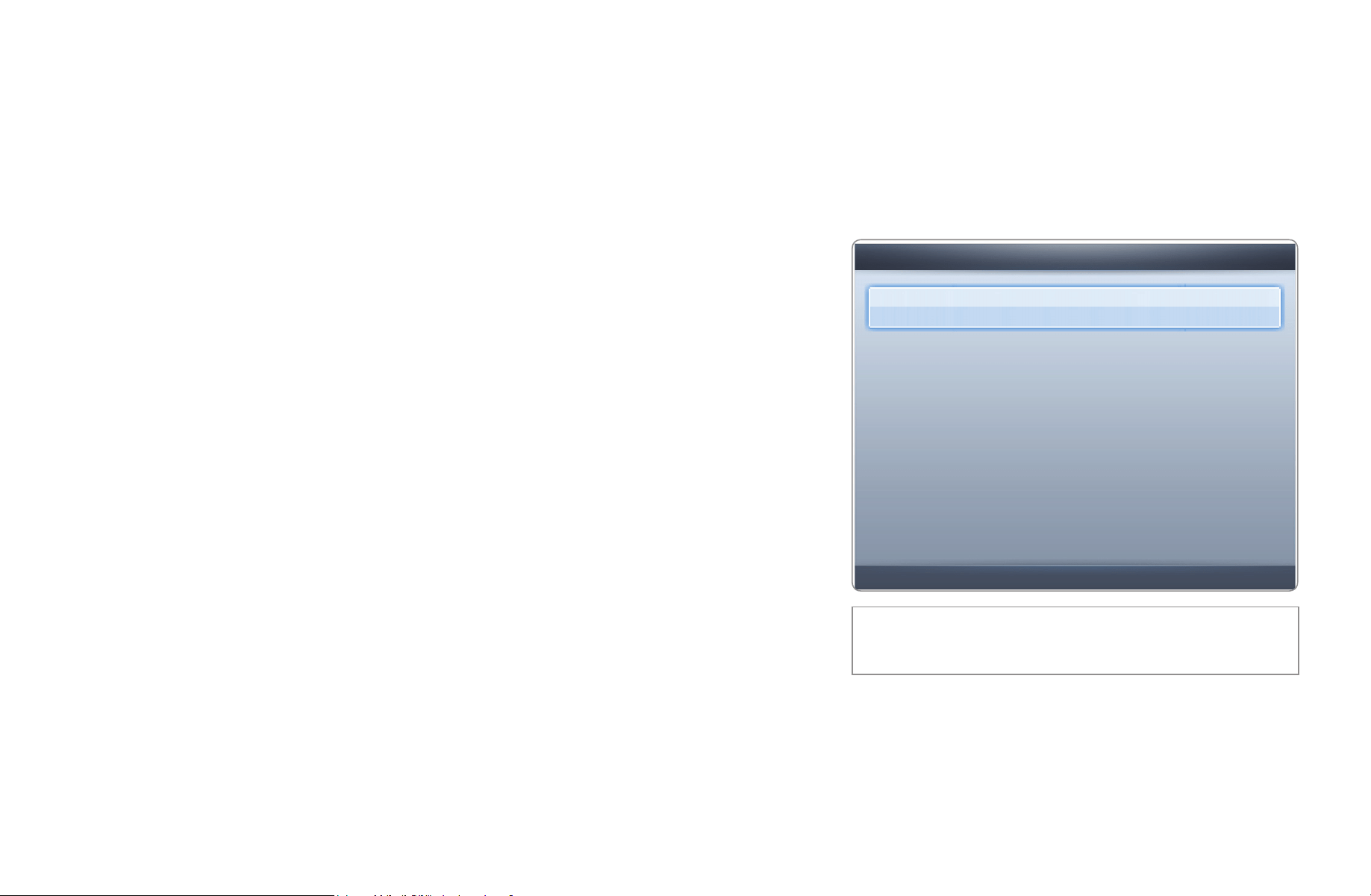
Picture Sizes available by Input Source:
Input Source Picture Size
ATV, AV, Component (480i, 480p) 16:9, Zoom1, Zoom2, 4:3
DTV(1080i), Component (1080i, 1080p),
HDMI (720p, 1080i, 1080p)
16:9, 4:3, Wide Fit, Screen Fit
PC 16:9, 4:3
▶
English
▶
❑
Changing the Picture Options
■
Advanced Settings
O
MENU
m
→
Picture
→
Advanced Settings
→
ENTER
E
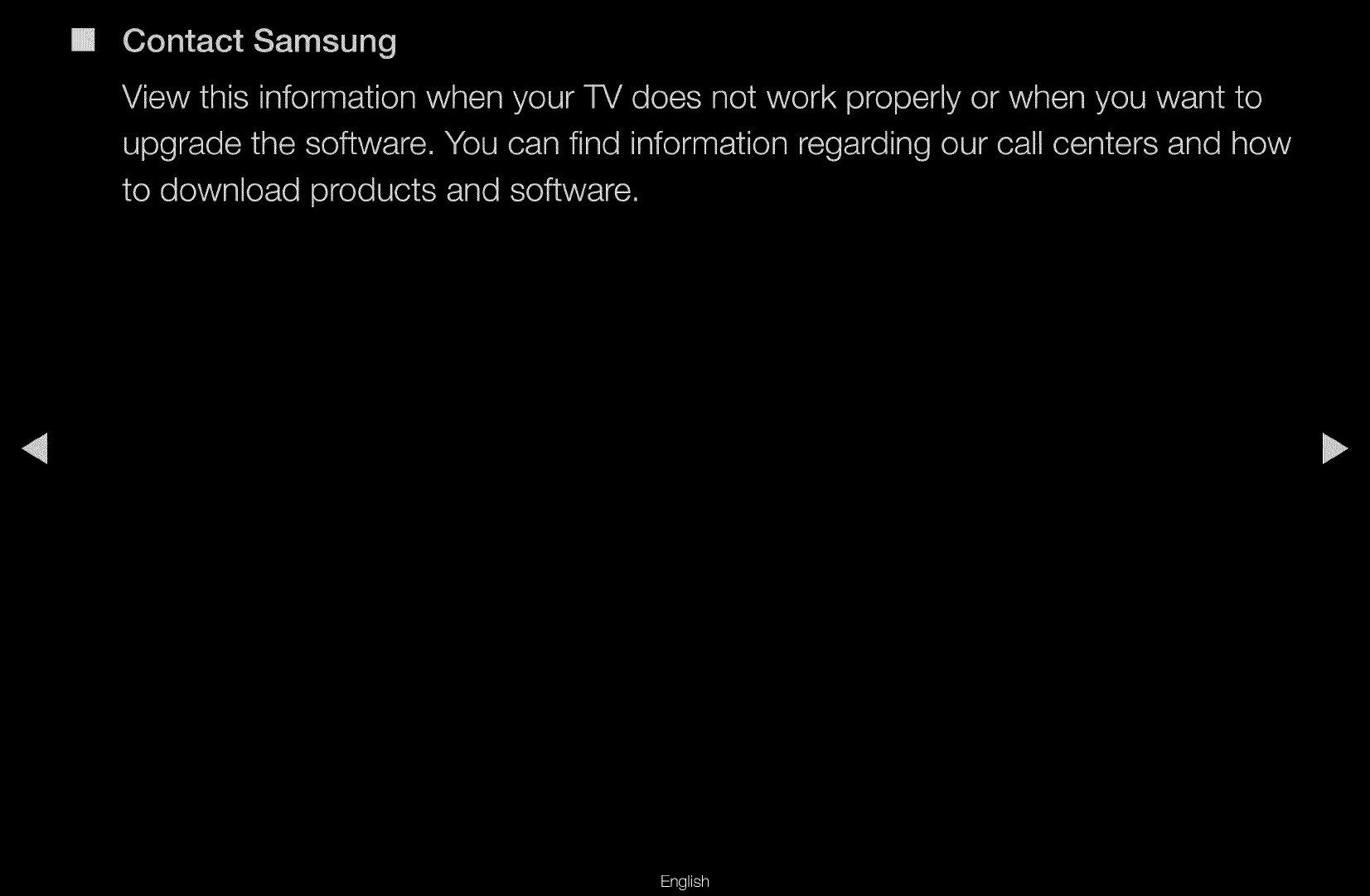
Advanced Settings are available in the
Standard and Movie modes. When connecting
a PC, you can only make changes to Gamma
and White Balance. They are not available when
you are watching a digital channel.
To use, select an option using the up and down
arrow keys, and then press ENTER
E
. Use the
arrow keys to change a value or setting, and
then press ENTER
E
.
● The displayed image may differ depending on
the model.
Advanced Settings
Black Tone : Off
►
Dynamic Contrast : Medium
Gamma : 0
RGB Only Mode : Off
Color Space : Native
White Balance
Flesh Tone : 0
▼
U
Move
E
Enter
R
Return
▶
English
▶
●
Black Tone (Off / Dark / Darker / Darkest): Select the black level to adjust the
screen depth.
●
Dynamic Contrast (Off / Low / Medium / High): Adjusts the screen contrast.
●
Gamma: Adjusts the primary color intensity.
●
RGB Only Mode (Off / Red / Green / Blue): Displays the Red, Green and
Blue color for making fine adjustments to hue and saturation.
▶
English
▶
●
Color Space (Auto / Native): Adjusts the range of colors (the color gamut)
available to create images.
●
White Balance: Adjusts the color temperature for a more natural picture.
R-Offset / G-Offset / B-Offset: Adjusts each color’s (red, green, blue)
darkness.
R-Gain / G-Gain / B-Gain: Adjusts each color’s (red, green, blue) brightness.
Reset: Resets the White Balance to its default settings.
●
Flesh Tone: Emphasizes pink “Flesh Tone.”
●
Edge Enhancement (Off / On): Emphasizes object boundaries.
●
Motion Lighting (Off / On): Reduces power consumption by reducing screen
brightness when the picture on the screen is in motion.
N
3D is not supported.
N
When you change the Cell Light, Contrast, or Brightness, the TV sets
Motion Lightning to Off.
▶
English
▶
■
Picture Options
O
MENU
m
→
Picture
→
Picture Options
→
ENTER
E
Select an option using the up and down arrow keys, and then press ENTER
E
.
Use the arrow keys to change the setting, and then press ENTER
E
.
N
When connecting a PC, you can only make
changes to Color Tone.
●
Color Tone (Cool / Standard / Warm1 /
Warm2)
N
Warm1 or Warm2 will be deactivated
when the picture mode is Dynamic.
N
You can adjust and store settings for each
external device connected to an input on
the TV.
● The displayed image may differ depending on
the model.
Picture Options
Color Tone : Standard
►
Digital Noise Filter : Auto
MPEG Noise Filter : Auto
HDMI Black Level : Normal
Film Mode : Off
U
Move
E
Enter
R
Return

▶
English
▶
●
Digital Noise Filter (Off / Low / Medium / High / Auto / Auto Visualization):
If the broadcast signal received by your TV is weak, you can activate the Digital
Noise Filter feature to reduce any static and ghosting that may appear on the
screen.
N
When the signal is weak, try each option until the the TV displays the best
picture.
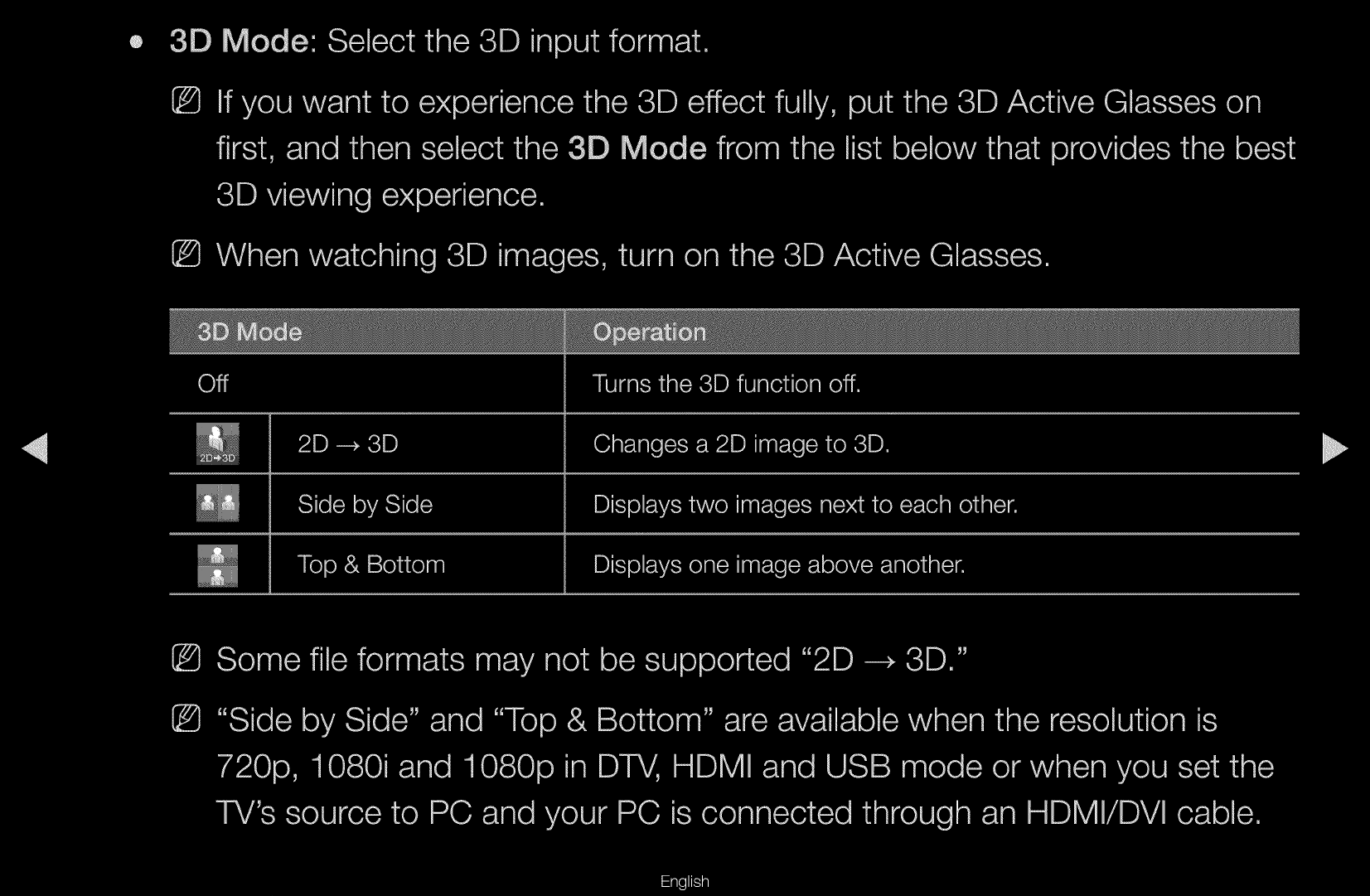
Auto Visualization: When changing analog channels, displays signal strength.
N
Only available for analog channels.
N
When the bar is green, you are receiving the best possible signal.
●
MPEG Noise Filter (Off / Low / Medium / High / Auto): Reduces MPEG noise
to provide improved picture quality.
▶
English
▶
●
HDMI Black Level (Low / Normal): Lets you select the black level on the
screen to adjust the screen depth.
N
Available only in HDMI mode.
●
Film Mode (Off / Auto1 / Auto2
/ Cinema Smooth
for PDP 550 Series and above
): Sets the TV so that it senses
and then processes film signals from all sources automatically and adjusts the
picture for optimum quality. The Cinema Smooth function is only activated
when the TV inputs an HDMI 24Hz signal.
N
Available in TV, AV, COMPONENT (480i / 1080i) and HDMI (1080i).

▶
English
▶
■
Reset Picture (OK / Cancel)
Resets your current picture mode to its default settings.

▶
English
▶
❑
Using the TV with Your PC
Set the input source to PC.
■
Auto Adjustment
t
O
MENU
m
→
Picture
→
Auto Adjustment
→
ENTER
E
Automatically adjusts the picture’s frequency, position, and fine tune settings in the
PC mode.
N
Available in PC mode only.
N
Not available if you connect your PC with an HDMI to DVI cable.

▶
English
▶
■
PC Screen Adjustment
O
MENU
m
→
Picture
→
Screen Adjustment
→
PC Screen Adjustment
→
ENTER
E
N
Available in PC mode only.
●
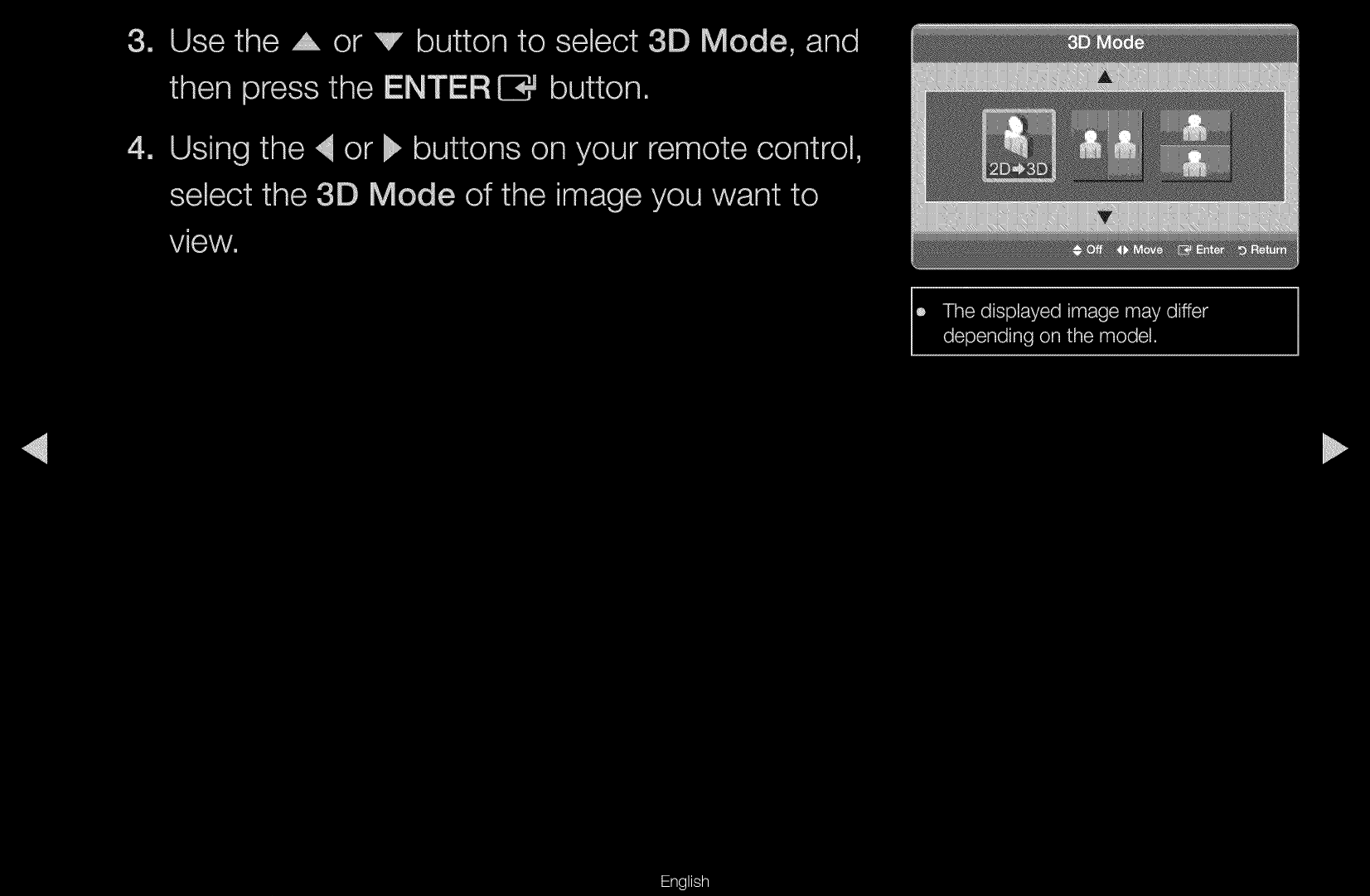
Coarse / Fine: Removes or reduces picture noise. If the noise is not removed
by Fine-tuning alone, use the Coarse function to adjust the frequency as best
as possible (Coarse) and Fine-tune again. After the noise has been reduced,
re-adjust the picture so that it is aligned to the center of screen.
●
Position: To adjust the PC’s screen position if it is not centered or does not fit
the TV screen. Press the u or d button to adjust the vertical position. Press the
l
or
r
button to adjust the horizontal position.
●
Image Reset: Resets the image to the default settings.
▶
English
▶
Using Your TV as a Computer (PC) Display
Entering the Video Settings (Based on Windows XP)
For your TV to work properly as a computer display, you must enter the correct video
settings into your PC.
N
Depending on your version of Windows and your video card, the procedure on
your PC will probably differ slightly from the procedure presented here. However,
the same basic information will apply in most cases. (If not, contact your computer
manufacturer or Samsung Dealer.)

▶
English
▶
1. On your PC, click “Control Panel” on the Windows start menu.
2. Click “Appearance and Themes” in the “Control Panel” window, A display dialog-
box appears.
3. Click “Display”. Another display dialog box appears.
4. Click the “Settings” tab on the display dialog-box.
●
On the Settings tab, set the correct resolution.
●
If a vertical-frequency option exists on your display settings dialog box, select
“60” or “60 Hz”. Otherwise, just click “OK” and exit the dialog box.

▶
EnglishSound Menu
▶
❑
Changing the Preset Sound Modes
O
MENU
m
→
Sound
→
Sound Mode
→
ENTER
E
■
Sound Mode
t
Use the up and down arrow keys to select an option, and then press ENTER
E
.
●
Standard: Selects the normal sound mode.
●
Music: Emphasizes music over voices.
●
Movie: Provides the best sound for movies.
●
Clear Voice: Emphasizes voices over other sounds.
●
Amplify: Increase the intensity of high-frequency sound to allow a better
listening experience for the hearing impaired.
N
If Speaker Select is set to External Speaker, Sound Mode is disabled.

▶
English
▶
❑
Adjusting Sound Settings
O
MENU
m
→
Sound
→
ENTER
E
■
Sound Effect
N
If Speaker Select is set to External Speaker, Sound Effect is disabled.
●
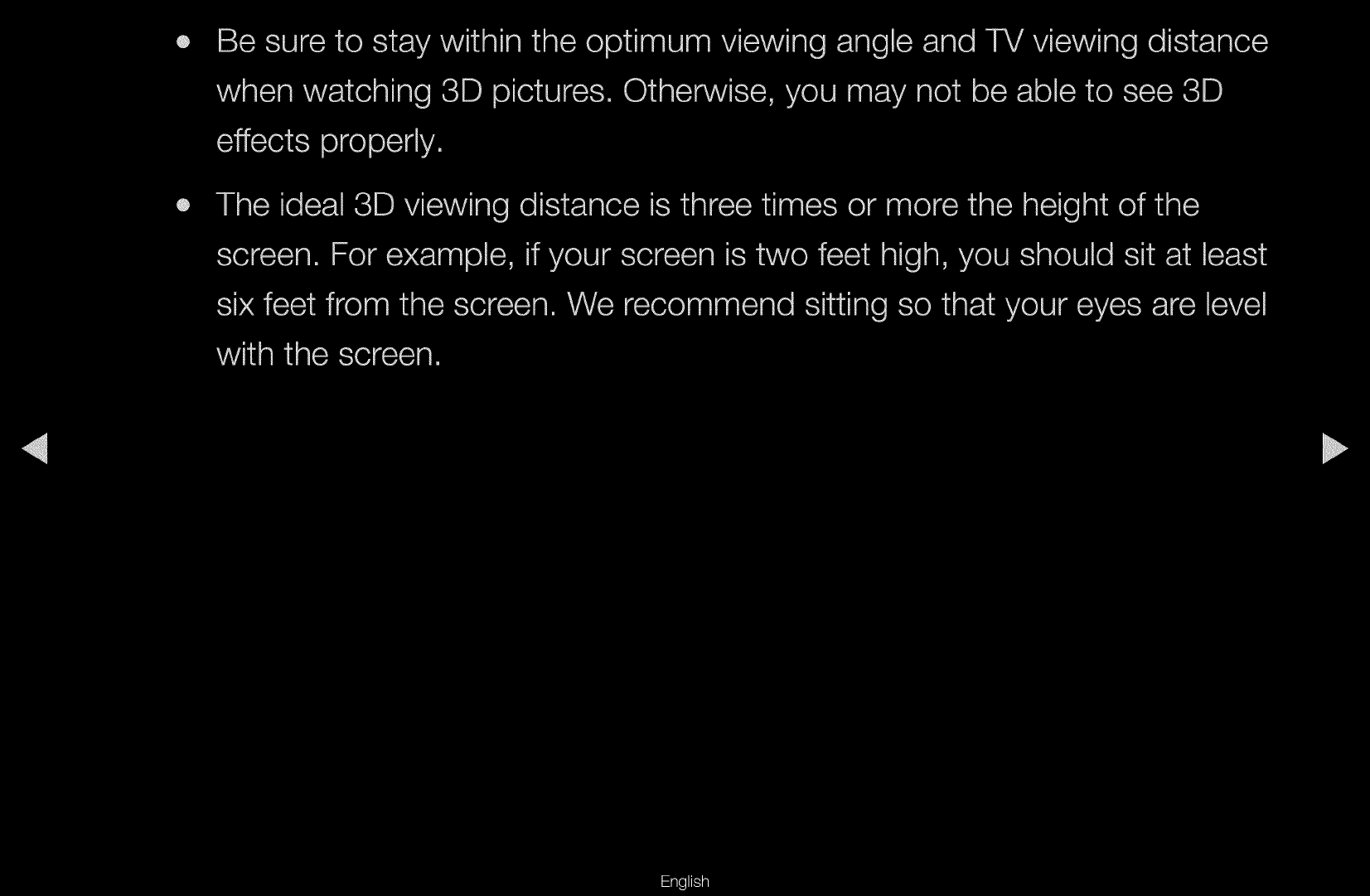
SRS TruSurround HD (Off / On)
(standard sound mode only)
This function provides a virtual 5.1 channel surround sound experience through
a pair of speakers using HRTF (Head Related Transfer Function) technology.
●
SRS TruDialog (Off / On)
(standard sound mode only)
This function allows you to increase the intensity of a voice over background
music or sound effects so that dialog can be heard more clearly.
▶
English
▶
●
Equalizer
The Equalizer displays a series of sliders. Use the up and down arrow keys
to select a slider. Use the left and right arrow keys to change the slider’s
value. To Reset the Equalizer, select Reset and press ENTER
E
, then press
ENTER
E
again. To exit, select Close, and then press ENTER
E
. Equalizer is
available in the standard sound mode only.
●
Balance L/R: Adjusts the balance between the right and left speaker.
●
100Hz / 300Hz / 1kHz / 3kHz / 10kHz (Bandwidth Adjustment): Adjusts the
volume level of specific bandwidth frequencies.
●
Reset: Resets the equalizer to its default settings.

▶
English
▶
■
Broadcast Audio Options
●
Preferred Language
(digital channels only)
Use the up and down arrow keys to select a language, and then press
ENTER
E
.
Digital-TV broadcasts can simultaneously transmit many audio tracks (for
example, simultaneous translations of the program into foreign languages).
N
You can only select a language from among the ones being broadcasted.

▶
English
▶
●
Multi-Track Sound (MTS)
t
(analog channels only)
Select an option using the up and down arrow keys, and the press ENTER
E
.
Mono: Choose for channels that are broadcasting in mono or if you are having
difficulty receiving a stereo signal.
Stereo: Choose for channels that are broadcasting in stereo.
SAP: Choose to listen to the Separate Audio Program, which is usually a
foreign-language translation.
N
Depending on the program being broadcast, you can listen to Mono,
Stereo, or SAP.

▶
English
▶
■
SPDIF Output
The SPDIF (Sony Philips Digital InterFace) outputs an uncompressed digital audio
signal when you connect the digital audio jack on the back of the TV to a digital
audio in jack on a receiver or home theater.
●
Audio Format: You can select the Digital Audio output (SPDIF) format.
N
The available Digital Audio output (SPDIF) format may differ depending on
the input source.
●
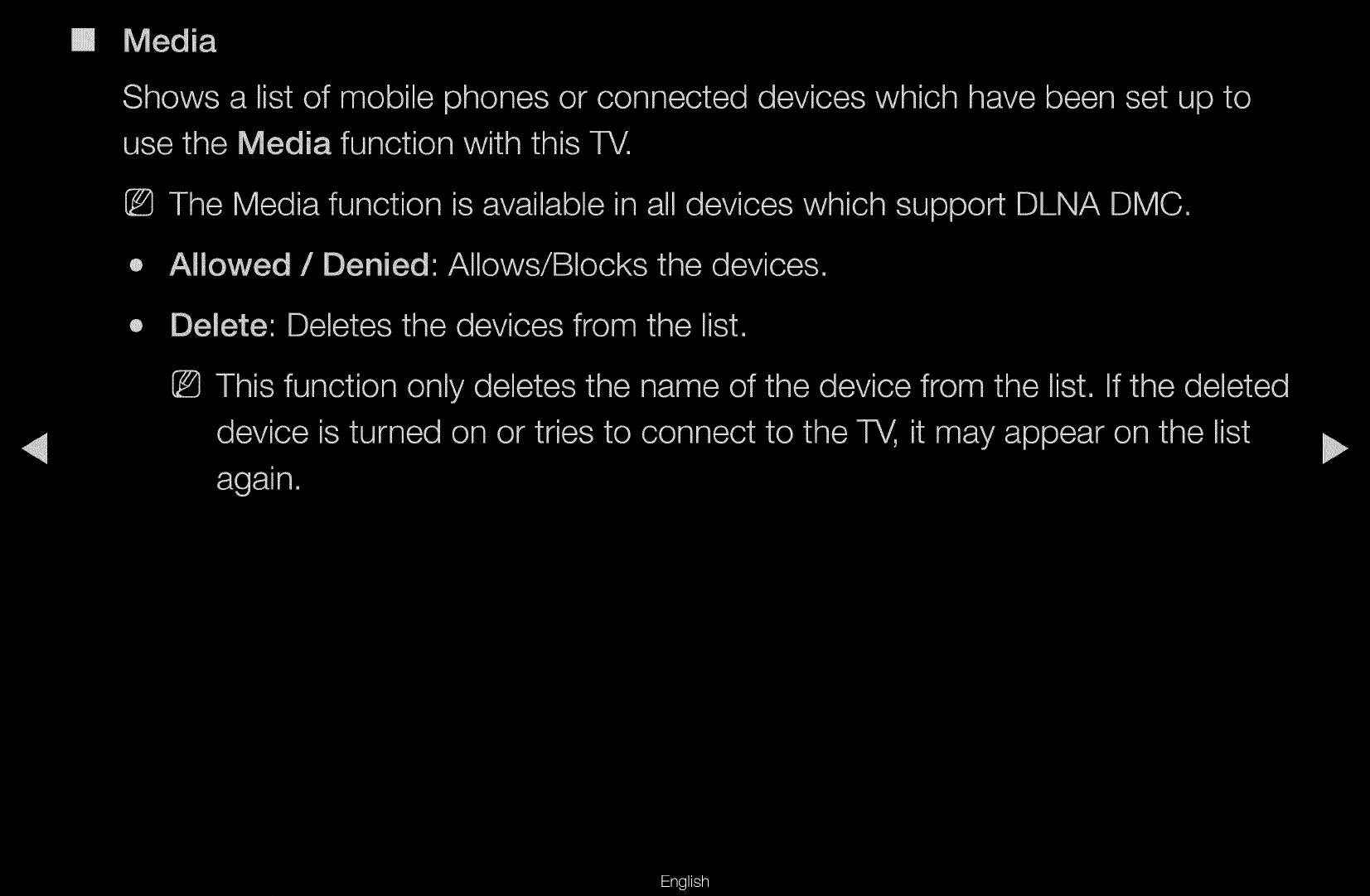
Audio Delay: Lets you correct timing mismatches between the audio track and
the video when you are watching the TV and listening to digital audio output
from the TV through an external device such as an AV receiver. When you
select Audio Delay, a slider appears. User the left and right arrow buttons to
adjust the slider. Press ENTER
E
when done (0ms ~ 250ms).
▶
English
▶
■
Speaker Settings
●
Speaker Select (External Speaker / TV Speaker)
If you are listening to the sound track of a broadcast or movie through an
external receiver, you may hear a sound echo caused by the difference in
decoding speed between the TV’s speakers and the speakers attached to your
audio receiver. If this occurs, set the TV to External Speaker.
N
When you set Speaker Select to External Speaker, the TV’s speakers are
turned off. You will hear sound through the external speakers only. When
you set Speaker Select to TV Speaker both the TV’s speakers and the
external speakers are on. You will hear sound through both.
N
When Speaker Select is set to External Speaker, the
y
and MUTE
buttons will not operate and the sound settings will be limited.
N
If there is no video signal, both speakers will be mute.

▶
English
▶
●
Auto Volume (Off / Normal / Night)
Normal equalizes the volume level on each channel, so that when you change
channels, the volume level is the same.
Night equalizes and decrease the volume level on each channel, so each
channel is quieter. Night is useful at night, when you may want to keep the
volume low.
N
To use the volume control of a connected source device, set Auto Volume
to Off. A change to the volume control of the connected source device may
not be applied if Auto Volume is set to Normal or Night.
▶
English
▶
■
Reset Sound (OK / Cancel)
Reset all sound settings to the factory defaults. Select Reset, press ENTER
E
,
select OK on the pop-up, and then press ENTER
E
again.
▶
English
▶
❑
Wired Network Connection
■
Connecting to a Wired Network
for PDP 550 Series and above
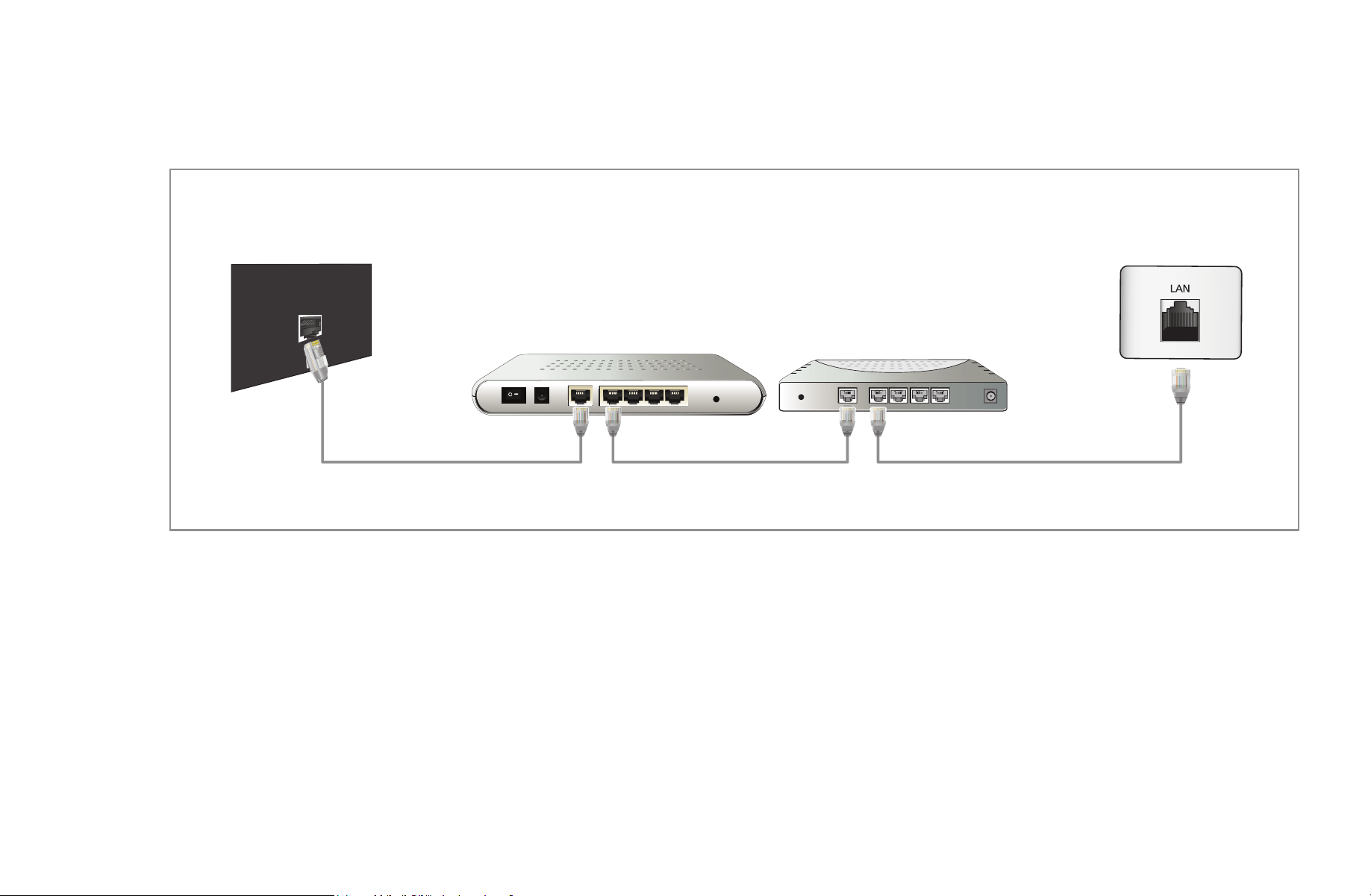
There are three ways to attach your TV to your LAN using cable:
●
You can attach your TV to your LAN by connecting the LAN port on the back of
your TV to an external modem using a LAN cable. See the diagram below.
The Modem Port on the Wall
LAN
LAN CableModem Cable
External Modem
(ADSL / VDSL / Cable TV)
▶
English
▶
●
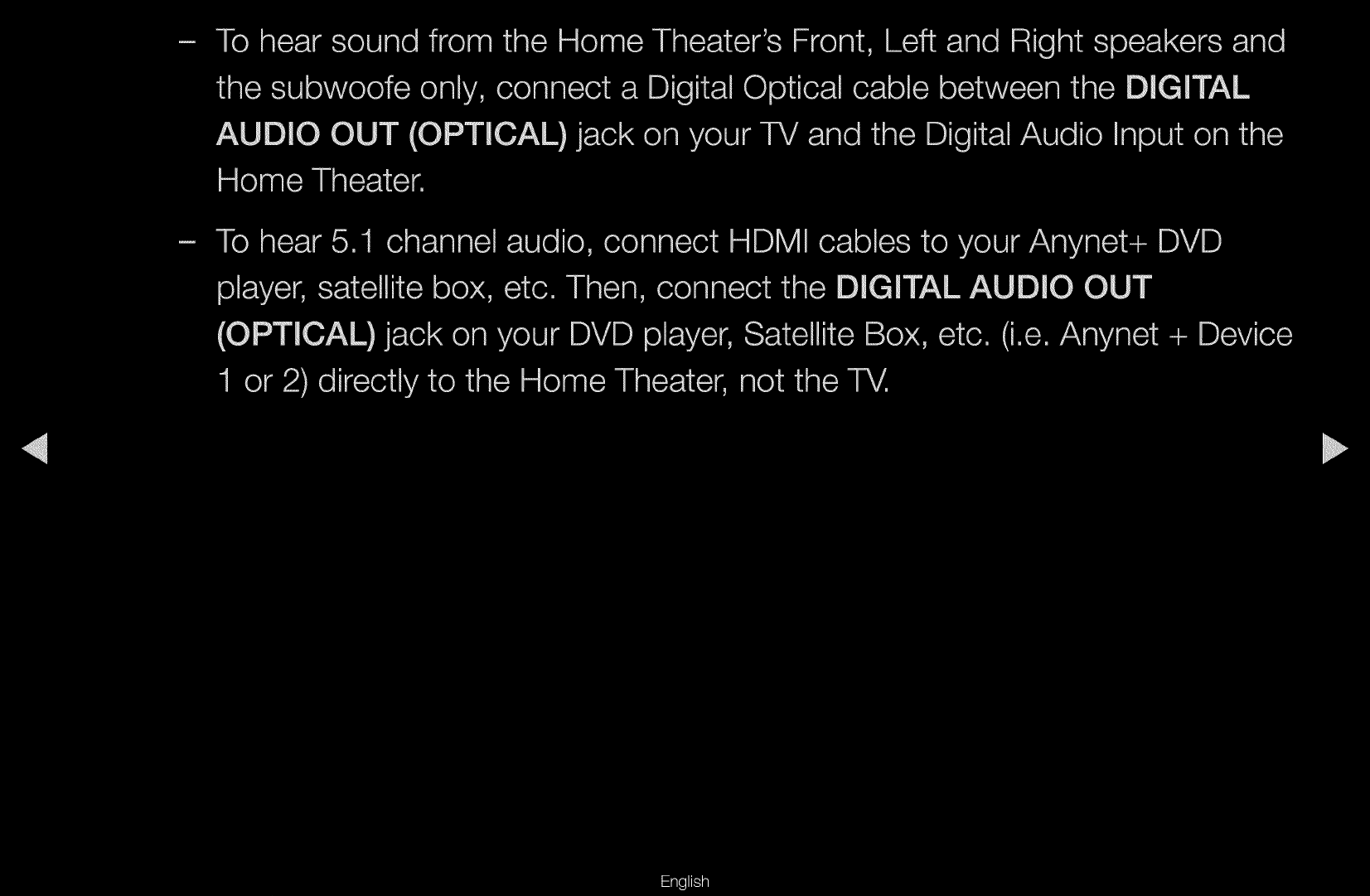
You can attach your TV to your LAN by connecting the LAN port on the back of
your TV to a IP Sharer (router) which is connected to an external modem. Use
LAN cable for the connection. See the diagram below.
The Modem
Port on the Wall
LAN
LAN Cable LAN CableModem Cable
External Modem
(ADSL / VDSL / Cable TV)
IP Sharer
(having DHCP server)
▶
English
▶
●
Depending on how your network is configured, you may be able to attach your
TV to your LAN by connecting the LAN port on the back of your TV directly to
a network wall outlet using a LAN cable. See the diagram below. Note that the
wall outlet is attached to a modem or router elsewhere in your house.
The LAN Port on the Wall
LAN
LAN Cable

▶
English
▶
●
If you have a Dynamic Network, you should use an ADSL modem or router
that supports the Dynamic Host Configuration Protocol (DHCP). Modems and
routers that support DHCP automatically provide the IP address, subnet mask,
gateway, and DNS values your TV needs to access the Internet so you do not
have to enter them manually. Most home networks are Dynamic Networks.
Some networks require a Static IP address. If your network requires a Static
IP address, you must enter the IP address, subnet mask, gateway, and DNS
values manually on your TV’s Cable Setup Screen when you set up the network
connection. To get the IP address, subnet mask, gateway, and DNS values,
contact your Internet Service Provider (ISP). If you have a Windows computer,
you can also get these values through your computer.
N
You can use ADSL modems that support DHCP if your network requires a
Static IP address. ADSL modems that support DHCP also let you use Static
IP addresses.
▶
English
▶
■
Network Settings
O
MENU
m
→
Network
→
Network Settings
→
ENTER
E
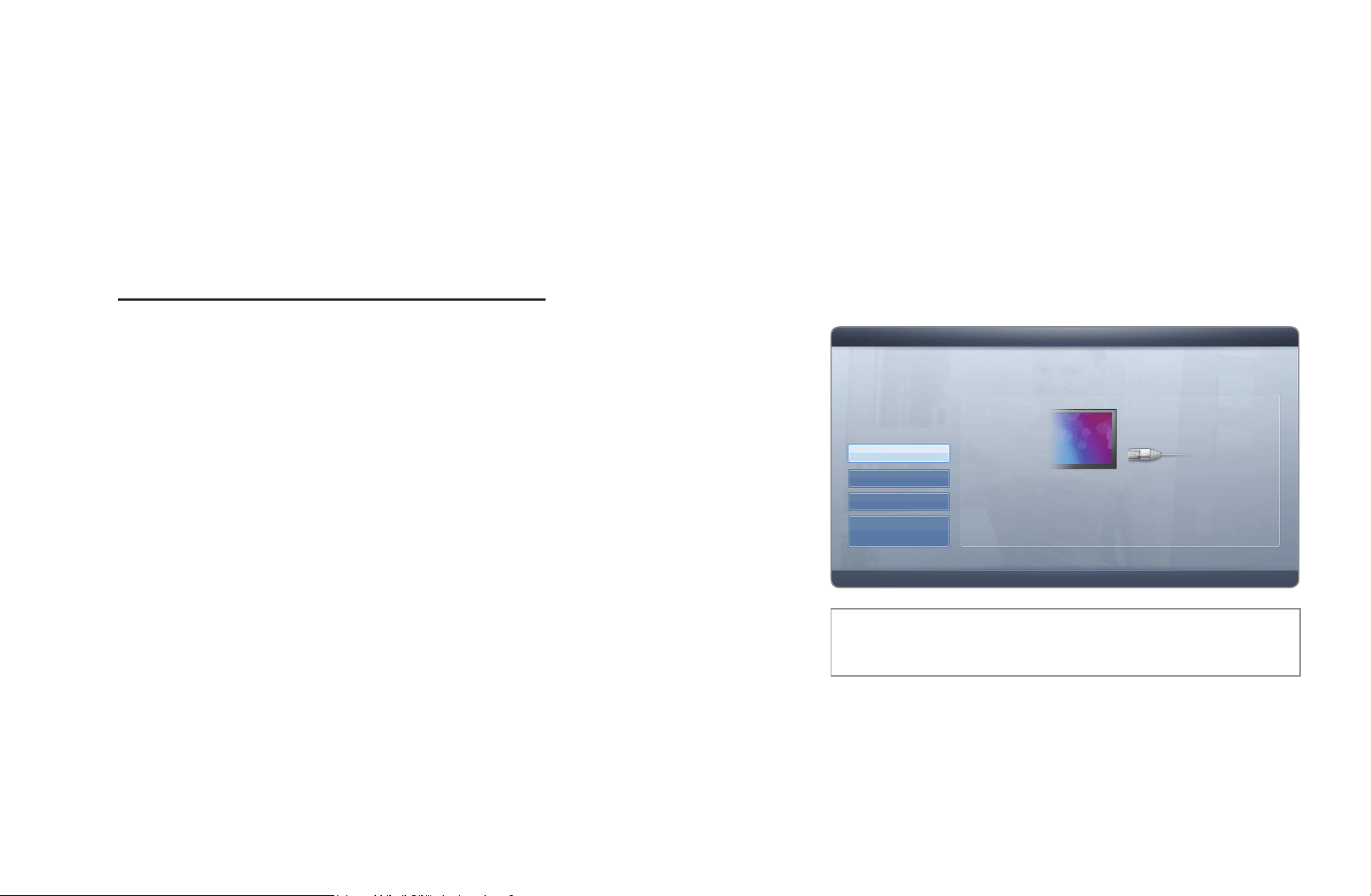
Set up your network connection so you can use various Internet services such as
My Contents, AllShare™ and perform software upgrades.
■
Network Status
O
MENU
m
→
Network
→
Network Status
→
ENTER
E
Lets you check the current network and Internet status.
■
AllShare Settings
O
MENU
m
→
Network
→
AllShare Settings
→
ENTER
E
Lets you select whether to use media functions on the network. For details on set
up options, refer to the “AllShare™” instructions.
▶
English
▶
■
Automatic Network Setup
Use the Automatic Network Setup when connecting your TV to a network that
supports DHCP. To set up your TV’s cable network connection automatically,
follow these steps:
How to set up automatically
1. Go to the Network Settings screen.
(MENU
m
→
Network
→
Network
Settings
→
ENTER
E
)
2. Select Wired, and then press ENTER
E
.
3. The network test screen appears and
verifies the network connection. When the
connection has been verified, the “Internet
connection successful.” message appears.
● The displayed image may differ depending on the
model.
U
Move
E
Enter
R
Return
Network Settings
Select a network connection type.
Wired
Wireless(General)
WPS(PBC)
One Foot
Connection
Connect to the network using LAN cable. Please
make sure that the LAN cable is connected.
▶
English
▶
N
If the connection process fails, check the
LAN port connection.
N
If the automatic process cannot find the
network connection values or if you want to
set the connection manually, go to the next
secton, Manual Network Setup.
● The displayed image may differ depending on the
model.
a
Previous
E
Enter
R
Return
Network Settings
Wired network and Internet connection completed.
IP Settings OK
MAC Address 00:40:30:30:20:10
IP Address 192.168.10.21
Subnet Mask 255.255.255.0
Gateway 192.168.10.1
DNS Server 203.248.252.2
Internet is connected successfully.
If you have a problem with using Internet service, contact your Internet service
provider.

▶
English
▶
■
Manual Network Setup
Use the Manual Network Setup when connecting your TV to a network that
requires a Static IP address.
Getting the Network Connection Values
To view the Network connection values on most Windows computers, follow these
steps:
1. Right click the Network icon on the bottom right of the screen.
2. In the pop-up menu that appears, click Status.
3. On the dialog that appears, click the Support tab.
4. On the Support Tab, click the Details button. The Network connection values
are displayed.
▶
English
▶
How to set up manually
To set up your TV’s cable network connection manually, follow these steps:
1. Go to the Network Settings screen. (MENU
m
→
Network
→
Network Settings
→
ENTER
E
)
2. Select Wired, press ENTER
E
, then press
ENTER
E
again. The network test screen
appears and the verification process starts.
3. Press ENTER
E
. The verification process stops.
Select IP Settings on network test screen. The
IP Settings screen appears.
● The displayed image may differ depending on
the model.
U
Move
E
Enter
R
Return
IP Settings
Internet Protocol Setup : Manual
►
IP Address
. . .
Subnet Mask
. . .
Gateway
. . .
DNS : Manual
DNS Server
. . .
OK
▶
English
▶
4. In the top entry field, press ENTER
E
, and then set IP Mode to Manual.
5. Press the
d
button on your remote to go to the IP Address entry field, and then
press ENTER
E
.
6. Enter the first portion of the IP Address (for example, 105) into the first entry field
using the number keys on your remote. Press the right arrow button to go to the
next field.
7. Enter the next portion of the IP Address. Press the right arrow button to go to the
next field.

▶
English
▶
8. Repeat the entry process for each field in the IP Address.
N
If you make a mistake when entering a number, re-enter the number to correct
it. You can also press the up or down arrow button to change the number one
unit at a time.
9. When done entering the IP Address, press ENTER
E
.
10. Press the down arrow key to go to the Subnet Mask fields, and then press
ENTER
E
.
11. Repeat the same entry process for Subnet Mask, Gateway, and DNS Server.
12. When done, select OK at the bottom of the page, and then press ENTER
E
.
The network test screen appears and the verification process starts. When the
connection has been verified, the “Internet connection successful.” message
appears.
▶
English
▶
❑
Wireless Network Connection
■
Connecting to a Wireless Network
for PDP 550 Series and above
To connect your TV to your wireless network, you need a wireless router or
modem and a Samsung Wireless LAN adapter (WIS09ABGN, WIS09ABGN2, or
WIS10ABGN), which you connect to your TV’s back or side panel USB jack. See
the illustration below.
The LAN Port on the Wall
LAN Cable
Wireless IP sharer
(router having DHCP server)
Samsung
Wireless LAN
adapter
USB Port
▶
English
▶
Samsung’s Wireless LAN adapter is sold separately and is offered by select
retailers, Ecommerce sites, and Samsungparts.com. Samsung’s Wireless LAN
adapter supports the IEEE 802.11a/b/c and n communication protocols. Samsung
recommends using IEEE 802.11n. When you play video over a network connection,
the video may not be played smoothly.
N
NOTE
●
You must use the “Samsung Wireless LAN adapter” (WIS09ABGN,
WIS09ABGN2, or WIS10ABGN) to use a wireless network.
●
To use a wireless network, your TV must be connected to a wireless IP sharer
(either a router or a modem). If the wireless IP sharer supports DHCP, your TV
can use a DHCP or static IP address to connect to the wireless network.
▶
English
▶
●
Select a channel for the wireless IP sharer that is not currently being used. If the
channel set for the wireless IP sharer is currently being used by another device
nearby, this will result in interference and communication failure.
●
Your TV supports the following wireless security systems only:
–
Authentication Mode : WEP, WPAPSK, WPA2PSK
–
Encryption Type : WEP, AES
●
If you select the Pure High-throughput (Greenfield) 802.11n mode and the
Encryption type is set to WEP, TKIP or TKIP AES (WPS2Mixed) on your wireless
router, Samsung TVs will not support a connection in compliance with new Wi-
Fi certification specifications.

▶
English
▶
●
If your AP supports WPS (Wi-Fi Protected Setup), you can connect to the
network via PBC (Push Button Configuration) or PIN (Personal Identification
Number). WPS will automatically configure the SSID and WPA key in either
mode.
●
If your router, modem, or device is not certified, it may not connect to the TV
via the “Samsung Wireless LAN adapter.”
●
Ensure the TV is turned off before you connect the Samsung Wireless LAN
adapter.

▶
English
▶
●
Connection Methods: You can setup the wireless network connection in five
ways:
–
Auto Setup (Using the Auto Network Search function)
–
Manual Setup
–
WPS(PBC)
–
One Foot Connection
–
Plug & Access
●
The TV may not recognize the Samsung Wireless LAN adapter if it is connected
to the TV using a USB hub or USB extension cable other than the cable
supplied.
▶
English
▶
Notice
The picture may appear corrupted or have static on some channels when the TV
is connected to the Samsung Wireless LAN adapter. If this occurs, connect the
Samsung Wireless LAN adapter using a USB cable in a place that is not affected by
radio interference.
To connect the Samsung Wireless LAN adapter using the extension cable, follow
these steps:
1. Connect the extension cable to the USB port.
2. Connect the extension cable and Samsung
Wireless LAN adapter.
3. Attach the Samsung Wireless LAN adapter
to the back of the TV near the top, using
double-sided adhesive tape.
● The displayed image may differ depending on the
model.
▶
English
▶
■
Automatic Network Setup
Most wireless networks have an optional security system that requires devices that
access the network to transmit an encrypted security code called an Access or
Security Key. The Security Key is based on a Pass Phrase, typically a word or a
series of letters and numbers of a specified length you were asked to enter when
you set up security for your wireless network. If you use this method of setting up
the network connection, and have a Security Key for your wireless network, you
will have to enter the Pass Phrase during during the the automatic or manual setup
process.
How to set up automatically
1. Go to the Network Settings screen.
(MENU
m
→
Network
→
Network
Settings
→
ENTER
E
).
2. Select Wireless (General), press
ENTER
E
, and then press ENTER
E
again.
● The displayed image may differ depending on the
model.
U
Move
E
Enter
R
Return
Network Settings
Select a network connection type.
Wired
Wireless(General)
WPS(PBC)
One Foot
Connection
Set up wireless network by selecting your
Access Point. You may need to enter security key
depending on the setting of the Access Point.
▶
English
▶
3. The Network function searches for available wireless networks. When done, it
displays a list of the available networks.
4. In the list of networks, press the
u
or
d
button to select a network, and then
press the ENTER
E
button twice.
N
If the wireless router is set to Hidden (Invisible), you have to select Add
Network and enter the correct Network Name (SSID) and Security key to
establish the connection.
5. If the Enter Security Key screen appears, go to step 6. If you select an
wireless router that does not have security, go to step 7.
▶
English
▶
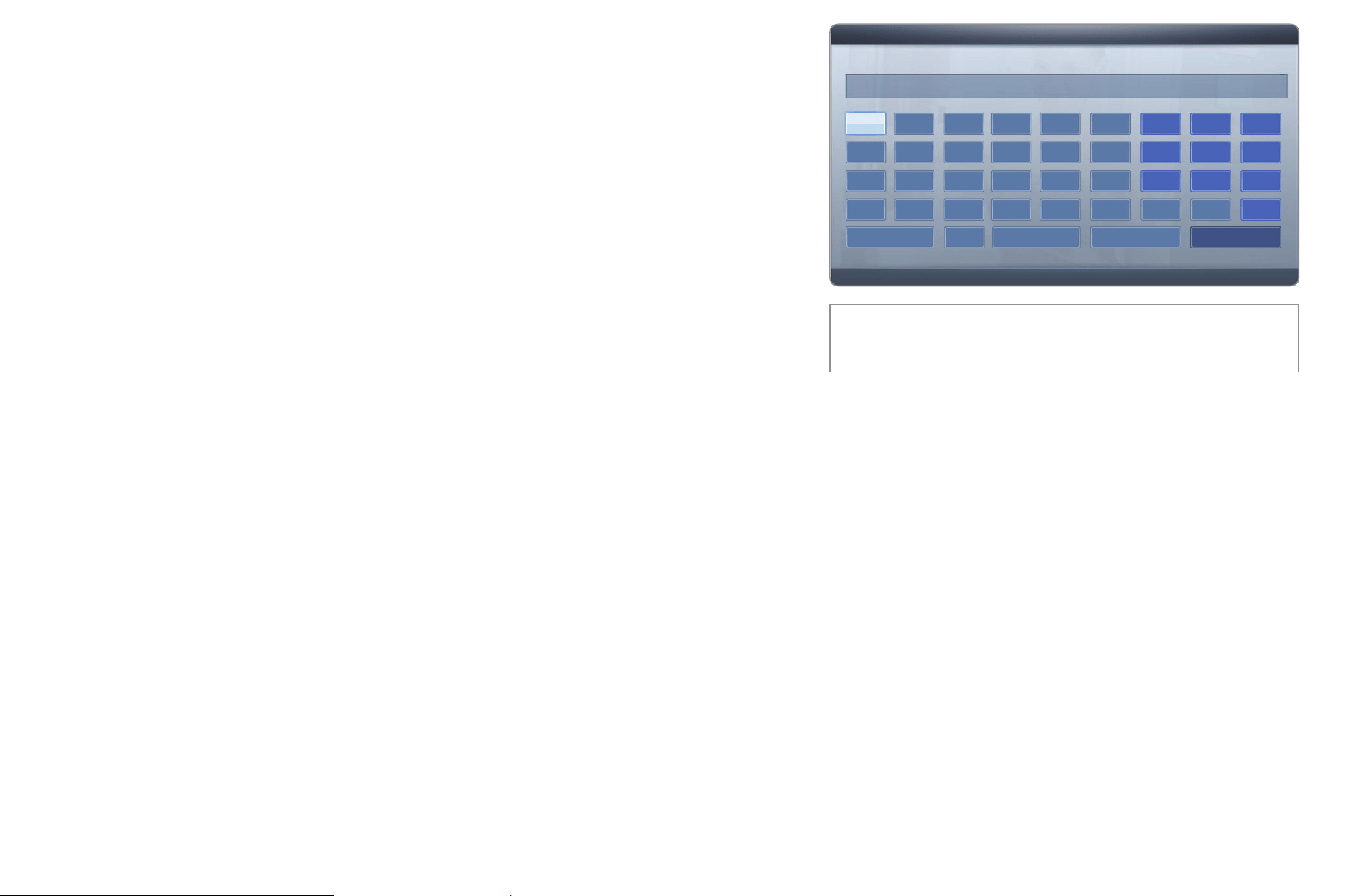
6. If the wireless router has security, enter the
Security key (Security key or PIN).
N
When you enter the Security key
(Security key or PIN), use
u
/
d
/
l
/
r
buttons on your remote to select
number/characters. Press ENTER
E
button to enter the characters.
N
You can also enter numbers by pressing
the number buttons on your remote.
● The displayed image may differ depending on the
model.
a
Previous
n
Move
E
Enter
R
Return
Network Settings
Enter security key.
0 entered
a
g
m
s
a/A
b
h
n
t
f
l
r
x
Space
d
j
p
v
Delete
2
5
8
z
Done
c
i
o
u
F
1
4
7
y
e
k
q
w
3
6
9
0

▶
English
▶
7. When done, use the right arrow button to move the cursor to Done, and then
press ENTER
E
.
8. The network test screen appears and the verification process starts. When the
connection has been verified, the “Internet connection successful.” message
appears.
N
If the network does not accept the Security key (Security key or PIN),
select Retry or select IP Settings to enter the settings manually.
N
If you want to set up the connection manually, select IP Settings. Then, go
to the next section, “How to set up manually”.
▶
English
▶
■
Manual Network Setup
Use Manual Network Setup when connecting your TV to a network that requires a
Static IP address or if the automatic connection process has failed.
Getting the Network Connection Values
To view the Network connection values on most Windows computers, follow these
steps:
1. Right click the Network icon on the bottom right of the screen.
2. In the pop-up menu that appears, click Status.
3. On the dialog that appears, click the Support tab.
4. On the Support Tab, click the Details button. The Network connection values
are displayed.
▶
English
▶
How to set up manually
To set up your TV’s cable network connection manually, follow these steps:
1. Go to the Network Settings screen.
(MENU
m
→
Network
→
Network Settings
→
ENTER
E
)
2. Select Wireless (General), and then press the ENTER
E
button.
3. The Network function searches for available wireless networks. When done, it
displays a list of the available networks.
4. In the list of networks, press the
u
or
d
button to select a network, and then
press the ENTER
E
button twice.
N
If the wireless router is set to Hidden (Invisible), you have to select Add
Network and enter the correct network Name (SSID) and Security key to
establish the connection.
▶
English
▶
5. If the Enter Security key screen appears, go to step 6. If you selected an AP or
wireless router that does not have security, go to step 8.
6. Enter the Security key (Security key or PIN).
N
When you enter the Security key (Security key or PIN), use the
u
/
d
/
l
/
r
buttons on your remote to select number/characters. Press ENTER to
enter the characters.
N
You can also enter numbers by pressing the number buttons on your
remote.
N
You should be able to find the Pass Phrase on one of the set up screens
you used to set up your router or modem.
▶
English
▶
7. When done, use the
r
button to move the cursor to Done, and then press the
ENTER
E
button.
8. The network test screen appears and the verification process starts. Press
ENTER
E
to cancel. Select IP Settings on network test screen. The IP
Settings screen appears.
9. On the top, press ENTER
E
, and then set IP Mode to Manual.
10. Press the
d
button on your remote to go to the IP Address entry field, and
then press ENTER
E
.
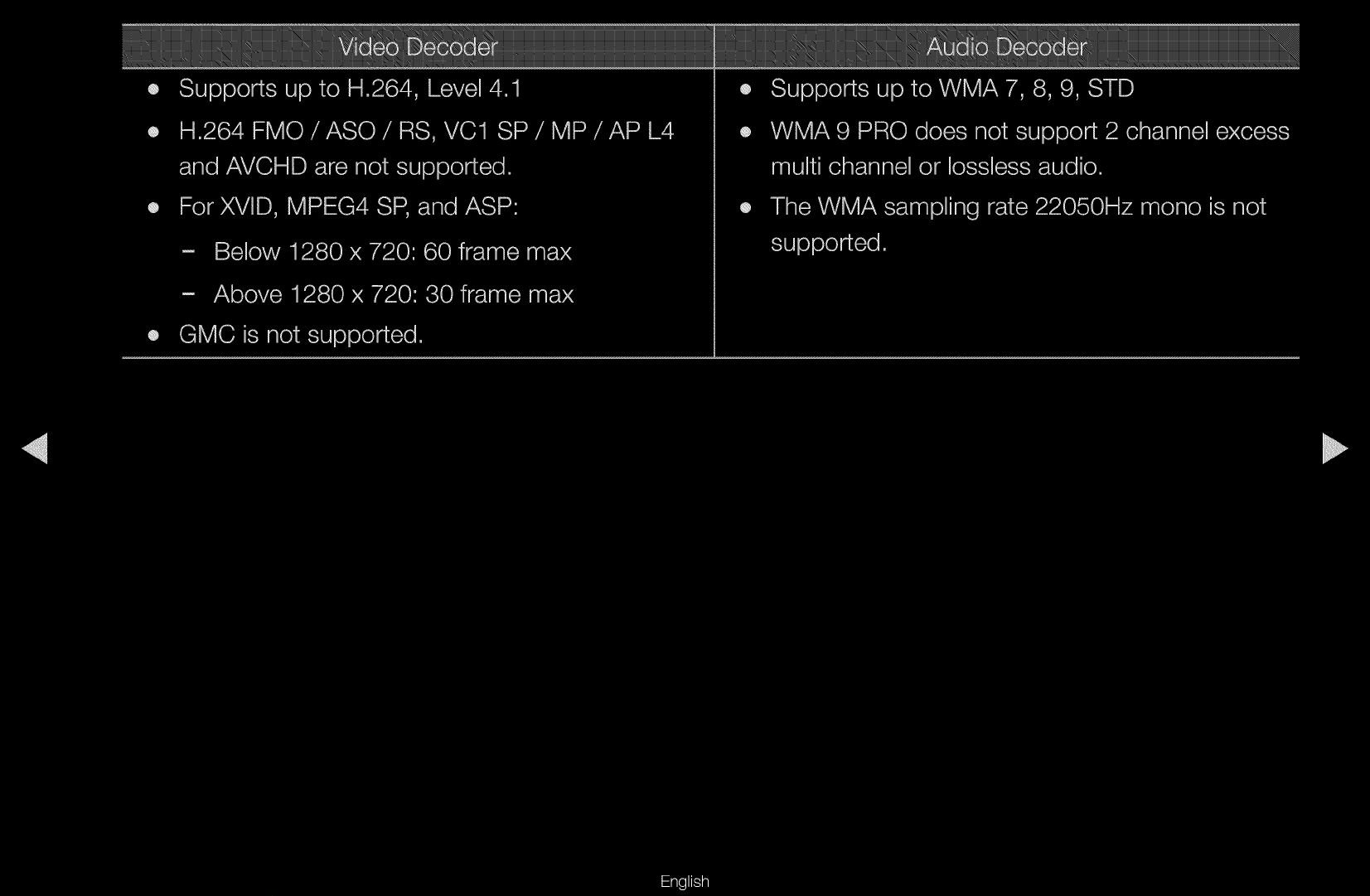
11. Enter the first portion of the IP Address (for example, 105) into the first entry
field using the number keys on your remote. Press the
r
button to go to the
next field.
12. Enter the next portion of the IP Address. Press the right arrow button to go to
the next field.
▶
English
▶
13. Repeat the entry process for each field in the IP Address.
N
If you make a mistake when entering a number, re-enter the number to
correct it. You can also press the
u
or
d
button to change the number one
unit at a time.
14. When done entering the IP Address, press ENTER
E
.
15. Press the
d
button to go to the Subnet Mask fields, and then press
ENTER
E
.
16. Repeat the same entry process for Subnet Mask, Gateway, and DNS Server.
17. When done, select OK at the bottom of the page, and then press ENTER
E
.
The network test screen appears and the verification process starts. When the
connection has been verified, the “Internet connection successful.” message
appears.
▶
English
▶
■
WPS(PBC) Network Setup
How to set up using WPS(PBC)
If your router has a WPS(PBC) button, follow these steps:
1. Go to Network Settings screen. (MENU
m
→
Network
→
Network Settings
→
ENTER
E
).
2. Select the WPS(PBC) and press ENTER
E
,
then press ENTER
E
again.
3. Press the WPS(PBC) button on your router
within 2 minutes. Your TV automatically
acquires all the network setting values it needs
and connects to your network.
4. The network connection screen appears, and network setup is done.
● The displayed image may differ depending on the
model.
U
Move
E
Enter
R
Return
Network Settings
Select a network connection type.
Wired
Wireless(General)
WPS(PBC)
One Foot
Connection
Connect to the Access Point easily by pressing the
WPS(PBC) button. Choose this if your Access Point
supports Push Button Configuration(PBC)
▶
English
▶
■
Ad Hoc Network Setup
You can connect to a mobile device that supports Ad-hoc connections - without
going through a wireless router - using the “Samsung Wireless LAN adapter”. After
you connect the TV to a mobile device, you can use files on the device or connect
to the internet using the AllShare or My Contents function.
How to connect to using Ad hoc
1. Go to Network Settings screen.
(MENU
m
→
Network
→
Network Settings
→
ENTER
E
).
2. Select Wireless (General), and press ENTER
E
, then press ENTER
E
again.
3. Select Ad hoc. The message “Ad hoc service supports a direct connection
with Wi-Fi compatible devices like a cell phone or PC. Other network
services may be limited when using Ad hoc network device. Do you want
to change the network connection?” is displayed.
▶
English
▶
4. Select OK, and press ENTER
E
. The TV searches for the mobile device.
5. When the TV finishes searching for mobile devices, input the generated
Network Name (SSID) and Security Key into the device you want to connect.
N
If network does not operate normally, check the Network Name (SSID) and
Security Key again. An incorrect Security key may cause a malfunction.
N
If a device is connected once, it is added to the Network Setting list. When
you connect it again, you can find it in the Network Setting list.
▶
English
▶
■
One Foot Connection Network Setup
The One Foot Connection function lets you connect your Samsung TV
automatically to a Samsung wireless Router. If your wireless router does not
support One Foot Connection, you must connect using one of the other
methods.
N
You can check for equipment that supports One Foot Connection on www.
samsung.com.
▶
English
▶
How to set up using One Foot Connection
Turn on the power of wireless router and TV.
1. Turn on the router and TV.
2. Go to Network Settings screen. (MENU
m
→
Network
→
Network Settings
→
ENTER
E
).
3. Select the One Foot Connection, and press
ENTER
E
, then press ENTER
E
again.
4. Place the router in parallel with and no more
than 9 3/4 inches from the Samsung Wireless
LAN Adapter.
● The displayed image may differ depending on the
model.
U
Move
E
Enter
R
Return
Network Settings
Select a network connection type.
Wired
Wireless(General)
WPS(PBC)
One Foot
Connection
Connect to the wireless network automatically if your
access point supports One Foot Connection. Select
this connection type after placing the Access Point
within 10 inches (25cm) of your TV.
▶
English
▶
N
If One Foot Connection does not connect your TV to your router, a popup
window appears on the screen notifying you of the failure. If you want to try using
One Foot Connection again, reset the wireless router, disconnect the Samsung
Wireless LAN adapter and then try again from Step1.
5. The network test screen appears, and network set up is done.
6. Move the wireless Router to a desired location.
N
If the wireless router’s settings change or you install a new wireless router, you
must perform the One Foot Connection procedure again, beginning from Step
1.

▶
English
▶
■
Plug & Access Network Setup
The Plug & Access function lets you easily connect your Samsung TV to your
Samsung wireless router by using a USB memory stick to transfer the setup
information from the router to the TV. If your non-Samsung wireless router does
not support Plug & Access, you must connect using one of the other methods.
N
You can check for equipment that supports Plug & Access on www.samsung.
com.
▶
English
▶
How to set up using Plug & Access function
1. Turn on the Samsung wireless router and your TV.
2. Insert a USB memory stick into the USB port in your Samsung wireless router.
Check the router’s LED’s to make sure it is on (Blinking
→
On).
3. Take the USB memory stick out of the router, and then insert it into a USB port
on your Samsung TV. The memory stick downloads the connection information.
4. Wait until the connection is automatically established.
N
If Plug & Access does not connect your TV to your wireless router, a pop-
up window appears on the screen notifying you of the failure. If you want
to try using Plug & Access a gain, reset the wireless router, disconnect the
Samsung Wireless LAN adapter and then try again from Step 1. You can
also choose one of the other connection setup methods.
▶
English
▶
5. The network test screen appears, and the network setup is done.
6. Place the wireless router in a desired location.
N
If the router’s settings change or you install a new wireless router, you must
perform the Plug & Access procedure again, beginning from Step 1.

▶
English
▶
Priority QOS
Samsung wireless routers are optimized to stream HD AV to Samsung DTVs.
This Priority QOS function is unique to Samsung wireless routers.
You can connect a Samsung wireless router to many devices, such as laptops,
mobile phones, BD players etc. But, when you connect a Samsung TV to a
Samsung wireless router, the Samsung wireless router gives the Samsung TV a
priority connection.
This ensures you get the highest quality streaming contents and the fastest
throughput speed.
●
Priority QOS makes your TV faster by giving it priority bandwidth. (Priority QOS is
optional. You can turn it on and off.)
●
Because your Samsung TV has a priority connection, you can enjoy HD content
without buffering.
N
The connection speed may vary based on the network environment.
▶
English
▶
If Your TV Fails to Connect to the Internet
Your TV may not be able to connect to the Internet because your ISP has
permanently registered the MAC address (a unique identifying number) of your PC
or modem, which it then authenticates each time you connect to the Internet as a
way of preventing unauthorized access. As your TV has a different MAC address,
your ISP can not authenticate its MAC address, and your TV can not connect.
To resolve this problem, ask your ISP about the procedures required to connect
devices other than a PC (such as your TV) to the Internet.
If your Internet service provider requires an ID or password to connect to the
Internet, your TV may not be able to connect to the Internet. If this is the case, you
must enter your ID or password when connecting to the Internet.
The internet connection may fail because of a firewall problem. If this is the case,
contact your Internet service provider.
If you cannot connect to the Internet even after you have followed the procedures
of your Internet service provider, please contact Samsung Electronics at
1-800-SAMSUNG.

▶
English
▶
❑
Setting the Time
O
MENU
m
→
System
→
Time
→
ENTER
E
■
Time
O
The current time will appear every time you press the INFO button.
●
Clock: Setting the clock to use the various various timer features of the TV.
N
If you disconnect the power cord, you have to set the clock again.
–
Clock Mode: Set the current time manually or automatically.
Auto: Have the TV set the current time automatically using the time from a
digital channel.
N
You must have the cable or an antenna connected to the TV to set the
time automatically.

▶
English
▶
Manual: Set the current time manually.
N
Depending on the broadcast station and signal, the auto time set up
may not be correct. In this case, set the time manually.
–
Clock Set: Set the Month, Day, Year, Hour, Minute and am/pm.
N
Select Clock Set. Select Date or Time, and then press ENTER
E
. Use
the number buttons to enter numbers or press the up and down arrow
buttons. Use the left and right arrow buttons to move from one entry
field to the next. Press ENTER
E
when done. To exit Clock Set, select
Close, and press ENTER
E
.
N
Available only when Clock Mode is set to Manual.
N
You can set the month, day, year, hour, minute and am/pm directly by
pressing the number buttons on the remote control.

▶
English
▶
–
DST (Off / On): Switches the DST (Daylight Saving Time) function on or off.
N
This function is only available when the Clock Mode is set to Auto.
–
Time Zone: Select your time zone.
N
This function is only available when the Clock Mode is set to Auto.
Using the Sleep Timer
O
MENU
m
→
System
→
Time
→
Sleep Timer
→
ENTER
E
●
Sleep Timer
t
: Automatically shuts off the TV after a preset period of
time (30, 60, 90, 120, 150 and 180 minutes).
N
Use the up and down arrows to select a period of time, and then press
ENTER
E
. To cancel Sleep Timer, select Off.
▶
English
▶
Setting the On / Off Timer
O
MENU
m
→
System
→
Time
→
ENTER
E
●
Set On Timer so that your TV turns on
automatically at a time and on a day of your
choosing.
●
On Timer: You can set up three separate On
Timer configurations. (On Timer 1, On Timer
2, On Timer 3)
N
You must set the clock before you can
use On Timer.
Setup: Select Off, Once, Everyday, Mon~Fri,
Mon~Sat, Sat~Sun or Manual. If you select
Manual, you can choose the days you want On Timer to turn on your TV.
N
The
c
mark indicates days you’ve selected.
● The displayed image may differ depending on
the model.
TV
2004 00 am
Cable 3
On Timer 1
Setup
Once
Source
VolumeOn Time
Antenna Channel
Sun Mon Tue Wed Thu Fri Sat
L
Move
U
Adjust
E
Enter
R
Return

▶
English
▶
On Time: Set the hour, minute, am/pm. Use the number buttons or the up
and down arrow keys to enter numbers. Use the left and right arrow buttons to
change entry fields.
Volume: Set the desired volume level. Use the left and right arrow buttons to
change the volume level.
Source: Select TV or USB. Select TV and the TV will display broadcast or
cable TV programs when it turns on automatically. Select USB and the TV will
play content from a USB device when the TV turns on automatically. (You can
select USB only when a USB device is connected to the TV)
Antenna (when the Source is set to TV): Select Air or Cable.
Channel (when the Source is set to TV): Select the desired channel.
Music / Photo (when the Source is set to USB): Select a folder in the USB
device containing music or photo files you want played when the TV turns on
automatically.
▶
English
▶
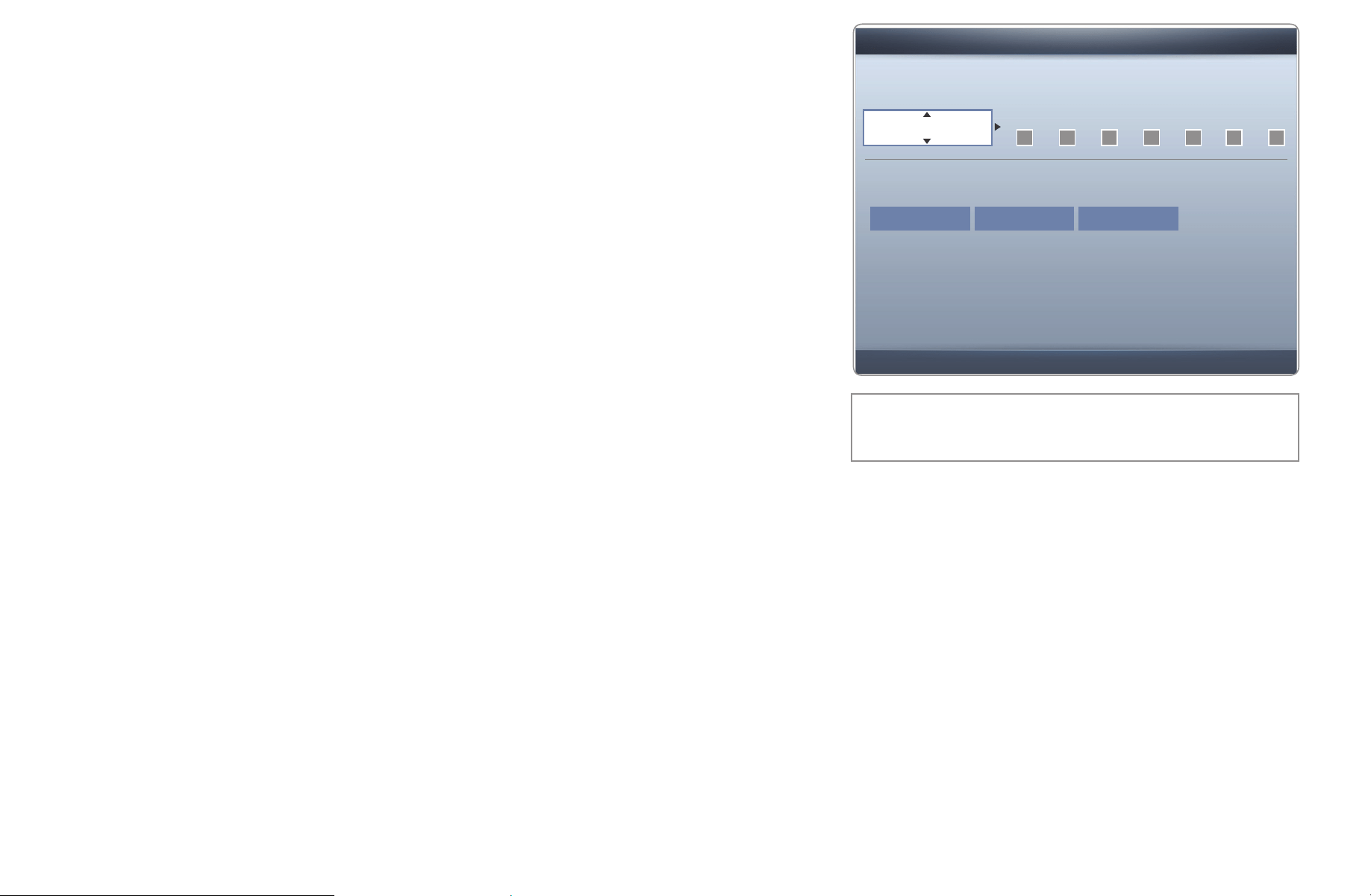
N
NOTE
●
If there is no music file on the USB device or you don’t select a folder
containing a music file, the Timer function does not operate correctly.
●
If there is only one photo file in the USB, the Slide Show will not play.
●
If a folder name is too long, the folder cannot be selected. Each USB you
use is assigned its own folder. When using more than one of the same
type of USB, make sure the folders assigned to each USB have different
names.
●
We recommend that you use a USB memory stick and a multi card
reader when using On Timer. The On Timer function may not work
with USB devices with a built-in battery, MP3 players, or PMPs made
by some manufacturers because the TV can take too long to recognize
these devices.
▶
English
▶
●
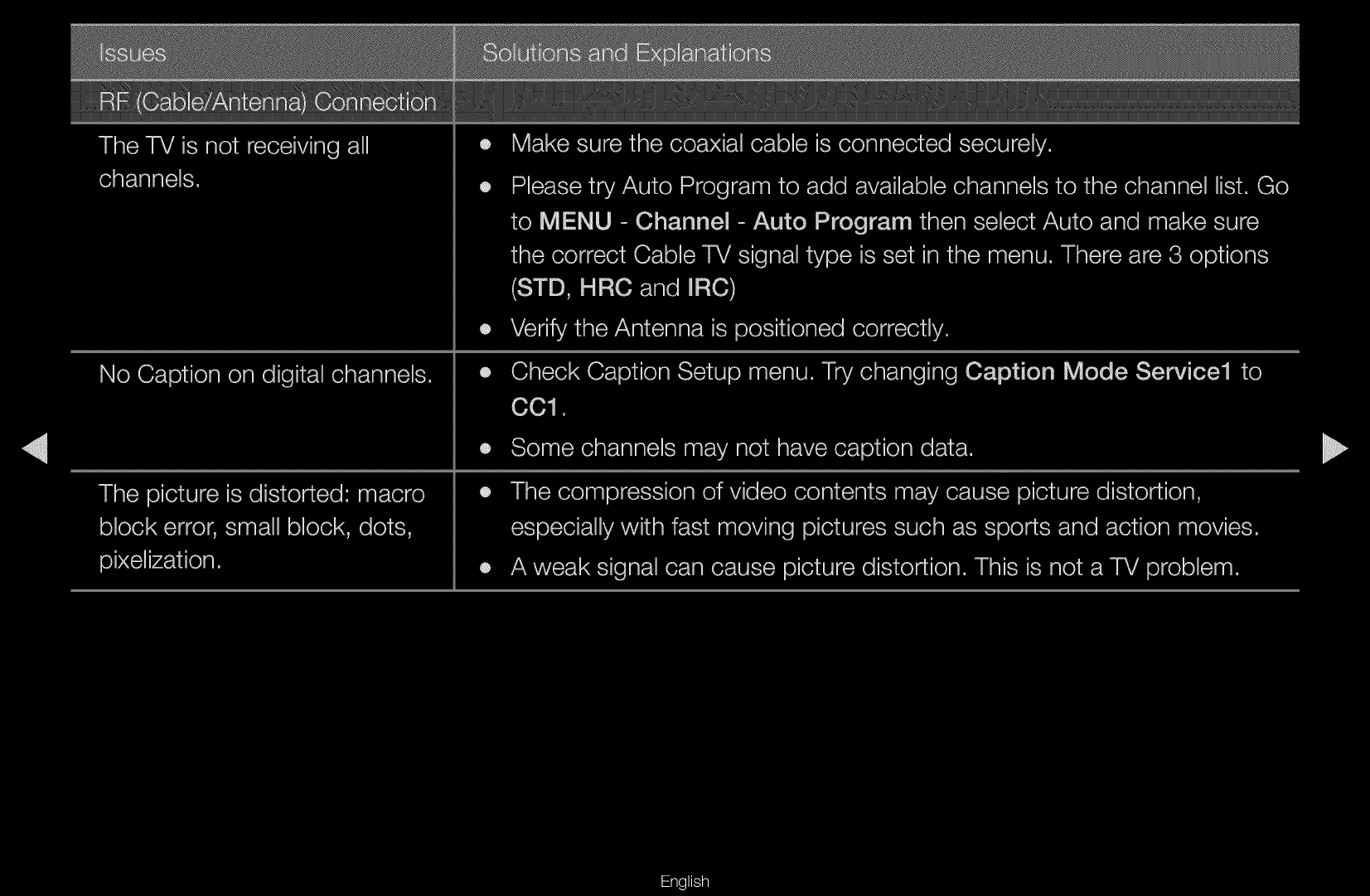
Off Timer: You can set up three separate Off
Timer configurations. (Off Timer 1, Off Timer
2, Off Timer 3)
N
You must set the clock before you can
use Off Timer.
Setup: Select Off, Once, Everyday,
Mon~Fri, Mon~Sat, Sat~Sun or Manual. If
you select Manual, you can choose the days
you want Off Timer to turn off your TV.
N
The
c
mark indicates days you’ve selected.
Off Time: Set the hour, minute, and am/pm. Use the number buttons or the
up and down arrow keys to enter numbers. Use the left and right arrow buttons
to change entry fields.
● The displayed image may differ depending on
the model.
04 00 am
Off Timer 1
Setup
Once
Off Time
Sun Mon Tue Wed Thu Fri Sat
L
Move
U
Adjust
E
Enter
R
Return
▶
English
▶
❑
Blocking Programs
O
MENU
m
→
System
→
Security
→
ENTER
E
■
Security
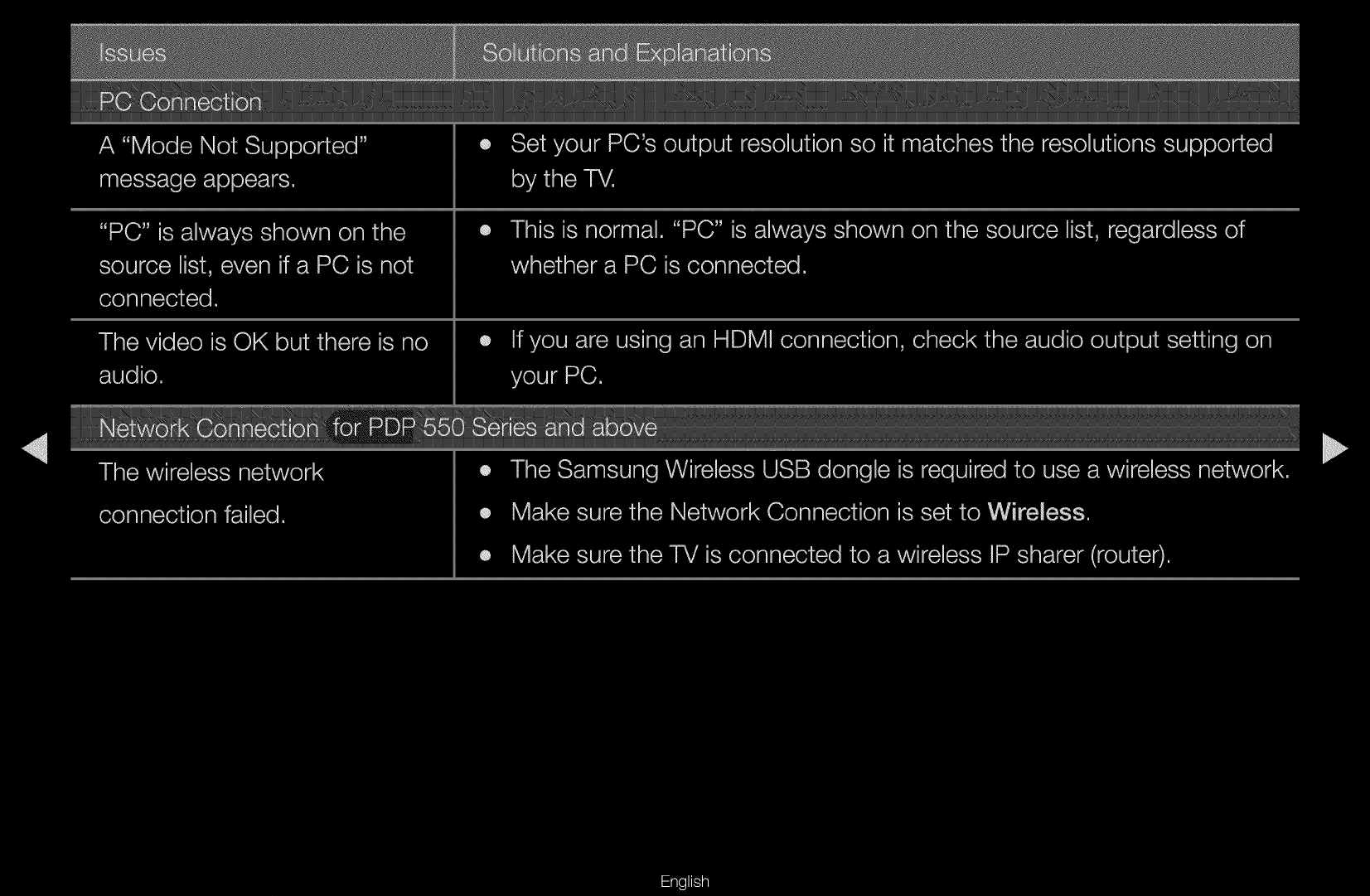
When you access the Security functions for the first time, the PIN input screen
appears. Enter a 4 digit PIN you will remember. The PIN screen closes and the
Securty Menu appears. Every time you access the Security functions, the PIN
screen will appear and you must enter that PIN.
●
Program Rating Lock (Off / On): When turned on, the Program Rating Lock
feature can automatically block programs you deem inappropriate for your
children. You must enter a PIN (personal identification number) before you can
set or change any of the Program Rating Lock restrictions.
N
The default PIN number for a new TV set is “0-0-0-0”.
▶
English
▶
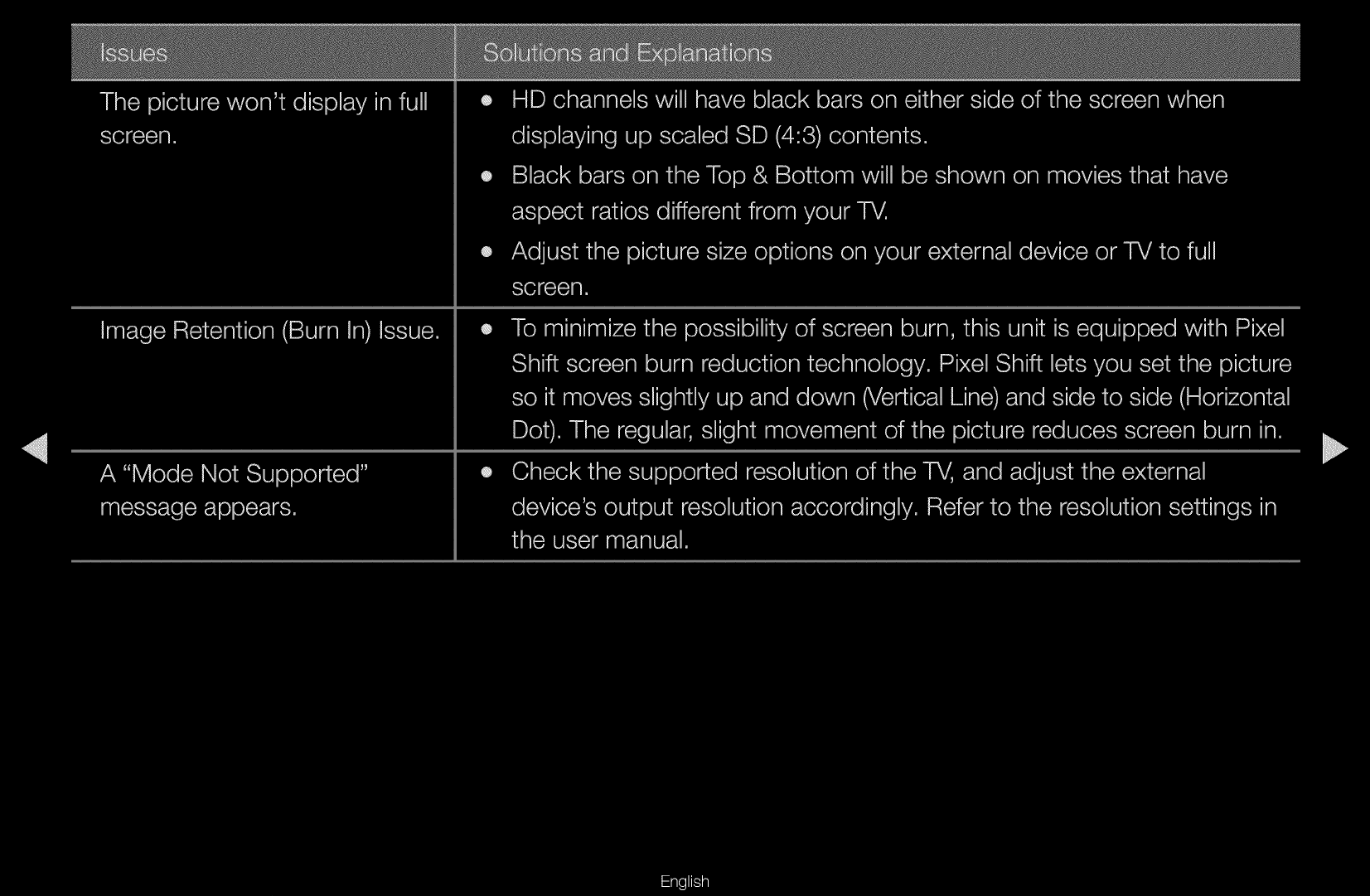
TV Rating: You can block TV programs based on their ratings. This function
allows you to control what your children can watch. TV Rating displays a grid
with locks. The following categories are on the left side:
–
TV-Y: Young children / TV-Y7: Children 7 and over / TV-G: General
audience / TV-PG: Parental guidance / TV-14: Viewers 14 and over / TV-
MA: Mature audience
The following categories are on top:
–
ALL: Lock all TV ratings. / FV: Fantasy violence / V: Violence / S: Sexual
situation / L: Adult Language / D: Sexually Suggestive Dialog
N
To block certain content, you select a lock, and press ENTER
E
(That
is, you “click it”.). For example, click the lock at the intersection of V and
TV-MA, and you block all programs that are rated violent and for mature
adults. The blocks are also assigned to related groups. For example, if
you click TV-Y under All, then TV-Y7 will also automatically be blocked.

▶
English
▶
Similarly, if you click TV-G under ALL, then all the categories in the young
adult group will be blocked (TV-G, TV-PG, TV-14 and TV-MA). The sub-
ratings (D, L, S, V) work similarly. So, if you block the L sub-rating in TV-PG,
then the L sub-ratings in TV-14 and TV-MA will automatically be blocked.
N
To unblock a category, click the lock. To unblock all the categories in a
row, click the lock under ALL.
N
To watch a blocked program, you must enter the Security code when
requested.
▶
English
▶
Movie Rating (MPAA): You can block movies based on their MPAA rating.
The Motion Picture Association of America (MPAA) has implemented a rating
system that provides parents or guardians with advanced information on which
films are appropriate for children.
Movie Rating displays a column with locks and the following ratings categories:
–
G: General audience (no restrictions). / PG: Parental guidance suggested.
/ PG-13: Parents strongly cautioned. / R: Restricted. Children under 17
should be accompanied by an adult. / NC-17: No children under age 17. / X:
Adults only. / NR: Not rated.
▶
English
▶
N
To block certain content, you select a lock, and press ENTER
E
(That
is, you “click it”.). For example, click the X lock and you block all X-rated
movies. The rating categories are also grouped so that clicking one
category blocks all the categories a parent would block along with it.
For example, if you block the PG-13 category, then R, NC-17 and X will
automatically be blocked also.
N
To unblock a category, click the lock.

▶
English
▶
Canadian English Rating: You can block TV programs based on their
Anglophone Canadian rating.
Canadian English Rating displays a column with locks and the following ratings
categories:
–
C: Programming intended for children under age 8. / C8+: Programming
generally considered acceptable for children 8 years and over to watch
on their own. / G: General programming, suitable for all audiences. / PG:
Parental Guidance. / 14+: Programming contains themes or content
which may not be suitable for viewers under the age of 14. / 18+: Adult
programming.
▶
English
▶
N
To block certain content, you select a lock, and press ENTER
E
(That
is, you “click it”.). For example, click the 18+ lock and you block all TV
programs rated 18+. The rating categories are also grouped so that
clicking one category blocks all the categories a parent would block
along with it. For example, if you block the G category, then PG, 14+
and 18+ will automatically be blocked.
N
To unblock a category, click the lock.

▶
English
▶
Canadian French Rating: You can block TV programs based on their French
Canadian rating.
Canadian French Rating displays a column with locks and the following ratings
categories:
–
G: General / 8 ans+: Programming generally considered acceptable for
children 8 years and over to watch on their own. / 13 ans+: Programming
may not be suitable for children under the age of 13. / 16 ans+:
Programming is not suitable for children under the age of 16. / 18 ans+:
Programming restricted to adults.
▶
English
▶
N
To block certain content, you select a lock, and press ENTER
E
(That
is, you “click it”.). For example, click the 18 ans+ lock and you block all
TV programs rated 18 ans+. The rating categories are also grouped so
that clicking one category blocks all the categories a parent would block
along with it. For example, if you block the 8 ans+ category, then 13
ans+, 16 ans+ and 18 ans+ will automatically be blocked also.
N
To unblock a category, click the lock.
Downloadable U.S. Rating: Parental restriction information you can use while
watching DTV channels.
▶
English
▶
N
NOTE
●
If information is not downloaded from the broadcasting station,
Downloadable U.S. Rating menu is deactivated.
●
Parental restriction information is automatically downloaded while you
watch DTV channels. It may take several seconds.
●
The Downloadable U.S. Rating menu is available for use after
information is downloaded from the broadcasting station. However,
depending on the information from the broadcasting station, it may not
be available for use.
●
Parental restriction levels differ depending on the broadcasting station.
The default menu name and Downloadable U.S. Rating change
depending on the downloaded information.

▶
English
▶
●
Even if you set the on-screen display to another language, the
Downloadable U.S. Rating menu will appear in English only.
●
Blocking one rating level will automatically block other categories that
deal with more sensitive material.
●
The rating titles (For example: Humor Level..etc) and TV ratings (For
example: DH, MH, H..etc) may differ depending on the broadcasting
station.

▶
English
▶
●
Change PIN: The Change PIN screen will appear. Choose any 4 digits for your
PIN and enter it in Enter New PIN. Re-enter the same 4 digits. in Confirm New
PIN. When the Confirm screen disappears, press the OK button. The TV has
memorized your new PIN.
How to watch a restricted program or movie
If the TV is tuned to a restricted program or movie, the Program Rating Lock will
block it. The screen will go blank and the following message will appear:
This channel is blocked by Program Rating Lock. Please enter the PIN to unblock
Enter the PIN to unblock. the program or movie.
N
If you forget the PIN, press the remote-control buttons in the following
sequence, which resets the PIN to “0-0-0-0:” POWER (off)
→
MUTE
→
8
→
2
→
4
→
POWER (on)

▶
English
▶
❑
Economical Solutions
■
Eco Solution
O
MENU
m
→
System
→
Eco Solution
→
ENTER
E
●
Energy Saving (Off / Low / Medium / High / Picture Off): Lets you adjusts
the brightness of the TV in order to reduce power consumption. If you select
Picture Off, the screen is turned off, but the sound remains on. Press any
button except the volume button to turn on the screen.
●
Eco Sensor (Off / On): To enhance your power savings, the picture settings will
automatically adapt to the light in the room.
N
If you adjust Cell Light in the Picture menu, the Eco Sensor will be set to
Off.

▶
English
▶
Min Cell Light: When Eco sensor is On, you can manually adjust the minimum
screen brightness.
N
If Eco Sensor is On, the display brightness may change (become slightly
darker or brighter) depending on the surrounding light intensity. You can
control the screen’s minimum brightness with the Min Cell Light function.
●
No Signal Power Off (Off / 15 min. / 30 min. / 60 min.): To avoid unnecessary
energy consumption, you can set how long you want the TV to remain on if it’s
not receiving a signal.
N
Disabled when an attached PC is in power saving mode.
●
Auto Power Off (Off / On): The TV will automatically turn off if you don’t press
a button on the remote or touch a button on TV’s front panel within 4 hours to
prevent overheating.

▶
English
▶
❑
Picture In Picture (PIP)
O
MENU
m
→
System
→
PIP
→
ENTER
E
■
PIP
t
You can watch a program whose signal has passed through the TV’s tuner and
the video from one external video source simultaneously. For example, if you have
a cable box connected to the Cable In jack, you can use PIP to watch programs
from the cable box and a movie from a Blu-ray player attached to the HDMI In
jack.
▶
English
▶
N
NOTE
●
For PIP sound, refer to the Sound Select instructions.
●
The PIP function is not available in 3D mode.
●
If you turn the TV off while watching in the PIP mode, the PIP function is
reset to off. When you turn your TV on, you must turn PIP on again to watch
in the PIP mode.
●
You may notice that the picture in the PIP window becomes slightly
unnatural when you use the main screen to view a game or karaoke.
●
While Program Rating Lock is on, you cannot use PIP.
●
PIP Settings
The picture from the external video source will be in the main screen and the
picture from the TV’s tuner will be in the PIP sub-picture window.
Main picture Sub picture
Component, HDMI, PC TV

▶
English
▶
●
PIP (Off / On): Activate or deactivate the PIP function.
●
Air/Cable (Air / Cable): Select either Air or Cable as the input source for the
sub-screen.
●
Channel: Select the channel for the sub-screen.
●
Size (
ã
/
õ
): Select a size for the subpicture.
●
Position (
ã
/
–
/
—
/
œ
): Select a position for the sub-picture.
●
Sound Select (Main / Sub): You can choose to listen to the sound from the
Main picture or the Sub picture.

▶
English
▶
❑
Other Features
O
MENU
m
→
System
→
ENTER
E
■
Menu Language
Set the menu language.
1. Select Menu Language, and then press the ENTER
E
button.
2. Choose a language, and then press the ENTER
E
button.
N
Choose from English, Español, and Français.

▶
English
▶
■
Caption
(On-Screen Text Messages)
●
Caption (Off / On): You can switch the caption function on or off. If captions
are not available, they will not be displayed on the screen.
N
The Caption feature does not work with devices connected to the TV
through the Component, HDMI or PC input jacks.
●
Caption Mode: You can select the desired caption mode.
N
The availability of captions depends on the program being broadcast.
Default / CC1~CC4 / Text1~Text4: (analog channels only) The Analog Caption
function operates in either analog TV channel mode or when a signal is supplied
from an external device to the TV. (Depending on the broadcasting signal, the
Analog Caption function may or may not work with digital channels.)

▶
English
▶
Default / Service1~Service6 / CC1~CC4 / Text1~Text4: (digital channels
only) The Digital Captions function works with digital channels.
N
Service1~6 may not be available in digital caption mode depending on the
broadcast.
●
Digital Caption Options: (digital channels only) Adjusts the each option. When
done, select Close.
Size: Options include Default, Small, Standard and Large. The default is
Standard.
Font Style: Options include Default and Styles 0 to 7. The default is Style 0.
Foreground Color: You can change the color of the letters. Options include
Default, White, Black, Red, Green, Blue, Yellow, Magenta and Cyan. The default
is White.

▶
English
▶
Background Color: You can change the background color of the caption.
Options include Default, White, Black, Red, Green, Blue, Yellow, Magenta and
Cyan. The default is Black.
Foreground Opacity: This adjusts the opacity of text. Options include Default,
Transparent, Translucent, Solid and Flashing.
Background Opacity: This adjusts the opacity of the caption background.
Options include Default, Transparent, Translucent, Solid and Flashing.
Return to Default: This option sets each Size, Font Style, Foreground Color,
Background Color, Foreground Opacity and Background Opacity to its default.

▶
English
▶
N
NOTE
●
Digital Caption Options are available only when you can select Default
and Service1 ~ Service6 in Caption Mode.
●
The availability of captions depends on the program being broadcast.
●
The Default setting follows the standards set by the broadcaster.
●
You cannot set the Foreground and Background to the same color.
●
You cannot set both the Foreground Opacity and the Background
Opacity to Transparent.

▶
English
▶
■
Screen Burn Protection
To reduce the possibility of screen burn, this unit is equipped with Pixel Shift screen
burn prevention technology. Pixel Shift moves the picture slightly on the screen.
The Time function setting allows you to program the time between movement of
the picture in minutes.
Your TV also has the following additional screen burn protection functions:
●
Pixel Shift
●
Auto Protection Time
●
Scrolling
●
Side Gray
▶
English
▶
●
Pixel Shift (Off / On): Using this function, you can set the TV to move pixels
minutely on the PDP screen in a horizontal or vertical direction to minimize after
images on the screen.
N
Available Pixel Shift Settings and Optimum Settings
Available Settings
Optimum Settings for TV/AV/
Component/HDMI/PC
Horizontal 0~4(pixels) 4
Vertical 0~4(pixels) 4
Time (minute) 1~4 min 4 min
N
The Pixel Shift value may differ depending on the monitor size (inches) and
mode.
N
This function is not available in the Screen Fit mode.

▶
English
▶
●
Auto Protection Time (Off / 10 min. / 20 min. / 40 min. / 1 hour): If the screen
displays a still image for a certain period of time you define, the TV activates the
screen saver to prevent the formation of burnt in ghost images on the screen.
●
Scrolling: This function removes after-images on the screen by illuminating all
the pixels on the PDP according to a pattern. Use this function when there are
after images or symbols on the screen, especially when you displayed a still
image on the screen for a long time.
N
The after-image removal function has to be executed for a long time
(approximately 1 hour) to effectively remove after-images on the screen.
If the after-image is not removed after you apply the function, repeat the
function again.
N
Press any key on the remote control to cancel this feature.
●
Side Gray (Light / Dark): When you watch TV with the screen ratio set to 4:3,
using the Side Gray function can prevent damage to the edges of the screen
by adjusting the white balance on the extreme left and right sides.

▶
English
▶
■
General
●
Game Mode (Off / On): When you have connected a game console such as
a PlayStation™ or Xbox™ to the TV, you can enjoy a more realistic gaming
experience if you set Game Mode on.
N
Precautions and limitations for Game Mode
–
Before disconnecting a game console and connecting another external
device, set Game Mode to Off in the System menu.
–
If you display the TV menu in Game Mode, the screen shakes slightly.

▶
English
▶
N
Game Mode is not available when the input source is set to TV or PC.
N
Set Game Mode to On only after connecting a game console. If you turn
Game Mode on before you have attached the game console, you may
notice reduced picture quality.
N
If Game Mode is On:
–
Picture Mode is set to Standard and Sound Mode is set to Movie.

▶
English
▶
●
Menu Transparency (Bright / Dark): Set the Transparency of the menu.
●
Boot Logo (Off / On): Displays the Samsung logo when the TV is turned on.
●
TV Name
for PDP 550 Series and above
: Sets the TV name so you can find it easily
on a mobile device.
N
If you select User Input, you can type on the TV using the OSK (On Screen
Keyboard).

▶
English
▶
■
Anynet+ (HDMI-CEC)
For details on set up options, refer to the “Anynet+ (HDMI-CEC)” instructions.

▶
English
▶
■
DivX® Video On Demand
Shows the registration code authorized for the TV. If you connect to the DivX web
site and register using that code, you can download the VOD registration file. If you
activate the VOD registration using My Contents, the registration is completed.
N
For more information about DivX® VOD, visit “http://vod.divx.com”.

▶
English
▶
■
Network Remote Control (On / Off)
for PDP 550 Series and above
Turn on/off or give permission to Samsung mobile phone devices to connect with
and control the TV.
You must have a Samsung Mobile phone/device which supports Network Remote
Control. For more details, refer to each device’s manual.

▶
English
▶
❑
Support Menu
O
MENU
m
→
Support
→
ENTER
E
■
e-Manual
The e-Manual is built into your TV. Open the e-Manual to learn how to use your
TV’s many features.
N
For the detailed information about the e-Manual Screen, refer to “How to view
the e-Manual” in the Users Manual.

▶
EnglishSupport Menu
▶
■
Self Diagnosis
●
Picture Test: Use to check for picture problems. Picture Test displays a high
definition picture that you can examine for flaws or faults.
Yes: Select Yes if the test picture does not appear or there is noise or distortion
in the test picture. There may be a problem with the TV. Contact Samsung’s
Call Center for assistance.
No: Select No if the test picture displays properly. There may be a problem
with your external equipment. Please check your connections. If the problem
persists, refer to the external device’s user manual.

▶
English
▶
●
Sound Test: Use the built-in melody to check for sound problems.
N
If you hear no sound from the TV’s speakers, before performing the sound
test, make sure Speaker Select is set to TV Speaker in the Sound menu,
and then try the speakers again.
N
You will hear the melody during the test even if you have set Speaker
Select to External Speaker or have muted the sound by pressing the
MUTE button.
Yes: Select Yes if you can hear sound from only one speaker or from neither
speaker during the sound test. There may be a problem with the TV. Contact
Samsung’s Call Center for assistance.
No: Select No if you can hear sound from the speakers. There may be a
problem with your external equipment. Please check your connections. If the
problem persists, refer to the external device’s user manual.

▶
English
▶
●
Signal Information: (digital channels only) The reception quality of over-the-air
HD channels is either perfect or the channels are unavailable. Signal Information
displays HD channel signal strength so you can adjust your antenna to increase
signal strength and receive HD channels.
●
Troubleshooting: Displays a troubleshooting guide organized into four
symptom categories: Poor or Distorted Picture, Distorted Sound or No Sound,
RF or PC Issues, and Other Issues. If your TV seems to be having a problem,
access the troubleshooting guide for a solution.

▶
English
▶
■
Software Upgrade
The Software Upgrade menu lets you upgrade
your TV’s software to the latest version.
Current Version: This is the software version
already installed in the TV.
N
The current version is displayed in the
following format: Year / Month / Day_
Version number.
● The displayed image may differ depending on
the model.
Current Version 2011/01/18_000001
By USB
Alternative Software ----/--/--_-----
E
Enter
R
Return
Software Upgrade

▶
English
▶
Upgrading to the Latest Version
You can upgrade in three ways:
●
By USB
●
By Online
●
By Standby Mode Upgrade
The three methods are explained in the following pages.
N
Be careful not to turn off the power until the upgrade is complete. The TV will
turn off and on automatically after completing the firm ware upgrade. When
you upgrade software, all video and audio settings you have made will return
to their default settings. We advise you to write down your settings so that you
can easily reset them after the upgrade.
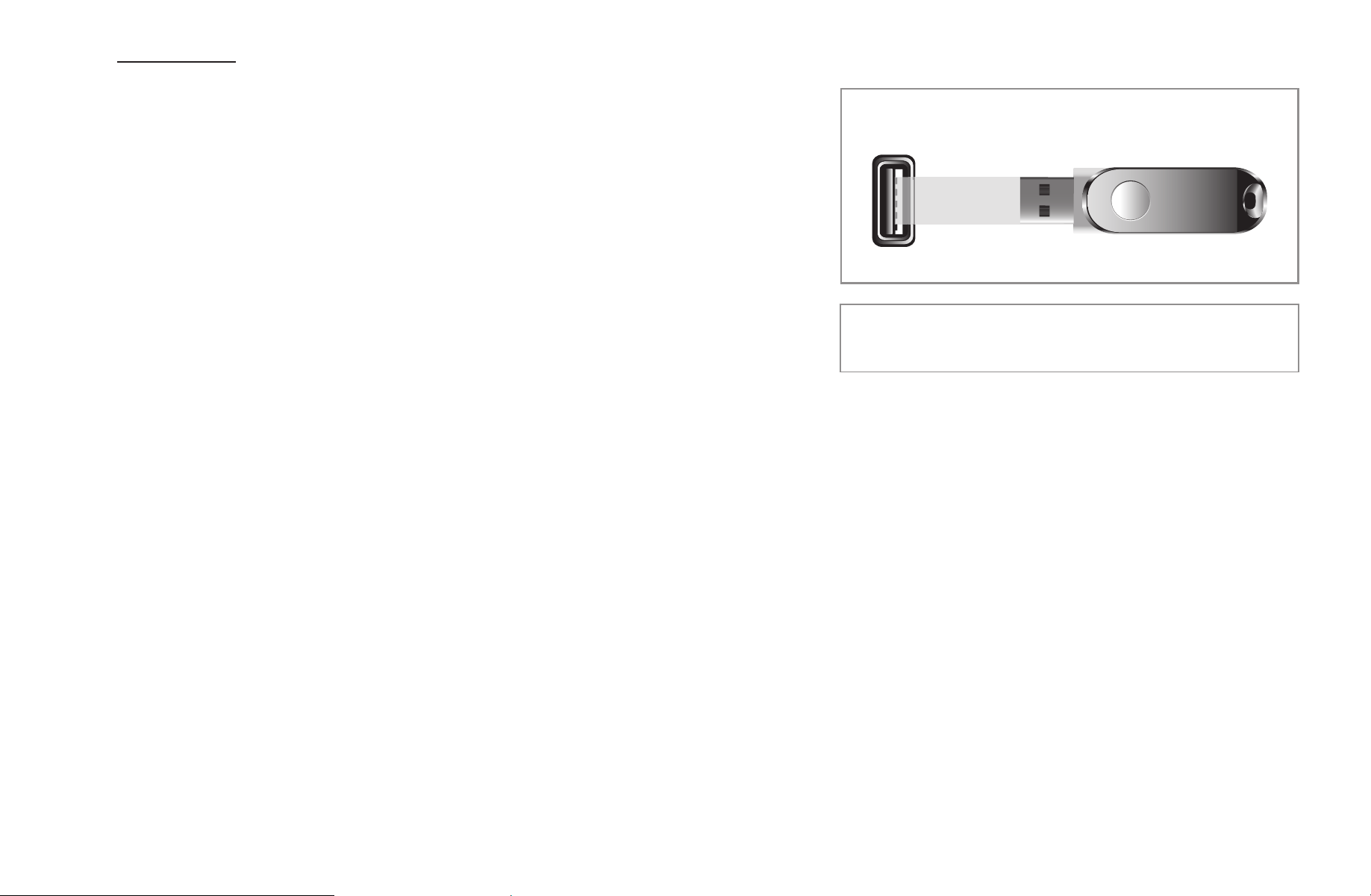
▶
English
By USB
To upgrade by USB, follow these steps:
1. Visit www.samsung.com.
2. Download the latest USB software upgrade
exe archive to your computer.
3. Extracts the exe archive to your computer.
You should have a single folder with the same
name as the exe file.
4. Copy the folder to a USB flash drive.
5. Turn on the TV, and then insert the USB flash drive into the USB port of the TV.
6. In the TV’s menu, go to Support
→
Software Upgrade.
7. Select By USB.
N
Please be careful not to remove the USB drive until the upgrade is complete.
▶
● The displayed image may differ depending on the
model.
USB

▶
English
By Online
for PDP 550 Series and above
The By Online function lets you download the upgrade software directly from the
Internet into your TV and then upgrade the software in one operation. To use By
Online, you must have configured your TV to connect to your network and the TV
must be connected to the Internet. See the Network Connection instructions.
To upgrade by Online, follow these steps:
1. Select By Online, and then press the ENTER
E
button. The Connecting to
Server message appears.
2. If there is a download available, the Download pop-up appears with a progress
bar and the download starts.
▶

▶
English
3. When the download is complete, the Upgrade Query window appears with
three choices: Upgrade Now, Upgrade Later, or Don’t Upgrade.
4. If you select Upgrade Now, the TV upgrades the software, turns off, and then
turns on automatically.
5. If you do not make a selection in one minute or select Upgrade Later, the TV
stores the new upgrade software. You can upgrade the software later using the
Alternative Software function.
6. If you select Don’t Upgrade, the TV cancels the upgrade.
▶

▶
English
Alternative Software
for PDP 550 Series and above
The Alternative Software option lets you upgrade using a file the TV downloaded
earlier, but you decided not to install immediately, or a file downloaded by the TV in
Standby Mode (See Standby Mode Upgrade on the next page).
To upgrade by Alternative Software, follow these steps:
1. If upgrade software has been downloaded, you will see the software version
number to the right of Alternative Software.
2. Select Alternative Software, and then press the ENTER
E
button.
3. The TV displays a message asking if you want to upgrade. Select Yes. The TV
begins the upgrade.
4. When the update is complete, the TV turns off automatically, and then turns on.
▶

▶
English
Standby Mode Upgrade
for PDP 550 Series and above
You can set the Standby Mode Upgrade function so that the TV downloads new
upgrade software when it is in Standby mode. In Standby mode, the TV is off, but
its Internet connection is active. This allows the TV to download upgrade software
automatically, when you are not using it. Because the TV is turned on internally,
the screen may glow slightly. This phenomenon may continue for more than 1 hour
until the software download is complete.
To set Standby Mode Upgrade, follow these steps:
1. Press the arrow buttons to select Upgrade in Standby Mode, and then press
the ENTER
E
button.
▶

▶
English
2. Select On or Off.
●
Off : If you select Off, the TV will notify you with a pop up message when
new upgrade software is available.
●
On : If you select On, the TV will automatically download new upgrade
software when it is in Standby mode with the power off. If it downloads new
upgrade software, the TV will ask you if you want to install it when you turn
the TV on.
N
To use the Standby Mode Upgrade function, your TV must be connected
to the Internet.
▶

▶
English
■
Contact Samsung
View this information when your TV does not work properly or when you want to
upgrade the software. You can find information regarding our call centers and how
to download products and software.
▶

▶
English
▶
❑
3D
O
MENU
m
→
Picture
→
3D
→
ENTER
E
■
Using the 3D function
This exciting new feature enables you to view 3D content. To fully enjoy this
feature, you must purchase a pair of Samsung 3D Active Glasses to view 3D video.
Samsung 3D Active Glasses are sold separately. For more detailed purchasing
information, contact the retailer where you purchased this TV.

▶
English
▶
IMPORTANT HEALTH AND SAFETY INFORMATION FOR 3D PICTURES.
Read and understand the following safety information before using the TV’s
3D function.
[
WARNING
●
Some viewers may experience discomfort while viewing 3D TV such as
dizziness, nausea and headaches. If you experience any such symptom,
stop viewing 3D TV, remove the 3D Active Glasses and rest.
●
Watching 3D images for an extended period of time may cause eye strain. If
you feel eye strain, stop viewing 3D TV, remove your 3D Active Glasses and
rest.

▶
English
▶
●
A responsible adult should frequently check on children who are using the
3D function. If there are any reports of tired eyes, headaches, dizziness, or
nausea, have the child stop viewing 3D TV and rest.
●
Do not use the 3D Active Glasses for other purposes (such as general
eyeglasses, sunglasses, protective goggles, etc.)
●
Do not use the 3D function or 3D Active Glasses while walking or moving
about. If you use the 3D function or 3D Active Glasses while walking or
moving about you can injure yourself by running into objects, tripping, and/
or falling.
▶
English
▶
●
3D Mode: Select the 3D input format.
N
If you want to experience the 3D effect fully, put the 3D Active Glasses on
first, and then select the 3D Mode from the list below that provides the best
3D viewing experience.
3D Mode Operation
Off Turns the 3D function off.
2D
→
3D Changes a 2D image to 3D.
Side by Side Displays two images next to each other.
Top & Bottom Displays one image above another.
N
Some file formats may not be supported “2D
→
3D.”
N
“Side by Side” and “Top & Bottom” are available when the resolution is
720p, 1080i and 1080p in DTV, HDMI and USB mode or when you set the
TV’s source to PC and your PC is connected through an HDMI/DVI cable.

▶
English
▶
●
3D Perspective (-5 ~ +5): Adjust the overall 3D perspective of on-screen
image.
●
Depth (1~10): Adjust overall depth.
●
L/R Change (L/R Image / R/L Image): Swaps the left and right pictures.
●
3D
→
2D (Off / On): Displays the image for the left eye only.
N
This function is deactivated when 3D Mode set to “2D
→
3D” or Off.
▶
English
▶
N
Support resolution (16:9 only)
Resolution Frequency (Hz)
1280 x 720p 50 / 60 Hz
1920 x 1080i 50 / 60 Hz.
1920 x 1080p 24 / 30 / 50 / 60 Hz
Resolution supported for HDMI PC mode
The optimal resolution for the HDMI PC mode is 1920 x 1080. If the input
resolution is not 1920 x 1080, the TV may not display images properly in 3D
display or full screen mode.
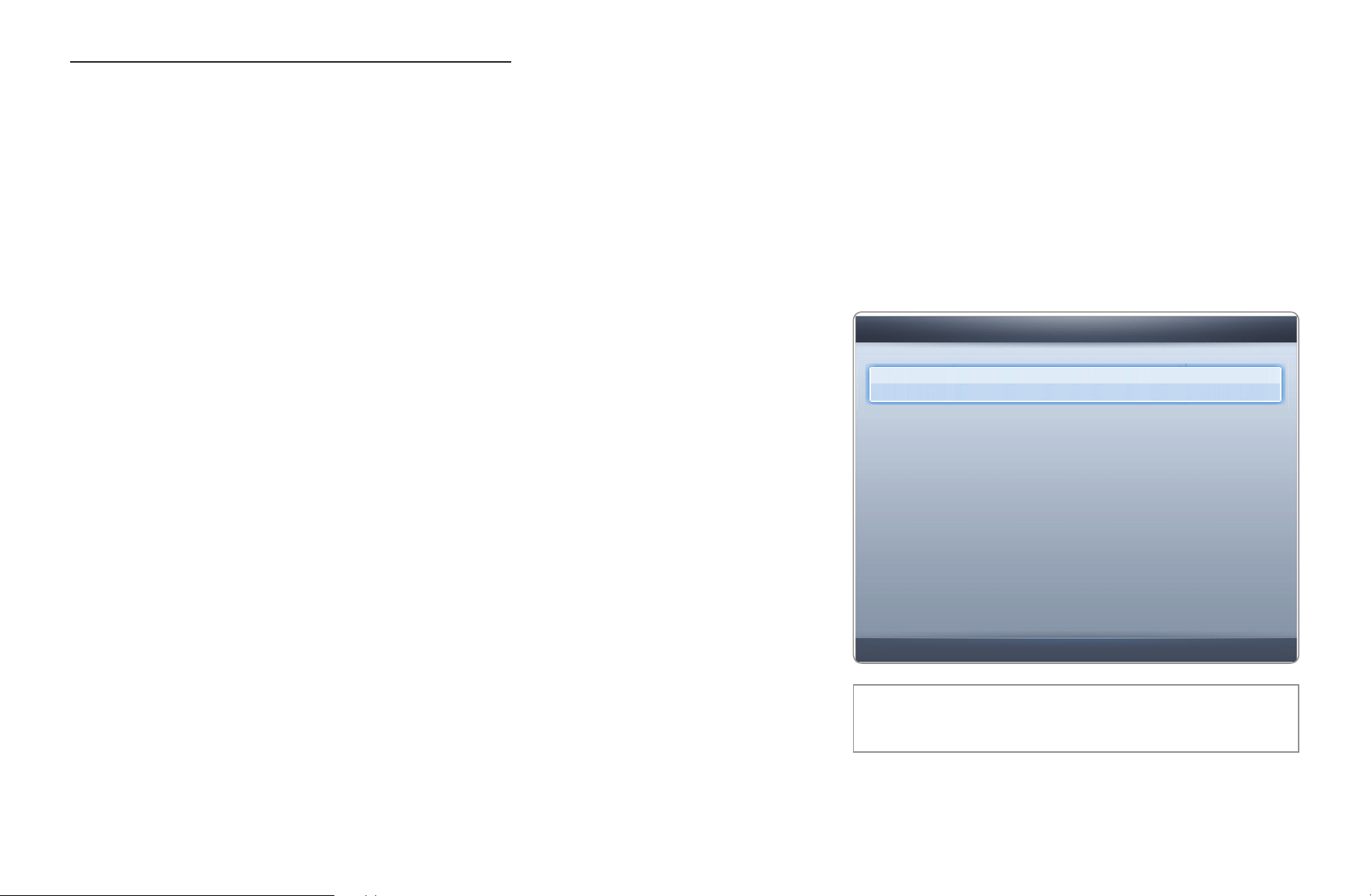
▶
English
▶
How to watch the 3D images
N
Some 3D modes may not be available depending on the format of the image
source.
N
To watch in 3D, you must wear 3D Active Glasses and turn the glasses on by
pressing the power button.
1. Press the MENU button on your remote, use
the
u
or
d
button to select Picture, and
then press the ENTER
E
button.
2. Use the
u
or
d
button to select 3D, and
then press the ENTER
E
button.
● The displayed image may differ depending on
the model.
3D
3D Mode : Off
r
3D Perspective : 0
Depth : 5
L/R Change : L/R Image
3D
→
2D : Off
E
Enter
R
Return
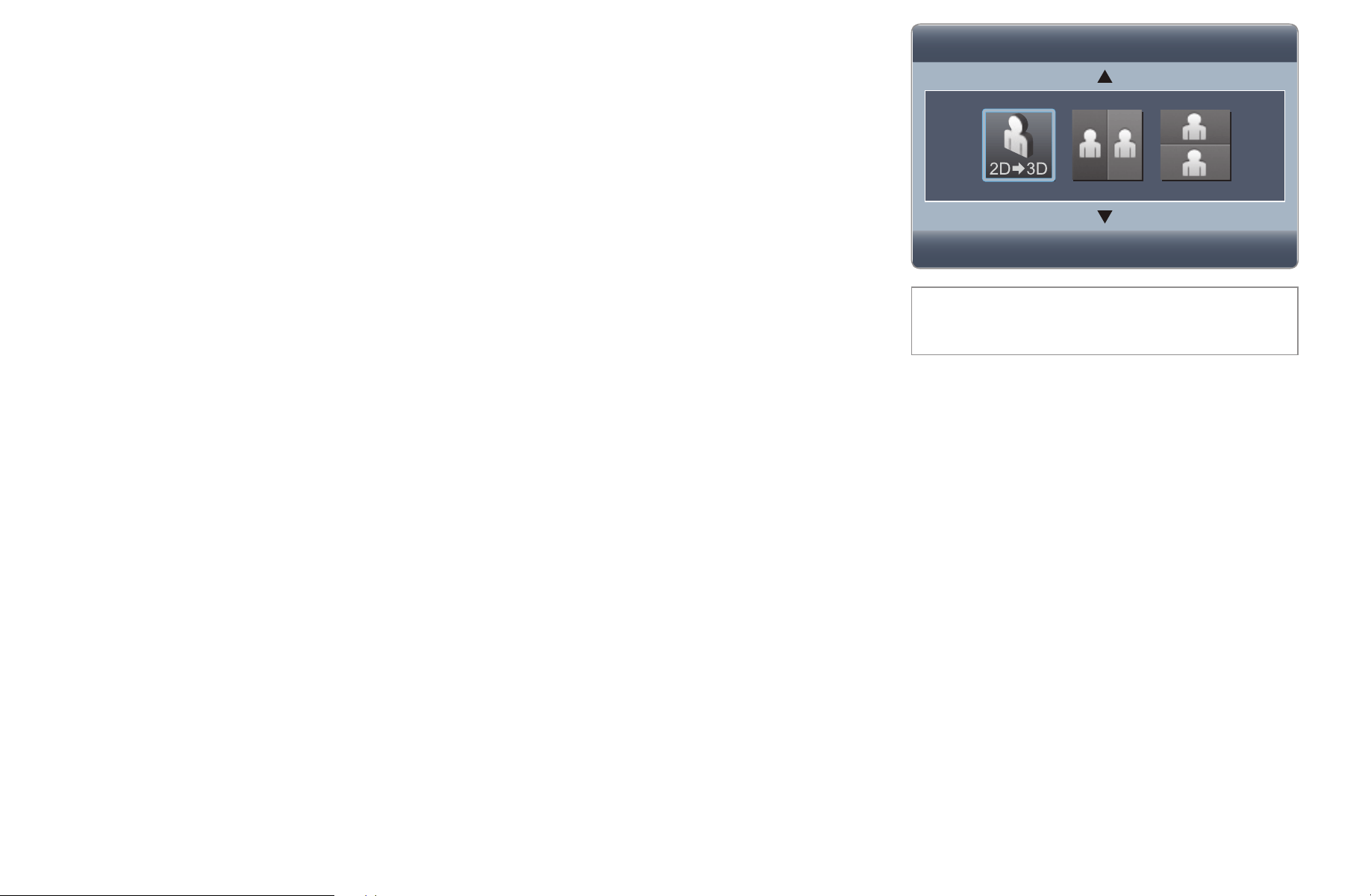
▶
English
▶
3. Use the
u
or
d
button to select 3D Mode, and
then press the ENTER
E
button.
4. Using the
l
or
r
buttons on your remote control,
select the 3D Mode of the image you want to
view.
● The displayed image may differ
depending on the model.
U
Off
L
Move
E
Enter
R
Return
3D Mode
▶
English
▶
Supported formats and operating specifications for Standard HDMI 3D
N
The 3D formats listed below are recommended by the HDMI association and
must be supported by 3D TVs.
Source signal format Standard HDMI 1.4 3D
1920x1080p@24Hz x 2 1920x2205p@24Hz
1280x720p@60Hz x 2 1280x1470p@60Hz

▶
English
▶
Read These Notes Before Using the 3D Function...
N
NOTE
●
3D Mode is set to Off automatically when you access My Contents or
e-Manual functions.
●
3D Mode is set to its memorized configuration value automatically when
you change the input source.
●
Some Picture functions are disabled in 3D mode.
●
PIP is not supported in 3D mode.

▶
English
▶
●
3D Active Glasses from Samsung’s previous product (IR type) or other
manufacturers are not supported.
●
When the TV is initially powered on, it may take some time until the 3D
display is optimized.
●
The 3D Active Glasses may not work properly if there are any other 3D
product or electronic devices turned on near the glasses or TV. If there is a
problem, keep other electronic devices as far away as possible from the 3D
Active Glasses.

▶
English
▶
●
Be sure to stay within the optimum viewing angle and TV viewing distance
when watching 3D pictures. Otherwise, you may not be able to see 3D
effects properly.
●
The ideal 3D viewing distance is three times or more the height of the
screen. For example, if your screen is two feet high, you should sit at least
six feet from the screen. We recommend sitting so that your eyes are level
with the screen.

▶
English
▶
❑
AllShare™
for PDP 550 Series and above
AllShare™ connects your TV and compatible Samsung mobile phones/ devices
through a network. You can play media contents including videos, photos, and
music saved on your mobile phones or the other devices (such as your PC) by
controlling them on the TV via the network.
N
For more information, visit “www.samsung.com” or contact the Samsung call
center. Mobile devices may need additional software installation. For details,
refer to each device’s user’s guide.

▶
English
▶
N
If your Samsung TV connects to a non-Samsung DLNA server, a compatibility
issue may occur during video playback.
N
By connecting your Samsung TV to a network via AllShare™, you can use
Samsung’s original functions as follows:
–
P
layback of various video formats (DivX, MP4, 3GPP, AVI, ASF, MKV, etc.)
–
Video thumbnail feature
–
Bookmark function (to resume video playback)
–
Auto-chaptering (scene navigation)
–
Digital content management
–
Compatibility with various subtitle formats (SRT, SMI, SUB, TXT, TTXT)
–
Search with file names
–
And many others
N
To use the original DLNA functions of Samsung fully, it is recommended that
you use the AllShare™ software provided with your TV.
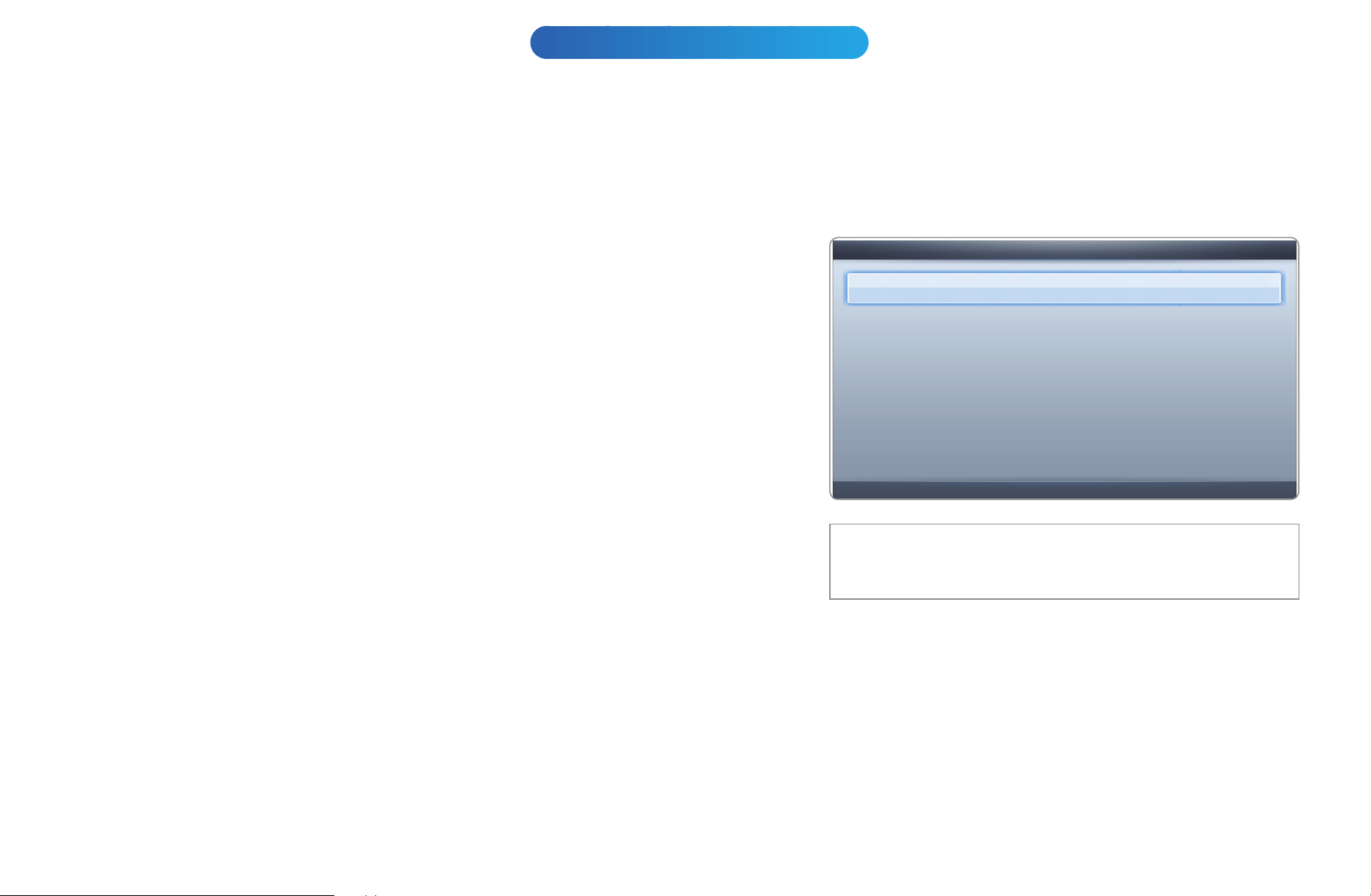
▶
English
▶
❑
Setting Up AllShare™
for PDP 550 Series and above
O
MENU
m
→
Network
→
AllShare Settings
→
ENTER
E
■
AllShare Settings
●
Media (On / Off): Enables or disables the
media function. When the media function
is on, you can control Media contents play
using mobile phones or other devices that
support DLNA DMC.
● The displayed image may differ depending on the
model.
AllShare Settings
Media : Off
►
U
Move
E
Enter
R
Return

▶
English
▶
■
Media
Shows a list of mobile phones or connected devices which have been set up to
use the Media function with this TV.
N
The Media function is available in all devices which support DLNA DMC.
●
Allowed / Denied: Allows/Blocks the devices.
●
Delete: Deletes the devices from the list.
N
This function only deletes the name of the device from the list. If the deleted
device is turned on or tries to connect to the TV, it may appear on the list
again.

▶
English
▶
Using the Media Function
An alarm window appears informing you that media contents (videos, photos, music)
sent from a mobile phone will be displayed on your TV. The contents are played
automatically 3 seconds after the alarm window appears. If you press the RETURN or
EXIT button when the alarm window appears, the media contents are not played.
N
NOTE
●
The first time a device accesses your TV through the media function, a warning
popup window appears. Press the ENTER
E
button to select Allow. This
permits the phone to access the TV freely and use the Media function to play
content.

▶
English
▶
●
To turn off media contents transmissions from a mobile phone, set Media to
Off in the AllShare Settings.
●
Contents may not play on your TV depending on their resolution and format.
●
The ENTER
E
and
l
/
r
buttons may not work depending on the type of
media content.
●
Using the mobile device, you can control the media play. For details, refer to
each mobile’s user’s guide.

▶
English
▶
Anynet+
❑
Anynet+(HDMI-CEC)
■
What is Anynet+?
t
Anynet+ is a function that enables you to control all connected Samsung devices that
support Anynet+ with your Samsung TV’s remote. The Anynet+ system can be used
only with Samsung devices that have the Anynet+ feature. To be sure your Samsung
device has this feature, check if there is an Anynet+ logo on it.
N
NOTE
●
You can only control Anynet+ devices using the TV’s remote control, not the
buttons on the TV.
●
The TV remote control may not work under certain conditions. If this occurs,
reselect the Anynet+ device.
●
The Anynet+ functions do not operate with other manufacturers’ products.

▶
English
▶
●
For instructions explaining how to connect Anynet+ external devices, refer to
the device’s user manual.
●
You must connect an Anynet+ device using an HDMI cable. Some HDMI cables
may not support Anynet+ functions.
●
Anynet+ works when the AV device supporting Anynet+ is in the standby or on
status.
●
Anynet+ supports up to 12 AV devices in total. Note that you can connect up
to 3 devices of the same type.
●
However, you can connect only one Anynet+ Home Theater. To connect an
Anynet+ Home Theater, connect the Home Theater to the TV using an HDMI
cable then:

▶
English
▶
–
To hear sound from the Home Theater’s Front, Left and Right speakers and
the subwoofe only, connect a Digital Optical cable between the DIGITAL
AUDIO OUT (OPTICAL) jack on your TV and the Digital Audio Input on the
Home Theater.
–
To hear 5.1 channel audio, connect HDMI cables to your Anynet+ DVD
player, satellite box, etc. Then, connect the DIGITAL AUDIO OUT
(OPTICAL) jack on your DVD player, Satellite Box, etc. (i.e. Anynet + Device
1 or 2) directly to the Home Theater, not the TV.
▶
English
▶
Anynet+ Menu
The Anynet+ menu changes depending on the type and status of the Anynet+ devices
connected to the TV.
Anynet+ Menu Description
View TV Changes Anynet+ mode to TV broadcast mode.
Device List Shows the Anynet+ device list.
(device_name) MENU Shows the connected device menus. E.g. if a DVD player recorder is
connected, the disc menu of the DVD player recorder will appear.
(device_name) Tools Shows the tools menu of the connected device. E.g. if a DVD player
recorder is connected, the play menu of the DVD player recorder will
appear.
N
Depending on the device, this menu may not be available.
(device_name) Title Menu Shows the title menu of the connected device. E.g. If a DVD player
recorder is connected, the title menu of the title menu of the movie in the
DVD player recorder will appear.
N
Depending on the device, this menu may not be available.
Receiver Sound is played through the receiver.

▶
English
▶
❑
Setting Up Anynet+
O
MENU
m
→
System
→
Anynet+ (HDMI-CEC)
→
ENTER
E
■
Anynet+ (HDMI-CEC) (Off / On)
To use the Anynet+ Function, you must set Anynet+ (HDMI-CEC) to On.
N
When the Anynet+ (HDMI-CEC) function is disabled, all the Anynet+ related
operations are deactivated.
■
Auto Turn Off (No / Yes)
Set an Anynet+ Device to turn off automatically when the TV is turned off.
N
If Auto Turn Off is set to Yes, running external devices will turn off at the same
time as the TV turns off.
N
Auto Turn Off may not be enabled depending on the device.

▶
English
▶
❑
Switching between Anynet+ Devices
1. Press the TOOLS button, select Anynet+ (HDMI-CEC), and then press
ENTER.
2. Select Device List, and then press the ENTER
E
button.
N
If you cannot find a device you want, press the
a
button to refresh the list.
3. Select a device, and then press the ENTER
E
button. You can switch to the
selected device.
N
The Device List menu appears only when you set Anynet+ (HDMI-CEC) to
On in the System menu.
●
Switching to the selected device may take up to 2 minutes. You cannot
cancel the operation during the switching operation.
●
If you have selected an Anynet+ device by pressing the SOURCE button
and then selecting its input source, you cannot use the Anynet+ function.
Make sure to switch to an Anynet+ device by using the Device List.

▶
English
▶
❑
Listening through a Receiver
You can listen to sound through a receiver (i.e Home Theater) instead of the TV
Speaker.
1. Select Receiver and set to On.
2. Press the EXIT button to exit.
N
If your receiver supports audio only, it may not appear in the device list.
N
The receiver will work when you have properly connected the optical in jack
of the receiver to the DIGITAL AUDIO OUT (OPTICAL) jack of the TV.
N
When the receiver (i.e Home Theater) is set to On, you can hear sound
output from the TV’s Optical jack. When the TV is displaying a DTV (air)
signal, the TV will send out 5.1 channel sound to the receiver. When the
source is a digital component such as a DVD player and is connected to the
TV via HDMI, you will hear only 2 channel sound from the receiver.
▶
English
▶
❑
Troubleshooting for Anynet+
Problem Possible Solution
Anynet+ does not work.
•
Check if the device is an Anynet+ device. The Anynet+ system
supports Anynet+ devices only.
•
You can connect only one receiver (home theater).
•
Check if the Anynet+ device power cord is properly connected.
•
Check the Anynet+ device’s Video/Audio/HDMI cable connections.
•
Check whether Anynet+ (HDMI-CEC) is set to On in the Anynet+
setup menu.
•
Check whether the TV remote control is in TV mode.
•
Check whether the remote control is Anynet+ compatible.
•
Anynet+ doesn’t work in certain situations. (Searching channels,
operating My Contents or Plug & Play (initial setup), etc.)
•
If you have removed and the reconnected the HDMI cable, please
make sure to search devices again or turn your TV off and on again.
•
Check if the Anynet+ Function of the Anynet+ device is set on.

▶
English
▶
I want to start Anynet+.
•
Check if the Anynet+ device is properly connected to the TV and
check if the Anynet+ (HDMI-CEC) is set to On in the Anynet+
Setup menu.
•
Press the TOOLS button to display the Anynet+ menu and select a
menu you want.
I want to exit Anynet+.
•
Select View TV in the Anynet+ menu.
•
Press the SOURCE button on the TV remote control and select a
non- Anynet+ device.
The message “Connecting to
Anynet+ device...” appears on
the screen.
•
You cannot use the remote control when you are configuring
Anynet+ or switching to a view mode.
•
Use the remote control after the TV has completed Anynet+
configuration or has finished switching to Anynet+.
The Anynet+ device does not
play.
•
You cannot use the play function when Plug & Play (initial setup) is
in progress.

▶
English
▶
The connected device is not
displayed.
•
Check whether or not the device supports Anynet+ functions.
•
Check whether or not the HDMI cable is properly connected.
•
Check whether Anynet+ (HDMI-CEC) is set to On in the Anynet+
setup menu.
•
Search Anynet+ devices again.
•
Anynet+ requires an HDMI connection. Make sure the device is
connected to your TV with an HDMI cable.
•
Some HDMI cables may not support Anynet+ functions.
•
If the connection is terminated because there has been a power
failure or the HDMI cable has been disconnected, please repeat the
device scan.
The TV sound is not output
through the receiver.
•
Connect the optical cable between TV and the receiver.
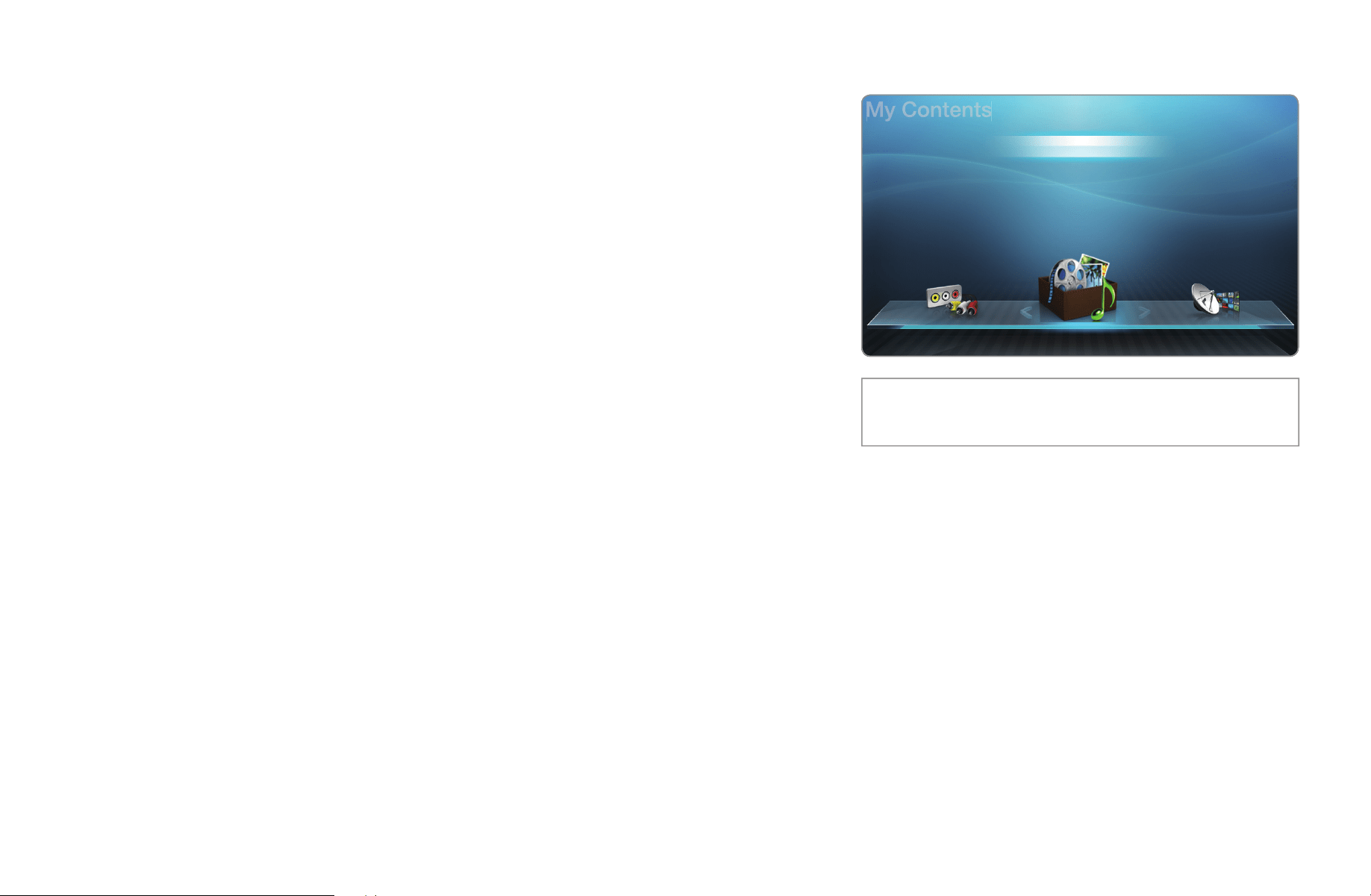
▶
English
▶
❑
Using the My Contents
Enjoy photos, music and/or movie files saved on
a USB Mass Storage Class (MSC) device and/or
your PC.
1. Press the CONTENT button.
2. Press the
u
/
d
/
l
/
r
button to select the
Videos, Photos, or Music, and then press
the ENTER
E
button.
N
To view content on a USB device, you must
plug the device into a USB jack on the TV.
● The displayed image may differ depending on
the model.
Videos
Photos
Music
Source Watch TV
My Contents
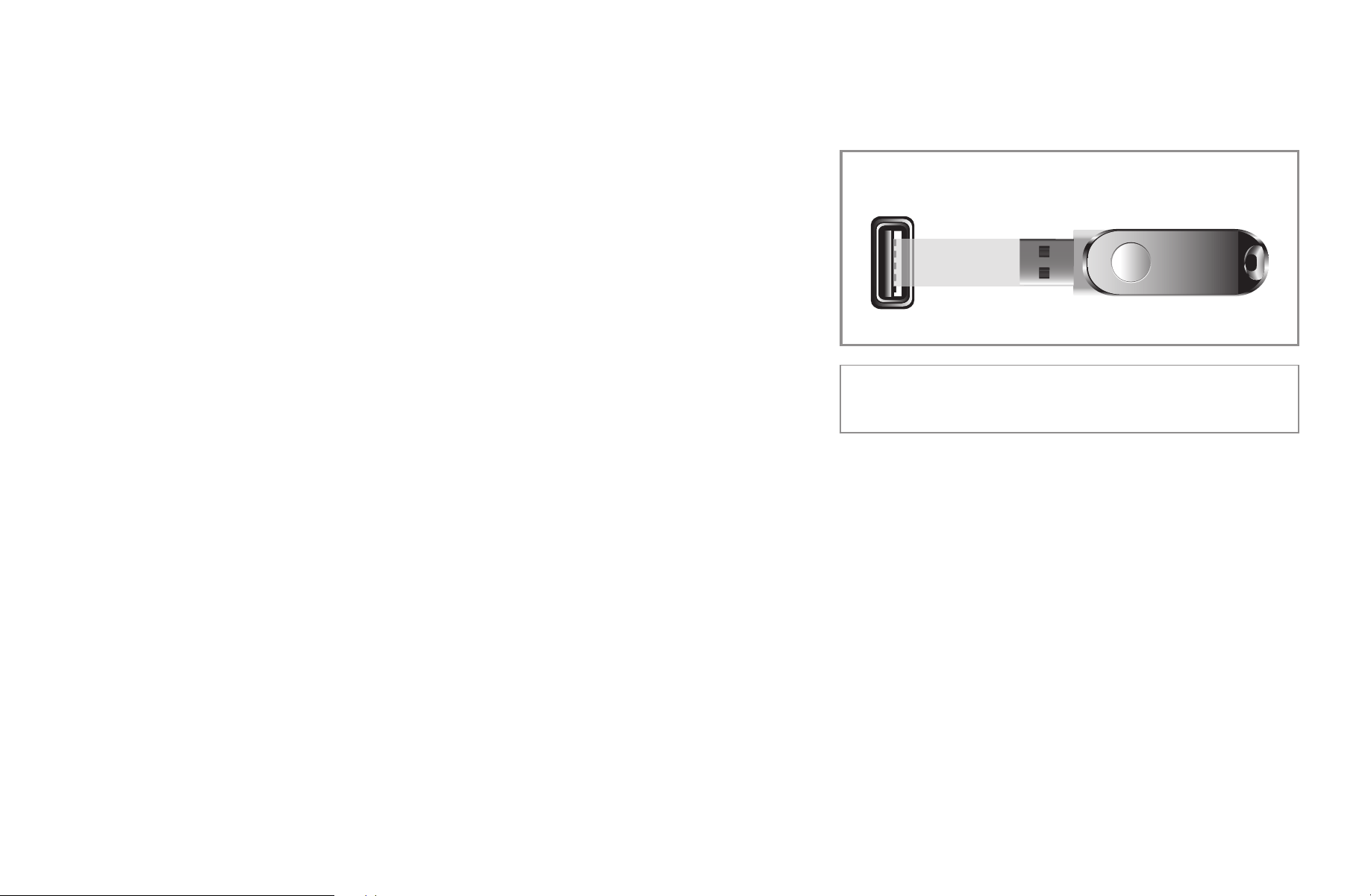
▶
English
▶
❑
Connecting a USB Device
1. Turn on your TV.
2. Connect a USB device containing photo,
music and/or movie files to the USB jack on
the side of the TV.
3. When a USB device is connected to the TV,
the Connected Device window appears.
Select a connected device, and then press
ENTER
E
.
The TV may display the files on the USB device automatically if it is the only
device connected.
USB
● The displayed image may differ depending on the
model.

▶
English
▶
N
The USB function might not work properly with unlicensed multimedia files.
N
Read this information before using My Contents with a USB device:
●
MTP (Media Transfer Protocol) is not supported.
●
The file system supports FAT16, FAT32 and NTFS.
●
Certain types of USB Digital camera and audio devices may not be compatible
with this TV.
●
My Contents is compatible with the Sequential jpeg format only. It is not
compatible with the Progressive jpeg format.
●
My Contents only supports USB Mass Storage Class (MSC)
devices.
for PDP 550 Series and above
MSC is a Mass Storage Class Bulk-Only
Transport device. Examples of MSC are Thumb drives, Flash Card Readers and
USB HDD (USB HUB are not supported). Devices should be connected directly
to the TV’s USB port.
●
USB(HDD) is not supported.
for PDP 450 and 490 Series

▶
English
▶
●
Connect USB HDDs to the dedicated port, USB 1 (HDD), only.
●
Before connecting your device to the TV, please back up your files to prevent
them from damage or loss of data. SAMSUNG is not responsible for any data
file damage or data loss.
●
Do not disconnect the USB device while it is loading.
●
The higher the resolution of the image, the longer it takes to display on the
screen.
●
The maximum supported JPEG resolution is 15360 X 8640 pixels.

▶
English
▶
●
If a file is corrupted or the TV does not support the file type, the “Not Supported
File Format” message appears.
●
If the files are sorted by Folder View, the TV can display the names of up to
1000 files in each folder.
●
If the number of files and folders saved on a USB storage device is
approximately over 4000, the files and folders may not appear and some
folders may not be opened.
●
The TV cannot play MP3 files with DRM that have been downloaded from a for-
pay site. Digital Rights Management (DRM) is a technology that supports the
creation, distribution, and management of digital content in an integrated and
comprehensive way, including protecting the rights and interests of content
providers, preventing illegal copying of contents, and managing billings and
settlements.

▶
English
▶
●
If more than 2 PTP devices are connected, you can only use one at a time.
●
If more than two MSC devices are connected, some of them may not be
recognized. A USB device that requires high power (more than 500mA or 5V)
may not be supported.
●
If an over-power warning message is displayed while you are connecting or
using a USB device, the device may not be recognized or may malfunction.
●
If the TV has no input during the time set in Auto Protection Time, the
Screensaver will run.
●
The power-saving mode of some external hard disk drives may be released
automatically when your connect them to the TV.

▶
English
▶
●
If you use a USB extension cable, the TV may not recognize the USB device or
may not be able to read the files on the device.
●
If a USB device you connect to the TV is not recognized, the files on the device
are corrupted, or a file in the list is not played, connect the USB device to a PC,
format the device and check the connection.
●
If a file you deleted from the PC is still found when you run My Contents, use
the “Empty the Recycle Bin” function on the PC to permanently delete the file.

▶
English
▶
❑
Connecting to a PC through your network
for PDP 550 Series and above
You can play pictures, music, and videos saved in your PC through a network
connection using the AllShare mode.
N
For more information on how to configure your TV and connect it to your
network, see ‘Network Connection’.
N
To view content located on your PC, you must have connected your TV and
your PC to your LAN and downloaded and installed AllShare PC Software on
your PC.
N
We recommend you locate both your TV and PC in the same network subnet.
IP addresses have four parts, separated by periods (111.222.333.444). If your
TV and PC are in the same subnet, the first 3 parts of the TV IP address and
the PC IP address (111.222.333) will be the same and only the last part (the
host address) will be different.

▶
English
▶
N
The following My Contents functions are not supported when you are playing
media from a PC connected through a network:
●
The Background Music and Background Music Setting functions.
●
Sorting files by preference in the Photos, Music, and Videos folders.
●
The
�
(REW) or
µ
(FF) button while a movie is playing.
N
The DivX DRM, Multi-audio, and embedded captions are not supported.
N
Set your PC firewall program so that AllShare PC Software is a permitted program.
N
You may experience file stuttering while playing a video through a network
connection.
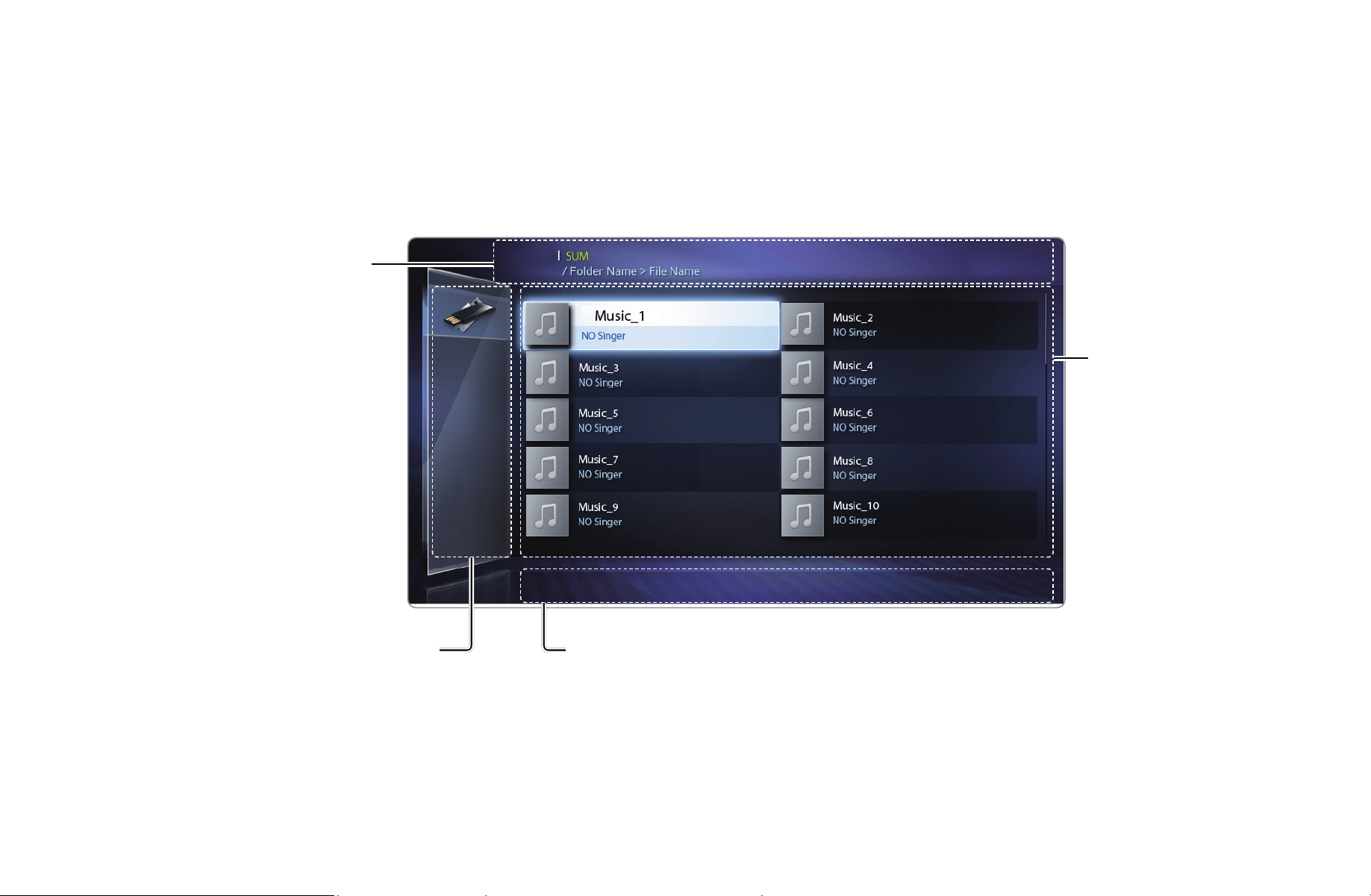
▶
English
▶
❑
My Contents Selection Screen
To play a file, move to the file using the
l
/
r
/
u
/
d
buttons, and then press the
ENTER
E
or
∂
(Play) button. The TV plays the file. The My Contents screen
may differ depending on the way you enter the screen.
Information: Displays the
selected content category
(Music, for example), device
(USB drive,for example),
folder/file name, page, and
sort criteria..
Contents mode / Device name:
You can select the desired
Content Category or Device.
Operation Buttons:
● { Yellow (Edit Mode): Lets you select music by checking the files you
want to play. Only available in Music
● } Blue (Sorting): Selects the sort list.
● � / µ (Page): Move to next or previous page.
● T Tools: Displays the option menu.
● R Return: Move to the previous page or step.
File List Section:
Displays files or
folders sorted by
criteria you can
select.
{
Edit Mode
}
Sorting
T
Tools
R
Return
Music
1/100 pages
Folder View
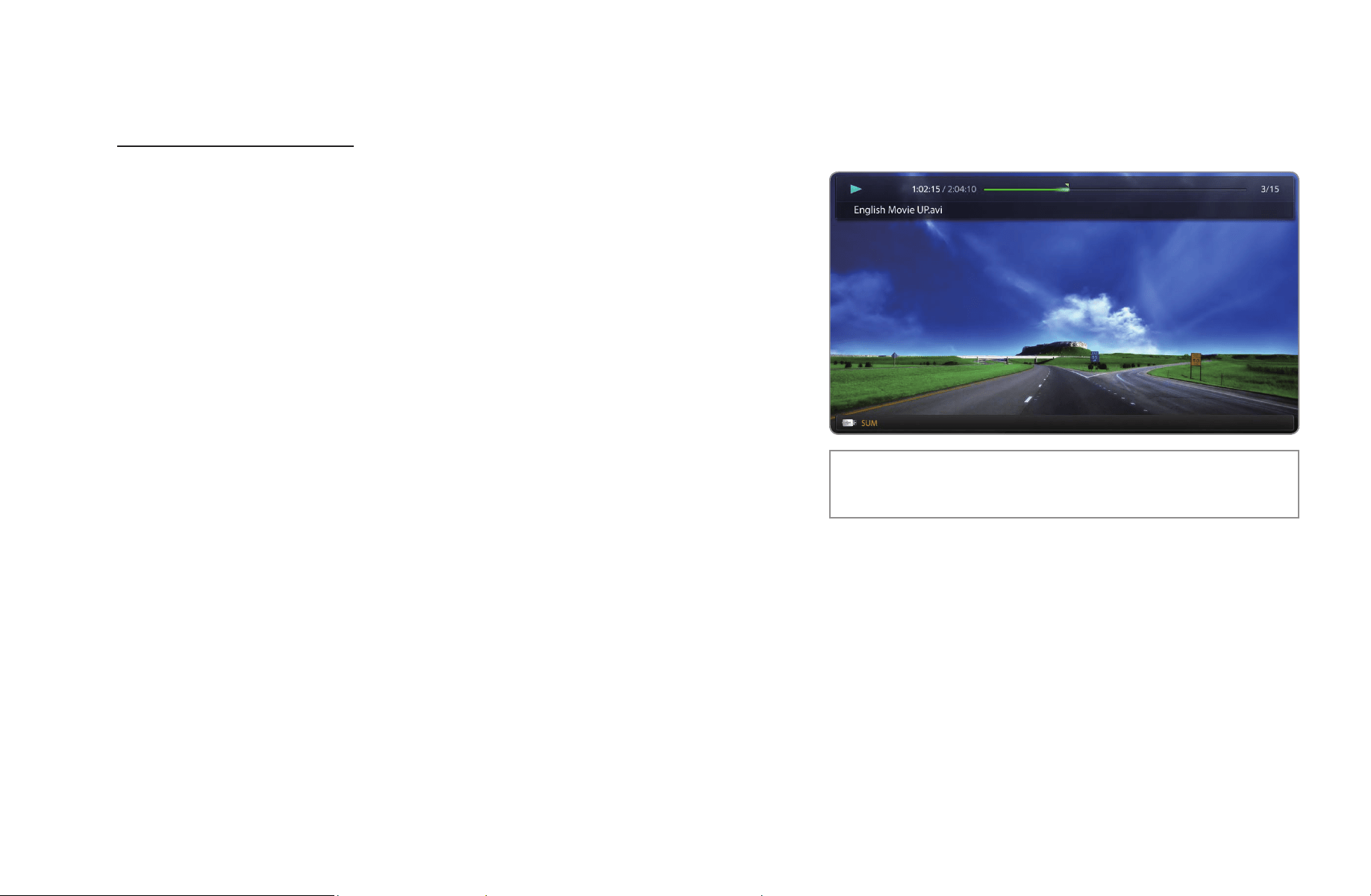
▶
English
▶
■
Videos
Playing a Video
1. Press the
l
/
r
/
u
/
d
button to select
the desired video in the file list.
2. Press the ENTER
E
button or
∂
(Play)
button.
–
The file name appears on the top with its
playing time.
–
If video time information is unknown, the
playing time and progress bar are not
displayed.
● The displayed image may differ depending on the
model.
L
Jump
T
Tools
R
Return
▶
English
▶
–
During video playback, you can search using the
l
and
r
buttons.
–
You can use the
�
(REW),
µ
(FF), Pause, Stop, and Play buttons on the
bottom of your remote during playback.
–
Press the RETURN button to exit the movie
●
Supported Video Subitle Formats (for language subtiles, etc.)
Name File extension Format
MPEG-4 time-based text .ttxt XML
SAMI .smi HTML
SubRip .srt string-based
SubViewer .sub string-based
Micro DVD .sub or .txt string-based
▶
English
▶
●
Supported Video Formats
File Extension Container Video Codec Resolution
Frame rate
(fps)
Bit rate
(Mbps)
Audio Codec
*.avi
*.mkv
AVI
MKV
DivX 3.11 / 4.x / 5.1 / 6.0 1920x1080 6 ~ 30 8
MP3 / AC3
/ LPCM /
ADPCM /
DTS Core
H.264 BP / MP / HP 1920x1080 6 ~ 30 25
MPEG4 SP / ASP 1920x1080 6 ~ 30 8
Motion JPEG 640x480 6 ~ 30 8
*.asf ASF
DivX 3.11 / 4.x / 5.1 / 6.0 1920x1080 6 ~ 30 8
MP3 / AC3
/ LPCM /
ADPCM /
WMA
H.264 BP / MP / HP 1920x1080 6 ~ 30 25
MPEG4 SP / ASP 1920x1080 6 ~ 30 8
Motion JPEG 640x480 6 ~ 30 8
*.wmv ASF Window Media Video v9 1920x1080 6 ~ 30 25 WMA
*.mp4 MP4
H.264 BP / MP / HP 1920x1080 6 ~ 30 25
MP3 /
ADPCM /
AAC
MPEG4 SP / ASP 1920x1080 6 ~ 30 8
▶
English
▶
File Extension Container Video Codec Resolution
Frame rate
(fps)
Bit rate
(Mbps)
Audio Codec
*.3gp 3GPP
H.264 BP / MP / HP 1920x1080 6 ~ 30 25 ADPCM /
AAC / HE-
AAC
MPEG4 SP / ASP 1920x1080 6 ~ 30 8
*.vro
VRO
VOB
MPEG1 1920x1080 24 / 25 / 30 30
AC3 / MPEG
/ LPCM
MPEG2 1920x1080 24 / 25 / 30 30
*.mpg
*.mpeg
PS
MPEG1 1920x1080 24 / 25 / 30 30
AC3 / MPEG
/ LPCM /
AAC
MPEG2 1920x1080 24 / 25 / 30 30
H.264 1920x1080 6 ~ 30 25
*.ts
*.tp
*.trp
TS
MPEG2 1920x1080 24 / 25 / 30 30
AC3 / AAC /
MP3 / DD+ /
HE-AAC
H.264 1920x1080 6 ~ 30 25
VC1 1920x1080 6 ~ 30 25

▶
English
▶
Other Restrictions
N
NOTE
●
Video content will not play, or not play correctly, if there is an error in the
content or the container.
●
Sound or video may not work if the contents have a standard bitrate/frame rate
above the compatible Frame/sec listed in the table above.
●
If the Index Table is in error, the Seek (Jump) function is not supported.
●
You may experience file stuttering while playing a video through a network
connection.
for PDP 550 Series and above
●
The menu may take longer to appear if the video’s bit rate exceeds 10Mbps.
●
Some USB/digital camera devices may not be compatible with the TV.
●
Video content can not be played, if there are many contents in one file.
●
When you play video over a network connection, the video may not be played
smoothly.
▶
English
▶
Video Decoder Audio Decoder
•
Supports up to H.264, Level 4.1
•
H.264 FMO / ASO / RS, VC1 SP / MP / AP L4
and AVCHD are not supported.
•
For MPEG4 SP, and ASP:
−
Below 1280 x 720: 60 frame max
−
Above 1280 x 720: 30 frame max
•
GMC is not supported.
•
Supports up to WMA 7, 8, 9, STD
•
WMA 9 PRO does not support 2 channel excess
multi channel or lossless audio.
•
The WMA sampling rate 22050Hz mono is not
supported.
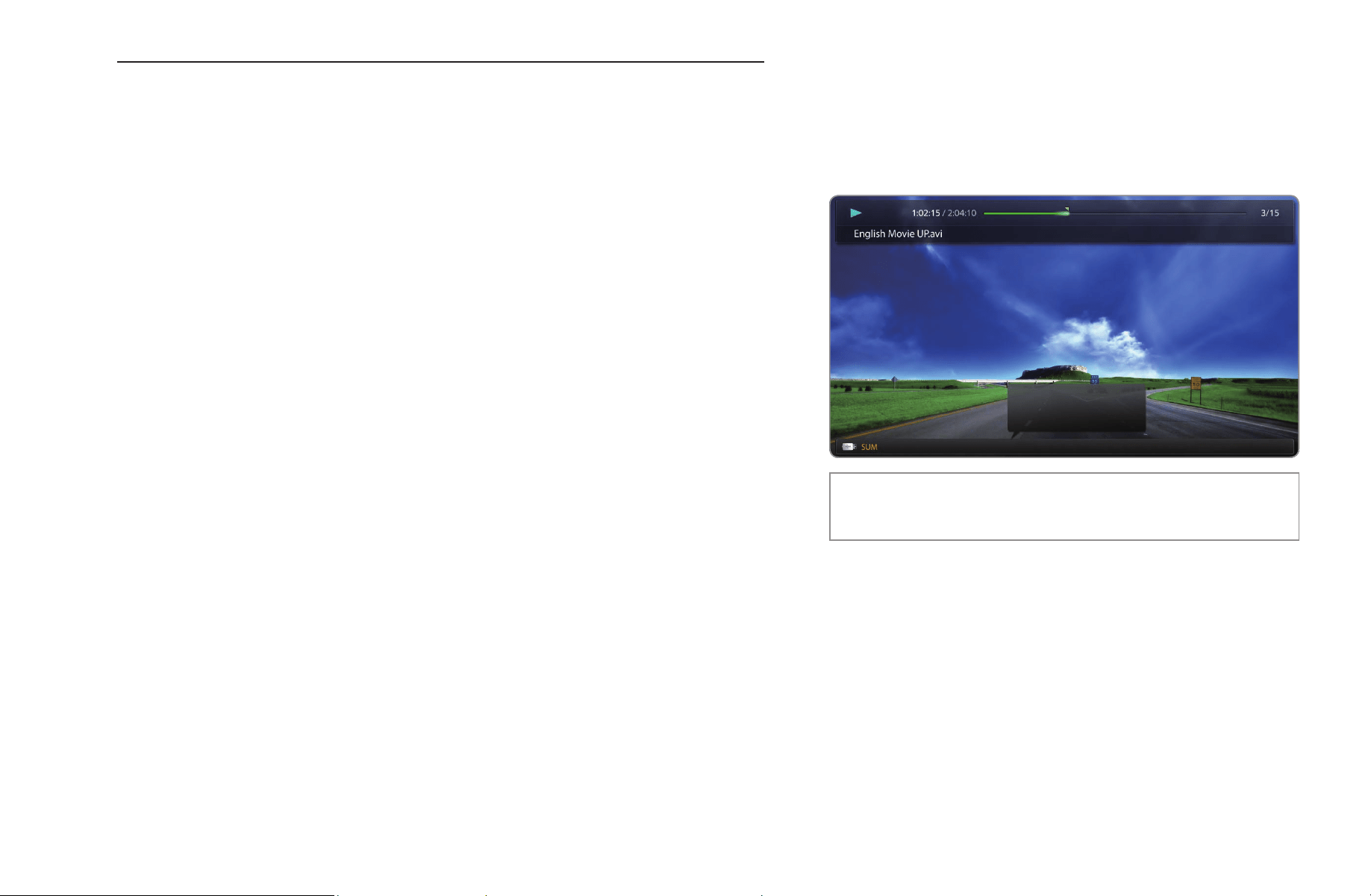
▶
English
▶
Playing movie continuously (Resume Play)
If you exit a movie when it is playing, you can play the movie later from the point
where you stopped it.
1. Select the movie file you stopped and want
to resume by pressing the
l
or
r
button to
select it from the file list section.
2. Press the
∂
(Play) or ENTER
E
button.
3. Press the
}
button to select Play
Continuously (Resume Play) The Movie will
begin to play from where you stopped it.
N
Play Continuously (Resume Play) is only
available when you resume playing a movie you had stopped.
● The displayed image may differ depending on the
model.
}
Play contiuously
L
Jump
T
Tools
R
Return
Play contiuously
Resumes playing from the last
viewed scene.
}
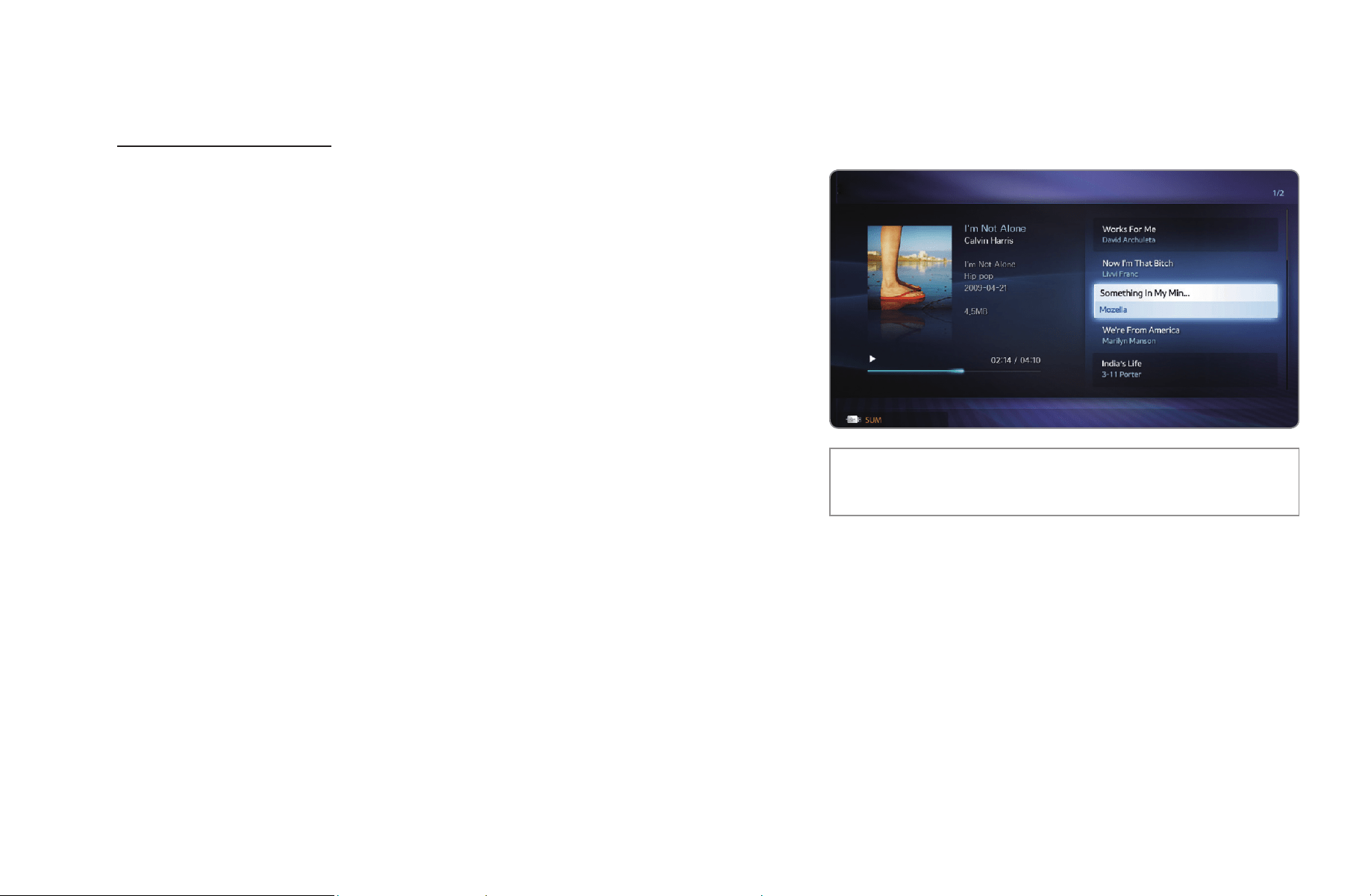
▶
English
▶
■
Music
Playing Music
1. Press the
l
/
r
/
u
/
d
button to select the
desired music file in the file list.
2. Press the ENTER
E
button or
∂
(Play)
button.
–
When the music is playing you can
search using
�
(REW) and
µ
(FF)
buttons.
N
My Contents only displays files with MP3 file
extensions. Other file extensions are not displayed, even if they are saved on
the same USB device.
N
If the sound is abnormal when you play MP3 files, adjust the Equalizer in the
Sound menu. (An over-modulated MP3 file may cause a sound problem.)
● The displayed image may differ depending on the
model.
E
Pause
L
Pages
T
Tools
R
Return
Music

▶
English
▶
Playing selected music
1. Press the
{
(Edit Mode) button. A check box appears on the left side of all the
music files.
2. Using the arrow keys, highlight a file you want to play, and then press
ENTER
E
.
N
A
c
appears in the check box of the selected file.
3. Repeat for each file you want to play.
4. Press the TOOLS button, and then select Play Selected Contents.
N
You can select or deselect all music by pressing the Select All / Deselect
All. You can select or deselect a single file by pressing the ENTER
E
button.
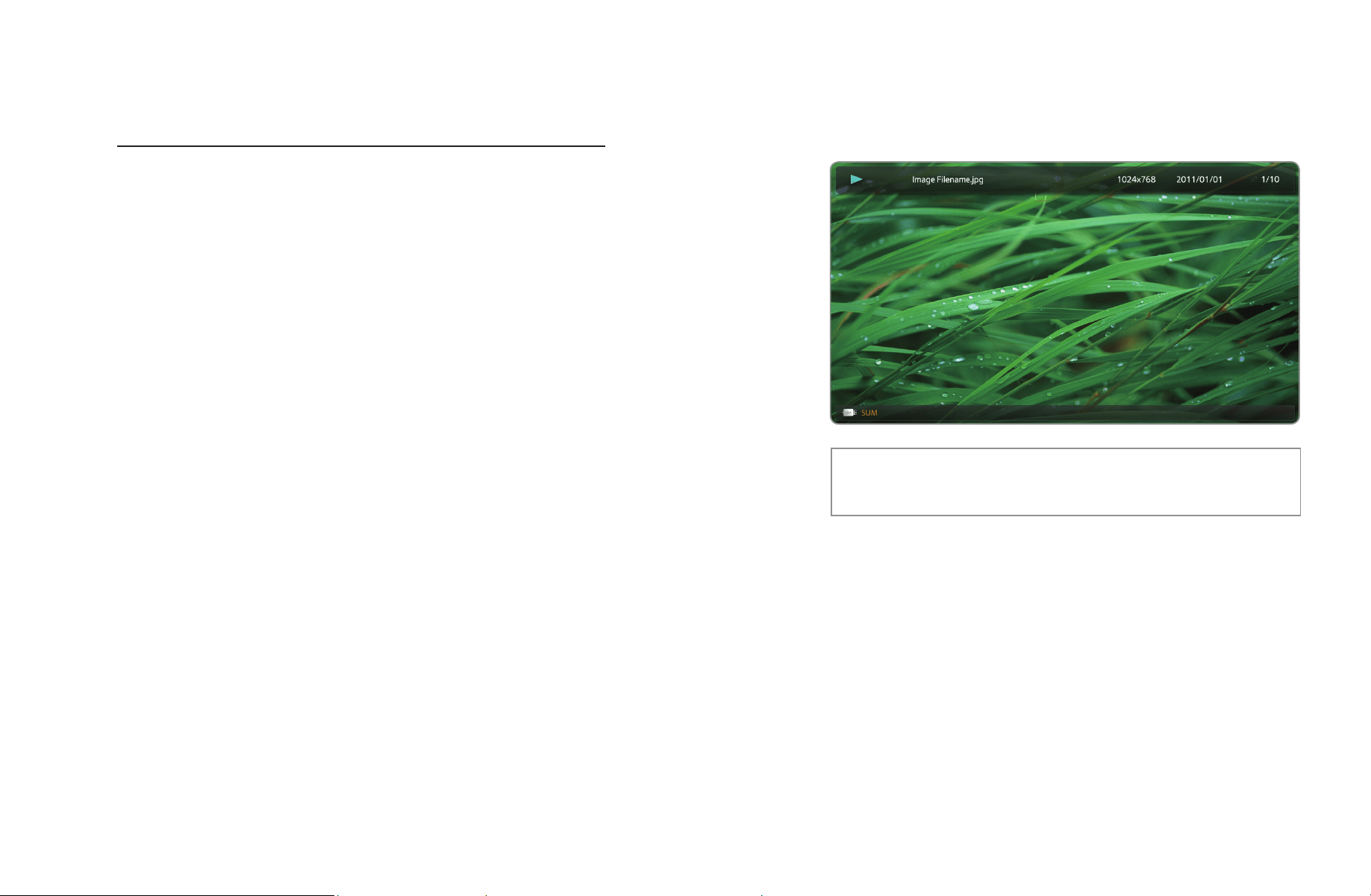
▶
English
▶
■
Photos
Viewing a Photo (or Slide Show)
1. Press the
l
/
r
/
u
/
d
button to select
the desired photo in the file list.
2. Press the ENTER
E
button.
●
To view files manually, one at a time,
press the left or right arrow buttons.
●
To start the slide show, press the
ENTER
E
button when the file you
selected is displayed.
●
During the slide show, all files in the file list are displayed in order, starting
from the file you selected.
● The displayed image may differ depending on the
model.
E
Pause
L
Previous/Next
T
Tools
R
Return
Play

▶
English
▶
N
When you press the
∂
(Play) button in the file list, the slide show will start
immediately.
N
During a Slide show, press the TOOLS button to access additional functions
such as Slide Show Speed, Background Music, Zoom, and Rotate.
N
You can add background music to a slide show if you have music files on your
USB device or PC by setting Background Music to On in the Tools menu,
and then selecting music files to play.
N
The Background Music cannot be changed until the BGM has finished
loading.
N
You can use the Pause, Stop, and Play buttons on the bottom of your remote
during a slide show.
N
When you press the Stop or Return button, the slide show stops and the main
photo screen re-appears.
▶
English
▶
❑
My Contents - Additional Functions
Sorting the file list
Press the
}
button in the file list to sort the files.
Category Operation Videos Music Photos
Folder View
Displays the whole folder. You can
view the photo by selecting the
folder.
c c c
Title Search
Sorts and displays the file title in
Alphabet/Number/Symbol order.
c c c
Latest Date
Sorts and shows files by the latest
date.
c c
Earliest Date
Sorts and shows files by the
earliest date.
c c
▶
English
▶
Category Operation Videos Music Photos
Artist
Sorts the music file by artist in
alphabetical order.
c
Album
Sorts the music file by album in
alphabetical order.
c
Genre Sorts music files by the genre.
c
Monthly
Sorts and shows photo files by
month.
c
▶
English
▶
Videos/Music/Photos Play Option menu
When playing a file, press the TOOLS button. The Option Menu appears. Checks
in the table below indicate which media the options apply to.
Option Name Operation Videos Music Photos
Title Search
You immediately load a video file
you select.
c
Time Search
You can search a video using the
l
and
r
buttons at one minute
interval or entering the number
directly.
c
Shuffle Mode
You can play the music files
randomly.
c
Repeat Mode
You can play movie and music files
repeatedly.
c c
▶
English
▶
Option Name Operation Videos Music Photos
Picture Size
You can adjust the picture size to
your preference.
c
Picture Mode You can select the Picture Mode.
c c
Sound Mode You can select the Sound Mode.
c c c
▶
English
▶
Option Name Operation Videos Music Photos
Subtitle Language
You can view a subtitle. You can
select a specific language if the
subtitle file contains multiple
languages.
c
Subtitle Setting
You can play a video with
Subtitles. This function only works
if the subtitles file has the same file
name as the video.
c
▶
English
▶
Option Name Operation Videos Music Photos
Audio
You can enjoy a video in one of the
supported languages. The function
is only enabled when you play
stream-type files which support
multiple audio formats.
c
Start Slide Show /
Pause Slide Show
You can start or pause a Slide
Show.
c
Slide Show Speed
You can select the slide show
speed during the slide show.
c
Background Music
You can turn background music
on and off when watching a Slide
Show.
c
Background Music
Setting
You can select background music
when watching a Slide Show.
c
▶
English
▶
Option Name Operation Videos Music Photos
Zoom
You can zoom into images in full
screen mode. Use the ENTER
button to increase or decrease the
zoom. Use the arrow buttons to
select the area to enlarge.
c
Rotate
You can rotate images in full
screen mode. Use the left and right
arrow buttons to rotate the picture.
The rotation is only temporary.
c
Information
You can see detailed information
about the played file.
c c c
N
Pressing the INFO button while a device name is selected will display
information about the selected device.
N
Pressing the INFO button while a file is selected will display information about
the selected file.
▶
English
▶
❑
TroubleShooting
If the TV seems to have a problem, first review this list of problems and solutions. If
none of these troubleshooting tips apply, visit samsung.com, then click on Support, or
call Samsung customer service at 1-800-SAMSUNG.
Issues Solutions and Explanations
Picture Quality First, perform the Picture Test and to see if your TV is properly displaying
the test image.
•
Go to MENU - Support - Self Diagnosis - Picture Test
If the test image is properly displayed, the poor picture may be caused by
the source or signal.
The TV image does not look as
good as it did in the store.
Store displays are typically tuned to digital, HD (high definition) channels.
•
If you have an analog cable/set top box, upgrade to a digital set top box.
Use HDMI or Component cables to deliver HD (high definition) picture
quality.
•
Cable/Satellite subscribers: Try HD stations from the channel line up.
•
Antenna connection: Try HD stations after performing an Auto program.
▶
English
▶
Issues Solutions and Explanations
The picture is distorted: macro
block error, small block, dots,
pixelization
•
The compression of video contents may cause picture distortion
especially in fast moving pictures such as sports and action movies.
•
A weak signal can cause picture distortion. This is not a TV issue.
•
Mobile phones used close to the TV (within 3.3 ft.) may cause noise in
the picture on analog and digital channels.
Color is wrong or missing.
•
If you’re using a component connection, make sure the component
cables are connected to the correct jacks. Incorrect or loose connections
may cause color problems or a blank screen.
There is poor color or the
picture is not bright enough.
•
Adjust the Picture options in the TV menu (go to Picture Mode / Color /
Brightness / Sharpness)
•
Adjust the Energy Saving option in the TV menu (go to MENU – System
– Eco Solution – Energy Saving)
•
Try resetting the picture to view the default picture settings (go to MENU
- Picture - Reset Picture)
There is a dotted line on the
edge of the screen.
•
If the picture size is set to Screen Fit, change it to 16:9.
•
Change the cable/satellite box resolution.
The picture is black and white.
•
If you are using an AV composite input, connect the video cable (yellow)
to the Green jack of Component input 1 on the TV.
▶
English
▶
Issues Solutions and Explanations
When changing channels, the
picture freezes or is distorted or
delayed.
•
If connected to a cable box, try to reset the box. (Disconnect and then
reconnect the AC cord and wait until the cable box reboots. It may take
up to 20 minutes.)
•
Set the output resolution of the cable box to 1080i or 720p.
Sound Problem First, perform a Sound Test to confirm that your TV audio is properly
operating. (go to MENU - Support - Self Diagnosis - Sound Test)
If the audio is OK, the sound problem may caused by the source or signal.
There is no sound or the sound
is too low at maximum volume.
•
Please check the volume of the device (Cable/Sat Box, DVD, Blu-ray etc)
connected to your TV.

▶
English
▶
Issues Solutions and Explanations
The picture is good but there is
no sound.
•
Set the Speaker Select option to TV Speaker in the Sound menu.
•
If you are using an external device, make sure the audio cables are
connected to the correct audio input jacks on the TV.
•
If you are using an external device, check the device’s audio output
option (Ex. You may need to change your cable box’s audio option to
HDMI if you have the box connected to the TV using an HDMI cable.)
•
If you are using a DVI to HDMI cable, a separate audio cable is required.
•
If your TV has a headphone jack, make sure there is nothing plugged into
it.
•
Reboot the connected device by disconnecting, and then reconnecting
device’s power cable.
▶
English
▶
Issues Solutions and Explanations
The speakers are making an
inappropriate noise.
•
Check the cable connections. Make sure a video cable is not connected
to an audio input.
•
For antenna or Cable connections, check the signal strength. Low signal
level may cause sound distortion.
•
Perform the Sound Test as explained above.
No Picture, No Video
The TV turns off automatically.
•
Ensure the Sleep Timer is set to Off in the System menu.
•
If your PC is connected to the TV, check your PC power settings.
•
Make sure the AC power cord is plugged in securely to the wall outlet
and the TV.
•
When you are watching TV, and the signal is coming from an antenna or
cable connection, the TV will turn off after 10 - 15 minutes if there is no
signal.
▶
English
▶
Issues Solutions and Explanations
3D
The 3D Active Glasses are not
working correctly.
•
Make sure the glasses are turned on.
•
The 3D Active Glasses may not work properly if there is any other 3D
product or electronic device turned on near the glasses or TV.
•
If there is a problem, keep other electronic devices as far away as
possible from the 3D Active Glasses.
The 3D images don’t look quite
right.
•
The ideal viewing distance is three times or more the height of the
screen.
•
We also recommend sitting with your eyes on a level with the screen.
The batteries in the 3D glasses
don’t last.
•
Turn off 3D glasses while not using them. If you leave 3D glasses on,
battery lifespan is shortened
▶
English
▶
Issues Solutions and Explanations
RF (Cable/Antenna) Connection
The TV is not receiving all
channels.
•
Make sure the coaxial cable is connected securely.
•
Please try Auto Program to add available channels to the channel list. Go
to MENU - Channel - Auto Program then select Auto and make sure
the correct Cable TV signal type is set in the menu. There are 3 options
(STD, HRC and IRC)
•
Verify the Antenna is positioned correctly.
No Caption on digital channels.
•
Check Caption Setup menu. Try changing Caption Mode Service1 to
CC1.
•
Some channels may not have caption data.
The picture is distorted: macro
block error, small block, dots,
pixelization.
•
The compression of video contents may cause picture distortion,
especially with fast moving pictures such as sports and action movies.
•
A weak signal can cause picture distortion. This is not a TV problem.
▶
English
▶
Issues Solutions and Explanations
PC Connection
A “Mode Not Supported”
message appears.
•
Set your PC’s output resolution so it matches the resolutions supported
by the TV.
“PC” is always shown on the
source list, even if a PC is not
connected.
•
This is normal. “PC” is always shown on the source list, regardless of
whether a PC is connected.
The video is OK but there is no
audio.
•
If you are using an HDMI connection, check the audio output setting on
your PC.
Network Connection
for PDP 550 Series and above
The wireless network
connection failed.
•
The Samsung Wireless USB dongle is required to use a wireless network.
•
Make sure the Network Connection is set to Wireless(General).
•
Make sure the TV is connected to a wireless IP sharer (router).
▶
English
▶
Issues Solutions and Explanations
Software Upgrade over the
network fails.
•
Run Network Test in the Network menu to confirm the connection.
•
If you have the latest Software (SW) version already installed, SW
upgrade will not proceed.
Others
Purple/green rolling horizontal
bars and buzzing noise from the
TV speakers with Component
cable connection.
•
Remove the left and right audio connections from the set-top-box. If the
buzzing stops, this indicates that the set-top-box has a grounding issue.
Replace the Component video cables with an HDMI connection.
Plasma TV is making humming
noise.
•
Plasma TVs typically make a soft humming sound. This is normal. It’s
caused by the electrical charges that are used to create the images on
the screen.
•
If the humming sound is loud, you may have set the brightness on the TV
too high. Try setting the brightness lower.
•
You can also have loud humming if the back of your Plasma TV is too
close to a wall or other hard surface. Also, try rerouting your connection
cables.
•
An improperly installed of wall mount can also create excessive noise.
▶
English
▶
Issues Solutions and Explanations
The picture won’t display in full
screen.
•
HD channels will have black bars on either side of the screen when
displaying up scaled SD (4:3) contents.
•
Black bars on the Top & Bottom will be shown on movies that have
aspect ratios different from your TV.
•
Adjust the picture size options on your external device or TV to full
screen.
Image Retention (Burn In) Issue.
•
To minimize the possibility of screen burn, this unit is equipped with Pixel
Shift screen burn reduction technology. Pixel Shift lets you set the picture
so it moves slightly up and down (Vertical Line) and side to side (Horizontal
Dot). The regular, slight movement of the picture reduces screen burn in.
A “Mode Not Supported”
message appears.
•
Check the supported resolution of the TV, and adjust the external
device’s output resolution accordingly. Refer to the resolution settings in
the user manual.
▶
English
▶
Issues Solutions and Explanations
Caption on TV menu is greyed
out.
•
You cannot select the Caption menu if you have selected a source
connected to the TV via HDMI or Component.
•
The external device’s Capton function must also be activated.
There is a plastic smell from the
T V.
•
This smell is normal and will dissipate over time.
The TV Signal Information is
unavailable in the Self Diagnosis
menu.
•
This function is only available with digital channels from an Antenna / RF/
Coax connection.
The TV is tilted to the side.
•
Remove the base stand from the TV and reassemble it.
The channel menu is greyed out
(unavailable).
•
The Channel menu is only available when the TV source is selected.
▶
English
▶
Issues Solutions and Explanations
Your settings are lost after 30
minutes or every time the TV is
turned off.
•
If the TV is in the Store Demo mode, it will reset audio and picture
settings every 30 minutes. Change the settings from Store Demo mode
to Home Use mode in the Plug & Play procedure. Press the SOURCE
button to select TV mode, and go to MENU
→
System
→
Plug & Play
→
ENTER
E
.
You have intermittent loss of
audio or video.
•
Check the cable connections and reconnect them.
•
Loss of audio or video can be caused by using overly rigid or thick
cables. Make sure the cables are flexible enough for long term use. If
mounting the TV to a wall, we recommend using cables with 90 degree
connectors.
You see small particles when
you look closely at the edge of
the frame of the TV.
•
This is part of the product’s design and is not a defect.
The PIP menu is not available.
•
PIP functionality is only available when you are using a HDMI, PC or
Component source.
POP (TV’s internal banner ad)
appears on the screen.
•
Select Home Use under Plug & Play mode. For details, refer to Plug &
Play Feature.
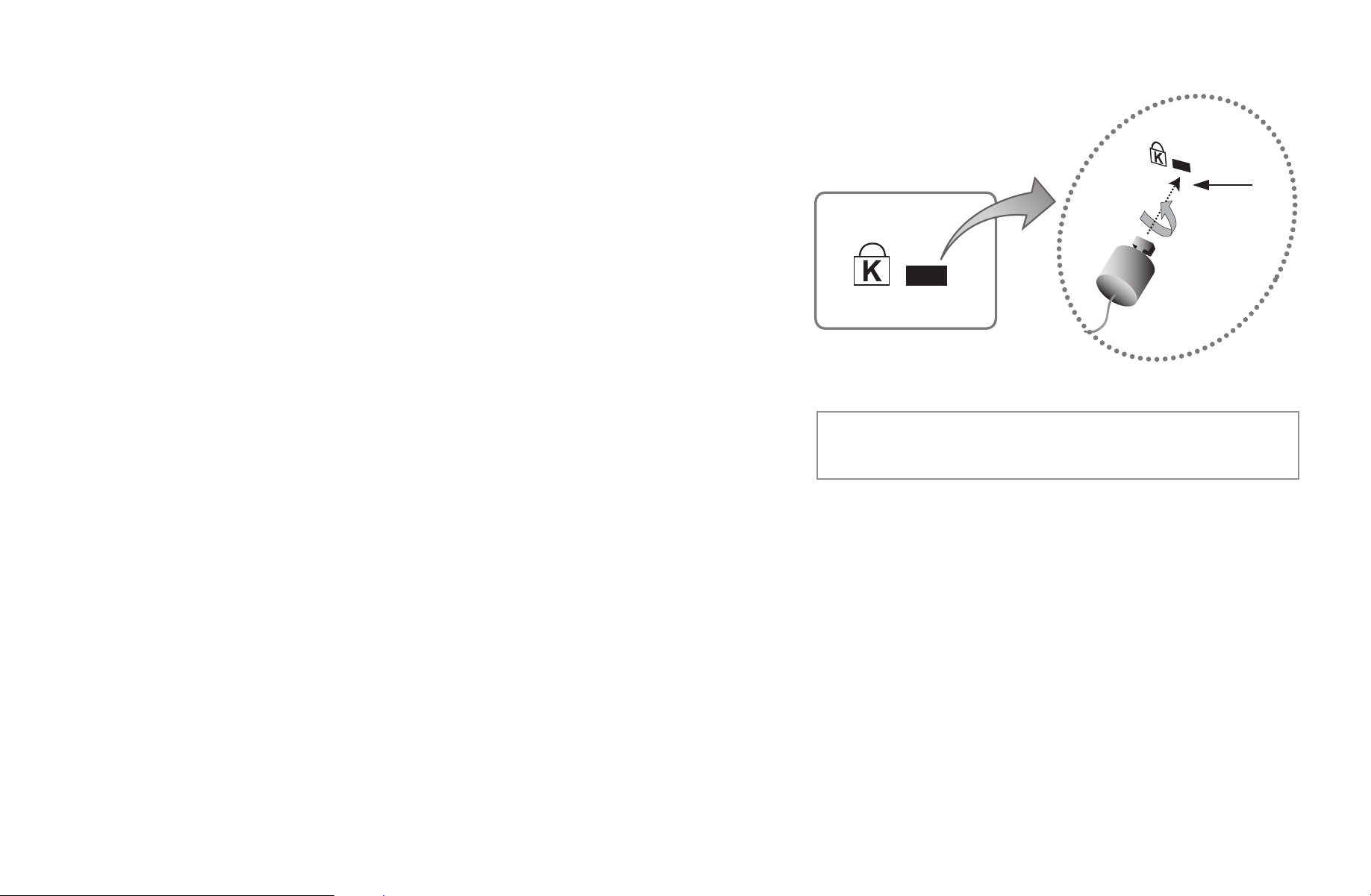
▶
English
▶
❑
Anti-theft Kensington Lock
A Kenisngton Lock is a device you can use
to physically fix your TV in place when using
it in a public place. You wrap the Kensington
Lock’s cable around a large, immobile object
and then attach the lock to the Kensington
slot on the back of the TV.
The appearance and locking method may
differ from the illustration depending on the
manufacturer. Refer to the manual provided with
the Kensington Lock for additional information on proper use. The Kensington
Lock is not supplied by Samsung.
N
Please find a “
K
” icon on the rear of the TV. The Kensington slot is beside the
“
K
” icon.
● The displayed image may differ depending on the
model.
1
<TV Rear>
<Optional>

▶
English
▶
To lock the product, follow these steps:
1. Wrap the Kensington Lock cable around a large, stationary object such as desk
or chair.
2. Slide the end of the cable with the lock attached through the looped end of the
Kensington Lock cable.
3. Insert the locking device into the Kensington slot on the product.
4. Lock the lock.
N
These are general instructions. For exact instructions, see the Users manual
supplied with the locking device.
N
The locking device has to be purchased separately.
N
The location of the Kensington slot may be different depending on the TV
model.
▶
English
▶
❑
License
TheaterSound, SRS and symbol are trademarks of SRS Labs, Inc.
TheaterSound technology is incorporated under license from SRS Labs, Inc.
Manufactured under license from Dolby Laboratories. Dolby and the double-D symbol are
trademarks of Dolby Laboratories.
Manufactured under license under U.S. Patent #’s: 5,451,942; 5,956,674; 5,974,380;
5,978,762; 6,487,535 & other U.S. and worldwide patents issued & pending. DTS and
the Symbol are registered trademarks. & DTS 2.0+ Digital Out and the DTS logos are
trademarks of DTS, Inc. Product Includes software. © DTS, Inc. All Rights Reserved.
▶
English
DivX Certified® to play DivX® video up to HD 1080p, including premium content.
DivX®, DivX Certified® and associated logos are trademarks of DivX, Inc. and are used
under license.
ABOUT DIVX VIDEO: DivX® is a digital video format created by DivX, Inc. This is an official DivX Certified®
device that plays DivX video. Visit www.divx.com for more information and software tools to convert your
files into DivX video.
ABOUT DIVX VIDEO-ON-DEMAND: This DivX Certified® device must be registered in order to play
purchased DivX Video-on-Demand (VOD) movies. To obtain your registration code, locate the DivX VOD
section in your device setup menu. Go to vod.divx.com for more information on how to complete your
registration.
Covered by one or more of the following U.S. patents : 7,295,673; 7,460,668; 7,515,710; 7,519,274
Open Source License Notice
In the case of using open source software, Open Source Licenses are available on the product menu.
Open Source License Notice is written only English.
