Installation and Operation Manual
Blackmagic URSA Mini
and URSA Mini Pro
Includes Blackmagic URSA Viewfinder, URSA Studio Viewfinder,
URSA Mini Shoulder Kit, URSA Mini Lens Mounts, Blackmagic Camera
Fiber Converter, Studio Fiber Converter and URSA Mini SSD Recorder.
August 2020
English,
日本語, Français, Deutsch, Español, 中文,
한국어, Русский, Italiano, Português and Türkçe.

Languages
To go directly to your preferred language, simply click on the hyperlinks listed in the
contents below.
English 3
日本語295
Français 588
Deutsch 881
Español 1174
中文1467
한국어1760
Русский 2053
Italiano 2346
Português 2639
Türkçe 2932

English
Welcome
Thank you for purchasing Blackmagic URSA Mini!
Since we released our first digital film camera a few years ago we have been privileged to have received
some of the best guidance and feedback we have ever had for a new product! We all grew up admiring
the work of the world’s leading cinematographers and DOPs and it’s been an honor to spend hours in
conversations with these legendary experts on the features we need to add to our cameras. Of course,
everyone we speak to has good ideas also!
With URSA Mini, we've packaged our incredible wide dynamic range sensors into a super small, light and
sturdy metal chassis.
URSA Mini’s beautiful user interface is designed for single operators who need quick, easy access to all
of their camera’s functions, while comprehensive ATEM switcher integration makesthe amazing image
quality of this Super 35mm digital film camera available to live production studios. You can even use
Blackmagic Fiber Converters, so you can use a single SMPTE fiber cable to connect an URSA Mini to your
live production switcher!
Best of all, URSA Mini is available with a 4K sensor, 4.6K sensor with even greater dynamic range or
the revolutionary 12K sensor! We also listened to single operators when we developed our Blackmagic
URSAViewfinder which is perfect when you need extra precision and for shooting on the shoulder.
URSA Mini Pro offers even better image quality with additional features including ergonomic controls,
interchangeable lens mounts and internal ND filters. If you are familiar with ENG cameras, we believe
you will find these ergonomic controls and the built in ND filters extremely powerful. We're also proud to
introduce our Blackmagic RAW codec, offering the flexibility of RAW processing all in a single file, providing
massive performance increases with reduced file sizes, even when handling powerful images from
Blackmagic URSA Mini Pro 12K!
We hope you use your URSA Mini or URSA Mini Pro to produce some of the world’s most exciting films and
television programming, music videos and commercials! We are extremely excited to see what creative
work you produce and to get your feedback on new features you would like to see us add to URSA!
Grant Petty
CEO Blackmagic Design

Contents
Which camera are you using? 6
URSA Mini Pro 7
URSA Mini 8
Getting Started 8
Attaching a Lens 8
Powering your Camera 12
Storage Media 15
CFast Cards 15
SD Cards 19
USB-C flash disks 24
SSDs 26
Preparing Media for Recording 29
Preparing Media on
BlackmagicURSA Mini
29
Preparing Media on
BlackmagicURSA Mini Pro
31
Preparing Media on Mac 32
Preparing Media on Windows 33
Recording 34
Recording Clips 34
Choosing the Codec,
Resolution and Sensor Area
34
Blackmagic RAW 36
Recording to Blackmagic RAW 37
Choosing Frame Rates 39
Trigger Record 43
Record Duration Tables 44
Data Rate Tables for URSA Mini Pro 12K 47
Playback 50
Introduction to URSA Mini 52
Camera Front 52
Left Side – URSA Mini 53
Left Side – URSA Mini Pro 53
Right Side 55
Rear Panel 56
Top Panel 58
Underside 58
URSA Mini Controls 59
URSA Mini Pro Control Buttons 62
Forward Control Panel 62
Ergonomic Control Panel 66
Internal Control Panel 71
Touchscreen Controls 74
Settings 96
Dashboard 96
Record Settings 97
File Naming Convention 103
Monitor Settings 104
Audio Settings 112
Audio Settings – URSA Mini 112
Audio Settings – URSA Mini Pro 115
Setup Settings 117
Presets 131
LUTS 133
Entering Metadata 137
Using Servo Zoom Lenses 143
Camera Video Output 146
HD Monitoring Output 146
12G-SDI Output 146
URSA Mini Shoulder Mount Kit 148
Blackmagic URSA Viewfinder 152
Mounting and Connecting
toBlackmagic URSA
152
Adjusting the Eyepiece 153
Button Features 153
Menu Settings 154
Blackmagic URSA Studio Viewfinder 159
Mounting and Connecting
toBlackmagic URSA Mini
160
Adjusting the Blackmagic URSA
Studio Viewfinder
162
Button Features 165
Menu Settings 167
Mounting Batteries 172
Mounting V-mount or
GoldMount Batteries
172
Using your own Battery Plate 173
Blackmagic Fiber Converters 175
Getting Started with
Blackmagic Fiber Converters
176
About SMPTE Fiber 176
Connecting SMPTE Fiber 178
Connecting to an ATEM Switcher 181
Why Connections on the Front? 182
Plugging in Camera SDI 183
4Blackmagic URSA Mini and URSA Mini Pro

Plugging in Return SDI Outputs 183
Mounting BlackmagicCamera
Fiber Converter 183
Attaching the URSA Studio Viewfinder 186
Plugging in a Talkback Headset 186
Operating the CameraFiberConverter 187
Selecting a Return Feed 187
Using the Call Button 188
Using Talkback 188
Using Tally 189
Status Indicators 189
Audio Inputs 190
IP Video 191
Power Specifications 191
Additional Camera Controls 192
Operating the Studio Fiber Converter 193
Using the Menu 194
Rack Mounting the Studio Unit 197
Camera Unit Connections 201
Camera Power Connection 201
PTZ Interface 201
Talkback Connection 202
Tracker Interface 203
DC Connection 203
D-Tap Output 204
Reference Output and Operation 204
Studio Unit Connections 205
12G-SDI Output 205
Return SDI Inputs 205
Reference Input and Output 206
Talkback Interface 206
PTZ Interface 208
Audio Outputs 208
Updating Internal Software 209
Updating Blackmagic Camera
Fiber Converter 209
Updating Blackmagic Studio
Fiber Converter 209
Interchangeable Lens Mount 210
Blackmagic URSA Mini Pro PL Mount 212
Blackmagic URSA Mini Pro F Mount 214
Blackmagic URSA Mini Pro EF Mount 217
Blackmagic URSA Mini Pro B4 Mount 219
Blackmagic URSA Mini Pro Shim Kit 221
Using DaVinci Resolve 222
Project Manager 222
Editing with the Cut Page 223
Adding Clips to the Timeline 226
Editing Clips on the Timeline 227
Adding Titles 227
Working with Blackmagic RAW Files 228
Color Correcting your Clips
with the Color Page
231
Adding a Power Window 235
Using Plugins 236
Mixing Your Audio 237
Adding VFX and Compositing
on the Fusion Page
242
Mastering Your Edit 250
Quick Export 250
The Deliver Page 251
Understanding Studio Camera Control 252
Using Camera Control 253
DaVinci Resolve Primary
ColorCorrector
259
Blackmagic Camera Setup Utility 262
Working with Third Party Software 264
Working with Files from
CFast 2.0 and SD cards
264
Working with Files from SSDs 265
Using Final Cut Pro X 265
Using Avid Media Composer 2018 266
Using Adobe Premiere Pro CC 267
Developer Information 268
Blackmagic Bluetooth Camera Control 268
Blackmagic SDI and Bluetooth
Camera Control Protocol
270
Example Protocol Packets 277
Blackmagic Tally Control Protocol 277
Blackmagic URSA Mini B4 Mount 280
Shimming Lens Mounts 282
Shimming URSA Mini PL 282
Shimming URSA Mini Pro 284
URSA Mini SSD Recorder 285
Mounting and connecting
URSAMini SSD Recorder
286
Using URSA Mini SSD Recorder 288
Updating URSA Mini SSD
Recorder’s internal software
290
Help 291
Regulatory Notices 292
Safety Information 293
Warranty 294
5
Blackmagic URSA Mini and URSA Mini Pro
Which camera are you using?
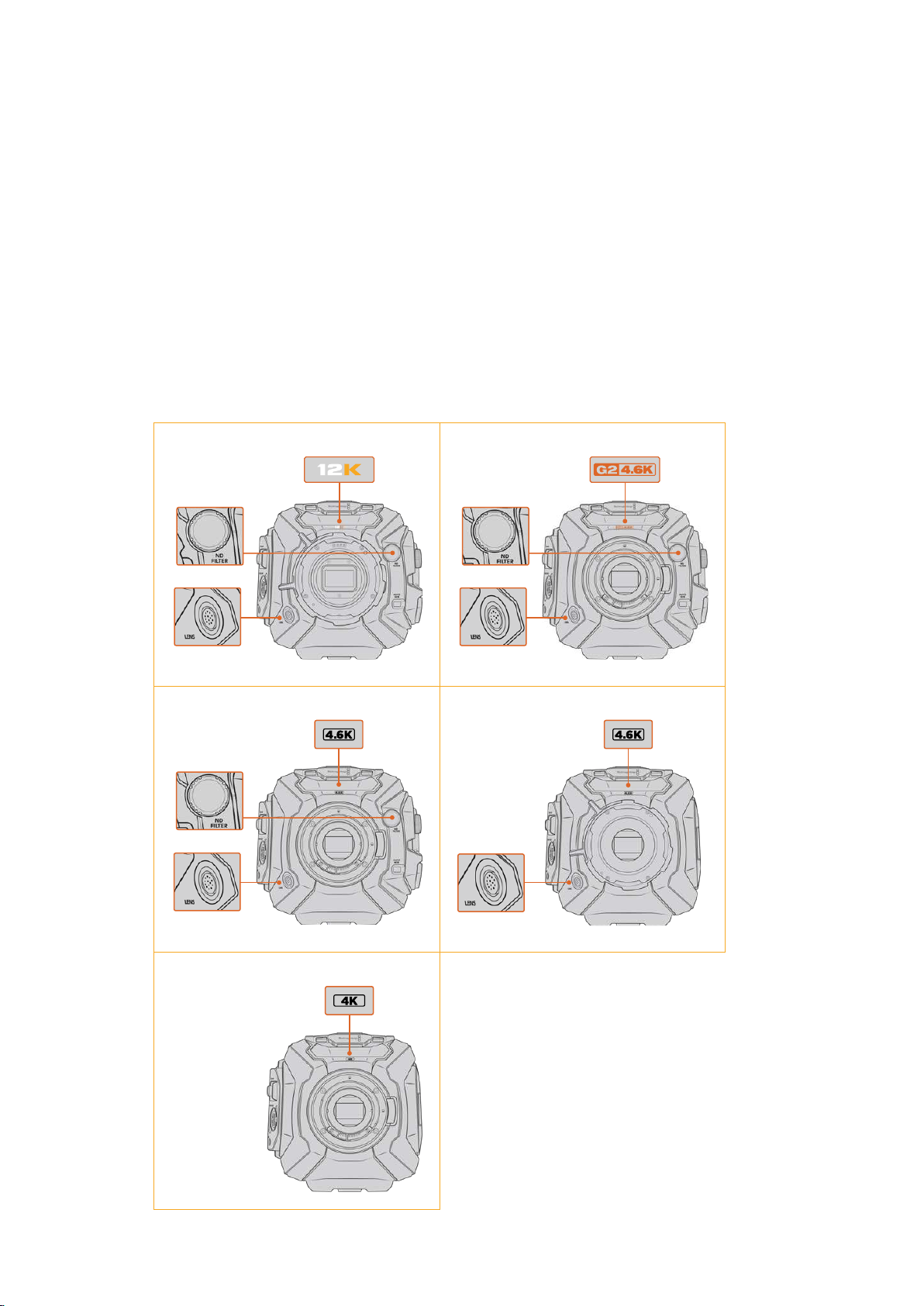
You’ll notice while reading this manual that occasionally a feature will be specific to a particular
Blackmagic URSA Mini camera. All URSA Mini cameras produce incredible, wide dynamic range
images and share the same basic chassis. There are some differences between different
models, though.
The available models are
URSA Mini Pro 12K
URSA Mini Pro 4.6K G2
URSA Mini Pro 4.6K
URSA Mini 4.6K
URSA Mini 4K
URSA Mini Pro 12K URSA Mini Pro 4.6K G2
12 pin broadcast
connector
ND filters
12 pin broadcast
connector
ND filters
URSA Mini Pro 4.6K URSA Mini 4.6K PL
12 pin broadcast
connector
ND filters
12 pin broadcast
connector
URSA Mini 4K EF
6Which camera are you using?
URSA Mini Pro
URSA Mini Pro 12K comes with a PL mount, and URSA Mini Pro 4.6K G2 and URSA Mini Pro 4.6K
come with an EF mount. You can change the lens mount on all URSA Mini Pro cameras to
accept other lens types. For more information on the interchangeable lens mount, see the
‘interchangeable lens mount’ section.
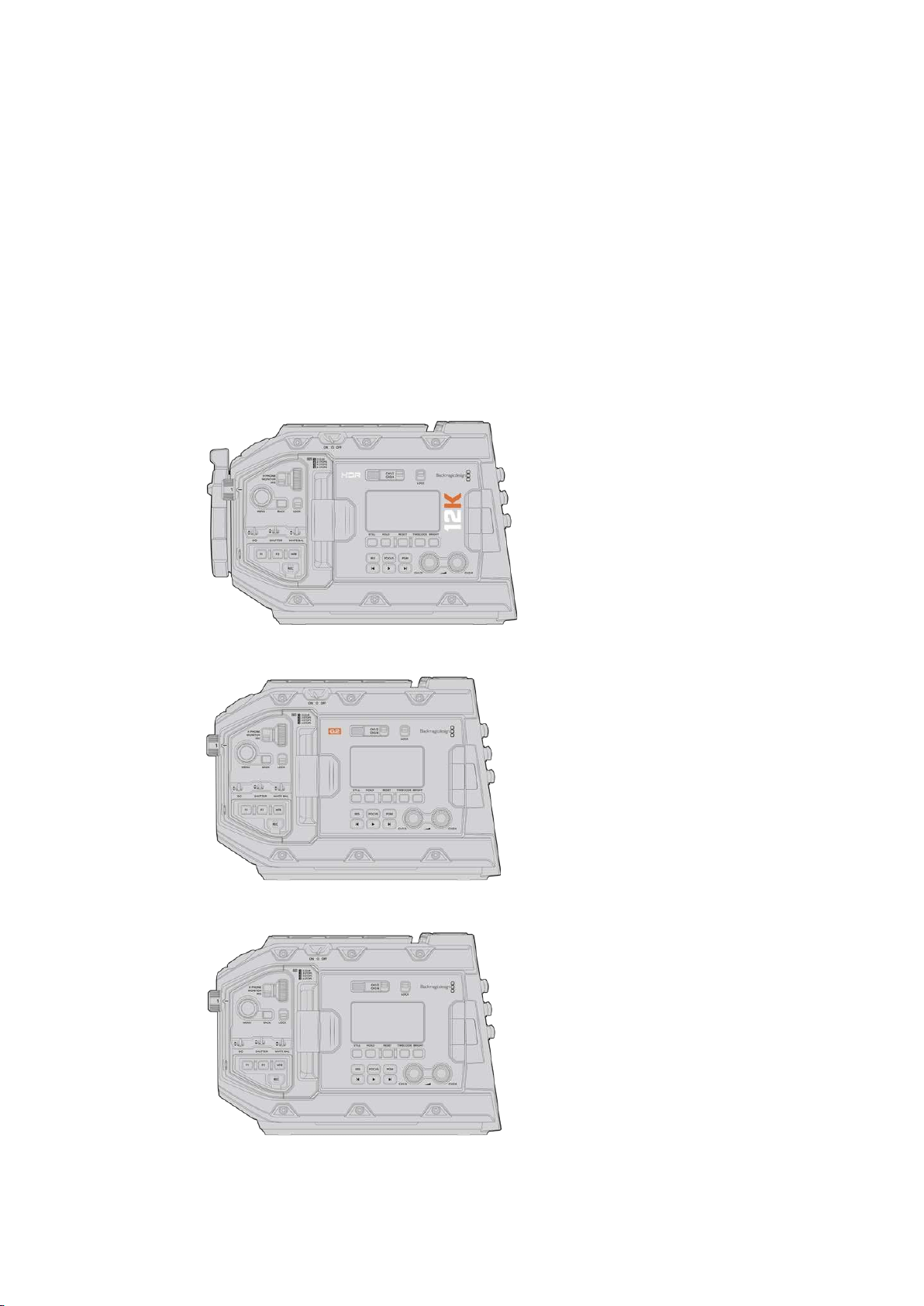
URSA Mini Pro is easy to recognize by the additional control buttons and LCD status screen on
the left side of the chassis, as well as the ND filters near the lens mount. URSA Mini Pro 4.6K G2
also features an orange ‘G2 4.6K’ icon on the front above the lens mount and an orange ‘G2’
icon on the left side of the external control panel. Naturally, the additional control buttons will
mean that you have different options for controlling your camera and changing settings. On the
side of URSA Mini Pro 12K’s external control panel is a ‘12K’ icon and ‘HDR’ icon. The rear panel
of URSA Mini Pro 12K has the headphone socket on the top right corner above the SDI ports,
and a USB-C port is located in the bottom right corner below the 12V power connector.
URSA Mini Pro 12K, left side
URSA Mini Pro 4.6K G2, left side
URSA Mini Pro 4.6K, left side
7Which camera are you using?
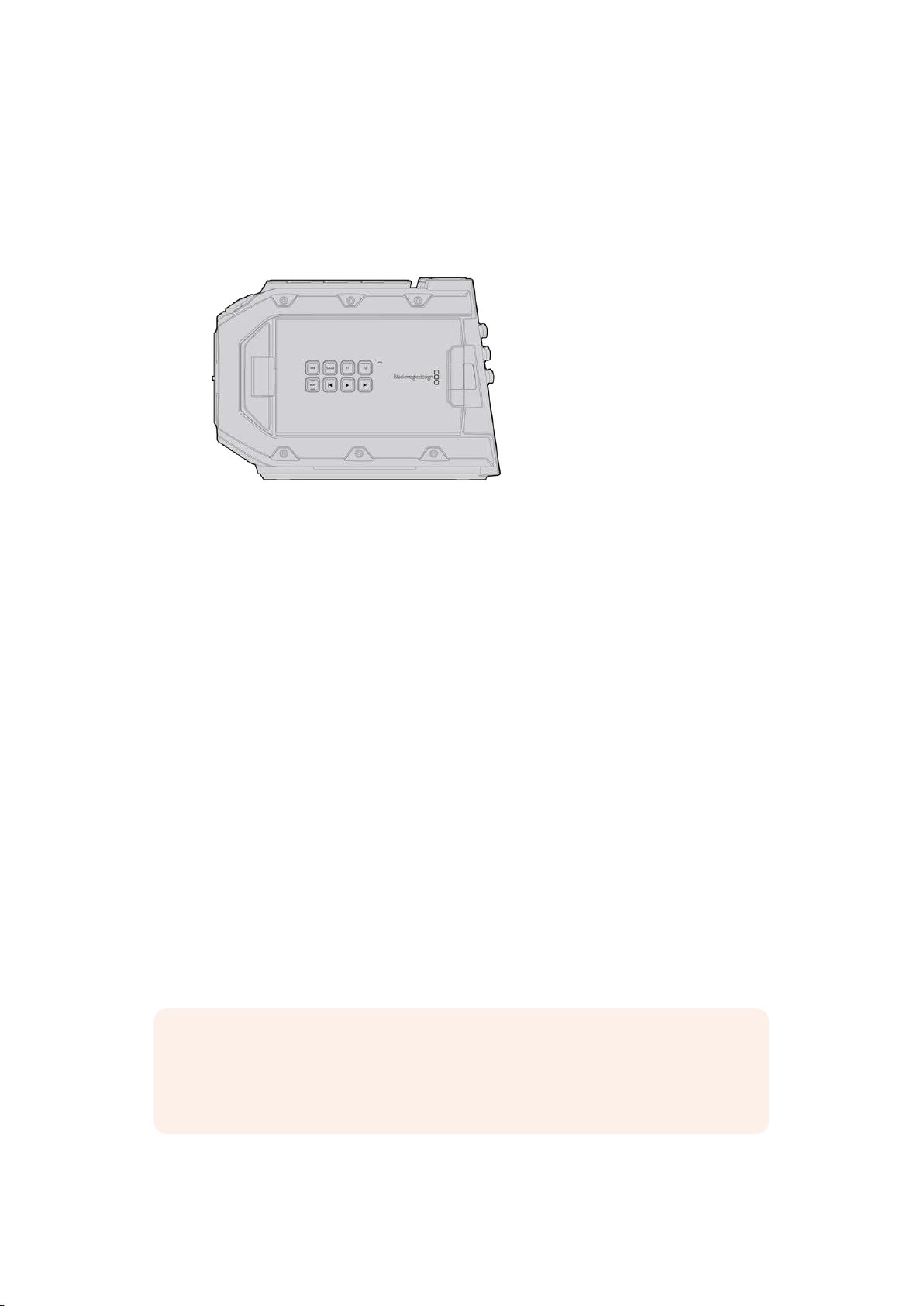
URSA Mini
Aside from the sensors used, URSA Mini 4K and 4.6K models are nearly identical. The control
buttons and software menus are laid out the same way, and operating the cameras is
essentially the same. You’ll simply find a few more resolution options on cameras using the
4.6Ksensor, together with a greater range of ISO settings. An easy way to tell which sensor
your camera has is to look for a ‘4K’ or ‘4.6K’ icon above the lens mount.
URSA Mini, left side
It’s also worth noting that URSA Mini cameras are available with EF and PL lens mounts.
Aneasy way to tell the difference between these is the presence of a 12 pin broadcast lens
connector near the lens mount on PL models, and of course, the mounts themselves if you are
familiar with EF and PL mounting systems. See the ‘getting started’ section for more information
on these mounts.
Now that you know how to identify the different URSA Mini models, you can get started
usingyour camera!
Getting Started
Getting started with your Blackmagic URSA Mini is as simple as mounting a lens, and powering
your camera.
Attaching a Lens
Attaching a lens to your camera is the same process for all URSA Mini cameras, however the EF,
PL, B4 and F mounts have slightly different ways of operating. In all cases, the first step is to
remove the protective dust cap.
To remove the protective dust cap from the EF lens mount, hold down the locking button and
rotate the cap counterclockwise until it is released. For the PL and B4 mount lenses, rotate the
locking ring counterclockwise and pull the protective dust cap away from the mount. For the F
mount, hold down the locking button and rotate the cap clockwise until it is released.
NOTE Blackmagic URSA Mini Pro features an interchangeable lens mount capable
of accepting EF, PL, B4 and F mount lenses, as well as additional lens mounts with
accessories. Formore information on switching between mount types on
URSAMiniPro, refer to the ‘interchangeable lens mount’ section in this manual.
8Getting Started
TIP URSA Mini Pro 12K comes equipped with a PL mount. Other URSA Mini Pro
cameras come out of the box configured to accept EF lenses. To get shooting right
away, simply attach a lens as detailed below.
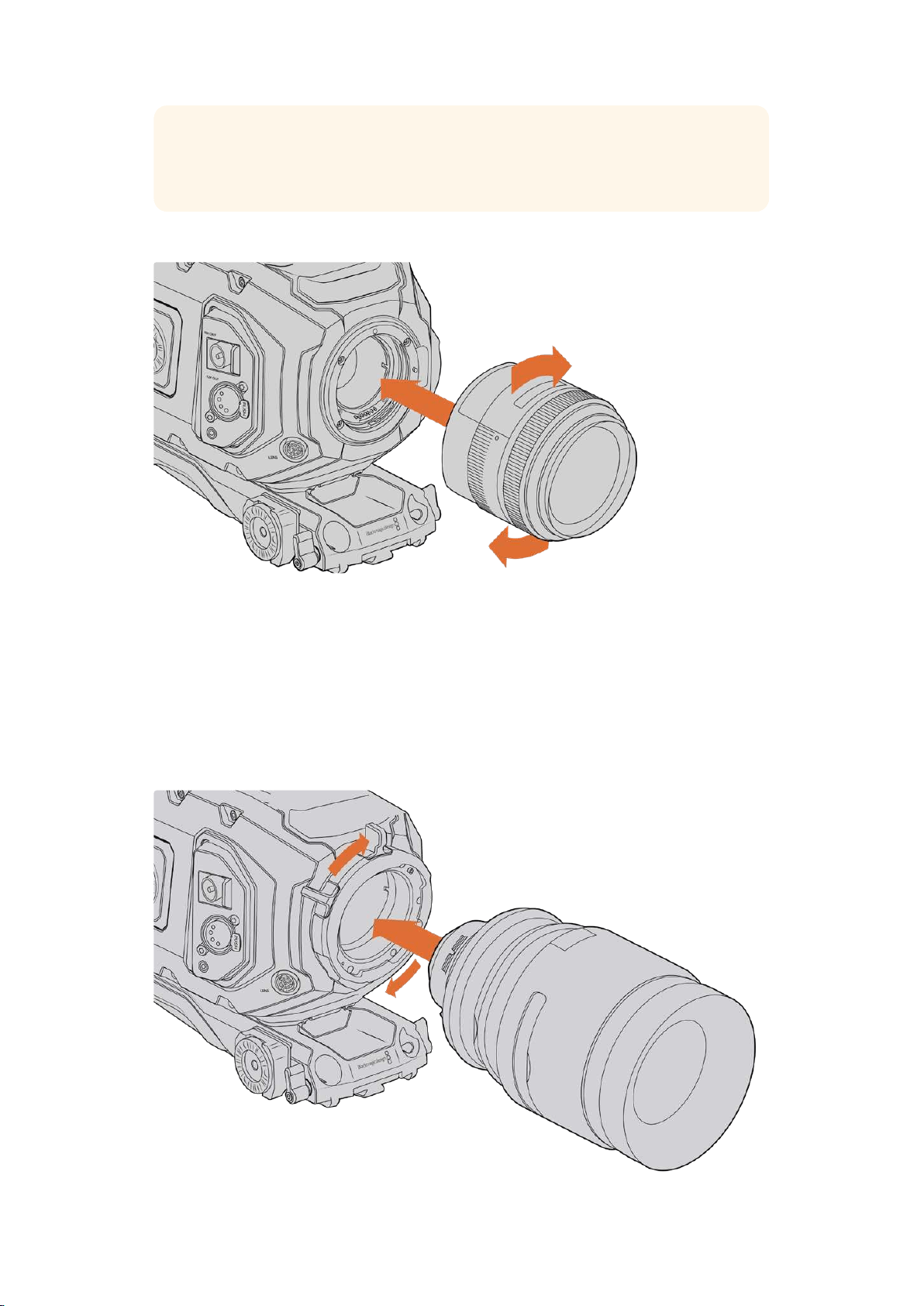
To attach an EF mount lens:
Attaching and removing an EF mount lens on Blackmagic URSA Mini EF
1 Align the dot on your lens with the dot on the camera mount. Many lenses have a visual
indicator, for example a blue, red or white dot.
2 Insert the lens into the mount and twist clockwise until it locks into place.
3 To remove the lens, hold down the locking button, rotate the lens counterclockwise
until its dot or indicator reaches the 12 o’clock position, and gently remove.
To attach a PL mount lens:
Attaching and removing a PL lens on Blackmagic URSA Mini PL and URSA Mini Pro 12K
9Getting Started
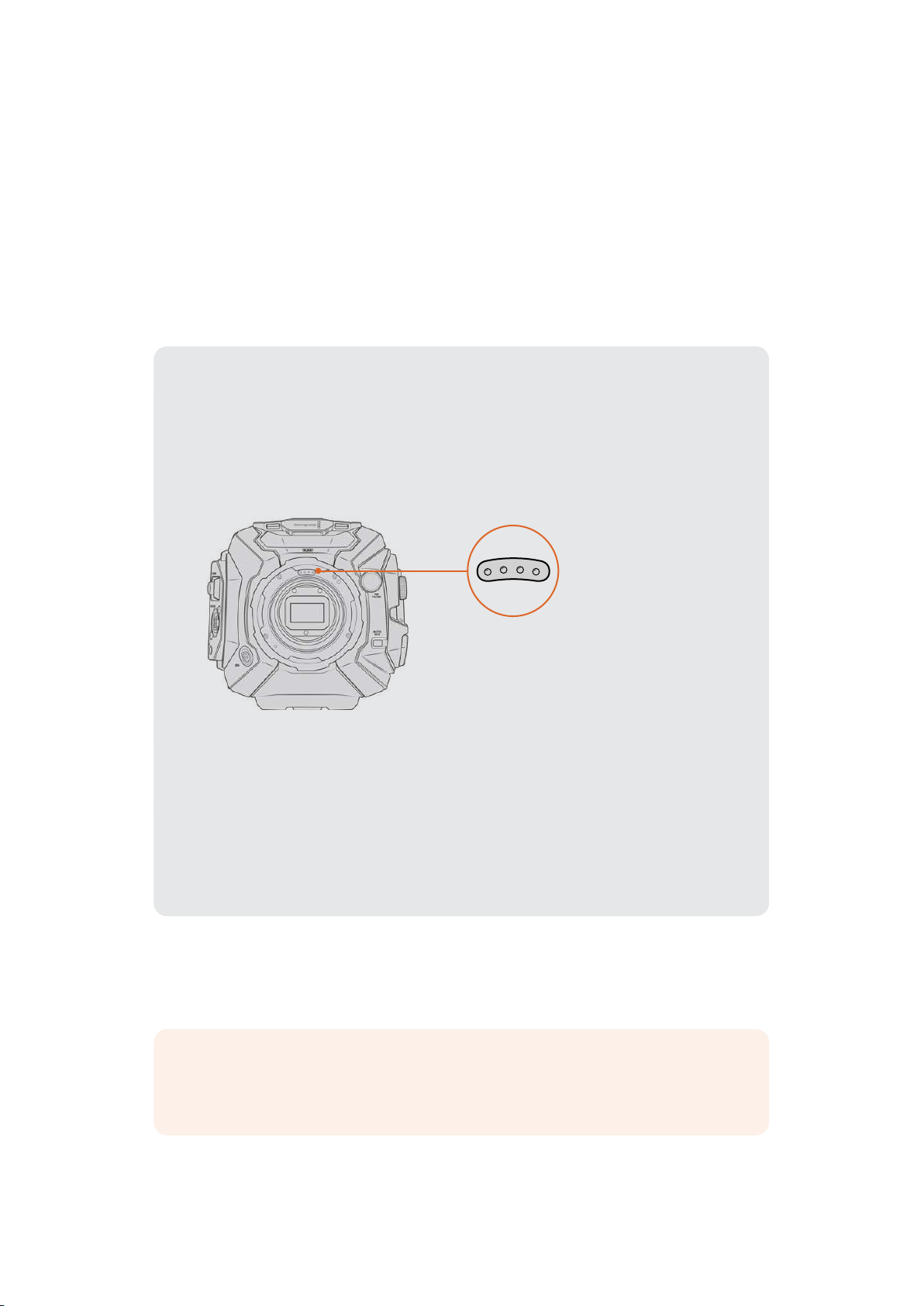
1 Open your camera’s PL locking ring by rotating it counterclockwise until it stops.
2 Align one of the lens’ four flange notches with the locating pin on the camera mount.
Be sure to align the lens for easy viewing of the lens marks.
3 Tighten the PL locking ring by rotating it clockwise. If attaching a PL lens with a servo
unit to URSA Mini PL or URSA Mini Pro, you can also connect the 12 pin broadcast
connector for servo control.
4 To remove the lens, rotate the locking ring counterclockwise until it stops, then gently
remove the lens by pulling it directly out from the camera body. There is no need to
rotate the lens.
URSA Mini Pro PL Mount
URSA Mini Pro’s PL mount features four pins at the 12 o’clock position that are used to
communicate with lenses featuring Cooke’s /i Technology interface. The lenses that
support this interface include lenses from Canon, Cooke, Fujinon, Leica and Zeiss.
Thislets you record lens information in your clips’ metadata such as the lens model,
focal length, aperture setting, focus distance and other lens specific information.
When mounting a PLlens with /iTechnology to
URSAMini Pro, make sure the lens pins align
withthe mount pins at the 12o'clock position
The information that is recorded as metadata via Cooke’s /i Technology interface
canbe very helpful in post production and VFX. Knowing the lenses used in
productionand their precise settings can be helpful in the event that the setup
needsto be replicated at a later date.
This detailed information can also be utilized by powerful applications such as
DaVinciResolve and Blackmagic Fusion for a wide variety of advanced functions.
Forexample, the recorded metadata can be used to simulate the specific lens in
3Dspace, or correct lensdistortions.
URSA Mini Pro and URSA Mini PL support control of PL 35mm lenses with servo handgrips.
When the lens is plugged in to the 12-pin broadcast connector on the camera, URSAMini will
provide power and control signals to your lens in the same way it does with B4lenses. For more
information refer to the ‘Using Servo Zoom Lenses’ section in this manual.
NOTE When no lens is attached to the camera, the glass filter covering the
sensor isexposed to dust and other debris. Ensure that you keep the dust cap on
whenever possible.
10Getting Started
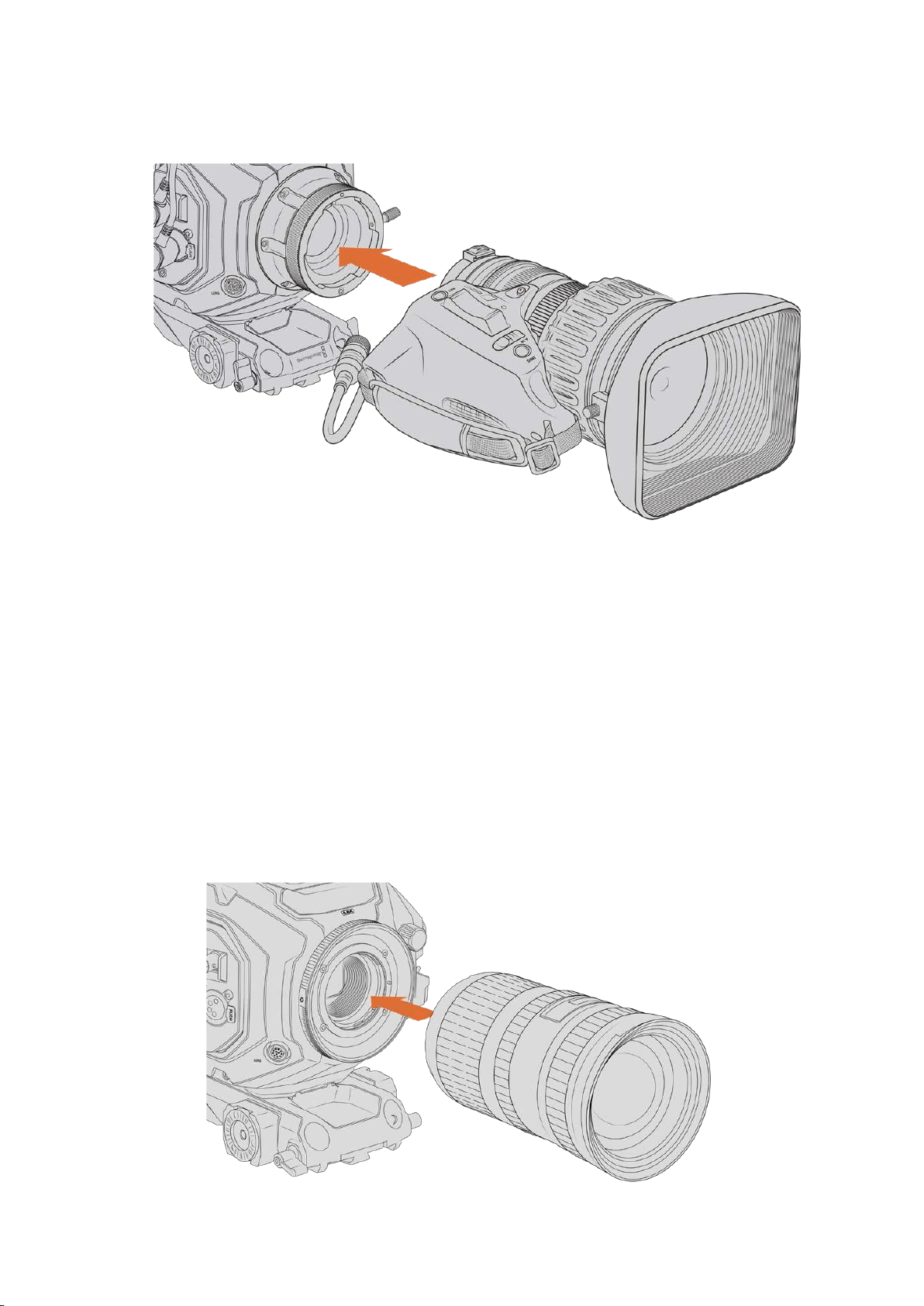
To attach a B4 mount lens:
Attaching and removing a B4 lens on
BlackmagicURSA Mini PL with B4 mount
1 Turn the B4 lens locking ring counterclockwise to reveal the alignment slot inside the
top of the mount. Align the B4 lens to your URSA Mini’s B4 mount so the alignment pin
on the lens mount matches the position of the alignment slot.
2 Hold the lens against the B4 mount so the mount plates are against each other.
Make sure the alignment pin is secured inside the alignment slot.
3 Turn the locking ring clockwise to tighten the lens against the mount and lock it
into position.
4 To power the lens and provide lens control, simply plug the lens cable into the
connector marked ‘Lens’ on the front of your URSA Mini PL or URSA Mini Pro’s turret.
Most B4 lenses will have the 12 pin connector and cable built in. This will provide power
and control signals from your URSA Mini to the lens.
For information on the types of B4 lenses and how to use them with your camera, refer
to the ‘Using Servo Zoom Lenses’ section in this manual.
To attach an F mount lens:
Attaching and removing an F mount lens on Blackmagic
URSAMiniPro 4.6K with the optional F mount fitted
11Getting Started
1 Align the dot on your lens with the dot on the camera mount. Many lenses have a visual
indicator, for example a blue, red or white dot.
2 Insert the lens into the mount and twist counterclockwise until it locks into place.
3 To remove the lens, hold down the locking button, rotate the lens clockwise until its dot
or indicator reaches the 2 o’clock position, and gently remove.
NOTE Blackmagic URSA Mini Pro F mount features a mechanical iris adjuster. To use
older style F mount lenses with built in focus rings with this mount, your lens aperture
will need to be set and locked to its smallest setting, such as f/22. For more information
on adjusting aperture with Blackmagic URSA Mini Pro F mount’s manual iris adjuster,
see the section ‘Blackmagic URSA Mini Pro F Mount’ in this manual.
Powering your Camera
Now that you’ve attached a lens, you will need to supply power. The quickest way to power
your camera is to connect external power using the supplied AC to 12V DC adapter.
To plug in external power:
1 Connect the AC to 12V DC adapter plug to your mains power socket.
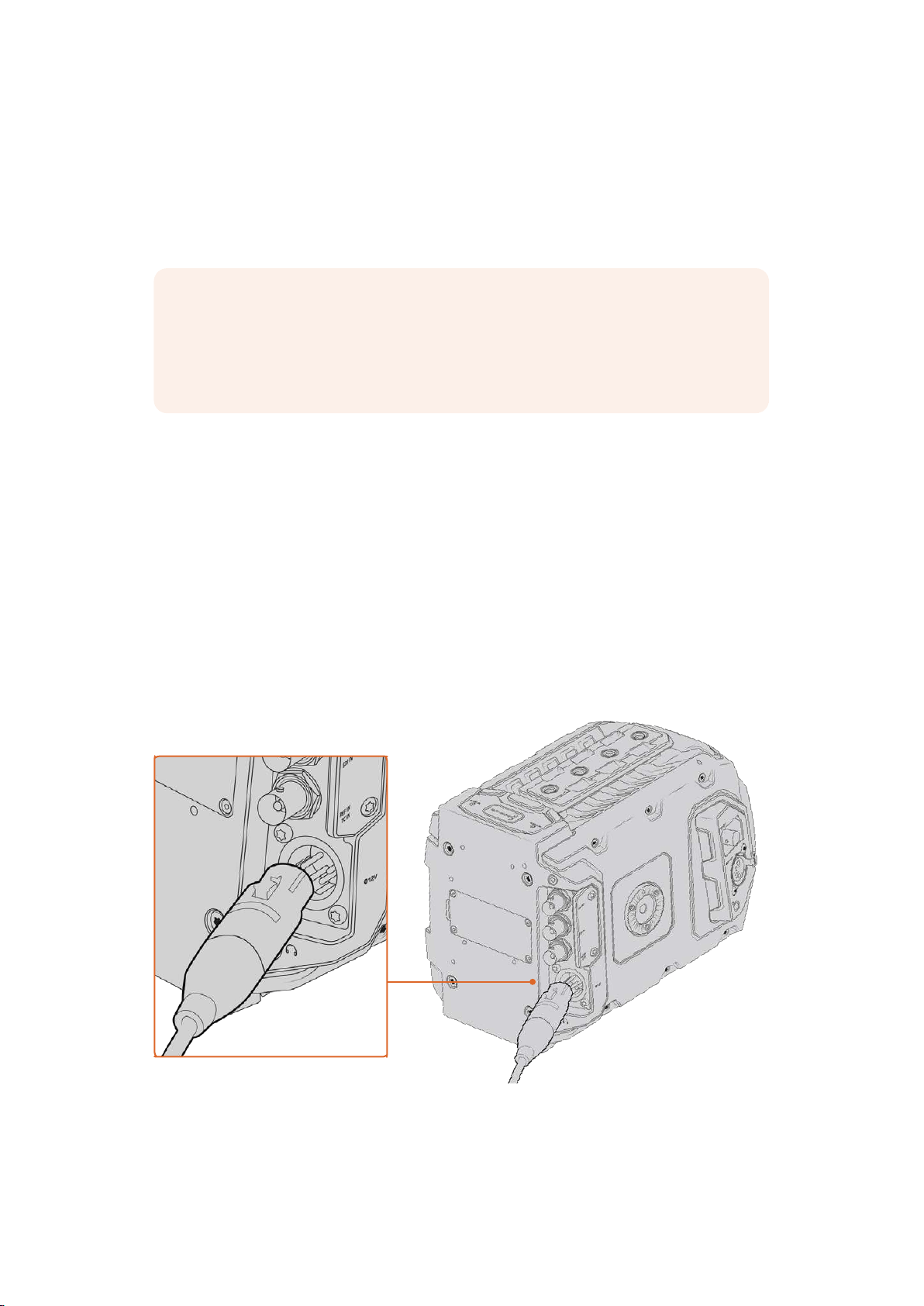
2 Connect the AC to 12V DC adapter’s 4 pin XLR connector to the 12-20V DC power
connector on the camera.
If you have both external and battery power connected, only external power will be used. If you
remove external power while a charged battery is connected, your camera will switch to battery
power without interruption.
Use the supplied AC to 12V DC adapter to power your Blackmagic URSA Mini
12
Getting Started
You can use industry standard third party external batteries such as V mount or GoldMount
batteries with your URSA Mini. Refer to the ‘mounting batteries’ section for more information
about mounting the different types of battery plates to support different batteries.
To turn on URSA Mini:
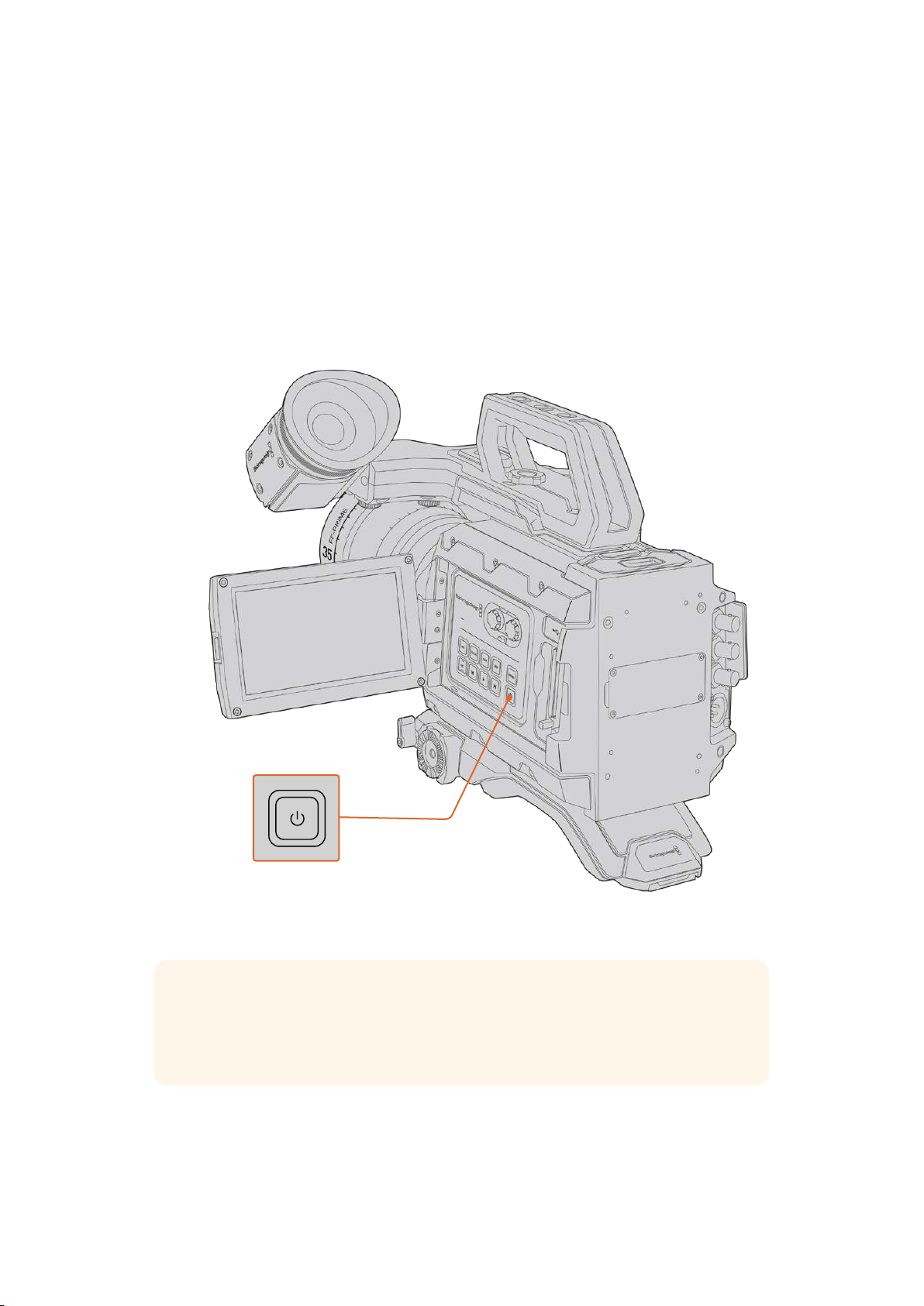
1 Press and release the ‘power’ button. On Blackmagic URSA Mini, the power button is
located on the control panel behind the fold out LCD. Simply open the LCD to access
the control panel.
2 Press and hold the ‘power’ button to turn your camera off.
You are now ready to insert CFast 2.0 cards and start recording!
To turn on your URSA Mini, open the fold out LCDtouchscreen, then press and
release the power button on the control panel. Press and hold to turn off
TIP When turning the camera on, make sure you promptly press and releasethe
button. Your camera will take approximately 10 seconds to boot up, but there is no
need to press the button again. When turning off, press and hold the button until the
camera powers off.
13Getting Started
To turn on URSA Mini Pro:
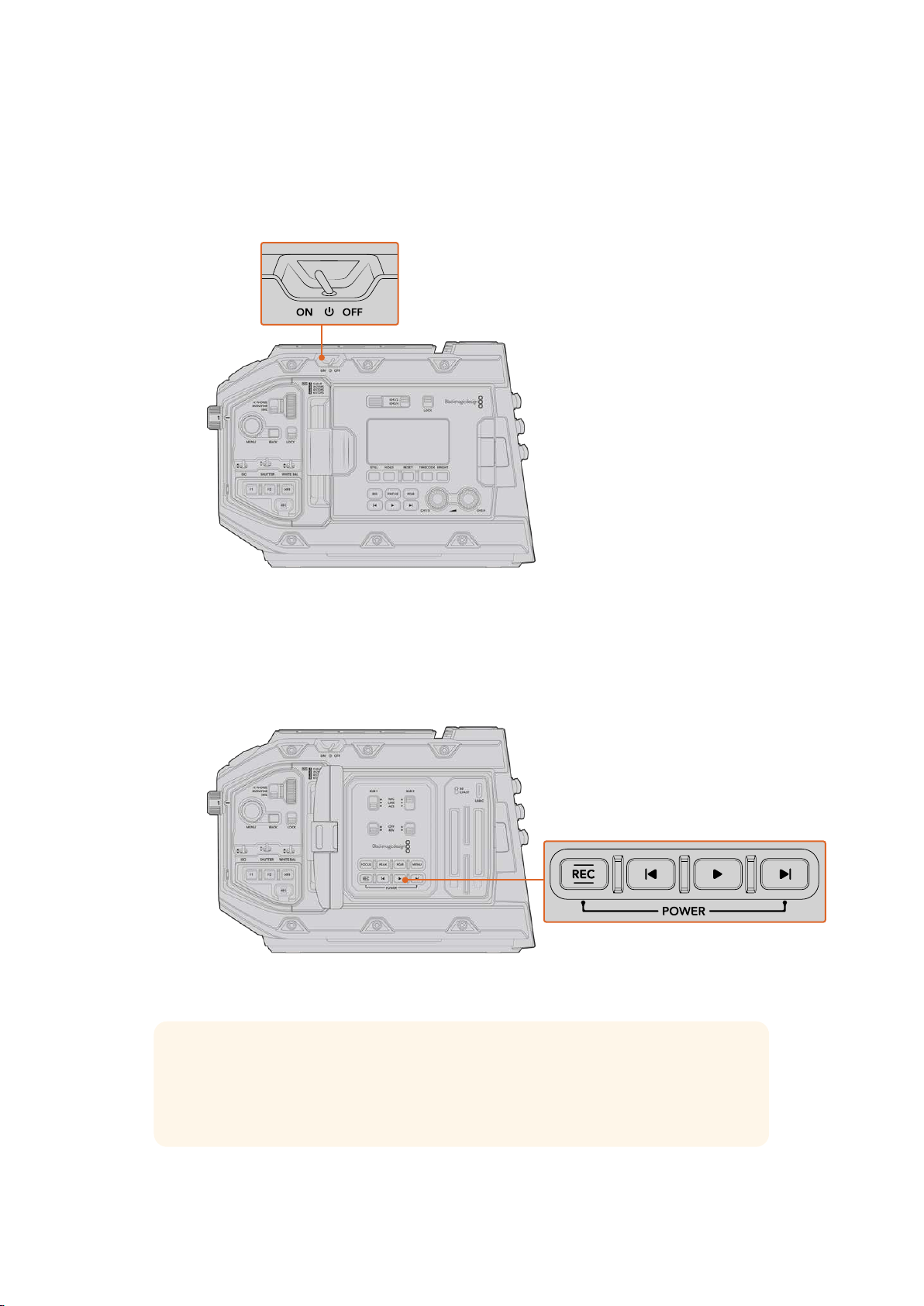
1 On Blackmagic URSA Mini Pro, a power switch is also located above the foldoutLCD.
Move the switch to the ‘on’ position to power your camera.
2 To turn the camera off, move the switch to the ‘off’ position.
Move the power switch to ‘on’ to power your camera
URSA Mini Pro also features a redundant power switch, which allows the camera to be
turned on and off by briefly holding down the ‘rec’ and ‘forward skip’ buttons on the
inside control panel. While you wouldn’t normally power your camera using this
method, it is provided as a helpful alternative if the power switch along the top edge is
obscured, for example when mounted on a custom rig.
If you need to, you can also briefly hold down the record and forward skip buttons
on the control panel behindthe LCD to power your camera on or off
TIP If your URSA Mini Pro is turned off when the power switch is set to ‘on’, your
camera may have been powered down via Bluetooth
®
control or by holding down the
record and forward skip control panel buttons. Simply toggle the power switch ‘off’ and
‘on,’ or hold down the relevant control panel buttons to power the camera on.
14Getting Started

Storage Media
Your Blackmagic URSA Mini camera has a number of storage options. All URSA Mini cameras
use CFast 2.0 cards to record video. URSA Mini Pro cameras can also record to fast UHS-II and
UHS-I SD cards.
URSA Mini Pro G2 has a USB-C 3.1 Gen 1 port and URSA Mini Pro 12K has a USB-C 3.1 Gen 2
port for recording to high speed flash disks.
Using the optional URSA Mini SSD Recorder, you can record to high capacity solid state drives,
or “SSDs”.
NOTE URSA Mini SSD Recorder is designed for use with URSA Mini Pro 4.6K G2,
URSA Mini Pro 4.6K, URSA Mini 4.6K and URSA Mini 4K. It is not compatible with URSA
Mini Pro 12K.
Important Notes About Media Speeds
Write and read speeds published by recording media manufacturers are often based
on peak speeds for small files such as still images, and may not accurately reflect write
speeds for a continuous stream of high speed video.
Blackmagic has thoroughly tested all of the cards listed below for URSA Mini.
For reliable recording with your chosen frame rates, use only the cards recommended
by Blackmagic Design.
NOTE For more information on connecting URSA Mini SSD Recorder to your camera
see the ‘Blackmagic URSA Mini SSD Recorder’ section.
CFast Cards
CFast 2.0 cards are capable of supporting very high data rates, so are perfect for recording
HDand 4K video at high frame rates. Refer to the record duration table in the ‘recording’
section for details on the maximum frame rates that can be recorded in each format.
NOTE While CFast 2.0 cards are generally high speed cards, some cards have slower
write speeds compared to read speeds, and maximum data rates can differ between
models. Toensure reliable recording in your chosen frame rates, use only the
recommended cards listed in this section.
Inserting a CFast Card
If you’re using URSA Mini Pro, your camera can record to CFast cards or SD cards. To record
using CFastcards you need to set your camera accordingly. To do this, set the storage
mediaswitch above the media slots to the ‘CFAST’ position.
15Storage Media
To insert a CFast card:
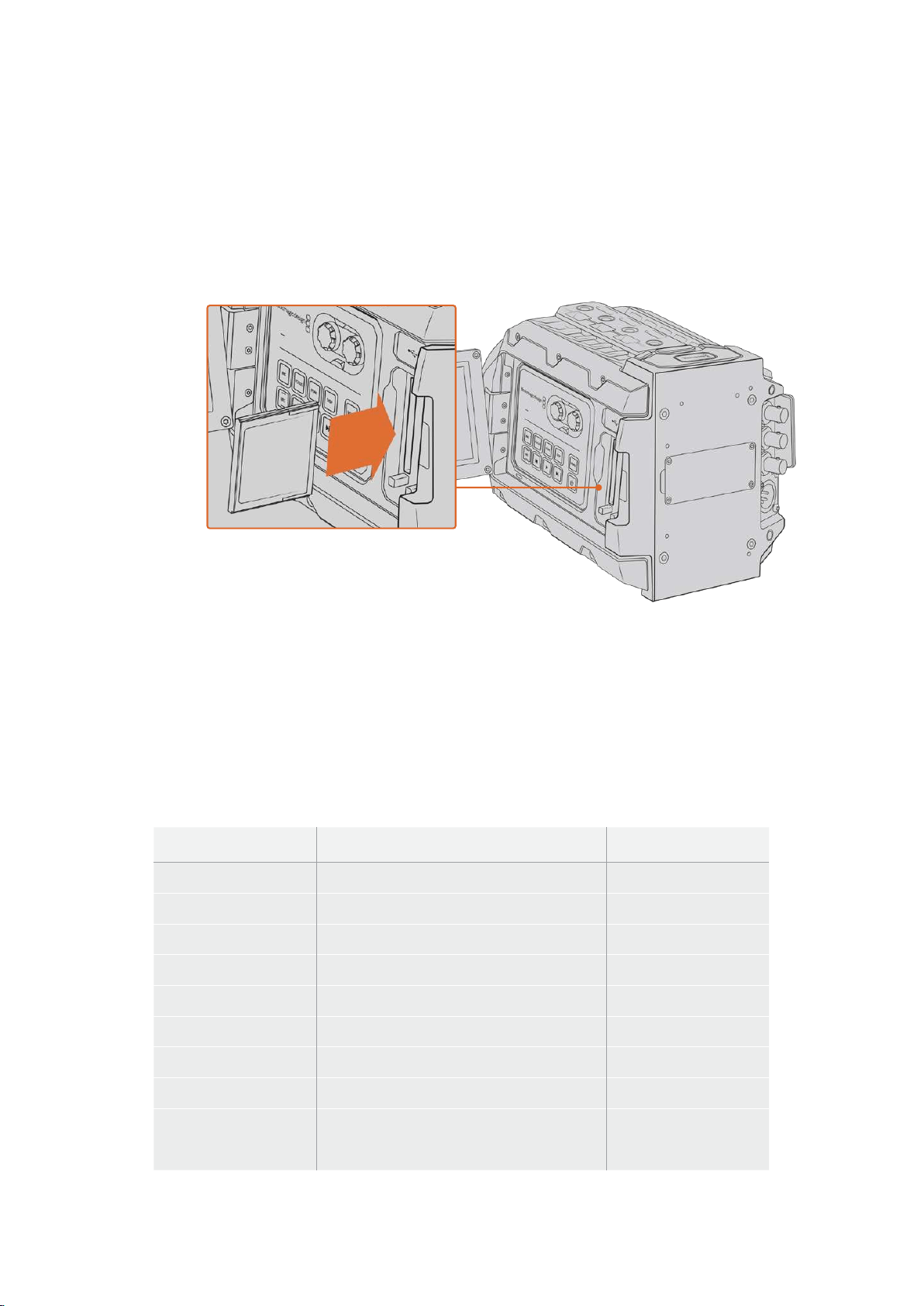
1 Open the fold out monitor to access the CFast slots.
2 Insert the CFast card into the CFast card slot until you feel it lock into place. The card
should insert easily without the need for excessive force. Push the CFast card ejector
button to eject the card.
The storage information at the bottom of the LCD touchscreen will show the name and
record time remaining of the detected CFast cards.
Blackmagic URSA Mini has two CFast slots for continuous recording
Choosing a CFast 2.0 Card
When working with high data rate video it’s important to carefully check the CFast card you
would like to use. This is because CFast 2.0 cards have different read and write speeds.
Thetables below identify the CFast cards recommended for use.
Which CFast cards should I use with Blackmagic URSA Mini Pro 12K?
The following CFast 2.0 cards are recommended for recording 12K DCI Blackmagic RAW 18:1 up
to 60 frames per second, and 8K DCI Blackmagic RAW 8:1 up to 60 frames per second.
Brand Card Name Storage
Angelbird AV Pro CF 128GB
Angelbird AV Pro CF 256GB
Angelbird AV Pro CF 512GB
Angelbird AV Pro CF 1TB
ExAscend Essential 512GB
ExAscend Essential 1TB
FreeTail Evoke Pro 3700x 128GB
FreeTail Evoke Pro 3700x 256GB
FreeTail Evoke Pro 3700x 512GB
FreeTail Evoke Pro 3700x 1TB
16Storage Media

Brand Card Name Storage
KomputerBay x3400 CFast 2.0 128GB
ProGrade Digital 550MB/s CFast 2.0 256GB
ProGrade Digital 550MB/s CFast 2.0 512GB
SanDisk Extreme Pro CFast 2.0 SDCFSP-128G-x46D 128GB
Wise CFast 2.0 3400x 256GB
Wise CFast 2.0 3500x 512GB
Wise CFast 2.0 3500x 1TB
Which CFast cards should I use with the Blackmagic URSA Mini
and URSA Mini Pro Cameras?
The following CFast 2.0 cards are recommended for recording 4.6K Blackmagic RAW 3:1 up
to 60 fps.
Brand Card Name Storage
Angelbird AV Pro CF 128GB
Angelbird AV Pro CF 256GB
Angelbird AV Pro CF 512GB
Angelbird AV Pro CF 1TB
CinediskPro 510MB/s CFast 2.0 256GB
FreeTail Evoke Pro 3700x 128GB
FreeTail Evoke Pro 3700x 256GB
FreeTail Evoke Pro 3700x 512GB
FreeTail Evoke Pro 3700x 1TB
Hagiwara Solutions CFast 2.0 DC-SMAN64GA 64GB
Hagiwara Solutions CFast 2.0 DC-SMANA1GA 128GB
KomputerBay 3600x CFast 2.0 Card 64GB
ProGrade Digital 550MB/s CFast 2.0 64GB
ProGrade Digital 550MB/s CFast 2.0 128GB
ProGrade Digital 550MB/s CFast 2.0 256GB
ProGrade Digital 550MB/s CFast 2.0 512GB
SanDisk Extreme Pro CFast 2.0 SDCFSP-128G-x46D 128GB
SanDisk Extreme Pro CFast 2.0 SDCFSP-256G-x46D 256GB
SanDisk Extreme Pro CFast 2.0 SDCFSP-512G-x46D 512GB
Sony CFast 2.0 G Series CAT-G64 64GB
Sony CFast 2.0 G Series CAT-G128 128GB
Transcend CFX650 CFast 2.0 TS128GCFX650 128GB
17Storage Media

Brand Card Name Storage
Transcend CFX650 CFast 2.0 TS256GCFX650 256GB
Transcend CFX650 CFast 2.0 TS128GCFX650BM 128GB
Transcend CFX650 CFast 2.0 TS256GCFX650BM 256GB
Wise CFast 2.0 3400x 256GB
Wise CFast 2.0 3500x 512GB
The following CFast 2.0 cards are recommended for recording 2160p ProRes 422 HQ
up to 60 fps.
Brand Card Name Storage
Angelbird AV Pro CF 128GB
Angelbird AV Pro CF 256GB
Angelbird AV Pro CF 512GB
Angelbird AV Pro CF 1TB
Angelbird AV Pro CF XT 256GB
Angelbird AV Pro CF XT 512GB
CinediskPro 510MB/s CFast 2.0 256GB
Hagiwara Solutions DC-SMAN64GA 64GB
Hagiwara Solutions DC-SMANA1GA 128GB
KomputerBay 3600x CFast 2.0 Card 64GB
KomputerBay 3700x CFast 2.0 Card 256GB
ProGrade Digital 550MB/s CFast 2.0 128GB
ProGrade Digital 550MB/s CFast 2.0 256GB
ProGrade Digital 550MB/s CFast 2.0 512GB
SanDisk Extreme Pro CFast 2.0 SDCFSP-128G-x46D 128GB
SanDisk Extreme Pro CFast 2.0 SDCFSP-256G-x46D 256GB
SanDisk Extreme Pro CFast 2.0 SDCFSP-512G-x46D 512GB
Silicon Power CFX310 256GB
Sony CFast 2.0 G Series CAT-G64 64GB
Sony CFast 2.0 G Series CAT-G128 128GB
Transcend CFX650 CFast 2.0 TS128GCFX650 128GB
Transcend CFX650 CFast 2.0 TS256GCFX650 256GB
Transcend CFX650 CFast 2.0 TS128GCFX650BM 128GB
Transcend CFX650 CFast 2.0 TS256GCFX650BM 256GB
18Storage Media

Brand Card Name Storage
Wise CFast 2.0 3400x 128GB
Wise CFast 2.0 3400x 256GB
Wise CFast 2.0 3500x 512GB
For the most up to date information on supported CFast cards for Blackmagic URSA Mini please
refer to the Blackmagic Design support center at
www.blackmagicdesign.com/support.
NOTE Only the ‘D-series’ of Sandisk CFast2.0 cards have been certified for use with
Blackmagic URSA Mini cameras. These cards can be identified by a large ‘D’printed
on the back of the card in the lower left corner, and we have also listed the model
numbers to make them easier to identify. This model number varies slightly fromregion
to region, with the‘x’ in the model number changing in different markets. Forexample,
an ‘A’ in the UnitedStates and a ‘G’ in the Asia Pacific and Europe region.
SD Cards
In addition to CFast 2.0 cards, Blackmagic URSA Mini Pro can record on high speed UHS-I and
UHS-II type SD cards. Using high end SDXC UHS-II cards, you can even record ProRes HQ
footage in 2160p for Ultra HD content!
With SD cards, you can use more affordable storage media when shooting compressed video
formats in HD. SDXC and SDHC are a very common media storage format for consumer still and
video cameras.
If you’ve ever shot video using a DSLR, or use a Blackmagic Micro Cinema Camera, Pocket
Cinema Camera 4K or Blackmagic Video Assist, you probably already have compatible
SD cards to use.
For projects that don’t require the highest resolution Blackmagic RAW files, or for when long
recording durations are needed, using SD cards can be very economical. Lower capacity and
lower speed SD cards can also be used for storing and loading LUTs and presets.
Inserting an SD Card
To insert an SD Card:
1 Open the fold out monitor to access the SD card slots. These are the smaller slots
located between the CFast slots.
2 Set the storage media toggle switch above the slots to ‘SD’.
3 With the label on the SD card facing away from the touchscreen, insert the card until
you feel it lock into place. To remove an SD card, push the SD card in to eject it.
4 The storage indicator at the bottom of the LCD touchscreen will show the name and
record time remaining of detected cards.
19Storage Media
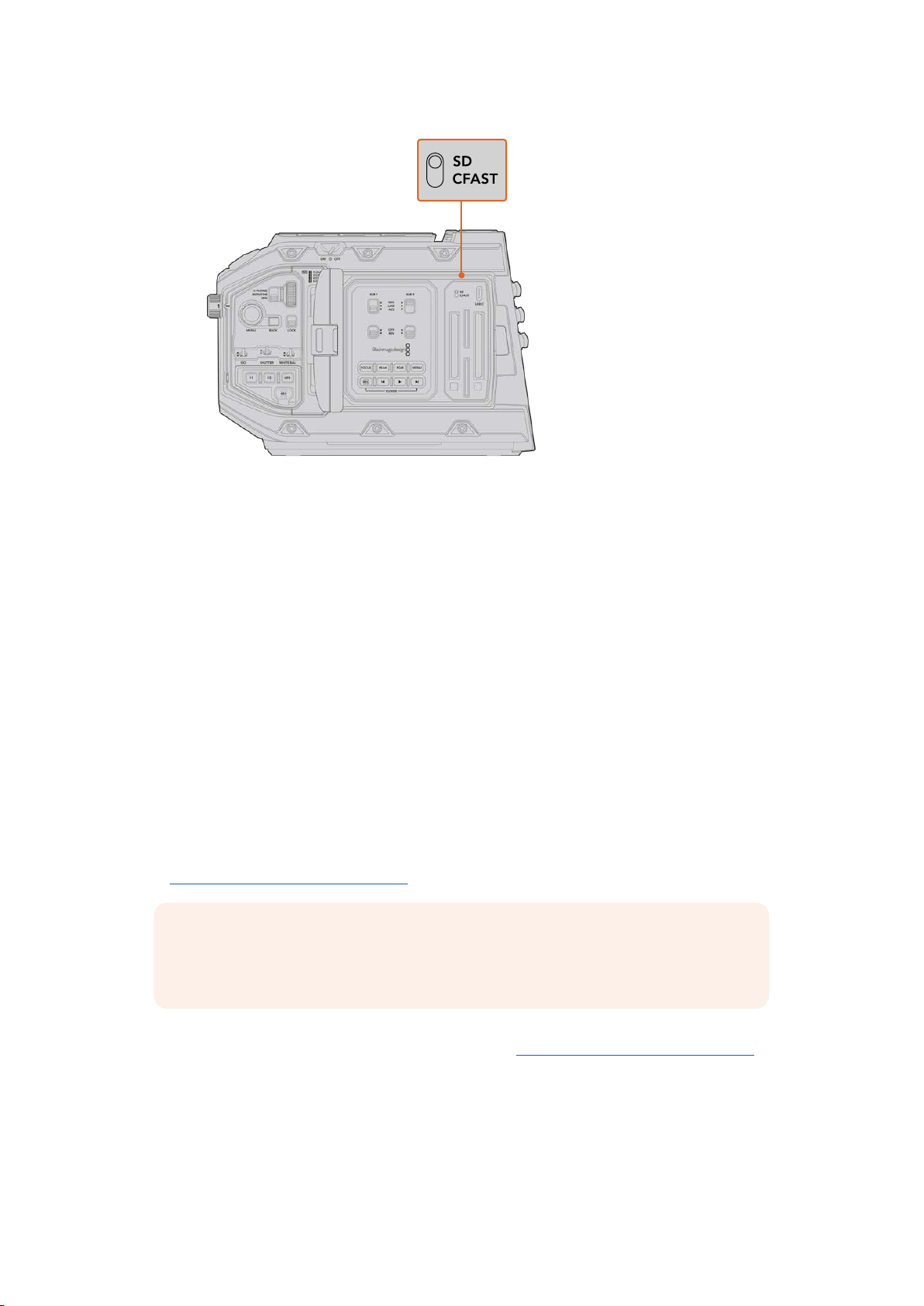
When recording to SD cards on URSA Mini Pro 4.6K make sure
the storage media selection switch is set to ‘SD’
Choosing a fast SD Card
If you are recording Ultra HD on Blackmagic URSA Mini Pro, then we recommend using the
fastest high speed UHS-II type SD cards available. It’s important to use high speed UHS-II
SDcards for Ultra HD and HD recording, or UHS-1 cards for HD recording. These cards are
rated for fast data speeds and support larger storage sizes. Generally the faster the cards,
thebetter. Refer to the recommended SD cards table earlier in this section for more information.
Before using your cards, you will need to format them to either HFS+ or exFAT formats. You can
format your media with the storage manager or your computer. For more information, see the
‘preparing media for recording’ section.
If you want to, you can format your cards using a Mac or Windows computer. When using your
media on Mac, you can use HFS+ which is the Mac disk format. If you are using Windows then
you should use exFAT format, which is the Windows disk format that Mac computers can
also read.
The tables below identify the SD cards recommended for use when shooting with Blackmagic
URSA Mini Pro. It’s worth regularly checking the latest version of this manual for more up to date
information. Updated manuals are available for download from the Blackmagic Design website
at
www.blackmagicdesign.com/support
NOTE When filming high frame rate or Ultra HD footage on your URSA Mini, we
recommend CFast 2.0 or SD UHS-II recording media, which are typically faster and
available in higher storage capacities than SD UHS-I media.
For the most up to date information about SD cards recommended for URSA Mini Pro 12K,
please refer to the Blackmagic Design support center at
www.blackmagicdesign.com/support.
20Storage Media

Which SD cards should I use with Blackmagic URSA Mini Pro 12K?
The following SD cards are recommended for recording 12K DCI Blackmagic RAW 12:1 up to 24
frames per second.
Brand Card Name Storage
ProGrade Digital V90 UHS-II 300MB/s SDXC 64GB
ProGrade Digital V90 UHS-II 300MB/s SDXC 128GB
ProGrade Digital V90 UHS-II 300MB/s SDXC 256GB
Sony Tough SF-G64 300MB/s UHS-II SDXC 64GB
Sony Tough SF-G128 300MB/s UHS-II SDXC 128GB
The following SD cards are recommended for recording 8K DCI Blackmagic RAW 18:1 at up to
60 frames per second.
Brand Card Name Storage
Angelbird AV Pro MK2 V90 SDXC 256GB
ProGrade Digital V90 UHS-II 300MB/s SDXC 64GB
ProGrade Digital V90 UHS-II 300MB/s SDXC 128GB
ProGrade Digital V90 UHS-II 300MB/s SDXC 256GB
Sony Tough SF-G64 300MB/s UHS-II SDXC 64GB
Sony Tough SF-G128 300MB/s UHS-II SDXC 128GB
Wise 285MB/s UHS-II SDXC 64GB
Wise 285MB/s UHS-II SDXC 128GB
Which SD cards should I use with URSA Mini Pro?
The following SD cards are recommended for recording 4K DCI Blackmagic RAW 12:1 up to
30frames per second.
Brand Card Name Storage
Angelbird AV Pro 300MB/s UHS-II SDXC 64GB
Angelbird AV Pro 300MB/s UHS-II SDXC 128GB
Lexar Professional 2000x UHS-II 300MB/s SDXC 64GB
Lexar Professional 1000x UHS-II 150MB/s SDXC 64GB
SanDisk Extreme Pro UHS-I 95MB/s SDXC 64GB
SanDisk Extreme Pro UHS-I 95MB/s SDXC 128GB
SanDisk Extreme Pro UHS-I 95MB/s SDXC 256GB
SanDisk Extreme Pro UHS-I 95MB/s SDXC 512GB
SanDisk Extreme Pro UHS-II 280MB/s SDXC 64GB
SanDisk Extreme Pro UHS-II 300MB/s SDHC 32GB
SanDisk Extreme Pro UHS-II 300MB/s SDXC 128GB
21Storage Media

Brand Card Name Storage
Sony SF-G64 300MB/s UHS-II SDXC 64GB
Sony SF-G128 300MB/s UHS-II SDXC 128GB
Toshiba Exceria Pro UHS-II 270MB/s SDXC 64GB
Toshiba Exceria Pro UHS-II 270MB/s SDXC 128GB
Toshiba Exceria Pro UHS-II N502 SDHC 32GB
Toshiba Exceria Pro UHS-II N502 SDXC 64GB
Toshiba Exceria Pro UHS-II N502 SDXC 128GB
Toshiba Exceria Pro UHS-II N502 SDXC 256GB
Transcend Ultimate UHS-II 180MB/s SDXC 64GB
Wise 285MB/s UHS-II SDXC 64GB
Wise 285MB/s UHS-II SDXC 128GB
The following SD cards are recommended for 2160p ProRes 422 HQ up to 30 frames
persecond.
Brand Card Name Storage
Angelbird AV Pro 300MB/s UHS-II SDXC 64GB
Angelbird AV Pro 300MB/s UHS-II SDXC 128GB
Delkin Devices UHS-II 250MB/s SDHC 32GB
ProGrade Digital V90 UHS-II 250MB/s SDXC 128GB
SanDisk Extreme Pro UHS-II 280MB/s SDHC 32GB
SanDisk Extreme Pro UHS-II 280MB/s SDXC 64GB
SanDisk Extreme Pro UHS-II 300MB/s SDHC 32GB
SanDisk Extreme Pro UHS-II 300MB/s SDXC 128GB
Sony SF-G64 300MB/s UHS-II SDXC 64GB
Sony SF-G128 300MB/s UHS-II SDXC 128GB
Toshiba Exceria Pro UHS-II 270MB/s SDXC 64GB
Toshiba Exceria Pro UHS-II N502 SDHC 32GB
Toshiba Exceria Pro UHS-II N502 SDXC 64GB
Toshiba Exceria Pro UHS-II N502 SDXC 128GB
Toshiba Exceria Pro UHS-II N502 SDXC 256GB
Transcend Ultimate UHS-II 180MB/s SDXC 64GB
Wise 285MB/s UHS-II SDXC 64GB
Wise 285MB/s UHS-II SDXC 128GB
22Storage Media

The following SD cards are recommended for 1080p ProRes 422 HQ up to 60 frames
per second.
Brand Card Name Storage
Angelbird AV Pro 300MB/s UHS-II SDXC 64GB
Angelbird AV Pro 300MB/s UHS-II SDXC 128GB
Delkin Devices UHS-II 250MB/s SDHC 32GB
Lexar Professional2000x UHS-II 300MB/s SDHC 32GB
Lexar Professional 2000x UHS-II 300MB/s SDXC 64GB
Lexar Professional 1000x UHS-II 150MB/s SDXC 64GB
ProGrade Digital V90 UHS-II 250MB/s SDXC 128GB
ProGrade Digital V60 UHS-II 200MB/s SDXC 64GB
ProGrade Digital V60 UHS-II 200MB/s SDXC 128GB
SanDisk Extreme Pro UHS-I 95MB/s SDXC 64GB
SanDisk Extreme Pro UHS-I 95MB/s SDXC 128GB
SanDisk Extreme Pro UHS-I 95MB/s SDXC 256GB
SanDisk Extreme Pro UHS-I 95MB/s SDXC 512GB
SanDisk Extreme Pro UHS-II 280MB/s SDHC 32GB
SanDisk Extreme Pro UHS-II 280MB/s SDXC 64GB
SanDisk Extreme Pro UHS-II 300MB/s SDXC 64GB
SanDisk Extreme Pro UHS-II 300MB/s SDXC 128GB
Sony SF-G64 300MB/s UHS-II SDXC 64GB
Sony SF-G128 300MB/sUHS-II SDXC 128GB
Toshiba Exceria Pro UHS-II 270MB/s SDXC 64GB
Toshiba Exceria Pro UHS-II 270MB/s SDXC 128GB
Toshiba Exceria Pro UHS-II 270MB/s SDXC 256GB
Toshiba Exceria Pro UHS-II N502 SDHC 32GB
Toshiba Exceria Pro UHS-II N502 SDXC 64GB
Toshiba Exceria Pro UHS-II N502 SDXC 128GB
Toshiba Exceria Pro UHS-II N502 SDXC 256GB
Transcend Ultimate UHS-II 180MB/s SDXC 64GB
Wise 285MB/s UHS-IISDXC 64GB
Wise 285MB/s UHS-II SDXC 128GB
For the most up to date information on supported SD cards for URSA Mini Pro please refer to
the Blackmagic Design support center at
www.blackmagicdesign.com/support.
23Storage Media
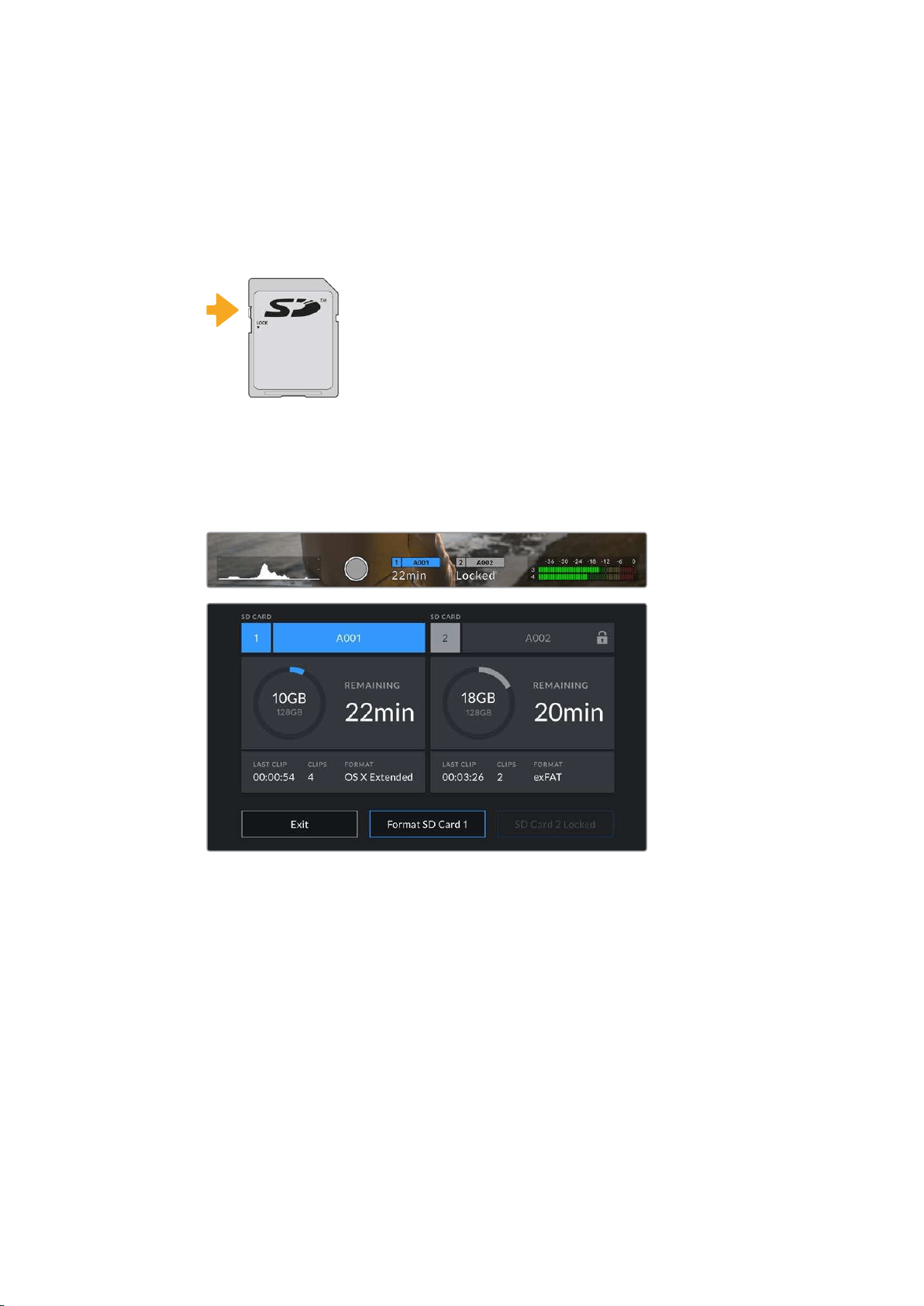
Locking and Unlocking SD Cards
SD cards can be write protected, or ‘locked’, to prevent data from being overwritten.
When inserting an SD card, make sure the card is not write protected. Write protection is
disabled by moving the plastic switch on the left side of the card to the position closest to
theconnectors. After recording, you can then write protect the card by sliding the switch
backdown to the bottom position.
Move the lock tab up or down
to lock or unlock an SD card
Your URSA Mini Pro will let you know if you’ve inserted a locked SD card by displaying a
‘locked’ icon on the LCD touchscreen and storage menu. If the card is locked, you won’t be able
to record video, capture stills, or export LUTs and presets until it is unlocked.
Your URSA Mini Pro will indicate when locked SD storage media is inserted
USB-C flash disks
Blackmagic URSA Mini Pro 4.6K G2 features a high speed USB-C expansion port, which allows
you to record video directly to USB-C flash disks. URSA Mini Pro 12K has two USB-C ports.
TheUSB C 3.1 Gen 1 port on the side near the CFast card slots is for software updates. The port
on the rear panel near the SDI connectors is for recording to high speed SSDs via USB-C 3.1
Gen 2. These fast, high capacity drives allow you to record video for long periods, which can be
important when filming events with long durations.
When a USB-C flash disk is connected to your camera, it occupies the second media slot in
your camera’s operating system. Tapping the card or drive name in the storage menu sets it as
the active drive. This means that recording, playback and storage management is exactly the
same for USB-C flash disks as it is for CFast, SD cards and SSDs.
24Storage Media

Once you have finished recording you can connect the same drive directly to your computer for
editing and post production, without having to copy media across.
To connect a USB-C flash disk:
1 Connect one end of a USB type-C cable to your USB-C flash disk.
2 On URSA Mini Pro 12K, plug the USB-C cable into the USB-C port on the back panel
below the SDI ports. On URSA Mini Pro 4.6K G2, open the fold out touchscreen on the
left side of the camera and connect the cable to the USB-C port above the CFast slots.
Which USB-C flash disks should I use with Blackmagic URSA Mini Pro 12K?
The following USB-C flash disks are recommended for recording 12K DCI Blackmagic RAW 8:1
at up to 30 frames per second.
Brand Card Name Storage
Angelbird SSD2GO PKT MK2 512GB
Angelbird SSD2GO PKT MK2 2TB
Glyph Atom Raid SSD 4TB
Sony Tough SL-CG5 500GB
Sony Tough SL-C2 2TB
Delkin Devices Juggler 2TB
Wise PTS-512 Portable SSD 512GB
Wise PTS-1024 Portable SSD 1TB
Wise PTS-2048 Portable SSD 2TB
Which USB-C flash disks should I use with Blackmagic URSA Mini Pro 4.6K G2?
The following USB-C flash disks are recommended for 4.6K Blackmagic RAW 3:1 up to
60 frames per second.
Brand USB-C Flash Disk Name Storage
Samsung Portable SSD T5 500GB
Samsung Portable SSD T5 1TB
Wise Portable SSD 256GB
Wise Portable SSD 512GB
Wise Portable SSD 1TB
For the most up to date list of recommended USB-C flash disks please go to
www.blackmagicdesign.com/support.
25Storage Media

Important Notes About USB-C flash disk Speed
Some models of USB-C flash disk can’t save video data at the speed the manufacturer
claims. Thisis due to the disk using hidden data compression to attain higher write
speeds. This data compression can only save data at the manufacturer’s claimed speed
when storing data such as blank data or simple files. Video data includes video noise
and pixels which are more random so compression will not help, therefore revealing the
true speed of the disk.
Some USB-C flash disks can have as much as 50% less write speed than the
manufacturer’s claimed speed. So even though the disk specifications claim a USB-C
flash diskhas speeds fast enough to handle video, in reality the disk isn’t fast enough
for real time video capture.
Use Blackmagic Disk Speed Test to accurately measure whether your USB-C flash disk
will be able to handle high data rate video capture and playback. Blackmagic Disk
Speed Test uses data to simulate the storage of video so you get results similar to what
you’ll see when capturing video to a disk. During Blackmagic testing, we have found
newer, larger models of USB-C flash disk and larger capacity USB-C flash disks are
generally faster.
Blackmagic Disk Speed Test is available from the Mac app store. Windows and Mac
versions are also included in Blackmagic Desktop Video, which you can download from
the ‘capture and playback’ section of the Blackmagic Design support center at
www.blackmagicdesign.com/support.
SSDs
With the optional URSA Mini SSD Recorder, you can record video directly to solid state drives,
or ‘SSDs’. These fast, high capacity drives can are readily available from a variety of consumer
electronics outlets.
NOTE See the section ‘Blackmagic URSA Mini SSD Recorder’ in this manual for
information on installing Blackmagic URSA Mini SSD Recorder.
Inserting an SSD
To insert an SSD:
1 Hold your SSD with the connection pins facing towards the front of your camera.
2 Open the spring loaded cover on URSA Mini SSD Recorder and gently insert the
SSDintothe slot.
TIP URSA Mini SSD Recorder has a pressure plate to keep different sized
SSDs in place, so there’s no need to use spacers to fit your drive.
3 Once your SSD is all the way into the slot gently push it home until you feel it register,
then lower URSA Mini SSD Recorder’s cover.
26Storage Media

To remove an SSD:
Open URSA Mini SSD Recorder’s cover and gently grasp the drive between your thumb and
forefinger. There’s a small recess in the top of the bay to let you get a grip on the drive. Simply
pull the drive out and close the cover.
NOTE Blackmagic URSA Mini SSD Recorder occupies the second storage slot in
URSAMini’s operating system. This means that, while URSA Mini SSDRecorder is
connected and a compatible SSD is inserted, your camera’s second CFast 2.0 and
SDcard slot will be unavailable.
To use these slots instead, disconnect the SSD Recorder SDI connection from
URSAMini. There is no need to remove the SSD Recorder itself from your camera.
Formore information, see the the section ‘Blackmagic URSA Mini SSD Recorder’ in
this manual.
Choosing a fast SSD for URSA Mini SSD Recorder
SSDs are designed to offer fast, affordable storage for a wide range of devices it’s important to
note that film making is only one part of the SSD market though, so choosing the right drive is
vital to ensuring that you have enough bandwidth to record 4.6K Blackmagic RAW or Ultra HD
footage. Many SSDs are designed for home computing and aren’t fast enough to record Ultra
HD video.
We highly recommend using only the SSDs from our recommended list, which have been tested
with Blackmagic URSA Mini to ensure support for continuous filming at the specified
resolutions. For the most up to date list of recommended SSDs please go to
www.blackmagicdesign.com/support
Blackmagic URSA Mini SSD Recorder SSDs
The following SSDs are recommended for 4.6K ProRes 444 XQ up to 30 frames per second.
Brand SSD Name Storage
Angelbird AV Pro 500GB
Angelbird AV Pro Mk 3 250GB
Angelbird AV Pro Mk 3 500GB
Angelbird AV Pro XT 500GB
Angelbird AV Pro XT 1TB
Angelbird AV Pro XT 2TB
Angelbird AV Pro XT 4TB
Kingston SSDnow KC400 128GB
Kingston DC400 480GB
Kingston DC400 960GB
Samsung 860 EVO 2TB
Samsung 860 EVO 4TB
Samsung 860 PRO 2TB
27Storage Media

Brand SSD Name Storage
Samsung 860 PRO 4TB
Sony G Series Professional SSD. SVGS48 480GB
Sony G Series Professional SSD. SVGS96 960GB
Transcend SSD370 512GB
The following SSDs are recommended for 2160p ProRes 422 HQ up to 60 frames per second.
Brand SSD Name Storage
Angelbird AV Pro 500GB
Angelbird AV Pro Mk 3 250GB
Angelbird AV Pro Mk 3 500GB
Angelbird AV Pro XT 500GB
Angelbird AV Pro XT 1TB
Angelbird AV Pro XT 2TB
Angelbird AV Pro XT 4TB
Innodisk 3MG2-P 2TB
Kingston SSDnow KC400 128GB
Kingston DC400 480GB
Kingston DC400 960GB
Samsung 860 EVO 2TB
Samsung 860 EVO 4TB
Samsung 860 PRO 2TB
Samsung 860 PRO* 4TB
SanDisk SDSSDP-064G 64GB
SanDisk Ultra 3D 1TB
Sony G Series Professional SSD. SVGS48 480GB
Sony G Series Professional SSD. SVGS96 960GB
Transcend SSD370 512GB
Western Digital WD Blue 3D NAND SATA SSD 1TB
Wise Cinema 240GB. CMS-0240 240GB
* Recording 1080p60 ProRes HQ for longer than 20 hours to Samsung 860 PRO SSDs is not recommended.
28Storage Media

Important Notes About SSD Speed
Some models of SSD can’t save video data at the speed the manufacturer claims.
Thisis due to the disk using hidden data compression to attain higher write speeds.
This data compression can only save data at the manufacturer’s claimed speed when
storing data such as blank data or simple files. Video data includes video noise and
pixels which are more random so compression will not help, therefore revealing the true
speed of the disk.
Some SSDs can have up to 50% lower write speed than the manufacturer’s claimed
speed. Soeven though the disk specifications claim an SSD has speeds fast enough to
handle video, in reality the disk isn’t fast enough when used to store video data for real
time capture.
Use Blackmagic Disk Speed Test to accurately measure whether your SSD will be able
to handle high data rate video capture and playback. Blackmagic Disk Speed Test uses
data to simulate the storage of video so you get results similar to what you’ll see when
capturing video to a disk. During Blackmagic testing, we have found newer, larger
models of SSD and larger capacity SSDs are generally faster.
Preparing Media for Recording
You can format your CFast cards, SD cards or SSDs using the storage manager, or via a Mac or
Windows computer. We recommend formatting storage media using URSA Mini for
best performance.
HFS+ is also known as OS X Extended and is the recommended format as it supports
‘journaling’. Data on journaled media is more likely to be recovered in the rare event that your
storage media becomes corrupted. HFS+ is natively supported by Mac. exFAT is supported
natively by Mac and Windows without needing to purchase any additional software. However,
exFAT does not support journaling.
NOTE Before formatting your media, it’s important to make sure the media storage
switch has been set correctly to either SD card or CFast card. Always check the
settings carefully before formatting.
Preparing Media on BlackmagicURSA Mini
1
Tap either storage indicator at the bottom of the LCD touchscreen to enter the
storage manager.
2 Tap a format button at the bottom of the touchscreen to format the card in slot 1 or 2,
respectively. If you plug a flash disk into the USB-C port of an URSA Mini Pro G2, the
button to format the second drive is ‘Format drive’.
29Storage Media
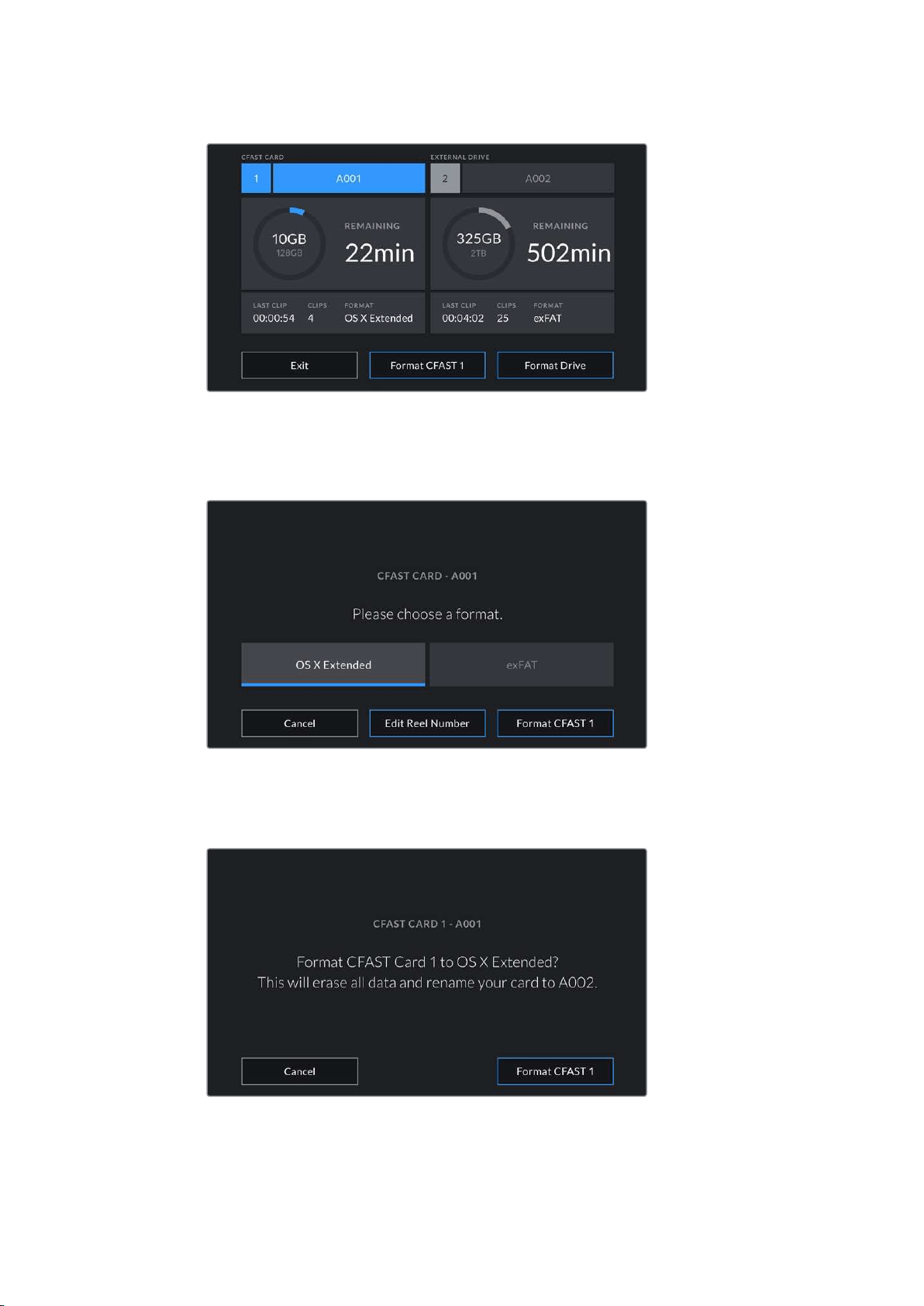
Use your URSA Mini’s storage manager to format your camera’s storage media
3 Tap ‘edit reel number’ if you would like to manually change the reel number.
4 Choose OS X Extended or exFAT format and tap the format button.
Tap ‘edit reel number’ to manually edit the reel number
5 You will be asked to confirm your selection. Tap the format button again to continue or
‘cancel’ to cancel the format.
Check that you have selected the correct card before formatting
30
Storage Media
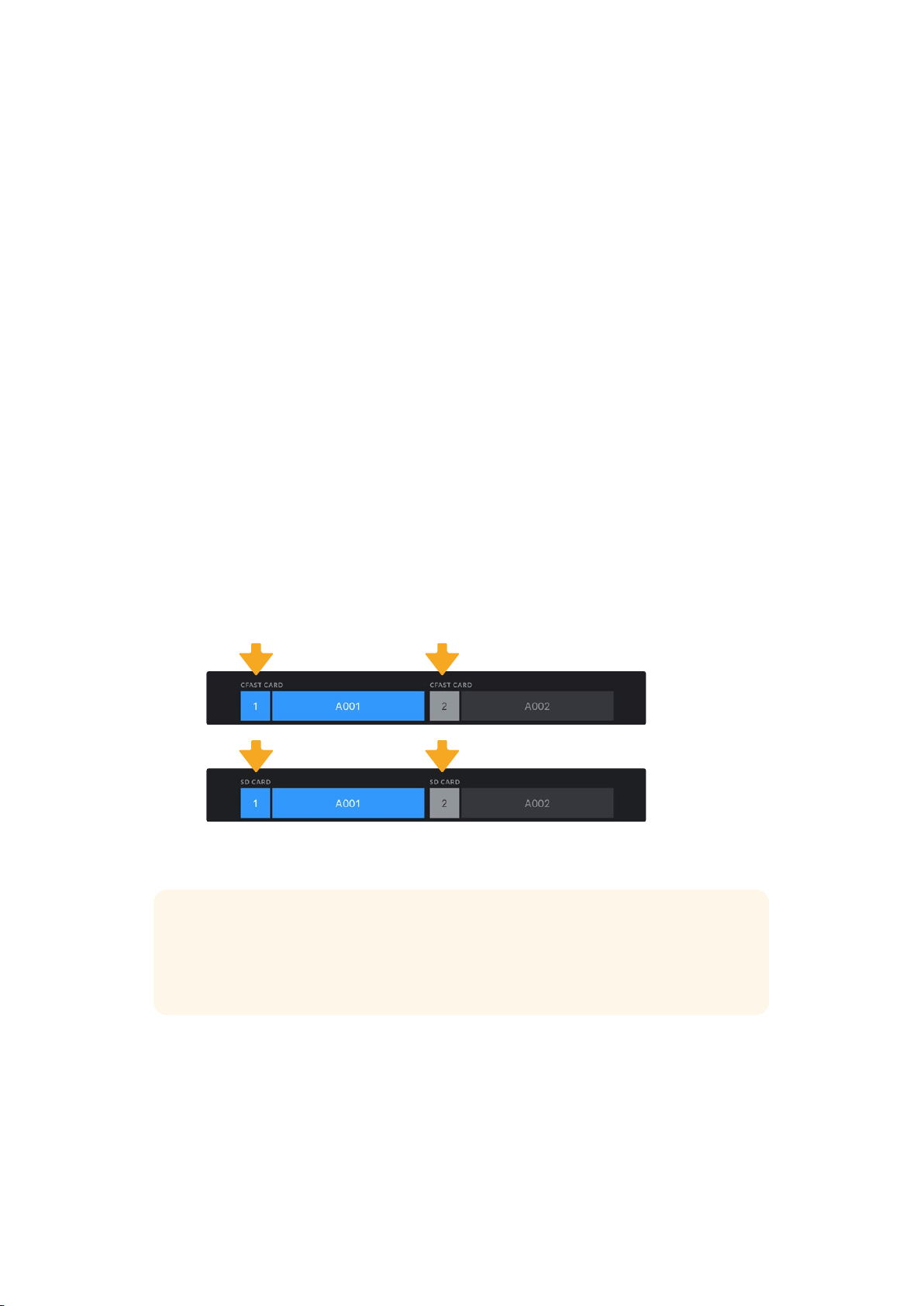
6 You will be notified when the format is complete.
7 Tap ‘ok’ to return to the storage manager.
8 Tap ‘exit’ to leave the storage manager.
When formatting CFast cards, SD cards or SSDs using the storage manager, your URSA Mini will
use the Camera ID from the slate and reel number to name the card. Your URSA Mini
automatically increments reel numbers each time you format. Ifyou need to manually enter a
specific reel number, tap the ‘edit reel number’ and enter the number you want to format
the card as.
When you start a new project, reel numbering will reset to 1 when you tap on ‘reset project data’
in the ‘project’ tab of the slate.
When URSA Mini SSD Recorder is connected and an SSD is loaded, the recorder takes over
from URSA Mini’s number ‘2’ storage slot and you’ll see an ‘SSD’indicator over slot 2 on your
camera’s storage manager.
Preparing Media on BlackmagicURSA Mini Pro
The process for preparing storage media on your URSA Mini Pro is exactly the same as the
URSA Mini process outlined above. The only difference is the added option to format SD cards
in addition to CFast cards, SSDs, and USB-C flash disks on URSA Mini Pro 4.6K G2. It’s worth
mentioning that if your camera’s media storage switch is set to SD or CFast, only the selected
card type will be formatted when you tap ‘format card’. When using URSA Mini SSD Recorder
with URSA Mini Pro or a USB-C flash disk with URSA Mini Pro 4.6K G2, the SSD will appear in
slot 2 regardless of the position of the media storage switch.
The storage manager on your camera will indicate whether you are
currently managing CFast, SD, SSD or USB-C flash disk media
TIP If your URSA Mini Pro is set to record to SD cards and you have inserted alocked
card, you will be unable to format that card. A padlock icon will appear next to the
card’s name in the storage manager. Simply unlock thecard to format and record.
Formore information on locking SD cards, see the ‘SDcards’ section of this manual.
When formatting storage media on your URSA Mini Pro 4.6K you will be prompted to hold the
‘format’ button for 3 seconds. The camera will notify you once formatting is complete.
31Storage Media
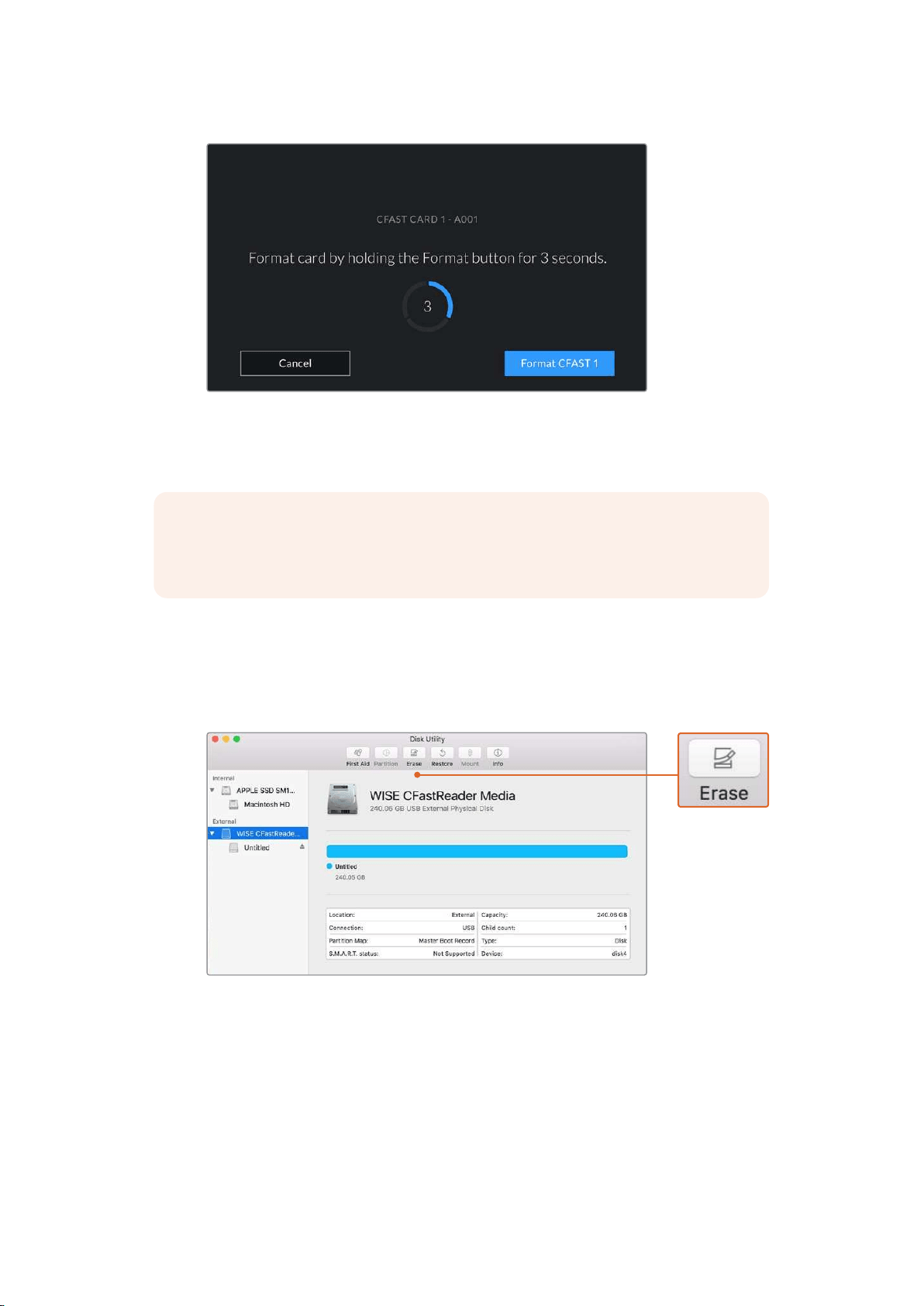
Hold the format button for 3 seconds to begin formatting your media
For information on switching between CFast and SD storage see the ‘SD Cards’ section earlier
in this manual.
NOTE If you have the optional URSA Mini SSD Recorder connected, ‘SSD recorder’
will appear over storage slot 2. When a USB-C flash disk is connected, ‘External Drive’
will appear.
Preparing Media on Mac
Use the Disk Utility application included with Mac to format your CFast card, SD card, or SSD in
the HFS+ or exFAT formats. Remember to back up anything important from your mediafirst as
all data will be lost when it is formatted.
Use Disk Utility on Mac to erase your camera’s storage
media in the Mac OS extended ( journaled) or exFAT format
1 Connect the storage media to your computer using a SD card reader, dock or adapter,
and dismiss any message offering to use your media for Time Machine backups.
2 Go to applications/utilities and launch Disk Utility.
3 Click on the disk icon for your camera’s storage media and then click the ‘erase’ tab.
32Storage Media
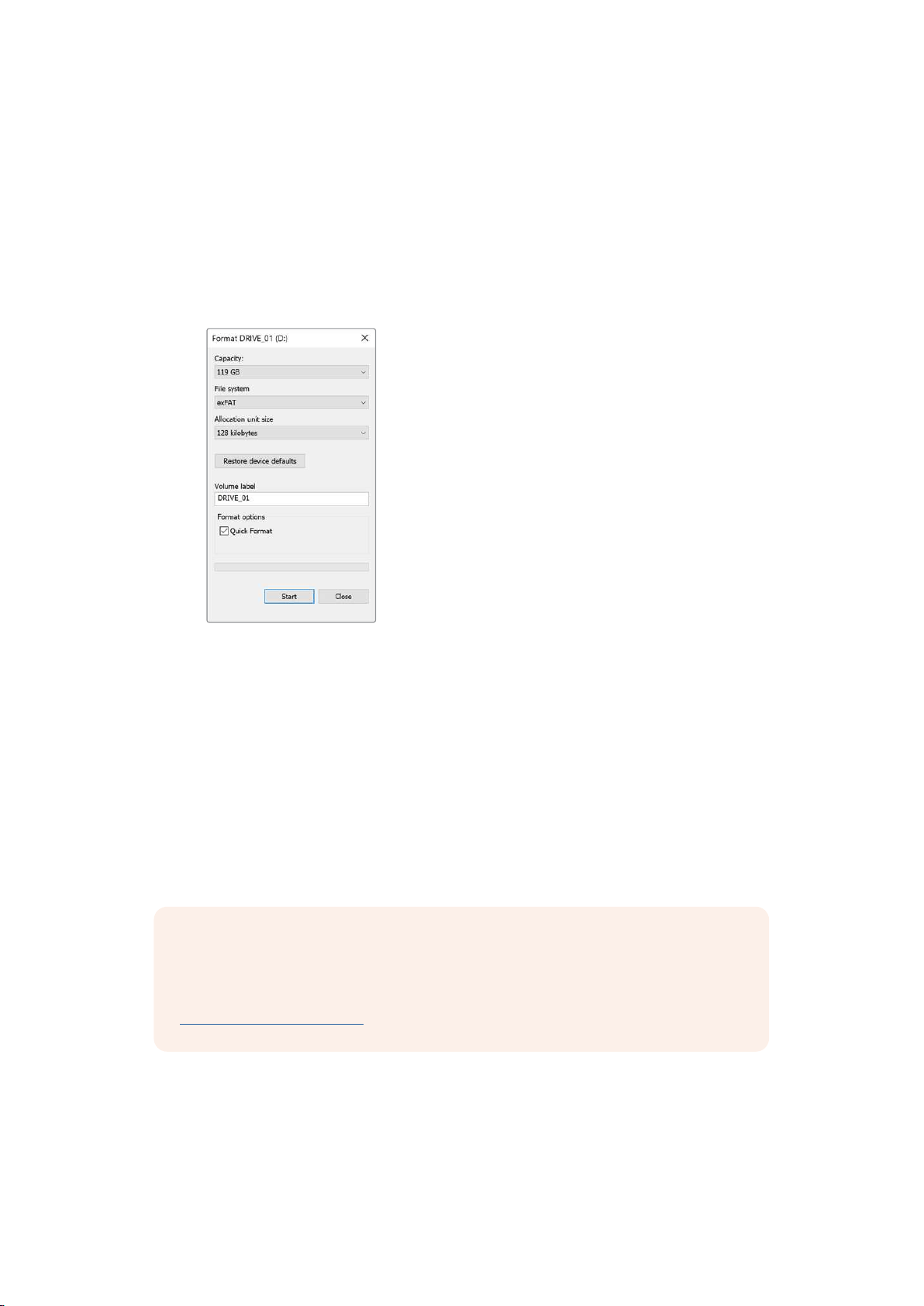
4 Set the ‘format’ to ‘Mac OS extended ( journaled)’ or ‘exFAT’.
5 Type a ‘name’ for the new volume and then click ‘erase’. Your camera’s storage media
will quickly be formatted and made ready for use.
Preparing Media on Windows
The ‘format’ dialog box can format your camera’s storage media in the exFAT format on a
Windows PC. Remember to back up anything important from your media first as all data will be
lost when it is formatted.
Use the ‘format’ dialog box feature in Windows to format
yourcamera’s storage media in the exFAT format
1 Connect your camera’s storage media to your computer using an external
reader/writer or SSD dock or adapter.
2 Open the ‘start’ menu or ‘start’ screen and choose ‘computer’. Right click on
your camera’s storage media.
3 From the contextual menu, choose ‘format’.
4 Set the file system to ‘exFAT’ and the allocation unit size to 128 kilobytes.
5 Type a volume label, select ‘quick format’ and click ‘start’.
6 Your storage media will quickly be formatted and made ready for use.
NOTE If your recordings are dropping frames, check that your card or drive is on our
list of recommended media for the codec and frame size you are using. For lower
data rates try lowering your frame rate, resolution, or try a compressed codec such as
ProRes. Check the Blackmagic Design website for the latest information at
www.blackmagicdesign.com
33Storage Media
Recording
Recording Clips
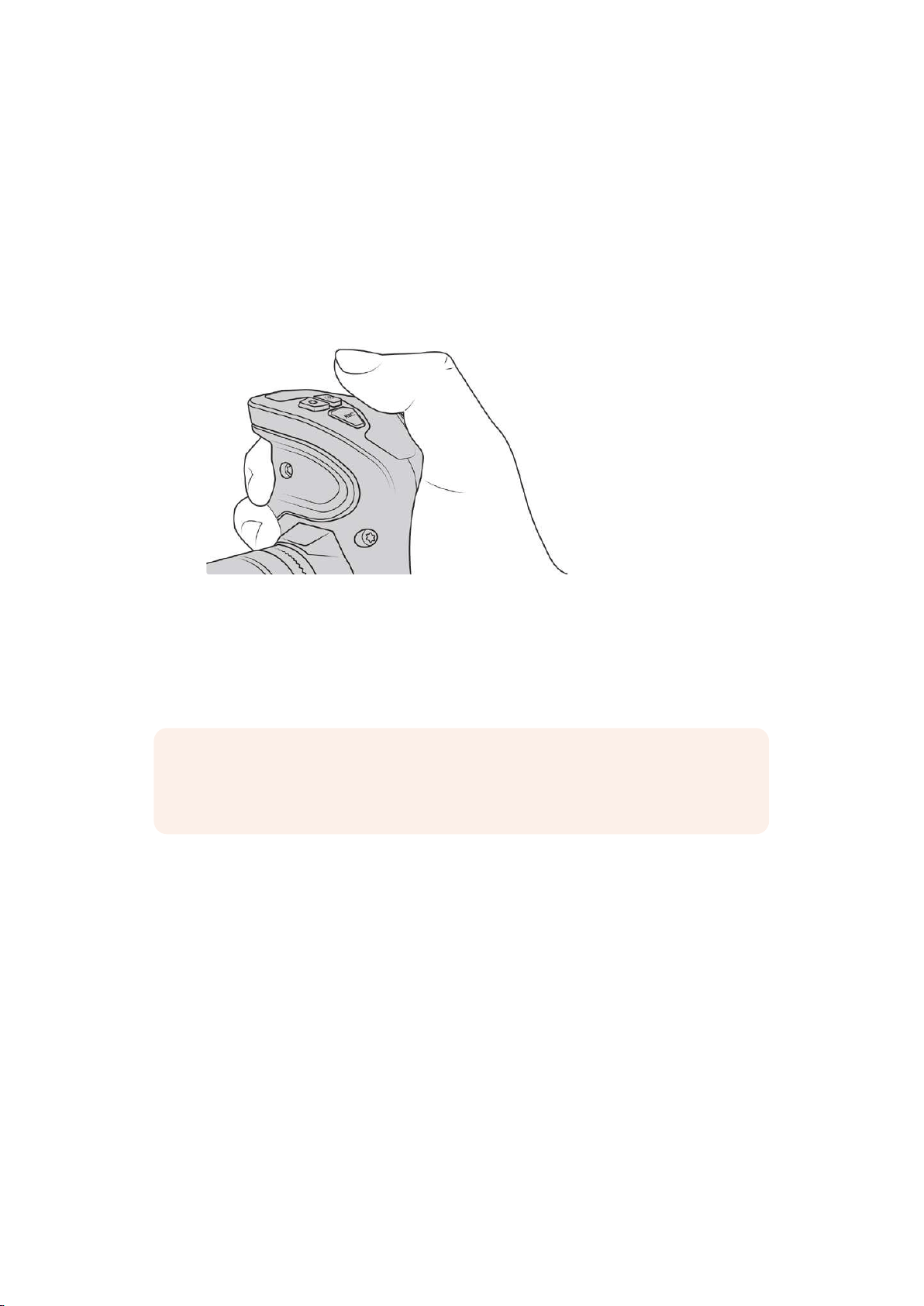
On Blackmagic URSA Mini you can start recording by pressing the red ‘record’ button on the
inside control panel, the outside of the fold out monitor, the touchscreen or the optional
Blackmagic URSA Handgrip. On Blackmagic URSA Mini Pro, the external ‘record’ button is
located in the forward control panel for convenient access when shooting from the shoulder.
Press the ‘record’ button again to stop recording.
You can also record clips by pressing the ‘record’ buttonmarked
REC on the optional Blackmagic URSA Handgrip
Another option for starting and stopping record is to attach an external LANC controller to your
URSA Mini’s LANC input and trigger the record externally. For example, you may want to attach
a LANC controller to your tripod so you can trigger the recording without taking your hands off
the focus ring and tripod handle.
NOTE If you toggle the ‘storage media selection’ switch mid–recording, the camera
will complete the current recording before switching to the other type of media. This
ensures that you can not damage your recording if the switch is adjusted during a take.
Choosing the Codec, Resolution and Sensor Area
Your Blackmagic URSA Mini Pro can record using Blackmagic RAW, using either a constant
quality or constant bitrate setting. URSA Mini Pro and URSA Mini can also record Apple ProRes
compressed codecs. Sensor frame rate options will vary depending on your camera, the codec
and resolution you choose.
It’s worth noting that clips recorded using Blackmagic RAW are compatible with DaVinci
Resolve, Blackmagic RAW Player and other applications that support Blackmagic RAW SDK.
Blackmagic RAW has already been adopted by many post production platforms. It may not be
supported natively in all editing software but most work with the plugins provided in our
Camera Update and Blackmagic RAW installer. For more information, see the ‘Working with
Third Party Software’ section.
34Recording
Dynamic Range
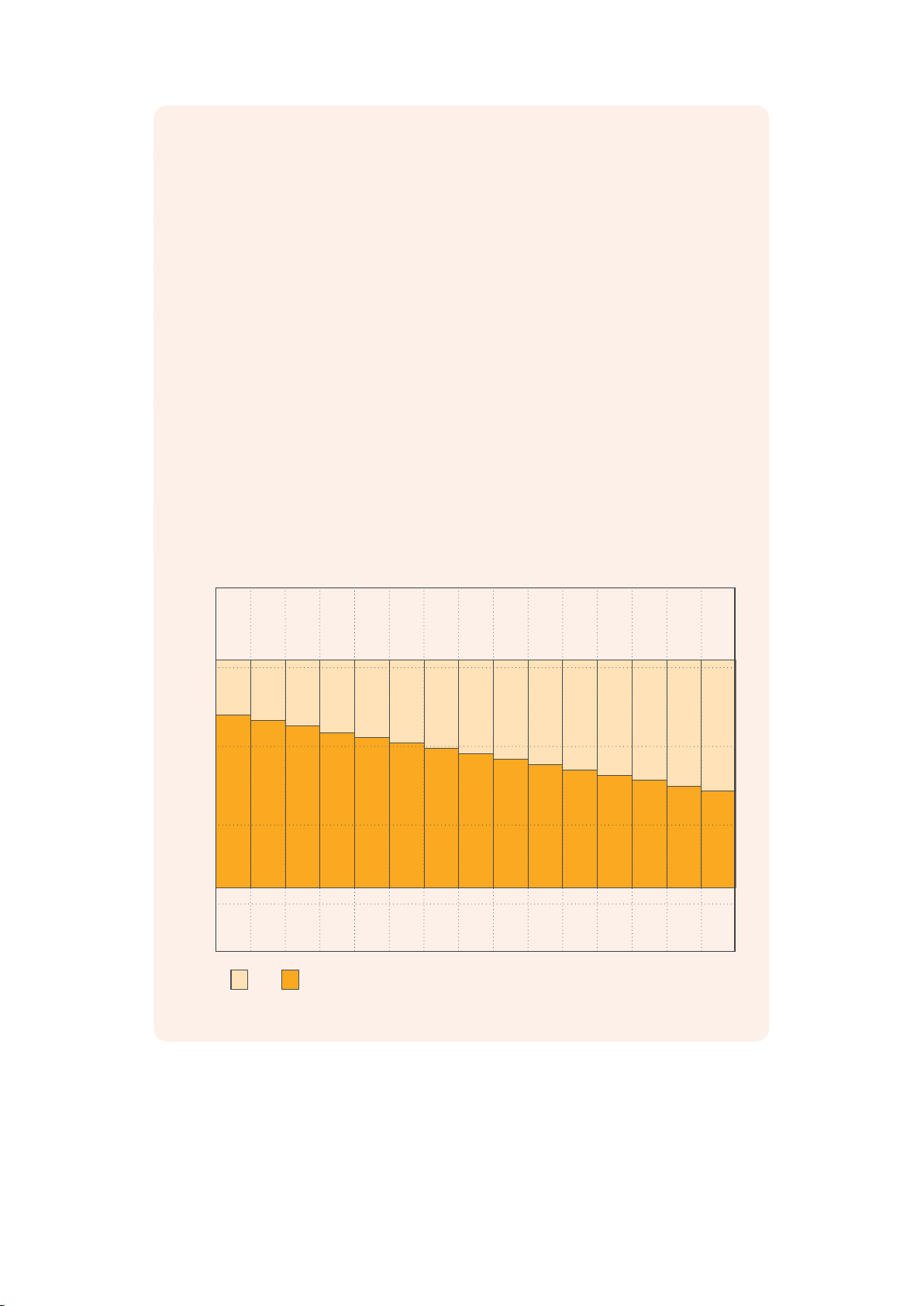
Blackmagic URSA Mini Pro 12K produces incredible, wide dynamic range images
with 14 stops of latitude. URSA Mini Pro G2, URSA Mini Pro and URSA Mini 4.6K have
15 stops of dynamic range.
This maximizes the information in your video signal to help you get the most out of
color grading software, such as DaVinci Resolve.
The wide dynamic range captured is also perfect for high dynamic range or HDR
content delivery.
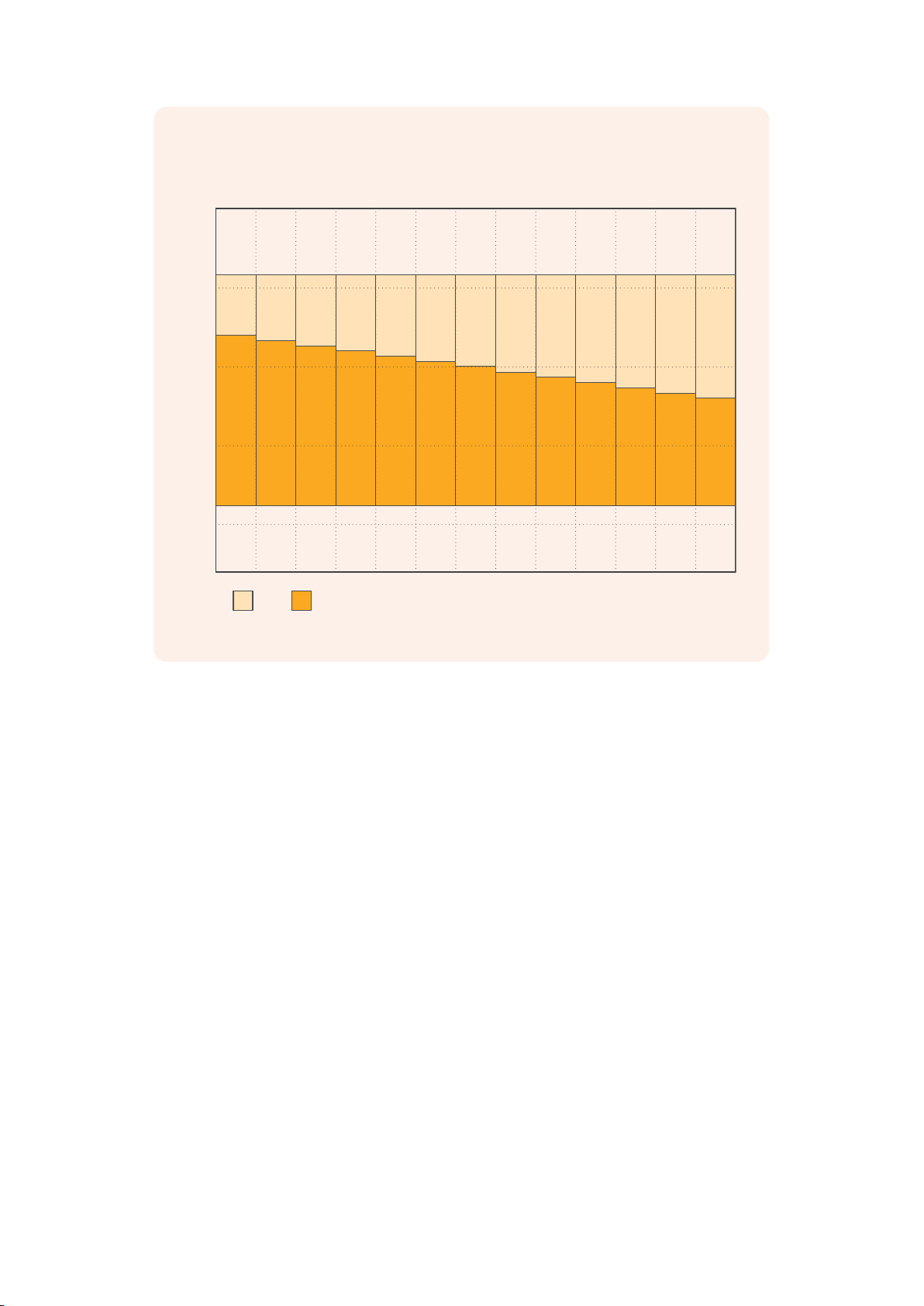
As the charts below indicate, the 14 stops of dynamic range are available across
the entire ISO range from ISO 125 to 3200 for URSA Mini Pro 12K, and 15 stops of
dynamic range from ISO 200 to 3200 for URSA Mini 4.6K, URSA Mini Pro and
URSA Mini Pro G2.
The distribution of these stops above and below middle gray will vary depending on
the ISO selected. For example, on URSA Mini Pro G2 at ISO 200 there will be
10.8stops allocated to the shadow areas of the image, with the remaining 3.9 stops
allocated to the highlights in the image.
Blackmagic URSA Mini Pro 12K Dynamic Range
stops
Stops Above Stops Below
-10
-5
5
10
0
ISO
Total Stops
3.4
10.5
125
13.9
3.7
10.2
160
13.9
4 .1
9.8
200
13.9
4.4
9.5
250
13.9
4.7
9.2
320
13.9
5 .1
8.8
400
13.9
5.4
8.5
500
13.9
5.7
8.2
640
13.9
6 .1
7.8
800
13.9
6.4
7.5
1000
13.9
6.7
7.2
1250
13.9
7.1
6.8
1600
13.9
7.4
6.5
2000
13.9
7.7
6.2
2500
13.9
8 .1
5.8
3200
13.9
35Recording
Blackmagic URSA Mini 4.6K, URSA Mini Pro and URSA Mini Pro G2 Dynamic Range
3.9
10.8
4.2
10.5
4.6
1 0.1
4.9
9.8
5.2
9.5
5.6
9.1
5.9
8.8
6.2
8.5
6.6
8 .1
6.9
7.8
7.2
7.5
7.6
7.1
7.9
6.8
stops
Stops Above Stops Below
-10
-5
5
10
0
200ISO
Total Stops
250 320 400 500 640 800 1000 1250 1600 2000 2500 3200
14.7 14.7 14.7 14.7 14.7 14.7 14.7 14.7 14.7 14.7 14.7 14.7 14.7
Blackmagic RAW
Blackmagic URSA Mini Pro supports the new Blackmagic RAW file format. This format offers
superior image quality, wide dynamic range and a broad selection of compression ratios.
Blackmagic RAW keeps all the benefits of RAW recording, but the files are very fast because
part of the demosaic performed in the camera where it can be hardware accelerated.
The Blackmagic RAW format is also intelligent because it understands the image sensor in the
camera. This means you get much better quality for a smaller file format. Smaller files that are
higher quality means Blackmagic RAW is a good alternative to other video and RAW
file formats.
Blackmagic RAW also includes powerful metadata support so the software reading the files
knows your camera settings. If you like shooting in video gamma because you need to turn
around edits quickly and you don’t have time for color correction, then this metadata feature
means you can select video gamma, shoot in video gamma, and the file will display with video
gamma applied when you open it in software. However underneath, the file is actually film
gamma and the metadata in the file is what’s telling the software to apply the video gamma.
So what all this means is if you want to color grade your images at some point, then you have
allthat film dynamic range preserved in the file. You don’t have your images hard clipped in the
whites or the blacks, so you retain detail and you can color grade to make all your images look
cinematic. However, if you don’t have time for color grading, that’s fine because your images
will have the video gamma applied and look like normal video camera images. You are not
locked in on the shoot and you can change your mind later during post production.
36Recording

Blackmagic RAW files are extremely fast and the codec is optimized for your computer’s CPU
and GPU. This means it has fast smooth playback and eliminates the need for hardware
decoder boards, which is important for laptop use. Software that reads Blackmagic RAW also
gets the advantage of processing via Apple Metal, Nvidia CUDA and OpenCL.
This means that Blackmagic RAW plays back at normal speed like a video file on most
computers, without needing to cache it first or lower the resolution.
It’s also worth mentioning that lens information is recorded in the metadata on a frame by frame
basis. For example, when using compatible lenses, any zoom or focus changes performed over
the length of a clip will be saved, frame by frame, to the metadata in the Blackmagic RAW file.
Recording to Blackmagic RAW
Blackmagic RAW works in two different ways. You have a choice to use either the constant
bitrate codec, or the constant quality codec.
The constant bitrate codec works in a similar way to most codecs. It tries to keep the data rate
at a consistent level and won’t let the data rate go too high. This means even if you are shooting
a complex image that might need a bit more data to store the image, a constant bitrate codec
will just compress the image harder to make sure the images fit within the space allocated.
This can be fine for video codecs, however when shooting RAW you really want to ensure the
quality is predictable. What would happen if the images you were shooting needed more data,
but the codec just compresses harder to make a specified data rate? It’s possible you could
lose quality, but not be sure it’s happening until you return from a shoot.
To solve this problem, Blackmagic RAW also has an alternative codec choice called constant
quality. This codec is technically called a variable bitrate codec, but what it’s really doing is
allowing the size of the file to grow if your images need extra data. There is no upper limit on
the file size if you need to encode an image but maintain quality.
So Blackmagic RAW set to the constant quality setting will just let the file grow as big as it
needs to be to encode your images. It also means the files could be larger or smaller
depending on what you are shooting. I guess if you leave your lens cap on the lens, you won’t
waste space on your media!
It is also worth noting that the quality settings for Blackmagic RAW are not obscure names,
butare more meaningful as they are derived from what’s happening technically. So for example
when you have selected the constant bitrate codec, you will see quality settings of 3:1, 5:1, 8:1,
12:1 or 18:1 depending on the type of your URSA Mini Pro camera. These are the ratios of the
uncompressed RAW file size vs the file sizes you should expect when shooting in Blackmagic
RAW. 3:1 is better quality as the file is larger, while 18:1 is the smallest file size with the lowest
quality. Many users of Blackmagic RAW find that 12:1 or 18:1 has been perfectly ok and they have
not seen any quality limitations. However it’s best to experiment and try various settings
for yourself.
When using Blackmagic RAW in constant quality you will see the settings are Q0, Q1, Q3 or Q5
depending on the type of your URSA Mini Pro camera. Theseare the compression parameters
passed to the codec and they are setting how much compression is applied in a more technical
way. This setting is different because the codec operates differently between constant bitrate
vs constant quality. In this constant quality setting, you really cannot tell what the file size ratio
will become as it varies a lot based on what you areshooting. So in this case the setting is
different and the file will become the size needed tostore your media.
37Recording

Constant Bitrate Settings
The names for 3:1, 5:1, 8:1, 12:1 and 18:1 represent the compression ratio. For example,
12:1 compression produces a file size roughly 12 times smaller than uncompressed RAW.
Blackmagic RAW constant bitrate is available on URSA Mini Pro 12K at 5:1, 8:1, 12:1 and 18:1.
URSA Mini Pro 4.6K G2 and URSA Mini Pro 4.6K support Blackmagic RAW constant bitrate at
3:1, 5:1, 8:1 and 12:1.
Constant Quality Settings
Q0, Q1, Q3 and Q5 refer to different levels of quantization. Q5 has a greater level of
quantization but offers a greatly improved data rate. As mentioned above, the constant quality
setting can result in files that grow and shrink quite a lot, depending on what you are shooting.
This also means it’s possible to shoot something and see the file size increase to beyond what
your media card can keep up with. It could result in dropped frames. However the benefit is that
you can instantly see if this happens on a shoot and then investigate your settings vs quality.
Blackmagic RAW constant quality is available on URSA Mini Pro 12K at Q0, Q1, Q3 and Q5.
URSA Mini Pro 4.6K G2 and URSA Mini Pro 4.6K support Blackmagic RAW constant quality at
Q0 and Q5.
Blackmagic RAW Player
The Blackmagic RAW player included in your Blackmagic camera’s software installer is a
streamlined application for reviewing clips. Simply double click on a Blackmagic RAW file to
open it, and you can quickly play and scroll through the file with its full resolution and bit depth.
When decoding frames, the CPU acceleration in the SDK library supports all main architectures,
and also supports GPU acceleration via Apple Metal, Nvidia CUDA and OpenCL. It also works
with the Blackmagic eGPU for extra performance. Blackmagic RAW player is available for Mac,
Windows and Linux.
Sidecar Files
Blackmagic RAW sidecar files let you override metadata in a file without overwriting embedded
metadata in the original file. This metadata includes the RAW settings as well as information on
iris, focus, focal length, while balance, tint, color space, project name, take number and more.
Metadata is encoded frame by frame over the duration of the clip, which is important for lens
data if the lens is adjusted during a shot. You can add or edit metadata in sidecar files with
DaVinci Resolve or even a text editor because it’s a human readable format.
Sidecar files can be used to automatically add new RAW settings to a playback simply by
moving the sidecar file into the same folder as the corresponding RAW file. If you move the
sidecar file out of the folder and reopen the Blackmagic RAW file, the RAW settings are not
applied and you see the file as it was originally shot. Any software that uses the
BlackmagicRAW SDK can access these settings. Changes made are saved in the sidecar file
and can then be seen by Blackmagic RAW Player or any other software capable of reading
Blackmagic RAW files.
When shooting video gamma, the file stays in film gamma, and the metadata tells the
Blackmagic RAW processing to display using video gamma. Video gamma is great when you
don’t want to grade the image and want to deliver content quickly, however if you want to pull
up the black parts of the image, or pull down the white areas, all the detail is retained.
Younever clip the video and all the detail is still there if you want to access it at any time.
38Recording
Blackmagic RAW in DaVinci Resolve
Settings can be adjusted for each Blackmagic RAW file, and then saved as a new sidecar file
from the RAW tab in DaVinci Resolve for creative effect or optimized viewing. This also means
you can copy your media for another DaVinci Resolve artist and they will have access to your
modified gamma settings automatically on import. In addition to the other metadata your
camera files contain, DaVinci Resolve can read your selected dynamic range, so your clips will
automatically display in DaVinci Resolve with ‘film’, ‘extended video’ or ‘video’ dynamic range.
You can then customize these settings by adjusting the saturation, contrast and midpoint,
aswell as the highlight and shadow rolloff. Any adjustments can then be saved as a sidecar file,
sothe changes can be seen by anyone else working with the files in post. You can always
return to the original camera metadata at any time.
You can also export a single Blackmagic RAW frame from the RAW tab in DaVinci Resolve,
which contains all adjustments, metadata, full resolution and color information so it is easy to
share a single frame grab or reference file with others.
For more information on how to use Blackmagic RAW in DaVinci Resolve, see the ‘Using
DaVinci Resolve’ chapter in this manual.
Blackmagic RAW SoftwareDevelopment Kit
The Blackmagic RAW Software Development Kit is an API developed by Blackmagic Design.
You can use the Blackmagic RAW SDK to write your own applications to use the Blackmagic
RAW format. This SDK library can be used by any developer to add support for reading, editing,
and saving Blackmagic RAW files. The Blackmagic RAW SDK includes all the generation 4 and
generation 5 color science so you can achieve organic cinematic images across any app that
supports it. The Blackmagic RAW SDK supports Mac, Windows and Linux, and is available as a
free download from the developer page of the Blackmagic website at
www.blackmagicdesign.com/developer
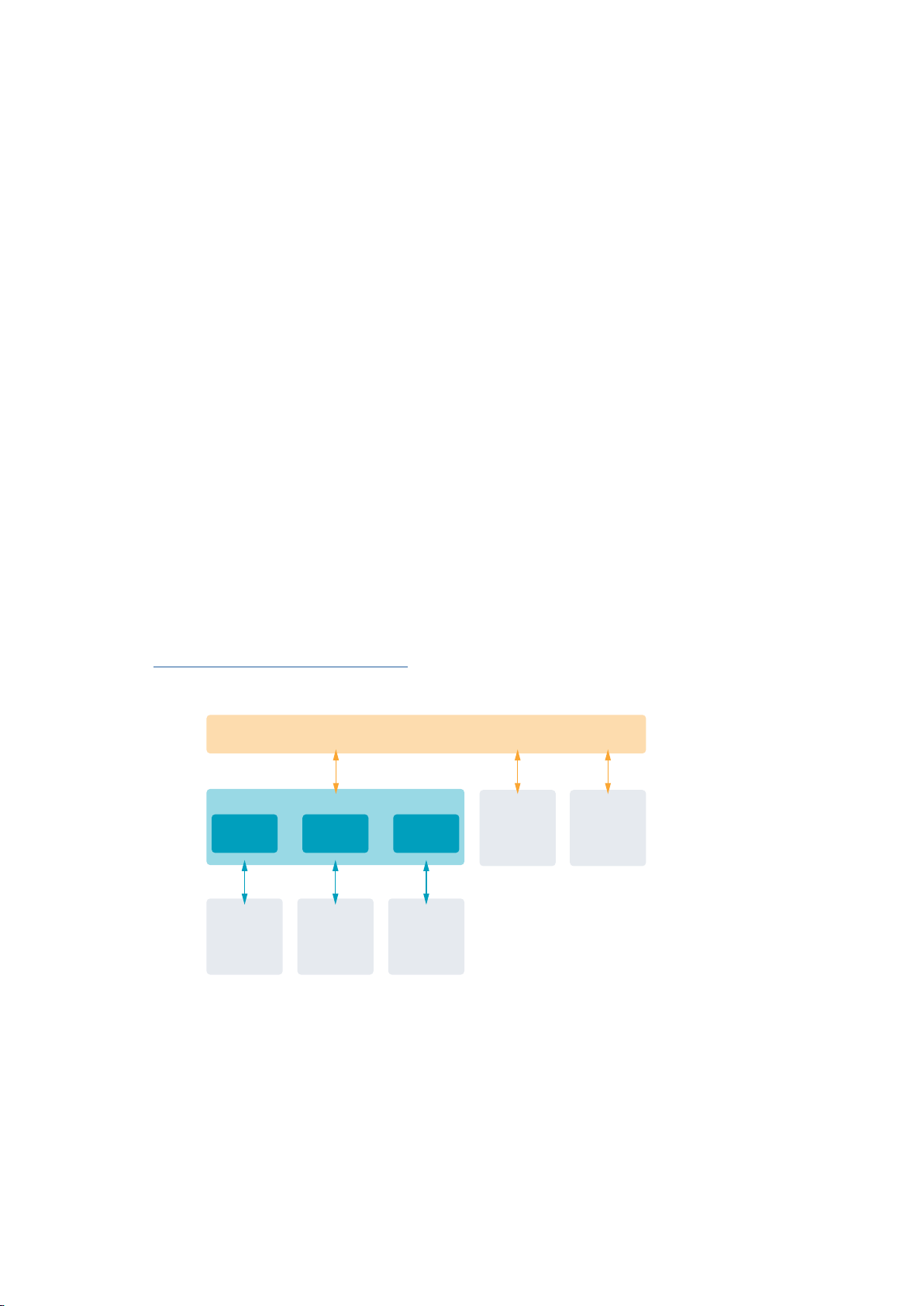
The following diagram illustrates the components of the Blackmagic RAW API:
Blackmagic RAW API
METAL
SSE
CUDA
AVX
Decoder
OPENCL
AVX2
.Braw
Reader
.Sidecar
Reader
Choosing Frame Rates
Your camera is able to shoot video using many different frame rates and you may be wondering
which is the best one to use. Your camera’s sensor frame rate can also have a big impact on the
‘look’ of footage. Generally, when selecting a sensor frame rate, there are some common items
to consider. For many years, there have been presentation standards for film and television.
These have set frame rates that differ between countries, but all share the same purpose;
todisplay an efficient number of frames every second that portrays pleasing and
convincing motion.
39Recording

Cinema, for example, uses a standard 24 frames per second and while there have been recent
experiments with faster frame rates, 24 frames per second remains widely accepted for
international audiences. Television frame rates have generally conformed to technical
broadcast standards for each country. For example, if you were making television content you
would typically record using 29.97 frames per second for North American distribution, and
25frames per second for Europe.
However, as technology has improved, today we have more choices and broadcast standards
are changing. It is now common for sporting events to be recorded and broadcasted at higher
frame rates. For example, some sporting events are recorded and broadcasted at up to 59.94
frames per second in North America, and 50 frames per second in Europe. This provides
smoother motion on fast action and appears more lifelike. Alternatively, streaming and online
broadcasters normally use frame rates similar to television, however there is more freedom to
experiment due to user selectable viewing formats, and being limited only to what the
audience’s screens are capable of displaying.
Generally, when choosing a frame rate for a project, let your delivery format guide your choice.
Your camera’s project frame rate should be set to this, and your sensor frame should be set to
‘match’. This means your clips will play back at the same speed the event happened in real life.
If you are looking to create an interesting effect, for example slow motion, then you can set the
sensor frame rate to a higher setting. The higher the sensor frame rate compared to the project
frame rate, the slower the playback speed. For example, URSA Mini Pro G2 allows you to shoot
at very high sensor frame rates for extreme slow motion.
For more information on using off speed sensor frame rates to achieve creative effects, refer to
the ‘touchscreen controls’ section.
Shooting at High Frame Rates
When shooting at high frame rates, your camera captures an increased number of frames per
second when compared with the traditional sync speed frame rates of 24, 25 and 30 frames per
second. This means that the image sensor has less time to collect light for each frame it
captures and the resulting image from your camera will be darker.
So for example, if you switch from 25 to 50 frames per second, the amount of light reaching the
sensor will be halved. To maintain your exposure you need to compensate for this change by
opening up your lens an extra stop, by opening up your shutter angle from 180º to 360º or by
adding some extra lighting to the scene that you are shooting.
When shooting at 120 frames per second you have 5 times less light so you may need to adjust
multiple things such as lens aperture, shutter angle and lighting to achieve the same level
of exposure.
Another thing to be mindful of when shooting at higher frame rates, is the fact that electronic
light sources can add flicker to your recorded image. Specifically, when shooting at frame rates
above 100 frames per second in a 50Hz environment or 120 frames per second in a 60Hz
environment, artificial tungsten, fluorescent and LED light sources may introduce some flicker to
your images. You may not see these flicker issues when previewing the scene on your LCD and
SDI feed or while recording, so it’s important to perform a test shoot with the lights you plan to
use and to play the clip back to check for flicker.
40Recording

Your shutter setting can also affect the visibility of flicker when shooting under lights, so your
URSA Mini can automatically calculate and display flicker free shutter options for your current
frame rate. Note that the characteristics of individual light sources may still cause flicker even
when using flicker free values. For more information, refer to the ‘touchscreen controls’ section.
If you have opened up your shutter to the slowest shutter speed or widest shutter angle
possible and are still seeing flicker in recorded footage, you may need to consider using
different light sources for your scene or look into using a faster lens.
Maximum Frame Rates
The tables below contain available codecs, resolutions and their maximum sensor frame rates
for URSA Mini 4.6K and URSA Mini Pro models. It should be noted that the references to
Blackmagic RAW, ProRes 444 and ProRes 422 are references to all of the supported variants
within each particular codec.
Because of the data rates required for recording high resolutions in slow motion you will need
to choose a fast CFast card, USB-C flash disk or SSD. Refer to the ‘storage media’ section for
recommended media for continuous high speed recording.
TIP You can test the speed your card can sustain by switching on the ‘stop rec if card
drops frames’ feature and recording a test clip. This will allow you to test how long you
can shoot at a particular frame rate in any given resolution. If the card stops recording
too quickly then moving down to the next available compression setting or resolution
will lower the data rate and make it easier for the card to maintain.
Maximum Frame Rates for URSA Mini Pro 12K
Format Resolution Codec
Sensor
scan
Max
Frame Rate
12K
17:9 12288 x 6480 Blackmagic RAW Full 60
16:9 11520 x 6480 Blackmagic RAW Full height 60
2.4:1 12288 x 5112 Blackmagic RAW Full width 60
6:5 Anamorphic 7680 x 6408 Blackmagic RAW Full height 60
8K
17:9 8192 x 4320 Blackmagic RAW Full 110
16:9 7680 x 4320 Blackmagic RAW Full height 110
2.4:1 8192 x 3408 Blackmagic RAW Full width 140
6:5 Anamorphic 5120 x 4272 Blackmagic RAW Full height 110
6K Super 16 6144 x 3240 Blackmagic RAW Window 120
4K
DCI 4096 x 2160 Blackmagic RAW Full 110
16:9 3840 x 2160 Blackmagic RAW Full height 110
2.4:1 4096 x 1704 Blackmagic RAW Full width 140
6:5 Anamorphic 2560 x 2136 Blackmagic RAW Full height 110
Super 16 4096 x 2160 Blackmagic RAW Window 220
41Recording

Maximum Frame Rates for URSA Mini Pro 4.6K G2, URSA Mini Pro 4.6K and URSA Mini 4.6K
Format Resolution Codec
URSA Mini Pro
4.6K G2
URSA Mini Pro
4.6K
URSA Mini
4.6K
Sensor
scan
Max
Frame
Rate
Sensor
scan
Max
Frame
Rate
Sensor
scan
Max
Frame
Rate
4.6K 4608 x 2592
Blackmagic RAW Full 120 Full 60 – –
ProRes 444 Full 40 Full 30 Full 30
ProRes 422 Full 80 Full 40 Full 40
4.6K 2.4:1 4608 x 1920
Blackmagic RAW Window 150 Window 60 – –
ProRes 444 Window 60 Window 40 Window 40
ProRes 422 Window 120 Window 50 Window 50
4K 16:9 4096 x 2304
Blackmagic RAW Window 120 Window 60 – –
ProRes 444 Window 60
Full or Window
30
Full or Window
30
ProRes 422 Window 100
Full or Window
50
Full or Window
50
4K DCI 4096 x 2160
Blackmagic RAW Window 150 Window 60 – –
ProRes 444 Window 60
Full or Window
40
Full or Window
40
ProRes 422 Window 120
Full or Window
50
Full or Window
50
UHD 3840 x 2160
Blackmagic RAW Window 150 Window 60 – –
ProRes 444
Full or Window
60
Full or Window
40
Full or Window
40
ProRes 422
Full or Window
120
Full or Window
60
Full or Window
60
3K
Anamorphic
3072 x 2560
Blackmagic RAW Window 120 Window 60 – –
ProRes 444 Window 70 Window 40 – –
ProRes 422 Window 120 Window 60 – –
2K 16:9 2048 x 1152
Blackmagic RAW Window 240 Window 120 – –
ProRes 444 Window 240 Window 120 Window 120
ProRes 422 Window 240 Window 120 Window 120
ProRes 444 Full 120 Full 60 Full 60
ProRes 422 Full 120 Full 60 Full 60
2K DCI 2048 x 1080
Blackmagic RAW Window 300 Window 120 – –
ProRes 444 Window 240 Window 120 Window 120
ProRes 422 Window 240 Window 120 Window 120
ProRes 444 Full 120 Full 60 Full 60
ProRes 422 Full 120 Full 60 Full 60
HD 1920 x 1080
Blackmagic RAW Window 300 Window 120 – –
ProRes 444 Window 240 Window 120 Window 120
ProRes 422 Window 240 Window 120 Window 120
ProRes 444 Full 120 Full 60 Full 60
ProRes 422 Full 120 Full 60 Full 60
42Recording

It’s important to note that Blackmagic RAW Q0, Q1, Q3 and Q5 use variable bit rate compression
to achieve constant quality. Q0, Q1, Q3 and Q5 data rates depend on the complexity of the
image subject matter and can vary considerably throughout a clip.
Maximum Frame Rates for URSA Mini 4K
URSA Mini 4K
Format Resolution Codec
Sensor
scan
Max
Frame
Rate
UHD 3840 x 2160
ProRes 444 Full or Window 40
ProRes 422 Full or Window 60
HD 1920 x 1080
ProRes 444 Window 80
ProRes 422 Window 120
ProRes 444 Full 60
ProRes 422 Full 60
To select your desired codec and resolution on Blackmagic URSA Mini.
1 Press the ‘menu’ button on the control panel.
2 Navigate to the first page of the ‘record’ tab.
3 Tap your desired combination of codec, quality, and resolution.
4 If you want to record using a windowed sensor area, navigate to page 2 of the
‘record’menu and enable ‘window sensor.’ To record with the full sensor, set this to ‘off’.
5 Press ‘menu’ to exit.
Recording Formats and Project Frame Rates
After setting your codec and resolution, you should set your ‘project’ and ‘sensor’ frame rates.
Refer to the ‘recording’ section in this manual for more information about frame rates.
The project frame rates available for all URSA Mini cameras are as follows:
23.98, 24, 25, 29.97, 30, 50, 59.94, and 60 frames per second.
When using Blackmagic RAW and ProRes codecs up to ProRes 422 HQ, the maximum project
frame rate is 60 frames per second at all resolutions. When using ProRes 444 and ProRes 444
XQ codecs, the maximum project frame rate is dependent on the resolution.
For example, on URSA Mini Pro 4.6K G2, the maximum project frame rate when using ProRes
444 codecs is 60 frames per second up to 4.6K 2.4:1. If you increase the resolution to full sensor
4.6K, the maximum project frame rate is 30 fps. On the original URSA Mini Pro 4.6K, the
maximum project frame rate for ProRes 444 codecs is 60 frames per second up to 2K 16:9.
Ifyou change the resolution to 3K anamorphic or higher, the maximum project frame rate is
30fps. The difference is due to the increased processing required for higher resolutions when
using ProRes 444 and ProRes 444 XQ.
Trigger Record
You will also need to set your equipment to enable SDI trigger recording to make sure it
responds to the trigger signal from your URSA Mini. If your SDI equipment supports SDI trigger
recording, it can usually be enabled using your SDI equipment’s settings menu.
43Recording
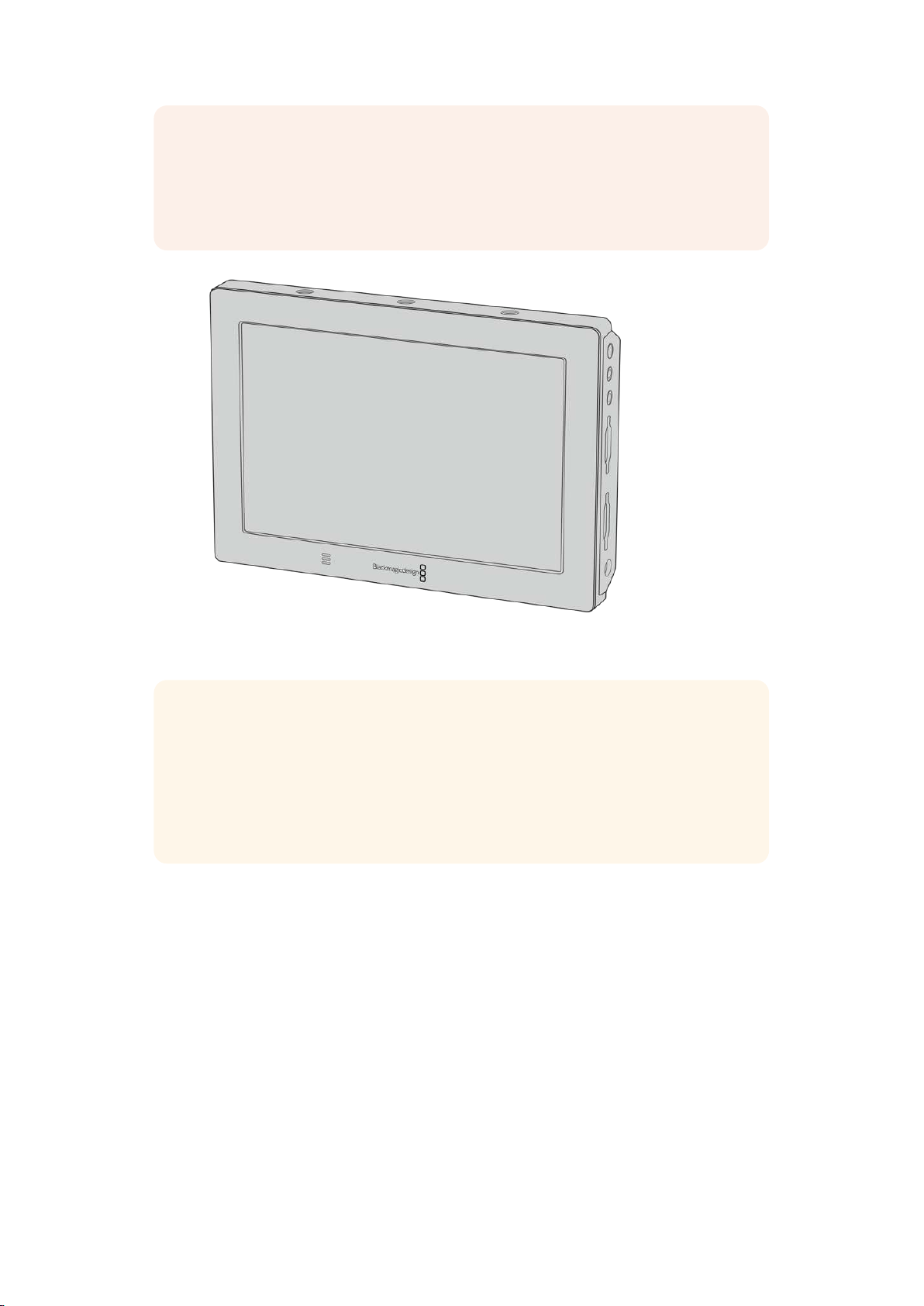
Your URSA Mini automatically sends a signal via the SDI outputs that will trigger
recording whenconnected to equipment that supports the SDI trigger record feature,
such as Blackmagic Video Assist. This means when you press record on your camera,
your external SDI equipment will also start recording, and will stop recording when you
press record again.
You can trigger recording on other SDI video equipment, for example
BlackmagicVideo Assist 4K, using the trigger record feature on your camera
TIP Sometimes in extremely cold weather conditions, for example 0–5º Celsius and
32–41º Fahrenheit, URSAMini 4K may take up to thirty seconds to reach optimal
running temperature. During this time you can record if you need to, but we
recommend waiting for your camera to warm up andstabilize. When optimal running
temperature is achieved, your camera will recalibrate to compensate for the sensor’s
temperature change and you maynotice a single white flash frame. This will only occur
while not recording and will improve your results when shooting in cold climates.
Record Duration Tables
Tables are provided showing approximate record duration in minutes and seconds relative
toformat, project frame rate and media size. The maximum recording duration for your storage
media depends on its capacity, the recording format and the frame rate. For example, the
storage rate for Apple ProRes 422 HQ at 3840 x 2160 is approximately 880 Mbps. At 24 frames
per second, you can record approximately 47minutes ofvideo on a 256GB CFast 2.0 or
SD card. At the same settings you can record approximately 23minutes of video on a 128GB
CFast 2.0 or SD card, which is approximately half the record duration of the 256GB card. These
durations are also the same for when recording to SSDs using the URSA Mini SSD Recorder.
It should be noted that record duration on CFast 2.0 and SD cards can also vary slightly
between cards from different manufacturers. It can also vary depending on whether the storage
media is formatted as exFAT or Mac OS X Extended.
44Recording

Record duration tables for URSA Mini Pro 12K
Simple scenes containing less detail tend to require less data than more dense compositions.
The values in these tables assume shots with a high complexity, which means you may get
slightly longer record times depending on the nature of your shoot.
12K on URSA Mini Pro 12K
CFast
Card
Frame
Rate
Blackmagic
RAW 5:1
Blackmagic
RAW 8:1
Blackmagic
RAW 12:1
Blackmagic
RAW 18:1
Duration Duration Duration Duration
1TB
23.98 29 mins 47 mins 70 mins 106 mins
24 29 mins 47 mins 70 mins 106 mins
25 28 mins 45 mins 67 mins 101 mins
29.97 23 mins 37 mins 56 mins 84 mins
30 23 mins 37 mins 56 mins 84 mins
50 14 mins 22 mins 33 mins 50 mins
60 11 mins 18 mins 28 mins 42 mins
8K on URSA Mini Pro 12K
CFast
Card
Frame
Rate
Blackmagic
RAW 5:1
Blackmagic
RAW 8:1
Blackmagic
RAW 12:1
Blackmagic
RAW 18:1
Duration Duration Duration Duration
1TB
23.98 66 mins 106 mins 158 mins 238 mins
24 66 mins 106 mins 158 mins 238 mins
25 63 mins 101 mins 152 mins 228 mins
29.97 52 mins 84 mins 127 mins 190 mins
30 52 mins 84 mins 127 mins 190 mins
50 31 mins 50 mins 76 mins 114 mins
60 26 mins 42 mins 63 mins 95 mins
6K on URSA Mini Pro 12K
CFast
Card
Frame
Rate
Blackmagic
RAW 5:1
Blackmagic
RAW 8:1
Blackmagic
RAW 12:1
Blackmagic
RAW 18:1
Duration Duration Duration Duration
1TB
23.98 116 mins 186 mins 280 mins 419 mins
24 116 mins 186 mins 280 mins 419 mins
25 112 mins 179 mins 268 mins 402 mins
29.97 93 mins 149 mins 224 mins 335 mins
30 93 mins 149 mins 224 mins 335 mins
50 56 mins 89 mins 134 mins 201 mins
60 46 mins 74 mins 112 mins 168 mins
45Recording

4K on URSA Mini Pro 12K
CFast
Card
Frame
Rate
Blackmagic
RAW 5:1
Blackmagic
RAW 8:1
Blackmagic
RAW 12:1
Blackmagic
RAW 18:1
Duration Duration Duration Duration
1TB
23.98 264 mins 442 mins 631 mins 941 mins
24 264 mins 442 mins 631 mins 941 mins
25 254 mins 405 mins 606 mins 904 mins
29.97 211 mins 338 mins 506 mins 755 mins
30 211 mins 338 mins 506 mins 755 mins
50 127 mins 203 mins 304 mins 455 mins
60 106 mins 169 mins 254 mins 380 mins
Record duration tables for URSA Mini Pro 4.6K G2, URSA Mini Pro 4.6K,
URSA Mini 4.6K and URSA Mini 4K
Simple scenes containing less detail tend to require less data than more complexity. The values
in these tables assume shots with a high complexity, which means you may get slightly longer
record times depending on the nature of your shoot.
4.6K
CFast
Card
Frame
Rate
Blackmagic
RAW 3:1*
Blackmagic
RAW 5:1*
Blackmagic
RAW 8:1*
Blackmagic
RAW 12:1*
ProRes
444 XQ
ProRes
422 HQ
ProRes
422 LT
Duration Duration Duration Duration Duration Duration Duration
256GB
23.98 28 mins 48 mins 76 mins 115 mins 14 mins 33 mins 70 mins
24 28 mins 48 mins 76 mins 114 mins 14 mins 33 mins 70 mins
25 27 mins 46 mins 73 mins 110 mins 14 mins 31 mins 66 mins
29.976 23 mins 38 mins 61 mins 92 mins 11 mins 26 mins 56 mins
30 23 mins 38 mins 61 mins 92 mins 11 mins 26 mins 56 mins
50 13 mins 23 mins 36 mins 55 mins – – –
59.94 11 mins 19 mins 30 mins 46 mins – – –
60 11 mins 19 mins 30 mins 46 mins – – –
* Blackmagic RAW is available on URSA Mini Pro 4.6K and URSA Mini Pro 4.6K G2 only.
ULTRA HD
CFast
Card
Frame
Rate
Blackmagic
RAW 3:1*
Blackmagic
RAW 5:1*
Blackmagic
RAW 8:1*
Blackmagic
RAW 12:1*
ProRes
444 XQ
ProRes
422 HQ
ProRes
422 LT
Duration Duration Duration Duration Duration Duration Duration
256GB
23.98 41 mins 68 mins 110 mins 164 mins 21 mins 47 mins 101 mins
24 41 mins 68 mins 109 mins 164 mins 21 mins 47 mins 101 mins
25 39 mins 66 mins 105 mins 157 mins 20 mins 45 min 97 mins
29.976 33 mins 55 mins 88 mins 131 mins 16 mins 38 mins 81 mins
30 33 mins 55 mins 88 mins 131 mins 16 mins 38 mins 81 mins
50 19 mins 33 mins 52 mins 79 mins – 22 mins 48 mins
59.94 16 mins 27 mins 44 mins 66 mins – 18 mins 40 mins
60 16 mins 27 mins 44 mins 66 mins – 18 mins 40 mins
* Blackmagic RAW is available on URSA Mini Pro 4.6K and URSA Mini Pro 4.6K G2 only.
46Recording

HD
CFast
Card
Frame
Rate
Blackmagic
RAW 3:1*
Blackmagic
RAW 5:1*
Blackmagic
RAW 8:1*
Blackmagic
RAW 12:1*
ProRes
444 XQ
ProRes
422 HQ
ProRes
422 LT
Duration Duration Duration Duration Duration Duration Duration
256GB
23.98 159 mins 264 mins 418 mins 619 mins 84 mins 189 mins 403 mins
24 159 mins 264 mins 418 mins 618 mins 84 mins 189 mins 403 mins
25 153 mins 253 mins 402 mins 595 mins 81 mins 182 mins 387 mins
29.976 128 mins 212 mins 336 mins 499 mins 68 mins 152 mins 324 mins
30 127 mins 212 mins 336 mins 499 mins 67 mins 152 mins 324 mins
50 76 mins 127 mins 203 mins 303 mins 40 mins 91 mins 196 mins
59.94 64 mins 106 mins 170 mins 254 mins 34 mins 76 mins 163 mins
60 64 mins 106 mins 170 mins 253 mins 33 mins 76 mins 163 mins
* Blackmagic RAW is available on URSA Mini Pro 4.6K and URSA Mini Pro 4.6K G2 only.
Constant quality settings for Q0 and Q5 will display varying record time remaining durations.
The estimated duration for Q0 is similar to constant bitrate 3:1, and Q5 will display a similar
duration to 12:1, however, as the estimated duration updates every 10 seconds while recording,
the best way to gauge how much recording time you have is to record for 20 seconds and
monitor the duration in the media area of the touchscreen display.
Data Rate Tables for URSA Mini Pro 12K
Blackmagic URSA Mini Pro 12K allows you to capture images in such a wide variety of
resolutions and frame rates that it is important to understand the implications on the data rate
so you can choose the best format and media for your project. Blackmagic Design has
thoroughly tested a wide range of CFast cards, SD UHS-II cards and USB-C drives to determine
achievable framerates and Blackmagic RAW compression ratios. For more information, see the
‘Storage Media’ section. Generally, CFast Cards for URSA Mini Pro 12K can sustain a data rate of
around 400 MB/s. These approximate figures should give you a good starting point for what
rates and resolutions you will be able to achieve.
As URSA Mini Pro 12K can record at extremely high data rates, you may wish to double the
bitrate your media is normally capable of by striping the recording across two cards. To do this,
insert a pair of CFast or SD Cards and switch on the ‘record RAW on 2 cards’ option in the
‘record’ menu. Since this relies on striping across both cards sequentially, the data rate of the
slowest card will be the limiting factor, so you are advised to use two cards of the same or
similar spec. You can also stripe between a CFast card in storage slot 1 and a USB-C disk in
storage slot 2. When you use the ‘Record RAW on 2 Cards’ option, the speed limit is twice the
data rate of the slowest card in the striped array. For more information, see the ‘Record RAW on
2 Cards’ section.
Blackmagic RAW constant bitrate options are designed to give you predictable file sizes and
data rates. When you are shooting a highly detailed scene or fast motion, a constant bitrate
option compresses the image with a constant maximum to make sure the bitrate is kept at or
under the level specified at all times. This makes it easy to understand exactly what speeds
your media will need to sustain and will also give you a good estimation of how long you can
shoot with your media.
47Recording

Maximum Data Rates at 24p with Blackmagic RAW Constant Bitrate
Format Resolution
Frame
Rate
Blackmagic
RAW 5:1
Blackmagic
RAW 8:1
Blackmagic
RAW 12:1
Blackmagic
RAW 18:1
12K
17:9 12288 x 6480 24 578 MB/s 361 MB/s 241 MB/s 160 MB/s
16:9 11520 x 6480 24 542 MB/s 339 MB/s 226 MB/s 150 MB/s
2.4:1 12288 x 5112 24 457 MB/s 286 MB/s 190 MB/s 127 MB/s
6:5 Anamorphic 7680 x 6408 24 358 MB/s 224 MB/s 150 MB/s 99 MB/s
8K
17:9 8192 x 4320 24 257 MB/s 161 MB/s 107 MB/s 71 MB/s
16:9 7680 x 4320 24 241 MB/s 151 MB/s 101 MB/s 67 MB/s
2.4:1 8192 x 3408 24 203 MB/s 127 MB/s 85 MB/s 56 MB/s
6:5 Anamorphic 5120 x 4272 24 159 MB/s 100 MB/s 67 MB/s 44 MB/s
6K Super 16 6144 x 3240 24 146 MB/s 91 MB/s 61 MB/s 40 MB/s
4K
DCI 4096 x 2160 24 65 MB/s 41 MB/s 27 MB/s 18 MB/s
16:9 3840 x 2160 24 61 MB/s 38 MB/s 25 MB/s 17 MB/s
2.4:1 4096 x 1704 24 51 MB/s 32 MB/s 22 MB/s 14 MB/s
6:5 Anamorphic 2560 x 2136 24 40 MB/s 25 MB/s 17 MB/s 11 MB/s
Super 16 4096 x 2160 24 65 MB/s 41 MB/s 27 MB/s 18 MB/s
It is important to note that actual storage rates are dependent on image subject matter and may
be outside of the range below for highly detailed scenes or very simple scenes.
Range of Data Rates at 24p with Blackmagic RAW Constant Quality
Format Resolution
Frame
Rate
Blackmagic
RAW Q0
Blackmagic
RAW Q1
Blackmagic
RAW Q3
Blackmagic
RAW Q5
12K
17:9 12288 x 6480 24 241-578 MB/s 145-361 MB/s 97-241 MB/s 73-181 MB/s
16:9 11520 x 6480 24 226-542 MB/s 136-339 MB/s 91-226 MB/s 68-170 MB/s
2.4:1 12288 x 5112 24 190-457 MB/s 114-286 MB/s 76-190 MB/s 57-143 MB/s
6:5 Anamorphic 7680 x 6408 24 150-358 MB/s 90-224 MB/s 60-150 MB/s 45-112 MB/s
8K
17:9 8192 x 4320 24 107-257 MB/s 65-161 MB/s 43-107 MB/s 32-81 MB/s
16:9 7680 x 4320 24 101-241 MB/s 61-151 MB/s 41-101 MB/s 30-76 MB/s
2.4:1 8192 x 3408 24 85-203 MB/s 51-127 MB/s 34-85 MB/s 26-64 MB/s
6:5 Anamorphic 5120 x 4272 24 67-159 MB/s 40-100 MB/s 27-67 MB/s 20-50 MB/s
6K Super 16 6144 x 3240 24 61-146 MB/s 37-91 MB/s 25-61 MB/s 19-46 MB/s
4K
DCI 4096 x 2160 24 27-64 MB/s 16-41 MB/s 11-27 MB/s 8-20 MB/s
16:9 3840 x 2160 24 25-61 MB/s 15-38 MB/s 10-25 MB/s 8-19 MB/s
2.4:1 4096 x 1704 24 22-51 MB/s 13-32 MB/s 9-22 MB/s 7-16 MB/s
6:5 Anamorphic 2560 x 2136 24 17-40 MB/s 10-25 MB/s 7-17 MB/s 5-13 MB/s
Super 16 4096 x 2160 24 27-65 MB/s 17-41 MB/s 11-27 MB/s 8-21 MB/s
48Recording

Shooting off speed lets you make creative decisions and achieve the look that you want.
URSA Mini Pro 12K can shoot at 12K resolution up to 60 fps and as high as 220 fps in other
resolutions. When you shoot high frame rates on URSA Mini Pro 12K, the camera uses extreme
bitrates, so it is important to choose an appropriate type of Blackmagic RAW compression.
Maximum Data Rates at Maximum Framerates with Blackmagic RAW Constant Bitrate
Format Resolution
Blackmagic
RAW 5:1
Blackmagic
RAW 8:1
Blackmagic
RAW 12:1
Blackmagic
RAW 18:1
Max
Frame
Rate
Max
Data
Rate
Max
Frame
Rate
Max
Data
Rate
Max
Frame
Rate
Max
Data
Rate
Max
Frame
Rate
Max
Data
Rate
12K
17:9 12288 x 6480 40 963 MB/s 60 903 MB/s 60 602 MB/s 60 401 MB/s
16:9 11520 x 6480 40 903 MB/s 60 847 MB/s 60 565 MB/s 60 376 MB/s
2.4:1 12288 x 5112 50 951 MB/s 60 713 MB/s 60 476 MB/s 60 317 MB/s
6:5 Anamorphic 7680 x 6408 60 895 MB/s 60 560 MB/s 60 373 MB/s 60 249 MB/s
8K
17:9 8192 x 4320 110 1,177 MB/s 110 736 MB/s 110 491 MB/s 110 327 MB/s
16:9 7680 x 4320 110 1,104 MB/s 110 690 MB/s 110 461 MB/s 110 307 MB/s
2.4:1 8192 x 3408 140 1,184 MB/s 140 740 MB/s 140 494 MB/s 140 329 MB/s
6:5 Anamorphic 5120 x 4272 110 730 MB/s 110 456 MB/s 110 305 MB/s 110 203 MB/s
6K Super 16 6144 x 3240 120 727 MB/s 120 455 MB/s 120 303 MB/s 120 202 MB/s
4K
DCI 4096 x 2160 110 295 MB/s 110 185 MB/s 110 123 MB/s 110 82 MB/s
16:9 3840 x 2160 110 227 MB/s 110 173 MB/s 110 116 MB/s 110 77 MB/s
2.4:1 4096 x 1704 140 297 MB/s 140 186 MB/s 140 124 MB/s 140 82 MB/s
6:5 Anamorphic 2560 x 2136 110 183 MB/s 110 115 MB/s 110 77 MB/s 110 51 MB/s
Super 16 4096 x 2160 220 594 MB/s 220 372 MB/s 220 248 MB/s 220 165 MB/s
Range of Data Rates at Maximum Framerates with Blackmagic RAW Constant Quality
Format Resolution
Frame
Rate
Blackmagic
RAW Q0
Blackmagic
RAW Q1
Blackmagic
RAW Q3
Blackmagic
RAW Q5
12K
17:9 12288 x 6480 60 602-1,445 MB/s 362-903 MB/s 241-602 MB/s 181-452 MB/s
16:9 11520 x 6480 60 565-1,355 MB/s 339-847 MB/s 226-565 MB/s 170-424 MB/s
2.4:1 12288 x 5112 60 476-1,141 MB/s 286-713 MB/s 191-476 MB/s 143-357 MB/s
6:5 Anamorphic 7680 x 6408 60 373-895 MB/s 224-560 MB/s 150-373 MB/s 112-280 MB/s
8K
17:9 8192 x 4320 110 491-1,177 MB/s 295-736 MB/s 197-491 MB/s 148-368 MB/s
16:9 7680 x 4320 110 461-1,104 MB/s 277-690 MB/s 185-461 MB/s 139-346 MB/s
2.4:1 8192 x 3408 140 494-1,184 MB/s 297-740 MB/s 198-494 MB/s 149-370 MB/s
6:5 Anamorphic 5120 x 4272 110 305-730 MB/s 183-456 MB/s 122-305 MB/s 92-229 MB/s
6K Super 16 6144 x 3240 120 303-727 MB/s 182-455 MB/s 122-303 MB/s 92-228 MB/s
49Recording
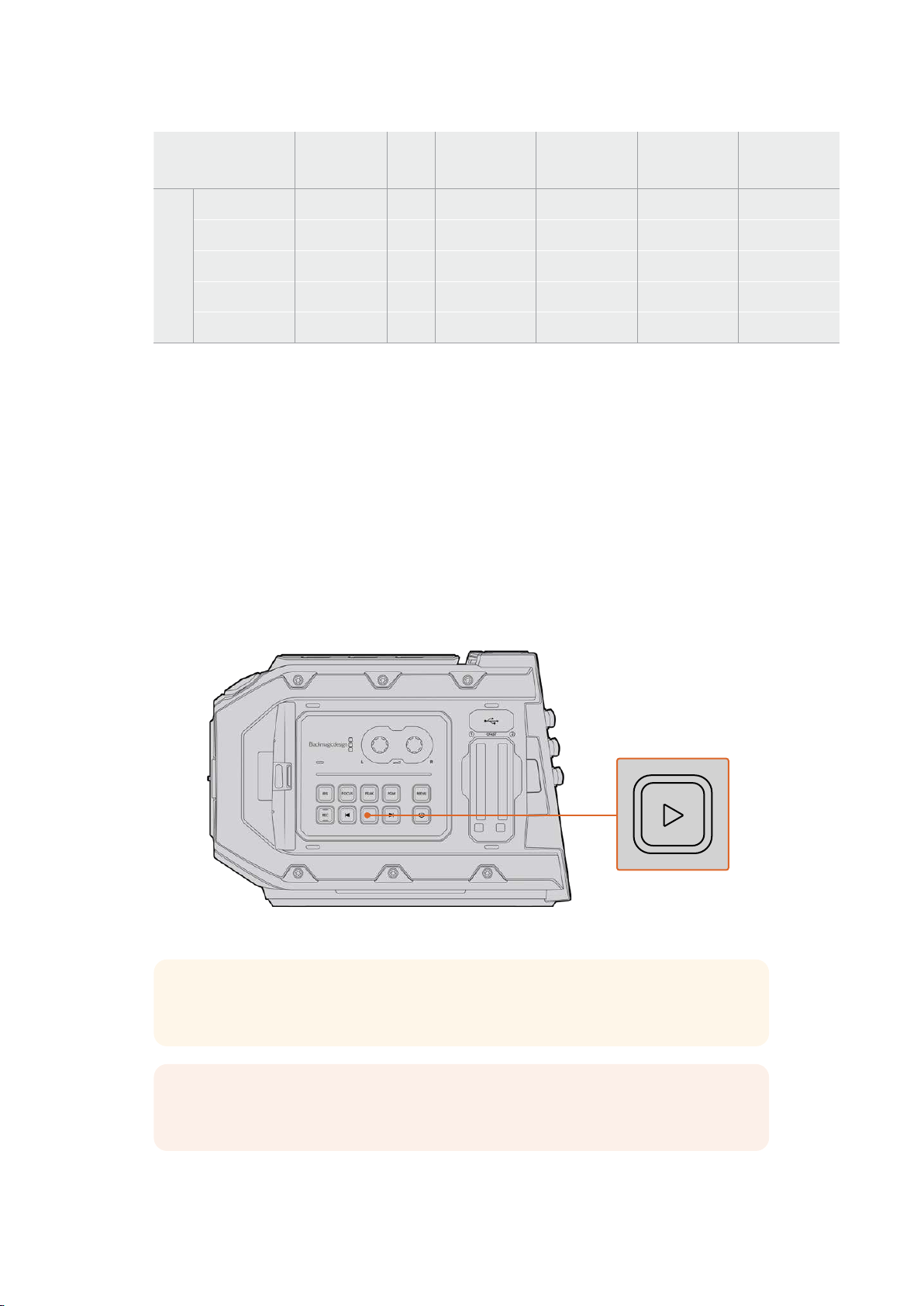
Format Resolution
Frame
Rate
Blackmagic
RAW Q0
Blackmagic
RAW Q1
Blackmagic
RAW Q3
Blackmagic
RAW Q5
4K
DCI 4096 x 2160 110 123-295 MB/s 74-185 MB/s 50-123 MB/s 38-93 MB/s
16:9 3840 x 2160 110 116-227 MB/s 70-173 MB/s 47-116 MB/s 35-87 MB/s
2.4:1 4096 x 1704 140 124-297 MB/s 75-186 MB/s 50-124 MB/s 38-93 MB/s
6:5 Anamorphic 2560 x 2136 110 77-183 MB/s 46-115 MB/s 31-77 MB/s 24-58 MB/s
Super 16 4096 x 2160 220 248-594 MB/s 149-372 MB/s 100-248 MB/s 75-186 MB/s
Actual storage rates for Constant Quality formats are dependent on image subject matter and
may be outside of the range above for highly detailed scenes or very simple scenes.
Playback
Playing Back Clips
Once you have recorded your video, you can use the transport control buttons to play back
your clips.
Press the ‘play’ button once for instant playback and you’ll see your recorded video on
URSAMini’s LCD touchscreen. Your clips can also be viewed on any display connected to
yourURSAMini’s SDI outputs.
URSA Mini Camera
TIP Blackmagic URSA Mini has playback and transport controls buttons on both the
internal and ergonomic control panels.
NOTE Blackmagic URSAMini will playback clips of different quality settings as long as
they are in the same codec, framerate and resolution.
50Playback
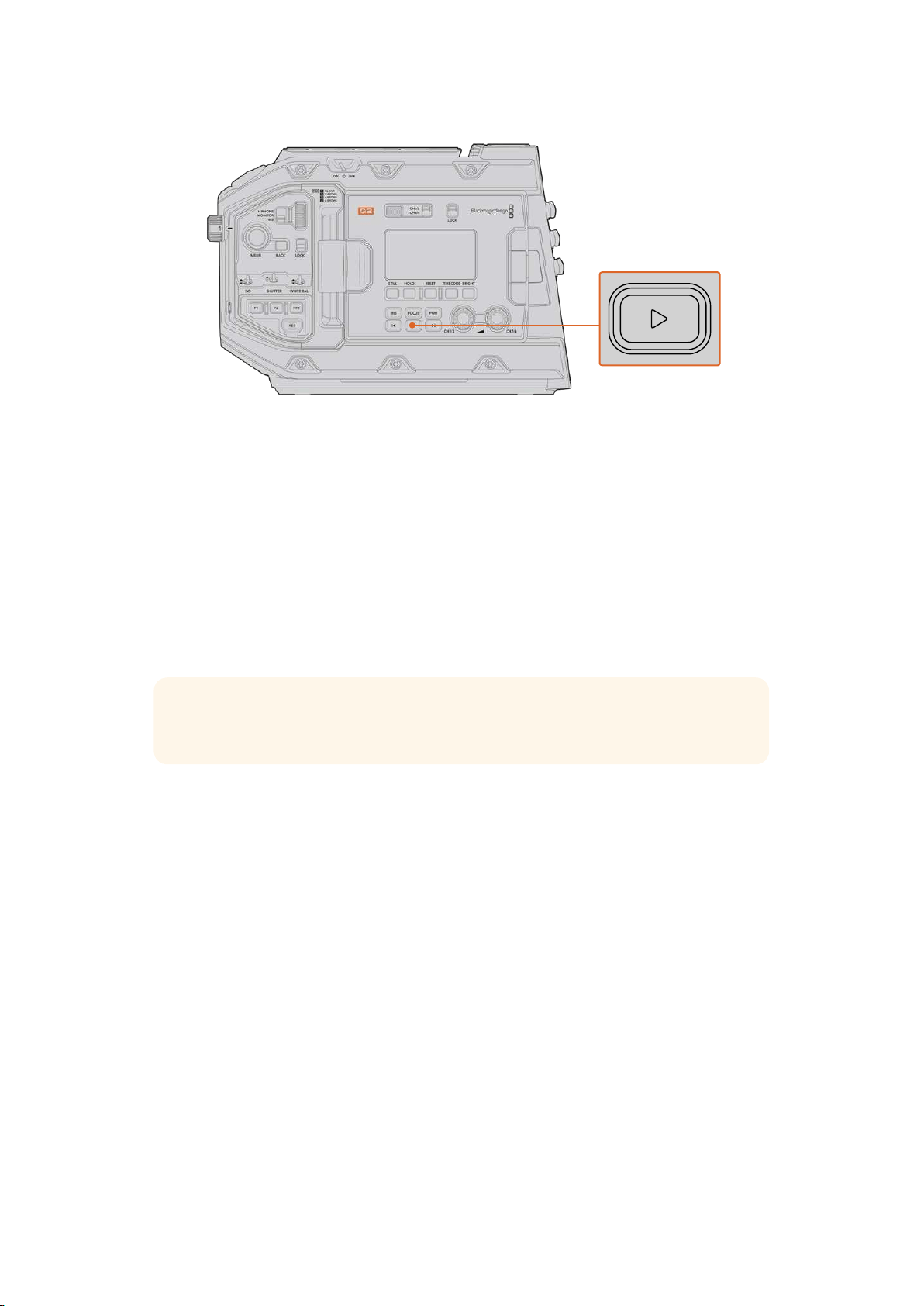
URSA Mini Pro 4.6K G2 Camera
Press the forward and reverse buttons to skip to the start or end of clips. Press the ‘reverse
skip’ button once to go to the start of the current clip or press twice to skip back to the start of
the previous clip. Hold the ‘forward’ or ‘reverse skip’ button to play or reverse at 2x speed.
Once shuttling forward or backwards, press the ‘fast forward’ or ‘reverse skip’ buttons twice for
4x, three times for x8 and four times for x16.You can also use the forward and reverse skip
buttons to open or close the iris on compatible lenses while recording clips.
When recording a clip using a sensor frame rate that differs from your project frame rate, your
clip’s playback speed will also differ. For example, imagine you have set your camera’s project
frame rate to match your post production timeline of 24 frames per second. If you record a clip
with your sensor frame rate set to 60 frames per second, your clips will play back in slow motion
on both the camera and on your post production timeline.
TIP Refer to the ‘recording’ section of this manual for more information about
framerate.
51Playback
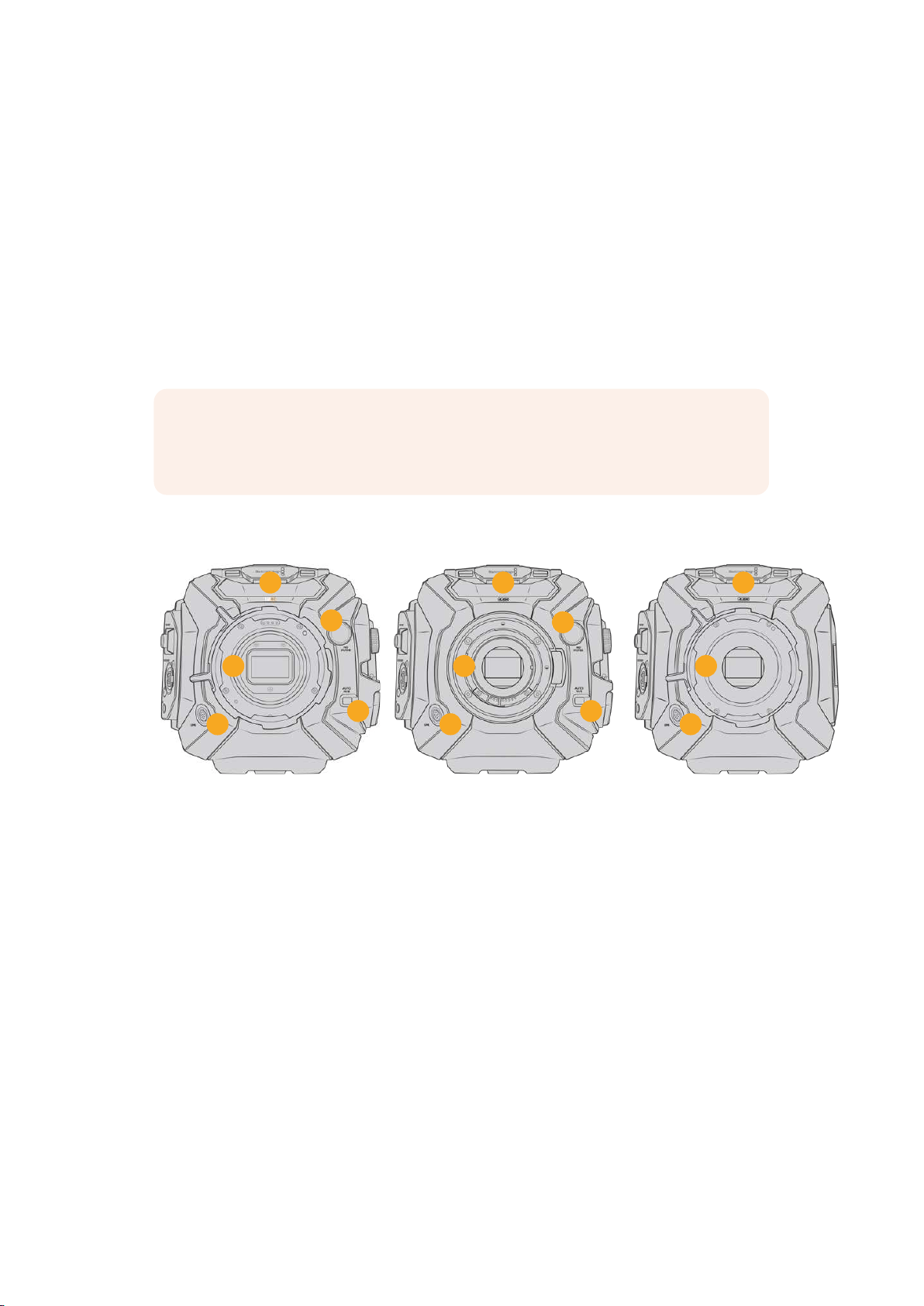
Introduction to URSA Mini
Industry standard BNC connectors are located on the right and rear panel of your URSA Mini
forSDI connections. There are also two separate LANC inputs, one for the optional
BlackmagicURSA Handgrip and one at the rear of the camera for an external LANC controller.
XLR inputs are on the top panel behind the mounting points for professional balanced analog
audio on URSA Mini and URSA Mini Pro, and AES digital audio input on URSA Mini Pro.
A 4 pin XLR connector is provided on the rear panel for external power input, and an output is
available on the right side for powering accessories such as Blackmagic URSAViewfinder.
The USB port above the storage media slots on your URSA Mini is for connecting to a
computerwhen updating your camera’s internal software.
NOTE URSA Mini Pro features additional ergonomic controls that make it easy
toquickly access the camera’s essential settings and functions without opening the
foldout touchscreen.
Camera Front
3
1
2
4
5
3
1
2
4
5
3
1
2
URSA Mini Pro 12K model URSA Mini Pro 4.6K model URSA Mini PL model
1 Stereo Microphone
Built in high quality stereo microphone. Refer to the ‘settings’ section for information on
microphone audio settings.
2 Lens Mount
URSA Mini cameras feature either an EF or PL lens mount. URSA Mini Pro features an
interchangeable lens mount that allows switching between EF, F, PL and B4 mounts.
Refer to the ‘interchangeable lens mount’ section for more information.
3 Broadcast Lens Connector
This connector provides power and control to compatible PL and B4 mount lenses
with12 pin connections. This connector is only available on URSA Mini PL and
URSAMini Pro models. Refer to the ‘using servo zoom lenses’ section in this manual for
a list of compatible lenses, including PL and B4 models.
4 ND Filters
Use this wheel to cycle through three built in neutral density filters, as well as a clear
setting. See the section ‘URSA Mini Pro control buttons’ for more information.
52Introduction to URSA Mini

5 Auto White Balance
The auto white balance button is marked ‘Auto W/B’ and is used when you want to set
the white balance based on what is currently in the center of the screen. Forexample,
setting auto white balance on a gray card placed in front of the lens. Seethe section
‘URSA Mini Pro control buttons’ for more information.
Left Side – URSA Mini
URSA Mini’s left side panel lets you insert CFast cards, access the control panel and change
settings. The USB port is located just above the CFast slots so you can easily plug into a
computer when updating your URSA Mini’s internal software.
6
7
8
9
10
6 Fold Out Touchscreen
5 inch fold out touchscreen monitor, pivots for viewing at different camera heights.
Refer to the ‘touchscreen controls’ section for more information.
7 Audio Level Adjustment Knobs
Adjustment knobs to set the recording levels for audio channels 1 and 2.
Refer to the ‘URSA Mini controls’ section.
8 Mini USB Port
Mini USB Port for updating internal software. Refer to the ‘Blackmagic Camera Setup
Utility’ section for more information.
9 Control Panel Buttons
Buttons for powering the camera, record and playback control, focus peaking,
accessing the settings menu, plus iris and auto focus control on compatible EF lenses.
Refer to the ‘URSA Mini controls’ section for more information.
10 Memory Card Slots
Insert CFast 2.0 cards into the slots for record and playback. Refer to the
‘storagemedia’ section.
Left Side – URSA Mini Pro
URSA Mini Pro’s left side panel features additional controls for easy access to all of your
camera’s essential functions. These controls are split between the forward control panel, the
ergonomic control panel located on the outside of the foldout touchscreen monitor, and a
control panel on the inside of the foldout monitor.
CFast and SD card slots are located behind the foldout monitor. The USB-C port is above these
memory card slots, and is used to connect to a computer to update your URSA Mini Pro’s
internal software.
53Introduction to URSA Mini
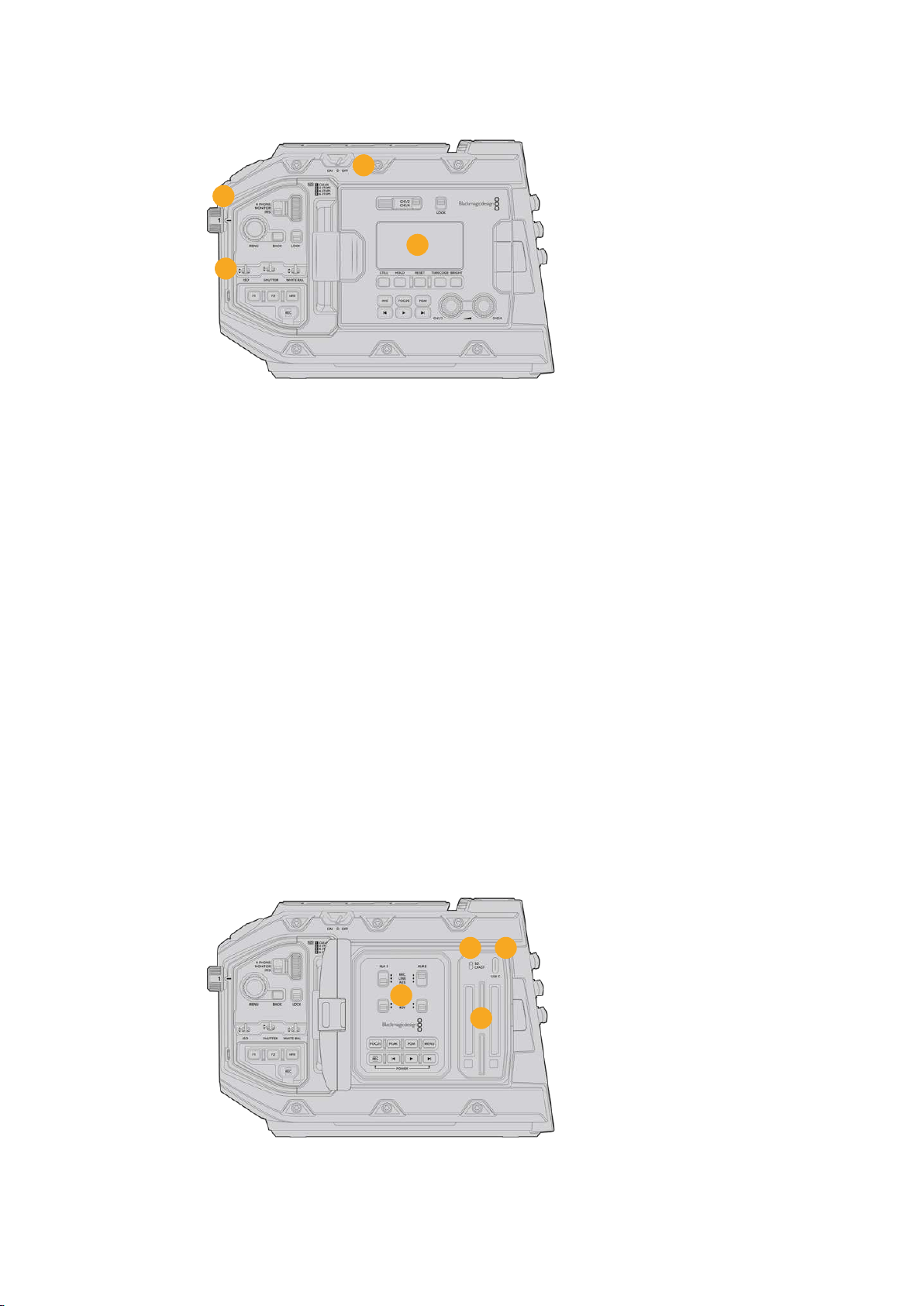
12
11
13
14
URSA Mini Pro 4.6K model, foldout touchscreen closed
11 Power Switch
Power switch for turning on the camera. There is also a backup power switch inside the
fold out monitor that allows the camera to be powered on by pressing both the record
and forward skip buttons at the same time.
12 ND Filters
Your URSA Mini Pro has three internal neutral density filters to adjust the amount of
light reaching the sensor. Four settings are available, ranging from clear to six stops of
light reduction. Simply turn this wheel to move through the available settings. The filter
will click into place for each setting. For more information see the section ‘URSAMini
Pro control buttons’ in this manual.
13 Forward Control Panel
The forward control panel provides quick access to all of your URSA Mini Pro’s essential
functions. These controls are located for easy access when shooting on a tripod or on
the shoulder, and you can use them to adjust settings such as ISO, shutterangle or
shutter speed, iris, white balance, frame rate, and more. See the section ‘URSA Mini Pro
control buttons’ for more information.
14 Ergonomic Control Panel
On the outside of your URSA Mini Pro’s foldout touchscreen monitor, you’ll find an LCD
status monitor and a variety of controls for fast, powerful monitoring control. Here you
can see all of your camera’s status information at a glance, as well as controlling a
variety of powerful monitoring functions. See the section ‘URSA Mini Pro control
buttons’ for more information.
1615
18
17
URSA Mini Pro model, foldout touchscreen open
15 Storage Media Selection Switch
Use this switch to choose between CFast and SD storage media.
54Introduction to URSA Mini
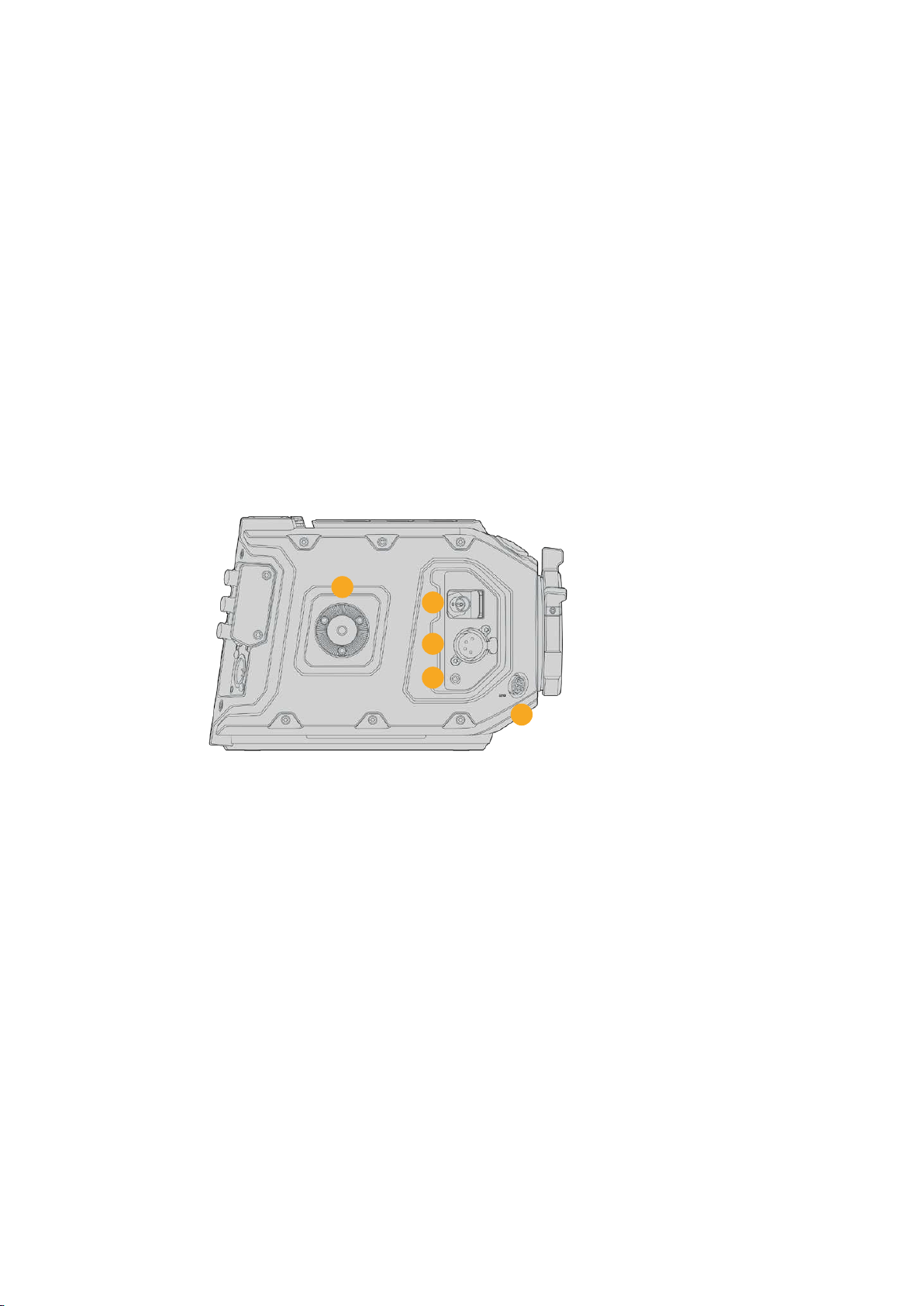
16 USB Port
USB-C port for updating internal software. See the section ‘Blackmagic Camera Setup
Utility’ for more information. On URSA Mini Pro G2, you can also use this USB-C port to
record to URSA Mini Recorder or an external USB-C flash disk.
17 Internal Control Panel
When your URSA Mini Pro’s foldout monitor is open, you have access to the internal
control panel. Use the controls here to set your audio inputs as well as phantom power
settings. You can also access iris, focus, menu and playback controls and more. See the
section ‘URSA Mini Pro control buttons’ for more information.
18 Memory Card Slots
Insert CFast 2.0 cards, SDXC or SDHC cards for record and playback. Please note that
you should check the list of certified cards in this manual or on our website. See the
section ‘storage media’ for more information.
Right Side
URSA Mini’s right side panel gives you access to all the video, audio and power connectors plus
the rosette mount for the optional Blackmagic URSA Handgrip.
19
20
21
22
23
URSA Mini PL model
19 Side Rosette Mount
Standard rosette mount for the optional Blackmagic URSA Handgrip. Refer to the
‘Getting Started’, ‘Blackmagic URSA Handgrip’ and ‘BlackmagicURSA Mini Shoulder
Mount Kit’ sections.
20 HD Monitoring Output
3G-SDI connector for down converted 1080HD output. Use with Blackmagic URSA
Viewfinder or external monitors. Refer to the ‘camera video output’ and ‘Blackmagic
URSA Viewfinder’ sections for more information.
21 +12V Power Output
4 pin XLR connector for powering Blackmagic URSA Viewfinder, Blackmagic URSA
Studio Viewfinder or external monitors and accessories. Refer to the ‘Blackmagic URSA
Viewfinder’ and ‘Blackmagic URSA Studio Viewfinder’ sections for more information.
This output combined with the Broadcast Lens Connector supplies 12 Volts at up to 2
Amps in total.
22 LANC Input
Dedicated 2.5mm TRS LANC connector for the optional Blackmagic URSA Handgrip.
Refertothe ‘Blackmagic URSA Handgrip’ section for more information on connecting
the handgrip.
55Introduction to URSA Mini
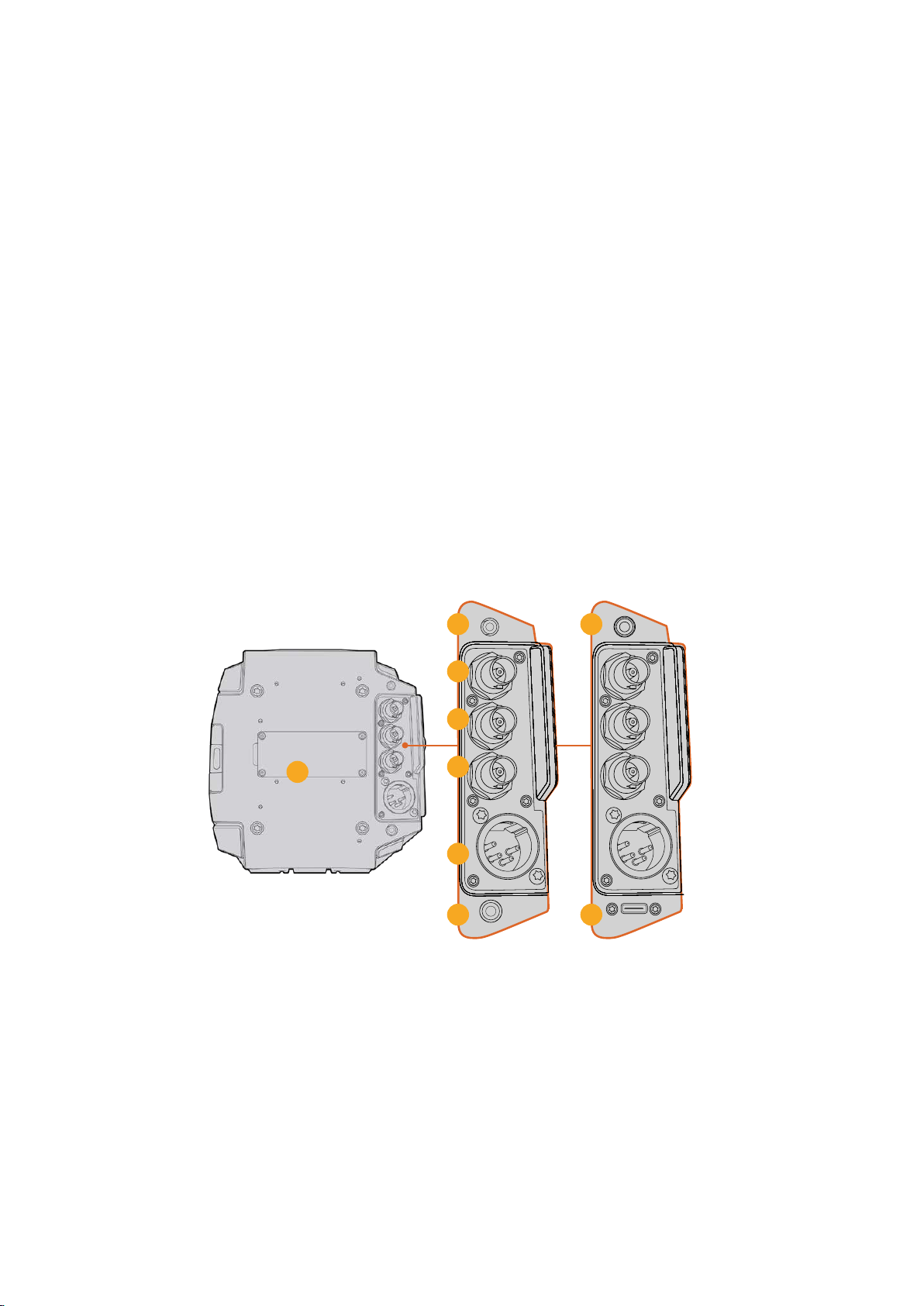
23 Broadcast Lens Control Connector
Provides power and control to compatible PL and B4 mount lenses with 12 pin
connections. This connection is available on URSA Mini PL and URSA Mini Pro models.
This output combined with the +12V Power Output supplies 12 Volts at up to
2 Amps in total.
Rear Panel
24
Battery Mount Plate
Your Blackmagic URSA Mini has mounting points and a recessed molex connector to
supply power to and from the camera as well as carrying some data information. The
mounting holes are positioned so that you can attach optional accessories such as
battery plates, Blackmagic Camera Fiber Converter or URSA Mini SSD Recorder onto
the back of the camera. When in use, the recessed molex connector can output a
regulated 12 Volts at up to 1.5 Amps. For more information, see the chapters for
‘Mounting Batteries’, ‘Getting Started with Blackmagic Fiber Converters’ and ‘URSA Mini
SSD Recorder’.
25 LANC
This 2.5mm jack is used for external LANC remote control, such as an external record
start stop control mounted to a tripod arm. LANC supports record start and stop, plus
iris and focus control using compatible EF lenses. URSA Mini Pro 12K does not have a
LANC port on the rear panel. For LANC control of URSA Mini Pro 12K, use the 2.5mm
TRS ‘LANC input’ connector on the right side panel.
24
25
26
27
28
29
30
30
31
URSA Mini Pro 4.6K G2, URSA Mini Pro 4.6K,
URSA Mini 4.6K and URSA Mini 4K
URSA Mini Pro 12K
26 12G-SDI Out
Blackmagic URSA Mini’s 12G-SDI output is used to send HD and Ultra HD video to
SDIequipment such as routers, monitors, SDI capture devices, and broadcast
switchers. You can also connect the 12G-SDI output to an external recorder such as
theBlackmagic Video Assist for backup recording.
27 12G-SDI In
The 12G-SDI input is used for connecting to a switcher or external recorder and can be
used to view playback, talkback, tally or external reference signals. When used with an
ATEM switcher, you can also adjust the camera functions using the switcher’s ‘camera
control’ feature.
56Introduction to URSA Mini

If you’re using URSA Mini in a live broadcast, you can plug in the switcher’s program
output and monitor it during the shoot, or check playback from an external recorder.
Press and hold the ‘pgm’ button to see the program feed. For more information, refer
tothe ‘control buttons’ section for URSA Mini or ‘ergonomic control panel’ section for
URSA Mini Pro.
To receive tally and talkback via the SDI input, make sure you have set your
ATEMCamera ID in the camera’s setup menu. If you want to use the SDI input to
receive an external reference signal, you will need to select ‘program’ as your reference
source in the setup settings. ‘REF’ will appear next to the timecode display on your
camera’s LCD screen when the external reference is locked. Refer to the ‘setup
settings’ in the manual for more information.
On URSA Mini Pro the SDI Input can be used for feeding external timecode to the
camera as well. This will lock to the incoming timecode automatically if the frame rate of
the incoming SDI signal matches and has valid timecode. The ‘EXT’ logo will appear on
URSA Mini Pro’s LCD when external timecode is locked. If you unplug the cable
timecode will remain jammed and the logo will switch to ‘INT’ to let you know it is now
running from URSA Mini Pro’s internal timecode clock.
28 Reference and Timecode In
This input automatically recognizes and switches between timecode and reference
input signals. Synchronize Blackmagic URSA Mini to a common reference signal, such
as tri-level sync, by connecting to the ‘reference’ BNC input marked ‘REF In’. It’s worth
noting that to use a reference signal through this input, you must set your reference
source to ‘external’ in your URSA Mini’s setup menu.
Alternatively you can use this connector to match an external timecode source to sync
up multiple cameras, or audio and picture when shooting dual-system. This ensures
audio and picture, or video from multiple cameras, can be easily synchronized during
post production. When external timecode with a matching frame rate is plugged into
this connector the camera will lock to the incoming timecode automatically. The ‘EXT’
logo will appear on URSA Mini’s LCD when external timecode is locked. If you unplug
the cable, timecode will remain jammed and the logo will switch to ‘INT’ to let you know
it isnow running from URSA Mini Pro’s internal timecode clock.
You can also set your camera to use the reference signal from an ATEM switcher via the
SDI Input. This is helpful when working with ATEM switchers because all cameras can
receive program return, camera control, tally, talkback, reference and timecode using
asingle SDI signal. See the ‘setup settings’ section in this manual for more information.
29 +12V Power Input
Use the 4 pin 12-20 Volt DC XLR connector to plug in power from external sources such
as the supplied power adapter, or portable batteries.
30 Headphone/Headset
The 3.5mm jack output is used for headphone monitoring and talkback. You can plug in
iPhone and Android compatible headsets that have a built in microphone for quick and
easy talkback. Talkback audio is embedded in channels 15 and 16 of the SDI output.
TIP When using URSA Mini or URSA Mini Pro’s 3.5mm jack for talkback, a very
affordable option is using an iPhone or Android compatible headset. These
typically feature inline button that can be used to mute and unmute their
microphone. If you would like to use a broadcast headset without this inline
switch you can configure your URSA Mini or URSA Mini Pro’s function buttons
to offer the same functionality. Seethe ‘setup settings’ section of this manual
for more information.
57Introduction to URSA Mini
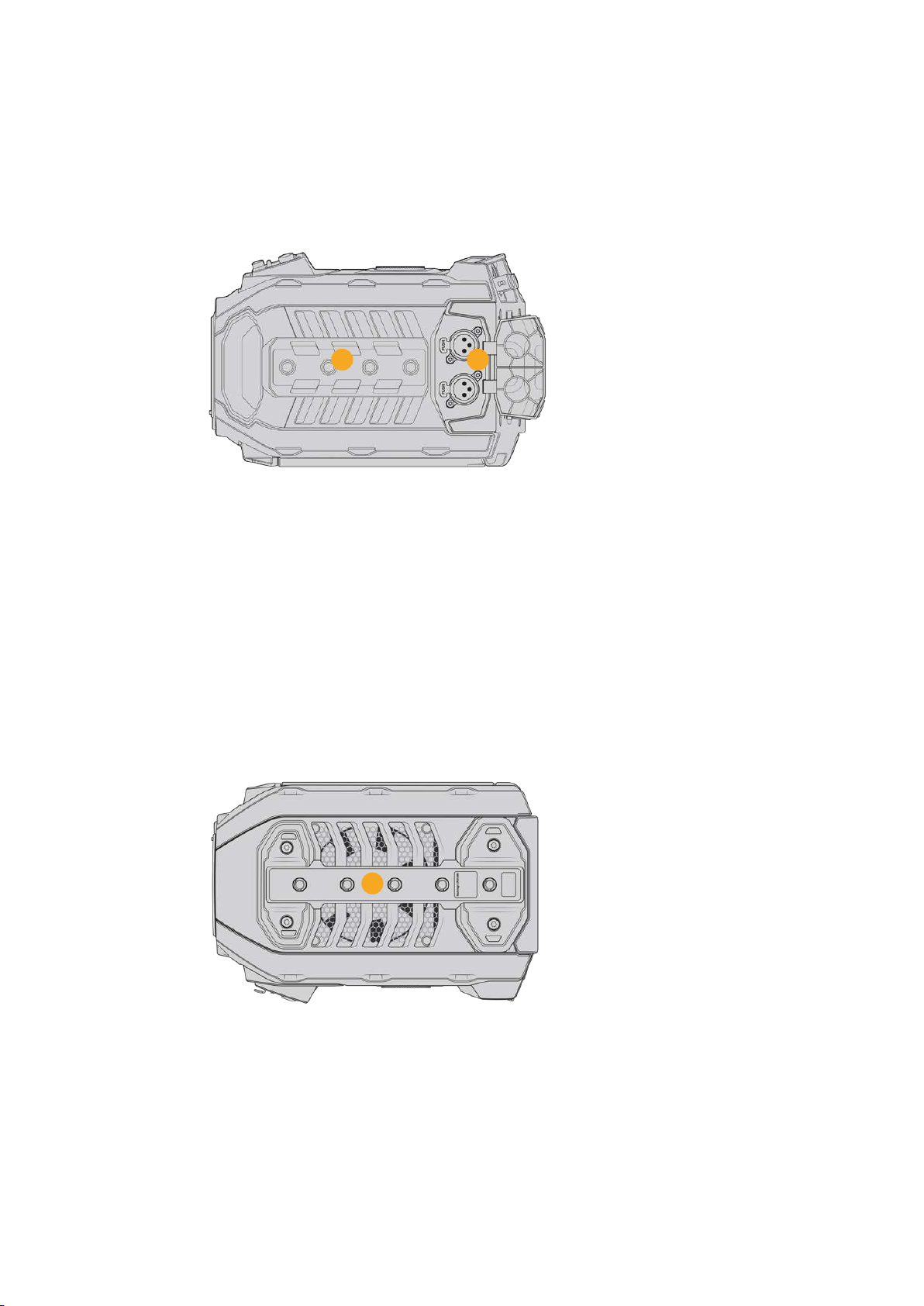
31 USB Port
USB-C 3.1 Gen 2 port with locking connector for recording video from URSA Mini Pro
12K to an external flash disk.
Top Panel
3332
External analog audio can be plugged into the
balanced XLR connectors on the top panel
32 1/4 Inch Mounting Points
Your camera’s top panel contains 4 strong mounting points for attaching the top handle
andaccessories.
33 XLR Audio In
Use the balanced XLR inputs to plug in external analog audio from professional
equipment such as audio mixers, PA systems or external microphones. The XLR
connectors supply 48V phantom power so you can use microphones that aren’t self
powered. Refer to the ‘internal control panel’ section for more information on
phantom power.
Underside
34
34 1/4 Inch Mounting Points
The 5 mounting points on the underside are used for attaching tripod heads,
theoptional URSA Mini shoulder mount kit and other accessories.
58Introduction to URSA Mini
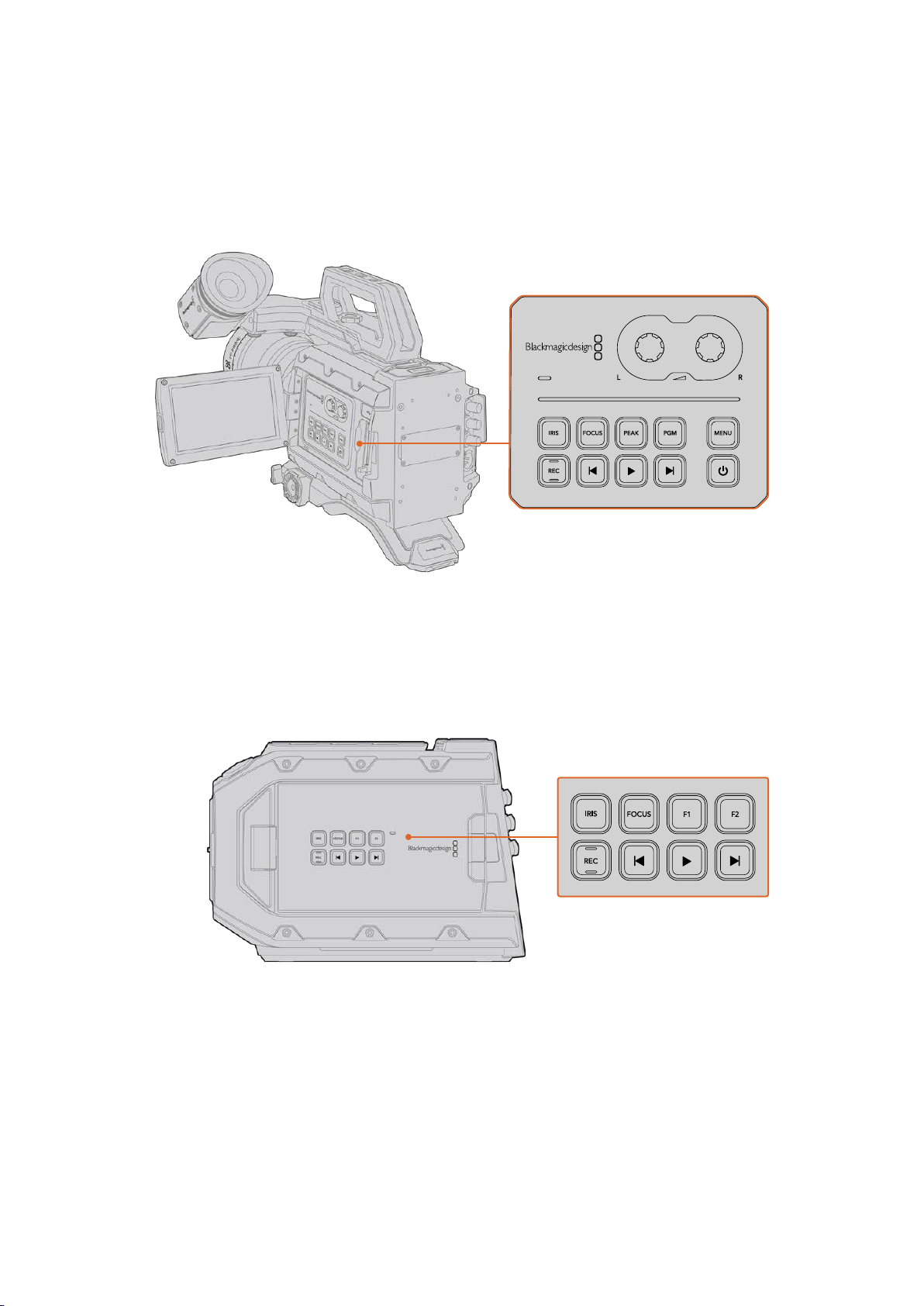
URSA Mini Controls
Your Blackmagic URSA Mini has a control panel on the left side, behind the fold out monitor and
contains all the buttons and adjustment knobs you need to change settings and control audio
levels. You can monitor your audio levels using the audio meters on the LCD touchscreen.
Adjust camera settings using the inside control panel buttons and touchscreen
Control Buttons
In addition to the inside control panel, your Blackmagic URSA Mini has control buttons on the
outside of the LCD and on the optional Blackmagic URSA Handgrip. The iris, focus, record and
playback buttons all perform the same function.
The outside panel buttons let you record and play back clips, turn focus
peaking on or off, switch between the program and camera view on the LCD,
plus adjust the iris and auto focus when using compatible EF lenses
Iris
The ‘Iris’ button activates the automatic aperture setting on compatible lenses.
When using video dynamic range settings, a single press of the iris button will set an
average exposure based on the highlights or shadows in your shot. When using film
dynamic range settings, pressing the iris button sets your exposure to the brightest
highlight in your shot.
59URSA Mini Controls

On URSA Mini EF models, this button works with compatible EF lenses.
On URSA Mini PL models, this button works with compatible lenses connected
to the broadcast lens controller.
To set your aperture manually, press the forward and reverse skip transport buttons.
Focus
When using an EF mount with an EF lens that supports electronic focus adjustments,
press the ‘focus’ button to activate auto focus. A white focus square will appear on the
fold out monitor. Anything within the square will be correctly focused. When the lens is
focused, the square will disappear.
NOTE It’s important to know that while most EF lenses support electronic
focus, some lenses can be set to manual or auto focus modes, and so you
need to ensure your lens is set to auto focus mode.
Peak
Press the peak button to activate focus peaking. Your camera has two focus peaking
modes, traditional focus peaking, which artificially sharpens areas of the image that are
in focus, and ‘colored lines’ with overlays the sharp areas of your image with black,
white, red, green or blue colored lines. See the ‘monitor settings’ section of this manual
for more information. Focus peaking is not recorded to storage media, but can be
displayed via the HD monitoring output and on the fold out monitor by activating
overlays using the touchscreen menu.
Program
The program button is marked PGM and lets you switch the LCD between the camera
view and any signal plugged into the 12G-SDI input on the rear panel. This means if
you’re using URSA Mini in a live broadcast, you can plug in the switcher’s program
output and monitor it during the shoot. Press and hold the program button to see your
program feed. The program feed will continue to display whilst the program button is
being held. Double pressing the program button will switch to the program feed, and
pressing the program button again will exit the program feed. It’s worth mentioning that
to display a switcher’s program output, your camera and switcher must be set to the
same frame rate.
NOTE When you are setting your reference source for URSA Mini, or
URSAMini Pro, you may experience a small dropout on your camera’s outputs
when switching between your reference sources. This is because the camera
is adjusting its referencing timing to match that of the external source. For this
reason it is important not to change this setting during a production, only
whilst setting up.
Menu
Press the ‘menu’ button to open the dashboard. Refer to the ‘settings’ section for more
information about the dashboard feature and how to adjust settings.
60URSA Mini Controls
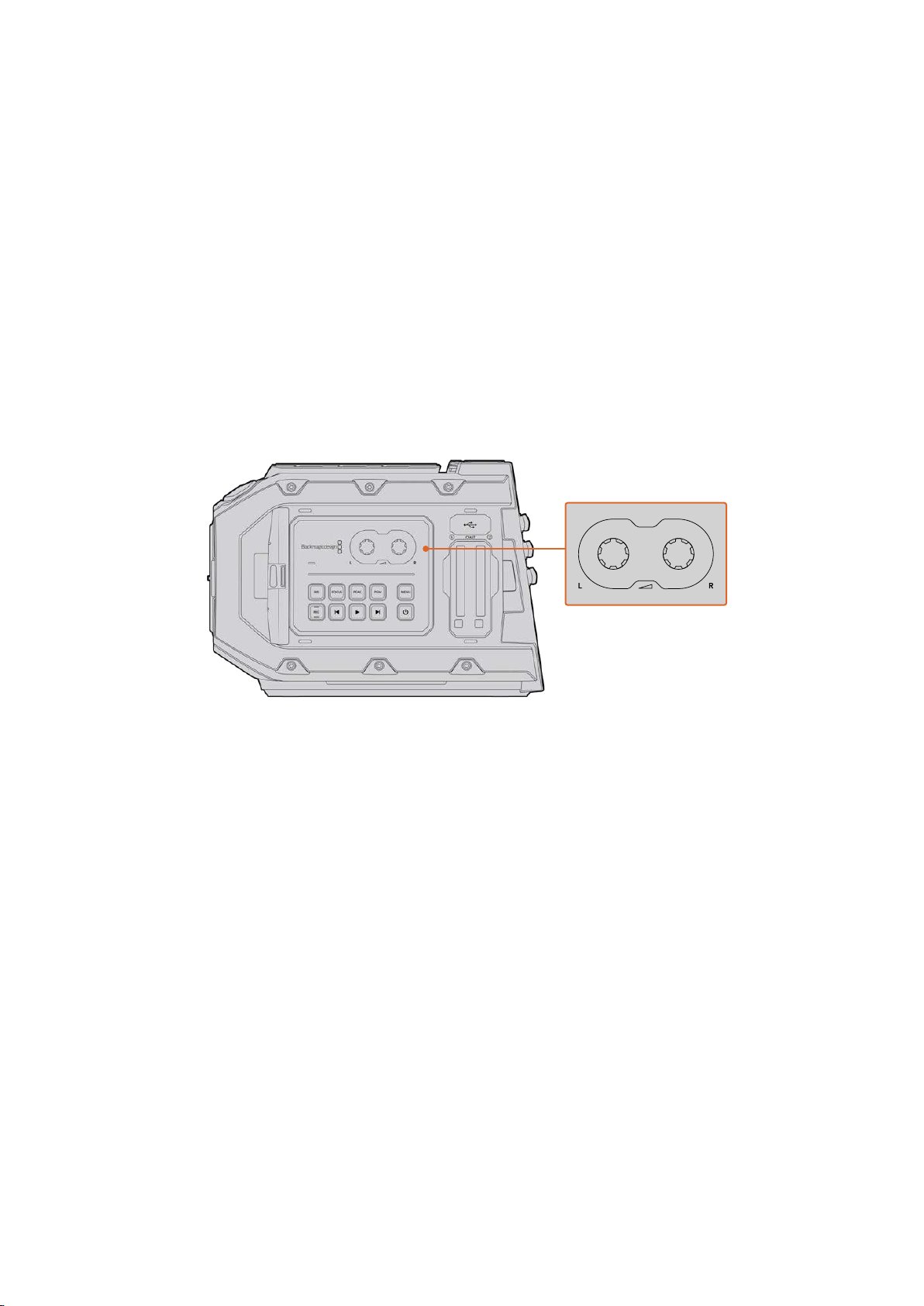
Record
The ‘record’ button is marked REC on your Blackmagic URSA Mini’s control panel,
fold out LCD and on the optional Blackmagic URSA Handgrip. Press any of the
record buttons to start and stop recording. Refer to the ‘recording’ section for more
information.
Playback Control Buttons
The playback buttons let you start and stop playback, plus skip to the next or previous
clip. On Blackmagic URSA Mini EF, the forward and reverse skip buttons can also be
used to open or close the iris when using compatible lenses. Refer to the ‘playback’
section for more information on how to use the playback buttons.
Audio Level Adjustment Knobs
Use the built in adjustment knobs to set the recording levels for audio channels 1 and 2.
Turn each knob clockwise or counterclockwise to increase or decrease the recording
level for each channel of audio. Monitor the corresponding on screen audio meters as
you adjust each knob so you can see the best level to set it to.
Turn the audio level adjustment knobs clockwise or counter
clockwise to increase or decrease your audio recording levels
Function Buttons
On the outside of Blackmagic URSA Mini’s LCD there are two ‘function’ buttons marked
F1 and F2. You can map these to your choice of a variety of commonly used functions
using your URSA Mini’s ‘setup’ menu. For more information, see the ‘setup settings’
section of this manual.
61URSA Mini Controls
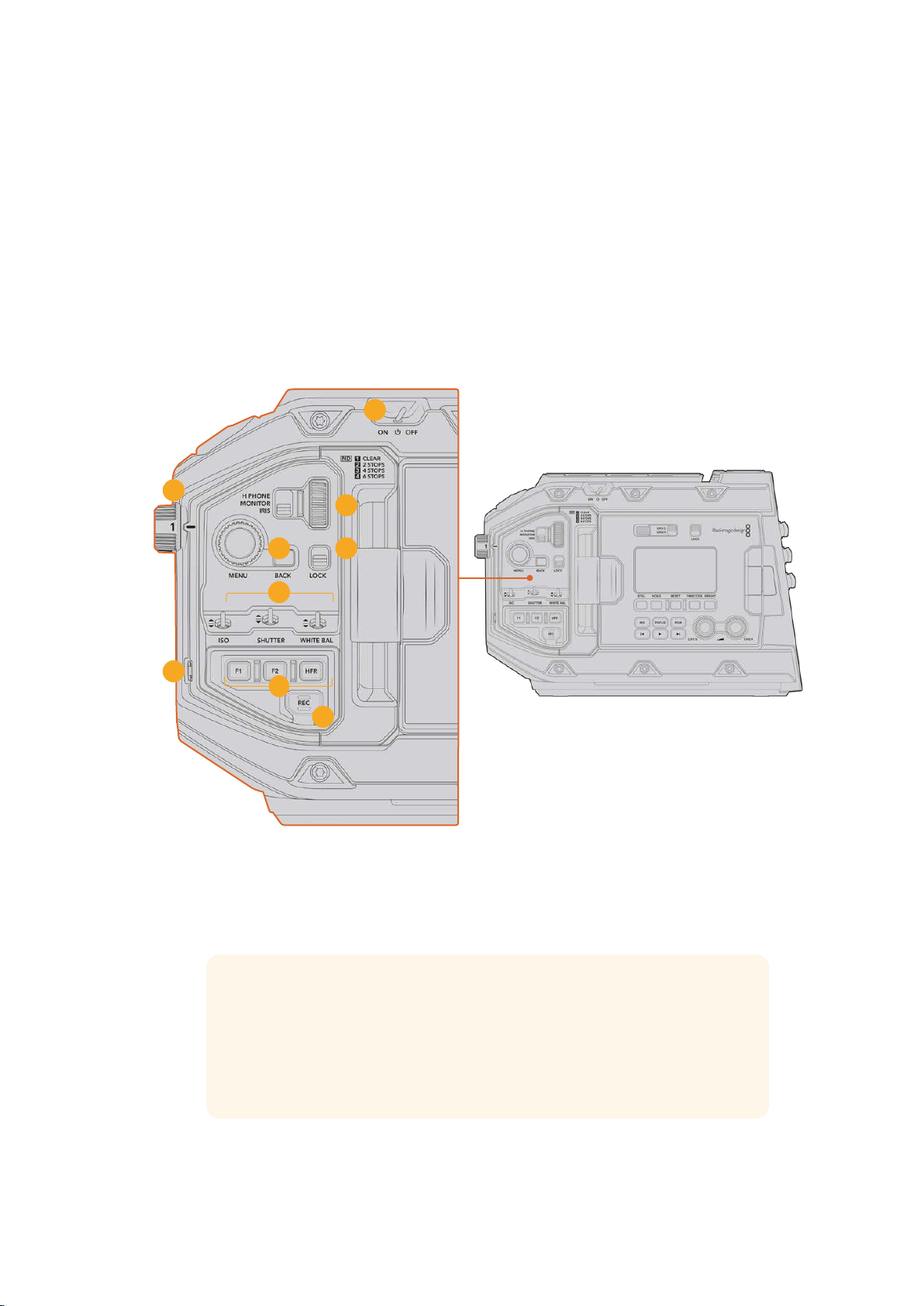
URSA Mini Pro Control Buttons
Blackmagic URSA Mini Pro has control panels on the chassis, outside and inside of the foldout
touchscreen monitor to give you quick, easy access to all of its essential functions as well as
powerful monitoring tools. These panels are designed to be close to hand whether shooting
from a tripod, handheld or with the shoulder mount kit.
Forward Control Panel
Your URSA Mini Pro’s forward control panel groups together all of the controls you might need
to adjust when setting up a shot and recording. These are all designed for easy access while
shooting with the foldout monitor closed, such as when using the shoulder mount kit.
6
8
1
4 5
9
7
3
2
URSA Mini Pro 4.6K forward control panel
1 Power Switch
Power your URSA Mini Pro by moving this switch to the ‘on’ position. Power off by
moving the switch to the ‘off’ position.
TIP You can also power your URSA Mini Pro on or off via a combination
ofcontrol panel switches. Holding the ‘rec’ and ‘forward skip’ buttons will
power upthe camera if it is turned off, or power it off if it is turned on. If your
camera’s power switch is set to ‘on’ but your camera is powered down, it may
have been powered down via the control panel. Toggle the power switch to
return it to normaloperation.
62URSA Mini Pro Control Buttons

2 ND Filters
Your URSA Mini Pro has three internal neutral density filters. Together with a clear filter,
the available settings are ‘2,’ ‘4’ and ‘6’ stops. These filters allow you to reduce the
amount of light reaching your URSA Mini’s sensor by a preset number of exposure
‘stops’. Byreducing the exposure, you can continue shooting at wide apertures in
bright conditions such as outdoors on sunny days.
To adjust your neutral density setting, rotate the wheel upwards or downwards.
The‘clear’ setting means there is no ND filter being used. From settings 2 to 4, the
NDfilters gradually increase in density so you can decrease light if you need to.
Because different people prefer to use different terms for each ND filter, the
measurement of your ND settings can be customized in the LCD menu. You can identify
the ND filter number, amount of stops in light reduction, or the fraction representing the
amount of light reduced for the filters to suit your preference.
Neutral Density Filter Settings
Wheel position ND number Stops Fraction
1 clear 0 1
2 0.6 2 1/4
3 1.2 4 1/16
4 1.8 6 1/64
3 Settings Wheel
Set this wheel’s function by adjusting the adjacent three position switch next to the
wheel. The options are ‘headphone,’ ‘monitor’ and ‘iris’.
Headphone
When set to ‘headphone’, the settings wheel will adjust headphone audio levels.
Rotatethe wheel upwards to increase volume, and downwards to decrease.
Monitor
When set to ‘monitor’, the settings wheel adjusts audio levels on your URSA MiniPro’s
built in monitor speaker. The speaker is located on the outside of the LCDmonitor door
and can be used to monitor audio without headphones. Rotate the wheel upwards to
increase volume, and downwards to decrease. This function is disabled while recording
from the camera’s internal microphone to prevent unwanted feedback.
Iris
When set to ‘iris’, the settings wheel is used to adjust the aperture of compatible lenses
mounted to your URSA Mini Pro. Rotating the wheel downwards opens the iris, and
turning the wheel upwards closes the iris. These directions mimic the operation of
aperture on adjustable still and cinema lenses.
TIP To change aperture settings via the settings wheel, URSA Mini Pro must
be fitted with a lens that supports changing aperture via the camera. Ifyou are
using a B4 or PL lens connected via the broadcast 12 pin connector, make sure
that the lens iris switch on the handgrip is set to ‘A’ or ‘auto’.
63URSA Mini Pro Control Buttons

4 Menu Wheel
When ‘status text’ is turned on for your URSA Mini Pro’s front SDI output, you can use
the menu wheel to navigate many of the head up display features usually accessed via
the LCD touchscreen.
Simply press the menu wheel as you would a button to access your URSA Mini Pro’s
head up display on an external monitor such as Blackmagic SmartView, Video Assist or
URSA Viewfinder. While the menu wheel is active, turn the wheel to select features
such as LCDmonitor options, frame rate, ISO, white balance and tint. Press the wheel to
confirm selections and make additional changes, and use the ‘back’ button next to the
wheel to cancel. You can also use the back button to move up a menu level, or exit the
menu completely if you’re at the top level. On URSA Mini Pro 4.6K, the menu will
automatically close after one minute of inactivity.
For more information on setting status text and the controls available, see the
‘touchscreen controls’ and ‘monitor settings’ sections of this manual.
5 Lock
Toggle this switch to lock all of the controls on the forward control panel to prevent
them from being accidentally adjusted while shooting. Move this switch to the lower
position to lock, and the upper position to unlock.
TIP When shooting in busy or uncontrolled environments, you can lock your
URSA Mini Pro’s forward control panel when you leave your camera
unattended. This ensures that your settings are not changed unintentionally
by others.
6 ISO, Shutter and White Balance Switches
These small switches are used to adjust your ISO, white balance, and shutter settings.
They are helpful when you want to make fast adjustments without taking your eyes off
the shot. Gently push the switches up or down to make setting adjustments.
Theswitches are spring loaded so they always return to a neutral position.
ISO
Push this switch up or down to adjust your camera’s ISO setting. Pushing up will
increase the setting one interval, and pushing down will decrease one interval.
The available settings are 200, 400, 800 and 1600 for URSA Mini and 200, 400, 800,
1600 and 3200 on the URSA Mini Pro.
Shutter
Use this switch to adjust the camera’s shutter angle or shutter speed, depending on
what you have selected in the setup menu. Pushing up will increase the shutter angle
or shutter speed to the next available preset, and pushing down will decrease the
shutter angle or shutter speed to the next available preset. Holding the switch up or
down will move more quickly through available values. There are twenty shutter angle
presets between 11.2and 360 degrees.
TIP Your URSA Mini Pro can also suggest flicker free shutter angles or shutter
speeds based on the power frequency in your region. These must be selected
through the LCDtouchscreen menu. For more information see the
‘touchscreencontrols’ section in this manual.
64URSA Mini Pro Control Buttons

White Balance
This switch is used to adjust the camera’s white balance. Pushing up will increase the
color temperature by 50K, and pushing down will decrease it by 50K. Holding the
switch up or down will move more quickly through available values.
7 Auto White Balance
Pressing this button will reveal a white ‘auto white balance’ box in the center of the
LCDfor five seconds. This box will also appear on any SDI output that has ‘status text’
enabled in the menu settings. The white box indicates the specific area of your image
where the white balance will be calculated from, so your gray card should be
positioned within this box. Pressing and holding the ‘Auto W/B’ button for three
seconds will perform an ‘auto white balance’, and the square will change from white to
green to confirm that this has been performed successfully.
For more information on enabling status text for your URSA Mini Pro’s front or main
SDIoutputs, see the ‘monitor settings’ section in this manual.
8 F1 and F2
The F1 and F2 keys are ‘function’ keys that can be programmed to a variety of
commonly used functions using your URSA Mini Pro’s ‘setup’ menu. By default,
F1issetto ‘false color’ while F2 is set to ‘display LUT’.
For more information, see the ‘touchscreen controls’ section of this manual.
HFR
Use the HFR or high frame rate button to toggle off speed frame rates. To use this
button, simply set the off speed frame rate you’d like to use in your URSA Mini Pro’s
‘frame rate’ menu. Pressing this button will toggle between your chosen off speed
frame rate and project frame rate. It’s worth mentioning that this setting can only be
adjusted when the recording is stopped. The HFR button also operates as a ‘function
key’ that you can program to a variety of commonly used functions, or can be disabled.
For more information on project and off speed frame rates, see the ‘touchscreen
controls’ section in this manual.
9 Record
The ‘record’ button is marked REC on your Blackmagic URSA Mini Pro’s left side.
Pressthe record button to start and stop recording. Refer to the ‘recording’ section for
more information.
65URSA Mini Pro Control Buttons
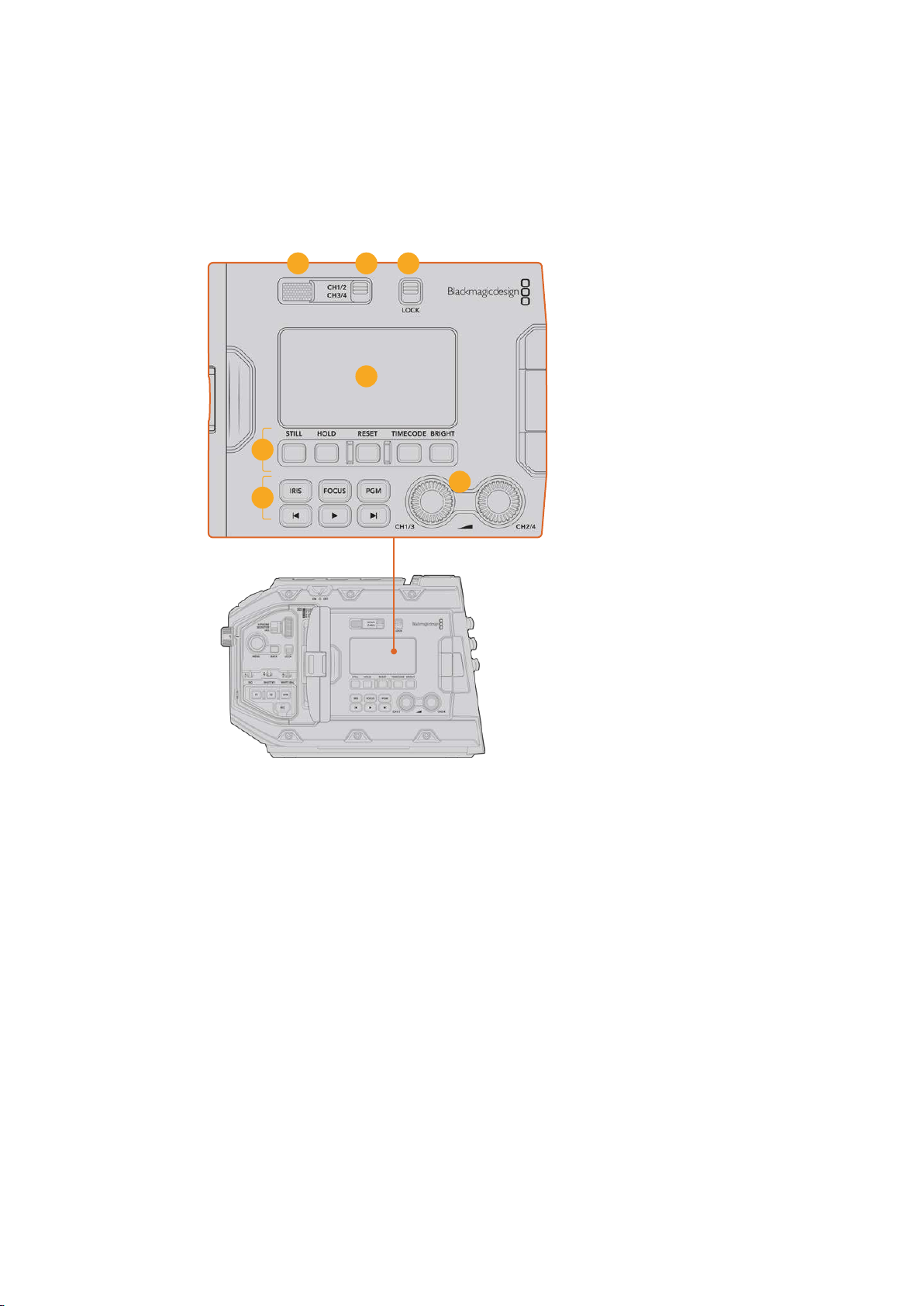
Ergonomic Control Panel
On the outside of your URSA Mini Pro’s touchscreen monitor, you’ll find an LCD status monitor
and a variety of monitoring controls. This panel lets you see all of your camera’s status
information at a glance, as well as monitoring and adjusting audio levels. Automatic focus can
be set using compatible lenses and the transport controls let you playback clips.
15
14
10 11
13
16
12
URSA Mini Pro 4.6K ergonomic control panel
10 Monitor Speaker
The small speaker built into the outside control panel lets you monitor audio when
inplayback. It is located where your ear would normally be when shooting with the
camera on your shoulder.
To adjust the volume of the speaker, simply rotate the settings wheel as described
inthe ‘URSA Mini Pro Control Buttons’ section.
11 Monitor Channel Select
Your URSA Mini Pro supports two channels of audio.
12 Lock
Use this switch to lock all of the settings on your URSA Mini Pro’s ergonomic control
panel. The only controls that will remain active while the lock switch is ‘on’ arethe
monitor channel select switches.
66URSA Mini Pro Control Buttons
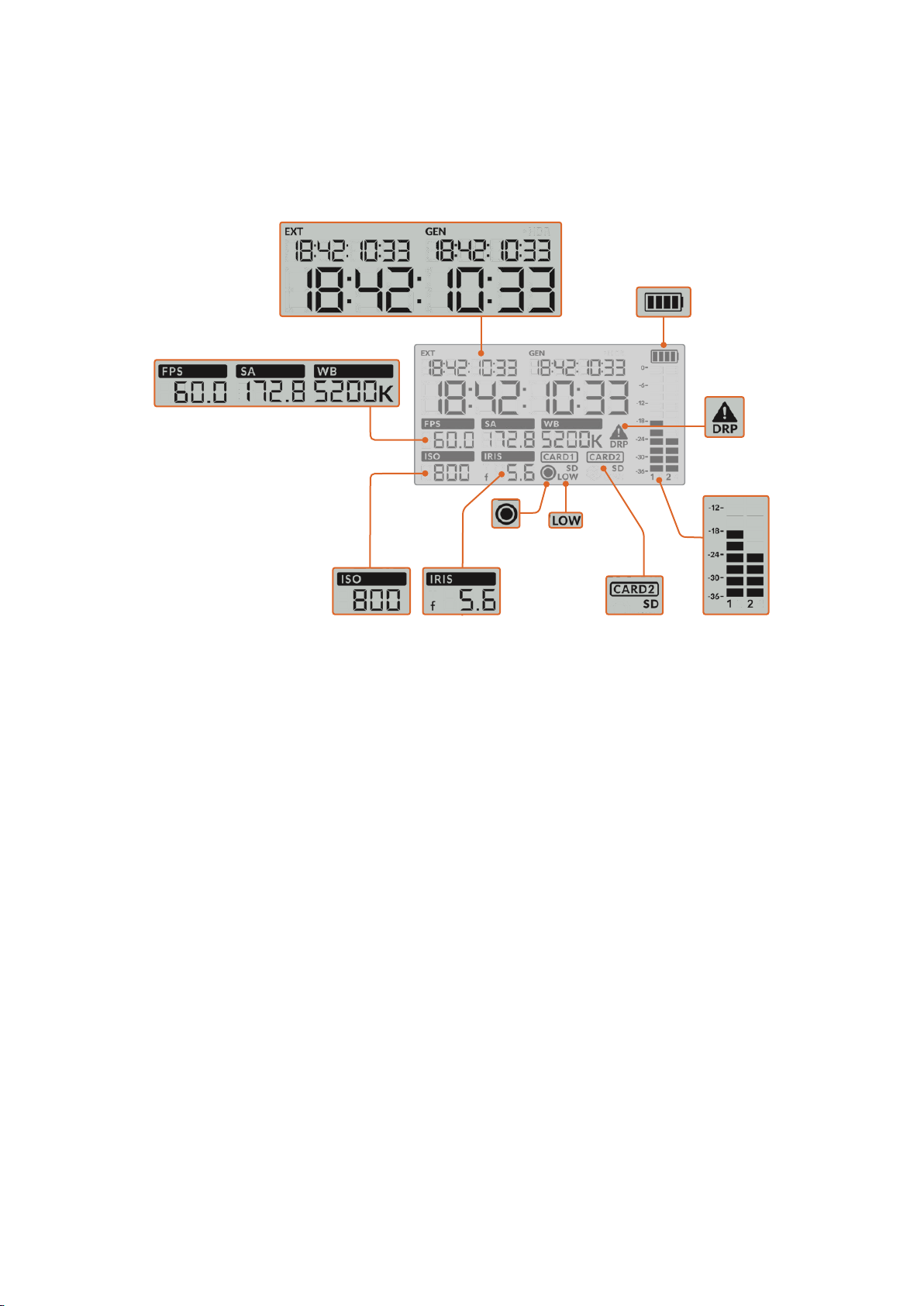
13 Status LCD
This display shows you your URSA Mini Pro’s essential settings at a glance, without
needing to open the internal touchscreen. This screen is designed to be visibleeven in
bright daylight. The following information is available:
Battery indicator
Audio metersCard indicatorIris
Low record
time remaining
FPS, Shutter Angle, White Balance
Record
indicator
Timecodes
ISO
Dropped
frame
indicator
Timecodes
Your URSA Mini Pro displays three timecodes. If you have an external timecode
connected, this will be shown under the ‘ext’ indicator in the top left of the status LCD.
Your URSA Mini’s internally generated timecode is shown next to this under the ‘gen’
indicator. Both the external and generated timecodes are shown in hours, minutes,
seconds and frames.
The larger, main timecode indicator displays your current timecode as either clip
duration or timecode. You can switch between these two display modes by pressing
the ‘timecode’ button underneath the status LCD.
Battery indicator
If your URSA Mini Pro is running on battery power, this indicator displays remaining
battery life in 25% increments. Each of the battery indicator’s four bars corresponds to
25% battery life remaining. When your battery drops below 20% charge, the color of the
status LED, near the record button begins to flash. It will alternate slowly between red
and orange during recording and alternate between white and orange during
standby mode.
If the mains power connector is plugged into your camera, the battery indicator
shows as full.
FPS, Shutter Angle, White Balance
The ‘FPS,’ ‘SA,’ and ‘WB’ indicators display your camera’s current frame rate, shutter
angle and white balance. The ‘fps’ indicator shows the current sensor frame rate.
Formore information on sensor and project frame rates, see the ‘touchscreen controls’
section in this manual.
67URSA Mini Pro Control Buttons

ISO
Displays your camera’s currently set ISO.
Iris
Displays your current lens aperture. Depending on your lens type, this will be
displayedas an ‘f’ or ’T’ stop.
Card Information
The ‘card 1’ and ‘card 2’ indicators will appear on your URSA Mini Pro’s status LCDwhen
these slots are occupied.
The ‘SD’ indicator appears if you are recording on SD cards, and disappears if you are
recording on CFast cards.
Record Indicator
While recording, a circular indicator will appear under the card or cards being currently
written to.
Low Time Remaining
A ‘low’ indicator will appear under the relevant card when you have approximately
5minutes of record time remaining.
Audio Meters
The peak audio meters display audio levels when using the internal microphone, or via
external audio when connected. The display is calibrated to dBFS units and features
peak hold indicators which stay visible for a short time so you can clearly see the
maximum levels reached.
To achieve optimum audio quality, ensure your audio levels do not reach 0 dBFS.
Thisis the maximum level that your camera can record, meaning that any audio that
exceeds this level will be clipped, resulting in distortion.
Dropped Frame Indicator
This indicator will flash when your camera detects dropped frames. Once you stop
recording, the indicator will remain on the screen to let you know that the previous clip
detected dropped frames. This warning disappears the next time you start recording,
or if you power cycle the camera. For more information on avoiding dropped frames,
see the ‘storage media’ section in this manual.
NOTE You can set your URSA Mini Pro to stop recording if dropped frames
are detected. See the ‘recordsettings’ section in this manual for more
information. This feature is user selectable as you may be able to get away
with brief periods of ‘burst’ recording at higher frame rates or resolutions when
shooting to slower media.
68URSA Mini Pro Control Buttons
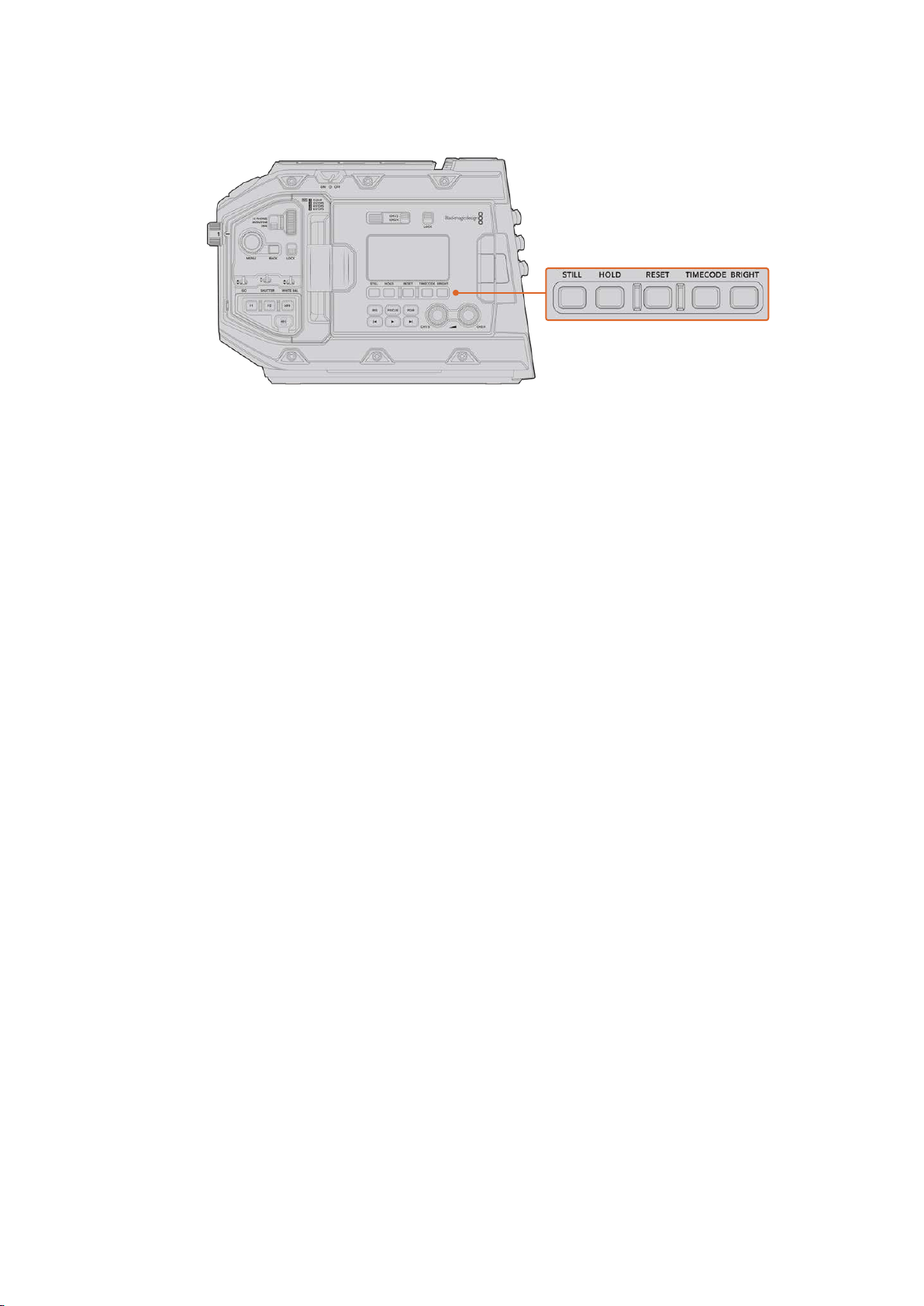
14 Status LCD Controls
URSA Mini Pro 4.6K status LCD controls
Still
Press this button to capture a still image as a single uncompressed DNG frame. Image
files will be saved to the ‘stills’ folder in the root directory of the media you are currently
recording to. These will follow the file naming convention for video clips but the
filename will have an ‘S001’ representing the ‘still number’ as the last four digits of the
filename. To confirm you have successfully saved a still, an image of a camera will show
in the top right corner of the URSA Mini touchscreen and the record indicator on the
status LCD will flash three times.
Hold
Use this button to temporarily hold the main status LCD timecode when the timecode is
in free running time of day code. The timecode will continue to run in the background
and return to its actual position when you release the ‘hold’ button. While holding you
can take note of the timecode for a particular event. This can be useful in electronic
news gathering or documentary situations for noting key timecode points.
Reset
The reset button allows you to reset the timecode to 00:00:00:00 when you are setting
your preset timecode.
Timecode
Press the ‘timecode’ button to toggle the main timecode display’s format between clip
duration and timecode. By default the timecode will be free running time of day code as
this is the most frequently used. If you press and hold the ‘timecode’ button for five
seconds it will switch the camera into record run timecode and the timecode generator
will flash as well as the first two digits of the large timecode display. This indicates that
you are now editing your preset timecode and allows you to set a specific timecode
number for your preset timecode.
Pressing ‘reset’ at this stage will zero the timecode and then you can turn and press
themenu wheel to set the desired value starting with hours, minutes, seconds and then
frames. When you are happy with the timecode, press and hold the ‘timecode’ button
again for three seconds to set this as your preset timecode point. You will notice that
the timecode generator now shows this value and will only increment when the camera
is recording giving you continuous ascending timecode values. To switch your
timecode back to free running time of day code, press the ‘timecode’ and ‘hold’ buttons
simultaneously for three seconds.
Bright
Press the ‘bright’ button to cycle through four brightness settings for your
URSAMiniPro’s LCD status display. The settings are ‘off,’ ‘low,’ ‘medium’ and ‘high.’
69URSA Mini Pro Control Buttons
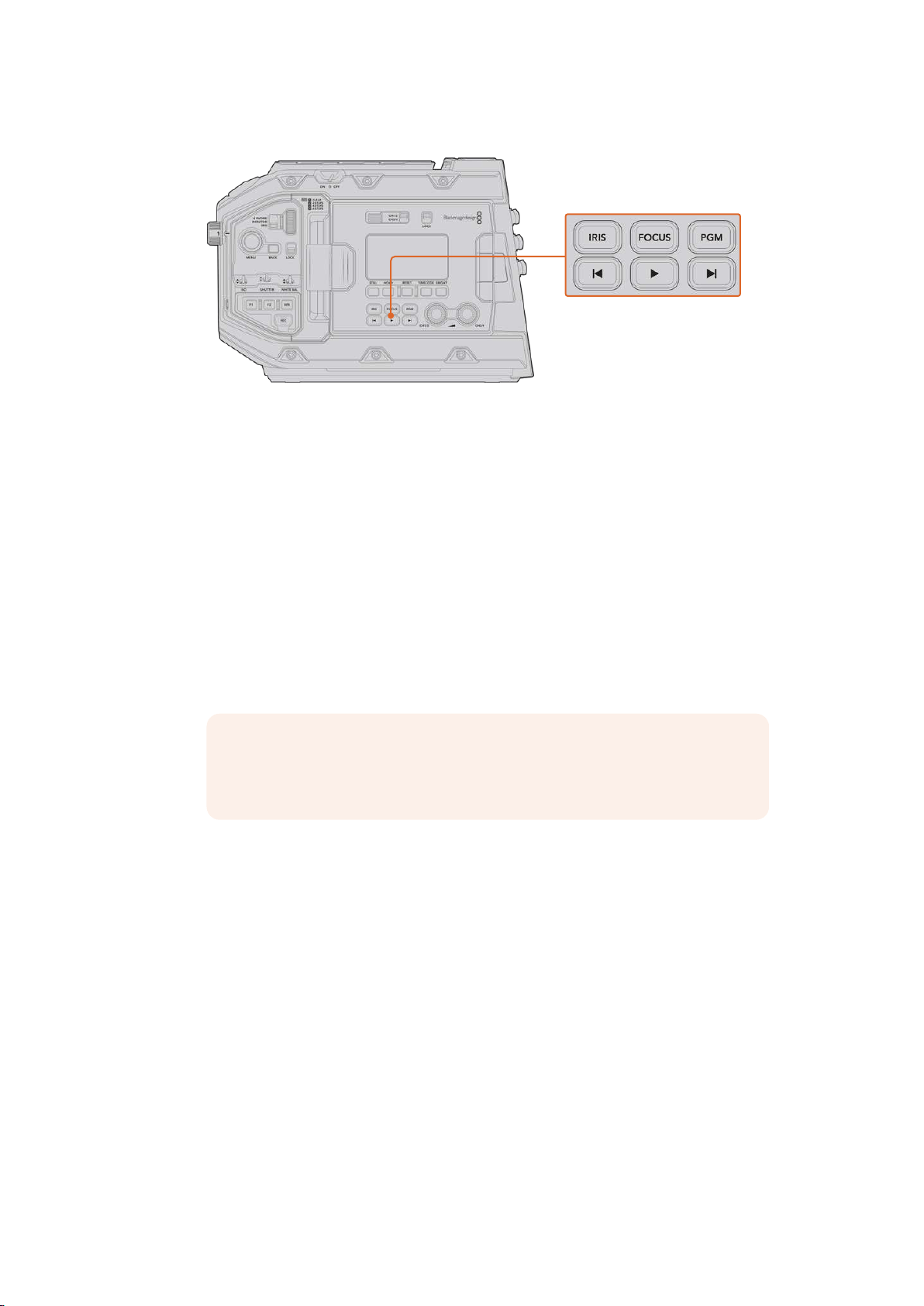
15 Control and Playback Buttons
URSA Mini Pro 4.6K control and playback buttons
Iris
The ‘iris’ button activates the automatic aperture setting on compatible lenses. When
using video dynamic range settings, a single press of the iris button will set an average
exposure based on the highlights or shadows in your shot. When using film dynamic
range settings, pressing the iris button sets your exposure to the brightest highlight in
your shot. This button works with compatible EF lenses and PLlenses connected with
acompatible broadcast lens controller.
To set your aperture manually, press the forward and reverse skip transport buttons.
Focus
When using an EF lens that supports electronic focus adjustments, press the ‘focus’
button to activate auto focus. A white focus square will appear on any viewfinder or
monitor connected to your URSA Mini Pro. Anything within the square will be correctly
focused. When the lens is focused, the square will disappear.
NOTE Some lenses have both manual and auto focus modes. In order for
URSA Mini Pro to be able to auto focus with your lens, you need to ensure that
your lens is set to auto focus mode.
Program
The program button is marked PGM and lets you switch the LCD between the camera
view and any signal plugged into the 12G-SDI input on the rear panel. This means if
you’re using URSA Mini Pro in a live broadcast, you can plug in the switcher’s program
output and monitor it during the shoot. Press and hold the program button to see your
program feed. The program feed will continue to display whilst the program button is
being held.
If you want to lock the monitor to display the program input feed, then double press the
program button to lock the display to the program feed. Pressing the program button
again will exit the program feed and return to the camera view.
Playback Control Buttons
The playback buttons let you start and stop playback, plus skip to the next or previous
clip. When using an EF lens, the forward and reverse skip buttons can also be used to
open or close the iris when using compatible lenses. Refer to the ‘playback’ section for
more information on how to use the playback buttons.
70URSA Mini Pro Control Buttons
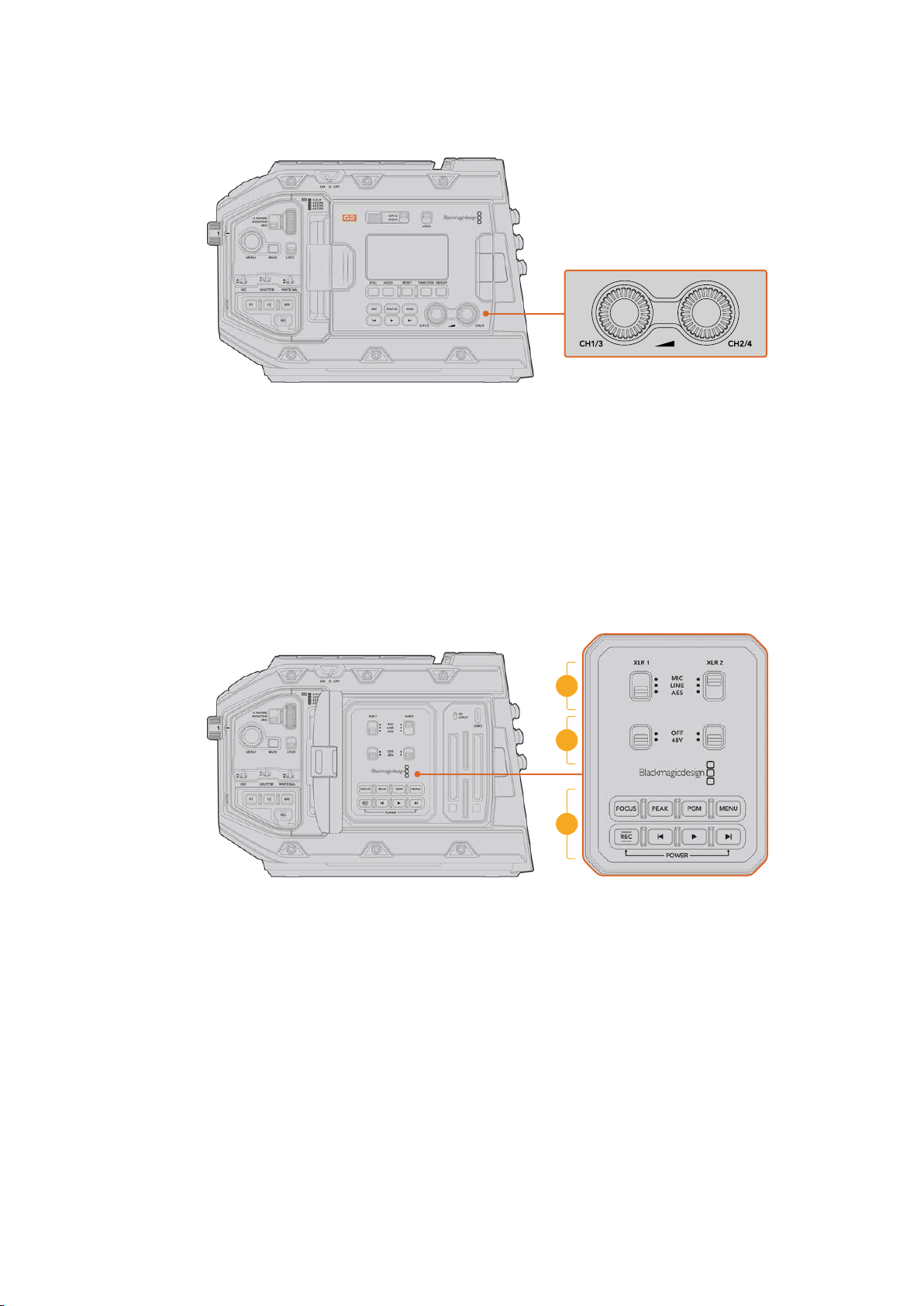
16 Audio Level Adjustment Knobs
URSA Mini Pro 4.6K G2 audio adjustment knobs
Use the built in adjustment knobs to set the recording levels for audio channels 1 and 2.
Turn each knob clockwise or counterclockwise to increase or decrease the recording
level for each channel of audio. Monitor the corresponding on screen audio meters as
you adjust each knob so you can see the best level to set it to.
Internal Control Panel
With your URSA Mini Pro’s foldout monitor open, you can access the internal control panel. Use
the controls here to set your audio inputs as well as phantom power settings, iris, focus, menu
and playback controls and more.
17
18
19
URSA Mini Pro internal control panel
17 XLR1 / XLR2
Use these switches to set how your URSA Mini Pro’s XLR inputs behave when selected
as an input source. The options available are mic audio, line level audio and AES
digital audio.
18 Phantom Power
Your URSA Mini Pro’s XLR inputs can provide 48V phantom power so you can use
microphones that aren’t self powered. Move this switch to ‘48V’ to enable phantom
power for any microphone connected to the XLR above, or ‘off’ to disable
phantom power.
71URSA Mini Pro Control Buttons

NOTE It is standard practice to plug in your XLR cable before switching
phantom power on. It is also important to switch phantom power to ‘off’ when
you no longer have a phantom powered microphone connected. Connecting
devices that don’t have phantom power protection built into their AES XLR
outputs whilst still sending phantom power from the camera’s XLR audio
inputs may damage your equipment. Always ensure that the 48V switch is
turned ‘off’ when you disconnect your microphone.
19 Control and Playback Buttons
Focus
When using an EF mount with an EF lens that supports electronic focus adjustments,
press the ‘focus’ button to activate auto focus. A white focus square will appear on the
fold out monitor. Anything within the square will be correctly focused. When the lens is
focused, the square will disappear.
NOTE Some lenses have both manual and auto focus modes. In order for
URSA Mini to be able to auto focus with your lens, you need to ensure that
your lens is set to auto focus mode.
Peak
Press the ‘Peak’ button to activate focus peaking. Your camera has two focus peaking
modes, traditional focus peaking, which artificially sharpens areas of the image that are
in focus, and ‘colored lines’ with overlays the sharp areas of your image with black,
white, red, green or blue colored lines. See the ‘monitor settings’ section of this manual
for more information. Focus peaking is not recorded to storage media, but can be
displayed via the HD monitoring output and on the fold out monitor by activating
overlays using the touchscreen menu.
TIP If you are recording your video output to a Blackmagic Video Assist or
HyperDeck Studio Mini, you may want to ensure that you don’t have peaking
switched on for that output. This can be done by using our ‘clean feed’ feature
on your front SDI or main SDI.
For more information on outputting a ‘clean feed’ see the ‘monitor settings’
section in this manual.
Program
The program button is marked PGM and lets you switch the LCD between the camera
view and any signal plugged into the camera’s 12G-SDI input. This means if you’re using
URSA Mini Pro in a live broadcast, you can plug in the switcher’s program output and
monitor it during the shoot. Press and hold the program button to see your program
feed. Double press the button to lock the program feed on. Press again to turn the
program feed off.
To display a switcher’s program output, your camera and switcher must be set to the
same resolution and frame rate.
Menu
Press the ‘menu’ button to open the dashboard. Refer to the ‘settings’ section for more
information about the dashboard feature and how to adjust settings.
72URSA Mini Pro Control Buttons
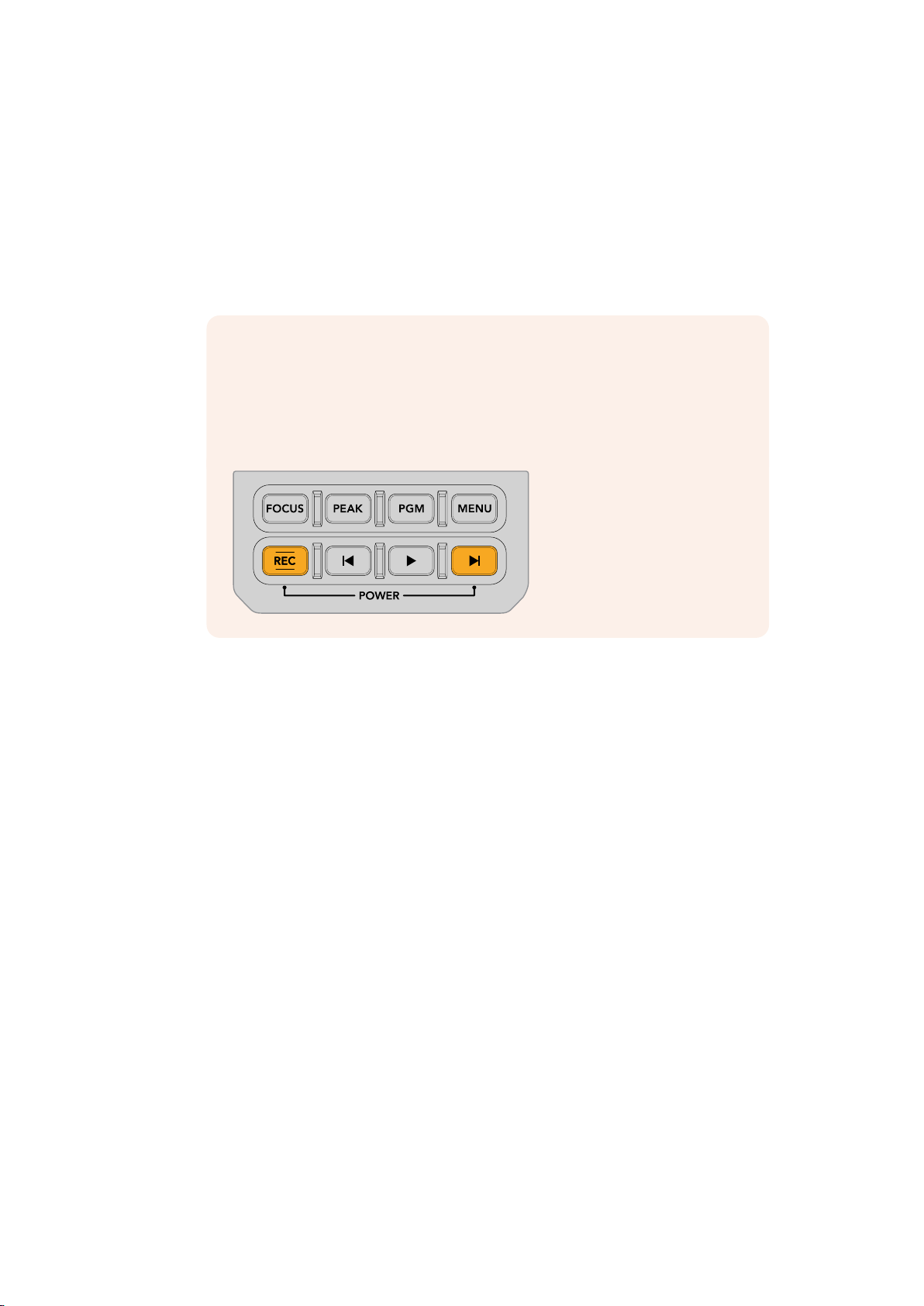
Record
Press any of the record buttons marked REC to start and stop recording. Refer to the
‘recording’ section for more information.
Playback Control Buttons
The playback buttons let you start and stop playback, plus skip to the next or previous
clip. When using the EF mount, the forward and reverse skip buttons can also be used
to open or close the iris when using compatible lenses. Refer to the ‘playback’ section
for more information on how to use the playback buttons.
NOTE You can power your URSA Mini Pro on or off via a combination of
internal control panel buttons. Holding the ‘rec’ and ‘forward skip’ buttons will
power up the camera if it is turned off, or power it off if it is turned on. If your
camera’s power switch is set to ‘on’ but your camera is powered down, it may
have been powered down via the control panel. Toggle the power switch to
return it to normal operation.
73URSA Mini Pro Control Buttons
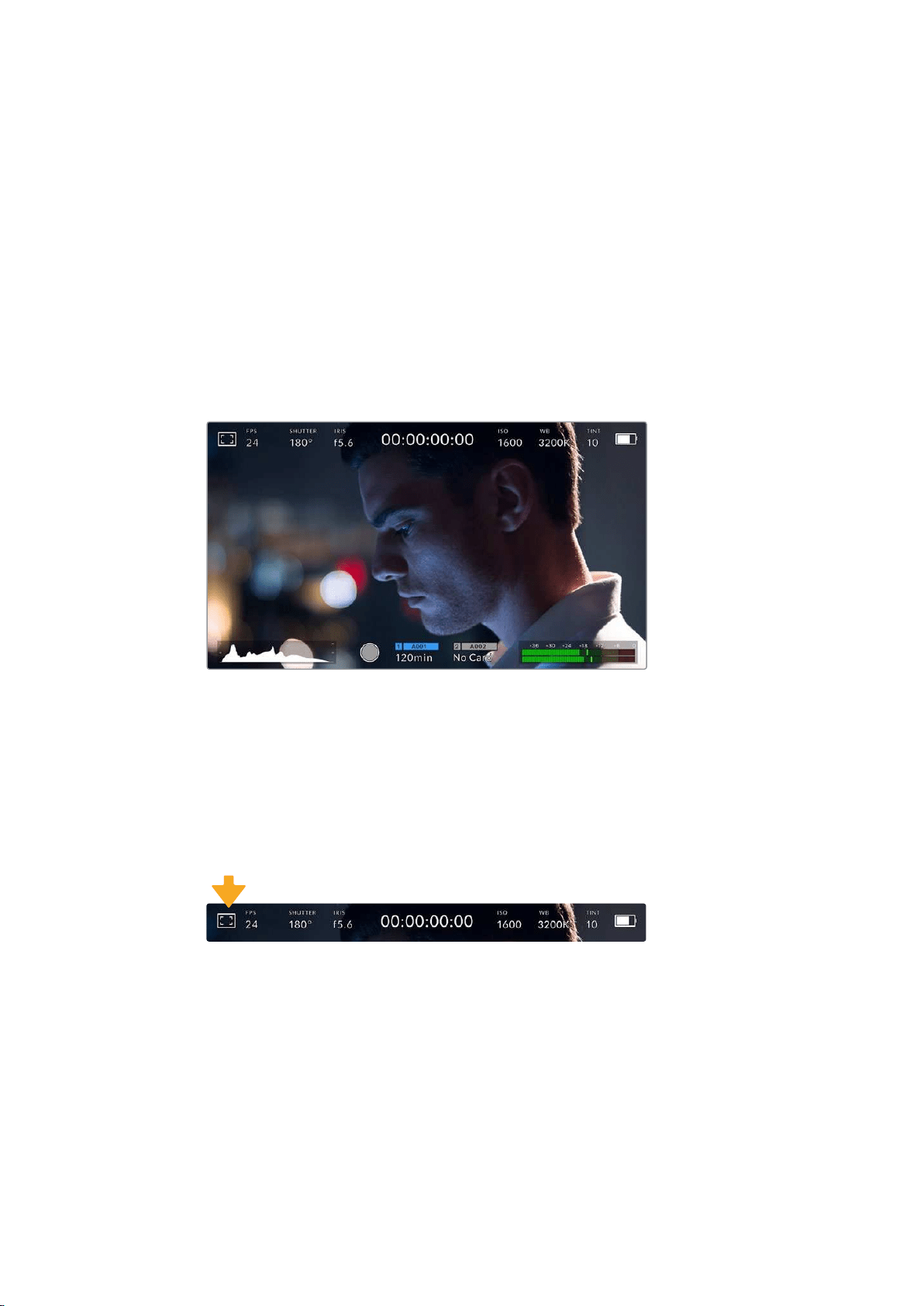
Touchscreen Controls
Touchscreen
Your Blackmagic URSA Mini’s fold out LCD touchscreen pivots for shooting high and low angles.
Buttons on the outside of the LCD panel let you control your URSA Mini when mounted on your
shoulder using the URSA Viewfinder and the LCD closed.
Touchscreen Features
The LCD touchscreen features a touch and gesture based interface that is specifically designed
for fast and intuitive user operation. By touching and swiping on different areas of URSA Mini’s
LCD touchscreen, you can quickly access the camera’s functions while shooting.
Your URSA Mini’s LCD touchscreen has a comprehensive head up display
and gives you easy access to your camera’s most used settings
LCD Monitor Options
Tap the ‘monitor’ icon at the top left of your URSA Mini’s LCD touchscreen to access the
LCDmonitor settings. These settings let you toggle and adjust the appearance of your
URSAMini’s monitoring features, including zebra, focus assist, frame guide, and grids. When
accessing LCDmonitor options, the controls for these features appear in a tabbed menu along
the bottom edge of the LCD touchscreen.
Tap the icon at the top left of your URSA Mini’s LCDtouchscreen to access LCD monitor options
Zebra
The ‘zebra’ setting toggles the appearance of zebra on the LCD touchscreen, as well as setting
the zebra level for all URSA Mini outputs.
74Touchscreen Controls
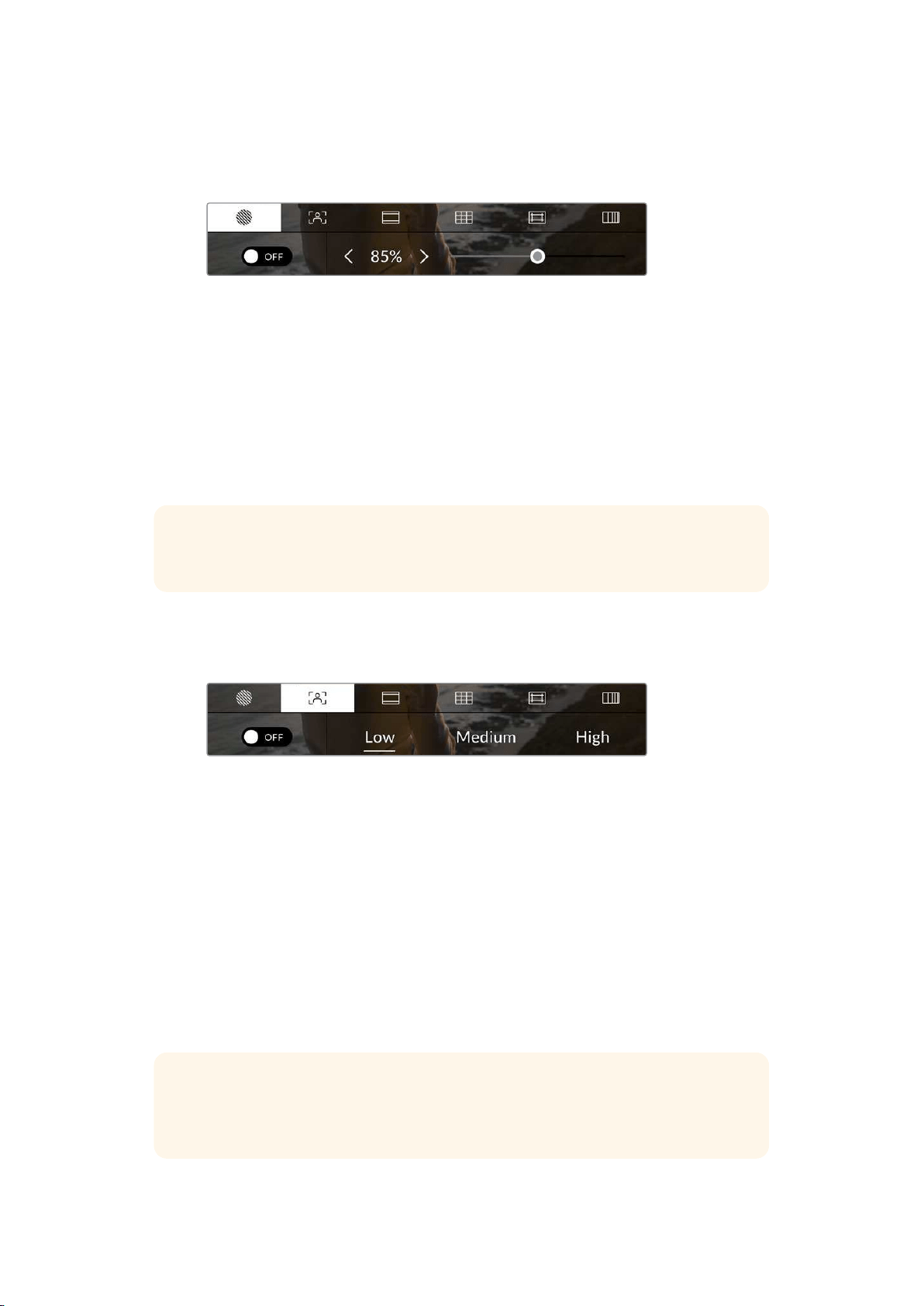
Zebra displays diagonal lines over areas of your image that exceed a set exposure level.
Forexample, setting zebra to 100% shows which areas are completely overexposed. This is
useful for achieving optimum exposure in fixed lighting conditions.
Tap the ‘zebra’ icon while accessing ‘LCD monitor
options’ to access your URSA Mini’s zebra settings
To toggle zebra for the LCD touchscreen, tap the switch icon in the bottom left of the screen
while in the ‘zebra’ tab.
Set the exposure level that zebra appears at by dragging the slider left and right, or tapping the
arrow buttons next to the zebra level percentage. Zebra level is adjustable in five percent
increments between 75 and 100 percent exposure.
For information on enabling zebra on your camera’s front and main SDIoutputs, see the
‘monitor settings’ section in this manual.
TIP If you’re shooting in variable light such as outdoors on a partly overcast day,
setting your zebra level lower than 100 can warn you of potential overexposure.
Focus Assist
The ‘focus assist’ setting toggles the appearance of focus assist on the LCD touchscreen,
aswell as setting the level of focus assistance for all outputs on your URSA Mini.
Tap the ‘focus assist’ icon while accessing ‘LCD monitor options’
toaccess your URSA Mini’s focus assist settings
To toggle focus assistance for the LCD touchscreen, tap the switch icon in the bottom left of the
screen while in the ‘focus assist’ tab.
To set the level of focus assistance for all outputs on your URSA Mini, tap the ‘low,’ ‘medium’ or
‘high’ titles along the bottom of your touchscreen.
The optimum level of focus assistance varies shot by shot. When focusing on actors, for
example, a higher level of focus assistance can help resolve edge detail in faces. A shot of
foliage or brickwork, on the other hand, may show distracting amounts of focus information
athigher settings.
For information on enabling focus assist on your camera’s front and main SDI outputs, see the
‘monitor settings’ section in this manual.
TIP Your URSA Mini has two focus assist modes. You can switch between ‘peaking’
and ‘colored lines’ focus assistance in the ‘monitor’ settings menu. Formore
information, see the ‘monitor settings’ section in this manual.
75Touchscreen Controls
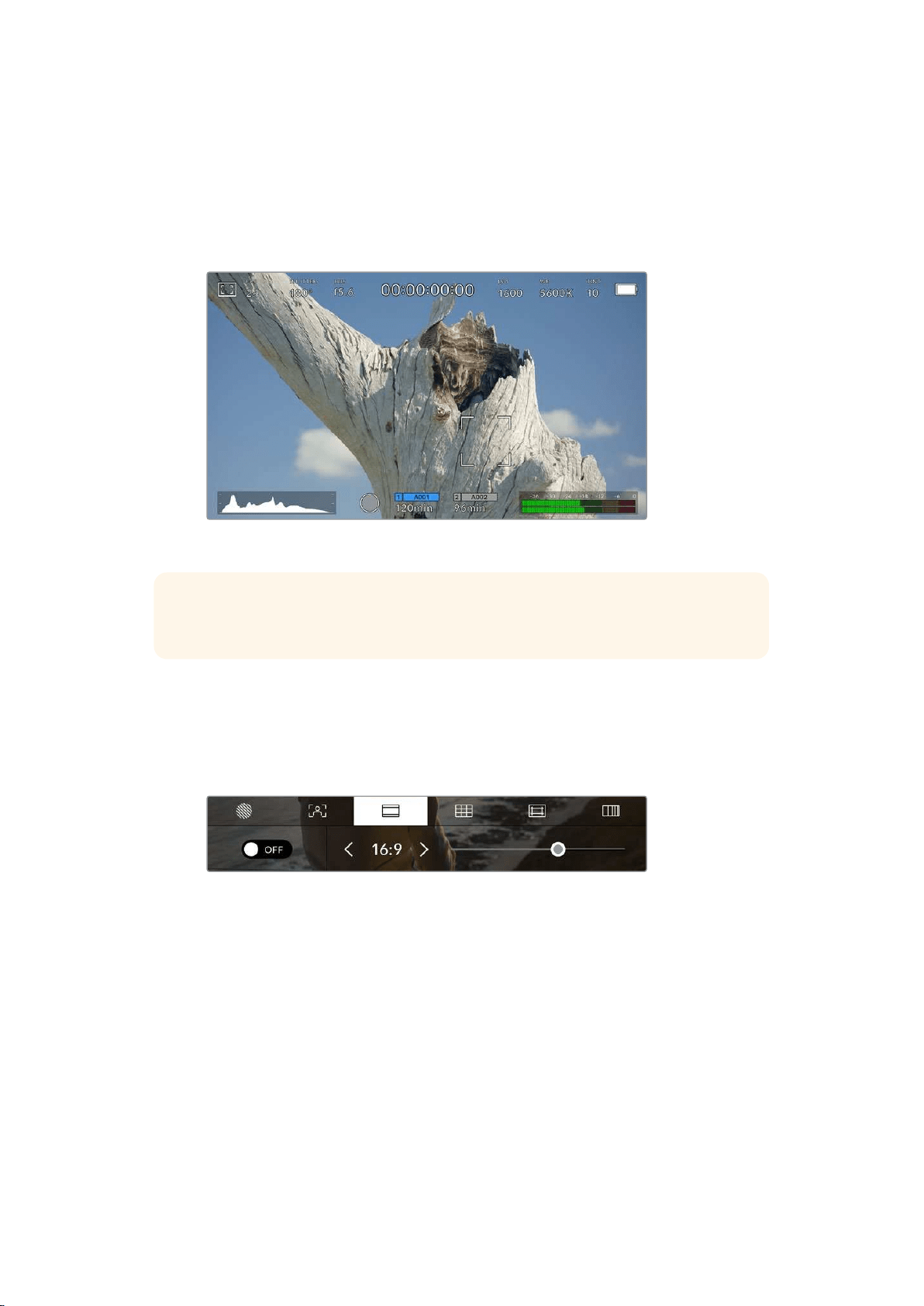
Touch to focus
You can focus compatible lenses in any region of the image by pressing the LCD screen for a
moment where you want to focus. The camera will focus your lens in the chosen location.
Pressing the ‘focus’ button on the camera or the optional handgrip following this will trigger
auto-focus in that specified region. Double pressing the ‘focus’ button will reset the focus point
to the center of the screen.
URSA Mini LCD touchscreen with press to focus
TIP If the ‘heads up display’ is obscuring the area you wish to focus whilst using
‘touchto focus’, simply swipe it up or down to move it out of the way.
Frame Guides
The ‘frame guide’ setting toggles the appearance of frame guides on the LCD touchscreen.
Youcan also choose from eight frame guide options for all outputs on your URSA Mini.
Frame guides include aspect ratios for various cinema, television and online standards.
Tap the ‘frame guides’ icon while accessing ‘LCD monitor options’
to access your URSA Mini’s frame guide settings
To toggle the appearance of frame guides on your URSA Mini’s LCD touchscreen, tap the switch
icon in the bottom left of the screen.
Choose the frame guide you want to use by dragging the slider left and right, or tapping the
arrow buttons on either side of the currently selected aspect ratio.
The available guides are:
2.35:1, 2.39:1 and 2.40:1
Displays the broad widescreen aspect ratio compatible with anamorphic or flat
widescreen cinema presentation. The three widescreen settings differ slightly based
on the changing cinema standards over time. 2.39:1 is one of the most prominent
standards in use today.
76Touchscreen Controls
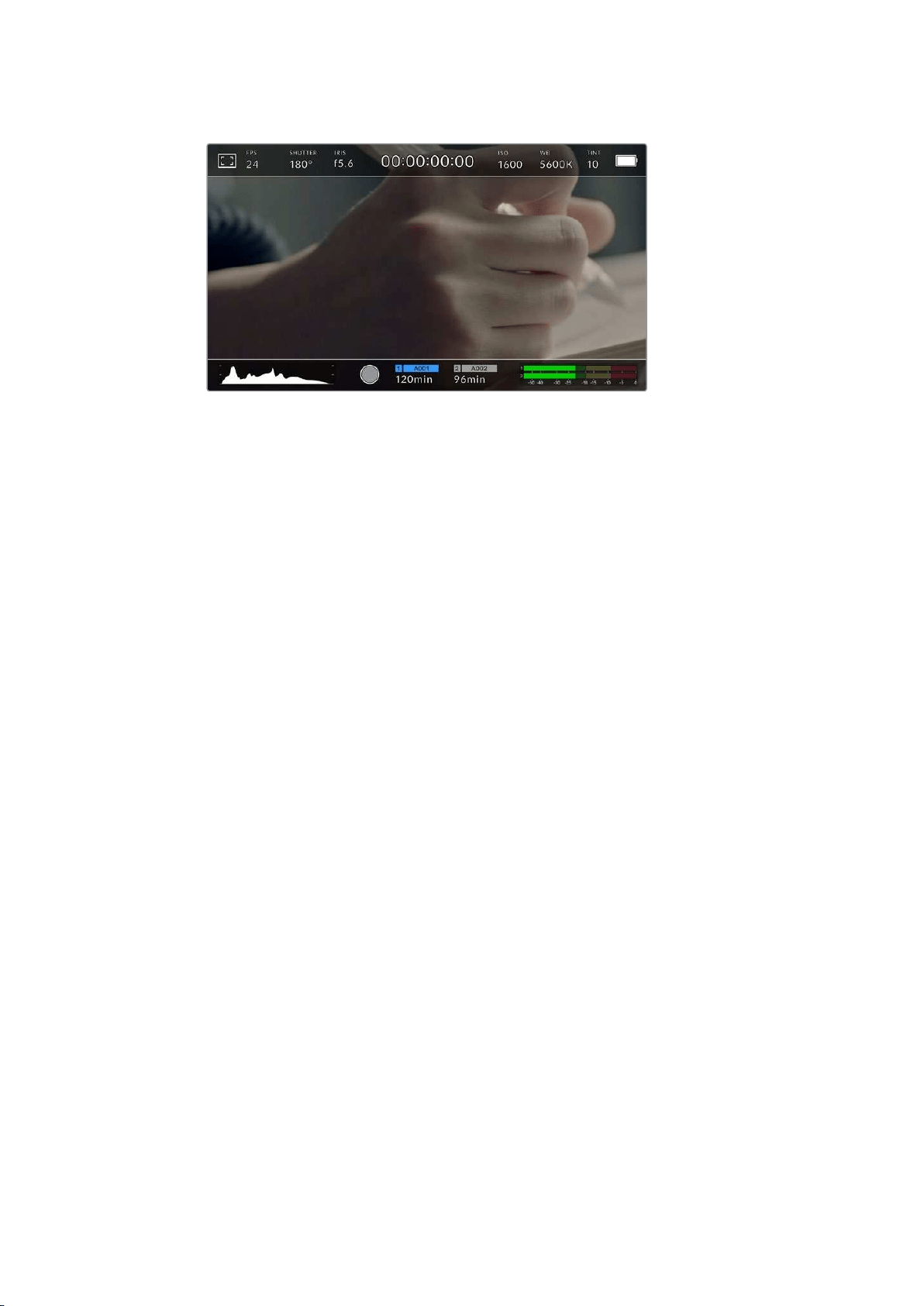
The LCD touchscreen with 2.40:1 frame guides enabled
1:1
URSA Mini Pro can display a square format 1:1 frame guide when composing shots for
social media material.
2:1
Available on the URSA Mini Pro, this displays a ratio slightly wider than 16:9 but not as
wide as 2.35:1.
1.85:1
Displays another common flat widescreen cinema aspect ratio. This ratio is slightly
wider than HDTV 1.78:1 but not as wide as 2.39:1.
16:9
Displays a 1.78:1 aspect ratio compatible with 16:9 HD television and computer screens.
This ratio is most commonly used for HD broadcasting and online videos. The same
aspect ratio has also been adopted for Ultra HD broadcasting.
14:9
Displays a 14:9 aspect ratio used by some television broadcasters as a compromise
between 16:9 and 4:3 television sets. Ideally, both 16:9 and 4:3 footage remains legible
when center cropped to fit 14:9. You can use this as a compositional guide if you know
your project may be broadcast by a television station that uses 14:9 cropping.
4:3
Displays the 4:3 aspect ratio compatible with SD television screens, or to help with
framing when using 2x anamorphic adapters.
4:5
URSA Mini Pro can display 4:5 portrait format guides when composing shots for
smartphone content.
Custom Frame Guide Ratio
To create your own frame guide ratio for a unique appearance, tap on the ratio
displayed between the arrow buttons. On the ‘custom frameguide’ screen tap the
backspace button to delete the current ratio, then use the numeric keypad to specify a
new ratio. Tap ‘update’ to apply your custom frame guide ratio and return to shooting.
77Touchscreen Controls
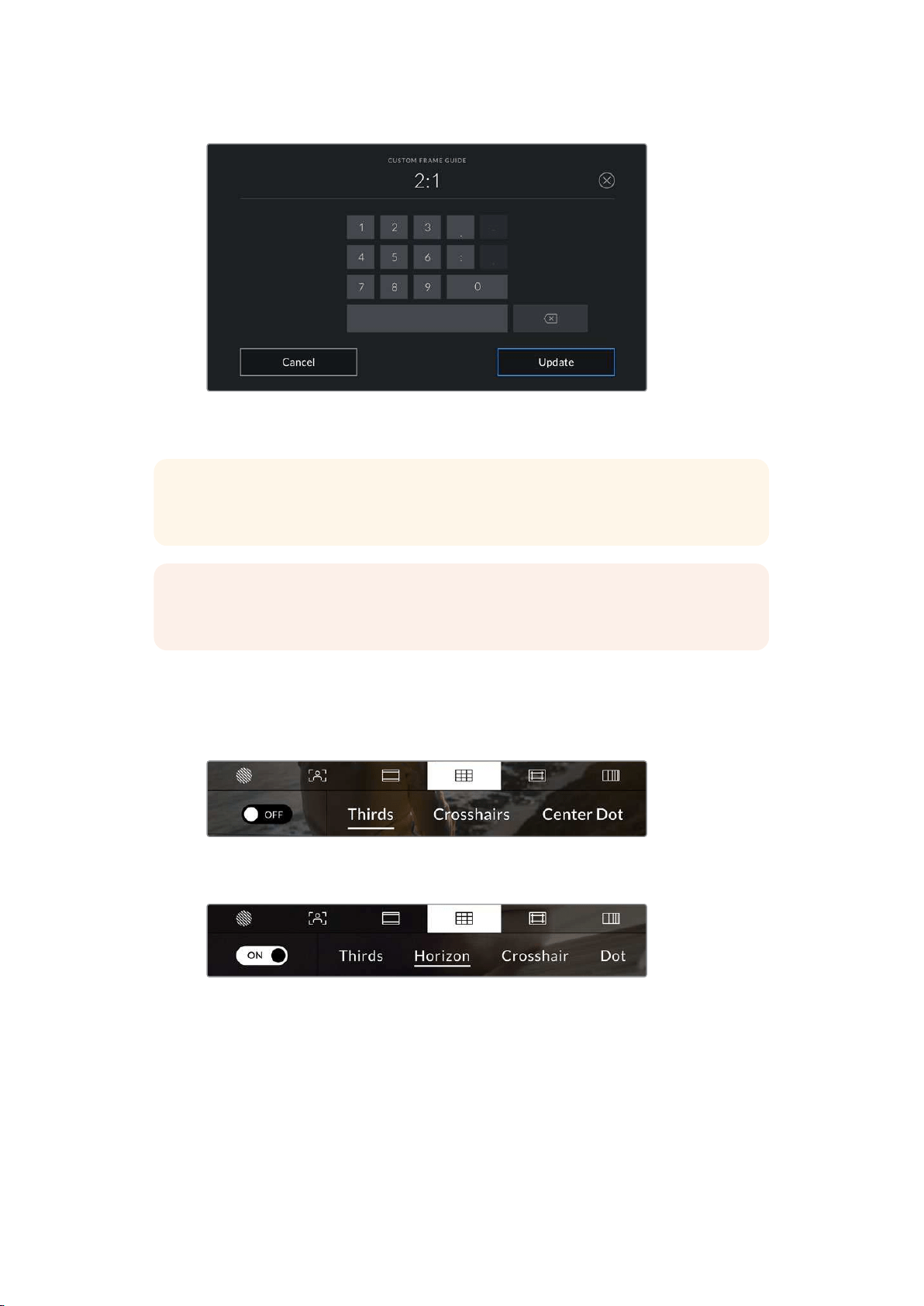
Use the numeric keypad on the ‘custom frame
guide’ screen to enter a new frame guide ratio
TIP You can change the opacity of frame guide overlays. For more information see the
‘monitor settings’ section of this manual.
NOTE For information on enabling frame guides on your camera’s front and main
SDIoutputs, see the ‘monitor settings’ section in this manual.
Grids
The ‘grids’ setting toggles the appearance of a rule of thirds grid, crosshair or center dot on the
LCD touchscreen, as well as setting the overlay that will be visible on all URSA Mini outputs.
URSA Mini Pro 12K also has an option for a horizon meter.
Tap the ‘grids’ icon while accessing ‘LCD monitor
options’ to access your URSA Mini’s grid settings
On URSA Mini Pro 12K, the ‘grids’ setting has options for rule of
thirds grid, horizon meter, crosshair or center dot
Grids and crosshairs are overlays that can help with image composition. When ‘grids’ are
enabled, your URSA Mini can show a rule of thirds grid, crosshair or dot. URSA Mini Pro 12K has
an additional option so you can overlay a horizon meter.
78Touchscreen Controls

To toggle the appearance of grids on your URSA Mini touchscreen, tap the switch icon in the
bottom left of the screen while in the ‘frame guides’ tab.
When your URSA Mini is set up and connected to an ATEM switcher as the current program
source, and ‘grids’ are set to ‘on’, the red ‘program’ tally outline will automatically illuminate
on your LCD.
When connected to an ATEM switcher sending a tally signal, a red border will
appear around your camera’s image preview when grids are set to ‘on’
To set which overlay you want to display on all URSA Mini outputs, tap the options at the bottom
of the display for ‘thirds’, ‘crosshairs’ or ‘center dot’. URSA Mini Pro 12K also includes a
‘horizon’ option.
The rule of thirds grid automatically scales to any on screen frame guides
Thirds
The ‘thirds’ setting displays a grid with two vertical and horizontal lines placed in each
third of the image. Thirds are an extremely powerful tool to help compose your shots.
For example, the human eye typically looks for action near the points where the lines
intersect, so it’s helpful to frame key points of interest in these zones. An actor’s eyeline
is commonly framed along the top third of the screen, so you can use the top horizontal
third to guide your framing. Thirds are also useful to maintain framing consistency
between shots.
79Touchscreen Controls
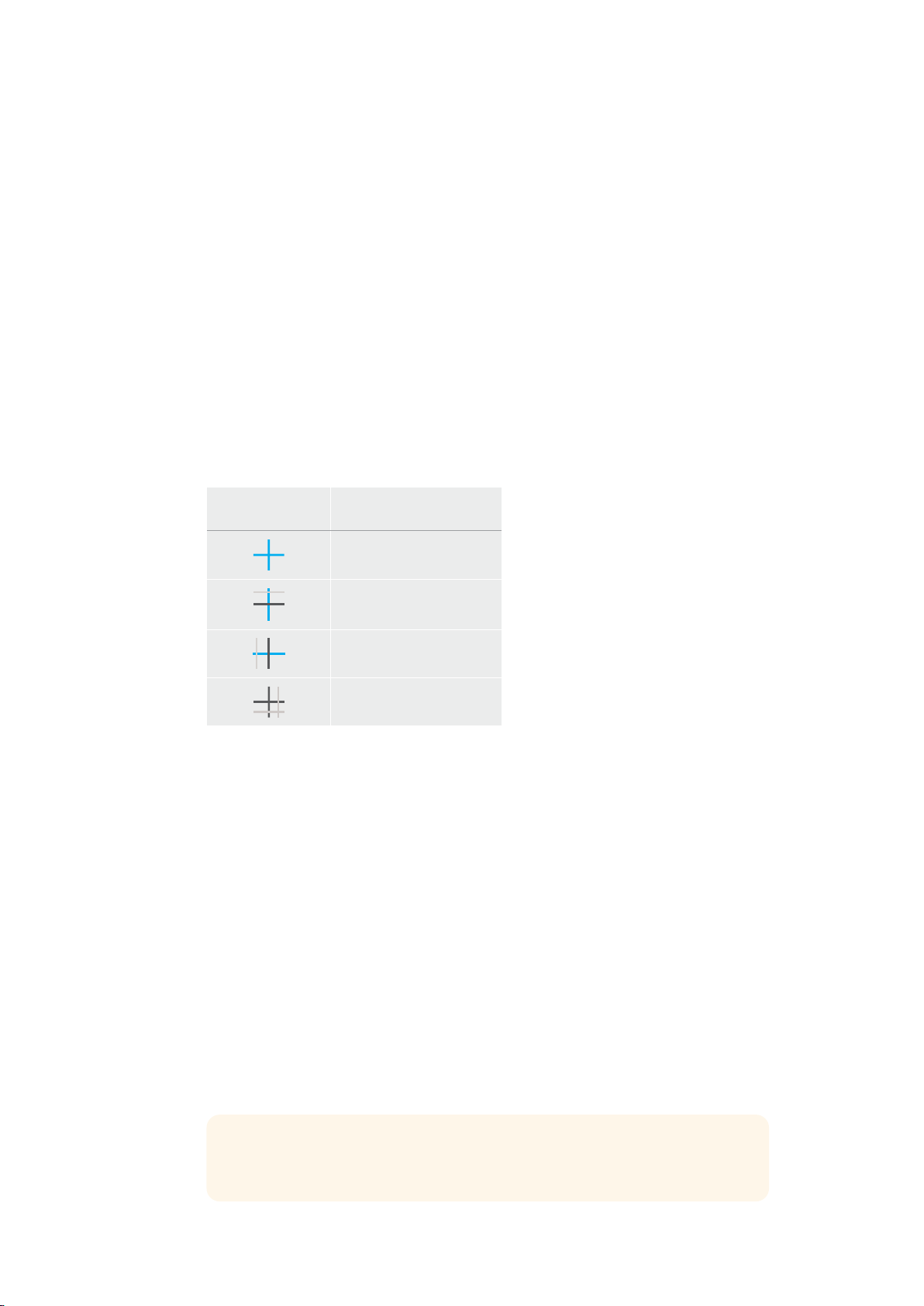
Horizon
URSA Mini Pro 12K has a horizon meter. It indicates when your camera is rolled left or
right and tilted up or down. This can help you keep the horizon is level during handheld
shots and balance the camera tilt on a gimbal.
The direction the light gray vertical line moves away from the dark gray crosshair in the
middle indicates the direction your camera is rolled. When the camera is tilted down
the light gray horizontal line moves up and when the camera is tilted up the light gray
horizontal line moves down.
The distance the lines move away from the central crosshair is proportional to the
amount of roll or tilt. After you calibrate the camera’s motion sensor, the vertical line
turns blue when the camera is aligned to the roll axis and the horizontal line turns blue
to indicate the camera is aligned to the tilt axis.
Note that if the camera is tilted straight down for an overhead shot or straight up, the
horizon meter takes this into account. If you roll the camera to shoot in portrait
orientation, the horizon meter rotates its axes 90 degrees.
This table shows examples of the horizon meter indicating tilt and roll of the camera.
Horizon meter Description
Straight and level
Tilted down and level
Straight and rolled left
Tilted up and rolled right
For normal use, calibrate the horizon meter for straight and level operation. If you want
to use the horizon meter to help maintain a consistent ‘dutch angle’ or a consistent tilt
for a low or high shot, you can calibrate the horizon meter at an incline. For information
on how to calibrate the horizon meter, see the ‘motion sensor calibration’ section.
Crosshair
The ‘crosshair’ setting places a crosshair in the center of the frame. Like thirds, the
crosshair is a very useful compositional tool, making it easy to frame the subject of a
shot in the very center of a frame. This is sometimes used when filming scenes that will
be assembled using very fast cuts. Keeping viewers’ eyes focused on the center of a
frame can make rapid editing easier to follow.
Center Dot
The ‘center dot’ setting places a dot in the center of the frame. This works in exactly the
same way as the ‘crosshair’ setting, albeit with a smaller overlay that you may find
lessintrusive.
You can enable a combination of ‘thirds’ and ‘crosshairs’ or ‘thirds’ and ‘center dot’ by
tapping both options in the ‘grids’ menu. ‘Crosshairs’ and ‘center dot’ cannot be
selected together.
TIP For information on enabling grids on your URSA Mini’s front and main
SDIoutputs, see the ‘monitor settings’ section in this manual.
80Touchscreen Controls
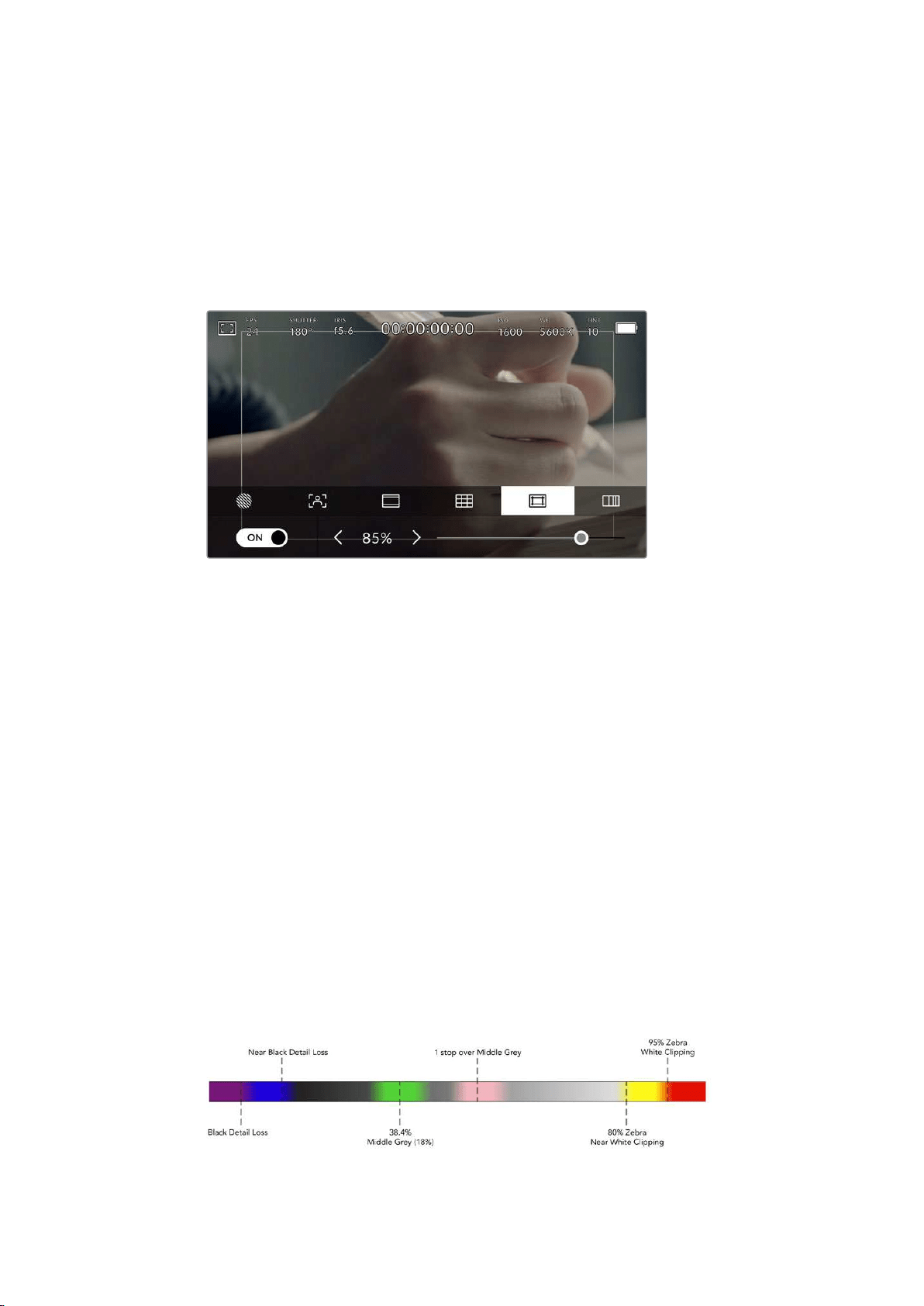
Safe Area Guides
The ‘safe area guides’ setting toggles the safe area guides on or off the LCDtouchscreen, as
well as setting the size of safe area guides for all outputs on your URSA Mini.
Safe areas can be used in broadcast production to ensure that the most important parts of a
shotcan be seen by viewers. By keeping the most important parts of your shot within a central
‘safearea,’ you can avoid cropping on some televisions, as well as leaving space for
abroadcaster to add bugs, news tickers and other overlays along the edges of the screen.
Manybroadcasters require footage to be submitted within a 90% safe area.
The ‘safe area’ indicator set to 85%
Safe area guides can also be used to assist with framing your shot where you know that the
shot will be stabilized in post production, which can crop the edges of the image. They can also
be used to indicate a specific crop.
For example by setting it to 50% whilst recording at Ultra HD 3840x2160 you can see what a
1920x1080 crop of the frame would look like. The safe area guides also scale to your frame
guides, so they will adjust to indicate the chosen percentage of your target frame.
To toggle safe area guides for the LCD touchscreen, tap the switch icon in the bottom left of the
screen while in the ‘safe area guides’ tab. To set the level of safe area guides for all outputs on
your URSA Mini, tap the left or right arrows on either side of the current numerical value at the
bottom of your touchscreen. Alternatively, you can drag the slider left or right.
False Color
The ‘false color’ setting toggles the appearance of false color exposure assistance on the
LCDtouchscreen.
False color overlays different colors onto your image that represent exposure values for
different elements in your image. For example, pink represents optimum exposure for lighter
skin tones, while green is a good match to darker skin tones. By monitoring the pink or green
false color when recording people, you can maintain consistent exposure for their skin tones.
Similarly, when elements in your image change from yellow to red, that means they are now
over exposed.
False Color Chart
81Touchscreen Controls

To toggle false color for the LCD touchscreen, tap the switch icon in the bottom left of the
screen while in the ‘false color’ tab.
The ‘false color’ exposure assistance tab
ND Filter indicator
Adjusting your URSA Mini Pro’s ND filter will display the ND filter indicator in the top left of the
LCD touchscreen and any SDI outputs set to show status text. This indicator will remain on in
your ‘status text’ when you have an ND filter engaged. When you have it set to the position
where there is no ND filter, the ‘clear’ text will disappear after four seconds.
Adjusting your URSA Mini Pro’s ND filter setting will reveal the ND filter indicator
NOTE You can adjust the terminology used by the ND filter indicator to reflectthe
conventions you’re used to. The options are ND number, stops and fractions. You can
set your preferred format in your URSA Mini Pro’s ‘setup’menu.
LUT indicator
The LUT icon will be visible on the LCD, front SDI or main SDI when ‘status text’ is switched
onand you have a LUT applied to that output.
The LUT icon lets you know that you have a LUT applied to the image
Frames Per Second
The ‘FPS’ indicator displays your currently selected frames per second.
URSA Mini’s frames per second indicator. Tap this to access frame rate settings
Tapping the ‘FPS’ indicator lets you change your camera’s sensor and project frame rates via
amenu at the bottom of your LCD touchscreen.
82Touchscreen Controls
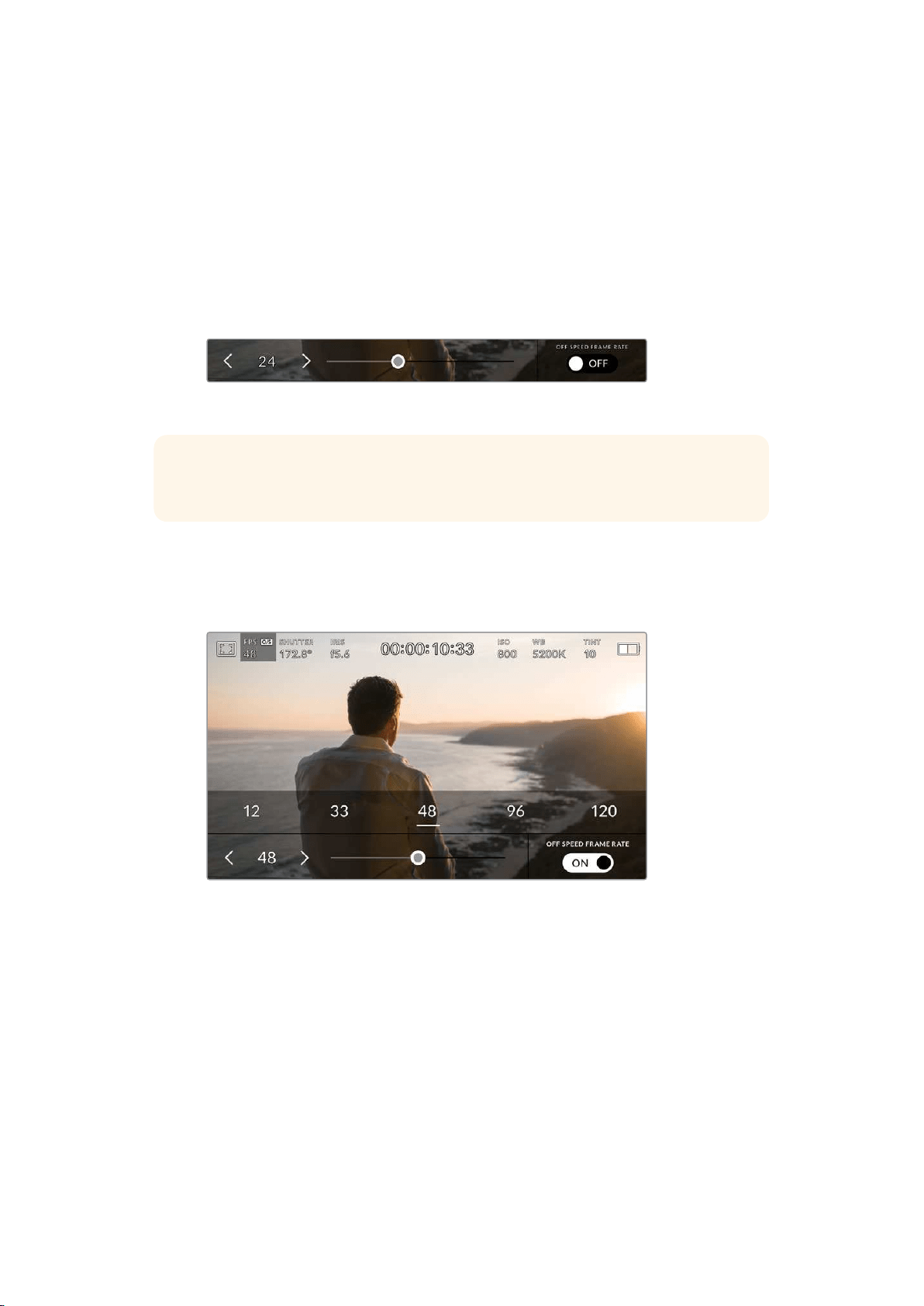
Project frame rate
The project frame rate is URSA Mini’s recording format frame rate and provides a selection of
common frame rates used in the film and television industry. This frame rate is normally set to
match your playback speed used in your post production workflow.
Your Blackmagic URSA Mini has 8 project frame rate settings including 23.98, 24, 25, 29.97, 30,
50, 59.94 and 60 frames per second.
To adjust your URSA Mini’s project frame rate while in the ‘FPS’ menu, tap the left or right
arrows next to the current frame rate at the bottom left of your touchscreen. Alternatively,
youcan drag the slider left or right.
Tap the arrows on either side of the project frame rate or move the slider to make adjustments
TIP Your URSA Mini’s project frame rate also sets the frame rate of the front and main
SDI outputs.
Sensor frame rate
The sensor frame rate sets how many actual frames from the sensor are recorded every
second. This frame rate will affect how fast or slow your video will play back at your set project
frame rate.
With ‘off speed frame rate’ enabled, tap the arrows on either side of the sensor
frame rate, move the slider or tap one of the presets to make adjustments
By default, your URSA Mini’s project and sensor frame rates are matched for a natural playback
speed. However, by tapping the ‘off speed frame rate’ switch icon in the bottom right hand side
of your URSA Mini’s ‘FPS’ menu, you can independently set your sensor frame rate.
To change your sensor frame rate, tap the arrows next to the sensor frame rate indicator in the
lower left of your touchscreen. You can also drag the slider left or right to increase or decrease
the frame rate. Once you release the slider, the sensor frame rate will be selected. Above the
slider, you can select a recommended off speed frame rate that is based on your current project
frame rate.
83Touchscreen Controls
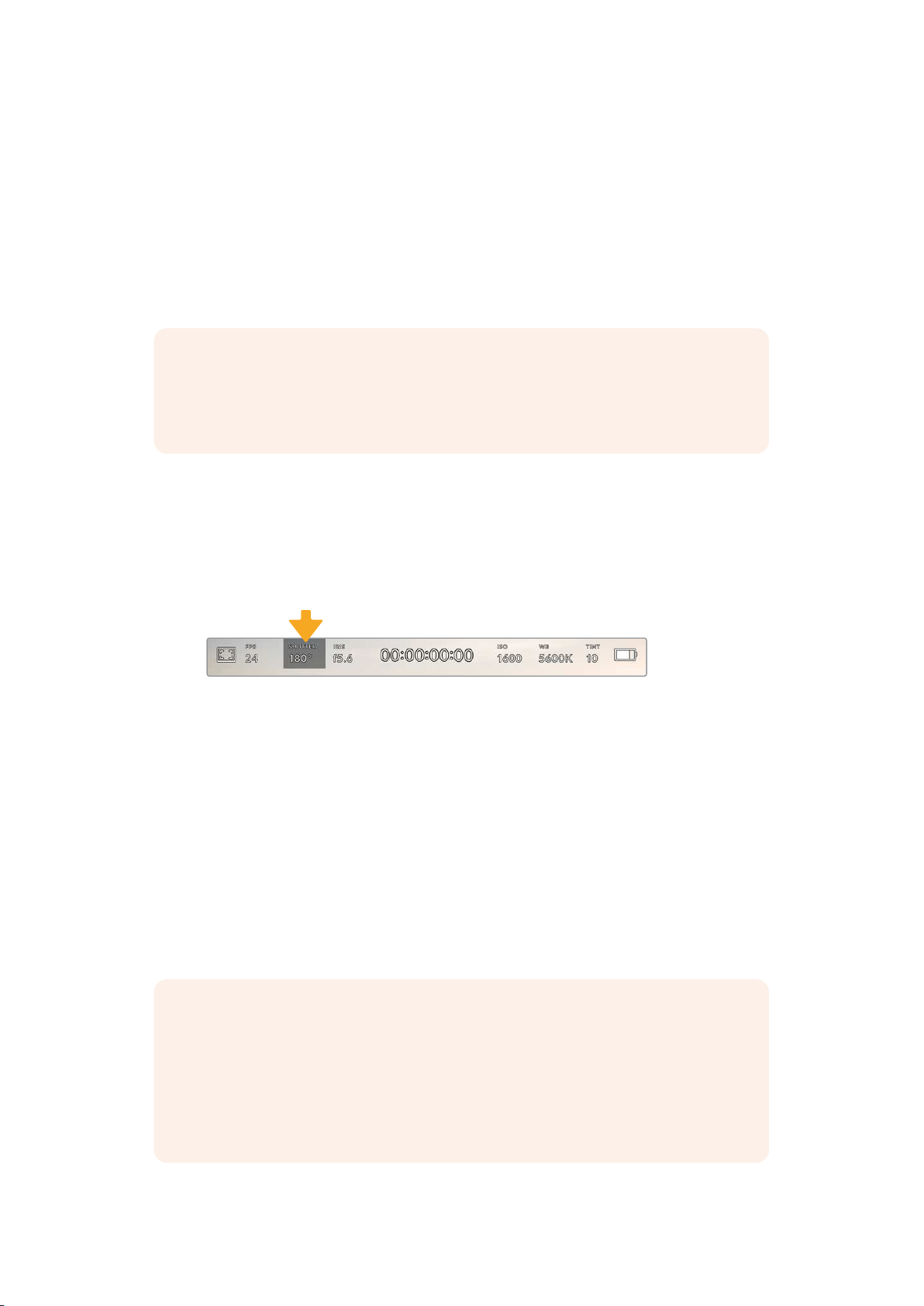
You can create dynamic and interesting speed effects in your clips by varying the sensor frame
rate. Setting the sensor frame rate higher than your project frame rate willcreate slow motion
during playback. Alternatively, the lower your sensor frame rate, the faster your clips will appear.
The principle is similar to overcranking and undercranking a film camera. Overcranking speeds
up the sensor frame rate so you can stretch out moments in time during playback to enhance
emotion. Undercranking slows down the sensor frame rate so you can increase the action in
fast moving scenes. The creative possibilities are endless and entirely up to you!
For information on the maximum frame rates available for each recording format and codec,
refer to the table in the ‘recording’ section of this manual.
NOTE When ‘off speed frame rate’ is selected your URSA Mini’s audio and video are
no longer synced. This is true even if you set the same project and sensor frame rate.
For this reason, ‘off speed frame rate’ should never be selected if you want to
guarantee audio syncing.
Shutter
The ‘Shutter’ indicator displays your shutter angle or shutter speed. By tapping this indicator,
you can manually change your URSA Mini’s shutter values or configure shutter priority auto
exposure modes. On URSA Mini 4.6K and URSA Mini Pro, the shutter measurement setting can
be used to select whether to display shutter information as ‘shutter angle’ or ‘shutter speed’.
See the ‘setup settings’ section in this manual for more information.
Your URSA Mini’s shutter indicator. Tap this to access shutter settings
Shutter angle or shutter speed defines the level of motion blur in your video, and can be used
to compensate for varying light conditions. 180 degrees is the optimum shutter angle for
capturing satisfying motion blur in most conditions, with the equivalent being a shutter speed of
1/50th of a second. However as lighting conditions change, or the amount of movement in your
scene increases, you may decide to adjust accordingly.
For example, 360 degrees is considered ‘wide open’ and allows maximum light onto the sensor.
This is useful for low light conditions with subtle movement in your scene. Alternatively,
ifshooting subjects with a lot of movement, a narrow shutter angle like 90degrees will provide
minimal motion blur for sharper, crisper images. The equivalent shutter speeds compared to
shutter angle depends on the frame rate you are using. For example, if you are shooting at
25frames per second, then 360 degrees will equate to 1/25th, and 90 degrees will equate to
1/100th of a second.
NOTE When shooting under lights, your shutter can affect the visibility of flicker. Your
URSA Mini will automatically calculate a flicker free shutter value for your current frame
rate. It will display up to three suggested flicker free shutter options at the bottom of
the heads up display when adjusting your shutter. These shutter values are affected by
mains power frequency in your region. You can set your local power frequency to
50Hzor60Hz in your URSA Mini’s setup menu. See the ‘setup settings’ section in
thismanual for more information.
84Touchscreen Controls
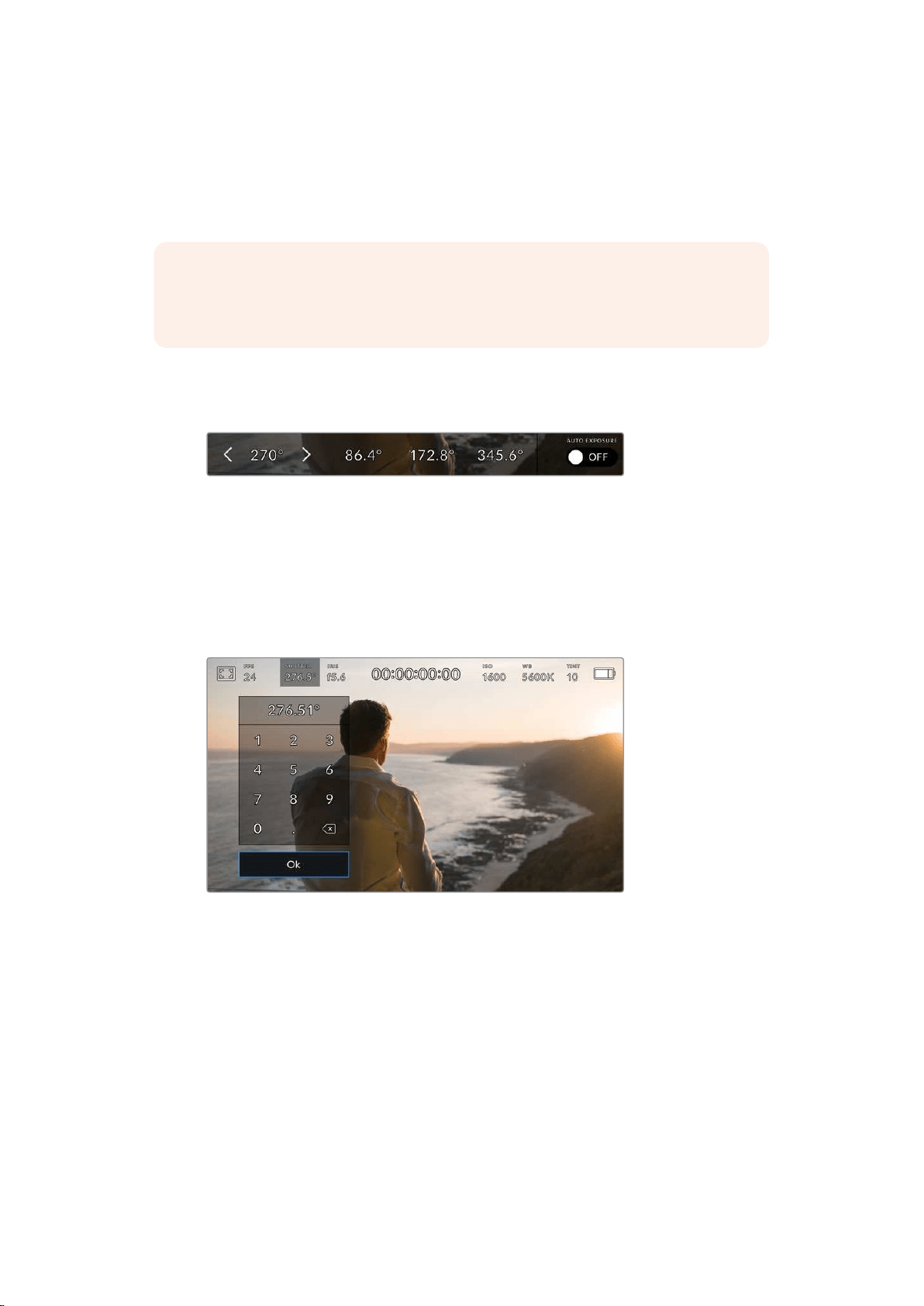
Tapping the ‘shutter’ indicator brings up the suggested shutter values along the bottom of your
URSAMini’s touch screen. If you have auto exposure set to ‘off,’ this screen will show you your
currently selected shutter value, as well as the available flicker free shutter values, based on
the mains power frequency you have selected in your URSA Mini’s ‘setup’ menu. For more
information, see the ‘setup settings’ section in this manual.
NOTE The characteristics of individual light sources may still cause flicker even when
using flicker free values. We recommend always performing a test shoot when not
using continuous lights.
To select one of the flicker free shutter values, simply tap on one of the displayed shutter
values. Tap the arrows on either side of the current shutter value indicator to cycle through
some of the most commonly used values.
Your URSA Mini will suggest flicker free shutter values based on the
mains power frequency you choose in the ‘setup’ menu
If you would like to choose a specific shutter value, you can do so by double tapping the current
shutter indicator at the bottom left of your screen. This opens a keypad that allows you to type
in any shutter value with up to two decimal places.
If you type in a shutter speed that is incompatible with your current frame rate, the nearest
achievable shutter speed will be used.
The manual shutter keypad allows you to type in any shutter value you wish
Your URSA Mini has three shutter based auto exposure modes. To select one of these, tapthe
‘auto exposure’ button in the far right of the shutter menu.
Shutter
This setting automatically adjusts shutter value to maintain a constant exposure while
keeping iris aperture constant. If you want to maintain a fixed depth of field, this is the
setting to choose. It’s worth mentioning that the subtle automatic adjustments of the
shutter may have an effect on motion blur. It’s also worth keeping an eye out for any
flicker that may be introduced from various light fixtures on indoor shoots. URSA Mini’s
auto iris feature is not available when the ‘shutter’ auto exposure mode is selected.
85Touchscreen Controls
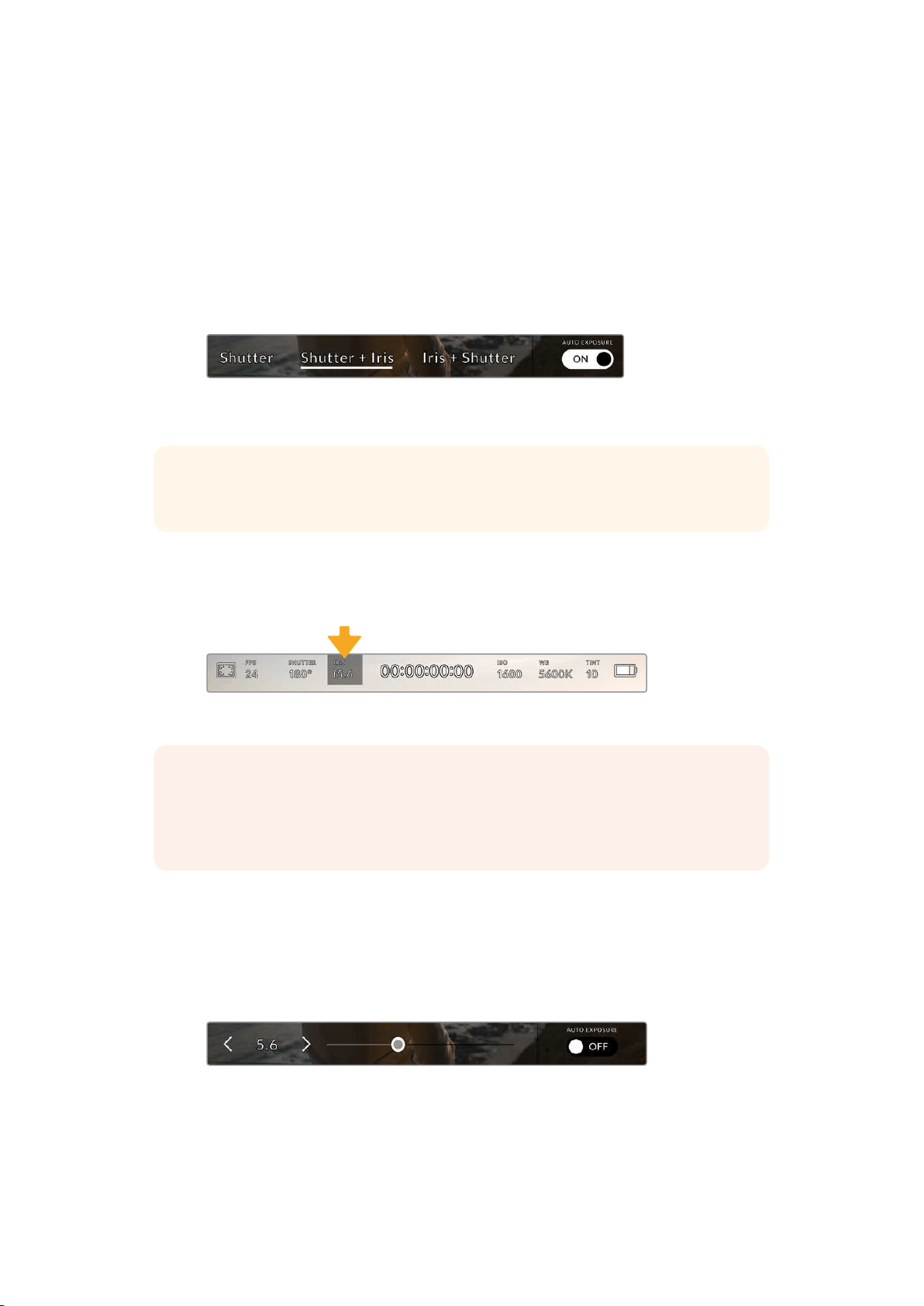
Shutter + Iris
Maintains the correct exposure levels by adjusting the shutter, then the aperture. If the
maximum or minimum available shutter value is reached and exposure still cannot be
maintained, URSA Mini will begin adjusting the aperture to keep exposure constant.
Iris + Shutter
Maintains the correct exposure levels by adjusting the aperture, then the shutter value.
If the maximum or minimum available aperture is reached and exposure still cannot be
maintained, URSA Mini will begin adjusting the shutter value to keep
exposure constant.
While in the shutter menu, tap ‘auto exposure’
toaccessshutter based auto exposure modes
TIP When an auto exposure mode that effects the shutter is enabled, a small‘A’ will
appear next to the shutter angle indicator at the top of your URSA Mini touchscreen.
Iris
The ‘Iris’ indicator displays your current lens aperture. By tapping this indicator, you can change
the aperture of compatible lenses and configure iris based auto exposure modes.
Your URSA Mini’s iris indicator. Tap this to access iris settings
NOTE To adjust your Iris from the LCD touchscreen, your URSA Mini must befitted
with a lens that supports changing aperture via the camera. If you are using a B4 or
PLlens connected via the broadcast 12 pin connector on URSA Mini PL, make sure that
the lens iris switch on the handgrip is set to ‘A’ or ‘auto.’
Tapping the ‘iris’ indicator once brings up the iris menu along the bottom of your URSAMini
touchscreen. You’ll see your current lens aperture at the far left of this menu. You can change
the aperture by tapping the left and right arrows on either side of the current aperture, or
moving the slider left or right.
Tapping the ‘auto exposure’ switch icon at the far right of the iris menu opens the iris auto
exposure menu.
While in the ‘iris’ menu, tap the arrows on either side of the iris
indicator or use the slider to adjust iris settings
86
Touchscreen Controls
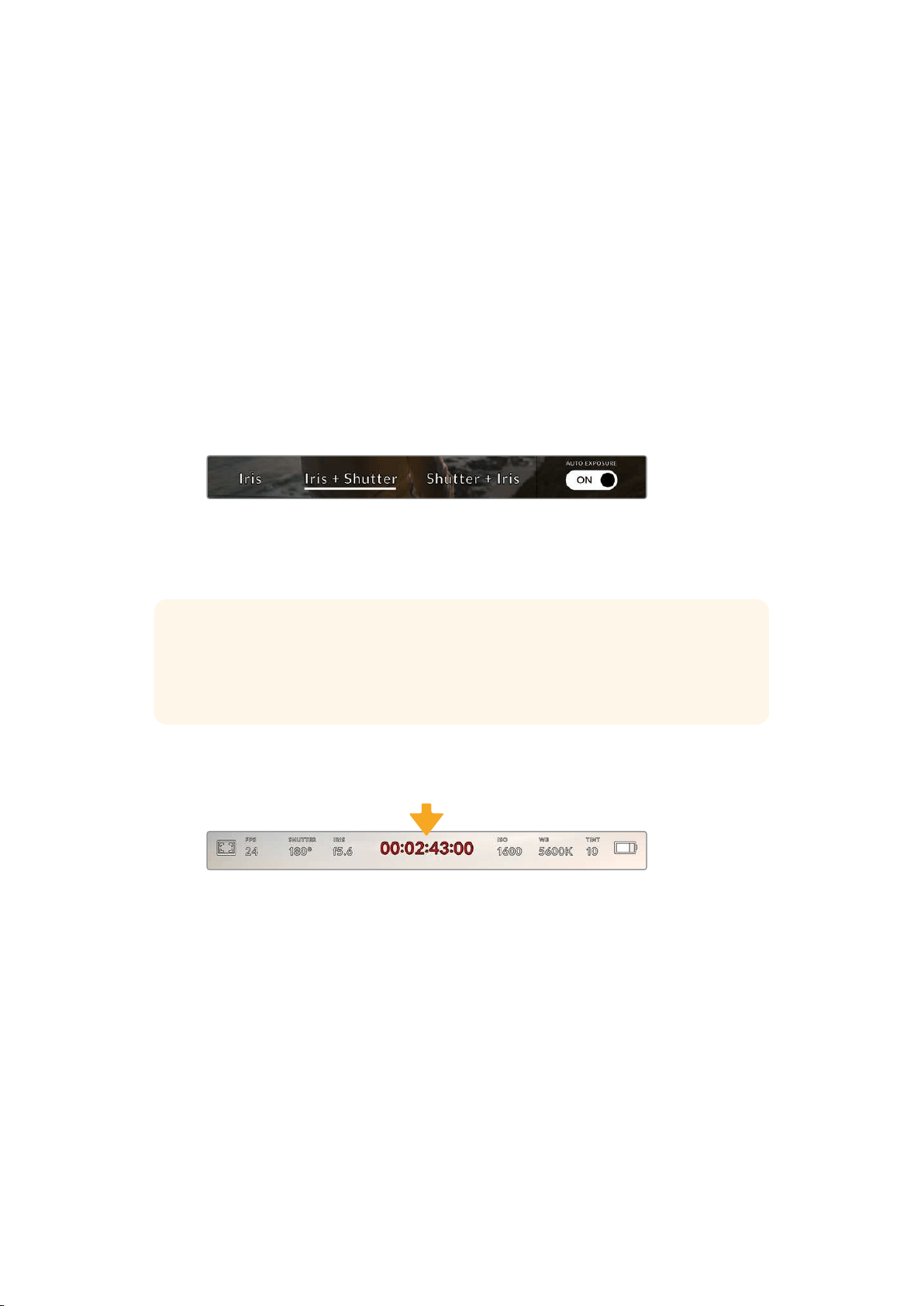
This gives you the following auto exposure options.
Iris
This setting automatically adjusts the aperture to maintain a constant exposure, while
keeping shutter angle constant. This will keep motion blur constant, but may affect your
depth of field.
Iris + Shutter
Maintains the correct exposure levels by adjusting the aperture, then the shutter value.
If the maximum or minimum available aperture is reached and exposure still cannot be
maintained, URSA Mini will begin adjusting the shutter value to keep
exposure constant.
Shutter + Iris
Maintains the correct exposure levels by adjusting the shutter, then the aperture. If the
maximum or minimum available shutter value is reached and exposure still cannot be
maintained, URSA Mini will begin adjusting the aperture to keep exposure constant.
While in the iris menu, tap ‘auto exposure’ to access iris based auto exposure modes
When an auto exposure mode that effects the iris is enabled, a small ‘A’ will appear next to the
iris indicator at the top of your URSA Mini touchscreen.
TIP Automatic exposure works smoothly with compatible B4 or PL lenses which are
designed for video or film production. EF lenses may produce noticeable ‘steps’ in
exposure when changing aperture. For this reason, werecommend using only ‘shutter’
auto exposure mode if shooting on URSA Mini EF.
Duration Display
At the top of your URSA Mini LCD touchscreen, you’ll see your camera’s duration display.
Your URSA Mini’s duration display. This will turn red while recording
The duration display provides a timecode counter for checking the duration of your clips and
monitoring timecode during recording and playback. The counter displays a time sequence
showing Hours:Minutes:Seconds:Frames and will progress through the sequence as you record
or play back clips. The timecode will turn red during recording.
The displayed duration of each clip starts from 00:00:00:00 for each clip. The clip duration of
the current, or last recorded, clip is displayed on the touchscreen. Time of day timecode is
embedded into clips for easier post production.
To see the timecode, simply tap the duration display. Tap the duration display again to return
toclip duration.
87Touchscreen Controls
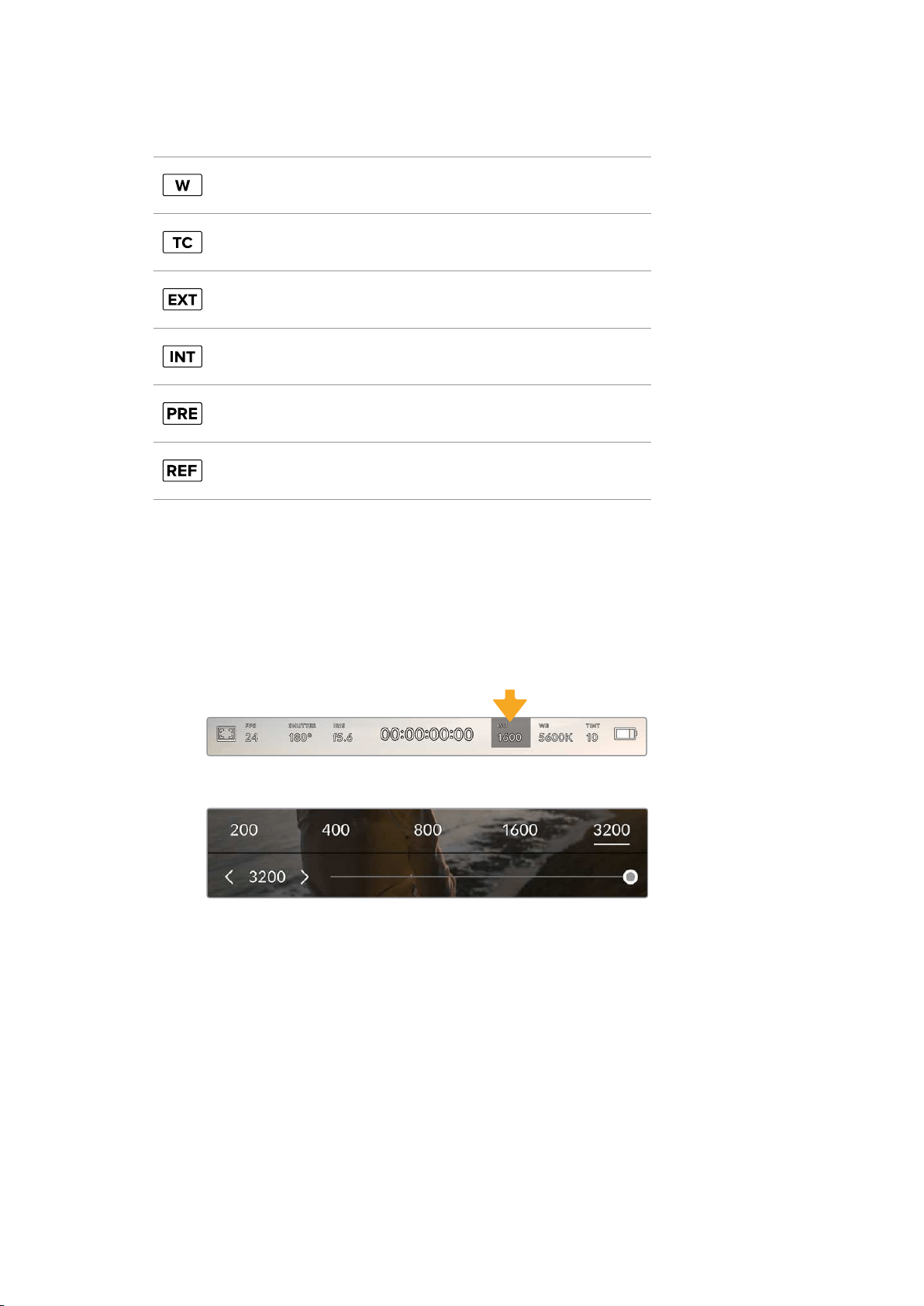
Additional status indicators may appear around the duration display:
Appears to the left of the duration display when your
URSAMini is using a windowed sensor mode.
Appears to the right of the duration display when showing timecode.
Appears to the right of the duration display if an externaltimecode
is connected and valid.
Appears to the right of the duration display if the camera is running
off an internal timecode after being ‘jam synced’ anddisconnected.
Appears to the right of the duration display when
you are viewing 'preset record run' timecode.
Appears when a valid reference source is connected andlocked,
based on the reference input settings.
ISO
The ‘ISO’ indicator displays your URSA Mini’s current ISO setting, or light sensitivity. Tapping this
indicator lets you adjust your ISO to suit varying lighting conditions. The ISO range on
URSAMini is from ISO 200 to 1600, whilst the ISO range on URSA Mini Pro can also be
increased to 3200.
The optimum ISO for URSA Mini 4K is 400. The optimum ISO for URSA Mini 4.6K and
URSAMiniPro is 800.
Your URSA Mini’s ISO indicator. Tap this to access ISO settings
While in the ‘ISO’ menu, your URSA Mini’s ISO settings appear along the
bottom of the LCD touchscreen. URSA Mini Pro 4.6K G2 provides a slider
below the presets for adjusting your ISO in 1/3 stop increments.
Numerical presets provide the option to select an ISO setting in full stop increments by tapping
on the number. URSA Mini Pro 4.6K G2 provides a slider below these presets, that allows you to
fine tune your ISO setting in between these presets in 1/3 stop increments.
Depending on your situation, you may choose a lower or higher ISO setting. For example,
inlowlight conditions ISO 1600 can be suitable when shooting on URSA Mini 4.6K but may
introduce some visible noise. In bright conditions ISO 200 can provide richer colors.
88Touchscreen Controls
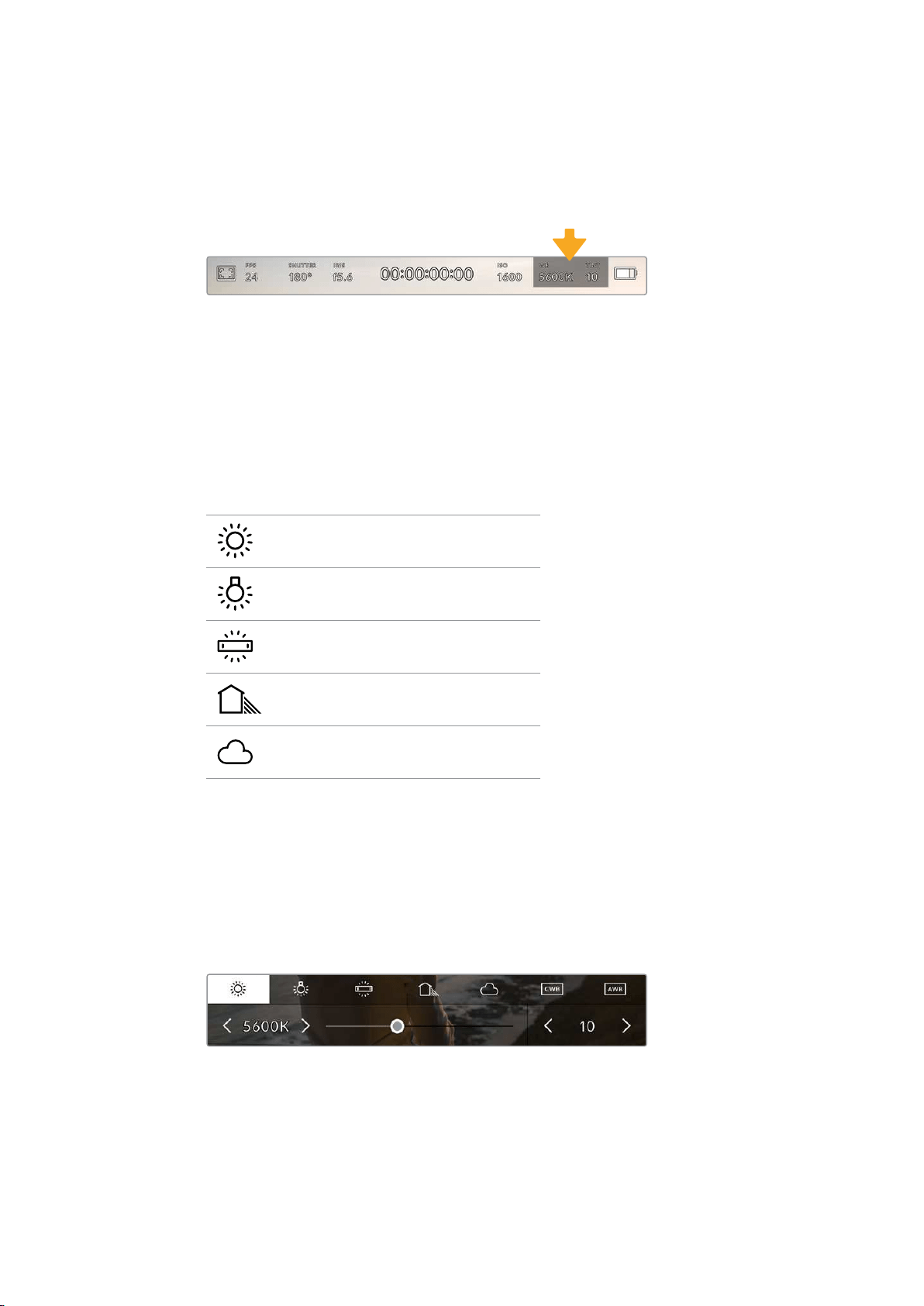
White Balance
The ‘WB’ and ‘TINT’ indicators display your camera’s current white balance and tint.
Tappingthese indicators lets you adjust your camera’s white balance and tint to suit varying
lighting conditions.
Your URSA Mini’s white balance and tint indicators.
Tapthese to access white balance and tint settings
Every light source emits a color. For example, a candle flame emits a warm color, and an
overcast sky emits a cool color. White balance settings are used to color balance your image so
white stays white by adjusting the mix of orange and blue in your image. For example, when
shooting under tungsten lamps which emit a warm, orange light, selecting 3200K adds some
blue to the image. This balances the color so white is accurately recorded.
Your URSA Mini comes with white balance presets for a variety of color temperature conditions.
These are:
Bright sunlight
(5600K)
Incandescent bulbs
(3200K)
Fluorescent bulbs
(4000K)
Mixed light
(4500K)
Cloud
(6500K)
You can customize any of these presets by tapping or holding the arrow icons to the left and
right of the temperature indicator in the bottom left of the ‘white balance’ menu. Each tap moves
the color temperature up or down 50K, but holding the arrow icons down will increase these
increments for faster changes. Alternatively, you can move the temperature slider in the middle
of the ‘white balance’ menu.
To further dial in your image, you can adjust the ‘tint.’ This adjusts the mix of green and magenta
inyour image. For example, adding some magenta can compensate for the green cast of many
fluorescent lights. Many of your URSA Mini’s white balance presets include some tint.
Tapping the white balance and tint indicator on your URSA Mini gives you access to
fivepresets, as well as a white balance indicator and slider on the left, and a tint indicator
on the right. Adjust these to set a custom white balance for your lighting conditions
89
Touchscreen Controls
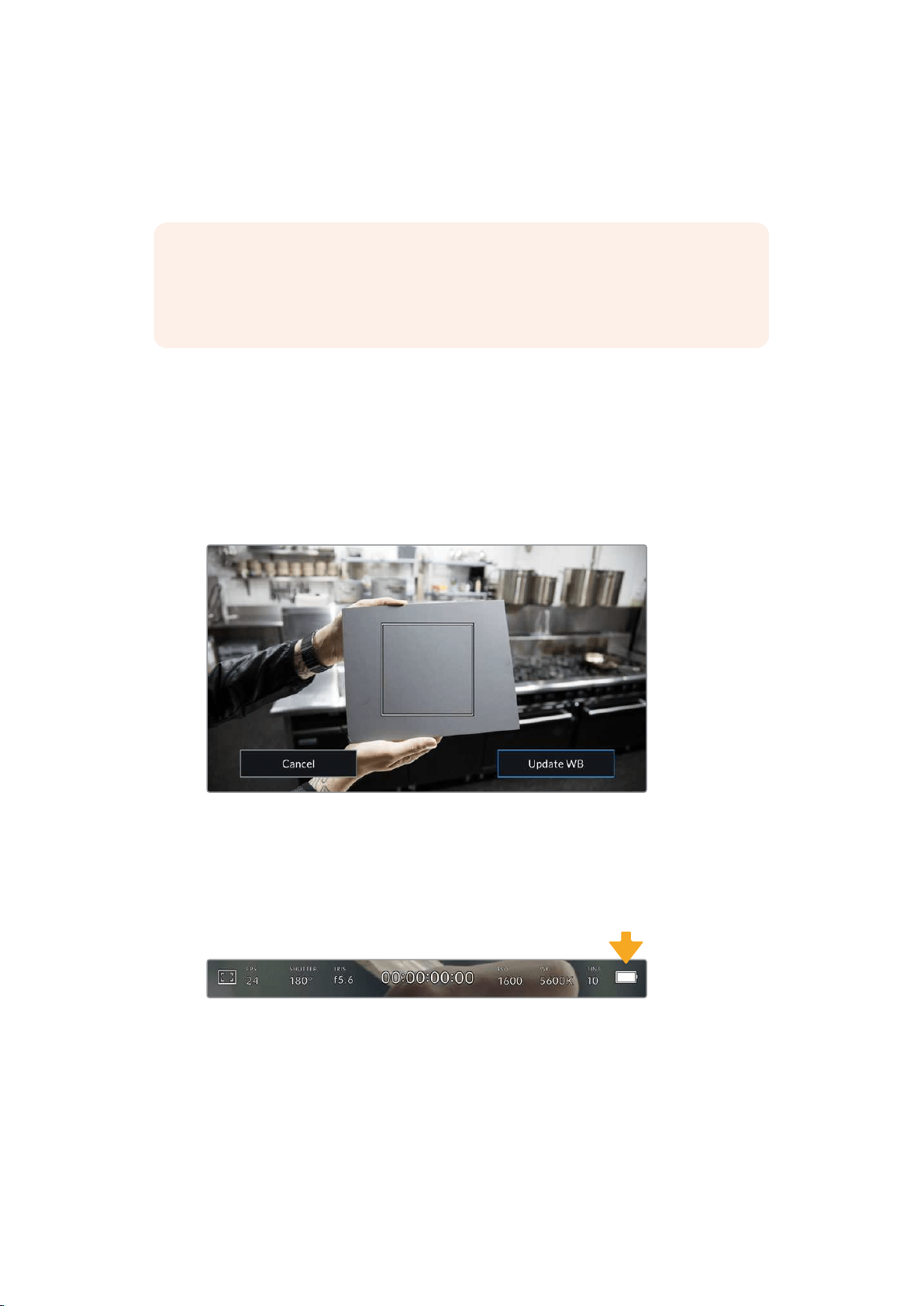
While in the ‘white balance’ menu, your camera’s current tint setting is shown at the bottom right
of the screen. To adjust the tint, simply tap or hold the arrows to the left and right of the tint
indicator. The available range is -50 to +50 in one unit increments. Holding down on the arrows
speeds up adjustment.
NOTE Customizing the white balance or tint will change your preset to‘CWB,’ or
custom white balance. Custom white balances are persistent; your CWB settings will
stay configured between power cycles, and when switching to a preset and back to
CWB. This makes iteasy to compare a custom white balance to the last preset used.
Auto White Balance
Your URSA Mini can set white balance automatically. Tapping ‘AWB’ will bring up the white
balance screen.
When setting white balance automatically, a square will be overlaid on the center of your image.
Fill this square with a neutral surface such as a white or gray card and tap ‘update.’ Your
URSA Mini will automatically adjust its white balance and tint values to ensure that the average
of the white or gray within the white balance square is as neutral as possible. Once updated,
this will be set as your camera’s custom white balance.
Tapping the ‘AWB’ icon in the white balance menu will bring up theauto white balance screen.
Use this with a white or neutralgray surface to automatically set a neutral white balance
Power
Your URSA Mini’s power status is displayed in the top right of the LCD screen.
There are five possible indicators:
Your URSA Mini’s power indicator is at the top right of the LCD touchscreen. While
usingbattery power, tapping this toggles between ‘voltage’ and ‘percentage’ displays
90
Touchscreen Controls
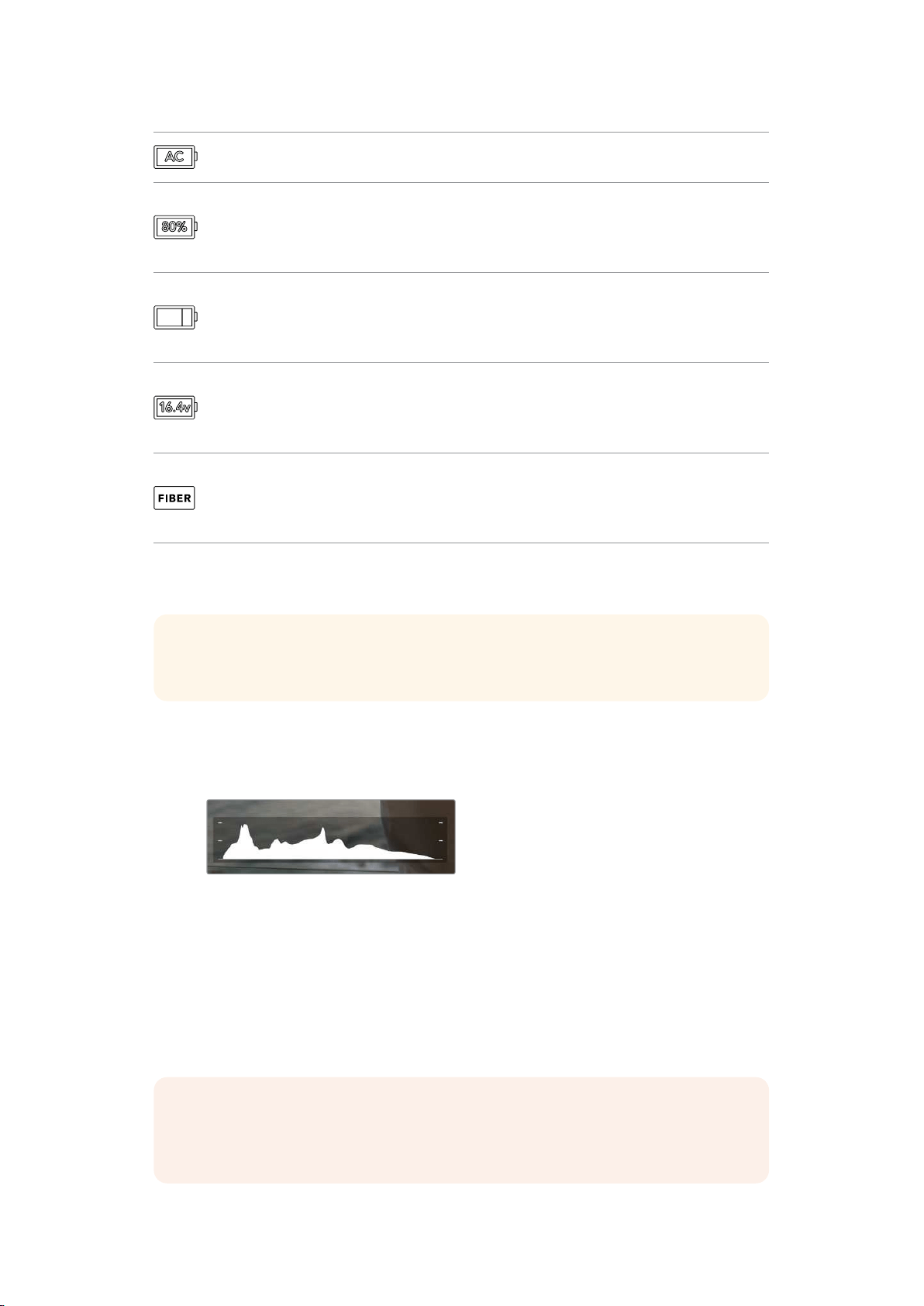
AC Displayed when your URSA Mini is plugged into mains power.
Percentage
If you are using a percentage accurate battery and plate combination and
have your battery display set to ‘percentage,’ the indicator will display your
battery level as a percentage. At 20% charge remaining, the indicator will
turn red.
Battery bars
If your battery display is set to ‘percentage’ but your battery plate and
battery combination does not support percentage accurate battery
information, your URSA Mini will display a battery icon that drains in 25%
increments. At 20% charge remaining, the battery bar will turn red.
Voltage
When your battery display is set to ‘voltage,’ this indicator will display your
battery’s remaining voltage. When your battery drops below 12.5 volts, this
indicator will turn red. Your URSA Mini will automatically shut down once
the battery reaches 11.9 volts.
Fiber
Displayed when you have Blackmagic Camera Fiber Converter attached
to your camera and are powering the camera through the SMPTE fiber
cable. If you have a an XLR power cable plugged into URSA Mini whilst the
converter is attached, the AC icon will be displayed instead.
When using battery power, you can switch between ‘voltage’ and ‘percentage’ or ‘battery bars’
power indicators by tapping the power indicator.
TIP A list of batteries that support percentage accurate power information is provided
in the ‘mounting batteries’ section of this manual.
Histogram
At the bottom left of your URSA Mini touchscreen, you’ll see the histogram. The histogram
shows the contrast between whites and blacks along a horizontal scale.
The histogram gives you an indication of the tonal
rangebetween shadows and highlights in your clip.
Itis also a helpful tool for checking thebalance of your
exposure and to prevent your highlights from clipping
The left edge of the histogram displays shadows, or blacks, and the far right displays highlights,
or whites. When you close or open the lens aperture, you’ll notice the information in the
histogram moves to the left or right accordingly. You can use this to check ‘clipping’ in your
image shadows and highlights. If the left and right of your edges of the histogram come to an
abrupt stop rather than falling off gradually, you may be losing highlight or shadow detail.
NOTE If you don’t see a histogram in the bottom left of your touchscreen, your
LCDmonitor settings may be set to display ‘codec and resolution.’ See the ‘monitor
settings’ section in this manual for more information.
91Touchscreen Controls
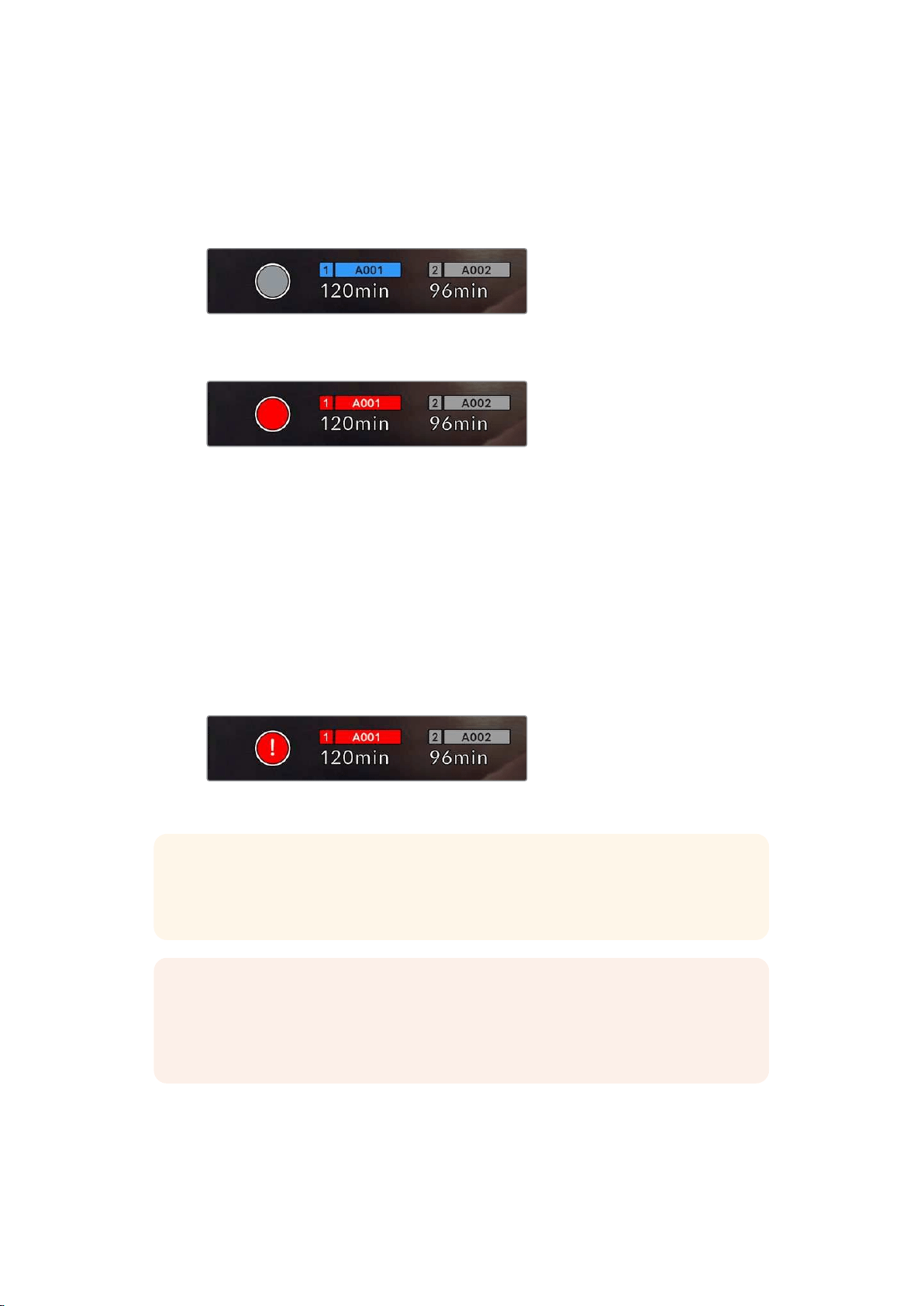
Record button
Next to the histogram at the bottom of your URSA Mini’s touchscreen, you’ll see a round gray
button. This is the ‘record’ button. Tap this once to begin recording, and tap it again to stop.
While recording, the button and the timecode at the top of your URSA Mini touchscreen will
turn red.
Your URSA Mini’s ‘record’ button, next to the storage
indicatorsat the bottom of the LCD touchscreen
The ‘record’ button turns red when recording
Dropped Frame Indicator
The ‘record’ button will be overlaid with a flashing ‘!’ indicator if your URSA Mini begins
dropping frames while recording. The time remaining indicator for the affected card or cards will
also turn red. For example, if you are recording in dual card mode and card 1 is dropping frames,
the ‘!’ indicator will appear over the ‘record’ button, and the time remaining indicator on card 1
will turn red. This lets you know if a particular card is too slow for your currently selected codec
and resolution. The ‘dropped frame indicator’ will also display if you have dropped a frame on
the previously recorded clip. This indicator will continue to display until another clip is recorded,
or the camera is power cycled. Refer to ‘Choosing a CFast 2.0 card’ section in this manual, for
more information on how to avoid dropping frames.
Dropped frame indicator for CFast card 1 dropping frames
TIP If you have the your URSA Mini’s status LED enabled, this will rapidly flash red
when dropped frames are detected. For more information, see the ‘setup settings’
section in this manual.
NOTE You can set your URSA Mini to stop recording if dropped frames are detected
toprevent a situation where you waste time shooting unusable footage if you don’t
notice the dropped frame indicator. See the ‘record settings’ section in this manual for
more information.
92Touchscreen Controls
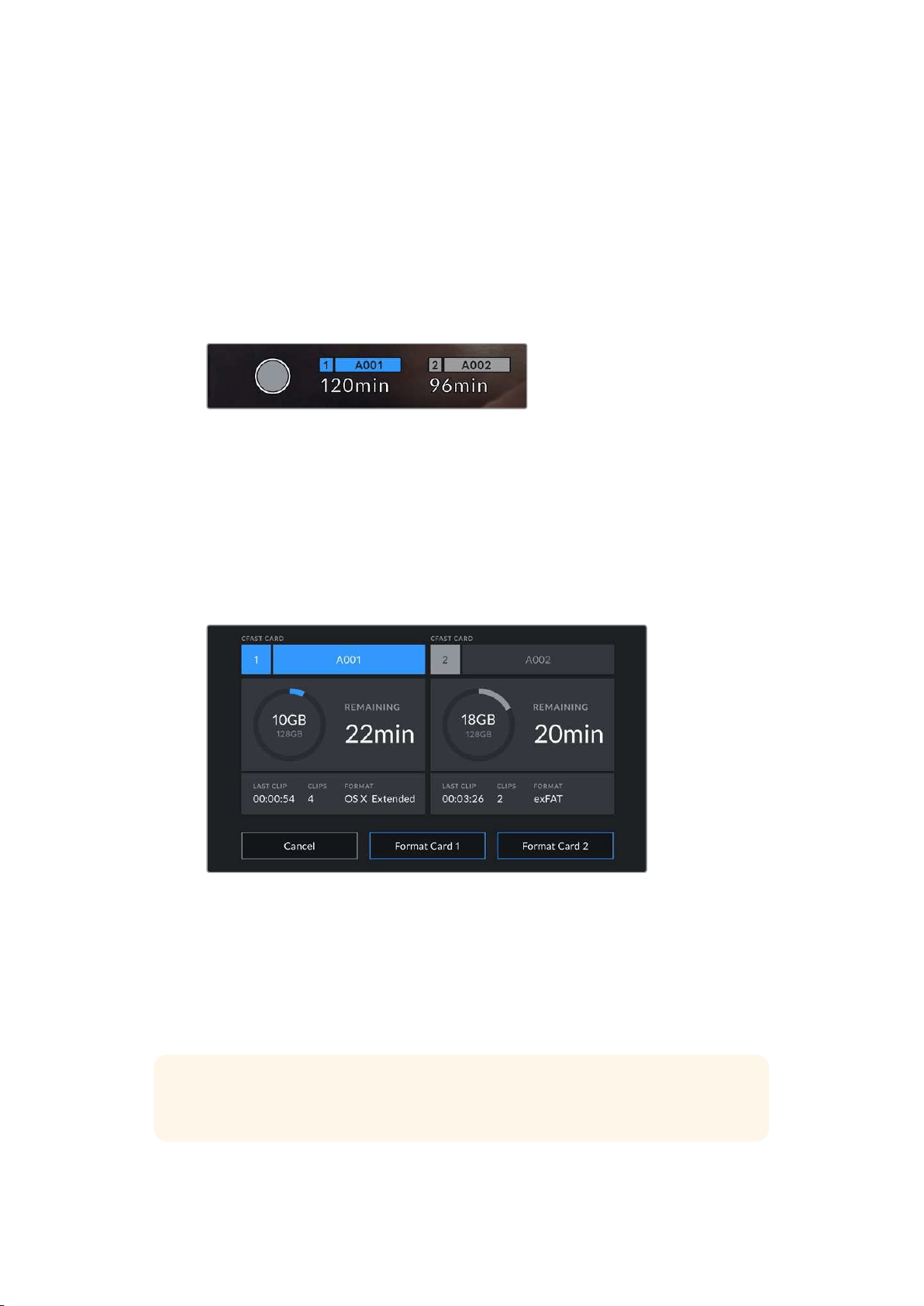
Recording Time Remaining
At the bottom of your URSA Mini touchscreen, you’ll see the storage indicators.
When a CFast card, SD card or SSD is inserted, the storage indicator will show how much
recording time is left on the card. The time is shown in minutes and will vary according to your
selected frame rate and codec.
The indicator will automatically recalculate if either of these settings are changed. When there is
approximately 5 minutes remaining on your card or drive, the indicator text will turn red, and will
blink intermittently when there is only 2 minutes remaining. The indicator displays FULL when a
card or drive reaches maximum capacity.
Your URSA Mini’s storage indicator will display
the name of your CFastcard, SD card or SSD
and the record time remaining in minutes
The card or drive name will also be shown in a small bar above the time remaining. This bar will
turn blue to indicate that the camera will be recording to this card or drive. On URSA Mini
Pro4.6K G2, you can switch recording to a different card or drive using the onscreen display.
Press and hold the name of the card or USB-C flash disk you wish to record to. The bar will turn
blue. While recording, the bar will turn red. Tapping the storage indicators will bring up the
storage and formatting menu.
Tap the storage indicators on your URSA Mini’s
LCDtouchscreen to access the storage manager
This menu displays the amount of free space on each CFast card, SD card, SSD or external
drive currently connected to your URSA Mini, as well as the name of the card or drive, length of
the last clip, total number of clips, and the file format for each card or drive.
You can format your media from this menu. For more information on formatting media using
URSA Mini, see the ‘preparing media on Blackmagic URSA Mini’ section of this manual.
TIP Tapping the card or drive name in the storage menu sets it as the active card or
drive. Your URSA Mini will fill this card or drive first.
93Touchscreen Controls
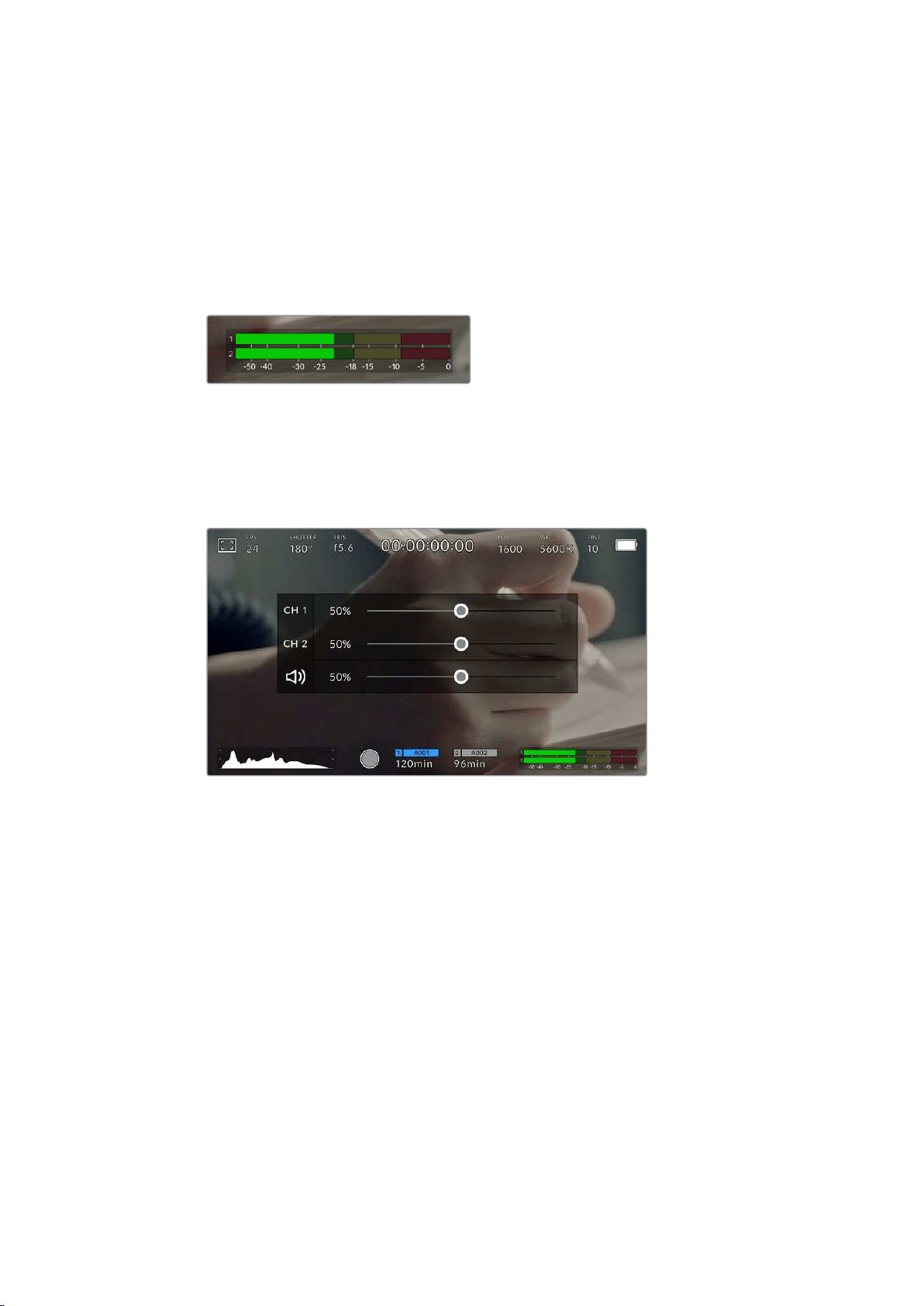
Audio Meter
The peak audio meters display audio levels for channels 1 and 2 when using the internal
microphone, or via external audio when connected. The display is calibrated to dBFS units and
features peak hold indicators which stay visible for a short time so you can clearly see the
maximum levels reached.
To achieve optimum audio quality, ensure your audio levels do not reach 0 dBFS. This is the
maximum level that your camera can record, meaning that any audio that exceeds this level will
be clipped, resulting in distortion.
The colored bars on the audio meter represent peak audio
levels. Ideally your peak audio levels should fall in the
upper end of the green zone. If your peaks enter into the
yellow or red zones your audio is in danger of clipping.
You can tap the audio meter to bring up volume controls for audio input channels 1 and 2,
aswell as headset or speaker volume.
Tap the audio meters on your URSA Mini LCD touchscreen to easily
access volume and headset or speaker settings
Focus Zoom
You can magnify any part of your URSA Mini’s preview image by double tapping the LCD
touchscreen in the location you would like to zoom. You can move the magnified image by
dragging your finger around the touchscreen. This is very helpful when checking focus.
To return to the standard magnification, double tap on the touchscreen again.
When you have ‘focus zoom’ enabled on URSA Mini Pro 12K you can also make a pinch to zoom
multitouch gesture to adjust the zoom level on the touchscreen. The ‘setup’ menu on URSA Mini
Pro 12K lets you configure a function button as a ‘focus zoom’ toggle that behaves like a double
tap on the touchscreen. This can be configured to show on the LCD or the front or main SDI to
outputs. For information on how to configure a function button as ‘focus zoom’, see the
‘Function Button Behaves as Preset or Toggle’ section.
94Touchscreen Controls
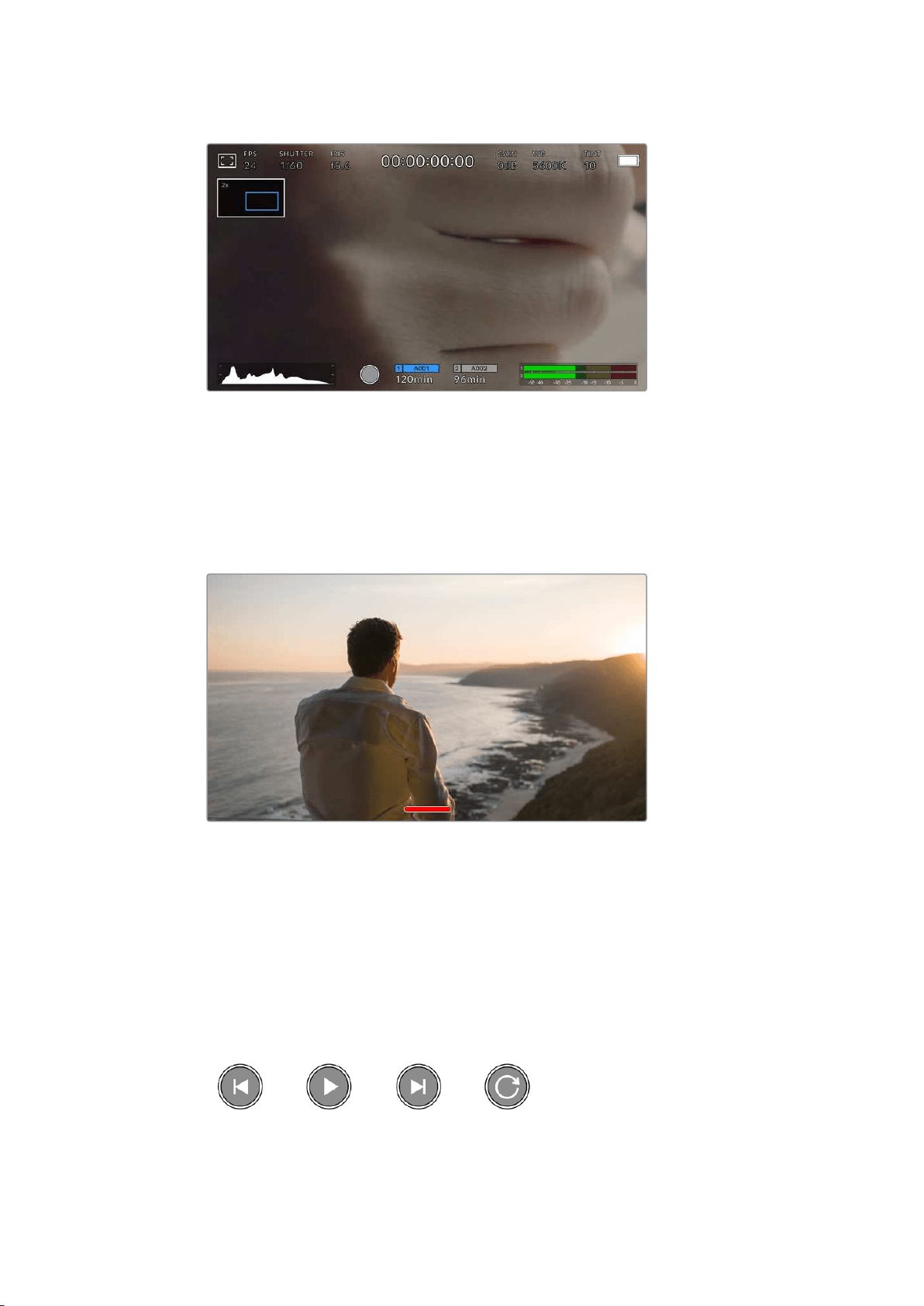
While zoomed in, an indicator in the top left of your LCD touchscreen will show
whichpart of the image you are viewing. You can move around the image by dragging
your finger along the screen as you would on a smartphone or tablet
Full Screen Mode
It can be useful when framing or focusing a shot to temporarily hide your touchscreen’s
statustext and meters. Simply swipe up or down on URSA Mini’s LCD touchscreen to hide
these. Therecord indicator, frame guides, grids, focus assist and zebra will remain visible.
Swipe up or down to hide all status indicators on your URSA Mini LCD touchscreen
Playback Menu
Tap the ‘play’ control button to access the playback menu. You can control previously recorded
clips with your camera’s control buttons or the LCD touchscreen.
When using the LCD touchscreen, tap ‘play’ once to start playback and again to pause. Use the
forward and reverse buttons to skip to the start or end of clips. Tapping ‘forward’ once moves
you to the next clip. Press the reverse button once to go to the start of the current clip or press
twice to skip back to the start of the previous clip. Playback of clips can also be looped by
activating the loop icon.
The reverse, play, forward and loop icons
95
Touchscreen Controls
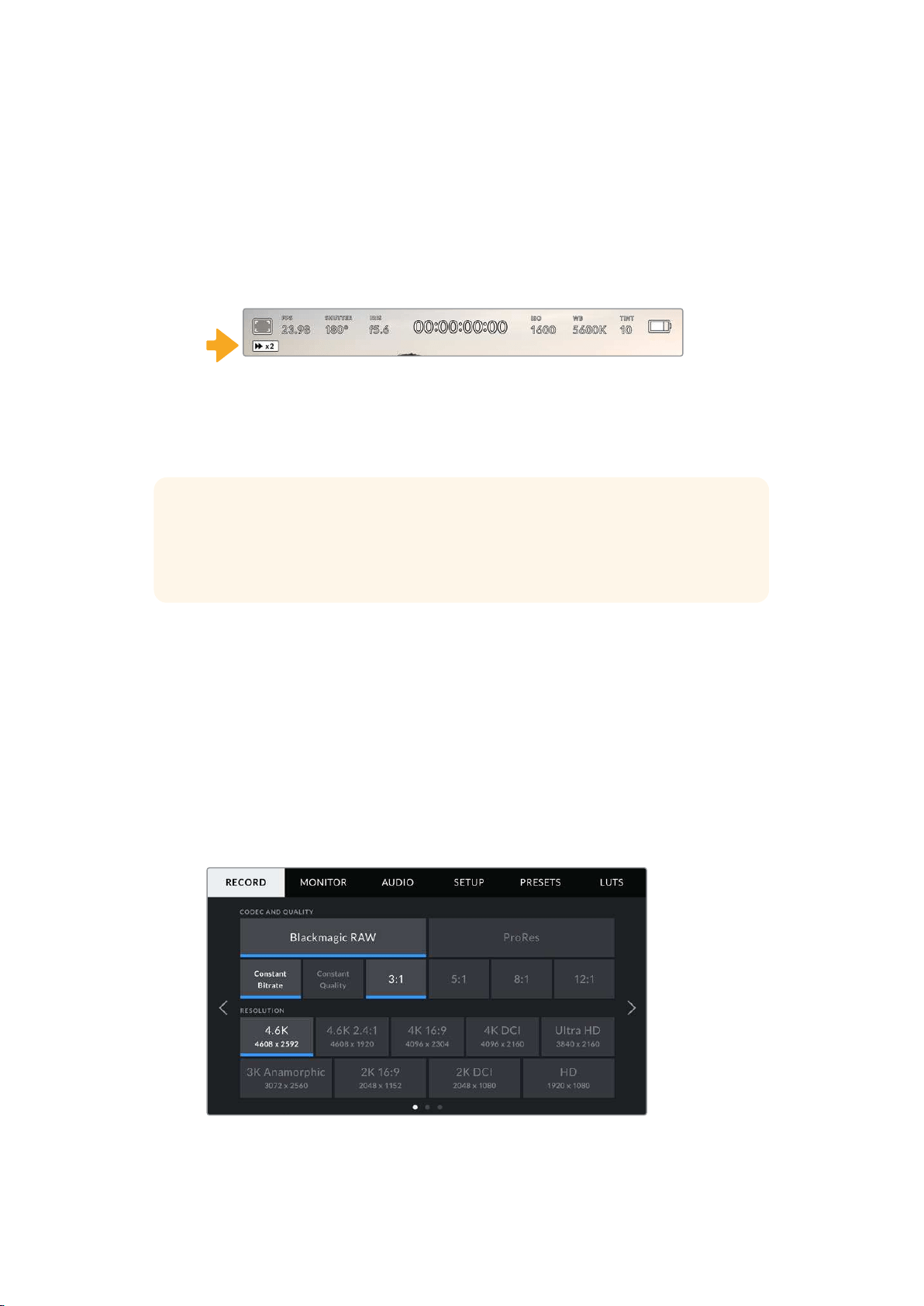
To shuttle, hold down either the forward or reverse transport buttons. This will play your footage
back at twice regular speed in either forward or reverse, depending on which transport key
you held.
Once shuttling, you can change the shuttle rate by tapping the transport keys again. Each time
you tap the transport key in the same direction you will double the shuttle rate. The maximum
shuttle rate is x16 normal speed. Tapping the transport key again at x16 speed will return you to
x2 speed. Tapping the opposite direction will halve the current shuttle speed until you reach
2xspeed. You can return to normal playback by tapping the ‘play’ button.
The shuttle speed indicator displays the speed and direction
of footage being fast forwarded or reversed
Tapping the ‘record’ control button in playback mode will return your camera to standby mode,
ready to record.
TIP Swipe up or down on your URSA Mini’s touchscreen to hide status text while
playing back footage. Entering the slate in playback mode will allow you to mark the
current clip ‘good take’ in metadata. For more information, see the ‘entering metadata’
section in this manual.
Settings
Dashboard
Pressing the ‘menu’ control button on your URSA Mini will bring up your camera’s dashboard.
This is a tabbed menu containing the settings not available from your URSA Mini’s head up
display. Settings are divided by function into ‘record,’ ‘monitor,’ ‘audio,’ ‘setup,’ ‘presets,’ and
‘LUTS’ tabs. Some tabs, such as ‘record,’ ‘monitor,’ and ‘setup’ contain multiple pages. You can
cycle between these pages by tapping the arrows on the left and right of the settings screen,
orswiping left or right as you would on a smartphone or tablet.
Tap the ‘record,’ ‘monitor,’ ‘audio,’ ‘setup,’ ‘presets,’ and ‘LUTS’ headings
to move between your URSA Mini’s dashboard tabs
96
Settings
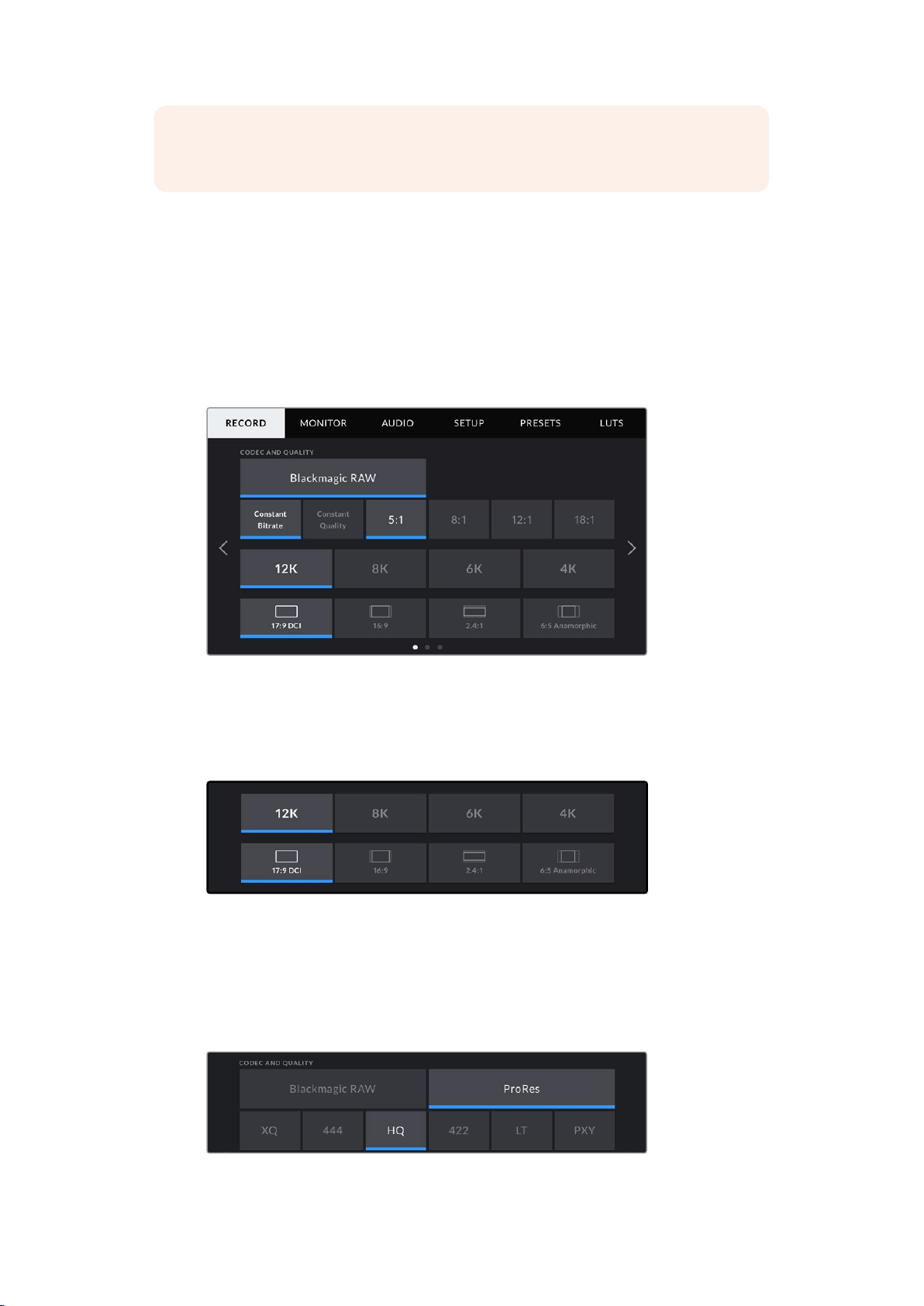
NOTE On URSA Mini Pro 4.6K, the camera dashboard times out after one minute of
inactivity, returning you to the heads up display.
Record Settings
The ‘record’ tab allows you to set your video format, codec, and resolution, as well as other
settings which affect the footage saved by your URSA Mini, such as preferred card and detail
sharpening. This menu has three pages, which you can cycle through by tapping the arrows at
the edge of your camera’s touchscreen, or swiping left or right.
Record Settings 1
The first page of the ‘record’ settings tab contains the following settings.
The first page of ‘record’ settings on URSA Mini Pro 12K
Codec and Quality
URSA Mini Pro 12K records Blackmagic RAW at 12K, 8K, 6K and 4K resolutions. Each resolution
has a menu to support a range of industry standard aspect ratios.
Resolution and aspect ratio options on URSA Mini Pro 12K
On URSA Mini Pro 4.6K G2 and URSA Mini Pro 4.6K cameras, the ‘codec and quality’ menu is
split into two rows. You can select Blackmagic RAW or Apple ProRes. The bottom row offers
quality options within those families. Blackmagic RAW options are divided between ‘constant
bitrate’ and ‘constant quality’ settings. The quality options available within the ProRes codec
family include 444, HQ and LT. URSA Mini supports a wide range of ProRes codecs.
‘Codec and quality’ options on URSA Mini Pro 4.6K G2 and URSA Mini Pro 4.6K cameras
97Settings
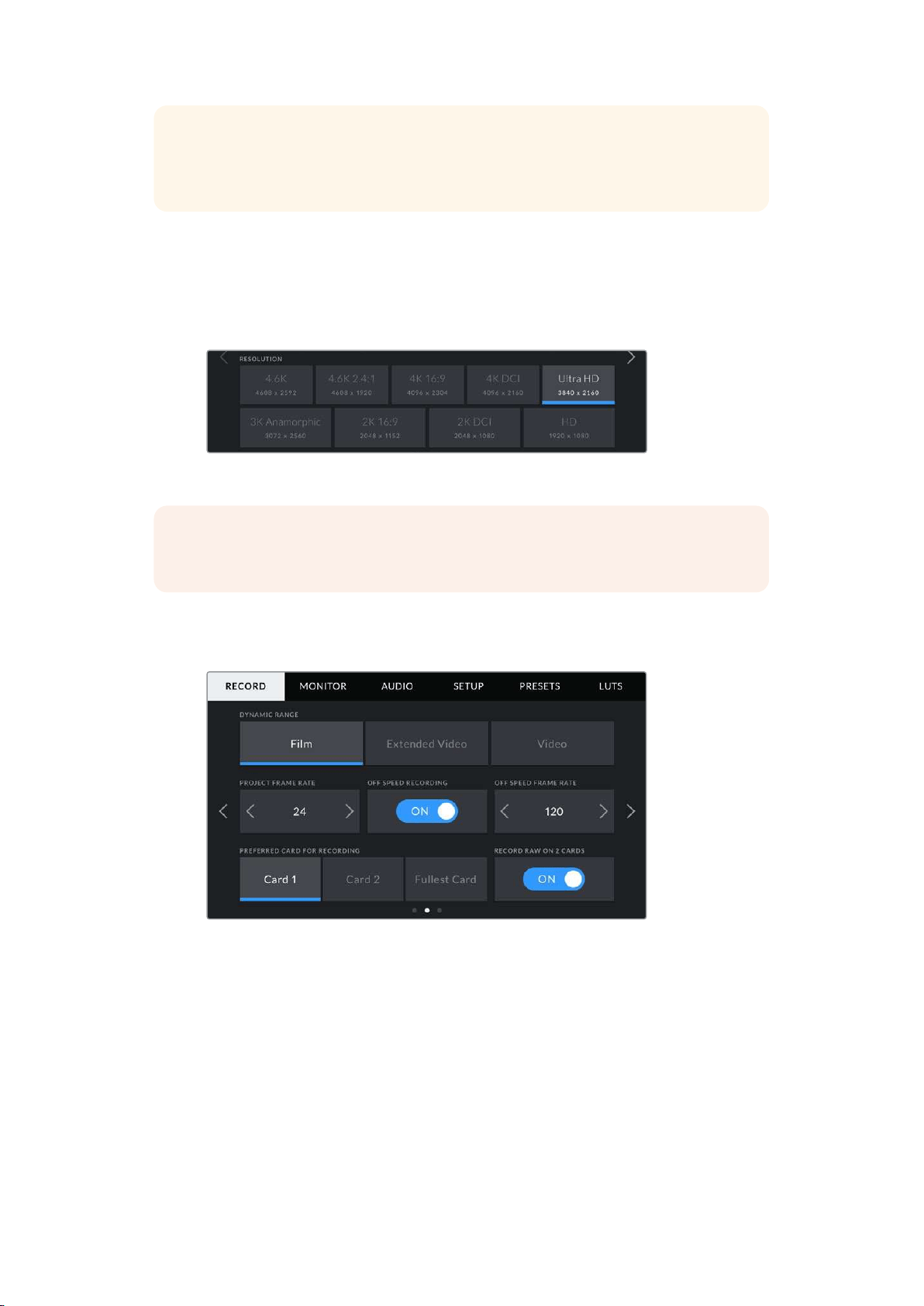
TIP The amount of video you can record on your camera’s storage media increases
when choosingcodecs that utilize higher compression. Refer to the ‘record duration
table’ inthe ‘recording’ section for more information.
Resolution
This setting works in combination with the ‘codec’ setting. Use it to select the resolution for your
desired recording format.
For example, if you want to record Ultra HD clips using ProRes HQ, select ‘ProRes’ and ‘HQ’ in
the ‘codec and quality’ menu. Now choose ‘Ultra HD’ in the resolution menu.
‘Resolution’ options on URSA Mini Pro 4.6K G2 and URSA Mini Pro 4.6K cameras
NOTE Blackmagic URSA Mini 4.6K and URSA Mini Pro support a wide range of Apple
ProRes resolutions from 4.6K down to HD.
Record Settings 2
The second page of the ‘record’ settings tab contains the following settings.
URSA Mini Pro 12K has a setting for ‘record RAW on 2 cards’.
This option is disabled on other URSA Mini cameras.
Dynamic Range
Adjust the ‘dynamic range’ setting by tapping the dynamic range icons. Blackmagic URSA Mini
has two dynamic range settings:
Film
The ‘film’ setting shoots video using a log curve giving you 12 to 15 stops of dynamic
range, depending on your URSA Mini model, and maximizes the information in your
video signal to help you get the most out of color grading software, such as
DaVinci Resolve.
98Settings
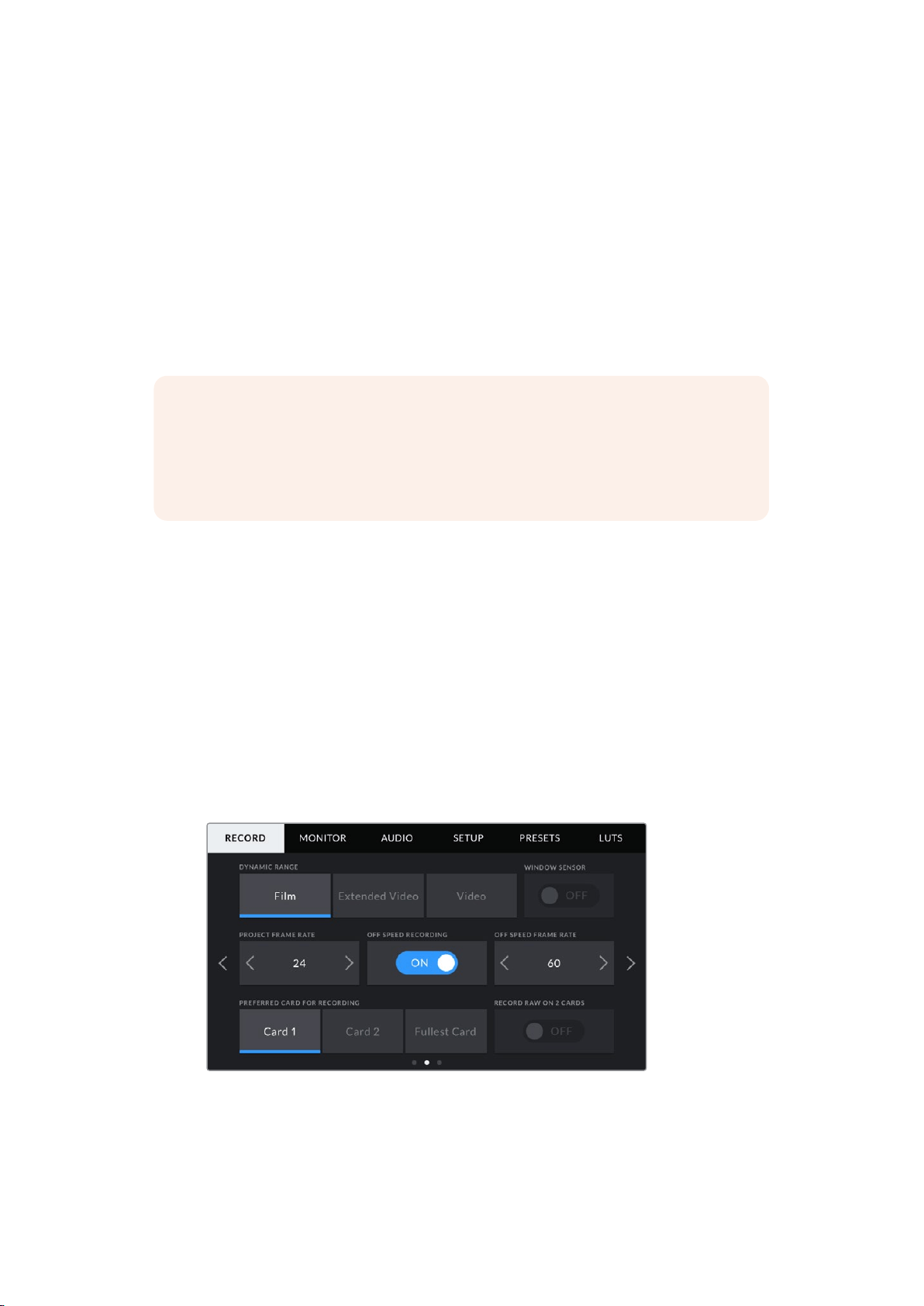
Video
The ‘video’ setting is similar to the REC 709 color standard for high definition video.
This lets you work faster by recording directly to the compressed video formats in a
color space suitable for direct delivery or minimal post processing.
URSA Mini Pro has an additional setting available:
Extended Video
The ‘extended video’ setting offers a good balance between ‘video’ and ‘film’ dynamic
range settings. This setting offers a wider dynamic range than ‘video,’ while applying a
mild contrast change with a smooth roll off in the highlights. ‘Extended video’ is suitable
for use with standard broadcast monitors and is a helpful setting if you have limited time
for post production and want to record your clips with a pleasing ‘look’ applied.
NOTE If you are using ‘video’ or ‘extended video’ dynamic range, make sure that
display LUT is not enabled on any of the monitor outputs, LCD, Front SDI orMain SDI.
Ifthe display LUT is enabled, the LUT indicator will be visible on the HUD and the
image appears to have more saturation and contrast than intended. To check your
display LUTs setting, seethe ‘monitor’ settings laterin thismanual.
Window Sensor
URSA Mini Pro 12K manages sensor windowing automatically. It uses a windowed sensor when
shooting 6K Super 16 and 4K Super 16, and uses the full height or width of the Super 35 sized
image sensor in all other shooting modes.
It’s important to note that on URSA Mini Pro 12K, 6K Super 16 windows the frame dimensions to
a Super 16 crop, however with 6K resolution the crop will still provide amazing image quality.
4K Super 16 uses the same Super 16 window and downscales the result to 4K. This means you
can shoot at the highest frame rates and still have spectacular 6K or 4K image quality.
The 12K sensor with a Super 16 crop means you can also mount vintage Super 16mm lenses and
shoot at 4K or 6K resolution which is arguably higher than the original Super 16mm film quality.
Other URSA Mini Pro cameras can be set to use the ‘full’ sensor area. Alternatively, for even
higher frame rates you can use ‘window’ mode. This will use only the amount of sensor pixels
needed for a given video format rather than downscaling images from the entire sensor.
The ‘window sensor’ option on URSA Mini Pro 4.6K G2, URSA
Mini Pro 4.6K, URSA Mini 4.6K and URSA Mini 4K
99
Settings

As the HD ‘window sensor’ and 2K ‘window sensor’ modes use only the very center of
URSAMini’s sensor, the field of view of any given lens will appear narrower due to the crop
factor involved. When using a 20mm lens to shoot HD footage in windowed sensor mode,
forinstance, field of view of URSA Mini will be equivalent to a 48mm lens.
This setting is available when shooting below your URSA Mini’s maximum resolution.
Forexample, ‘window sensor’ is available when shooting 4.6K 2.4:1, 4K, 3K anamorphic, 2K or
HD ProRes footage on URSA Mini 4.6K.
The fastest frame rates are available when shooting HD footage in windowed mode.
TIP When using ‘window sensor’ mode, your URSA Mini’s ‘resolution’ settingswill be
labelled ‘resolution - sensor windowed’ to reflect this.
Project Frame Rate
The project frame rate is URSA Mini’s recording format frame rate and provides a selection of
common frame rates used in the film and television industry. For example, 23.98 frames per
second using 4K ProRes HQ. This frame rate is normally set to match your playback speed and
audio sync used in your post production workflow and delivery requirements.
Your Blackmagic URSA Mini has 8 project frame rate settings including 23.98, 24, 25, 29.97, 30,
50, 59.94 and 60 frames per second.
NOTE Your camera’s project frame rate has a large impact on the ‘look’ of footage.
High frame rates such as 50, 59.94 or 60 frames per second are great for capturing
smooth motion and eliminate or minimize stutter while panning.
Lower frame rates, such as 24 or 25 frames per second, are typically used for cinema
production. These have a distinct filmic ‘look,’ but require much slower camera
movement to avoid stutter.
Off Speed Recording
By default, your URSA Mini’s project and sensor frame rates are matched for a natural playback
speed. However, by tapping the ‘off speed recording’ switch icon you can set your sensor frame
rate independently.
Off Speed Frame Rate
With ‘off speed frame rate’ enabled, tap the arrows next to the ‘off speed frame rate’ indicator to
set your URSA Mini’s sensor frame rate.
The sensor frame rate sets how many actual frames from the sensor are recorded every
second. This frame rate will affect how fast or slow your video will play back at your set project
frame rate.
For more information on off speed frame rates, see the ‘frames per second’ section in the
‘touchscreen features’ section of this manual.
NOTE For information on the maximum frame rates available for each recording format
and codec, refer to the ‘maximum sensor frame rates’ table in the ‘recording’ section of
this manual.
100Settings
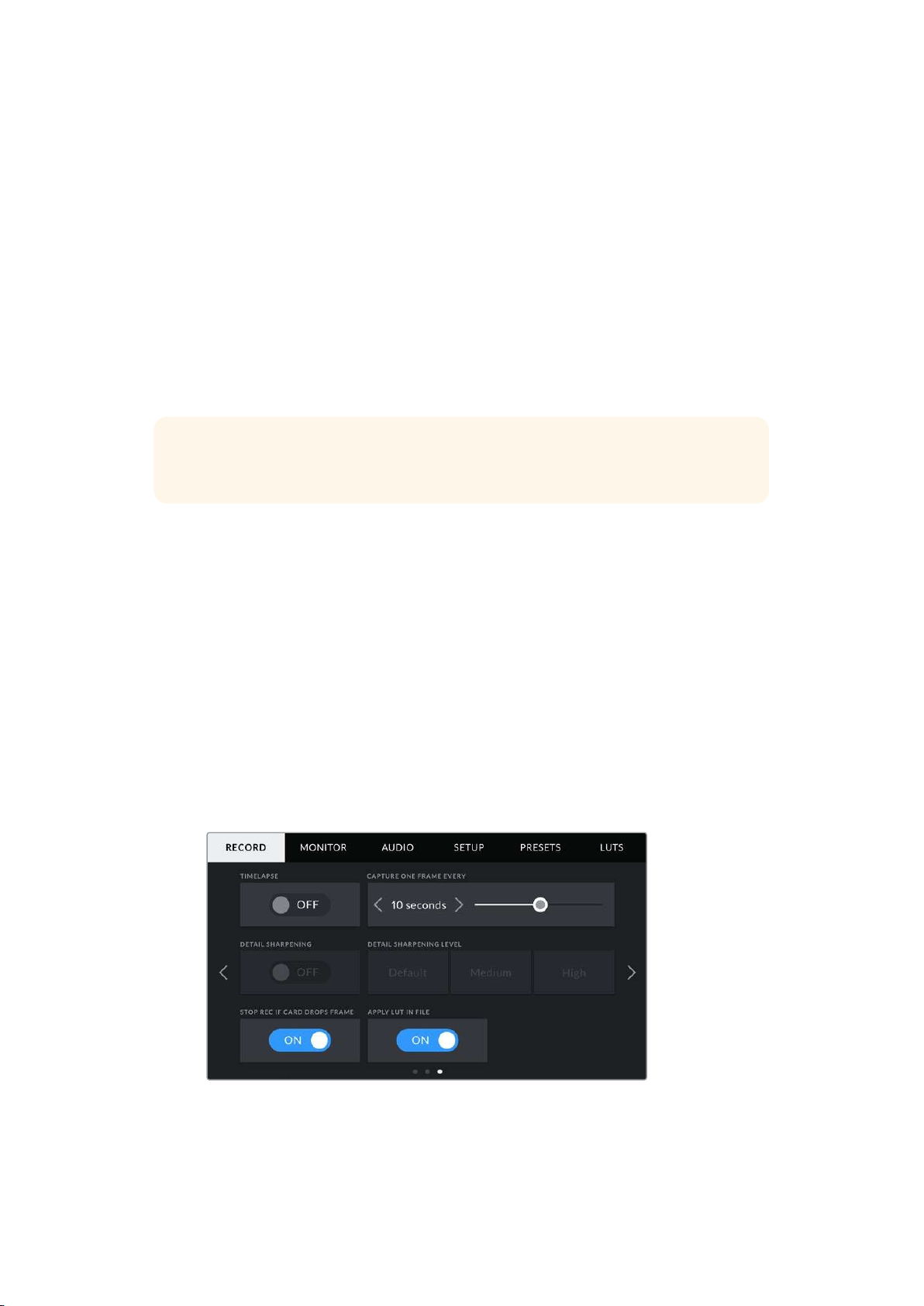
Preferred Card for Recording
Use this setting to select which storage card or drive your URSA Mini will record to first when
both slots are in use. The options are ‘card 1,’ ‘card 2,’ and ‘fullest card’. When using an SSD the
options will be ‘card 1’, ‘SSD’ and ‘fullest card’. Picking either ‘card 1’ or ‘card 2,’ isa matter of
personal preference, but using either consistently will let you know which card to swap out first
as your storage fills up. ‘Fullest card’ can help group files chronologically when shooting a
single camera project.
The setting you choose is applied when a CFast card, SD card or SSD is inserted. You can
override this setting at any time by entering the storage manager and setting a different card as
‘active.’ It’s important to note, however, that ejecting and reinserting cards will revert to the
current ‘preferred card for recording’ setting. When URSA Mini SSD Recorder is connected and
an SSD is loaded, the recorder takes over from URSA Mini’s number ‘2’ storage slot.
For more information refer to the ‘URSA Mini SSD Recorder’ section in this manual.
TIP The ‘fullest card’ setting is based on the percentage that your storagecards are
filled, rather than their sizes or the amount of data used.
Record RAW on 2 Cards
URSA Mini Pro 12K can record Blackmagic RAW to two cards at the same time. This lets you
record extremely high resolution clips at high frame rates with lower levels of compression.
Insert a pair of CFast or SD Cards and switch on the ‘record RAW on 2 cards’ option in the
‘record’ menu. Since this relies on striping across both cards sequentially, the data rate of the
slowest card will be the limiting factor, so you are advised to use two cards of the same or
similar spec. You can also stripe between a CFast card in storage slot 1 and a USB-C disk in
storage slot 2. When you use the ‘Record RAW on 2 Cards’ option, the speed limit is twice the
data rate of the slowest card in the striped array. Copy the .BRAW and .BRAW2 files from both
memory cards into the same folder on your computer, and DaVinci Resolve will bring them in as
a single, merged clip when you import them into your media pool. If the .BRAW and .BRAW2
files are separated, the clips can play independently at half the frame rate.
Record Settings 3
The third page of the ‘record’ settings tab contains the following settings.
101Settings
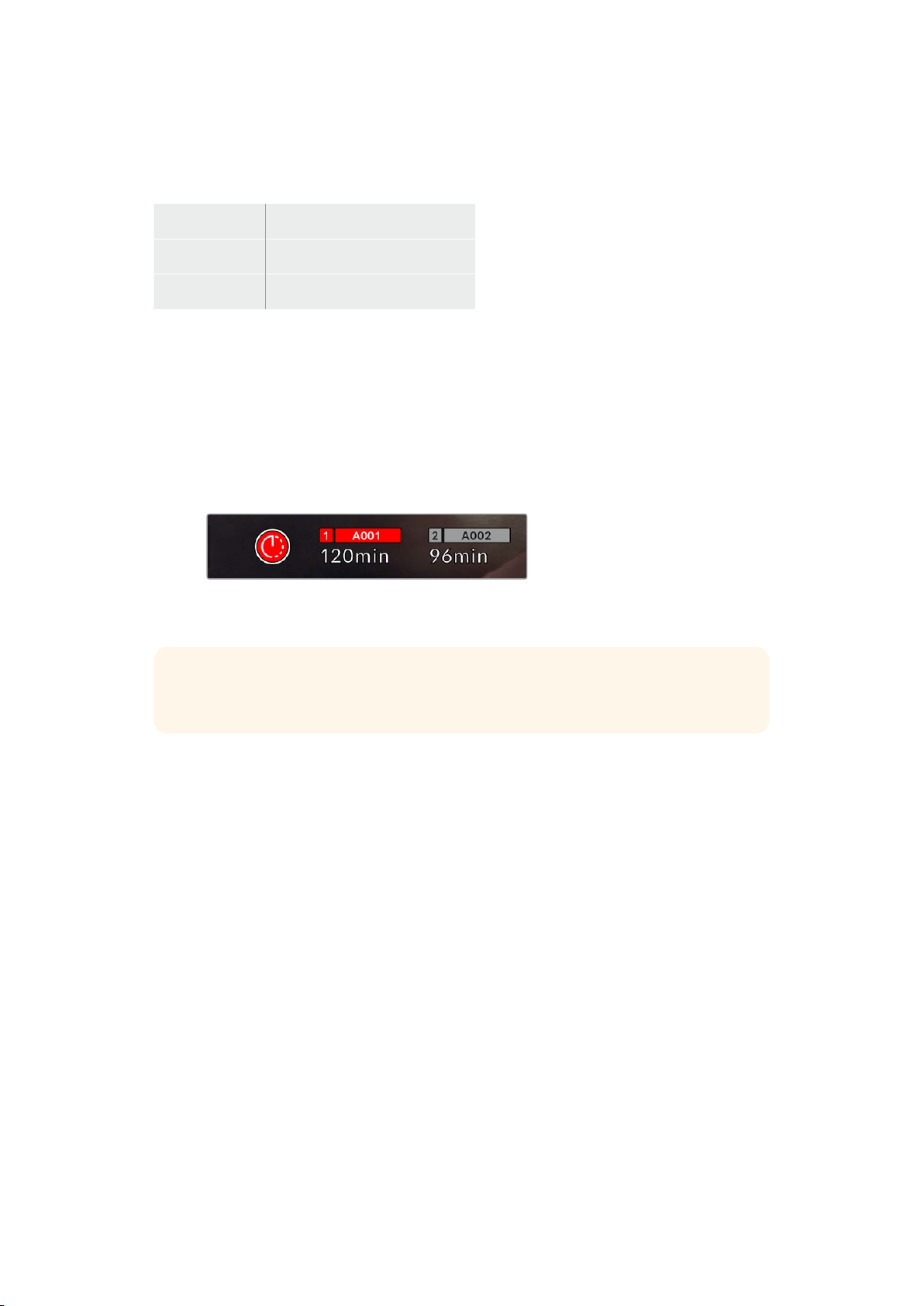
Timelapse
This setting activates the time lapse feature to automatically record a still frame at the
followingintervals:
Frames 2 - 10
Seconds 1 - 10, 20, 30, 40, 50
Minutes 1 - 10
For example, you can set the camera to record a still frame every 10 frames, 5 seconds,
30seconds, 5 minutes etc.
The time lapse feature offers many creative options. For example, setting a 2 frame time lapse
interval will give your recorded video a high speed effect when played back.
The format of each still frame is based on your recording format, so if you set the camera to
record in 4K ProRes HQ, the time lapse setting will maintain this format. The frame rate will be
based on your project frame rate setting, i.e., 24 fps. This is so your time lapse footage can be
easily incorporated into your post production workflow.
Your URSA Mini will indicate it is in time lapse
mode with an icon over the ‘record’ button
TIP When you record footage in time lapse mode, the timecode counter updates
when a frame of video is recorded.
Detail Sharpening
Use this setting to sharpen your URSA Mini’s image. Detail sharpening is available on URSA Mini
Pro 4.6K G2, URSA Mini Pro 4.6K, URSA Mini 4.6K and URSA Mini 4K. When sharpening is
enabled, decrease or increase the level of sharpening by selecting ‘default’, ‘medium’ or ‘high’.
When sharpening is enabled, it will be applied to ProRes video recorded on camera as well
asyour URSA Mini’s SDI output. When URSA Mini Pro G2 is set to Blackmagic RAW and is
usedin conjunction with an ATEM switcher, the detail sharpening function can be applied to
your SDIoutput. This can be switched on or off using the ATEM Camera Control Panel or
ATEMSoftware Control.
This setting is intended for live studio production where there is no time for post production
andyou want to output the image live to air. We recommend leaving it ‘off’ for images you are
recording for further post production. For this reason, sharpening is not applied to Blackmagic
RAW files that are intended for significant post processing.
Stop Rec If Card Drops Frames
Use this setting to configure your URSA Mini’s behavior when dropped frames are detected.
When set to ‘off,’ recording will continue with dropped frames. When set to ‘on,’ your camera
willstop recording if dropped frames are detected. This can prevent you wasting time shooting
unusable footage if you don’t spot the dropped frame indicator.
102Settings

TIP Refer to the ‘choosing a CFast 2.0 card’, ‘choosing a fast SD card’ and ‘choosing a
fast SSD’ sections for more information on how to avoid dropping frames.
Apply LUT in File
If you are applying a LUT to any of the outputs from your Blackmagic URSA Mini Pro 4.6K, the
selected LUT will be embedded into the Blackmagic RAW file you are recording.
This means that the LUT will be saved in the header of the file and can easily be applied to the
clip in post production without needing to handle a separate file. When the ‘apply LUT in file’
switch is set to ‘on’ in URSA Mini Pro’s record menu, this clip will open in Blackmagic RAW Player
and DaVinci Resolve with the chosen LUT already applied to it. The LUT can then be easily
toggled ‘on’ or ‘off’ but will always travel with the Blackmagic RAW file as it is written into the
clip itself.
DaVinci Resolve also has an ‘Apply LUT’ switch in the RAW settings palette for enabling or
disabling the 3D LUT in the Blackmagic RAW file. The ‘Apply LUT’ setting in DaVinci Resolve is
the same setting as in the camera. This means that when shooting you can direct the colorist to
use the LUT by setting it in the camera, but they can switch it off easily in DaVinci Resolve by
setting ‘Apply LUT’ to ‘off’.
File Naming Convention
Clips are recorded to your CFast card, SD card or SSD in .braw file format when recording
Blackmagic RAW, or to a ProRes QuickTime movie depending on which recording format you
have chosen.
The table below shows an example of the file naming convention:
A001_08151512_C001.mov QuickTime Movie Filename
A001_08151512_C001.mov Camera index
A001_08151512_C001.mov Reel Number
A001_08151512_C001.mov Month
A001_08151512_C001.mov Day
A001_08151512_C001.mov Hour
A001_08151512_C001.mov Minute
A001_08151512_C001.mov Clip Number
Still image files captured using the still button will follow the file naming convention for video
clips, however the filename will have an ‘S001’ representing the ‘still number’ as the last four
digits of the filename in place of the clip number. Stills will be recorded as a DNG file to the stills
folder. For more information, refer to the ‘Status LCDControls’ section in this manual.
103Settings
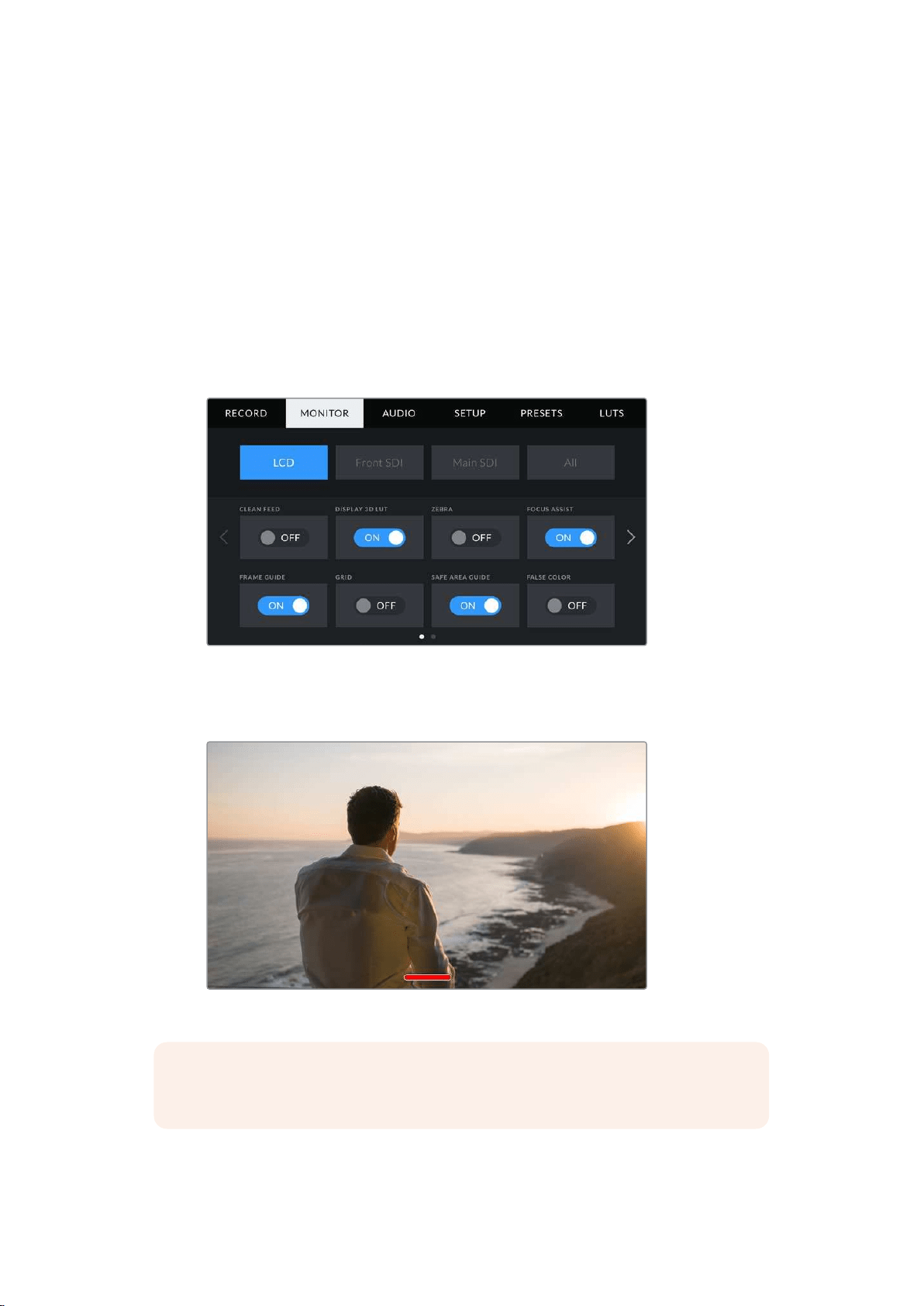
Monitor Settings
The ‘monitor’ tab lets you adjust status text, overlays, and other monitoring options for your
URSA Mini’s LCD touchscreen, front and main SDI outputs. Options are arranged by output
between ‘LCD’, ‘front SDI’ and ‘main SDI’, as well as ‘all,’ which covers monitor settings that
affect all outputs on your URSA Mini. Each of these menus has two pages of options, which
youcan cycle through by tapping the arrows at the edge of your camera’s touchscreen,
orswiping left or right.
LCD, Front SDI, Main SDI Monitor Settings 1
The first page of the ‘LCD,’ ‘front SDI,’ and ‘main SDI,’ monitor tab contains identical settings for
each output. Forexample, you can set ‘zebra’ on for the LCD touchscreen, but off the front or
main SDI outputs.
Clean Feed
Tap the ‘clean feed’ switch in the ‘LCD,’ ‘front SDI’ and ‘main SDI’ menus to disable allstatus text
and overlays for that output, except the record tally indicator.
Your URSA Mini LCD touchscreen will still display a record tally in clean feed mode
NOTE LUTs will still be applied to outputs with ‘clean feed’ enabled. Todisable LUTS,
disable the ‘display LUT’ switch in the ‘Monitor’ menu for thatoutput.
104Settings

Display 3D LUT
Your URSA Mini can apply 3D LUTs to any output to approximate the look of color graded
footage. This is especially useful when shooting with ‘film’ dynamic range, as it can produce an
intentionally ‘flat’ low contrast image.
If your URSA Mini has a 3D LUT active, use this setting to independently apply that LUTto your
LCD touchscreen, front or main SDI output.
NOTE For more information on loading and using 3D LUTs, see the ‘LUTS’ section of
this manual.
Zebra
Tap the ‘zebra’ switch in the ‘LCD,’ ‘front SDI’ and ‘main SDI’ menus to enable zebra guides for
those outputs. For more information on zebra guides and setting zebra levels, see the
‘touchscreen features’ section in this manual.
Focus Assist
Tap the ‘focus assist’ switch in the ‘LCD,’ ‘front SDI’ and ‘main SDI’ menus to enable focus assist
for those outputs. For more information on focus assist and setting focus assist levels, see the
‘touchscreen features’ section in this manual.
Frame Guide
Tap the ‘frame guide’ switch in the ‘LCD,’ ‘front SDI’ and ‘main SDI’ menus to enable frame
guides for those outputs. For more information on frame guides and choosing different guides,
see the ‘touchscreen features’ section in this manual.
Grid
Tap the ‘grid’ switch in the ‘LCD,’ ‘front SDI’ and ‘main SDI’ menus to enable a rule of thirds grid
for those outputs. For more information on the rule of thirds grid, see the ‘touchscreen features’
section in this manual.
Safe Area Guide
Tap the ‘safe area’ switch in the ‘LCD,’ ‘front SDI’ and ‘main SDI’ menus to enable safe area
overlay for those outputs.
For more information on safe area guides, and setting the level of safe area guides, seethe
‘touchscreen features’ section in this manual.
NOTE Use the ‘safe area guide %’ setting in your URSA Mini’s ‘all’ monitoring settings
to set the size of the safe area guide.
False Color
Tap the ‘false color’ switch in the ‘LCD,’ ‘front SDI’ and ‘main SDI’ menus to enable false color
exposure assistance for those outputs.
For more information on false color, see the ‘touchscreen features’ section in this manual.
LCD Monitor Settings 2
The second page of your URSA Mini’s ‘LCD’ monitor tab contains settings unique to your
LCDtouchscreen.
105Settings
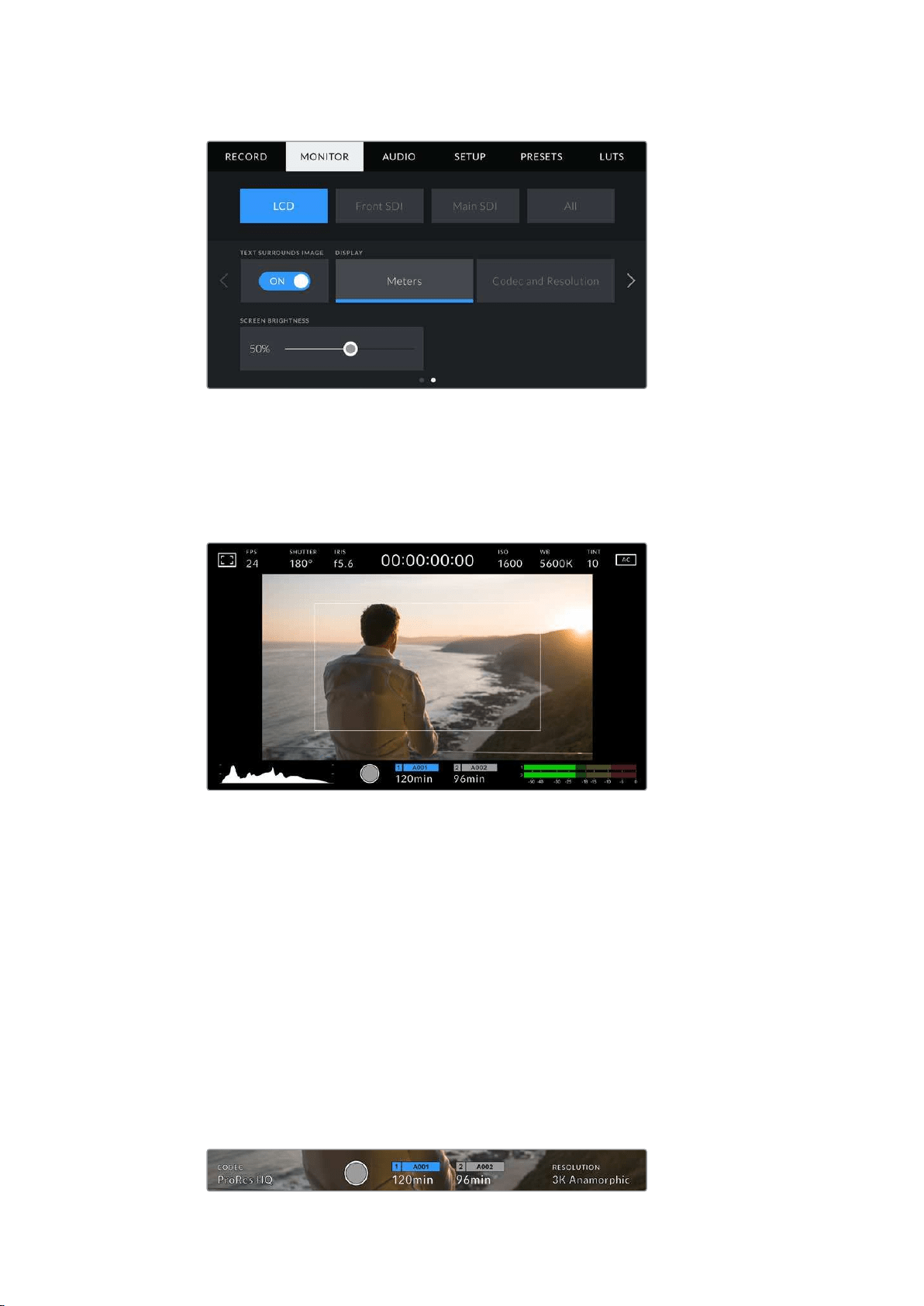
Text Surrounds Image
This setting is available on URSA Mini 4K and URSA Mini 4.6K models only. Tap the ‘text
surrounds image’ switch in the ‘LCD’ menu to scale the image on your LCD touchscreen down
75%. This puts the image in the center of the LCD touchscreen away from status indicators at
the top and bottom edges, giving you an unobstructed view of your URSAMini’s preview image
while keeping status text on screen.
‘Text surrounds image’ gives you a clear view of your URSA Mini EF or PL’s
preview image for framing purposes while keeping status text on screen
Status Text On/Off
This setting is only available for URSA Mini Pro. It can be useful to hide the status text and
meters on your LCD HUD, leaving only the information necessary to compose or direct a shot.
Tap the ‘status text’ switch icon to toggle the appearance of status text and meters for
URSA Mini Pro’s LCD touchscreen. Overlays such as frame guides, grids, focus assist and zebra
will remain visible, if enabled. Swiping up or down on your URSA Mini Pro’s LCD touchscreen
has the same effect.
Display
Instead of a histogram and audio meters, your URSA Mini can display codec and resolution
information at the left and right bottom edges of the LCD touchscreen. This can be useful if you
prefer to use false color for dialling in exposure, or are recording audio separately and want to
display additional information in the space normally used by the histogram and audio meter.
Simply tap ‘meters’ or ‘codec and resolution’ in the ‘LCD’ menu to select your preferred view.
Your URSA Mini can display codec and resolution information
in place of the histogram and audio meters
106Settings
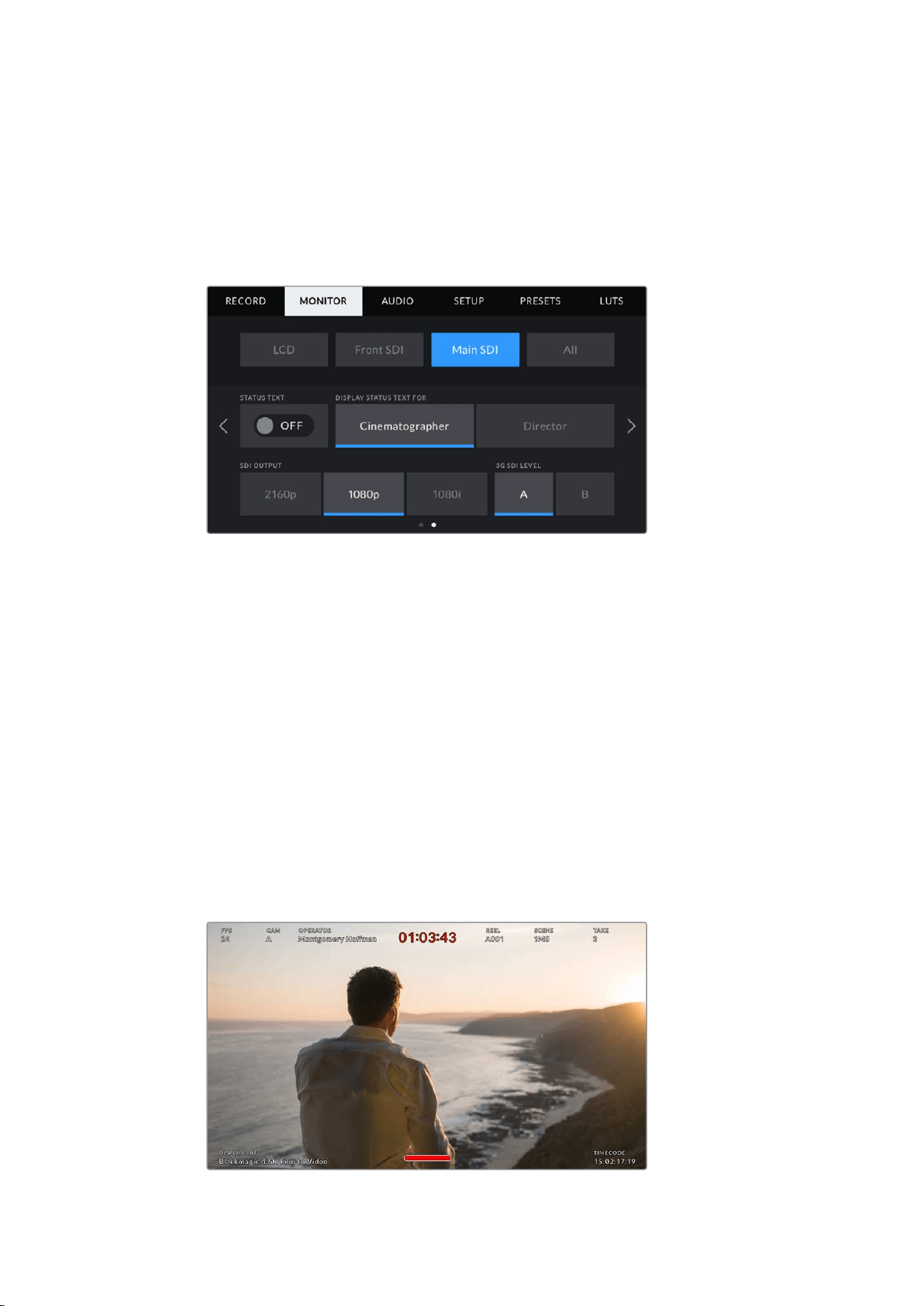
Screen Brightness
Drag the ‘screen brightness’ slider in the ‘LCD’ menu left or right to adjust the brightness of your
URSA Mini’s LCD touchscreen.
Front SDI and Main SDI Monitor Settings 2
The second page of your URSA Mini’s ‘front SDI’ and ‘main SDI’ monitor tab contains settings
unique to your front and main SDI outputs.
2160p and 1080p resolutions are available on your main SDI output as all times
when shooting at resolutions above 3K anamorphic. 1080i is only available
for your camera’s main or front SDI output when shooting at frame rates of 50,
59.94, or 60. ‘3G SDI level’ is available on URSA Mini Pro 4.6K G2 only
Status Text
It can be useful to hide the status text and meters on your front SDI or main SDI output, leaving
only the information necessary to compose or direct a shot. Tap the ‘status text’ switch icon in
the ‘front SDI’ or ‘main SDI’ monitor menus to toggle the appearance of status text and meters
for that output. Overlays such as frame guides, grids, focus assist and zebra will remain visible,
if enabled.
Swiping up or down on your URSA Mini’s LCD touchscreen has the same effect for
thetouchscreen.
Display Status Text For Cinematographer or Director
Your URSA Mini’s LCD touchscreen displays information such as ISO, white balance, and
aperture that is useful to a camera operator or cinematographer setting up individual shots on
that camera. URSA Mini’s front and main SDI outputs, however, can also show information useful
to a director or script supervisor who is keeping track of multiple shots or cameras.
Your URSA Mini can display director specific status text on its front and main SDI outputs
107Settings
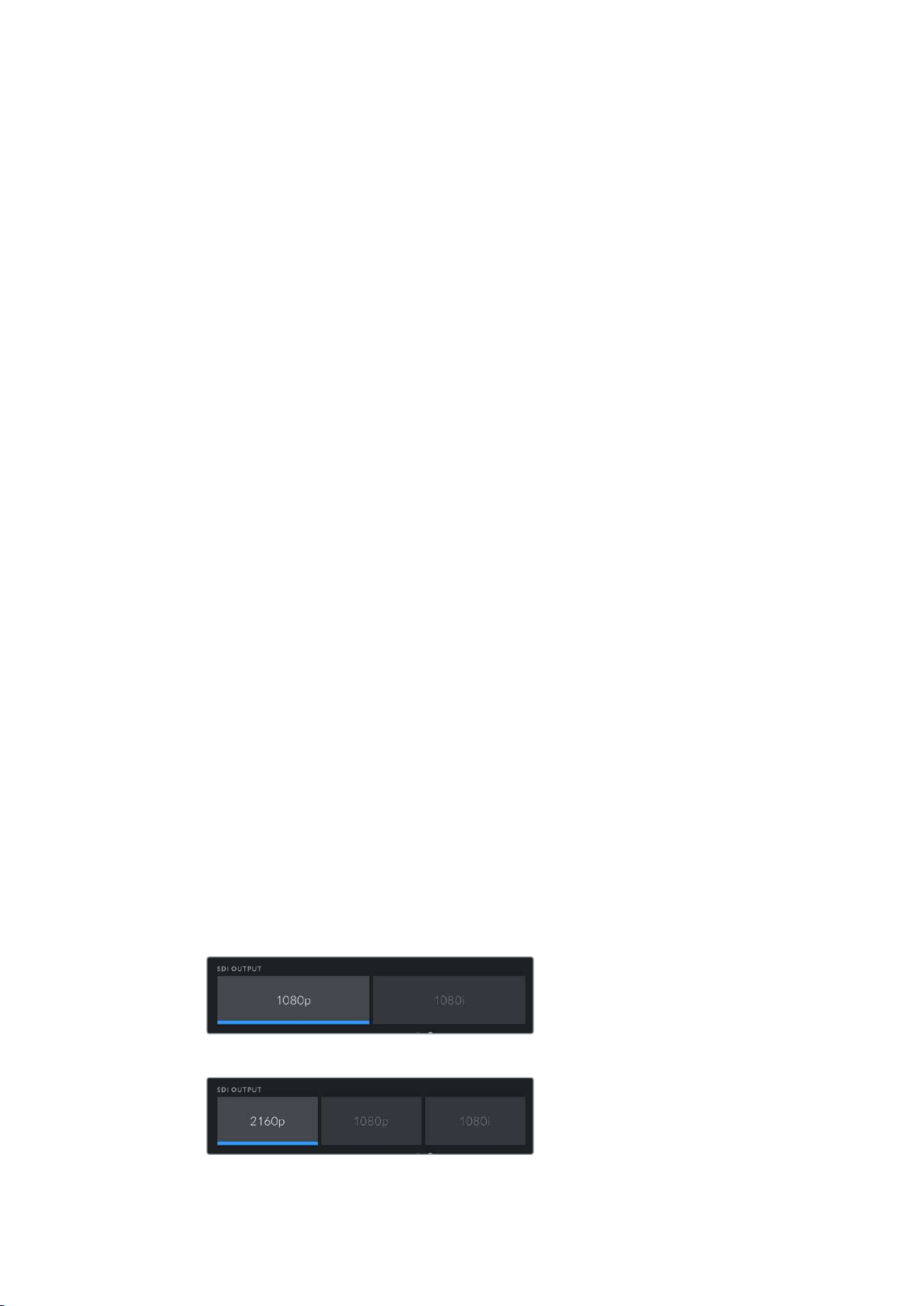
Setting the status text to ‘director’ in your URSA Mini’s ‘front SDI’ or ‘main SDI’ monitor settings
changes the status text for that output to show the following information.
FPS
Displays the currently selected frames per second for that camera. If off speed frame
rate is disabled, only the project frame rate will be shown. If an off speed frame rate is
being used, the sensor frame rate will be shown, followed by the project frame rate.
CAM
Displays the camera index as set in your URSA Mini’s Slate. See the ‘slate’ section later
in this manual for more information.
OPERATOR
Identifies the camera operator as set in your URSA Mini’s Slate. See the ‘slate’ section
later in this manual for more information.
DURATION DISPLAY
Displays the duration of the current clip, while recording, or the last recorded clip in the
following format: hours:minutes:seconds
REEL, SCENE, TAKE
Displays the current reel, scene and take. For more information on reels, scenes, takes
and their labelling conventions, refer to the ‘slate’ section later in this manual.
DYNAMIC RANGE
The bottom left hand corner of the monitor displays your URSA Mini’s currently
appliedLUT, if applied to that output. If no LUT is applied, ‘film’ or ‘video’ dynamic
range will bedisplayed.
TIMECODE
The bottom right of the monitor displays your URSA Mini’s timecode, in the following
format: hours:minutes:seconds:frames
SDI Output
Both outputs allow you to choose between progressive and interlaced HD output, while your
URSA Mini’s main SDI output also has to option of progressive Ultra HD.
The options available in this setting depend on your camera’s resolution and frame
ratesettings.
Progressive HD, or ‘1080p’ is always available regardless of your recording resolution and
framerate, while interlaced HD, or ‘1080i’ is available when your project frame rate is set to 50,
59.94 or 60.
Ultra HD SDI output, or ‘2160p’ is available on your URSA Mini’s main SDI when shooting at
Ultra HD resolutions.
SDI Output – front SDI
SDI Output – main SDI
108Settings

3G SDI Level
On URSA Mini Pro you can change the 3G-SDI output standard to maintain compatibility with
equipment that can only receive level A or level B 3G-SDI video. This option will only appear
when you are operating in 50, 59.94 or 60 frames per second and outputting 1080p. Tap the
A or B icon to select each standard.
On URSA Mini Pro 4.6K G2, select level A or
level B for your 3G-SDI output standard
All Monitor Settings 1
Monitor settings that affect all of your URSA Mini’s outputs are grouped within the ‘all’ menu.
For example, setting ‘safe area guide %’ to 90% in this menu will set the safe area guide to 90%
for your camera’s LCD, front SDI and main SDI outputs.
There are two pages of ‘all’ settings. The first page of your URSA Mini’s ‘all’ monitor tab contains
the following settings.
Frame Guides
Tap the left or right arrows in the ‘frame guides’ menu setting to cycle through frame guide
options for all outputs on your URSA Mini, including EVFs such as Blackmagic URSA Viewfinder.
The options are detailed in the ‘touchscreen features’ section of this manual, and are also
accessible from the LCD monitoring menu in your LCD touchscreen head up display. It’s worth
noting that you can individually select whether frame guides will appear on your
LCD touchscreen, front SDI and main SDI output in their respective ‘monitor’ menus.
Guide Opacity
Tap the left or right arrows in the ‘guide opacity’ menu setting to choose the opacity of the
areas blocked out by frame guides on your LCD touchscreen, front and main SDIoutputs.
Theoptions are 25%, 50%, 75% and 100%.
109Settings

Focus Assist
Your URSA Mini camera has two focus assist modes, ‘peak’ and ‘colored lines.’
Peak
When ‘peak’ style focus assist is selected, areas of the shot that are in focus are heavily
sharpened on your LCD touchscreen or SDI outputs, but not in the recorded image
itself. This causes focused parts of your shot to ‘pop’ out of the softer background on
screen. As no additional overlays are used, this can be a very intuitive way to tell when
focus is dialled in, especially when the subject you’re focusing on is physically well
separated from other elements in shot.
Colored Lines
When ‘colored lines’ style focus assist is selected, a colored line is superimposed
around the parts of the image that are in focus. This can be a little more intrusive than
‘peak’ style focus assistance as the lines are drawn over your image, but especially in
busy shots with a lot of visible elements, it can be a precise focus aid.
Focus Assist Level
To set the level of focus assistance for your LCD touchscreen, front SDI and main SDI, tap the
‘low,’ ‘medium’ or ‘high’ setting.
NOTE Setting the focus assist level does not affect whether focus assistance is
enabled on your URSA Mini’s LCD touchscreen or SDI outputs. You’ll still need to turn
focus assistance on individually for each output in the ‘LCD,’ ‘front SDI, or ‘main SDI’
monitor menus.
TIP The optimum level of focus assistance varies shot by shot. When focusing on
actors, for example, a higher level of focus assistance can help resolve edge detail in
faces. A shot of foliage or brickwork, on the other hand, may show distracting amounts
focus information at higher settings.
Focus Color
Use this setting to change the color of focus line overlays when using ‘colored lines’ style focus
assistance. Changing the focus line color can make it easier to tell focus assistance lines apart
from your image. The available options are ‘white,’ ‘red,’ ‘green,’ ‘blue’ and ‘black.’
Zebra Levels
Set the exposure level that zebra appears at by tapping the arrow icons on either side of this
setting. Zebra level is adjustable in five percent increments between 75 and 100percent
exposure.
For more information, see the ‘zebra’ guide in the ‘touchscreen features’ section of this manual.
ND Filter indicator
Adjusting your URSA Mini Pro’s ND filter will display the ND filter indicator in the top left of the
LCD touchscreen and any SDI outputs set to show status text. This indicator will remain on
when you have an ND filter engaged. When you have it set to the position where there is no ND
filter, the ‘clear’ text will disappear after four seconds.
110Settings
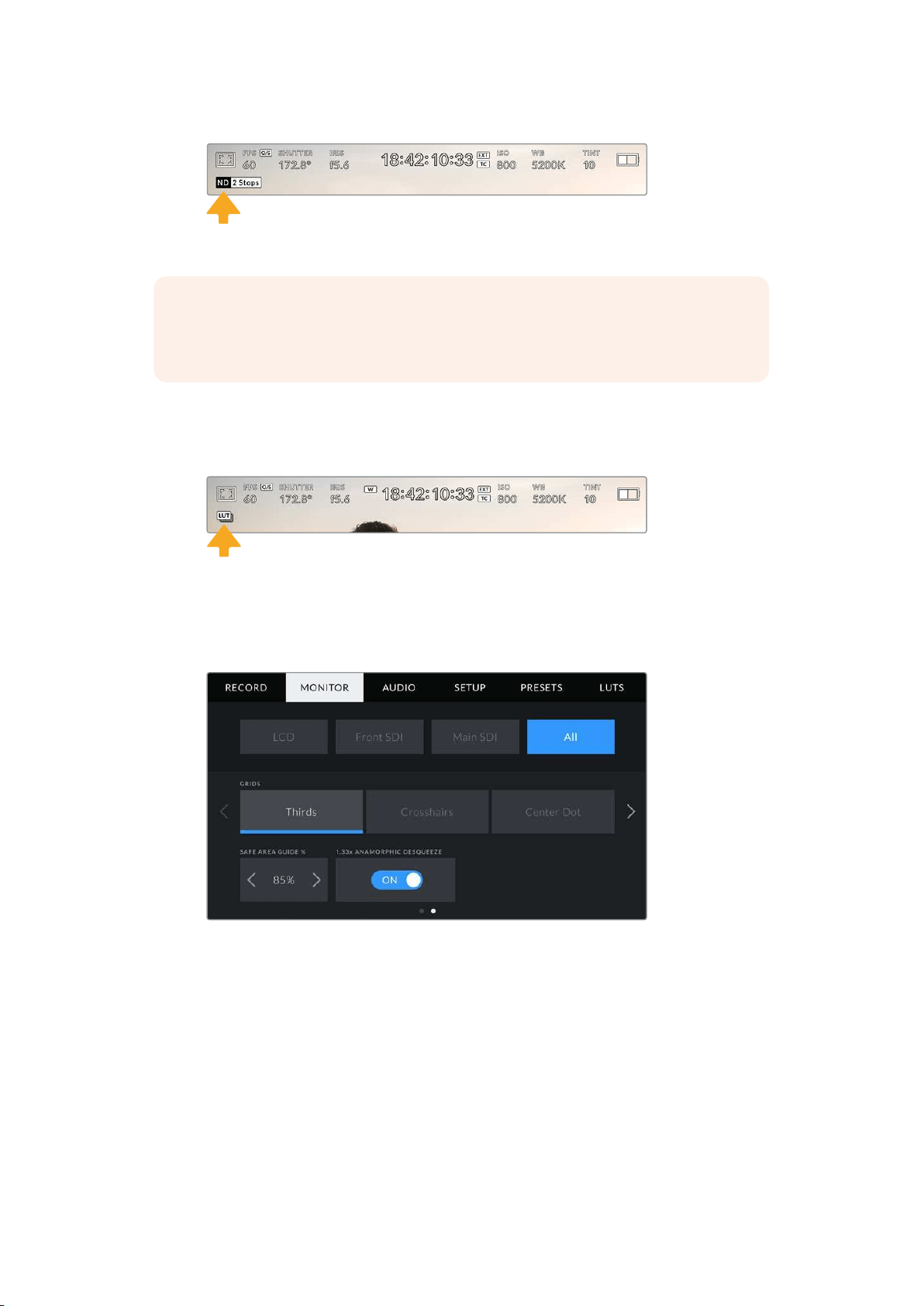
Adjusting your URSA Mini Pro’s ND filter setting will reveal the ND filter indicator
NOTE You can adjust the terminology used by the ND filter indicator to reflectthe
conventions you’re used to. The options are ND number, stops and fractions. You can
set your preferred format in your URSA Mini Pro’s ‘setup’menu.
LUT indicator
The LUT icon will be visible on the LCD, front SDI or main SDI when ‘status text’ is switched
onand you have a LUT applied to that output.
The LUT icon lets you know that you have a LUT applied to the image
All Monitor Settings 2
The second page of your Ursa Mini’s ‘all’ monitor tab contains the following options:
Grids
To set which combination of grids and crosshairs you want to display on your URSAMini’s LCD
touchscreen, front and main SDI outputs, tap the ‘thirds,’ ‘crosshairs,’ or ‘center dot’ options in
this setting.
For more information, see the ‘grids’ guide in the ‘touchscreen features’ section earlier in
this manual.
Safe Area Guide %
To adjust the size of the safe area overlay on your URSA Mini’s LCD touchscreen, frontSDI and
main SDI outputs, tap the arrows to the left and right of the percentage displayed in this setting.
This percentage indicates the size of the safe area in relation to the image frame.
Mostbroadcasters require a 90% safe area.
111Settings
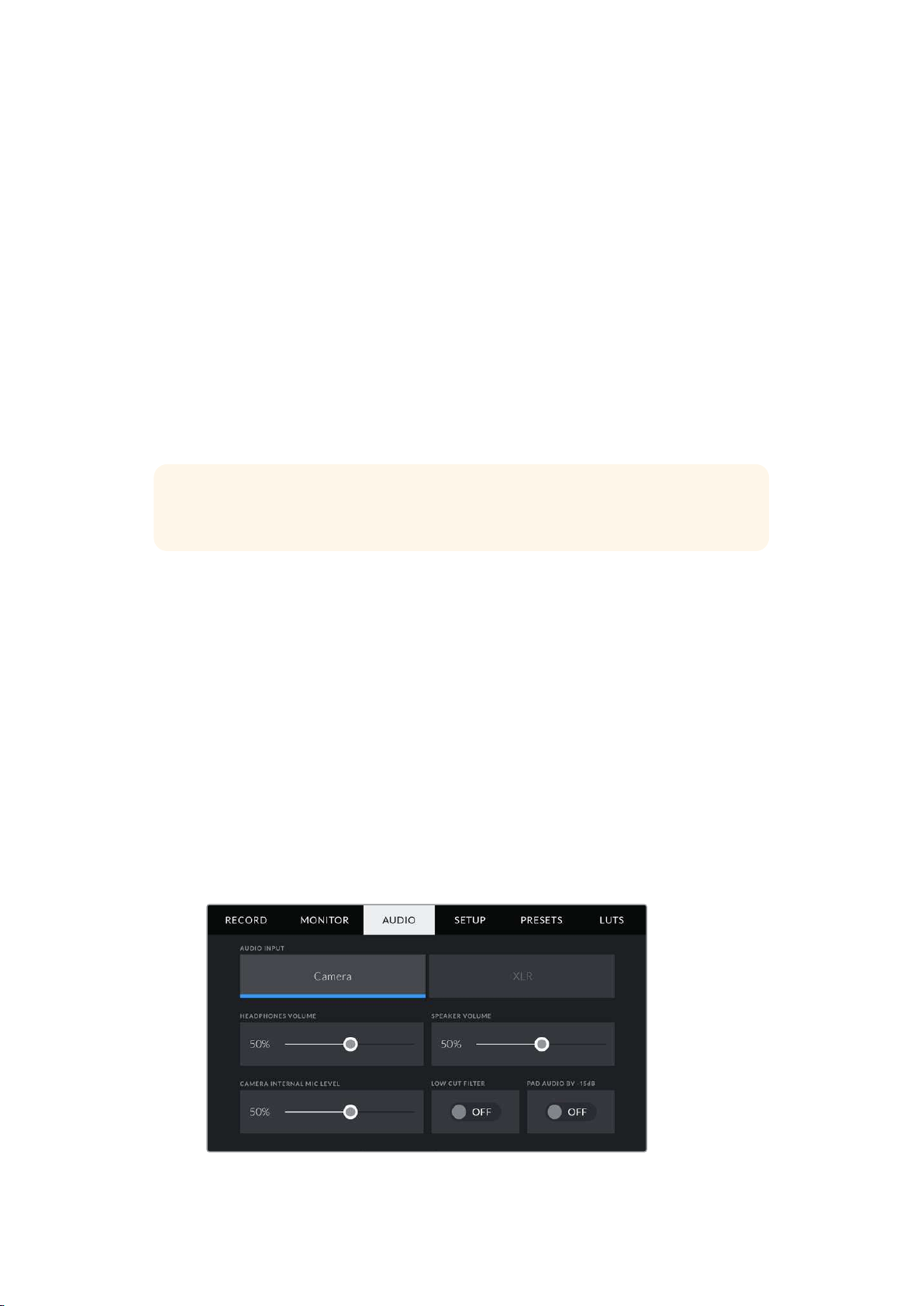
Anamorphic Desqueeze
When shooting with anamorphic lenses, the image will appear horizontally ‘squeezed’ on your
URSA Mini’s preview outputs and in recorded files. Enabling ‘anamorphic desqueeze’ will
correct the preview image on your URSA Mini as well as recording the desqueeze amount used
in the clip metadata for easy correction in post.
The desqueeze amount available will vary depending on what you’ve set your URSA Mini
resolution to, but the resulting image will always be in the cinematic widescreen 2.4:1
aspect ratio.
Anamorphic lenses designed for film typically have a 2x squeeze factor. Your URSA Mini’s
‘3K anamorphic’ resolution is designed for use with these lenses and will perform a
2x desqueeze when set to this resolution with ‘anamorphic desqueeze’ enabled.
Anamorphic lenses designed for 16:9 digital image sensors often use a 1.33x squeeze factor to
produce 2.4:1 cinematic widescreen images from the entire 16:9 sensor. Therefore, when your
URSA Mini is set to 16:9 resolutions such as ’4K 16:9’ and ‘HD16:9,’ the desqueeze ratio will
be 1.33:1.
TIP If your image appears horizontally stretched when shooting with a standard
spherical lens, make sure you don’t have ‘anamorphic desqueeze’ enabled.
Audio Settings
The ‘audio’ tab lets you adjust the audio input and monitoring settings on your URSA Mini.
Thismenu is slightly different between URSA Mini and URSA Mini Pro models, so the available
settings are described separately below.
Audio Settings – URSA Mini
The audio settings for your URSA Mini are divided by audio input source between ‘camera’ and
‘XLR’ for onboard and externally sourced audio. ‘XLR’ settings are spread over two pages,
which you can cycle through by tapping the arrows at the edge of the LCD touchscreen or
swiping left or right.
Camera Audio Settings
When you select ‘camera’ audio input, your URSA Mini will have one page of audio settings
available. The ‘camera’ audio tab contains the following settings.
112Settings
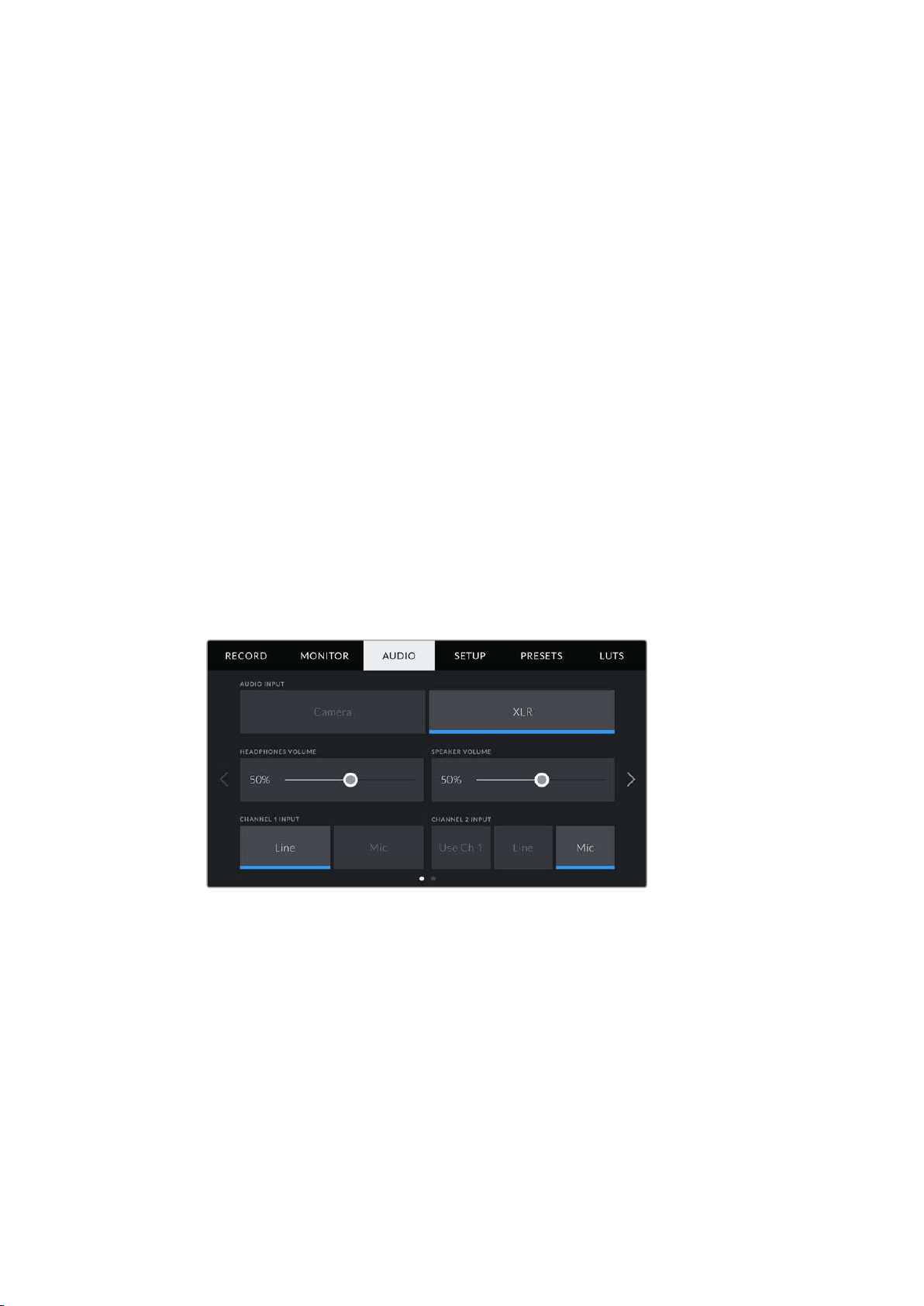
Headphones Volume
This slider adjusts the output levels for headphones attached to URSA Mini’s 3.5mmheadphone
jack. Move the audio slider left or right to adjust levels.
Speaker Volume
This slider adjusts the output levels for your URSA Mini’s built in speaker. Move the audio slider
left or right to adjust levels.
Camera Internal Mic
This slider adjusts the recording levels for your URSA Mini’s built in microphone. Move the audio
slider left or right to adjust levels. The built in microphone records to audio channels 1 and 2.
Low Cut Filter
Tap this switch icon to enable the low cut filter for your camera’s internal microphones. This filter
helps to reduce potential wind noise or low frequency rumbling that may occur in exterior
shooting conditions. Note that the ‘pad audio by -15 dB’ selector must be switched off for this
function to work.
Pad Audio By -15dB
The -15dB pad option gives you added control to further reduce the microphone input gain
levels on your URSA Mini’s internal microphone when shooting in a loud environment even after
your input levels are already turned down.
XLR Audio Settings 1
When you select ‘XLR’ audio input, your URSA Mini will have two pages of settings available.
The first page of the ‘XLR’ audio tab contains the following settings.
Headphones Volume
This slider adjusts the output levels for headphones attached to URSA Mini’s 3.5mm
headphone jack. Move the audio slider left or right to adjust levels.
Speaker Volume
This slider adjusts the output levels for your URSA Mini’s built in speaker. Move the audio slider
left or right to adjust levels.
113Settings

Channel 1 and 2 input
Set the external audio input levels by tapping ‘line’ or ‘mic’ for channels one or two. These
correspond to line, or microphone levels with 48V phantom power. It’s important to select the
appropriate level for your audio signal. You can set these independently for channels
one and two.
Channel 2 also has the option of using channel 1’s input if you want to record channel 1 external
audio to channels 1 and 2.
XLR Audio Settings 2
The second page of the ‘XLR’ audio tab contains the following settings.
Channel 1 and 2 gain
Move the slider left and right on the ‘channel 1 gain’ and ‘channel 2 gain’ settings to adjust the
audio levels for each channel.
Channel 1 and 2 Mic
The Mic option gives you added control of input gain levels on an external microphone by
setting the preamplification level to ‘low’ or ‘high.’ The ‘low’ setting can be useful when shooting
in a loud environment even after your input levels have already been turned down.
Channel 1 and 2 phantom power
Your URSA Mini’s XLR inputs can provide 48V phantom power so you can use microphones that
aren’t self powered. When your camera is set to ‘XLR’ audio input, simply tap the ‘phantom
power’ switch icon to enable phantom power.
NOTE It is standard practice to plug in your XLR cable before switching phantom
power on. It is also important to switch phantom power to ‘off’ when you no longer
have a phantom powered microphone connected. Connecting equipment that doesn’t
require phantom power whilst still in phantom power mode can damage your
equipment, as the camera outputs a charge when in this mode. Phantom power can
also take quite a while to discharge after switching phantom power off on URSA Mini.
Please be aware that you should wait a few minutes when switching off phantom
power before plugging in any other microphones or XLR audio equipment.
114Settings
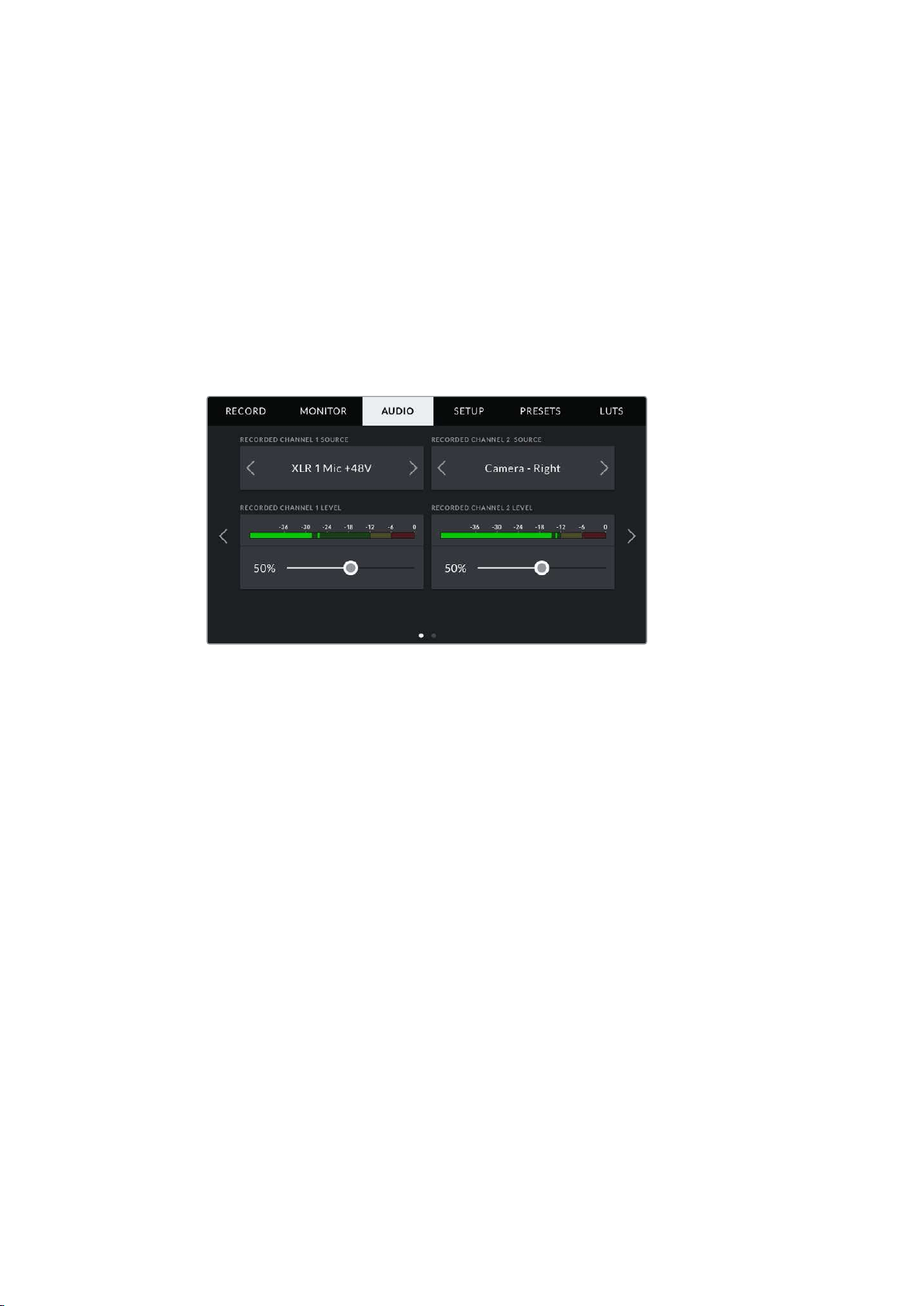
Audio Settings – URSA Mini Pro
The audio settings for your URSA Mini Pro are spread over two pages and divided between
channels 1 and 2, while an upcoming software update will add two additional channels.
You can map each audio channel to a different source, as well as adjusting various settings
such as padding and low cut filters.
These settings work together with the switches on your URSA Mini Pro’s internal control panel.
So after you’ve set your audio source for a particular channel, you can use the internal control
panel switches to set the signal type and whether phantom power is enabled for that channel.
Audio Settings 1
The first page of your URSA Mini Pro’s ‘audio’ tab contains the following settings.
Channel Source
Use the ‘recorded channel 1 source’ and ‘recorded channel 2 source’ buttons to select your
audio source for each audio channel. The options are
Camera Left or Right
Use this setting to record from your camera’s internal microphones.
Camera Mono
Use this setting to record audio from your URSA Mini Pro’s built in microphone’s left
and right channels onto a single audio channel.
XLR 1 or 2
Use this setting to record from your camera’s XLR inputs. Depending on which audio
signal you’ve set on your URSA Mini Pro’s internal control panel switches, your
XLRinput may be listed as ‘mic,’ ‘line,’ or ‘AES.’ If phantom power is enabled and you
have your XLR input set to ‘mic’ you’ll also see a ‘+48V’ indicator here. OnURSA Mini
Pro, it is important to ensure that the 48V switch gets turned ‘off’ when you disconnect
your phantom powered microphone.
XLR 1 or 2 — Mic Backup
Use this setting to record audio from a microphone plugged into your URSA Mini Pro’s
XLR 1 or 2 input at a lower level than the standard ‘mic’ recording. This can be used to
avoid audio clipping in the event of an unexpected increase in loudness. This feature
will only be available as a selectable item if the XLR 1 or 2 input switch is set to ‘mic’.
None
Use this setting to disable your audio channel.
115Settings
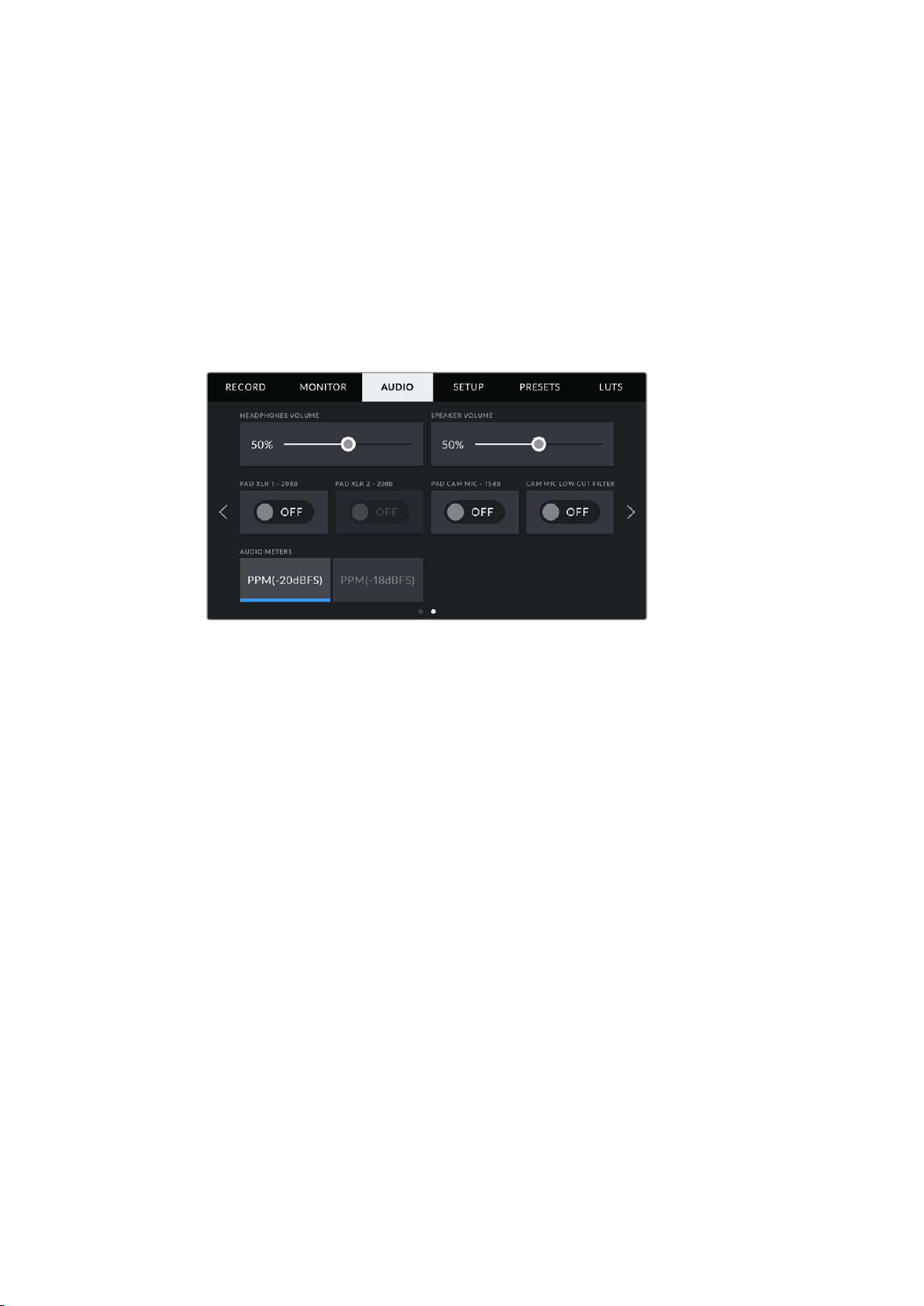
Recorded Channel 1/2 Level
Use these sliders to adjust the recording levels of your chosen channel 1 and 2 sources.
Audiometers are included with each slider to help you set the correct audio level. These levels
will also update when you adjust the audio using the audio knobs on the ergonomic
control panel.
To achieve optimum audio quality, ensure your audio levels do not reach 0 dBFS. This is the
maximum level that your camera can record, meaning that any audio that exceeds this level will
be clipped, resulting in distortion.
Audio Settings 2
The second page of your URSA Mini Pro’s ‘Audio’ tab contains the following settings
The ‘audio meters’ setting on URSA Mini Pro 12K and URSA Mini Pro G1 models
Headphones Volume
This slider adjusts the output levels for headphones attached to URSA Mini’s 3.5mm
headphone jack. Move the audio slider left or right to adjust levels. These levels will also
update when you adjust the headphone volume using the settings wheel on the forward
control panel.
Speaker Volume
This slider adjusts the output levels for your URSA Mini’s built in speaker. Move the audio slider
left or right to adjust levels. These levels will also update when you adjust the speaker volume
using the settings wheel on the forward control panel.
Pad XLR -20dB
The -20dB pad option gives you added control to further reduce the input gain levels on your
URSA Mini’s XLR audio inputs when shooting in a loud environment even after your input levels
are already turned down.
Pad Cam Mic - 15 dB
The -15dB pad option gives you added control to further reduce the microphone input gain
levels on your URSA Mini’s internal microphone when shooting in a loud environment even after
your input levels are already turned down.
Cam Mic Low Cut Filter
Tap this switch icon to enable the low cut filter for your camera’s internal microphones.
This filter helps to reduce potential wind noise or low frequency rumbling that may occur in
exterior shooting conditions. Note that the ‘pad cam mic -15 dB’ selector must be switched off
for this function to work.
116Settings
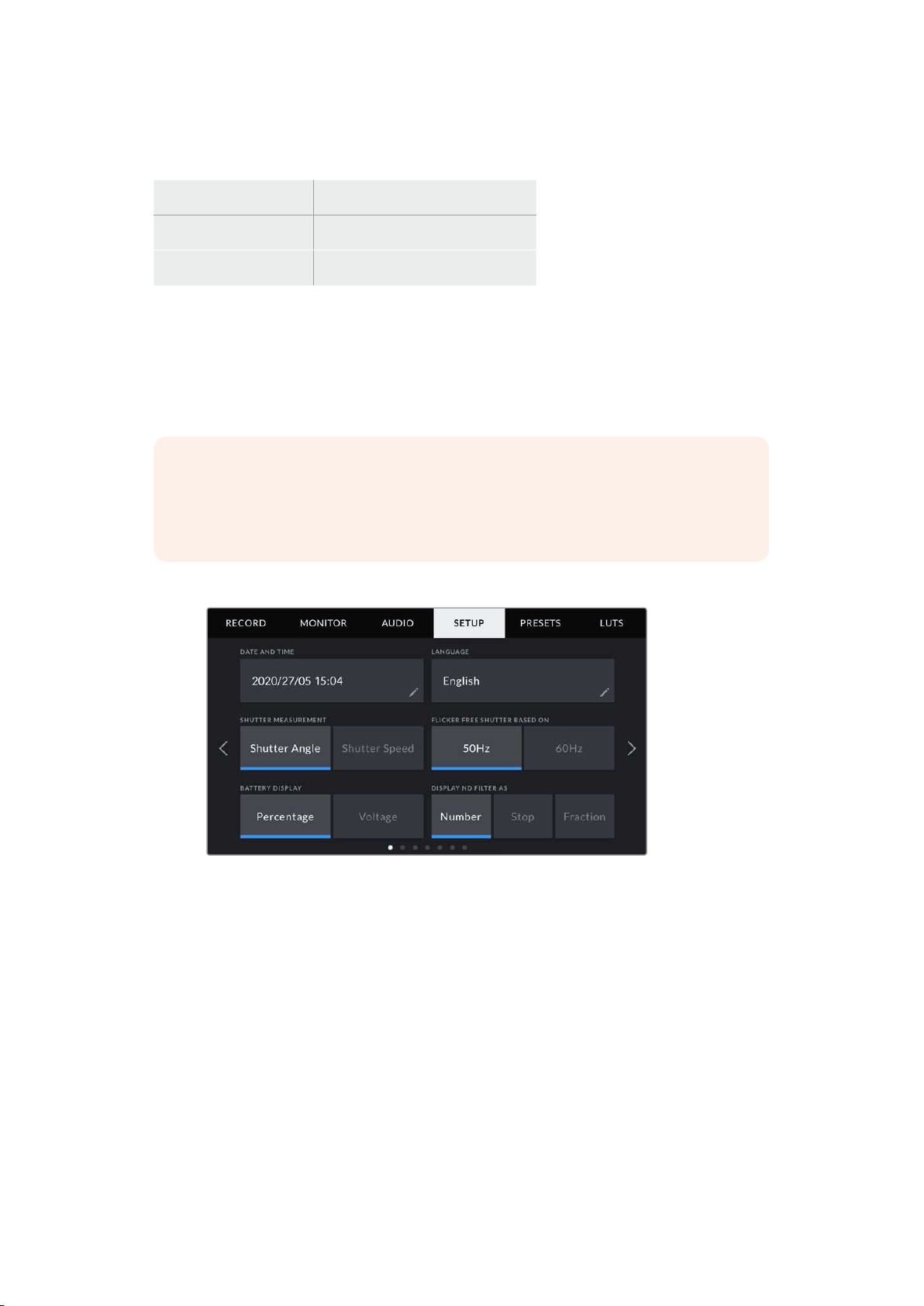
Audio Meters
Select an ‘audio meters’ standard for the peak level meters.
Audio meter setting Standard
PPM (-20 dBFS) SMPTE RP.0155
PPM (-18 dBFS) EBU R.68
Setup Settings
The ‘setup’ tab contains your URSA Mini’s identification settings, software version, function
button settings and other camera settings not directly linked to recording or monitoring.
Youcan cycle through pages on the ‘setup’ tab by tapping the arrows at the edge of the LCD
touchscreen, or swiping left or right.
NOTE Settings and features shown below may have a slightly different layout on the
pages of your URSA Mini’s ‘setup’ tab due to small differences between URSA Mini
models. For example, URSA Mini Pro 4.6K G2 has five ‘setup’ pages and URSA Mini
Pro 12K has seven.
Your URSA Mini’s ‘setup’ tab contains the following settings.
On URSA Mini Pro 12K, URSA Mini Pro 4.6K G2 and URSA Mini Pro 4.6K, the first
page of the ‘setup’ tab has a ‘display ND filter as’ option. URSA Mini 4.6K and URSA
Mini 4K do not have an internal ND filter so this option is unavailable.
Date and Time
Set your URSA Mini’s date and time by tapping the ‘date and time’ setting. The date format is
year, month, day and the time format is 24 hour. Your URSA Mini’s date and time are also used
for time of day timecode if an external timecode source is not connected.
Language
English is the only language available currently for URSA Mini Pro 4.6K G2, URSA Mini 4.6K and
URSA Mini 4K.
URSA Mini Pro 12K and URSA Mini Pro 4.6K G1 support 11 popular languages including English,
Chinese, Japanese, Korean, Spanish, German, French, Russian, Italian, Portuguese and Turkish.
The language page will also appear on initial start up.
117Settings
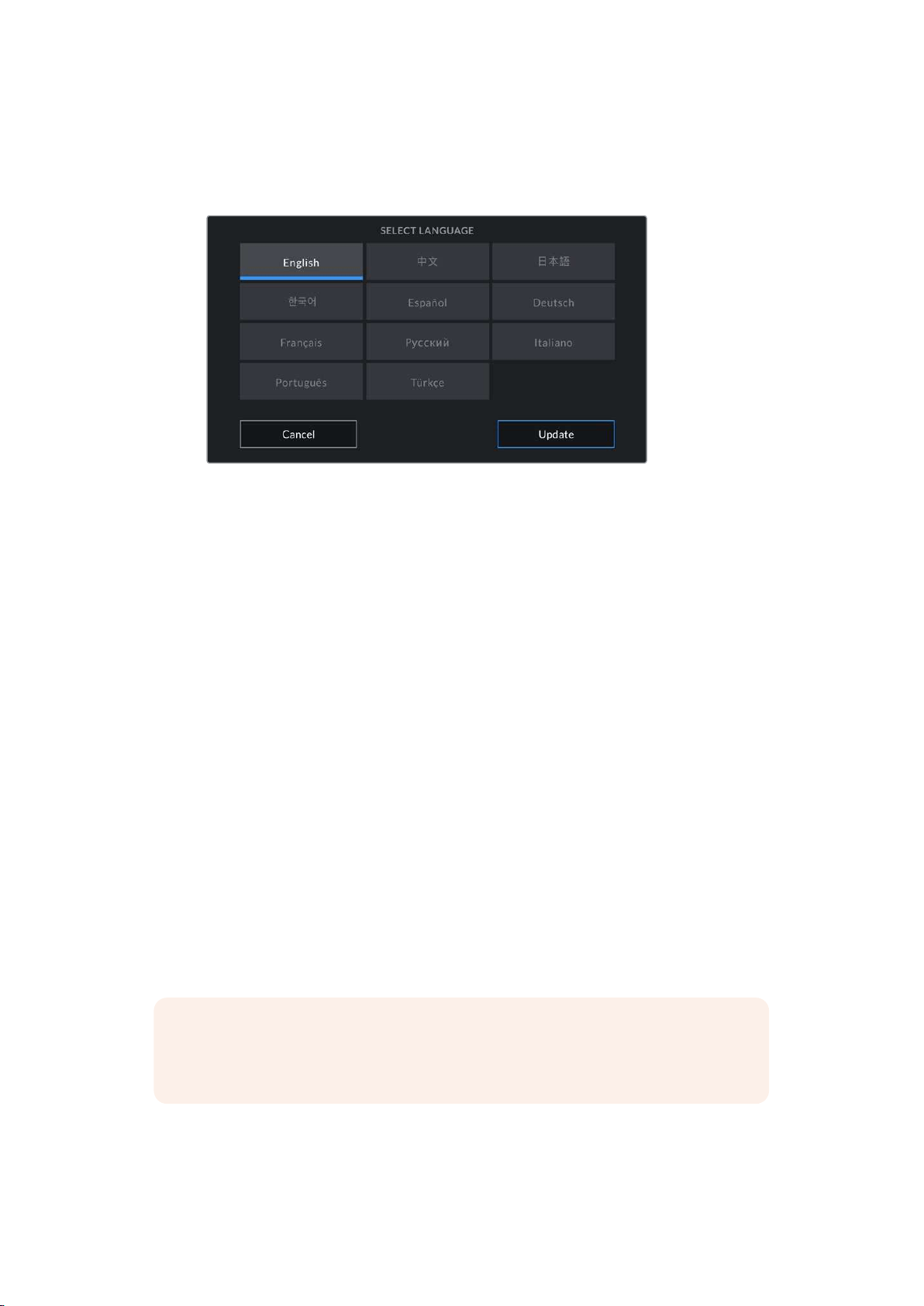
To select your language:
1 Tap on the ‘language’ and select your language from the list.
2 Select ‘update’ to return to the setup menu.
Shutter Measurement
On URSA Mini 4.6K and URSA Mini Pro, use this setting to select whether to display shutter
information as ‘shutter angle’ or ‘shutter speed’.
It’s worth mentioning that when using shutter angle, the shutter conforms to the frame rate.
Forexample, 180 degrees will produce the same motion blur, no matter which frame
rate you use.
When using shutter speed, however, the shutter is given an absolute value determined
independently of the frame rate, so the results will differ if you change the frame rate.
For example, when shooting at 24 frames per second, a 1/48th of a second shutter speed will
produce pleasing motion blur at the equivalent of a 180 degree shutter angle. Change the
frame rate to 48 frames per second and 1/48th of a second shutter speed no longer offers the
same motion blur, now producing the equivalent of a 360 degrees shutter angle. In this
example, once the frame rate is changed to 48 fps, you would also need to change the shutter
speed to 1/96th of a second to produce the same effect as a 180 degree shutter angle.
Flicker Free Shutter Based On
Use this setting to change the mains power frequency your URSA Mini uses to calculate flicker
free shutter settings.
When shooting under lights, your shutter can affect the visibility of flicker. Your URSA Mini will
automatically calculate a flicker free shutter value for your current frame rate and display up to
three suggested shutter values in your heads up display. Shutter values are affected by the
frequency of the local mains power supply used to drive those lights. In most PAL countries, this
frequency is 50Hz, while NTSC countries typically use 60Hz power. Simply tap ‘50Hz’ or ‘60Hz’
to set the right frequency for your region.
NOTE The characteristics of individual light sources may still cause flicker even when
using flicker free shutter values. We recommend always performing a test shoot when
not using continuous lights.
118Settings
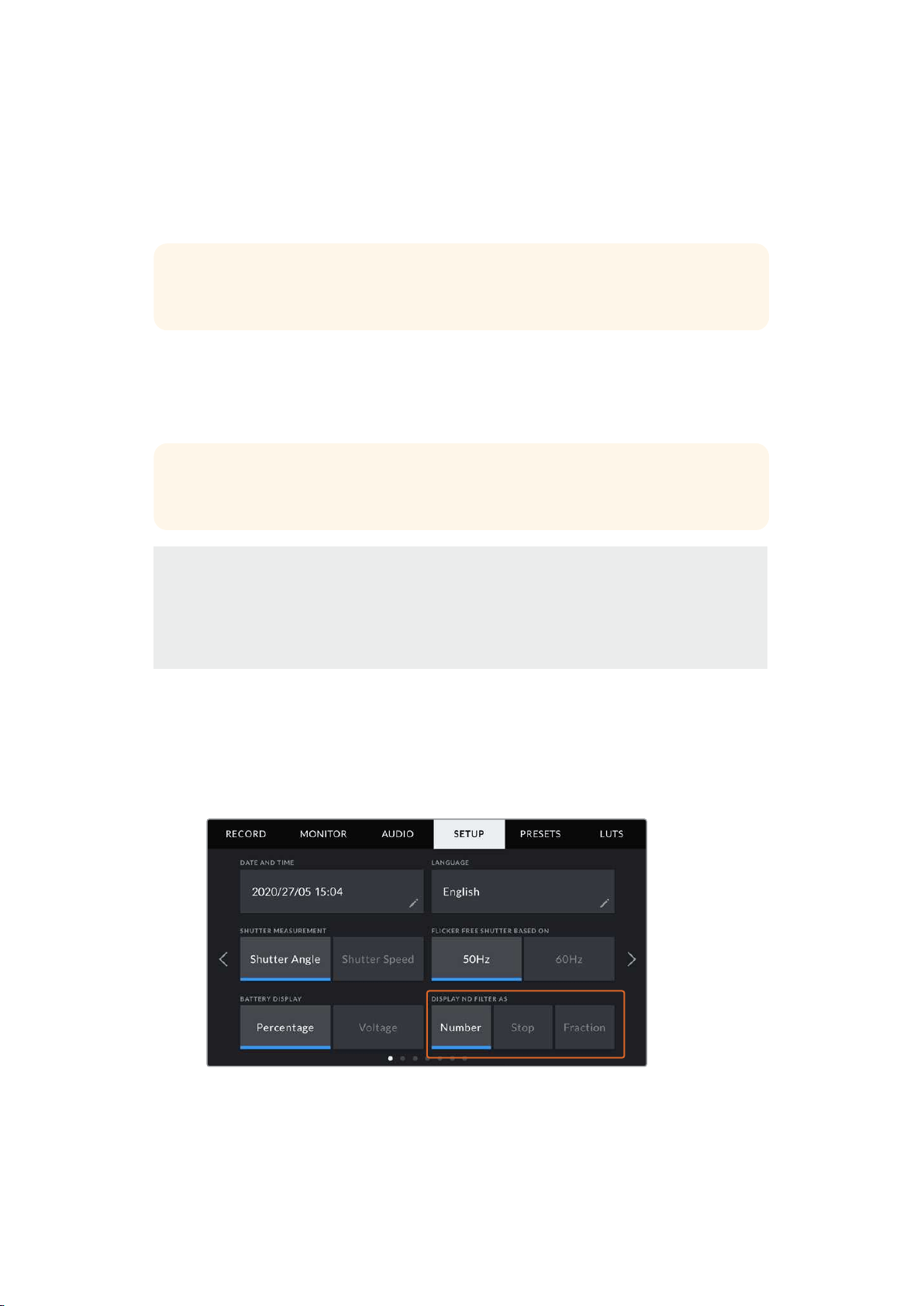
Battery Display
Your URSA Mini can change the way the battery level indicator displays the remaining charge.
The two settings are ‘percentage’ and ‘voltage.’ When using a battery and plates that support
percentage accurate levels, setting ‘battery display’ to ‘percentage’ will show your battery
power remaining as a percentage.
TIP A list of batteries that support percentage accurate power information is provided
in the ‘mounting batteries’ section of this manual.
If your battery and plate combination does not support percentage accurate readings, the
display will show four bars which empty as the battery depletes.
If this option is set to ‘voltage,’ battery levels will be displayed in volts. We recommend that you
swap the battery as it approaches 12V.
TIP You can also toggle between ‘voltage’ and ‘percentage’ battery displays by
tapping the power icon on the LCD touchscreen.
Timecode Drop Frame
Use the ‘timecode drop frame’ option to use drop frame timecode when using NTSC project
frame rates of 29.97 and 59.94. Drop frame timecode drops a small number of frames from
the timecode at set intervals. This keeps your project timecode accurate despite each
second not containing a whole number of frames at NTSC frame rates.
Display ND Filter As
Use this setting to adjust how the ND filter indicator on your URSA Mini Pro displays your
NDfilter setting. Each setting corresponds to a different camera convention. Cinematographers
typically use ND.number notation, while those familiar with DSLRs or broadcast cameras may
prefer this information in f-stop format, or as a fraction of available light. These options are
available here as ‘number,’ ‘stop,’ and ‘fraction,’ respectively.
Setup menu in URSA Mini Pro with the option to
customize how the ND filter information is displayed
119
Settings
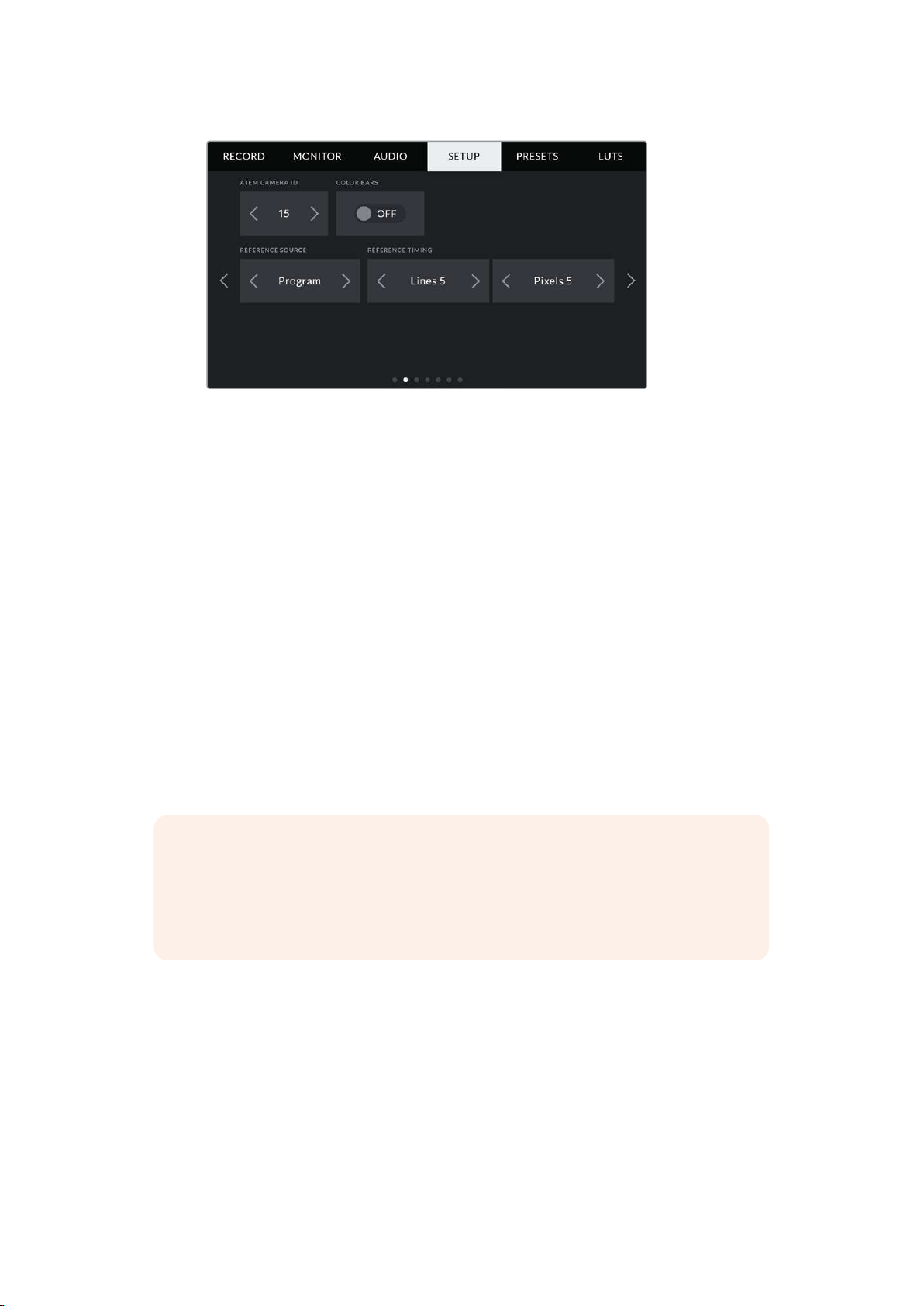
It’s worth mentioning that the ‘program audio’ setting is only available on URSA Mini Pro.
ATEM Camera ID
If you’re using URSA Mini with an ATEM Switcher and want your camera to receive tally signals
from the switcher, you’ll need to set the camera number on your camera. This ensures the
switcher sends the tally signal to the correct camera. The camera number can be set to a value
of 1-99 by tapping the left or right buttons. The default setting is 1.
Color Bars
Outputting color bars rather than a preview image can be useful when connecting your
URSAMini to a switcher or external monitor. The appearance of your URSA Mini’s color bars
onyour switcher or monitor confirms the connection, and you can perform basic
monitorcalibration based on the colors of the bars. To turn on color bars for all outputs on
yourURSAMini, including the LCD touchscreen, simply tap the ‘color bars’ switch icon.
Reference Source
This setting is used to select the reference source. Your URSA Mini can lock to an internal or
external reference source, or to the reference signal in program input from an ATEM switcher.
Ifyou are using your URSA Mini with an ATEM Switcher’s camera control function, you should
always set your reference source to ‘program’ unless the switcher itself and all connected
cameras are set to an external reference.
NOTE When you are setting your reference source for URSA Mini, you may
experience a small dropout on your camera’s outputs when switching between your
reference sources. This is because the camera is adjusting its referencing timing to
match that of the external source. For this reason it is important not to change this
setting during a production and only while setting up.
120Settings

Reference Timing
These settings allow you to manually adjust the reference timing on a line or pixel basis.
Simply tap the arrow icons on either side of the ‘lines’ and ‘pixels’ settings to make adjustments.
Program Audio Source
This setting is only available for URSA Mini Pro. When connected to a switcher, setting ‘program
audio’ to ‘on’ prioritizes the program return audio as your input source to be mixed with talkback
when monitoring using headphones or a headset. This is useful when you are not feeding the
switcher audio from your camera but you still want to listen to the program feed from the
switcher via the ‘SDI in’ port. Setting ‘program audio’ to ‘off’ prioritizes audio from your camera’s
internal mics or ‘audio in’ XLR ports, and is the default setting.
Program Mix
This setting changes the balance of camera sound to talkback sound. The headphones will
output audio following what is displayed on the LCD. For instance, if you are in camera view,
camera audio is heard. If you are in program view, program audio is heard. The default
setting is 100%.
Headset Mic
Move this volume slider left or right to increase or decrease audio microphone input levels.
Thedefault setting is 50%.
Sidetone Level
Adjust this slider to set the volume of your own voice mic in your headset.
Set Function Button
On the outside of your URSA Mini’s LCD touchscreen, you’ll notice two function buttons,
‘F1’ and ‘F2.’ These are mappable to frequently used features and are quickly accessible when
using your camera with the LCD touchscreen closed, such as when you are using
URSA Viewfinder.
On URSA Mini Pro 12K, URSA Mini Pro 4.6K G2, URSA Mini Pro 4.6K and URSA Mini 4.6K
models, you can also map the HFR button to another function or disable it. The default setting
for the ‘HFR’ button is ‘off speed rec’.
121Settings
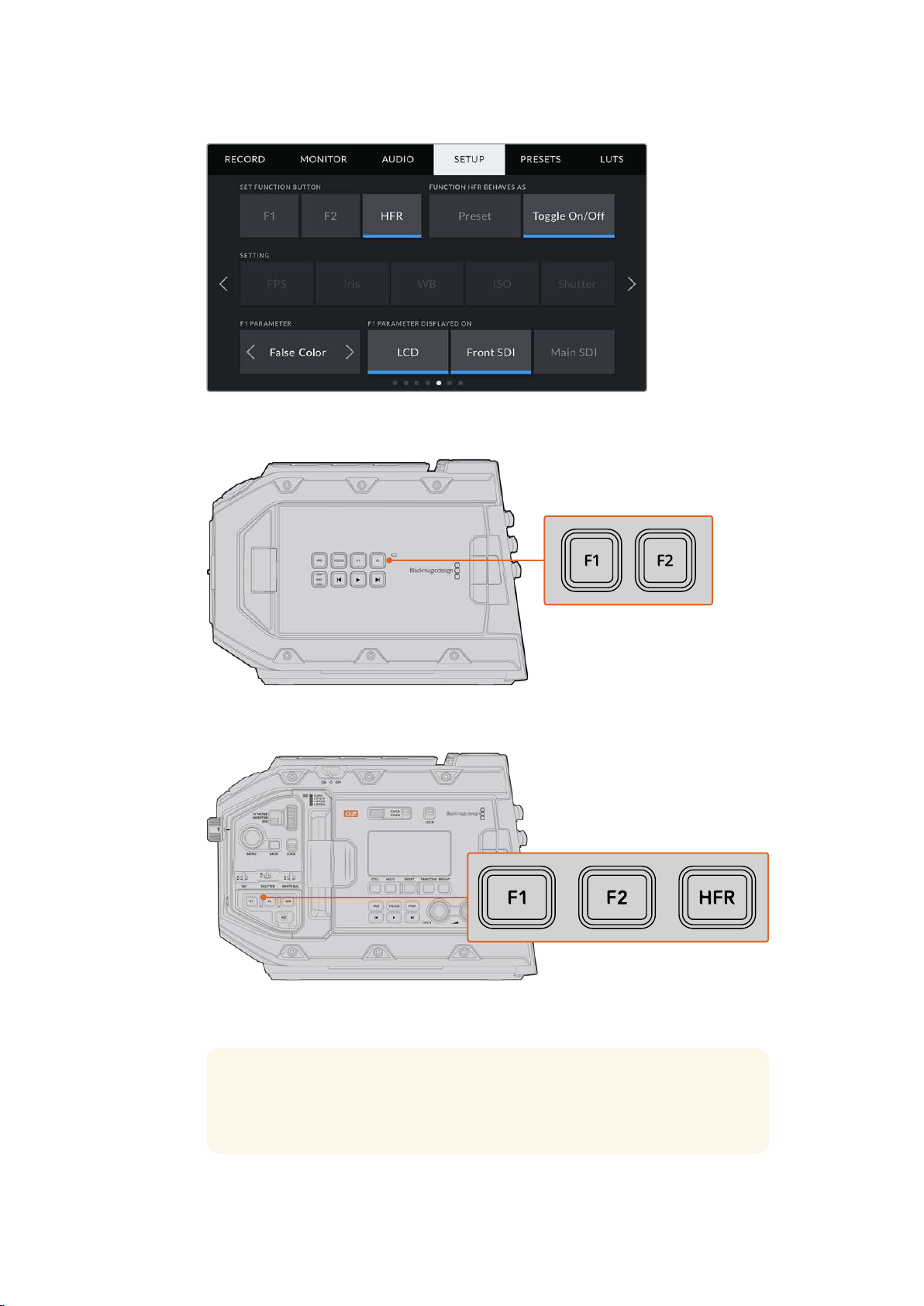
On URSA Mini Pro 12K, URSA Mini Pro 4.6K G2, URSA Mini Pro 4.6K and
URSA Mini 4.6K, the HFR button can be mapped to another function
Your URSA Mini’s F1 and F2 buttons are located
on the outside of the LCD touchscreens
On URSA Mini Pro 12K, URSA Mini Pro 4.6K G2, URSA Mini Pro 4.6K and URSA Mini 4.6K,
you can customize the functions of the ‘F1’, ‘F2’ and ‘HFR’ buttons or disable them.
TIP If your URSA Mini Pro G1 has a B4 lens with a lens connector, you can
configure the ‘vtr’ and ‘ret’ buttons as function buttons and assign preset or
toggle functions in addition to the ‘F1’, ‘F2’ and ‘HFR’ buttons.
122Settings
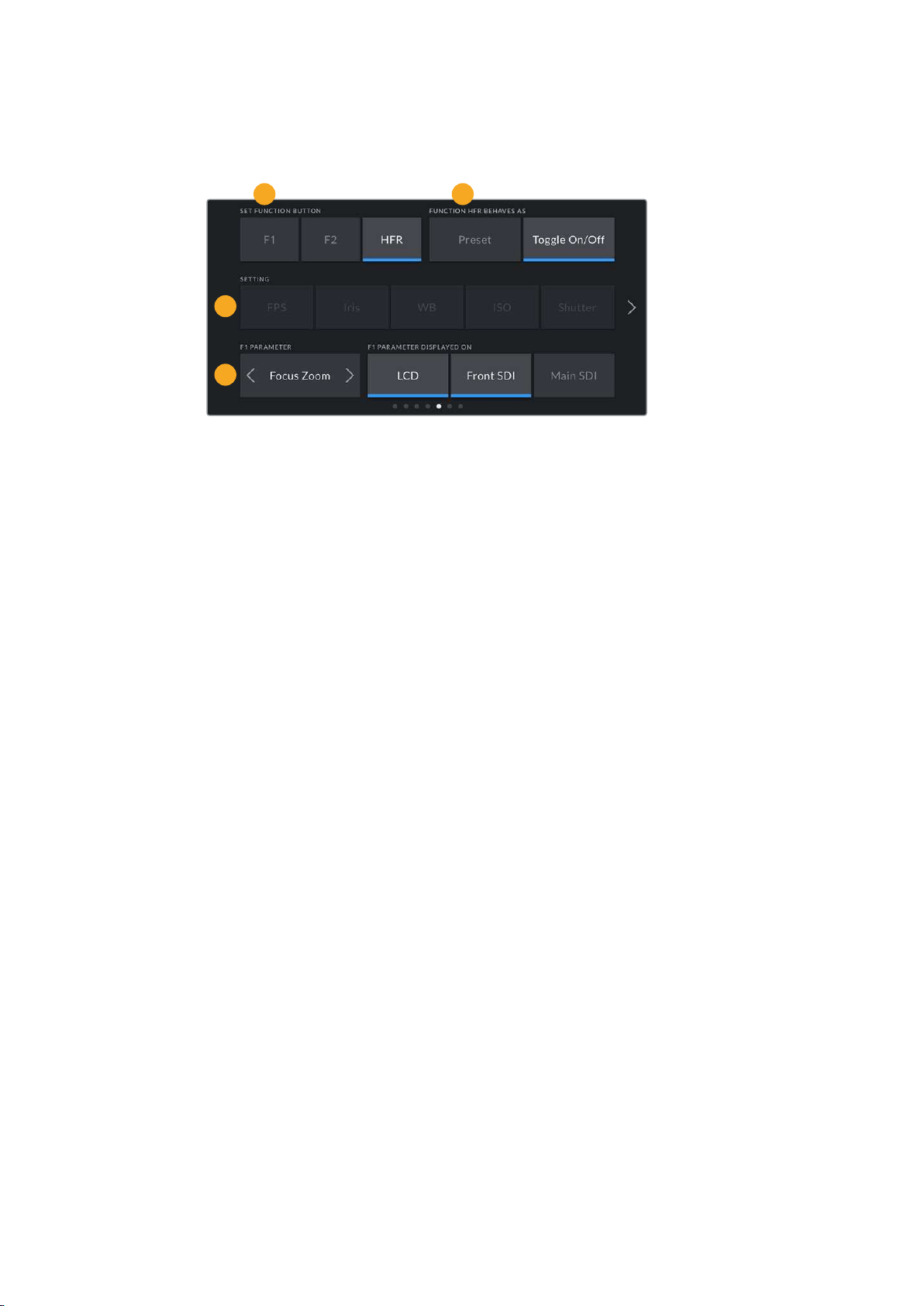
To set these buttons, select a function button and then its behavior, a setting, and
aparameterfor that setting.
21
3
4
1 Button 2 Behavior 3 Setting 4 Parameter
Function Button Behaves as Preset or Toggle
Once you have selected the function button you want to map, you can select a behavior.
On URSA Mini Pro 12K, URSA Mini Pro 4.6K G2, URSA Mini Pro 4.6K and URSA Mini 4.6K models, you
can also map the HFR button to another behaviour.
The available options are:
Preset
When set to this behavior, pressing a function button will recall a combination of a
setting and a parameter.
To set a preset, select the setting you want to use from the ‘setting’ menu, and adjust
that setting by tapping the arrow icons on either side of the ‘parameter’ menu.
For example, to set the F1 button to recall a preset aperture of f8, select the ‘preset’
behavior, tap the ‘iris’ setting, and tap the arrows on either side of the ‘parameter’ menu
until you get to f8.’ Tapping the preset again returns your camera to the
previous setting.
Up/Down
When set to this behavior, pressing a function button will move a particular setting
up or down.
For example, you may want to set F1 to increase your lens aperture and F2 to decrease
it. To do this, select the ‘F1’ function button, set the behavior to ‘up/down’, and the
parameter to ‘up.’ Do the same for the ‘F2’ function button, but set the option to ‘down.’
Toggle On/Off
When set to this behavior, pressing a function button will toggle a particular setting on
or off. The ‘setting’ menu is disabled in this mode. Instead, tap the left or right
arrows in the parameter menu to scroll through the available options. These are ‘off
speed recording,’ ‘color bars,’ ‘push to talk,’ ‘clean feed,’ ‘display LUT,’ ‘frame guides,’
‘focusassist,’ ‘false color,’ and ‘zebra’. A ‘none’ option is available on URSA Mini
Pro models.
URSA Mini Pro 12K includes a ‘focus zoom’ option. For information on how to use ‘focus
zoom’ when it is enabled on the LCD, see the ‘focus zoom’ section. When ‘focus zoom’
is enabled for your SDI outputs, you can move its region of zoom around using the
‘menu’ wheel and adjust the magnification level using the ‘iris’ wheel.
123Settings
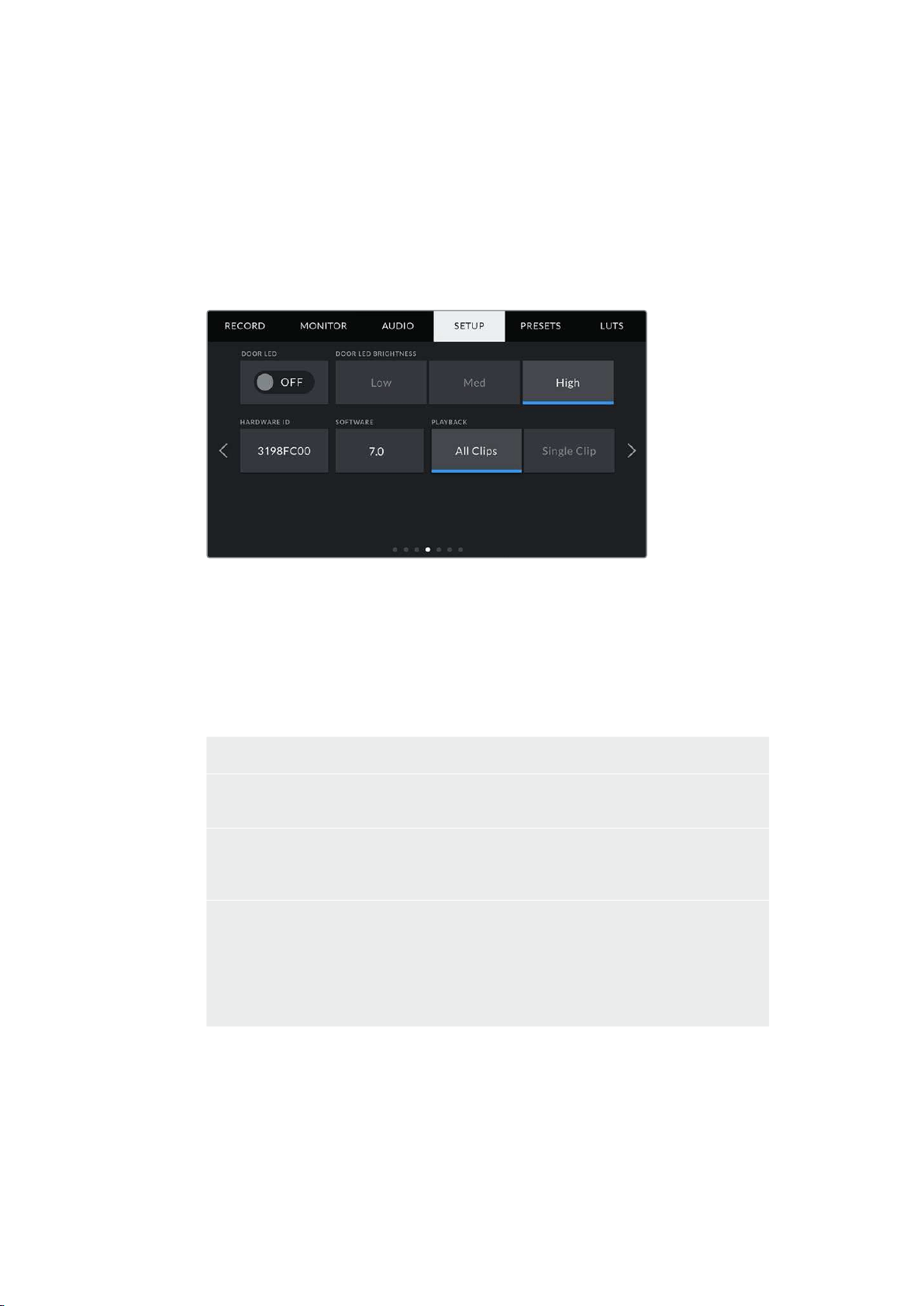
Using the ‘Toggle On/Off’ behavior also lets you select the output this setting applies
to. Simply tap any combination of ‘LCD,’ ‘front SDI’ and ‘main SDI’ to select. Ifthe output
for an option is not available, such as ‘color bars’ which always applies to all outputs,
the ‘LCD,’ ‘front SDI’, and ‘main SDI’ settings are disabled. On URSA Mini Pro models
you can disable the function and HFR buttons by selecting ‘none’.
You can also configure URSA Mini Pro 4.6K G1 to use the ‘ret’ and ‘vtr’ buttons
on a B4 lens as function buttons. For example, if ISO recording is happening with a
HyperDeck, a popular option is to set ‘vtr’ to act as a ‘push to talk’ button.
Status LED
URSA Mini Pro cameras have a small status LED near the ‘rec’ button on the forward
control panel to provide tally and status information. Use the ‘status LED’ setting to
switch the status LED on or off. On URSA Mini the status LED is located on the outside
of the LCD touchscreen next to the ‘F2’ button and referred to as the ‘door LED’ on the
‘setup’ tab.
The LED will provide the following status indicators:
White The camera is powered on and in standby mode.
Red The camera is recording. Slow flashing indicates that your card space is low,
while rapid flashing indicates dropped frames.
Green The camera is in playback mode. The LED alternates slowly between green
and off while a clip is playing. When inserted media is recognized, the status
LED blinks green and white three times.
Orange If your camera’s battery is low, the LED will flash orange and your other
current status color. For example, if currently recording, the LED indicator
will slowly alternate between orange and red. If your camera is in standby
mode, the LED will alternate between white and orange. The threshold for
‘low’ battery is 20 percent for batteriesthat support percentage accurate
charge information, or 12.5 volts for batteries that don’t.
Status LED Brightness
To set the brightness of the status LED, ‘low,’ ‘medium,’ or ‘high.’
124Settings
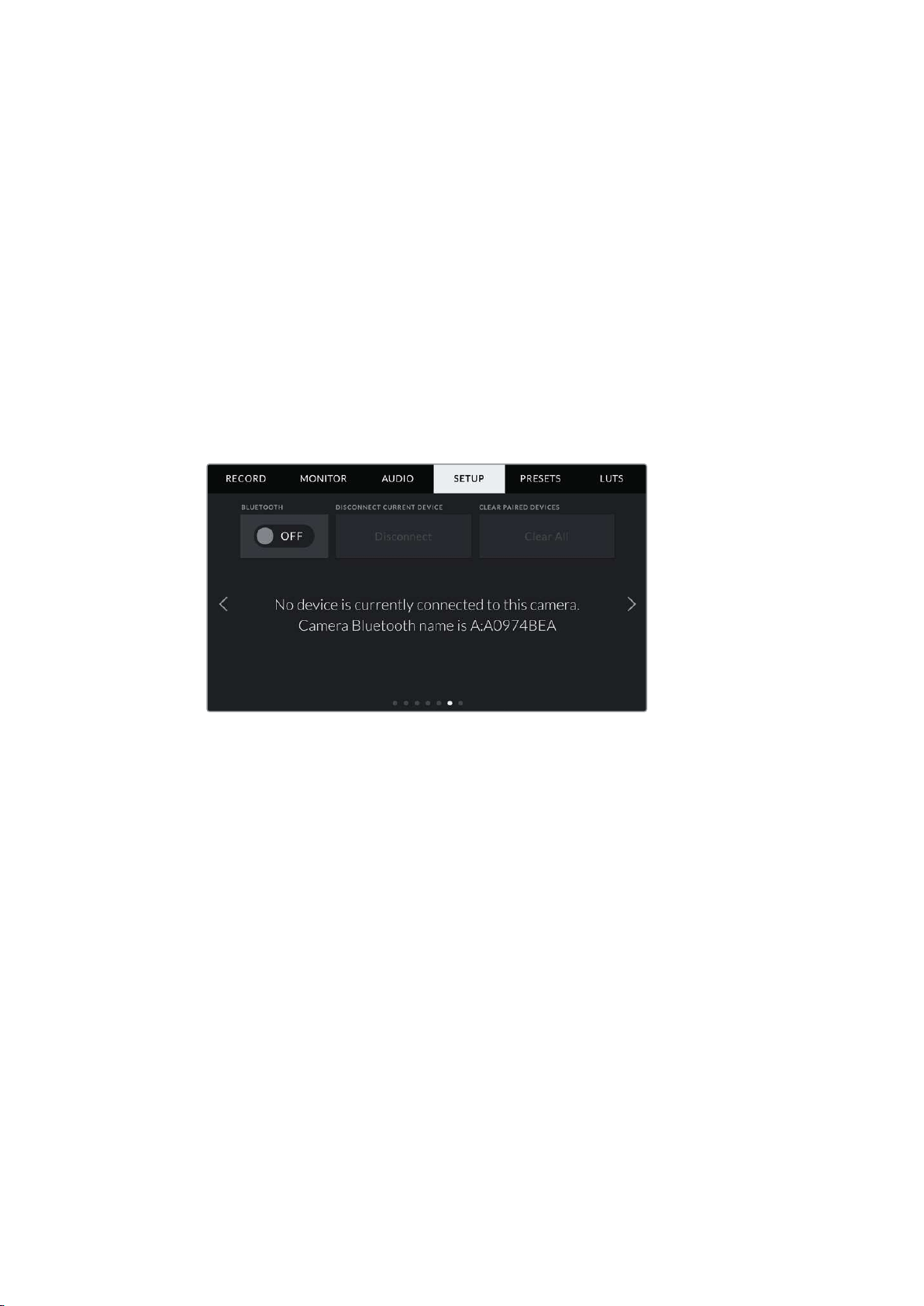
Hardware ID
The ‘Hardware ID’ indicator displays an 8 character identifier for your URSA Mini. This is
unique to each camera. A longer, 32 character version of this ID is also included in the
metadata for Blackmagic RAW and ProRes video. This can be useful for identifying
which footage came from a particular camera if filenames are changed as the camera
hardware ID remains constant.
Software
Displays the current software version installed on your URSA Mini. See the ‘Blackmagic
Camera Setup Utility’ section for more information on updating software.
Playback
This setting allows you to select whether to play back a ‘Single Clip’ or ‘All Clips’ during
playback. ‘All Clips’ will play back through all matching media sequentially, and ‘Single
Clip’ will play one clip at a time. This also applies for the loop function. Selecting loop
on ‘All Clips’ will play through all of the clips on the CFast 2.0 or SD card and then loop.
Selecting ‘Single Clip’ will loop one clip at a time.
1
The camera Bluetooth name will be the letter of your camera as selected in the
slate, followed by the 8 character hardware ID for your URSA Mini
Bluetooth®
On URSA Mini Pro, Bluetooth control allows you to control your camera wirelessly from portable
devices. Using the ‘Blackmagic Camera Control App’ you can power the camera on or off,
change settings, adjust metadata and trigger record remotely from an iPad. You can enable or
disable Bluetooth by tapping the ‘Bluetooth’ switch icon in the ‘setup’ menu. WhenBluetooth is
enabled, the camera can be detected by Bluetooth devices up to 30feet away.
Because URSA Mini Pro uses the same set of commands for Bluetooth control as it does for
‘Blackmagic SDI Camera Control Protocol’, you can write your own applications to control
almost every setting in the camera remotely, from monitoring to audio settings, the camera’s
inbuilt DaVinci Resolve color corrector or lens control.
For more information see the ‘Blackmagic SDI Camera Control Protocol’ section in this manual.
To pair your camera with an iPad for the first time:
1 Enable Bluetooth by tapping the ‘Bluetooth’ switch icon in the ‘setup’ menu on your
URSA Mini Pro.
2 Open the ‘Blackmagic Camera Control App’ and select the URSA Mini Pro you would
like to pair with. Available cameras will be listed by their camera letter, followed by their
unique hardware ID. For example A:A0974BEA.
125Settings
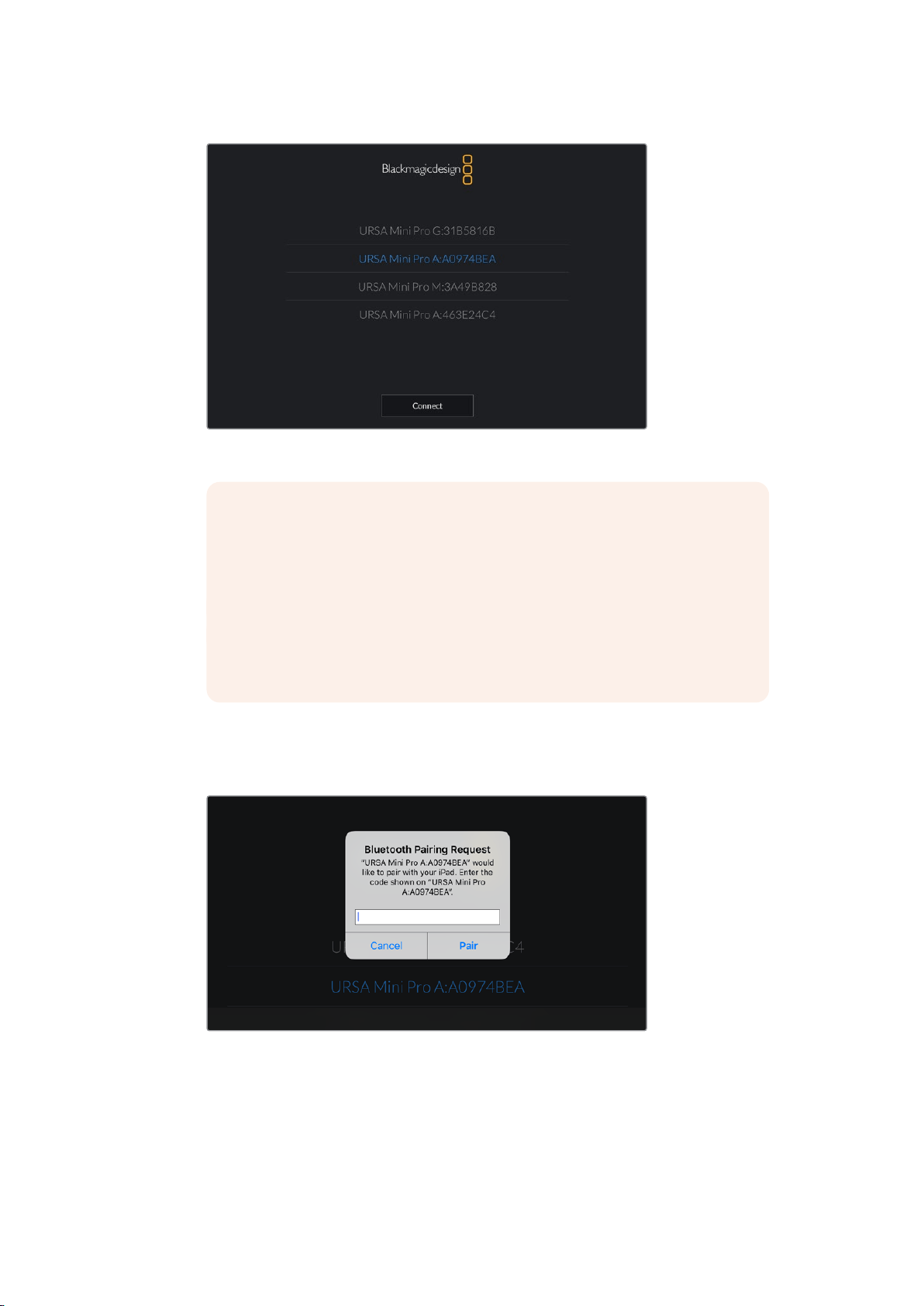
Select the URSA Mini Pro you would like to pair with
NOTE When you install the Blackmagic Camera Control App and run it for the
first time, you will be asked if you want to ‘allow location access.’ If you select
‘while using the app,’ GPS readings from your iPad will be included in the
metadata of the files you shoot, allowing you to geotag footage. This
information can be viewed in Blackmagic DaVinci Resolve versions 14 or higher.
If you do not want to using this information, select ‘never.’
To change settings, go to settings, privacy, location services, camera control
on your iPad.
3 When you try to connect for the first time the Blackmagic Camera Control App will
request a six digit code to pair with the camera. This code will be displayed on the
camera’s LCD screen. Type this code into the iPad.
126Settings
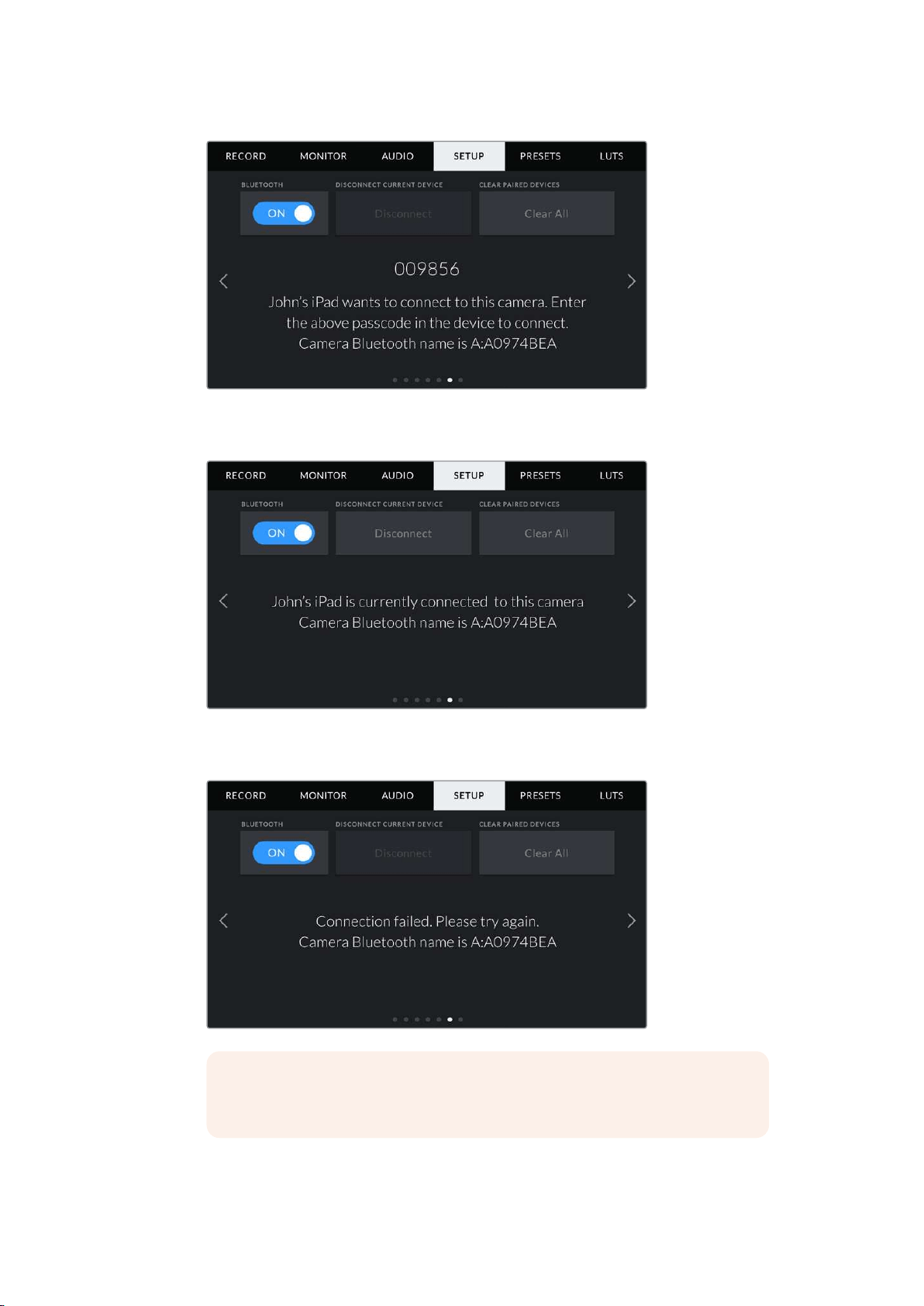
4 The information on the screen will confirm that your URSA Mini Pro is now
paired with your iPad.
5 If there is a problem pairing the camera to your iPad you will see the following
error message.
NOTE If you are not using Bluetooth to control your URSA Mini Pro, it is a
good idea to turn Bluetooth off for the purpose of security.
127Settings
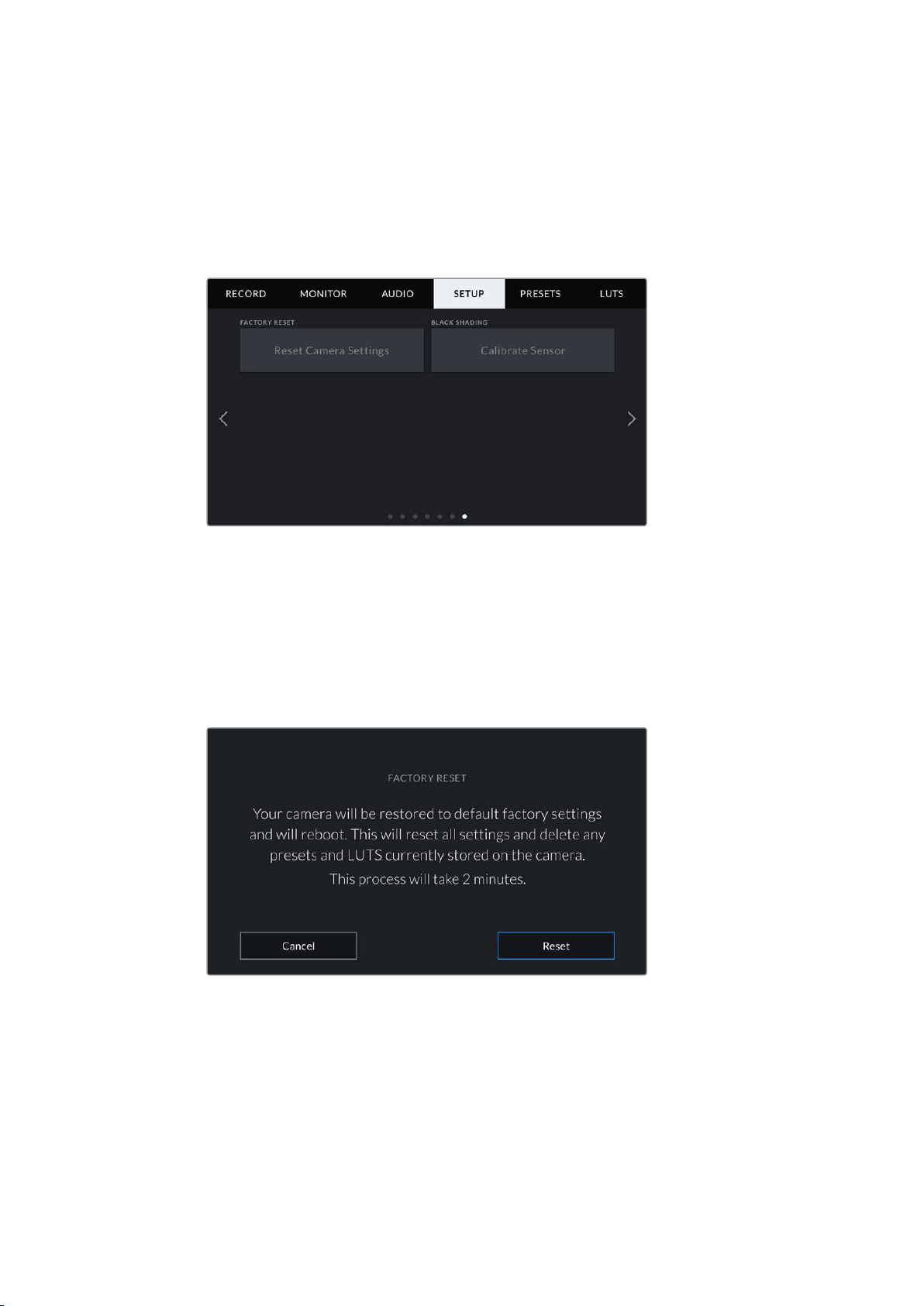
Disconnect Current Device
Use this setting to disconnect your URSA Mini Pro from the iPad it is currently
paired with.
Clear Paired Devices
Use this setting to clear the list of devices that your URSA Mini Pro has been
paired with.
Factory Reset
To reset the camera to its default factory settings, tap the ‘reset’ button. You will be asked to
confirm this action as it will erase any LUTS and presets currently stored on the camera. Tap
‘reset’ on the confirmation page to reset your camera settings.
It’s important to note that a factory reset erases any presets and custom LUTs, and resets all
settings. It is a good practice to export them to a memory card as a backup before performing a
factory reset. After a factory reset, you can restore your presets and LUTs quickly by importing
them from the memory card. You are also advised to perform a black shading calibration.
When selecting ‘factory reset’ you will be prompted to confirm your action
Black Shading
On URSA Mini cameras using the 4.6K sensor, the black shading feature optimizes image
quality by balancing the black levels on the sensor. It is best to carry out this process after your
camera has warmed up and has been running for a few minutes. To carry out a black shading
calibration you will need to place the dust cap on the camera, or place the lens cap on the lens
and then press the ‘calibrate’ button. You will be asked to confirm this action, as you require the
128Settings
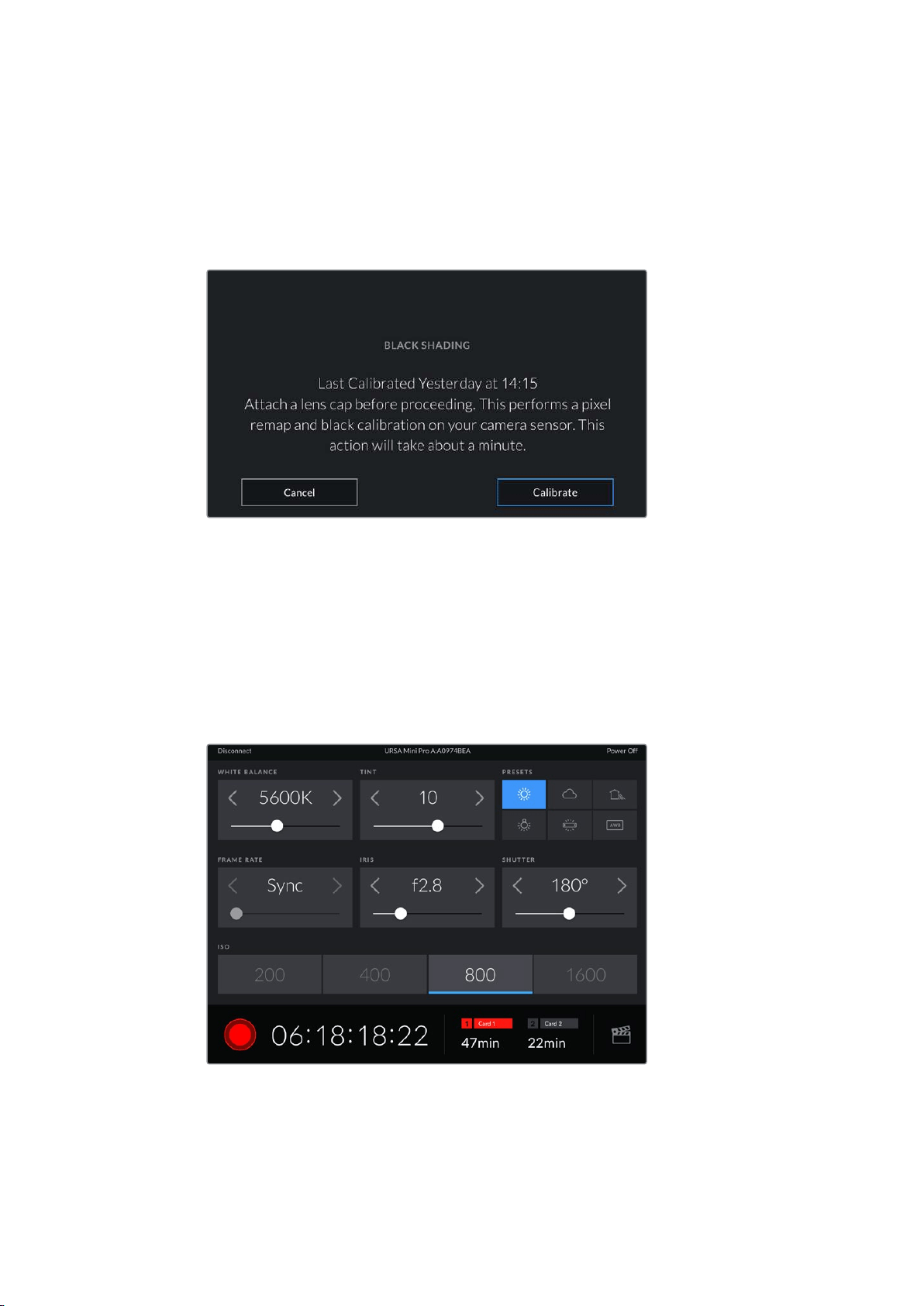
correct setup for this to function correctly. Calibration will take a few seconds, and you will be
notified when the process is completed. Your camera will remember the last date and time that
black shading was completed. This will optimize image quality in the shadows.
URSA Mini Pro 4.6K G2 has an additional calibration feature as part of the black shading
process, which allows you to recalibrate pixels for improved black levels. This will take
approximately one minute to complete.
1
Black shading calibration recommended
Motion Sensor Calibration
To calibrate the horizon meter on URSA Mini Pro 12K, place your camera on a surface you know
is level and tap the ‘calibrate motion sensor’ button. It is essential that you keep the camera
stable during calibration. The process takes approximately five seconds to complete.
Controlling Your Camera with the Blackmagic Camera Control App
Once you have successfully paired your URSA Mini Pro to your iPad, you can power the camera
on or off, change settings, adjust metadata and trigger record remotely using the iPad app.
Once paired, the Blackmagic Camera Control app will display this screen,
allowing you to adjust your settings and start recording
129
Settings
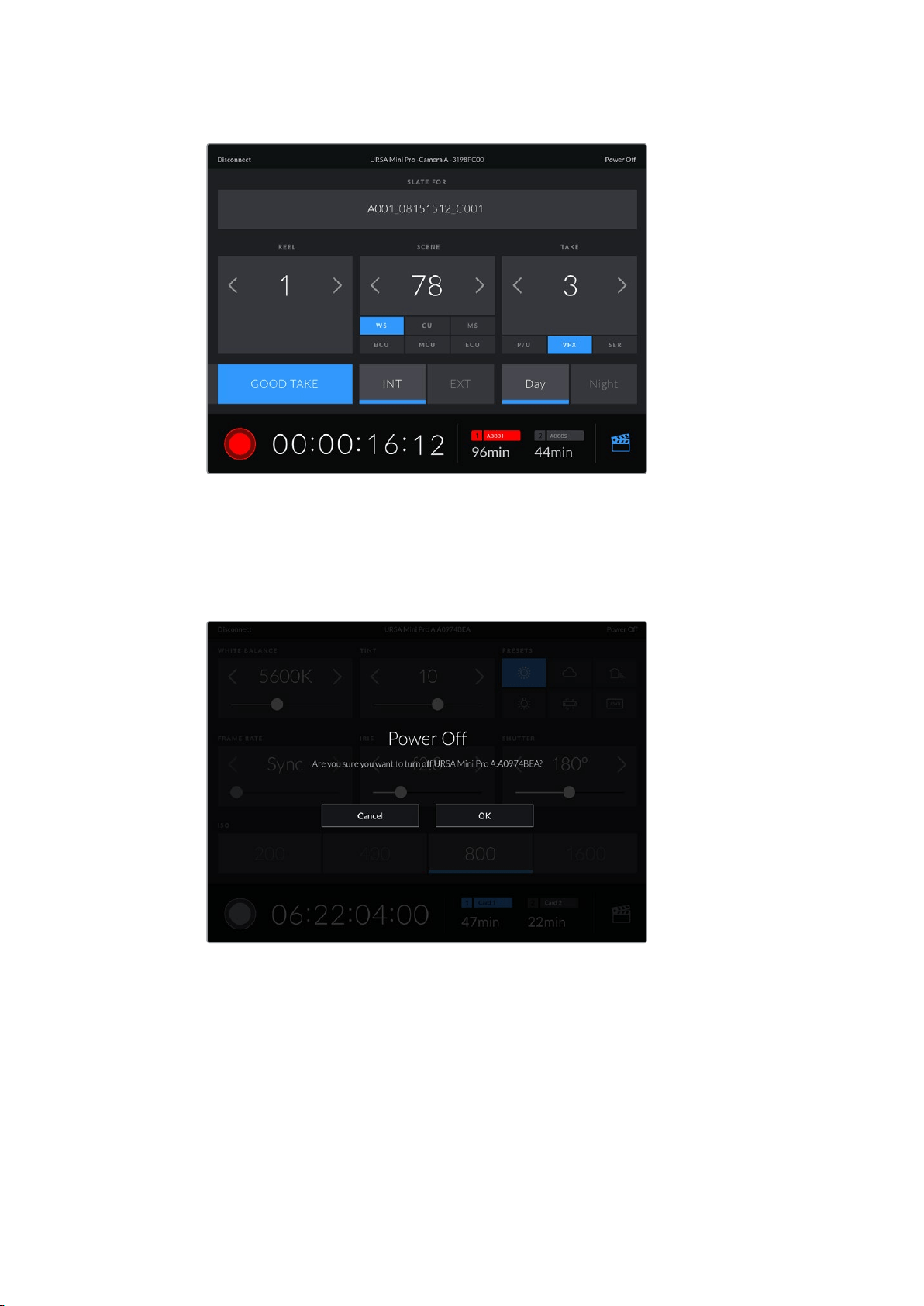
Tap the slate icon in the lower right corner to access and update the slate
URSA Mini Pro uses Bluetooth LE to communicate with devices for wireless control. As this is
the same type of protocol used in portable devices, it only uses a minimal amount of
battery power.
You can power off your URSA Mini Pro by tapping ‘power off’ in the top right corner.
You will be prompted to confirm your selection before your camera is powered off
When Bluetooth is enabled and your URSA Mini Pro is powered off, the name of your camera
will still show up on the list of available devices in the Blackmagic Camera Control App. Since
you have already paired with your camera, you can now switch it on remotely by selecting your
camera name and tapping ‘Connect’. Your camera will not show up in this list if Bluetooth
is disabled.
130Settings
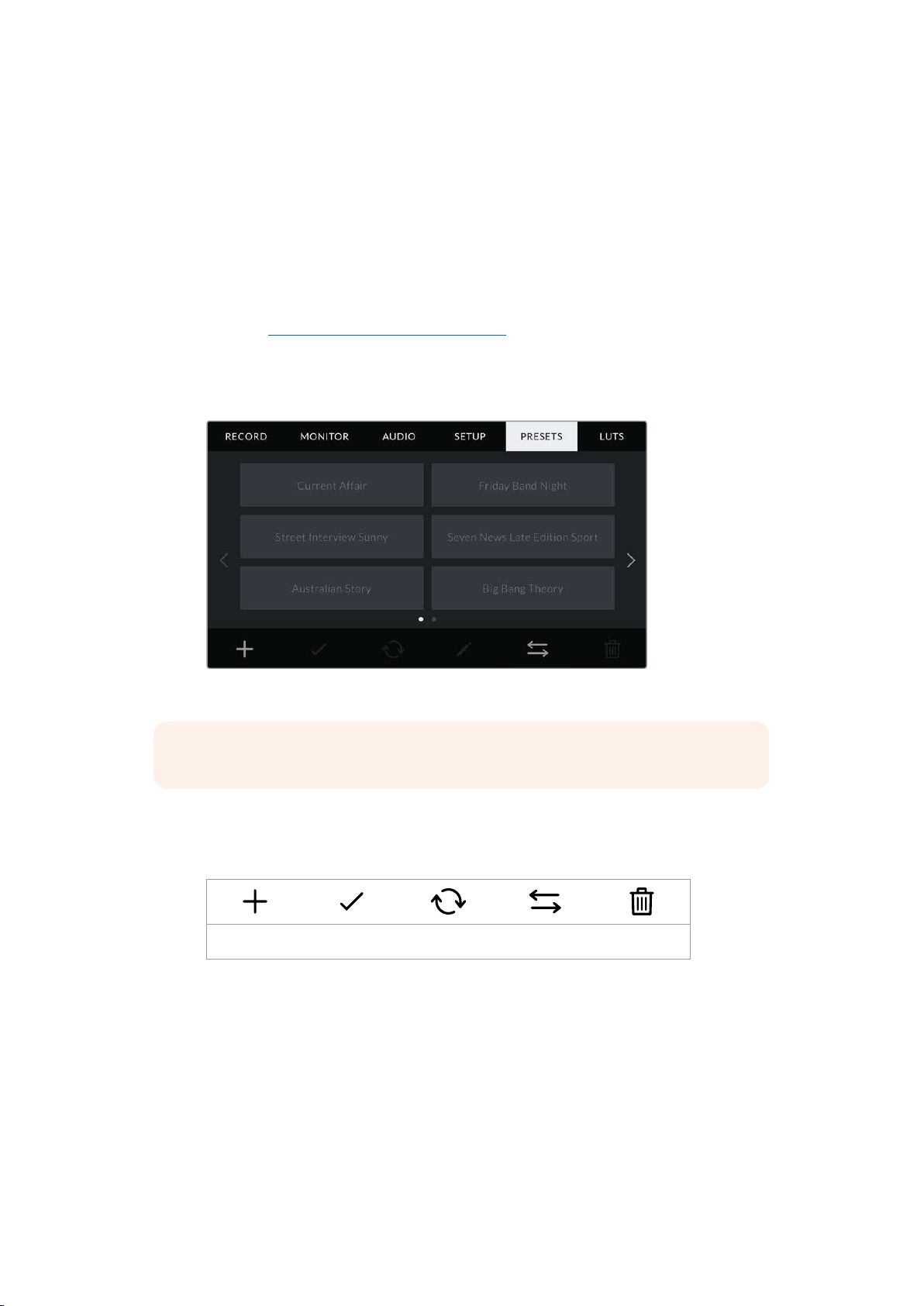
Presets
The ‘presets’ tab lets you save and recall a complete collection of settings for your URSA Mini.
This is very useful when one camera is used for multiple projects. For example, you may use
your URSA Mini for a variety of different shoots, from documentaries to music videos, with very
different settings between types of projects. Your URSA Mini’s ‘presets’ function lets you save
the setup for a particular project or type of shoot and come back to it quickly and easily when
required. It’s worth noting that some settings saved to a preset on URSA Mini may not be
compatible with other Blackmagic cameras or earlier software versions for URSA Mini. To
ensure your camera has the latest software installed please refer to the Blackmagic Design
support center at
www.blackmagicdesign.com/support.
You can also import and export presets, which is very useful for setting up a multi camera shoot.
Simply set up one URSA Mini to suit your project, then export that preset for all the other
URSAMinis on set.
Your URSA Mini’s Presets tab
NOTE Your URSA Mini can save up to twelve presets to its internal memory.
Preset buttons
The button icons along the bottom of your URSA Mini’s ‘preset’ menu correspond with the
following functions.
Add Load Update Manage Delete
Saving and loading presets
To create a new preset, tap the ‘add’ icon. This will bring up a touch keyboard on your
LCDtouchscreen where you can name your preset. Once you’ve typed in the name, tap
‘update’ tosave all of your URSA Mini’s current settings to that preset.
If your URSA Mini already has a preset loaded with the same name, you will be prompted to
overwrite the existing preset or keep both.
131Settings
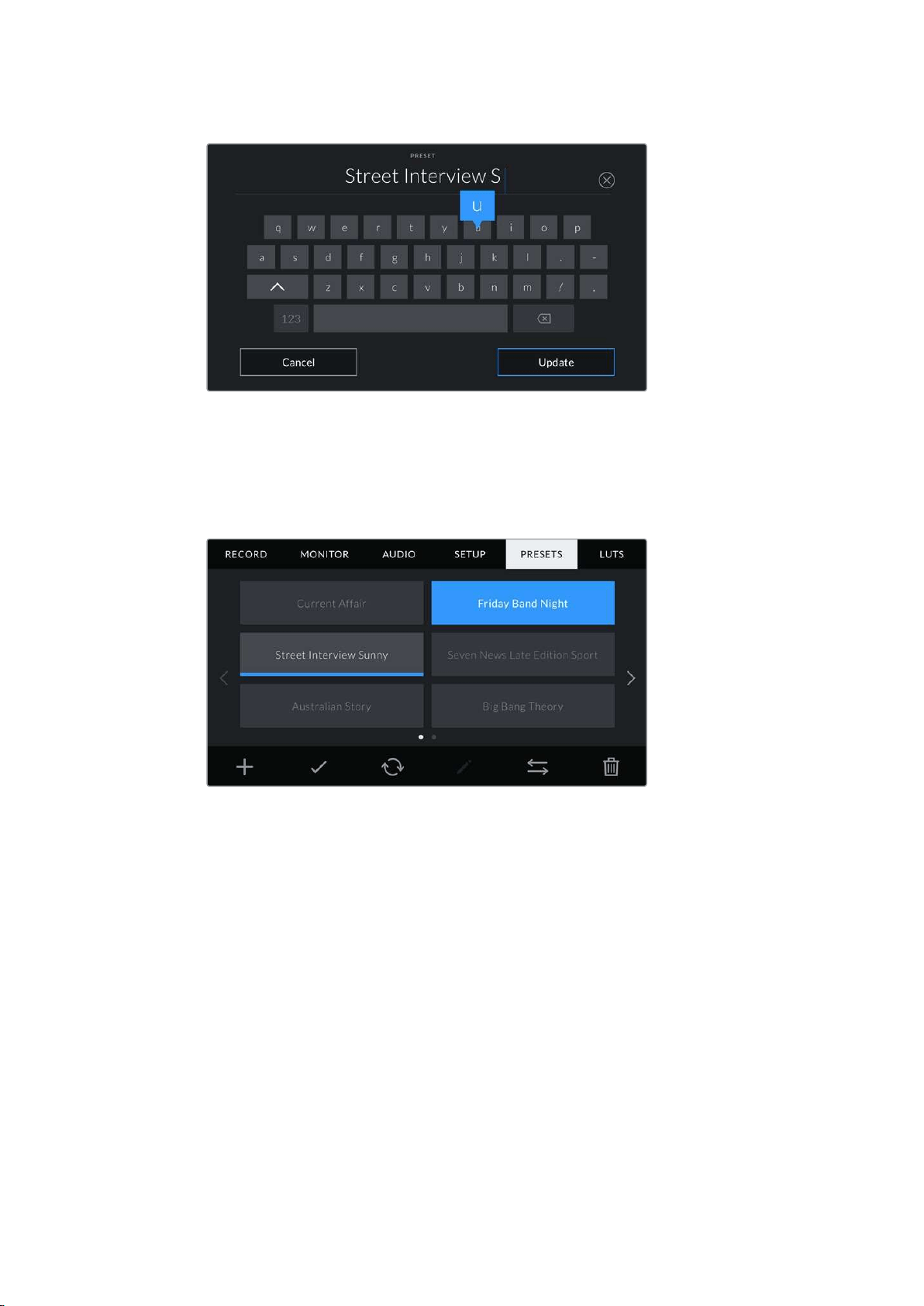
Enter a name for your preset by tapping the ‘add’ icon in the preset tab and using the touch keyboard
Once you have a preset saved, tap its name in the preset menu to select it. To load it tap the
‘load’ icon.
You can update a preset by tapping the ‘update’ icon. This will bring up a prompt asking you if
you want to update the preset with your URSA Mini’s current setting. Tap ‘update’ to confirm.
Select a preset and tap the ‘load’ icon to load it. Selected presets will appear solid blue,
while currently loaded presets have a blue line along the bottom of their icon
Importing presets
To import presets, tap the ‘preset manager’ icon at the bottom of the preset menu.
OnURSAMini Pro select either SD or CFast with the storage media selection switch,
depending on where your presets are saved. If you are using URSA Mini SSD Recorder, you can
also import presets from an SSD.
Tap ‘import preset’ and confirm your selection with the ‘import’ icon. This will bring up the
import screen. Choose ‘card 1’ or ‘card 2’ at the top left of this screen to display any available
presets on those cards.
Your URSA Mini will search the root directory and ‘presets’ folder on theselected CFast or
SDcard. It’s worth noting that presets saved elsewhere on your CFast or SD cards will not
be visible.
Tap a preset to select it, and tap ‘import’ to confirm. At the top right of this screen, you’ll see the
number of remaining empty preset slots available on your camera.
132Settings
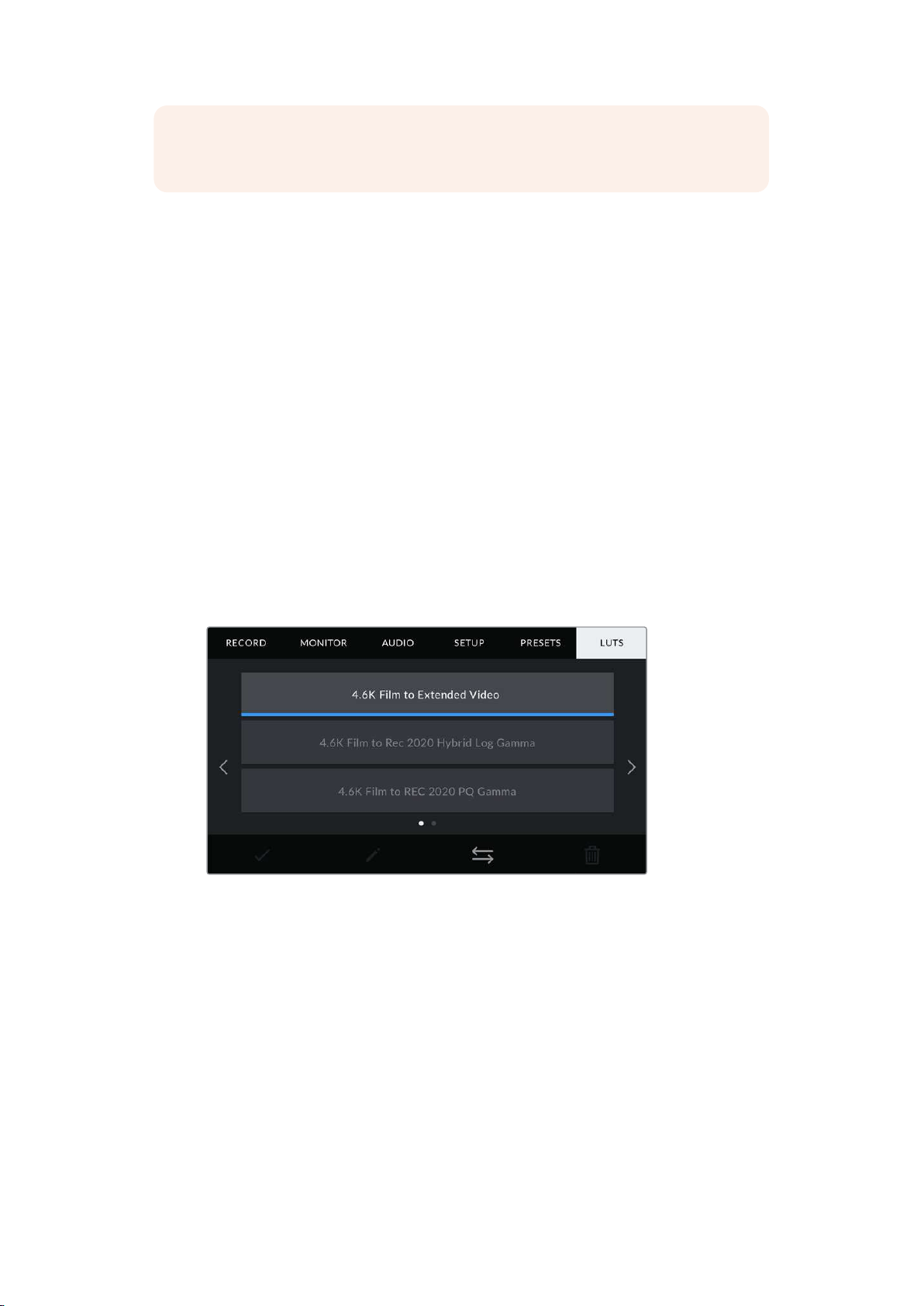
NOTE If your URSA Mini’s preset slots are full, the import menu will not be available.
You will need to delete an existing preset to make room.
Exporting presets
To export a preset to a CFast or SD card, select the preset you want to export by tapping it,
and tap the ‘manage’ icon. You will be prompted with two options, ‘import preset’ or ‘export
selected preset.’
Use the storage media selection switch on URSA Mini Pro to select either SD or CFast,
depending on the location you would like to export the preset to. If you are using URSA Mini
SSD Recorder, you can also export presets to an SSD. Tapping ‘export selected preset’ will
prompt you to choose which card you would like to export to. Choosing a card will export the
selected preset to a ‘presets’ folder on that card.
If the CFast or SD card you’ve chosen already has a preset saved to it with the same name as
the one you’re exporting, you will be prompted to overwrite the preset on the card, or keep
both presets.
Deleting presets
Your URSA Mini has space for twelve presets. To delete a preset, select it and tap the ‘delete’
icon. You will be prompted to confirm your choice. Tap ‘delete’ to confirm.
LUTS
The ‘LUTS’ menu lets you import, export and apply 3D LUTs to your camera’s outputs.
Your URSA Mini’s ‘LUTs’ tab
Introducing 3D LUTs
Your URSA Mini can apply 3D LUTs to images on its LCD touchscreen, front SDI and main SDI.
LUTS work by telling your URSA Mini what color and luminance output to show for a particular
color and luminance input. For example, a LUT may tell your URSA Mini to display a vibrant,
saturated blue when it receives a relatively dull blue input. This can be useful when shooting
Blackmagic RAW footage, or using ‘film’ dynamic range, both of which have an intentionally
undersaturated, ‘flat’ appearance. By applying a LUT, you can get an idea of what your footage
will look like after it has been graded.
133Settings

It is easy to create 3D LUTs using DaVinci Resolve or other color correction software, and
LUTs are available online from a variety of sources. Your URSA Mini can store up to six 17 point
or 33 point 3D LUTs, of up to 1.5 megabytes each. Once loaded, you can choose to display a
given LUT on your camera’s LCD touchscreen, front SDI, main SDI or any combination of
these outputs.
Your URSA Mini supports 33 point 3D LUTs in .cube format created in DaVinci Resolve and
17 point 3D LUTs converted to Resolve .cube format via LUT conversion programs. Your camera
processes 3D LUTs using high quality tetrahedral interpolation.
TIP For more information on displaying LUTs, see the ‘monitor settings’ section
in this manual.
NOTE LUTs are used as a preview tool only. Your URSA Mini does not apply, or
‘bake in,’ LUTS to recorded footage, however information on the LUT applied during a
shot is saved as metadata with your recordings. The ‘LUT used’ field in DaVinci
Resolve can be used to verify the name of the LUT that was used as a monitoring
LUT on set. Blackmagic RAW lets you non-destructively embed a LUT you use during
filming into the RAW file for use in post production. This gives you the option in
DaVinci Resolve to use the LUT or apply a different look. For more information see the
‘Embedded 3D LUTs’ section.
Built-in LUTs
Your URSA Mini provides a number of built-in LUTs, that allow you to preview different looks
when shooting in ‘film’ dynamic range in ProRes or Blackmagic RAW.
Film to Extended Video Displays a wider dynamic range than the ‘4.6K Film
to Video’ LUT, and applies a mild contrast change
with a smooth roll off in thehighlights.
Film to Video Similar to the REC 709 color standard for high
definition video, andhas a high level of contrast and
saturation. You may find this setting useful when
using URSA Mini alongside other broadcast cameras
using the REC 709 color space.
Film to Rec 2020 Hybrid Log Gamma Displays a hybrid between REC 709 and alog image.
Film to Rec 2020 PQ Gamma Displays a gamma curve that is based on what we
can perceive with our eyes, for efficient encoding of
HDR images.
134Settings
LUTs buttons
The button icons along the bottom of your URSA Mini’s ‘LUTS’ screen correspond to the
following functions:
Load Manage Delete
Importing LUTs
To import a 3D LUT, tap the ‘manage’ icon at the bottom of the LUT menu, and tap ‘import LUT’
to confirm.
This will bring up the import screen. On URSA Mini Pro select either SD or CFast with the
storage media selection switch, depending on where your LUTs are saved. You can also import
LUTS stored on an SSD if you are using URSA Mini SSD recorder. Choose ‘card 1’ or ‘card 2’ at
the top left of this screen to display any available 3D LUTs on those cards.
Your URSA Mini will search the root directory and ‘3DLUTS’ folder on your selected CFast or
SDcard. Any LUTs you have saved elsewhere will not be visible.
Tap a LUT to select it and tap ‘import’ to confirm your selection. The LUT will be saved to your
URSA Mini.
NOTE If your URSA Mini’s 3D LUT slots are full, you will not be able to import until you
delete some existing LUTs to make space.
If the LUT you want to import has the same name as a LUT already saved to your camera,
youwill be prompted to overwrite the existing LUT or keep both. At the top right of this screen,
you’ll see the number of remaining empty LUT slots available on your camera. You will only be
able to import as many LUTs as you have free slots on your camera.
NOTE If you are having trouble importing a LUT to your URSA Mini, it may be the
wrong size. You can use a LUT editor like Lattice to check its size, or open it in any text
editor on your computer. Next to the tag ‘LUT_3D_SIZE’ will be a number indicating
the LUT’s size. If this value is not 17 or 33, you can use Lattice to resize your 3D LUT
to 17 points.
Applying a LUT
Once you have a LUT saved onto your camera, tap it in the LUT menu to select it, and tap the
‘load’ icon. This will enable that LUT to all outputs on your camera. However, you will still have
to turn ‘display LUT’ on in the monitor menu for each output to apply it. The LUT icon will be
visible on the LCD, front SDI or main SDI when ‘status text’ is switched on and you have a LUT
applied to that output. See the ‘monitor settings’ section in this manual for more information.
135Settings

Exporting LUTs
To export a LUT to a CFast or SD card, select the LUT you want to export and tap the icon.
Youwill be prompted with two options, ‘import LUT’ and ‘export selected LUT.’ Use the storage
media selection switch on URSA Mini Pro to select either SD or CFast, depending on the
location you would like to export the LUT to. If you are using URSA Mini SSD Recorder, you can
also export LUTs to an SSD.
Tapping ‘export selected LUT’ will prompt you to choose which card you want to export to.
Choosing a card will commence exporting, unless you are exporting a LUT that already exists
on that card. If a duplicate LUT is found, you will be asked if you want to overwrite the LUT on
your card, or if you would like to keep both.
Deleting LUTS
Your URSA Mini has space for six 17 point or 33 point 3D LUTs. To delete LUTs you are no longer
using, or make room for more, select the LUTs you want to delete and tap the icon. You will be
prompted to confirm your choice. Tap ‘delete’ to confirm.
Embedded 3D LUTs
When a 3D LUT is used whilst shooting Blackmagic RAW on Blackmagic URSA Mini Pro models,
the selected LUT will be embedded into the Blackmagic RAW file that you are recording. The
3D LUT is actually saved with your recorded files in the header of the .braw file, and can easily
be applied to footage in post production without needing to handle a separate file.
So when Blackmagic RAW files are delivered to an editor or colorist, they will be able to easily
access the LUT that was used whilst filming, which greatly reduces the possibility that the
wrong 3D LUT could be applied to a clip. They can then choose whether to apply the 3D LUT
whilst editing or color grading the footage, and can disable the 3D LUT at any time.
When the ‘apply LUT in file’ switch is set to ‘on’ in URSA Mini Pro’s record menu, the recorded
clip will open in Blackmagic RAW Player and DaVinci Resolve with the chosen 3D LUT already
applied to it. The 3D LUT can then be easily toggled ‘on’ or ‘off’ but will always travel with the
Blackmagic RAW file as it is written into the clip itself.
DaVinci Resolve also has an ‘Apply LUT’ switch in the RAW settings palette for enabling or
disabling the 3D LUT in the Blackmagic RAW file. The ‘Apply LUT’ setting in DaVinci Resolve is
the same setting as in the camera. This means that when shooting you can direct the colorist to
use the LUT by setting it in the camera, but they can switch it off easily in DaVinci Resolve by
setting ‘Apply LUT’ to ‘off’.
136Settings
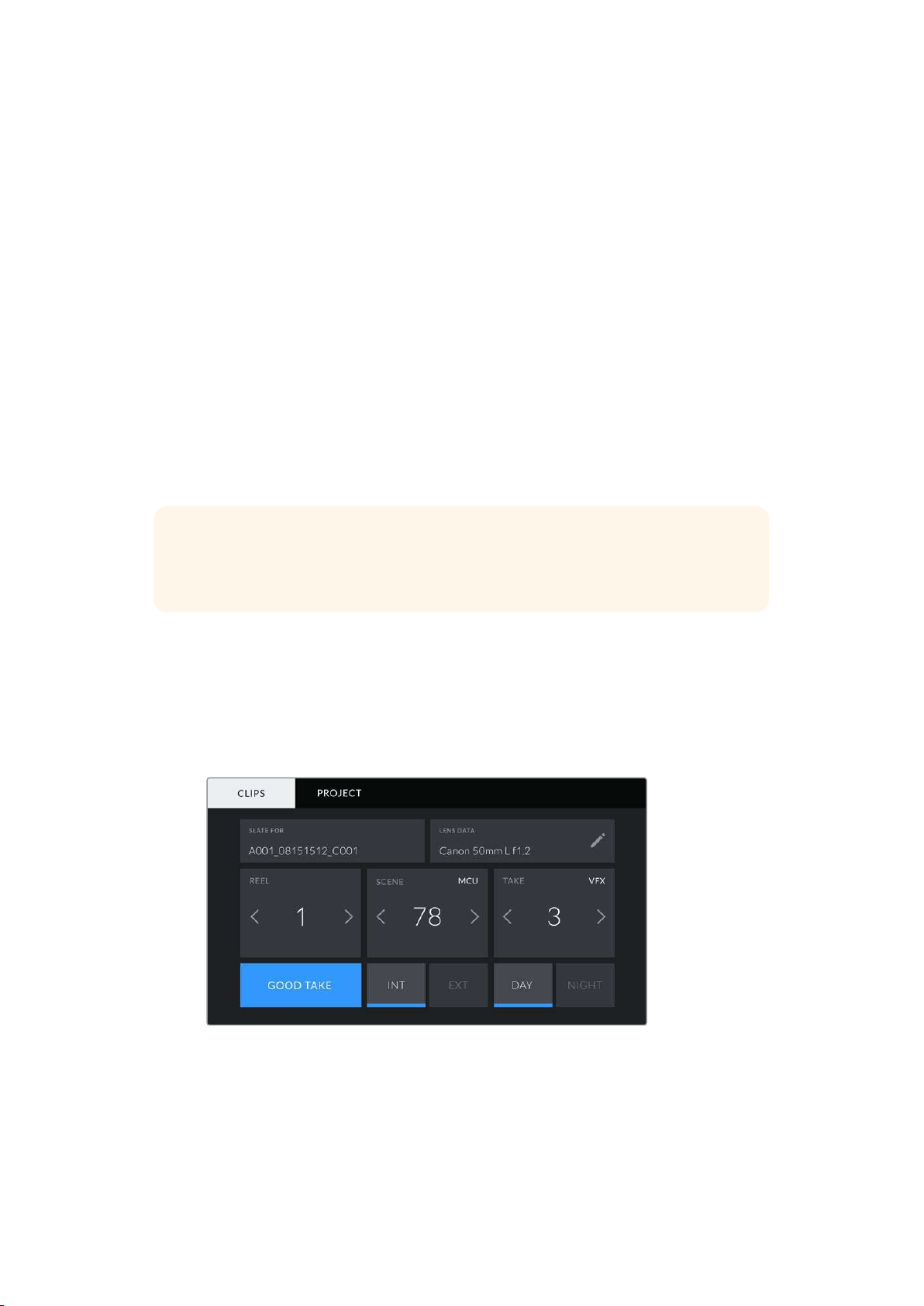
Entering Metadata
Metadata is information saved inside your clip, such as take numbers, camera settings and
other identifying details. This is extremely useful when sorting and processing footage in
post production. For example, take and shot and scene numbers are essential organizational
tools, while lens information can be used to automatically remove distortion or better match
VFX assets to plates.
Your Blackmagic URSA Mini automatically saves some metadata to each clip, such as camera
settings, timecode, date and time. You can use your camera’s slate to add many
additional details.
The Slate
Swiping left or right on your URSA Mini’s touchscreen will bring up the slate.
The slate is divided into two tabs, ‘clips’ and ‘project.’ The ‘clip’ tab contains information that
may vary clip by clip, while ‘project’ is where you enter details common between clips, such as
the project name, director, and camera and operator ID.
TIP Metadata entered into the slate is viewable on your URSA Mini’s front or main
SDI outputs when ‘display status text for’ is set to ‘director’ on the ‘monitor’ tab.
See the ‘monitor settings’ section in this manual for more information.
‘Clip’ metadata
Changes made to clip metadata work slightly differently in standby mode, when your URSA Mini
is ready to record, and playback mode, when you’re reviewing footage you’ve already shot. In
‘standby,’ clip metadata will be saved to the next clip recorded, except for ‘good take last clip’
which refers to the most recently recorded clip.
In playback mode clip metadata is always recorded to the current clip being viewed.
Your URSA Mini’s slate is divided into ‘clip’ and ‘project’ tabs
Slate for
This setting shows the clip which the metadata currently displayed in the ‘clip’ applies to.
In standby mode, this refers to the next clip that will be recorded.
137Entering Metadata
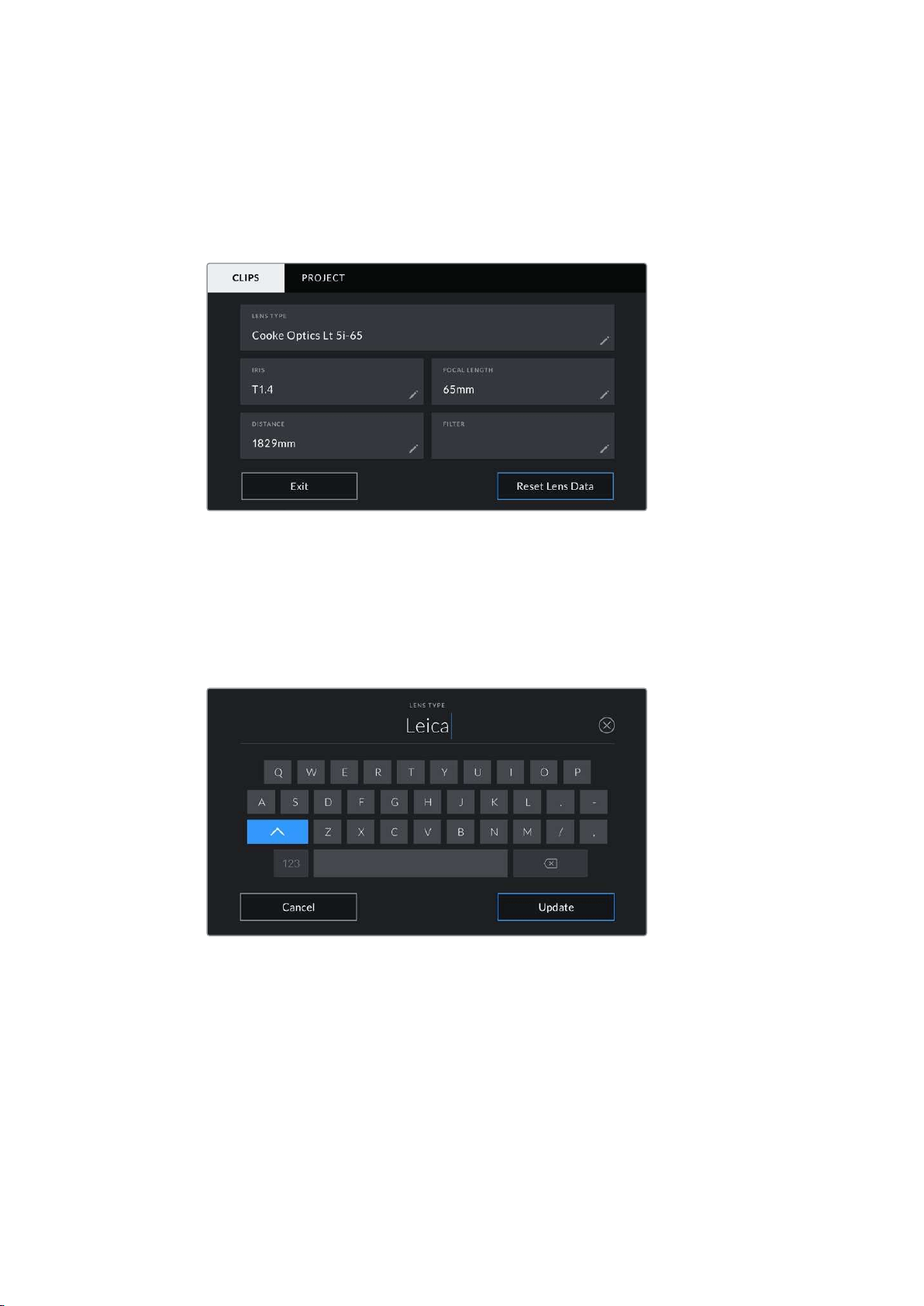
Lens Data
These settings display information about the current lens fitted to your camera. Many electronic
lenses automatically supply information such as the lens model, aperture and focal length.
If you are using a lens that does not provide this information, or you want to enter additional
data, you can tap the pencil icon in this setting to enter the information manually. This will bring
up the ‘lens data’ menu, which contains the following information:
The ‘lens data’ menu showing information automatically
populated from a lens with Cooke /i Technology
Lens Type
Shows the lens model. If your lens type is not automatically shown here, you can tap
this setting to enter the data manually. Your camera has an internal database stored
formany commonly used lenses, so if you need to enter data manually, your camera will
suggest names automatically as you type. This makes entering data much faster.
Use the touch keyboard to enter lens data if it is not provided automatically
Iris
Shows the iris aperture setting at the start of your clip. This information can be
displayed in f- or T-stops depending on the lens used, if supplied automatically. Tap this
setting to enter data manually.
Focal length
Shows the focal length setting of the lens at the start of the recorded clip. When
automatically supplied, this is shown in millimeters. Tap this setting to enter
data manually.
138Entering Metadata
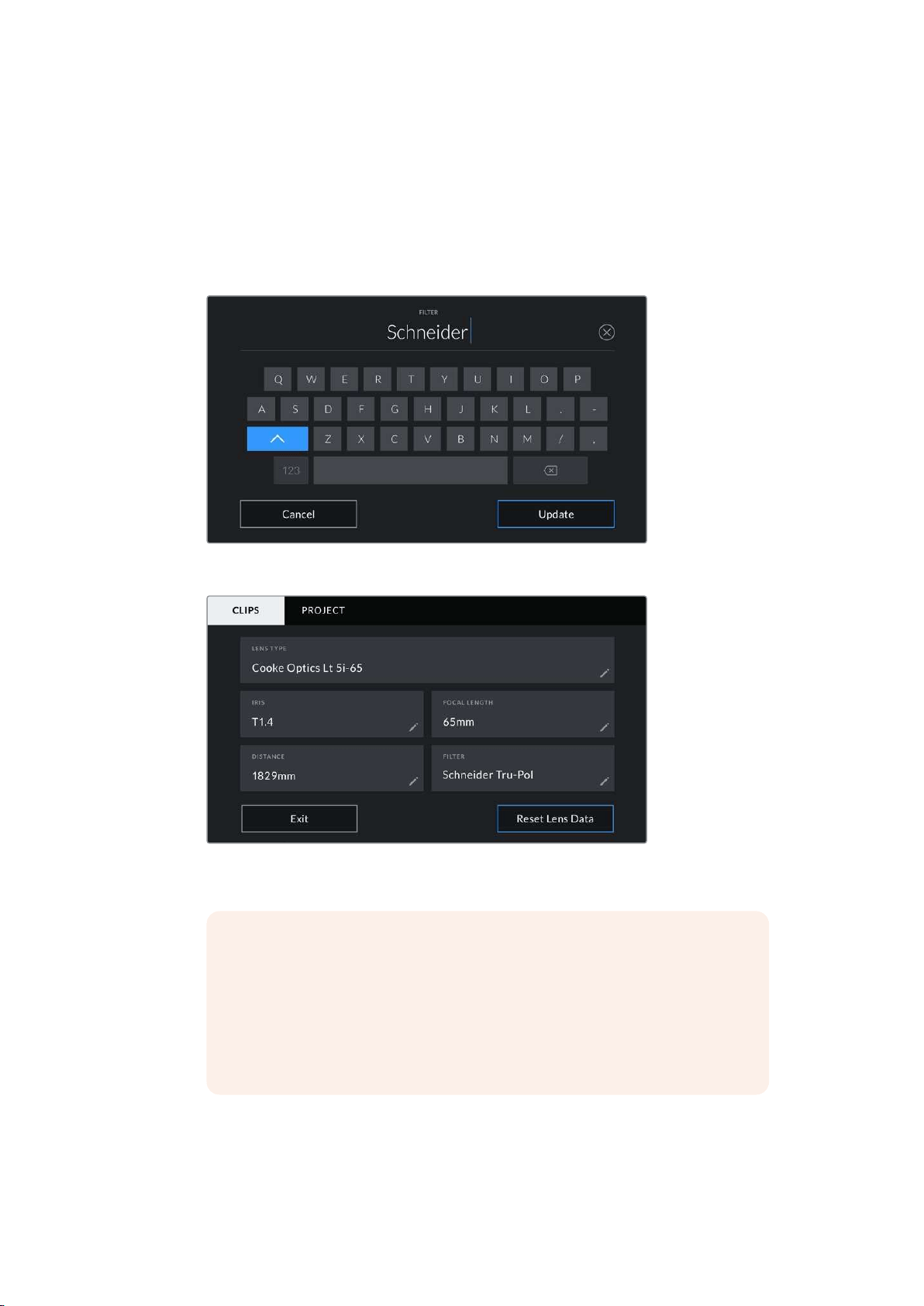
Distance
Shows the focus distance settings of the lens for the recorded clip. Some lenses can
provide this data automatically and it will be provided in millimeters. You can also enter
this data manually.
Filter
Shows the current lens filters used. Tap this setting to enter data manually. You can
make multiple entries separated by commas.
Filter information needs to be entered manually
The ‘lens data’ menu showing information automatically populated from a lens with
Cooke /i Technology, and filter information that has been manually entered
NOTE You can clear lens data at any time by tapping the ‘reset lens data’ icon
in the ‘lens data’ menu. You will be prompted to confirm your choice. If you
confirm, all lens data will be cleared and repopulated with any lens data
automatically provided by the currently fitted lens. If you have manually
entered any information into these fields, you will need to reset the lens data
the next time you mount a lens, otherwise the manually entered value
willremain.
139Entering Metadata
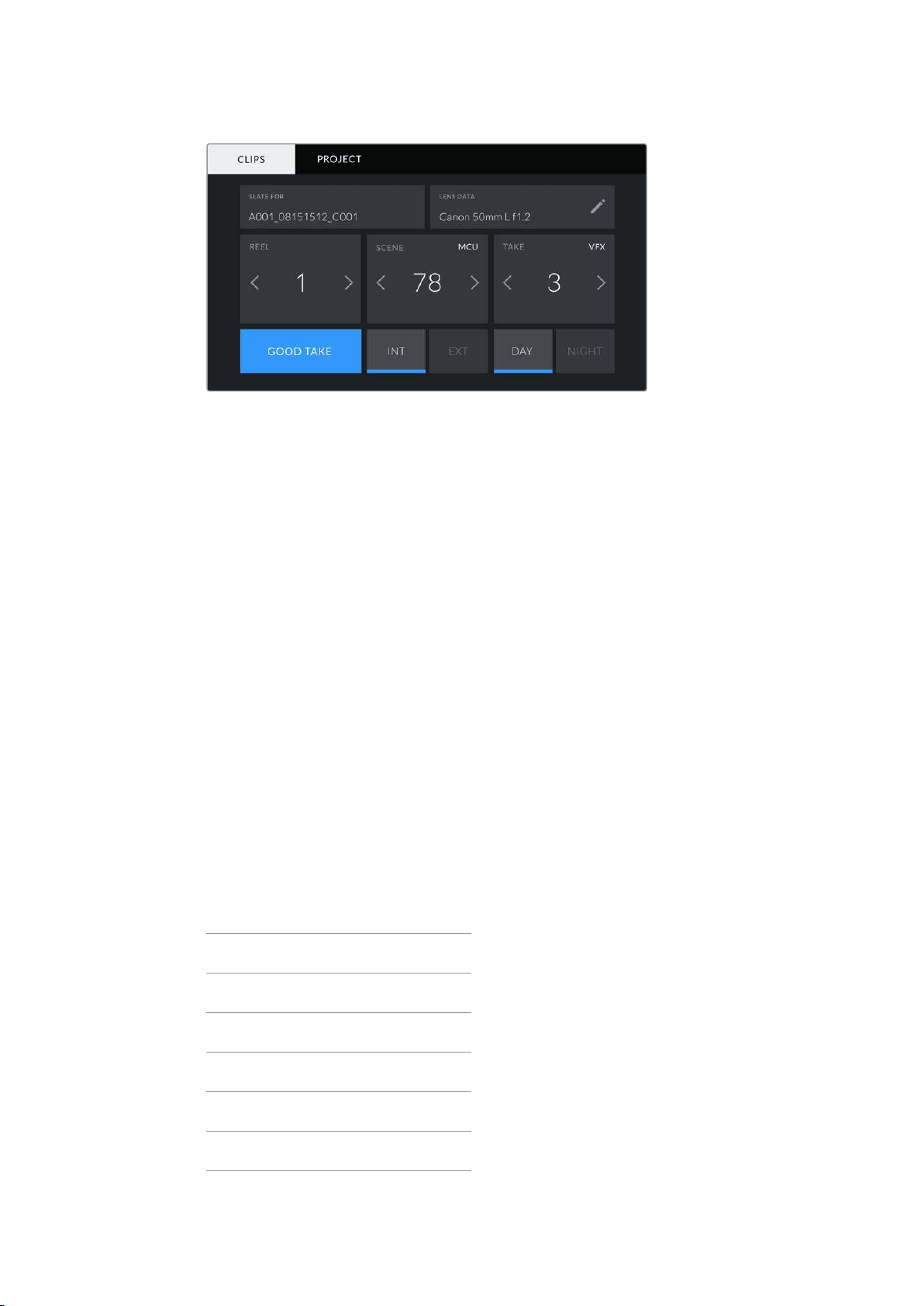
Your URSA Mini’s slate is divided into ‘clip’ and ‘project’ tabs
Reel
The ‘reel’ indicator shows the current reel.
Your URSA Mini automatically increments reel numbers, so there is usually no need to enter this
manually. When you are moving to a new project and want to start from reel ‘1’ again go into the
project tab of the slate and tap ‘reset project data’.
Scene
The ‘scene’ indicator shows the current scene number, and can also show the current shot
number and type.
The number on this indicator always refers to the current scene. You can move this up and
down using the left and right arrows on either side of the scene number, or tapping the scene
number to enter the scene number editor.
The range of possible scene numbers is 1 to 9999.
By adding a letter to the scene number in the scene number editor, you can also indicate the
current shot. For example 23A would indicate scene twenty three, shot one. If you have a shot
letter added to your scene, your URSA Mini will suggest letter increments whenever you enter
the scene number editor. For example, if your current scene number is 7B, your URSA Mini will
offer ‘7C’ as an increment suggestion.
The scene number indicator can also show information about the current shot type in the top
right corner. You can select these in the scene number editor at the right hand side of the
shotkeyboard.
The shot types available are:
WS
wide shot
MS
medium shot
MCU
medium close up
CU
close up
BCU
big close up
ECU
extreme close up
140Entering Metadata
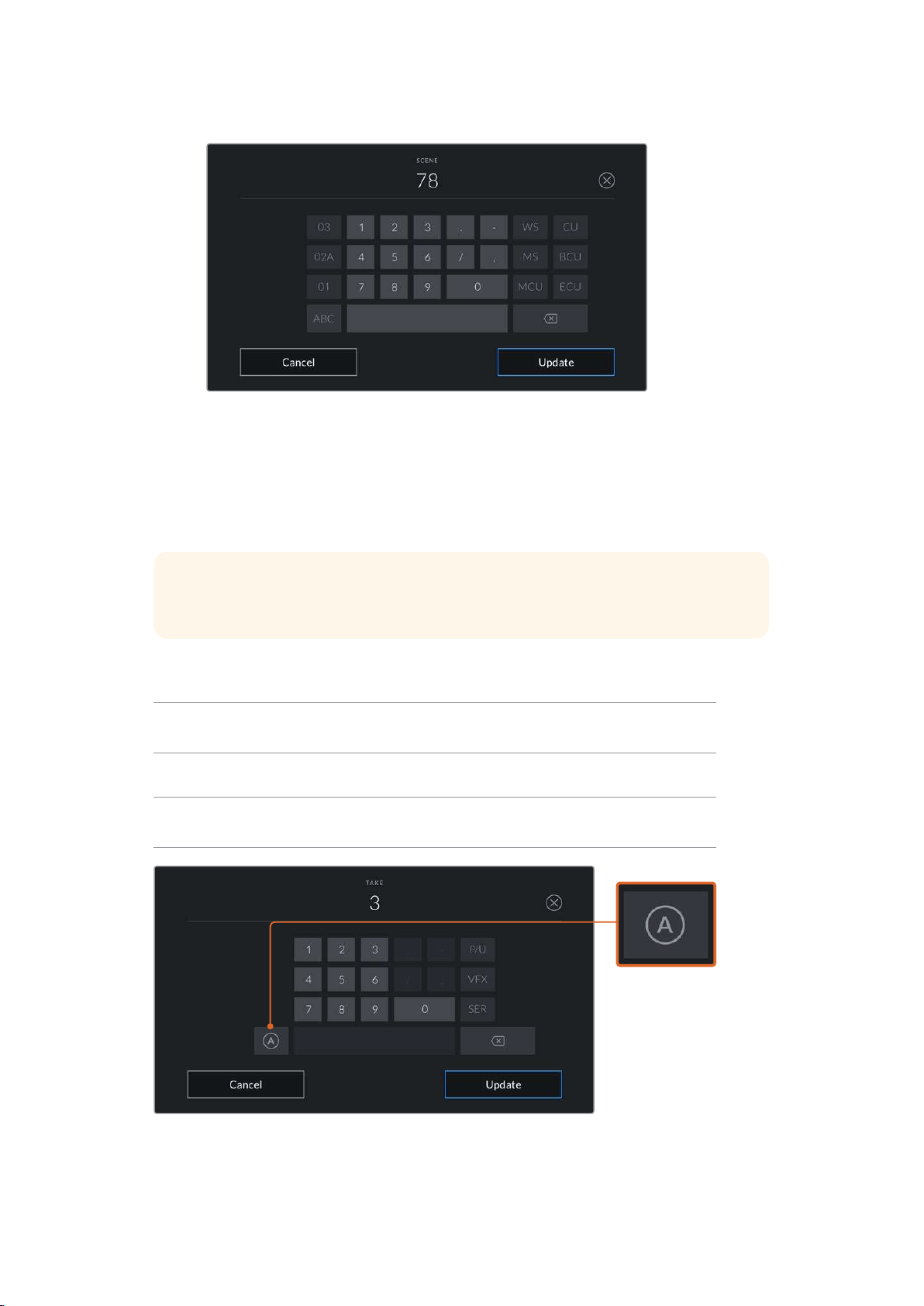
When entering ‘scene’ metadata, your URSA Mini will prompt you with increment
suggestions to the left of the touch keyboard, and shot types to the right
Take
The ‘take’ indicator shows the take number for the current shot. You can increment this up or
down by tapping the left or right arrows on either side of the take number, or tapping the
indicator to enter the take number editor.
TIP When the shot number or scene letter are advanced, the take number will
revert to ‘1.’
You can add take descriptions in the take number editor. These are offered to the right of the
take number keyboard, and correspond to the following scenarios:
PU
‘Pick up.’ This refers to a reshoot of a previous take to add additional material
after principal photography has wrapped.
VFX
‘Visual effects.’ This refers to a take or shot for visual effect use.
SER
'Series.' This refers to a situation in which multiple takes are shot while the
camera is kept running.
Tap ‘A’ to automatically
increment the take
number for each clip while
in ‘standby’ mode.
A small 'A' appears next
to the take number on the
slate when enabled.
When entering ‘take’ metadata, your URSA Mini will offer prompts for additional
shot types to the right of the touch keyboard
141
Entering Metadata
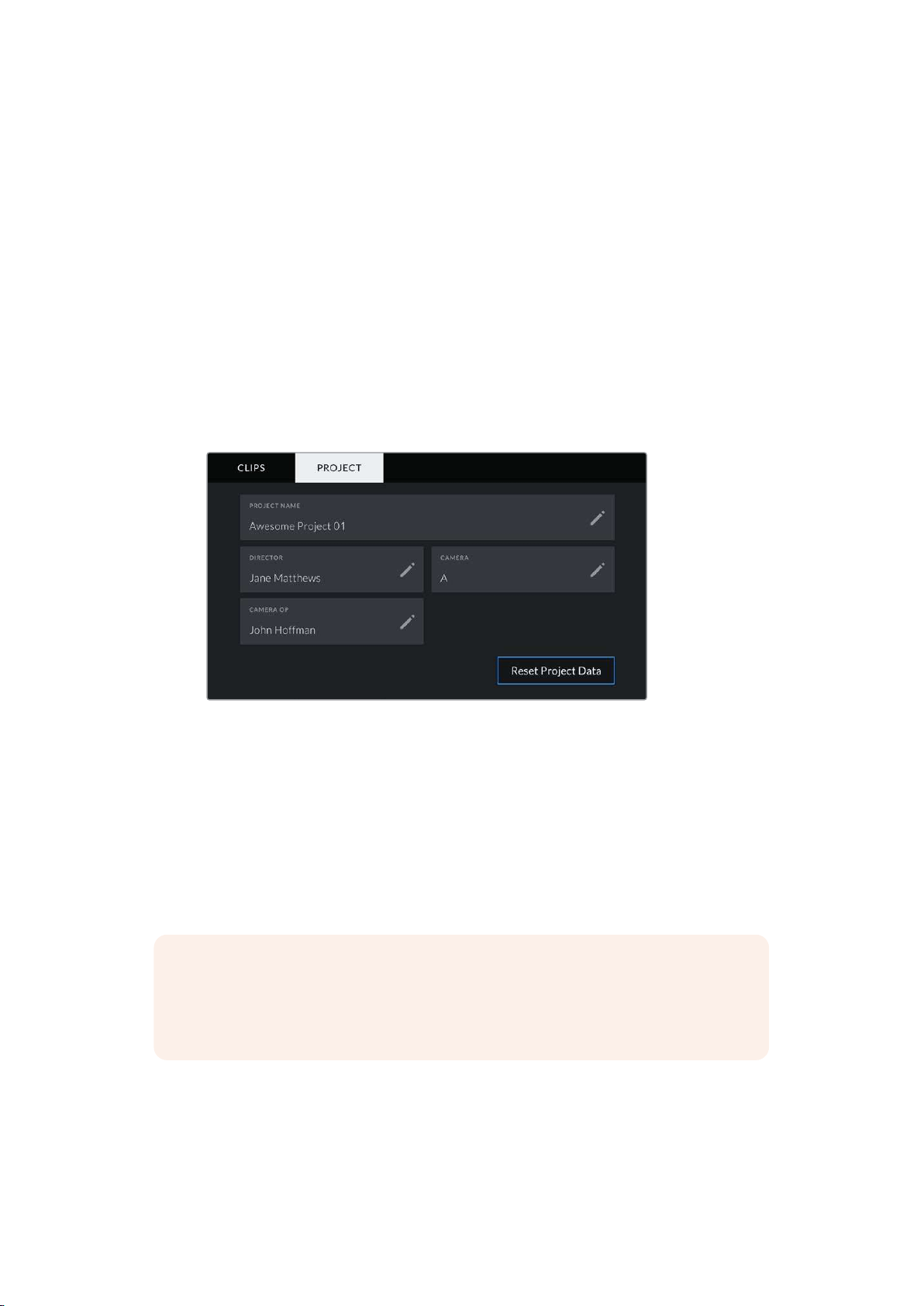
Good take
Tap the ‘good take’ indicator to flag good takes for easy recall in post production. This tag
applies to either the last clip recorded, if your URSA Mini is in standby mode, or the clip
currently being viewed in playback mode.
Int / Ext
Tap ‘int’ or ‘ext’ to add a ‘interior’ or ‘exterior’ tag to the next clip in standby mode, or the current
clip in playback mode.
Day / Night
Tap the ‘day’ or ‘night’ icons to add a ‘day’ or ‘night’ tag to the next clip in standby mode, or the
current clip in playback mode.
‘Project’ Metadata
Project metadata behaves the same way whether you are in standby or playback mode.
Thismetadata always refers to your project as a whole and is independent of clip numbers.
Your URSA Mini’s ‘project’ slate tab
Project name
Displays your current project name. Tap the pencil icon to change the project name.
Director
Displays the director’s name for the current project. Tap the pencil icon to change
thedirectorname.
Camera
Displays a single letter camera index. Tap the pencil icon to change the camera index.
NOTE Camera index is used in metadata and for file naming purposes and differs
from your URSA Mini’s ATEM Camera ID, which is used when controlling your
URSAMini with an ATEM switcher. For more information on ATEM Camera ID, see the
‘Understanding Studio Camera Control’ section in this manual.
Camera Op
Displays the camera operator. Tap the pencil icon to change the camera operator name.
142Entering Metadata
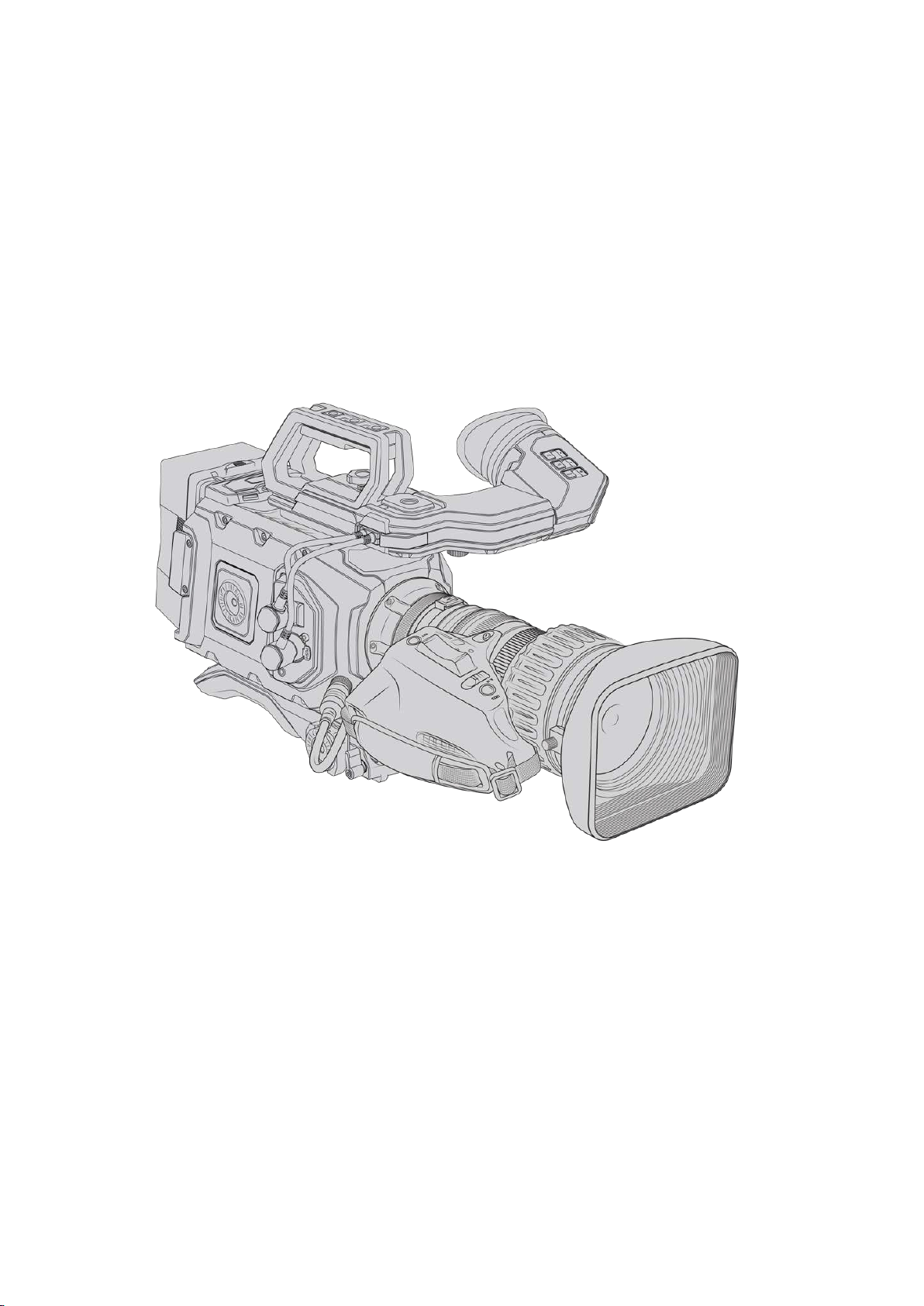
Using Servo Zoom Lenses
Using servo zoom lenses with your URSA Mini camera is a powerful combination. Manual iris,
zoom and focus rings on the lens barrel, plus a built in hand grip and zoom rocker makes
shooting very efficient and gives you a range of dynamic techniques that are difficult, if not
impossible, toachieve using other lens types. URSA Mini PL and URSA Mini Pro models
currently support lens control for B4 and cine-servo PL zoom lenses via the 12 pin
broadcastconnector.
When using compatible lenses you can power the zoom rocker, start and stop recording using
the record button, and control the iris. Most servo zoom lenses also have a ‘Ret’ button, which
can be used, in the same way as the PGM button on the camera, to switch the feed on the
LCDand HD monitoring output between camera view and program return view.
For electronic control of your lens aperture, make sure the iris switch on the top of the zoom
rocker is set to ‘A’ or ‘auto’. Electronic zoom control is also possible with Digital HD and 4K servo
zoom lenses. To enable this you must make sure the switch under the zoom rocker labelled
‘zoom’ is set to ‘S’ for servo zoom.
As there are so many different variants of B4 lenses this guide should help you work out which
models have the feature set you require.
B4 Lenses with iris and zoom control include:
Fujinon B4 lens models with HA, ZA, XA, UA and LA prefixes in their model name and
RMin their suffix will have electronic iris and zoom control.
Canon B4 lens models with HJ, KJ and CJ prefixes and IRSE or IRSD in their suffix will
have electronic iris and zoom control.
Some B4 and PL lenses also have handgrips with electronic focus servo. To ensure this is
functioning with URSA Mini PL or URSA Mini Pro, and able to be controlled electronically, set
the switch under the zoom rocker labelled ‘focus’ to ‘S’ for servo.
143Using Servo Zoom Lenses

B4 Lenses with full servo control for focus, iris and zoom include:
Fujinon B4 lens models with HA, ZA and UA prefixes in their name and the letters
RDorZD in the suffix.
Canon B4 lens models with HJ, KJ..ex and CJ prefixes in their name and the
lettersIASE or IASD in the suffix.
Lenses that also have motorized focus control can even utilize the ‘focus’ button on your
URSAMini to activate auto focus, and focus can be controlled remotely by an ATEM switcher
viaATEM Software Control.
Once you have attached a B4 lens, set the resolution to 2K 16:9 or lower, and ‘window sensor’
to ‘on’ in the ‘record’ tab of the dashboard. It is important to use these settings to prevent
vignetting of the image, as B4 lenses do not cover the super 35mm image circle.
Super 35mm PL lenses with full servo control of focus, iris and zoom include:
Brand Series Model Range Max. Aperture
Fujinon Cabrio ZK2.5x14-SAF 14-35mm T2.9
Fujinon Cabrio ZK4.7x19-SAFB 19-90mm T2.9
Fujinon Cabrio ZK3.5x85-SAF 85-300mm T2.9 -T4
Fujinon Cabrio XK6x20 20-120mm T3.5
Fujinon Cabrio ZK12x25 with ESM-15A-SA 25-300mm T3.5-3.85
Canon Cine-servo CN7x17KAS S 17-120mm T2.9-3.9
Canon Cine-servo CN20x50 50-1000mm T5-8.9
Focus and zoom controls can also be used to drive focus and zoom from the pan handles in a
studio environment on all of the PL and B4 servo zoom lenses listed above.
Hybrid compact-servo zoom lenses
Recently a new category of lenses known as ‘compact-servo’ zoom lenses have been
introduced. These have some of the functionality of B4 and PL servo zoom lenses but use an
EF mount. The zoom rocker for these lenses are able to be powered through the lens mount
from URSA Mini EF and URSA Mini Pro and information such as lens name, iris, focus and zoom
position values are all able to be read and recorded by URSA Mini’s lens metadata system.
Electronic control of the focus, iris and zoom is available with these lenses on URSA Mini and
URSA Mini Pro. When connected to a switcher, these can also be controlled remotely via
ATEMSoftware Control. If you are operating in a live broadcast or studio environment, use of
Canon digital focus and zoom control is possible, but additional custom cables are required
from 3rd party manufacturers for full functionality.
Lenses in this range include:
Canon CN-E 18-80mm T4.4 Compact-servo
Canon CN-E 70-200mm T4.4 Compact-servo
144Using Servo Zoom Lenses
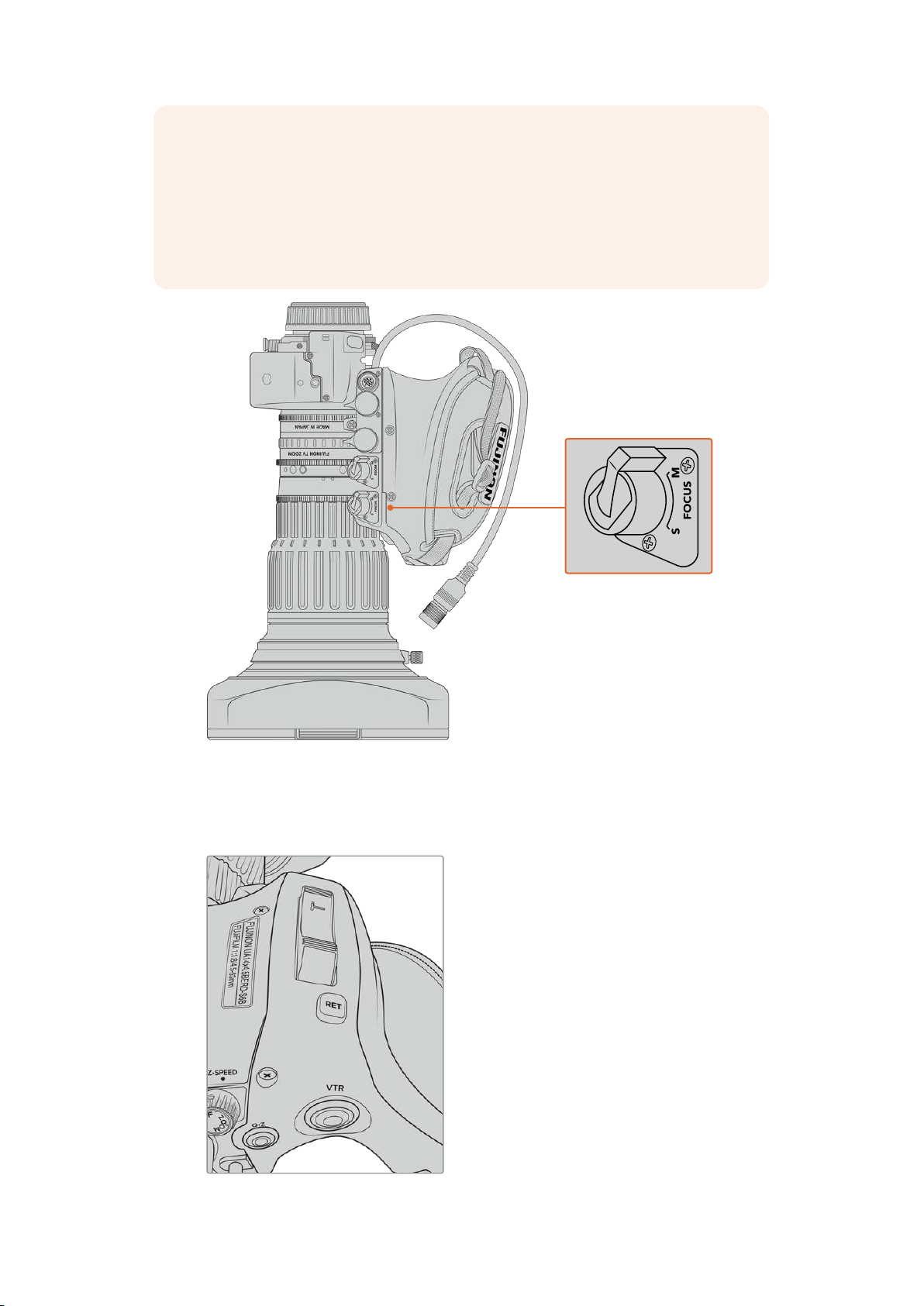
NOTE Analog B4 lenses with servos are also supported although the camera will only
power the zoom servo and support electronic iris control. Many of them are standard
definition and may not have the standard 12 pin broadcast connector. If you are going
to use an analog B4 lens, it’s important to make sure it is compatible with your camera
first as some have limited feature sets. It is also worth testing them for their image
circle coverage as some of them may fall off drastically for resolution and light towards
the edge of the frame.
Ret and VTR
On a B4 lens, the ‘vtr’ button toggles recording and the ‘ret’ button is for ‘program return’. For
information on how you can configure the ‘vtr’ and ‘ret’ button as function buttons on URSA Mini
Pro 4.6K G1, see the ‘set function button’ section.
The ‘ret’ and ‘vtr’ buttons on a B4 lens
145Using Servo Zoom Lenses
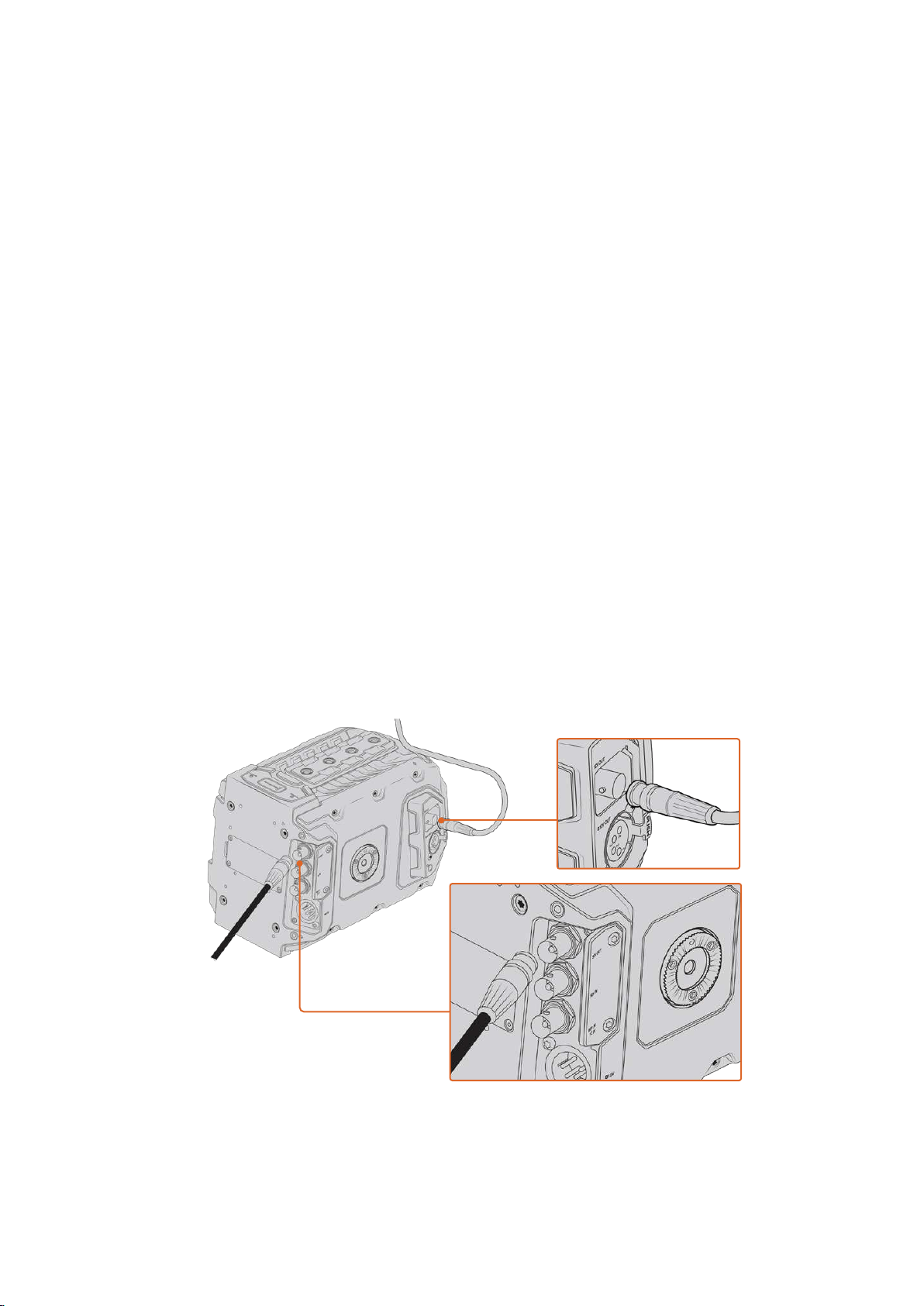
Camera Video Output
HD Monitoring Output
Blackmagic URSA Mini’s down converted 3G-SDI out connector always outputs 1080 HD video
so you can easily connect to routers, monitors, SDI capture devices, broadcast switchers and
other SDI devices. This output is labeled ‘front SDI’ in the touchscreen settings menu.
12G-SDI Output
The 12G-SDI out connector on the rear panel supports HD and 4K video including high frame
rate progressive formats such as 2160p50, 59.94 and 60 on a single SDI cable. Interlaced HD
formats are also supported including 1080i50, 59.94 and 60. You can use the 12G-SDI output to
connect to anySDI monitor as well as 4K switchers such as ATEM Production Studio 4K. This
output can be switched between HD and Ultra HD by selecting 1080p or 2160p in the ‘SDI
output’ setting for the ‘main SDI’ on the ‘monitor’ tab on the touchscreen.
Connecting to Video Switchers
The SDI outputs allow you to use your camera for live television production. You can connect
the rear panel SDI output directly to production switchers for live production work, or to
ATEMCamera Converters to convert your signal to optical so you can send it hundreds of
meters to a broadcast truck on location.
When connected to a switcher, you can easily view the switcher’s program output on your
Blackmagic URSA Mini. To do this, first connect the switcher to your camera’s rear 12G-SDI
input. Now press and hold the ‘program’ button marked PGM on your camera’s fold out monitor
to view your program feed. Release the PGM button to return to your camera feed. Double
clicking the PGM button will lock the input to the program feed. To switch back to the camera
feed press the PGM button once.
You can connect the 12G-SDI output to any 1080 HD or Ultra HD live production
switcher or monitor. The HD monitoring output can be plugged into an external
viewfinder, such as the Blackmagic URSA Viewfinder, or plugged into an external
monitor when mounted to production equipment. For example a jib arm or crane
146
Camera Video Output

Connecting to Monitors
SDI monitoring can be really handy when accessing the fold out monitor is impractical, such as
when secured high on a jib arm, on a crane, or mounted on a vehicle.
Monitoring information is displayed via your HD-SDI monitoring out connector by adjusting the
settings for the ‘front SDI’ on the ‘monitor’ tab on the touchscreen. These settings enable frame
guides and information such as recording details and camera settings. If you simply want to
monitor your shots, you can always turn overlays off for a clean SDI output.
Connect the camera’s SDI output to SDI monitors or to a Blackmagic SmartScope Duo 4K for
live waveform monitoring.
NOTE The rear SDI output and 3G-SDI monitoring output automatically flag HDR
video with ancillary metadata when you are working in ‘Film’ dynamic range and use
the ‘Broadcast Film to Rec.2020 Hybrid Log Gamma’ or ‘Broadcast Film to Rec.2020 to
PQ Gamma’ LUT on the SDI output. This means you can display stunning HDR images
on HDR enabled screens from either SDI output.
SDI Output Formats
Rear SDI Output 2160p23.98, 24, 25, 29.97, 30, 50, 59.94, 60.
1080p23.98, 24, 25, 29.97, 30, 50, 59.94, 60.
1080i50, 59.94, 60.
3G-SDI Monitoring Output 1080p23.98, 24, 25, 29.97, 30, 50, 59.94, 60.
1080i50, 59.94, 60.
TIP To make a live recording with two codecs at once or a simultaneous backup, you
can feed the rear SDI out from URSA Mini to a Blackmagic Video Assist or HyperDeck.
147Camera Video Output
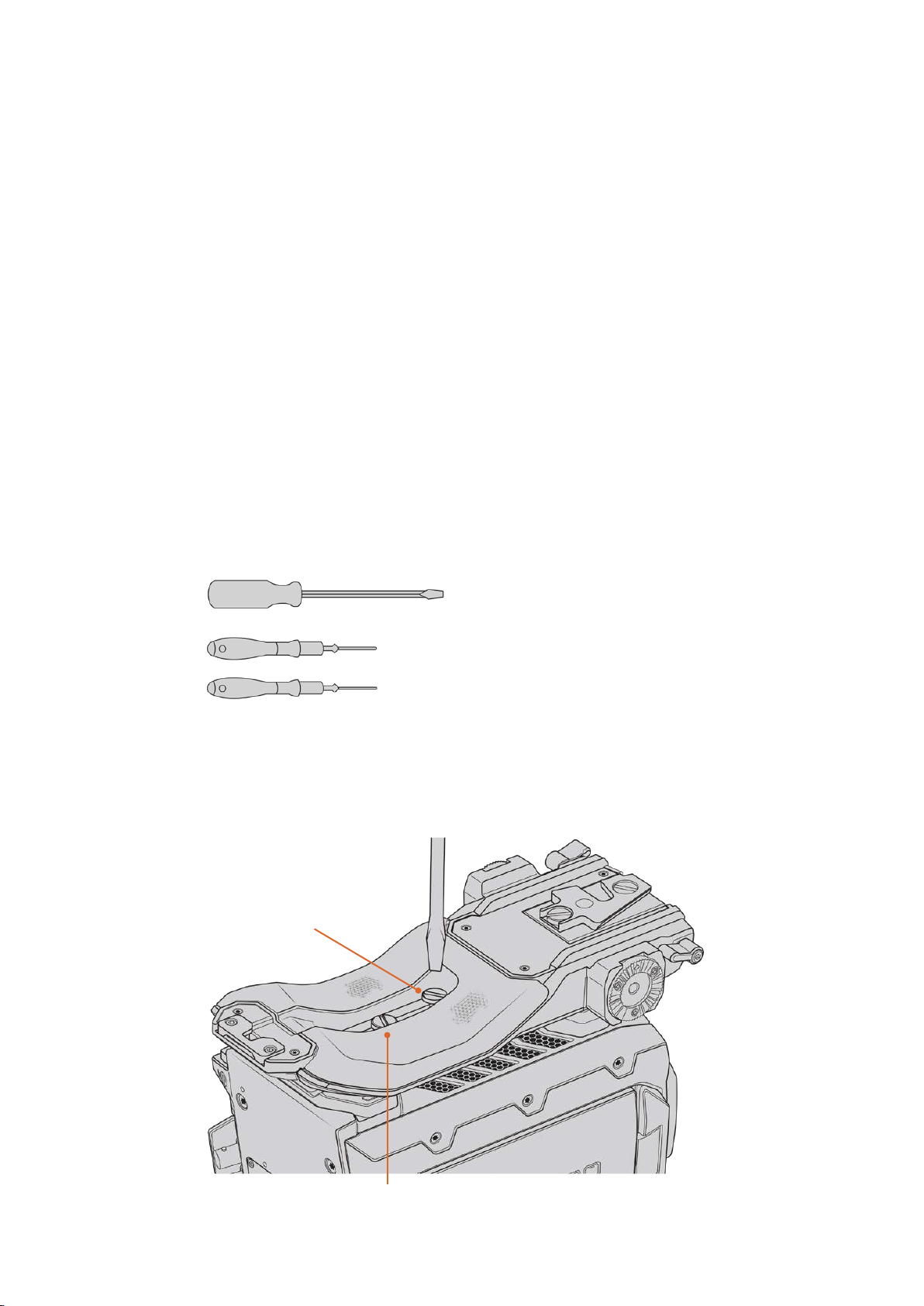
URSA Mini Shoulder Mount Kit
Attaching the shoulder mount
The URSA Mini Shoulder Mount Kit lets you carry URSA Mini on the shoulder for ENG style
shooting. This kit includes a top handle, shoulder mount baseplate, extension arm for the
optional Blackmagic URSA Handgrip, long LANC cable, Viewfinder adapter plate, plus all the
required screws.
The quick release mount on the baseplate lets you lock your camera into an ENG style tripod
plate or place it on your shoulder so you can follow the action.
The URSA Mini Shoulder Mount Kit works with any tripod plate modeled after the Sony VCT 14.
These mounts are easily found at camera stores or online.
It’s also worth mentioning that mounts modeled after the VCT U14 tripod plate are a different
system and are not compatible.
When attaching the shoulder mount kit, you will need the following tools:
1 x flat head screwdriver for the 2 x ¼” shoulder mount base plate screws.
1 x 3/16” Hex key driver for the 2 x ¼” top handle screws.
1 x 2.5mm Hex key driver for the 4 x Viewfinder adapter plate M3 screws.
To attach the shoulder mount kit to your URSA Mini you will need a
large flat head screwdriver, a 3/16” Hex key driver for the top handle
and a 2.5mm Hex key driver for the Viewfinder adapter plate
To attach the shoulder mount baseplate
Insert screws via
threaded hole in slot
2 x ¼” baseplate screws
148URSA Mini Shoulder Mount Kit
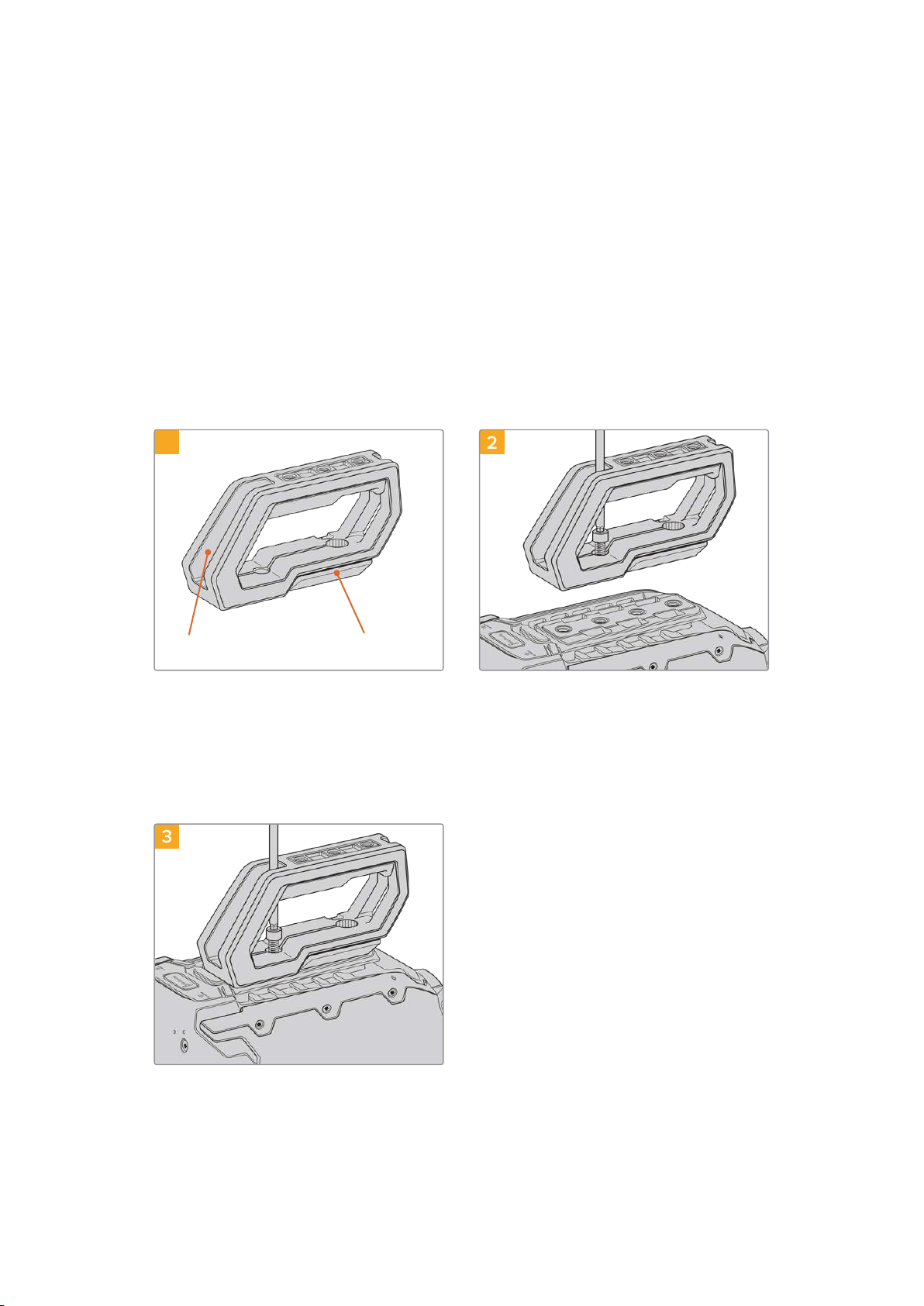
1 Gently place your URSA Mini upside down on a flat, stable surface so you can easily
access the base of your camera.
2 Fasten the shoulder mount baseplate to URSA Mini using the 2 x ¼” flat head screws
and driver.
3 Tighten the screws until the baseplate is firmly attached and the screws won’t loosen.
Avoid over-tightening as it may damage the screw threads.
To attach the top handle without URSA Viewfinder
You can use URSA Mini Shoulder Mount Kit with or without the optional URSA Viewfinder.
The top handle is supplied with a rubber viewfinder cap on its base which is replaced with
anadapter plate when attached to the URSA Viewfinder. We recommend leaving the cap
attachedwhen using the handle without the URSA Viewfinder.
1
Top handle URSA Viewfinder cap
2
Place your URSA Mini on a flat, stable surface so
you can access the top of your camera.
Fasten the handle to any two of your
URSAMini’s top 1/4” mounting points using the
two supplied 1/4” screws with a 3/16” Hex key
driver. URSAMini’s rear two mounting points
are recommended for most situations, but you
can choose any pair for better weight balance
when using large lenses.
3
Tighten the screws until the handle is firmly
inplace and the screws won’t easily loosen.
Avoidover-tightening the screws as it may
damage the screw threads.
149URSA Mini Shoulder Mount Kit
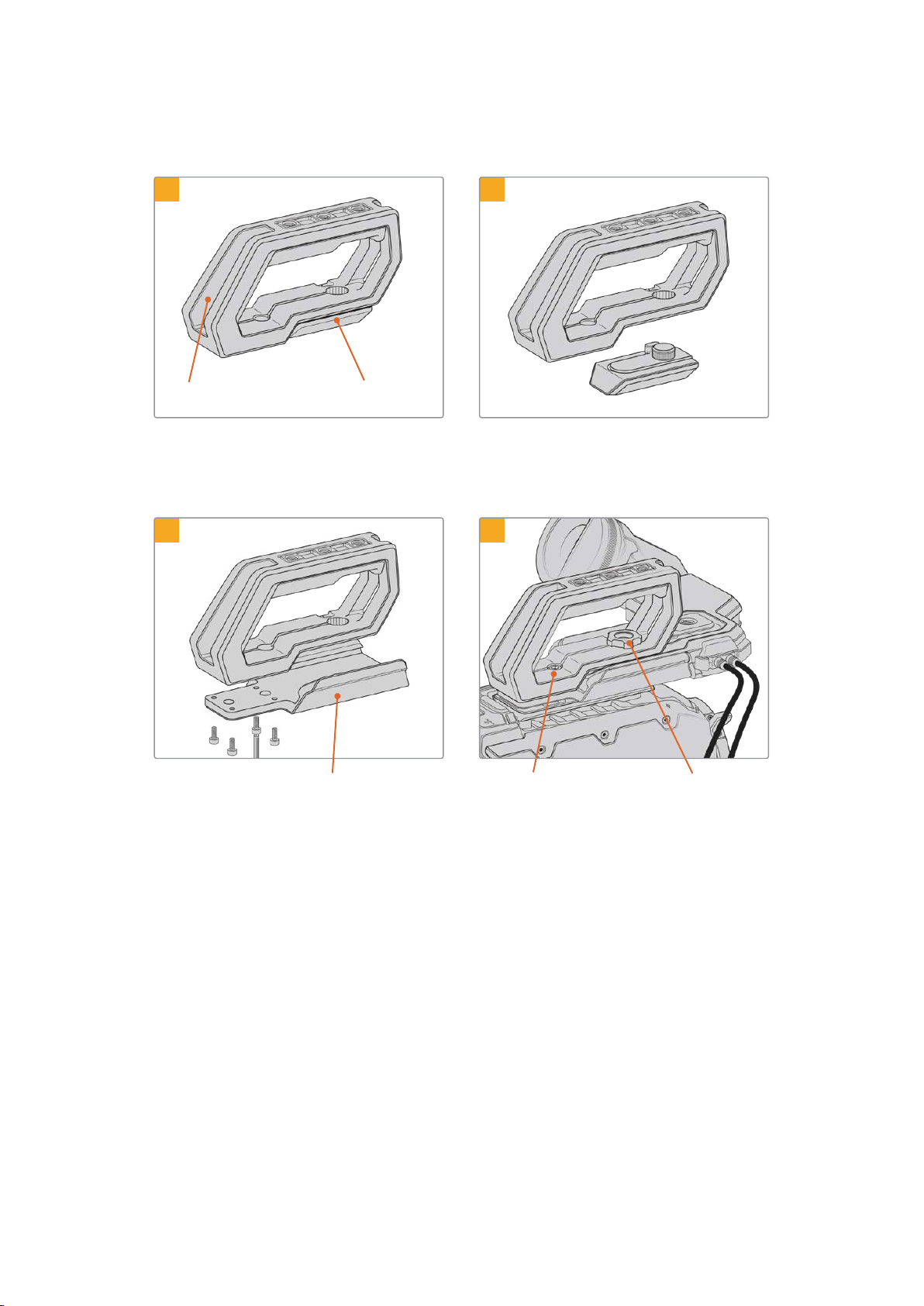
To attach the top handle with URSA Viewfinder
1
Top handle URSA Viewfinder cap
2
Place your URSA Mini on a flat, stable surface
soyou can access the top of your camera.
Remove the URSA Viewfinder cap from the
base of the handle by gently lifting its arm
away from the side of the handle and pulling
the cap from the hole.
3
URSA Viewfinder adapter plate
Thumbscrew for adjusting the
optional URSA Viewfinder position
2 x 1/4” socket head screws for
mounting handle to camera
4
Fasten the URSA Viewfinder adapter plate tothe
handle using the 4 x M3 screws with a2.5mm
Hex key driver.
Fasten the handle to any two of URSA Mini’s top
1/4” mounting points using the two supplied 1/4”
screws with a 3/16” Hex key driver. URSA Mini’s
rear two mounting points are recommended for
most situations, but you can choose any pair for
better weight balance when using large lenses.
Avoid over-tightening the screws as it may
damage the screw threads.
The hole inside the front of the handle is used
with the thumb screw when attaching and
adjusting the URSA viewfinder. For information
on how to attach the URSA Viewfinder to the
top handle, refer to the ‘Blackmagic URSA
Viewfinder’ section in your URSA manual.
150URSA Mini Shoulder Mount Kit
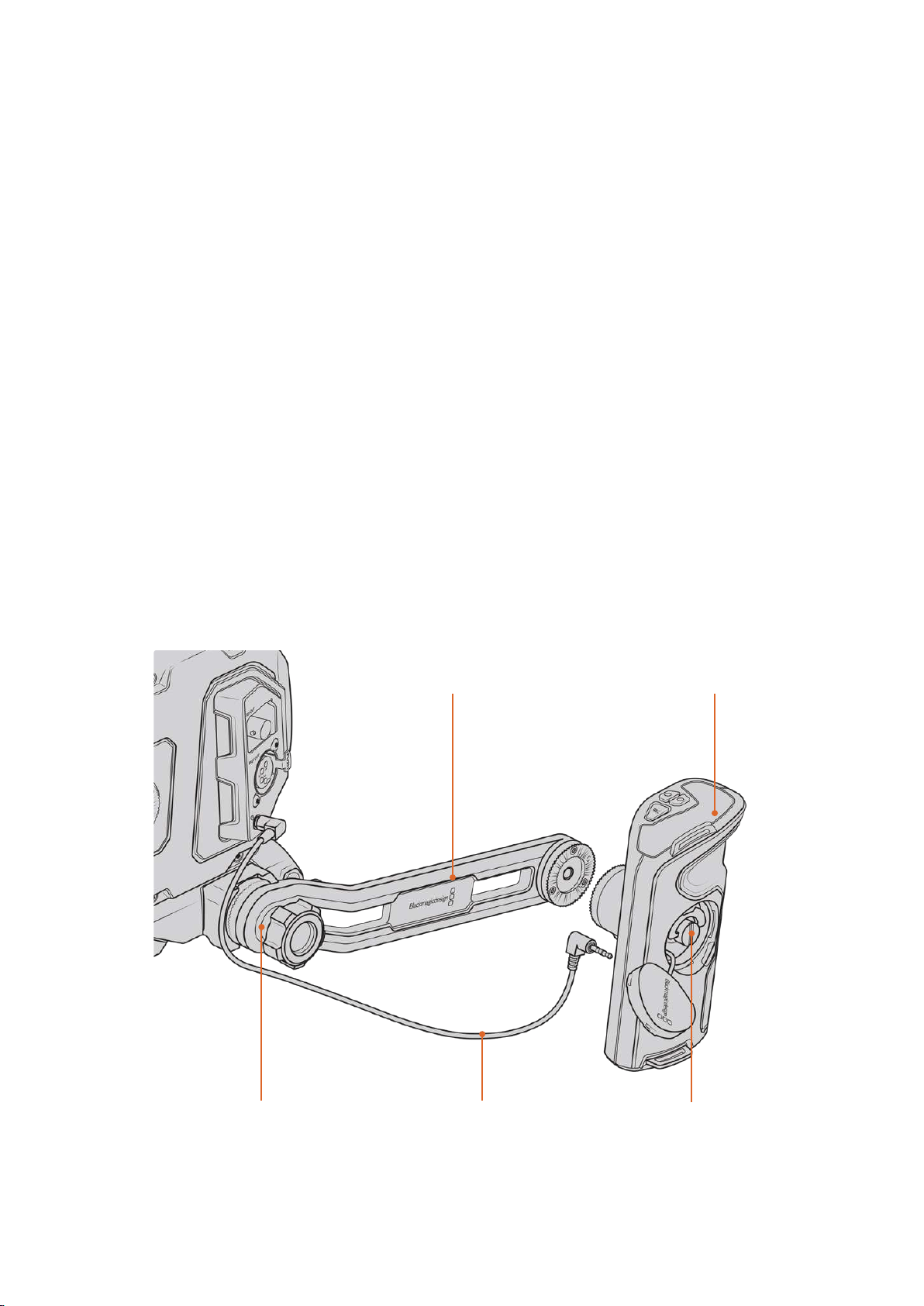
Attaching the extension arm
When using the URSA Mini shoulder mount kit with the Blackmagic URSA Handgrip, you’ll
needto reposition the handgrip for comfortable shoulder based shooting. Use the
bundledextension arm and longer LANC cable to move the handgrip to a more ergonomic
position. TheUSRAMini extension arm is also available as a separate accessory from
BlackmagicDesignresellers.
To attach the extension arm:
1 Place your URSA Mini on a flat, stable surface allowing room next to the camera to
lower the extension arm. Mounting URSA Mini to a tripod is helpful for this purpose.
2 Attach the indented end of the extension arm to the baseplate rosette, lower the arm to
suit, and fasten with the supplied rosette thumbscrew.
3 Attach the handgrip to the extension arm’s front rosette. Fasten by tightening the
handgrip screw with the large flat head screwdriver, or by twisting the D ring with your
thumb and forefinger.
4 Connect the Blackmagic URSA Handgrip’s LANC output to the camera LANC input
using the long LANC cable supplied with your shoulder mount kit.
You can easily adjust the extension arm and Blackmagic URSA Handgrip to suit your preference
by loosening the rosette screws, making your adjustment, then retightening.
With your URSA Mini Shoulder Mount Kit now attached, you have additional speed for fast
shooting on the run, plus the ability to quickly mount your camera on a tripod for tight,
stable shots!
Connect the handgrip to the camera using the long LANC
cable supplied with the kit
Blackmagic URSA HandgripHandgrip extension arm
Extension arm attaches to
baseplate rosette
Tighten via handgrip screw
151URSA Mini Shoulder Mount Kit
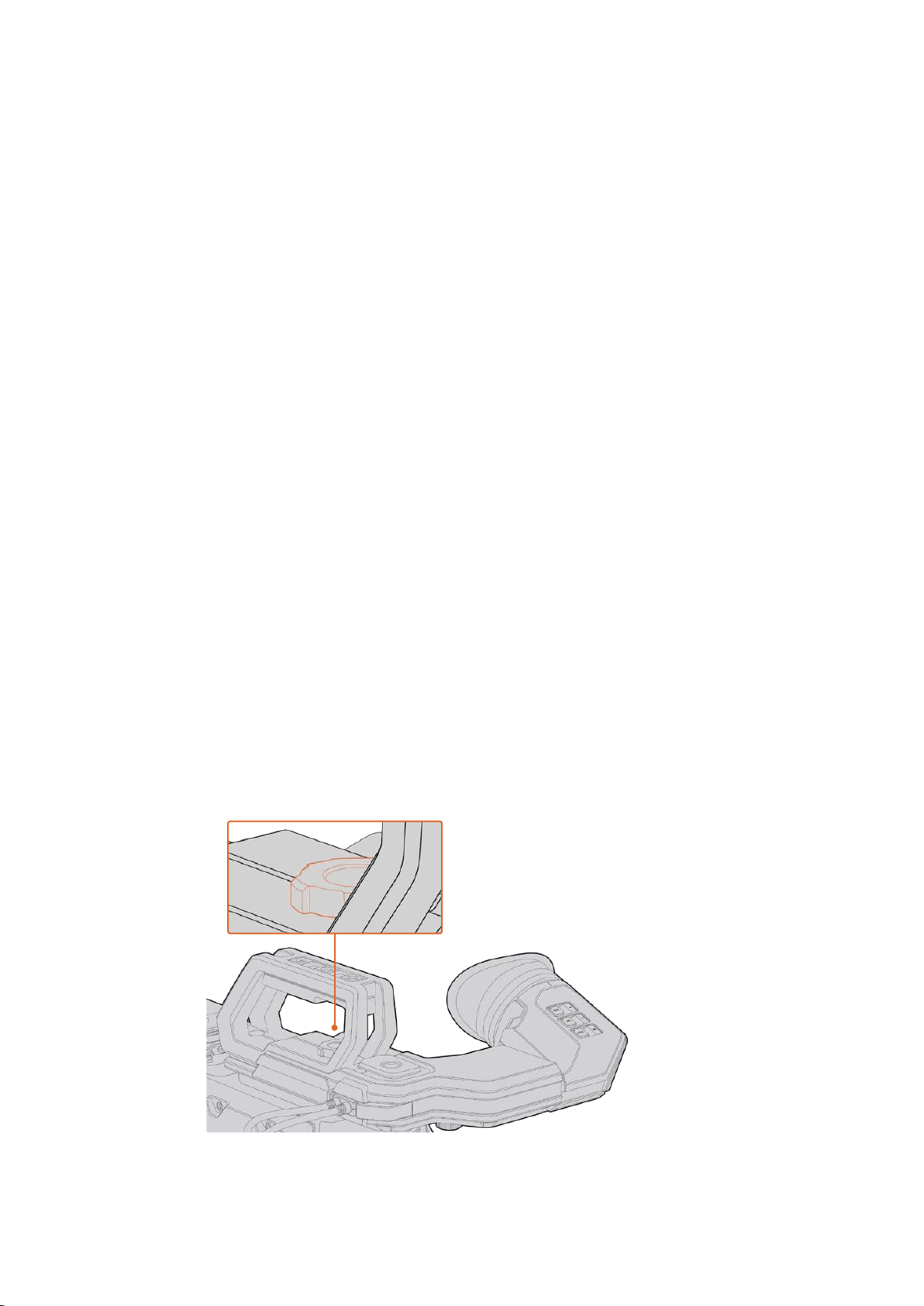
Blackmagic URSA Viewfinder
Blackmagic URSA Viewfinder is a powerful electronic viewfinder designed for your
BlackmagicURSA Mini. The 1080HD color OLED display and precision glass optics provides
abright, vivid, and lifelike image so you can quickly find focus and see the finest detail in
your images.
This viewfinder is perfect for handheld operation on the shoulder, or for environments where
you need absolute precision with zero reflection and light glare, for example in extremely bright
shooting conditions.
The viewfinder is connected and powered by the camera and uses the embedded SDI data
from the camera to generate the various display options. This means that your camera can
output a clean SDI feed to the viewfinder but still allows you to toggle various display options
within the viewfinder for quick access to camera status, plus accurate information.
For example, if you select the ‘2.40:1’ frame guide option in URSA Mini’s menu, it will actually
tellthe viewfinder which frame guide is selected in the camera so when you toggle the frame
guide display on the viewfinder, the same ‘2.40:1’ frame guide is also displayed.
Mounting and Connecting toBlackmagic URSA
To attach the Blackmagic URSA Viewfinder to the camera body, slide it along the handle ridges
and tighten the thumb screw to one of the 1/4” mounting points.
Blackmagic URSA Mini Shoulder Mount Kit is required to mount URSA Viewfinder correctly on
URSA Mini and URSA Mini Pro.
To attach Blackmagic URSA Viewfinder, remove the URSA Viewfinder cap from URSA Mini
Shoulder Mount Kit top handle and install the Viewfinder adapter plate, as detailed in the
‘URSAMini Shoulder Mount Kit’ section in this manual.
Slide URSA Viewfinder mount into the URSA Viewfinder adapter plate and use the 1/4”
thumbscrew included in URSA Mini Shoulder Mount Kit to secure URSA Viewfinder to the top
handle and adapter plate.
There is no need to use any tools to secure the thumbscrew, finger pressure is sufficient and
will prevent over tightening.
To mount your Blackmagic URSAViewfinder to your URSAMini, slide the viewfinder mount
along your camera’s handle ridges andtighten the thumbscrew to a¼” mounting point
152Blackmagic URSA Viewfinder
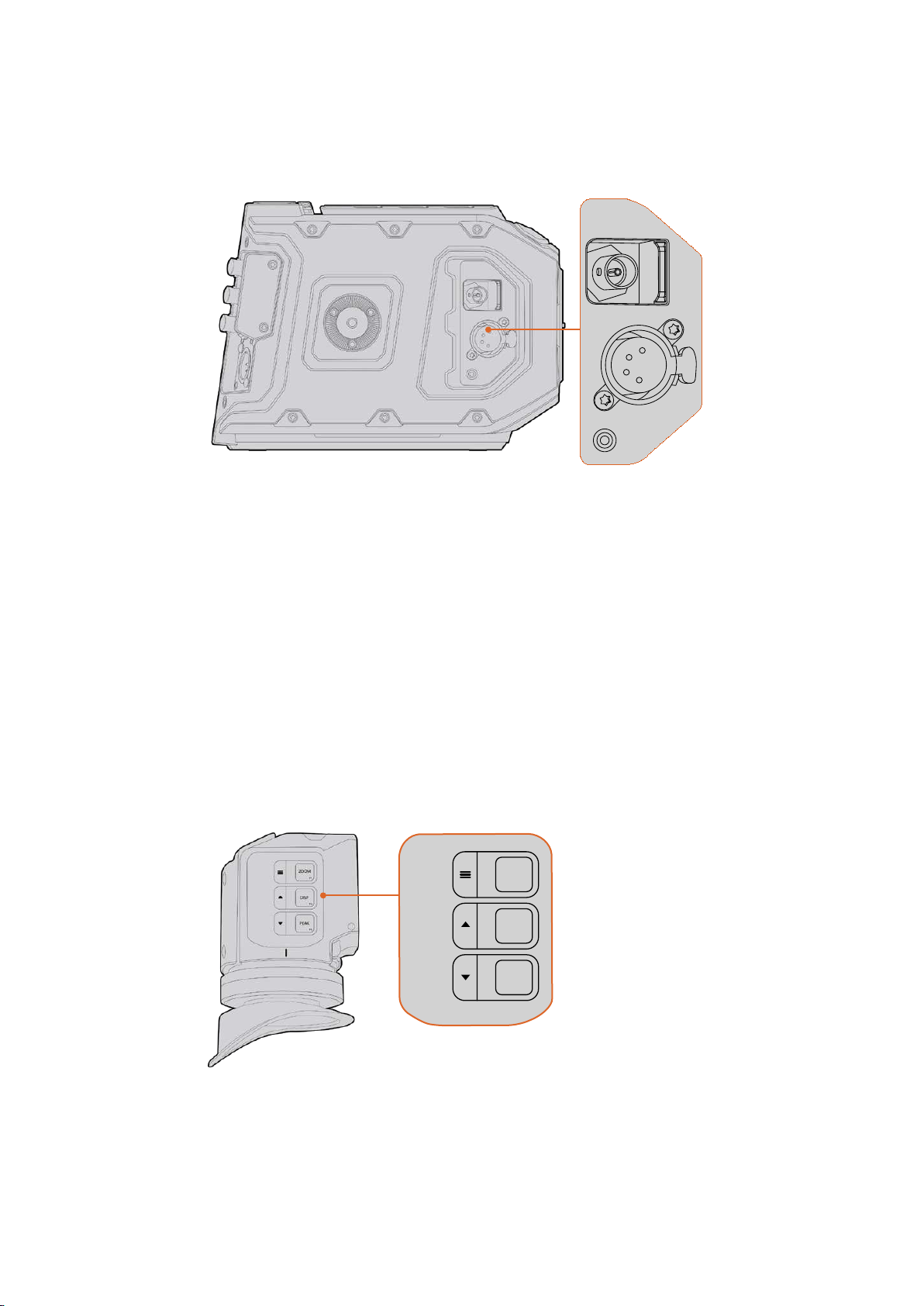
To connect your URSA Viewfinder to your URSA, simply connect the viewfinder’s attached
cables to URSA’s front 12V power and 3G-SDI outputs. Your URSA Viewfinder will turn on
automatically when your camera is powered.
Connect your viewfinder’s SDI and power cables to your
URSA MiniHD-SDI monitoring output and +12 volt output
When using the URSA Viewfinder with URSA Mini, it is highly recommended that you also install
the URSA Mini shoulder mount kit as this provides the correct mounting points, 1/4” thumb
screw, and height adjustments to optimize the positioning of your viewfinder. See the
‘URSA Mini shoulder mount kit’ section in this manual.
Adjusting the Eyepiece
The detachable rubber eyepiece can be adjusted to fit your left or right eye. Adjust the
viewfinder arm by loosening the knob on the bottom of the arm and sliding it left or right to
comfortably fit your eye.
Button Features
On the top of the viewfinder you’ll find the zoom, display and peak buttons. These buttons are
used for zooming into your image, and turning overlays and focus peaking on or off.
ZOOM
F1
F2
F3
DISP
PEAK
The Zoom (F1), Display (F2) and Peak (F3) buttons
are located on top of the URSA Viewfinder
They are also used for additional features, such as opening the menu and navigating settings.
Icons printed on the side of the buttons show you which buttons are used to control the
viewfinder menu and navigation features.
153Blackmagic URSA Viewfinder
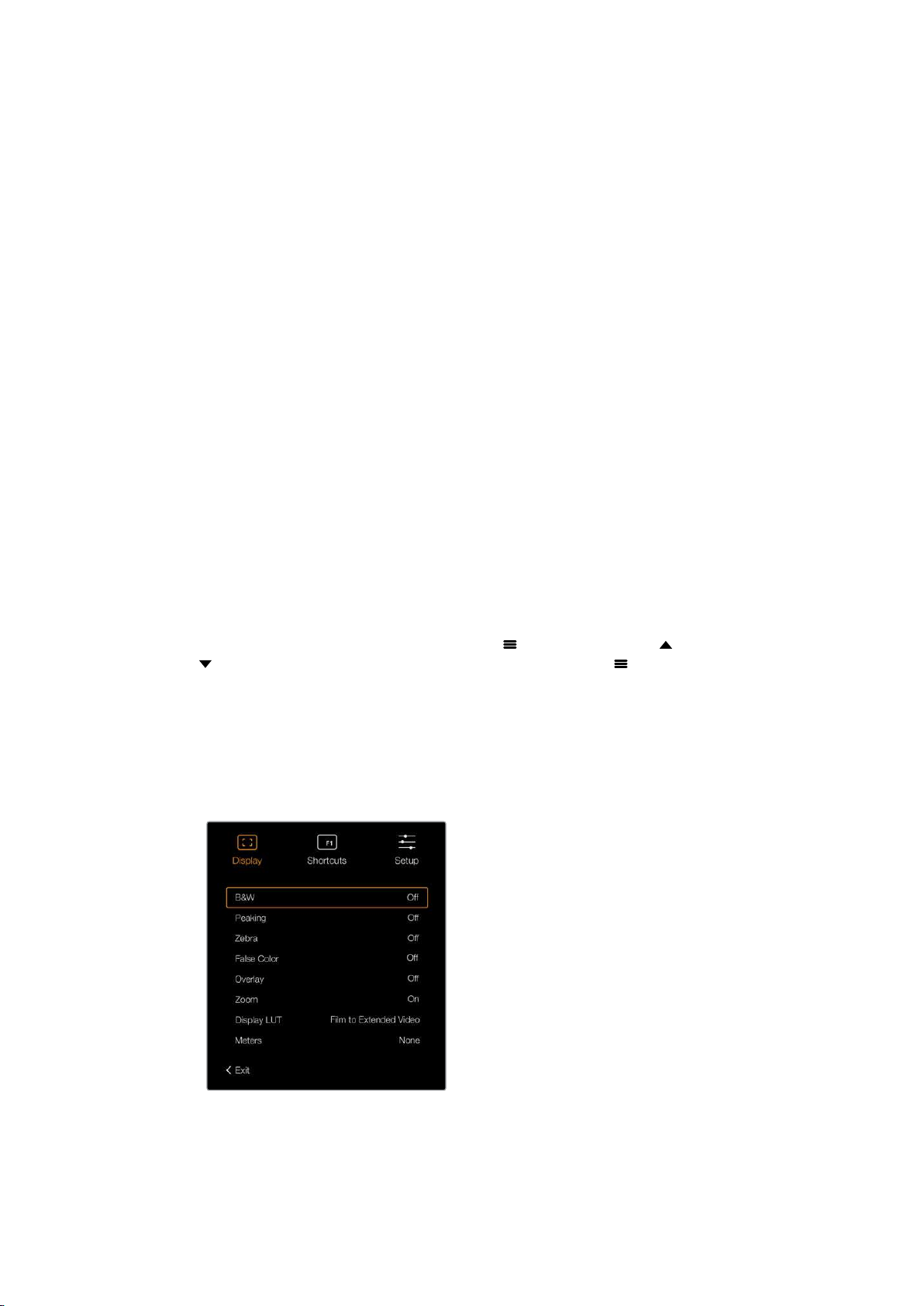
The buttons also have a customizable function feature so you can assign shortcuts to quickly
enable common features you may use frequently. For example you may wish to assign the false
color feature to the zoom button. Refer to the ‘shortcuts’ section for more information.
ZOOM (F1) - ‘menu’
The ‘zoom’ feature helps you find sharp focus by zooming into your picture. Press the
‘zoom’ button to zoom in and press again to return to 100% view. When using the
settings menu, the ‘zoom’ button also serves as the ‘menu’ button. Press and hold this
button to open the settings menu. In the settings menu, press this button once to
confirm setting changes.
DISPLAY (F2) - ‘up’
Press the ‘display’ button to see the overlay view. When using the settings menu, this
button also serves as the ‘up’ button. You can also quickly open the ‘shortcuts’ menu
setting by pressing and holding this button. Refer to the ‘shortcuts’ section for
information on how to set shortcuts.
PEAK (F3) - ‘down’
The focus peaking feature creates a green edge around the sharpest parts of the
image so you can easily confirm your focus. Press the ‘peak’ button to turn the peaking
feature on. Press again to turn peaking off. When using the settings menu, this button
also serves as the ‘down’ button. You can also quickly open the ‘setup’ menu by
pressing and holding this button.
Menu Settings
The settings menu contains three primary menu headings for display, shortcuts, and setup.
Toopen the settings menu, press and hold the ‘menu’
button. Press the ‘up’ and
‘down’
button to navigate between the settings and press the ‘menu’ button again to
confirm yourselection.
Display
The ‘display’ menu provides the following features:
B&W
Switches between color and monochrome.
The ‘display’ menu in URSA Viewfinder
Peaking
Switches peaking on and off.
154Blackmagic URSA Viewfinder
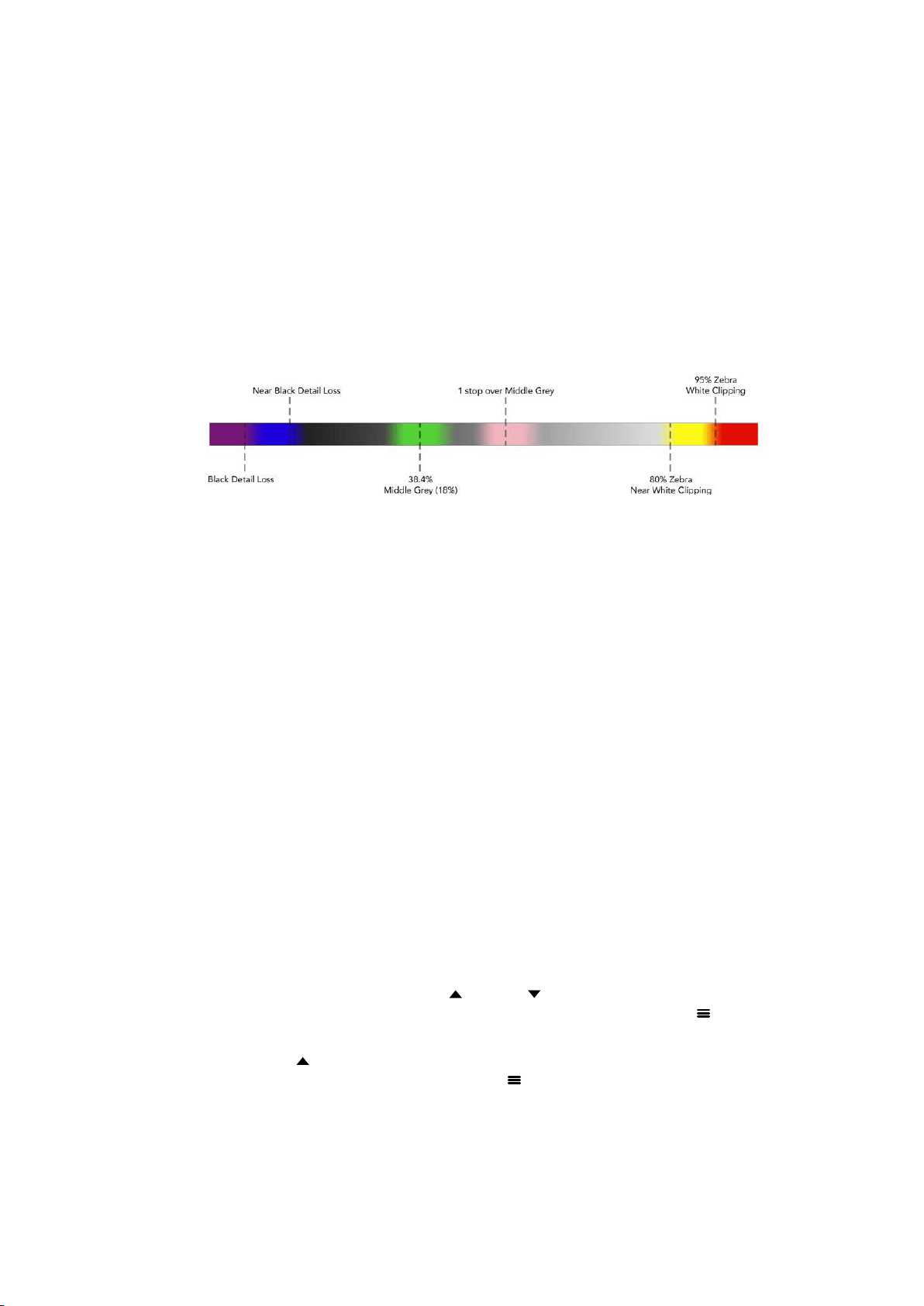
Zebra
Switches zebra levels on and off. Set your desired zebra levels using the camera
settings. For more information, refer to the ‘settings’ section in this manual.
False Color
Switches the false color feature on and off. False color overlays different colors onto
your image that represent exposure values for different elements in your image.
For example, pink represents optimum exposure for light skin tones, while green is a
good match to darker skin tones. By monitoring the pink or green false color when
recording people, you can maintain consistent exposure for their skin tones. Similarly,
when elements in your image change from yellow to red, that means they are now
over exposed.
False Color Chart
Overlay
Switches overlays on and off. You can select which types of overlay to display in your
viewfinder’s ‘setup’ menu. The style of these overlays, such as the safe area
percentage, are set in your camera.
Zoom
Turns the zoom feature on and off.
Display LUT
When sending a ‘film’ dynamic range SDI signal from your URSA Mini, the ‘film to video’
and ‘film to extended video’ settings allow you to apply a more colorful and contrasty
LUT to the image. The viewfinder will detect when either of these LUTs are being used
and will give you the option to toggle them on or off in your viewfinder. When a display
LUT is active on the front SDI output, or you are using a different LUT, the option is
disabled to prevent multiple LUTs being applied.
Meters
Switches between the types of meters to display in overlay view. The options are
‘histogram’, ‘audio’, ‘both’ or ‘none’.
Shortcuts
The shortcut function is useful when you need to quickly access a particular setting for a
frequently used feature. To customize your shortcut buttons:
1 In the ‘shortcuts’ menu, press the ‘up’
or ‘down’ button to move up or down and
select one of the 3 buttons to make it your shortcut button. Press the ‘menu’
button
to confirm your selection.
2 Press the ‘up’
or ‘down’ v button to toggle and select one of the features below to
assign to the shortcut button. Press the ‘menu’
button to confirm your selection.
B&W
Peaking
Zebra
False Color
Display
Zoom
Display LUT
Meters
155Blackmagic URSA Viewfinder
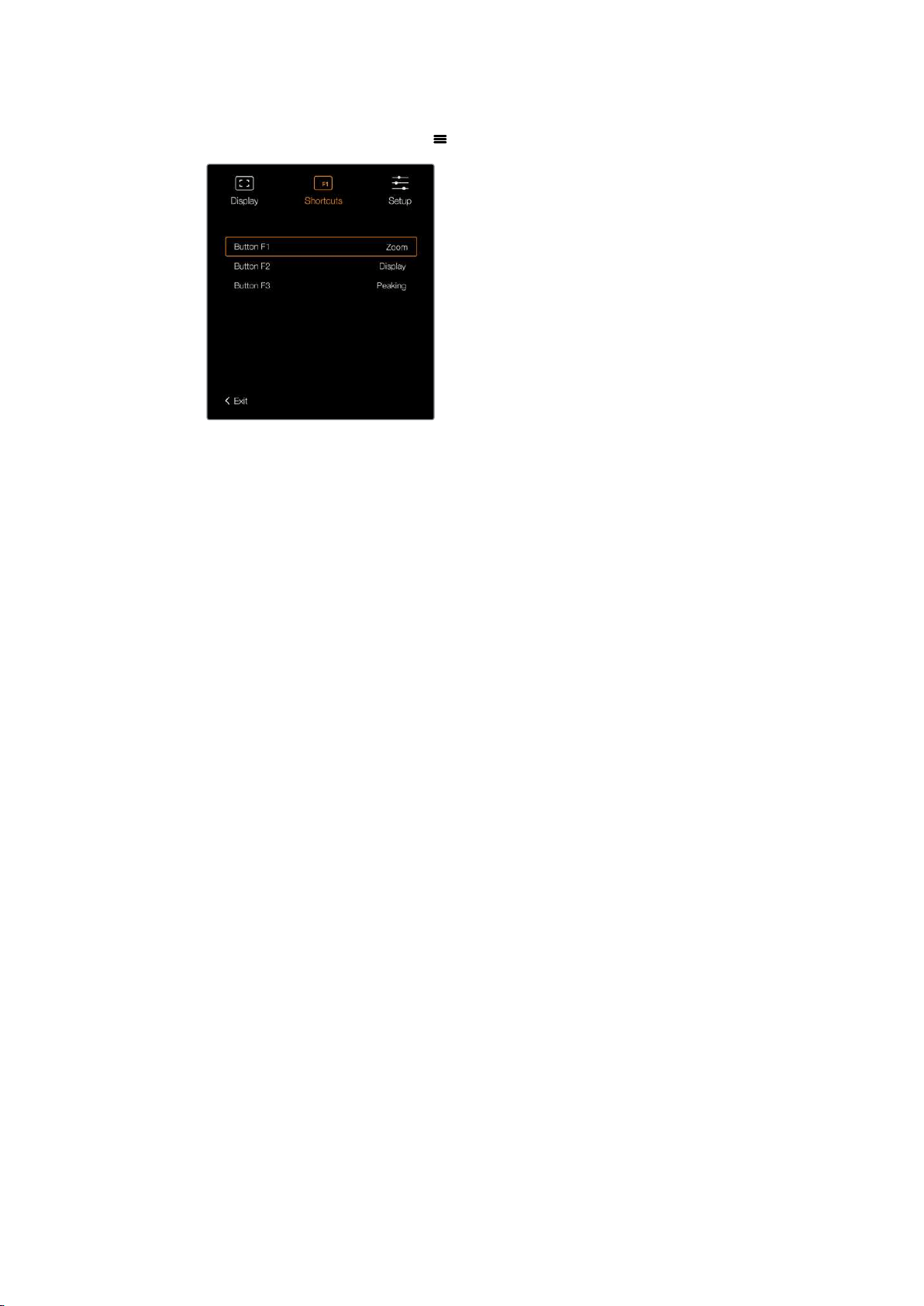
3 Scroll to ‘exit’ and press the ‘menu’ button to close the menu display view.
The ‘shortcuts’ settings in URSA Viewfinder
Setup
The ‘setup’ menu provides the following features:
Brightness
Allows adjustments for the brightness of the display with range -10 to +10.
Tally Brightness
Allows adjustments of tally LED brightness.
Focus Chart
Your Blackmagic URSA Viewfinder has a built in focus chart so you can focus the eye
piece to suit your eyes. Simply turn the focus diopter on the eyepiece until the chart is
in perfect focus. Pressing any button on your viewfinder will close the focus
chart display.
Frame Guide
Toggles the appearance of frame guides when set as an overlay. When‘frame guides’
are turned ‘on’, your viewfinder will display the same frame guides set for ‘all’ outputs in
your camera’s ‘monitor settings’. You can toggle the frame guide view on your
viewfinder by selecting on or off.
For more information, see the ‘Monitor Settings’ section in this manual.
Safe Area Guide
Toggles the appearance of a safe area guide when the ‘overlay’ is set to ‘on’.
When‘safe area guide’ is turned ‘on’ inyour URSA Mini’s ‘all’ monitor settings, you can
use this setting to toggle the safe area guide on or off.
For more information, see the ‘Monitor Settings’ section in this manual.
Grid
Toggles the appearance of a rule of thirds grid, crosshair or center dot. When ‘grids’
areturned ‘on’ in your URSA Mini’s ‘all’ monitor settings, you can use this setting toggle
their appearance in your Blackmagic URSA Viewfinder when overlays are on.
For more information, see the ‘Monitor Settings’ section in this manual.
156Blackmagic URSA Viewfinder
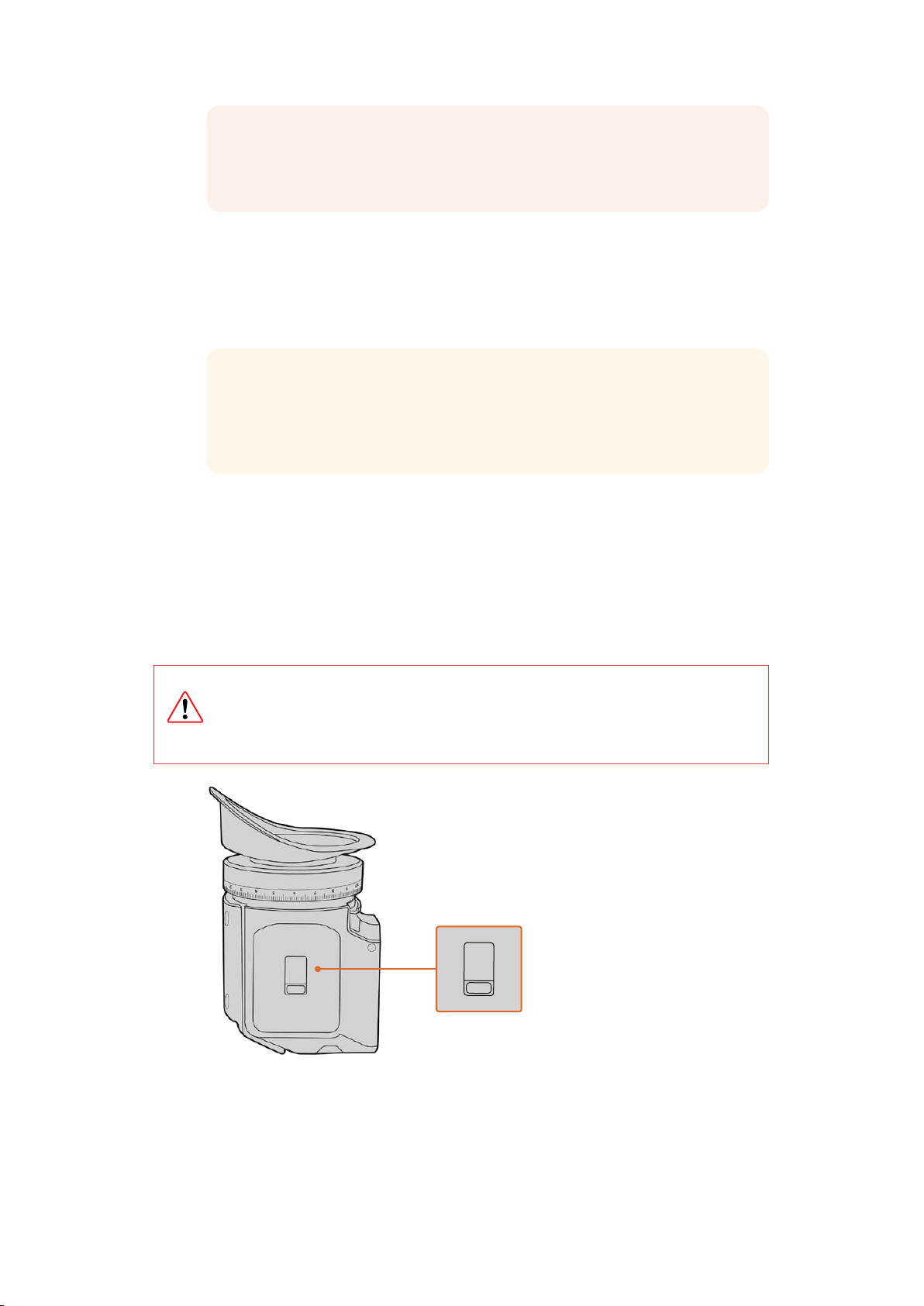
NOTE Enabling ‘Grid’ in your URSA Viewfinder setup menu will also allow your
viewfinder to display tally signals sent from an ATEM switcher. Overlays must
also be set to ‘on’ in the display menu.
Status Text
Toggles the appearance of status text, such as white balance, frame rate and ISO.
When ‘status text’ is turned ‘on’ in your URSA Mini’s ‘front SDI’ monitor settings, you can
use this setting toggle its appearance in your Blackmagic URSA Viewfinder.
For more information, see the ‘Monitor Settings’ section in this manual.
TIP When using Blackmagic Viewfinder with URSA Mini, the appearance of
status text can clash if both the viewfinder and camera are set to show status
text. In this situation, we recommend turning status text to ‘on’ in your camera,
and status text to ‘off’ in your viewfinder.
IR Sensor
The IR Sensor on your viewfinder automatically detects when you are near the eyepiece and
turns on the OLED display. If you are away from the viewfinder for over twenty seconds in
standby mode, display turns off to conserve power and to extend the life of the OLED display.
While recording, the timeout sensor is extended to 5 minutes, at which point the OLED display
will be slowly dimmed. Any movement in front of the eyepiece will reset this timer. The
viewfinder will detect when you look into the viewfinder eyepiece, pressing any button on the
viewfinder will also turn the display back on.
Deliberately blocking or covering the IR sensor could cause the viewfinder’s
display to remain powered for prolonged periods of time. This could decrease the
lifespan of the display and cause image retention if high contrast images or frame
guides are displayed on the viewfinder.
The IR sensor is located at the
bottom of the URSA Viewfinder
157
Blackmagic URSA Viewfinder

Updating URSA Viewfinder’s Internal Software
Update your viewfinder using the Blackmagic Camera Setup Utility software. The viewfinder
will need to be powered when updating, so we recommend keeping the viewfinder connected
to your URSA Mini during the update process. This also means your URSA Mini will need to
supply consistent power, so be sure to plug into external power.
Connect your computer to the small USB connection located at the front of your viewfinder,
near the eyepiece. When Blackmagic Camera Utility is launched and your viewfinder is
connected to your computer, you will be prompted to update if your computer detects that your
viewfinder is using an older version. Follow the on screen prompts to update your viewfinder’s
internal software.
NOTE Refer to the ‘Blackmagic Camera Setup Utility’ section in this manual for
moreinformation.
TIP We recommend updating all your Blackmagic URSA equipment at the same time
for optimized performance
158Blackmagic URSA Viewfinder
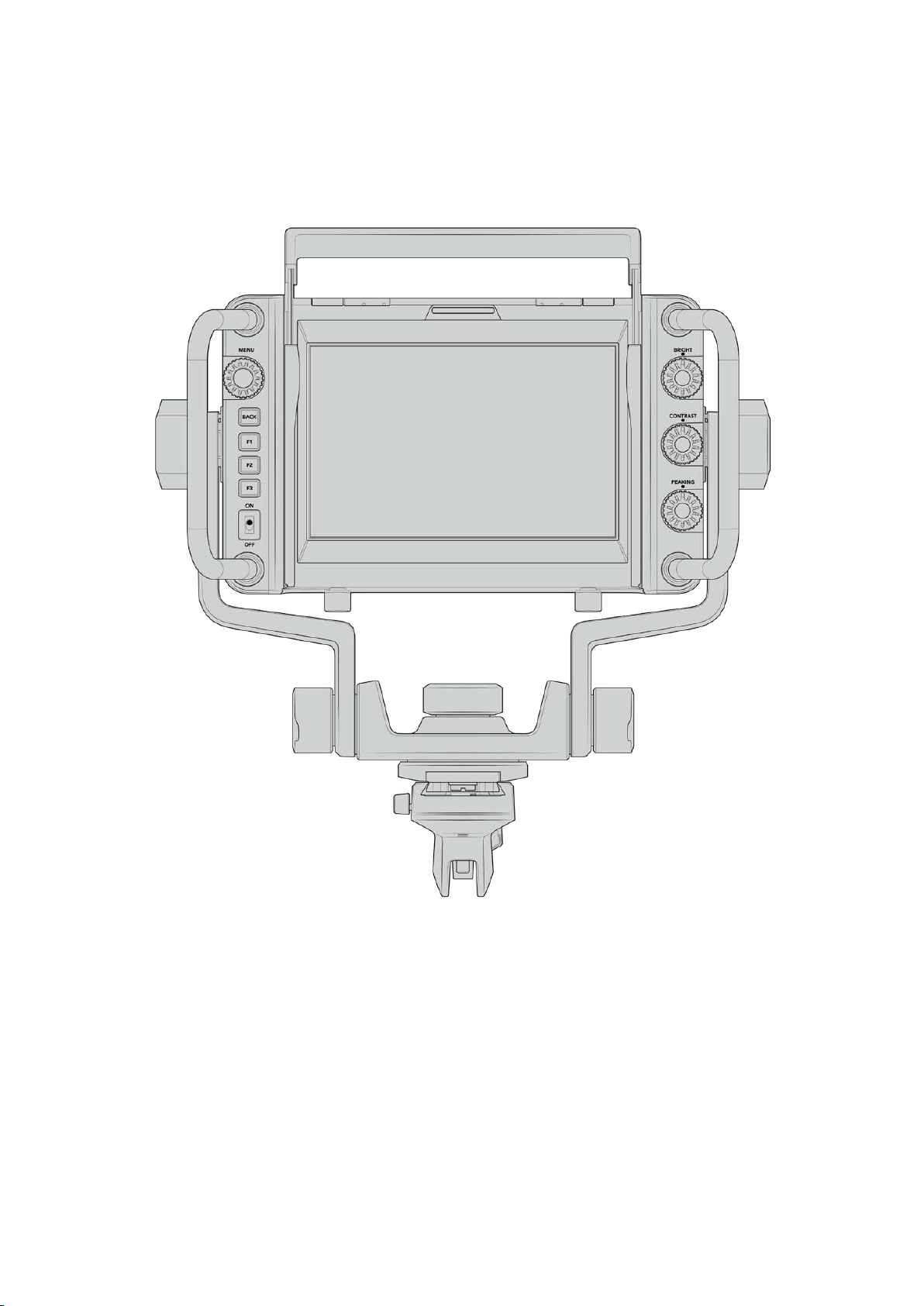
Blackmagic URSA Studio Viewfinder
Blackmagic URSA Studio Viewfinder
Blackmagic URSA Studio Viewfinder is a powerful viewfinder that allows you to turn your
Blackmagic URSA Mini into a professional live production camera. The studio viewfinder
features a bright 7” screen and has a large easily viewable tally light, control knobs, large
handles, sun hood and variable tension articulated mount. These features make it easy to stand
behind the camera and comfortably follow the action for extended periods of time, especially
when filming live concerts, sports, and other long events. The URSA Studio Viewfinder is
perfect for professional live production in the studio or on location.
159Blackmagic URSA Studio Viewfinder
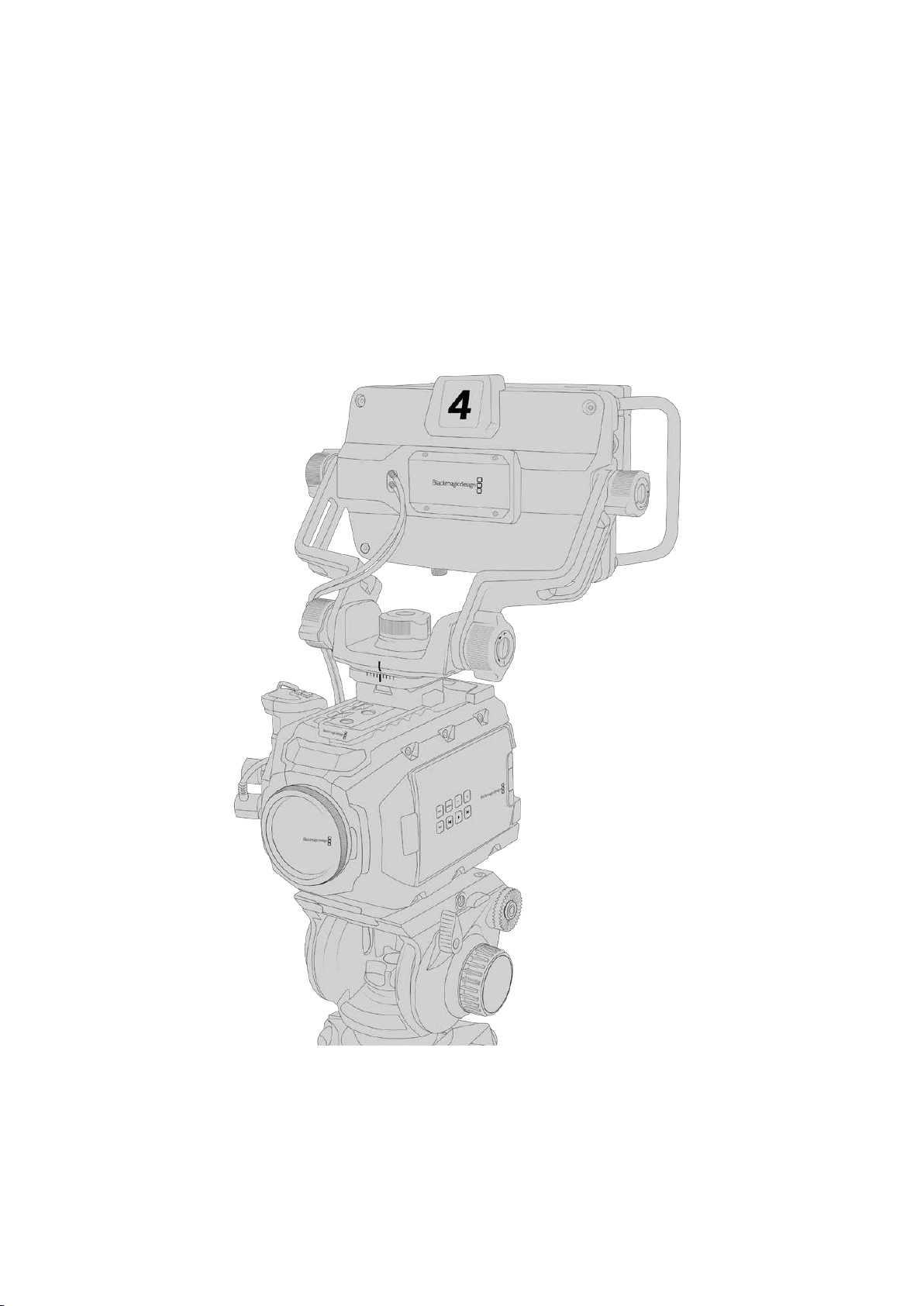
Mounting and Connecting toBlackmagic URSA Mini
When using the Blackmagic URSA Studio Viewfinder with Blackmagic URSA Mini, you have the
option of mounting the unit to the camera in a number of ways.
You can mount the Blackmagic URSA Studio Viewfinder directly to the top of Blackmagic
URSAMini via the supplied V-lock mount plate which can be easily removed from the top
handle mount.
Unscrew the V-lock plate from the URSA Mini handle mount using a 3/16 Hex key, and then
attach it to the top of the camera with the supplied 1/4” screws. As this will make the center of
gravity on the camera much higher. We recommend doing this while the camera is attached to
atripod for stability.
If you are mounting the Blackmagic URSA Studio Viewfinder to your URSA Mini whilst using the
URSA Mini Shoulder Kit, you need to attach it using the supplied URSA Mini handle mount.
Attach the supplied URSA Mini handle mount to the top handle with three of the supplied 1/4”
screws using a 3/16 Hex key. Slide the Studio Viewfinder’s V-lock into the V-lock plate slot until
it clicks in securely.
See the ‘URSA Mini Shoulder Mount Kit’ section in this manual for more information.
160Blackmagic URSA Studio Viewfinder
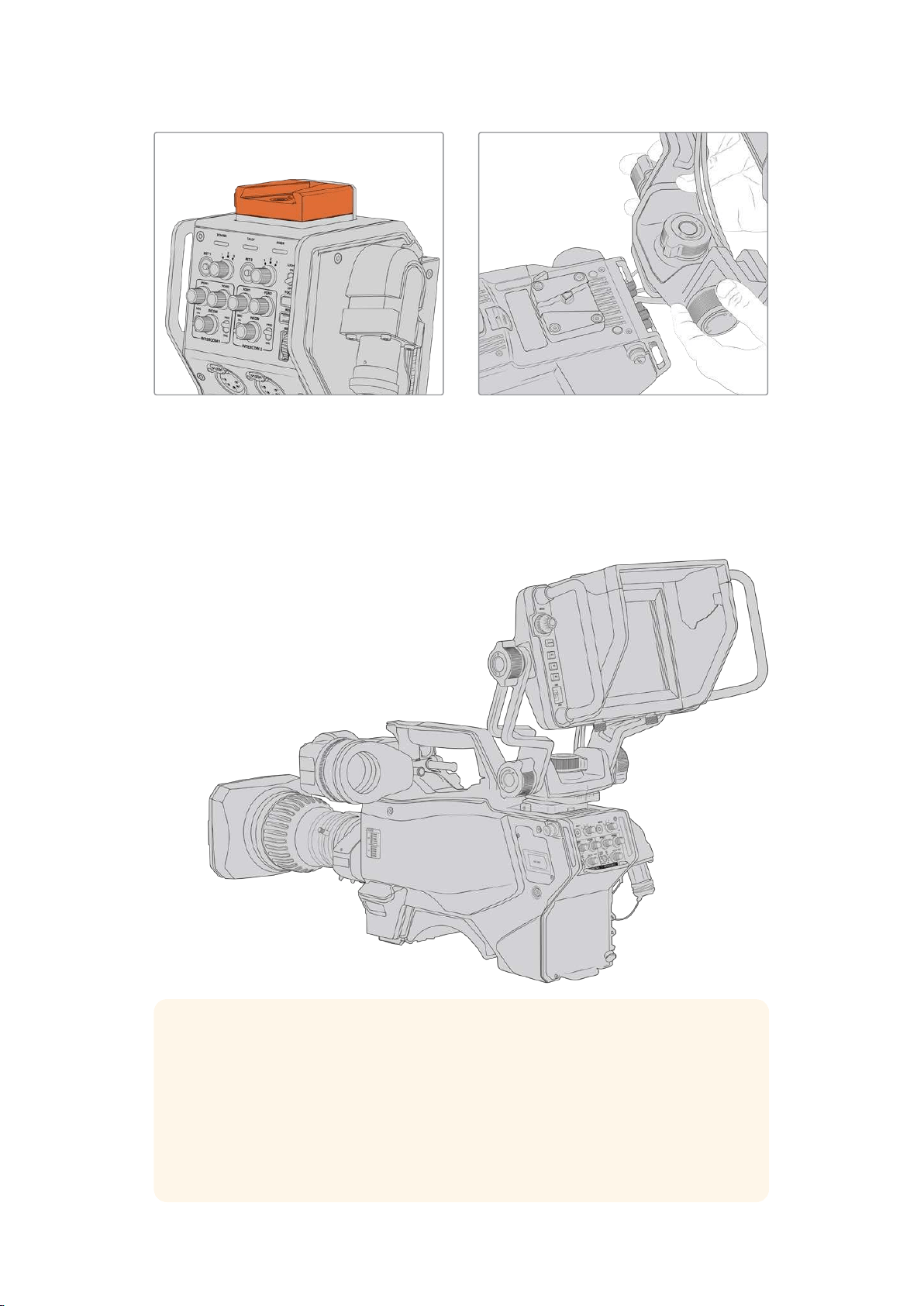
You can attach your Blackmagic Studio
Viewfindertothe V-lock plate on the top of
the Blackmagic Camera Fiber Converter
V-Lock mount plate being attached
to 3rdparty camera
The V-Lock mount plate can also be installed on any camera you want to use the URSA Studio
Viewfinder with that has 1/4” mounting points, or by using a third party cheese plate. You can
also mount the Blackmagic URSA Studio Viewfinder to a third party camera system that has an
existing V-lock mount plate as many of them have this quick release plate on them already.
TIP The Blackmagic URSA Studio Viewfinder connects to the camera via a quick
release V-lock mount plate, which means that the viewfinder can be removed quickly
ifyou need to take the camera off a tripod. When filming sports matches it can be
advantageous to leave both the Blackmagic URSA Viewfinder and Blackmagic URSA
Studio Viewfinder attached to the camera, so that at the conclusion of the match you
can quickly switch to the URSA Viewfinder for handheld filming. Both viewfinders use
the same 12V power and 3G-SDI cables to connect to the camera, making it easy to
swap cables in such a situation.
161Blackmagic URSA Studio Viewfinder
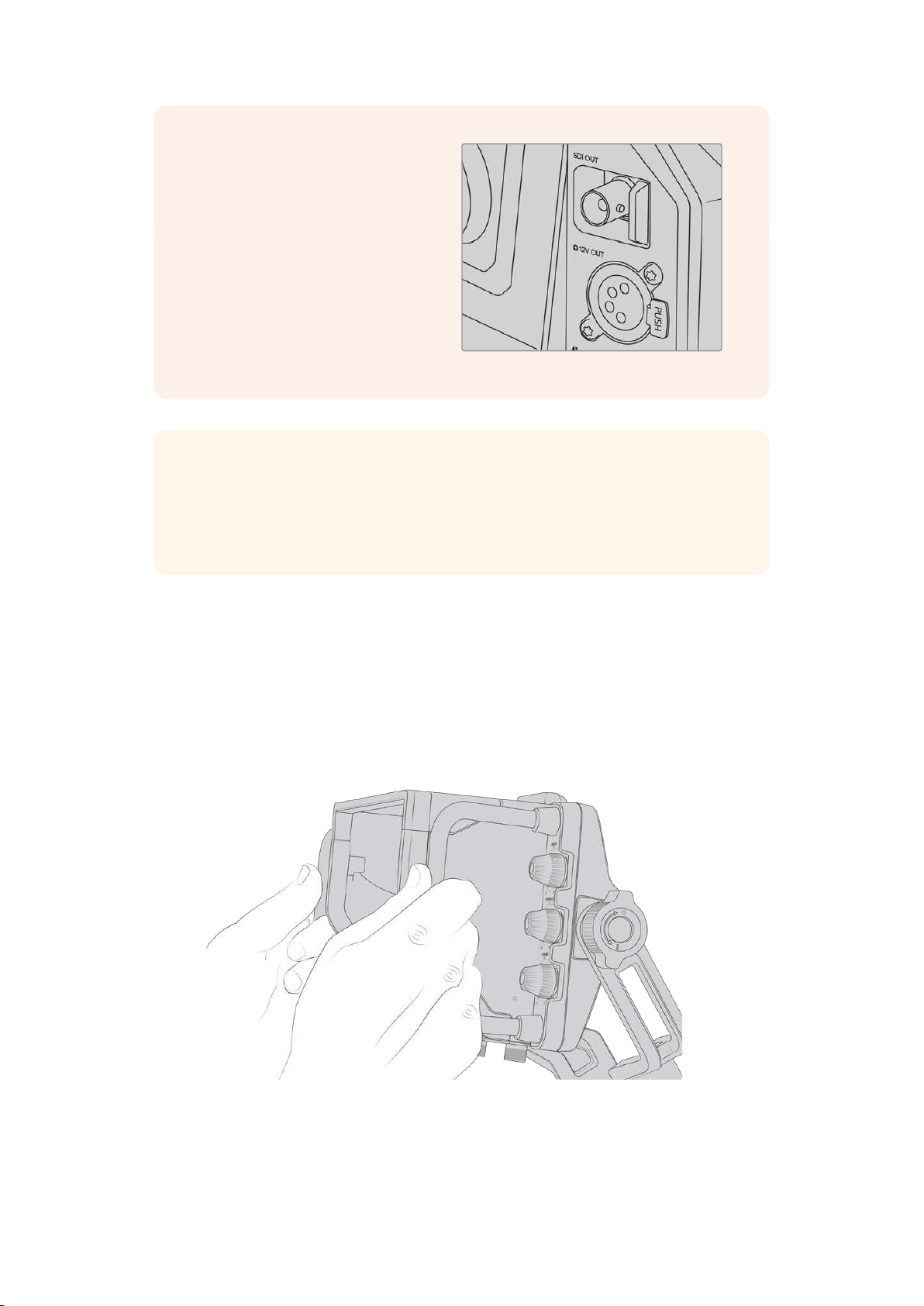
To connect your Blackmagic
URSAStudioViewfinder to your
URSAMini, simply connect the
viewfinder’s attached cables to URSA’s
front 12V power and 3G-SDI outputs.
The power switch on the viewfinder will
then allowyou to turn on the viewfinder
instantly when your camera is powered.
Note that there are cable clamps on the
side of the URSAMini handle mount to
keep you cables neat and hold the
cables in place.
SDI and 12v power connectionson URSA Mini
TIP The URSA Studio Viewfinder uses open standard SDI and broadcast 4 pin XLR
power connections so it can be used with any other camera or even as an adjustable
portable location monitor. It also uses the open standard ATEM tally and device control
protocol so any other camera system can add this information to their SDI stream to
allow them to work with the tally and overlays on the URSA Studio Viewfinder.
Adjusting the Blackmagic URSA Studio Viewfinder
The Blackmagic URSA Studio Viewfinder features large handles and variable tension articulated
mounting that allow you to adjust the position and angle of the viewfinder. The large handles
allow you to quickly and easily take hold of the viewfinder and adjust the angle and direction of
the unit. Combined with the sun hood the handles also help to protect the screen from damage,
which means that you can store the fully assembled Blackmagic URSA Studio Viewfinder in a
carry case without disassembly. The large handles also allow you easily to pick up and carry the
unit between locations.
The supplied mount features tension dials for pan and tilt, with additional tension dials on either
side of the viewfinder for additional friction control. The left hand dial allows you to adjust the
drag friction of the arm and the right hand dial allows you to lock the Viewfinder in place once
you have found the angle you require.
162Blackmagic URSA Studio Viewfinder
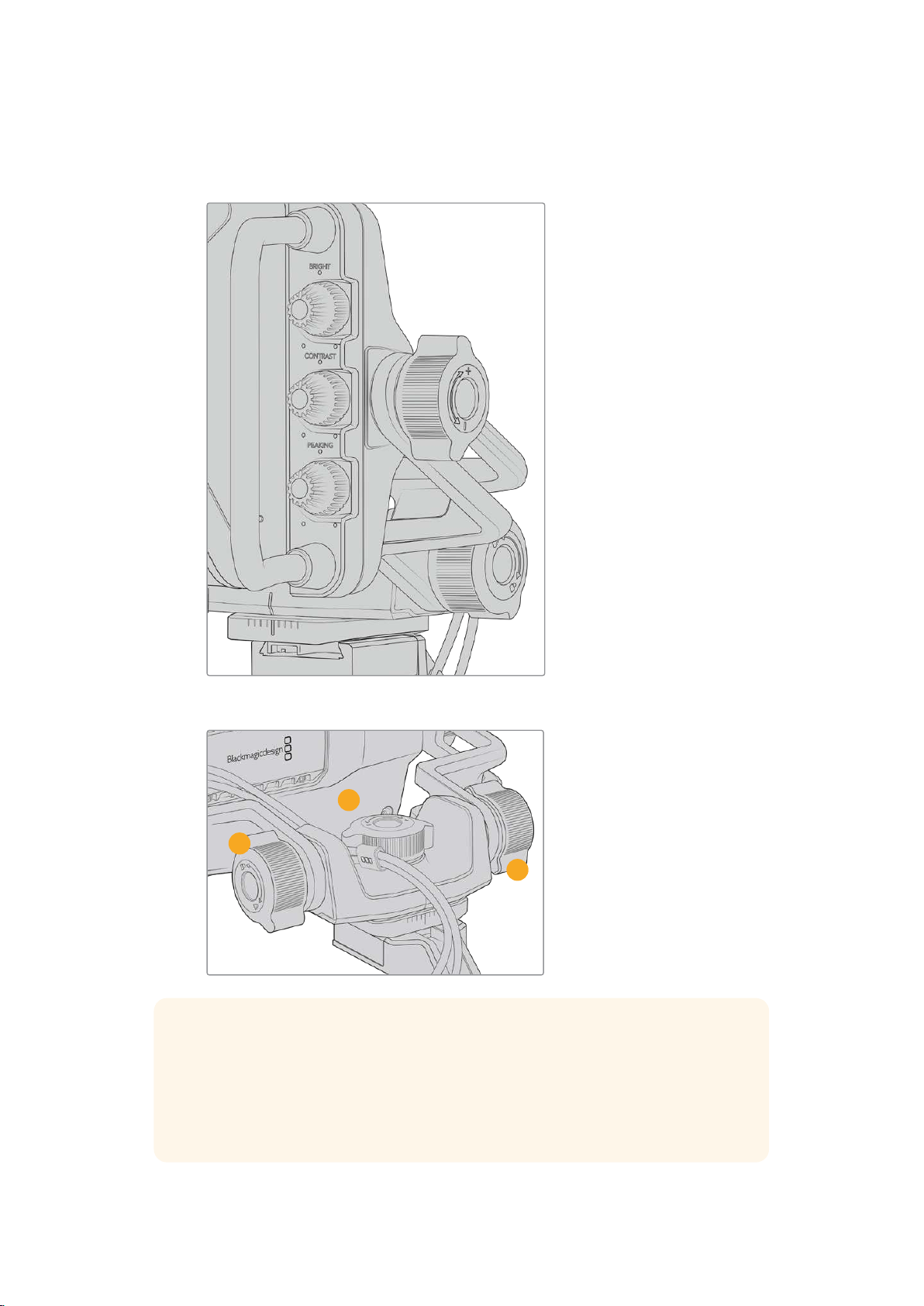
These tension dials have a very large range of tension adjustment, allowing you to select a
specific amount of resistance. This allows you to easily pan and tilt the viewfinder to the precise
position you require.
Tension dials on either side of the viewfinder
1 Tilt Lock Dial
Locks the angle of tilt on
the viewfinder mechanism.
2 Pan Tension Dial
Controls pan tension.
3 Tilt Tension Dial
Controls tilt tension.
2
1
3
TIP The center tension dial on the supplied mount controls pan tension, and can be
loosened to allow you to take hold of the viewfinder and move the camera
independently. This means that you can film things like motorsport, where you need to
pan the camera left and right to follow the action, whilst holding the viewfinder
positioned towards your eyes. A visual guide on the mount helps to ensure that the
viewfinder can easily be returned to the center.
163Blackmagic URSA Studio Viewfinder
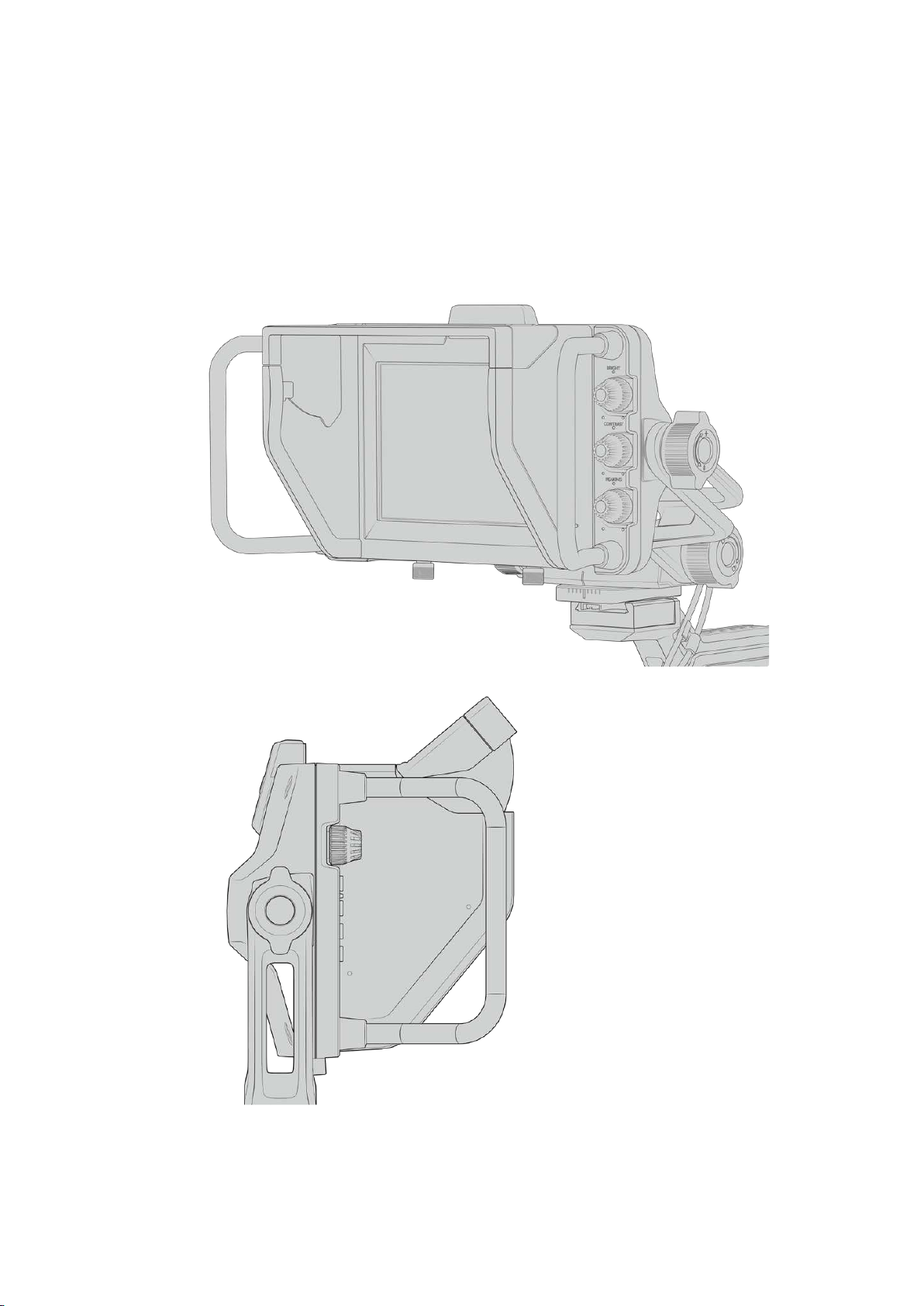
Sun hood
The sun hood helps you to see the screen in bright or sunny conditions. To attach the sun hood,
slide it over the top of the Blackmagic URSA Studio Viewfinder and push it into place, securing
it with the two captive screws on the base of the sun hood. The top section of the visor is
adjustable, and can raise and lower to provide additional viewing angles. The sun hood
provides additional protection for the 7” screen, and can be removed quickly and easily if
desired or to access the USB-C connector for software updates.
Sun hood and adjustable visor
164
Blackmagic URSA Studio Viewfinder
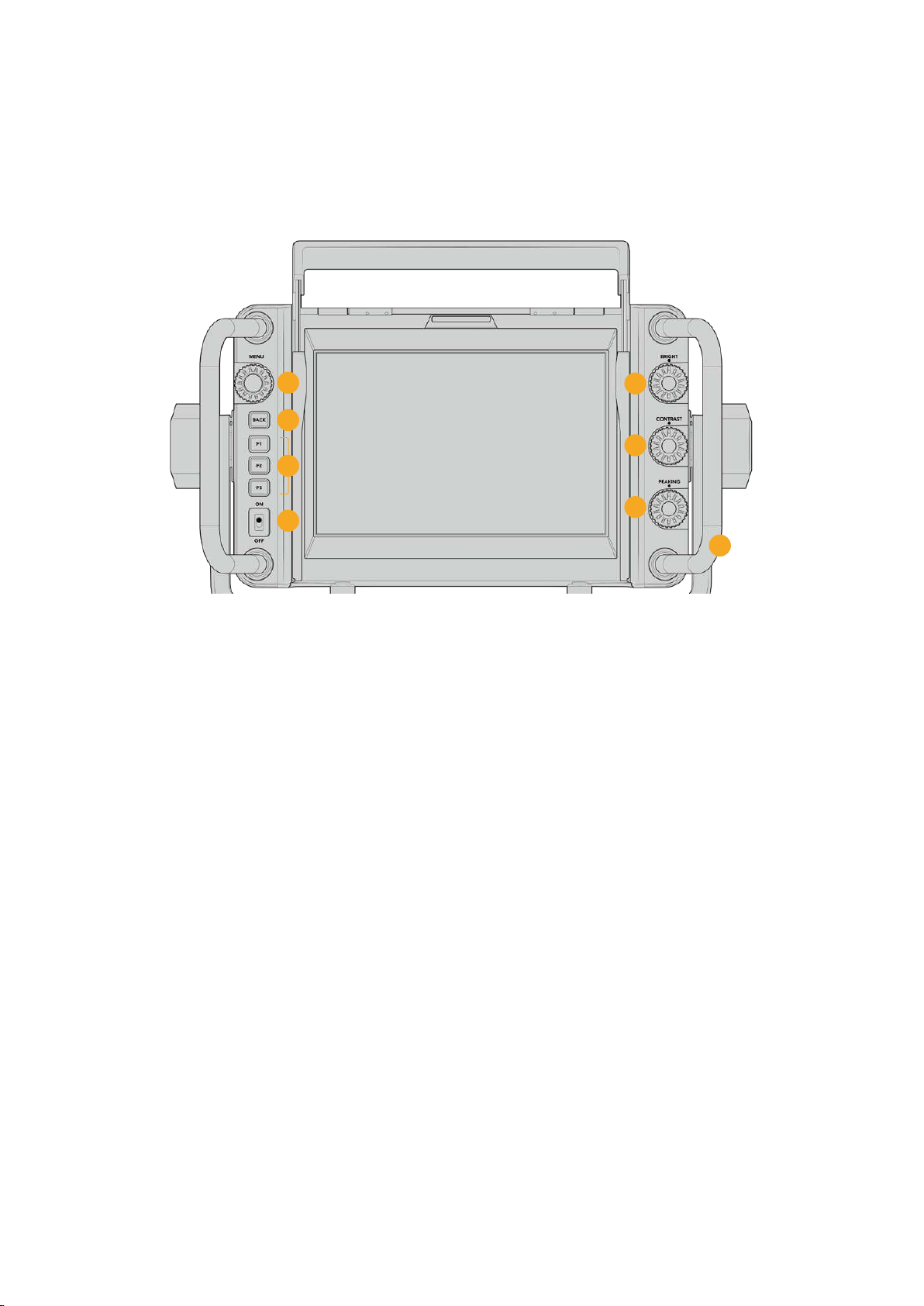
Button Features
The tactile dials down the right hand side let you change brightness, contrast, peaking quickly
and easily. The dials are ergonomically designed so you can adjust the dials from the side with
your thumb when using the sun hood, or with two fingers for finer more controlled adjustment.
1
5
6
7
8
2
4
3
1 Menu Dial
The push button ‘menu’ dial allows
you to enter the menu, and navigate
through the viewfinder settings.
2 Back button
Exits the menu system
3 F1, F2, F3
Assignable function buttons. You can
assign functions to these buttons for
easy access to your most commonly
used functions.
4 ON/OFF switch
Switches the Blackmagic URSA Studio
Viewfinder on and off.
5 Bright
Adjusts the brightness of the image
on screen. Overlays on screen will
show the brightness level on a scale
of -100 to +100.
6 Contrast
Adjusts the contrast of the image on
screen. Overlays on screen will show
the contrast level on a scale of
-100 to +100.
7 Peaking
Adjusts the focus peaking level for the
image on screen. Overlays on screen
will show the peaking level on a scale
of -100 to +100. In the setup menu you
can select between various styles of
peaking to suit your environment.
There is the option for the traditional
style of focus peaking that many will
be familiar with from other broadcast
systems, as well as the option to use
colored lines for focus. As with
URSAMini you have the option of
‘red’, ‘green’, ‘blue’, ‘black’ and ‘white’
lines which gives you flexibility to
make them easily viewable when
shooting in environments that have a
lot of a particular color.
8 Handles
The built in handles are large and
allow you to hold the Studio
Viewfinder in place as you reposition
the camera while shooting. They also
provide protection for the screen
when setting up and packing down.
165Blackmagic URSA Studio Viewfinder
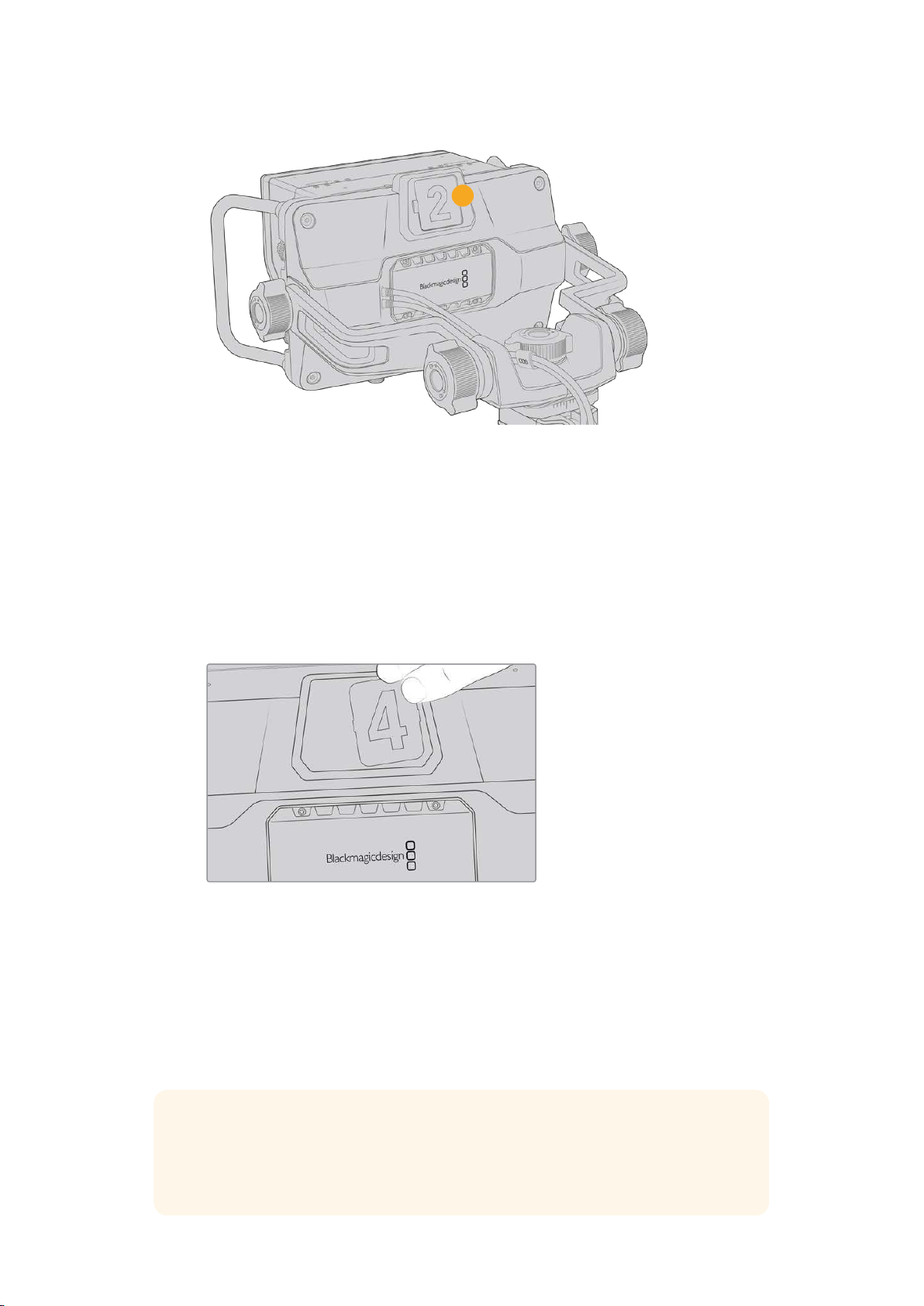
9
9 Tally Light
The large tally light on the rear of the Blackmagic URSA Studio Viewfinder lets both the
talent and operator know which camera is on the air, which camera is about to be on air,
and if they are ISO recording. The tally illuminates red for on-air, green for preview and
when used with URSA Mini will illuminate orange for ISO record.
As the director cuts between cameras on the ATEM switcher, tally information is sent
back to the camera over SDI so the light is lit when the camera is being previewed to
switch to, on the air or recording. In addition, the URSA Studio Viewfinder also includes
clip-on transparent camera numbers that attach to the tally light, making it easy for
talent to clearly see camera numbers from up to 20 feet away.
We have included editable PDF’s in the software installer that allows you to edit and
print out your own tally numbers to match the ones provided, and also to create your
own custom tally number inserts. After installing Camera 4.1 software these can be
found on a Mac in the Application > Blackmagic Cameras > Documents folder and on
aPC in the Blackmagic Design > Documents folder.
The tally light will illuminate according to the ATEM switching operations, and when the
camera is not connected to a switcher the tally light will illuminate red as a simple
record tally indicator. Refer to the ‘understanding studio camera control’ section in this
manual for more information.
TIP When using the Blackmagic URSA Studio Viewfinder with an ATEM switcher, it is
important to select ‘clean feed’ on URSA Mini to ensure that you don’t see overlays or
the focus box on the SDI output to the ATEM switcher. Navigate to the ‘monitor’ menu
on URSA and select ‘clean feed’ for ‘main SDI’.
166Blackmagic URSA Studio Viewfinder
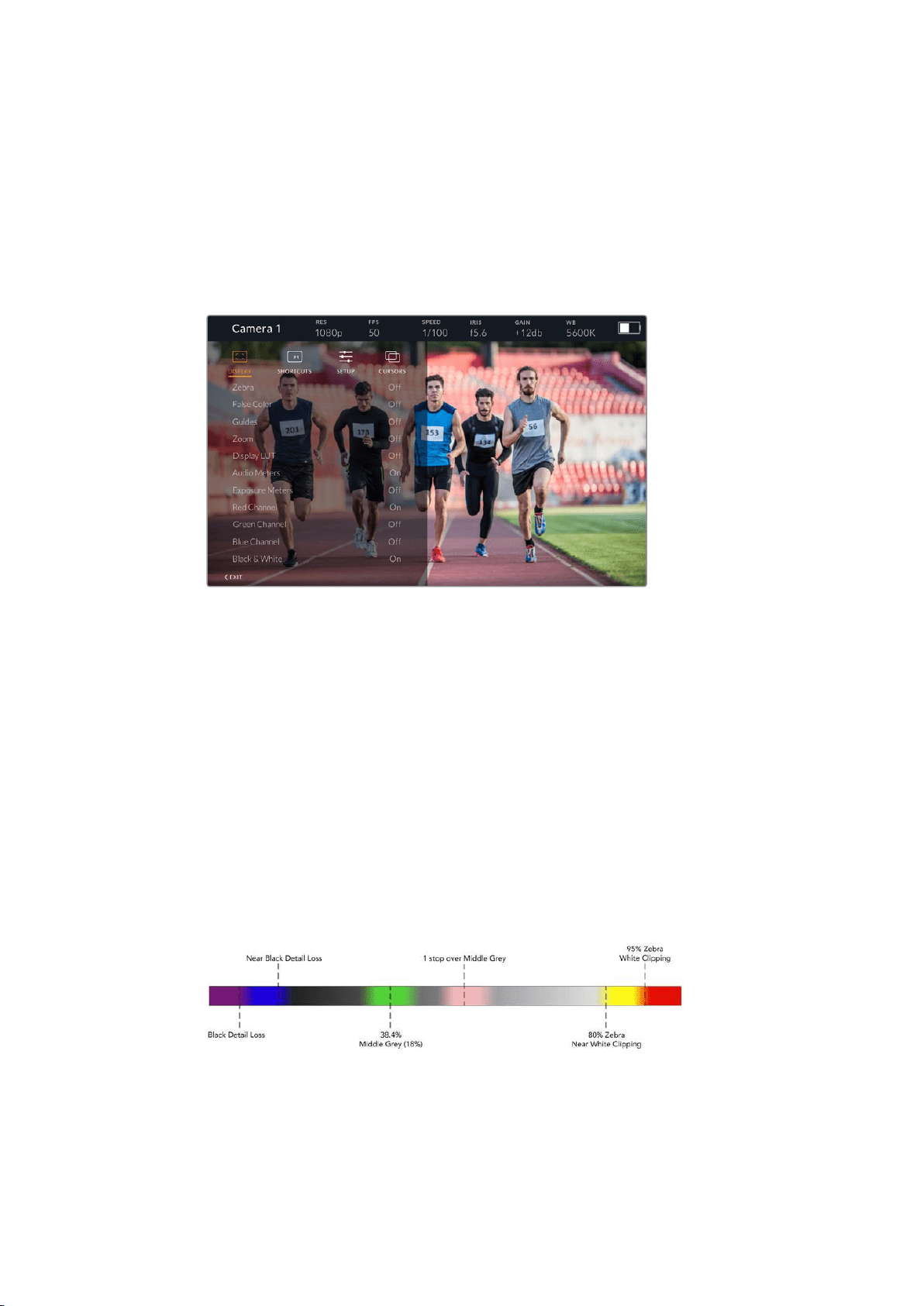
Menu Settings
The push button ‘menu’ dial allows you to enter the menu by pressing it, whilst rotating the dial
navigates up and down through the menu options. Pressing the ‘menu’ dial whilst a menu
heading is highlighted, will allow you to switch between the display, shortcuts, setup and cursor
sub menus. Rotating the dial will scroll through the settings in each menu. Pressing the dial
when a setting is highlighted allows you to adjust that setting by rotating the ‘menu’ dial.
Confirm your selection by pressing the ‘menu’ dial once more. You can exit out of the menu by
hitting the ‘back’ button or by navigating to and selecting exit.
Display
Zebra
Switches zebra levels on and off. The level of zebra will be determined by the setting on your
URSA Mini, in the ‘All’ section of the ‘Monitor’ menu. When the Studio Viewfinder is not
connected with URSA Mini, the zebra level will represent 95% of the luminance levels of a
Rec 709 signal. For more information, refer to the ‘settings’ section in this manual.
False Color
Switches the false color feature on and off. False color overlays different colors onto your image
that represent exposure values for different elements in your image. For example, pink
represents optimum exposure for light skin tones, while green is a good match to darker skin
tones. By monitoring the pink or green false color when recording people, you can maintain
consistent exposure for skin tones. Similarly, when elements in your image change from yellow
to red, that means they are now over exposed. False color is a good feature to assign to one of
the function buttons, as it provides quick and easy access to a commonly used reference tool
for exposure.
False Color Chart
Guides
This setting gives you the option to show or hide your guides. The guides will match the style of
guides that have been set in the URSA Mini in the camera ‘all’ section of the ‘monitor’ menu.
167Blackmagic URSA Studio Viewfinder

The aspect ratio, frame guide opacity level, safe area percentage, and the type of grids shown
will match what you have set in the camera. The ‘setup’ menu in the Studio Viewfinder then
allows you to configure which type of guides you would like to see in the Studio Viewfinder
when guides in the display menu are switched on. Guides then allows you to then switch these
‘on’ or ‘off’ with one command.
Zoom
Turns the ‘zoom’ feature on and off. The ‘zoom’ feature helps you find sharp focus by
zoominginto your picture. When zoomed in, you can navigate to specific parts of the screen by
rotating the menu dial left and right. The overlay will indicate which part of the picture you
arezoomed into.
Display LUT
When sending a ‘film’ dynamic range SDI signal from your URSA Mini, the ‘film to video’ and
‘film to extended video’ settings allows you to apply a more colorful and contrasty LUT to the
image. The viewfinder will detect when either of these LUTs are used and will give you the
option to toggle them on or off in your viewfinder. When a display LUTis active on the front SDI
output, or you are using a different LUT, the option is disabled to prevent multiple LUTs
being applied.
Audio Meters
The audio meters display the audio level that is being input via SDI into the Blackmagic
URSAStudio Viewfinder, therefore the meters will show you URSA Mini’s audio input levels. If
you have program input selected, the audio meter will display these audio levels.
Exposure Meters
Switches the display of the histogram ‘on’ or ‘off’.
Red Channel
Allows you to switch on or off the red channel of your image.
Green Channel
Allows you to switch on or off the green channel of your image.
Blue Channel
Allows you to switch on or off the blue channel of your image.
Black and White
Switches between color and monochrome.
Shortcuts
The shortcut function allows you to map specific functions to the F1, F2 and F3 buttons. These
shortcut buttons allow you to quickly toggle ‘on’ and ‘off’ any of the settings in the display
menu, or your cursors. This is extremely useful when you need to quickly access a particular
setting for a frequently used feature.
To customize your shortcut buttons: In the ‘shortcuts’ menu, rotate the push button ‘menu’ dial
to move up or down and select one of the 3 buttons. Press the ‘menu’ dial to confirm your
selection and then rotate the ‘menu’ dial to scroll through the assignable features. You will have
the option to select one of the following features: ‘zoom’, ‘cursor 1’, ‘cursor 2’, ‘cursor 3’, ‘zebra’,
‘false color’, ‘guides’, ‘film to video’, ‘audio meters’, ‘exposure meters’, ‘red channel’,
‘greenchannel’, ‘blue channel’, ‘black and white’. Once chosen click the menu button to confirm
that selection, and assign that function to the chosen shortcut button. Pressing the shortcut
button will now switch this feature ‘on’ and ‘off’.
168Blackmagic URSA Studio Viewfinder
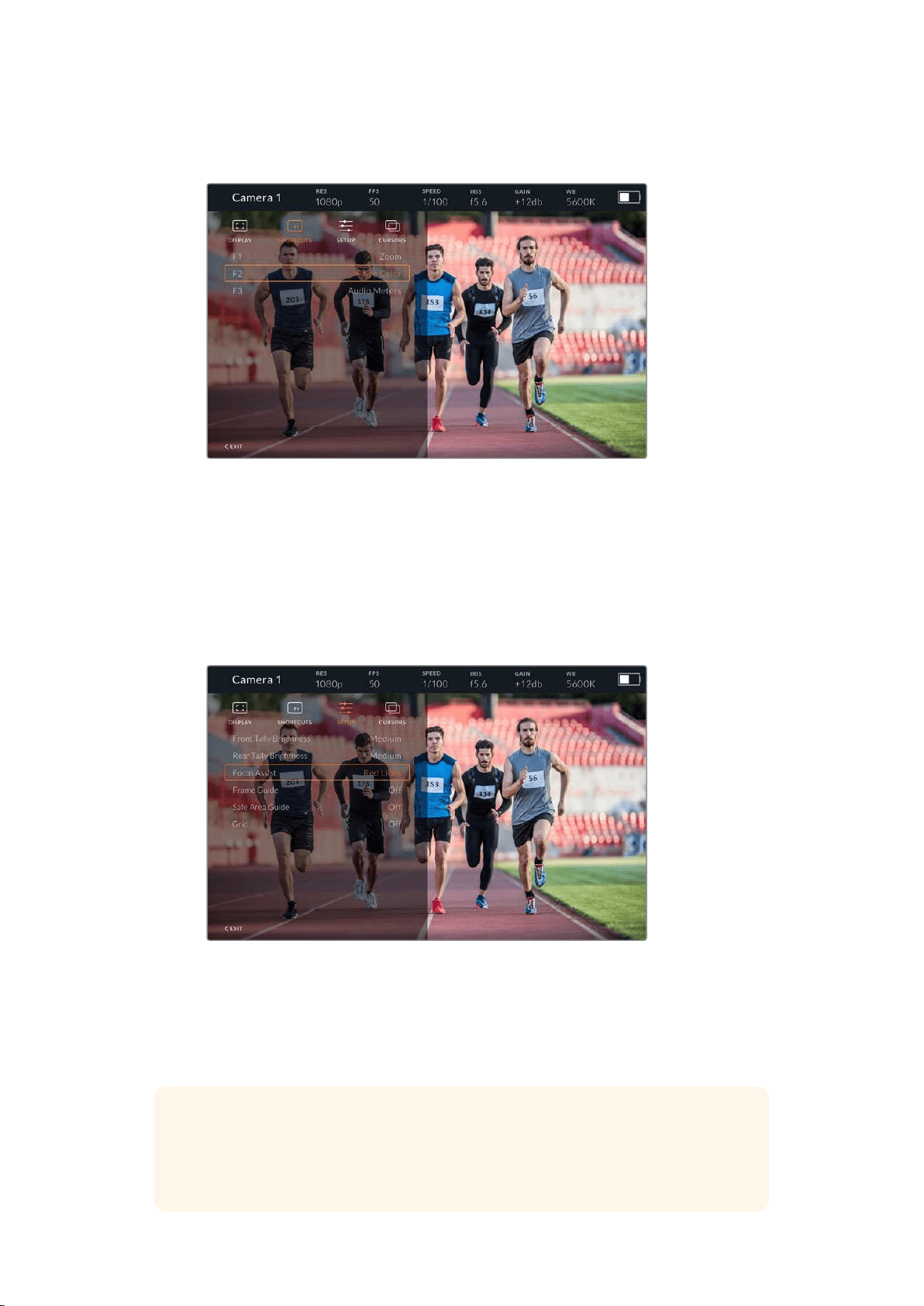
Once you have set up your shortcuts as required you can either scroll to ‘exit’ and press the
‘menu’ dial to close the menu display view, or hit the back button to exit out of the menu.
The ‘shortcuts’ submenu
Setup
The ‘setup’ menu is where you choose your preferences for how the viewfinder is setup.
Front Tally Brightness
Allows adjustments of tally LED brightness between ‘off’, ’low’, ‘medium’ and ‘high’. Thetally
light will illuminate whilst adjustments are being made so you can see what each brightness
level represents.
The ‘setup’ submenu
Rear Tally Brightness
Allows adjustments of tally LED brightness between ‘low’, ‘medium’ and ‘high’. The tally light
willilluminate whilst adjustments are being made so you can see what each brightness
levelrepresents.
TIP A high LED brightness setting is recommended for bright conditions, as it will
provide greater visibility for talent and operators in the conditions. A low LED
brightness is recommended when filming in darker environments where it is easier to
see when the light is on.
169Blackmagic URSA Studio Viewfinder
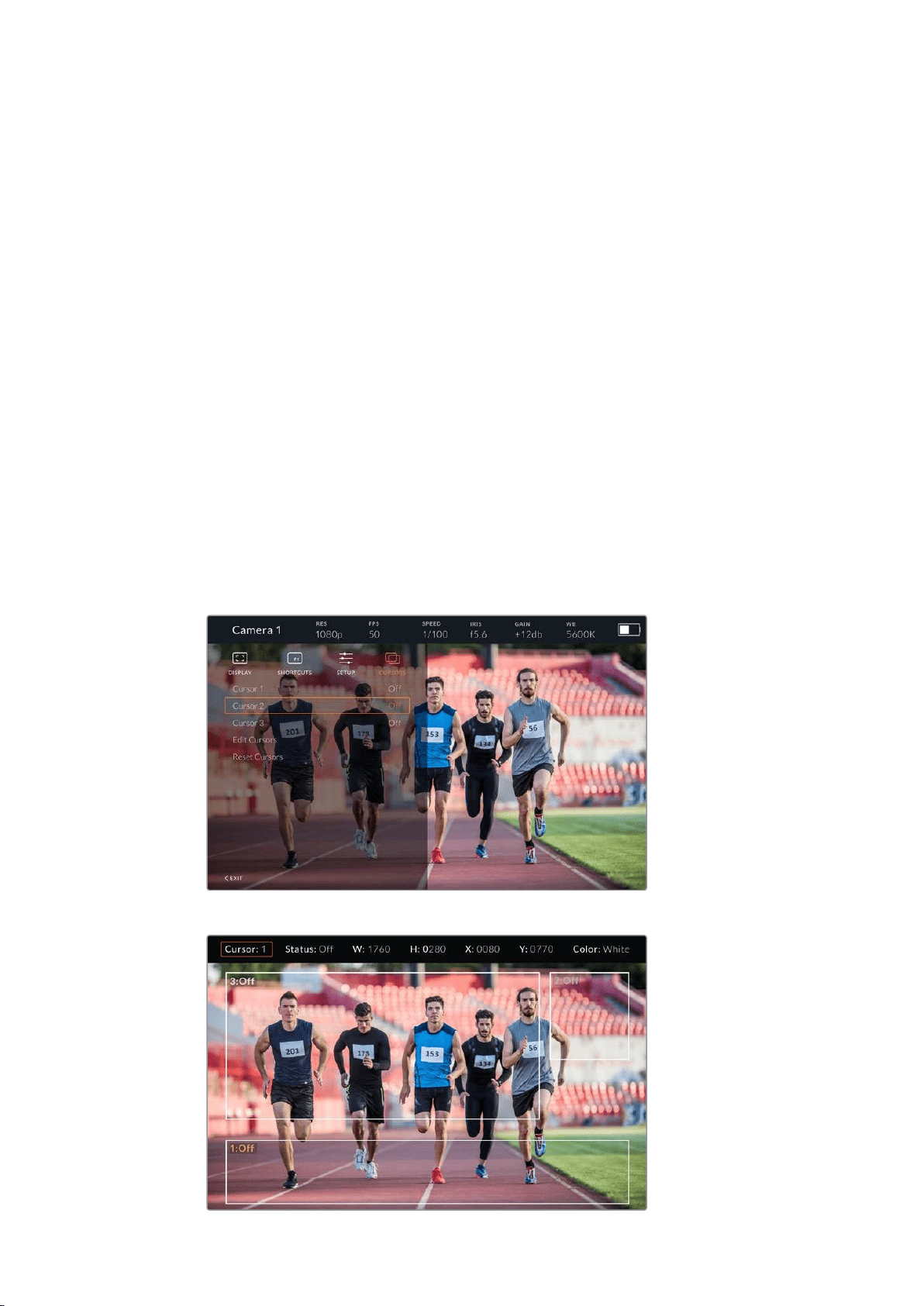
Focus Assist
The ‘focus assist’ setting toggles the appearance of peaking on the viewfinder. You have the
choice of ‘red’, ‘green’, ‘blue’, ‘black’ and ‘white’ as well as traditional peaking.
Frame Guide
Gives you the option to show ‘frame guides’ as part of your Studio Viewfinder’s ’Guides’. When
connected to URSA Mini they will match your camera’s ‘frame guides’ aspect ratio. When
connected to other systems they will default to the 14:9 aspect ratio.
Safe Area Guide
Gives you the option to show the ‘safe area’ indicator as part of your Studio Viewfinder’s
’Guides’. When connected to URSA Mini these will match your camera’s ‘safe area guide’
percentage. When connected to other systems they will default to 90%.
Grid
Gives you the option to show grids as part of your Studio Viewfinder’s ’Guides’.
Whenconnected to URSA Mini these will match your camera’s ‘grids’ settings.
When not connected, this will switch your crosshairs on or off.
Cursors
The cursors allow you to mark an area on screen where graphics like a lower third, graphic,
logo or ticker will be overlaid. To adjust these cursors go to ‘cursors’ and select ‘edit cursors’.
This will bring up a page that shows you all three cursors and allows you to select each one
individually and then dial in the width, height, x and y co-ordinates for positioning each one
individually.
The cursors submenu
Cursors displayed on screen
170Blackmagic URSA Studio Viewfinder

Once you have set them up they can be switched on or off from the ‘cursors’ menu or assigned
to your function keys for quick access. This is important for live production, as it allows the
camera operator to take this into consideration and accurately compose and frame shots. You
can create up to three black or white custom cursors that can have variable height, width and
position, making it easy to match the size and location for all the graphics that will be added live
or during later broadcast. You also have the option to reset the cursors to their default state.
Using a headset with the Blackmagic URSA Studio Viewfinder
When using the Blackmagic URSA Studio Viewfinder with URSA Mini, the headphone
connection on the camera will now become a talkback headset connection, allowing for direct
communication with the director.
For more advanced talkback functionality, you can also use Blackmagic Camera Fiber
Converter and Blackmagic Studio Converter to allow you to use standard broadcast headsets
with 5 pin XLR connectors. For more information, refer to the ‘Blackmagic Fiber
Converters’ section.
TIP Because URSA Mini’s headphone socket is iPhone headset compatible, you can
use your iPhone headset to communicate with the director. Pushing the button on the
built-in remote will allow you to talk back to the director.
Updating URSA Viewfinder’s Internal Software
Update your viewfinder using the Blackmagic Camera Setup utility software. The viewfinder will
need to be powered when updating, so we recommend keeping the viewfinder connected to
your URSA during the update process. This also means your URSA will need to supply
consistent power, so be sure to plug into external power.
Remove the sun hood to provide access to the small USB-C connection located on the bottom
of the Blackmagic URSA Studio Viewfinder, and connect your computer to the USB-C port.
When Blackmagic Camera Utility is launched and your viewfinder is connected to your
computer, you will be prompted to update if your computer detects that your viewfinder is using
an older version. Follow the on screen prompts to update your viewfinder’s internal software.
Refer to the ‘Blackmagic Camera Setup Utility’ section in this manual for more information.
We recommend updating all your Blackmagic URSA equipment at the same time for
optimized performance.
NOTE When using your Blackmagic URSA Studio Viewfinder with URSA Mini, we
recommend updating your viewfinder’s internal software to the latest version to ensure
compatibility. The latest software can be found at the Blackmagic Design support
center at www.blackmagicdesign.com/support. Refer to the ‘Blackmagic Camera Setup
Utility’ section in this manual for more information.
171Blackmagic URSA Studio Viewfinder
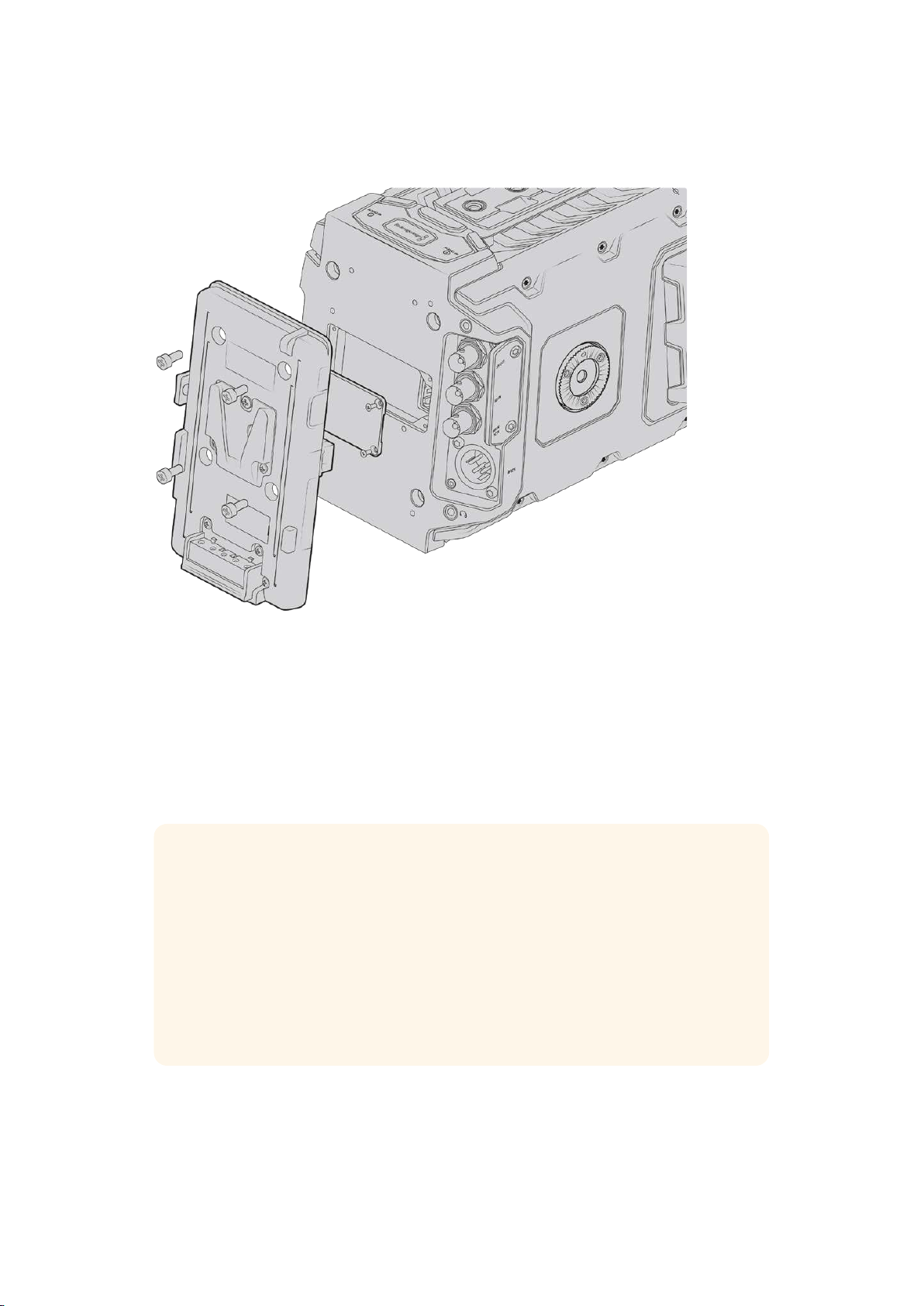
Mounting Batteries
Connecting a third party battery plate lets you mount V-mount or gold mount batteries
Mounting V-mount or GoldMount Batteries
You can easily mount industry standard V-mount or gold mount batteries to Blackmagic
URSA Mini.
To mount a battery, you’ll need to attach a Blackmagic URSA VLock Battery Plate or URSA Gold
Battery Plate, or else attach a third party battery plate to your camera’s plate mount.
TIP Blackmagic URSA VLock Battery Plate and URSA Gold Battery Plate support
displaying percentage information with compatible batteries. Blackmagic battery
plates have a ‘+12V out’ connector referred to as a ‘D-tap’ or ‘P-tap’ to power
accessories such as an external monitor. It is worth noting that because this output is
regulated from the camera, it will power down safely when the camera switches off.
This regulated output supplies 12 Volts at up to 1.5 Amps. Some third party URSA
battery plates, and even some batteries, offer an unregulated D-tap output. These
supply continuous power when the camera is rebooting or power cycled, but the
voltage varies depending on the charge level of the battery and accessories plugged
in will drain the battery continuously.
You can purchase Blackmagic URSA VLock Battery Plates and URSA Gold Battery Plates from
Blackmagic Design resellers, or third party battery plates from suppliers of professional digital
cinema and video equipment.
172Mounting Batteries
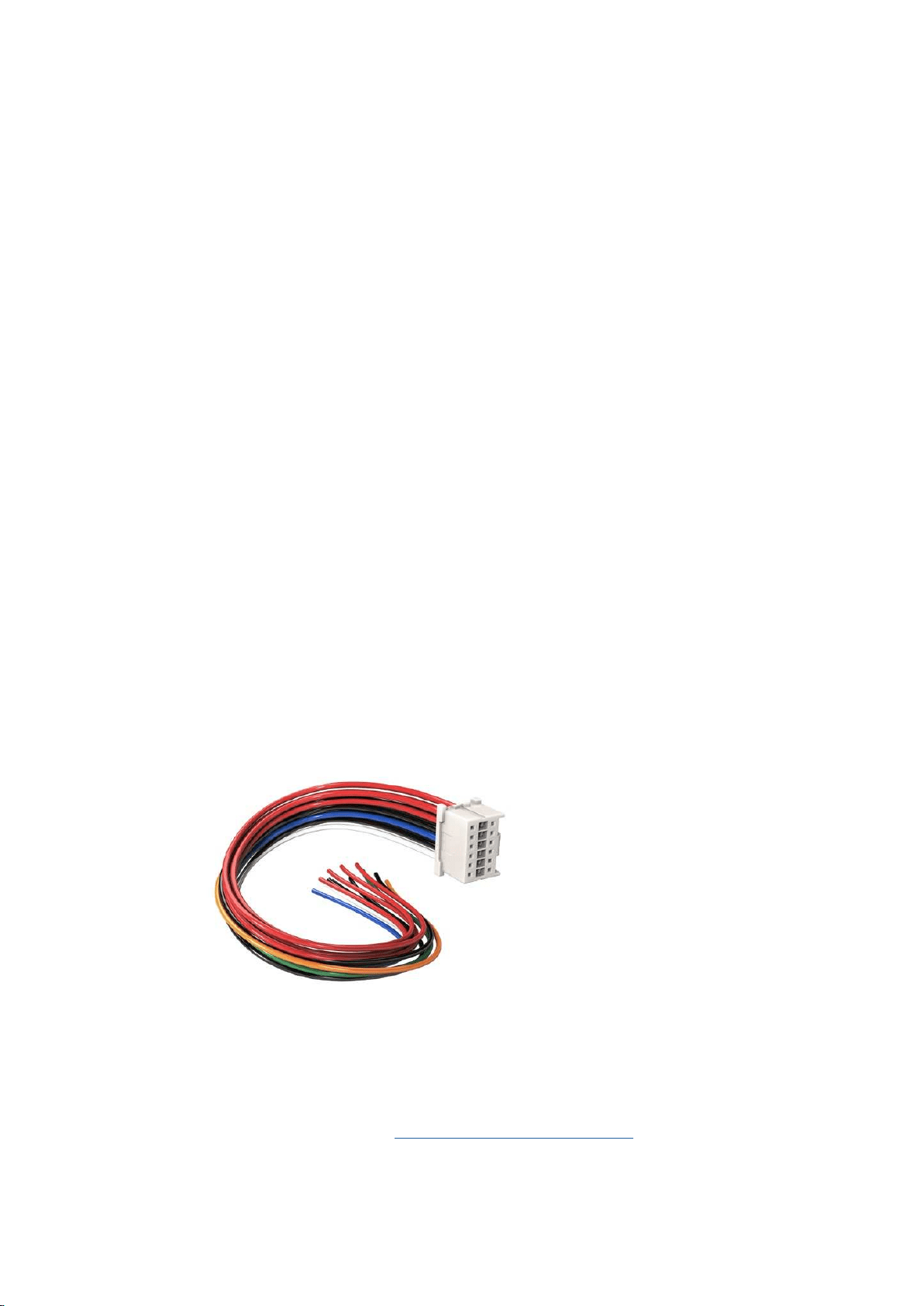
If you don’t have an off the shelf battery plate designed for Blackmagic URSA or URSA Mini and
you want to modify your own battery plate, then you can use the supplied adapter cable and
connector. Refer to the ‘using your own battery plate’ section for information about how any
battery plate can be modified to use with URSA or URSA Mini.
To mount your battery plate to the rear panel:
1 If your URSA Mini has a molex power cover attached to the rear panel, remove it by
unscrewing the 4 corner screws with a phillips head PH1 screwdriver.
2 Connect your battery plate’s molex connector to your camera’s molex power connector.
3 Screw the battery plate onto your Blackmagic URSA Mini’s plate mounting points using
4 x M3 screws. Make sure the connector cable is tucked safely into the cable slot and
not crushed between the plates when tightening.
4 With the battery plate connected to your camera, you can now mount a V-mount or
gold mount battery and power up your camera.
Using your own Battery Plate
Adapter Cable and Connector
If you don’t have an off the shelf battery plate designed to plug into URSA Mini and want to
modify your own battery plate, you can use the supplied adapter cable and connector, which is
also available at your local Blackmagic Design support office.
To wire the adapter cable and connector to your battery plate:
1 Strip approximately half an inch of insulation from the end of each red and black wire.
2 Solder all 4 x red ‘Batt’ wires to the corresponding ‘positive’ wire from your
battery plate.
3 Solder all 4 x black ‘GND’ wires to the corresponding ‘negative’ wire from your
battery plate.
Ensure the joins are well insulated.
If you need to modify any battery plate to plug into URSA,
use the supplied adapter cable and connector, which is also
available from your local Blackmagic Design support office
This enables battery power to your camera. You can also connect additional wires for features
such as 12 V output and battery status. Refer to your battery plate information, plus the diagram
and tables on this page for help connecting the wires. If you require further assistance visit the
Blackmagic Design support center at
www.blackmagicdesign.com/support.
173Mounting Batteries
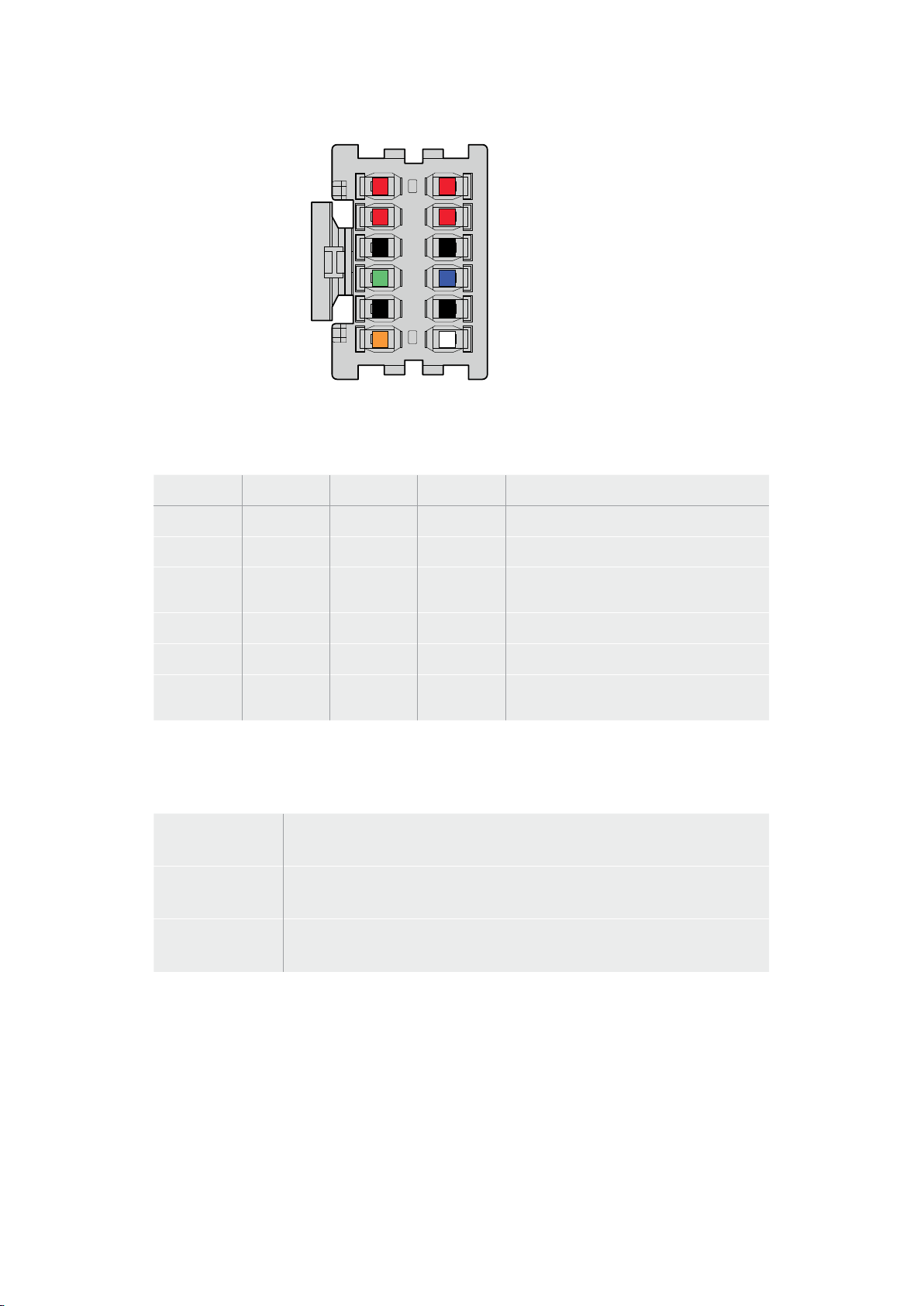
Batt 2
Batt 4
GND 6
Monitor 1 8
GND 10
+12V Out 12
1 Batt
3 Batt
5 GND
7 Monitor0
9 GND
11 EnableN
The rear view of the adapter’s connector housing.
Refer to the wire configuration table for a description of each pin
Wire Configuration Table
Pins Signal Color Direction Description
1, 2, 3, 4 Batt Red To URSA 12 V to 20 V
5, 6, 9, 10 GND Black – –
7 Monitor0 Blue To URSA
Analog battery level or open drain data
line (20 V max)
8 Monitor1 Green To URSA Open drain clock line (3.4 V max)
12 +12 V out Orange From URSA 12 V regulated output 1.5 A max (18 W)
11 EnableN White To URSA
Connect to GND to enable +12 V out.
Leave floating if +12 V out is not required.
Each Batt and GND pin supports 3 amps. Make sure all Batt and GND pins are connected.
Tomonitor the battery status using Anton Bauer, IDX, or Blueshape plates, follow the
connection table below:
Anton Bauer Connect the blue/white striped wire to the housing blue wire at pin 7.
IDX
Connect the green wire to the housing green wire at pin 8,
and the gray wire to the housing blue wire at pin 7.
Blueshape
Connect the blue wire labelled 'SMBC' to the housing green wire at pin 8.
Connect the brown wire labelled 'SMBD' to the housing blue wire at pin 7.
Secure any unused wires by cutting them as close as possible to the rear of the
adapterconnector.
174Mounting Batteries
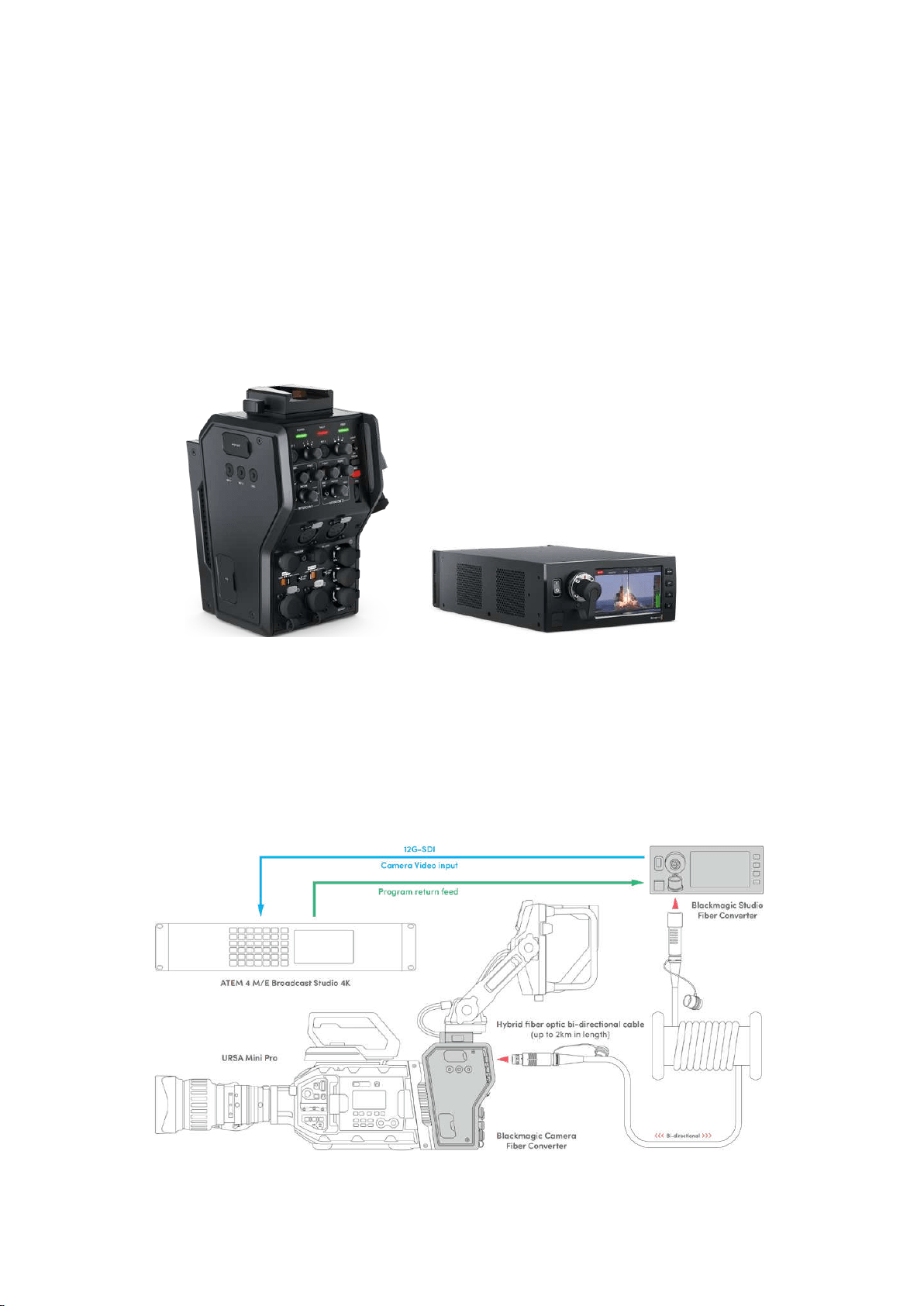
Blackmagic Fiber Converters
Blackmagic Camera Fiber Converter and Blackmagic Studio Fiber Converter are optional
accessories that provide a SMPTE fiber connection between your camera and an
ATEM switcher.
SMPTE fiber lets you connect all video, power, talkback, tally and camera control signals
between an ATEM switcher and your camera using one single industry standard SMPTE
hybridfiber optic cable. Using a SMPTE fiber connection greatly reduces the amount of
cablesrequired, which helps makes the production setup more efficient and simpler to run.
Thestandard connectors on Blackmagic Studio Fiber Converter allow you to easily add the
fiber converters into an existing broadcast truck infrastructure.
Blackmagic Camera Fiber Converter
Mounts to the back of your URSA Mini
orURSA Broadcast and connects to
the Blackmagic Studio Fiber Converter
via astandard SMPTE hybrid 304
connector.
Blackmagic Studio Fiber Converter
This converter converts the optical fiber
SDI signal from the camera unit to SDI
via BNC, which is then connected to
an ATEMswitcher. The converter also
takes all return feed sources, including
program return from the ATEM switcher,
and sends them back to the camera unit.
The Blackmagic camera and studio fiber converters connect via optical fiber to provide efficient
SDI video, power, talkback, tally and control signals via a single SMPTE fiber optic cable.
175Blackmagic Fiber Converters
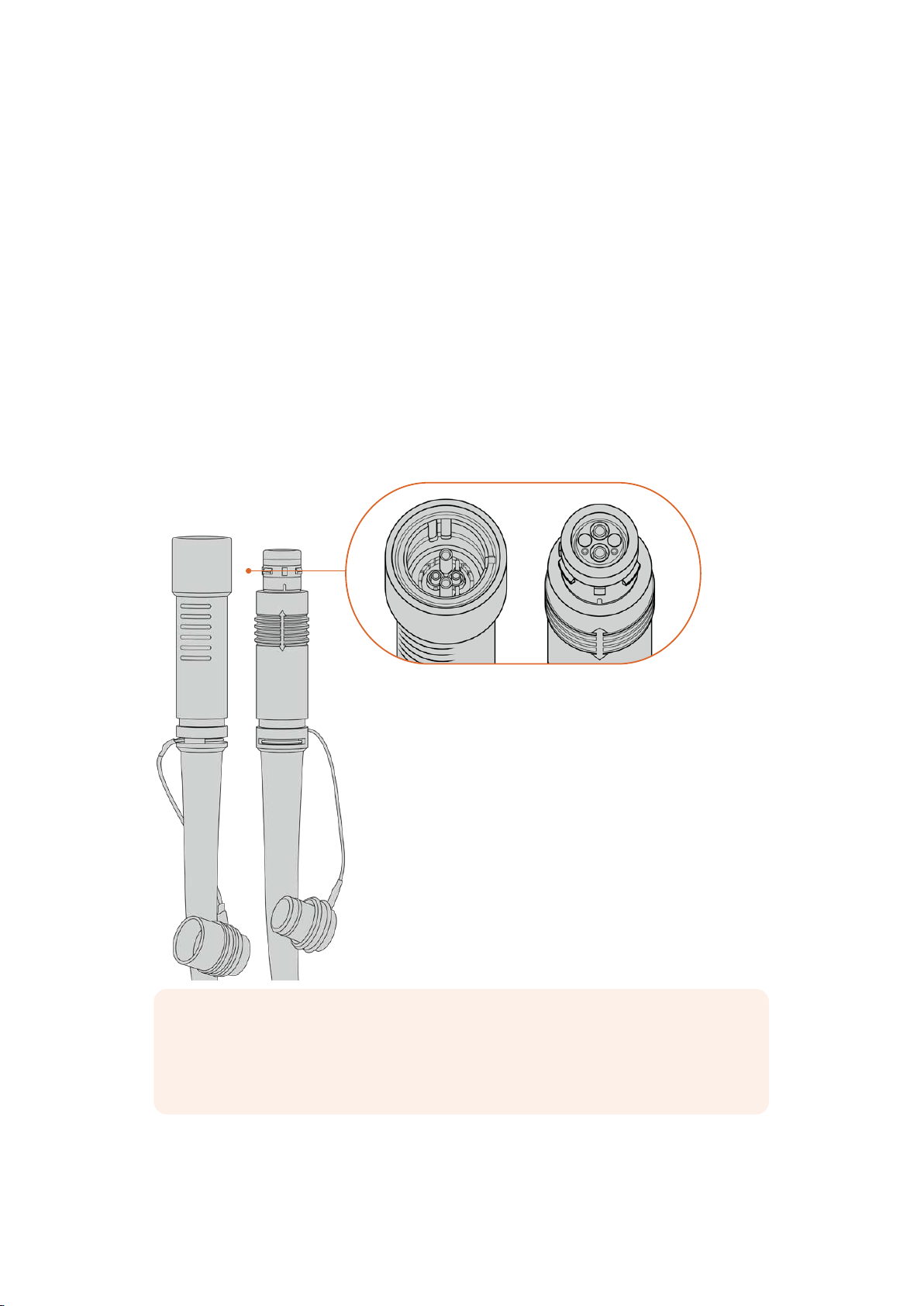
Getting Started with
Blackmagic Fiber Converters
Getting started is fast and efficient. It won’t take long before you are producing video content
and enjoying the benefits of SMPTE fiber.
About SMPTE Fiber
SMPTE fiber cables provide you with a simplified way to carry multiple signals as well as power,
over long distances. This is useful in broadcast scenarios, as you don’t need to connect several
cables for each camera that is connected to your switcher.
With a SMPTE 311 hybrid fiber optic cable, you can use one single industry standard optical
fiber cable to connect each camera to your ATEM switcher, and provide all video, power,
talkback, tally and control signals along one cable. With optical fiber you can also carry these
signals and power over longer distances up to 2 kilometers.
NOTE The male and female ends of a SMPTE 311 hybrid fiber optic cable can be
identified by looking for the male and female pins inside the tip of the
SMPTE 304 connector. The gender of the connectors is not determined by their
outward appearance.
SMPTE 311 hybrid fiber optic cable with
male and female SMPTE 304 connectors
176Getting Started with Blackmagic Fiber Converters
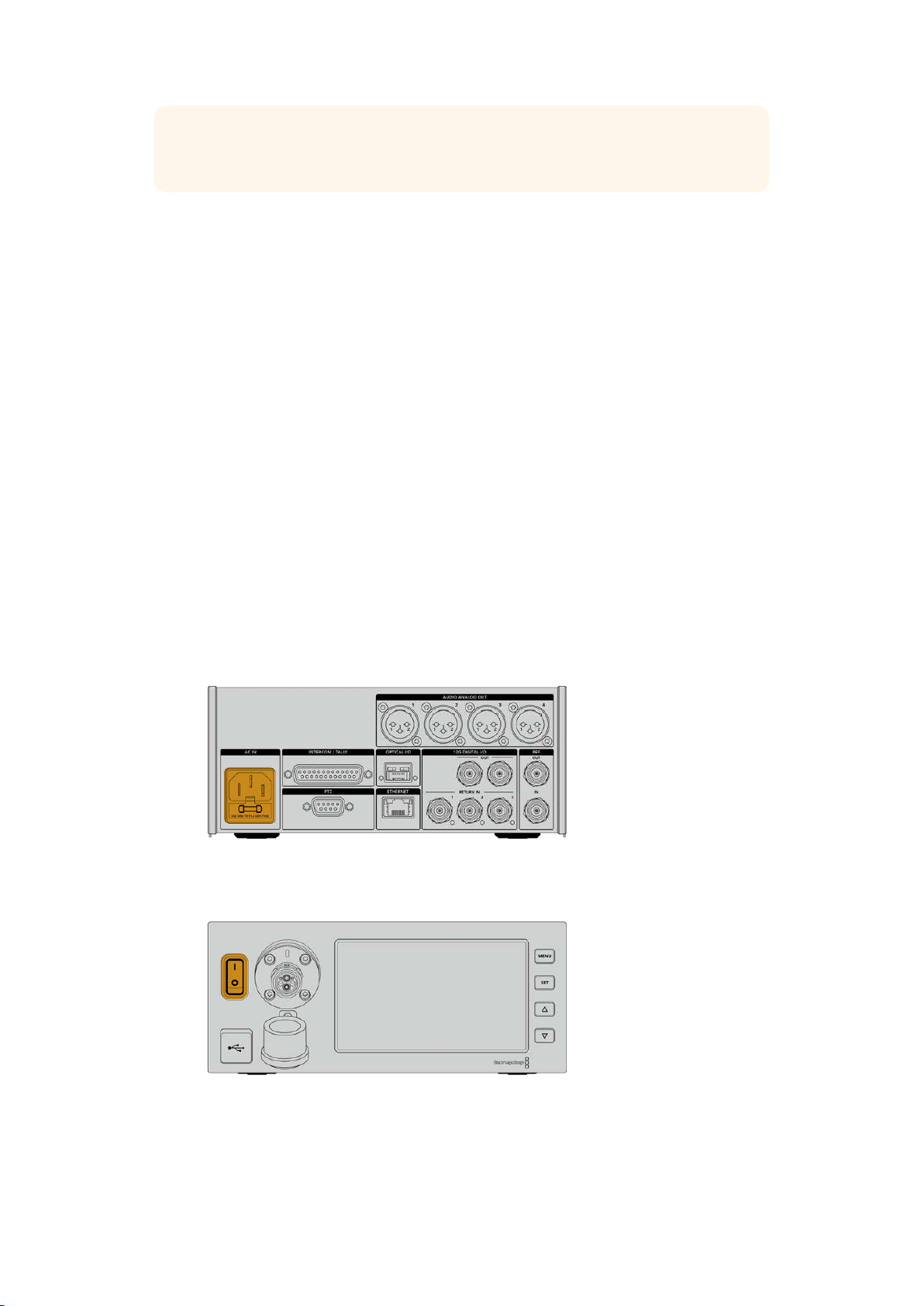
TIP Connect the rubber cap from each end of the SMPTE fiber cable into the rubber
cap on each converter to prevent any dust or debris from entering the caps.
One of the main benefits of using a SMPTE fiber connection is to connect to the control room
orbroadcast truck in a traditional live broadcast environment. Most modern sporting stadiums
already have optic fiber cables installed between camera positions and the control room or
broadcast truck, so this means you can plug directly into these systems.
The optic fiber cable used to connect to an existing fiber system, or to connect the two
Blackmagic fiber converters together, is a SMPTE 311 hybrid fiber optic cable with
SMPTE304connectors.
Protecting SMPTE Connectors
It is very important that the SMPTE fiber cable’s connectors are always protected by their
rubber caps. This is because minute dust particles can collect very quickly on the polished
ends of the glass fiber tubes which can interrupt signal flow. The best practice is to immediately
replace the rubber cap as soon as a connector is exposed. For example, immediately prior to
connection, and immediately after disconnection.
It’s also a good idea to connect the rubber cap from each end of the SMPTE fiber cable into the
rubber cap on the converters whilst in use, to prevent any dust or debris from entering the caps.
Plugging in Power
Power from the studio unit is sent through the fiber cable to the camera unit, therefore the first
step to connecting power is to power the studio unit.
Powering the Studio Fiber Converter
Plug a standard IEC power cable into the power connector on the studio unit’s rear panel.
Connect power to your studio fiber converter via a standard IEC power cable
To turn the unit on, set the power switch on the front control panel to the ‘on’ position.
177Getting Started with Blackmagic Fiber Converters
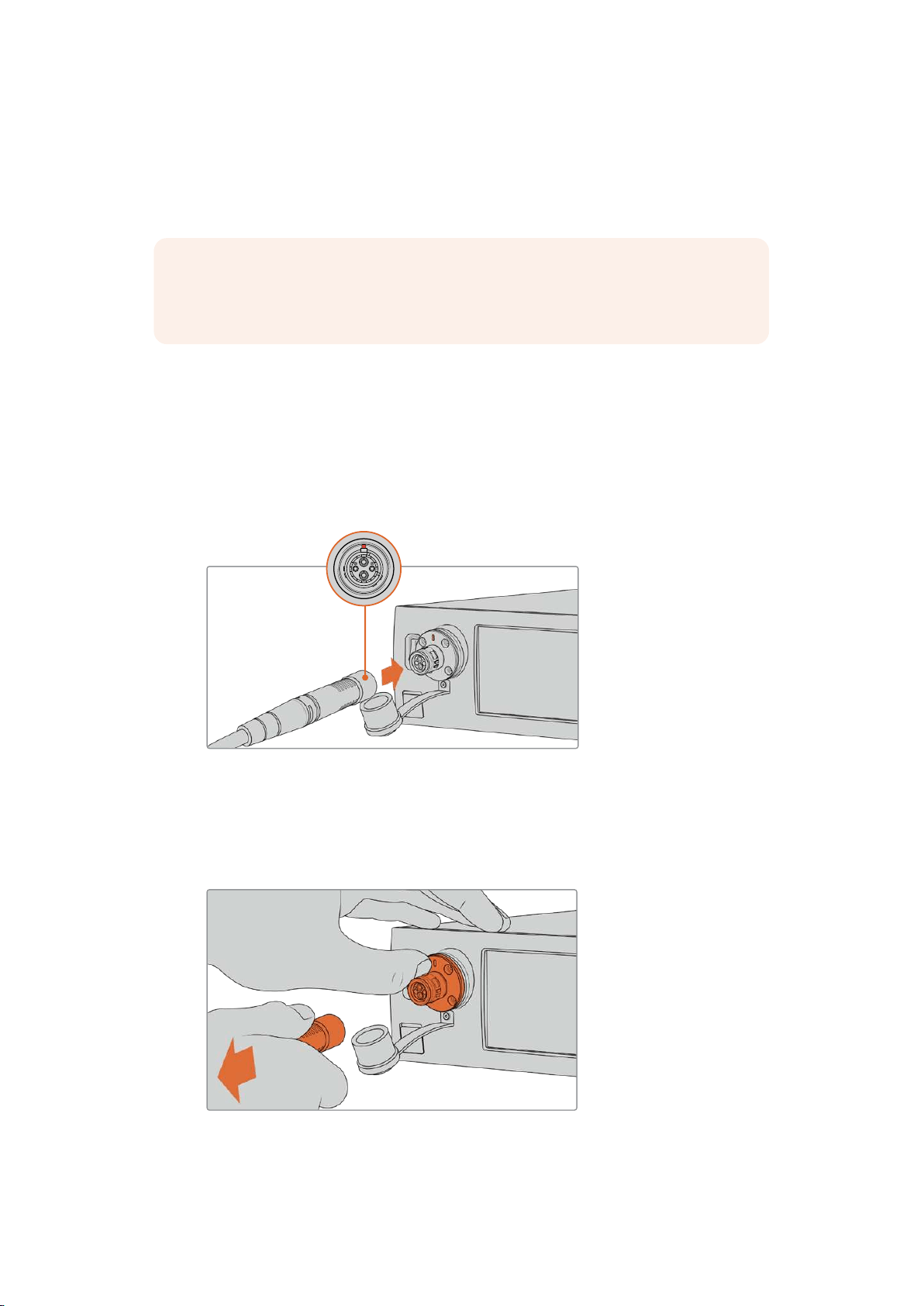
Connecting SMPTE Fiber
The next step in getting started is to connect the SMPTE fiber cable between the studio fiber
unit and the camera unit. This provides power from the studio unit to the camera unit, and fiber
for all video feeds.
NOTE Extensive safety checks are initiated whenever a powered hybrid fiber optic
cable is plugged into the converter and the power safety of the unit is continually
monitored during use.
Connecting the Fiber Cable to the Studio Unit
The male end of the SMPTE fiber cable’s locks securely onto the female fiber connector on the
front panel of the Blackmagic Studio Fiber Converter. This is a secure lock ensuring that the
cable is not accidentally disconnected during broadcast.
To connect the cable:
Align the red indicator on the cable connector with the red dot on the unit’s fiber connector,
and plug the connector in until it securely clicks into place.
Plug the male end of the SMPTE fiber cable into the female connector
on the front of Blackmagic Studio Fiber Converter
To disconnect the cable:
Push the metal base of the studio unit’s fiber connector towards the front panel and remove the
cable connector.
Push the metal base of the studio unit’s fiber connector towards the front panel to
disengage the cable connector allowing you to pull the cable away from the unit.
178
Getting Started with Blackmagic Fiber Converters
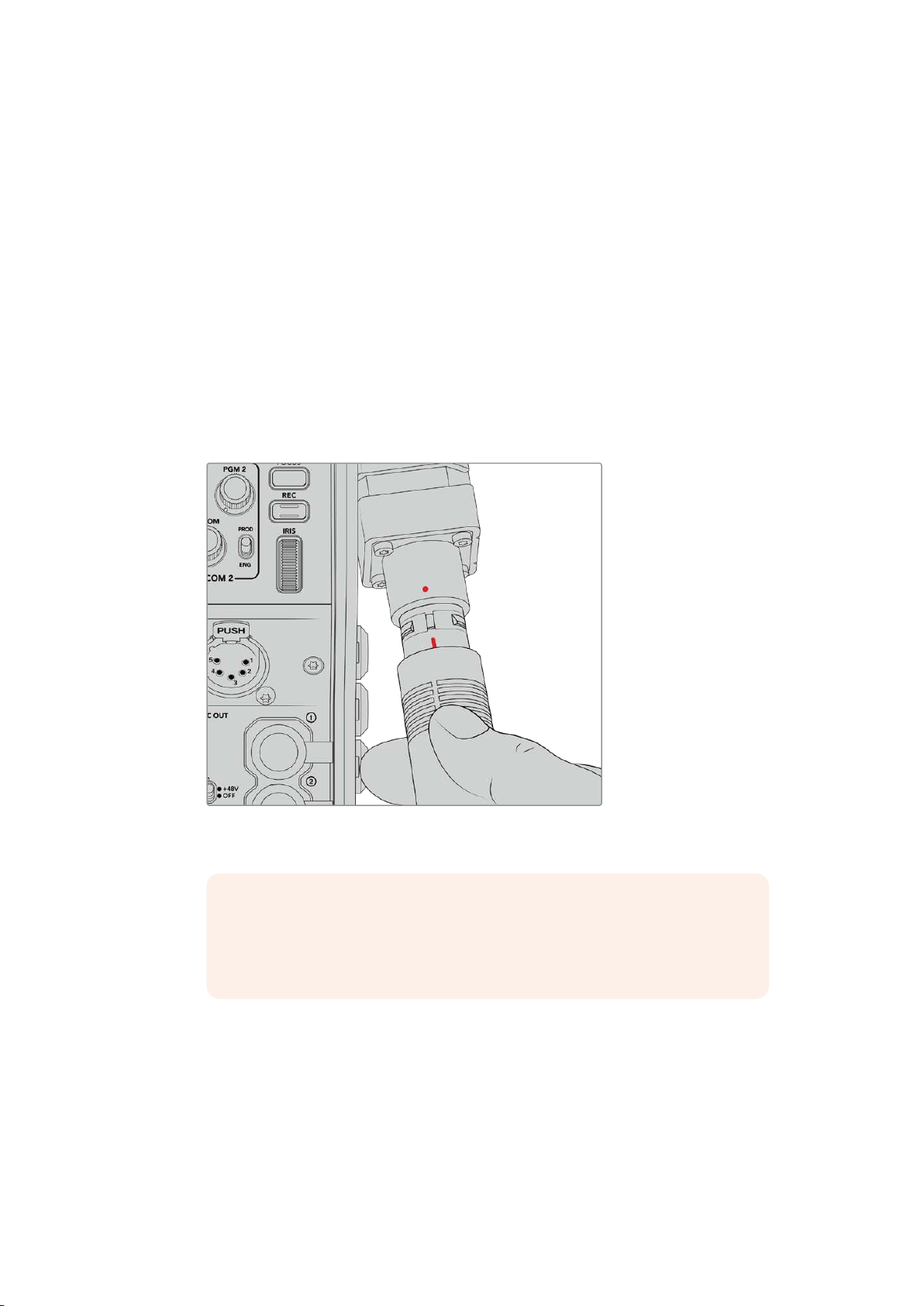
Once plugged in, it is a good idea to connect the rubber cap from the end of the SMPTE fiber
cable into the rubber cap from the Blackmagic Studio Fiber Converter. This will prevent any dust
or debris from entering the caps, and ensure that the caps remain clean.
Connecting the Fiber Cable to the Camera Unit
The female end of the SMPTE fiber cable locks into the male connector on the side of
Blackmagic Camera Fiber Converter, ensuring that the cable is not accidentally disconnected
during broadcast.
To connect the cable:
1 Align the red indicators on each connector, and plug the cable connector into the
camera unit’s connector until it securely clicks into place.
2 Once plugged in, it is a good idea to connect the rubber cap from the end of the
SMPTE fiber cable into the rubber cap from the Blackmagic Camera Fiber Converter.
This will prevent any dust or debris from entering the caps, and ensure that the caps
remain clean.
Align the red indicators to connect the SMPTE Hybrid Fiber Optic cable
tothe large connector on the Blackmagic Camera Fiber Converter
NOTE The SMPTE 304 connectors on the SMPTE 311 cable are very durable
and lock firmly to the camera. If you need to disconnect the cable, please
ensure that you have the camera firmly attached to a tripod head or are
bracing the camera with your spare hand while trying to disconnect the cable.
To disconnect the cable:
1 Pinch the top section of the female end of the cable, and compress the rubber sheath
around the cable, pulling it gently away from the tip of the cable until you can see the
red ring under the sheath. This will detach the teeth from the locking mechanism.
2 Put one hand on the camera to brace it gently, and pull the cable away from the
connector on the Blackmagic Camera Fiber Converter. The cable should disconnect
easily without the need for excessive force.
179Getting Started with Blackmagic Fiber Converters
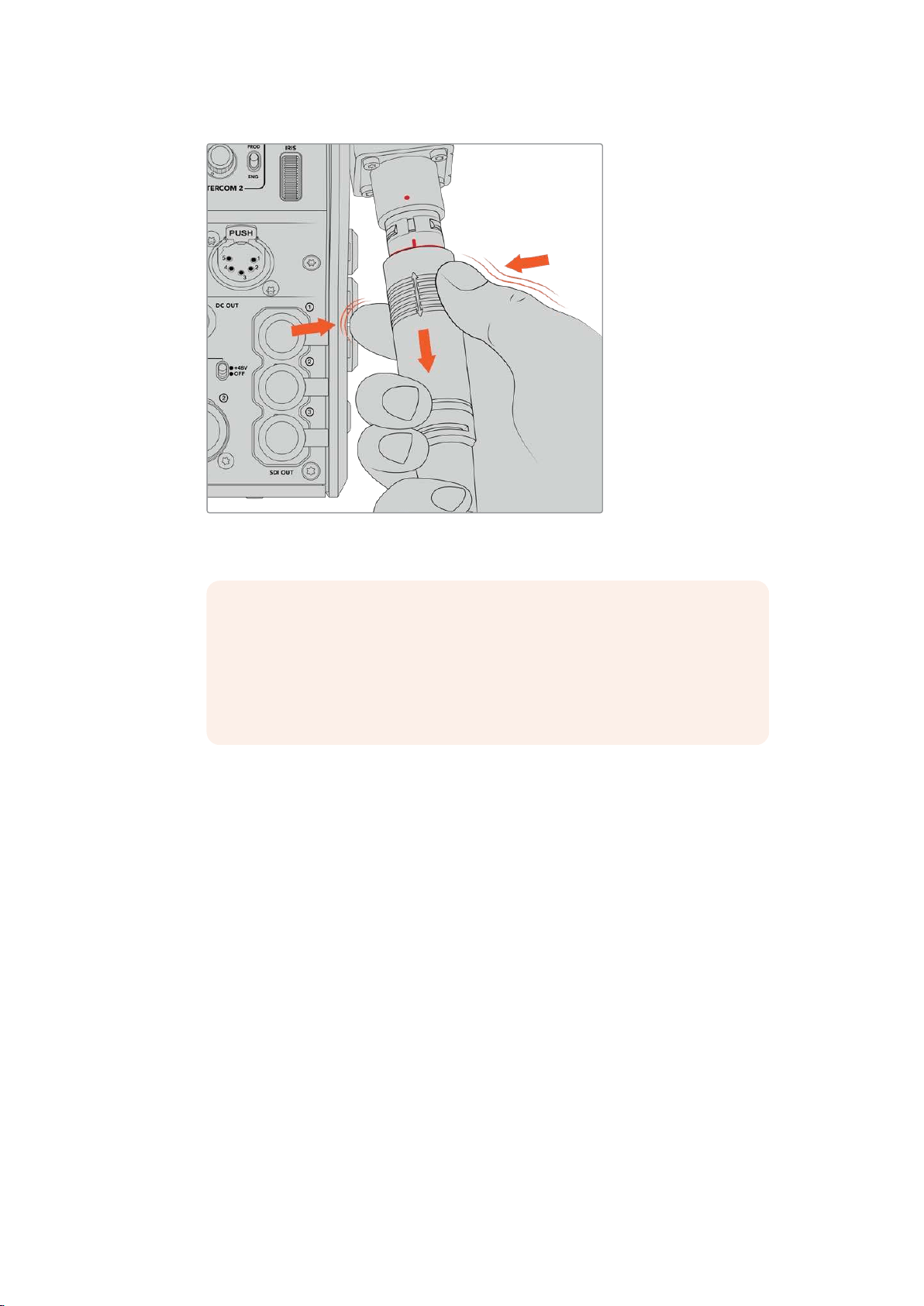
Pinch the rubber around the tip of the cable to reveal the red
ring below, then pull the cable to disconnect
NOTE The SMPTE hybrid fiber cable is the heart of the broadcast ecosystem,
so it iscrucial that great care is taken. For example, avoid kinks in the cable,
always preventthe cable from being pressed under heavy items, and avoid
bending at 90degree angles. Avoid dropping the connectors and take care
when connecting and disconnecting. Always cap the connectors as soon as
they are exposed.
Confirming Power and Fiber
The two units will now establish a handshake process to determine that power is being
supplied safely and fiber is securely connected.
This process involves the following:
1 The studio unit establishes a low power state with the camera unit. This is shown by the
camera unit’s red power status indicator.
2 Once power is determined as safely connected, a high power state is established and
the camera unit’s power indicator will illuminate green.
3 The fiber connection is confirmed and the fiber status indicator will illuminate green.
This is usually very fast and the indicators can turn green almost immediately. If you are using
acable over greater distances, the handshake process can take a moment longer before
indicators illuminate green.
If the power light remains red for an extended period of time and does not turn green, or
flickers between red and green, check that both ends of the fiber cable are securely
connected. If the interruption persists, check the condition of your fiber cable.
180Getting Started with Blackmagic Fiber Converters
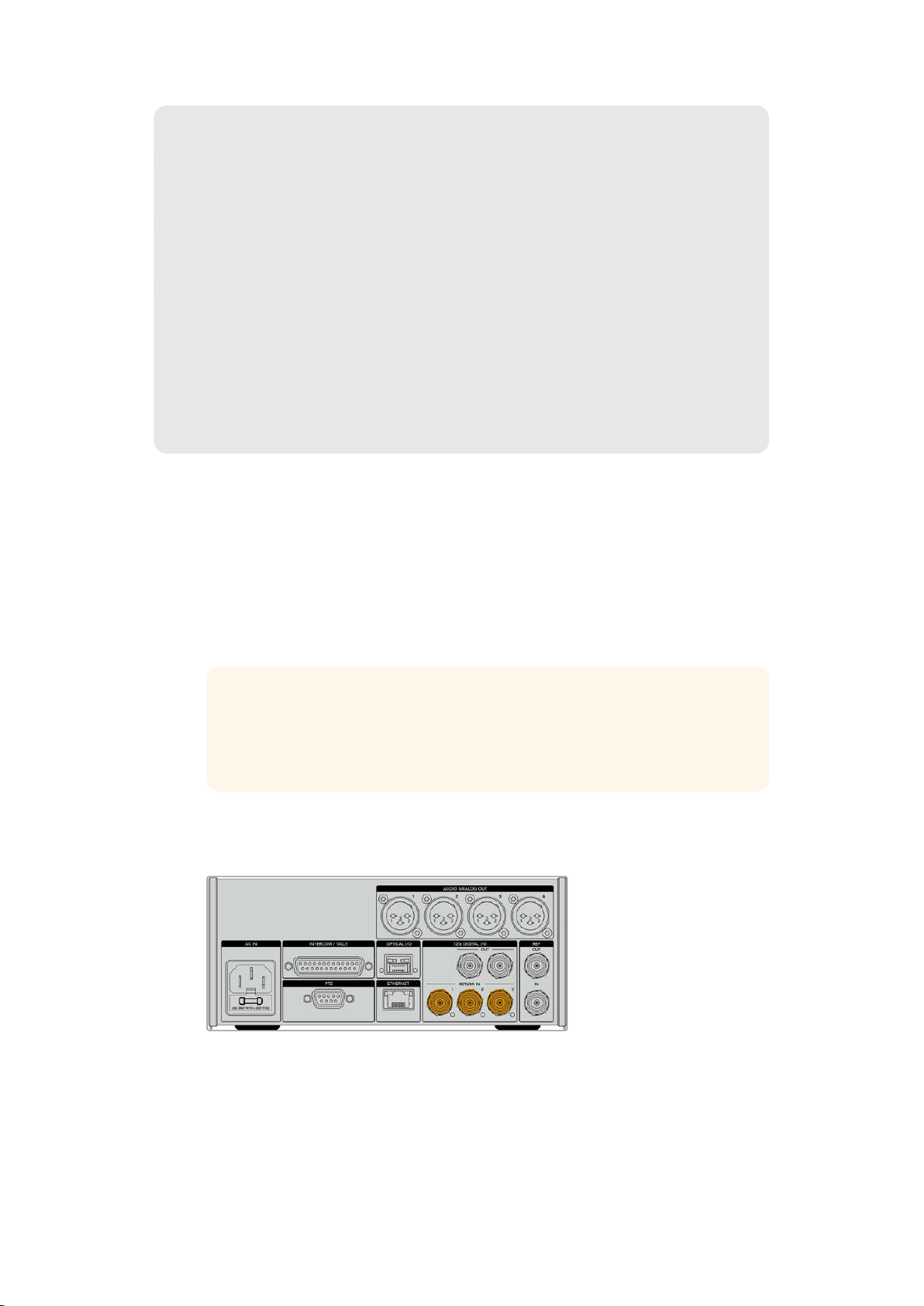
Power Safety Considerations
The SMPTE hybrid fiber optic cable is capable of carrying high voltage over long
distances so that you can power a camera and accessories that are located up
to 2kmaway.
To ensure safe operation, your Blackmagic Studio Fiber Converter has safety
mechanisms built in to ensure accurate monitoring and automatic management of the
voltage being carried.
A dedicated micro controller along with internal handshaking and communication
between the Blackmagic fiber converters ensure that a hybrid fiber optic cable
remainsoff until it is plugged into the Camera Fiber Converter. It then goes into a low
power state and completes safety checks before going into high power mode. High
voltages are not enabled until the converters ensure that an optical signal is present,
there is a 5mA signal core current loop, and there is less than 30mA of imbalance
between the power cores.
Connecting to an ATEM Switcher
How to connect Blackmagic Studio Fiber Converter to your switcher:
1 Connect a BNC cable from Blackmagic Studio Fiber Converter’s rear 12G-SDI output
to one of the SDI inputs on your switcher. Ensure your camera is set to use the same
format and frame rate as your switcher.
2 Connect a BNC cable from your program return feed output on your switcher to the
‘return in’ 1 input on the studio unit’s rear panel.
TIP When using multiple cameras in a live production, you may need to run
the program return feed from the switcher through a Teranex Mini SDI
Distribution 12G or a Smart Videohub. That is because there are a set number
of program outputs on the switcher and you will likely need access to more.
3 If you require any other return feeds to be sent to your camera such as a clean program
return feed, a teleprompter feed, an ISO feed from another camera, graphics or any
other signal then plug these into ‘return in’ 2 or 3.
Plug the program return feed from the switcher and other return sources
into the ‘return’ inputs on the studio unit’s rear panel
181
Getting Started with Blackmagic Fiber Converters
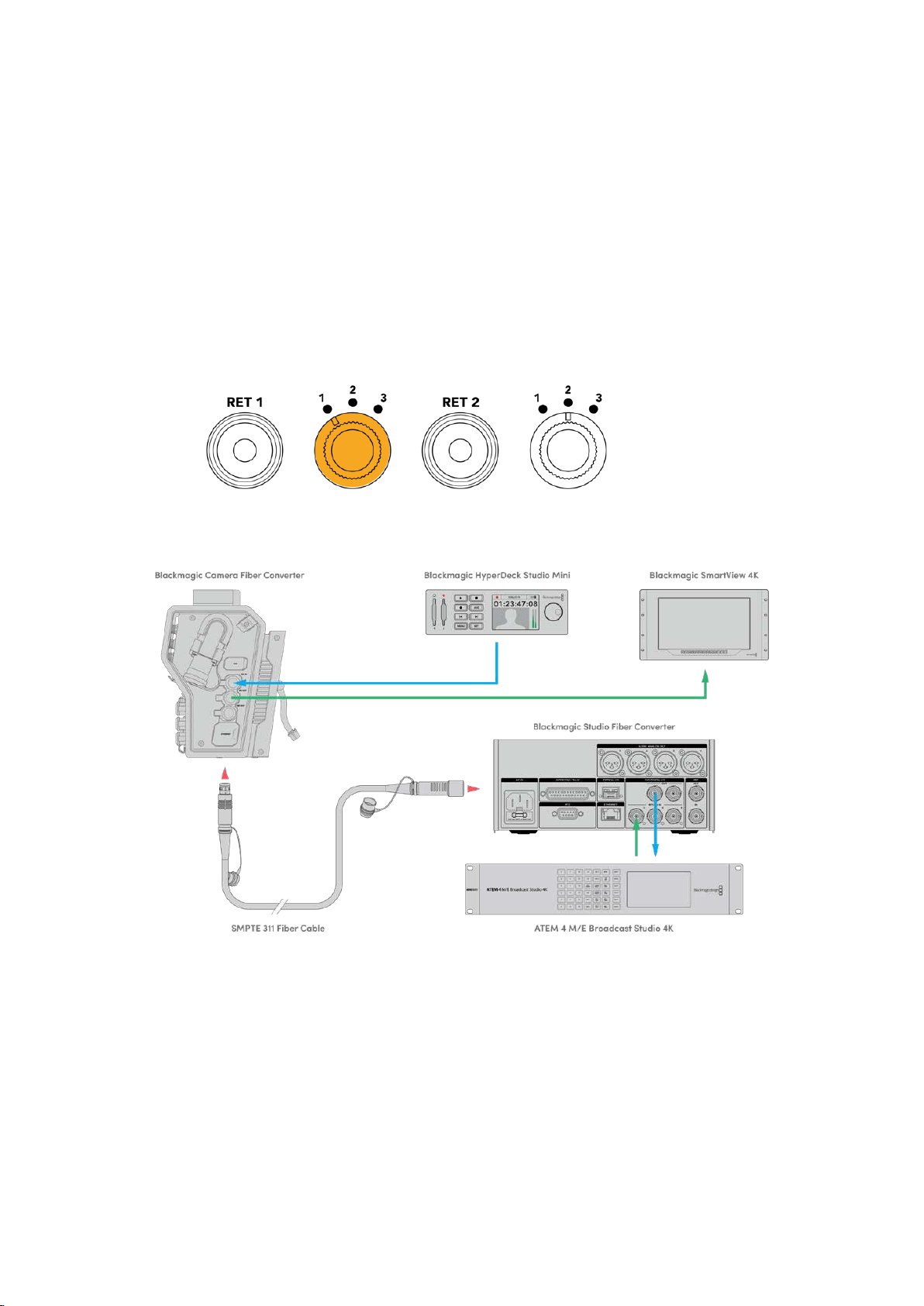
Confirming Video
You can now check that video is working and all return feeds are present.
1 Ensure the ATEM switcher’s program output is connected to the studio unit’s SDI
return input 1.
2 If you want to check all return feeds, plug video sources into SDI return inputs 2 and 3.
3 Now plug an SDI monitor, such as a Blackmagic SmartView 4K, into the ‘SDI out’ on the
side panel of the camera unit.
With a monitor connected to the SDI output, rotate the corresponding selection knob next to
the return button to switch between all three return feeds. You can set the two return buttons to
monitor two different return feeds if you want to.
Switch between the return feeds on the camera unit and press the
corresponding return button to view the selected feed on a monitor
To confirm video, plug video sources into the return feed inputs on the studio
unit, then view them on a monitor connected to the camera unit
Why Connections on the Front?
The fiber connection is located on the front of the studio unit so it can become the optical patch
connection in the rear of a rack. Typically, the studio converter will be installed facing the rear of
a rack so the SMPTE cables can be plugged direct into the unit. This means there is no need for
extra rack patch panels and the cost of an extra short cable to the fiber unit. The large LCD next
to the SMPTE fiber connector lets you quickly verify a good connection to the camera.
182Getting Started with Blackmagic Fiber Converters
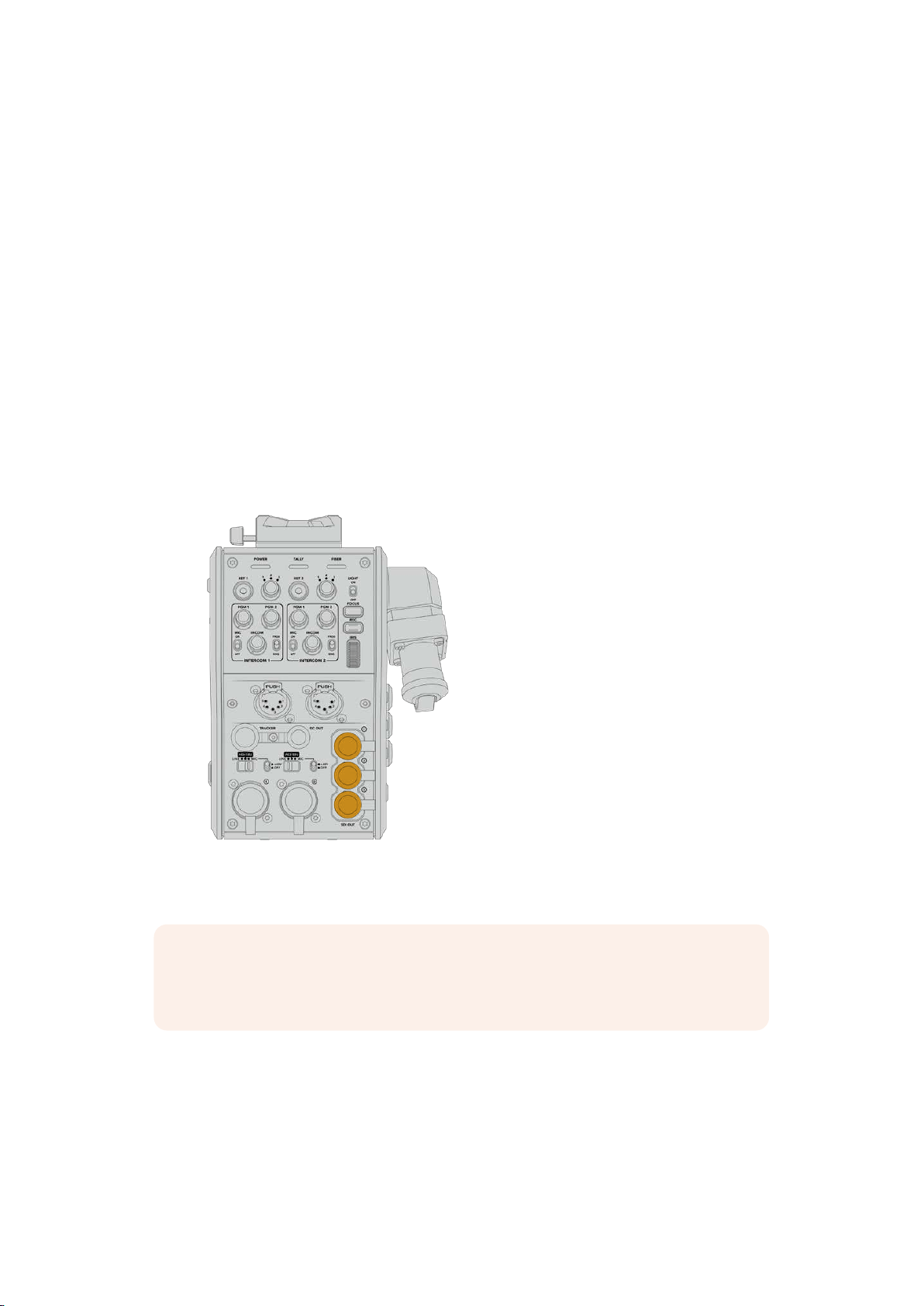
Plugging in Camera SDI
Connecting video signals between your Blackmagic Camera Fiber Converter and URSA Mini
orURSA Broadcast, is as simple as connecting two of the three included SDI cables from the
side of your converter to the rear of your camera.
How to connect your Camera Fiber Converter to your camera
1 Connect one of the included BNC cables from Blackmagic URSA Mini or
URSABroadcast’s rear 12G-SDI output to the SDI input on Blackmagic Camera
FiberConverter.
2 Connect one of the included BNC cables from the SDI output on Blackmagic Camera
Fiber Converter to the 12G-SDI input on Blackmagic URSA Mini or URSA Broadcast’s
rear panel.
Plugging in Return SDI Outputs
The three SDI outputs marked ‘SDI Out’ on the front of the camera unit are loop outputs of the
return feeds coming from the switcher. These let you connect the return feeds to other SDI
equipment near the camera, for example a teleprompter or talent monitor.
The three return feed loop outputs can be
connected to SDI equipment near the camera,
for example a teleprompter or monitor
NOTE The return feed SDI loop outputs support 3G-SDI to provide enough bandwidth
for three separate feeds. This means Ultra HD return feeds from the switcher up to
2160p60 are down converted to 1080p at the equivalent frame rate.
Mounting BlackmagicCamera Fiber Converter
Blackmagic Camera Fiber Converter mounts to the back of URSA Mini and URSA Broadcast
directly behind the camera body, and connects to your camera’s rear SDI in and SDI out
BNCconnectors. If you have installed a battery plate to the rear of your camera, you will need
to remove it before connecting the Blackmagic Camera Fiber Converter.
183Getting Started with Blackmagic Fiber Converters
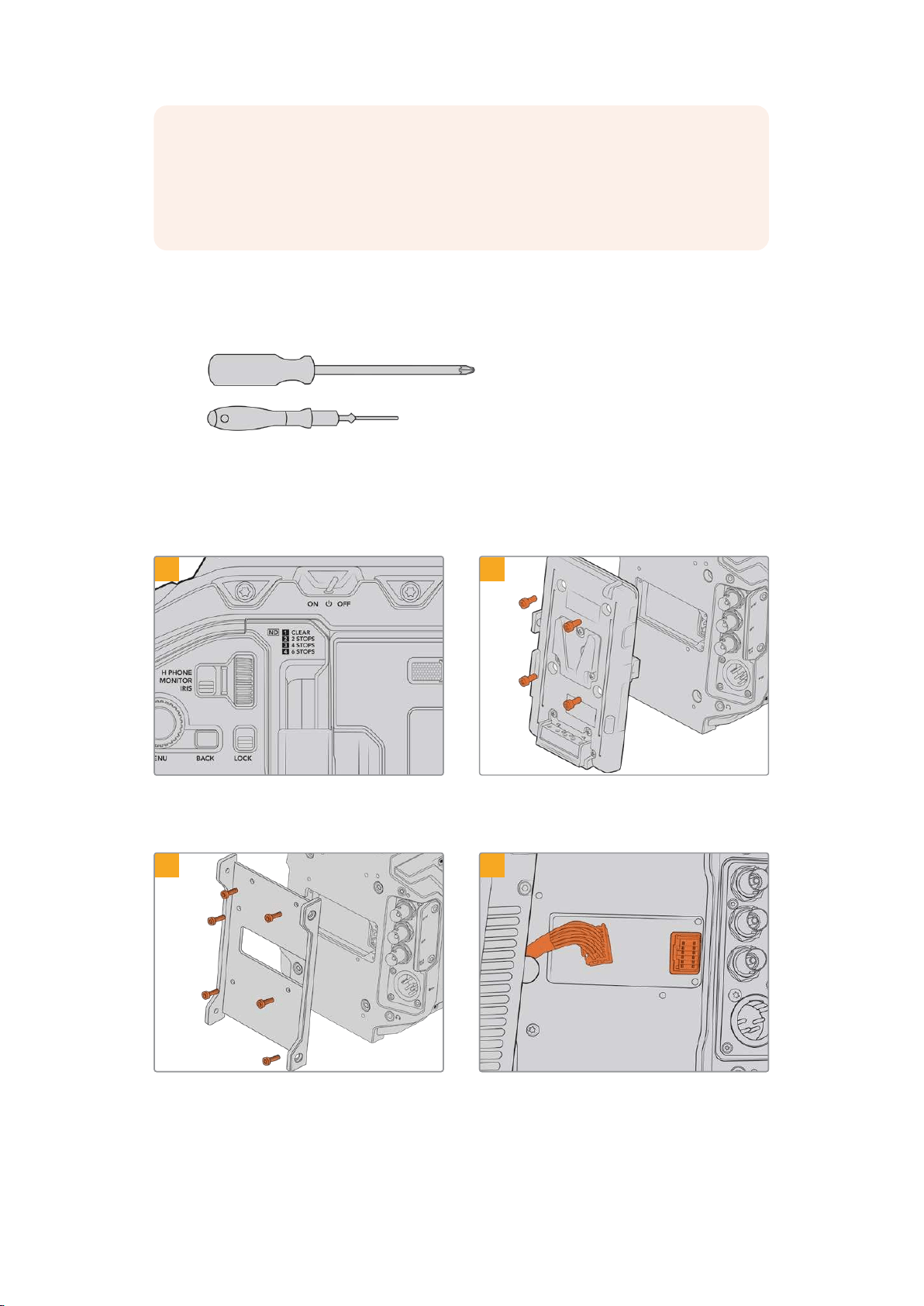
NOTE Before installing Blackmagic Camera Fiber Converter you should check that
URSA Mini’s internal software is version 4.4 or above and URSA Broadcast is 4.6 or
above. You can check your software version on page 4 of the camera’s ‘setup’ menu.
For more information on updating your camera firmware see the section ‘Blackmagic
Camera Setup Utility’ in this manual.
When attaching Blackmagic Camera Fiber Converter, you will need the following tools:
1 x phillips head screwdriver
1 x 2.5mm Hex driver
To attach the Blackmagic Camera Fiber Converter to
your URSA Mini or URSABroadcast, you will need a large
phillips head screwdriver and a 2.5mm Hex driver
To mount and connect Blackmagic Camera Fiber Converter:
1 2
Ensure your camera is powered off. If using
URSA Mini Pro or URSA Broadcast, power
itoffby moving the power switch to ‘off’.
Remove the battery plate or molex power
coverplate, if attached, using a phillips
headscrewdriver.
3 4
Attach Blackmagic Camera Fiber Converter’s
mounting bracket using 6 x 2.5mm Hex screws.
Plug the molex connector on Blackmagic
Camera Fiber Converter into the molex power
socket on your camera’s rear panel.
184Getting Started with Blackmagic Fiber Converters
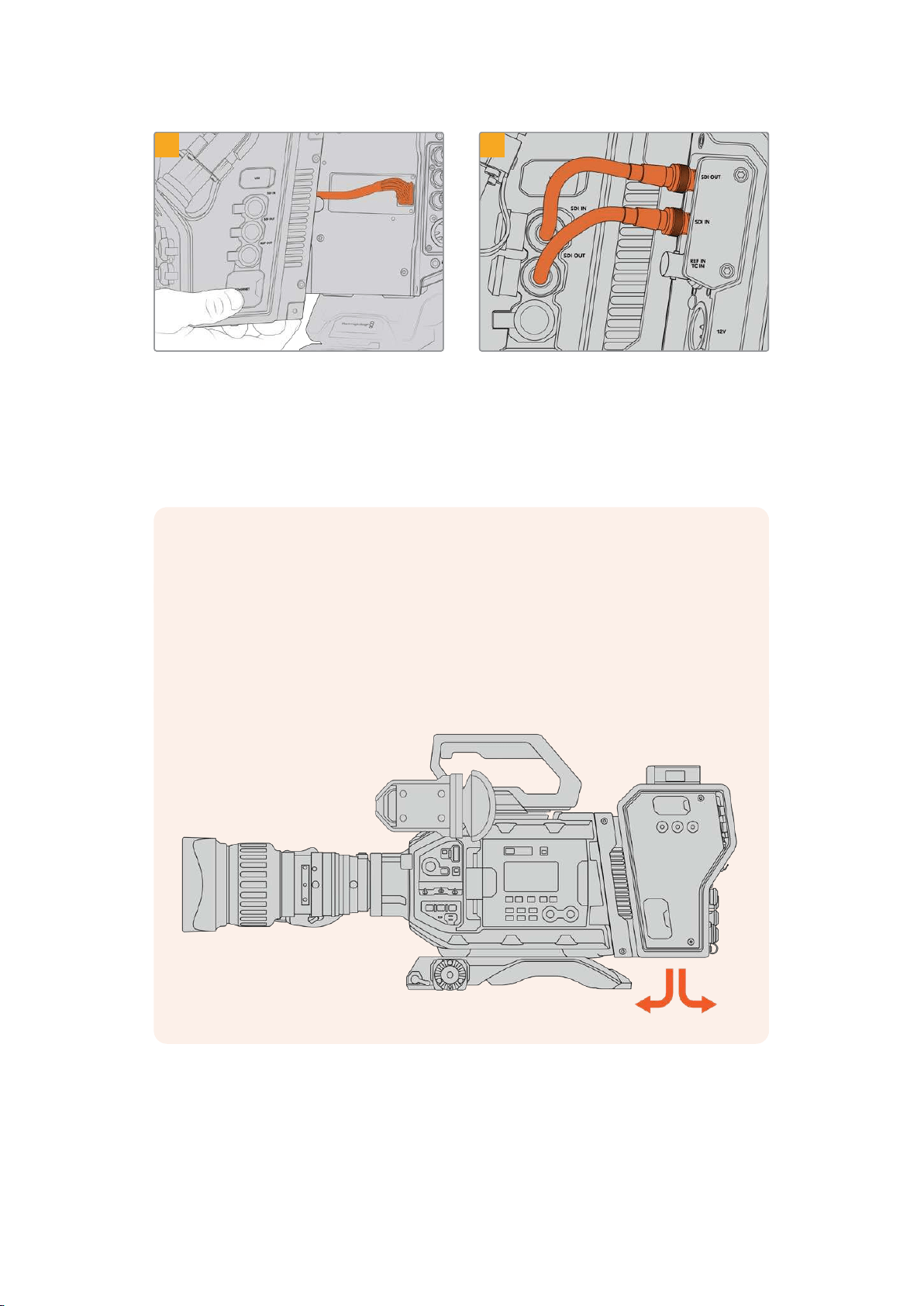
5 6
Slide the Blackmagic Camera Fiber Converter
onto the mounting bracket, and attach it using
2x2.5mm Hex screws on each side of the
bracket.
Use the included BNC cables to connect the
SDIoutput on the back of your camera to
the SDIinput on Blackmagic Camera Fiber
Converter, and the SDI output from the fiber
converter to the SDIinput on the rear of your
camera.
NOTE When setting up your production and using URSA Mini or URSA Broadcast with
the fiber unit attached, it’s important to maintain some clearance underneath the fiber
unit to allow adequate ventilation.
As your camera will often be used on a tripod, or shoulder mounted, clearance will
already be provided. However, if you are operating the unit sitting flat on a surface it is
a good idea to attach the URSA Mini shoulder mount pad, or third party baseplate or
bridge plate as this will maintain the cooling fan’s air flow in the underside of the
FiberConverter.
185Getting Started with Blackmagic Fiber Converters
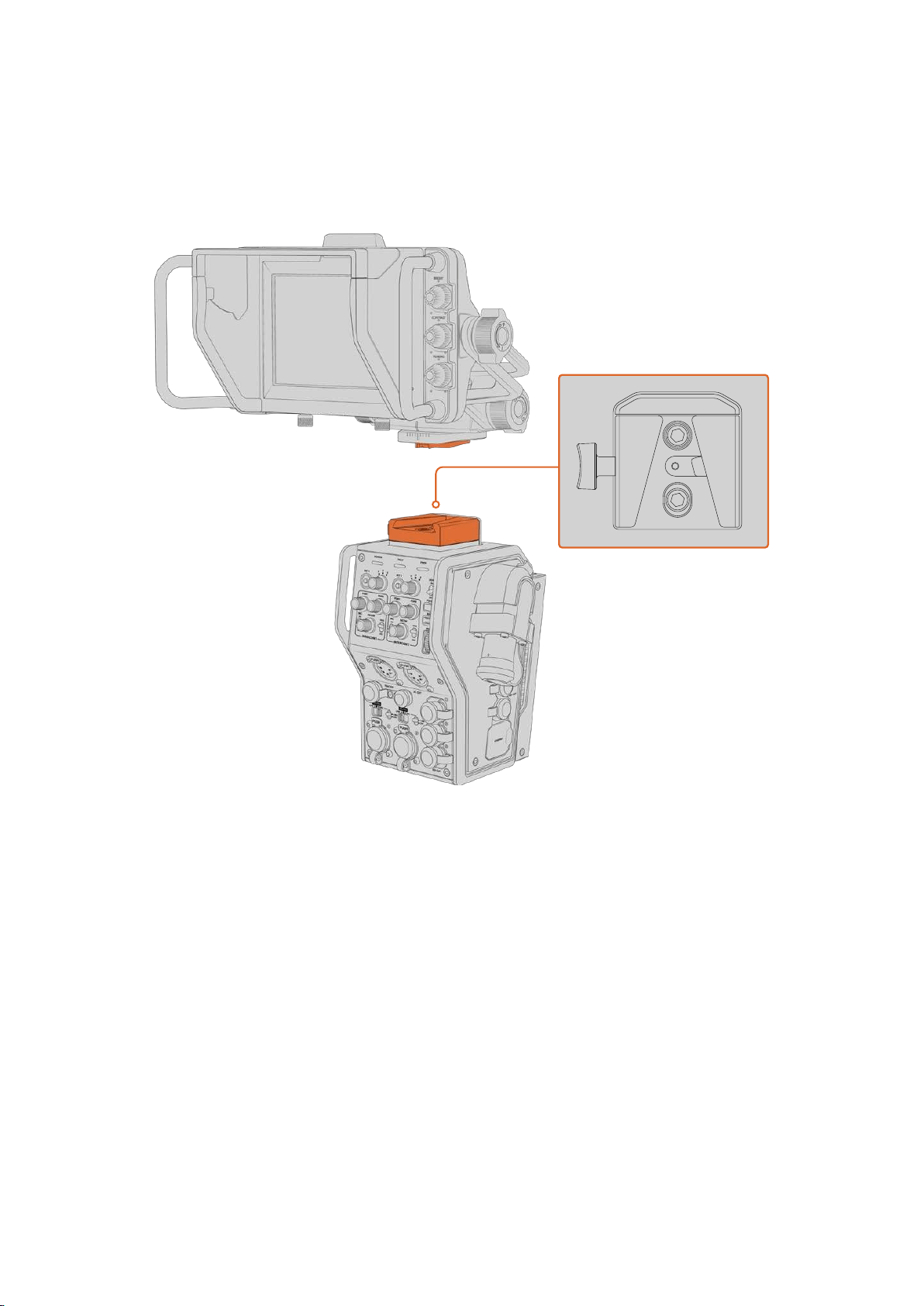
Attaching the URSA Studio Viewfinder
The attached V-lock plate on the top of the unit lets you connect a Blackmagic Studio
Viewfinder. This positions the studio viewfinder directly at the eye level when the camera
ismounted on a pedestal or tripod.
The V-Lock mount on the top of the camera unit lets
you mount the Blackmagic URSA Studio Viewfinder
Plugging in a Talkback Headset
Plug a broadcast headset into one of the two 5 pin XLR connectors on the front of the
cameraunit. Having two headset connectors allows two people to communicate with
crewsimultaneously.
That’s all there is to getting started! With the fiber converters powered and video connected
viaSMPTE fiber, you can start using the converters to create your live production with greater
flexibility and efficiency. Please continue reading the manual for more information on how to
use all the features on your Blackmagic fiber converters.
186Getting Started with Blackmagic Fiber Converters
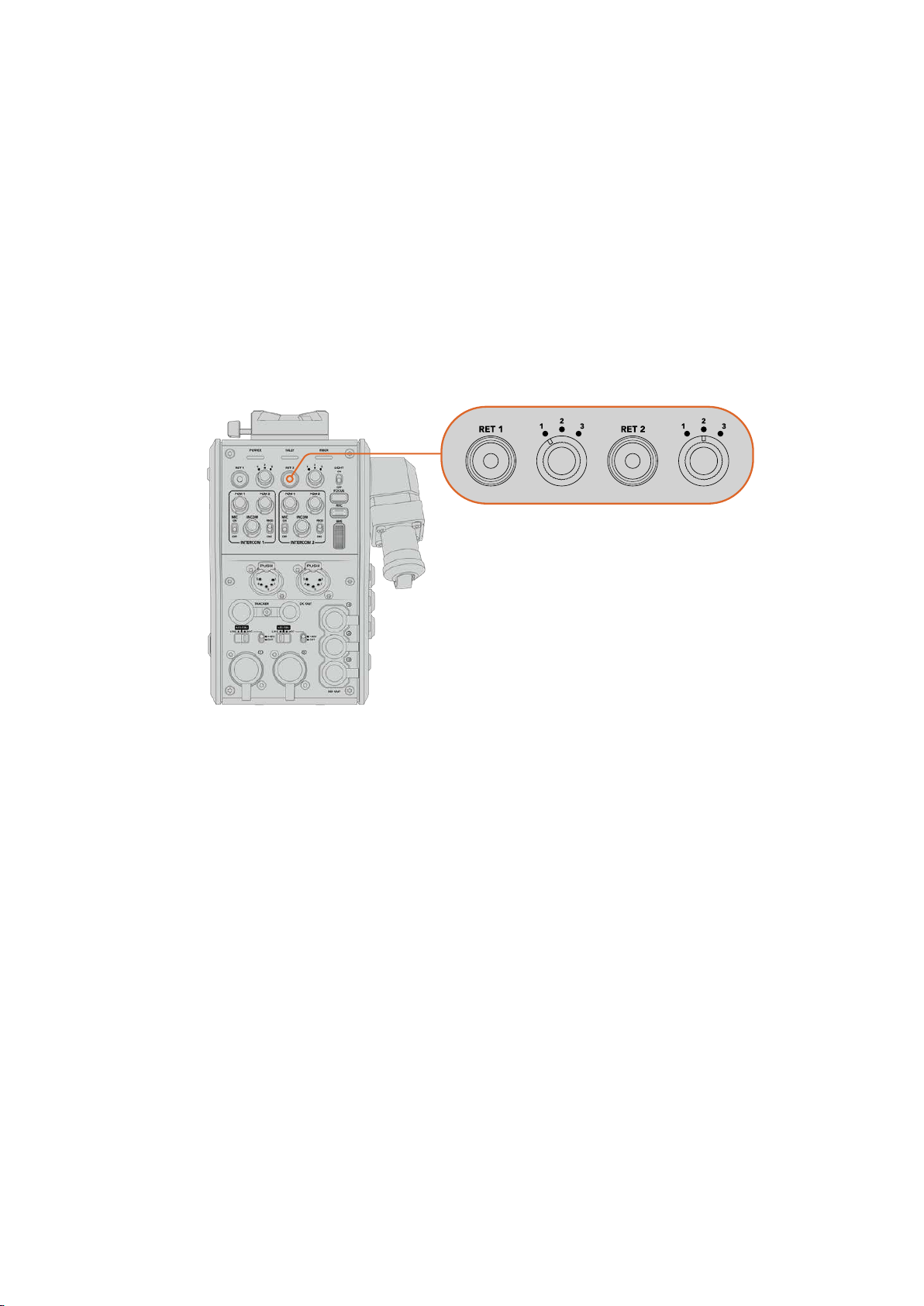
Operating the CameraFiberConverter
Selecting a Return Feed
The two return buttons on the front panel can be used in the same way as the PGM button
onthe camera, to switch the feed on the LCD, Blackmagic URSA Studio Viewfinder and
HDmonitoring outputs between the camera view and program return view.
The two return buttons marked ‘ret 1’ and ‘ret 2’ switch between two chosen return feeds.
Thethree way rotary switches next to the ’ret 1’ and ‘ret 2’ buttons assign which return feed you
would like to view when you press the corresponding button to the left of the switch.
Thesepositions on the rotary switch relate to the ‘return in’ 1, 2 and 3 SDI connectors that are
on the back of the Studio Fiber Converter.
The return buttons and three way rotary
switches allow you to select which return feed
to view when the return buttons are pressed
Press and hold one of the return buttons to see the selected program feed. The program feed
will continue to display whilst the return button is being held. Double press the return button to
lock the display to the return feed. Pressing the return button again will exit the return feed and
return to the camera view.
This means you can quickly and easily adjust which of the three return feeds being sent from
Blackmagic Studio Fiber Converter you would like to have fast access to on the two return
buttons. For example the three return feeds might be the switcher’s program output feed
complete with graphics, a teleprompter feed and a feed direct from another camera.
By using these switches you could assign ‘ret 1’ to be your program feed permanently and then
use the second ‘ret 2’ button to check what is being sent to the teleprompter, and to
occasionally switch it to check framing on another camera when you need to match its
framing or angle.
There are also return buttons on the left side of the unit, marked ‘ret 1’ and ‘ret 2’ that provide
additional access to view the return feeds when operating your camera from the side. They
perform the same function as the return buttons on the front of the unit.
187Operating the CameraFiberConverter
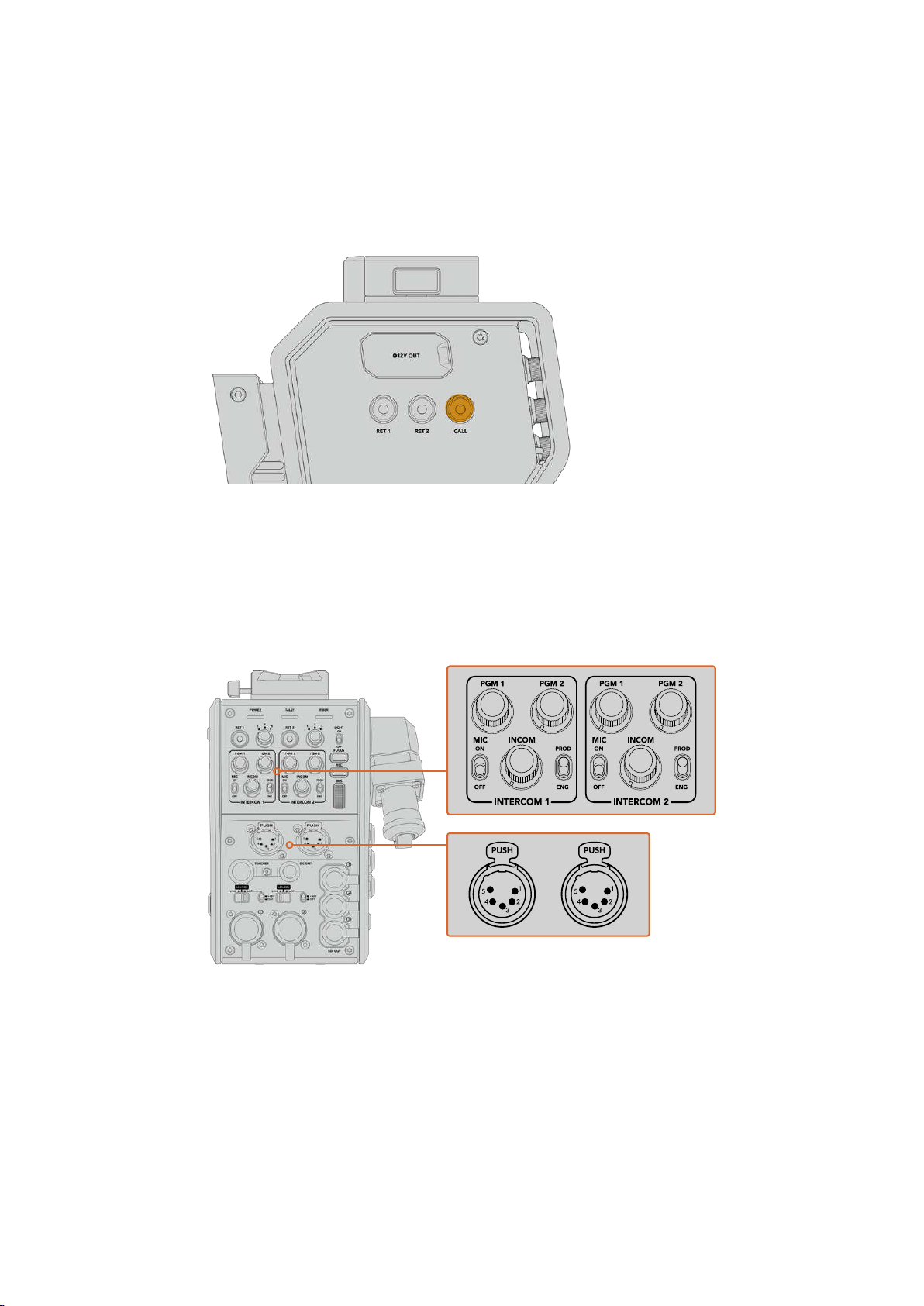
Using the Call Button
Next to the return buttons is a ‘call’ button, that when pressed, flashes the red tally indicator on
your Blackmagic Studio Fiber Converter’s LCD screen. The ‘call’ button also makes a numbered
‘press to talk’ button on the panel of ATEM Talkback Converter 4K flash red. These visual
indicators are to alert people in the control room that you need assistance.
Using Talkback
The two female 5 pin XLR connectors allow you to plug in two headsets, so that you and
another crew member can have communication with the rest of the crew simultaneously.
The intercom controls for each headset are grouped into two sets for two independent
intercoms, and are effectively three way audio mixers for each headset XLR connector that is
directly below.
The intercom controls for each headset are located
directly above each headset connection
You will hear the audio from the feeds that you have selected for ‘ret 1’ and ‘ret 2’ through a
connected headset. The ‘pgm 1’ and ‘pgm 2’ dials adjust the audio levels of those feeds, and
the ‘incom’ dial adjusts the overall volume. The ‘mic’ switch allows the operator to turn their
headset microphone ‘on’ or ‘off’.
188Operating the CameraFiberConverter
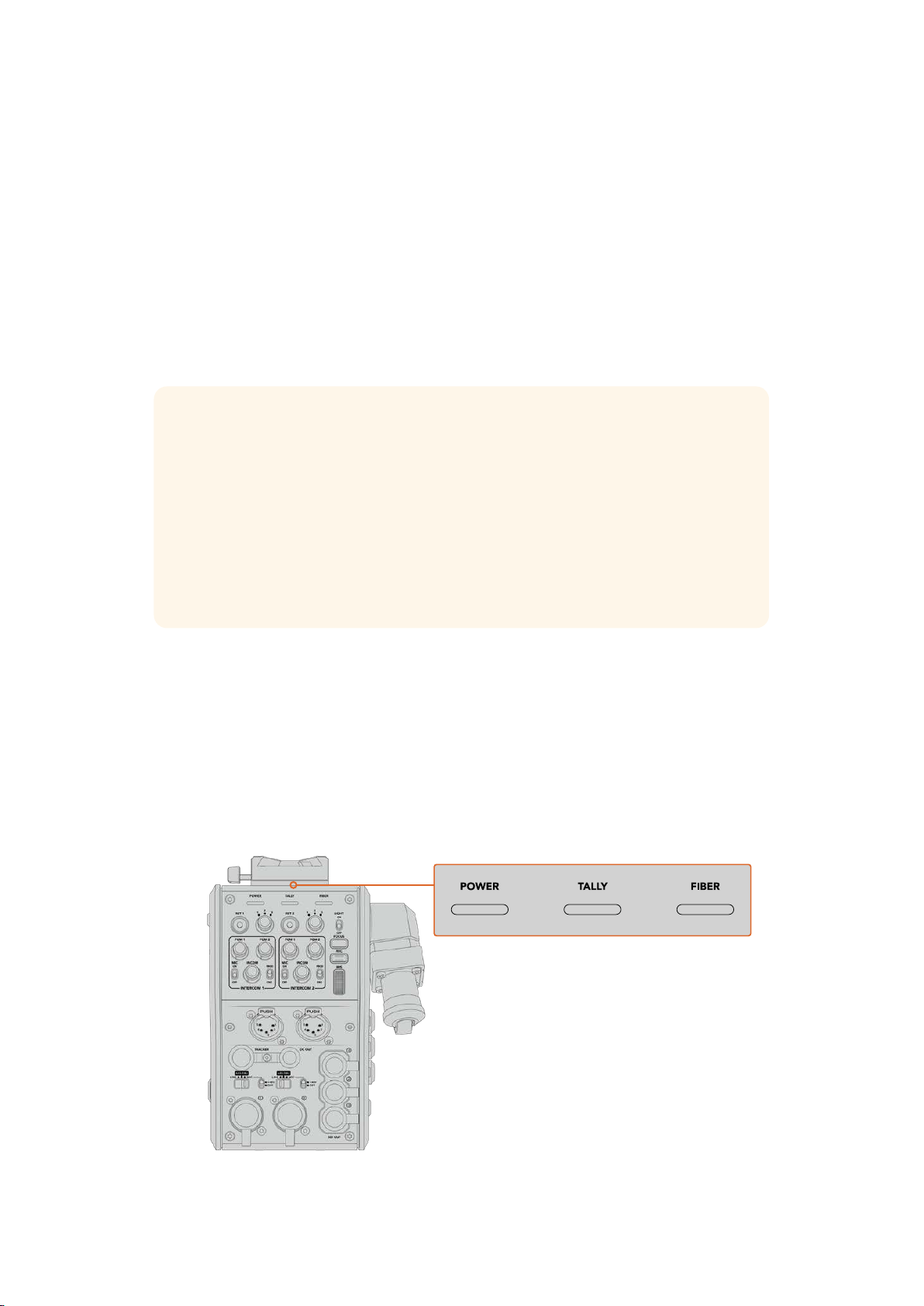
Each intercom also has 2 selectable channels, a production channel and an engineering
channel. This means that for broadcast setups with a large crew, you can split your crew
communications between the two channels. The production channel lets you communicate with
the director, producer and other crew members in the control room or broadcast truck, whilst
the engineering channel lets you communicate with the lighting crew, technical operators and
other camera operators. You can use the ‘talkback’ page in the menu of your Blackmagic Studio
Fiber Converter to select the source for each channel as ‘SDI + DB25’ or ‘intercom tally DB25’
on your Studio Fiber Converter. For more information refer to the ‘operating the studio fiber
converter’ section.
The Blackmagic Camera Fiber Converter also includes a standard 10 pin connection for tracker
talkback, which is perfect when both headset connections are in use and you need to feed an
additional talkback connection for your crane operator.
TIP Effective two-way communication between camera operators and the production
and engineering crew is essential for busy broadcast and studio productions.
Blackmagic Camera Fiber Converter has a ‘call’ button so camera operators can alert
production and engineering crew and talk via their intercom headsets. Pressing this
button flashes a numbered ‘press to talk’ button on ATEM Talkback Converter 4K, and
makes the tally indicator on the LCD of Blackmagic Studio Fiber Converter flash.
Likewise, if crew in a control room or broadcast truck have an urgent need to talk with
a camera operator, they can press the ‘call’ button for that camera on the ATEM
Camera Control panel. This makes the tally light on the Camera Fiber Converter flash
and the tally light on the camera’s URSA Viewfinder or URSA Studio Viewfinder flash.
Using Tally
The tally indicator on the front of the panel, provides a traditional tally indicator with red for
program and green for preview, so that you know when the camera you are operating is on air.
Status Indicators
The ‘power’, ‘tally’ and ‘fiber’ status LEDs at the top of the converter will illuminate different
colors depending on the status of the unit. When the fiber cable is unplugged, no lights
areilluminated.
The status LEDs will illuminate
different colors to let you
know the status of the unit
189
Operating the CameraFiberConverter
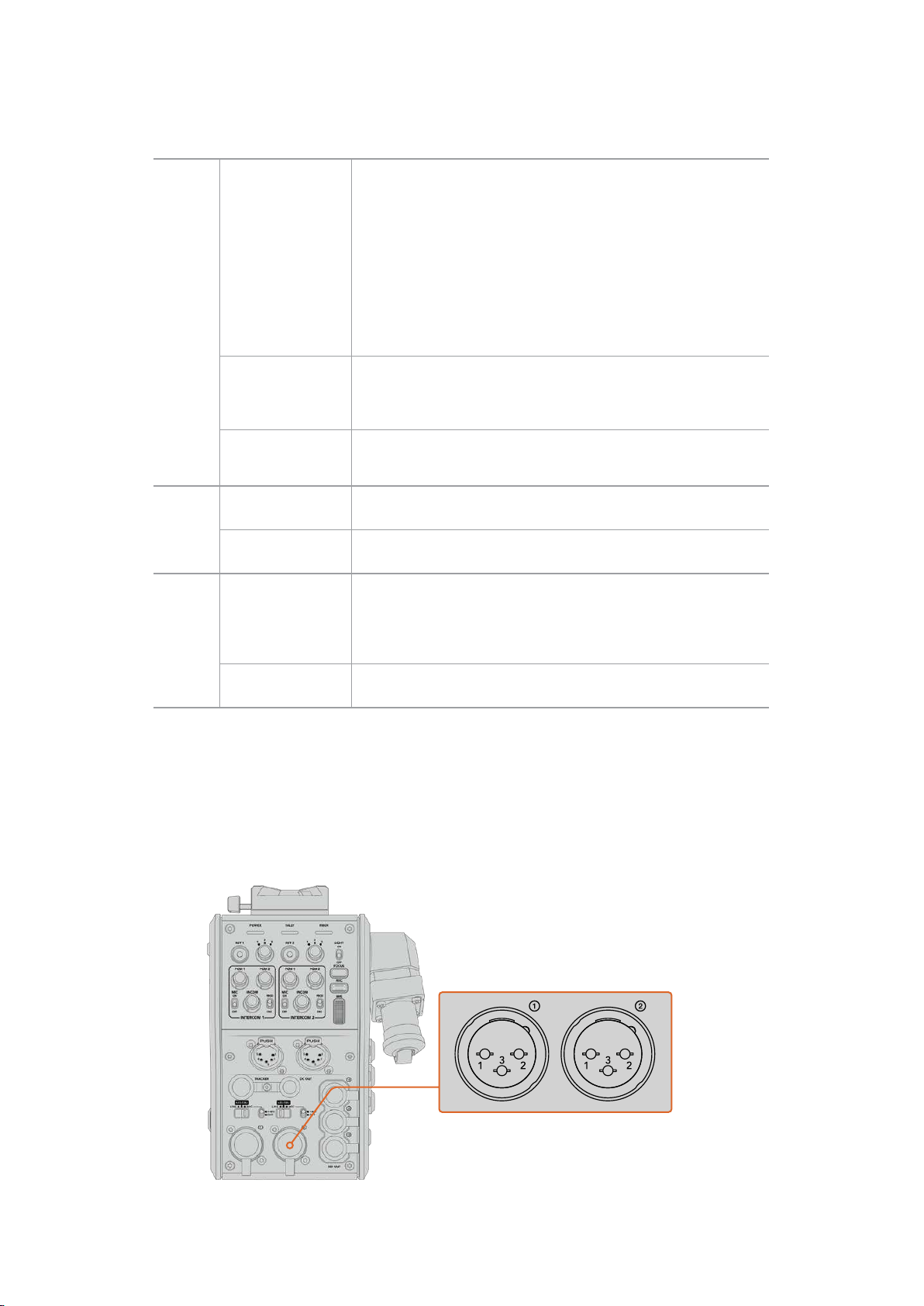
Below is a description of each LED color, LED action, and the status represented:
Power
Constant Red
When the SMPTE hybrid fiber optic cable is connected to a powered
Blackmagic Studio Fiber Converter, and the other end of the cable
is connected to Blackmagic Camera Fiber Converter, the power LED
on the converter turns red to indicate that it is receiving power, and is
in a low power state. In this low power state, intercom functionality is
enabled but the full power required to operate the unit has not yet been
enabled.
If the power LED remains red for an extended period of time and does
not turn green, check that both ends of your SMPTE hybrid fiber optic
cable are securely connected. If the connection remains unstable,
check the condition of your fiber cable.
Constant Green
After a successful fiber connection has been established and
Blackmagic Studio Fiber Converter has determined that the cable
connection is safe, the power LED will turn green and the camera
converter will enter high power mode.
Flickering between
Red and Green
If the power LED flickers between red and green, check that both ends
of your SMPTE hybrid fiber optic cable are securely connected. Ifthe
connection remains unstable, check the condition of your fiber cable.
Tally
Constant Red
The tally LED illuminates red to indicate that the camera you are
operating is currently on air.
Constant Green
The tally LED illuminates green to indicate that the camera you are
operating is currently in preview mode.
Fiber
Constant Red
When the SMPTE hybrid fiber optic cable is plugged into the camera
fiber converter, the fiber LED will turn red to indicate that the handshake
process has begun, and the converter is in a low power state. In this
state, intercom functionality is enabled for use while setting up or for
troubleshooting the camera chain in case the fiber link is down.
Constant Green
Once a successful SMPTE hybrid fiber optic cable connection is
established, the fiber LED will turn green.
Once both the power and fiber lights are green, this indicates that the safety checks have been
completed, and the converters have entered high power mode.
Audio Inputs
Your Blackmagic Camera Fiber Converter has two XLR inputs labelled ‘1’ and ‘2’ that allow you
to plug in external analog audio from professional equipment such as audio mixers, PA systems
or external microphones.
Use the he XLR input assign switch
to select the audio input type
you have connected, and enable
phantom power if required
190
Operating the CameraFiberConverter
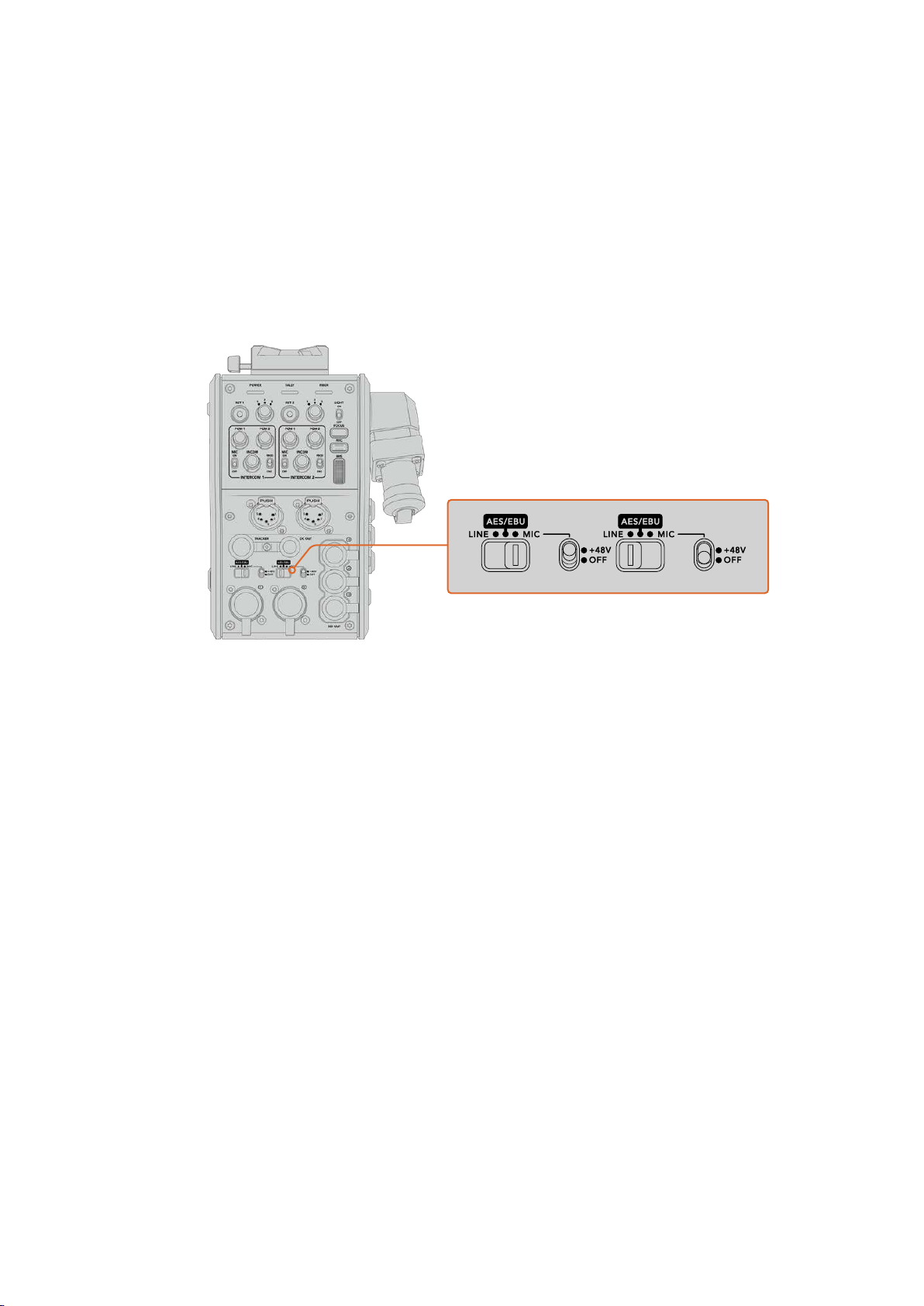
The camera audio is embedded into channels 1 and 2 of the camera feed, and the 2 audio
inputs on the back of the camera fiber converter are embedded as channels 3 and 4. All 4
audio channels are also deembedded at the other end on the studio fiber converter as analog
audio outputs.
The ‘audio’ page in the menu of your Blackmagic Studio Fiber Converter lets you adjust the
input levels for audio sources connected to the XLR inputs on your Blackmagic Camera Fiber
Converter. For more information refer to the ‘operating the studio fiber converter’ section.
Onceconnected, you can use the XLR input assign switch to set how the XLR inputs behave
when selected as an input source. The options available are mic audio, line level audio and
AESdigital audio.
If you would like to connect microphones that aren’t self powered, you can enable 48V phantom
power. Move the phantom power switch to ‘+48V’ to enable phantom power for any microphone
connected to the XLR below, or ‘off’ to disable phantom power.
IP Video
A connected SMPTE Fiber cable provides for a 10-Gbit IP link between your Camera Fiber
Converter and the Studio Fiber Converter. This allows all of your video and return feeds to be
IPvideo based using high end, visually lossless broadcast quality 10-bit video encoding and
decoding. All other connections such as talkback, tally, camera control and lens control are also
converted to low-latency IP so you get incredibly reliable performance.
Power Specifications
The Blackmagic Studio Fiber Converter provides power for Blackmagic Camera Fiber
Converter, your camera and it’s accessories. A molex connector plugs into the molex socket on
your camera’s rear panel to send power to your camera from the Camera Fiber Converter.
If you need to position your camera at a distance of more than 2.1 km from the broadcast truck,
and your camera and converter are not receiving enough power over the long cable run, you
can power the camera and converter locally by having the 4 pin XLR from the camera’s power
supply plugged into the +12V input on your URSA Mini or URSA Broadcast. The power will be
sent through the molex connector to the Camera Fiber Converter.
The ‘+12V out’ connector, sometimes referred to as a ‘D-tap’ or ‘P-tap’ allows you to power
accessories like an external monitor or a large box lens, with 12V DC nominal at up to 500 mA.
The ‘DC out’ connector provides an additional option for powering accessories like an external
monitor. A pinout table for the DC out connector is provided below.
191Operating the CameraFiberConverter
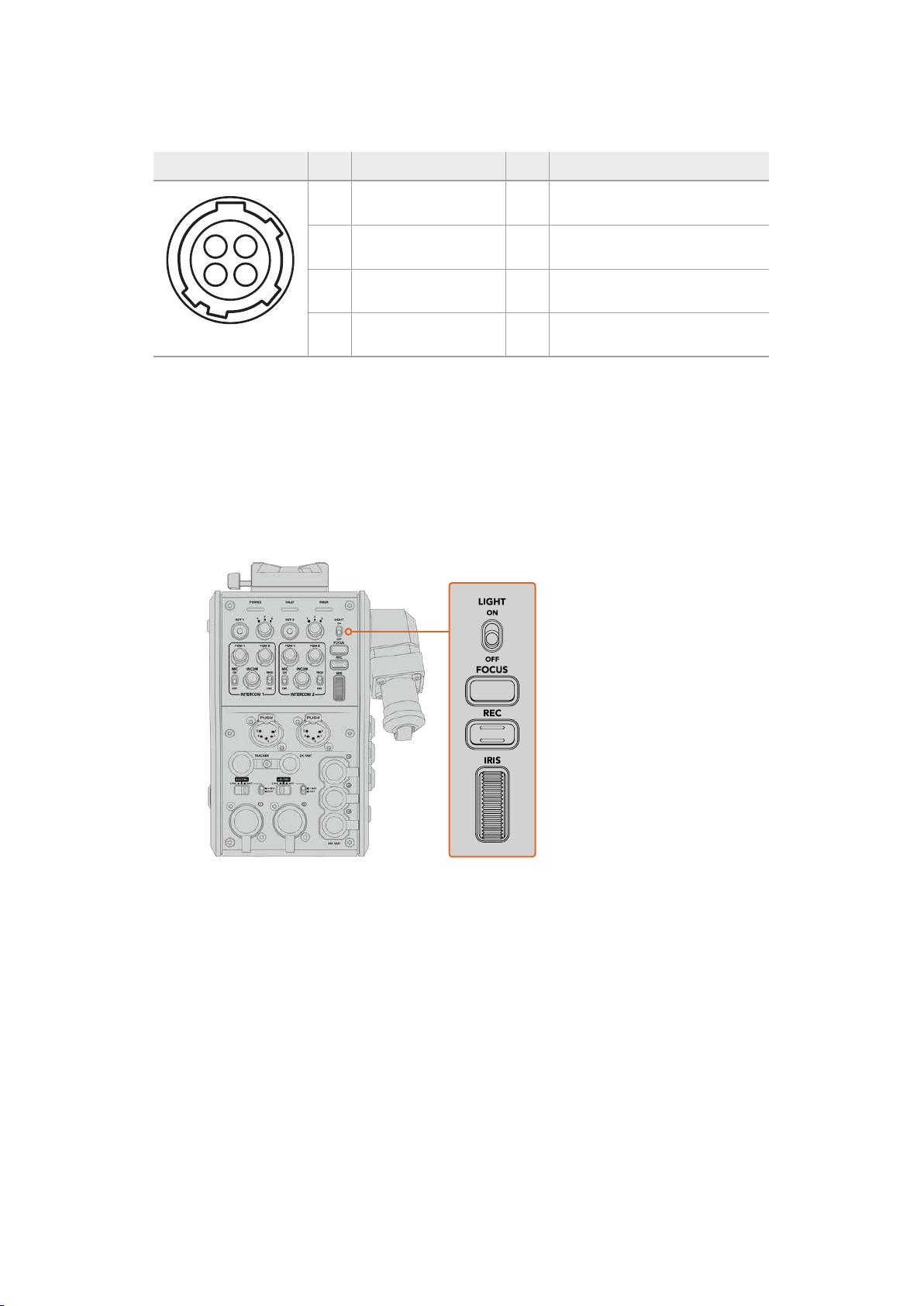
DC out connector Pinout Diagram
External view Pins Signal I/O Specifications
1 Unregulated GND – GND for Unregulated Out
2 NC – No connection
3 NC – No connection
‘DC out’ connector
4 Unregulated Out Out 12V DC nominal at up to 500 mA.
Additional Camera Controls
When URSA Mini or URSA Broadcast is being used as a studio camera, we have added camera
controls on the fiber converter including iris and focus control, so you can control compatible
lenses from behind the camera. This is helpful if you don’t have a camera control operator
controlling the lens remotely.
As a studio camera, URSA Mini and URSA Broadcast still have the ability to record internally,
sothe record button lets you trigger internal recording on the camera.
Light
Turns on the backlight to illuminate the operation panel, so that all your controls can be
seen easily when operating in a dark environment.
Focus
Pressing the button marked ‘focus’ will trigger the autofocus if you are using a lens that
supports autofocus.
Record
Pressing the button marked ‘rec’ will trigger the recording when pressed, and will stop
recording when pressed again.
Iris
If you are using a compatible active lens that allows control from the camera, you can
open or close the iris using the ‘iris’ wheel. Rotate the wheel up or down to open or
close the lens aperture.
1
4
23
192Operating the CameraFiberConverter
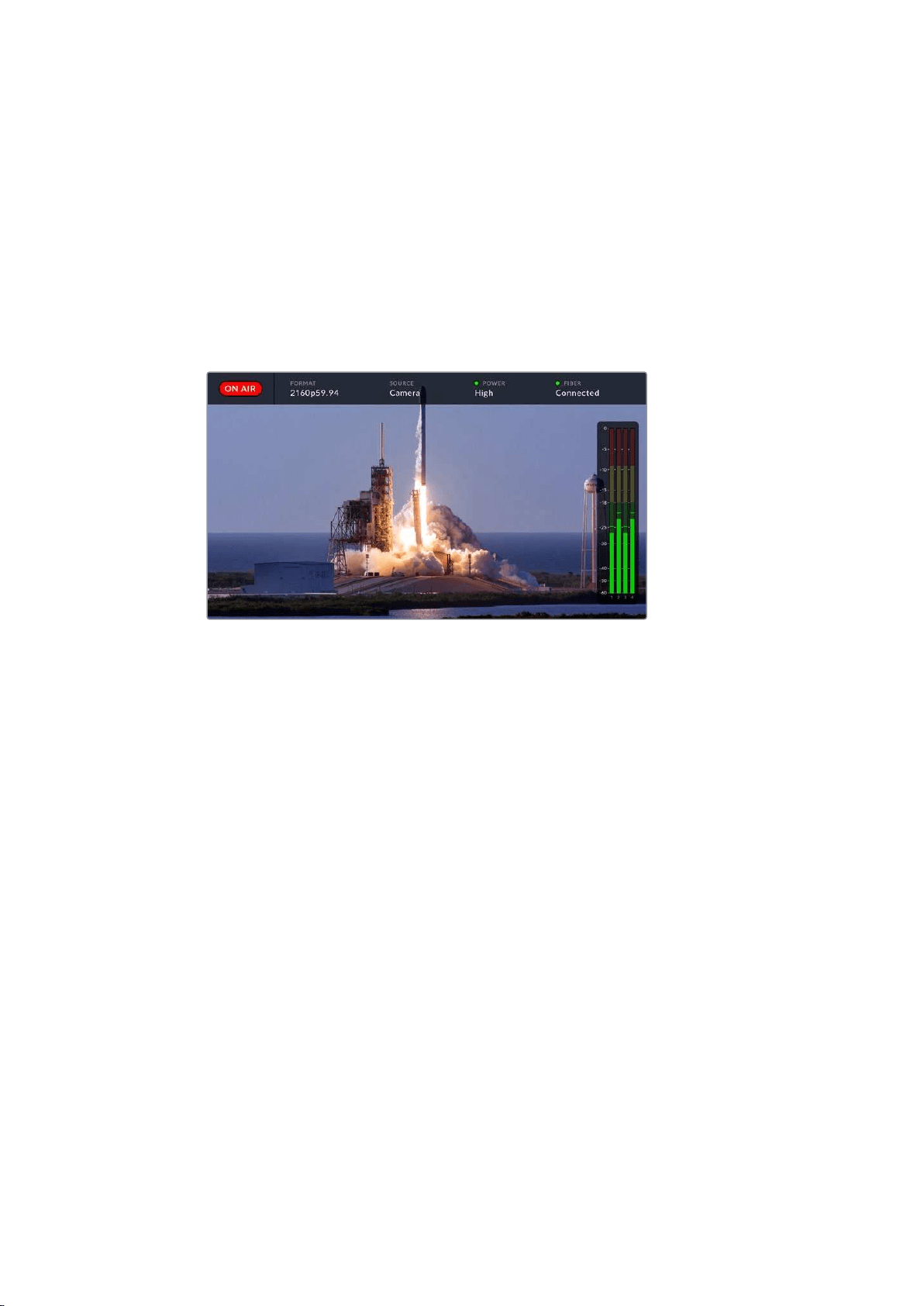
Operating the Studio Fiber Converter
Selecting the LCD Source
When powered on, your Blackmagic Studio Fiber Converter’s large LCD will display the feed
from your camera. As the central base unit, the Studio Fiber Converter takes the program feed
from your switcher plus all return sources, and feeds them to the Blackmagic Camera Fiber
Converter via the SMPTE fiber cable.
The built in LCD lets you monitor the camera feed and each source connected to the return
feed inputs. It provides a heads-up type display with status information and audio meters.
The overlays allow you to confirm the name and format of the source
you are monitoring when switching between feeds
On Air
The red ‘on air’ icon will be displayed when the connected camera is being used in the
program feed, and will remain blank when not on air.
Format
Displays the resolution and frame rate of the current source.
Source
Displays the current source name.
Power
Displays the current power status. ‘Low’ will be displayed with a red status light during
connection to indicate a low power state and ‘high’ will be displayed with a green status
light after the unit has entered high power mode. For more information, refer to the
‘status indicators’ section in the ‘operating the camera fiber converter’.
Fiber
Displays the current fiber status. ‘Connecting’ will be displayed with a red status light
during the initial connection process and ‘connected’ will be displayed with a green
status light once a successful SMPTE hybrid fiber optic cable connection is established.
For more information, refer to the ‘status indicators’ section in the ‘operating the camera
fiber converter’.
Audio Meters
The peak audio meters display audio levels when using camera audio embedded into
channels 1 and 2 of the camera feed. Channels 3 and 4 correspond with audio sources
connected to the two XLR inputs on the back of your Blackmagic Camera Fiber
Converter. The display is calibrated to dBFS units and features peak hold indicators
which stay visible for a short time so you can clearly see the maximum levels reached.
193Operating the Studio Fiber Converter
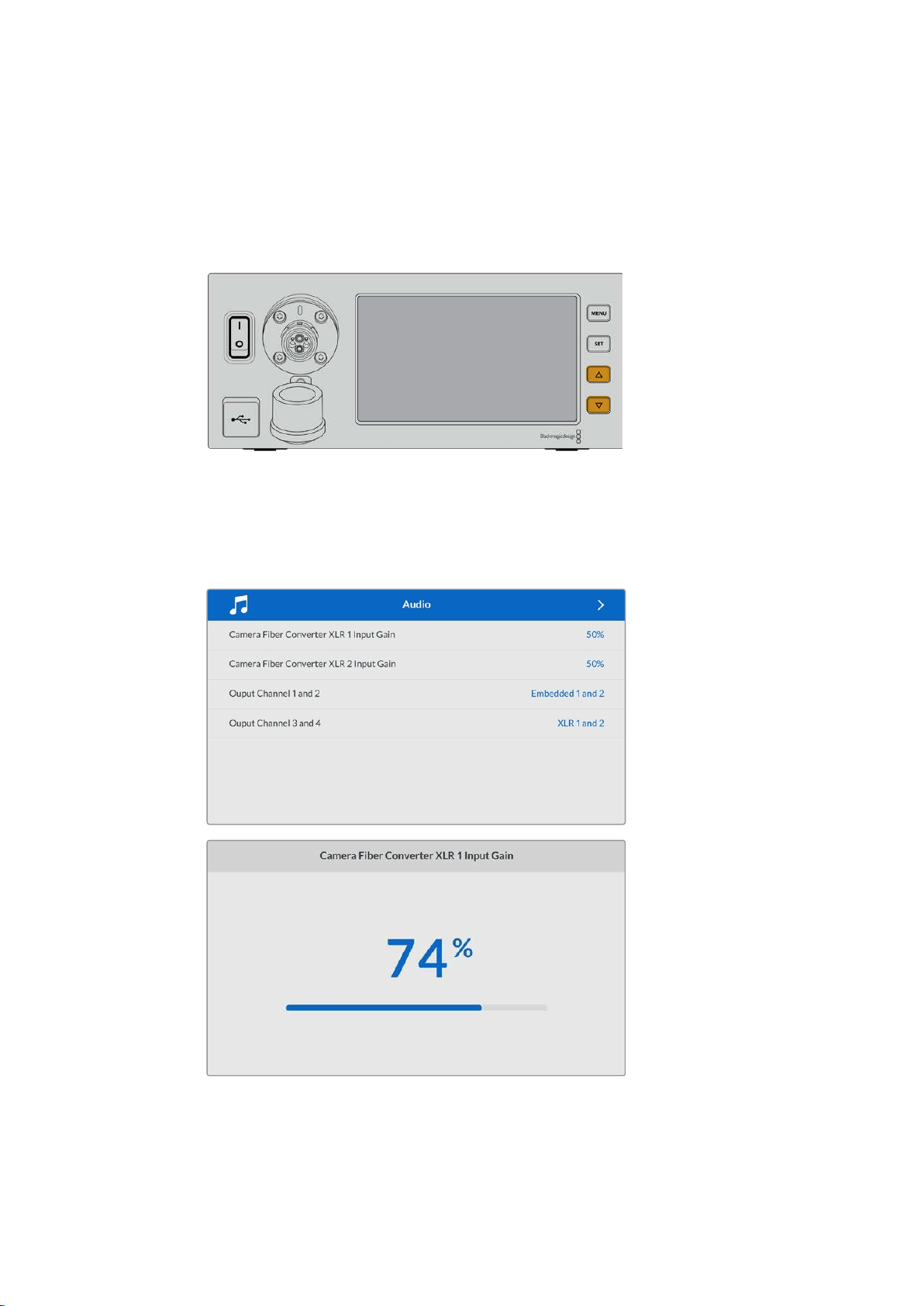
Using the Menu
Pressing the up and down arrow buttons will scroll through the four possible sources ‘camera’,
‘return 1’, ‘return 2’ and ‘return 3’. Press the ‘menu’ button to enter the menu system and adjust
your settings. The arrow buttons can then be used to navigate through the various menu
screens and the options within each screen, whilst the ‘set’ button will confirm your selection.
The settings in the menu are divided between ‘audio’, ‘talkback’ and ‘setup’ pages.
Press the up and down arrow buttons to scroll through the four
possiblesources and to navigate through the menu
Audio
The ‘audio’ page lets you adjust the input levels for audio sources connected tothe
XLR inputs on your Blackmagic Camera Fiber Converter.
Use the arrow buttons to adjust the input level for
each XLR input and the ‘set’ button to set the level
You can configure which audio channels from the Camera Fiber Converter get mapped
to the embedded SDI and XLR outputs. The embedded audio channels from URSA Mini
194Operating the Studio Fiber Converter
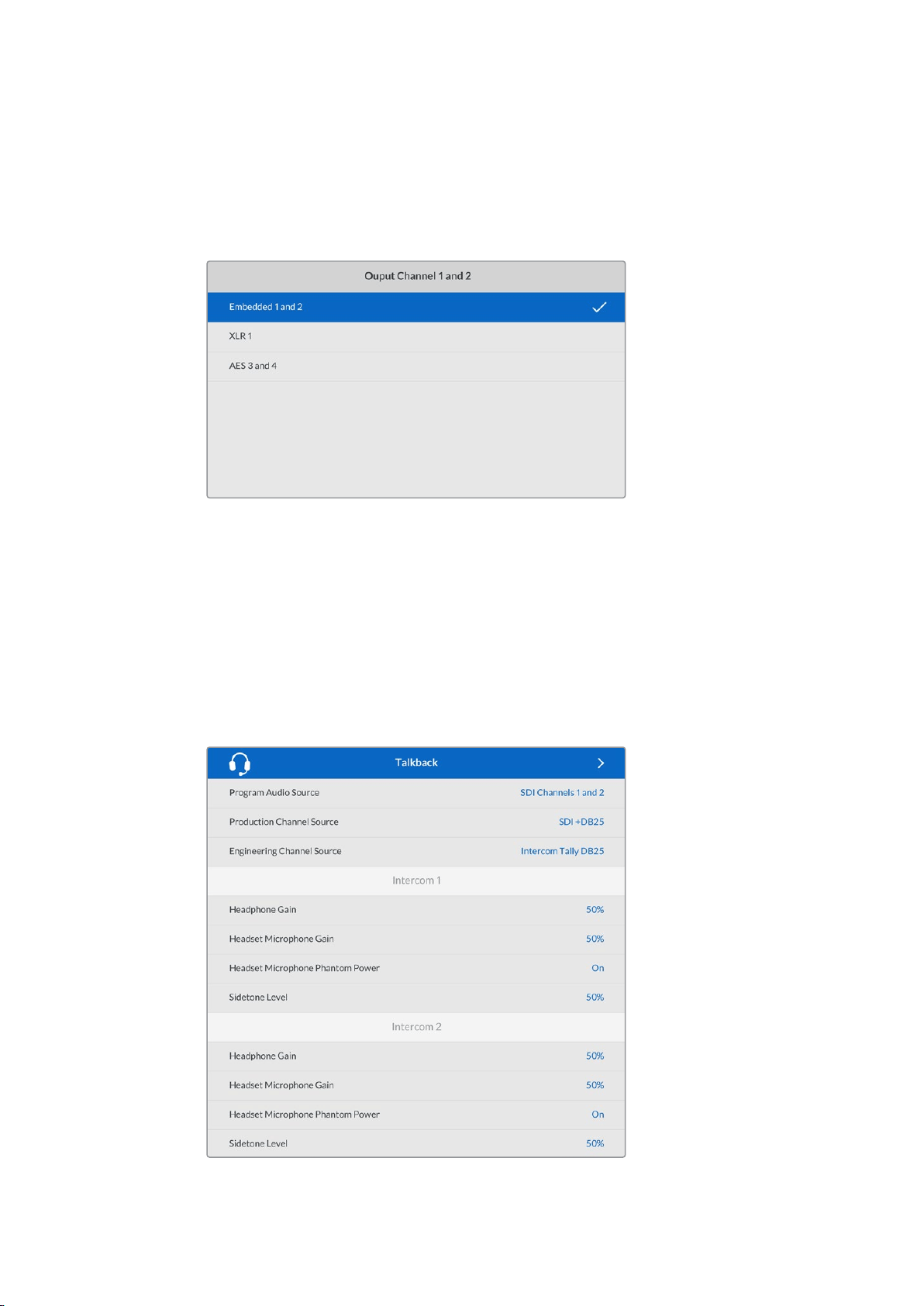
or URSA Broadcast are on channels 1 and 2 by default. Line or Mic level XLR inputs that
are plugged into the Camera Fiber Converter are mapped to channels 3 and 4 by
default. You can adjust the output channel settings to change these mappings from
their default settings. If either of the XLR inputs on the Camera Fiber Converter are set
to AES, this expands your channel mapping options to include channel 5 and 6, which
are sent on your embedded SDI output.
Mapping the embedded XLR channels from the camera to output channel 1 and 2
Talkback
Use the ‘talkback’ menu to select your program audio source and talkback source for
the production and engineering channel. Set the talkback source to ‘SDI + DB25’ or
‘intercom tally DB25’ on your Studio Fiber Converter.
You can also adjust the ‘headphone gain’ and ‘headset microphone gain’ for each
intercom headset to account for the impedance levels of the headsets. The ‘phantom
power’ settings let you switch on the phantom power being sent to the respective
headset. Adjust the ‘sidetone level’ settings to let camera operators hear their own
voice in their headset at a clear and comfortable level.
The intercom section will be greyed out when nothing is connected to the
XLR inputs and will display ‘connecting’ during connection
195Operating the Studio Fiber Converter
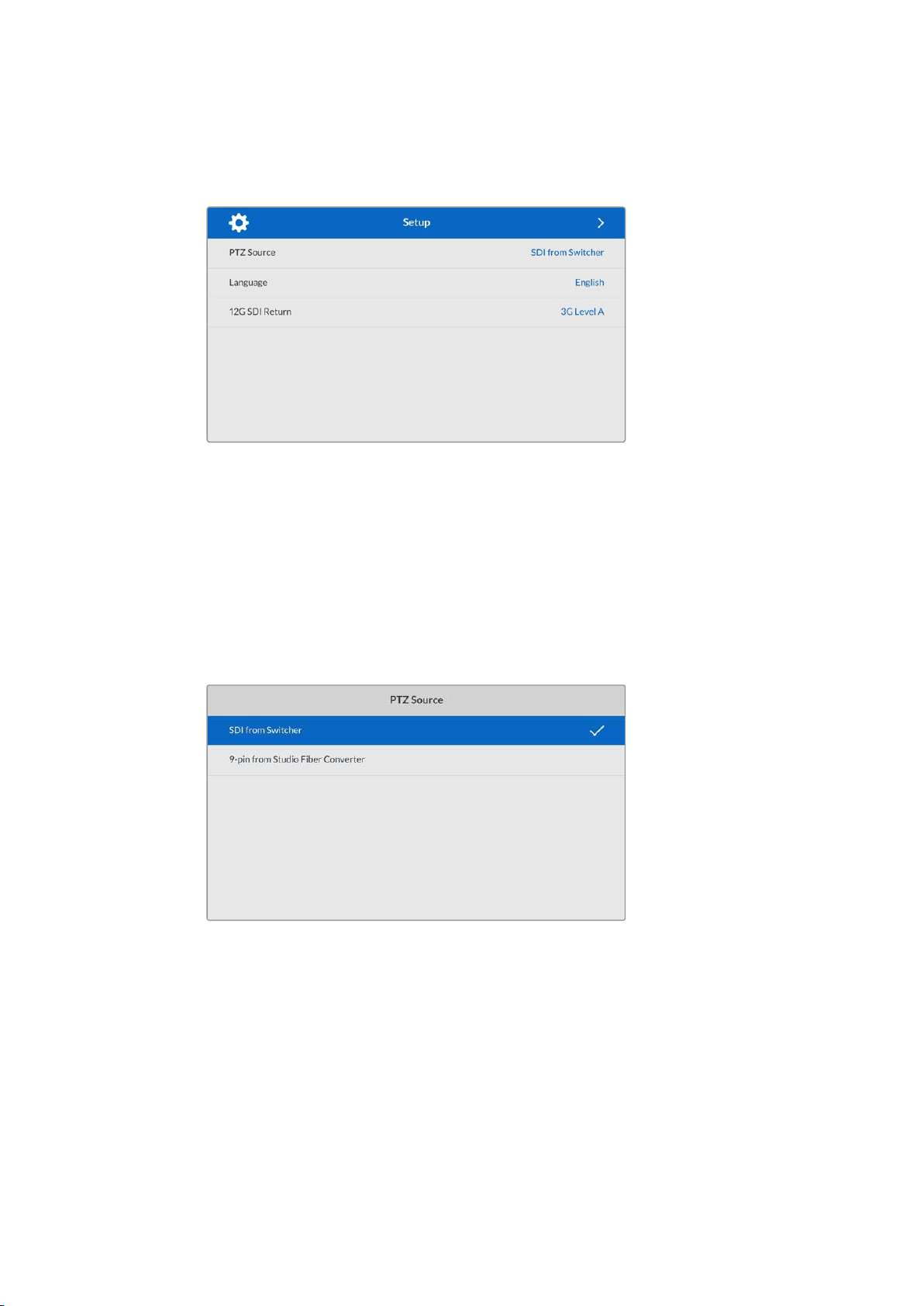
Setup
The ‘setup’ menu lets you configure the PTZ source, select the language for the menus,
and select the type of SDI level return.
Select the source of PTZ commands using the PTZ source setting. You can select from
‘SDI’ or ‘9-pin’, which correspond with the ‘return in’ SDI inputs and the 9-pin PTZ
connector on the rear of your Blackmagic Studio Fiber Converter.
This means that you can control a PTZ camera’s pan, tilt and zoom on an ATEM switcher
and send these PTZ commands to your Blackmagic Studio Fiber Converter via SDI.
These commands will be sent along the SMPTE fiber cable to your Blackmagic Camera
Fiber Converter, where they will be de-embedded and output via the DE-9 serial
connector, for connection to a PTZ motorized head.
You can also connect a PTZ controller to your Blackmagic Studio Fiber Converter via
the DE-9 connector, to control a remote head at the camera end.
The settings menu page provides the option to select
‘SDI’ or ‘9-pin’ as the source of PTZ commands
196
Operating the Studio Fiber Converter
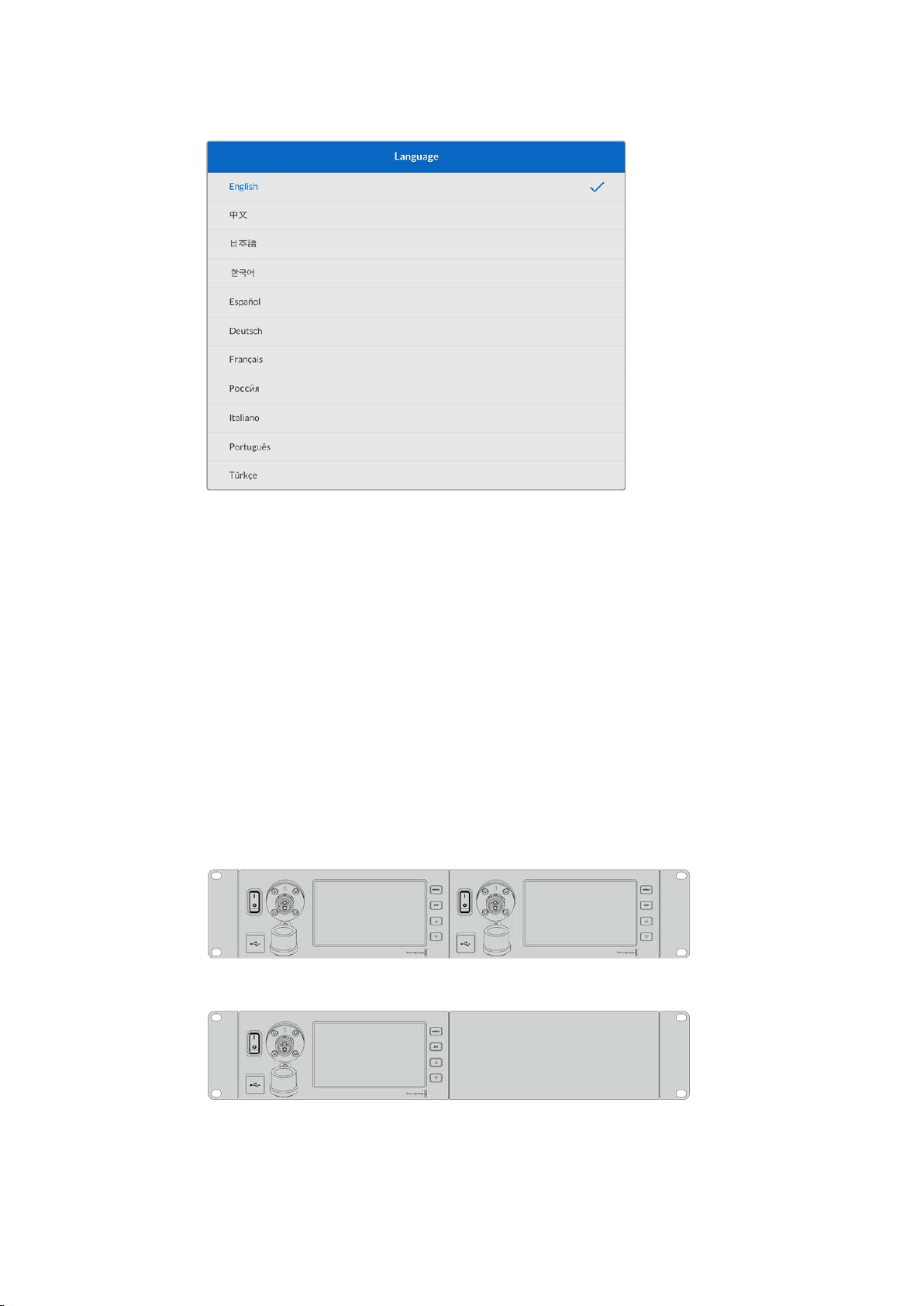
The ‘language’ setting sets the language for the menus. Studio Fiber Converter
supports 11 popular languages: English, Chinese, Japanese, Korean, Spanish, German,
French, Russian, Italian, Portuguese and Turkish. The language page will also appear
on initial start up and after you update the internal software.
The ‘12G SDI return’ option sets whether to down convert 12G program return signals to
3G Level A or 3G Level B. All 12G signals sent into return inputs on Studio Fiber
Converter get down converted on their way to the Camera Fiber Converter.
Rack Mounting the Studio Unit
If you’re running multiple Blackmagic Studio Fiber Converters, you can use Blackmagic Studio
Fiber Rack Kit to install your converters into a broadcast rack or road case. Using the rack kit,
you can mount two studio units in a rack side by side, or fitted to either side. A blanking panel is
supplied with the Studio Fiber Rack Kit to cover the empty side of the rack if you only want to
mount a single unit.
Your Studio Fiber Converter is two rack units high, and is half the width of a standard rack shelf,
so two Studio Fiber Converters can fit neatly side by side in a 2RU rack space.
Blackmagic Studio Fiber Converters mounted side by side
The supplied blanking plate can be used to cover an empty rack space if needed
197
Operating the Studio Fiber Converter
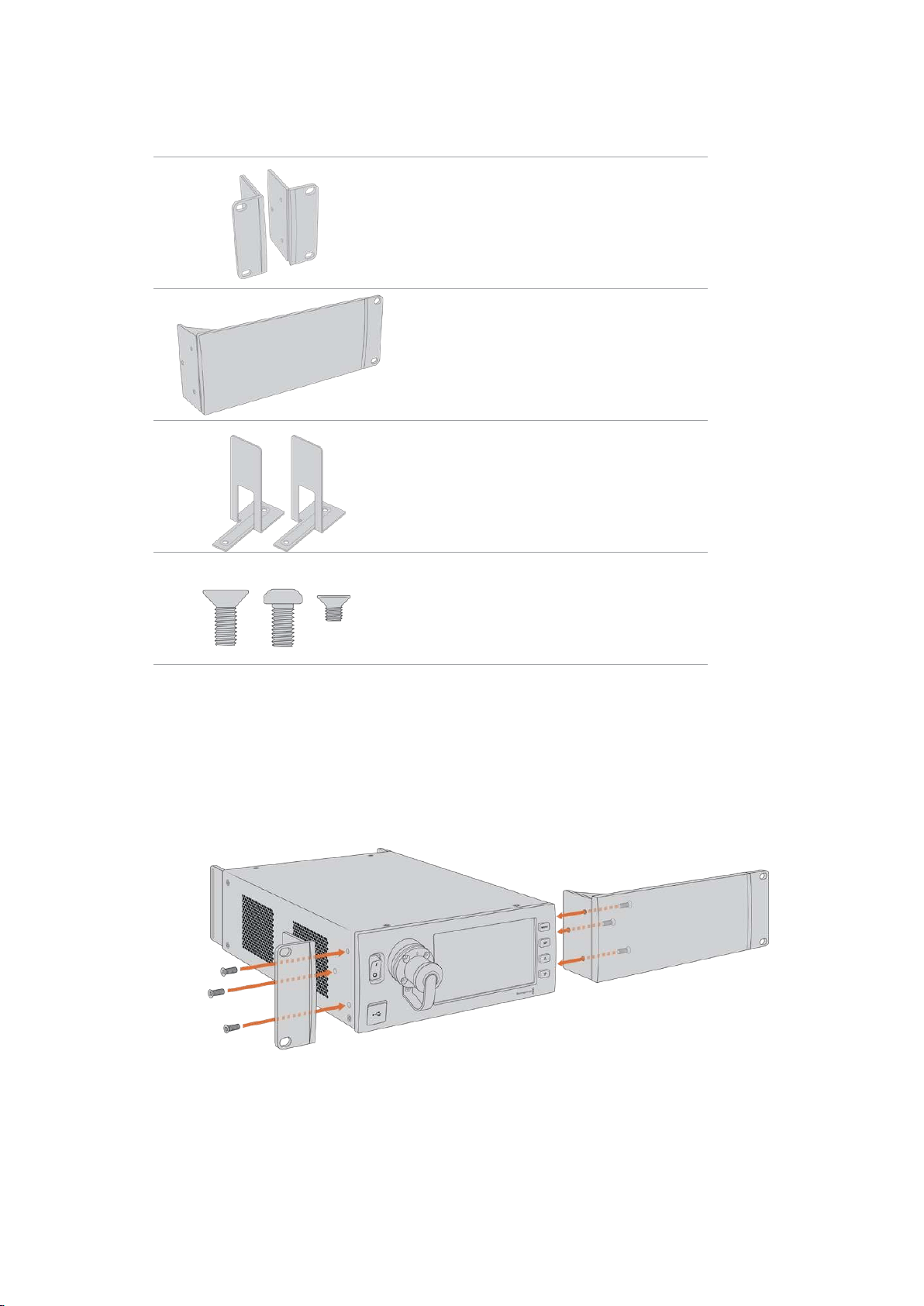
The Blackmagic Studio Fiber Rack Kit contains the following items:
2x Rack ears
Attach rack ‘ears’ to the outside edge of
Blackmagic Studio Fiber Converter for mounting
in a rack
1x Half rack width blanking panel
The blanking panel has a mounting ear on one
side so you can cover the empty rack space if
you are installing a single unit. The illustration
shows the ear on the right side. Simply rotate
thepanel 180° to mount it to the other side.
2x Support brackets
The T-shaped support brackets attach
underneath the two Studio Fiber units where
thetwo units meet at the front and the rear
toprovide support.
Screws
8 x M4 10mm
Rack
ear screws
4 x M4 8mm
Blanking
panel screws
5 x M3 5mm
Support
bracket
screws
Preparing the Blackmagic Studio Fiber Converter for installation into a rack:
1 Position the blanking panel on one of the sides of your Studio Fiber Converter,
depending on whether you would like the unit to sit on the left or right side of the
rack shelf. The front face of the blanking panel should be parallel with the front panel
of the unit.
2 Attach the blanking panel to the side of your Studio Fiber Converter near the front
using three of the supplied blanking panel screws.
3 Use three of the supplied rack ear screws to attach a rack ear to the other side of your
Studio Fiber Converter.
With the rack ear and blanking panel attached, you can now install your converter into
astandard two rack unit space using the mounting holes on both sides and standard
rack screws.
198Operating the Studio Fiber Converter
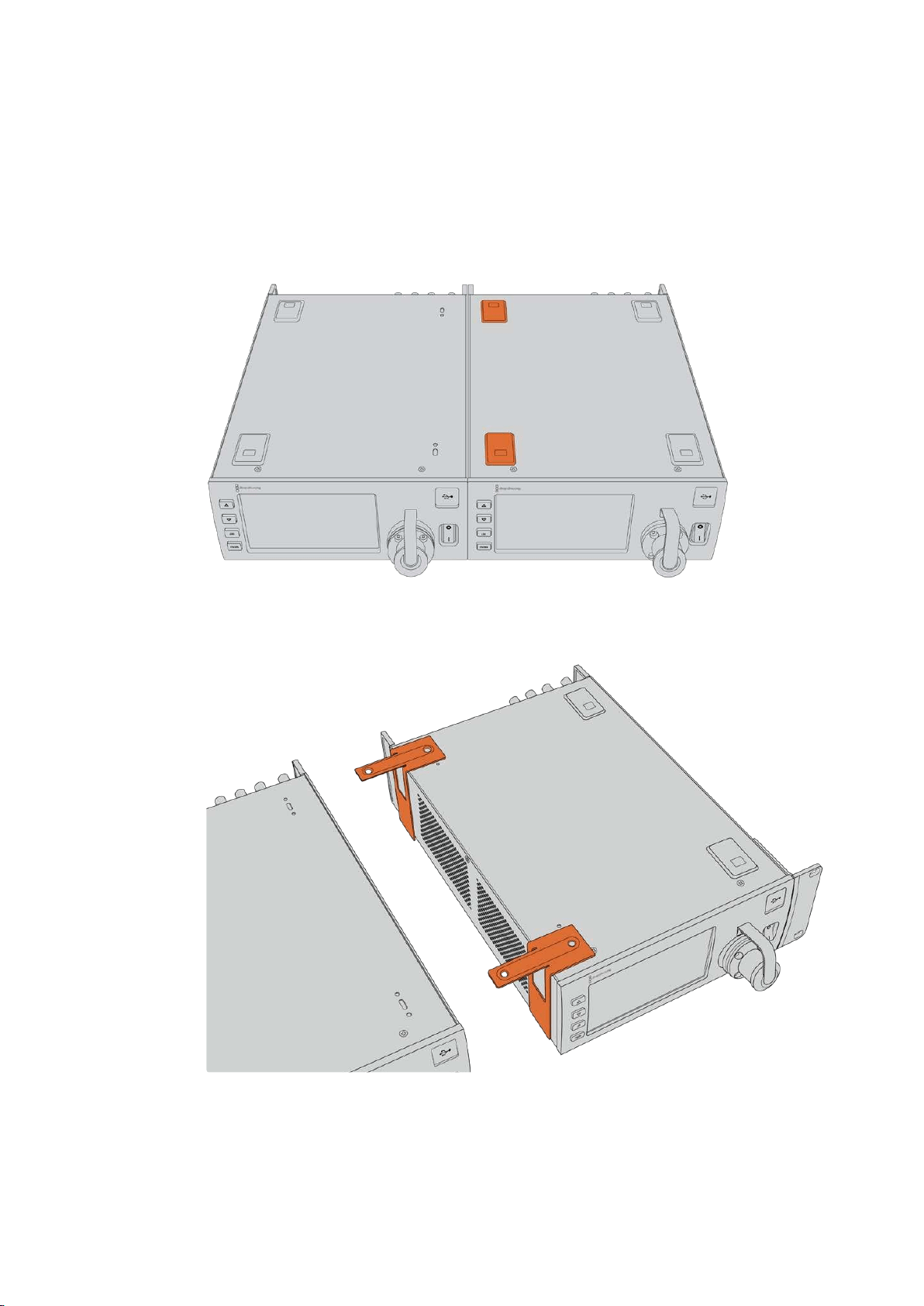
Preparing two Blackmagic Studio Fiber Converters for side by side installation into a rack:
If you are mounting two converters side by side, you can attach them to each other using
support brackets which secures them together so you can mount them more easily.
To secure the two units:
1 Turn the two converters over so that they are upside down and placed side by side.
Remove two rubber feet from the edges of each converter where they meet.
2 Attach the two supplied T-shaped support brackets to the base of the two Studio
Fiber units at the front and the back where the two units meet, using the screw holes
provided and the supplied support bracket screws.
199Operating the Studio Fiber Converter
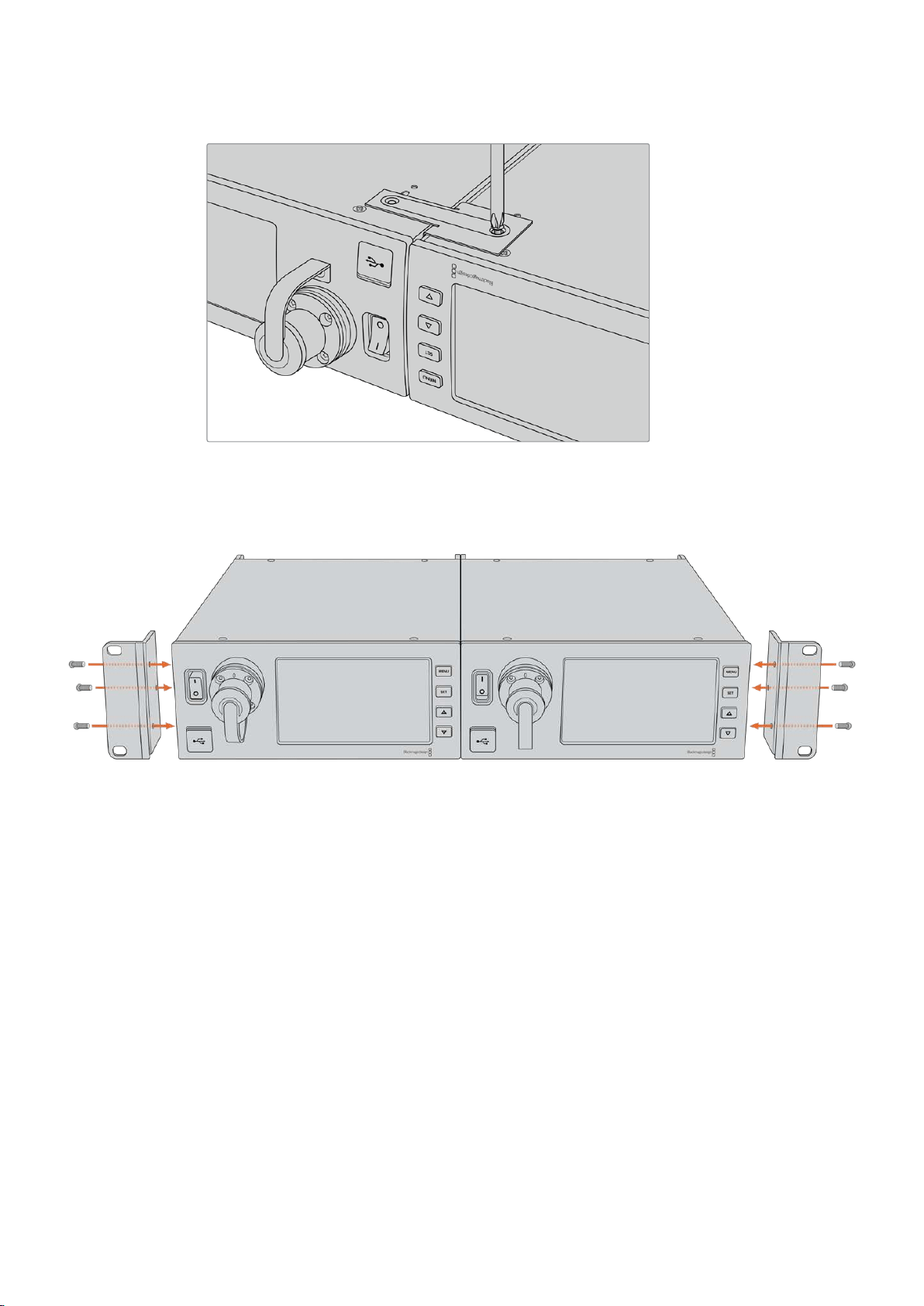
3 Turn the attached units back over and attach the rack ears to the outer edges near the
front of both converters, using the supplied rack ear screws. Your converters are now
ready to be installed into a rack using the mounting holes on both sides and standard
rack screws.
200Operating the Studio Fiber Converter
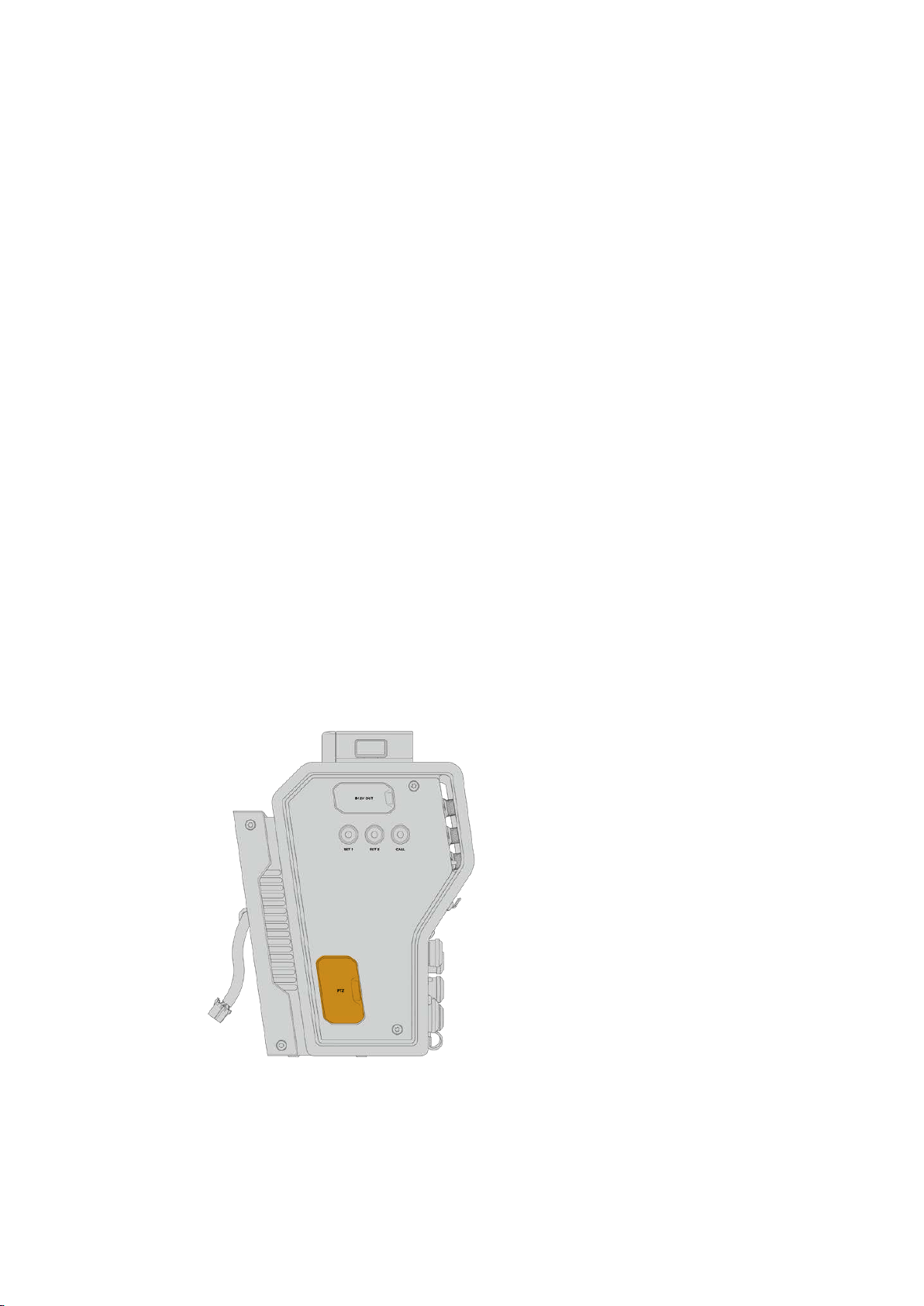
Camera Unit Connections
Connections are located on Blackmagic Camera Fiber Converter’s rear and side panels.
Whenthe connections are not in use, the rubber caps should be replaced to ensure weather
sealing in rain and other outside environments. This is especially true for the SMPTE fiber
connection, as dust particles can very quickly collect on the polished edge of the glass fibers
which can disrupt signal flow. It’s always a wise choice to remove the caps on both the cable
and unit connector immediately before connection, and then replace the caps immediately
afterdisconnection.
Camera Power Connection
Power is primarily supplied to the camera unit and your camera from the studio converter via a
SMPTE hybrid fiber cable. This also powers all accessories that may be attached to the camera,
for example Blackmagic URSA Studio Viewfinder.
However, you can also power the Blackmagic Camera Fiber Converter via the camera if your
camera has its 12V XLR connector plugged into a power supply. This is not normally required,
but is an option if you have your camera positioned further than 2 kilometers away from the
studio unit where power may not be as reliable over the SMPTE fiber cable.
PTZ Interface
The DE-9 serial connector allows you to connect to a PTZ motorized head. For example, if your
Blackmagic URSA Mini or URSA Broadcast is attached to a camera crane using a pan, tilt, zoom
head that is controlled remotely. You can select the source of PTZ commands being sent to
your camera in the menu of your Blackmagic Studio Fiber Converter. The source of the
commands can be set to the DE-9 connector on your Studio Fiber Converter or an SDI feed
coming from an ATEM switcher. For more information refer to the ‘operating the studio fiber
converter’ section.
PTZ Interface
201
Camera Unit Connections
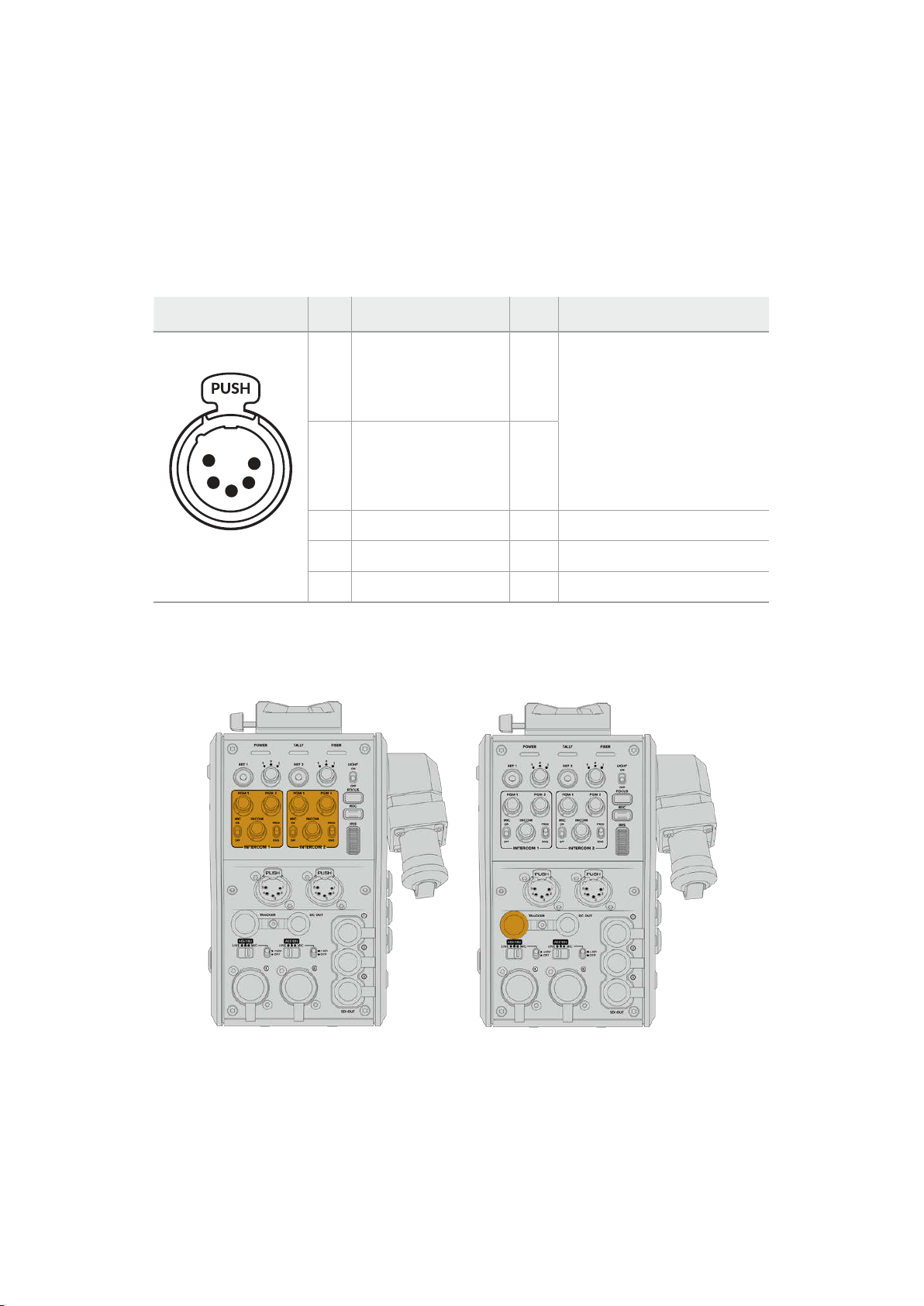
Talkback Connection
The two female 5 pin XLR connectors let you plug in two headsets, which allows two people to
communicate via talkback simultaneously. For example, the camera operator’s headset can be
plugged into the first XLR connector, and a crane operator or fellow crew member, such as a
sound operator, could plug into the second XLR headset connector. A pinout diagram for the
headset XLR connector is included below.
Headset XLR Pinout Diagram
External view Pins Signal I/O Specifications
1
2
3
5
4
5-pin XLR
‘headset’ connector
1 Intercom MIC (Y) GND
The intercom mic input supports
electret condenser mics and
dynamic mics, which can be
balanced or unbalanced. Pin 1 is
the mic signal common, and pin
2 is the mic signal input for both
types. With electret mics, a DC
bias supply is also output via the
same mic signal input pin.
2 Intercom MIC (X) In
3 GND GND GND
4 Intercom left Out
5 Intercom right Out
The corresponding intercom controls are located above each headset connection.
For more information on how to use the intercom controls, refer to the ‘Operating the Camera
Fiber Converter’ section.
The intercom controls are used to mix Tracker Interface connector
talkback audio levels
202Camera Unit Connections
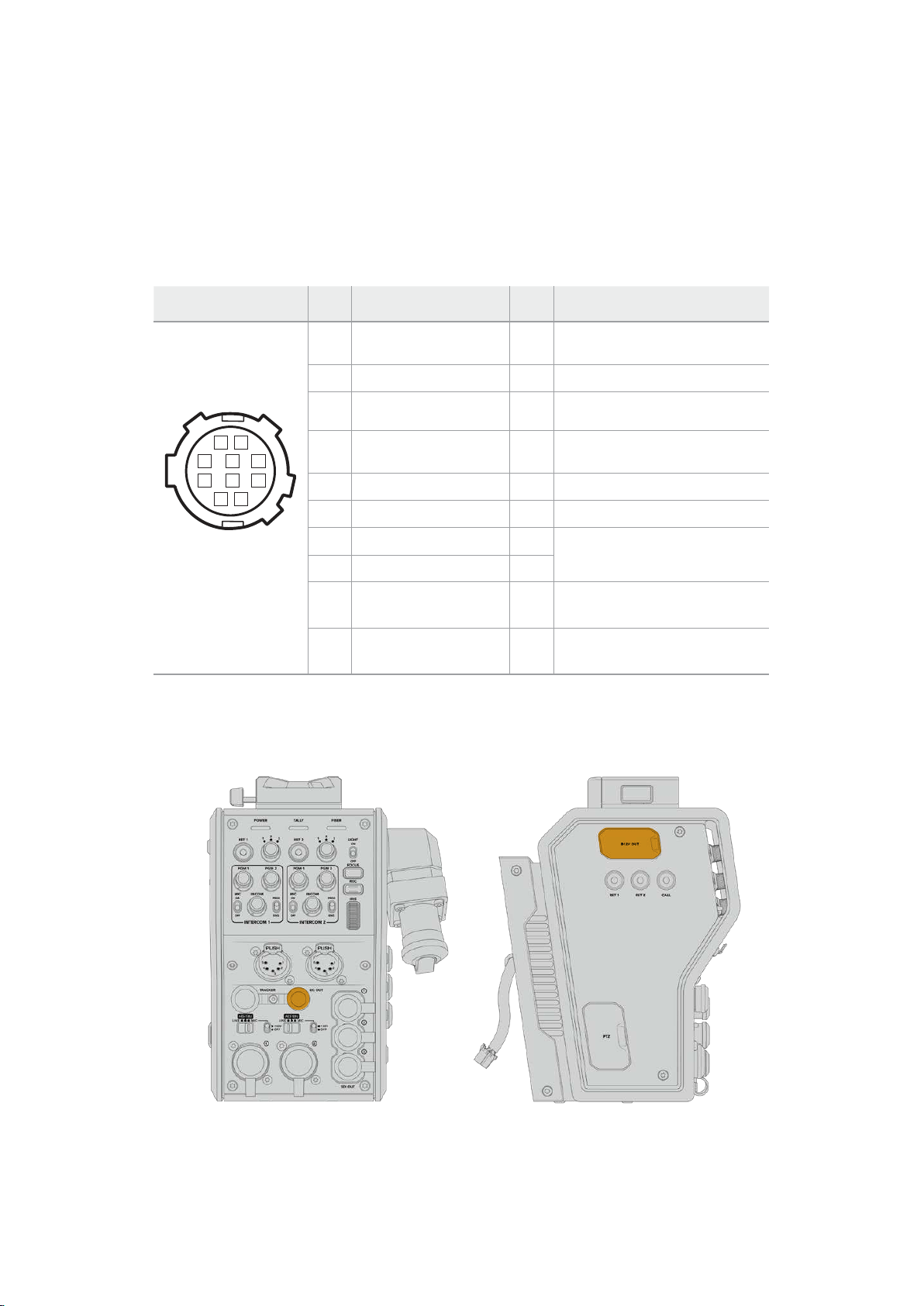
Tracker Interface
The 10 pin ‘tracker’ connector provides a multiplexed output for talkback and tally signals, plus
data such as teleprompter information. This output is commonly used by support crew
operating production equipment such as a camera crane.
A pinout diagram is provided in this section if you want to build your own cable.
Tracker Output Pinout Diagram
External view Pins Signal I/O Specifications
1 Tracker lef t Out
Tracker output,
-20 dBu unbalanced
2 GND (Talk) – GND for tracker talk
1
8
9
2 3
7 6
10
4
5
3 GND (Receive/PGM/tally) – GND for receive/PGM/tally
4 Tracker right Out
Tracker output,
-20 dBu unbalanced
5 Unregulated Out 12V DC (nom), 500mA (max)
6 GND (Unregulated) – GND for unregulated
7 Tracker talk (X) In
Tracker talk 0 dBu /-20 dBu,
high impedance balanced
10 pin ‘tracker’
connector
8 Tracker talk (Y) In
9 G Tally Out
On: 12V
Off: high impedance (open)
10 R Tally Out
On: 12V
Off: high impedance (open)
DC Connection
You can power additional accessories, for example an external monitor, via the DC out connector.
The DC out connector lets you power D-Tap Output
additional accessories, such as a monitor
or external recording equipment
203Camera Unit Connections
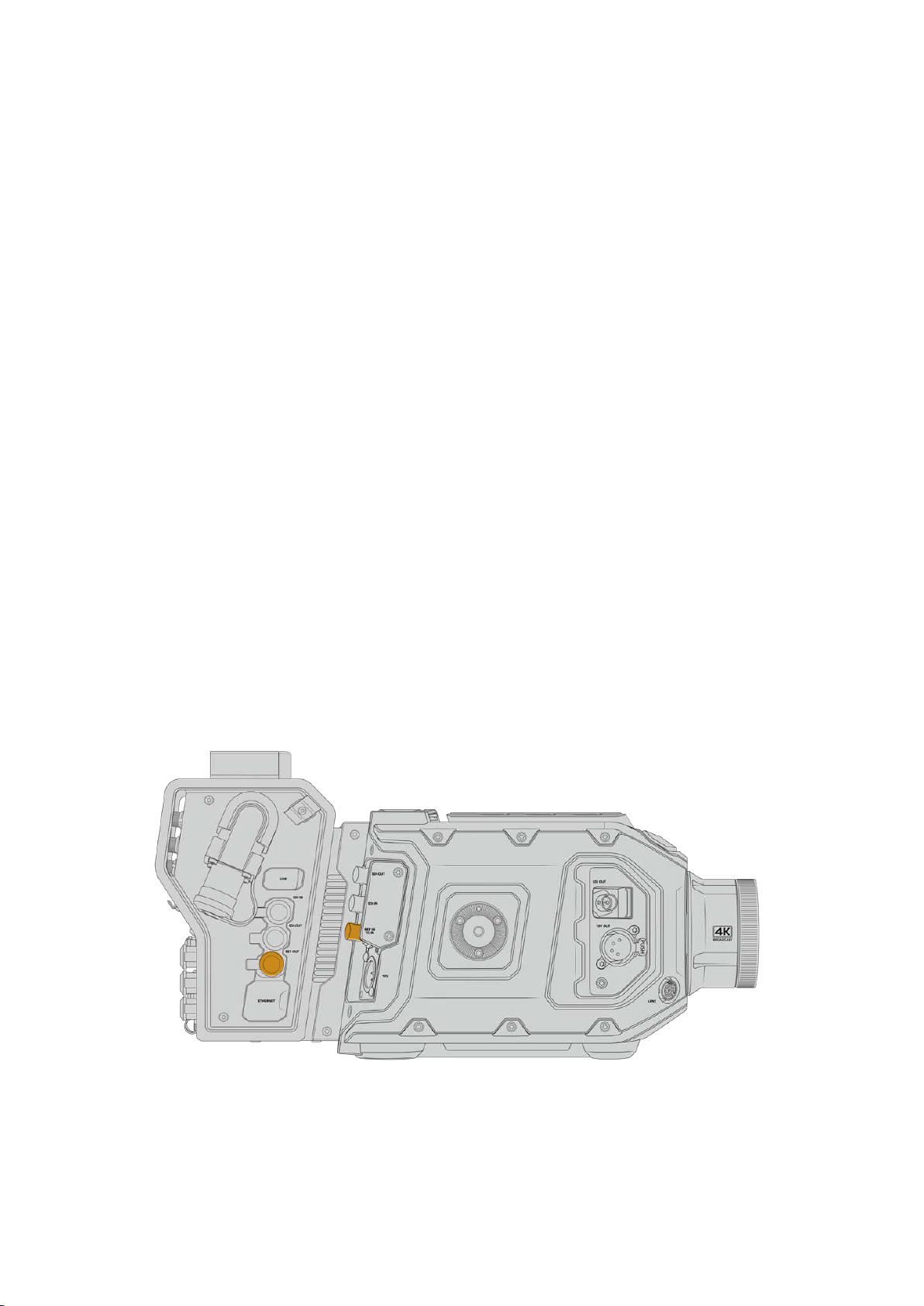
D-Tap Output
The +12V output on the left side panel is often referred to as a ‘D-tap’ or ‘P-tap’ and lets you
power accessories like a monitor or a large box lens. The output supports box lenses that
require 12 Volts DC nominal at 2 amps.
Reference Output and Operation
The reference output can be used to connect a reference signal to your camera via a
BNC cable.
To connect a reference signal to your camera:
1 Connect the reference output from the Blackmagic Camera Fiber Converter, marked
‘REF OUT’, to the reference input on your camera marked ‘REF IN’ using one of the
small SDI cables supplied with your camera fiber converter.
2 Set your camera’s reference setting to the reference input.
A sync reference signal lets you genlock video equipment to a common reference, so all
equipment shares the exact same timing. This means all video sources are synced and will
switch smoothly.
ATEM switchers have built in re-synchronizers, so if you are using Blackmagic cameras with an
ATEM Switcher then you don’t need to worry about connecting a sync reference. The camera
will lock to the incoming SDI program feed from the ATEM switcher, so all you need to do is
make sure the ‘program’ input is selected in your URSA Mini or URSA Broadcast’s reference
setting on page two of the ‘setup’ menu. The re-synchronizing process will add a frame delay.
If you want to reduce the latency of the re-synchronizing process within the ATEM, firstly apply
a reference signal to the URSA Mini or URSA Broadcast, then adjust the back timing so the line
input is before the switch timing of the ATEM.
To adjust the reference sync on the URSA Mini or URSA Broadcast, enter the ‘setup’ menu and
change the settings for ‘reference timing’.
If you’re using an external reference signal, connect the reference output from
thecamera fiber unit to URSA Mini or URSA Broadcast’s reference input.
204
Camera Unit Connections
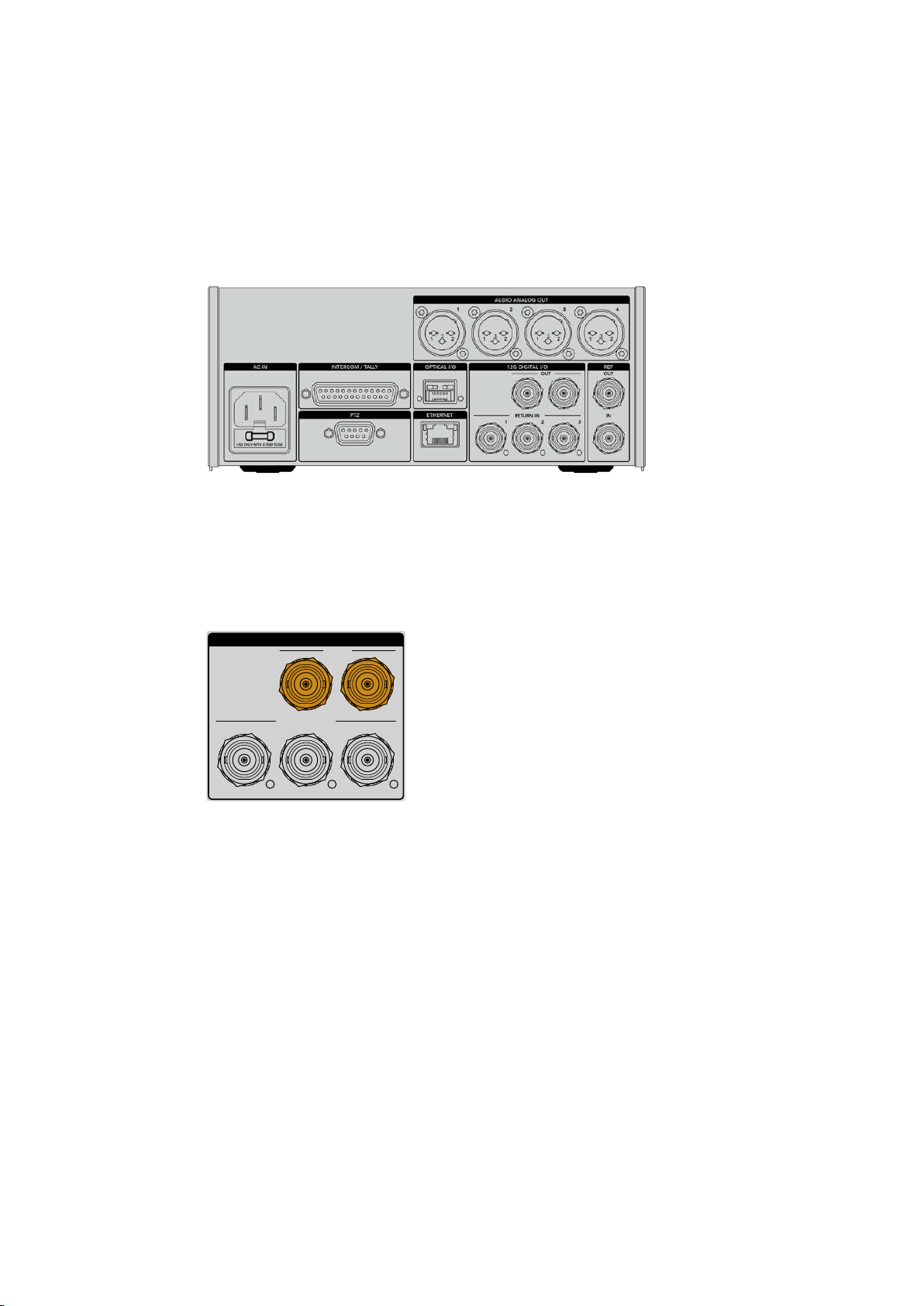
Studio Unit Connections
The rear panel of the Blackmagic Studio Fiber Converter provide SDI return feed and reference
BNC connectors, intercom and tally DB-25 connector, PTZ 9 pin serial port, audio outputs, and
Ethernet.
All SDI inputs support 12G-SDI for video formats up to Ultra HD 2160p60.
12G-SDI Output
The two 12G-SDI outputs are for connecting the camera signal from the studio unit to any of
your switcher’s camera SDI inputs. The second connector can be used to output the same
signal to other video equipment, for example a Blackmagic Videohub router, SmartView monitor
or a HyperDeck Disk Recorder.
RETURN IN
1 2 3
OUT
12G DIGITAL I/O
The 12G-SDI outputs allow for signals
from 720p50 up to 2160p60
Return SDI Inputs
The 12G-SDI return feed BNC connectors give you the option to plug in up to three return
SDIfeeds. For example, the program feed from a switcher should be connected to return 1 and
have a matched frame rate to that of your camera. Other sources like a second camera output,
HyperDeck playback, or even a teleprompter can be connected to return feeds 2 and 3. If you
are using an ATEM switcher, the program return connected to return 1 will also include tally,
talkback, reference and camera control signals.
The return SDI inputs allow you to connect up to three return feeds from your switcher. These
feeds will be fed to your camera so that they can be viewed by the camera operator, or fed out
via SDI to other equipment.
205Studio Unit Connections
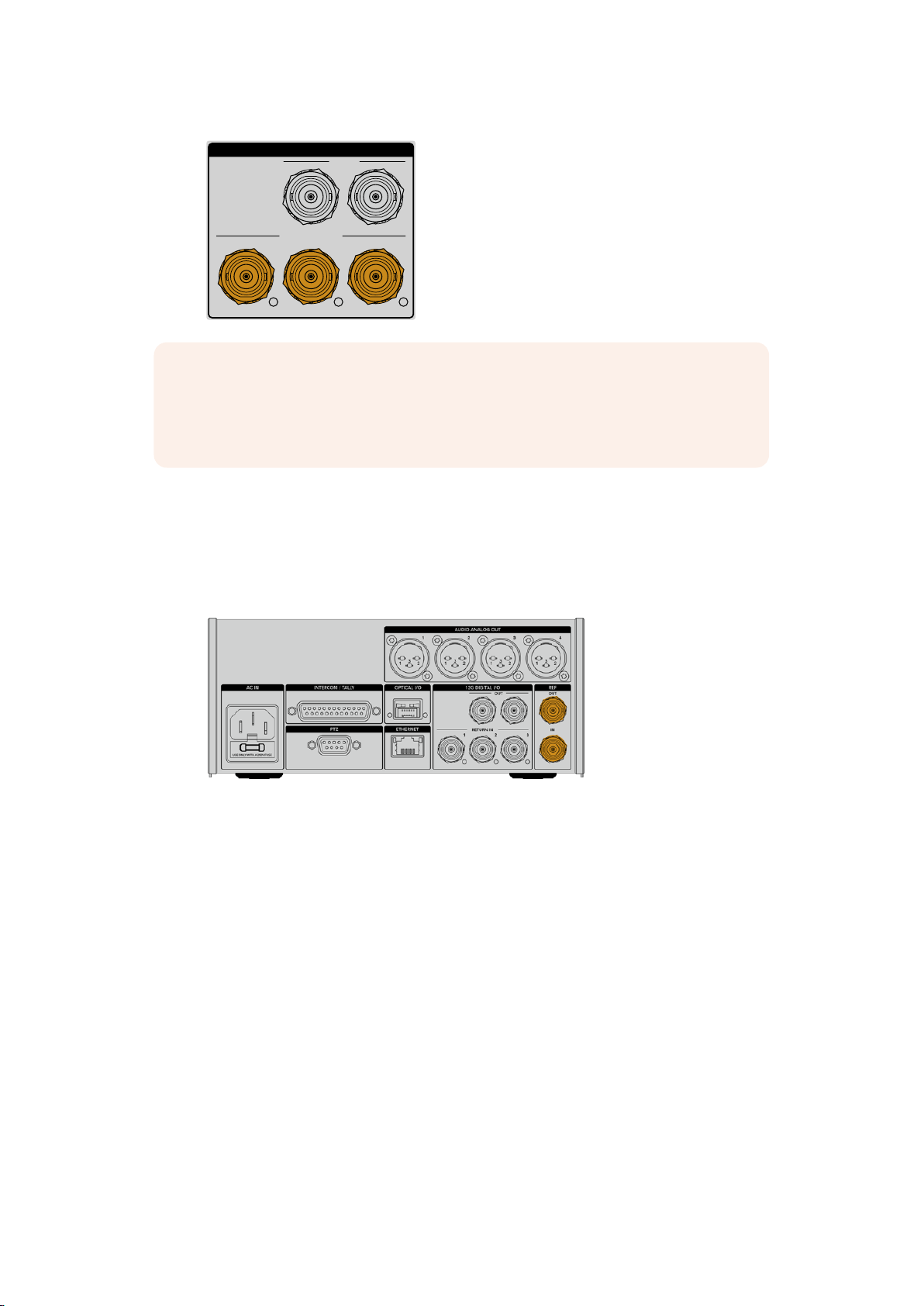
RETURN IN
1 2 3
OUT
12G DIGITAL I/O
NOTE If you connect Ultra HD to the return inputs, the Ultra HD video will be down
converted to 1080p at the same frame rate, so the output from the camera unit will be
HD. Down converting the Ultra HD return signals to HD allows for greater bandwidth
so you can send multiple return sources.
Reference Input and Output
If you are not using an ATEM switcher and need to lock equipment to a common external
reference signal, plug the externally generated signal into the reference BNC input. This sends
the reference to the camera unit via the SMPTE fiber cable. The reference BNC output from the
studio unit can be used to loop the reference source to other equipment.
Use the ‘ref in’ connection to send traditional reference timing
from other broadcast equipment to your camera
Talkback Interface
The DB-25 intercom and tally connector lets you connect to third party intercom and tally
systems. A pin out diagram is provided below if you need to build a custom cable. Once you
have wired up to the pins for engineering, production, tally or program audio input, you will
need to set the menu accordingly on your Blackmagic Studio Fiber Converter.
206Studio Unit Connections
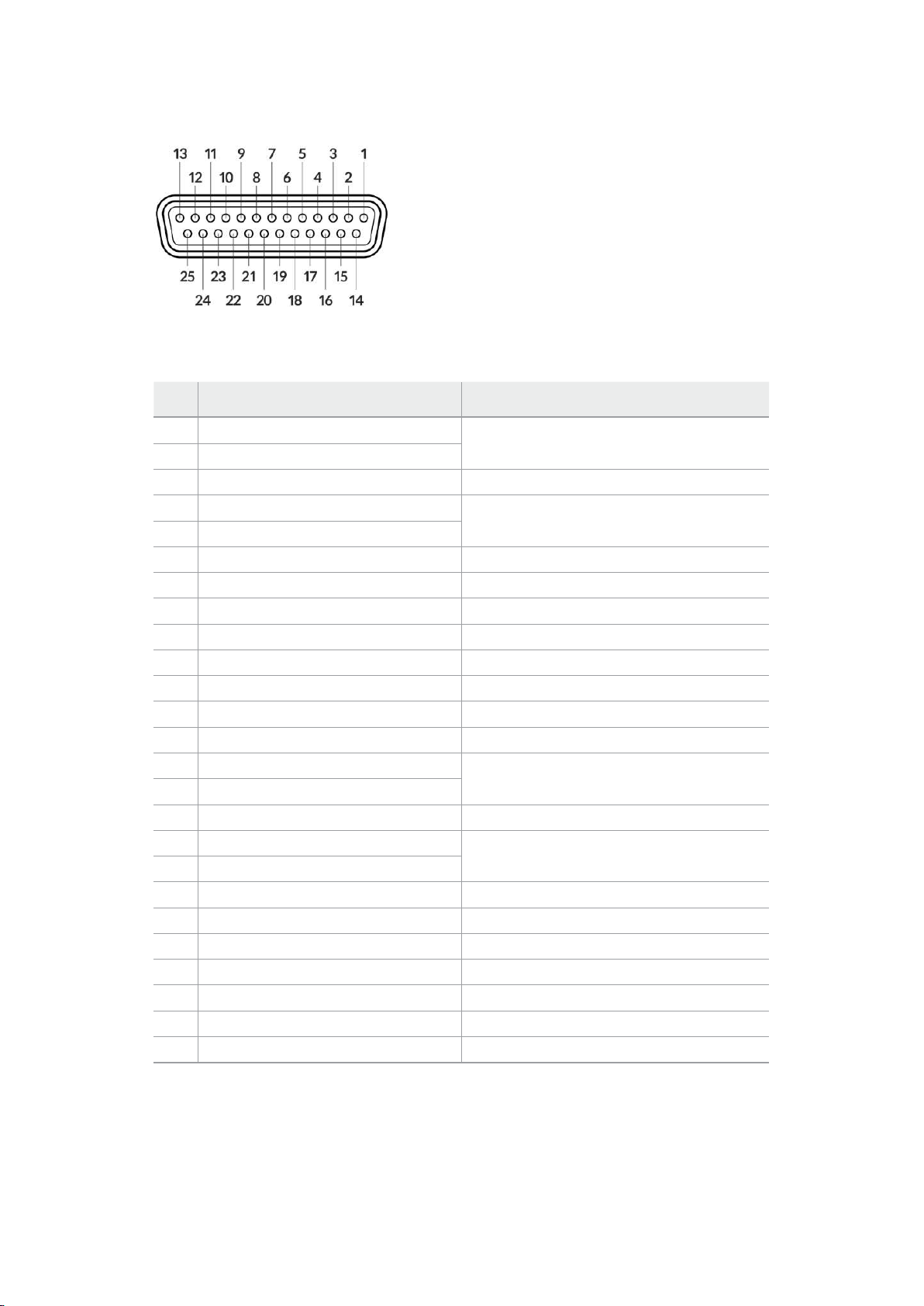
The external view of the 25 pin ‘intercom/tally’ connector
Talkback Pinout Diagram
Pins Signal Specifications
1 ENG(R) IN+
Engineering channel input
0dBu balanced
2 ENG(R) IN-
3 ENG GND GND for ENG
4 ENG(T) OUT +
Engineering channel output
0dBu balanced
5 ENG(T) OUT -
6 PGM IN+ -20dBu
7 PGM IN- -20dBu
8 PGM GND -20dBu
9 GND GND for aux
10 N/C –
11 Red Tally IN On = 5-24Vdc, Off= 0Vdc
12 Red Tally GND –
13 GND Chassis GND
14 PROD(R) IN+
Production channel input
0dBu balanced
15 PROD(R) IN-
16 PROD GND –
17 PROD( T) OUT+
Production channel output
0dBu balanced
18 PROD(T) OUT-
19 N/C –
20 N/C –
21 N/C –
22 N/C –
23 N/C –
24 Green Tally IN On = 5-24Vdc, Off= 0Vdc
25 Green Tally GND –
207Studio Unit Connections
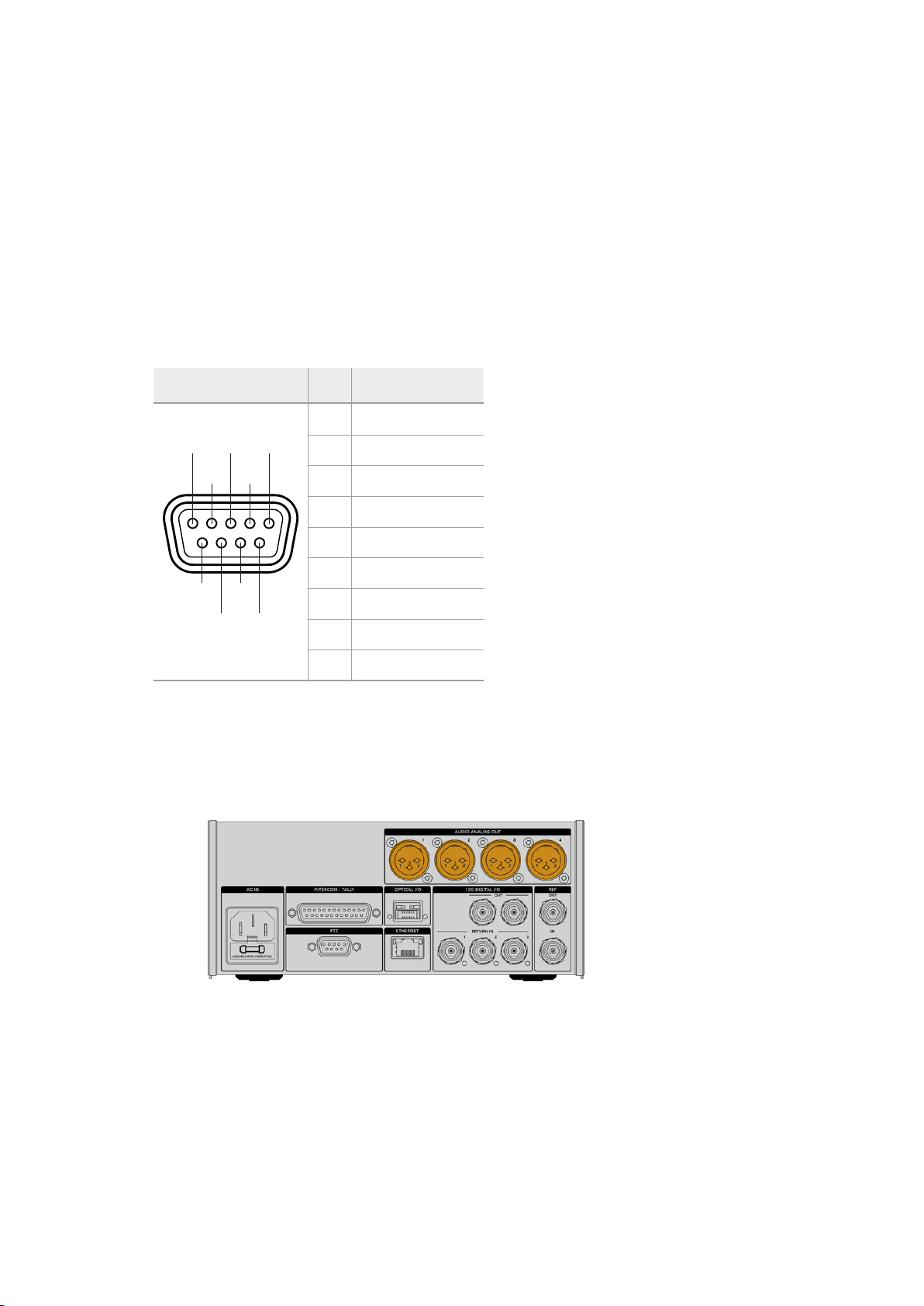
PTZ Interface
Both the studio unit and camera unit has a 9 pin DE-9 connector so you can connect a PTZ
controller at the studio end, and the remote head at the camera end. The PTZ commands are
embedded in the SDI signal connected between the units via the SMPTE fiber cable.
The settings menu on Blackmagic Studio Fiber Converter lets you select the source of PTZ
commands that are sent to your Blackmagic Camera Fiber Converter. You have the option to
select from the PTZ connector on the back of the Studio Fiber Converter or a program SDI feed
coming from an ATEM Switcher instead. For more information, refer to the ‘operating the studio
fiber converter’ section.
PTZ Interface Pinout Diagram
External view Pins Signal
1
2
8
9
6
7
3
4
5
1 GND
2 RS422 Tx-
3 RS422 Rx+
4 GND
5 N/C
6 GND
7 RS422 Tx+
8 RS422 Rx-
9 pin ‘PTZ’ connector
9 GND
Audio Outputs
The four XLR audio outputs on the studio unit give you the option to output the audio plugged
into inputs 1 and 2 from your URSA Mini or URSA Broadcast camera, and the two XLR audio
inputs on the Camera Fiber Converter.
Outputs 1 and 2 on the studio unit correspond to embedded XLR input channels 1 and 2 on
URSA Broadcast or URSA Mini by default. Outputs 3 and 4 on the studio unit correspond to XLR
inputs 1 and 2 on the Blackmagic Camera Fiber Converter by default. You can use the menu to
change these settings for mapping. For more information, see the ‘using the menu’ section.
208Studio Unit Connections
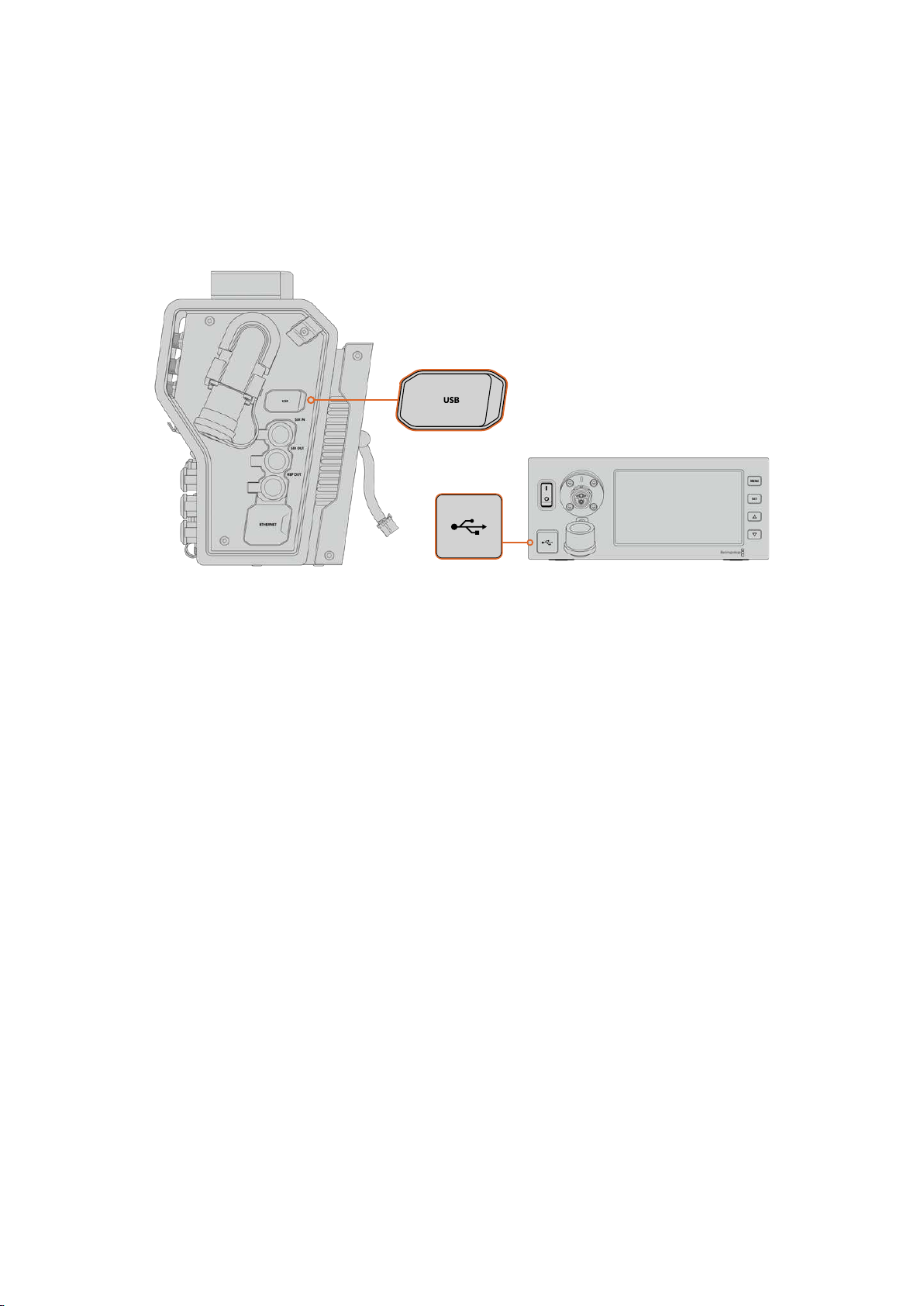
Updating Internal Software
From time to time Blackmagic Design releases updates that can enhance and enable features
on your Blackmagic Fiber Converters. We recommend checking the Blackmagic Design
website regularly to ensure your fiber converters are using the latest internal software. Update
your Fiber Converters using the Blackmagic Camera Setup Utility software.
The USB-C ports on the Blackmagic Fiber converters let you update their internal software.
Updating Blackmagic Camera Fiber Converter
Your Camera Fiber Converter will need to be powered when updating, so we recommend
keeping the converter connected to URSA Mini or URSA Broadcast during the update process.
It’s important that you unplug the SMPTE Fiber cable from your Camera Fiber Converter, and
power your camera via the supplied URSA camera Power Supply instead for consistent power.
Blackmagic Camera Fiber Converter has a USB-C connector on the right side of the unit for
updating its internal software. Connect your computer to this USB connector and launch
Blackmagic Camera Setup Utility. You will be prompted to update if your computer detects that
your Camera Fiber Converter is using an outdated version. Follow the on screen prompts to
update your converter’s internal software.
Updating Blackmagic Studio Fiber Converter
Your Studio Fiber Converter will need to be powered when updating, so we recommend
keeping the IEC power cable plugged into the power connector on the studio unit’s rear panel
during the update process.
Blackmagic Studio Fiber Converter has a USB-C connector on the front of the unit for updating
its internal software. Connect your computer to this USB connector and launch Blackmagic
Camera Setup Utility. You will be prompted to update if your computer detects that your Studio
Fiber Converter is using an outdated version. Follow the on screen prompts to update your
converter’s internal software.
209Updating Internal Software
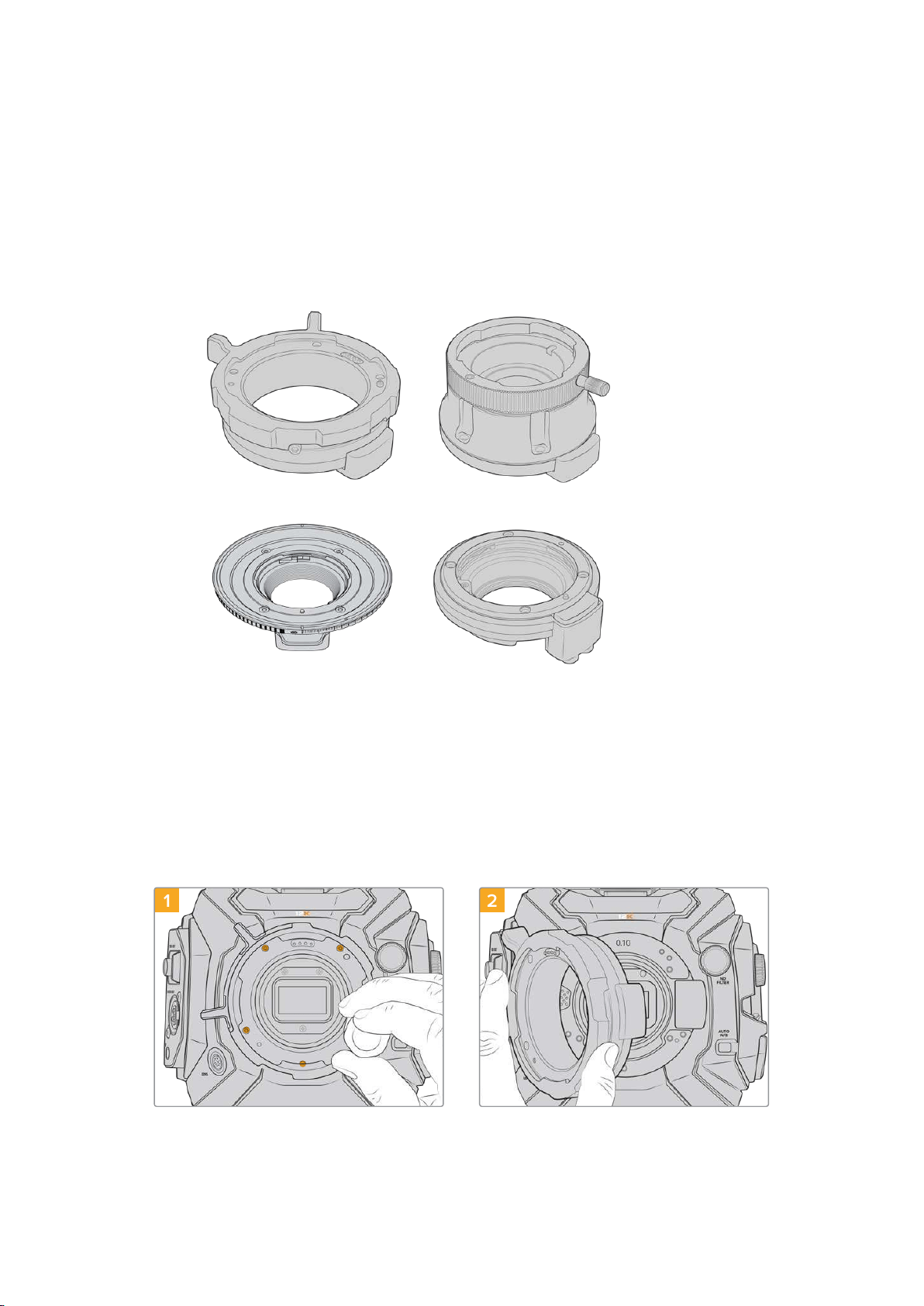
Interchangeable Lens Mount
Blackmagic URSA Mini Pro 12K is shipped with a PL mount. Other URSA Mini Pro cameras are
shipped with an EF mount attached. All URSA Mini Pro cameras have interchangeable lens
mounts so you are not locked into using lenses to match the lens mount supplied with your
camera. This means you can remove the original mount and attach an optional PL, B4, F or EF
mount. Contact your local Blackmagic Design reseller to purchase URSA Mini Pro PL Mount,
URSA Mini Pro B4 Mount, URSA Mini Pro F Mount or URSA Mini Pro EF Mount.
PL mount B4 mount
EF mountF mount
With the ability to interchange three separate mounts, you have the freedom to use different
lenses based on the type of assignments you’re working on. For example, the EF mount lets
you use high quality stills lenses, the B4 mount is perfect if you want to use par-focal zoom
lenses for electronic news gathering or wedding shoots, and the PL mount lets you use high
end, robust cinema lenses designed for absolute precision and repeatable control.
Attaching each mount is as simple as unscrewing the original mount and replacing it with the
new mount. It’s very easy!
To remove the original PL Mount from URSA Mini Pro 12K:
1 2
The original PL mount is removed from
yourURSAMini Pro 12K by unscrewing the
five screws with a 2mm Hex driver
Gently lift the mount from the camera body
210Interchangeable Lens Mount

3
After you remove the PL lens mount, use the
wide end of the baffle tool to loosen the PL baffle
in the center and then unscrew it carefully using
your fingers
To remove the original EF Mount from URSA Mini Pro 4.6K G2 or URSA Mini Pro 4.6K:
1 2
The original EF mount is easily removed from
URSA Mini Pro 4.6K G2 or URSA Mini Pro 4.6K
by unscrewing the four screws with a 2mm
Hex driver
Gently lift the mount from the camera body
NOTE When removing the original lens mount, make sure the shims underneath the
mount always stay attached to your camera.
Keep reading this section for details about the PL, B4, F and EF lens mount kits and how to
install each mount to your URSA Mini Pro.
211Interchangeable Lens Mount
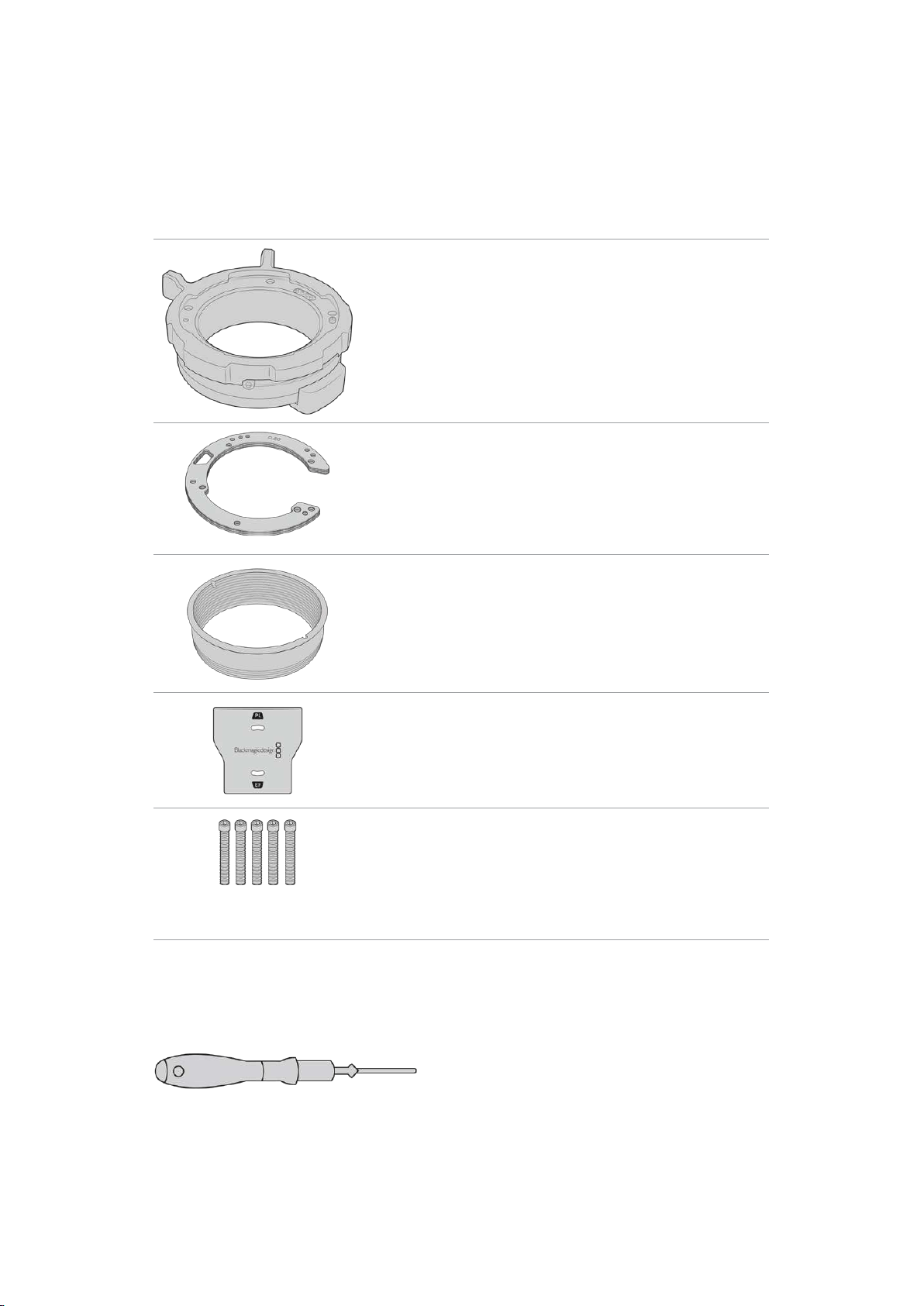
Blackmagic URSA Mini Pro PL Mount
Attaching the PL mount to your URSA Mini Pro lets you use high end precision cinemalenses
for feature film and television production.
The PL mount kit includes:
1 x PL mount
The PL mount is shipped with a protective dust cap.
1 x Shim set
The shim set includes the following thicknesses:
0.50mm
0.30mm
0.20mm
0.18mm
0.15mm
0.12mm
0.10mm
0.05mm
0.025mm
1 x PL baffle
The PL mount baffle helps to control and direct the light entering
the sensor.
1 x Baffle tool
Use the PL baffle tool to tighten the baffle in your camera.
5 x 2mm Hex M2.5 x 22mm mount screws
The five M2.5 x 22mm Hexscrews are exclusive to the PLmount
so you can keep the screws together with the respective mount.
The PL mount kit also comes with a full spare sets of screws in
case the originals are misplaced.
Tools Required
When attaching the PL mount, you will need a 2mm Hex driver. While it’s not absolutely
required, we recommend using a torque wrench able to accurately set a maximum torque
of0.45Nm to reduce the potential of over tightening the screws.
2mm Hex driver
212
Interchangeable Lens Mount
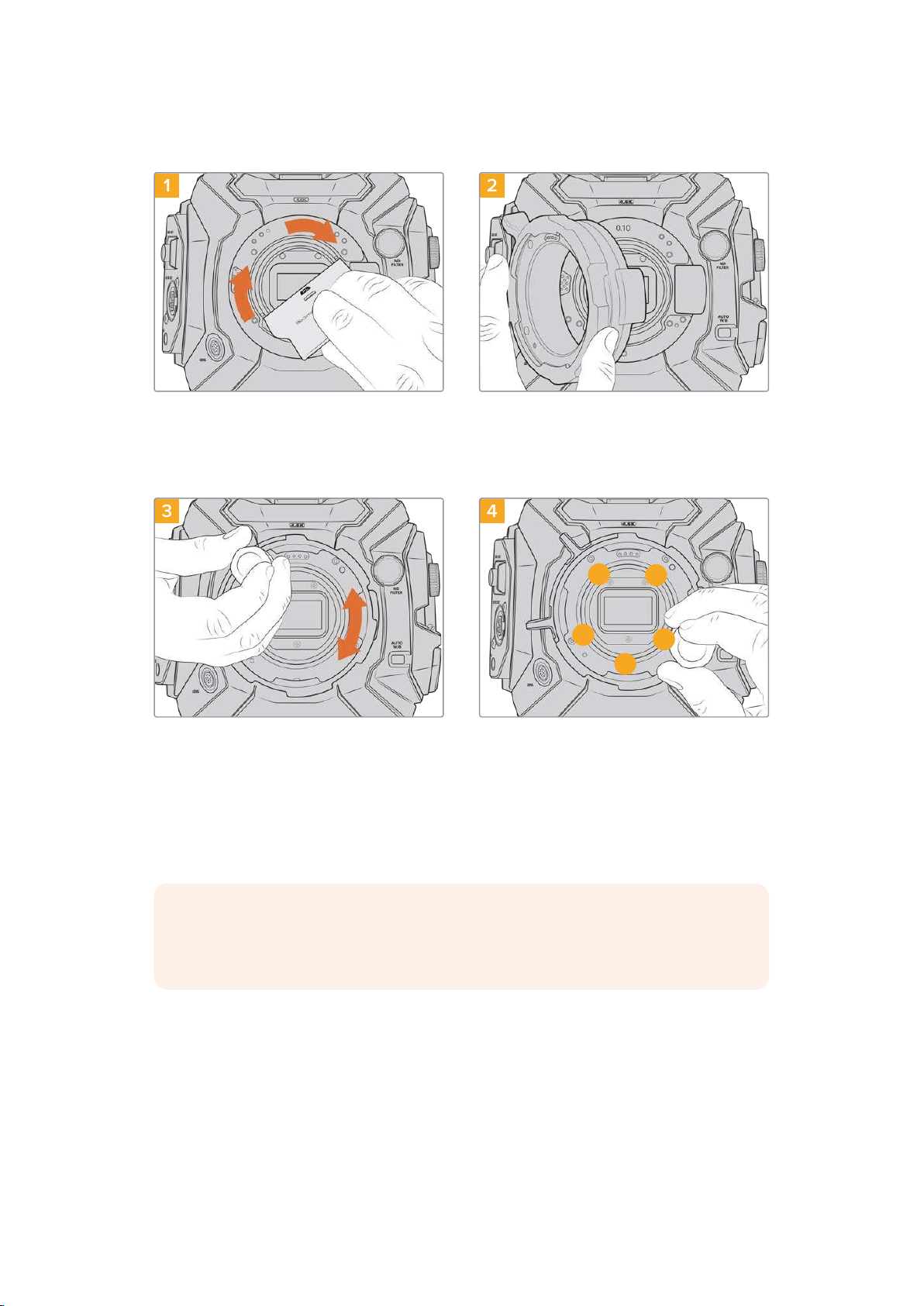
Attaching the PL Mount
1 2
Gently insert the PL baffle into the center of the
lens mount and turn until it is finger tight. Use the
wide end of the baffle tool to tighten the baffle
slightly. You need just enough pressure to keep
it in place.
Carefully place the Blackmagic URSA Mini Pro
PL lens mount onto the camera body. Ensurethe
pins on the PL mount for Cooke/iTechnology
are located at the 12o’clock position.
3 4
1
3
4
5
2
Using a 2mm Hex driver or torque wrench set to
0.45Nm, loosely turn the five mounting screws
until initial contact is made with the shoulder of
the lens mount. To access all five screws, you
will need to rotate the PL locking ring, as some
holes are obscured when the ring is either open
or closed.
Confirm the lens mount is level and correctly
aligned, then tighten the screws in the order
shown here to an even pressure without
overtightening the screws.
NOTE When removing the PL mount, simply follow the instructions in reverse order
from step 4 to step 1. Don’t forget to remove the PL baffle and store it securely with the
PL mount.
213Interchangeable Lens Mount
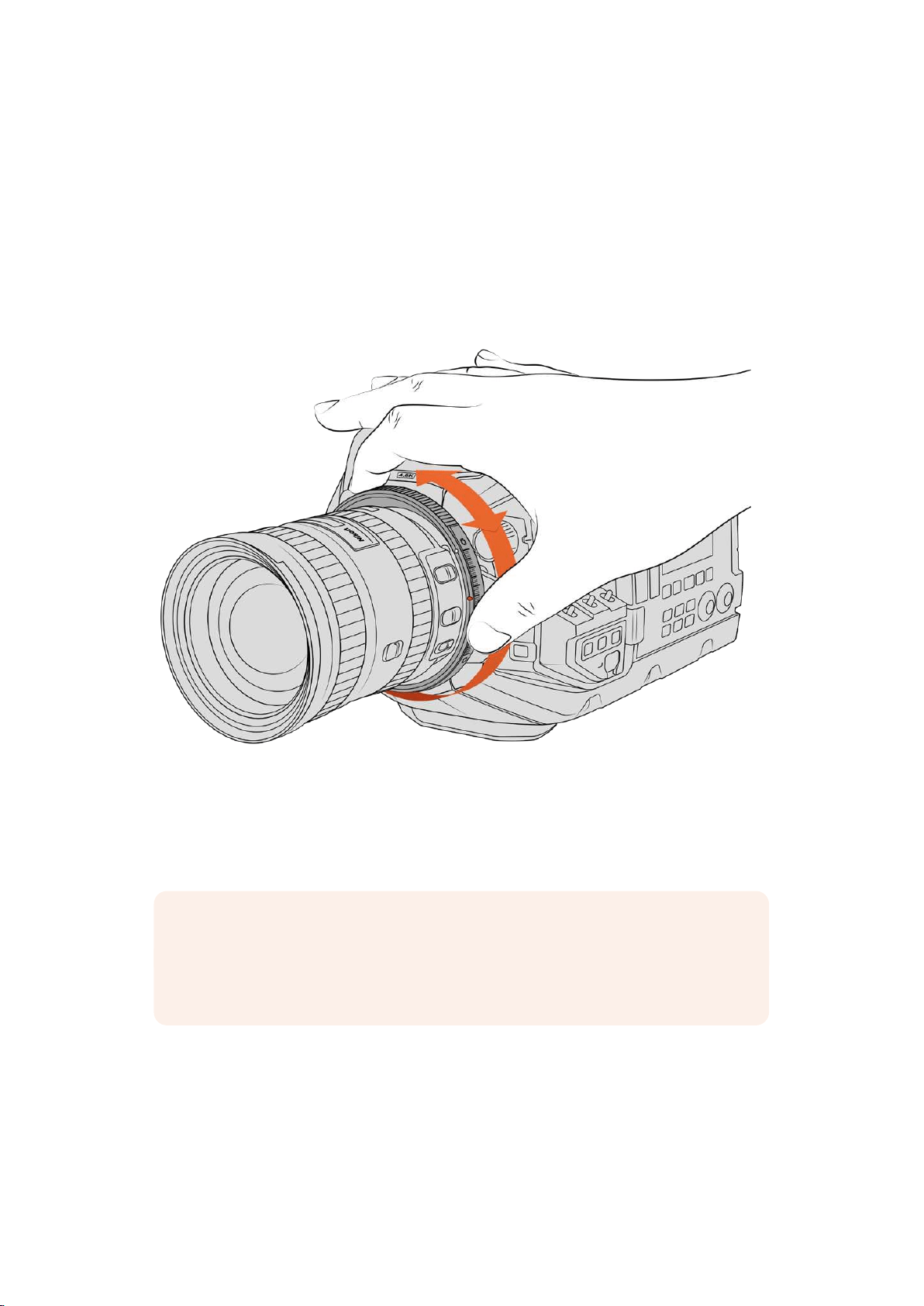
Blackmagic URSA Mini Pro F Mount
With the F mount attached to your URSA Mini Pro, you can use F mount lenses. Nikon’s Fmount
system stretches back to 1959, and F mount lenses are still made today. This means that with
the Blackmagic URSA Mini Pro F mount, you have access to a huge range of vintage and
contemporary lenses.
It’s worth noting that Blackmagic URSA Mini Pro F mount is a mechanical mount. This means
itdoes not offer electronic focus or iris control. Instead, Blackmagic URSA Mini Pro F mount
features a mechanical iris adjuster. This moves the iris pin present in most Nikon lenses to
achieve smooth cine style iris adjustment.
Use URSA Mini Pro F mount’s iris adjustment ring to smoothly change the aperture of F mount lenses.
With an F mount mounted, simply move the iris adjuster on Blackmagic URSA Mini Pro F mount
to achieve your preferred exposure. The red dot on the F mount and the markings on the iris
adjuster let you mark iris settings to easily return to particular exposure or depth of field
settings.
NOTE Because of the way URSA Mini Pro F mount works, a small number of F mount
lenses are not compatible.
These are Nikkor AF-S E series lenses, which do not offer mechanical iris control,
andNikon PC-E tilt-shift lenses like the 24mm f/3.5D PC-E and 85mm PC-E.
214Interchangeable Lens Mount
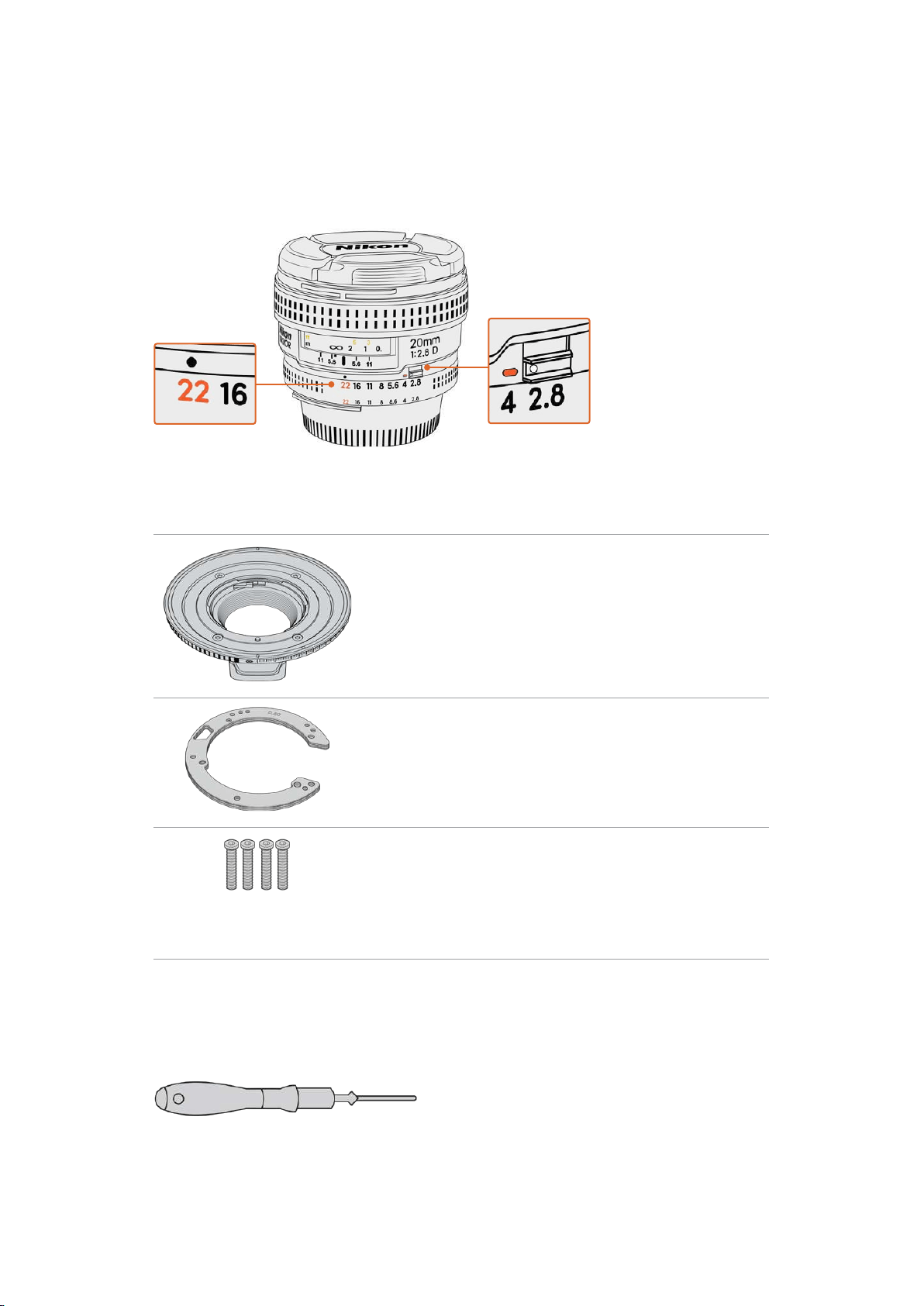
Nikon AF-D lenses
When using Nikon AF-D series lenses, it is necessary to lock your lens aperture to its
smallestsetting, such as f/22, to use the full range of Blackmagic URSA Mini Pro Fmount’s
irisadjustment ring.
Setting and locking AF-D lenses to their smallest
aperture is easiest before mounting to your camera.
The F mount kit includes:
1 x F mount
The F mount lets you attach common Fstills lenses.
1 x Shim set
The shim set includes the following thicknesses:
0.50mm
0.30mm
0.20mm
0.18mm
0.15mm
0.12mm
0.10mm
0.05mm
0.025mm
4 x 2mm Hex M3 x 18mm mount screws
The four M3 x 18mm Hex screws are used in the EFand
F mount so it is best to keep the screws together with the
respective mount.
The F mount kit also comes with a full spare sets ofscrews
in case the originals are misplaced.
Tools Required
When attaching the F mount, you will need a 2mm Hex driver. While it’s not absolutely required,
we recommend using a torque wrench able to accurately set a maximum torque of 0.45Nm to
reduce the potential of over tightening the screws.
2mm Hex driver
215
Interchangeable Lens Mount
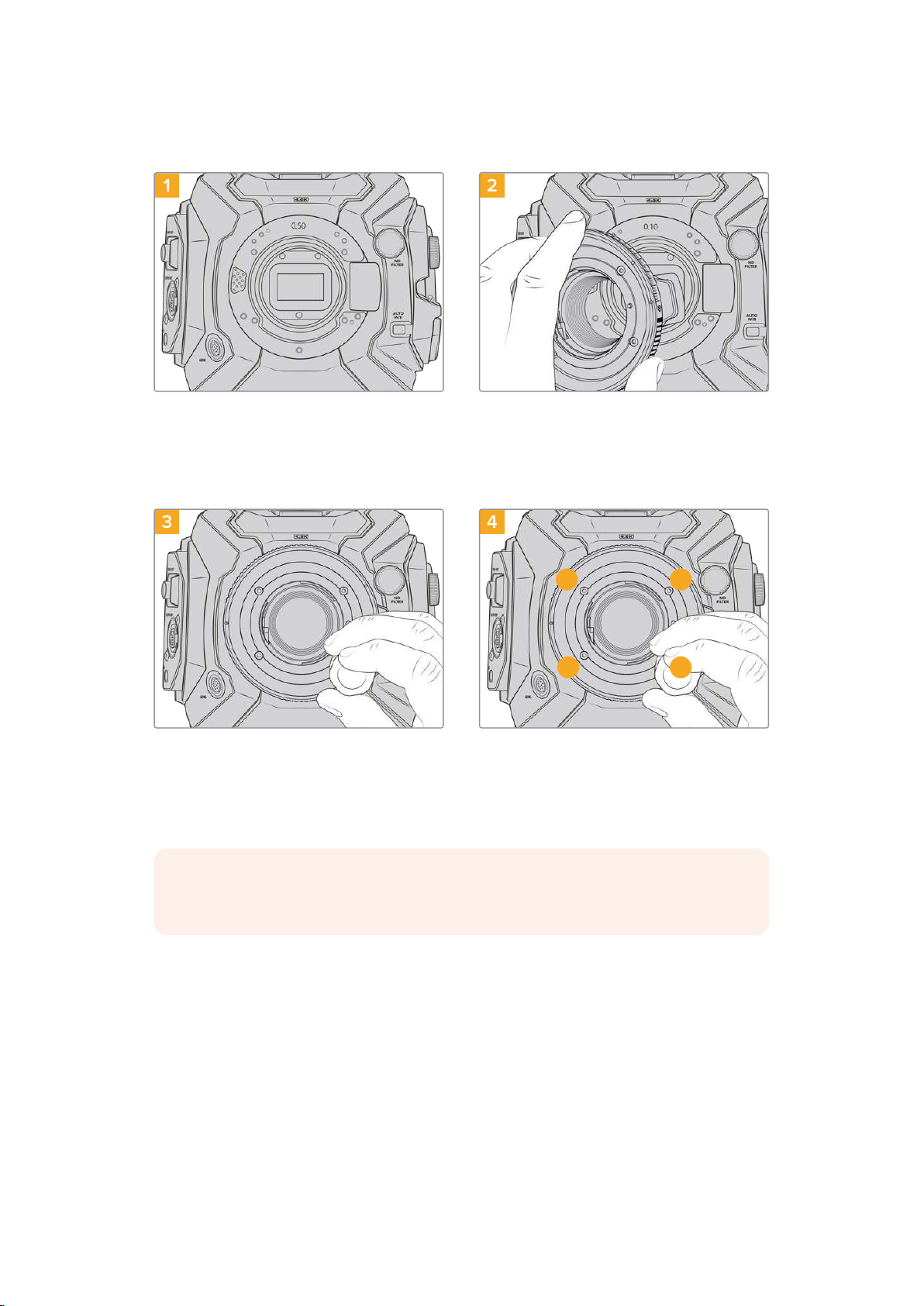
Attaching the F Mount
1 2
Place Blackmagic URSA Mini Pro vertically on a
solid, clean bench top to ensure the mount can
be attached vertically. If changing from the PL to
the Fmount, ensure that you have removed the
PLbaffle before inserting the F mount.
Carefully place the Blackmagic URSAMiniPro
F mount onto the camera bodyensuring the
white dot is atthe2o’clock position.
3 4
1 3
4 2
Using a 2mm Hex driver or torque wrench set to
0.45Nm, loosely turn the four mounting screws
until initial contact is made with the shoulder of
the lensmount.
Confirm the lens mount is level and correctly
aligned, then tighten the screws in the order
shown here to an even pressure without over-
tightening the screws.
NOTE When removing the F mount, simply follow the instructions in reverse order
from step 4 to step 1.
216Interchangeable Lens Mount
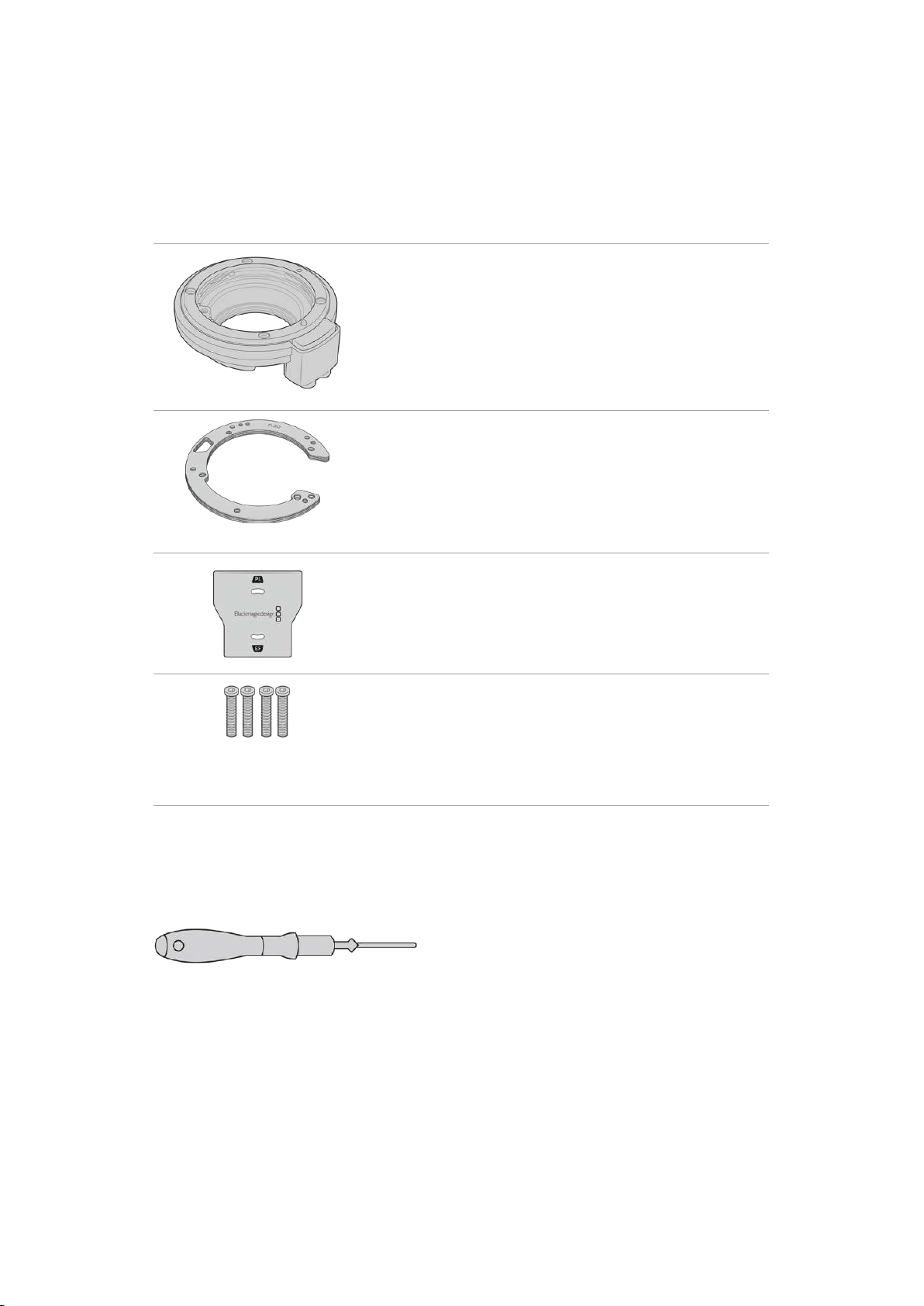
Blackmagic URSA Mini Pro EF Mount
Blackmagic URSA Mini Pro EF Mount supports an extensive range of EF stills and
cinema lenses.
The EF mount kit includes:
1 x EF mount
The EF mount lets you attach common EFstills lenses.
1 x Shim set
The shim set includes the following thicknesses:
0.50mm
0.30mm
0.20mm
0.18mm
0.15mm
0.12mm
0.10mm
0.05mm
0.025mm
1 x Baffle tool
The baffle in the EF mount is not removable, however we have
included a baffle tool in the EFkit as a spare item you can use if
you also have the PL mount.
4 x 2mm Hex M3 x 18mm mount screws
The four M3 x 18mm Hex screws are used in the EF and
F mount so it is best to keep the screws together with the
respective mount.
The EF mount kit also comes with a full spare sets of
screws in case the originals are misplaced.
Tools Required
When attaching the EF mount, you will need a 2mm Hex driver. While it’s not absolutely
required, we recommend using a torque wrench able to accurately set a maximum torque
of0.45Nm to reduce the potential of over tightening the screws.
2mm Hex driver
217
Interchangeable Lens Mount
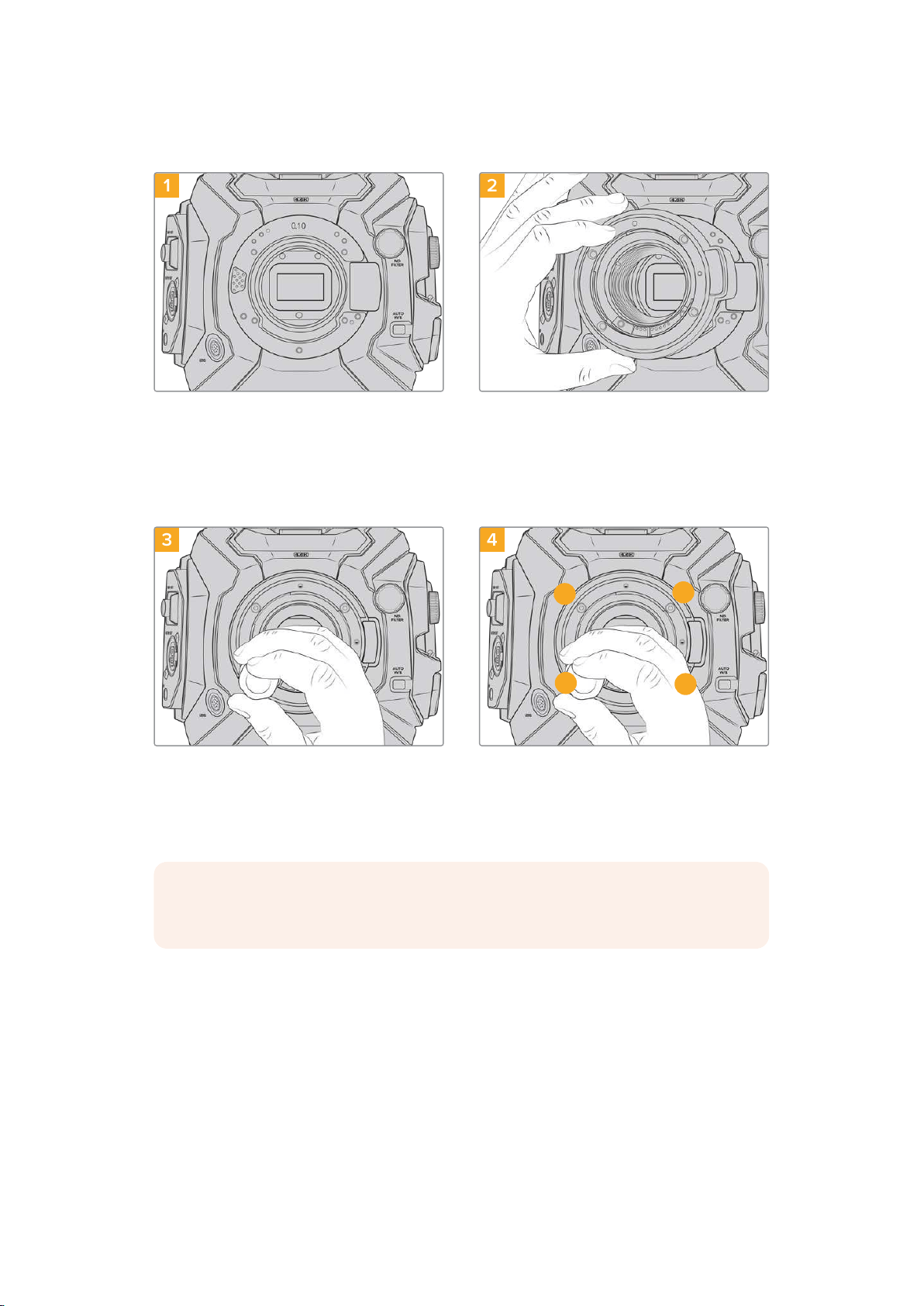
Attaching the EF Mount
1 2
Place Blackmagic URSA Mini Pro vertically on a
solid, clean bench top toensure that the mount
can be inserted vertically. If changing from
the PLto the EFmount, ensure that you have
removed thePLbaffle before inserting the EF
mount.
Carefully place the BlackmagicURSAMiniPro
EF lens mount onto the camerabody ensuring
thered dot is at the 12o’clock position.
3 4
1
3
4
2
Using a 2mm Hex driver or torque wrench set to
0.45Nm, loosely turn the four mounting screws
until nitialcontact is made with the shoulder of the
lensmount.
Confirm the lens mount is level and correctly
aligned, then tighten the screws in the order
shown here to an even pressure without over-
tightening the screws.
NOTE When removing the EF mount, simply follow the instructions in reverse order
from step 4 to step 1.
218Interchangeable Lens Mount
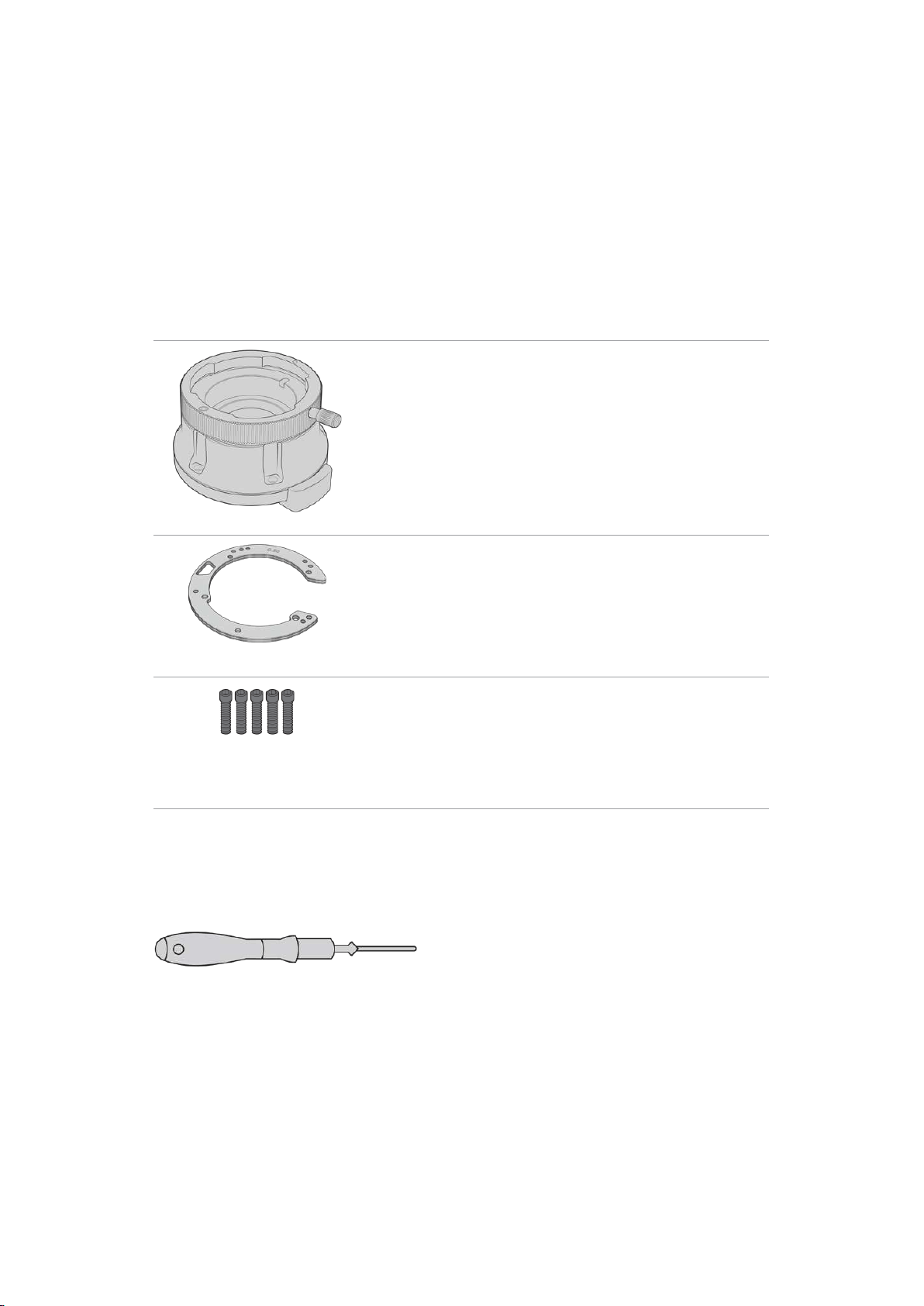
Blackmagic URSA Mini Pro B4 Mount
With the B4 mount attached to your URSA Mini Pro 4.6K G2 or URSA Mini Pro 4.6K, you can
mount par-focal zoom lenses commonly used for electronic news gathering and wedding
videos. These lenses maintain focus throughout large zoom ranges and typically have manual
focus and iris control, plus a zoom rocker on the hand grip allowing you to smoothly ease in and
out of the zoom. For single operators, using these lenses makes shooting very fast and efficient
with exceptional control over the shot. It is important to note that Blackmagic URSA Mini Pro B4
mount is not compatible with URSA Mini Pro 12K.
The B4 mount kit includes:
1 x B4 mount
The B4 mount lets you use industry standard ENGlenses with
your URSA Mini Pro.
1 x Shim set
The shim set includes the following thicknesses:
0.50mm
0.30mm
0.20mm
0.18mm
0.15mm
0.12mm
0.10mm
0.05mm
0.025mm
5 x 2mm Hex M2.5 x 12mm mount screws
The five M2.5 x 12mm HEX screws are exclusive to the B4 so you
can keep the screws together with the respective mount.
The B4 mount kit also comes with a full spare sets of screws in
case the originals are misplaced.
Tools Required
When attaching the B4 mount, you will need a 2mm Hex driver. While it’s not absolutely
required, we recommend using a torque wrench able to accurately set a maximum torque
of0.45Nm to reduce the potential of over tightening the screws.
2mm Hex driver
219
Interchangeable Lens Mount
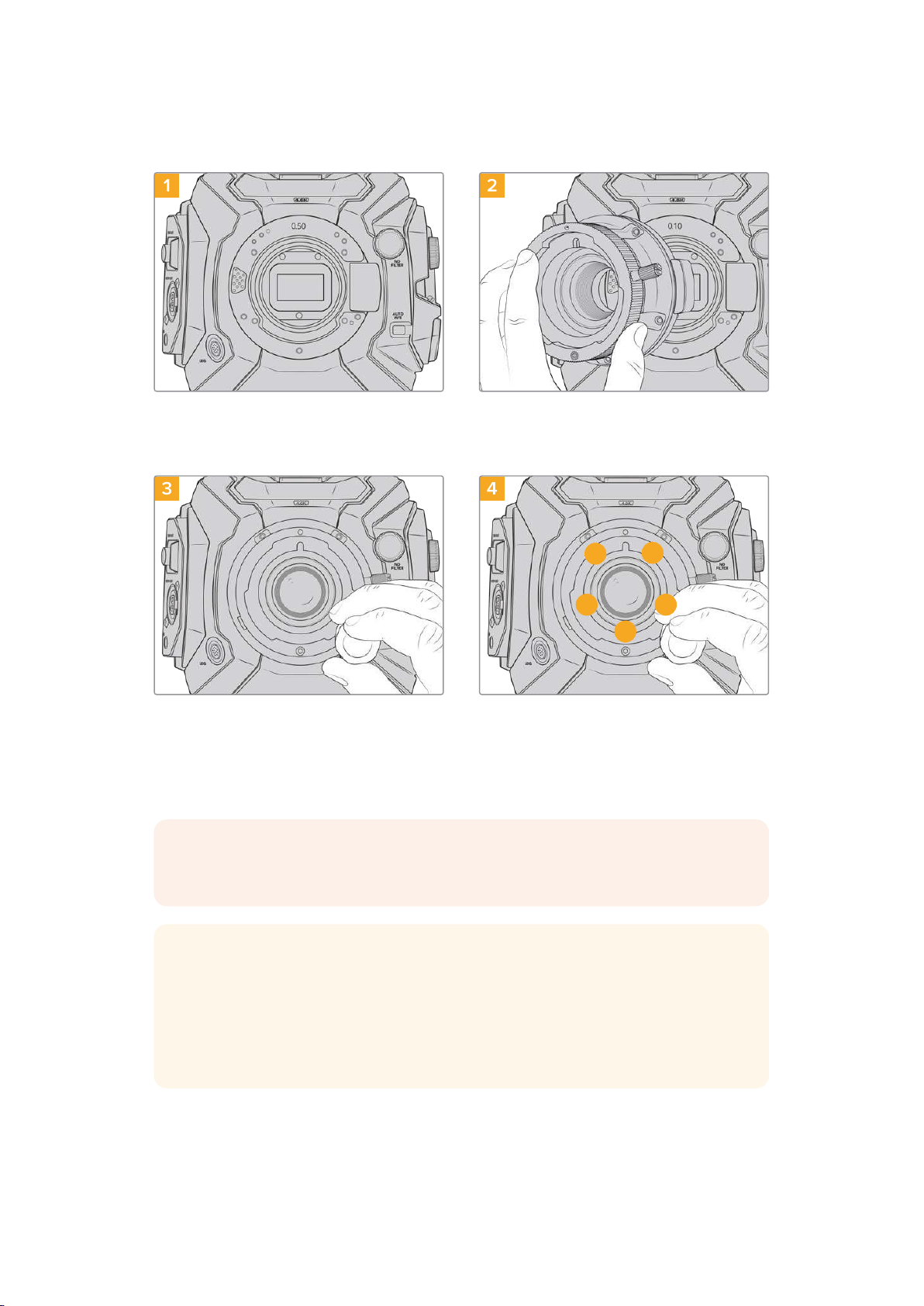
Attaching the B4 Mount
1 2
Place Blackmagic URSA Mini Pro vertically on a
solid, clean bench top to ensure that the mount
can be inserted vertically.
Carefully place the Blackmagic URSA Mini Pro B4
lens mount onto the camera body ensuring the
red dot is at the 12o’clock position.
3 4
1
3
4
5
2
Using a 2mm Hex driver or torque wrench set to
0.45Nm, loosely turn the five mounting screws until
initial contact is made with the shoulder of the lens
mount.
Confirm the lens mount is level and correctly
aligned, then tighten the screws in the order
shown here to an even pressure without over-
tightening the screws.
NOTE When removing the B4 mount, simply follow the instructions in reverse order
from step 4 to step 1.
TIP When using a B4 lens with URSA Mini Pro 4.6K G2 or URSA Mini Pro 4.6K, set the
resolution to 2K 16:9 or lower, and ‘window sensor’ to ‘on’ in the ‘record’ tab of the
dashboard. It is important to use these settings to prevent vignetting of the image, as
B4 lenses do not cover the super 35mm image circle. Once you have attached a B4
lens and adjusted the settings on your camera, you should also check the back focus
on the lens.
220Interchangeable Lens Mount
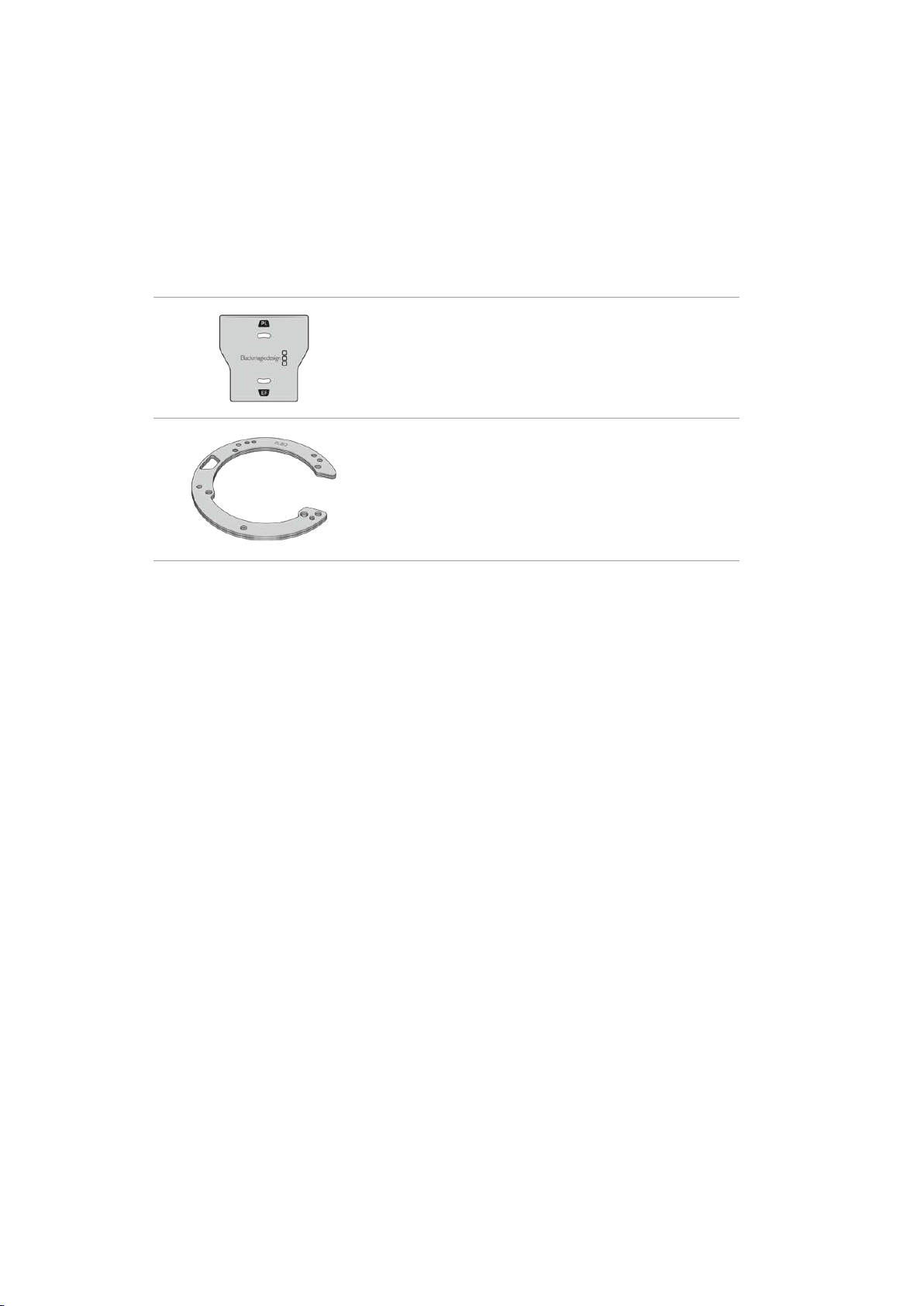
Blackmagic URSA Mini Pro Shim Kit
When attaching the PL, B4 or F mounts to URSA Mini Pro, a 0.10mm shim is added to the
original 0.50mm and 0.10mm shims underneath the original EF mount. This shim and others
areincluded in the Blackmagic URSA Mini Pro Shim Kit. Other thicknesses are included in the
kit in case you need to re-shim your camera to suit PL lenses that may require slightly different
clearances to maintain accurate focus marks.
The shim kit includes:
1 x Baffle tool
Use the baffle tool to loosen or tighten the PL baffle when
removing or attaching the PL mount to your URSA Mini Pro.
1 x Shim set
The shim set includes the following thicknesses:
0.50mm
0.30mm
0.20mm
0.18mm
0.15mm
0.12mm
0.10mm
0.05mm
0.025mm
221Interchangeable Lens Mount
Using DaVinci Resolve
Shooting with your Blackmagic URSA Mini is only part of the process of creating film and
television content, and just as important is the process of media backup and management as
well as editing, color correction and encoding final master files. Your Blackmagic URSAMini
includes a version of DaVinci Resolve for Mac and Windows so you have a complete solution for
shooting and post production!
NOTE We recommend using the latest version of DaVinci Resolve for accurate color
treatment of clips shot using URSA Mini. Version 16.3 or later will provide accurate
color for all URSA Mini cameras and the latest Blackmagic RAW features, as well as
supporting 12K files.
After connecting your CFast, SD card or SSD to your computer, you can use DaVinci Resolve’s
‘clone’ tool, in the ‘media’ page, to create running backups as you shoot. This is recommended
as any type of media is susceptible to becoming damaged or developing a fault so creating
backups means your shots will be immune to loss. Once you have used DaVinci Resolve to
backup your media, you can then add your clips to the DaVinci media pool, then edit, color
correct, and finish your production without ever having to leave DaVinci Resolve.
DaVinci Resolve is the same tool used on most major blockbuster movies, so it’s much more
than a simple NLE software tool, as it has extremely advanced technology built in for high end
digital film. You get the advantage of this technology when you use DaVinci Resolve to edit and
color correct your work.
Included here is information on how to get started using DaVinci Resolve with your camera files.
Of course, DaVinci Resolve is extremely advanced and includes a lot more features than you
immediately see when first looking at its user interface. To learn more about how to use
DaVinciResolve, please check for the DaVinci Resolve instruction manual on the Blackmagic
website, where you can also find many training courses and tutorial videos.
Project Manager
Before you import your clips and start editing, you will need to set up your project using the
project manager.
The project manager is the first screen you will see when launching DaVinci Resolve, but you
can open the manager at any time by clicking on the ‘home’ icon at the bottom right of the user
interface. This is helpful when you want to open previous projects and create new ones.
222Using DaVinci Resolve
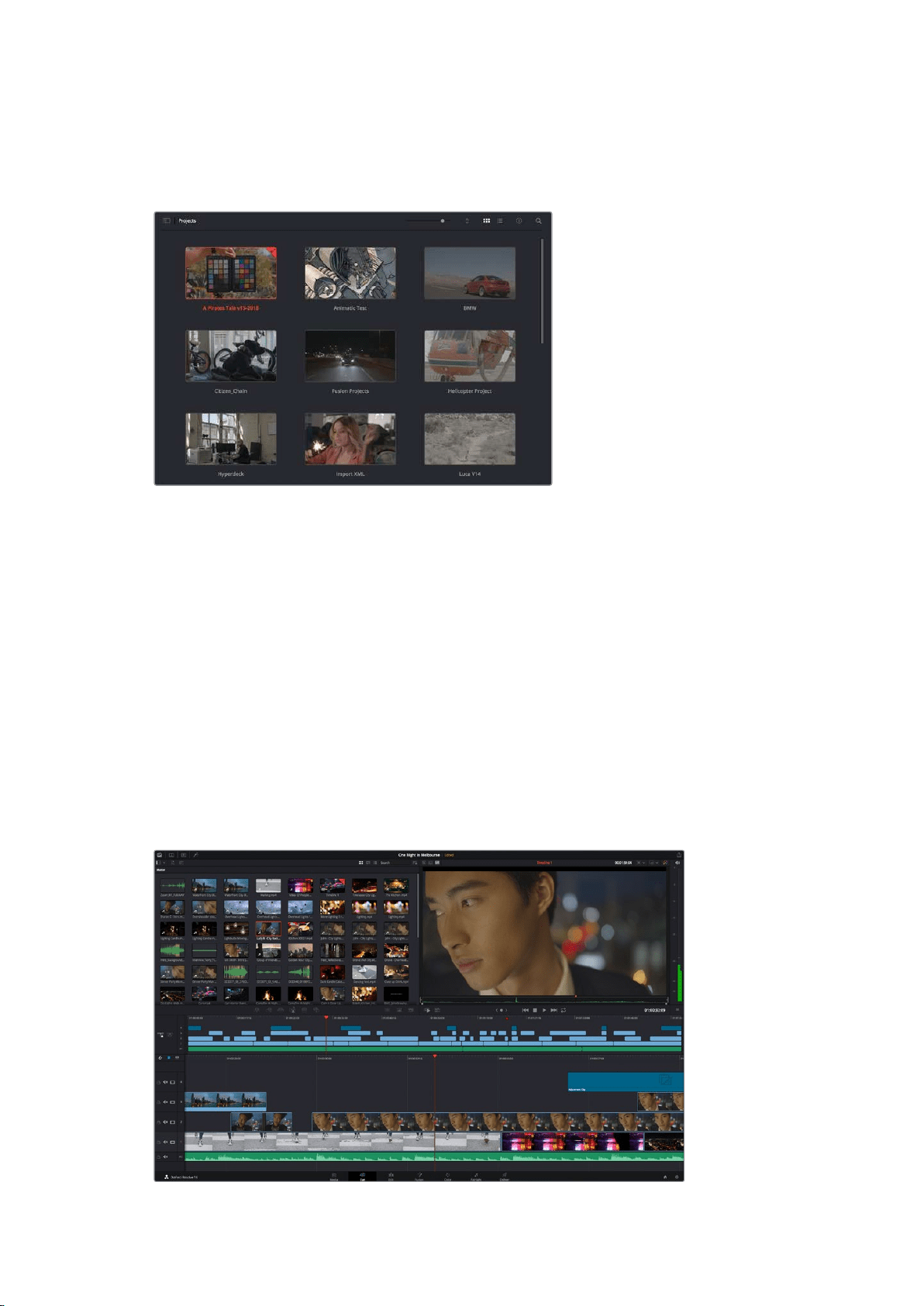
To create a new project, click on ‘new project’ at the bottom of the window and give your
project a name. Click ‘create’.
Using the ‘cut’ page, you can start working on your edit immediately.
The project manager shows all projects belonging to the current user
For more information about the Project Manager, refer to the DaVinci Resolve manual which is
available to download on the Blackmagic Design website support page.
Editing with the Cut Page
The ‘cut’ page gives you a fast, dynamic editing workflow that lets you quickly assemble, trim
and edit clips efficiently.
Two active timelines let you work with your entire edit plus a detailed area simultaneously.
This means you can drop clips anywhere on a large timeline, then refine your edit in a detailed
timeline within the same workspace. Using this workflow, you can edit on a laptop without
needing to zoom in and out and scroll as you work, which can be an enormous time saver.
The Cut Page Layout
When you open the cut page, you will see the media pool, viewer window and timeline.
These three primary windows give you complete control over your edit.
The ‘cut’ page default workspace, with the media pool in icon view
223
Using DaVinci Resolve

For more information on the Cut page, see the ‘Using the Cut Page’ chapter in the
DaVinci Resolve manual.
Media Tabs
At the top left corner of the user interface you will see five tabs.
Click on these tabs to open the media toolsets you will use when creating your edit.
For example, the first tab is the media pool and you can see it is already selected. The other
tabs are for the sync bin, media transitions, titles and effects.
Media Pool: The media pool contains all your clips, folders and files you imported using
the media page. You can also import files directly from the cut page, so you don’t have
to go back to the media page if you want to import a new clip.
Sync Bin: This powerful feature automatically syncs all your clips via timecode, date
and time so you can choose angles from all cameras on a multi camera project.
Transitions: If you click on the neighboring transitions tab, you will see all the video and
audio transitions you can use in your edit. These include common transitions such as
cross dissolves and motion wipes.
Titles: Next to transitions is the ‘titles’ tab. Here you can select the title type you
want to use. For example a scroll, standard text or lower thirds title. There are also a
list of Fusion templates you can use for more animated dynamic titles which can be
customized in DaVinci Resolve’s ‘Fusion’ page.
Effects: The fifth tab is the ‘effects’ tab. This provides all the different filters and effects
you can use to bring more life to your edit, for example customizable blurs, glows and
lens effects. There are many powerful effects to choose from and you can find them
quickly using the search tool.
TIP Use the search tool near the media tab icons to find the exact items you are
looking for. For example, if you have the transitions tab selected, type “dissolve” in the
search tool and only dissolve transition types will be shown in the viewer, making it
quicker for you to find the dissolve transition you want.
Viewer Tabs
In the top left corner of the viewer window you will see the viewer mode buttons.
The viewer mode buttons
These buttons control which viewer is currently being used, including ‘source clip’, ‘source tape’,
and ‘timeline’. These viewer modes give you an enormous amount of control when selecting
clips for your edit and it’s worth spending a moment to look at how they work.
224Using DaVinci Resolve
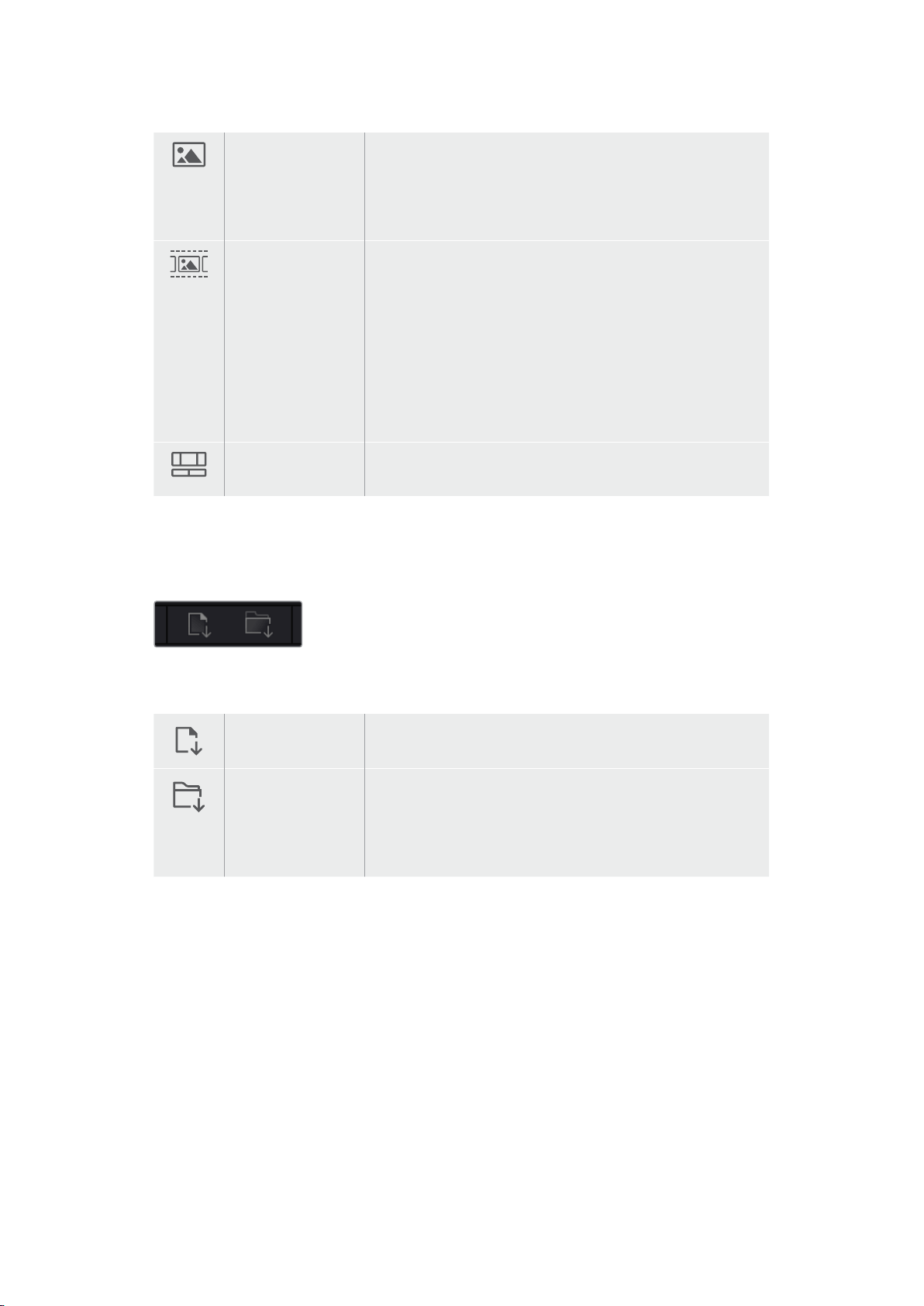
Source Clip The source clip viewer displays a single clip from the media pool
and you can set in and out points along the entire length of the
viewer timeline. This gives you greater control. Select a source
clip to view by double clicking on a clip in the media pool, or
dragging it into the viewer.
Source Tape Source tape lets you view all the source clips in the media pool.
This powerful feature is helpful if you want to quickly search
through all your clips to find a specific event. As you scrub the
playhead over the clips, you will see their thumbnails selected
in the media pool. This means once you have found the clip
you want to edit, you can click on the source clip tab and its
corresponding source clip will appear in the viewer automatically.
The source tape viewer really lets you take advantage of non-
linear editing, giving you the freedom to work on your edit, find
shots quickly, try new ideas and stay in the moment.
Timeline The timeline viewer lets you view the edit timeline so you can
play back your project and refine your edits.
Importing Clips to the Media Pool
Now you can start importing media into your project. You can do this in the media pool window
of the cut page using the import tools at the top.
Select one of the import options to
add media to your project
Import Media The import media option will import individual media files
selected from your storage location.
Import Media Folder To import a folder from your media storage, select the import
folder option. When importing a folder, DaVinci Resolve will keep
the file structure, treating each folder as a separate bin so you
can navigate between bins to find your videos and other media
files.
To import media:
1 Click on the ‘import media’ or ‘import media folder’ icon.
2 Navigate to your media storage for the media you want to import.
3 Select the file or folder and click ‘open’.
Once you’ve added media to your project, it is a good time to save your changes. DaVinci
Resolve features a fast, on the go autosave called ‘live save’. Once you save you project once,
‘live save’ will save further changes as you make them, removing the risk of losing your work.
For more information on ‘live save’ and other auto save functions, refer to the DaVinci
Resolve Manual.
225Using DaVinci Resolve
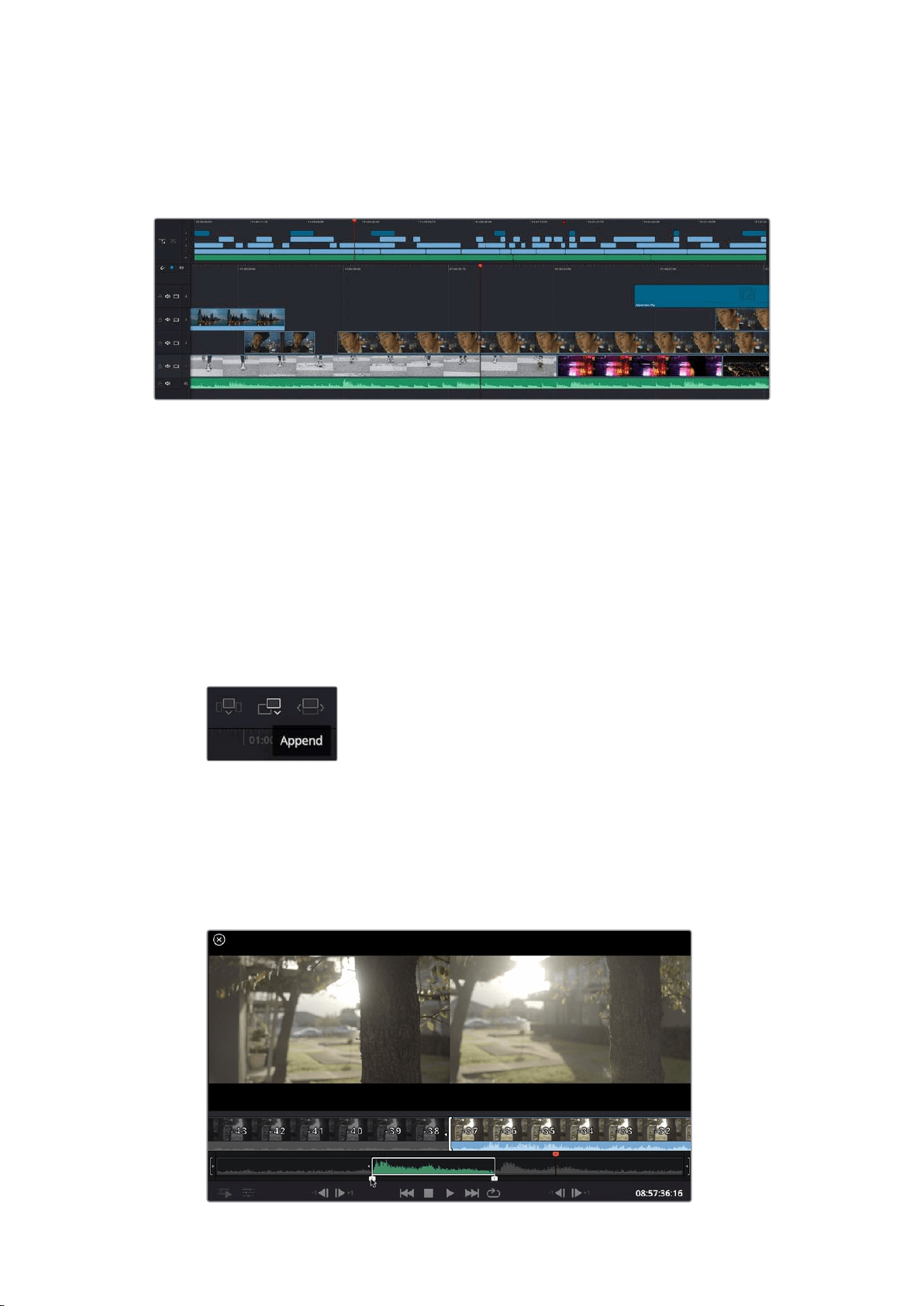
Adding Clips to the Timeline
Now that you are familiar with the media tabs and viewer mode buttons, you can open the
media pool and quickly start adding clips to your timeline.
The timeline of the cut page, comprising the upper timeline and the zoomed in timeline below
The timeline is where you will build your edit and is like a board with tracks you can attach clips
to, move them around and trim their edits. Tracks let you layer clips over others which gives you
more flexibility to try different edits and build transitions and effects. For example, you can try
an edit with a clip on one track without affecting other clips on tracks below it.
There are different ways to add clips to the timeline, such as smart insert, append, place on
top and more.
Appending Clips
When selecting takes and assembling an edit, you will likely want to add these shots to your
timeline one after the other. The append tool is perfect for this task and will get you editing
very fast.
Click on the append icon to quickly
add clips to the end of the last clip
To append a clip:
1 Double click on a clip in the media pool to open it in the viewer.
2 Using the scratch trim tool, drag the in and out points to select the precise duration of
your shot. You can also press the ‘i’ and ‘o’ keyboard shortcuts to set in and out points.
226Using DaVinci Resolve
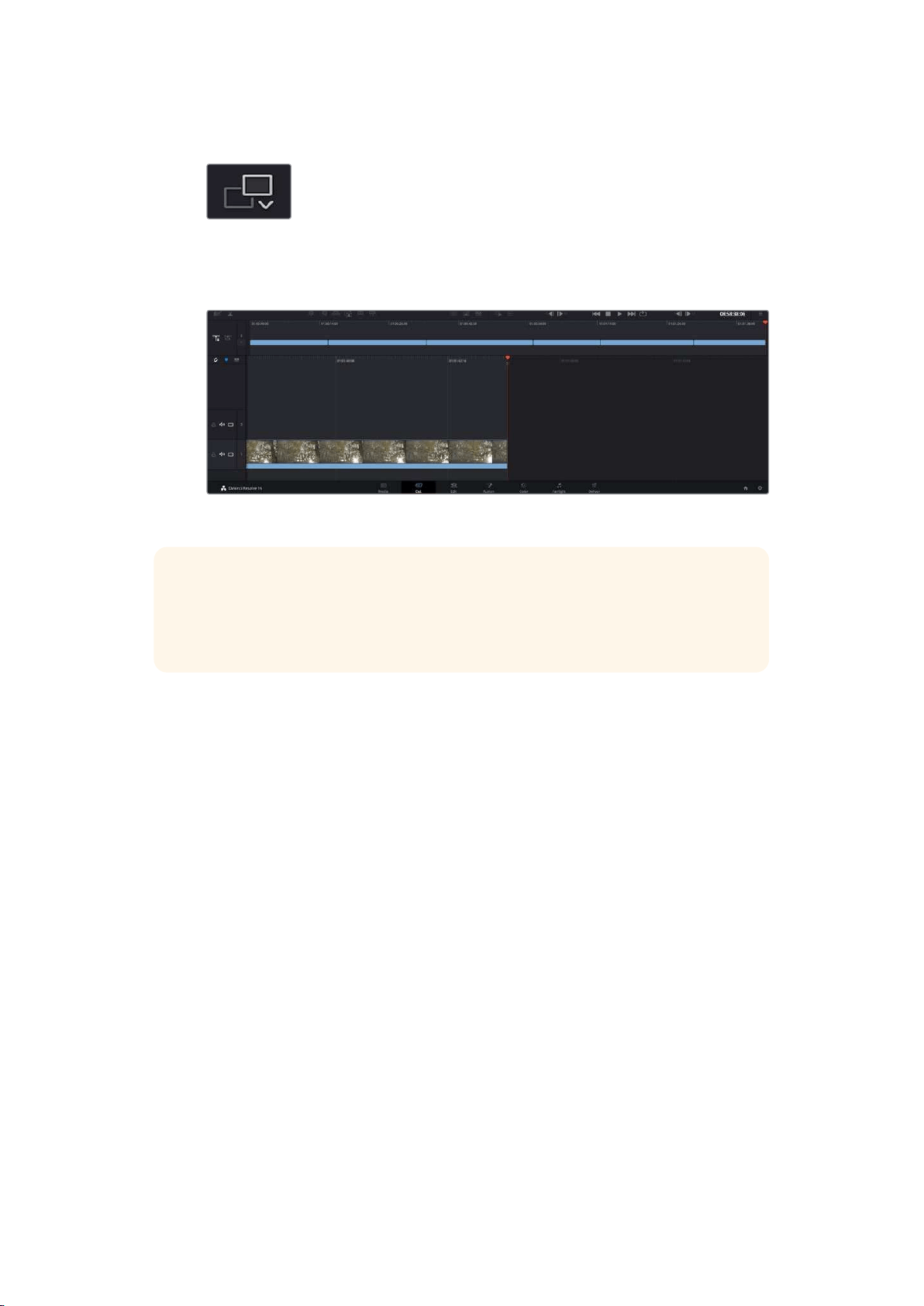
3 Now click the ‘append’ icon underneath the media pool.
Your first clip will be placed at the head of the timeline.
Repeat steps 1 to 3 to keep adding more clips and they will automatically append,
ensuring there are no gaps in the timeline.
Appending clips ensures there are no gaps between them on the timeline
TIP You can speed up the process further by assigning a keyboard shortcut to the
‘append’ icon. For example, if you assign the ‘P’ key, you can set your in and out points
using ‘I’ and ‘O’ then press ‘P’ to append the clip. Refer to the DaVinci Resolve manual
for information on how to assign shortcut keys.
Editing Clips on the Timeline
With clips added to the timeline, you have complete control to move them around and
trim edits.
To trim an edit, hover the mouse over the start or end of a clip, then click and drag it left or right.
For example, drag the end of the clip left or right to decrease or increase its duration. You might
notice that all clips after that edit will shift on the timeline to accommodate the new adjustment.
This is one way the ‘cut’ page helps to save you time.
You can even pick the clip up and drop it on a new video track in the large timeline without
having to zoom in or out. This speeds up the edit process because it minimizes time navigating
a long timeline.
After you have finished editing clips using the ‘cut’ page, you might want to add a title. The next
section will show you how.
Adding Titles
Placing a title on your timeline is easy and you have many options.
To see the different types of titles you can use, click on the ‘titles’ media tab at the top left
corner of the user interface. In the selection window you will see all the different title generators
you can use, from lower thirds, scrolls, to a standard text title. You can even add any of the
Fusion titles which are animated titles that you can customize.
227Using DaVinci Resolve

A good example is to add a standard title.
To do this:
1 Click on the ‘text’ title and drag it onto the timeline. It doesn’t matter which timeline,
but for greater accuracy we recommend using the detailed timeline. The title will
automatically create a new video track for the title and will snap to the playhead.
2 Release the mouse and the title will appear on the new track. You can now move it or
change its duration like you would another video clip.
3 To edit the title, click on the new title clip and a ‘tools’ icon will appear underneath the
clip viewer. Click on the tools icon.
You will now see a row of tools you can use to modify the title clip. For example
transform, crop, dynamic zoom and more. For this example, click on the ‘title’ tool.
4 Now click ‘open inspector’.
This will open the inspector window where you can type in the title you want and edit the text
settings, for example tracking, line spacing, font type, color and more.
You have a lot of options to customize the title exactly how you want it. We recommend playing
with all the different settings to see how they can change the appearance and shape of
your title.
Working with Blackmagic RAW Files
Blackmagic RAW clips give you maximum flexibility in post production. This lets you make
adjustments to clips, such as white balance and ISO settings, as if you were changing the
original camera settings. Working with Blackmagic RAW also retains more tonal information
within shadows and highlights, which is useful for recovering details, for example in blown out
skies and dark areas of the picture.
It’s worth shooting in Blackmagic RAW if you are after the highest possible quality, or for shots
where there is an extreme variance between highlights and shadows and you may need to
push and pull those regions as much as possible in the grade.
The speed and small file size of Blackmagic RAW means you don’t need to make proxy files
and playback is just like a standard video clip. This section of the manual describes the features
of Blackmagic RAW and how to use Blackmagic RAW files in your DaVinci Resolve workflow.
TIP It is a good practice to adjust the Blackmagic RAW settings for your clips on the
‘color’ page before you start color grading.
Clip Settings for Blackmagic RAW
When you first import Blackmagic RAW files, DaVinci Resolve will decode the camera data
contained in the files using the ISO, white balance and tint settings used at the time of shooting.
If you’re happy with the look of these settings, you can start editing right away.
The great thing about shooting Blackmagic RAW is that you’re not tied to these settings at all!
The breadth of available post processing options when working with Blackmagic RAW files
mean that you’ll develop your own workflow over time. Experimenting with the ‘clip’ settings for
each clip in the ‘camera raw’ tab will show you just how powerful and flexible working with
Blackmagic RAW can be.
228Using DaVinci Resolve
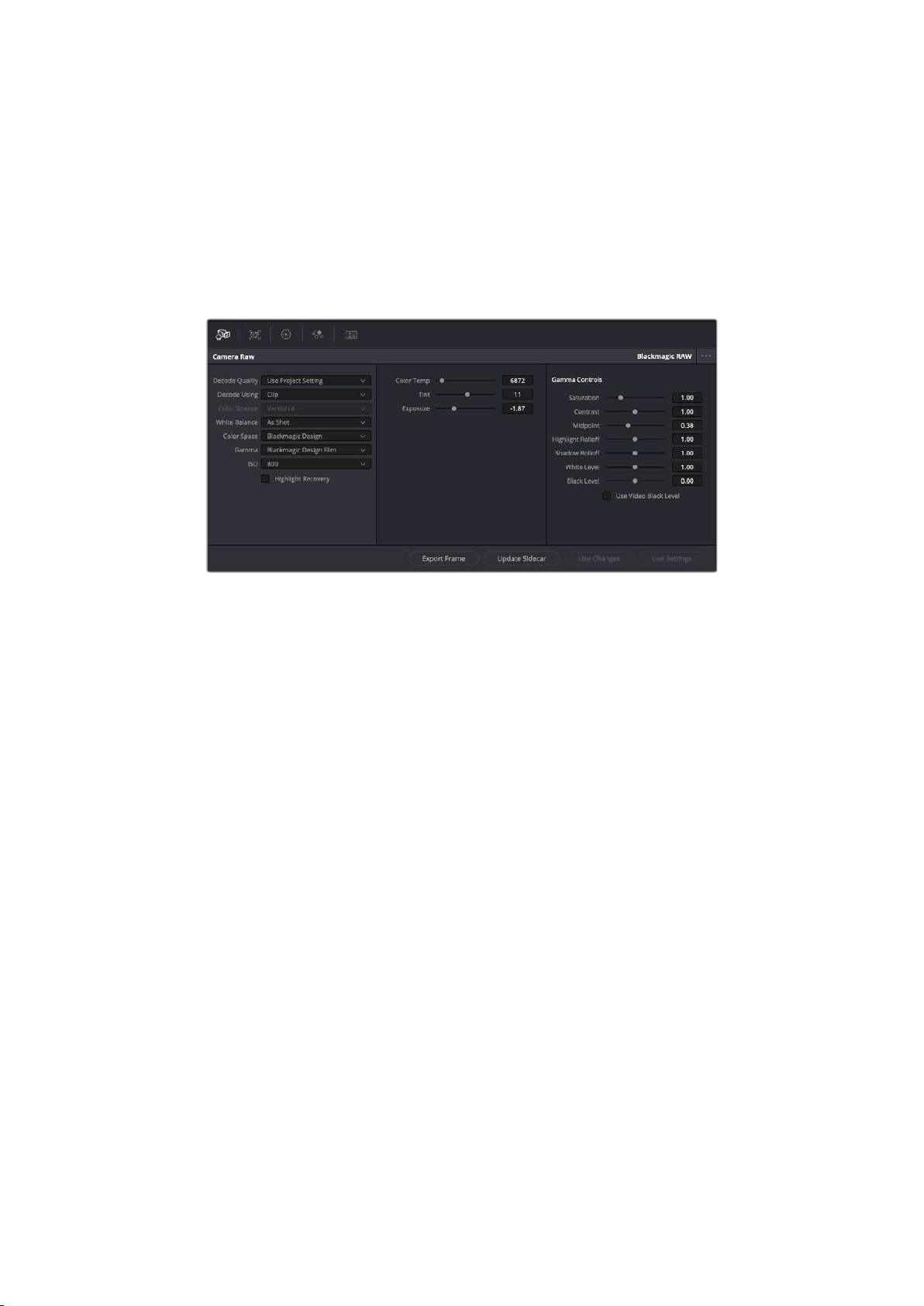
The ‘color science’ menu lets you choose whether to interpret your footage with generation
4 color science or generation 5 color science. URSA Mini Pro 12K is the first camera to use
Blackmagic Design generation 5 color science. Files made on different cameras with
generation 4 color science can be reinterpreted with generation 5 color science to match your
shots from URSA Mini Pro 12K. Alternatively, if you are shooting mainly with cameras that create
Blackmagic RAW files with generation 4 color science, you can mix in clips shot on URSA Mini
Pro 12K with generation 5 color science by reverting them to generation 4 color science.
Thismakes it easy to match shots filmed on cameras using different generations of Blackmagic
color science.
In the ‘camera raw’ tab, select ‘clip’ from the ‘decode using’ drop down menu
to make adjustments to your clip’s Blackmagic RAW settings
Once you have set DaVinci Resolve to enable clip settings for Blackmagic RAW, the clip settings
and gamma controls are now adjustable. Adjusting these settings to optimize your clips can
bring them close to a full primaries grade. This is especially powerful when using DaVinci
Resolve’s scopes which can help you neutralize and balance the clips ready for applying a look.
The following information contains descriptions for the clip and gamma controls.
ISO
The ISO value can be changed by increasing or decreasing this setting. This setting is
helpful if you need to set the clip to a brighter or darker starting point for optimization.
Highlight Recovery
Check the box to reconstruct highlight information in clipped channels using
information from non-clipped channels.
Color Temp
Adjust the color temperature to warm or cool the image. This can be used to help
neutralize the color balance in each image.
Tint
Adjusting this setting will add green or magenta into the image to help balance
the color.
Exposure
Use this setting to refine the overall brightness of the image.
Saturation
Saturation controls default at 1 and range from -1 for the minimum saturation to +4 for
maximum saturation.
229Using DaVinci Resolve
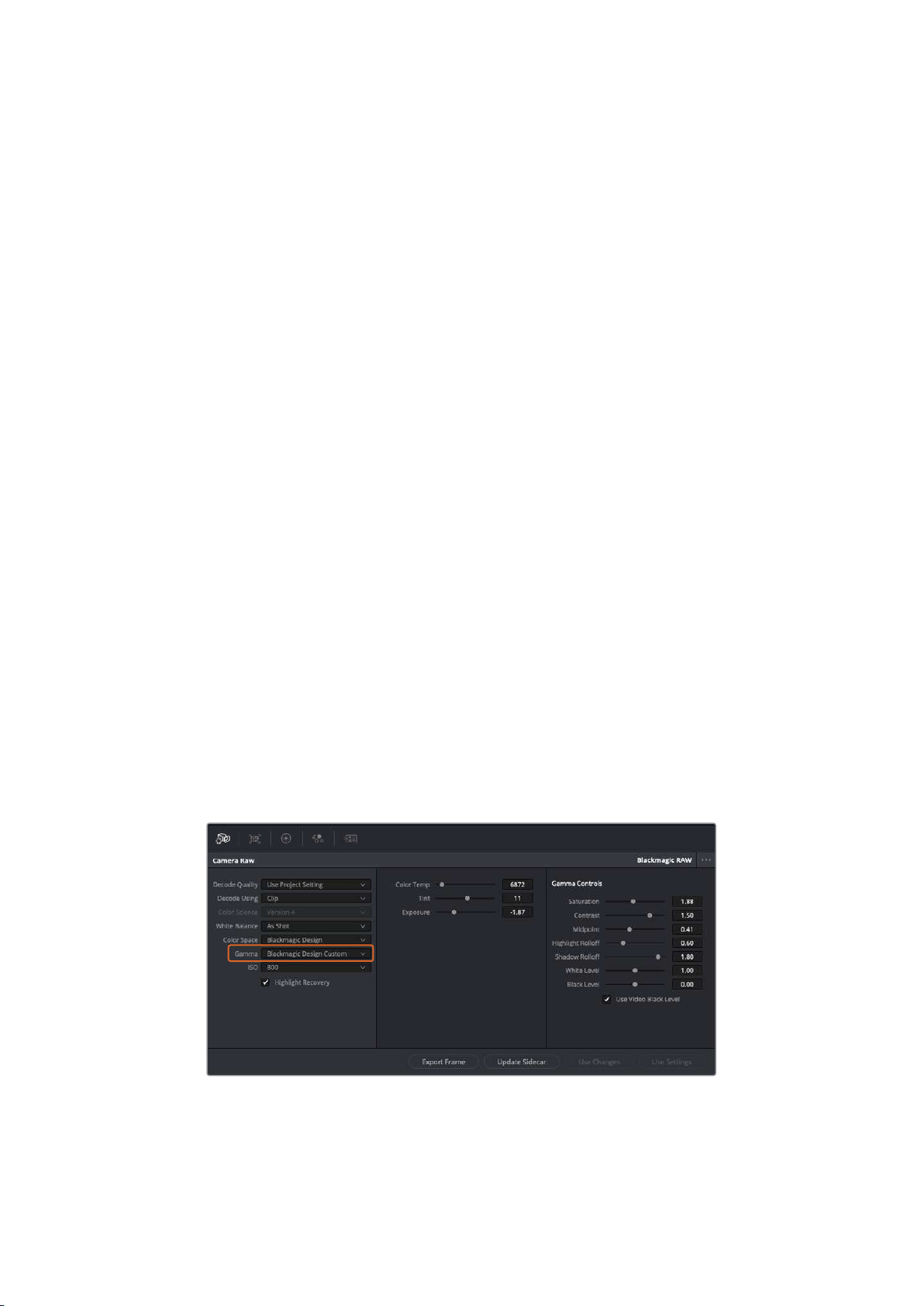
Contrast
Defaulting at 1.0, drag the slider to the left for the least amount of contrast at 0 or to the
right to increase the contrast up to 2.
Midpoint
In Blackmagic Design Film, your middle gray value defaults to 0.38, or 38.4%. Drag the
slider to the left to lower your midpoint or to the right to raise it to 100. When contrast is
adjusted away from the default setting, you can modify your highlight and
shadow rolloff.
Highlight Rolloff
Adjust the highlights by dragging the slider to the left to lower the value to 0, or to the
right to increase the highlights to 2. The default value is 1.
Shadow Rolloff
Drag the slider to the left to lower your shadows to 0 or to the right to raise your
shadows to 2.
White Level
Adjust the white point of the gamma curve by dragging the slider from the highest
value of 2 to the lowest value of 0. The default value is 1.
Black Level
Raise the black point of the custom gamma curve by dragging the slider to the right
from the lowest value of -1 to a maximum of 1. The default value is 0.
Use Video Black Level
Check the box to set your black levels to video.
Export Frame
Clicking the ‘export frame’ button lets you export a single frame from your
Blackmagic RAW clip.
Update Sidecar
Click this button to update the Blackmagic RAW sidecar file for the current clip.
Any changes you have made to your Blackmagic RAW clips will be identified by the gamma
setting changing to Blackmagic Design Custom.
If you want to revert your clip to one of the default gamma options
available, simply select it from the gamma dropdown menu.
230
Using DaVinci Resolve

TIP Gamma controls are disabled for footage shot with the ‘video’ dynamic range,
butyou have not lost your Blackmagic RAW data. Simply select Blackmagic Design
Film or Blackmagic Design Extended Video from the dropdown gamma menu and
make your adjustments.
Saving your Blackmagic RAW changes
1 Adjust the gamma controls for your Blackmagic RAW clip.
2 Click the ‘update sidecar’ button.
A ‘sidecar’ file will now be created in the same folder as your .braw file. When another user
imports the Blackmagic RAW files, the sidecar files will automatically be read by DaVinci
Resolve. If you make additional adjustments, press ‘update sidecar’ again.
TIP To remove your sidecar file, you can simply delete it from its location on your
media drive.
Project Settings for Blackmagic RAW
If you need to make a setting change that is common to all the clips, for example a global
change to the white balance or ISO setting, you can set the clips to use the project ‘camera raw’
settings and make global changes from there.
To set project settings for Blackmagic RAW:
1 Enter the project settings menu by clicking ‘file,’ and selecting ‘project settings.’
2 In the ‘Camera RAW’ tab, you’ll see a dropdown menu next to RAW profile. Click on the
arrow to select Blackmagic RAW from the list.
3 Select ‘project’ in the ‘Decode Using’ dropdown menu.
4 Set the white balance setting to ‘custom’.
5 Select ‘Blackmagic Design Custom’ from the dropdowngamma menu. Set the
color space to ‘Blackmagic Design’. This will also set the gamma setting to
‘Blackmagic Design Film’.
6 Choose your resolution from the ‘Decode Quality’ menu. A lower resolution will give
you better playback on limited systems. You also have the flexibility to change to full
resolution later on before delivery for the highest quality output.
Now you can adjust the camera settings for your clips such as saturation, contrast and midpoint.
This will affect all clips in your project that are set to decode using ‘project’.
Color Correcting your Clips with the Color Page
Now with your clips on the timeline and titles added, you can start color correcting using the
‘color’ page. The color page is extremely powerful and will define the overall look of your film,
but for this example a good place to start is to neutralize all your clips so they are consistent.
You can also return to the ‘cut’ or ‘edit’ page at any time if you want to make changes to
your edit.
The color page lets you adjust the look of your edit and in many ways color correction is an art
form in itself. You are really adding emotion to your work when you add color correction. It’s an
incredibly creative part of the workflow and very satisfying when you learn these skills and can
231Using DaVinci Resolve

see your work come alive! This is usually the first step and is referred to as primary color
correction, or adjusting the primaries. After primary color correction is done, you can then make
secondary color correction adjustments which is where you can make extremely precise color
adjustments of specific objects in your images. That is a lot of fun, but is normally done after
primaries because it helps make the process more efficient and you will get a better result!
First click on the ‘color’ tab to open the color page.
You’ll see the camera raw settings, color wheels, curves palettes and general color correction
tools as well as the preview and nodes window. Don’t feel overwhelmed by the vast array of
features in front of you, they are all there to help you get the most amazing looking pictures.
This getting started section will show the basics, but for more detailed information refer to the
relevant sections in the manual. They will show you exactly what all the tools are for and how to
use them in easy to follow steps. You’ll learn the same techniques the professionals use in high
end color correction facilities.
Generally, the first step for primary color correction is to optimize the levels for shadows, mid
tones and highlights in your clips. In other words adjust the ‘lift’, ‘gamma’ and ‘gain’ settings.
This will help get your pictures looking their brightest and best with a clean, balanced starting
point from where you can begin grading the ‘look’ of your film. To optimize the levels, it’s helpful
to use the scopes.
Using Scopes
Most colorists make creative color choices by focusing on the emotion and the look they want
their program to have and then simply work using the monitor to achieve that look. You can look
at everyday objects and how different types of light interact with them to generate ideas on
what you can do with your images and a little practice.
The parade scope helps you optimize
highlights, mid tones and shadows
Another way to color grade is to use the built in scopes to help you balance shots. You can
open a single video scope by clicking the ‘scope’ button, which is the second from the right on
the palette toolbar. You can choose to display a waveform, parade, vectorscope and histogram.
Using these scopes you can monitor your tonal balance, check the levels of your video to avoid
crushing your blacks and clipping the highlights, plus monitor any color cast in your clips.
The ‘color wheels’ palette contains the ‘lift’, ‘gamma’ and ‘gain’ controls which will generally
constitute your first adjustment. If you’ve previously had experience with color correction,
these should resemble controls you’ve seen in other applications for doing color and
contrast adjustments.
232Using DaVinci Resolve
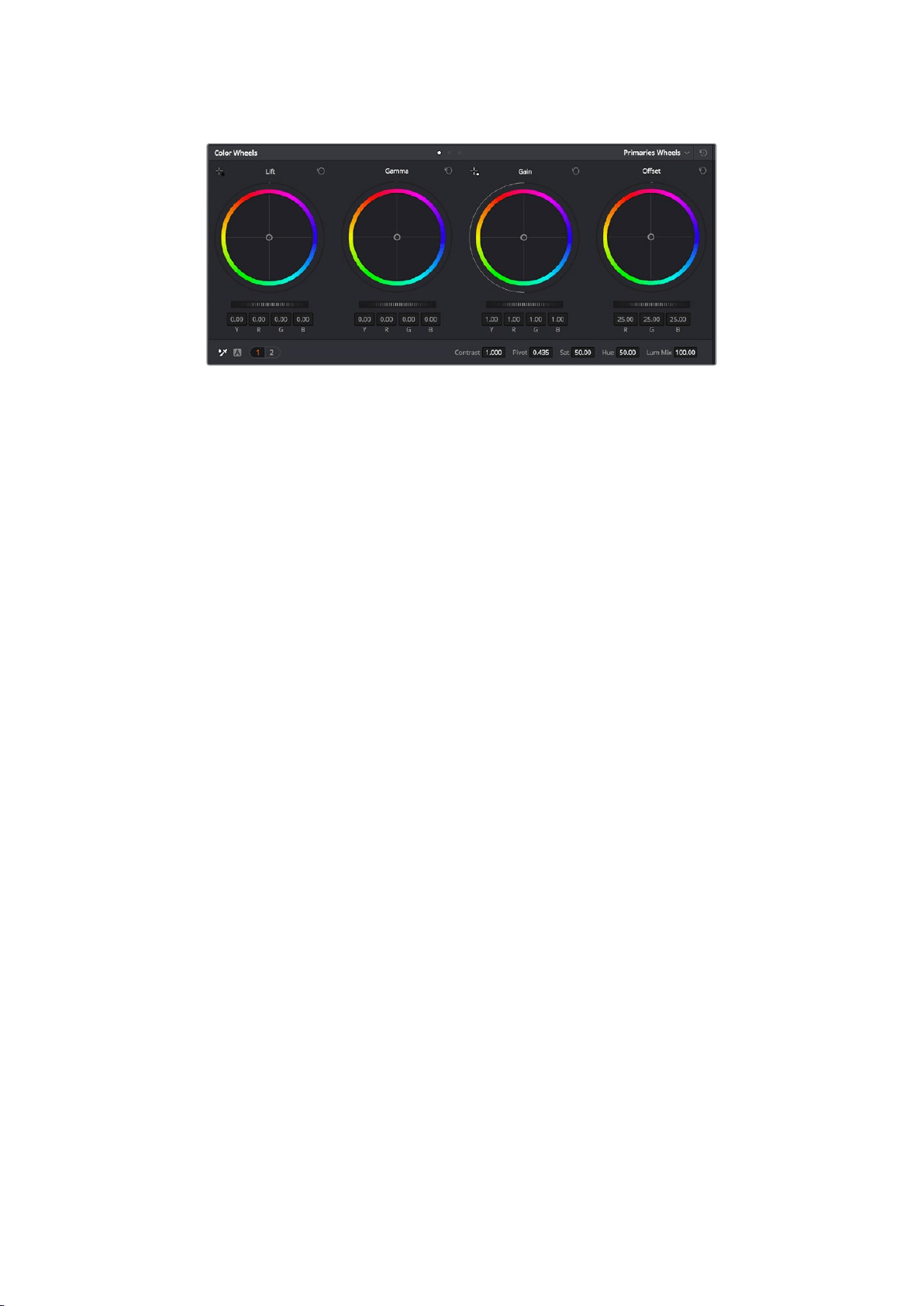
The ‘lift, ‘gamma’, ‘gain’ and ‘offset’ color wheels give you total control over the
color and tonal balance of your clips. To make a uniform adjustment to all colors for
each tonal region, drag the dial underneath the color wheels back and forth
For more accurate control of each color using a mouse, you can change the color wheels to
‘primaries bars’ which let you adjust each color and luminance channel for the lift, gamma and
gain controls separately. Simply select ‘primaries bars’ from the dropdown menu near the top
right of the color wheels.
Adjusting the ‘lift’: With your clip selected on the color timeline, click on the ‘lift’
dial underneath the first color wheel. Slide it back and forth and watch how it affects
your image. You’ll see the brightness of the dark regions of your picture increase
and decrease.
Set it to where you want the dark areas to look their best. If you decrease the lift too
much, you’ll lose details in the blacks and you can use the parade scope to help avoid
this. The optimal position for blacks on the waveform is just above the bottom line of
the parade scope.
Adjusting the ‘gain’: Click on the ‘gain’ dial and slide it back and forth. This adjusts
the highlights which are the brightest areas of your clip. The highlights are shown on
the top section of the waveform on the parade scope. For a brightly lit shot, these are
best positioned just below the top line of the waveform scope. If the highlights rise
above the top line of the waveform scope, they will clip and you will lose details in the
brightest regions of your image.
Adjusting the ‘gamma’: Click on the ‘gamma’ dial underneath the color wheel and slide
it back and forth. Asyou increase the gamma you’ll see the brightness of the image
increase. Notice the middle section of the waveform will also move as you adjust the
gamma. This represents the mid tones of your clip. The optimal position for mid tones
generally falls between 50 to 70% on the waveform scope. However, this can be
subjective based on the look you are creating and the lighting conditions in the clip.
You can also use the curves palette to make primary color corrections. Simply click to create
control points on the diagonal line inside the curve graph, and drag them up or down to adjust
the master RGB contrast at different areas of image tonality. The optimum points to adjust are
the bottom third, mid, and top third of the curve line.
There are many more ways of doing primary color correction in DaVinci Resolve.
233Using DaVinci Resolve
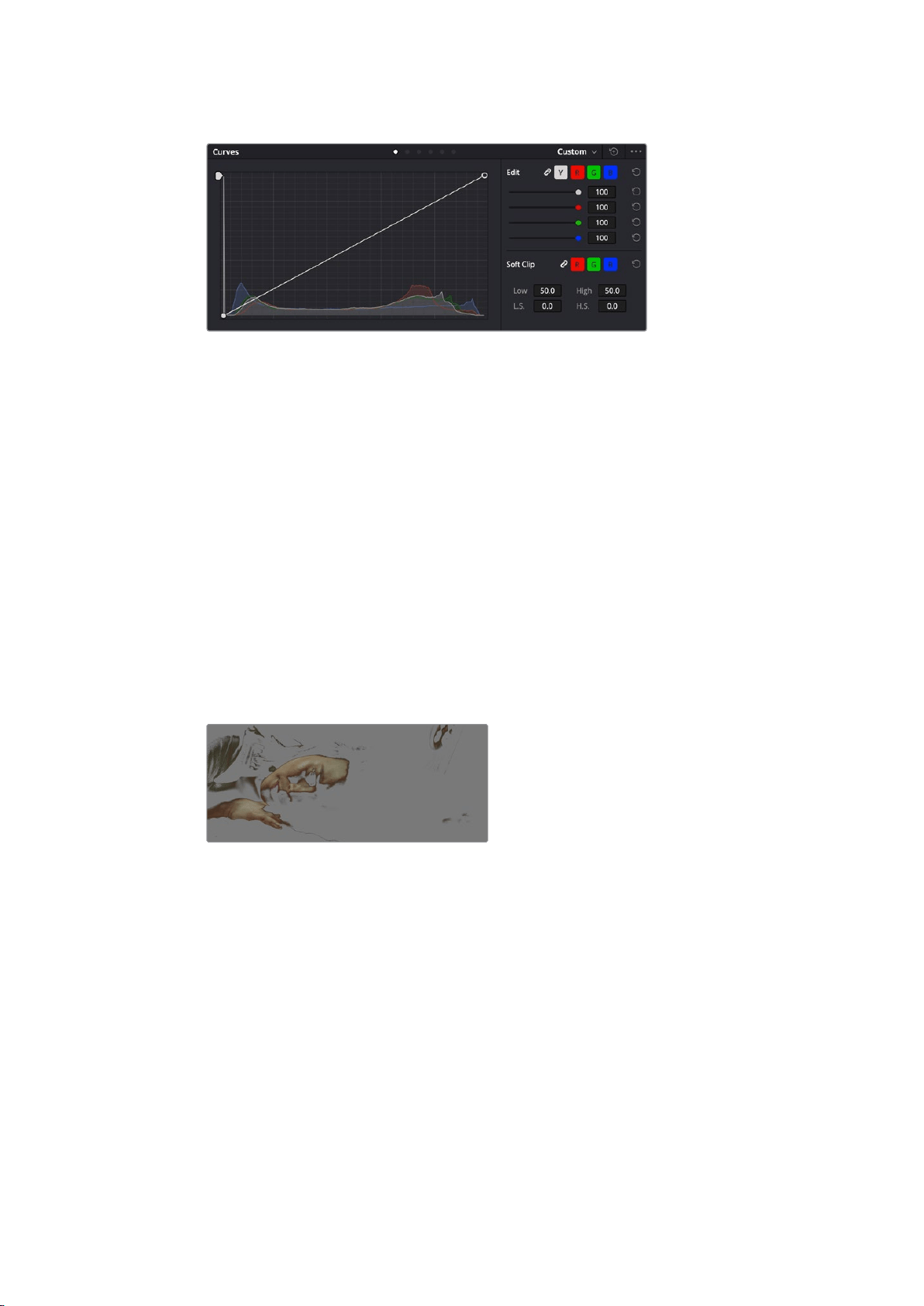
The curves palette is another tool you can use to make primary color corrections,
or enhance specific areas of your clip when using a power window
Secondary Color Correction
If you want to adjust a specific part of your image then you need to use secondary corrections.
The adjustments you have been doing up until now using the lift, gamma andgain adjustments
affect the whole image at the same time and so they are called primary color corrections.
However, if you need to adjust specific parts of your image, say for example you wanted to
improve the color in the grass in a scene, or you wanted to deepen the blue in a sky, then you
can use secondary corrections. Secondary color corrections are where you select a part of the
image and then adjust only that part. With nodes, you can stack multiple secondary corrections
so you can keep working parts of your image until everything is just right! You can even use
windows and tracking to allow the selections to follow movement in your images.
Qualifying a Color
Often you’ll find a specific color in your clip can be enhanced, for example grass by the side
ofa road, or the blue in a sky, or you may need to adjust color on a specific object to focus the
audience’s attention on it. You can easily do this by using the HSL qualifier tool.
Using the HSL qualifier to select colors in your
image is helpful when you want to make areas of
your image ‘pop’, to add contrast, or to help draw the
audience’s attention to certain areas of your shot
To qualify a color:
1 Add a new serial node.
2 Open the ‘qualifier’ palette and make sure the ‘selection range’ picker tool is selected.
3 Click on the color in your clip you want to affect.
4 Usually you’ll need to make some adjustments to soften the edges of your selection
and limit the region to only the desired color. Click on the ‘highlight’ button above the
viewer to see yourselection.
5 Adjust the ‘width’ control in the ‘hue’ window to broaden or narrow your selection.
234Using DaVinci Resolve
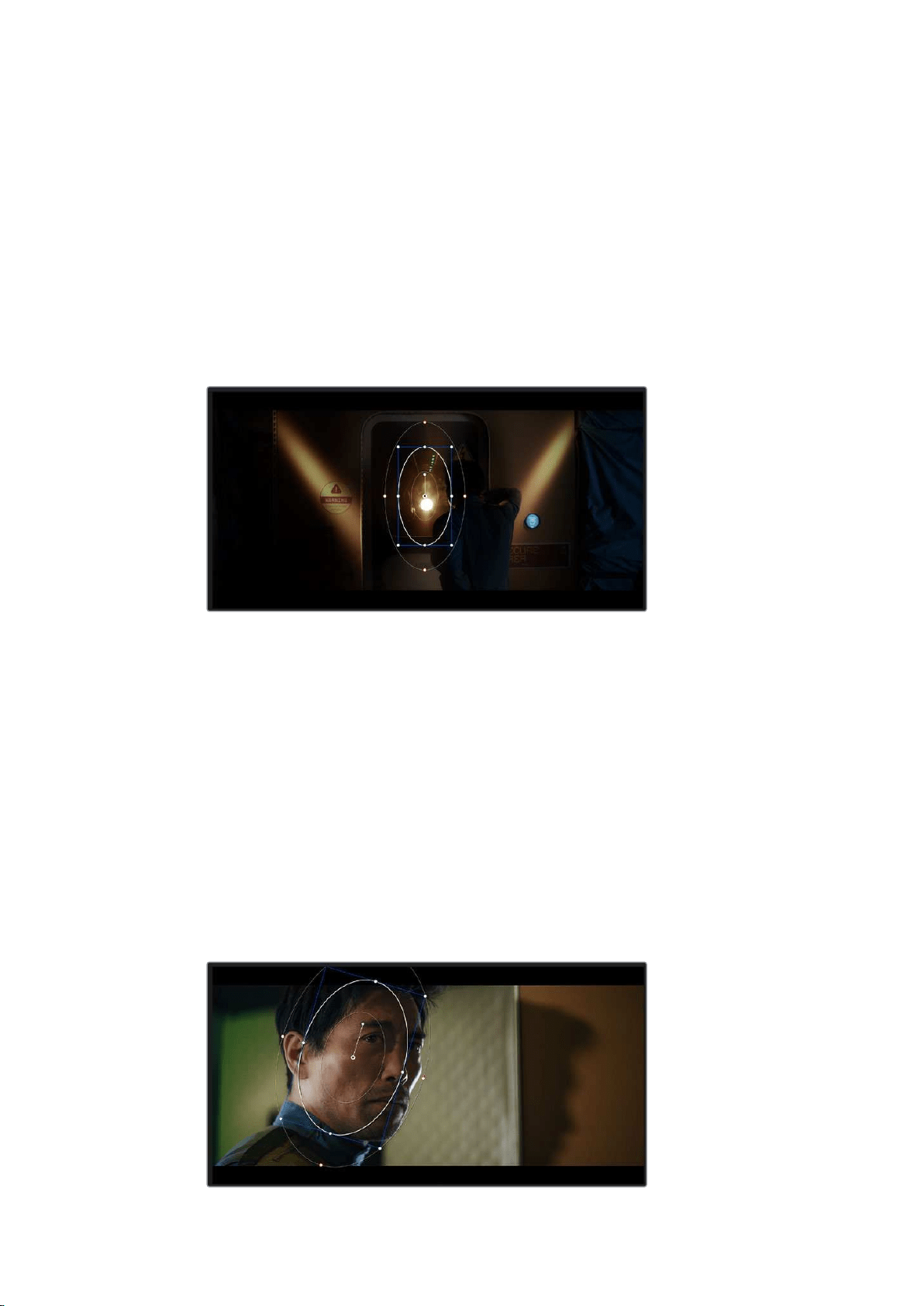
Experiment with the high, low and softness controls to see how to refine your selection.
Now you can make corrections to your selected color using the color wheels or custom curves.
Sometimes your selection can spill into areas of the shot you don’t want to affect. You can easily
mask out the unwanted areas using a power window. Simply create a new window and shape it
to select only the area of color you want. If your selected color moves in the shot, you can use
the tracking feature to track your power window.
Adding a Power Window
Power windows are an extremely effective secondary color correction tool that can be used to
isolate specific regions of your clips. These regions don’t have to be static, but can be tracked
to move with a camera pan, tilt or rotation, plus the movement of the region itself.
Use power windows to mask out areas you don’t want
to be affected by the HSL qualifier secondary adjustments
For example, you can track a window on a person in order to make color and contrast changes
just to that person without affecting his or her surroundings. By making corrections like this you
can influence the audience’s attention on areas you want them to notice.
To add a power window to your clip:
1 Add a new serial node.
2 Open the ‘window’ palette and select a window shape by clicking on a shape icon.
Your selected window shape will appear on the node.
3 Resize the shape by clicking and dragging the blue points around the shape. The red
points adjust the edge softness. You can position the shape by clicking the center
point and moving it to the area you want to isolate. Rotate the window using the point
connected to the center.
Now you can make color corrections to your image in just the area you want.
Power windows let you make secondary corrections to specific parts of your image
235Using DaVinci Resolve
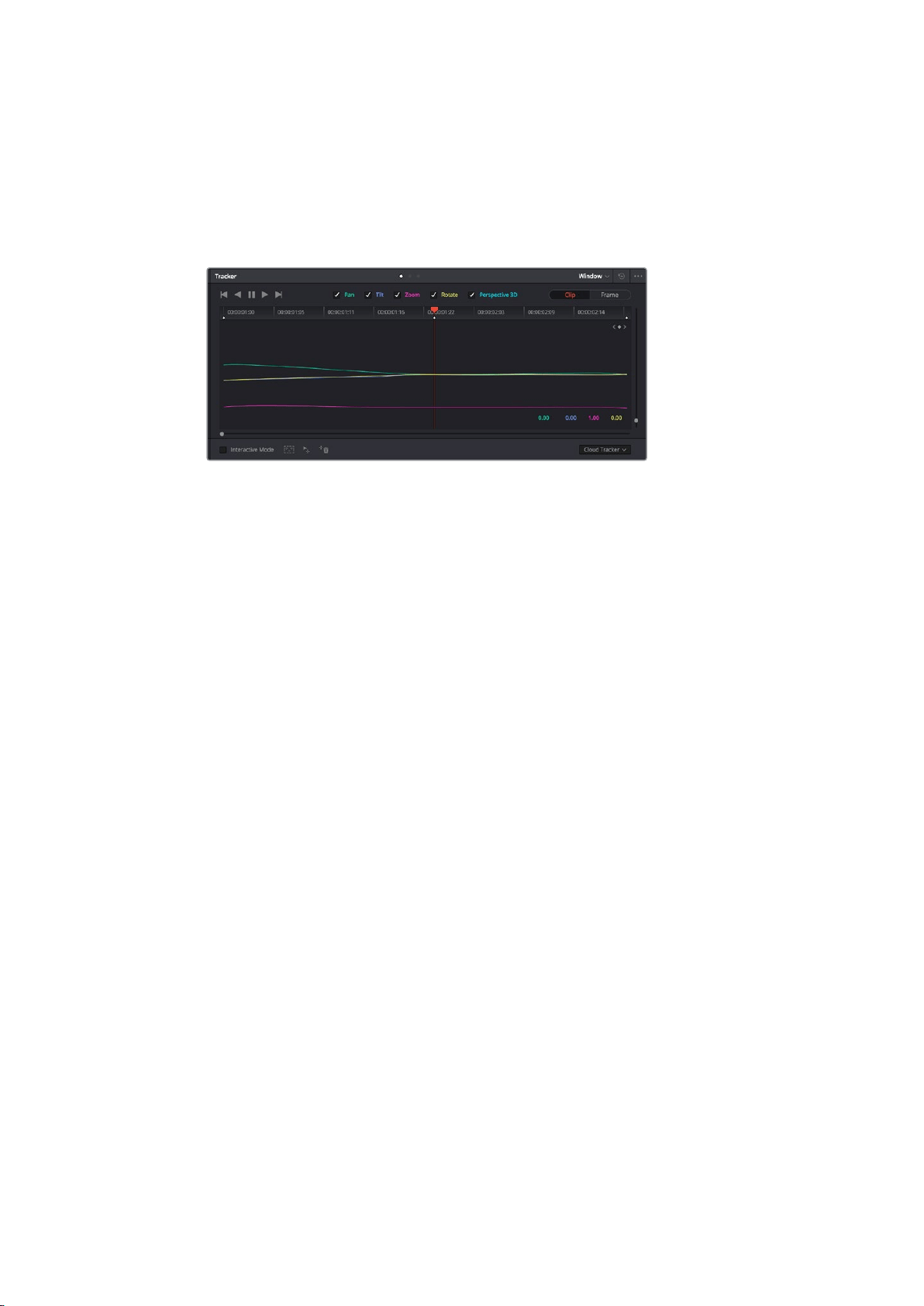
Tracking a Window
The camera, object or area in your shot may be moving, so to make sure your window stays on
your selected object or area, you can use DaVinci Resolve’s powerful tracking feature. The
tracker analyzes the pan, tilt, zoom and rotation of the camera or object in your clip so you can
match your windows to that movement. If this isn’t done, your correction can move off the
selected target and call attention to itself, which you probably don’t want.
You can track objects or areas in your clip using the tracker
feature so power windows can follow the action
To track a window to a moving object:
1 Create a new serial node and add a power window.
2 Go to the start of your clip and position and size the window to highlight just the object
or area you want.
3 Open the ‘tracker’ palette. Select the pan, tilt, zoom, rotate, and perspective
3D settings appropriate for the movement in your clip by checking or unchecking
the relevant ‘analyze’ checkboxes.
4 Click on the ‘forward’ arrow to the left of the checkboxes. DaVinci Resolve will now
apply a cluster of tracking points on your clip and then step through the frames to
analyze the movement. When the tracking is done, your power window will follow the
path of the movement in your clip.
Most of the time automatic tracking is successful, but scenes can be complex and sometimes
an object can pass in front of your selected area, interrupting or affecting your track. This can
be solved manually using the keyframe editor. Refer to the DaVinci Resolve manual to
find out more.
Using Plugins
While making secondary color corrections you can also add ResolveFX or OpenFX plugins to
create fast, interesting looks and effects using the ‘color’ page, or imaginative transitions and
effects on your clips on the ‘edit’ page. ResolveFX are installed with DaVinci Resolve, OFX
plugins can be purchased and downloaded from third party suppliers.
After installing a set of OFX plugins, you can access them or ResolveFX plugins on the color
page by opening the OpenFX inspector to the right of the ‘node editor’. Once you create a new
serial node, simply click the ‘OpenFX’ button to open the FX library and drag and drop a plugin
onto the new node. If the plugin has editable settings, you can adjust these in the adjoining
‘settings’ panel.
In the ‘edit’ page you can add plugin filters, generators and transitions to clips by opening the
‘OpenFX’ panel in the ‘effects library’ and dragging your selected plugin onto the video clip or
track above your clip on the timeline depending on the plugin requirements.
236Using DaVinci Resolve
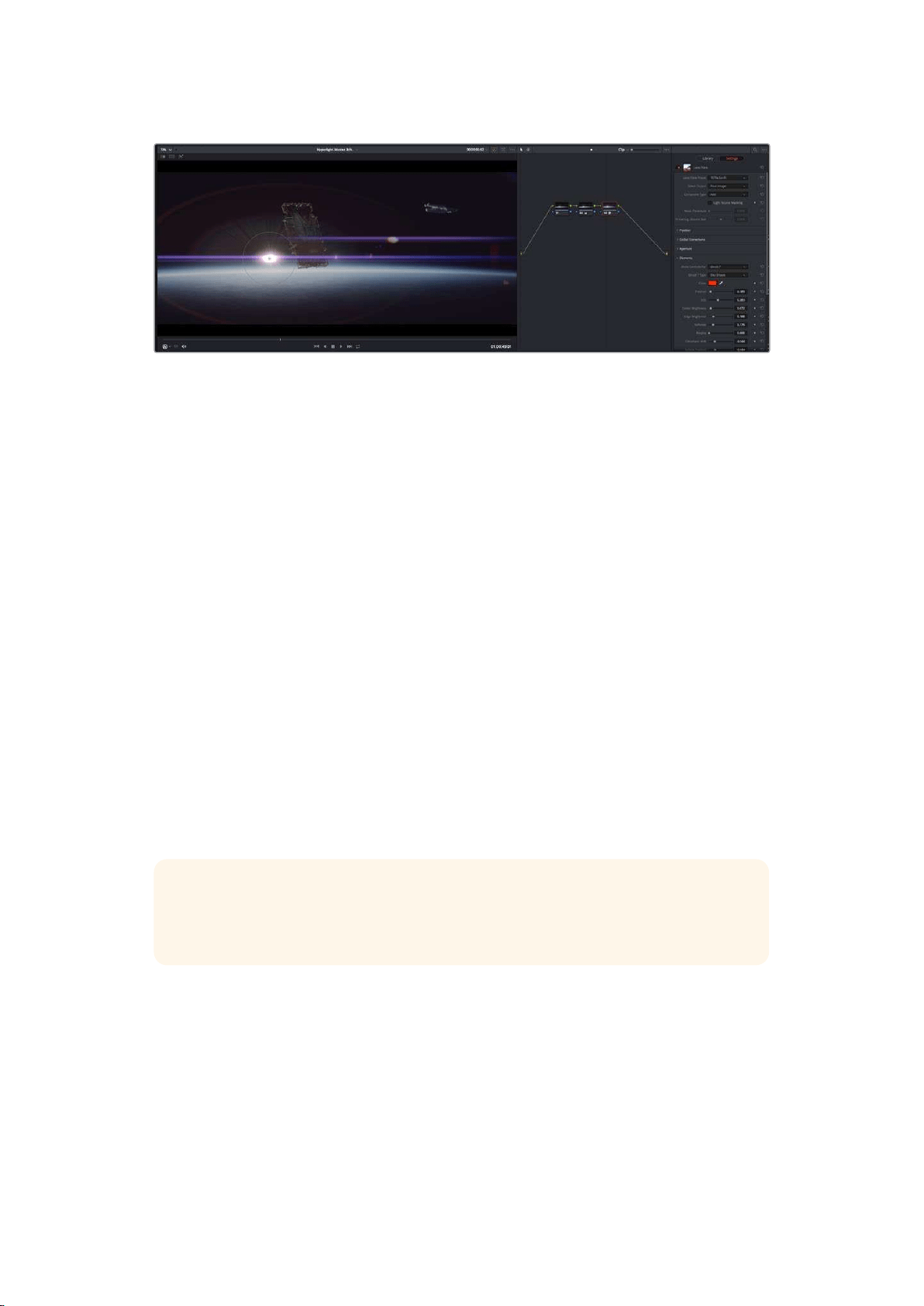
OFX plugins are a quick and easy way to create an imaginative and interesting look
Mixing Your Audio
Mixing Audio in the Edit Page
Once you have edited and color corrected your project, you can begin to mix your audio.
DaVinciResolve has a helpful set of features for editing, mixing and mastering audio for your
project directly in the ‘edit’ page. For projects requiring more advanced audio tools, the
Fairlight page provides you with a full audio post production environment. If you are already
familiar with the edit page and want to move straight to Fairlight, skip this section and move
onto the next.
Adding Audio Tracks
If you are working in the edit page and want to mix a basic sound edit with lots of sound effects
and music, you can easily add more audio tracks when you need them. This can be helpful
when building your sound, and separating your audio elements into individual tracks, for
example, dialogue, sound effects and music.
To Add an Audio Track to the Edit Page
Right click next to the name of any audio track on your timeline and select ‘add track’ and
choose from the options, including ‘mono’, ‘stereo’, and ‘5.1’. This will add the track to the
bottom of the track list. Alternatively select ‘add tracks’ and select the position you would like
the new track or multiple tracks placed.
Your new audio track will appear on the timeline.
TIP If you wish to change the type of track after creating it, right click next to the name
of the track and select ‘change track type to’ and select the type of audio track you
want, such as stereo, mono or 5.1.
Adjusting Audio Levels in the Timeline
Each clip of audio in the timeline has a volume overlay that lets you set that clip’s level by
simply dragging it up or down with the pointer. This overlay corresponds to the Volume
parameter in the Inspector.
237Using DaVinci Resolve
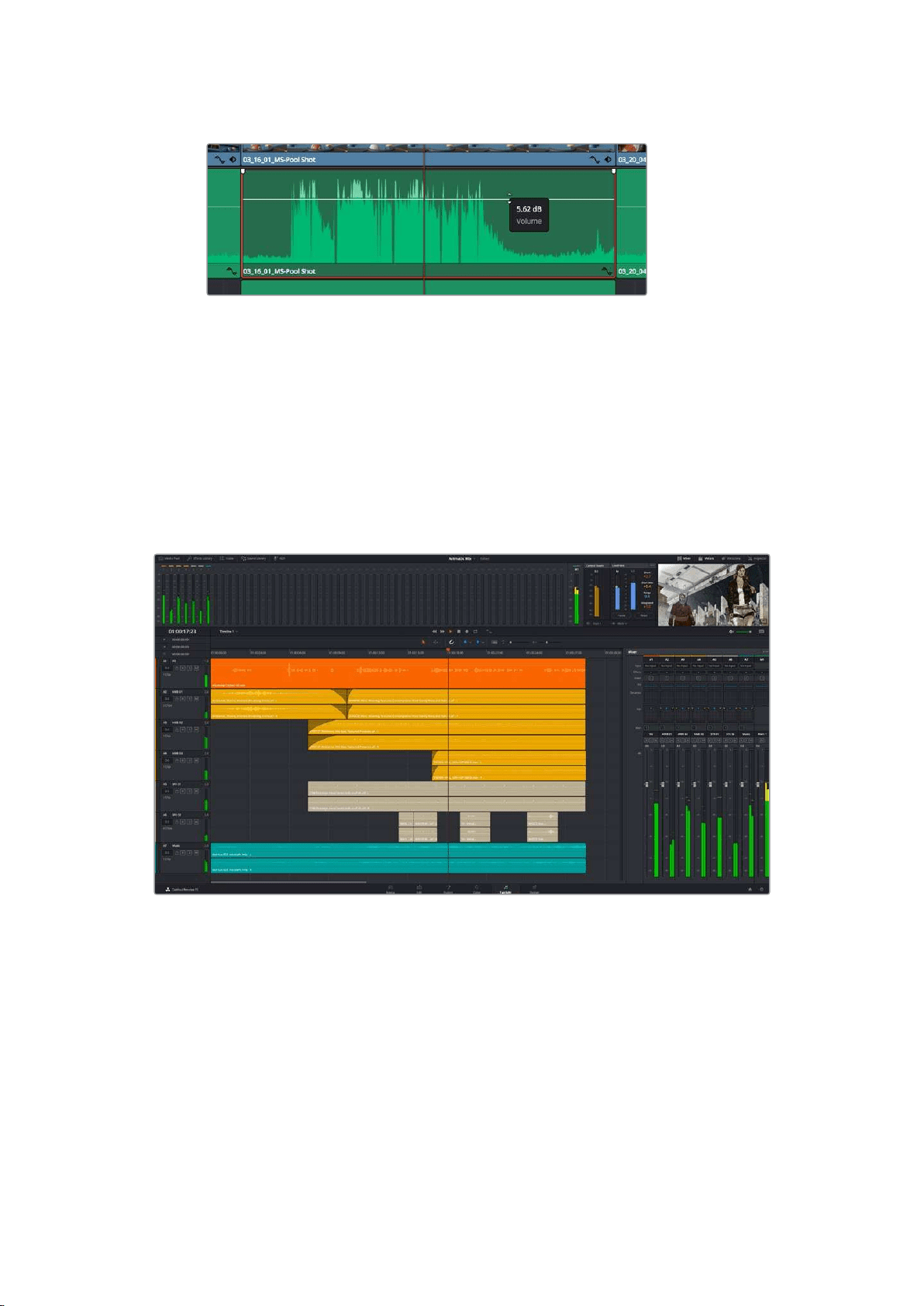
Dragging a volume overlay to adjust the clip level
For projects requiring more advanced audio tools, the Fairlight page provides you with a full
audio post production environment.
The Fairlight Page
The ‘Fairlight’ page in DaVinci Resolve is where you adjust your project audio. In single
monitormode, this page gives you an optimized look at the audio tracks of your project, with
anexpanded mixer and custom monitoring controls that make it easy to evaluate and adjust
levels in order to create a smooth and harmonious mix. Don’t feel overwhelmed by the vast
array of features in front of you, they are all there to help you deliver the best audio quality
foryour project.
This guide provides a basic overview of the features on the Fairlight page, but to learn more
about all the details for each feature, refer to the DaVinci Resolve manual. The DaVinci Resolve
manual provides details on the purpose of each tool and describes how to use them in easy to
follow steps.
The Audio Timeline
Track Header: At the left of each track is a header area that displays the track number,
track name, track color, audio channels, fader value and audio meters. The track
header also contains different controls for locking and unlocking tracks, plus solo and
muting controls. These controls can help to keep your tracks organized, and let you
preview individual tracks one at a time.
238Using DaVinci Resolve

Tracks: Each track on the Fairlight page is divided into lanes, which show each
individual channel of clip audio for editing and mixing. The edit page hides these
individual audio channels, displaying only a single clip in the timeline to make it easier
to edit multi channel sources without needing to manage a huge number of tracks.
The track header on track A1 indicates a mono track with a single lane for mono audio,
and the A2 track header indicates a stereo track with two lanes to accommodate stereo audio
What is a Bus?
A bus is essentially a destination channel to which you can route multiple audio tracks from the
timeline, so that they are mixed together into a single signal that can be controlled via a single
channel strip.
Main Bus: ‘Main busses’ are typically the primary output of a program and each new
project you create starts out with a single ‘main bus’, to which all tracks are routed by
default. The ‘main bus’ combines all of the tracks in the timeline into one signal so that
you can adjust the overall level of the audio mix once you have adjusted the level of
each individual track.
Sub Bus: ‘Sub busses’ allow you to combine multiple tracks of audio that belong to the
same category such as dialogue, music or effects so that everything in that category
can be mixed as a single audio signal. For example, if you have five dialogue tracks,
you can route the output of all five dialogue tracks to a ‘submix bus’, and the level of all
dialogue can then be mixed with a single set of controls. This submix can be rendered
separately or sent to the main bus for render.
The Mixer
Each audio track in your timeline corresponds to an individual channel strip in the Mixer, and by
default there’s a single strip on the right for the ‘main bus’ labeled ‘M1’. Additional channel strips
will appear on the right hand side with a set of controls for each additional ‘main’ and ‘submix
bus’ you create. A set of graphical controls allows you to assign track channels to output
channels, adjust EQ and dynamics, set levels and record automation, pan stereo and surround
audio, and mute and solo tracks.
The audio mixer, with channel strips corresponding to the tracks in the timeline
239Using DaVinci Resolve
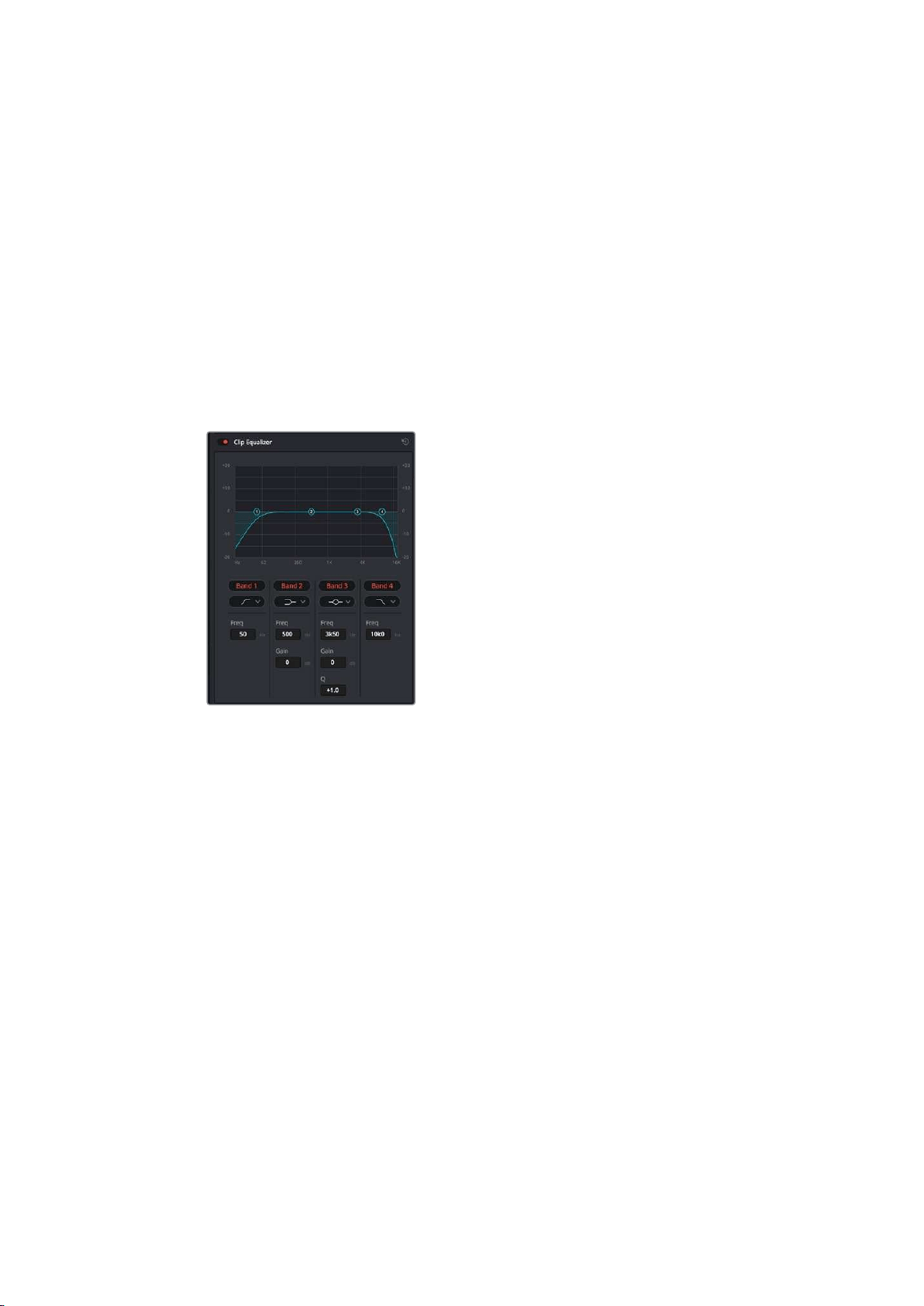
Using the Equalizer to Enhance your Audio
After adjusting the audio levels of your audio clips in your project, you may find that the audio
needs further finessing. In some cases you may find that the dialogue, music and sound effects
are competing for the same frequency on the audio spectrum, making your audio too busy and
unclear. This is where using EQ can help, as it allows you to specify the parts of the audio
spectrum that each track occupies. You can also use an equalizer to help remove unwanted
elements from your audio by isolating and reducing the level on particular frequencies that
contain low rumbles, hums, wind noise and hiss, or simply to improve the overall quality of your
sound so it is more pleasing to listen to.
DaVinci Resolve provides EQ filters that can be applied at a clip level to each individual clip or
at the track level to affect entire tracks. Each audio clip in the timeline has a four band equalizer
in the inspector panel, and each track has a 6 band parametric equalizer in the mixer panel. The
graphical and numeric controls for boosting or attenuating different ranges of frequencies, and
different filter types allow you to define the shape of the EQ curve.
The four band equalizer can be
applied to every clip in the timeline
Outer bands let you make band filter adjustments using hi-shelf, lo-shelf, hi-pass and lo-pass
filters. A pass filter affects all the frequencies above or below a particular frequency, by
removing those frequencies completely from the signal. For example, a high pass filter will
allowthe high frequencies to pass through the filter while cutting the low frequencies.
Anyfrequencies outside the cutoff frequency are cut gradually in a downward sloping curve.
A shelf filter is less aggressive, and is useful when you want to shape the overall top end or low
end of the signal without completely removing those frequencies. The shelf filter boosts or cuts
the target frequency and every frequency either above or below it evenly, depending on
whether you use a high shelf or low shelf.
The middle sets of band controls let you make a wide variety of equalization adjustments, and
can be switched between lo-shelf, bell, notch, and hi-shelf filtering options.
Bell: Bell filters boost or cut frequencies around a given center point of the bell curve,
and as the name suggests the shape of the curve is like a bell.
Notch: Notch filters allow you to specifically target a very narrow range of frequencies.
For example, removing a mains hum at 50 or 60Hz.
Lo-Shelf: Low shelf filters boost or cut the target frequency at the low end, and every
frequency below it
Hi-Shelf: High shelf filters boost or cut the target frequency at the high end, and every
frequency above it
240Using DaVinci Resolve
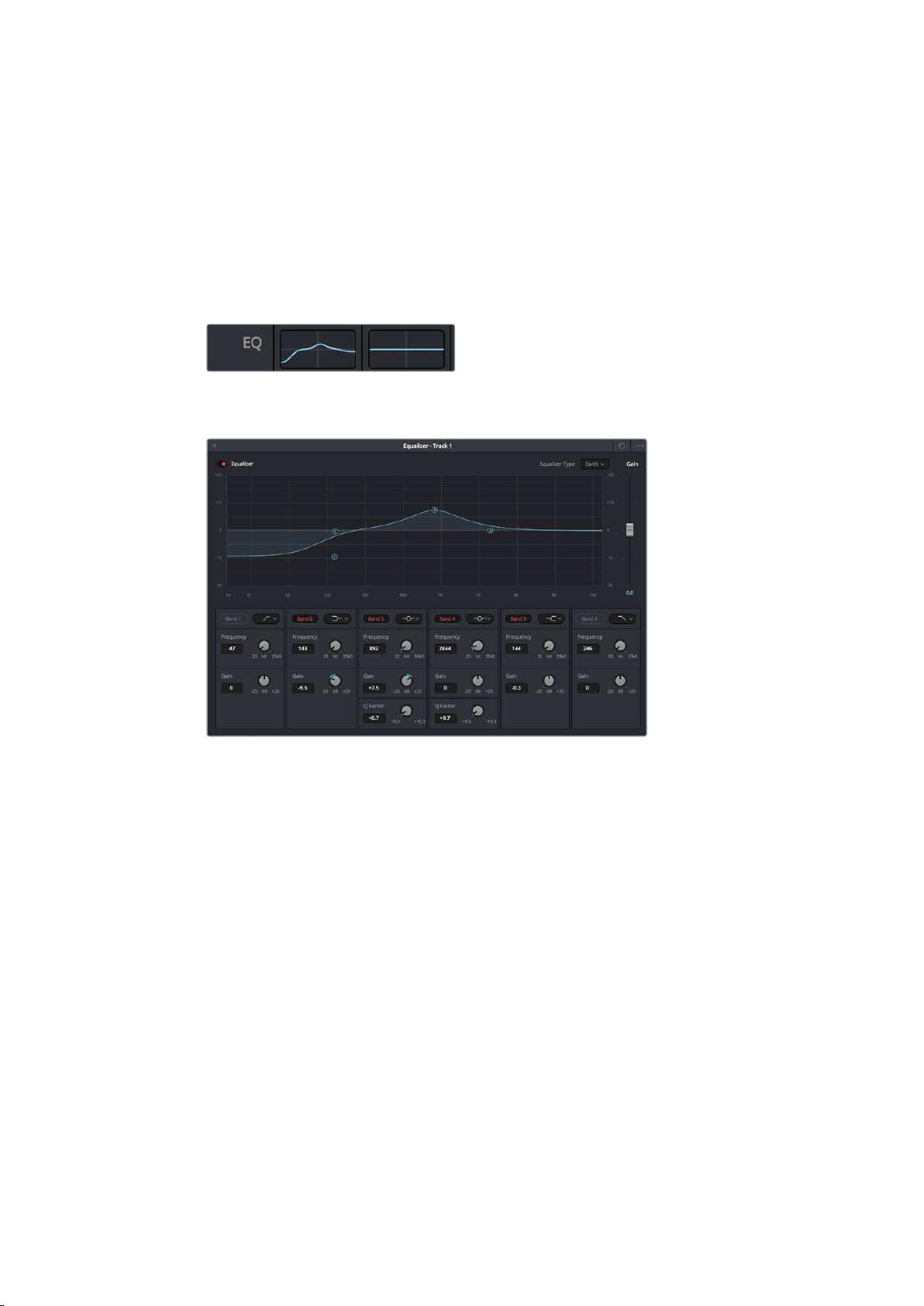
To add EQ to an individual clip:
1 Select the clip in the timeline that you want to add the EQ filter to.
2 Click on the inspector and then click the ‘clip equalizer’ enable button.
To add EQ to a track:
1 Double click in the EQ section for one of your tracks in the mixer to open the equalizer
for that track.
2 Select the band filter type from the dropdown menu for the band you want to adjust.
The EQ section in the mixer panel indicating
an EQ curve has been applied to track one
The 6 Band parametric equalizer that can be applied to every track
Once you have added EQ to your clip or track, you can adjust the EQ for each band. Note that
controls may vary depending on which band filter type is selected.
To adjust the EQ for a band filter:
1 Select the band filter type from the dropdown menu for the band you want to adjust.
2 Adjust the ‘frequency’ value to select the center frequency of the EQ adjustment.
3 Adjust the ‘gain’ value to boost or attenuate the frequencies governed by that band.
4 Use the ‘Q factor’ value to adjust the width of affected frequencies.
Use the reset button to reset all controls in the EQ window to their defaults.
Fairlight has many controls you can use to improve the quality of each audio track. You can add
more tracks and arrange buses to organize them, plus add effects like delay or reverb, and
generally perfect your audio mix.
241Using DaVinci Resolve
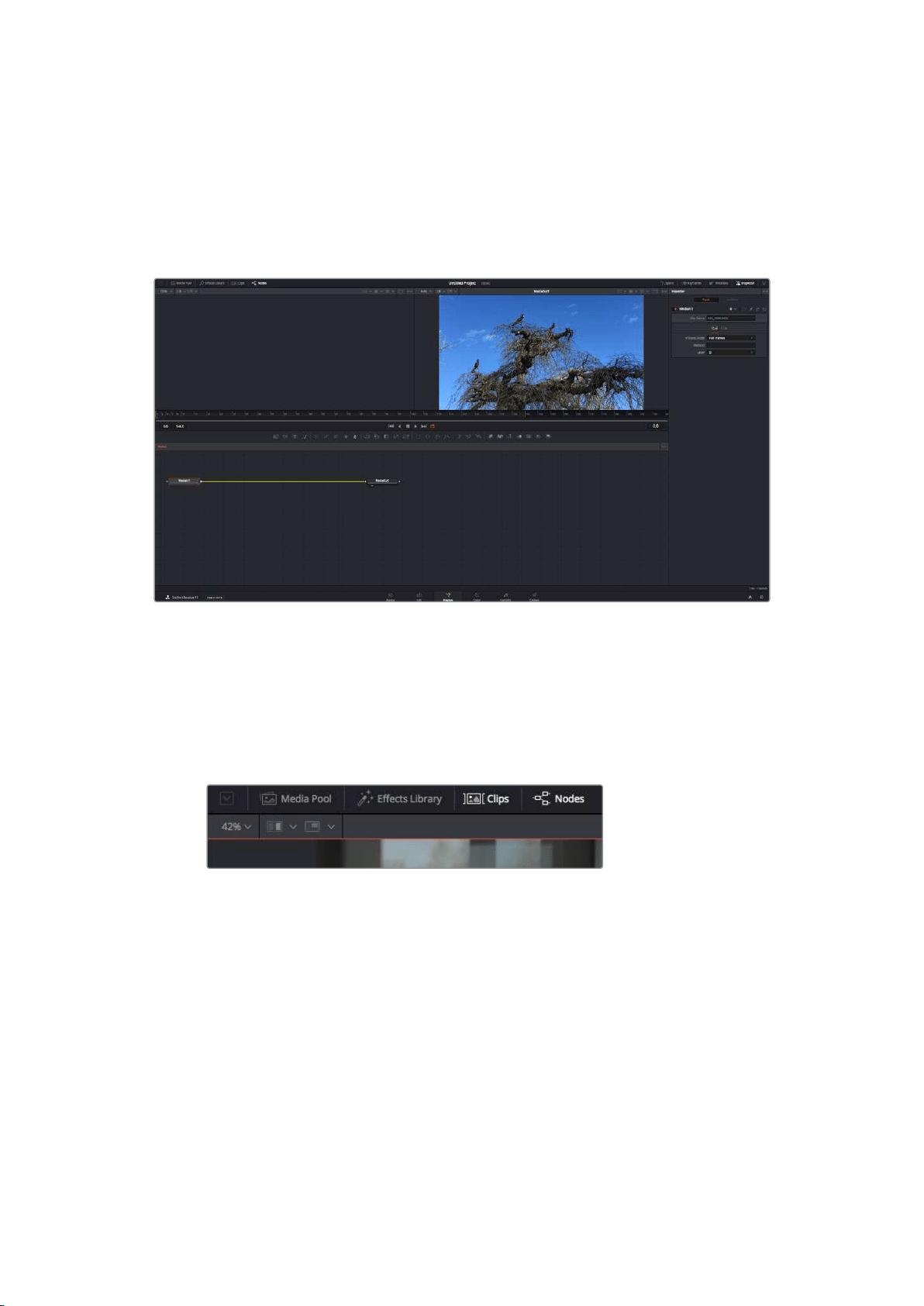
Adding VFX and Compositing on the Fusion Page
Now that you have completed your edit, you can open the Fusion page to add 2D or 3D visual
effects and motion graphics right within DaVinci Resolve. Unlike layer based compositing
software, Fusion uses nodes, giving you the freedom to build complex effects while routing
image data in any direction. The nodes window clearly shows every tool used along the way.
Ifyou have experienced the node workflow in the color page, this will feel familiar to you.
The Fusion Page
The Fusion page features 2 viewer windows across the top with transport controls to view your
media, an inspector window to the right to access tool settings, and a nodes window at the
bottom where you build your composition. While the viewers and transport controls are always
visible, clicking on the icons on the interface toolbar at the very top of the display will let you
show or hide the nodes and inspector windows, or reveal or hide additional windows including
the effects library and editors for spline and keyframes.
Media Pool: The media pool functions the same way as it appears in the edit page.
Simply drag additional media from your bins directly to your composition.
Effects Library: The effects library is where you will find your Fusion tools and
templates sorted into categories including particle, tracking, filters and generators.
You can either click on the tool or drag it to the nodes area to add it to your
composition. The media pool and effects library take up the same screen area, so you
can swap between the two to keep your viewers as large as possible.
Clips: Clicking the clips tab will reveal or hide thumbnails representing clips on your
timeline. The thumbnails are located underneath the nodes editor, letting you instantly
navigate to other clips.
242Using DaVinci Resolve
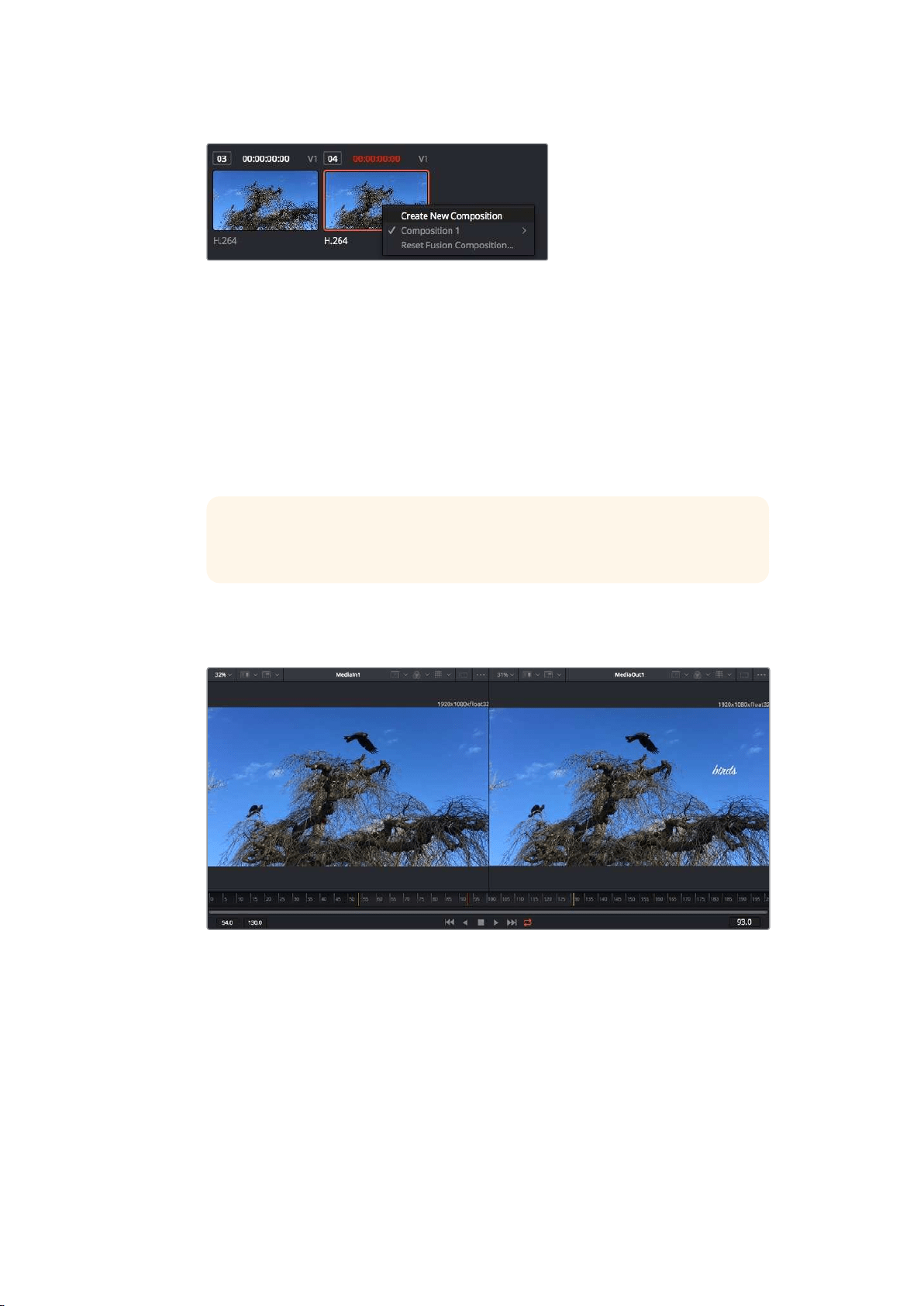
Create a new version of your composition by right clicking on a
thumbnail and selecting ‘create new composition’.
Viewers: The viewers are always visible and let you see the different views of your
composition, for example an overall 3D perspective via the merge 3D node, a camera
output, oryour final render output. These viewers also let you see how your changes
are affecting aspecific element.
You can choose which nodes to view by clicking on a node and typing ‘1’ for the left
viewer or ‘2’ for the right viewer. White button icons appear beneath the node to let
you know which viewer itis assigned to. If you’re using external video monitoring, there
will be a third button available to route your media to your external video monitor.
TIP You can also assign a node to a viewer by dragging the node
into the viewer itself.
The transport controls underneath the viewers let you skip to the start or end of the
clip, play forward or reverse, or stop playback. The time ruler displays the entire range
of a clip, with yellow marks indicating the in and out points.
The yellow marks on the time ruler indicate your clip’s in and out points on your
timeline. If you are using a Fusion clip or compound clip, the time ruler will only show
you the duration of the clip as it appears on the timeline, without handles.
Nodes: The nodes window is the heart of the Fusion page where you build your node
tree byconnecting tools together from one node’s output to another node’s input.
Thisarea will change size depending on which editors are open, for example the spline
or keyframes editor. A toolbar atthe top of the nodes area features the most commonly
used tools for fast access.
Spline: When the spline editor is open, it will appear to the right of the nodes window.
This editor lets you make precise adjustments to each node, such as smoothing the
animation between two keyframes using bezier curves.
243Using DaVinci Resolve
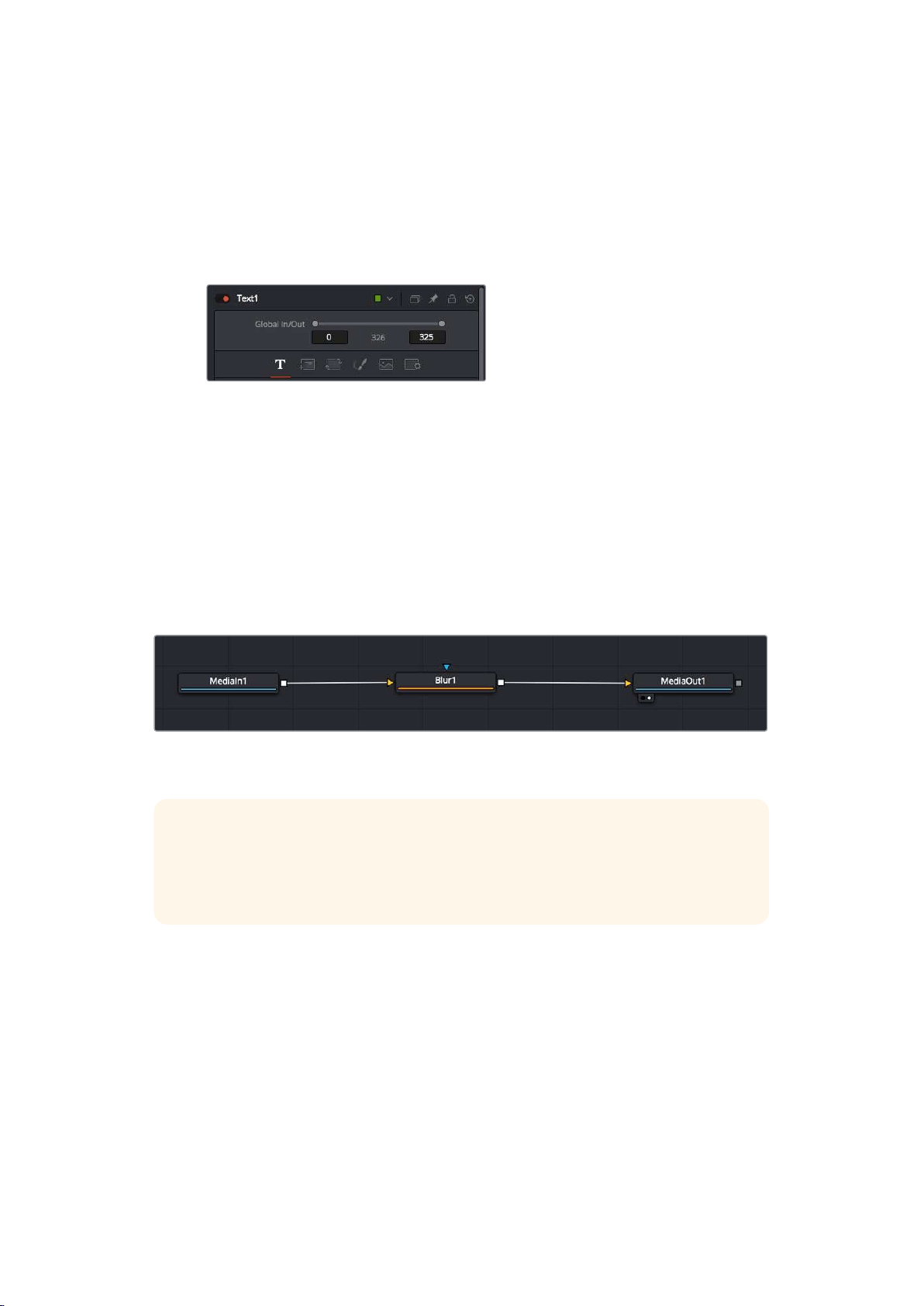
Keyframes: Keyframes for each tool can be added, removed or modified using the
keyframes editor. This also appears to the right of the nodes viewer.
Metadata: The metadata window will show you metadata available for the active clip,
including the codec, frame rate and timecode.
Inspector: The inspector in the top right corner displays all settings and modifiers
available for one or more selected nodes. Additional tab options will appear to provide
quick access to other settings for nodes sorted by category.
The text inspector contains additional tabs for text,
layout, transform, shading, image and settings.
Getting Started with Fusion
To get started with Fusion, simply position your playhead over any clip on your timeline and
click on the ‘Fusion’ tab to open the Fusion page.
On the Fusion page, your clip is immediately available in a media input node labelled ‘MediaIn’.
Every composition will begin with a ‘mediain’ and a ‘mediaout’ node. This mediain node
represents the top most clip of your timeline at the playhead, and ignores any clips underneath.
Any adjustments you’ve applied to the clip on the edit page, such as transform tools and
cropping changes, are also included.
The media output node, named ‘MediaOut’, is the node that sends the output
back to your timeline on DaVinci Resolve’s edit page.
TIP ResolveFX or OFX plug-ins applied to clips in the edit page are not applied in
the Fusion page. This is because Fusion effects occur prior to color correction and
OFX/ResolveFX processing. If you want OFX applied before Fusion effects, right click
the clip in the edit page and select ‘new fusion clip’ before clicking on the Fusion page.
Understanding Nodes
It can be helpful to think of each node as a visual icon representing a single tool or effect.
Nodes are connected to other nodes to build the overall composition, much like ingredients
inacake. It’s important to understand the inputs and outputs of each node as this will help you
navigate the flow of your composition while building detailed visual effects.
Some tools have multiple inputs and outputs you can connect to other nodes. The merge node,
for example, lets you attach a foreground input, background input, and a mask input for
mattes or keys.
244Using DaVinci Resolve
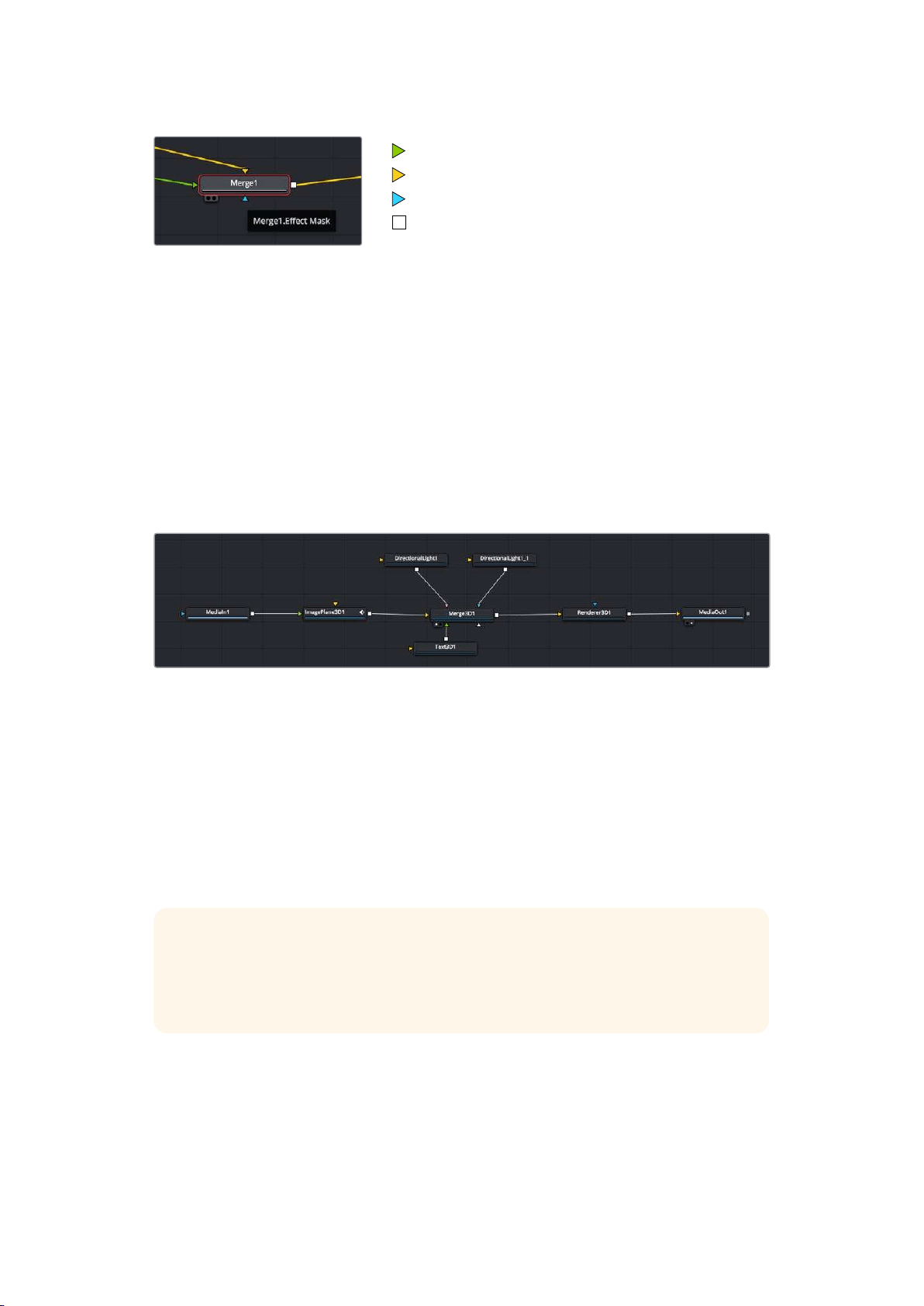
Foreground input
Background input
Effect mask input
Output
Multiple outputs on nodes means a single node can connect to many different nodes in your
composition, so you don’t have to duplicate clips as you would in layer based software.
Arrows on the line between connected nodes are a great visual indicator to show you which
direction the image data is flowing.
Adding Nodes to the Node Editor
Adding effects is as simple as placing nodes on the line between the ‘mediain’ and
‘mediaout’ nodes.
There are a few ways you can do this. You can hold down the shift button and drop a node
between two nodes, or click on the node you want to attach an effect to and select the
tool you want to add. The new node will automatically connect to the tool selected. You can
also add a node anywhere on the node window and manually connect nodes by dragging the
output of one to the input on another.
The most commonly used tool is the 2D or 3D merge node. This node is like
a central hub that combines tools on the node editor into a single output.
The merge node has controls for how the inputs are managed, including settings for size,
position, and blend. These settings are all accessible in the inspector panel when the merge
node is selected.
The toolbar above the node panel contains the most commonly used tools as icons that you
can either click on to add the node, or drag the tool to the node panel. If you want to see all the
complete tools available, click on the ‘effects library’ in the top left corner and expand the ‘tools’
option. Here you’ll find all the tools sorted by category, as well as a set of pre-built ‘templates’
you can use, for example lens flares, shaders and backgrounds.
TIP Once you’re familiar with the tool names, you can hold down ‘shift’ and press
‘spacebar’ on your keyboard and a ‘select tools’ menu will appear. As you type the tool
name, the menu will suggest the relevant tool. This is a very fast way to select the tool
you want.
245Using DaVinci Resolve
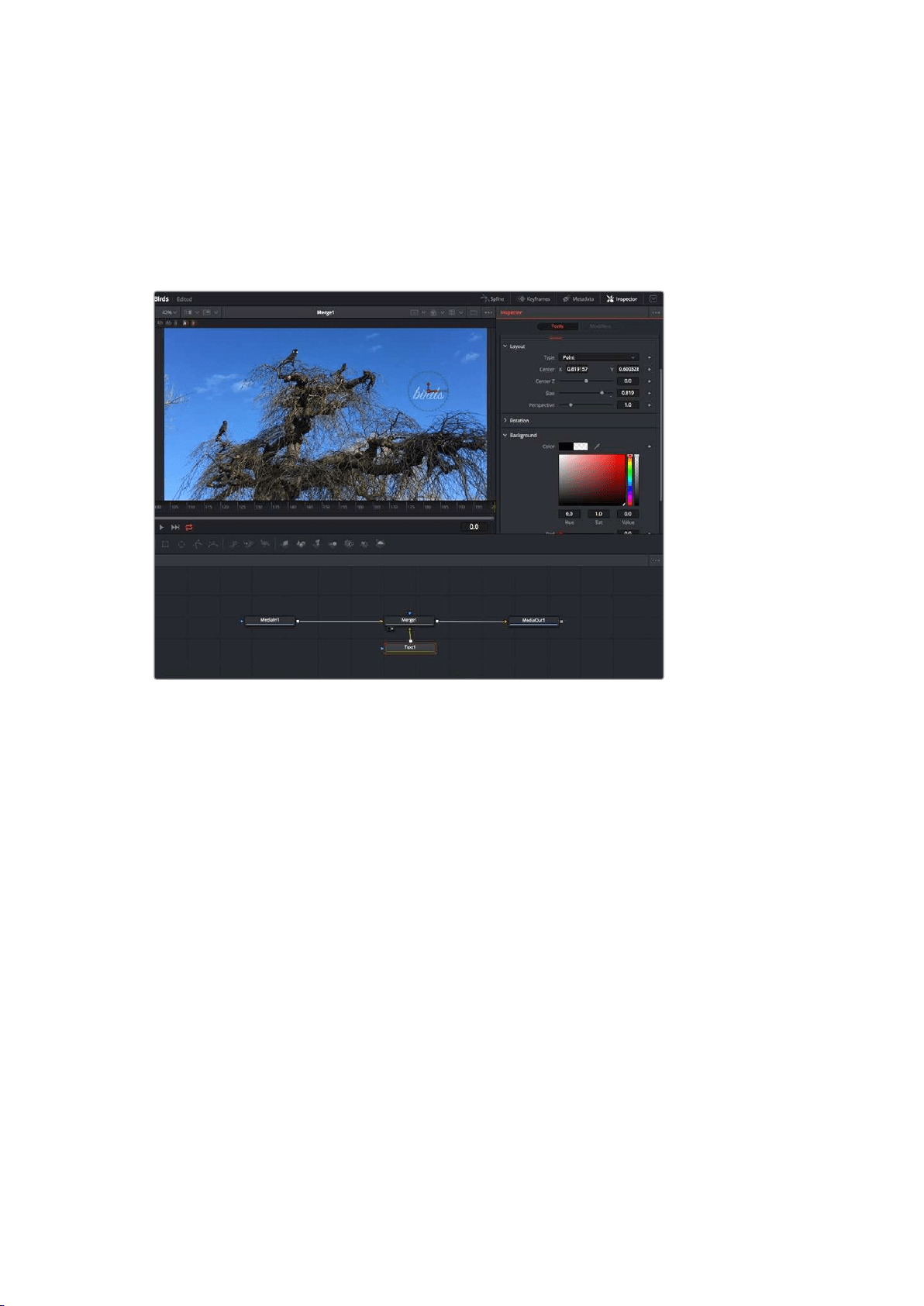
Adjusting Nodes Using the Inspector Panel
Adjust your node settings using the inspector panel. Simply click on the node you want to
modify and the panel will update to display its settings and controls.
With Fusion, you don’t have to be viewing the node you’re editing, as you can modify one node
while viewing another in your composition. For example, you can modify the size and center
position of a ‘text+’ node while the merge node is in the viewer, letting you view the text relative
to the background.
Selected nodes appear with a red border. Here the inspector
panel is displaying the layout tab controls for the text node.
There are different parameters and settings you can adjust for every node depending on its
task, from sizing and center positions to changing the number of particles in an emitter node.
Setting keyframes and changing the settings over time will animate the effect.
Working with Keyframes
In the inspector window, set a keyframe by right clicking on a setting and choosing ‘animate’
from the contextual menu. The keyframe icon to the right of the setting will turn red. This means
keyframes are now active and any changes you make will be applied to the current frame only.
When two or more keyframes are created by changing the setting parameters on a different
frame, a transition is interpolated between them. Arrows on each side of the keyframe icon let
you move the playhead to those exact positions on the timeline.
The splines panel gives you further control over keyframe animation. You can select keyframes,
such as the first and last, and smooth the animation between them into a bezier curve by typing
‘shift’ + ’s’, or right clicking on a keyframe and selecting ‘smooth’.
246Using DaVinci Resolve
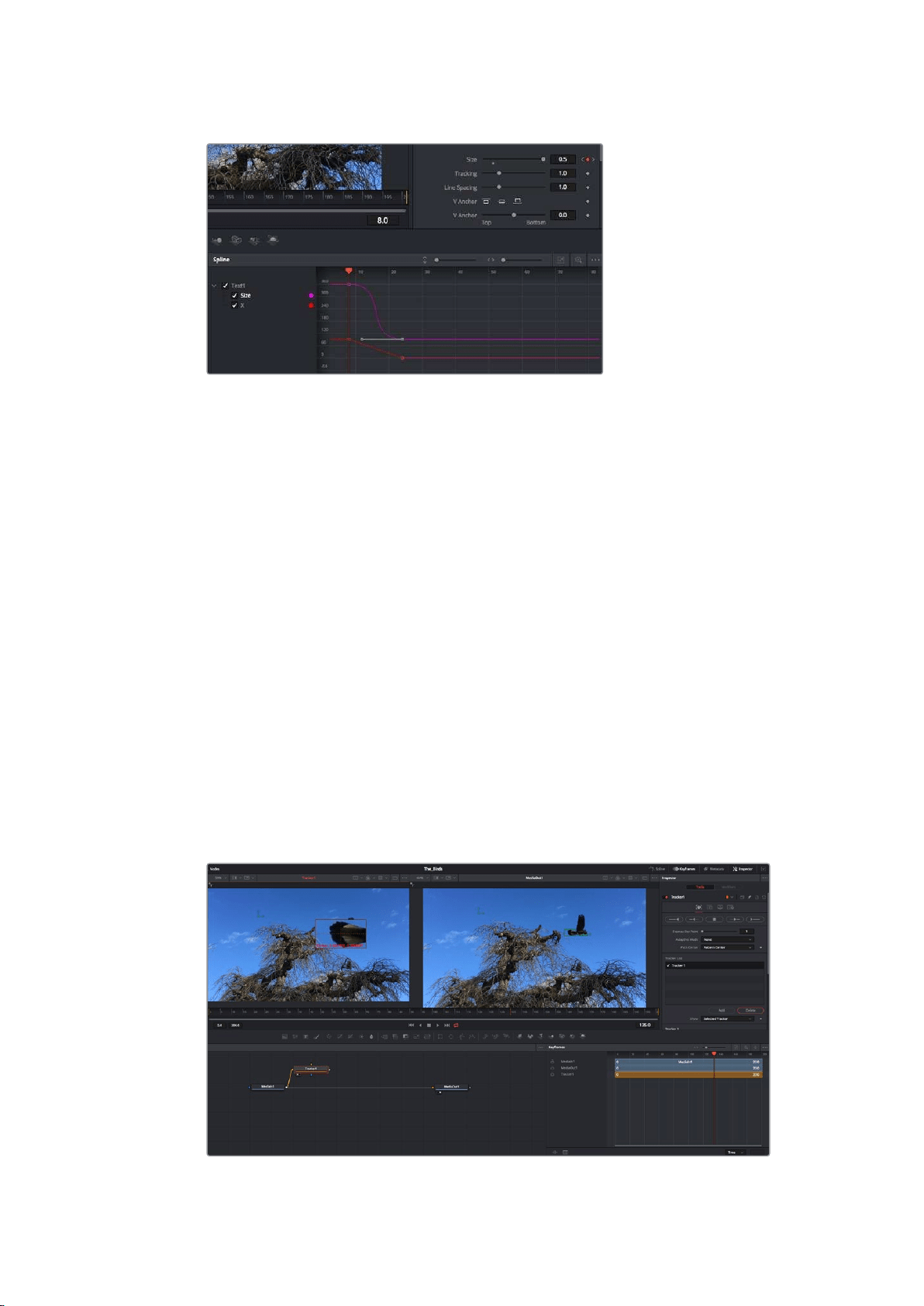
Here, the ‘size’ keyframe animation has been smoothed into a bezier
curve. You can click the bezier handles to shorten or lengthen the curve,
or the keyframe square icons to move the keyframe location.
Using the Motion Tracker and Adding Text
To get a better idea of how to use Fusion, we have included the following examples to show
how to use the tracker tool to track an element in a clip, plus add text and attach it to the
element using the tracking data.
The ‘tracker’ tool tracks pixels over time on the x & y axis, and generates data you can use to
attach other elements. This is great for when you want to match the position of text to a moving
object, such as a car driving along the road, or a bird as it flies across frame.
1 In the ‘effects library’, select the ‘tracking’ tool and drag it to the line between the
‘mediain’ and the ‘mediaout’ nodes. Now click the tracker node to reveal its properties
in the inspector.
2 Type ‘1’ on your keyboard to see the ‘tracker’ node on the left viewer. The clip will
appear in the viewer together with the tracker at its default position. Hover your mouse
pointer over the tracker to reveal the tracker handle. Click on the tracker handle at the
top left corner and drag the tracker to an area of interest on your clip. High contrast
areas work well, for example the badge on the hood of a car. The tracker will magnify
the image area for extra precision.
3 In the inspector window, click on the ‘track forward’ button to start tracking.
A notification window will appear when the tracking is done. Click OK.
Tracking options in the inspector panel include track reverse from last frame or
current frame, stop track or track forward from current frame or first frame.
247Using DaVinci Resolve
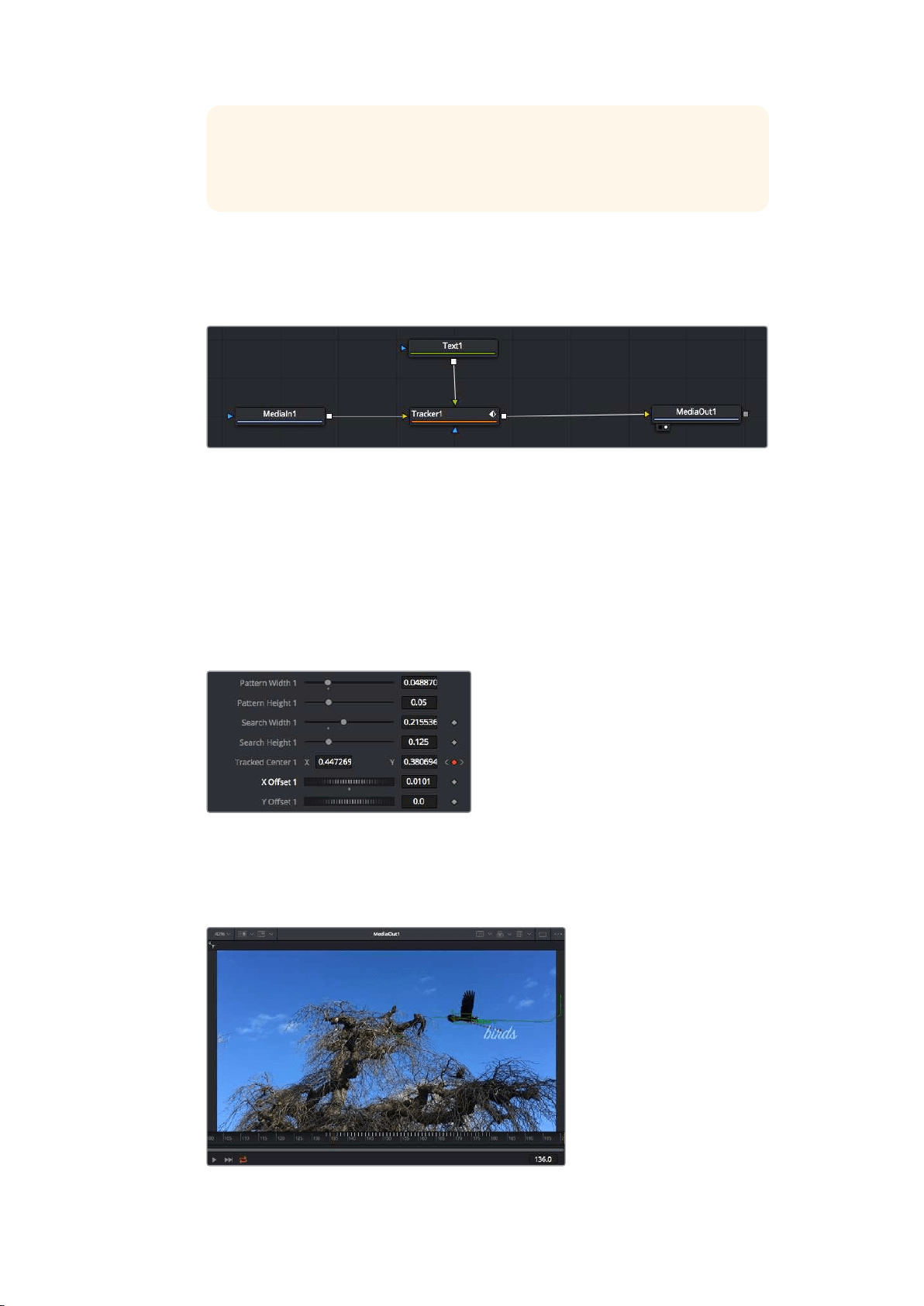
TIP Track reverse or forward from current frame is great for situations where
your area of interest disappears during the render range, such as a car or bird
moving out of frame. This lets you track only the relevant footage.
Now you can take that tracking data and apply the motion path to a text tool.
4 Click on the ‘text+’ node icon from the toolbar of commonly used nodes and drag it to
the node panel near the ‘tracker’ node. Connect the ‘text’ output square to the green
foreground input on the ‘tracker’.
5 Click on the ‘tracker’ node and type ‘1’ so you can see the merged results on your left
hand viewer. In the ‘tracker’ inspector panel, click on the ‘operations’ tab. You can see
the tab’s name by hovering the mouse pointer over it. Click the dropdown menu next to
operation and select ‘match move’.
6 Click the ‘text’ node to reveal the properties in the inspector. Type your text into the
text box and change the font, color and size to suit your composition.
This will apply the tracking position data from your tracker to your text. If you want to
change the text offset, click on the ‘trackers’ tab back in the inspector panel and use
the x and y offset scroll wheels to modify the position.
Scroll wheels at the bottom of the tracker inspector
panelletyou adjust the offset position for the text.
Now you can play back your composition and see your text attached to the object you
have tracked!
The green square is the tracker’s current position along the green path,
and the red dashed line is the offset position used to animate the text.
248Using DaVinci Resolve
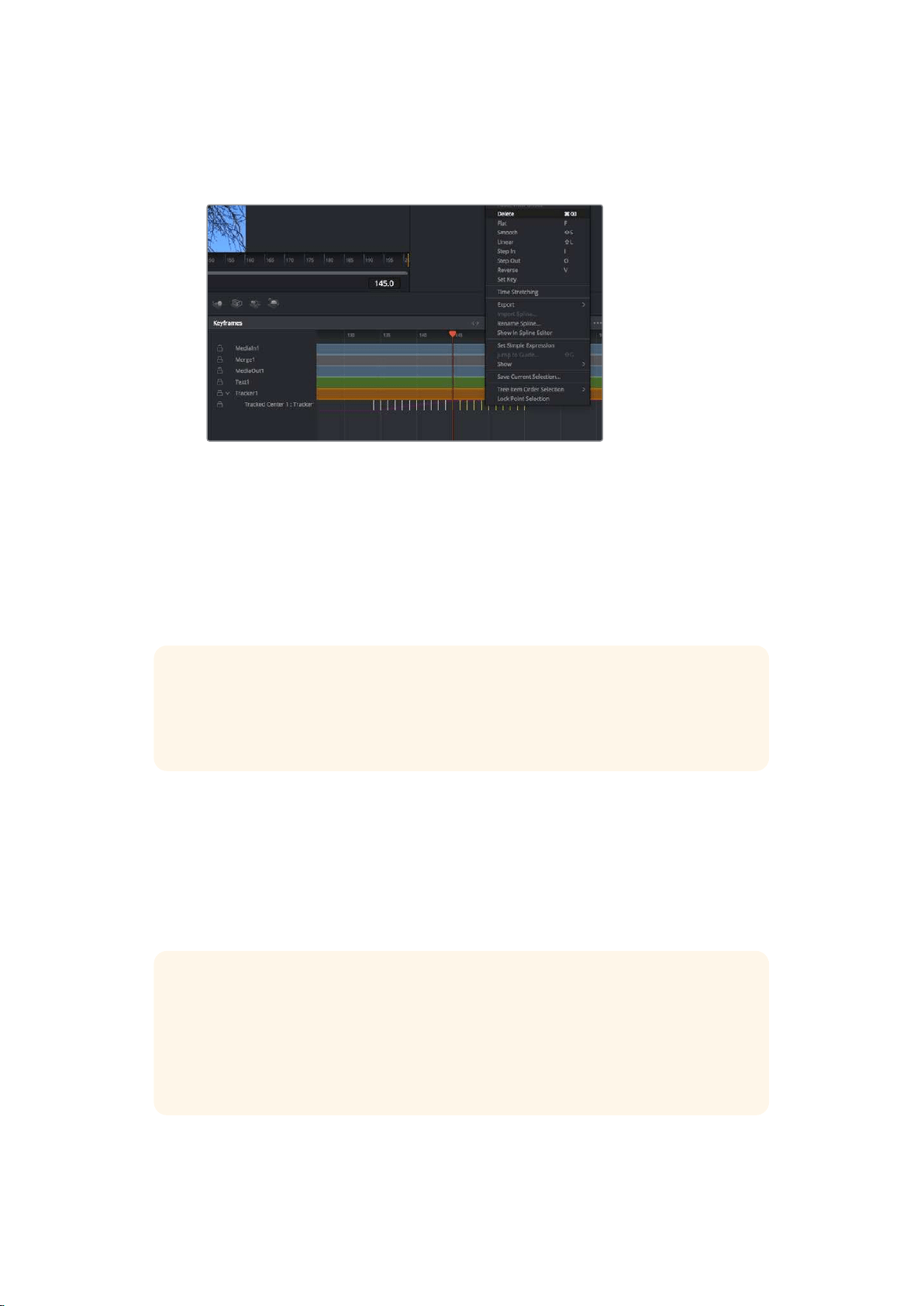
For some shots you might want to remove track points after tracking, such as when the
object you are tracking disappears off the screen. The keyframe editor makes this a
very simple process.
7 Click on the keyframes tab above the inspector to open the keyframes editor.
Any nodes with keyframes applied will have a small arrow next to the node label, and
only the parameter with keyframes added will appear in the list below. Click on the
magnify icon and drag a box around the area you want to edit. This will zoom into that
area so you can see the keyframes easier.
8 Move the playhead to the location of the last keyframe you want. Now select the
keyframes you wish to remove by drawing a box around them with your mouse.
The keyframes will highlight yellow. Right click and choose delete from the menu.
TIP If your effects are particularly system intensive, right clicking on the transport
controls area will give you viewer options, including proxy playback, helping you get
the most out of your system while you build your composition. Refer to the
DaVinci Resolve manual for further detail on all the playback options.
You have now completed your first composition animating text to match a movement in
your footage!
If you want to track an area of the image that contains a flat surface you want to enhance or
replace, you can use the planar tracker. Tracking 2D planes can be helpful for changing labels
and signs in a moving image, or even adding an image to a monitor or TV in your shot.
For more information about the planar tracker and the many powerful tools in the
DaVinci Resolve Fusion page, see the DaVinci Resolve manual.
TIP As you build visual effects in the Fusion page, it’s worth noting if the effect you are
building is a 2D effect, or a 3D effect, as this will determine which merge tool is used.
You may discover yourself frequently combining 2D and 3D effects in the one
composite. In this scenario, it’s helpful to remember that any visual effect using the
3D space needs to be rendered as a 2D image before it can be merged into a
2D composite.
249Using DaVinci Resolve
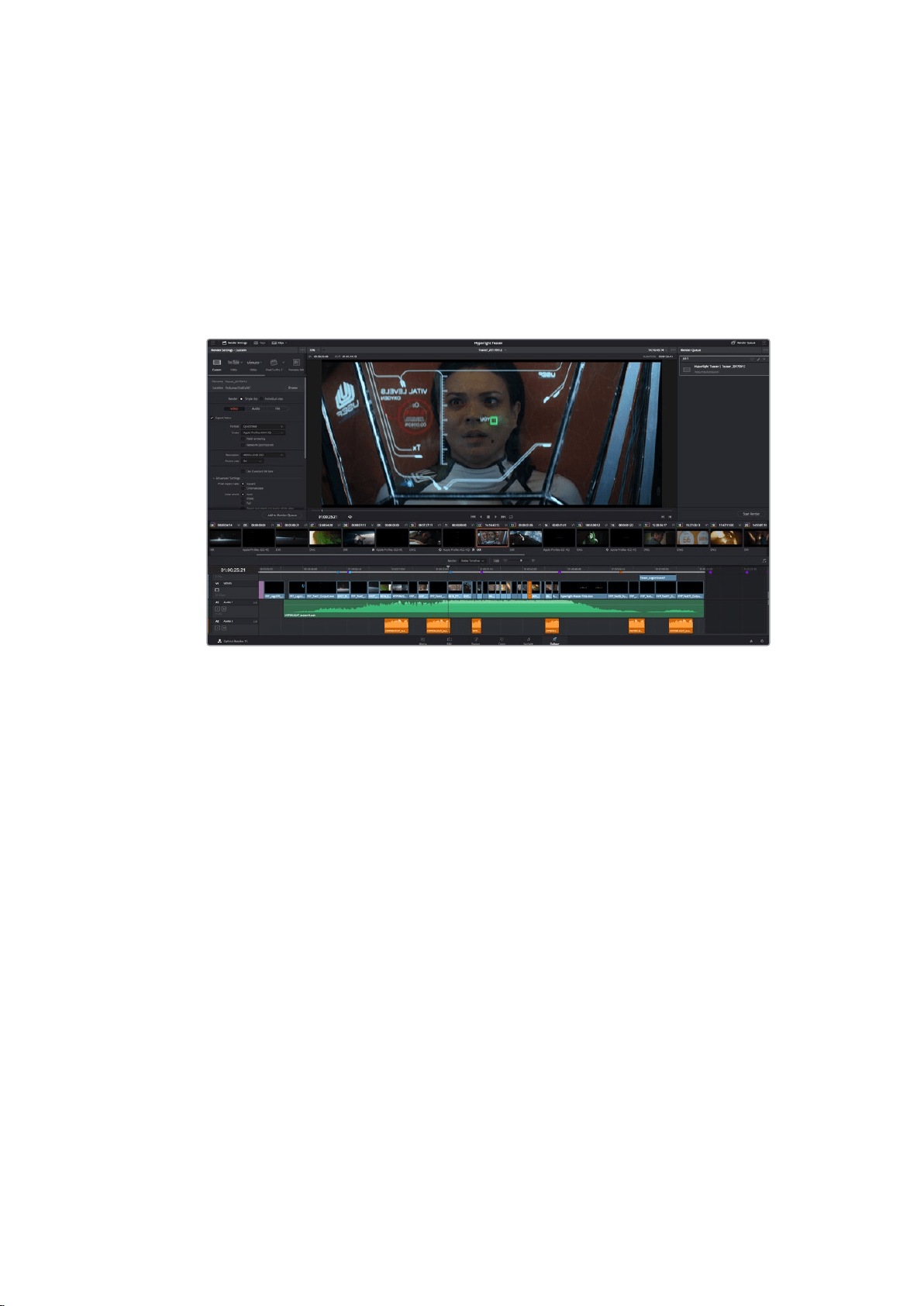
We believe you will have lots of fun with Fusion and exploring Fusion’s visual effects with the
power of DaVinci Resolve’s edit, color, and Fairlight pages. With all these tools at your finger
tips, DaVinci Resolve is incredibly powerful and there is really no limit to what you can create!
Mastering Your Edit
Now you’ve edited, graded, added vfx and mixed your audio, you’ll want to share it with others.
You can use the Quick Export button, or menu selection, to output the contents of the Timeline
as a self contained file in one of a variety of different formats, or use the additional features of
the ‘deliver’ page.
The ‘deliver’ page is where you export your edit. You can select
from many different video formats and codecs
Quick Export
You can choose File > Quick Export to use one of a variety of export presets to export your
program from any page of DaVinci Resolve. You can even use quick export to export and
upload your program to one of the supported video sharing services, including YouTube,
Vimeo, and Frame.io.
To use Quick Export:
1 In the ‘edit’, ‘fusion’, or ‘color’ page, optionally set in and out points in the timeline to
choose a range of the current program to export. If no timeline in or out points have
been set, the entire timeline will be exported.
Choose File > Quick Export.
2 Select a preset to use from the top row of icons in the quick export dialog,
and click ‘export’.
3 Choose a directory location and enter a file name using the export dialog, then click
‘save’. A progress bar dialog appears to let you know how long the export will take.
250Using DaVinci Resolve
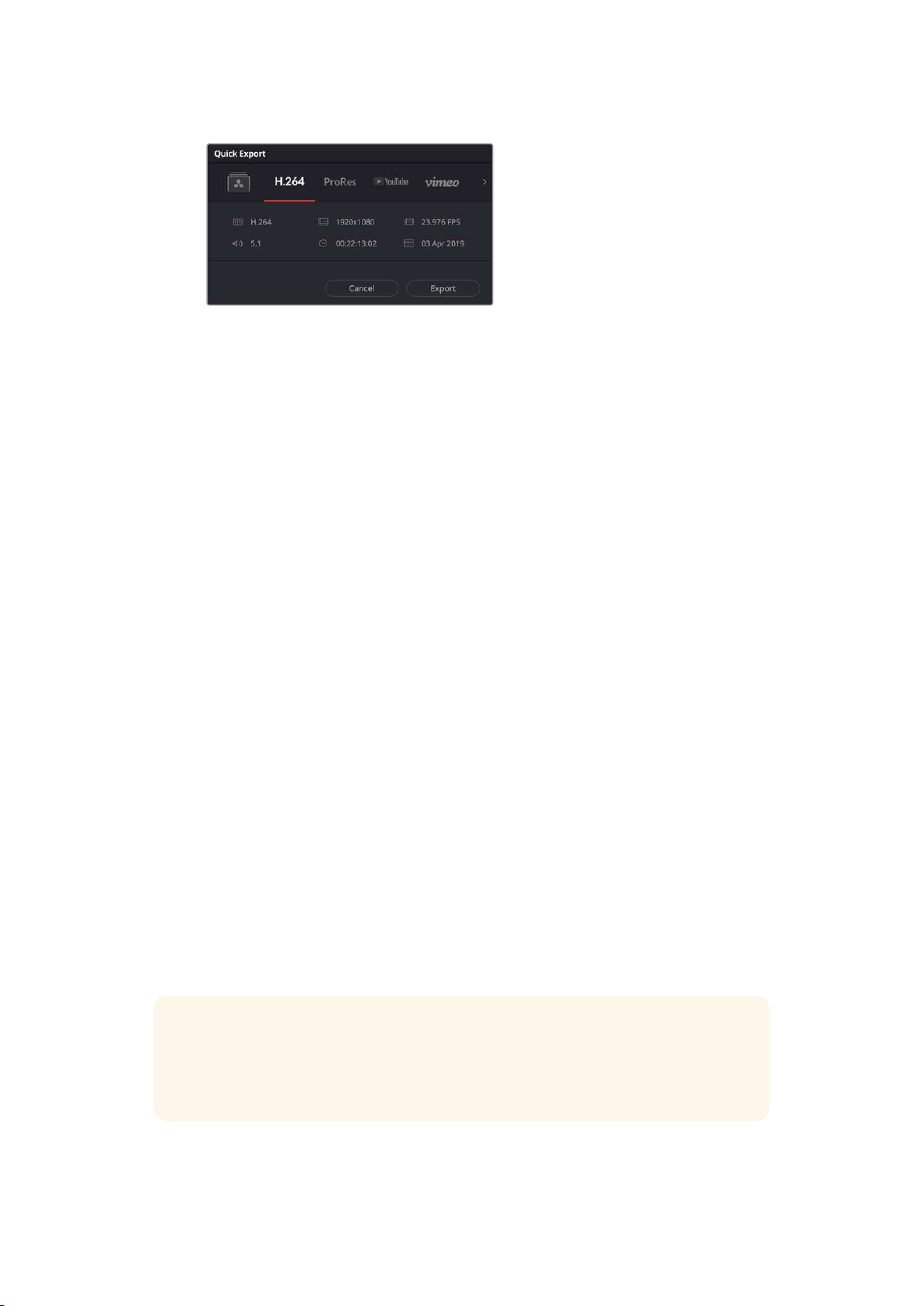
The quick export dialog
The Deliver Page
This page lets you select the range of clips you want to export, plus the format, codec and
resolution you want. You can export in many types of formats such as QuickTime, AVI, MXF
and DPX using codecs such as 8-bit or 10-bit uncompressed RGB/YUV, ProRes, DNxHD, H.264
and more.
To export a single clip of your edit:
1 Click on the ‘deliver’ tab to open the deliver page.
2 Go to the ‘render settings’ window on the top left of the page. Choose from a number
of export presets, for example YouTube, Vimeo and audio presets, or you can set
your own export settings manually by leaving it set to the default ‘custom’ preset and
entering your own parameters. Forthis example, select YouTube, then click on the
arrow next to the preset and select the 1080p video format.
The frame rate will be locked to your project frame rate setting.
3 Underneath the presets you will see the timeline filename and the target location for
your exported video. Click the ‘browse’ button and choose the location where you want
to save your exported file and then select ‘single clip’ from the render option.
4 Immediately above the timeline, you’ll see an options box with ‘entire timeline’ selected.
This will export the entire timeline, however you can select a range of the timeline if
you want to. Simply choose ‘in/out range’ and then use the ‘i’ and ‘o’ hot key shortcuts
to choose the in and out points in your timeline.
5 Go to the bottom of the ‘render settings’ and click on the ‘add to render queue’ button.
Your render settings will be added to the render queue on the right side of the page.
Now all you have to do is click ‘start render’ and monitor the progress of your render in
the render queue.
When your render is complete you can open the folder location, double click on your
new rendered clip and watch your finished edit.
Now that you have a basic knowledge of how to edit, color, mix audio and add
visual effects, we recommend experimenting with DaVinci Resolve. Refer to the
DaVinci Resolve manual for more details on how each feature can help you make the
most of your project!
251Using DaVinci Resolve
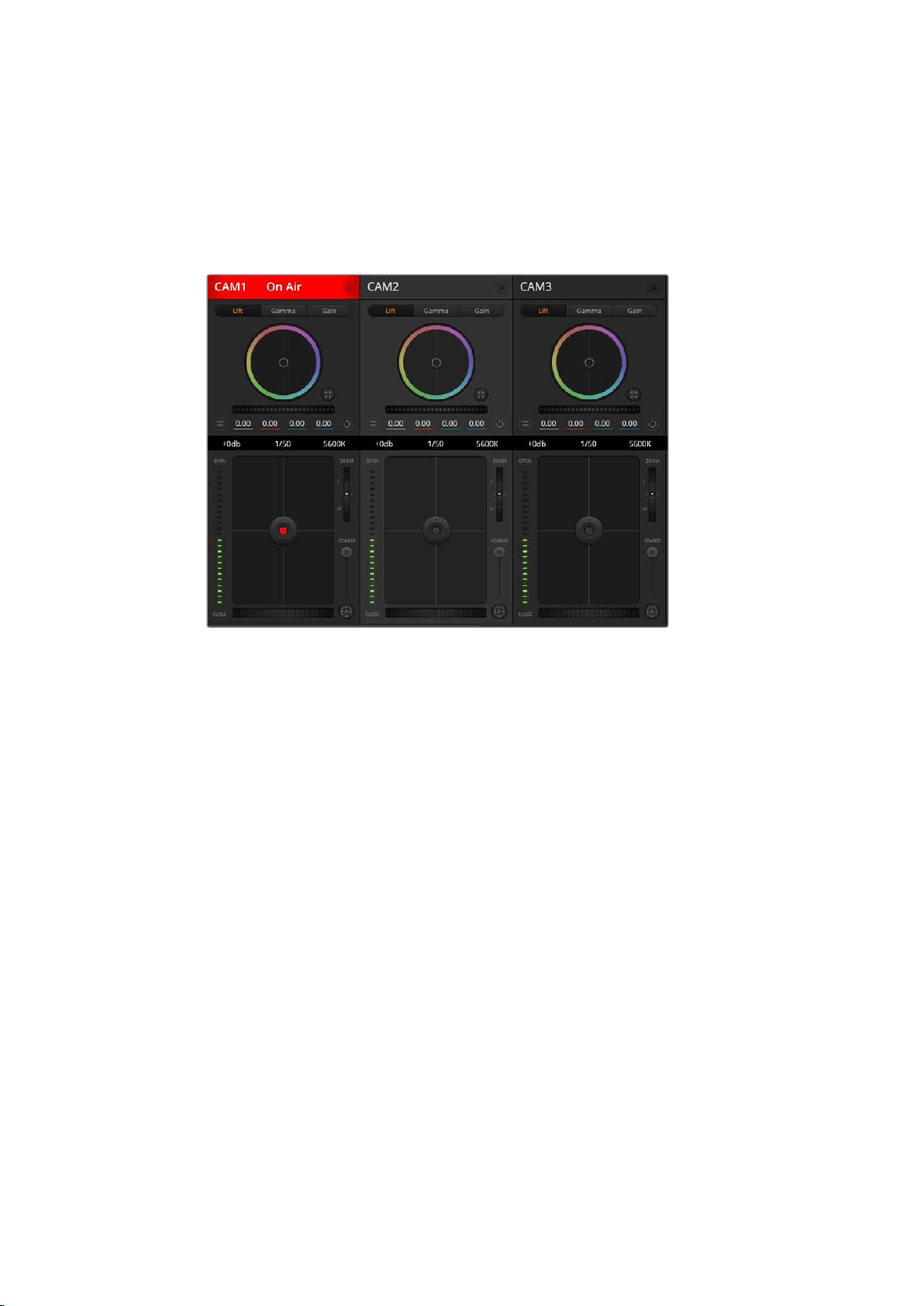
Understanding Studio Camera Control
Blackmagic URSA Mini can be used as a studio camera and controlled from an ATEM switcher
using the Camera Control feature in ATEM Software Control. This lets you add a camera with
large sensor picture quality and amazing dynamic range to your broadcast studio and control it
just as you would any studio camera.
ATEM Camera Control
Clicking on the camera button opens the camera control feature. Settings such as iris, gain,
focus and zoom control are easily adjusted using compatible lenses, plus you can color
balance cameras and create unique looks using the DaVinci Resolve primary color corrector.
It’simportant to note that the DaVinci Resolve primary color corrector and ‘detail sharpening’
features of ATEM Camera Control are not available for URSA Mini Pro 12K.
The ATEM switcher control works by broadcasting camera control packets via all the non down
converted SDI outputs of an ATEM switcher. So this means you can connect an SDI output of an
ATEM switcher to URSA Mini’s 12G SDI input, your camera will detect the control packets in the
SDI link and allow you to control features in the camera itself.
Connecting your URSA Mini
1 Connect your Blackmagic URSA Mini’s 12G-SDI Out to any SDI In on the ATEM switcher.
2 Connect any one of the ATEM switcher’s SDI outputs, except down converted or multi
view outputs, to your URSA Mini’s 12G-SDI input. Camera control signals are not sent
via the multi view and down converted SDI outputs.
3 On your URSA Mini, navigate to ‘ATEM Camera ID’ in the ‘setup’ menu and set your
camera’s ATEM ID to match the switcher input. For example, if URSA Mini 1 is connected
to Cam 1 on the ATEM switcher, the camera number must also be set to 1. This ensures
tally is sent to the correct camera.
4 In the ‘setup’ menu select your ‘reference source’. Unless you have a genlock signal
being sent to all of your cameras and your switcher, we recommend setting ‘reference
source’ to ‘program’ when attached to ATEM.
252Understanding Studio Camera Control
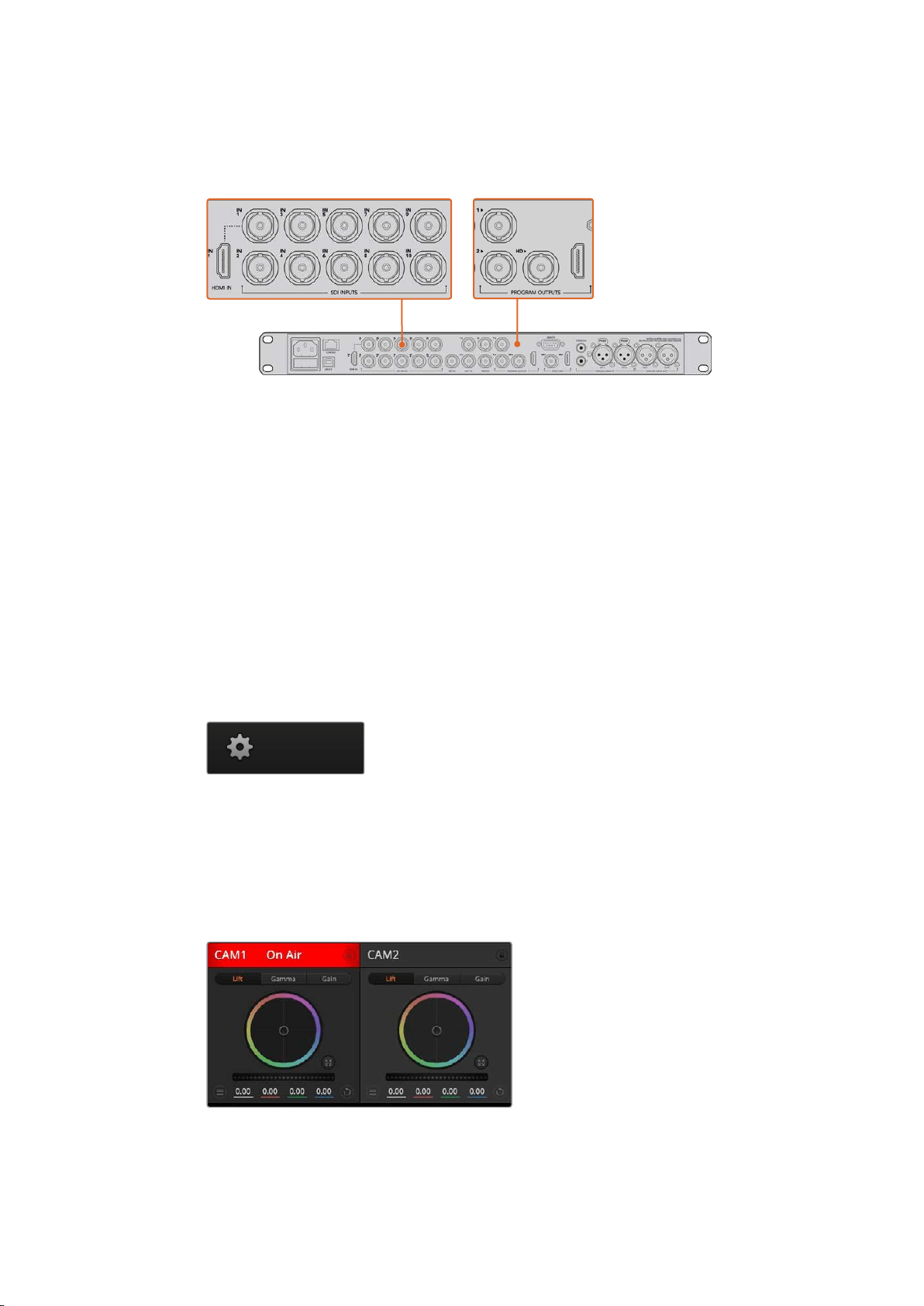
5 Navigate to the ‘monitor’ menu and ensure that you have selected ‘clean feed’ for
‘mainSDI’ to ensure that you don’t see overlays or the focus box on the SDI output to
the ATEM switcher.
Connect your URSA Mini to any of the ATEM switcher’s SDI inputs
Using Camera Control
Launch ATEM Software Control and click on the camera button located at the bottom of the
software window. You’ll see a row of labeled camera controllers containing tools to adjust and
refine each camera’s image. The controllers are easy to use. Simply click the buttons using your
mouse, or click and drag to adjust.
Camera Control Selection
The button row at the top of the camera control page lets you select the camera number you
would like to control. If you have more cameras that fit onto the window size, or you are running
the color corrector window, then you can use these buttons to select between which camera
you would like to control. If you are using an Aux output for monitoring your camera control,
pushing these buttons to change the camera to control will also send that camera’s video
output to the Aux output setup in the switcher preferences.
Click on the settings icon to select
theAuxoutput for camera control
Channel Status
The channel status at the top of each camera controller displays the camera label, On Air
indicator and lock button. Press the lock button to lock all the controls for a specific camera.
When on air, the channel status illuminates red and displays the On Air alert.
Each camera controller displays the channel status so you
know which camera is on air. Use the color wheels to adjust
each YRGB channel’s lift, gamma and gain settings
253Understanding Studio Camera Control
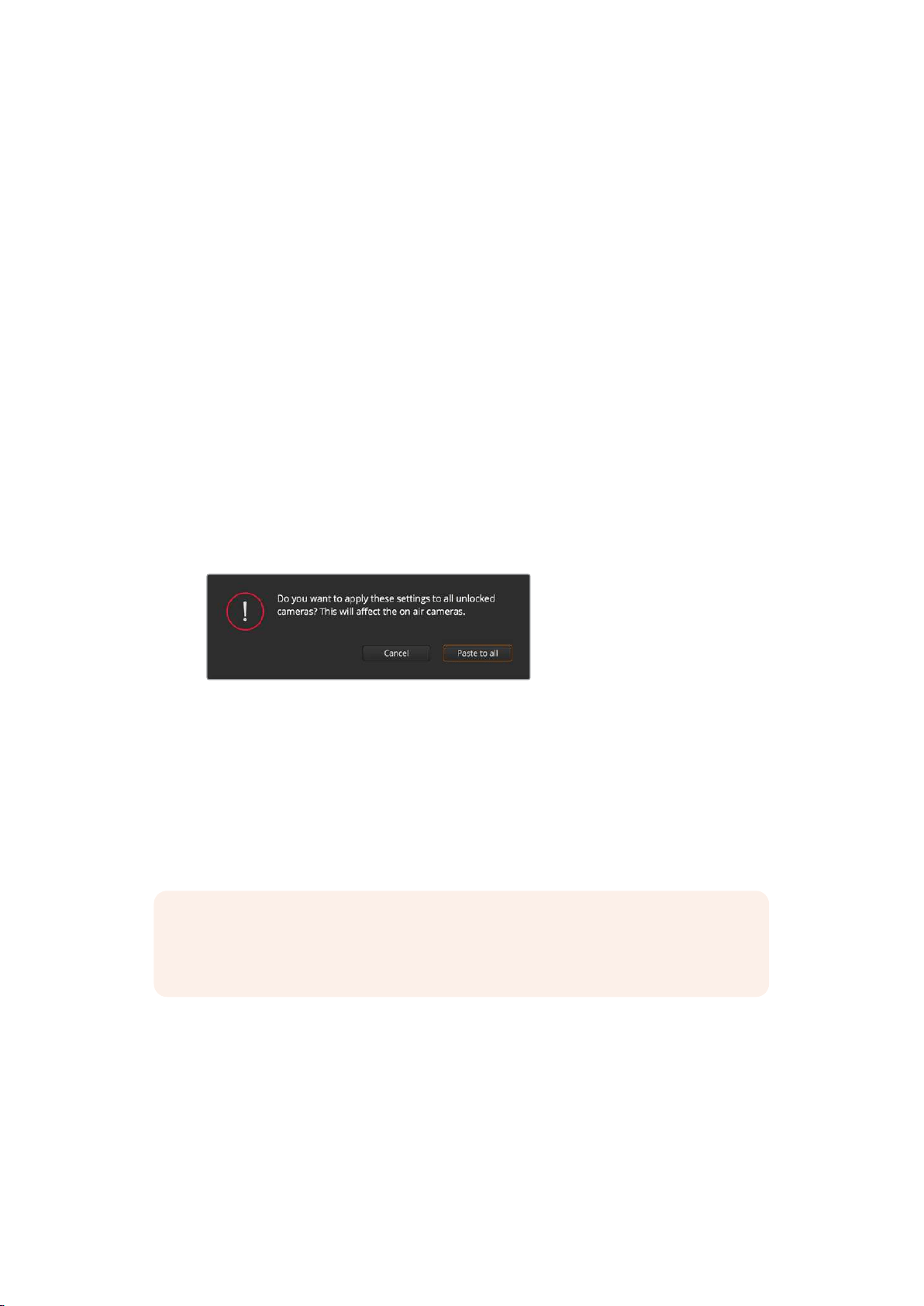
Color Wheel
The color wheel is a powerful feature of the DaVinci Resolve color corrector and used to make
color adjustments to each YRGB channel’s lift, gamma and gain settings. You can select which
setting to adjust by clicking on the three selection buttons above the color wheel.
Master Wheel
Use the master wheel below the color wheel to make contrast adjustments to all YRGB
channels at once, or luminance only for each lift, gamma or gain setting.
Reset Buttons
The reset button near the top right of each camera controller lets you easily choose color
correction settings to reset, copy or paste. Each color wheel also has its own reset button.
Press to restore a setting to its default state, or copy/paste a setting. Locked controllers are not
affected by the Paste feature.
The master reset button on the top right corner of the color corrector panel lets you reset lift,
gamma and gain color wheels plus Contrast, Hue, Saturation and Lum Mix settings. You can
paste color correction settings to camera controllers individually, or all cameras at once for a
unified look. Iris, focus, coarse and pedestal settings are not affected by the Paste feature.
When applying Paste to all, a warning message will appear asking you to confirm your action.
This is so you don’t accidentally paste new settings to any unlocked cameras that are
currently on air.
When applying Paste to all, a warning message will appear asking
you to confirm your action. This is so you don’t accidentally paste
new settings to any unlocked cameras that are currently on air
Iris/Pedestal Control
The iris/pedestal control is located within the cross hairs of each camera controller. The control
illuminates red when its camera is on air.
To open or close the iris, drag the control up or down. Holding the shift key allows only iris
adjustments.
NOTE When connected to ATEM ensure that you have Auto Exposure switched off.
Ifyou require Iris, zoom or focus control ensure that you have a lens that can be
controlled electronically by the camera.
If you’re using a B4 or PL lens connected via the broadcast 12 pin connector on URSA Mini,
make sure the lens iris switch on the handgrip is set to ‘A’ or ‘auto’.
254Understanding Studio Camera Control
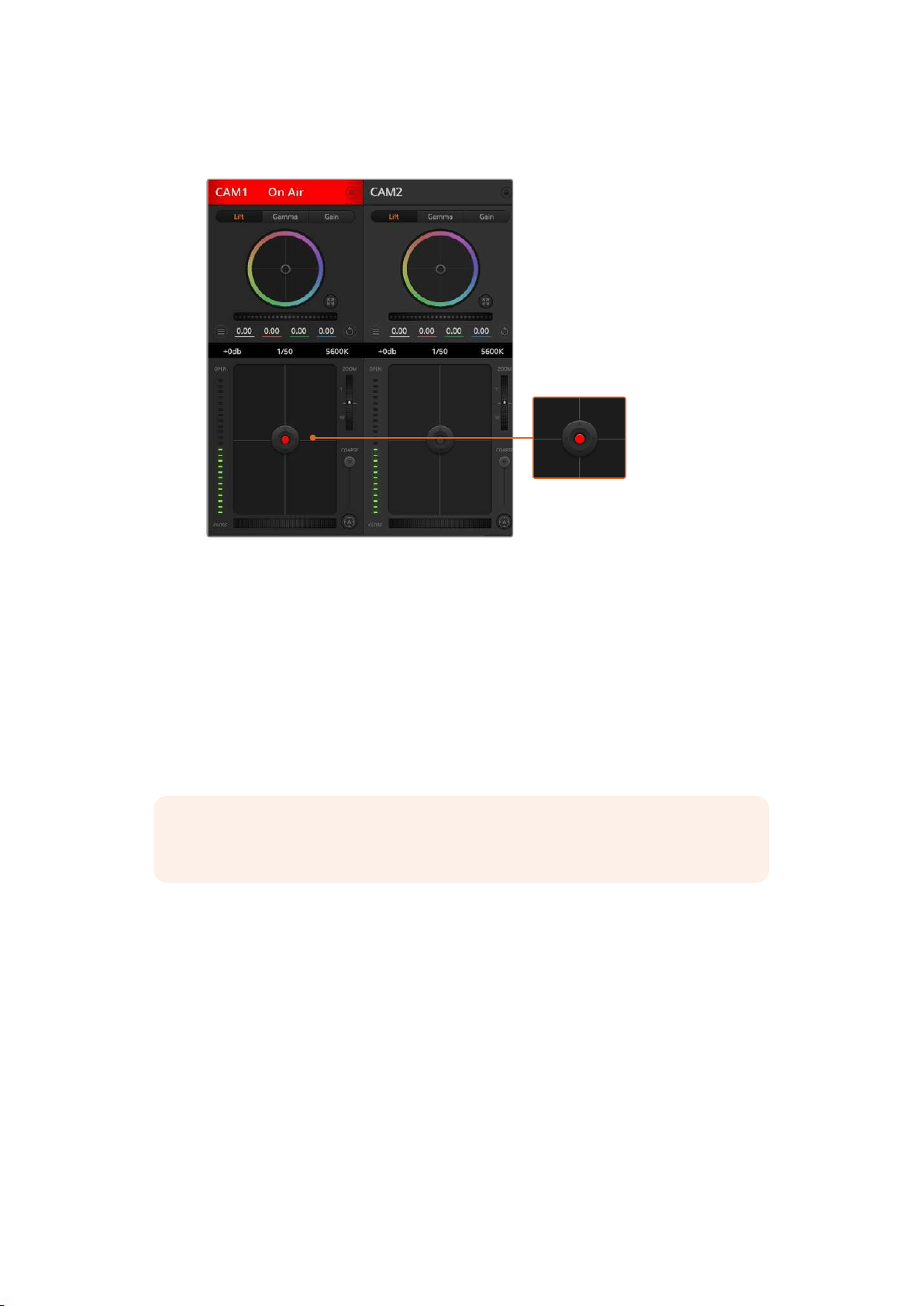
To darken or lift the pedestal, drag the control left or right. Holding the command key on a Mac,
or the Control key on Windows, allows only pedestal adjustments.
The iris/pedestal control illuminates red when its respective camera is on air
Zoom Control
When using compatible lenses with an electronic zoom feature, you can zoom your lens in and
out using the zoom control. The controller works just like the zoom rocker on a lens, with
telephoto on one end, and wide angle on the other. Click on the zoom control, located above
the coarse slider, and drag up to zoom in, or drag down to zoom out.
If your lens does not have active lens control or your camera does not support zoom control via
the SDI camera control protocol then these settings will have no effect. For example, EF lenses
do not have built in servos that can zoom the lens electronically so will not be zoomable with
ATEM camera control.
NOTE Analogue B4 lenses do not support ATEM zoom control. For more information
on analogue B4 lenses refer to the ‘using servo zoom lenses’ section
Coarse Setting
The coarse setting is located to the left of the iris/pedestal control and is used to limit the iris
range. This feature helps you prevent over exposed images from going to air.
To set your coarse threshold, completely open the iris using the iris control, then drag the
coarse setting up or down to set optimum exposure. Now when you adjust the iris, the coarse
threshold will prevent it from going above optimum exposure.
Iris Indicator
The iris indicator is located to the left of the iris/pedestal control and displays a visual reference
so you can easily see how open or closed the lens aperture is. The iris indicator is affected by
the coarse setting.
255Understanding Studio Camera Control
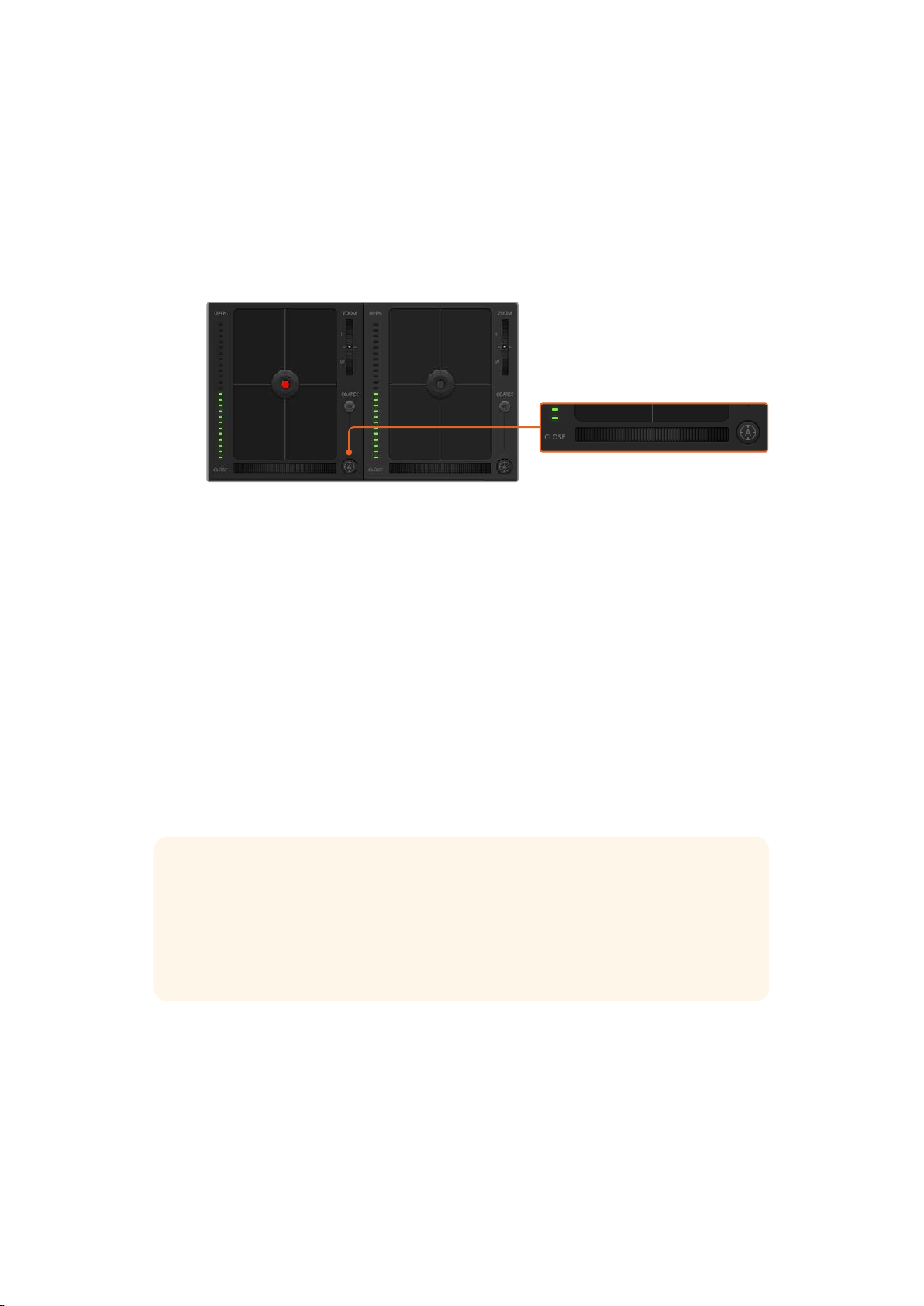
Auto Focus Button
The auto focus button is located at the bottom left corner of each camera controller. Press to
automatically set the focus when you have an active lens that supports electronic focus
adjustments. It’s important to know that while most lenses support electronic focus, some
lenses can be set to manual or auto focus modes, and so you need to ensure your lens is set to
auto focus mode. Sometimes this is set by sliding the focus ring on the lens forward or
backward. On B4 lenses with servo zoom control, you will need to set the switch at the bottom
of the handgrip to ‘servo’.
Click on the auto focus button or drag the manual focus
adjustment left or right to focus a compatible lens
Manual Focus Adjustment
When you want to manually focus your lens using ATEM Camera Control, you can use the focus
adjustment located at the bottom of each camera controller. Drag the wheel control left or right
to manually adjust focus while viewing the video feed from the camera to ensure your image is
nice and sharp.
Manual focus control is only available from your switcher when using B4 and PL lenses with
servo focus controls. As EF lenses do not have servo focus this option is not available when
using URSA Mini EF.
Camera Gain
The name for some settings, such as ‘gain’ and ‘shutter speed’, differs between ATEM Switchers
and URSA Mini. For example, instead of a film ISO rating, ATEM Switchers use ‘gain’ to describe
a camera’s sensitivity to light.
TIP The difference between the terms ‘gain’ and ‘ISO’ are primarily due to differences
between studio broadcast equipment and traditional film equipment. Exposure on
television studio cameras, for example, could be monitored live from the camera. Light
sensitivity adjustments could be made electronically inside the camera. This is
different to film cameras, which are mechanical in nature and rely upon traditional light
measurement techniques combined with photochemical ISO ratings.
When operating in varying light conditions, you might want to increase or decrease your
camera’s gain to avoid under exposing your images. To do this click the left arrow to decrease
gain and the right arrow to increase gain.
256Understanding Studio Camera Control
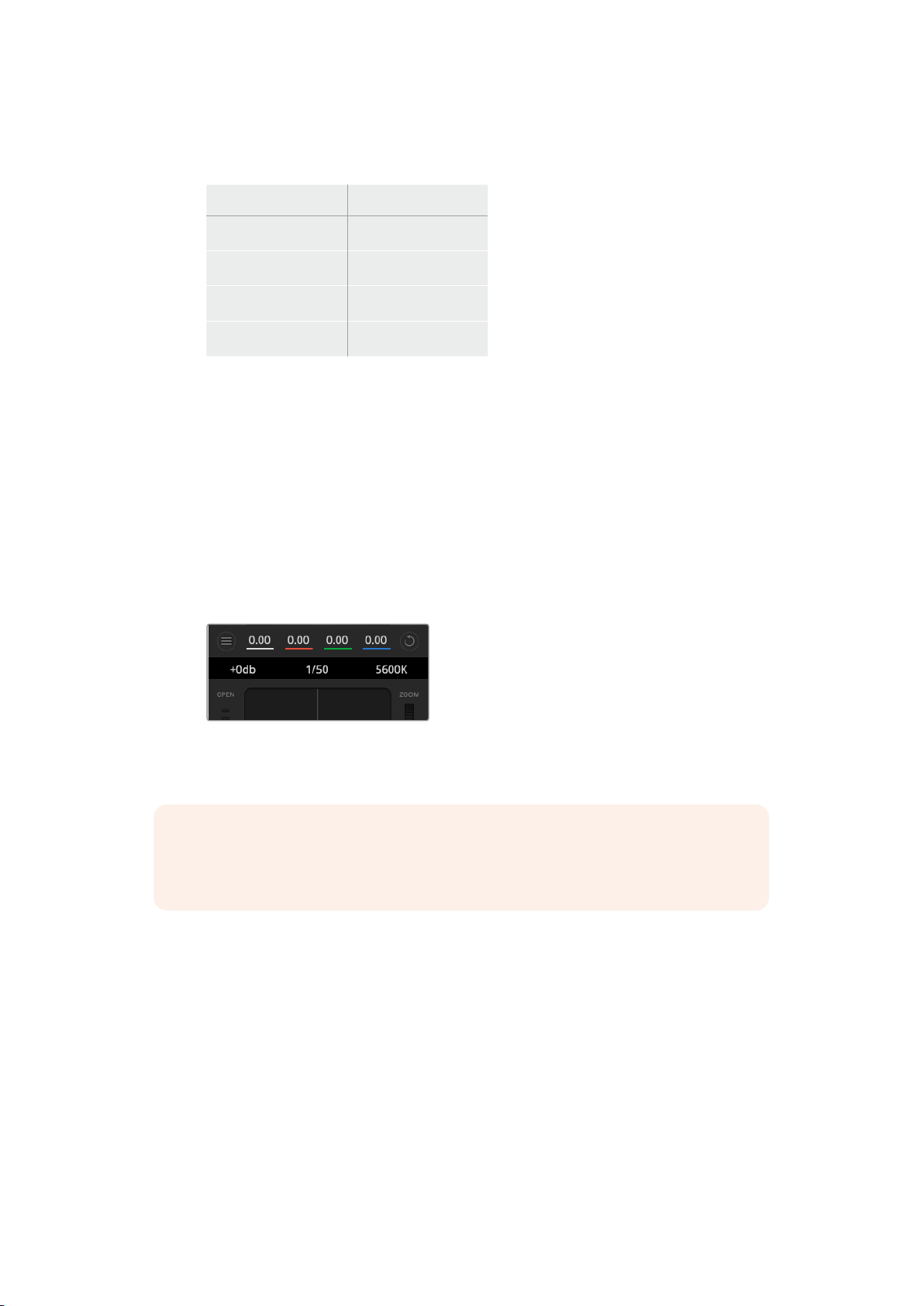
Your ATEM Switcher will display gain in dB. This corresponds to the ISO settings on your
camera in the following way:
Gain ISO
0 200
6 400
12 800
18 1600
Please note that while URSA Mini 4.6K can be set to
18dBofgain,URSA Mini 4K’s maximum gain is 12dB
Shutter Speed Control
Shutter speed control is used to change your URSA Mini’s shutter angle.
As with gain control, this setting is named differently due to the terminology differences
between film cameras and broadcast cameras. Functionally, however, increasing shutter speed
is exactly the same as decreasing shutter angle.
The shutter speed control is located between the color wheel and the iris/pedestal control.
Decrease or increase the shutter speed by hovering your mouse pointer over the shutter speed
indicator and clicking the left or right arrow.
Hovering your mouse pointer over the gain, shutter
speed and white balance indicators reveal arrows
youcan click on to adjust their respective settings
NOTE As ATEM shutter speed control takes priority over the shutter angle selected
on your URSA Mini, your camera’s shutter angle controls are disabled when connected
to an ATEM switcher.
The table below shows the available shutter speeds in shutter speed control and their
equivalent shutter angles. It’s worth noting that some shutter speeds fall outside of URSAMini’s
minimum and maximum shutter angles of 11.25 and 360 degrees, respectively. Ifthis happens,
the closest available shutter angle is used.
When your URSA Mini 4.6K or URSA Mini Pro is connected to an ATEM switcher, the shutter
speed setting will also be visible in your camera’s touchscreen status display. On URSAMini 4K
the shutter speed will not be displayed on the touchscreen, but will be visible in an URSA
Viewfinder if attached.
257Understanding Studio Camera Control

If you have shutter angle selected on URSA Mini 4.6K or URSA Mini Pro, the table
below applies.
Shutter
Speed
Shutter
Angle
at
23.98 fps
Shutter
Angle
at
24 fps
Shutter
Angle
at
25 fps
Shutter
Angle
at
29.97 fps
Shutter
Angle
at
50 fps
Shutter
Angle
at
59.94 fps
1/50 172.7 172.8 180 215.8 360 360*
1/60 143.9 144 150 179.8 300 359.6
1/75 115.1 115.2 120 143.9 240 287.7
1/90 95.9 96 100 120 200 239.8
1/100 86.3 86.4 90 107.9 180 215.8
1/120 71.9 72 75 89.9 150 179.8
1/150 57.5 57.6 60 71.9 120 143.9
1/180 48 48 50 59.9 100 119.9
1/250 34.5 34.6 36 43.2 72 86.3
1/360 24 24 25 29.97 50 59.94
1/500 17. 3 17. 3 18 21.6 36 43.2
1/725 11.9 11.9 12.4 14.9 24.8 29.8
1/1450 11.25* 11.25* 11.25* 11.25* 12.4 14.9
1/2000 11.25* 11.25* 11.25* 11.25* 11.25* 11.25*
* Shutter speeds outside URSA Mini’s shutter angle range will use its closest available
minimum or maximum shutter angle
TIP Decreasing shutter speed is a good way to brighten your images without using
camera gain because you are increasing the exposure time of the image sensor.
Thiscan also reduce or eliminate light flicker when shooting under fluorescent lights.
Increasing shutter speed reduces motion blur and is best used for action shots when
you want your images to be clean and sharp.
White Balance
The white balance setting next to the shutter speed control can be adjusted by clicking on the
left or right arrows on each side of the color temperature indicator. Different light sources emit
warm or cool colors, so you can compensate by adjusting the white balance. This ensures the
whites in your image stay white.
258Understanding Studio Camera Control
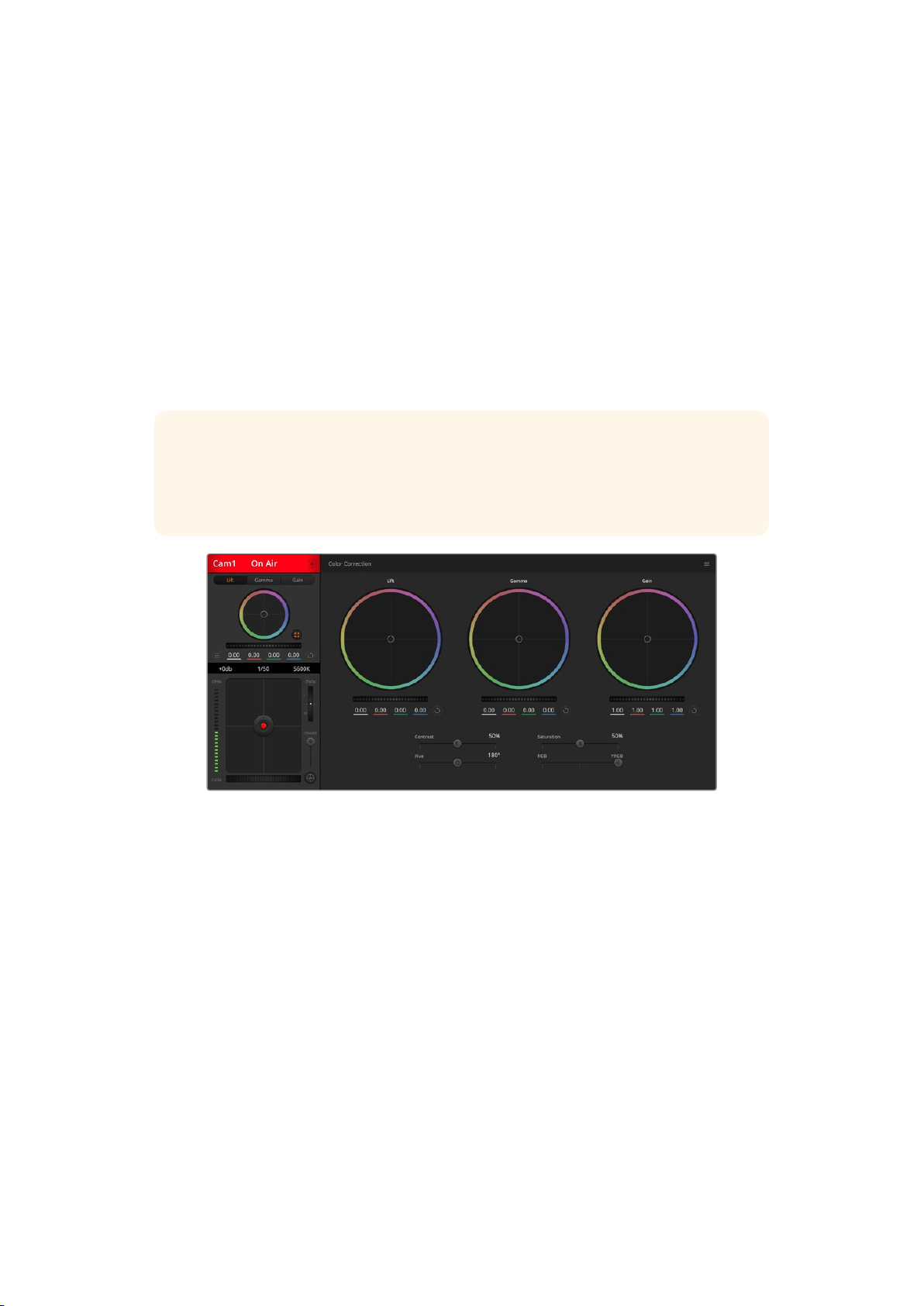
DaVinci Resolve Primary ColorCorrector
If you have a color correction background, then you can change the camera control from a
switcher style CCU interface to a user interface that’s more like a primary color corrector on
apost production color grading system.
Your Blackmagic URSA Mini features a DaVinci Resolve primary color corrector built in. If you
have used DaVinci Resolve, then creatively, grading in your URSA Mini will be identical so you
can use your color grading experience for live production. The color corrector panel can be
expanded out of any camera controller and provides expanded color correction control with
extra settings and a full primary color corrector interface.
You have color wheels and settings such as saturation available and you can see shadows,
midtones and highlight settings all at the same time. Simply switch between cameras using the
camera selection controls at the top of the window as you need.
TIP DaVinci Resolve color correction is applied to your URSA Mini’s SDIOutput and
ProRes video recorded on camera. As RAW video is intended for extensive post
processing, color correction is not applied to RAW video. When recording RAW video,
however, color correction can still be applied to URSA Mini’s SDI output.
Click on the DaVinci Resolve primary color corrector button to
expand the color correction window and adjust settings
Color Wheels
The Lift/Gamma/Gain controls allow tonally specific yet overlapping regions of adjustment.
Inphotographic terms lift, gamma and gain corresponds to shadows, mid tones and highlights.
Use the color wheels in the following ways to make fine or aggressive adjustments:
Click and drag anywhere within the color ring:
Note that you don’t need to drag the color balance indicator itself. As the color balance
indicator moves, the RGB parameters underneath change to reflect the adjustments
being made to each channel.
Shift-Click and drag within the color ring:
Jumps the color balance indicator to the absolute position of the pointer, letting you
make faster and more extreme adjustments.
259Understanding Studio Camera Control
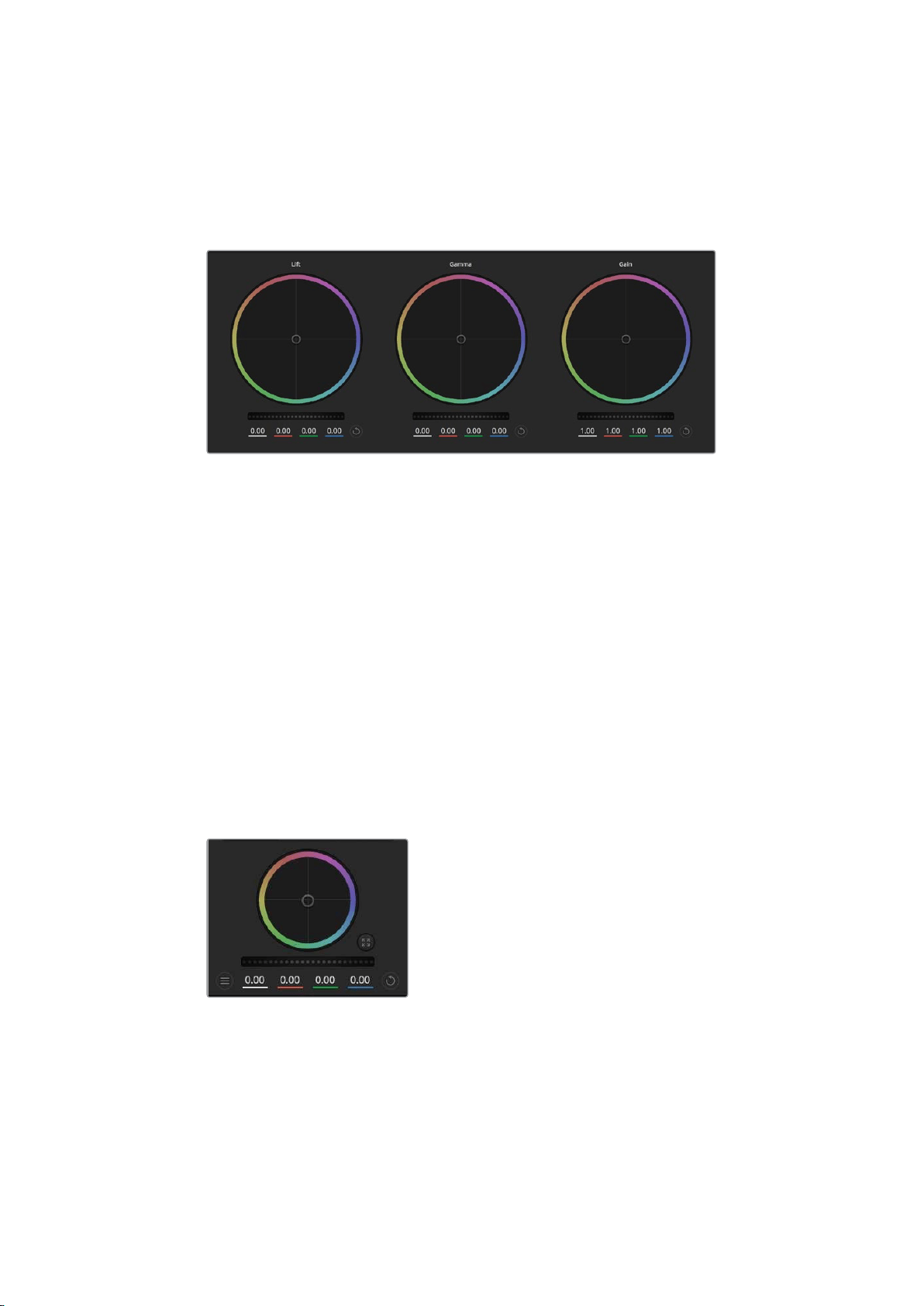
Double-click within the color ring:
Resets the color adjustment without resetting the master wheel adjustment for
that control.
Click the reset control at the upper-right of a color ring:
Resets both the color balance control and its corresponding master wheel.
Lift, gamma and gain color wheels in the color corrector panel
Master Wheels
Use the master wheels below the color wheels to adjust each YRGB channels’ lift, gamma and
gain controls.
To make adjustments using the master wheel:
Drag the master wheel left or right:
Dragging to the left darkens the selected parameter of the image, dragging to the right
lightens that parameter. As you make an adjustment, the YRGB parameters underneath
change to reflect the adjustment you’re making. To make a Y-only adjustment, hold
down the ALT or Command key and drag left or right. Because the color corrector uses
YRGB processing, you can get quite creative and create unique affects by adjusting the
Y channel only. Ychannel adjustments work best when the Lum Mix setting is set to the
right side to use YRGB processing vs the left side to use regular RGB processing.
Normally, most DaVinci Resolve colorists use the YRGB color corrector as you get a lot
more control of color balance without affecting overall gain, so you spend less time
getting the look you want.
Adjust the master wheels by dragging
the wheel control left or right
260
Understanding Studio Camera Control

Contrast Setting
The Contrast setting gives you control over the distance between the darkest and lightest
values of an image. The effect is similar to making opposing adjustments using the lift and gain
master wheels. The default setting is 50%.
Drag the sliders left or right to adjust Contrast,
Saturation, Hue and Lum Mix settings
Saturation Setting
The Saturation setting increases or decreases the amount of color in the image. The default
setting is 50%.
Hue Setting
The Hue setting rotates all hues of the image around the full perimeter of the color wheel. The
default setting of 180 degrees shows the original distribution of hues. Raising or lowering this
value rotates all hues forward or backward along the hue distribution as seen on a color wheel.
Lum Mix Setting
The color corrector built into your Blackmagic URSA Mini is based on the DaVinci Resolve
primary color corrector. DaVinci has been building color correctors since the early 1980’s and
most Hollywood films are color graded on DaVinci Resolve than any other method.
This means the color corrector built into your URSA Mini has some unique and creatively
powerful features. The YRGB processing is one of those features.
When color grading, you can choose to use RGB processing, or YRGB processing. High end
colorists use YRGB processing because you have more precise control over color and you can
independently adjust the channels with better separation and more creative options.
When the Lum Mix control is set to the right side, you have the 100% output of the YRGB color
corrector. When you have the Lum Mix control set to the left side, you get 100% output of the
RGB corrector. You can set the Lum Mix to any position between the left and right to get a blend
of output from both the RGB and YRGB correctors.
Which is the correct setting to use? That’s up to you, as color correction is a pure creative
process and there is no right and wrong, and the best setting is what you like the most and
what you think looks good!
Synchronizing Settings
When connected, camera control signals are sent from the ATEM switcher to your Blackmagic
URSA Mini. If a setting is accidentally adjusted from your URSA Mini, camera control will
automatically reset that setting to maintain synchronization.
TIP Even if you disconnect its 12G-SDI input, your URSA Mini will keep using any
image adjustments made with DaVinci Resolve color correction. This lets you change
camera angles without needing to dial in your image settings again. To return your
URSA Mini to its default color settings, simply power cycle your URSA Mini after
disconnecting its 12G-SDI input.
261Understanding Studio Camera Control
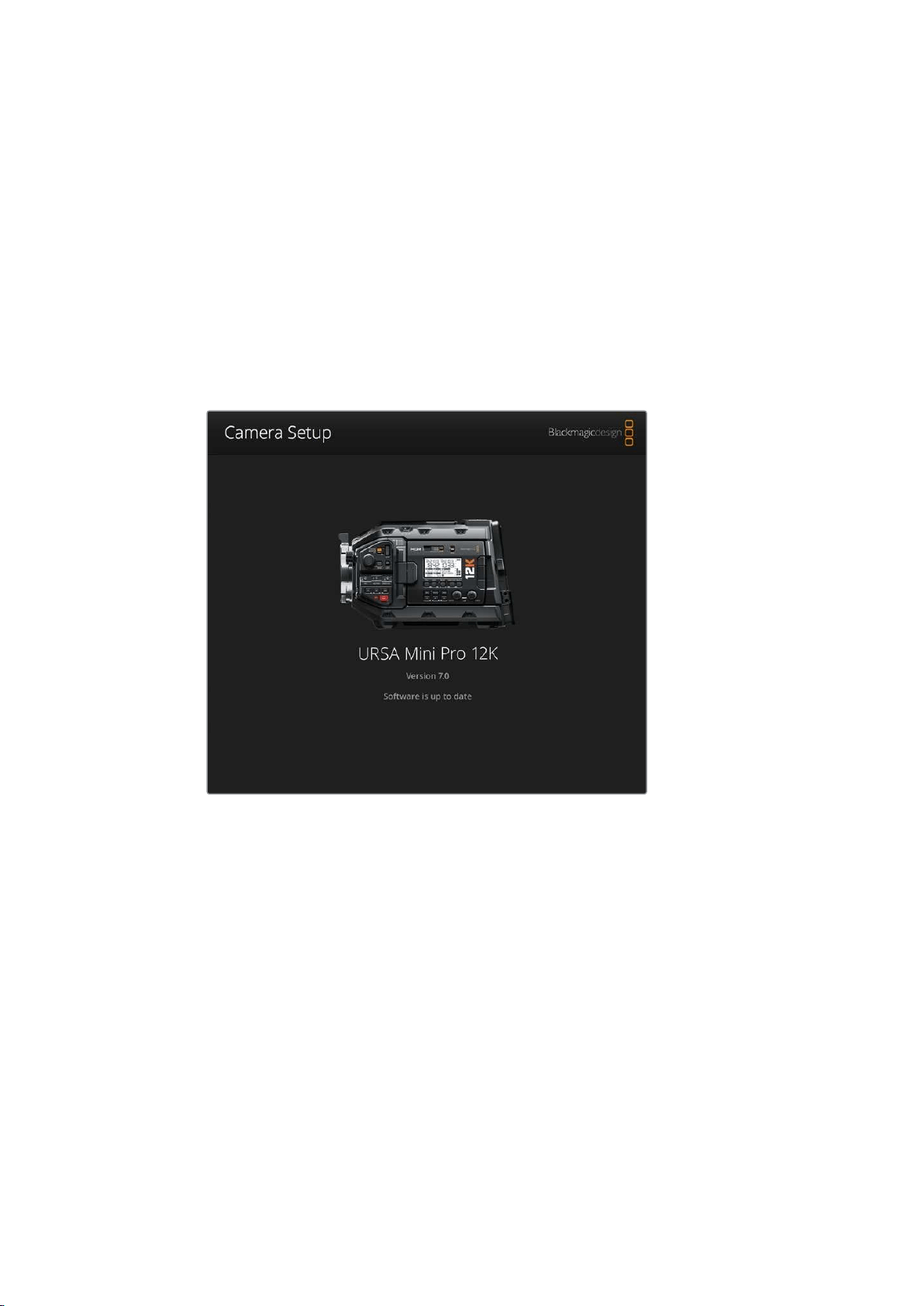
Blackmagic Camera Setup Utility
Updating Camera Software – Mac
After downloading the Blackmagic Camera Setup utility software and unzipping the
downloaded file, open the resulting disk image to reveal the Blackmagic Camera
SetupInstaller.
Launch the installer and follow the on screen instructions. After the installation has finished,
goto your applications folder and open the Blackmagic Cameras folder, where you’ll find this
manual, the Blackmagic Camera setup utility, plus a documents folder containing readme files
and information. You’ll also find an uninstaller for when updating to later versions of
BlackmagicCamera Setup.
Updating Camera Software – Windows
After downloading the Blackmagic Camera Setup utility software and unzipping the
downloaded file, you should see a Blackmagic Camera Setup folder containing this PDF manual
and the Blackmagic Camera Setup Installer. Double-click the installer and follow the on screen
prompts to complete the installation.
In Windows 10, click the start button and select ‘all apps’. Scroll down to the Blackmagic design
folder. From here you can launch Blackmagic Camera Setup.
In Windows 8.1, select the down arrow icon from the ‘start’ screen, and scroll down to the
Blackmagic Design folder. From here you can launch Blackmagic Camera Setup.
262Blackmagic Camera Setup Utility
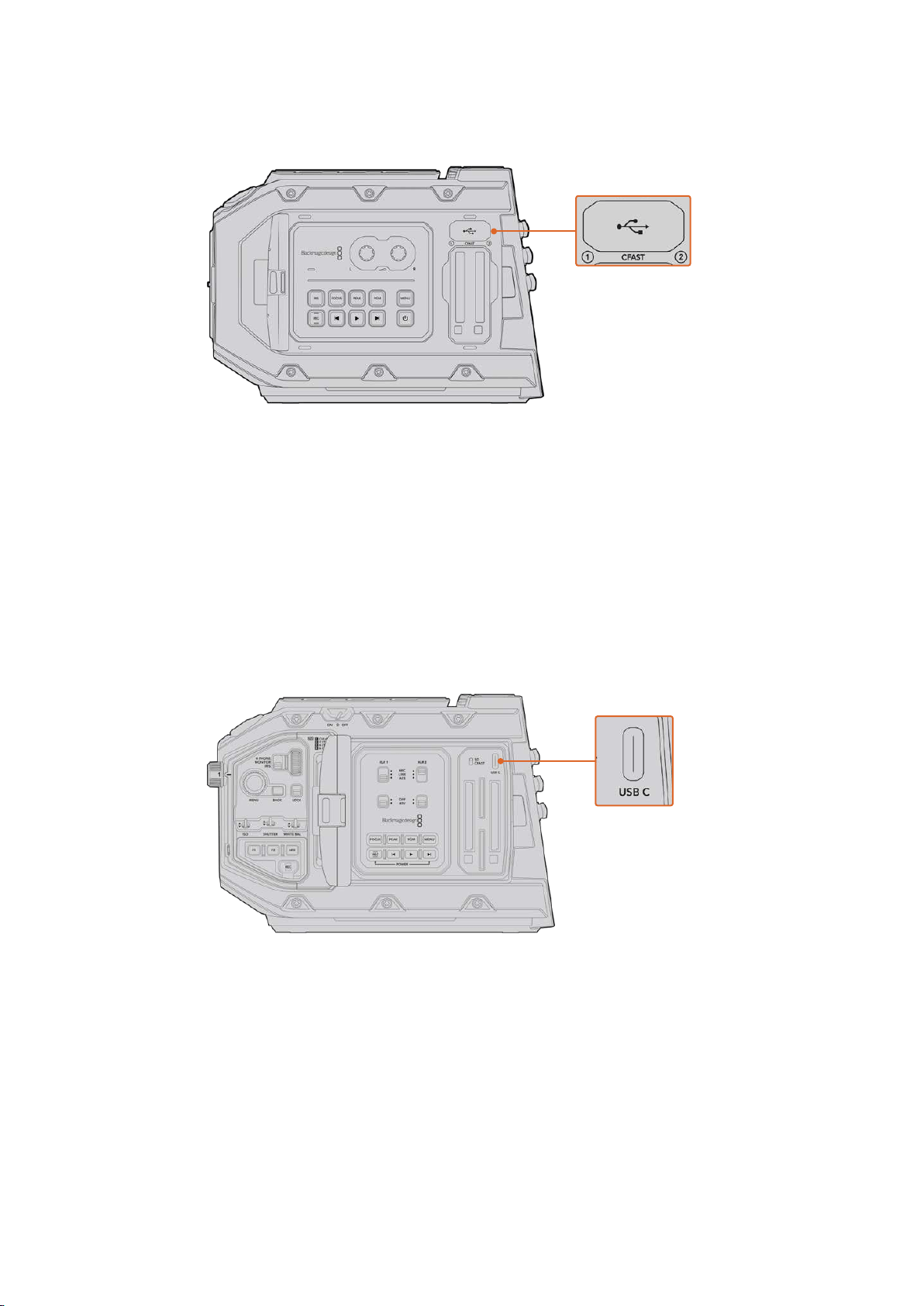
How to Update the Camera Software
The Mini-B USB 2.0 port is used to update the
camera software and can be found above the
memory card slots on BlackmagicURSA Mini
After installing the latest Blackmagic Camera Setup utility on your computer, connect a
USBcable between the computer and your Blackmagic URSA Mini. On Blackmagic URSAMini,
the USB port is located on the left side panel above the memory card slots. Simply open the
rubber cap to access the port.
Launch the Blackmagic Camera Setup utility and follow the on screen prompts to update the
camera software. It’s important to note that updating your camera software erases any presets
and custom LUTs, and resets all settings. It is a good practice to export them to a memory card
as a backup before performing a software update. After a software update, you can restore
your presets and LUTs quickly by importing them from the memory card. You are also advised
to perform a black shading calibration.
The USB-C port is used to update the camera software
and can be found above the memory card slots, next to
the media selection switch on Blackmagic URSA Mini Pro
263
Blackmagic Camera Setup Utility
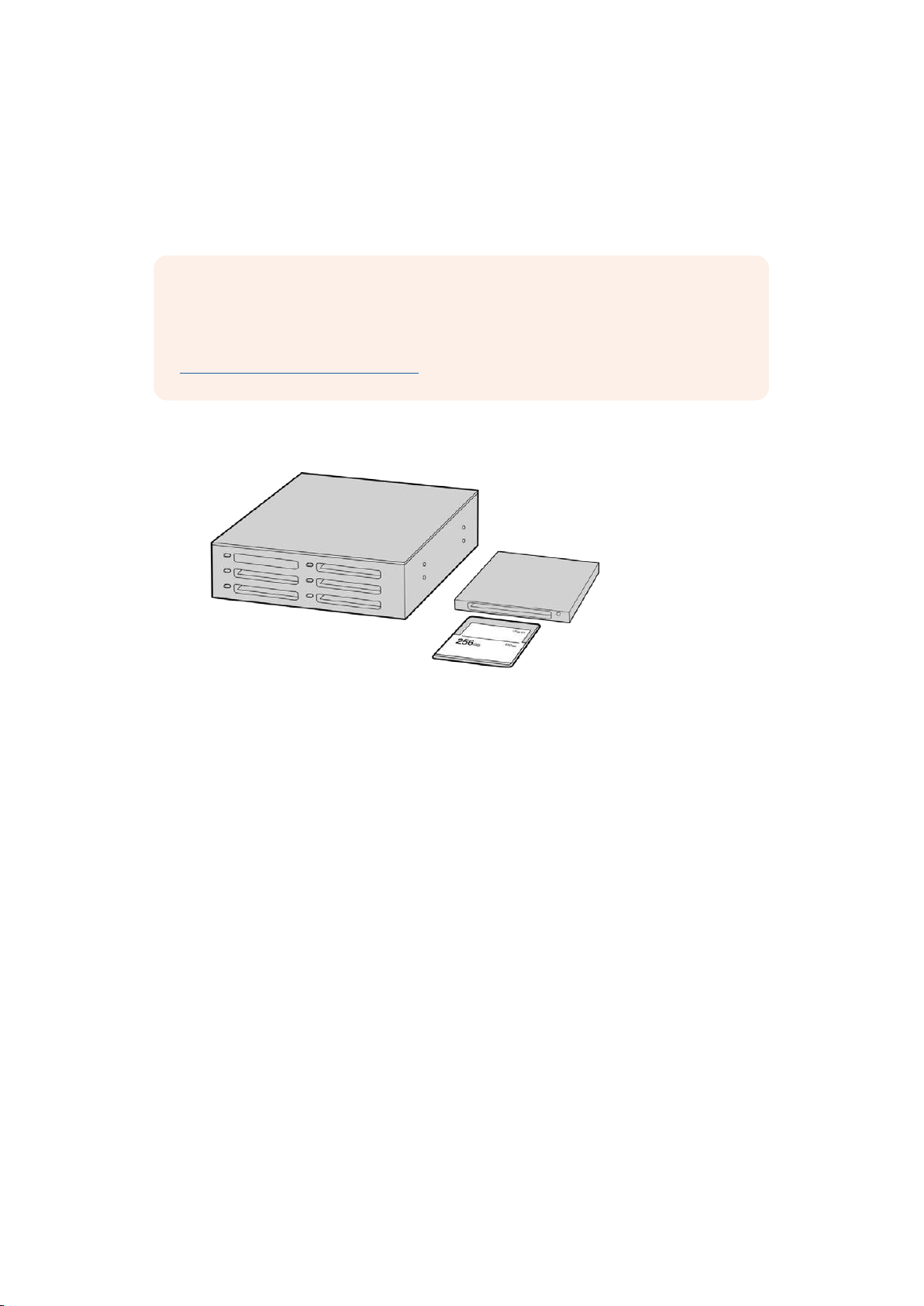
Working with Third Party Software
To edit your clips using your favorite editing software, you can copy your clips to an internal/
external drive or RAID and then import your clips into the software. Or import your clips
directlyfrom your storage media using a dock or adapter for your CFast or SD card or SSD.
NOTE Blackmagic RAW is supported in DaVinci Resolve 15.3.1 and later and has also
been adopted by a wide range of third party post-production editing programs.
Plugins for editing Blackmagic RAW in Avid Media Composer and Adobe Premiere Pro
are available with Blackmagic RAW software, which you can download from
www.blackmagicdesign.com/support.
Working with Files from CFast 2.0 and SD cards
Edit directly from your CFast card by removing it from your camera and mounting
it on your computer using a CFast 2.0 reader/writer or CFast drive
To import your clips from a CFast 2.0 or SD card:
1 Remove the CFast or SD card from your Blackmagic URSA Mini or URSA Mini Pro.
Mount the CFast card to your Mac or Windows computer using a CFast or
SD card reader.
2 Navigate to the card on your operating system to open it and you will see your list of
Blackmagic RAW or QuickTime movie files.
3 Now you can simply drag the files you want from the card onto your desktop or
another hard drive, or you can access the files straight from the card using your
editing software.
4 Before you unplug the CFast or SD card from your computer, it is important to always
eject your CFast or SD card from either Mac or Windows. Removing your card without
ejecting can corrupt footage in some cases.
264Working with Third Party Software
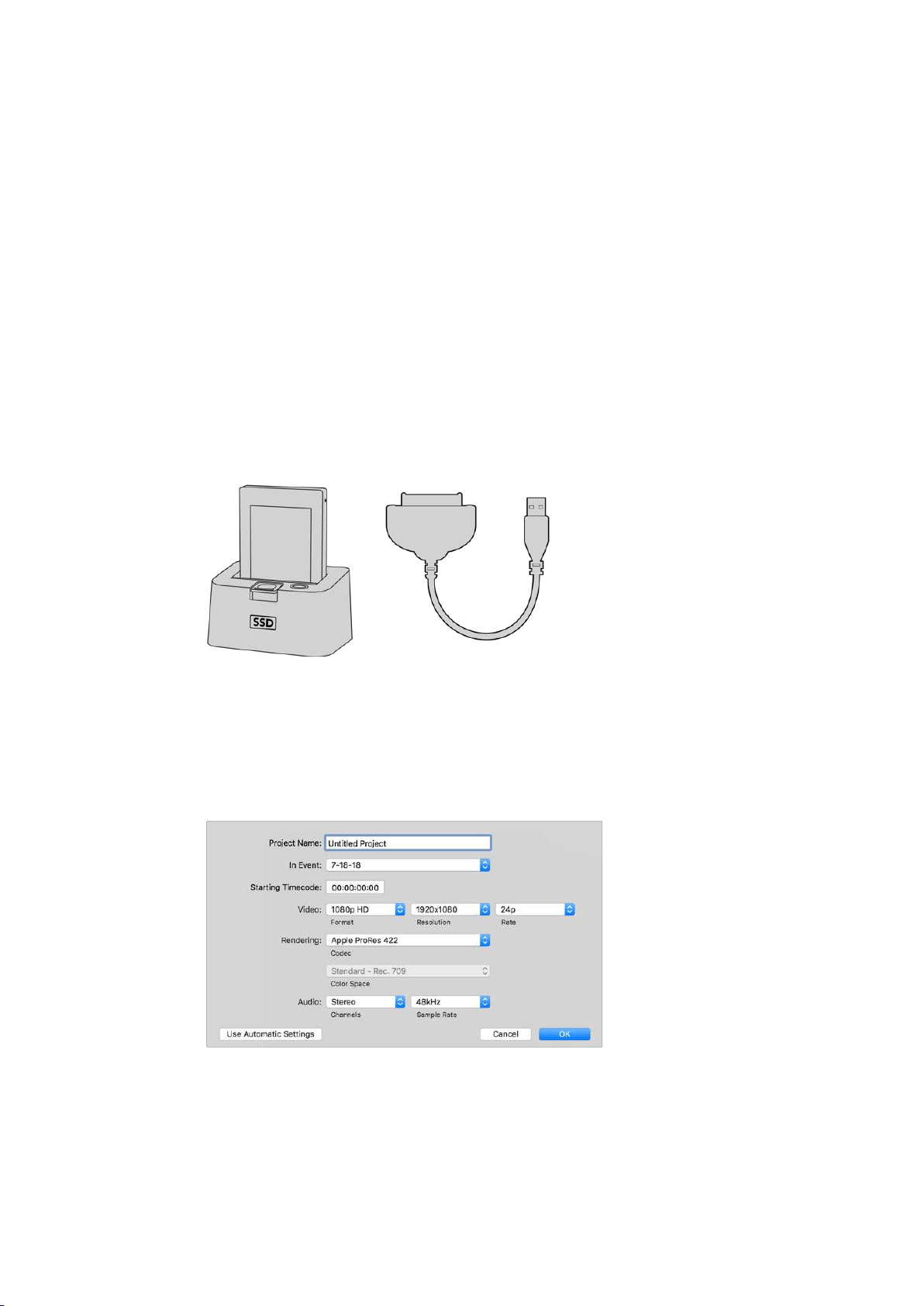
Working with Files from SSDs
To import your clips from a SSD:
1 Remove the SSD from URSA Mini SSD Recorder.
2 You can mount the SSD to your Mac or Windows computer using either an eSATA or
Thunderbolt dock, for example Blackmagic MultiDock. You can also use an eSATA to
USB adapter cable to plug the SSD straight into a USB port on your computer. USB 3.0
is preferable as USB 2.0 is not fast enough to edit video in real time.
3 Double click on the SSD to open it and you should see a list of QuickTime movie files
or Blackmagic RAW files. Depending on the format you chose to record in, you might
have a mixture of files, but they will all use the same naming convention.
4 Now you can simply drag the files you want from the SSD onto your desktop or another
hard drive, or you can access the files straight from the SSD using your NLE software.
5 Before you unplug the SSD from your computer, it is important to eject the SSD safely
from your computer first.
Edit directly from the SSD by removing it from your camera and mounting it
on your computer using an eSATA Thunderbolt dock or USB 3.0 docking cable.
Using Final Cut Pro X
To edit your clips using Final Cut Pro X, you need to create a new project and set a suitable
video format and frame rate. This example uses ProRes 422 HQ 1080p24.
Final Cut Pro X project settings
265
Working with Third Party Software
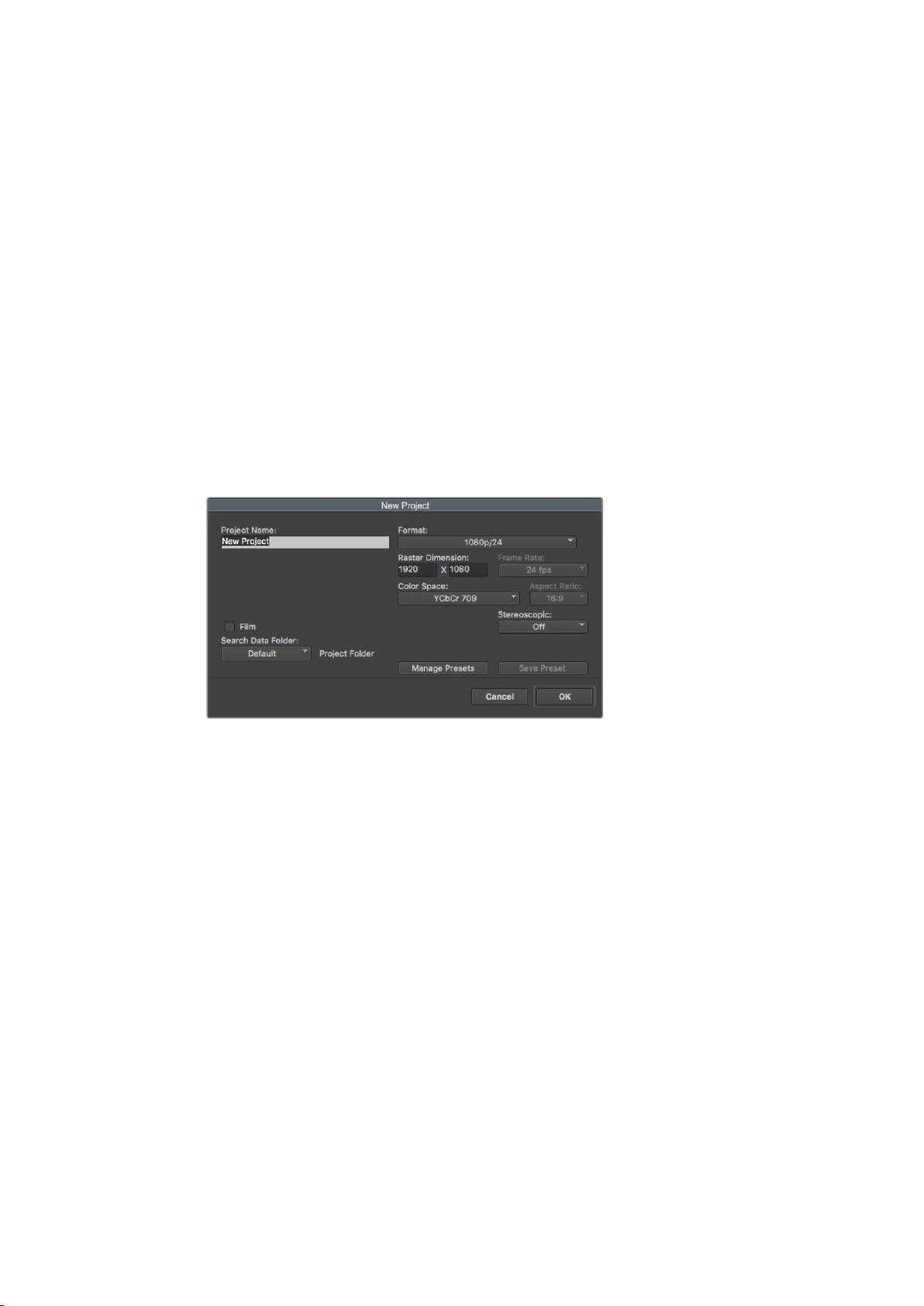
1 Launch Final Cut Pro X, go to the ‘menu’ bar and select ‘file/new project’.
A window will open containing project settings.
2 Name your project and select the ‘custom’ checkbox.
3 Set the ‘video properties’ settings to 1080p HD, 1920x1080 and 24p.
4 Set your ‘audio’ and ‘render properties’ settings to ‘stereo, 48kHz, and Apple
ProRes 422 HQ’
5 Click OK.
To import your clips into your project, go to the ‘menu’ bar and select ‘file/import/media’.
Choose your clips from your CFast card.
You can now drag your clips onto the timeline for editing.
Using Avid Media Composer 2018
To edit your clips using Avid Media Composer 2018, create a new project and set a suitable
video format and frame rate. For this example, clips are set using 1080p24.
Setting the project name and project options in Avid Media Composer 2018
1 Launch Avid Media Composer 2018 and the ‘select project’ window will appear.
2 Click the ‘new project’ button and name your project in the ‘new project’ window.
3 In the ‘format’ drop down menu select HD 1080 > 1080p/24 and click ‘ok’ to create
the project.
4 Double click the project in the ‘select project’ window to open it.
5 Select file > input > source browser and navigate to the files you wish to import.
6 Select your ‘target bin’ from the drop down menu and click ‘import’.
When the clips appear within the media bin you can drag your clips onto the timeline and
begin editing.
266Working with Third Party Software
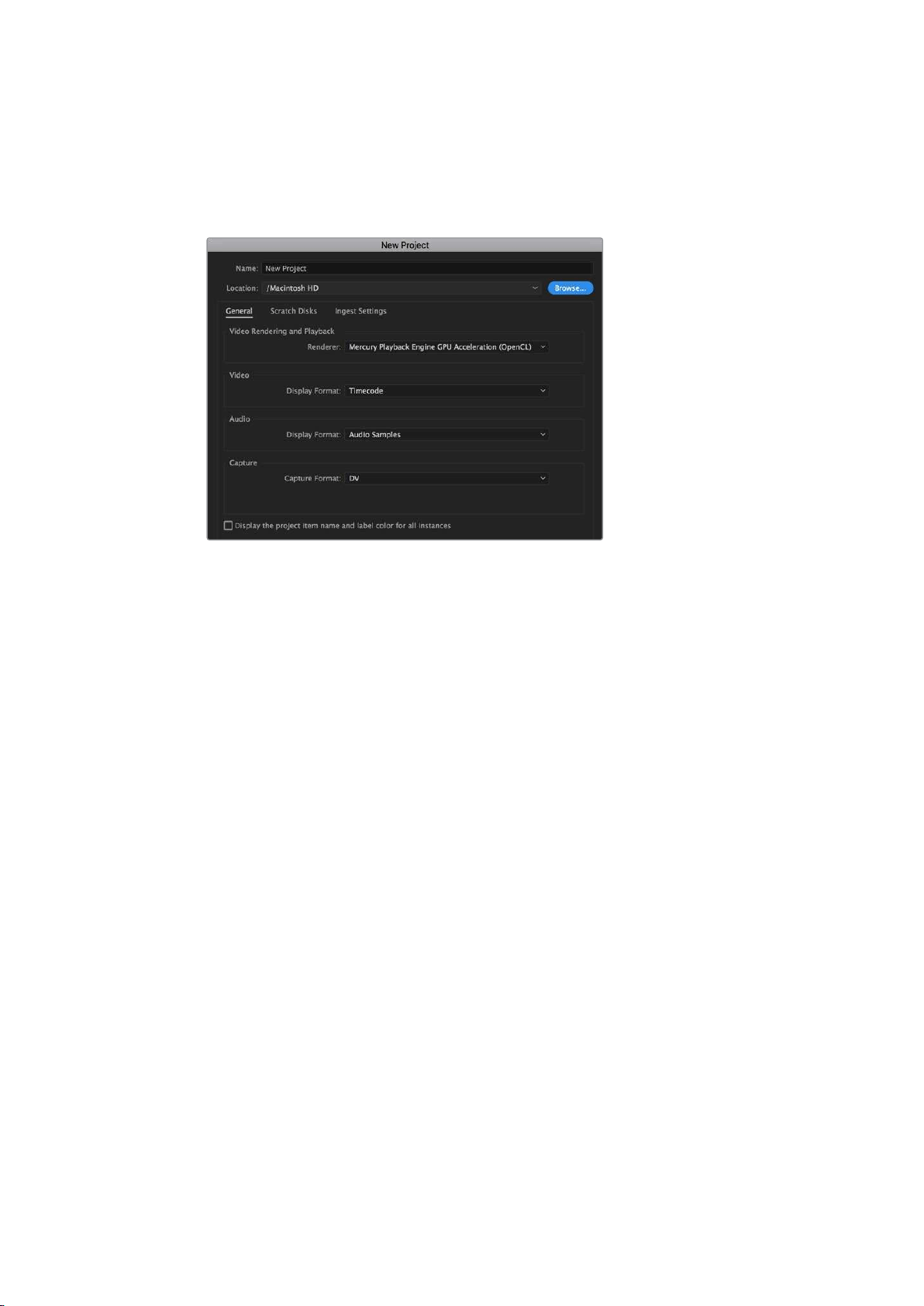
Using Adobe Premiere Pro CC
To edit your Apple ProRes 422 HQ clips using Adobe Premiere Pro CC, you need to create a
new project and set a suitable video format and frame rate. For this example, clips are set using
ProRes 422 HQ 1080p25.
Setting the project name and project options in Adobe Premiere Pro CC
1 Launch Adobe Premiere Pro CC. In the ‘welcome’ window select ‘new project’.
Awindow will open containing project settings.
2 Name your project. Choose the location for your project by clicking ‘browse’ and
selecting your desired folder. Once you’ve selected your location folder click OK in the
‘new project’ window.
3 Go to the Adobe Premiere Pro CC ‘menu’ bar, select ‘file/import’ and choose the clips
you want to edit. Your clips will appear in the project window.
4 Drag the first clip you wish to edit onto the ‘new item’ icon at the bottom right of the
project window. A new sequence will be created matching your clip settings.
You can now drag your clips onto the sequence timeline for editing.
267Working with Third Party Software

Developer Information
Blackmagic Bluetooth Camera Control
Blackmagic cameras with Bluetooth LE implement a variety of features and commands that
allow users to control their cameras wirelessly. Developers have full access to these features for
their custom applications.
The following services and characteristics describe the full range of communication options that
are available to the developer.
Service: Device Information Service
UUID: 180A
Characteristics
Camera Manufacturer
UUID: 2A29
Read the name of the manufacturer (always “Blackmagic Design”).
Camera Model
UUID: 2A24
Read the name of the camera model (“URSA Mini”).
Service: Blackmagic Camera Service
UUID: 291D567A-6D75-11E6-8B77-86F30CA893D3
Characteristics
Outgoing Camera Control (encrypted)
UUID: 5DD3465F-1AEE-4299-8493-D2ECA2F8E1BB
Send Camera Control messages
These messages are identical to those described in the Blackmagic SDI Camera Control
Protocol section below. Please read that section for a list of supported messages and required
formatting information.
For an example of how packets are structured, please see the ‘example protocol packets’
section in this document.
Incoming Camera Control (encrypted)
UUID: B864E140-76A0-416A-BF30-5876504537D9
Request notifications for this characteristic to receive Camera Control messages from
the camera.
These messages are identical to those described in the Blackmagic SDI Camera Control
Protocol section below. Please read that section for a list of supported messages and required
formatting information.
268Developer Information

Timecode (encrypted)
UUID: 6D8F2110-86F1-41BF-9AFB-451D87E976C8
Request notifications for this characteristic to receive timecode updates.
Timecode (HH:MM:SS:mm) is represented by a 32-bit BCD number:
(eg. 09:12:53:10 = 0x09125310)
Camera Status (encrypted)
UUID: 7FE8691D-95DC-4FC5-8ABD-CA74339B51B9
Request notifications for this characteristic to receive camera status updates.
The camera status is represented by flags contained in an 8-bit integer:
None
= 0x00
Camera Power On
= 0x01
Connected
= 0x02
Paired
= 0x04
Versions Verified
= 0x08
Initial Payload Received
= 0x10
Camera Ready
= 0x20
Send a value of 0x00 to power a connected camera off.
Send a value of 0x01 to power a connected camera on.
Device Name
UUID: FFAC0C52-C9FB-41A0-B063-CC76282EB89C
Send a device name to the camera (max. 32 characters).
The camera will display this name in the Bluetooth Setup Menu.
Protocol Version
UUID: 8F1FD018-B508-456F-8F82-3D392BEE2706
Read this value to determine the camera’s supported CCU protocol version.
NOTE Encrypted characteristics can only be used once a device has successfully
bonded or paired with the Blackmagic Camera. Once a connection has been
established, any attempt to write to an encrypted characteristic will initiate bonding.
For example, writing a ‘Camera Power On’ (0x01) message to the Camera Status
characteristic.
Once bonding is initiated, the camera will display a 6-digit pin in the Bluetooth Setup
Menu. Enter this pin on your device to establish an encrypted connection. The device
will now be able to read, write and receive notifications from encrypted characteristics.
269Developer Information

Blackmagic SDI and Bluetooth Camera Control Protocol
Version 1.4
If you are a software developer you can use the Blackmagic SDI and Bluetooth Camera Control
Protocol to construct devices that integrate with our products. Here at Blackmagic Design, our
approach is to open up our protocols and we eagerly look forward to seeing what you come up with!
Overview
This document describes an extensible protocol for sending a unidirectional stream of small control
messages embedded in the non-active picture region of a digital video stream. The video stream
containing the protocol stream may be broadcast to a number of devices. Device addressing is used
to allow the sender to specify which device each message is directed to.
Assumptions
Alignment and padding constraints are explicitly described in the protocol document. Bit fields are
packed from LSB first. Message groups, individual messages and command headers are defined as,
and can be assumed to be, 32 bit aligned.
Blanking Encoding
A message group is encoded into a SMPTE 291M packet with DID/SDID x51/x53 in the active region
of VANC line 16.
Message Grouping
Up to 32 messages may be concatenated and transmitted in one blanking packet up to a maximum
of 255 bytes payload. Under most circumstances, this should allow all messages to be sent with a
maximum of one frame latency.
If the transmitting device queues more bytes of message packets than can be sent in a single frame,
it should use heuristics to determine which packets to prioritize and send immediately. Lower priority
messages can be delayed to later frames, or dropped entirely as appropriate.
Abstract Message Packet Format
Every message packet consists of a three byte header followed by an optional variable length data
block. The maximum packet size is 64 bytes.
Destination device (uint8)
Device addresses are represented as an 8 bit unsigned integer. Individual
devices are numbered 0 through 254 with the value 255 reserved to indicate a
broadcast message to all devices.
Command length (uint8)
The command length is an 8 bit unsigned integer which specifies the length
of the included command data. The length does NOT include the length of the
header or any trailing padding bytes.
Command id (uint8)
The command id is an 8 bit unsigned integer which indicates themessage type
being sent. Receiving devices should ignore any commands that they do not
understand. Commands 0 through 127 are reserved for commands that apply
to multiple types of devices. Commands 128 through 255 are device specific.
Reserved (uint8)
This byte is reserved for alignment and expansion purposes. It should be set
tozero.
Command data (uint8[])
The command data may contain between 0 and 60 bytes of data. The format of
the data section is defined by the command itself.
Padding (uint8[])
Messages must be padded up to a 32 bit boundary with 0x0bytes.
Anypadding bytes are NOT included in the command length.
Receiving devices should use the destination device address and or the command identifier to
determine which messages to process. The receiver should use the command length to skip
irrelevant or unknown commands and should be careful to skip the implicit padding as well.
270Developer Information

Defined Commands
Command 0 : change configuration
Category (uint8)
The category number specifies one of up to 256 configuration categories
available on the device.
Parameter (uint8)
The parameter number specifies one of 256 potential configuration
parameters available on the device. Parameters 0 through 127 are device
specific parameters. Parameters 128 though 255 are reserved for parameters
that apply to multiple types of devices.
Data type (uint8)
The data type specifies the type of the remaining data. Thepacket length is
used to determine the number of elements in the message. Each message
must contain an integral number of data elements.
Currently defined values are:
0: void / boolean
A void value is represented as a boolean array of length zero.
The data field is a 8 bit value with 0 meaning false and all other values
meaning true.
1: signed byte Data elements are signed bytes
2: signed 16bit integer Data elements are signed 16 bit values
3: signed 32bit integer Data elements are signed 32 bit values
4: signed 64bit integer Data elements are signed 64 bit values
5: UTF-8 string Data elements represent a UTF-8 string with no terminating character.
Data types 6 through 127 are reserved.
128: signed 5.11fixed point
Data elements are signed 16 bit integers representing a real number with
5bits for the integer component and 11 bits for the fractional component.
Thefixed point representation is equal to the real value multiplied by 2^11.
The representable range is from -16.0 to 15.9995 (15 + 2047/2048).
Data types 129 through 255 are available for device specific purposes.
Operation type (uint8)
The operation type specifies what action to perform on the specified
parameter. Currently defined values are:
0: assign value
The supplied values are assigned to the specified parameter. Each element
will be clamped according to its valid range. A void parameter may only be
'assigned' an empty list of boolean type. This operation will trigger the action
associated with that parameter. A boolean value may be assigned the value
zero for false, and any other value for true.
1: offset / toggle value
Each value specifies signed offsets of the same type to be added to the
current parameter values. The resulting parameter value will be clamped
according to their valid range. It is not valid to apply an offset to a void value.
Applying any offset other than zero to a boolean value will invert that value.
Operation types 2 through 127 are reserved.
Operation types 128through 255 are available for device specific purposes.
Data (void)
The data field is 0 or more bytes as determined by the data type and number
of elements.
The category, parameter, data type and operation type partition a 24 bit operation space.
271Developer Information

Group ID Parameter Type Index Minimum Maximum Interpretation
Lens
0.0 Focus fixed16 – 0.0 1.0 0.0 = near, 1.0 = far
0.1 Instantaneous autofocus
void
– – – trigger instantaneous autofocus
0.2 Aperture (f-stop) fixed16 – -1.0 16.0
Aperture Value (where fnumber
= sqrt(2^AV))
0.3 Aperture (normalised) fixed16 – 0.0 1.0 0.0 = smallest, 1.0 = largest
0.4 Aperture (ordinal) int16 – 0 n
Steps through available
aperture values from minimum
(0) to maximum (n)
0.5
Instantaneous auto
aperture
void – – –
trigger instantaneous auto
aperture
0.6 Optical image stabilisation boolean – – – true = enabled, false = disabled
0.7 Set absolute zoom (mm) int16 – 0 max
Move to specified focal length
in mm, from minimum (0) to
maximum (max)
0.8
Set absolute zoom
(normalised)
fixed16 – 0.0 1.0
Move to specified focal length:
0.0 = wide, 1.0 = tele
0.9
Set continuous zoom
(speed)
fixed16 – -1.0 +1.0
Start/stop zooming at specified
rate: -1.0 = zoom wider fast, 0.0
= stop,
+1 = zoom tele fast
Video
1.0 Video mode int8
[0] = frame rate – –
fps as integer
(eg 24, 25, 30, 50, 60)
[1] = M-rate – – 0 = regular, 1 = M-rate
[2] = dimensions – –
0 = NTSC, 1 = PAL, 2 = 720,
3 = 1080, 4 = 2kDCI, 5 = 2k16:9,
6 = UHD, 7 = 3k Anamorphic,
8 = 4k DCI, 9 = 4k 16:9,
10 = 4.6k 2.4:1, 11 = 4.6k
[3] = interlaced – –
0 = progressive,
1 = interlaced
[4] = Color space – – 0 = YUV
1.1 Gain (up to Camera 4.9) int8 1 128
1x, 2x, 4x, 8x, 16x, 32x, 64x,
128x gain
1.2 Manual White Balance
int16 [0] = color temp 2500 10000 Color temperature in K
int16 [1] = tint -50 50 tint
1.3 Set auto WB void – – –
Calculate and set autowhite
balance
1.4 Restore auto WB void – – –
Use latest auto white balance
setting
1.5 Exposure (us) int32 1 42000 time in us
1.6 Exposure (ordinal) int16 – 0 n
Steps through available
exposure valuesfrom minimum
(0) tomaximum (n)
1.7 Dynamic Range Mode int8 enum – 0 2
0 = film, 1 = video,
2 = extended video
1.8 Video sharpening level int8 enum – 0 3
0 = off, 1 = low, 2=medium,
3 = high
272Developer Information

Group ID Parameter Type Index Minimum Maximum Interpretation
Video
1.9 Recording format int16
[0] = file frame rate – –
fps as integer
(eg 24, 25, 30, 50, 60, 120)
[1] = sensor frame
rate
– –
fps as integer, valid when
sensor-off-speed set (eg 24,
25, 30, 33, 48, 50, 60, 120),
no change will be performed if
this value is set to 0
[2] = frame width – – in pixels
[3] = frame height – – in pixels
[4] = flags
– – [0] = file-M-rate
– –
[1] = sensor-M-rate, valid
whensensor-off-speed-set
– – [2] = sensor-off-speed
– – [3] = interlaced
– – [4] = windowed mode
1.10 Set auto exposure mode int8 – 0 4
0 = Manual Trigger, 1 = Iris,
2 = Shutter, 3 = Iris + Shutter,
4 = Shutter + Iris
1.11 Shutter angle int32 – 100 36000
Shutter angle in degrees,
multiplied by 100
1.12 Shutter speed int32 –
Current
sensor
frame rate
5000
Shutter speed value as a
fraction of 1, so 50 for 1/50th of
a second
1.13 Gain int8 – -128 127 Gain in decibel (dB)
1.14 ISO int32 – 0 2147483647 ISO value
1.15 Display LUT int8
[0] = selected LUT – –
0 = None, 1 = Custom,
2 = film to video,
3 = film to extended video
[1] = enabled or not – – 0 = Not enabled, 1 = Enabled
Audio
2.0 Mic level fixed16 – 0.0 1.0 0.0 = minimum, 1.0 = maximum
2.1 Headphone level fixed16 – 0.1 1.0 0.0 = minimum, 1.0 = maximum
2.2 Headphone program mix fixed16 – 0.1 1.0 0.0 = minimum, 1.0 = maximum
2.3 Speaker level fixed16 – 0.1 1.0 0.0 = minimum, 1.0 = maximum
2.4 Input type int8 – 0 3
0 = internal mic,
1 = line level input,
2 = low mic level input,
3 = high mic level input
2.5 Input levels fixed16
[0] ch0 0.0 1.0 0.0 = minimum, 1.0 = maximum
[1] ch1 0.0 1.0 0.0 = minimum, 1.0 = maximum
2.6 Phantom power boolean – – –
true = powered,
false = not powered
273Developer Information

Group ID Parameter Type Index Minimum Maximum Interpretation
Output
3.0 Overlay enables
uint16
bit field
– – –
bit flags:
[0] = display status,
[1] = display frame guides
Some cameras don't allow
separate control of frame
guides and status overlays.
3.1
Frame guides style
(Camera 3.x)
int8 – 0 8
0 = HDTV, 1 = 4:3, 2 = 2.4:1,
3 = 2.39:1, 4 = 2.35:1,
5 = 1.85:1, 6 = thirds
3.2
Frame guides opacity
(Camera 3.x)
fixed16 – 0.1 1.0 0.0 = transparent, 1.0 = opaque
3.3
Overlays
(replaces .1 and .2
abovefrom
Cameras 4.0)
int8
[0] = frame guides
style
– –
0 = off, 1 = 2.4:1, 2 = 2.39:1,
3 = 2.35:1, 4 = 1.85:1, 5 = 16:9,
6 = 14:9, 7 = 4:3, 8 = 2:1,
9 = 4:5, 10 = 1:1
[1] = frame guide
opacity
0 100 0 = transparent, 100 = opaque
[2] = safe area
percentage
0 100
percentage of full frame
used by safe area guide
(0 means off)
[3] = grid style – –
bit flags:
[0] = display thirds,
[1] = display cross hairs,
[2] = display center dot,
[3] = display horizon
Display
4.0 Brightness fixed16 – 0.0 1.0 0.0 = minimum, 1.0 = maximum
4.1 Exposure and focus tools
int16
bit field
0x1 = zebra,
0x2 = focus assist,
0x4 = false color
– – 0 = disable, 1 = enable
4.2 Zebra level fixed16 – 0.0 1.0 0.0 = minimum, 1.0 = maximum
4.3 Peaking level fixed16 – 0.0 1.0 0.0 = minimum, 1.0 = maximum
4.4 Color bar enable int8 – 0 30
0 = disable bars,
1-30 = enable bars with timeout
(seconds)
4.5 Focus Assist int8
[0] = focus assist
method
– –
0 = Peak,
1 = Colored lines
[1] = focus line color – –
0 = Red,
1 = Green,
2 = Blue,
3 = White,
4 = Black
4.6 Program return feed enable int8 – 0 30
0 = disable, 1-30 = enable with
timeout (seconds)
Tally
5.0 Tally brightness fixed16 – 0.0 1.0
Sets the tally front and tally rear
brightness to the same level.
0.0 = minimum,
1.0 = maximum
5.1 Front tally brightness fixed16 – 0.0 1.0
Sets the tally front brightness.
0.0 = minimum,
1.0 = maximum
5.2 Rear tally brightness fixed16 – 0.0 1.0
Sets the tally rear brightness.
0.0 = minimum,
1.0 = maximum
Tally rear brightness cannot be
turned off
274Developer Information

Group ID Parameter Type Index Minimum Maximum Interpretation
Reference
6.0 Source int8 enum – 0 2
0 = internal,
1 = program,
2 = external
6.1 Offset int32 – – – +/- offset in pixels
Confi-
guration
7.0 Real Time Clock int32
[0] time _ _ BCD - HHMMSSFF (UCT)
[1] date _ _ BCD - YYYYMMDD
7.1 System language string [0-1] _ _
ISO-639-1 two character
language code
7.2 Timezone int32 _ _ _ Minutes offset from UTC
7.3 Location int64
[0] latitude _ _
BCD - s0DDdddddddddddd
where s is the sign:
0 = north (+), 1 = south (-);
DD degrees, dddddddddddd
decimal degrees
[1] longitude _ _
BCD - sDDDdddddddddddd
where s is the sign: 0 = west
(-), 1 = east (+); DDD degrees,
dddddddddddd decimal
degrees
Color
Correction
8.0 Lift Adjust fixed16
[0] red -2.0 2.0 default 0.0
[1] green -2.0 2.0 default 0.0
[2] blue -2.0 2.0 default 0.0
[3] luma -2.0 2.0 default 0.0
8.1 Gamma Adjust fixed16
[0] red -4.0 4.0 default 0.0
[1] green -4.0 4.0 default 0.0
[2] blue -4.0 4.0 default 0.0
[3] luma -4.0 4.0 default 0.0
8.2 Gain Adjust fixed16
[0] red 0.0 16.0 default 1.0
[1] green 0.0 16.0 default 1.0
[2] blue 0.0 16.0 default 1.0
[3] luma 0.0 16.0 default 1.0
8.3 Offset Adjust fixed16
[0] red -8.0 8.0 default 0.0
[1] green -8.0 8.0 default 0.0
[2] blue -8.0 8.0 default 0.0
[3] luma -8.0 8.0 default 0.0
8.4 Contrast Adjust fixed16
[0] pivot 0.0 1.0 default 0.5
[1] adj 0.0 2.0 default 1.0
8.5 Luma mix fixed16 – 0.0 1.0 default 1.0
8.6 Color Adjust fixed16
[0] hue -1.0 1.0 default 0.0
[1] sat 0.0 2.0 default 1.0
8.7 Correction Reset Default void – – – reset to defaults
275Developer Information

Group ID Parameter Type Index Minimum Maximum Interpretation
Media
10.0 Codec int8 enum
[0] = basic codec – –
0 = CinemaDNG,
1 = DNxHD,
2 = ProRes,
3 = Blackmagic RAW
[1] = code variant
– –
CinemaDNG:
0 = uncompressed,
1 = lossy 3:1,
2 = lossy 4:1
– –
ProRes:
0 = HQ,
1 = 422,
2 = LT,
3 = Proxy,
4 = 444,
5 = 444XQ
– –
Blackmagic RAW:
0 = Q0,
1 = Q5,
2 = 3:1,
3 = 5:1,
4 = 8:1,
5 = 12:1
10.1 Transport mode int8
[0] = mode – –
0 = Preview,
1 = Play,
2 = Record
[1] = speed – –
-ve = multiple speeds
backwards,
0 = pause,
+ve = multiple speeds forwards
[2] = flags – –
1<<0 = loop,
1<<1 = play all,
1<<5 = disk1 active,
1<<6 = disk2 active,
1<<7 = time-lapse recording
[3] = slot 1 storage
medium
– –
0 = CFast card,
1 = SD,
2 = SSD Recorder
[4] = slot 2 storage
medium
– –
0 = CFast card,
1 = SD,
2 = SSD Recorder
10.2 Playback Control int8 enum [0] = clip – –
0 = Previous,
1 = Next
PTZ
Control
11.0 Pan/Tilt Velocity fixed 16
[0] = pan velocity -1.0 1.0
-1.0 = full speed left,
1.0 = full speed right
[1] = tilt velocity -1.0 1.0
-1.0 = full speed down,
1.0 = full speed up
11.1 Memory Preset
int8
enum
[0] = preset
command
– –
0 = reset,
1 = store location,
2 = recall location
int8
[1] =
preset slot
0 5 –
276Developer Information
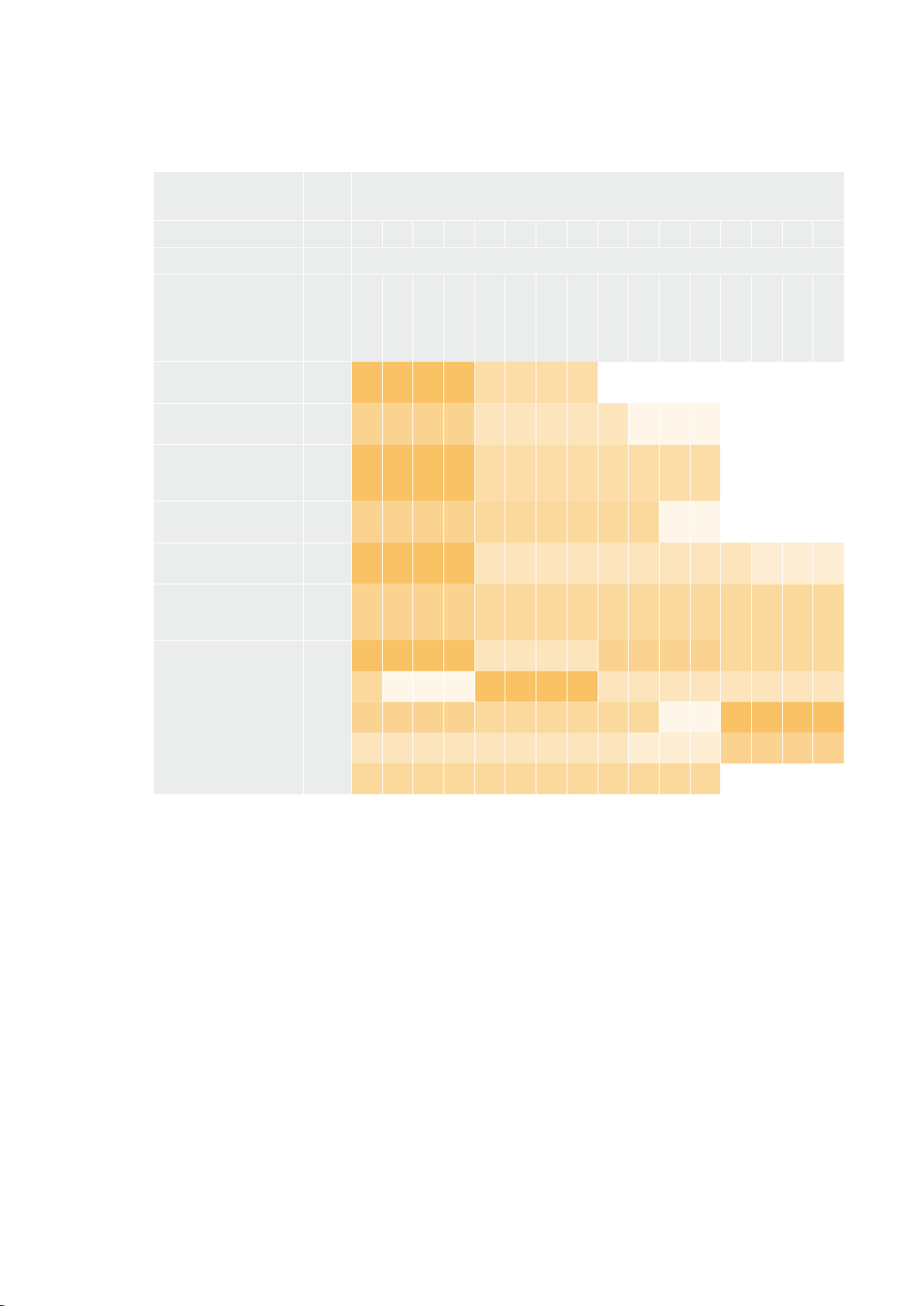
Example Protocol Packets
Operation
Packet
Length Byte
0 1 2 3 4 5 6 7 8 9 10 11 12 13 14 15
header command data
destination
length
command
reserved
category
parameter
type
operation
trigger instantaneous
auto focus on camera 4
8 4 4 0 0 0 1 0 0
turn on OIS on all
cameras
12 255 5 0 0 0 6 0 0 1 0 0 0
set exposure to 10 ms on
camera 4 (10 ms = 10000
us = 0x00002710)
12 4 8 0 0 1 5 3 0 0x10 0x27 0x00 0x00
add 15% to zebra level
(15 % = 0.15 f = 0x0133 fp)
12 4 6 0 0 4 2 128 1 0x33 0x01 0 0
select 1080p 23.98
mode on all cameras
16 255 9 0 0 1 0 1 0 24 1 3 0 0 0 0 0
subtract 0.3 from gamma
adjust for green & blue
(-0.3 ~= 0xfd9a fp)
16 4 12 0 0 8 1 128 1 0 0 0x9a 0xfd 0x9a 0xfd 0 0
all operations combined
76
4 4 0 0 0 1 0 0 255 5 0 0 0 6 0 0
1 0 0 0 4 8 0 0 1 5 3 0 0x10 0x27 0x00 0x00
4 6 0 0 4 2 128 1 0x33 0x01 0 0 255 9 0 0
1 0 1 0 24 1 3 0 0 0 0 0 4 12 0 0
8 1 128 1 0 0 0x9a 0xfd 0x9a 0xfd 0 0
Blackmagic Tally Control Protocol
Version 1.0 (30/04/14)
This section is for third party developers or anybody who may wish to add support for the
Blackmagic Tally Control Protocol to their products or system. It describes the protocol for
sending tally information embedded in the non-active picture region of a digital video stream.
Data Flow
A master device such as a broadcast switcher embeds tally information into its program feed
which is broadcast to a number of slave devices such as cameras or camera controllers. The
output from the slave devices is typically fed back to the master device, but may also be sent to
a video monitor.
The primary flow of tally information is from the master device to the slaves. Each slave device
may use its device id to extract and display the relevant tally information.
277Developer Information

Slave devices pass through the tally packet on their output and update the monitor tally status,
so that monitor devices connected to that individual output may display tally status without
knowledge of the device id they are monitoring.
Assumptions
Any data alignment / padding is explicit in the protocol. Bit fields are packed from LSB first.
Blanking Encoding
One tally control packet may be sent per video frame. Packets are encoded as a SMPTE 291M
packet with DID/SDID x51/x52 in the active region of VANC line 15. A tally control packet may
contain up to 256 bytes of tally information.
Packet Format
Each tally status consists of 4 bits of information:
uint4
bit 0: program tally status (0=off, 1=on)
bit 1: preview tally status (0=off, 1=on)
bit 2-3: reserved (0x0)
The first byte of the tally packet contains the monitor device tally status and a version number.
Subsequent bytes of the tally packet contain tally status for pairs of slave devices. The master
device sends tally status for the number of devices configured/supported, up to a
maximum of 510.
struct tally
uint8
bit 0: monitor device program tally status (0=off, 1=on)
bit 1: monitor device preview tally status (0=off, 1=on)
bit 2-3: reserved (0b00)
bit 4-7: protocol version (0b0000)
uint8[0]
bit 0: slave device 1 program tally status (0=off, 1=on)
bit 1: slave device 1 device preview tally status (0=off, 1=on)
bit 2-3: reserved (0b00)
bit 4: slave device 2 program tally status (0=off, 1=on)
bit 5: slave device 2 preview tally status (0=off, 1=on)
bit 6-7: reserved (0b00)
uint8[1]
bit 0: slave device 3 program tally status (0=off, 1=on)
bit 1: slave device 3 device preview tally status (0=off, 1=on)
bit 2-3: reserved (0b00)
bit 4: slave device 4 program tally status (0=off, 1=on)
bit 5: slave device 4 preview tally status (0=off, 1=on)
bit 6-7: reserved (0b00)
. . .
278Developer Information

Master Device
Monitor Device
Slave Device
(2)
Slave Device
(3)
Slave Device
(1)
Byte 7 MSB 6 5 4 3 2 1 0 LSB
0
Version
(0b0)
Version
(0b0)
Version
(0b0)
Version
(0b0)
Reserved
(0b0)
Reserved
(0b0)
Monitor
Preview
Monitor
Program
1
Reserved
(0b0)
Reserved
(0b0)
Slave 1
Preview
Slave 1
Program
Reserved
(0b0)
Reserved
(0b0)
Slave 0
Preview
Slave 0
Program
2
Reserved
(0b0)
Reserved
(0b0)
Slave 3
Preview
Slave 3
Program
Reserved
(0b0)
Reserved
(0b0)
Slave 2
Preview
Slave 2
Program
3 ...
279Developer Information
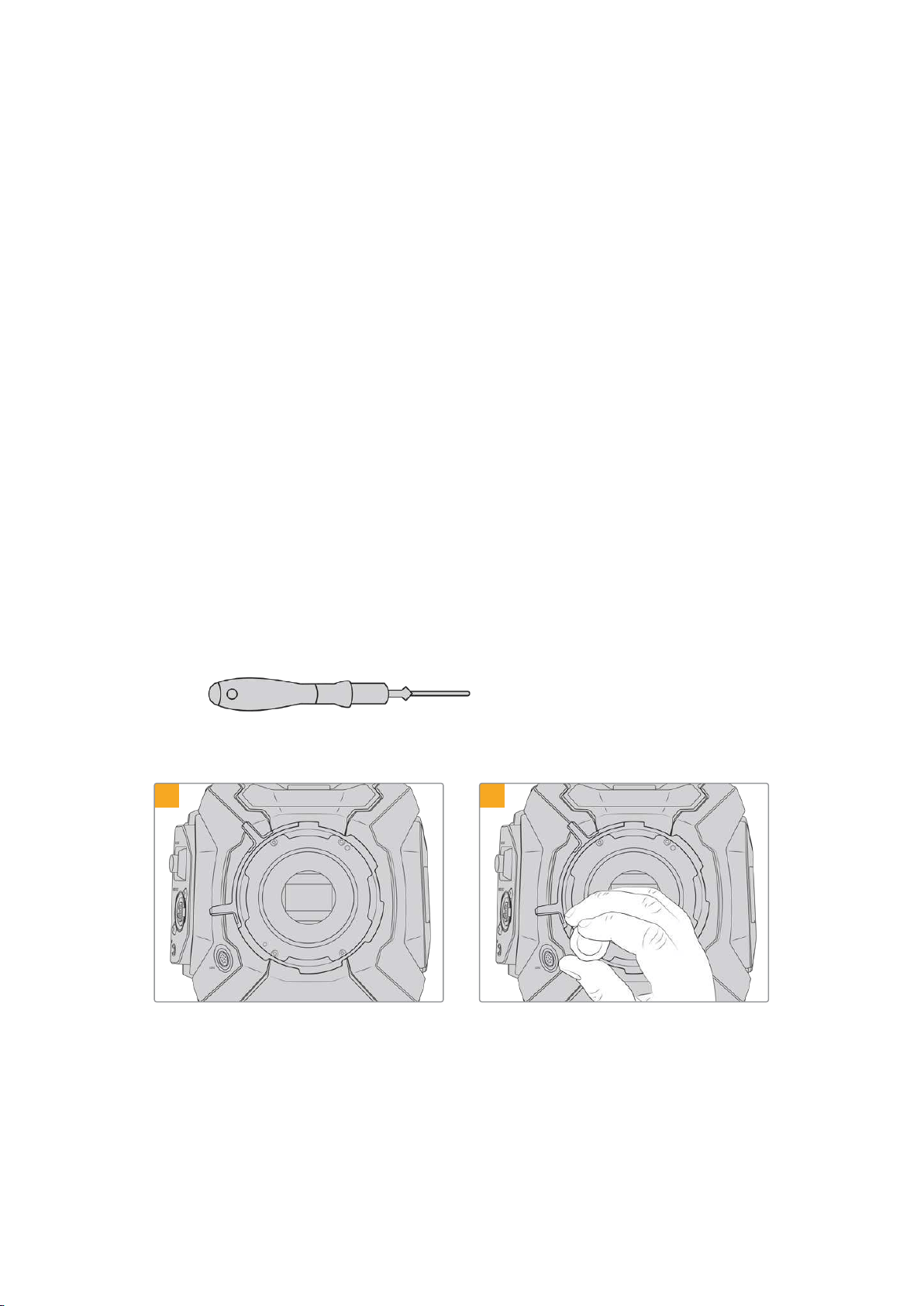
Blackmagic URSA Mini B4 Mount
The PL mount on Blackmagic URSA Mini PL can be removed and replaced with an optional
B4mount. This mount differs slightly to the B4 mount on URSA Mini Pro. For example, the screw
holes are in a different position to allow for the EF button release housing on URSA Mini Pro.
The shim thicknesses required are also different, so if you want to use B4 lenses with your
URSA Mini PL it’s important you choose the correct mount.
The B4 mount for URSA Mini PL can be purchased from Blackmagic Design resellers.
Using the B4 mount, you can shoot ENG style HD coverage with URSA Mini PL using common
par-focal zoom lenses. Par-focal lenses provide constant focus throughout the zoom range for
quick and efficient focussing techniques. By zooming into maximum telephoto and setting focus
on a target, you can be sure your focus will stay set to that target all the way from maximum
zoom to maximum wide. It’s important to note that the B4 lens back focus, or flange focal
distance, also needs to be correctly set.
Attaching the B4 Lens Mount
The B4 mount is supplied with two additional 0.50mm shims designed to be installed together
with the existing 0.50mm shim already mounted behind your URSA Mini PL lens mount. This will
give you a total of three 0.50mm shims to provide the clearance needed so you can achieve
the optimum back focus, which can be refined further by adjusting the back focus ring at the
mount end of B4 zoom lenses.
Using B4 lenses, you can achieve a greater variety of shots with your URSA Mini that are
impossible to get using stills lenses.
To connect your URSA Mini B4 lens mount you’ll need a torque wrench able to accurately set
amaximum torque of 0.45Nm, plus a 2.0mm Hex key driver.
To attach the Blackmagic URSA Mini B4 Mount, you will need a torque wrench able to
accurately set a maximum torque of 0.45Nm, together with a 2.0mm Hex key driver
1 2
Place Blackmagic URSA Mini PL on a solid, clean
bench top and remove your lens or dust cap. The
glass filter covering the sensor will be exposed
for the duration of the shimming process, so it’s
important to keep the filter as clean as possible.
Be careful not to touch the filter while attaching
the B4mount.
Remove the six PL mount screws using
the 2.0mm Hex driver. You may need to
occasionally rotate the PL locking ring
clockwise or counterclockwise to access the
screws.
280Blackmagic URSA Mini B4 Mount
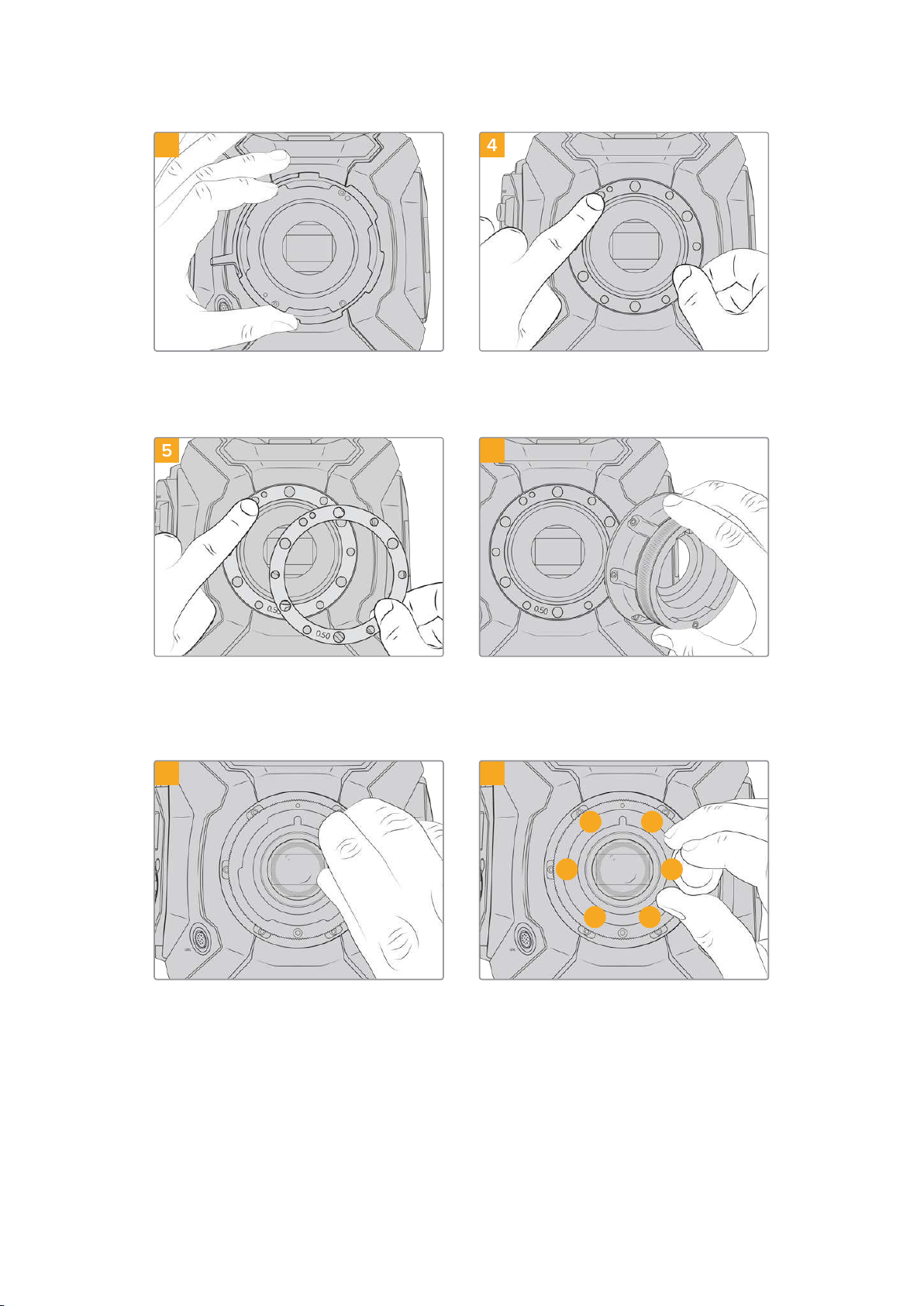
3 4
Carefully lift the lens mount away from the
camera body. Keep the screws safely located
close to the lens mount.
Note the alignment of the existing 0.50mm shim
with the alignment pin at the 11o’clock position.
5 6
Place the 2 x 0.50mm shims supplied with your
Blackmagic URSA Mini B4 lens mount onto the
original 0.50mm shim. This creates the clearance
needed to optimize the flange focal distance.
Carefully place the Blackmagic URSA Mini B4
lens mount onto the camera body ensuring
the registration slot is aligned with the
alignment pin at the 11 o’clock position.
7
1 3
4
56
2
8
Using a 2mm Hex driver or torque wrench set to
0.45Nm, loosely turn the six mounting screws
until initialcontact is made with the shoulder of
the lens mount.
Confirm the lens mount is level and correctly
aligned, then tighten the screws in the order
shown here to an even pressure without over-
tightening the screws.
281Blackmagic URSA Mini B4 Mount
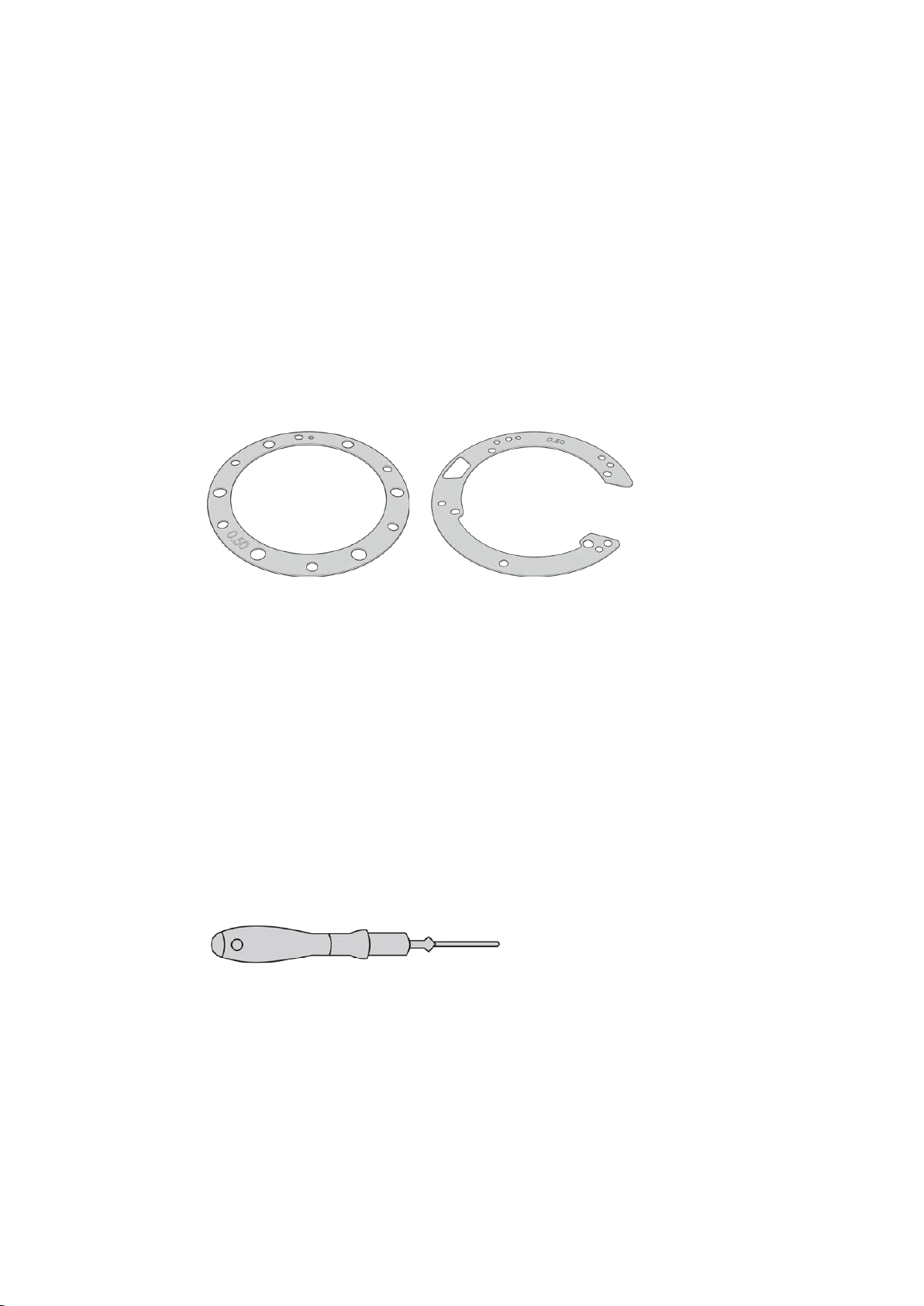
Shimming Lens Mounts
What is a Shim?
Shims are thin disks of varying thickness that let you make fine adjustments to the distance
between your lens and URSA Mini’s sensor. This distance is commonly known as the flange
focal distance, or back focus, and can change slightly due to variables such as lens age and the
environmental conditions of your shoot. The following URSA Mini models are designed so you
can easily adjust back focus using shims.
URSA Mini PL 4K
URSA Mini PL 4.6K
URSA Mini Pro 4.6K
URSA Mini Pro 4.6K G2
URSA Mini Shim URSA Mini Pro Shim
Shims are placed between the lens mount and the camera body so the distance from your
subject to the sensor matches the focus marks on your lens. These are most commonly used
forPL lenses. These cine lenses are manually focused and have very accurate focal distance
markings on their barrels. Shims are also used for URSA Mini Pro’s interchangeable lens mount.
Your Blackmagic URSA Mini is supplied with a 0.50mm shim already installed. The Blackmagic
URSA Mini Pro Shim Kit contains additional shim sets of various thicknesses, and can be
purchased from your local Blackmagic Design reseller. A set of shims is also included with
all mount kits for URSA Mini Pro. Use shim thicknesses depending on your back focus
requirements.
Shimming URSA Mini PL
To shim your camera’s PL mount you’ll need a torque wrench able to accurately set a maximum
torque of 0.45Nm, with a 2.0mm Hex key and driver.
Torque wrench
282
Shimming Lens Mounts
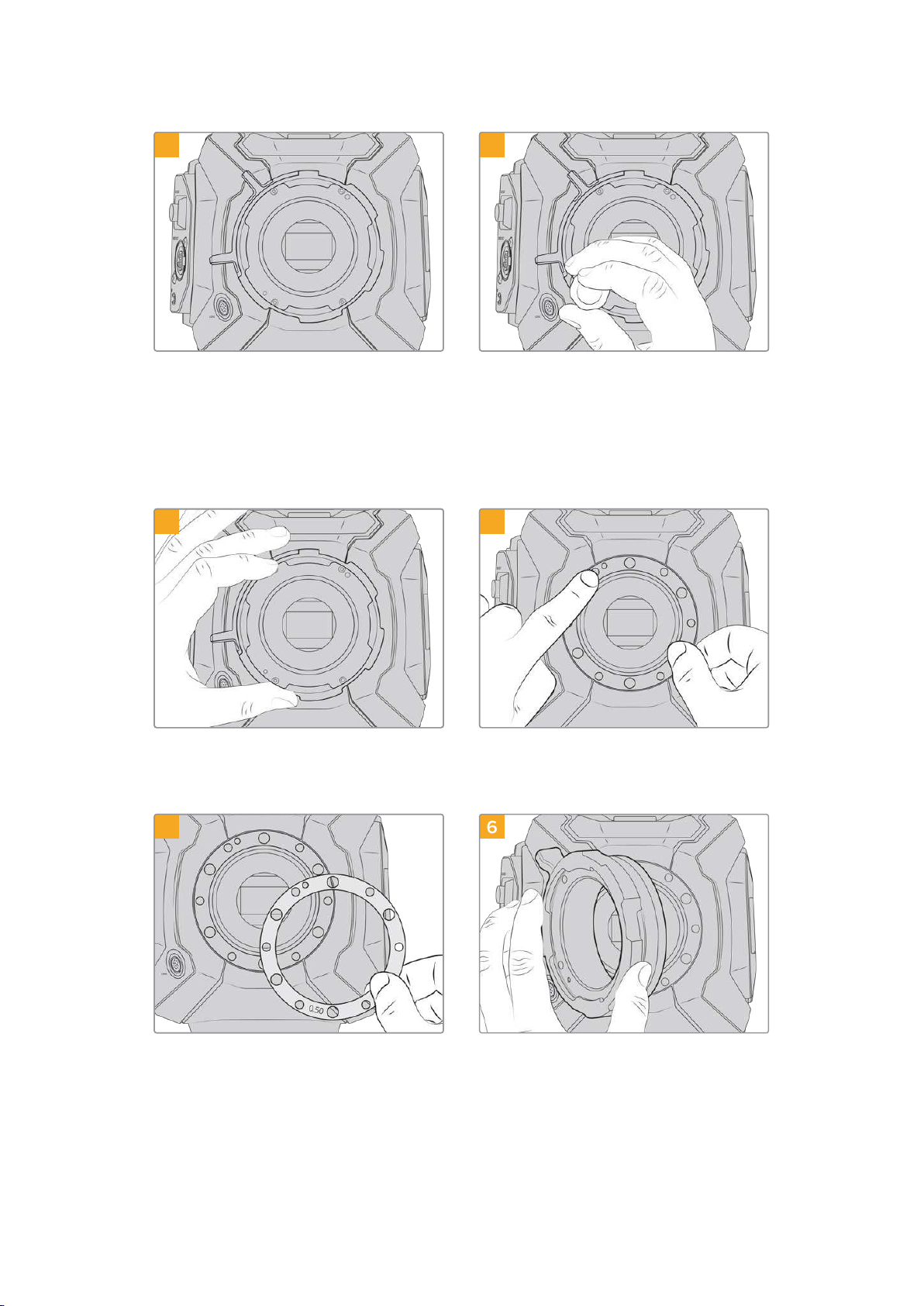
1 2
Place URSA Mini PL vertically on a solid, clean
bench top and remove your lens or dust cap.
Theglass filter covering the sensor will be
exposed for the duration of the shimming
process, so it’s important to keep the filter as
clean as possible. Becareful not to touch the
filter while shimming the PL mount.
Remove the six PL mount screws using the
2.0mm Hex driver. You may need to occasionally
rotate the PL locking ring clockwise or
counterclockwise to access the screws.
3 4
Carefully lift the lens mount away from the
camera body. Keep the screws safely located
close to the lens mount.
Note the alignment of the existing 0.50mm
shim with the alignment pin at the 11 o’clock
position.
5 6
Add or remove shims in 0.10mm increments,
and test with your lenses when the camera
is reassembled to make sure they are hitting
theirmarks. To 'remove' shims, you might replace
your 0.50mm shim with a 0.40mm shim, for
example.
Carefully place the Blackmagic URSA Mini
ProPLlens mount onto the camera body.
283Shimming Lens Mounts
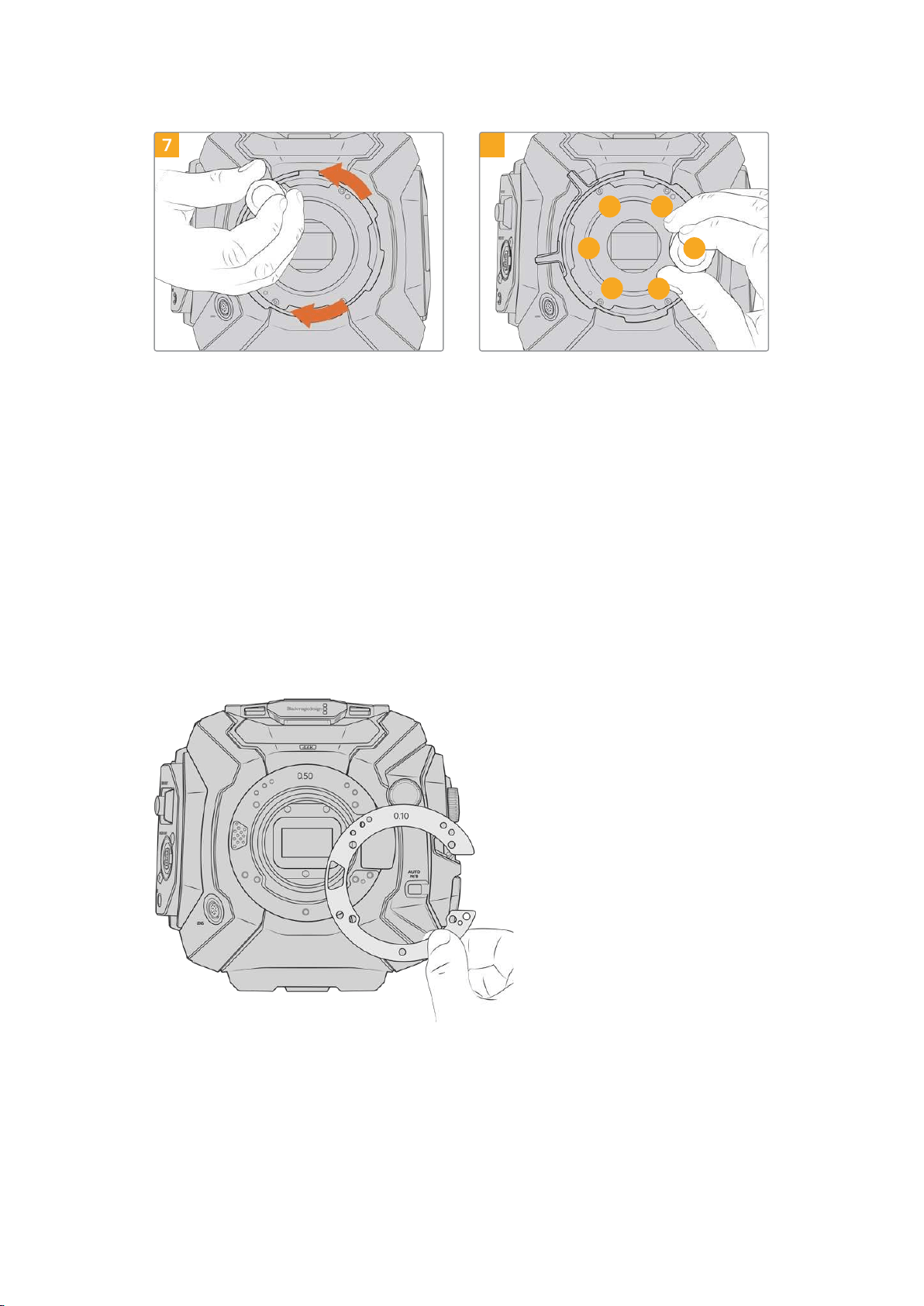
7 8
1 3
4
5
2
6
Using a 2mm Hex driver or torque wrench set
to 0.45Nm, loosely turn the mounting screws
untilinitial contact is made with the shoulder of
the lens mount. To access all the screws, you
will need to rotate the PL locking ring, as some
holes are obscured when the ring is either open
or closed.
Confirm the lens mount is level and correctly
aligned, then tighten the screws in the order
shown here to an even pressure without over-
tightening the screws.
Shimming URSA Mini Pro
Shimming URSA Mini Pro is almost the same as URSA Mini PL. The only difference is the shape
of the shims themselves. To shim your URSA Mini Pro, simply remove the attached lens mount,
and add or remove shims as you would for URSA Mini PL, then replace the mount.
See the ‘Interchangeable lens mount’ section for more information on attaching lens mounts to
URSA Mini Pro.
URSA Mini Pro’s shims are C shaped to accommodate
the lens release mechanism in the EF mount. This
makes them easier to align as they can only fit one way.
Installation is otherwise identical to URSA Mini PL.
284
Shimming Lens Mounts
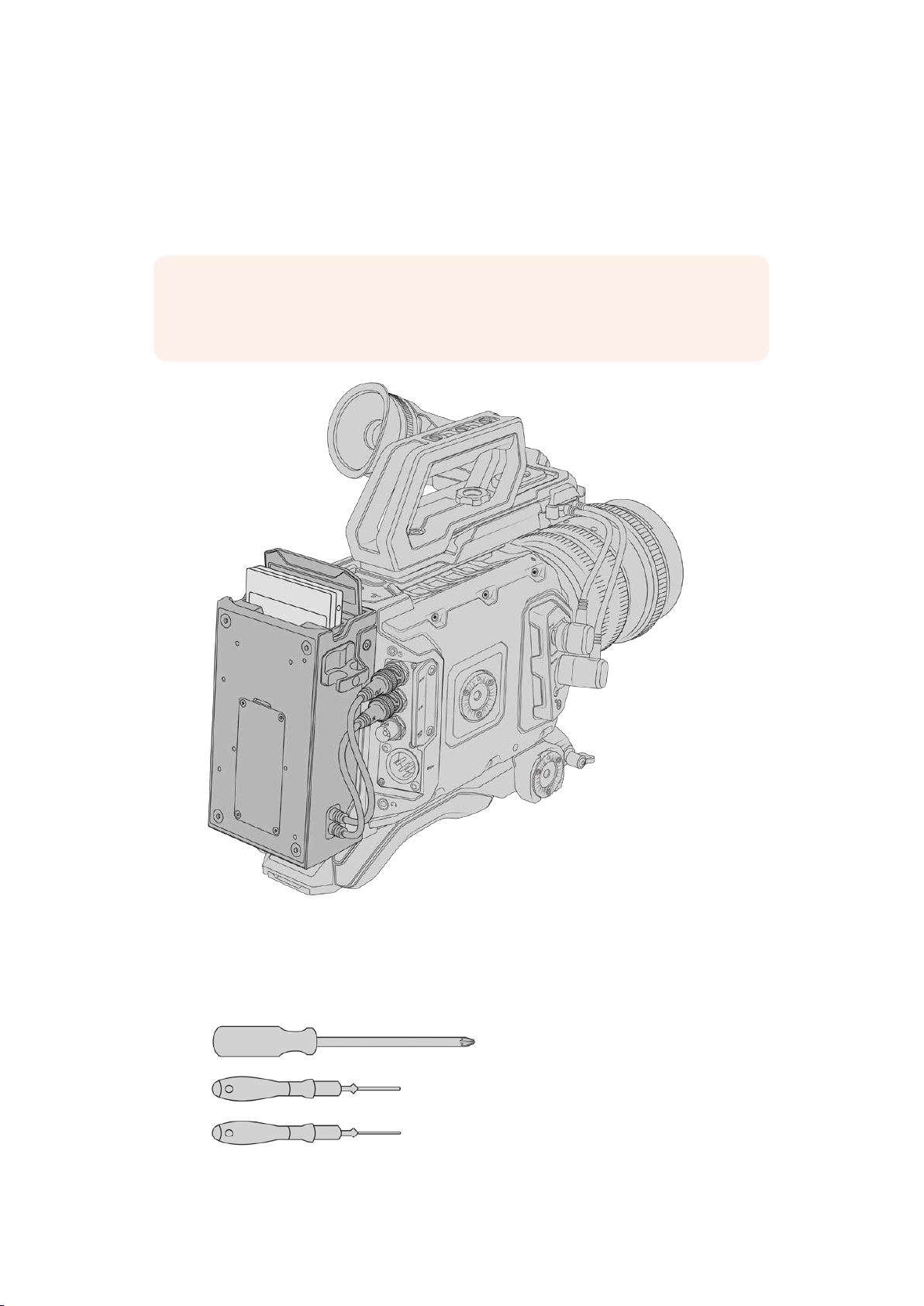
URSA Mini SSD Recorder
Blackmagic URSA Mini SSD Recorder is an optional module which attaches to the rear of
URSAMini. This recorder allows you to record footage, including 4.6K Blackmagic RAW files,
tohigh capacity and inexpensive solid state drives, or ‘SSDs’.
NOTE URSA Mini SSD Recorder is designed for use with URSA Mini Pro 4.6K G2,
URSA Mini Pro 4.6K, URSA Mini 4.6K and URSA Mini 4K. It is not compatible with
URSA Mini Pro 12K.
When attaching URSA Mini SSD Recorder, you will need the following tools:
1 x phillips head screwdriver
1 x T10 torx screwdriver
1 x 2mm hex key driver
To attach the URSA Mini SSD Recorder to your URSA Mini you will need a large
phillips head screwdriver , a T10 torx driver, and a 2mm hex key driver
285URSA Mini SSD Recorder
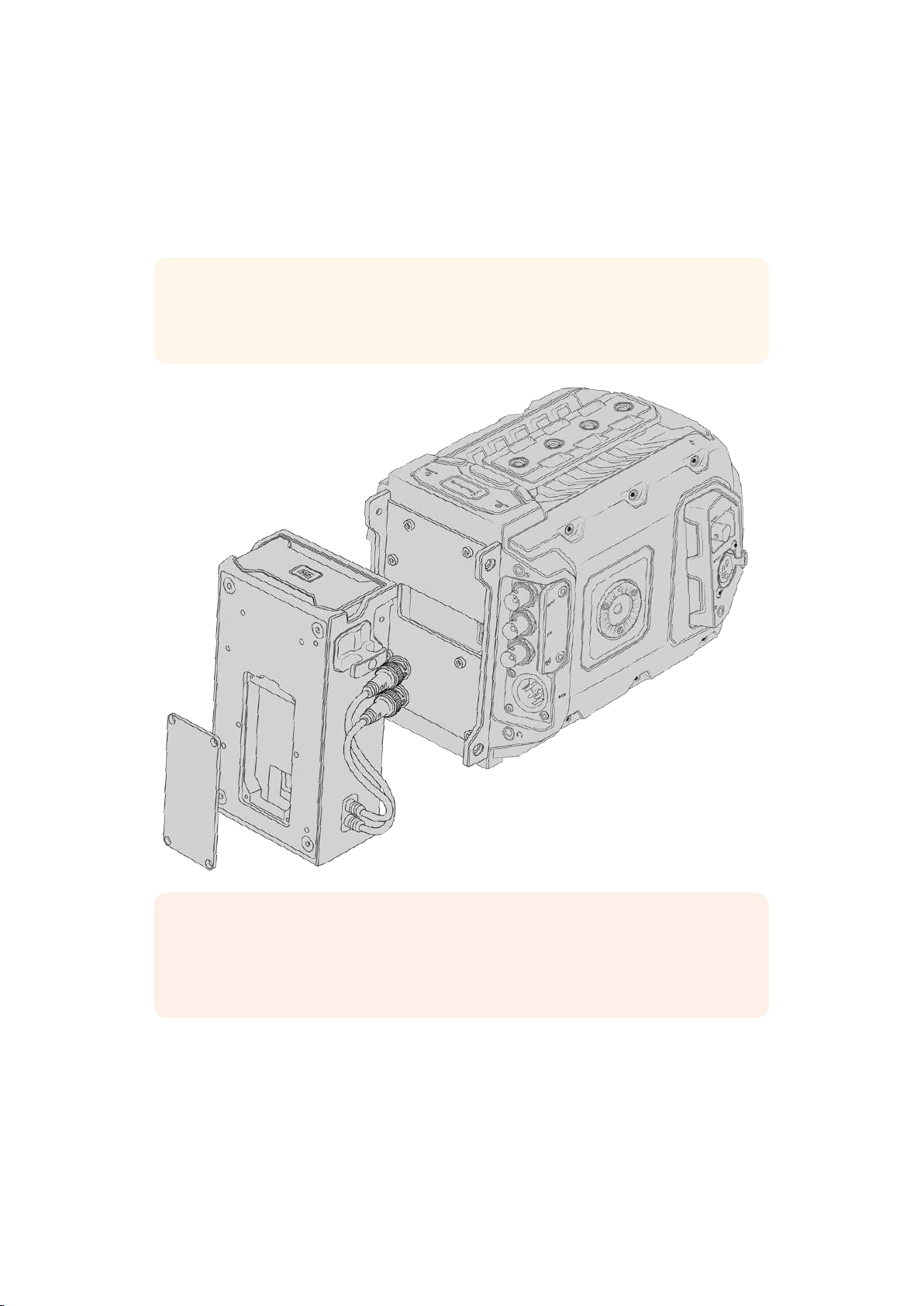
Mounting and connecting URSAMini SSD Recorder
URSA Mini SSD Recorder mounts to the back of URSA Mini directly behind the camera body,
using your camera’s rear SDI in and SDI out BNCs to pass data to and from URSA Mini SSD
recorder. It’s worth noting that because the recorder uses these SDI inputs and outputs, you
can’t simultaneously connect your camera to an ATEM switcher.
TIP URSA Mini SSD Recorder featuresa passthrough cable for your camera’s battery
power supply, so you can attach V-mount or gold mount batteries to the rear of the
camera behind the recorder.
NOTE Before installing URSA Mini SSD Recorder, you’ll need to update your camera’s
internal software to version 4.8 or higher using Blackmagic Camera Setup Utility.
For more information on updating your camera firmware see the section ‘Blackmagic
Camera Setup Utility’ in this manual.
286URSA Mini SSD Recorder
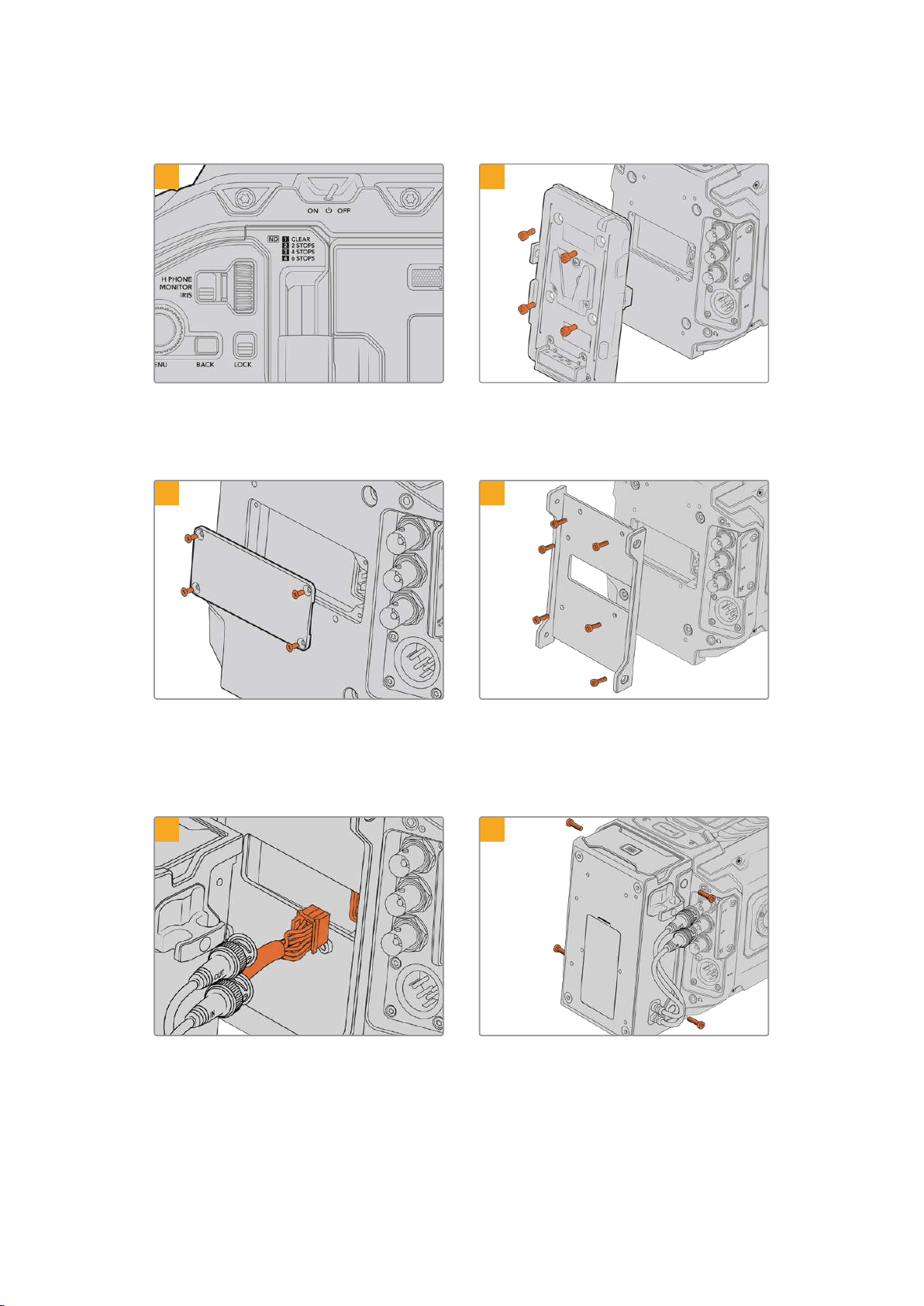
To mount and connect URSA Mini SSD Recorder:
1 2
Power off URSA Mini Pro by moving the ‘power’
switch to ‘off’. Power off URSA Mini by pressing
and releasing the ‘power’ button.
Unmount any battery plates currently fittedto
your camera. For more information on mounting
and unmounting battery plates, see the section
'mountingbatteries' in this manual.
3 4
If no battery was fitted to your camera,
youmayneed to remove the cover over the
molex socket on your camera's rear panel.
Use a philipshead screwdriver to remove the
fourM3screws holding the cover in place.
Attach URSA Mini SSD Recorder’s
mountingbracket using 6 x T10 torx screws.
5 6
Plug the molex connector on URSA Mini
SSDRecorder into the molex socket on
yourcamera’s rear panel.
Attach URSA Mini SSD Recorder to the mounting
bracket using 2 x T10 torx screws onthe left and
right side of the brackets.
287URSA Mini SSD Recorder
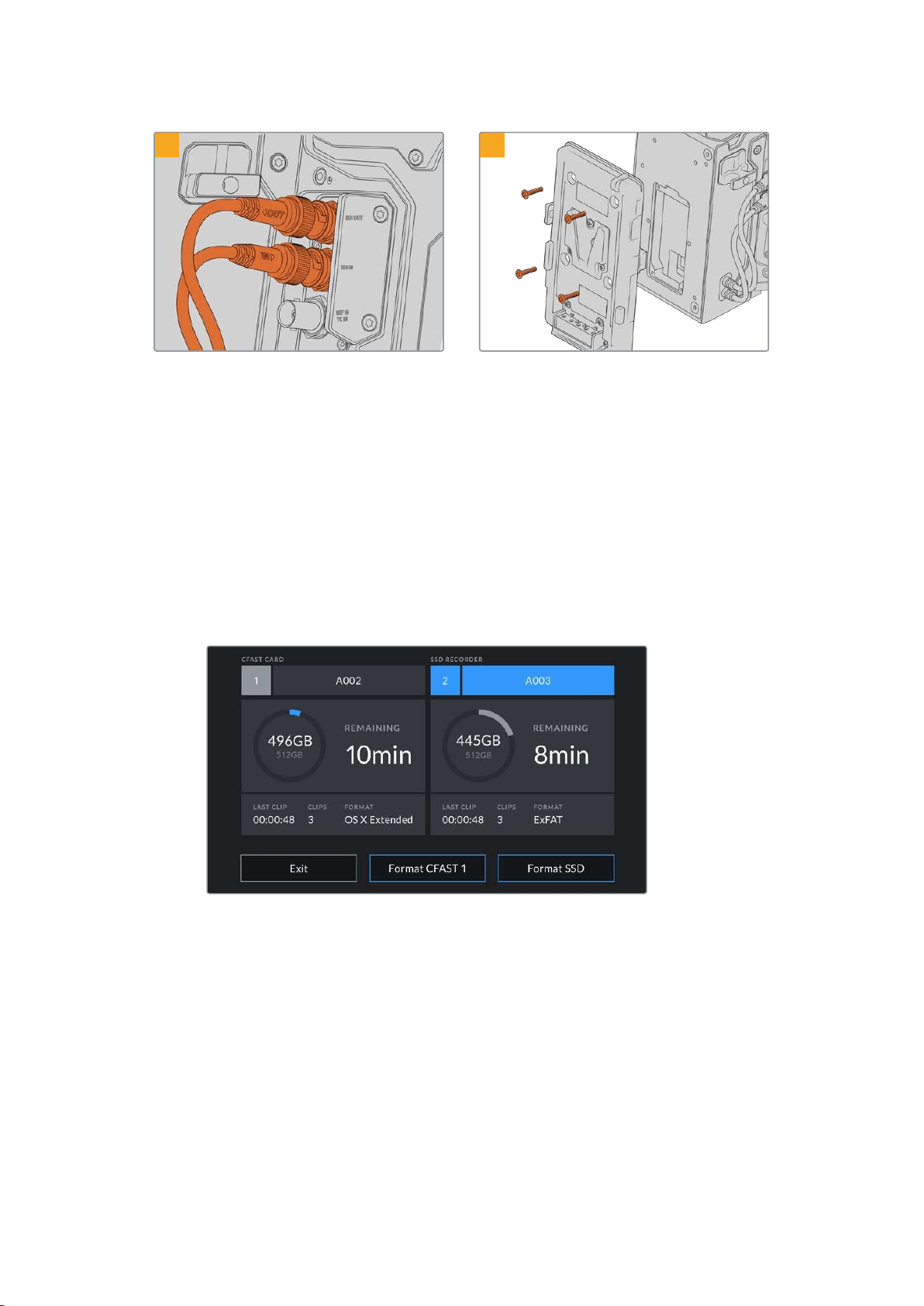
7 8
Connect the SSD Recorder’s SDI In and SDIout
cables to the SDI inputs and outputs on the back
of your camera. The SSD Recorder’s cables are
marked ‘in’ and ‘out’ tohelp matchthem to the
appropriate connector on your camera.
If you want to use a battery plate with URSAMini
SSD Recorder, use a 2mm hex key driver to
remove the four M3 screws holding the molex
socket cover panel in place. Once the molex
socket is uncovered, attach a battery plate using
the steps outlined in the section ‘mounting
batteries’ inthis manual.
Using URSA Mini SSD Recorder
When URSA Mini SSD Recorder is connected and an SSD is loaded, the recorder takes over
from URSA Mini’s number ‘2’ storage slot. You’ll see an ‘SSD’ indicator over slot 2 on your
camera’s storage manager when URSA Mini SSD recorder is in use.
When an SSD is inserted into URSA Mini SSD Recorder, your camera’s
storage manager will display ‘SSD Recorder’ over storage slot 2.
This means that recording, playback and storage management is exactly the same for SSDs as
it is for CFast or SD cards. For general information on storage management, as well as specific
instructions for choosing SSDs, see the ‘storage media’ section of this manual.
288URSA Mini SSD Recorder

Status LEDs
URSA Mini SSD Recorder has two status lights on its left panel, ‘SDI’ and ‘SSD.’ The brightness
of these indicators can be set to ‘low,’ ‘medium,’ ‘high’ or ‘off.’ in your camera’s ‘setup’ menu.
SDI
The top LED, marked ‘SDI’ indicates URSA Mini SSD Recorder’s connection to your camera.
The LED provides the following indicators
Off If the SDI indicator is off, URSA Mini SSD Recorder is not receiving power. If your camera
is powered on and this indicator doesn’t light, check the molex connection to URSA Mini
SSD Recorder.
Orange URSA Mini SSD Recorder is powered but the SDI connector is not plugged in,
or plugged in incorrectly.
White URSA Mini SSD Recorder is powered and the SDI link is connected properly.
SSD
The ‘SSD’ indicator shows the status of the SSD currently inserted. This LED provides the
following status indicators:
Green Your URSA Mini SSD Recorder will show a short green light when you insert an SSD into
it. This is shown while it is verifying the SSD. When the indicator turns off your SSD
Recorder is ready to record. The status light will also be green while footage is being
played back from the SSD.
Red Your URSA Mini SSD Recorder will show a red light while it is recording to SSD. When
the space on your SSD is running low the red light will begin to flash slowly.
A fast flashing red light indicates that SSD is dropping frames. If this happens please
check that you are using a disk from our recommended list of SSDs and that you are
recording at a data rate that is compatible with your media.
Orange If a problem has occurred while mounting the SSD the status light will go Orange. This
may be the result of an improperly formatted or incompatible SSD. See the ‘storage
media’ section in this manual for a list of compatible SSDs and formatting instructions.
TIP If the ‘SSD’ LED indicates a drive mounting error it may need to be ‘initialized’ on a
mac or PC using disk utility or disk management.
289URSA Mini SSD Recorder
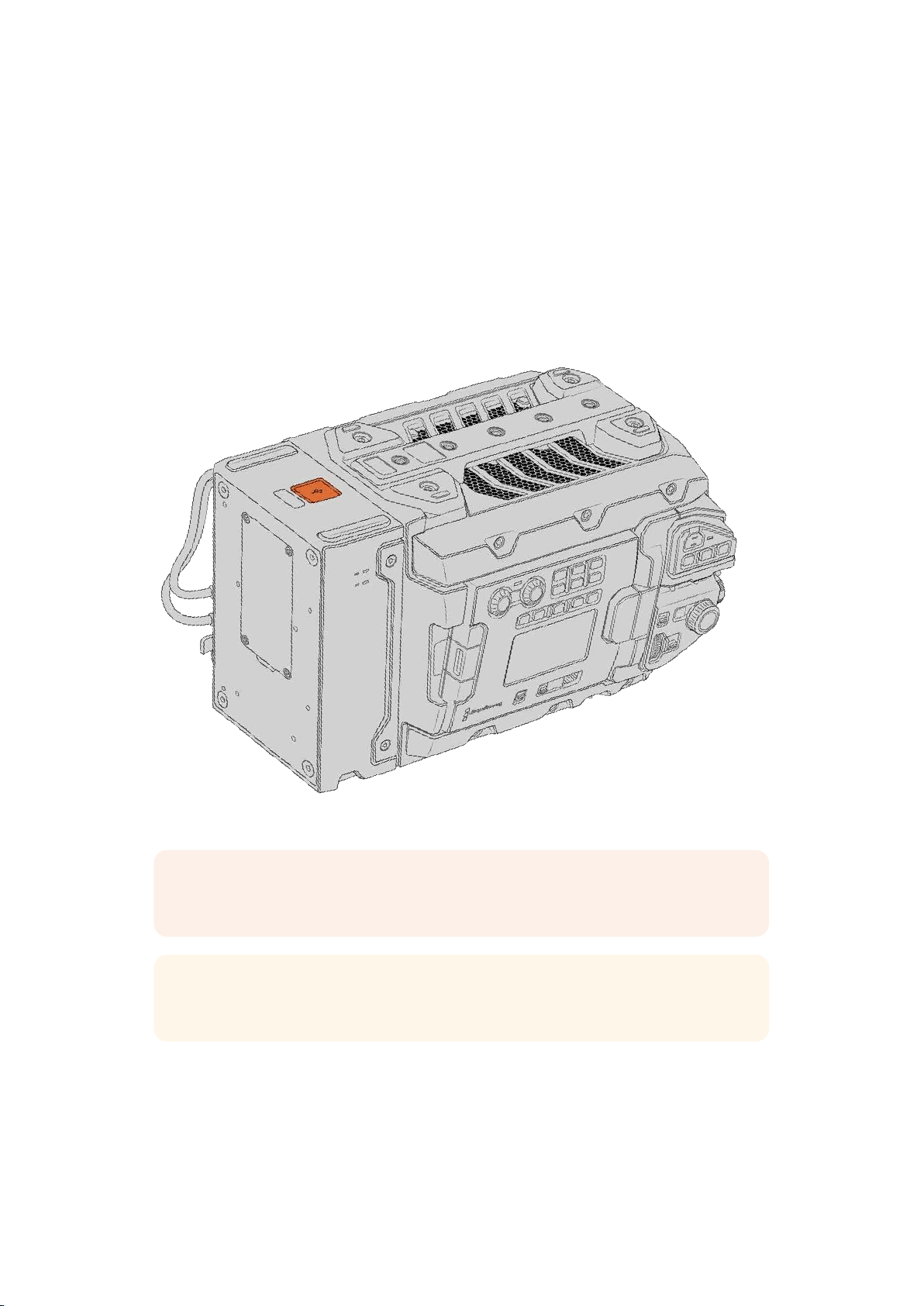
Updating URSA Mini SSD Recorder’s internal software
Update your URSA Mini SSD Recorder using the Blackmagic Camera Setup Utility software.
TheSSD Recorder will need to be powered when updating, so we recommend keeping the
SSDRecorder connected to URSA Mini during the update process. This also means your
camera will need to supply consistent power, so be sure to plug into external power.
URSA Mini SSD Recorder has a USB-C connector on the underside of the module for updating
its internal software. Connect your computer to this USB connector and launch Blackmagic
Camera Setup Utility. You will be prompted to update if your computer detects that your
URSAMini SSD Recorder is using outdated version. Follow the on screen prompts to update
your URSA Mini SSD Recorder’s internal software.
Use the USB-C connector on the underside of URSA Mini SSD Recorder to update the internal software
NOTE Refer to the ‘Blackmagic Camera Setup Utility’ section in this manual
formoreinformation.
TIP We recommend updating all your Blackmagic URSA equipment at the sametime
foroptimized performance.
290URSA Mini SSD Recorder

Help
The fastest way to obtain help is to go to the Blackmagic Design online support pages and
check the latest support material available for your camera.
Blackmagic Design Online Support Pages
The latest manual, software and support notes can be found at the Blackmagic Design support
center at
www.blackmagicdesign.com/support.
Contacting Blackmagic Design Support
If you can’t find the help you need in our support material, please use the ‘Send us an email’
button on the support page to email a support request. Alternatively, click on the ‘Find your
local support team’ button on the support page and call your nearest Blackmagic Design
support office.
Checking the Software Version Currently Installed
To check which version of Blackmagic Camera Utility software is installed on your computer,
open the About Blackmagic Camera Utility window.
On Mac, open Blackmagic Camera Utility from the Applications folder. Select About
Blackmagic Camera Utility from the application menu to reveal the version number.
On Windows, open Blackmagic Camera Utility from your Start menu or Start Screen.
Click on the Help menu and select About Blackmagic Camera Utility to reveal the
version number.
How to Get the Latest Software Updates
After checking the version of Blackmagic Camera Utility software installed on your computer,
please visit the Blackmagic Design support center at www.blackmagicdesign.com/support to
check for the latest updates. While it is usually a good idea to run the latest updates, it is wise to
avoid updating any software if you are in the middle of an important project.
291Help

Regulatory Notices
Disposal of Waste of Electrical and Electronic Equipment Within the European Union.
The symbol on the product indicates that this equipment must not be disposed of with other
waste materials. In order to dispose of your waste equipment, it must be handed over to a
designated collection point for recycling. The separate collection and recycling of your waste
equipment at the time of disposal will help conserve natural resources and ensure that it is
recycled in a manner that protects human health and theenvironment. Formore information
about where you can drop off your waste equipment for recycling, please contact your local
city recycling office or the dealer from whom you purchased the product.
This equipment has been tested and found to comply with the limits for a Class A digitaldevice,
pursuant to Part 15 of the FCC rules. These limits are designed to provide reasonable
protection against harmful interference when the equipment is operated inacommercial
environment. This equipment generates, uses, and can radiate radio frequency energy and, if
not installed and used in accordance with the instructions, maycause harmful interference to
radio communications. Operation of this product in aresidential area is likely to cause harmful
interference, in which case the user will be required to correct the interference at
personal expense.
The operation of this equipment is subject to the following two conditions:
1 This equipment or device may not cause harmful interference.
2 This equipment or device must accept any interference received, including interference
that maycause undesired operation.
MSIP-REM-BMD-201511002
MSIP-REM-BMD-201608001
MSIP-REM-BMD-201703001
R-R-BMD-201907006
R-R-BMD-20200421001
R-R-BMD-20200421002
ISED Canada Statement
This device complies with Canadianstandards for Class A digital apparatus.
Any modifications or use of this product outside its intended use could void compliance to
these standards.
Connection to HDMI interfaces must be made with high quality shielded HDMI cables.
This equipment has been tested for compliance with the intended use in a commercial
environment. If the equipment is used in a domestic environment, it may cause radio
interference.
Bluetooth
®
The product is a Bluetooth wireless technology enabled product.
Contains transmitter module FCC ID: QOQBGM113
This equipment complies with FCC radiation exposure limits set forth for an
uncontrolled environment.
Contains transmitter module IC: 5123A-BGM113
This device complies with Industry Canada’s license-exempt RSS standards and exception
fromroutine SAR evaluation limits given in RSS-102 Issue 5.
292Regulatory Notices

Certified for Japan, certificate number: 209-J00204. This equipment contains specified
radio equipment that has been certified to the technical regulation conformitycertification
under the radio law.
This module has certification in South Korea, KC certification number: MSIP-CRM-BGT-BGM113
Hereby, Blackmagic Design declares that the product is usingwideband transmission systems
in 2.4GHz ISM band is in compliance with directive 2014/53/EU.
The full text of the EU declaration of conformity is available from
compliance@blackmagicdesign.com
Safety Information
The supplied AC to 12V DC power supply for Blackmagic URSA Mini, URSA Mini Pro and the
IEC power cable for Blackmagic Studio Fiber Converter, must be connected to a mains socket
outlet with a protective earth connection.
Blackmagic URSA MIni, URSA Mini Pro and Camera Fiber Converter are suitable for use in
tropical locations with an ambient temperature of up to 40ºC. Blackmagic Studio Fiber
Converter is suitable for use in tropical locations with an ambient temperature of up to 50ºC
Ensure that adequate ventilation is provided around the Blackmagic Studio Fiber Converter
and Camera Fiber Converter so that ventilation is not restricted. When rack mounting the
Studio Fiber Converter, ensure that the ventilation is not restricted by adjacent equipment.
No operator serviceable parts inside Blackmagic URSA Mini, URSA Mini Pro, Camera Fiber
Converter or Studio Fiber Converter. Refer servicing to your local Blackmagic Design
service center.
State of California statement
This product can expose you to chemicals such as trace amounts of polybrominated biphenyls
within plastic parts, which is known to the state of California to cause cancer and birth defects
or other reproductive harm.
For more information go to
www.P65Warnings.ca.gov.
Blackmagic URSA Mini and URSA Mini Pro
During sunny conditions, consider shading of the camera to prevent exposure of the camera or
Lithium battery to extended periods of sunlight. Keep Lithium batteries away from all
sources of heat.
The 12V DC output connector is suitable to provide power to the Blackmagic URSA Viewfinder
or Blackmagic URSA Studio Viewfinder. When connecting other accessories to this connector,
ensure that the power consumption is less than 18W.
Blackmagic Studio Fiber Converter
To reduce the risk of electric shock, do not expose this equipment to dripping or splashing.
Useonly at altitudes not more than 2000m above sea level.
Blackmagic Camera Fiber Converter
Only use the converter when connected to the Blackmagic Studio Fiber Converter. Under
normal use, the converter is designed to receive hazardous voltages from the Blackmagic
Studio Fiber Converter.
293Safety Information

Warranty
Limited Warranty
Blackmagic Design warrants that this product will be free from defects in materials and workmanship
for a period of 12 months from the date of purchase. If a product proves to be defective during this
warranty period, Blackmagic Design, at its option, either will repair the defective product without
charge for parts and labor, or will provide a replacement in exchange for the defective product.
In order to obtain service under this warranty, you the Customer, must notify Blackmagic Design
of the defect before the expiration of the warranty period and make suitable arrangements for the
performance of service. The Customer shall be responsible for packaging and shipping the
defective product to a designated service center nominated by Blackmagic Design, with shipping
charges pre paid. Customer shall be responsible for paying all shipping charges, insurance, duties,
taxes, and any other charges for products returned to us for any reason.
This warranty shall not apply to any defect, failure or damage caused by improper use or improper
or inadequate maintenance and care. Blackmagic Design shall not be obliged under this warranty:
a) to repair damage resulting from attempts by personnel other than Blackmagic Design
representatives to install, repair or service the product, b) to repair damage resulting from improper
use or connection to incompatible equipment, c) to repair any damage or malfunction caused by
the use of non Blackmagic Design parts or supplies, or d) to service a product that has been
modified or integrated with other products when the effect of such a modification or integration
increases the time or difficulty of servicing the product.
Exposing URSA Viewfinder to direct sunlight could damage the viewfinder display as the viewfinder
optics act as a magnifying glass. Image retention or burn-in could happen on OLED panels when
static or high contrast images, such as frame guides, are displayed on the panels for extended
periods. To avoid this, ensure the IR sensor for face detection is not covered deliberately and
disconnect the viewfinder when not in use for prolonged periods. Image retention is not covered
by this product warranty.
THIS WARRANTY IS GIVEN BY BLACKMAGIC DESIGN IN LIEU OF ANY OTHER WARRANTIES,
EXPRESS OR IMPLIED. BLACKMAGIC DESIGN AND ITS VENDORS DISCLAIM ANY IMPLIED
WARRANTIES OF MERCHANTABILITY OR FITNESS FOR A PARTICULAR PURPOSE. BLACKMAGIC
DESIGN’S RESPONSIBILITY TO REPAIR OR REPLACE DEFECTIVE PRODUCTS DURING THE
WARRANTY PERIOD IS THE WHOLE AND EXCLUSIVE REMEDY PROVIDED TO THE CUSTOMER.
BLACKMAGIC DESIGN WILL NOT BE LIABLE FOR ANY INDIRECT, SPECIAL, INCIDENTAL OR
CONSEQUENTIAL DAMAGES IRRESPECTIVE OF WHETHER BLACKMAGIC DESIGN OR THE
VENDOR HAS ADVANCE NOTICE OF THE POSSIBILITY OF SUCH DAMAGES. BLACKMAGIC
DESIGN IS NOT LIABLE FOR ANY ILLEGAL USE OF EQUIPMENT BY CUSTOMER. BLACKMAGIC
IS NOT LIABLE FOR ANY DAMAGES RESULTING FROM USE OF THIS PRODUCT. USER OPERATES
THIS PRODUCT AT OWN RISK.
© Copyright 2020 Blackmagic Design. All rights reserved. ‘Blackmagic Design’, ‘URSA’, ‘DeckLink’, ‘HDLink’, ‘Workgroup Videohub’,
‘Multibridge Pro’, ‘Multibridge Extreme’, ‘Intensity’ and ‘Leading the creative video revolution’ are registered trademarks in the
US and other countries. All other company and product names may be trademarks of the respective companies with which they
are associated.
The Bluetooth® word mark and logos are registered trademarks owned by Bluetooth SIG, Inc. and any use of such marks by
Blackmagic Design is under license. Other trademarks and trade names are those of the respective owners.
294Warranty