Installation and Testing Guide Installation and Testing Guide
Step 2
Test Method 1
Test Method 2
Step 1
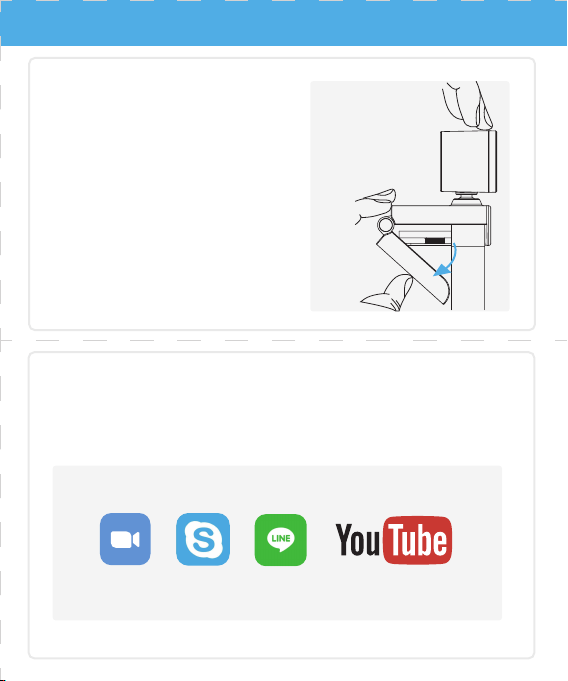
Open the monitor clip of the webcam and
place it on the upper part of the display, then
connect the USB plug of the webcam to the
computer USB 2.0/3.0 interface. And wait for
the driver to be installed automatically.
Open the software for meeting such as "Zoom", make sure that the microphone and
video options are switched to the options named
"****** webcam", and the webcam
will start to capture real-time images and sounds.
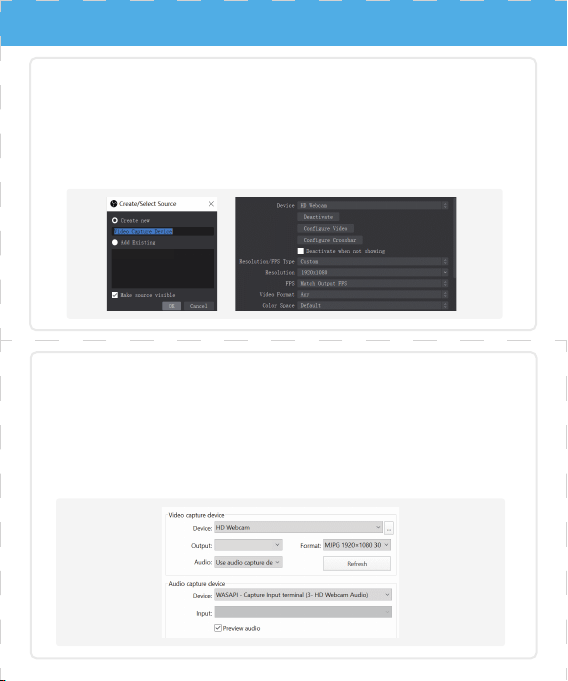
1. Install OBS Studio software.
2. Add video and audio capturing devices "****** webcam".
3. Adjust the resolution/fps type at the same interface or get into the "Configure Video" for
brightness/white balance adjusting purpose. After setup you can start a video recording.
4. Use a video player like "Pot Player" to play the corresponding recorded video/audio, you
can trible-click the "TAB" to check the corresponding format/pixel/fps etc.
1. Download the "Potplayer" application and install it to the PC/laptop.
2. "Alt + D" to open the "****** webcam", you can select different pixels/fps from "Format"
to achieve various clear video recording, after selection please click "OK".
3. "Ctrl + J" to capture the Real-time image of the webcam.
4. Use "Alt + C" to start recording when in the real-time image interface, After recording,
you can also check the specifications of the recorded video through Potplayer.
Capture
Video Capture Device
30°
Note:
If there were no interfaces but Type-C for your laptop,
it required the USB hub of which supports the UVC
protocol to get the webcam worked.
Installation and Testing Guide Installation and Testing Guide
Step 2
Test Method 1
Test Method 2
Step 1
Open the monitor clip of the webcam and
place it on the upper part of the display, then
connect the USB plug of the webcam to the
computer USB 2.0/3.0 interface. And wait for
the driver to be installed automatically.
Open the software for meeting such as "Zoom", make sure that the microphone and
video options are switched to the options named
"****** webcam", and the webcam
will start to capture real-time images and sounds.
1. Install OBS Studio software.
2. Add video and audio capturing devices "****** webcam".
3. Adjust the resolution/fps type at the same interface or get into the "Configure Video" for
brightness/white balance adjusting purpose. After setup you can start a video recording.
4. Use a video player like "Pot Player" to play the corresponding recorded video/audio, you
can trible-click the "TAB" to check the corresponding format/pixel/fps etc.
1. Download the "Potplayer" application and install it to the PC/laptop.
2. "Alt + D" to open the "****** webcam", you can select different pixels/fps from "Format"
to achieve various clear video recording, after selection please click "OK".
3. "Ctrl + J" to capture the Real-time image of the webcam.
4. Use "Alt + C" to start recording when in the real-time image interface, After recording,
you can also check the specifications of the recorded video through Potplayer.
Capture
Video Capture Device
30°
Note:
If there were no interfaces but Type-C for your laptop,
it required the USB hub of which supports the UVC
protocol to get the webcam worked.

FAQ & Help FAQ & Help
Q1: Can pick up no sound or the webcam cannot be recognized by my
PC/laptop.
A1: We would recommend you reinstall the driver of the webcam. You can
follow the steps below:
If the tips mentioned above cannot solve the problems you've met, please contact our
after-sales customer service team via: [email protected]
Also you can send an e-mail to us if you couldn't download the applications like
"Potplayer" or "OBS Studio".
We would love to help and we will provide you with professional customer services and
technical supports!
Q2: Audio and video are out of sync (the microphone reception delay)/Can
hear the echo of my voice in the video conference.
Q3: The picture is not clear enough/I felt the number of frames per second
was much lower than advertised.
A3: You can follow the Test Method 2 to get the answer. Open "Potplayer"
and get the video streaming of this webcam, trible-press the "TAB"
button to view the real-time pixels and fps of the webcam. Be cautious
when opening the webcam, the "Format" needs to be adjusted to the
resolution/fps that you want, otherwise the resolution/fps of the output
video will be recorded with the default value.
A2: It may due to network delay. We would recommend you test it again in a
high-speed network. Switching from a 2.4G HZ WiFi network to an
Ethernet network or 5G HZ WiFi can solve the problem of reception
delay and echo.
For Win 7 users
1. Find "My Computer" on the desktop - click into "Device Manager" - find the
device named "****** webcam".
2. Right-click the device and enter the "Properties" interface.
3. Click the "Hardware" option and delete the driver.
4. Pull out the USB-A plug, and reinsert the USB-A plug, then wait for the driver
to be reinstalled.
For Win10 users
1. Enter the windows "Settings" - click the "Device" - click the "Device and
Printer" - find the device named "****** webcam".
2. Right-click the device and enter the "Properties" - "Hardware Options" to
check the working status of different function, the working status of each
function will be displayed below.
3. If the working status of some functions shows error, right-click the device
named "****** webcam" and delete it.
4. Pull out the USB-A plug, and reinsert the USB-A plug, then wait for the driver
to be reinstalled.
After the driver setup process finished, turn on the application "Zoom". Please
remember to select and open the microphone/camera of which named "******
webcam".

FAQ & Help FAQ & Help
Q1: Can pick up no sound or the webcam cannot be recognized by my
PC/laptop.
A1: We would recommend you reinstall the driver of the webcam. You can
follow the steps below:
If the tips mentioned above cannot solve the problems you've met, please contact our
after-sales customer service team via: [email protected]
Also you can send an e-mail to us if you couldn't download the applications like
"Potplayer" or "OBS Studio".
We would love to help and we will provide you with professional customer services and
technical supports!
Q2: Audio and video are out of sync (the microphone reception delay)/Can
hear the echo of my voice in the video conference.
Q3: The picture is not clear enough/I felt the number of frames per second
was much lower than advertised.
A3: You can follow the Test Method 2 to get the answer. Open "Potplayer"
and get the video streaming of this webcam, trible-press the "TAB"
button to view the real-time pixels and fps of the webcam. Be cautious
when opening the webcam, the "Format" needs to be adjusted to the
resolution/fps that you want, otherwise the resolution/fps of the output
video will be recorded with the default value.
A2: It may due to network delay. We would recommend you test it again in a
high-speed network. Switching from a 2.4G HZ WiFi network to an
Ethernet network or 5G HZ WiFi can solve the problem of reception
delay and echo.
For Win 7 users
1. Find "My Computer" on the desktop - click into "Device Manager" - find the
device named "****** webcam".
2. Right-click the device and enter the "Properties" interface.
3. Click the "Hardware" option and delete the driver.
4. Pull out the USB-A plug, and reinsert the USB-A plug, then wait for the driver
to be reinstalled.
For Win10 users
1. Enter the windows "Settings" - click the "Device" - click the "Device and
Printer" - find the device named "****** webcam".
2. Right-click the device and enter the "Properties" - "Hardware Options" to
check the working status of different function, the working status of each
function will be displayed below.
3. If the working status of some functions shows error, right-click the device
named "****** webcam" and delete it.
4. Pull out the USB-A plug, and reinsert the USB-A plug, then wait for the driver
to be reinstalled.
After the driver setup process finished, turn on the application "Zoom". Please
remember to select and open the microphone/camera of which named "******
webcam".