EN, English
Operator's manual
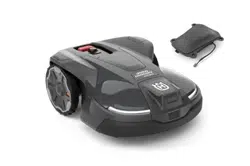
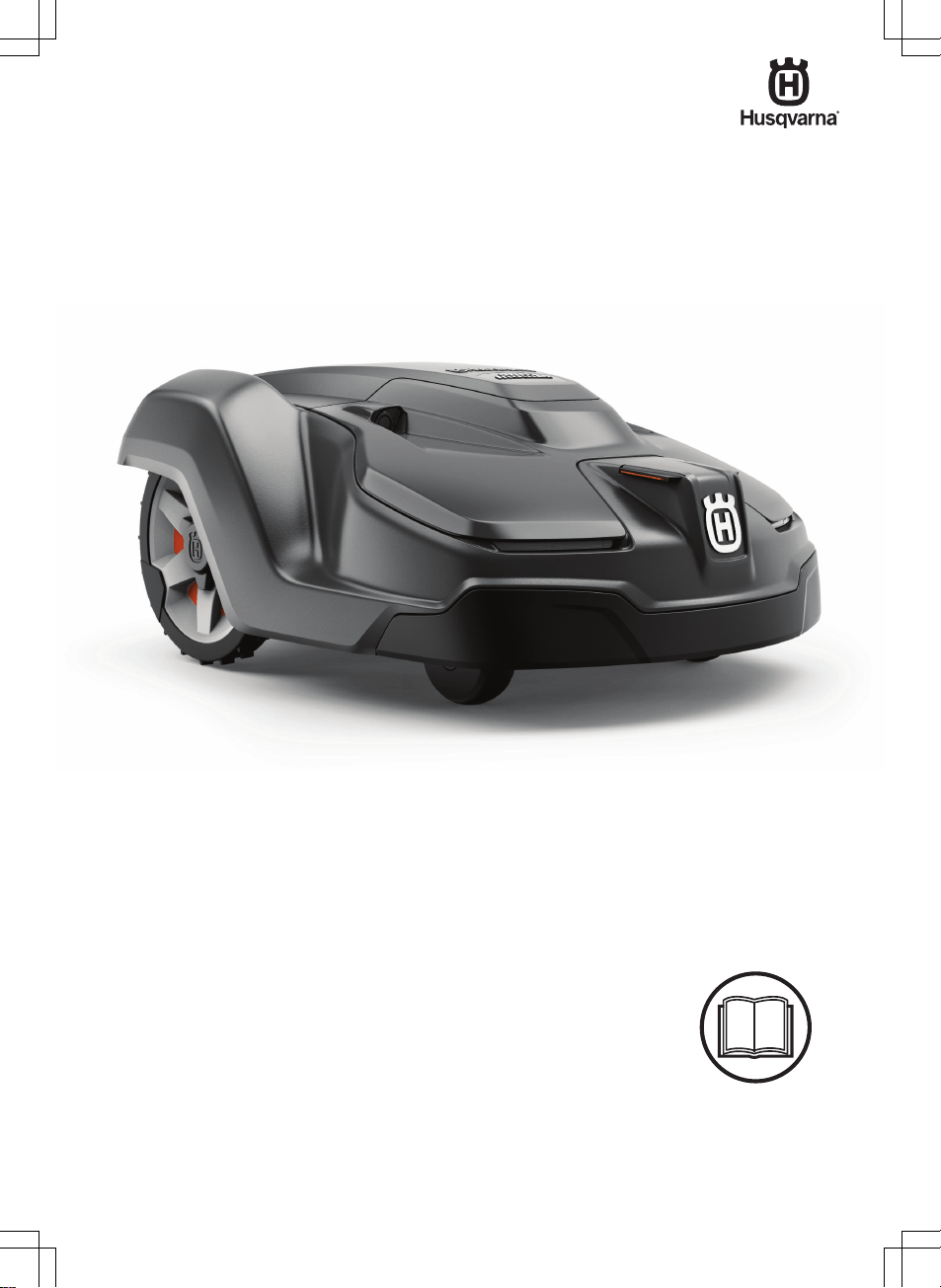
HUSQVARNA AUTOMOWER
®
450X/450XH EPOS
Read the operator's manual carefully and make sure that you
understand the instructions before you use the product.

Contents
1 Safety
1.1 Safety definitions...................................................3
1.2 General safety instructions....................................3
1.3 Safety instructions for installation..........................4
1.4 Safety instructions for operation............................4
1.5 Safety instructions for maintenance...................... 4
1.6 Battery safety........................................................ 4
1.7 To lift and move the product..................................5
2 Introduction
2.1 Support..................................................................6
2.2 System description................................................6
2.3 Product description............................................... 6
2.4 System overview................................................... 7
2.5 Product overview...................................................8
2.6 Symbols on the product........................................ 8
2.7 Symbols on the battery......................................... 9
2.8 Symbols in the Automower
®
Connect app............9
2.9 General manual instructions............................... 10
3 Installation
3.1 Introduction - Installation..................................... 11
3.2 Primary components for installation.................... 11
3.3 To prepare for installation................................... 11
3.4 To examine where to put the reference station...11
3.5 To examine where to put the charging station.... 11
3.6 To examine where to put the power supply........ 12
3.7 To examine where to install the objects on
the map..................................................................... 13
3.8 Installation of the product.................................... 13
3.9 Settings............................................................... 18
4 Operation
4.1 Main switch......................................................... 22
4.2 To start the product............................................. 22
4.3 To select operation mode Start........................... 22
4.4 Operating mode - Park........................................22
4.5 To stop the product............................................. 23
4.6 To set the product to OFF................................... 23
4.7 To charge the battery.......................................... 23
5 Maintenance
5.1 Introduction - maintenance..................................24
5.2 Clean the product................................................24
5.3 Replacement of the blades................................. 24
5.4 Battery.................................................................25
5.5 Winter service..................................................... 25
6 Troubleshooting
6.1 Introduction - troubleshooting..............................26
6.2 Fault messages...................................................26
6.3 Information and warning messages.................... 32
6.4 LED indicator lamp on the charging station........ 33
6.5 LED indicator on the product...............................33
6.6 Symptoms........................................................... 34
7 Transportation, storage and disposal
7.1 Transportation..................................................... 36
7.2 Storage................................................................36
7.3 Disposal.............................................................. 36
8 Technical data
8.1 Technical data.....................................................37
8.2 Registered trademarks........................................39
9 Warranty
9.1 Warranty terms....................................................40
10 Applicable to US/CA market
10.1 Supplier's Declaration of Conformity................. 41
10.2 Compliance requirements................................. 41
2 1970 - 001 - 10.10.2022
1 Safety
1.1 Safety definitions
Warnings, cautions and notes are used to point out
specially important parts of the manual.
WARNING: Used if there is a risk of
injury or death for the operator or bystanders
if the instructions in the manual are not
obeyed.
CAUTION: Used if there is a risk of
damage to the product, other materials or
the adjacent area if the instructions in the
manual are not obeyed.
Note: Used to give more information that is necessary
in a given situation.
1.2 General safety instructions
WARNING: Read the warning
instructions that follow before you use the
product.
• Read the Operator’s manual carefully and make
sure you understand the instructions before you
use the product. Keep for future reference.
• This appliance is not intended for use by children
or persons with reduced physical, sensory or
mental capabilities (that could affect a safe
handling of the product), or lack of experience
and knowledge, unless they have been given
supervision or instruction concerning use of the
appliance by a person responsible for their safety.
• The product must only be used with the equipment
recommended Husqvarna. All other types of use
are incorrect.
• Do not use the product when persons, especially
children, or animals are in the work area.
• To prevent damage to the product and accidents to
vehicles and persons, do not install work areas and
transport paths across public pathways.
• Do not use the product in areas where persons are
not aware of the product.
• Warning signs must be put around the work area
of the product if it operates in public areas. The
signs must have the text that follows: Warning!
Automatic lawn mower! Keep away from the
machine! Supervise children!
• Do not run when you operate the product manually
with appDrive. Always walk, be sure on footing
on slopes and make sure to have balance at
all times. Always wear substantial footwear and
long trousers when you operate the product with
appDrive.
• Do not touch moving hazardous parts, such as the
blade disc, before it has come to a complete stop.
• Set the product to OFF before you clear a
blockage, do maintenance or examine the product,
and if the product starts to vibrate abnormally.
Examine the product for damage before you start
the product again. Do not use the product to it is
defective.
• If an injury or accident occur get medical aid.
• Do not install the mains cable in an area where
the product cuts. Follow the instructions to install
the mains cable, refer to
Installation on page 11
.
Installation must be done by service personnel.
• Do not connect a damaged cable or plug, or touch
a damaged cable, before it is disconnected from
the power outlet. Disconnect the plug from the
power outlet if the cable becomes damaged while
in operation. A worn or damaged cable increases
the risk of electrical shock. A damaged cable must
be replaced by service personnel.
• When you connect the mains cable to the power
outlet, use a residual-current device (RCD) with a
tripping current of maximum 30 mA.
• Only charge the product in the included charging
station. For safe disposal of the battery, refer to
Disposal on page 36
. Incorrect use may result in
electric shock, overheating or leaking of corrosive
liquid from the battery. In the event of leakage of
electrolyte, flush with water/neutralizing agent. Get
medical aid if corrosive liquid comes in your eyes.
• Use only original batteries recommended by
Husqvarna. Product safety cannot be guaranteed
with other than original batteries. Do not use non-
rechargeable batteries.
• Follow the installation instructions that includes to
specify the work area and to attach the cutting
deck or other attachments, refer to
Installation on
page 11
.
• Follow the instructions about to start and operate
the product, refer to
Operation on page 22
.
• If there is a risk of thunderstorm, Husqvarna
recommends that the mains cable to the charging
station and the power supply unit to the reference
station are disconnected to decrease the risk of
damage to electrical components. Connect the
mains cable and the power supply again if there
is no longer a risk of thunderstorm.
• Follow the maintenance instructions and if
necessary use Husqvarna original spare parts,
refer to
Maintenance on page 24
.
1970 - 001 - 10.10.2022
Safety - 3
• For technical data such as weight, dimensions
and noise emission values, refer to
To prepare for
installation on page 11
.
• The operator is responsible for accidents or
dangers that occurs to other persons or property.
• The product must only be operated, maintained
and repaired by persons that are fully conversant
with its special characteristics and safety
regulations.
• It is not permitted to change the initial design of the
product.
• Obey national regulations about electrical safety.
• Husqvarna does not guarantee full compatibility
between the product and other types of
wireless systems such as remote controls, radio
transmitters or equivalent.
• The built-in alarm is very loud. Be careful,
especially if the product is handled indoors.
• Operation and storage temperature is 0-50 °C /
32-122 °F. Temperature range for charging is 0-45
°C / 32-113 °F. Too high temperatures might cause
damage to the product.
1.3 Safety instructions for installation
WARNING: Read the warning
instructions that follow before you use the
product.
• Do not install the charging station in an area where
there is a risk that persons trip on it.
• Do not install the charging station, including any
accessory, at a location that is below, or within 60
cm / 24 in. from, any combustible material. In case
of malfunction, heating of the charging station and
the power supply may occur and create a potential
risk of fire.
• Applicable to USA/Canada. If power supply is
installed outdoors: Risk of Electric Shock. Install
only to a covered Class A GFCI receptacle (RCD)
that has an enclosure that is weatherproof with the
attachment plug cap inserted or removed.
1.4 Safety instructions for operation
WARNING:
Read the warning
instructions that follow before you use the
product.
• Keep your hands and feet away from the rotating
blades. Do not put your hands or feet near or
below the product when it is set to ON.
• Use the park mode or set the product to OFF when
persons, especially children or animals are in the
work area. Refer to
To set the product to OFF
on page 23
. Husqvarna recommends to set the
product to operate when the work area has no
activity. The product can cause injury to animals at
night in work area, for example hedgehogs. Refer
to
Operating mode - Park on page 22
.
• Make sure that there are no objects such as
stones, branches, tools or toys on the lawn. The
blades can be damaged if it hits an object.
• Do not lift the product or move it when it is set to
ON.
• Do not to let the product collide with persons or
animals. If a person or animal comes in the way of
the product, stop the product immediately. Refer to
To stop the product on page 23
.
• Do not put objects on top of the product, the
charging station or the reference station.
• Do not use the product if the STOP button does
not work.
• Always set the product to OFF when it is not in
operation. The product can only start when you
enter the correct PIN code.
• Do not use the product at the same time as a
pop-up sprinkler. Use the
Schedule
function so the
product and pop-up sprinkler do not operate at the
same time. Refer to
Schedule on page 18
.
1.5 Safety instructions for maintenance
WARNING: Read the warning
instructions that follow before you do
maintenance on the product.
• Set the product to OFF when you do maintenance
on the product.
• Do not use a high-pressure washer or running
water to clean the product. Do not use solvents to
clean the product.
• Disconnect the plug to the charging station before
you clean or do maintenance of the charging
station.
1.6 Battery safety
WARNING:
Read the warning
instructions that follow before you use the
product.
• Lithium-ion batteries can explode or cause fire if
disassembled, short-circuited, exposed to water,
fire, or high temperatures. Handle carefully, do
not dismantle, open the battery or use any type
of electrical/mechanical abuse. Avoid storage in
direct sunlight.
4
- Safety 1970 - 001 - 10.10.2022
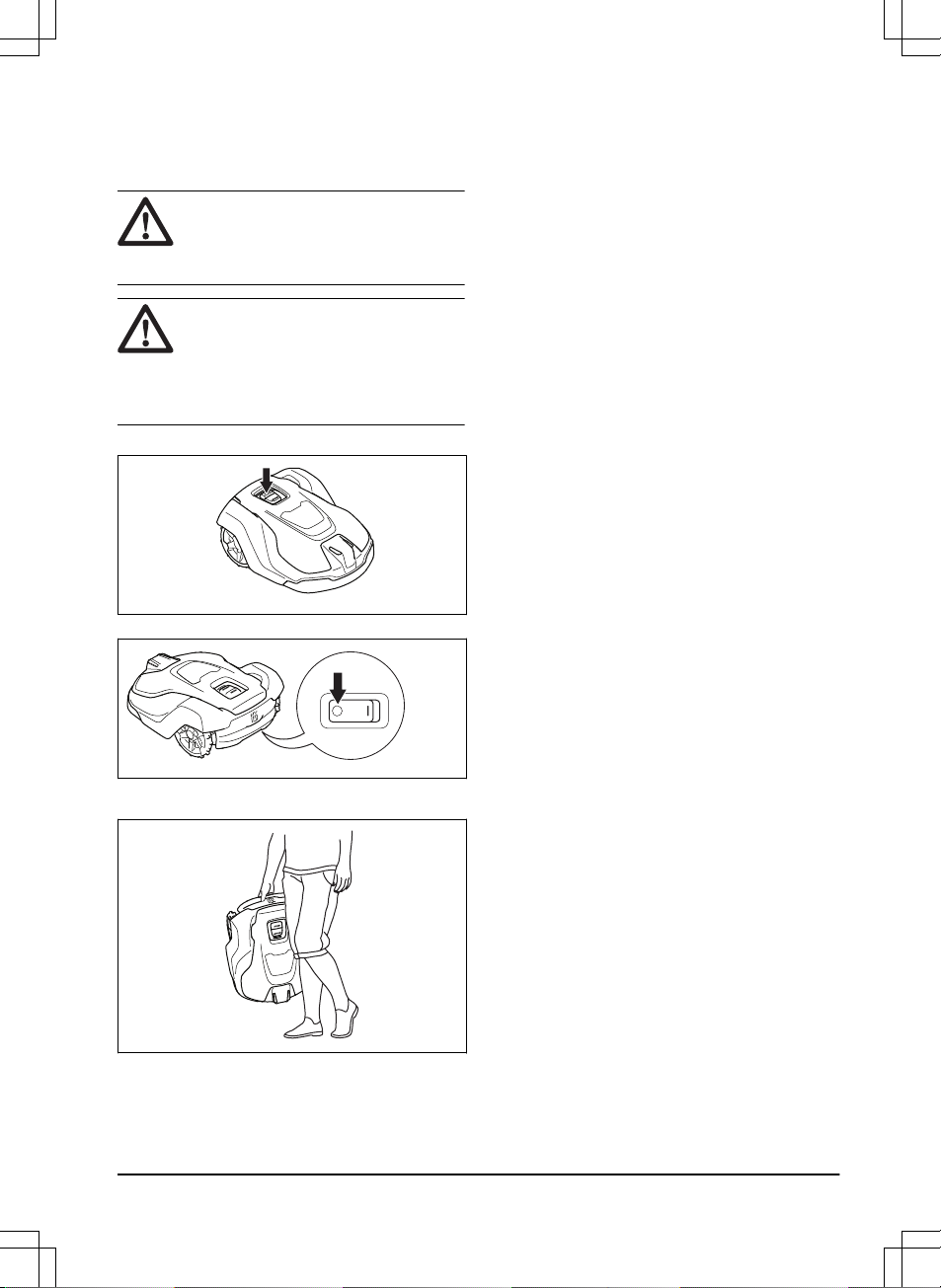
1.7 To lift and move the product
To safely move the product from or in the work area the
product can be lifted or operated with appDrive. Refer to
appDrive on page 22
.
WARNING: The product must be set to
OFF before you lift the product. The product
is disabled when the Main switch is set to
the
0
position.
CAUTION: Do not lift the product when
it is parked in the charging station. It can
cause damage to the charging station and/or
the product. Push the STOP button and
pull the product out of the charging station
before you lift it.
1. Push the STOP button to stop the product.
2. Set the Main switch to the
0
position.
3. Lift the product by the handle with the blade disc
away from your body.
1970 - 001 - 10.10.2022
Safety - 5
2 Introduction
Serial number:
Product number:
PIN code:
The serial number and the product number are on the product rating plate and on the product carton.
• Register your product on www.husqvarna.com. Enter the serial number of the product, the product number and
the date of purchase to register your product.
2.1 Support
For support about the product, speak to your Husqvarna
servicing dealer.
2.2 System description
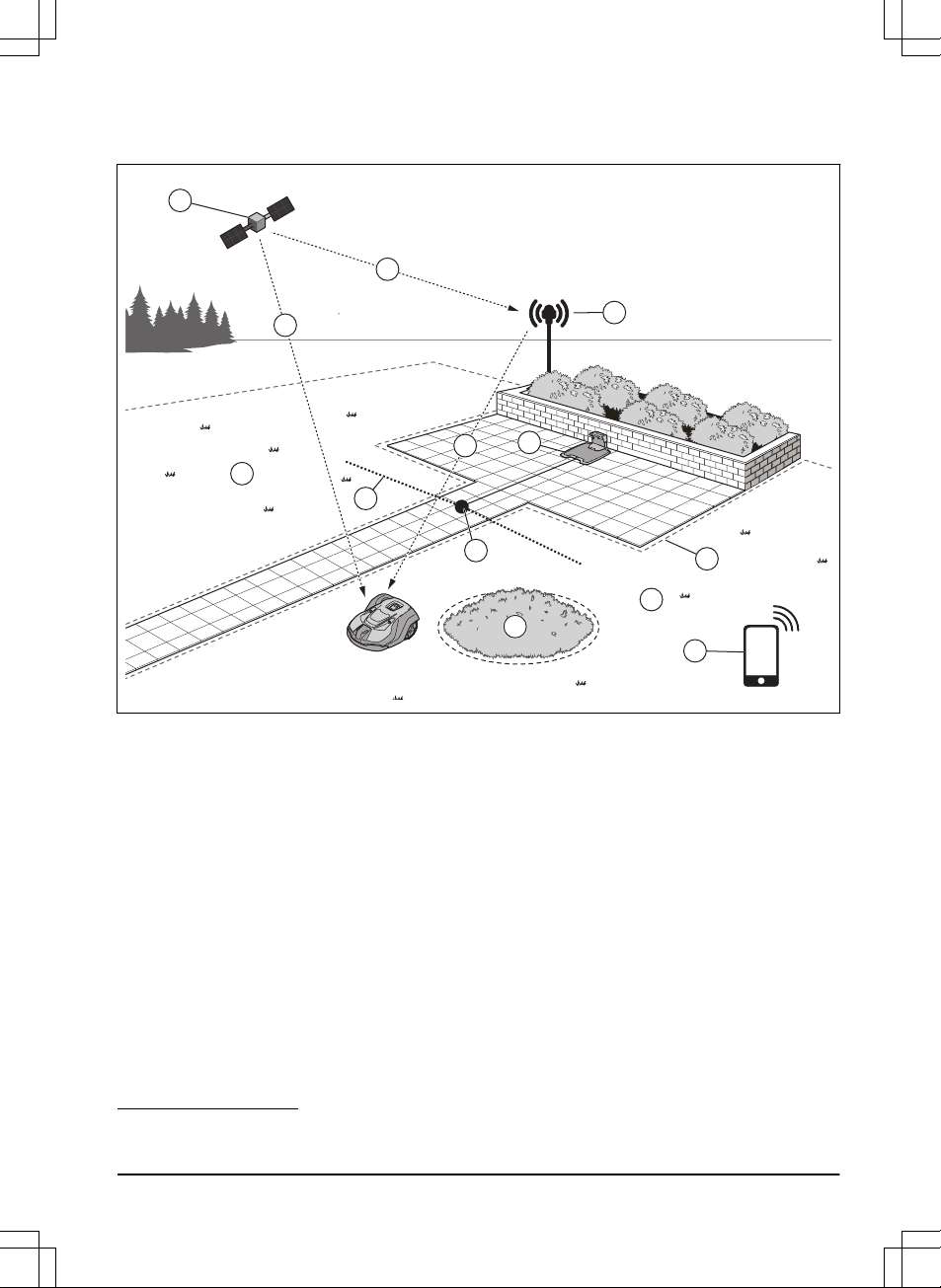
The system contains a robotic lawn mower, a charging
station and a reference station. The robotic lawn mower
and reference station uses the technology with satellite
signals to position the robotic lawn mower correctly,
this means that boundary wires are not necessary. The
reference station is stationary and sends correction data
to the robotic lawn mower to get an accurate position
of the robotic lawn mower. The virtual work area for the
product is made in the Automower
®
Connect app. The
product is operated and waypoints are added to make a
map in the app. Refer to
System overview on page 7
.
2.3 Product description
Note: Husqvarna regularly updates the appearance
and function of the products. Refer to
Support on page
6
.
The product is a robotic lawn mower. The product has
a battery power source and cuts grass automatically. It
continuously alternates between mowing and charging.
The movement pattern of the product can be set to
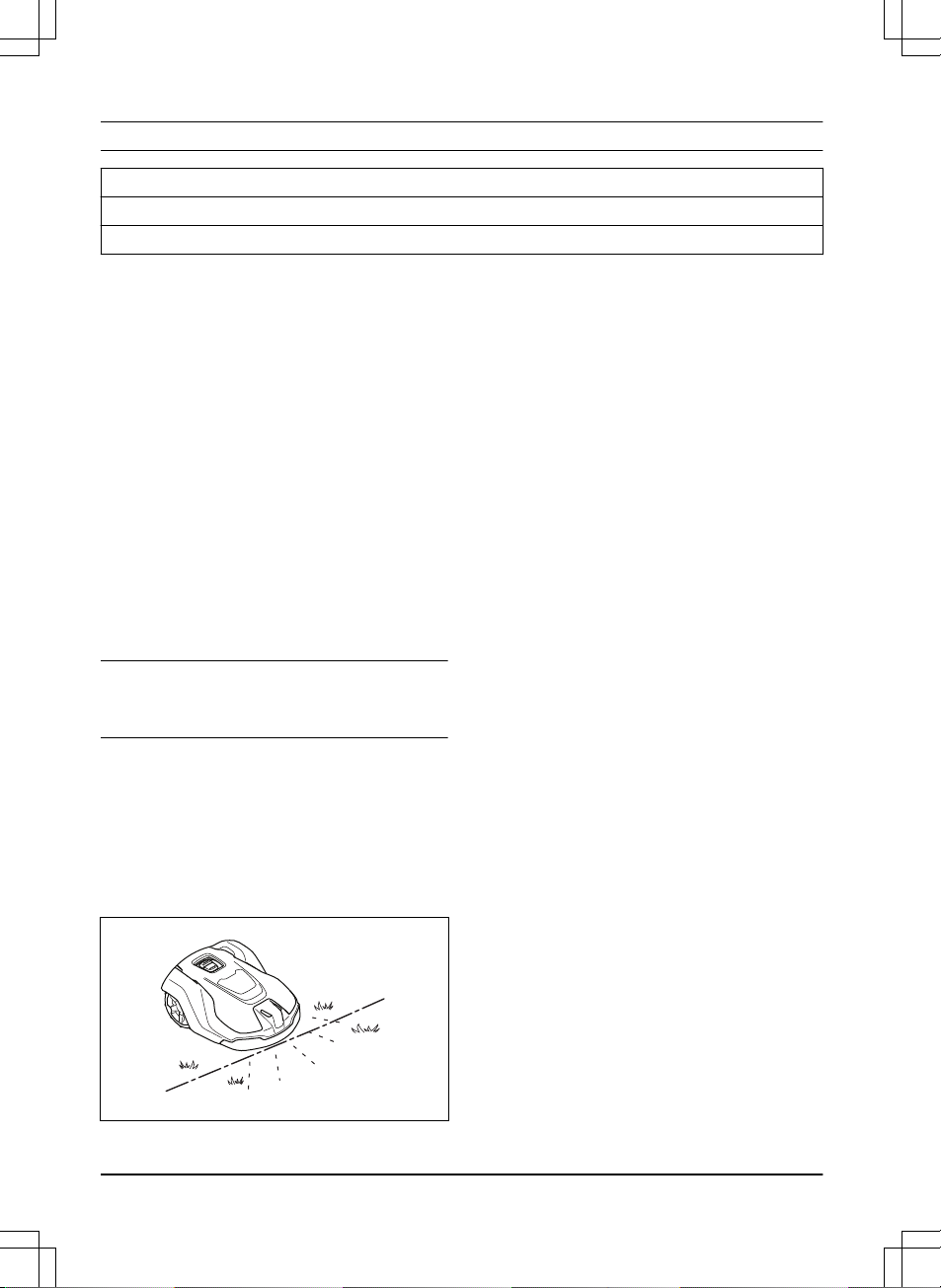
random or systematic. The virtual boundary specifies
the work area where the product is allowed to operate.
The satellite receiver in the product senses when it
is approaching the virtual boundary. When the product
hits an obstacle or approaches the virtual boundary the
product selects a new direction.
The operator selects the operation settings in the
Automower
®
Connect app. The app shows the selected
and possible operation settings, and the operation mode
of the product.
2.3.1 Mowing technique
The frequent cutting technique improves the grass
quality and decreases the use of fertilizers. Collection
of grass is not necessary.
2.3.2 Find the charging station
The product operates until the battery state of charge
is low or until the work area is cut, then the product
starts to go to the charging station. The product uses
EPOS guidance with satellite signals to find a path to the
charging station. This decreases the wear on the lawn
and the time to find the charging station.
2.3.3 Connectivity
Automower
®
Connect is an app that you can use to
install the product and to select the operation settings
of the product. Refer to
Automower
®
Connect on page
14
.
6 - Introduction 1970 - 001 - 10.10.2022
2.4 System overview
5
3
1
2
8
8
2
4
9
6
11
7
10
1. Satellites
2. Satellite signals
3. Reference station
1
4. Correction data
5. Charging station
6. Virtual boundary
7. Stay-out zone
8. Work area
9. Mobile device
2
10. Docking point
11. Transport path
1
Not included.
2
Not included.
1970 - 001 - 10.10.2022 Introduction - 7
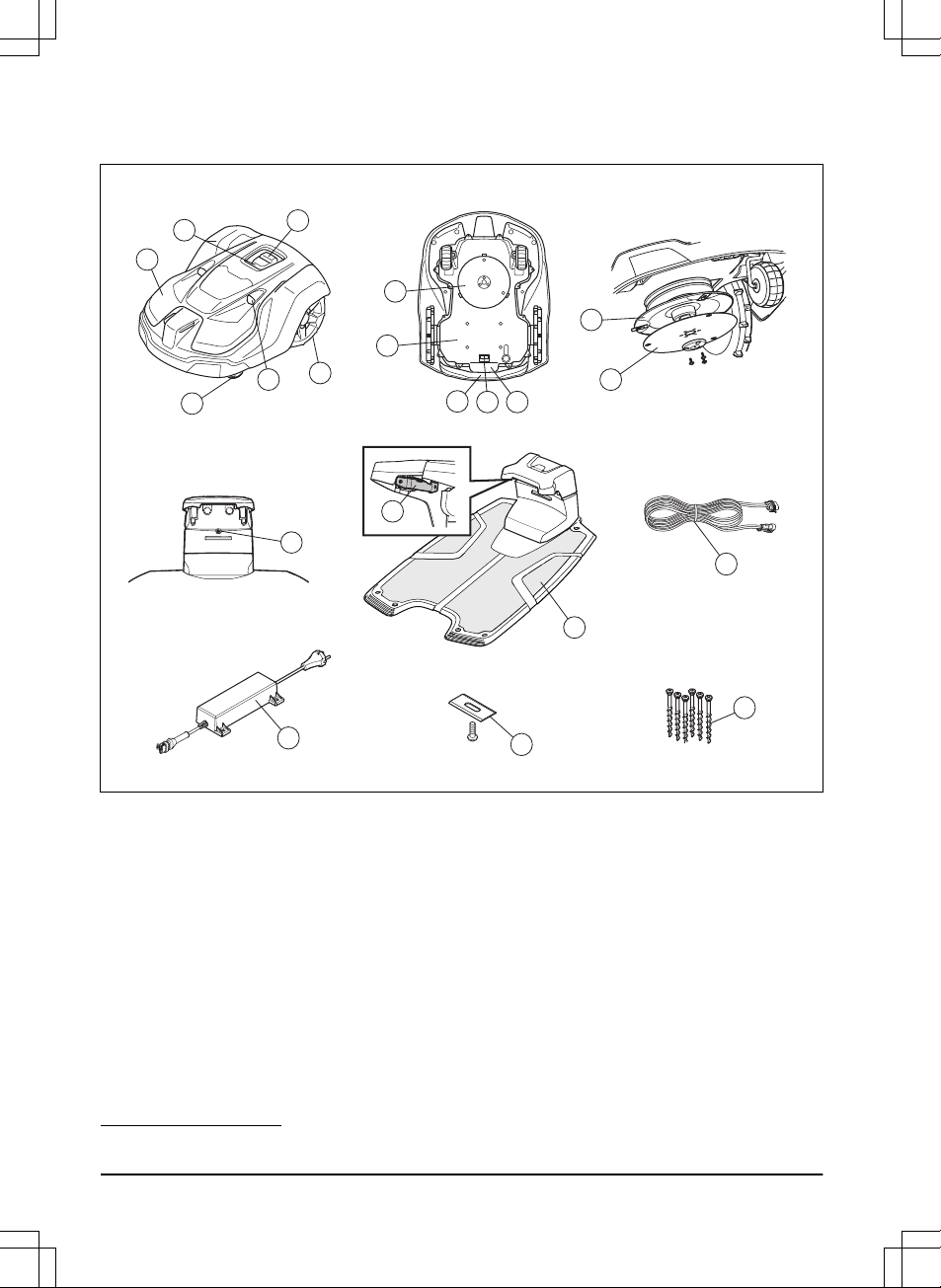
2.5 Product overview
13
1
4
6
10
15
9
12
20
14
5
7
8
2
3
17
16
19
18
11
1. Body
2. LED indicator lamp of the product
3. STOP/START button
4. Ultrasonic sensors
5. Front wheels
6. Rear wheels
7. Cutting system
8. Chassis box with electronics, battery and motors
9. Handle
10. Main switch
11. Rating plate (including product identification code)
12. Blade disc
13. LED indicator lamp of the charging station
14. Contact strips
15. Charging station
16. Low-voltage cable
17. Power supply
3
18. Extra blades
19. Screws for securing the charging station
2.6 Symbols on the product
These symbols can be found on the product. Study them
carefully.
3
The appearance may differ depending on market.
8 - Introduction 1970 - 001 - 10.10.2022
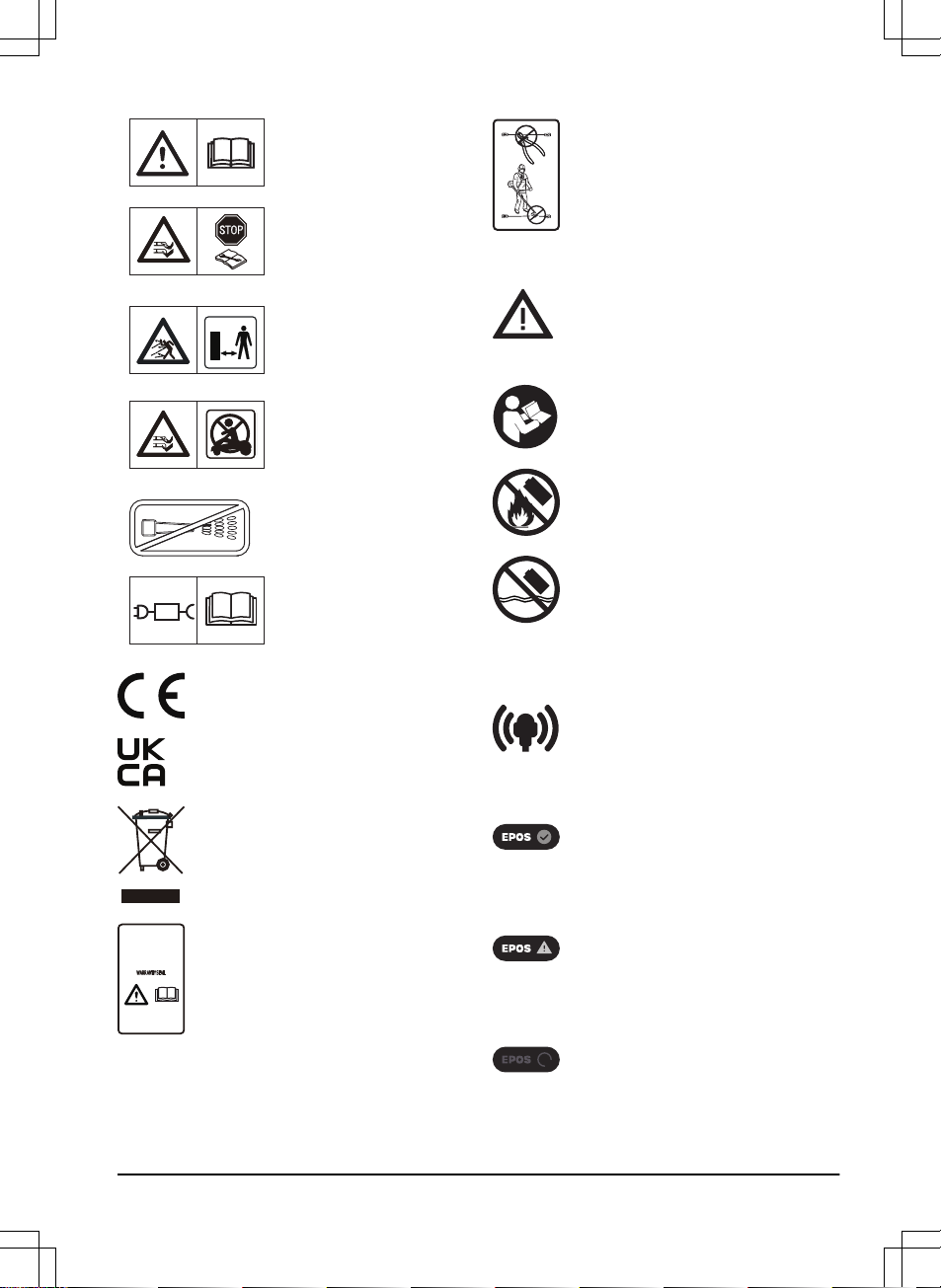
WARNING: Read the user
instructions before operating
the product.
WARNING: Disable the prod-
uct before working on or lift-
ing the product.
WARNING: Keep a safe dis-
tance from the product when
operating. Keep your hands
and feet away from the rotat-
ing blades.
WARNING: Do not ride on
the product. Do not put your
hands or feet close to or un-
der the product.
Do not use a high-pressure
washer or even running water
to clean the product.
Use a detachable power sup-
ply as defined on the rating
label next to the symbol.
This product complies with the applicable
EU Directives.
This product complies with the applicable
UK Directives.
It is not permitted to dispose this product
as normal household waste. Ensure that
the product is recycled in accordance with
local legal requirements.
The chassis contains components which
are sensitive to electrostatic discharge
(ESD). The chassis must also be resealed
in a professional manner. For these
reasons the chassis shall only be opened
by authorized service technicians. A
broken seal can result in the entire or
parts of the guarantee no longer being
valid.
The low-voltage cable must not be
shortened, extended or spliced.
Do not use a trimmer nearby the low-
voltage cable. Be careful when trimming
edges where the cables are placed.
2.7 Symbols on the battery
WARNING: Lithium-ion batteries can
explode or cause fire if disassembled,
short-circuited or handled roughly. Do not
expose to water, fire or high temperature.
Read the user instructions.
Do not discard the battery into fire and do
not expose the battery to a heat source.
Do not immerse the battery into water.
2.8 Symbols in the Automower
®
Connect app
Shows the strength of the radio signal that
the product receives from the reference
station.
The status is EPOS confirmed. The
product has an accurate position and
direction. This is necessary to operate
the product automatically and for the
installation of map objects.
The status is EPOS action is necessary.
The product has an accurate position but
it is necessary to operate the product,
manually or automatically, to get an
accurate direction.
The status is EPOS searching. The
product does not have an accurate
position and is searching for the satellite
signals and the correction data to get an
accurate position.
1970 - 001 - 10.10.2022 Introduction - 9

2.9 General manual instructions
The following system is used in the Operator’s Manual
to make it easier to use:
• Text written in
italics
is a text that is in the
Automower
®
Connect app, or is a reference to
another section in the Operator’s manual.
• Text written in bold is one of the buttons on the
product or in appDrive.
10 - Introduction 1970 - 001 - 10.10.2022
3 Installation
3.1 Introduction - Installation
WARNING: Read and understand the
safety chapter before you install the product.
CAUTION: Use original spare parts and
installation material.
Note: Refer to www.husqvarna.com for more
information about installation.
3.2 Primary components for installation
The installation includes the components that follow:
• Robotic lawn mower, that cuts the lawn
automatically.
• Charging station, that charges the product.
• Power supply, which is connected to the charging
station and a 100-240V power outlet.
• Reference station
4
, that receives satellite signals
and sends correction data to the robotic lawn
mower.
• Mobile device with the Automower
®
Connect app
to do the installation and the settings for the
product.
3.3 To prepare for installation
CAUTION: Holes with water in the lawn
can cause damage to the product.
CAUTION: Read the installation
chapter before you start the installation.
• Make a blueprint of the work area and include all
obstacles. This makes it easier to examine where
to put the charging station, the reference station,
and the virtual boundaries.
• Make a mark on the blueprint where to put
the charging station, the reference station, the
maintenance point, the transport paths and the
virtual boundaries for the work areas and stay-out
zones.
• Make sure that the work area where the product
operates has unimpeded sky view.
• Fill in holes in the lawn to make it level.
• Cut the grass before you install the product. Make
sure that the grass is maximum 10 cm / 4 in.
Note: The first weeks after installation the sound level
when the product cuts the grass can be higher than
usual. The sound level decreases after some time.
3.4 To examine where to put the
reference station
Read and understand the instructions about where to
put the reference station. Refer to the Operator's manual
for the reference station.
3.5 To examine where to put the
charging station
• Put the charging station in an area that you select.
Install a transport path if the charging station is not
in the work area. It is not necessary to install a
transport path if the product is fully in the work area
when it is at the charging station docking point.
• You can put the charging station in an
Automower
®
house.
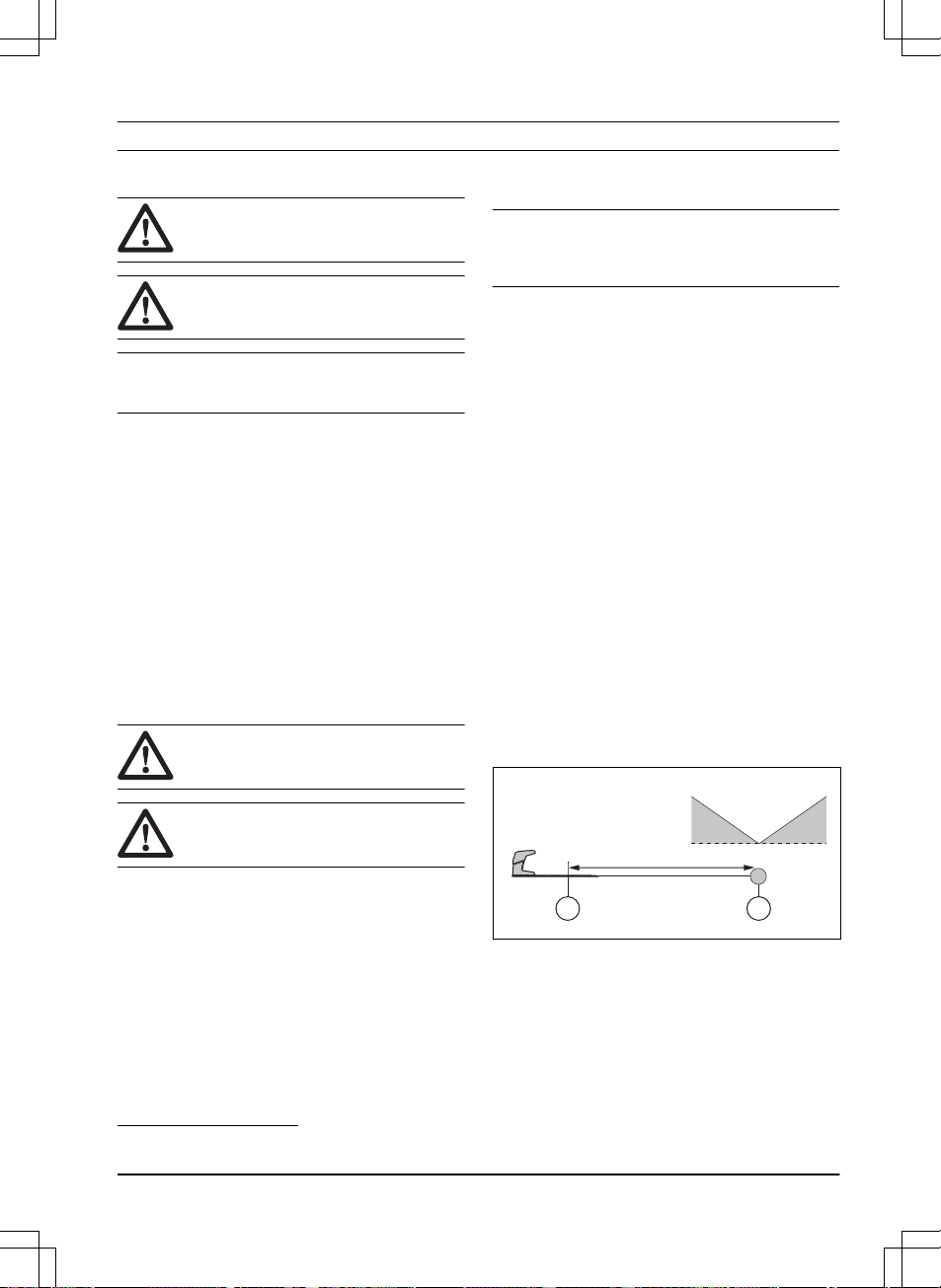
• Keep a minimum 5 m / 16 ft. of free space in front
of the charging station.
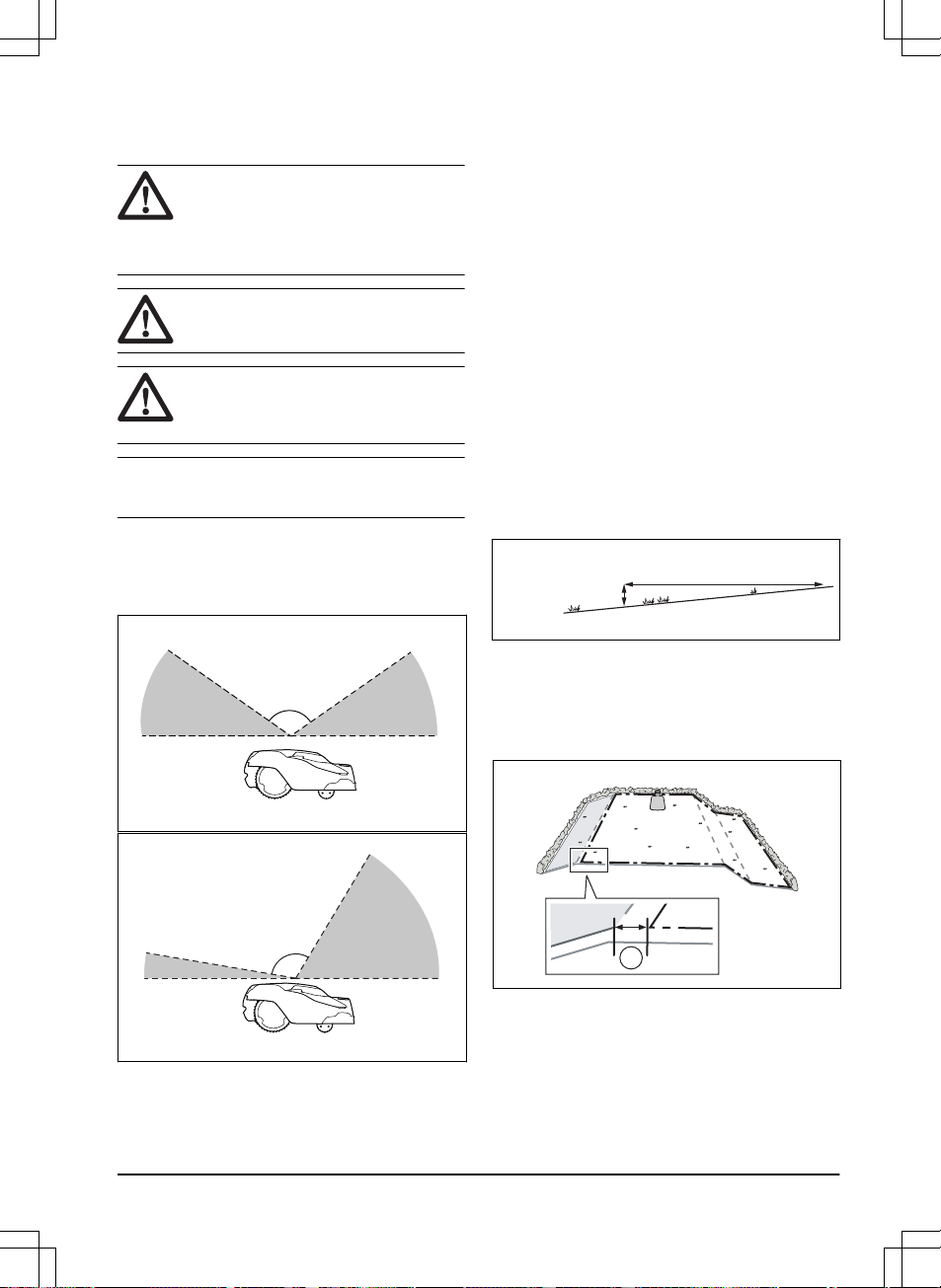
• Put the charging station (A) were the docking point
(B) has unimpeded sky view. This means that 110°
of the sky in all directions must be unimpeded. The
product cannot receive satellite signals that is less
than 10% elevation angle. The charging station
docking point (B) is where the product stops after
reversing from the charging station. The reversing
distance can be set to 70-250 cm / 28-98 in.
>110°
35°35°
BA
4
Purchased separately.
1970 - 001 - 10.10.2022 Installation - 11
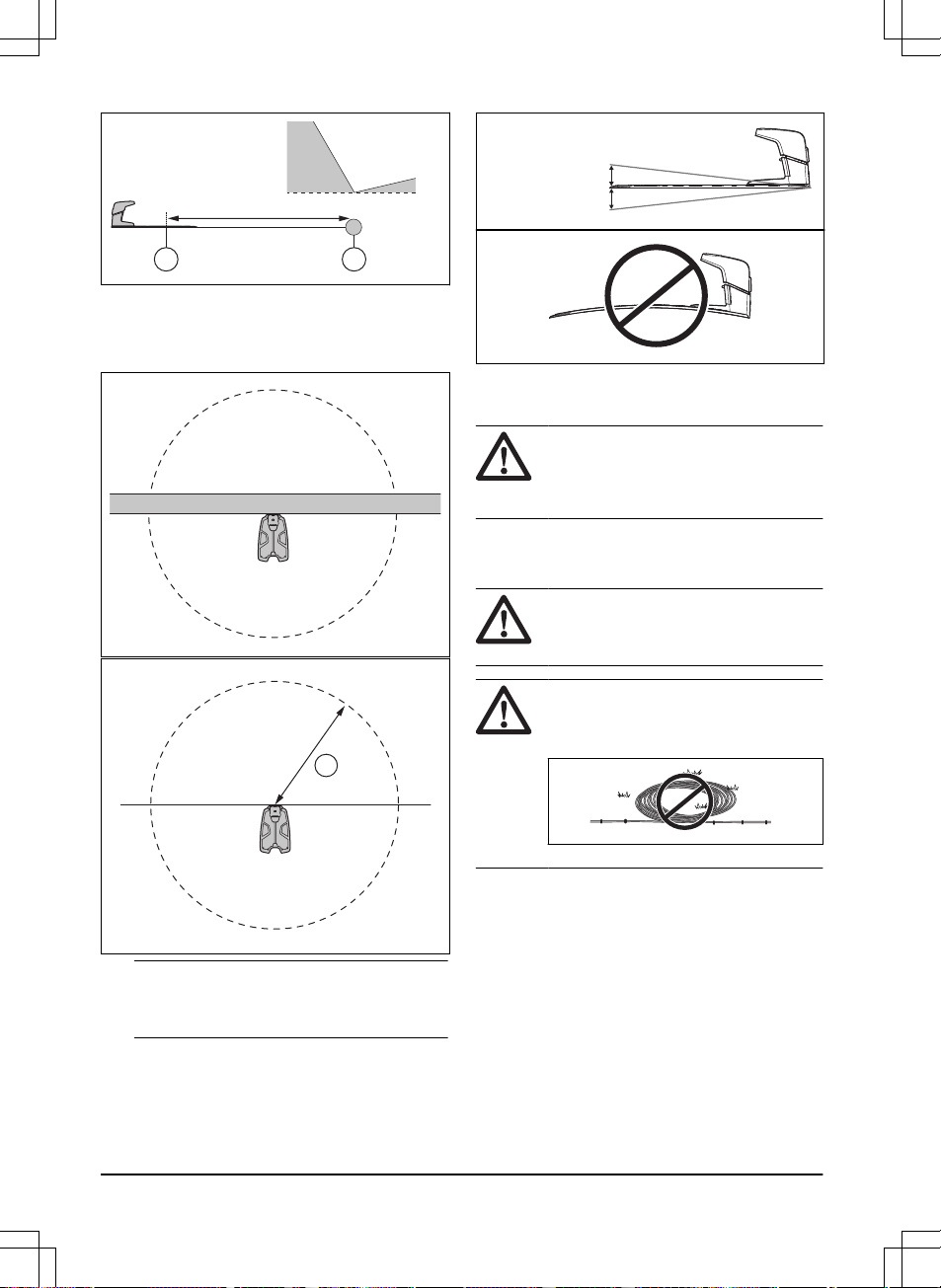
>110°
60°
10°
BA
• If the product must not operate in a part of the
docking area, put a protective wall that is minimum
15 cm / 6 in. in height. The docking area (A) is
a circular area around the charging station with a
radius of 3 m / 9.8 ft.
A
Note: The product uses the charging station
signal to search for the charging station when it
is in the docking area.
• Put the charging station near a power outlet.
• Put the charging station on a level surface.
• The baseplate of the charging station must not be
bent.
max. 5 cm / 2"
max. 5 cm / 2"
• If the work area has 2 parts separated with a steep
slope, Husqvarna recommends to put the charging
station in the lower section.
CAUTION: Do not install the charging
station where there are metal objects
in the ground. Metal objects can cause
interference with the charging station signal.
3.6 To examine where to put the power
supply
CAUTION: Make sure that the blades
on the product do not cut the low-voltage
cable.
CAUTION: Do not put the low-voltage
cable in a coil or below the charging station
plate. The coil causes interference with the
signal from the charging station.
• Put the power supply in an area with a roof and
protection from the sun and rain.
• Put the power supply in an area with good airflow.
• Use a residual-current device (RCD) with a tripping
current of maximum 30 mA when you connect the
power supply to the power outlet.
Low-voltage cables of different lengths are available as
accessories.
12
- Installation 1970 - 001 - 10.10.2022
3.7 To examine where to install the
objects on the map
CAUTION: If the work area is adjacent
to water bodies, slopes, precipices or a
public road, the virtual boundary must have
a protective wall. The wall must be minimum
15 cm / 6 in. in height.
CAUTION: Do not let the product
operate on gravel.
CAUTION: For careful operation
without noise, isolate all obstacles such as
trees, roots and stones.
Note: Make a blueprint of the work area before you
install the virtual boundaries.
• Make sure that the area where the product
operates has unimpeded sky view. This means
that 110° of the sky in all directions must be
unimpeded. The product cannot receive satellite
signals that is less than 10% elevation angle.
>110°
35° 35°
60°
10°
>110°
• Make sure that there are no trees near the virtual
boundaries and along the paths.
• Make sure that there are no trees with thick
vegetation in the areas where the product
operates.
• Make sure that the product can receive radio
signals from the reference station in all parts of
the work area. The maximum distance between the
reference station and the product is 500 m / 1640
ft. The maximum distance decreases if there is
objects between the reference station and product.
3.7.1 Passages
A passage is a section that has virtual boundary on
each side and that connects 2 parts of the work area.
The passage must be a minimum of 2 m / 6.5 ft. wide
to get a good cutting result. Short passages can be as
narrow as 1 m / 3.3 ft. A long narrow passage can have
a negative impact of the cutting result. A dead end must
be a minimum of 2 m / 6.5 ft. wide.
3.7.2 To install the map objects in a slope
The product can operate in 45% slopes. Do not include
too steep slopes in the work area. Too steep slopes
can be isolated as stay-out zones. The slope (%) is
calculated as height for each m. Example: 10 cm / 100
cm = 10%.
10 cm/ 4"
100 cm/ 40"
10%
• For slopes more than 45% in the work area, isolate
the slope with a stay-out zone.
• For slopes that are more than 15% along the outer
edge of the lawn. For installation of the virtual
boundary, operate the product with the rear wheel
5 cm / 2 in. (A) from the edge.
A
• For slopes adjacent to a public road, put a fence or
a protective wall along the outer edge of the slope.
3.8 Installation of the product
3.8.1 To install the product
Do the general steps that follow to install the product:
1970 - 001 - 10.10.2022
Installation - 13
1. Install the reference station. Refer to the
Operator's manual for the reference station.
2. Install the charging station. Refer to
To install the
charging station on page 14
.
3. Install the Automower
®
Connect app on your
mobile device. Refer to
To install the Automower
®
Connect app on page 15
.
4. Do a pairing operation of the product and the
Automower
®
Connect app. Do the basic settings in
the start up sequence in the Automower
®
Connect
app. Refer to
To install the Automower
®
Connect
app on page 15
.
5. Make a map with work areas, stay-out zones,
transport paths and maintenance points. Refer to
To install objects on the map on page 16
.
6. Use Automower
®
Connect app to do settings for
the product. Refer to
Settings on page 18
.
3.8.2 Installation tools
• Hex key, 8 mm. Included in the carton.
3.8.3 Installation of the charging station
Read and understand the instructions about the
charging station. Refer to
To examine where to put the
charging station on page 11
.
CAUTION: Do not make new holes in
the charging station plate.
CAUTION: Do not put your feet on the
baseplate of the charging station.
WARNING: Make sure that the plugs of
the low-voltage cable and the power supply
unit are clean and dry before you connect
them.
When you connect the power supply, only use a power
outlet that is connected to a residual-current device
(RCD).
3.8.3.1 To install the charging station
1. Put the charging station in the selected area.
2. Attach the charging station to the ground with the
supplied screws.
3. Connect the low-voltage cable to the charging
station.
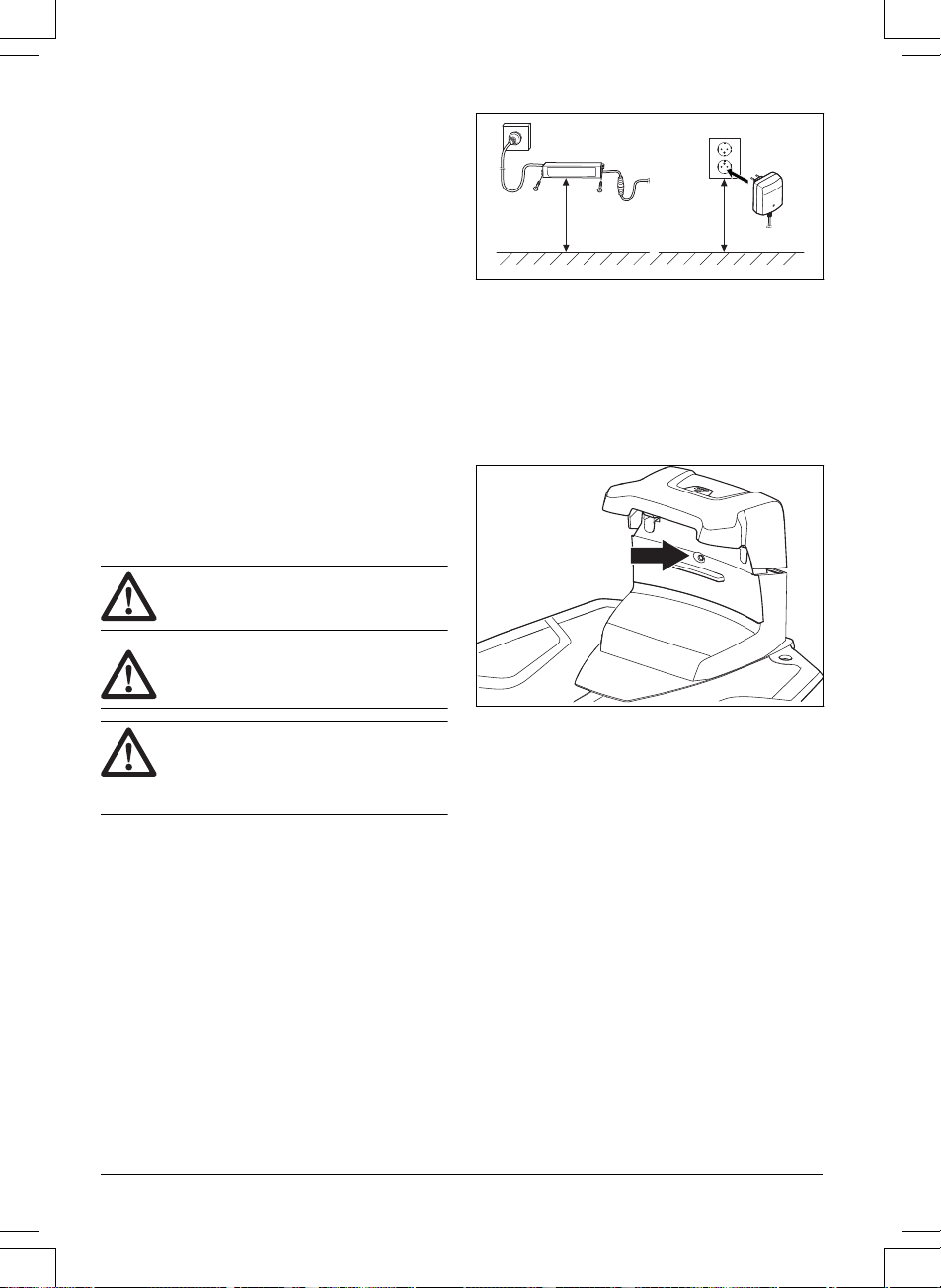
4. Put the power supply at a minimum height of 30
cm / 12 in. Refer to
To examine where to put the
power supply on page 12
.
min 30 cm / 12”
5. Connect the power supply cable to a 100-240V
power outlet.
6. Put the low-voltage cable in the ground outside the
work area. Use stakes or bury the cable.
7. Put the product in the charging station to charge
the product.
3.8.3.2 To do a visual check of the charging station
1. Make sure that the indicator LED lamp on the
charging station has a green light.
2. If the indicator LED lamp does not have a green
light, do a check of the installation. Refer to
To
install the charging station on page 14
and
LED
indicator lamp on the charging station on page
33
.
3.8.4 Installation of the reference station
Install the reference station according to the instructions
in the Operator's manual for the reference station.
3.8.5 Automower
®
Connect
Automower
®
Connect is a free app for your mobile
device. Use the app for installation, settings and
operation of your product. You can also find more
information for example about alarm and statistics in the
Automower
®
Connect app.
The app gives 2 modes of connectivity: Long-
range cellular connectivity and Short-range Bluetooth
®
connectivity.
• Dashboard that shows the current status of the
product and the battery state of charge.
• Account shows an overview of the account settings
and the unit format can be set.
14
- Installation 1970 - 001 - 10.10.2022
• My mowers can manage all the products paired to
your account and add new ones.
Note: All countries do not support cellular connection
to Automower
®
Connect because of regional specified
cellular systems. The included Automower
®
Connect
lifetime service only applies if there is a third part sub-
supplier of 2G/4G available in the operational area.
3.8.5.1 To install the Automower
®
Connect app
1. Download the Automower
®
Connect app on your
mobile device.
2. Sign up for a Husqvarna account in the
Automower
®
Connect app.
3. An e-mail is sent to the registered e-mail address.
Follow the instructions in the e-mail in less than 24
hours to validate your account.
4. Log in to your Husqvarna account in the
Automower
®
Connect app.
3.8.5.2 Automower
®
Direct
You can use Automower
®
Direct if you have the
Automower
®
Connect app and the PIN code for the
product but no Husqvarna account.
Automower
®
Direct uses short-range Bluetooth
®
connectivity. It can be used if the cellular connectivity
is not supported or for a temporary connection to the
product.
3.8.6 To do the basic settings
When the product is set to ON for the first time, there
are some basic settings to do before the product can
start to operate. You must do a pairing operation of
the product and the Automower
®
Connect app to install
objects on the map, change the settings and operate
the product. Use the Automower
®
Connect app on your
mobile device.
1. Set the product to ON.
Note:
The Bluetooth
®
pairing operation mode
of the product is enabled for 3 minutes. If the
pairing operation between the product and the
mobile device is not completed in 3 minutes, set
the product to OFF and then set the product to ON.
2. Log on to your Husqvarna account in the
Automower
®
Connect app.
3. Start Bluetooth
®
on your mobile device.
4. Select
My mowers
in the Automower
®
Connect
app and add your product.
5. Enter the factory PIN code.
6. Do a pairing operation of the product and the
charging station.
7. Do a pairing operation of the product and the
reference station.
8. Set the docking point.
9. If GeoFence is to be used, select to enable the
function.
Note: It is only necessary to do a pairing operation of
the Automower
®
Connect app and the product one time.
3.8.7 Installation of the map objects
Read and understand the instructions about where to
install the map objects. Refer to
To examine where to
install the objects on the map on page 13
.
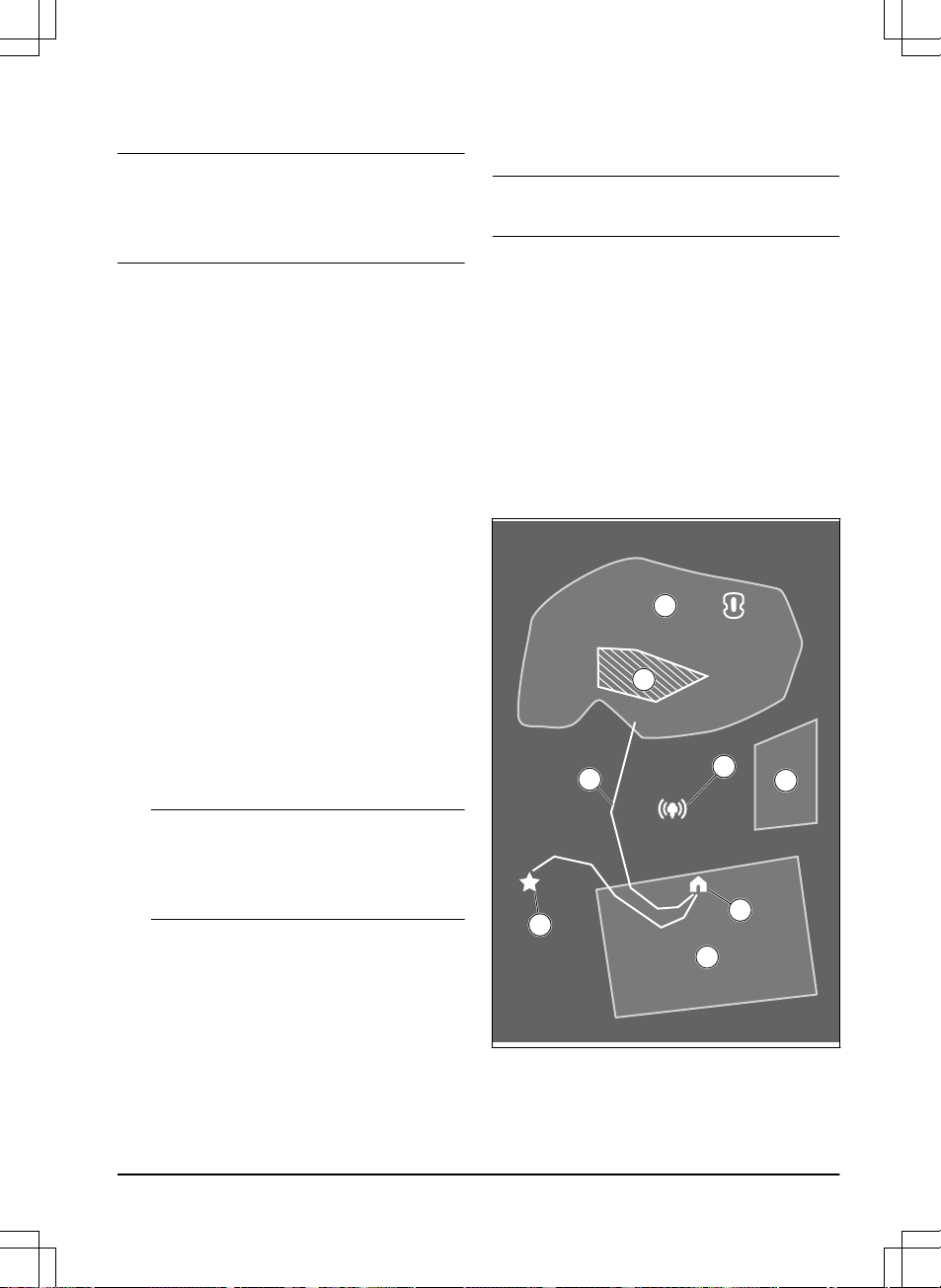
On the map you can install the objects that follow in the
Automower
®
Connect app:
•
Work areas
(A)
•
Stay-out zones
(B)
•
Transport path
(C)
•
Charging station
(D)
•
Maintenance point
(E)
•
Reference station
(F)
•
Work area, Secondary area
(G)
A
G
B
A
F
D
E
C
For a complete map installation, you must install a work
area and a charging station on the map.
1970 - 001 - 10.10.2022
Installation - 15
A work area is specified by virtual boundaries. Maximum
20 work areas and secondary areas can be installed on
a map.
There are two types of work areas:
• A work area that has a charging station in it or
connected to it with a transport path where the
product operates automatically.
• A secondary area is a work area with no charging
station and no transport path. The product must be
moved manually to and from the work area.
A transport path is a specified path between the docking
point in front of the charging station and a work area.
The product can operate automatically in this path, but
does not cut grass. A transport path can temporarily be
enabled and disabled in the app.
Stay-out zones can be made if there are areas where
the product must not operate. A stay-out zone is
specified by virtual boundaries. Stay-out zones can
temporarily be enabled and disabled in the app.
A maintenance point is a specified position where the
product can be parked at. This can for example be used
for a service point where maintenance of the product
is done. The maintenance point is connected to the
docking point with a path.
To install objects on the map, operate the product with
the appDrive installation to add waypoints on the map.
Refer to
To install objects on the map on page 16
.
3.8.7.1 To install objects on the map
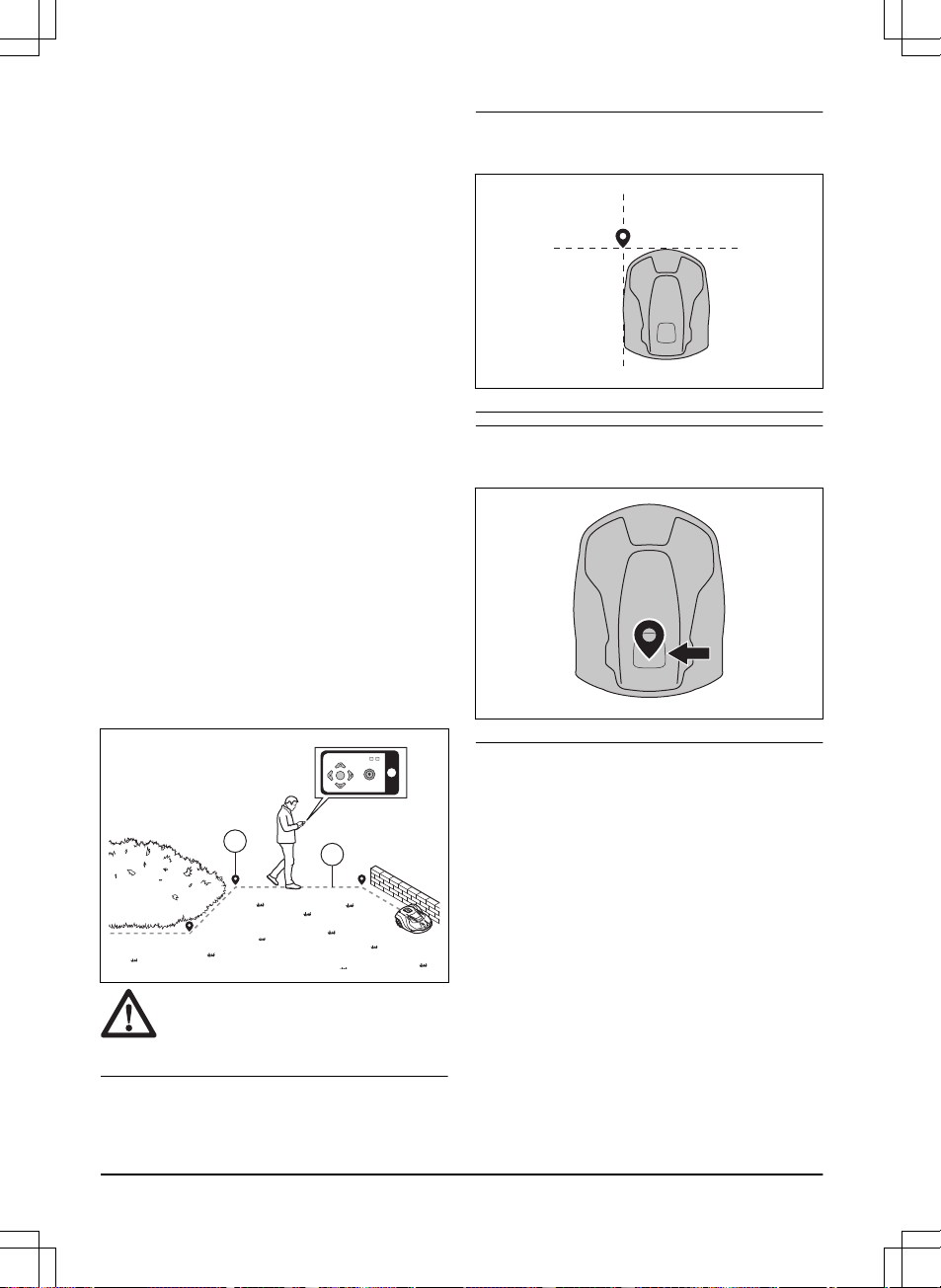
The waypoints (A) are positions that makes the virtual
boundaries and paths (B). The lines are straight
between the waypoints. Add a number of waypoints to
make smooth curves. You can adjust the positions of the
waypoints in the app after the installation of the map.
B
A
CAUTION:
Do not lift and move the
product between the waypoints when you
install the map objects. Use appDrive for a
correct installation.
Note: The position of the waypoint when you install a
work area or a stay-out zone is in the front left corner of
the product.
Note: The position of the waypoint when you install a
transport path or a path to a maintenance point is in the
middle of the product between the drive wheels.
• Make sure that you are near the product and
connected to the product with the app with
Bluetooth
®
.
• Make sure that the status is
EPOS confirmed
in the
appDrive.
• Select the object you want to install and use the
buttons in the appDrive installation to operate the
product.
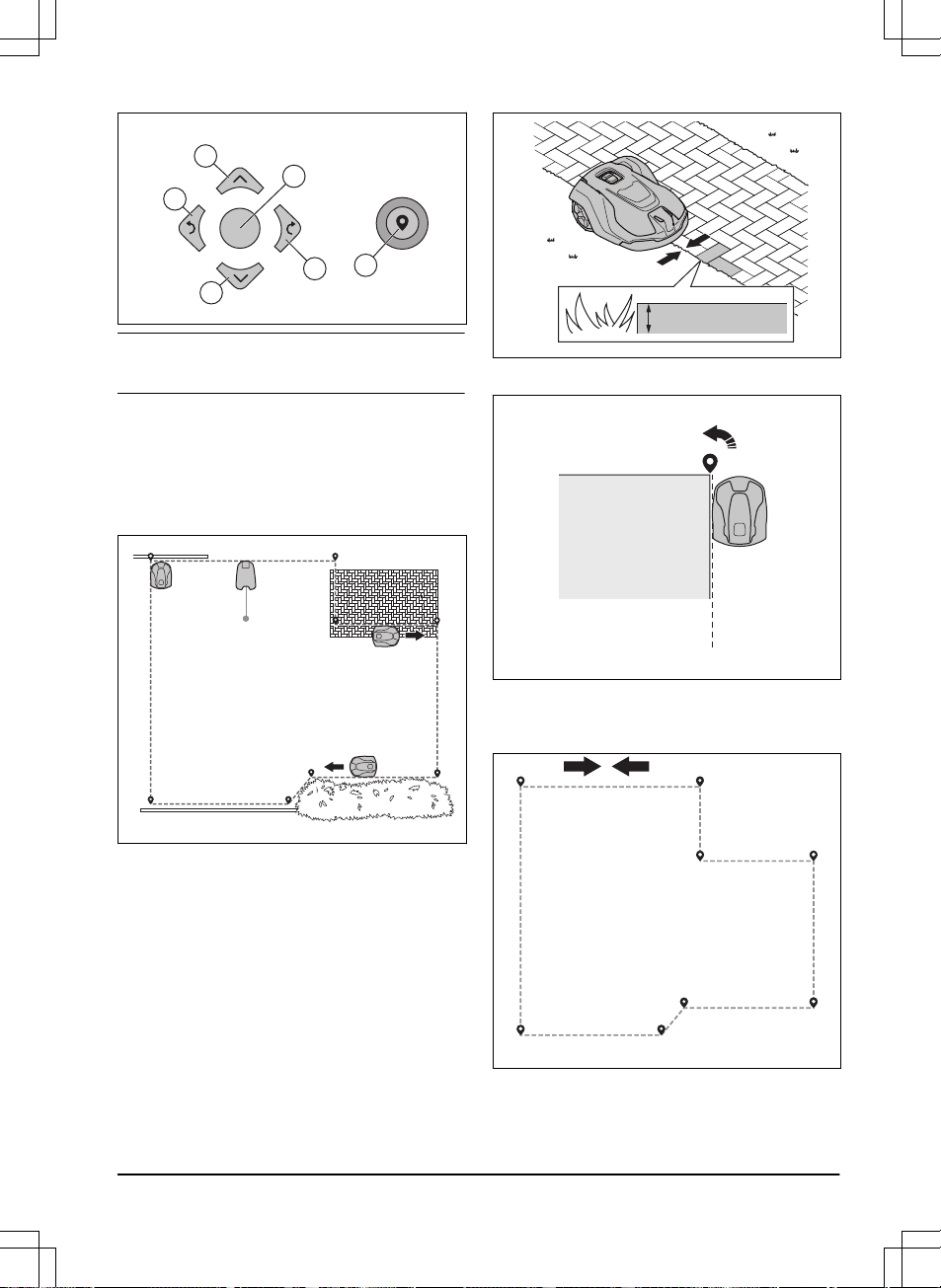
• Use the up button (A) to move the product forward.
• Use the down button (B) to move the product
rearward.
• Use the left arrow button (C) to rotate the product
to the left.
• Use the right arrow button (D) to rotate the product
to the right.
• Use the center button (E) as a joystick to move and
rotate the product in any direction.
• Use the waypoint button (F) to add a waypoint in
the map.
16
- Installation 1970 - 001 - 10.10.2022
A
D
F
B
C
E
Note: Walk 2-3 m / 6.5-9.8 ft. behind the product
when you operate the product with appDrive.
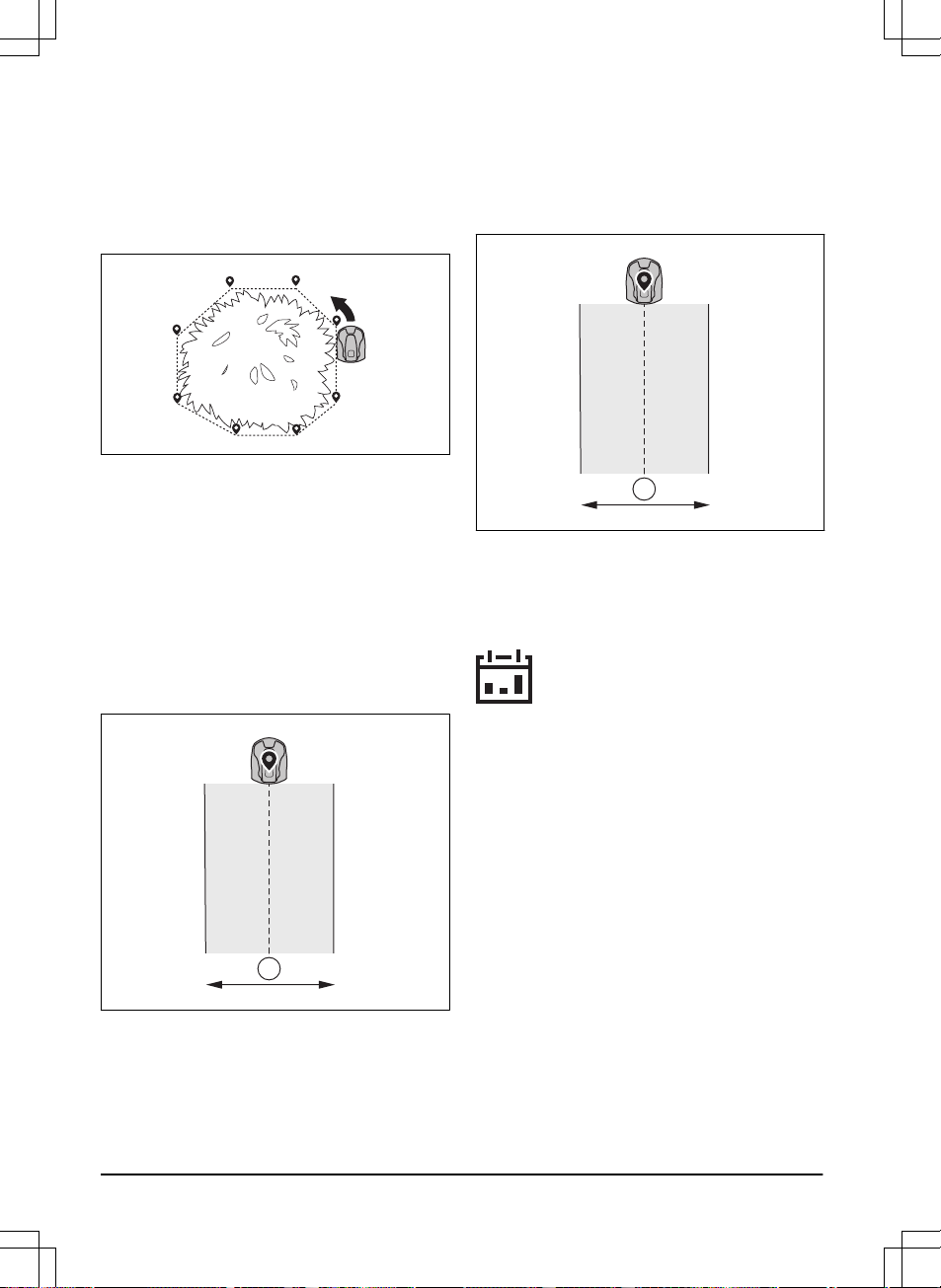
To make a work area
Minimum 3 waypoints are necessary to make a work
area.
• Operate the product clockwise around the
boundary of the work area.
• Add waypoints on the map. Add the waypoints
minimum 3 cm / 1 in. from obstacles.
• Add a waypoint to make the product cut the grass
at the edge between the lawn and the stone path.
Make sure that you straddel the edge of the lawn
and the stone path when you add a waypoint. The
product can straddel the edge if the height of the
stone path is maximum 1 cm / 0.4 in. in relation to
the lawn.
•
max 1 cm / 0.4”
• Add the waypoint at the outer corner to install the
virtual boundary around a corner.
• Do not set waypoints that make a virtual boundary
go across itself in the same work area.
• Save the work area to automatically connect the
first and last waypoint with a virtual boundary.
1
2
3
4
5
6
7
8
To make a stay-out zone
Minimum 3 waypoints are necessary to make a stay-out
zone.
1970 - 001 - 10.10.2022
Installation - 17
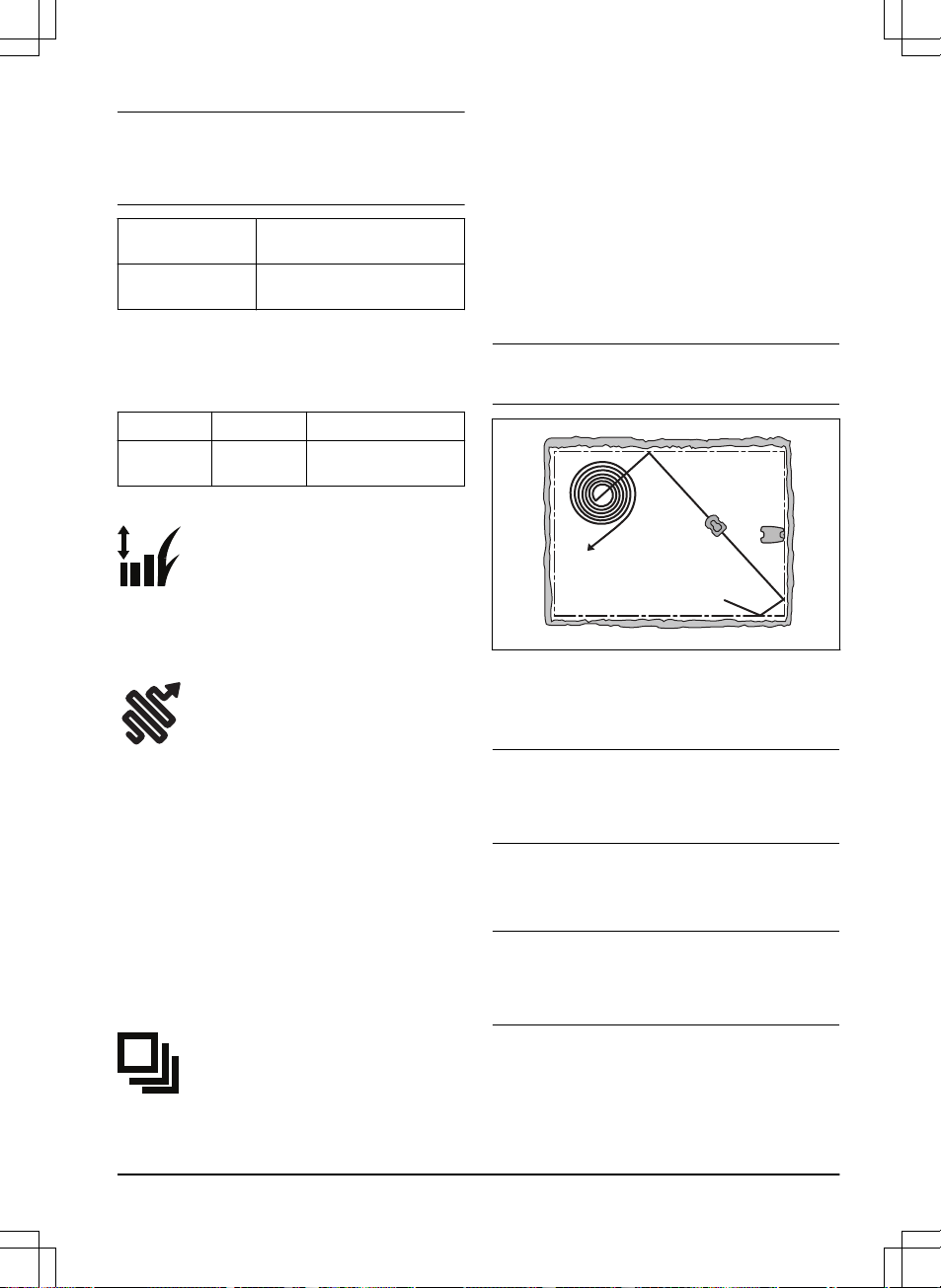
• Operate the product counterclockwise around the
boundary of the stay-out zone.
• Add waypoints on the map. Add the waypoints
minimum 3 cm / 1 in. from obstacles.
• Do not set waypoints that make a virtual boundary
go across itself in the same stay-out zone.
• Save the work area to automatically connect the
first and last waypoint with a virtual boundary.
To make a transport path
• Operate the product and add waypoints on the
map to install a transport path. Start in a work area
minimum 1 m / 3.3 ft. from the virtual boundary.
• Do not install a transport path across a stay-out
zone.
• Do not set waypoints that make the transport path
go across the same transport path.
• Operate the product and add waypoints to connect
the transport path to the docking point.
• Save the transport path to automatically connect
the last waypoint to the docking point.
• Set the corridor width (A) for the transport path.
The corridor width can be set to 2-5 m / 6.6-16.4 ft.
A
To make a maintenance point
• Operate the product and add waypoints on the
map. Start to add waypoints at the position
where you install the maintenance point. The first
waypoint specifies the maintenance point.
• Operate the product and add waypoints to make a
path to the charging station.
• Save the maintenance point to automatically
connect the last waypoint to the docking point.
• Set the corridor width (A) for the maintenance
point. The corridor width can be set to 2-5 m /
6.6-16.4 ft.
A
3.9 Settings
The product has factory settings but the settings can be
adapted to each work area.
3.9.1 Schedule
In
Schedule
menu you can change the schedule settings
for the product. The
Schedule
is set for each work area
that is connected to the charging station.
Secondary
areas
cannot be scheduled.
The schedule function controls which hours the product
is permitted to operate. When the product does not
operate it is parked in the charging station. You can
see which hours and days the product operates in the
schedule overview in the app.
The factory schedule setting lets the product to operate
around the clock 7 days a week.
To calculate the schedule setting, refer to
To calculate
the schedule setting on page 18
.
3.9.1.1 To calculate the schedule setting
1. Calculate the dimension of your lawn in m
2
/ ft
2
.
2. Divide the m
2
/ ft
2
of the lawn with the approximate
operation capacity. Refer to table below.
3. The result is equal to the number of hours that the
product must operate each day.
18
- Installation 1970 - 001 - 10.10.2022
Note: The operation capacity is approximate and is
calculated for flat and open work area. If the work area
has a lot of slopes or obstacles, you need to increase
the
Schedule
settings.
Model Approximate operation capaci-
ty, m
2
/h / ft
2
/h
Automower
®
450X/
450XH EPOS
208 / 2240
Example: A lawn of 3000 m
2
/ 32000 ft
2
, cut with an
Automower
®
450X/450XH EPOS.
3000 m
2
/ 208 ≈ 14.5 h.
32000 ft
2
/ 2240 ≈ 14.5 h.
Days / week
h / day Schedule settings
7 14.5 7:00 - 21:30 / 7:00 am -
9:30 pm
3.9.2 Cutting height
The cutting height is set individually for each work area.
The cutting height can be set to 20-60 mm / 0.8-2.4 in.
3.9.3 Pattern
The settings for the systematic cutting is set for each
work area. You can do these settings:
• Set the pattern for how the product operates.
• Set the direction of the pattern.
• Enable or disable the
Border mowing
where the
product cuts around the work area 2-3 times along
the virtual boundary.
• Set the type of the
Border mowing
. With
Fixed
border mowing
the product always operates in
the same paths to keep a sharp border around
the work area. With
Variable border mowing
, the
product operates in different paths to decrease the
risk of track marks along the virtual boundary.
3.9.4 Operation
In the Operation's menu it is possible to change the
settings of the
Weather timer, ECO mode
and
Spiral
cutting
.
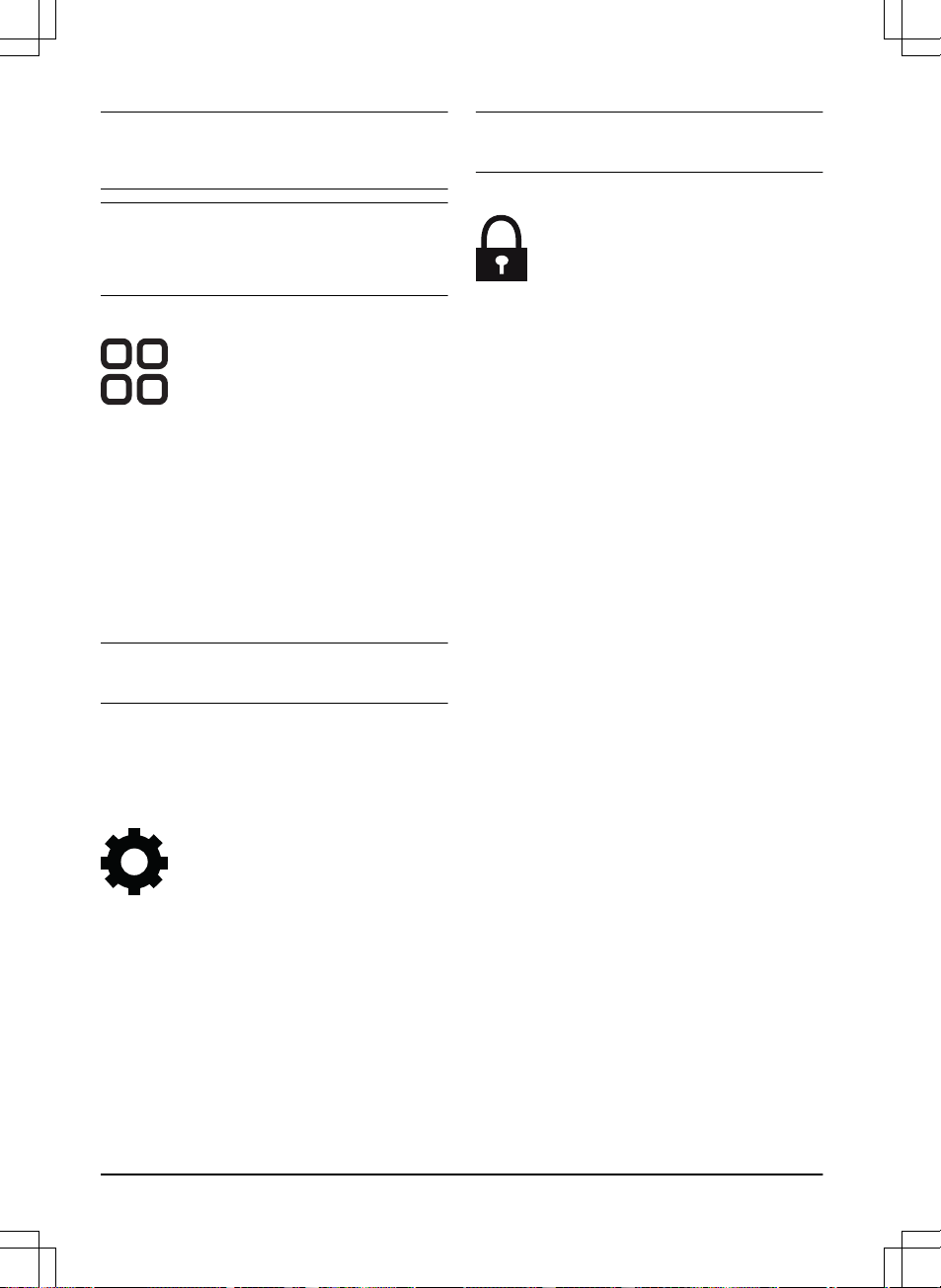
3.9.4.1 Spiral cutting
If the product enters an area where it senses the grass
is longer than average, it can change the movement
pattern to
Spiral cutting
. This means that the product
mows in a spiral pattern to faster cut the area with
longer grass. It is possible to set the intensity of the
Spiral cutting
.
Very low / Low
intensity means that
Spiral
cutting
begins less often.
High / Very high
intensity
means that
Spiral cutting
begins more often.
Note:
Spiral Cutting
does not start in slopes steeper
than 15%.
3.9.4.2 Weather timer
Weather timer
automatically adjust the cutting time to
the growth of the grass. The product is not permitted to
operate more than the schedule settings.
Note:
When using
Weather timer
, it is recommended
to make as much operating time as possible available
for
Weather timer
. Do not restrict the schedule more
than necessary.
The first operation of the day is set by the schedule
settings. The product always complete 1 mowing cycle,
and then
Weather timer
selects if the product will
continue to operate or not.
Note:
Weather timer
is reset if the product does not
operate for more than 50 hours, or if a
Reset of all user
settings
is done.
Weather timer
is not changed if a
Reset
of schedule settings
is done.
3.9.4.3 ECO mode
If
ECO mode
is enabled, it switches off the signal in
the charging station, when the product is parked or is
charging.
1970 - 001 - 10.10.2022
Installation - 19
Note: Use
ECO mode
to save energy and prevent
interference with other equipment, for example hearing
loops or garage doors.
Note: To start the product manually in the work area,
push the STOP button before you remove the product
from the charging station. If not, the product cannot park
at the charging station.
3.9.5 Accessories
Settings for accessories mounted on the product can be
made in this menu.
3.9.5.1 Headlights
There are 4 different headlight settings that control when
the headlights are on:
•
Always on
•
Evening only (19:00-00:00)
•
Evening and night (19:00-07:00)
•
Always off
The headlights flashes if there is an error.
Note: Husqvarna recommends to use the headlights
at night time.
3.9.5.2 To avoid collisions with the Automower
®
house
When this option is enabled, the wear on the product
and the Automower
®
house is reduced, but it can result
in more uncut grass around the charging station.
3.9.6 General (Bluetooth
®
only)
This function is used to set time and date, or to reset to
default settings.
3.9.6.1 Time & date
The time and date can be changed manually, or by
using the time and date from the mobile device.
3.9.6.2 Reset to factory settings
The user settings can be reset to factory settings. All
map objects and the schedules will be deleted.
Note:
PIN code, Loop signal, Messages
and
Date &
Time
will not be reset.
3.9.7 Security (Bluetooth
®
only)
The security settings controls the PIN code, the
GeoFence and other security functions. The correct PIN-
code must be entered to get access to the
Security
menu in the Automower
®
Connect app.
3.9.7.1 New loop signal
The loop signal is randomly selected to create a unique
link between the product and the charging station. In
rare cases, there may be a need to generate a new
signal, for instance if 2 adjacent installations have a very
similar signal.
3.9.7.2 Change PIN code
You can change the PIN code in the Automower
®
Connect app. Make a note of the new PIN code in
Memo. Refer to
Introduction on page 6
.
3.9.7.3 Theft protection
In the
Theft protection
menu it is possible to set the
alarm duration and also what events should trigger the
alarm. The factory setting is to require PIN code and the
alarm duration is 1 min.
Require PIN code
This function means that the product cannot be operated
or controlled after the STOP button has been pushed
without first entering the correct PIN code. If the
incorrect PIN code is entered 5 times, the product is
locked for a time. The lock is extended for each new
incorrect try.
Alarm duration
There is a possibility to set how long the alarm signal
should last. A setting between 1 and 10 minutes is
possible.
STOP button pressed
If the alarm
"STOP button pressed"
is enabled, the
alarm goes off if someone presses the STOP button and
the PIN code is not entered within 30 seconds.
Carried away
If the alarm
Carried away
is enabled, the product senses
unexpected motions, and the alarm goes off.
3.9.7.4 GeoFence
GeoFence is a GPS-based theft protection that makes a
virtual fence for the product. If the product is more than
a set distance away from the center position the product
will be deactivated and an alarm will start. The center
position will be set to the current position of the product
when the function is enabled. The PIN code is needed to
20
- Installation 1970 - 001 - 10.10.2022

deactivate the alarm and to start the product again. The
GeoFence is only enabled when the product is switched
on.
3.9.8 Automower
®
Connect (Bluetooth
®
only)
In
Automower
®
Connect
you can enable or disable the
Automower
®
Connect module. You can also see the
signal strength, connectivity status, initiate new pairing
or remove the product from the paired accounts.
3.9.9 Messages
In this menu the previous fault and information
messages can be found. For some of the messages,
there are tips and advice to help to rectify the fault.
If the product is disrupted in any way, for example it
is trapped or the battery is low, a message is saved
relating to the disruption and the time it happened.
If the same message is repeated several times, this
may indicate that an adjustment to the installation or the
product is required. Refer to
Installation on page 11
.
3.9.10 Download firmware over the air
(Firmware over the air FOTA)
The product has a function that automatically downloads
new firmware. When a new firmware is available, a
notification shows in the app where you can select
to install the new firmware. In the factory setting this
function is enabled.
1970 - 001 - 10.10.2022
Installation - 21
4 Operation
4.1 Main switch
WARNING: Read and understand the
safety chapter before you use the product.
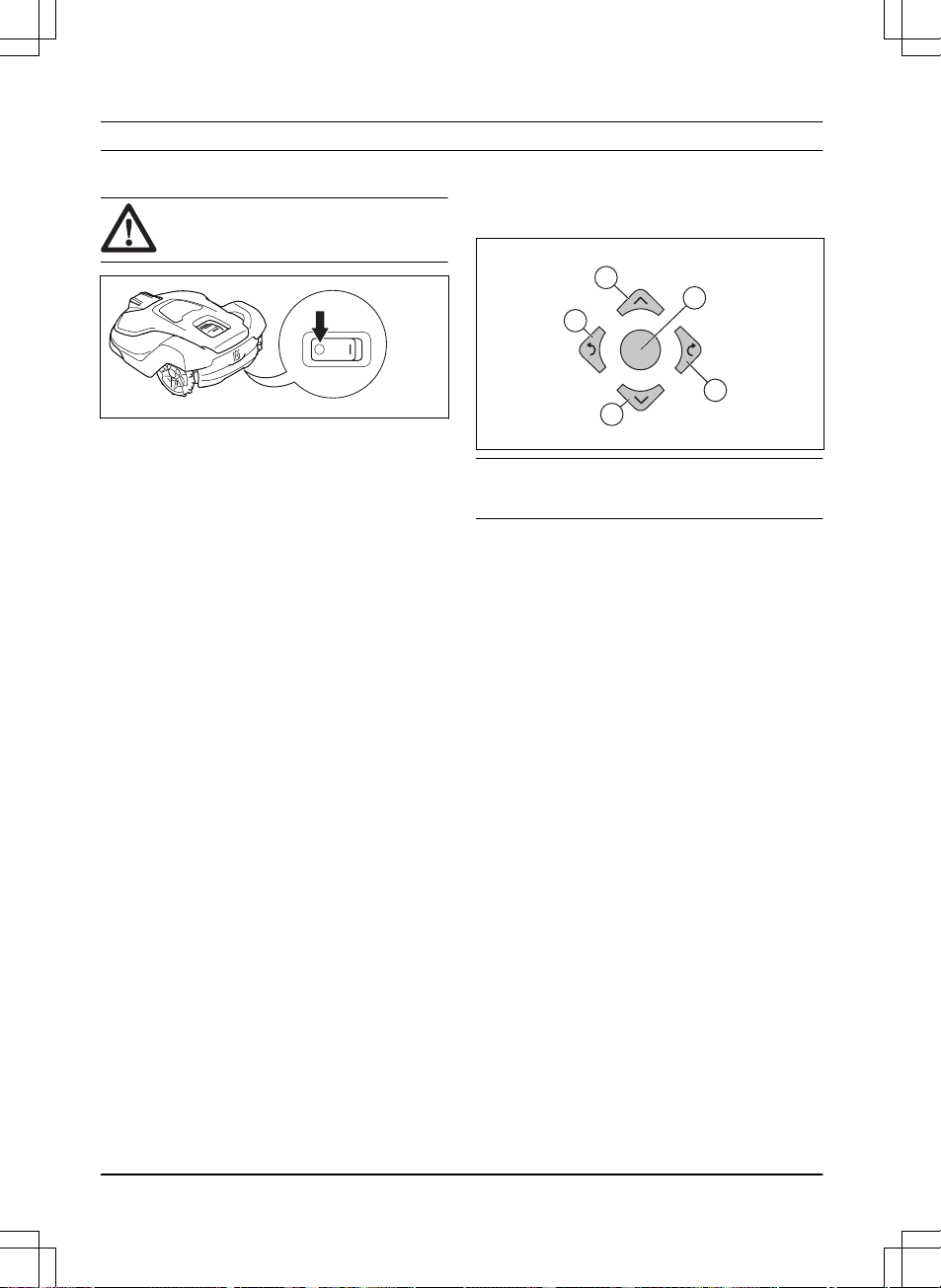
• Set the Main switch to the
1
position to start the
product.
• Set the Main switch to the
0
position to set the
product to OFF.
4.2 To start the product
1. Push the STOP button on the product.
2. Set the Main switch to the
1
position.
3. Open the Automower
®
Connect app.
4. Enter the PIN code.
5. Select an operating mode in the app. Refer to
To
select operation mode Start on page 22
.
6. Push the START button on the product.
7. Select an operating mode in the app.
4.3 To select operation mode Start
1. Open the app on your mobile device.
2. Select
Start
and select an operation mode:
Resume Schedule
,
appDrive
or
Select work area
.
4.3.1 Resume Schedule
The product will continue to operate on the scheduled
work area where it cuts the grass and charges
automatically.
4.3.2 appDrive
Use the appDrive to operate the product manually.
4.3.2.1 To operate the product with appDrive
Use the buttons to operate the product:
• Use the up button (A) to move the product forward.
• Use the down button (B) to move the product
rearward.
• Use the left arrow button (C) to rotate the product
to the left.
• Use the right
arrow button (D) to rotate the product
to the right.
• Use the center button (E) as a joystick to move and
rotate the product in any direction.
A
D
B
C
E
Note: Walk 2-3 m / 6.5-9.8 ft. behind the product
when you operate the product with appDrive.
4.3.3 Select work area
This function lets the product temporarily operate in a
selected work area. You can select a time limit for this
function. After that time period, the product continues to
operate as set in the schedule.
4.3.3.1 Secondary area
For the product to operate in a secondary area, you
must move the product manually to and from the
secondary area. The product cuts for a selected period
of time or until the battery is empty.
4.4 Operating mode - Park
When you select
Park
in the app you can select the
operation selections that follow:
•
Park until further notice
•
Select duration
4.4.1 Park until further notice
The operation mode
Park
means that the product goes
back to the charging station where it stays until a new
operation mode is selected and the START button is
pushed.
4.4.2 Select duration
The product goes back to the charging station and
stays for the selected park duration. Use the operation
selection to temporary stop an ongoing mowing cycle
and let the product to stay in the charging station.
4.4.3 Operating mode - Pause
When selecting
Pause
in the Automower
®
Connect app,
the product stop the current activity and pause. The
22
- Operation 1970 - 001 - 10.10.2022
product is paused until either
Park
or
Start
is selected
in the Automower
®
Connect app.
4.5 To stop the product
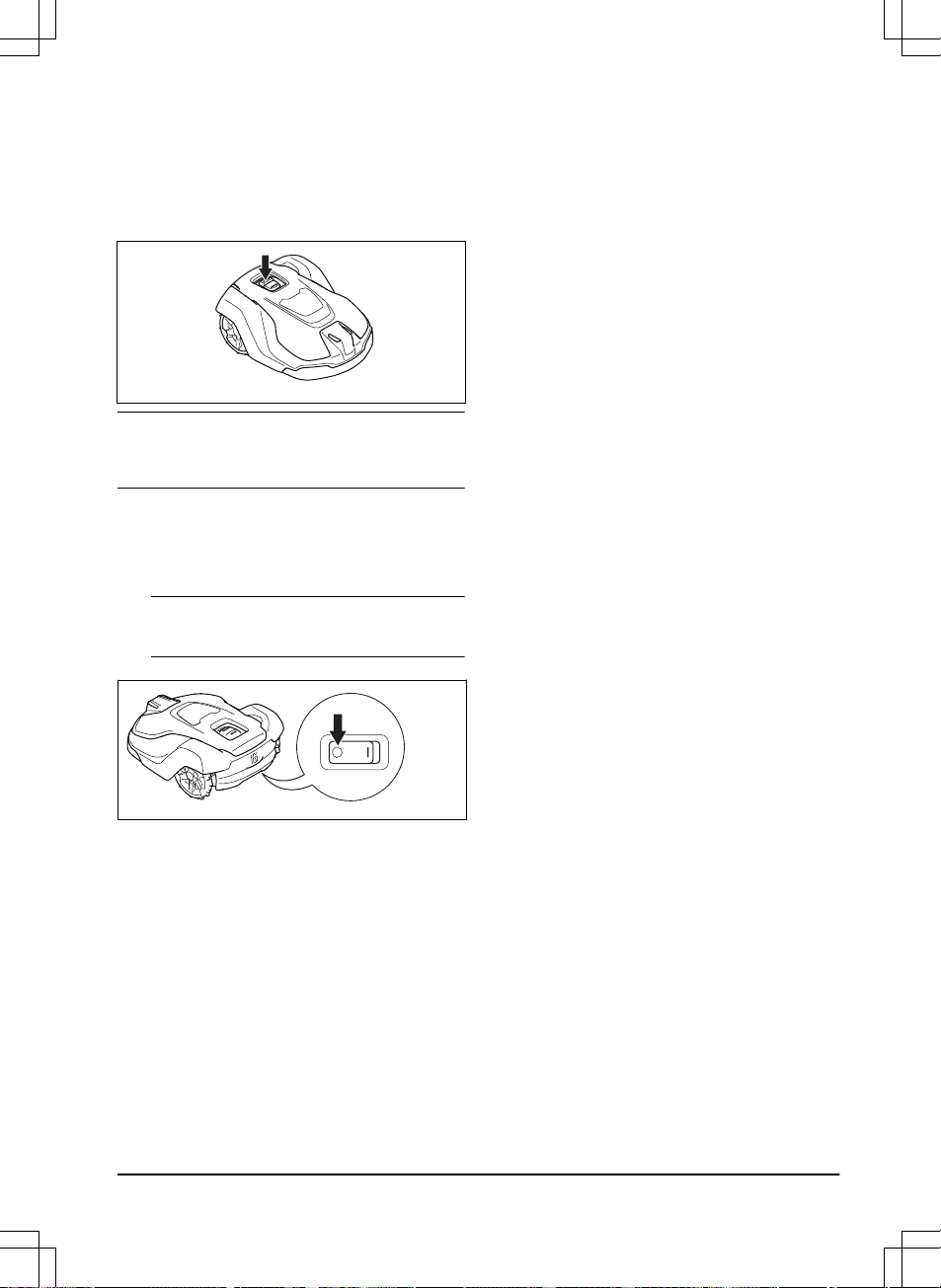
1. Push the STOP button on top of the product.
The product stops and the cutting motor stops.
Note: When you push the START button again, the
product continues to operate in the same operating
mode as before.
4.6 To set the product to OFF
1. Push the STOP button.
2. Connect the product with Bluetooth
®
short-range in
the app.
Note: The product cannot be set to OFF if it is
not connected to the app with Bluetooth
®
.
3. Set the Main switch to the
0
position.
4.7 To charge the battery
When the product is new or after long-term storage, the
battery can be empty. Charge the battery before you
start the product.
1. Set the Main switch to the
1
position.
2. Put the product into the charging station until the
charging plates touch the contact plates.
3. Do a check that the product charges in the
Automower
®
Connect app.
1970 - 001 - 10.10.2022
Operation - 23
5 Maintenance
5.1 Introduction - maintenance
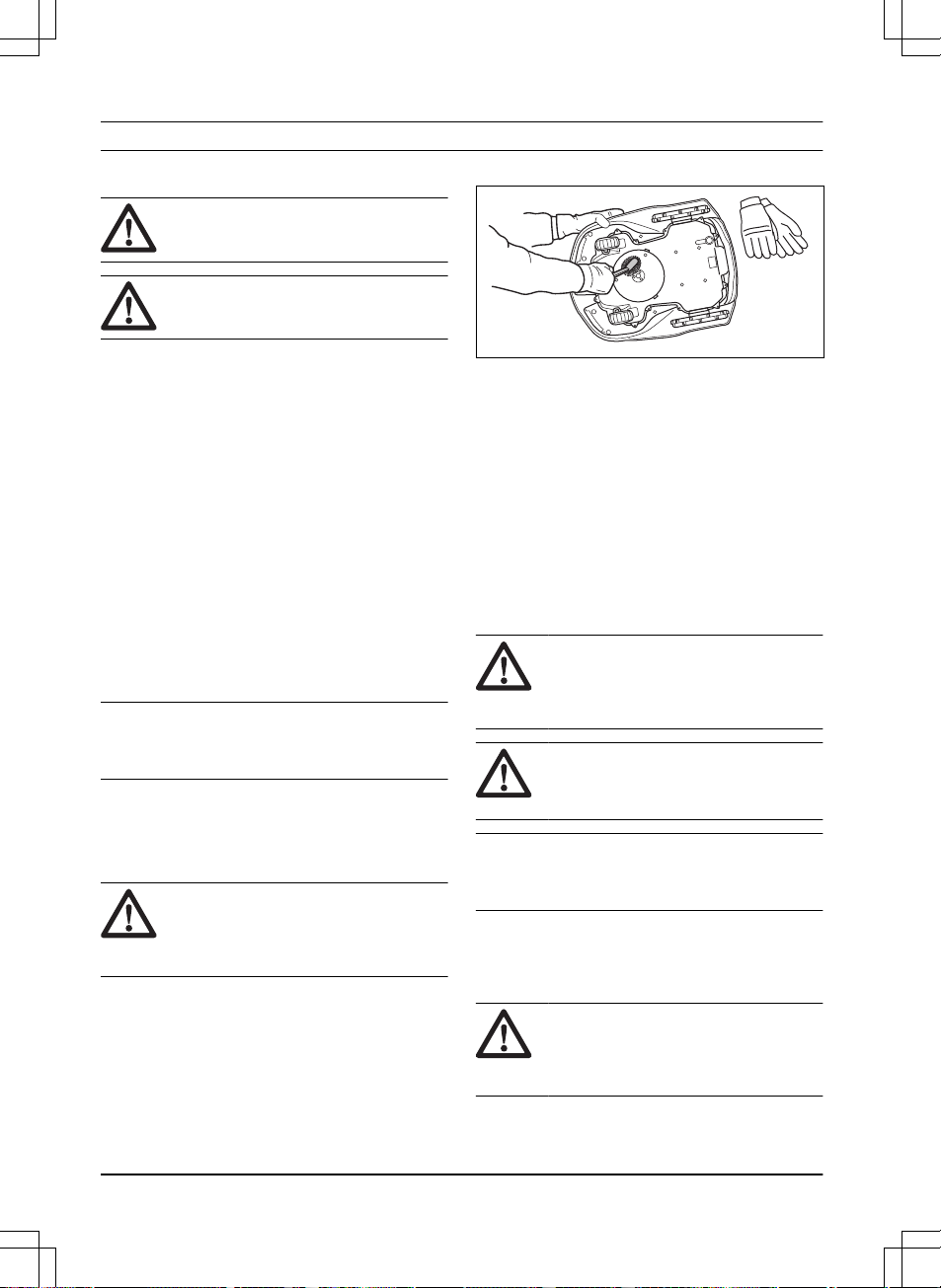
WARNING: Set the product to OFF
before you do maintenance on the product.
WARNING: Use protective gloves.
For better operation and lifetime of the product, make
sure to clean the product regularly and replace worn
parts.
When the product is new, examine the blade discs and
blades each week. If the wear is low, you can increase
the interval for the next time you examine the blade
discs and blades. Examine the blade discs and the
blades more regularly if there is much wear.
It is important that the blade disc rotates easily and that
the edges of the blades are not damaged. The usual
lifetime of the blades are 2 to 5 weeks. The conditions
that follow can increase or decrease the lifetime of the
blades:
• Operation time and dimension of the work area.
• Length and thickness of the grass.
• Soil, sand and use of fertilizers.
• Objects such as cones, tools, stones and roots in
the work area.
Note: The cut result can be unsatisfactory if the
blades are blunt. Refer to
Replacement of the blades
on page 24
on how to replace the blades.
5.2 Clean the product
Husqvarna recommends to use a special cleaning and
maintenance kit, available as an accessory. Speak to
your Husqvarna representative for more information.
CAUTION:
Do not use a high-pressure
washer to clean the product and the
charging station. Do not use solvents for
cleaning.
5.2.1 To clean the chassis and blade disc
Examine the blade disc and blades weekly.
1. Set the Main switch to the
0
position.
2. Put the product onto its side.
3. Make sure that the blades are not damaged and
that the blades and blade disc can rotate freely.
4. Clean the blade disc and chassis with a brush.
5.2.2 To clean the chassis
• Clean the bottom of the chassis with a brush or a
moist cloth.
5.2.3 To clean the wheels
The product does not operate satisfactorily in slopes if
the wheels are blocked with grass.
• Use a soft brush to clean the wheels.
5.2.4 To clean the body of the product
• Use a moist cloth and a weak soap solution to
clean the body of the product.
5.2.5 To clean the charging station
WARNING: Disconnect the power
supply from the power outlet before
maintenance, or when you clean the
charging station or power supply.
CAUTION: Do not use a high-pressure
washer or running water to clean the
charging station.
Note: The product cannot enter the charging station
if there are objects in the charging station. Clean the
charging station regularly.
• Remove grass, twigs and other objects from the
charging station.
5.3 Replacement of the blades
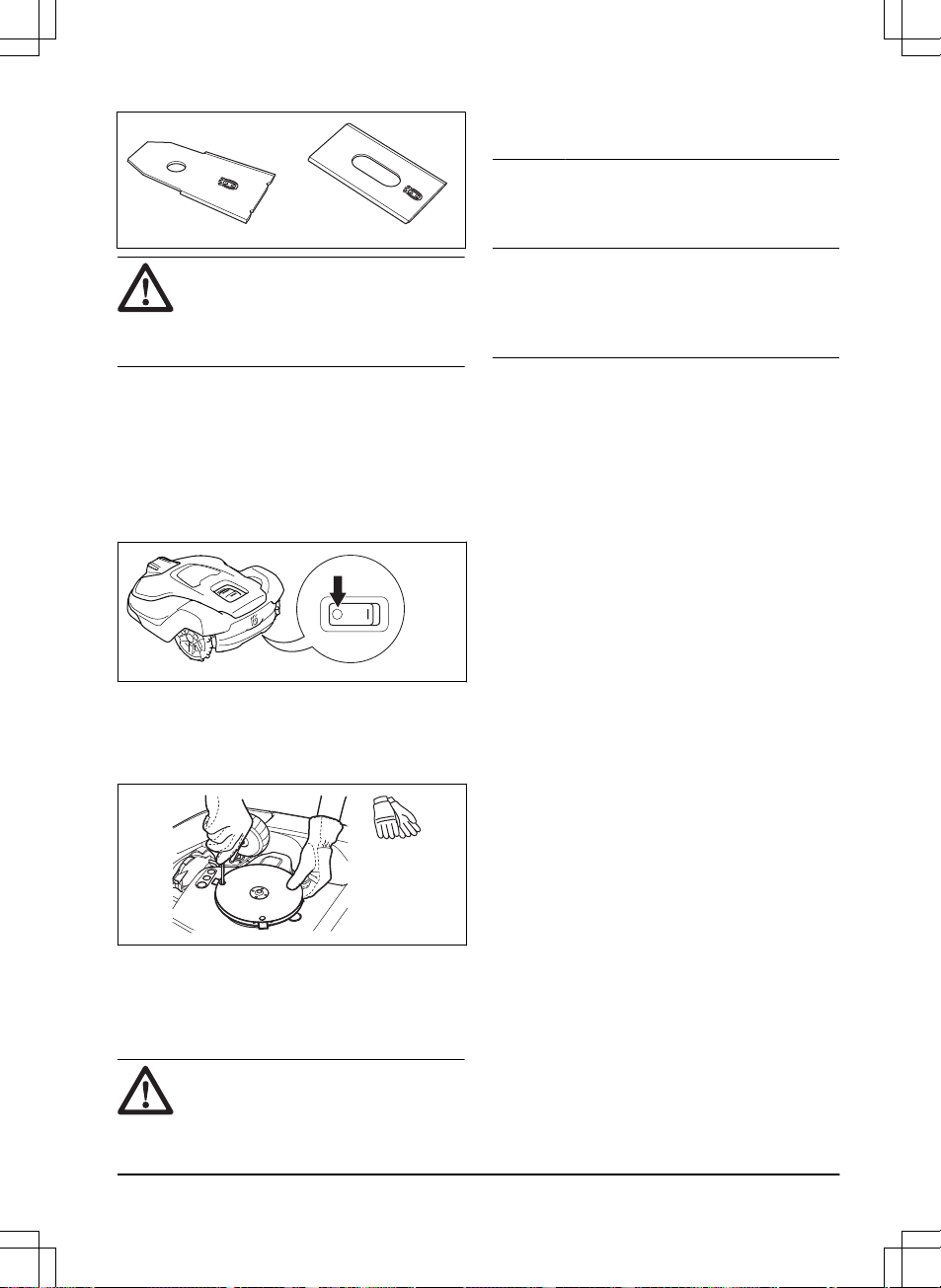
WARNING:
Husqvarna can only
guarantee safety if you use Husqvarna
original blades with the embossed crowned
H-mark logotype.
24 - Maintenance 1970 - 001 - 10.10.2022
WARNING: You must replace the
screws when you replace the blades. The
used screws can wear quickly and make the
blade come loose, this can cause serious
injury.
Replace worn or damaged blades for a safe operation.
Replace the blades regularly for a satisfactory cut result
and a low energy use. All 3 blades and screws must
be replaced at the same time to get a balanced cutting
system.
5.3.1 To replace the blades
1. Push the STOP button.
2. Set the Main switch to the
0
position.
3. Put the product with the blade disc up on a soft
and clean surface.
4. Rotate the skid plate until its holes align with the
screws for the blade.
5. Remove the 3 screws with a screwdriver.
6. Remove the 3 blades.
7. Attach 3 new blades and screws.
8. Make sure that the blades can pivot freely.
5.4 Battery
CAUTION: Charge the battery fully
before you put the product into storage. If
the battery is not fully charged it can cause
damage to the battery.
If the operating time of the product is shorter than usual
between charges, this means that the battery is at the
end of its life cycle. Replace the battery to extend the
operating time.
Note: The battery life is related to the length of
the season and how many hours a day the product
operates. A long season or many hours of operation
a day means that the battery must be replaced more
regularly.
5.5 Winter service
Take your product to your Husqvarna central service for
service prior to winter storage. Regular winter service
will maintain the product in good condition and create
the best conditions for a new season without any
disruptions.
Service usually includes the following:
• Thorough cleaning of the body, the chassis, the
blade disc and all other moving parts.
• Testing of the product’s function and components.
• Checking and, if required, replacing wear items
such as blades and bearings.
• Testing the product’s battery capacity as well as a
recommendation to replace battery if necessary.
• If new firmware is available, the product is
updated.
1970 - 001 - 10.10.2022
Maintenance - 25
6 Troubleshooting
6.1 Introduction - troubleshooting
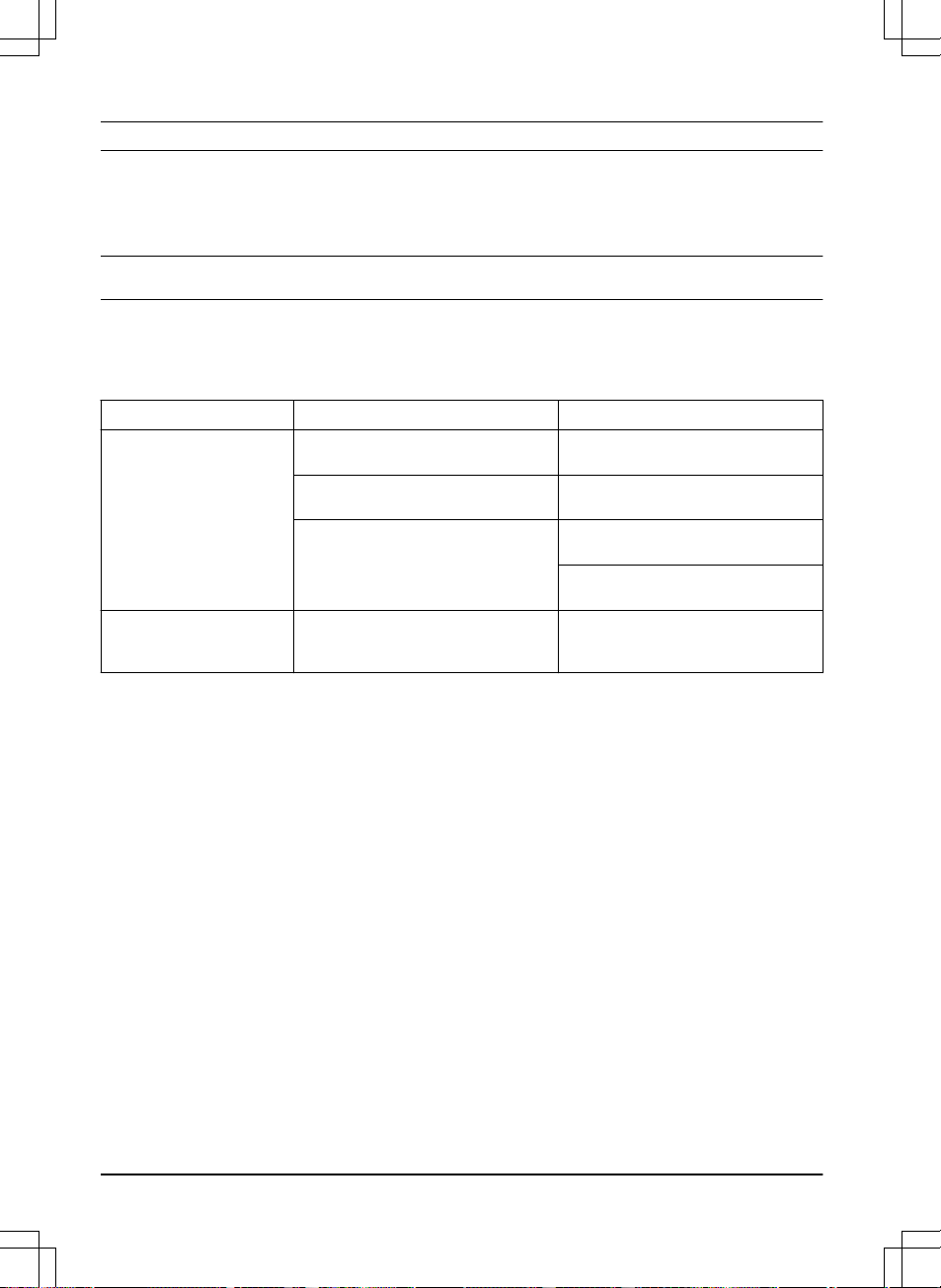
All messages can be found in the
Messages
menu in Automower
®
Connect. More suggestions for steps to take in the
event of malfunction or symptoms can be found on www.husqvarna.com.
Note: The
Messages
menu is only available for short-range connectivity (Bluetooth
®
).
6.2 Fault messages
The fault messages in the table below are shown in the Automower
®
Connect app. Speak to your Husqvarna
representative if the same message shows frequently.
Message
Cause Action
Cutting system blocked
The blade disc is blocked by grass or
other objects.
Examine the blade disc and remove the
grass or other object.
The blade disc is in water. Move the product and prevent the collec-
tion of water in the work area.
The grass is high and thick. Adjust the cutting height to the height of
the grass.
Adjust the schedule settings to increase
the operation time.
Trapped
The product is behind a number of obsta-
cles in a small area.
Examine the area and remove the obsta-
cles which make it hard for the product to
move away from this location.
26 - Troubleshooting 1970 - 001 - 10.10.2022
Message Cause Action
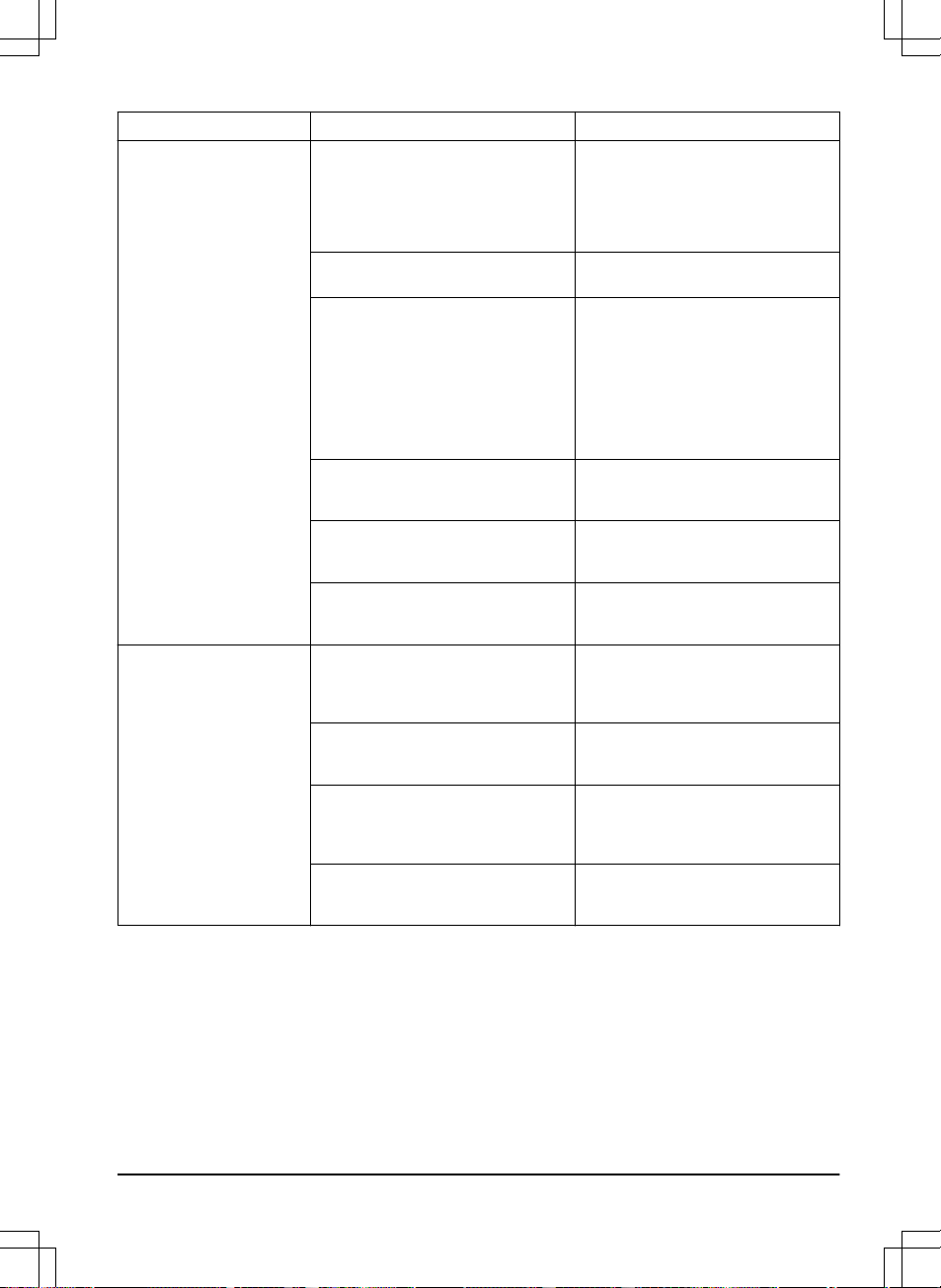
No loop signal
The power supply or the low-voltage ca-
ble for the charging station is not connec-
ted.
If the LED indicator on the charging sta-
tion is out, it shows that there is no pow-
er. Examine the power outlet connection
and the residual-current device. Make
sure that the low-voltage cable is con-
nected to the charging station.
The power supply or the low-voltage ca-
ble for the charging station is damaged.
Replace the power supply or low-voltage
cable.
ECO mode
is enabled and the LED in-
dicator of the charging station flashes
green. The product was started manually
in the work area but the STOP button
was not pushed before the product was
moved from the charging station. The
charging station signal is disabled and
the product cannot enter the charging
station. Refer to
ECO mode on page 19
.
Put the product in the charging station.
Start the product. Refer to
To start the
product on page 22
.
The product does not find the loop signal
from the charging station.
Put the product in the charging station
and make a new loop signal. Refer to
New loop signal on page 20
.
The charging station in not installed cor-
rectly.
Install the charging station according to
the instruction. Refer to
To install the
charging station on page 14
.
Interference from metal objects such as
fences, reinforcement steel or buried ca-
bles near the charging station.
Change the position of the charging sta-
tion.
Outside work area
The work area slopes too much by the
virtual boundary.
Make sure that the virtual boundary is
installed correctly. Refer to
To examine
where to install the objects on the map
on page 13
.
The transport path or the path to the
maintenance point slopes too much.
Make sure that the transport path is in-
stalled correctly. Refer to
To install the
map objects in a slope on page 13
.
The product can not find the correct
charging station signal because of inter-
ference with a loop signal from a different
product installation nearby.
Put the product in the charging station
and make a new loop signal. Refer to
New loop signal on page 20
.
Interference from metal objects such as
fences, reinforcement steel or buried ca-
bles near the charging station.
Change the position of the charging sta-
tion.
1970 - 001 - 10.10.2022 Troubleshooting - 27
Message Cause Action
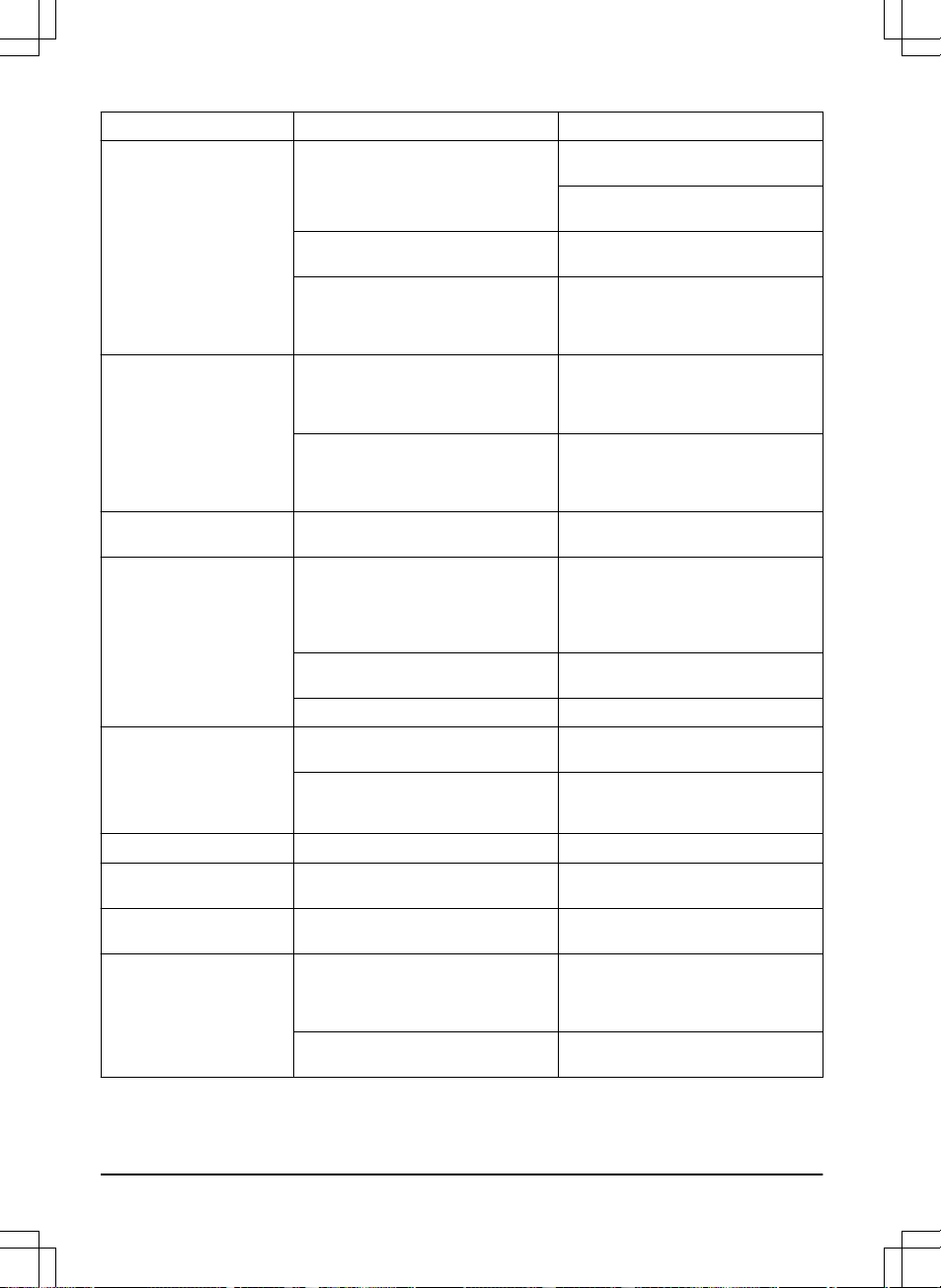
Empty battery
The product cannot find the charging sta-
tion.
The product has no accurate position
and cannot find the charging station.
There is an obstacle that prevents the
product to find the charging station.
The battery is at the end of its life cycle. Replace the battery. Refer to
Battery on
page 25
.
The antenna of the charging station is
defective.
If the LED indicator on the charging
station flashes red, the antenna of the
charging station is defective. Speak to
your approved servicing dealer.
Slipped
The product has hit an obstacle and
stopped or the wheels cannot move on
the wet grass.
Move the product and correct the cause
of problem. If it is because of wet grass,
wait until the lawn is dry before you use
the product.
The work area includes a steep slope. Maximum guaranteed slope is 45%.
Steeper slopes should be isolated. Refer
to
To install the map objects in a slope
on page 13
.
Wheel motor overloaded
right, left
Grass or other objects is wound around
the drive wheel.
Examine the drive wheel and remove
grass or other objects.
Charging station blocked
The connection between the charging
plates on the product and the contact
plates on the charging station is not
good. The product made a number of
tries to charge.
Put the product in the charging station
and make sure that the charging plates
and contact plates are connected.
An object prevents the product to enter
the charging station.
Remove the object.
The charging station tilts or is bent. Put the baseplate on level ground.
Stuck in charging station
An object prevents the product to move
out from the charging station.
Remove the object.
The baseplate has a wet or dirty surface
that prevents the product to move out
from the charging station.
Clean the baseplate of the charging sta-
tion.
Upside down
The product tilts or is with the top down. Put the product in the correct position.
Mower tilted
The product tilts more than the maximum
angle.
Move the product to an area that has lev-
el ground.
Lifted
The lift sensor was enabled because the
product was lifted.
Move the product. If the problem stays,
speak to your approved servicing dealer.
Collision
The body of the product cannot move
freely around its chassis.
Remove dirt or object between the chas-
sis and the body of the product. Make
sure that the body of the product can
move freely around its chassis.
The product cannot move forward or
rearward.
Remove the object that prevents the
product from operation.
28 - Troubleshooting 1970 - 001 - 10.10.2022
Message Cause Action
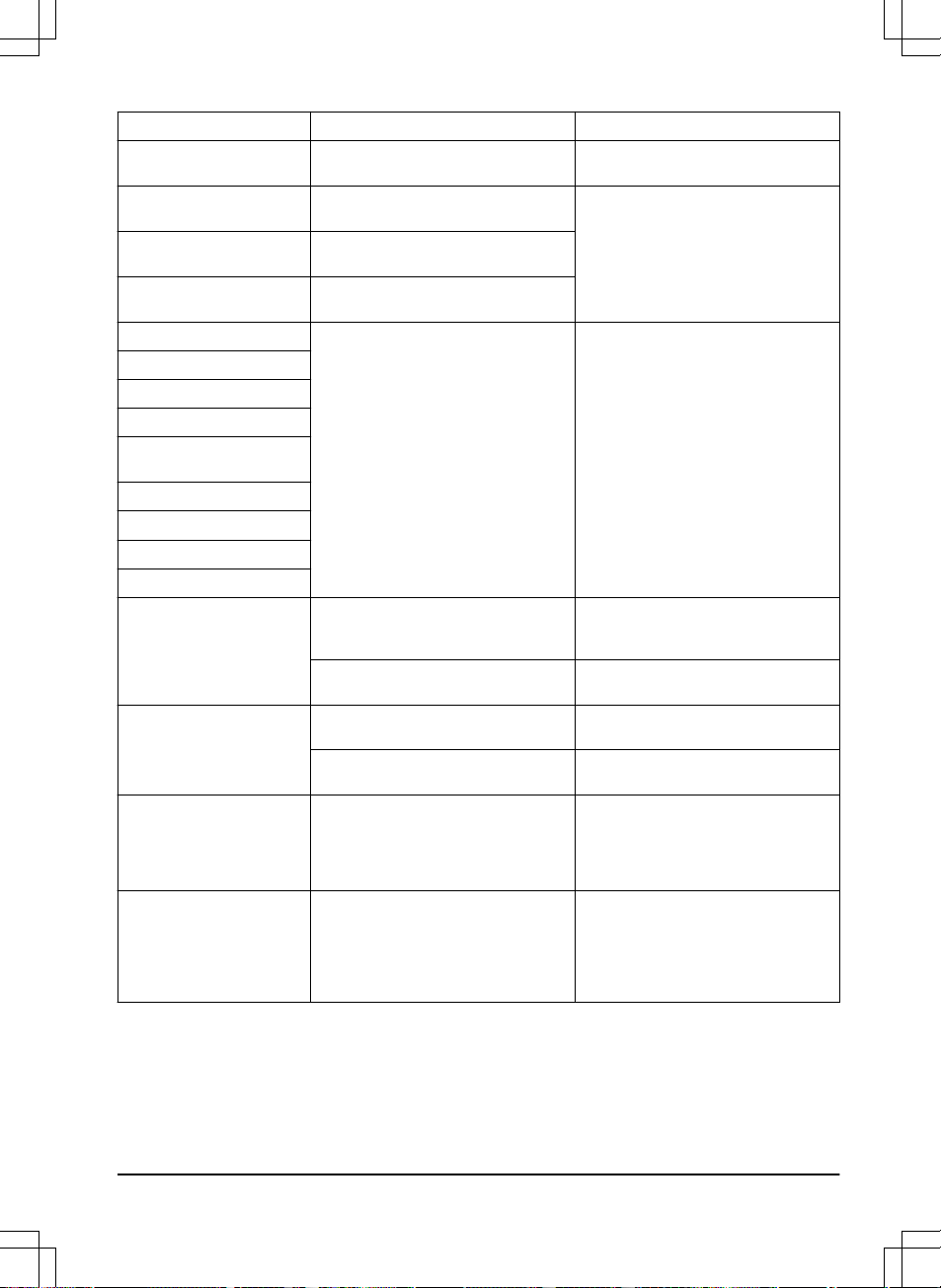
Wheel motor blocked right/
left
The wheel is blocked by grass or other
objects.
Examine the wheel and remove grass or
other objects.
Alarm! Mower stopped
The alarm was started because the prod-
uct was stopped.
Adjust the security settings in the
Secur-
ity
menu. Refer to
Security (Bluetooth
®
only) on page 20
.
Alarm! Mower outside Geo-
fence
Alarm was started because the product
was moved out of the GeoFence area.
Alarm! Mower was moved
The alarm was started because the prod-
uct was moved.
Electronic problem
Temporary electronic or firmware prob-
lem in the product.
Restart the product. If the problem stays,
speak to your approved servicing dealer.
Loop sensor problem
Tilt sensor problem
Temporary problem
Invalid sub-device combina-
tion
Temporary battery problem
Faulty mix of batteries
Collision sensor problem
Lift sensor problem
Charging system problem
There is corrosion or dirt on the charging
plates and contact plates.
Restart the product. Clean the charging
plates on the product and the contact
plates on the charging station.
Temporary electronic or firmware prob-
lem in the product.
Restart the product. If the problem stays,
speak to your approved servicing dealer.
Battery problem
Temporary battery or firmware problem
in the product.
Restart the product. If the problem stays,
speak to your approved servicing dealer.
Incorrect type of battery. Use only original batteries recommended
by the manufacturer.
Battery temperature outside
limits
The product cannot start because the
temperature in the battery is too high or
too low.
The product will start to operate when
the temperature of the battery has de-
creased. Make sure that the charging
station is put in an area with protection
from the sun.
Charging current too high
Incorrect or defective power supply unit. Examine that the power supply unit and
charging station are not defective. Make
sure that you use the correct power sup-
ply unit and charging station. Restart the
product. If the problem stays, speak to
your approved servicing dealer.
1970 - 001 - 10.10.2022 Troubleshooting - 29
Message Cause Action
Map problem
There is no specified work area. Make a work area in the Automower
®
Connect app. Refer to
To make a work
area on page 17
.
The charging station or the reference sta-
tion was moved.
Move the charging station or the refer-
ence station to their initial positions.
Do a new installation of the map.
The map object file is incorrect. Do a check of the map in the app. Adjust
the map and save it.
Delete the map and do a new installation.
Wheel drive problem, right/
left
The wheel is blocked by grass or other
objects.
Examine the drive wheel and remove
grass or other objects.
Searching for position
Weak satellite signal to the reference sta-
tion.
The satellite signal is temporary weak.
The product will start to operate when the
satellite signals are good.
Examine the installation of the reference
station. Refer to the Operator's manual
for the Reference station.
Weak satellite signal to the product. The satellite signal is temporary weak.
The product will start to operate when the
satellite signal are good.
Examine if there is an object between
the product and the sky that cause inter-
ference with the satellite signal. Remove
the object or do a new installation to not
include these parts in the work area. Re-
fer to
Installation of the map objects on
page 15
No accurate position from
satellites
Weak satellite signal to the reference sta-
tion.
Examine the installation of the reference
station. Refer to the Operator's manual
for the Reference station.
Weak satellite signal to the product. Examine if there is an object between
the product and the sky that cause inter-
ference with the satellite signal. Remove
the object or do a new installation to not
include these parts in the work area. Re-
fer to
To make a work area on page 17
30 - Troubleshooting 1970 - 001 - 10.10.2022
Message Cause Action
Reference station communi-
cation problem
The product is not connected to the refer-
ence station.
Do a pairing operation between the prod-
uct and the reference station.
The reference station is not installed cor-
rectly.
Examine the installation of the reference
station. Refer to the Operator's manual
for the Reference station.
The product does not receive the radio
signal from the reference station in all
areas where the product operates.
Test if the product has radio signal from
the reference station in all of the work
area. If not, make a new installation of
the reference station or a new installation
of the map. Refer to
Installation of the
map objects on page 15
.
Power failure. Examine and correct the cause for the
power failure of the reference station.
There is an error in the reference station
and the LED indicator flashes red.
Disconnect the power to the reference
station and connect it again to restart the
reference station. If the problem stays,
speak to your approved servicing dealer.
There is interference with another refer-
ence station or other radio systems in the
area.
Restart the product. If the problem stays,
speak to your approved servicing dealer.
Unexpected cutting height adj
The cutting height adjustment cannot
move.
Examine the cutting height adjustment
and remove grass or other objects. If the
problem stays, speak to your approved
servicing dealer.
Limited cutting height range
Cutting height problem
Cutting height blocked
Cutting system major imbal-
ance
The product senses vibrations in the
blade disc.
Make sure that the blades and screws
are not damaged or worn. Make sure that
all blades are correctly attached. Make
sure that there is only one blade attached
on each position in the blade disc.
Too many waypoints
There are too many waypoints in the cur-
rent work area.
Do a new installation of the work area,
stay-out zone and transport paths. Make
less waypoints. Divide the current work
area into more work areas.
Destination not reachable
There is no transport path between the
charging station and the work area or
maintenance point.
Make a transport path between the
charging station and the work area or
maintenance point.
The transport path is blocked and the
product cannot go to the work area,
charging station or maintenance point.
Make sure that the transport path is not
blocked, or delete the transport path and
make a new transport path.
1970 - 001 - 10.10.2022 Troubleshooting - 31
Message Cause Action
No power in charging station
Incorrect or damaged power supply. Examine the power supply. If it is neces-
sary, replace the power supply.
Power failure. Examine and correct the cause for the
power failure of the reference station.
The connection between the charging
plates on the product and the contact
plates on the charging station is not
good.
Make sure that the charging plates and
contact plates are connected.
Multiple reference stations
There is more than one reference station
near the work area. This can cause inter-
ference for the product from a different
reference station.
Speak to your approved servicing dealer
if the same problem occurs frequently.
6.3 Information and warning messages
The information messages in the table below are shown in the
Messages
menu in the Automower
®
Connect app.
Speak to your Husqvarna representative if the same message shows frequently.
Message Cause Action
Cutting system imbalance
The product senses vibrations in the
blade disc.
Examine the blades and screws for dam-
ages and wear. Make sure that all blades
are correctly installed and that there is
only one blade attached in each position
on the blade disc.
Connectivity problems
Problem with the Automower
®
Connect
module.
Restart the product. If the connection
problem stays, disconnect the product
from Automower
®
Connect and do a new
pairing operation. If the problem stays,
speak to your local Husqvarna represen-
tative.
Wrong PIN code
An incorrect PIN code has been entered.
5 tries are permitted, and the product is
then blocked for a period of time.
Enter the correct PIN code. If the PIN
code is incorrect, use the link in the
app to send the PIN code to your regis-
tered e-mail address. If you have not reg-
istered the e-mail address, speak to your
local Husqvarna representative.
Ultrasonic problem
Temporary electronic or firmware related
problem in the product.
Restart the product. If the problem stays,
speak to your approved servicing dealer.
GPS navigation problem
32 - Troubleshooting 1970 - 001 - 10.10.2022
6.4 LED indicator lamp on the charging station
For a fully functional installation, the indicator lamp in the charging station must show a solid or flashing green light. If
another color shows, follow the troubleshooting guide below.
There is more help on www.husqvarna.com. If you still need help, speak to your local Husqvarna representative.
Light Status
Green solid light Good signals.
Green flashing light The signals are good and
ECO mode
is activated. Refer to
ECO mode on page 19
.
Red flashing light Interruption in the charging station’s antenna. Speak to your local Husqvarna repre-
sentative.
Red solid light Fault in the circuit board or incorrect power supply in the charging station. The fault
must be correct by an authorized service technician. Speak to your local Husqvarna
representative.
6.5 LED indicator on the product
The LED indicator on the control panel of the product shows the current product status:
LED indicator light
Product status
Constant green The product cuts the lawn or moves out of the charging station.
Flashes green The product is in
Pause
mode.
Flashes red The product stopped because of an error.
Constant yellow The STOP button was pushed.
Flashes yellow The PIN code must be entered to start the product.
Constant blue The product moves to the charging station or a maintenance point.
An app is connected to the product with Bluetooth
®
, the LED indicator is constant blue for 3
seconds.
Pulsates blue The product charges in the charging station.
Flashes blue The product is parked in charging station.
The product can at this time find Bluetooth
®
and connect with Bluetooth
®
.
Constant white The product is in appDrive mode.
Pulsates white The product sets to OFF.
Firmware installation is in progress.
Flashes white New firmware must be installed.
There is more information on www.husqvarna.com. Speak to your local Husqvarna representative for more
information.
1970 - 001 - 10.10.2022
Troubleshooting - 33
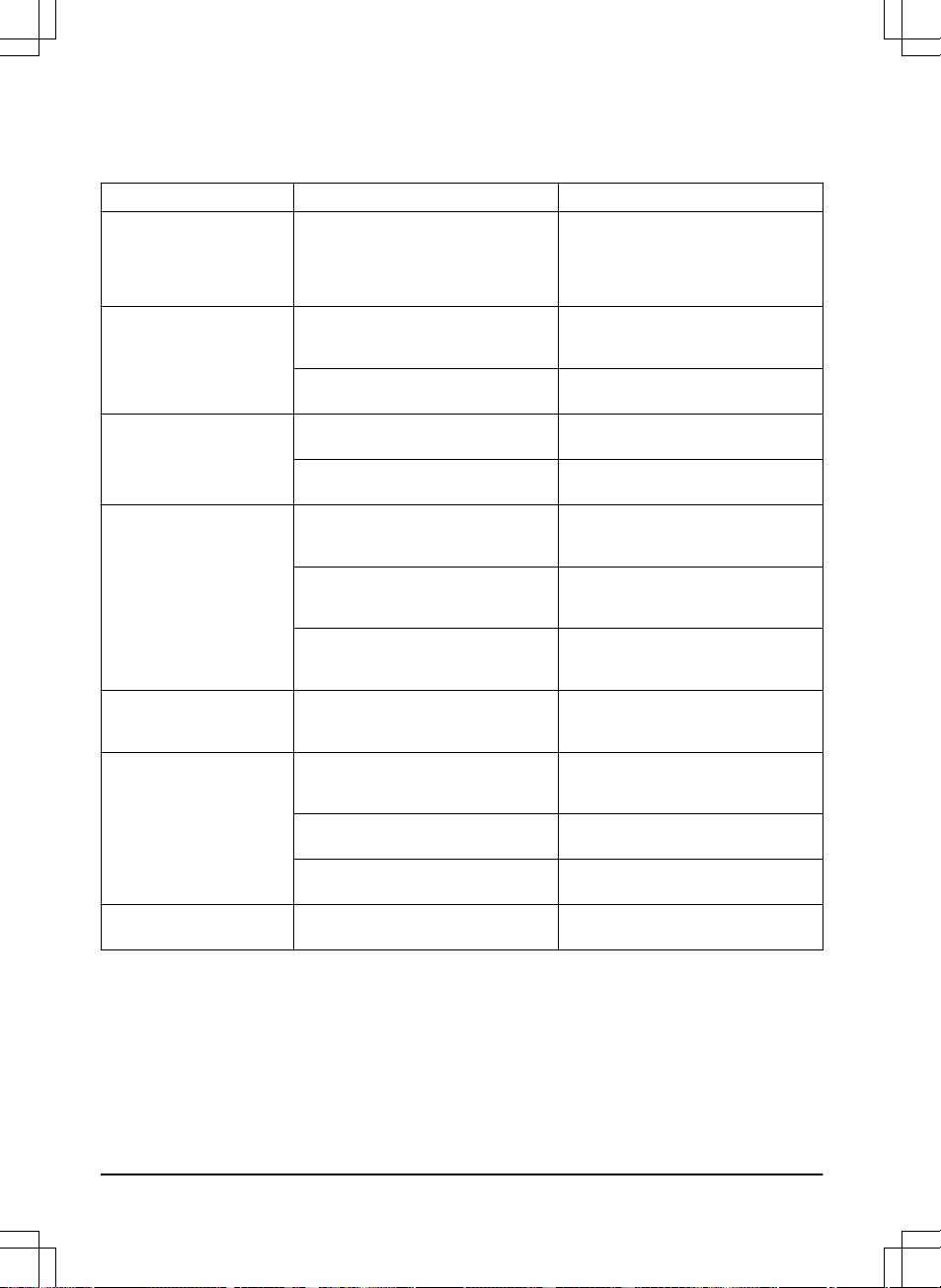
6.6 Symptoms
If the product does not operate correctly, refer to the symptoms table below.
Symptoms Cause Action
The Main switch is set to the
0
position but the product is
not set to OFF.
The Main switch is set to the
0
posi-
tion but the product is not connected to
the Automower
®
Connect app with Blue-
tooth
®
. The product is disabled but not
set to OFF.
Set the Main switch to the
1
position,
connect the product to the Automower
®
Connect app with Bluetooth
®
and set the
Main switch to the
0
position.
The product cannot go into
the charging station.
The charging station is not on a level sur-
face.
Put the charging station on a level sur-
face. Refer to
To examine where to put
the charging station on page 11
.
The charging station is put too far from
the work area.
Make a new work area or move the
charging station.
The product operates at the
incorrect time.
The time and date of the product must be
set.
Set the time and date. Refer to
Time &
date on page 20
.
The start and stop time for operation are
incorrect.
Change the schedule settings. Refer to
Schedule on page 18
.
There is vibration in the prod-
uct.
The cutting system is not in balance be-
cause of damaged blades.
Examine the blades and screws and re-
place them if necessary. Refer to
To re-
place the blades on page 25
.
The cutting system is not in balance be-
cause of too many blades in the same
position.
Do a check that only one blade is attach-
ed to each screw.
Blades of different thickness are installed
on the product.
Examine if the blades are of different
thickness and replace the blades if nec-
essary.
The product operates, but the
blade disc does not rotate.
The product goes to the charging station. Usual operation of the product. The
blade disc does not rotate when the
product goes to the charging station.
The product operates for
shorter periods than usual
between charges.
Grass or other object causes a blockage
to the blade disc.
Remove and clean the blade disc. Refer
to
To clean the chassis and blade disc on
page 24
.
The battery is at the end of its life cycle. Replace the battery. Refer to
Battery on
page 25
.
The grass is high and thick. Increase the cutting height and then de-
crease it when the grass is shorter.
Operation and charging times
are shorter than usual.
The battery is at the end of its life cycle. Replace the battery. Refer to
Battery on
page 25
.
34 - Troubleshooting 1970 - 001 - 10.10.2022
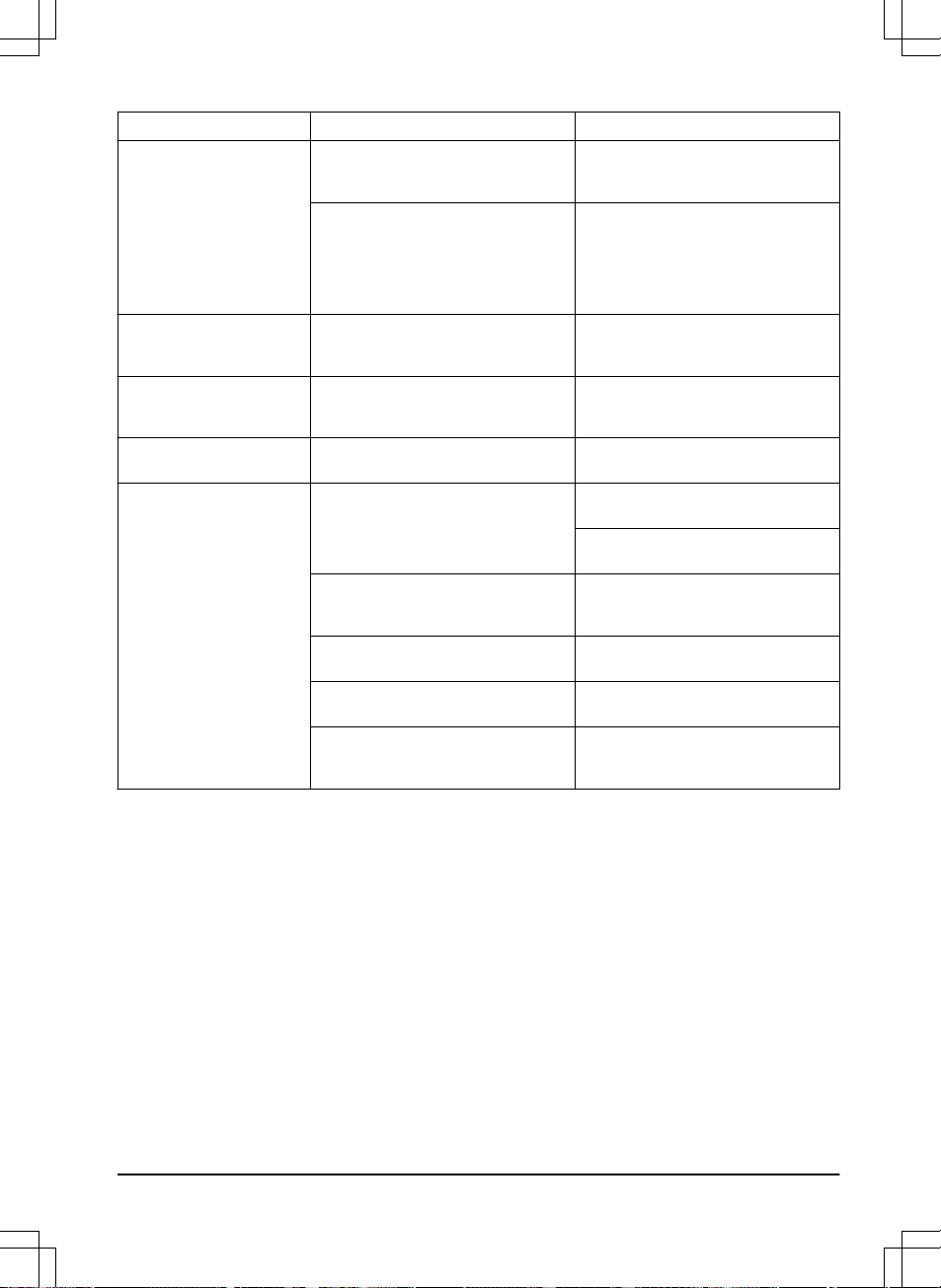
Symptoms Cause Action
The product is parked for
hours in the charging station.
The product is parked because of the set
Schedule
setting, or because
Park until
further notice
is selected.
Change the
Schedule
settings, or start
the product.
The product does not operate if the bat-
tery temperature is too high or too low.
The product starts to operate again when
the temperature is between the set limits
and the schedule settings lets the prod-
uct operate. Make sure that the charging
station is put in an area with protection
from the sun.
The product moves in circles
or spirals.
The product operates frequently in
Spiral
cutting
.
Adjust the intensity of the
Spiral cutting
or disable it if it is necessary. Refer to
Spiral cutting on page 19
.
The product operates on a
small area for a number of
minutes.
The product follows the GPS assisted
navigation.
Usual operation of the product.
The product cannot connect
to the mobile device.
The product is connected to a different
mobile device or app.
Disable the app in all other connected
devices.
The cut result is not satisfac-
tory.
The product operates for a short period. Increase the cutting time. Refer to
Schedule on page 18
.
Increase the intensity level in the
Weath-
er timer
or disable the
Weather timer
.
The work area is too large. Set a limit to the work area, or extend the
operation time. Refer to
To calculate the
schedule setting on page 18
.
Blunt blades. Replace all the blades. Refer to
To re-
place the blades on page 25
.
Long grass in relation to the set cutting
height.
Increase the cutting height and then low-
er it when the grass is shorter.
Collection of grass by the blade disc or
around the motor shaft.
Remove the collection of grass and clean
the product. Refer to
To clean the chas-
sis and blade disc on page 24
.
1970 - 001 - 10.10.2022 Troubleshooting - 35
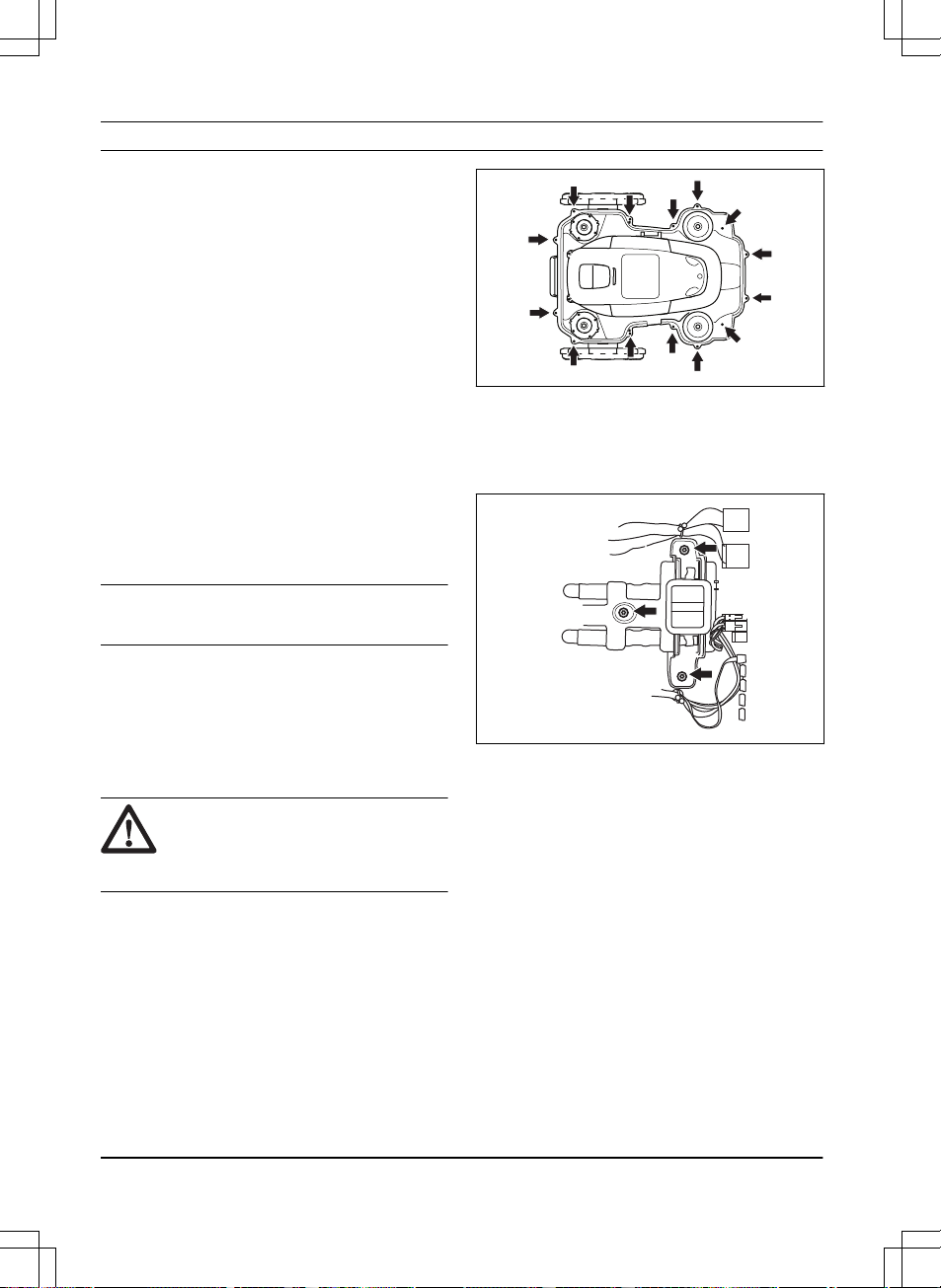
7 Transportation, storage and disposal
7.1 Transportation
The supplied Li-ion batteries obey the Dangerous Goods
Legislation requirements.
• Obey all applicable national regulations.
• Obey the special requirement on package and
labels for commercial transportations, including by
third parties and forwarding agents.
7.2 Storage
• Fully charge the product. Refer to
To charge the
battery on page 23
.
• Disconnect the product with the Main switch. Refer
to
To set the product to OFF on page 23
.
• Clean the product. Refer to
Clean the product on
page 24
.
• Keep the product in a dry, frost free space.
• Keep the product with all wheels on level ground
during storage, or use a Husqvarna wall hanger.
• If you keep the charging station indoors,
disconnect and remove the power supply from the
charging station.
Note: If you keep the charging station outdoors, do
not disconnect the power supply and the connectors.
7.3 Disposal
• Obey the local recycling requirements and
applicable regulations.
• For questions about how to remove the battery,
refer to
To remove the batteries on page 36
.
7.3.1 To remove the batteries
CAUTION:
Only remove the batteries
when you dispose the product. When you
remove the warranty seal, the Husqvarna
warranty is no longer applicable.
1. Disconnect the product with the Main switch. Refer
to
To set the product to OFF on page 23
.
2. Pull out the grommet on the charging cable at the
very front of the product, and carefully remove the
connector.
3. Lift the cover, one corner at a time.
4. Remove the 14 screws with a Torx 20.
5. Lift the rear edge of the top section of the chassis.
6. Disconnect the cable from the main circuit board.
7. Remove the top section of the chassis.
8. Remove the 3 screws that holds the batteries with
a Torx 20.
9. Disconnect the batteries connection from the main
circuit board.
36
- Transportation, storage and
disposal
1970 - 001 - 10.10.2022
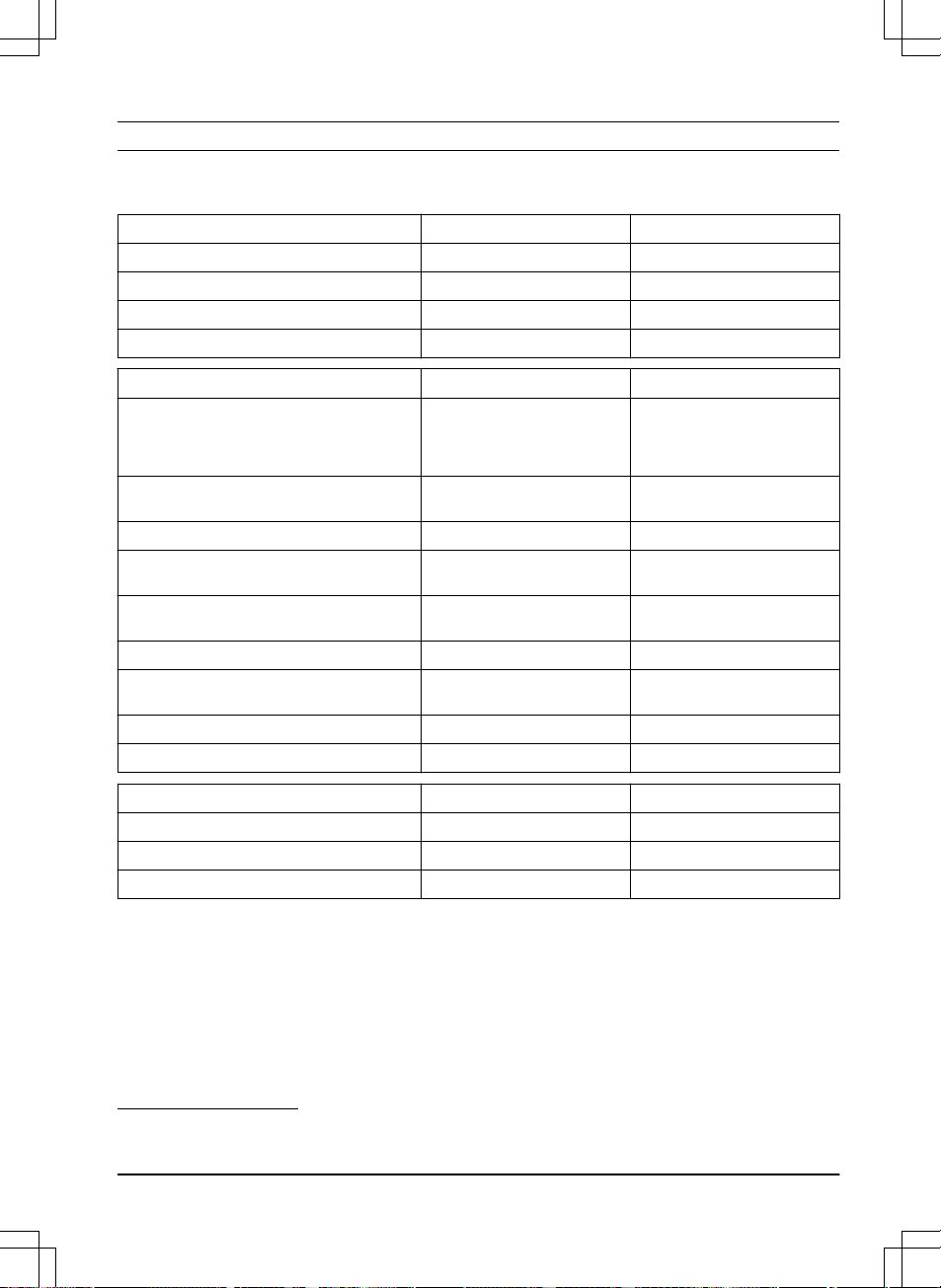
8 Technical data
8.1 Technical data
Dimensions Automower
®
450X EPOS Automower
®
450XH EPOS
Length, cm / in. 72 / 28.3 75 / 29.5
Width, cm / in. 56 / 22.0 63 / 24.8
Height, cm / in. 32 / 12.6 35 / 13.8
Weight, kg / lbs 14.4 / 31.7 16 / 35.3
Electrical system Automower
®
450X EPOS Automower
®
450XH EPOS
Battery, Lithium-Ion 18V, 5.0 Ah, Art. No 593 11 84-01, 593 11 85-01,
593 11 84-03, 593 11 84-04,
593 11 84-05, 593 11 84-06 (2
pcs.) 5.0 Ah/battery
593 11 84-01, 593 11 85-01,
593 11 84-03, 593 11 84-04,
593 11 84-05, 593 11 84-06 (2
pcs.) 5.0 Ah/battery
Battery, Lithium-Ion 18V, 4.9 Ah, Art. No 593 11 84-02, 593 11 85-02 (2
pcs.) 4.9 Ah/battery
593 11 84-02, 593 11 85-02 (2
pcs.) 4.9 Ah/battery
Power supply (28V DC), V AC 100-240 100-240
Low-voltage cable for charging station, length
m/ft.
10 / 33 10 / 33
Mean energy consumption at maximum use 23 kWh/month in a 5000 m
2
work area
23 kWh/month in a 5000 m
2
work area
Charging current, A DC 7 7
Type of Power Supply Unit for charging station
5
FW7458/28/D/XX/Y,
ADP-200JR XX
FW7458/28/D/XX/Y,
ADP-200JR XX
Average mowing time, min 210 210
Average charging time, min 60 60
Charging station wire antenna Automower
®
450X EPOS Automower
®
450XH EPOS
Operating Frequency Band, Hz 100-80000 100-80000
Maximum magnetic field, dBuA/m 82 82
Maximum Radio-frequency power
6
, mW @60m <25 mW @60m <25 mW @60m
5
XX, YY can be any alphanumeric characters or blank for marketing purpose only, no technical differences.
6
Maximum active output power to antennas in the frequency band in which the radio equipment operates.
1970 - 001 - 10.10.2022 Technical data - 37
Sound data
7
Automower
®
450X EPOS Automower
®
450XH EPOS
Sound level, perceived, dB (A) 65 68
Measured sound power noise level, dB (A) 63 65
Noise emissions uncertainties K
WA
, dB (A) 3 3
Sound pressure noise level at the operator’s
ear, dB (A)
8
55 57
Mowing Automower
®
450X EPOS Automower
®
450XH EPOS
Cutting system 3 pivoted cutting blades 3 pivoted cutting blades
Maximum cutting motor speed, rpm 2700 2700
Power consumption during cutting, W +/- 20 % 35 37
Cutting height, cm / in. 2-6 / 0.8-2.4 5-9 / 2.0-3.6
Cutting width, cm / in. 24 / 9.4 24 / 9.4
Narrowest possible passage, m / ft. 2 / 6.5 2 / 6.5
Maximum slope for cutting area, % 45 45
Maximum slope for virtual boundary, % 15 15
Working capacity, m
2
/ acre(s) +/- 20% 5000 / 1.25 5000 / 1.25
IP-classification Automower
®
450X EPOS Automower
®
450XH EPOS
Robotic lawn mower IPX4 IPX4
Charging station IPX1 IPX1
Power supply charging station IP44 IP44
Frequency Band Support
Bluetooth
®
Frequency range 2400.0-2483.5 MHz
Automower
®
Connect 2G GSM 850 MHz, E-GSM 900 MHz, DCS 1800 MHz, PCS 1900 MHz
Automower
®
Connect 4G Band 12 (700 MHz), Band 17 (700 MHz), Band 28 (700 MHz), Band 13 (700 MHz),
Band 20 (800 MHz), Band 26 (850 MHz), Band 5 (850 MHz), Band 19 (850 MHz),
Band 8 (900 MHz), Band 4 (1700 MHz), Band 3 (1800 MHz), Band 2 (1900 MHz)
SRD915 902-928 MHz
7
Determined according to Directive 2006/42/EC and standard EN 50636-2-107. Except Sound level, perceived
that is measured according to ISO 11094:1991.
8
Sound pressure noise uncertainties K
pA
, 2-4 dB (A).
38 - Technical data 1970 - 001 - 10.10.2022
Power Class
Bluetooth
®
Output power 8 dBm
Automower
®
Connect 2G Power Class 4 (GSM/E-GSM) 33 dBm
Power Class 1 (DCS/PCS) 30 dBm
Power Class E2 (GSM/E-GSM) 27 dBm
Power Class E2 (DCS/PCS) 26 dBm
Automower
®
Connect 4G Power Class 3 23 dBm
SRD915 13 dBm
Full compatibility cannot be guaranteed between the product and other types of wireless systems such as remote
controls, radio transmitters, hearing loops, buried electric animal fencing or similar.
The products are made in England or the Czech Republic. Refer to information on the rating plate. Refer to
Product
overview on page 8
.
8.2 Registered trademarks
The
Bluetooth
®
word mark and logos are registered trademarks owned by
Bluetooth SIG, inc.
and any use of such
marks by Husqvarna is under license.
1970 - 001 - 10.10.2022 Technical data - 39

9 Warranty
9.1 Warranty terms
Husqvarna
®
warranty covers this product's functionality
for a period of 2 years from date of purchase. The
warranty covers serious faults relating to materials or
manufacturing faults. Within the warranty period, we
will replace the product or repair it at no charge if the
following terms are met:
• The product and the charging station may only be
used in compliance with the instructions in this
Operator’s Manual. This manufacturer's warranty
does not affect warranty entitlements against the
dealer/retailer.
• End-users or non-authorized third parties must not
attempt to repair the product.
Examples of faults which are not included in the
warranty:
• Damage caused by water seepage from using a
high-pressure washer, or from being submerged
under water, for example when heavy rain forms
pools of water.
• Damage caused by lightning.
• Damage caused by improper battery storage or
battery handling.
• Damage caused by using a battery that is not a
Husqvarna original battery.
• Damage caused by not using Husqvarna original
spare parts and accessories, such as blades and
installation material.
• Damage caused by non-authorized changing or
tampering with the product or its power supply.
The blades and wheels are seen as disposable and are
not covered by the warranty.
If an error occurs with your Husqvarna product,
please contact Husqvarna customer service for further
instructions. Please have the receipt and the product’s
serial number at hand when contacting Husqvarna
customer service.
40
- Warranty 1970 - 001 - 10.10.2022
10 Applicable to US/CA market
10.1 Supplier's Declaration of
Conformity
Issuer: Husqvarna AB, Drottninggatan 2, SE-561 82
Huskvarna, Sweden www.husqvarnagroup.com.
Responsible party: Husqvarna Professional Products,
Inc. 9335 Harris Corners Parkway Suite 500 Charlotte,
NC 28269 United States U.S. Contact information:
Michael Campbell, Sr Director Quality, test compliance,
Telephone: +1 704 597 5000.
10.2 Compliance requirements
FCC ID: MCQ-XBSX (Short range device 915 MHz).
FCC ID ZASHQ-BLE-1G (Bluetooth
®
module).
FCC ID: XPYUBX18ZO01 (Automower
®
Connect 2G/
4G).
The Bluetooth
®
module is located on the HMI-board
(PCBA) in the upper chassis. All circuit boards in the
mower using radio are located in the upper chassis.
They must only be accessed by an authorized service
technician.
WARNING: To comply with RF
exposure requirements, please maintain a
separation distance of at least 20 cm/7
inches from any part of the product.
Note: Changes or modifications made to this
equipment not expressly approved by Husqvarna may
void the FCC authorization to operate this equipment.
Note: This device complies with Part 15 of
the FCC Rules [and with Industry Canada licence-
exempt RSS standard(s)]. Operation is subject to the
following two conditions: this device may not cause
harmful interference, and this device must accept any
interference received, including interference that may
cause undesired operation.
Note: This equipment has been tested and found
to comply with the limits for a Class B digital device,
pursuant to part 15 of the FCC Rules. These limits
are designed to provide reasonable protection against
harmful interference in a residential installation. This
equipment generates, uses and can radiate radio
frequency energy and, if not installed and used in
accordance with the instructions, may cause harmful
interference to radio communications. However, there
is no guarantee that interference will not occur in a
particular installation. If this equipment does cause
harmful interference to radio or television reception,
which can be determined by turning the equipment off
and on, the user is encouraged to try to correct the
interference by one or more of the following measures:
• Reorient or relocate the receiving antenna.
• Increase the separation between the equipment
and receiver.
• Connect the equipment into an outlet on a
circuit different from that to which the receiver is
connected.
• Consult the dealer or an experienced radio/TV
technician for help.
WARNING: Cancer and Reproductive
Harm - www.P65Warnings.ca.gov.
1970 - 001 - 10.10.2022 Applicable to US/CA
market - 41

42 - Applicable to US/CA market 1970 - 001 - 10.10.2022

1970 - 001 - 10.10.2022 Applicable to US/CA
market - 43
www.husqvarna.com
AUTOMOWER
®
is a trademark owned by Husqvarna AB.
Copyright
©
2022 HUSQVARNA. All rights reserved.
Original instructions
1143191-95
2022-10-13