m®
anaSOn|C
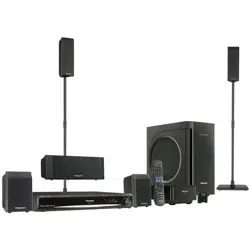
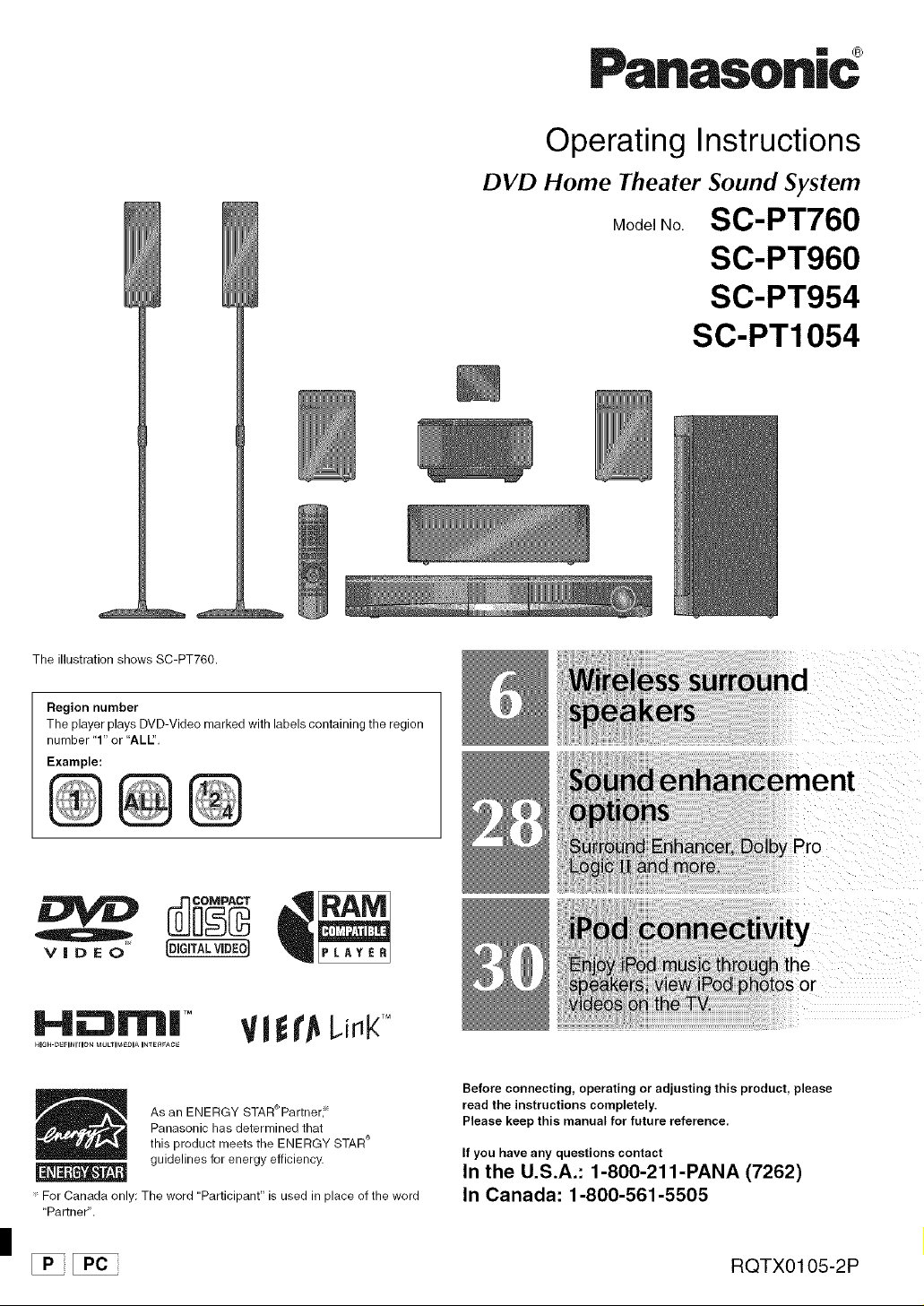
The illustration shows SC-PT760.
Region number
The player plays DVD-Video marked with labels containing the region
number "1" or "ALL',
Example:
VIDEO
H_m| TM
HI_H-_FIt_rrION MULtIMeDIA INTERFACE
Operating Instructions
DVD Home Theater Sound System
Model No. SC-PT760
SC-PT960
SC-PT954
SC-PT1054
As an ENERGY STAR_Partnerl _
Panasonic has determined that
this product meets the ENERGY STAR _"
guidelines for energy efficiency.
_'For Canada only: The word "Participant" is used in place of the word
"Partner",
Before connecting, operating or adjusting this product, please
read the instructions completely.
Please keep this manual for future reference,
If you have any questions contact
In the U.S.A.: 1-800-211-PANA (7262)
In Canada: 1-800-561-5505
[PC RQTX0105-2P
Dear customer
Thank you for purchasing this product. For optimum performance and
safety, please read these instructions carefully.
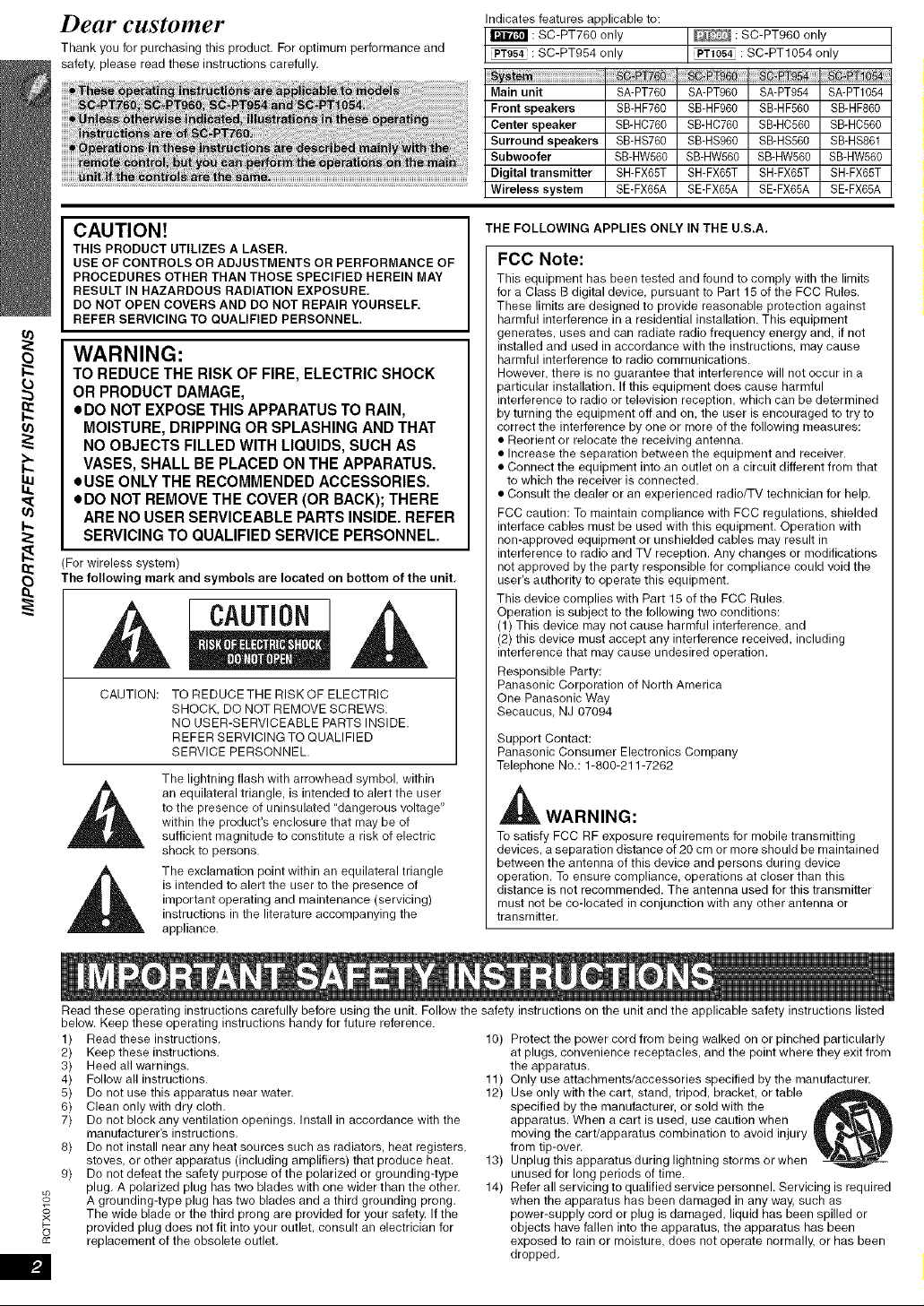
Indicates features applicable to:
: SC-PT760 only _ : SC-PT960 only
: SC-PT954 only PT1054 : SC-PT1054 only
Main unit SA-PT760 SA-PT960 SA-PT954 SA-PT1054
Front speakers SB-HF760 SB-HF960 SB-HF560 SB-HF860
Center speaker SB-HC760 SB-HC760 SB-HC560 SB-HC560
Surround speakers SB-HS760 SB-HS960 SB-HS560 SB-HS861
Subweofer SB-HW560 SB-HW560 SB-HW560 SB-HW560
SH-FX65T SH-FX65T SH-FX65T SH-FX65T
SE-FX65A SE-FX65A SE-FX65A SE-FX65A
CAUTION!
THIS PRODUCT UTILIZES A LASER.
USE OF CONTROLS OR ADJUSTMENTS OR PERFORMANCE OF
PROCEDURES OTHER THAN THOSE SPECIFIED HEREIN MAY
RESULT IN HAZARDOUS RADIATION EXPOSURE,
DO NOT OPEN COVERS AND DO NOT REPAIR YOURSELF.
REFER SERVICING TO QUALIFIED PERSONNEL.
WARNING:
TO REDUCE THE RISK OF FIRE, ELECTRIC SHOCK
OR PRODUCT DAMAGE,
• DO NOT EXPOSE THIS APPARATUS TO RAIN,
MOISTURE, DRIPPING OR SPLASHING AND THAT
NO OBJECTS FILLED WITH LIQUIDS, SUCH AS
VASES, SHALL BE PLACED ON THE APPARATUS.
•USE ONLY THE RECOMMENDED ACCESSORIES.
•DO NOT REMOVE THE COVER (OR BACK); THERE
ARE NO USER SERVICEABLE PARTS INSIDE. REFER
SERVICING TO QUALIFIED SERVICE PERSONNEL.
For wireless system)
The following mark and symbols are located on bottom of the unit,
CAUTION
CAUTION: TO REDUCE THE RISK OF ELECTRIC
SHOCK, DO NOT REMOVE SCREWS.
NO USER-SERVICEABLE PARTS INSIDE.
REFER SERVICING TO QUALIFIED
SERVICE PERSONNEL.
The lightning flash with arrowhead symbol, within
an equilateral triangle, is intended to alert the user
to the presence of uninsulated "dangerous voltage"
within the product's enclosure that may be of
sufficient magnitude to constitute a risk of electric
shock to persons.
The exclamation point within an equilateral triangle
is intended to alert the user to the presence of
important operating and maintenance (servicing)
instructions in the literature accompanying the
appliance.
THE FOLLOWING APPLIES ONLY IN THE U.S.A.
FCC Note:
This equipment has been tested and found to comply with the limits
for a Class B digital device, pursuant to Part 15 of the FCC Rules.
These limits are designed to provide reasonable protection against
harmful interference in a residential installation. This equipment
generates, uses and can radiate radio frequency energy and, if not
installed and used in accordance with the instructions, may cause
harmful interference to radio communications.
However, there is no guarantee that interference will not occur in a
particular installation. If this equipment does cause harmful
interference to radio or television reception, which can be determined
by turning the equipment off and on, the user is encouraged to try to
correct the interference by one or more of the following measures:
• Reorient or relocate the receiving antenna.
• Increase the separation between the equipment and receiver.
• Connect the equipment into an outlet on a circuit different from that
to which the receiver is connected.
• Consult the dealer or an experienced radio/TV technician for help.
FCC caution: To maintain compliance with FCC regulations, shielded
interface cables must be used with this equipment. Operation with
non-approved equipment or unshielded cables may result in
interference to radio and TV reception. Any changes or modifications
not approved by the party responsible for compliance could void the
user's authority to operate this equipment.
This device complies with Part 15 of the FCC Rules.
Operation is subject to the following two conditions:
(1) This device may not cause harmful interference, and
(2) this device must accept any interference received, including
interference that may cause undesired operation.
Responsible Party:
Panasonic Corporation of North America
One Panasonic Way
Secaucus, NJ 07094
Support Contact:
Panasonic Consumer Electronics Company
Telephone No.: 1-800-211-7262
_WARNING:
To satisfy FCC RF exposure requirements for mobile transmitting
devices, a separation distance of 20 cm or more should be maintained
between the antenna of this device and persons during device
operation. To ensure compliance, operations at closer than this
distance is not recommended. The antenna used for this transmitter
must not be co-located in conjunction with any other antenna or
transmitter.
o_
#
o
£c
Read these operating instructions carefully before using the unit. Follow the safety instructions on the unit and the applicable safety instructions listed
below. Keep these operating instructions handy for future reference.
1) Read these instructions.
2) Keep these instructions.
3) Heed all warnings.
4) Follow all instructions.
5) Do not use this apparatus near water.
6) Clean only with dry cloth.
7) Do not block any ventilation openings. Install in accordance with the
manufacturer's instructions.
8) Do not install near any heat sources such as radiators, heat registers,
stoves, or other apparatus (including amplifiers) that produce heat.
9) Do not defeat the safety purpose of the polarized or grounding-type
plug. A polarized plug has two blades with one wider than the other.
A grounding-type plug has two blades and a third grounding prong.
The wide blade or the third prong are provided for your safety. If the
provided plug does not fit into your outlet, consult an electrician for
replacement of the obsolete outlet.
10) Protect the power cord from being walked on or pinched particularly
at plugs, convenience receptacles, and the point where they exit from
the apparatus.
11) Only use attachments/accessories specified by the manufacturer.
12) Use only with the cart, stand, tripod, bracket, or table
specified by the manufacturer, or sold with the
apparatus. When a cart is used, use caution when
moving the cart/apparatus combination to avoid injury
from tip-over.
13) Unplug this apparatus during lightning storms or when
unused for long periods of time.
14) Refer all servicing to qualified service personnel. Servicing is required
when the apparatus has been damaged in any way, such as
power-supply cord or plug is damaged, liquid has been spilled or
objects have fallen into the apparatus, the apparatus has been
exposed to rain or moisture, does not operate normally, or has been
dropped.
P41
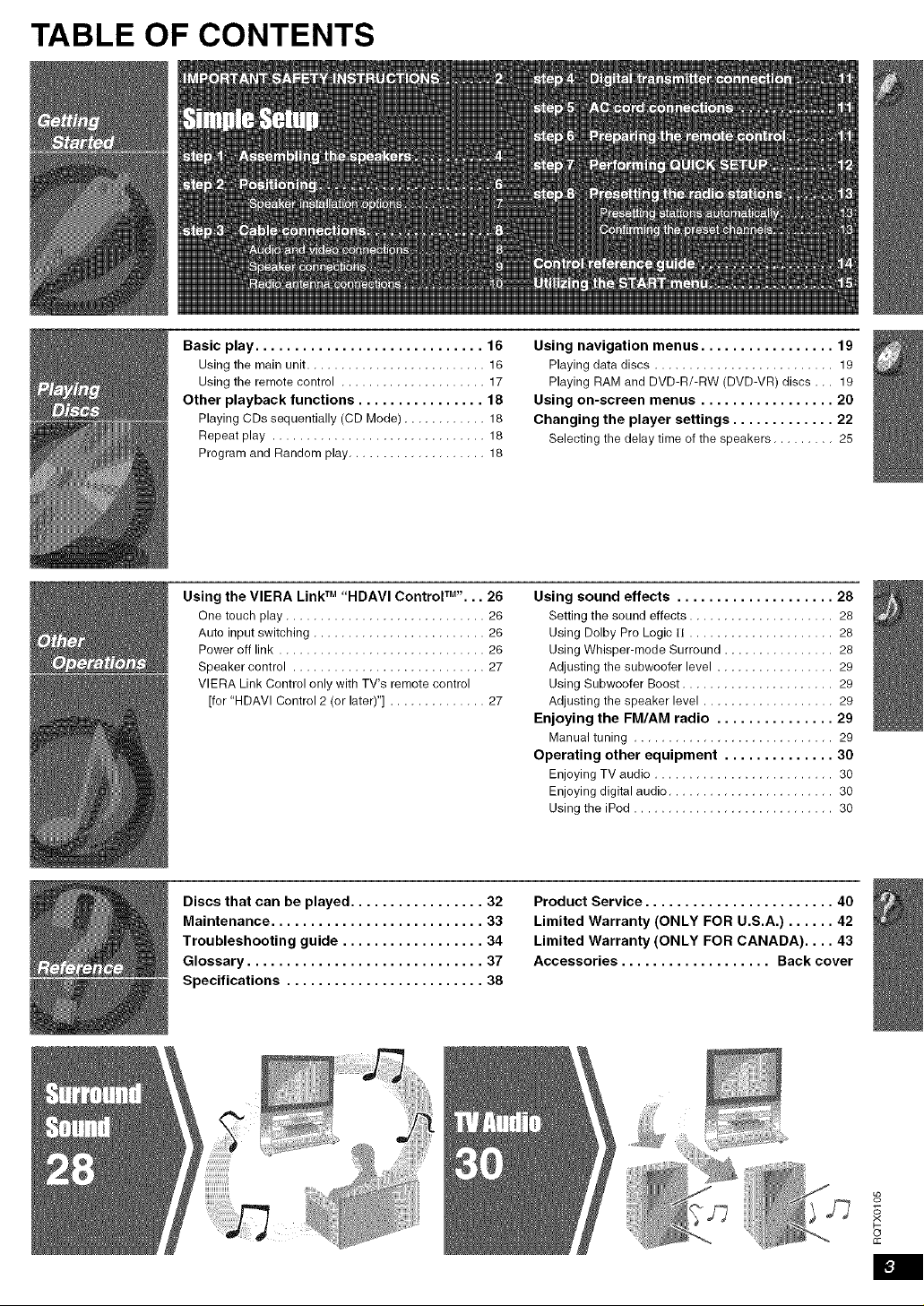
TABLE OF CONTENTS
Basic play ............................. 16
Using the main unit .......................... 16
Using the remote control ..................... 17
Other playback functions ................ 18
Playing CDs sequentially (CD Mode) ............ 18
Repeat play ............................... 18
Program and Random play .................... 18
Using navigation menus ................. 19
Playing data discs .......................... 19
Playing RAM and DVD-R/-RW (DVD-VR) discs.,. 19
Using on-screen menus ................. 20
Changing the player settings ............. 22
Selecting the delay time of the speakers......... 25
Using the VIERA Link TM "HDAVI Control TM'. .. 26
One touch play ............................. 26
Auto input switching ......................... 26
Power off link .............................. 26
Speaker control ............................ 27
VlERA Link Control only with TV's remote control
[for "HDAVI Control 2 (or later)"] .............. 27
Using sound effects .................... 28
Setting the sound effects ..................... 28
Using Dolby Pro Logic ]I ..................... 28
Using Whisper-mode Surround ................ 28
Adjusting the subwoofer level ................. 29
Using Subwoofer Boost ...................... 29
Adjusting the speaker level ................... 29
Enjoying the FM/AM radio ............... 29
Manual tuning ............................. 29
Operating other equipment .............. 30
Enjoying TV audio .......................... 30
Enjoying digital audio ........................ 30
Using the iPod ............................. 30
Discs that can be played ................. 32
Maintenance ........................... 33
Troubleshooting guide .................. 34
Glossary .............................. 37
Specifications ......................... 38
Product Service ........................ 40
Limited Warranty (ONLY FOR U.S.A.) ...... 42
Limited Warranty (ONLY FOR CANADA) .... 43
Accessories ................... Back cover
o_
S
x
o
cc
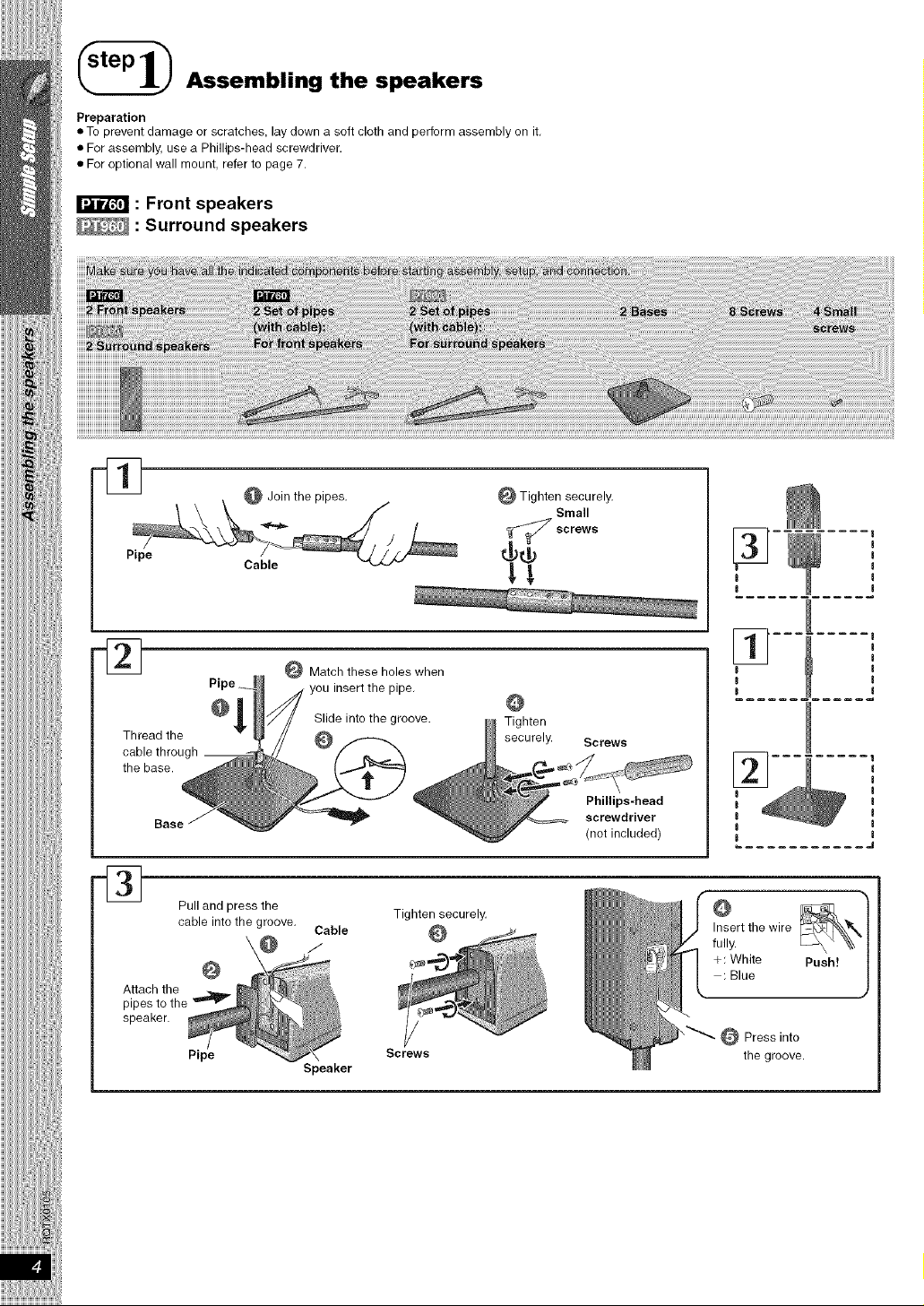
_Assembling the speakers
Preparation
•To prevent damage or scratches, lay down a soft cloth and perform assembly on it,
• For assembly, use a Phillips-head screwdriver.
• For optional wall mount, refer to page 7.
: Front speakers
:Surround speakers
Pipe
Thread the
cable through
the base.
Cable
o1
Pull and press the
cable into the groove,
@
@
_ Tighten securely,
Small
{__ screws
Attach the
pipes to the
speaker.
_ Match these holes when
you insert the pipe,
Slide into the groove.
@
Tighten
securely. Screws
Phillips-head
screwdriver
(not included)
I
I
Pipe
Cable
J
Speaker
Tighten securely,
Q
Screws
o
Insert the wire
fully.
+: White Push!
: Blue
Press into
the groove.
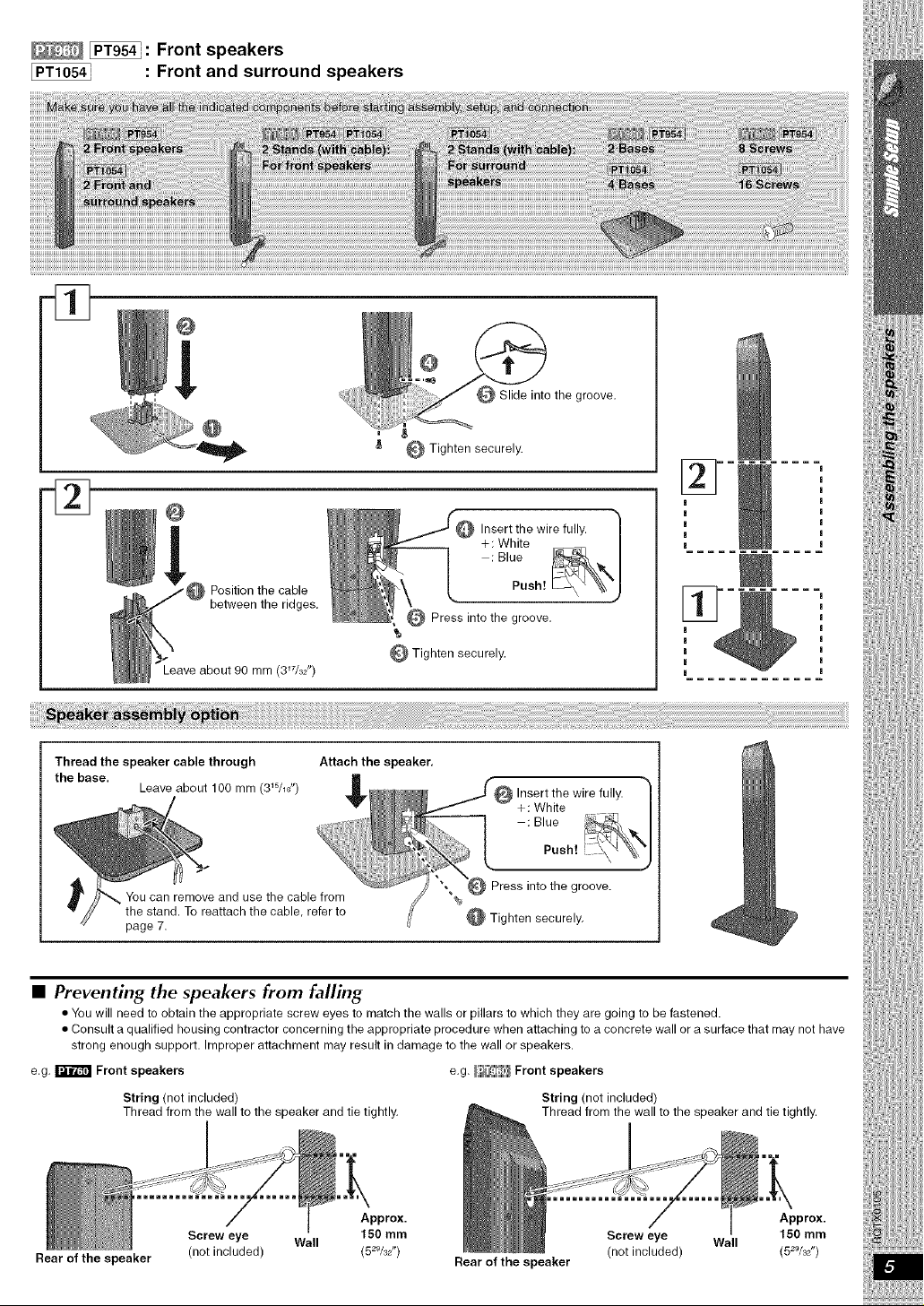
_: Front speakers
: Front and surround speakers
!
Position the cable
between the ridges.
Slide into the groove.
_ Tighten securely.
Insert the wire fully.
+: White
: Blue
Push!
_ Press into the groove.
_ Tighten securely,
Leave about 90 mm (3_7/32 ")
Attach the speaker,
B
g
g
g
g
Thread the speaker cable through
the base.
page 7. Tighten securely.
•Preventing the speakers from falling
• You will need to obtain the appropriate screw eyes to match the walls or pillars to which they are going to be fastened.
• Consult a qualified housing contractor concerning the appropriate procedure when attaching to a concrete wall or a surface that may not have
strong enough support. Improper attachment may result in damage to the wall or speakers.
e.g. _ Front speakers e g _Z_i_i_ Front speakers
String (not included) String (net included)
Thread from the wall to the speaker and tie tightly, Thread from the wall to the speaker and tie tightly,
Rear of the speaker
Approx. Approx.
Screw eye Wall 150 mm Screw eye Wall 150 mm
(not included) (52%/' ) (not included) (52%/' )
Rear of the speaker
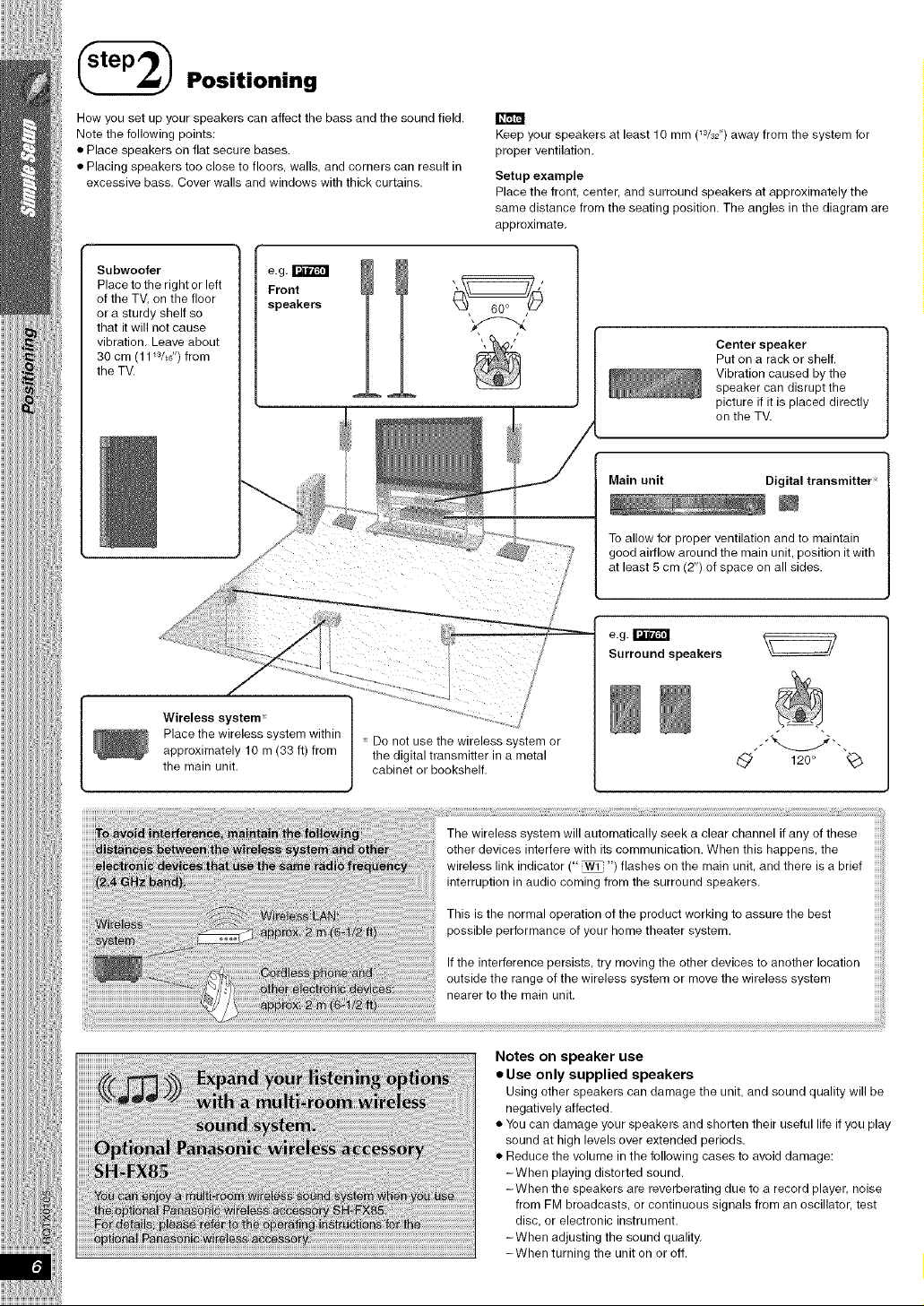
_Positioning
How you set up your speakers can affect the bass and the sound field.
Note the following points:
• Place speakers on flat secure bases.
• Placing speakers too close to floors, walls, and corners can result in
excessive bass. Cover walls and windows with thick curtains.
m
Keep your speakers at least 10 mm (W32") away from the system for
proper ventilation.
Setup example
Place the front, center, and surround speakers at approximately the
same distance from the seating position. The angles in the diagram are
approximate.
Subwoofer
Place to the right or left
of the TV, on the floor
or a sturdy shelf so
that it will not cause
vibration. Leave about
30 cm (11W_d') from
the TV.
speakers
Center speaker
Put on a rack or shelf.
Vibration caused by the
speaker can disrupt the
picture if it is placed directly
on the TV.
Main unit Digital transmitter
To allow for proper ventilation and to maintain
good airflow around the main unit, position it with
at least 5 cm (2") of space on all sides.
Wireless system
Place the wireless system within
approximately 10 m (33 ft) from
the main unit.
Do not use the wireless system or
the digital transmitter in a metal
cabinet or bookshelf.
e.g. I_"_
Surround speakers
120o qb
The wireless system will automatically seek a clear channel if any of these
other devices interfere with its communication. When this happens, the
wireless link indicator (" _ ") flashes on the main unit, and there is a brief
interruption in audio coming from the surround speakers.
This is the normal operation of the product working to assure the best
possible performance of your home theater system.
If the interference persists, try moving the other devices to another location
outside the range of the wireless system or move the wireless system
nearer to the main unit.
Notes on speaker use
=Use only supplied speakers
Using other speakers can damage the unit, and sound quality will be
negatively affected.
• You can damage your speakers and shorten their useful life if you play
sound at high levels over extended periods.
• Reduce the volume in the following cases to avoid damage:
-When playing distorted sound.
-When the speakers are reverberating due to a record player, noise
from FM broadcasts, or continuous signals from an oscillator, test
disc, or electronic instrument.
-When adjusting the sound quality.
-When turning the unit on or off.
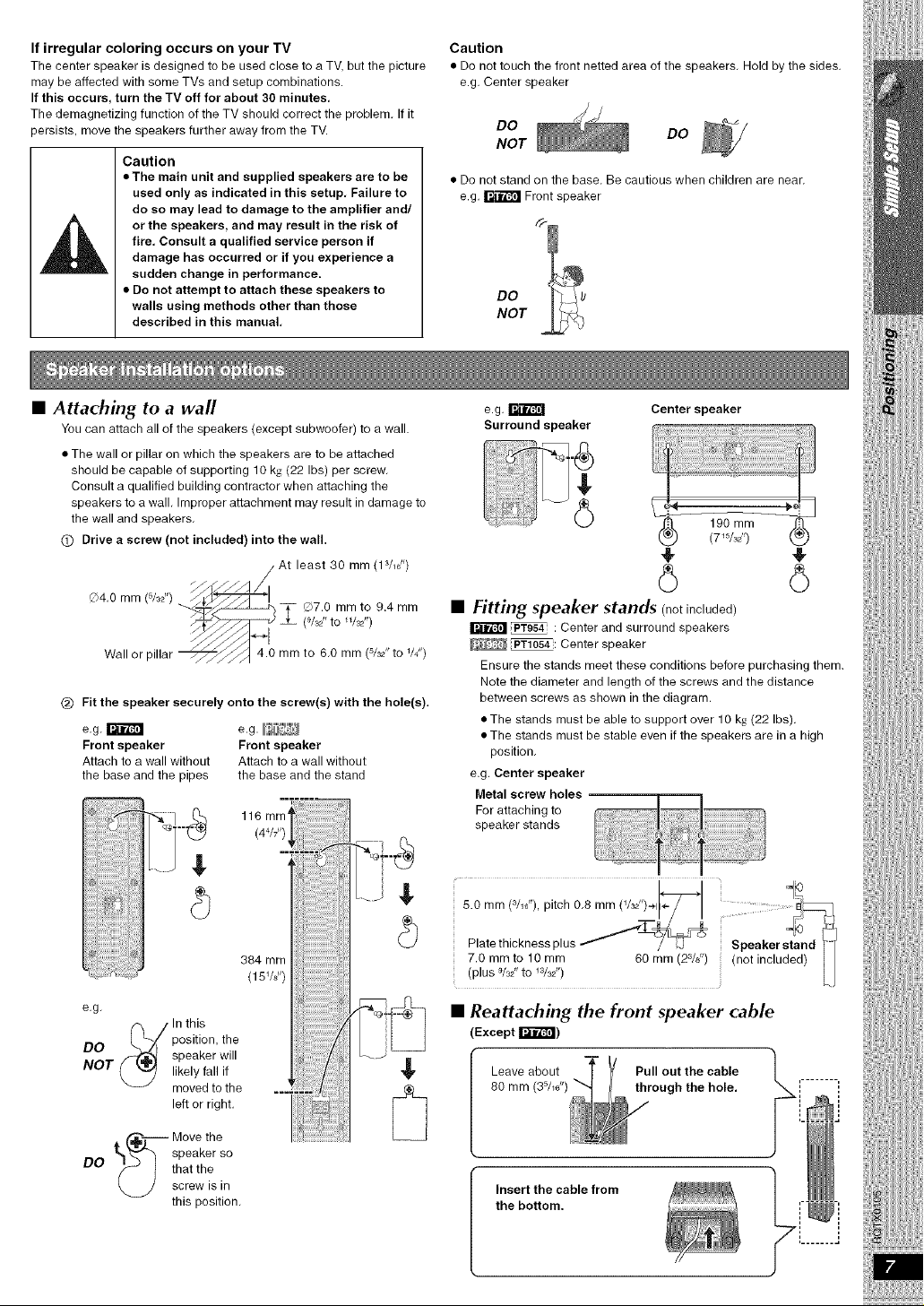
If irregular coloring occurs on your TV
The center speaker is designed to be used close to a TV, but the picture
may be affected with some TVs and setup combinations.
If this occurs, turn the TV off for about 30 minutes,
The demagnetizing function of the TV should correct the problem. If it
3ersists, move the speakers further away from the TV.
Caution
•The main unit and supplied speakers are to be
used only as indicated in this setup, Failure to
do so may lead to damage to the amplifier and/
or the speakers, and may result in the risk of
fire, Consult a qualified service person if
damage has occurred or if you experience a
sudden change in performance.
•Do not attempt to attach these speakers to
walls using methods other than those
described in this manual,
Caution
• Do not touch the front netted area of the speakers. Hold by the sides.
e.g. Center speaker
DO DO
NOT
• Do not stand on the base. Be cautious when children are near.
e.g. _ Front speaker
DO
NOT
•Attaching to a wall
You can attach all of the speakers (except subwoofer) to a wall.
• The wall or pillar on which the speakers are to be attached
should be capable of supporting 10 kg (22 Ibs) per screw.
Consult a qualified building contractor when attaching the
speakers to a wall. Improper attachment may result in damage to
the wall and speakers.
(_ Drive a screw (not included) into the wall.
/At least 30 mm (13/_B")
o4.0mm _--F/..._-_L--_'_ %- 07.0 mm to 9.4 mm
_/'-_,_S>-_73---_ _h (%/' to"/J')
Wall or pillar _ 4.0 mm to 6.0 mm (%2" to '/4')
(_) Fit the speaker securely onto the screw(s) with the hole(s).
e.g._ eg Ili_
Front speaker Front speaker
Attach to a wall without Attach to a wall without
the base and the pipes the base and the stand
_ } 0-, 116mm_ _
"" 4 t
..v: {......
_ 384mm / _
e.g. _ _
pos t on the
DO T/_ speaker'wlll II
t '_ likely fall if
_" moved to the ..._ (_
left or right. _ ='_
I h_
_. Move the
--_ _"l_"_ speakerso
L/L/ _J / that the
screw is in
this position.
eg. _ Center speaker
Surround speaker
190 mm
(715/3_ '1)
4_ 4_
6 6
•Fitting speaker stands (notincluded)
_ _ : Center and surround speakers
_: Center speaker
Ensure the stands meet these conditions bebre purchasing them.
Note the diameter and length of the screws and the distance
between screws as shown in the diagram.
• The stands must be able to support over ] 0 kg (22 Ibs).
• The stands must be stable even if the speakers are in a high
position.
e.g. Center speaker
Metal screw holes
For attaching to
speaker stands
50mm 3/_e, pitch0.8mm /J'.*l14- ..... E_
Plate thickness plus Speaker
7.0 mm to 10 turn 60 mm 23/8'(not included) I
U
•Reattaching the front speaker cable
(Except IFX_'_I )
Leave about Pull out the cable
80 mm through the hole.
Insert the cable from
the bottom.
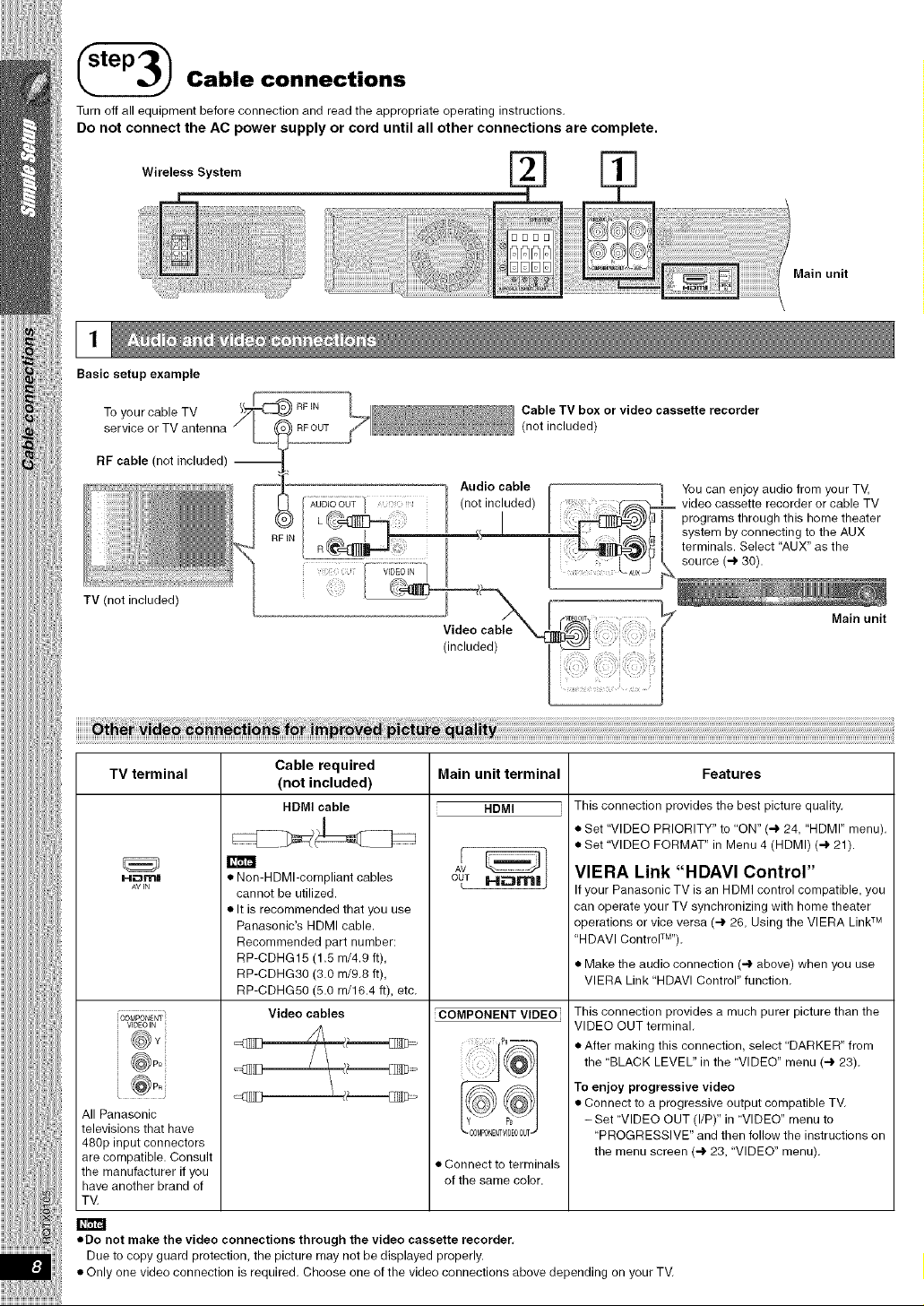
Cable connections
Turn off all equipment before connection and read the appropriate operating instructions,
Do not connect the AC power supply or cord until all other connections are complete.
Wireless System
Basic setup example
Main unit
To your cable TV
service or TV antenna
RF cable (not included) --
TV (not included)
Cable TV box or video cassette recorder
(not included)
Audio cable [
(not included)
(included)
You can enjoy audio from your TV,
video cassette recorder or cable TV
programs through this home theater
t system by connecting to the AUX
terminals. Select "AUX" as the
source (4 30).
7Main unit
_2J
TV terminal
HDM|
AViN
i VIDEO EN ;
All Panasonic
televisions that have
480p input connectors
are compatible. Consult
the manufacturer if you
have another brand of
TM
Cable required
(not included)
HDMI cable
• Non-HDMI-compliant cables
cannot be utilized.
• It is recommended that you use
Panasonic's HDMI cable.
Recommended part number:
RP-CDHG15 (1.5 m/4.9 ft),
RP-CDHG30 (3.0 m/9.8 ft),
RP-CDHG50 (5.0 m/16.4 ft), etc.
Video cables
\
Main unit terminal
HDMI ]
COMPONENT VIDEO]
• Connect to terminals
of the same color.
Features
This connection provides the best picture quality.
• Set "VIDEO PRIORITY" to ON" (4 24, "HDMI" menu).
• Set "VIDEO FORMAT" in Menu 4 (HDMI) (4 21).
VIERA Link "HDAVI Control"
If your Panasonic TV is an HDMI control compatible, you
can operate your TV synchronizing with home theater
operations or vice versa (4 26, Using the VIERA Link TM
"HDAVI Control"rM").
• Make the audio connection (4 above) when you use
VlERA Link "HDAVl Control" function.
This connection provides a much purer picture than the
VIDEO OUT terminal.
• After making this connection, select DARKER" from
the BLACK LEVEL" in the VIDEO" menu (4 23).
To enjoy progressive video
• Connect to a progressive output compatible TV.
-Set VIDEO OUT (I/P)" in VIDEO" menu to
PROGRESSIVE" and then follow the instructions on
the menu screen (4 23, VIDEO" menu).
•Do not make the video connections through the video cassette recorder,
Due to copy guard protection, the picture may not be displayed properly.
• Only one video connection is required. Choose one of the video connections above depending on your TM
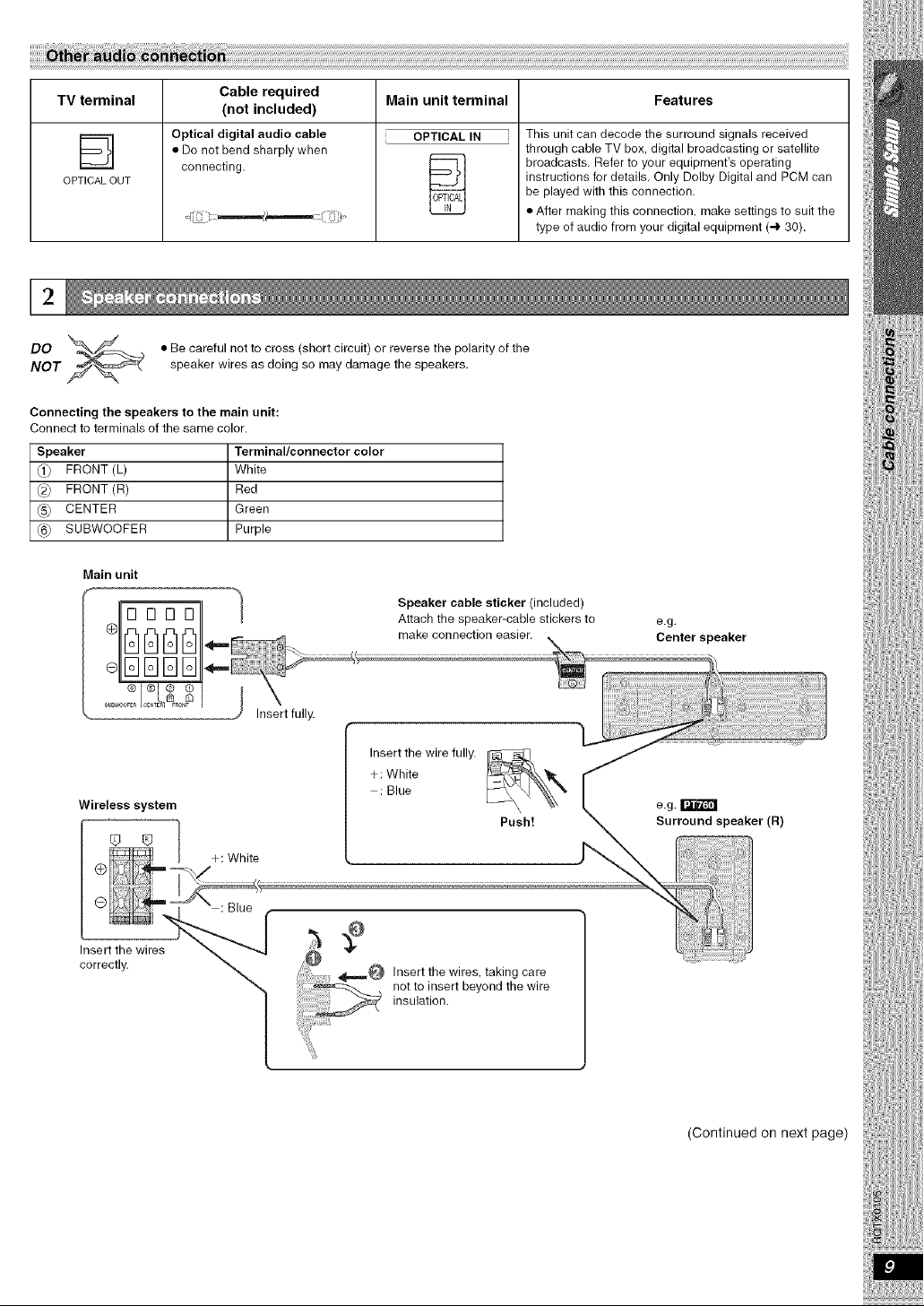
Main unit terminal FeaturesTV terminal
D
OPTICALOUT
Cable required
(not included)
Optical digital audio cable
• Do not bend sharply when
connecting.
OPTICAL IN i
OPTICAL
IN
This unit can decode the surround signals received
through cable TV box, digital broadcasting or satellite
broadcasts. Refer to your equipment's operating
instructions for details. Only Dolby Digital and PCM can
be played with this connection.
• After making this connection, make settings to suit the
type of audio from your digital equipment (-) 30).
DO • Be careful not to cross (short circuit) or reverse the polarity of the
NOT speaker wires as doing so may damage the speakers.
Connecting the speakers to the main unit:
Connect to terminals of the same color.
Speaker Terminal/connector color
(1} FRONT (L) White
(2} FRONT (R) Red
(5} CENTER Green
(6} SUBWOOFER Purple
Main unit
13131313
@@@@
IqlSE]E]
Wireless system
8
Insert fully.
+: White
Speaker cable sticker (included)
Attach the speaker-cable stickers to
make connection easier.
Insert the wire fully.
+ : White
: Blue
Push!
e.g,
Center speaker
e. g. IFJ'_'4_
Surround speaker (R)
Insert the wires
correctly.
: Blue
_m,_ Insert the wires, taking care
not to insert beyond the wire
insulation.
(Continued on next page)
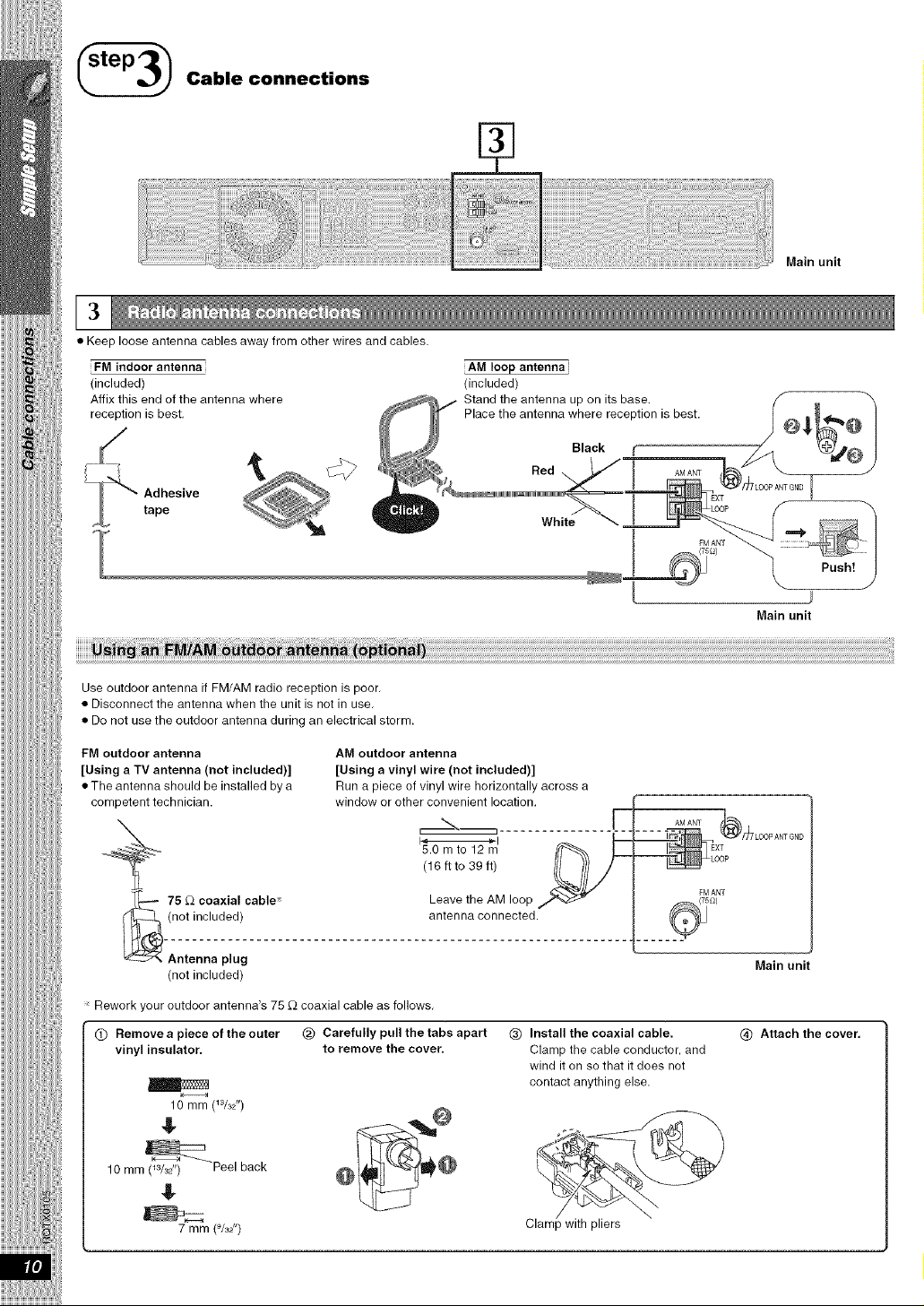
Cable connections
Main unit
•Keep loose antenna cables away from other wires and cables.
FM indoor antenna
(included)
AM loop antennai
(included)
Main unit
Use outdoor antenna if FM/AM radio reception is poor.
• Disconnect the antenna when the unit is not in use.
• Do not use the outdoor antenna during an electrical storm.
FM outdoor antenna AM outdoor antenna
[Using a TV antenna (not included)] [Using a vinyl wire (not included)]
• The antenna should be installed by a Run a piece of vinyl wire horizontally across a
competent technician, window or other convenient location. r......
\ _\ J A_ANT
._ _ ....... !_:
5.Omto12m XT
--_ (16 ft to 39 ft) _J//f _[ooP
"_'r--- 75 _ coaxial cable Leave the AM loop "__"'_ _ ="^_('7'51_)_T
(not included) antenna connected. _
(not included)
Main unit
Rework your outdoor antenna's 75 £_ coaxial cable as follows,
QRemove a piece of the outer
vinyl insulator.
(_ Carefully pull the tabs apart
to remove the cover.
(_) Install the coaxial cable.
Clamp the cable conductor, and
wind it on so that it does not
contact anything else.
10 mm (W3Z')
10 mm (Ws2) Peel back
g
7 mm (%2") Clam_ with pliers
\
@Attach the cover.
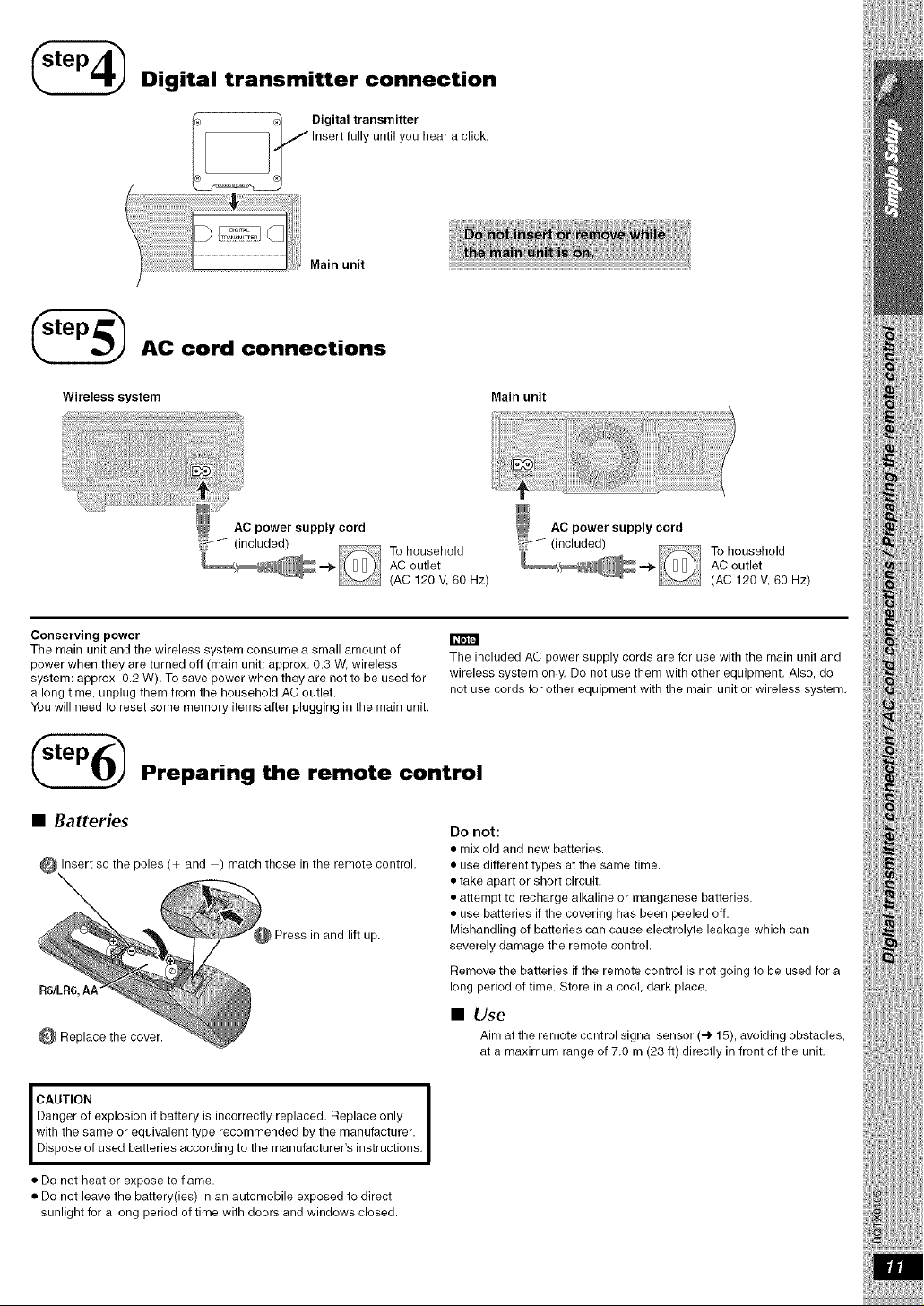
Digital transmitter connection
Digital transmitter
/" Insert fully until you hear a click.
Main unit
AC cord connections
Wireless system Main unit
AC power supply cord
:j/ (included) To household
AC outlet
(AC 120 V, 60 Hz)
AC power supply cord
:_-- (included) To household
AC outlet
(AC 120V, 60 Hz)
Conserving power
The main unit and the wireless system consume a small amount of
power when they are turned off (main unit: approx. 0.3 W, wireless
system: approx. 0.2 W). To save power when they are not to be used for
a long time, unplug them from the household AC outlet.
You will need to reset some memory items after plugging in the main unit.
The included AC power supply cords are for use with the main unit and
wireless system only. Do not use them with other equipment, Also, do
not use cords for other equipment with the main unit or wireless system,
Preparing the remote control
•Batteries
Insert so the poles (+ and ) match those in the remote control.
R6/LR6, At
Replace the cover.
Press in and lift up.
Do not:
•mix old and new batteries.
• use different types at the same time,
• take apart or short circuit.
• attempt to recharge alkaline or manganese batteries.
• use batteries if the covering has been peeled off.
Mishandling of batteries can cause electrolyte leakage which can
severely damage the remote control,
Remove the batteries if the remote control is net going to be used for a
long period of time. Store in a cool, dark place.
•Use
Aim at the remote control signal sensor (4 15), avoiding obstacles,
at a maximum range of 7.0 m (23 ft) directly in front of the unit,
iCAUTION i
Danger of explosion if battery is incorrectly replaced, Replace only i
with the same or equivalent type recommended by the manufacturer, i
Dispose of used batteries according to the manufacturer's instructions, i
• De net heat or expose to flame.
• Do net leave the battery(ies) in an automobile exposed to direct
sunlight for a long period of time with doors and windows closed.
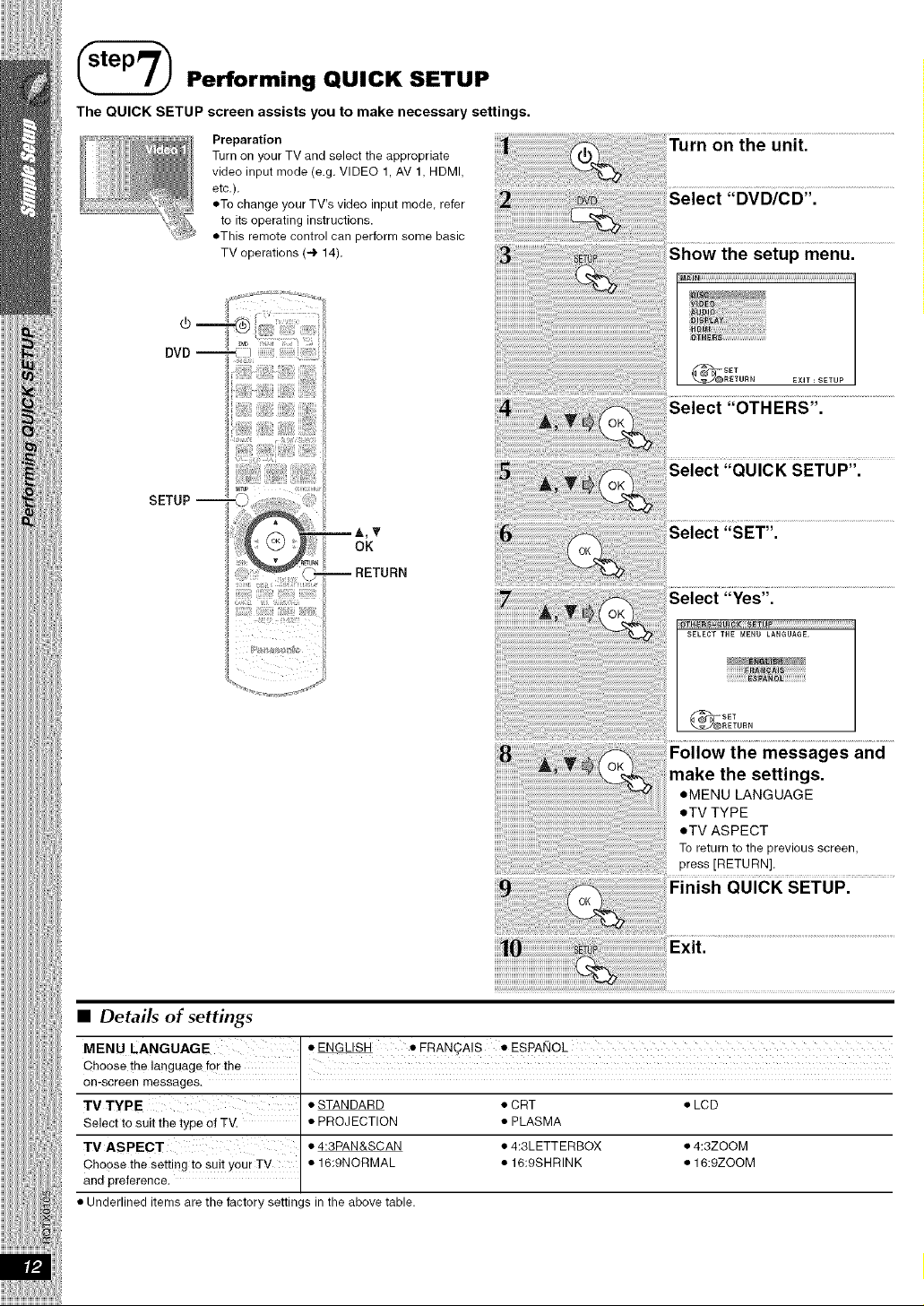
_Performing QUICK SETUP
The QUICK SETUP screen assists you to make necessary settings.
Preparation
Turn on your TV and select the appropriate
video input mode (e.g, VIDEO 1, AV 1, HDMI,
etc,),
eTo change your TV's video input mode, refer
to its operating instructions.
eThis remote control can perform some basic
TV operations (4 14),
SETUP--
[i!iii!i!iiii i!!g!;iiiiiiii!!iiii!iii;iiiiiiiiiiiiJ
!!!!!!fi!!%!ii;iii;i_;!_
A,T
OK
RETURN
Turn on the unit.
Select "DVD/CD'.
setup menu.
EIN
"OTHERS".
Select "QUICK SETUP".
es and
the settings.
eMENU LANGUAGE
eTV TYPE
eTV ASPECT
To return to the previous screen,
press [RETURN].
•Details of settings
MENU LANGUAGE • ENGLISH • FRAN_AIS • ESPAI_IOL
Choose the language for the
on-screen messages,
TV TYPE
Select to suit the type of TM
TV ASPECT
Choose the setting to suit your TV
aRe preference.
• Underlined items are the factory settings in the above table.
• STANDARD
• PROJECTION
• 4:3PAN&SCAN
• 16:9NORMAL
• CRT
• PLASMA
• 4:3LETTERBOX
• 16:9SHRINK
• LCD
• 4:3ZOOM
• 16:gZ©OM
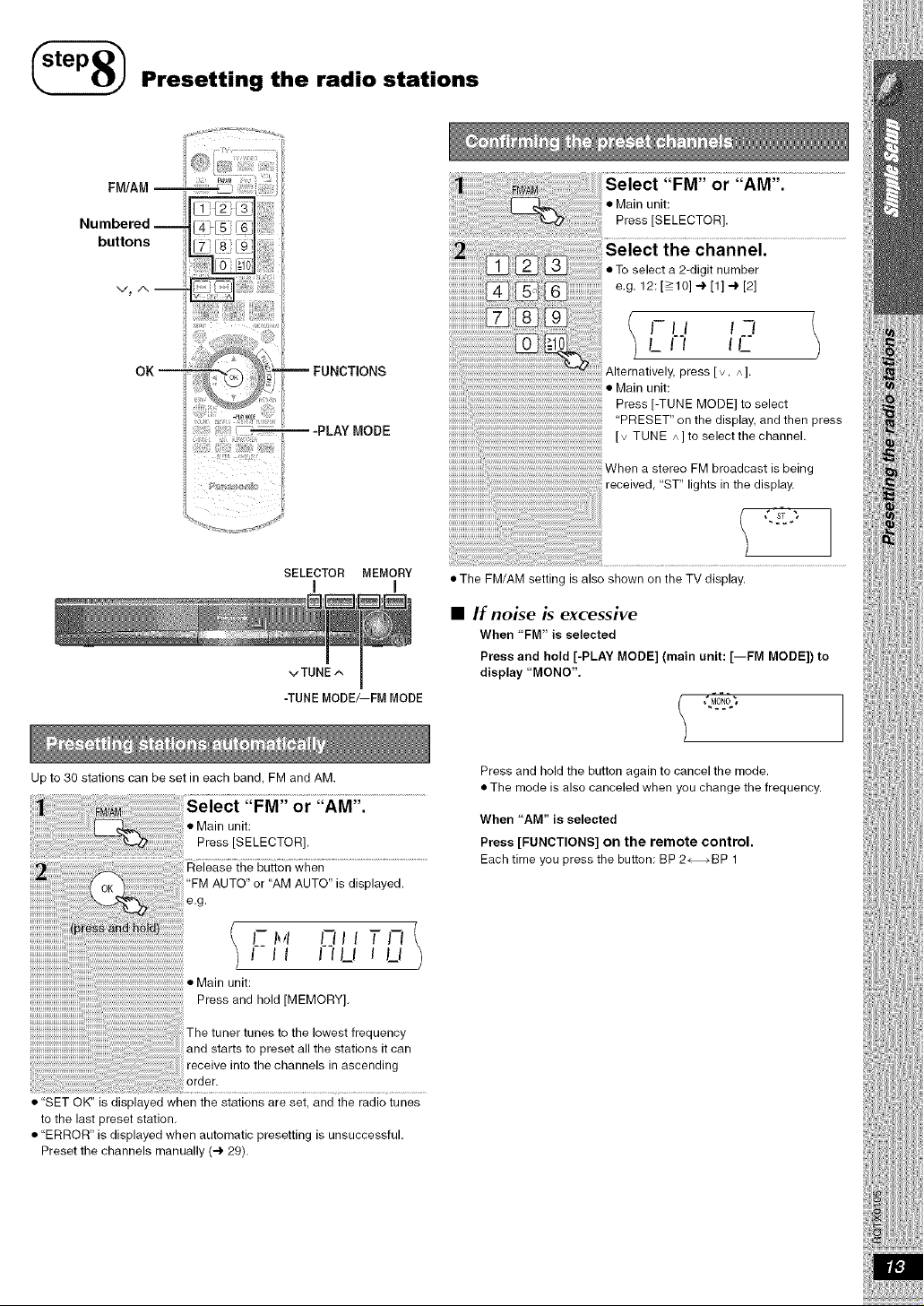
Presetting the radio stations
!!i:!!!i;_Ui!;_i!i !;_;_!;!i!i!!¸
FUNCTIONS
-PLAY MODE
SELECTOR MEMORY
m m
Up to 30 stations can be set in each band, FM and AM.
"FM" or "AM".
• Main unit:
Press [SELECTOR],
Release the button when
"FM AUTO" or "AM AUTO" is displayed.
I- I_4 C_II I T Iq 1
I II IILI ILI
Main unit:
Press and hold [MEMORY],
The tuner tunes to the lowest frequency
and starts to preset all the stations it can
receive into the channels in ascending
order.
• "SET OK" is displayed when the stations are set, and the radio tunes
to the last preset station,
• "ERROR" is displayed when automatic presetting is unsuccessful,
Preset the channels manually (4 29).
or "AM".
• Main unit:
Press [SELECTOR[,
channel.
• To select a 2-digit number
e.g. 12: [>10] 4 [1] 4 [2]
FU i__
LII tL
Alternatively, press [ v, A ].
• Main unit:
Press [-TUNE MODE] to select
PRESET" on the display, and then press
[ v TUNE /\] to select the channel,
_/hen a stereo FM broadcast is being
received, "ST" lights in the display.
• The FM/AM setting is also shown on the TV display.
•If noise is excessive
When "FM" is selected
Press and hold [-PLAY MODE] (main unit: [--FM MODE]) to
display "MONO',
Press and hold the button again to cancel the mode.
• The mode is also canceled when you change the frequency.
When "AM" is selected
Press [FUNCTIONS] on the remote control.
Each time you press the button: BP 2_BP 1
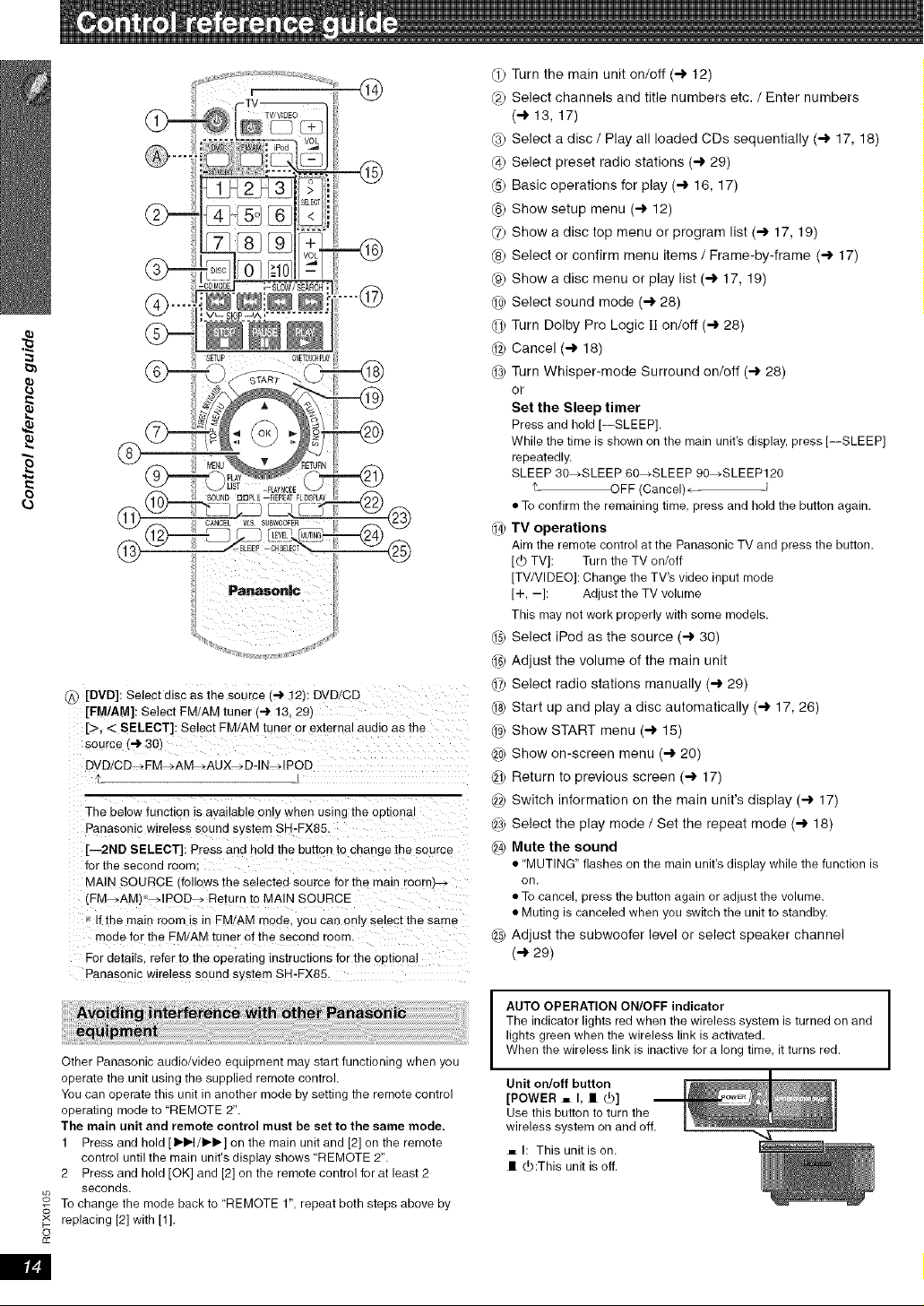
.4
®
®
[DVD]: Select disc as the source 14 12): DVD/CD
[FM/AM]: Select PM/AM tuner t4 13. 291
[>, < SELECT]: Select FM/AM tuner or external audio as the
source ('-) 30j
DVD/CD_ FM_AM_AUX_ DqN_IPOD
Iz
The below function is available only when using the opl ona
Panasonic wireless soune system SH-FX8&
[--2ND SELECT]: Press and hold the burton to change the source
for the second room:
ViAIN SOURCE "follows the selecteo source for the main room_--
(PM_AM] _IPOD_ Return to MAIN SOURCE
If the main room is in FM/AM mode. you can only select the same
mode for the FMiAM tuner of the second room.
For details, refer to the operating nstructions for the ootJona]
Panasonic wireless sound system SH-FX85.
Other Panasonic audio/video equipment may start functioning when you
operate the unit using the supplied remote control.
You can operate this unit in another mode by setting the remote control
operating mode to "REMOTE 2".
The main unit and remote control must be set to the same mode.
1 Press and hold [1_/1_1_] on the main unit and [2] on the remote
control until the main unit's display shows REMOTE 2".
2 Press and hold [OK] and [2] on the remote control for at least 2
seconds.
°_ To change the mode back to REMOTE 1", repeat both steps above by
S
x replacing [2] with [1].
o
£c
(1) Turn the main unit on/off (-> 12)
(2) Select channels and title numbers etc. /Enter numbers
(-> 13, 17)
(u) Select a disc /Play all loaded CDs sequentially (-> 17, 18)
@ Select preset radio stations (-> 29)
(5) Basic operations for play (-> 16, 17)
@ Show setup menu (-> 12)
(7) Show a disc top menu or program list (-> 17, 19)
(8) Select or confirm menu items /Frame-by-frame (-> 17)
(9) Show a disc menu or play list (-> 17, 19)
0¢ Select sound mode (-> 28)
d-l) Turn Dolby Pro Logic I1 on/off (-) 28)
@ Cancel (-) 18)
@ Turn Whisper-mode Surround on/off (-> 28)
or
Set the Sleep timer
Press and hold [--SLEEP].
While the time is shown on the main unit's display, press [--SLEEP]
repeatedly.
SLEEP 30_SLEEP 60_SLEEP 90_SLEEP120
t_ OFF (Cancel)_ J
• To confirm the remaining time, press and hold the button again.
de TV operations
Aim the remote control at the Panasonic TV and press the button.
[Lb TV]: Turnthe TV on/off
[TV/VlDEO]: Change the TV's video input mode
[+, -]: Adjust the TV volume
This maynot work properly with some models.
@ Select iPod as the source (-> 30)
_6) Adjust the volume of the main unit
dT) Select radio stations manually (-1 29)
ds) Start up and play a disc automatically (-> 17, 26)
dg) Show START menu (-> 15)
_0) Show on-screen menu (-> 20)
(21)Return to previous screen (-> 17)
@ Switch information on the main unit's display (-> 17)
@3)Select the play mode /Set the repeat mode (-> 18)
_4_ Mute the sound
• "MUTING" flashes on the main unit's display while the function is
on.
• To cancel, press the button again or adjust the volume.
• Muting is canceled when you switch the unit to standby.
@ Adjust the subwoofer level or select speaker channel
(_ 29)
IAUTO OPERATION ON/OFF indicator
The indicator lights red when the wireless system is turned on and
lights green when the wireless link is activated.
When the wireless link is inactive for a long time, it turns red.
Unit on/off button
[POWER =I, • _]
Use this button to turn the
wireless system on and off.
.I: This unit is on.
•Lb:This unit is off.
|£J
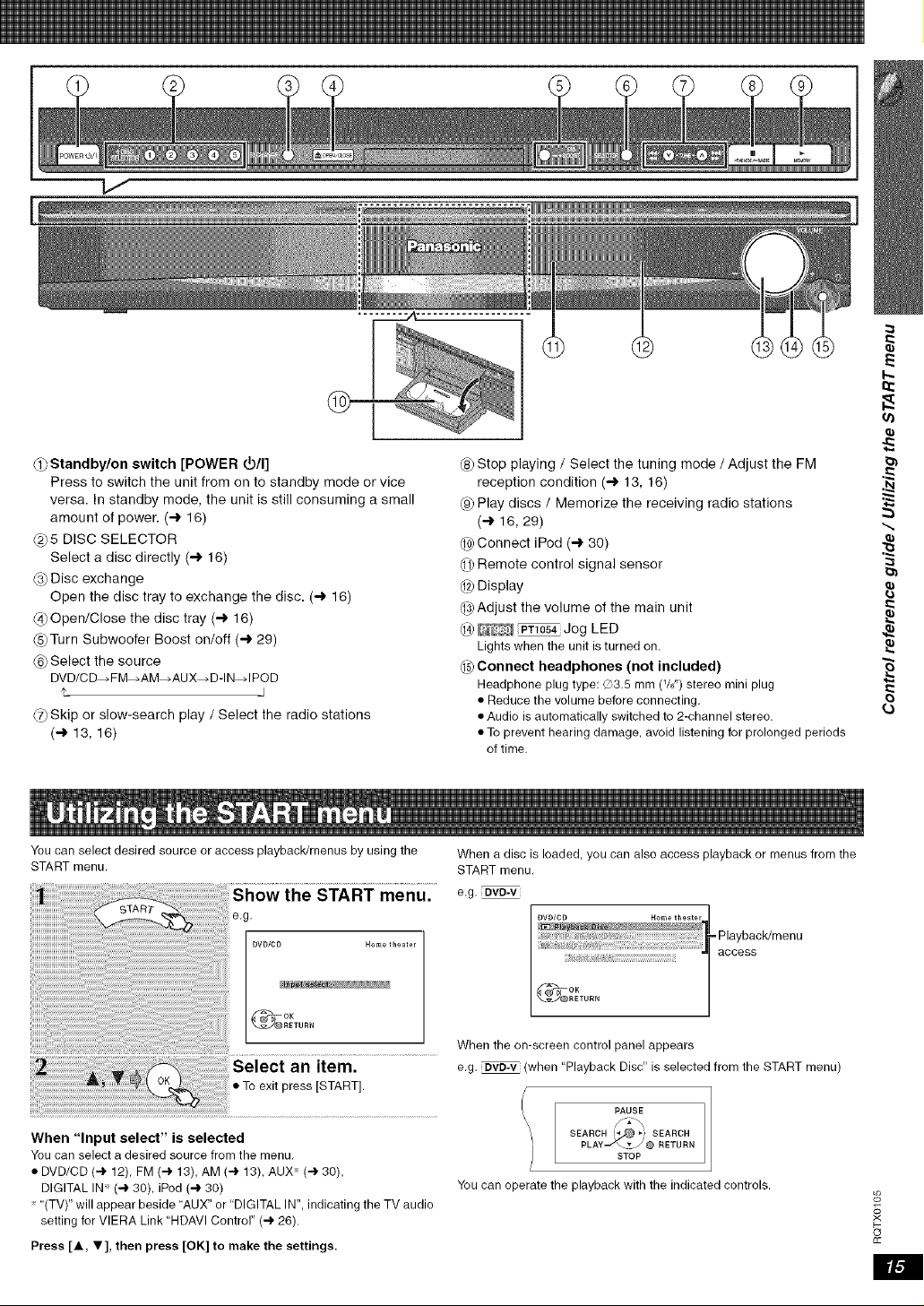
_ Standby/on switch [POWER 40/I]
Press to switch the unit from on to standby mode or vice
versa. In standby mode, the unit is still consuming a small
amount of power. (-_ 16)
@5 DISC SELECTOR
Select a disc directly (-_ 16)
@ Disc exchange
Open the disc tray to exchange the disc. (-_ 16)
@Open/Close the disc tray (-_ 16)
(_Turn Subwoofer Boost on/off (-_ 29)
@ Select the source
DVD/CD>FM_AM>AUX.,D-IN>IPOD
't I
(9 Skip or slow-search play /Select the radio stations
(_ 13, 16)
(8) Stop playing /Select the tuning mode /Adjust the FM
reception condition (-_ 13, 16)
@ Play discs /Memorize the receiving radio stations
(-) 16, 29)
d0)Connect iPod (-) 30)
10) Remote control signal sensor
02) Display
03) Adjust the volume of the main unit
04) _ _ Jog LED
Lights when the unit is turned on.
05) Connect headphones (not included)
Headphone plug type: ©3.5 mm (W') stereo mini plug
• Reduce the volume before connecting.
• Audio is automatically switched to 2-channel stereo.
• To prevent hearing damage, avoid listening for prolonged periods
of time.
E
I...
{3
You can select desired source or access playback/menus by using the
START menu.
the START menu.
e,g,
DVD/CD Home theater
When a disc is loaded, you can also access playback or menus from the
START menu.
e.g. [DVD-V
_OK
_RETURN
an item.
• To exit press [START].
When "Input select" is selected
You can select a desired source from the menu,
• DVD/CD (4 12), FM (4 13), AM (4 13), AUX x (-4' 30),
DIGITAL IN ('4' 30), iPod (4 30)
"(TV)" will appear beside "AUX" or "DIGITAL IN", indicating the TV audio
setting for VIERA Link "HDAVI Control" (4 26).
Press [A, T], then press [OK] to make the settings.
When the on-screen control panel appears
e.g. _ (when "Playback Disc" is selected from the START menu)
PAUSE
SEARCH !_ _ SEARCH
PLAYt '___J@ RETURN
STOP
You can operate the playback with the indicated controls. o_
?<
o
£c
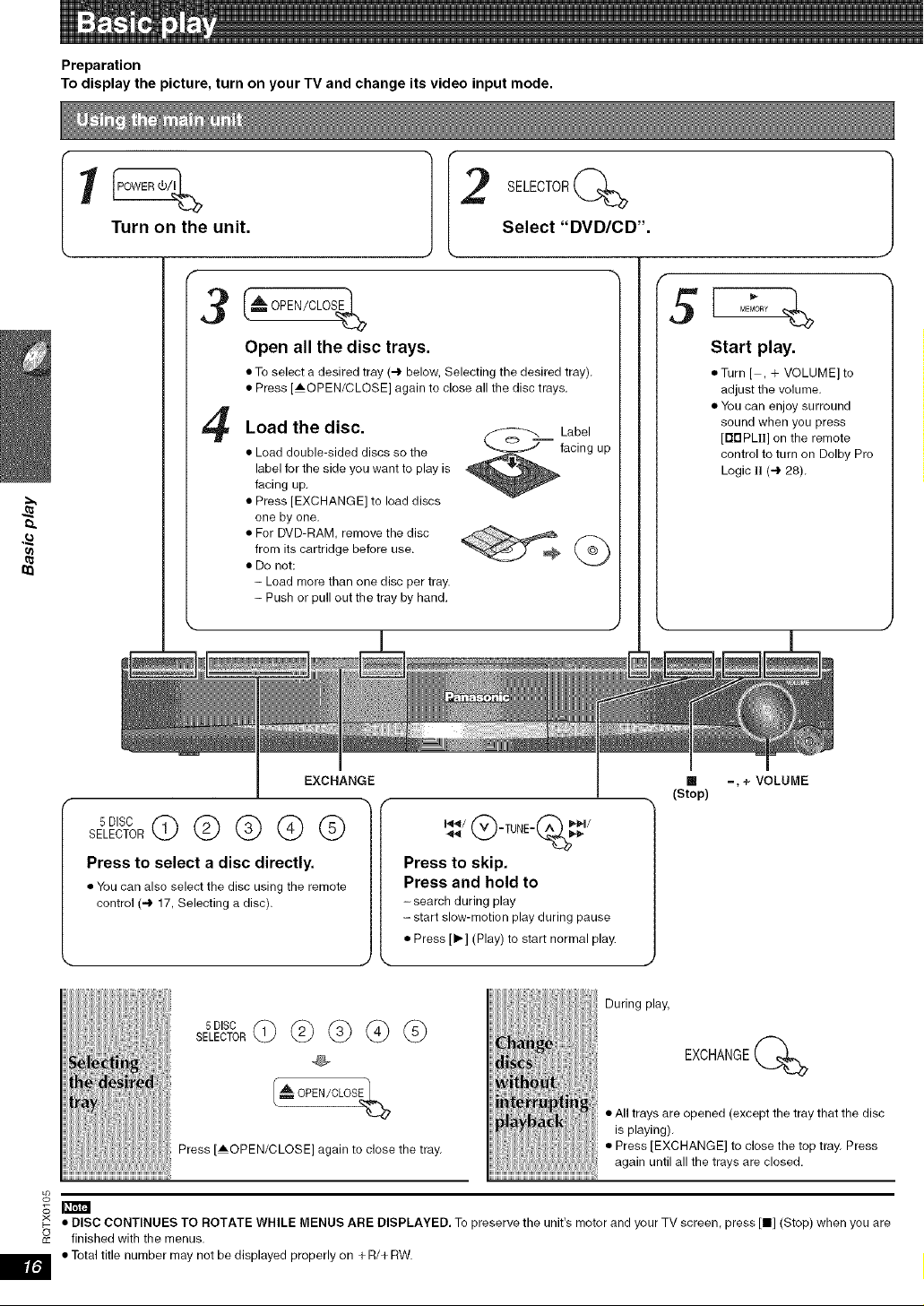
Preparation
To display the picture, turn on your TV and change its video input mode.
.£
u}
Turn on the unit.
3
4
2SE'EOTORQSelect "DVD/CD".
(_" OPEN/CLOSE_
Open all the disc trays.
• To select a desired tray (.4. below, Selecting the desired tray).
• Press [AOPEN/CLOSE] again to close all the disc trays.
Load the disc. _---___ Label
• Load double-sided discs so the _faclng up
label for the side you want to play is
facing up.
• Press [EXCHANGE] to load discs
one by one.
• For DVD-RAM, remove the disc t.tp
from its cartridge before use.
• Do not:
- Load more than one disc per tray.
- Push or pull out the tray by hand.
51 EroRy
Start play.
,,Turn [ , + VOLUME]to
adjust the volume.
• You can enjoy surround
sound when you press
[rlBPLI1] on the remote
control to turn on Delby Pro
Logic II (4 28).
EXCHANGE
5 DISC
SELECTOR@@@@@
Press to select a disc directly.
• You can also select the disc using the remote
control (4 17, Selecting a disc).
I_'_/@-TUNE- (_ /-,_4
Press to skip.
Press and hold to
-search during play
- start slow-motion play during pause
• Press [I,,] (Play) to start normal play.
llll =, + VOLUME
(Stop)
5 DISC
sE,EoToR©@ @ @ @
(_'_L OPEN/CLOS%
Press [AOPEN/CLOSE] again to close the tray.
During play,
EXCHANGE(_
• All trays are opened (except the tray that the disc
is playing).
• Press [EXCHANGE] to close the top tray. Press
again until all the trays are closed.
o_
_m
x ,, DISC CONTINUES TO ROTATE WHILE MENUS ARE DISPLAYED. To preeerve the unit's motor and your TV ecreen, preee [11] (Stop) when you are
o
cc finished with the menus.
• Total title number may not be displayed properly on + R/+ RW.
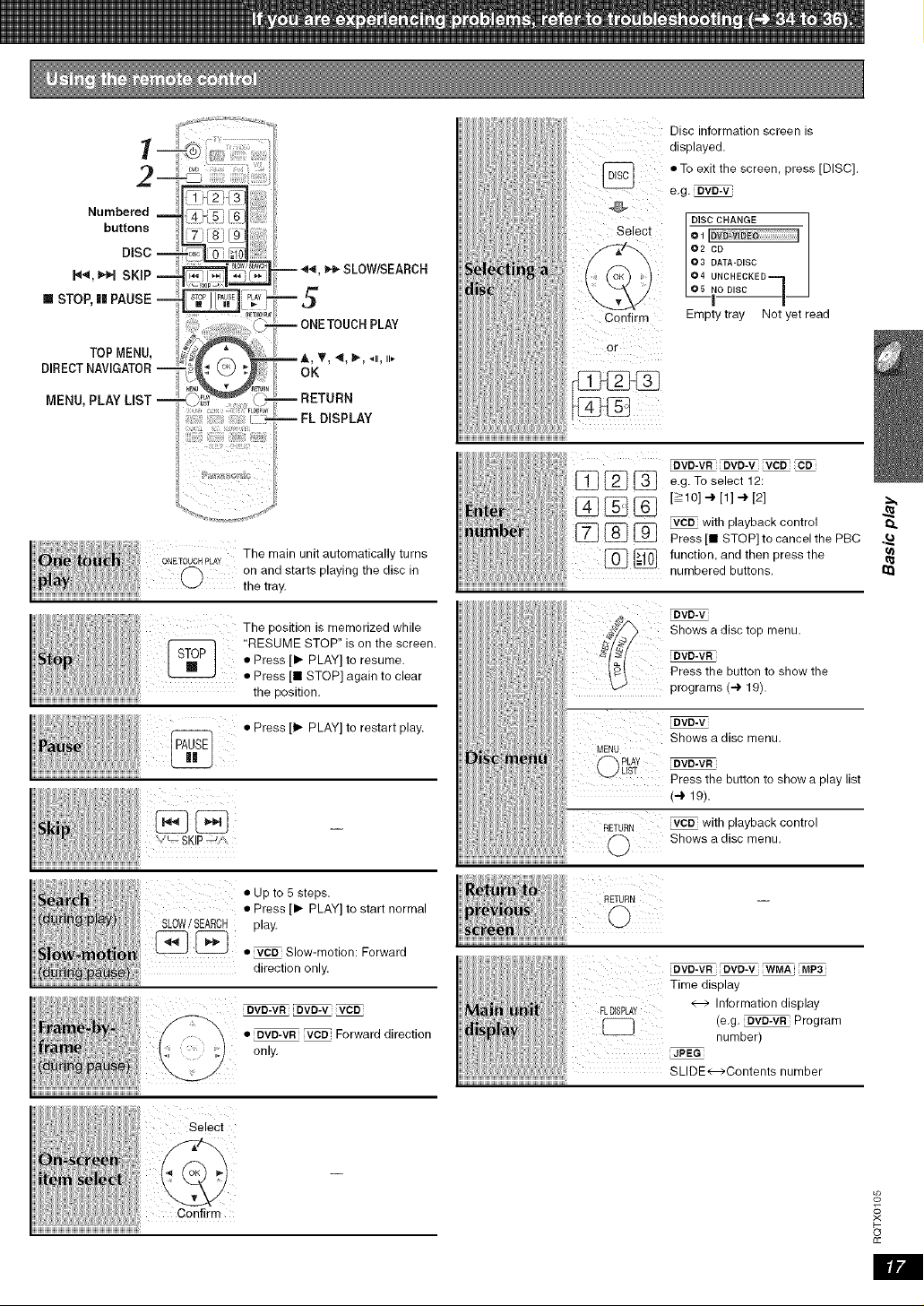
i
2-
Numbered m
buttons
DiSC --
H4, _H SKiP
[] STOP, 11 PAUSE --
TOPMENU,
DIRECTNAVIGATOR--
MENU, PLAY LIST --
-- _, _- SLOW/SEARCH
5
-- ONETOUCH PLAY
OK
-- RETURN
m FL DISPLAY
The main unit automatically turns
ONETOUCH PLAY
(_ on and starts playing the disc in
the tray.
The position is memorized while
RESUME STOP" is on the screen.
• Press [1_ PLAY] to resume.
• Press [I STOP] again to clear
the position.
i!il .Prees, PLAY,torestarfp,ay
¸ =
'/_ SKIPJr%
• Up to 5 steps.
• Press [1_-PLAY] to start normal
SLOW/SEARCH play.
[_ [_ • _ Slow-motion: Forward
direction only.
DVD-VR DVD-V
•DVD-VR _ Forward direction
only.
Select
Disc information screen is
i
displayed.
i
• To exit the screen, press [DISC].
e.g. DVD-V
Select
CQnfirm
or
i
I DISC CHANGE
O2 CD qJ
@3 DATA-DISC
O4 UNCHECKED
_o D,SC
Empty tray Not yet read
i BV_BV_VR-VRi_i _ _!
[_ [_ [_ e.g. To select 12:
[_ [_ [_ _ with playback control
Press [I STOP] to cancel the PBC
[_ _ function, and then press the
numbered buttons.
[DVD-V
Shows a disc top menu.
DVD-VR
Press the button to show the
programs (_ 19).
Eovo-v
Shows a disc menu.
[DVD-VR
Press the button to show a play list
(4 t 9).
RETURN _ with playback control
0 Shows a disc menu.
RETURN
DVD-VR _WMA
Time display
FLDISPLAY e--> Information display
[_ (e.g. _ Program
_ number)
JPEG
SLIDE K--->Contents number
.£
o_
?<
o
cc
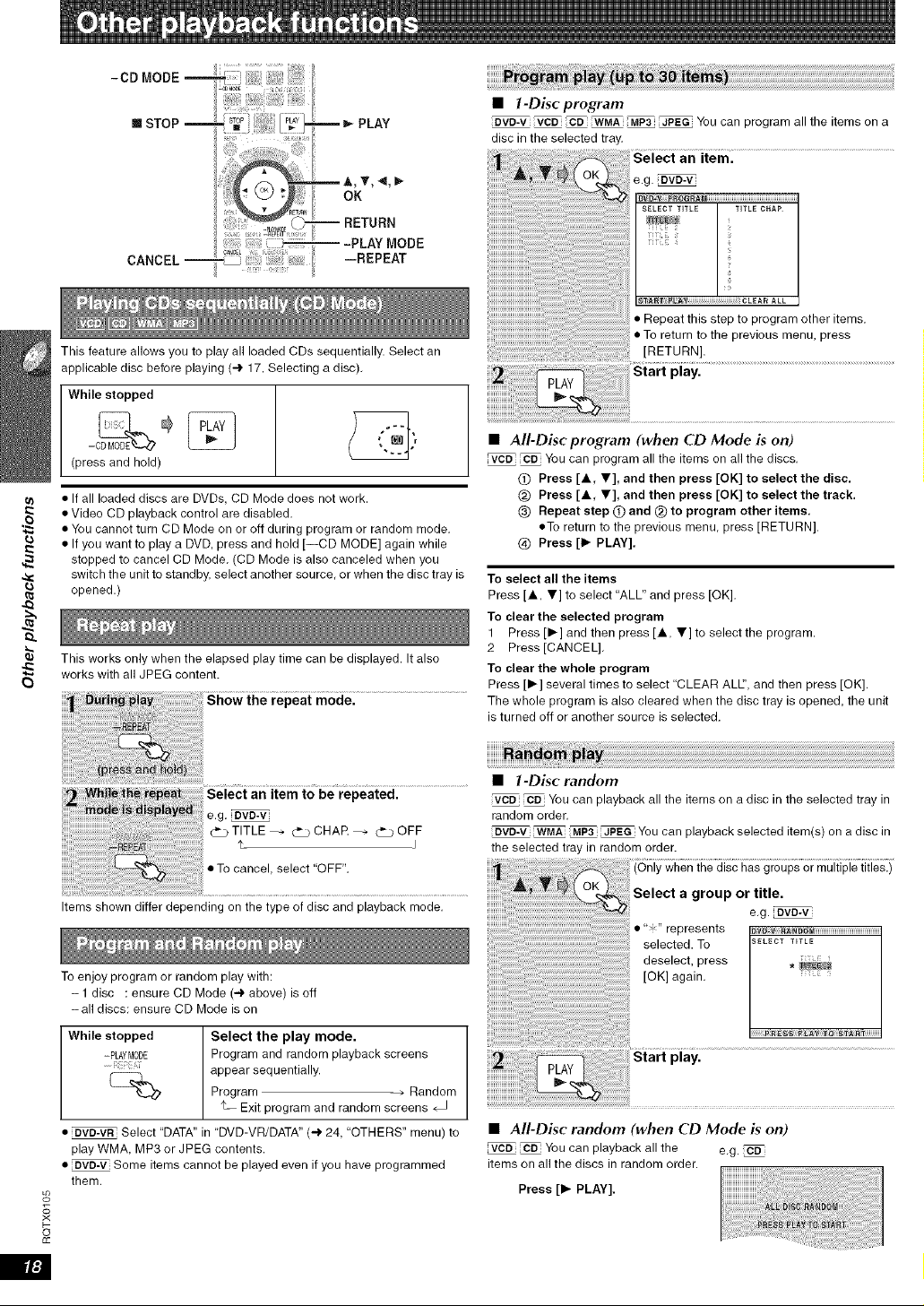
e)
0
-CD MODE
[] STOP
iiiiiiiiii!_[
m_ PLAY
OK
--RETURN
---PLAYMODE
--REPEAT
CANCEL --
This feature allows you to play all loaded CDs sequentially. Select an
applicable disc before playing (_ 17, Selecting a disc),
While stopped
°
(press and hold)
• If all loaded discs are DVDs, CD Mode does not work.
• Video CD playback control are disabled.
• You cannot turn CD Mode on or off during program or random mode.
• If you want to play a DVD, press and hold [--CD MODE] again while
stopped to cancel CD Mode. (CD Mode is also canceled when you
switch the unit to standby, select another source, or when the disc tray is
opened.)
This works only when the elapsed play time can be displayed. It also
works with all JPEG content.
Show the repeat mode.
_ W_ii_B_ _@_t Select an item to be repeated.
_ e.g, uvu-v
TITLE_ _) CHAR _ ¢) OFF
•Tocanoe,,se,ect"OFF".
Items shown differ depending on the type of disc and playback mode.
#
b-
o
To enjoy program or random play with:
- 1 disc : ensure CD Mode (-4, above) is off
-all discs: ensure CD Mode is on
While stopped Select the play mode.
=PLAYMODE Program and random playback screens
: appear sequentially.
(_ Program ÷ Random
't_ Exit program and random screens
• _ Select "DATA" in DVD-VR/DATA" (-.)' 24, "OTHERS" menu) to
play WMA, MP3 or JPEG contents.
• _ Some items cannot be played even if you have programmed
them.
•1-Disc program
_ _ WMA MP3 JPEG You can program all the items on a
disc in the selected tray,
Select an item.
e.g. DVD-V
_TAB_ PL ; CLEAR ALL
Repeat this step to program other items.
• To return to the previous menu, press
[RETURN].
Start play.
•All-Disc program (when CD Mode is on)
VCD CD You can program all the items on all the discs.
Press [,i,, 'IV], and then press [OK] to select the disc,
@) Press [,i,, T], and then press [OK] to select the track,
(_) Repeat step (T) and _) to program other items,
• To return to the previous menu, press [RETURN].
@ Press [1_ PLAY].
To select all the items
Press [A, T] to select "ALL" and press [OK].
To clear the selected program
1 Press [1_] and then press [A, _r] to select the program.
2 Press [CANCEL].
To clear the whole program
Press [1_] several times to select CLEAR ALl", and then press [OK].
The whole program is also cleared when the disc tray is opened, the unit
is turned off or another source is selected.
•1-Disc random
_ You can playback all the items on a disc in the selected tray in
random order.
BVO-V _ _ _ You can playback selected item(s) on a disc in
the selected tray in random order.
' when the disc has groups or multiple titles.)
Select a group or title.
e.g. DVD-V
:" represents _w-v
deselect, press
[OK] again.
Start play.
•All-Disc random (when CD Mode is on)
_ You can playback all the e.g. cD
items on all the discs in random order.
Press [1_ PLAY].
|l:J
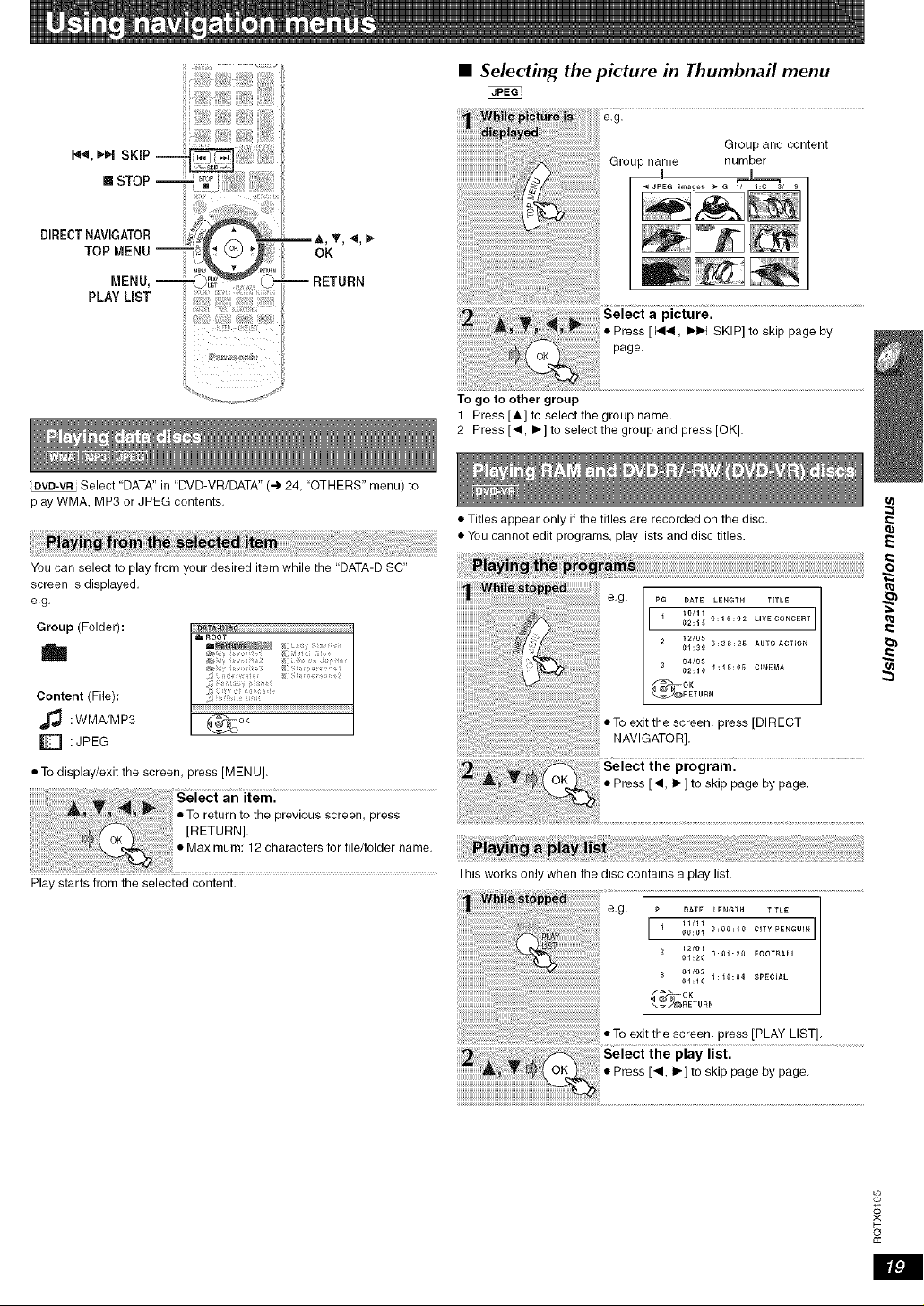
[]STOP
DVD-MR Select DATA" in "DVD-VR/DATA" (.-I. 24, "OTHERS" menu) to
play WMA, MP3 or JPEG contents,
•Selecting the picture in Thumbnail menu
FJPEGi
ie.g.
Group and content
Group name number
i ,_L__.
To go to other group
1 Press [A] to select the group name,
2 Press [4, I_] to select the group and press [OK].
You can select to play from your desired item while the "DATA-DISC"
screen is displayed.
e.g.
Group (Folder):
h
Content (File):
:WMA/MP3
[] : JPEG
• To display/exit the screen, press [MENU].
aniieml
• To return to the previous screen, press
[RETURN].
• Maximum: 12 characters for file/folder name,
Play starts from the selected content.
• Titles appear only if the titles are recorded on the disc.
• You cannot edit programs, play lists and disc titles.
e.g. PG DATE LENGTH TITLE ,_1
[,, .... ]
02:1_ 0:16:02 LIVE CONCERT
12/05
01:30 0:38:25 AUTOAOTION
04/03
02:10 1:16:05 CINEMA
4 r-_ _°K
_RETURN
• To exit the screen, press [DIRECT
NAVIGATOR],
Select the program.
• Press [•, It-] to skip page by page,
This works only when the disc contains a play list.
e.g.
• To exit the screen, press [PLAY LIST].
z \ Select the play list.
Press • I_ to skp page by page.
o_
#
o
£c
E
e)
o
£c
/
Numbered I
buttons
OK
CANCEL_
i_iiiiii!ii!ii;;;;;iiii_iiiiiiiii!iiiiii!!!i!i!_
_ PLAY
,!
G PUNCT,ONS
-') _ RETURN
iiiii!i;ii!iiiiii!ii!!i ii!i!!iiiiill
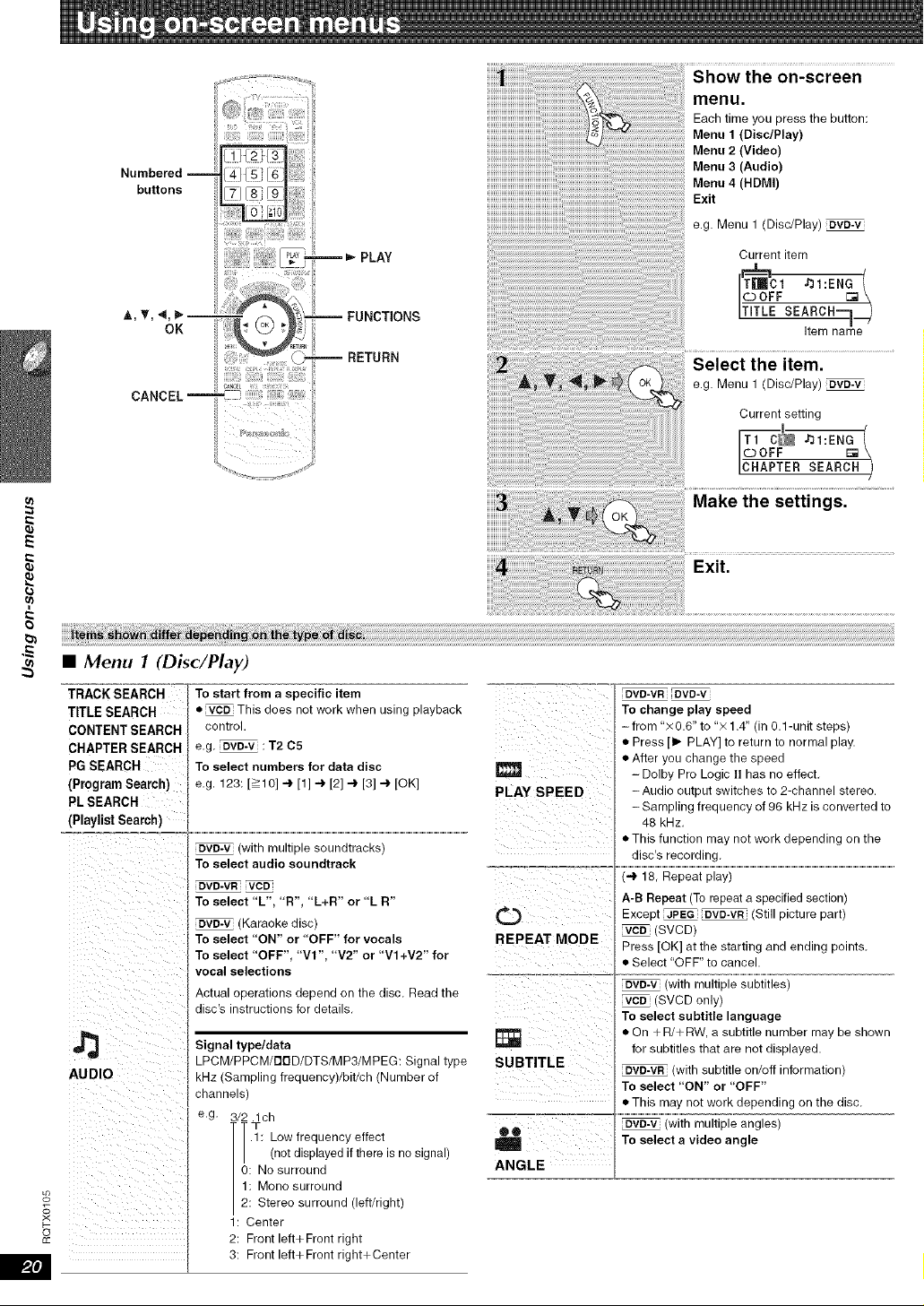
on-screen
menu.
Each time you press the button:
Menu 1 (Disc/Play)
Menu 2 (Video)
Menu 3 (Audio)
Menu 4 (HDMI)
Exit
e.g. Menu 1 (Disc/Play)_vo-v
Current item
ITITLE SE AtReCRna-']me_
Select the item.
eg Menu 1 (Disc/Play)_VD-V
Current setting l
I©OFF []
ICHAPTER SEARCH )
Exit.
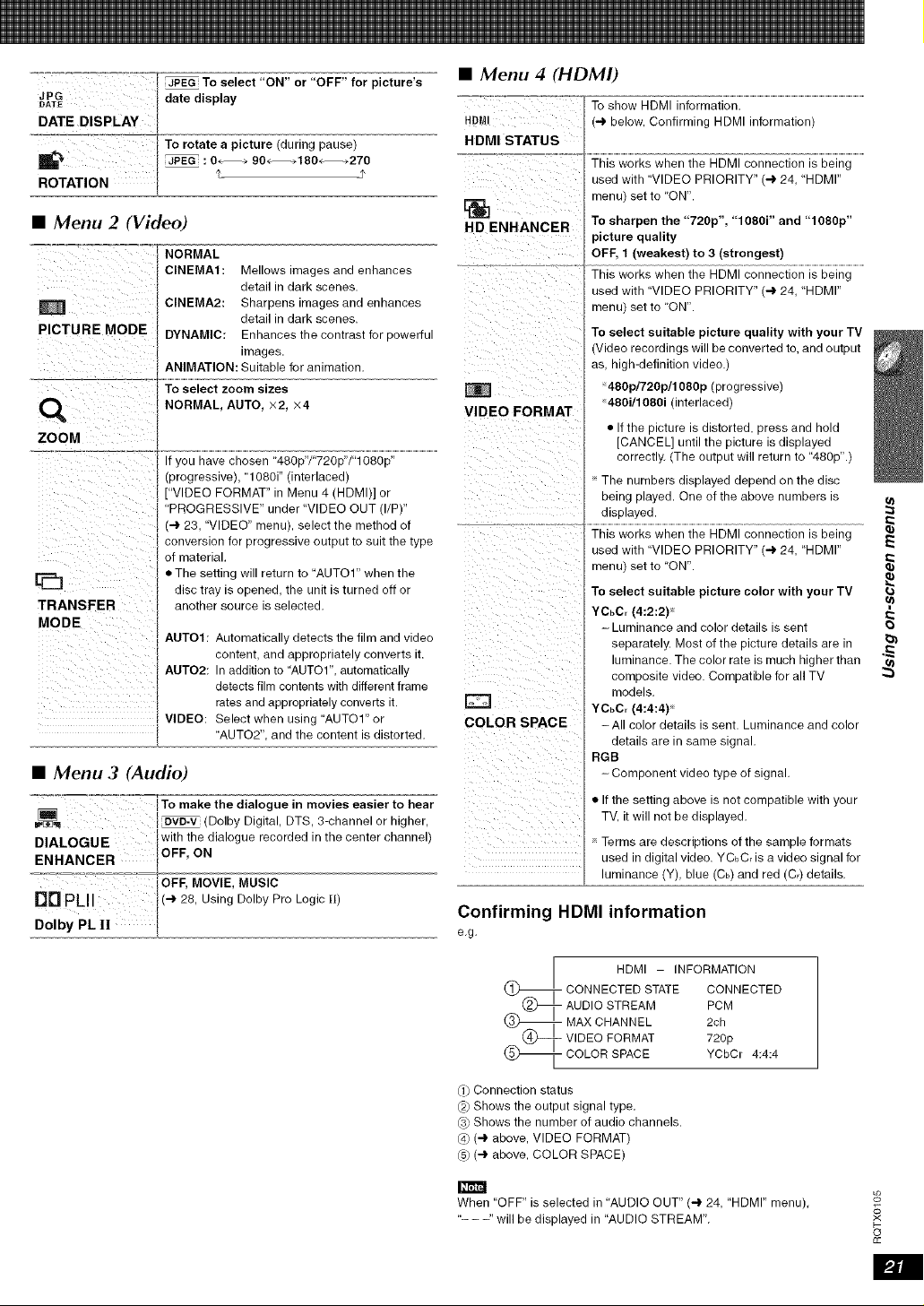
•Menu 1 (Disc/Play)
"=TRA=(_°K'SEA'RO'H=-=_ To start from a specific item "=_== .... =_ _= === ,i _
TITLE SEARCH • _ This does net work when using playback To change play speed
CONTENTSEARCH
CHAPTERSEARCH
PG SEARCH
(Program Search)
PL SEARCH [
(PlaylistSearch)
control.
e.g. _ : T2 C5
To select numbers for data disc
e.g. 123: [>10] _ [1] _ [2] _ [3] _ [OK]
To select audio soundtrack
DVD-VR vco
To select "L", "R", "L+R" or "L R"
DVD-V (Karaoke disc)
To select "ON" or "OFF" for vocals
To select "OFF", "VI", "V2" or "VI+V2" for
vocal selections
Actual operations depend on the disc, Read the
disc's instructions for details,
Signal type/data
LPCM/PPCM/DQD/DTS/MP3/MPEG: Signal type
kHz (Sampling frequency)/bit/ch (Number of
channels)
e g, 3/2 lch
IT "_': LOWfrequency effect
| (not displayed if there is no signal)
0: No surround
1: Mene surround
2: Stereo surround (left/right)
1: Center
2: Front left+Front right
3: Front left+Front right+Center
L
SUBTITLE
- from "× 0.6" to "× 1.4" (in 0.1-unit steps)
• Press lit- PLAY] to return to normal play.
• After you change the speed
- Dolby Pro Logic II has no effect,
PLAY SPEED - Audio output switches to 2-channel stereo.
- Sampling frequency of 96 kHz is converted to
48 kHz.
• This function may not work depending on the
disc's recording,
............ ="°='="°_°°"_== (_ 18, Repeat play)
A-B Repeat (To repeat a specified section)
Except JPEG OVD-VR (Still picture part)
(SVCD)
Press [OK] at the starting and ending points.
• Select "OFF" to cancel.
(with multiple subtitles)
(SVCD only)
To select subtitle language
• On + R/+RW, a subtitle number may be shown
for subtitles that are not displayed.
(with subtitle on/off information)
To select "ON" or "OFF"
• This may net work depending on the disc.
(with multiple angles)
To select a video angle
ANGLE
_PEGTo select"ON" or "OFF" for pieture's
[}ATEJPG I date display
DATE DISPLAY I
i To rotate a picture (during pause)
I_:o_ .90_180_270
ROTATION i _
L
•Menu 2 (Video)
_i i_iiiii_ii_ ii /i
i_i i _ii_ii i i_E
NORMAL
CINEMA1: Mellows images and enhances
detail in dark scenes.
CINEMA2: Sharpens images and enhances
detail in dark scenes.
DYNAMIC: Enhances the contrast for powerful
images.
ANIMATION: Suitable for animation.
NORMAL,AUTO,×2,×4
ZOOM E
(progressive), 1080i" (interlaced)
[
i ii ii
i I
i;iI
q23 i
TRANSFER
MODE
!
!
I
!
["VIDEO FORMAT" in Menu 4 (HDMI)] or
PROGRESSIVE" under "VIDEO OUT (I/P)"
(-.I. 23, "VIDEO" menu), select the method of
conversion for progressive output to suit the type
of material.
• The setting will return to "AUTO1" when the
disc tray is opened, the unit is turned off or
another source is selected.
AUTO1: Automatically detects the film and video
content, and appropriately converts it.
AUTO2: In addition to "AUTO1", automatically
detects film contents with different frame
rates and appropriately converts it.
VIDEO: Select when using "AUTO1" or
L "AUTO2", and the content is distorted.
• Menu 3 (Audio)
' ITo make the dialogue in movies easier to hear
[_ l .....
pE_.q DVD-V (Dolby Dtgttal, DTS, 3-channel or htgher,
DIALOGUE iwtth the dtalogue recorded m the center channel)
ENHANCER I OFF, ON
"°='--!'-_"°'_"=_!?FP, MOVIE, MUSIC
[] PLII I( 28, using Dolby Pro Logic II)
[
Dolby PL lI
• Menu 4 (HDMI)
==-° ........ _°'°'=== ionl........................................................................................................................
HDi_,II (-.I, below, Confirming HDMI information)
HDMI STATUS
='°Z'_'_"°'--_-=_:':'::'_7_ when the .............
used with "VIDEO PRIORITY" (-.1 24, "HDMI"
[_ menu) set to "ON".
HD ENHANCER To sharpen the "720p', "1080i" and "1080p"
i This works when the HDMI connection is being
used with VIDEO PRIORITY" (-|' 24, HDMI"
menu) set to ON".
To select suitable picture quality with your TV
(Video recordings will be converted to, and output
as, high-definition video.)
480p/720p/1080p (progressive)
VIDEO FORMAT 480i/1080i (interlaced)
• If the picture is distorted, press and hold
,CA.CEL[unt..thep.cture.sd.sp.ayed
correctly. (The output will return to "480p".)
The numbers displayed depend on the disc
being played. One of the above numbers is
This works when the HDMI connection is being
COLOR SPACE
used with VIDEO PRIORITY" (_ 24, "HDMI"
menu) set to 'ON".
To select suitable picture color with your TV
YCbC, (4:2:2)
- Luminance and color details is sent
separately. Most of the picture details are in
luminance. The color rate is much higher than
composite video. Compatible for all TV
models.
YCbC, (4:4:4)
-All color details is sent. Luminance and color
details are in same signal,
RGB
-Component video type of signal.
• If the setting above is not compatible with your
TV, it will not be displayed,
Terms are descriptions of the sample formats
used in digital video. YCbC_ is a video signal for
luminance (Y), blue (Cb) and red (C_) details,
Confirming HDMI information
e,g,
HDMI - INFORMATION
CONNECTED STATE CONNECTED
(_-i AUDIO STREAM PCM
MAX CHANNEL 2ch
(_-I VIDEO FORMAT 720p
_ COLOR SPACE YCbCr 4:4:4
(_1)Connection status
@ Shows the output signal type.
(:_ Shows the number of audio channels.
_4)(-3, above, VIDEO FORMAT)
Cs_(-3, above, COLOR SPACE)
E
{a
When "OFF" is selected in AUDIO OUT" (-I. 24, "HDMI" menu),
- - -" will be displayed in "AUDIO STREAM".
o_
?<
o
£c
e}
o.
SETUP--
• The settings remain intact even if you switch the unit to standby.
• Underlined items are the factory settings in the following table.
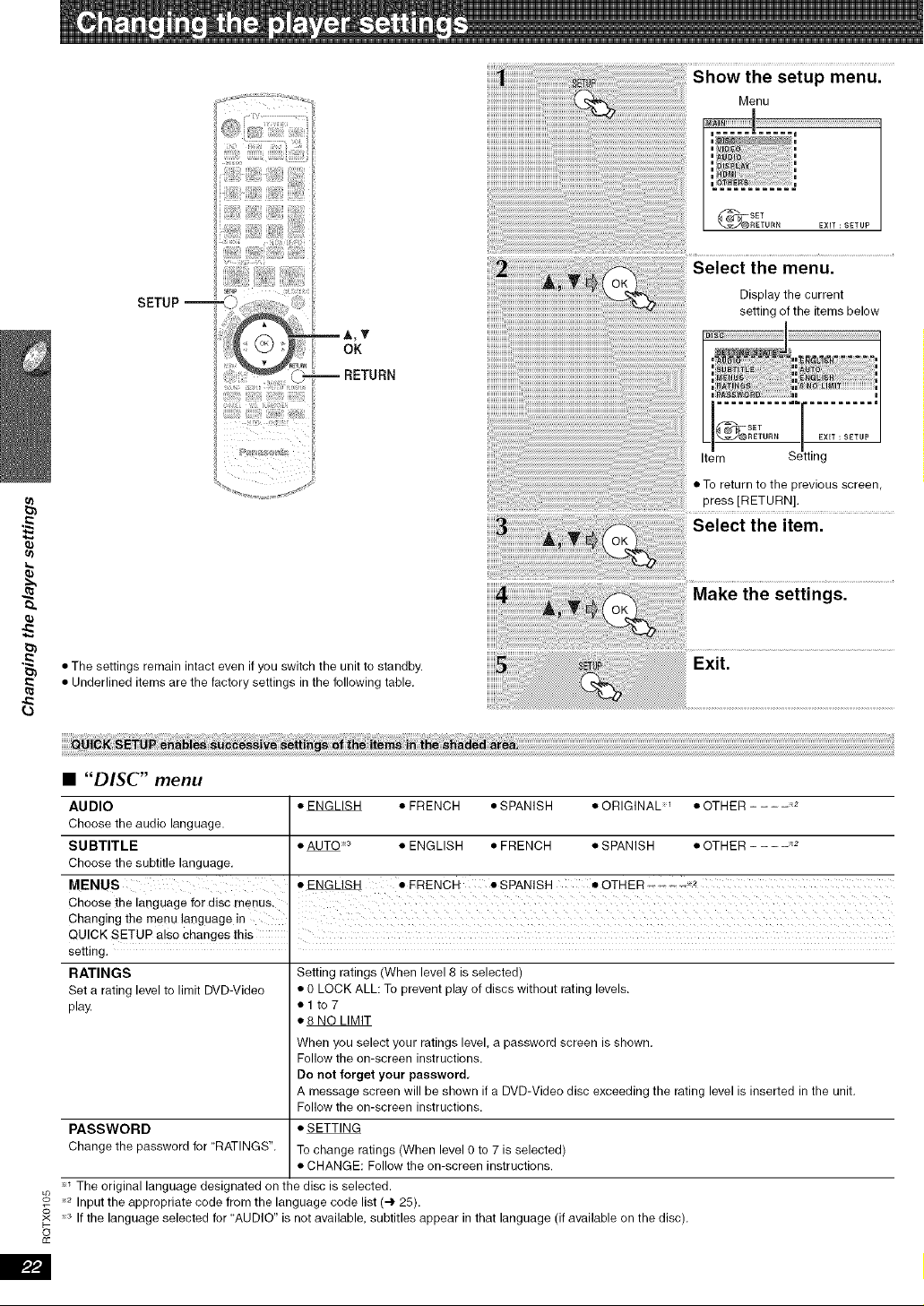
setup menu.
Menu
Select the menu.
Display the current
setting of the items below
ig
• To return to the previous screen,
press [RETURN].
Select the item.
Make the settings.
•"DISC" menu
AUDIO • ENGLISH • FRENCH • SPANISH • ORIGINAL _ • OTHER .... 2
Choose the audio language.
SUBTITLE • AUTO 3 • ENGLISH • FRENCH • SPANISH • OTHER .... 2
Choose the subtitle language.
MENUS • ENGLISH •FRENCH • SPANISH •OTHER .... 2
Choose the language for disc menu& i
Changing the merlu laaguage In
QUICK SETUP also changes this
setting.
RATINGS Setting ratings (When level 8 is selected)
Set a rating level to limit DVD-Video • 0 LOCK ALL: To prevent play of discs without rating levels.
play. • 1 to 7
• 8 NO LIMIT
When you select your ratings level, a password screen is shown.
Follow the on-screen instructions.
Do not forget your password.
A message screen will be shown if a DVD-Video disc exceeding the rating level is inserted in the unit.
Follow the on-screen instructions.
PASSWORD • SETTING
Change the password for RATINGS". To change ratings (When level 0 to 7 is selected)
• CHANGE: Follow the on-screen instructions.
_ The original language designated on the disc is selected.
o_ 2 Input the appropriate code from the language code list (-l' 25).
_< _3 If the language selected for AUDIO" is not available, subtitles appear in that language (if available on the disc).
0
£c
P-,P41
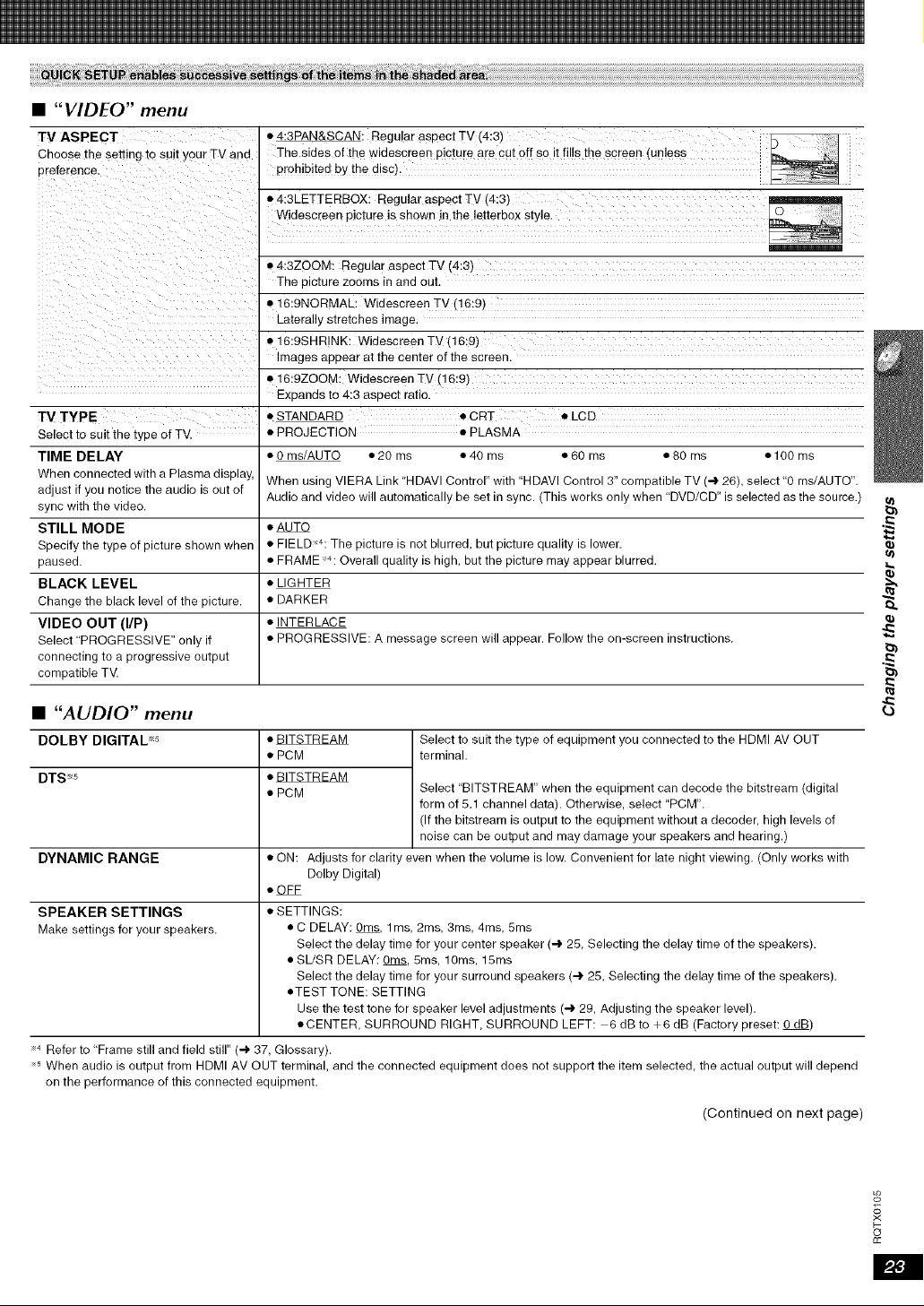
•"VIDEO" menu
TV ASPECT
Choose the setting to suit your TV and
ereference.
"IV TYPE
Select to suit the type of TV.
TIME DELAY
When connected with a Plasma display,
adjust if you notice the audio is out of
sync with the video.
STILL MODE
Specify the type of picture shown when
paused.
BLACK LEVEL
Change the black level of the picture.
VIDEO OUT (liP)
Select "PROGRESSIVE" only if
connecting to a progressive output
compatible TV.
• 4:3PAN&SCAN: Regular aspect TV (4:3)
The sides of the widescr=_en picture are cut off so it tills the screen ,unless
prohibited by the disc)
• 4:3LETTERBOX: Regular aspect TV (4:3)
Widescreen picture is shown in the letterbox style.
• 4:3ZOOM: Regular aspect TV '4:3_
The picture zooms in and out,
• 16:9NORMAL: Widescreen TV 16:9_
Laterally stretches image,
• 16:9SHR NK: Widescreen TV (16:9)
Images appear at the center of the screen.
• 16:9ZOOM: Widescreen TV _16:9)
Exeands to 4:3 aspect rail•
• STANDARD • CR-
• PROJECTION • PLASMA
• O ms/AUTO • 20 ms • 40 ms
• LCD
• 60 ms • 80 ms • 100 ms
When using VIERA Link HDAVI Control" with "HDAVI Control 3" compatible TV (4 26), select "0 ms/AUTO',
Audio and video will automatically be set in sync, (This works only when "DVD/CD" is selected as the source,)
• AUTO
• FIELD'4: The picture is not blurred, but picture quality is lower.
• FRAME 4: Overall quality is high, but the picture may appear blurred.
• LIGHTER
• DARKER
• INTERLACE
• PROGRESSIVE: A message screen will appear. Follow the on-screen instructions.
• "AUDIO" menu
DOLBY DIGITAL _5 Select to suit the type of equipment you connected to the HDMI AV OUT
terminal,
DTS<_
• BITSTREAM
• PCM
• BITSTREAM
• PCM Select "BITSTREAM" when the equipment can decode the bitstream (digital
form of 5,1 channel data). Otherwise, select "PCM",
(If the bitstream is output to the equipment without a decoder, high levels of
noise can be output and may damage your speakers and hearing.)
DYNAMIC RANGE • ON: Adjusts for clarity even when the volume is low. Convenient for late night viewing, (Only works with
Dolby Digital)
• OFF
SPEAKER SETTINGS • SETTINGS:
Make settings for your speakers, • C DELAY: Ores, 1ms, 2ms, 3ms, 4ms, 5ms
Select the delay time for your center speaker (4 25, Selecting the delay time of the speakers).
• SWSR DELAY: Ores, 5ms, 10ms, 15ms
Select the delay time for your surround speakers (.4. 25, Selecting the delay time of the speakers),
• TEST TONE: SETTING
Use the test tone for speaker level adjustments (-,) 29, Adjusting the speaker level),
• CENTER, SURROUND RIGHT, SURROUND LEFT: 6 dB to +6 dB (Factory preset: O dB)
4 Refer to Frame still and field still" (4 37, Glossary).
6 When audio is output from HDMI AV OUT terminal, and the connected equipment does not support the item selected the actual output will depend
on the performance of this connected equipment.
Continued on next page)
e}
o_
?<
o
cc
o_
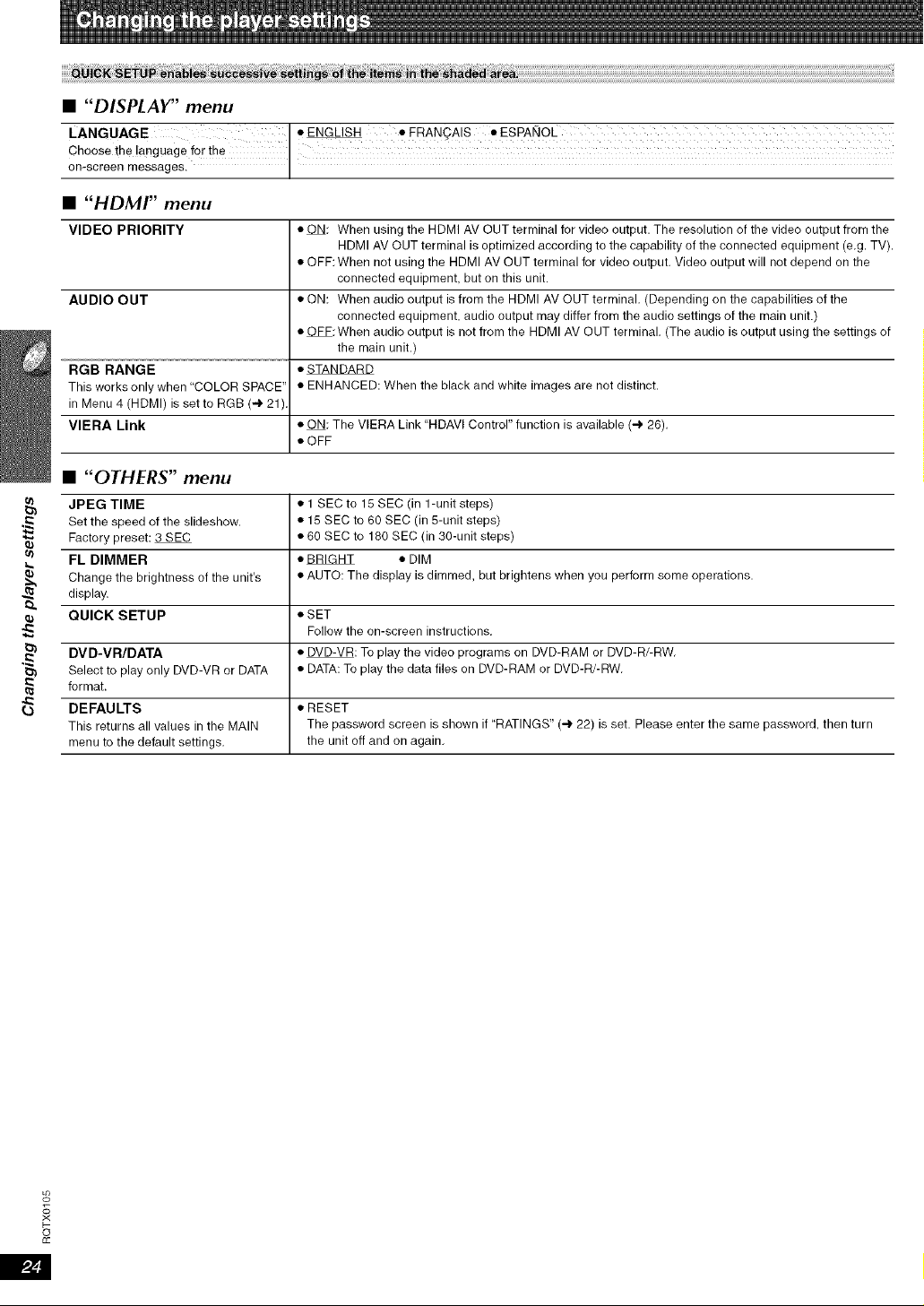
• "DISPLAY" menu
LANGUAGE • ENGLISH • FRAN(_AIS • ESPAI_OL
Choose the language for the
on-screen messages.
•"HDMI" menu
VIDEO PRIORITY • ON When using the HDMI AV OUT terminal for video output. The resolution of the video output from the
HDMI AV OUT terminal is optimized according to the capability of the connected equipment (e,g. TV).
• OFF:When not using the HDMI AV OUT terminal for video output, Video output will not depend on the
connected equipment, but on this unit.
AUDIO OUT • ON: When audio output is from the HDMI AV OUT terminal, (Depending on the capabilities of the
connected equipment, audio output may differ from the audio settings of the main unit.)
• OFF: When audio output is not from the HDMI AV OUT terminal, (The audio is output using the settings of
the main unit.)
• STANDARD
• ENHANCED: When the black and white images are not distinct.
RGB RANGE
This works only when COLOR SPACE"
in Menu 4 (HDMI) is setto RGB (--l,21),
VlERA Link • ON: The VERA Link "HDAW Control" function is available (-.3.26),
• OFF
•"OTHERS" menu
JPEG TIME
Set the speed of the slideshow.
Factory preset: 3 SEC
FL DIMMER
Change the brightness of the unit's
display.
QUICK SETUP
DV D-VR/DATA
Select to play only DVD-VR or DATA
format.
DEFAULTS
This returns all values in the MAIN
menu to the default settings.
• 1 SEC to 15 SEC (in 1-unit steps)
• 15 SEC to 60 SEC (in 5-unit steps)
• 60 SEC to 180 SEC (in 30-unit steps)
• BRIGHT • DIM
• AUTO: The display is dimmed, but brightens when you perform some operations.
• SET
Follow the on-screen instructions.
• DVD-VR: To play the video programs on DVD-RAM or DVD-R/-RW,
• DATA: To play the data files on DVD-RAM or DVD-R/-RW,
• RESET
The password screen is shown if RATINGS" (.4. 22) is set. Please enter the same password, then turn
the unit off and on again,
o_
?<
o
£c
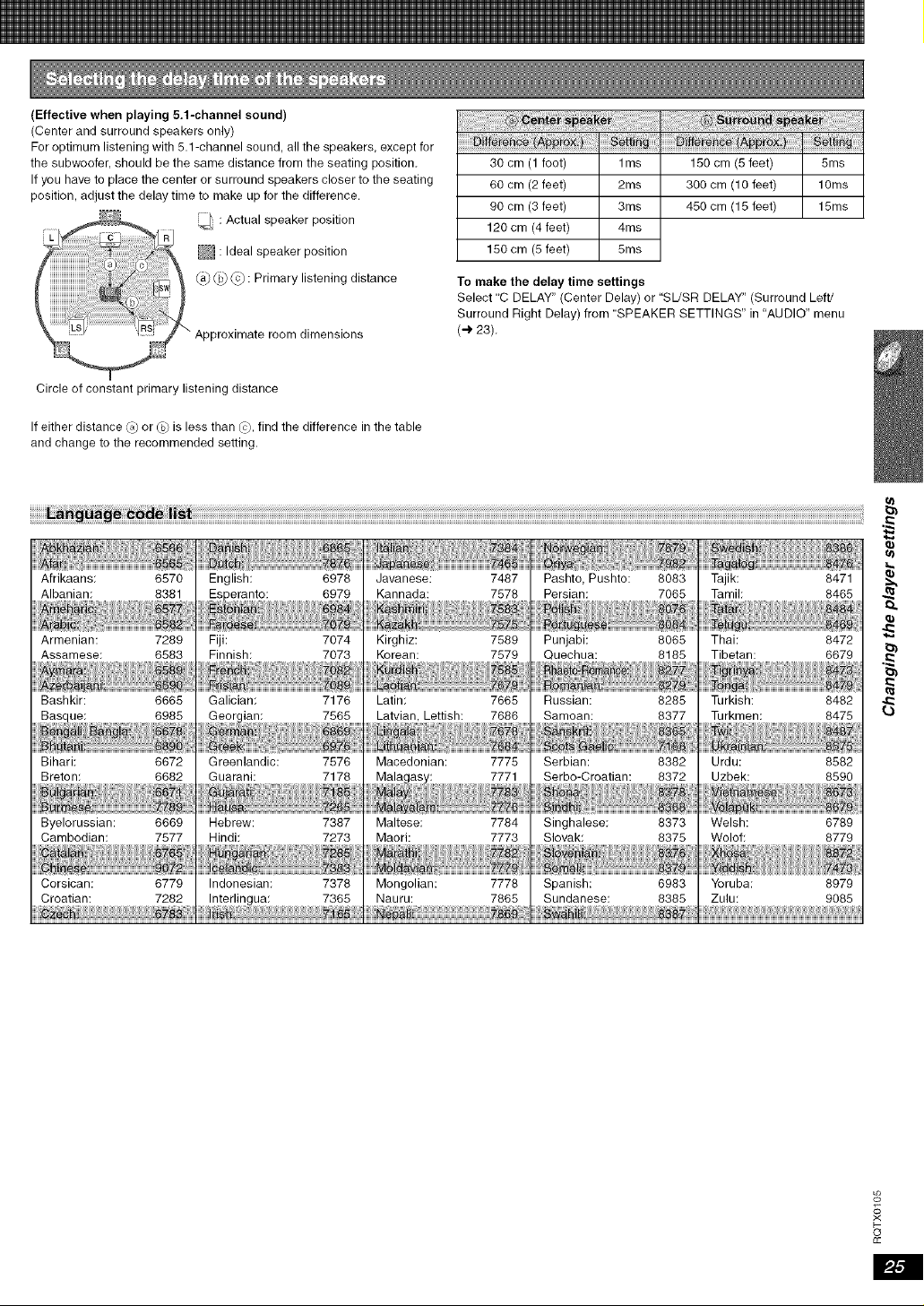
(Effective when playing 5.1-channel sound)
(Center and surround speakers only)
For optimum listening with 5.1 -channel sound, all the speakers, except for
the subwoofer, should be the same distance from the seating position,
If you have to place the center or surround speakers closer to the seating
position, adjust the delay time to make up for the difference.
30 cm (1 foot) 1ms 150 cm (5 feet) 5ms
60 cm (2 feet) 2ms 300 cm (10 feet) 10ms
90 cm (3 feet) 3ms 450 cm (15 feet) 15ms
120 cm (4 feet) 4ms
150 cm (5 feet) 5ms
To make the delay time settings
Select C DELAY" (Center Delay) or "SL/SR DELAY" (Surround Left/
Surround Right Delay) from "SPEAKER SETTINGS" in "AUDIO" menu
(-I. 23).
Circle of constant primary listening distance
If either distance (a_or _ is less than _), find the difference in the table
and change to the recommended setting.
Armenian: 7289
Assamese; 6583
Bihari: 6672
Byelorussian: 6669
Cambodian: 7577
Fiji: 7074
Finnish: 7073
7565
Greenlandic: 7576
Hebrew: 7387
Hindi: 7273
Kirghiz: 7589
Korean: 7579
Macedonian: 7775
Maltese: 7784
Maori: 7773
Punjabi: 8065
Quechua: 8185
Serbian: 8382
Singhalese: 8373
Slovak: 8375
Thai: 8472
Tibetan: 6679
Urdu: 8582
Welsh: 6789
Wolof: 8779
#
o
_c
_j
,4
SKIP --
SETUP
iiiiiiiiiiiil!!iiiiiiiiiiiiiiiiiiiii!iiiiiiii
ii!iliiiiii!iiiiiiiiiiiiii!i;_iiiii_!i_i_;
_>,< SELECT
-- _,_ SLOW/SEARCH
-- _ PLAY
o_
?<
F-
o
cc
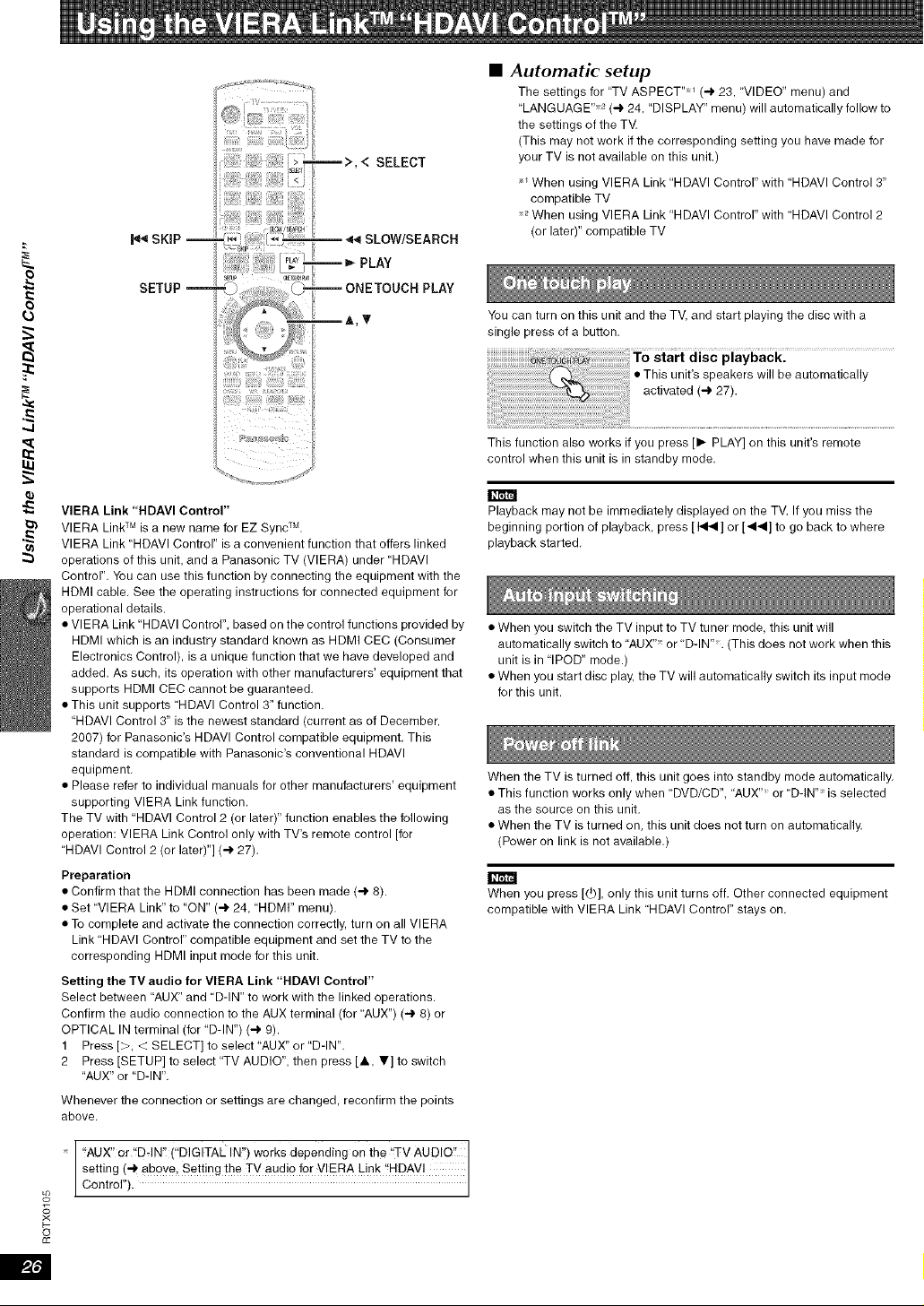
VIERA Link "HDAVl Control"
VIERA Link TM is a new name for EZ Sync TM.
VIERA Link "HDAVI Control" is a convenient function that offers linked
operations of this unit, and a Panasonic TV (VIERA) under "HDAVI
Control", You can use this function by connecting the equipment with the
HDMI cable, See the operating instructions for connected equipment for
operational details.
• VIERA Link "HDAVI Control", based on the control functions provided by
HDMI which is an industry standard known as HDMI CEC (Consumer
Electronics Control), is a unique function that we have developed and
added, As such, its operation with other manufacturers' equipment that
supports HDMI CEC cannot be guaranteed,
• This unit supports "HDAVI Control 3" function.
"HDAVI Control 3" is the newest standard (current as of December,
2007) for Panasonic's HDAVI Control compatible equipment, This
standard is compatible with Panasonic's conventional HDAVI
equipment,
• Please refer to individual manuals for other manufacturers' equipment
supporting VIERA Link function.
The TV with "HDAVI Control 2 (or later)" function enables the following
operation: VIERA Link Control only with TV's remote control [for
"HDAVI Control 2 (or later)"] (-I. 27),
Preparation
• Confirm that the HDMI connection has been made (-.3.8).
• Set "VIERA Link" to "ON" (-I. 24, "HDMI" menu).
• To complete and activate the connection correctly, turn on all VIERA
Link "HDAVI Control" compatible equipment and set the TV to the
corresponding HDMI input mode for this unit,
Setting the TV audio for VlERA Link "HDAVI Control"
Select between "AUX" and "D-IN" to work with the linked operations,
Confirm the audio connection to the AUX terminal (for "AUX') (-.I. 8) or
OPTICAL IN terminal (for "D-IN") (-_ 9).
1 Press [>, <SELECT] to select "AUX" or "D-IN',
2 Press [SETUP] to select "TV AUDIO", then press [,i,, _r] to switch
"AUX" or "D-IN',
Whenever the connection or settings are changed, reconfirm the points
above,
"AUX" or '!DqN" ("DIGITAL IN '_)works depending en the "TV AUDIO!
setting (_ above, Setting the TV audio for VIERA Link !'HDAV!
centre .
•Automatic setup
The settings for "TV ASPECT ''_ (-.1.23, VIDEO" menu) and
"LANGUAGE ''_ (-.1.24, "DISPLAY" menu) will automatically follow to
the settings of the TV,
(This may not work if the corresponding setting you have made for
your TV is not available on this unit,)
_ When using VIERA Link "HDAVI Control" with "HDAVI Control 3"
compatible TV
When using VIERA Link "HDAVI Control" with "HDAVI Control 2
(or later)" compatible TV
You can turn on this unit and the TV, and start playing the disc with a
single press of a button,
To start disc playback.
• This unit's speakers will be automatically
activated (-3, 27).
This function also works if you press [1_ PLAY] on this unit's remote
control when this unit is in standby mode,
Playback may not be immediately displayed on the TV, If you miss the
beginning portion of playback, press [1_] or ['_'_] to go back to where
playback started,
• When you switch the TV input to TV tuner mode, this unit will
automatically switch to"AUX" or D-IN". (This does net work when this
unit is in "IPOD" mode.)
• When you start disc play, the TV will automatically switch its input mode
for this unit.
When the TV is turned off, this unit goes into standby mode automatically.
• This function works only when DVD/CD", "AUX" or"D-IN" is selected
as the source on this unit.
• When the TV is turned on, this unit does not turn on automatically.
(Power on link is not available.)
When you press [(b], only this unit turns off. Other connected equipment
compatible with VIERA Link HDAVl Control" stays on,
P_31
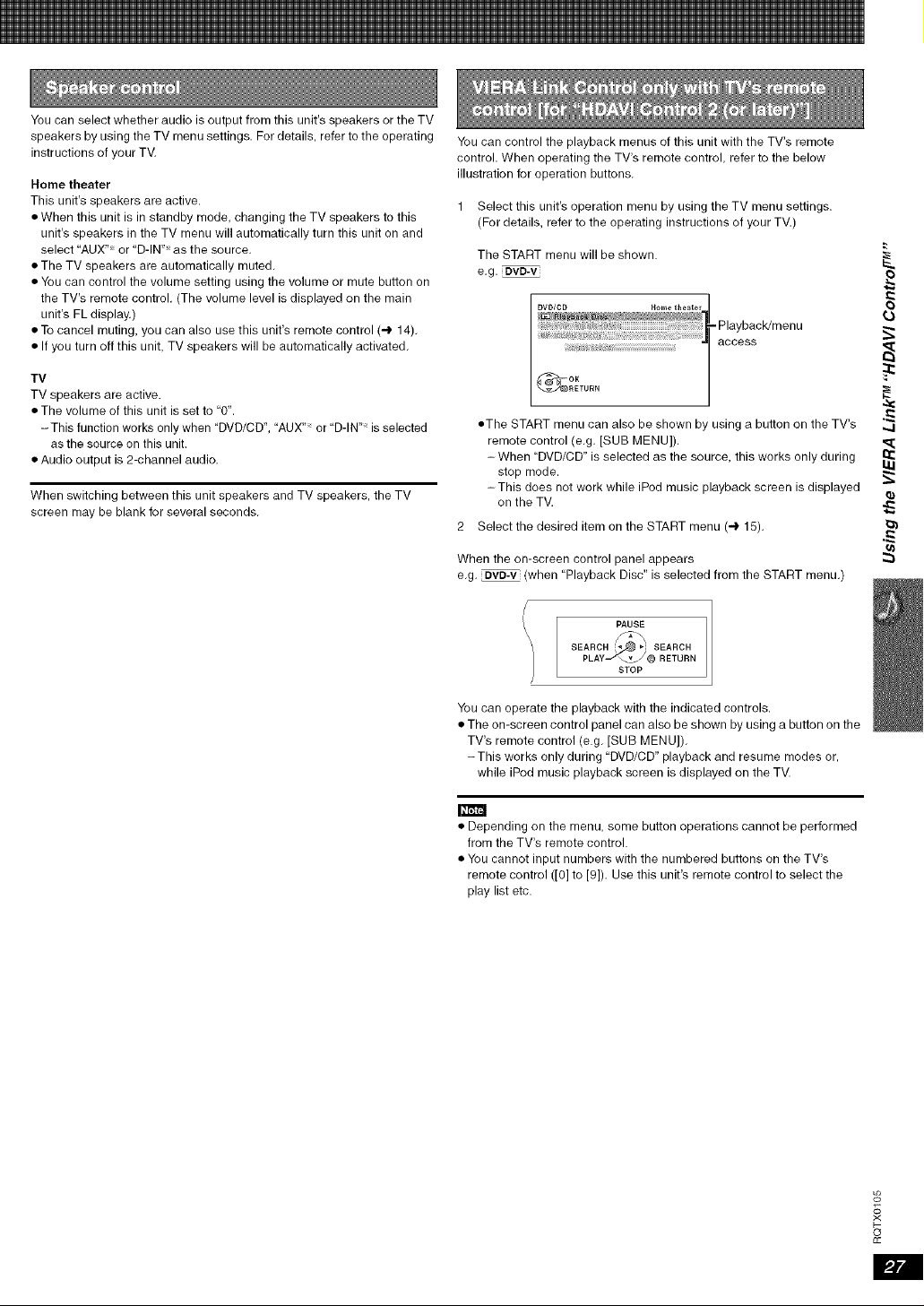
You can select whether audio is output from this unit's speakers or the TV
speakers by using the TV menu settings, For details, refer to the operating
instructions of your TV.
Home theater
This unit's speakers are active.
• When this unit is in standby mode, changing the TV speakers to this
unit's speakers in the TV menu will automatically turn this unit on and
select "AUX "_ or "D-IN "_as the source.
• The TV speakers are automatically muted.
• You can control the volume setting using the volume or mute button on
the TV's remote control. (The volume level is displayed on the main
unit's FL display.)
• To cancel muting, you can also use this unit's remote control (4 14).
• If you turn off this unit, TV speakers will be automatically activated.
TV
TV speakers are active.
• The volume of this unit is set to "0".
-This function works only when "DVD/CD', "AUX" or "D-IN" is selected
as the source on this unit.
• Audio output is 2-channel audio.
When switching between this unit speakers and TV speakers, the TV
screen may be blank for several seconds.
You can control the playback menus of this unit with the TV's remote
control. When operating the TV's remote control, refer to the below
illustration for operation buttons,
Select this unit's operation menu by using the TV menu settings.
(For details, refer to the operating instructions of your TV.)
The START menu will be shown.
e,g. DVD-V
• The START menu can also be shown by using a button on the TV's
remote control (e,g, [SUB MENU]).
-When "DVD/CD" is selected as the source, this works only during
stop mode.
-This does not work while iPod music playback screen is displayed
on the TV.
2 Select the desired item on the START menu (-,} 15).
When the on-screen control panel appears
e,g, _ (when "Playback Disc" is selected from the START menu,)
/
/ PAUSE
\
SEAR OH _J-:_ _,_i SEARCH
PLAYboY J @ RETURN
STOP
You can operate the playback with the indicated controls,
• The on-screen control panel can also be shown by using a button on the
TV's remote control (e.g, [SUB MENU]),
-This works only during "DVD/CD" playback and resume modes or,
while iPod music playback screen is displayed on the TV.
13
..4
• Depending on the menu, some button operations cannot be performed
from the TV's remote control.
• You cannot input numbers with the numbered buttons on the TV's
remote control ([0] to [9]), Use this unit's remote control to select the
play list etc.
#
o
£c
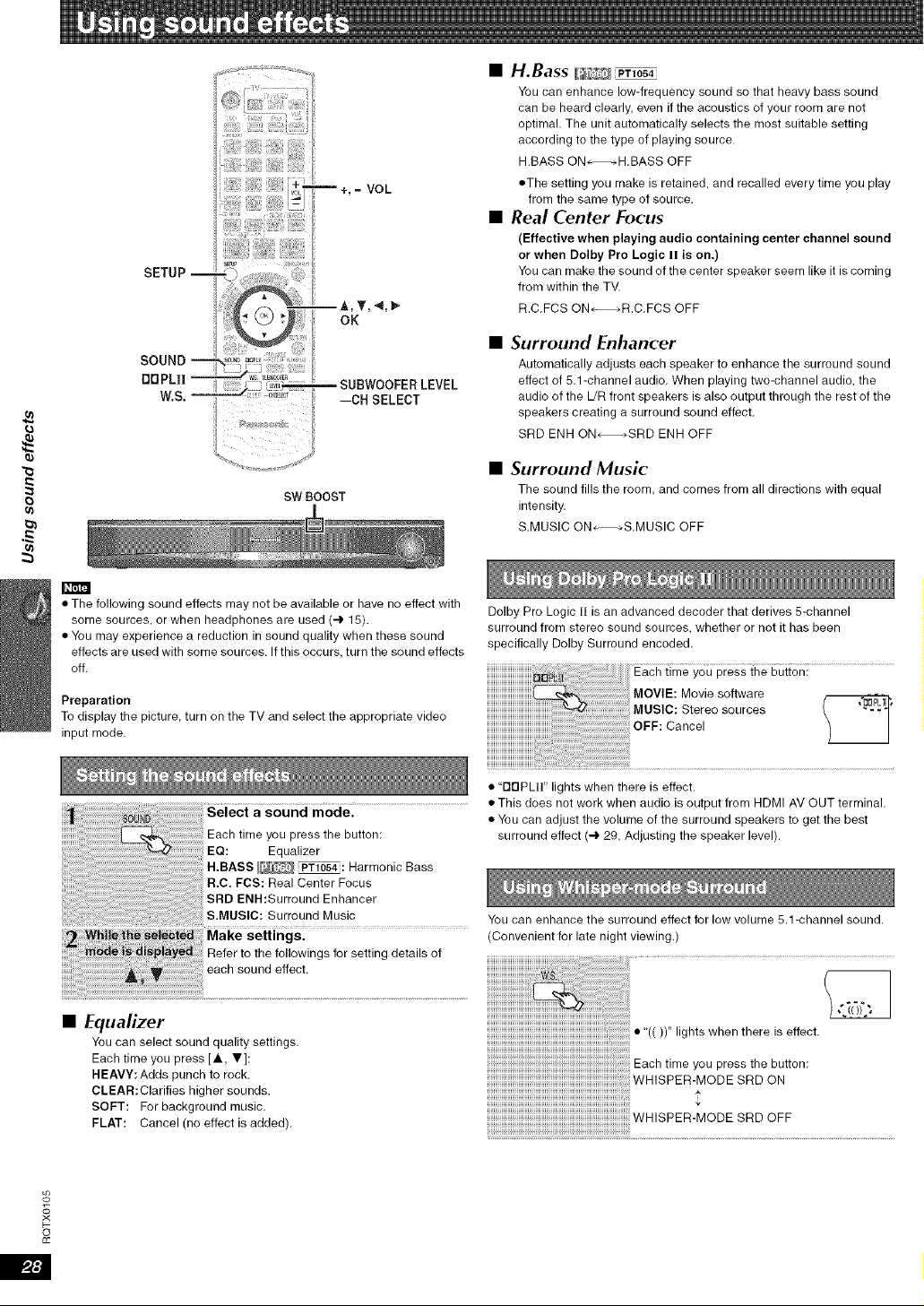
#.
e}
SETUP --
SOUND --
nDPLII --
W.S.--
:11!"[!i..... j'_!_i_i_?!_Si_
_+,= VOL
LEVEL
SW BOOST
m
• The following sound effects may not be available or have no effect with
some sources, or when headphones are used (4 15).
• You may experience a reduction in sound quality when these sound
effects are used with some sources. If this occurs, turn the sound effects
off.
Preparation
To display the picture, turn on the TV and select the appropriate video
input mode.
Select a sound mode.
you press the button
EQ: Equalizer
H.BASS _ _: Harmonic Bass
R.C, FCS: Real Center Focus
SRD ENH:Surround Enhancer
S.MUSIC: Surround Music
Make settings.
Refer to the followings for setting details of
each sound effect.
•H.Bass _%,_ PT_O_4
You can enhance low-frequency sound so that heavy bass sound
can be heard clearly, even if the acoustics of your room are net
optimal, The unit automatically selects the most suitable setting
according to the type of playing source.
H.BASS ON_H,BASS OFF
• The setting you make is retained, and recalled every time you play
from the same type of source.
•Real Center Focus
(Effective when playing audio containing center channel sound
or when Dolby Pro Logic 11is on.)
You can make the sound of the center speaker seem like it is coming
from within the TV.
R,C,FCS ON_R,C,FCS OFF
•Surround Enhancer
Automatically adjusts each speaker to enhance the surround sound
effect of 5.1-channel audio. When playing two-channel audio, the
audio of the L/R front speakers is also output through the rest of the
speakers creating a surround sound effect.
SRD ENH ON_SRD ENH OFF
•Surround Music
The sound fills the room, and comes from all directions with equal
intensity.
S.MUSIC ON_*S,MUSlC OFF
Dolby Pro Logic t! is an advanced decoder that derives 5-channel
surround from stereo sound sources, whether or not it has been
specifically Dolby Surround encoded.
Each time you press the button:
MOVIE: Movie software
MUSIC: Stereo sources / _L_ I"
OFF: Cancel
• "rlrlPL]]" lights when there is effect.
• This does not work when audio is output from HDMI AV OUT terminal.
• You can adjust the volume of the surround speakers to get the best
surround effect (-.3,29, Adjusting the speaker level).
•Equalizer
You can select sound quality settings.
Each time you press [A, T]:
HEAVY: Adds punch to rock.
CLEAR:Clarifies higher sounds.
SOFT: For background music.
FLAT: Cancel (no effect is added).
You can enhance the surround effect for low volume 5,1-channel sound.
(Convenient for late night viewing.)
• "(( ))" lights when there is effect.
o_
?<
o
£c
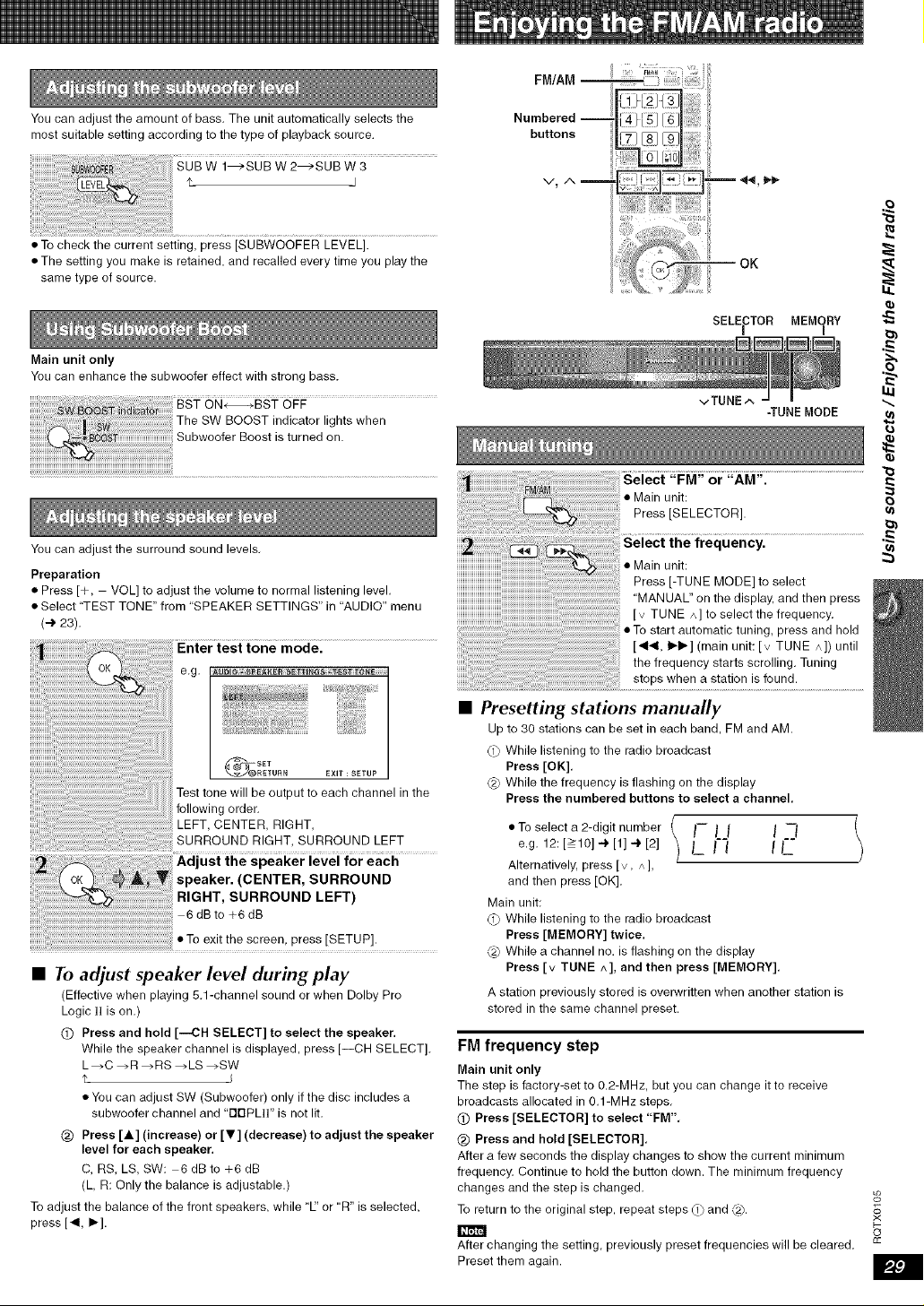
You can adjust the amount of bass. The unit automatically selects the
most suitable setting according to the type of playback source.
•To check the current setting, press [SUBWOOFER LEVEL].
• The setting you make is retained, and recalled every time you play the
same type of source.
Main unit only
You can enhance the subwoofer effect with strong bass.
iiiiiiiiiiiiiiiiiiiiiiiiiiiiiiiiiiiiiiiiiiiiiiiiiiiiiiiiiiiiiiiiiiiiiiiiiiiiiiiiiiiiiiiiiiiiiiiiiiiiiiiiiiiiiiiiiiiiiiiiiiiiiiiiiiiiiiiiiiiiiiiiiiiiiiiiiiiiiiiiiiiiiiiiiiiiiiiiiiii!i_!
The SW BOOST indicator lights when
Subwoofer Boost is turned on.
You can adjust the surround sound levels.
Preparation
• Press [+, VOL] to adjust the volume to normal listening level.
• Select "TEST TONE" from "SPEAKER SETTINGS" in "AUDIO" menu
(-_ 23).
Enter test tone mode.
e.g, AUDIO - _FEAKER _TTI_G_-TEST T_B
Test tone will be output to each channel in the
following order.
LEFT, CENTER, RIGHT,
SURROUND RIGHT, SURROUND LEFT
Adjust the speaker level for each
speaker. (CENTER, SURROUND
RIGHT, SURROUND LEFT)
6dBto +6dB
• To exit the screen, press [SETUP].
•To adjust speaker level during play
(Effective when playing 5.1-channel sound or when Dolby Pro
Logic 1! is on.)
(_) Press and hold [--CH SELECT] to select the speaker.
While the speaker channel is displayed, press [--CH SELECT].
L_C_R_RS_LS_SW
• You can adjust SW (Subwoofer) only if the disc includes a
subwoofer channel and "I313PL!!" is not lit.
@) Press [ A](increase) or [Y ] (decrease) to adjust the speaker
level for each speaker,
C, RS, LS, SW: 6 dB to +6 dB
(L, R: Only the balance is adjustable.)
To adjust the balance of the front speakers, while "E' or "R" is selected,
press [4, I_].
V_A_
SELECTOR MEMORY
vTUNE ^
-TUNE MODE
Select "FM" or "AM".
• Main unit:
Press [SELECTOR].
•Presetting stations manually
Up to 30 stations can be set in each band, FM and AM.
(1_ While listening to the radio broadcast
Press [OK].
(2_ While the frequency is flashing on the display
Press the numbered buttons to select a channel,
• To select a 2-digit number I-- [J I-]
e'g' 12:[>10]-)[1]-)[2] L I I I[__"
Alternatively, press Iv, ^],
and then press [OK].
Main unit:
(2 While listening to the radio broadcast
Press [MEMORY] twice.
(2) While a channel no. is flashing on the display
Press Iv TUNE ^], and then press [MEMORY].
A station previously stored is overwritten when another station is
stored in the same channel preset.
FM frequency step
Main unit only
The step is factory-set to 0.2-MHz, but you can change it to receive
broadcasts allocated in 0.1-MHz steps.
(_ Press [SELECTOR] to select "FM".
@) Press and hold [SELECTOR].
After a few seconds the display changes to show the current minimum
frequency, Continue to hold the button down. The minimum frequency
changes and the step is changed.
To return to the original step, repeat steps _) and (2).
After changing the setting, previously preset frequencies will be cleared.
Preset them again.
'e'
LU
o_
#
o
£c
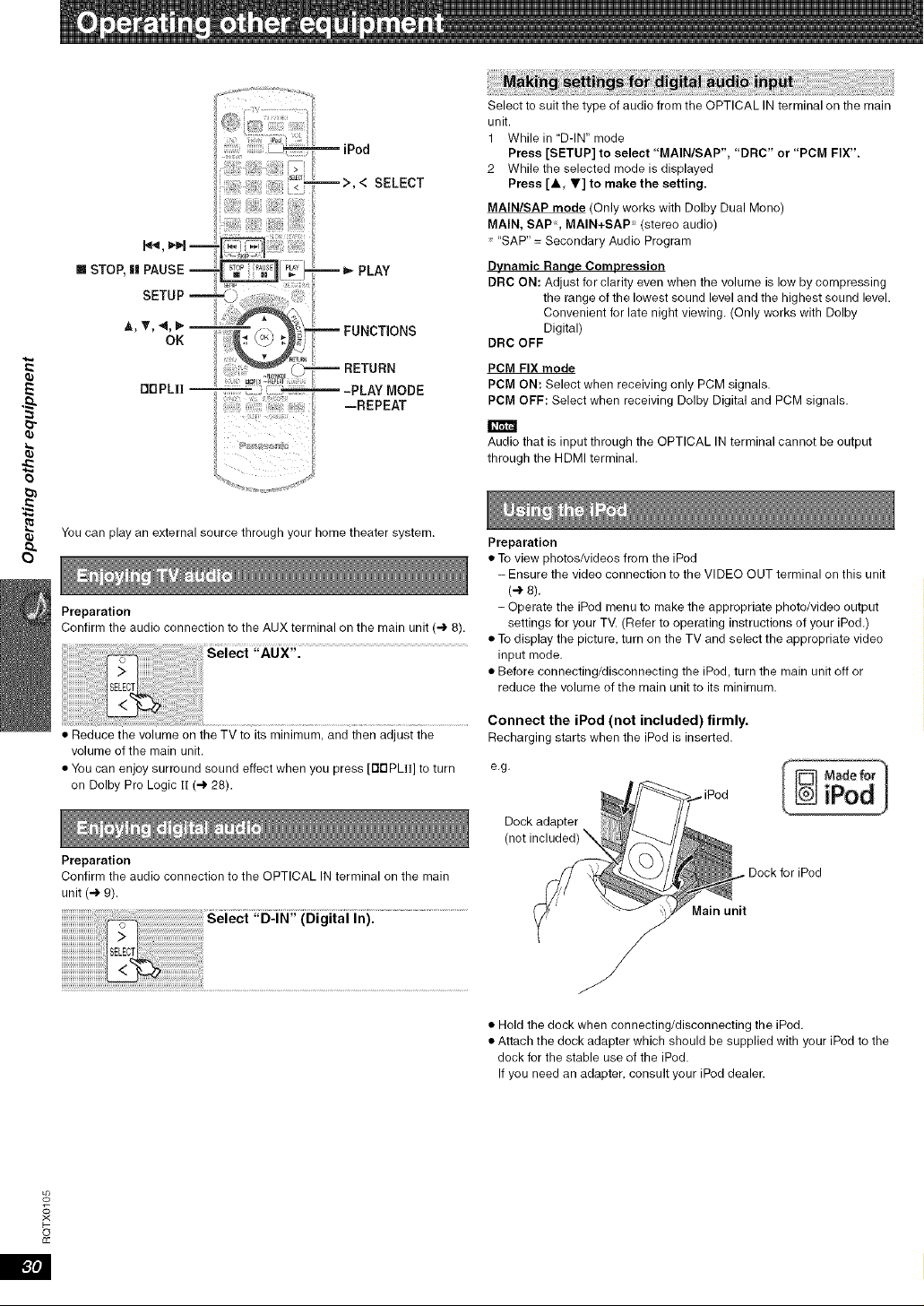
Q}
E
B"
Q}
Q}
[] STOP, [] PAUSE --
OOPLII
iiiiiiiiiiiiiiiiiiiiil iPod
-- >, < SELECT
-- _,-PLAY
m FUNCTIONS
_RETURN
-PLAY MODE
--REPEAT
You can play an external source through your home theater system.
Preparation
Confirm the audio connection to the AUX terminal on the main unit (_ 8).
• Reduce the volume on the TV to its minimum, and then adjust the
volume of the main unit.
• You can enjoy surround sound effect when you press [rlDPLII] to turn
on Dolby Pro Logic II (_ 28).
Preparation
Confirm the audio connection to the OPTICAL IN terminal on the main
unit (.'.) 9).
(Digital In).
Select to suit the type of audio from the OPTICAL IN terminal on the main
unit.
1 While in D-IN" mode
Press [SETUP] to select "MAIN/SAP', "DRC" or "PCM FIX".
2 While the selected mode is displayed
Press [A, V] to make the setting.
MAIN/SAP mode (Only works with Dolby Dual Mono)
MAIN, SAP, MAIN+SAP x (stereo audio)
"SAP" = Secondary Audio Program
Dynamic Range Compression
DRC ON: Adjust for clarity even when the volume is low by compressing
the range of the lowest sound level and the highest sound level.
Convenient for late night viewing, (Only works with Dolby
Digital)
DRC OFF
PCM FIX mode
PCM ON: Select when receiving only PCM signals.
PCM OFF: Select when receiving Dolby Digital and PCM signals.
Audio that is input through the OPTICAL IN terminal cannot be output
through the HDMI terminal,
Preparation
• To view photos/videos from the iPod
- Ensure the video connection to the VIDEO OUT terminal on this unit
(4 8).
-Operate the iPod menu to make the appropriate photo/video output
settings for your TV. (Refer to operating instructions of your iPod,)
• To display the picture, turn on the TV and select the appropriate video
input mode,
• Before connecting/disconnecting the iPod, turn the main unit off or
reduce the volume of the main unit to its minimum,
Connect the iPod (not included) firmly.
Recharging starts when the iPod is inserted.
e,g, Made for
iPod
for iPod
• Hold the dock when connecting/disconnecting the iPod.
• Attach the dock adapter which should be supplied with your iPod to the
dock for the stable use of the iPod.
If you need an adapter, consult your iPod dealer.
o_
?<
F-
o
cc
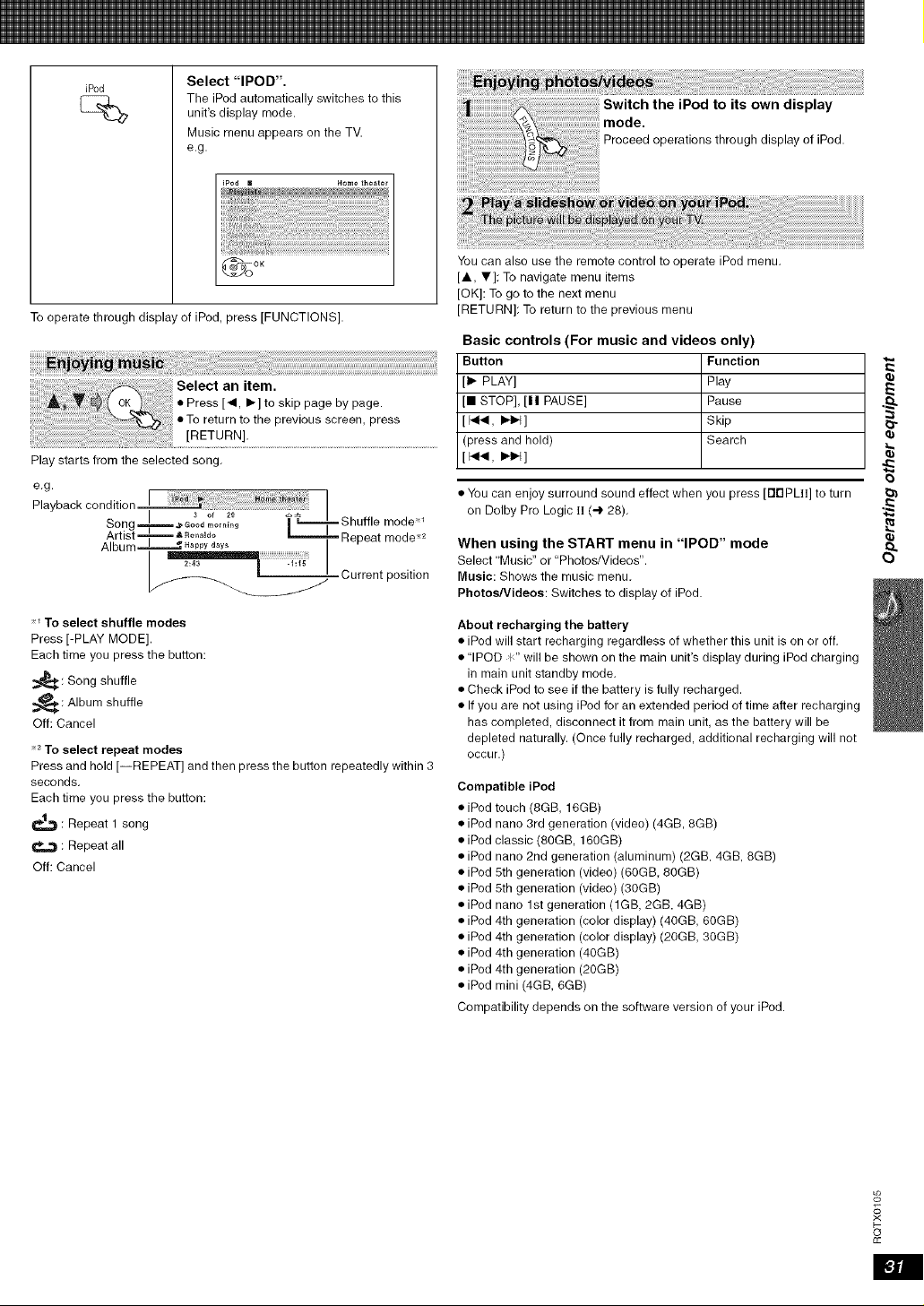
iPod Select "IPOD".
The iPod automatically switches to this
unit's display mode.
Music menu appears on the TV.
e.g.
To operate through display of iPod, press [FUNCTIONS]
Select an item.
• Press [4, I_] to skip page by page.
• To return to the previous screen, press
[RETURN]
Play starts from the selected song.
e.g
p...... I
layDacK conaltlon _ i
I I 1
Song m._ Good_o,_io_ _ '_-===='_Shuffle mode
Artist-- _ Ro..Jdo L=====,J==Re_eat mode 2
Album I "Happyd_y_ l _"
r'urrent position
To select shuffle modes
Press [-PLAY MODE].
Each time you press the button:
_: Song shuffle
---_: Album shuffle
Off: Cancel
2 To select repeat modes
Press and hold [--REPEAT] and then press the button repeatedly within 3
seconds.
Each time you press the button:
: Repeat 1 song
: Repeat all
Off: Cancel
You can also use the remote control to operate iPod menu.
[,&, T]: To navigate menu items
[OK]: To go to the next menu
[RETURN]: To return to the previous menu
Basic controls (For music and videos only)
Button Function
[1_ PLAY] Play
[11 STOP], [11 PAUSE] Pause
[_14, I_1_] Skip
]press and hold) Search
[_., _4]
• You can enjoy surround sound effect when you press [rlBPL]]] to turn
on Dolby Pro Logic ii (4 28).
When using the START menu in "IPOD" mode
Select Music" or "Photos/Videos".
Music: Shows the music menu.
Photos/Videos: Switches to display of iPod.
About recharging the battery
• iPod will start recharging regardless of whether this unit is on or off.
• "IPOD P" will be shown on the main unit's display during iPod charging
in main unit standby mode.
• Check iPod to see if the battery is fully recharged.
• If you are not using iPod for an extended period of time after recharging
has completed, disconnect it from main unit, as the battery will be
depleted naturally. (Once fully recharged, additional recharging will not
occur.)
Compatible iPod
• iPod touch (8GB, 16GB)
• iPod nano 3rd generation (video) (4GB, 8GB)
• iPod classic (80GB, 160GB)
• iPod nano 2nd generation (aluminum) (2GB. 4GB, 8GB)
• iPod 5th generation (video) (60GB, 80GB)
• iPod 5th generation (video) (30GB)
• iPod nano 1st generation (1GB, 2GB. 4GB)
• iPod 4th generation (color display) (40GB, 60GB)
• iPod 4th generation (color display) (20GB, 30GB)
• iPod 4th generation (40GB)
• iPod 4th generation (20GB)
• iPod mini (4GB, 6GB)
Compatibility depends on the software version of your iPod.
o_
#
F-
o
£c
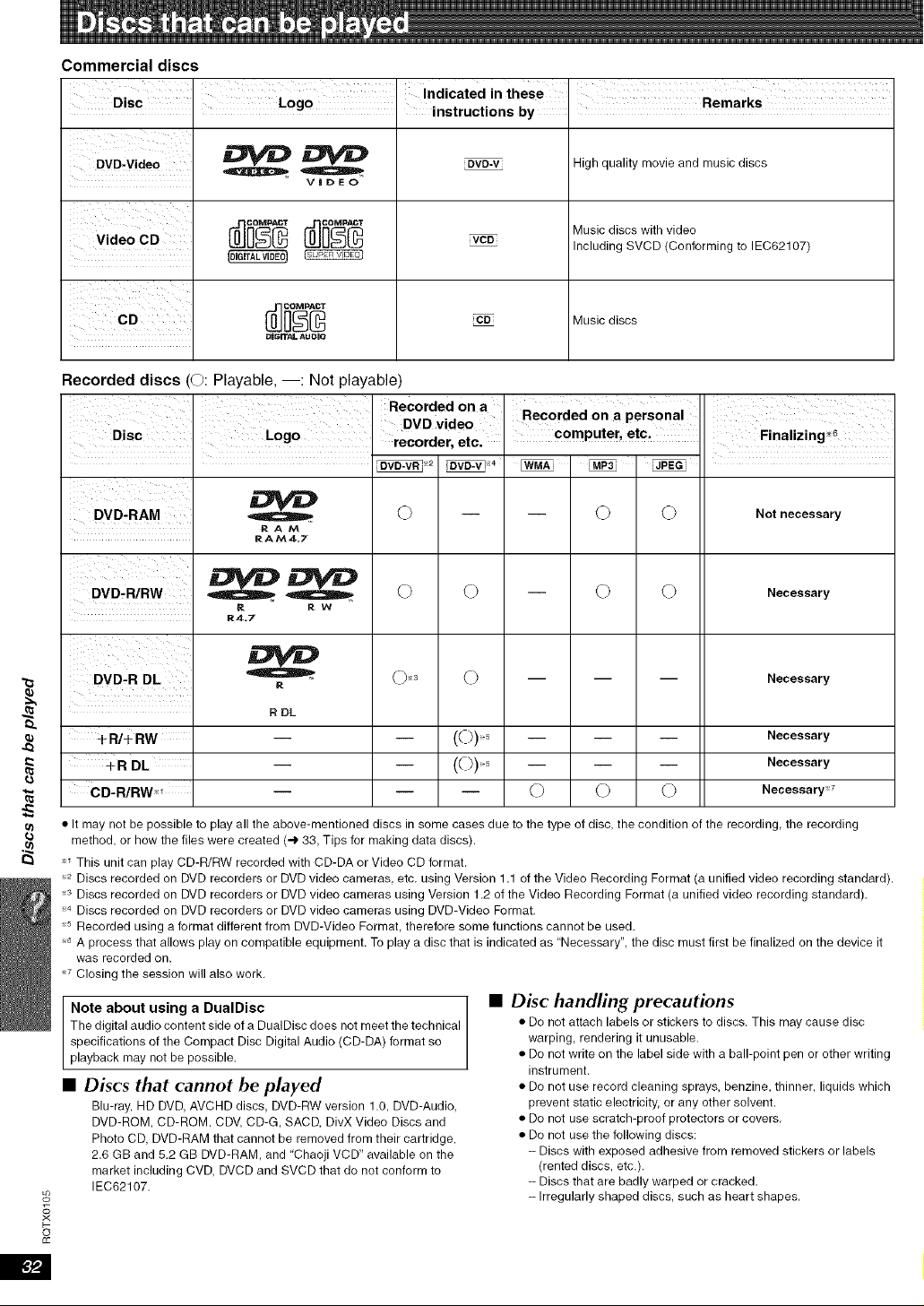
Commercial discs
DVD-Video
Video CD
Q
VIDEO
DVD-V
_VCDi
High quality movie and music discs
Music discs with video
Including SVCD (Conforming to IEC62107)
CD co_ Music discs
DigiTAL AUDIO
Recorded discs (0: Playable, --: Not playable)
IiDVD-VR y2
DVD-RAM
DVD-R/RW
DVD-R DL
+R/+ RW
+R DL
CD-R/RW_I
Q
RA/_A
RAM4.7
RRW
R4.7
R DL
O
0 0
C)_3 C)
_ _PEG
0 0
0 0
000
Not necessary
Necessary
Necessary
Necessary
Necessary
Necessary _7
o_
#
o
£c
• It may not be possible to play all the above-mentioned discs in some cases due to the type of disc, the condition of the recording, the recording
method, or hew the files were created (4 33, Tips for making data discs),
This unit can play CD-R/RW recorded with CD-DA or Video CD format.
_2 Discs recorded on DVD recorders or DVD video cameras, etc. using Version 1.1 of the Video Recording Format (a unified video recording standard).
3 Discs recorded on DVD recorders or DVD video cameras using Version 1.2 of the Video Recording Format (a unified video recording standard).
_4 Discs recorded on DVD recorders or DVD video cameras using DVD-Video Format.
_6 Recorded using a format different from DVD-Video Format, therefore some functions cannot be used.
_GA process that allows play on compatible equipment. To play a disc that is indicated as "Necessary", the disc must first be finalized on the device it
was recorded on.
7 Closing the session will also work.
Note about using a DualDisc
The digital audio content side of a DualDisc does not meet the technical
specifications of the Compact Disc Digital Audio (CD-DA) format so
playback may not be possible.
•Discs that cannot be played
Blu-ray, HD DVD, AVCHD discs, DVD-RW version 1.0, DVD-Audio,
DVD-ROM, CD-ROM, CDV, CD-G, SACD, DivX Video Discs and
Photo CD, DVD-RAM that cannot be removed from their cartridge,
2.6 GB and 5.2 GB DVD-RAM, and "Chaoji VCD" available on the
market including CVD, DVCD and SVCD that do not conform to
IEC62107.
• Disc handling precautions
• De not attach labels or stickers to discs, This may cause disc
warping, rendering it unusable.
• De not write on the label side with a ball-point pen or other writing
instrument,
• De net use record cleaning sprays, benzine, thinner, liquids which
prevent static electricity, or any other solvent,
• Do not use scratch-proof protectors or covers.
• Do not use the following discs:
- Discs with exposed adhesive from removed stickers or labels
(rented discs, etc.).
- Discs that are badly warped or cracked.
- Irregularly shaped discs, such as heart shapes,
_P.,Jl
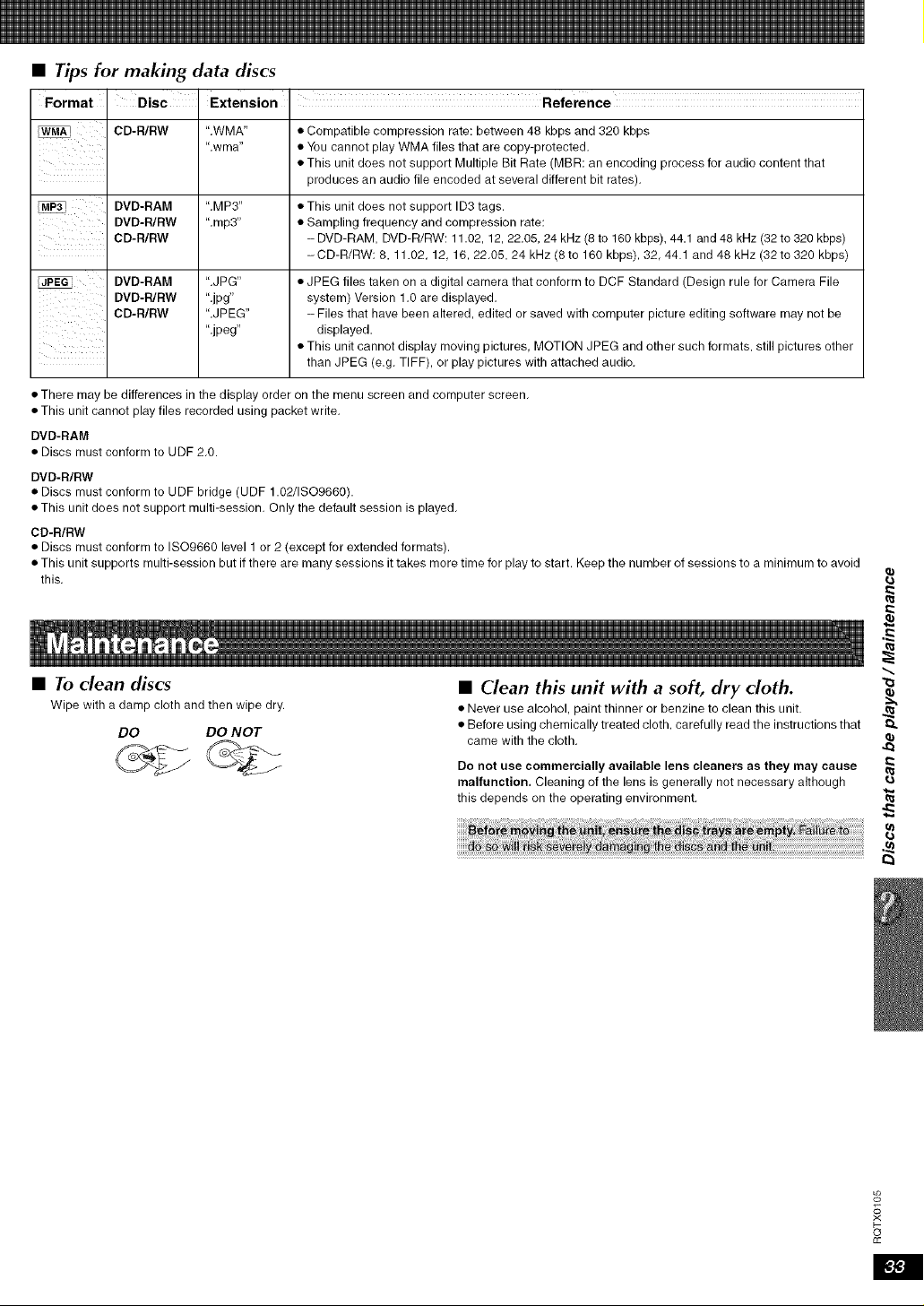
•Tips for making data discs
Format Disc Extension Reference
CD-R/RW ".WMA" • Compatible compression rate: between 48 kbps and 320 kbps
".wma" • You cannot play WMA files that are copy-protected.
• This unit does not support Multiple Bit Rate (MBR: an encoding process for audio content that
produces an audio file encoded at several different bit rates).
DVD-RAM "MP3" • This unit does not support ID3 tags.
DVD-R/RW ".rap3" • Sampling frequency and compression rate:
CD-R/RW - DVD-RAM, DVD-R/RW: 11.02, 12, 22.05, 24 kHz (8 to 160 kbps), 44.1 and 48 kHz (32 to 320 kbps)
-CD-R/RW: 8, 11.02, 12, 16, 22.05, 24 kHz (8 to 160 kbps), 32, 44.1 and 48 kHz (32 to 320 kbps)
DVD-RAM ".JPG" • JPEG files taken on a digital camera that conform to DCF Standard (Design rule for Camera File
DVD-R/RW ".jpg" system) Version 1.0 are displayed.
CD-R/RW ".JPEG" - Files that have been altered, edited or saved with computer picture editing software may not be
".jpeg" displayed.
• This unit cannot display moving pictures, MOTION JPEG and other such formats, still pictures other
than JPEG (e.g. TIFF), or play pictures with attached audio.
• There may be differences in the display order on the menu screen and computer screen.
• This unit cannot play files recorded using packet write.
DVD-RAM
• Discs must conform to UDF 2.0.
DVD-R/RW
• Discs must conform to UDF bridge (UDF 1.02/ISO9660).
• This unit does not support multi-session. Only the default session is played.
CD-R/RW
• Discs must conform to ISO9660 level 1 or 2 (except for extended formats).
• This unit supports multi-session but if there are many sessions it takes more time for play to start. Keep the number of sessions to a minimum to avoid
this.
•To dean discs
Wipe with a damp cloth and then wipe dry.
DO DO NOT
•Clean this unit with a soft, dry cloth.
• Never use alcohol, paint thinner or benzine to clean tl-fis unit.
• Before using chemically treated cloth, carefully read the instructions that
came with the cloth.
Do not use commercially available lens cleaners as they may cause
malfunction. Cleaning of the lens is generally not necessary although
this depends on the operating environment.
I
4_
I
o_
?<
o
£c
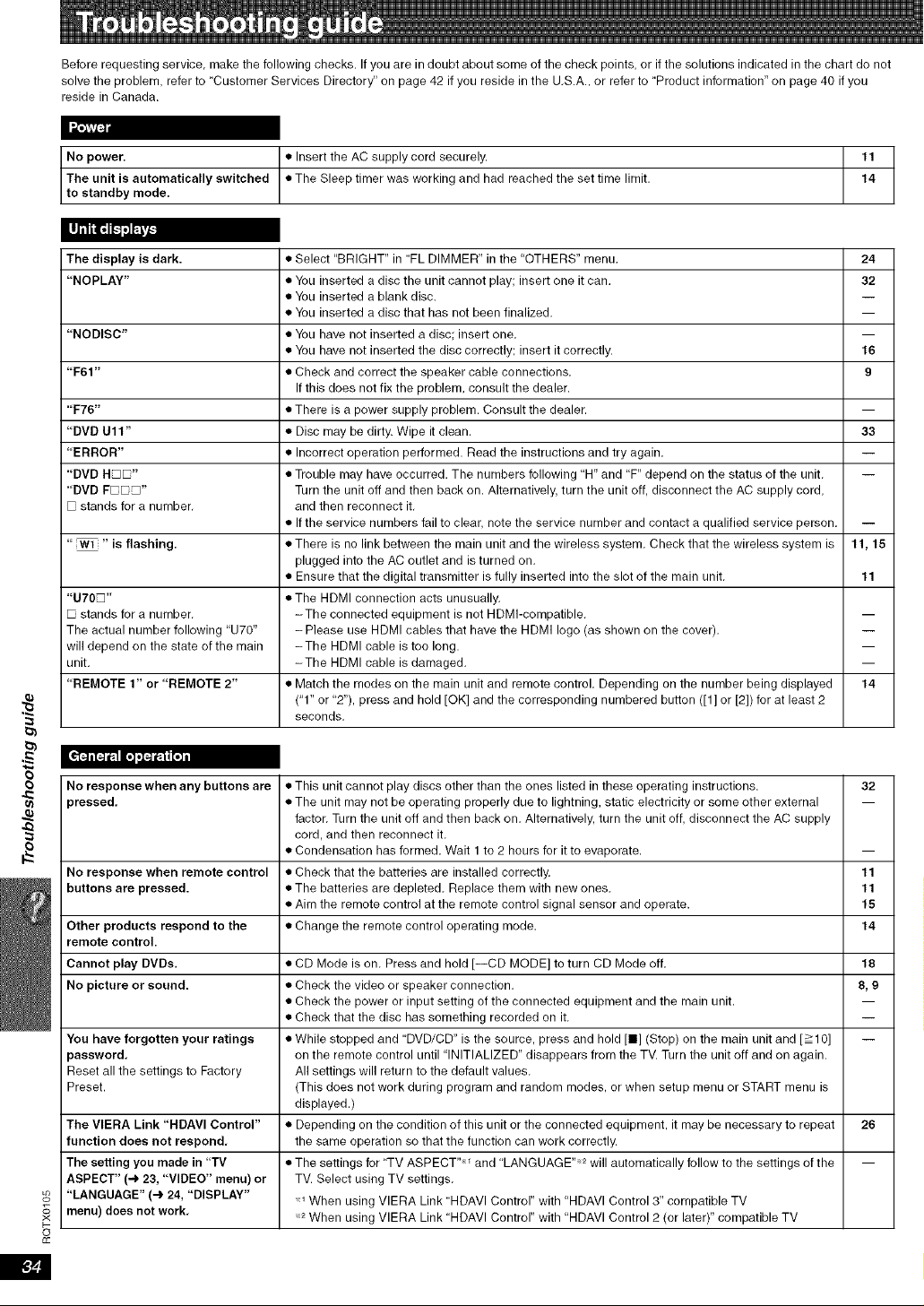
Before requesting service, make the following checks. If you are in doubt about some of the check points, or if the solutions indicated in the chart do not
solve the problem, refer to Customer Services Directory" on page 42 if you reside in the U.S.A., or refer to Product information" on page 40 if you
reside in Canada.
I ",t'_;_FJJl
No power. •Insert the AC supply cord securely. 1_
The unit is automatically switched • The Sleep timer was working and had reached the set time limit.
to standby mode.
The display is dark. • Select "BRIGHT" in FL DIMMER" in the "OTHERS" menu. 24
"NOPLAY" • You inserted a disc the unit cannot play; insert one it can. 32
• You inserted a blank disc.
• You inserted a disc that has not been finalized,
"NODISC" • You have not inserted a disc; insert one.
• You have not inserted the disc correctly; insert it correctly. 16
"F61" • Check and correct the speaker cable connections. 9
If this does not fix the problem, consult the dealer.
"F76" • There is a power supply problem. Consult the dealer. --
"DVD Ult" • Disc may be dirty. Wipe it clean. 33
"ERROR" • Incorrect operation performed. Read the instructions and try again. --
"DVD H_" • Trouble may have occurred. The numbers following "H" and "F" depend on the status of the unit. --
"DVD F_D" Turn the unit off and then back on. Alternatively, turn the unit off, disconnect the AC supply cord,
stands for a number, and then reconnect it.
• If the service numbers fail to clear, note the service number and contact a qualified service person, --
"_ " is flashing. • There is no link between the main unit and the wireless system, Check that the wireless system is 11, 15
plugged into the AC outlet and is turned on.
• Ensure that the digital transmitter is fully inserted into the slot of the main unit. 11
"U70D" • The HDMI connection acts unusually,
stands for a number. -The connected equipment is not HDMI-compatible.
The actual number following "U70" - Please use HDMI cables that have the HDMI logo (as shown on the cover),
will depend on the state of the main -The HDMI cable is too long.
unit. -The HDMI cable is damaged. --
"REMOTE 1" or "REMOTE 2" • Match the modes on the main unit and remote control. Depending on the number being displayed 14
("1" or "2"), press and hold [OK] and the corresponding numbered button ([1] or [2]) for at least 2
seconds,
No response when any buttons are • This unit cannot play discs other than the ones listed in these operating instructions. 32
pressed, • The unit may not be operating properly due to lightning, static electricity or some other external --
factor. Turn the unit off and then back on. Alternatively, turn the unit off, disconnect the AC supply
cord, and then reconnect it.
• Condensation has formed. Wait 1 to 2 hours for it to evaporate.
No response when remote control • Check that the batteries are installed correctly. 11
buttons are pressed. • The batteries are depleted. Replace them with new ones. 11
• Aim the remote control at the remote control signal sensor and operate. 15
Other products respond to the • Change the remote control operating mode. 14
remote control.
Cannot play DVDs. • CD Mode is on. Press and hold [--CD MODE] to turn CD Mode off. 18
No picture or sound. • Check the video or speaker connection. 8, 9
• Check the power or input setting of the connected equipment and the main unit.
• Check that the disc has something recorded on it.
You have forgotten your ratings • While stopped and DVD/CD" is the source, press and hold [O] (Stop) on the main unit and [_ 10] --
password, on the remote control until "INITIALIZED" disappears from the TV. Turn the unit off and on again.
Reset all the settings to Factory All settings will return to the default values.
Preset. (This does not work during program and random modes, or when setup menu or START menu is
displayed.)
The VIERA Link "HDAVl Control" • Depending on the condition of this unit or the connected equipment, it may be necessary to repeat 26
function does not respond, the same operation so that the function can work correctly.
The setting you made in "TV The settings for "TV ASPECT" and "LANGUAGE ''2 will automatically follow to the settings of the --
ASPECT" (4 23, "VIDEO" menu) or TV. Select using TV settings.
"LANGUAGE" (-) 24, "DISPLAY" _When using VIERA Link "HDAVI Control" with "HDAVI Control 3" compatible TV
menu) does not work. 2When using VIERA Link "HDAVI Control" with "HDAVI Control 2 (or later)" compatible TV
[€_j
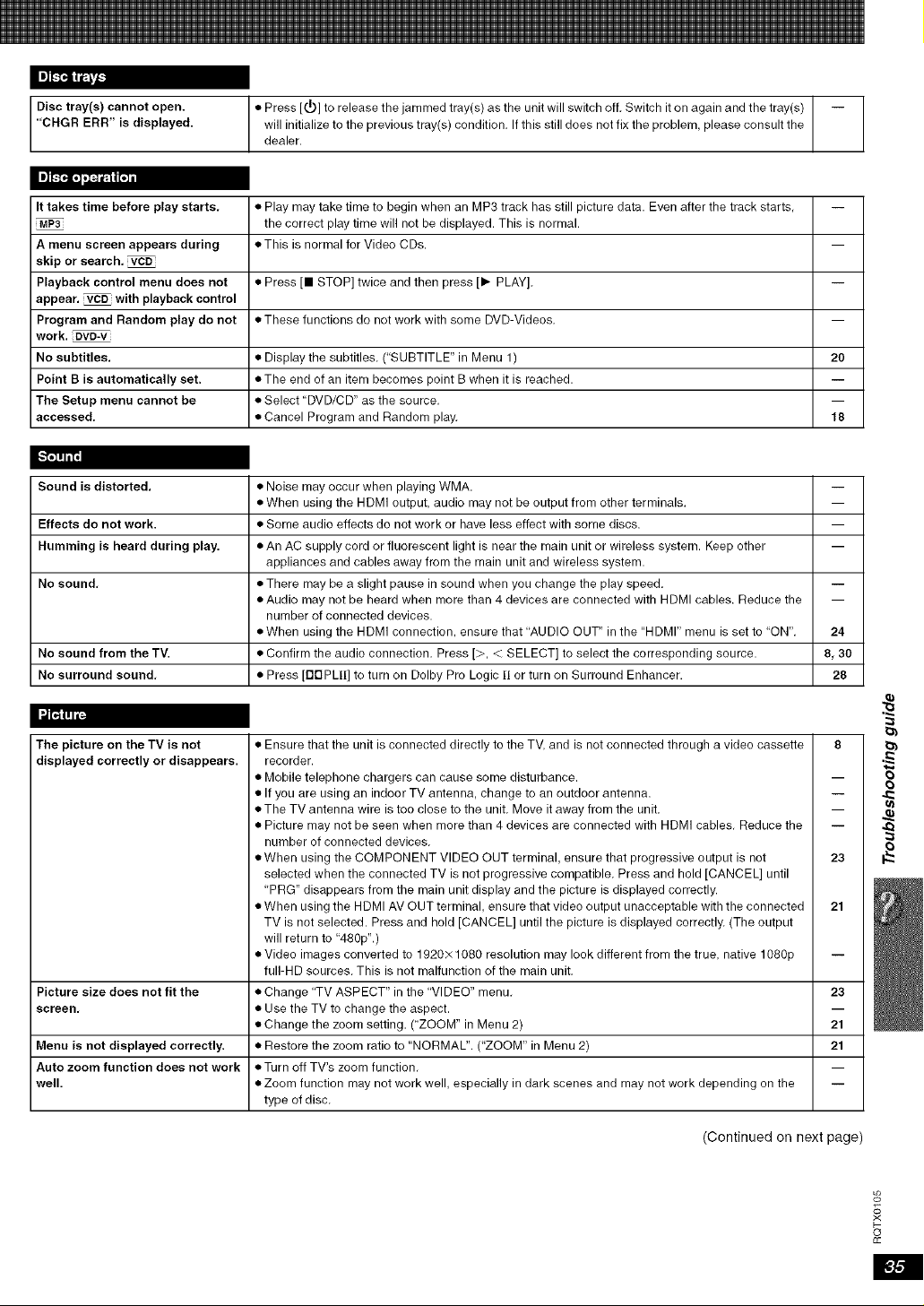
Disc tray(s) cannot open. • Press [(,_] to release the jammed tray(s) as the unit will switch off, Switch it on again and the tray(s) --
' CHGR ERR s d sp dyed. dealer.Willinitialize to the previous tray(s) condition, If this still does not fix the problem, please consult the
It takes time before play starts,
MP3
A menu screen appears during
skip or search,
Playback control menu does not
appear, _ with playback control
Program and Random play do not
work,
No subtitles,
Point B is automatically set.
The Setup menu cannot be
accessed.
• Play may take time to begin when an MP3 track has still picture data. Even after the track starts,
the correct play time will not be displayed. This is normal.
eThis is normal for Video CDs.
• Press [i STOP] twice and then press [1_- PLAY].
• These functions do not work with some DVD-Videos.
m
m
2O
18
• Display the subtitles. ("SUBTITLE" in Menu 1)
• The end of an item becomes point B when it is reached.
• Select DVD/CD" as the source.
• Cancel Program and Random play.
Sound is distorted. • Noise may occur when playing WMA.
• When using the HDMI output, audio may not be output from other terminals.
Effects do not work. • Some audio effects do not work or have less effect with some discs. --
Humming is heard during play. • An AC supply cord or fluorescent light is near the main unit or wireless system. Keep other --
appliances and cables away from the main unit and wireless system.
No sound, • There may be a slight pause in sound when you change the play speed. --
• Audio may not be heard when more than 4 devices are connected with H DMI cables. Reduce the --
number of connected devices.
• When using the HDMI connection, ensure that AUDIO OUT" in the "HDMI" menu is set to ON", 24
No sound from the TV. • Confirm the audio connection, Press [>, < SELECT] to select the corresponding source. 8, 30
No surround sound, • Press [rlDPLII] to turn on Dolby Pro Logic II or turn on Surround Enhancer. 28
I"a"1"4'111_
8
The picture on the TV is not
displayed correctly or disappears.
m
m
• Ensure that the unit is connected directly to the TV, and is not connected through a video cassette
recorder.
• Mobile telephone chargers can cause some disturbance.
• If you are using an indoor TV antenna, change to an outdoor antenna.
• The TV antenna wire is too close to the unit, Move it away from the unit,
• Picture may not be seen when more than 4 devices are connected with HDMI cables, Reduce the
number of connected devices,
• When using the COMPONENT VIDEO OUT terminal, ensure that progressive output is not
selected when the connected TV is not progressive compatible, Press and hold [CANCEL] until
PRG" disappears from the main unit display and the picture is displayed correctly.
• When using the HDMI AV OUT terminal, ensure that video output unacceptable with the connected
TV is not selected. Press and hold [CANCEL] until the picture is displayed correctly. (The output
will return to 480p".)
• Video images converted to 1920>: 1080 resolution may look different from the true, native 1080p
fulI-HD sources, This is not malfunction of the main unit,
• Change 'TV ASPECT" in the VIDEO" menu,
• Use the TV to change the aspect.
• Change the zoom setting. (ZOOM" in Menu 2)
• Restore the zoom ratio to "NORMAL". (ZOOM" in Menu 2)
• Turn off TV's zoom function,
• Zoom function may not work well, especially in dark scenes and may not work depending on the
type of disc,
23
Picture size does not fit the 23
screen,
21
Menu is not displayed correctly. 21
Auto zoom function does not work
well.
(Continued on next page)
o_
?<
o
cc
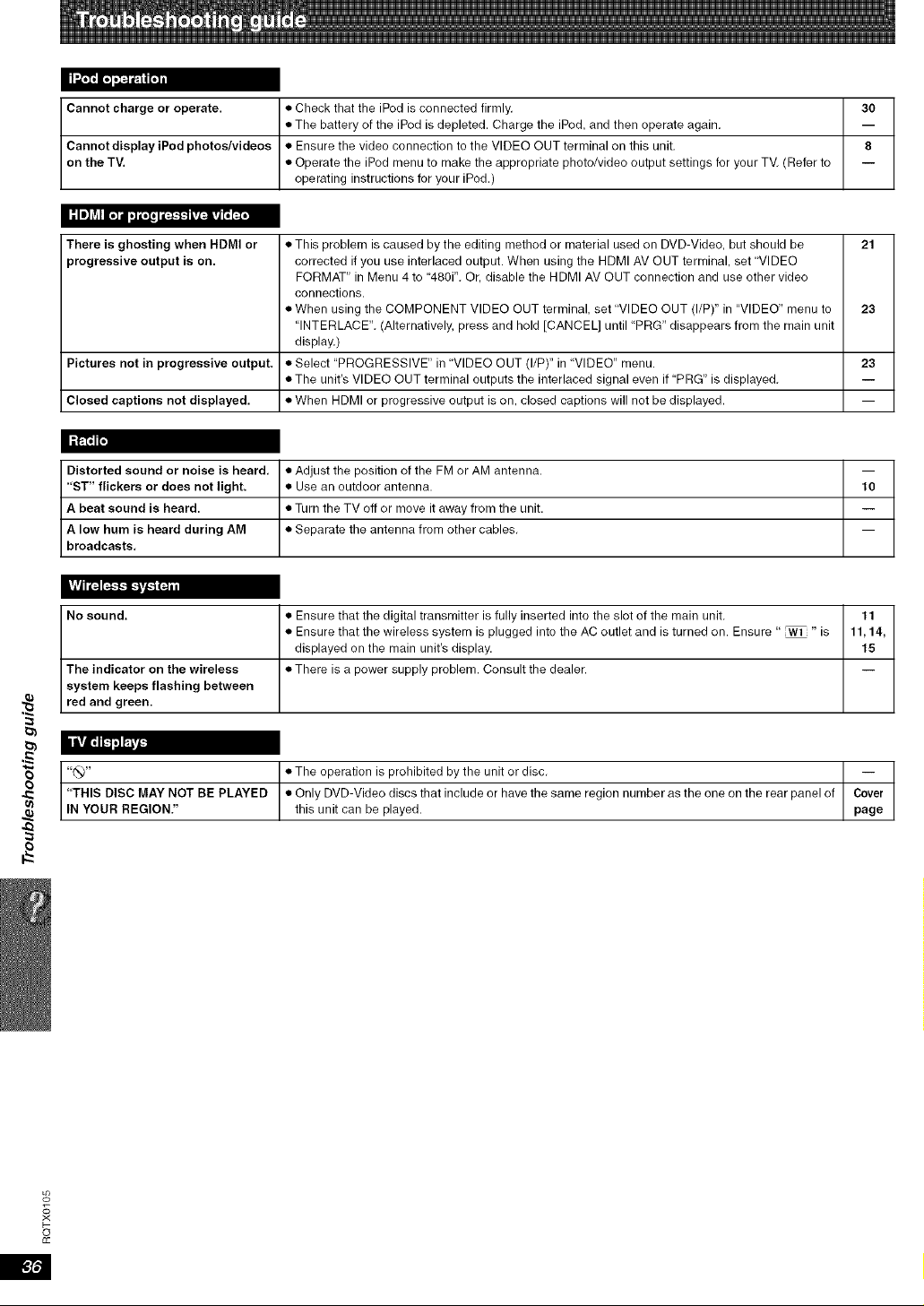
Cannot charge or operate. • Check that the iPod is connected firmly, 30
• The battery of the iPod is depleted. Charge the iPod, and then operate again.
Cannot display iPod photos/videos • Ensure the video connection to the VIDEO OUT terminal on this unit, 8
on the TV. • Operate the iPod menu to make the appropriate photo/video output settings for your TM (Refer to --
operating instructions for your iPod.)
i;in]Lv_lr_l _L_l'_ ['_1
There is ghosting when HDMI or
progressive output is on.
• This problem is caused by the editing method or material used on DVD-Video, but should be
corrected if you use interlaced output. When using the HDMI AV OUT terminal, set VIDEO
FORMAT" in Menu 4 to 480i', Or, disable the HDMI AV OUT connection and use other video
connections.
• When using the COMPONENT VIDEO OUT terminal, set VIDEO OUT (I/P)" in "VIDEO" menu to
"INTERLACE", (Alternatively, press and hold [CANCEL] until PRG" disappears from the main unit
display.)
• Select "PROGRESSIVE" in VIDEO OUT (I/P)" in VIDEO" menu.
• The unit's VIDEO OUT terminal outputs the interlaced signal even if 'PRG" is displayed,
• When HDMI or progressive output is on, closed captions will not be displayed.
21
23
Pictures not in progressive output. 23
Closed captions not displayed.
I-'_'_
Distorted sound or noise is heard, • Adjust the position of the FM or AM antenna.
"ST" flickers or does not light. • Use an outdoor antenna. 10
A beat sound is heard. • Turn the TV off or move it away from the unit.
A low hum is heard during AM • Separate the antenna from other cables,
broadcasts,
No sound. • Ensure that the digital transmitter is fully inserted into the slot of the main unit, 11
• Ensure that the wireless system is plugged into the AC outlet and is turned on. Ensure " _ " is 11,14,
displayed on the main unit's display. 15
The indicator on the wireless • There is a power supply problem. Consult the dealer.
system keeps flashing between
red and green.
"C"_" •The operation is prohibited by the unit or disc, I_
"THIS DISC MAY NOT BE PLAYED • Only DVD-Video discs that include or have the same region number as the one on the rear panel of
IN YOUR REGION." this unit can be played.
4_
o_
.e<
o
£c
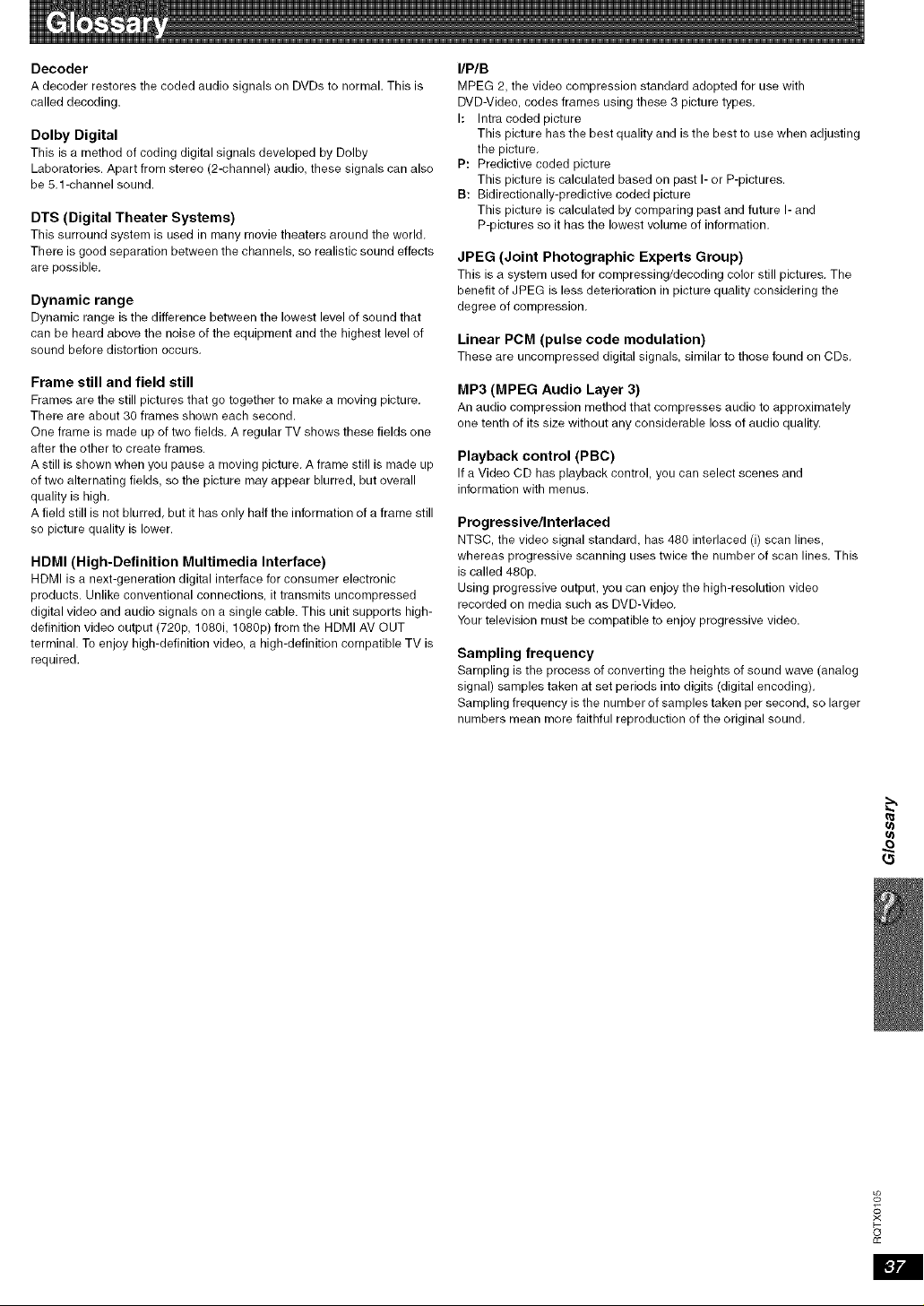
Decoder
A decoder restores the coded audio signals on DVDs to normal. This is
called decoding.
Dolby Digital
This is a method of coding digital signals developed by Dolby
Laboratories. Apart from stereo (2-channel) audio, these signals can also
be 5.1-channel sound.
DTS (Digital Theater Systems)
This surround system is used in many movie theaters around the world.
There is good separation between the channels, so realistic sound effects
are possible.
Dynamic range
Dynamic range is the difference between the lowest level of sound that
can be heard above the noise of the equipment and the highest level of
sound before distortion occurs.
Frame still and field still
Frames are the still pictures that go together to make a moving picture.
There are about 30 frames shown each second.
One frame is made up of two fields. A regular TV shows these fields one
after the other to create frames.
A still is shown when you pause a moving picture. A frame still is made up
of two alternating fields, so the picture may appear blurred, but overall
quality is high.
A field still is not blurred, but it has only half the information of a frame still
so picture quality is lower.
HDMI (High-Definition Multimedia Interface)
HDMI is a next-generation digital interface for consumer electronic
products. Unlike conventional connections, it transmits uncompressed
digital video and audio signals on a single cable. This unit supports high-
definition video output (720p, 1080i, 1080p) from the HDMI AV OUT
terminal. To enjoy high-definition video, a high-definition compatible TV is
required.
I/P/B
MPEG 2, the video compression standard adopted for use with
DVD-Video, codes frames using these 3 picture types.
I: Intra coded picture
This picture has the best quality and is the best to use when adjusting
the picture.
P: Predictive coded picture
This picture is calculated based on past I- or P-pictures.
B: Bidirectionally-predictive coded picture
This picture is calculated by comparing past and future I- and
P-pictures so it has the lowest volume of information.
JPEG (Joint Photographic Experts Group)
This is a system used for compressing/decoding color still pictures. The
benefit of JPEG is less deterioration in picture quality considering the
degree of compression.
Linear PCM (pulse code modulation)
These are uncompressed digital signals, similar to those found on CDs.
MP3 (MPEG Audio Layer 3)
An audio compression method that compresses audio to approximately
one tenth of its size without any considerable loss of audio quality.
Playback control (PBC)
If a Video CD has playback control, you can select scenes and
information with menus.
Progressive/Interlaced
NTSC, the video signal standard, has 480 interlaced (i) scan lines,
whereas progressive scanning uses twice the number of scan lines. This
is called 480p.
Using progressive output, you can enjoy the high-resolution video
recorded on media such as DVD-Video.
Your television must be compatible to enjoy progressive video.
Sampling frequency
Sampling is the process of converting the heights of sound wave (analog
signal) samples taken at set periods into digits (digital encoding).
Sampling frequency is the number of samples taken per second, so larger
numbers mean more faithful reproduction of the original sound.
e}
o_
?<
o
cc
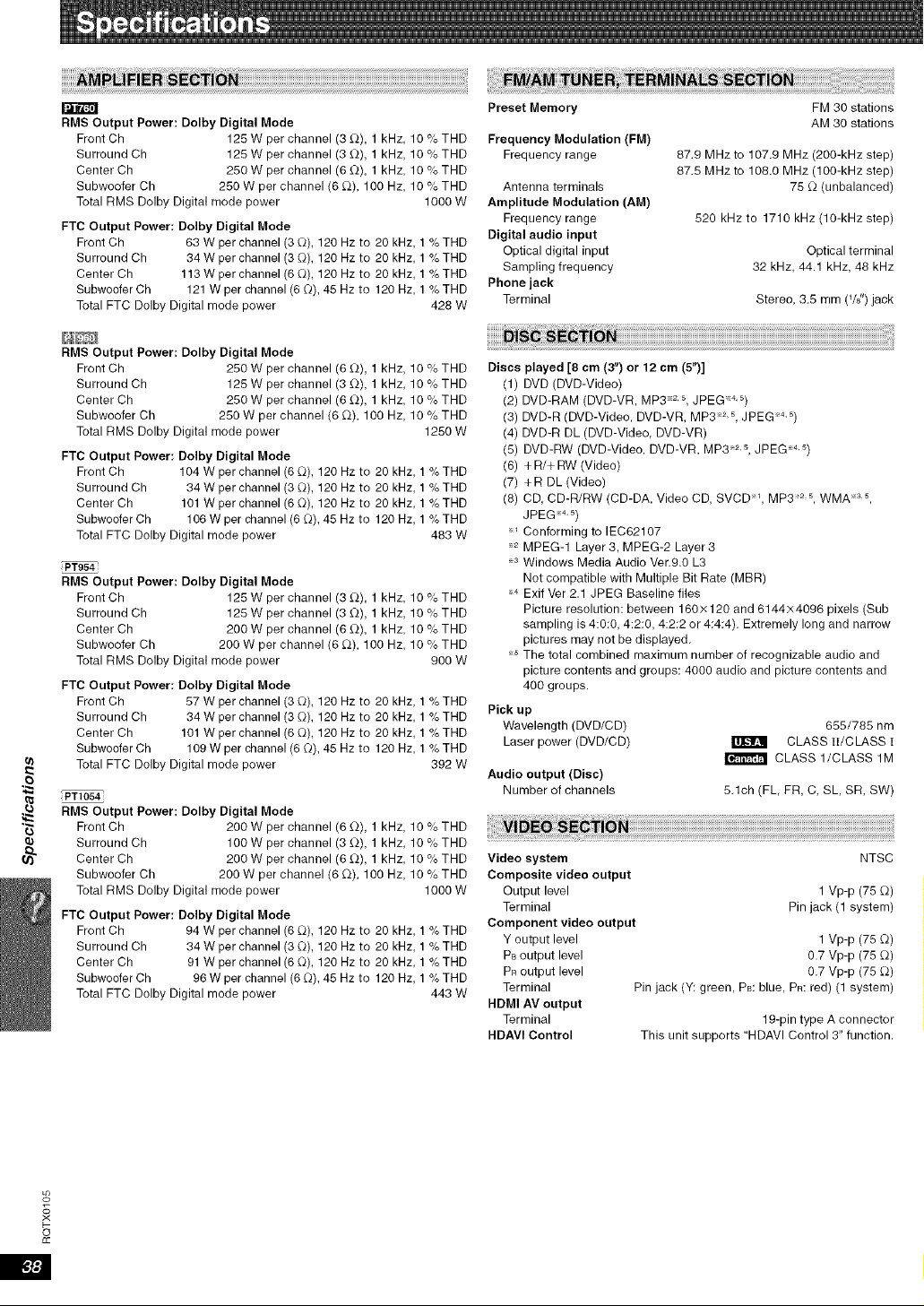
e)
o
"3
RMS Output Power: Dolby Digital Mode
Front Ch 125 W per channel (3 _-_),1 kHz, 10 % THD
Surround Ch 125 W per channel (3 £_), 1 kHz, 10 % THD
Center Ch 250 W per channel (6 _-_),1 kHz, 10 % THD
Subweofer Ch 250 W per channel (6 _-_), 100 Hz, 10 % THD
Total RMS Delby Digital mode power 1000 W
FTC Output Power: Dolby Digital Mode
Front Ch 63 W per channel (3 _), 120 Hz to 20 kHz, 1% THD
Surround Ch 34 W per channel (3 _)), 120 Hz to 20 kHz, 1% THD
Center Ch 113 W per channel (6 _), 120 Hz to 20 kHz, 1% THD
Subweefer Ch 121 W per channel (6 Q), 45 Hz te 120 Hz, 1%THD
Total FTC Dolby Digital mode power 428 W
Preset Memory
Frequency Modulation (FM)
Frequency range
Antenna terminals
Amplitude Modulation (AM)
Frequency range
Digital audio input
Optical digital input
Sampling frequency
Phone jack
Terminal
FM 30 stations
AM 30 stations
87.9 MHz to 107.9 MHz (200-kHz step)
87,5 MHz to 108.0 MHz (100-kHz step)
75 _2(unbalanced)
520 kHz to 1710 kHz (10-kHz step)
Optical terminal
32 kHz, 44.1 kHz, 48 kHz
Stereo, 3.5mm(W')jack
RMS Output Power: Dolby Digital Mode
Front Ch 250 W per channel (6 D), 1 kHz, 10 % THD
Surround Ch 125 W per channel (3 £_), 1 kHz, 10 % THD
Center Ch 250 W per channel (6 £2), 1 kHz, 10 % THD
Subweofer Ch 250 W per channel (6 £_), 100 Hz, 10 % THD
Total RMS Delby Digital mode power 1250 W
FTC Output Power: Dolby Digital Mode
Front Ch 104 W per channel (6 _), 120 Hz to 20 kHz, 1% THD
Surround Ch 34 W per channel (3 Q), 120 Hz to 20 kHz, 1% THD
Center Ch 101 W per channel (6 _)), 120 Hz to 20 kHz, 1% THD
Subweefer Ch 106 W per channel(6 [-)), 45 Hz to 120 Hz, 1%THD
Total FTC Delby Digital mode power 483 W
PT954
RMS Output Power: Dolby Digital Mode
Front Ch 125 W per channel (3 _-_),1 kHz, 10 % THD
Surround Ch 125 W per channel (3 £_), 1 kHz, 10 % THD
Center Ch 200 W per channel (6 £2), 1 kHz, 10 % THD
Subwoofer Ch 200 W per channel (6 £_), 100 Hz, 10 % THD
Total RMS Dolby Digital mode power 900 W
FTC Output Power: Dolby Digital Mode
Front Ch 57 W per channel (3 _)), 120 Hz to 20 kHz, 1% THD
Surround Ch 34 W per channel (3 Q), 120 Hz to 20 kHz, 1% THD
Center Ch 101 W per channel (6 _)), 120 Hz to 20 kHz, 1% THD
Subwoofer Ch 109W per channel(6 [-)), 45 Hz to 120 Hz, 1%THD
Total FTC Dolby Digital mode power 392 W
PT1054
RMS Output Power: Dolby Digital Mode
Front Ch 200 W per channel (6 _-_),1 kHz, 10 %
Surround Ch 100 W per channel (3 £_), 1 kHz, 10 %
Center Ch 200 W per channel (6 £_), 1 kHz, 10 %
Subwoofer Ch 200 W per channel (6 £_), 100 Hz, 10 % THD
Total RMS Dolby Digital mode power 1000 W
FTC Output Power: Dolby Digital Mode
Front Ch 94 W per channel (6 _), 120 Hz to 20 kHz, 1% THD
Surround Ch 34 W per channel (3 _)), 120 Hz to 20 kHz, 1% THD
Center Ch 91 W per channel (6 _)), 120 Hz to 20 kHz, 1% THD
Subwoofer Ch 96 W per channel (6 Q), 45 Hz to 120 Hz, 1% THD
Total FTC Dolby Digital mode power 443 W
Discs played [8 em (3") or 12 em (5")]
(1) DVD (DVD-Videe)
(2) DVD-RAM (DVD-VR, MP3 x2,s JPEG 4,s)
(3) DVD-R (DVD-Video, DVD-VR, MP3 x2,_, JPEG 4,s)
(4) DVD-R DL (DVD-Video, DVD-VR)
(5) DVD-RW (DVD-Video, DVD-VR, MP3 2_, JPEG 4,_)
(6) +R/+RW (Video)
(7) +R DL (Video)
(8) CD, CD-R/RW (CD-DA, Video CD, SVCD _, MP3 2_, WMA x3_,
JPEG 4,s)
_ Conforming to IEC62107
_2 MPEG-1 Layer 3, MPEG-2 Layer 3
_ Windows Media Audio Ver.9.0 L3
Not compatible with Multiple Bit Rate (MBR)
_4 Exif Ver 2.1 JPEG Baseline files
Picture resolution: between 160× 120 and 6144× 4096 pixels (Sub
sampling is 4:0:0, 4:2:0, 4:2:2 or 4:4:4). Extremely long and narrow
pictures may not be displayed.
s The total combined maximum number of recognizable audio and
picture contents and groups: 4000 audio and picture contents and
400 groups.
Pick up
Wavelength (DVD/CD)
|IJ['-I_zlLaserpewer(DVD/CD)
Audio output (Disc)
Number of channels
655/785 nm
CLASS II/ChASS t
CLASS l/CLASS 1M
5.1ch (FL, FR, C, SL, SR, SW)
THD
THD .......................................................
THD Video system
Composite video output
Output level
Terminal
Component video output
Y output level
Ps output level
Pn output level
Terminal
HDMI AV output
Terminal
HDAVl Control
NTSC
1 Vp-p (75 _2)
Pin jack (1 system)
1 Vp-p (75 _2)
0.7 Vp-p (75 _2)
0.7 Vp-p (75 _2)
Pin jack (Y: green, PB: blue, PR: red) (1 system)
19-pin type A connector
This unit supports HDAVI Control 3" function,
o_
?<
o
tic
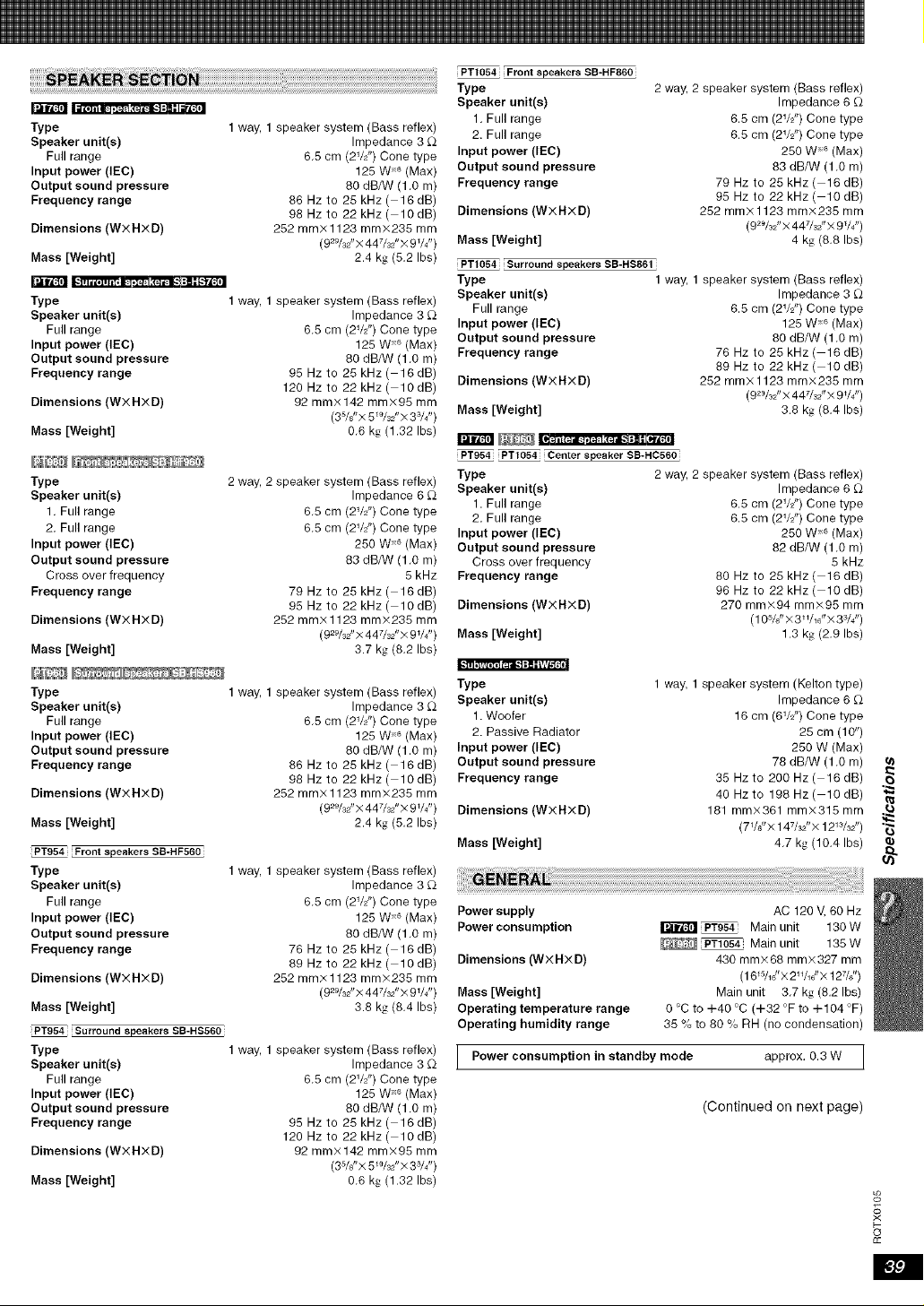
Type
Speaker unit(s)
Full range
Input power (IEC)
Output sound pressure
Frequency range
Dimensions (WXHXD)
Mass [Weight]
Type
Speaker unit(s)
Full range
Input power (IEC)
Output sound pressure
Frequency range
Dimensions (WXHXD)
Mass [Weight]
1 way, 1 speaker system (Bass reflex)
Impedance 3 £2
6.5 cm (2VZ') Cone type
125 W 6 (Max)
80 dB/W (1,O m)
86 Hz to 25 kHz ( 16 dB)
98 Hz to 22 kHz ( 10 dB)
252 mm× 1123 mm×235 mm
(929/J'X 447/32"× 9V4")
2.4 kg (5.2 Ibs)
1 way, 1 speaker system (Bass reflex)
Impedance 3 £2
6.5 cm (2VZ') Cone type
125 W 6 (Max)
80 dB/W (1 .O m)
95 Hz to 25 kHz ( 16 dB)
120 Hz to 22 kHz ( 10 dB)
92 mm× 142 mm×95 mm
(3s/8"X 5WJ×3V4")
0.6 k_ (1.32 Ibs)
Type
Speaker unit(s)
1. Full range
2. Full range
Input power (lEO)
Output sound pressure
Cross over frequency
Frequency range
Dimensions (WXHXD)
Mass [Weight]
2 way, 2 speaker system (Bass reflex)
Impedance 6 £_
6.5 cm (2VZ') Cone type
6.5 cm (2VZ') Cone type
250 W 6 (Max)
83 dB/W (1,O m)
5 kHz
79Hzto 25kHz(16dB)
95 Hz to 22 kHz ( 10 dB)
252 mmx 1123 mmx235 mm
(929/J'X 447/32"X9V4")
3.7 k'_ (8.2 Ibs)
Type
Speaker unit(s)
Full range
Input power (IEC)
Output sound pressure
Frequency range
Dimensions (WXHXD)
Mass [Weight]
1 way, 1 speaker system (Bass reflex)
Impedance 3 £_
6.5 cm (2V2") Cone type
128 W + (Max)
80 dB/W (1.O m)
86 Hz to 28 kHz ( 16 dB)
98 Hz to 22 kHz ( 10 dB)
252 mm× 1123 mm×235 mm
(929/J'x 447/32"× 9V4")
2.4 k,_ (8.2 Ibs)
Front speakersSB-HF560
Type
Speaker unit(s)
Full range
Input power (IEC)
Output sound pressure
Frequency range
Dimensions (WXHXD)
Mass [Weight]
Surround speakers SB-HS560
Type
Speaker unit(s)
Full range
Input power (IEC)
Output sound pressure
Frequency range
Dimensions (WXHXD)
Mass [Weight]
1 way, 1 speaker system (Bass reflex)
Impedance 3 £2
6.5 cm (2V2") Cone type
125 W 6 (Max)
80 dB/W (1,O m)
76 Hz to 25 kHz ( 16 dB)
89Hzto 22kHz(lOdB)
252 mm× 1123 mm×235 mm
(929/32"×447/32"× 9 V4")
3.8 k_z(8.4 Ibs)
1 way, 1 speaker system (Bass reflex)
Impedance 3 £_
6.5 cm (2VZ') Cone type
125 W 6 (Max)
80 dB/W (1 .O m)
95 Hz to 25 kHz ( 16 dB)
120 Hz to 22 kHz ( 10 dB)
92 mm× 142 mm×95 mm
(3s/8"X 5W3Z'× 3V4")
0.6 k_ (1.32 Ibs)
PT1054 Frontspeakers SB-HF860
Type
Speaker unit(s)
1. Full range
2. Full range
Input power (lEO)
Output sound pressure
Frequency range
Dimensions (WXHXD)
Mass [Weight]
PT1054 Surround speakers SB-HS861
Type
Speaker unit(s)
Full range
Input power (IEC)
Output sound pressure
Frequency range
Dimensions (WXHXD)
Mass [Weight]
2 way, 2 speaker system (Bass reflex)
Impedance 6 £2
6.5 cm (2VZ') Cone type
6.5 cm (2VZ') Cone type
250 W _6 (Max)
83 dB/W (1 .O m)
79Hzto 25kHz(16dB)
95 Hz to 22 kHz ( 10 dB)
252 mm× 1123 mm×235 mm
(92_/32" X 447/J × 9 V4")
4 kg (8.8 Ibs)
1 way, 1 speaker system (Bass reflex)
Impedance 3 £2
6.5 cm (2W') Cone type
125 W 6 (Max)
80 dB/W (1 .O m)
76 Hz to 25 kHz ( 18 dB)
89Hzto 22kHz(lOdB)
252 mm× 1123 mm×235 mm
(92V3Z' × 447/j × 9 V4")
3.8 kg (8.4 Ibs)
_ [ It'm_ t m III.I ,+_.: I;'MI,.I + m + I[II'I£ ,._I I
PT954 PT1054 Center speakerSB-HC560
Type
Speaker unit(s)
1. Full range
2. Full range
Input power (IEC)
Output sound pressure
Cross over frequency
Frequency range
Dimensions (WXHXD)
Mass [Weight]
Type
Speaker unit(s)
1. Woofer
2. Passive Radiator
Input power (lEO)
Output sound pressure
Frequency range
Dimensions (WXHXD)
Mass [Weight]
2 way, 2 speaker system (Bass reflex)
Impedance 6 £2
6.5 cm (2W') Cone type
6.5 cm (2W') Cone type
250 W 6 (Max)
82 dB/W (1,O m)
5 kHz
80 Hz to 25 kHz ( 16 dB)
96 Hz to 22 kHz ( 10 dB)
270 mm×94 mmx95 mm
(1OS/+" × 3+%0"× 33/4")
1.3 kg (2,9 Ibs)
1 way, 1 speaker system (Kelton type)
Impedance 6 £2
16 cm (6VZ') Cone type
25 cm (10")
250 W (Max)
78 dB/W (1,O m)
35 Hzto 2OO Hz(16dB) "
40 Hzto 198 Hz(lOdB) i_
181 mm×361 mm×315 mm
(7_/+"X147/32"×1213/32") "_
4,7 kg (10,4 Ibs) _,_
#
Power supply
Power consumption
Dimensions (WX HX D)
Mass [Weight]
Operating temperature range
Operating humidity range
AC 120 V, 60 Hz
I_i'_"_l _ Main unit 130W
Main unit 135W
430 mm×68 mm×327 mm
(16W_J'× 2W_J_× 127/J')
Main unit 3.7 kg (8.2 Ibs)
O _C to +40 _C (+32 °F to +104 °F)
35 % to 80 % RH (no condensation)
IPower consumption in standby mode approx, 0.3 W I
(Continued on next page)
o_
#
o
£c
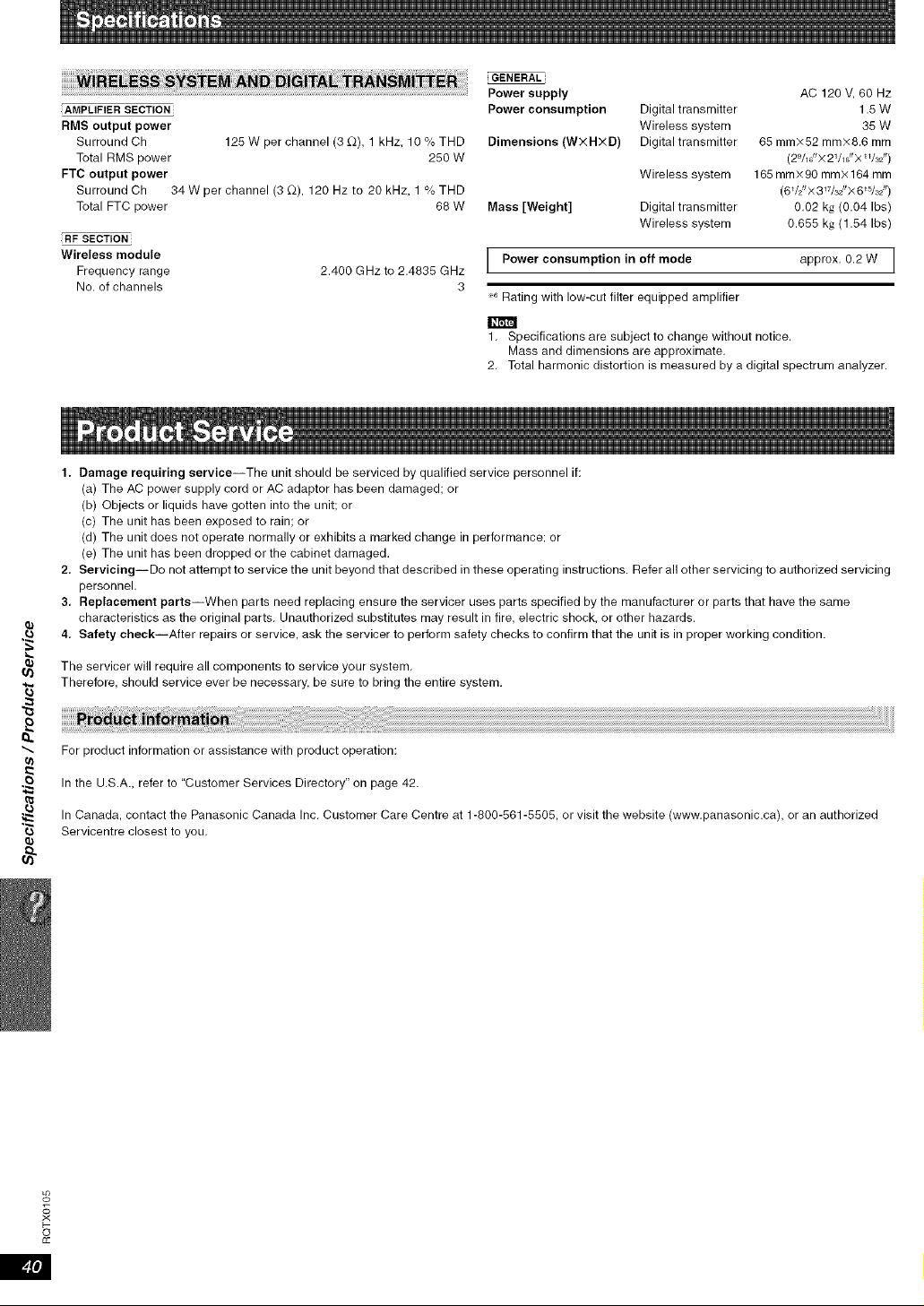
AMPLIFIERSECTION
RMS output power
Surround Ch 125 W per channel (3 _-_),1 kHz, 10 % THD
Total RMS power 250 W
FTC output power
Surround Ch 34 W per channel (3 £2), 120 Hz to 20 kHz, 1% THD
Total FTC power 68 W
RF SECTION
Wireless module
Frequency range 2.400 GHz to 2.4835 GHz
No. of channels 3
GENERAL
Power supply
Power consumption
Dimensions (WXHXD)
Mass [Weight]
AC 120 V, 60 Hz
Digital transmitter 1.8 W
Wireless system 35 W
Digital transmitter 65 mm×52 mm×8.6 mm
(2_/_J_×2%6_× W3Z_)
Wireless system 165 ram×90 minx164 mm
(6 _/Z/X 3 _7/3211X 6 _5/32 _/)
Digital transmitter 0,02 kg (0.04 Ibs)
Wireless system 0.655 kg (1.54 Ibs)
LPower consumption in off mode approx. 0.2 W J
6 Rating with low-cut filter equipped amplifier
1, Specifications are subject to change without notice.
Mass and dimensions are approximate.
2, Total harmonic distortion is measured by a digital spectrum analyzer.
#,
e)
"3
1. Damage requiring service--The unit should be serviced by qualified service personnel if:
(a) The AC power supply cord or AC adaptor has been damaged; or
(b) Objects or liquids have gotten into the unit; or
(c) The unit has been exposed to rain; or
(d) The unit does not operate normally or exhibits a marked change in performance; or
(e) The unit has been dropped or the cabinet damaged.
2, Servicing--Do not attempt to service the unit beyond that described in these operating instructions. Refer all other servicing to authorized servicing
personnel,
3, Replacement parts--When parts need replacing ensure the servicer uses parts specified by the manufacturer or parts that have the same
characteristics as the original parts, Unauthorized substitutes may result in fire, electric shock, or other hazards.
4. Safety check--After repairs or service, ask the servicer to perform safety checks to confirm that the unit is in proper working condition.
The servicer will require all components to service your system,
Therefore, should service ever be necessary, be sure to bring the entire system.
For product information or assistance with product operation:
In the U,S.A., refer to "Customer Services Directory" on page 42.
In Canada, contact the Panasonic Canada Inc, Customer Care Centre at 1-800-561-5505, or visit the website (www,panasonic.ca), or an authorized
Servicentre closest to you,
o_
?<
o
cc
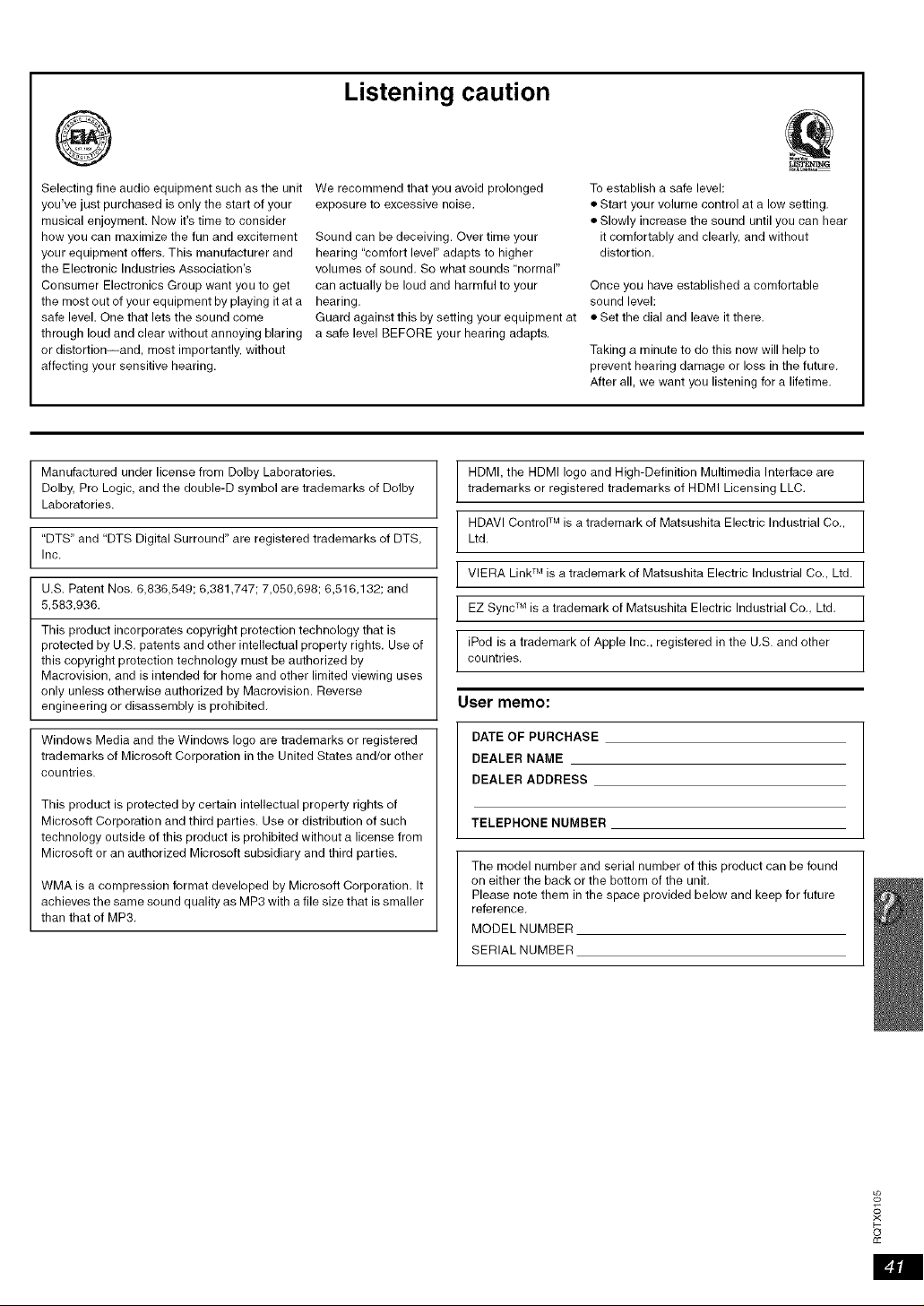
Listening caution
®
Selecting fine audio equipment such as the unit We recommend that you avoid prolonged
you've just purchased is only the start of your exposure to excessive noise.
musical enjoyment. Now it's time to consider
how you can maximize the fun and excitement Sound can be deceiving. Over time your
your equipment offers. This manufacturer and hearing "comfort level" adapts to higher
the Electronic Industries Association's volumes of sound. So what sounds normal"
Consumer Electronics Group want you to get can actually be loud and harmful to your
the most out of your equipment by playing it at a hearing.
To establish a safe level:
• Start your volume control at a low setting.
• Slowly increase the sound until you can hear
it comfortably and clearly, and without
distortion.
Once you have established a comfortable
sound level:
safe level. One that lets the sound come Guard against this by setting your equipment at • Set the dial and leave it there.
through loud and clear without annoying blaring a safe level BEFORE your hearing adapts.
or distortion--and, most importantly, without Taking a minute to do this now will help to
affecting your sensitive hearing, prevent hearing damage or loss in the future.
After all, we want you listening for a lifetime.
Manufactured under license from Dolby Laboratories.
Dolby, Pro Logic, and the double-D symbol are trademarks of Dolby
Laboratories.
"DTS" and "DTS Digital Surround" are registered trademarks of DTS,
Inc.
U.S. Patent Nos. 6,836,549; 6,381,747; 7,050,698; 6,516,132; and
5,583,936.
This product incorporates copyright protection technology that is
protected by U.S. patents and other intellectual property rights. Use of
this copyright protection technology must be authorized by
Macrovision, and is intended for home and other limited viewing uses
only unless otherwise authorized by Macrovision. Reverse
engineering or disassembly is prohibited.
Windows Media and the Windows logo are trademarks or registered
trademarks of Microsoft Corporation in the United States and/or other
countries.
This product is protected by certain intellectual property rights of
Microsoft Corporation and third parties. Use or distribution of such
technology outside of this product is prohibited without a license from
Microsoft or an authorized Microsoft subsidiary and third parties.
WMA is a compression format developed by Microsoft Corporation. It
achieves the same sound quality as MP3 with a file size that is smaller
than that of MP3.
HDMI, the HDMI logo and High-Definition Multimedia Interface are
trademarks or registered trademarks of HDMI Licensing LLC.
HDAVl ControF Mis a trademark of Matsushita Electric Industrial Co.,
Ltd.
VlERA Link TM is a trademark of Matsushita Electric Industrial Co., Ltd.
EZ Sync TM is a trademark of Matsushita Electric Industrial Co., Ltd.
iPod is a trademark of Apple Inc., registered in the U.S. and other
countries.
User memo:
DATE OF PURCHASE
DEALER NAME
DEALER ADDRESS
TELEPHONENUMBER
The model number and serial number of this product can be found
on either the back or the bottom of the unit.
Please note them in the space provided below and keep for future
reference.
MODEL NUMBER
SERIALNUMBER
o_
?<
o
cc
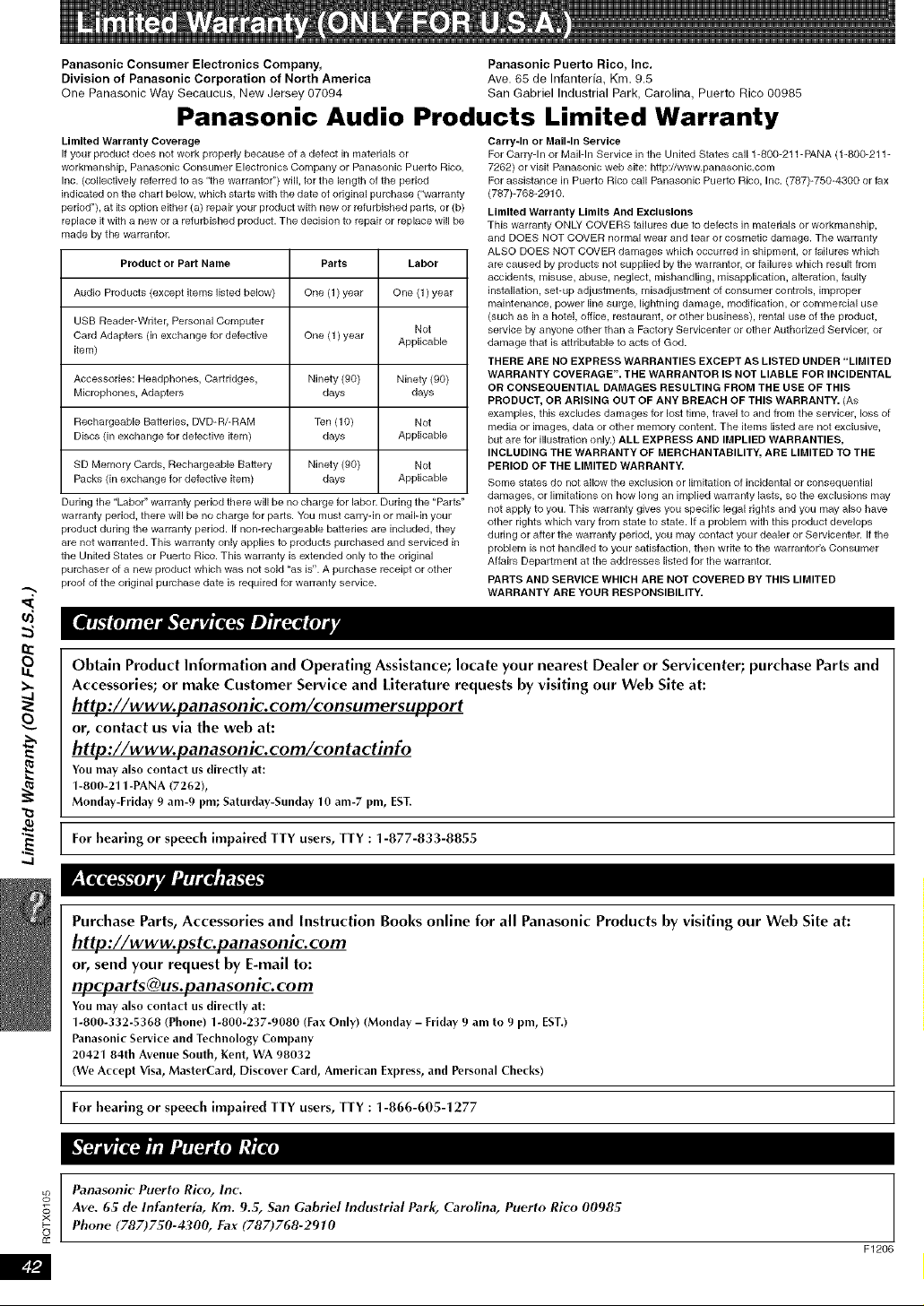
@
£
Panasonic Consumer Electronics Company, Panasonic Puerto Rico, Inc.
Division of Panasonic Corporation of North America Ave. 65 de Infanteria, Km. 9.5
One Panaeonic Way Secaucus, New Jersey 07094 San Gabriel Industrial Park, Carolina, Puerto Rico 00985
Panasonic Audio Products Limited Warranty
Limited Warranty Coverage
If your product does not work properly because of a defect in materials or
workmanship, Panasonic Consumer Electronics Company or Panasonic Puerto Rico,
Inc. (collectively referred to as "the warrantor") will, for the length of the period
indicated on the chart below, which starts with the date of original purchase ("warranty
period"), at its option either (a) repair your product with new or refurbished parts, or (b)
replace it with a new or a refurbished product. The decision k) repair or replace will be
made by the warrantor.
Product or Part Name Parts Labor
Audio Products (except items listed below) One (1) year One (1) year
USB Reader-Walter, Personal Computer Not
Card Adapters (in exchange for defective One (1) year Applicable
item)
Accessories: Headphones, Cartridges, Ninety (90) Ninety (90)
Microphones, Adapters days days
Rechargeable Batteries, DVD-RERAM Ten (10) Not
Discs (in exchange for defective item) days Applicable
SD Memory Cards, Rechargeable Battery Ninety (90) Not
Packs (in exchange for defective item) days Applicable
During the "Labor" warranty period there will be no charge for labor. During the "Parts"
warranty period, there will be no charge for parts. You must carry-in or maiHn your
product during the warranty period. If non-rechargeable batteries are included, they
are not warranted. This warranty only applies to products purchased and serviced in
the United States or Puerto Rico. This warranty is extended only to the original
purchaser of a new product which was not sold "as is". A purchase receipt or other
proof of the original purchase date is required for warranty service.
Carry-In or Mall-In Service
For Carry-In or Mail-In Service in the United States call 1-800-211-PANA (1-800-211-
7262) or visit Panasonic web site: http://www.panasonic.com
For assistance in Puerto Rico call Panasonic Puerto Rico, Inc. (787)-750-4300 or fax
(787)-768-2910.
Limited Warranty Limits And Exclusions
This warranty ONLY COVERS failures due to defects in materials or workmanship,
and DOES NOT COVER normal wear and tear or cosmetic damage. The warranty
ALSO DOES NOT COVER damages which occurred in shipment, or failures which
are caused by products not supplied by the warrantor, or failures which result from
accidents, misuse, abuse, neglect, mishandling, misapplication, alteration, faulty
installation, set-up adjustments, misadjustment of consumer controls, improper
maintenance, power line surge, lightning damage, i'_lodification, or commercial use
(such as in a hotel, office, restaurant, or other business), rental use of the product,
service by anyone other than a Factory Servicenter or other Authorized Servicer, or
damage that is attributable to acts of God.
THERE ARE NO EXPRESS WARRANTIES EXCEPT AS LISTED UNDER "LIMITED
WARRANTY COVERAGE". THE WARRANTOR IS NOT LIABLE FOR INCIDENTAL
OR CONSEQUENTIAL DAMAGES RESULTING FROM THE USE OF THIS
PRODUCT, OR ARISING OUT OF ANY BREACH OF THIS WARRANTY. (As
examples, this excludes damages for lost tk'_le, travel to and from the servicer, loss of
media or images, data or other memory content. The items listed are not exclusive,
but are for illustration only.) ALL EXPRESS AND IMPLIED WARRANTIES,
INCLUDING THE WARRANTY OF MERCHANTABILITY. ARE LIMITED TO THE
PERIOD OF THE LIMITED WARRANTY.
Some states do not allow the exclusion or limitation of incidental or consequential
damages, or limitations on how long an implied warranty lasts, so the exclusions may
not apply to you. This warranty gives you specific legal rights and you may also have
other rights which vary from state to state. If a problem with this product develops
during or after the warranty period, you may contact your dealer or Servicenter. If the
problem is not handled to your satisfaction, then write to the warrantor's Consumer
Affairs Department at the addresses listed for the warrantor.
PARTS AND SERVICE WHICH ARE NOT COVERED BY THIS LIMITED
WARRANTY ARE YOUR RESPONSIBILITY.
Obtain Product Information and Operating Assistance; locate your nearest Dealer or Servlcenter; purchase Parts and
Accessories; or make Customer Service and Literature requests by visiting our Web Site at:
http://www.panasonic.com/consumersupport
or, contact MSvia the web at:
http://www.panasonic.com/contactinfo
You may also contact us directly at:
1-800-211 -PANA (7262),
Monday-Friday 9 am-9 pro; Saturday-Sunday 10 am-7 pro, EST.
For hearing or speech impaired TTY users, TTY : 1-877-833-8855
Purchase Parts, Accessories and Instruction Books online for all Panasonic Products by visiting our Web Site at:
http://www.pstc.panasonic.com
or, send your request by E-mall to:
You may also contact us directly at:
1-800-332-5368 (Phone) 1-800-237-9080 (Fax Only) (Monday - Friday 9 am to 9 pro, EST.)
Panasonic Service and Technology Company
20421 84th Avenue South, Kent, WA 98032
(We Accept Visa, MasterCard, Discover Card, American Express, and Personal Checks)
For hearing or speech impaired TTY users, TTY : 1-866-605-1277
Panasonie Puerto Rico, Inc.
Ave. 65 de Infanterfa, Km. 9.5, San Gabriel Industrial Park, Carolina, Puerto Rico 00985
Phone (787)750-4300, Fax (787)768-2910
F1206
o_
££
_P.J
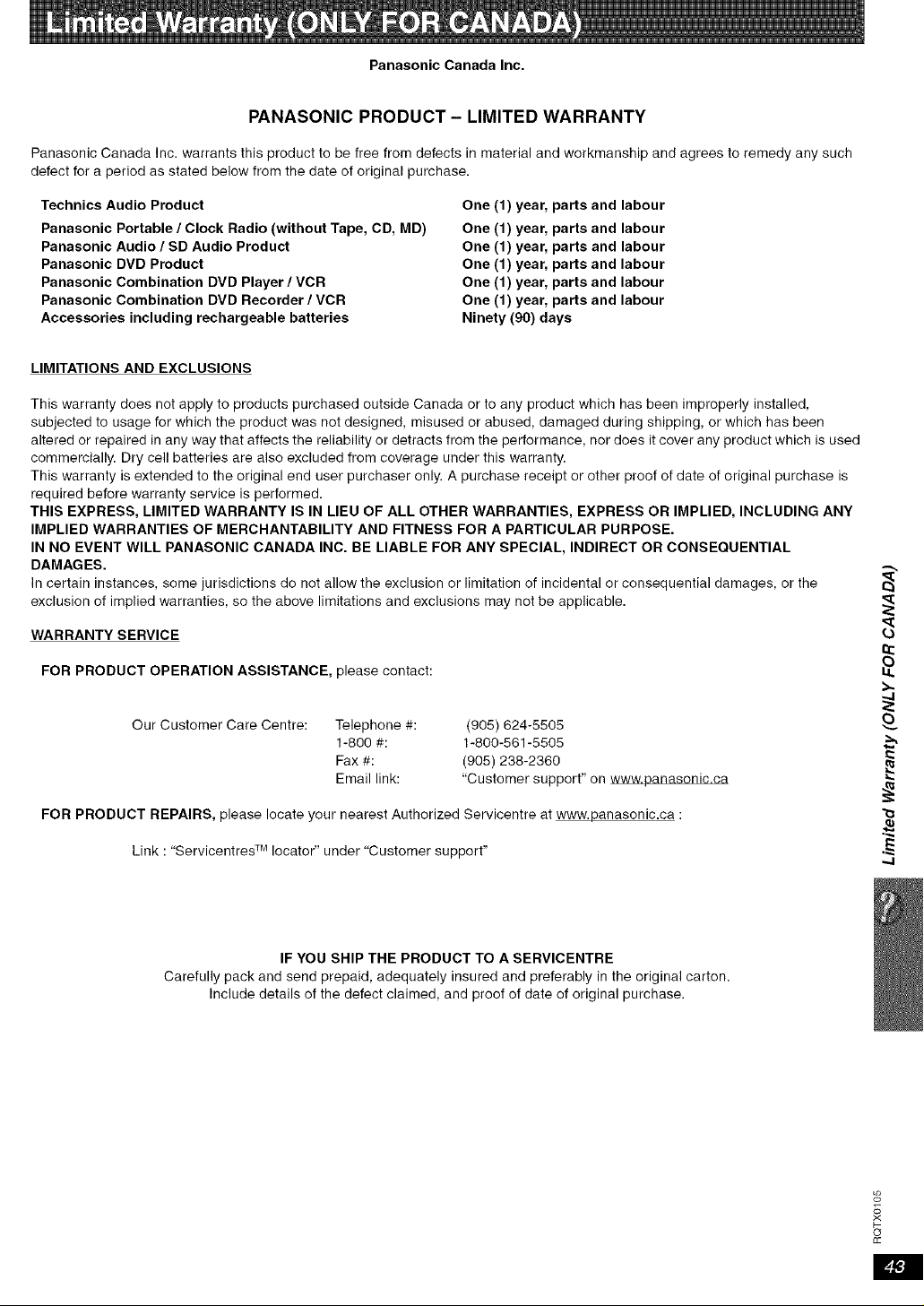
Panasonic Canada Inc.
PANASONIC PRODUCT - LIMITED WARRANTY
Panasonic Canada Inc. warrants this product to be free from defects in material and workmanship and agrees to remedy any such
defect for a period as stated below from the date of original purchase.
Technics Audio Product
Panasonic Portable /Clock Radio (without Tape, CD, MD)
Panasonic Audio /SD Audio Product
Panasonic DVD Product
Panasonic Combination DVD Player /VCR
Panasonic Combination DVD Recorder /VCR
Accessories including rechargeable batteries
One (1) year, parts and labour
One (1) year, parts and labour
One (1) year, parts and labour
One (1) year, parts and labour
One (1) year, parts and labour
One (1) year, parts and labour
Ninety (90) days
LIMITATIONS AND EXCLUSIONS
This warranty does not apply to products purchased outside Canada or to any product which has been improperly installed,
subjected to usage for which the product was not designed, misused or abused, damaged during shipping, or which has been
altered or repaired in any way that affects the reliability or detracts from the performance, nor does it cover any product which is used
commercially. Dry cell batteries are also excluded from coverage under this warranty.
This warranty is extended to the original end user purchaser only. A purchase receipt or other proof of date of original purchase is
required before warranty service is performed.
THIS EXPRESS, LIMITED WARRANTY IS IN LIEU OF ALL OTHER WARRANTIES, EXPRESS OR IMPLIED, INCLUDING ANY
IMPLIED WARRANTIES OF MERCHANTABILITY AND FITNESS FOR A PARTICULAR PURPOSE.
IN NO EVENT WILL PANASONIC CANADA INC. BE LIABLE FOR ANY SPECIAL, INDIRECT OR CONSEQUENTIAL
DAMAGES.
In certain instances, some jurisdictions do not allow the exclusion or limitation of incidental or consequential damages, or the
exclusion of implied warranties, so the above limitations and exclusions may not be applicable.
WARRANTY SERVICE
FOR PRODUCT OPERATION ASSISTANCE, please contact:
Our Customer Care Centre: Telephone #: (905) 624-5505
1-800 #: 1-800-561-5505
Fax #: (905) 238-2360
Email link: "Customer support" on www.panasonic.ca
FOR PRODUCT REPAIRS, please locate your nearest Authorized Servicentre at www.panasonic.ca :
Link : "Servicentres TM Iocator" under "Customer support"
,1
@
£
.E
-4
IF YOU SHIP THE PRODUCT TO A SERVICENTRE
Carefully pack and send prepaid, adequately insured and preferably in the original carton.
Include details of the defect claimed, and proof of date of original purchase.
o_
?<
o
cc
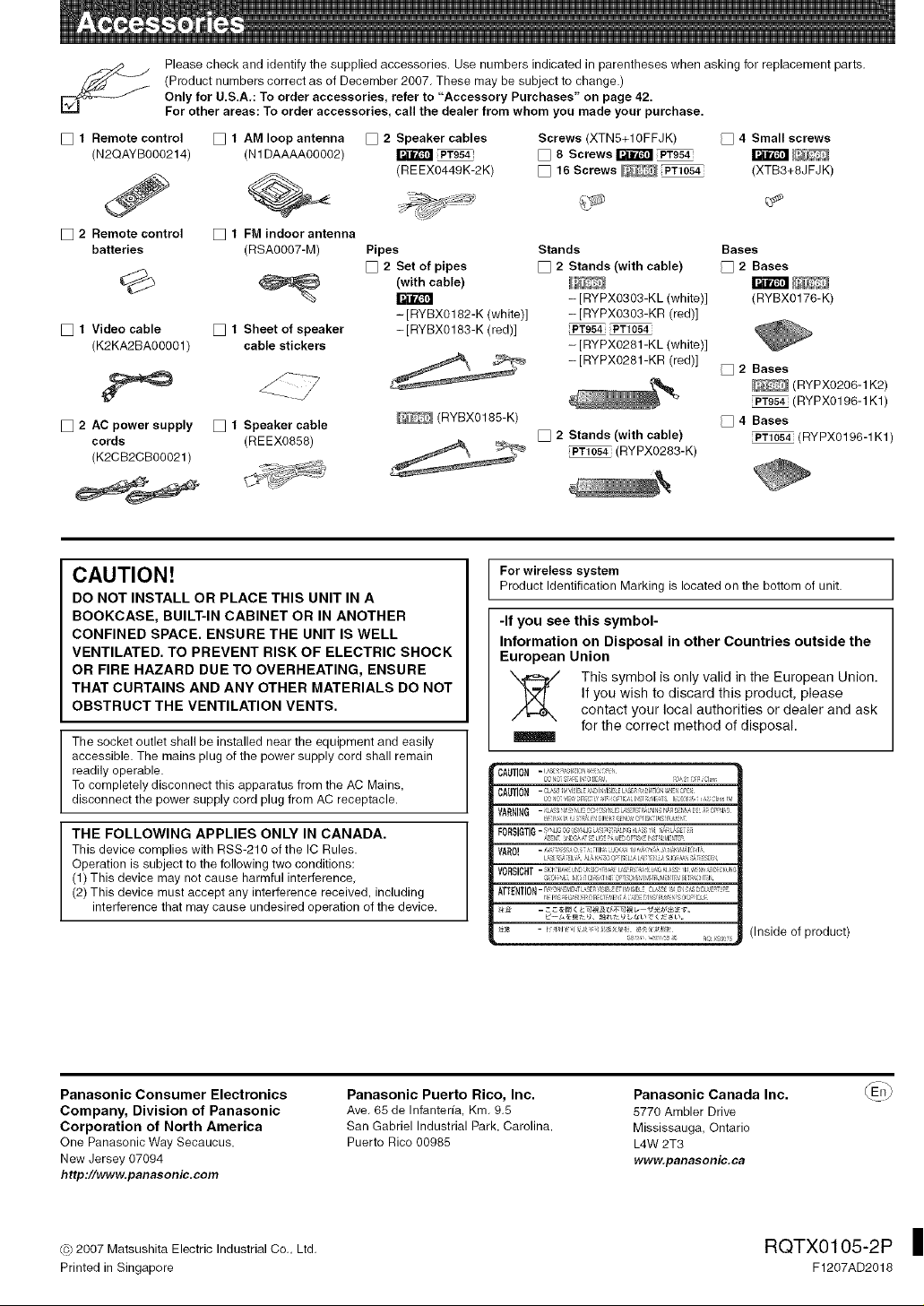
Please check and identify the supplied accessories. Use numbers indicated in parentheses when asking for replacement parts.
(Product numbers correct as of December 2007. These may be subject to change.)
Only for U.S.A.: To order accessories, refer to "Accessory Purchases" on page 42.
For other areas: To order accessories, call the dealer from whom you made your purchase.
[] 1 Remote control
(N2QAYB000214)
[] 2 Remote control
batteries
[] 1 Video cable
(K2KA2BA00001)
[] 1 AM loop antenna [] 2 Speaker cables Screws (XTN5+IOFFJK) [] 4 Small screws
(N1DAAAA00002) _ _ [] 8 Screws _PT954 _
(REEXO449K-2K) [] 16 Screws _ _ (XTB3+8JFJK)
[] 1 FM indoor antenna
(RSA0007-M) Pipes Stands Bases
[] 2Set of pipes [] 2 Stands (with cable) [] 2Bases
(with cable) _i_ _ _
-[RYPX0303-KL (white)] (RYBX0176-K)
-[RYBX0182-K (white)] -[RYPX0303-KR (red)]
[] 1 Sheet of speaker -[RYBX0183-K (red)] PT954 PT1054
cable stickers - [RYPX0281 -KL (white)]
- [RYPX0281-KR (red)]
[] 2 AC power supply [] 1 Speaker cable
cords (REEX0858)
(K2CB2CBO0021)
(RYBXO188-K)
[] 2 Stands (with cable)
PT1054 (RYPX0283-K)
[]2 Bases
_(RYPXO206-1K2)
iPTgS4i(RYPXO196-1K1)
[]4 Bases
iPT1054i(RYPX0196-1K1)
CAUTION!
DO NOT INSTALL OR PLACE THIS UNIT IN A
BOOKCASE, BUILT-IN CABINET OR IN ANOTHER
CONFINED SPACE. ENSURE THE UNIT IS WELL
VENTILATED. TO PREVENT RISK OF ELECTRIC SHOCK
OR FIRE HAZARD DUE TO OVERHEATING, ENSURE
THAT CURTAINS AND ANY OTHER MATERIALS DO NOT
OBSTRUCT THE VENTILATION VENTS.
The socket outlet shall be installed near the equipment and easily
accessible. The mains plug of the power supply cord shall remain
readily operable.
To completely disconnect this apparatus from the AC Mains,
disconnect the power supply cord plug from AC receptacle.
THE FOLLOWING APPLIES ONLY IN CANADA.
This device complies with RSS-210 of the IC Rules.
Operation is subject to the following two conditions:
(1) This device may not cause harmful interference,
(2) This device must accept any interference received, including
interference that may cause undesired operation of the device.
For wireless system
Product Identification Marking is located on the bottom of unit.
-If you see this symbol-
Information on Disposal in other Countries outside the
European Union
This symbol is only valid in the European Union.
If you wish to discard this product, please
contact your local authorities or dealer and ask
for the correct method of disposal.
CAUTION-I_1 I_1(_ r ;
FF1 GT -_ _LJ_C_JS,_41_L_¸_¸_ li_ LSO _ <i_,i_
0S G ...... .........
AB[T ZS &S LI _ME#0PI_ I;4£T ,I[TE,
V_R0! [SE 3z Eli iL 0PIS[L L I L'S:J0[_ & £ r
VO£S OH T- SI'3H T_' I; J[SIC _[I_S S;;A [ 4G I_SS t _, N _I;[CKJN(
a I: t21/- ? kl 1' I_JI JId_l 51 I 5(:1] _*
,_TT_NT ON - Ra: N _,1_T _31 _IBL5 E I ,151BL_ CL_! Er4:_ O
(Inside of product)
Panasonic Consumer Electronics
Company, Division of Panasonic
Corporation of North America
One PanasonicWay Secaucus.
New Jersey 07094
httpt//www.panasonic.eom
Panasonic Puerto Rico, Inc.
Ave. 65 de Infanteffa, Km. 9.5
San Gabriel Industrial Park. Carolina.
Puerto Rico 00985
Panasonic Canada Inc.
5770 Ambler Drive
Mississauga, Ontario
L4W 2T3
www.p_n_sonic.ca
(© 2007 Matsushita Electric Industrial Co., Ltd.
Printed in Singapore
RQTX0105 -2 P
F1207AD2018
