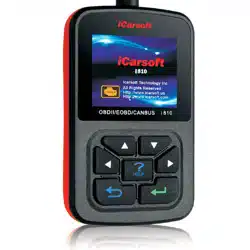

iCarsoft i810
iCarsoft i810 iCarsoft i810
iCarsoft i810
OBDII/EOBD
OBDII/EOBDOBDII/EOBD
OBDII/EOBD
scanner
scannerscanner
scanner
1
INDEX
INDEXINDEX
INDEX
1
11
1.
..
.Safety Precautions and Warnings
Safety Precautions and WarningsSafety Precautions and Warnings
Safety Precautions and Warnings ...................
......................................
................... 3
33
3
2
22
2.
. .
. General Information
General InformationGeneral Information
General Information...............................
..............................................................
............................... 5
55
5
2.1
2.12.1
2.1 On
On On
On-
--
-Board Diagnostics (OBD) II
Board Diagnostics (OBD) IIBoard Diagnostics (OBD) II
Board Diagnostics (OBD) II ..................
....................................
.................. 5
55
5
2.2 Diagnostic Trouble Codes (DTCs)
2.2 Diagnostic Trouble Codes (DTCs)2.2 Diagnostic Trouble Codes (DTCs)
2.2 Diagnostic Trouble Codes (DTCs) ................
................................
................ 6
66
6
2.3 Location of the Data Link Connector (DLC)
2.3 Location of the Data Link Connector (DLC)2.3 Location of the Data Link Connector (DLC)
2.3 Location of the Data Link Connector (DLC) ......
............
...... 7
77
7
2.4 OBD II Readiness Monitors
2.4 OBD II Readiness Monitors2.4 OBD II Readiness Monitors
2.4 OBD II Readiness Monitors ......................
............................................
...................... 8
88
8
2.5 OBD II Monitor Readiness Statuses
2.5 OBD II Monitor Readiness Statuses2.5 OBD II Monitor Readiness Statuses
2.5 OBD II Monitor Readiness Statuses .............
..........................
............. 10
1010
10
2.6 OBD II Definitions
2.6 OBD II Definitions2.6 OBD II Definitions
2.6 OBD II Definitions ............................
........................................................
............................ 11
1111
11
3. Using the Scan Tool
3. Using the Scan Tool3. Using the Scan Tool
3. Using the Scan Tool..............................
............................................................
.............................. 14
1414
14
3.1 Tool Description
3.1 Tool Description3.1 Tool Description
3.1 Tool Description ..............................
............................................................
.............................. 14
1414
14
3.2 Specifications
3.2 Specifications3.2 Specifications
3.2 Specifications ................................
................................................................
................................ 15
1515
15
3.3 Accessories Include
3.3 Accessories Include3.3 Accessories Include
3.3 Accessories Include ...........................
......................................................
........................... 15
1515
15
3.4 Product Troubleshooting
3.4 Product Troubleshooting3.4 Product Troubleshooting
3.4 Product Troubleshooting .......................
..............................................
....................... 15
1515
15
4. Software Function
4. Software Function4. Software Function
4. Software Function................................
................................................................
................................ 17
1717
17
4.1 System Configuration
4.1 System Configuration4.1 System Configuration
4.1 System Configuration ..........................
....................................................
.......................... 18
1818
18
4.2 DIAGNOSTIC REVIEW
4.2 DIAGNOSTIC REVIEW4.2 DIAGNOSTIC REVIEW
4.2 DIAGNOSTIC REVIEW .............................
..........................................................
............................. 21
2121
21
4.3 DTC LOOKUP
4.3 DTC LOOKUP4.3 DTC LOOKUP
4.3 DTC LOOKUP ................................
................................................................
....................................
........
.... 22
2222
22
5. OBD II Diagnostics
5. OBD II Diagnostics5. OBD II Diagnostics
5. OBD II Diagnostics...............................
..............................................................
............................... 23
2323
23
5.1 Read Trouble Code
5.1 Read Trouble Code5.1 Read Trouble Code
5.1 Read Trouble Code .............................
..........................................................
............................. 24
2424
24
5.2 Erasing Codes
5.2 Erasing Codes5.2 Erasing Codes
5.2 Erasing Codes ................................
................................................................
.................................
..
. 26
2626
26

iCarsoft i810
iCarsoft i810 iCarsoft i810
iCarsoft i810
OBDII/EOBD
OBDII/EOBDOBDII/EOBD
OBDII/EOBD
scanner
scannerscanner
scanner
2
5.3 Read DataStream
5.3 Read DataStream5.3 Read DataStream
5.3 Read DataStream ...............................
..............................................................
............................... 28
2828
28
5.4 Component test
5.4 Component test5.4 Component test
5.4 Component test ................................
................................................................
................................ 30
3030
30
5.5 Freeze Frame Data
5.5 Freeze Frame Data5.5 Freeze Frame Data
5.5 Freeze Frame Data .............................
..........................................................
............................. 31
3131
31
5.6 O2 Sensor Monitoring Test
5.6 O2 Sensor Monitoring Test5.6 O2 Sensor Monitoring Test
5.6 O2 Sensor Monitoring Test .....................
..........................................
..................... 32
3232
32
5.7 Vehicle Information
5.7 Vehicle Information5.7 Vehicle Information
5.7 Vehicle Information ...........................
......................................................
........................... 34
3434
34
6
66
6.
..
.Software update
Software updateSoftware update
Software update................................
................................................................
..................................
....
.. 36
3636
36

iCarsoft i810
iCarsoft i810 iCarsoft i810
iCarsoft i810
OBDII/EOBD
OBDII/EOBDOBDII/EOBD
OBDII/EOBD
scanner
scannerscanner
scanner
3
1
11
1.
..
.Safety Precautions and Warnings
Safety Precautions and WarningsSafety Precautions and Warnings
Safety Precautions and Warnings
To
To To
To prevent
preventprevent
prevent personal
personal personal
personal injury
injuryinjury
injury or damage to vehicles
or damage to vehicles or damage to vehicles
or damage to vehicles
and/or the scan tool.
and/or the scan tool. and/or the scan tool.
and/or the scan tool. R
RR
Read this instruction
ead this instruction ead this instruction
ead this instruction
manual
manualmanual
manual first and observe the following safety
first and observe the following safety first and observe the following safety
first and observe the following safety
precautions at a minimum whenever working on a
precautions at a minimum whenever working on a precautions at a minimum whenever working on a
precautions at a minimum whenever working on a
vehicle.
vehicle.vehicle.
vehicle.
·Always perform automotive testing in a safe
environment.
·Wear safety eye protection that meets ANSI
standards.
· Keep clothing, hair, hands, tools, test
equipment, etc. Away from all moving or hot
engine parts.
·Operate the vehicle in a well ventilated work
area: Exhaust gases are poisonous.
·Put blocks in front of the drive wheels and
never leave the vehicle unattended while
running tests.
·Use extreme caution when working around the
ignition coil, distributor cap, ignition
wires and spark plugs. Theses components
create hazardous voltages when the engine is
running.
·NEUTRAL (for manual transmission) and make
sure the sparking brake is engaged.
· Keep a fire extinguisher suitable for

iCarsoft i810
iCarsoft i810 iCarsoft i810
iCarsoft i810
OBDII/EOBD
OBDII/EOBDOBDII/EOBD
OBDII/EOBD
scanner
scannerscanner
scanner
4
gasoline/chemical/electrical fires nearby.
· Don’t connect or disconnect any test
equipment while the ignition is on or the
engine is running.
· Keep the scan tool dry, clean, free from
oil/water or grease. Use a mild detergent on
a clean cloth to clean the outside of the scan
tool, when necessary.

iCarsoft i810
iCarsoft i810 iCarsoft i810
iCarsoft i810
OBDII/EOBD
OBDII/EOBDOBDII/EOBD
OBDII/EOBD
scanner
scannerscanner
scanner
5
2.
2.2.
2.
General Information
General InformationGeneral Information
General Information
2.1 On
2.1 On2.1 On
2.1 On-
--
-Board Diagnostics (OBD) II
Board Diagnostics (OBD) IIBoard Diagnostics (OBD) II
Board Diagnostics (OBD) II
The first generation of On-Board Diagnostics
(called OBD I) was developed by the California
Air Resources Board (ARB) and implemented in
1988 to monitor some of the emission control
components on vehicles. As technology evolved
and the desire to improve the On-Board
Diagnostics system increased. A new generation
of On-Broad Diagnostic system was developed.
This second generation of On-Broad Diagnostic
regulations is called “OBD II”
The OBD II system is designed to monitor
emission control systems and key engine
components by performing either continuous or
periodic tests of specific components and
vehicle conditions. When a problem is detected,
the OBD II system turns on a warning lamp (MIL)
on the vehicle instrument panel to alert the
driver typically by the phrase of “Check
Engine” or “Service Engine Soon”. The system
will also store important information about the
detected malfunction so that a technician can
accurately find and fix the problem. Here below
follow three pieces of such valuable
information:
1)
1)1)
1) Whether
WhetherWhether
Whether the Malfunction Indicator Light (MIL)
the Malfunction Indicator Light (MIL) the Malfunction Indicator Light (MIL)
the Malfunction Indicator Light (MIL)
is commanded
is commanded is commanded
is commanded ‘
‘‘
‘on ‘or
on ‘oron ‘or
on ‘or
‘
‘‘
‘off
offoff
off’
’’
’;
;;
;

iCarsoft i810
iCarsoft i810 iCarsoft i810
iCarsoft i810
OBDII/EOBD
OBDII/EOBDOBDII/EOBD
OBDII/EOBD
scanner
scannerscanner
scanner
6
2)
2)2)
2) W
WW
Which, if any, Diagnostic Trouble Codes
hich, if any, Diagnostic Trouble Codes hich, if any, Diagnostic Trouble Codes
hich, if any, Diagnostic Trouble Codes
(DTCs) are stored;
(DTCs) are stored;(DTCs) are stored;
(DTCs) are stored;
3)
3)3)
3) R
RR
Readiness Monitor
eadiness Monitor eadiness Monitor
eadiness Monitor status
statusstatus
status.
..
.
2.2 Diagnostic Trouble Codes (DTCs)
2.2 Diagnostic Trouble Codes (DTCs)2.2 Diagnostic Trouble Codes (DTCs)
2.2 Diagnostic Trouble Codes (DTCs)
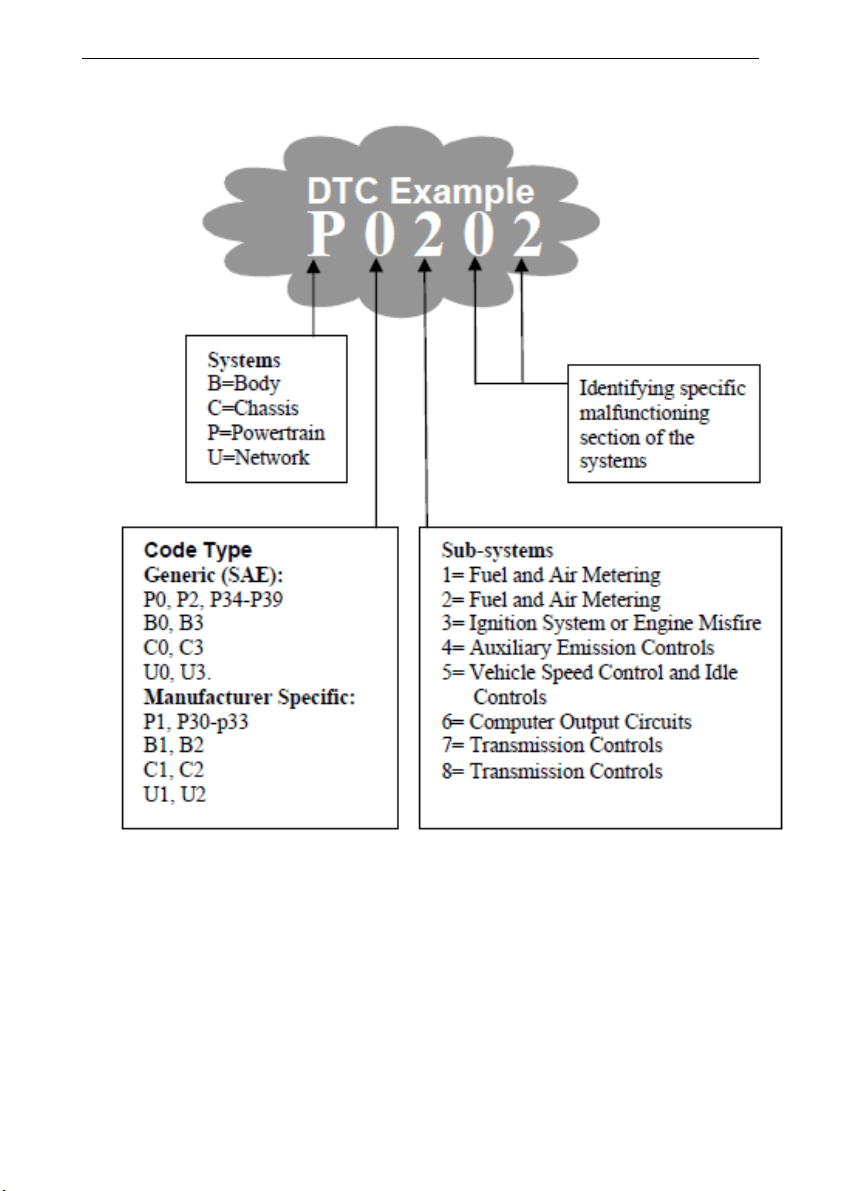
OBD II Diagnostic Trouble Codes are codes that
are stored by the on-board computer diagnostic
system in response to a problem found in the
vehicle. These codes identify a particular
problem area and are intended to provide you
with a guide as to where a fault might be
occurring within a vehicle. OBD II Diagnostic
Trouble Codes consist of a five-digit
alphanumeric code. The first character, a
letter, identifies which control system sets
the code. The other four characters, all
numbers, provide additional information on
where the DTC originated and the operating
conditions that caused it to set. Here below
is an example to illustrate the structure of
the digits:
iCarsoft i810
iCarsoft i810 iCarsoft i810
iCarsoft i810
OBDII/EOBD
OBDII/EOBDOBDII/EOBD
OBDII/EOBD
scanner
scannerscanner
scanner
7
2.3 Location of the Data Link C
2.3 Location of the Data Link C2.3 Location of the Data Link C
2.3 Location of the Data Link Connector (DLC)
onnector (DLC)onnector (DLC)
onnector (DLC)
The
TheThe
The DLC (Data Link Connector or Diagnostic
Link Connecter) is the standardized 16-cavity
connector where diagnostic scan tools
interface is 12 inches from the center of
instrument panel (dash), under or around the
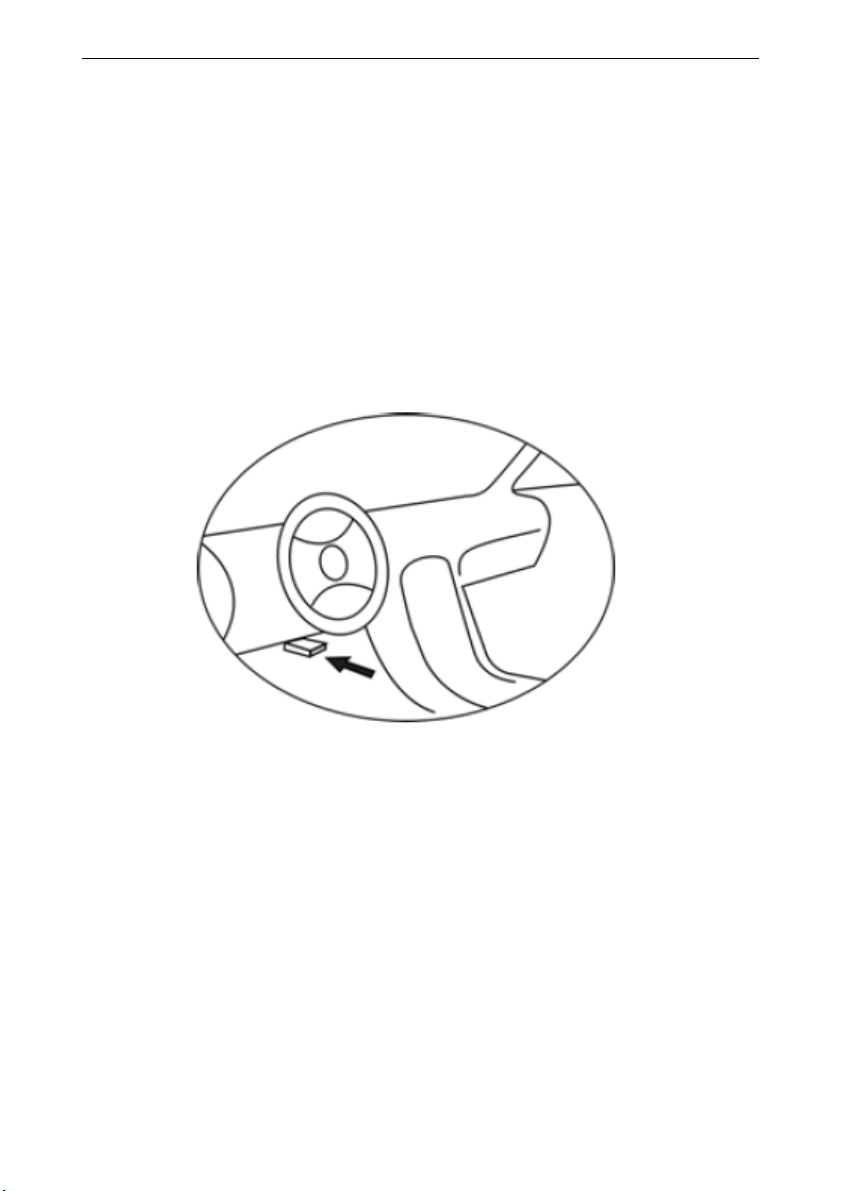
iCarsoft i810
iCarsoft i810 iCarsoft i810
iCarsoft i810
OBDII/EOBD
OBDII/EOBDOBDII/EOBD
OBDII/EOBD
scanner
scannerscanner
scanner
8
driver’s side for most vehicles. If Data Link
Connector is not located under dashboard, a
label should be there telling location. For
some Asian and European vehicles, the DLC is
located behind the ashtray and the ashtray
must be removed to access the connector, if the
DLC cannot be found, refer to the vehicle’s
service manual for the location.
2.4
2.4 2.4
2.4 OBD II Readiness Monitors
OBD II Readiness MonitorsOBD II Readiness Monitors
OBD II Readiness Monitors
An
AnAn
An important part of a vehicle’s OBDII system
the Readiness Monitors, which are indicators
used to find out if all of the emissions
components have been evaluated by the OBD II
system. They are running periodic tests on
specific systems and components to ensure
that they are performing within allowable
limits.

iCarsoft i810
iCarsoft i810 iCarsoft i810
iCarsoft i810
OBDII/EOBD
OBDII/EOBDOBDII/EOBD
OBDII/EOBD
scanner
scannerscanner
scanner
9
Currently
CurrentlyCurrently
Currently, there are eleven OBD II Readiness
Monitors (or/ I/M Monitors) defined by the U.S.
Environmental Protection Agency (EPA). Not
all monitors are supported by all vehicles and
exact number of monitors in any vehicle
depends on the motor vehicle manufacturer’s
emissions control strategy.
Continuous
ContinuousContinuous
Continuous
Monitors
MonitorsMonitors
Monitors – Some of the vehicle
components or systems are continuously tested
by the vehicle’s OBD II system, while others
are tested only under specific vehicle
operating conditions. The continuously
monitored components listed below are always
ready:
1)
1)1)
1) Misfire
MisfireMisfire
Misfire
2)
2)2)
2) Fuel System
Fuel SystemFuel System
Fuel System
3)
3)3)
3) Comprehensive Co
Comprehensive CoComprehensive Co
Comprehensive Components (CCM)
mponents (CCM)mponents (CCM)
mponents (CCM)
Once
Once Once
Once the vehicle is running the OBD II system
is continuously checking the above components,
monitoring key engine sensors, watching for
engine misfire, and monitoring fuel demands.
Non
NonNon
Non-
--
-Continuous Monitors
Continuous MonitorsContinuous Monitors
Continuous Monitors – Unlike the
continuous monitors, many emissions and engine
system components require the vehicle to be
operated under specific conditions before the
monitor is ready. These monitors are termed
non-continuous monitors and are listed below:
1)
1)1)
1) EGR System
EGR SystemEGR System
EGR System

iCarsoft i810
iCarsoft i810 iCarsoft i810
iCarsoft i810
OBDII/EOBD
OBDII/EOBDOBDII/EOBD
OBDII/EOBD
scanner
scannerscanner
scanner
10
2)
2)2)
2) O2 Sensors
O2 SensorsO2 Sensors
O2 Sensors
3)
3)3)
3) Catalyst
CatalystCatalyst
Catalyst
4)
4)4)
4) Eva
EvaEva
Evaporative System
porative Systemporative System
porative System
5)
5)5)
5) O
OO
O2 Sensor Heater
2 Sensor Heater2 Sensor Heater
2 Sensor Heater
6)
6)6)
6) Secondary air
Secondary airSecondary air
Secondary air
7)
7)7)
7) Heated Catalyst
Heated CatalystHeated Catalyst
Heated Catalyst
8)
8)8)
8) A/C system
A/C systemA/C system
A/C system
2.5 OBD II Monitor Readiness
2.5 OBD II Monitor Readiness 2.5 OBD II Monitor Readiness
2.5 OBD II Monitor Readiness Statuses
StatusesStatuses
Statuses
OBD II
OBD II OBD II
OBD II
systems must indicate whether or not
the vehicle’s PCM’s monitor system has
completed testing on each component.
Components that have been tested will be
reported as “Ready”, or “complete”,
meaning they have been tested by the OBD II
system. The purpose of recording readiness
states is to allow inspectors to determine if
vehicle’s OBD II system has tested all the
components and/or systems.
The
TheThe
The power train control module (PCM) sets a
monitor to “Ready” or “Complete”, it will
remain in this state. A number of factors,
including erasing of diagnostic trouble codes
(DTCs) with a scan tool or a disconnected
battery, can result in Readiness Monitors
being set to “Not ready”. Since the three
continuous monitors are constantly
evaluating, they will be reported as

iCarsoft i810
iCarsoft i810 iCarsoft i810
iCarsoft i810
OBDII/EOBD
OBDII/EOBDOBDII/EOBD
OBDII/EOBD
scanner
scannerscanner
scanner
11
“Ready” all of the time. If testing of a
particular supported non-continuous monitor
has not been completed, the monitor status
will be reported as “Not Complete” or “Not
Ready.”
In
InIn
In order for the OBD monitor system to become
ready, the vehicle should be driven under a
variety of normal operating conditions. These
operating conditions may include a mix of
highway driving and stop and go, city type
driving, and at least one overnight-off period.
For specific information on getting your
vehicle’s OBD monitor system ready, please
consult your vehicle owner’s manual.
2.6 OBD II Definitions
2.6 OBD II Definitions 2.6 OBD II Definitions
2.6 OBD II Definitions
Power train
Power trainPower train
Power train Control Module (PCM)
Control Module (PCM) Control Module (PCM)
Control Module (PCM) -- OBD II
terminology for the on-board computer that
controls engine and drive train.
Malfunction Indicator Light (MIL)
Malfunction Indicator Light (MIL) Malfunction Indicator Light (MIL)
Malfunction Indicator Light (MIL) --
Malfunction Indicator Light (Service Engine
Soon, Check Engine) is a term used for the light
on the instrument panel. It is to alert the
driver and/or the repair technician that there
is a problem with one or more of vehicle's
systems and may cause emissions to exceed
federal standards. If the MIL illuminates with
a steady light, it indicates that a problem has

iCarsoft i810
iCarsoft i810 iCarsoft i810
iCarsoft i810
OBDII/EOBD
OBDII/EOBDOBDII/EOBD
OBDII/EOBD
scanner
scannerscanner
scanner
12
been detected and the vehicle should be
serviced as soon as possible. Under certain
conditions, the dashboard light will blink or
flash. This indicates a severe problem and
flashing is intended to discourage vehicle
operation. The vehicle onboard diagnostic
system can not turn the MIL off until necessary
repairs are completed or the condition no
longer exists.
DTC
DTC DTC
DTC -- Diagnostic Trouble Codes (DTC) that
identifies which section of the emission
control system has malfunctioned.
Enabling Criteria
Enabling Criteria Enabling Criteria
Enabling Criteria -- Also termed Enabling
Conditions. They are the vehicle-specific
events or conditions that must occur within the
engine before the various monitors will set,
or run. Some monitors require the vehicle to
follow a prescribed “drive cycle” routine as
part of the enabling criteria. Drive cycles
vary among vehicles and for each monitor in any
particular vehicle.
OBD II Drive Cycle
OBD II Drive Cycle OBD II Drive Cycle
OBD II Drive Cycle -- A specific mode of vehicle
operation that provides conditions required to
set all the readiness monitors applicable to
the vehicle to the “ready” condition. The
purpose of completing an OBD II drive cycle is
to force the vehicle to run its onboard
diagnosis. Some form of a drive cycle needs to

iCarsoft i810
iCarsoft i810 iCarsoft i810
iCarsoft i810
OBDII/EOBD
OBDII/EOBDOBDII/EOBD
OBDII/EOBD
scanner
scannerscanner
scanner
13
be performed after DTCs have been erased from
the PCM’s memory or after the battery has been
disconnected. Running through a vehicle’s
complete drive cycle will “set” the
readiness monitors so that future faults can
be detected. Drive cycles vary depending on the
vehicle and the monitor that needs to be reset.
For vehicle specific drive cycle, consult the
vehicle’s Owner’s Manual. 7
Freeze Frame Data
Freeze Frame Data Freeze Frame Data
Freeze Frame Data -- When an emissions related
fault occurs, the OBD II system not only sets
a code but also records a snapshot of the
vehicle operating parameters to help
identifying the problem. This set of values is
referred to as Freeze Frame Data and may
include important engine parameters such as
engine RPM, vehicle speed, air flow, engine
load, fuel pressure, fuel trim value, engine
coolant temperature, ignition timing advance,
or closed loop status.
iCarsoft i810
iCarsoft i810 iCarsoft i810
iCarsoft i810
OBDII/EOBD
OBDII/EOBDOBDII/EOBD
OBDII/EOBD
scanner
scannerscanner
scanner
14
3. Using the Scan Tool
3. Using the Scan Tool3. Using the Scan Tool
3. Using the Scan Tool
3.1 Tool Description
3.1 Tool Description3.1 Tool Description
3.1 Tool Description
①
①①
①
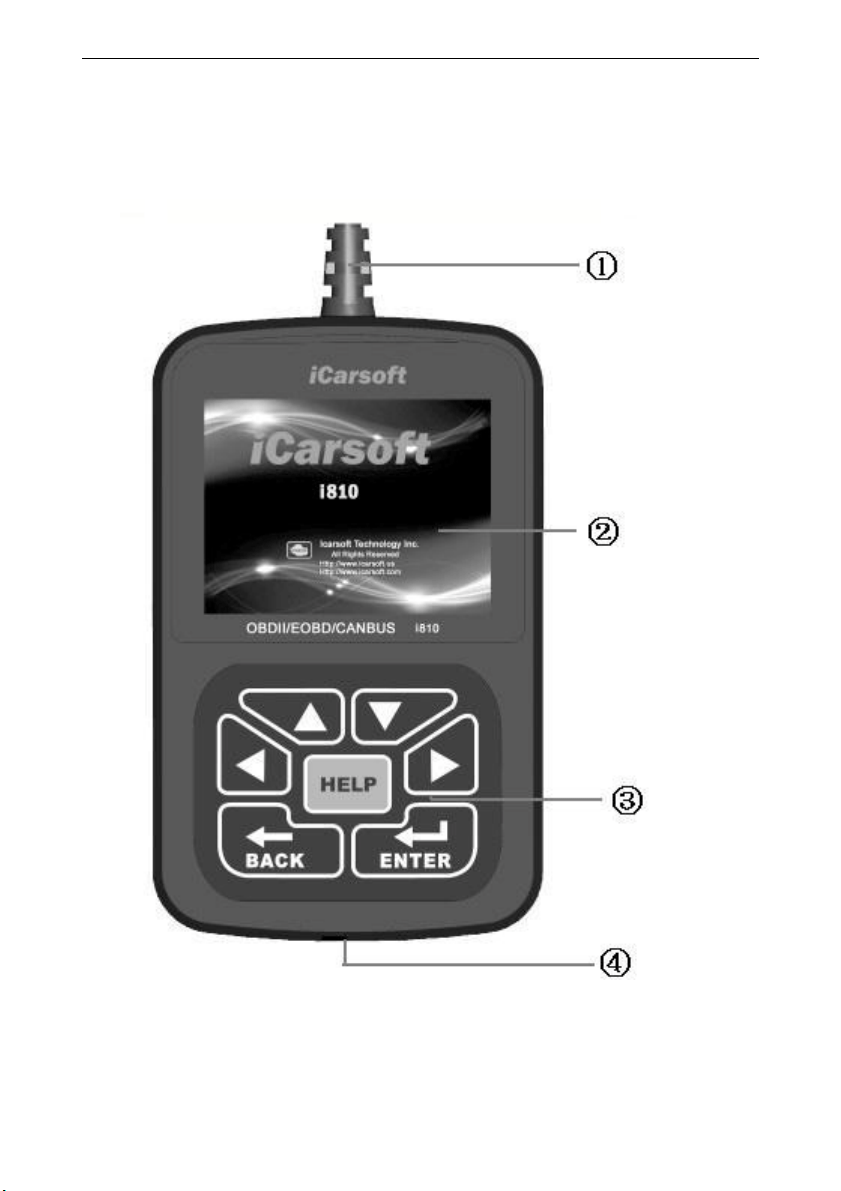
DLC
DLC DLC
DLC --
----
--
Data Link Connector (DLC), Use to
connect the scan tool to the vehicle;
②
②②
②
LCD DISPLAY
LCD DISPLAY LCD DISPLAY
LCD DISPLAY --
----
--
Indicates test results. Color,
iCarsoft i810
iCarsoft i810 iCarsoft i810
iCarsoft i810
OBDII/EOBD
OBDII/EOBDOBDII/EOBD
OBDII/EOBD
scanner
scannerscanner
scanner
15
320 x 240 pixel display with contrast adjustment
③
③③
③
KEY BROAD
KEY BROAD KEY BROAD
KEY BROAD –
––
– include
include include
include
[
[ [
[ ][
][][
][ ][
][][
][ ][
][][
][ ][
][][
][ ]
]]
]
[
[[
[ ] [HELP]
] [HELP]] [HELP]
] [HELP]
④
④④
④
USB PORT
USB PORT USB PORT
USB PORT --
----
--
Use to connect the scan tool to
PC;
3.2 Specifications
3.2 Specifications3.2 Specifications
3.2 Specifications
A) Display:
A) Display: A) Display:
A) Display: Color, 320 x 240 pixel display with
contrast adjustment
B) Operation Temperature:
B) Operation Temperature:B) Operation Temperature:
B) Operation Temperature:
-20 ℃ -- 75 ℃
C)
C) C)
C) St
StSt
Sto
oo
orage
ragerage
rage Temperature:
Temperature: Temperature:
Temperature:
-40 ℃ -- 120 ℃
D) Power:
D) Power:D) Power:
D) Power:
8V -- 24V
E) Dimensions:
E) Dimensions:E) Dimensions:
E) Dimensions:
Length
LengthLength
Length
Width
WidthWidth
Width
Height
HeightHeight
Height
135 mm 85 mm 26 mm
F)
F) F)
F) Weight
WeightWeight
Weight
N
NN
Net
et et
et W
WW
Weight
eighteight
eight:
::
:
250 g
250 g 250 g
250 g
G
GG
Gross
ross ross
ross W
WW
Weight
eighteight
eight:
::
:
45
4545
450 g
0 g0 g
0 g
3.3 Accessories Include
3.3 Accessories Include3.3 Accessories Include
3.3 Accessories Include
A) User
A) UserA) User
A) User’
’’
’s Manual
s Manual s Manual
s Manual –
––
–
Instructions on tool
operations.
B) CD
B) CD B) CD
B) CD –
––
–
Include User’s Manual, Update Software
and etc.
C) USB Cable
C) USB Cable C) USB Cable
C) USB Cable –
––
–
Used to upgrade the scan tool.
3.4 Pr
3.4 Pr3.4 Pr
3.4 Product Troubleshooting
oduct Troubleshootingoduct Troubleshooting
oduct Troubleshooting
Vehicle Linking Error
Vehicle Linking Error Vehicle Linking Error
Vehicle Linking Error

iCarsoft i810
iCarsoft i810 iCarsoft i810
iCarsoft i810
OBDII/EOBD
OBDII/EOBDOBDII/EOBD
OBDII/EOBD
scanner
scannerscanner
scanner
16
A communication error occurs if the scan tool
fails to communicate with the vehicle’s ECU
(Engine Control Unit). You need to do the
following to check up:
A) Verify that the ignition is ON;
B) Check if the scan tool’s OBD II connector
is securely connected to the vehicle’s DLC;
C) Verify that the vehicle is OBD2 compliant;
D) Turn the ignition off and wait for about 10
seconds. Turn the
E) Ignition back to on and continue the testing.
F) Verify the control module is not defective
Scan tool doesn’t power up
Scan tool doesn’t power up Scan tool doesn’t power up
Scan tool doesn’t power up
If the scan tool won’t power up or operates
incorrectly in any other way, you need to do the
following to check up:
A) Check if the scan tool’s OBD II connector
is securely connected to the vehicle’s DLC;
B) Check if the DLC pins are bent or broken.
Clean the DLC pins if necessary.
C) Check vehicle battery to make sure it is still
good with at least 8.0 volts.
iCarsoft i810
iCarsoft i810 iCarsoft i810
iCarsoft i810
OBDII/EOBD
OBDII/EOBDOBDII/EOBD
OBDII/EOBD
scanner
scannerscanner
scanner
17
4.
4. 4.
4. Software Function
Software FunctionSoftware Function
Software Function
CATION: Don
CATION: DonCATION: Don
CATION: Don’
’’
’t connect or disconnect any test
t connect or disconnect any test t connect or disconnect any test
t connect or disconnect any test
equipment
equipmentequipment
equipment with ignition o
with ignition o with ignition o
with ignition on or engine running.
n or engine running.n or engine running.
n or engine running.
1) Turn the ignition off.
2) Locate the vehicle’s 16-pin Data Link
Connector (DLC)
3) Plug into the scan tool cable connector to the
vehicle's DLC ,the scan tool will be light.
As shown below
4) Turn the ignition on. Engine can be off or
running
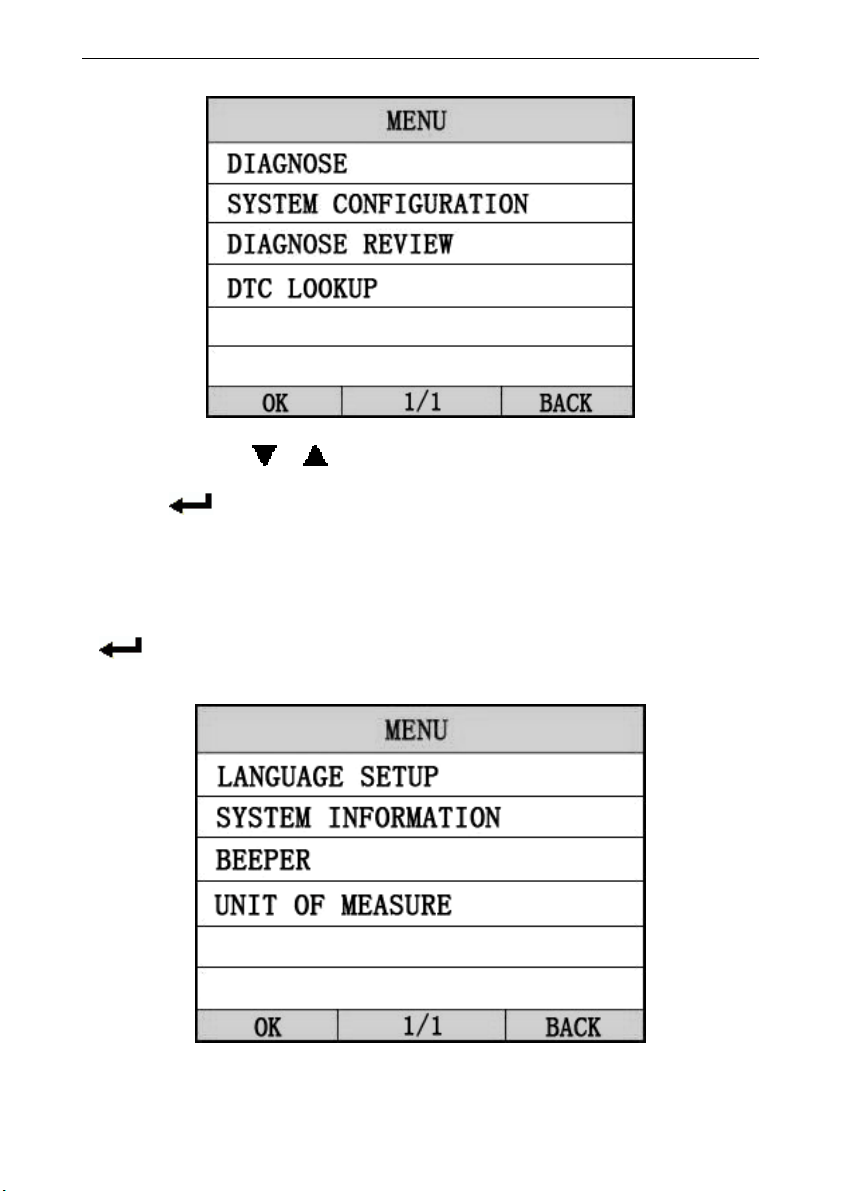
5) Click any key to enter the Main Menu.
iCarsoft i810
iCarsoft i810 iCarsoft i810
iCarsoft i810
OBDII/EOBD
OBDII/EOBDOBDII/EOBD
OBDII/EOBD
scanner
scannerscanner
scanner
18
USE the key [
[[
[ ][
][][
][ ]
]]
] to select in the [
[[
[Main Menu
Main MenuMain Menu
Main Menu]
]]
]
, and
press [
[[
[ ]
]]
] to select
4.1 System Configuration
4.1 System Configuration4.1 System Configuration
4.1 System Configuration
Select [SYSTEM CONFIGUARATION]
[SYSTEM CONFIGUARATION][SYSTEM CONFIGUARATION]
[SYSTEM CONFIGUARATION] in the Main
Menu and press
[
[[
[ ]
]]
]
. The screen will display the interface as shown
below:
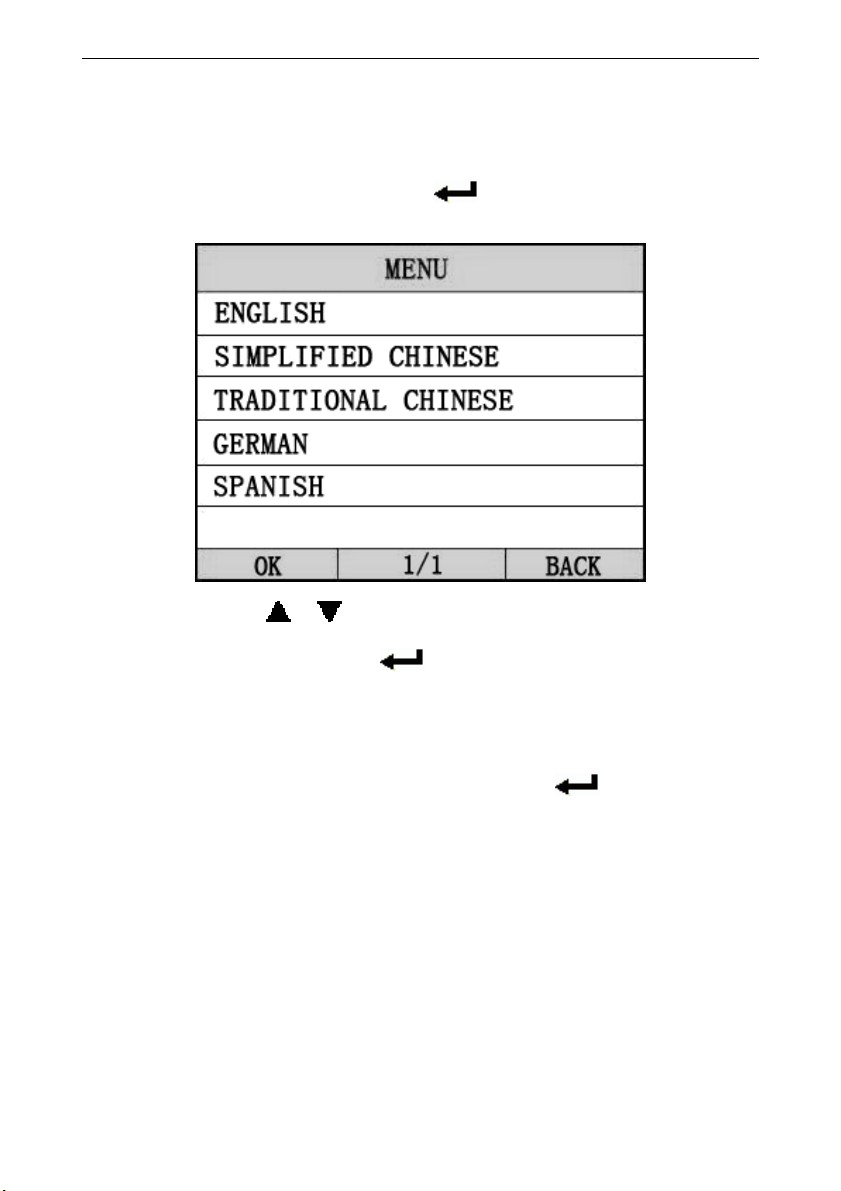
The scanner allows you to make the following adjustments
iCarsoft i810
iCarsoft i810 iCarsoft i810
iCarsoft i810
OBDII/EOBD
OBDII/EOBDOBDII/EOBD
OBDII/EOBD
scanner
scannerscanner
scanner
19
and settings;
1)
1) 1)
1) [LANGUAGE SETUP]
[LANGUAGE SETUP][LANGUAGE SETUP]
[LANGUAGE SETUP]:
: :
: Selects desired language.
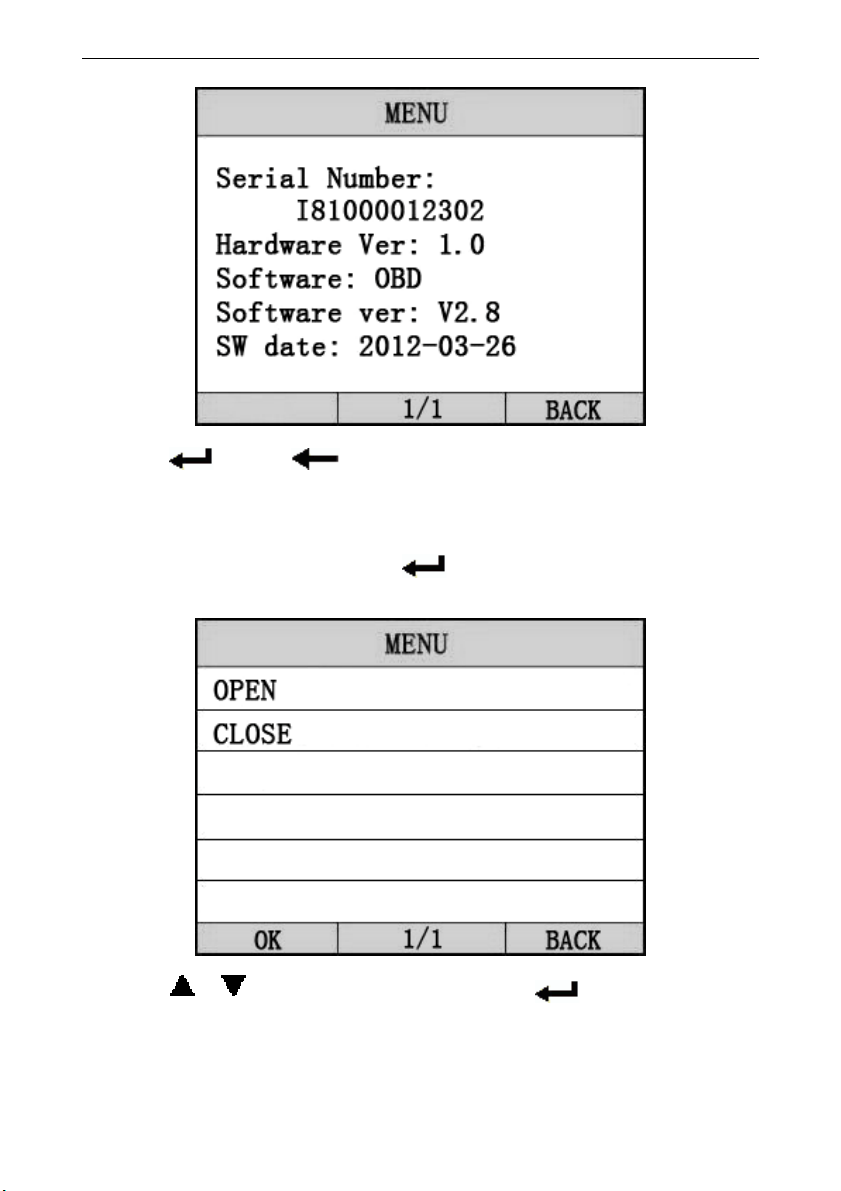
Choose [LANGUAGE
[LANGUAGE[LANGUAGE
[LANGUAGE]
]]
] and press [
[[
[ ]
]]
].
The screen will display the interface as shown below:
You can press [ ][ ]key to choose the different
Language ,and then press [ ] to confirm. The system will
Convert to the chosen language interface at once.
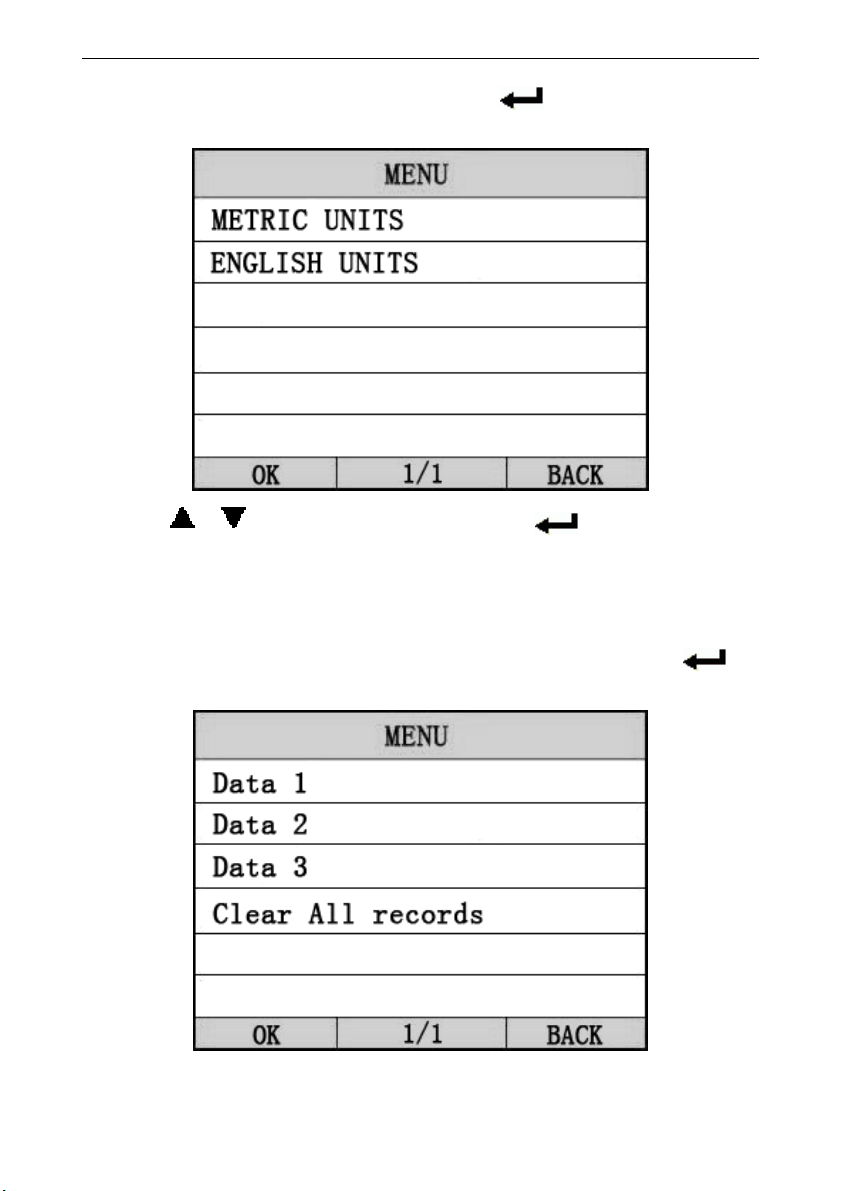
2) [SYSTEM INFORMATION]:
2) [SYSTEM INFORMATION]: 2) [SYSTEM INFORMATION]:
2) [SYSTEM INFORMATION]: show the system information
Choose [SYSTEM INFORMATION]
[SYSTEM INFORMATION][SYSTEM INFORMATION]
[SYSTEM INFORMATION] and press [
[[
[ ]
]]
].
The screen will display the interface as shown below:
iCarsoft i810
iCarsoft i810 iCarsoft i810
iCarsoft i810
OBDII/EOBD
OBDII/EOBDOBDII/EOBD
OBDII/EOBD
scanner
scannerscanner
scanner
20
Press [
[[
[ ]
]]
] or
[
[[
[ ]
]]
]
to return the [Main
[Main[Main
[Main menu
menu menu
menu]
]]
]
3) [BEEPER]
[BEEPER][BEEPER]
[BEEPER]: ON / OFF the beep.
Choose [BEEPER]
[BEEPER][BEEPER]
[BEEPER] and press [
[[
[ ]
]]
], the screen will displa
y
the interface as shown below:
Press [
[[
[
][
][][
][ ]
]]
] to select, and press [
[[
[ ]
] ]
] to confirm.
4) [UNIT OF MEASURE]: change the units display mode.
4) [UNIT OF MEASURE]: change the units display mode.4) [UNIT OF MEASURE]: change the units display mode.
4) [UNIT OF MEASURE]: change the units display mode.
iCarsoft i810
iCarsoft i810 iCarsoft i810
iCarsoft i810
OBDII/EOBD
OBDII/EOBDOBDII/EOBD
OBDII/EOBD
scanner
scannerscanner
scanner
21
Choose [UNIT OF MEASURE]
[UNIT OF MEASURE][UNIT OF MEASURE]
[UNIT OF MEASURE] and press [
[[
[ ]
]]
]
, the screen will
display the interface as shown below:
Press [
[[
[ ][
][][
][ ]
]]
] to select, and press [
[[
[ ]
]]
] to confirm.
4.2 DIAGNOSTIC RE
4.2 DIAGNOSTIC RE4.2 DIAGNOSTIC RE
4.2 DIAGNOSTIC REVIEW
VIEWVIEW
VIEW
Select [DAIGNOSE REVIEW]
[DAIGNOSE REVIEW][DAIGNOSE REVIEW]
[DAIGNOSE REVIEW] in the Main Menu and press [
[[
[ ]
]]
]
.
The screen will display the interface as shown below:
iCarsoft i810
iCarsoft i810 iCarsoft i810
iCarsoft i810
OBDII/EOBD
OBDII/EOBDOBDII/EOBD
OBDII/EOBD
scanner
scannerscanner
scanner
22
Press [
[[
[ ][
][][
][ ]
]]
] to select, and press [
[[
[ ]
] ]
] to confirm.
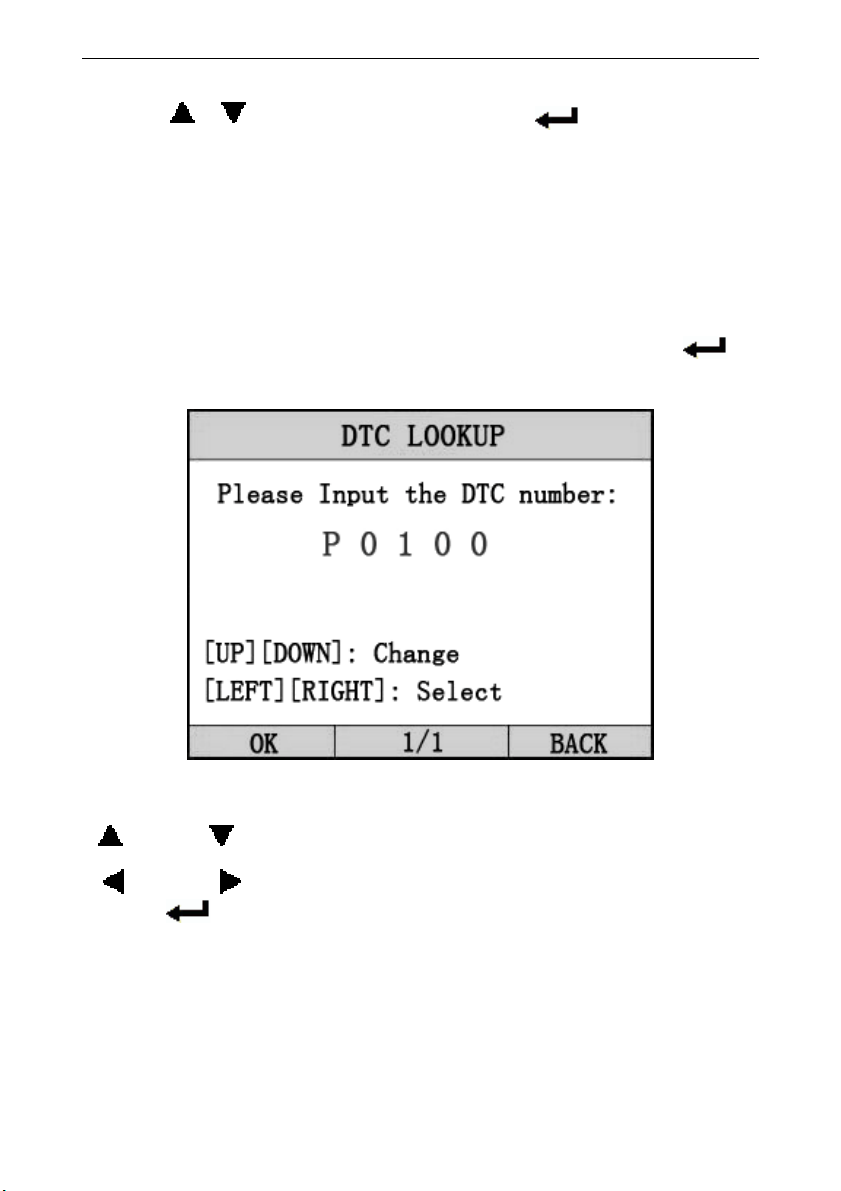
There are three menu for select. Each me
nu save the data ,
you can select one to review. The last menu is clear all
data.
4.3 DTC LOOKUP
4.3 DTC LOOKUP4.3 DTC LOOKUP
4.3 DTC LOOKUP
Select [DAIGNOSE REVIEW]
[DAIGNOSE REVIEW][DAIGNOSE REVIEW]
[DAIGNOSE REVIEW] in the Main Menu and press [
[[
[ ]
]]
]
.
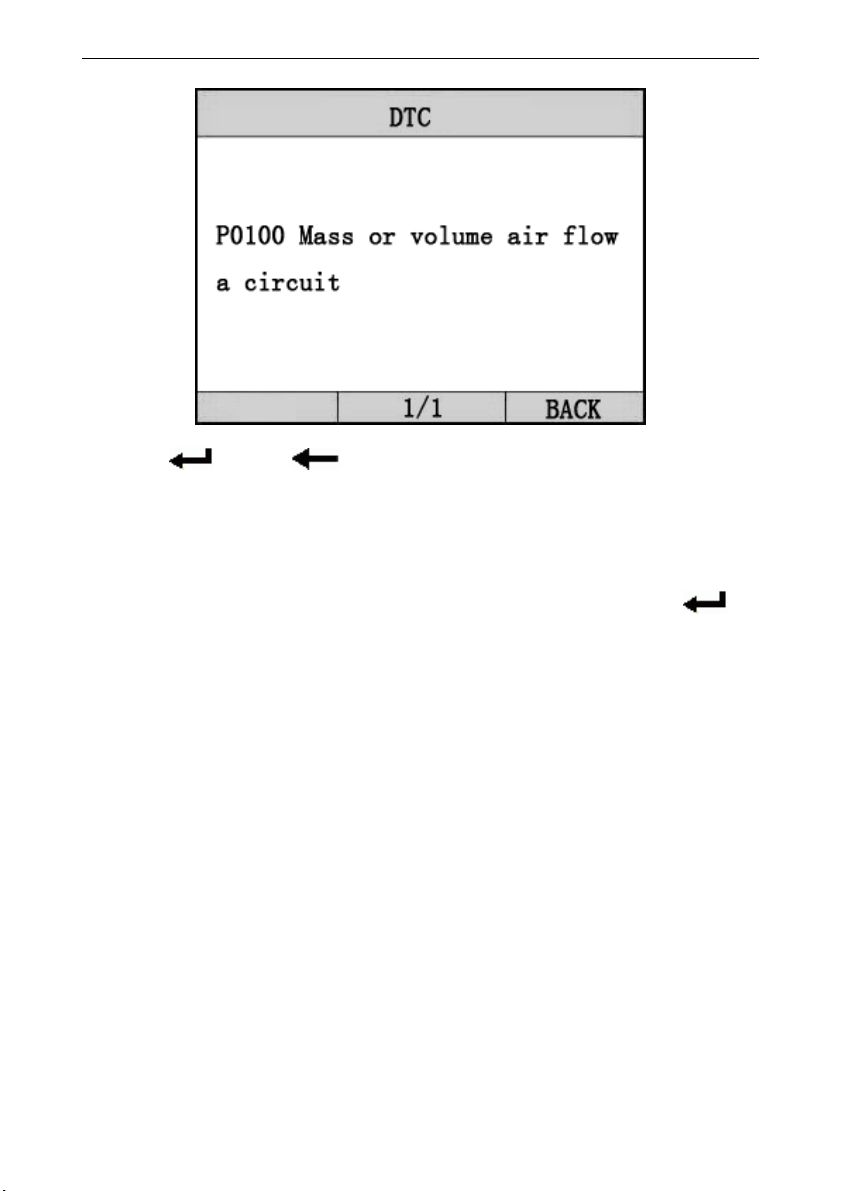
The screen will display the interface as shown below:
Enter the DTC number.
[
[[
[ ]
]]
] and [
[[
[ ]
]]
] use to change the DTC number;
[
[[
[ ]
]]
] and [
[[
[ ]
]]
] use to Select.
press [
[[
[ ]
]]
] to confirm, it will show the DTC description.
As shown below:
iCarsoft i810
iCarsoft i810 iCarsoft i810
iCarsoft i810
OBDII/EOBD
OBDII/EOBDOBDII/EOBD
OBDII/EOBD
scanner
scannerscanner
scanner
23
Press [
[[
[ ]
] ]
] or
[
[[
[ ]
]]
]
to return the [Main
[Main[Main
[Main menu
menu menu
menu]
]]
]
5
55
5.
..
.
OBD II Diagnostics
OBD II DiagnosticsOBD II Diagnostics
OBD II Diagnostics
Select [
[[
[DIAGNOS
DIAGNOSDIAGNOS
DIAGNOSE
EE
E]
]]
] in Main Menu
Main MenuMain Menu
Main Menu and press
[
[[
[ ]
]]
].
. .
.
The screen will display a sequence of messages
displaying the OBDII protocols will be observed
on display until the vehicle protocol is
detected.
◆if the scan tool fails to communi
if the scan tool fails to communiif the scan tool fails to communi
if the scan tool fails to communica
caca
cation with
tion with tion with
tion with
the vehicle
the vehiclethe vehicle
the vehicle’
’’
’s ECU, a
s ECU, a s ECU, a
s ECU, a “
““
“ERROR
ERRORERROR
ERROR”
””
” message shows
message shows message shows
message shows
up on the display
up on the displayup on the display
up on the display
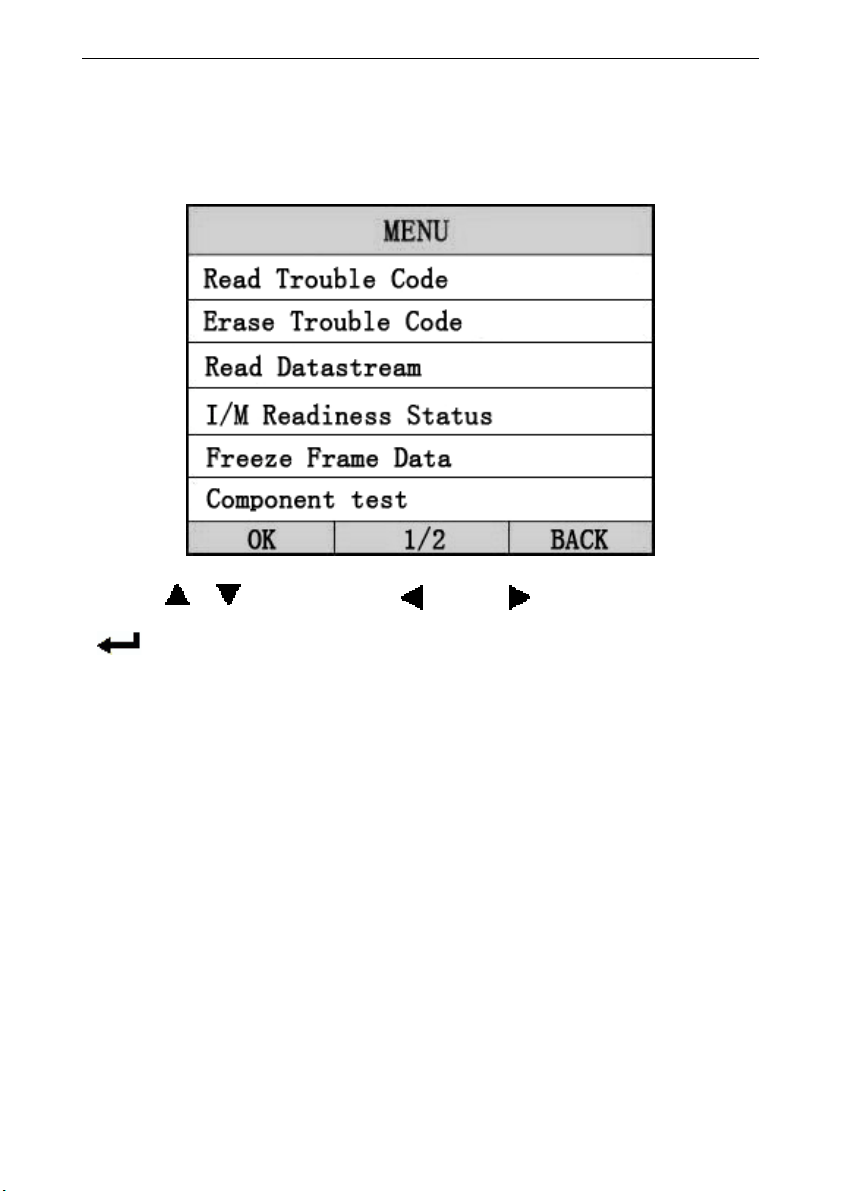
Communication error!
-- Please make sure:
1. System equipped?
2. Cable connect ok?
-- Maybe you can turn off the key, then turn
on the key, and try again.
iCarsoft i810
iCarsoft i810 iCarsoft i810
iCarsoft i810
OBDII/EOBD
OBDII/EOBDOBDII/EOBD
OBDII/EOBD
scanner
scannerscanner
scanner
24
When the scanner communicate with the vehicle, the
screen will display the [
[[
[Diagnostic
DiagnosticDiagnostic
Diagnostic Menu]
Menu] Menu]
Menu], as shown
below:
Press [
[[
[ ][
][][
][ ]
]]
] to select, [
[[
[ ]
]]
] and [
[[
[ ]
]]
] to Page,
and press
[
[[
[ ]
] ]
] to confirm.
5
55
5.1 Read Trouble Code
.1 Read Trouble Code.1 Read Trouble Code
.1 Read Trouble Code
◆Reading Codes can be done with the key on
engine off (KOEO) or with the key on engine
running (KOER).
◆Stored Codes are also known as “hard codes”
or “permanent codes”. These codes cause the
control module to illuminate the malfunction
indicator lamp (MIL) when emission-related
fault occurs.
◆ Pending Codes are also referred to as
“maturing codes” or “continuous monitor
iCarsoft i810
iCarsoft i810 iCarsoft i810
iCarsoft i810
OBDII/EOBD
OBDII/EOBDOBDII/EOBD
OBDII/EOBD
scanner
scannerscanner
scanner
25
codes”. They indicate problems that the
control module has detected during the current
or last driving cycle but are not considered
serious yet. Pending Codes will not turn on the
malfunction indicator lamp (MIL). If the fault
does not occur within a certain number of
warm-up cycles, the code clears from memory.
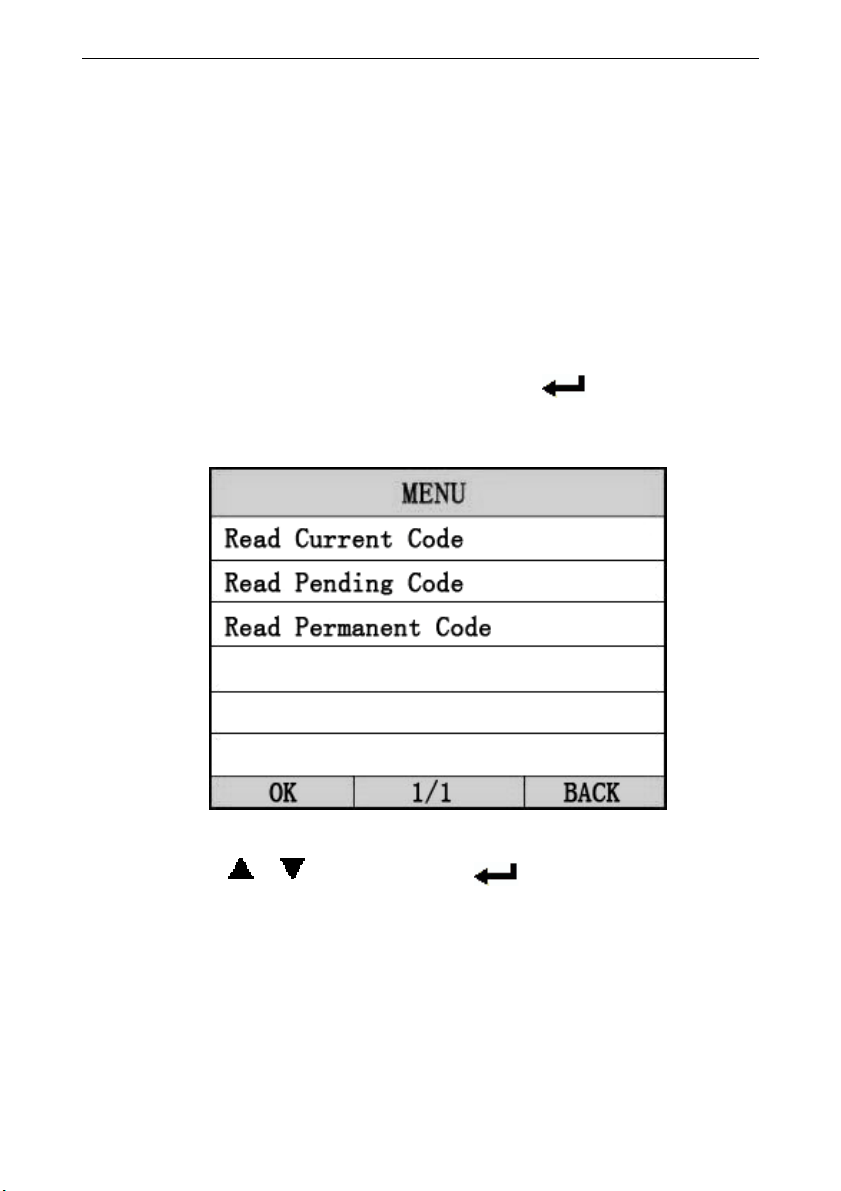
select [
[[
[Read Trouble Code
Read Trouble CodeRead Trouble Code
Read Trouble Code]
]]
] and press
[
[[
[ ]
]]
] in [
[[
[
Diagnostic
Diagnostic Diagnostic
Diagnostic
Menu
MenuMenu
Menu]
]]
].
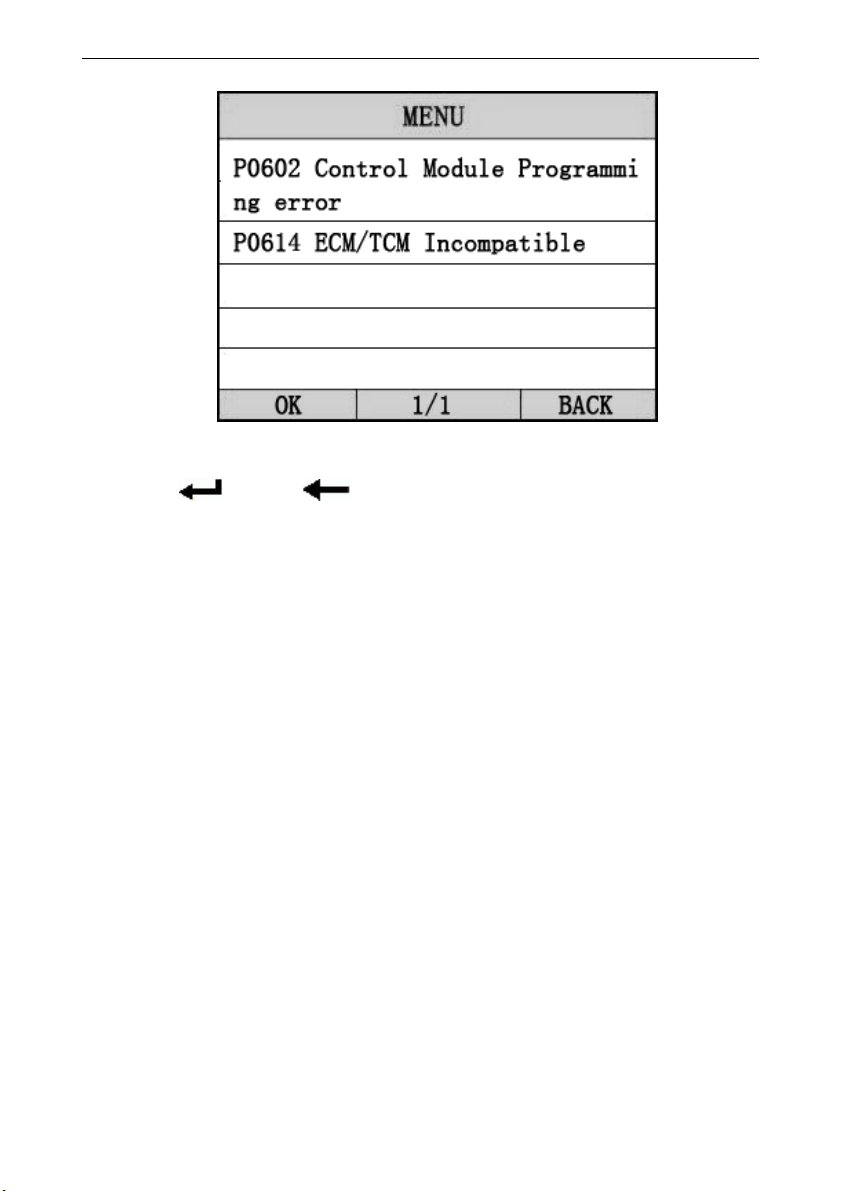
If there are some codes, the screen will display the
codes as show below:
According to the above figure to select different item by
pressing [
[[
[ ][
][][
][ ]
]]
], and press [
[[
[ ]
]]
] to confirm.
iCarsoft i810
iCarsoft i810 iCarsoft i810
iCarsoft i810
OBDII/EOBD
OBDII/EOBDOBDII/EOBD
OBDII/EOBD
scanner
scannerscanner
scanner
26
Press [
[[
[ ]
] ]
] or
[
[[
[ ]
]]
]
to return the [Diagnostic menu]
[Diagnostic menu][Diagnostic menu]
[Diagnostic menu]
View DTCs and their definitions on screen.
View DTCs and their definitions on screen.View DTCs and their definitions on screen.
View DTCs and their definitions on screen.
If there are no Diagnostic Trouble C
If there are no Diagnostic Trouble CIf there are no Diagnostic Trouble C
If there are no Diagnostic Trouble C
odes present, the
odes present, the odes present, the
odes present, the
display indicates “
display indicates “display indicates “
display indicates “No
No No
No Trouble Code
Trouble CodeTrouble Code
Trouble Code
” Wait a few seconds
” Wait a few seconds ” Wait a few seconds
” Wait a few seconds
or press any
or press any or press any
or press any OK
OKOK
OK to return to
to return to to return to
to return to Diagnostic Menu
Diagnostic MenuDiagnostic Menu
Diagnostic Menu.
..
.
The control module number, sequence of the DTCs, total
The control module number, sequence of the DTCs, total The control module number, sequence of the DTCs, total
The control module number, sequence of the DTCs, total
number of codes detected and type of codes (Generic or
number of codes detected and type of codes (Generic or number of codes detected and type of codes (Generic or
number of codes detected and type of codes (Generic or
Manufacturer specific) w
Manufacturer specific) wManufacturer specific) w
Manufacturer specific) w
ill be observed on the upper right
ill be observed on the upper right ill be observed on the upper right
ill be observed on the upper right
hand corner of the display.
hand corner of the display.hand corner of the display.
hand corner of the display.
5
55
5.2
.2 .2
.2 Erase
EraseErase
Erase
Trouble
Trouble Trouble
Trouble Codes
Codes Codes
Codes
CAUTION: Erasing the Diagnostic Trouble Codes
CAUTION: Erasing the Diagnostic Trouble Codes CAUTION: Erasing the Diagnostic Trouble Codes
CAUTION: Erasing the Diagnostic Trouble Codes
may allow the scan tool to delete not only the
may allow the scan tool to delete not only the may allow the scan tool to delete not only the
may allow the scan tool to delete not only the
codes from the vehicle’s on
codes from the vehicle’s oncodes from the vehicle’s on
codes from the vehicle’s on-
--
-board computer,
board computer, board computer,
board computer,
but also “Freeze Frame” data
but also “Freeze Frame” data but also “Freeze Frame” data
but also “Freeze Frame” data and manufacturer
and manufacturer and manufacturer
and manufacturer
specific enhanced data. Further, the I/M
specific enhanced data. Further, the I/M specific enhanced data. Further, the I/M
specific enhanced data. Further, the I/M
Readiness Monitor Status for all vehicle
Readiness Monitor Status for all vehicle Readiness Monitor Status for all vehicle
Readiness Monitor Status for all vehicle
iCarsoft i810
iCarsoft i810 iCarsoft i810
iCarsoft i810
OBDII/EOBD
OBDII/EOBDOBDII/EOBD
OBDII/EOBD
scanner
scannerscanner
scanner
27
monitors is reset to Not Ready or Not Complete
monitors is reset to Not Ready or Not Complete monitors is reset to Not Ready or Not Complete
monitors is reset to Not Ready or Not Complete
status. Do not erase the codes before the system
status. Do not erase the codes before the system status. Do not erase the codes before the system
status. Do not erase the codes before the system
has been checked completely by a technician.
has been checked completely by a technician. has been checked completely by a technician.
has been checked completely by a technician.
This function i
This function iThis function i
This function is performed with key on engine
s performed with key on engine s performed with key on engine
s performed with key on engine
off (KOEO). Do not start the engine.
off (KOEO). Do not start the engine.off (KOEO). Do not start the engine.
off (KOEO). Do not start the engine.
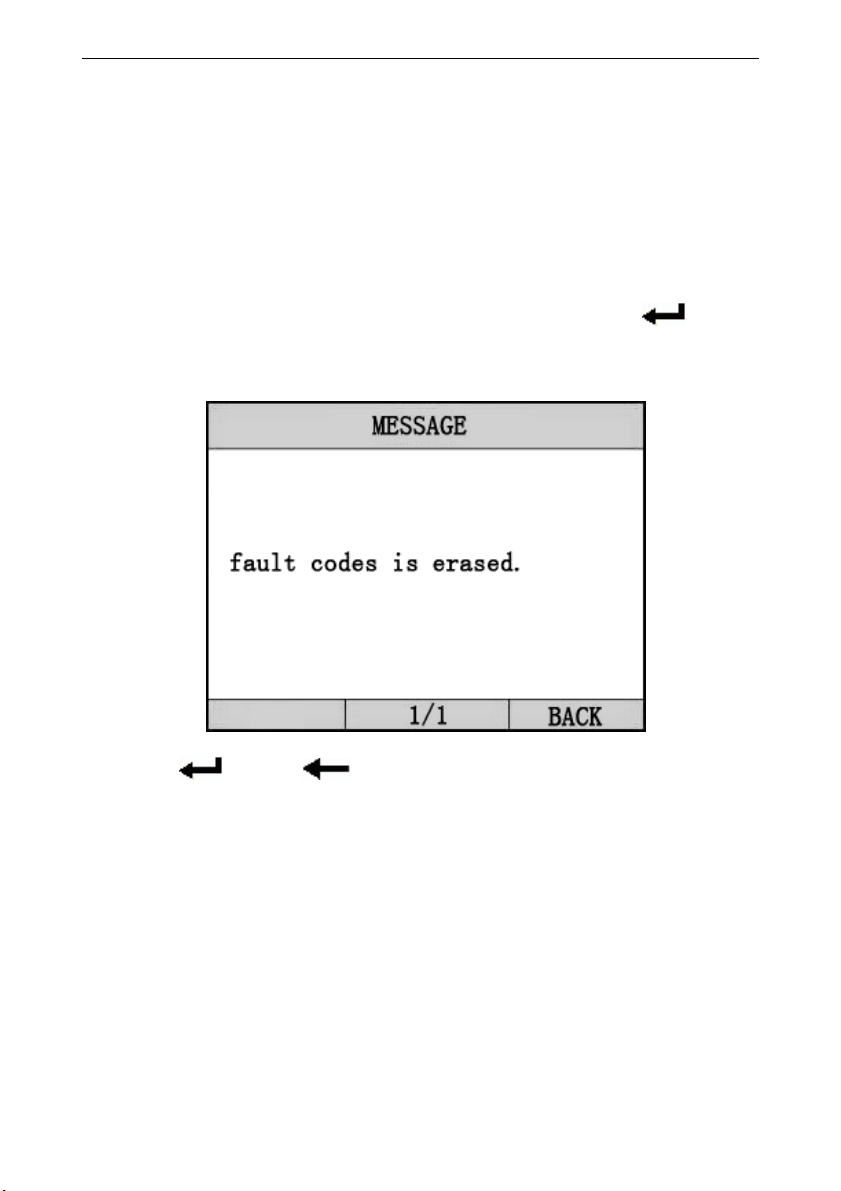
select [
[[
[Erase Trouble Code]
Erase Trouble Code]Erase Trouble Code]
Erase Trouble Code] and press[
[[
[ ]
]]
]
in
[Diagnostic Menu]. the screen will display the interface
as shown below:
Press [
[[
[ ]
] ]
] or
[
[[
[ ]
]]
]
to return the [Diagnostic menu]
[Diagnostic menu][Diagnostic menu]
[Diagnostic menu]
Notes:
Notes:Notes:
Notes:
* Before
* Before * Before
* Before
performing this function. Make sure to retrieve
performing this function. Make sure to retrieve performing this function. Make sure to retrieve
performing this function. Make sure to retrieve
and record the trouble codes.
and record the trouble codes.and record the trouble codes.
and record the trouble codes.
* After clearing, you should retrieve trouble codes once
* After clearing, you should retrieve trouble codes once * After clearing, you should retrieve trouble codes once
* After clearing, you should retrieve trouble codes once
more or turn ignition on and retrieve codes again. If there
more or turn ignition on and retrieve codes again. If there more or turn ignition on and retrieve codes again. If there
more or turn ignition on and retrieve codes again. If there
are still some trouble codes for hard troubles, please find
are still some trouble codes for hard troubles, please findare still some trouble codes for hard troubles, please find
are still some trouble codes for hard troubles, please find
the reason caused the trouble code firstly, and the
the reason caused the trouble code firstly, and thethe reason caused the trouble code firstly, and the
the reason caused the trouble code firstly, and then
nn
n
solve
solve solve
solve
the problem. Now, the trouble codes can be erased.
the problem. Now, the trouble codes can be erased.the problem. Now, the trouble codes can be erased.
the problem. Now, the trouble codes can be erased.
iCarsoft i810
iCarsoft i810 iCarsoft i810
iCarsoft i810
OBDII/EOBD
OBDII/EOBDOBDII/EOBD
OBDII/EOBD
scanner
scannerscanner
scanner
28
5
55
5.3
.3 .3
.3 Read
Read Read
Read DataStream
DataStreamDataStream
DataStream
The
The The
The Read
Read Read
Read DataStream
DataStreamDataStream
DataStream function allows viewing of
function allows viewing of function allows viewing of
function allows viewing of
live or real time PID data of vehicle’s
live or real time PID data of vehicle’s live or real time PID data of vehicle’s
live or real time PID data of vehicle’s
computer module(s).
computer module(s).computer module(s).
computer module(s).
Press[
[[
[ ][
][][
][ ]
]]
] to select [Read DataStream]
[Read DataStream][Read DataStream]
[Read DataStream] in [
Diagnostic
Menu] and press [
[[
[ ]
]]
]
to confirm. The screen will display
the interface as shown below.
Press [
[[
[ ][
][][
][ ]
]]
] to select, [
[[
[ ]
]]
] and [
[[
[ ]
]]
] to Page,
and
press [
[[
[ ]
] ]
] to confirm.
Notes:
Notes:Notes:
Notes:
You can select show all datastream or only show
You can select show all datastream or only show You can select show all datastream or only show
You can select show all datastream or only show
the
the the
the
datastream which was selected by you.
datastream which was selected by you.datastream which was selected by you.
datastream which was selected by you.
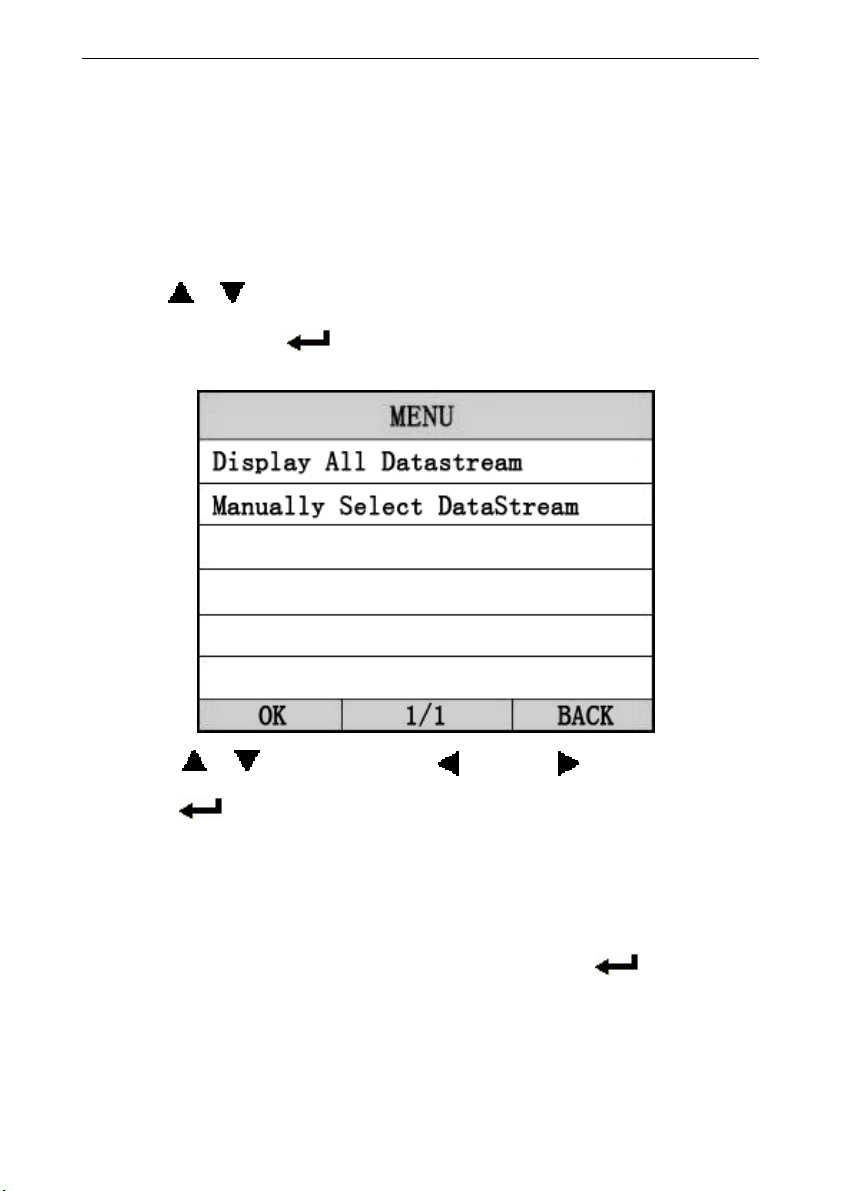
Select [Display All Datastream]
[Display All Datastream][Display All Datastream]
[Display All Datastream], and Press[
[[
[ ]
]]
]
to enter
datastream data model
, the screen will display the
interface as below:
iCarsoft i810
iCarsoft i810 iCarsoft i810
iCarsoft i810
OBDII/EOBD
OBDII/EOBDOBDII/EOBD
OBDII/EOBD
scanner
scannerscanner
scanner
29
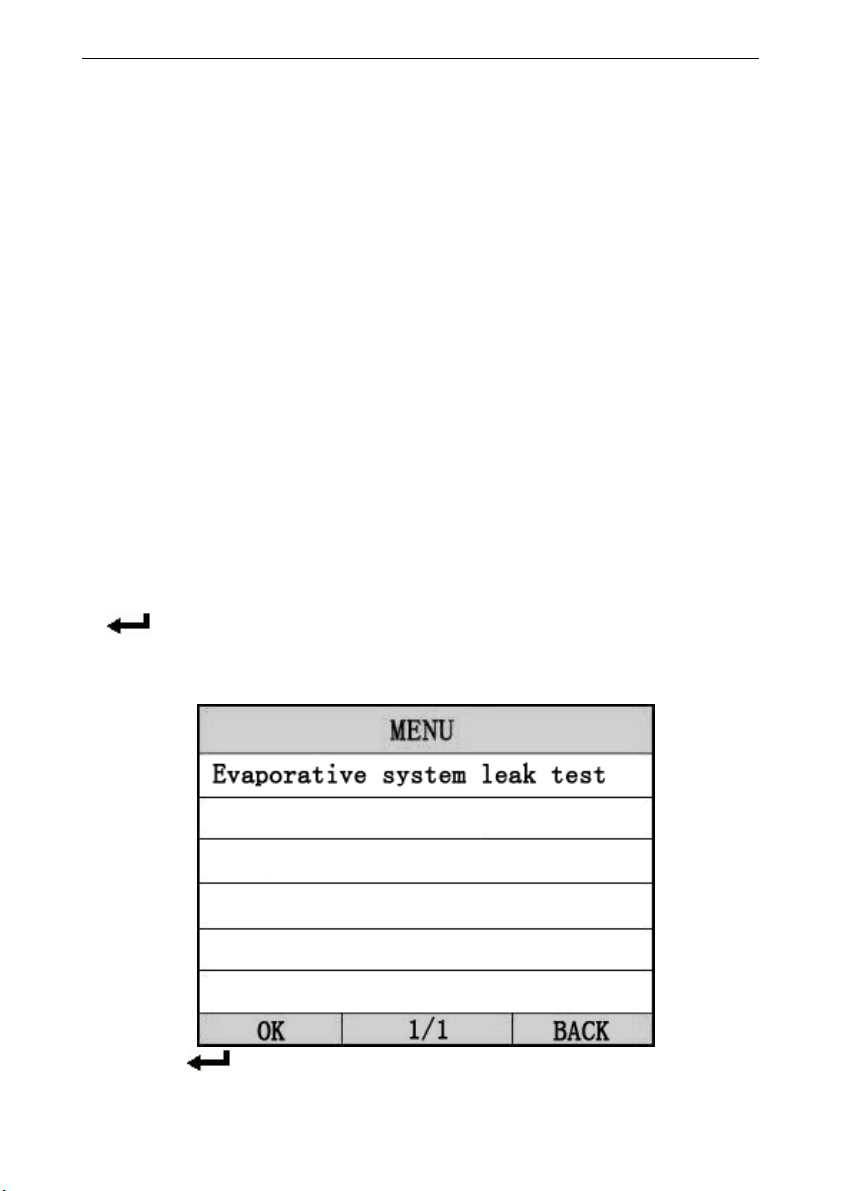
Data model
Data modelData model
Data model
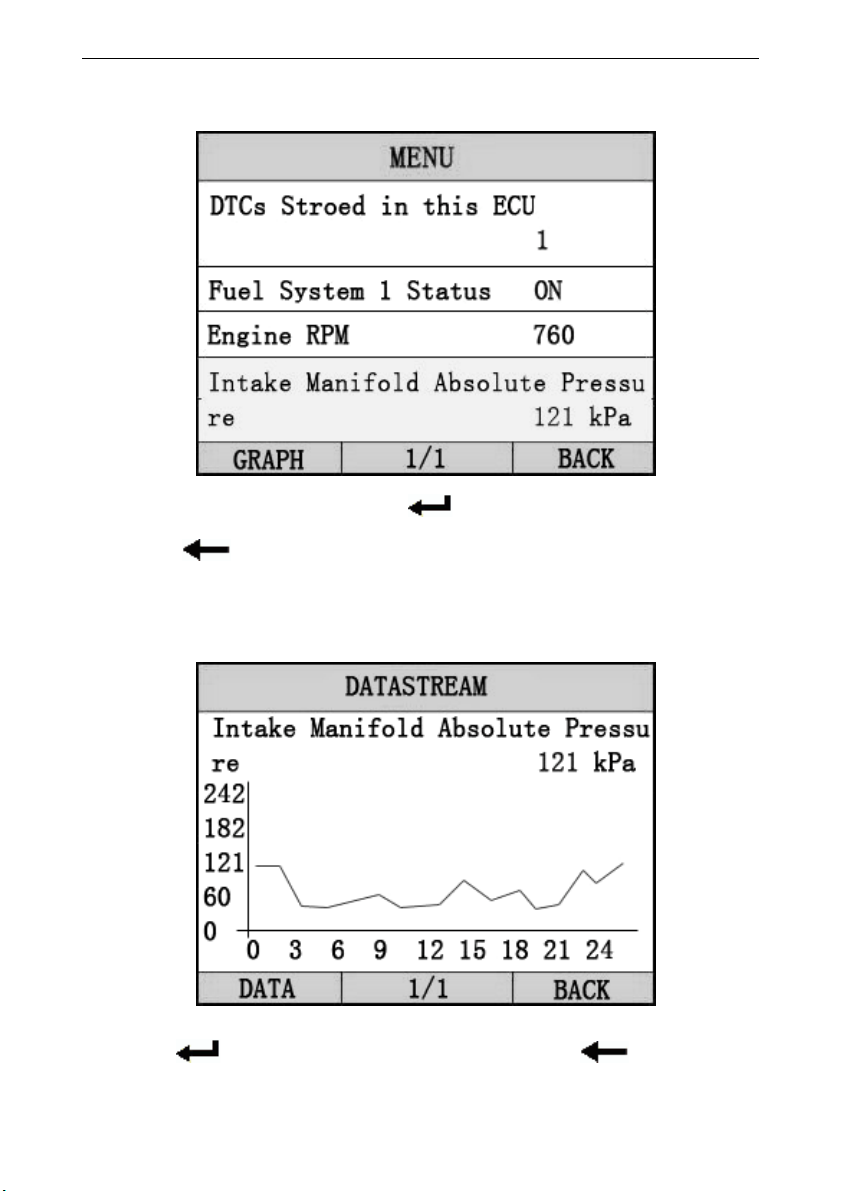
If appear [GRAPH]
[GRAPH][GRAPH]
[GRAPH], Press [
[[
[ ]
]]
] to enter Graph mode.
Press
[
[[
[ ]
]]
]
to return [Di
[Di[Di
[Diagnos
agnosagnos
agnostic
tictic
tic Menu]
Menu] Menu]
Menu]
the screen will display the interface as below:
Graph model
Graph modelGraph model
Graph model
Press [
[[
[ ]
]]
] to return data model. Press
[
[[
[ ]
]]
]
to return
iCarsoft i810
iCarsoft i810 iCarsoft i810
iCarsoft i810
OBDII/EOBD
OBDII/EOBDOBDII/EOBD
OBDII/EOBD
scanner
scannerscanner
scanner
30
[DIAGNOSTIC MENU].
[DIAGNOSTIC MENU]. [DIAGNOSTIC MENU].
[DIAGNOSTIC MENU].
5
55
5.4
.4 .4
.4 Component test
Component testComponent test
Component test
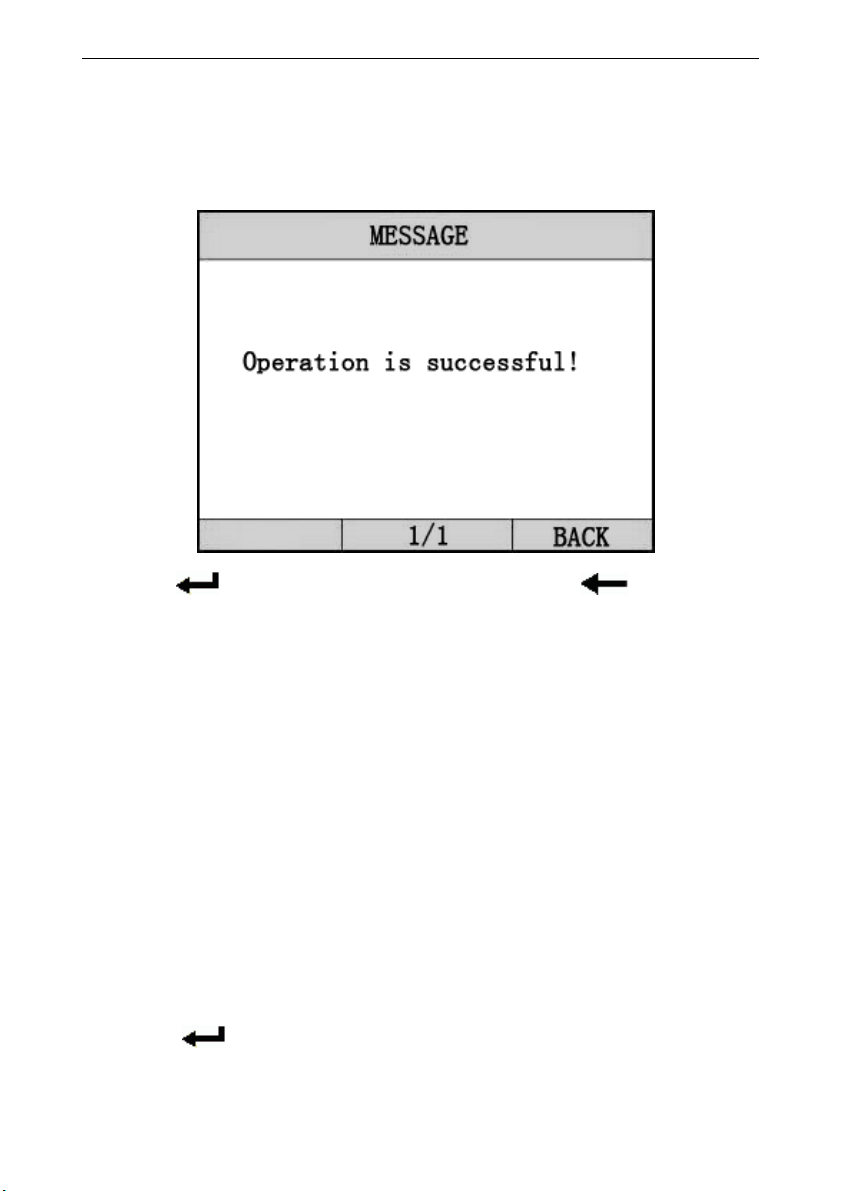
The Component Test function allows initiating
The Component Test function allows initiating The Component Test function allows initiating
The Component Test function allows initiating
a leak test for the vehicle's EVAP
a leak test for the vehicle's EVAPa leak test for the vehicle's EVAP
a leak test for the vehicle's EVAP system. The
system. The system. The
system. The
scan tool itself does not perform the leak test,
scan tool itself does not perform the leak test, scan tool itself does not perform the leak test,
scan tool itself does not perform the leak test,
but commands the vehicle's on
but commands the vehicle's onbut commands the vehicle's on
but commands the vehicle's on-
--
-board computer to
board computer to board computer to
board computer to
start the test. Different vehicle manufacturers
start the test. Different vehicle manufacturers start the test. Different vehicle manufacturers
start the test. Different vehicle manufacturers
might have different criteria and methods for
might have different criteria and methods for might have different criteria and methods for
might have different criteria and methods for
stopping the test once it has been started.
stopping the test once it has been started. stopping the test once it has been started.
stopping the test once it has been started.
Before s
Before sBefore s
Before starting the Component Test, refer to the
tarting the Component Test, refer to the tarting the Component Test, refer to the
tarting the Component Test, refer to the
vehicle service manual for instructions to stop
vehicle service manual for instructions to stop vehicle service manual for instructions to stop
vehicle service manual for instructions to stop
the test.
the test.the test.
the test.
select [
[[
[Component Test]
Component Test]Component Test]
Component Test] in the [Diagnostic Menu]
[Diagnostic Menu] [Diagnostic Menu]
[Diagnostic Menu]
and press
[
[[
[ ]
]]
] to enter the activation function.
If the ECU support the function, the screen will show
as
below:
press [
[[
[ ]
]]
]
to confirm, the screen will display the
iCarsoft i810
iCarsoft i810 iCarsoft i810
iCarsoft i810
OBDII/EOBD
OBDII/EOBDOBDII/EOBD
OBDII/EOBD
scanner
scannerscanner
scanner
31
relative information about EVAP system. Some vehic
les
manufacturers do not allow external device
s to control
vehicles system. If the car support this function. It may
display as below:
Press [
[[
[ ]
]]
] to return data model. Press
[
[[
[ ]
]]
]
to return
5
55
5.5
.5 .5
.5 Freeze Frame Data
Freeze Frame DataFreeze Frame Data
Freeze Frame Data
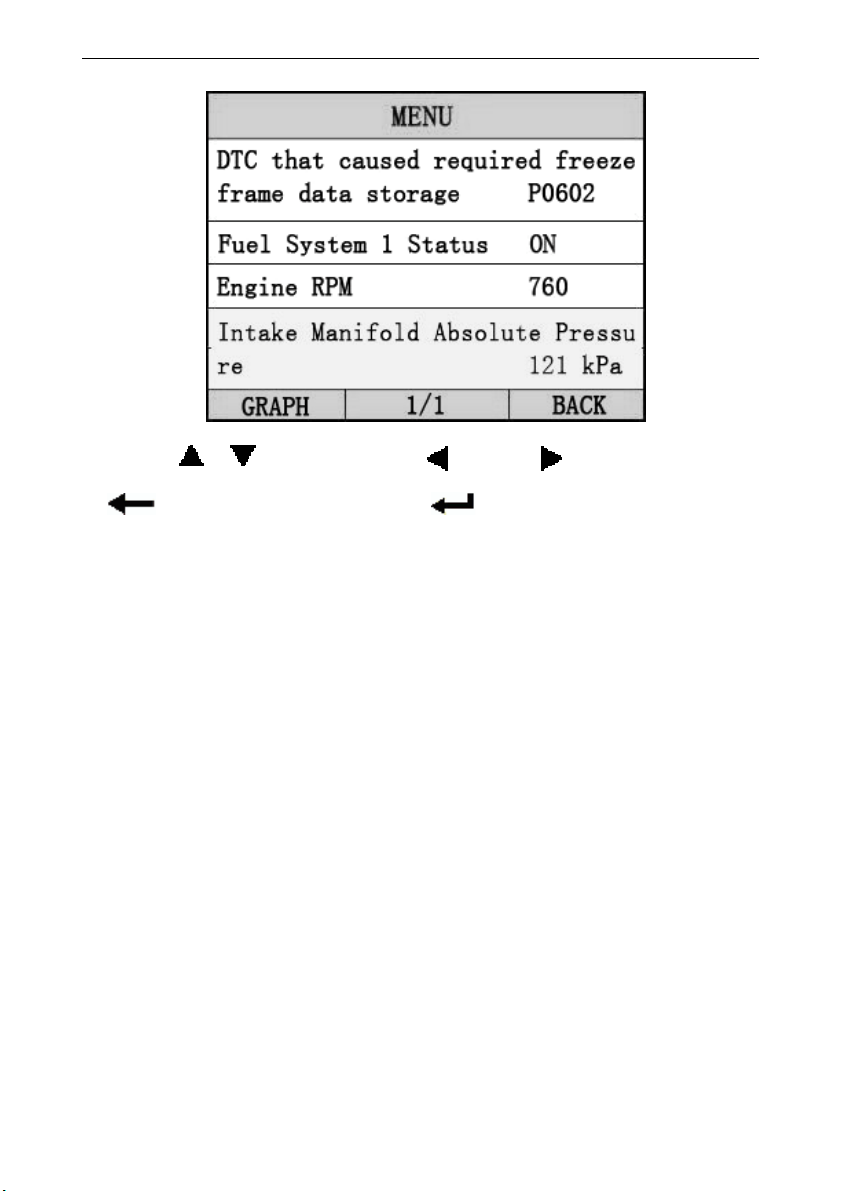
When an emission
When an emissionWhen an emission
When an emission-
--
-related fault
related faultrelated fault
related fault occurs, certain
occurs, certain occurs, certain
occurs, certain
vehicle conditio
vehicle conditiovehicle conditio
vehicle conditions are recorded by the on
ns are recorded by the onns are recorded by the on
ns are recorded by the on-
--
-board
board board
board
computer. This information is referr
computer. This information is referrcomputer. This information is referr
computer. This information is referre
ee
ed to as freeze
d to as freeze d to as freeze
d to as freeze
frame data. [freeze Frame data] is a snaps
frame data. [freeze Frame data] is a snapsframe data. [freeze Frame data] is a snaps
frame data. [freeze Frame data] is a snapshot of
hot of hot of
hot of
the ope
the opethe ope
the operating conditions at the time o
rating conditions at the time orating conditions at the time o
rating conditions at the time of
ff
f an
an an
an
emission
emissionemission
emission-
--
-related f
related frelated f
related fau
auau
ault.
lt.lt.
lt.
select
select select
select [
[[
[Freeze Frame Data
Freeze Frame DataFreeze Frame Data
Freeze Frame Data] in the [
] in the [] in the [
] in the [Diagnostic Menu
Diagnostic MenuDiagnostic Menu
Diagnostic Menu
] and
] and ] and
] and
press
presspress
press [
[[
[ ]
]]
]
, the screen will display the interface as
, the screen will display the interface as , the screen will display the interface as
, the screen will display the interface as
shown below:
shown below:shown below:
shown below:
iCarsoft i810
iCarsoft i810 iCarsoft i810
iCarsoft i810
OBDII/EOBD
OBDII/EOBDOBDII/EOBD
OBDII/EOBD
scanner
scannerscanner
scanner
32
Press [ ][ ] to select, [ ] and [
] to Page, Press
[ ] to return and press [ ] to confirm.
5
55
5.6
.6 .6
.6 O2 Sensor Monitoring Test
O2 Sensor Monitoring TestO2 Sensor Monitoring Test
O2 Sensor Monitoring Test
--
----
-- OBD2
OBD2 OBD2
OBD2 regulations set by SAE require that
regulations set by SAE require that regulations set by SAE require that
regulations set by SAE require that
relevant vehicles monitor and test the oxygen
relevant vehicles monitor and test the oxygen relevant vehicles monitor and test the oxygen
relevant vehicles monitor and test the oxygen
(O2) sensors to identify problems related to
(O2) sensors to identify problems related to (O2) sensors to identify problems related to
(O2) sensors to identify problems related to
fuel efficiency an
fuel efficiency anfuel efficiency an
fuel efficiency and vehicle emissions. These
d vehicle emissions. These d vehicle emissions. These
d vehicle emissions. These
tests are not on
tests are not ontests are not on
tests are not on-
--
-demand tests and they are done
demand tests and they are done demand tests and they are done
demand tests and they are done
automatically when engine operating conditions
automatically when engine operating conditions automatically when engine operating conditions
automatically when engine operating conditions
are within specified limits. These test results
are within specified limits. These test results are within specified limits. These test results
are within specified limits. These test results
are saved in the on
are saved in the onare saved in the on
are saved in the on-
--
-board computer's memory.
board computer's memory. board computer's memory.
board computer's memory.
--
----
--
The O2 Monitor Test function allows r
The O2 Monitor Test function allows rThe O2 Monitor Test function allows r
The O2 Monitor Test function allows retrieval
etrieval etrieval
etrieval
and viewing of O2 sensor monitor test results
and viewing of O2 sensor monitor test results and viewing of O2 sensor monitor test results
and viewing of O2 sensor monitor test results
for the most recently performed tests from the
for the most recently performed tests from the for the most recently performed tests from the
for the most recently performed tests from the
vehicle's on
vehicle's onvehicle's on
vehicle's on-
--
-board computer.
board computer. board computer.
board computer.
---
------
---
The O2 Monitor Test function is not supported
The O2 Monitor Test function is not supported The O2 Monitor Test function is not supported
The O2 Monitor Test function is not supported
by vehicles which communicate using a controller
by vehicles which communicate using a controller by vehicles which communicate using a controller
by vehicles which communicate using a controller
iCarsoft i810
iCarsoft i810 iCarsoft i810
iCarsoft i810
OBDII/EOBD
OBDII/EOBDOBDII/EOBD
OBDII/EOBD
scanner
scannerscanner
scanner
33
area network (CAN). For O
area network (CAN). For Oarea network (CAN). For O
area network (CAN). For O2 Monitor Test results
2 Monitor Test results 2 Monitor Test results
2 Monitor Test results
of CAN
of CANof CAN
of CAN-
--
-equipped vehicles, see chapter
equipped vehicles, see chapter equipped vehicles, see chapter
equipped vehicles, see chapter
“On
“On“On
“On-
--
-Board Mon. Test”.
Board Mon. Test”.Board Mon. Test”.
Board Mon. Test”.
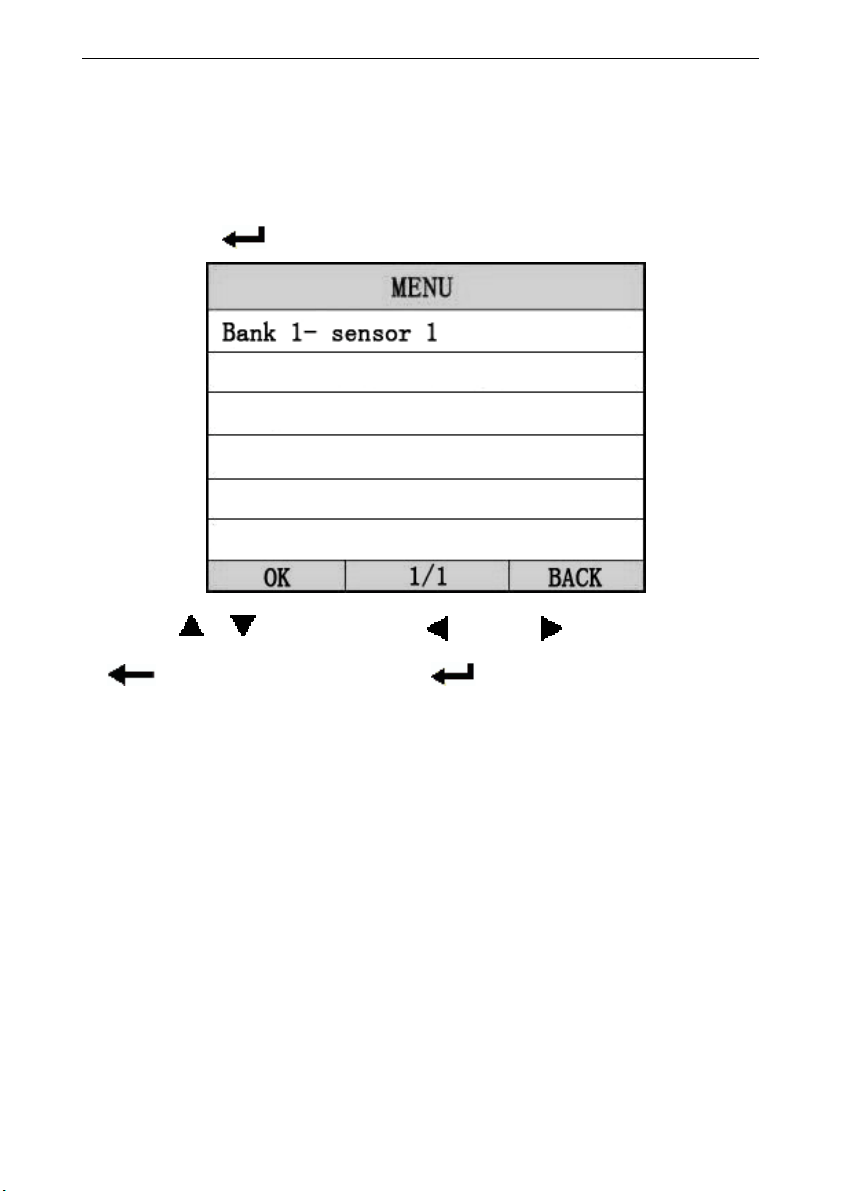
Select [O2 Sensor Moni
[O2 Sensor Moni[O2 Sensor Moni
[O2 Sensor Monit
tt
toring test]
oring test]oring test]
oring test] in [Diagnostic Menu]
[Diagnostic Menu][Diagnostic Menu]
[Diagnostic Menu]
,
, ,
,
and press [
[[
[ ]
]]
].
. .
. The screen will display as shown below:
Press [ ][ ] to select, [ ] and [ ]
to Page, Press
[ ] to return and press [ ] to confirm.
Notes:
If the vehicle does not support the mode, an advisory
If the vehicle does not support the mode, an advisory If the vehicle does not support the mode, an advisory
If the vehicle does not support the mode, an advisory
message will be displayed on the screen.
message will be displayed on the screen.message will be displayed on the screen.
message will be displayed on the screen.
View test results of select O2 sensor
View test results of select O2 sensorView test results of select O2 sensor
View test results of select O2 sensor

iCarsoft i810
iCarsoft i810 iCarsoft i810
iCarsoft i810
OBDII/EOBD
OBDII/EOBDOBDII/EOBD
OBDII/EOBD
scanner
scannerscanner
scanner
34
Press [ ][ ] to select, [ ] and [ ]
to Page, Press
[ ] to return.
5
55
5.7
.7 .7
.7 Vehicle
VehicleVehicle
Vehicle Information
Information Information
Information
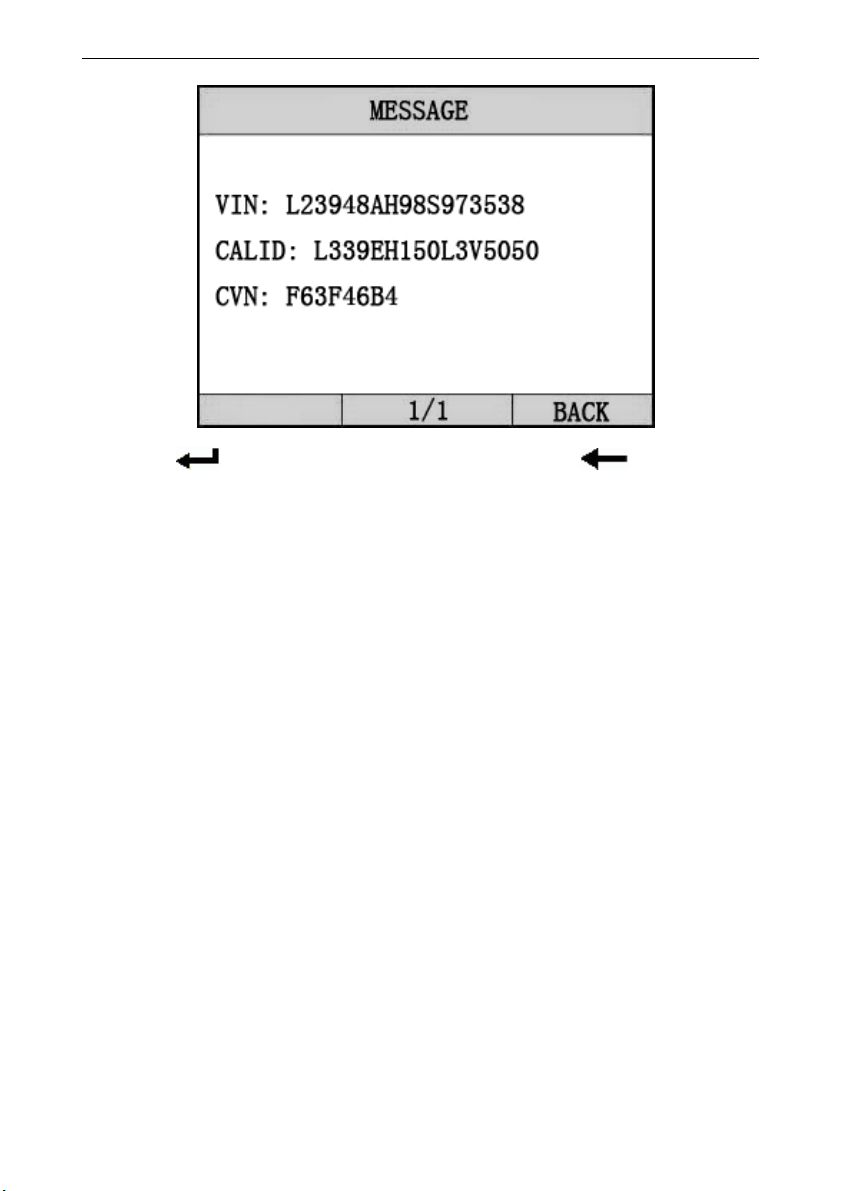
The Vehicle Info. function enables retrieval of
The Vehicle Info. function enables retrieval of The Vehicle Info. function enables retrieval of
The Vehicle Info. function enables retrieval of
Vehicle Identification No. (VIN), Calibration
Vehicle Identification No. (VIN), Calibration Vehicle Identification No. (VIN), Calibration
Vehicle Identification No. (VIN), Calibration
ID(s), Calibration Verification Nos. (CVNs) and
ID(s), Calibration Verification Nos. (CVNs) and ID(s), Calibration Verification Nos. (CVNs) and
ID(s), Calibration Verification Nos. (CVNs) and
In
InIn
In-
--
-use Performance
use Performance use Performance
use Performance tracking
trackingtracking
tracking on 2000 and newer
on 2000 and newer on 2000 and newer
on 2000 and newer
vehicles that support Mode 9.
vehicles that support Mode 9.vehicles that support Mode 9.
vehicles that support Mode 9.
Select [Vehicle informat
[Vehicle informat[Vehicle informat
[Vehicle information]
ion]ion]
ion] in the [Diagnostic Menu]
[Diagnostic Menu][Diagnostic Menu]
[Diagnostic Menu]
, and
Press [ ]. The screen will display as shown below:
iCarsoft i810
iCarsoft i810 iCarsoft i810
iCarsoft i810
OBDII/EOBD
OBDII/EOBDOBDII/EOBD
OBDII/EOBD
scanner
scannerscanner
scanner
35
Press [
[[
[ ]
]]
] to return data model. Press
[
[[
[ ]
]]
]
to return
[Diagnostic Menu].
[Diagnostic Menu].[Diagnostic Menu].
[Diagnostic Menu].
iCarsoft i810
iCarsoft i810 iCarsoft i810
iCarsoft i810
OBDII/EOBD
OBDII/EOBDOBDII/EOBD
OBDII/EOBD
scanner
scannerscanner
scanner
36
6
66
6.
..
.Software update
Software updateSoftware update
Software update
1.
1. 1.
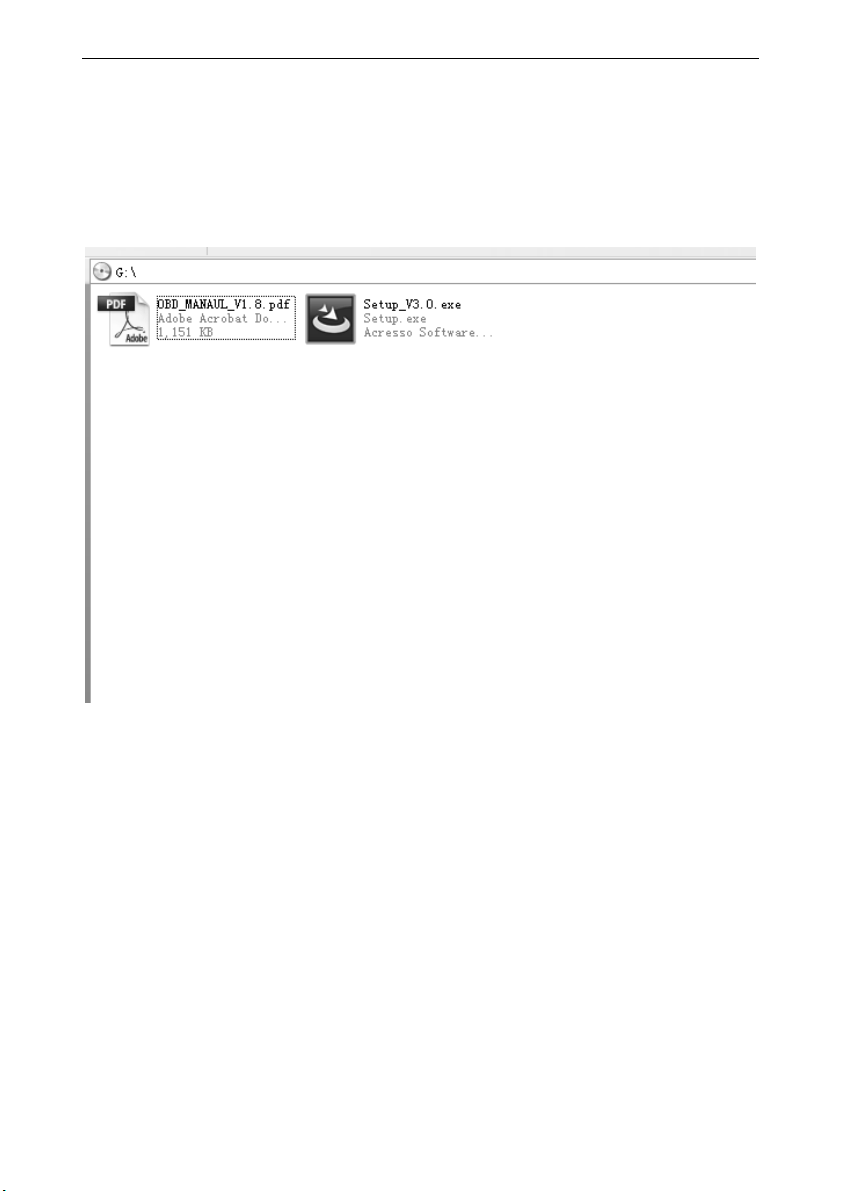
1. Setup Update tools
Setup Update toolsSetup Update tools
Setup Update tools
Put the CD in to PC and open.
Put the CD in to PC and open. Put the CD in to PC and open.
Put the CD in to PC and open.
you can see the setup file
you can see the setup file you can see the setup file
you can see the setup file
in the CD.
in the CD.in the CD.
in the CD.
Double cl
Double clDouble cl
Double cli
ii
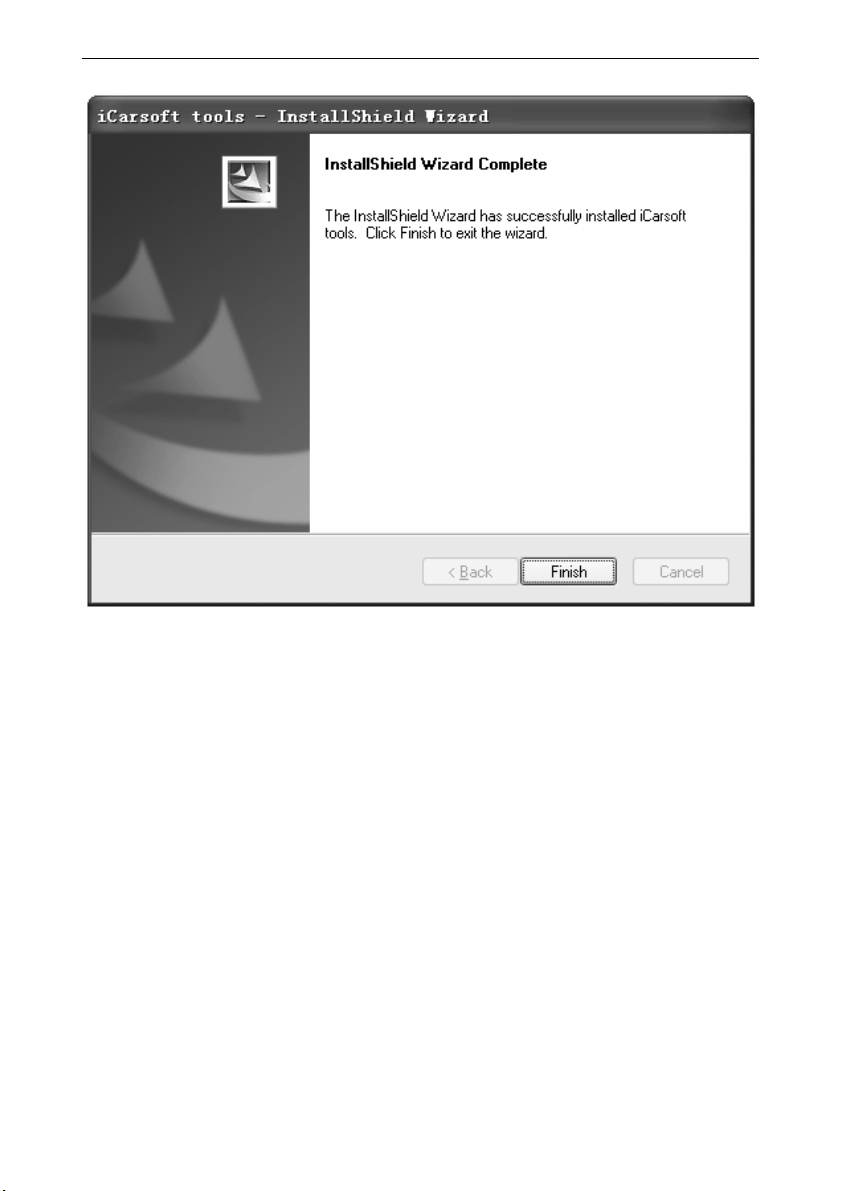
ick the [Setup file] to setup the tool.
ck the [Setup file] to setup the tool.ck the [Setup file] to setup the tool.
ck the [Setup file] to setup the tool.
Operate follow the instru
Operate follow the instruOperate follow the instru
Operate follow the instruc
cc
ctions , and finish to setup.
tions , and finish to setup.tions , and finish to setup.
tions , and finish to setup.
iCarsoft i810
iCarsoft i810 iCarsoft i810
iCarsoft i810
OBDII/EOBD
OBDII/EOBDOBDII/EOBD
OBDII/EOBD
scanner
scannerscanner
scanner
37
After finish setup , there is a
After finish setup , there is aAfter finish setup , there is a
After finish setup , there is an
nn
n i
i i
icon of
con of con of
con of scanner
scanner scanner
scanner in desktop.
in desktop.in desktop.
in desktop.
2.
2.2.
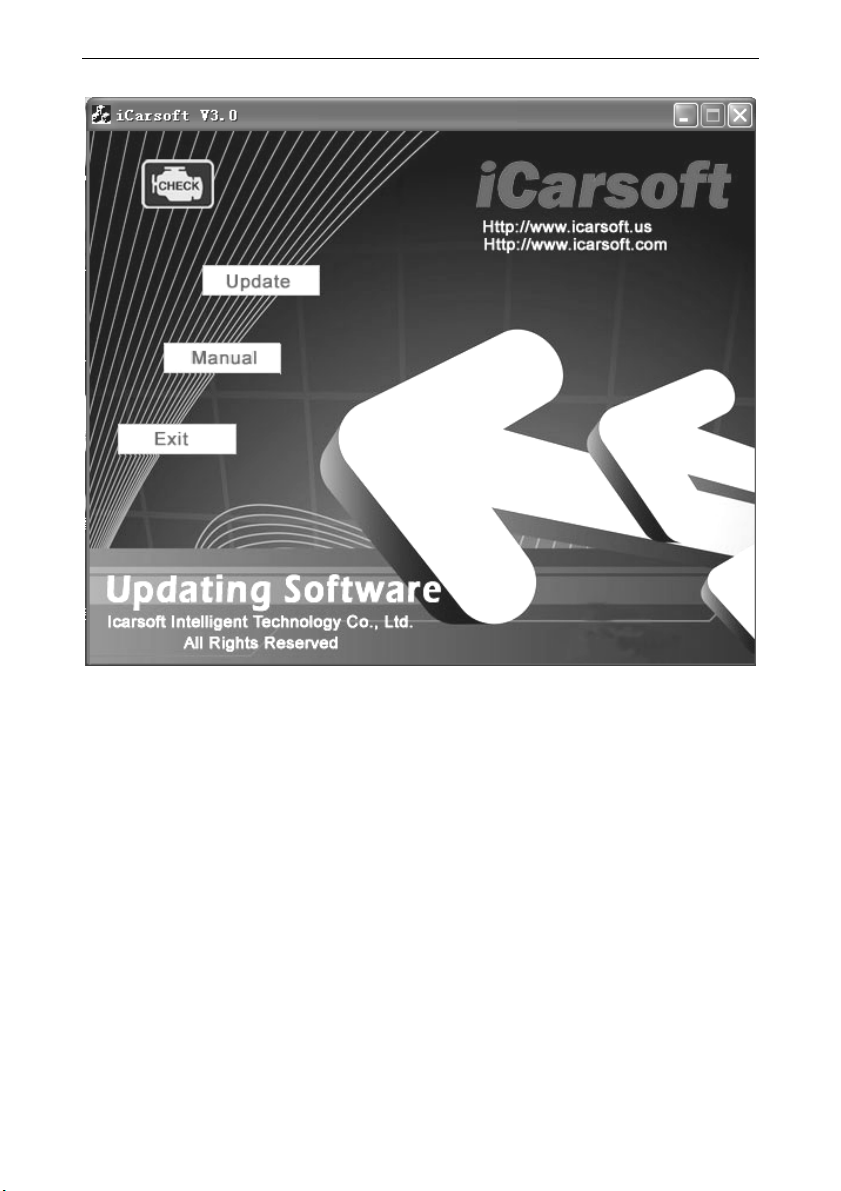
2. Run the update tool and
Run the update tool and Run the update tool and
Run the update tool and Operate
OperateOperate
Operate
in accordance with
in accordance with in accordance with
in accordance with
photographs
photographsphotographs
photographs
iCarsoft i810
iCarsoft i810 iCarsoft i810
iCarsoft i810
OBDII/EOBD
OBDII/EOBDOBDII/EOBD
OBDII/EOBD
scanner
scannerscanner
scanner
38
a
aa
a) Use
) Use) Use
) Use the USB cable
the USB cable the USB cable
the USB cable to connect
to connect to connect
to connect i810
i810i810
i810 scanner with
scanner with scanner with
scanner with PC
PC PC
PC
b
bb
b) Run the update software.
) Run the update software.) Run the update software.
) Run the update software.
W
WW
When the scanner
hen the scanner hen the scanner
hen the scanner is
is is
is connect
connectconnect
connected
eded
ed
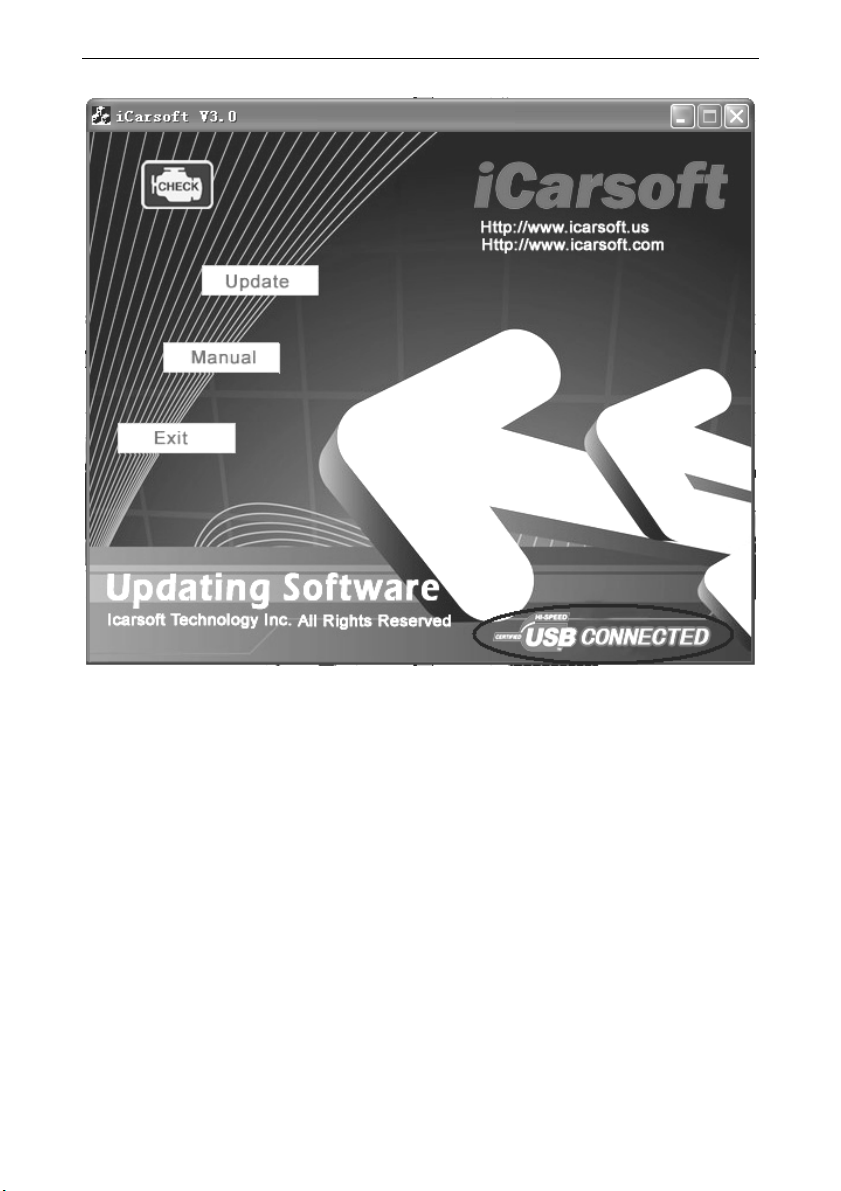
with PC , the software will
with PC , the software will with PC , the software will
with PC , the software will
show [US
show [USshow [US
show [USB
BB
B CONNEC
CONNEC CONNEC
CONNECTED], As below:
TED], As below:TED], As below:
TED], As below:
iCarsoft i810
iCarsoft i810 iCarsoft i810
iCarsoft i810
OBDII/EOBD
OBDII/EOBDOBDII/EOBD
OBDII/EOBD
scanner
scannerscanner
scanner
39
iCarsoft i810
iCarsoft i810 iCarsoft i810
iCarsoft i810
OBDII/EOBD
OBDII/EOBDOBDII/EOBD
OBDII/EOBD
scanner
scannerscanner
scanner
40
1)
1)1)
1) Click
ClickClick
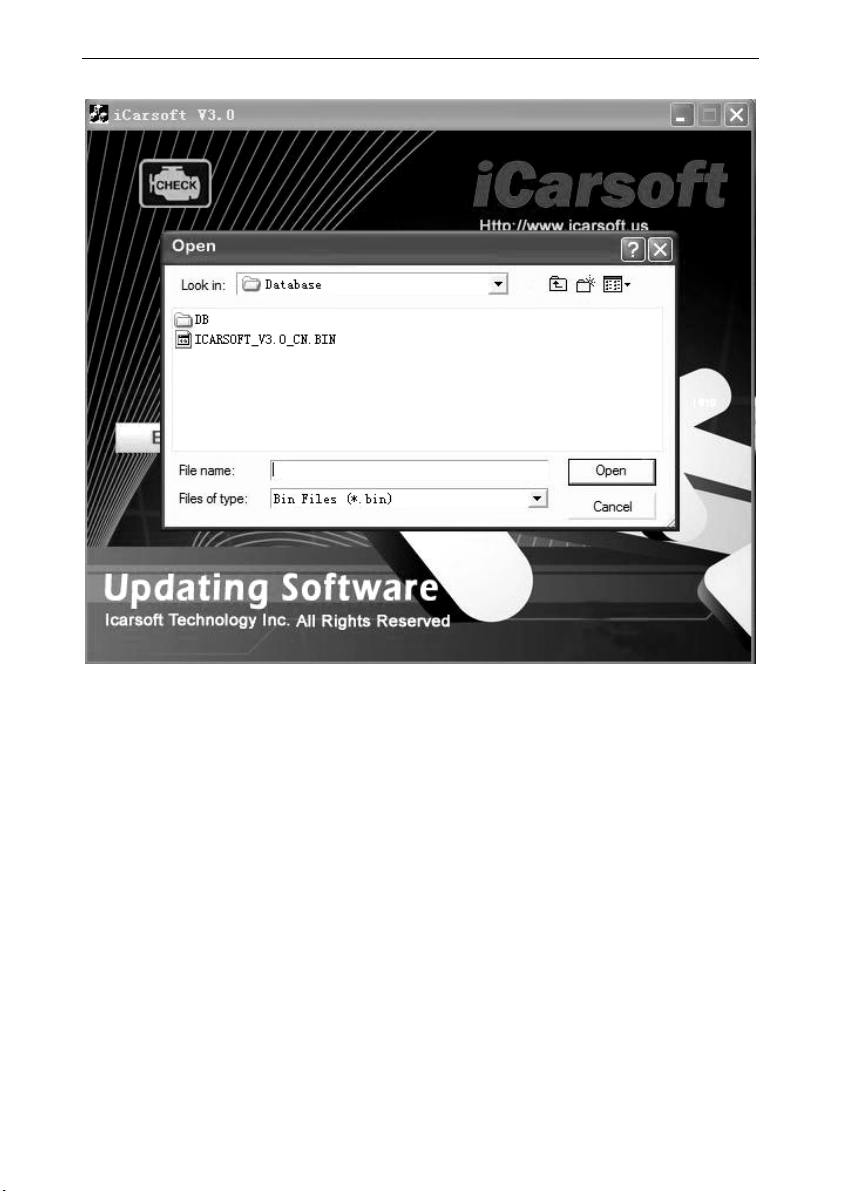
Click [Update] button.
[Update] button. [Update] button.
[Update] button.
2)
2)2)
2) Select update file and
Select update file and Select update file and
Select update file and click
clickclick
click [open] button.
[open] button. [open] button.
[open] button.
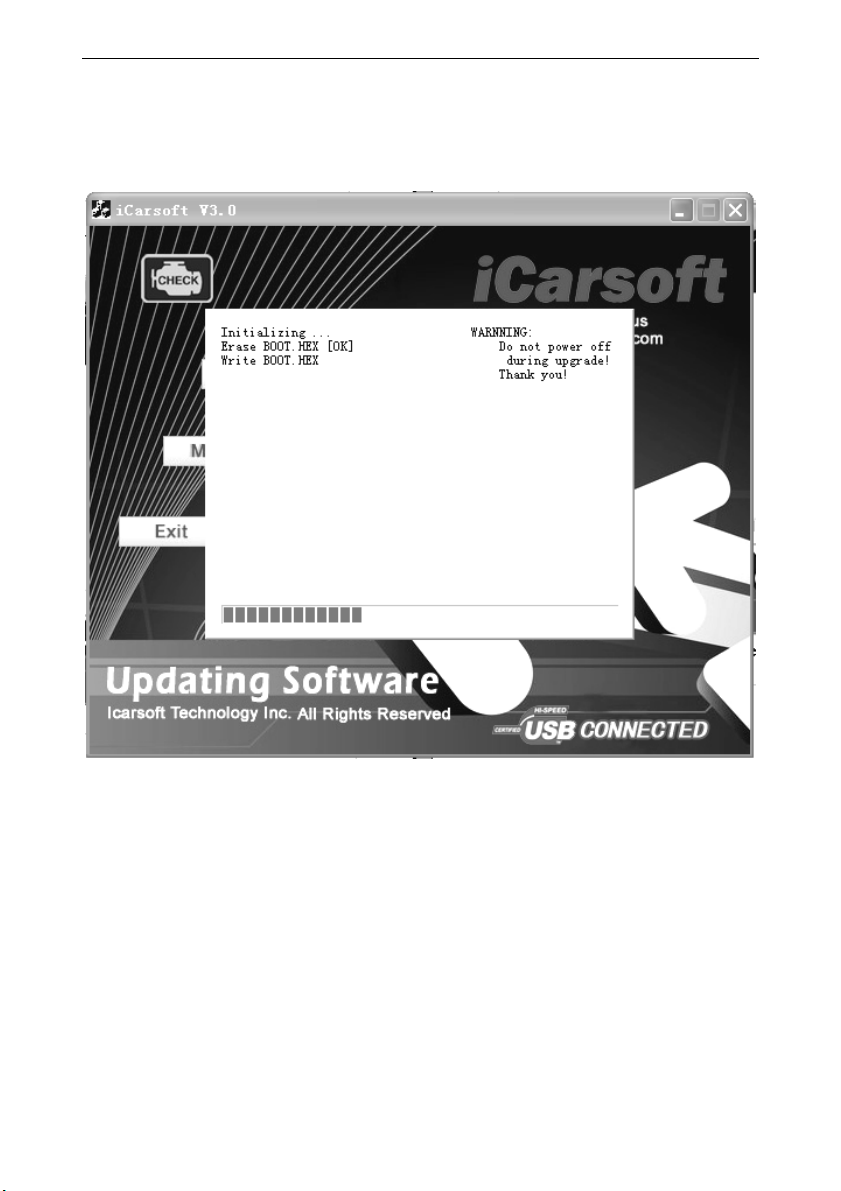
3) Into the upgrade interface, wait for the end of upgrade
WARNNING:
Do not power off during upgrade!
Do not Plug or Unplug USB tools during upgrade!
iCarsoft i810
iCarsoft i810 iCarsoft i810
iCarsoft i810
OBDII/EOBD
OBDII/EOBDOBDII/EOBD
OBDII/EOBD
scanner
scannerscanner
scanner
41
Start Updat
Start UpdatStart Updat
Start Update
ee
e
Wait
WaitWait
Wait
ing for a few minutes. The software will update
ing for a few minutes. The software will update ing for a few minutes. The software will update
ing for a few minutes. The software will update
the scanner tool.
the scanner tool.the scanner tool.
the scanner tool.
Finish Update
Finish UpdateFinish Update
Finish Update
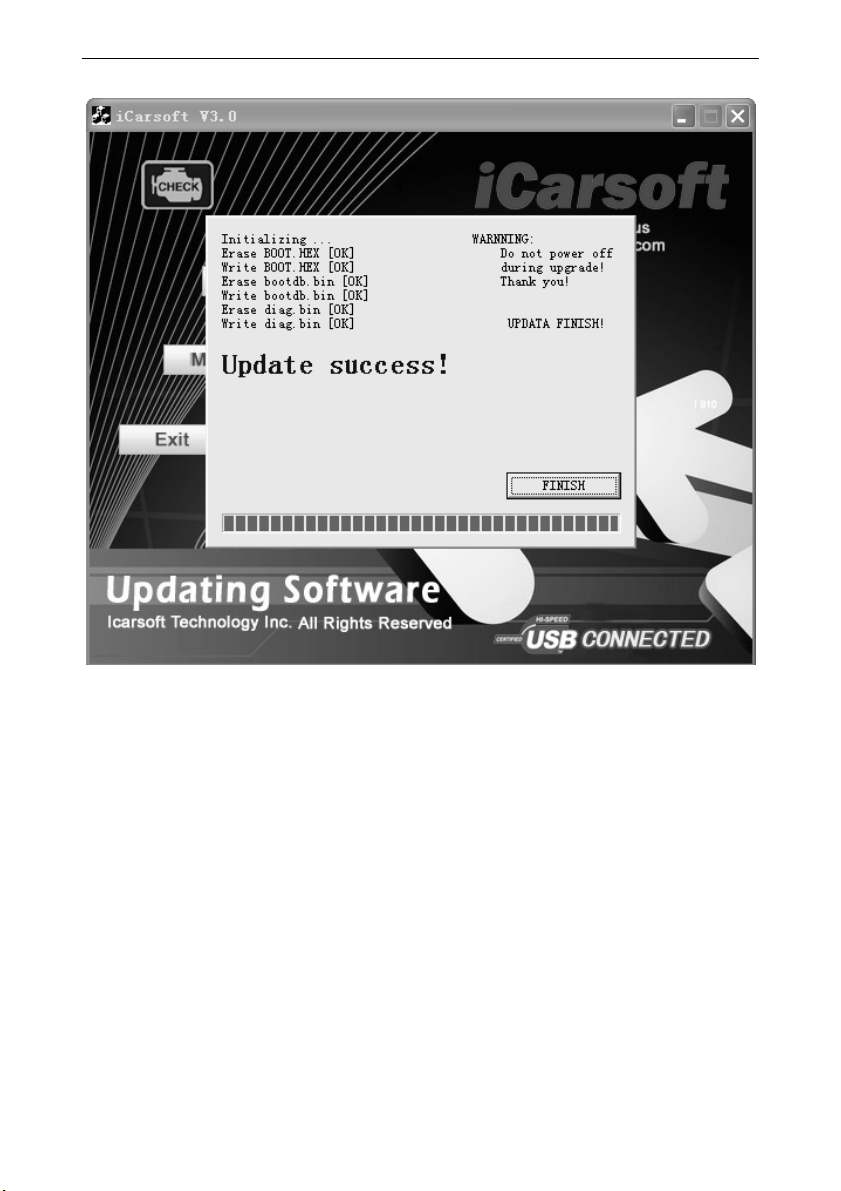
When the update is finished , the screen on PC will
When the update is finished , the screen on PC will When the update is finished , the screen on PC will
When the update is finished , the screen on PC will
show
show show
show as
as as
as below.
below.below.
below.
iCarsoft i810
iCarsoft i810 iCarsoft i810
iCarsoft i810
OBDII/EOBD
OBDII/EOBDOBDII/EOBD
OBDII/EOBD
scanner
scannerscanner
scanner
42
If update success, the software wil display [Update
If update success, the software wil display [Update If update success, the software wil display [Update
If update success, the software wil display [Update
success!]; if update not success, it will
success!]; if update not success, it will success!]; if update not success, it will
success!]; if update not success, it will
display [Update
display [Update display [Update
display [Update
fail! Try again].
fail! Try again].fail! Try again].
fail! Try again].
Press [finish] , the scanner
Press [finish] , the scanner Press [finish] , the scanner
Press [finish] , the scanner is
is is
is already update
already updatealready update
already updated ,
d ,d ,
d ,
and you
and you and you
and you
can unplug the scanner from PC.
can unplug the scanner from PC. can unplug the scanner from PC.
can unplug the scanner from PC.