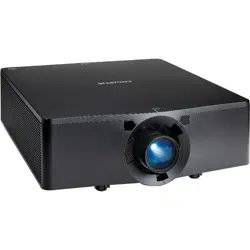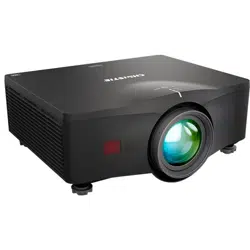

Inspire Series WUXGA
User Manual
020-001934-01

NOTICES
COPYRIGHT AND TRADEMARKS
Copyright ©2022 Christie Digital Systems USA Inc. All rights reserved.
All brand names and product names are trademarks, registered trademarks or trade names of their respective holders.
GENERAL
Every effort has been made to ensure accuracy, however in some cases changes in the products or availability could occur which may not be reflected in this
document. Christie reserves the right to make changes to specifications at any time without notice. Performance specifications are typical, but may vary
depending on conditions beyond Christie's control such as maintenance of the product in proper working conditions. Performance specifications are based on
information available at the time of printing. Christie makes no warranty of any kind with regard to this material, including, but not limited to, implied warranties
of fitness for a particular purpose. Christie will not be liable for errors contained herein or for incidental or consequential damages in connection with the
performance or use of this material. Canadian manufacturing facility is ISO 9001 and 14001 certified.
For the most current technical documentation and office contact information, visit www.christiedigital.com.
WARRANTY
Products are warranted under Christie’s standard limited warranty, the details of which are available at https://www.christiedigital.com/help-center/warranties/
or by contacting your Christie dealer or Christie.
PREVENTATIVE MAINTENANCE
Preventative maintenance is an important part of the continued and proper operation of your product. Failure to perform maintenance as required, and in
accordance with the maintenance schedule specified by Christie, will void the warranty.
REGULATORY
The product has been tested and found to comply with the limits for a Class A digital device, pursuant to Part 15 of the FCC Rules. These limits are designed to
provide reasonable protection against harmful interference when the product is operated in a commercial environment. The product generates, uses, and can
radiate radio frequency energy and, if not installed and used in accordance with the instruction manual, may cause harmful interference to radio
communications. Operation of the product in a residential area is likely to cause harmful interference in which case the user will be required to correct the
interference at the user's own expense. Changes or modifications not expressly approved by the party responsible for compliance could void the user's
authority to operate the equipment.
CAN ICES-003 (A) / NMB-003 (A)
이 기기는 업무용 (A 급 ) 으로 전자파적합등록을 한 기기이오니 판매자 또는 사용자는 이점을 주의하시기 바라며 , 가정 외의 지역에서 사용하는 것을 목적으로 합니다 .
ENVIRONMENTAL
The product is designed and manufactured with high-quality materials and components that can be recycled and reused. This symbol means that
electrical and electronic equipment, at their end-of-life, should be disposed of separately from regular waste. Please dispose of the product appropriately and
according to local regulations. In the European Union, there are separate collection systems for used electrical and electronic products. Please help us to
conserve the environment we live in!

3Inspire Series User Manual
020-001934-02 Rev. 1 (01-2022)
Copyright ©2022 Christie Digital Systems USA Inc. All rights reserved.
Content
Introduction . . . . . . . . . . . . . . . . . . . . . . . . . . . . . . . . . . . . . . . . . . . . . . . . . . . . . . 8
Safety and warning guidelines . . . . . . . . . . . . . . . . . . . . . . . . . . . . . . . . . . . . . . . . . . . .8
AC/power precautions . . . . . . . . . . . . . . . . . . . . . . . . . . . . . . . . . . . . . . . . . . . . . . .9
Installation safety and warning guidelines . . . . . . . . . . . . . . . . . . . . . . . . . . . . . . . . .9
Laser safety precautions . . . . . . . . . . . . . . . . . . . . . . . . . . . . . . . . . . . . . . . . . . . .10
Batteries precautions . . . . . . . . . . . . . . . . . . . . . . . . . . . . . . . . . . . . . . . . . . . . . .10
3D safety information . . . . . . . . . . . . . . . . . . . . . . . . . . . . . . . . . . . . . . . . . . . . . .10
Product labels . . . . . . . . . . . . . . . . . . . . . . . . . . . . . . . . . . . . . . . . . . . . . . . . . . .12
Projector overview . . . . . . . . . . . . . . . . . . . . . . . . . . . . . . . . . . . . . . . . . . . . . . . . . . .13
Contact your dealer . . . . . . . . . . . . . . . . . . . . . . . . . . . . . . . . . . . . . . . . . . . . . . . . . . .13
Key features . . . . . . . . . . . . . . . . . . . . . . . . . . . . . . . . . . . . . . . . . . . . . . . . . . . . . . . .14
How the projector works . . . . . . . . . . . . . . . . . . . . . . . . . . . . . . . . . . . . . . . . . . . . . . .15
List of components . . . . . . . . . . . . . . . . . . . . . . . . . . . . . . . . . . . . . . . . . . . . . . . . . . .15
Product documentation . . . . . . . . . . . . . . . . . . . . . . . . . . . . . . . . . . . . . . . . . . . . . . . .16
Related documentation . . . . . . . . . . . . . . . . . . . . . . . . . . . . . . . . . . . . . . . . . . . . .16
Built-in keypad . . . . . . . . . . . . . . . . . . . . . . . . . . . . . . . . . . . . . . . . . . . . . . . . . . . . . .16
Input/Output (I/O) panel . . . . . . . . . . . . . . . . . . . . . . . . . . . . . . . . . . . . . . . . . . . . . . .17
IR remote keypad . . . . . . . . . . . . . . . . . . . . . . . . . . . . . . . . . . . . . . . . . . . . . . . . . . . .18
Adjusting the size and position . . . . . . . . . . . . . . . . . . . . . . . . . . . . . . . . . . . . . . 20
Adjusting the Projected Image . . . . . . . . . . . . . . . . . . . . . . . . . . . . . . . . . . . . . . . . . . .20
Adjusting the Projector’s Height . . . . . . . . . . . . . . . . . . . . . . . . . . . . . . . . . . . . . . .20
Stacking Application . . . . . . . . . . . . . . . . . . . . . . . . . . . . . . . . . . . . . . . . . . . . . . . . . .21
Setting the image size preset . . . . . . . . . . . . . . . . . . . . . . . . . . . . . . . . . . . . . . . . . . . .22
Adjusting pixel phase . . . . . . . . . . . . . . . . . . . . . . . . . . . . . . . . . . . . . . . . . . . . . . . . .23
Setting the position of display image . . . . . . . . . . . . . . . . . . . . . . . . . . . . . . . . . . . . . . .23
Setting the digital size of display image . . . . . . . . . . . . . . . . . . . . . . . . . . . . . . . . . . . . .23
Setting the digital position of display image . . . . . . . . . . . . . . . . . . . . . . . . . . . . . . . . . .24
Geometry correction . . . . . . . . . . . . . . . . . . . . . . . . . . . . . . . . . . . . . . . . . . . . . . . . . .24
Saving geometry correction . . . . . . . . . . . . . . . . . . . . . . . . . . . . . . . . . . . . . . . . . .24
Applying geometry correction . . . . . . . . . . . . . . . . . . . . . . . . . . . . . . . . . . . . . . . . .24
Adjusting horizontal keystone . . . . . . . . . . . . . . . . . . . . . . . . . . . . . . . . . . . . . . . . .25
Adjusting the vertical keystone . . . . . . . . . . . . . . . . . . . . . . . . . . . . . . . . . . . . . . . .25
Adjusting horizontal pincushion . . . . . . . . . . . . . . . . . . . . . . . . . . . . . . . . . . . . . . .25

Content
4Inspire Series User Manual
020-001934-02 Rev. 1 (01-2022)
Copyright ©2022 Christie Digital Systems USA Inc. All rights reserved.
Adjusting vertical pincushion . . . . . . . . . . . . . . . . . . . . . . . . . . . . . . . . . . . . . . . . .26
Adjusting 4-corner . . . . . . . . . . . . . . . . . . . . . . . . . . . . . . . . . . . . . . . . . . . . . . . .26
Enabling auto warp filter . . . . . . . . . . . . . . . . . . . . . . . . . . . . . . . . . . . . . . . . . . . .26
Adjusting warp filter . . . . . . . . . . . . . . . . . . . . . . . . . . . . . . . . . . . . . . . . . . . . . . .26
Resetting geometry correction setting . . . . . . . . . . . . . . . . . . . . . . . . . . . . . . . . . . .27
Configuring warp and blend . . . . . . . . . . . . . . . . . . . . . . . . . . . . . . . . . . . . . . . . . . . . .27
Warping an image . . . . . . . . . . . . . . . . . . . . . . . . . . . . . . . . . . . . . . . . . . . . . . . . .27
Downloading a warp from the projector memory . . . . . . . . . . . . . . . . . . . . . . . . . . . .28
Enabling basic image blending . . . . . . . . . . . . . . . . . . . . . . . . . . . . . . . . . . . . . . . .28
Blending multiple images . . . . . . . . . . . . . . . . . . . . . . . . . . . . . . . . . . . . . . . . . . . .29
Downloading a blend from the projector memory . . . . . . . . . . . . . . . . . . . . . . . . . . .29
Performing auto warp and blend . . . . . . . . . . . . . . . . . . . . . . . . . . . . . . . . . . . . . . .30
Adjusting the image settings . . . . . . . . . . . . . . . . . . . . . . . . . . . . . . . . . . . . . . . . 31
Adjusting the brightness . . . . . . . . . . . . . . . . . . . . . . . . . . . . . . . . . . . . . . . . . . . . . . .31
Adjusting the contrast . . . . . . . . . . . . . . . . . . . . . . . . . . . . . . . . . . . . . . . . . . . . . . . . .31
Adjusting the color space . . . . . . . . . . . . . . . . . . . . . . . . . . . . . . . . . . . . . . . . . . . . . . .31
Adjusting the image sharpness . . . . . . . . . . . . . . . . . . . . . . . . . . . . . . . . . . . . . . . . . . .32
Setting up 3D display . . . . . . . . . . . . . . . . . . . . . . . . . . . . . . . . . . . . . . . . . . . . . . . . .32
Setting 3D format . . . . . . . . . . . . . . . . . . . . . . . . . . . . . . . . . . . . . . . . . . . . . . . . .32
Inverting 3D signal . . . . . . . . . . . . . . . . . . . . . . . . . . . . . . . . . . . . . . . . . . . . . . . .33
Setting the 3D sync output signal . . . . . . . . . . . . . . . . . . . . . . . . . . . . . . . . . . . . . .33
Setting the frame delay . . . . . . . . . . . . . . . . . . . . . . . . . . . . . . . . . . . . . . . . . . . . .33
Configuring the video settings . . . . . . . . . . . . . . . . . . . . . . . . . . . . . . . . . . . . . . . . . . .34
Adjusting black and white video . . . . . . . . . . . . . . . . . . . . . . . . . . . . . . . . . . . . . . .34
Adjusting the color balance . . . . . . . . . . . . . . . . . . . . . . . . . . . . . . . . . . . . . . . . . .34
Adjusting the skin color . . . . . . . . . . . . . . . . . . . . . . . . . . . . . . . . . . . . . . . . . . . . .34
Reducing the temporal noise . . . . . . . . . . . . . . . . . . . . . . . . . . . . . . . . . . . . . . . . .34
Reducing the MPEG noise . . . . . . . . . . . . . . . . . . . . . . . . . . . . . . . . . . . . . . . . . . . .35
Setting the input levels . . . . . . . . . . . . . . . . . . . . . . . . . . . . . . . . . . . . . . . . . . . . . . . .35
Adjusting the color gain . . . . . . . . . . . . . . . . . . . . . . . . . . . . . . . . . . . . . . . . . . . . .35
Adjusting the color offset . . . . . . . . . . . . . . . . . . . . . . . . . . . . . . . . . . . . . . . . . . . .35
Resetting the input levels . . . . . . . . . . . . . . . . . . . . . . . . . . . . . . . . . . . . . . . . . . .36
Configuring picture settings . . . . . . . . . . . . . . . . . . . . . . . . . . . . . . . . . . . . . . . . . . . . .36
User configuration . . . . . . . . . . . . . . . . . . . . . . . . . . . . . . . . . . . . . . . . . . . . . . . . . . . .37
Setting the contrast ratio . . . . . . . . . . . . . . . . . . . . . . . . . . . . . . . . . . . . . . . . . . . . . . .37
Enabling the image freeze . . . . . . . . . . . . . . . . . . . . . . . . . . . . . . . . . . . . . . . . . . . . . .38
Setting the high dynamic range . . . . . . . . . . . . . . . . . . . . . . . . . . . . . . . . . . . . . . . . . .38
Adjust the color of the image . . . . . . . . . . . . . . . . . . . . . . . . . . . . . . . . . . . . . . . . . . . .38

Content
5Inspire Series User Manual
020-001934-02 Rev. 1 (01-2022)
Copyright ©2022 Christie Digital Systems USA Inc. All rights reserved.
Adjusting primary colors . . . . . . . . . . . . . . . . . . . . . . . . . . . . . . . . . . . . . . . . . . . .39
Setting the wall color . . . . . . . . . . . . . . . . . . . . . . . . . . . . . . . . . . . . . . . . . . . . . .40
Adjusting the color value based on gamma setting . . . . . . . . . . . . . . . . . . . . . . . . . . . . .40
Adjusting the white peaking . . . . . . . . . . . . . . . . . . . . . . . . . . . . . . . . . . . . . . . . . . . . .41
Adjusting the color temperature . . . . . . . . . . . . . . . . . . . . . . . . . . . . . . . . . . . . . . . . . .41
Adjusting the color wheel speed . . . . . . . . . . . . . . . . . . . . . . . . . . . . . . . . . . . . . . . . . .41
Save and Restore user data . . . . . . . . . . . . . . . . . . . . . . . . . . . . . . . . . . . . . . . . . . . . .41
Configuring system settings . . . . . . . . . . . . . . . . . . . . . . . . . . . . . . . . . . . . . . . . 42
Changing the language . . . . . . . . . . . . . . . . . . . . . . . . . . . . . . . . . . . . . . . . . . . . . . . .42
Adjusting lens settings . . . . . . . . . . . . . . . . . . . . . . . . . . . . . . . . . . . . . . . . . . . . . . . . .42
Aligning the image with zoom and focus . . . . . . . . . . . . . . . . . . . . . . . . . . . . . . . . .42
Adjusting lens position . . . . . . . . . . . . . . . . . . . . . . . . . . . . . . . . . . . . . . . . . . . . .43
Saving lens setting . . . . . . . . . . . . . . . . . . . . . . . . . . . . . . . . . . . . . . . . . . . . . . . .43
Applying the previous lens setting . . . . . . . . . . . . . . . . . . . . . . . . . . . . . . . . . . . . . .43
Locking the lens motor . . . . . . . . . . . . . . . . . . . . . . . . . . . . . . . . . . . . . . . . . . . . .44
Resetting the lens to home position . . . . . . . . . . . . . . . . . . . . . . . . . . . . . . . . . . . . .44
Selecting screen image orientation . . . . . . . . . . . . . . . . . . . . . . . . . . . . . . . . . . . . . . . .44
Adjusting on-screen display menus . . . . . . . . . . . . . . . . . . . . . . . . . . . . . . . . . . . . . . . .44
Determining the on-screen display position . . . . . . . . . . . . . . . . . . . . . . . . . . . . . . .45
Showing messages . . . . . . . . . . . . . . . . . . . . . . . . . . . . . . . . . . . . . . . . . . . . . . . .45
Setting the transparency of the on-screen display position . . . . . . . . . . . . . . . . . . . . .45
Changing the splash screen . . . . . . . . . . . . . . . . . . . . . . . . . . . . . . . . . . . . . . . . . .45
Setting time out for on-screen display . . . . . . . . . . . . . . . . . . . . . . . . . . . . . . . . . . .45
Setting up password protection . . . . . . . . . . . . . . . . . . . . . . . . . . . . . . . . . . . . . . .46
Changing password . . . . . . . . . . . . . . . . . . . . . . . . . . . . . . . . . . . . . . . . . . . . . . . .46
Setting up power mode . . . . . . . . . . . . . . . . . . . . . . . . . . . . . . . . . . . . . . . . . . . . . . . .46
Setting the standby mode . . . . . . . . . . . . . . . . . . . . . . . . . . . . . . . . . . . . . . . . . . .46
Setting the AC power . . . . . . . . . . . . . . . . . . . . . . . . . . . . . . . . . . . . . . . . . . . . . .47
Setting the time for auto shutdown . . . . . . . . . . . . . . . . . . . . . . . . . . . . . . . . . . . . .47
Setting the sleep timer . . . . . . . . . . . . . . . . . . . . . . . . . . . . . . . . . . . . . . . . . . . . .47
Enabling high altitude setting . . . . . . . . . . . . . . . . . . . . . . . . . . . . . . . . . . . . . . . . . . . .47
Adjusting IR control settings . . . . . . . . . . . . . . . . . . . . . . . . . . . . . . . . . . . . . . . . . . . . .48
Setting 12V trigger . . . . . . . . . . . . . . . . . . . . . . . . . . . . . . . . . . . . . . . . . . . . . . . . . . .48
Setting audio settings . . . . . . . . . . . . . . . . . . . . . . . . . . . . . . . . . . . . . . . . . . . . . . . . .48
Configuring communications . . . . . . . . . . . . . . . . . . . . . . . . . . . . . . . . . . . . . . . . 49
Setting network environment . . . . . . . . . . . . . . . . . . . . . . . . . . . . . . . . . . . . . . . . . . . .49
Adjusting LAN setting . . . . . . . . . . . . . . . . . . . . . . . . . . . . . . . . . . . . . . . . . . . . . .49

Content
6Inspire Series User Manual
020-001934-02 Rev. 1 (01-2022)
Copyright ©2022 Christie Digital Systems USA Inc. All rights reserved.
Adjusting WLAN setting . . . . . . . . . . . . . . . . . . . . . . . . . . . . . . . . . . . . . . . . . . . . .50
Adjusting network setting . . . . . . . . . . . . . . . . . . . . . . . . . . . . . . . . . . . . . . . . . . .50
Setting serial port baud rate . . . . . . . . . . . . . . . . . . . . . . . . . . . . . . . . . . . . . . . . .50
Enabling serial port echo . . . . . . . . . . . . . . . . . . . . . . . . . . . . . . . . . . . . . . . . . . . .50
Logging on to the web user interface . . . . . . . . . . . . . . . . . . . . . . . . . . . . . . . . . . . .51
Using the web interface . . . . . . . . . . . . . . . . . . . . . . . . . . . . . . . . . . . . . . . . . . . . .51
Using the RS-232C interface . . . . . . . . . . . . . . . . . . . . . . . . . . . . . . . . . . . . . . . . .51
Re-connecting the network . . . . . . . . . . . . . . . . . . . . . . . . . . . . . . . . . . . . . . . . . .52
Adjusting the back light settings . . . . . . . . . . . . . . . . . . . . . . . . . . . . . . . . . . . . . . . . . .52
Setting the hot key . . . . . . . . . . . . . . . . . . . . . . . . . . . . . . . . . . . . . . . . . . . . . . . . . . .52
Configuring date and time . . . . . . . . . . . . . . . . . . . . . . . . . . . . . . . . . . . . . . . . . . . . . .52
Setting the clock mode . . . . . . . . . . . . . . . . . . . . . . . . . . . . . . . . . . . . . . . . . . . . .53
Setting the date . . . . . . . . . . . . . . . . . . . . . . . . . . . . . . . . . . . . . . . . . . . . . . . . . .53
Setting the time . . . . . . . . . . . . . . . . . . . . . . . . . . . . . . . . . . . . . . . . . . . . . . . . . .53
Setting the daylight saving time . . . . . . . . . . . . . . . . . . . . . . . . . . . . . . . . . . . . . . .53
Setting the NTP server . . . . . . . . . . . . . . . . . . . . . . . . . . . . . . . . . . . . . . . . . . . . .53
Setting the time zone . . . . . . . . . . . . . . . . . . . . . . . . . . . . . . . . . . . . . . . . . . . . . .54
Setting the update interval for date and time . . . . . . . . . . . . . . . . . . . . . . . . . . . . . .54
Applying the date and time settings . . . . . . . . . . . . . . . . . . . . . . . . . . . . . . . . . . . .54
Set event schedules . . . . . . . . . . . . . . . . . . . . . . . . . . . . . . . . . . . . . . . . . . . . . . . . . .54
Setting the date and time schedule . . . . . . . . . . . . . . . . . . . . . . . . . . . . . . . . . . . . .54
Setting the schedule mode . . . . . . . . . . . . . . . . . . . . . . . . . . . . . . . . . . . . . . . . . . .54
Viewing the event list for the day . . . . . . . . . . . . . . . . . . . . . . . . . . . . . . . . . . . . . .55
Setting the weekly schedule . . . . . . . . . . . . . . . . . . . . . . . . . . . . . . . . . . . . . . . . . .55
Reseting the schedule . . . . . . . . . . . . . . . . . . . . . . . . . . . . . . . . . . . . . . . . . . . . . .55
Configuring light source . . . . . . . . . . . . . . . . . . . . . . . . . . . . . . . . . . . . . . . . . . . . 56
Setting light source . . . . . . . . . . . . . . . . . . . . . . . . . . . . . . . . . . . . . . . . . . . . . . . . . . .56
Setting constant power . . . . . . . . . . . . . . . . . . . . . . . . . . . . . . . . . . . . . . . . . . . . . . . .57
Projector information . . . . . . . . . . . . . . . . . . . . . . . . . . . . . . . . . . . . . . . . . . . . . . 58
Viewing projector information . . . . . . . . . . . . . . . . . . . . . . . . . . . . . . . . . . . . . . . . . . . .58
Changing the language . . . . . . . . . . . . . . . . . . . . . . . . . . . . . . . . . . . . . . . . . . . . . . . .58
Selecting a test pattern . . . . . . . . . . . . . . . . . . . . . . . . . . . . . . . . . . . . . . . . . . . . . . . .59
Configuring input settings . . . . . . . . . . . . . . . . . . . . . . . . . . . . . . . . . . . . . . . . . . 60
Setting the main input source . . . . . . . . . . . . . . . . . . . . . . . . . . . . . . . . . . . . . . . . . . . .60
Setting the second input source . . . . . . . . . . . . . . . . . . . . . . . . . . . . . . . . . . . . . . . . . .60
Enabling the second input source . . . . . . . . . . . . . . . . . . . . . . . . . . . . . . . . . . . . . . . . .60

Content
7Inspire Series User Manual
020-001934-02 Rev. 1 (01-2022)
Copyright ©2022 Christie Digital Systems USA Inc. All rights reserved.
Swapping the main input and second input source . . . . . . . . . . . . . . . . . . . . . . . . . . . . . .60
Setting the size of second input source . . . . . . . . . . . . . . . . . . . . . . . . . . . . . . . . . . . . .61
Setting the display layout with two input sources . . . . . . . . . . . . . . . . . . . . . . . . . . . . . .61
Input sources layout and size . . . . . . . . . . . . . . . . . . . . . . . . . . . . . . . . . . . . . . . . .61
Setting the timing detection mode . . . . . . . . . . . . . . . . . . . . . . . . . . . . . . . . . . . . . . . . .62
Setting the input searching method . . . . . . . . . . . . . . . . . . . . . . . . . . . . . . . . . . . . . . . .62
Adjusting the sub image . . . . . . . . . . . . . . . . . . . . . . . . . . . . . . . . . . . . . . . . . . . . . . .63
Enabling low latency mode . . . . . . . . . . . . . . . . . . . . . . . . . . . . . . . . . . . . . . . . . . . . . .63
Configuring the HDMI setting . . . . . . . . . . . . . . . . . . . . . . . . . . . . . . . . . . . . . . . . . . . .63
Configuring the HDMI output . . . . . . . . . . . . . . . . . . . . . . . . . . . . . . . . . . . . . . . . . . . .64
Signal connectivity specifications . . . . . . . . . . . . . . . . . . . . . . . . . . . . . . . . . . . . . 65
VGA video formats . . . . . . . . . . . . . . . . . . . . . . . . . . . . . . . . . . . . . . . . . . . . . . . . . . .65
HDMI video formats . . . . . . . . . . . . . . . . . . . . . . . . . . . . . . . . . . . . . . . . . . . . . . . . . .68
HDBaseT video formats . . . . . . . . . . . . . . . . . . . . . . . . . . . . . . . . . . . . . . . . . . . . . . . .71
Picture-in-picture/picture-by-picture (PIP/PBP) compatibility . . . . . . . . . . . . . . . . . . . . . . .74
Regulatory . . . . . . . . . . . . . . . . . . . . . . . . . . . . . . . . . . . . . . . . . . . . . . . . . . . . . . 75
Safety . . . . . . . . . . . . . . . . . . . . . . . . . . . . . . . . . . . . . . . . . . . . . . . . . . . . . . . . . . . .75
Laser safety . . . . . . . . . . . . . . . . . . . . . . . . . . . . . . . . . . . . . . . . . . . . . . . . . . . . . . . .75
Electro-magnetic compatibility . . . . . . . . . . . . . . . . . . . . . . . . . . . . . . . . . . . . . . . . . . .75
Emissions . . . . . . . . . . . . . . . . . . . . . . . . . . . . . . . . . . . . . . . . . . . . . . . . . . . . . .75
Immunity . . . . . . . . . . . . . . . . . . . . . . . . . . . . . . . . . . . . . . . . . . . . . . . . . . . . . .76
Environmental . . . . . . . . . . . . . . . . . . . . . . . . . . . . . . . . . . . . . . . . . . . . . . . . . . . . . .76
FCC . . . . . . . . . . . . . . . . . . . . . . . . . . . . . . . . . . . . . . . . . . . . . . . . . . . . . . . . . . . . . .76
IEC . . . . . . . . . . . . . . . . . . . . . . . . . . . . . . . . . . . . . . . . . . . . . . . . . . . . . . . . . . . . . .76
CE . . . . . . . . . . . . . . . . . . . . . . . . . . . . . . . . . . . . . . . . . . . . . . . . . . . . . . . . . . . . . .77
Declaration of Conformity for EU countries . . . . . . . . . . . . . . . . . . . . . . . . . . . . . . . . . . .77
WEEE . . . . . . . . . . . . . . . . . . . . . . . . . . . . . . . . . . . . . . . . . . . . . . . . . . . . . . . . . . . .77

8Inspire Series User Manual
020-001934-02 Rev. 1 (01-2022)
Copyright ©2022 Christie Digital Systems USA Inc. All rights reserved.
Introduction
This manual is intended for Christie qualified installers and trained operators of Inspire Series
projection systems.
For complete Inspire Series product documentation and technical support, go to
www.christiedigital.com.
This projector is intended for use in a non-cinema environment.
Safety and warning guidelines
Read all safety and warning guidelines before installing or operating the projector. This projector
must be operated in an environment that meets the operating range specification. Use only the
attachments and/or accessories recommended by Christie. Use of others may result in the risk of
fire, shock, or personal injury.
Warning! If not avoided, the following could result in death or serious injury.
• Do not operate the product without all of its covers in place.
• This product must be installed within a restricted access location not accessible by the general
public.
•
Only pe
rsonnel who are trained on the precautions for the restricted access location can be
granted entry to the area.
•
FIR
E
HAZARD! Keep hands, clothes, and all combustible material away from the concentrated
light beam of the projector.
• TRIP OR FIRE HAZARD! Position all cables where they cannot contact hot surfaces, be pulled, be
tripped over, or damaged by persons walking on or objects rolling over the cables.
•
SHOCK HAZA
R
D! Disconnect the product from AC before installing, moving, servicing, cleaning,
removing components, or opening any enclosure.
• A minimum of four people or appropriately rated lift equipment is required to safely lift, install, or
move the product.
• OPTICAL RADIATION HAZARD! Disconnect the power plug from the AC outlet if the product is not
being used for an extended period of ti
me.
•
Do
not allow anything to rest on the power cord.
•
Do not us
e under the following conditions:
-
I
n extremely hot, cold or humid environments.
(i) Ensure that the ambient room temperature is within 5°C to 40°C (storage -10°C to 60°C)
(ii) Relative humidity is 10% to 85% RH (storage 5% to 90%RH).
- In areas susceptible to excessive dust and dirt.
- Near any appliance generating a strong magnetic field.
- In
direct sunlight.

Introduction
9Inspire Series User Manual
020-001934-02 Rev. 1 (01-2022)
Copyright ©2022 Christie Digital Systems USA Inc. All rights reserved.
AC/power precautions
Read all AC/power precautions before installing or operating the projector.
Installation safety and warning guidelines
Read all installation safety and warning guidelines before installing the projector.
Caution! If not avoided, the following could result in minor or moderate injury.
• Always provide proper ventilation for the product to prevent overheating.
• Only Christie qualified technicians are permitted to open product enclosures.
• All
procedures must be performed by Christie qualified technicians.
Notice. If not avoided, the following may result in equipment or property damage.
• Do not expose the product to moisture.
• Always use a lens plug when installing or moving the product. This prevents contaminants from
e
ntering the product.
• Only use cleaning solutions recommended by Christie. All other cleaning solutions may cause
product damage and will void the warranty.
Warning! If not avoided, the following could result in death or serious injury.
• FIRE HAZARD! Do not use a power cord, harness, or cable that appears damaged.
•
FI
RE OR SHOCK HAZARD! Do not overload power outlets and extens
ion cords.
•
SHOCK HAZA
R
D! Only use the AC power cord provided with the product or recommended by
Christie.
•
FI
RE AND SHOCK HAZARD! Do not attempt operation unless the power cord, power socket, and
power plug meet the appropriate local rating standards.
•
SHOCK HAZ
ARD! Do not attempt operation if the AC supply is not within the specified voltage
and current, as specified on the license label.
• SHOCK HAZARD! The AC power cord must be inserted into an outlet with grounding.
• SHOCK HAZARD! Disconnect the product from AC before installing, moving, servicing, cleaning,
removing components, or opening any enclosure.
• Install the product near an easily accessible AC receptacle.
Warning! If not avoided, the following could result in death or serious injury.
• High leakage current present when connected to IT power systems.
Caution! If not avoided, the following could result in minor or moderate injury.
• ELECTRICAL and BURN HAZARD! Use caution when accessing internal components.
• On
ly Christie qualified technicians are authorized to use the tools provided in the toolbox.

Introduction
10Inspire Series User Manual
020-001934-02 Rev. 1 (01-2022)
Copyright ©2022 Christie Digital Systems USA Inc. All rights reserved.
Laser safety precautions
This product is classified as Class 1 Laser Product-Risk Group 2 according to IEC 60825-1:2014
complies with FDA regulations 21 CFR 1040.10 and 1040.11 as a Risk Group 2, LIP (Laser
Illuminated Projector) as defined in IEC 62471:2006 except for deviations pursuant to Laser Notice
No. 50, dated June 24, 2007.
Batteries precautions
Read the following precautions for your battery:
3D safety information
Follow all recommended warnings and precautions before using the 3D function.
Photosensitive seizure warning and other health risks
Some viewers may experience discomfort when exposed to certain flashing images or lights contained
in certain projector pictures or video games.
Warning! If not avoided, the following could result in death or serious injury.
• This projector has a built-in Class 4 laser module. Never attempt to disassemble or modify the
projector.
• Any operation or adjustment not specifically instructed in the User manual creates the risk of
hazardous laser radiation exposure.
• Do not open or disassemble the projector as this may cause damage or exposure to laser
radiation.
•
Do not stare into beam wh
en the pr
ojector is on. The bright light may result in permanent
eye
damage.
•
When tu
rning on the projector, make sure no one within projection range is looking into the lens.
•
Foll
ow all installation, operation, adjustment, and maintenance procedures to avoid possible
exposure to hazardous laser radiation.
Caution! If not avoided, the following could result in minor or moderate injury.
• Keep new and used batteries away from children.
• Disc
ontinue usage if leakage is found.
• EXPLOSION HAZARD! Dispose of the battery according to local area regulations.
Warning! If not avoided, the following could result in death or serious injury.
• CHEMICAL BURN HAZARD! Do not injest the battery.
• IN
TERNAL BURNS HAZARD! The product contains a coin cell battery and if swallowed can caus
e
internal burns within two hours.
• INTERNAL BURN HAZARD! Seek medical attention if a battery has been swallowed or placed
inside any part of the body.
• EXPLOSION OR FIRE HAZARD! Replacement battery must be of the correct type and replaced
pro
perly.
• EXPLOSION HAZARD! Do not mechanically cut or crush the battery or dispose of it in a fire or
oven.
Caution! If not avoided, the following could result in minor or moderate injury.
• Closely supervise children and teenagers viewing 3D images as they may be more susceptible to
health issues associated with them.

Introduction
11Inspire Series User Manual
020-001934-02 Rev. 1 (01-2022)
Copyright ©2022 Christie Digital Systems USA Inc. All rights reserved.
• Some viewers may experience an epileptic seizure or stroke when exposed to certain flashing
images or lights contained in certain projector pictures or video games. If you suffer from, or
have a family history of epilepsy or strokes, consult with a medical specialist before using the
3D function. Those without a personal or family history of epilepsy or stroke may have an
undiagnosed condition that can cause photosensitive epileptic seizures.
• Pregnant women, the elderly, sufferers of serious medical conditions, those who are sleep
deprived, or those under the influence of alcohol should avoid using the 3D functionality.
• If experiencing any of the following symptoms, stop viewing 3D pictures immediately and
consult a medical specialist:
•Altered vision
• Lightheadedness
• Dizziness
• Involuntary movements such as eye or muscle twitching
• Confusion
•Nausea
• Loss of awareness
• Convulsions
•Cramps
• Disorientation
Children and teenagers may be more likely than adults to experience these symptoms. Monitor
children and ask if they are experiencing these symptoms.
• Watching 3D projection may also cause motion sickness, perceptual after effects,
disorientation, eye strain and decreased postural stability. Christie recommends taking frequent
breaks to lessen the potential of these effects. If your eyes show signs of fatigue or dryness or
if experiencing any of the above symptoms, immediately discontinue use of this device and do
not resume using it for at least thirty minutes after the symptoms have subsided.
• Watching 3D projection while sitting too close to the screen for an extended period of time may
damage your eyesight. The ideal viewing distance should be at least three times the screen
height. Christie recommends the viewer’s eyes are level with the screen.
• Watching 3D projection while wearing 3D glasses for an extended period of time may cause a
headache or fatigue. If experiencing a headache, fatigue, or dizziness, stop viewing the 3D
projection and rest.
• Do not use the 3D glasses for any other purpose than for watching 3D projection.
• Wearing the 3D glasses for any other purpose (as general spectacles, sunglasses, protective
goggles, and so on) may be physically harmful to you and weaken your eyesight.
• Viewing in 3D projection may cause disorientation for some viewers. Do not place the 3D
projector near open stairwells, cables, balconies, or other objects that can be tripped over, run
into, knocked down, broken, or fallen over.
Introduction
12Inspire Series User Manual
020-001934-02 Rev. 1 (01-2022)
Copyright ©2022 Christie Digital Systems USA Inc. All rights reserved.
Product labels
Learn about the labels that may be used on the product. Labels on your product may be yellow or
black and white.
General hazards
Hazard warnings also apply to accessories once they are installed in a Christie product that is
connected to power.
Fire and Shock Hazard
To prevent fire or shock hazards, do not expose this product to rain or moisture.
Do not alter the power plug, overload the power outlet, or use it with extension cords.
Do not remove the product enclosure.
Only Christie qualified technicians are authorized to service the product.
Electrical Hazard
Risk of electric shock.
Do not remove the product enclosure.
Only Christie qualified technicians are authorized to service the product.
Notice! If not avoided, the following could result in property damage.
General hazard.
Introduction
13Inspire Series User Manual
020-001934-02 Rev. 1 (01-2022)
Copyright ©2022 Christie Digital Systems USA Inc. All rights reserved.
Laser labels
Projector overview
The Inspire Series projector is a professional, WUXGA resolution projector system using Digital
Light Processing (DLP™) technology from Texas Instruments. It provides high standard of image
quality along with high degree of flexibility, providing great alternatives for fixed installation
environments to enhance users visual experience.
Contact your dealer
Record the information about your projector and keep this information with your records to assist
with the servicing of your projector. If you encounter a problem with your Christie projector, contact
your dealer.
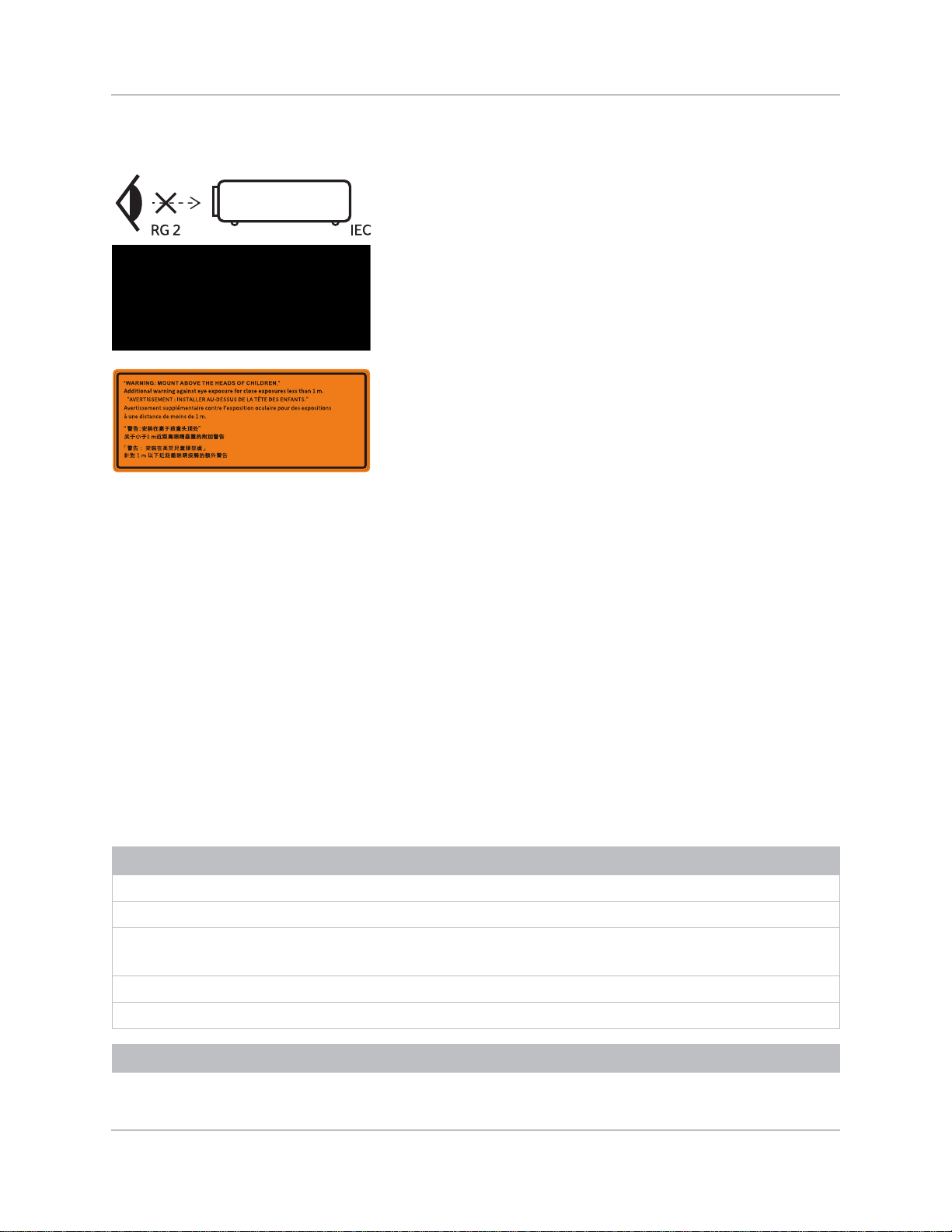
Do not look into the projector lens when the laser is on. The bright light
may result in permanent eye damage.
This projector has been classified as Class 1 Laser Product-Risk Group
2 according to IEC 60825-1:2014, IEC 62471:2006, and IEC 62471-
5:2015.
Mount above the heads of children.
The use of a ceiling mount is recommended with this product to place it
above the eyes of children.
Make sure to adjust the feet of the top projector before stacking to
avoid damage to the lower projector.
Purchase record
Dealer:
Dealer or Christie Sales/Service contact phone number:
Projector serial number:
The serial number can be found on the license label located on the display panel
Purchase date:
Installation date:
Ethernet settings

Introduction
14Inspire Series User Manual
020-001934-02 Rev. 1 (01-2022)
Copyright ©2022 Christie Digital Systems USA Inc. All rights reserved.
Key features
Understand the important features of the projector.
• WUXGA(1920 X1200) resolution with high brightness performance
• Projection lens compatibility:
DWU760-iS/DWU860-iS/DWU960-iS:
• Vertical offset ranges with half image size: +/-110%
• Horizontal offset ranges with half image size: +/-50%
Measurements comply with industry standards where offset is calculated as a ratio of the
number of pixels shifted up or down to half image size.
Default gateway
Projector IP address
Subnet mask

Introduction
15Inspire Series User Manual
020-001934-02 Rev. 1 (01-2022)
Copyright ©2022 Christie Digital Systems USA Inc. All rights reserved.
DWU960ST-iS:
• Vertical offset ranges with half image size: +/-110%
• Horizontal offset ranges with half image size: +/-50%
Measurements comply with industry standards where offset is calculated as a ratio of the
number of pixels shifted up or down to half image size.
• Christie Twist™ and Mystique™ allow for easy and quick blending and warping
Support for Mystique™ camera based alignment system (sold separately)
• Full HD 3D technology with frame sequential up to 120Hz
• A wide range of connectivity including HDMI, VGA, HDBaseT, and 3D input/3D output
• 360 degrees projection enabled by laser light source
• Compatible with HDR content
• All video formats can be resized to full screen either horizontally or vertically while maintaining
aspect ratio
• The projector can be operated using any of the following:
• Built-in keypad
• Infrared (IR) remote keypad
• Wired remote keypad
• PC/device using serial communications (Ethernet or RS232)
• A web page using Ethernet or from a PC or device using a wireless USB dongle (optional)
How the projector works
The Inspire Series projector accepts a variety of input signals for a wide range of commercial
projection applications.
Designed with solid-state illumination light sources and phosphor technology, the red, green and
blue color elements are segmented through a phosphor wheel and then modulated by one Digital
Micromirror Device (DMD) panel responding to incoming data streams of digitized red, green and
blue color information. As these digital streams flow from the source, light from the responding on
pixels of the DMD panel is reflected, converged and then projected to the screen through projection
lenses, where all pixel reflections are superimposed in sharp full-color images.
List of components
This projector comes with all the items listed below. Check to make sure your package is complete.
If anything is missing, contact your dealer.
• IR Remote
• Product Safety Guide
Introduction
16Inspire Series User Manual
020-001934-02 Rev. 1 (01-2022)
Copyright ©2022 Christie Digital Systems USA Inc. All rights reserved.
Product documentation
For installation, setup, and user information, see the product documentation available on the
Christie Digital Systems USA Inc. website at www.christiedigital.com. Read all instructions before
using or servicing this product.
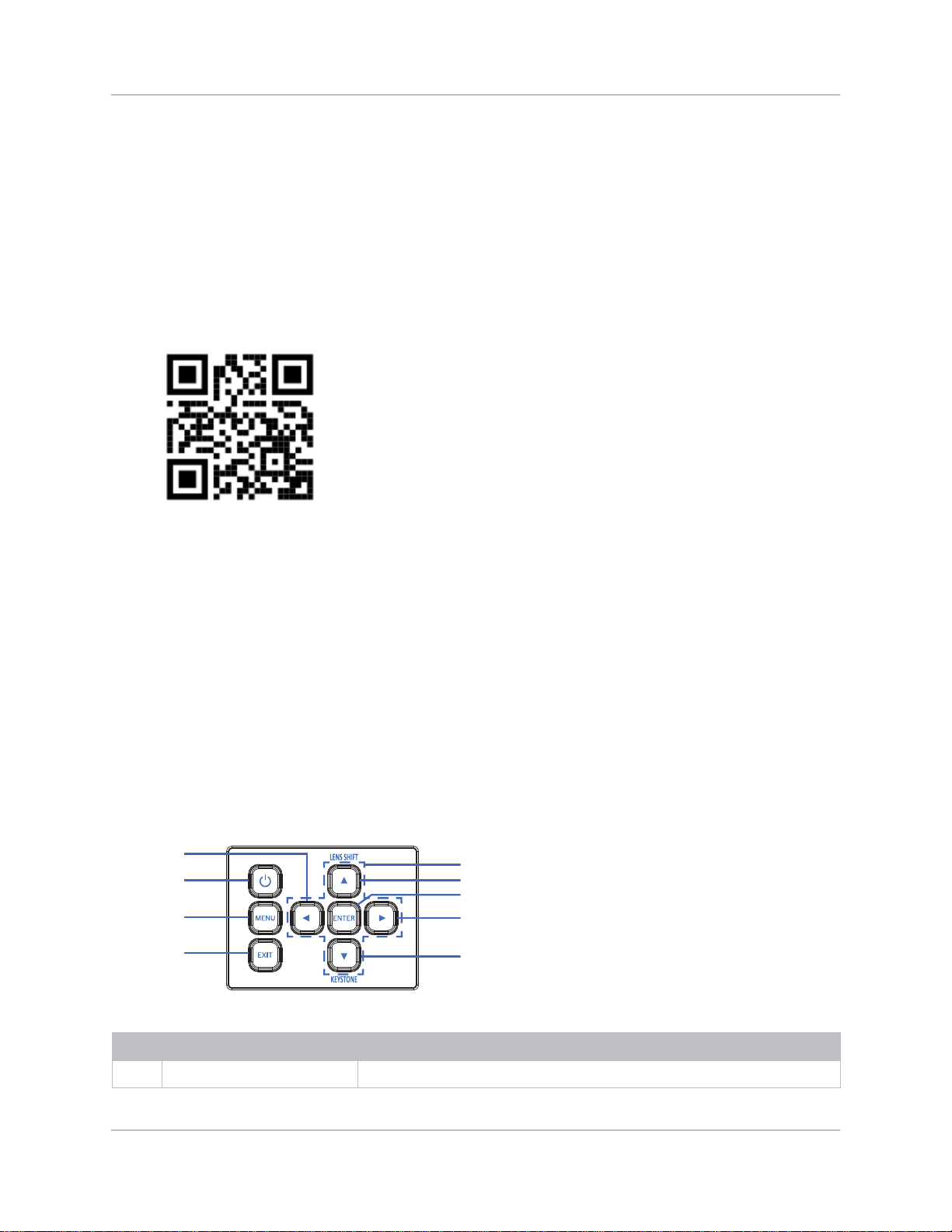
1. Access the documentation from the Christie website:
• Go to this URL: https://bit.ly/3fXJcI3 or
https://www.christiedigital.com/products/projectors/all-projectors/inspire-series/
• Scan the QR code using a QR code reader app on a smartphone or tablet.
2. On the product page, select the model and switch to the Downloads tab.
Related documentation
Additional information on the projector is available in the following documents.
• Christie Inspire Series Product Safety Guide (P/N: 0200001932-XX)
• Christie Inspire Series Installation and Setup Guide (P/N: 020-001933-XX)
• Christie Inspire Series Service Manual (P/N: 020-001935-XX)
• Inspire Series Serial API Commands Technical Reference (P/N: 020-103542-XX)
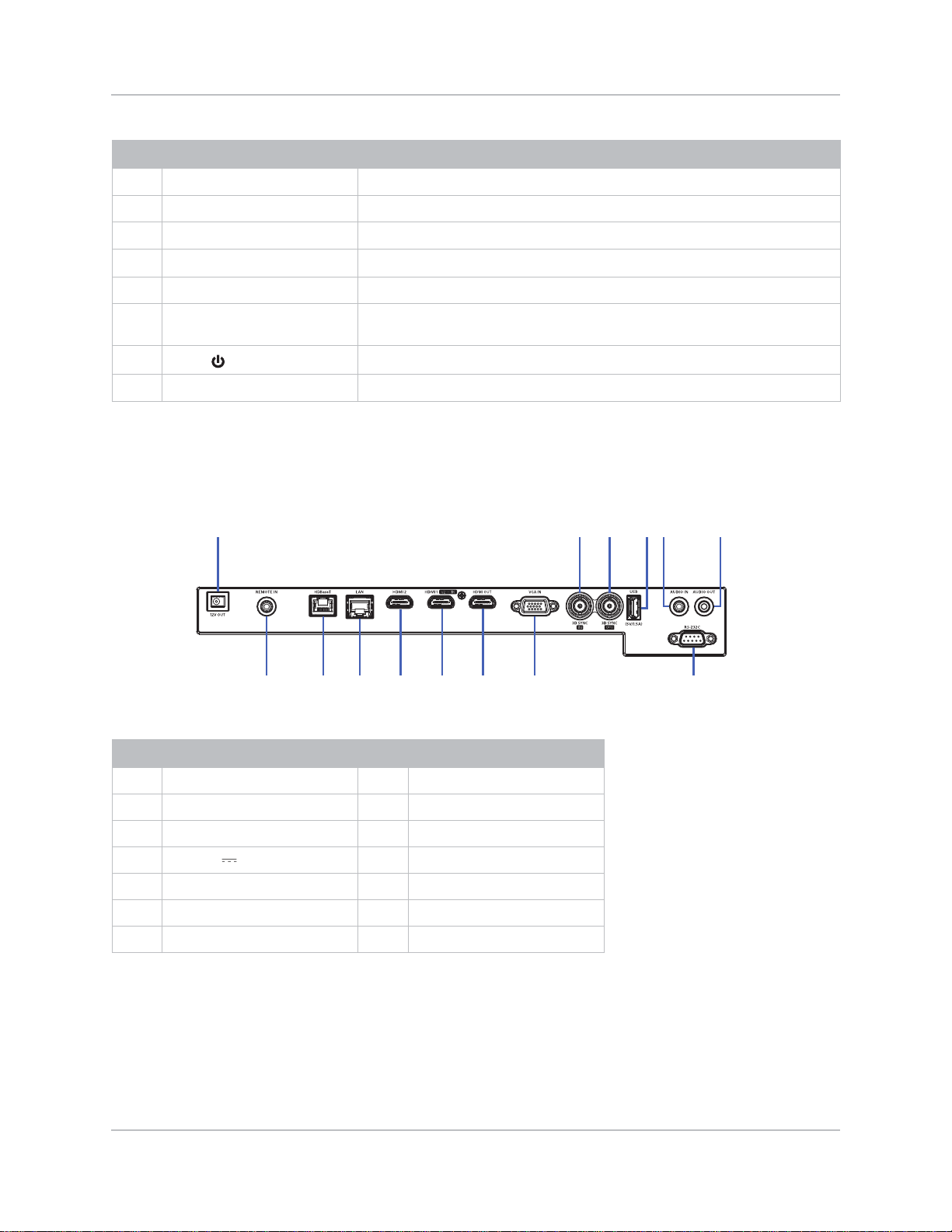
Built-in keypad
The built-in keypad controls the projector.
ID Button Description
1 Four Directional Select Keys
Use to select items or make adjustments to your selection.
ZOOM FOCUS
7
9
8
1
2
3
5
6
4
S
T
W
X
Introduction
17Inspire Series User Manual
020-001934-02 Rev. 1 (01-2022)
Copyright ©2022 Christie Digital Systems USA Inc. All rights reserved.
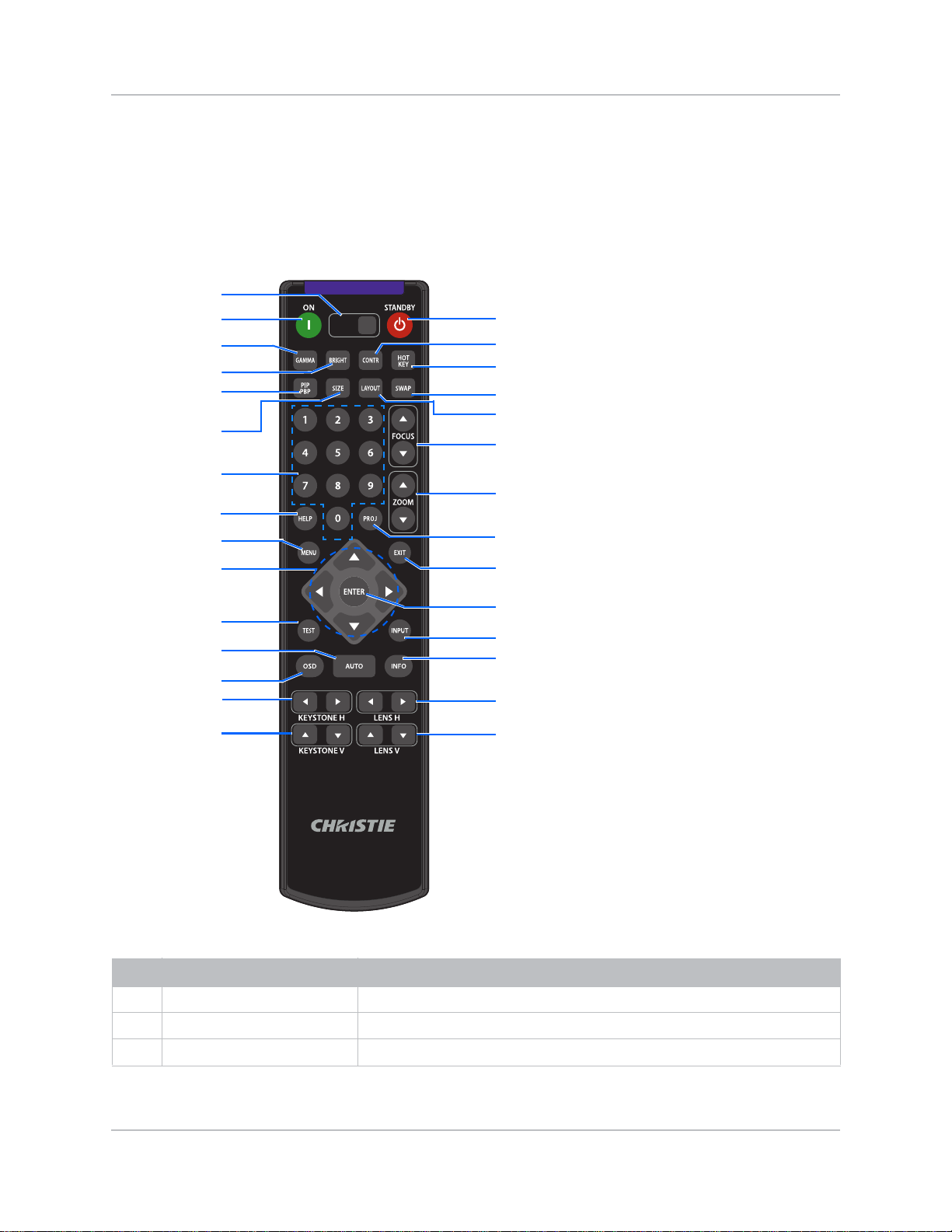
Input/Output (I/O) panel
Identify the components of the Input/Output (I/O) panel.
2
LENS SHIFT
Adjusts the lens setting.
3 ENTER Confirms your item selection.
4
FOCUS
Adjusts the image focus.
5
KEYSTONE
Adjusts keystone.
6 EXIT Exits the current page and returns to the previous page.
7 MENU Press MENU to launch the on-screen display (OSD) menu. To exit the OSD,
press MENU or EXIT again.
8
Power
Turns the projector on or off.
9
ZOOM
Adjusts the image size.
ID Connector name ID Connector name
1 12V OUT 8 VGA IN
2 3D SYNC (IN) 9 HDMI OUT
3 3D SYNC (OUT) 10 HDMI1 (v2.0 4K)
4 USB (5V 1.5A) 11 HDMI2
5 AUDIO IN 12 LAN
6AUDIO OUT 13HDBaseT
7 RS232-C 14 REMOTE IN
ID Button Description
S
X
T
W
123456
789101113 1214
Introduction
18Inspire Series User Manual
020-001934-02 Rev. 1 (01-2022)
Copyright ©2022 Christie Digital Systems USA Inc. All rights reserved.
IR remote keypad
The IR remote keypad communicates with the projector by way of wireless communications.
Use a cable length of 20 m (787.4 inches) or less. If the length of cable exceeds 20 m (787.4
inches), the IR remote keypad may not work correctly.
ID Button Description
1 SHUTTER Displays or blanks the video image.
2 ON Turns the projector on.
3 GAMMA Adjusts the mid-range levels.
SHUTTER
VGA
HDMI2 DVI-D
BNC
DP
3G-SDI HDBaseT
PRESENT.
CVBS
HDMI1
16
17
18
19
20
21
22
24
25
26
27
28
29
1
2
3
4
5
6
7
8
9
10
11
12
13
14
15
23

Introduction
19Inspire Series User Manual
020-001934-02 Rev. 1 (01-2022)
Copyright ©2022 Christie Digital Systems USA Inc. All rights reserved.
4 BRIGHT Adjusts the amount of light in the image.
5PIP
PBP
Turns picture-in-picture/picture-by-picture (PIP/PBP) on or off.
6 SIZE Adjusts the PIP/PBP size.
7 Number keys Enter a number, such as a channel, value, and so on. The on-screen display
(OSD) indicates if a function is not supported.
8 HELP Displays the instructions for source connection.
9MENU Displays the menus.
10 Arrow keys Adjusts a setting up or down to navigate within a menu.
11 TEST Displays a test pattern.
12 AUTO Automatically synchronizes the projector to an input source.
13 OSD Hides or shows OSD menus.
14 KEYSTONE H Adjusts the horizontal keystone.
15 KEYSTONE V Adjusts the vertical keystone.
16 STANDBY Turns the projector off.
17 CONTR Adjusts the difference between dark and light.
18 HOT KEY Selects your preset key quickly.
19 SWAP Swaps the main and PIP/PBP images.
20 LAYOUT Adjusts the PIP/PBP layout.
21 FOCUS Adjusts the focus to improve image clarity as required.
22 ZOOM Adjusts the zoom to achieve a required image size.
23 PROJ Changes the IR remote keypad ID.
• To assign an ID, press PROJ + <1 to 9>.
• To return to the universal IR remote ID, press PROJ + 0.
24 EXIT Returns to previous level or exit menus if at top level.
25 ENTER Selects a highlighted menu item, or changes or accepts a value.
26 INPUT Selects an input for the main or PIP/PBP image.
27 INFO Displays the projector information.
28 LENS H Adjusts the position of the image horizontally.
29 LENS V Adjusts the position of the image vertically.
ID Button Description
20Inspire Series User Manual
020-001934-02 Rev. 1 (01-2022)
Copyright ©2022 Christie Digital Systems USA Inc. All rights reserved.
Adjusting the size and
position
Adjust the projector’s size and position. Christie recommends warming the lens before completing
these procedures as focus may change as the lens warms.
Adjusting the Projected Image
Adjust the projected image’s height and horizontal tilt for better viewing.
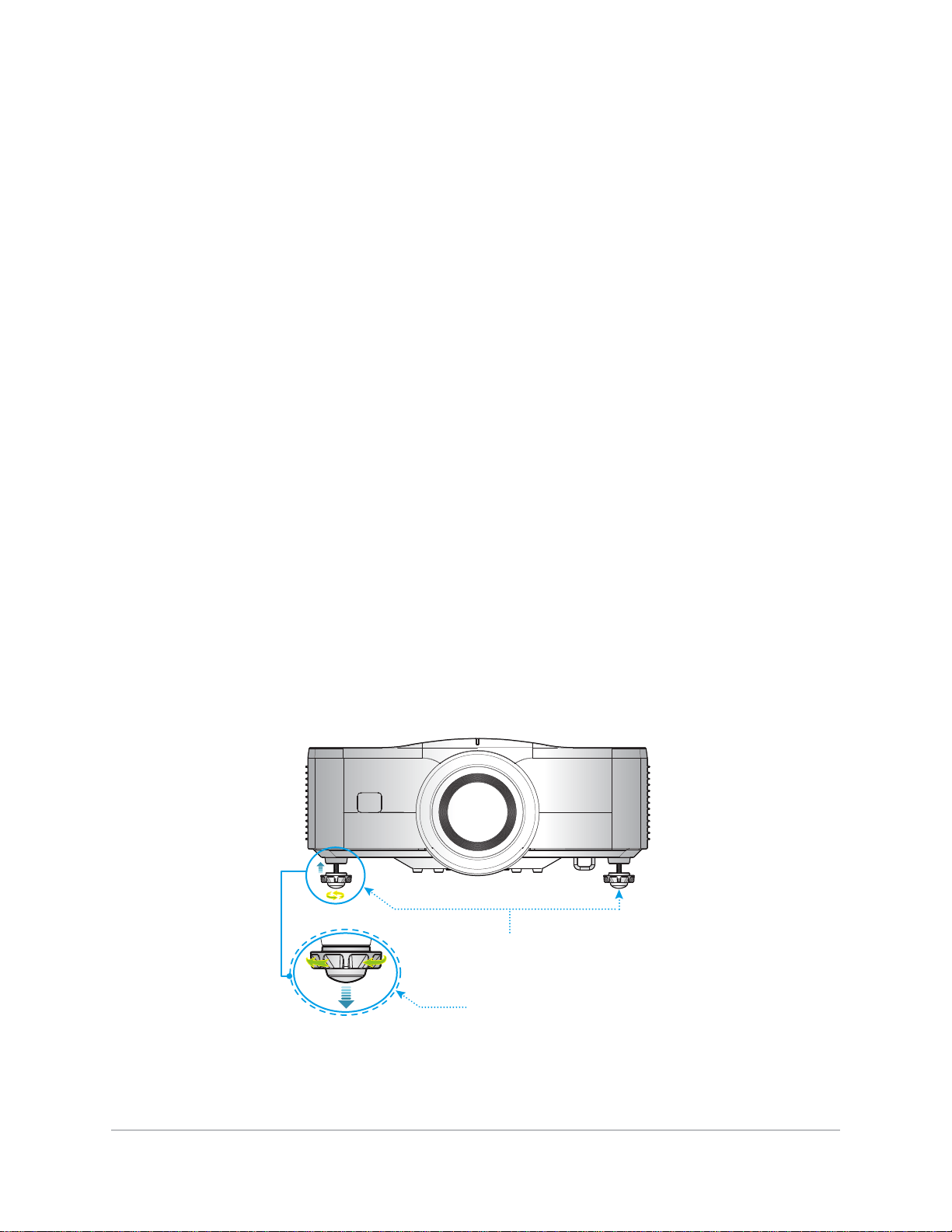
Adjusting the Projector’s Height
The projector is equipped with elevator feet for adjusting the image height.
1. Locate the adjustable foot you want to modify on the underside of the projector.
2. Rotate the adjustable ring clockwise to raise the projector or counter clockwise to lower it.
3. Repeat with the remaining feet as needed.
Tilt-Adjustment Feet
Tilt-Adjustment Ring

Adjusting the image size and position
21Inspire Series User Manual
020-001934-02 Rev. 1 (01-2022)
Copyright ©2022 Christie Digital Systems USA Inc. All rights reserved.
Stacking Application
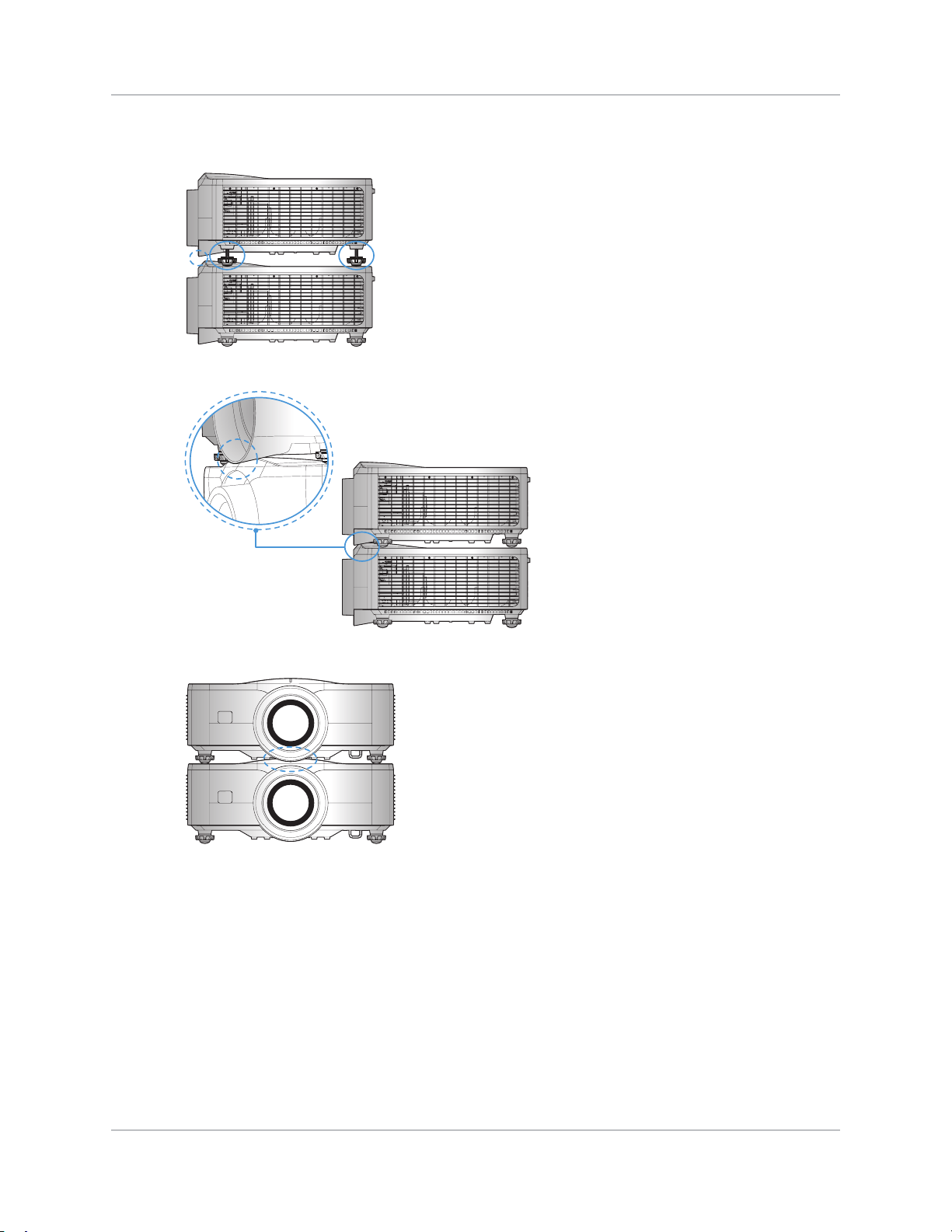
If two projectors are mounted on top of each other without using a frame, adjust the rubber feet of
the upper projector to avoid the interference between the two projectors.
For stacking application, the elevator feet of the upper projector must be adjusted to increase the
height of this projector to avoid the interference between two projectors. For more information on
stacking projectors, please refer to Stacking Application on page 21.
Adjusting the image size and position
22Inspire Series User Manual
020-001934-02 Rev. 1 (01-2022)
Copyright ©2022 Christie Digital Systems USA Inc. All rights reserved.
The maximum adjustable range of the rubber foot is 13 mm (0.5 inches).
Setting the image size preset
Set the image size preset to display the image in its native resolution or to resize by maximizing the
height, width, both height and width, or to the maximum size while keeping the original aspect
ratio.
13mm
13mm
Adjust the rubber feet to avoid
interference.
Interference between
two projectors.
Interference between two
projectors.

Adjusting the image size and position
23Inspire Series User Manual
020-001934-02 Rev. 1 (01-2022)
Copyright ©2022 Christie Digital Systems USA Inc. All rights reserved.
1. Select Menu > Size & Position > Size Presets.
2. Select the appropriate size preset:
• Auto—Display with the detected size.
• Native—Display in its native resolution.
• 4:3—Retain 4:3 aspect ratio.
• Letterbox—Make the active content enlarge to the full screen.
• Full Size—Fill the screen, regardless of the source.
• Full Width—Fill display width and keep aspect ratio.
• Full Height—Fill display height and keep aspect ratio.
• Custom—Stretch the display horizontally and vertically without cutting the image
display.
• 3D Mode—Display 3D content. All other items are grayed out, if 3D Mode is selected.
3. To confirm the selection, press ENTER.
Adjusting pixel phase
Adjust the pixel phase when the image shows shimmer or noise. Pixel phase can adjust the phase of
the pixel-sampling clock relative to the incoming signal. This feature is for analog RGB signals only.
1. Select Menu > Size & Position > Pixel Phase.
2. Adjust the slider by arrow keys or press ENTER to input the values of pixel phase.
3. After inputting the value, press ENTER to apply.
Setting the position of display image
Move the image vertically or horizontally to correct the position of the display image.
1. Select Menu > Size & Position > Horz Position or Vert Position.
2. Adjust the slider by arrow keys or press ENTER to input the values of moving pixels.
3. After inputting the value, press ENTER to apply.
Setting the digital size of display image
These functions are similar technologies as in-camera image processing. Use Digital Horz Zoom or
Digital Vert Zoom to enlarge or to compress the display image horizontally or vertically.
1. Select Menu > Size & Position > Digital Horz Zoom or Digital Vert Zoom.
2. Adjust the slider by arrow keys or press ENTER to input the value you selected.
3. After inputting the value, press ENTER to apply.

Adjusting the image size and position
24Inspire Series User Manual
020-001934-02 Rev. 1 (01-2022)
Copyright ©2022 Christie Digital Systems USA Inc. All rights reserved.
Setting the digital position of display image
Change the position of the projector's display image horizontally or vertically.
1. Select Menu > Size & Position > Digital Horz Shift or Digital Vert Shift.
2. Adjust the slider by arrow keys or press ENTER to input the value you selected.
3. After inputting the value, press ENTER to apply.
Geometry correction
Modify the geometry of the display image directly on the projector.
Connecting to Christie Twist and Mystique grays out the geometry correction settings on the
projector. Uploading warp and blend from Twist and Mystique overwrites the currently applied
geometry correction settings. See Configuring warp and blend on page 27 for more details.
Saving geometry correction
Save the warp and blend settings to the projector memory. The blend memory saves the edge blend
settings, while the warp memory saves the settings of Keystone, Pincushion, 4-Corner, Manual
Warp Filter, and image warp.
1. Select Menu > Size & Position > Geometry Correction > Warp Memory > Save Warp or
Blend Memory > Save Blend.
2. To save the geometry setting, select a record.
One projector can save up to four warps and four blends.
3. To confirm the selection, press ENTER.
Applying geometry correction
Apply the previously saved geometry setting to the projector.
1. Before applying the previous geometry setting, save the geometry setting to the projector.
See Saving geometry correction on page 24 for more information.
2. Select Menu > Size & Position > Geometry Correction > Warp Memory > Apply Warp
or Blend Memory > Apply Blend.
3. To apply the specific geometry setting, select the required record.
4. To confirm the selection, press ENTER.
5. To erase the applied geometry setting, select Off.
Digital Horz Shift is only available after adjusting the Digital Horz Zoom, and Digital Vert Shift is only
available after adjusting the Digital Vert Zoom.
Adjusting the image size and position
25Inspire Series User Manual
020-001934-02 Rev. 1 (01-2022)
Copyright ©2022 Christie Digital Systems USA Inc. All rights reserved.
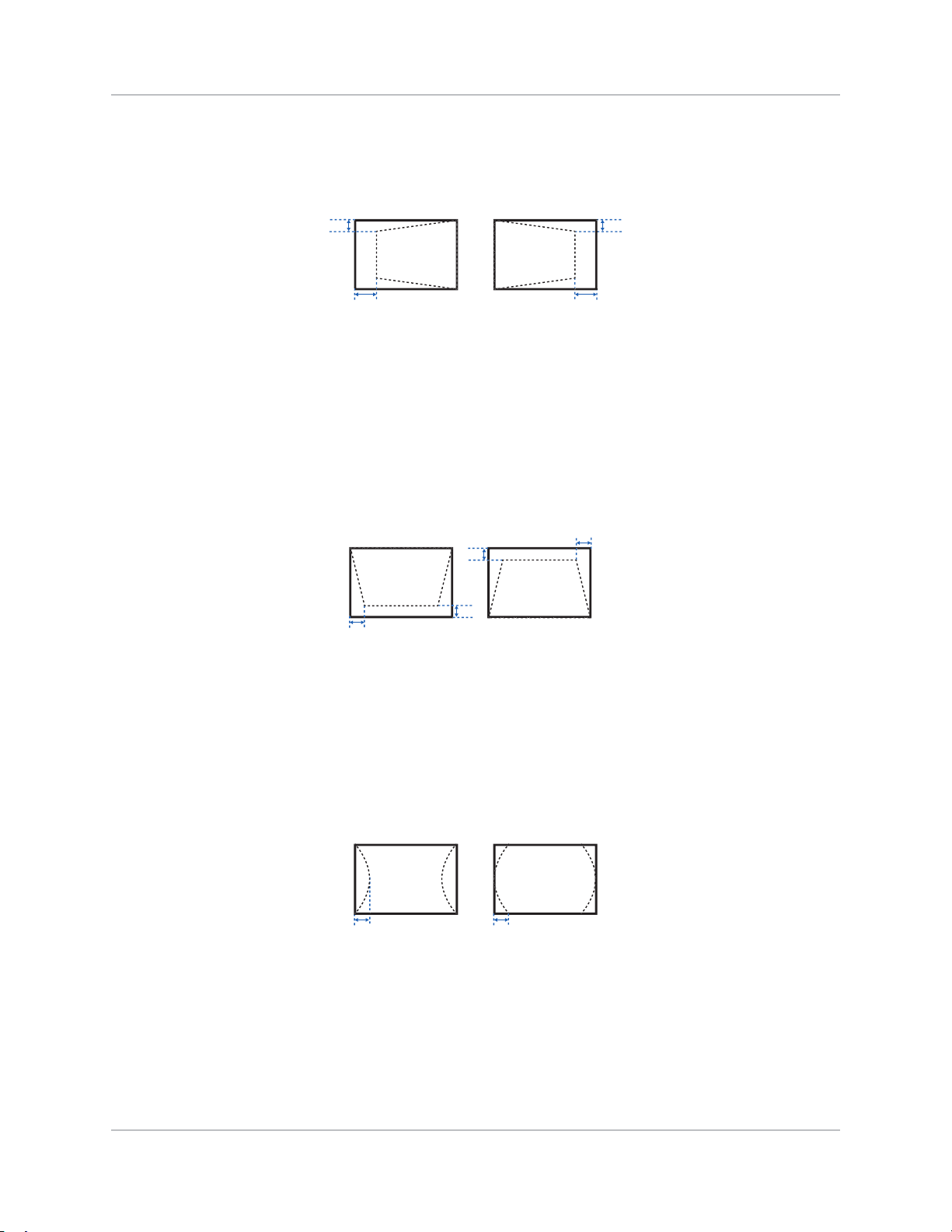
Adjusting horizontal keystone
Use horizontal keystone to correct a keystoned image shape in which the left and right borders of
the image are unequal in length, and the top and bottom are slanted to one of the sides.
1. Select Menu > Size & Position > Geometry Correction > Keystone > Horz Keystone.
2. To adjust the horizontal keystone, adjust the slider by arrow keys or press ENTER to input the
value you selected.
3. After inputting the value, press ENTER to apply.
Adjusting the vertical keystone
Use vertical keystone to correct a keystoned image shape in which the top and bottom borders of
the image are unequal in length, and both sides of the image are inclined toward the top or bottom
edge.
1. Select Menu > Size & Position > Geometry Correction > Keystone > Vert Keystone.
2. To adjust the vertical keystone, adjust the slider by arrow keys or press ENTER to input the
value you selected.
3. After inputting the value, press ENTER to apply.
Adjusting horizontal pincushion
Use horizontal pincushion to correct a pinched image shape in which the horizontal straight lines
are curved inwards or horizontal straight lines are curved outwards from the center.
1. Select Menu > Size & Position > Geometry Correction > Pincushion > Horz Pincushion.
2. To adjust the horizontal pincushion, adjust the slider by arrow keys or press ENTER to input the
value you selected.
3. After inputting the value, press ENTER to apply.
B
A
B
A
B
A
B
A
A B
Adjusting the image size and position
26Inspire Series User Manual
020-001934-02 Rev. 1 (01-2022)
Copyright ©2022 Christie Digital Systems USA Inc. All rights reserved.
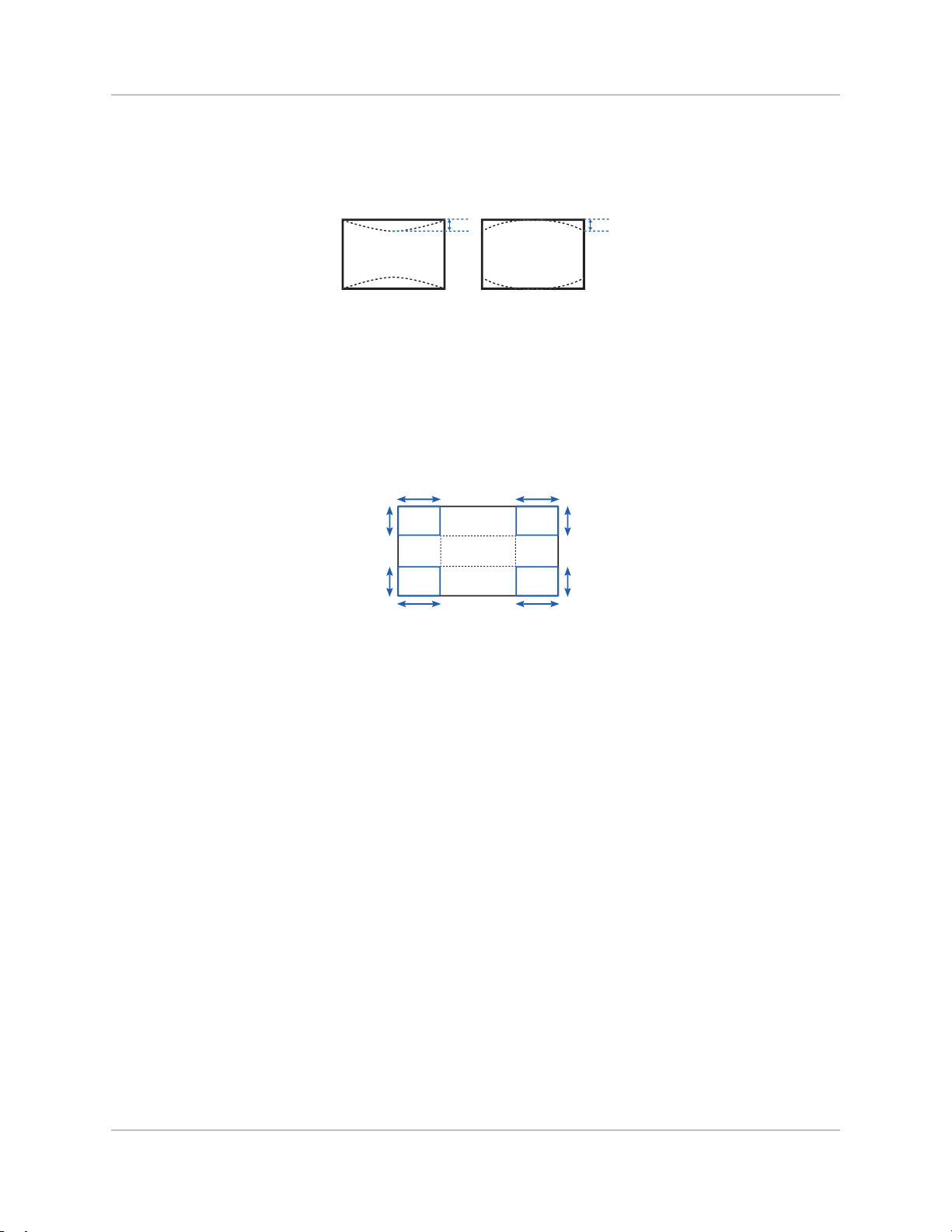
Adjusting vertical pincushion
Use vertical pincushion to correct a pinched image shape in which the vertical straight lines are
curved inwards or vertical straight lines are curved outwards from the center.
1. Select Menu > Size & Position > Geometry Correction > Pincushion > Vert Pincushion.
2. To adjust the vertical pincushion, adjust the slider by arrow keys or press ENTER to input the
value you selected.
3. After inputting the value, press ENTER to apply.
Adjusting 4-corner
Use 4-corner to correct the four corners of the projector's display image.
1. Select Menu > Size & Position > Geometry Correction > 4-Corner.
2. Select the corner and the direction to adjust.
3. To move the corner, adjust the slider by arrow keys or press ENTER to input the value.
4. After inputting the value, press ENTER to apply.
5. To adjust the other corner or direction, repeat step 2 to 4.
Enabling auto warp filter
Improve the sharpness of the image and reduce the ghosting automatically after geometry
correction, such as keystone, pincushion, 4-corner, and warping.
1. Select Menu > Size & Position > Geometry Correction > Auto Warp Filter.
2. To enable the setting, press ENTER.
Adjusting warp filter
Improve the sharpness of the image after geometry correction, such as keystone, pincushion, 4-
corner, and warping. Adjust the warp filter manually to reduce the ghosting.
1. Select Menu > Size & Position > Geometry Correction > Manual Warp Filter.
2. To reduce the ghosting in different direction, select Horz Filter or Vert Filter.
A B
A A
B
B
B
B
AA

Adjusting the image size and position
27Inspire Series User Manual
020-001934-02 Rev. 1 (01-2022)
Copyright ©2022 Christie Digital Systems USA Inc. All rights reserved.
3. Adjust the slider by arrow keys or press ENTER to input the value.
4. After inputting the value, press ENTER to apply.
Resetting geometry correction setting
Reset all geometry correction parameters back to default, including warp and blend settings.
1. Select Menu > Size & Position > Geometry Correction > Reset to Default.
2. Press ENTER.
Configuring warp and blend
By blending multiple images, you can combine several projectors to create a larger and seamless
image. When the projection screen is not perfectly flat or rotated at an angle, warp the image to fit
on the irregular surface.
Warping an image
Christie Twist offer various manual warping options to adjust the image shape with minimal
performance impact. Refer to the Christie website (www.christiedigital.com) for product information
and documentation.
1. Connect the projector and computer to the same network and subnet.
2. To add a projector to a computer, from the Twist menu, click Home > Add.
• To manually connect the projector with Twist, use port 3003.
• Connecting to Twist grays out the Geometry Correction settings on the projector.
3. Select a record number to save the warp.
You can save up to four warp settings.
4. In Twist, configure warp settings.
Use the test patterns in Twist to help with image shaping.
For more information about creating warp files in Twist, refer to Twist User Guide (P/N: 020-
101380-XX).
5. To send the warp settings to the projector, on the canvas, right-click a projector window and
select Send Warp.
6. To save the warp settings on the projector, click File > Save or Save As.
When removing the projector from Twist, or closing the program, the projector automatically
saves the currently applied warp settings to its warp memory.
7. To change the name when saving warps on the projector, or update the memory location of the
warp, click Properties.
The changed name shows on both Twist and the projector.

Adjusting the image size and position
28Inspire Series User Manual
020-001934-02 Rev. 1 (01-2022)
Copyright ©2022 Christie Digital Systems USA Inc. All rights reserved.
Downloading a warp from the projector memory
Use Twist to download the warp file saved on the projector memory.
1. Before downloading the previous warp file, save the warp setting to the projector memory.
2. On the canvas, click a projector window.
3. Click File > Warp.
4. In the Download from Memory Location list, select the required record.
5. To download the selected warp setting, click OK.
6. To apply the warp setting to the projector, on the canvas, right-click a projector window and
select Send Warp.
Enabling basic image blending
Configure blends directly on the projector to increase or decrease the borders of an individual
image, so it blends with a neighboring image to create a single, seamless image.
You can set blends on a projector when not using Christie Twist and Mystique. Connecting to Twist
and Mystique grays out the blend settings on the projector. Applying blends from Twist and
Mystique overwrites the blends directly set on the projectors.
1. Select Menu > Size & Position > Geometry Correction > Blend Area.
2. Choose a side to blend in with the other projectors.
3. To set up the starting position, select Start Pixel.
4. Adjust the slider by arrow keys or press ENTER to input the starting position.
5. After inputting the starting position, press ENTER.
6. To set up the size of blend area, select Pixel Height.
7. Adjust the slider by arrow keys or press ENTER to input the width of blend area.
8. After inputting the size of blend area, press ENTER.
9. To set the gamma value of the blend area, select Blend Gamma.
10. After selecting a gamma value, press ENTER.
11. To apply the settings, select Enable.
12. Press ENTER.
13. To save the blend setting, select Menu > Size & Position > Geometry Correction > Blend
Memory > Save Blend.
14. To set up the other side of blend area, repeat step 2 to 13.
Christie Twist can be upgraded to Twist Premium and Twist Pro that provides more advanced warping
features. Refer to the Christie website (www.christiedigital.com) for product information and
documentation.

Adjusting the image size and position
29Inspire Series User Manual
020-001934-02 Rev. 1 (01-2022)
Copyright ©2022 Christie Digital Systems USA Inc. All rights reserved.
Blending multiple images
Use Christie Twist to manually configure edge blends and apply them to the projectors.
Christie Twist Premium and Twist Pro offer advanced blending options. Refer to the Christie website
(www.christiedigital.com) for product information and documentation.
1. Connect the projector and computer to the same network and subnet.
2. To add a projector to a computer, from the Twist menu, click Home > Add.
• To manually connect the projector with Twist, use port 3003.
• Connecting to Twist grays out the Geometry Correction settings on the projector.
3. Select a record number to save the blend setting.
You can save up to four blend settings.
4. In Twist, configure edge blend settings.
Use the test patterns in Twist to assist in adjusting the blend area.
For more information about creating blend files in Twist, refer to Twist User Guide (P/N: 020-
101380-XX).
5. To send the blend settings to the projector, on the canvas, right-click a projector window and
select Send Blend.
6. Repeat step 2 to 5 for the remaining projectors.
For multiple projectors, use Twist to identify the projectors.
7. To save the warp file on the projector, click File > Save or Save As.
When removing the projector from Twist, or closing the program, the projector automatically
saves the currently applied blend settings to its blend memory.
8. To change the name when saving blends on the projector, or update the memory location of the
blend, click Properties.
The changed name shows on both Twist and the projector.
Downloading a blend from the projector memory
Use Twist to download the blend file saved on the projector memory.
1. Before downloading the previous blend file, save the blend setting to the projector memory.
2. On the canvas, click a projector window.
3. Click File > Blend/Mask/B.U.
4. In the Download Blend dialog, select the required record.
5. To download the selected blend setting, click OK.
6. To apply the blend setting to the projector, on the canvas, right-click a projector window and
select Send Blend.

Adjusting the image size and position
30Inspire Series User Manual
020-001934-02 Rev. 1 (01-2022)
Copyright ©2022 Christie Digital Systems USA Inc. All rights reserved.
Performing auto warp and blend
Use Mystique (sold seperately) to perform automatic warp, blend, and more advanced geometry
settings. Mystique is an automated camera-based alignment and recalibration solution that lets you
quickly stage, install, align, calibrate, and maintain multi-projection systems.
Refer to the Christie website (www.christiedigital.com) for product information and documentation.

31Inspire Series User Manual
020-001934-02 Rev. 1 (01-2022)
Copyright ©2022 Christie Digital Systems USA Inc. All rights reserved.
Adjusting the image
settings
Learn how to adjust the projector image.
Adjusting the brightness
Adjust the intensity of the image.
1. Select Menu > Image Settings > Brightness.
2. Adjust the slider by arrow keys or press ENTER to input the value.
3. After inputting the value, press ENTER to apply.
Adjusting the contrast
Adjust the degree of difference between the lightest and darkest parts of the image and changes
the amount of black and white in the image.
1. Select Menu > Image Settings > Contrast.
2. Adjust the slider by arrow keys or press ENTER to input the value.
3. After inputting the value, press ENTER to apply.
Adjusting the color space
Determine how the color components are decoded for accurate color in the display.
1. Select Menu > Image Settings > Color Space.
2. If projector does not detect the correct input signal while Auto is enabled, disable Auto by
pressing ENTER to select color space manually.
3. To match up with the input signal, select appropriate color space:
•Auto
•RGB

Adjusting the image settings
32Inspire Series User Manual
020-001934-02 Rev. 1 (01-2022)
Copyright ©2022 Christie Digital Systems USA Inc. All rights reserved.
•RGB Full
•RGB Limited
•YUV
•REC709
•REC601
4. To confirm the selection, press ENTER.
Adjusting the image sharpness
Adjust the edge clarity of the image.
1. Select Menu > Image Settings > Detail.
2. Select the sharpness:
•Maximum
•High
•Normal
•Low
• Minimum
3. To confirm the selection, press ENTER.
Setting up 3D display
Use the functions in 3D Display menu to make the timing adjustment and environment necessary
for displaying 3D images.
Setting 3D format
Set up the 3D format according to the 3D input signal.
1. Select Menu > Image Settings > 3D Display > 3D Enable.
2. Select the appropriate 3D format:
•Auto
•Frame Packing
• Side by Side
• Top and Bottom
•Frame Sequential
•Off
3. To confirm the selection, press ENTER.

Adjusting the image settings
33Inspire Series User Manual
020-001934-02 Rev. 1 (01-2022)
Copyright ©2022 Christie Digital Systems USA Inc. All rights reserved.
Inverting 3D signal
3D images consist of a series of images (frames) that alternate quickly between two slightly
different view points, corresponding to our left and right eyes. When these frames are displayed
fast enough and viewed with 3D glasses synchronized to the left/right (L/R) changes, the resulting
image appears with the same depth and perspective that is sensed in the real world.
If the projector generates the sync internally and content is displayed without 3D sync in the cable
connected to the projector, there is a 50% chance that the content is displayed with the left/right
eyes swapped. This function is used for swapping the sequence of the image to make the resulting
image appear normally.
1. Select Menu > Image Settings > 3D Display > 3D Invert.
2. To swap, press ENTER.
Setting the 3D sync output signal
This function is used for controlling and processing the 3D sync output signal.
1. Select Menu > Image Settings > 3D Display > 3D Sync Out.
2. Select the appropriate 3D sync out setting.
• To Emitter—If the 3D sync out port is connected to an emitter, select To Emitter to
transmit 3D signal to emitter and give to 3D glasses.
• To Next Projector—Multiple projectors 3D application only. Select To Next Projector
when the 3D sync out port is not connected to an emitter.
3. To confirm the selection, press ENTER.
Setting the frame delay
Adjust the frame delay which eliminates the odd colors and cross talk caused by timing difference.
Frame delay is the time difference between the first 3D signal being given and the result being
executed from current projector.
1. Select Menu > Image Settings > 3D Display > Frame Delay.
2. Adjust the slider by arrow keys or press ENTER to input the value.
3. After inputting the value, press ENTER to apply.

Adjusting the image settings
34Inspire Series User Manual
020-001934-02 Rev. 1 (01-2022)
Copyright ©2022 Christie Digital Systems USA Inc. All rights reserved.
Configuring the video settings
Configure the video settings to optimize the image performance, such as applying color to black and
white videos, reducing luminance component noise, and so on.
Adjusting black and white video
Adjust a video image from black and white to fully saturated color. This feature is for video sources
only.
1. Select Menu > Image Settings > Video Options > Color.
2. Adjust the slider by arrow keys or press ENTER to input the value.
3. After inputting the value, press ENTER to apply.
Adjusting the color balance
Adjust the red-green color balance in NTSC video images. NTSC, named after the National
Television System Committee, is the analog video color system used in North America and most of
the South America countries. This feature is for NTSC video sources only.
1. Select Menu > Image Settings > Video Options > Tint.
2. Adjust the slider by arrow keys or press ENTER to input the value.
3. After inputting the value, press ENTER to apply.
Adjusting the skin color
Adjust the color tone of human skin in videos.
1. Select Menu > Image Settings > Video Options > Skin Color.
2. Select appropriate skin color tone.
3. To confirm the selection, press ENTER.
Reducing the temporal noise
Remove the luminance component noise of the low light videos.
1. Select Menu > Image Settings > Video Options > Temporal Noise Reduction.
2. Select appropriate level for temporal noise reduction.
3. To confirm the selection, press ENTER.

Adjusting the image settings
35Inspire Series User Manual
020-001934-02 Rev. 1 (01-2022)
Copyright ©2022 Christie Digital Systems USA Inc. All rights reserved.
Reducing the MPEG noise
MPEG compression causes block noise appears like small blocks in the image, and the image
compression algorithms result in mosquito noise around the sharp edges in the image. This function
is used to reduce the MPEG noise.
1. Select Menu > Image Settings > Video Options > MPEG Noise Reduction.
2. Select appropriate level for MPEG noise reduction.
3. To confirm the selection, press ENTER.
Setting the input levels
If the image is displayed by an analog signal, such as VGA signal, the image may have odd color on
the screen. These functions are used to adjust gain and offset error and correct the color.
Adjusting the color gain
Set the color gain to correct the color intensity of the image. This function is used when the image
is displayed by VGA or component and the color is incorrect.
1. Select Menu > Image Settings > Input Levels.
2. Select appropriate color gain:
•Red Gain
• Green Gain
• Blue Gain
3. Adjust the slider by arrow keys or press ENTER to input the value.
4. After inputting the value, press ENTER to apply.
Adjusting the color offset
Set the color gain to correct the degree of color difference of the image. This function is used when
the image is displayed by VGA signal and the color is incorrect.
1. Select Menu > Image Settings > Input Levels.
2. Select appropriate color offset:
• Red Offset
• Green Offset
• Blue Offset
3. Adjust the slider by arrow keys or press ENTER to input the value.
4. After inputting the value, press ENTER to apply.

Adjusting the image settings
36Inspire Series User Manual
020-001934-02 Rev. 1 (01-2022)
Copyright ©2022 Christie Digital Systems USA Inc. All rights reserved.
Resetting the input levels
Reset all input levels parameters back to default.
1. Select Menu > Image Settings > Input Levels > Reset to Default.
2. Press ENTER.
Configuring picture settings
Depending on display content, choose the most suitable picture settings. Different picture settings
have different color temperature, brightness, and so on.
1. Select Menu > Image Settings > Picture Settings.
2. Select the appropriate picture setting:
• Video—Used for theater application. It sets the color temperature to 6300K with 60% of
maximum brightness.
• Bright—Used for large size or high brightness application. It sets the color temperature
to 7500K with 100% brightness.
• Enhanced—Used for images with richly saturated and vivid color. It is based on
brightness mode.
• REC709—Used for high-definition television. It sets the color temperature to 6500K with
80% of the maximum brightness.
• DICOM SIM—Used for high contrast content, such as X-ray diagram. It sets the color
temperature to 7500K with 100% brightness.
• Blending—Used for multiple projector application. It sets the color temperature to
7500K with 90% of maximum brightness.
• HDR—Displays High Dynamic Range (HDR) content.
• 3D—Plays 3D videos.
• 2D High Speed—Displays 2D input signal at 120Hz.
• User—Customized picture setting. See User configuration on page 37 for more details of
creating a customized picture setting.
3. To confirm the selection, press ENTER.

Adjusting the image settings
37Inspire Series User Manual
020-001934-02 Rev. 1 (01-2022)
Copyright ©2022 Christie Digital Systems USA Inc. All rights reserved.
User configuration
Customize the picture setting by adjusting the brightness, contrast, input levels, color temperature,
gamma, detail, white peaking, and so on.
1. Adjust the parameters to customize user's picture setting:
•Video
•Bright
•Enhanced
•REC709
•DICOM SIM
• Blending
•HDR
•3D
• 2D High Speed
2. Select Menu > Image Settings > User Configuration.
3. Press ENTER.
Setting the contrast ratio
Use contrast enhancement function to raise the contrast ratio.
1. Select Menu > Image Settings > Contrast Enhancement.
2. Select the appropriate calculation method for contrast ratio:
• Dynamic Black
TM
—Enable the function to automatically adjust the contrast ratio for
video sources. It improves the black level in dark scenes by reducing the light output.
• Speed—Adjust the speed of the light source correction. The value ranges from 1 to 15. A
lower value makes the correction slower and less aggressive while a higher value results
in the faster correction.
• Strength—Set the strength of the dynamic contrast adjustment. The value ranges from
0 to 3, the higher the value the stronger the correction.
• Level—Adjust the light source when the brightness level of the current content gets
lower than the set value. The value ranges from 50% to 100%. The higher the value, the
larger the range to adjust the light source.
• Real Black—Enable the function to automatically increase the contrast ratio by turning
off the laser light when black image is detected.
• Lights Out Timer—Set a timer for the laser light to turn off after detecting black
content. The set value ranges from 0s to 20s.

Adjusting the image settings
38Inspire Series User Manual
020-001934-02 Rev. 1 (01-2022)
Copyright ©2022 Christie Digital Systems USA Inc. All rights reserved.
• Lights Out Signal Level—Set a black level value as the threshold for the Real Black
function. The value can be selected from 0 to 5, with 0 being the darkest black and 5
being the brightest.
• Reset to Default—Reset the function settings to factory default values.
3. To confirm the selection, press ENTER.
Enabling the image freeze
Pause the display screen despite any change in the source device.
1. Select Menu > Image Settings > Image Freeze.
2. To pause the screen, check Image Freeze.
3. To unfreeze the screen, press any button on the keypad or remote control.
4. Select Yes.
Setting the high dynamic range
High dynamic range (HDR) is set to increase the dynamic range which allows the full spectrum of
the image to be seen. HDR significantly expands the range of contrast ratio and color to show a
more realistic and natural image. After enabling this function, you can see details in the dark, at the
same time, the bright part of the image is still visible.
1. Select Menu > Image Settings > HDR.
2. Select appropriate setting for HDR:
• Auto—Auto detect HDR content or off to disable it.
• HDR1—Low HDR effect, used for bright images to increase the color saturation.
• HDR2—Medium HDR effect, used for standard images to make them look more realistic
and natural.
• HDR3—Medium HDR effect, used for video content to improve image details.
• HDR4—Strong HDR effect, used to improve image details in dark scenes.
3. To confirm the selection, press ENTER.
Adjust the color of the image
Calibrate the accuracy of primary colors and the wall color, which can change because of lighting
and environmental factors. Lighting and other environmental factors may slightly change how these
colors appear on your screen. While the change is negligible in most cases, you may prefer to
recover the originally intended color performance before trying to match colors from several
projectors.

Adjusting the image settings
39Inspire Series User Manual
020-001934-02 Rev. 1 (01-2022)
Copyright ©2022 Christie Digital Systems USA Inc. All rights reserved.
Adjusting primary colors
To achieve consistency use a color meter to measure the native primary colors-red, green, blue,
and white, as they appear on the screen. Use hue, saturation and gain (HSG) to adjust each color
component to essentially calibrate a projector to its surroundings, compensating for factors such as
screen type, lamp and/or ambient lighting, and improves color accuracy and consistency in a group
of projectors. It ensures a good starting point for further customizing and matching; however, is not
critical for all installations.
1. Select Menu > Image Settings > Color Matching > HSG Adjustment.
2. To enable HSG adjustment, check HSG Enable.
3. Select one primary color (red, green, blue, cyan, magenta, or yellow).
4. To view a specific color while adjusting, press ENTER to enable Auto Test Pattern.
5. To edit hue of the primary color, adjust the slider or enter the color values of the primary color
component you selected until you are satisfied with the colors.
Hue values reflect the number of degrees of rotation around the wheel from the original color of
the pixel. Increasing the value indicates counterclockwise rotation and decreasing the value
indicates clockwise rotation.
6. To confirm the selection, press ENTER.
7. To edit saturation of the primary color, adjust the slider or enter the color values of the primary
color component you selected until you are satisfied with the colors.
Saturation values reflect the color shifting away from the primary color or toward white.
8. To confirm the selection, press ENTER.

Adjusting the image settings
40Inspire Series User Manual
020-001934-02 Rev. 1 (01-2022)
Copyright ©2022 Christie Digital Systems USA Inc. All rights reserved.
9. To edit gain of the primary, adjust the slider or enter the color values of the primary color
component you selected until you are satisfied with the colors.
Increasing value indicates increasing the lightness, and decreasing the value indicates
decreasing it to black.
10. To confirm your selection, press ENTER.
11. Repeat steps 3 to 9 for each primary color component, except white.
12. To edit the color of white by three components—red, blue and green—adjust the slider or enter
the values until you are satisfied with the white.
13. To confirm your selection, press ENTER.
14. To reset the primary colors to their defaults, select Reset to Default.
15. To reset back to default setting, press ENTER.
Setting the wall color
Set the wall color so the projector can enhance the color performance customized for the specific
wall.
1. Select Menu > Image Settings > Color Matching > Wall Color.
2. Select the preferred setting:
•White
•Gray 130
• Light Yellow
3. Press ENTER.
Adjusting the color value based on gamma
setting
Adjust the color values to give a more detailed displayed image.
1. Select Menu > Image Settings > Advanced Image Settings > Gamma.
2. Select the appropriate option:
•Video
• Film
•Bright
•CRT
•DICOM
3. Press ENTER.

Adjusting the image settings
41Inspire Series User Manual
020-001934-02 Rev. 1 (01-2022)
Copyright ©2022 Christie Digital Systems USA Inc. All rights reserved.
Adjusting the white peaking
Use white peaking to adjust the color of white. The maximum value of white peaking, 100, can
increase the brightness of white to near 100%.
1. Select Menu > Image Settings > Advanced Image Settings > White Peaking.
2. Adjust the slider by arrow keys or press ENTER to input the value.
3. Press ENTER.
Adjusting the color temperature
Adjust the color temperature as expressed in degrees Kelvin.
1. Select Menu > Image Settings > Advanced Image Settings > Color Temperature.
2. Select appropriate color temperature:
• Warmest—Set the color temperature to 5500K.
• Warm—Set the color temperature to 6500K.
• Cool—Set the color temperature to 7500K.
3. Press ENTER.
Adjusting the color wheel speed
Adjust the color wheel speed, which affects the projector’s noise level, lifetime, and eliminates the
rainbow phenomenon.
1. Select Menu > Image Settings > Advanced Image Settings > Color Wheel Speed.
2. Select appropriate color temperature:
• 2X—Increase the projector’s lifetime and reduce the noise level.
• 3X—Eliminate the rainbow phenomenon.
3. Press ENTER.
Save and Restore user data
User can save the projector settings as user data and reload the settings later.
1. Select Menu > Image Settings > Advanced Image Settings > Backup Restore.
• Save—Save all of the projector settings as user data. User can save up to five records.
• Restore—Load the previously saved user data.
The color wheel speed adjustment is available only for DWU960-iS and DWU960ST-iS.

42Inspire Series User Manual
020-001934-02 Rev. 1 (01-2022)
Copyright ©2022 Christie Digital Systems USA Inc. All rights reserved.
Configuring system
settings
Learn how to configure the system settings.
Changing the language
Choose the language you want displayed on projector display panel and on-screen display.
1. Select Menu > Configuration > Language.
You can also select Menu > Language.
2. Select the appropriate language.
3. Press ENTER.
Adjusting lens settings
Adjust various lens settings including the lens type, zoom, focus, lens position, memorizing lens
position and locking the lens motors.
Aligning the image with zoom and focus
Ensure that the image reflected from the digital micromirror device (DMD) is parallel and centered
with the lens and screen.
1. Display an image or test pattern that can be used to analyze image focus and geometry.
2. Press FOCUS on keypad or remote control.
You can also select Menu > Configuration > Lens Settings > Focus.
3. Use the up and down arrow keys to zoom in or out of the image.
4. To exit the menu, press EXIT.
5. Press ZOOM on keypad or remote control.
You can also select Menu > Configuration > Lens Settings > Zoom.
6. Use the up and down arrow keys to adjust the focus of the image.

Configuring system settings
43Inspire Series User Manual
020-001934-02 Rev. 1 (01-2022)
Copyright ©2022 Christie Digital Systems USA Inc. All rights reserved.
7. To exit the menu, press EXIT.
8. To refine your adjusts, repeat steps 2 to 7.
Adjusting lens position
Shift the lens to the specific position.
1. Display an image or test pattern that can be used to analyze image location.
2. Press LENS SHIFT (up button) on keypad or LENS H/LENS V on remote control.
You can also select Menu > Configuration > Lens Settings > Lens Shift.
3. Use the arrow keys to adjust the lens position.
4. To exit the menu, press EXIT.
Saving lens setting
Save the lens position, zoom and focus. One projector can save maximum up to five lens settings.
1. Select Menu > Configuration > Lens Settings > Lens Shift Memory > Save Current
Settings.
2. To save the lens setting, select an empty record.
3. To confirm the selection, press ENTER.
Applying the previous lens setting
Apply the previous lens setting.
1. Before applying the previous lens setting, you must save the lens setting.
See Saving lens setting on page 43 for more details.
2. Select Menu > Configuration > Lens Settings > Lens Shift Memory > Apply Position.
3. To apply specific lens setting, select the required record.
4. To confirm the selection, press ENTER.
Before adjusting the focus of DWU960ST-iS, use the lens shift function to move the lens downward to
increase the gap between the lens and the ID. This makes the distance value clearer and easier to
adjust the floating ring to the correct position manually.

Configuring system settings
44Inspire Series User Manual
020-001934-02 Rev. 1 (01-2022)
Copyright ©2022 Christie Digital Systems USA Inc. All rights reserved.
Locking the lens motor
Prevent all lens motors from moving. It disables the zoom, focus, and offset settings, locking out
any changes and overriding all other lens features. This feature prevents accidental lens position
changes in multiple projectors installations.
1. Select Menu > Configuration > Lens Settings > Lock all Lens Motors.
2. To enable locking of all lens motors, select Locked.
3. To unlock all lens motors, select Allow.
4. To confirm the selection, press ENTER.
Resetting the lens to home position
Set the lens offset back to the home position.
1. Select Menu > Configuration > Lens Settings > Lens Calibration.
You can also press LENS on keypad or LENS H/LENS V on remote control.
2. To start the lens calibration, press ENTER.
3. To confirm the selection, select OK.
Selecting screen image orientation
Specify the orientation to use for the image. The projector supports front projection, rear
projection, front projection inverted, or rear projection inverted.
1. To invert the projection image, select Menu > Configuration > Ceiling Mount.
2. Select appropriate ceiling mount settings:
• Auto—Detect the orientation automatically.
• Off—Disable the ceiling mount setting.
• On—Enable the ceiling mount setting.
3. To confirm the image orientation, press ENTER.
4. To do a rear projection, select Menu > Configuration > Rear Projection.
5. To swap, press ENTER.
Adjusting on-screen display menus
Adjust various on-screen display (OSD) settings including the position, OSD transparency and
timing for OSD to disappear.

Configuring system settings
45Inspire Series User Manual
020-001934-02 Rev. 1 (01-2022)
Copyright ©2022 Christie Digital Systems USA Inc. All rights reserved.
Determining the on-screen display position
Adjust the location of the on-screen display (OSD) menus.
1. Select MENU > Configuration > Menu Preferences > Menu Horz Offset or Menu Vert
Offset.
2. To determine the location on the screen where you want OSD to appear, adjust the slider by
arrow keys or press ENTER to input the value.
3. After inputting the value, press ENTER to apply.
Showing messages
Enable or disable the on screen message dialogs. For example, input source, IP Address, Slot
information, Gamma information, and so on.
1. Select Menu > Configuration > Menu Preferences > Show Messages.
2. To swap, press ENTER.
Setting the transparency of the on-screen display position
Change the on-screen display (OSD) menus background to be transparent. As the value increases,
more of the image behind the menu is visible.
1. Select MENU > Configuration > Menu Preferences > Menu Transparency.
2. Adjust the slider by arrow keys or press ENTER to input the value.
3. After inputting the value, press ENTER to apply.
Changing the splash screen
Select splash screen which is the screen with no source is displayed.
1. Select Menu > Configuration > Menu Preferences > Splash Screen Setup.
2. Select the appropriate splash screen:
•Factory Logo
•Blue
•Black
•White
3. Press ENTER.
Setting time out for on-screen display
Adjust the time for on-screen display to disappear.
1. Select Menu > Configuration > Menu Preferences > Menu Time Out.
2. Select the appropriate time:

Configuring system settings
46Inspire Series User Manual
020-001934-02 Rev. 1 (01-2022)
Copyright ©2022 Christie Digital Systems USA Inc. All rights reserved.
•Off
•1 Min
•3 Min
3. Press ENTER.
Setting up password protection
Protect your projector with a password. Once enabled, you must enter the password before you can
project an image. If the projector is powered on with password protection, you must enter the
password to use the projector.
1. Select Menu > Configuration > Menu Preferences > PIN Protect.
2. Enter a password by number keys.
3. To confirm the password, select OK.
Changing password
Change the current password to a new password.
1. Select Menu > Configuration > Menu Preferences > Change PIN.
2. Enter current password by number keys.
3. Select OK.
4. Enter new password by number keys.
5. Select OK.
6. To confirm the password, enter new password again by number keys.
7. Select OK.
Setting up power mode
Adjust various projector's power settings including the shutdown time, sleep timer, and standby
mode.
Setting the standby mode
Determine which standby mode the projector is in when AC power on.
1. Select Menu > Configuration > Power Management > Standby Mode.
2. Select the appropriate mode:
• 0.5W mode—Less power consumption (<0.5W) which does not have the ability to
monitor the projector over a network cable.
• Communication mode—More power consumption in standby mode which allows you to
monitor the projector over a network cable.

Configuring system settings
47Inspire Series User Manual
020-001934-02 Rev. 1 (01-2022)
Copyright ©2022 Christie Digital Systems USA Inc. All rights reserved.
3. Press ENTER.
Setting the AC power
Enable or disable this function to power on the projector directly or not when AC power is on.
1. Select Menu > Configuration > Power Management > AC Power On.
2. To swap, press ENTER.
Setting the time for auto shutdown
Set up a time for automatically turns off the projector after no signal is detected for a preset
number of minutes. If an active signal is received before the projector powers down, the image is
displayed.
1. Select Menu > Configuration > Power Management > Auto Shutdown.
2. Select the appropriate time to automatically turn off the projector when no signal exists.
3. To confirm the selection, press ENTER.
Setting the sleep timer
Set up a time for automatically power off the projector, after it has been on for a specified amount
of time.
1. Select Menu > Configuration > Power Management > Sleep Timer.
2. Select the appropriate time to automatically turn off the projector.
3. To confirm the selection, press ENTER.
Enabling high altitude setting
Enable high altitude mode when altitudes >/= 2000 m. The fan operates at high speed to ensure
sufficient air flow for high altitudes; however, the noise level of the projector is increased.
1. Select Menu > Configuration > High Altitude.
2. To swap, press ENTER.
Communication mode is the projector’s default standby mode. After performing factory reset,
manually set the standby mode to 0.5W mode to have less power consumption (<0.5W).

Configuring system settings
48Inspire Series User Manual
020-001934-02 Rev. 1 (01-2022)
Copyright ©2022 Christie Digital Systems USA Inc. All rights reserved.
Adjusting IR control settings
Choose IR control setting from top, front and HDbaseT.
1. Select Menu > Configuration > IR Control.
2. Select to turn on or off IR control from top, front and HDbaseT.
3. To confirm the selection, press ENTER.
Setting 12V trigger
When enabled, the projector screen is automatically raised or lowered when the projector is turned
on or off. This function only works when the projector is connected to an electrical projector screen.
1. Select Menu > Configuration > 12V Trigger.
2. Select to turn on or off 12V trigger.
3. To confirm the selection, press ENTER.
Setting audio settings
Control audio settings.
1. Select Menu > Configuration > Audio Settings.
2. Select to audio mute or adjust the volume.
3. To confirm the selection, press ENTER.

49Inspire Series User Manual
020-001934-02 Rev. 1 (01-2022)
Copyright ©2022 Christie Digital Systems USA Inc. All rights reserved.
Configuring
communications
Define and control how single or multiple projectors are linked with each other and with controlling
device.
Setting network environment
Determine the communication settings such as network setup, serial port information, and so on.
Adjusting LAN setting
Set up network configuration for wire networking.
1. Select Menu > Configuration > Communications > LAN.
2. Set up the appropriate setting:
• MAC Address—Display the network MAC address value.
• Network Status—Connect or disconnect Network status.
• LAN Interface—Choose from RJ-45 or HDBaseT.
• DHCP—Enable or disable the DHCP to automatically get IP address, subnet mask, and so
on.
• IP Address—Assign the network IP address.
• Subnet Mask—Assign the network subnet mask.
• Default Gateway—Assign the network default gateway.
• Primary DNS—Assign the primary DNS.
• Secondary DNS—Assign the secondary DNS.
3. To apply the LAN settings, select Apply.

Configuring light settings
50Inspire Series User Manual
020-001934-02 Rev. 1 (01-2022)
Copyright ©2022 Christie Digital Systems USA Inc. All rights reserved.
Adjusting WLAN setting
Set up network configuration for wireless networking.
1. Select Menu > Configuration > Communications > WLAN.
2. Set up the appropriate setting:
• SSID—Display the SSID of the wireless network.
• Enable—Enable or disable the wireless functionality.
• Start IP—Assign the start IP address of the wireless network.
• End IP—Assign the end IP address of the wireless network.
• Subnet Mask—Assign the subnet mask of the wireless network.
• Default Gateway—Assign the gateway of the wireless network.
3. To apply the WLAN settings, select Apply.
Adjusting network setting
Set up network configuration setting, such as reset back to default.
1. Select Menu > Configuration > Communications > Network.
2. Set up the appropriate network setting:
• Show Network Message—Enable or disable to display of the network message.
• Reset to Default—Reset the network configuration setting, including LAN setting and
• WLAN setting, back to default.
3. To apply the network configuration, press ENTER.
Setting serial port baud rate
Select the serial port and baud rate.
1. Select Menu > Configuration > Communications > Serial Port Baud rate.
2. Set up the appropriate baud rate.
3. To confirm the selection, press ENTER.
Enabling serial port echo
Enable or disable to allow the CLI command pass through.
1. Select Menu > Configuration > Communications > Serial Port Echo.
2. To swap, press ENTER.

Configuring light settings
51Inspire Series User Manual
020-001934-02 Rev. 1 (01-2022)
Copyright ©2022 Christie Digital Systems USA Inc. All rights reserved.
Logging on to the web user interface
Log on to the web user interface by following the steps below.
1. Connect the projector to AC and power it on.
2. When network is available, connect the projector and computer to the same network.
a. To check the projector address in a wired network, select Menu > Configuration >
Communications > LAN > IP Address.
b. To check the projector address in a wireless network, select Menu > Configuration >
Communications > WLAN > Default Gateway.
3. If network is unavailable, connect the projector to the computer with an RJ45 cable.
a. Set the Default Gateway and Subnet Mask of the computer to match the projector.
b. Set the IP address of the computer to match the first three numbers of the projector.
For example, if the projector IP address is 192.168.000.100, set the computer IP address
to 192.168.000.xxx, where xxx is not 100.
4. Open a web browser and type the projector address in the browser address bar.
5. In the Username field, type the username.
The default username is admin.
6. In the Password field, type the password.
The default password is projector serial number.
7. Click Login.
Using the web interface
To control the projector through the web interface, do the following:
1. Start up the web browser on your computer or mobile devices.
2. Enter the IP address set on the projector into the URL of the web browser.
3. Enter the user name and password to login. After a successful login, you can control the
projector over the web interface.
Using the RS-232C interface
To control the projector through the RS-232C interface, do the following:
1. Connect your computer and the projector directly using the RS-232 cable.
2. Set the same baud rate in both your computer and projector. Use commands to control the
projector.

Configuring light settings
52Inspire Series User Manual
020-001934-02 Rev. 1 (01-2022)
Copyright ©2022 Christie Digital Systems USA Inc. All rights reserved.
Re-connecting the network
After the network is disconnected and timeout via RJ-45/HDBaseT/Wifi, the browser will refresh the
page automatically and show "HTTP404 (Not Found)" error message.
If user wants to re-control the projector, user must login in the control page with account and
password again.
Adjusting the back light settings
Control the back light behavior and timeout setting for the keypad and status LED.
1. Select Menu > Configuration > Backlight Preferences > Status LED.
2. Select the appropriate setting for status LED.
3. To confirm the selection, press ENTER.
Setting the hot key
To directly call out a function without going through the layers of the on-screen display (OSD)
menus, select a specific function for a hot key. User can call this function by pressing the HOT KEY
on remote control.
1. Select Menu > Configuration > Hot-Key Settings.
2. Select the one function for the hot key:
• Size Presets
• Picture Settings
•Default Value
•Detail
• Contrast Enhancement
• Light Source Mode
•Image Freeze
• Information
• Disable Warp/Blend
•Audio Mute
• Audio Volume
Configuring date and time
Configure date and time settings.

Configuring light settings
53Inspire Series User Manual
020-001934-02 Rev. 1 (01-2022)
Copyright ©2022 Christie Digital Systems USA Inc. All rights reserved.
Setting the clock mode
Configure the clock mode.
1. Select Menu > Configuration > Date and Time > Clock mode.
2. Select the preferred way:
•Use NTP Server
• Manual
3. To confirm the selection, press ENTER.
Setting the date
Configure the date settings.
1. Select Menu > Configuration > Date and Time > Date.
2. Setup year, month and day.
3. To confirm, press ENTER.
Setting the time
Configure the time settings.
1. Select Menu > Configuration > Date and Time > Time.
2. Setup hour and minute.
3. To confirm, press ENTER.
Setting the daylight saving time
Configure the daylight saving time.
1. Select Menu > Configuration > Date and Time > Daylight Saving Time.
2. Select on or off.
3. To confirm, press ENTER.
Setting the NTP server
Configure the NTP server settings.
1. Select Menu > Configuration > Date and Time > NTP Server.
2. Select the preferred NTP server:
• time.google.com
• asia.pool.ntp.org
• europe.pool.ntp.org
• north-america.pool.ntp.org

Configuring light settings
54Inspire Series User Manual
020-001934-02 Rev. 1 (01-2022)
Copyright ©2022 Christie Digital Systems USA Inc. All rights reserved.
3. To confirm, press ENTER.
Setting the time zone
Select the time zone.
1. Select Menu > Configuration > Date and Time > Time Zone.
2. Select time zone.
3. To confirm, press ENTER.
Setting the update interval for date and time
Set the update interval.
1. Select Menu > Configuration > Date and Time > Update Interval.
2. Select either hourly or daily.
3. To confirm, press ENTER.
Applying the date and time settings
To apply the date and time settings, do the following.
1. Select Menu > Configuration > Date and Time > Apply.
2. Press ENTER.
Set event schedules
Schedule power settings, input source, light source mode, and shutter.
Setting the date and time schedule
Check or adjust the date and time for the projector.
1. Select Menu > Configuration > Schedule > Date and Time.
2. Setup YYYY/MM/DD MM:SS.
3. To confirm, press ENTER.
Setting the schedule mode
Enable or disable the schedule function. If the projector is controlled using external devices or
software, the Schedule Mode displays AP Mode and the projector’s schedule functions are grayed
out.
1. Select Menu > Configuration > Schedule > Schedule Mode.
2. Select on or off.

Configuring light settings
55Inspire Series User Manual
020-001934-02 Rev. 1 (01-2022)
Copyright ©2022 Christie Digital Systems USA Inc. All rights reserved.
3. To confirm, press ENTER.
Viewing the event list for the day
View the event list scheduled for today.
1. Select Menu > Configuration > Schedule > View Today.
2. Press ENTER.
Setting the weekly schedule
Set up the schedule for the days of a week. On the Schedule menu page, select a day and configure
the schedule settings.
1. Select Menu > Configuration > Schedule > Monday to Sunday.
2. Press ENTER.
Reseting the schedule
Reset all of the schedule settings.
1. Select Menu > Configuration > Schedule > Reset schedule.
2. Press ENTER.

56Inspire Series User Manual
020-001934-02 Rev. 1 (01-2022)
Copyright ©2022 Christie Digital Systems USA Inc. All rights reserved.
Configuring light source
Learn how to configure the light settings.
Setting light source
Set up the light source to control the projector brightness.
1. Select Menu > Light Source > Light Source Mode.
2. Set up the appropriate light source model:
• Constant Power—Enable Constant Power to set the projector brightness to a specific
level controlled by the laser diode power. See Setting constant power on page 57 for
more details of setting the laser diode power.
• Constant Intensity—After enabling Constant Power, select Constant Intensity to
maintain current constant brightness and color settings. This function can remain at the
current setting for longer period of time than Constant Power mode.
• ECO 1 (80%)—Set the projector to 80% constant brightness and color settings.
• ECO 2 (50%)—Set the projector to 50% constant brightness and color settings.
3. Press ENTER.
• Light sensor calibration must be performed before enabling Constant Intensity and is used for
long-term projecting or blending purposes.
• When Constant Intensity is enabled, Dynamic Black and Real Black functions are automatically
disabled.
• When Picture Settings is changed under Constant Intensity, the light source mode automatically
chan
ges to Constant Power.

Diagnostic tools
57Inspire Series User Manual
020-001934-02 Rev. 1 (01-2022)
Copyright ©2022 Christie Digital Systems USA Inc. All rights reserved.
Setting constant power
Set the value of the laser diode power. The power levels can be managed to obtain the brightest
picture or longest light source life. The minimum setting of the light power is 30% brightness and color
setting, and the maximum is 100% brightness and color setting.
1. Select Menu > Light Source > Constant Power.
2. Adjust the slider from 1 to 100 by arrow keys or press ENTER to input the value you selected.
3. After inputting the value, press ENTER to apply.

58Inspire Series User Manual
020-001934-02 Rev. 1 (01-2022)
Copyright ©2022 Christie Digital Systems USA Inc. All rights reserved.
Projector information
View the projector related information, set a test pattern, and change the language.
Viewing projector information
View the projector information about its status and settings. The projector information is read only.
1. Select Menu > Information.
2. Select the information category.
3. Press ENTER.
Changing the language
Choose the language you want displayed on projector display panel and on-screen display.
1. Select Menu > Language.
2. Select the appropriate language.
3. Press ENTER.

59Inspire Series User Manual
020-001934-02 Rev. 1 (01-2022)
Copyright ©2022 Christie Digital Systems USA Inc. All rights reserved.
Projector information
Selecting a test pattern
Use the projector's test patterns to assist with configuration of the projector and to diagnose any
issues that may occur.
1. Select Test Pattern on remote control.
You can also select the test patterns from Menu > Test Pattern.
2. Scroll through the list of test patterns by left and right arrow keys on remote control.
3. Select the required test pattern.
4. To confirm your selection, press ENTER.

60Inspire Series User Manual
020-001934-02 Rev. 1 (01-2022)
Copyright ©2022 Christie Digital Systems USA Inc. All rights reserved.
Configuring input
settings
Learn how to configure the input source and picture-in-picture (PIP)/picture-by-picture (PBP)
settings.
Setting the main input source
Set up the active input to be used as the main image.
1. Select Menu > Input Switching & PIP > Main Input.
2. To select the active input, press ENTER.
Setting the second input source
Select an active input to be used as the picture-in-picture (PIP)/picture-by-picture (PBP).
1. Select Menu > Input Switching & PIP > PIP/PBP Input.
2. To select another active input, press ENTER.
Enabling the second input source
To activate the picture-in-picture (PIP)/picture-by-picture (PBP) setting, switch on this function.
1. Select Menu > Input Switching & PIP > PIP/PBP Enable.
2. To swap, press ENTER.
Swapping the main input and second input source
Switch the main input source with second input source.
1. Select Menu > Input Switching & PIP > Swap.
2. To swap, press ENTER.
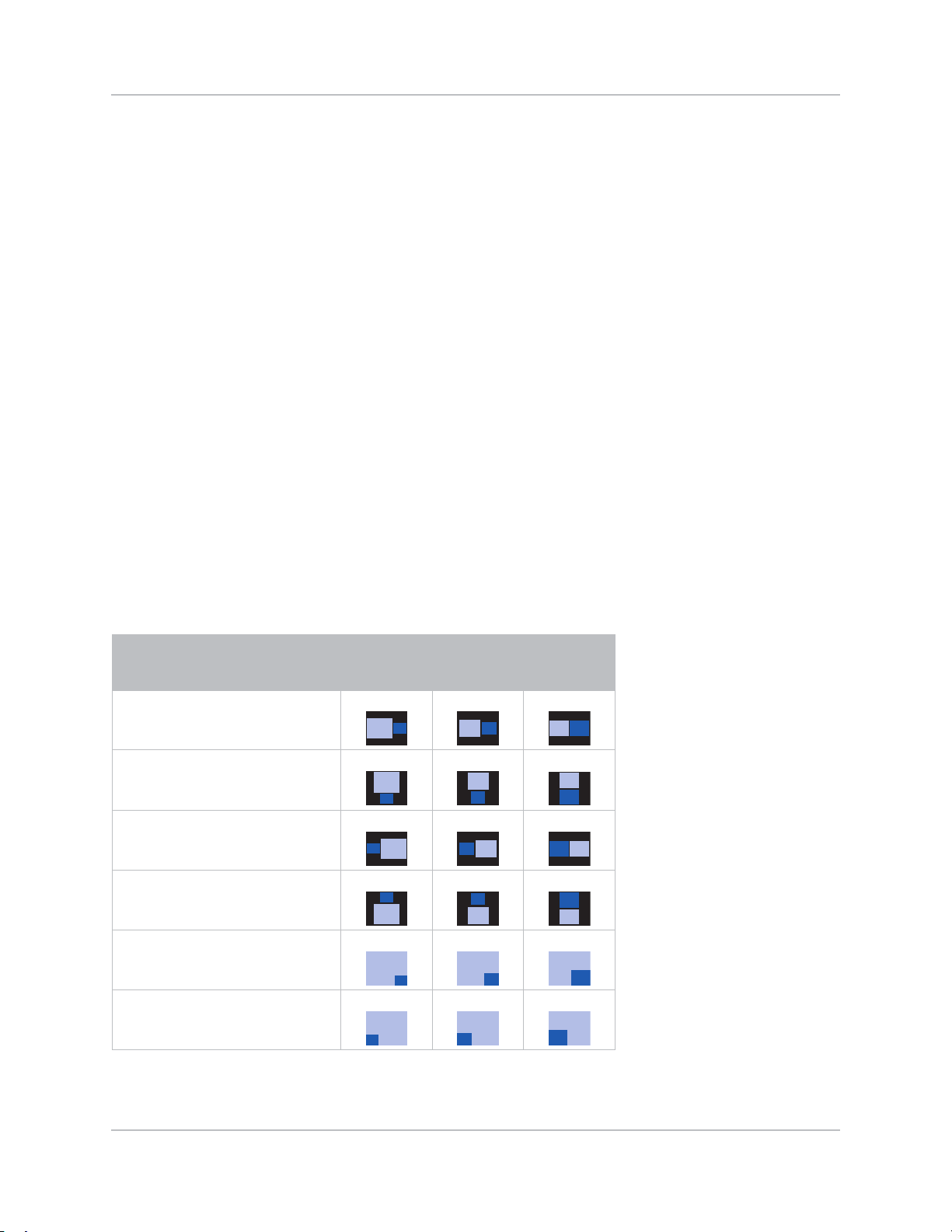
61Inspire Series User Manual
020-001934-02 Rev. 1 (01-2022)
Copyright ©2022 Christie Digital Systems USA Inc. All rights reserved.
Configuring input settings
Setting the size of second input source
Set the size of picture-in-picture (PIP)/picture-by-picture (PBP). See Input sources layout and size
on page 61 for more details of the layout and size.
1. Select Menu > Input Switching & PIP > Size.
2. Select the appropriate size, small, medium or large, for PIP/PBP input source.
3. To confirm the selection, press ENTER.
Setting the display layout with two input sources
Set the display location for main input source and second input source on the screen. See Input
sources layout and size on page 61 for more details of the layout and size.
1. Select Menu > Input Switching & PIP > Layout.
2. Select the appropriate layout.
3. To confirm the selection, press ENTER.
Input sources layout and size
A P indicates the primary source region (lighter color) and an asterisk (*) indicates both regions are
the same size.
PIP/PBP Layout PIP/PBP Size
Small Medium Large
PBP, Main Left
*
PBP, Main Top
*
PBP, Main Right
*
PBP, Main Bottom
*
PIP, Sub Bottom Right
PIP, Sub Bottom Left
P
P
P
P
P
P
P
P
P
P
P
P
P
P
P
P
P
P
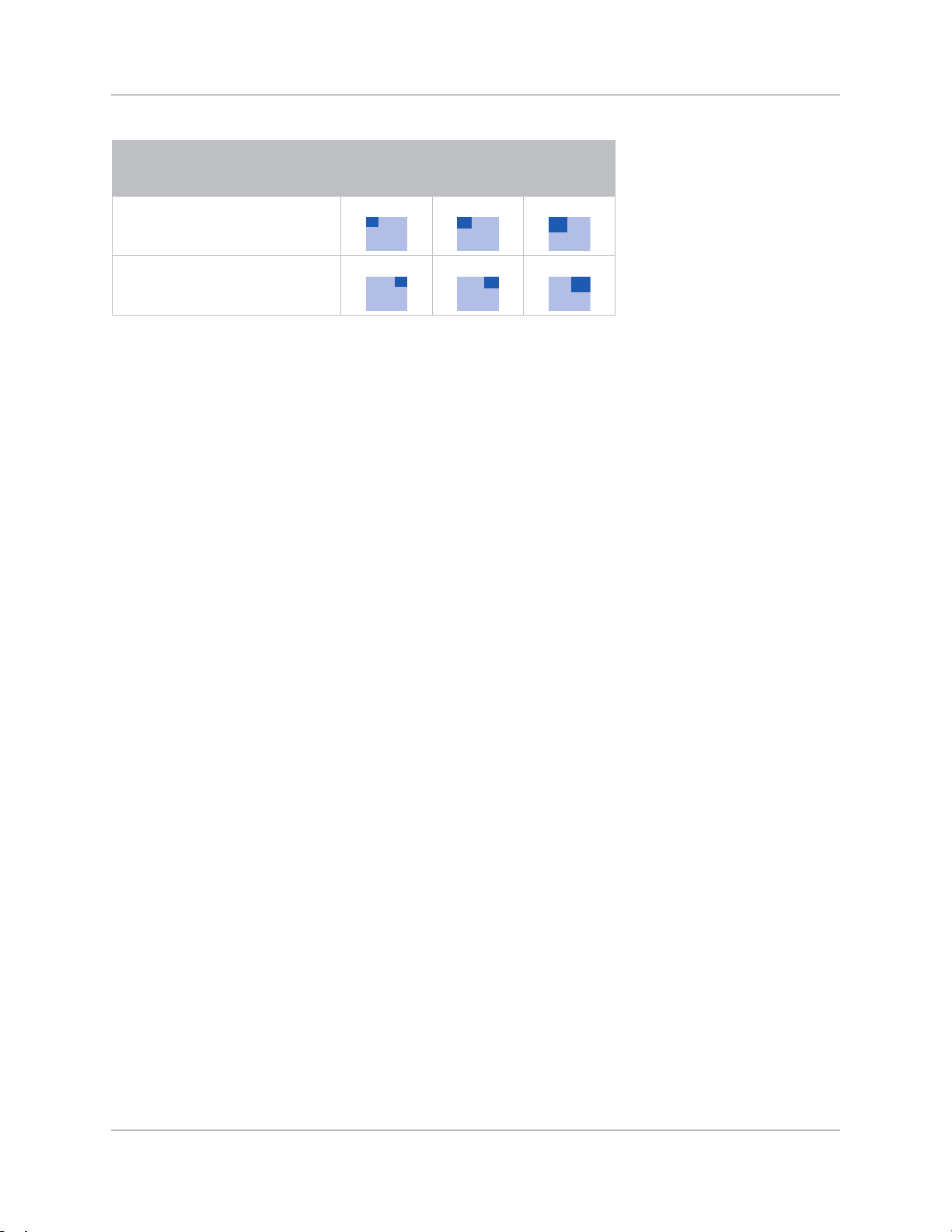
62Inspire Series User Manual
020-001934-02 Rev. 1 (01-2022)
Copyright ©2022 Christie Digital Systems USA Inc. All rights reserved.
Configuring input settings
Setting the timing detection mode
Set timing detection mode to enhanced or normal to support additional PC timings. When the
projected picture is not completed, this function is used to adjust the picture.
1. Select Menu > Input Switching & PIP > Auto Image Resync.
2. Select the appropriate mode:
• Normal—If the input signal source has been plugged to the same port on the projector
and not been replugged, then the projector can process the signal at a faster speed.
• Enhanced—Every time the projector receives the signal, it will analyze the source signal
profoundly and verify the integrity. This ensures the optimal image quality but consumes
more time.
3. To confirm the selection, press ENTER.
Setting the input searching method
Set the most suited method for searching input source.
1. Select Menu > Input Switching & PIP > Input key.
2. Select the appropriate searching method:
• Change Sources—Change the source manually by pressing INPUT on the keypad or
remote control.
• List all Sources—Select to list all the sources and then select the input source you want.
• Auto Sources—Automatically search the source.
3. To confirm the selection, press ENTER.
PIP, Sub Top Left
PIP, Sub Top Right
PIP/PBP Layout PIP/PBP Size
Small Medium Large
P
P P
P
P P

63Inspire Series User Manual
020-001934-02 Rev. 1 (01-2022)
Copyright ©2022 Christie Digital Systems USA Inc. All rights reserved.
Configuring input settings
Adjusting the sub image
Adjust the image related settings for the sub source in PIP mode.
1. Select Menu > Input Switching & PIP > Adjust Sub Image.
2. Set up the appropriate setting for sub source:
• Brightness—Adjust the brightness of the sub image to adapt to various ambient light.
• Contrast—Adjust the contrast ratio of the sub image.
• Color Space—Select a color space for the sub image.
Enabling low latency mode
Enable the Low Latency Mode to minimize the input lag. This function is used for live broadcasting,
streaming media, and similar installations.
1. Select Menu > Input Switching & PIP > Low Latency Mode.
2. Select the appropriate mode.
• Normal—No functional restrictions but longer delay time.
• 2D Ultra—Reduces latency in 2D mode but sets restrictions when warping the image.
3. To confirm the selection, press ENTER.
Configuring the HDMI setting
Enable or disable the Extended Display Identification Data (EDID) for HDMI 2.0 to play videos from
hardware devices, such as DVD players.
The most commonly used HDMI versions are HDMI 1.4 and 2.0, with differences in bandwidth. The
projector is compatible with both HDMI 1.4 and HDMI 2.0. When the projector is connected to a
hardware device supporting HDMI 1.4 only, disable the EDID for HDMI 2.0 to play the videos
properly.
1. Select Menu > Input Switching & PIP > EDID.
2. Select the HDMI version.
3. To confirm the setting, press ENTER.
2D Ultra does not support 3D, 4K timing, input timings outside the range of 30fps to 120fps, PIP/
PBP mode, and image freeze.
HDMI 2.0 is supported only by HDMI1 connector.

64Inspire Series User Manual
020-001934-02 Rev. 1 (01-2022)
Copyright ©2022 Christie Digital Systems USA Inc. All rights reserved.
Configuring input settings
Configuring the HDMI output
Set the default HDMI output port.
1. Select Menu > Input Switching & PIP > HDMI Output.
2. Select HDMI 1 or HDMI 2 as the HDMI output.
3. To confirm the setting, press ENTER.

65Inspire Series User Manual
020-001934-02 Rev. 1 (01-2022)
Copyright ©2022 Christie Digital Systems USA Inc. All rights reserved.
Signal connectivity
specifications
Identify the signal connectivity specifications for Inspire Series projector.
The list of formats listed below are not exhaustive and other formats may be supported. For more
information, contact Christie Technical Support.
VGA video formats
Identify the video formats for the VGA input.
Signal Type Signal Format Resolution Aspect Ratio V Sync (Hz) RGB
YPbPr
PC VGA 640 x 350 85 V X
640 x 400 16:10 85 V X
640 x 480 1.33 4:3 60 V X
72 V X
75 V X
85 V X
720 x 400 1.8 9:5 70 V X
85 V X
SVGA 800 x 600 1.33 4:3 60 V X
72 V X
75 V X
85 V X
832 x 624 75 V X
848 x 480 60 V X
XGA 1024 x 768 1.33 4:3 60 V X
70 V X

Signal connectivity specifications
66Inspire Series User Manual
020-001934-02 Rev. 1 (01-2022)
Copyright ©2022 Christie Digital Systems USA Inc. All rights reserved.
PC XGA 1024 x 768 1.33 4:3 75 V X
85 V X
SXGA 1152 x 864 75 V X
1152 x 870 1.32 75 V X
WXGA 1280 x 768 1.67 5:3 60 V X
75 V X
85 V X
1280 x 800 1.6 16:10 60 V X
75 V X
85 V X
SXGA 1280 x 960 1.33 4:3 60 V X
85 V X
1280 x 1024 1.25 5:4 60 V X
75 V X
85 V X
WXGA 1360 x 768 1.78 16:9 60 V X
1366 x 768 V X
SXGA+ 1400 x 1050 1.33 4:3 V X
WXGA+ 1440 x 900 1.6 16:10 60 V X
75 V X
WXGA++ 1600 x 900 1.78 16:9 60 V X
UXGA 1600 x 1200 1.33 4:3 50 V X
60 V X
WSXGA+ 1680 x 1050 1.6 16:10 V X
WUXGA RB 1920 x 1200RB 50 V X
60 V X
TV SDTV (480i) 720 x 480 1.5 3:2 59.94 V V
60 V V
SDTV (576i) 720 x 576 1.25 5:4 50 V V
EDTV (480p) 720 x 480 1.5 3:2 59.94 V V
60 V V
EDTV (576p) 720 x 576 1.25 5:4 50 V V
Signal Type Signal Format Resolution Aspect Ratio V Sync (Hz) RGB
YPbPr

Signal connectivity specifications
67Inspire Series User Manual
020-001934-02 Rev. 1 (01-2022)
Copyright ©2022 Christie Digital Systems USA Inc. All rights reserved.
(V): Video format is supported.
(X): Video format is Not supported.
TV HDTV (1080i) 1920 x 1080 1.78 16:9 50 V V
59.94 V V
60 V V
HDTV (720p) 1280 x 720 50 V V
59.94 V V
60 V V
HDTV (1080p) 1920 x 1080 23.98 V V
24 V V
25 V V
29.97 V V
30 V V
50 V V
59.94 V V
60 V V
Signal Type Signal Format Resolution Aspect Ratio V Sync (Hz) RGB
YPbPr

Signal connectivity specifications
68Inspire Series User Manual
020-001934-02 Rev. 1 (01-2022)
Copyright ©2022 Christie Digital Systems USA Inc. All rights reserved.
HDMI video formats
Identify the video formats for the HDMI input.
Signal
Type
Signal
Format
Resolution Aspect Ratio V
Sync
(Hz)
RGB YCbCr 4:4:4 YCbCr
4:2:2
8 bit
10 bit 12 bit 8 bit 10 bit 12 bit 8 bit
PC VGA 640 x 350 85 V V V V V V V
640 x 400 16:10 85 V V V V V V V
640 x 480 1.33 4:3 60 V V V V V V V
72VVVVVVV
75VVVVVVV
85VVVVVVV
720 x 400 1.8 9:5 70 V V V V V V V
85VVVVVVV
SVGA 800 x 600 1.33 4:3 60 V V V V V V V
72VVVVVVV
75VVVVVVV
85VVVVVVV
120 V V V V V V V
832 x 624 75 V V V V V V V
848 x 480 60 V V V V V V V
XGA 1024 x 768 1.33 4:3 60 V V V V V V V
70VVVVVVV
75VVVVVVV
85VVVVVVV
120 V V V V V V V
SXGA 1152 x 864 75 V V V V V V V
1152 x 870 1.32 75 V V V V V V V
WXGA 1280 x 768 1.67 5:3 60 V V V V V V V
75VVVVVVV
85VVVVVVV
1280 x 800 1.6 16:10 60 V V V V V V V
75VVVVVVV
85VVVVVVV
120 V V V V V V V

Signal connectivity specifications
69Inspire Series User Manual
020-001934-02 Rev. 1 (01-2022)
Copyright ©2022 Christie Digital Systems USA Inc. All rights reserved.
PC SXGA 1280 x 960 1.33 4:3 60 V V V V V V V
85VVVVVVV
1280 x 1024 1.25 5:4 60 V V V V V V V
75VVVVVVV
85VVVVVVV
WXGA 1360 x 768 1.78 16:9 60 V V V V V V V
1366 x 768 V V V V V V V
SXGA+ 1400 x 1050 1.33 4:3 V V V V V V V
WXGA+ 1440 x 900 1.6 16:10 60 V V V V V V V
75VVVVVVV
85VVVVVVV
WXGA++ 1600 x 900 1.78 16:9 60 V V V V V V V
UXGA 1600 x 1200 1.33 4:3 50 V V V V V V V
60VVVVVVV
WSXGA+ 1680 x 1050 1.6 16:10 V V V V V V V
WUXGA RB 1920 x 1200RB 50 V V V V V V V
60VVVVVVV
TV SDTV (480i) 720 x 480 1.5 3:2 59.94 V V V V V V V
60VVVVVVV
SDTV (576i) 720 x 576 1.25 5:4 50 V V V V V V V
EDTV (480p) 720 x 480 1.5 3:2 59.94 V V V V V V V
60VVVVVVV
EDTV (576p) 720 x 576 1.25 5:4 50 V V V V V V V
HDTV
(1080i)
1920 x 1080 1.78 16:9 50 V V V V V V V
59.94 V V V V V V V
60VVVVVVV
HDTV
(720p)
1280 x 720 50 V V V V V V V
59.94 V V V V V V V
60VVVVVVV
120 V V V V V V V
HDTV
(1080p)
1920 x 1080 23.98 V V V V V V V
24VVVVVVV
25VVVVVVV
29.97 V V V V V V V
Signal
Type
Signal
Format
Resolution Aspect Ratio V
Sync
(Hz)
RGB YCbCr 4:4:4 YCbCr
4:2:2
8 bit
10 bit 12 bit 8 bit 10 bit 12 bit 8 bit

Signal connectivity specifications
70Inspire Series User Manual
020-001934-02 Rev. 1 (01-2022)
Copyright ©2022 Christie Digital Systems USA Inc. All rights reserved.
TV HDTV
(1080p)
1920 x 1080 1.78 16:9 30 V V V V V V V
50VVVVVVV
59.94 V V V V V V V
60VVVVVVV
Mandatory
3D
Frame
Packing
(1080p)
23.98 V V V V V V V
24VVVVVVV
Frame
Packing
(720p)
1280 x 720 50 V V V V V V V
59.94 V V V V V V V
60VVVVVVV
Side by Side
(1080i)
1920 x 1080 50 V V V V V V V
59.94 V V V V V V V
60VVVVVVV
Top and
Bottom
(720p)
1280 x 720 50 V V V V V V V
59.94 V V V V V V V
60VVVVVVV
Top and
Bottom
(1080p)
1920 x 1080 23.98 V V V V V V V
24VVVVVVV
Frame
Sequential
3D
SVGA 800 x 600 1.33 4:3 120 V V V V V V V
XGA 1024 x 720 V V V V V V V
HDTV 1280 x 720 1.78 16:9 V V V V V V V
WXGA 1280 x 800 1.60 16:10 V V V V V V V
1080p 1920 x 1080 1.78 16:9 60 V V V V V V V
WUXGA 1920 x 1200 1.60 16:10 V V V V V V V
4K(*) 3840 x 2160 3840 x 2160 1.78 16:9 24 V V V V V V V
25VVVVVVV
30VVVVVVV
50VXXVXXV
60VXXVXXV
4096 x 2160
SMPTE
4096 x 2160 1.90 24 V V V V V V V
25VVVVVVV
30VVVVVVV
50VXXVXXV
60VXXVXXV
Signal
Type
Signal
Format
Resolution Aspect Ratio V
Sync
(Hz)
RGB YCbCr 4:4:4 YCbCr
4:2:2
8 bit
10 bit 12 bit 8 bit 10 bit 12 bit 8 bit

Signal connectivity specifications
71Inspire Series User Manual
020-001934-02 Rev. 1 (01-2022)
Copyright ©2022 Christie Digital Systems USA Inc. All rights reserved.
(V): Video format is supported.
(X): Video format is Not supported.
HDBaseT video formats
Identify the video formats for the HDBaseT input.
• 4K is not supported if the source is HDMI2.
Signal
Type
Signal
Format
Resolution Aspect Ratio V
Sync
(Hz)
RGB YCbCr 4:4:4 YCbCr
4:2:2
8 bit
10 bit 12 bit 8 bit 10 bit 12 bit 8 bit
PC VGA 640 x 350 85 V V V V V V V
640 x 400 16:10 85 V V V V V V V
640 x 480 1.33 4:3 60 V V V V V V V
72VVVVVVV
75VVVVVVV
85VVVVVVV
720 x 400 1.8 9:5 70 V V V V V V V
85VVVVVVV
SVGA 800 x 600 1.33 4:3 60 V V V V V V V
72VVVVVVV
75VVVVVVV
85VVVVVVV
120 V V V V V V V
832 x 624 75 V V V V V V V
848 x 480 60 V V V V V V V
XGA 1024 x 768 1.33 4:3 60 V V V V V V V
70VVVVVVV
75VVVVVVV
85VVVVVVV
120 V V V V V V V
SXGA 1152 x 864 75 V V V V V V V
1152 x 870 1.32 75 V V V V V V V

Signal connectivity specifications
72Inspire Series User Manual
020-001934-02 Rev. 1 (01-2022)
Copyright ©2022 Christie Digital Systems USA Inc. All rights reserved.
PC WXGA 1280 x 768 1.67 5:3 60 V V V V V V V
75VVVVVVV
85VVVVVVV
1280 x 800 1.6 16:10 60 V V V V V V V
75VVVVVVV
85VVVVVVV
120 V V V V V V V
SXGA 1280 x 960 1.33 4:3 60 V V V V V V V
85VVVVVVV
1280 x 1024 1.25 5:4 60 V V V V V V V
75VVVVVVV
85VVVVVXV
WXGA 1360 x 768 1.78 16:9 60 V V V V V V V
1366 x 768 V V V V V V V
SXGA+ 1400 x 1050 1.33 4:3 V V V V V V V
WXGA+ 1440 x 900 1.6 16:10 60 V V V V V V V
75VVVVVVV
85VVVVVVV
WXGA++ 1600 x 900 1.78 16:9 60 S V V V V V V
UXGA 1600 x 1200 1.33 4:3 50 V V V V V V V
60VVVVVXV
WSXGA+ 1680 x 1050 1.6 16:10 V V V V V V V
WUXGA RB 1920 x 1200RB 50 V V V V V V V
60VVVVVXV
TV SDTV (480i) 720 x 480 1.5 3:2 59.94 V V V V V V V
60VVVVVVV
SDTV (576i) 720 x 576 1.25 5:4 50 V V V V V V V
EDTV (480p) 720 x 480 1.5 3:2 59.94 V V V V V V V
60VVVVVVV
EDTV (576p) 720 x 576 1.25 5:4 50 V V V V V V V
HDTV
(1080i)
1920 x 1080 1.78 16:9 50 V V V V V V V
59.94 V V V V V V V
60VVVVVVV
Signal
Type
Signal
Format
Resolution Aspect Ratio V
Sync
(Hz)
RGB YCbCr 4:4:4 YCbCr
4:2:2
8 bit
10 bit 12 bit 8 bit 10 bit 12 bit 8 bit

Signal connectivity specifications
73Inspire Series User Manual
020-001934-02 Rev. 1 (01-2022)
Copyright ©2022 Christie Digital Systems USA Inc. All rights reserved.
TV HDTV
(720p)
1280 x 720 1.78 16:9 50 V V V V V V V
59.94 V V V V V V V
60VVVVVVV
120 V V V V V V V
HDTV
(1080p)
1920 x 1080 23.98 V V V V V V V
24VVVVVVV
25VVVVVVV
29.97 V V V V V V V
30VVVVVVV
50VVVVVVV
59.94 V V V V V V V
60VVVVVVV
Mandatory
3D
Frame
Packing
(1080p)
1920 x 1080 23.98 V V V V V V V
24VVVVVVV
Frame
Packing
(720p)
1280 x 720 50 V V V V V V V
59.94 V V V V V V V
60VVVVVVV
Side by Side
(1080i)
1920 x 1080 50 V V V V V V V
59.94 V V V V V V V
60VVVVVVV
Top and
Bottom
(720p)
1280 x 720 50 V V V V V V V
59.94 V V V V V V V
60VVVVVVV
Top and
Bottom
(1080p)
1920 x 1080 23.98 V V V V V V V
24VVVVVVV
Frame
Sequential
3D
SVGA 800 x 600 1.33 4:3 120 V V V V V V V
XGA 1024 x 720 V V V V V V V
HDTV 1280 x 720 1.78 16:9 V V V V V V V
WXGA 1280 x 800 1.60 16:10 V V V V V V V
1080p 1920 x 1080 1.78 16:9 60 V V V V V V V
WUXGA 1920 x 1200 1.60 16:10 V V V V V V V
Signal
Type
Signal
Format
Resolution Aspect Ratio V
Sync
(Hz)
RGB YCbCr 4:4:4 YCbCr
4:2:2
8 bit
10 bit 12 bit 8 bit 10 bit 12 bit 8 bit

Signal connectivity specifications
74Inspire Series User Manual
020-001934-02 Rev. 1 (01-2022)
Copyright ©2022 Christie Digital Systems USA Inc. All rights reserved.
Picture-in-picture/picture-by-picture (PIP/PBP)
compatibility
The following table details the picture-in-picture/picture-by-picture (PIP/PBP) compatibility.
•Dot (●): PIP/PBP combinations are enabled.
PIP/PBP VGA
HDMI2 HDMI1
HDBaseT
HDMI 1.4 HDMI 1.4 HDMI 2.0
Sub Source
VGA ●●●●
HDMI2 HDMI 1.4 ●●●●
HDMI1
HDMI 1.4 ●● ●
HDMI 2.0 ●● ●
HDBaseT ●●●●

75Inspire Series User Manual
020-001934-02 Rev. 1 (01-2022)
Copyright ©2022 Christie Digital Systems USA Inc. All rights reserved.
Regulatory
This product conforms to the following regulations related to product safety, environmental
requirements and electromagnetic compatibility (EMC).
Safety
• CAN/CSA C22.2 No. 60950-1-07 - Information Technology Equipment – Safety – Part 1:
General Requirements
• ANSI/UL 60950-1-2014 – Information Technology Equipment – Safety – Part 1: General
Requirements
• IEC/EN 60950-1 – Information Technology Equipment – Safety – Part 1: General Requirements
Laser safety
• IEC 60825-1:2014 – Safety of Laser Products – Part 1: Equipment Classification and
Requirements
• IEC 62471:2006 – Photobiological safety of lamps and lamp systems
• IEC 62471-5:2015 – Photobiological safety of lamps and lamp systems – Part 5: Image
projectors
• FDA 2015-02 – Immediately in Effect Guidance Document: Classification and Requirements for
Laser Illuminated Projectors (LIPs)
Electro-magnetic compatibility
Emissions
• FCC CFR47, Part 15, Subpart B/ANSI C63.4, Class A - Unintentional Radiators
• CAN ICES-3 (A/B) / NMB-3 (A)
• CISPR 32:2014/EN 55032:2014, Class A - Information Technology
• IEC 61000-3-2/EN61000-3-2 - Limits for Harmonic Current Emissions
• IEC 61000-3-3/EN61000-3-3 - Limitations of Voltage Changes, Voltage Fluctuations, and Flicker

Specifications
76Inspire Series User Manual
020-001934-02 Rev. 1 (01-2022)
Copyright ©2022 Christie Digital Systems USA Inc. All rights reserved.
Immunity
• CISPR 24: 2010/EN55024:2010 - EMC Requirements - Information Technology Equipment
Environmental
• EU Directive (2011/65/EU) on the restriction of the uses of certain hazardous substances
(RoHS) in electrical and electronic equipment and the applicable official amendment(s)
• EU Directive (2012/19/EU) on waste and electrical and electronic equipment (WEEE) and the
applicable official amendment(s)
• Regulation (EC) No 1907/2006 concerning the Registration, Evaluation, Authorisation and
Restriction of Chemicals (REACH) and the applicable official amendment(s)
• China Ministry of Information Industry Order No.39 (02/2006) on the control of pollution
caused by electronic information products, hazardous substances concentration limits (SJ/
T11363-2006), and the applicable product marking requirement (SJ/T11364-2006)
FCC
This device complies with Part 15 of the FCC rules. Operation is subject to the following two
conditions:
(1)This device may not cause harmful interference,
(2)This device must accept any interference receive; including interference that may cause
undesired operation.
This Equipment has been tested and found to comply with the limits for a Class A digital device,
pursuant to part 15 of the FCC Rules. These limits are designed to provide reasonable protection
against harmful interference when the equipment is operated in a commercial environment. This
equipment generates, uses, and can radiate radio frequency energy and, if not installed and used in
accordance with the instruction manual, may cause harmful interference to radio communications.
Operation of this equipment in a residential area is likely to cause harmful interference in which
case the user will be required to correct the interference at his own expense.
IEC
The Class A digital apparatus meets all requirements of the Canadian Interference-Causing
Equipment Regulation. Interference-Causing Equipment Regulation.
Cet appareil numerique de la class A respecte toutes les exigences du Reglement sur le materiel
brouilleur du Canada.

Specifications
77Inspire Series User Manual
020-001934-02 Rev. 1 (01-2022)
Copyright ©2022 Christie Digital Systems USA Inc. All rights reserved.
CE
This product is herewith confirmed to comply with the requirements set out in the Council Directives
on the Approximation of the laws of the Member States relating to Electromagnetic Compatibility
Directive 2004/108/EEC.
Such use must be avoided unless the user takes special measures to reduce electromagnetic
emissions to prevent interference to the reception of radio and television broadcasts.
Declaration of Conformity for EU countries
• EMC Directive 2014/30/EU (including amendments)
• Low Voltage Directive 2014/35/EU
• (RED) 2014/53/EU (if product has RF function)
WEEE
This product is herewith confirmed to comply with the requirements set out in the Council Directives
on the Approximation of the laws of the Member States relating to Electromagnetic Compatibility
Directive 2004/108/EEC.
Warning!
• This product must not be used in residential areas.
• Thi
s product may cause interference if used in residential areas.
Disposal instructions
Do not throw this electronic device into the trash when discarding.
To minimize pollution and ensure utmost protection of the global environment, recycle it.

For the most current technical documentation, visit www.christiedigital.com.
Christie Digital Systems Canada Inc.
Kitchener
ph: 519 744 8005
Christie Digital Systems USA, Inc.
Cypress
ph: 714 236 8610
Corporate of¿ ces
United Kingdom
ph: +44 (0) 118 977 8000
United Arab Emirates
ph: +971 4 3206688
Spain
ph: +34 91 633 9990
Singapore
ph: +65 6877 8737
Republic of South Africa
ph: +27 (0)11 510 0094
Korea (Seoul)
ph: +82 2 702 1601
Japan (Tokyo)
ph: 81 3 3599 7481
India
ph: +91 (080) 6708 9999
Germany
ph: +49 2161 664540
France
ph: +33 (0) 1 41 21 44 04
Russian Federation
and Eastern Europe
ph: +36 (0) 1 47 48 100
China (Shanghai)
ph: +86 21 6278 7708
China (Beijing)
ph: +86 10 6561 0240
Brazil
ph: +55 (11) 2548 4753
Australia
ph: +61 (0) 7 3624 4888
Worldwide of¿ ces
Italy
ph: +39 (0) 2 9902 1161
Independant sales
consultant of¿ ces
Mexico
ph: +52 55 4744 1790
United States (New York)
ph: 646 779 2014
United States (Arizona)
ph: 602 943 5700