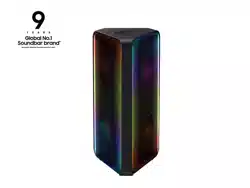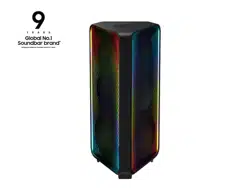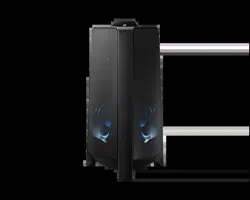

MX-T50
FULL MANUAL
Imagine the possibilities
Thank you for purchasing this Samsung product.
To receive more complete service, please register
your product at www.samsung.com/register
ENG - ii
SAFETY INFORMATION
SAFETY WARNINGS
TO REDUCE THE RISK OF ELECTRIC SHOCK, DO
NOT REMOVE THE COVER (OR BACK).
NO USER-SERVICEABLE PARTS ARE INSIDE.
REFER SERVICING TO QUALIFIED SERVICE
PERSONNEL.
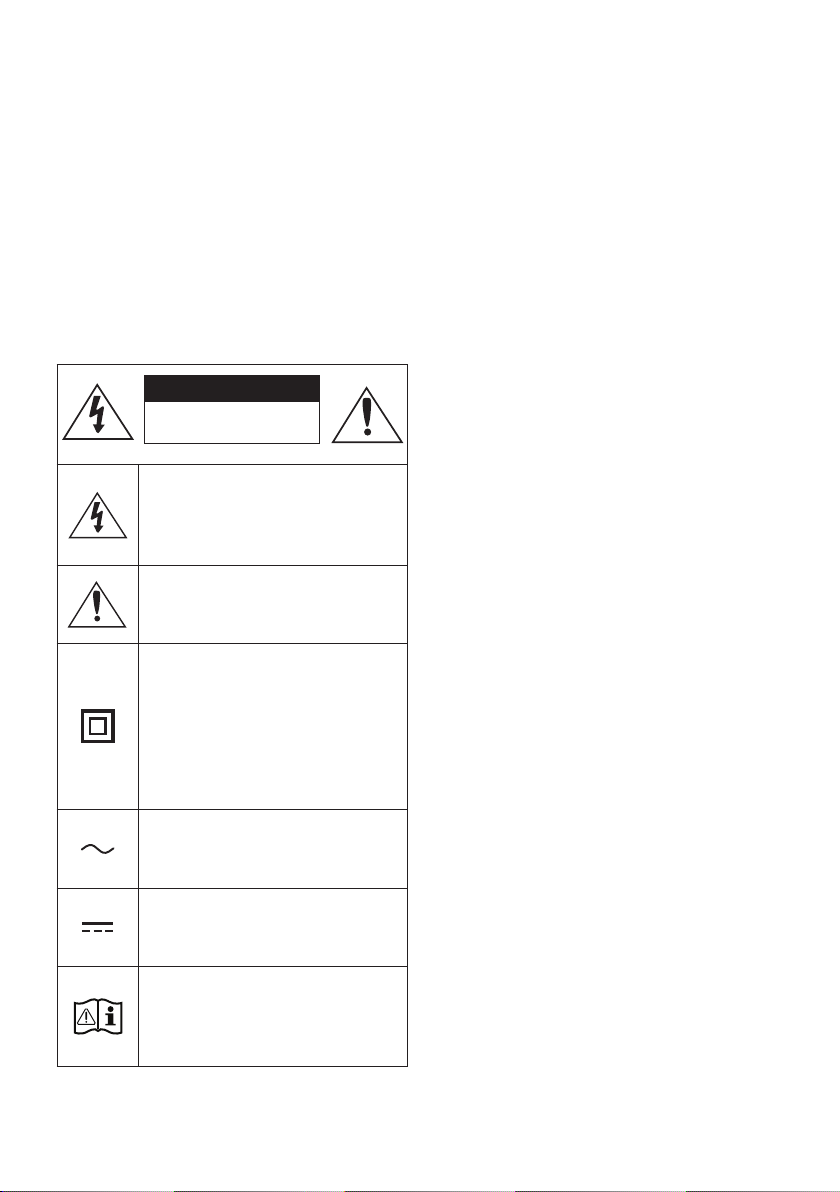
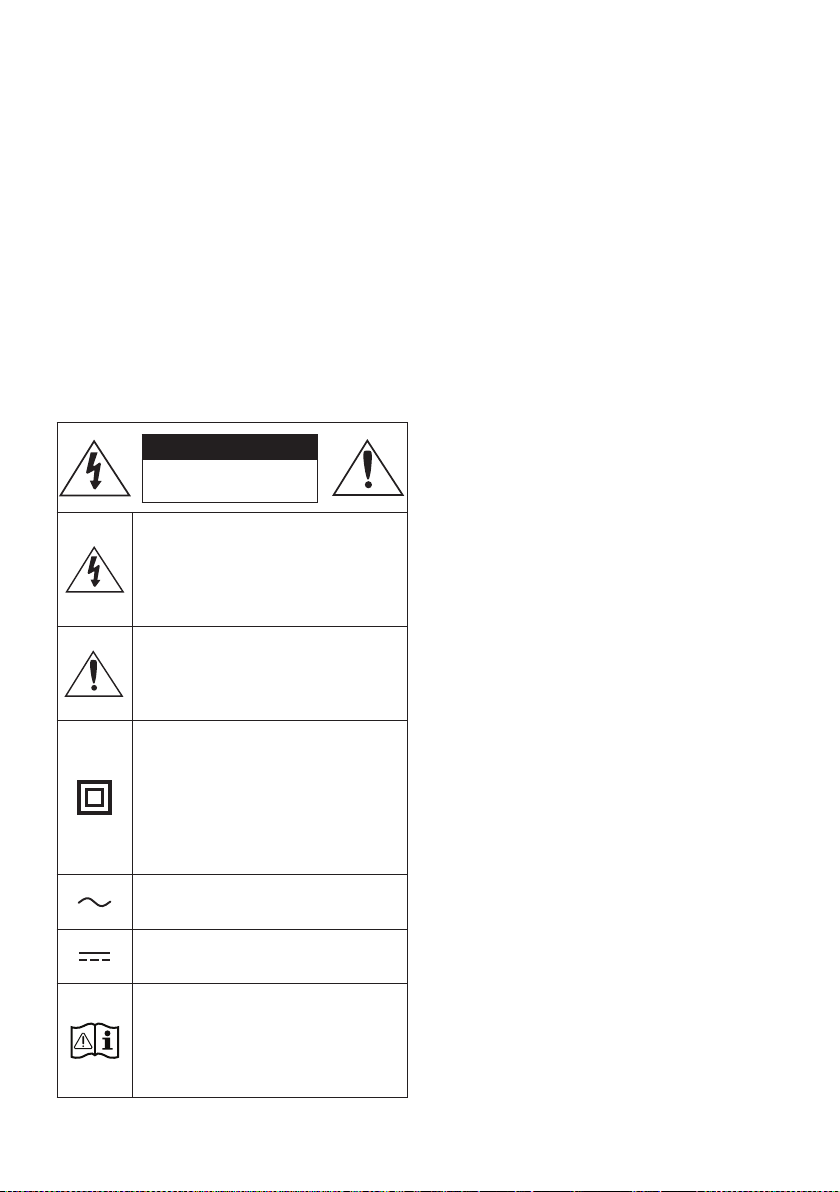
Refer to the table below for an explanation of
symbols which may be on your Samsung product.
CAUTION
RISK OF ELECTRIC SHOCK.
DO NOT OPEN.
This symbol indicates that high voltage
is present inside. It is dangerous to
make any kind of contact with any
internal part of this product.
This symbol indicates that this product
has included important literature
concerning operation and maintenance.
Class II product : This symbol indicates
that it does not require a safety
connection to electrical earth (ground).
If this symbol is not present on a
product with a power cord, the product
MUST have a reliable connection to
protective earth (ground).
AC voltage : This symbol indicates that
the rated voltage marked with the
symbol is AC voltage.
DC voltage : This symbol indicates that
the rated voltage marked with the
symbol is DC voltage.
Caution, Consult instructions for use :
This symbol instructs the user to
consult the user manual for further
safety related information.
WARNING
not expose this appliance to rain or moisture.
CAUTION
TO PREVENT ELECTRIC SHOCK, MATCH WIDE
BLADE OF PLUG TO WIDE SLOT, FULLY
INSERT.
This apparatus shall always be connected to a
AC outlet with a protective grounding
connection.
To disconnect the apparatus from the mains,
the plug must be pulled out from the mains
socket, therefore the mains plug shall be
readily operable.
Do not expose this apparatus to dripping or
liquids, such as vases on the apparatus.
To turn this apparatus off completely, you
must pull the power plug out of the wall
socket. Consequently, the power plug must
be easily and readily accessible at all times.
ENG - iii
PRECAUTIONS
1. Ensure that the AC power supply in your
house complies with the power
sticker located on the rear of your product.
Install your product horizontally, on a
suitable base (furniture), with enough space
around it for ventilation (7~10 cm). Make sure
the ventilation slots are not covered. Do not
equipment which may become hot. This unit
is designed for continuous use. To fully turn
off the unit, disconnect the AC plug from the
wall outlet. Unplug the unit if you intend to
leave it unused for a long period of time.
2. During thunderstorms, disconnect the AC
plug from the wall outlet. Voltage peaks due
to lightning could damage the unit.
3. Do not expose the unit to direct sunlight or
other heat sources. This could lead to
overheating and cause the unit to
malfunction.
4. Protect the product from moisture (i.e.
equipment creating strong magnetic or
the AC wall socket if the unit malfunctions.
Your product is not intended for industrial
use. It is for personal use only. Condensation
may occur if your product has been stored in
cold temperatures. If transporting the unit
during the winter, wait approximately
2 hours until the unit has reached room
temperature before using.
5. The battery used with this product contains
chemicals that are harmful to the
environment. Do not dispose of the battery
in the general household trash. Do not
expose the battery to excess heat, direct
disassemble, or overheat the battery.
Danger of explosion if the battery is replaced
incorrectly. Replace only with the same or
equivalent type.
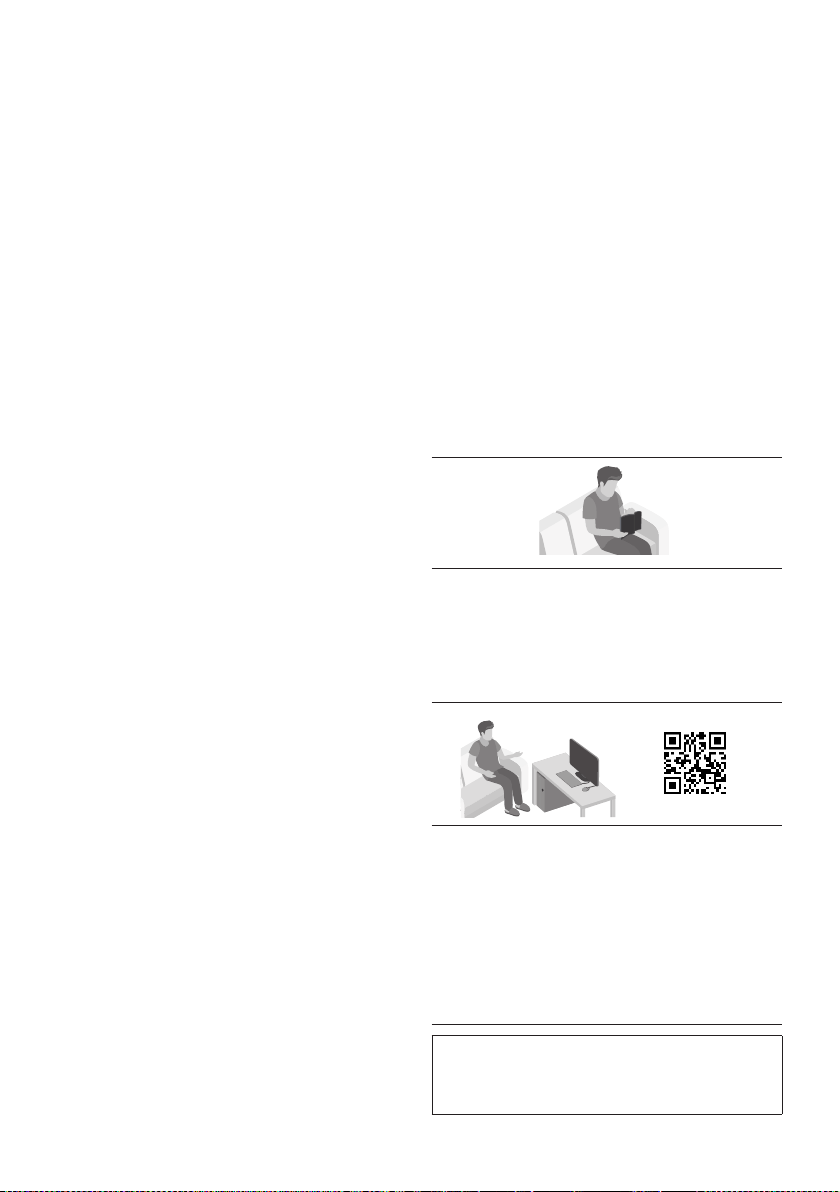
ABOUT THIS MANUAL
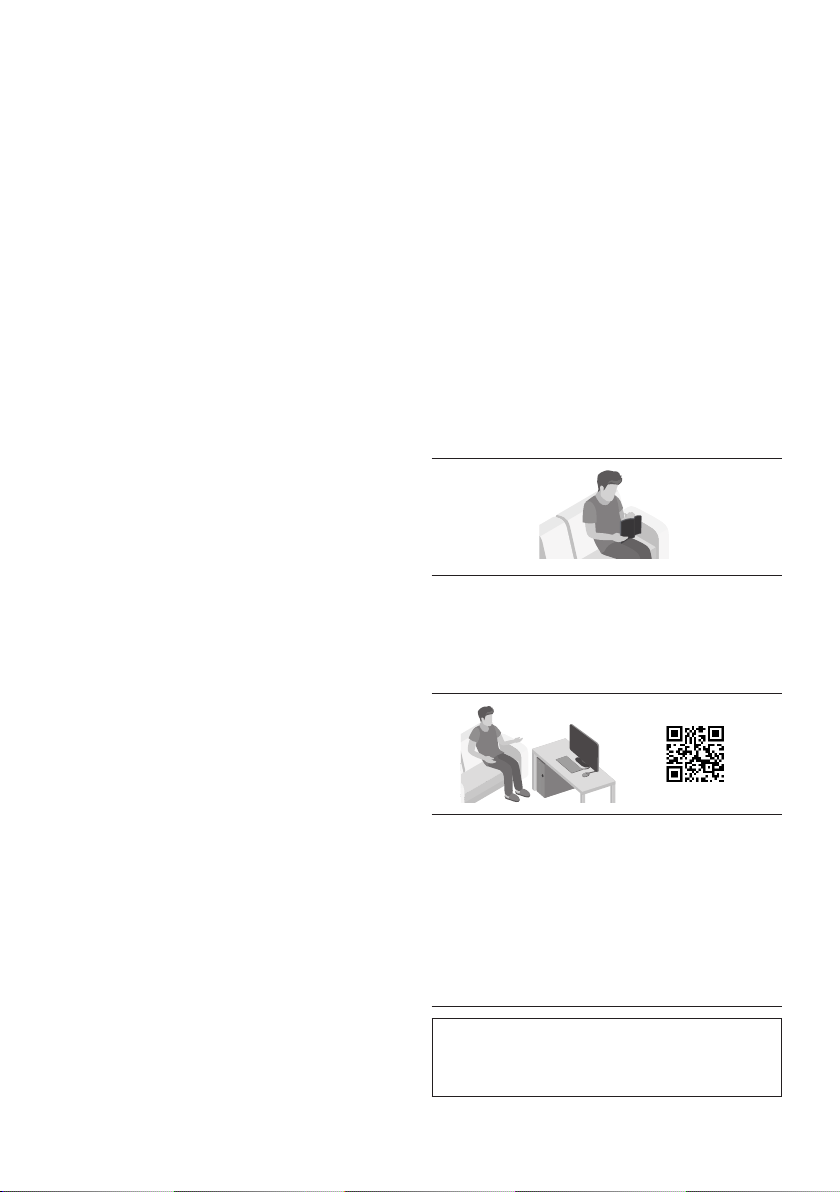
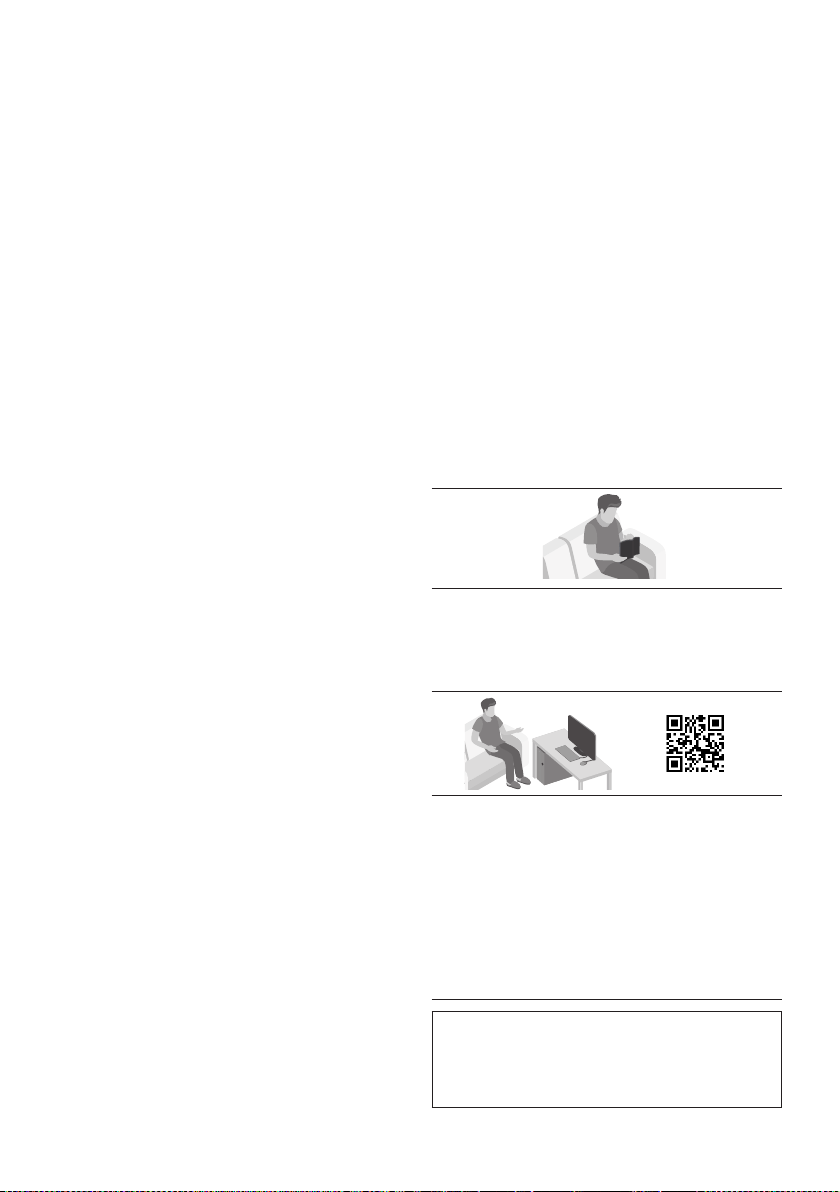
The user manual has two parts: this simple paper
USER MANUAL and a detailed FULL MANUAL you
can download.
USER MANUAL
See this manual for safety instructions,
product installation, components,
FULL MANUAL
You can access the FULL MANUAL on
Samsung’s on-line customer support centre by
scanning the QR code. To see the manual on
your PC or mobile device, download the
manual in document format from Samsung’s
website. (http://www.samsung.com/support)
without prior notice.
Sound Tower is a new name for Giga Party Audio.

ENG - iv
CONTENTS
01 Checking the Components 2
Inserting Batteries before using the Remote Control
(AAA batteries X 2)
------------------------- 2
02 Product Overview 3
Top Panel of the Sound Tower
------------------------- 3
Rear Panel of the Sound Tower
------------------------- 4
03 Connecting the Sound Tower 6
Connecting Electrical Power
-------------------------
6
How to use Audio Group
-------------------------
7
04 Connecting an External Device 13
Connecting using an Analogue Audio (AUX) Cable
-------------------------
13
Connecting a mobile device via Bluetooth
-------------------------
14
Connecting the Samsung TV via Bluetooth
-------------------------
17
05 Connecting a USB Storage Device 18
Software Update
-------------------------
19
06 Using the Remote Control 20
How to Use the Remote Control
-------------------------
20
How to use Sound Mode
-------------------------
22
How to use the DJ Effect
-------------------------
22

ENG - v
07 Using the Samsung Sound Tower
(Giga Party Audio) app 23
Install Samsung Sound Tower (Giga Party Audio) App
-------------------------
23
Launching the Samsung Sound Tower (Giga Party Audio) App
-------------------------
23
08 Troubleshooting 24
09 Licence 25
10 Open Source Licence Notice 25
11 Important Notes About Service 25
12 SpecicationsandGuide 26
-------------------------
26
ENG - 2
01 CHECKING THE COMPONENTS
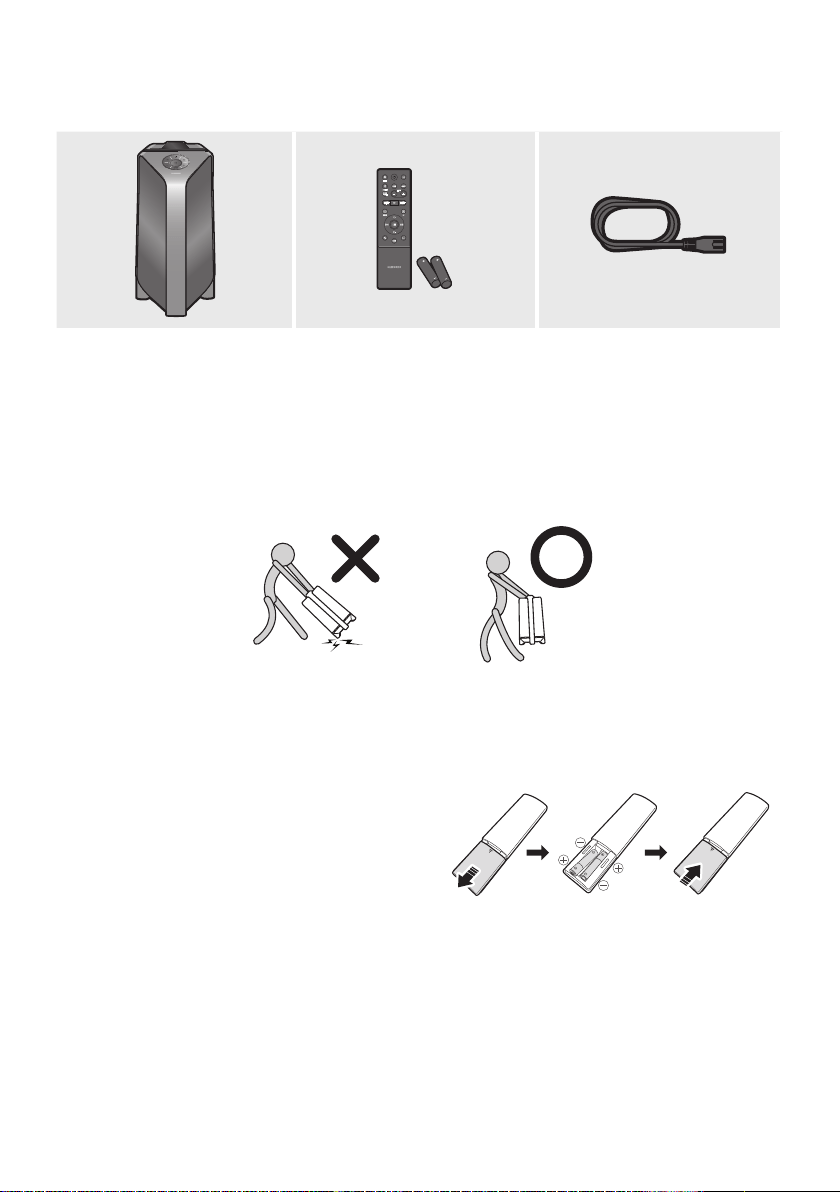
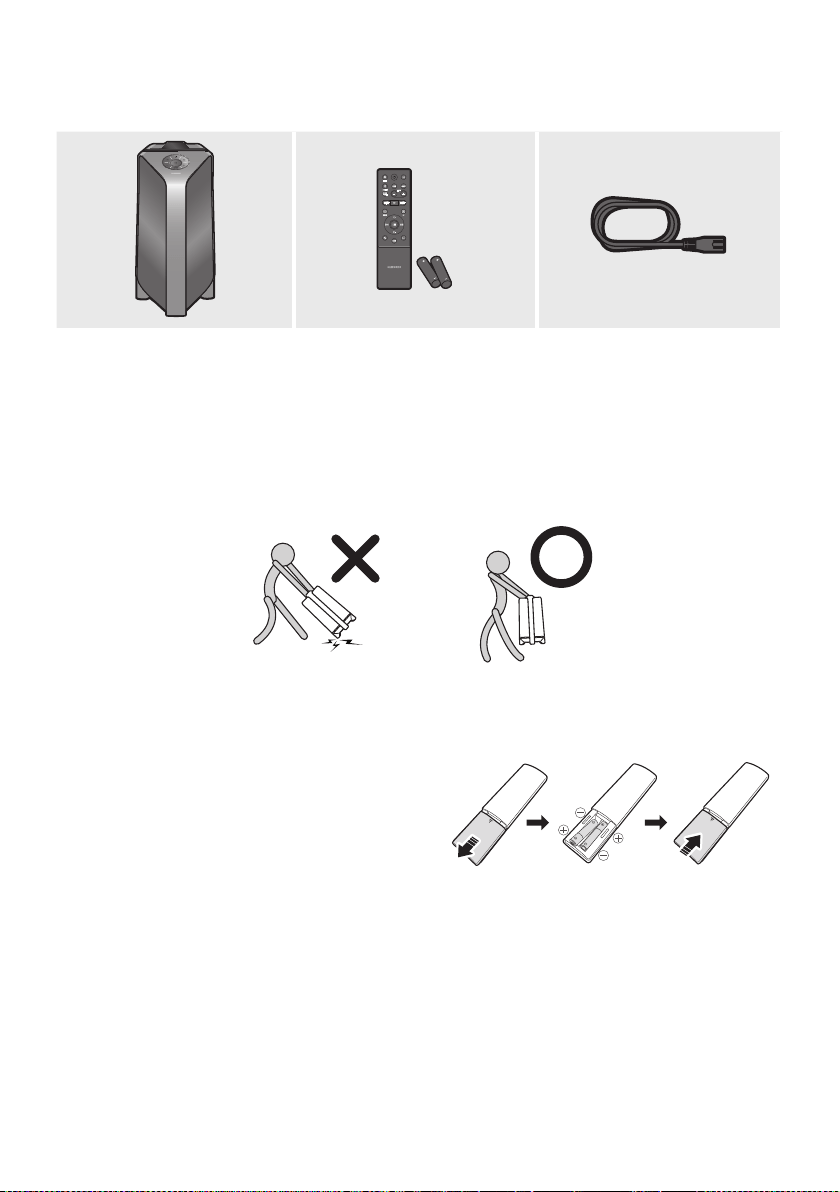
Sound Tower Main Unit Remote Control / Batteries Power Cord
For more information about the power supply and power consumption, refer to the label attached
to the product. (Label: Rear of the Sound Tower Main Unit)
To purchase additional components or optional cables, contact a Samsung Service Centre or
Samsung Customer Care.
When moving the product, do not drag or pull the product from the ground. Lift the product when
moving the product.
Inserting Batteries before using the Remote Control
(AAA batteries X 2)
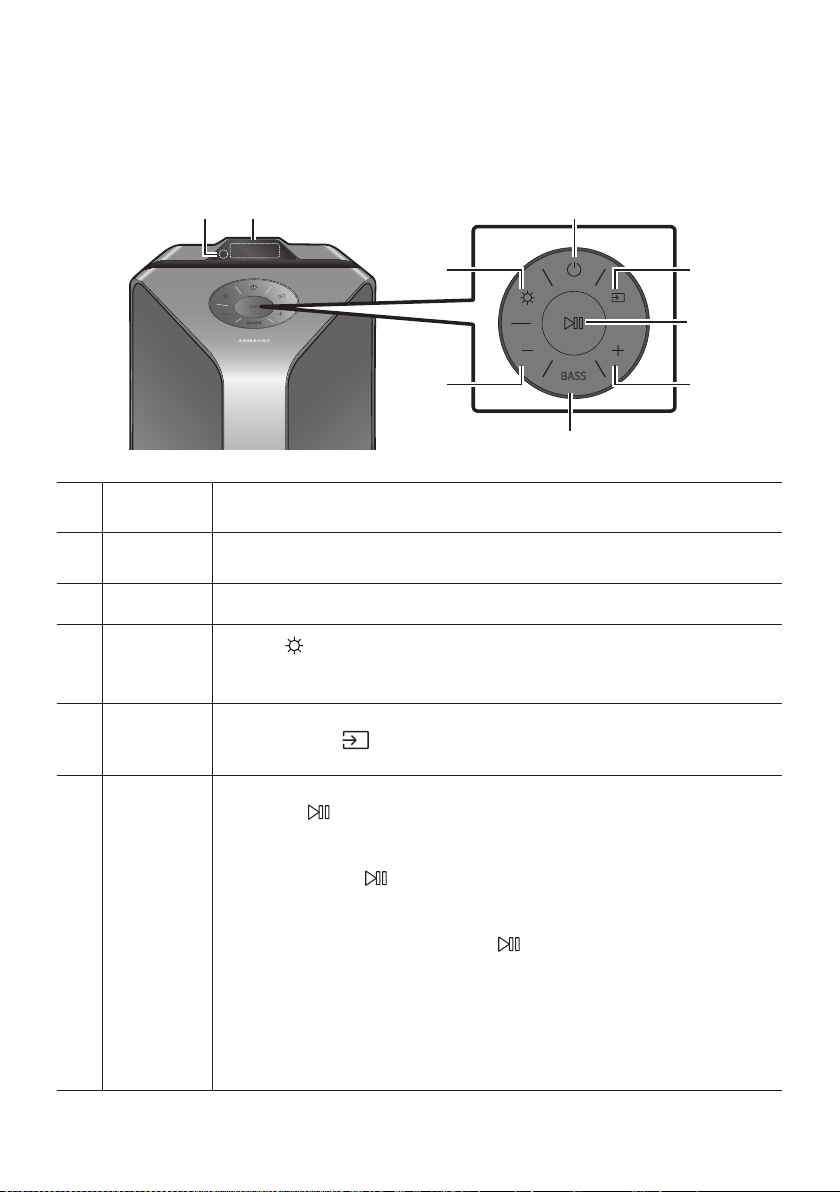
Slide the battery cover in the direction of the arrow
until it is completely removed. Insert 2 AAA
batteries (1.5V) oriented so that their polarity is
correct. Slide the battery cover back into position.
ENG - 3
02 PRODUCT OVERVIEW
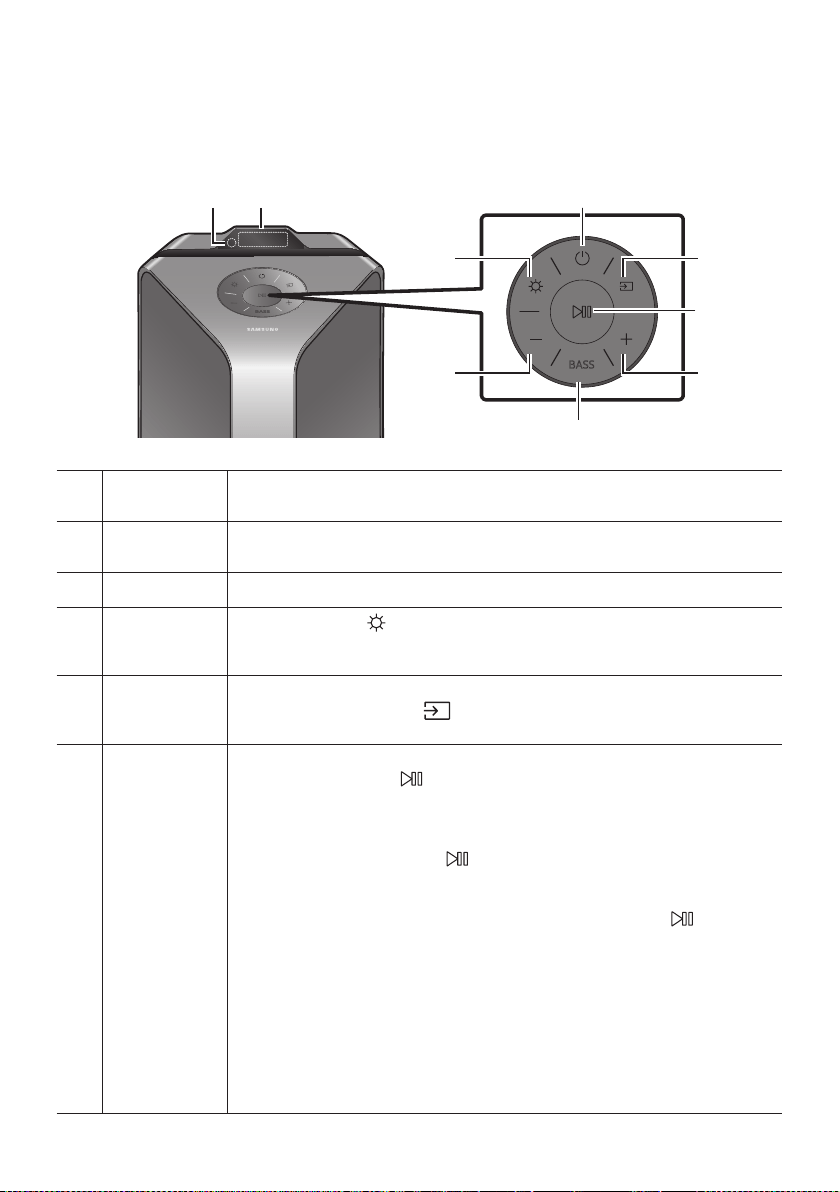
Top Panel of the Sound Tower
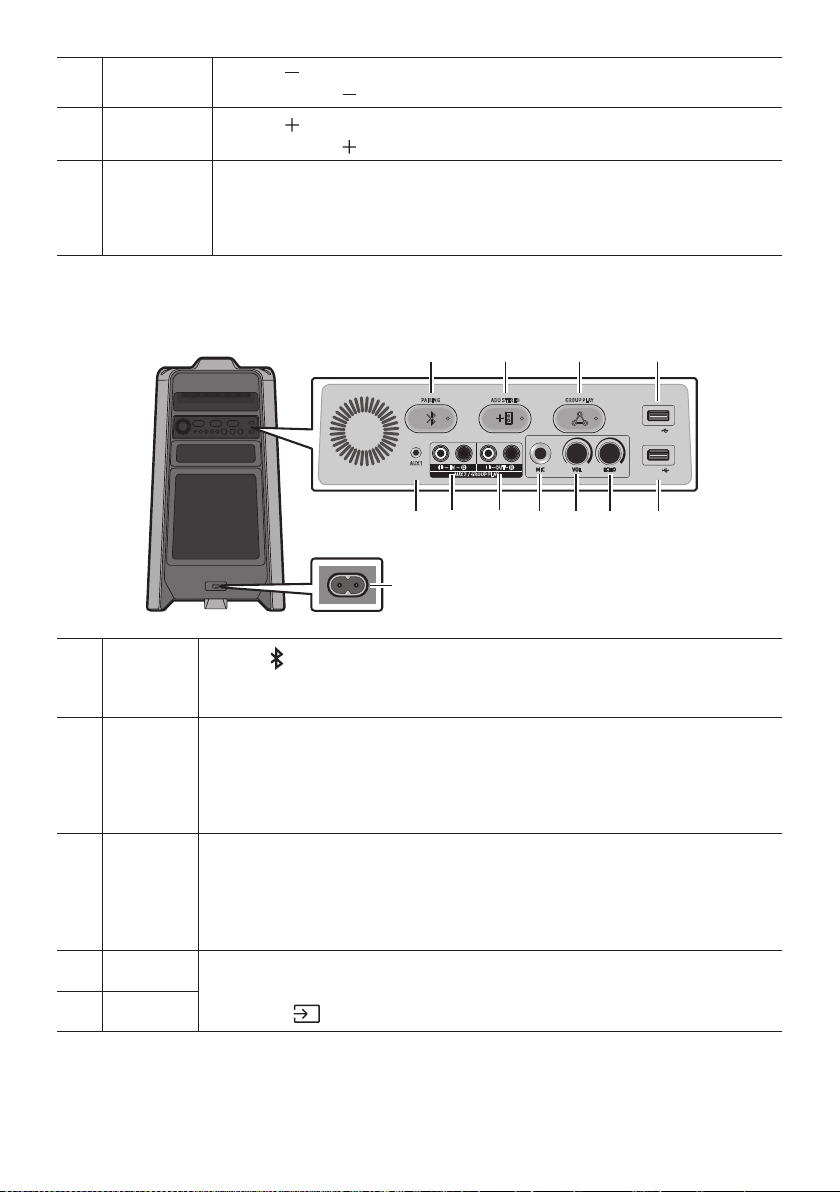
BASS
Remote
Sensor
When operating the Sound Tower system, please aim the front of the remote control at
the remote sensor.
Display
Window
Displays operating messages or current status of the Sound Tower system.
Power Turns the Sound Tower on and off.
Light
Press the
(Light) button to turn the Lighting Mode on.
Press the button repeatedly to cycle through the available lighting modes:
AMBIENT, PARTY, DANCE, THUNDERBOLT, STAR or OFF.
Source
Press to select a source connected to the Sound Tower.
Press and hold the
(Source)
button for more than 5 seconds
to enter the
“SEARCHING TV” mode.
Play/Pause
Play/Pause
Press the
Demo play
Press and hold the
button for more than 5 seconds to start the Demo play while
the system is turned on. “DEMO” appears on the display and it plays demo music for
To cancel Demo Play, press and hold the
button for more than 5 seconds during
Demo Play.
– If you input any commands while in demo play, 60 seconds timer is refreshed.
– All the buttons on the remote control and rear panel are disabled while in demo
play. If you want to use the remote control, cancel the demo play.
– Demo play is cancelled when you change the source or power off the system.
– Please be careful as it may play louder than the set volume.
ENG - 4
Volume down
Press the
(Volume down) button to lower the volume.
Press and hold the (Volume down) button to quickly lower the volume.
Volume up
Press the
(Volume up) button to raise the volume.
Press and hold the (Volume up) button to quickly raise the volume.
BASS
Press the BASS button to use the powerful bass sound.
Press it again to return to the normal sound.
Press and hold the BASS button for more than 5 seconds to turn on or off the
BLUETOOTH POWER function.
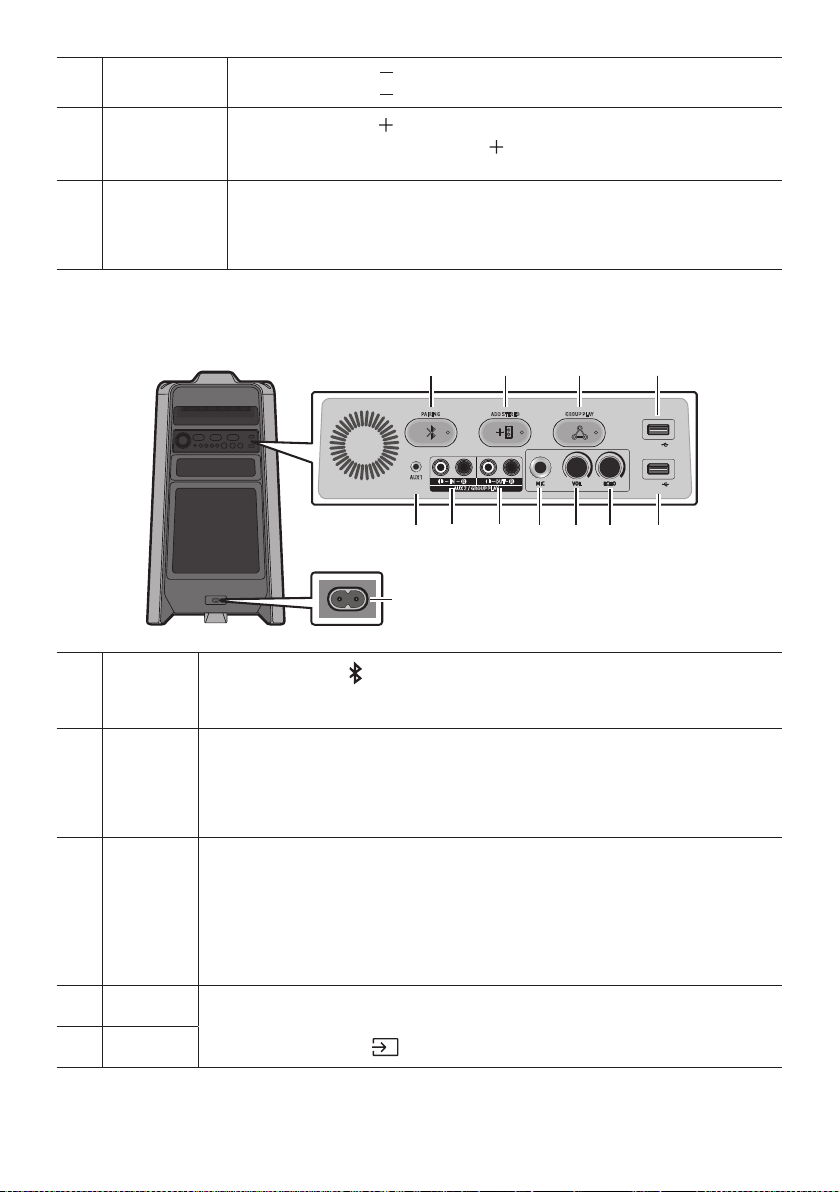
Rear Panel of the Sound Tower
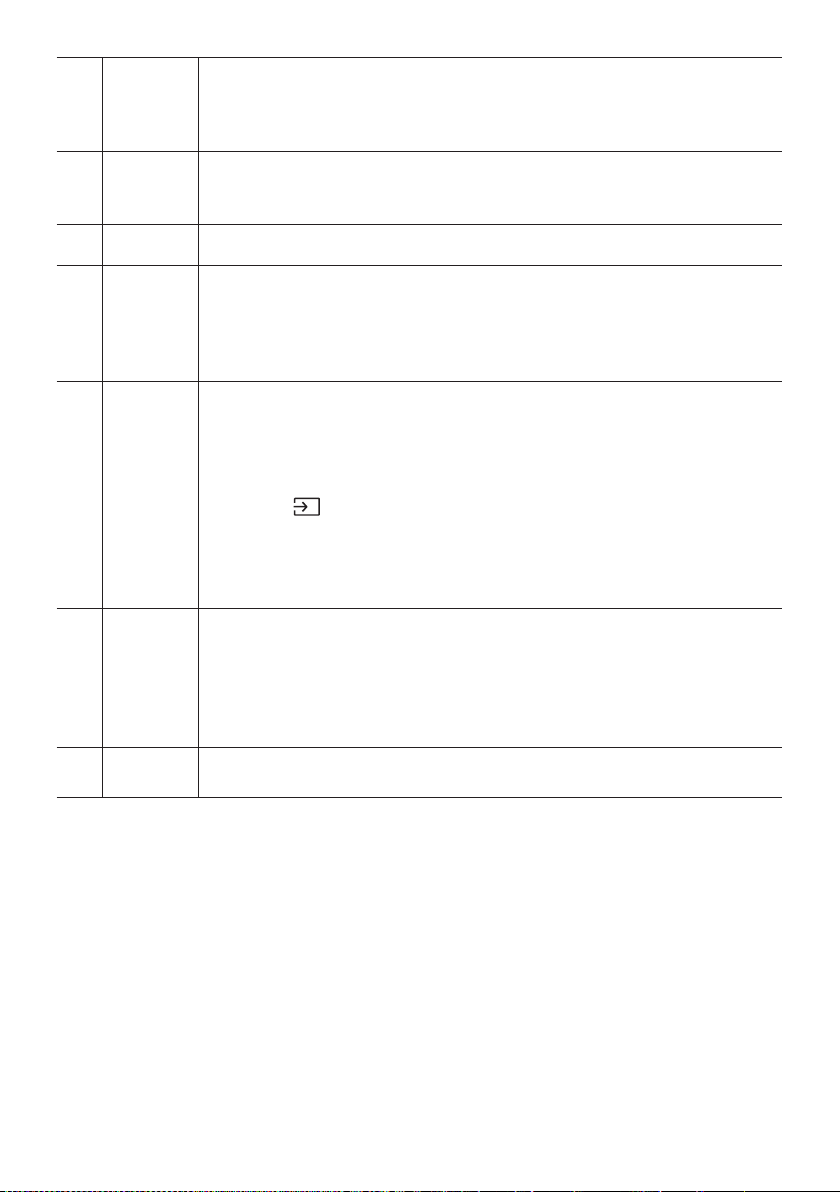
ADD STEREO GROUP PLAYPAIRING
AUX 1
AUX 2 / GROUP PLAY
IN
OUT
L
R
L
R
USB1
(5V 2.1A)
USB2
(5V 0.5A)
ECHOVOLMIC
OUT
Bluetooth
PAIRING
Press the
PAIRING button to enter the “BT PAIRING” mode.
You can connect the Sound Tower to a new Bluetooth device in this mode by selecting the
Sound Tower from the Bluetooth device's search list.
ADD
STEREO
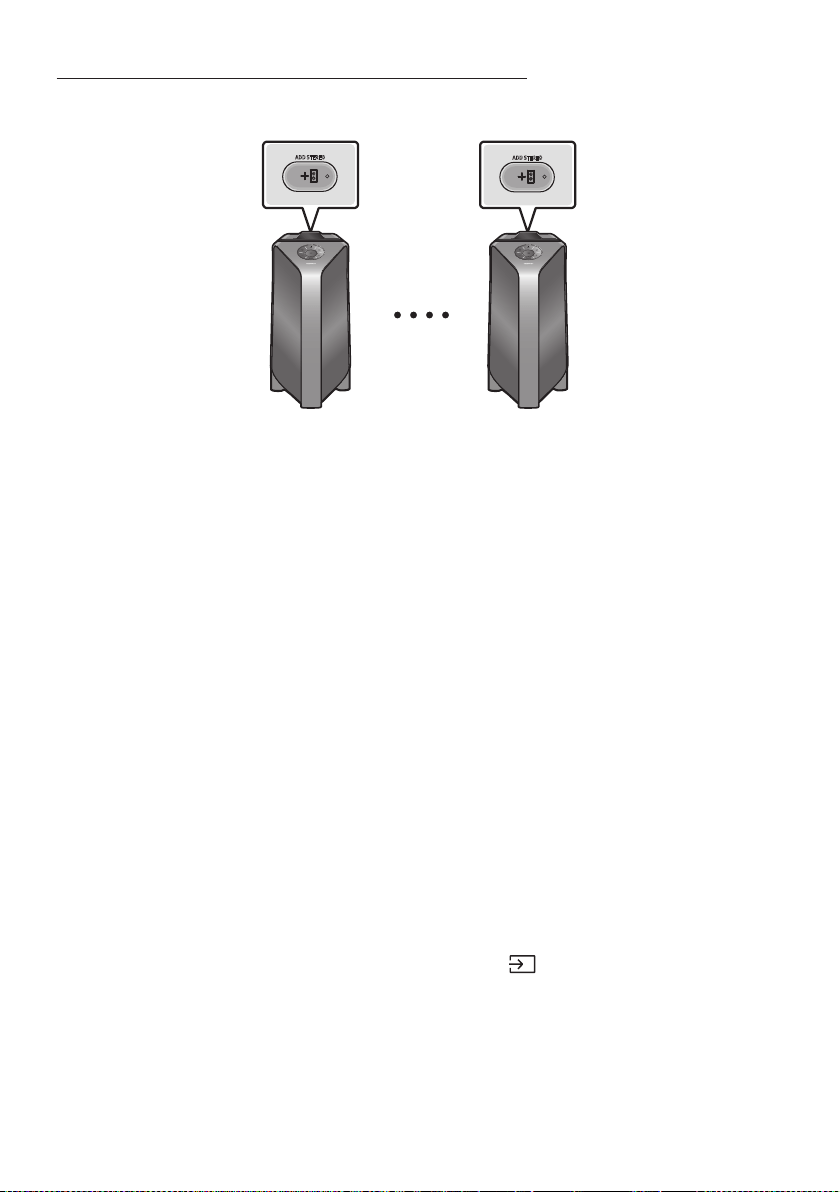
Press the ADD STEREO button to connect to another Sound Tower wirelessly.
Press the ADD STEREO button again before connecting another Sound Tower to exit
Stereo Group mode. When the connection is made, you can enjoy stereo sound.
Press and hold the ADD STEREO button for more than 5 seconds to disconnect the Stereo
Group mode.
GROUP
PLAY
Press the GROUP PLAY button to connect up to ten Sound Tower systems wirelessly.
Press the GROUP PLAY button again before connecting other Sound Tower to exit
wireless Group Play. When the connection is made, you can use multiple Sound Tower
systems at the same time using Group Play mode. Press and hold the GROUP PLAY
button for more than 5 seconds to disconnect the wireless Group Play mode.
USB1
Connect a USB device to the USB1 or USB2 ports on the main unit.
If you connect your cell phone to the USB1 port, you can charge it.
Press the
(Source) button to select USB1 or USB2.
USB2
ENG - 5
ECHO
You can give an echo effect to the sound from a connected microphone (MIC) by adjusting
the ECHO knob.
If you turn clockwise, the echo effect goes up, and if you turn counter-clockwise, the echo
effect goes down.
VOL
Use the VOL knob to adjust the volume of a connected microphone (MIC).
If you turn clockwise, the volume goes up, and if you turn counter-clockwise, the volume
goes down.
MIC Connect your microphone to the MIC jack.
GROUP
PLAY OUT
Terminals
Use an Audio Cable (not supplied) to connect GROUP PLAY (OUT) terminals on the main
unit to Audio In on an external analogue output device.
Be sure to match connector colours.
If the external analogue output device has only one Audio In jack, connect either left or
right.
AUX2/
GROUP
PLAY IN
Terminals
Use an Audio Cable (not supplied) to connect AUX2 (IN) terminals on the main unit to
Audio Out on an external analogue output device.
Be sure to match connector colours.
If the external analogue output device has only one Audio Out jack, connect either left
or right.
Press the
(Source) button to select AUX2.
If the product is in AUX2 mode with no playback and no command input for more than
20 minutes, the system will turn off.
If the product is in AUX2 mode with playback for more than 8 hours and no command
input, the system will turn off.
AUX1
Use an Audio (AUX) Cable (not supplied) to connect AUX1 jack on the main unit to Audio
Out on an external device.
If the product is in AUX1 mode with no playback and no command input for more than
20 minutes, the system will turn off.
If the product is in AUX1 mode with playback for more than 8 hours and no command
input, the system will turn off.
Power
Connect the power cord to the Power jack and connect the other end of the power cord to
a wall socket to supply electrical power to the Sound Tower.
ENG - 6
03 CONNECTING THE SOUND TOWER
Connecting Electrical Power
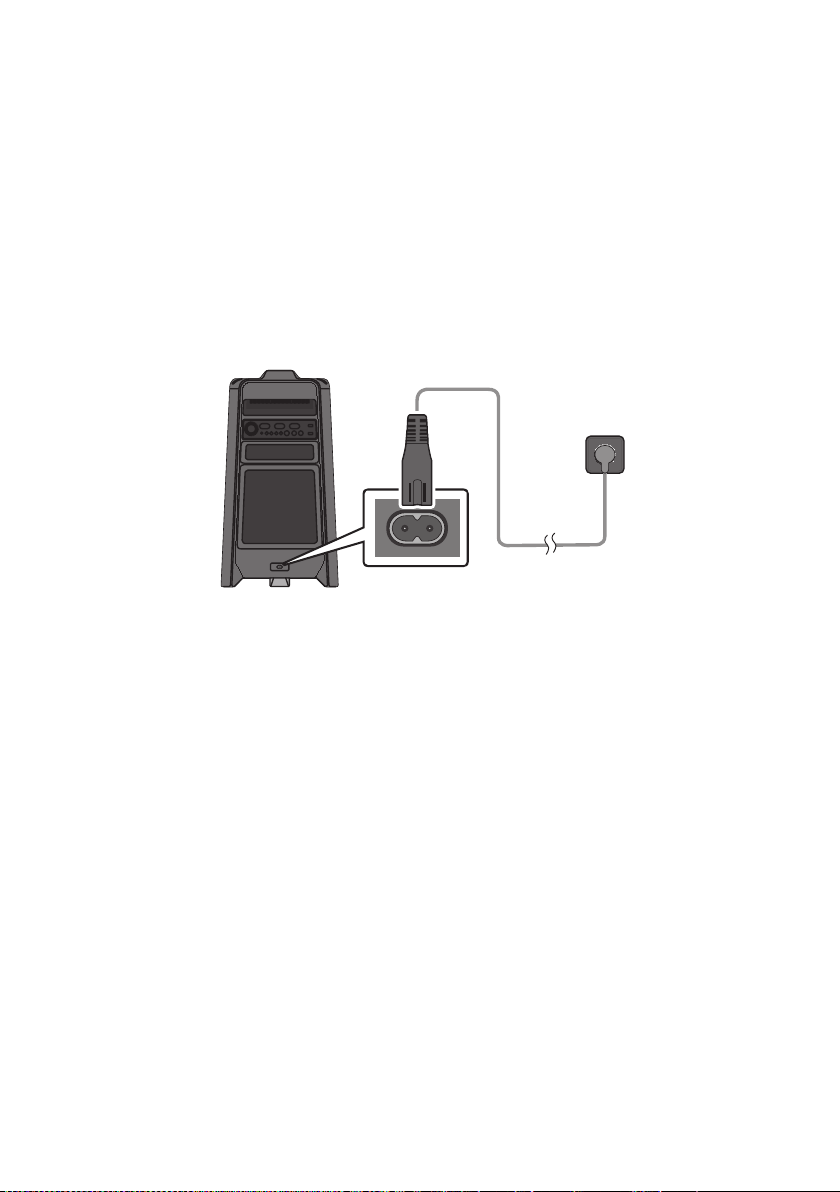
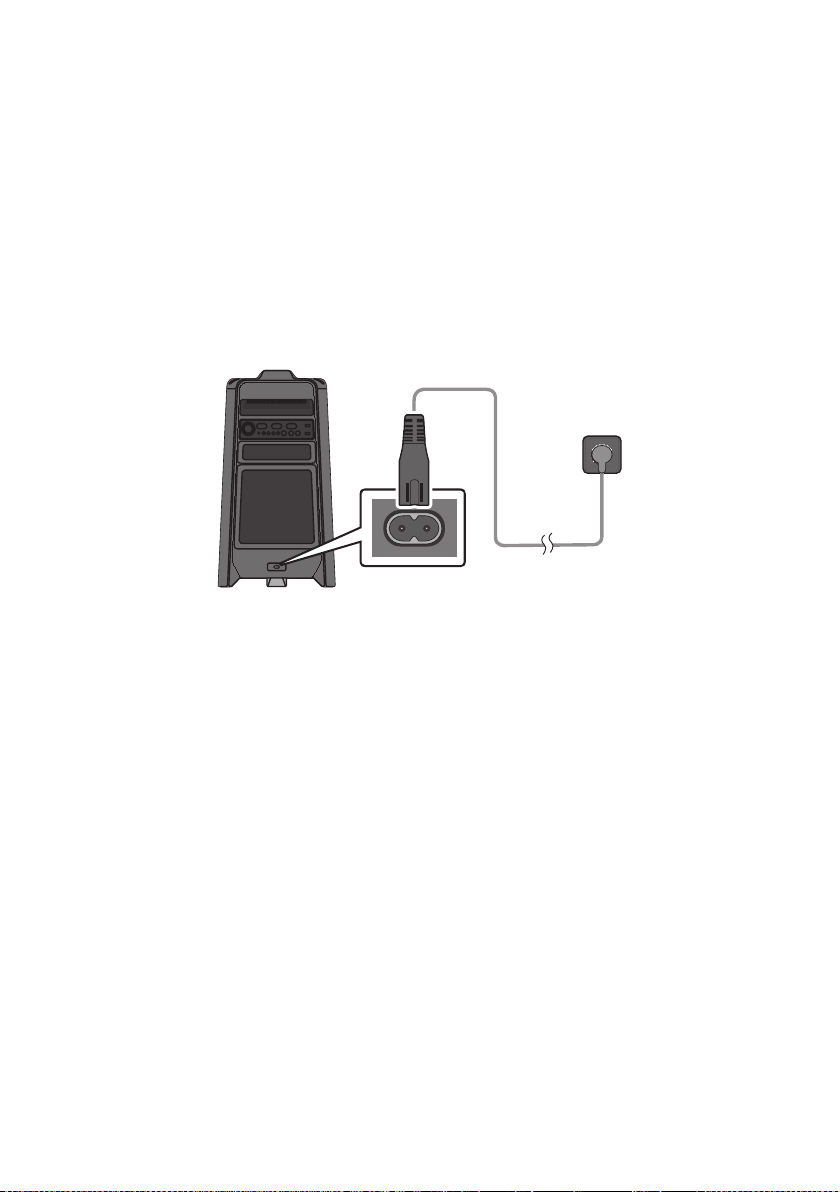
Use the power cord to connect the Sound Tower to an electrical outlet in the following order:
Connect the power cord to the Sound Tower and then to a wall socket.
See the illustrations below.
For more information about the required electrical power and power consumption, refer to the
label attached to the product. (Label: Rear of the Sound Tower)
Connecting
Electrical Power
Rear of Sound Tower
ENG - 7
How to use Audio Group
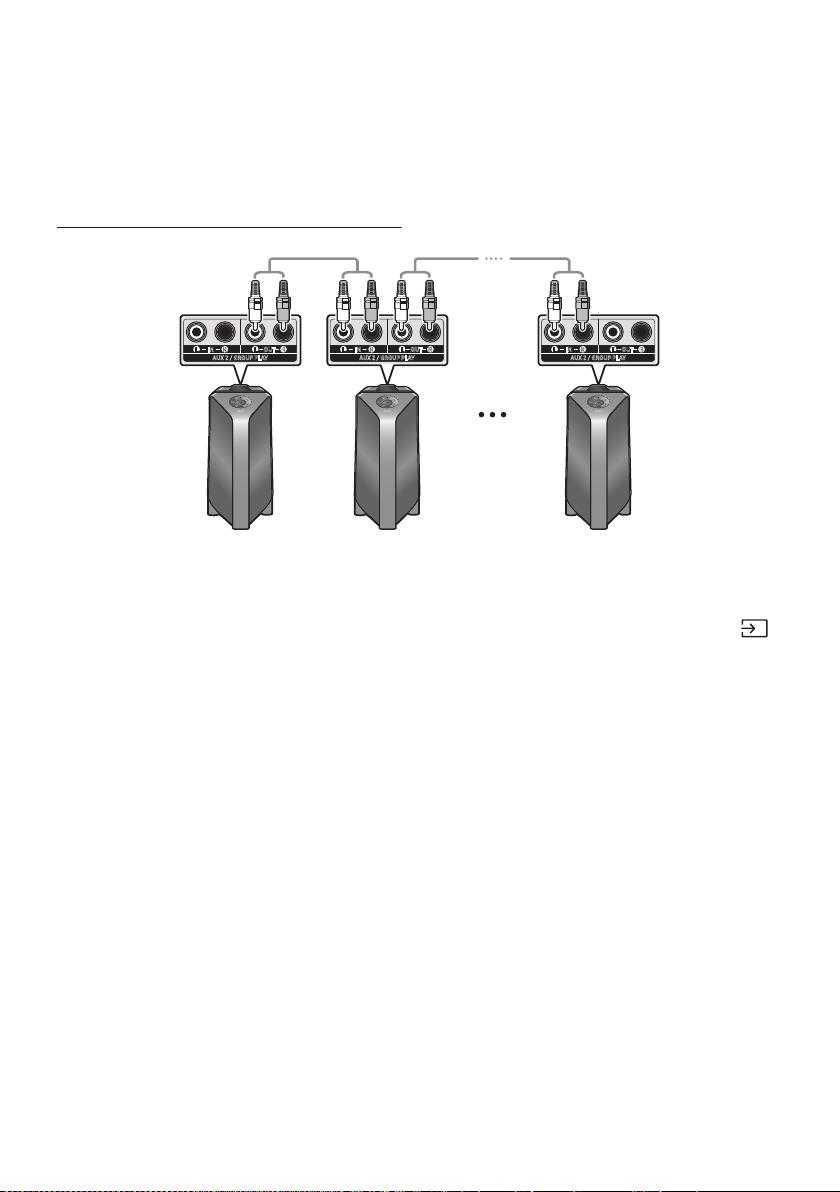
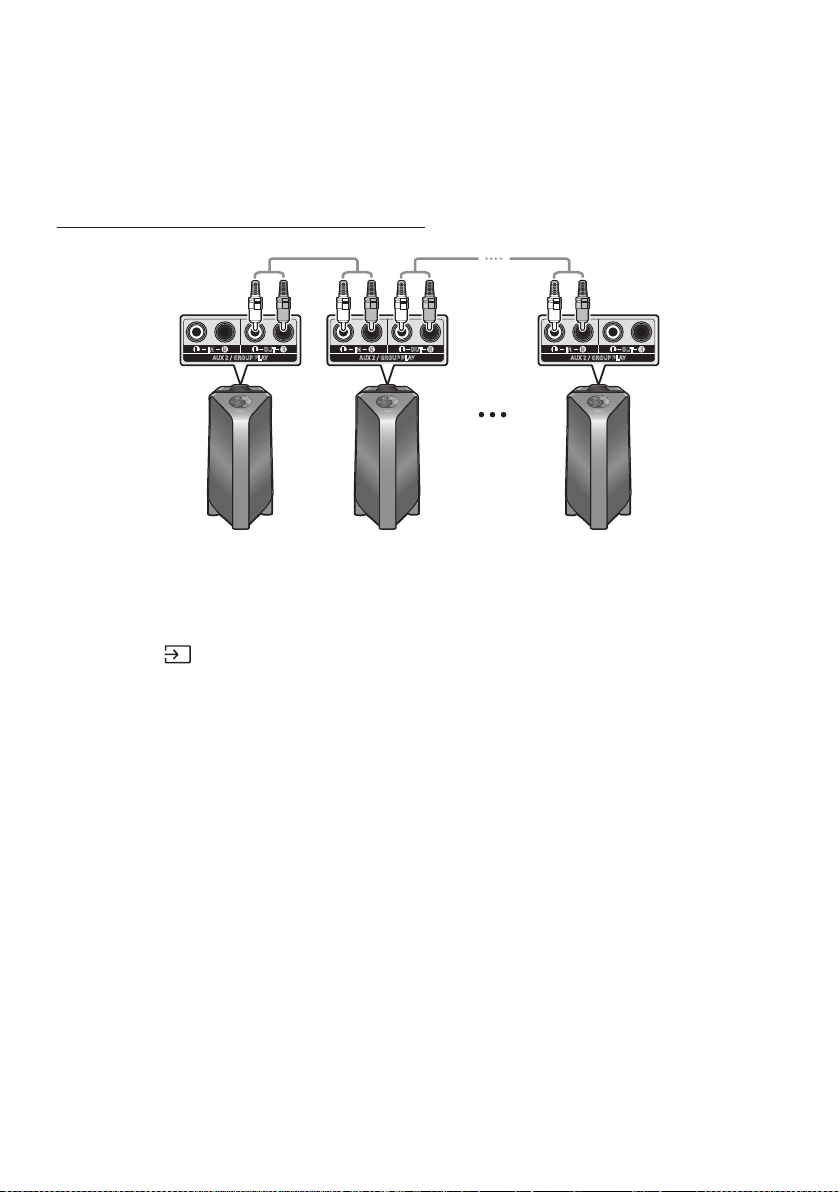
You can connect multiple audio systems in a group to create a party environment and produce higher
sound output. Set one Sound Tower as the HOST and any music played on it will be shared among any
other Sound Tower systems in the Audio group.
Connecting the wired Group Play mode
AUX 2 / GROUP PLAY
IN
OUT
L
R
L
R
AUX 2 / GROUP PLAY
IN
OUT
L
R
L
R
AUX 2 / GROUP PLAY
IN
OUT
L
R
L
R
1st
Sound Tower HOST
2nd
Sound Tower
Last
Sound Tower
Continue the
connection until
the last Sound
Tower
Set up Group Play by connecting all the systems using audio cables (not supplied). Use the AUX or
(Source) button to change the source to AUX2 for every Sound Tower system except the 1st (or HOST)
Sound Tower system.
NOTES
The 1st Sound Tower HOST can play music from any source.
Depending on the length or characteristics of the cable, there may be a difference in operating
distance.
ENG - 8
Connecting the wireless Group Play mode
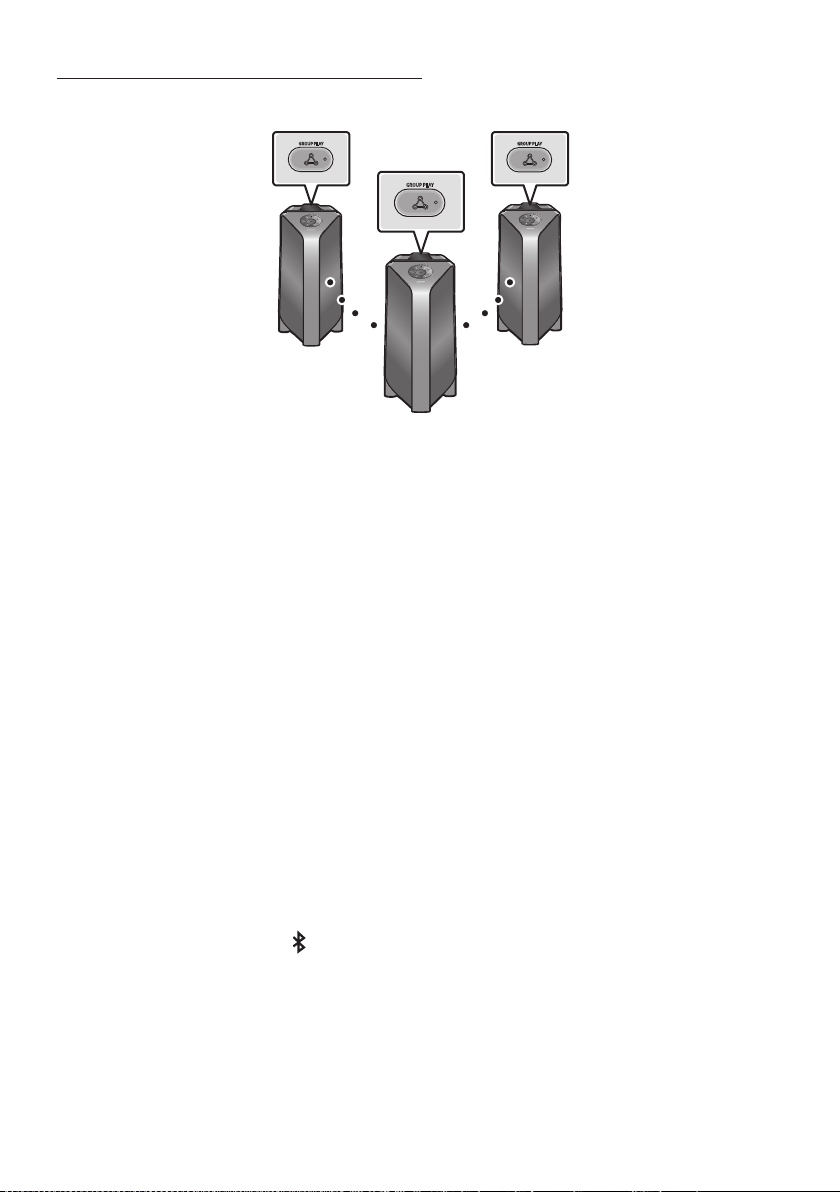
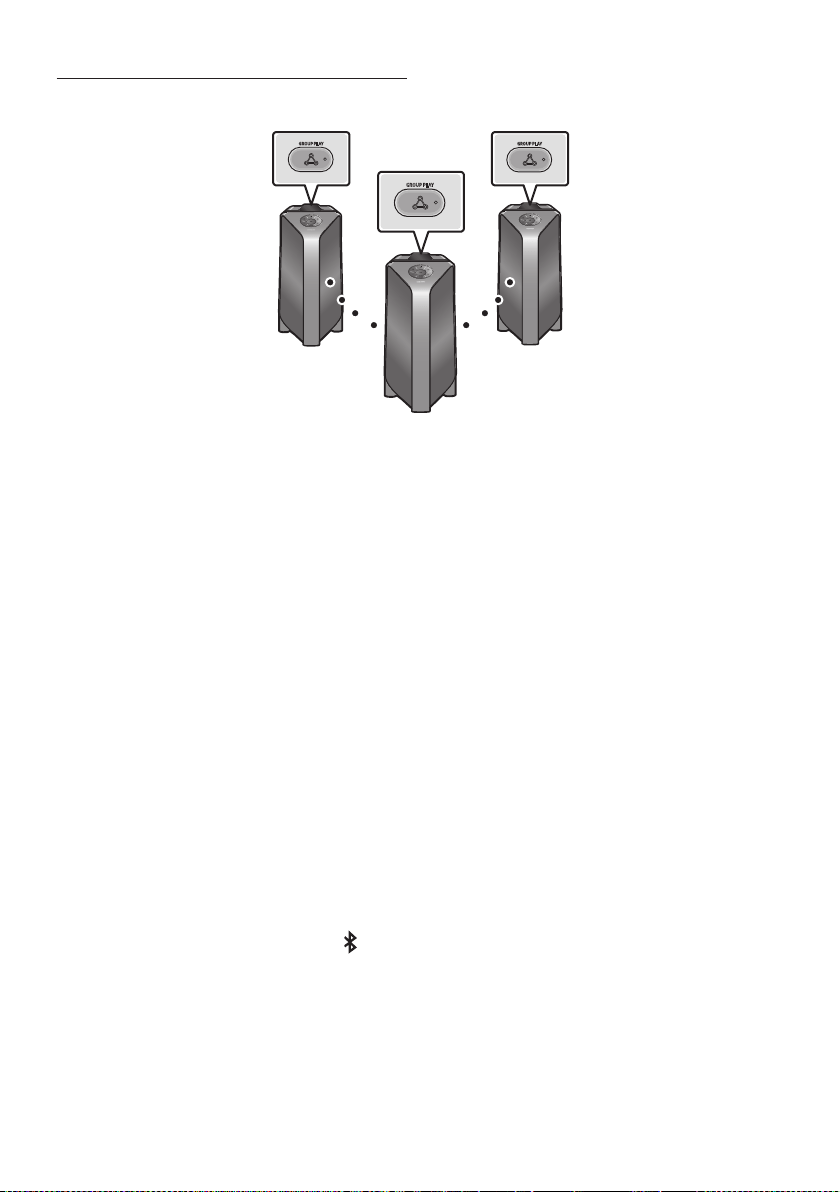
You can connect up to ten Sound Tower systems with the wireless Group Play function.
GROUP PLAY
GROUP PLAY
GROUP PLAY
HOST
SUB 1
SUB 2
1. Press the GROUP PLAY button on the HOST Sound Tower system. The “HOST” message appears
on the display of the HOST Sound Tower and the LED blinks on the GROUP PLAY button.
2. Press the GROUP PLAY button on the 2nd Sound Tower system (SUB 1). The “GROUP PLAY
CONNECTED” message appears on the display and the GROUP PLAY button on both systems
stops blinking.
3. Press the GROUP PLAY button on the 3rd Sound Tower system (SUB 2). The “GROUP PLAY
CONNECTED” message appears on the display and the GROUP PLAY button on the system stops
blinking.
4. If you want to add more Sound Tower systems, repeat step 3.
5. Play music on the HOST Sound Tower. Sound outputs from all the connected systems.
NOTES
If Sound Tower is connected with Samsung TV, Wireless Group Play is not available.
The wireless Group Play connection is available for any Sound Tower system.
Environmental conditions or other factors with connected devices may have effect on playback
quality.
If the red LED is on the GROUP PLAY button, an error has occurred in the wireless Group Play
connection. Try step 1 to step 5 again.
The ADD STEREO button and
PAIRING button on the SUB Sound Tower systems are not available
while in wireless Group Play mode.
The ADD STEREO button on the HOST Sound Tower system is not available while in wireless Group
Play mode.
When adding a SUB unit, if you press and hold GROUP PLAY on the SUB, before the “GROUP PLAY
CONNECTED” message appears, it will become the HOST unit instead.

ENG - 9
All SUB units must be connected one by one. For example, after HOST is connected, press GROUP
PLAY button on SUB 1 to connect, and after SUB 1 is connected, you should connect SUB 2 and SUB
3 one by one sequentially.
While using Group Play, currently connected Bluetooth devices are disconnected and Bluetooth
connection is disabled.
Bluetooth devices can search and connect with the HOST Sound Tower only.
When in Group Play mode, the SUB cannot connect to a Bluetooth device.
If you power off and then power on the Sound Tower or select any source other than BT on a SUB
unit, in Group Play mode, the Group Play mode is disconnected.
This product does not support aptX audio stream with Wireless Group Play mode.
Disconnecting the wireless Group Play mode
1. Press and hold the GROUP PLAY button over 5 seconds (HOST or SUB) after Group Play is
connected or press the GROUP PLAY button (HOST or SUB) before Group Play is connected.
“OFF-GROUP PLAY” appears on the display and the LED above the GROUP PLAY button is off.
2. If you select any source other than BT on the SUB units or turn off the HOST Sound Tower, the
Group Play mode is disconnected.
If the disconnection is made from the HOST Sound Tower, Group Play is disconnected.
LED Indications
LED STATE Description
Green
Blink Waiting for a wireless Group Play connection.
Solid The wireless Group Play connection was successful.
Red Solid There is an error with the wireless Group Play connection.
NOTE
In wireless connection, Playback quality can be unstable depending on Bluetooth environment.
For better play, please keep the device in wired Group Play mode.
ENG - 10
Using a Smartphone and Stereo Group mode
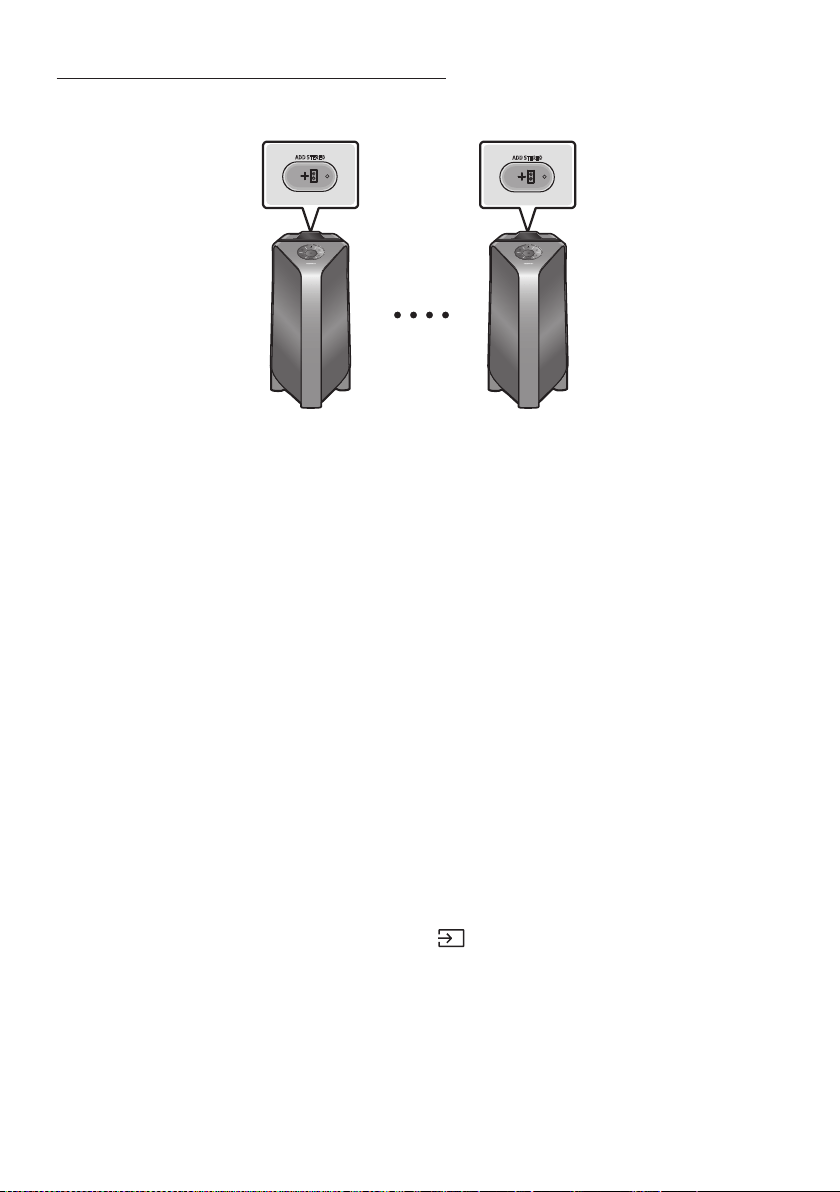
Connect two Sound Tower and use them with your smartphone to enjoy stereo sound.
ADD STEREO
ADD STEREO
Left Sound Tower
(MAIN)
Right Sound Tower
(SUB)
1. Press the ADD STEREO button on the left Sound Tower system. The “SEARCHING STEREO”
message appears on the display and the LED blinks on the ADD STEREO button.
2. Press the ADD STEREO button on the right Sound Tower system. The “SEARCHING STEREO”
message appears on the display and the LED blinks on the ADD STEREO button.
3. When the connection is made, The “LEFT” message appears on the MAIN Sound Tower system and
“RIGHT” appears on the SUB Sound Tower system.
The MAIN Sound Tower system outputs left channel sound and the SUB Sound Tower system
outputs right channel sound. Press the ADD STEREO button on the MAIN or SUB Sound Tower
to change the sound channel of the Sound Tower.
4. Play music by connecting your smartphone to the MAIN Sound Tower and Bluetooth.
Sound is output from both Sound Tower.
NOTES
To use the Stereo Group mode, both Sound Tower systems must be the same model.
Environmental conditions or other factors with connected devices may have effect on playback
quality.
If the red LED is on the ADD STEREO, an error has occured in the Stereo Group connection. Try step
1 and step 3 again.
Remote Controller, BT PAIRING, GROUP PLAY and
(Source) buttons on the SUB Sound Tower
systems are disabled while in Stereo Group mode.
The GROUP PLAY button on the MAIN Sound Tower system is not available while in Stereo Group
mode.
ENG - 11
In mode other than “BT” (ex. USB, AUX mode), music is played only in MAIN Sound Tower and music
is not played in SUB Sound Tower.
The lighting colours between MAIN Sound Tower and SUB Sound Tower may vary.
The Bluetooth device has the same name as MAIN Sound Tower and SUB Sound Tower when
connected to the Bluetooth device, and only the MAIN Sound Tower can be connected.
This product does not support aptX audio stream with Stereo Group mode.
If you try to connect a Bluetooth device while Stereo Group is connecting, the Stereo Group mode
may fail.
Terminate the Stereo Group mode
Press the ADD STEREO button (MAIN or SUB) for at least 5 seconds after the Stereo Group is
connected.
“OFF-STEREO MODE” appears on the display and the LED above the ADD STEREO button is off.
LED Indications
LED STATE Description
Green
Blink Waiting for a Stereo Group connection.
Solid The Stereo Group connection is successful.
Red Solid There is an error with the Stereo Group connection.
Using Samsung TV and Stereo Group mode
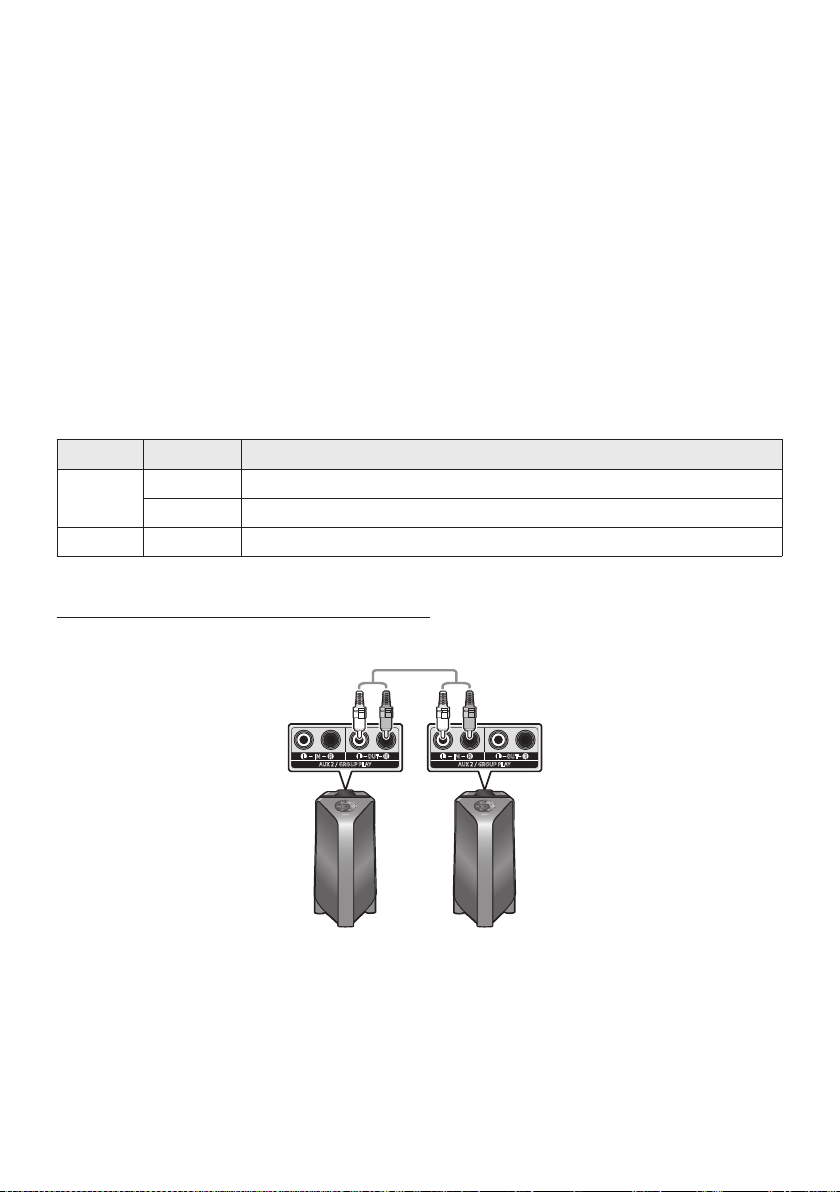
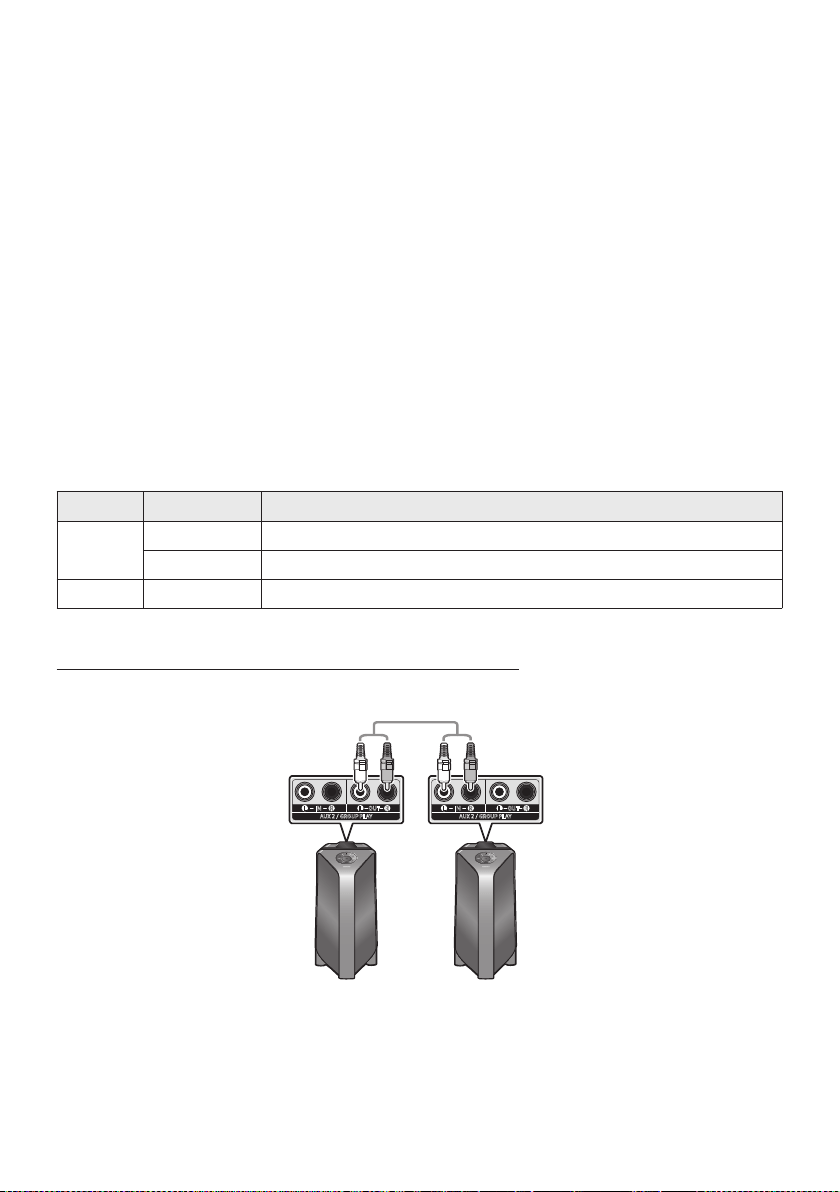
Connect two Sound Tower by wire and use them with Samsung TV to enjoy stereo sound.
Left Sound Tower
(MAIN)
Right Sound Tower
(SUB)
AUX 2 / GROUP PLAY
IN
OUT
L
R
L
R
AUX 2 / GROUP PLAY
IN
OUT
L
R
L
R
1. Refer to “Using a Smartphone and Stereo Group mode” to connect the two Sound Tower in a
Stereo Group.

ENG - 12
2. Connect the RCA cable to the AUX2 OUT on the MAIN and AUX2 IN on the SUB as shown by using
the RCA cable (not supplied).
3. In “BT” mode, press the “AUX” button on the MAIN Sound Tower remote control for at least 5
seconds. “SEARCHING TV STEREO” appears on the display.
4. When the connection is complete, “TV STEREO MODE” appears in the display and then the current
output CHANNEL is displayed.
5. When the connection is complete, a “SEARCHING TV” message appears in the MAIN Sound Tower
display and a “SUB” appears in the SUB Sound Tower display.
The MAIN Sound Tower outputs the left channel sound and the SUB Sound Tower outputs the
right channel sound. Press the ADD STEREO button on the MAIN or SUB Sound Tower to
change the sound channel of the Sound Tower.
6. Connect a TV and MAIN Sound Tower via Bluetooth to play music. Sound is output from both
Sound Tower.
NOTES
To use Stereo Group mode, both Sound Tower must be the same model.
A red light on the LED on the ADD STEREO button indicates an error in the Stereo Group
connection. Try Step 1 to 5 again.
In Stereo Group mode, the remote control, BT PAIRING, GROUP PLAY, and
(Source) buttons on
the SUB Sound Tower are disabled.
The GROUP PLAY button on the MAIN Sound Tower is not available in Stereo Group mode.
If Samsung TV supports a simple connection, the connection pop-up is automatically displayed on
the TV, and if you select “Yes”, it connects to the TV. If there is a previous connection history
between Samsung TV and Sound Tower, it will be connected to Samsung TV without pop-up. For a
simple connection to Samsung TV, refer to page 17.
The lighting colours may vary between the MAIN Sound Tower and the SUB Sound Tower.
When connecting to a TV, the names of the MAIN and SUB Sound Tower are the same in the
Bluetooth list on the TV, and only the MAIN Sound Tower can be connected.
Terminating the Stereo Group mode connection
Press the ADD STEREO button (MAIN or SUB) for at least 5 seconds after the Stereo Group is
connected.
“OFF-STEREO MODE” appears in the display and the LED on the ADD STEREO button turns off.

ENG - 13
04 CONNECTING AN EXTERNAL DEVICE
Connect to an external device via a wired or wireless network to play the external device’s sound
through the Sound Tower.
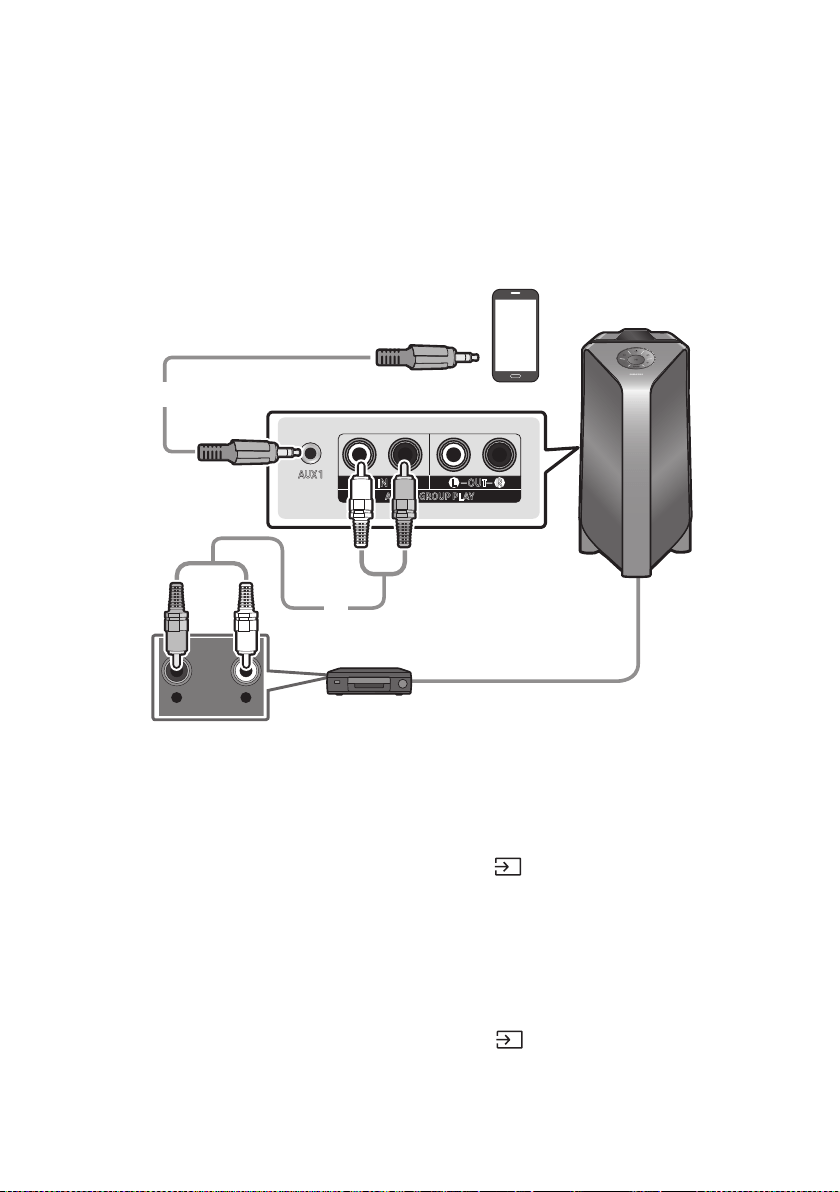
Connecting using an Analogue Audio (AUX) Cable
- AUDIO -
R L
AUX 1
AUX 2 / GROUP PLAY
IN
OUT
L
R
L
R
Mobile device / MP3 / PMP
BD / DVD player / Set-top box / Game console
3.5 mm stereo cable
(not supplied)
Audio (AUX) Cable (not supplied)
Rear of the Sound Tower
3.5 mm stereo Cable (AUX1)
1. Connect AUX1 jack on the main unit to the AUDIO OUT jack of the Source Device using an
3.5 mm stereo cable .
2. Select “AUX1” mode by pressing the (Source) button on the top panel or on the remote control.
You can also select a source using AUX button on the remote control.
Audio Cable (AUX2)
1. Connect AUX2 (IN) terminals on the main unit to the AUDIO OUT terminals of the Source Device
using an audio cable .
2. Select “AUX2” mode by pressing the
(Source) button on the top panel or on the remote
control.
You can also select a source using AUX button on the remote control.
ENG - 14
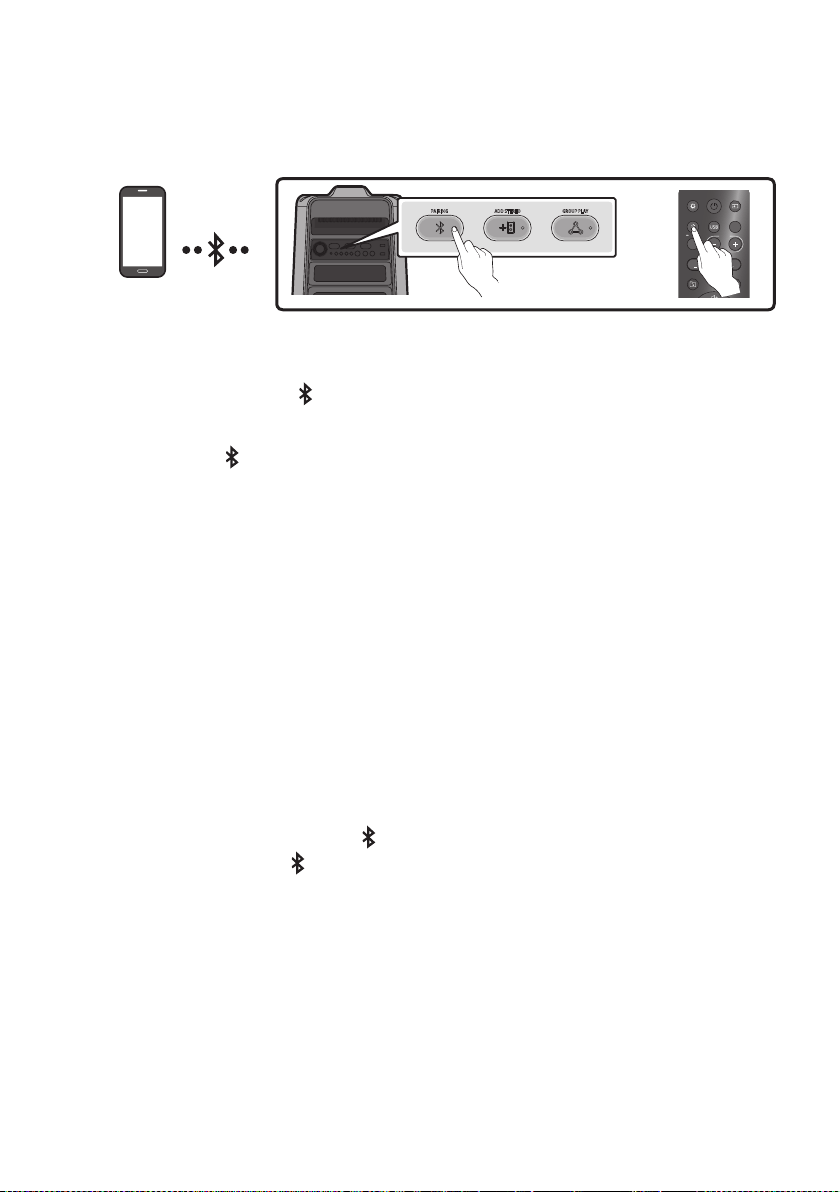
Connecting a mobile device via Bluetooth
When a mobile device is connected using Bluetooth, you can hear stereo sound without the hassle of
cabling.
Bluetooth device
ADD STEREO GROUP PLAYPAIRING
LIGHT
PAIRING
TEMPO
USB
AUX
EFFECT
DOWN
UP
EFFECT
DJ
SOUND
MODE
OR
The initial connection
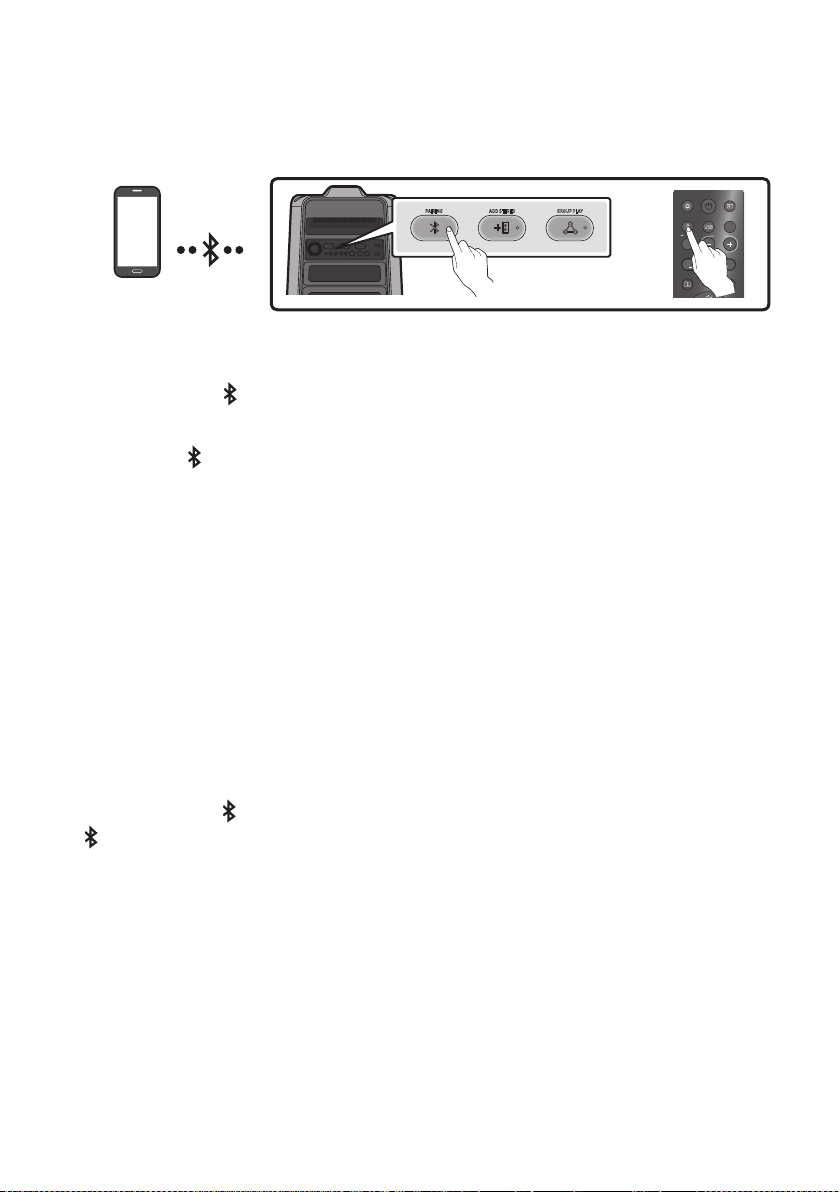
1. Press and hold the
PAIRING button on the remote control for more than 5 seconds to enter the
“BT PAIRING” mode.
(OR)
Press the
PAIRING button on the rear panel.
2. On your device, select “[AV] MX-T50” from the list that appears.
When the Sound Tower is connected to the Bluetooth device, [Bluetooth Device NameBT”
appears in the front display.
3.
If the device fails to connect
If a previously connected Sound Tower listing (e.g. “[AV] MX-T50”) appears in the list, delete it.
Then repeat steps 1 and 2.
What is the difference between BT READY and BT PAIRING?
BT READY : In this mode, you can search for previously connected TVs or connect a previously
connected mobile device to the Sound Tower.
BT PAIRING : In this mode, you can connect a new device to the Sound Tower.
(Press and hold the
PAIRING button on the remote control for more than 5 seconds or press the
PAIRING button on the rear of the Sound Tower to enter the “BT PAIRING” mode.)
ENG - 15
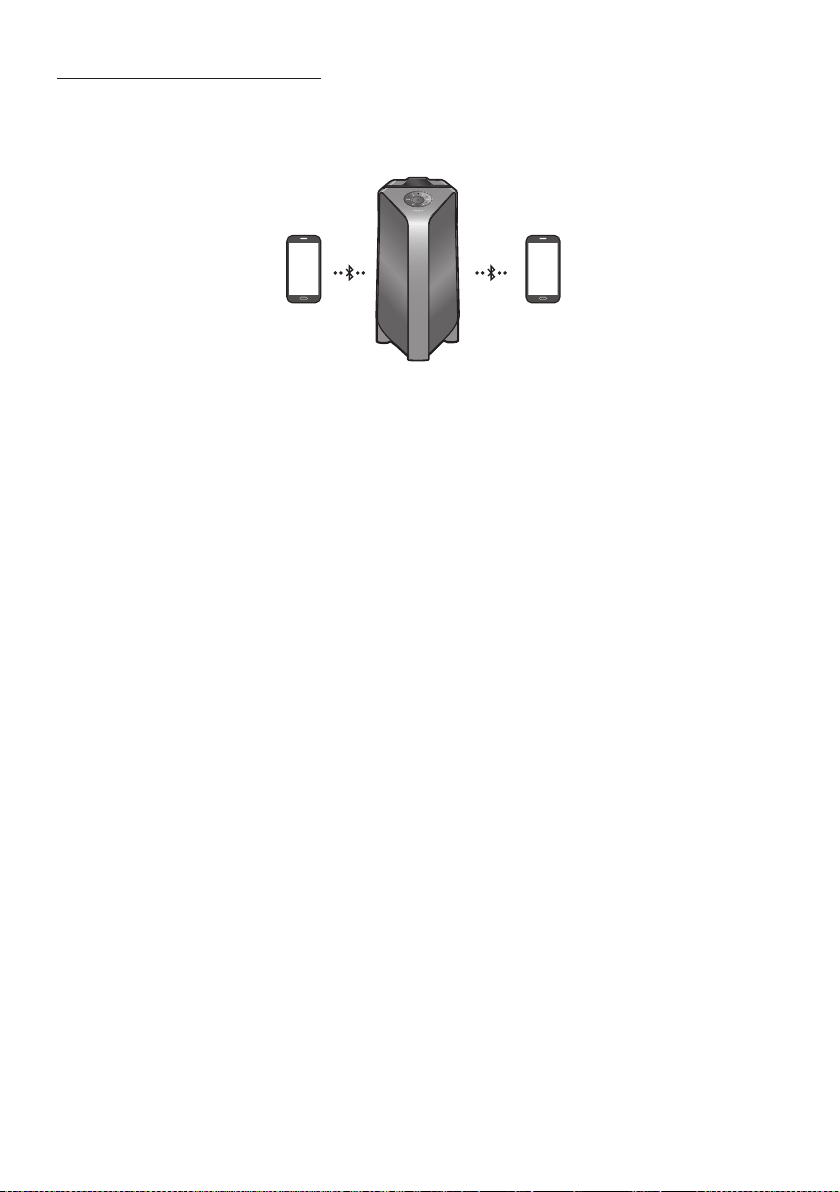
Bluetooth Multi connection
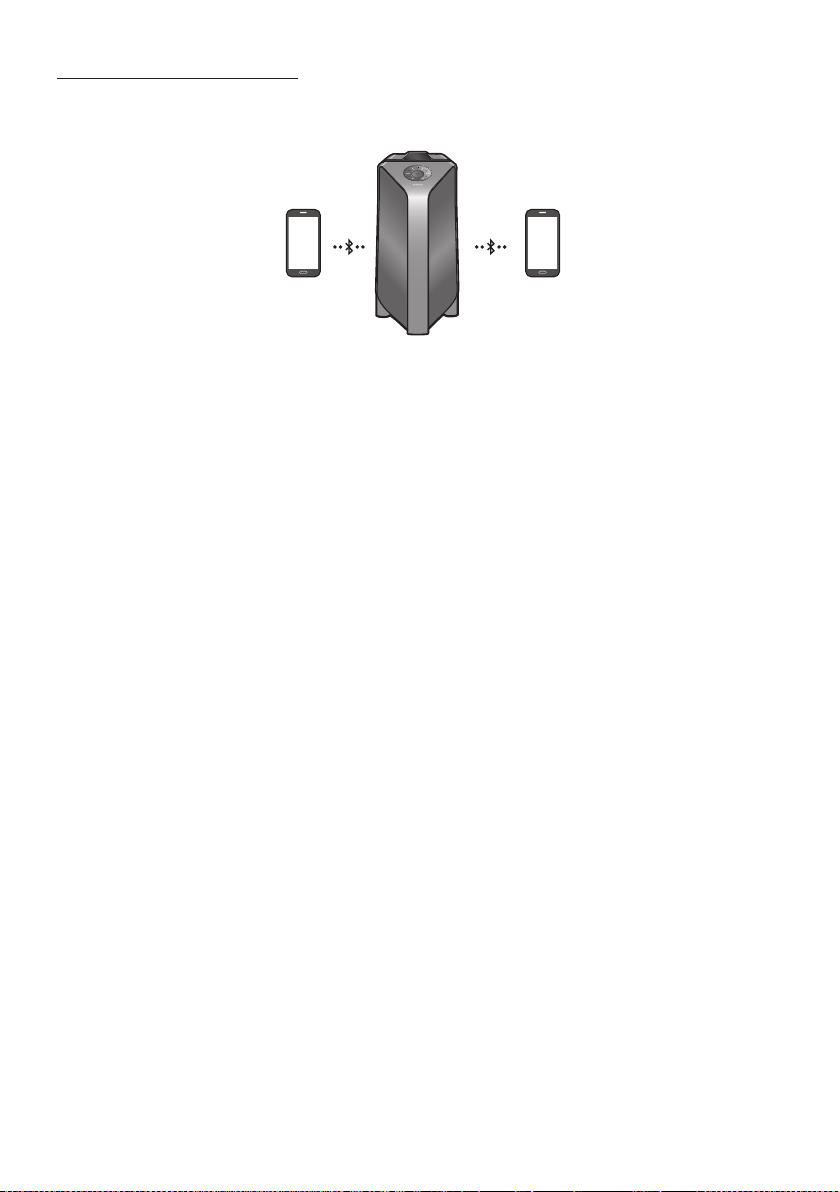
Sound Tower supports up-to two simultaneous Bluetooth device connections. Sound Tower can play
music through one of the connected Bluetooth devices without disconnecting the second device.
Bluetooth device 1 Bluetooth device 2
1.
(See page 14)
2. Music can be played on only one of the two connected devices, and when the music is played on
the other device, the music on the playing device is paused.
NOTES
If you want to connect Sound Tower to a third device, you can disconnect Sound Tower from one of
the two currently connected devices and then connect Sound Tower to the third device.
With the Sound Tower and two devices currently connected, when pairing to a new Bluetooth
device, the devices currently connected maybe disconnected.
You can connect to two Bluetooth devices at the same time.
If asked for a PIN code when connecting a Bluetooth device, enter <0000>.
Environmental conditions or other factors with connected devices may have effect on playback
quality.
The Sound Tower automatically turns off after 20 minutes with no command input in the ready
state.
The Sound Tower may not perform Bluetooth search or connection correctly under the following
circumstances:
–
– If several Bluetooth devices are simultaneously paired with the Sound Tower.
– If the Bluetooth device is turned off, not in place, or malfunctions.
Electronic devices may cause radio interference. Devices that generate electromagnetic waves
must be kept away from the Sound Tower main unit - e.g., microwaves, wireless LAN devices, etc.
When the Sound Tower is connected to your TV by Bluetooth connection, the video on the TV and
audio from the Sound Tower may not be synchronised because the distance between the Sound
Tower and the TV is too far. It is recommended to move the Sound Tower closer to your TV within
1 meter.

ENG - 16
When the speaker is in the Bluetooth Multi connection mode, you will need to connect the other
Bluetooth device and speaker within a few minutes (Approx. 1 minute). Otherwise Bluetooth Multi
connection mode will be cancelled.
Bluetooth Multi connection may not be supported depending on the connected device’s
Removable/detachable Bluetooth devices (Ex:Dongle etc..) ,windows phone, laptops, TV, etc. do not
support Bluetooth Multi connection.
After Bluetooth Multi connection pairing, there may be a slight delay before music starts playing
depending on the Bluetooth devices.
device, it may take a few minutes to connect other Bluetooth devices. If you turn the Sound Tower
off and back on, you can connect other Bluetooth devices without waiting.
LED Indications
LED STATE Description
Blue
Fast Blink BT PAIRING mode
Blink BT READY mode
Solid A Bluetooth device is connected.
Using Bluetooth Power On
When the Sound Tower is turned off, you can connect your smart device via a Bluetooth connection to
turn it on.
1. Press and hold the BASS button on the remote control or on the top panel to set the Bluetooth
Power On function on. “ON-BLUETOOTH POWER” appears on the display.
2. When the Sound Tower is off, connect your smart device via Bluetooth. (For information on
Bluetooth connections, refer to your smart device’s manual.)
3. When the connection is complete, the Sound Tower turns itself on automatically in Bluetooth
mode.
Select the desired music to play from your smart device.
NOTE
Press and hold the BASS button for more than 5 seconds on the remote control or on the top panel to
turn the Bluetooth Power On function on or off.
Each time you press the BASS button, the Sound Tower displays :
ON-BLUETOOTHPOWER→OFF-BLUETOOTHPOWER

ENG - 17
Connecting the Samsung TV via Bluetooth
If Sound Tower connected with Samsung TV via Bluetooth, Sound Tower can be controlled by TV UI.
(Volume +/-, Mute On/Off and Power On/Off)
Easy connect with Samsung TV (SEARCHING TV mode)
Sound Tower has “SEARCHING TV” mode for easy connect with Samsung TV.
1. Press and hold
(Source) button on remote control or top panel then Sound Tower will start to
search Samsung TV. The “SEARCHING TV” message appears on the display.
(Or, when the wired Stereo Group mode connection is complete, the “SEARCHING TV” mode is
automatically activated.)
2. If Samsung TV support easy connection, connection popup will be displayed on TV.
If Samsung TV has connected with Sound Tower before, Samsung TV will be connected without
popup.
3.
“SEARCHING TV” mode and turn to “BT PAIRING
request connection to those TV.
NOTES
While in wireless Group Play mode, searching TV is not available.
To stop searching Samsung TV, turn off the Sound Tower or press the
(Source) or PAIRING
button.
Sound Tower does not support multi connection if Samsung TV is connected.
While Samsung TV is connected, Sound mode is PARTY and SOUND MODE button is not available.
While Samsung TV is connected, Sound Tower APP can not connect with Sound Tower.
Connection popup may not be displayed according to TV spec.
You can select and connect directly from the Bluetooth speaker list on your TV when the
connection pop-up does not appear on your TV.

ENG - 18
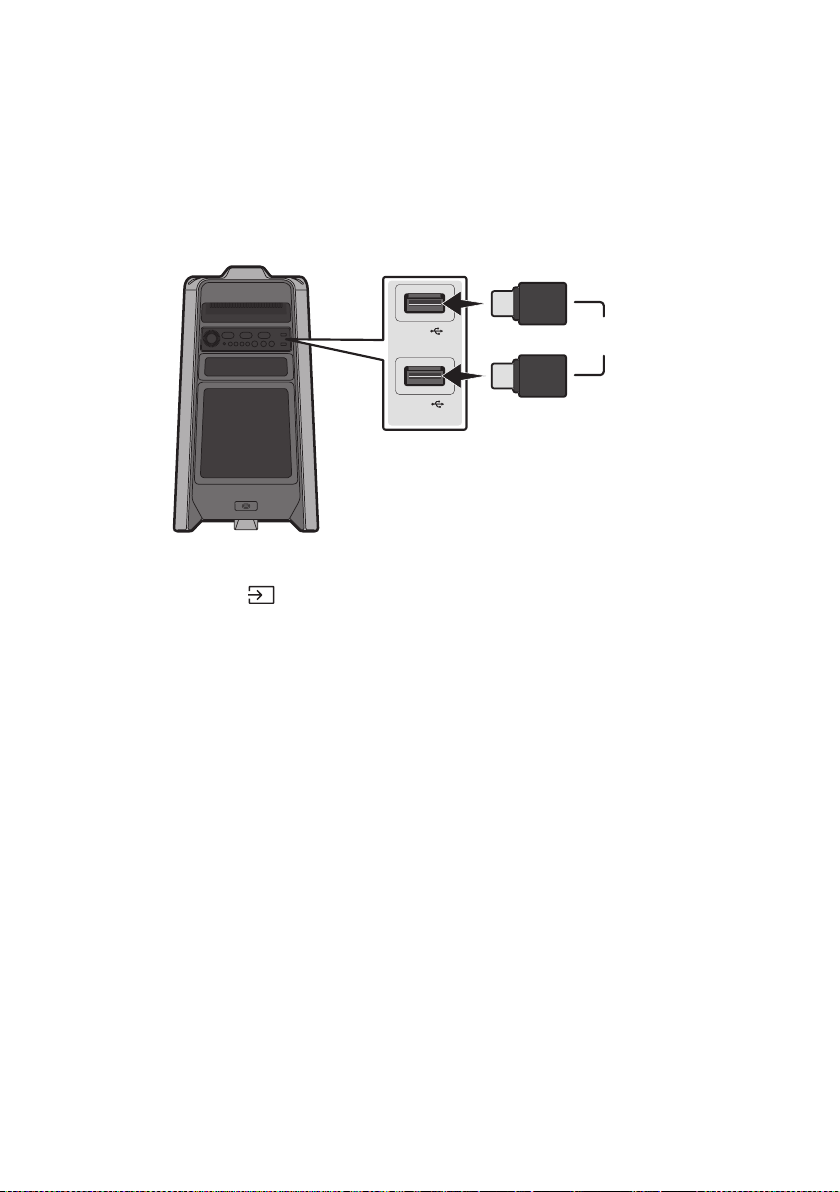
05 CONNECTING A USB STORAGE DEVICE
USB1
(5V 2.1A)
USB2
(5V 0.5A)
OR
USB storage device
(not supplied)
Rear of the Sound Tower
1. Connect a USB storage device to the USB1 or USB2 jacks on your Sound Tower.
2. Press the
(Source) button on the top panel or on the remote control, and then select “USB1” or
“USB2”.
You can also select a source using USB button on the remote control.
3. “USB1” or “USB2” appears in the display screen.
4.
The Sound Tower automatically turns off (Auto Power Down) if USB device is not connected,
playback stopped, or there is no input for more than 20 minutes.
NOTES
system.
This product does not support HDD storage or storage on mobile devices.
A maximum of 256 folders can be read per USB storage device.

ENG - 19
Supported Audio Formats
File Extension Audio Codec Sampling Rate Bit Rate
*.mp3
MPEG 1 Layer3 32 kHz ~ 48 kHz 32 kbps ~ 320 kbps
MPEG 2 Layer3 16 kHz ~ 24 kHz 8 kbps ~ 160 kbps
MPEG 2.5 Layer3 8 kHz ~ 12 kHz 8 kbps ~ 160 kbps
*.wma WMA7/8/9 8 kHz ~ 48 kHz 32 kbps ~ 320 kbps
*.aac
AAC 8 kHz ~ 96 kHz < 1728 kbps
A A C- L C 8 kHz ~ 96 kHz < 1728 kbps
HE-AAC 8 kHz ~ 96 kHz < 1728 kbps
*.wav
PCM/LPCM/
IMA_ADPCM
8 kHz ~ 192 kHz < 5 Mbps
- 8 kHz ~ 192 kHz < 5 Mbps
NOTES
This product does not support WMA Professional codec.
The above table shows supported sampling rates and bit rates. Files in formats that are not
supported will not play.
Software Update
SamsungmayofferupdatesfortheSoundTower’ssystemrmwareinthefuture.
update stored on it to the USB1 or USB2 port on your Sound Tower. For more information about how to
Then, enter or select the model number of your Sound Tower, select the Software & Apps option, and
then Downloads. Note that the option names can vary.
ENG - 20
06 USING THE REMOTE CONTROL
How to Use the Remote Control
LIGHT
PAIRING
TEMPO
USB
AUX
EFFECT
DOWN
UP
BASS
EFFECT
DJ
SOUND
MODE
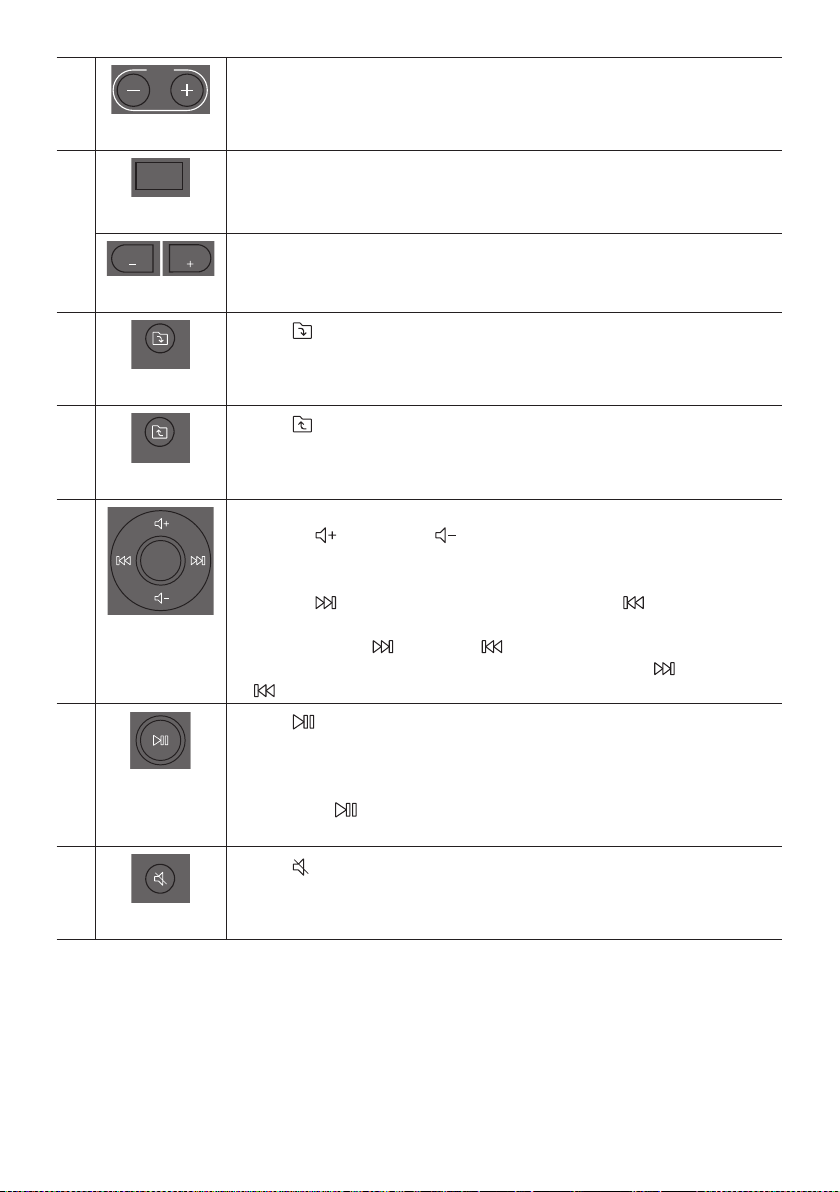
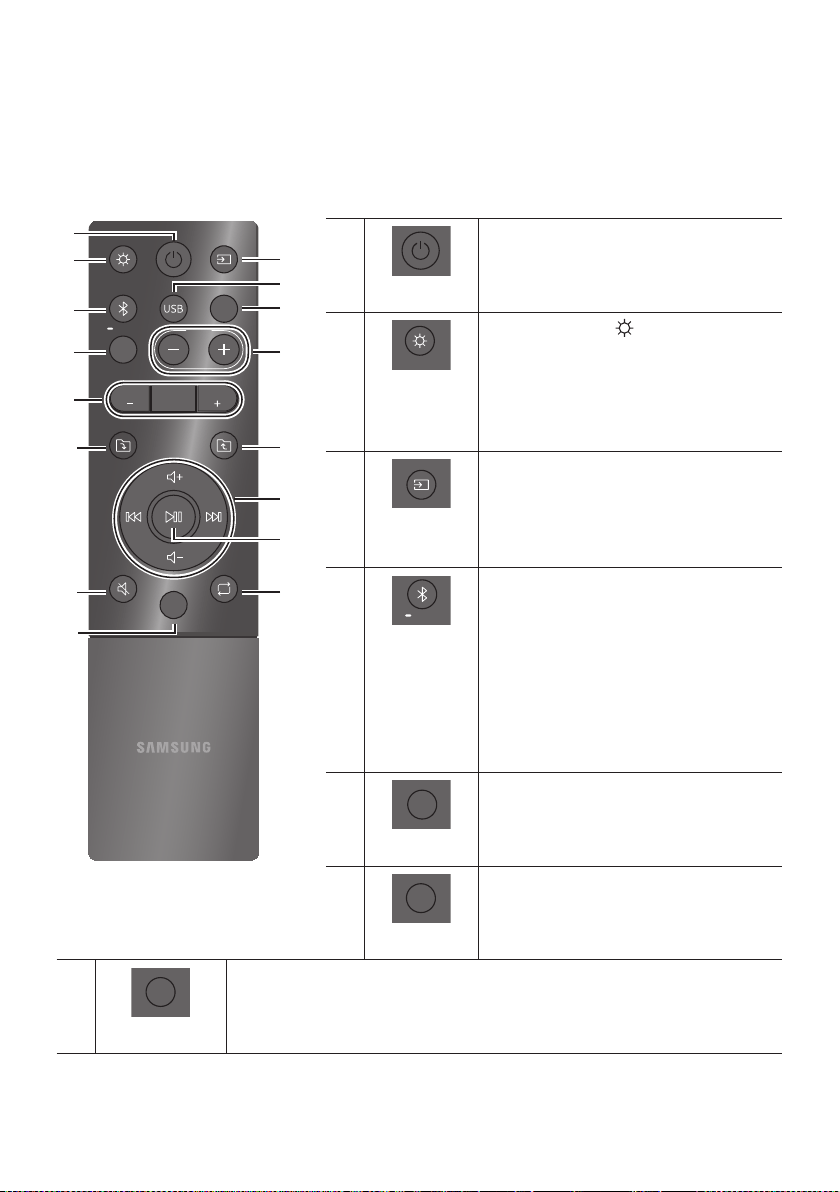
Power
Turn the Sound Tower on and off.
LIGHT
LIGHT
Press the (LIGHT) button to turn the
Lighting Mode on.
Press the button repeatedly to cycle through
the available light modes: AMBIENT, PARTY,
DANCE, THUNDERBOLT, STAR or OFF.
Source
Press to select a source connected to the
Sound Tower.
Press the button repeatedly to cycle through
the available sources: BT, USB1, USB2, AUX1 or
AUX2 .
Bluetooth
PAIRING
PAIRING
Press to select a source connected directly to
"BT" mode.
Press and hold the button for more than
5 seconds to enter the "BT PAIRING" mode.
You can connect the Sound Tower to a new
Bluetooth device in this mode by selecting the
Sound Tower from the Bluetooth device's
search list.
USB
USB
Press to select the USB1 or USB2 sources
connected to the Sound Tower.
AUX
AUX
Press to select the AUX1 or AUX2 sources
connected to the Sound Tower.
SOUND MODE
SOUND
MODE
Press the button repeatedly to cycle through the available sound effects: PARTY,
STANDARD, HIPHOP, EDM, ROCK, LATIN, HOUSE or REGGAE.
ENG - 21
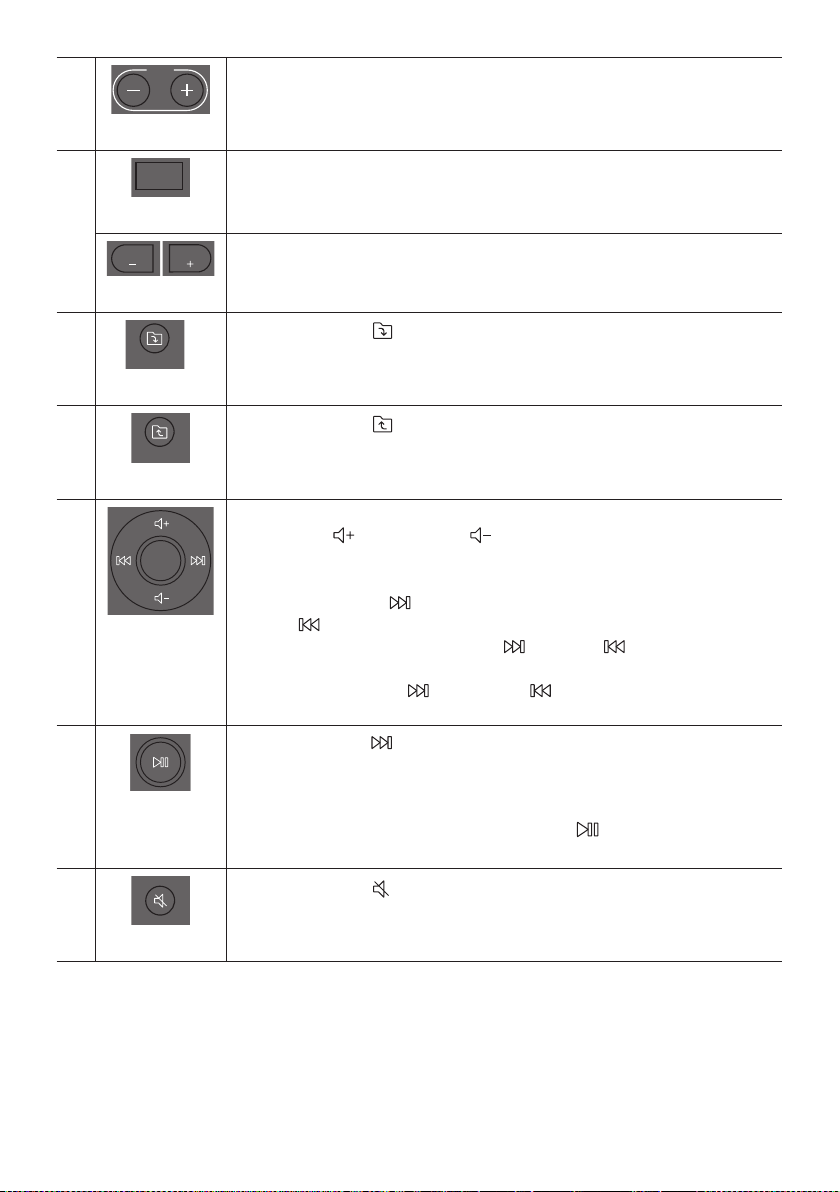
TEMPO +, -
TEMPO
Press the TEMPO + or TEMPO - buttons to change the tempo of the music up or down.
This function only works in the USB1 and USB2 mode.
DJ
DJ
This function lets you turn on the DJ effect function.
Press the button repeatedly to cycle through the available DJ sound effects:
NOISE, FILTER, CRUSH, CHORUS, WAHWAH or OFF.
EFFECT +, -
EFFECT
EFFECT
Press the EFFECT + or EFFECT - buttons to change the level of the each DJ sound effect
up or down.
Folder DOWN
DOWN
Press the (DOWN) button to move to the next folder in the USB device.
Folder UP
UP
Press the (UP) button to move to the previous folder in the USB device.
Volume up,
Volume down /
Skip
Volume up, Volume down
Press the (Volume up) or (Volume down) to adjust the volume level up or
down.
Music Skip
Press the button to select the
Press and hold the button or the button for more than 3 seconds in USB play
mode to search forward or search backward. Press and hold the button or the
button for more than 3 seconds again to get back to normal play.
Play / Pause
Press the
Auto Power Down Function
To turn off Auto Power Down function while the unit is in AUX1, AUX2 mode, press
and hold the button for more than 5 seconds. ON-AUTO POWER DOWN /
OFF-AUTO POWER DOWN appears on the display.
Mute
Press the (Mute) button to mute the sound.
Press it again to unmute the sound.

ENG - 22
Repeat
Press the (Repeat) button to use the Repeat function in “USB1”and “USB2” mode.
Press the button repeatedly to cycle through the available repeat functions:
ONE, FOLDER, ALL, RANDOM or OFF.
BASS
BASS
Press the BASS button to use the powerful bass sound.
Press it again to return to the normal sound.
Press and hold the BASS button for more than 5 seconds to turn on or off the
BLUETOOTH POWER function.
How to use Sound Mode
genres.
1. Press the SOUND MODE button on the Remote control.
2. Each time you press the SOUND MODE button, the Sound Tower cycles through the available
sound effects: PARTY, STANDARD, HIPHOP, EDM, ROCK, LATIN, HOUSE or REGGAE.
NOTES
Default sound mode is PARTY.
When turned off, press and hold the button on product or remote control for more than 5 seconds
to turn on in the default Sound Mode setting.
How to use the DJ Effect
The DJ Effect function lets you add DJ sound effects to your music. The level of each effect is
adjustable.
1. Press the DJ button on the Remote control.
2. Each time you press the DJ button, the Sound Tower cycles through the available DJ Effects:
NOISE
FILTER : Creates an effect similar to the sound of only treble or bass.
CRUSH: Creates an effect that makes the original sound sharper.
CHORUS : Creates an effect similar to a singing chorus.
WAHWAH : Creates a ‘Wah~ Wah~’ effect.
DJ EFFECT OFF : Turns off the DJ Effect.
3. Press the EFFECT + or EFFECT - buttons to raise or lower the level of each of the DJ sound effects
from -15 to +15.
NOTE
When turned off, press and hold the
button on product or remote control for more than
5 seconds to turn on in the default DJ Effect setting.
ENG - 23
07 USING THE SAMSUNG SOUND TOWER
(GIGA PARTY AUDIO) APP
Install Samsung Sound Tower (Giga Party Audio) App
To control this product with your Smart Device and the Samsung Sound Tower (Giga Party Audio) app,
download the Samsung Sound Tower (Giga Party Audio) App from the Google Play Store or Apple App
Store, and install it on your Smart Device.
NOTES
The Samsung Sound Tower (Giga Party Audio) app is compatible with Android mobile phone devices
running Android OS 6.0 or later.
The Samsung Sound Tower (Giga Party Audio) app is compatible with Apple mobile devices running
iOS 10.0 or later.
Market search : Samsung Sound Tower or Samsung Giga Party Audio
Launching the Samsung Sound Tower (Giga Party Audio) App
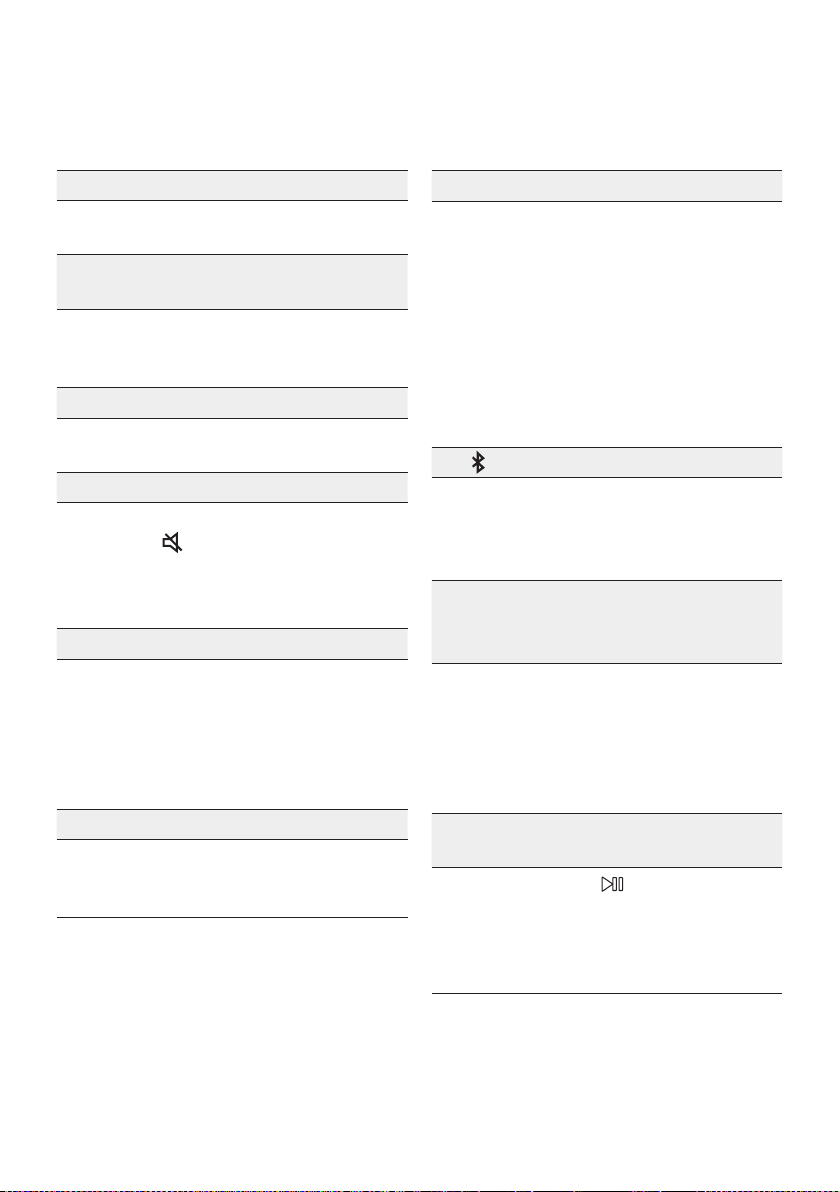
To launch and use the Samsung Sound Tower (Giga Party Audio) app, touch the Samsung Sound Tower
(Giga Party Audio) icon on your smart device, and then follow the directions on the screen.
Samsung
Multiroom
Samsung Sound Tower or
Samsung Giga Party Audio
Samsung Sound Tower or
Samsung Giga Party Audio
ENG - 24
08 TROUBLESHOOTING
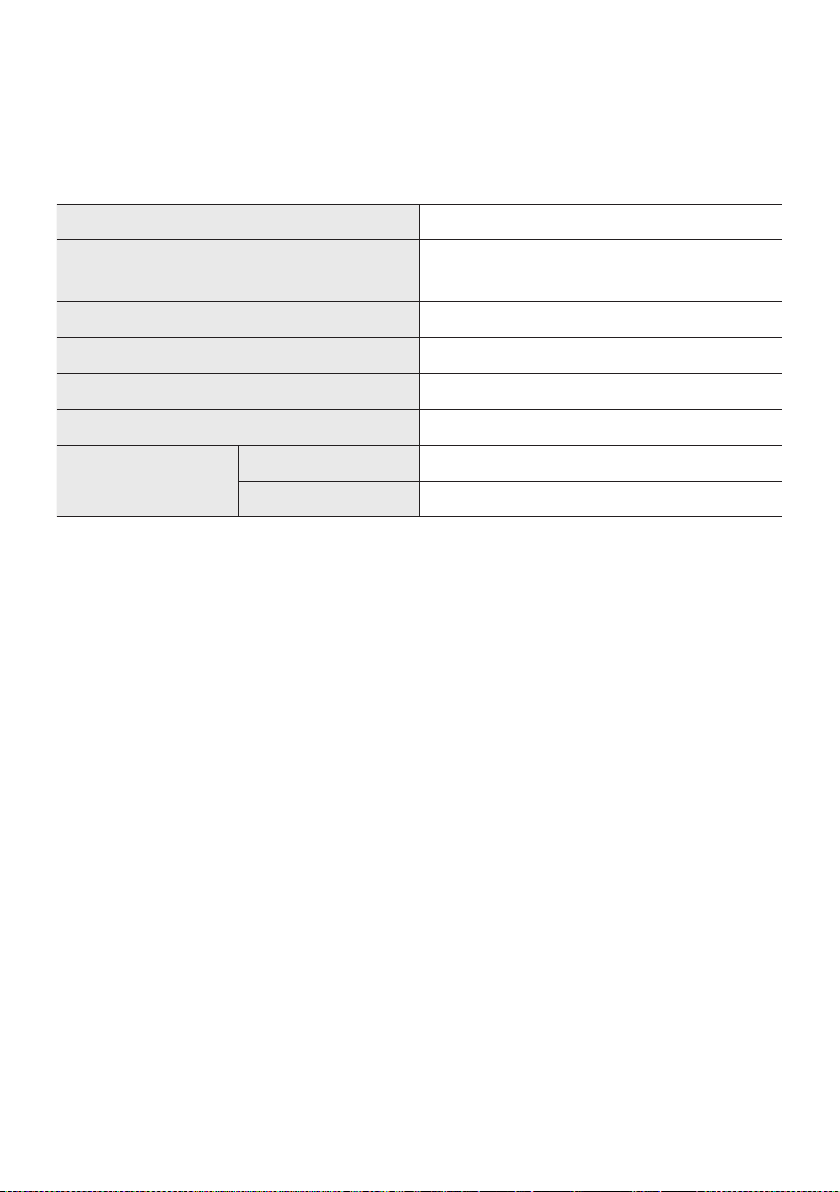
Before seeking assistance, check the following.
The unit will not turn on.
Is the power cord plugged into the outlet?
; Connect the power plug to the outlet.
A function does not work when the button is
pressed.
Is there static electricity in the air?
; Disconnect the power plug and connect it
again.
Sound dropouts occur in BT mode.
; See the Bluetooth connection sections on
page 14.
Sound is not produced.
Is the Mute function on?
; Press the
(Mute) button to cancel the
mute function.
Is the volume set to minimum?
; Adjust the Volume.
The remote control does not work.
Are the batteries drained?
; Replace them with new batteries.
Is the distance between the remote control
and Sound Tower main unit too far?
; Move the remote control closer to the
Sound Tower main unit.
Stereo Group connection is not working.
Is the system in wireless Group Play mode?
; Disconnect the wireless Group Play mode
and try Stereo Group connection again.
It cannot make a Bluetooth connection.
Is the system connected to another system in
wireless Group Play mode or Stereo Group
mode?
; Try Bluetooth connection again after
disconnecting the wireless Group Play or
Stereo Group connection.
Are the two Bluetooth devices already
connected?
; Try Bluetooth connection again after
disconnecting other Bluetooth connections.
The PAIRING button is not working.
Is the system in wireless Group Play mode or
Stereo Group mode?
; Try again after disconnecting the wireless
Group Play or Stereo Group connection.
I want to switch the HOST (MAIN) system to
the other in wireless Group Play or Stereo
Group connection.
; Disconnect Group Play mode, press the
Speaker which you want make to HOST
HOST” message,
connect the others one by one.
;
You can not change others as MAIN.
I want to play AUX1 or AUX2 more than 8 hours
without control input.
; Press and hold the button for more than
5 seconds in AUX1 or AUX2 mode to disable
Auto Power Down Function. Change from
ON-AUTO POWER DOWN to OFF-AUTO
POWER DOWN.

ENG - 25
I can’t connect a SUB to Group play.
; After 1 hour, the HOST will block any
additional SUB from being added.
Press the GROUP PLAY button on HOST,
after it display “HOST” message, the SUB
can be reconnected.
It cannot make a “Wireless/Wired Group/Add
Stereo/Bluetooth” connection.
Is the distance between systems too far?
; It is recommended to make a “Wireless/
Wired Group/Add Stereo/Bluetooth” pairing
within 1 meter from the system.
; The recommended operating distance
between Sound Tower systems is closer than
10 meters.
09 LICENCE
The Bluetooth® word mark and logos are
registered trademarks owned by the Bluetooth
SIG, Inc. and any use of such marks by Samsung
Electronics Co., Ltd. is under license. Other
trademarks and trade names are those of their
respective owners.
Qualcomm aptX is a product of Qualcomm
Technologies, Inc. and/or its subsidiaries.
Qualcomm is a trademark of Qualcomm
Incorporated, registered in the United States
and other countries. aptX is a trademark of
Qualcomm Technologies International, Ltd.,
registered in the United States and other
countries.
10 OPEN SOURCE
LICENCE NOTICE
To send inquiries and requests regarding open
sources, contact Samsung via Email
(oss.request@samsung.com).
11 IMPORTANT
NOTES ABOUT
SERVICE
Figures and illustrations in this User Manual are
provided for reference only and may differ from
actual product appearance.
ENG - 26
12 SPECIFICATIONS AND GUIDE
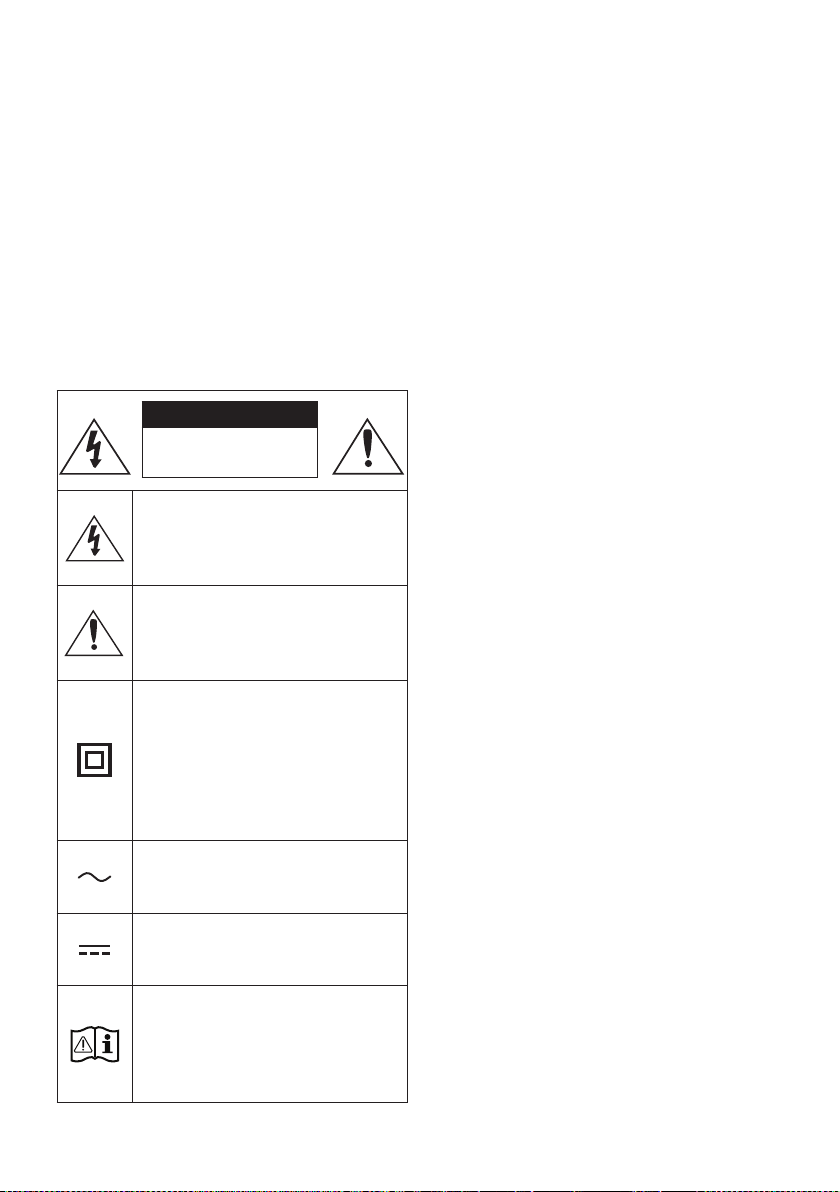
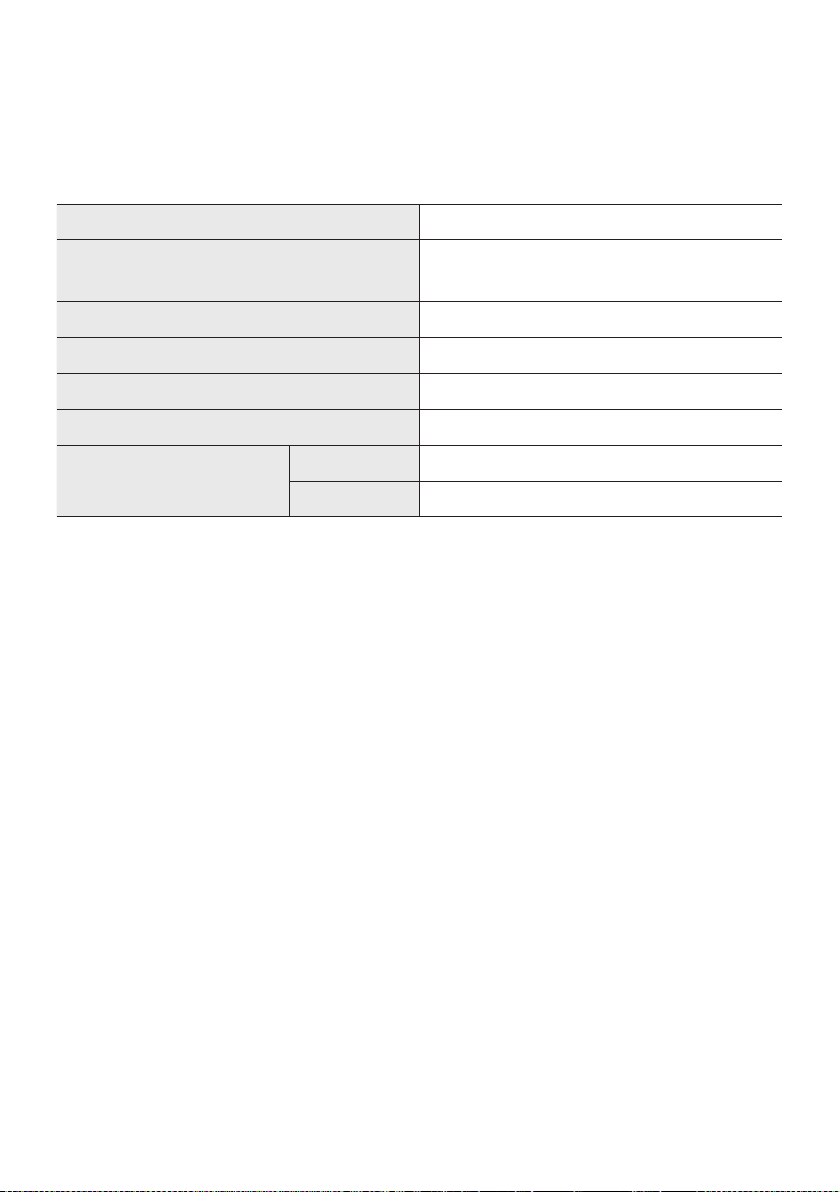
Specications
Model Name MX-T50
USB1/USB2
Weight 11.6 kg
Dimensions (W x H x D) 351.0 x 651.0 x 323.0 mm
Operating Temperature Range +5°C to +35°C
Operating Humidity Range 10 % ~ 75 %
AMPLIFIER
Rated Output power
Tweeter 65W x 2, 8 ohm
Woofer 185W x 2, 3 ohm
NOTES
Weight and dimensions are approximate.
FRA - ii
INFORMATIONS RELATIVES À LA SÉCURITÉ
AVERTISSEMENTS
POUR ÉVITER LES RISQUES DE CHOC
ÉLECTRIQUE, NE DÉMONTEZ PAS LE CAPOT.
L’APPAREIL NE CONTIENT PAS DE PIÈCES
RÉPARABLES PAR L’UTILISATEUR ; S’ADRESSER
À UN SERVICE APRÈS-VENTE QUALIFIÉ.
Reportez-vous au tableau ci-dessous pour une
ATTENTION
RISQUE DE CHOC
ÉLECTRIQUE. NE PAS
OUVRIR
Ce symbole indique que ce produit est
alimenté par haute tension. Il est
située à l'intérieur de ce produit.
Ce symbole indique qu'une
documentation importante relative au
fonctionnement et à l'entretien est
fournie avec le produit.
qu'aucun branchement de sécurité à la
terre (prise de terre) n'est requis.
Si ce symbole n'est pas présent sur un
produit avec un cordon d'alimentation,
le produit DOIT avoir une connexion de
tension nominale indiquée par le
symbole est une tension CA.
tension nominale indiquée par le
symbole est une tension CC.
qu'il doit consulter le manuel
d'utilisation pour en savoir plus sur les
informations relatives à la sécurité.
AVERTISSEMENT
choc électrique, n’exposez pas cet appareil à
la pluie ou à l’ humidité.
ATTENTION
POUR PRÉVENIR LES CHOCS ÉLECTRIQUES,
BRANCHEZ LA FICHE AU FOND, EN
PRENANT SOIN D’INSÉRER LA TIGE LARGE
DANS LA FENTE LARGE.
Cet appareil doit toujours être branché à une
prise terre.
Pour déconnecter l’appareil du circuit
principal, la prise doit être débranchée de la
prise principale ; il est de ce fait nécessaire
Évitez toute projection d’eau sur l’appareil.
Ne posez jamais d’objet contenant un liquide
devez retirer le cordon d’alimentation de la
prise murale. Par conséquent, le cordon
d’alimentation doit être facilement accessible
à tout moment.
FRA - iii
PRÉCAUTIONS
1. Assurez-vous que l'alimentation CA de votre
d'alimentation indiqués sur l'étiquette
produit. Posez votre produit à plat sur un
meuble stable en veillant à laisser un espace
d’assurer une ventilation correcte de celui-ci.
de ventilation. Ne posez pas l’ensemble sur
susceptible de chauffer. Cet ensemble est
conçu pour une utilisation en continu. Pour
2.
l’appareil de la prise murale. Les surtensions
3. N’exposez pas l’ensemble aux rayons directs
du soleil ou à toute autre source de chaleur.
Ceci pourrait entraîner une surchauffe et un
dysfonctionnement de l’appareil.
4.
vases) et d’une chaleur excessive (comme
une cheminée) ou de tout équipement
ou électriques. Débranchez le câble
d’alimentation en cas de dysfonctionnement.
industriel. Ce produit ne peut être utilisé qu’à
peut se former si le produit ou un disque a
été stocké à basse température.
Si vous devez transporter l’ensemble
pendant l’hiver, attendez environ 2 heures
que l’appareil ait atteint la température de la
5. Les piles utilisées dans ce produit peuvent
pour l’environnement. Ne jetez pas les piles
dans votre poubelle habituelle. Ne vous
débarrassez pas des piles en les faisant
brûler. Ne court-circuitez pas, ne
désassemblez pas ni ne faites pas
surchauffer les batteries. Le remplacement
incorrect de la batterie entraîne un risque
d’explosion. Ne la remplacez que par une
batterie du même type.
À PROPOS DE CE
MANUEL
Le manuel d’utilisateur est composé de deux
MANUEL D’UTILISATEUR
Consultez ce manuel pour en savoir plus sur les
MANUEL COMPLET
Vous pouvez accéder au MANUEL COMPLET
consulter le manuel sur votre PC ou appareil
Audio.

FRA - iv
SOMMAIRE
01 Vericationdescomposants 2
Insertion des piles avant d’utiliser la Télécommande (2 piles AAA)
------------------------- 2
02 Présentationduproduit 3
------------------------- 3
------------------------- 4
03 ConnexiondeSoundTower 6
Branchement de l’alimentation électrique
-------------------------
6
Comment utiliser l’Audio Groupe
-------------------------
7
04 Connexiond’unappareilexterne 13
-------------------------
13
Connexion d’un appareil mobile via Bluetooth
-------------------------
14
-------------------------
17
05 Connexiond'unpériphériquedestockageUSB 18
-------------------------
19
06 Utilisationdelatélécommande 20
Comment utiliser la télécommande Alimentation
-------------------------
20
Comment utiliser le Mode Son
-------------------------
22
Comment utiliser l'effet DJ
-------------------------
22

FRA - v
07 Utilisationdel'applicationSamsung
SoundTower(GigaPartyAudio) 23
-------------------------
23
-------------------------
23
08 Dépannage 24
09 Licence 25
10 AvisdeLicenceLibre 25
11 RemarqueImportanteàProposduService 25
12 SpécicationsetGuide 26
-------------------------
26
FRA - 2
01 VERIFICATION DES COMPOSANTS
UnitéprincipaleSoundTower Télécommande/Piles Câbled’alimentation
Pour plus d’informations sur l’alimentation et la consommation électrique, reportez-vous à
Pour acheter des composants supplémentaires ou des câbles facultatifs, contactez un centre de
le déplacer.
Insertiondespilesavantd’utiliserlaTélécommande(2pilesAAA)
respectant la polarité. Replacer le couvercle du
compartiment à piles .
FRA - 3
02 PRÉSENTATION DU PRODUIT
PanneausupérieurdeSoundTower
BASS
Capteurde
télécommande
vers le capteur de la télécommande.
Fenêtrede
visualisatio
Alimentation
Lumière
Appuyer sur la touche
(Lumière)pour activer le mode d'éclairage. Appuyez plusieurs
fois sur la touche pour passer naviguer entre les modes d’éclairage disponibles : AMBIENT,
PARTY, DANCE, THUNDERBOLT, STAR ou OFF.
Source
Maintenez appuyée la touche
(Source)
dans le mode « SEARCHINGTV ».
Lecture/Pause
Lecture/Pause
Appuyer sur la touche
pause.
Lecturedeladémo
Maintenez appuyée la touche
DEMO
l’écran et lance la musique de démonstration pendant 60 secondes.
Pour annuler la Lecture de la démo, maintenez appuyée la touche pendant
– Si vous saisissez des commandes pendant la Lecture de la démo, le minuteur
de 60 secondes est réinitialisé.
–
désactivées pendant la Lecture de la démo. Pour utiliser la télécommande,
annulez la lecture de la démo.
–
– Veuillez être prudent, car il peut jouer plus fort que le niveau du volume.
FRA - 4
Volumebas
Appuyer sur le bouton
(Volumebas)
Appuyer sur le bouton (Volumebas)
Volumefort
Appuyez sur la touche
(Volumefort)
Appuyer et maintenir enfoncé le bouton (Volumefort)
rapidement le volume sonore.
BASS
Appuyez sur le bouton BASS pour utiliser la puissance des basses.
Appuyez de nouveau sur cette touche pour revenir au son normal.
Maintenez appuyée la touche BASS
désactiver la fonction BLUETOOTHPOWER.
PanneauarrièredeSoundTower
ADD STEREO GROUP PLAYPAIRING
AUX 1
AUX 2 / GROUP PLAY
IN
OUT
L
R
L
R
USB1
(5V 2.1A)
USB2
(5V 0.5A)
ECHOVOLMIC
OUT
Bluetooth
PAIRING
Appuyer sur la touche PAIRINGBTPAIRING
ADD
STEREO
Appuyer sur le bouton ADD STEREO
Appuyer de nouveau sur le bouton ADD STEREO pour quitter le mode Groupe Stereo
ADD STEREO pendant plus
GROUP
PLAY
Appuyer sur le bouton GROUPPLAY
Appuyer de nouveau sur le bouton GROUPPLAY
Group Play. Maintenez appuyée la touche GROUPPLAY
USB1
Connecter un périphérique USB aux ports USB1 ou USB2 de l'unité principale.
En connectant votre téléphone portable au port USB1
Appuyer sur la touche
(Source)pour sélectionner USB1 ou USB2.
USB2
ECHO
Vous pouvez donner un effet d'écho au son d'un microphone connecté (MIC) en ajustant la
touche ECHO.
VOL
Utiliser le bouton VOL(MIC).
MIC Connecter votre micro à la prise jack MIC.
Terminaux
deGROUP
PLAY OUT
Utiliser un câble audio (non fourni) pour connecter les bornes GROUPPLAY(OUT)de
Veiller à faire correspondre les couleurs des connecteurs.
Terminaux
deAUX2/
GROUP
PLAY IN
Utiliser un câble audio (non fourni) pour connecter les bornesAUX2(IN)de l'unité
Veiller à faire correspondre les couleurs des connecteurs.
Appuyer sur la touche
(Source) pour sélectionner AUX2.
Si le produit est en mode AUX2 sans lecture et sans entrée de commande pendant
Si le produit est en mode AUX2 avec plus de 8 heures de lecture et sans entrée de
AUX1
AUX1 de l'unité
principale à la sortie audio d'un appareil externe.
Si le produit est en mode AUX1 sans lecture et sans entrée de commande pendant
Si le produit est en mode AUX1 avec plus de 8 heures de lecture et sans entrée de
Alimentation
Connecter le cordon d'alimentation à la prise Alimentation et brancher l'autre extrémité
FRA - 6
03 CONNEXIONDESOUNDTOWER
Branchementdel’alimentationélectrique
Voir les illustrations ci-dessous.
Branchementde
l’alimentationélectrique
ArrièredeSoundTower
FRA - 7
Commentutiliserl’AudioGroupe
ConnexiondumodeGroupPlayaveccâble
AUX 2 / GROUP PLAY
IN
OUT
L
R
L
R
AUX 2 / GROUP PLAY
IN
OUT
L
R
L
R
AUX 2 / GROUP PLAY
IN
OUT
L
R
L
R
1èmeSoundTower
HOST
2eSoundTower DernierSound
Tower
Poursuivrela
connexion
jusqu’audernier
SoundTower
touche AUX ou
(Source)AUX2
REMARQUES
détection.
FRA - 8
ConnexiondumodeGroupPlaysansle
GROUP PLAY
GROUP PLAY
GROUP PLAY
HOST
SUB1
SUB2
1. Appuyez sur le bouton GROUPPLAYHOST »
GROUPPLAY.
2. Appuyer sur la touche GROUPPLAYGROUP
PLAY CONNECTEDGROUPPLAY
3. Appuyer sur la touche GROUPPLAYGROUP
PLAY CONNECTEDGROUPPLAY
4.
5.
REMARQUES
Les conditions ambiantes ou d'autres facteurs liés aux périphériques connectés peuvent avoir un
effet sur la qualité de lecture.
GROUPPLAY, une erreur s’est produite dans la connexion
Le bouton ADD STEREO et le bouton
PAIRING
Le bouton ADD STEREO
En ajoutant l’unité SUB, si vous appuyez et maintenez GROUPPLAYsur la SUB, avant que le
GROUPPLAYCONNECTED» apparaît, il deviendra l'unité HOST à la place.

FRA - 9
Toutes les unités SUB doivent être connectées une par une. Par exemple, une fois qu’HOST est
connecté, appuyez sur le bouton GROUPPLAY
est connecté, vous devez séquentiellement connecter SUB 2 et SUB 3 un par un.
Lors de l’utilisation de Group Play, les périphériques Bluetooth connectés actuellement sont
déconnectés et la connexion Bluetooth est désactivée.
Les périphériques Bluetooth peuvent rechercher et se connecter uniquement à la HOST Sound
En mode Group Play, les SUB ne peuvent pas se connecter au périphérique Bluetooth.
BTsur une
unité SUB, en mode Group Play, le mode Group Play est déconnecté.
DéconnexiondumodeGroupPlaysansl.
1. Appuyer sur la touche GROUPPLAY
GROUPPLAY (HOST ou SUB) avant le
mode Group Play connecté.
OFF-GROUPPLAYGROUPPLAY est
éteinte.
2. Si vous sélectionnez une source autre que BT
mode Group Play est déconnecté.
déconnectée.
IndicationsparLED
LED ÉTAT Description
Vert
On
On
REMARQUE
Bluetooth.
FRA - 10
EnutilisantunSmartphoneetlemodeGroupeStereo
ADD STEREO
ADD STEREO
SoundTower(MAIN)
gauche
SoundTower(SUB)
droite
1. Appuyer sur le bouton ADD STEREO
SEARCHINGSTEREOADD STEREO.
2. Appuyer sur le bouton ADD STEREOSEARCHING
STEREOADD STEREO.
3. LEFT
RIGHT
émet le son du canal droit. Appuyez sur le bouton ADD STEREO sur la MAIN ou SUB Sound
4.
REMARQUES
Les conditions ambiantes ou d'autres facteurs liés aux périphériques connectés peuvent avoir un
effet sur la qualité de lecture.
ADD STEREO, une erreur s’est produite dans la connexion du
Groupe Stereo. Répéter l’étape 1 et l’étape 3.
Le Télécommande, les boutons BTPAIRING, GROUPPLAYet
(Source)
Le bouton GROUPPLAY
Groupe Stereo.
FRA - 11
En mode autre que « BT » (par exemple, mode USB, AUX), la musique est jouée uniquement dans la
connectée.
MettrenàlaStereomodedeGroupe
Appuyez sur le bouton ADD STEREO
Groupe Stereo.
OFF-STEREOMODE» apparaît sur l’écran et la LED au-dessus de la touche ADD STEREO est
éteinte.
IndicationsparLED
LED ÉTAT Description
Vert
En attente d’une connexion Groupe Stereo.
On
On
EnutilisantlaTVSamsungetlemodeGroupeStereo
SoundTower(MAIN)
gauche
SoundTower(SUB)
droite
AUX 2 / GROUP PLAY
IN
OUT
L
R
L
R
AUX 2 / GROUP PLAY
IN
OUT
L
R
L
R
1. Reportez-vous à « EnutilisantunSmartphoneetlemodeGroupeStereo» pour connecter les deux

FRA - 12
2. Connectez le câble RCA à AUX2 OUT sur MAIN et AUX2 IN sur le SUB comme indiqué en utilisant le
câble RCA (non fourni).
3. En mode « BT», appuyez sur le bouton « AUX
SEARCHINGTVSTEREO
4. . Lorsque la connexion est terminée, la « TV STEREO MODE
CHANNEL
5. SEARCHINGTV
SUB
droit. Appuyez sur le bouton ADD STEREO
6.
REMARQUES
ADD STEREO indique une erreur dans la connexion du
En mode Groupe Stereo, la télécommande, les boutons BTPAIRING,GROUPPLAY et
(Source)
Le bouton GROUPPLAY
automatiquement sur la TV et si vous sélectionnez « Oui», il se connecte à la TV. S'il existe un
17.
MettrenàlaconnexionenmodeGroupeStereo
Appuyez sur le bouton ADD STEREO
du Groupe Stereo.
Le « OFF-STEREO MODEADD STEREO s'éteint.
FRA - 13
04 CONNEXION D’UN APPAREIL EXTERNE
Connexionàl’aided’uncâbleaudioanalogique(AUX)
- AUDIO -
R L
AUX 1
AUX 2 / GROUP PLAY
IN
OUT
L
R
L
R
Appareilmobile/MP3/PMP
BD/LecteurDVD/Set-topbox/Consoledejeu
Câblestéréo3,5mm
(nonfourni)
Câbleaudio(AUX)(nonfourni)
ArrièreduSoundTower
Câblestéréo3,5mm(AUX1)
1. Connecter la prise AUX1 de l’unité principale à la prise AUDIO OUT du périphérique source à l’aide
2. AUX1
(Source) du panneau supérieur ou de
la télécommande.
AUX de la télécommande.
Câbleaudio(AUX2)
1. Connecter les bornes AUX2(IN) de l’unité principale aux bornes AUDIO OUT du périphérique
source à l’aide d’un câble audio.
2. AUX2
(Source) du panneau supérieur ou
de la télécommande.
AUX de la télécommande.
FRA - 14
Connexiond’unappareilmobileviaBluetooth
Lorsqu'un appareil mobile est connecté à l'aide du Bluetooth, il est possible d'entendre un son stéréo
PériphériqueBluetooth
ADD STEREO GROUP PLAYPAIRING
LIGHT
PAIRING
TEMPO
USB
AUX
EFFECT
DOWN
UP
EFFECT
DJ
SOUND
MODE
OU
Laconnexioninitiale
1. Maintenez appuyée la touche
PAIRING
BTPAIRING ».
(OU)
Appuyez sur la
PAIRING
2. [AV] MX-T50
Nomdupériphérique
BluetoothBT
3.
Sil'appareilneparvientpasàseconnecter
[AV] MX-T50
dans la liste, supprimez-la.
Répéter ensuite les étapes 1 et 2.
QuelleestladifférenceentreBTREADYetBTPAIRING?
BTREADY
BTPAIRING
(Appuyez sur la touche et maintenez-le
PAIRING bouton sur la télécommande pendant plus de
PAIRING
BTPAIRING
ConnexionmultipleBluetooth
peut jouer de la musique via l'un des appareils Bluetooth connectés sans déconnecter le second
appareil.
AppareilBluetooth1 AppareilBluetooth2
1.
14)
2. La musique ne peut être jouée que sur l'un des deux appareils connectés, et lorsque la musique est
jouée sur l'autre appareil, la musique sur l'appareil de lecture est mise en pause.
REMARQUES
appareil.
Bluetooth, les appareils connectés peuvent être déconnectés.
Vous pouvez vous connecter à deux appareils Bluetooth en même temps.
Si un code PIN vous est demandé lors de la connexion d'un appareil Bluetooth, entrer <0000>.
Les conditions ambiantes ou d'autres facteurs liés aux périphériques connectés peuvent avoir un
effet sur la qualité de lecture.
été saisie à l'état prêt.
–
–
– Si le périphérique Bluetooth est éteint, n'est pas en place ou fonctionne mal.

FRA - 16
Lorsque le haut-parleur est en mode de Connexion multiple Bluetooth, vous devez connecter l'autre
périphérique Bluetooth et le haut-parleur en quelques minutes (environ 1 minute). Dans le cas
contraire, le mode de Connexion multiple Bluetooth sera annulé.
portables, les téléviseurs, etc., ne supportent pas la connexion Bluetooth Multi.
musique ne commence à être lue selon les périphériques Bluetooth.
Bluetooth, la connexion d'autres périphériques Bluetooth peut prendre quelques minutes. Si vous
IndicationsparLED
LED ÉTAT Description
Bleu
Mode BT PAIRING
Mode BT READY
On Un périphérique Bluetooth est connecté.
UtilisationdelaMisesoustensionBluetooth(BluetoothPowerOn)
au produit via une connexion Bluetooth pour l'allumer.
1. Appuyer et maintenir enfoncée la touche BASS de la télécommande ou du panneau supérieur pour
ON-BLUETOOTHPOWER
à l'écran.
2.
Bluetooth. (Pour plus d'informations sur les connexions Bluetooth, reportez-vous au manuel de
3.
REMARQUE
Maintenez appuyée la touche BASS
supérieur pour activer et désactiver mise sous tension Bluetooth.
Qaudn vous appuyez sur la touche BASS
ON-BLUETOOTHPOWER→OFF-BLUETOOTHPOWER

FRA - 17
ConnecterletélévisionSamsungviaBluetooth
ConnexionfacileaveclatélévisionSamsung(ModeSEARCHINGTV)
SEARCHINGTV
1. Appuyer et maintenir le bouton
(Source) sur la télécommande ou le panneau supérieur, puis
SEARCHINGTV
« SEARCHINGTV » est automatiquement activé.)
2.
3.
SEARCHINGTVBTPAIRING
REMARQUES
(Source) ou PAIRING.
PARTY et le bouton SOUND MODE n'est
pas disponible.
télévision.
Vous pouvez sélectionner et vous connecter directement à partir de la liste des haut-parleurs
Bluetooth sur votre téléviseur lorsque la fenêtre contextuelle de connexion n'apparaît pas sur votre
télévision.
FRA - 18
05 CONNEXIOND'UNPÉRIPHÉRIQUEDE
STOCKAGEUSB
USB1
(5V 2.1A)
USB2
(5V 0.5A)
OU
PériphériquedestockageUSB
(nonfourni)
ArrièreduSoundTower
1.
2. Appuyer sur la touche
(Source) du panneau supérieur ou de la télécommande, puis
USB1USB2
USB de la
télécommande.
3. USB1USB2
4.
USB n'est pas connecté, si la lecture est arrêtée ou s’il n’y a pas de saisie pendant plus de
REMARQUES

FRA - 19
Formatsaudioprisencharge
Codecaudio Codecaudio
Fréquence
d'échantillonnage
Débitbinaire
*.mp3
MPEG 1 Layer3 32 kHz ~ 48 kHz 32 kbps ~ 320 kbps
MPEG 2 Layer3 16 kHz ~ 24 kHz 8 kbps ~ 160 kbps
8 kHz ~ 12 kHz 8 kbps ~ 160 kbps
8 kHz ~ 48 kHz 32 kbps ~ 320 kbps
*.aac
AAC 8 kHz ~ 96 kHz < 1728 kbps
A A C- L C 8 kHz ~ 96 kHz < 1728 kbps
HE-AAC 8 kHz ~ 96 kHz < 1728 kbps
IMA_ADPCM
8 kHz ~ 192 kHz
- 8 kHz ~ 192 kHz
REMARQUES
Ce produit ne supporte pas le codec WMA Professional.
Miseàjourdulogiciel
SamsungpeutoffrirdesmisesàjourpourlermwaredusystèmedeSoundToweràl'avenir.
USB1 ou USB2 de votre
FRA - 20
06 UTILISATION DE LA TÉLÉCOMMANDE
CommentutiliserlatélécommandeAlimentation
LIGHT
PAIRING
TEMPO
USB
AUX
EFFECT
DOWN
UP
BASS
EFFECT
DJ
SOUND
MODE
Alimentation
LIGHT
LIGHT
Appuyez sur le bouton
(LIGHT) pour activer le
mode d'éclairage.
A chaque pression sur la touche, le mode
d'éclairage souhaité est sélectionné en choisissant
AMBIENT, PARTY, DANCE, THUNDERBOLT,
STAR ou OFF.
Source
Appuyer sur pour sélectionner une source
connectée au Sound Tower.
Chaque fois que vous appuyez sur la touche pour
sélectionner une source souhaitée en choisissant
BT, USB1, USB2, AUX1 ou AUX2
Bluetooth
PAIRING
PAIRING
Appuyer sur pour sélectionner une source
BT
Maintenez appuyée la touche pendant plus de
BT
PAIRING ».
un nouveau périphérique Bluetooth dans ce
liste de recherche du périphérique Bluetooth.
USB
USB
Appuyer pour sélectionner les sources USB1
ou USB2
AUX
AUX
Appuyer sur pour sélectionner les sources
AUX1 ou AUX2
SOUND MODE
SOUND
MODE
A chaque pression sur la touche, on sélectionne l'effet sonore souhaité parmi PARTY,
STANDARD, HIPHOP, EDM, ROCK, LATIN, HOUSE ou REGGAE.
FRA - 21
TEMPO+,-
TEMPO
Appuyer sur les boutons TEMPO + ou TEMPO -
vers le haut ou le bas.
La fonction est uniquement disponible dans les modes USB1 et USB2.
DJ
DJ
Cette fonction permet d'activer la fonction d'effet DJ.
A chaque pression sur la touche, on sélectionne l'effet sonore DJ désiré en choisissant
NOISE, FILTER , CRUSH, CHORUS, WAHWAH ou OFF.
EFFECT+,-
EFFECT
EFFECT
Appuyer sur les boutons EFFECT + ou EFFECT -
sonore DJ vers le haut ou le bas.
DossierDOWN
DOWN
Appuyer sur le bouton
(DOWN)pour passer au dossier suivant du périphérique USB.
DossierUP
UP
Appuyer sur le bouton
(UP)pour passer au dossier précédent du périphérique USB.
Volumehaut,
Volumebas/
Passer
Volumehaut,Volumebas
Appuyer sur
(Volumehaut) ou
(Volumebas)
volume haut ou bas.
Passerlamusique
Appuyer sur la touche
touche
Appuyer et maintenir enfoncée la touche ou la touche pendant plus de
3 secondes en mode lecture USB pour avancer ou reculer dans la recherche. Appuyer
de nouveau sur la touche ou sur la touche pendant plus de
3 secondes pour revenir à la Appuyer de nouveau sur cette touche pour rétablir le son.
Lecture/Pause
Appuyer sur la touche
FonctiondeMisehorstensionautomatique(AutoPowerDown)
Pour désactiver la fonction Mise hors tension automatique pendant que l’unité est
en mode AUX1, AUX2, maintenez appuyée la touche
ON-AUTOPOWERDOWNOFFON-AUTOPOWERDOWN.
Muet
Appuyer sur le bouton
(Muet) pour couper le son.
Appuyer de nouveau sur cette touche pour rétablir le son.
FRA - 22
Répéter
Appuyer sur la touche
(Répéter)pour utiliser la fonction Repeat en mode «USB1» et
«USB2».
A chaque pression sur la touche, il est possible de sélectionner la fonction de répétition désirée
en choisissant ONE, FOLDER, ALL, RANDOM ou OFF.
BASS
BASS
Appuyer sur le bouton BASS pour utiliser le son de basse puissant.
Appuyer de nouveau sur cette touche pour revenir au son normal.
Maintenez appuyée la touche BASS
désactiver la fonction BLUETOOTHPOWER.
CommentutiliserleModeSon
particulier.
1. Appuyer sur le bouton SOUND MODE de la télécommande.
2. A chaque pression sur la touche SOUND MODE pour sélectionner l'effet sonore désiré en
choisissant PARTY, STANDARD, HIPHOP, EDM, ROCK, LATIN, HOUSE ou REGGAE.
REMARQUES
La valeur par défaut du mode sonore est PARTY.
Quand l’appareil est éteint, maintenez appuyée la touche
sur le produit ou la télécommande
Commentutiliserl'effetDJ
1. Appuyer sur la touche DJ de la télécommande.
2. DJ
NOISE
FILTER
CRUSH
CHORUS Crée un effet similaire à un chœur chantant.
WAHWAH
DJ EFFECT OFF
3. Appuyez sur les touches EFFECT + ou EFFECT -
REMARQUE
Quand l’appareil est éteint, maintenez appuyée la touche sur le produit ou la télécommande
FRA - 23
07 UTILISATIONDEL'APPLICATION
SAMSUNGSOUNDTOWER(GIGAPARTY
AUDIO)
Installerl'applicationSamsungSoundTower(GigaPartyAudio)
Apple App Store, et l'installer sur votre Smart Device.
REMARQUES
Android fonctionnant sous Android OS 6.0 ou ultérieur.
Apple fonctionnant sous iOS 10.0 ou supérieur.
Recherchedemarché:SamsungSoundTowerou SamsungGigaPartyAudio
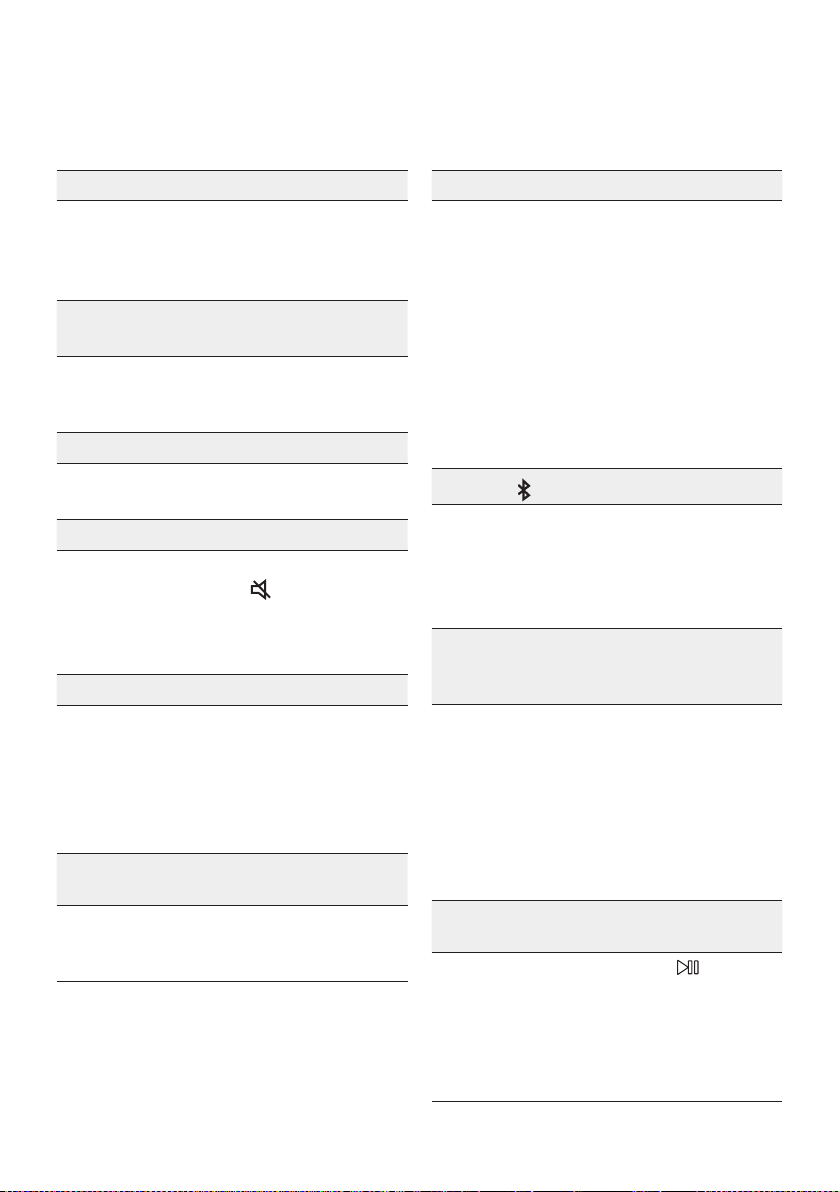
Lancementdel'applicationSamsungSoundTower(GigaParty
Audio)
Samsung
Multiroom
SamsungS oundTowerou
SamsungGi gaPartyA udio
SamsungSoundTowerou
SamsungGigaPartyAudio
FRA - 24
08 DÉPANNAGE
L'appareilnes'allumepas.
Lecordond'alimentationest-ilbranchédansla
prise?
;
de courant.
Unefonctionnefonctionnepaslorsquevous
appuyezsurlatouche.
Ya-t-ildel'électricitéstatiquedansl'air?
;
rebrancher.
LespertesdesonseproduisentenmodeBT.
; Voir les sections Connexion Bluetooth à la
14.
Lesonn'estpasproduit.
LafonctionMuetest-elleactivée?
; Appuyer sur la touche
(Muet)pour
annuler la fonction mute.
Levolumeest-ilrégléauminimum?
;
Latélécommandenefonctionnepas.
Lespilessontdéchargées?
; Remplacer les piles par des piles neuves.
Ladistanceentrelatélécommandeetl'unité
principaleSoundTowerest-elletropgrande?
; Rapprocher la télécommande de l'unité
LaconnexiondugroupeStereonefonctionne
pas.
Lesystèmeest-ilenmodeGroupPlaysansl?
;
et réessayer la connexion de Groupe Stereo.
Impossibled’établirdeconnexionBluetooth.
Lesystèmeest-ilconnectéàunautresystème
enmodesanslGroupPlayouenmode
GroupeStereo?
; Essayer à nouveau la connexion Bluetooth
LesdeuxappareilsBluetoothsont-ilsdéjà
connectés?
; Essayer à nouveau la connexion Bluetooth
Bluetooth.
Lebouton PAIRINGnefonctionnepas.
Lesystèmeest-ilenmodeGroupPlaysansl
ouenmodeGroupeStereo?
;
Groupe Stereo.
JesouhaitecommuterlesystèmeHOST
(MAIN)àl'autreenmodeGroupPlaysansl
oudeconnexionGroupeStereo.
; Déconnectez le mode Group Play, appuyez
d'abord sur le Haut-parleur que vous voulez
HOST », connectez les autres un
par un.
;
tant que MAIN.
JeveuxlireAUX1ouAUX2plusde8heures
sanssaisiedecommande.
; Maintenez appuyée la touche pendant
AUX1 ou AUX2
pour désactiver la fonction Mise hors
tension automatique. Passer de ON-AUTO
POWERDOWN à OFF-AUTOPOWER
DOWN.
JenepeuxpasconnecterunSUBàGroupPlay.
;
supplémentaires d'être ajouté. Appuyez sur
le bouton GROUPPLAY
HOST », la SUB
peut être reconnecté.
Impossibled'établiruneconnexion«Sansl/
Groupecâblé/Groupecâblé/Stéréo/Bluetooth».
Ladistanceentrelessystèmesest-elletrop
grande?
;
; Il est recommandé que la distance de
09 LICENCE
Electronics Co., Ltd. is under license. Other
trademarks and trade names are those of their
Qualcomm is a trademark of Qualcomm
United States and other countries.
10 AVIS DE LICENCE
LIBRE
Pour toute requête et demande concernant les
11 REMARQUE
IMPORTANTE À
PROPOS DU
SERVICE
d’utilisation sont fournies à titre de référence
uniquement et peuvent différer de l’apparence du
produit réel.
FRA - 26
12 SPÉCIFICATIONSETGUIDE
Spécications
Poids
Dimensions (L x H x P)
AMPLIFICATEUR
Puissance de sortie nominale
Woofer
REMARQUES
Le poids et les dimensions sont approximatifs.
POR - ii
INFORMAÇÕES DE SEGURANÇA
COMPONENTES
INCLUÍDOSAVISOS DE
SEGURANÇA
PARA REDUZIR O RISCO DE CHOQUES
ELÉCTRICOS, NÃO RETIRE A TAMPA POSTERIOR.
O INTERIOR NÃO CONTÉM PEÇAS PASSÍVEIS DE
REPARAÇÃO PELO UTILIZADOR.
A MANUTENÇÃO DEVE SER EFECTUADA POR
PESSOAL TÉCNICO QUALIFICADO.
Consulte a tabela abaixo para uma explicação dos
símbolos que poderão estar no seu produto Samsung.
CUIDADO
RISCO DE CHOQUE
ELÉCTRICO.NÃO ABRIR.
Este símbolo indica a presença de alta
tensão no interior do produto.
É perigoso estabelecer qualquer tipo de
contacto com as peças existentes no
interior do produto.
Este símbolo indica a existência de
documentação importante relativa ao
funcionamento e manutenção deste
produto (fornecida com o mesmo).
Produto de classe II: Este símbolo indica
que não é necessária uma ligação
eléctrica de segurança à terra.
Se este símbolo não se encontrar num
produto DEVERÁ possuir uma ligação
de proteção segura à terra.
Tensão CA: Este símbolo indica que a
tensão nominal é CA.
Tensão CC: Este símbolo indica que a
tensão nominal é CC.
Cuidado, consulte as instruções de
utilização: Este símbolo aconselha o
utilizador a consultar o manual do
utilizador quanto a informações de
segurança.
AVISO
Para reduzir o risco de fogo ou de choque
elétrico, não exponha este aparelho à chuva
ou à humidade.
CUIDADO
PARA EVITAR CHOQUES ELÉCTRICOS, INSIRA
TOTALMENTE A PARTE LARGA DA FICHA NA
RANHURA LARGA.
Este aparelho deve ser sempre ligado a uma
tomada com ligação à terra.
Para desligar o aparelho da corrente, tem de
Não exponha o aparelho a gotas ou salpicos.
Não coloque objectos com líquidos, tais como
vasos, em cima do aparelho.
Para desligar completamente o aparelho, tem
de desligar o cabo de alimentação da tomada
de parede. Por este motivo, o cabo de
alimentação tem de estar sempre facilmente
acessível.
POR - iii
PRECAUÇÕES
1.
sua casa está em conformidade com os
requisitos de energia indicados no
parte traseira do seu produto. Instale o
produto na horizontal, sobre uma base
para permitir a ventilação 7~10 cm.
ventilação não estão tapados. Não coloque a
tipo de equipamento que possa aquecer.
Esta unidade foi concebida para uma
utilização contínua. Para desligar
CA da tomada de parede. Desligue a unidade
quando não tencionar utilizá-la durante
muito tempo.
2.
corrente da rede eléctrica. Os picos de
tensão durante uma trovoada podem
3. Não exponha a unidade à luz solar directa
nem a outras fontes de calor. A unidade
4. Proteja o produto da humidade (por exemplo,
vasos) e de calor (por exemplo, uma lareira)
ou de equipamento que crie campos
magnéticos ou eléctricos fortes. Desligue o
cabo de alimentação da tomada eléctrica se
a unidade não funcionar correctamente.
O produto não se destina a utilização
industrial. Utilize este produto apenas para
produto ou o disco tiverem sido arm zenados
em temperaturas baixas. Se transportar a
unidade no Inverno, aguarde
aproximadamente 2 horas para que a
de utilizar.
5. As pilhas utilizadas neste produto contêm
químicos nocivos para o ambiente. Não deite
as pilhas no lixo doméstico. Não elimine as
pilhas através de fogo. Não provoque curto-
circuito, não desmonte nem sobreaqueça as
pilhas. Pode provocar uma explosão, se
substituir as pilhas incorrectamente.
Substitua-as apenas pelo mesmo tipo de
pilhas ou por um tipo equivalente.
SOBRE ESTE MANUAL
O manual de utilizador contém duas partes: este
MANUAL DO UTILIZADOR em papel simples e um
MANUAL COMPLETO detalhado que pode
transferir.
MANUAL DO UTILIZADOR
Consulte este manual para obter instruções de
segurança, informações sobre a instalação do
produto, sobre os componentes e sobre as
MANUAL COMPLETO
Pode analisar o código QR para aceder ao
MANUAL COMPLETO no centro de assistência
ao cliente online da Samsung. Para poder
visualizar o manual no seu computador ou
formato de documento a partir do website da
Samsung. (http://www.samsung.com/support)
alteração sem aviso prévio.
Sound Tower é um novo nome para Giga Party Audio.

POR - iv
CONTEÚDOS
01 Vericaroscomponentes 2
Inserção de Pilhas antes de usar o Controlo Remoto (pilhas AAA X 2)
------------------------- 2
02 Resumodoproduto 3
Painel Superior do Sound Tower
------------------------- 3
Painel Traseiro do Sound Tower
------------------------- 4
03 ConectaroSoundTower 6
Conectar a Energia Elétrica
-------------------------
6
Como usar o Grupo de Áudio
-------------------------
7
04 Conexãodeumdispositivoexterno 13
Conectar usando um Cabo de Áudio Analógico (AUX)
-------------------------
13
Conectar um dispositivo móvel via Bluetooth
-------------------------
14
Ligar a TV Samsung através de Bluetooth
-------------------------
17
05
ConectarumdispositivodearmazenamentoUSB
18
Atualização de software
-------------------------
19
06 Usarocontroloremoto 20
Como usar o controlo remoto
-------------------------
20
Como usar o Modo de Som
-------------------------
22
Como usar o Efeito DJ
-------------------------
22

POR - v
07 UsaraappSamsungSoundTower
(GigaPartyAudio) 23
Instale a APP Samsung Sound Tower (Giga Party Audio)
-------------------------
23
Lançamento da App Samsung Sound Tower (Giga Party Audio)
-------------------------
23
08 Resoluçãodeproblemas 24
09 Licenças 25
10 AvisodeLicençadeOpenSource 25
11 NotaImportantesobreoServiço 25
12 Especicaçõeseguia 26
-------------------------
26
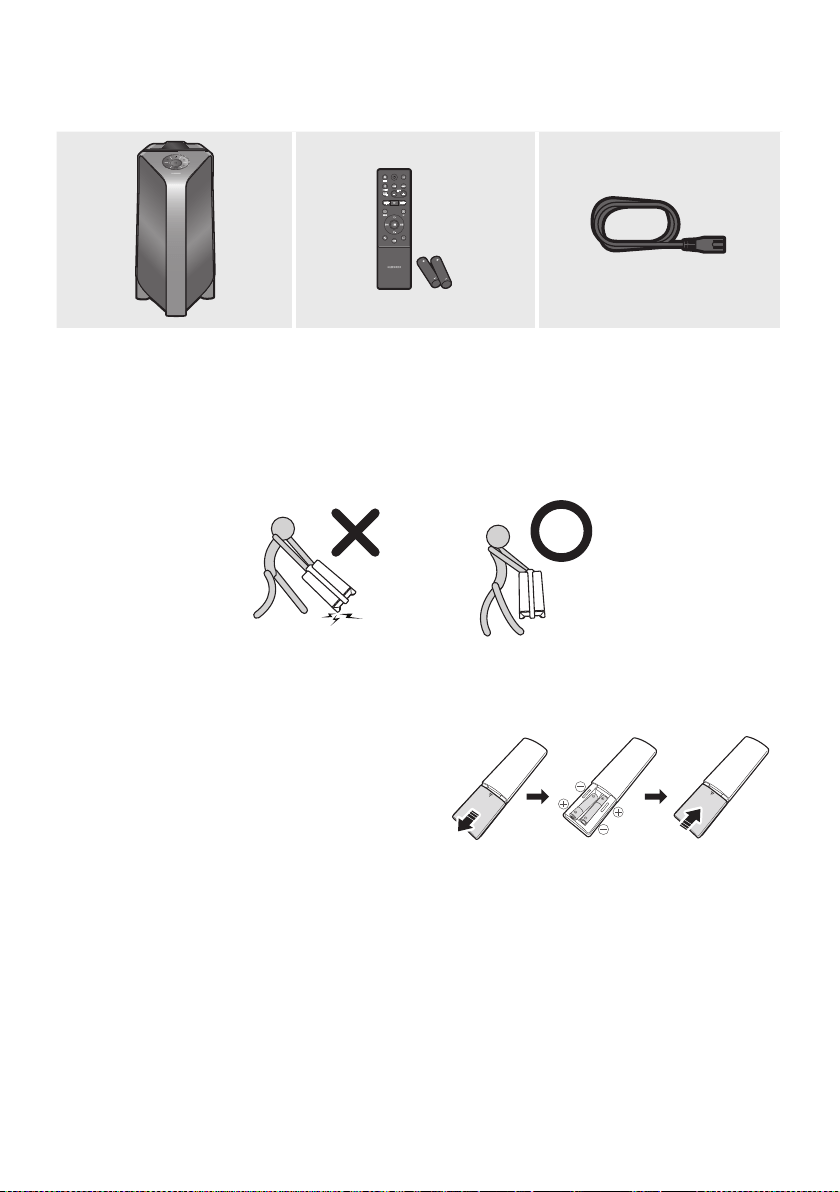
POR - 2
01 VERIFICAR OS COMPONENTES
UnidadePrincipaldoSoundTower ControloRemoto/Pilhas CabodeAlimentação
Para obter mais informações sobre a fonte de alimentação e o consumo de energia, consulte a
etiqueta anexada ao produto. (Etiqueta: Parte traseira da Unidade Principal do Sound Tower)
Para adquirir componentes adicionais ou cabos opcionais, entre em contacto com o Centro de
Serviço da Samsung ou com o Apoio ao Cliente da Samsung.
Ao mover o produto, não arraste ou puxe o produto a partir do chão. Levante o produto ao movê-lo.
InserçãodePilhasantesdeusaroControloRemoto(pilhasAAAX2)
Deslize a tampa do compartimento das pilhas na
removida. Insira 2 pilhas AAA (1,5V) orientadas com
a polaridade correta. Deslize novamente a tampa
do compartimento das pilhas de modo a fechá-lo.
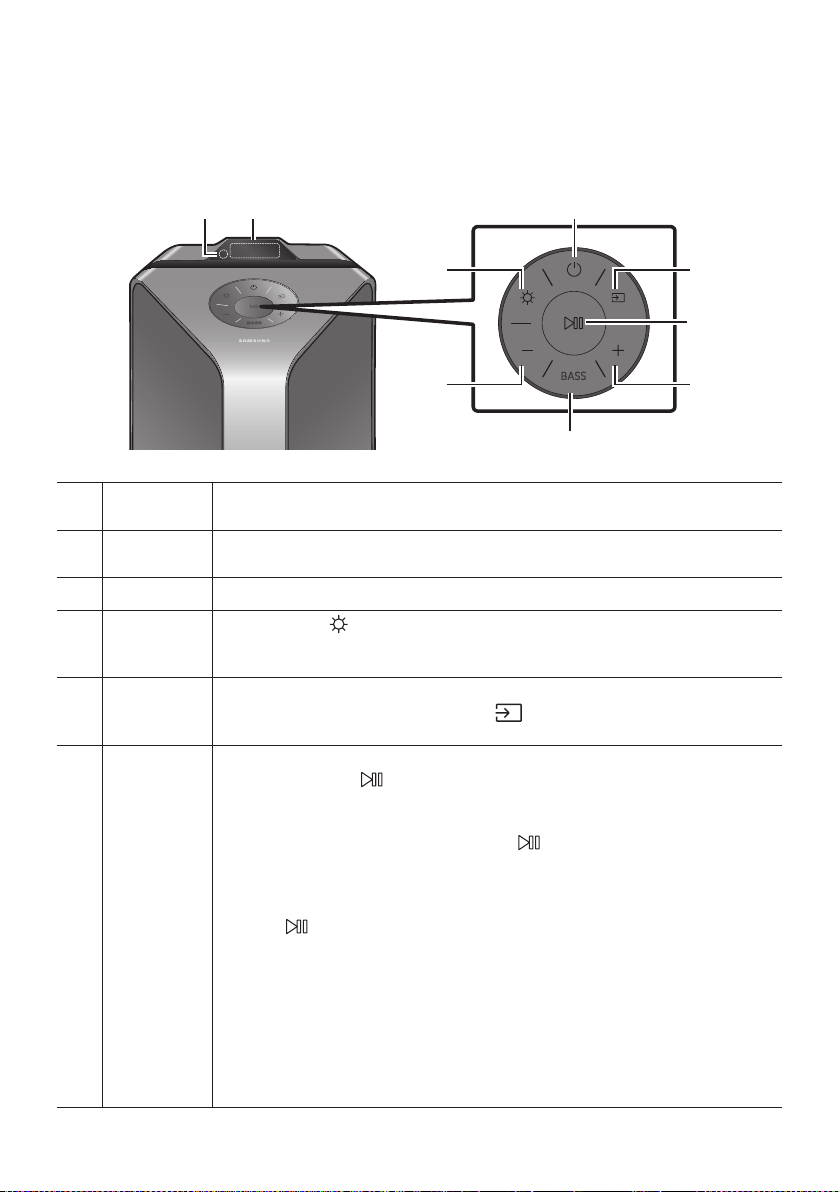
POR - 3
02 RESUMO DO PRODUTO
PainelSuperiordoSoundTower
BASS
Sensor
Remoto
Ao manusear o sistema Sound Tower, aponte a frente do controlo remoto para o sensor
remoto.
Janelade
Exibição
Exibe mensagens de funcionamento ou o estado atual do sistema Sound Tower.
Energia Liga e desliga o Sound Tower.
Luz
Pressione o botão
(Luz) para ativar o Modo de Iluminação. Pressione o botão
repetidamente para alternar entre os modos de iluminação disponíveis: AMBIENT, PARTY ,
DANCE , THUNDERBOLT , STAR ou OFF .
Fonte
Pressione para selecionar uma fonte conectada ao Sound Tower.
Pressione e mantenha pressionado o botão (Fonte) por mais de 5 segundos para
entrar no modo “SEARCHING TV”.
Reproduzir/
Pausa
Reproduzir/Pausa
Pressione o botão
ReproduçãodeDemonstração
Pressione e mantenha pressionado o botão por mais de 5 segundos para iniciar
a Reprodução de Demonstração enquanto o sistema estiver ligado. “DEMO” surgirá
Para cancelar a Reprodução de Demonstração, pressione e mantenha pressionado o
botão por mais de 5 segundos durante a Reprodução de Demonstração.
– Se você digitar algum comando enquanto estiver na reprodução de
demonstração, o temporizador de 60 segundos será atualizado.
– Todos os botões no controle remoto e no painel traseiro são desativados
durante a reprodução de demonstração. Se quiser usar o controlo remoto,
cancele o Reprodução de Demonstração.
– O Reprodução de Demonstração será cancelada quando mudar a fonte ou
desligar o sistema.
–
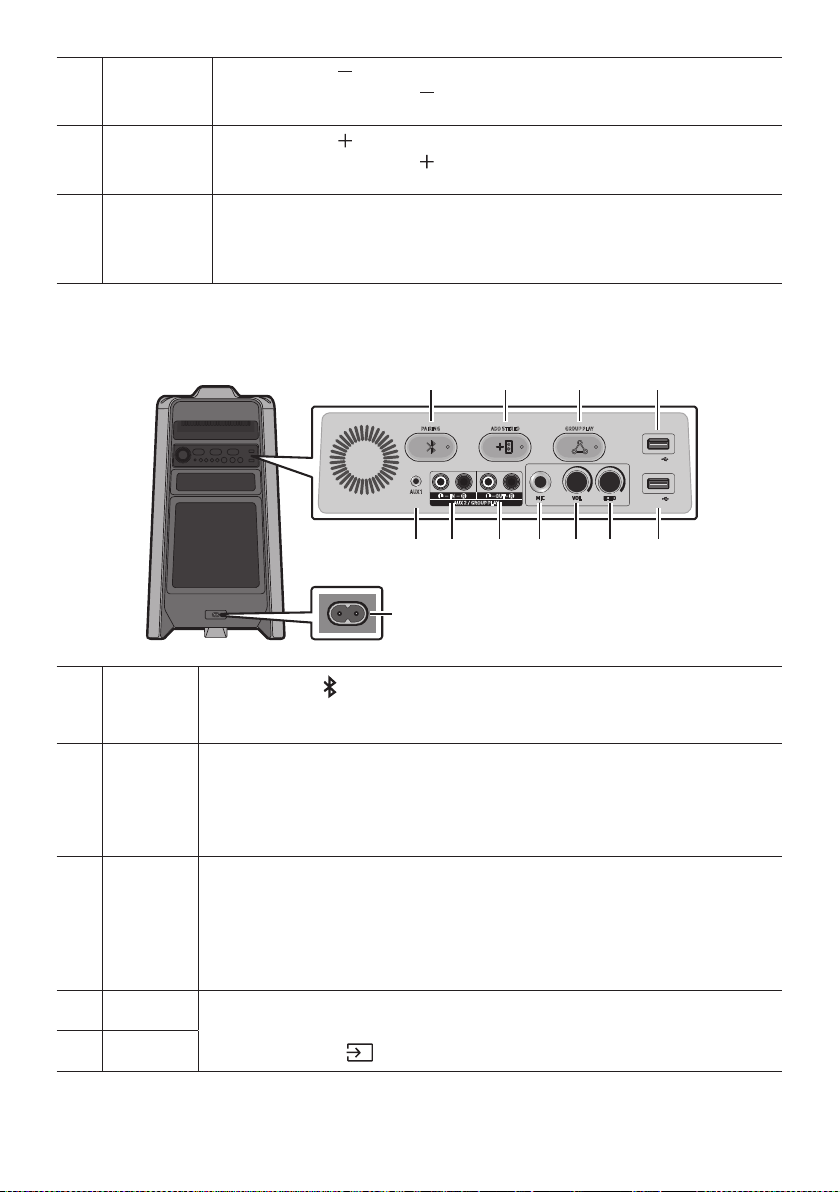
POR - 4
Diminuir
volume
Pressione o botão
(Diminuirvolume) para baixar o nível do volume.
Mantenha pressionado o botão (Diminuirvolume) para diminuir rapidamente o nível
do volume.
Aumentar
volume
Pressione o botão
(Aumentarvolume) para aumentar o volume.
Mantenha pressionado o botão (Aumentarvolume) para aumentar rapidamente o
nível do volume.
BASS
Pressione o botão BASS para usar o poderoso som grave.
Pressione novamente para retornar ao som normal.
Pressione e mantenha pressionado o botão BASS por mais de 5 segundos para ligar ou
desligar a função BLUETOOTH POWER.
PainelTraseirodoSoundTower
ADD STEREO GROUP PLAYPAIRING
AUX 1
AUX 2 / GROUP PLAY
IN
OUT
L
R
L
R
USB1
(5V 2.1A)
USB2
(5V 0.5A)
ECHOVOLMIC
OUT
Bluetooth
PAIRING
Pressione o botão PAIRING para entrar no modo “BT PAIRING”. Poderá conectar o
Sound Tower a um novo dispositivo Bluetooth neste modo, selecionando o Sound Tower
da lista de pesquisa de dispositivos Bluetooth.
ADD
STEREO
Pressione o botão ADD STEREO
Pressione novamente o botão ADD STEREO para sair do modo Grupo Stereo antes que
outro Sound Tower seja conectado. Quando a conexão for estabelecida, você pode curtir o
som estéreo. Pressione e mantenha pressionado o botão ADD STEREO por mais de
GROUP
PLAY
Pressione o botão GROUP PLAY
Pressione novamente o botão GROUP PLAY
que outro Sound Tower seja conectado. Quando a conexão for estabelecida, poderá usar
os vários sistemas Sound Tower ao mesmo tempo, usando o modo Group Play. Pressione e
mantenha pressionado o botão GROUP PLAY por mais de 5 segundos para desconectar o
USB1
Conecte um dispositivo USB às portas USB1 ou USB2 da unidade principal.
Se conectar o seu telefone à porta USB1, poderá carregá-lo.
Pressione o botão
(Fonte) para selecionar USB1 ou USB2.
USB2
POR - 5
ECHO
Você pode dar um efeito de eco ao som de um microfone conectado (MIC) ao ajustar o
botão ECHO.
Se rodar no sentido dos ponteiros do relógio, o efeito eco aumentará, se rodar no sentido
oposto, o efeito eco diminuirá.
VOL
Use o botão VOL da unidade principal para ajustar o volume do microfone (MIC).
Se rodar no sentido dos ponteiros do relógio, o volume aumentará, se rodar no sentido
oposto, o volume diminuirá.
MIC Conecte o seu microfone ao terminal MIC.
Terminais
GROUP PLAY
OUT
Use um Cabo de Áudio (não fornecido) para conectar os terminais GROUPPLAY(OUT) da
unidade principal à entrada de áudio de um dispositivo externo de saída analógica.
Se o dispositivo externo de saída analógica tiver apenas um terminal de entrada de
áudio, conecte à esquerda ou à direita.
Terminais
AUX2/GROUP
PLAY IN
Use um Cabo de Áudio (não fornecido) para conectar os terminais AUX2(IN)da unidade
principal à saída de áudio de um dispositivo externo de saída analógica.
Se o dispositivo externo de saída analógica tiver apenas um terminal de Saída de
Áudio, conecte à esquerda ou à direita.
Pressione o botão
(Fonte)para selecionar AUX2.
O sistema será desligado se o produto estiver no modo AUX2 sem reprodução e sem
entrada de comando por mais de 20 minutos.
O sistema será desligado se o produto estiver no modo AUX2 com reprodução por
mais de oito horas e sem entrada de comando.
AUX1
Use um Cabo de Áudio (AUX) (não fornecido) para conectar o terminal AUX1 da unidade
principal à saída de áudio de um dispositivo externo.
O sistema será desligado se o produto estiver no modo AUX1 sem reprodução e sem
entrada de comando por mais de 20 minutos.
O sistema será desligado se o produto estiver no modo AUX1 com reprodução por
mais de oito horas e sem entrada de comando.
Energia
Conecte o cabo de alimentação no terminal Energia e conecte a outra extremidade a uma
tomada de parede para fornecer energia elétrica ao Sound Tower.
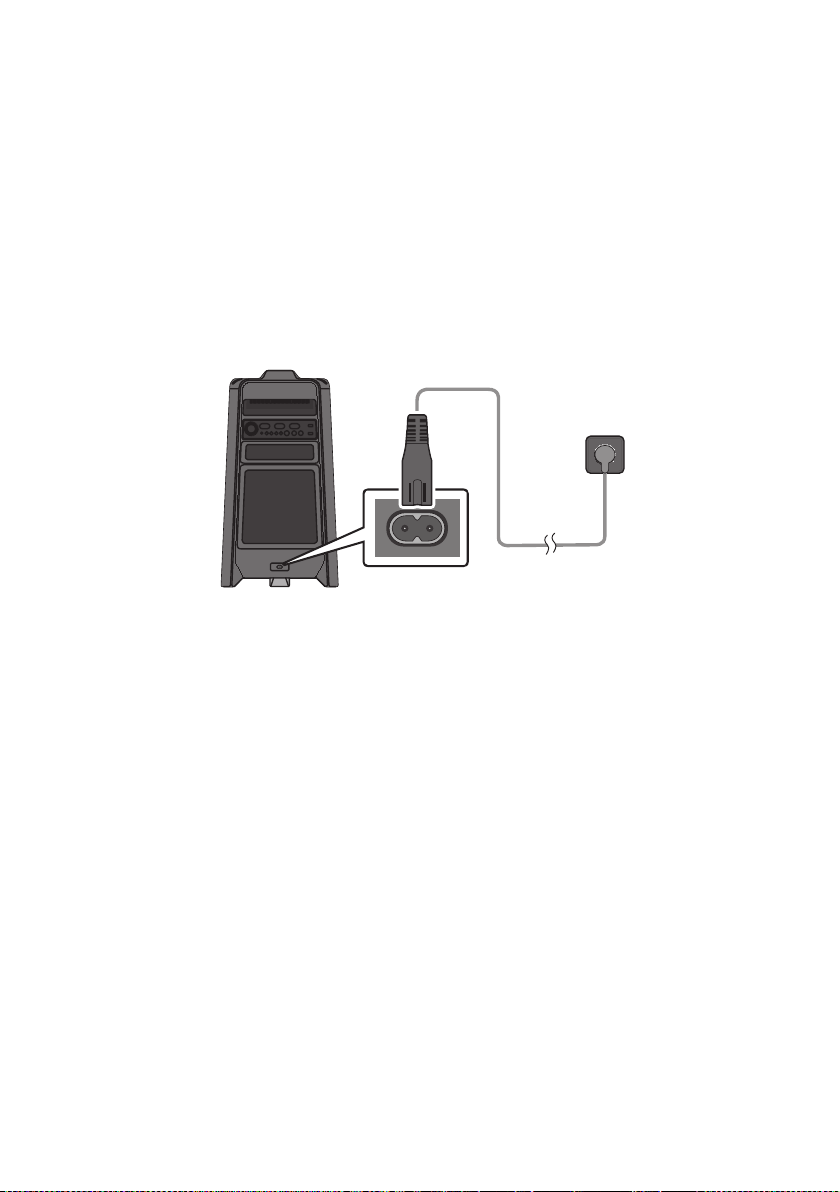
POR - 6
03 CONECTAR O SOUND TOWER
ConectaraEnergiaElétrica
Use o cabo de alimentação para conectar o Sound Tower a uma tomada na seguinte ordem: Conecte o
cabo de alimentação ao Sound Tower e, de seguida, a uma tomada na parede.
Veja as ilustrações abaixo.
Para obter mais informações sobre a energia elétrica necessária e o consumo de energia, consulte a
etiqueta anexada ao produto. (Etiqueta: Parte traseira do Sound Tower)
ConectaraEnergia
Elétrica
PartetraseiradoSound
Tower
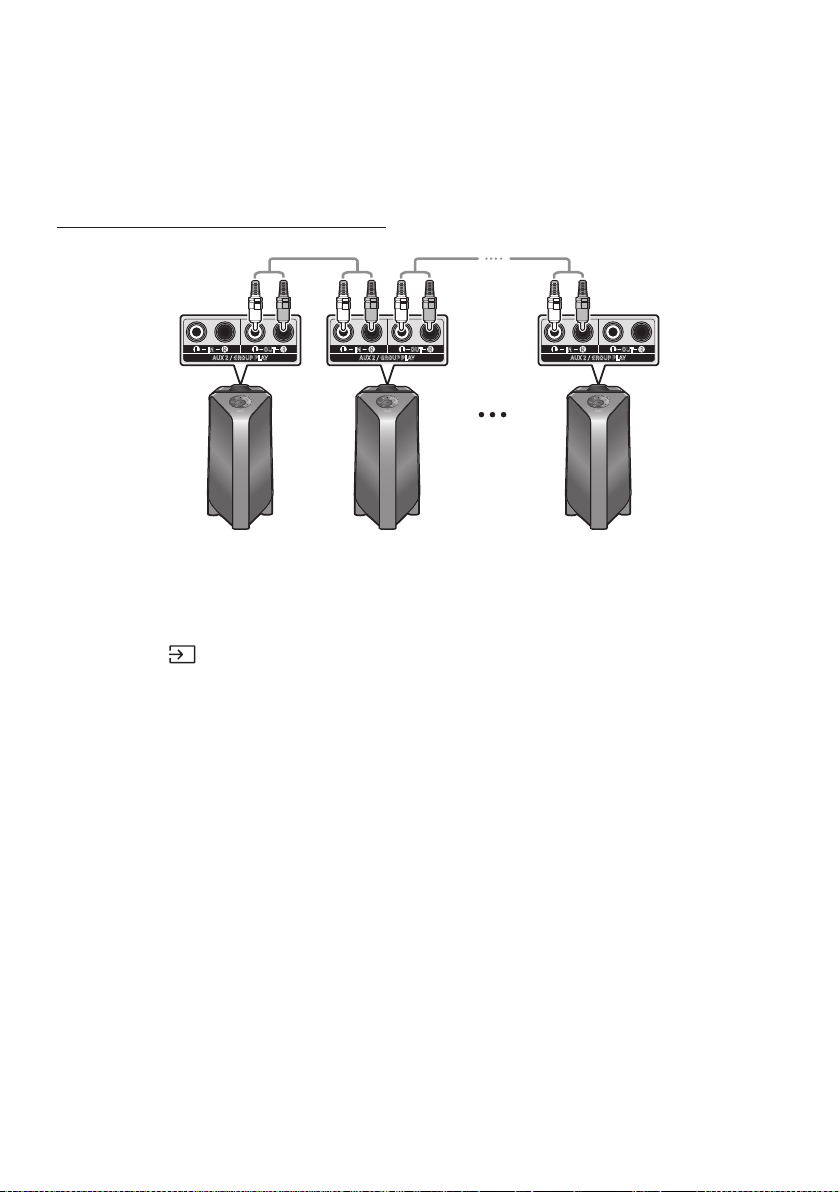
POR - 7
ComousaroGrupodeÁudio
Poderá conectar vários sistemas de áudio num um grupo para criar um ambiente de festa e produzir
partilhada entre quaisquer outros sistemas de Sound Tower do grupo Audio.
ConectarnomodoGroupPlaycomo
AUX 2 / GROUP PLAY
IN
OUT
L
R
L
R
AUX 2 / GROUP PLAY
IN
OUT
L
R
L
R
AUX 2 / GROUP PLAY
IN
OUT
L
R
L
R
1ºSoundTower
HOST
2ºSoundTower ÚltimoSoundTower
Continuea
conexãoatéao
últimoSound
Tower
o botão AUX ou
(Fonte) para mudar a fonte para AUX2 para todo sistema Sound Tower com
exceção do primeiro (ou HOST) sistema Sound Tower.
NOTAS
Dependendo do comprimento ou das características do cabo, poderá haver uma diferença na
distância operacional.
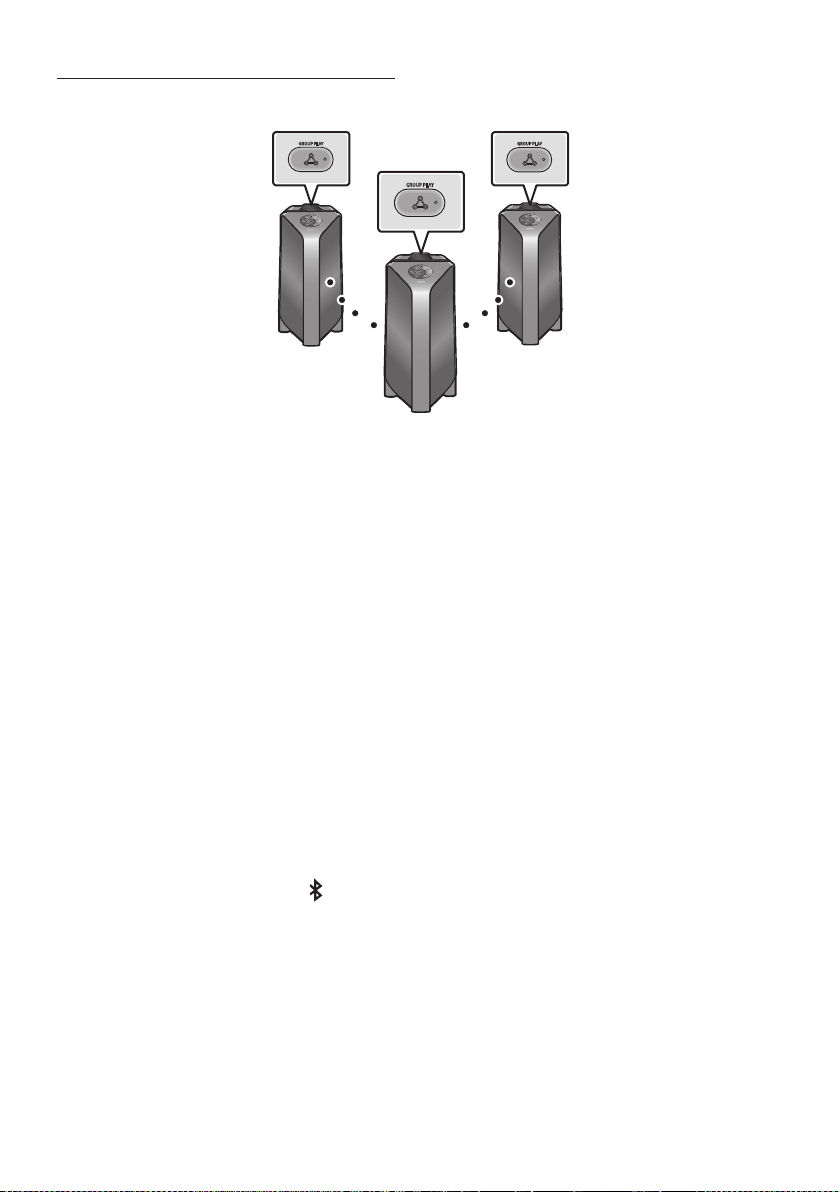
POR - 8
ConectarnomodoGroupPlaysemos
GROUP PLAY
GROUP PLAY
GROUP PLAY
HOST
SUB 1
SUB 2
1. Pressionar o botão GROUP PLAY no sistema HOST Sound Tower. A mensagem “HOST” aparece no
visor da HOST Sound Tower e o LED pisca no botão GROUP PLAY.
2. Pressione o botão GROUP PLAY no 2º sistema Sound Tower (SUB 1). A mensagem “GROUP PLAY
CONNECTED” surgirá no visor e o botão GROUP PLAY em ambos os sistemas parará de piscar.
3. Pressione o botão GROUP PLAY no 3º sistema Sound Tower (SUB 2). A mensagem “GROUP PLAY
CONNECTED” surgirá no visor e o botão GROUP PLAY em ambos os sistemas parará de piscar.
4. Se desejar adicionar mais sistemas Sound Tower, repita o passo 3.
5.
NOTAS
Condições ambientais ou outros fatores com dispositivos conectados podem afetar a qualidade da
reprodução.
Se o LED vermelho estiver ativado no botão GROUP PLAY, um erro terá ocorrido na conexão sem
O botão ADD STEREO e o botão
PAIRING nos sistemas SUB Sound Tower não estão disponíveis
O botão ADD STEREO no sistema HOST Sound Tower não estão disponíveis enquanto no modo de
Ao adicionar uma unidade SUB, se premir e segurar GROUP PLAY na SUB, antes de aparecer a
mensagem “GROUP PLAY CONNECTED” esta passará a ser a unidade HOST.

POR - 9
Todas as unidades SUB devem ser ligadas uma a uma. Por exemplo, depois de a HOST estar ligada,
prima o botão GROUP PLAY na SUB 1 para ligar, e depois de a SUB 1 estar ligada, deverá ligar a SUB
2 e a SUB 3 uma a uma sequencialmente.
Ao usar a Group Play, os dispositivos Bluetooth conectados no momento são desconectados e a
conexão Bluetooth é desativada.
Os dispositivos Bluetooth podem pesquisar e ligar-se apenas com a HOST Sound Tower.
Quando no modo Group Play, as SUB não se podem ligar a um dispositivo Bluetooth.
Se desligar e depois ligar a Sound Tower ou seleccionar qualquer outra fonte que não BT numa
unidade SUB, no modo Group Play, o modo Group Play é desconectado.
DesconectaromodoGroupPlaysemos
1. Mantenha pressionado o botão GROUP PLAY durante mais de 5 segundos (HOST ou SUB) depois
que o Group Play estiver conectado ou pressione o botão GROUP PLAY (HOST ou SUB) antes de
conectar o Group Play.
“OFF-GROUP PLAY” surgirá no visor e o LED acima do botão GROUP PLAY
2. Se seleccionar qualquer outra fonte que não BT nas unidades SUB ou apaga a HOST Sound Tower, o
modo Group Play é desconectado.
Se a desconexão for feita a partir da HOST Sound Tower, o Group Play é desconectado.
IndicaçõesLED
LED ESTADO Descrição
Verde
Piscar
Em
Vermelho Em
NOTA
Bluetooth.
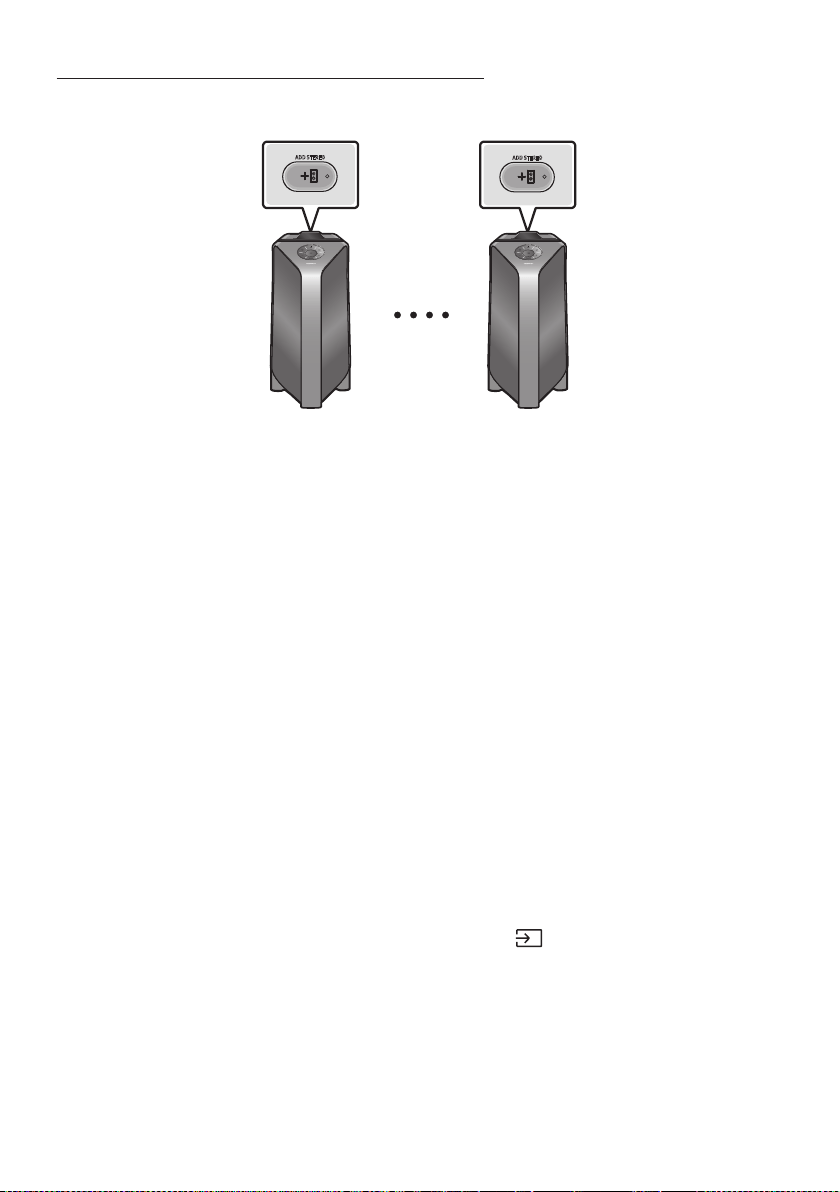
POR - 10
UsandoumSmartphoneemododeGrupoStereo
Ligue duas Sound Tower e use-as com o seu smartphone para desfrutar de som estéreo.
ADD STEREO
ADD STEREO
SoundTower(MAIN)
Esquerda
SoundTower(SUB)
Direita
1. Pressione o botão ADD STEREO no sistema Sound Tower esquerdo. A mensagem “SEARCHING
STEREO” surgirá no visor e o LED piscará no botão ADD STEREO.
2. Pressione o botão ADD STEREO no sistema Sound Tower direito. A mensagem “SEARCHING
STEREO” surgirá no visor e o LED piscará no botão ADD STEREO.
3. Quando a ligação é efectuada, a mensagem “LEFT” aparece no sistema da MAIN Sound Tower e
“RIGHT” aparece no sistema da SUB Sound Tower.
O sistema MAIN Sound Tower emite som de canal esquerdo e o sistema SUB Sound Tower
emite som de canal direito. Pressione o botão ADD STEREO na MAIN ou SUB Sound Tower para
mudar o canal de som da Sound Tower.
4.
pelas duas Sound Tower.
NOTAS
Para usar o modo Grupo Stereo, os dois sistemas Sound Tower devem ser do mesmo modelo.
Condições ambientais ou outros fatores com dispositivos conectados podem afetar a qualidade da
reprodução.
Se o LED vermelho estiver ligado botão ADD STEREO, ocorreu um erro na conexão do Grupo Stereo.
Tente novamente os passos 1 e 3.
O Comando Remoto, o BT PAIRING, os botões GROUP PLAY e
(Fonte) nos sistemas SUB Sound
Tower estão desactivados enquanto em modo de Grupo Stereo.
O botão GROUP PLAY no sistema MAIN Sound Tower não estão disponíveis enquanto em modo de
Grupo Stereo.
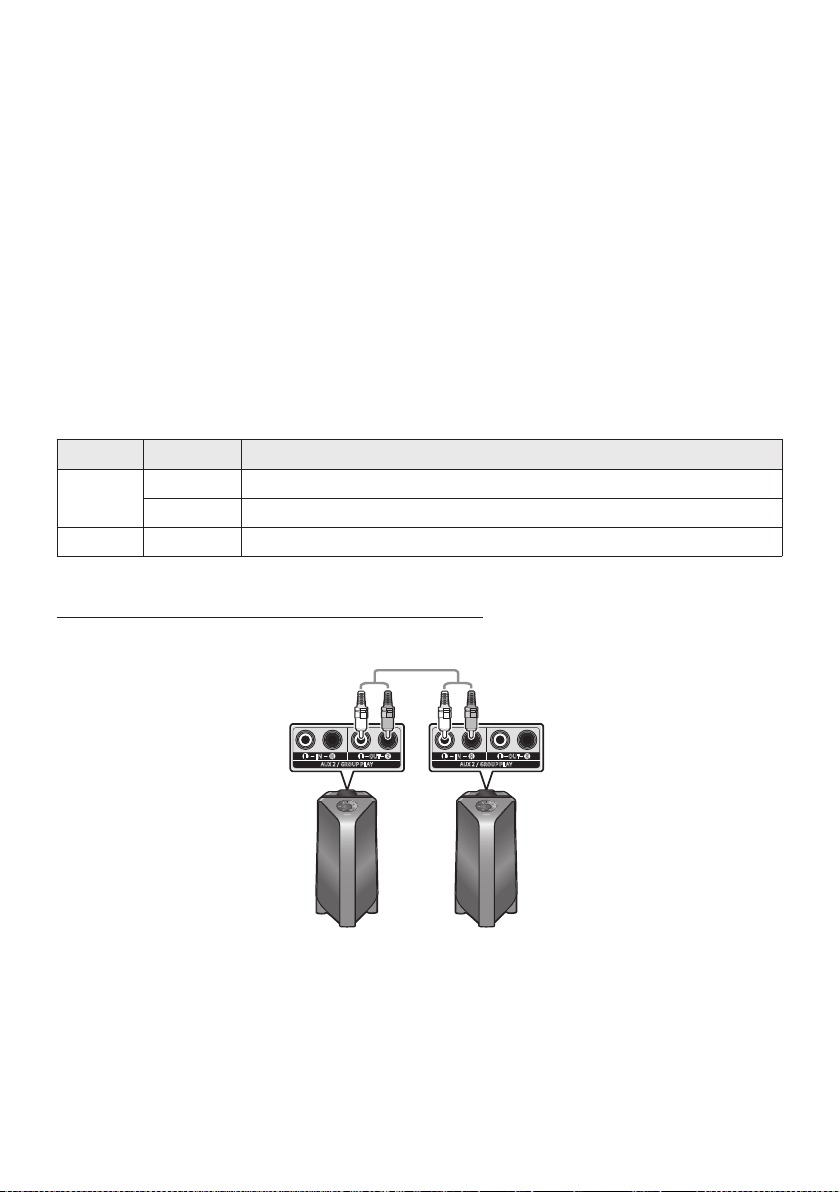
POR - 11
Em modo diferente de “BT” (por exemplo, USB, modo AUX
As cores de iluminação entre a MAIN Sound Tower e a SUB Sound Tower podem variar.
O dispositivo Bluetooth tem o mesmo nome que a MAIN Sound Tower e a SUB Sound Tower quando
ligado ao dispositivo Bluetooth, e só a MAIN Sound Tower pode ser ligada.
Se tentar conectar um dispositivo Bluetooth enquanto o Grupo Stereo estiver se conectando, o
modo Grupo Stereo poderá falhar.
EncerreoStereoMododegrupo
Pressionar o botão ADD STEREO (MAIN ou SUB) durante pelo menos 5 segundos depois de o Grupo
Stereo estar ligado.
“OFF-STEREO MODE” surgirá no visor e o LED acima do botão ADD STEREO
IndicaçõesLED
LED ESTADO Descrição
Verde
Piscar A aguardar uma conexão do Grupo Stereo.
Ligado A conexão Grupo Stereo ocorre de forma bem-sucedida.
Vermelho Ligado Há um erro na conexão Grupo Stereo.
UsandoumTVSamsungemododeGrupoStereo
SoundTower(MAIN)
Esquerda
SoundTower(SUB)
Direita
AUX 2 / GROUP PLAY
IN
OUT
L
R
L
R
AUX 2 / GROUP PLAY
IN
OUT
L
R
L
R
1. Consultar “UsandoumSmartphoneemododeGrupoStereo” para ligar as duas Sound Tower num
Grupo Stereo.

POR - 12
2. Ligar o cabo RCA ao AUX2OUT no MAIN e AUX2IN na SUB como se mostra ao utilizar o cabo RCA
(não fornecido).
3. No modo “BT”, premir o botão “AUX” no controle remoto da MAIN Sound Tower durante pelo
menos 5 segundos. “SEARCHING TV STEREO” aparece no visor.
4. Quando a ligação está completa, “TV STEREO MODE” aparece no visor e depois o CHANNEL de
saída actual é mostrado.
5. Quando a ligação está completa, a mensagem “SEARCHING TV” aparece no visor da MAIN Sound
Tower e uma “SUB” aparece no visor da SUB Sound Tower.
A MAIN Sound Tower emite som de canal esquerdo e a SUB Sound Tower emite som de canal
direito. Pressione o botão ADD STEREO na MAIN ou SUB Sound Tower para mudar o canal de
som da Sound Tower.
6.
duas Sound Tower.
NOTAS
Para utilizar o modo Grupo Stereo, ambas as Sound Tower devem ser o mesmo modelo.
Uma luz vermelha no LED no botão ADD STEREO indica um erro na ligação do Grupo Stereo. Tente
novamente os passos 1 a 5.
No modo de Grupo Stereo o controle remoto, os botões BT PAIRING, GROUP PLAY, e
(Fonte) na
SUB Sound Tower estão desactivados.
O botão GROUP PLAY na MAIN Sound Tower não está disponível em modo Grupo Stereo.
Se a TV Samsung suportar uma ligação simples, a janela pop-up de ligação é automaticamente
exibida no TV, e se seleccionar “Sim”, a ligação é feita ao TV. Se houver um histórico de ligação
anterior entre a TV Samsung e a Sound Tower, esta será ligada à TV Samsung sem pop-up. Para
uma ligação simples à TV Samsung, consulte a página 17.
As cores de iluminação podem variar entre a MAIN Sound Tower e a SUB Sound Tower.
Ao ligar a uma TV, os nomes da MAIN e a SUB Sound Tower são os mesmos na lista Bluetooth da TV,
e apenas a MAIN Sound Tower pode ser ligada.
TerminaraligaçãoemmodoGrupoStereo
Pressionar o botão ADD STEREO (MAIN ou SUB) durante pelo menos 5 segundos depois de o Grupo
Stereo estar ligado.
“OFF-STEREO MODE” aparece no visor e o LED no botão ADD STEREO apaga-se.
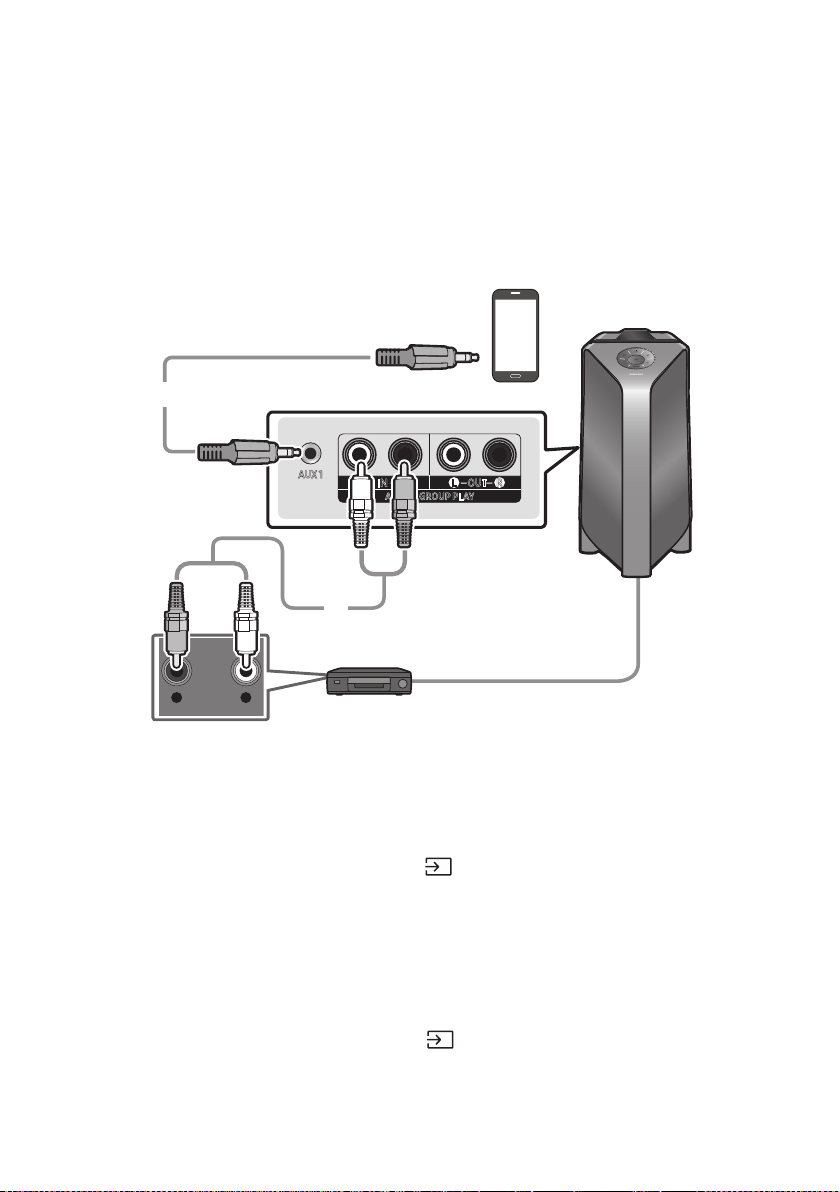
POR - 13
04 CONEXÃODEUMDISPOSITIVOEXTERNO
dispositivo externo no do Sound Tower.
ConectarusandoumCabodeÁudioAnalógico(AUX)
- AUDIO -
R L
AUX 1
AUX 2 / GROUP PLAY
IN
OUT
L
R
L
R
Dispositivomóvel/MP3/PMP
LeitorBD/DVD/Descodicador/ConsoladeJogos
Caboestéreode3,5mm
(nãofornecido)
CabodeÁudio(AUX)(nãofornecido)
PartetraseiradoSoundTower
Caboestéreode3,5mm(AUX1)
1. Conecte o terminal AUX1 da unidade principal à tomada AUDIO OUT do Dispositivo de Origem
usando um cabo estéreo de 3,5 mm.
2. Selecione o modo “AUX1” pressionando o botão
(Fonte)no painel superior ou no controlo
remoto.
Também poderá selecionar uma fonte usando o botão AUX no controlo remoto.
CabodeÁudio(AUX2)
1. Conecte os terminais AUX2(IN) Da unidade principal aos terminais AUDIO OUT do dispositivo de
origem usando um cabo de áudio.
2. Selecione o modo “AUX2” pressionando o botão
(Fonte) no painel superior ou no controlo
remoto.
Também poderá selecionar uma fonte usando o botão AUX no controlo remoto.
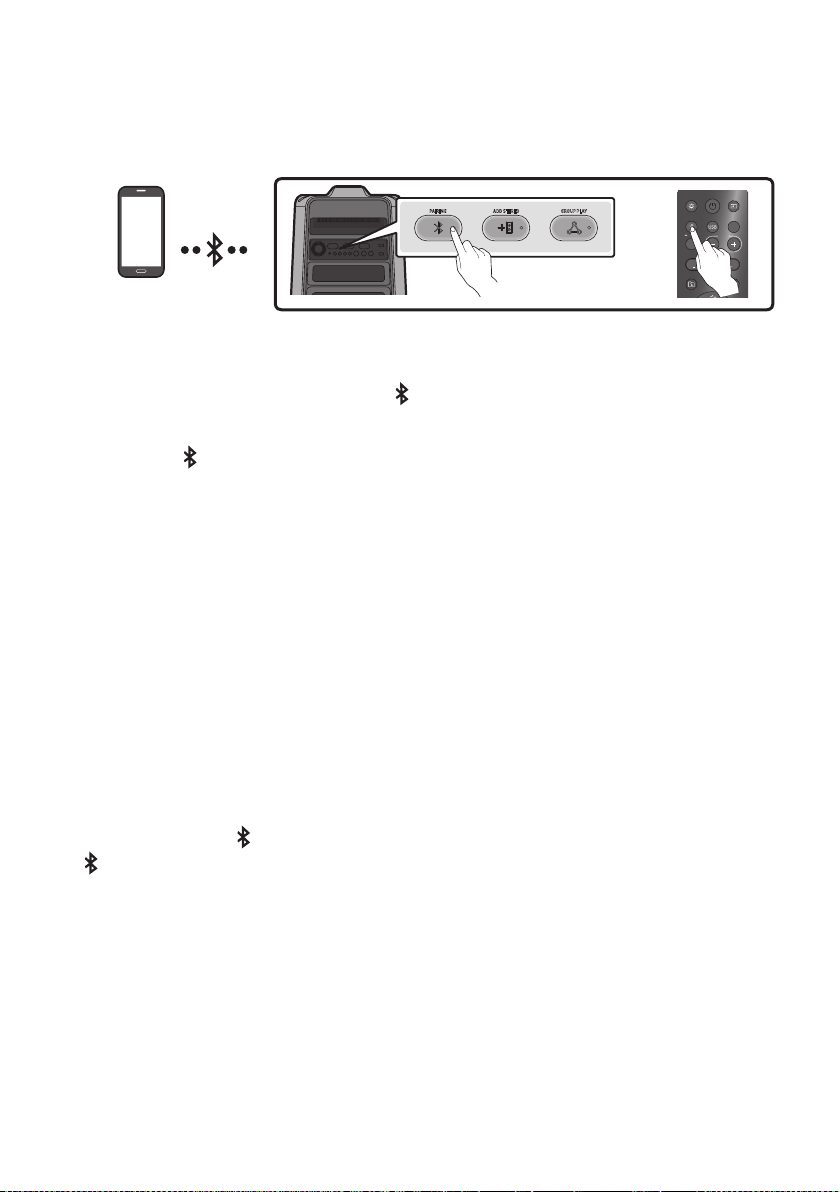
POR - 14
ConectarumdispositivomóvelviaBluetooth
Quando um dispositivo móvel é conectado usando Bluetooth, ouvir um som estéreo sem a necessidade
de cablagens.
DispositivoBluetooth
ADD STEREO GROUP PLAYPAIRING
LIGHT
PAIRING
TEMPO
USB
AUX
EFFECT
DOWN
UP
EFFECT
DJ
SOUND
MODE
OU
Aconexãoinicial
1. Pressione e mantenha pressionado o botão
PAIRING
para entrar no modo “BT PAIRING”.
(OU)
Aperte o
PAIRING botão no painel traseiro.
2. No seu dispositivo, selecione “[AV]MX-T50” que surge na lista.
Quando o Sound Tower está conectado ao dispositivo Bluetooth, [Nomedodispositivo
BluetoothBT” surge no visor frontal.
3.
Seodispositivofalharnaconexão
Se uma lista do Sound Tower conectado anteriormente (por exemplo, “[AV]MX-T50”) aparecer na
lista, exclua-a.
Repita os passos 1 e 2.
QualéadiferençaentreBTREADYeBTPAIRING?
BT READY : Neste modo, Poderá procurar TVs conectadas anteriormente ou conectar um
dispositivo móvel conectado anteriormente ao Sound Tower.
BT PAIRING : Neste modo, poderá conectar um novo dispositivo ao Sound Tower.
(Pressione e segure o
PAIRING no controle remoto por mais de 5 segundos ou pressione o botão
PAIRING botão na parte traseira do Sound Tower para entrar no “BT PAIRING” modo.)
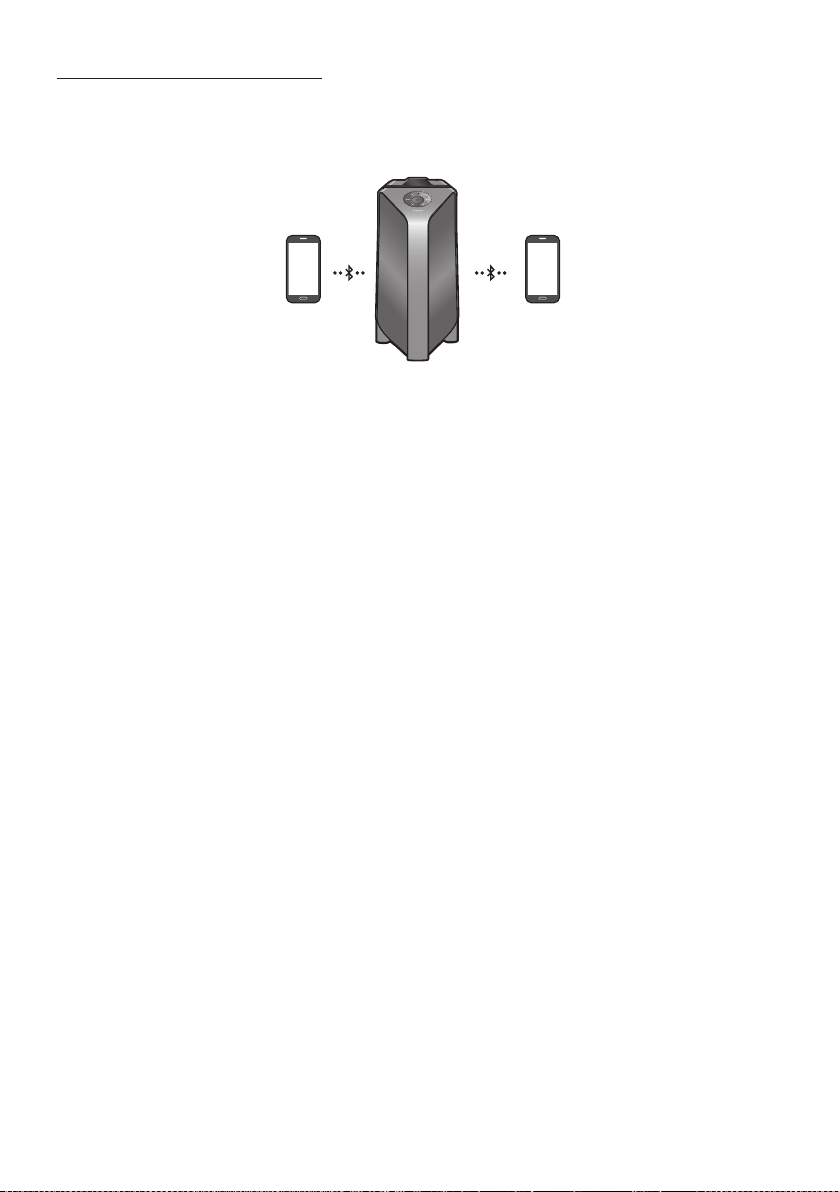
POR - 15
MúltiplasConexõesBluetooth
O Sound Tower suporta até duas conexões simultâneas com dispositivos Bluetooth. O Sound Tower
segundo dispositivo.
Dispositivo
Bluetooth1
Dispositivo
Bluetooth2
1. Conecte o Sound Tower ao primeiro dispositivo e ao segundo dispositivo, respetivamente, pela
primeira vez. (Veja a página 14)
2.
NOTAS
Se pretender conectar Sound Tower a um terceiro dispositivo, poderá desligar o Sound Tower de um
dos dois dispositivos atualmente conectados e depois conectar o Sound Tower ao terceiro
dispositivo.
Com o Sound Tower e dois dispositivos atualmente conectados, ao emparelhar um novo dispositivo
Bluetooth, os dispositivos atualmente conectados poderão ser desconectados.
Poderá conectar-se a dois dispositivos Bluetooth ao mesmo tempo.
Se for solicitado um código PIN ao conectar um dispositivo Bluetooth, digite <0000>.
Condições ambientais ou outros fatores com dispositivos conectados podem afetar a qualidade da
reprodução.
O Sound Tower desliga automaticamente após 20 minutos sem nenhuma entrada de comando no
estado pronto.
O Sound Tower poderá não executar a pesquisa ou conexão Bluetooth corretamente nas seguintes
circunstâncias:
– Se houver um forte campo elétrico ao redor do Sound Tower.
– Se vários dispositivos Bluetooth estiverem emparelhados simultaneamente com o Sound Tower.
– Se o dispositivo Bluetooth estiver desligado, não estiver no lugar ou com defeito.
Dispositivos eletrónicos podem causar interferências de rádio. Os dispositivos que geram ondas
eletromagnéticas devem ser mantidos afastados da unidade principal do Sound Tower - por
Quando o Sound Tower está conectado à sua TV por Bluetooth, o vídeo na TV e o áudio do Sound
Tower podem não estar sincronizados porque a distância entre o Sound Tower e a TV é muito longe.
Recomenda-se aproximar o Sound Tower à sua TV, no alcance de 1 metro.

POR - 16
outro dispositivo Bluetooth e o alto-falante após alguns minutos (Apróx. 1 minuto). Caso contrário, o
dispositivo conectado.
Dispositivos Bluetooth removíveis/desconectáveis (por exemplo: Dongle, Windows Phone, laptops,
Se você se afastar muito do alcance do Sound Tower sem primeiro desconectar o dispositivo
Bluetooth, poderá levar alguns minutos para conectar outros dispositivos Bluetooth. Se você
desligar e ligar o Sound Tower, poderá conectar outros dispositivos Bluetooth sem esperar.
IndicaçõesLED
LED ESTADO Descrição
Azul
Piscar
Rapidamente
Modo BT PAIRING
Piscar Modo BT READY
Ligado Um dispositivo Bluetooth está conectado.
UsarLigarViaBluetooth(BluetoothPowerOn)
Quando o Sound Tower está desligado, poderá conectar o seu dispositivo inteligente ao produto através
de uma conexão Bluetooth para ligá-lo.
1. Mantenha pressionado o botão BASS no controlo remoto ou no painel superior para ativar a
função Ligar Via Bluetooth . “ON-BLUETOOTH POWER” surge no visor.
2. Quando o Sound Tower estiver desligado, conecte o seu dispositivo inteligente ao produto via
Bluetooth. (Para obter informações sobre conexões Bluetooth, consulte o manual do seu
dispositivo inteligente.)
3. Quando a conexão estiver concluída, o Sound Tower será ativado automaticamente no modo
Bluetooth.
NOTA
Pressione e mantenha pressionado o botão BASS por mais de 5 segundos no controle remoto ou no
painel superior para ativar ou desativar a função Ligar Via Bluetooth.
Cada vez que o botão BASS é pressionado, o Sound Tower mostra:
ON-BLUETOOTHPOWER→“OFF-BLUETOOTHPOWER”

POR - 17
LigaraTVSamsungatravésdeBluetooth
Se Sound Tower conectado com TV Samsung através de Bluetooth, Sound Tower pode ser controlado
pela TV UI do usuário. (Volume +/-, mudo ligado/desligado e Poder Ligado/desligado)
Fácilconectar-secomaTVSamsung(SEARCHINGTVmodo)
Sound Tower tem “SEARCHING TV” modo para fácil conectar-se com a TV da Samsung.
1. Pressione e mantenha pressionado
(Fonte) botão no controlo remoto ou no painel superior,
em seguida, Sound Tower vai começar a pesquisa TV da Samsung. O “SEARCHING TV” mensagem
“SEARCHING TV” é activado automaticamente).
2. Se a Samsung TV suporte fácil de conexão, conexão pop-up será exibida na TV.
Se a Samsung TV ligado Sound Tower antes, a TV Samsung vai ser ligado, sem pop-up.
3. Se Sound Tower não pode encontrar qualquer TV Samsung dentro de 5 minutos, Sound Tower vai
terminar “SEARCHING TV” o modo e a voltar-se para “BT PAIRING” modo. Se encontrar qualquer
TV da Samsung, Sound Tower será pedido conexão para aqueles TV.
NOTAS
Para parar a busca Samsung TV, vire desligado o Sound Tower ou pressione a
(Fonte) ou
PAIRING o botão.
Sound Tower não oferece suporte a multi-conexão, se a Samsung TV está ligada.
Enquanto a Samsung TV é ligado, Modo de som é PARTY e SOUND MODE o botão não é disponível.
Enquanto a Samsung TV é ligado, Sound Tower APP não pode conecte-se com Sound Tower.
Conexão pop-up não pode ser apresentados de acordo com a TV spec.
Você pode selecionar e se conectar diretamente a partir do alto-falante Bluetooth lista na sua TV
quando a conexão pop-up não aparecem na TV.
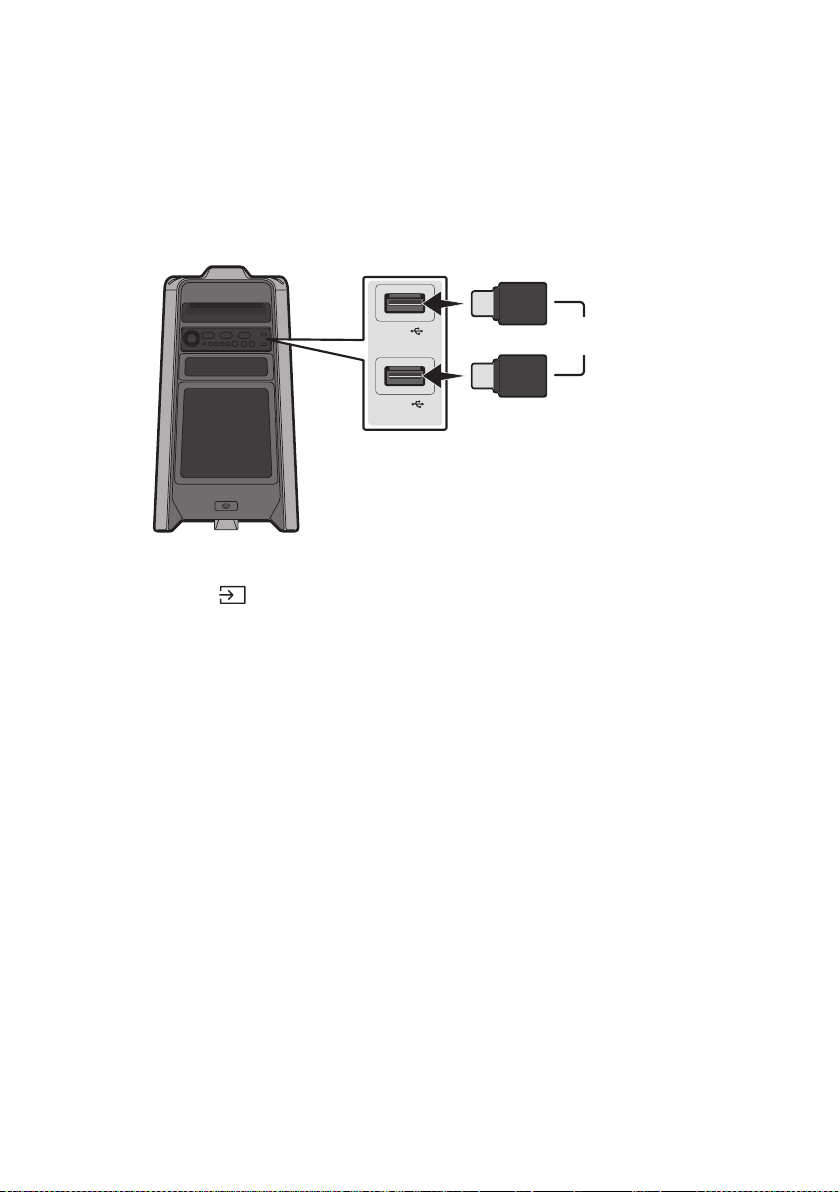
POR - 18
05 CONECTAR UM DISPOSITIVO DE
ARMAZENAMENTO USB
Sound Tower.
USB1
(5V 2.1A)
USB2
(5V 0.5A)
OU
DispositivodearmazenamentoUSB
(nãofornecido)
PartetraseiradoSoundTower
1. Conecte um dispositivo de armazenamento USB às tomadas USB1 ou USB2 do seu Sound Tower.
2. Pressione o botão
(Fonte)no painel superior ou no controlo remoto e selecione “USB1” ou
“USB2”.
Também poderá selecionar uma fonte usando o botão USB no controlo remoto.
3. “USB1” ou “USB2” surgirá no visor.
4.
O Sound Tower desliga automaticamente (Desligamento automático) se o dispositivo USB não
estiver conectado, em caso de reprodução interrompida ou se não houver entrada por mais de
20 minutos.
NOTAS
Este produto suporta apenas dispositivos de armazenamento USB formatados no sistema de
Este produto não suporta armazenamentos HDD nem dispositivos móveis.
É possível ler no máximo 256 pastas por dispositivo de armazenamento USB.

POR - 19
FormatosdeÁudioSuportados
Extensãodos
Ficheiros
CodecdeÁudio
Taxade
Amostragem
TaxadeBits
*.mp3
MPEG 1 Layer3 32 kHz ~ 48 kHz 32 kbps ~ 320 kbps
MPEG 2 Layer3 16 kHz ~ 24 kHz 8 kbps ~ 160 kbps
MPEG 2.5 Layer3 8 kHz ~ 12 kHz 8 kbps ~ 160 kbps
*.wma WMA7/8/9 8 kHz ~ 48 kHz 32 kbps ~ 320 kbps
*.aac
AAC 8 kHz ~ 96 kHz < 1728 kbps
A A C- L C 8 kHz ~ 96 kHz < 1728 kbps
HE-AAC 8 kHz ~ 96 kHz < 1728 kbps
*.wav
PCM/LPCM/
IMA_ADPCM
8 kHz ~ 192 kHz < 5 Mbps
- 8 kHz ~ 192 kHz < 5 Mbps
NOTAS
Este produto não suporta o codec WMA Professional.
A tabela acima mostra as taxas de amostragem e as taxas de bits suportadas. Ficheiros em
formatos não suportados não serão reproduzidos.
Atualizaçãodesoftware
OSamsungpodeofereceratualizaçõesparaormwaredosistemaSoundTowernofuturo.
USB1 ou USB2 do Sound Tower. Para obter mais
Aplicações e, de seguida, Downloads. Observe que os nomes das opções podem variar.
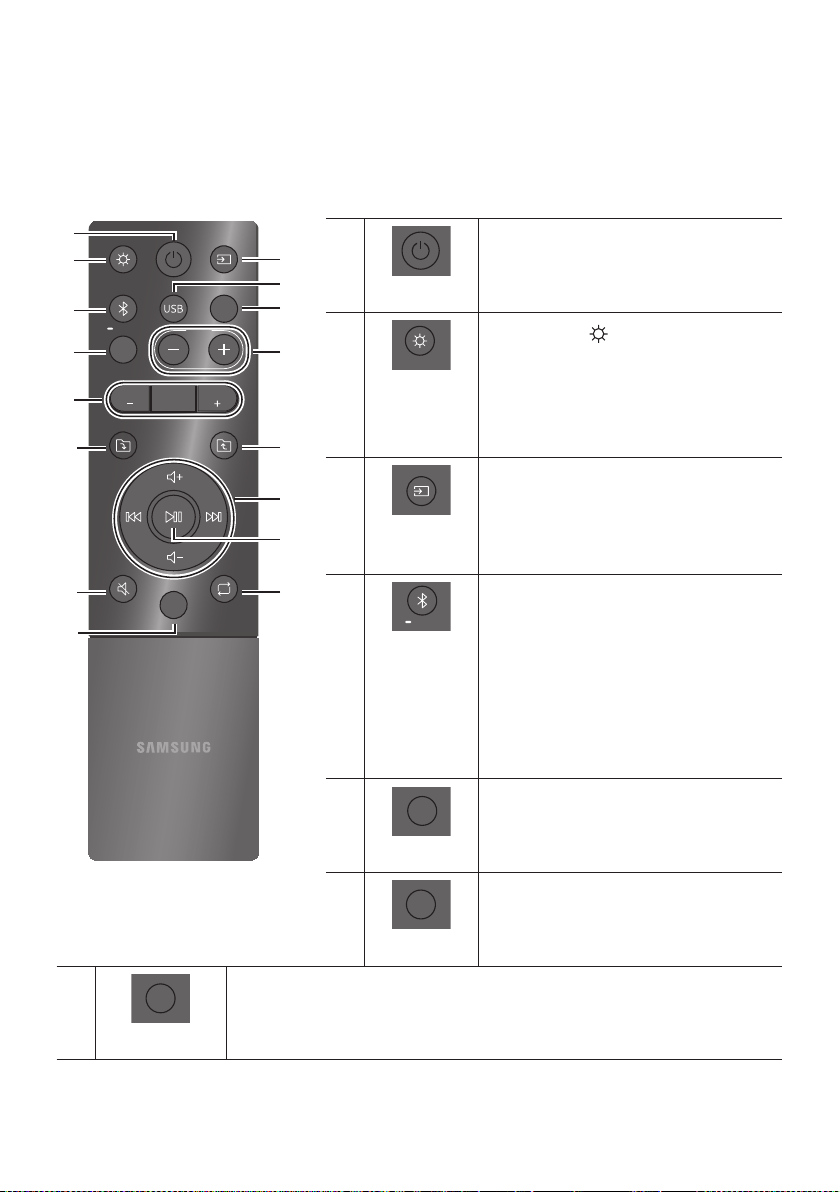
POR - 20
06 USAR O CONTROLO REMOTO
Comousarocontroloremoto
LIGHT
PAIRING
TEMPO
USB
AUX
EFFECT
DOWN
UP
BASS
EFFECT
DJ
SOUND
MODE
Energia
Liga e desliga o Sound Tower.
LIGHT
LIGHT
Pressione o botão
(LIGHT) para ativar o modo
de iluminação.
Sempre que pressionar o botão para selecionar o
modo de iluminação desejado, escolha entre
AMBIENT, PARTY, DANCE , THUNDERBOLT,
STAR ou OFF.
Fonte
Pressione para selecionar uma fonte conectada ao
Sound Tower.
Sempre que pressionar o botão para selecionar a
fonte desejada, escolha BT, USB1, USB2, AUX1 ou
AUX2.
Bluetooth
PAIRING
PAIRING
Pressione para selecionar uma fonte
diretamente no modo "BT".
Pressione e mantenha pressionado o botão
por mais de 5 segundos para entrar no modo
“BT PAIRING”.
Poderá conectar o Sound Tower a um novo
dispositivo Bluetooth neste modo,
selecionando o Sound Tower da lista de
pesquisa do dispositivo Bluetooth.
USB
USB
Pressione para selecionar as fontes USB1 ou
USB2 conectadas ao Sound Tower.
AUX
AUX
Pressione para selecionar as fontes AUX1 ou
AUX2 conectadas ao Sound Tower.
SOUND MODE
SOUND
MODE
Sempre que pressionar o botão para selecionar o efeito sonoro desejado, escolha entre
PARTY, STANDARD, HIPHOP, EDM, ROCK, LATIN, HOUSE ou REGGAE.
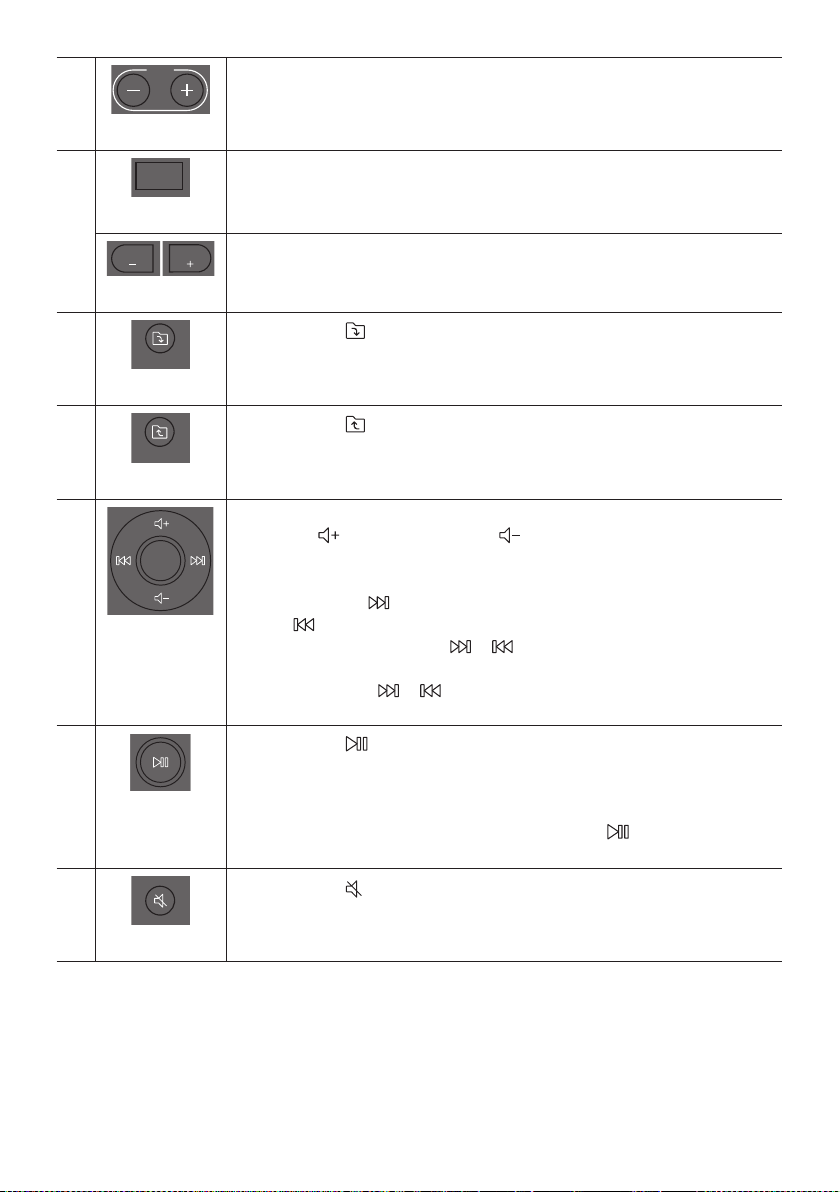
POR - 21
TEMPO+,-
TEMPO
Pressione os botões TEMPO + ou TEMPO -
cima ou para baixo.
Esta função funciona apenas no modo USB1 e USB2.
DJ
DJ
Esta função permite ativar a função de efeito DJ.
Cada vez que pressionar o botão para selecionar o efeito sonoro DJ desejado, escolha
NOISE, FILTER, CRUSH, CHORUS, WAHWAH ou OFF.
EFFECT+,-
EFFECT
EFFECT
Pressione os botões EFFECT + ou EFFECT - para alterar o nível de cada efeito sonoro DJ
para cima ou para baixo.
PastaDOWN
DOWN
Pressione o botão
(DOWN)para ir para a próxima pasta no dispositivo USB.
PastaUP
UP
Pressione o botão
(UP) para ir para a pasta anterior no dispositivo USB.
Aumentarovolume,
Diminuirovolume/
Saltar
Aumentarovolume,Diminuirovolume
Pressione
(Aumentarovolume)ou
(Diminuirovolume)para ajustar o nível
do volume para cima ou para baixo.
SaltarMúsica
Pressione o botão
botão
Mantenha pressionado o botão ou durante mais de 3 segundos no modo de
reprodução USB para procurar para frente ou para trás. Mantenha pressionado
novamente o botão ou durante mais de 3 segundos para voltar à reprodução
normal.
Reproduzir/
Pausa
Pressione o botão
DesligamentoAutomático(AutoPowerDown)
Para desligar a função Desligamento automático enquanto a unidade está no modo
AUX1, AUX2, pressione e mantenha pressionado o botão por mais de
ON-AUTO POWER DOWN /OFF-AUTO POWER DOWN surgirá no visor.
Silêncio
Pressione o botão
(Silêncio) para silenciar o som.
Pressione novamente para ativar o som.
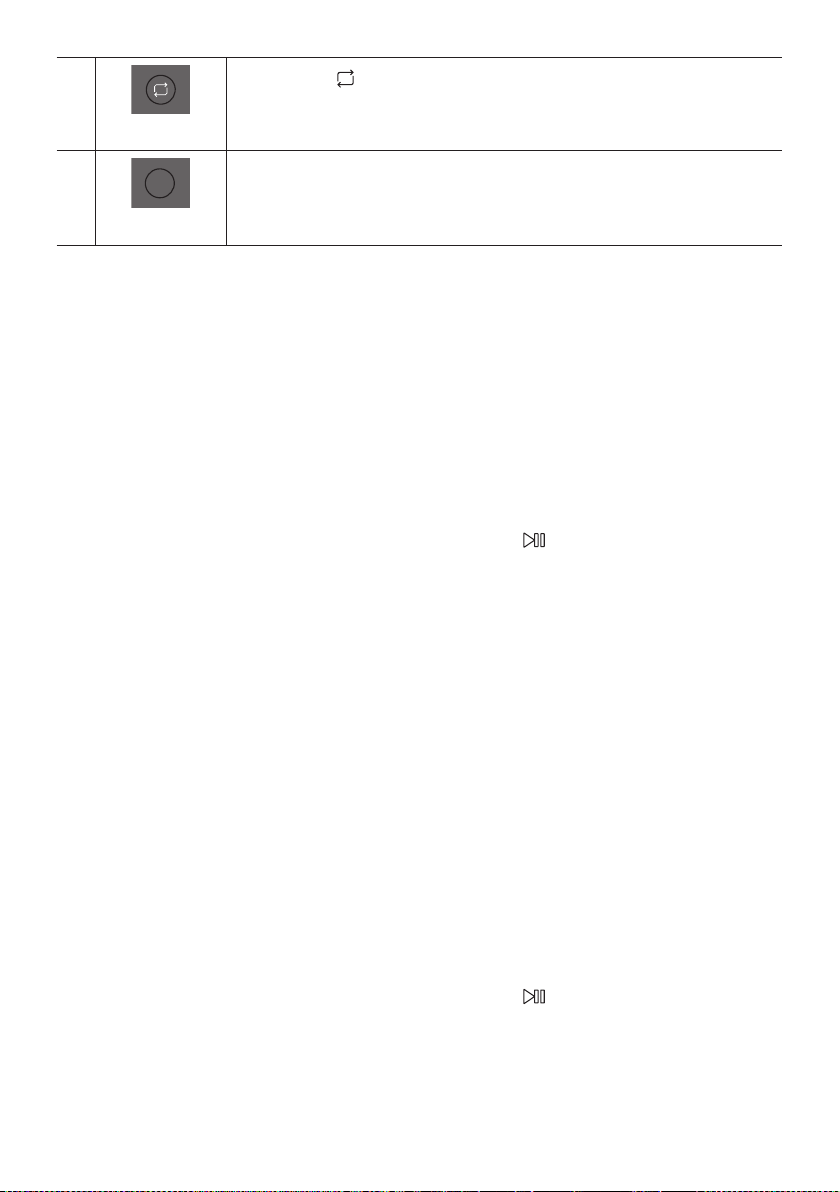
POR - 22
Repetir
Pressione o botão
(Repetir)para usar a função Repetir no modo “USB1” e “USB2”.
Sempre pressionar o botão para selecionar a função de repetição desejada, escolha entre
ONE, FOLDER , ALL, RANDOM ou OFF.
BASS
BASS
Pressione o botão BASS para usar o poderoso som grave.
Pressione novamente para retornar ao som normal.
Pressione e mantenha pressionado o botão BASS por mais de 5 segundos para ligar ou
desligar a função BLUETOOTH POWER.
ComousaroMododeSom
1. Pressione o botão SOUND MODE no controlo remoto.
2. 2. Sempre que pressionar o botão SOUND MODE poderá selecionar o efeito sonoro desejado,
escolha entre PARTY, STANDARD, HIPHOP, EDM, ROCK, LATIN, HOUSE ou REGGAE.
NOTAS
O valor padrão do modo de som é PARTY.
Quando desligado, pressione e mantenha pressionado o botão
no produto ou no controle
ComousaroEfeitoDJ
A função Efeito DJ permite ativar o efeito sonoro Efeito DJ. O nível de cada efeito é ajustável.
1. Pressione o botão DJ no Controlo remoto.
2. Cada vez que você pressiona o botão DJ, o Sound Tower realiza o ciclo pelos Efeitos DJ disponíveis:
NOISE
FILTER: Cria um efeito semelhante ao som de apenas agudos ou graves.
CRUSH: Cria um efeito que torna o som original mais nítido.
CHORUS: Cria um efeito semelhante a um coro de canto.
WAHWAH: Cria um efeito ‘Wah ~ Wah ~’.
DJ EFFECT OFF: Desativa o efeito DJ.
3. Pressione os botões EFFECT + ou EFFECT - para aumentar ou diminuir o nível de cada um dos
efeitos sonoros de DJ de -15 a +15.
NOTA
Quando desligado, pressione e mantenha pressionado o botão no produto ou no controle
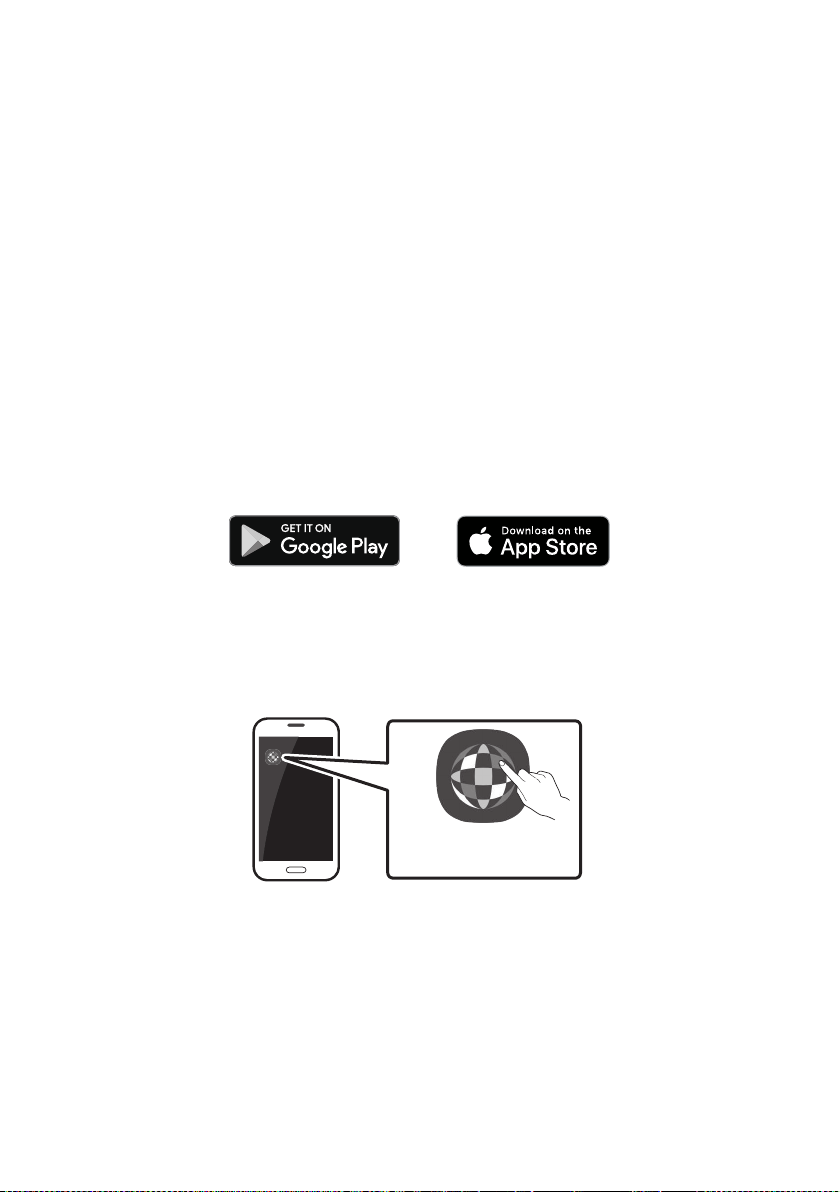
POR - 23
07 USAR A APP SAMSUNG SOUND TOWER
(GIGAPARTYAUDIO)
InstaleaAPPSamsungSoundTower(GigaPartyAudio)
Para controlar este produto com seu Dispositivo Inteligente e a App Samsung Sound Tower (Giga Party
Audio), faça o download da aplicação Samsung Sound Tower (Giga Party Audio) do Google Play Store ou
da Apple App Store e instale-a no seu dispositivo inteligente.
NOTAS
A App Samsung Sound Tower (Giga Party Audio) é compatível com dispositivos Android que
executem o Android OS 6.0 ou posterior.
A App Samsung Sound Tower (Giga Party Audio) é compatível com dispositivos móveis Apple que
executam o iOS 10.0 ou posterior.
Pesquisademercado:SamsungSoundTowerouSamsungGigaPartyAudio
LançamentodaAppSamsungSoundTower(GigaPartyAudio)
Para iniciar e usar a App Samsung Sound Tower (Giga Party Audio), toque no ícone Samsung Sound
Tower (Giga Party Audio) no seu dispositivo inteligente e siga as instruções no ecrã.
Samsung
Multiroom
SamsungS oundTowerou
SamsungGi gaPartyA udio
SamsungSoundTowerou
SamsungGigaPartyAudio
POR - 24
08 RESOLUÇÃO DE PROBLEMAS
Aunidadenãoliga.
Ocabodealimentaçãoestáconectadoà
tomada?
;
Umafunçãonãofuncionaquandoobotãoé
pressionado.
Existeeletricidadeestáticanoar?
;
novamente.
QuedasdesomocorremnomodoBT.
; Consulte as seções sobre conexões
Bluetooth na página 14.
Osomnãoéproduzido.
AfunçãoSilêncioestáativada?
; Pressione o botão
(Silêncio)para
cancelar a função Silêncio.
Ovolumeestádenidonomínimo?
; Ajuste o volume.
Ocontroloremotonãofunciona.
Aspilhasestãogastas?
; Substitua por pilhas novas.
Adistânciaentreocontroloremotoea
unidadeprincipaldoSoundToweré
demasiadolonge?
; Mova o controlo remoto para mais perto da
unidade principal do Sound Tower.
AconexãodoGrupoStereonãoestáa
funcionar.
OsistemaestánomodoGroupPlaysemos?
;
tente a conexão em Grupo Stereo
novamente.
NãoestabeleceumaconexãoBluetooth.
Osistemaestáconectadoaoutrosistemano
modoGroupPlaysemosounomodoGrupo
Stereo?
; Tente a conexão Bluetooth novamente
depois de desconectar a conexão do Group
OsdoisdispositivosBluetoothjáestão
conectados?
; Tente a conexão Bluetooth novamente
depois de desconectar as outras conexões
Bluetooth.
Obotão
PAIRINGnãoestáafuncionar.
OsistemaestánomodoGroupPlaysemos
ounomodoGrupoStereo?
; Tente novamente depois de desconectar a
Grupo Stereo.
QueromudarosistemaHOST(MAIN)parao
outronaligaçãosemosGroupPlayouno
GrupoStereo.
; Desligue o modo de Group Play, prima
primeiro o Orador que pretende fazer ao
HOST, e depois de mostrar a mensagem
“HOST”, ligue os outros um a um.
; Com o modo de Grupo Stereo, o MAIN é
MAIN.
QueroreproduzirnoAUX1ouAUX2durante
maisde8horassementrada.
; Pressione e mantenha pressionado o botão
por mais de 5 segundos no modo AUX1
ou AUX2 para desativar a função
Desligamento automático. Mude de
ON-AUTO POWER DOWN para OFF-AUTO
POWER DOWN.
POR - 25
NãoconsigoligarumaSUBàGroupplay.
; Após 1 hora, o HOST bloqueará qualquer
SUB adicional de ser agregado.
Premir o botão GROUP PLAY em HOST,
depois de mostrar a mensagem “HOST”, a
SUB pode ser reconectada.
Nãoépossívelfazerumaconexão“GrupoSem
Fios/ComFios/AdicionarEstéreo/Bluetooth”.
Adistânciaentreossistemasémuitolonga?
; Recomenda-se fazer um emparelhamento
“Grupo Sem Fios/Com Fios/Adicionar
Estéreo/Bluetooth” a menos de 1 metro do
sistema.
; Recomenda-se que a distância operacional
entre os sistemas Sound Tower seja inferior
a 10 metros.
09 LICENÇAS
The Bluetooth® word mark and logos are
registered trademarks owned by the Bluetooth
SIG, Inc. and any use of such marks by Samsung
Electronics Co., Ltd. is under license. Other
trademarks and trade names are those of their
respective owners.
Qualcomm aptX is a product of Qualcomm
Technologies, Inc. and/or its subsidiaries.
Qualcomm is a trademark of Qualcomm
Incorporated, registered in the United States and
other countries. aptX is a trademark of Qualcomm
Technologies International, Ltd., registered in the
United States and other countries.
10 AVISO DE
LICENÇA DE
OPEN SOURCE
Para enviar pedidos e perguntas sobre software
open source, contacte a Samsung por e-mail
(oss.request@samsung.com).
11 NOTA
IMPORTANTE
SOBRE O
SERVIÇO
As imagens e ilustrações neste Manual do
Utilizador são fornecidas apenas para referência,
podendo ser diferentes do produto real.
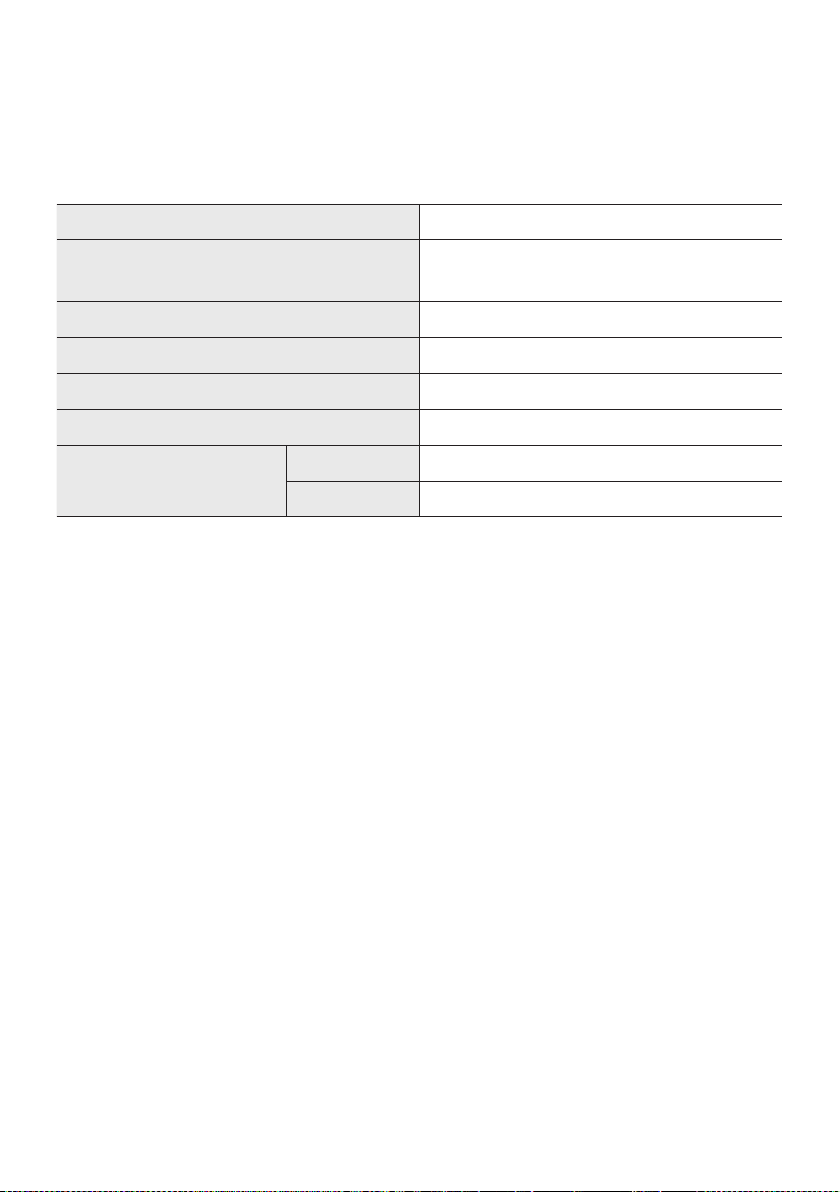
POR - 26
12 ESPECIFICAÇÕES E GUIA
Especicações
Nome do modelo MX-T50
USB1/USB2
Peso 11,6 kg
Dimensões (L x A x P) 351,0 x 651,0 x 323,0 mm
Limites da temperatura de funcionamento +5°C a +35°C
Limites de humidade de funcionamento 10 % ~ 75 %
AMPLIFICADOR
Potência nominal de saída
Tweeter 65W x 2, 8 ohm
Woofer 185W x 2, 3 ohm
NOTAS
Peso e dimensões são aproximados.
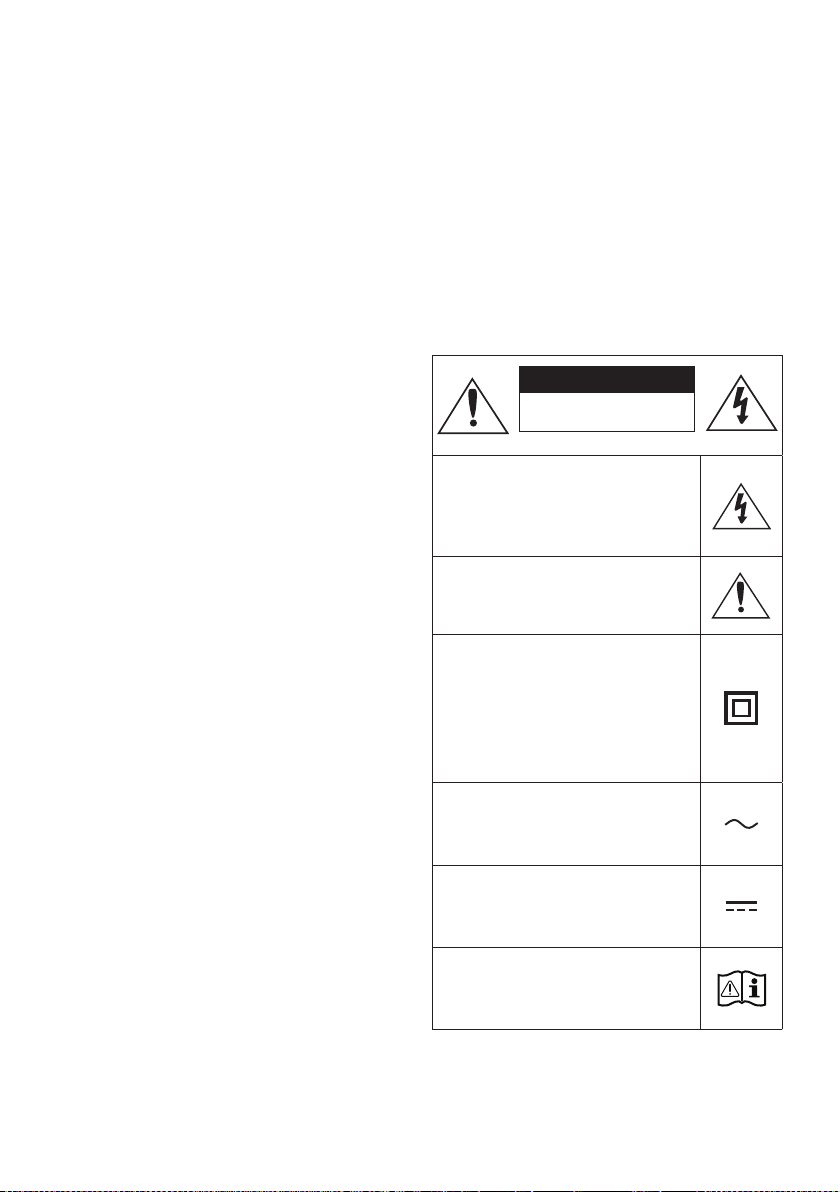
ii - ARA
.Samsung
.
II
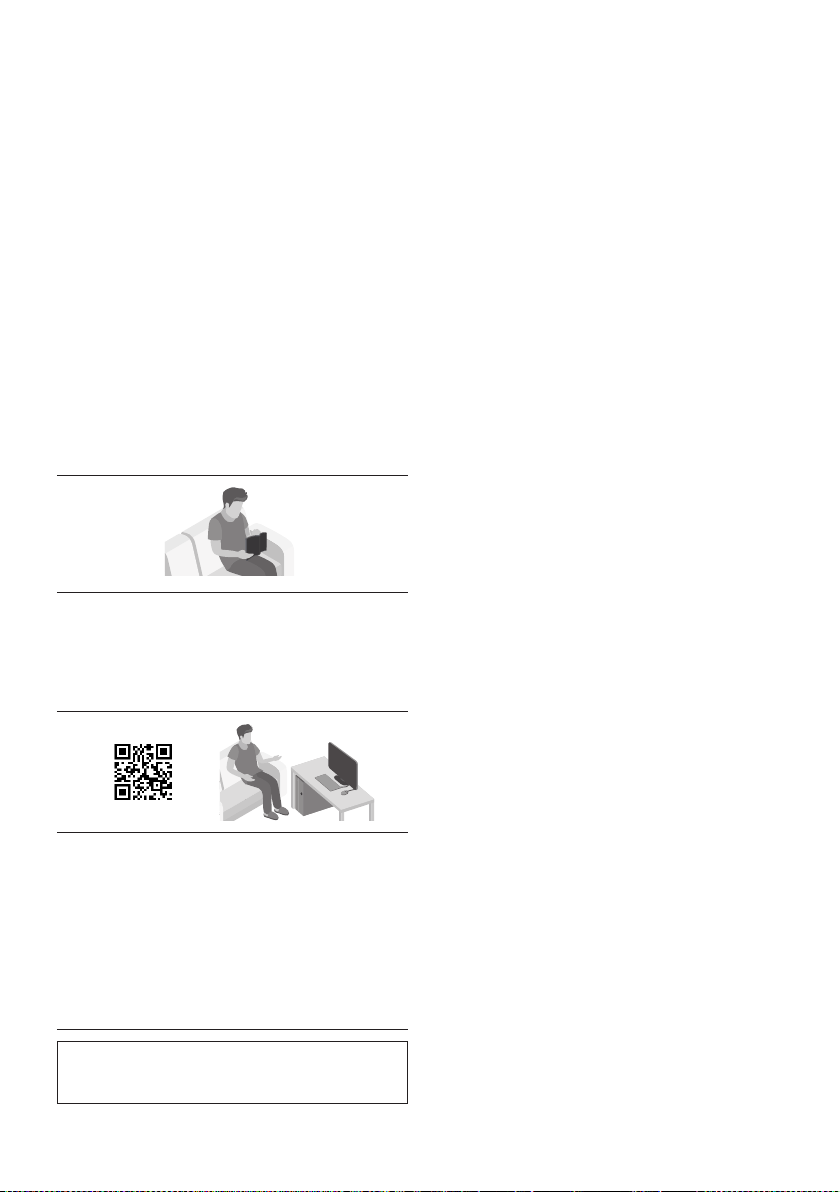
iii - ARA
1
107
2
3
4
5
.QRSamsung
Samsung
)
.

iv - ARA
2 01
2 ------------------------- )AAA
3 02
3
-------------------------
4
-------------------------
6 03
6
-------------------------
7
-------------------------
13 04
13
-------------------------
)AUX
14
-------------------------
17
-------------------------
Samsung
18 USB 05
19
-------------------------
20
06
20
-------------------------
22
-------------------------
22
-------------------------

v - ARA
07
23
23
-------------------------
23
-------------------------
24 08
25 09
25 10
25 11
26 12
26
-------------------------
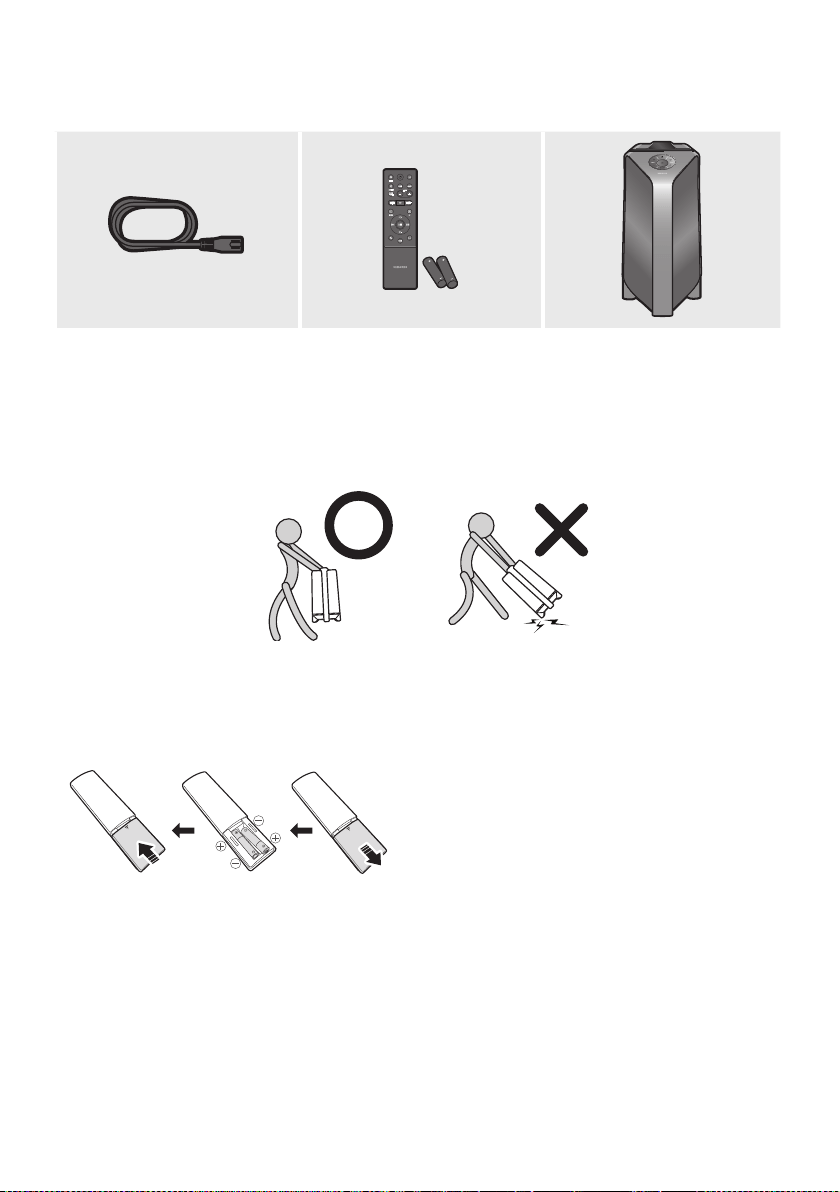
2 - ARA
01
)
.SamsungSamsung
)
AAA )1.5
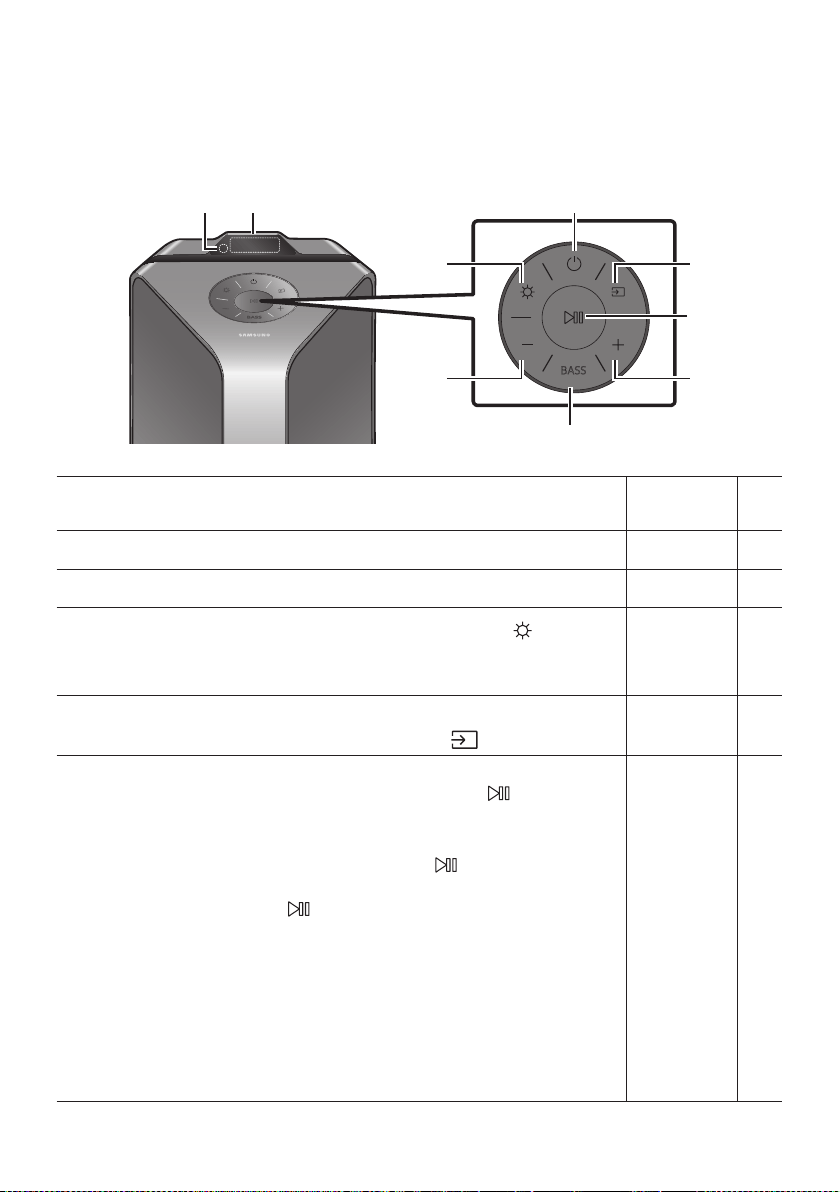
3 - ARA
02
BASS
.
.
.OFF,,,,
.
.”
5
5
60
5
– 60
–
–
–
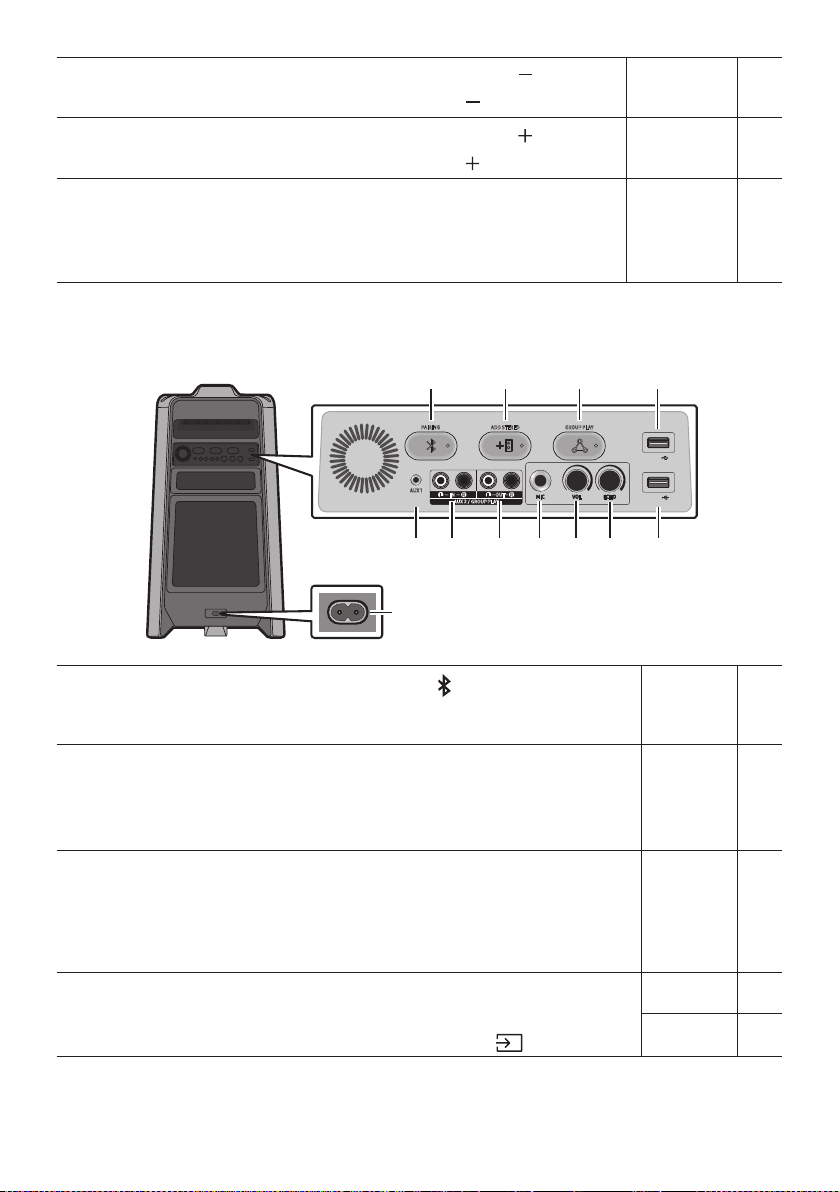
4 - ARA
5
.
ADD STEREO GROUP PLAYPAIRING
AUX 1
AUX 2 / GROUP PLAY
IN
OUT
L
R
L
R
USB1
(5V 2.1A)
USB2
(5V 0.5A)
ECHOVOLMIC
OUT
.”
.
5
5
USB1
USB2USB1USB
USB1
.USB2USB1
USB2
5 - ARA
)
.
.)
.
.
20
8
20
8
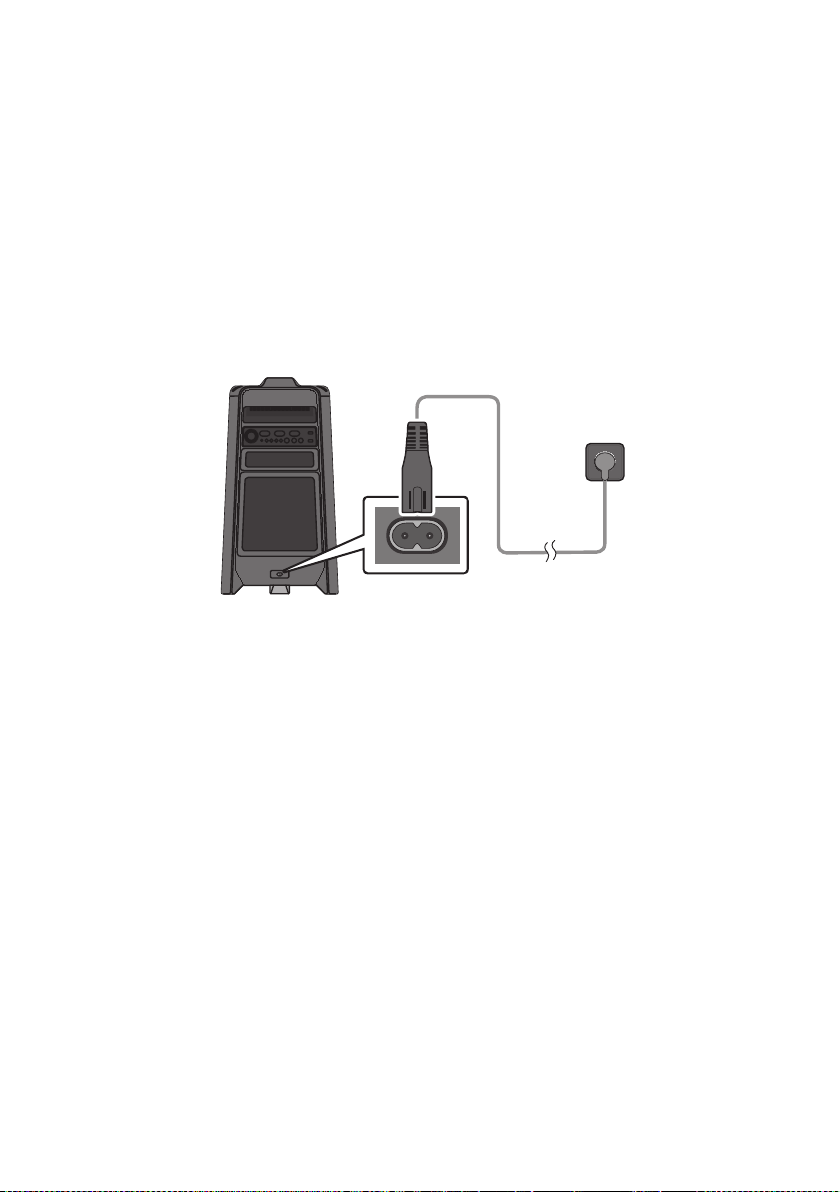
6 - ARA
03
)
Sound
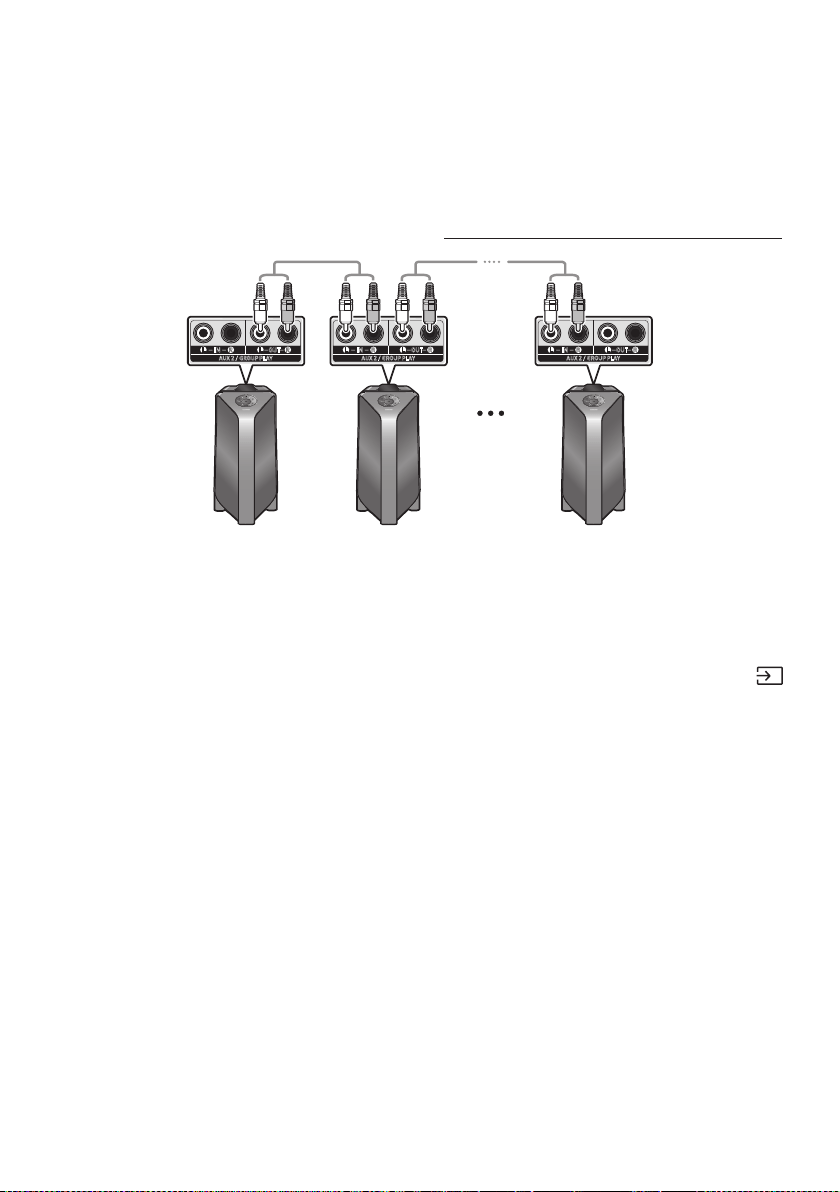
7 - ARA
AUX 2 / GROUP PLAY
IN
OUT
L
R
L
R
AUX 2 / GROUP PLAY
IN
OUT
L
R
L
R
AUX 2 / GROUP PLAY
IN
OUT
L
R
L
R
.)
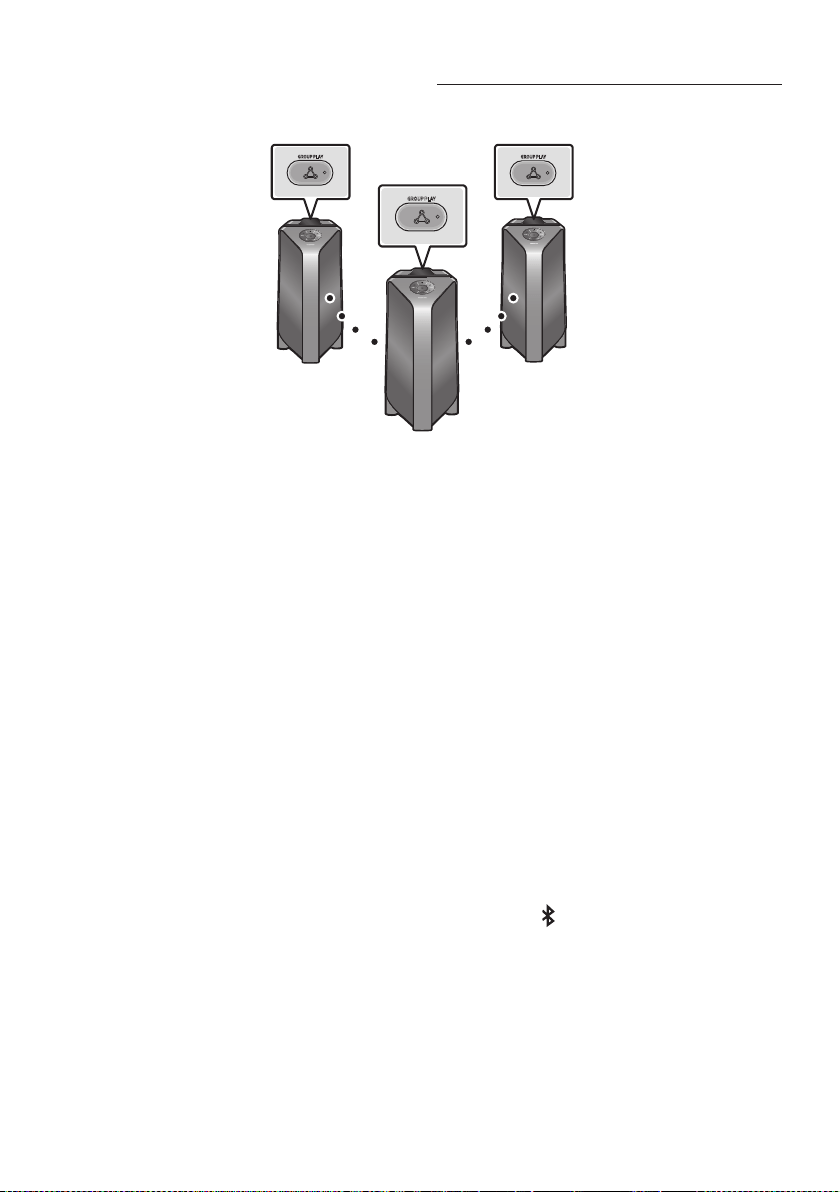
8 - ARA
GROUP PLAY
GROUP PLAY
GROUP PLAY
1
.LED
2SUB 1
3 SUB 2
4.3
5
.
51
SUB SUB

9 - ARA
SUB
SUB 3SUB 2SUB 1SUB 1
SUB
.SUB
aptX
1SUB
5
.SUB
.
2SUB
.
.
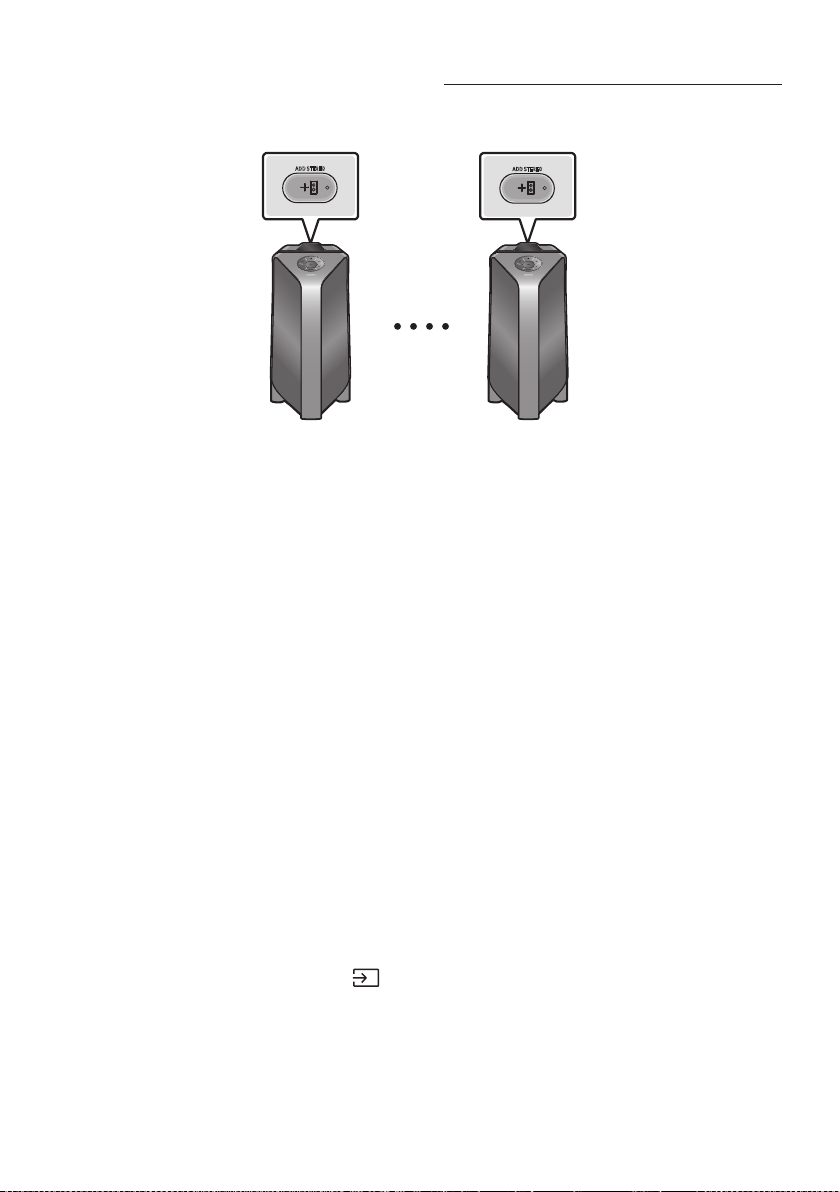
10 - ARA
ADD STEREO
ADD STEREO
)
)SUB
1
.
2
.
3 SUB
.
MAIN
.
4
.
31
.
.
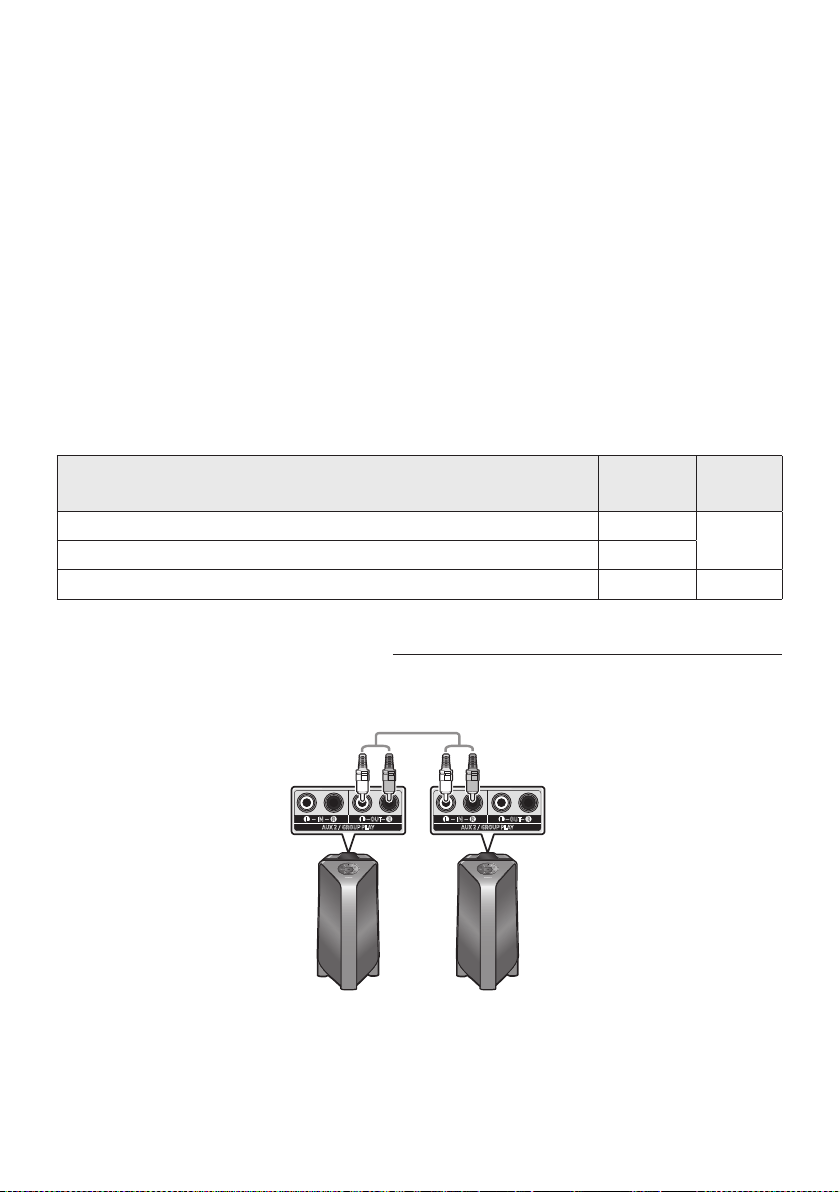
11 - ARA
USB
.
.
.aptX
.
.5SUBMAIN
.
.
.
.
)
)SUB
AUX 2 / GROUP PLAY
IN
OUT
L
R
L
R
AUX 2 / GROUP PLAY
IN
OUT
L
R
L
R
1
.

12 - ARA
2 RCASUB MAIN RCA
35
4
5SUB
.
MAIN
.
6
.
1 LED
5
.
.
.17
.
MAIN
.5SUBMAIN
LED
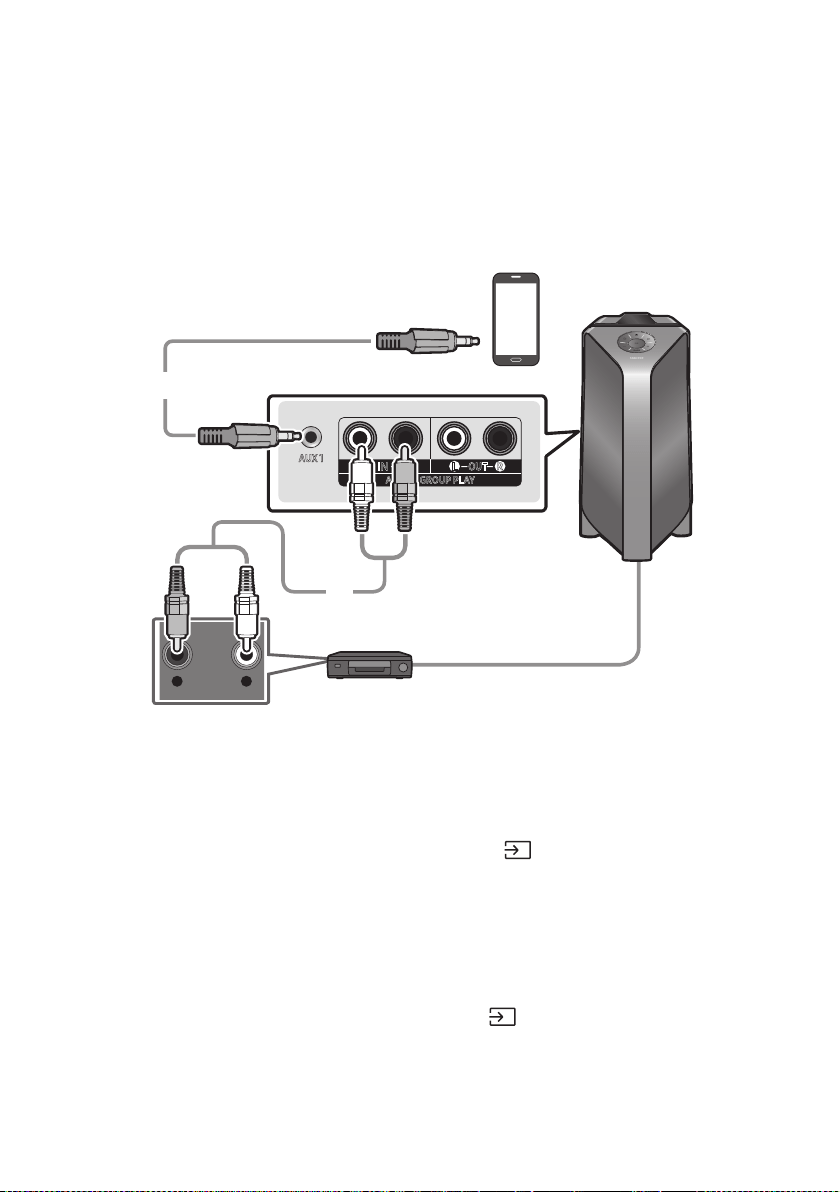
13 - ARA
04
.
)
- AUDIO -
R L
AUX 1
AUX 2 / GROUP PLAY
IN
OUT
L
R
L
R
3.5
) 3.5
1
3.5
2
)
1
2
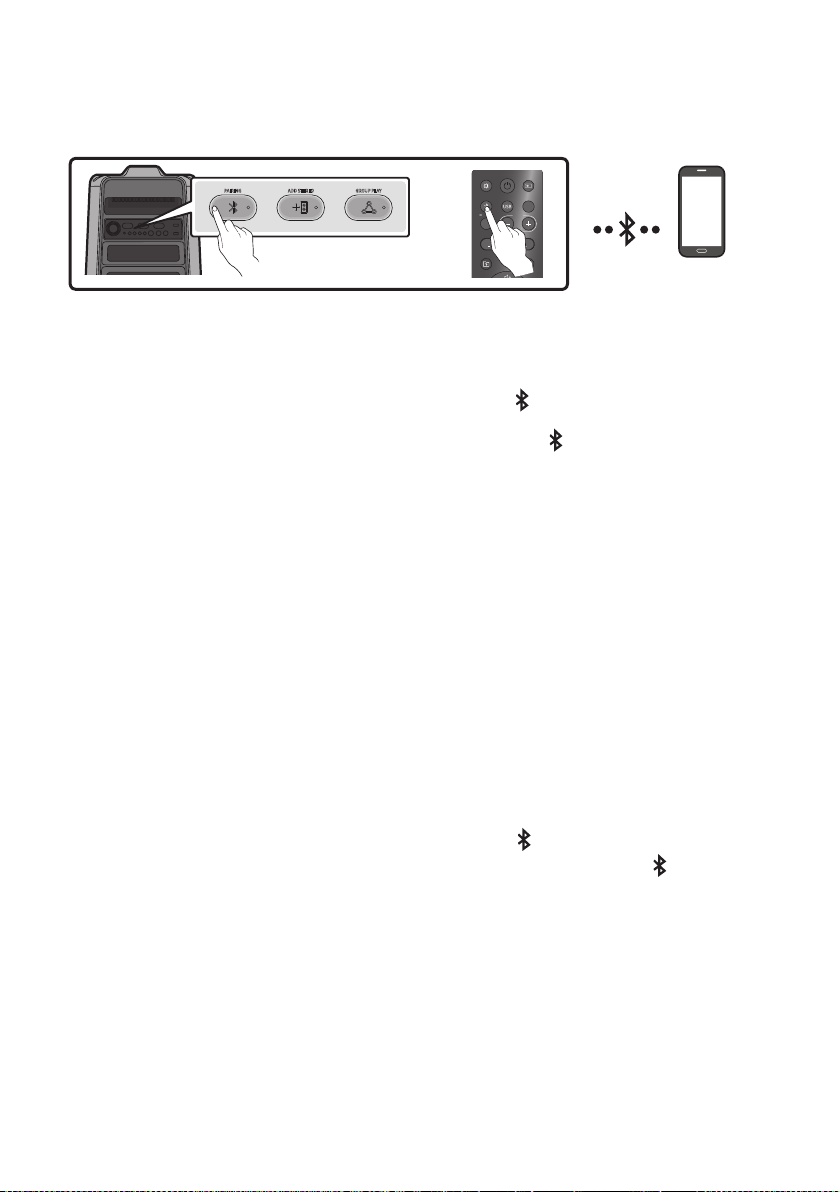
14 - ARA
ADD STEREO GROUP PLAYPAIRING
LIGHT
PAIRING
TEMPO
USB
AUX
EFFECT
DOWN
UP
EFFECT
DJ
SOUND
MODE
1.”
5
2
3.
.21
.
.
5
).”
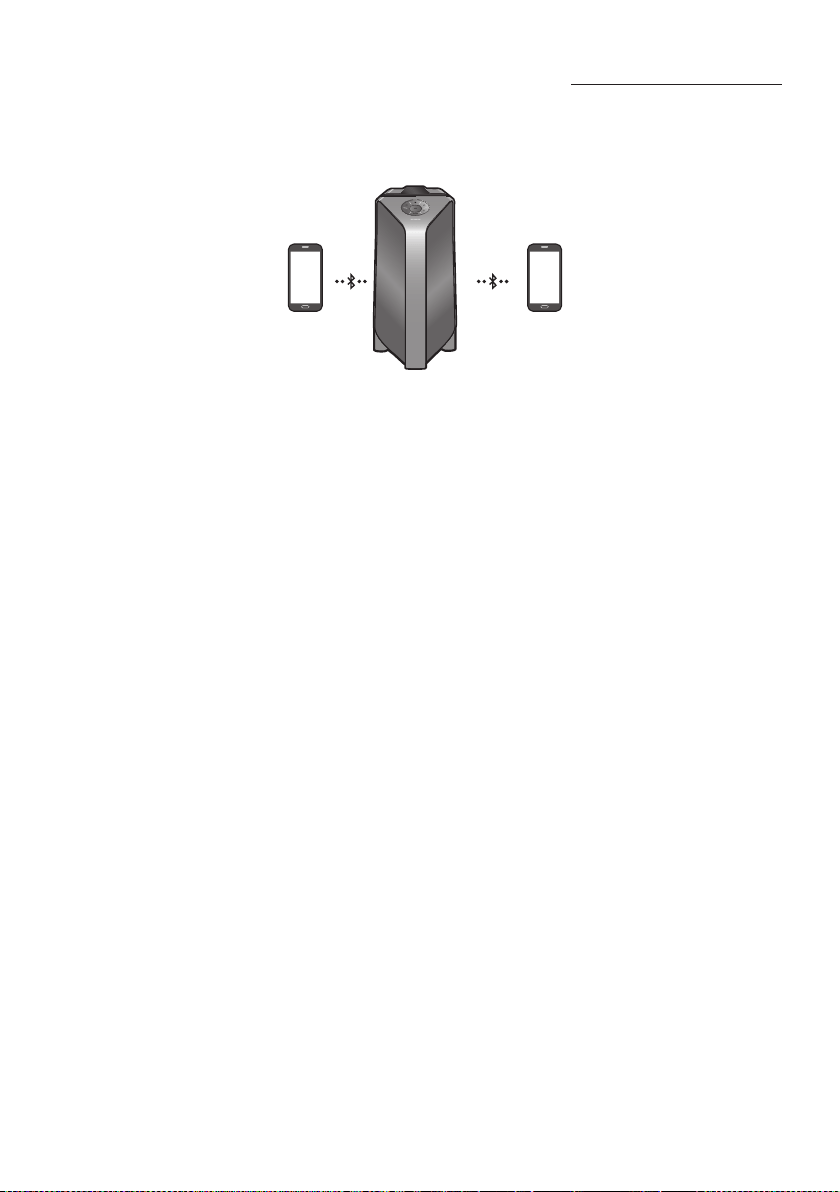
15 - ARA
1
2
1)14
2
.>0000PIN
20
– .
– .
–
.
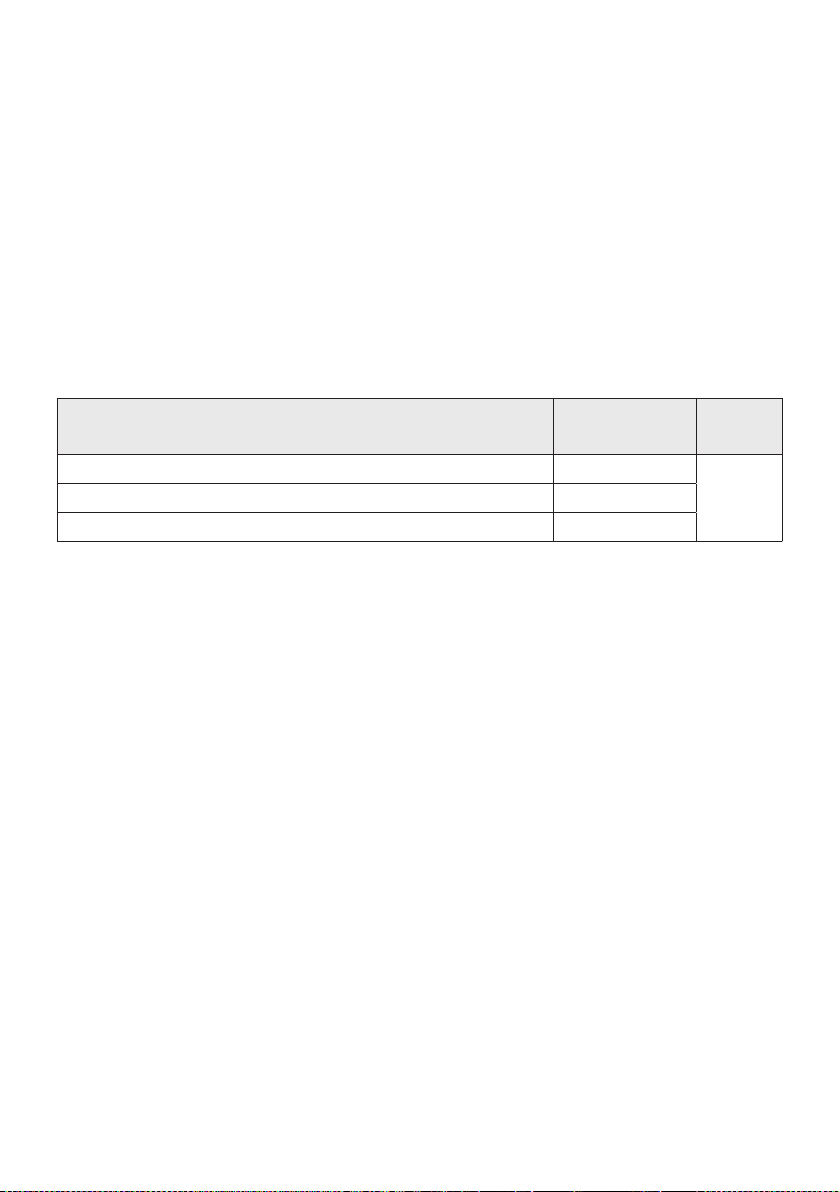
16 - ARA
1
1
2
3
5

17 - ARA
Samsung
)
1
2
3 ”
5
.
.
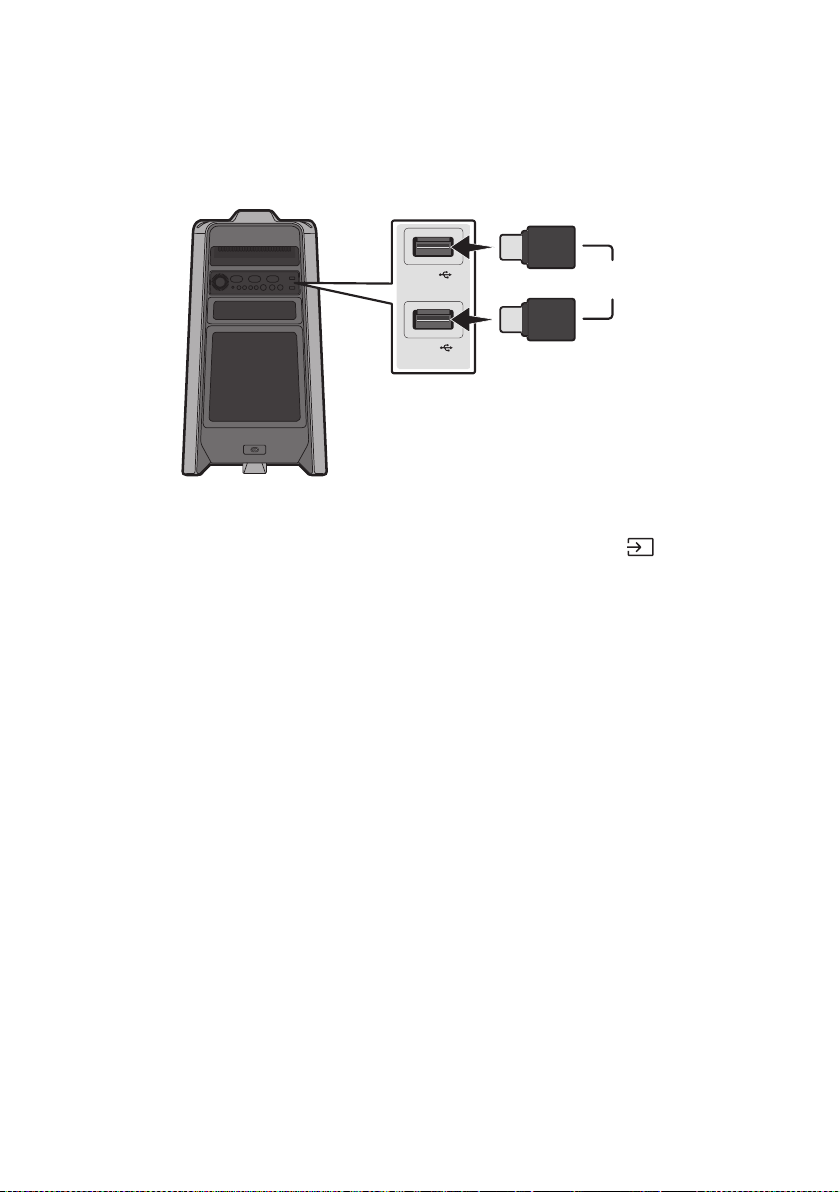
18 - ARA
05USB
.USB
USB1
(5V 2.1A)
USB2
(5V 0.5A)
USB
1.USB2USB1USB
2USB1
.”USB2“
USB
3USB2USB1
4.USB
USB
20
.USB
HDD
.USB
999
.USB
256

19 - ARA
mp3.*
4832320 32
2416160 8
128160 8
.*488320 32
.*
AAC9681728 <
A AC- LC96 81728 <
HE-AAC96 81728 <
.*
IMA_ADPCM
19285 <
*-192 85 <
.WMA
AAC
Samsung
USB
USB2 USB1
.
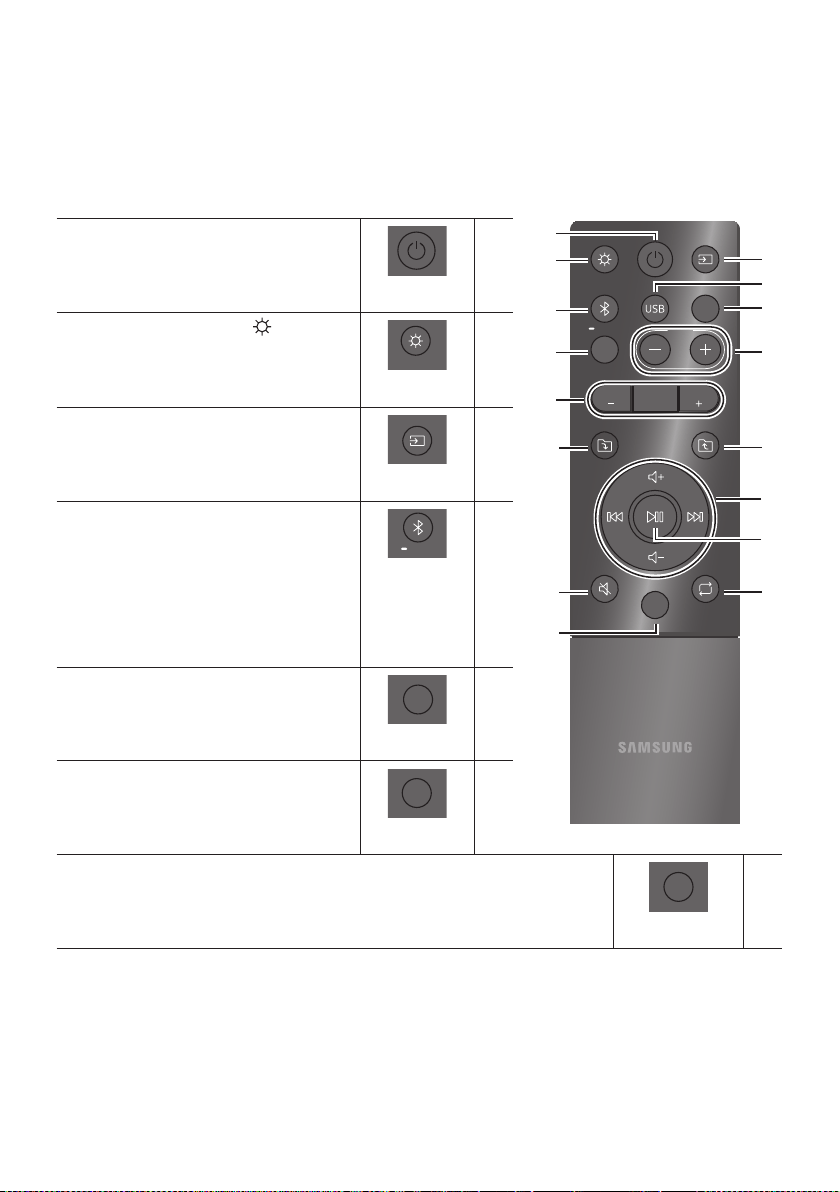
20 - ARA
06
LIGHT
PAIRING
TEMPO
USB
AUX
EFFECT
DOWN
UP
BASS
EFFECT
DJ
SOUND
MODE
)
,,,
.OFF,
LIGHT
.
.,,,
5
PAIRING
USB2 USB1
.
USB
USB
.
AUX
SOUND
MODE
,,,,
.,,
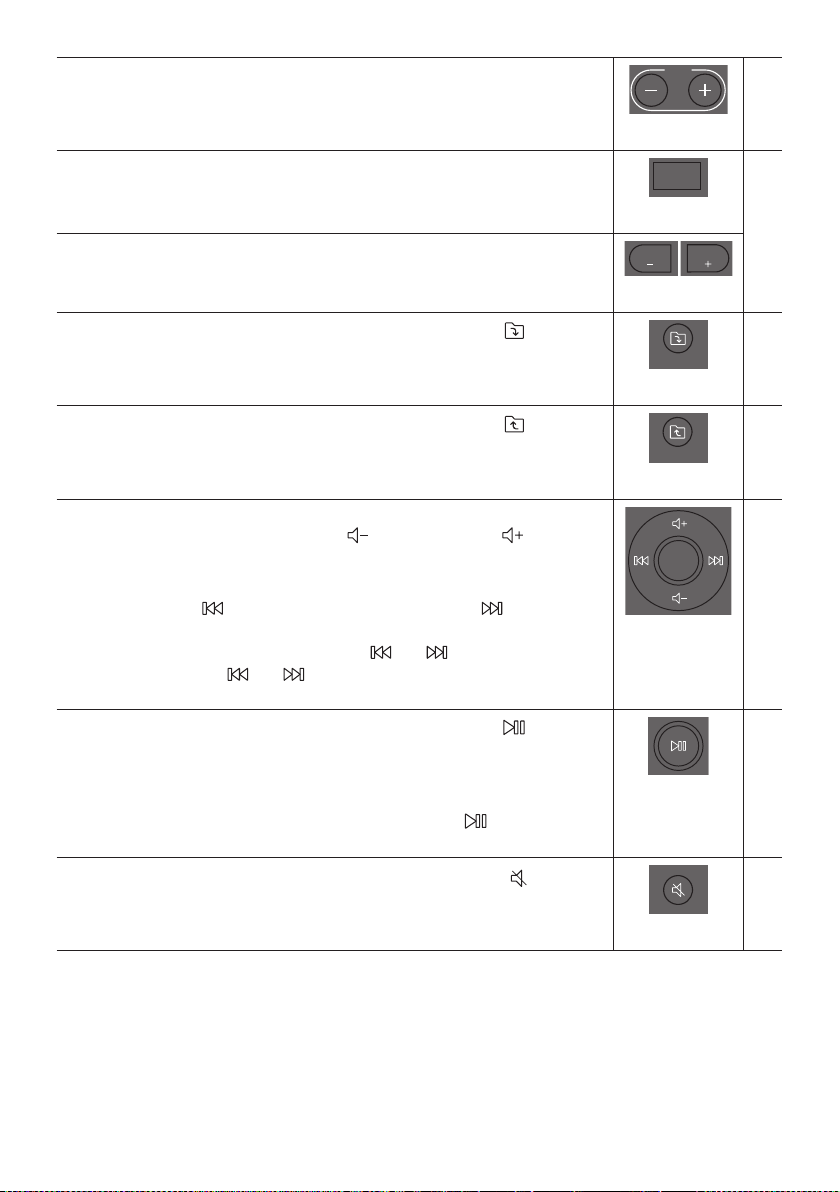
21 - ARA
TEMPO
-
.USB2USB1
DJ
DJ
.OFF,,,
EFFECT
EFFECT
DJ -
DOWN
.USB)
UP
.USB)
USB
3
3
5
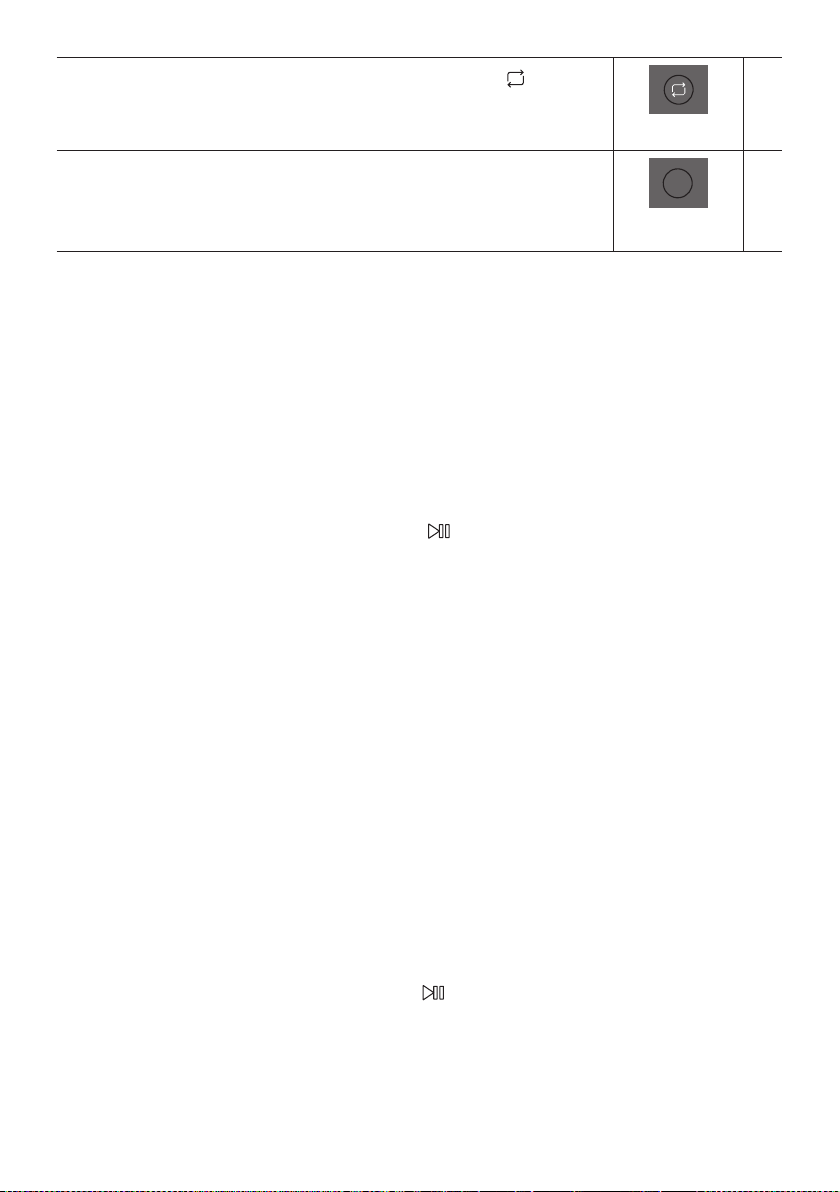
22 - ARA
.”USB2 USB1
.OFF,,,
BASS
5
.
1
2
.,,,,,,
.
5
1
2
3.-15 -
5
23 - ARA
07
6.0
10.0iOS
Samsung
Multiroom
24 - ARA
08
:
:
.
:
.14
:
:
:
:
.
:
:
.
:
:
.
:
: .MAIN
.MAIN
8
:
5
.
25 - ARA
. SUB
: SUB1
.SUB
:
:
10
09
10
Samsung
.)
11
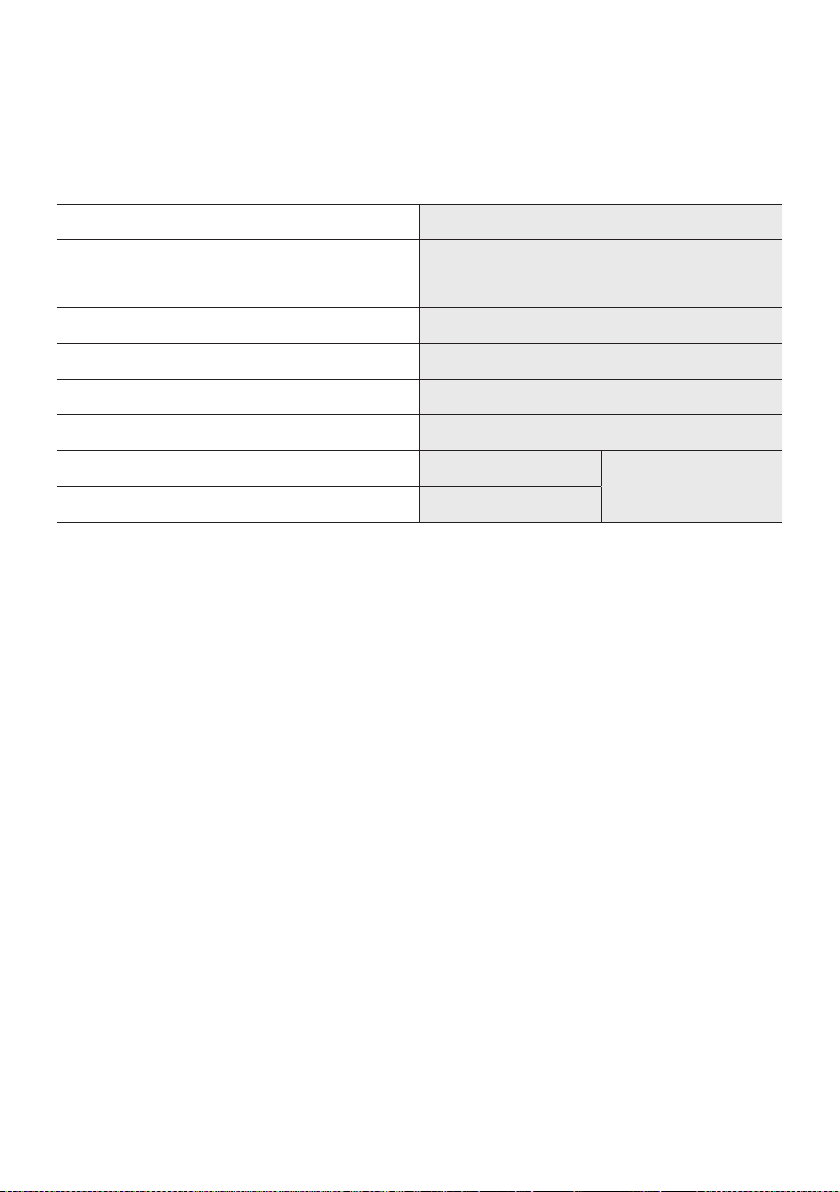
26 - ARA
12
11.6
323.0651.0351.0
7510 %
8265
32185
© 2019 Samsung Electronics Co., Ltd. All rights reserved.
Contact SAMSUNG WORLD WIDE
If you have any questions or comments relating to Samsung products, please contact the SAMSUNG customer
care Centre.
Area Contact Centre Web Site
`
Middle East
EGYPT
08000-7267864
16580
www.samsung.com/eg/
support
IRAN
021-8255
www.samsung.com/iran/
support
ISRAEL
*6963
www.samsung.com/il/
support/
SAUDI
ARABIA
8002474357 (800 24/7 HELP)
From Inside Saudi Arabia
+966112974690 From outside
Saudi Arabia (May Call
Charges will be applied)
www.samsung.com/sa_en/
support (English)
www.samsung.com/sa/
support (Arabic)
PAKISTAN
0800-Samsung (72678)
www.samsung.com/pk/
support
U.A.E
800-SAMSUNG
(800 - 726 7864)
www.samsung.com/ae/
support (English)
www.samsung.com/ae_ar/
support (Arabic)
OMAN 800-SAM CS (800-72627)
KUWAIT 183-CALL (183-2255)
BAHRAIN 8000-GSAM (8000-4726)
QATAR 800-CALL (800-2255)
TURKEY 444 77 11
www.samsung.com/tr/
support
JORDAN
0800-22273
06 5777444
www.samsung.com/levant/
supportLEBANON 1299
IRAQ 80010080
ALGERIA
3004
www.samsung.com/n_africa/
support
TUNISIA
80 100 012
MOROCCO 080 100 22 55
Area Contact Centre Web Site
`
Africa
SOUTH AFRICA 0860 SAMSUNG (726 7864)
www.samsung.com/za/
support
NAMIBIA 08197267864
www.samsung.com/africa_en/
support
ZAMBIA 3434
MAURITIUS 800 5050
REUNION 0262 50 88 80
www.samsung.com/africa_fr/
support
MOZAMBIQUE 847267864
www.samsung.com/africa_pt/
support
NIGERIA 0800-726-7864
www.samsung.com/
africa_en/support
GHANA 0800-100-077
COTE D’IVOIRE 8000-00-77
www.samsung.com/africa_fr/
support
SENEGAL 800-00-0077
CAMEROON 67095-0077
KE NYA 0800 545 545
www.samsung.com/africa_en/
support
UGANDA 0800 300 300
TANZANIA 0800 780 089
RWANDA 9999
www.samsung.com/africa_fr/
support
DRC 499999
SUDAN 1969
www.samsung.com/eg/
support