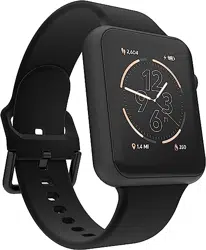

Air4
User Manual
NOTICES AND WARNINGS
NOT A MEDICAL DEVICE. This is NOT a medical device. This device and related software and
applications are NOT intended for use in the diagnosis of disease or other conditions, or in the
cure, mitigation, treatment or prevention of disease. Users should NOT interpret or take clinical
action based on the device output without consultation of a qualified healthcare professional.
For additional notices see REGULATORY NOTICES, TERMS OF SERVICE and PRIVACY NOTICES.
Getting Started
This guide contains everything you need to set up your Air 4 Jillian Michaels Edition Smartwatch.
What’s in the Box?
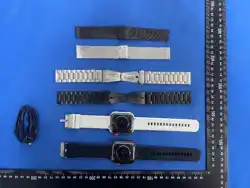
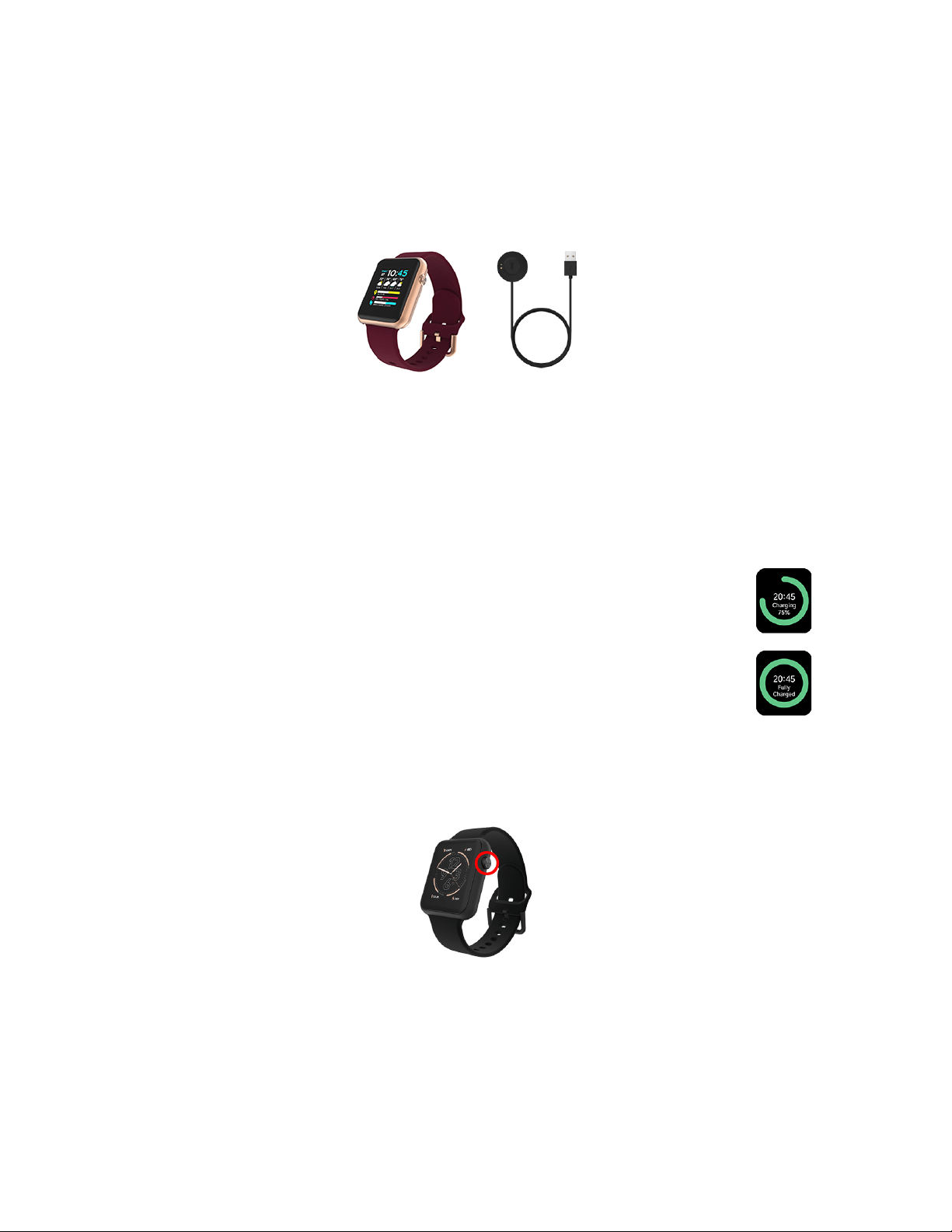
1 Air 4 Jillian Michaels Edition Smartwatch
1 Magnetic Charging Cable
Charging
The Air4 Jillian Michaels Edition smartwatch (Air4) comes with limited battery charge and should be
charged completely before first use. When fully charged, Air4 has a battery life of up to seven days.
To charge Air4:
1. Plug the included magnetic charging cable into a USB port (recommended) or wall
charger.
Note: Do not charge your smartwatch using a fast charger, as these can damage
the battery.
2. Align the two metal pins on the magnetic charging cable with the back of your
smartwatch. Once connected to power, ACTIVE turns on and displays a charging
screen. This screen displays the battery percentage as your watch charges.
3. Charge ACTIVE until the screen shows that the battery is fully charged.
Power On & Off
Press and hold the side button on your smartwatch for 3-5 seconds to power it on or off.
1
Pairing Air4 With Your Smartphone
You’ll need to connect your smartwatch to a Bluetooth-enabled smartphone using the iTouch Wearables
app. Pairing Air4 to a smartphone is quick and easy. Follow these steps to get connected.
1. Download and install the iTouch Wearables app from the Apple App Store (iOS devices) or the
Google Play Store (Android devices).
2. Open the iTouch app on your mobile device.
3. Follow the on-screen prompts to create a new account, or log in to an existing account.
4. Once logged in, the app displays the iTouch Wearables home screen. Tap the watch icon on the
lower right corner of the screen.
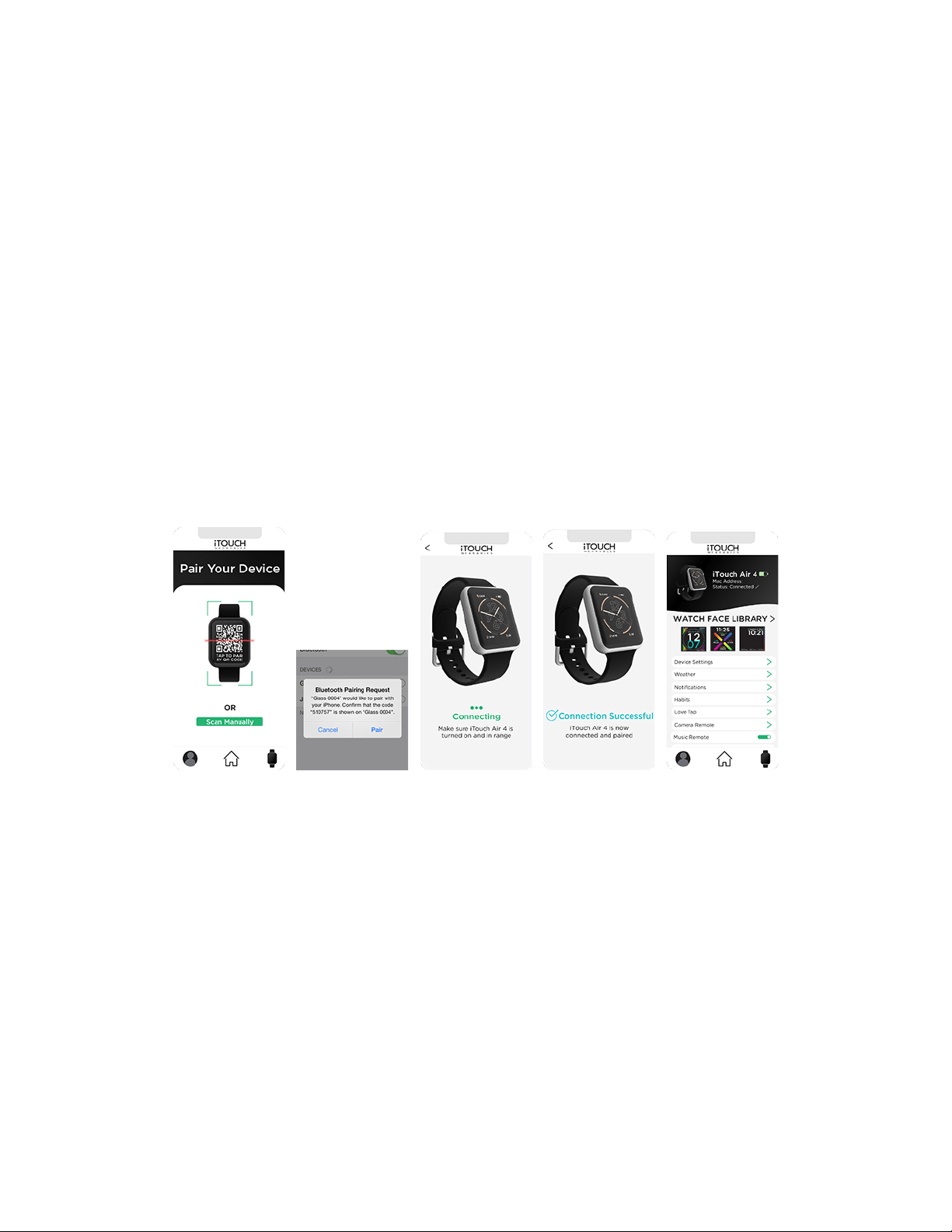
5. The app displays the Pair your device screen. Tap the watch icon in the center of the screen to
access your device’s camera. Note: You may need to give iTouch Wearables permission to access
your camera.
6. If your Air4 has not previously been paired with a mobile device, the watch displays a scannable
QR code. Using your mobile device, scan the QR code displayed on the watch.
7. Air4 displays a Pair To Phone notification informing you that the watch wants to connect to the
iTouch Wearables app. Tap the green checkmark to proceed with pairing.
8. When pairing is complete, Air4 is displayed in the app.
9. To confirm that the watch is paired with a device, swipe down from the watch’s home screen to
access Settings. When connected, a Bluetooth icon is displayed in the top left corner.
2
Navigation
Exploring Air4’s full capabilities starts with the watch face– the display that greets you when you power on
your device. The watch face can be customized to show the date, time, weather, steps, and more. For
more information on customizing your watch face, see Choosing a watch face.
Features are accessed by swiping from the watch face in different directions.
● Swipe left to cycle through popular features including Activity Stats, Heart Rate Monitor, Sleep
Monitor, Workout Mode, Weather/Forecast, Camera Remote, Music Remote, and Relaxation.
● Swipe right to see a complete list of Air4’s features.
● Swipe up to view notifications.
● Swipe down to access Quick Settings.
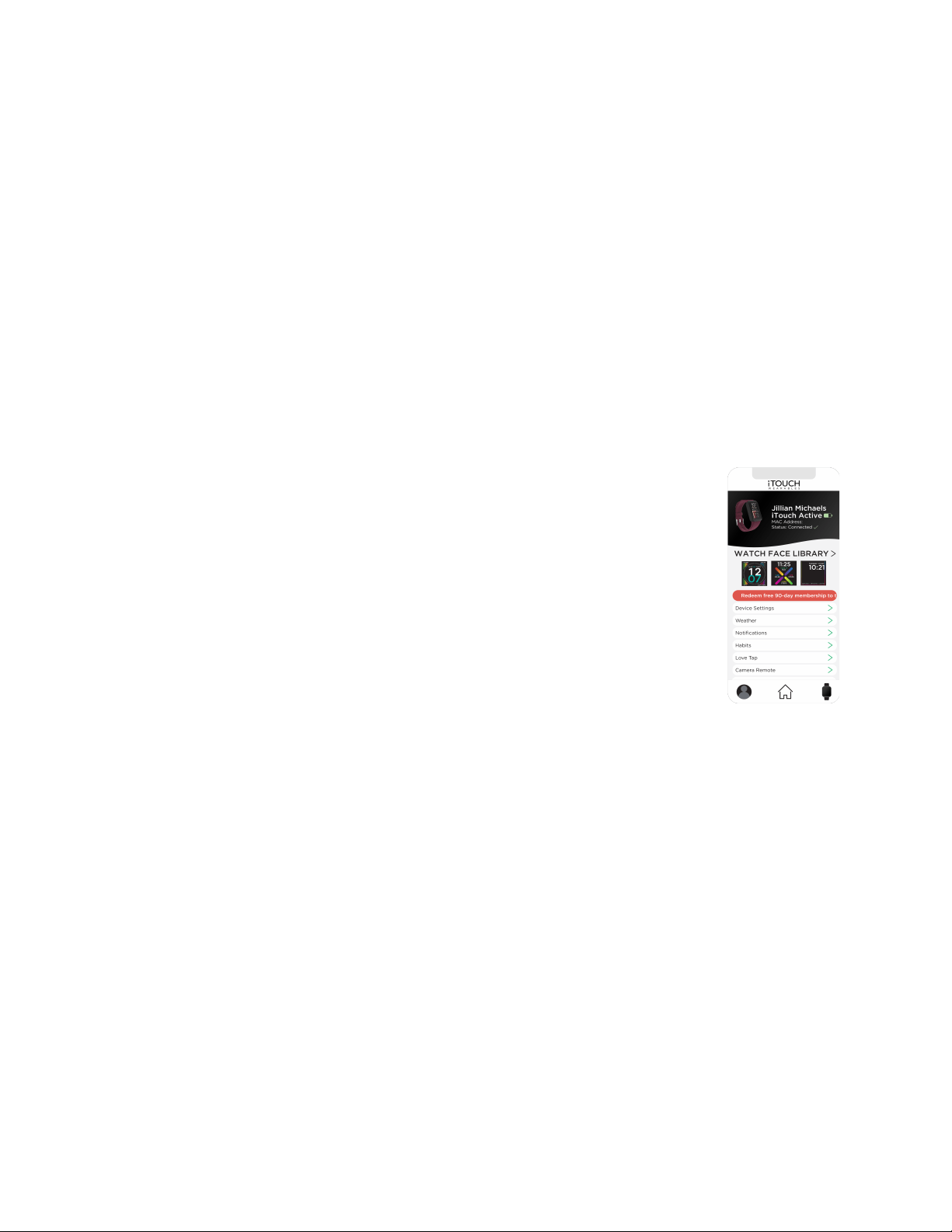
Access your 90-day membership to the Jillian Michaels
Fitness App
Every iTouch Wearables X Jillian Michaels device comes with a free 90-day membership
to the Jillian Michaels Fitness App. To claim this, you must first pair your devices to the
iTouch Wearables App through the steps mentioned in the Pairing With Your Device
section of this manual. Once paired, navigate to the device page (press the device
icon on the bottom right of the home screen) and look for the red banner with the
90-day subscription link. Selecting the banner will take you to download the Jillian
Michaels Fitness App where you can redeem your subscription trial.
Note: If you already have the Jillian Michaels Fitness App installed on your smartphone,
the subscription link will take you straight to redeem your 90-day trial
Choosing a Watch Face
Air4 comes with 4 unique watch faces to help you stay on track and reach your fitness goals. To browse
through the different options, press and hold your current display. Swipe left and right to view each watch
face, then tap your favorite to make a selection.
Quick Settings
The Quick Settings display gives you easy access to:
● The power button
● Watch information
● Brightness settings
● Vibration settings
● Weather
● General settings
● Battery percentage
● Date
● Bluetooth connection status
This screen also displays the date, battery percentage, and Bluetooth connection status. To access Quick
Settings, swipe down from the main watch face.
3

Messages and Notifications
Once paired with a smartphone via the iTouch Wearables app, ACTIVE notifies you anytime you receive a
message on your connected device. When a message is received, ACTIVE vibrates and displays a
message preview that includes the sender and the application from which the message was sent.
To view the full message, tap the notification. View a complete list of notifications by swiping up from the
watch face and tapping the Notifications icon ( ).
Managing Notifications
Check to confirm that your smartphone can receive notifications and has Bluetooth enabled, as operating
system behaviors will vary.
iPhone users
1. Open the iTouch Wearables App, tap the device icon, then select Notifications.
2. Select which notifications you want to receive on your smartwatch.
3. Go to iPhone Settings and select Messages.
4. Select Notifications.
5. Enable Allow Notifications, set Show Previews to Always, and enable Badges.
Android users
1. Open the iTouch Wearables App, tap the device icon, then select Notifications. The screen
prompts you to access your phone’s notifications.
2. Open Notifications in your smartphone's settings and scroll down to iTouch Wearables.
3. Enable notifications by tapping the toggle bar next to the iTouch Wearables App.
4. The screen displays a privacy message. Tap Allow.
5. Return to the Notifications section of the iTouch Wearables App.
6. Select the notifications you wish to receive on your smartwatch.
Love Tap
Let loved ones know you’re thinking of them by sending them a heartbeat. With this feature, you can
transcend regular text messages and communicate by physical touch, even over a distance.
It’s easy to send a Love Tap by taking the following steps:
1. Pair your smartwatch with the iTOUCH wearables app.
2. Go to the Love Tap screen. Note: New users must create a username by following the app
requirements.
3. Send a Love Tap invitation to your heartmate by entering their username. Note: The LoveTap
feature is only available to someone who has an Air 4 or Sport 4 smartwatch.
Once your heartmate has accepted your invitation, use your watch to send a Love Tap. Your heartmate
will receive your Love Tap as long as their watch (Air 4 or Sport 4) is paired to the iTOUCH app.
For this feature to work in iOS, the following permissions should be approved by the user: Bluetooth,
Notifications, and Location (should be enabled as "always"). For the feature to work on Android devices,
the user should accept Bluetooth and Notifications permissions.
4
Health and Wellness
Your Air4 offers an innovative list of features designed to help you be your healthiest self. These features are
accessible in the watch as well as in the iTouch Wearables app.
Workout Mode
Your Air4 is loaded with a variety of workouts and activities selected by fitness expert Jillian Michaels. When
set to Workout Mode, ACTIVE collects data tailored to a particular exercise so you can track your
improvement over time.
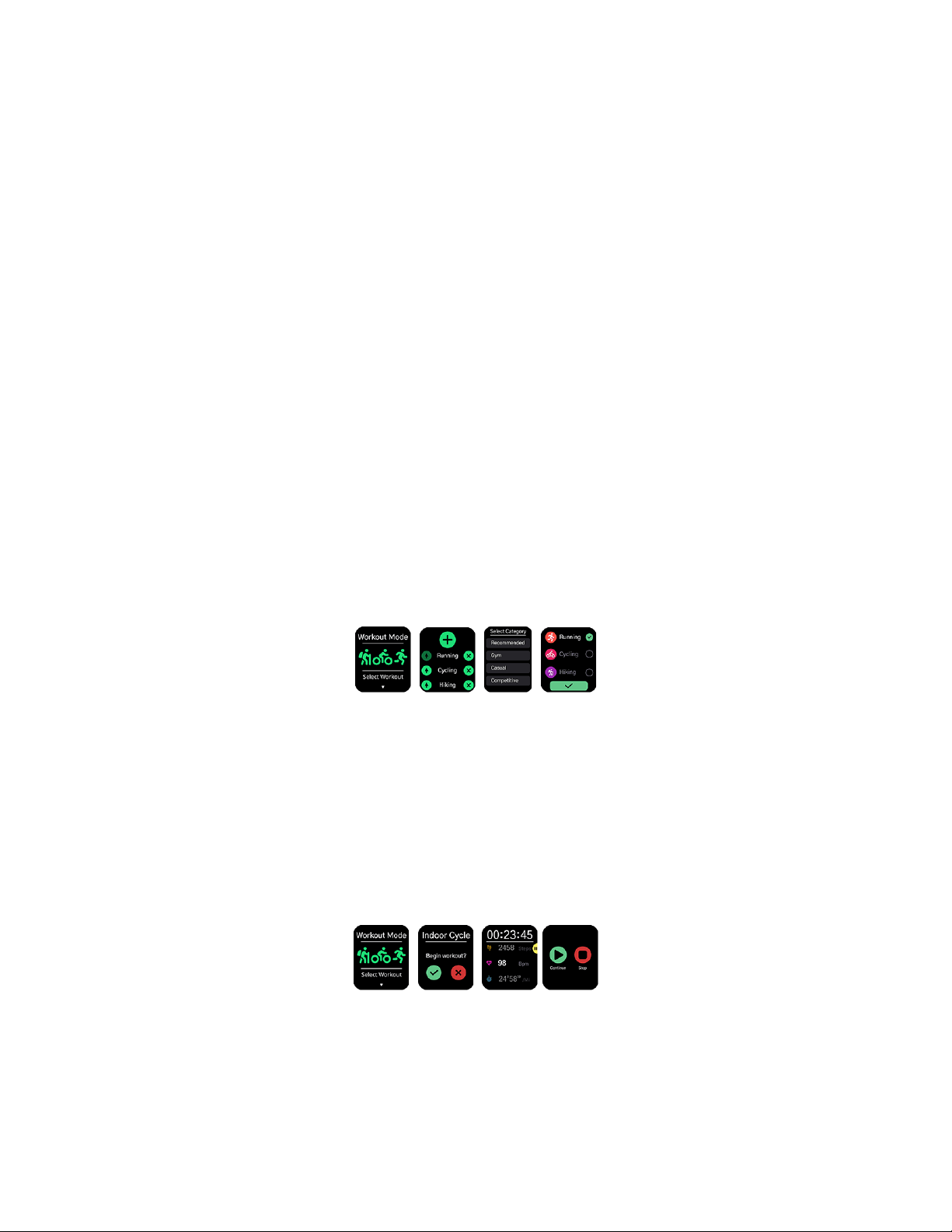
Workout Mode allows you to create an easily accessible list of your favorite workouts and activities. To
access your workout list, swipe left from the main watch face until you see the workout mode screen. Swipe
down to browse through the different workouts currently in your list.
Editing Your Workout List
Don’t see your favorite workout? No problem! To add or remove activities from your workout list:
1. Scroll to the bottom of the screen and tap the + button.
a. Tap the arrow (PIC) to the left of an activity to reorder it in the list.
b. Tap the X (PIC) to the right of an activity to delete it from the list.
2. To add a new activity to your workout list, tap the green + button at the top of the screen.
3. Tap a workout category to expand the category’s list of activities.
4. Select the activity/activities you wish to add to your list, then tap the green check button (PIC) at
the bottom of your screen. The new activities are now added to your workout list.
Using Workout Mode
When placed in workout mode, ACTIVE collects data specific to the type of activity you selected (like
pace, calories burned, BPM, steps, etc.). This data is stored in your workout history and is accessible on your
watch or in the iTouch Wearables App. To begin using workout mode:
1. Access the Workout Mode screen by swiping left or by swiping right and selecting Workout Mode
from the list.
2. Tap your desired exercise. Once you make a selection, the workout timer will start in three seconds.
3. Push the side button to pause your workout.
4. Tap the green Continue button to resume or the red Stop button to end your workout.
To view your workout history, swipe right from the home screen and tap Workout History.
5
Goal Setting
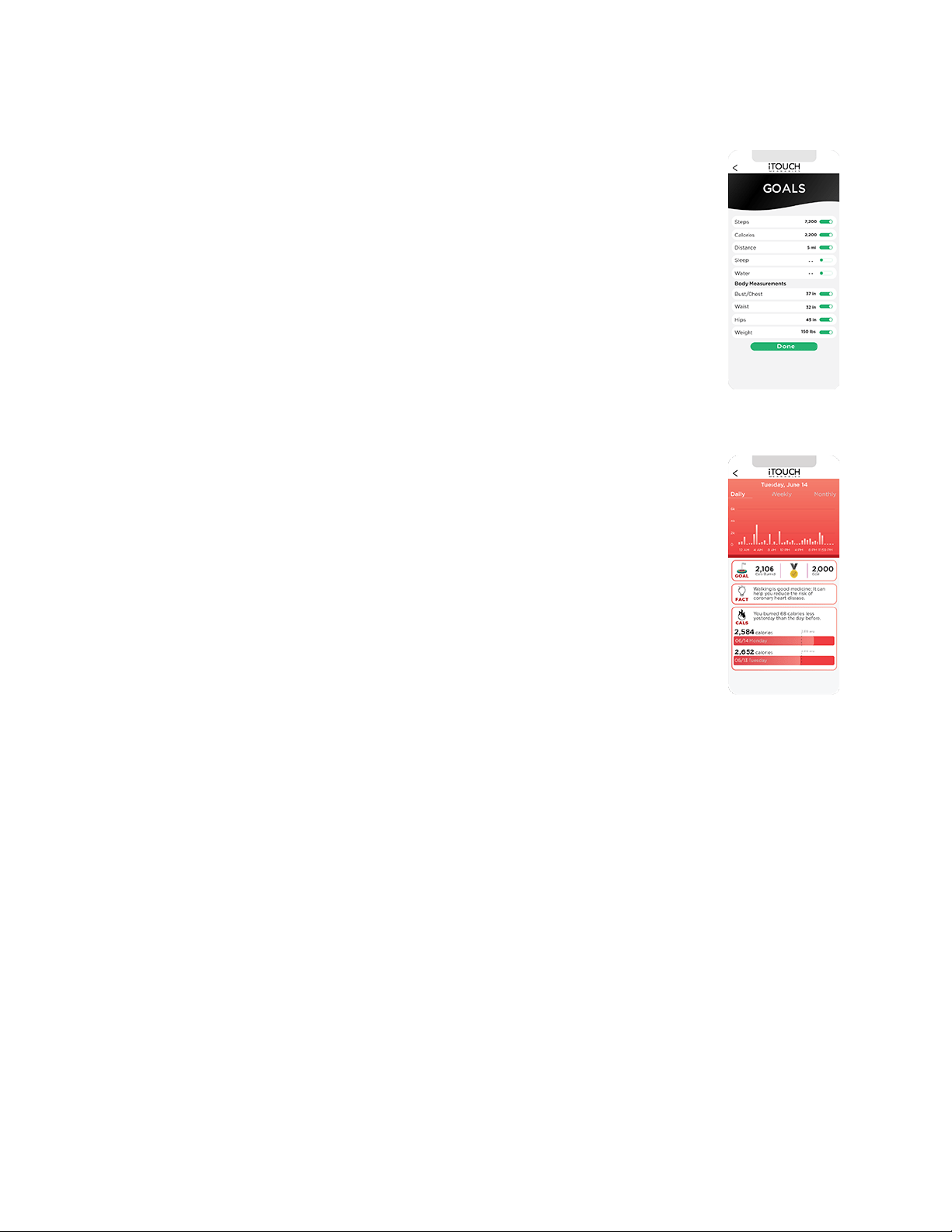
Set goals for steps, calories burned, sleep, and more in the iTouch Wearables app. These
goals are displayed in the app and accessible in your smartwatch. To set a health or
fitness goal:
1. Open the iTouch Wearables app and select the profile icon in the bottom left
corner.
2. Select the GOALS tab.
3. Tap a goal and set your desired value.
4. To receive a notification when a specific goal is achieved, enable a goal’s
notification settings using the toggles on the right side of the screen.
Activity
This feature tracks and displays your calories burned, step count, and distance moved.
To view Activity in the watch:
1. Swipe left from the main watch face to view the Activity summary screen.
2. Swipe up to view weekly trends for each metric.
To view Activity in the iTouch Wearables app:
1. Launch the app from your device. A summary of each metric is displayed on
the app’s home screen.
2. Tap an individual feature to view additional Activity stats.
Heart Rate
Tracking your heart rate is a great way to monitor your workout intensity and overall
physical health. Air4 lets you track your heart rate during your workouts, while resting, and any time in
between.
To Heart Rate in the watch, swipe left from the main watch face until you see the Heart Rate screen.
To access Heart Rate in the iTouch Wearables app, open the app and tap the Heart Rate panel from the
home screen. Tap this feature to access additional daily and weekly data.
6

Sleep
Optimize your rest and recovery with Air4’s Sleep feature. This feature helps you track the quality and
quantity of your sleep.
To access Sleep in the watch:
1. Swipe left from the main watch face and tap the sleep icon. The screen displays how much you’ve
slept in the last 24 hours relative to your sleep goal.
2. Swipe down to view your deep sleep, light sleep, and awake time.
To access Sleep in the iTouch Wearables app:
1. Open the app and scroll down to the Sleep feature.
2. Tap this feature to view your daily and weekly sleep stats, including sleeping and waking time; light,
deep, and REM sleep; and time spent awake.
Relaxation
The Relaxation feature guides you through a deep breathing exercise designed to lower your heart rate
and help you feel at ease.
To access the Relaxation feature:
1. Swipe left from the main watch face until you see the Relaxation screen.
2. Swipe up to access the timer for this feature.
3. Set the timer to your preferred duration (up to 10 minutes) and tap the Start button. The exercise
will begin in three seconds.
Blood O2
Your blood O2 is an excellent indicator of cardiovascular health and tells you how much oxygen is being
carried by your red blood cells. Monitoring blood O2 is a great way to supplement your health and fitness
regime.
To access Blood O2 in the watch:
1. Swipe right from the main watch face.
2. Scroll down and tap the Blood O2 icon.
3. After tapping the Blood O2 icon, the watch measures your blood O2, then records the results in the
app.
To access Blood O2 history in the iTouch Wearables app:
1. Open the app and scroll down to the Blood O2 feature.
2. Tap this feature to view your daily, weekly, and monthly blood oxygen levels.
7
Additional Air4 Features
In addition to workout mode, your Air4 smartwatch is equipped with a number of other useful features to
help you stay connected and live a healthy life. These include:
● Music remote
● Camera remote
● Weather
● Stopwatch
● Timer
● Alarm
Access these features by swiping right from the main watch face.
Music Remote
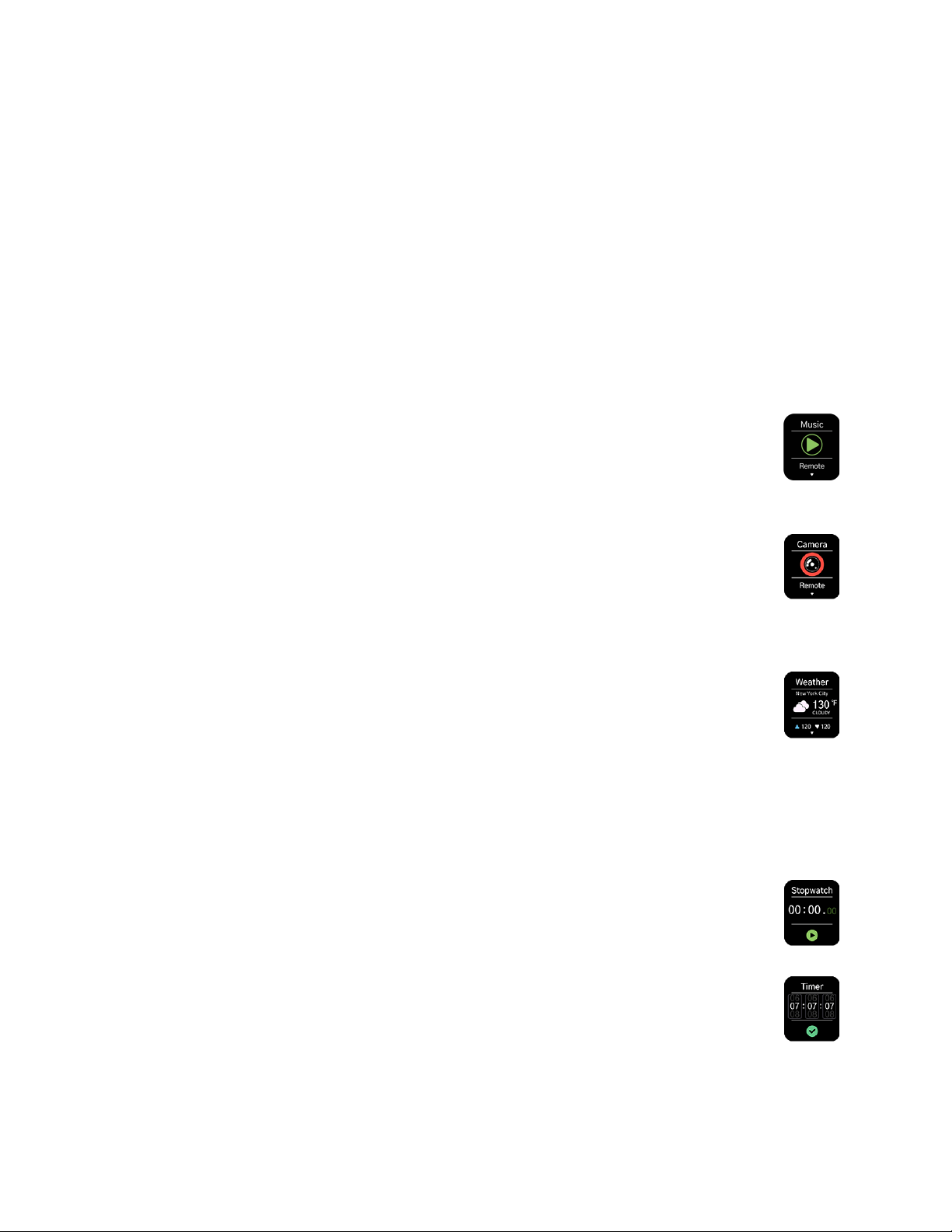
Use ACTIVE to switch songs on your connected device without having to fumble for your phone
during a workout. To pause a song, skip songs, or adjust the volume of your music, swipe left from
the main watch face and tap the music icon.
Camera Remote
When paired via Bluetooth, your smartwatch doubles as a camera remote allowing you to take
photos and videos without having to hold your mobile device. This feature also allows you to set
a timer for hands-free photos. To access this feature, swipe left from the home screen and tap
the camera icon.
Weather
The weather feature displays your area’s current weather as well as the future forecast. When
paired with a mobile device via Bluetooth, the weather displayed in your smartwatch updates
throughout the day. Swipe left from the home screen and tap the cloud icon to access this
feature.
To set your weather preferences in the iTouch Wearables app, open the app, select the Device icon on the
bottom right corner, then tap Weather. Adjust the settings according to your preference, then tap Confirm.
Stopwatch
Stopwatch lets you start, pause, resume, or reset the clock. To access this feature, swipe left from
the home screen and select the stopwatch icon.
Timer
The timer feature lets you set your desired timer then vibrates to let you know when the
countdown is complete. To access this feature, swipe left from the home screen and select the
timer icon.
8

Alarm
The alarm clock feature lets you set alarms, choose your repeat settings, and hit snooze for a little
extra sleep. To access this feature, swipe left from the home screen and select the alarm clock
icon.
9

General Settings
The following can be accessed in Settings:
● Brightness
● Language
● Watch face
● Time and date
● Power On/Off
● Reset
● Watch Information
● Watch QR Code
To access the Settings screen:
1. Swipe right from the main home page.
2. Scroll to the bottom of the screen.
3. Tap Settings, then swipe. The general settings screen displays Settings, Power Off, Reset, About, and
Regulatory Info. Tap any of these options to make adjustments or view information about your
smartwatch.
Reset
Use the reset feature to clear all data from your smartwatch and return it to factory settings.
10

Regulatory and Safety Information
FCC Regulatory Compliance
Changes or modifications not expressly approved by the party responsible for compliance could void the
user’s authority to operate the equipment.
This equipment has been tested and found to comply with the limits for a Class B digital device, pursuant to
Part 15 of the FCC Rules. These limits are designed to provide reasonable protection against harmful
interference in a residential installation. This equipment generates, uses, and can radiate radio frequency
energy and, if not installed and used in accordance with the instructions, may cause harmful interference
to radio communications. However, there is no guarantee that interference will not occur in a particular
installation.
If this equipment does cause harmful interference to radio or television reception, which can be
determined by turning the equipment off and on, the user is encouraged to try to correct the interference
by one or more of the following measures:
● Reorient or relocate the receiving antenna.
● Increase the separation between the equipment and the receiver.
● Connect the equipment to an outlet on a circuit different from that to which the receiver is
connected.
● Consult the dealer or an experienced radio/TV technician for help.
This equipment complies with FCC radiation exposure limits set forth for an uncontrolled environment. This
transmitter must not be co-located or operating in conjunction with any other antenna or transmitter.
This device complies with Part 15 of the FCC Rules. Operation is subject to the following two conditions: (1)
this device may not cause harmful interference, and (2) this device must accept any interference
received, including interference that may cause undesired operation.
FCC ID: 2AJXA-LSTRACKER
Environmentally Friendly Disposal
This product contains a lithium-ion battery.
Lithium-ion batteries and devices containing these batteries should NOT go in household garbage or
recycling bins. Lithium-ion batteries SHOULD be taken to separate recycling or household hazardous waste
collection points or to a participating electronics Sustainable Materials Management Participant.
To prevent fires, tape battery terminals and/or place lithium-ion batteries in separate plastic bags.
For more information visit https://www.epa.gov/recycle/used-lithium-ion-batteries
© 2023 American Exchange Group. All rights reserved. Reproduction in whole or in part without written
permission is expressly prohibited.
11