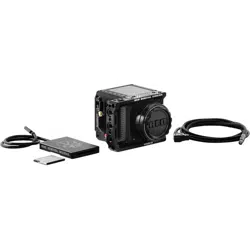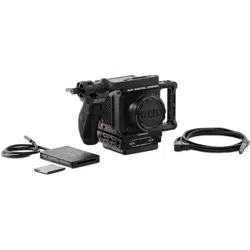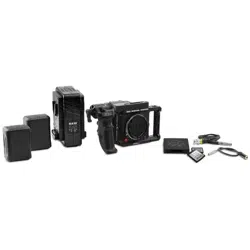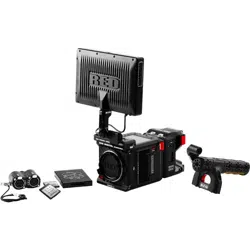
V-RAPTOR 8K V V | V1.1, REV. A
RED.COM
V-RAPTOR™ 8K V V
OPERATION GUIDE

DISCLAIMER IV
SAFETY INSTRUCTIONS VI
1. INTRODUCTION
V-RAPTOR™ 8K VV + 6K S35 (DUAL FORMAT) 1
2. QUICK REFERENCE
PREPARING THE CAMERA HARDWARE 4
PREPARING THE CAMERA SYSTEM 4
CONFIGURING THE SETTINGS 4
RECORDING 4
PROCESSING FOOTAGE 4
3. CAMERA COMPONENTS
CAMERA BODY 5
CAMERA BODY CONTROLS AND FEATURES 5
FRONT 5
BACK 6
LEFT 7
RIGHT 8
TOP 9
BOTTOM 10
CAMERA BODY LEDS 11
REDVOLT MICRO-V BATTERY 15
RED COMPACT DUAL V-LOCK CHARGER 16
COMPATIBLE BATTERIES 16
LENSES AND ADAPTORS 17
RED CFEXPRESS TYPE B MEDIA 19
RED CFEXPRESS TYPE B READER 20
OUTRIGGER HANDLE 21
V-RAPTOR WING GRIP 21
DSMC3 RED® TOUCH 7.0" LCD 22
LCD 24
LCD NAVIGATION 24
MENUS 25
PAGES 26
HOME PAGE 29
HISTOGRAM PAGE 33
TOOLS PAGE 36
SDI PAGE 39
AUDIO CHANNELS 1 AND 2 PAGE 40
AUDIO CHANNELS 3 / 4 PAGE 42
HEADPHONE PAGE 44
USER PAGES 46
PLAYBACK 46
RED CONTROL APP 49
STATUS BAR 50
4. MENUS
IMAGE / LUT MENU 55
ISO 56
SHUTTER 56
WHITE BALANCE 58
OUTPUT COLOR SPACE 61
OUTPUT TONE MAP 61
COPYRIGHT © 2021 RED.COM, LLC 955-0198, V1.1, REV. A | ii
TABLE OF CONTENTS
HIGHLIGHT ROLL-OFF 62
3D LUT 62
CDL 64
EXPOSURE ADJUST 68
PROJECT SETTINGS MENU 69
FORMAT 70
RECORDING FRAME RATE 78
PROJECT TIME BASE 79
R3D QUALITY 80
PRE-RECORD 80
SLATE 81
AUDIO / TC MENU 82
AUDIO SOURCE 84
INTERNAL MICROPHONE (CH 1/2) 84
EXTERNAL (CH 3/4) 85
HEADPHONE 86
TIMECODE SOURCE 87
TIMECODE DISPLAY MODE 88
MONITORING MENU 88
TOP LCD 89
SDI 1 / 2 90
LIVE STREAM 97
TOOLS 98
GUIDES 104
MEDIA MENU 111
EJECT 111
MEDIA INFO 112
SECURE FORMAT 112
USER SETTINGS MENU 115
PRESETS 115
SIDE LCD CONTROL PANELS 118
USER 1, 2, 3 118
AUTOFOCUS - BETA MENU 120
ENABLE 120
MODE 121
SIZE 121
POSITION 122
COMMUNICATION MENU 123
CAMERA 123
USB-C 124
WI-FI 126
FTPS 134
SERIAL 134
SYSTEM SETTINGS MENU 136
DATE / TIME 137
LENS 138
POWER 139
INDICATORS 140
STATUS SETTINGS 140
SYSTEM STATUS 142
LANGUAGE MENU 144
MAINTENANCE MENU 144
CALIBRATE 145
CALIBRATION 146
SAVE LOG 146
RESET DEFAULTS 147
FACTORY RESET 147
UPGRADE 147
V-RAPTOR™ 8K V V OPERATION GUIDE

5. HOW TO
WI-FI CONFIGURATION 148
CONNECTING WIRELESSLY TO AN EXISTING
WI-FI NETWORK 148
FTPS CONFIGURATION 151
CAMERA SET-UP 151
SOFTWARE SET-UP (FILEZILLA) 152
ADDITIONAL INFORMATION 153
USB-C CONFIGURATION 154
USB-C ANDROID CONFIGURATION 155
USB-C APPLE CONFIGURATION 161
USB-C ETHERNET CONFIGURATION 168
POWER 171
ATTACHING THE BATTERY 171
REMOVING THE BATTERY 171
POWER COMPONENTS 171
V-RAPTOR 8K VV POWER ADAPTOR 172
AUTO BOOT ON POWER 172
POWER CONSUMPTION 172
POWER PRIORITY 172
TURNING ON THE CAMERA 173
TURNING OFF THE CAMERA 174
MEDIA MANAGEMENT 174
EJECTING MEDIA 174
INSERTING MEDIA 176
SECURE FORMAT 178
MEDIA INFORMATION 179
FILE SYSTEM 179
CLIP FOLDER NAMING CONVENTION 180
CLIP METADATA 180
MEDIA BEST PRACTICES 181
RED MONITOR INTERFACE CABLE 182
MONITORING 182
DSMC3 RED® TOUCH 7.0" LCD 182
SDI OUTPUT TO A MONITOR 182
RED CONTROL 185
USB-C 186
EXPOSURE 187
FALSE COLOR EXPOSURE TOOLS 187
FOCUS 188
FOCUS PEAKING MODE 188
EDGE PEAKING MODE 188
PEAKING PEAKING MODE 189
TIMECODE 189
TIME OF DAY 189
EDGECODE 191
ZEBRA MODES 192
ZEBRA OVERVIEW 192
PRE-RECORDING CONTENT 193
CALIBRATING THE SENSOR 194
WHEN TO CALIBRATE THE SENSOR 194
UPGRADING THE FIRMWARE 194
VERIFYING THE FIRMWARE VERSION 194
UPGRADING THE FIRMWARE 194
SYSTEM MAINTENANCE 197
COPYRIGHT © 2021 RED.COM, LLC 955-0198, V1.1, REV. A | iii
EXTERIOR SURFACES 197
STORAGE 197
LCD SCREEN 198
WATER DAMAGE 198
6. TROUBLESHOOTING
GENERAL TROUBLESHOOTING TIPS 199
CONTACT SUPPORT 199
STATUS ICONS 200
7. MECHANICAL DRAWINGS
FRONT VIEW 202
BACK VIEW 203
RIGHT SIDE VIEW 204
LEFT SIDE VIEW 205
TOP VIEW 206
BOTTOM VIEW 207
FEMALE RP SMA PORT 208
USB-C PORT 209
12G-SDI (SDI-1 & SDI-2) 210
12G-SDI 75 OHM MALE BNC CONNECTOR 210
AUDIO PORT 212
5-PIN 00B FEMALE AUDIO CONNECTOR 212
HEADPHONE JACK 213
6-PIN DC-IN 214
6-PIN 1B DC INPUT CONNECTOR 214
COMPATIBLE CABLES 214
EXTENSION PORT 215
9-PIN 0B ODU EXTENSION PORT PINOUT 215
COMPATIBLE CABLES 215
8. MENU MAP 216
9. TECHNICAL SPECIFICATIONS 218
V-RAPTOR™ 8K V V OPERATION GUIDE

DISCLAIMER
RED
®
has made every effort to provide clear and accurate information in
this document, which is provided solely for the user’s information. While
thought to be accurate, the information in this document is provided
strictly “as is” and RED will not be held responsible for issues arising
from typographical errors or user’s interpretation of the language used
herein that is different from that intended by RED. All safety and general
information is subject to change as a result of changes in local, federal
or other applicable laws.
RED reserves the right to revise this document and make changes from
time to time in the content hereof without obligation to notify any person
of such revisions or changes. In no event shall RED, its employees or
authorized agents be liable to you for any damages or losses, direct or
indirect, arising from the use of any technical or operational information
contained in this document.
This document was generated on 10/22/2021. To see earlier versions of
this document, submit a Support ticket at https://support.red.com.
For comments or questions about content in this document, send a
COPYRIGHT NOTICE
COPYRIGHT© 2021 RED.COM, LLC
All trademarks, trade names, logos, icons, images, written material,
code, and product names used in association with the accompanying
product are the copyrights, trademarks, or other intellectual property
owned and controlled exclusively by RED.COM, LLC. For a
comprehensive list, see www.red.com/trademarks.
TRADEMARK DISCLAIMER
All other company, brand, and product names are trademarks or
registered trademarks of their respective holders. RED has no affiliation
to, is not associated with or sponsored by, and has no express rights in
third-party trademarks. Adobe and Adobe Premiere Pro are registered
trademarks of Adobe Systems Incorporated. DaVinci and DaVinci
Resolve are registered trademarks of Blackmagic Design in the U.S. and
other countries. Leica is a registered trademark of Leica
MicrosystemsCanon is a registered trademark of Canon, U.S.A. Apple,
iOS, Macintosh, Final Cut Pro, and QuickTime are registered trademarks
of Apple Inc. in the U.S. and other countries. Windex is a registered
trademark of S. C. Johnson & Son, Inc. Windows is a registered
trademark of Microsoft Corporation. Avid is a registered trademark of
Avid Technology, Inc. FileZilla is a registered trademark of its respective
owners. Nuke™ is a trademark of The Foundry Visionmongers Ltd.
SCRATCH is a registered trademark ® of ASSIMILATE, 2006. SCRATCH
SCAFFOLDS, SCRATCH EXTENSIONS, and SCRATCH Digital
Intermediate Process Solution are all trademarks and registered
trademarks of ASSIMILATE, 2006, All rights reserved. Autodesk, the
Autodesk logo, Flame are registered trademarks or trademarks of
Autodesk, Inc., and/or its subsidiaries and/or affiliates in the USA and/or
other countries.
COMPLIANCE STATEMENTS
INDUSTRIAL CANADA EMISSION COMPLIANCE STATEMENTS
This device complies with Industry Canada license-exempt RSS
standards RSS 139 and RSS 210. Operation is subject to the following
two conditions: (1) this device may not cause interference, and (2) this
device must accept any interference, including interference that may
cause undesired operation of the device.
This Class B digital apparatus complies with Canadian ICES-003.
COPYRIGHT © 2021 RED.COM, LLC 955-0198, V1.1, REV. A | iv
To comply with FCC and Industry Canada RF exposure limits for general
population/ uncontrolled exposure, the antenna(s) used for this
transmitter must be installed to provide a separation distance of 70 mm
from all persons and operating in conjunction with any other antenna or
transmitter, except in accordance with FCC multi-transmitter product
procedures.
Other user manual statements may apply.
Le présent appareil est conforme aux CNR d’Industrie Canada
applicables aux appareils radio exempts de licence. L’exploitation est
autorisée aux deux conditions suivantes : (1) l’appareil ne doit pas
produire de brouillage, et (2) l’utilisateur de l’appareil doit accepter tout
brouillage radioélectrique subi, même si le brouillage est susceptible
d’en compromettre le fonctionnement.
Cet appareil numérique de la classe B est conforme à la norme NMB-
003 du Canada.
Pour se conformer aux limites d’exposition aux RF de la FCC et
d’industries Canda pour la population générale/ exposition non
controlee, l’antenne(s) utilisée pour ce transmetteur doit être installé
pour fournir une distance de separation d’au moins 70 mm de toutes les
personnes et fonctionnant conjointement avec une autre antenne ou
émetteur, saufen conformité avec les proceédures de produits multi-
émetteur FCC.
Autres d’eclarations manuel de l’utilisateur peuvent s’appliquer.
FEDERAL COMMUNICATIONS COMMISSION (FCC) STATEMENTS
This equipment has been tested and found to
comply with the limits for a Class A digital
device, pursuant to part 15 of the FCC Rules.
These limits are designed to provide reasonable
protection against harmful interference when the
equipment is operated in a commercial
environment. This equipment generates, uses,
and can radiate radio frequency energy and, if not installed and used in
accordance with the instruction manual, may cause harmful interference
to radio communications. Operation of this equipment in a residential
area is likely to cause harmful interference in which case the user will be
required to correct the interference at his own expense.
To maintain compliance with FCC regulations, shielded cables must be
used with this equipment. Operation with non-approved equipment or
unshielded cables is likely to result in interference to radio and TV
reception. The user is cautioned that changes and modifications made
to the equipment without the approval of manufacturer could void the
users authority to operate this equipment.
This device complies with Part 15 of the FCC Rules.
Operation is subject to the following two conditions (1) this device may
not cause harmful interference, and (2) this device must accept any
interference received, including interference that may cause undesired
operation.
CAUTION: Exposure to Radio Frequency Radiation.
The device shall be used in such a manner that the potential for human
contact is minimized.
This equipment complies with FCC radiation exposure limits set forth for
an uncontrolled environment. This equipment should be installed and
operated with a minimum distance of 20 cm between the radiator and
your body.
V-RAPTOR™ 8K V V OPERATION GUIDE
CAUTION: Regulations of the FCC and FAA prohibit airborne
operation of radio-frequency wireless devices because their
signals could interfere with critical aircraft instruments.
CAUTION: If the device is changed or modified without
permission from RED, the user may void his or her authority
to operate the equipment.
AUSTRALIA AND NEW ZEALAND STATEMENTS
RED declares that the radio equipment described in this document
complies with the following international standards:
IEC 62368-1 – Product Safety
ETSI EN 300 328 – Technical requirement for radio equipment
RED declares digital devices described in this document comply with
the following Australian and New Zealand standards:
AS/NZS CISPR 22 – Electromagnetic Interference
AS/NZS 61000.3.2 – Power Line Harmonics
AS/NZS 61000.3.3 – Power Line Flicker
SINGAPORE STATEMENTS
Complies with IMDS Standards N3434-20.
THAILAND STATEMENTS
This telecommunication equipment conforms to
NTC/NBTC technical requirements.
JAPAN STATEMENTS
This equipment contains specified radio equipment that has been
certified to the Technical Regulation Conformity Certification under the
Radio Law.
EUROPEAN UNION COMPLIANCE STATEMENTS
RED declares that the radio equipment
described in this document complies with the
EMC Directive (2014/30/EU) and the Low
Voltage Directive (2014/35/EU) issued by the
Commission of the European Community.
Compliance with this directive implies
conformity to the following European Norms (in brackets are the
equivalent international standards).
EN 62368-1 (IEC 62368-1) – Product Safety
ETSI EN 300 328 Technical requirement for radio equipment
ETSI EN 301 489 General EMC requirements for radio equipment
EN 55032 (CISPR 32) Electromagnetic Compatibility
EN 55035 (CISPR 35) Immunity Requirements
EN 61000-3-2 (IEC 61000-3-2) Harmonic Current Emissions
EN 61000-3-3 (IEC 61000-3-3) Voltage changes, voltage fluctuations
and flicker
EU 2015/863 RoHS Directive
COPYRIGHT © 2021 RED.COM, LLC 955-0198, V1.1, REV. A | v
WASTE ELECTRICAL AND ELECTRONIC EQUIPMENT (WEEE)
The Waste Electrical and Electronic Equipment
(WEEE) mark applies only to countries within
the European Union (EU) and Norway. This
symbol on the product and accompanying
documents means that used electrical and
electronic products should not be mixed with
general household waste. For proper treatment,
recovery and recycling, take this product to
designated collection points where it will be
accepted free of charge. Alternatively, in some
countries you may be able to return your
products to your local retailer upon purchase of an equivalent new
product.
Disposing of this product correctly will help save valuable resources and
prevent any potential negative effects on human health and the
environment, which could otherwise arise from inappropriate waste
handling. Contact your local authority for further details of your nearest
designated collection point. Penalties may be applicable for incorrect
disposal of this waste, in accordance with you national legislation.
For business users in the European Union, if you wish to discard
electrical and electronic equipment, contact your dealer or supplier for
further information.
RESPONSIBLE PARTY
RED Digital Cinema
94 Icon
Lake Forest, CA 92610
USA
V-RAPTOR™ 8K V V OPERATION GUIDE
SAFETY
INSTRUCTIONS
DO NOT use the camera or accessories near water. Avoid exposing
your camera to moisture. The unit is not waterproof, so contact with
water could cause permanent damage to the unit as well as electric
shock and serious injury to the user. DO NOT use the camera in the
rain or under other conditions with high moisture without appropriate
protection, and immediately remove power source if camera or
accessories are exposed to moisture.
WARNING: To reduce the risk of fire or electric shock, do not
expose the camera to rain or moisture.
DO NOT expose the camera to laser beams, as laser beams may
damage the sensor.
DO NOT expose your camera to excessive vibration or impact
(shock). Be careful not to drop your camera. Internal mechanisms
may be damaged by severe shock. Mechanical alignment of optical
elements may be affected by excessive vibration.
ELECTROMAGNETIC INTERFERENCE: The use of devices using
radio or other communication waves may result in the malfunction or
interference with the unit and/or with audio and video signals.
Clean only using a dry cloth. When cleaning your camera, remember
that it is not waterproof and moisture can damage electronic
circuitry. DO NOT rinse or immerse any element of the camera, lens
or other accessory, keep them dry at all times. DO NOT use soaps,
detergents, ammonia, alkaline cleaners, and abrasive cleaning
compounds or solvents. These substances may damage lens
coatings and electronic circuitry.
Maintain sufficient ventilation—DO NOT block any ventilation
openings or obstruct cooling fan airflow.
CAUTION: Proper camera ventilation requires a minimum
0.5" (1.25 cm) clearance between the camera ventilation
openings and external surfaces. Verify that objects that can
block the fan intake and exhaust ports do not impede airflow.
Failure to permit adequate airflow may result in overheating of
the camera, degraded operation, and in extreme situations,
damage to the camera.
WARNING: Media cards can become very hot during
prolonged recording sessions. When ejecting the media card,
let it cool before touching it with bare fingers.
DO NOT operate or store near any heat sources such as radiators,
heat registers, stoves, or any other apparatuses that produce heat.
Store in a protected, level and ventilated place. Avoid exposure to
temperature extremes, damp, severe vibration, strong magnetic
fields, direct sunlight or local heat sources during storage. Remove
any batteries from the camera before storage. Recommended
storage and usage temperatures for your camera, lenses and other
accessories are:
Operating range: 32° F to 104° F (0° C to 40° C)
Storage range: –4° F to 122° F (–20° C to 50° C)
If there are any performance issues with your camera or accessories
when operating within this temperature range, submit a support
ticket to https://support.red.com.
COPYRIGHT © 2021 RED.COM, LLC 955-0198, V1.1, REV. A | vi
DO NOT bypass the third prong of the grounding-type plug on the
power cord of the included power Adaptor. A grounding-type plug
has two blades and a third “grounding” prong. The third prong is
provided for your safety. You must connect the plug to an outlet
with a protective earth connection. If the grounding-type plug does
not fit into your outlet, do not attempt to modify the plug or outlet,
consult a qualified electrician.
Protect all power cords from being pinched, walked on, or driven
over by a vehicle. Replace any power cords suspected of sustaining
damage due to crushing or other forms physical damage.
CAUTION: Install this camera in a proper support system that
can handle the entire weight of the camera and the
accessories. Secure the camera by using the ¼-20 and/or the
3/8-16 mounting points located on the bottom of the camera.
Always verify that the screws are tightened properly. When
the camera is not properly attached, or is placed on an
unstable surface, the camera can fall and cause injury or be
damaged.
CAUTION: Products marked with this symbol are class 2
devices. These double insulated devices are not provided
with a grounding type plug.
CAUTION: The power cord plug for the included power
adaptor is used as the power disconnect. To disconnect all
power from the power adaptor, unplug the power cord plug
from the wall outlet. During use, the power cord plug should
remain easily accessible at all times.
Lithium-ion batteries may be subject to special handling
requirements pursuant to federal and local laws. Refer to specific
shipping instructions included with your battery regarding proper
transport of your battery. Do not handle your battery if it is damaged
or leaking. Disposal of batteries must be in accordance with local
environmental regulations. For example, California law requires that
all rechargeable batteries must be recycled by an authorized recycle
center. Storing batteries fully charged or in high temperature
conditions may permanently reduce the life of the battery. Available
battery capacity may also be temporarily lessened after storage in
low temperature conditions.
WARNING: DO NOT expose the battery to excessive heat.
CAUTION: Refer all service and repair to qualified RED
service personnel. To reduce the risk of electric shock, and
damage to the camera or accessories, DO NOT attempt to
perform any servicing other than any procedures that are
recommended in the operating instructions.
INDOOR USE ONLY: This device is designed primarily for
indoor use.
El aparato no debe quedar expuesto a goteo o salpicadureas por
líquidos.
V-RAPTOR™ 8K V V OPERATION GUIDE
BATTERY STORAGE AND HANDLING
WARNING: Failure to read, understand, and follow these
instructions may result in overheating, chemical leakage,
smoke emission, fire, or other potentially harmful results.
Read and adhere to all safety instructions provided by the
manufacturer of the batteries.
Always follow proper battery handling and storage practices.
Improper handling and failure to abide by proper storage
instructions may cause permanent damage to batteries, or degrade
battery charge holding capacity. Improper handling practices or
failure to comply with instructions may also put you at risk.
Lithium-Ion batteries, like the REDVOLT Micro-V, self-discharge over
time. When storing for long periods of time, store batteries
separately from the camera or charger and remember to charge
batteries to a capacity level of 40% to 60%. If batteries will be
stored for long periods of time, RED recommends that you check
the charge level at least once every six (6) months, and recharge
batteries to a capacity level of 40% to 60%.
When not in use, remove the battery from the camera or charger
and store the battery in a cool, dry place. Avoid extreme hot
temperatures (such as inside a hot car), corrosive gas, and direct
sunlight. The optimal storage temperature for batteries is between
–4° F to 68° F (–20° C to 20° C).
WARNING: Batteries stored in a discharged state for long
periods of time may self-discharge and lose the ability to hold
a charge.
WARNING: If recharging operation fails to complete even
after a specified recharging time has elapsed, immediately
stop further recharging.
DO NOT store batteries in a fully charged state for extended periods
of time.
DO NOT store batteries in a fully discharged state for extended
periods of time.
DO NOT store batteries in the camera or in a charger for extended
periods of time.
DO NOT use batteries for purposes other than their intended use.
DO NOT store batteries in extreme hot or cold temperatures.
DO NOT store batteries in direct sunlight.
DO NOT disassemble or modify the battery.
DO NOT overcharge batteries. Overcharging may increase internal
temperature beyond the recommended limits and cause permanent
damage to the battery.
DO NOT connect the positive (+) and negative (–) terminals to a
metal object such as a wire.
DO NOT transport or store the battery together with metal objects
such as jewelry, hairpins, etc. as they may generate heat if they
come into contact with the battery.
DO NOT discard the battery into fire or heat.
DO NOT store, use, or recharge the battery near a heat source such
as a fire or a heater.
DO NOT allow the battery to get wet.
DO NOT pierce the battery with pointed or other sharp objects.
DO NOT step on, throw, or strike the battery with a hammer.
DO NOT use a battery that appears to be deformed or damaged.
DO NOT directly solder the battery.
COPYRIGHT © 2021 RED.COM, LLC 955-0198, V1.1, REV. A | vii
DO NOT put the battery into a microwave oven or a pressurized
container.
DO NOT use or subject the battery to intense sunlight or hot
temperatures such as in a car in hot weather.
DO NOT use it in a location where static electricity may be present.
DO NOT exceed the recharging temperature range of 32˚ F to 104˚ F
(0˚ C to 40˚ C).
Store the battery in a location where children cannot reach it.
If the battery leaks or gives off a bad odor, discontinue use
immediately.
If the battery gives off an odor, generates heat, becomes discolored
or deformed, or in any way appears abnormal during use, recharging
or storage, immediately remove it from the equipment or battery
charger and discontinue use.
If electrolyte begins leaking from the battery and comes into contact
with your skin or clothing, immediately wash it away with running
water. Failure to do this may result in skin inflammation.
If the battery leaks and the electrolyte reaches the eyes, do not rub
them. Instead, rinse the eyes with clean running water and
immediately seek medical attention. Failure to do this may result in
eye injury.
V-RAPTOR™ 8K V V OPERATION GUIDE
COPYRIGHT © 2021 RED.COM, LLC 955-0198, V1.1, REV. A | 1
1. INTRODUCTION
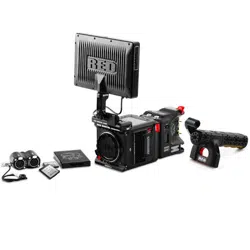
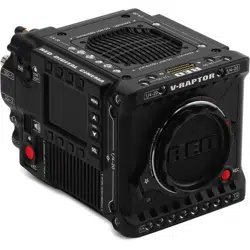
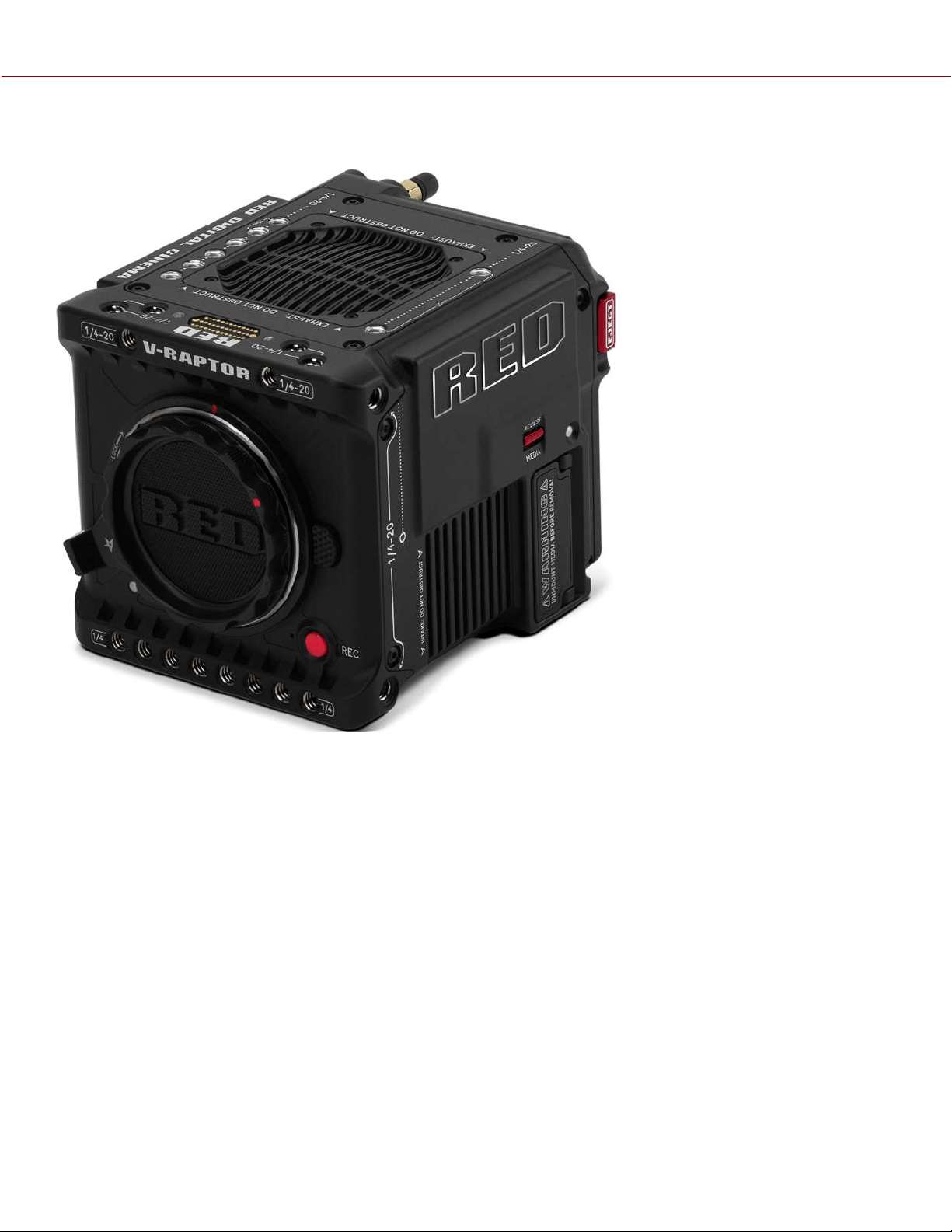
Figure: V-RAPTOR 8K V V camera
V-RAPTOR™ 8K VV + 6K S35 (DUAL FORMAT)
V-RAPTOR 8K V V is the latest breakthrough product in RED's long line of innovative image capture technology. The
newest entrant into the RED lineup is a compact, all-in-one, and highly powerful cinema camera. It features RED’s
cinema grade image quality, color science, and sensor technology in a portable form factor cinematographers can take
anywhere and adapt to any shooting scenario.
The new sensor in V-RAPTOR 8K V V is an 8K V V plus 6K S35 dual format CMOS sensor. This sensor breaks new
technical ground by retaining wide dynamic range and delivering unmatched RED imagery, without compromising
creative or technical features. V-RAPTOR 8K V V includes a built-in locking RF-style mount allowing users the flexibility
to use the full features of RF-style lenses and several lens adaptors, such as Canon EF, PL, and Leica M mount.
The V-RAPTOR 8K V V records using the R3D format on a CFexpress Type B media card. The RED V-RAPTOR 8K V V
is powered by the REDVOLT MICRO-V battery or by a power cable. You can control the V-RAPTOR 8K V V features by
using the side LCD, or by using RED Control over Wi-Fi or through a wired connection.
QUICK REFERENCE
Refer to the Quick Reference section to get familiar with this guide and the camera.
V-RAPTOR™ 8K V V OPERATION GUIDE

R3D FILE FORMAT AND REDCODE
All videos and frames are recorded to the R3D
®
file format. The R3D file format was developed by RED to provide an
efficient and manageable RAW video data format that promotes advanced post production editing capabilities. In the
R3D file format, the digital image received from the sensor is formatted as a pixel-defect corrected (but in all other
aspects unprocessed) 16-bit per pixel RAW data frame. Each RAW frame, or sequence of RAW frames in a clip, is
compressed using proprietary REDCODE
®
RAW compression, then stored to media.
RAW data is recorded independently of any RGB domain color processing such as ISO, White Balance, or other RGB
color space settings. Instead, color parameters are saved as reference metadata; that is, color is not burned into the
recorded RAW data. This innovative recording technique promotes flexibility in RGB color processing. It allows you to
defer color correction to post production, or to adjust the image color in the field, without changing the recorded RAW
data image quality or dynamic range.
REDCODE is a compression codec that reduces R3D RAW files down to a manageable size, allowing the media to
record longer. The ability to compress RAW data is one of the significant technological advances that RED has brought
to the motion picture industry.
IMAGE PROCESSING PIPELINE
This camera uses RED's Image Processing Pipeline 2 (IPP2). In IPP2, the advanced RED color space
(REDWideGamutRGB) allows the camera to use every color that the sensor can generate up to the clipping threshold.
Then the camera encodes the image using Log3G10, a gamma curve that retains extreme highlight and shadow detail.
Using the advanced color space and gamma curve, RED IPP2 allows you to grade and make color adjustments in post
production, instead of in-camera. IPP2 also allows the camera to use a CDL for grading. For more information about
IPP2, refer to the RED IPP2 support page.
SHOOT FOR VIDEO AND STILLS
High resolution video, such as the digital footage captured by the camera, has surpassed the detail necessary to
produce professional full-sized prints. Because of the ability to record at high frame rates and resolution, this camera is
ideally suited to capture video and still images, simultaneously.
COPYRIGHT © 2021 RED.COM, LLC 955-0198, V1.1, REV. A | 2
V-RAPTOR™ 8K V V OPERATION GUIDE
POST PRODUCTION
Many non-linear editing systems (NLEs) can open and edit RED footage. Each NLE version may have specific
compatibility requirements, such as camera firmware version or camera type. Before shooting, make sure you check all
of the compatibility requirements.
You can open and/or edit R3D files by using one of the following products:
REDCINE-X PRO: RED's proprietary application. Download REDCINE-X PRO for Windows or REDCINE-X PRO for
Mac from www.red.com/downloads.
Adobe Premiere Pro
Avid Media Composer
DaVinci Resolve
Final Cut Pro X: Requires you to download the RED Apple Workflow Installer from www.red.com/downloads.
Adobe PhotoShop: Can open .R3D files, however, you must download the RED Adobe PhotoShop Installer for
Windows or RED Adobe PhotoShop Installer for Mac from www.red.com/downloads.
Foundry Nuke
Assimilate Scratch
AutoDesk Flame
ColorFront Transkoder (beta for latest support)
NOTE: Third-party applications may have limited compatibility with R3D files. Third-party developers must use the most
recent R3D SDK to offer compatibility with the latest RED firmware.
POST PRODUCTION WITH REDCINE-X PRO
REDCINE-X PRO is a professional one-light coloring tool set, equipped with an integrated time line, and with a
collection of post effects software. REDCINE-X PRO provides the ideal environment to review recorded footage, edit
metadata, organize projects, and prepare your R3D files. You can use REDCINE-X PRO or any of the compatible third-
party NLEs to edit R3D files.
ADDITIONAL RESOURCES
RED.com: Visit the official RED website for the latest information about RED products.
RED Downloads: Go to RED Downloads to download the latest firmware, operation guides, and post production
software.
RED 101 Articles: RED offers in-depth technical articles about RED cameras, post production, and digital
cinematography.
RED TECH Videos: RED offers videos about understanding and using RED cameras.
RED Support: Visit the RED SUPPORT site for support articles or to file a support ticket.
COPYRIGHT © 2021 RED.COM, LLC 955-0198, V1.1, REV. A | 3
V-RAPTOR™ 8K V V OPERATION GUIDE

COPYRIGHT © 2021 RED.COM, LLC 955-0198, V1.1, REV. A | 4
2. QUICK REFERENCE
Congratulations new RED V-RAPTOR 8K V V camera owner. This quick reference topic helps you get familiar with this
guide and the Camera Body. It includes links to topics about configuring the camera to fit your recording requirements,
and for learning the basic operation of the camera.
PREPARING THE CAMERA HARDWARE
Prepare the camera hardware for recording by:
Attaching accessories (refer to Outrigger Handle, V-RAPTOR Wing Grip, DSMC3 RED® Touch 7.0" LCD)
Installing compatible Lenses and Adaptors
Inserting Media
Connecting a power source (refer to Power or V-RAPTOR 8K VV Power Adaptor)
Turning On the Camera
PREPARING THE CAMERA SYSTEM
Configure the camera settings to prepare for recording.
CONFIGURING THE SETTINGS
Configuring the camera system settings (refer to the System Settings Menu)
Upgrading the Firmware
Calibrating the camera using the Calibrate feature
Formatting the media (refer to Secure Format)
Specifying the desired recording resolution (refer to Format)
Configuring the Recording Frame Rate and Project Time Base
Setting the exposure (refer to Shutter)
Configuring the monitoring tools and reviewing the monitored image (refer to the Monitoring Menu)
Reviewing the camera status (refer to System Status)
RECORDING
Start recording your project.
Record by pressing the REC button on the Camera Body or Outrigger Handle
Record by using an external trigger (refer to Extension Port)
Record by using USB-C (refer to USB-C Configuration)
Record by using Wi-Fi (refer to How To)
PROCESSING FOOTAGE
Perform post-production using any of the standard applications.
Adobe
®
Premiere
®
Pro
Avid
®
Media Composer
®
DaVinci Resolve
®
Final Cut Pro X
®
V-RAPTOR™ 8K V V OPERATION GUIDE
COPYRIGHT © 2021 RED.COM, LLC 955-0198, V1.1, REV. A | 5
3. CAMERA COMPONENTS
The camera components include the camera body, battery, lenses and adaptors, media reader, outrigger handle, wing
grip, camera LCD, and the RED control app.
CAMERA BODY
This section describes the Front, Back, Left, Right, Top, and Bottom of the camera, and identifies the controls, buttons,
Camera Body LEDs, and the lens mount on the body.
CAMERA BODY CONTROLS AND FEATURES
This section describes the controls and features of the camera.
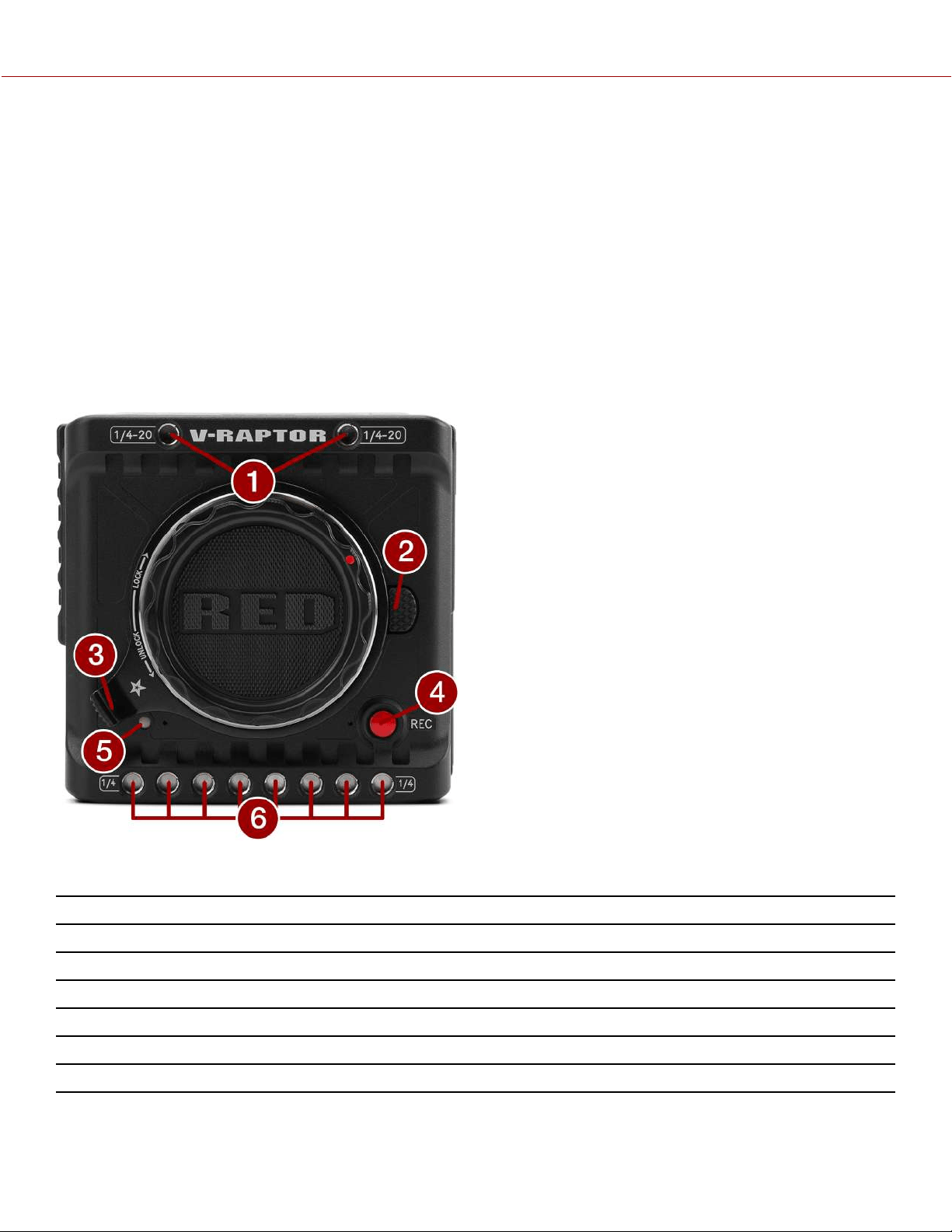
FRONT
Figure: Camera Body Front Controls and Features
#
ITEM DETAILS
1
Mounting holes Two upper ¼"-20 mounting holes
2
Lens release Press to release RF-type lenses
3
Locking ring Rotate to lock and unlock lenses
4
REC button Press to select recording modes or alternate programmable functions
5
Tally light Indicates that the camera is recording (refer to Camera Body LEDs and Indicators)
6
Mounting holes Eight lower ¼"-20 mounting holes
V-RAPTOR™ 8K V V OPERATION GUIDE
BACK
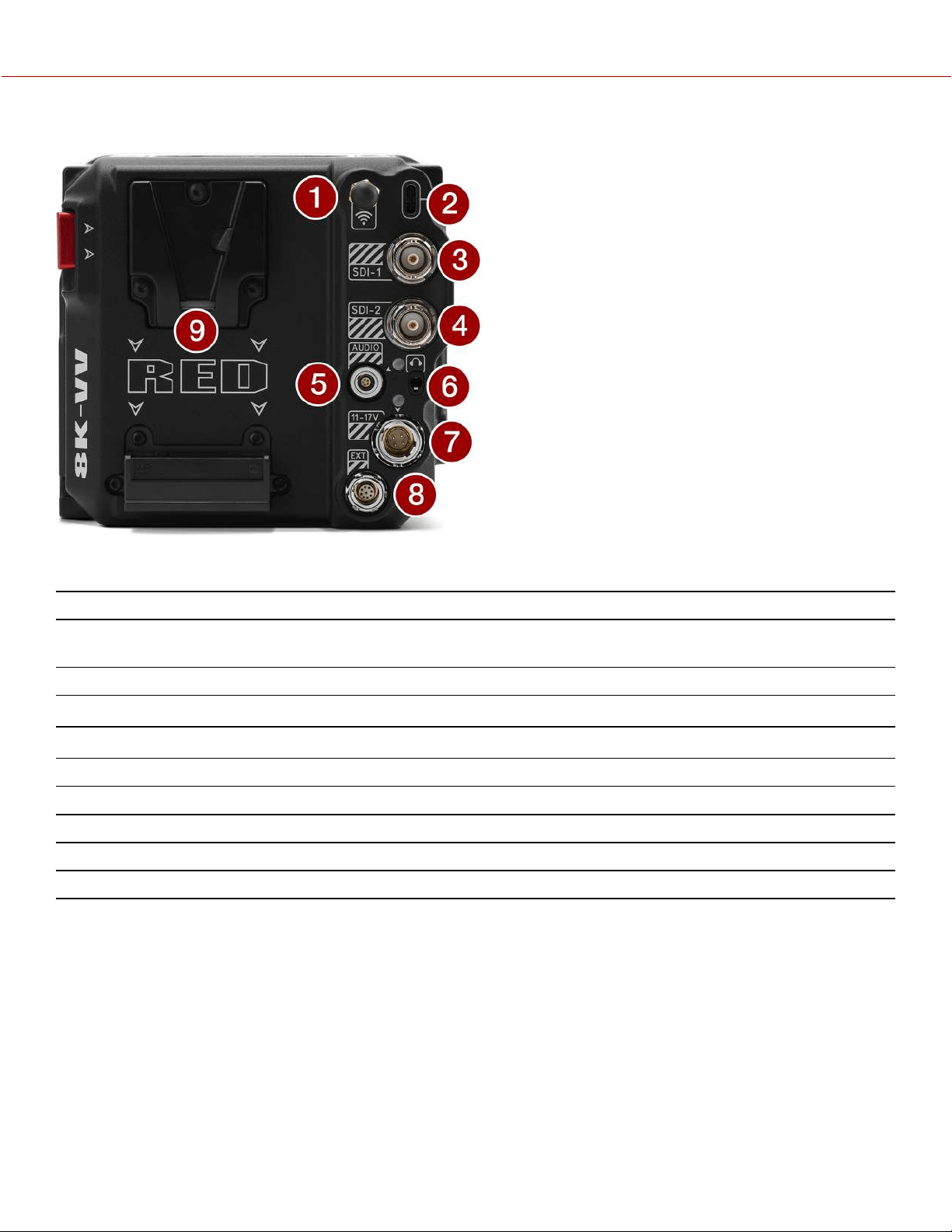
Figure: Camera Body Rear Controls and Features
#
ITEM DETAILS
1
Antenna Male RP SMA Wi-Fi antenna mounted to a female RP SMA connector. Supports 2.4
GHz and 5 GHz
2
USB-C port USB-C connection
3
12G-SDI port 1 Full-size 12G-SDI BNC port for SDI monitor connection
1,2
4
12G-SDI port 2 Full-size 12G-SDI BNC port for SDI monitor connection
1,2
5
Audio port/LED 5-pin 00B ODU for 2 channel audio (Line, Mic, and +48V)
6
Headphone port 3.5 mm stereo headphone jack
7
DC-IN port 6-pin 1B ODU for DC-IN (11 to 17 Volts) (refer to 6-Pin DC-IN)
8
9-Pin Extension Port 9-pin 0B ODU serial port for start/stop, Genlock, TC and RS-232
9
Micro V-Lock port 14.4 V Micro V-Lock battery mount (refer to REDVOLT Micro-V Battery)
1. Use certified 12G-SDI cables.
2. WARNING: Always connect the DC power cable (or batteries) before connecting the BNC SDI cable. Always remove the BNC SDI cable before
removing the DC power cable (or batteries).
COPYRIGHT © 2021 RED.COM, LLC 955-0198, V1.1, REV. A | 6
V-RAPTOR™ 8K V V OPERATION GUIDE
LEFT
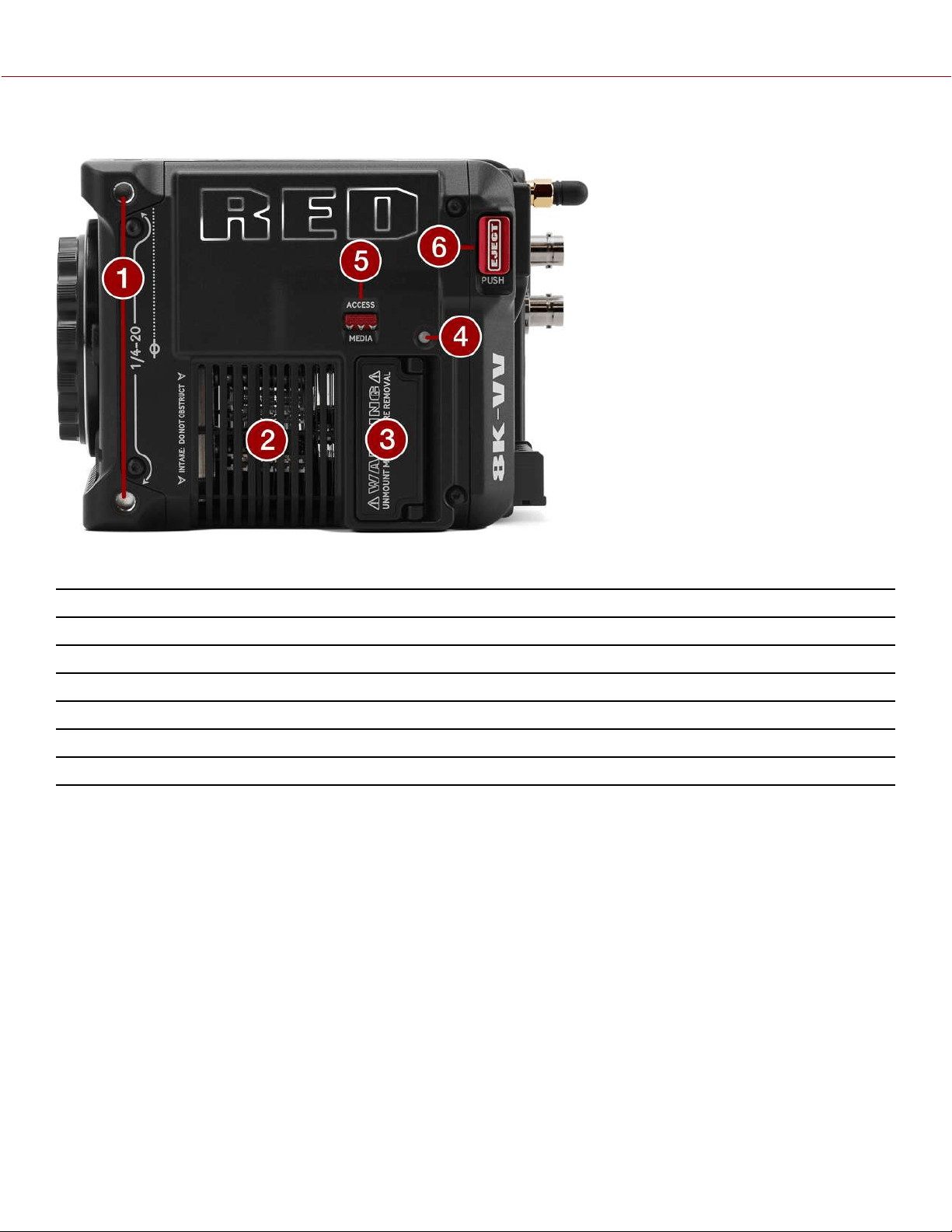
Figure: Camera Body Left Controls and Features
#
ITEM DETAILS
1
Mounting holes Two side ¼-20 mounting holes
2
Intake Cooling fan air intake
3
Media compartment Covered CFexpress Type B compartment
4
CFexpress LED CFexpress status indicator (refer to Camera Body LEDs)
5
Access media Latch for the CFexpress Type B media compartment door
6
EJECT button Eject button for Micro V-Lock battery
COPYRIGHT © 2021 RED.COM, LLC 955-0198, V1.1, REV. A | 7
V-RAPTOR™ 8K V V OPERATION GUIDE
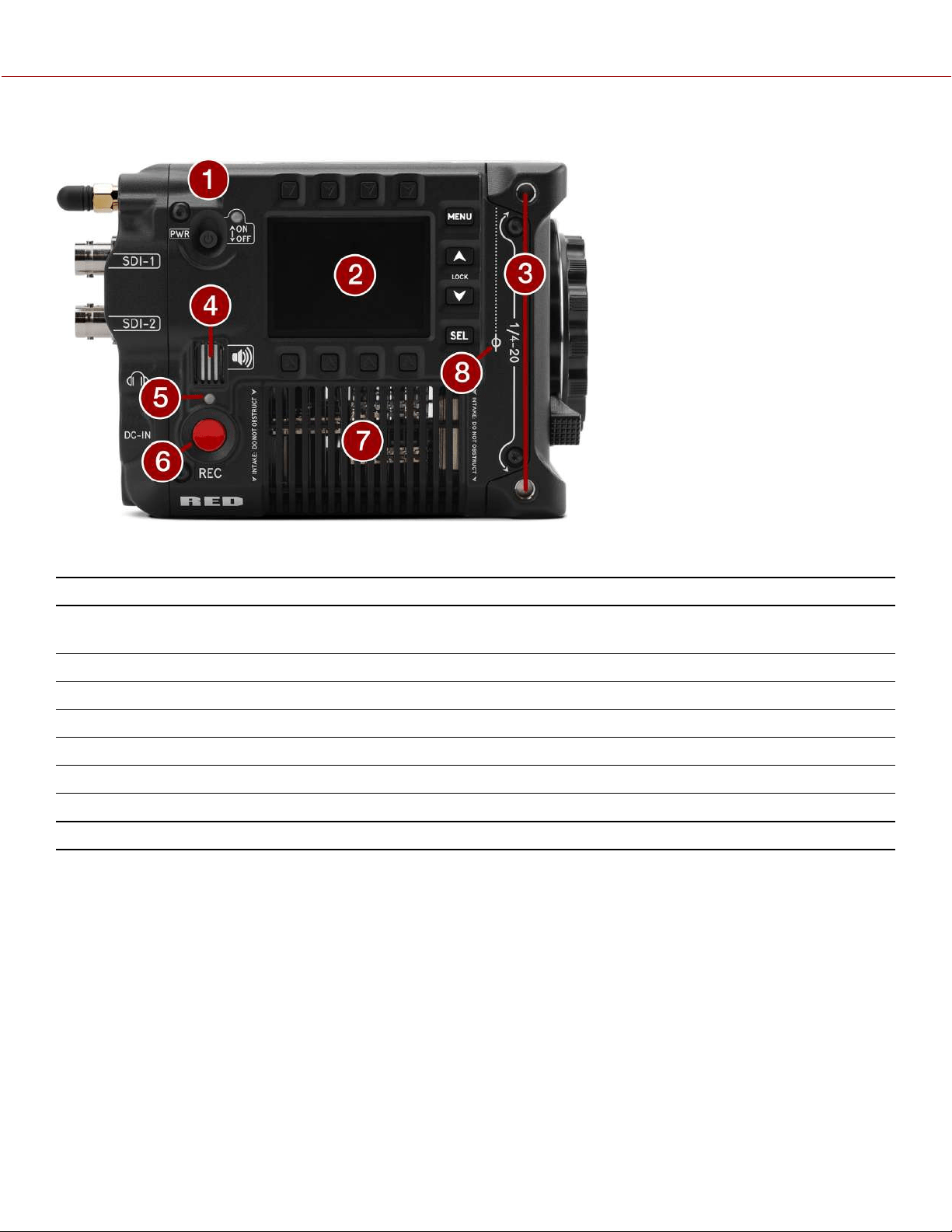
RIGHT
Figure: Camera Body Right Controls and Features
#
ITEM DETAILS
1
Power switch
and LED
Slide up to turn on the camera and slide down to turn off the camera. LED displays the camera
ready status (refer to Camera Body LEDs)
2
Menu LCD GUI menu screen and buttons
3
Mounting holes Two side ¼"-20 mounting holes
4
Speaker Beep speaker for audible feedback
5
Record LED Displays the camera recording status (refer to Camera Body LEDs)
6
REC button Press and release the
REC
button to toggle between record start and stop
7
Air intake Air intake for thermal management
8
Focus plane Focus plane indicator symbol
COPYRIGHT © 2021 RED.COM, LLC 955-0198, V1.1, REV. A | 8
V-RAPTOR™ 8K V V OPERATION GUIDE
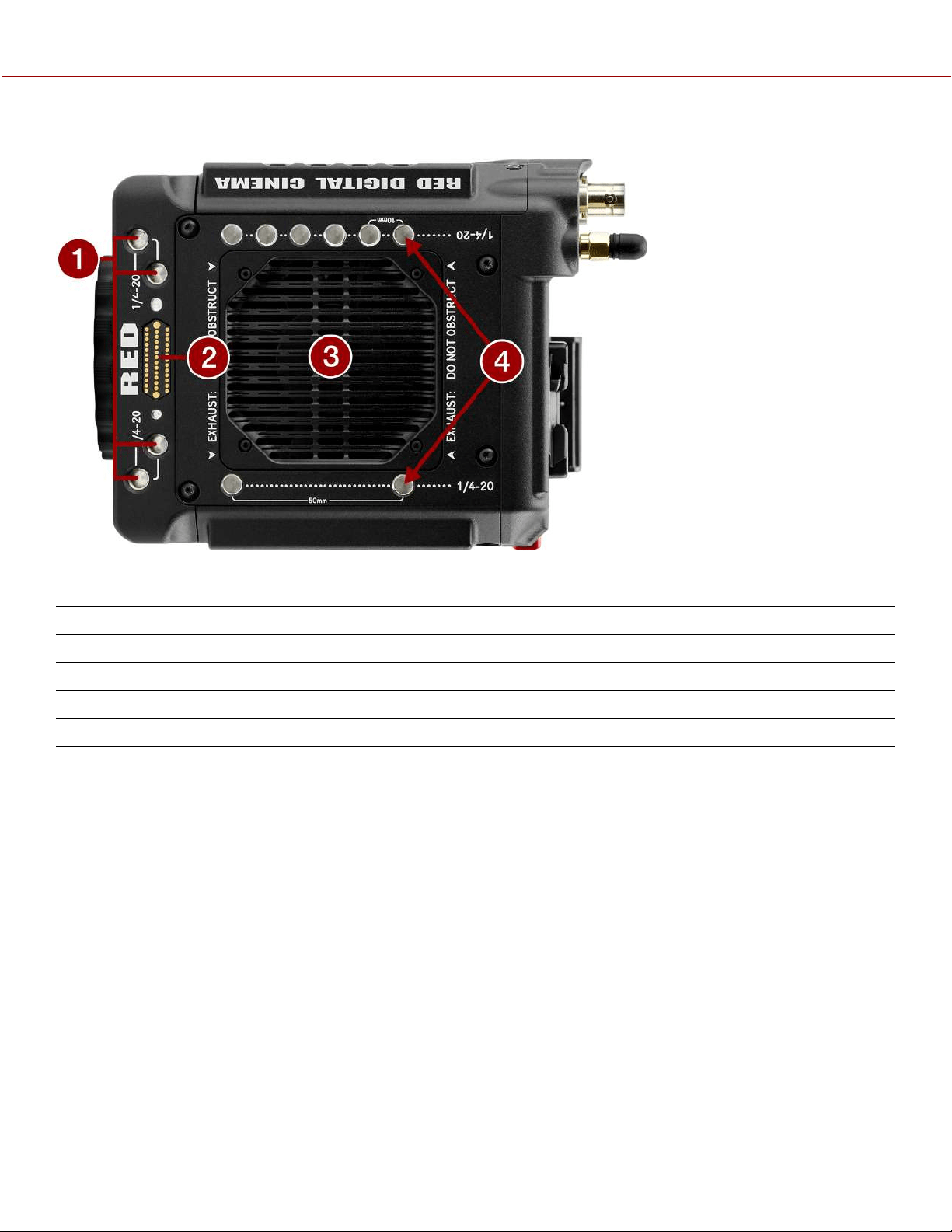
TOP
Figure: Camera Body Top Controls and Features
#
ITEM DETAILS
1
Mounting holes Four top front ¼"-20 mounting holes
2
Accessory port Connection port for accessories (refer to Outrigger Handle, and DSMC3 RED® Touch 7.0" LCD)
3
Exhaust Air exhaust for thermal management
4
Mounting holes Eight top side ¼"-20 mounting holes
COPYRIGHT © 2021 RED.COM, LLC 955-0198, V1.1, REV. A | 9
V-RAPTOR™ 8K V V OPERATION GUIDE
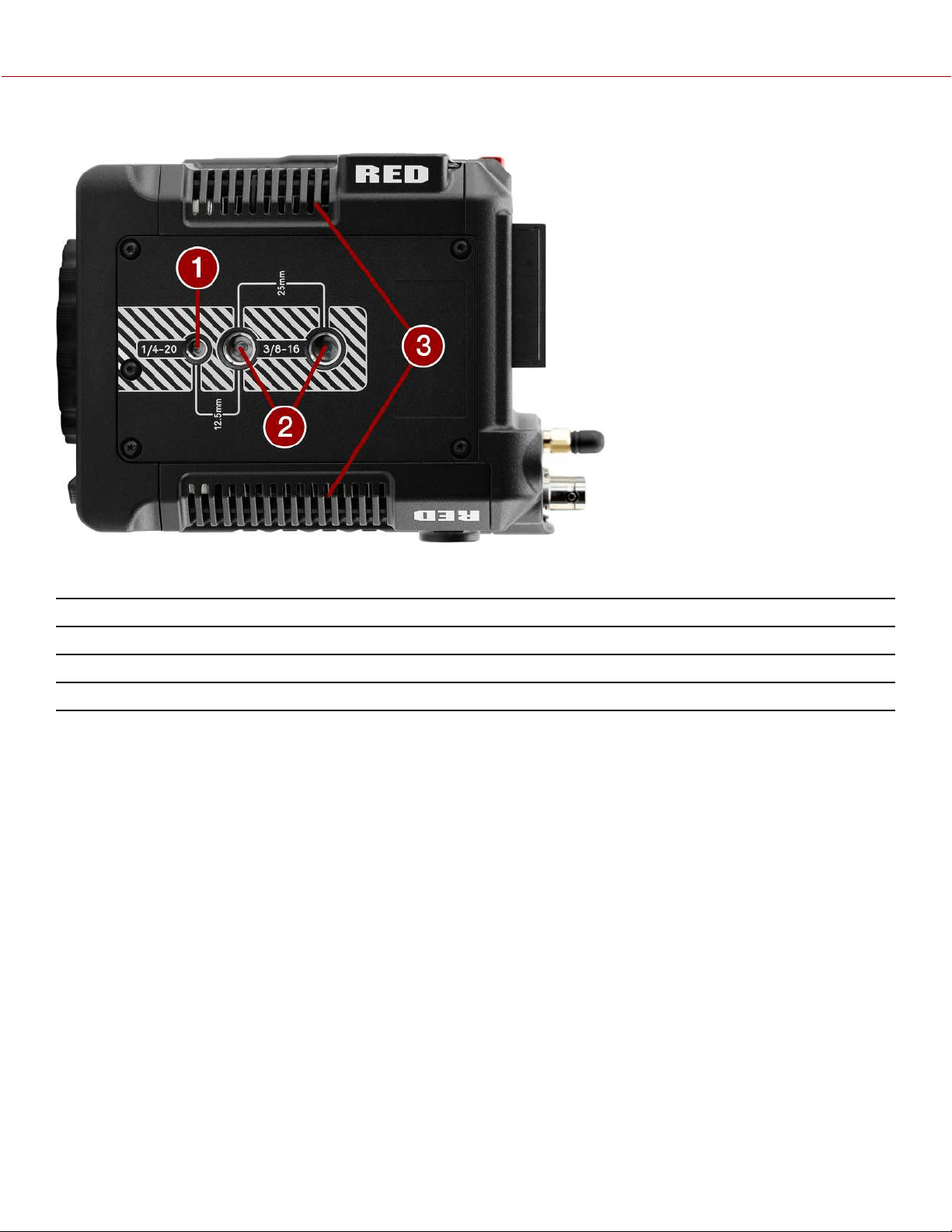
BOTTOM
Figure: Camera Body Bottom Features
#
ITEM DETAILS
1
Mounting point One (1) ¼"-20 mounting hole
2
Mounting points Two (2) ⅜"-16 mounting holes
3
Air intakes Air intakes for thermal management
COPYRIGHT © 2021 RED.COM, LLC 955-0198, V1.1, REV. A | 10
V-RAPTOR™ 8K V V OPERATION GUIDE
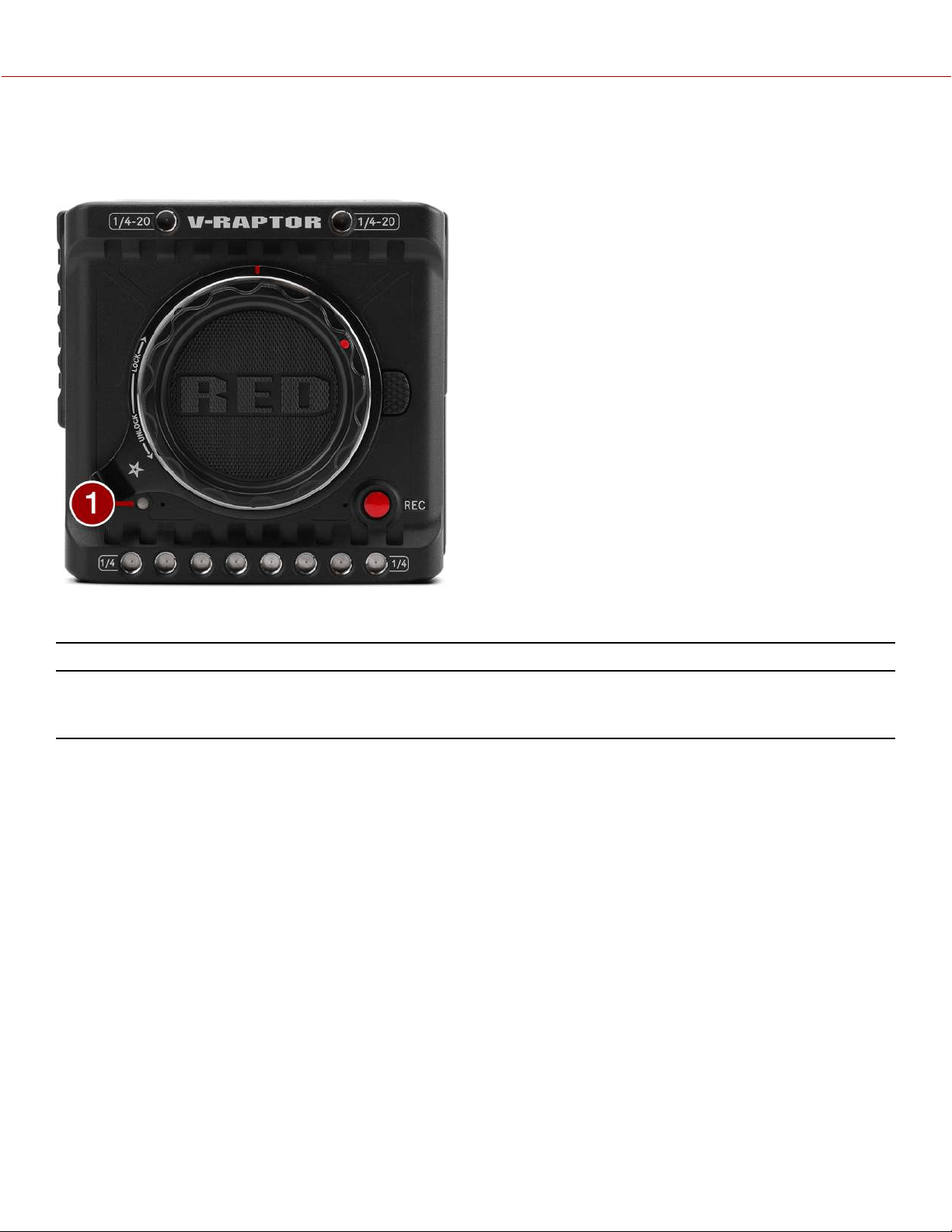
CAMERA BODY LEDS
FRONT LED
Figure: V-RAPTOR 8K V V LED, Front
#
ITEM COLOR DETAILS
1
Tally indicator LED Red When enabled, this LED is ON when the camera is
recording. For information about enabling this LED, refer to
Indicators
COPYRIGHT © 2021 RED.COM, LLC 955-0198, V1.1, REV. A | 11
V-RAPTOR™ 8K V V OPERATION GUIDE
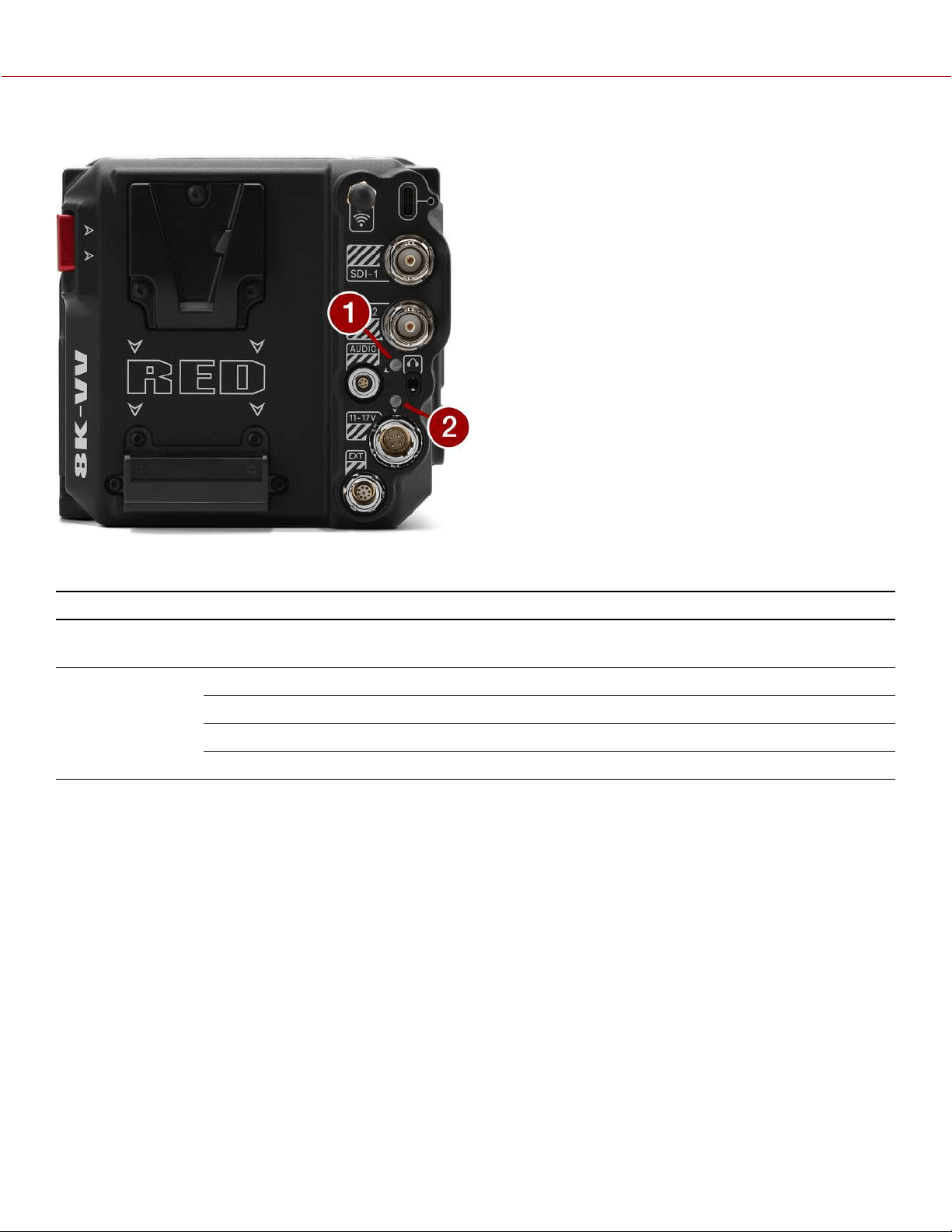
BACK LEDS
Figure: V-RAPTOR 8K V V , DC/Battery LEDs
#
ITEM COLOR DETAILS
1
Phantom
power
Blue Indicates that the +48 V Phantom Power is enabled
2
DC-IN Green DC-IN is present and / or the battery is fully charged
Flashing amber Communicating with, and evaluating, the battery
Amber Charging connected battery
Red Error charging the battery
COPYRIGHT © 2021 RED.COM, LLC 955-0198, V1.1, REV. A | 12
V-RAPTOR™ 8K V V OPERATION GUIDE
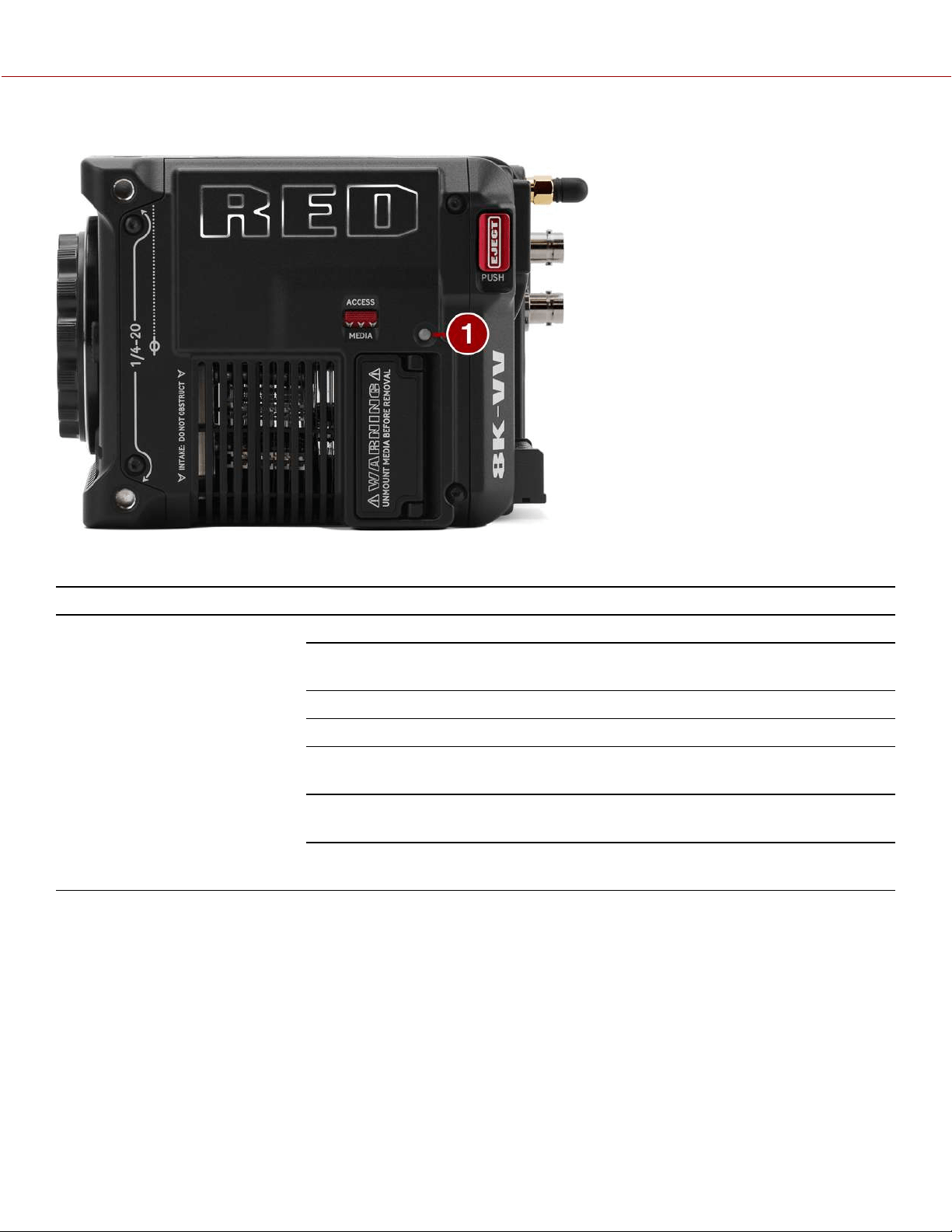
LEFT SIDE LED
Figure: V-RAPTOR 8K V V LED, Left Side
#
ITEM COLOR/FLASHING DETAILS
1
CFexpress media LED Off No media mounted
Green Preview; media mounted with > 10% of
media space available
Amber Recording finalizing or playback mode
Amber flashing slow Formatting media
Red flashing slow Media mounted with >5% and <= 10% of
media space available
Red flashing fast Media mounted with <= 5% of media space
available
Red Recording with > 10% of media space
available
COPYRIGHT © 2021 RED.COM, LLC 955-0198, V1.1, REV. A | 13
V-RAPTOR™ 8K V V OPERATION GUIDE
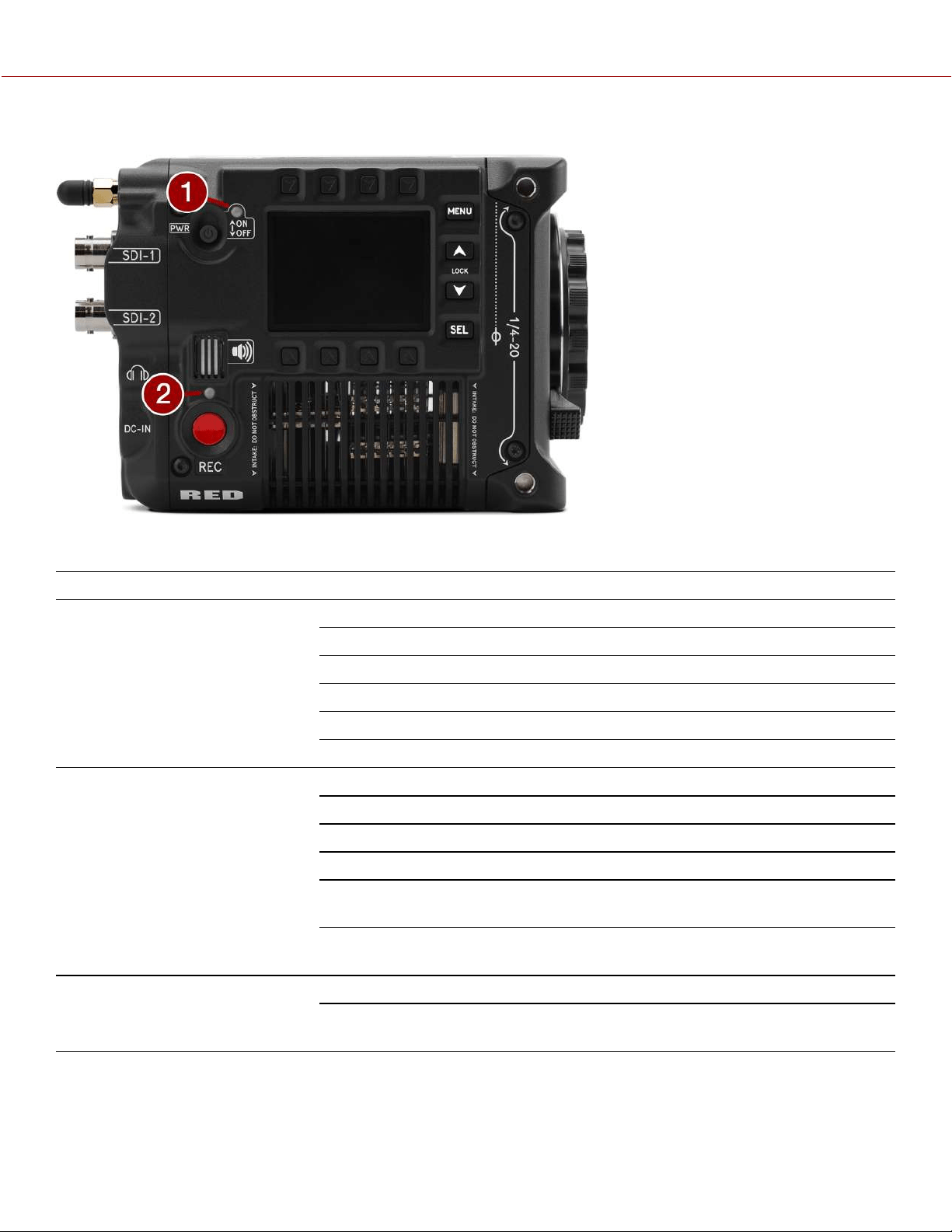
RIGHT SIDE LEDS
Figure: V-RAPTOR 8K V V LEDs, Right Side
#
ITEM COLOR/FLASHING DETAILS
1
Power status (ON) Off Camera OFF
Amber Camera booting
Green Camera ON
Amber flashing Camera ON; 5 to 10 min of battery time available
Red flashing Camera ON; < 5 min of battery time available
Red Camera shutting down
2
Record status (REC) Off No media present
Green Ready to record
Red Recording
Amber Finalizing
Red flashing slow Media mounted with >5% and <= 10% of media
space available
Red flashing fast Media mounted with <= 5% of media space
available
Power and record Both flashing green Firmware update in progress
Both flashing red Firmware update error (refer to Upgrading the
Firmware)
COPYRIGHT © 2021 RED.COM, LLC 955-0198, V1.1, REV. A | 14
V-RAPTOR™ 8K V V OPERATION GUIDE
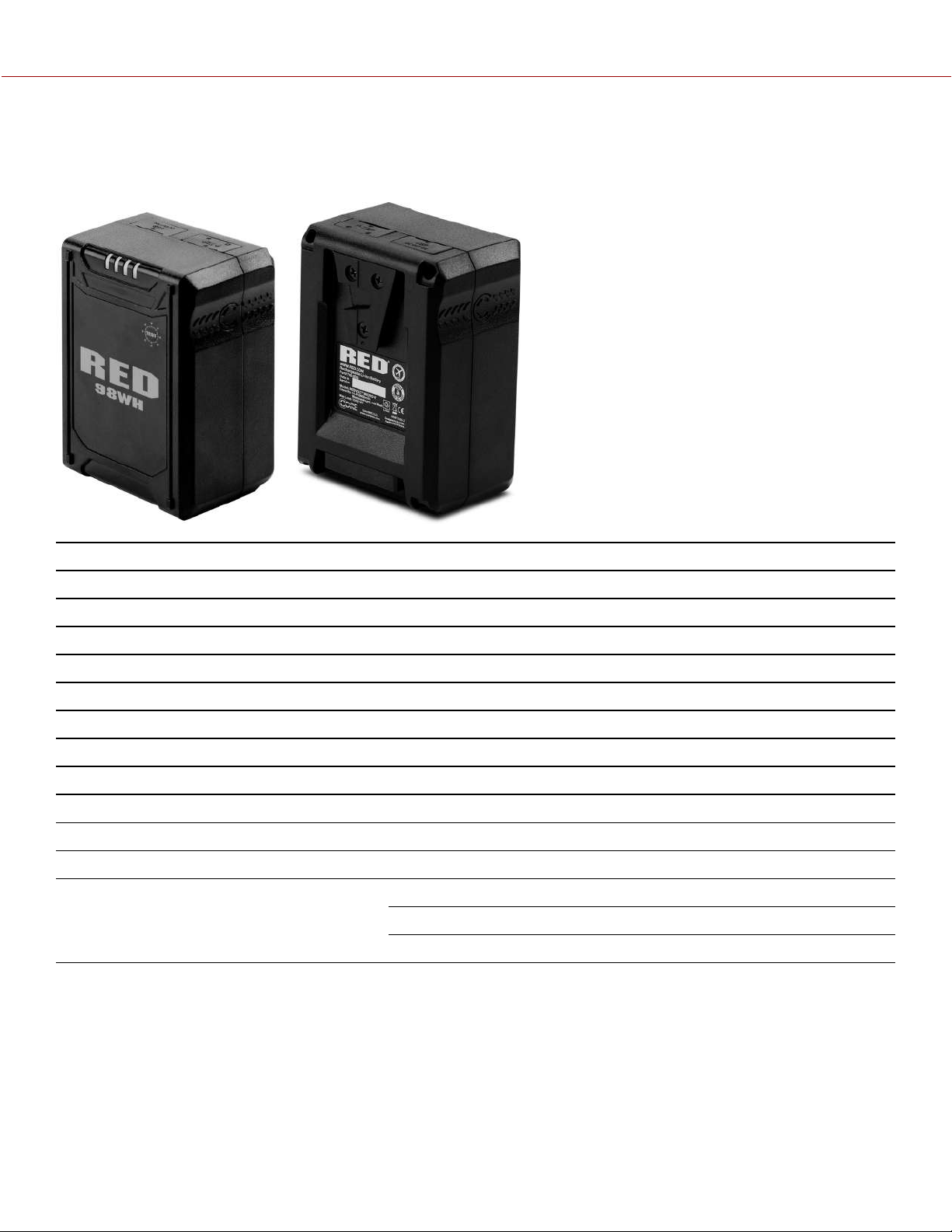
REDVOLT MICRO-V BATTERY
The camera uses the REDVOLT Micro-V 14.7 V battery. This battery includes an LED charge level indicator, a P-Tap
port, and a USB power port.
ITEM DETAILS
Type Rechargeable Lithium-Ion Battery
Capacity 6600 mAh / 98 Wh
Battery output 14.8 V DC
P-Tap output 12 V DC
USB output 5 V DC (3 Amps)
Maximum load 12 Amps at 14 V DC
Operating temperature 50° F ~ 113° F (10° C ~ 45° C)
Charging temperature 32° F ~ 104° F (0° C ~ 40° C)
Storage temperature 68° F ~ 122° F (20° C ~ 50° C)
Charger RED Compact Dual V-Lock charger
Weight Approximately 1.2 lb (544.3 g)
Dimensions Height: 3.93 in. (99.8 mm)
Width: 2.82 in. (71.6 mm)
Depth: 1.94 in. (49.3 mm)
The camera charges the battery when the camera is off and a power cable is connected. You can also use the optional
RED Compact Dual V-Lock charger.
COPYRIGHT © 2021 RED.COM, LLC 955-0198, V1.1, REV. A | 15
V-RAPTOR™ 8K V V OPERATION GUIDE
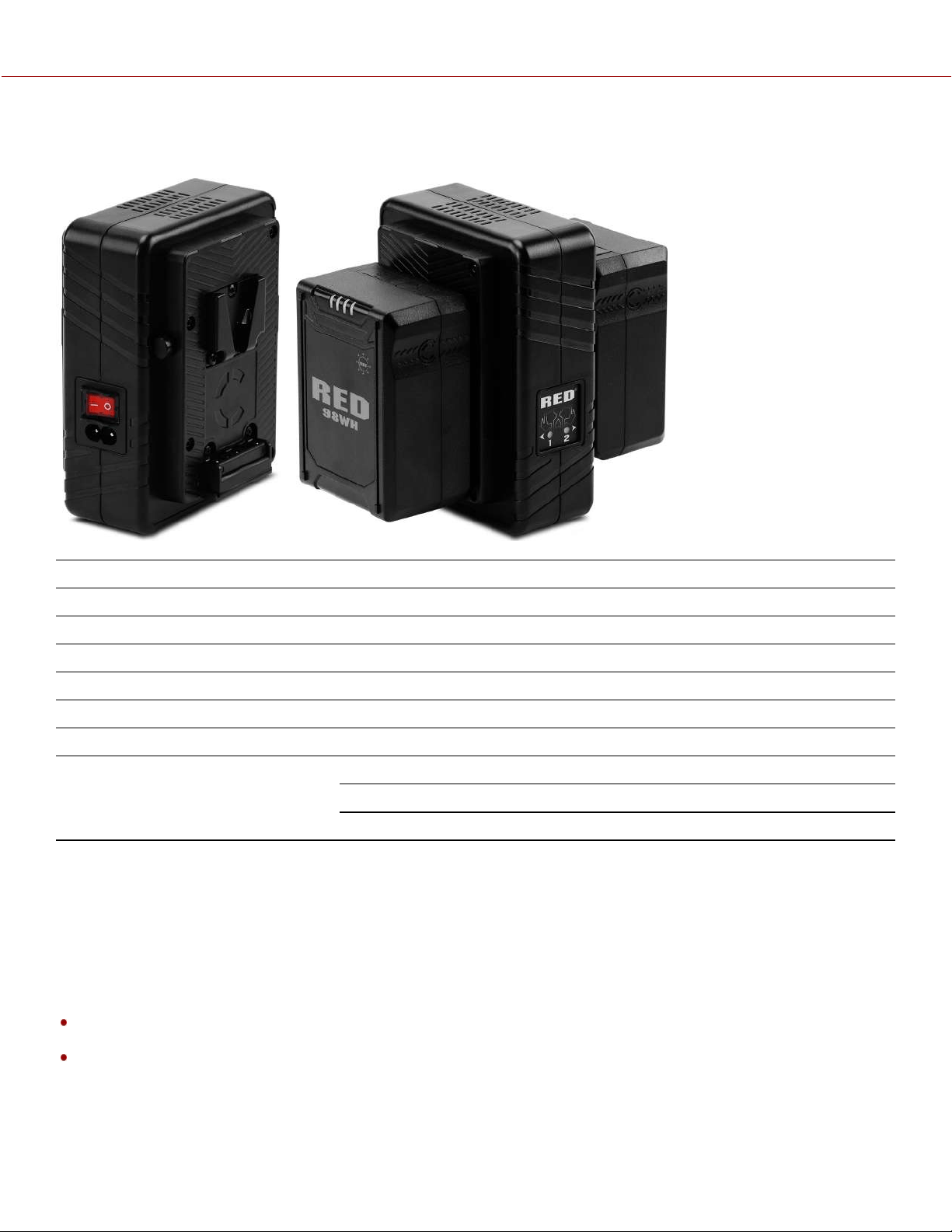
RED COMPACT DUAL V-LOCK CHARGER
The optional RED Compact Dual V-Lock charger allows you to charge two REDVOLT Micro-V batteries.
ITEM DETAILS
Input 100 V - 240 V AC 50 Hz to 60 Hz
Charge current One battery 3 Amps, two batteries 1.5 Amps
Charging temperature 32° F ~ 104° F (0° C ~ 40° C)
Storage temperature 68° F ~ 122° F (20° C ~ 50° C)
Battery compatibility REDVOLT Micro-V 14.7 V DC
Weight Approximately 1 lb (453.5 g)
Dimensions Height: 4.5 in. (114.3 mm)
Width: 5.5 in. (139.7 mm)
Depth: 3 in. (76.2 mm)
COMPATIBLE BATTERIES
Compatible batteries are those that provide enough current (14.4 V with 8 A or greater) to power the RED V-RAPTOR,
and that also fit the dimensions on the V-RAPTOR’s integrated Micro V-Lock plate.
RED chose the Micro V-Lock plate for the V-RAPTOR to keep its form-factor compact. As a result, not all V-Lock
batteries are compatible with the camera.
NOTE:
V-Lock batteries with a width greater than 2.95 in. (75 mm) are not compatible with the camera’s Micro V-Lock plate
and will require adapter plates.
The camera can charge a battery that supports SMBus communication directly. To charge the battery, the camera
must be powered off while connected to DC-IN power.
COPYRIGHT © 2021 RED.COM, LLC 955-0198, V1.1, REV. A | 16
V-RAPTOR™ 8K V V OPERATION GUIDE
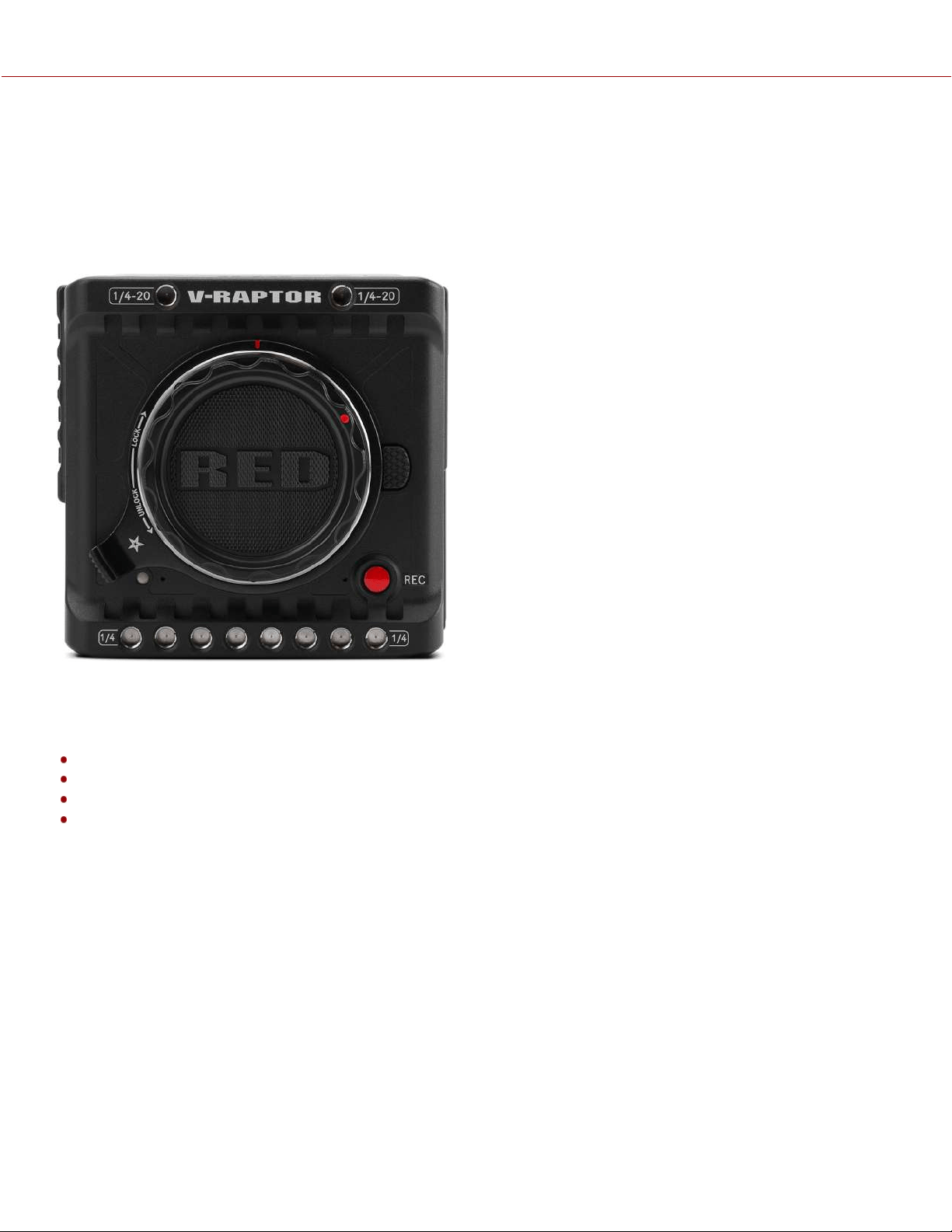
LENSES AND ADAPTORS
This section lists the compatible lenses and adaptors for the camera. It also provides the steps for Attaching Lenses
and Removing Lenses.
For more information on a specific lens or adaptor, refer to the original manufacturer’s instructions.
WARNING: When the camera is not in use, protect lenses and the camera sensor by attaching the lens caps and
camera mount cap.
Figure: Camera with mount cap installed.
Incompatible lenses do not register on the camera UI and they will not show any UI lens information or menu controls.
The camera can control compatible lenses electronically, including the following features:
Iris - The UI menu is enabled and the camera can control the lens Iris
Autofocus - The UI menu is enabled for lenses that support autofocus
Image Stabilization - The UI indicates that image stabilization is present
Control Ring - The UI menu is enabled and the camera can use the control ring
For more information, refer to the Lens menu.
COPYRIGHT © 2021 RED.COM, LLC 955-0198, V1.1, REV. A | 17
V-RAPTOR™ 8K V V OPERATION GUIDE

COMPATIBLE LENSES
The latest RED-tested and approved lenses are listed on the V-RAPTOR 8K VV section of RED Support.
LENS WEIGHT AND LENS SUPPORT
Use a lens support system when mounting heavy or long lenses to your camera.
When mounting a heavy or long lens, ensure that the full weight of the lens is never directly on the camera or lens
mount. Mount the lens to the support system first, and then carefully mount the lens to the camera.
COMPATIBLE MOUNT ADAPTORS
RED tested the following adaptors and determined that they are compatible with the camera:
Canon Mount Adaptor EF-EOS R
Canon Drop-In Filter Mount Adaptor EF-EOS R with Variable ND Filter / Clear Filter / Circular Polarizer
Refer to the V-RAPTOR 8K VV section of RED Support for more information.
ATTACHING LENSES
1. Unlock the locking ring by rotating it to the fully counterclockwise position.
2. Press and hold the lens release button on the camera. While holding the lens release button, turn the camera lens
mount cap counter-clockwise until it stops, and remove it from the camera. If the lens locking ring rotates while
removing the cap, make sure that you hold the locking ring tab in place while rotating the cap.
3. Remove the rear lens cap from the mount end of the lens.
4. Align the red dot on the lens mount with the red dot on the camera lens mount, and insert the lens mount of the lens
in the camera lens mount opening.
5. Turn the lens clockwise until it clicks in place. If the lens locking ring rotates while attaching the lens, make sure that
you hold the locking ring tab in place while rotating the lens or adaptor.
6. Gently tighten the locking ring. DO NOT OVER-TIGHTEN THE LOCKING RING.
7. Store the camera lens mount cap and the rear lens cap together in a dust free location.
REMOVING LENSES
1. Loosen the locking ring gently.
2. Press and hold the lens release button on the camera. While holding the lens release button, turn the lens counter-
clockwise until it stops, and remove it from the camera. If the lens locking ring rotates while removing the lens, make
sure that you hold the locking ring tab in place while rotating the lens or adaptor.
3. Align the red dot on the camera lens mount cap with the red dot on the camera lens mount, and attach the cap to
the camera.
4. Gently tighten the locking ring. DO NOT OVER-TIGHTEN THE LOCKING RING.
5. Attach the rear lens cap to the lens.
6. Store the lens with the front and rear caps attached.
COPYRIGHT © 2021 RED.COM, LLC 955-0198, V1.1, REV. A | 18
V-RAPTOR™ 8K V V OPERATION GUIDE
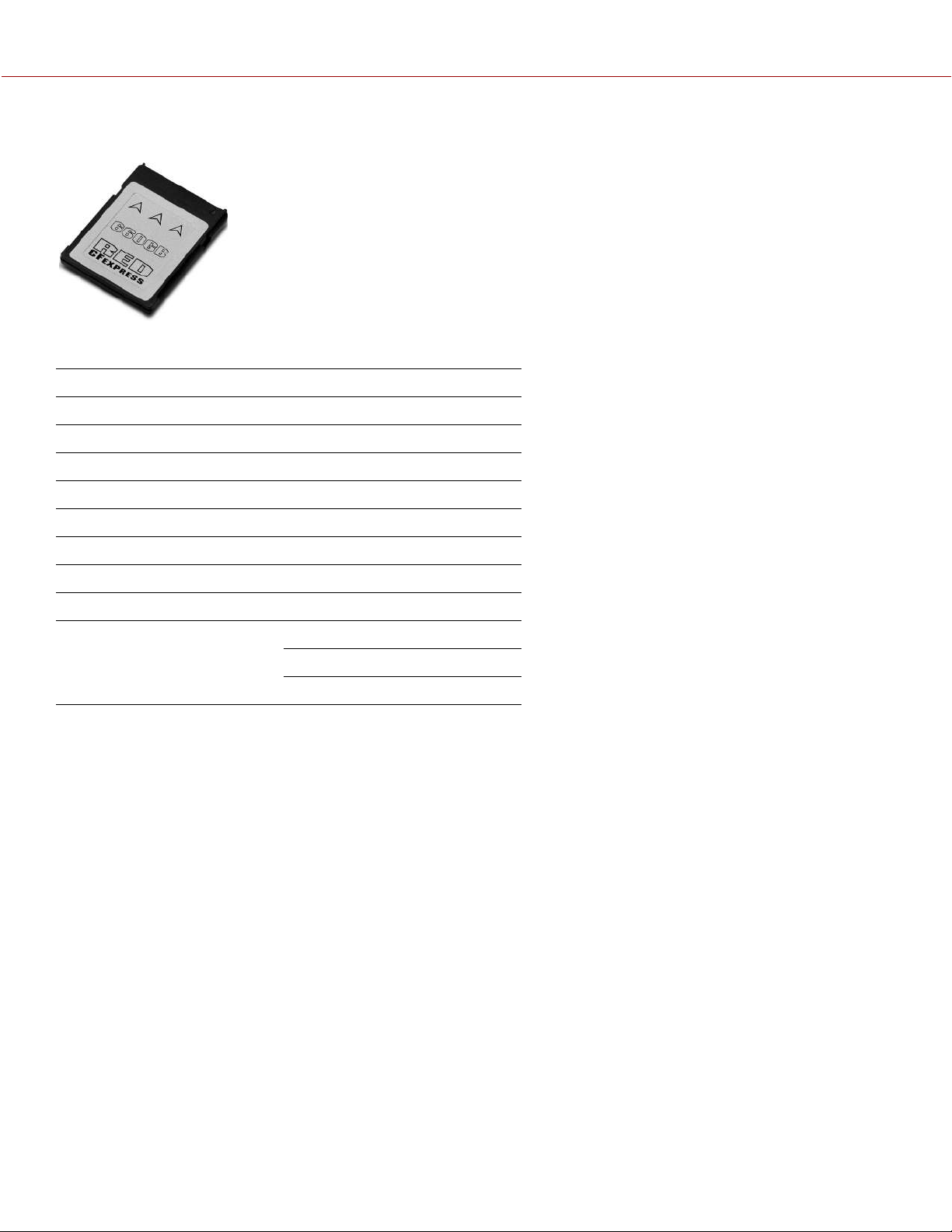
RED CFEXPRESS TYPE B MEDIA
The RED CFexpress Type B Media provides the camera with a 660 gigabyte recording option.
ITEM DETAILS
Type CFexpress Type B Media
Capacity 660,138,909,696 bytes
Operating temperature 14° F to 158° F (-10° C to 70° C)
Operating humidity 5% to 95%, non-condensing
Storage temperature -4° F to 185° F (-20° C to 85° C)
Shock resistance (operating) 50 g
Vibration resistance (operating) 15 g at 10 Hz to 2000 Hz
Weight Approximately 0.25 oz (7.1 g)
Dimensions Height: 1.52 in. (38.5 mm)
Width: 1.17 in. (29.6 mm)
Depth: 0.15 in. (3.8 mm)
COPYRIGHT © 2021 RED.COM, LLC 955-0198, V1.1, REV. A | 19
V-RAPTOR™ 8K V V OPERATION GUIDE
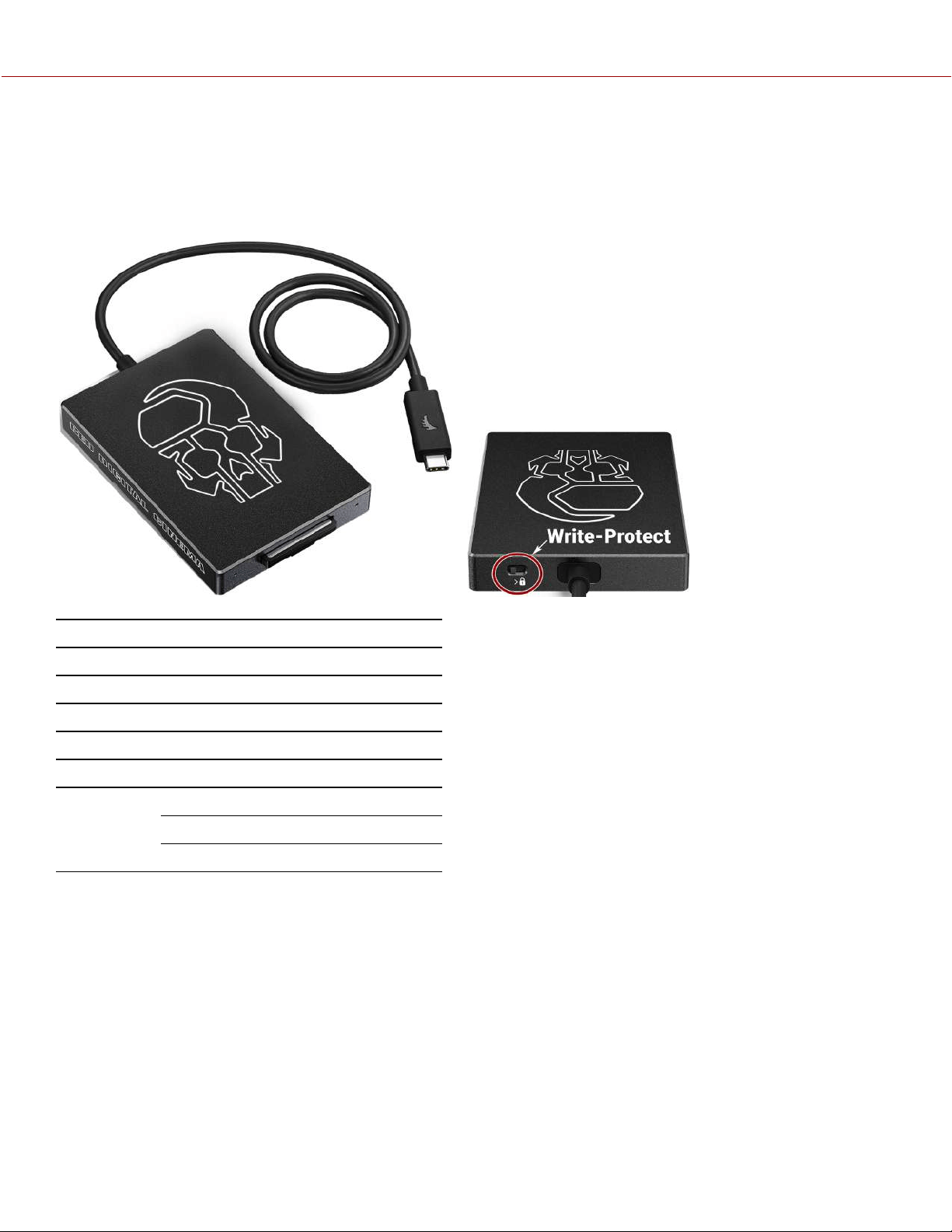
RED CFEXPRESS TYPE B READER
The RED CFexpress Type B Card Reader provides a fast USB-C connection with the capability of write-protect.
Set the Write-Protect switch to the Lock position to prevent connected devices from adding any unwanted data to your
CFexpress Type B card.
ITEM DETAILS
Media read CFexpress Type B
Interface USB-C 3.2 cable to CFexpress Type B
Power USB bus power
Cable USB-C 3.2 cable type A to C adapter
Weight Approximately 4.2 oz (120 g)
Dimensions Height: 3.74 in. (95 mm)
Width: 2.56 in. (65 mm)
Depth: 0.47 in. (12 mm)
COPYRIGHT © 2021 RED.COM, LLC 955-0198, V1.1, REV. A | 20
V-RAPTOR™ 8K V V OPERATION GUIDE
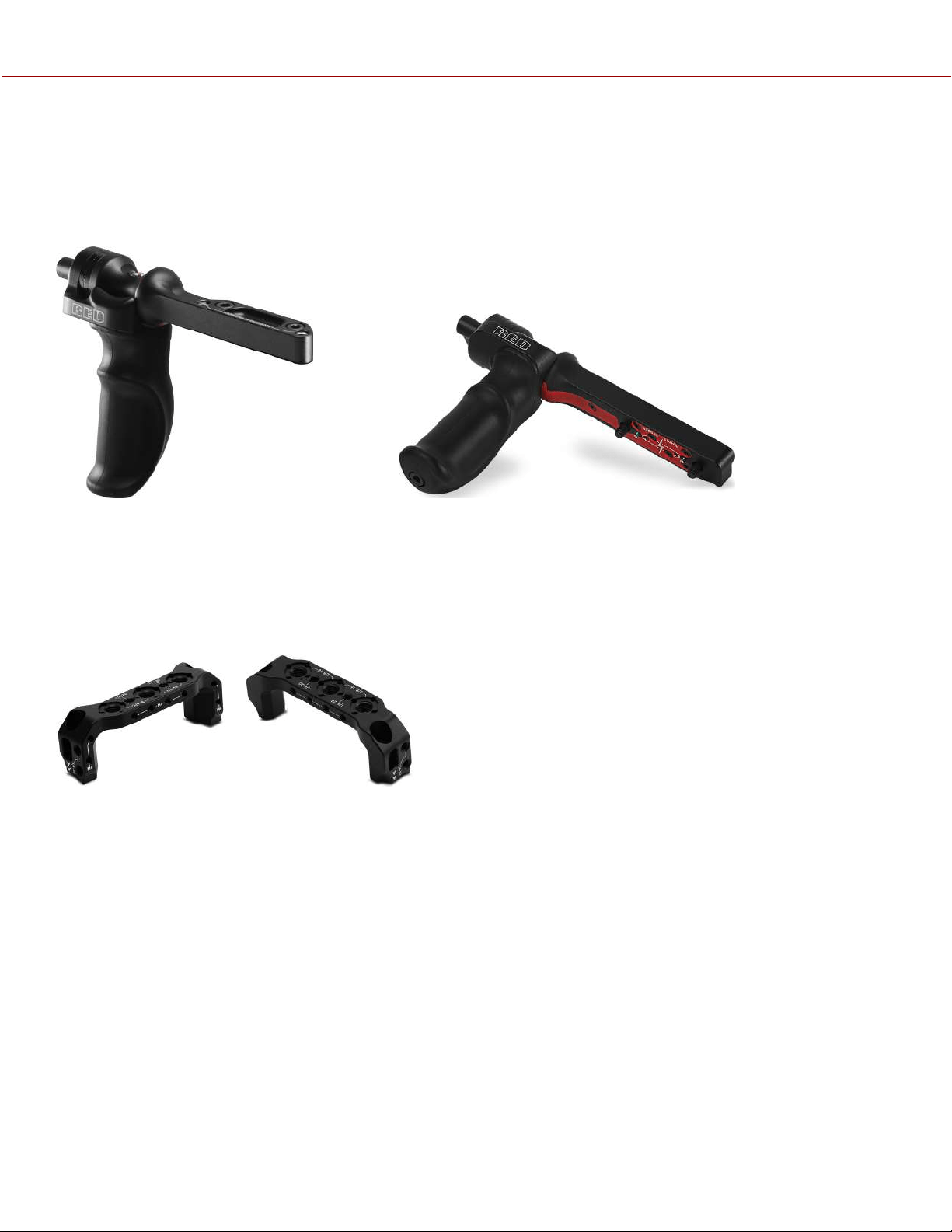
OUTRIGGER HANDLE
The Outrigger Handle offers a low profile, 360° adjustable ergonomic pistol grip and integrated Record Start/Stop
button. Mounted to the Top Handle Port on your camera, the Outrigger Handle provides comfort, stability, and
additional 1/4-20 mounting points for your peripheral camera components. The built-in Record button puts Start/Stop
functionality right at your fingertips. You are always ready to capture the perfect shot.
The Outrigger Handle is ideal for shooters who use one hand on the handle for grip and record button access, and the
other for lens adjustments or support.
V-RAPTOR WING GRIP
The V-RAPTOR Wing Grip offers comfort and utility for carrying or shooting with your V-RAPTOR 8K V V .
Featuring an ergonomic machined grip with tactical 1/4"-20, 3/8"-16, and M4 mounting points. It is lightweightand
offers a seamless low-profilehand-held option.
COPYRIGHT © 2021 RED.COM, LLC 955-0198, V1.1, REV. A | 21
V-RAPTOR™ 8K V V OPERATION GUIDE
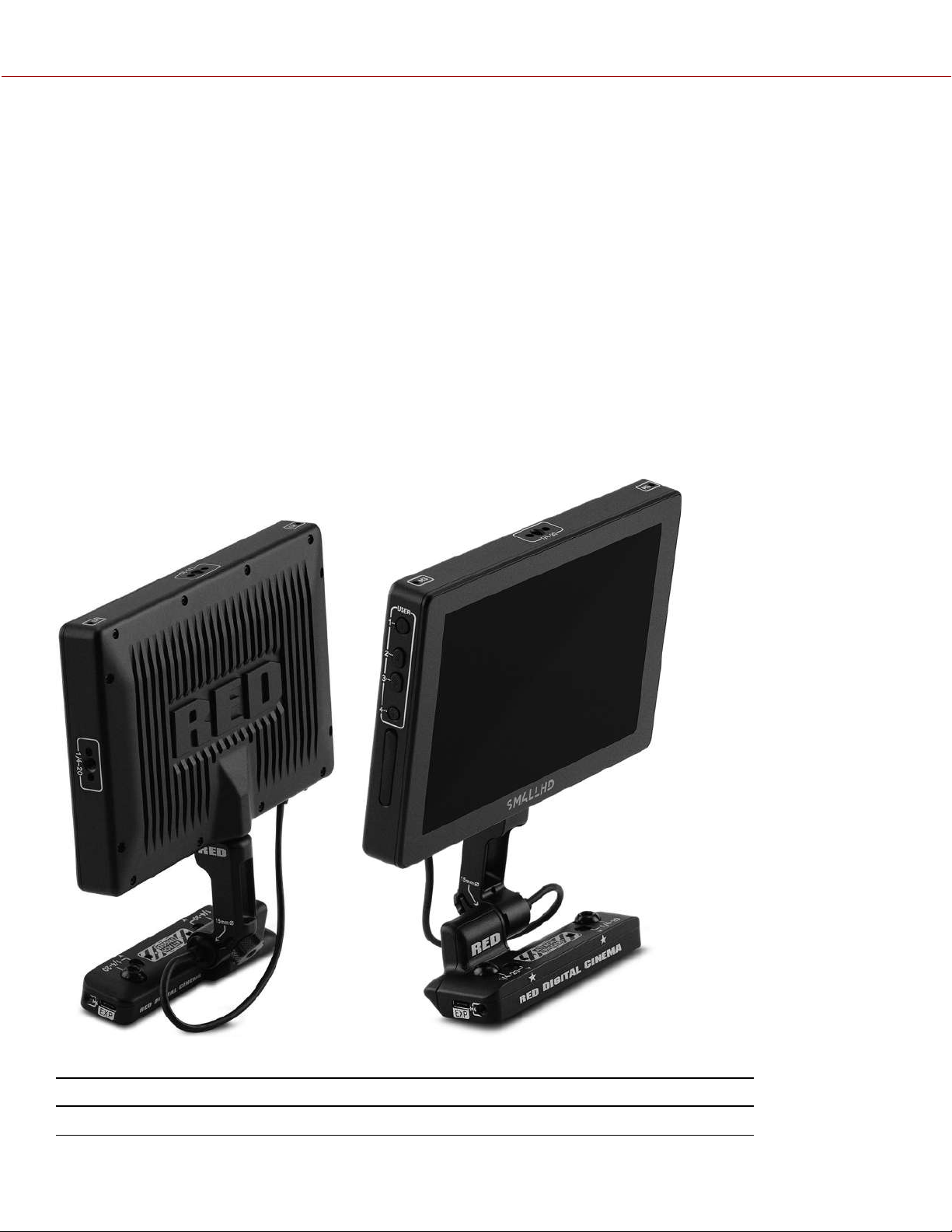
DSMC3 RED
®
TOUCH 7.0" LCD
The optional DSMC3 RED
®
Touch 7.0" LCD offers an HD viewing experience for recording and viewing footage on the
V-RAPTOR 8K VV camera system. A 1920 x 1200 resolution display panel with peak brightness of 1300 nits and high
pixel density (at 322 ppi), not only provides the optimal experience when viewing footage, but also features 100% DCI-
P3 color gamut coverage for tremendous color accuracy.
This monitor also features full control over the camera through the new responsive menu system powered by SmallHD
PageOS. The features include Waveform, Vectorscope, Histogram, False Color, Color Picker, Pixel Zoom, and more.
The lightweight display mounts to a removable integrated tilt arm with the capability to rotate 180 degrees for versatile
mounting options. It also boasts the latest generation pogo pins to provide power and video to the monitor, and the
ability to connect through a single-locking USB-C-style DSMC3 RMI cable for video and power. No additional SDI or
power cables are needed. Refer to RED Monitor Interface Cable for more information.
NOTE: The USB-C-style DSMC3 RMI cable is not a standard USB-C cable. The DSMC3 RED Touch 7.0" LCD is not
compatible with DSMC
®
, DSMC2
®
, RED RANGER
®
or KOMODO
®
camera systems.
For more information, refer to the DSMC3 RED
®
Touch 7.0" LCD User Guide.
SPECIFICATIONS
ITEM DETAILS
Material Aluminum alloy
COPYRIGHT © 2021 RED.COM, LLC 955-0198, V1.1, REV. A | 22
V-RAPTOR™ 8K V V OPERATION GUIDE

ITEM DETAILS
Resolution 1920 x 1200
Pixel density 322 ppi
Refresh rate 60 Hz
Response time 25 ms
Contrast 1250:1
Brightness 1300 cd/m2
Color depth 10 bit
Colors 100% DCI-P3
Viewing angle ± 160° all axes
Display orientation Landscape, 180° rotation
Touch pCap Multi-Touch
Camera connection Power and communication through the RMI cable
Mounting 15 mm rail
Hood Mounting 4 x M3 mounting points
Buttons 4 buttons function 1, 2, 3 & 4
Power consumption 15.5 Watts
Operating temperature 32° F to 104° F (0° C to 38° C)
Storage temperature –0° F to 120° F (–18° C to 49° C)
Operating humidity 0% to 85%, non-condensing
Storage humidity 0% to 85%, non-condensing
Firmware requirement Compatible with V-RAPTOR firmware version 1.1 or later
Monitor dimensions Weight approximately 1.25 lb (568.0 g)
Height: 4.67 in. (118.70 mm)
Width: 7.09 in. (180.10 mm)
Depth: 1.13 in. (28.80 mm)
Arm dimensions Weight approximately 0.07 lb (30.1 g)
Height: 1.18 in. (30.00 mm)
Width: 2.40 in. (61.00 mm)
Depth: 0.70 in. (17.50 mm)
RED Monitor Interface (RMI) dimensions Weight approximately 0.28 lbs (126 g)
Height: 1.67 in. (42.50 mm)
Width: 4.25 in. (108.00 mm)
Depth: 1.51 in. (38.23 mm)
COPYRIGHT © 2021 RED.COM, LLC 955-0198, V1.1, REV. A | 23
V-RAPTOR™ 8K V V OPERATION GUIDE
LCD
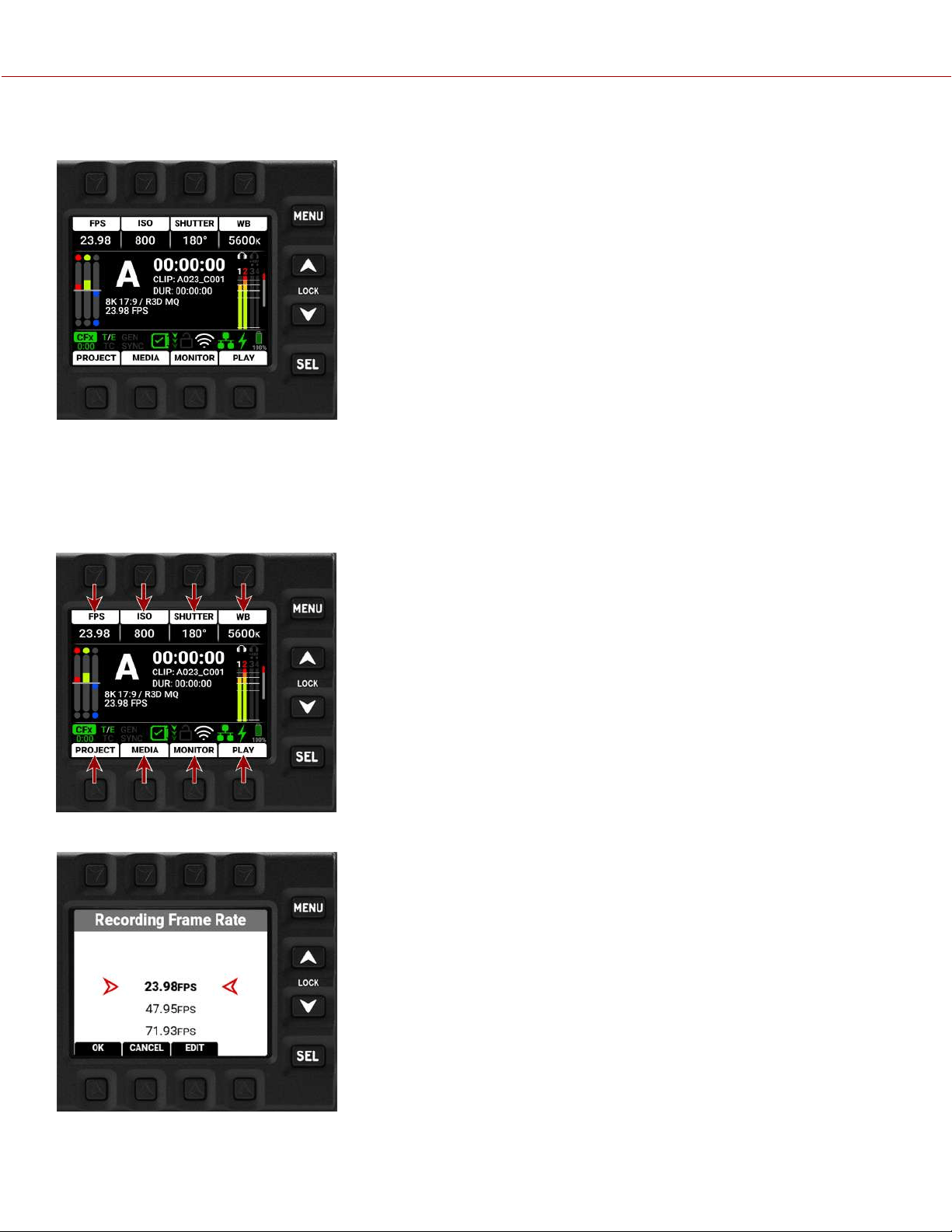
This section describes the graphical user interface (GUI) for the built-in
camera side LCD. Durable controls enable convenient access to menus,
camera features, and critical camera information.
LCD NAVIGATION
Press the up and down arrows together to lock or unlock the LCD. When the LCD is locked, the Lock icon displays
briefly whenever you push an LCD button.
Select items on the LCD screen by pressing the adjacent buttons:
In this example, pressing the button above FPS opens the Recording Frame Rate selection list:
Press the up and down arrows to navigate the list. Press the button below
OK or press the SEL button to accept the choice and return to the Home
Page. Press the button below CANCEL or press the MENU button to return
to the Home Page without making a change. Press the button under EDIT
to open a manual editing screen.
COPYRIGHT © 2021 RED.COM, LLC 955-0198, V1.1, REV. A | 24
V-RAPTOR™ 8K V V OPERATION GUIDE
MENUS
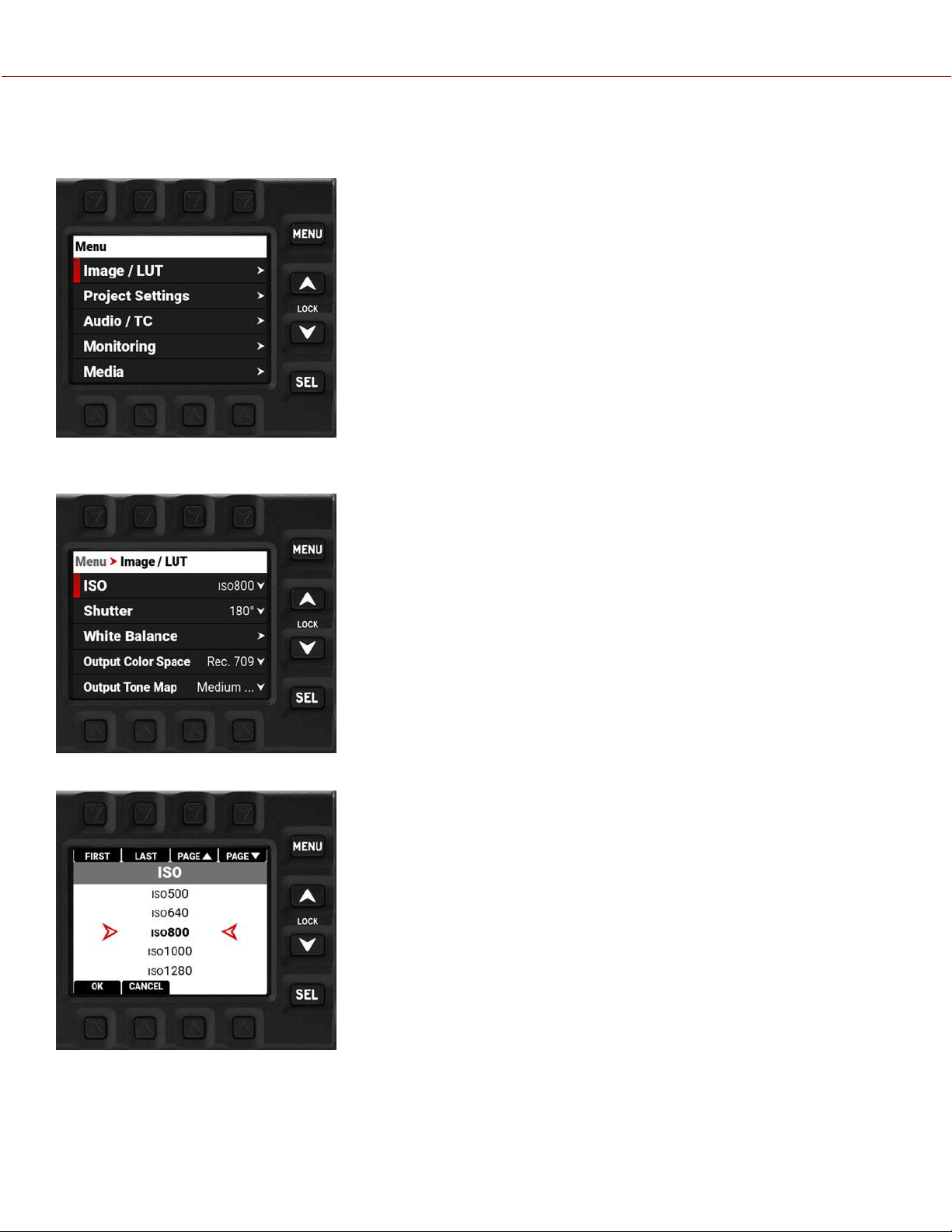
Press the MENU button from the Home Page to open the Menus:
Press the up and down arrows to navigate up and down in the menu list. Press SEL to select a menu and open the
submenus:
Press SEL to select a submenu and open a list of menu items:
Press the buttons above FIRST, LAST, PAGE▲ , or PAGE▼ or press the up or down arrow to navigate the list. Press
SEL, or the button under OK, to select the item. Press MENU, or the button under CANCEL, to return to the menu
without making a selection.
For more information about menus, refer to Menus.
COPYRIGHT © 2021 RED.COM, LLC 955-0198, V1.1, REV. A | 25
V-RAPTOR™ 8K V V OPERATION GUIDE
PAGES
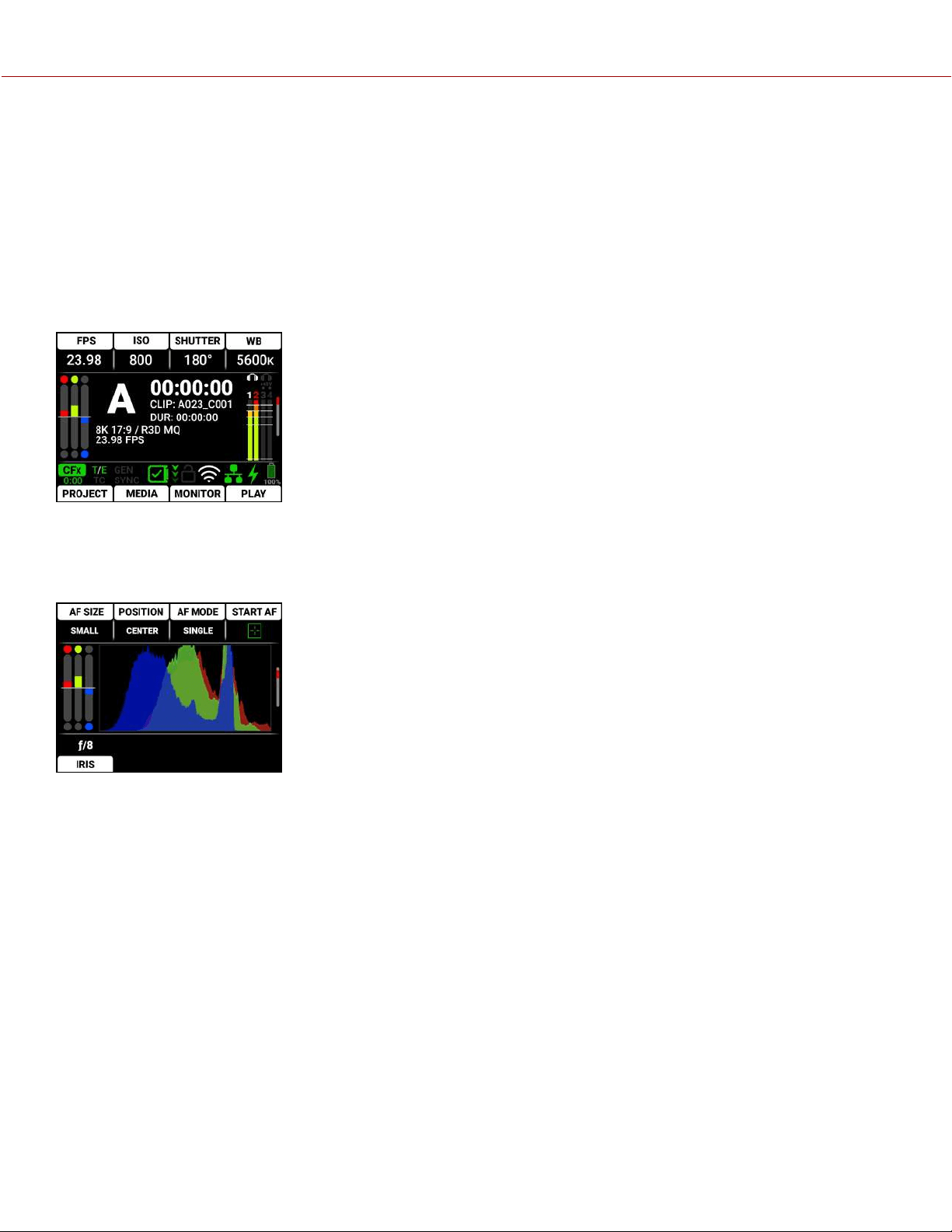
The LCD contains the Home Page, Histogram Page, Tools Page, SDI Page, Audio Channels 1 and 2 Page, Audio
Channels 3 and 4 Page, Headphones Page, and User Pages 1, 2, and 3.
Press the up arrow or down arrow to navigate through the pages. Select the pages you want the LCDto display by
using the Side LCD menu (refer to Side LCD Control Panels).
HOME PAGE
The Home Page contains the Recording Quick Settings, Exposure Meter, Recording Status, VU Meter, Status Bar, and
Quick Menus (refer to Home Page).
HISTOGRAM PAGE
The Histogram Page contains the Autofocus Quick Settings, Exposure Meter, Histogram, and Lens Quick Settings (refer
to Histogram Page).
COPYRIGHT © 2021 RED.COM, LLC 955-0198, V1.1, REV. A | 26
V-RAPTOR™ 8K V V OPERATION GUIDE
TOOLS PAGE
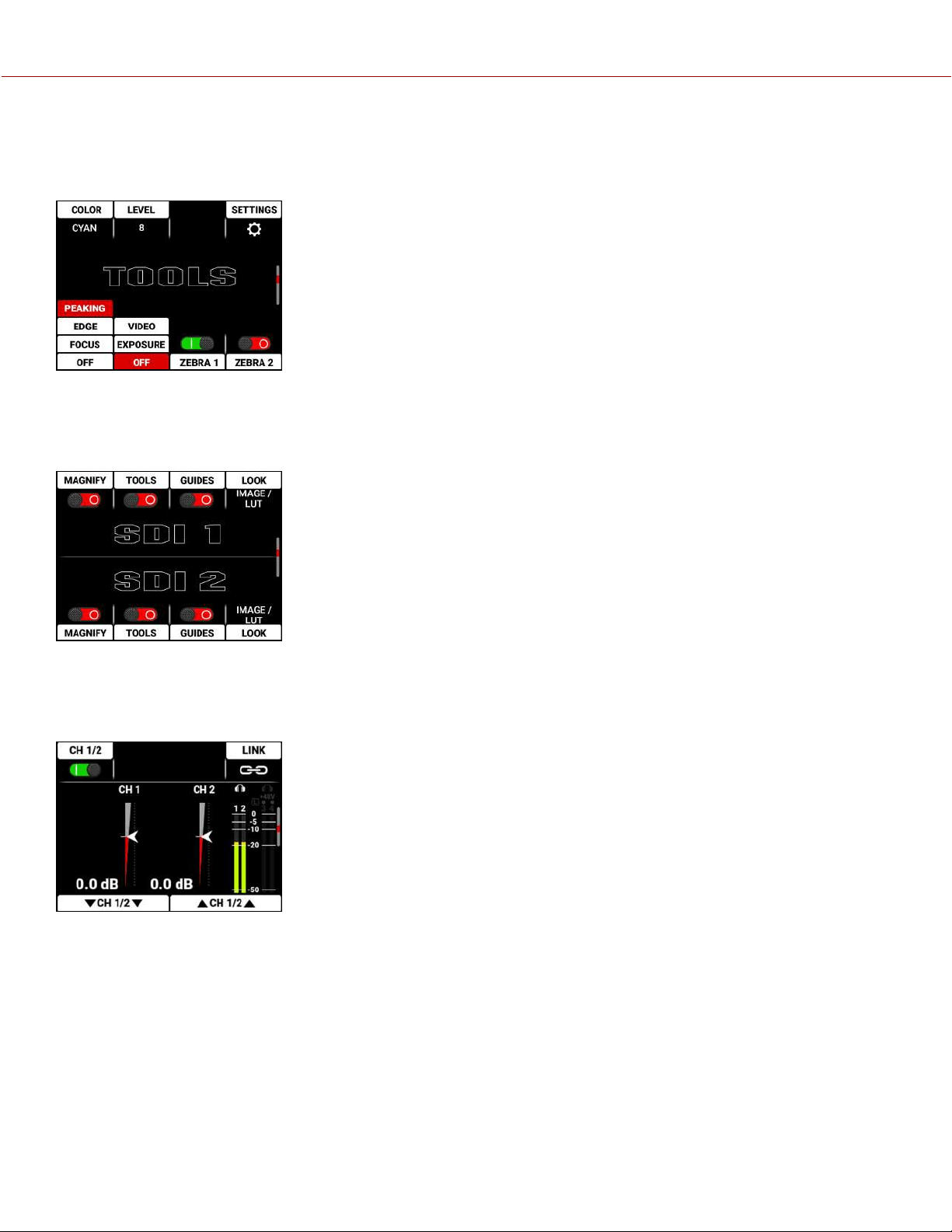
The Tools Page contains the Peaking Tools, Exposure Tools, Zebra Tools, and Quick Monitor Menu (refer to Tools
Page).
SDI PAGE
The SDI Page contains the switches you use to enable or disable the SDI features, and the Look settings for SDI Port 1
and SDI Port 2 (refer to SDI Page).
AUDIO CHANNELS 1 / 2 PAGE
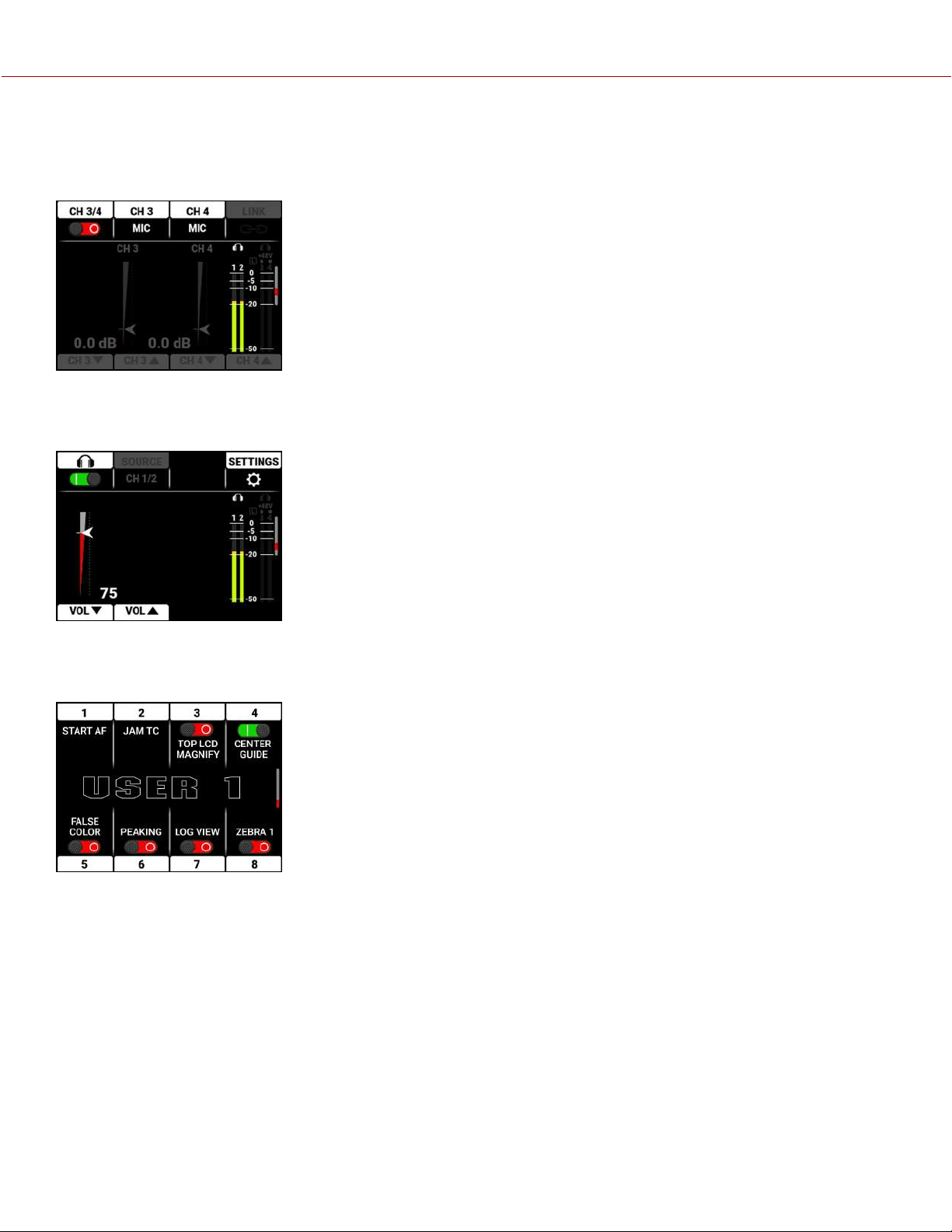
The Audio Channels 1 / 2 Page contains the settings for the internal microphone channels 1 and 2 (refer to Audio
Channels 1 and 2 Page).
COPYRIGHT © 2021 RED.COM, LLC 955-0198, V1.1, REV. A | 27
V-RAPTOR™ 8K V V OPERATION GUIDE
AUDIO CHANNELS 3 / 4 PAGE
The Audio Channels 3 / 4 Page contains the settings for the external audio port channels 3 and 4 (refer to Audio
Channels 3 / 4 Page).
HEADPHONE PAGE
The Headphone Page contains the settings for the headphone port audio output (refer to Headphone Page).
USER PAGES
The User Pages (1-3) allow you to assign eight quick buttons to each page (refer to User Pages).
COPYRIGHT © 2021 RED.COM, LLC 955-0198, V1.1, REV. A | 28
V-RAPTOR™ 8K V V OPERATION GUIDE
HOME PAGE
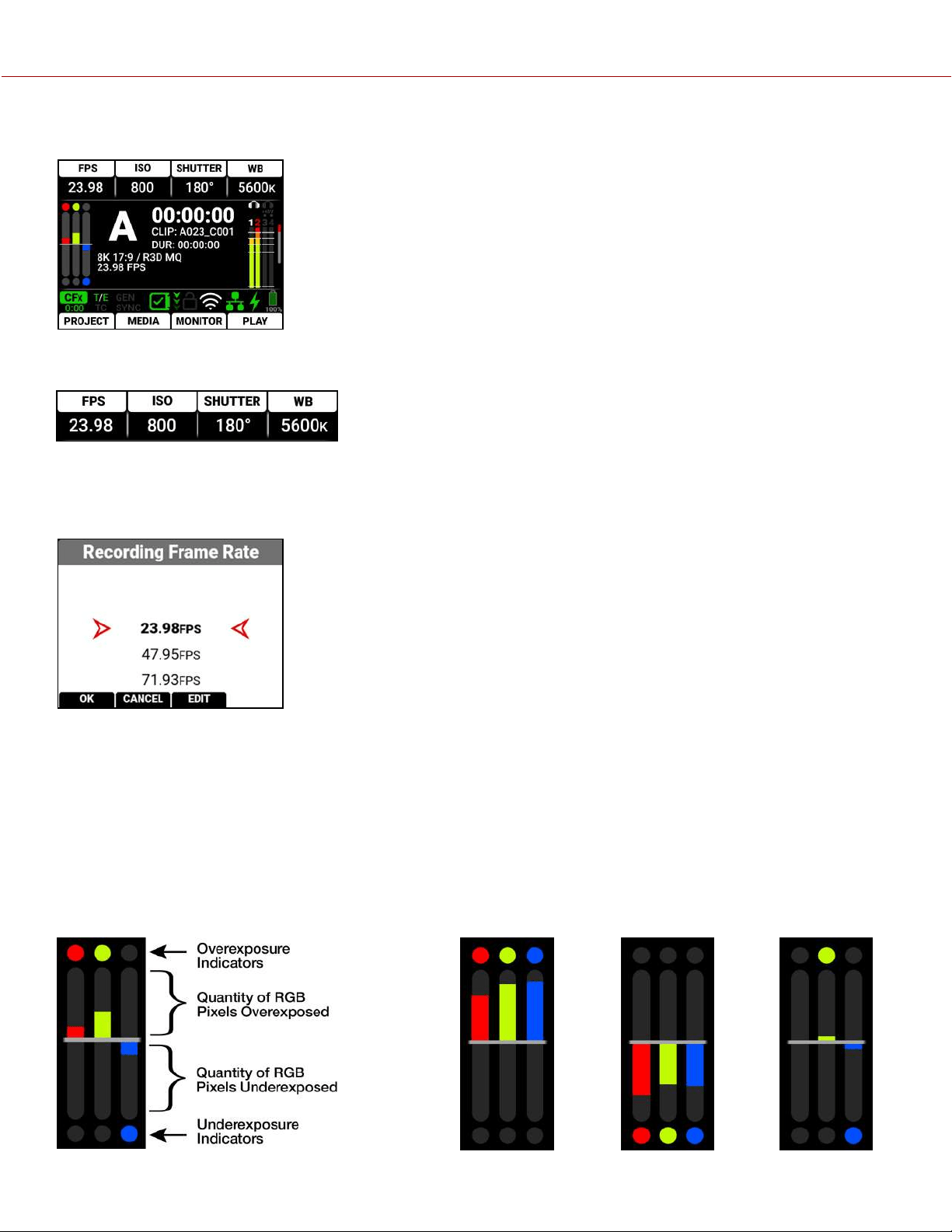
This section describes the Home Page of the LCD GUI. This page contains the
Quick Settings, Exposure Meter, Recording Information, VU Meter, Status Bar, and
Quick Menus. This is the first page that displays when you power up the camera.
RECORDING QUICK SETTINGS
The Recording Quick Settings section of the LCD home page displays the Recording Quick Settings buttons. You can
use these buttons to quickly access the most often used camera recording menu settings. These settings include
Recording Frame Rate, ISO, Shutter, and White Balance.
Press the top buttons to open the menu item lists.
Press Up and Down to navigate the list.
Press the button under OK or SEL to select the item and return to the Home Page.
Press the button under CANCEL or press MENU to return to the Home Page
without making any changes.
Press and hold the button above SHUTTER to toggle the shutter between degrees and fractions (refer to Shutter for
more information).
Press and hold White Balance (WB) to toggle between Color Temperature and Color Temperature Presets (refer to
White Balance for more information).
EXPOSURE
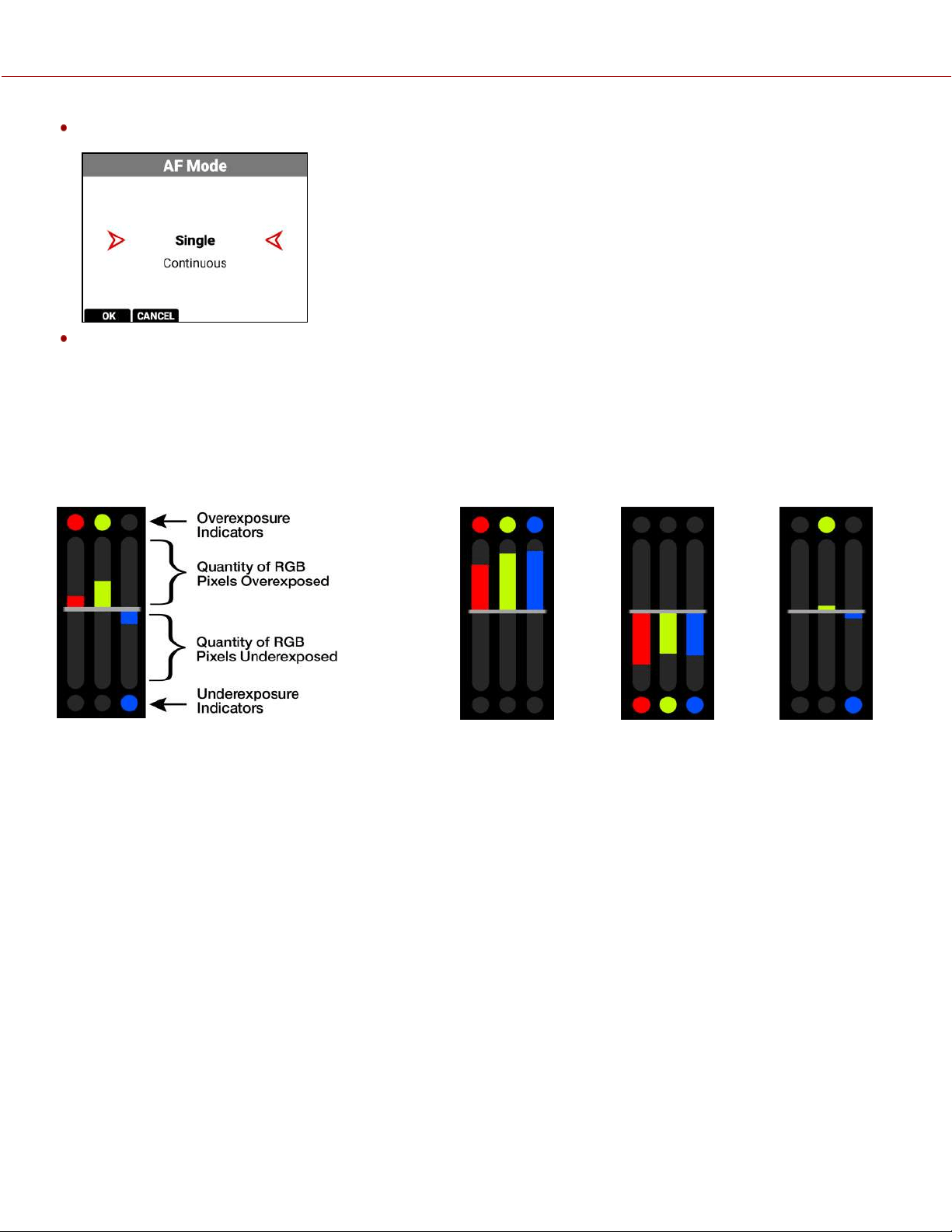
The Exposure section of the LCD home page displays the RGB exposure levels for the camera.
Exposure
Meter
Overexposed
Example
Underexposed
Example
Balanced
Example
COPYRIGHT © 2021 RED.COM, LLC 955-0198, V1.1, REV. A | 29
V-RAPTOR™ 8K V V OPERATION GUIDE
RGB Exposure Meter displays the quantity of over or under exposed pixels in each of the separate red, green, and blue
channels.
The top and bottom RGB lights illuminate when a small amount of pixels on the sensor are overexposed or
underexposed. This indicates that a small number of pixels in the image are too bright and will not contain any detail, or
are too dark and will appear as noise.
The bars show the quantity of overexposed and underexposed RGB pixels on the sensor. Adjust the settings in the
camera such as Iris, or shutter speed to compensate, or change the scene's lighting for the best balanced image.
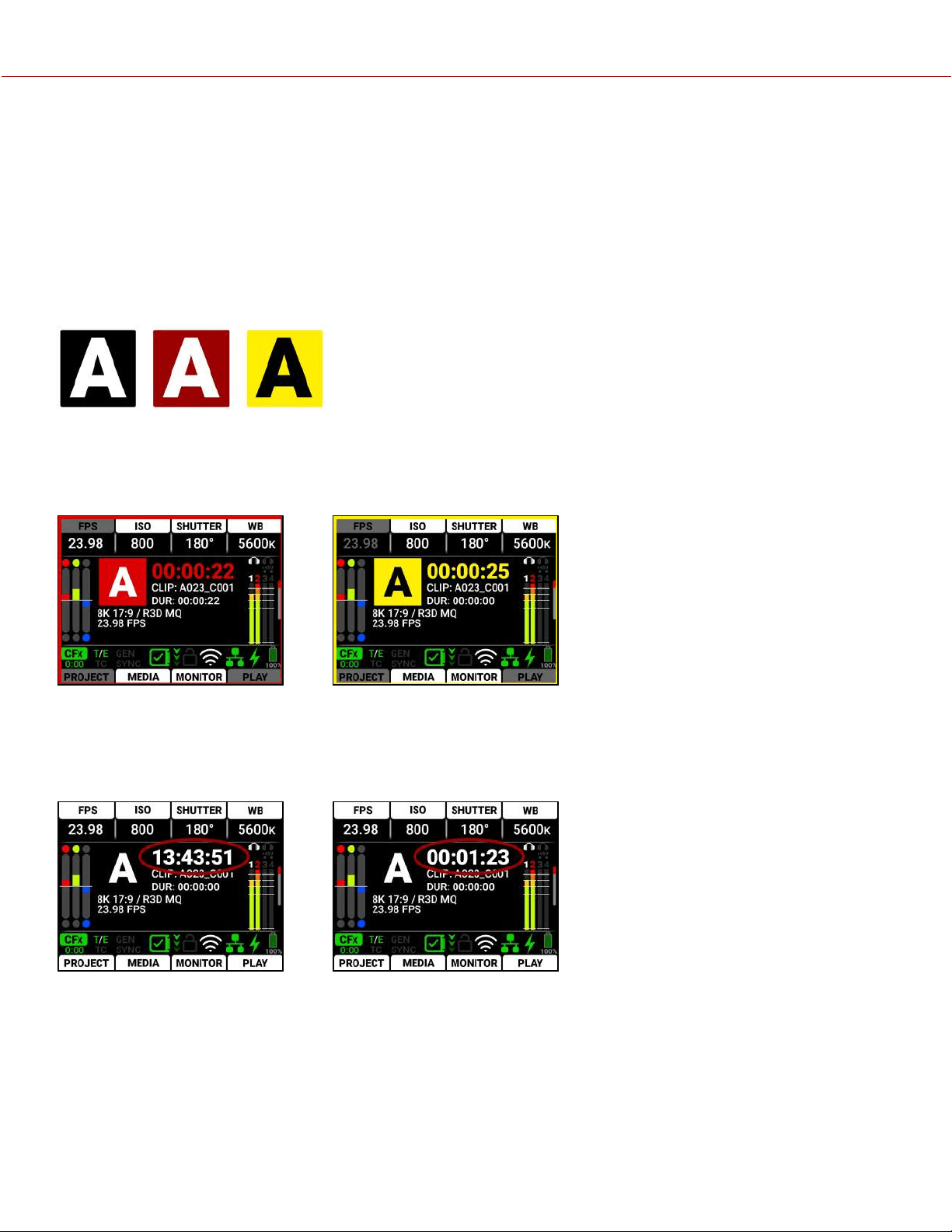
CAMERA DESIGNATION AND REC INDICATOR
The Camera Designation and Record indicator on the LCD home page displays the camera letter assigned to the
camera (refer to Slate and Camera ID). The color of this area indicates when the camera recording is ready (black), when
the camera is recording (red), and when the recording is stopped and the camera is adding the pre-recording (yellow).
Recording: Adding Pre-Recording:
TIMECODE / EDGECODE
The Timecode / Edgecode section displays the timecode or edgecode (refer to Timecode Display Mode).
Timecode: Edgecode:
This text turns red when the camera is recording.
COPYRIGHT © 2021 RED.COM, LLC 955-0198, V1.1, REV. A | 30
V-RAPTOR™ 8K V V OPERATION GUIDE
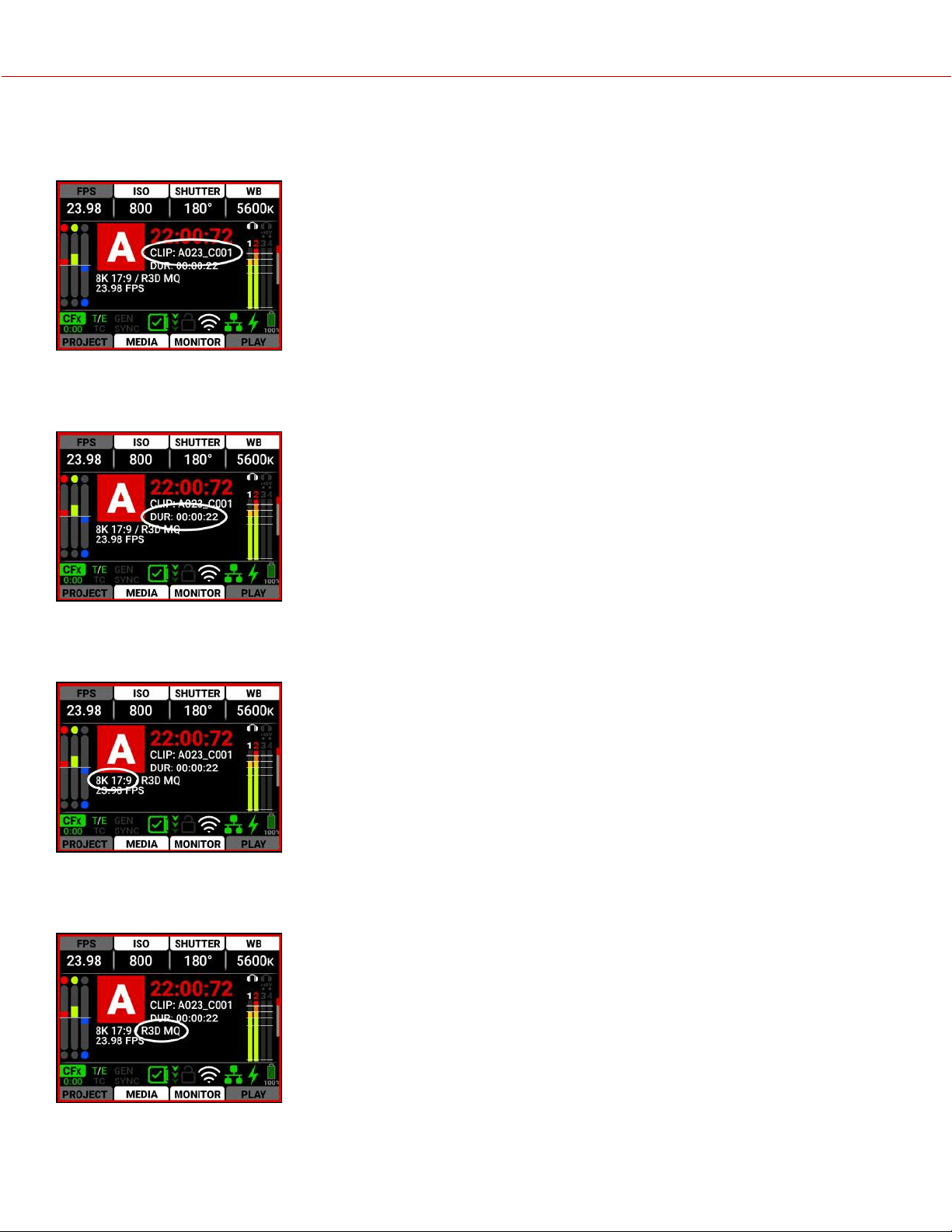
CLIP
The Clip area displays the clip name designated in the Project Settings menu (refer to Slate).
DURATION
The Duration area displays the real-time duration of the current clip.
SENSOR FORMAT
The Sensor Format area displays the sensor format selected in the Project Settings (refer to Format).
QUALITY
The Quality area displays the R3D compression level (refer to R3D Quality).
COPYRIGHT © 2021 RED.COM, LLC 955-0198, V1.1, REV. A | 31
V-RAPTOR™ 8K V V OPERATION GUIDE
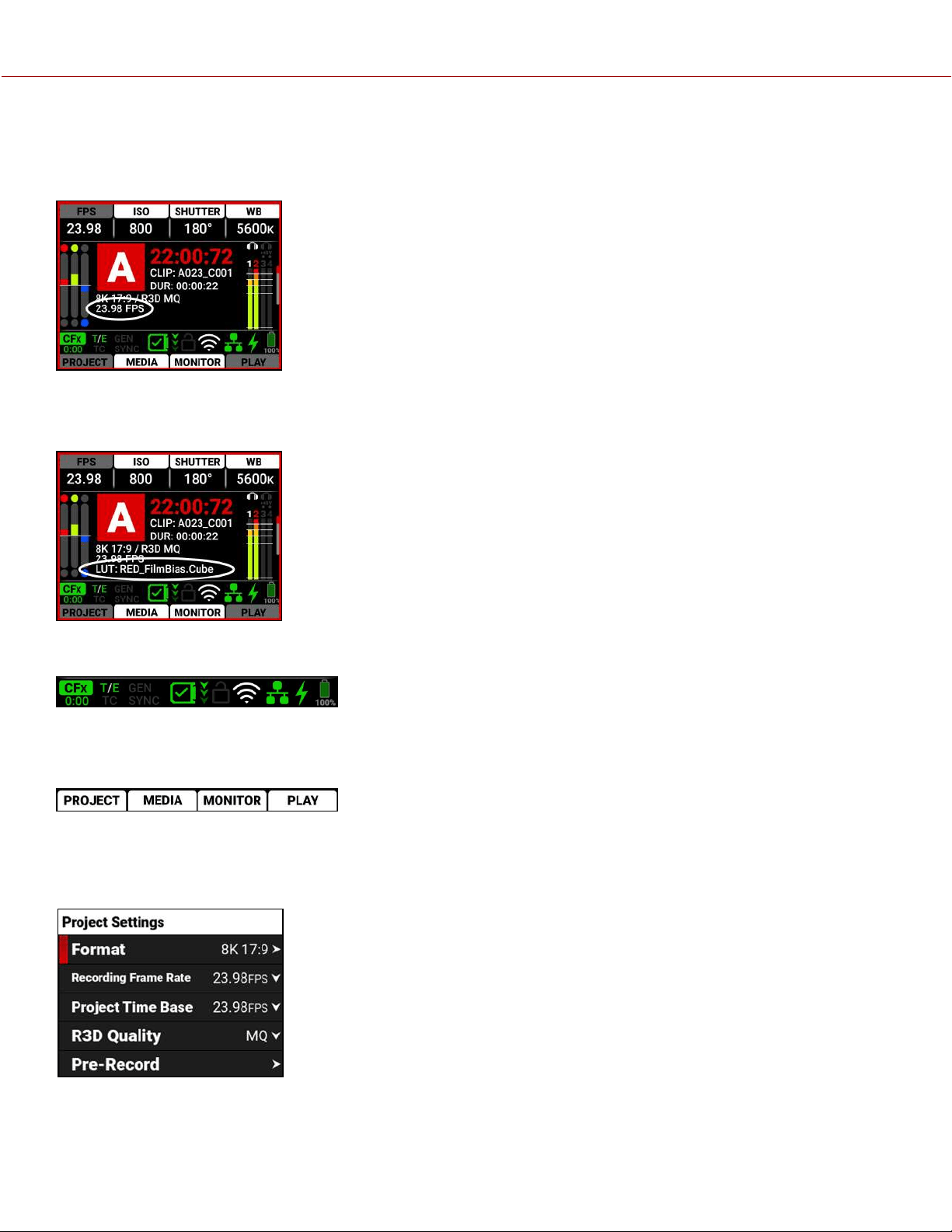
PROJECT TIME BASE
The Project Time Base area displays the playback rate for the recorded footage selected in the Project Settings (refer to
Project Time Base).
3D LUT
The 3D LUT area displays the LUT file selected in the Image / LUT menu (refer to 3D LUT).
STATUS BAR
The Status Bar contains status icons for various camera settings and inputs.
QUICK MENUS
The Quick Menus section of the LCD home page displays the Quick Menu buttons. You can use these buttons to
quickly access the most often used camera menus. These settings include Project Settings Menu, Media Menu,
Monitoring Menu, and Playback.
Press the bottom buttons to open the Quick
Menus.
Press Up, Down, and SEL to navigate the menus.
Press MENU to return to the Home screen.
COPYRIGHT © 2021 RED.COM, LLC 955-0198, V1.1, REV. A | 32
V-RAPTOR™ 8K V V OPERATION GUIDE
HISTOGRAM PAGE
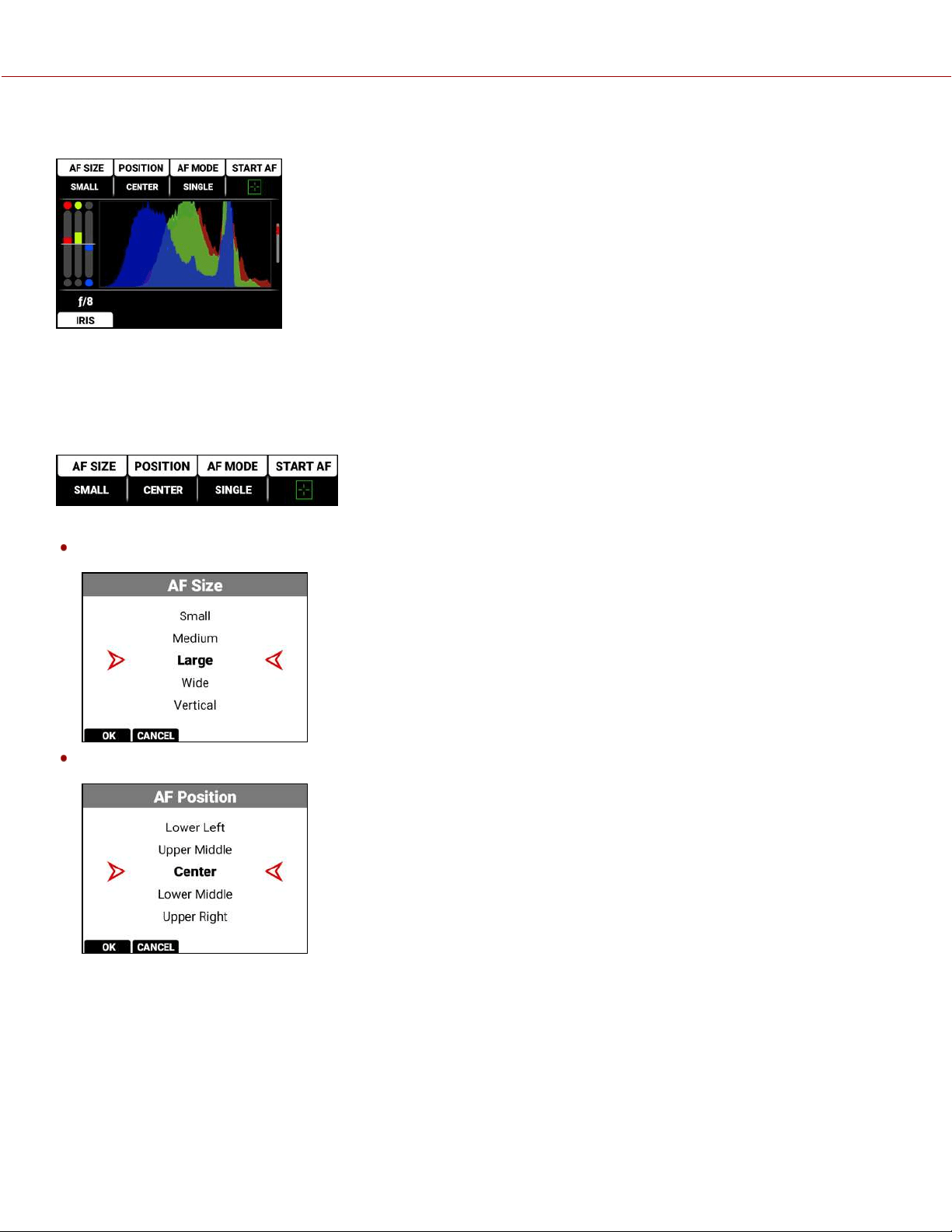
The LCD Histogram page is the second page on the LCD. Press the down button to navigate from the Home page to
the Histogram page.
The Histogram Page contains the Autofocus Quick Settings, Exposure Meter, Histogram, and Lens Quick Settings.
AUTOFOCUS QUICK SETTINGS
The Autofocus quick settings allow you to access the Autofocus settings quickly.
Press the button above AF SIZE to select the autofocus size
Press the button above POSITION to select the autofocus location on the screen
COPYRIGHT © 2021 RED.COM, LLC 955-0198, V1.1, REV. A | 33
V-RAPTOR™ 8K V V OPERATION GUIDE
Press the button above AFMODE to select the autofocus mode
Press the button above STARTAF to enable autofocus
Refer to Autofocus - BETA Menu for more information about the Autofocus menu.
EXPOSURE METER
The Exposure meter displays the RGB exposure levels for the camera.
Exposure
Meter
Overexposed
Example
Underexposed
Example
Balanced
Example
RGB Exposure Meter displays the quantity of over or under exposed pixels in each of the separate red, green, and blue
channels.
The top and bottom RGB lights illuminate when a small amount of pixels on the sensor are overexposed or
underexposed. This indicates that a small number of pixels in the image are too bright and will not contain any detail, or
are too dark and will appear as noise.
The bars show the quantity of overexposed and underexposed RGB pixels on the sensor. Adjust the settings in the
camera such as Iris, or shutter speed to compensate, or change the scene's lighting for the best balanced image.
COPYRIGHT © 2021 RED.COM, LLC 955-0198, V1.1, REV. A | 34
V-RAPTOR™ 8K V V OPERATION GUIDE
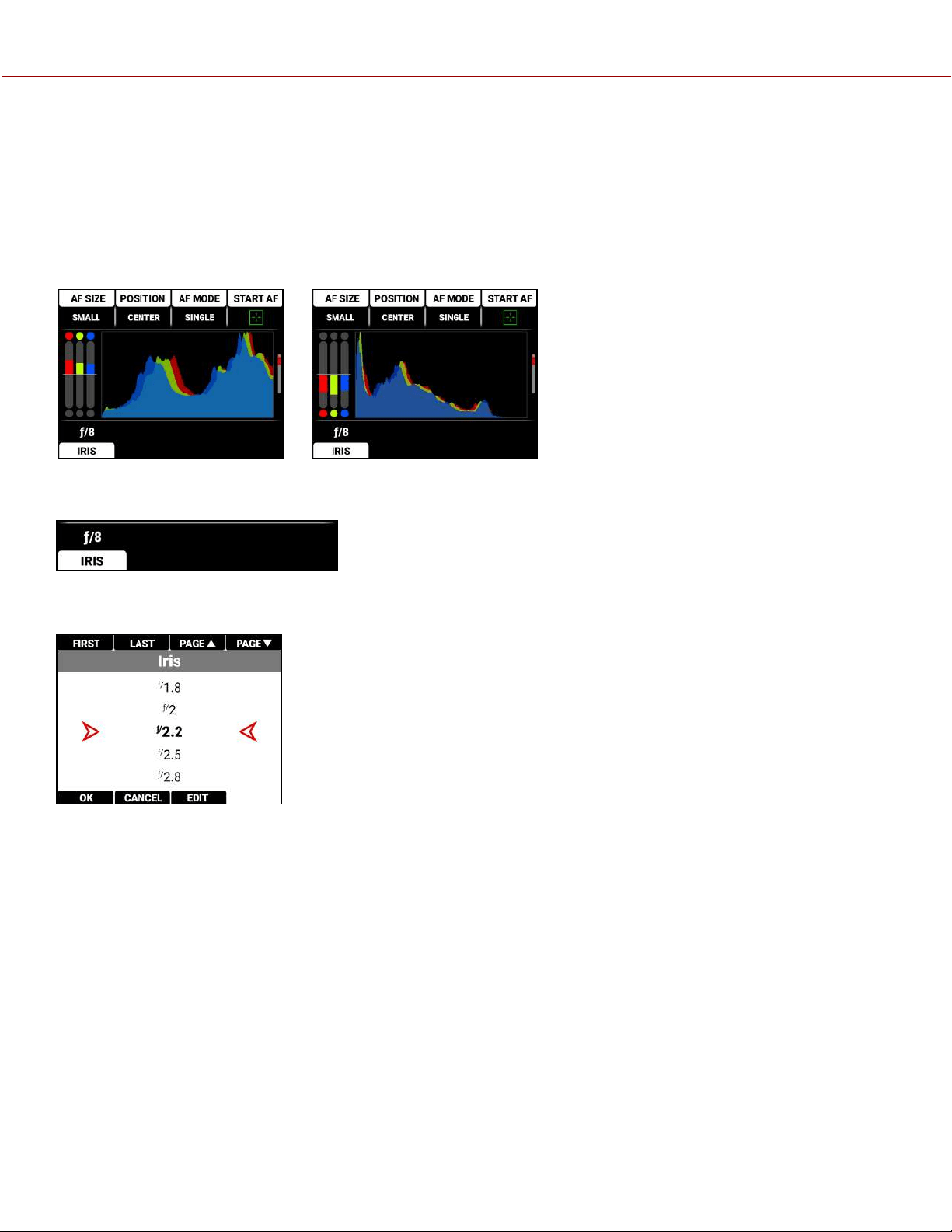
HISTOGRAM
The Histogram area displays a histogram distribution of the RGB exposure of the Log3G10 signal after ISO and White
Balance adjustments.
The histogram displays the darkest image elements at the far left, the midtones in the middle, and the lightest image
elements at the far right. This gives you a fast way to determine your overall image exposure levels.
Overexposed Example Underexposed Example
LENS QUICK SETTINGS
The Lens quick settings allow you to access the Iris settings quickly.
Press the button under IRIS to open the Iris menu list and select the lens f-stop.
Refer to Lens for more information about the Iris settings.
COPYRIGHT © 2021 RED.COM, LLC 955-0198, V1.1, REV. A | 35
V-RAPTOR™ 8K V V OPERATION GUIDE
TOOLS PAGE
The LCD Tools page is the third page on the LCD. Press the down button twice to navigate from the Home page to the
Tools page.
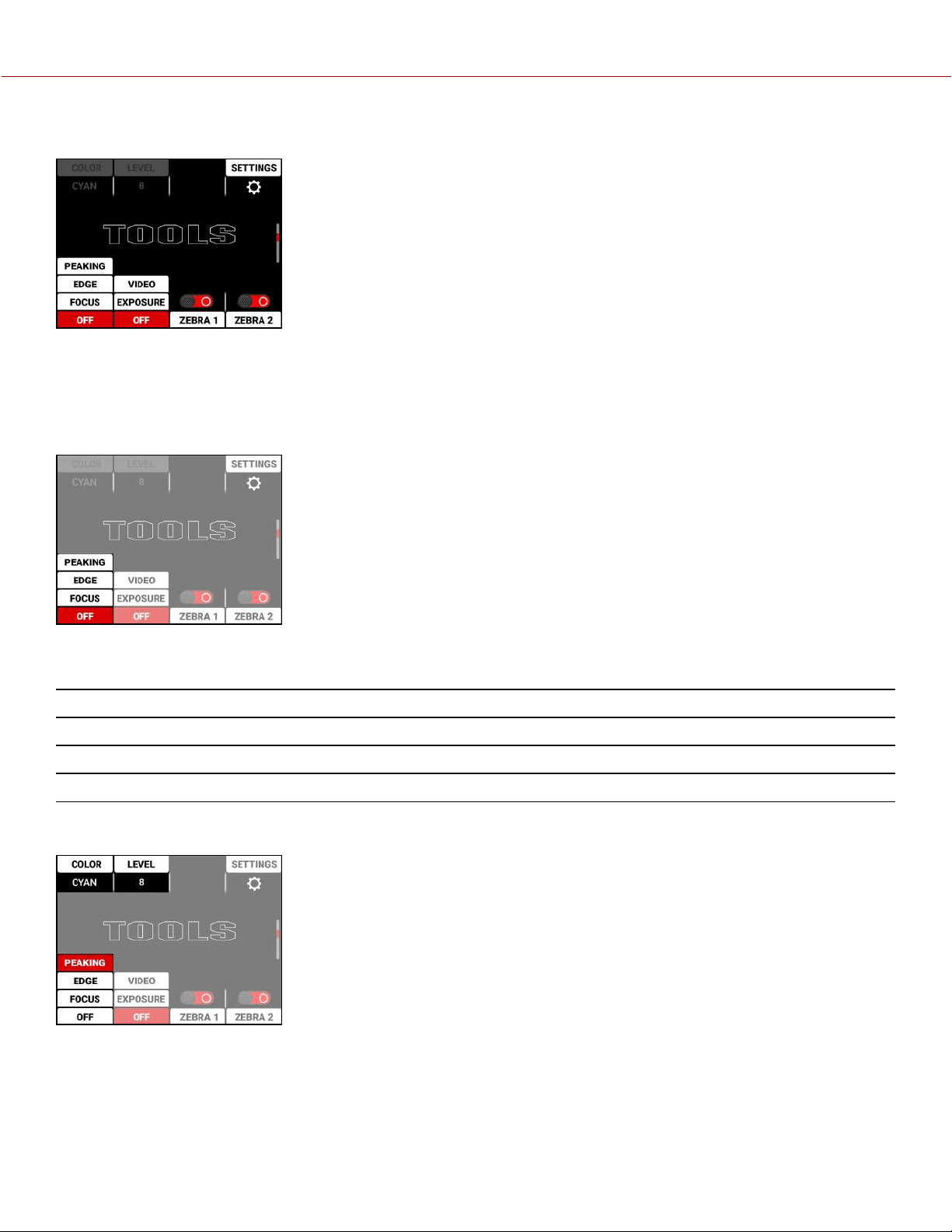
The Tools Page contains the Peaking Modes, False Color Modes, Zebra Tool Switches, and Quick Monitor Menu.
PEAKING MODES
The Peaking tools are modes that provide different ways to indicate image focus. The Peaking modes you can select
include:
ITEM DETAILS
Peaking Select a colored overlay to indicate objects in focus
Edge Show outlines of focused objects
Focus Use enhanced contrast and edges for focusing
Press the button below the Peaking tools column to cycle through the choices. When you select the Peaking tool
Peaking mode, the settings for Color and Level are enabled:
For more information refer to Peaking.
COPYRIGHT © 2021 RED.COM, LLC 955-0198, V1.1, REV. A | 36
V-RAPTOR™ 8K V V OPERATION GUIDE
FALSE COLOR MODES
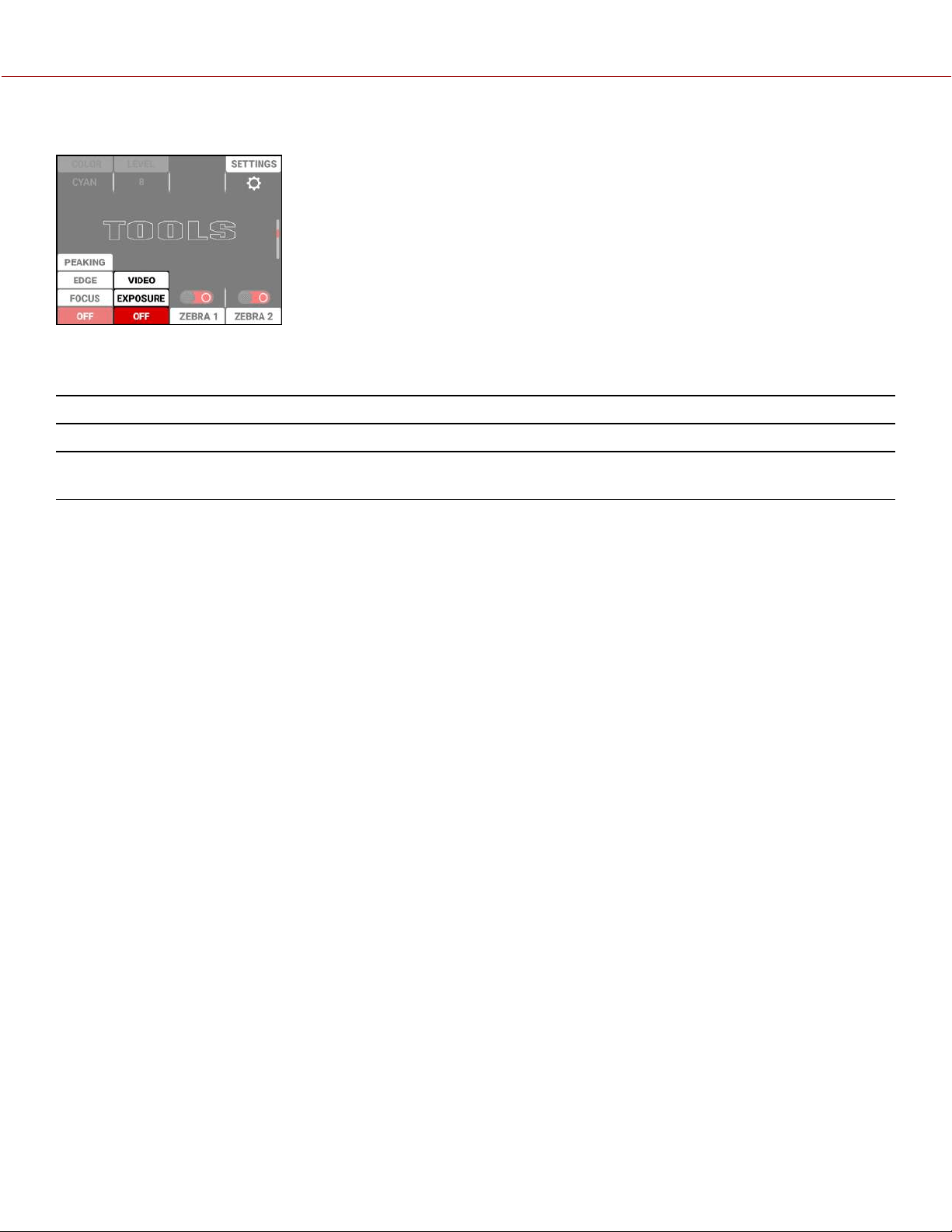
Press the button below the False Color tools column to cycle through the choices.
False Color Modes include:
ITEM DETAILS
False Color Video Mode Access scene exposure in varying light without relying on the LCD image brightness.
False Color Exposure Mode Use false colors to determine an optimal balance between overexposure and
underexposure.
NOTE: False Color modes display on video recorded through SDI to an external recorder when the Tools are enabled in
the Monitor menu. When recording through SDI, use False Color modes only to help determine scene exposure
settings, and then disable the mode before recording.
FALSE COLOR VIDEO MODE
NOTE: For best results, Video Mode should be viewed at or above ISO 800.
Video Mode displays a color overlay that indicates the video level of the RGB monitor path (calibrated to the SMPTE
test signal).
The colors used are based on the RGB levels of the video out signal (that is, the “cooked” look, and not RAW data). The
camera's RGB settings can change the appearance of the Video Mode colors.
For more information, refer to False Color.
FALSE COLOR EXPOSURE MODE
When this monitoring False Color mode is activated, most of the tonal range will appear in monochrome.
The Exposure Mode is able to indicate exactly where middle gray is falling, and indicate which highlights or shadows
are problematic in the logarithmic representation of the image. Exposure mode is judging the exposure after ISO and
White Balance adjustments are made, and before any sort of LUT or transform is applied to the Log3G10 image.
For more information, refer to False Color.
ZEBRA TOOLS
Use Zebra 1 to display one set of diagonal stripes to indicate highlight exposure levels. Use Zebra 2 to display a second
set of diagonal stripes to indicate mid-tone and shadow levels. For more information, refer to Zebra Modes.
COPYRIGHT © 2021 RED.COM, LLC 955-0198, V1.1, REV. A | 37
V-RAPTOR™ 8K V V OPERATION GUIDE
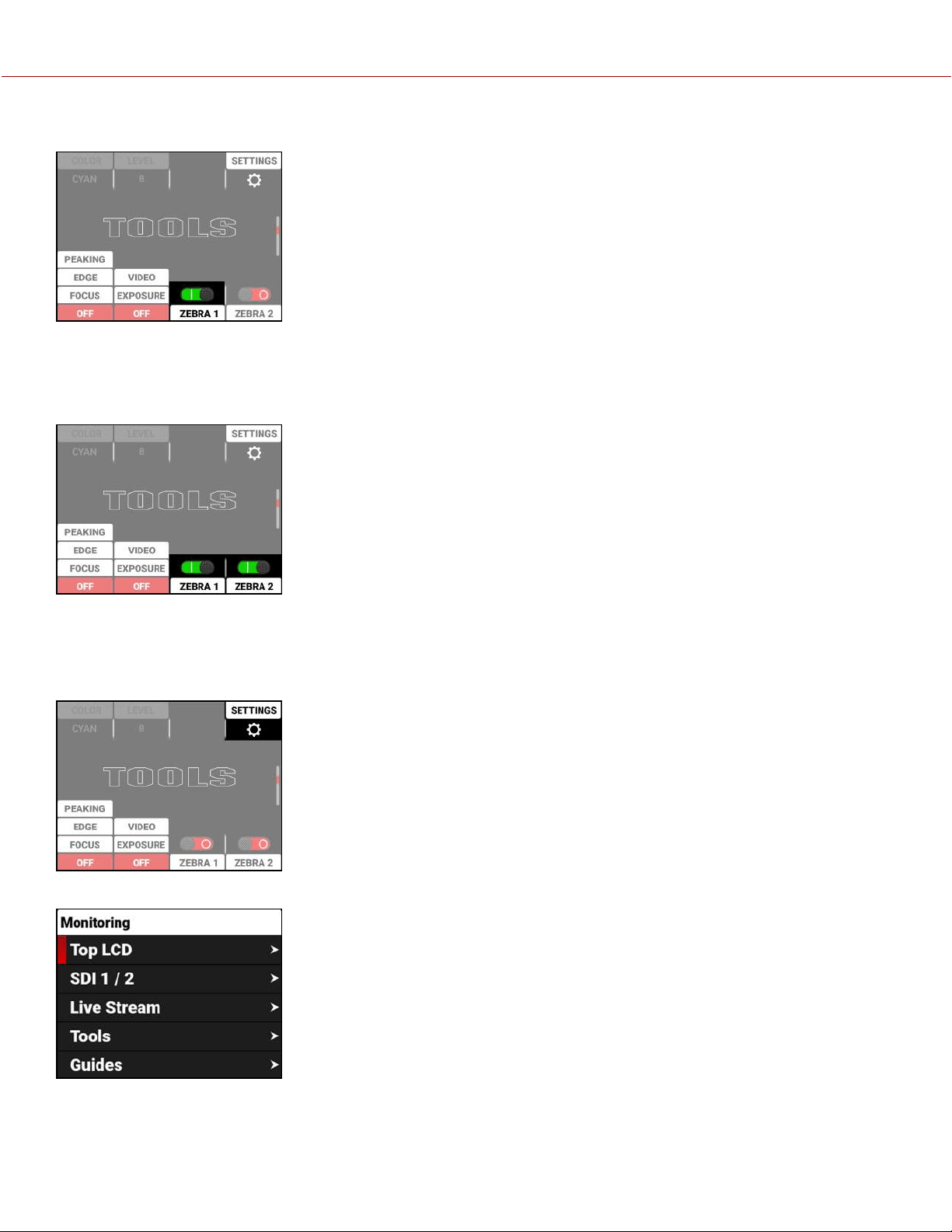
ZEBRA 1
Press the button below the ZEBRA 1 switch to enable or disable the Zebra 1 tool.
For more information, refer to Zebra 1.
ZEBRA 2
Press the button below the ZEBRA 2 switch to enable or disable the Zebra 2 tool.
For more information, refer to Zebra 2.
QUICK MONITOR MENU
Press the button above SETTINGS to open the Quick Monitoring Menu.
For more information, refer to Monitoring Menu.
COPYRIGHT © 2021 RED.COM, LLC 955-0198, V1.1, REV. A | 38
V-RAPTOR™ 8K V V OPERATION GUIDE
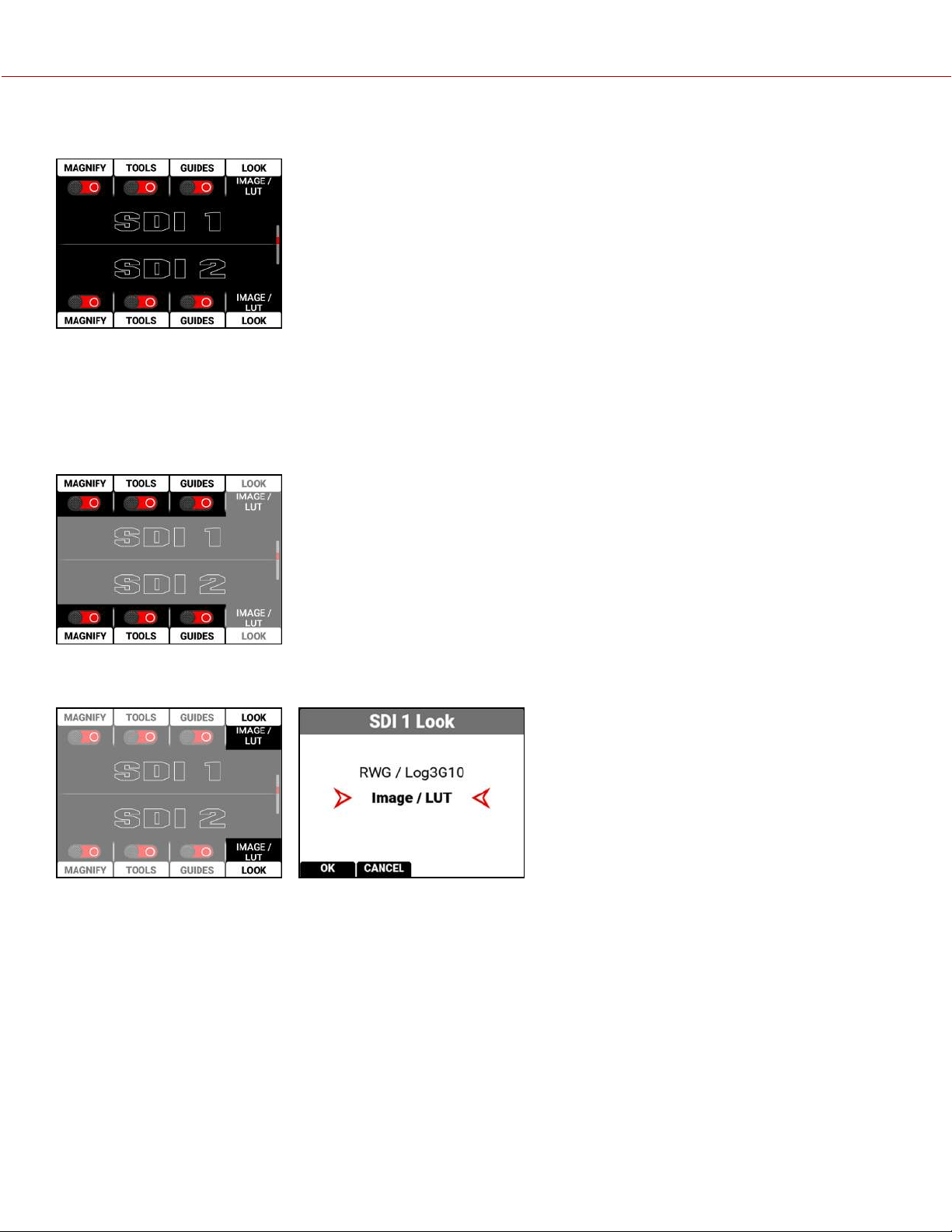
SDI PAGE
The SDI Page contains the switches you use to enable or disable the SDI features, and the Look settings for SDI Port 1
and SDI Port 2.
SWITCHES
The SDI 1 and SDI 2 sections contain the switches you can use to enable and disable image magnification, focus and
exposure tools, and frame and center guides. For more information, refer to the Monitoring Menu section.
Press the button next to the switch to toggle from disabled to enabled.
Select LOOK to open the Look options for the SDI 1 and SDI 2 ports.
You can select the Image / LUT look defined in the Image / LUT menu, or you can select the RWG
(REDWideGamutRGB) / Log3G10 Image Processing Pipeline (IPP2) look.
COPYRIGHT © 2021 RED.COM, LLC 955-0198, V1.1, REV. A | 39
V-RAPTOR™ 8K V V OPERATION GUIDE
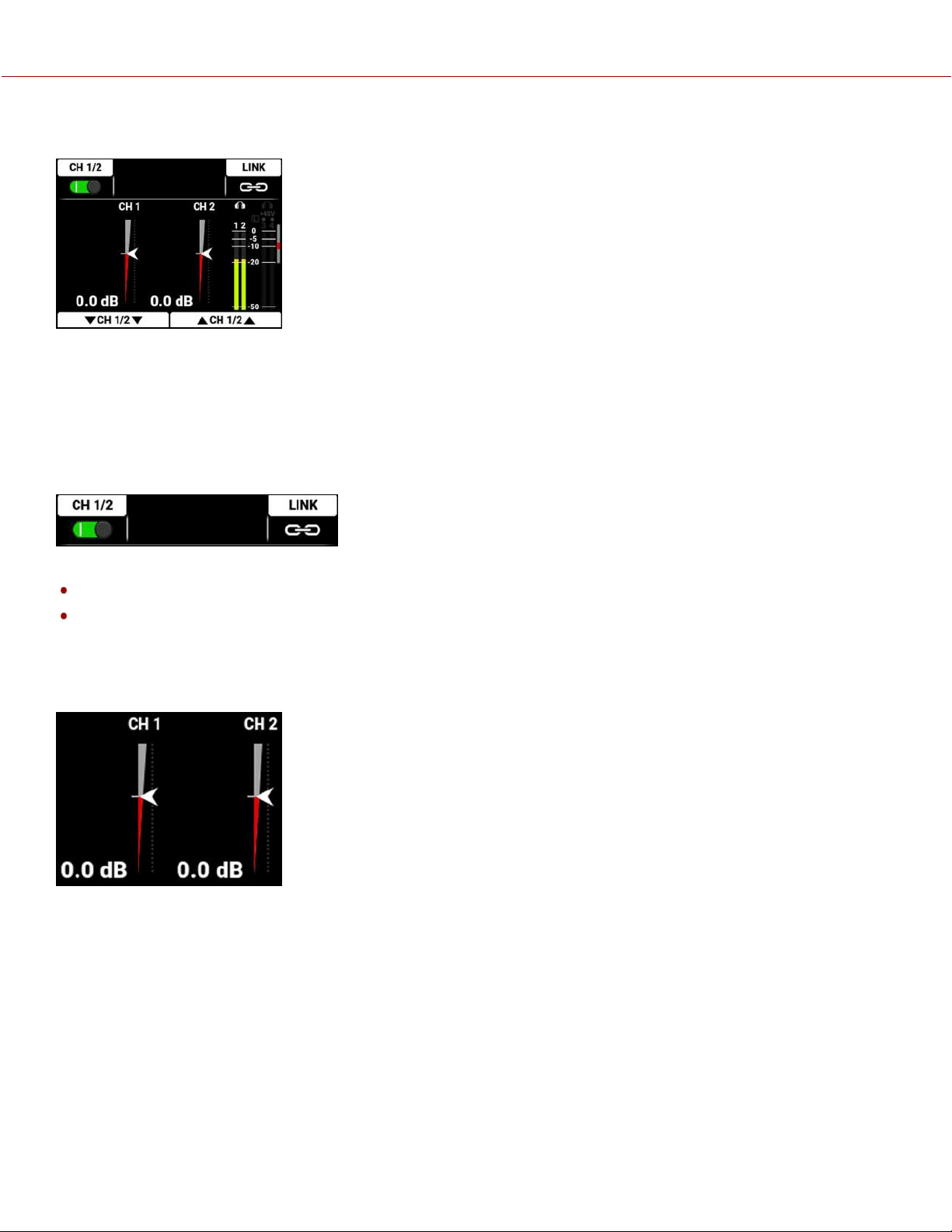
AUDIO CHANNELS 1 AND 2 PAGE
Press the down button to navigate from the Home page to the Audio Channels 1 and 2 page.
The Audio Channels 1 and 2 page contains the switch to enable the internal microphone channels (1 and 2), a button to
enable and disable the link between the channel 1 and 2 levels, the audio level indicators, the headphone monitoring
indicator, the 48 volt phantom power indicator, the audio VU meters for channels 1, 2, 3, and 4, adjusters to reduce the
audio channel 1 and 2 levels, and adjusters to increase the audio channel 1 and 2 levels.
TOP BAR
The Audio Channels 1 and 2 top bar allows you to enable the internal microphones (channels 1 and 2).
Press the button above CH 1/2 to enable or disable the internal microphones
Press the button above LINK to link the audio level adjustments for channels 1 and 2
Refer to the Audio / TC Menu section for more information about the audio features.
LEVEL INDICATORS
The audio level indicators move up and down to indicate the changes in the audio level adjustments. The level
measured in decibels is displayed below the level indicators. You can adjust channels 1 and 2 individually, or you can
link the channels and adjust them together.
COPYRIGHT © 2021 RED.COM, LLC 955-0198, V1.1, REV. A | 40
V-RAPTOR™ 8K V V OPERATION GUIDE
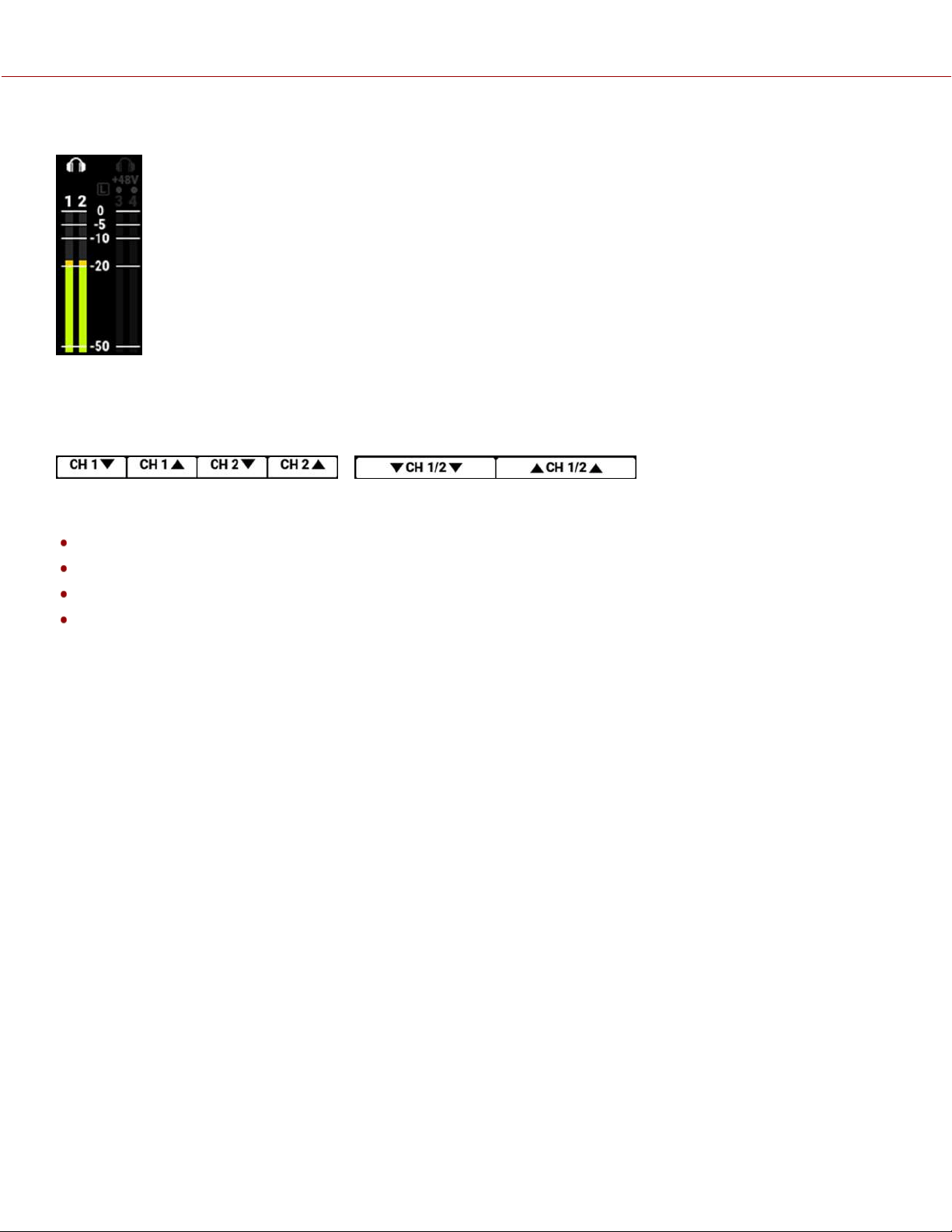
VU METER
The VU meter displays the headphone indicators, the limiter indicator, the 48 V phantom power indicator, the audio
channel numbers, and the audio signal levels.
BOTTOM BAR
The Audio Channels 1 and 2 bottom bar allows you to adjust the internal microphones (channels 1 and 2). You can
adjust the channels individually or you can link them and adjust them together.
Press the buttons below CH1▼ to reduce the external audio levels (channel 1)
Press the buttons below CH1▲ to increase the external audio levels (channel 1)
Press the buttons below CH 2▼ to reduce the external audio levels (channel 2)
Press the buttons below CH 2▲ to increase the external audio levels (channel 2)
Refer to the Audio / TC Menu section for more information about the audio features.
COPYRIGHT © 2021 RED.COM, LLC 955-0198, V1.1, REV. A | 41
V-RAPTOR™ 8K V V OPERATION GUIDE
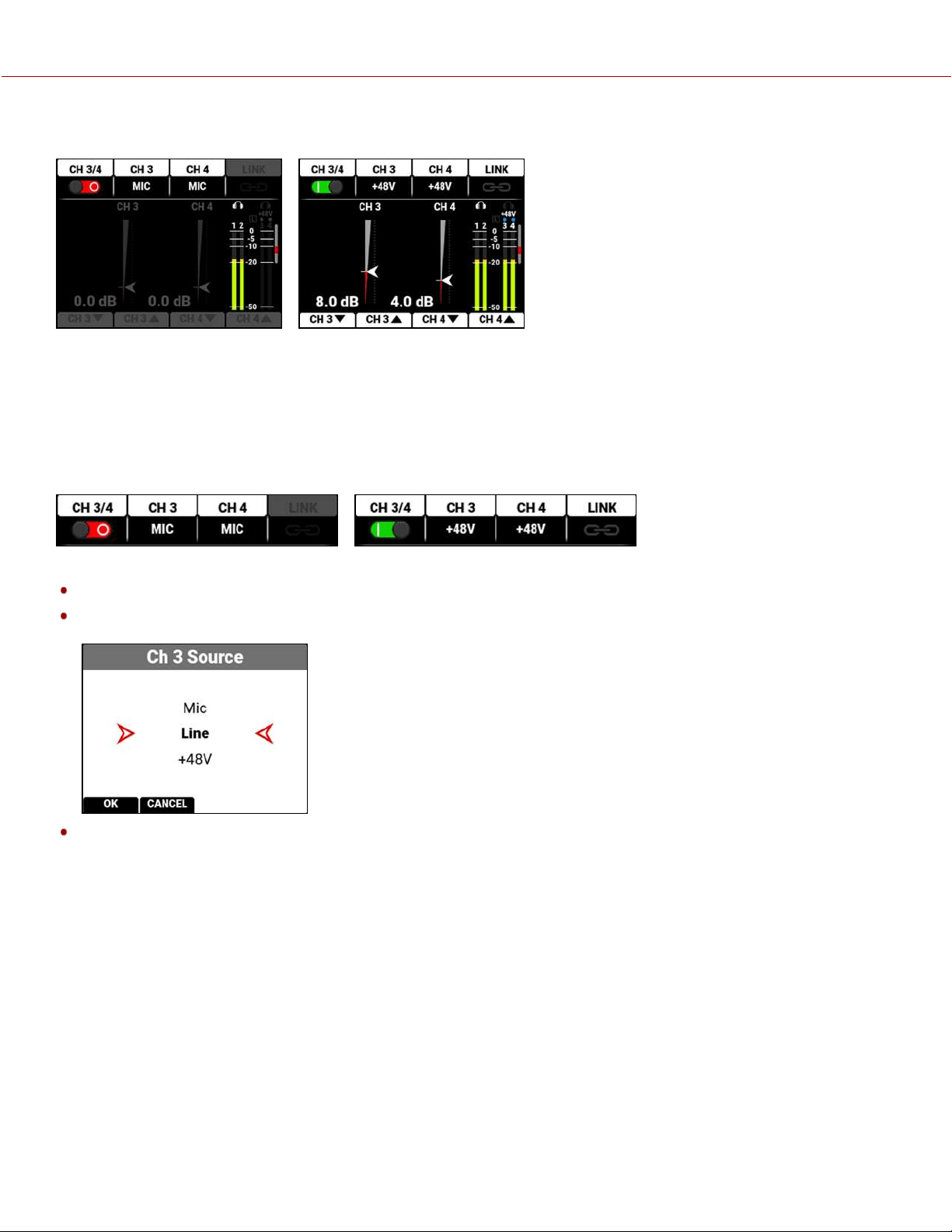
AUDIO CHANNELS 3 / 4 PAGE
Press the down button to navigate from the Home page to the Audio Channels 3 and 4 page.
The Audio Channels 3 and 4 page contains a switch to enable the external audio input channels (3 and 4), a button to
enable and disable the link between the channel 3 and 4 levels, the audio level indicators, the headphone monitoring
indicator, the 48 volt phantom power indicator, the audio VU meters for channels 1, 2, 3, and 4, adjusters to reduce the
audio channel 3 and 4 levels, and adjusters to increase the audio channel 3 and 4 levels.
TOP BAR
The Audio Channels 3 and 4 top bar allows you to enable the external audio inputs (channels 3 and 4).
Press the button above CH 3/4 to enable or disable the external audio
Press the button above CH 3 or CH 4 to open a list of external audio options for those channels (Mic, Line, +48V)
Press the button above LINK to link the audio level adjustments for channels 3 and 4
Refer to the Audio / TC Menu section for more information about the audio features.
COPYRIGHT © 2021 RED.COM, LLC 955-0198, V1.1, REV. A | 42
V-RAPTOR™ 8K V V OPERATION GUIDE
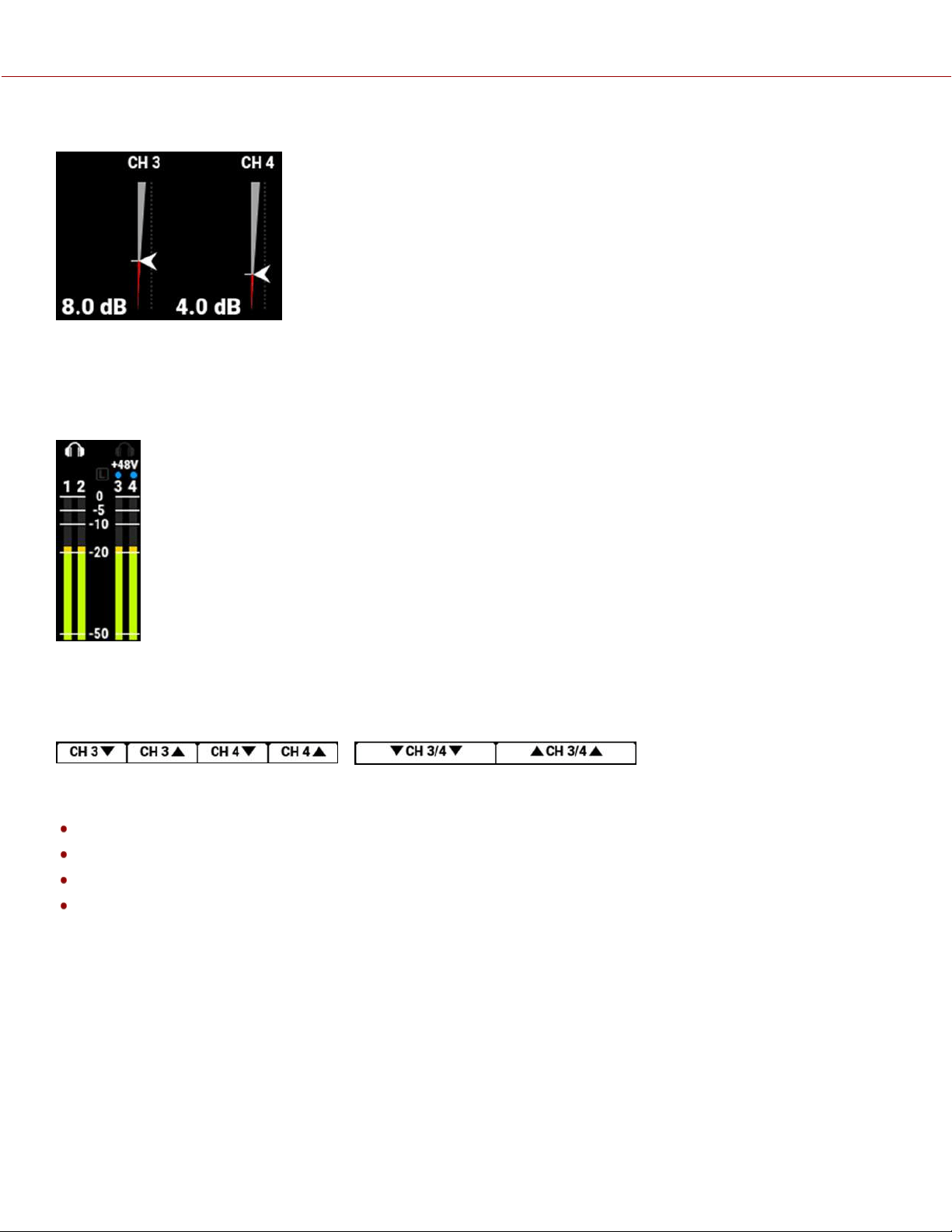
LEVEL INDICATORS
The audio level indicators move up and down to indicate the changes in the audio level adjustments. The level
measured in decibels is displayed below the level indicators. You can adjust channels 3 and 4 individually, or you can
link the channels and adjust them together.
VU METER
The VU meter displays the headphone indicators, the limiter indicator, the +48 V phantom power indicator, the audio
channel numbers, and the audio signal levels.
BOTTOM BAR
The Audio Channels 3 and 4 bottom bar allows you to adjust the external audio (channels 3 and 4). You can adjust the
channels individually or you can link them and adjust them together.
Press the buttons below CH 3▼ to reduce the external audio levels (channel 3)
Press the buttons below CH 3▲ to increase the external audio levels (channel 3)
Press the buttons below CH 4▼ to reduce the external audio levels (channel 4)
Press the buttons below CH 4▲ to increase the external audio levels (channel 4)
Refer to the Audio / TC Menu section for more information about the audio features.
COPYRIGHT © 2021 RED.COM, LLC 955-0198, V1.1, REV. A | 43
V-RAPTOR™ 8K V V OPERATION GUIDE
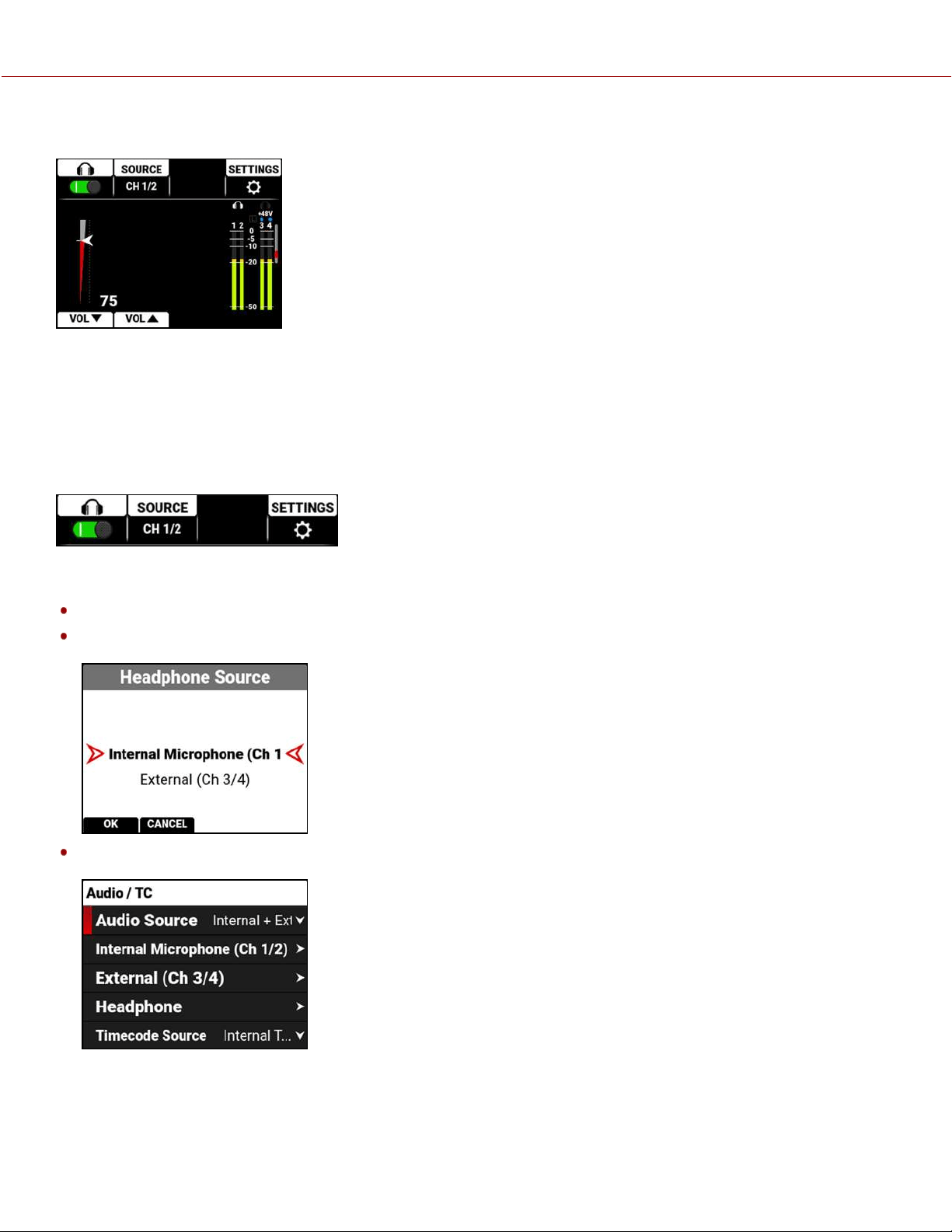
HEADPHONE PAGE
Press the down button to navigate from the Home page to the Headphone page.
The Headphone page contains the switch to enable the headphone jack, a source list to select the source to monitor
(CH 1/2 or CH 3/4), the headphone level indicator, the headphone monitoring indicator, the limiter indicator, the +48 volt
phantom power indicator, the audio VU meters for channels 1, 2, 3, and 4, an adjuster to reduce the headphone levels,
and an adjuster to increase the headphone levels.
TOP BAR
The Headphone top bar allows you to enable/disable the headphone port output, to select the source of the headphone
output (internal channels 1 and 2 or external channels 3 and 4), and to quickly access the Audio /TC menu.
Press the button above the headphone icon to enable or disable the headphone audio
Press the button above SOURCE to open the list of channels to monitor (Ch 1/2 or Ch 3/4)
Press the button above SETTINGS to open the Audio / TC menu
Refer to the Audio / TC Menu section for more information about the audio features.
COPYRIGHT © 2021 RED.COM, LLC 955-0198, V1.1, REV. A | 44
V-RAPTOR™ 8K V V OPERATION GUIDE
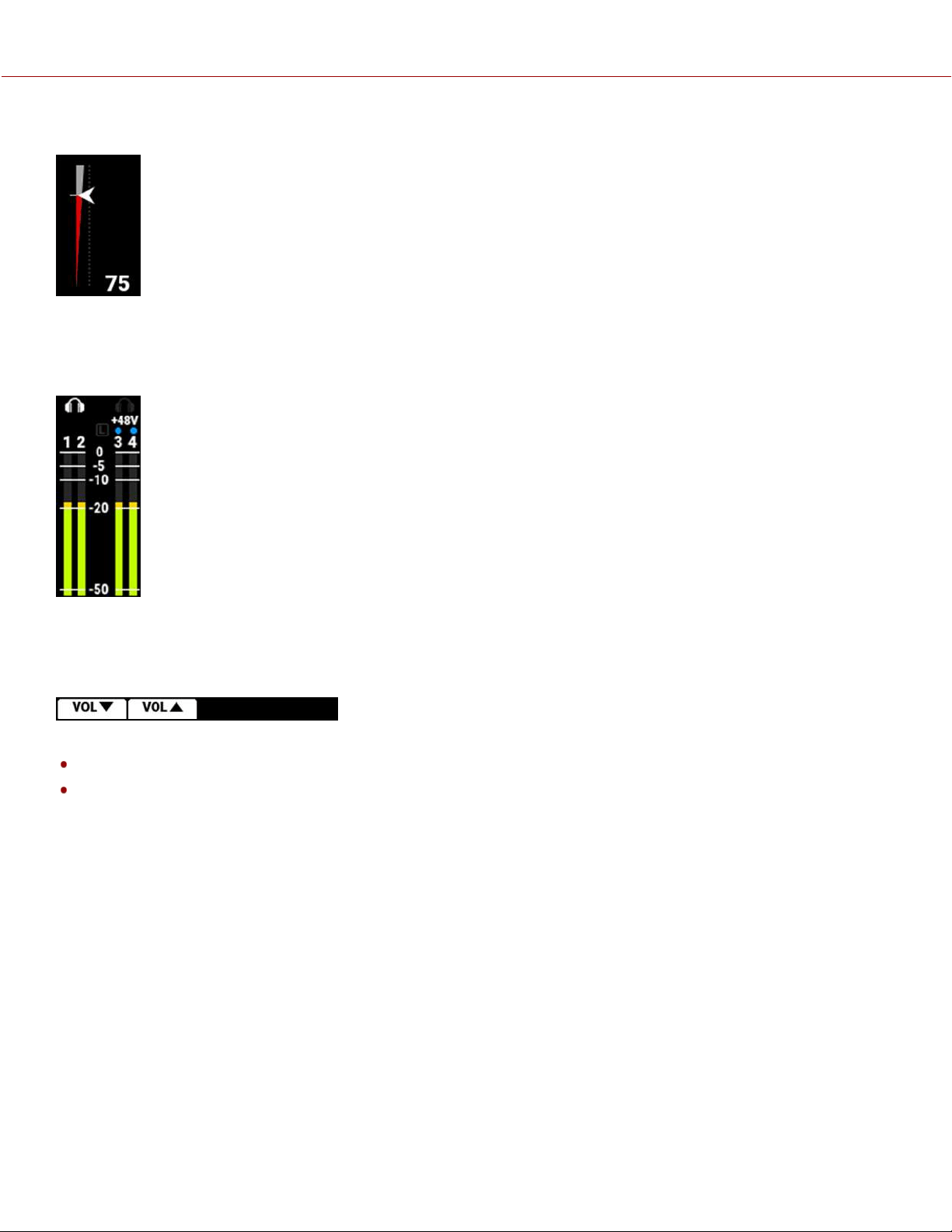
LEVEL INDICATOR
The audio level indicator moves up and down to indicate the changes in the headphone level adjustments. The level
measured in decibels is displayed below the level indicator.
VU METER
The VU meter displays the headphone indicators, the limiter indicator, the +48 V phantom power indicator, the audio
channel numbers, and the audio signal levels.
BOTTOM BAR
The headphone bottom bar allows you to adjust the headphone volume.
Press the button below VOL▼ to reduce the headphone volume
Press the button below VOL▲ to increase the headphone volume
Refer to the Audio / TC Menu section for more information about the headphone features.
COPYRIGHT © 2021 RED.COM, LLC 955-0198, V1.1, REV. A | 45
V-RAPTOR™ 8K V V OPERATION GUIDE
USER PAGES
The User (1, 2, 3) pages are the last pages on the LCD. Press the up button to navigate from the Home page to the User
pages.
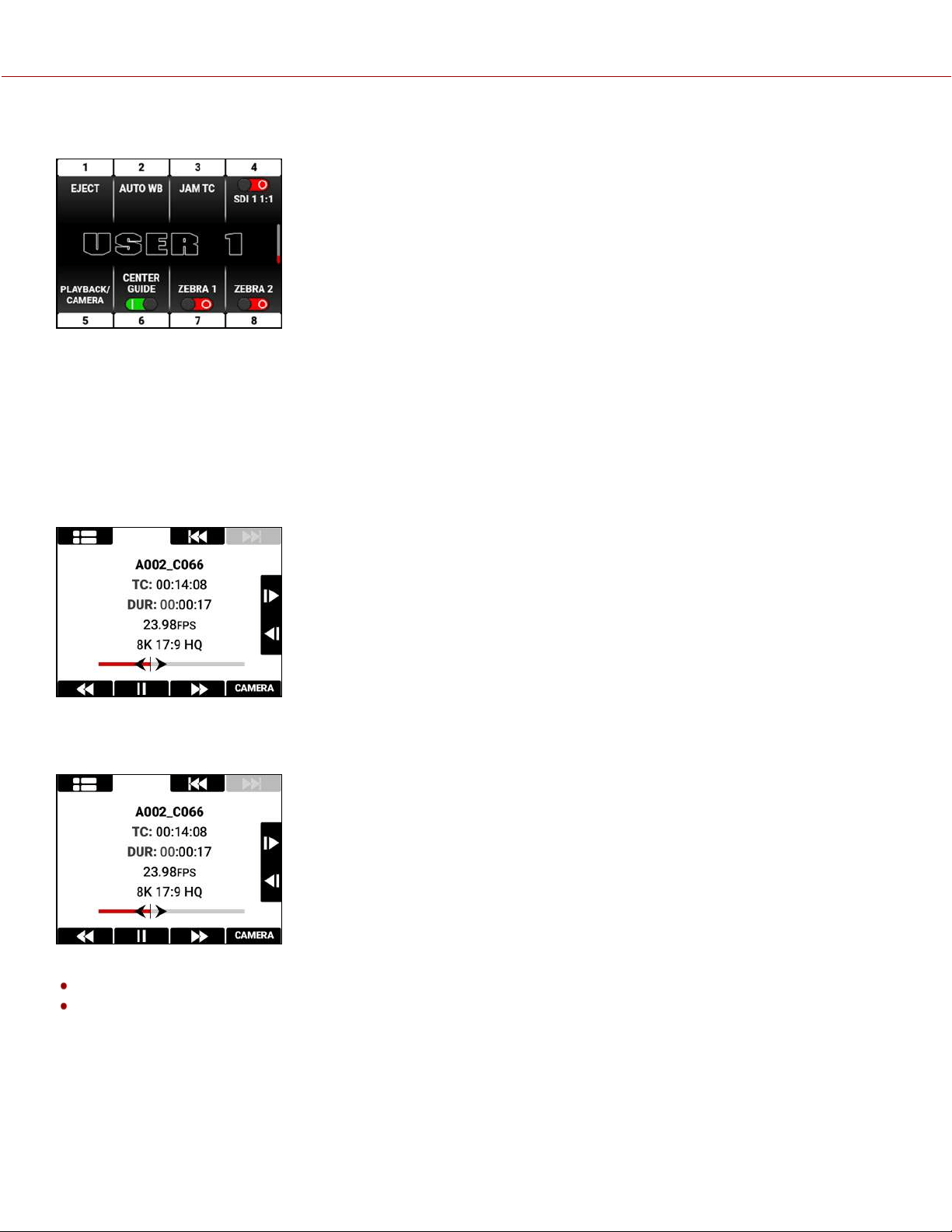
The User Pages contain the settings you assigned to the pages in the User Settings menu. From this page you can
press buttons next to 1-8 to quickly select a camera setting or feature.
Refer to the User Settings Menu section for more information.
PLAYBACK
When you press the button below PLAY on the Home Page, the LCD displays the Playback screen.
To close the Playback screen, press the button below CAMERA.
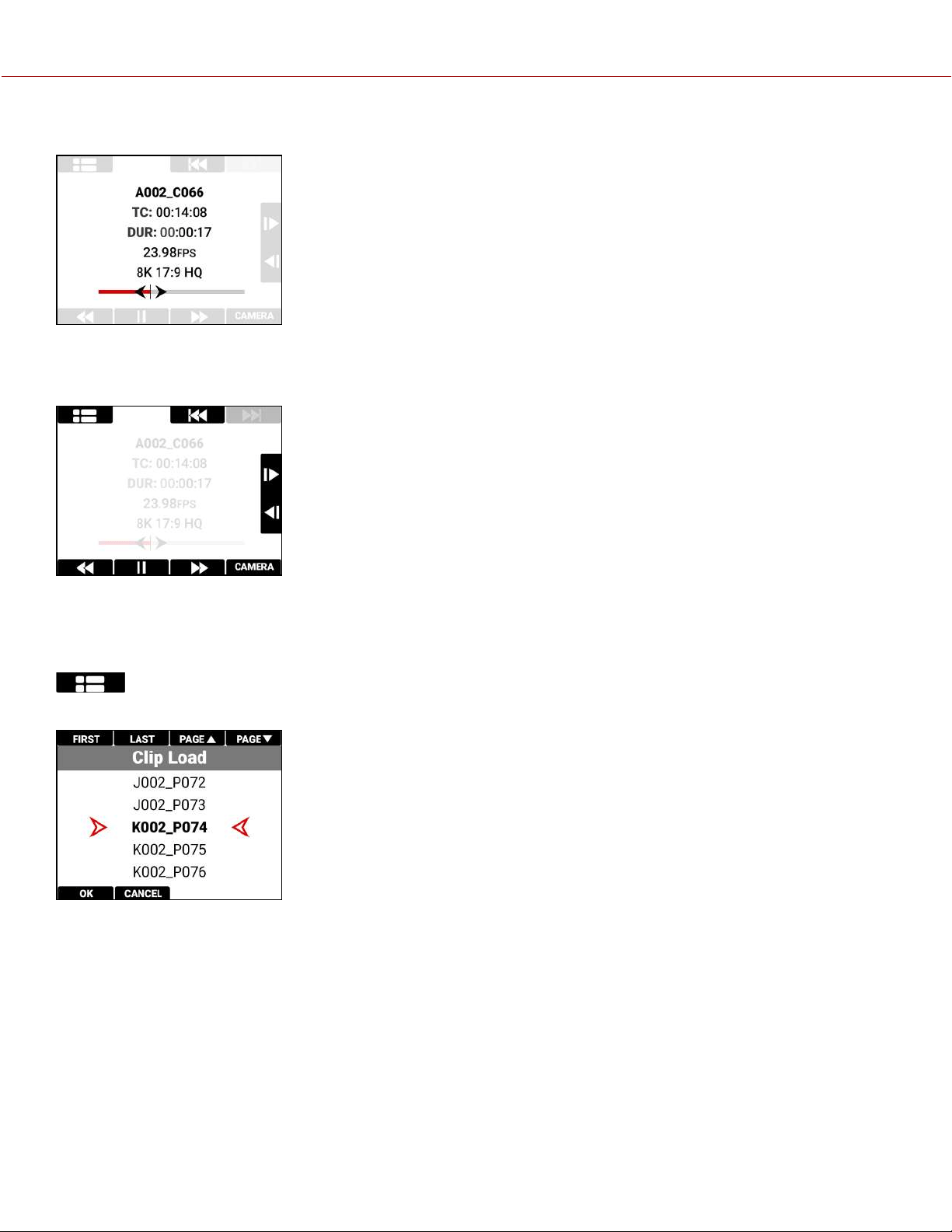
PLAYBACK SCREEN
The Playback screen displays the following:
Clip Information
Playback Screen Buttons
COPYRIGHT © 2021 RED.COM, LLC 955-0198, V1.1, REV. A | 46
V-RAPTOR™ 8K V V OPERATION GUIDE
CLIP INFORMATION
The Clip Information displays the name, Timecode, duration, project time base, format, and timeline of the clip.
PLAYBACK SCREEN BUTTONS
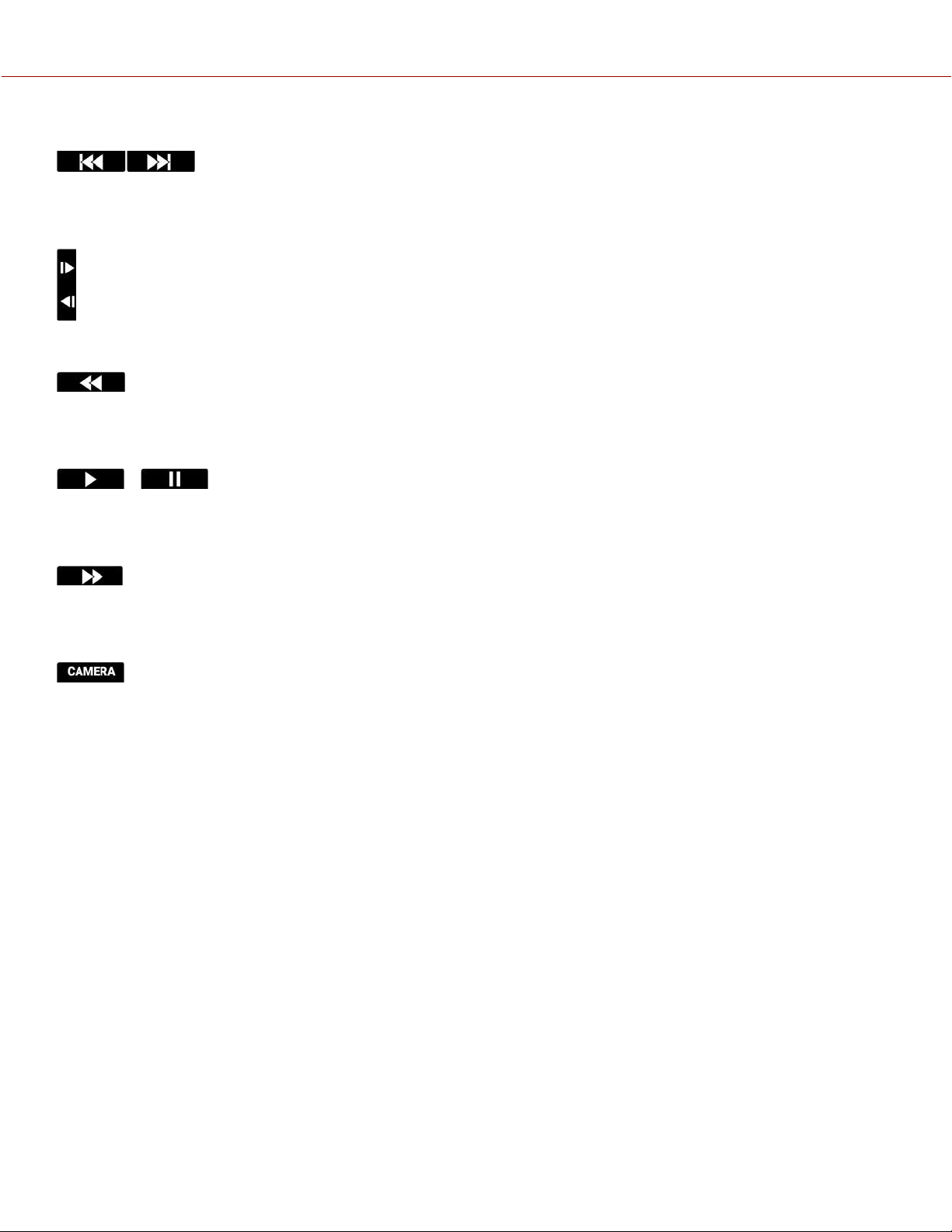
With the Playback screen buttons you can view the Clip list, move to the start of the clip, fast reverse, play/pause, fast
forward, and move forward and reverse by a single frame.
CLIP LIST
Press the button over the Clip List to open the Clip Load list.
Navigate to the desired clip and press the button under OK to open the clip in the Playback screen.
COPYRIGHT © 2021 RED.COM, LLC 955-0198, V1.1, REV. A | 47
V-RAPTOR™ 8K V V OPERATION GUIDE
START/END
Press the button above the Start or End button to navigate to the start or end of the clip.
NEXT PREVIOUS
Press the UP arrow to move forward by a single frame and press the DOWN arrow to reverse by a single frame.
REWIND
Press the button below Rewind to quickly navigate backwards through the clip.
PLAY/PAUSE
Press the button below Play/Pause to toggle between playing the clip and pausing the clip.
FAST FORWARD
Press the button below Fast Forward to quickly navigate forward through the clip.
CAMERA
Press the button below CAMERA to return to the camera interface.
COPYRIGHT © 2021 RED.COM, LLC 955-0198, V1.1, REV. A | 48
V-RAPTOR™ 8K V V OPERATION GUIDE
RED CONTROL APP
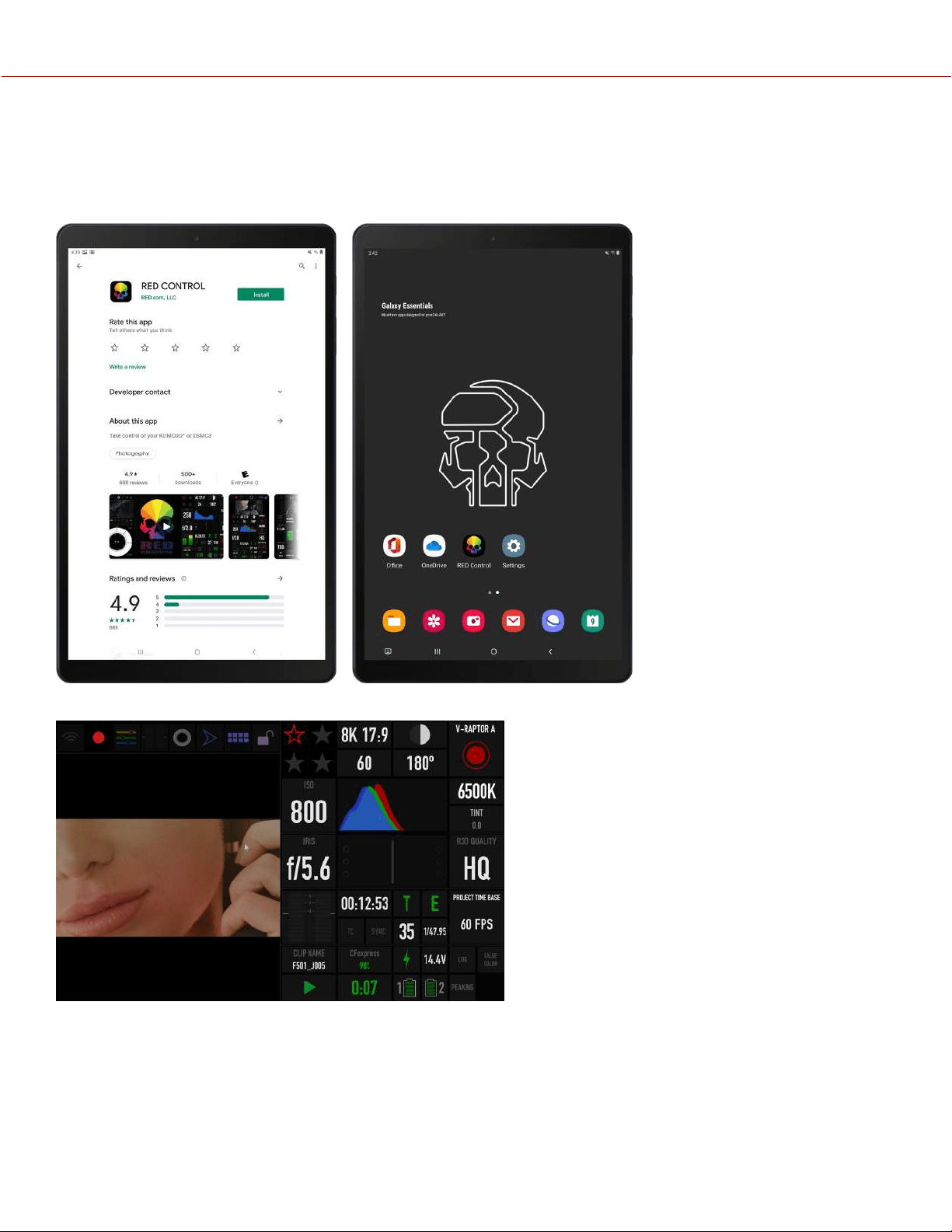
The RED Control app provides remote and tethered access to the camera from a device. Access is available through
Wi-Fi, USB-C, and Ethernet.
The RED Control app is free through the Google Play store and the Apple App store.
The RED Control app allows you to control all of the camera features while viewing the image.
For more information about connecting the camera to RED Control, refer to the How To section (USB-C Configuration).
COPYRIGHT © 2021 RED.COM, LLC 955-0198, V1.1, REV. A | 49
V-RAPTOR™ 8K V V OPERATION GUIDE
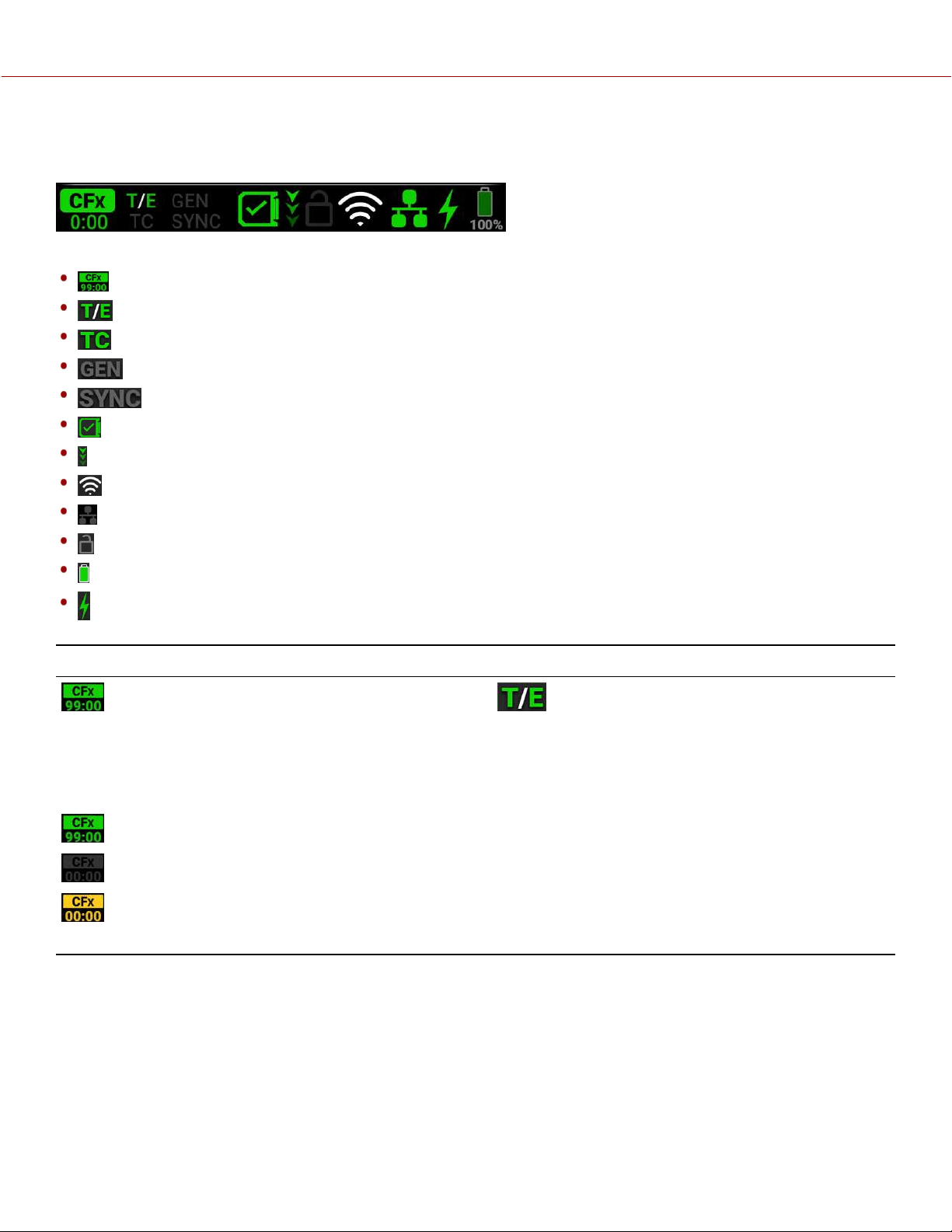
STATUS BAR
The LCD screen displays the camera status bar.
The Status Bar contains the following button and icons:
CFexpress Status Icon
Temperature / Exposure Icon
Timecode Icon
Genlock Icon
SYNC Icon
Camera Status Icon
FTPS Activity Icon
Wi-Fi Icon
Network Icon
LCD Lock Icon
Battery Icon
DC-In Icon
CFEXPRESS STATUS ICON TEMPERATURE / EXPOSURE ICON
This icon displays the status of the CFexpress media
card, and it displays the recording time remaining for the
current camera settings.
The status displayed includes:
Good
Missing
Incompatible
This icon displays the temperature (T) and exposure (E)
calibration indicators.
• When T is yellow or red, it indicates that the camera
requires sensor re-calibration.
• When E is yellow or red, it indicates that the camera
requires sensor re-calibration.
Refer to Calibrating the Sensor.
COPYRIGHT © 2021 RED.COM, LLC 955-0198, V1.1, REV. A | 50
V-RAPTOR™ 8K V V OPERATION GUIDE
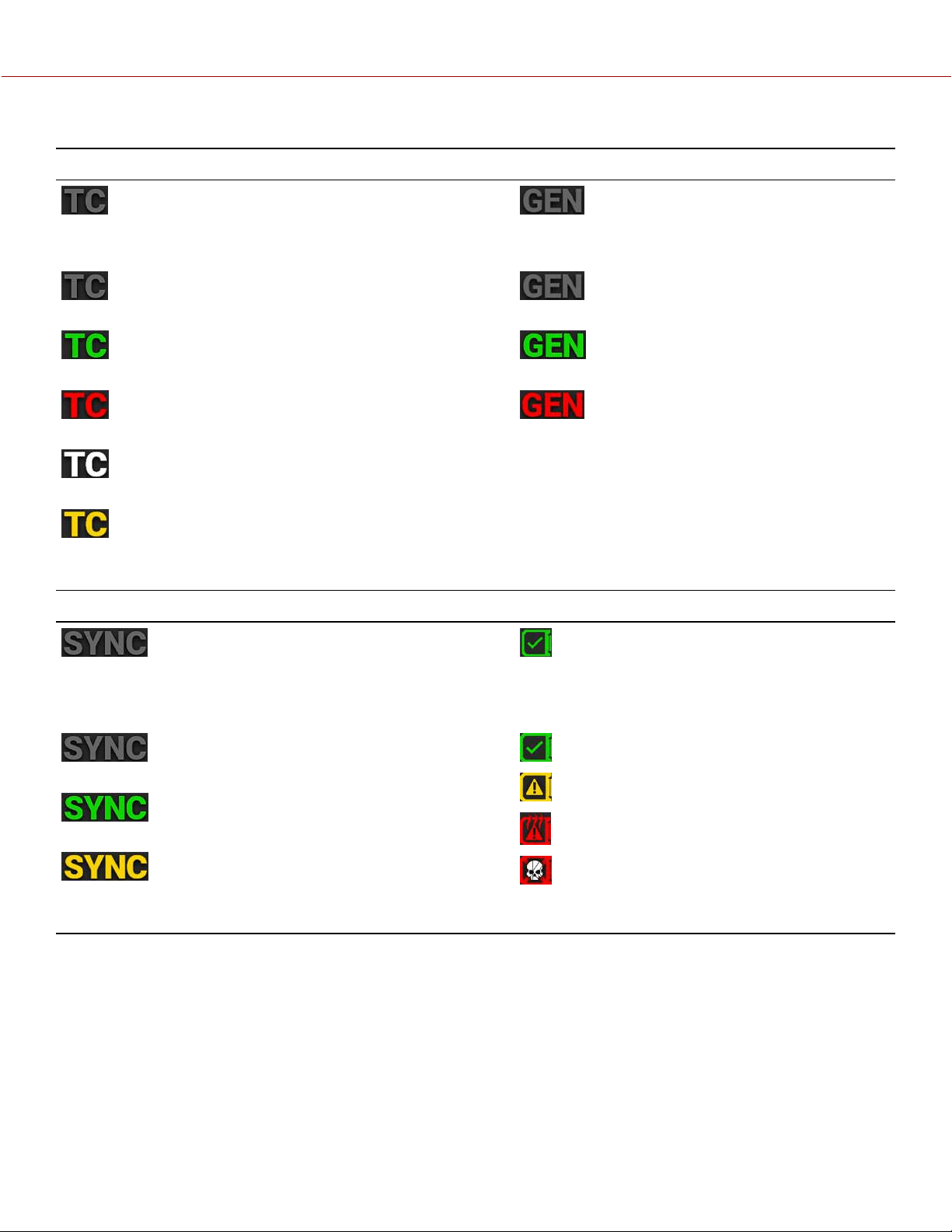
TIMECODE ICON GENLOCK ICON
This icon indicates the state of the Timecode generator
connection.
Gray indicates that no Timecode generator signal is
detected.
Green indicates that the Timecode source is
connected and jammed.
Red indicates that the Timecode source is
connected and not jammed.
White indicates that the Timecode source is jammed
and not connected.
Yellow indicates that the Timecode source is cross-
jammed (at a different Project Time Base).
This icon indicates the state of the Genlock
connection.
Gray indicates that no Genlock signal is
detected.
Green indicates that the camera is
receiving and is locked to a Genlock signal.
Red indicates that the camera is receiving
and is not locked to a Genlock signal.
SYNC ICON CAMERA STATUS ICON
This icon indicates that the Timecode and Genlock signals
are synchronized to the camera's frames per second (FPS)
settings.
Gray indicates that no synchronization is
detected.
Green indicates that the camera is
synchronized with the Timecode and Genlock signals.
Yellow indicates that the camera is
synchronized with the a single camera or a Genlock signal.
This icon indicates the state of the camera
hardware. The different icons and their
corresponding status include:
Good
Overheating Warning
Overheating
Shutting Down
COPYRIGHT © 2021 RED.COM, LLC 955-0198, V1.1, REV. A | 51
V-RAPTOR™ 8K V V OPERATION GUIDE
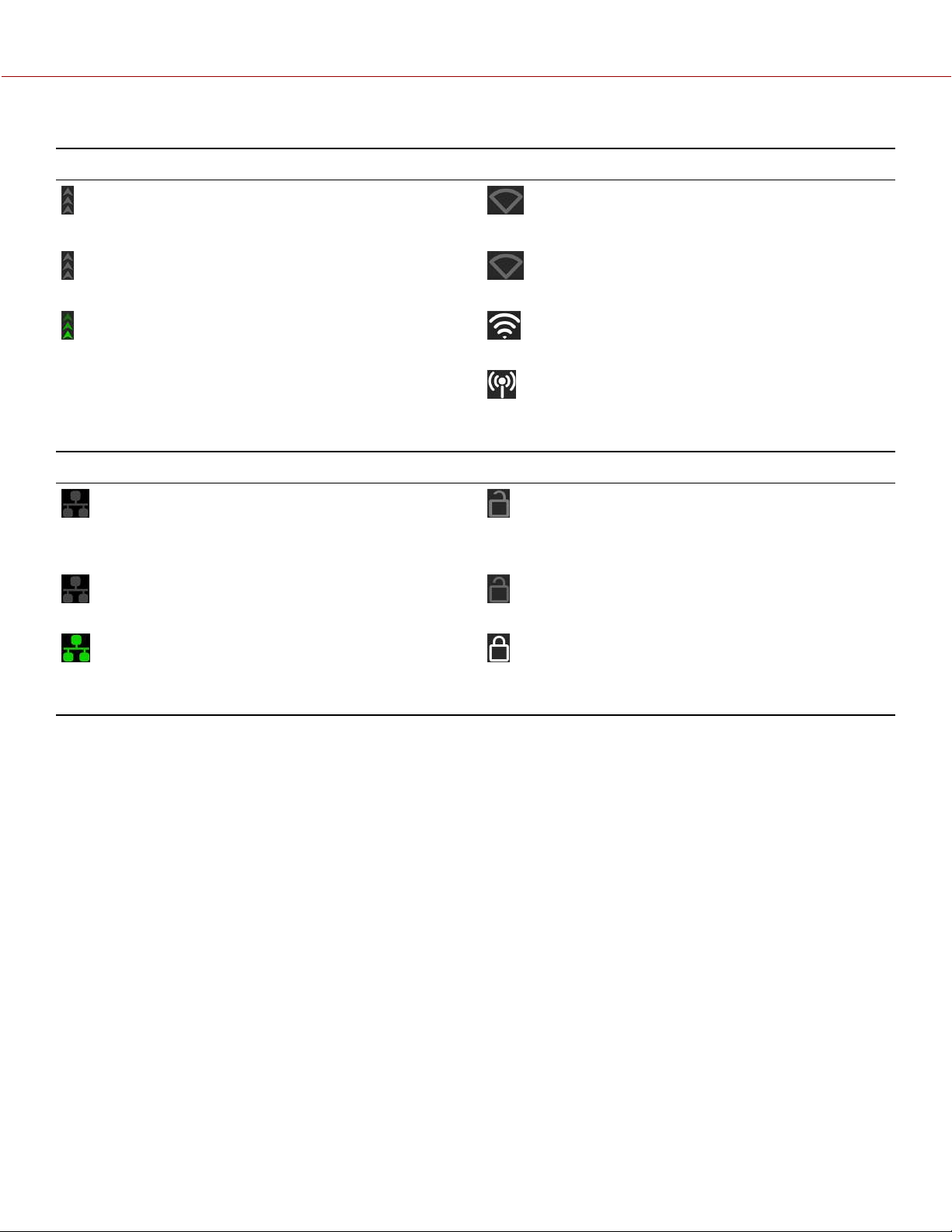
FTPS ACTIVITY ICON WI-FI ICON
This icon indicates the state of FTPS data transfer.
Gray indicates that the FTPS is not transferring
data.
Green indicates that the camera is transferring
FTPS data.
This icon indicates the state of Wi-Fi connection.
Gray and empty indicates that no Wi-Fi signal is
detected.
White bars indicate that Wi-Fi signal is detected
(Infrastructure).
White antenna indicates that Wi-Fi signal is
broadcasting (Ad-hoc).
NETWORK ICON LCD LOCK ICON
This icon indicates the state of the network
connection.
Gray indicates that the camera is not connected
to a network.
Green indicates that the camera is connected to
a network.
This icon indicates the state of the LCD Lock. The states
include:
Gray and open indicates that the camera LCD is
unlocked.
White and closed indicates that the camera LCD is
locked.
COPYRIGHT © 2021 RED.COM, LLC 955-0198, V1.1, REV. A | 52
V-RAPTOR™ 8K V V OPERATION GUIDE
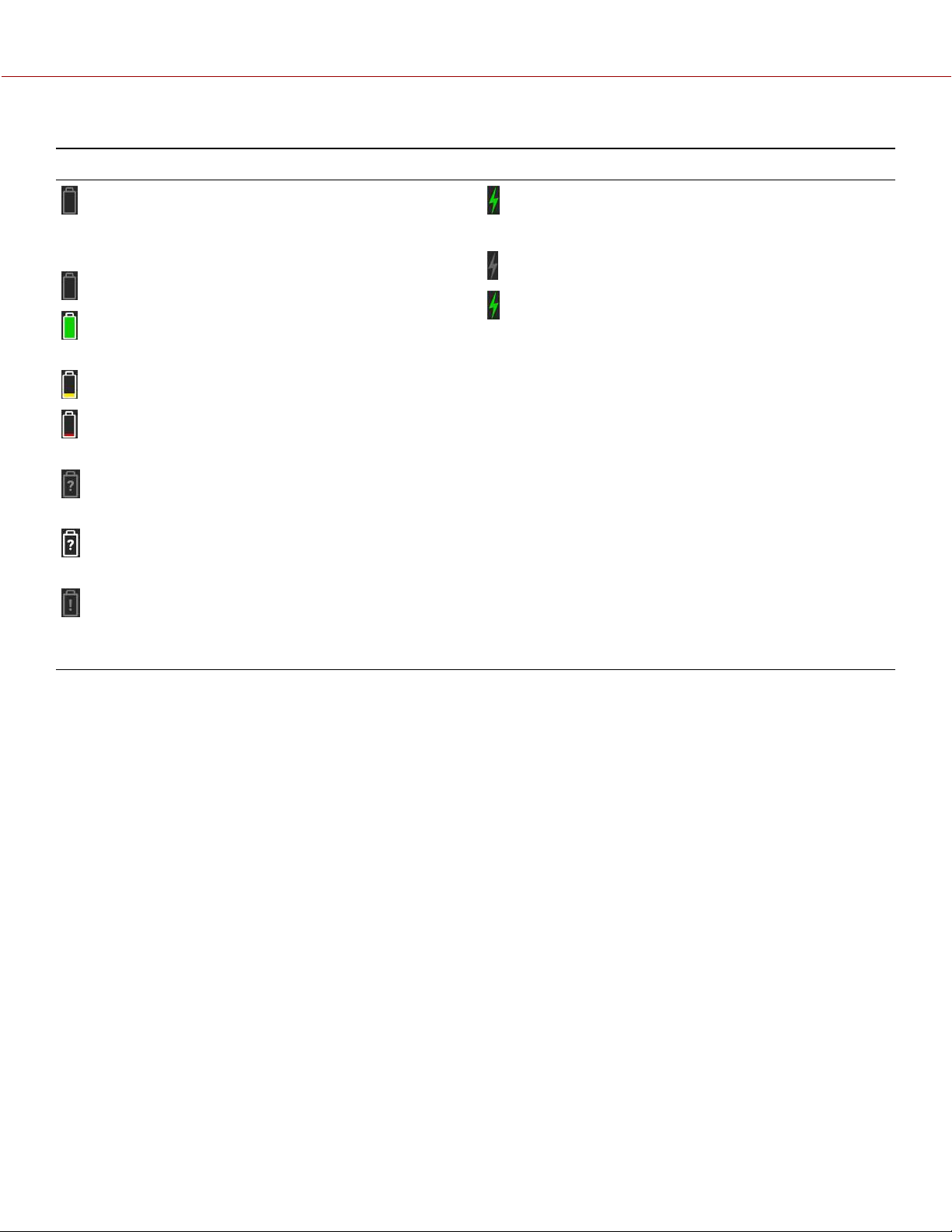
BATTERY ICON DC-IN ICON
This icon indicates the state of the battery connection
and charge level.
Gray indicates that no battery is connected.
White indicates that the battery is connected and
green shows the relative level of charge remaining.
Yellow indicates 10 minutes of power remaining.
Red indicates less then 5 minutes of power
remaining.
Gray question mark indicates no communication
with the battery and no power.
White question mark indicates no communication
with the battery and power.
Gray exclamation point indicates error
communicating with the battery and no power.
This icon indicates the state of DC power connection.
Gray indicates that no DC power is connected.
Green indicates that the camera is receiving DC power.
COPYRIGHT © 2021 RED.COM, LLC 955-0198, V1.1, REV. A | 53
V-RAPTOR™ 8K V V OPERATION GUIDE

COPYRIGHT © 2021 RED.COM, LLC 955-0198, V1.1, REV. A | 54
4. MENUS
This section describes the menus and sub-menus for the camera. To access the menus, navigate to a menu item from
the LCD.
MENUS DETAILS
Image / LUT Menu ISO, Shutter, White Balance, Output Color Space, Output Tone Map, Highlight Roll-Off,
3D LUT, CDL, Exposure Adjust
Project Settings Menu Format, Recording Frame Rate, Project Time Base, R3D Quality, Pre-Record, Slate
Audio / TC Menu Audio Source, Internal Audio, External Audio, Headphone, Timecode Source, Jam
Timecode to TOD, Timecode Display Mode
Monitoring Menu Top LCD, SDI 1/2, Live Stream, Tools, Guides
Media Menu Eject, Media Info, Secure Format
User Settings Menu Presets, Side LCD, User 1, User 2, User 3
Autofocus - BETA Menu Enable, Mode, Size, Position, Start AF
Communication Menu Camera, USB-C, Wi-Fi, FTPS, Serial
System Settings Menu Date / Time, Lens, Power, Indicators, Status Settings,
System Status
Language Menu English, Chinese, French, German, Japanese, Spanish
Maintenance Menu Calibrate, Calibration, Save Log, Reset Defaults, Factory Reset, Upgrade
V-RAPTOR™ 8K V V OPERATION GUIDE
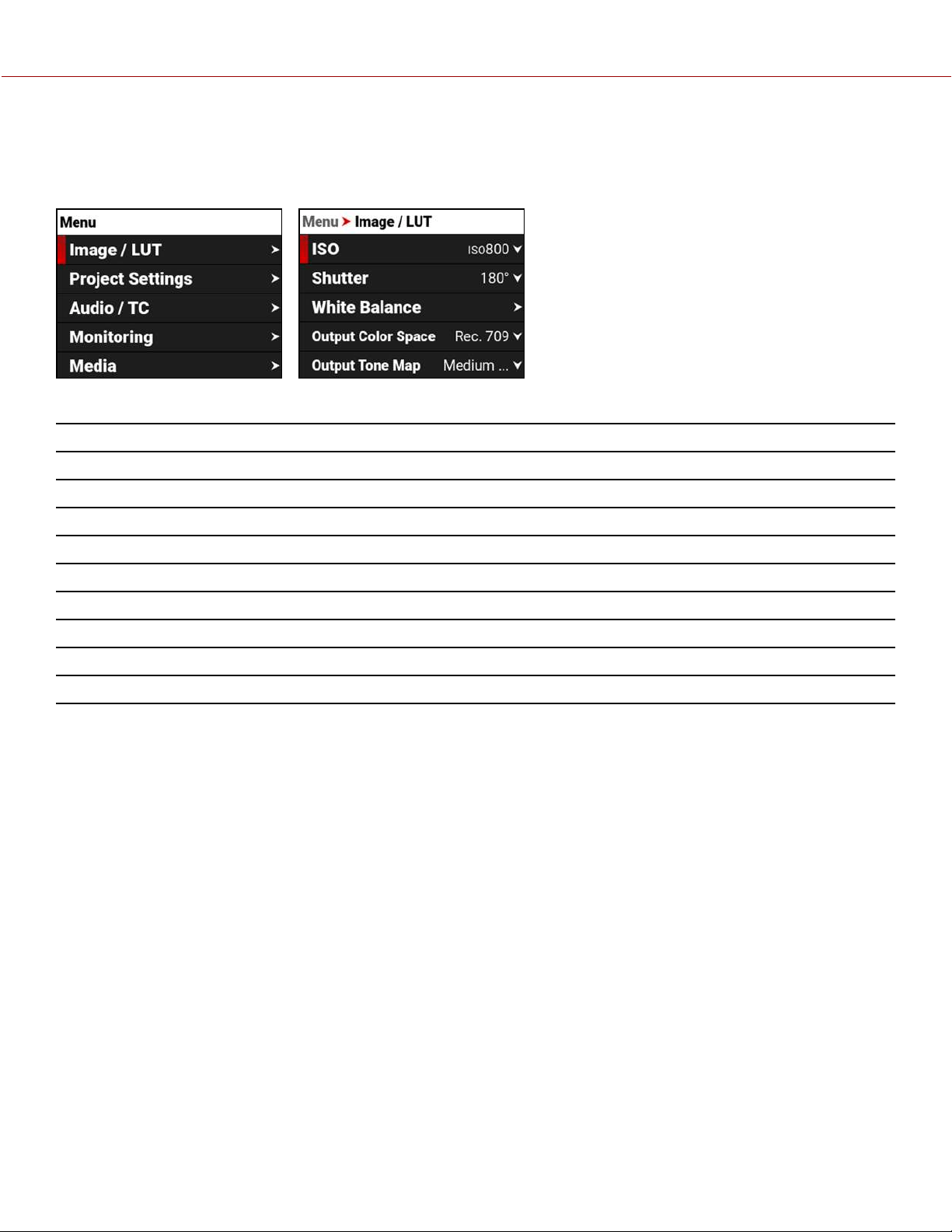
IMAGE / LUT MENU
The Image / LUT menu contains the settings you use to configure your image.
From the camera LCD menu, navigate to Image / LUT and press SEL:
Use the Image / LUT menu to configure the camera's image and lookup table (LUT) settings:
ITEM DETAILS
ISO Adjusts the image’s brightness in the monitoring path
Shutter Adjusts the amount of light exposed to the sensor
White Balance Adjusts the colors to compensate for the light source temperature
Output Color Space Adjusts on-set working color space
Output Tone Map Adjusts the image contrast
Highlight Roll-Off Adjusts image highlight compression
3D LUT Manage the camera's look up tables (LUTs)
CDL Opens the Color Decision List (CDL) menu
Exposure Adjust Manually fine-tunes the midtone exposure level
COPYRIGHT © 2021 RED.COM, LLC 955-0198, V1.1, REV. A | 55
V-RAPTOR™ 8K V V OPERATION GUIDE
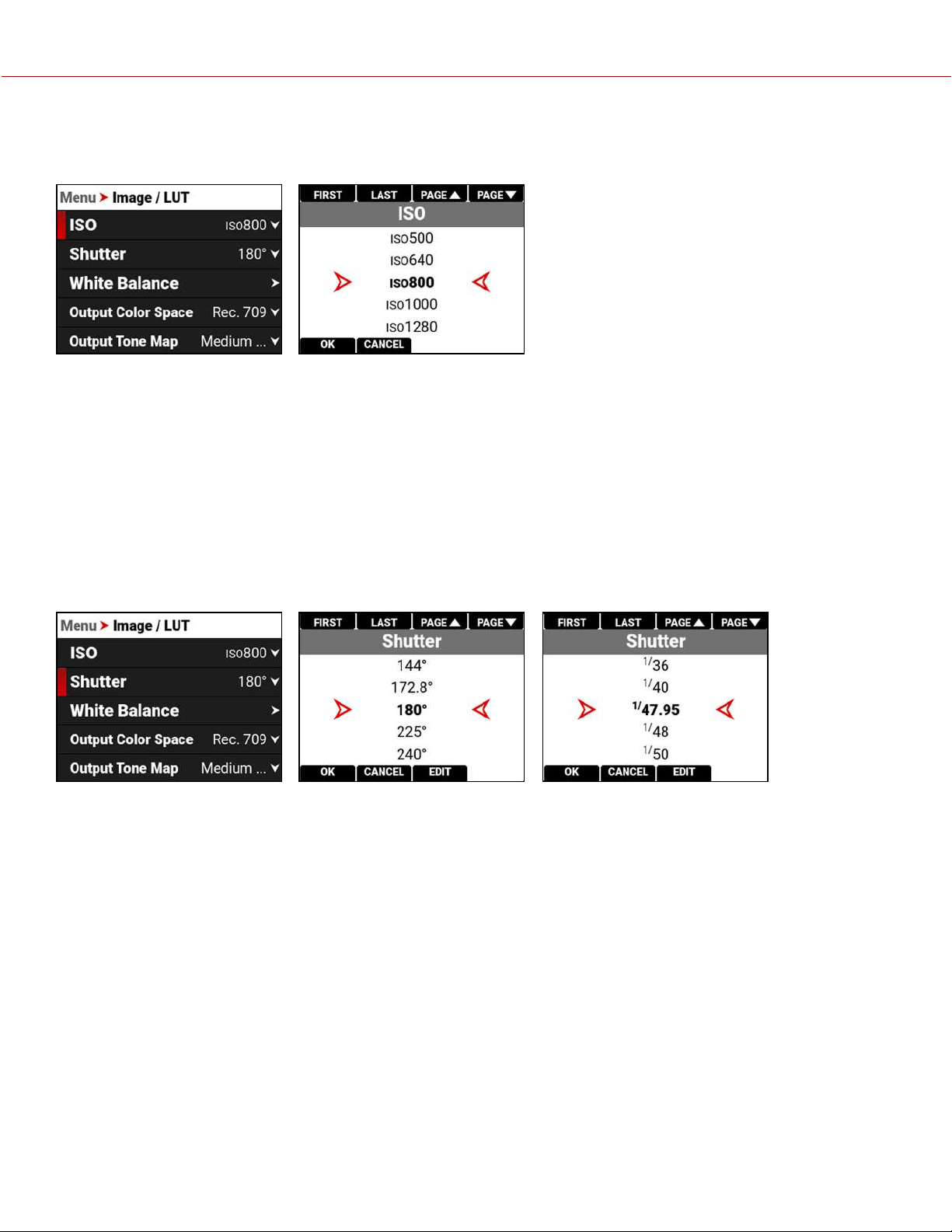
ISO
Use the ISO setting to adjust the image’s brightness in the monitoring path.
The ISO range is ISO 250 to ISO 12,800. The default ISO is ISO 800.
Higher ISO values create brighter images in the monitor path, and lower ISO values create darker images in the monitor
path.
When you record, the ISO settings are stored as metadata and you can adjust them non-destructively in post-
processing with REDCINE-X PRO or other editing tools that support R3D files.
RED recommends setting the ISO to the default of 800, then adjusting the aperture and lighting to match. You can
adjust the ISO later for fine-tuning.
SHUTTER
Use Shutter to select the exposure time (shutter speed / shutter angle). You can change the shutter settings while
recording.
You can switch between angle and time by using the Status Settings or by pressing and holding the button above
SHUTTER on the Home Page (refer to Home Page).
Decreasing shutter speed increases the amount of time that light hits the sensor, which increases exposure and motion
blur of moving objects. Increasing shutter speed decreases the amount of time that light hits the sensor, which
decreases exposure and motion blur of moving objects.
COPYRIGHT © 2021 RED.COM, LLC 955-0198, V1.1, REV. A | 56
V-RAPTOR™ 8K V V OPERATION GUIDE
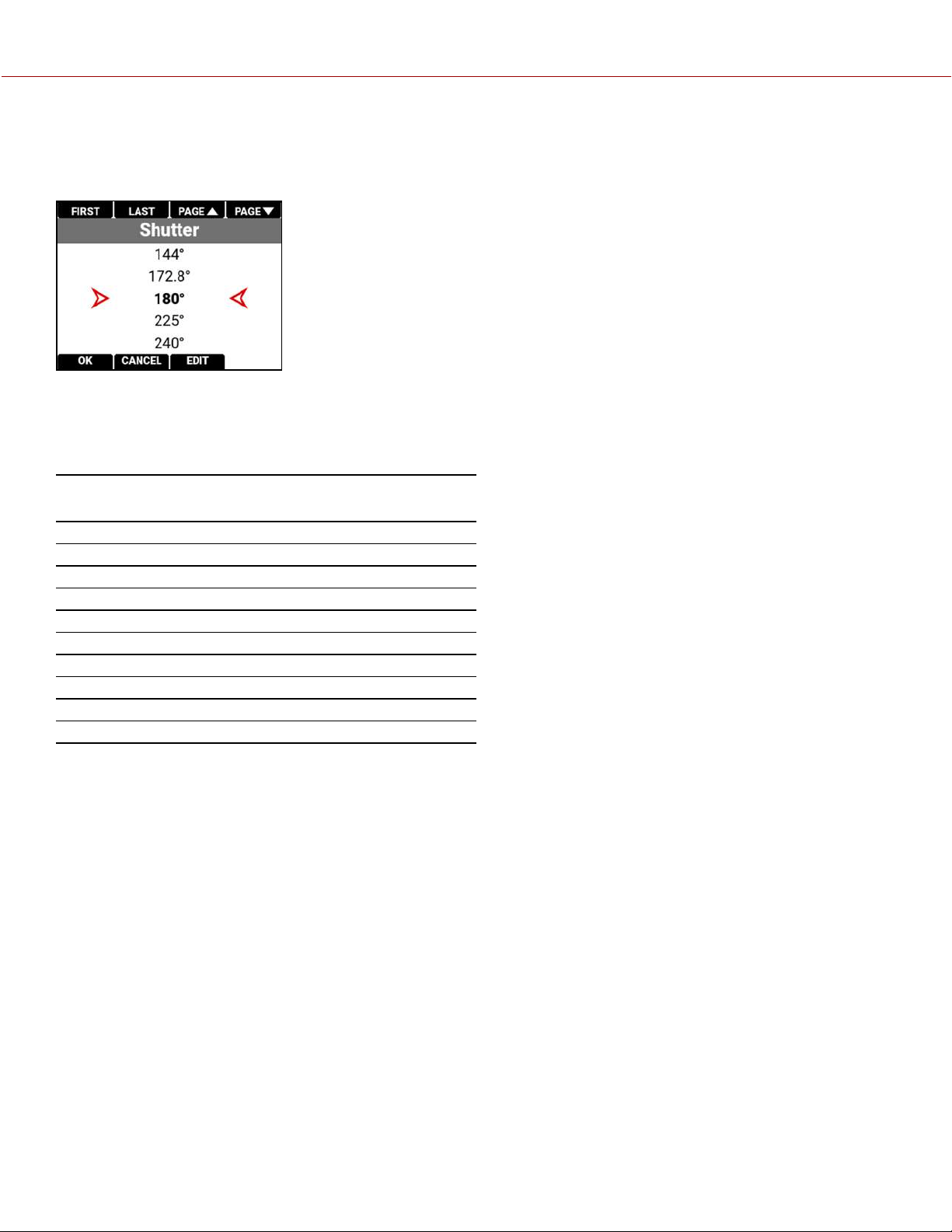
SHUTTER ANGLE
Enter the exposure value as a shutter angle (xx°). The shutter angle range is 0° to 360°. The default shutter angle is
180°. Click Edit to enter an exact shutter angle or shutter speed.
EXPOSURE CONVERSIONS
The table below lists common shutter angle and shutter speed equivalents. The calculations in the table use a recording
frame rate of 23.98 fps.
SHUTTER
ANGLE (°)
SHUTTER SPEED
(1/XX SEC)
SHUTTER
ANGLE (°)
SHUTTER SPEED
(1/XX SEC)
360˚ 1/23.98 105˚ 1/82.20
288˚ 1/29.97 90˚ 1/95.90
270˚ 1/31.97 72˚ 1/119.88
240˚ 1/35.96 45˚ 1/191.81
225˚ 1/38.36 22.5˚ 1/383.62
180˚ 1/47.95 11.2˚ 1/770.66
172.8˚ 1/49.95 8.6˚ 1/1003.65
144˚ 1/59.94 4˚ 1/2157.84
135˚ 1/63.95 1˚ 1/8000 (max)
120˚ 1/71.93
SHUTTER SPEED
Enter the exposure value as a shutter speed (1/xx sec).
The slowest shutter speed is 1/(recording frame rate). For example, if the recording frame rate is 23.98 fps, the slowest
available shutter speed is 1/23.98 sec. The fastest shutter speed is 1/8000 sec. The default shutter speed is 1/47.95
sec.
CONVERT SHUTTER SPEED TO SHUTTER ANGLE
Shutter Angle = (Shutter Speed x Frame Rate x 360)
Example: (1/47.95 x 23.98 x 360) = 180
CONVERT SHUTTER ANGLE TO SHUTTER SPEED
Shutter Speed = 1/(Frame Rate x 360/Angle)
Example: 1/(23.98 x 360/180) = 1/47.95
COPYRIGHT © 2021 RED.COM, LLC 955-0198, V1.1, REV. A | 57
V-RAPTOR™ 8K V V OPERATION GUIDE
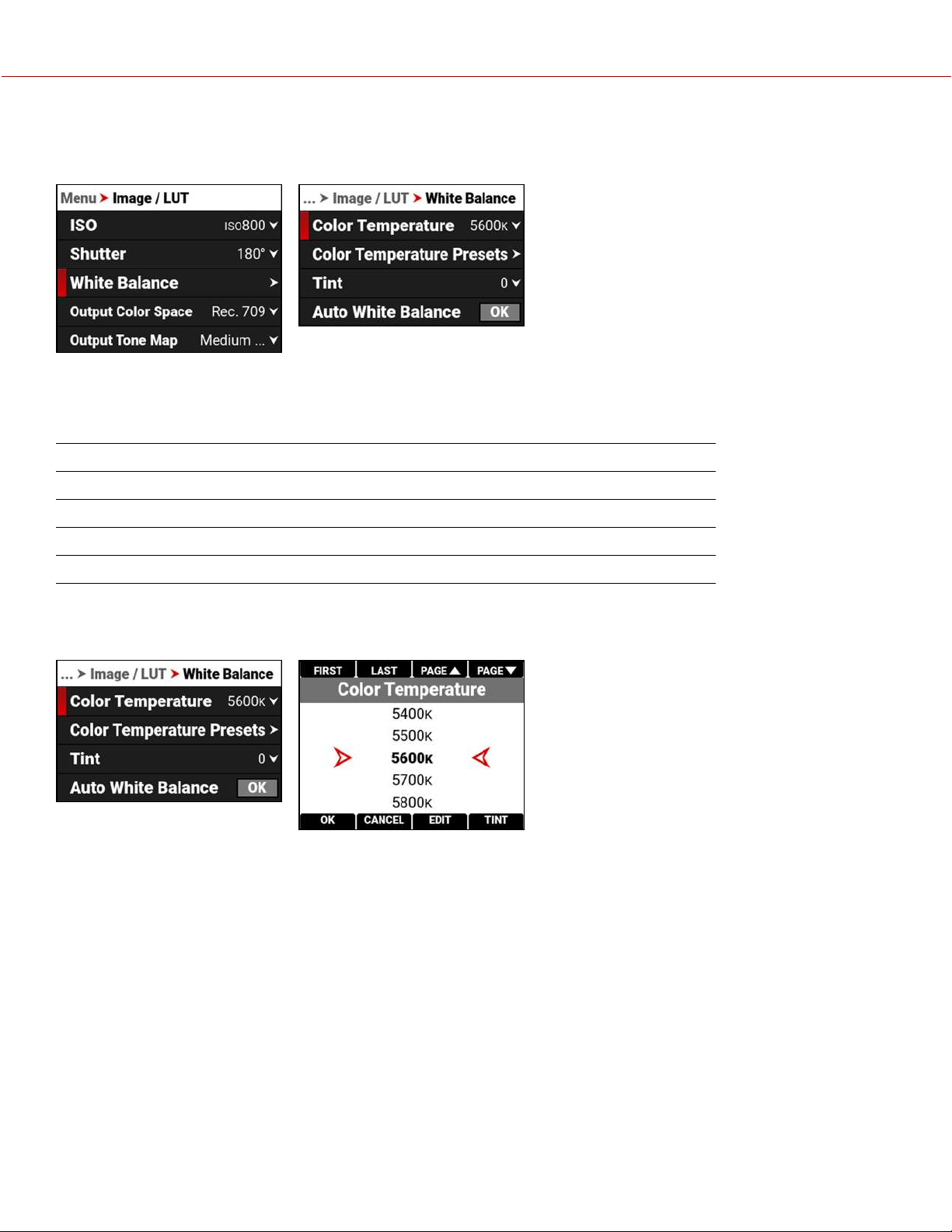
WHITE BALANCE
Use the White Balance menu to adjust the Color Temperature and the Tint.
When shooting in R3D format, the camera stores white balance as metadata, which you can adjust non-destructively in
post production after filming.
Use the White Balance menu to configure the color temperature and tint settings for your image:
ITEM DETAILS
Color Temperature Image color temperature correction
Color Temperature Presets Select a preset color temperature
Tint Adjust magenta-green color component
Auto White Balance The camera automatically sets the color temperature and tint
COLOR TEMPERATURE
Use Color Temperature to adjust the image's color temperature in Kelvin units (K) or by selecting presets.
COPYRIGHT © 2021 RED.COM, LLC 955-0198, V1.1, REV. A | 58
V-RAPTOR™ 8K V V OPERATION GUIDE
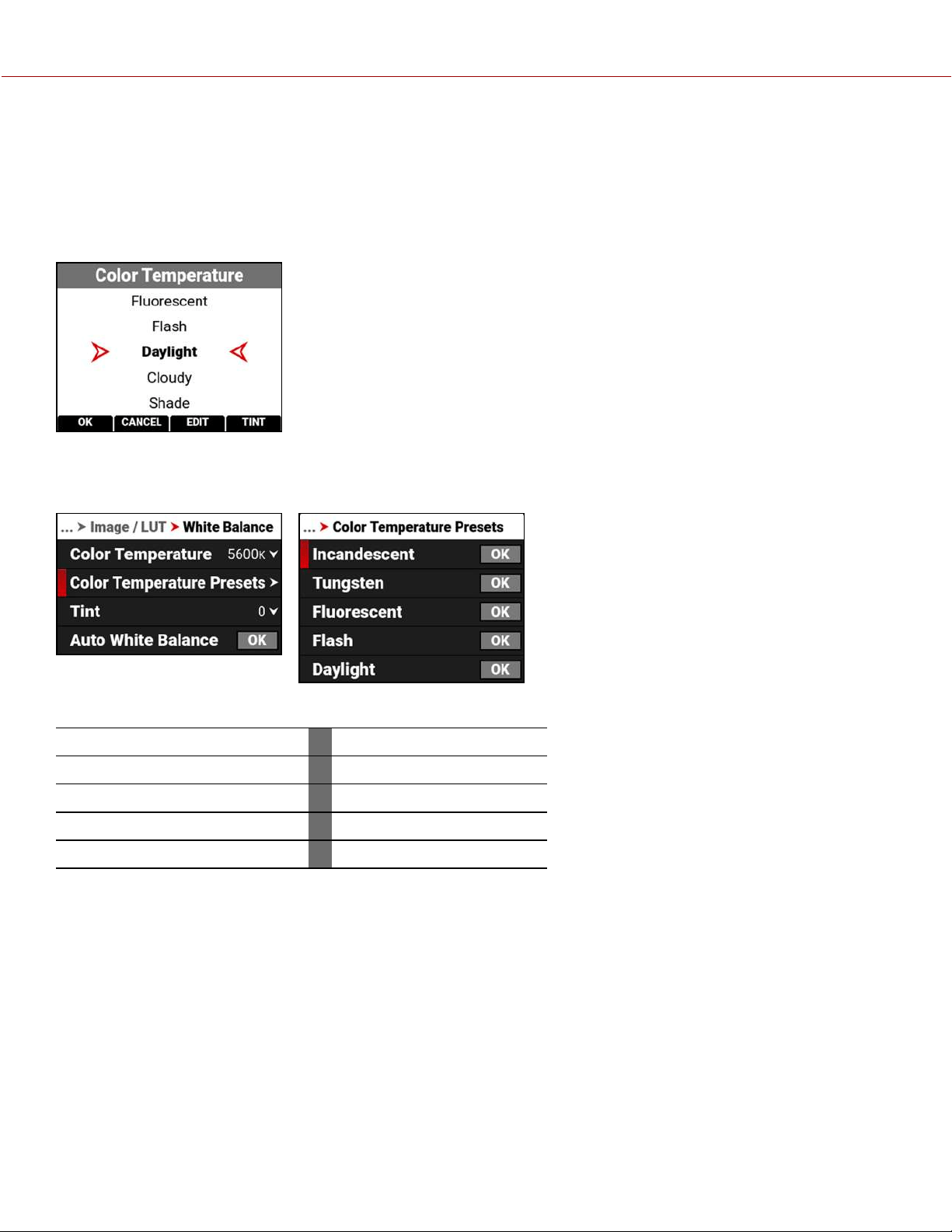
When the image's light source color temperature is warm, you can compensate by setting the camera to a warmer color
temperature. When the image's light source color temperature is cool, you can compensate by setting the camera to a
cooler temperature.
The color temperature range is 1,700 K to 10,000 K. The default color temperature is 5600 K.
When the White Balance List Mode (refer to Status Settings) is set to Presets, the Color Temperature menu list uses the
Preset temperatures instead of the Kelvin temperatures.
COLOR TEMPERATURE PRESETS
Use Color Temperature Presets to select a pre-configured color temperature.
The color temperature presets you can select include:
ITEM DETAILS ITEM DETAILS
Incandescent 2800 K Daylight 5600 K
Tungsten 3200 K Cloudy 7000 K
Fluorescent 4500 K Shade 8000 K
Flash 5500 K
COPYRIGHT © 2021 RED.COM, LLC 955-0198, V1.1, REV. A | 59
V-RAPTOR™ 8K V V OPERATION GUIDE
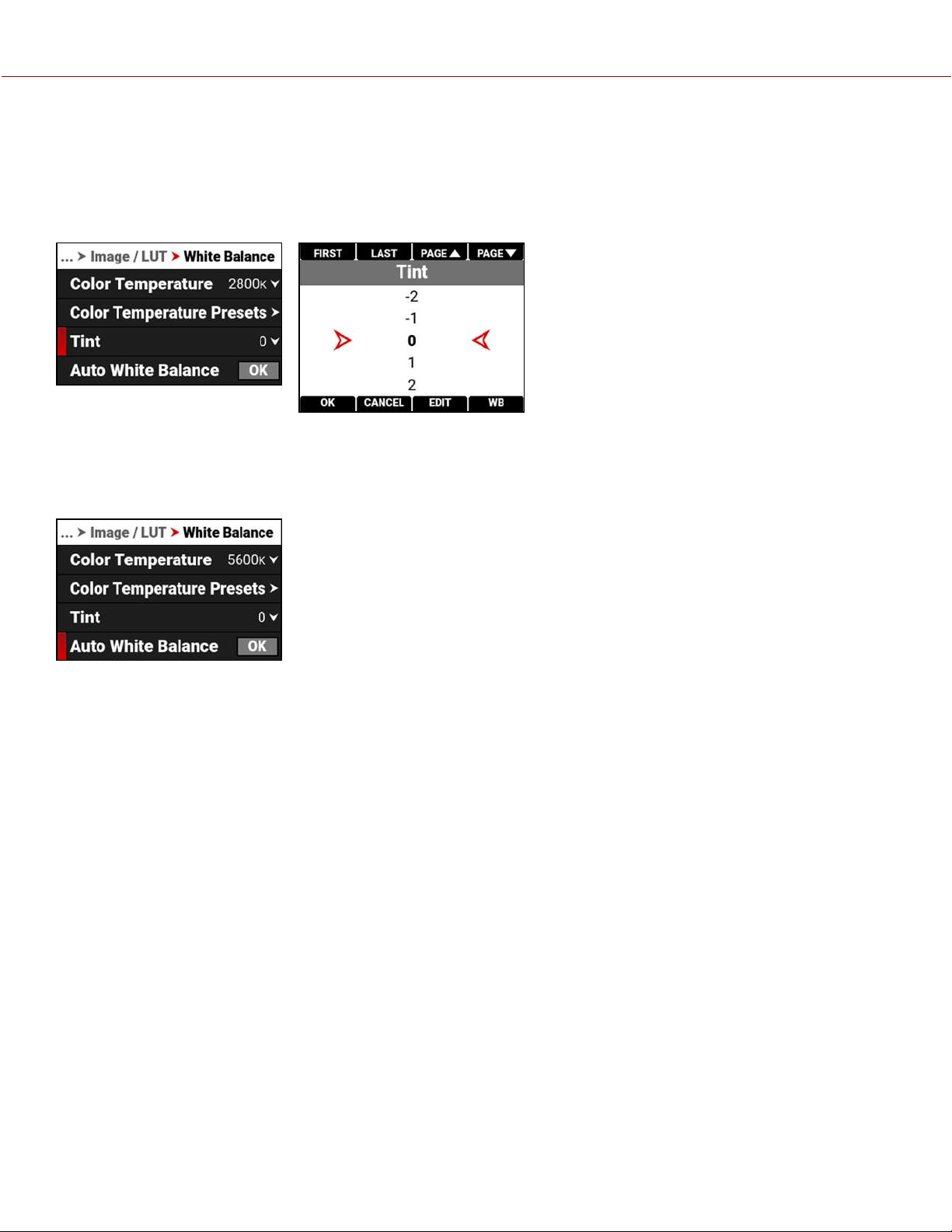
TINT
Use Tint to adjust the image's color tint.
Color temperature calculations assume a pure light source that may not be true in the specific scene the camera is
imaging. To compensate for any residual colorcast, the Tint setting adjusts the RGB color balance with a compensating
magenta-green color component.
Tint range is –100 to 100. The default Tint setting is 0.
AUTO WHITE BALANCE
Use Auto White Balance to use the camera's automatic white balance adjustment.
When shooting in R3D format, the camera stores white balance as metadata, which you can adjust non-destructively in
post production after filming.
To use Auto White Balance:
1. Place an 18% gray chart in the center of the image under the correct exposure.
2. From the White Balance menu, navigate down to Auto White Balance and press SEL to enable.
3. The camera automatically sets the color temperature and tint settings.
NOTE: Place the chart in the same location as your subject, and illuminate it with the same lighting.
COPYRIGHT © 2021 RED.COM, LLC 955-0198, V1.1, REV. A | 60
V-RAPTOR™ 8K V V OPERATION GUIDE
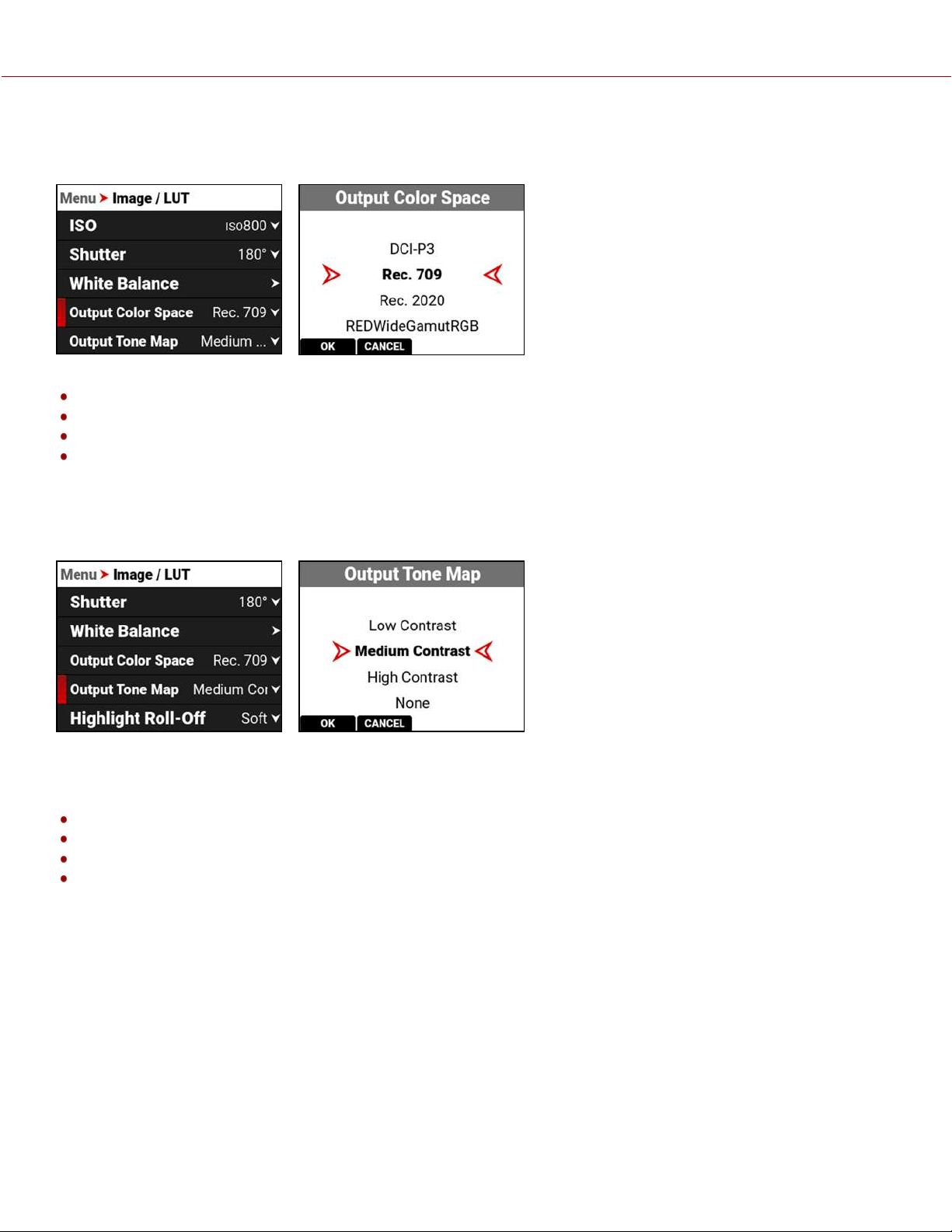
OUTPUT COLOR SPACE
Use Output Color Space to select the desired Color Space to use when displaying the camera output.
The Output Color Space selections include:
DCI-P3 - Digital Cinema Initiatives theater projector standard color space
Rec. 709 - Standard Color Space for HDTV (default)
Rec. 2020 - Standard Color Space for UHD and HDR
REDWideGamutRGB - Color space encompassing all of the colors that the RED camera can generate without
clipping
OUTPUT TONE MAP
Use Output Tone Map to adjust the image contrast when displaying the camera output.
When shooting in R3D format, the camera stores this as metadata, which you can adjust non-destructively in post
production after filming.
The Output Tone Map selections include:
Low Contrast - Low contrast is applied to the image
Medium Contrast - Medium contrast is applied to the image (default)
High Contrast - High contrast is applied to the image
None - No contrast is applied to the image
COPYRIGHT © 2021 RED.COM, LLC 955-0198, V1.1, REV. A | 61
V-RAPTOR™ 8K V V OPERATION GUIDE
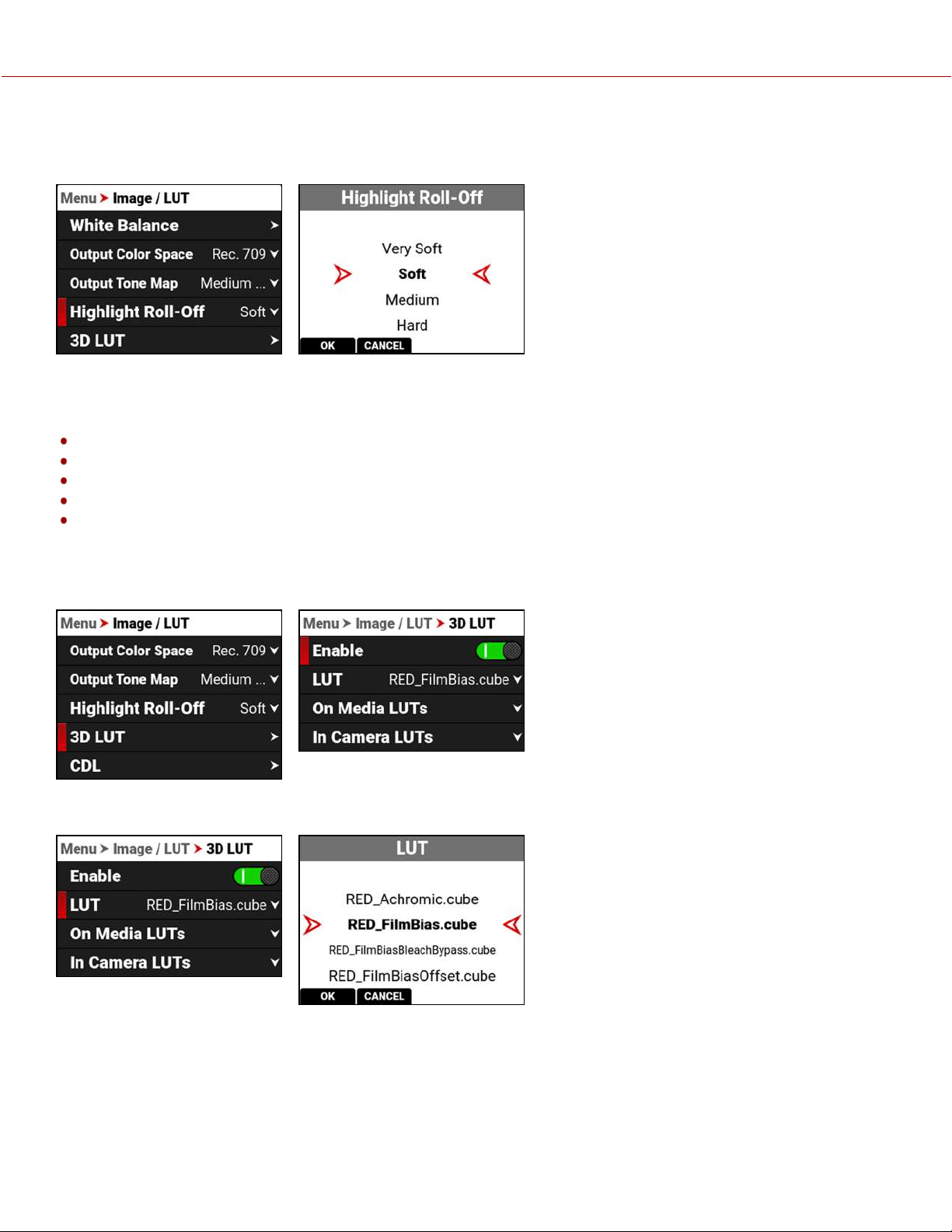
HIGHLIGHT ROLL-OFF
Use Highlight Roll-Off to select the desired highlight compression to use when displaying the camera output.
When shooting in R3D format, the camera stores this as metadata, which you can adjust non-destructively in post
production after filming.
The Highlight Roll-Off selections include:
Very Soft - The lightest compression is applied to the image highlights
Soft - Soft compression is applied to the image highlights (default)
Medium - Medium compression is applied to the image highlights
Hard - The highest compression is applied to the image highlights
None - Nothing is applied to the image highlights
3D LUT
Use the 3D LUT menu to apply and manage the camera's Look-Up Tables (LUTs).
LUT
When you are recording, this LUT will be saved along with each clip on which it is activated during recording. The LUT
is non-destructive, and it is reversible.
To apply a 3D LUT, follow the instructions below:
1. Go to MENU > IMAGE / LUT > 3D LUT > LUT.
2. Select a LUT from the LUT list.
COPYRIGHT © 2021 RED.COM, LLC 955-0198, V1.1, REV. A | 62
V-RAPTOR™ 8K V V OPERATION GUIDE
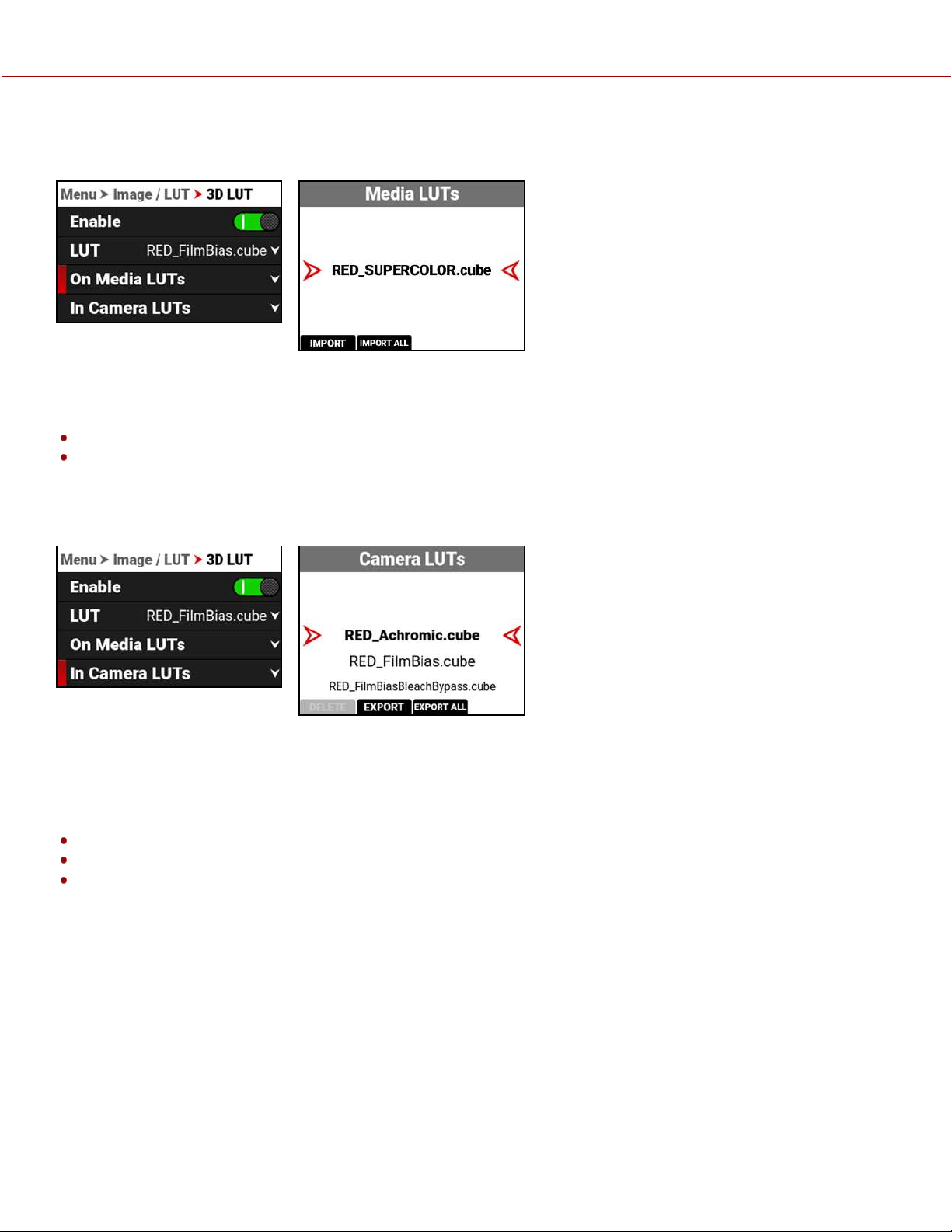
ON MEDIA LUTS
To import 3D LUTs from media, go to MENU > IMAGE / LUT > 3D LUT > On Media LUTs.
3D LUTs can be imported from media to the camera. When importing 3D LUTs from media to the camera, the 3D LUTs
must be saved on the root path of your media, in a folder titled "luts."
From On Media LUTs you can:
Import the selected 3D LUT from the media to the camera
Import all 3D LUTs from the media to the camera
IN CAMERA LUTS
To export and delete 3D LUTs stored in the camera, go to MENU > IMAGE / LUT > 3D LUT > In Camera LUTs.
You can export 3D LUTs stored on the camera, to media, to use on other cameras. When you export 3D LUTs from the
camera to media, the 3D LUTs are saved to a folder on the media called "luts."
NOTE: When a LUT is active during record, it will automatically be saved along with the recorded clip.
From In Camera LUTs you can:
Delete a selected 3D LUT from the camera
Export a selected 3D LUT from the camera to the media
Export all 3D LUTs from the camera to the media
COPYRIGHT © 2021 RED.COM, LLC 955-0198, V1.1, REV. A | 63
V-RAPTOR™ 8K V V OPERATION GUIDE
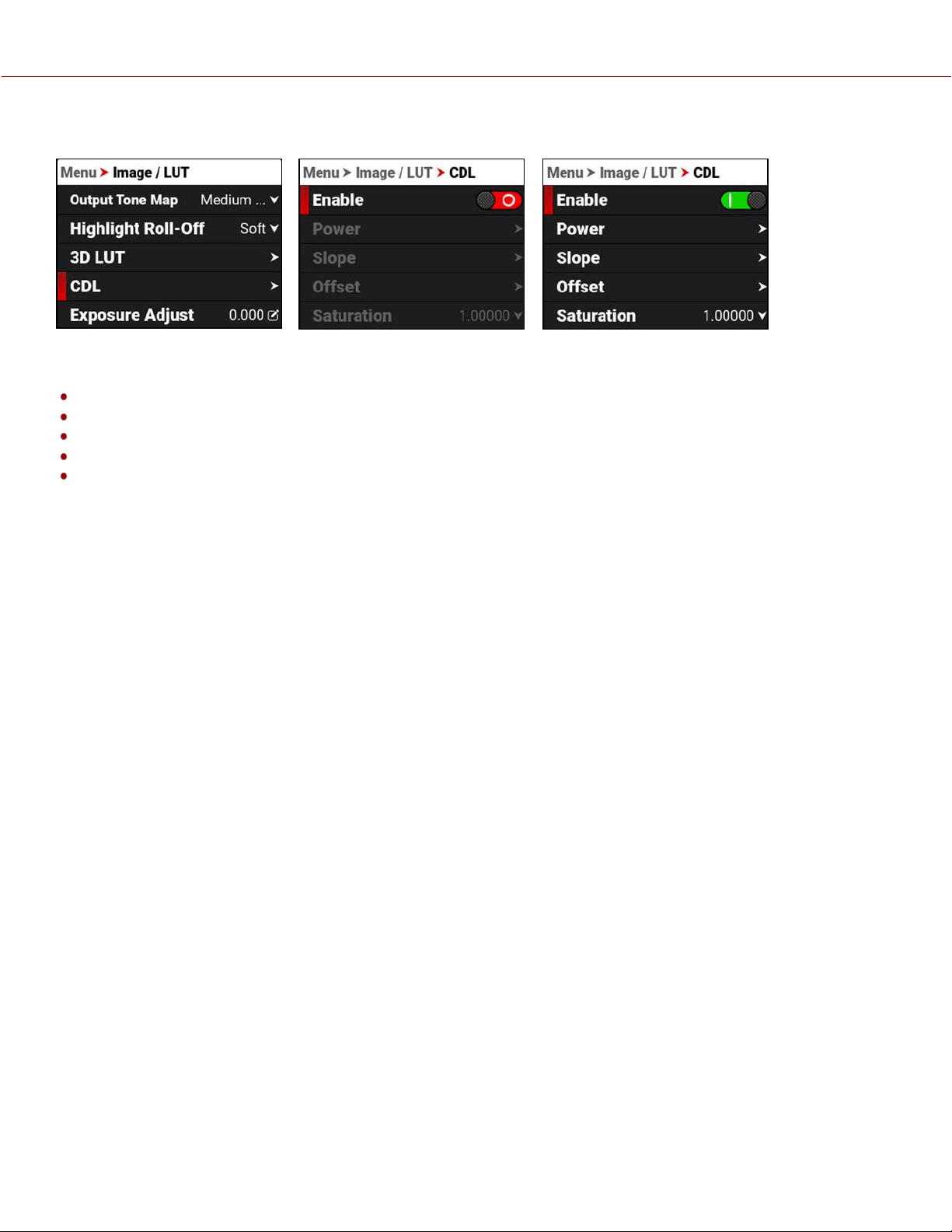
CDL
The Color Decision List (CDL) allows you define the look of the camera's colors in your project.
Use the CDL menu to:
Enable the CDLs
Configure CDL Power
Configure CDL Slope
Configure CDL Offset
Configure CDL Saturation
MANAGE CDLS
Use the CDLs menu to import and export CDLs.
CDLs can be stored on the camera or transferred to media to be shared with other cameras. When exporting CDLs from
camera to media, the CDLs are saved to a folder on the media called “cdls”. When importing CDLs from media to the
camera, the CDLs must be stored on the media in a folder called “cdls.”
NOTE: When you record with a CDL, the camera automatically saves the CDL together with the clip.
To export selected CDLs from the camera to the media, refer to the In Camera CDLs section.
To import selected CDLs from the media to the camera, refer to the On Media CDL section.
CDL OVERVIEW
A Color Decision List (CDL) is a metadata file format developed by the American Society of Cinematographers (ASC) to
exchange standard color correction information between post production tools. This non-destructive color adjustment
layer simplifies the versioning of looks by updating simple metadata without the need to re-transfer the image data.
CDLs are very common in VFX workflows because the VFX artist needs both the ungraded shot and the intended look.
The ungraded shot allows the artist to comp in truly linear light, and the intended look is needed to confirm that the
individual plates still hold together after the grade is applied.
COPYRIGHT © 2021 RED.COM, LLC 955-0198, V1.1, REV. A | 64
V-RAPTOR™ 8K V V OPERATION GUIDE
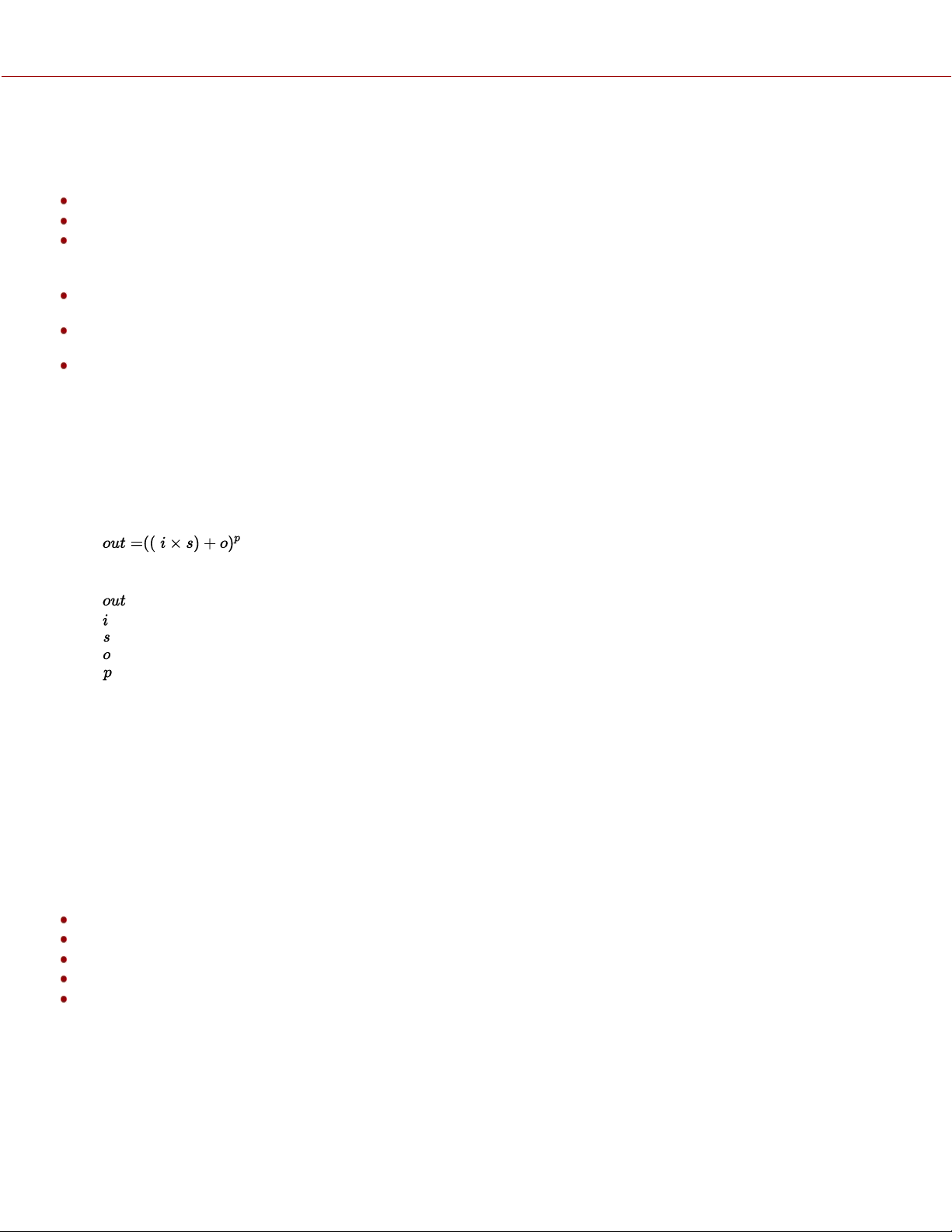
SLOPE, OFFSET AND POWER
The three CDL tone curve parameters are Slope, Offset and Power. These algorithms allow the camera to modify the
recorded image.
Slope multiplies the incoming data
Offset is sum of the incoming data
Power is a power function to the incoming data
These three relate to Gain, Lift, and Gamma in the following ways:
Slope = Gain
Gain Adjusts highlights.
Offset = Lift
Lift Increases the value of dark colors.
Power = Gamma
Gamma adjusts midtones.
These three relate to each other in the following ways:
Slope= input x slope
Offset= (input x slope) + offset
Power= ((input x slope) + offset) ^ power
The formula for ASC CDL color correction is:
where
is the color graded pixel code value
is the input pixel code value (0=black, 1=white)
is slope (any number 0 or greater, nominal value is 1.0)
is offset (any number, nominal value is 0)
is power (any number greater than 0, nominal value is 1.0)
The formula is applied to the three color values for each pixel using the corresponding slope, offset, and power
numbers for each color channel.
SATURATION
A fourth parameter “Saturation” is achieved by converting the out data in a Luma and Chroma component. The Chroma
Signal is then multiplied by the “Saturation” parameter.
FILM GRADE AND VIDEO GRADE
With Slope and Offset you can produce both a Film Grade “Exposure” and “Contrast” and a Video Grade “Lift” and
“Gain”.
Exposure is achieved by Offset
Contrast is achieved by a combination of Offset and Slope
Gain is achieved by Slope
Lift is achieved by a combination of Offset and Slope
Gamma is achieved by Power
COPYRIGHT © 2021 RED.COM, LLC 955-0198, V1.1, REV. A | 65
V-RAPTOR™ 8K V V OPERATION GUIDE
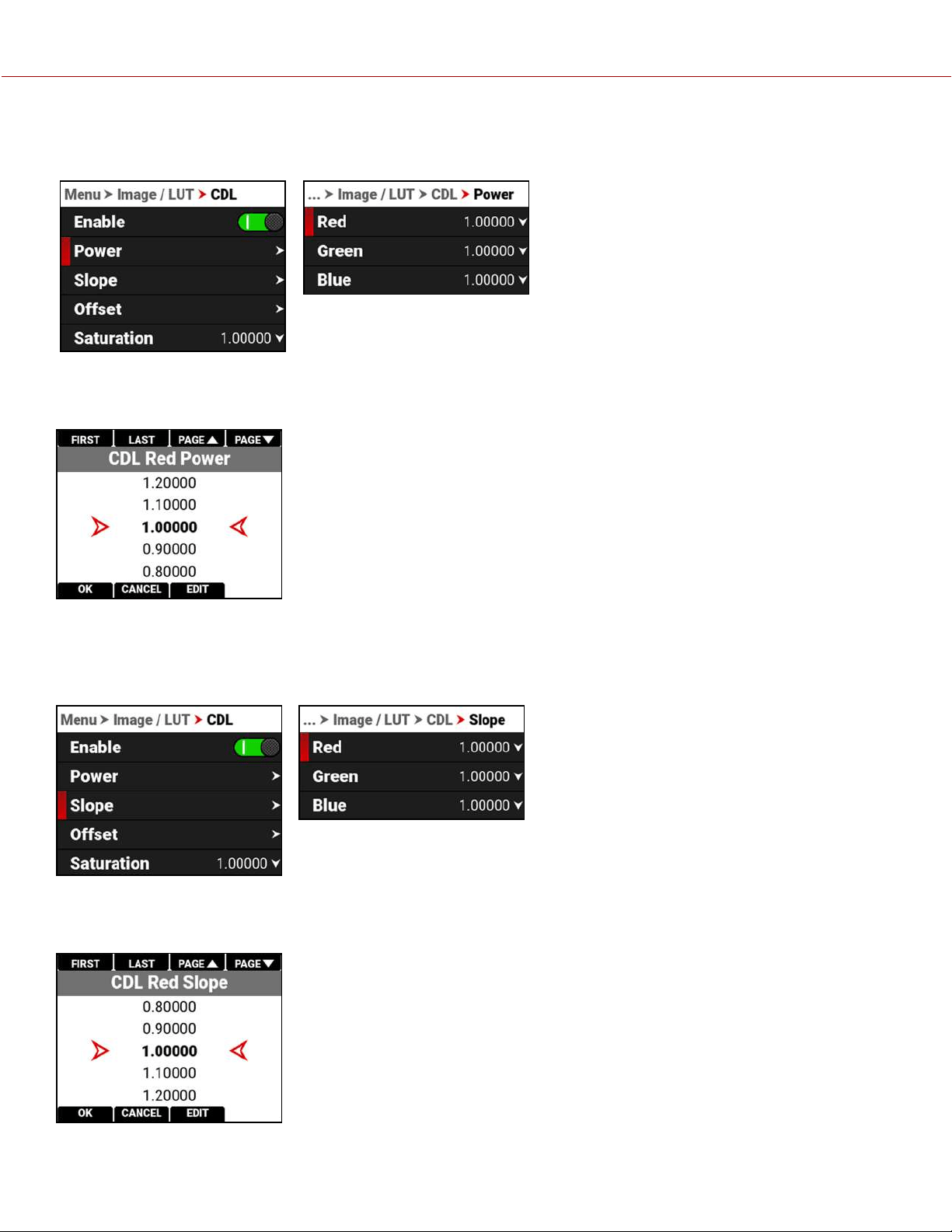
CDL POWER
The CDL Power settings control the power of the Red, Green, Blue, color data.
Use the CDL Power menu to adjust the power of the Red, Green, and Blue CDL data.
CDL POWER SETTINGS
The CDL Power settings range from 0.00000 to 4.00000. The default CDL Power setting for each color is 1.00000.
CDL SLOPE
The CDL Slope settings multiply the incoming RGB data.
Use the CDL Slope menu to set the slope of the red, green, and blue signals.
SLOPE SETTINGS
The CDL Slope settings range from 0.00000 to 2.00000. The default CDL Slope setting for each color is 1.00000.
COPYRIGHT © 2021 RED.COM, LLC 955-0198, V1.1, REV. A | 66
V-RAPTOR™ 8K V V OPERATION GUIDE
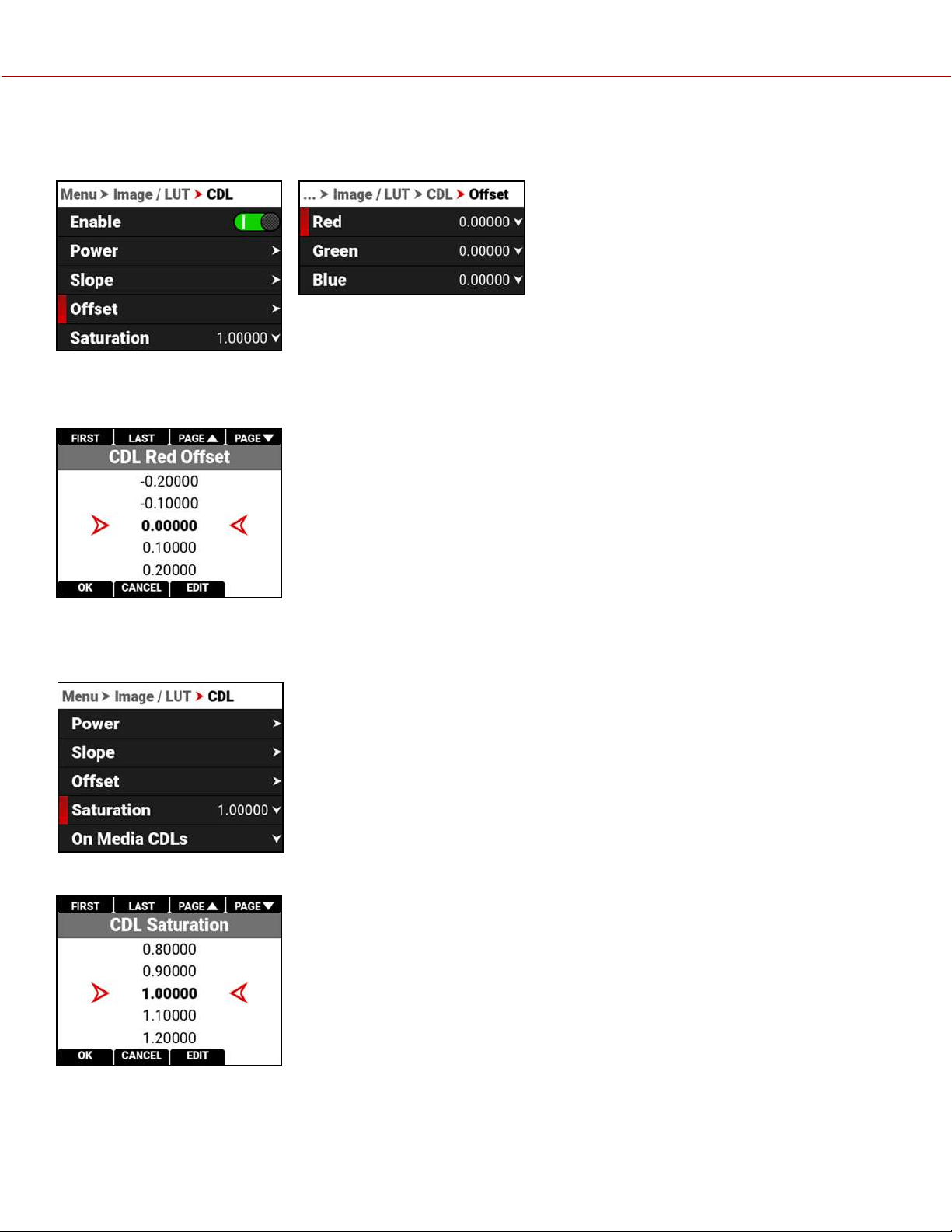
CDL OFFSET
The CDL Offset settings control the offset of the RGB color data.
Use the CDL Offset menu to adjust the offset of the CDL Slope for the Red, Green, and Blue CDL data.
RED GREEN AND BLUE OFFSETS
These CDL Offset settings range from -1.00000 to 1.00000. The default CDL Offset setting for each color is 0.00000.
CDL SATURATION
The CDL Saturation settings control the intensity of the color data.
Use the CDL Saturation menu to adjust the intensity of the image color.
The CDL Saturation settings range from 0.00000 to 4.00000. The default CDL Saturation setting is 1.00000.
COPYRIGHT © 2021 RED.COM, LLC 955-0198, V1.1, REV. A | 67
V-RAPTOR™ 8K V V OPERATION GUIDE
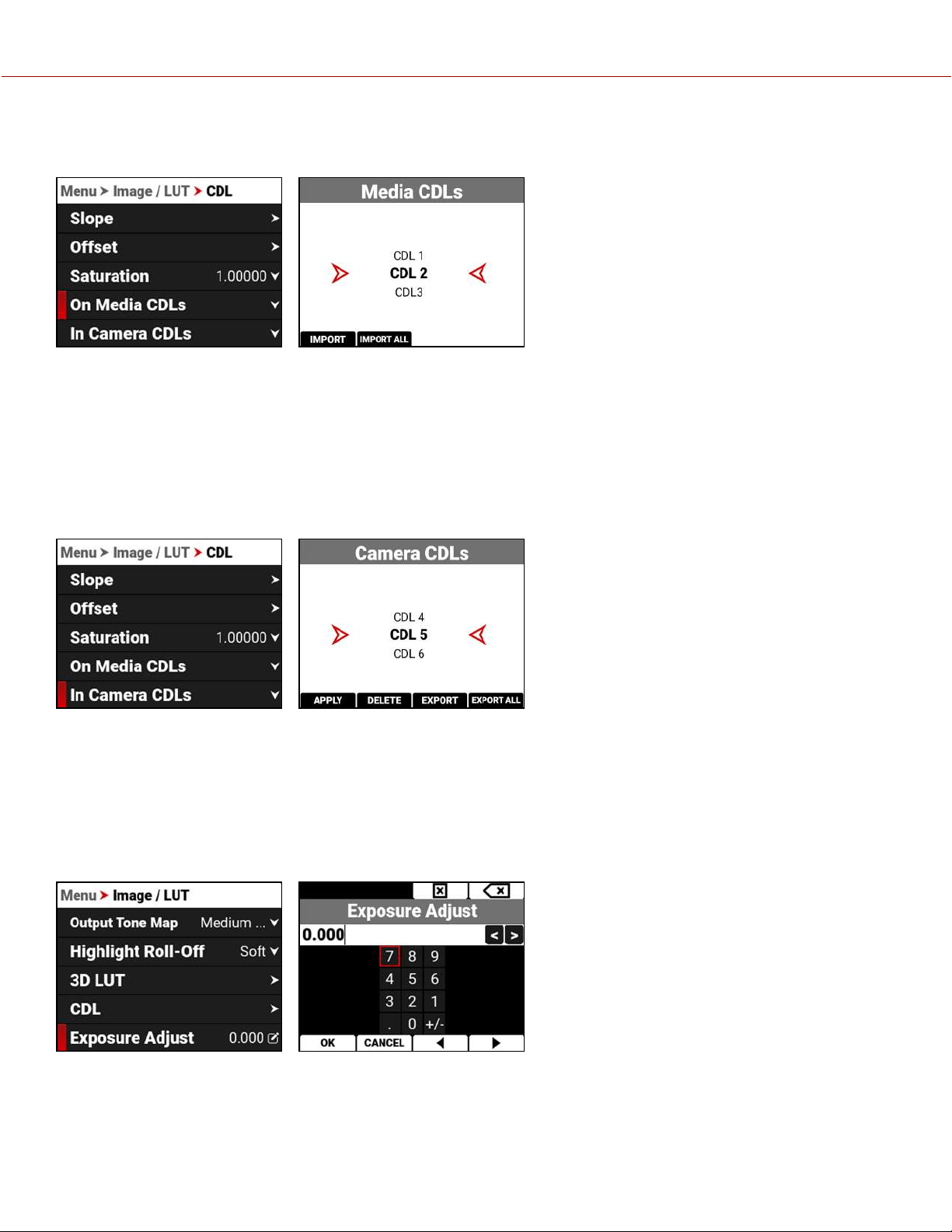
ON MEDIA CDL
Use On Media CDLs to copy CDLs stored on the media and store them on the camera.
CDLs can be imported from media to the camera. When importing CDLs from media to the camera, the CDLs are saved
to a folder on the camera called "cdls."
From Media CDLs you can import the selected CDL from the media to the camera or import all of the CDLs from the
media to the camera.
IN CAMERA CDLS
Use In Camera CDLs to copy CDLs stored on the camera and store them on the media. You can also select which
stored CDLs you want the camera to use.
CDLs can be exported from the camera to the media. When exporting CDLs from camera to the media, the CDLs are
saved to a folder on the media called "cdls."
From Camera CDLs you can apply the selected CDL to the camera, delete the selected CDL from the camera, export
the selected CDL from the camera to the media, or export all of the CDLs from the camera to the media.
EXPOSURE ADJUST
Use Exposure Adjust to manually fine-tune the midtone exposure level.
The Exposure Adjust range is –8.000 to 8.000. The default is 0.000.
Exposure Adjust allows you to adjust the midtone exposure levels while preserving the highlights and shadows, even
when changed substantially. The Exposure Adjust setting is expressed in terms of relative exposure value (EV), where
each unit represents a 1-stop change in midtone exposure level.
COPYRIGHT © 2021 RED.COM, LLC 955-0198, V1.1, REV. A | 68
V-RAPTOR™ 8K V V OPERATION GUIDE
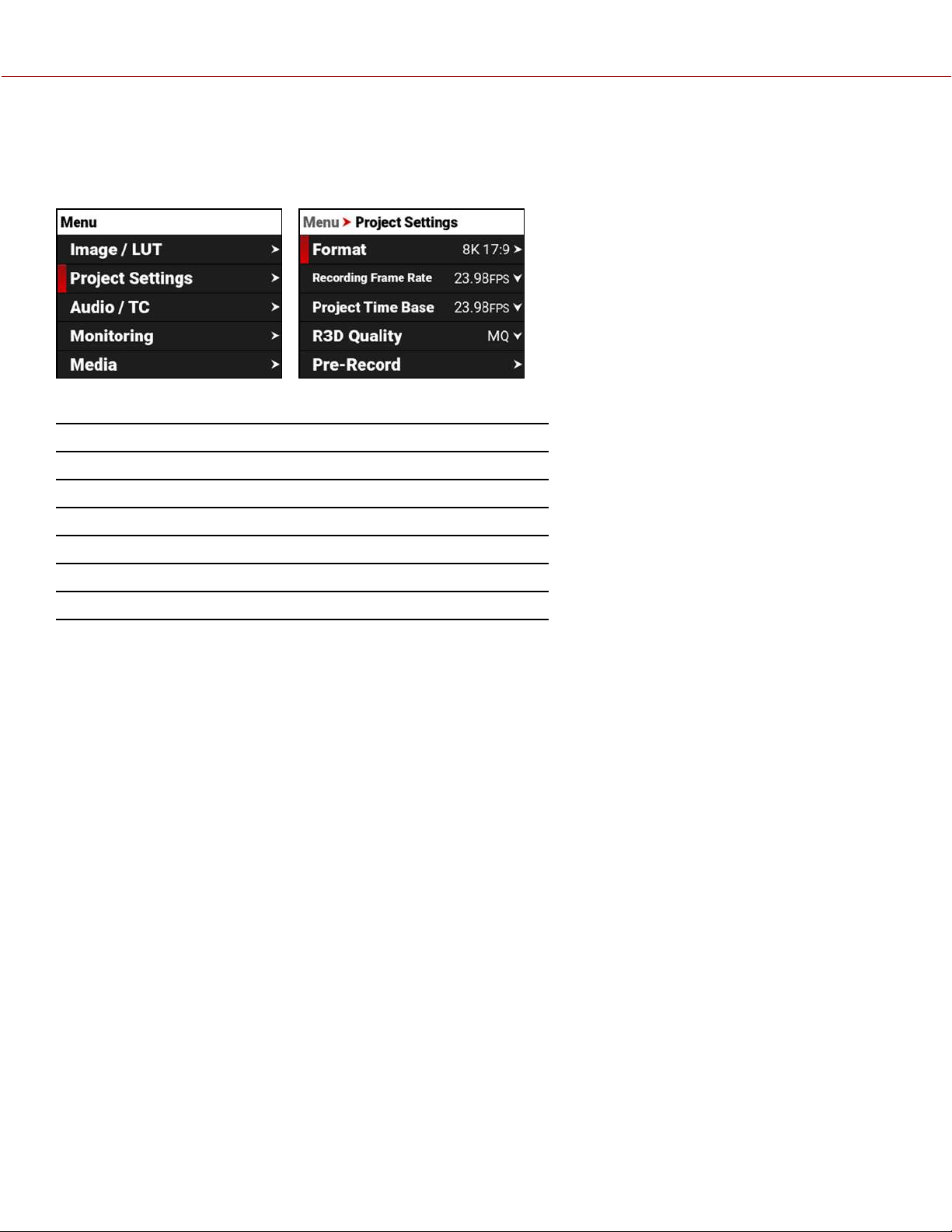
PROJECT SETTINGS MENU
The Project Settings menu contains the camera's main recording configuration settings.
From the camera LCD menu, navigate to Project Settings and press SEL:
Use the Project Settings menu to configure the recording settings:
ITEM DETAILS
Format Size of the area captured by the sensor
Recording Frame Rate Frames recorded per second
Project Time Base Image playback rate
R3D Quality Compression level of the recorded image file
Pre-Record Enable and configure a pre-record clip
Slate Camera ID and camera position
COPYRIGHT © 2021 RED.COM, LLC 955-0198, V1.1, REV. A | 69
V-RAPTOR™ 8K V V OPERATION GUIDE
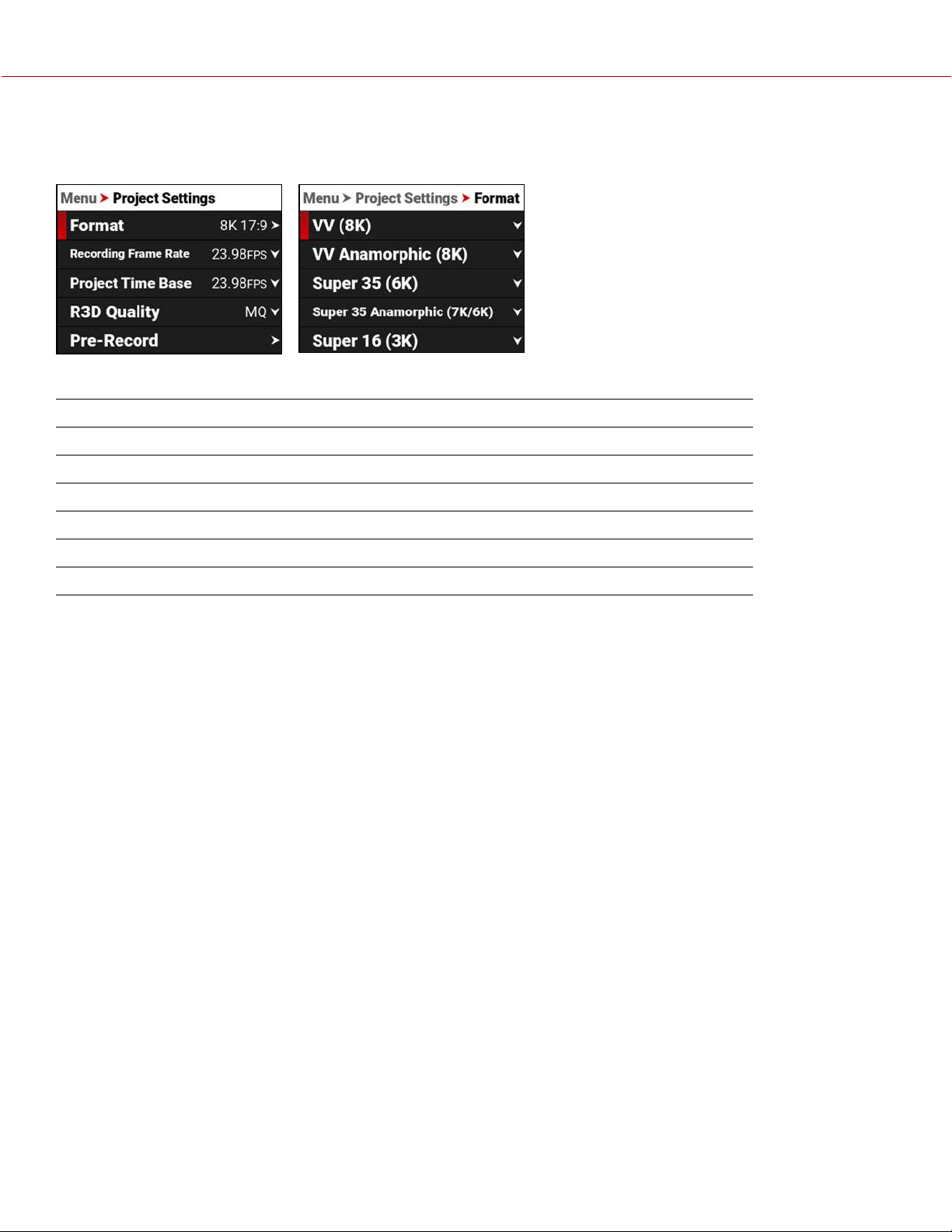
FORMAT
Use the Format setting to designate how much of the sensor the camera should use to capture images.
Use the Format menu to configure the camera's sensor capture area settings:
ITEM DETAILS
VV (8K) Select from VV (8K) sensor capture areas
VV Anamorphic (8K) Select from VV anamorphic (8K) sensor capture areas
Super 35 (6K) Select from Super 35 (6K) sensor capture areas
Super 35 Anamorphic (7K/6K) Select from Super 35 anamorphic (7K/6K) sensor capture areas
Super 16 (3K) Select from Super 16 (3K) sensor capture areas
All Formats Select from all sensor capture areas
The available aspect ratios are determined by the selected resolution. The default format setting is 8K 17:9.
When you lower the resolution on the camera, only a portion of the sensor is used. The camera does not downscale
from the 8K 17:9 format when recording RAW.
COPYRIGHT © 2021 RED.COM, LLC 955-0198, V1.1, REV. A | 70
V-RAPTOR™ 8K V V OPERATION GUIDE
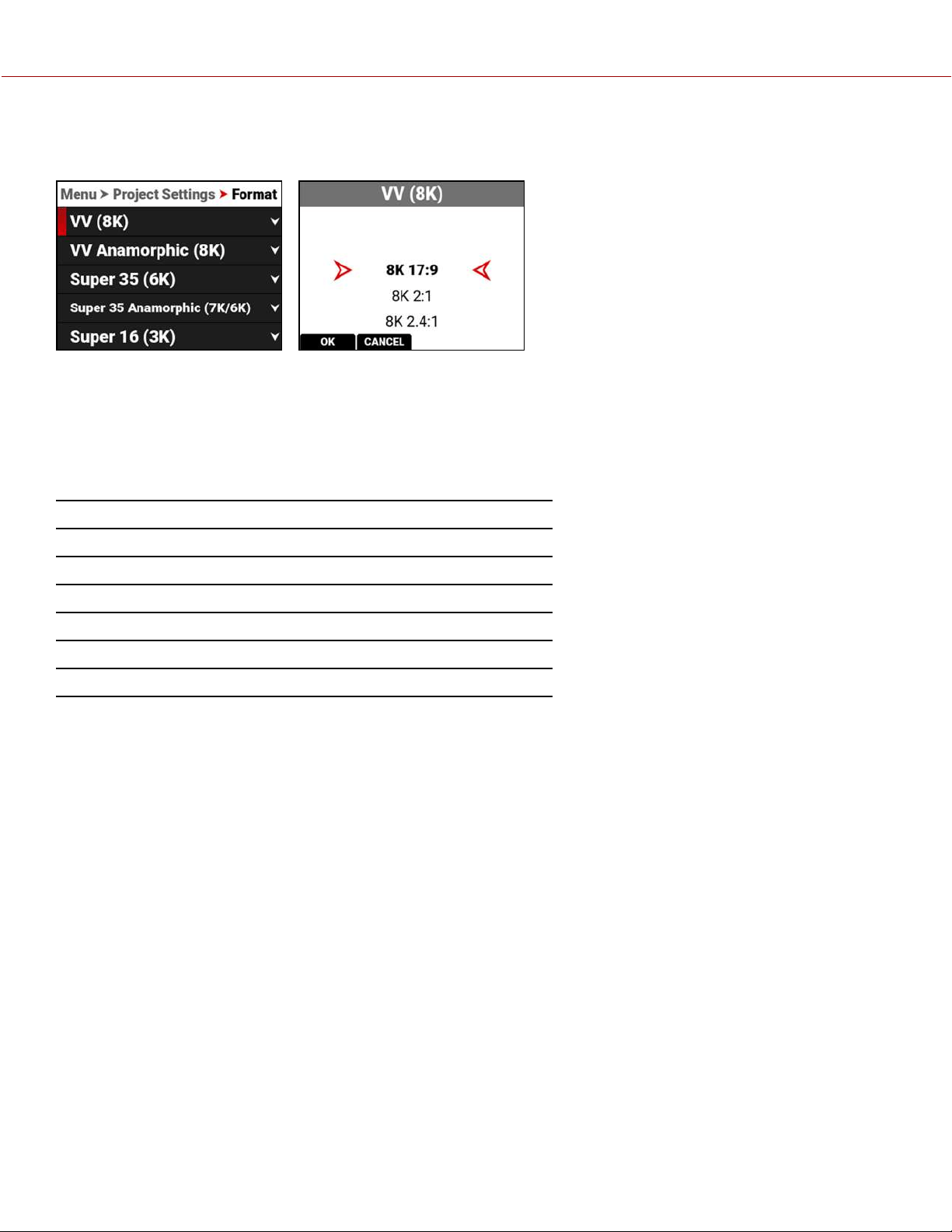
VV (8K)
Use the VV (8K) format setting to designate how much of the sensor the camera should use to capture images.
The available aspect ratios are determined by the selected resolution.
VV (8K) FORMAT SPECIFICATIONS
This table contains the dimensions of the sensor area in Pixels and in Millimeters used by each VV (8K) format. These
dimensions are close approximations.
The default format is 8K 17:9.
FORMAT DIMENSION (PIXELS) DIMENSIONS (MM)
Width Height Width Height Diagonal
8K 17:9
8192 4320 40.96 21.6 46.31
8K 2:1
8192 4096 40.96 20.48 45.79
8K 2.4:1
8192 3456 40.96 17.28 44.46
8K 16:9
7680 4320 38.40 21.6 44.06
8K 1:1
4320 4320 21.6 21.6 30.55
COPYRIGHT © 2021 RED.COM, LLC 955-0198, V1.1, REV. A | 71
V-RAPTOR™ 8K V V OPERATION GUIDE
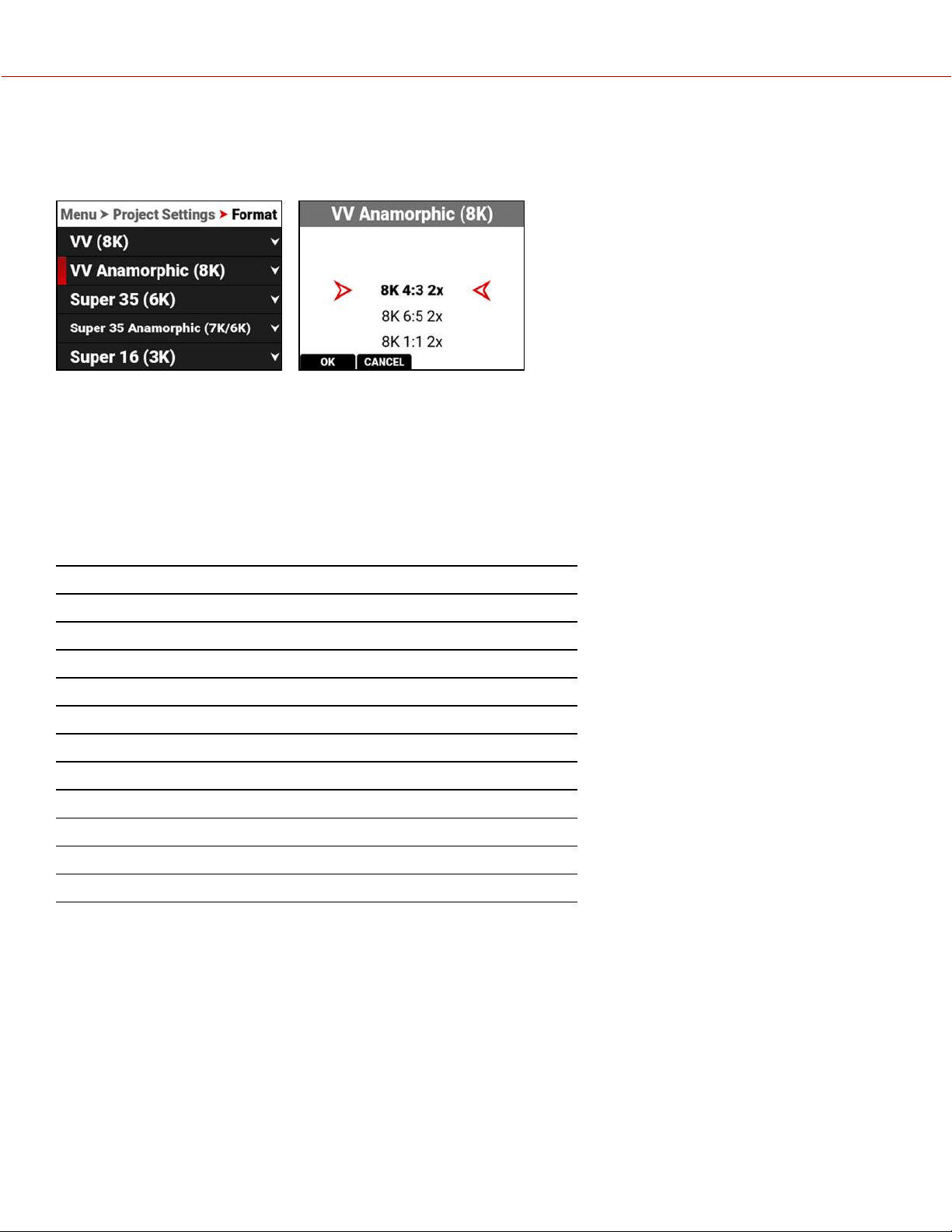
VV ANAMORPHIC (8K)
Use the VV Anamorphic (8K) format setting to designate how much of the sensor the camera should use to capture
anamorphic images with the appropriate de-squeeze ratio.
The available aspect ratios are determined by the selected resolution.
When you lower the resolution on the camera, only a portion of the sensor is used. The camera does not downscale
from the format when recording RAW.
VV ANAMORPHIC (8K) FORMAT SPECIFICATIONS
This table contains the dimensions of the sensor area in Pixels and in Millimeters used by each VV Anamorphic (8K)
format. These dimensions are close approximations.
The default format is 8K 4:3 2x.
FORMAT DIMENSION (PIXELS) DIMENSIONS (MM)
Width Height Width Height Diagonal
8K 4:3 2x
5760 4320 28.80 21.60 36.00
8K 6:5 2x
5184 4320 25.92 21.60 33.74
8K 1:1 2x
4320 4320 21.60 21.60 30.55
8K 3:2 1.8x
6480 4320 32.40 21.60 38.94
8K 4:3 1.8x
5758 4320 28.80 21.60 36.00
8K 3:2 1.6x
6480 4320 32.40 21.60 38.94
8K 16:9 1.5x
7680 4320 38.40 21.60 44.06
8K 17:9 1.3x
8192 4320 40.96 21.60 46.31
8K 16:9 1.3x
7680 4320 38.40 21.60 44.06
8K 17:9 1.25x
8192 4320 40.96 21.60 46.31
COPYRIGHT © 2021 RED.COM, LLC 955-0198, V1.1, REV. A | 72
V-RAPTOR™ 8K V V OPERATION GUIDE
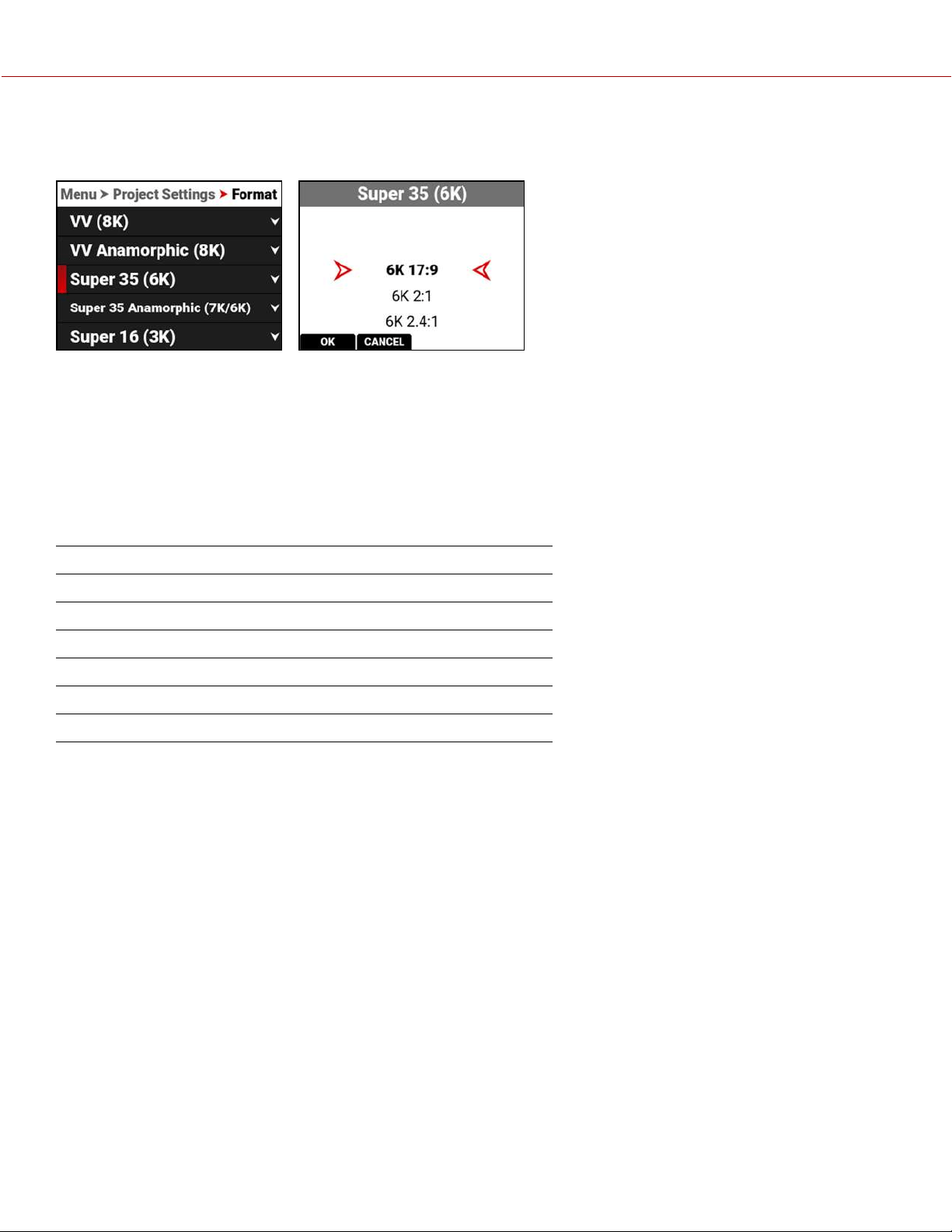
SUPER 35 (6K)
Use the Super 35 (6K) format setting to designate how much of the sensor the camera should use to capture images.
The available aspect ratios are determined by the selected resolution.
When you lower the resolution on the camera, only a portion of the sensor is used. The camera does not downscale
from the 6K 17:9 format when recording RAW.
SUPER 35 (6K) FORMAT SPECIFICATIONS
This table contains the dimensions of the sensor area in Pixels and in Millimeters used by each Super 35 (6K) format.
These dimensions are close approximations.
The default format is 6K 17:9.
FORMAT DIMENSION (PIXELS) DIMENSIONS (MM)
Width Height Width Height Diagonal
6K 17:9
6144 3240 30.72 16.20 34.73
6K 2:1
6144 3072 30.72 15.36 34.35
6K 2.4:1
6144 2592 30.72 12.87 33.31
6K 16:9
5760 3240 28.80 16.20 33.04
6K 1:1
3240 3240 16.20 16.20 22.91
COPYRIGHT © 2021 RED.COM, LLC 955-0198, V1.1, REV. A | 73
V-RAPTOR™ 8K V V OPERATION GUIDE
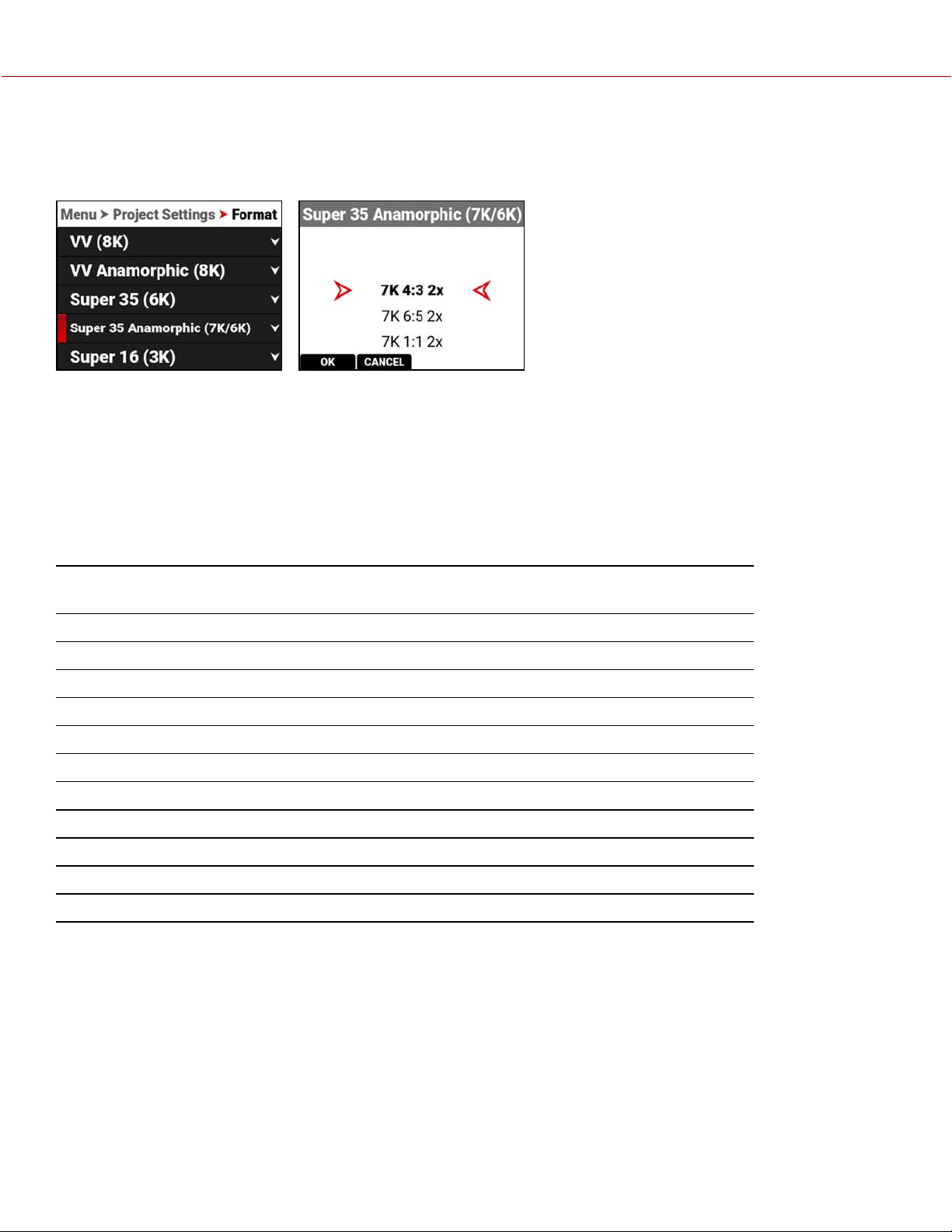
SUPER 35 ANAMORPHIC (7K/6K)
Use the Super 35 Anamorphic Format setting to designate how much of the sensor the camera should use to capture
images.
The available aspect ratios are determined by the selected resolution.
When you lower the resolution on the camera, only a portion of the sensor is used. The camera does not downscale
from the format when recording RAW.
SUPER 35 ANAMORPHIC (7K/6K) FORMAT SPECIFICATIONS
This table contains the dimensions of the sensor area in Pixels and in Millimeters used by each Super 35 Anamorphic
(7K/6K) format. These dimensions are close approximations.
The default setting is 7K 4:3 2x.
FORMAT FILM
EQUIVALENT
DIMENSION (PIXELS) DIMENSIONS (MM)
Width Height Width Height Diagonal
7K 4:3 2x
Super 35 mm 4-Perf 5040 3780 25.20 18.90 31.50
7K 6:5 2x
Super 35 mm 4-Perf 4536 3780 22.68 18.90 29.52
7K 1:1 2x
Super 35 mm 4-Perf 3780 3780 18.90 18.90 26.73
7K 3:2 1.8x
Super 35 mm 4-Perf 5670 3780 28.35 18.90 28.14
7K 4:3 1.8x
Super 35 mm 4-Perf 5040 3780 25.20 18.90 31.50
7K 3:2 1.6x
Super 35 mm 4-Perf 5670 3780 28.35 18.90 28.14
6K 16:9 1.5x
Super 35 mm 3-Perf 5760 3240 28.80 16.20 33.04
6K 17:9 1.3x
Super 35 mm 3-Perf 6144 3240 30.72 16.20 34.73
6K 16:9 1.3x
Super 35 mm 3-Perf 5760 3240 28.80 16.20 33.04
6K 17:9 1.25x
Super 35 mm 3-Perf 6144 3240 30.72 16.20 34.73
COPYRIGHT © 2021 RED.COM, LLC 955-0198, V1.1, REV. A | 74
V-RAPTOR™ 8K V V OPERATION GUIDE
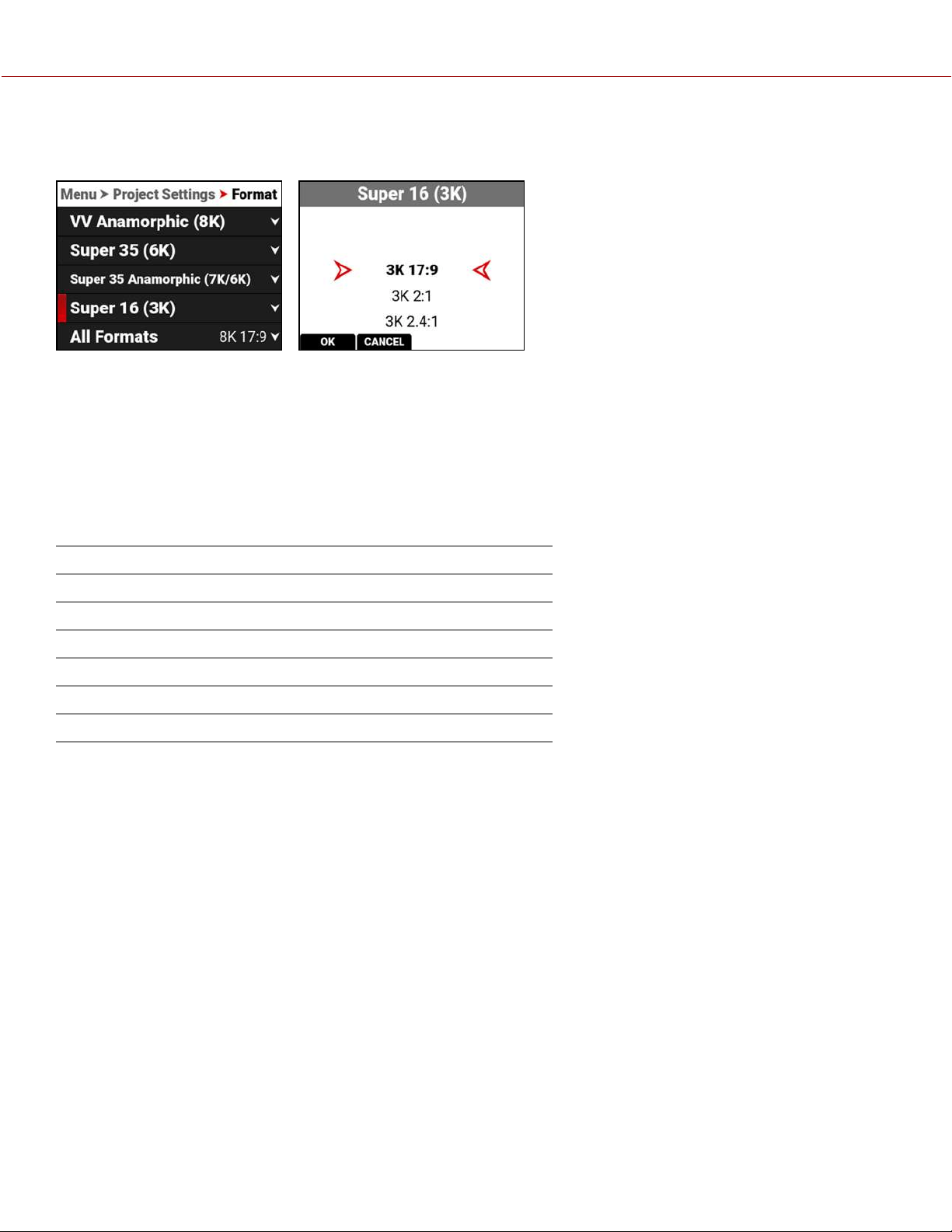
SUPER 16 (3K)
Use the Super 16 (3K) format setting to designate how much of the sensor the camera should use to capture images.
The available aspect ratios are determined by the selected resolution.
When you lower the resolution on the camera, only a portion of the sensor is used. The camera does not downscale
from the format when recording RAW.
SUPER 16 (3K) FORMAT SPECIFICATIONS
This table contains the dimensions of the sensor area in Pixels and in Millimeters used by each Super 16 (3K) format.
These dimensions are close approximations.
The default format is 3K 17:9.
FORMAT DIMENSION (PIXELS) DIMENSIONS (MM)
Width Height Width Height Diagonal
3K 17:9
3072 1620 15.36 8.10 17.36
3K 2:1
3072 1536 15.36 7.68 17.17
3K 2.4:1
3072 1296 15.36 6.48 16.67
3K 16:9
2880 1620 14.40 8.10 16.52
3K 1:1
1620 1620 8.10 8.10 11.46
COPYRIGHT © 2021 RED.COM, LLC 955-0198, V1.1, REV. A | 75
V-RAPTOR™ 8K V V OPERATION GUIDE
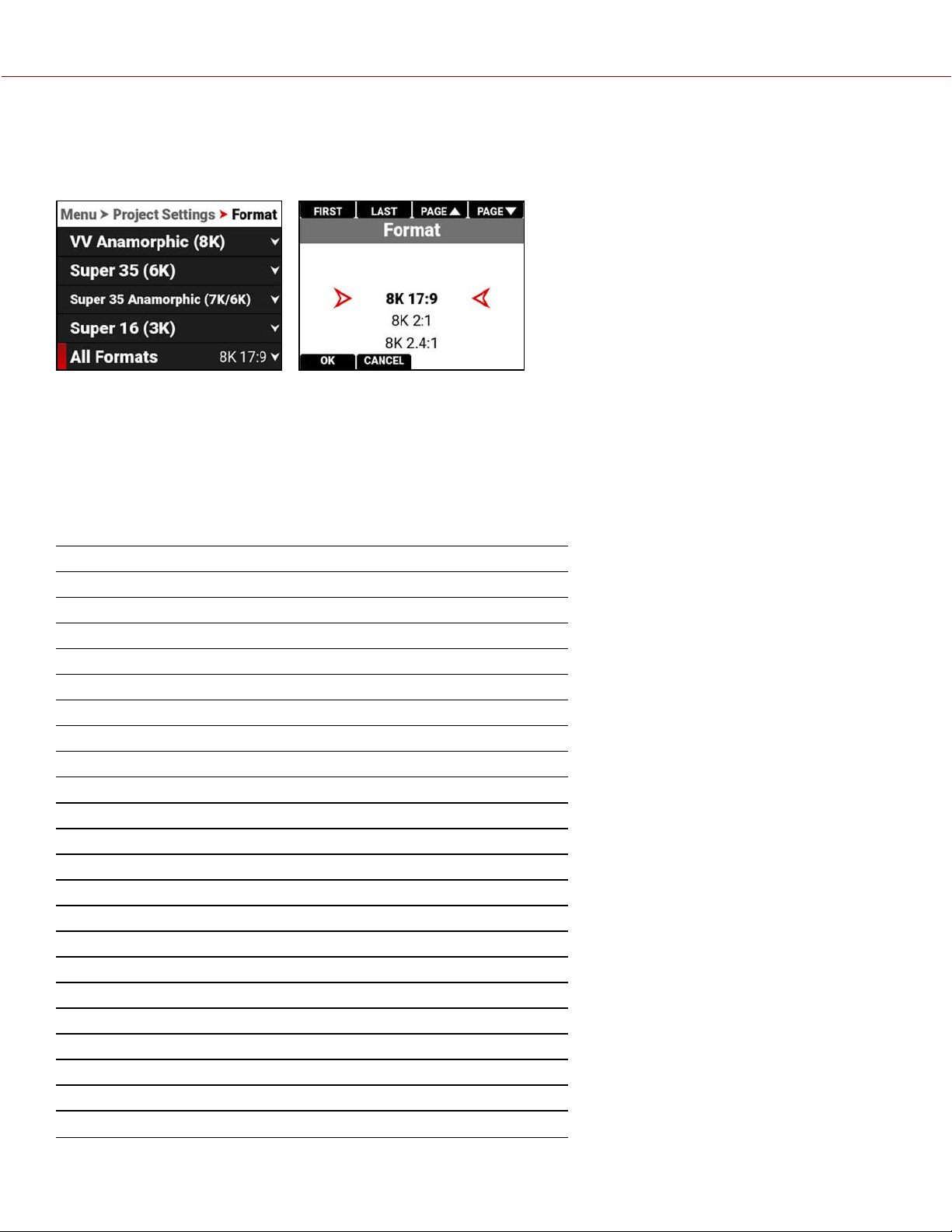
ALL FORMATS
Use the All Formats setting to select from all of the possible formats to designate how much of the sensor the camera
should use to capture images.
The available aspect ratios are determined by the selected resolution.
When you lower the resolution on the camera, only a portion of the sensor is used. The camera does not downscale
from the 8K 17:9 format when recording RAW.
FORMAT SPECIFICATIONS
This table contains the dimensions of the sensor area in Pixels and in Millimeters used by all of the camera formats.
These dimensions are close approximations. The default setting is 8K 17:9.
FORMAT DIMENSION (PIXELS) DIMENSIONS (MM)
Width Height Width Height Diagonal
8K 17:9
8192 4320 40.96 21.6 46.31
8K 2:1
8192 4096 40.96 20.48 45.79
8K 2.4:1
8192 3456 40.96 17.28 44.46
8K 16:9
7680 4320 38.40 21.6 44.06
8K 1:1
4320 4320 21.6 21.6 30.55
8K 4:3 2x
5760 4320 28.80 21.60 36.00
8K 6:5 2x
5184 4320 25.92 21.60 33.74
8K 1:1 2x
4320 4320 21.60 21.60 30.55
8K 3:2 1.8x
6480 4320 32.40 21.60 38.94
8K 4:3 1.8x
5758 4320 28.80 21.60 36.00
8K 3:2 1.6x
6480 4320 32.40 21.60 38.94
8K 16:9 1.5x
7680 4320 38.40 21.60 44.06
8K 17:9 1.3x
8192 4320 40.96 21.60 46.31
8K 16:9 1.3x
7680 4320 38.40 21.60 44.06
8K 17:9 1.25x
8192 4320 40.96 21.60 46.31
7K 17:9
7168 3780 35.84 18.90 40.52
7K 2:1
7168 3584 35.84 17.92 40.07
7K 2.4:1
7168 3002 35.84 15.01 38.86
7K 16:9
6720 3780 33.60 18.90 38.55
7K 1:1
3780 3780 18.90 18.90 26.73
7K 4:3 2x
5040 3780 25.20 18.90 31.50
COPYRIGHT © 2021 RED.COM, LLC 955-0198, V1.1, REV. A | 76
V-RAPTOR™ 8K V V OPERATION GUIDE

FORMAT DIMENSION (PIXELS) DIMENSIONS (MM)
Width Height Width Height Diagonal
7K 6:5 2x
4536 3780 22.68 18.90 29.52
7K 1:1 2x
3780 3780 18.90 18.90 26.73
7K 3:2 1.8x
5670 3780 28.35 18.90 28.14
7K 4:3 1.8x
5040 3780 25.20 18.90 31.50
7K 3:2 1.6x
5670 3780 28.35 18.90 28.14
6K 17:9
6144 3240 30.72 16.20 34.73
6K 2:1
6144 3072 30.72 15.36 34.35
6K 2.4:1
6144 2592 30.72 12.87 33.31
6K 16:9
5760 3240 28.80 16.20 33.04
6K 1:1
3240 3240 16.20 16.20 22.91
6K 16:9 1.5x
5760 3240 28.80 16.20 33.04
6K 17:9 1.3x
6144 3240 30.72 16.20 34.73
6K 16:9 1.3x
5760 3240 28.80 16.20 33.04
6K 17:9 1.25x
6144 3240 30.72 16.20 34.73
5K 17:9
5120 2700 25.60 13.50 28.94
5K 2:1
5120 2560 25.60 12.80 28.62
5K 2.4:1
5120 2160 25.60 10.80 27.78
5K 16:9
4800 2700 24.00 13.50 27.54
5K 1:1
2700 2700 13.50 13.50 19.09
4K 17:9
4096 2160 20.48 10.80 23.15
4K 2:1
4096 2048 20.48 10.24 22.90
4K 2.4:1
4096 1728 20.48 8.64 22.23
4K 16:9
3840 2160 19.20 10.80 22.03
4K 1:1
2160 2160 10.80 10.80 15.27
3K 17:9
3072 1620 15.36 8.10 17.36
3K 2:1
3072 1536 15.36 7.68 17.17
3K 2.4:1
3072 1296 15.36 6.48 16.67
3K 16:9
2880 1620 14.40 8.10 16.52
3K 1:1
1620 1620 8.10 8.10 11.46
2K 17:9
2048 1080 10.24 5.40 11.58
2K 2:1
2048 1024 10.24 5.12 11.45
2K 2.4:1
2048 864 10.24 4.32 11.11
2K 16:9
1920 1080 9.60 5.40 11.01
2K 1:1
1080 1080 5.40 5.40 7.64
COPYRIGHT © 2021 RED.COM, LLC 955-0198, V1.1, REV. A | 77
V-RAPTOR™ 8K V V OPERATION GUIDE
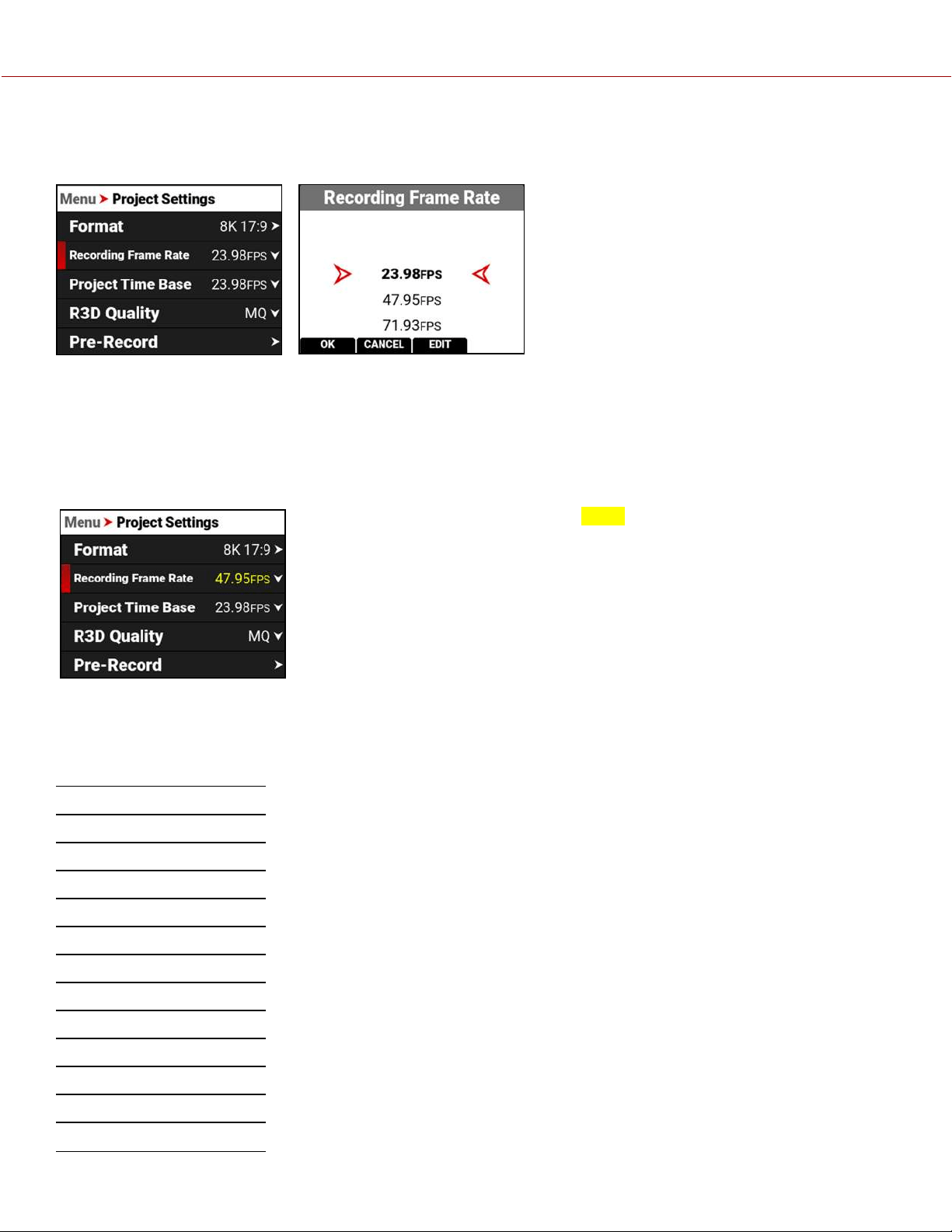
RECORDING FRAME RATE
Use Recording Frame Rate to select the recording frame rate (also referred to as the capture frame rate).
The recording frame rate is the number of frames per second (FPS) that are recorded. The recording frame rate is
different from the project time base, which is the rate at which the footage will be played back.
The maximum frame rate for each format is determined by Project Time Base and Format.
When you select a Project Time Base, the camera automatically selects a matching Recording Frame Rate and an R3D
Quality (when possible). You must change the Recording Frame Rate and R3D Quality after the Project Time Base to
select a different setting.
A Recording Frame Rate highlighted in
yellow
will result in playback occurring at a
different frame rate than the original recording, and will record varispeed audio.
FORMATS AND FRAME RATES
This table lists the camera's maximum recording frame rates. These rates are based on a Project Time Base setting of
24 frames per second (24 FPS).
FORMAT MAX FPS
8K 17:9
120
8K 2:1
126
8K 2.4:1
150
8K 16:9
120
8K 1:1
120
7K 17:9
140
7K 2:1
144
7K 2.4:1
175
7K 16:9
137
7K 1:1
137
6K 17:9
160
6K 2:1
168
COPYRIGHT © 2021 RED.COM, LLC 955-0198, V1.1, REV. A | 78
V-RAPTOR™ 8K V V OPERATION GUIDE
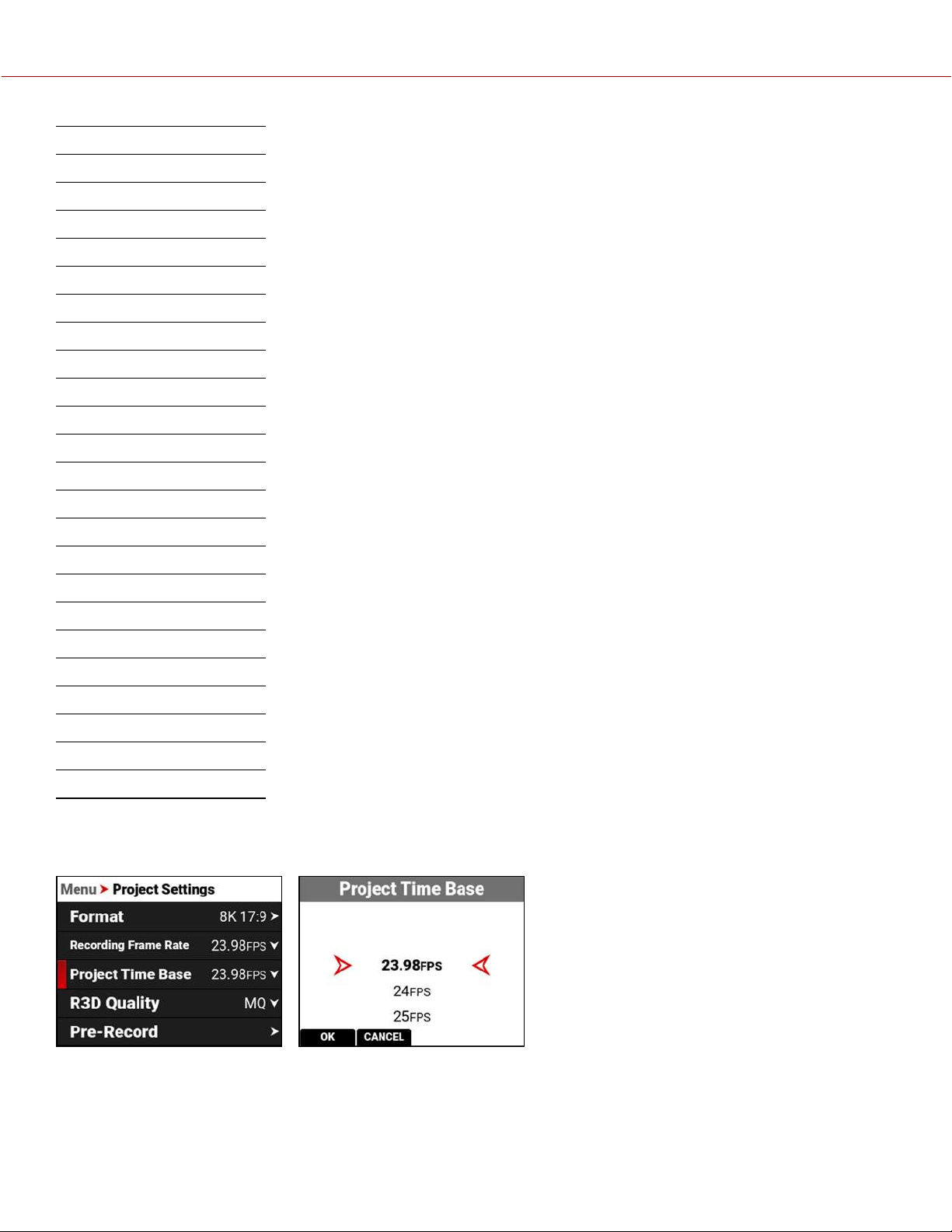
FORMAT MAX FPS
6K 2.4:1
200
6K 16:9
160
6K 1:1
160
5K 17:9
192
5K 2:1
202
5K 2.4:1
240
5K 16:9
192
5K 1:1
192
4K 17:9
240
4K 2:1
253
4K 2.4:1
300
4K 16:9
240
4K 1:1
240
3K 17:9
320
3K 2:1
337
3K 2.4:1
400
3K 16:9
320
3K 1:1
320
2K 17:9
480
2K 2:1
505
2K 2.4:1
600
2K 16:9
480
2K 1:1
480
PROJECT TIME BASE
Use the Project Time Base setting to choose the playback rate for the recorded footage.
COPYRIGHT © 2021 RED.COM, LLC 955-0198, V1.1, REV. A | 79
V-RAPTOR™ 8K V V OPERATION GUIDE
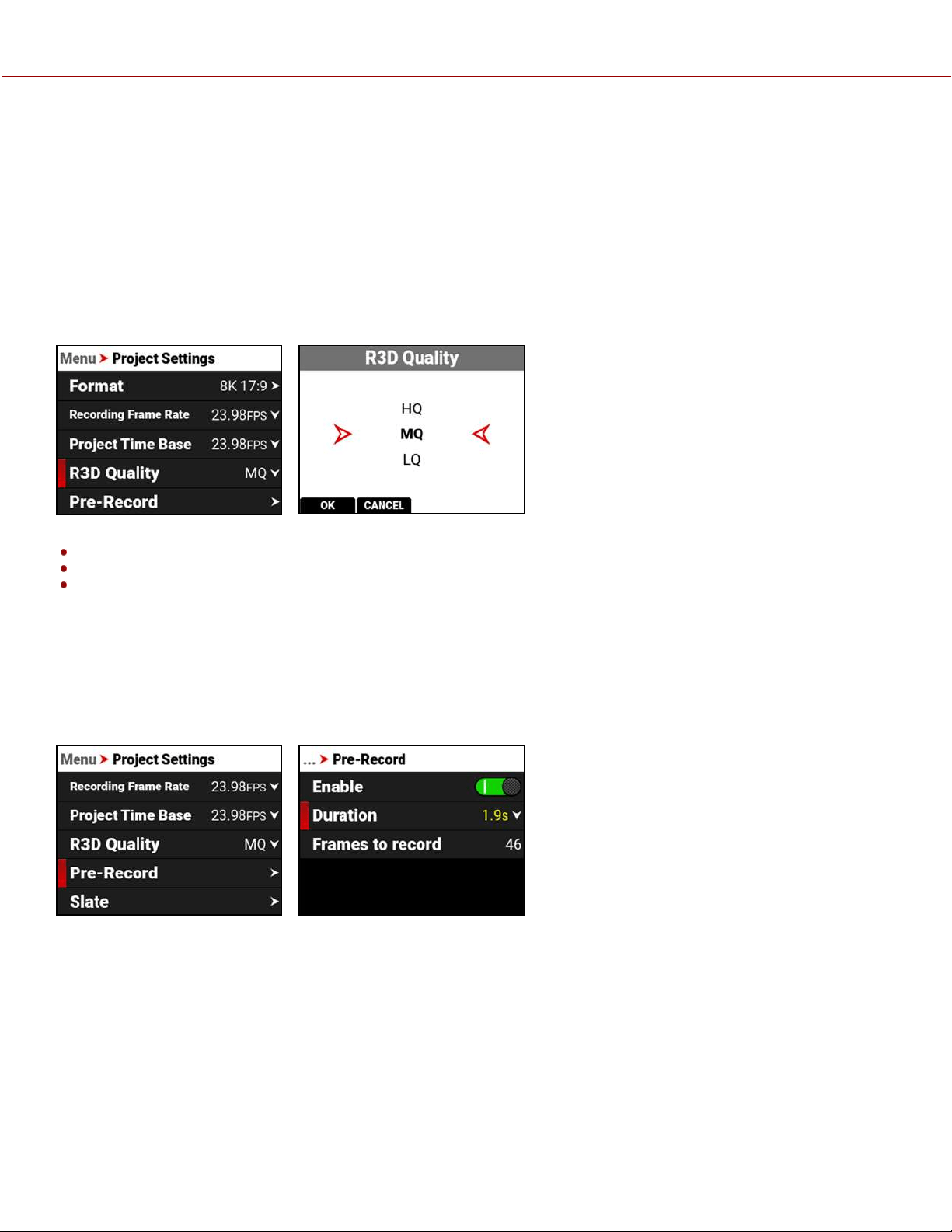
The following project time bases are available:
• 23.98 FPS (Default) • 25.00 FPS • 30.00 FPS • 59.94 FPS
• 24.00 FPS • 29.97 FPS • 50.00 FPS • 60.00 FPS
When you select the Project Time Base, it changes the Recording Frame Rate to the same setting (when possible).
When you change the Format, the Recording Frame Rate and Project Time Base do not automatically update. You must
select the Project Time Base after you change the Format setting.
R3D QUALITY
Use R3D Quality to select the R3D data rate the camera uses to record the image files.
The R3D Quality selections include:
HQ - High data rate and less recording time
MQ - Medium data rate (default) and longer recording time
LQ - Lowest data rate and longest recording time
For high complexity scenes, VFX, and stills from motion workflows, RED recommends the HQ setting. For cinema (non-
VFX) and high-end TV, RED recommends the MQ setting. For TV, online content, documentary and interviews, RED
recommends the LQ setting.
PRE-RECORD
Use the Pre-Record menu to enable or disable Pre-Record, and to adjust the length of the Pre-Recorded clip.
Pre-Record allows you to continually capture images to a small amount of memory while waiting to begin recording.
This allows you to capture unexpected events such as, a whale breaching the water, or a an athlete scoring a goal.
When you finish recording, the pre-recorded clip is added to the beginning of the recording.
You can set the Pre-Record clip to record from half a second up to 30 seconds, depending on the format, file type,
resolution, and quality. The default setting is 2 seconds at the default Project Time Base of 23.98 FPS.
For more information, refer to Pre-Recording Content.
COPYRIGHT © 2021 RED.COM, LLC 955-0198, V1.1, REV. A | 80
V-RAPTOR™ 8K V V OPERATION GUIDE
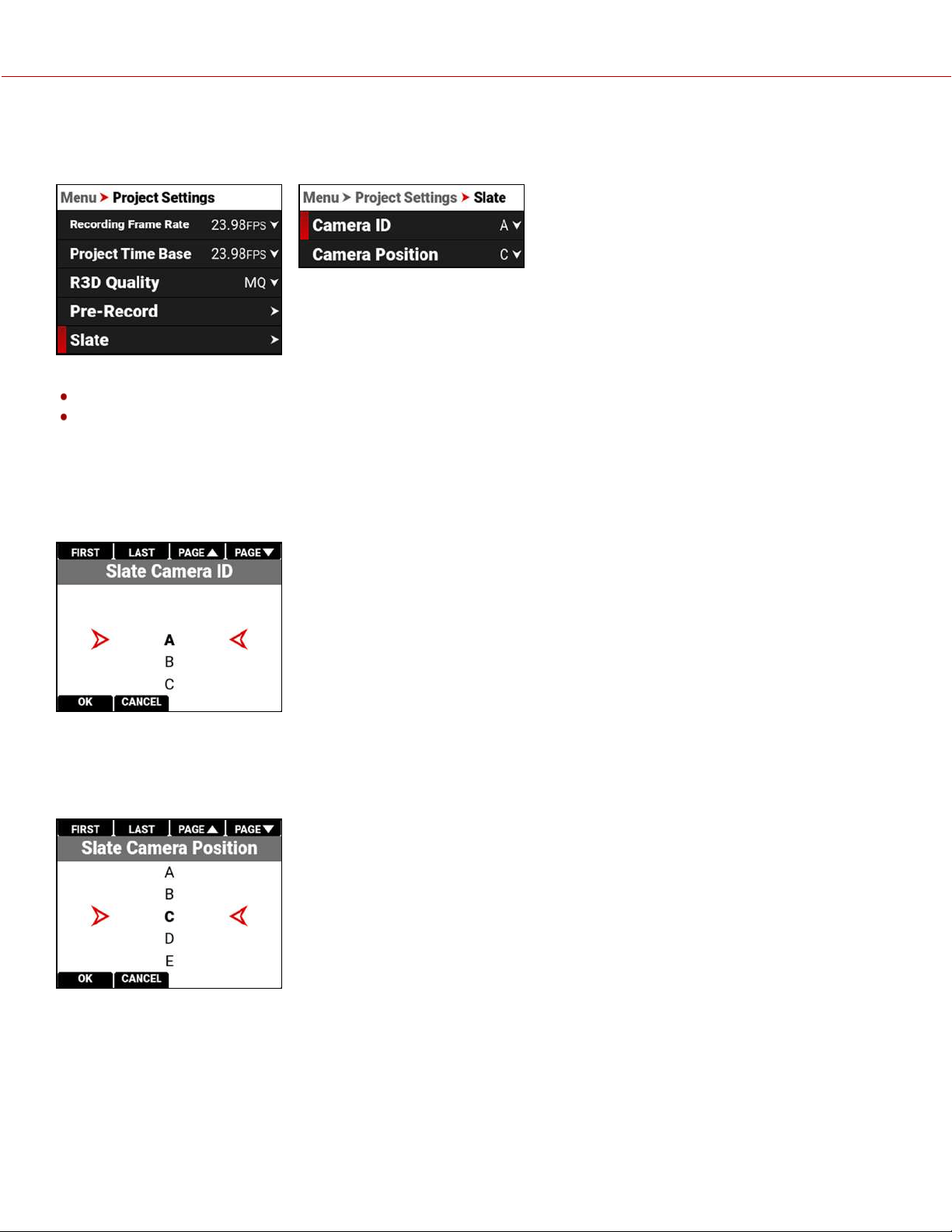
SLATE
Use the Slate menu to assign a camera ID and camera position the camera adds when recording clips.
The settings you can assign to a clip include:
Camera ID (also populates in the Media menu when formatting media)
Camera Position (also populates in the Media menu when formatting media)
CAMERA ID
Use Camera ID to assign a camera ID when the camera records clips.
NOTE: You can also change the Camera ID by using Secure Format (refer to Secure Format).
The camera IDs you can assign when recording a clip include the letters A-Z.
CAMERA POSITION
Use Camera Position to assign a camera position letter when the camera records clips.
The camera positions you can assign when recording a clip include the letters A-Z.
COPYRIGHT © 2021 RED.COM, LLC 955-0198, V1.1, REV. A | 81
V-RAPTOR™ 8K V V OPERATION GUIDE
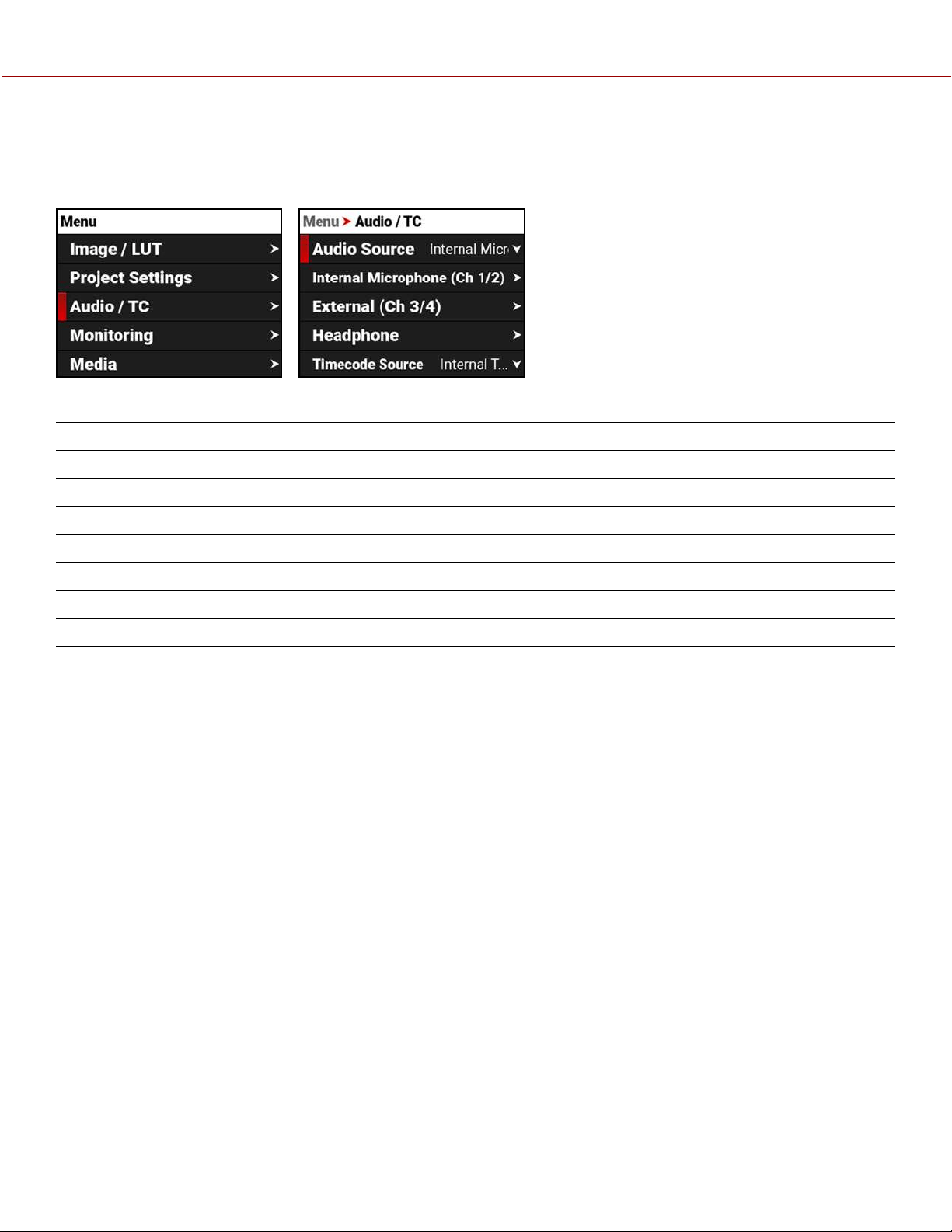
AUDIO / TC MENU
The Audio / TC menu contains the settings you use to configure your camera audio and Timecode.
From the camera LCD menu, navigate to Audio / TC and press SEL:
Use the Audio / TC menu to configure the audio and Timecode settings for the camera:
ITEM DETAILS
Audio Source Audio input source
Internal Microphone (Ch 1/2) Left and Right internal microphone levels
External (Ch 3/4) Left and Right external audio levels
Headphone Headphone volume level
Timecode Source Timecode source
Jam Timecode to TOD Button to Jam Timecode to Time of Day (TOD)
Timecode Display Mode Timecode to display
AUDIO DETAILS
The camera is equipped with two integrated microphones suitable for scratch-track audio (Ch 1 and 2), and it is
equipped with a 5-pin XLR audio connector that accepts 2-channel audio, Line, Mic, and +48V Phantom Power for
external audio (Ch 3 and 4).
You can link the gain for the two internal and external channels together. This allows you to adjust the two internal (or
external) channels together as one.
You can record audio from the internal microphones, from the external audio connector (2-channel recording), or from
internal and external sources combined as 24-bit 48 kHz uncompressed audio tracks.
You can adjust the external audio by using the appropriate camera gain-settings (-52.5 dB to 36.0 dB). The default
camera gain setting is 0 dB.
The camera's audio data is synchronized with video and timecode, and it is embedded in the R3D file. You can export
the audio data as separate audio files by using REDCINE-X PRO, if needed. The camera also embeds the audio in the
SDI output.
You can monitor the audio during recording and playback by using the equipped 3.5 mm stereo headphone port.
COPYRIGHT © 2021 RED.COM, LLC 955-0198, V1.1, REV. A | 82
V-RAPTOR™ 8K V V OPERATION GUIDE
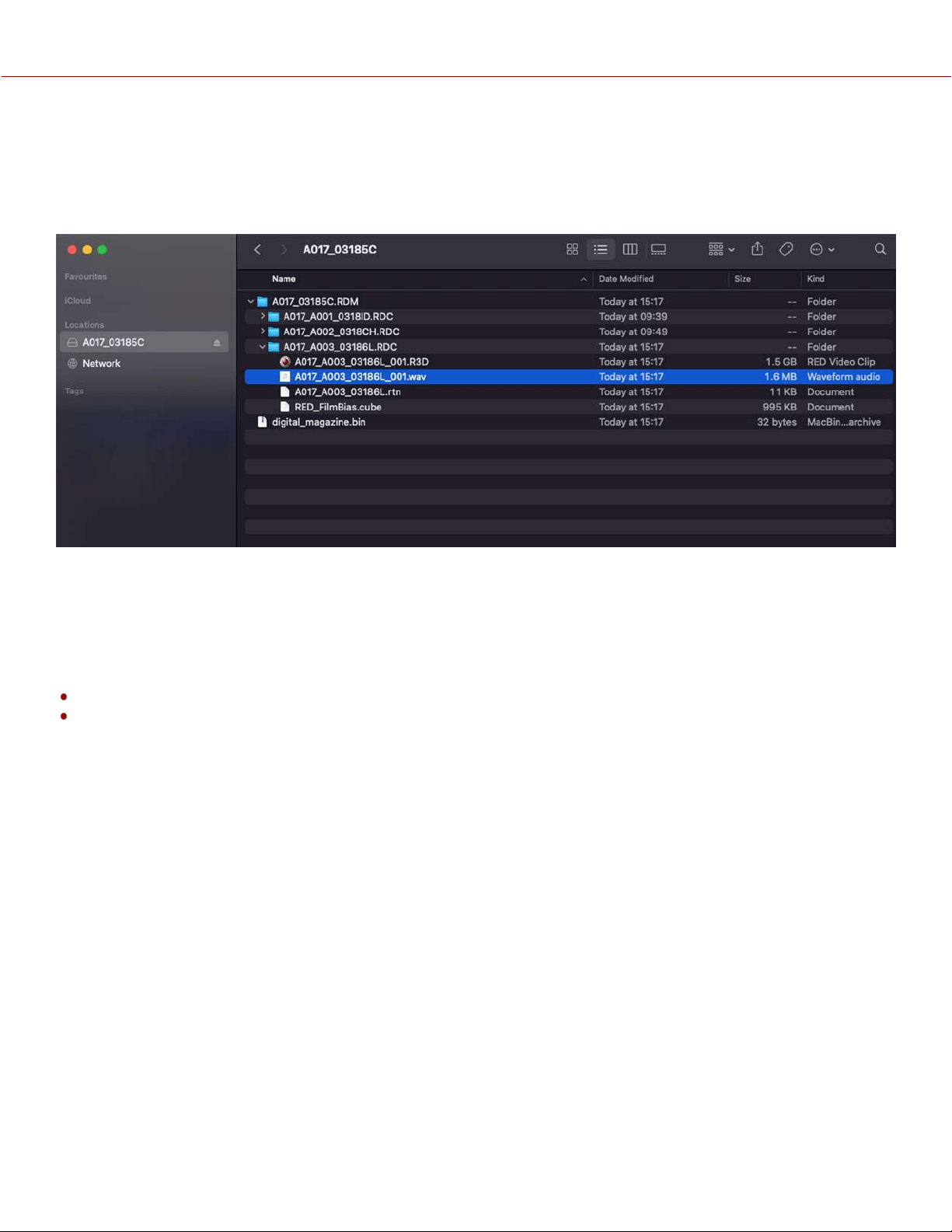
VARISPEED AUDIO
This camera has the ability to record audio when the camera's Recording Frame Rate is set to a higher speed than the
Project Time Base setting (Varispeed mode).
NOTE: The camera records the audio as a separate WAV file and stores it in the clip's RDC folder on the media drive.
TIMECODE DETAILS
Timecode provides a mechanism to reference frames from the camera's recorded clips to external devices such as,
other cameras or audio recorders. Some devices can also gather additional data such as, lens metadata, or camera
orientation, which Timecode can later use for merging the data back together in post-processing.
The camera provides two separate Timecode formats:
Time Of Day (TOD) - The camera records the time of day as the Timecode for each clip
Edgecode - The camera records elapsed time as the Timecode for each clip. The time is reset to 01:00:00 when a
new media card is inserted in the camera. All of the clips on the media will have a continuous Timecode track.
However, each new media card will default to a Timecode track starting at 01:00:00. You can change the Edgecode
to begin at any desired time by using the Media Format menu (refer to Edgecode).
The camera synchronizes (jams) the TOD Timecode to an external Timecode generator (when one is connected to the
camera) or it jams the Timecode to its internal real-time clock.
The camera stores TOD and Edge Timecode in the R3D file. You can select which one you want to display on the LCD.
COPYRIGHT © 2021 RED.COM, LLC 955-0198, V1.1, REV. A | 83
V-RAPTOR™ 8K V V OPERATION GUIDE
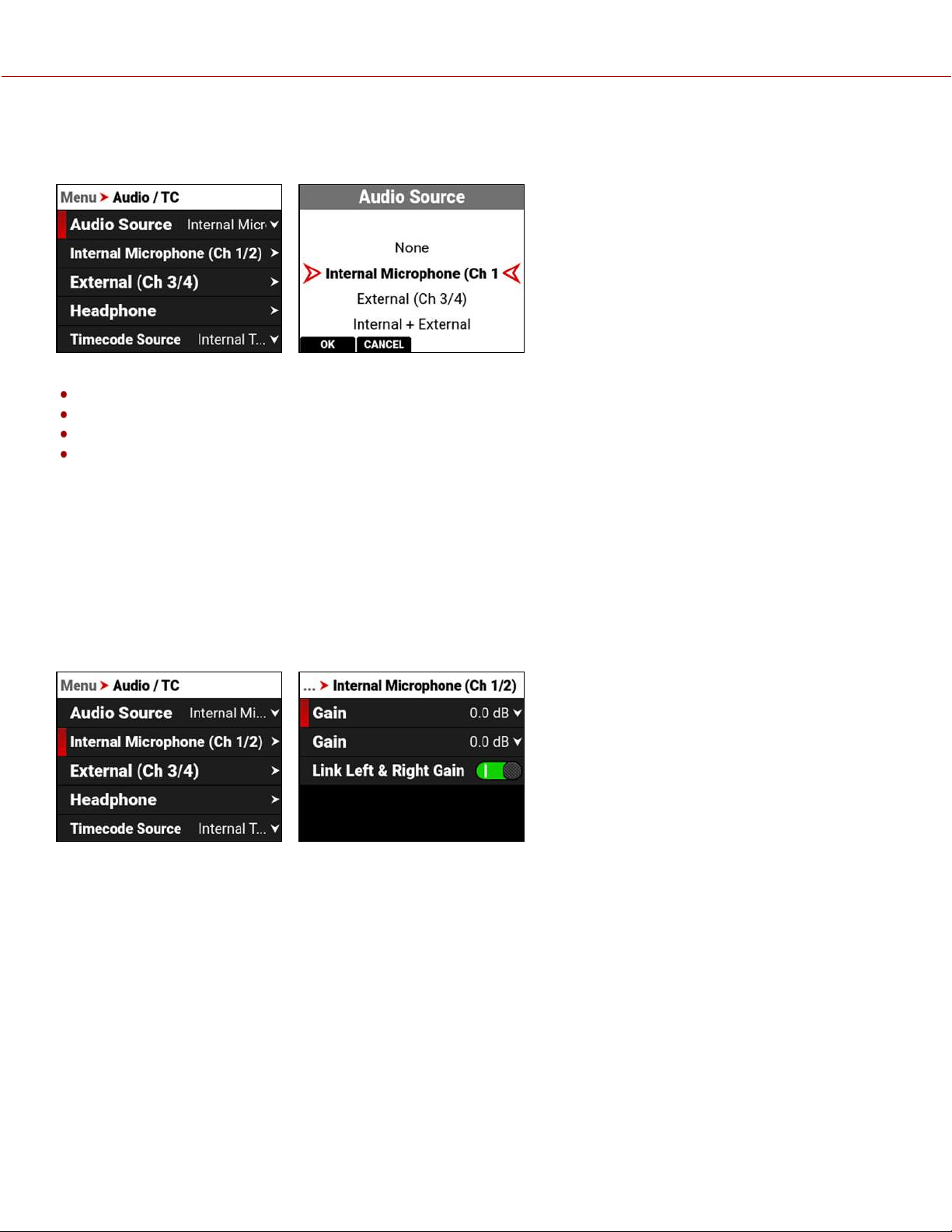
AUDIO SOURCE
Use the Audio Source settings to select the audio input source.
The audio input sources include:
None
Internal Microphone (Ch 1/2) - enables the Internal Microphone (Ch 1/2) menu (default)
External (Ch 3/4) - enables the External (Ch 3/4) menu
Internal + External - enables all audio sources
NOTE: The headphones can only monitor the internal microphone channels (Ch 1 and 2) or the external audio channels
(Ch 3 and 4).
INTERNAL MICROPHONE (CH 1/2)
Use the Internal Microphone (Ch 1/2) settings to set the left and right internal audio levels (channels 1 and 2). This menu
is only enabled when the Audio Source is set to Internal Microphone or Internal + External.
NOTE: When the Recording Frame Rate and Project Time Code settings are different, varispeed audio is recorded (refer
to Audio / TC Menu).
COPYRIGHT © 2021 RED.COM, LLC 955-0198, V1.1, REV. A | 84
V-RAPTOR™ 8K V V OPERATION GUIDE
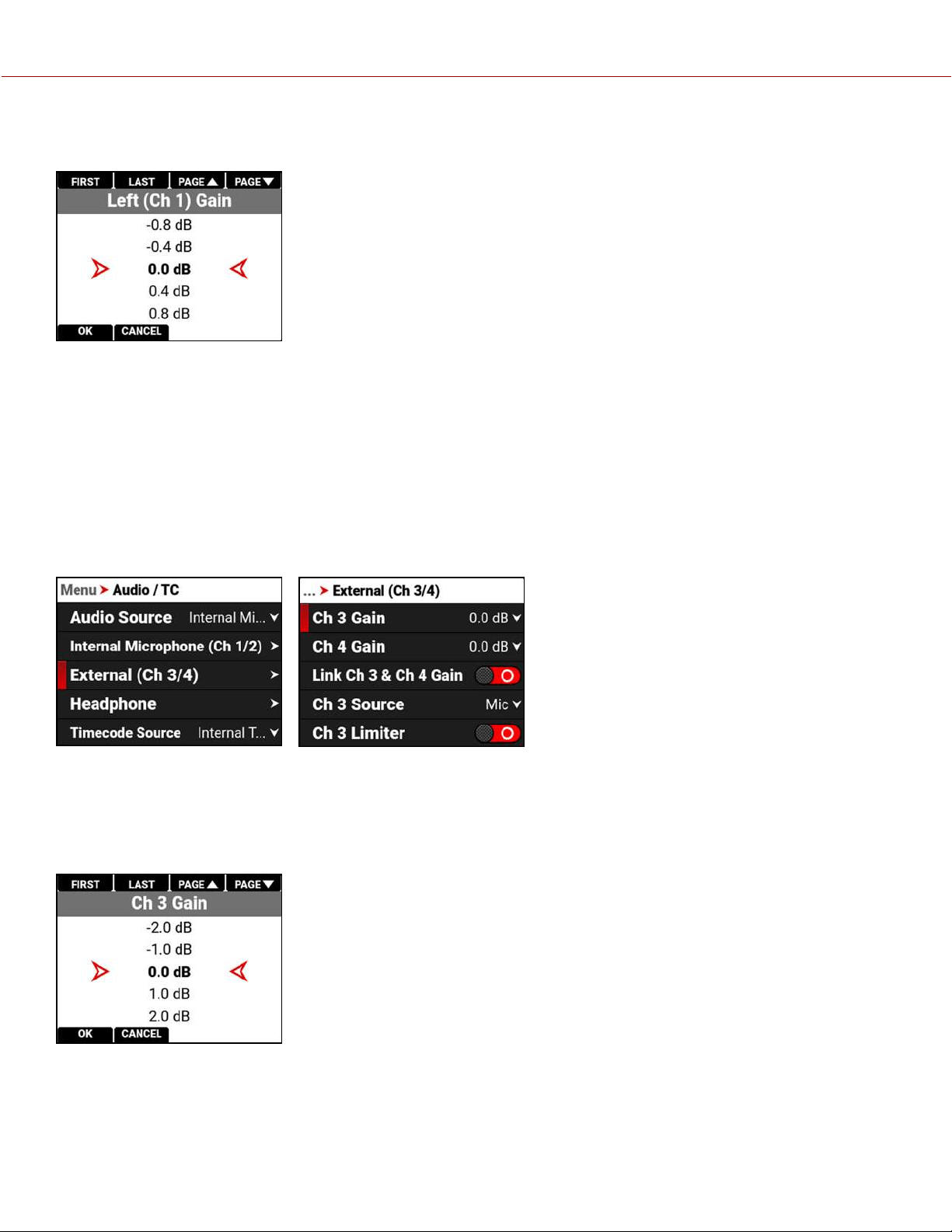
The Internal Microphone is represented as Channels 1 and 2 on the Home Page and on the Audio Channels 1/2 Page
VU Meters (refer to LCD for more information). The left channel is channel 1 and the right channel is channel 2.
You can adjust the internal audio levels for left and right from -52.5 dB to 36.0 dB.
The default setting is 0 dB.
When you enable Link Left & Right Gain, the channels are linked together and adjusted as one.
EXTERNAL (CH 3/4)
Use the External audio settings to set the left and right external audio levels. This menu is only enabled when the Audio
Source is set to External (Ch 3/4) or Internal + External.
NOTE: When the Recording Frame Rate and Project Time Code settings are different, varispeed audio is recorded (refer
to Audio / TC Menu).
The External audio is represented as Channels 3 and 4 on the Home Page and on the Audio Channels 3/4 Page VU
Meters (refer to LCD for more information). The left channel is channel 3 and the right channel is channel 4.
GAIN
You can adjust the external audio gain levels for channels 3 and 4 from -8.0 dB to 34.0 dB.
The default setting is 0 dB.
When you enable Link Channel 3 and Channel 4 Gain, the channels are linked together and adjusted as one.
COPYRIGHT © 2021 RED.COM, LLC 955-0198, V1.1, REV. A | 85
V-RAPTOR™ 8K V V OPERATION GUIDE
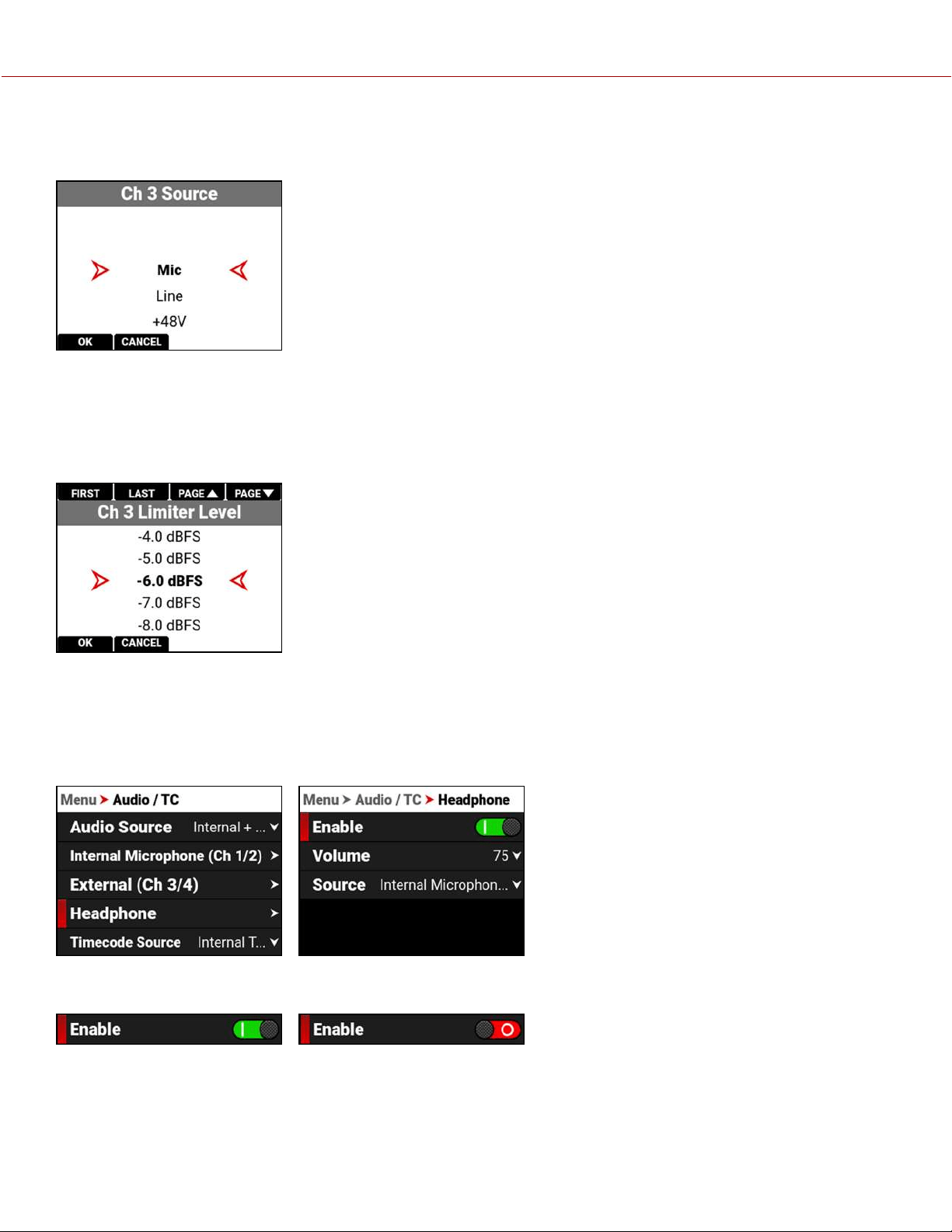
SOURCE
Use Source to select the type of input connected to external audio channel 3 and 4 ports.
You can select microphone, line, or +48V phantom power.
The default setting is microphone (Mic).
LIMITER
When enabled, use the limiter to place a limit past which the audio level for channels 3 and 4 cannot exceed.
You can select from -2.0 to -12.0 Decibel Full Scale (dBFS) as the limit.
The default limit is -6.0 dBFS.
HEADPHONE
Use the Headphone settings to enable the headphone jack and to adjust the headphone volume.
You can enable and disable the headphone audio jack by pressing SEL to toggle Enable to the right (green / enabled)
and to the left (red / disabled).
COPYRIGHT © 2021 RED.COM, LLC 955-0198, V1.1, REV. A | 86
V-RAPTOR™ 8K V V OPERATION GUIDE
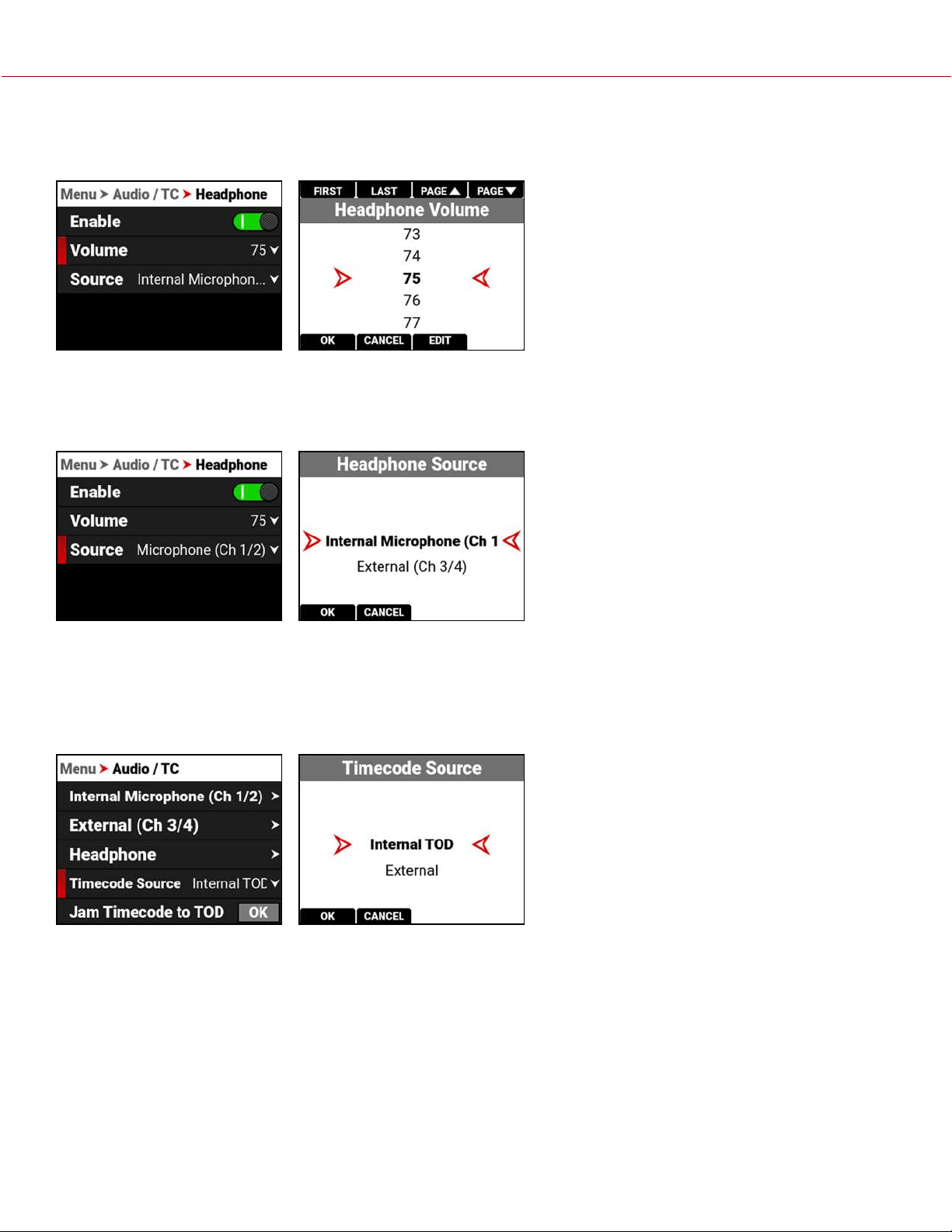
VOLUME
You can adjust the headphone volume from 0 to 100.
SOURCE
When the Audio Source is set to Internal + External, you can use Source to select the audio source you want to monitor
with the headphones.
You can select the internal microphone channels 1 and 2, or you can select the external channels 3 and 4.
The default setting is the internal microphone channels 1 and 2.
TIMECODE SOURCE
Use Timecode source to configure the Timecode source the camera applies to the recordings.
You can set the Timecode source as Internal Time of Day (TOD) or External.
When you set the camera Timecode source to External, you can connect an external Timecode generator to the
Extension Port (refer to Camera Body and Extension Port for more information).
COPYRIGHT © 2021 RED.COM, LLC 955-0198, V1.1, REV. A | 87
V-RAPTOR™ 8K V V OPERATION GUIDE
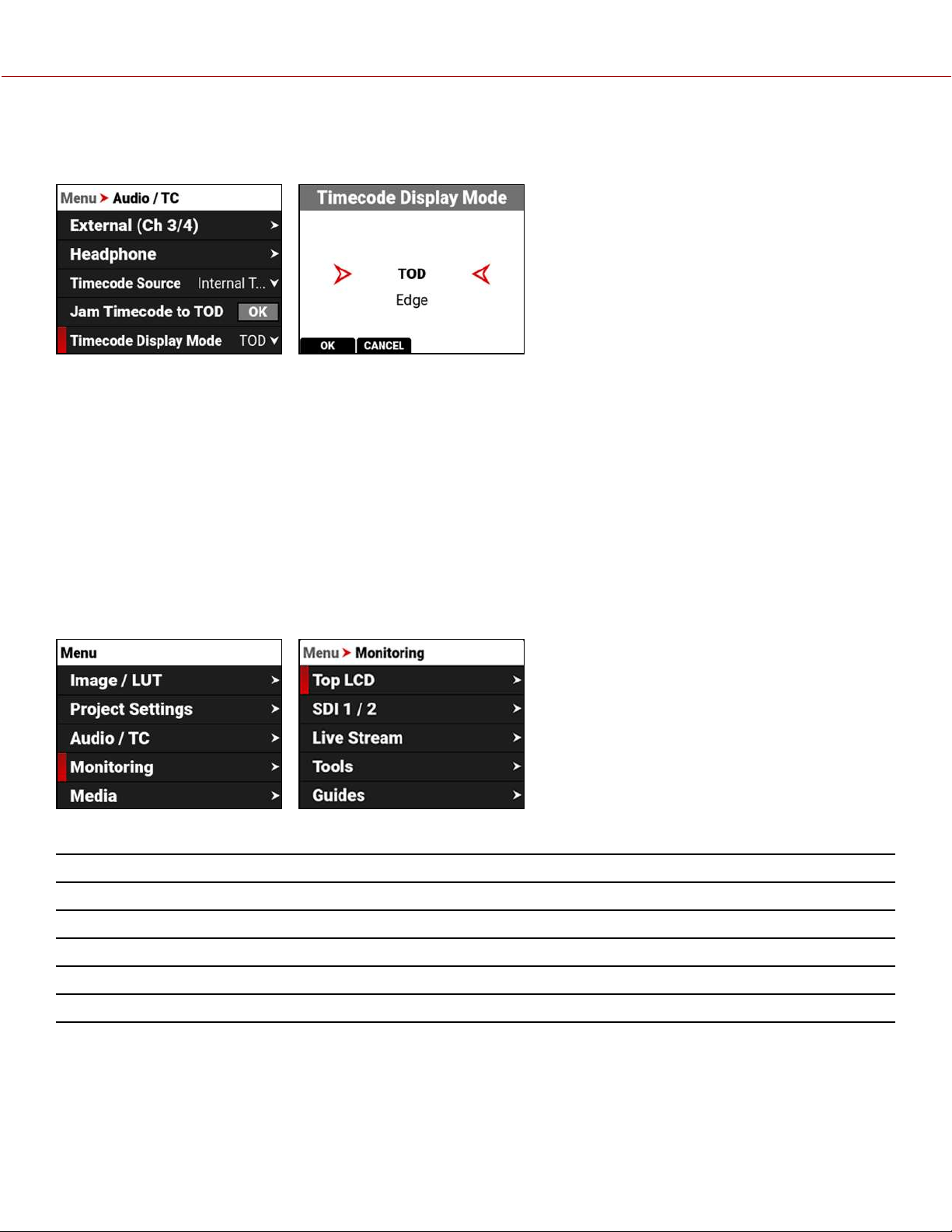
TIMECODE DISPLAY MODE
Use Timecode Display Mode to configure the Timecode display type that the camera applies to the recordings.
You can set the Timecode Display Mode as Time of Day (TOD) or Edge.
TOD DISPLAY MODE
Time of Day (TOD) display mode displays the Timecode as the time of day that the frame was recorded.
EDGE DISPLAY MODE
Edge display mode displays the Timecode as the sequential recording time that has elapsed starting with the first
frame.
MONITORING MENU
The Monitoring menu contains the settings you use to configure your camera monitoring options.
From the LCD menu, navigate to Monitoring and press SEL:
Use the Monitoring menu to configure the monitoring settings:
ITEM DETAILS
Top LCD Monitoring tools for the top LCD
SDI 1 / 2 SDI port resolution, frequency, look, guides, tools, overlay, and overlay mode
Live Stream Enable or disable Wi-Fi live streaming
Tools Various monitoring tools including False Color, Peaking, and Zebra Modes
Guides Frame guides and a center guide
COPYRIGHT © 2021 RED.COM, LLC 955-0198, V1.1, REV. A | 88
V-RAPTOR™ 8K V V OPERATION GUIDE
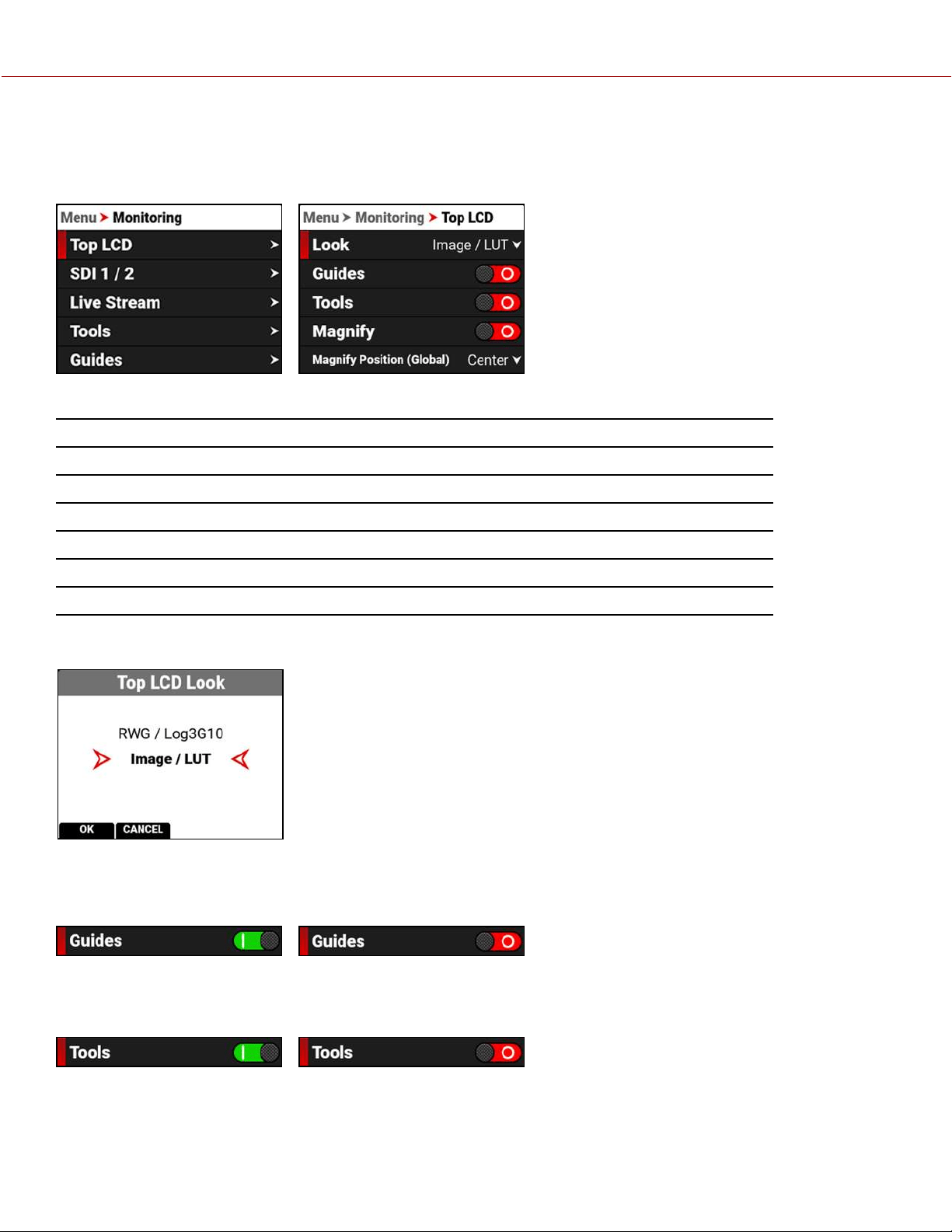
TOP LCD
The Top LCD menu provides access to the top LCDfeatures. This menu is only visible when the optional DSMC3 RED
Touch 7.0" LCD is attached to the camera (refer to DSMC3 RED® Touch 7.0" LCD).
The SDI port settings you can configure include:
ITEM DETAILS
Look Set the look of the playback between RWG / Log3G10 or Image / LUT
Guides Enable or disable the monitor guides
Tools Enable or disable the monitor tools
Magnify Magnify the monitor image
Magnify Position Select the position of the original image to magnify
Flip / Mirror Flip and mirror the top LCD display
LOOK
You can select the look of the image preview signal sent to the SDI
port.
The selections include:
• REDWideGamutRGB / Log3G10
• Image / LUT (default)
GUIDES
Use Guides to enable or disable the viewing of guides. Press SEL to toggle between enabled and disabled (default).
TOOLS
Use Tools to enable or disable the viewing of tools. Press SEL to toggle between enabled and disabled (default).
COPYRIGHT © 2021 RED.COM, LLC 955-0198, V1.1, REV. A | 89
V-RAPTOR™ 8K V V OPERATION GUIDE
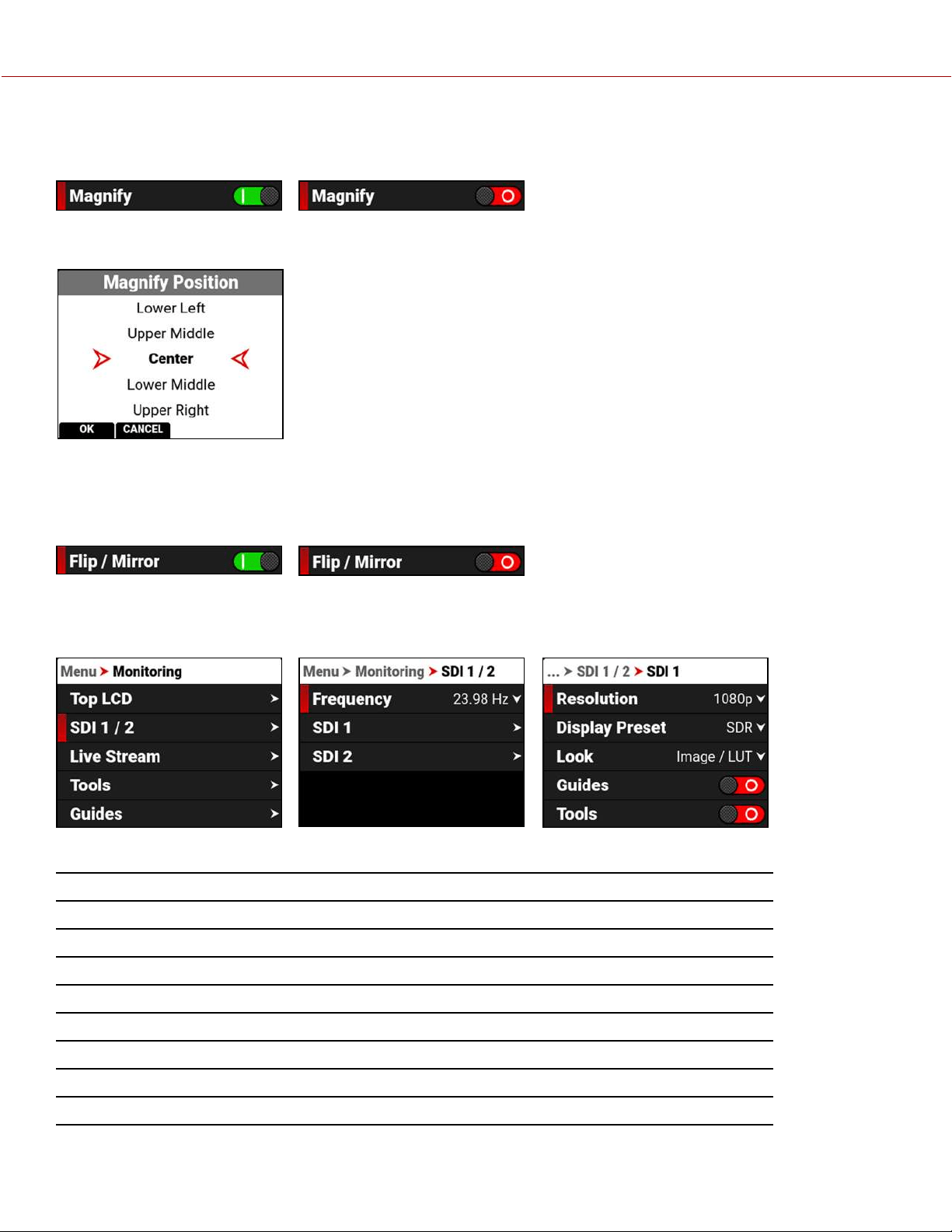
MAGNIFY
Use Magnify to enable or disable monitor magnification. Press SEL to toggle between enabled and disabled (default).
MAGNIFY POSITION
Use Magnify Position to globally select the area of the image you want to magnify.
The selections include:
• Left • Upper Middle • Upper Right
• Upper Left • Center (default) • Lower Right
• Lower Left • Lower Middle • Right
FLIP / MIRROR
Use Flip / Mirror to enable or disable the flipped mirrored orientation of the Top LCD. Press SEL to toggle between
enabled and disabled (default).
SDI 1 / 2
Use SDI 1 / 2 to configure the settings on SDI ports 1 and 2.
The SDI port settings you can configure include:
ITEM DETAILS
Frequency Select the SDI port frequency
Resolution Select the SDI port resolution
Display Preset Select the gamma for the camera preview and monitor output
Look Set the look of the playback between RWG / Log3G10 or Image / LUT
Guides Enable or disable the monitor guides
Tools Enable or disable the monitor tools
Overlay Enable or disable the monitor overlay
Overlay Mode Select the overlay type
COPYRIGHT © 2021 RED.COM, LLC 955-0198, V1.1, REV. A | 90
V-RAPTOR™ 8K V V OPERATION GUIDE
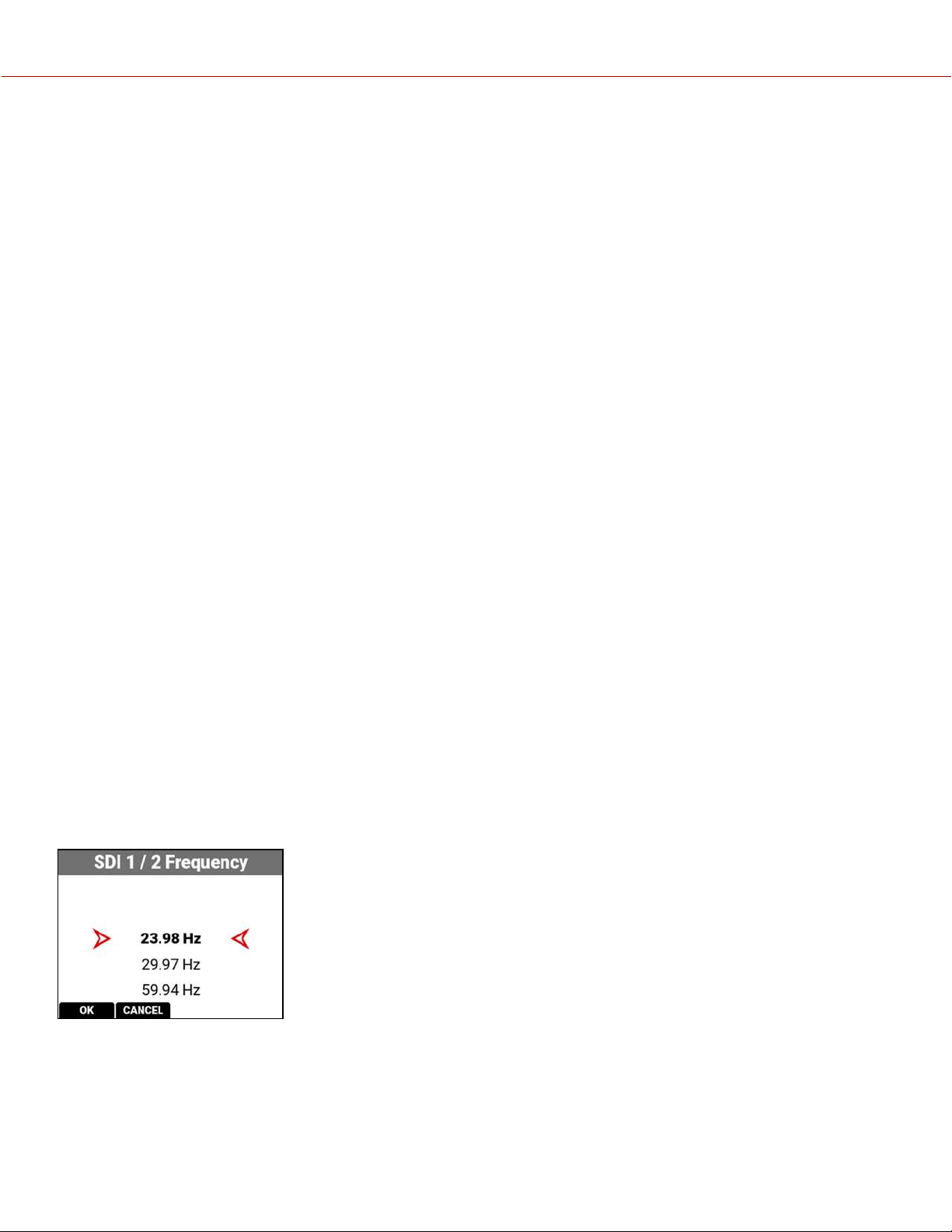
WARNING: Under certain circumstances, it is possible for an SDI connector to incur damage when connected to an
accessory and powered without using shielded cables. RED recommends only using high quality, shielded BNC cables
that are rated for 12G-SDI signals and only using shielded power cables for powering SDI accessories.
Make sure power is connected to the SDI accessory at all times before you connect the BNC to the camera.
Ungrounded power from SDI accessories can damage the camera’s SDI port. To avoid this possible damage, attach the
power source to the accessory before attaching it to the BNC cable. When using RED Approved Third Party battery
plates, unplug the BNC cable prior to hot swapping.
When possible, avoid using P-Tap (also known as D-Tap) cables to power accessories. To avoid damage when using P-
Tap/D-Tap, it’s imperative that the connect/disconnect sequence (below) is followed precisely.
BNC ATTACHMENT INSTRUCTIONS
When attaching SDI accessories:
1.
Connect a power source to the SDI accessory; power on the SDI accessory.
2.
Ensure a power source is connected to the camera. This ensures both are grounded prior to connecting the BNC.
The camera's power state does not have an impact on SDI attachment sequence.
3.
Connect the BNC cable to the accessory, then to the camera.
When detaching an accessory mounted to an SDI output, ensure that you remove the BNC connection to the camera
before removing power to the SDI device:
1.
Shutdown the SDI accessory.
2.
Disconnect the BNC cable from the camera.
3.
Disconnect the power source from the SDI accessory.
When you need to swap out a battery on an accessory mounted to the camera’s SDI port, you must:
1.
Shutdown the SDI accessory.
2.
Disconnect the BNC cable from the camera.
3.
Replace the battery on the SDI accessory.
4.
Connect the BNC cable to the camera.
5.
Power on the SDI accessory.
For more information, refer to Preventing Damage to SDI Outputs.
FREQUENCY
Use Frequency to select one of the following SDI port frequency
settings:
• 23.98 Hz
• 29.97 Hz
• 59.94 Hz
COPYRIGHT © 2021 RED.COM, LLC 955-0198, V1.1, REV. A | 91
V-RAPTOR™ 8K V V OPERATION GUIDE
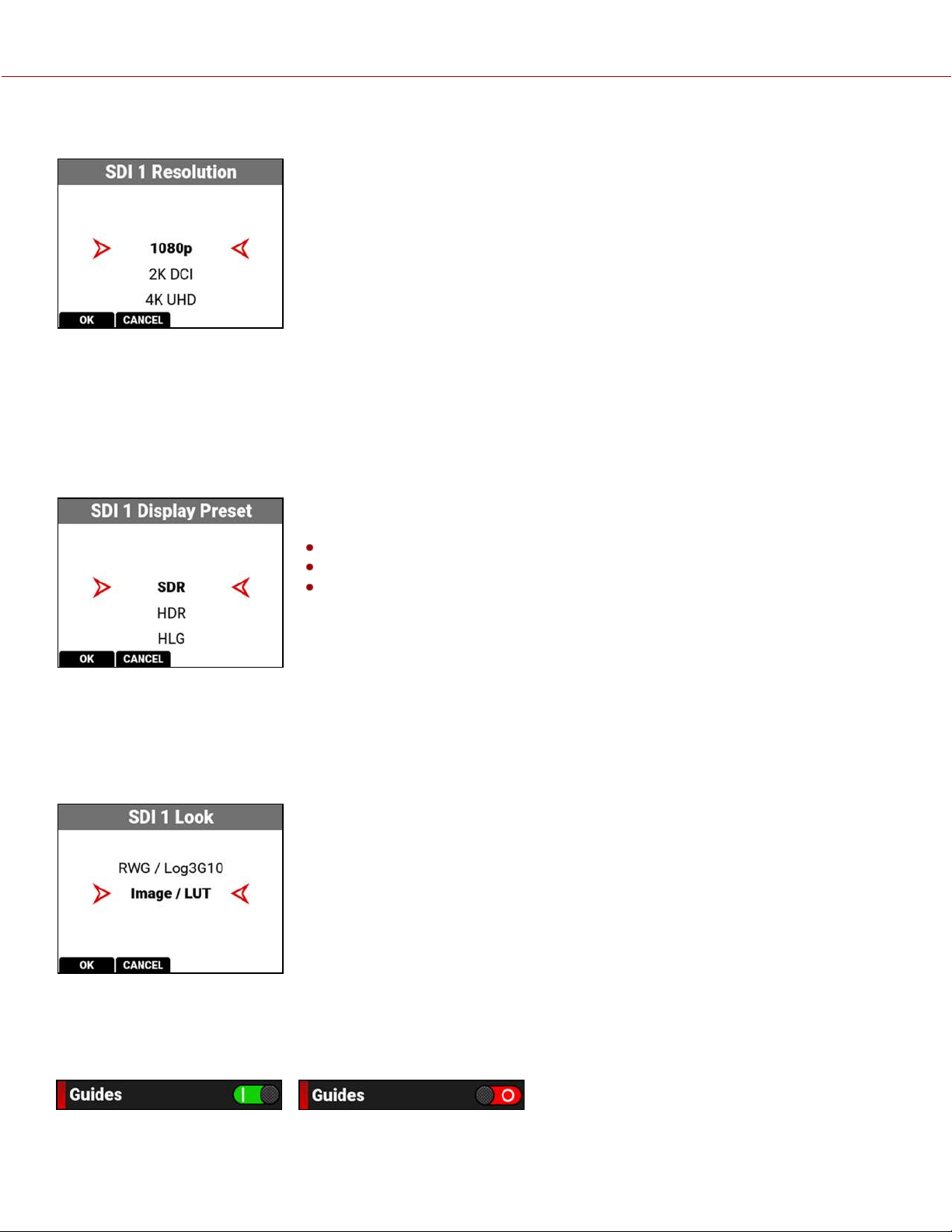
RESOLUTION
Use resolution to select one of the following SDI port resolution settings:
• 1080p
• 2K DCI
• 4K UHD
• 4K DCI
The resolution selected here controls the SDI output resolution of the preview
page.
SCALING PREVIEW
When monitoring in 1080p or 4K UHD while capturing in a 17:9 format, the entire 17:9 image will be down-scaled to the
16:9 aspect ratio of 1080p or 4K UHD. Small black bars will only appear on the top and bottom of the frame in the
monitor path and not on the recorded image.
DISPLAY PRESET
Use Display Preset to select gamma of the displayed preview image for the SDI
ports:
SDR - Standard Dynamic Range (default)
HDR - High Dynamic Range
HLG - Hybrid Log-Gamma
When shooting in R3D format, the camera stores this as metadata, which you can
adjust non-destructively in post production after filming.
The Display Preset allows you to select the gamma for the camera preview and monitor output.
Each monitor is designed to display using a specific gamma. Most monitors use SDR. However, some support HDR
and HLG gamma signals. Select the display preset that works best with your monitor.
LOOK
You can select the look of the image preview signal sent to the SDI
port.
The selections include:
• REDWideGamutRGB / Log3G10
• Image / LUT (default)
GUIDES
Use Guides to enable or disable the viewing of guides. You can enable and disable guides by pressing SEL to toggle
Guides to the right (green / enabled) and to the left (red / disabled).
COPYRIGHT © 2021 RED.COM, LLC 955-0198, V1.1, REV. A | 92
V-RAPTOR™ 8K V V OPERATION GUIDE
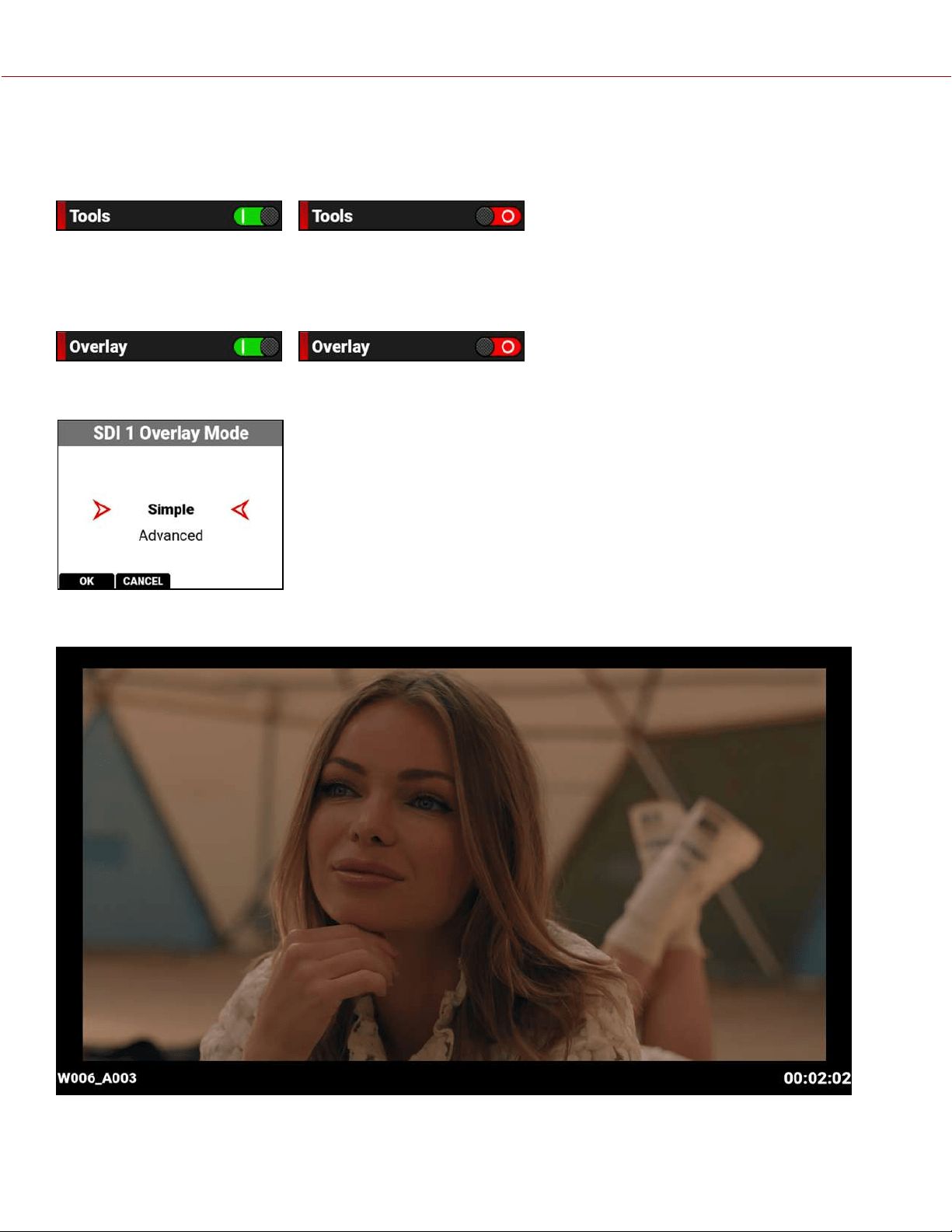
TOOLS
Use Tools to enable or disable the viewing of tools. You can enable and disable tools by pressing SEL to toggle Tools
to the right (green / enabled) and to the left (red / disabled).
OVERLAY
Use Overlay to enable or disable the viewing of the overlay. You can enable and disable the overlay by pressing SEL to
toggle Overlay to the right (green / enabled) and to the left (red / disabled).
OVERLAY MODE
Use Overlay Mode to select one of the following SDI port overlay
modes:
• Simple - minimal image information is displayed
• Advanced - many image and camera details are displayed
SIMPLE MODE
COPYRIGHT © 2021 RED.COM, LLC 955-0198, V1.1, REV. A | 93
V-RAPTOR™ 8K V V OPERATION GUIDE
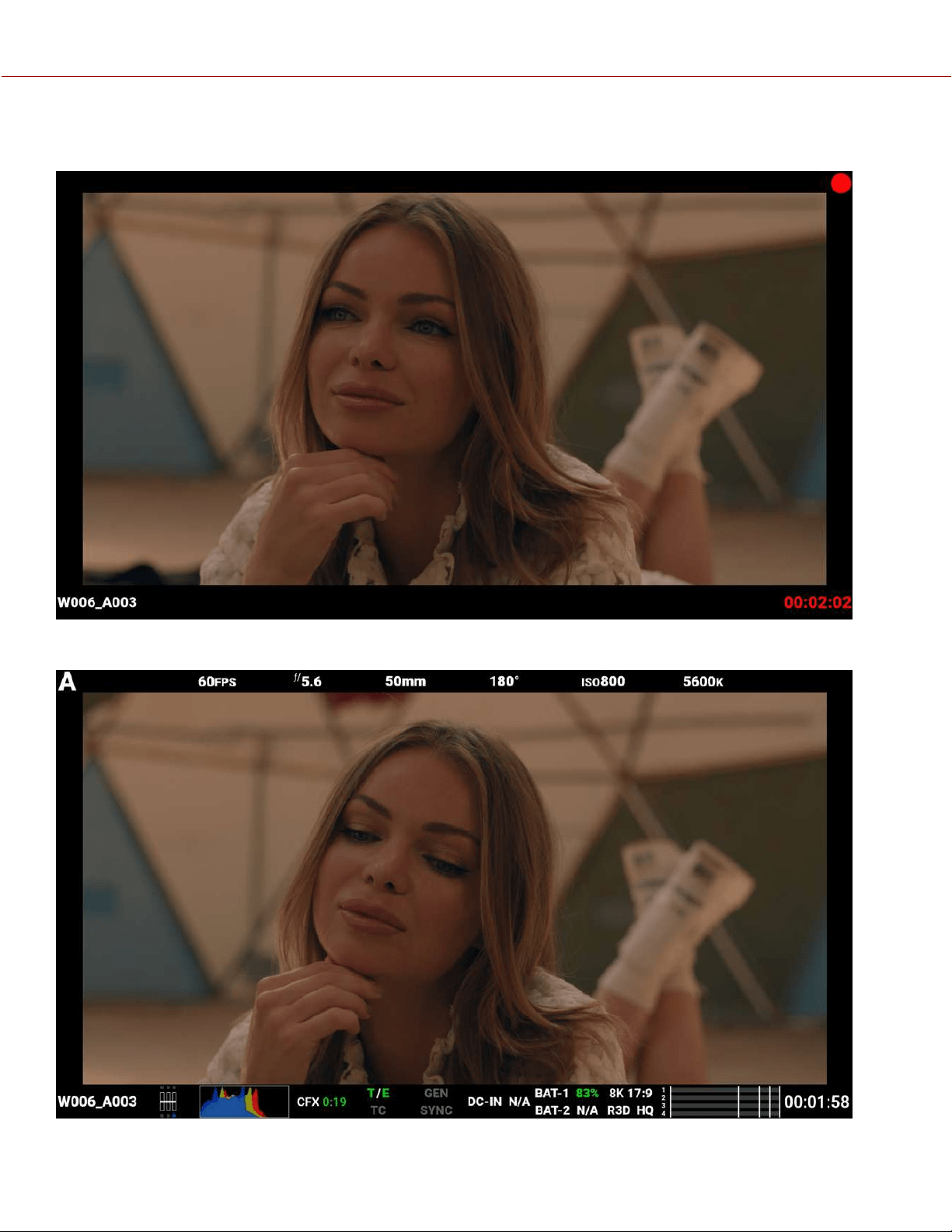
Simple mode displays the clip name and the current Timecode. When the camera is recording, the Timecode turns red,
and a red dot appears in the top right corner.
ADVANCED MODE
COPYRIGHT © 2021 RED.COM, LLC 955-0198, V1.1, REV. A | 94
V-RAPTOR™ 8K V V OPERATION GUIDE
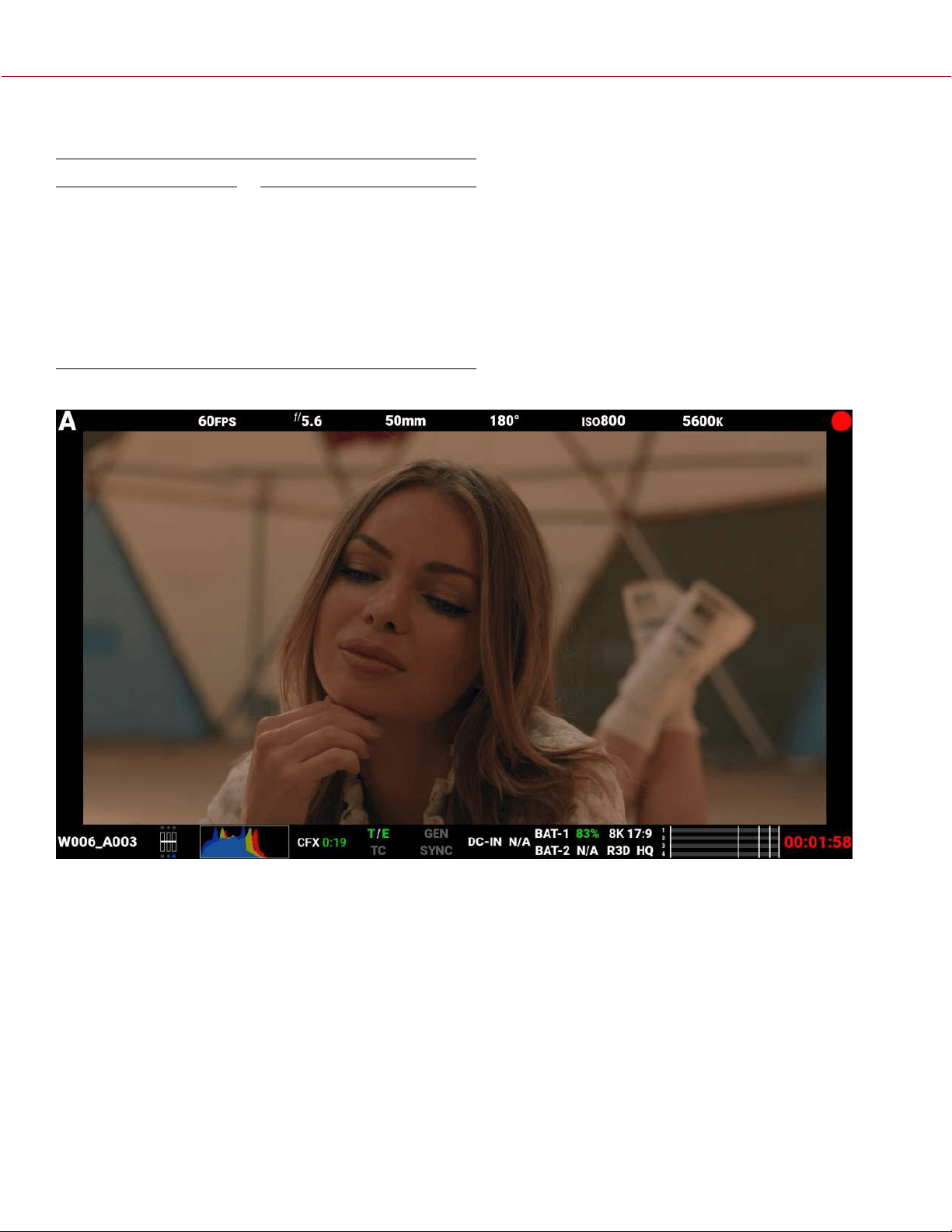
Advanced mode displays the following:
TOP BOTTOM
• Camera Number
• Recording Frame Rate
• f-Stop
• Focus Length
• Shutter Angle
• ISO
• White Balance
• Clip Name
• Exposure Meter
• Histogram
• CFexpress Time Remaining
• Temp / Exp Calibration
• Timecode, Genlock, Synch
• DC-In, Battery
• Format, File Type, Rate
• VU Meter
• Timecode
When the camera is recording, the Timecode turns red, and a red dot appears in the top right corner.
SDI PORT DESCRIPTION
The Serial Digital Interface (SDI) ports allow the camera to deliver 12 Gbps of image bandwidth with greater resolution,
frame rates, and color fidelity. These ports allow you to use a single BNC cable solution ideal for 4Kp60 format.
WARNING: Under certain circumstances, it is possible for an SDI connector to incur damage when connected to an
accessory and powered without using shielded cables. RED recommends only using high quality, shielded BNC cables
that are rated for 12G-SDI signals and only using shielded power cables for powering SDI accessories.
Make sure power is connected to the SDI accessory at all times before you connect the BNC to the camera.
Ungrounded power from SDI accessories can damage the camera’s SDI port. To avoid this possible damage, attach the
power source to the accessory before attaching it to the BNC cable. When using RED Approved Third Party battery
plates, unplug the BNC cable prior to hot swapping.
When possible, avoid using P-Tap (also known as D-Tap) cables to power accessories. To avoid damage when using P-
Tap/D-Tap, it’s imperative that the connect/disconnect sequence (below) is followed precisely.
COPYRIGHT © 2021 RED.COM, LLC 955-0198, V1.1, REV. A | 95
V-RAPTOR™ 8K V V OPERATION GUIDE
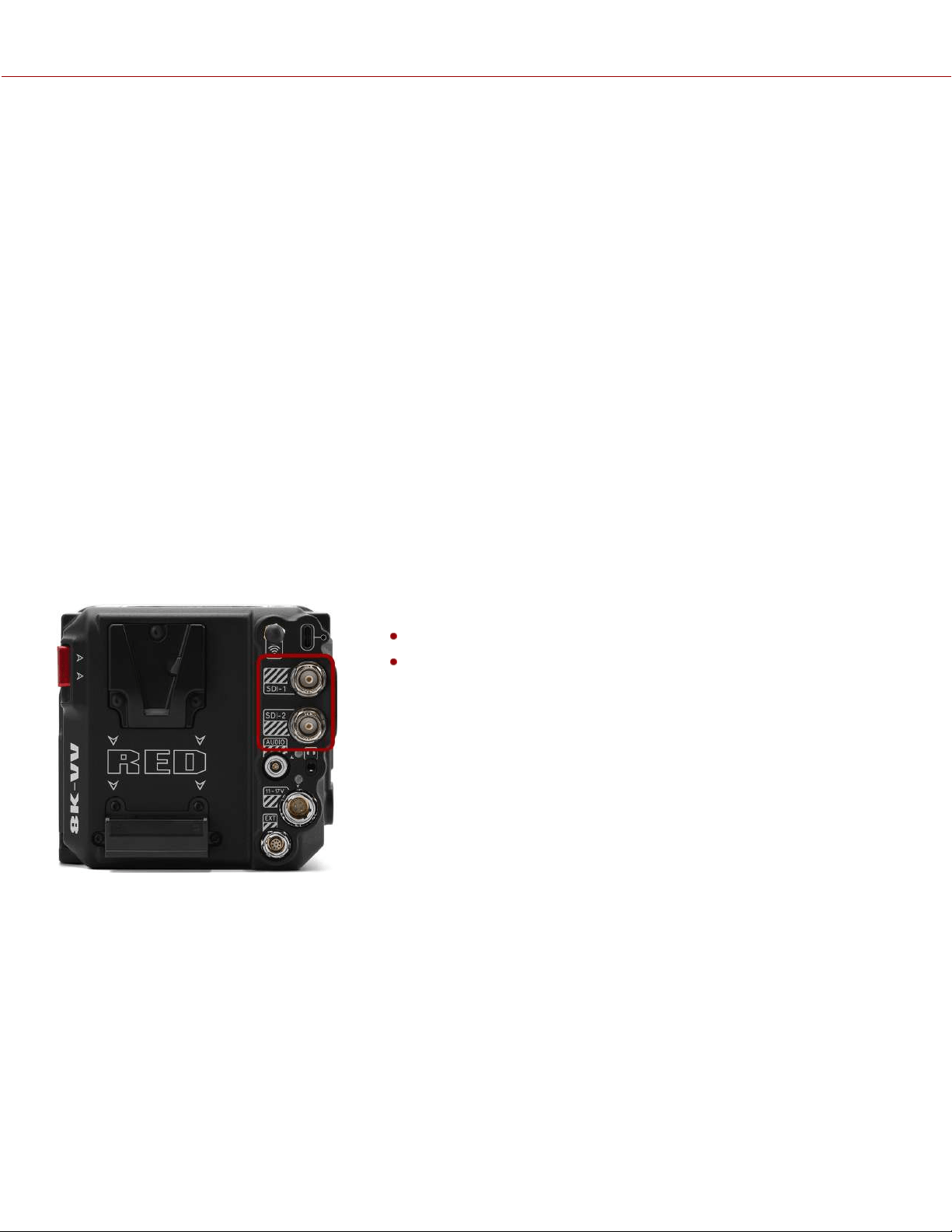
BNC ATTACHMENT INSTRUCTIONS
When attaching SDI accessories:
1.
Connect a power source to the SDI accessory; power on the SDI accessory.
2.
Ensure a power source is connected to the camera. This ensures both are grounded prior to connecting the BNC.
The camera's power state does not have an impact on SDI attachment sequence.
3.
Connect the BNC cable to the accessory, then to the camera.
When detaching an accessory mounted to an SDI output, ensure that you remove the BNC connection to the camera
before removing power to the SDI device:
1.
Shutdown the SDI accessory.
2.
Disconnect the BNC cable from the camera.
3.
Disconnect the power source from the SDI accessory.
When you need to swap out a battery on an accessory mounted to the camera’s SDI port, you must:
1.
Shutdown the SDI accessory.
2.
Disconnect the BNC cable from the camera.
3.
Replace the battery on the SDI accessory.
4.
Connect the BNC cable to the camera.
5.
Power on the SDI accessory.
For more information, refer to Preventing Damage to SDI Outputs.
For more information, refer to:
12G-SDI (SDI-1 & SDI-2)
The SDI standard: SMPTE (Society of Motion Picture and Television
Engineers) standard SMPTE ST-2082
STANDARD DYNAMIC RANGE
Standard-dynamic-range (SDR) video describes images or video using a conventional gamma curve signal.
HIGH DYNAMIC RANGE
High-dynamic-range (HDR) video images are recorded using the SMPTE-2084 PQ curve. This technology captures and
outputs a greater range of luminance than images recorded using standard-dynamic-range (SDR) methods.
COPYRIGHT © 2021 RED.COM, LLC 955-0198, V1.1, REV. A | 96
V-RAPTOR™ 8K V V OPERATION GUIDE
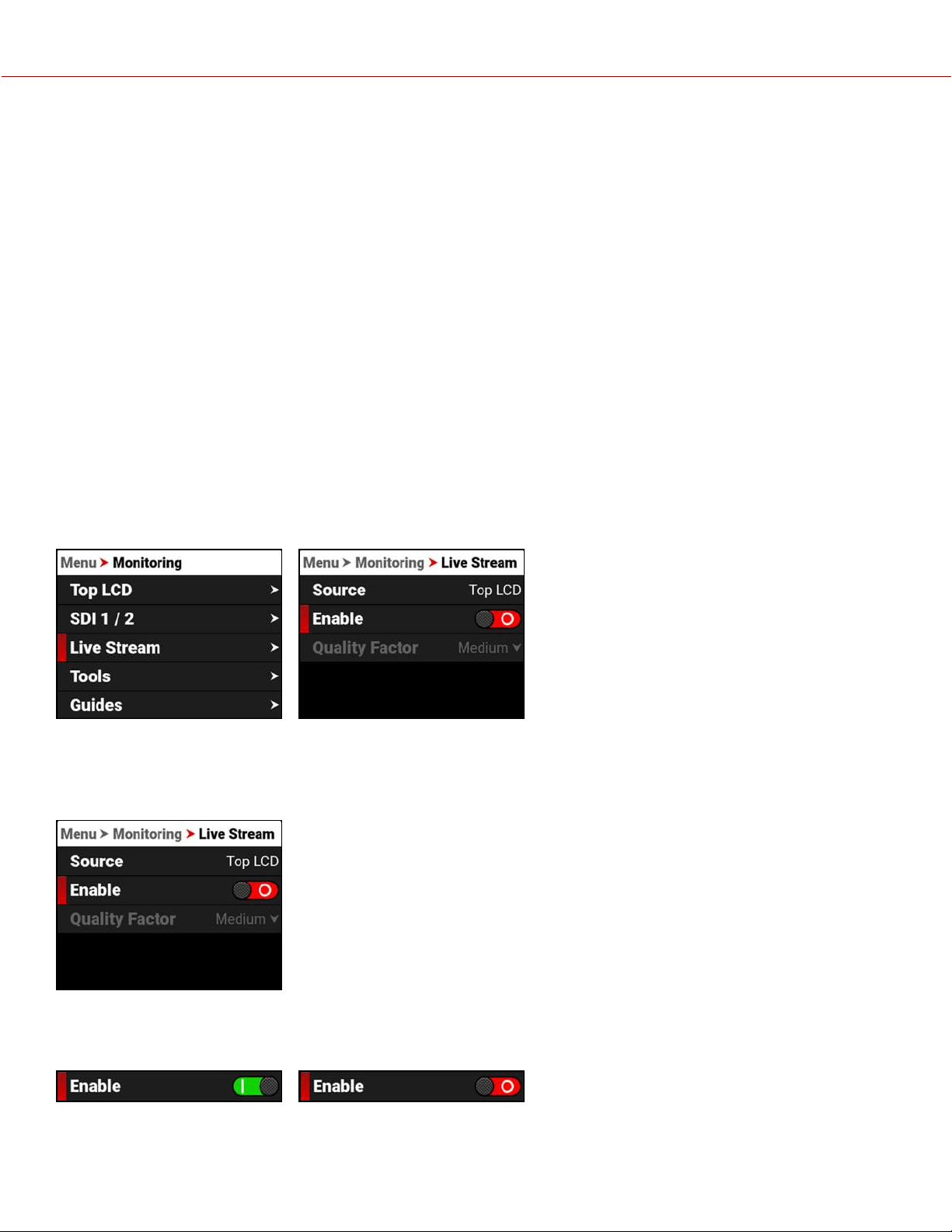
HYBRID LOG-GAMMA
Hybrid log-gamma (HLG) delivers HDR resolution without the need for metadata. This allows HLG to display well on
SDR and HDR monitors.
BACKGROUND
NHK and the BBC developed HLG in a joint effort to create a more compatible signal for a wide variety of television
sets.
Hybrid log-gamma is an open-source standard HDR (high-dynamic-range) video format. Video dynamic range is the
measurement between the brightness between black and white (luminosity).
Many monitors offer HDR. However, unlike resolution parameters (1080p, 4K, etc.), HDR is related to luminosity.
Luminosity can vary between how an image is captured on a camera and how the image is broadcast to a monitor.
HLG sends a combination (hybrid) of the normal Gamma curve for light coding and a logarithmic curve to deliver the
HDR aspects of the signal.
LIVE STREAM
Use Live Stream to enable or disable live streaming over Wi-Fi. This is one of the methods you can use to connect to
the RED Control App.
NOTE: When live streaming, select 5 GHz as the Wi-Fi band (refer to Ad-Hoc).
SOURCE
Source displays the source of the Live Stream image. Live stream displays the guides, looks, and tools enabled for that
source.
ENABLE
Use Enable to enable or disable the Live Stream feature.
COPYRIGHT © 2021 RED.COM, LLC 955-0198, V1.1, REV. A | 97
V-RAPTOR™ 8K V V OPERATION GUIDE
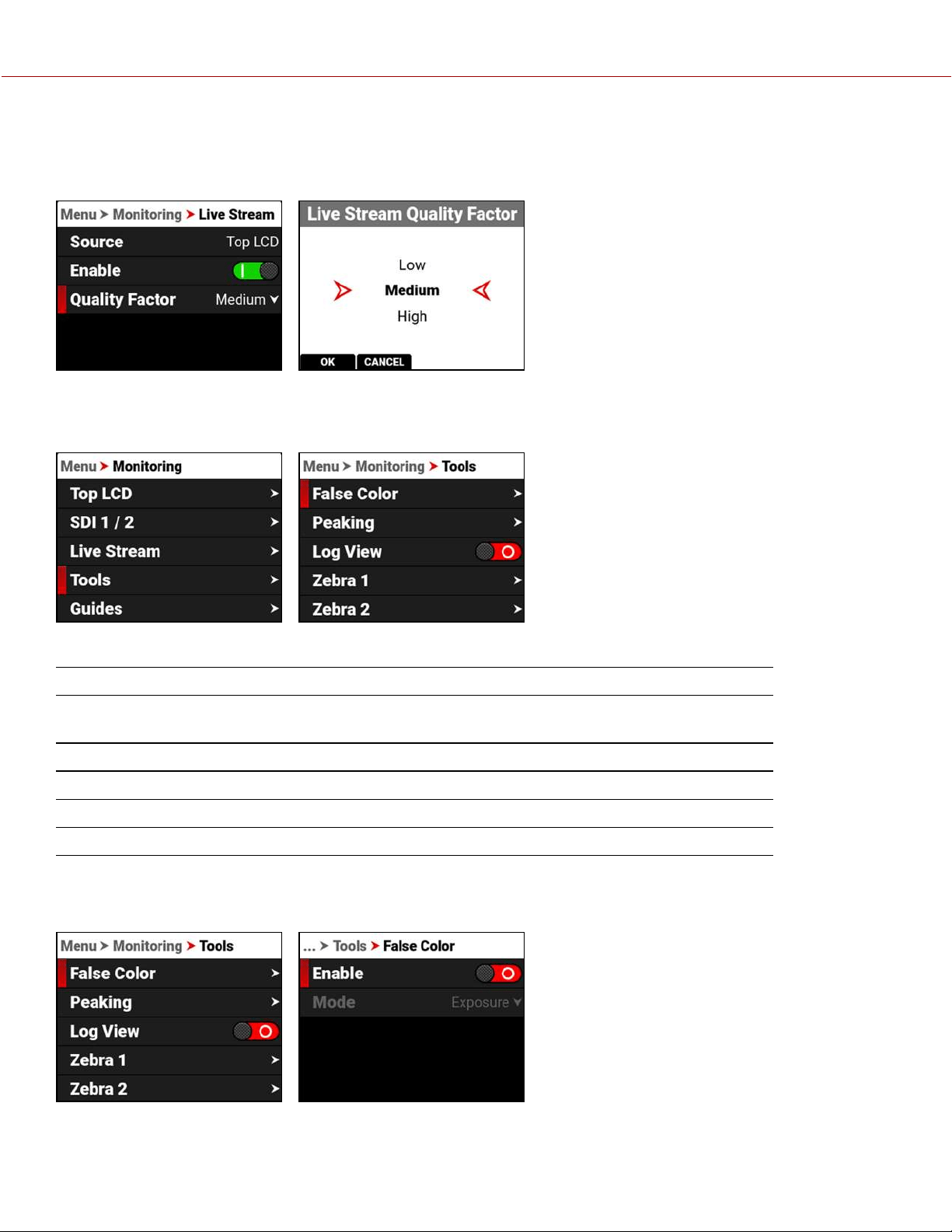
QUALITY FACTOR
Use Quality Factor, when Live Streaming is enabled, to control the video quality the camera's output streams. Lower
quality can stream over a longer distance.
TOOLS
The Tools menu provides access to the monitoring tools you use to monitor image exposure and focus.
The monitoring tools that you can use include:
ITEM DETAILS
False Color Enable and configure the False Color Exposure Mode and the False Color
Video Mode
Peaking Enable and configure focus indicating modes
Log View Enable or Disable Log View
Zebra 1 Enable and configure Zebra 1 settings
Zebra 2 Enable and configure Zebra 2 settings
FALSE COLOR
Use False Color to configure the False Color tool settings.
COPYRIGHT © 2021 RED.COM, LLC 955-0198, V1.1, REV. A | 98
V-RAPTOR™ 8K V V OPERATION GUIDE
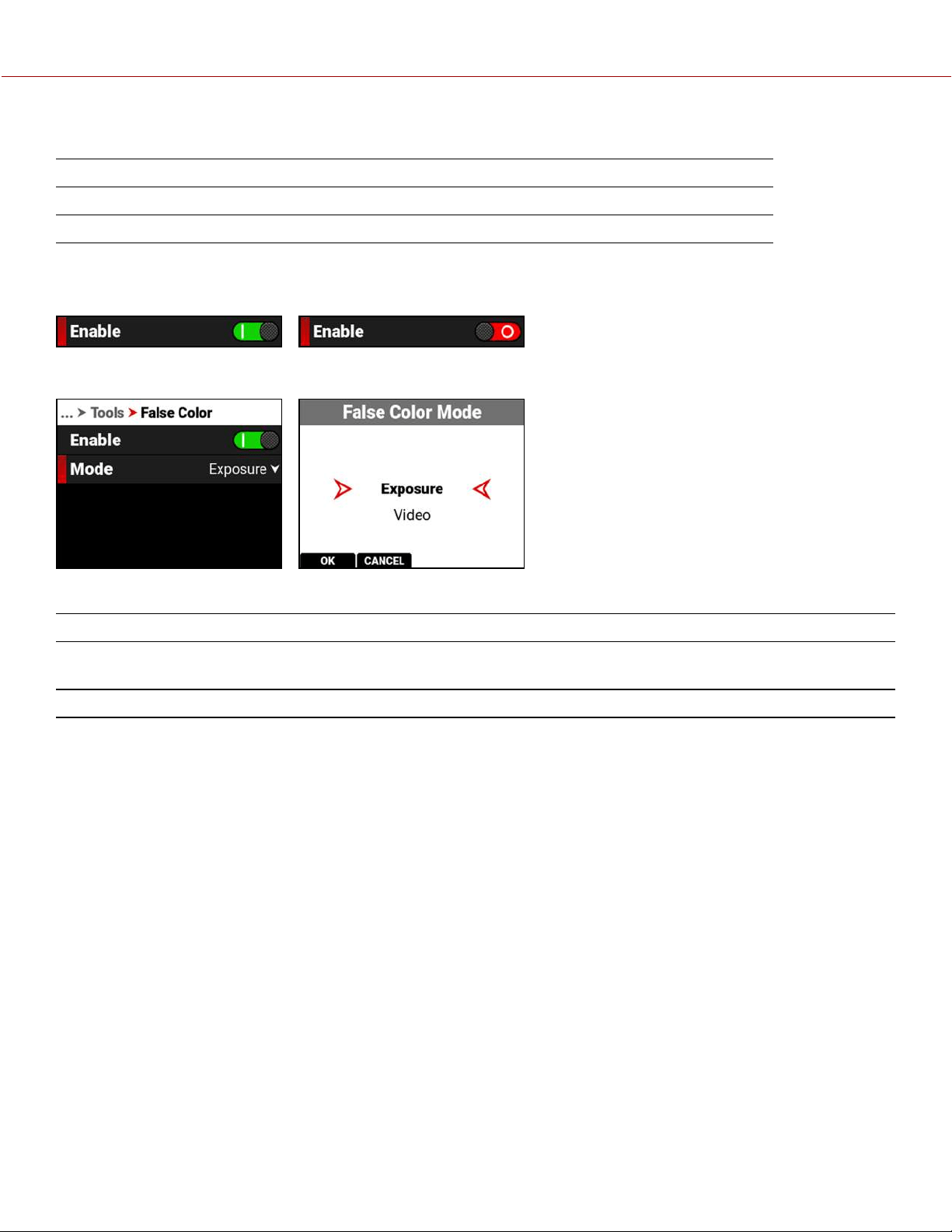
The False Color tool settings you can configure include:
ITEM DETAILS
Enable Enable or disable the False Color tool modes
False Color Mode Select the False Color tool mode
ENABLE
Use Enable to enable or disable the False Color tool.
FALSE COLOR MODE
False Color Modes include:
ITEM DETAILS
False Color Exposure Mode Use false colors to determine an optimal balance between overexposure and
underexposure.
False Color Video Mode Access scene exposure in varying light without relying on the LCD image brightness.
NOTE: False Color modes display on video recorded through SDI to an external recorder when the Tools are enabled in
the Monitor menu. When recording through SDI, use False Color modes only to help determine scene exposure
settings, and then disable the mode before recording.
FALSE COLOR EXPOSURE MODE
When this monitoring False Color mode is activated, most of the tonal range will appear in monochrome.
The Exposure Mode is able to indicate exactly where middle gray is falling, and indicate which highlights or shadows
are problematic in the logarithmic representation of the image. Exposure mode is judging the exposure after ISO and
White Balance adjustments are made, and before any sort of LUT or transform is applied to the Log3G10 image.
RED FALSE COLOR OVERLAY
When the False Color Mode overlays the color red within the subject of interest, or anywhere except bright lights and
direct reflections, then the image is likely overexposed. When the False Color Mode does not overlay the color red on
the image, then the exposure is likely okay for the selected ISO.
PURPLE FALSE COLOR OVERLAY
When the False Color Mode overlays the color purple on key image detail that is not located in the shadows, then the
scene is likely underexposed. When the False Color Mode does not overlay the color purple on the image, then the
exposure is likely okay for the selected ISO.
For more information, refer to Exposure in the How To section.
COPYRIGHT © 2021 RED.COM, LLC 955-0198, V1.1, REV. A | 99
V-RAPTOR™ 8K V V OPERATION GUIDE
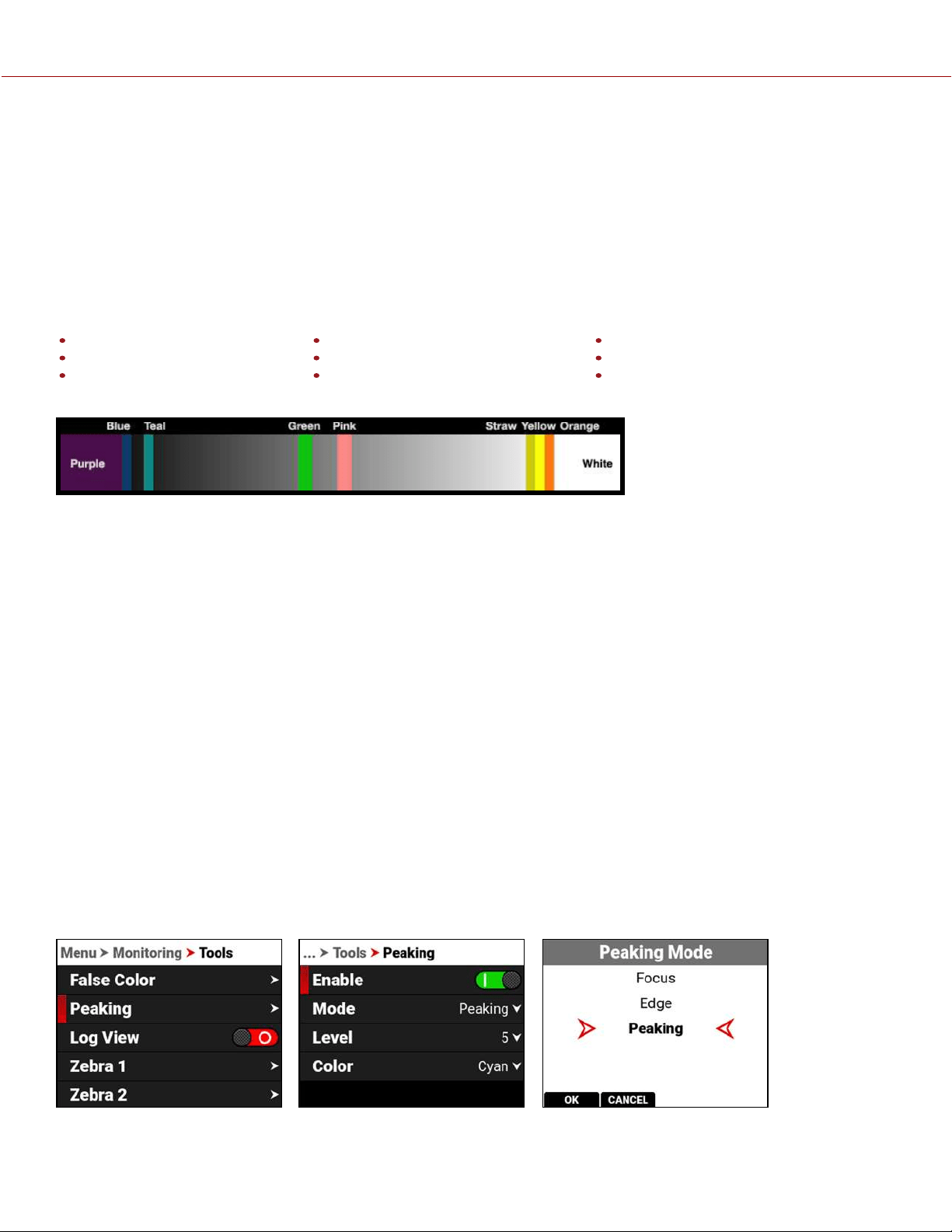
FALSE COLOR VIDEO MODE
NOTE: For best results, Video Mode should be viewed at or above ISO 800.
Video Mode displays a color overlay that indicates the video level of the RGB monitor path (calibrated to the SMPTE
test signal).
The colors used are based on the RGB levels of the video out signal (that is, the “cooked” look, and not RAW data). The
camera's RGB settings can change the appearance of the Video Mode colors.
The Video Mode colors represent the following IRE values (at all other values, the desaturated image represents the
luminance value of the ISO adjusted image):
Purple: IRE 0–4
Blue: IRE 5
Teal: IRE 10–12
Green: IRE 41–48
Pink: IRE 61–70
Straw: IRE 92–93
Yellow: IRE 94–95
Orange: IRE 96–98
Red: IRE 99–100
For more information, refer to Exposure in the How To section.
Green is where you will want 18% gray, Pink is typically the brightness of Caucasian skin tones, Straw, Yellow, and
Orange are strong highlights and increasingly closer to white, Teal is deep shadows and Blue is on the verge of
becoming untextured black. In general, Pink and Green are most helpful when calibrating based on a known reference,
whereas the other colors indicate the extremes of a tonal range.
A potential disadvantage of False Color Video mode is that all the false colors can distract from the underlying preview.
Many prefer to use this mode only during initial set-up, and then they use False Color Exposure Mode under a wider
range of scenarios.
IN PRACTICE
In False Color Exposure Mode, use the purple and red indicators to adjust your lighting or lens aperture. Use this
strategy to achieve an optimal balance between clipping from overexposure and image noise from underexposure. With
most scenes, you can often have a surprising range of exposure latitude before excessive red or purple indicators begin
to appear.
If necessary, use False Color Video mode or Zebra Modes to fine-tune how the scene will appear over SDI, or use it to
adjust your suggested look when sending footage for post-production.
The Zebra and Video modes are also an objective way to assess the scene exposure under varying ambient light
without relying on the LCD image to evaluate brightness.
PEAKING
The Peaking tools display contrast, outlines, or colors to assist with focusing.
COPYRIGHT © 2021 RED.COM, LLC 955-0198, V1.1, REV. A | 100
V-RAPTOR™ 8K V V OPERATION GUIDE
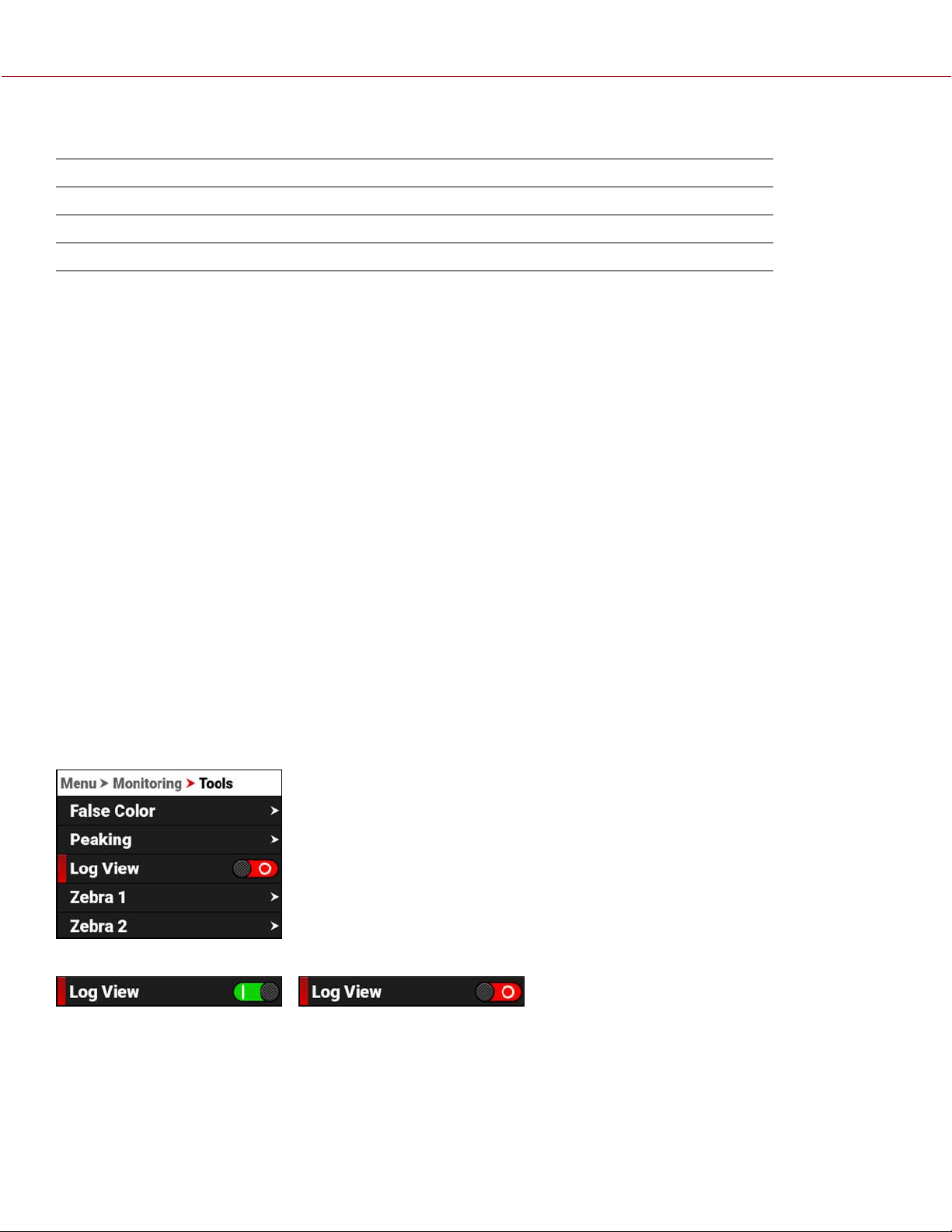
The Peaking modes you can use include:
ITEM DETAILS
Focus Use enhanced contrast and edges for focusing
Edge Show outlines of focused objects
Peaking Select a colored overlay to indicate objects in focus
FOCUS PEAKING MODE
Focus Peaking mode emphasizes contrast and edges in the image without changing the brightness or the image
content. This mode makes it easier to judge focus. Adjust the zoom and focus to easily see which objects are coming
into focus.
EDGE PEAKING MODE
When you enable Edge Peaking mode, the display shows the edges or outlines of objects that are in focus.
PEAKING PEAKING MODE
The Peaking Peaking mode displays a color overlay on top of in-focus edges. Select a Level of 1 to 10 (weak to strong)
for the intensity of the color overlay. The RGB settings can change the appearance of the selected color overlay.
The Peaking Peaking mode indicator is applied after the image is scaled to a monitor, making the indicators appear
differently on various monitors.
For more information about Peaking, refer to Focus in the How To section.
LOG VIEW
Use Log View to display camera images in REDWideGamutRGB and Log3G10 for the ISO, Exposure Adjust, Color
Temperature, and Tint settings. This allows you to quickly see ungraded footage that remains unaffected by creative
decisions such as the choice of 3D LUT or CDL.
Log View is passed through the SDI port when recording to an external recorder. You can view the Log image in
playback on the LCD and on the monitor. However, Log View is not recorded to the file on the media card.
Press SEL to toggle the Log View switch between Enabled and Disabled:
COPYRIGHT © 2021 RED.COM, LLC 955-0198, V1.1, REV. A | 101
V-RAPTOR™ 8K V V OPERATION GUIDE
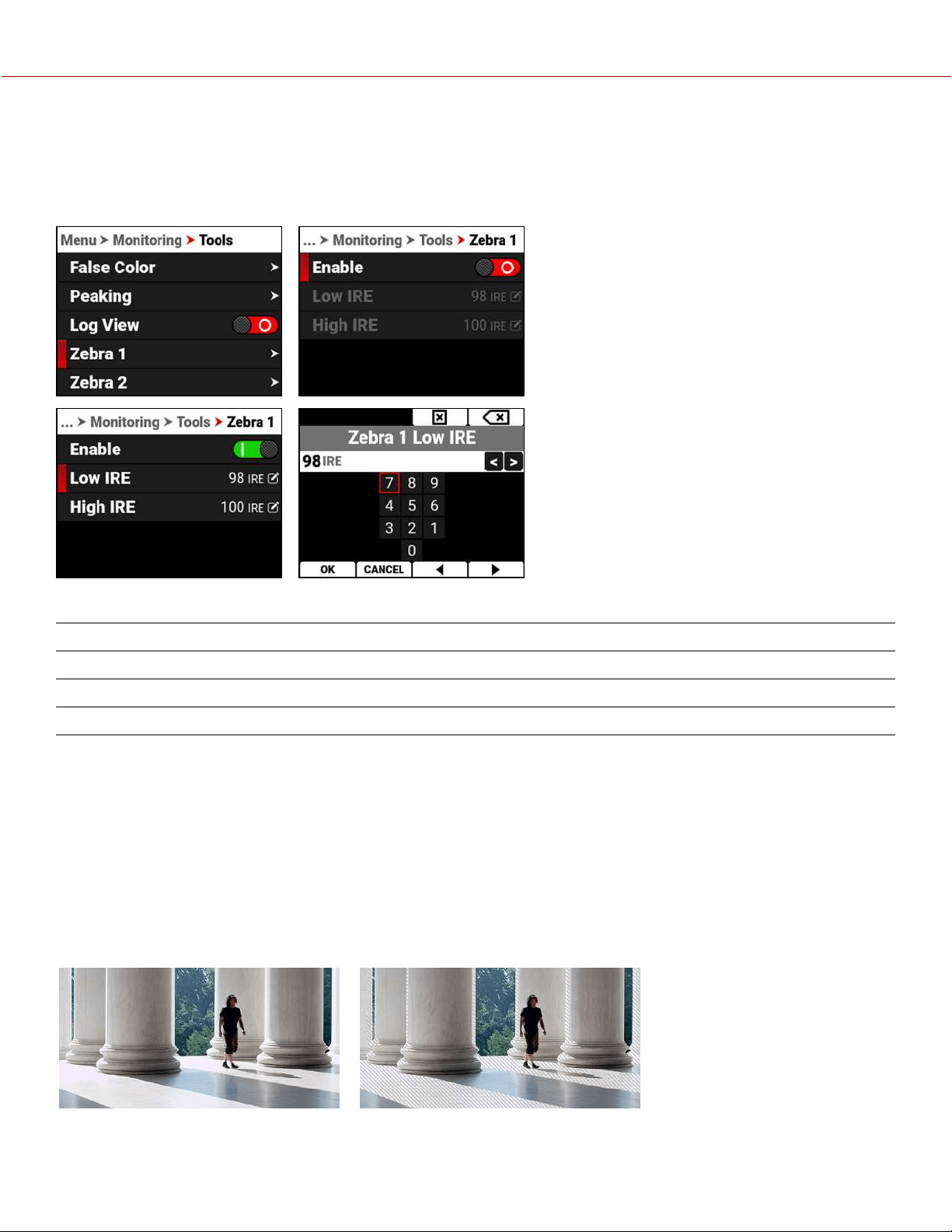
ZEBRA 1
Use Zebra 1 to display one set of diagonal stripes to indicate highlight exposure levels. For more information, refer to
Zebra Modes.
Zebra 1 is disabled by default.
The Zebra 1 mode includes:
ITEM DETAILS
Enable Enables red zebra stripes to indicate highlight exposure
Low IRE Sets the lower threshold for the indicator
High IRE Sets the higher threshold for the indicator
ENABLE
The Enable toggle switch allows you to enable or disable the Zebra 1 stripes.
LOW IRE
Provides a keypad that allows you to set the low threshold for the Zebra stripe. The default setting is 98 IRE.
HIGH IRE
Provides a keypad that allows you to set the high threshold for the Zebra stripe. The default setting is 100 IRE.
NORMAL VIEW ZEBRA 1 VIEW
COPYRIGHT © 2021 RED.COM, LLC 955-0198, V1.1, REV. A | 102
V-RAPTOR™ 8K V V OPERATION GUIDE
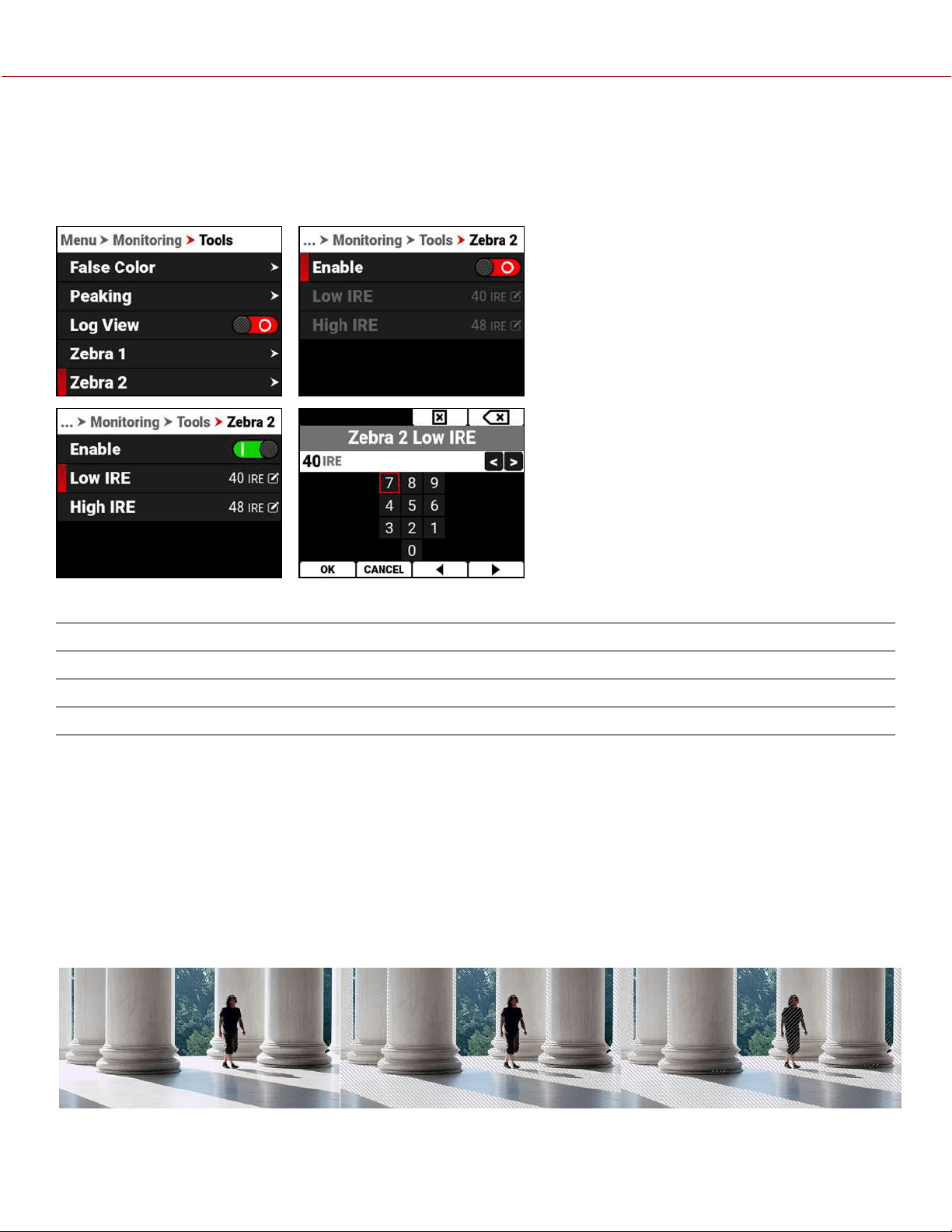
ZEBRA 2
Use Zebra 2 to display a second set of diagonal stripes to indicate mid-tone and shadow levels. For more information,
refer to Zebra Modes.
Zebra 2 is disabled by default.
The Zebra 2 mode includes:
ITEM DETAILS
Enable Enables green zebra stripes to indicate mid-tone and shadow exposure
Low IRE Sets the lower threshold for the indicator
High IRE Sets the higher threshold for the indicator
ENABLE
The Enable toggle switch allows you to enable or disable the Zebra 2 stripes.
LOW IRE
Provides a keypad that allows you to set the low threshold for the Zebra stripe. The default setting is 40 IRE.
HIGH IRE
Provides a keypad that allows you to set the high threshold for the Zebra stripe. The default setting is 48 IRE.
NORMAL VIEW ZEBRA 1 VIEW ZEBRA 2 VIEW
COPYRIGHT © 2021 RED.COM, LLC 955-0198, V1.1, REV. A | 103
V-RAPTOR™ 8K V V OPERATION GUIDE
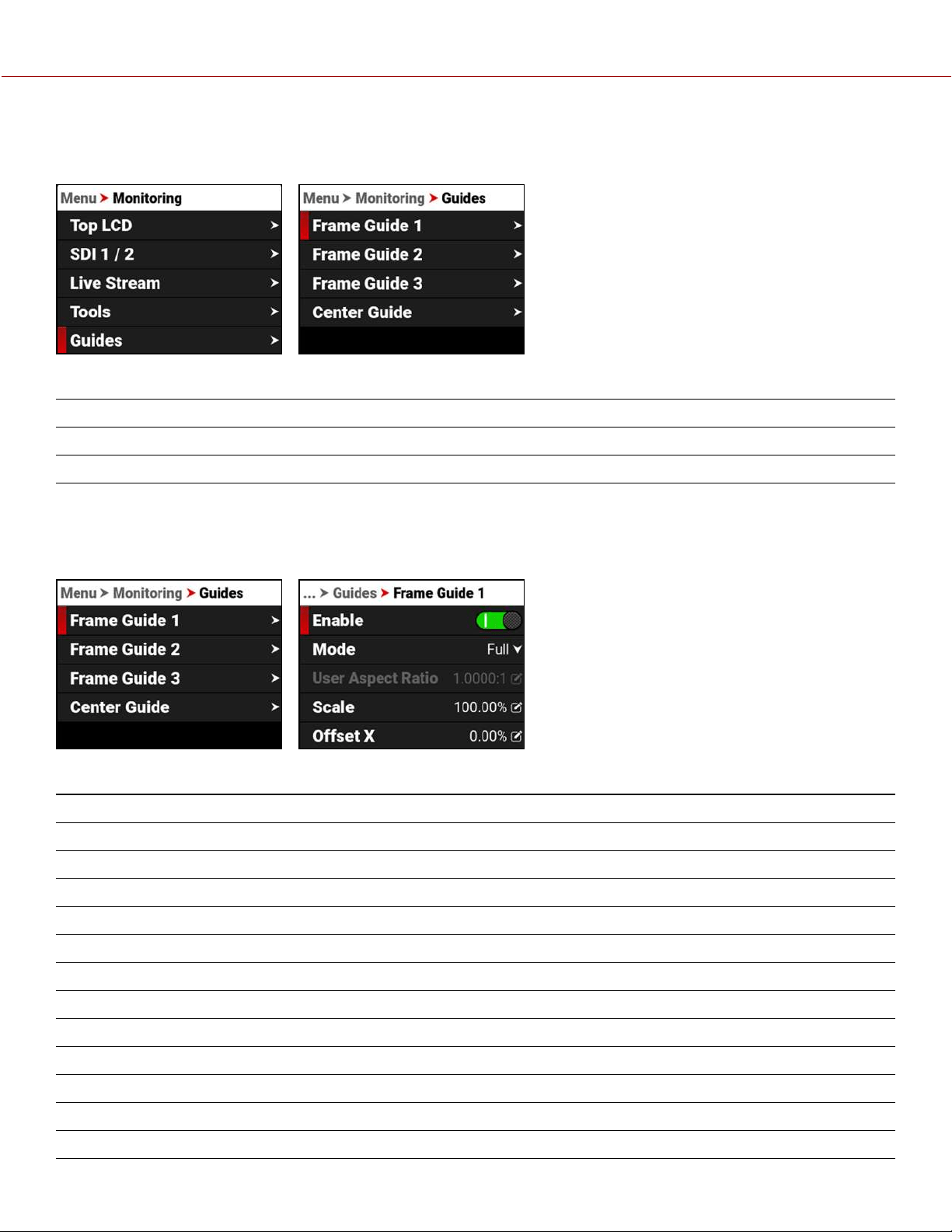
GUIDES
Use Guides to enable and configure the camera's monitoring guides.
The monitoring Guides that you can use include:
ITEM DETAILS
Frame Guides Guides you can configure to aid in framing a shot
Center Guide A center cross hair or dot you can use to center your shot
FRAME GUIDES
Use Frame Guides to frame the scene using various shapes and sizes. You can configure up to 3 Frame Guides to
display on your monitor.
Configure the Frame Guides using the following:
ITEM DETAILS
Enable Enables the Frame Guide
Mode Select aspect ratios, User, and Absolute modes
User Aspect Ratio Enabled by selecting User mode
Scale Percentage of the image the Frame Guide occupies
Offset X, Y Percentage of horizontal and vertical offset
Absolute X, Y, W, H Absolute mode - set the exact number of size and offset pixels
Line Style Select the Frame Guide line type - solid, dashed or bracket
Line Color Select the Frame Guide line color
Line Opacity Select the Frame Guide line opacity
Shade Outside Enables shading outside of the Frame Guide
Shade Color Select the shading color
Shade Opacity Select the shading opacity
COPYRIGHT © 2021 RED.COM, LLC 955-0198, V1.1, REV. A | 104
V-RAPTOR™ 8K V V OPERATION GUIDE
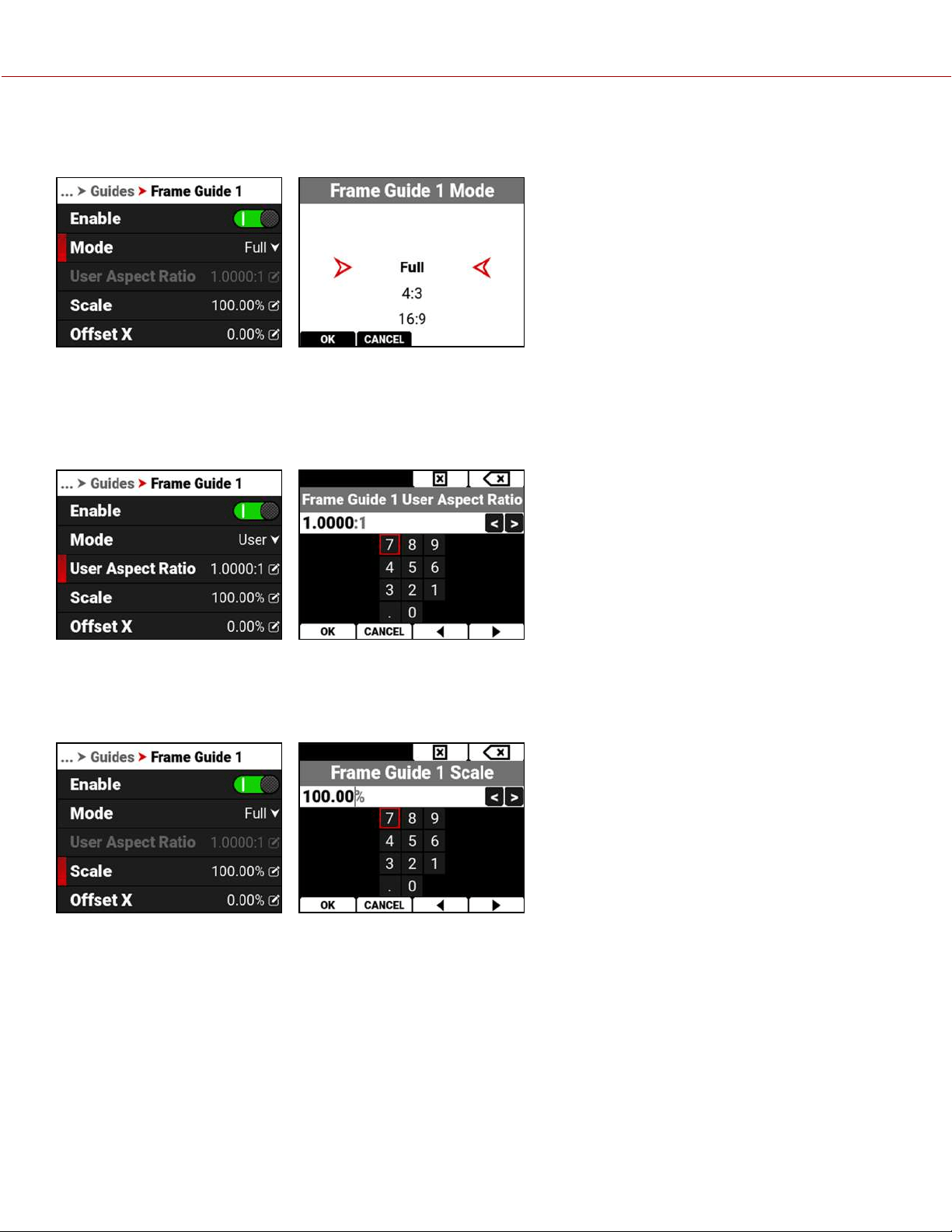
MODE
Use Mode to select the Frame Guide mode you want to use to configure the frame guide.
The modes you can select include aspect ratios from Full to 2.4:1, User, and Absolute. The User and Absolute modes
enable settings that are specific to those modes.
USER ASPECT RATIO
This item is enabled when the User mode is selected.
Use the keypad to enter your desired aspect ratio.
SCALE
Use scale to configure the percentage of the image area that the Frame Guide will frame.
Use the keypad to enter the percentage of the image the Frame Guide contains.
COPYRIGHT © 2021 RED.COM, LLC 955-0198, V1.1, REV. A | 105
V-RAPTOR™ 8K V V OPERATION GUIDE
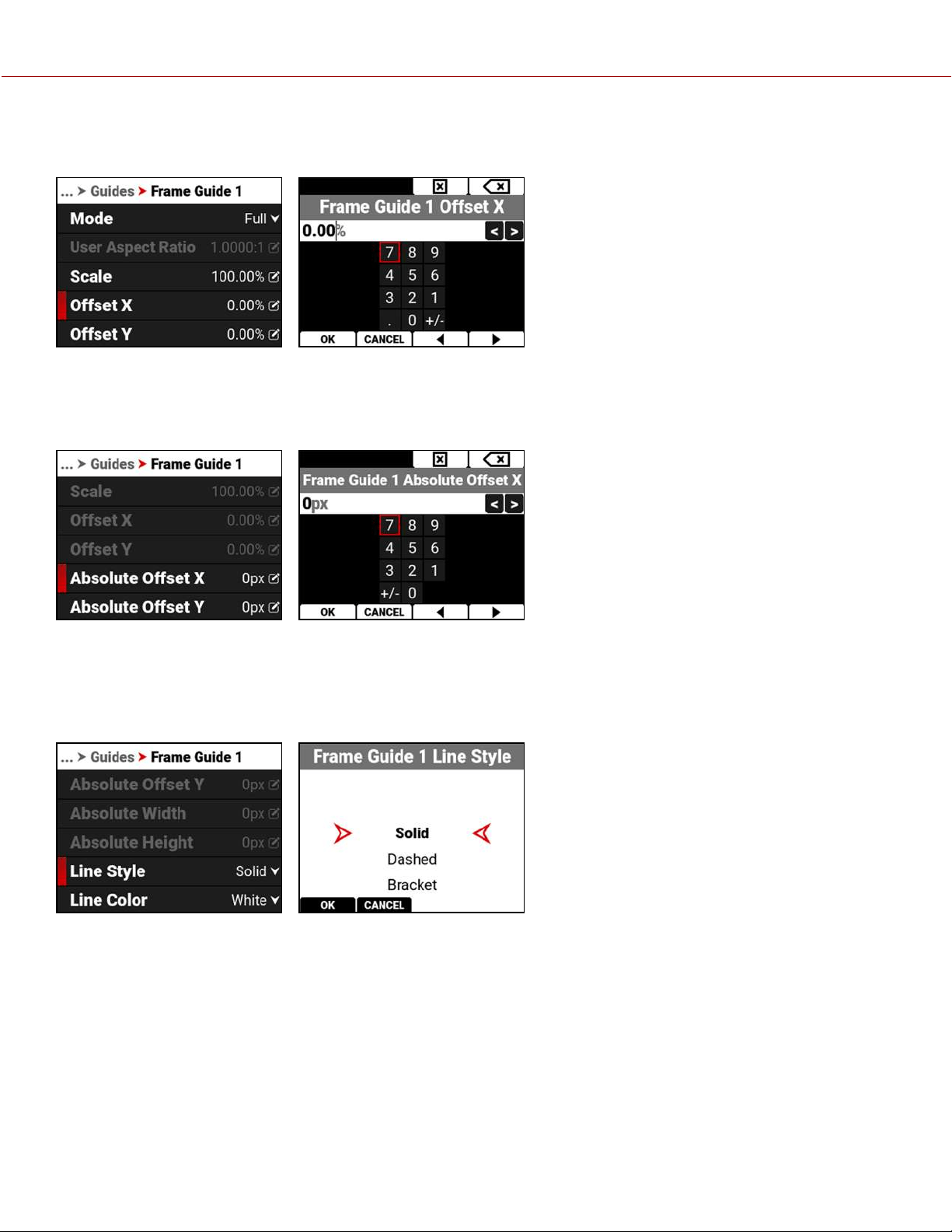
OFFSET X, Y
Use offset to configure the X and Y offset of the Frame Guide.
Use the keypad to enter the percentage of offset from center you want to apply to the Frame Guide.
ABSOLUTE X, Y, W, H
Use the Absolute settings to configure the absolute dimensions and position of the Frame Guide.
Use the keypad to enter the number of pixels for X/Y offset and for the width and height of the Frame Guide. The
Absolute items are only enabled when you select Absolute Mode.
LINE STYLE
Use Line Style to select the type of line the Frame Guide uses.
Select Solid (default), Dashed, or Bracket for the Frame Guide line style.
COPYRIGHT © 2021 RED.COM, LLC 955-0198, V1.1, REV. A | 106
V-RAPTOR™ 8K V V OPERATION GUIDE
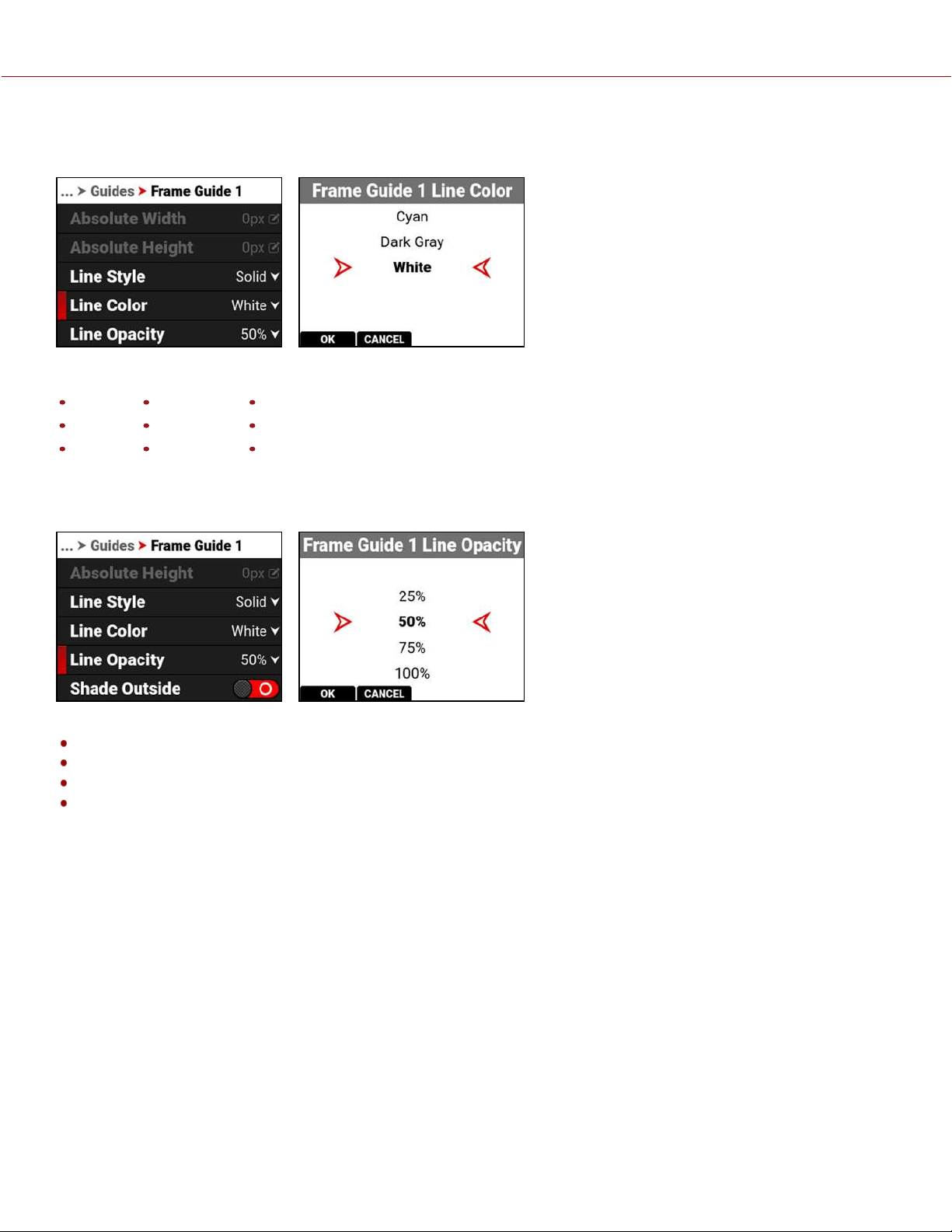
LINE COLOR
Use Line Color to select the color of the Frame Guide line.
Use Line Color to select one of the following colors for the Frame Guide:
Black Green Cyan
Red Yellow Dark Gray
Blue Magenta White (default)
LINE OPACITY
Use Line Opacity to select how transparent the Frame Guide line appears.
Use Line Opacity to select the percentage of opacity for the Frame Guide:
25%
50% (default)
75%
100%
COPYRIGHT © 2021 RED.COM, LLC 955-0198, V1.1, REV. A | 107
V-RAPTOR™ 8K V V OPERATION GUIDE
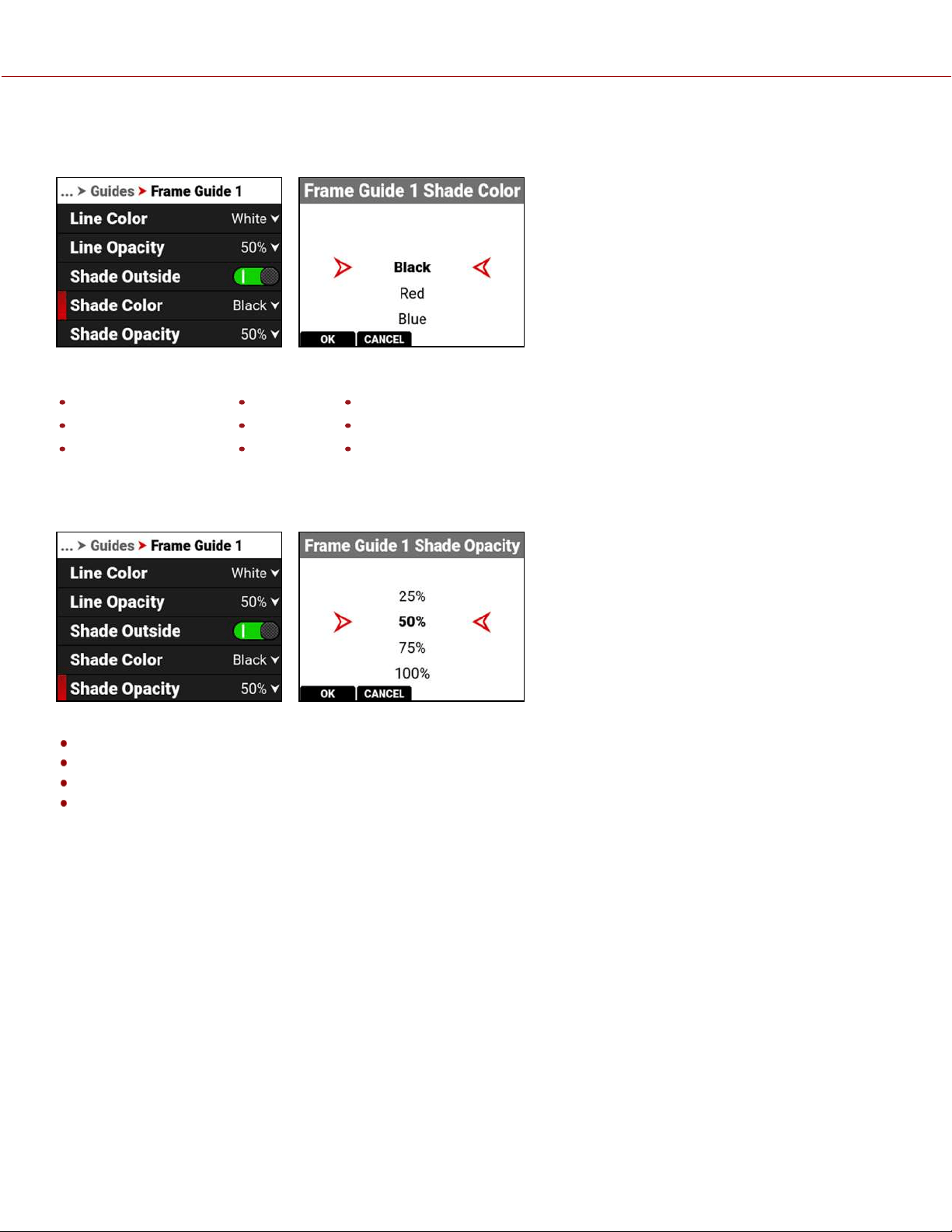
SHADE COLOR
Use Shade Color to select the color of shading to use outside of the Frame guide.
Use Shade Color to select one of the following colors for the outside shading:
Black (default) Green Cyan
Red Yellow Dark Gray
Blue Magenta White
SHADE OPACITY
Use Shade Opacity to select the opacity of the shading outside of the Frame guide.
Use Shade Opacity to select the percentage of opacity for the shading outside of the Frame Guide:
25%
50% (default)
75%
100%
COPYRIGHT © 2021 RED.COM, LLC 955-0198, V1.1, REV. A | 108
V-RAPTOR™ 8K V V OPERATION GUIDE
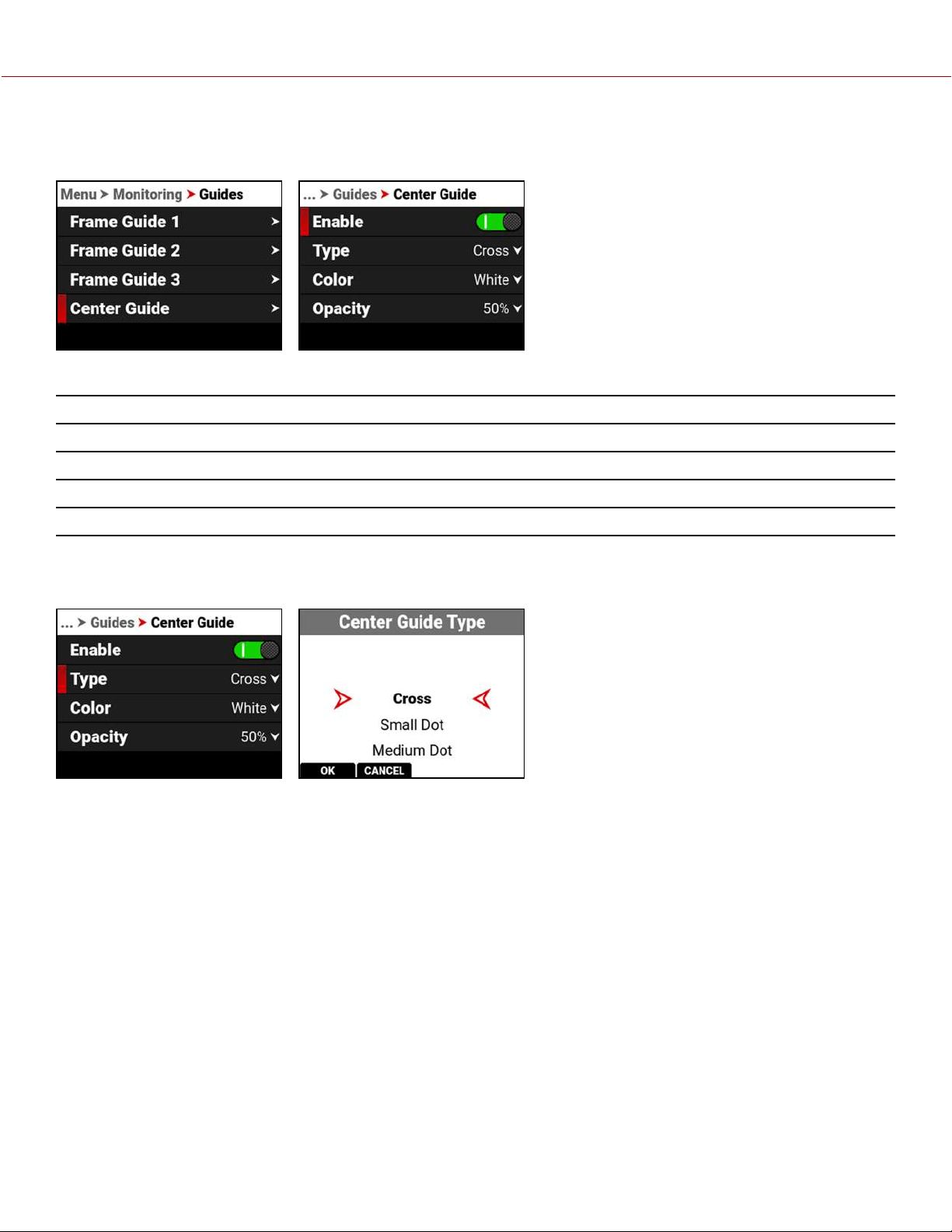
CENTER GUIDE
Use Center Guide to enable and configure the Center Guide.
Configure the Center Guide by using the following:
ITEM DETAILS
Enable Enables the Center Guide
Type Select Center Guide type - dot or cross
Color Select a color for the Center Guide
Opacity Percentage of opacity of the guide color
TYPE
Use Type to select the type of Center Guide to display.
Use Type to select a center dot or cross (default) for the Center Guide.
COPYRIGHT © 2021 RED.COM, LLC 955-0198, V1.1, REV. A | 109
V-RAPTOR™ 8K V V OPERATION GUIDE
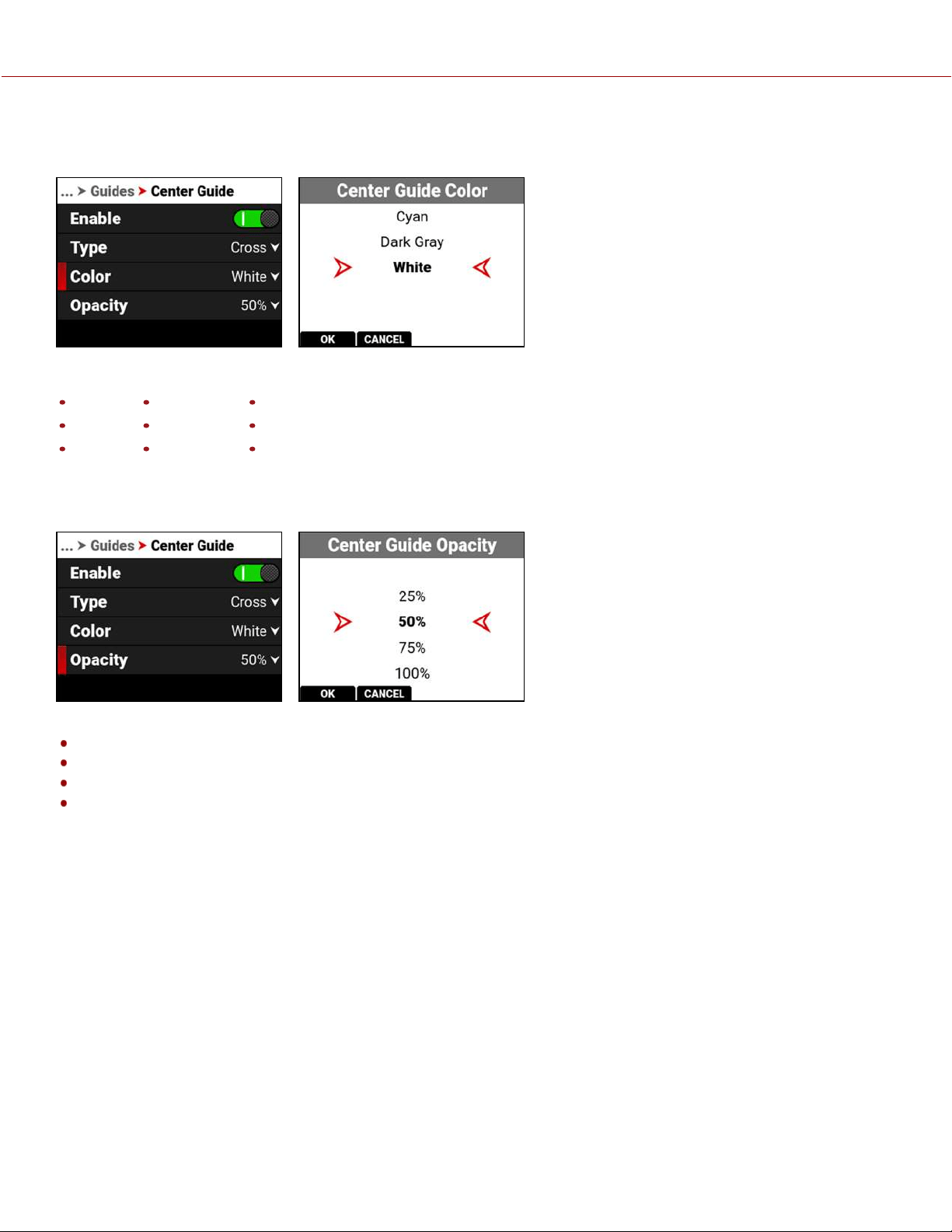
COLOR
Use Color to select the color used by the Center Guide.
Use Color to select one of the following colors for the Center Guide:
Black Green Cyan
Red Yellow Dark Gray
Blue Magenta White (default)
OPACITY
Use Opacity to select how transparent the Center Guide appears.
Use Opacity to select the percentage of opacity for the Center Guide:
25%
50% (default)
75%
100%
COPYRIGHT © 2021 RED.COM, LLC 955-0198, V1.1, REV. A | 110
V-RAPTOR™ 8K V V OPERATION GUIDE
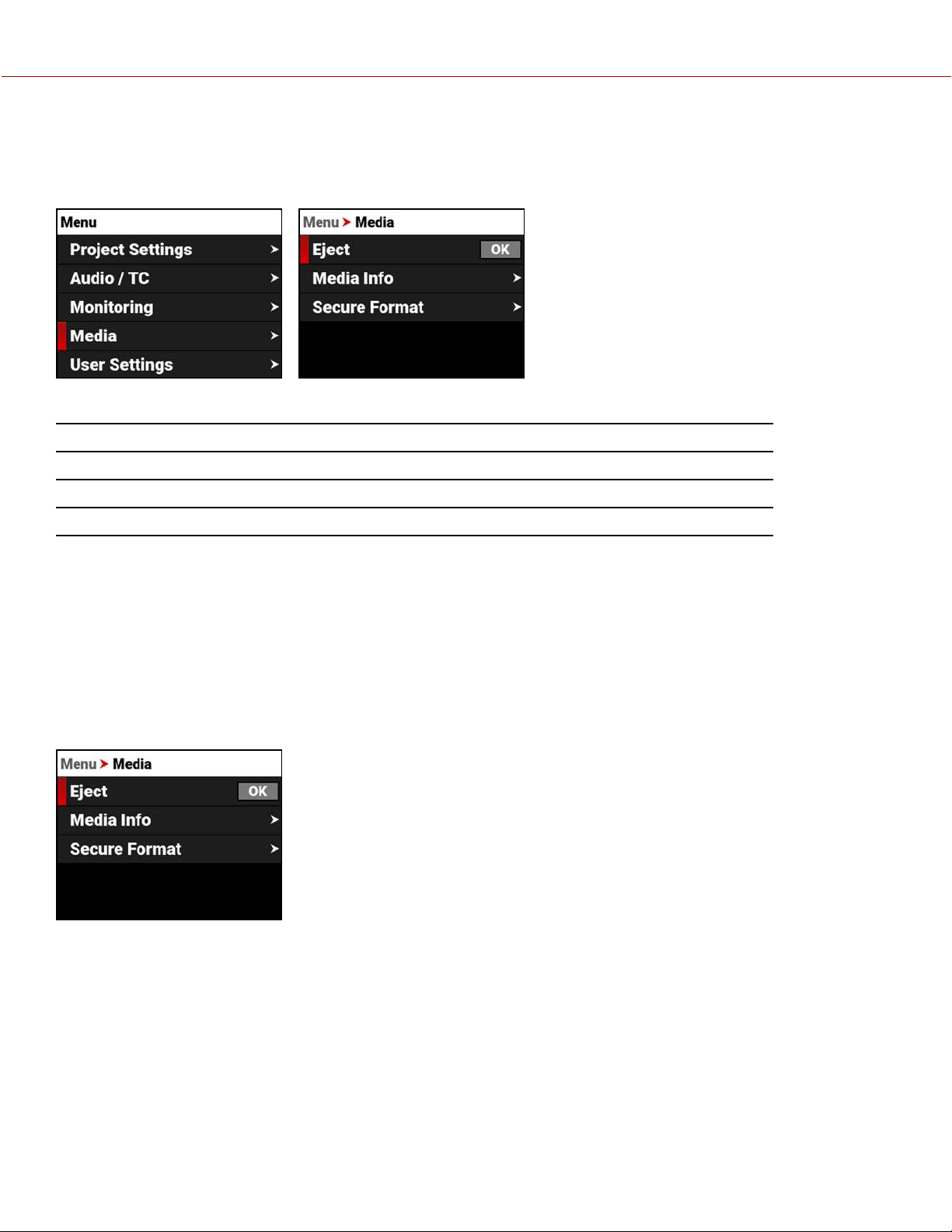
MEDIA MENU
The Media menu contains the settings you use to configure your media.
From the camera LCD menu, navigate to Media and press SEL:
Use the Media menu to configure the camera's storage media settings and to view the media information:
ITEM DETAILS
Eject Eject the CFexpress media card
Media Info View the CFexpress media card information
Secure Format Performs a secure format of the CFexpress media card
EJECT
Use Eject to safely eject the CFexpress media card.
WARNING: The media can get extremely hot. Use caution when removing media.
WARNING: Do not attach a label to the CFexpress media card. The heat generated by the media can weaken the
label's adhesive, causing the label to detach inside of the camera. Labels can also diminish heat dissipation and cause
excessive wear to the internal components. Removing a label from a CFexpress media card can possibly deform the
card body.
Access Eject from the LCD Media menu:
For more information, refer to Media Management.
COPYRIGHT © 2021 RED.COM, LLC 955-0198, V1.1, REV. A | 111
V-RAPTOR™ 8K V V OPERATION GUIDE
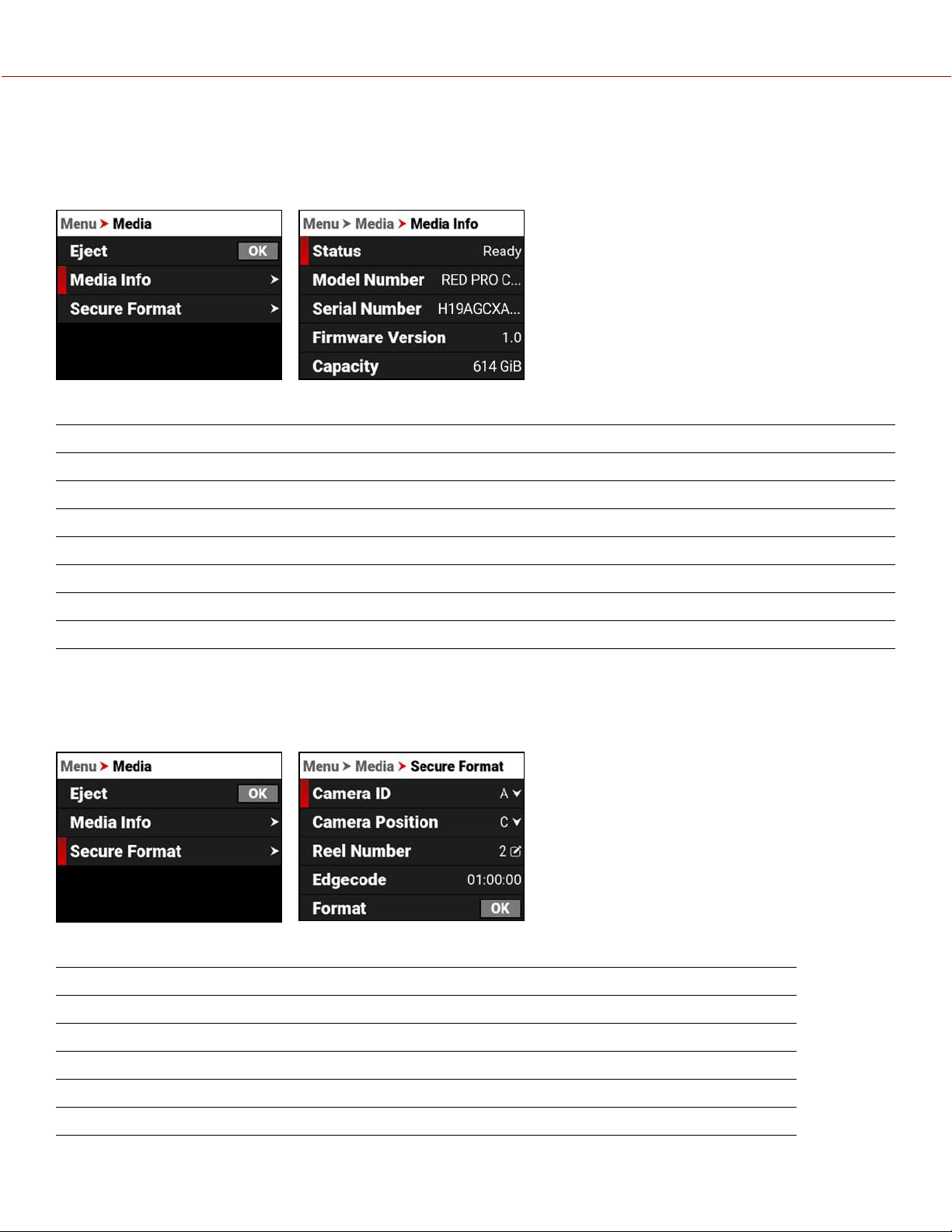
MEDIA INFO
Use Media Info to display the CFexpress media card information.
Access Media Info from the LCD Media menu:
Media Info displays the following:
ITEM DETAILS
Status Displays the CFexpress media card status
Model Number Displays the CFexpress media card model number
Serial Number Displays the CFexpress media card serial number
Firmware Version Displays the CFexpress media card firmware version
Capacity Displays the CFexpress media card total capacity
Available Displays the CFexpress media card's remaining storage
Time Remaining Displays the recording time remaining on the CFexpress media card
SECURE FORMAT
Use Secure Format to format the CFexpress media card down to the file system level.
A secure format allows you to rebuild the card file system.
Use the Secure Format menu to update the following information:
ITEM DETAILS
Camera ID Select the camera ID (default is A)
Camera Position Select the camera position (default is C)
Reel Number Select the reel number (default is 1)
Edgecode Enter the time number (default is 01:00:00)
Format Starts the Secure formatting process
COPYRIGHT © 2021 RED.COM, LLC 955-0198, V1.1, REV. A | 112
V-RAPTOR™ 8K V V OPERATION GUIDE
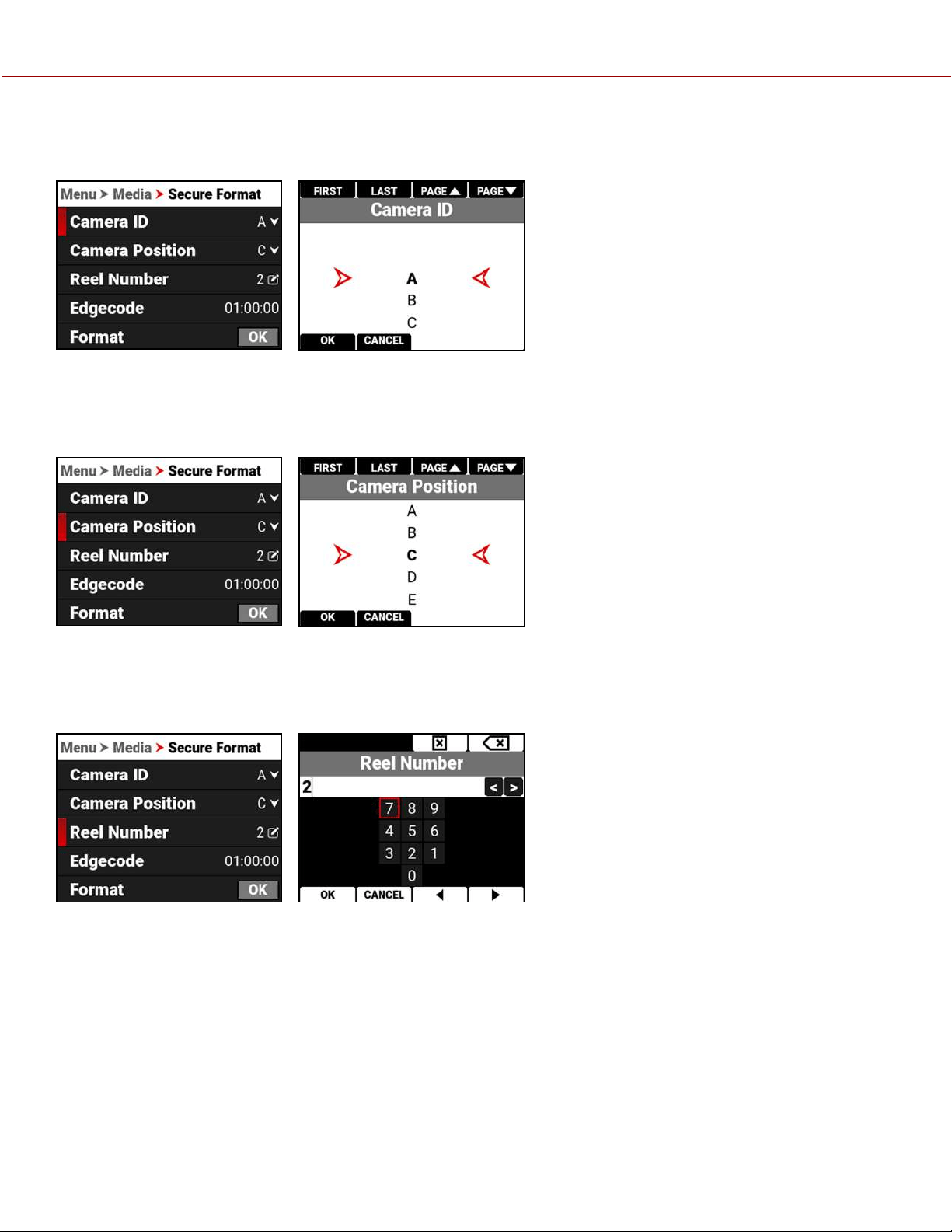
CAMERA ID
Use Camera ID to assign a camera ID letter to the media.
The Camera ID letters you can assign range from A-Z. For more information, refer to Secure Format.
CAMERA POSITION
Use Camera Position to select the camera position label for the CFexpress media card.
The Camera Position letters you can assign range from A-Z. For more information, refer to Secure Format.
REEL NUMBER
Use Reel Number to assign a reel number to the media.
Use the keypad to enter a unique reel number to the media.
NOTE: It is best practice to keep your reel numbers to no longer than seven characters in length to conform with all EDL
formats.
For more information, refer to Secure Format.
COPYRIGHT © 2021 RED.COM, LLC 955-0198, V1.1, REV. A | 113
V-RAPTOR™ 8K V V OPERATION GUIDE
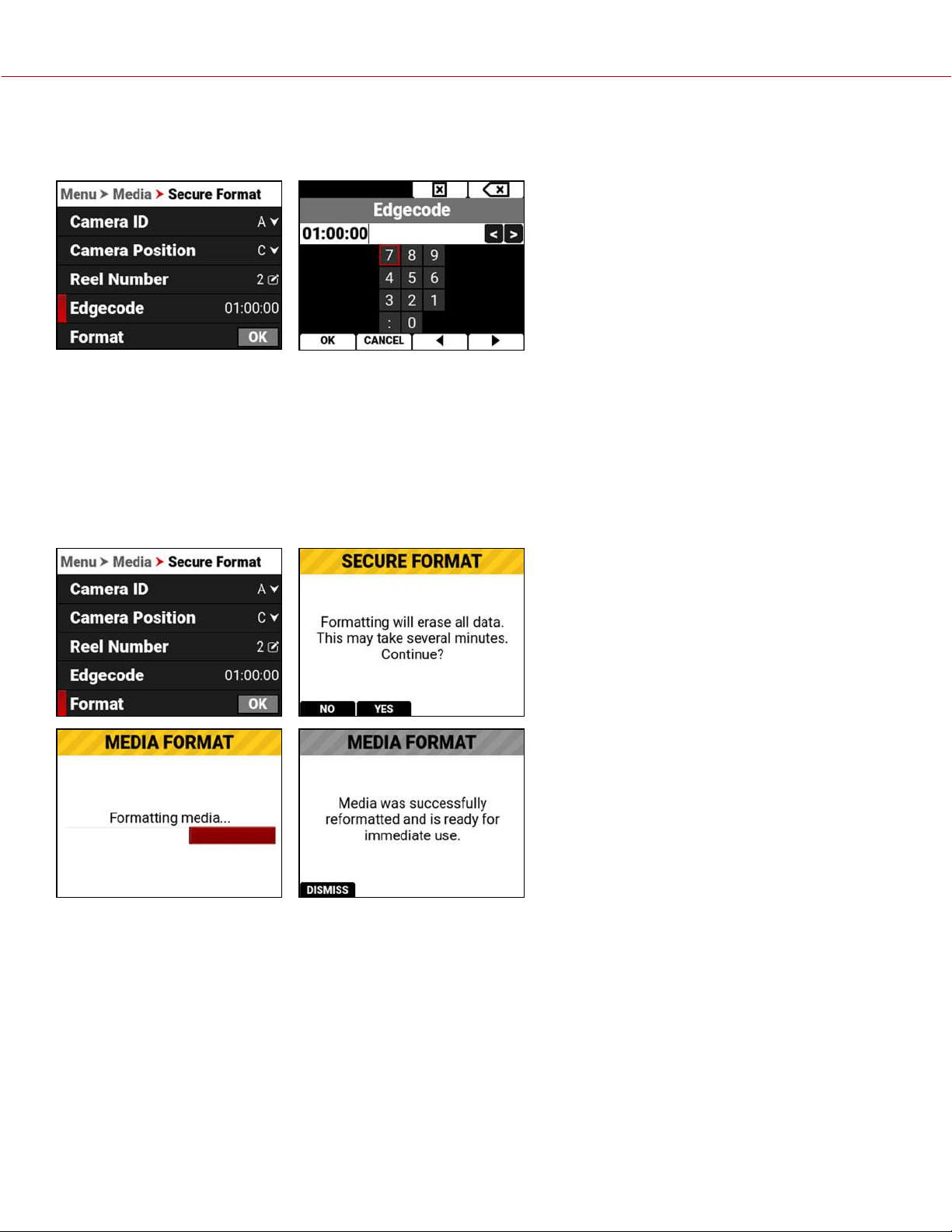
EDGECODE
Use Edgecode to assign an edge code to the media.
Use the keypad to enter a unique edge code number to the media.
Edge Code is a SMPTE Timecode track that by default starts at 01:00:00 on the first frame of each CFexpress media
card. It is a sequential code that is continuous from frame to frame and also between clips. Edge Code is equivalent to
RUN RECORD as used on broadcast cameras.
For more information, refer to Secure Format.
FORMAT
Use Format to execute a secure format of the media.
For more information, refer to Secure Format.
COPYRIGHT © 2021 RED.COM, LLC 955-0198, V1.1, REV. A | 114
V-RAPTOR™ 8K V V OPERATION GUIDE
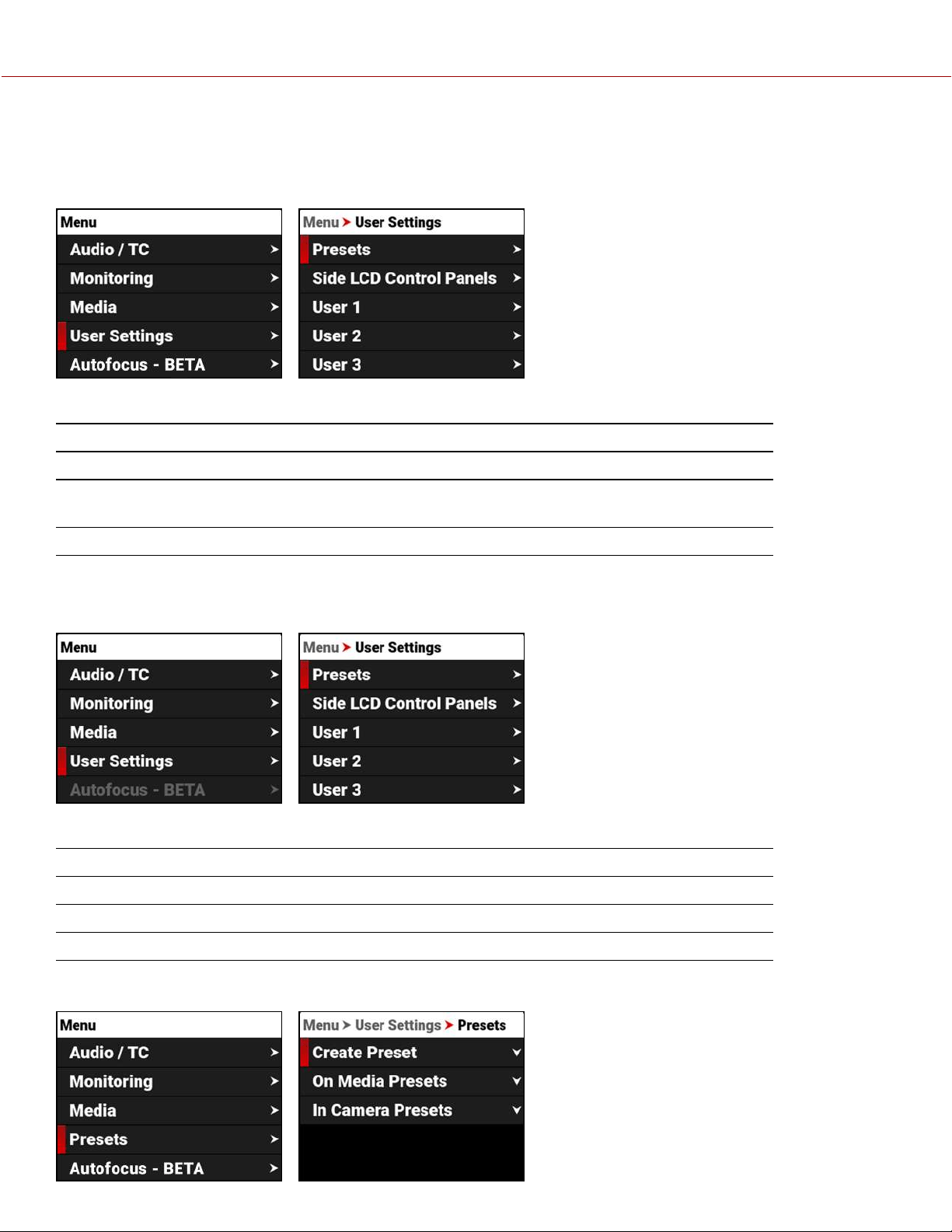
USER SETTINGS MENU
The User Settings menu contains the user settings you use to personalize your camera setup.
From the camera LCD menu, navigate to User Settings and press SEL:
Use the User Settings menu to build and select pre-configured settings for the camera:
ITEM DETAILS
Presets Create camera setting presets
Side LCD Control
Panels
Enable or disable the camera LCD pages
User 1, 2, 3 Configure 8 user settings on 3 user pages
PRESETS
The Presets menu contains the settings you use to quickly set up your camera.
Use the Presets menu to build and select pre-configured settings for the camera:
ITEM DETAILS
Create Preset Create camera setting presets
On Media Presets Manage presets stored on the media
In Camera Presets Manage presets stored in the camera
CREATE PRESET
COPYRIGHT © 2021 RED.COM, LLC 955-0198, V1.1, REV. A | 115
V-RAPTOR™ 8K V V OPERATION GUIDE
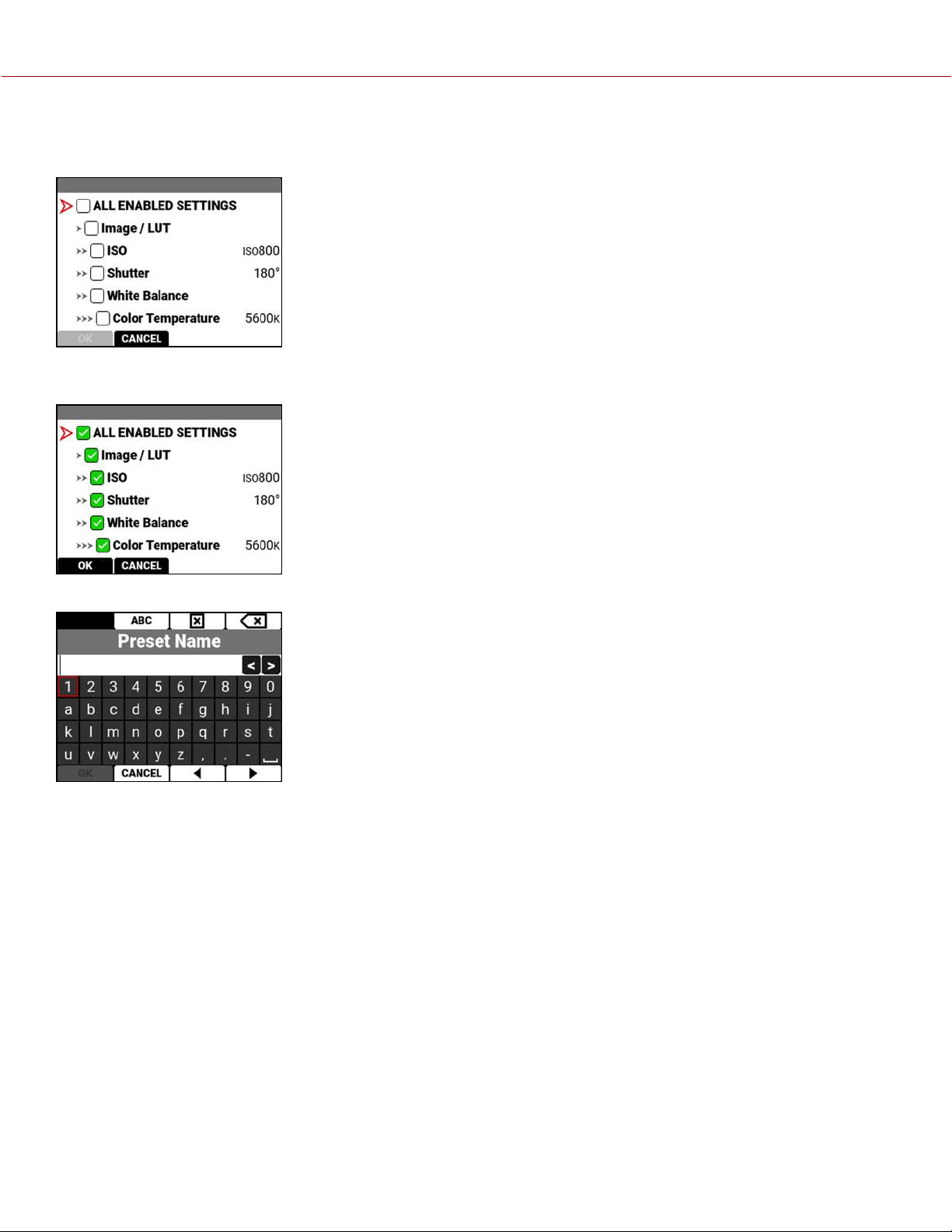
Use Create Preset to select the current camera settings you want to use to create a preset list of settings.
You can select settings individually:
You can also use the ALL ENABLED SETTINGS checkmark button to select all of the current camera settings as a
preset:
Press the button under OK to create the preset. The Preset Name screen opens.
COPYRIGHT © 2021 RED.COM, LLC 955-0198, V1.1, REV. A | 116
V-RAPTOR™ 8K V V OPERATION GUIDE
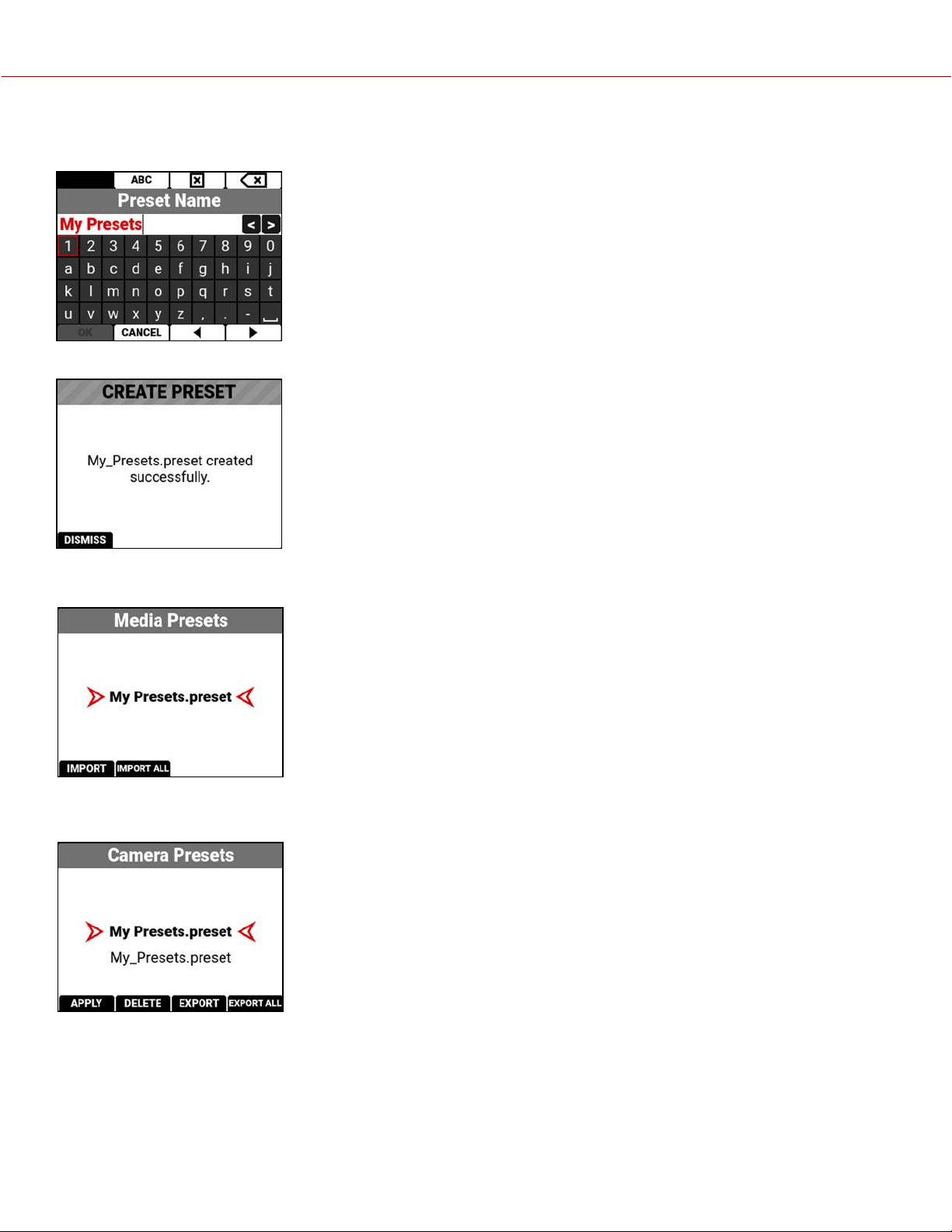
Use the Preset Name screen to name the preset. When the name already exists in the camera, the name is highlighted
in red and the OK option is grayed out:
When the name is available, press the button under OK and the confirmation screen displays:
ON MEDIA PRESETS
You can import presets from the media to the camera. When importing presets
from the media to the camera, the presets are saved to a folder on the camera
called "presets."
From Media Presets, you can import the selected preset from the media to the
camera or import all of the presets from the media to the camera.
IN CAMERA PRESETS
You can export presets from the camera to the media. When exporting presets
from the camera to the media, the presets are saved to a folder on the media
called "presets."
From Camera Presets, you can apply the selected preset to the camera, delete the
selected preset from the camera, export the selected preset from the camera to
the media, or export all of the presets from the camera to the media.
COPYRIGHT © 2021 RED.COM, LLC 955-0198, V1.1, REV. A | 117
V-RAPTOR™ 8K V V OPERATION GUIDE
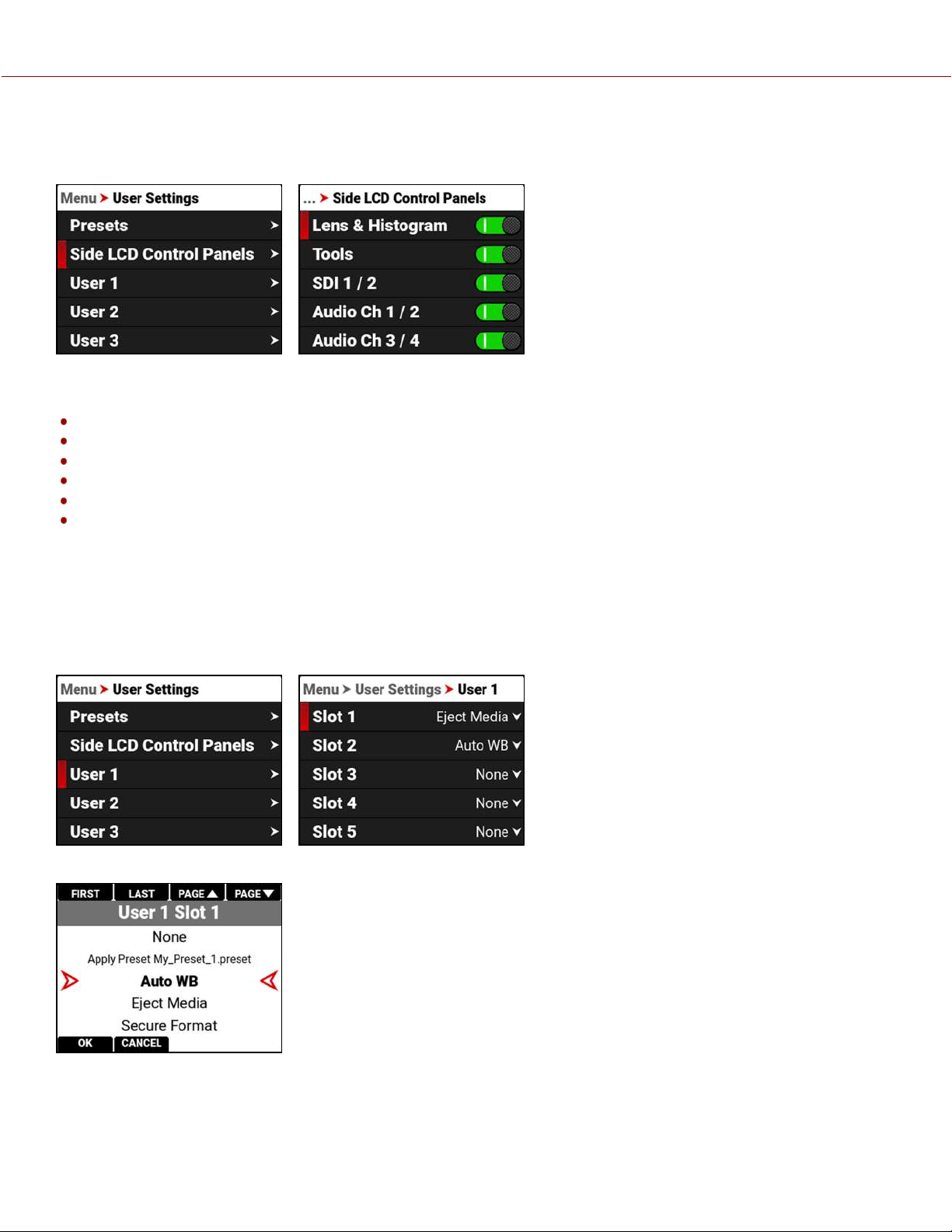
SIDE LCD CONTROL PANELS
The Side LCD Control Panels menu contains the settings you use to quickly set up your camera.
Use the Side LCD Control Panels menu to enable/disable the LCD pages.
The pages you can set include:
Histogram Page
Tools Page
SDI Pages
Audio Pages
Headphone Page
User Pages
Refer to the LCD section for more information about the LCD pages.
USER 1, 2, 3
The User menus contain the settings you saved to quickly configure your camera.
From the camera LCD menu, select User 1, 2, or 3:
Use Slots 1-8 to assign quick user settings for the camera.
COPYRIGHT © 2021 RED.COM, LLC 955-0198, V1.1, REV. A | 118
V-RAPTOR™ 8K V V OPERATION GUIDE

The user settings include:
ITEM DETAILS
None Nothing is assigned to the User Slot
Apply Preset Apply the preset stored on the camera
Auto WB Camera automatically adjusts the White Balance
Eject Media Unmount the media in preparation for removal
Secure Format Format the media
Jam TCto TOD Jam Timecode to time of day
Start AF Start autofocus
Save Log Save the log file to the media
SDI 1 Magnify Toggle SDI port 1 toggle the magnification feature on and off
SDI 2 Magnify Toggle SDI port 2 toggle the magnification feature on and off
Top LCD Magnify Toggle Top LCD toggle the magnification feature on and off
Pre-Record Toggle Toggle the Pre-Record feature on and off
Pre-Record Stop Stop the Pre-Record feature
Playback/Camera Toggle Toggle between camera output and clip playback
Record Toggle Toggle record on and off
False Color Toggle Toggle the False Color tools on and off
Peaking Toggle Toggle the Peaking tools on and off
Log View Toggle Toggle Log view on and off
Zebra 1 Toggle Toggle Zebra 1 on and off
Zebra 2 Toggle Toggle Zebra 2 on and off
SDI 1 Guides Toggle Toggle the Guides on and off on SDI 1 output
SDI 1 Tools Toggle Toggle the Tools on and off on the SDI 1 output
SDI 1 Overlay Toggle Toggle between the simple and advanced Overlay on the SDI 1 output
SDI 2 Guides Toggle Toggle the Guides on and off on the SDI 2 output
SDI 2 Tools Toggle Toggle the Tools on and off on the SDI 2 output
SDI 2 Overlay Toggle Toggle between the simple and advanced Overlay on the SDI 2 output
Top LCD Guides Toggle Toggle the Guides on and off on the Top LCD
Top LCD Tools Toggle Toggle the Tools on and off on the Top LCD
Frame Guide 1 Toggle Toggle Frame Guide 1 on and off
Frame Guide 2 Toggle Toggle Frame Guide 2 on and off
Frame Guide 3 Toggle Toggle Frame Guide 3 on and off
Center Guide Toggle Toggle the Center Guide on and off
Iris Open Open the iris
Iris Close Close the iris
Sensor Flip Toggle Toggle sensor flip and normal sensor
COPYRIGHT © 2021 RED.COM, LLC 955-0198, V1.1, REV. A | 119
V-RAPTOR™ 8K V V OPERATION GUIDE
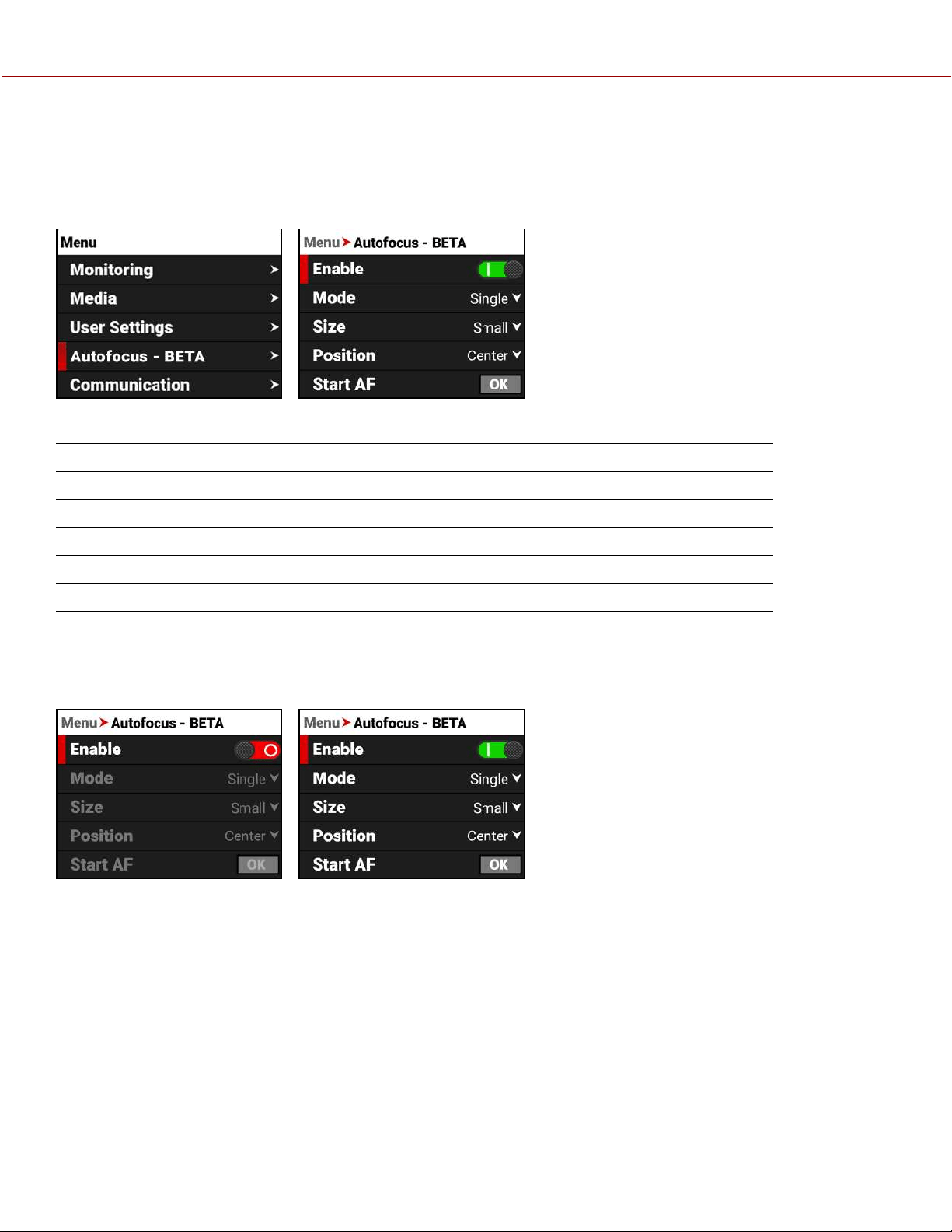
AUTOFOCUS - BETA MENU
Use Autofocus to enable and configure the camera's Autofocus feature. The lens must support autofocus for this
feature to work.
From the camera LCD menu, navigate to Autofocus - BETA and press SEL:
Use the Autofocus menu to perform camera autofocus tasks:
ITEM DETAILS
Enable Enable/Disable the autofocus feature
Mode Select the autofocus mode
Size Select the size of the autofocus area
Position Select the position of the autofocus area
Start AF Start the Autofocus feature
ENABLE
Use Enable to enable or disable the autofocus feature. The lens must support autofocus for the camera to use this
feature.
COPYRIGHT © 2021 RED.COM, LLC 955-0198, V1.1, REV. A | 120
V-RAPTOR™ 8K V V OPERATION GUIDE
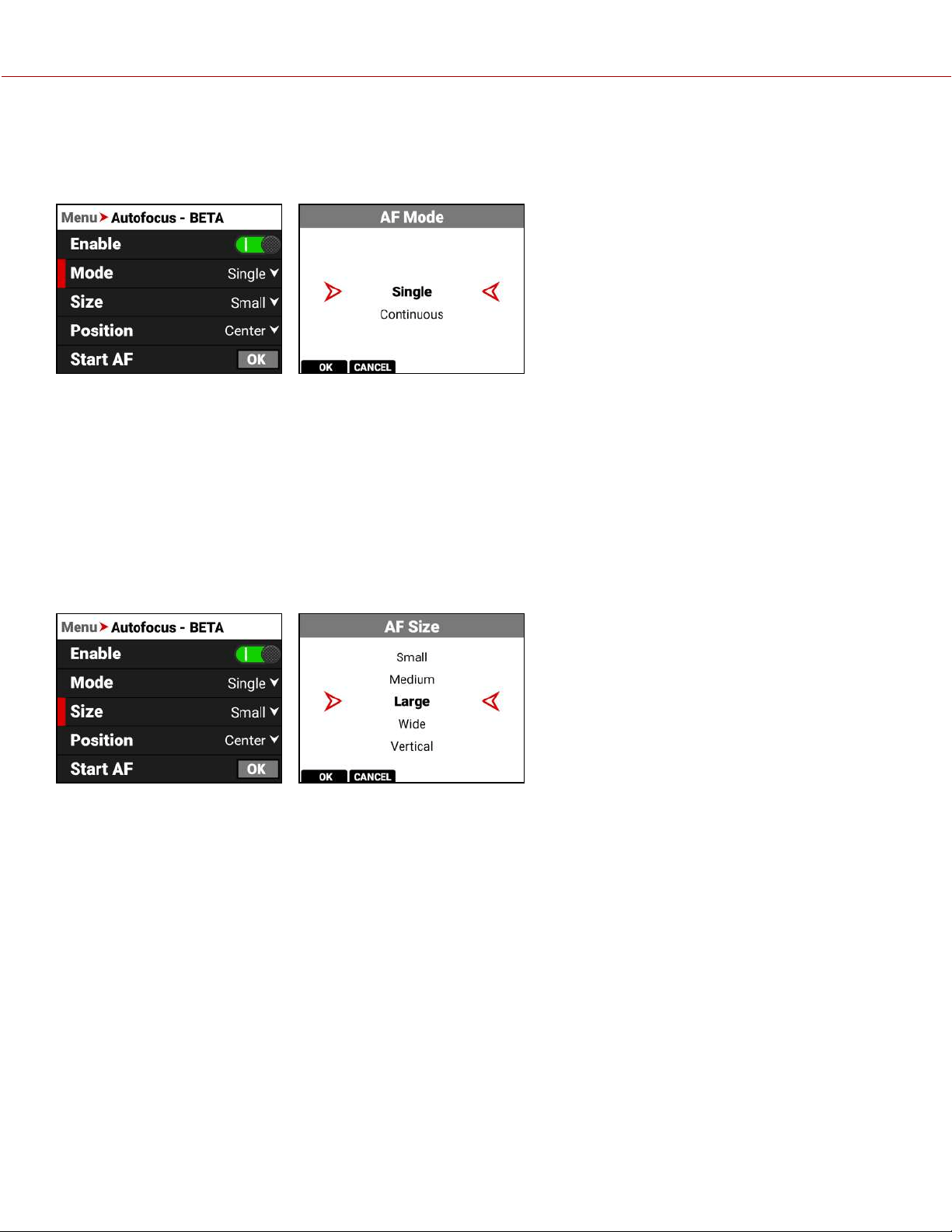
MODE
Use Mode to select the autofocus mode for the camera. The lens must support autofocus for the camera to use this
feature.
SINGLE MODE (DEFAULT)
Use single mode to autofocus and then stop at that focus position.
CONTINUOUS MODE
Use Continuous mode to continuously keep a moving subject in focus.
SIZE
Use Size to choose what size area you want the camera to use for the autofocus feature. The lens must support
autofocus for the camera to use this feature.
The Size selections for the autofocus area are Small (default), Medium, Large, Wide, and Vertical.
COPYRIGHT © 2021 RED.COM, LLC 955-0198, V1.1, REV. A | 121
V-RAPTOR™ 8K V V OPERATION GUIDE
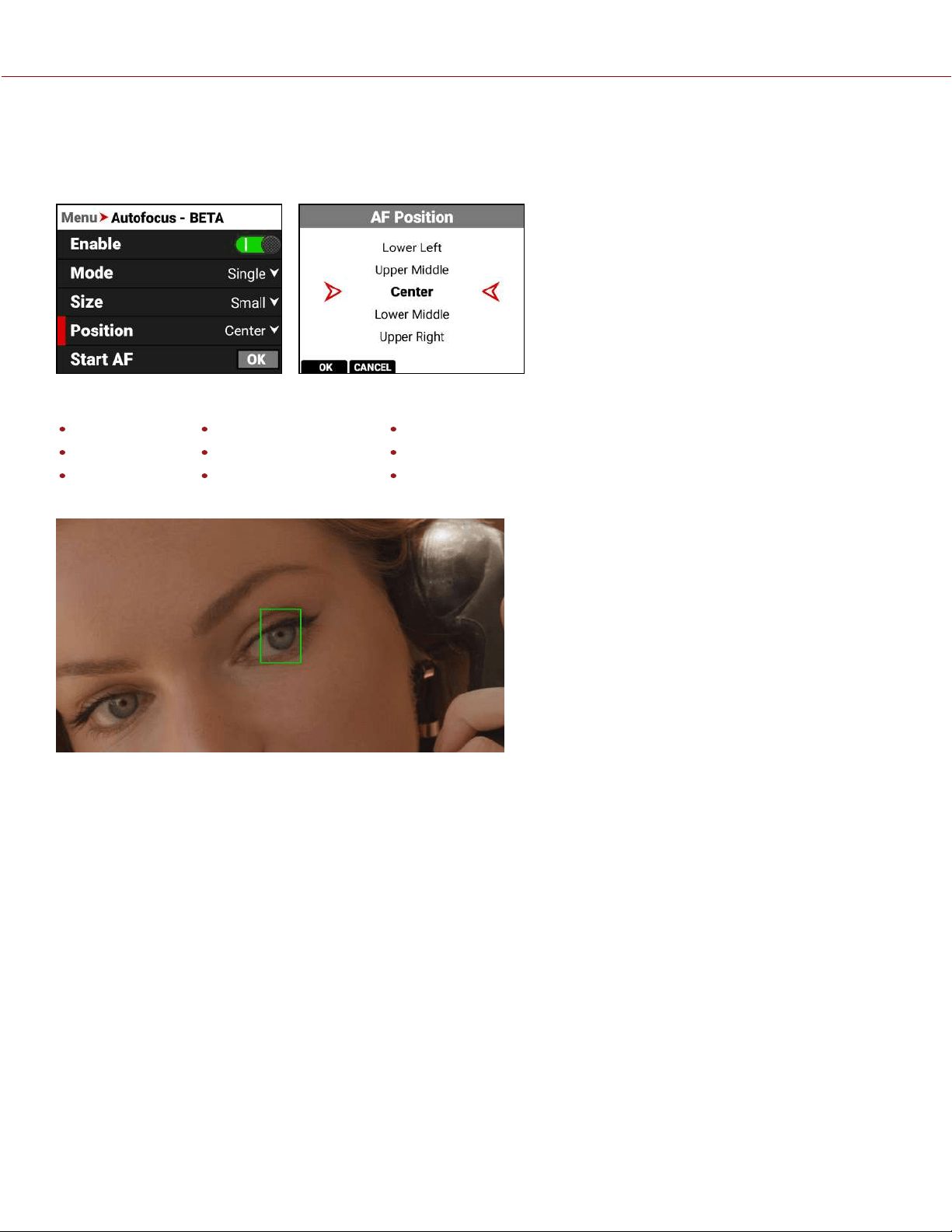
POSITION
Use Position to specify the position of the autofocus area on the sensor. The lens must support autofocus for the
camera to use this feature.
The Position selections include:
Left Upper Middle Upper Right
Upper Left Center (default) Lower Right
Lower Left Lower Middle Right
The Autofocus Position rectangle displays on the monitor:
COPYRIGHT © 2021 RED.COM, LLC 955-0198, V1.1, REV. A | 122
V-RAPTOR™ 8K V V OPERATION GUIDE
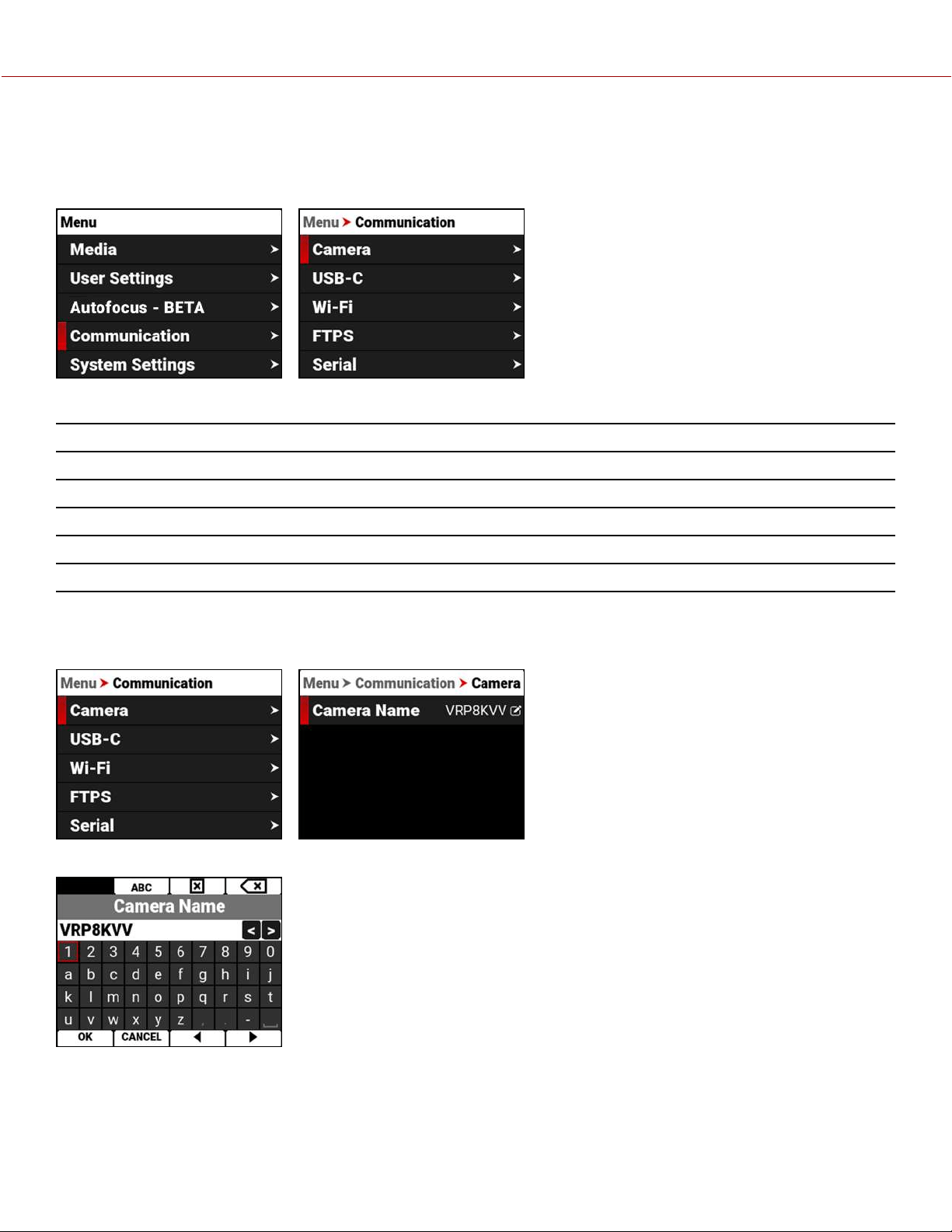
COMMUNICATION MENU
The Communication menu contains the settings you use to configure your camera to communicate with other devices.
From the camera LCD menu, navigate to Communication and press SEL:
Use the Communication menu to configure the camera's communication settings:
ITEM DETAILS
Camera Setting for the camera name
USB-C Settings for USB-C communication
Wi-Fi Settings for Wi-Fi communication
FTPS File transfer protocol settings
Serial Settings for the serial connection
CAMERA
Use the Camera menu to view and edit the camera name.
Select Camera Name to open the Camera Name editor.
COPYRIGHT © 2021 RED.COM, LLC 955-0198, V1.1, REV. A | 123
V-RAPTOR™ 8K V V OPERATION GUIDE
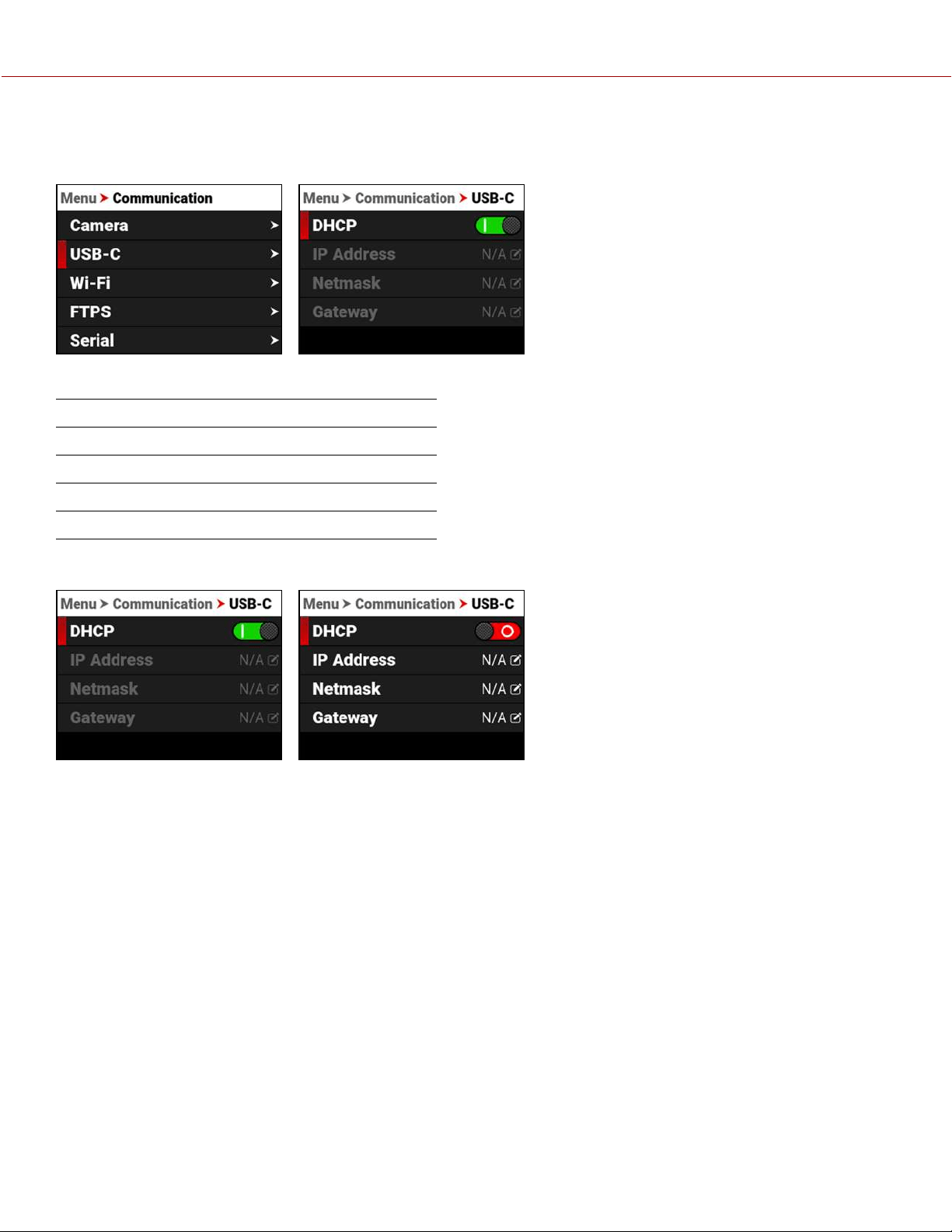
USB-C
Use USB-C to configure the connection to the USB-C port.
The settings you can configure for the serial connection through the Extension Port include:
ITEM DETAILS
DHCP Enables DHCP
IP Address View or enter the network IP address
Netmask View or enter the network Netmask
Gateway View or enter the network Gateway
DHCP
When connected to an Ethernet network, this allows you to enable or disable Dynamic Host Configuration Protocol
(DHCP).
COPYRIGHT © 2021 RED.COM, LLC 955-0198, V1.1, REV. A | 124
V-RAPTOR™ 8K V V OPERATION GUIDE
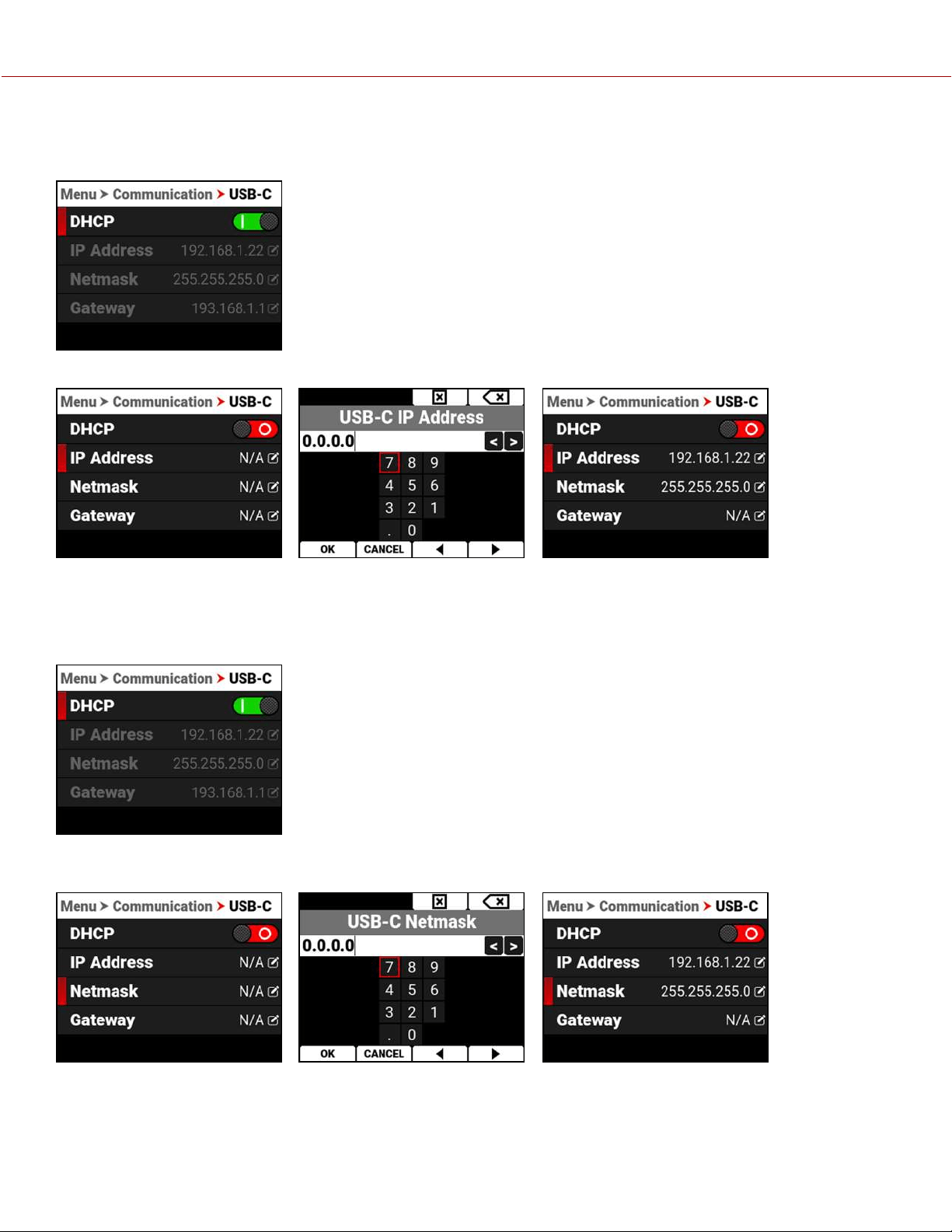
IP ADDRESS
When connected to an Ethernet network and with DHCP enabled, IP Address displays the network IP address.
When DHCP is not enabled, you can select IP Address and manually enter a static IP address.
After you enter the static IP address and select OK, the Netmask entry screen opens.
NETMASK
When connected to an Ethernet network and with DHCP enabled, Netmask displays the network Netmask address.
When DHCP is not enabled, you can select Netmask and manually enter a Netmask address. This screen opens
automatically after you enter a static IP address.
COPYRIGHT © 2021 RED.COM, LLC 955-0198, V1.1, REV. A | 125
V-RAPTOR™ 8K V V OPERATION GUIDE
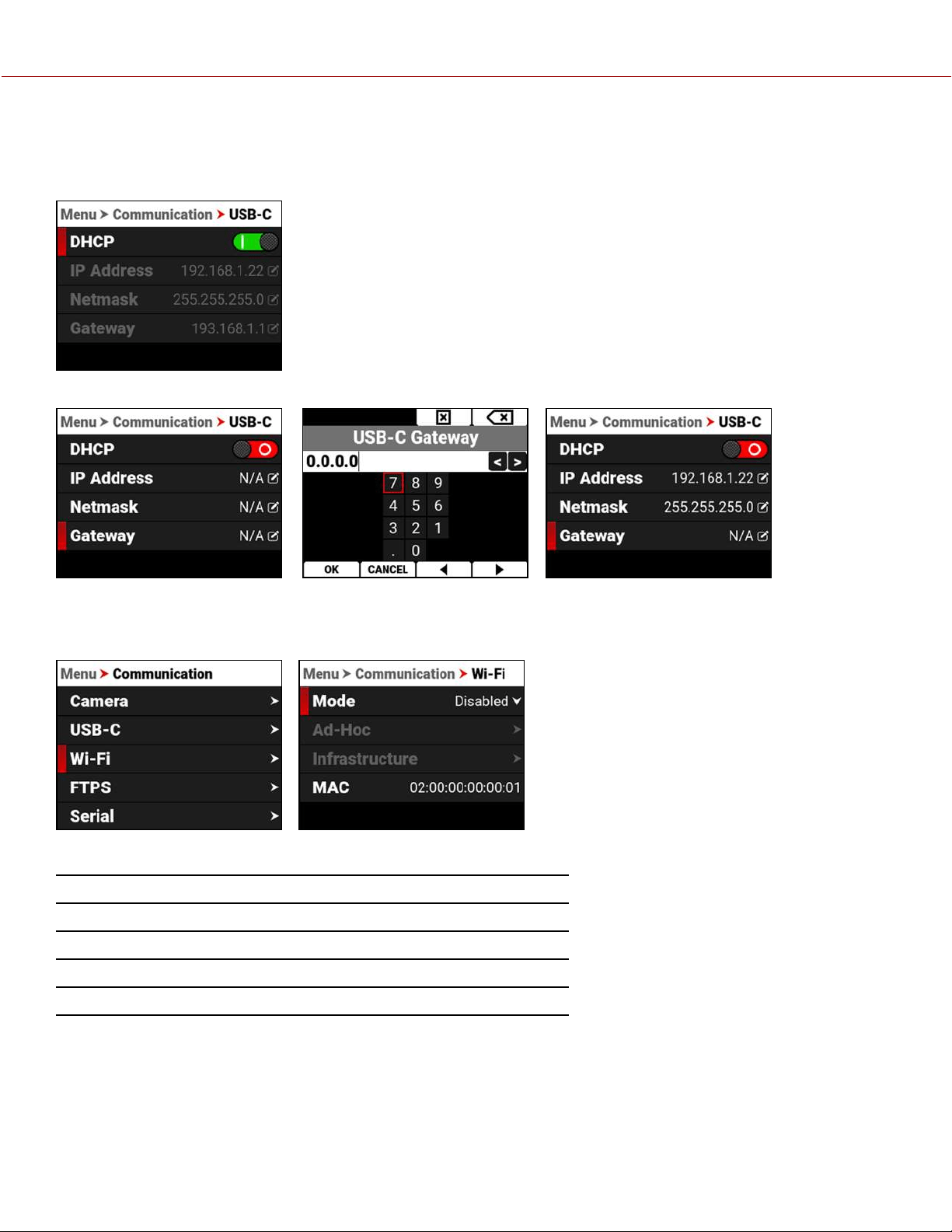
GATEWAY
When connected to an Ethernet network and with DHCP enabled, Gateway displays the network Gateway address
(router address).
When DHCP is not enabled, you can select Gateway and manually enter a Gateway address.
WI-FI
Use Wi-Fi to configure the camera to work with a Wi-Fi connection.
Use the Wi-Fi menu to configure the camera's Wi-Fi settings:
ITEM DETAILS
Mode Disable Wi-Fi or select the camera Wi-Fi settings
Ad-Hoc Configure the camera as a Wi-Fi hot spot
Infrastructure Settings for connecting to an existing Wi-Fi network
MAC Displays the camera device MAC address
COPYRIGHT © 2021 RED.COM, LLC 955-0198, V1.1, REV. A | 126
V-RAPTOR™ 8K V V OPERATION GUIDE
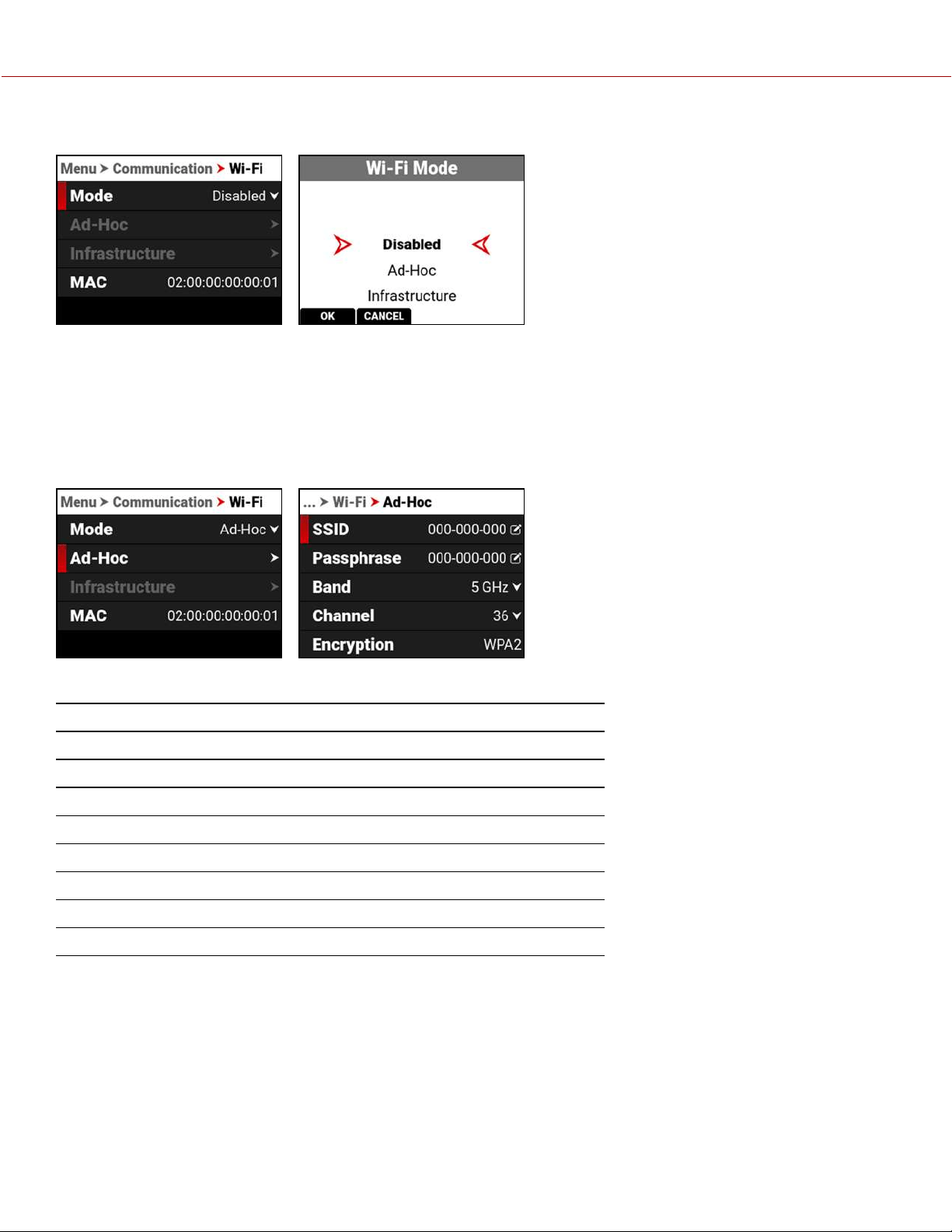
MODE
From Mode you can disable the Wi-Fi network, or you can enable the camera's Ad-Hoc or Infrastructure Wi-Fi settings.
The default setting is Disabled.
AD-HOC
Use Ad-Hoc to configure the camera as a Wi-Fi hot spot.
NOTE: The Ad-Hoc menu is enabled when the Wi-Fi Mode is set to Ad-Hoc.
Use the Ad-Hoc menu to configure the Wi-Fi hot spot settings:
ITEM DETAILS
SSID Enter the name of the Wi-Fi network the camera generates
Passphrase Enter the password for the Wi-Fi network
Band Select the Wi-Fi frequency band
Channel Select the optimal channel for the Wi-Fi band
Encryption Displays the encryption type
Status Displays the connection status
IP Address Displays the IP address
Netmask Displays the Netmask
COPYRIGHT © 2021 RED.COM, LLC 955-0198, V1.1, REV. A | 127
V-RAPTOR™ 8K V V OPERATION GUIDE
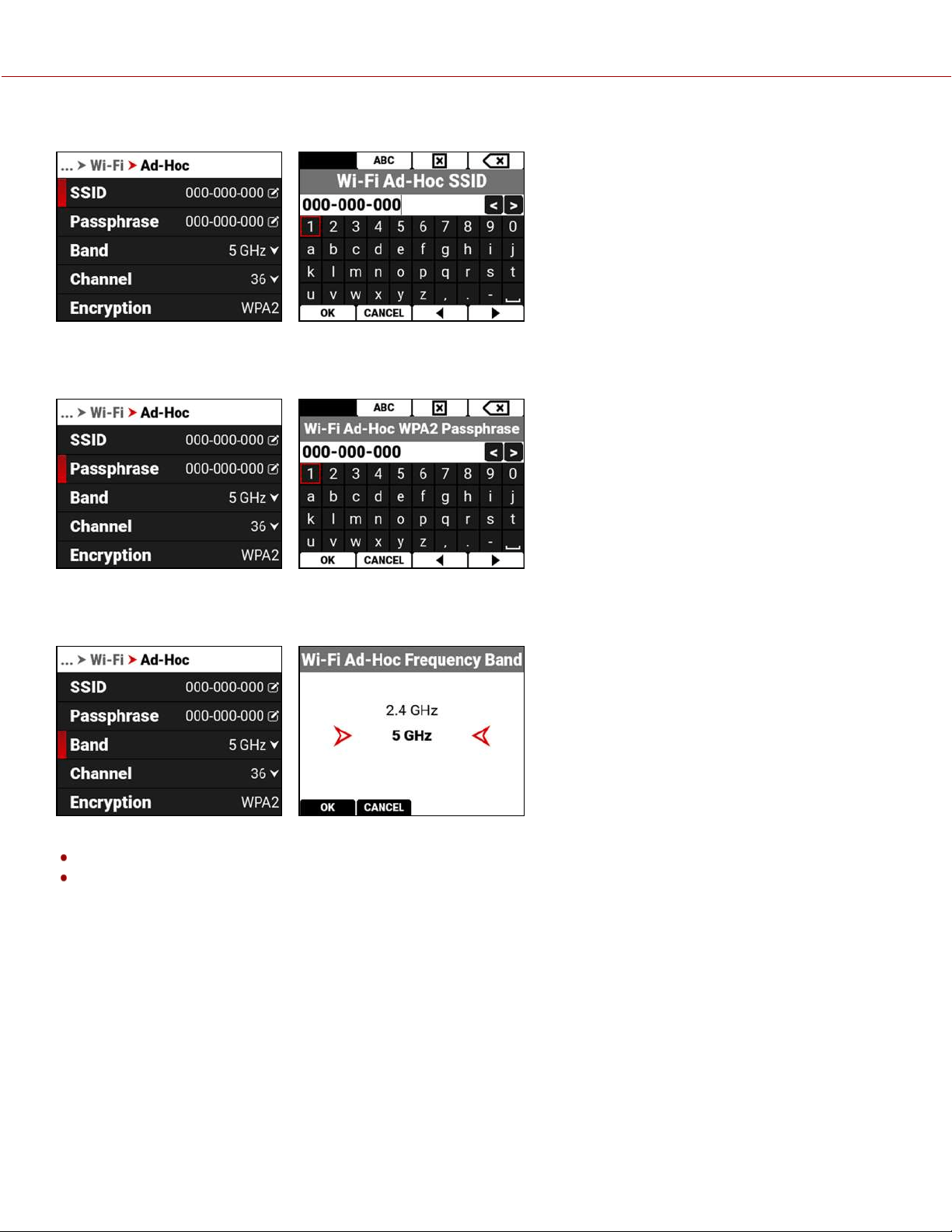
SSID
Use the keypad to enter the camera's Wi-Fi network name.
PASSPHRASE
Use the keypad to enter the camera's Wi-Fi passphrase.
BAND
Select the camera's Wi-Fi network frequency band.
Use 5 GHz for optimal wireless video streaming performance (default)
Use 2.4 GHz for long range remote control (when not utilizing wireless video streaming)
COPYRIGHT © 2021 RED.COM, LLC 955-0198, V1.1, REV. A | 128
V-RAPTOR™ 8K V V OPERATION GUIDE
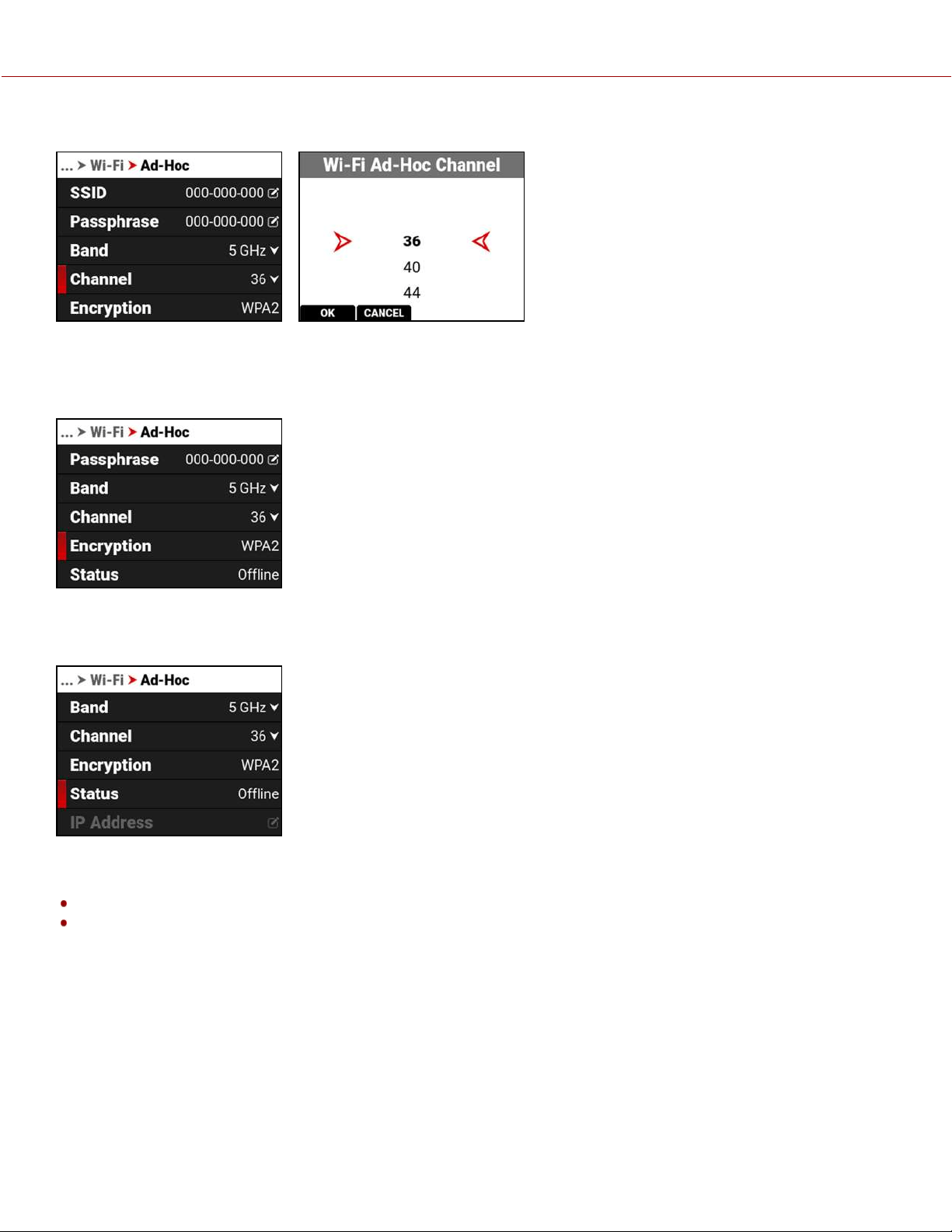
CHANNEL
Select the optimal channel for the selected band, one which receives the least interference from the surrounding Wi-Fi
signals.
ENCRYPTION
The camera uses WPA2 security encryption.
STATUS
Displays the camera's Ad-Hoc Wi-Fi connection status.
The Ad-Hoc status can include:
Offline
Online
COPYRIGHT © 2021 RED.COM, LLC 955-0198, V1.1, REV. A | 129
V-RAPTOR™ 8K V V OPERATION GUIDE
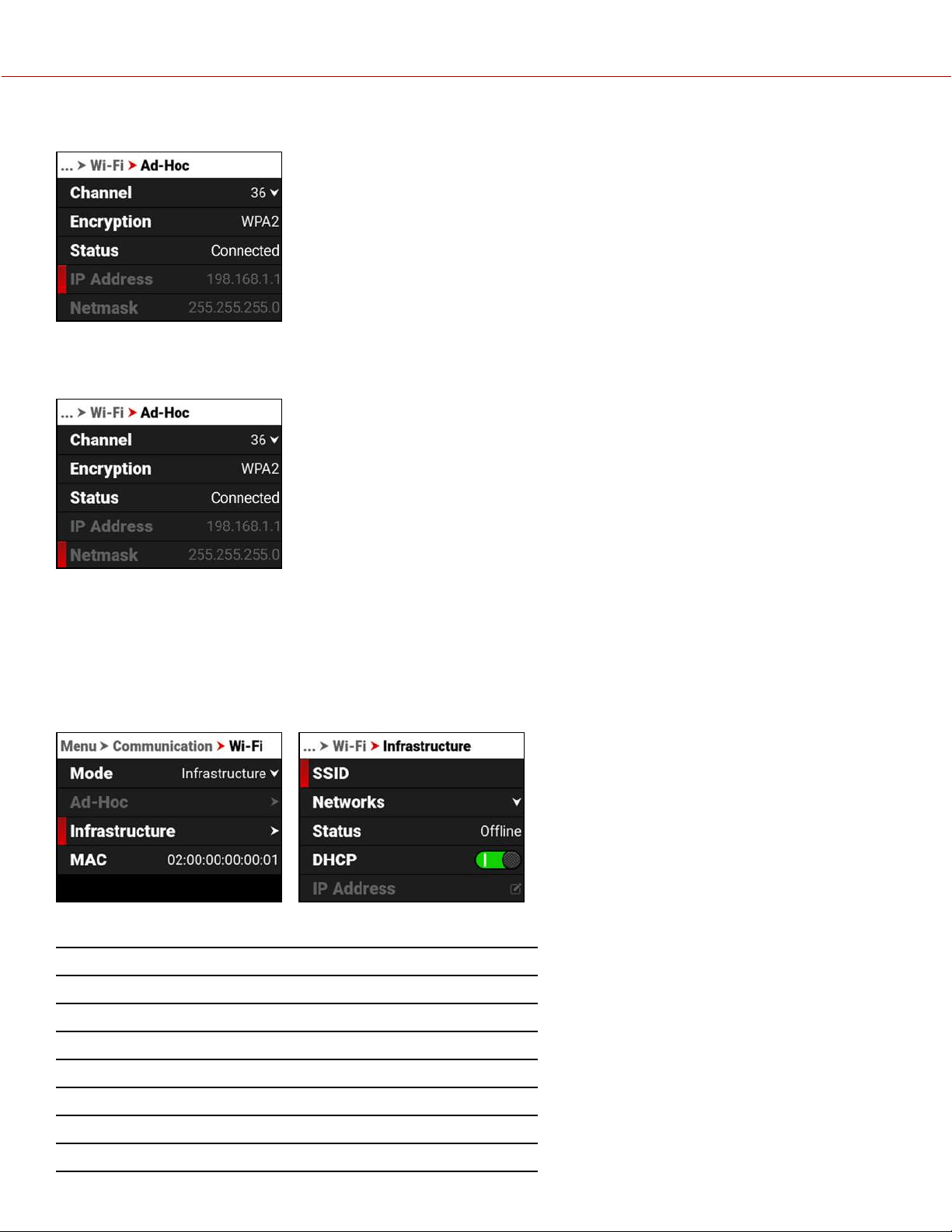
IP ADDRESS
When online and broadcasting a network, the camera displays an IP address.
NETMASK
When online and broadcasting a network, the camera displays the Netmask for the IP address.
INFRASTRUCTURE
Use Infrastructure to configure the camera to connect to an existing Wi-Fi network.
NOTE: The Infrastructure menu is enabled when the Wi-Fi Mode is set to Infrastructure. Refer to the Wi-Fi section for
more information.
Use the Infrastructure menu to configure the Wi-Fi settings to connect to an existing Wi-Fi infrastructure:
ITEM DETAILS
SSID Displays the name of the connected Wi-Fi network
Networks Scan for, select, or enter the Wi-Fi network
Status Displays the Wi-Fi connection status
DHCP Enable or disable DHCP
IP Address View or enter the Wi-Fi IP address
Netmask View or enter the Wi-Fi Netmask
Gateway View or enter the Wi-Fi Gateway (router address)
COPYRIGHT © 2021 RED.COM, LLC 955-0198, V1.1, REV. A | 130
V-RAPTOR™ 8K V V OPERATION GUIDE
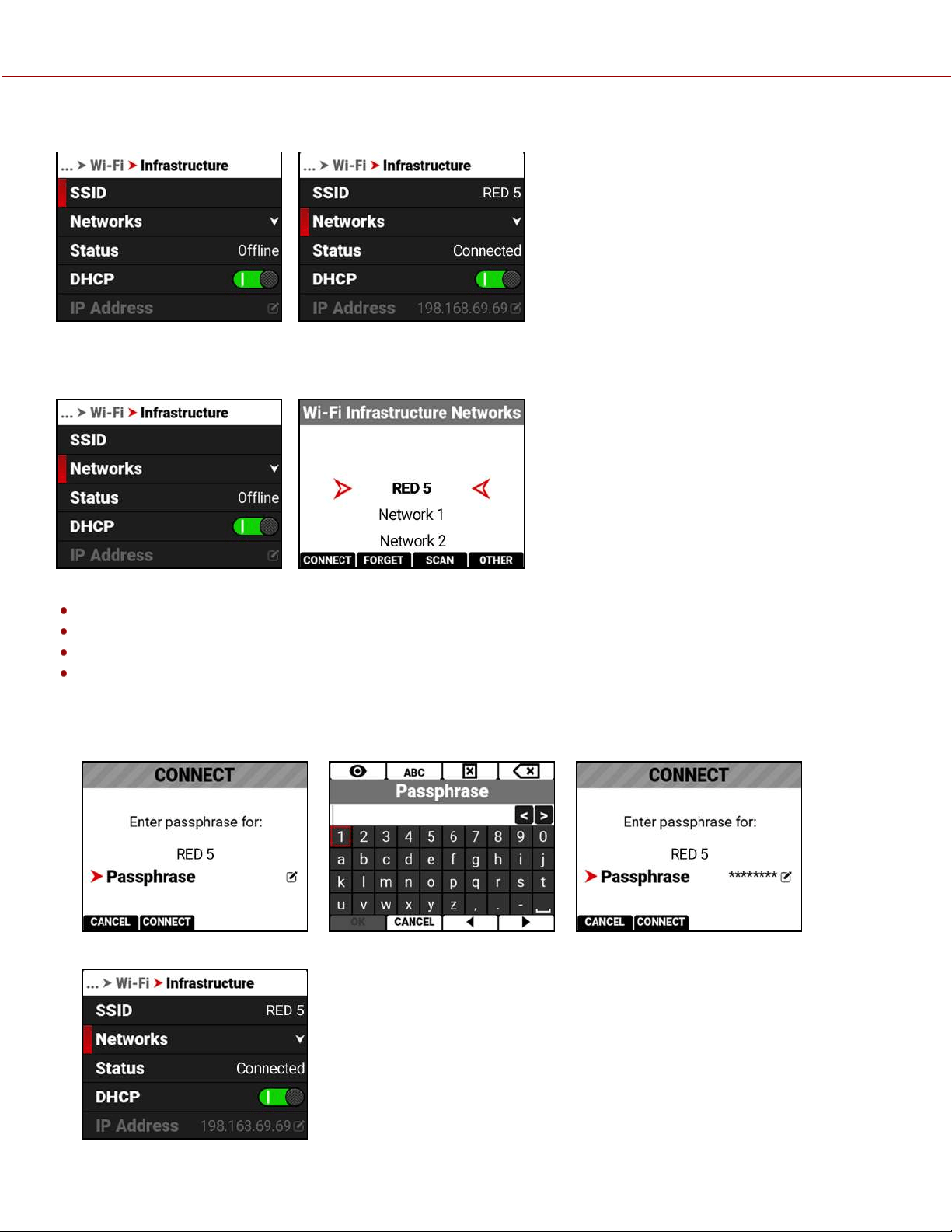
SSID
When a network is selected, the SSID displays the Wi-Fi network name (SSID).
NETWORKS
Use Networks to select an existing network, scan for an available network, or to configure a new network.
CONNECT: The CONNECT button connects the camera to the selected network.
FORGET: The FORGET button erases the connection information for the selected network.
SCAN: The SCAN button searches for available networks.
OTHER: The OTHER button opens the OTHERNETWORKS screen where you can manually enter an SSID and a
Passphrase.
Select a network to open the CONNECT screen. Select Passphrase to open the Passphrase screen and enter the
desired network password:
Press the button under CONNECTto connect to the new network:
COPYRIGHT © 2021 RED.COM, LLC 955-0198, V1.1, REV. A | 131
V-RAPTOR™ 8K V V OPERATION GUIDE
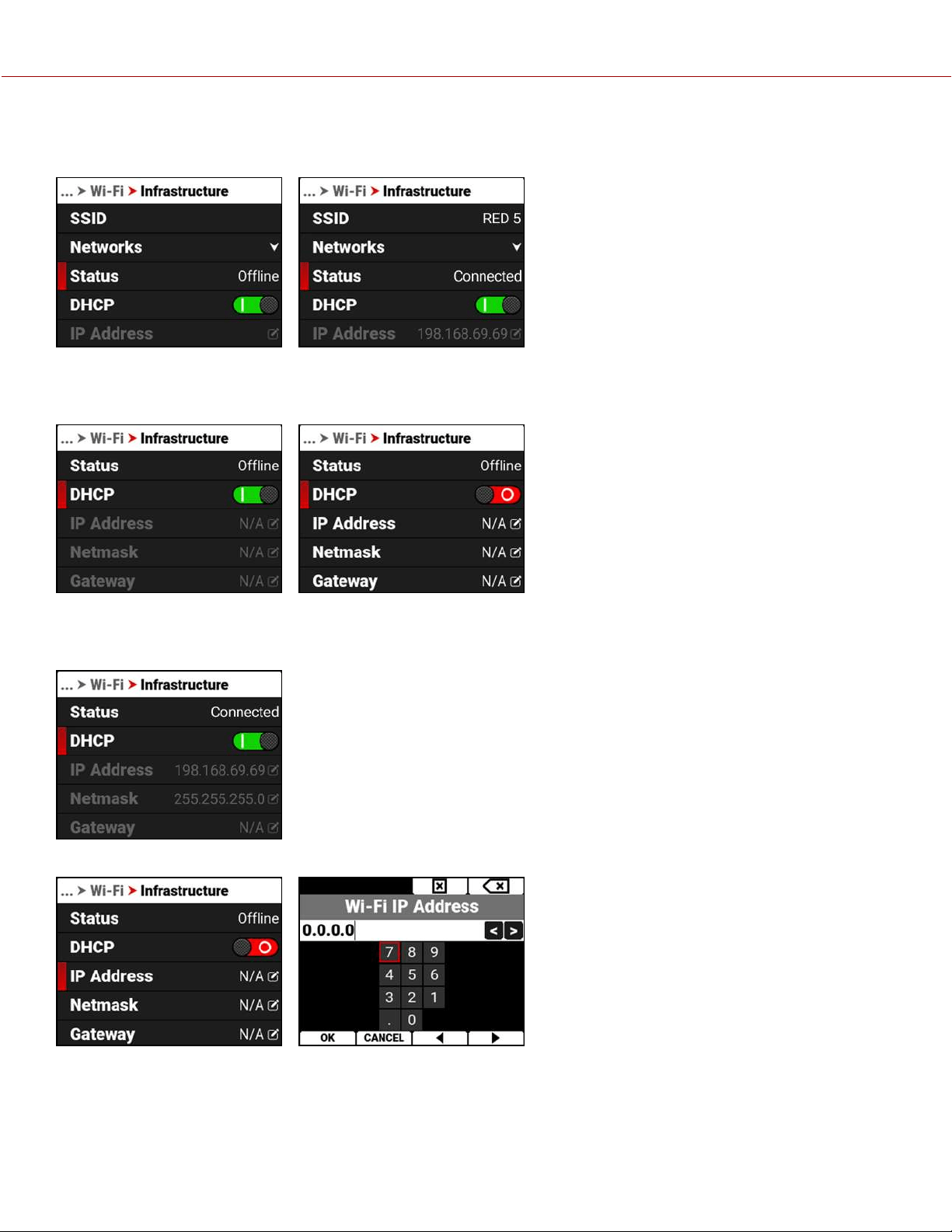
STATUS
Displays the connection status of the camera to the selected Wi-Fi network.
DHCP
DHCP allows you to enable or disable Dynamic Host Configuration Protocol (DHCP).
IP ADDRESS
When connected to a Wi-Fi network and with DHCP enabled, IP Address displays the Wi-Fi network IP address.
When DHCP is not enabled, you can manually enter a static IP address.
After you enter the static IP address, the Netmask entry screen opens.
COPYRIGHT © 2021 RED.COM, LLC 955-0198, V1.1, REV. A | 132
V-RAPTOR™ 8K V V OPERATION GUIDE
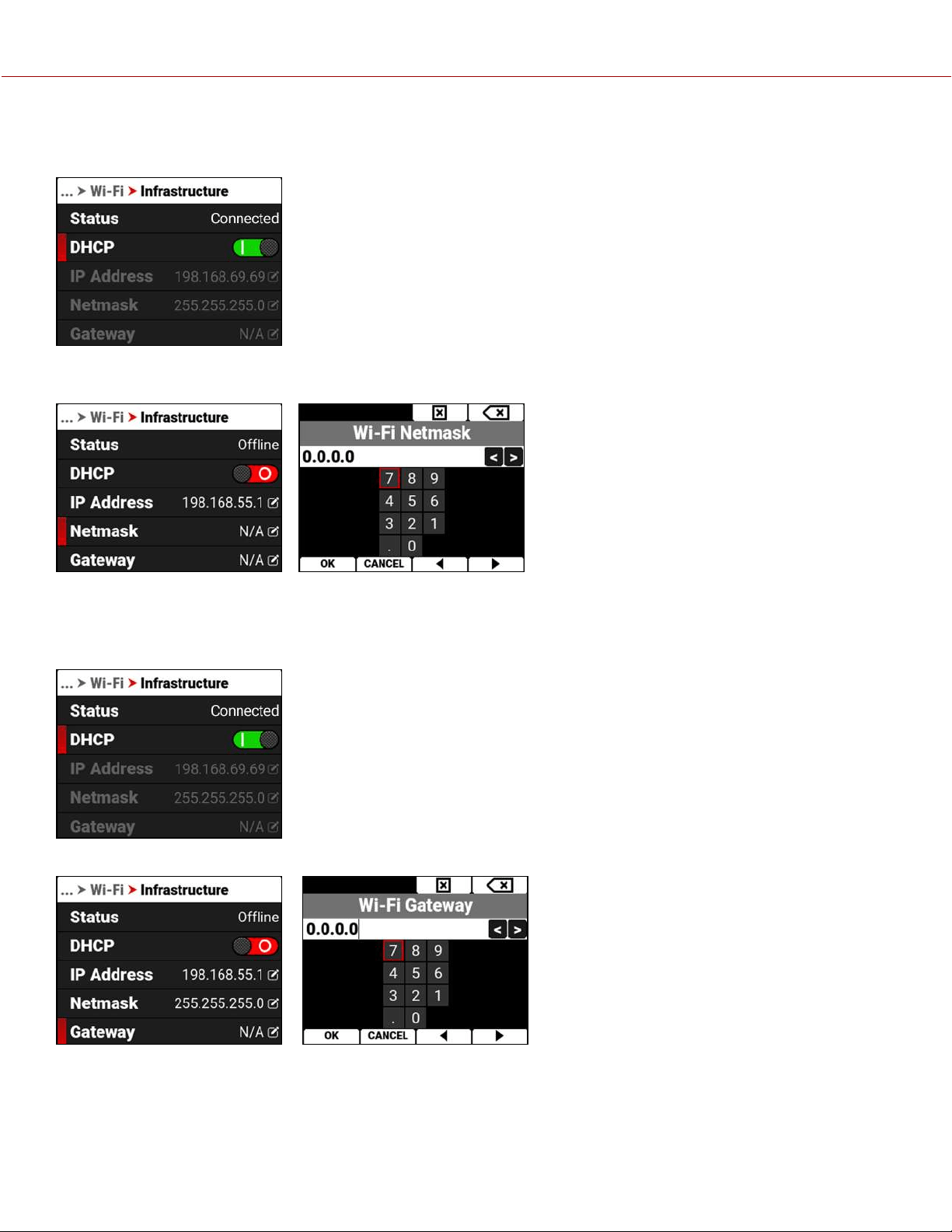
NETMASK
When connected to a Wi-Fi network and with DHCP enabled, Netmask displays the Wi-Fi network Netmask address.
When DHCP is not enabled, you can manually enter a Netmask address. This screen opens automatically after you
enter a static IP address.
GATEWAY
When connected to a Wi-Fi network and with DHCP enabled, Gateway displays the Wi-Fi network Gateway address
(router address).
When DHCP is not enabled, you can manually enter a Gateway address.
COPYRIGHT © 2021 RED.COM, LLC 955-0198, V1.1, REV. A | 133
V-RAPTOR™ 8K V V OPERATION GUIDE
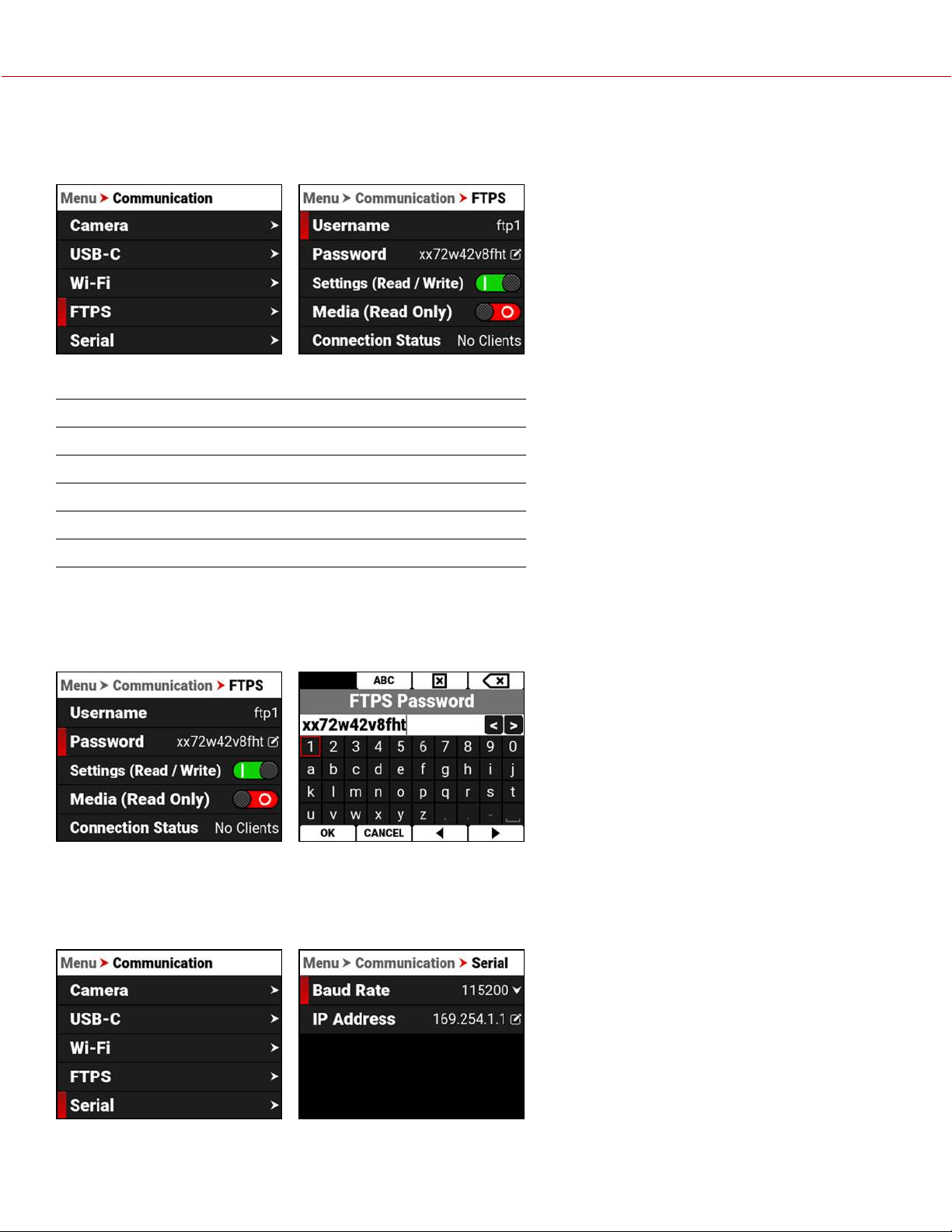
FTPS
Use FTPS to configure the camera to work with a secure File Transfer Protocol (FTPS) connection.
Use the FTPS menu to configure the camera's FTPS settings:
ITEM DETAILS
Username Static username ftp1
Password User-editable password
Settings (R/W) Enable FTP access to the camera settings
Media (Read Only) Enable read-only access to the media
Connection Status Displays the FTPS actions occurring
PASSWORD
Use Password to enter an FTPS password. When you press SEL on Password, the FTPS Password editing screen
appears.
The password must contain a minimum of 8 characters.
SERIAL
Use Serial to configure the serial connection to the Extension Port.
COPYRIGHT © 2021 RED.COM, LLC 955-0198, V1.1, REV. A | 134
V-RAPTOR™ 8K V V OPERATION GUIDE
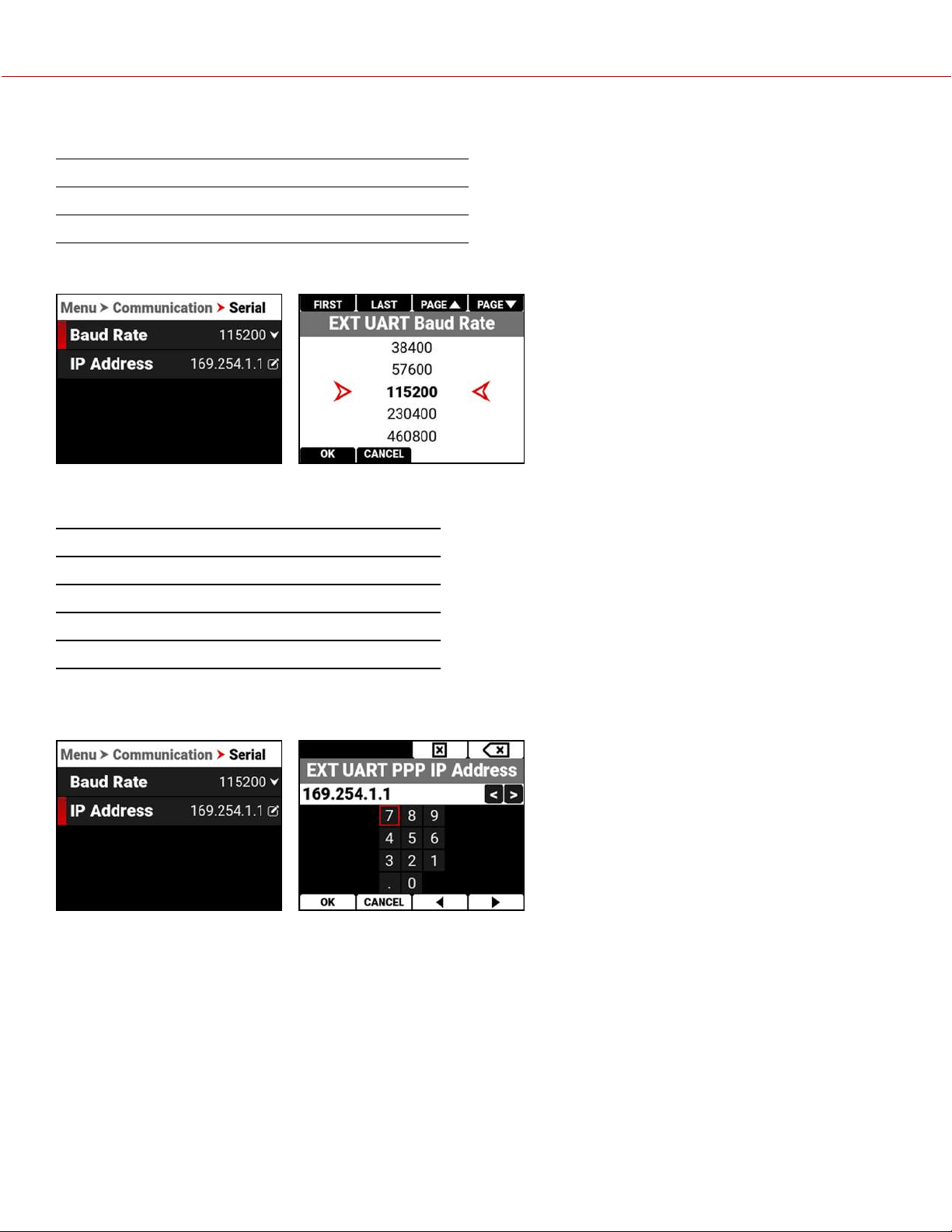
The settings you can configure for the serial connection through the Extension Port include:
ITEM DETAILS
Baud Rate Select the serial port baud rate
IP Address Enter the IP address for the PPP protocol
BAUD RATE
The Baud rate controls how fast data is transmitted over the serial connection. The higher the speed, the more likely
that errors can occur. The Baud rates you can choose include:
BAUD RATES
9600 115200* 576000 1500000
19200 230400 921600 2000000
38400 460800 1000000 2500000
57600 500000 1152000 3000000
* Default
IP ADDRESS
Use the keypad to enter the internet provider's IP address.
COPYRIGHT © 2021 RED.COM, LLC 955-0198, V1.1, REV. A | 135
V-RAPTOR™ 8K V V OPERATION GUIDE
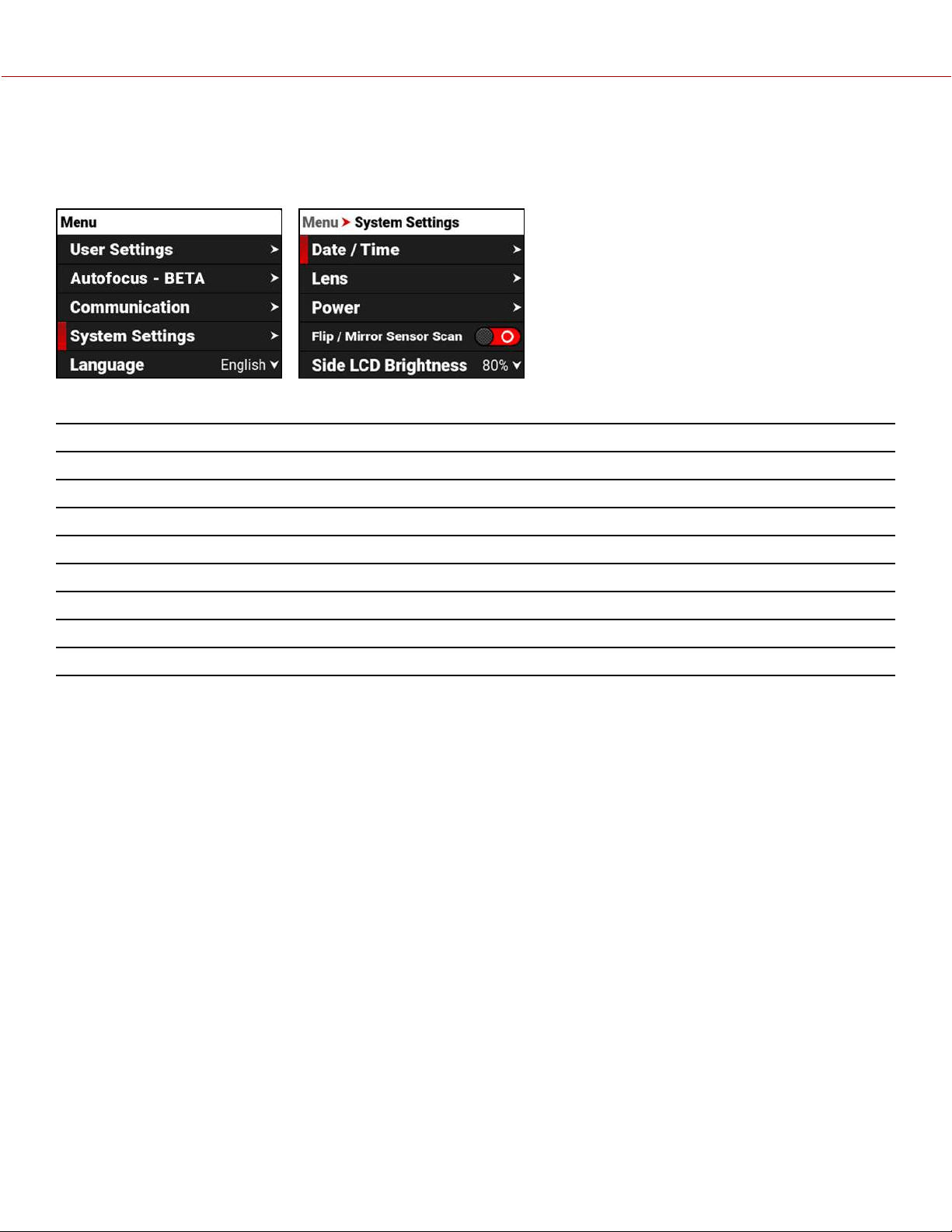
SYSTEM SETTINGS MENU
The System Settings menu contains the camera system configuration settings.
From the camera LCD menu, navigate to System Settings and press SEL:
Use the System Settings menu to configure the camera system settings:
ITEM DETAILS
Date / Time Date and time settings
Lens View lens status information and access the Iris menu
Power DC and Battery status
Flip / Mirror Sensor Scan Enable Flip / Mirror Sensor Scan
Side LCD Brightness Adjust the side LCD brightness
Indicators Enable or disable the camera's front Tally LED
Status Settings Shutter mode, Aperture increments, and Focus length units settings
System Status Information about the camera's type, PIN, FW, and runtime
COPYRIGHT © 2021 RED.COM, LLC 955-0198, V1.1, REV. A | 136
V-RAPTOR™ 8K V V OPERATION GUIDE
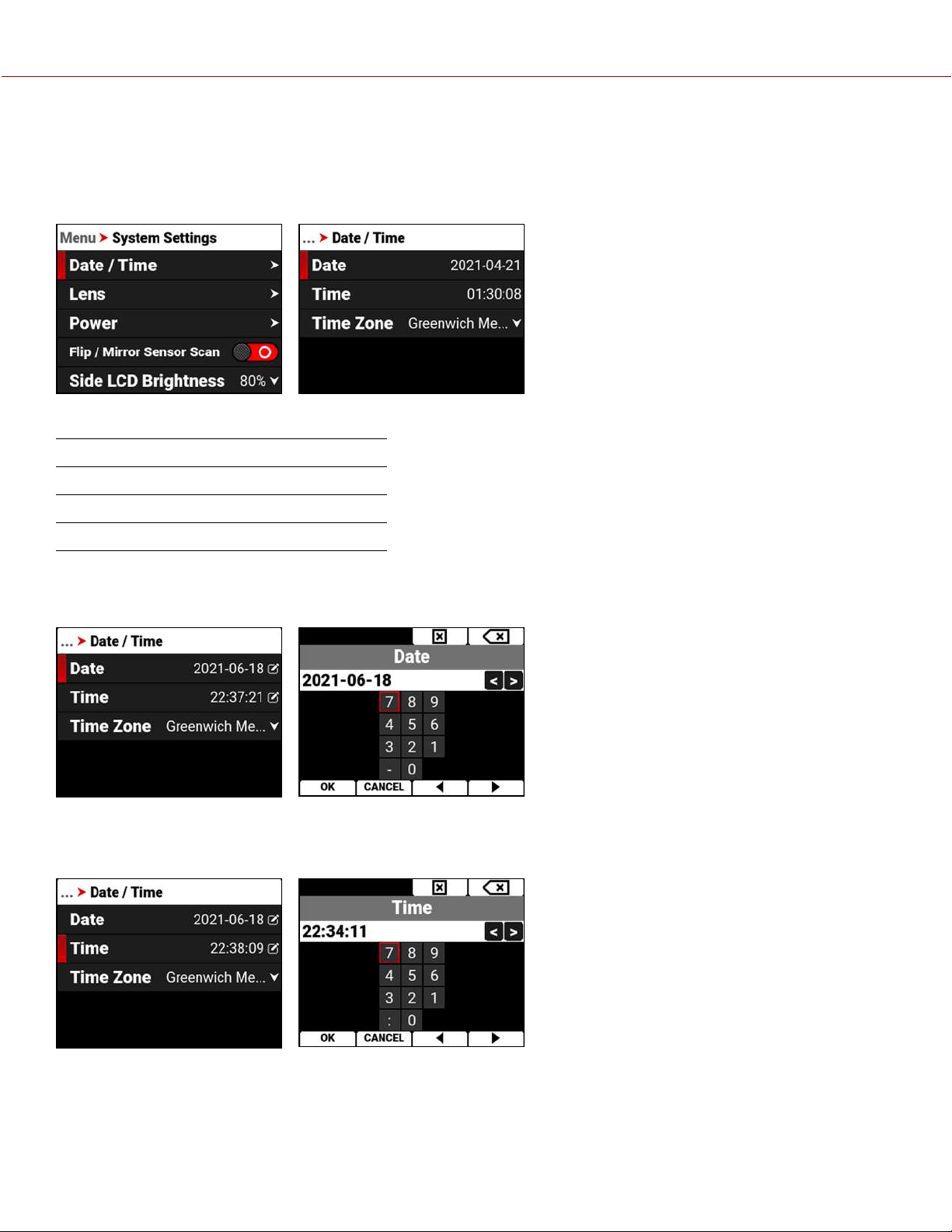
DATE / TIME
Use the Date / Time menu to reset the internal clock of the camera. The time and date are timestamped on R3D
®
files
when recording to the media. The camera uses the 24-hour clock convention (military time). For example, enter 2:35 PM
as 14:35:00.
The Date / Time menu items include:
ITEM DETAILS
Date Date in YYYY-MM-DD format
Time 24-hour format
Timezone Global time zones
DATE
Navigate to Date and press SEL to enter the date using the keypad:
TIME
Navigate to Time and press SEL to enter the time in 24 hour military format using the keypad:
COPYRIGHT © 2021 RED.COM, LLC 955-0198, V1.1, REV. A | 137
V-RAPTOR™ 8K V V OPERATION GUIDE
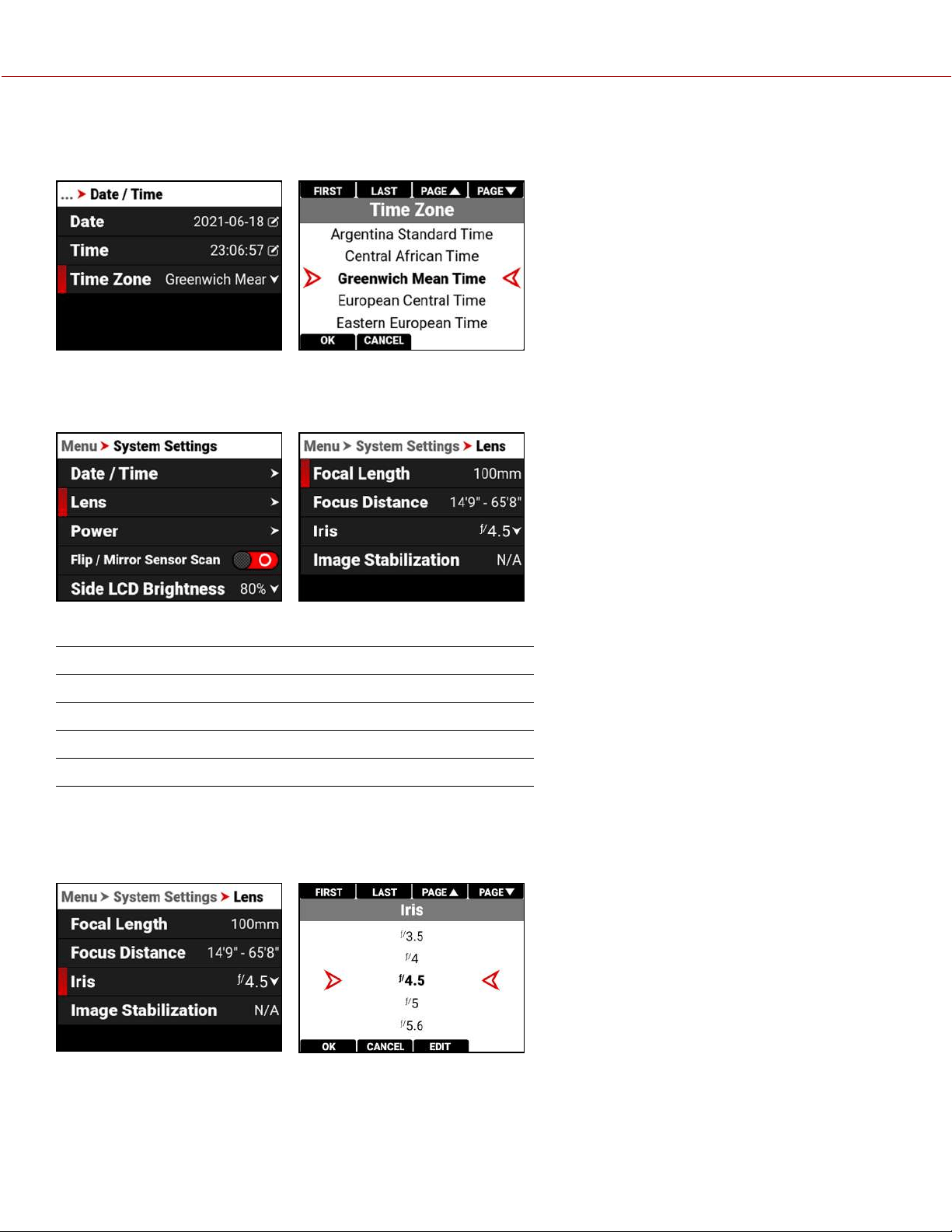
TIMEZONE
Use Timezone to select the local timezone for where the camera is located.
LENS
Use Lens to view information about the attached lens.
The information you can view from Lens includes:
ITEM DETAILS
Focal Length Displays the lens focal length value
Focus Distance Displays the lens focal distance value
Iris Lens Iris menu
Image Stabilization Displays the lens image stabilization status
IRIS
Use the Iris menu to select the camera lens f-stop. Press the button below Edit to open the keypad and enter the f-stop
manually.
COPYRIGHT © 2021 RED.COM, LLC 955-0198, V1.1, REV. A | 138
V-RAPTOR™ 8K V V OPERATION GUIDE
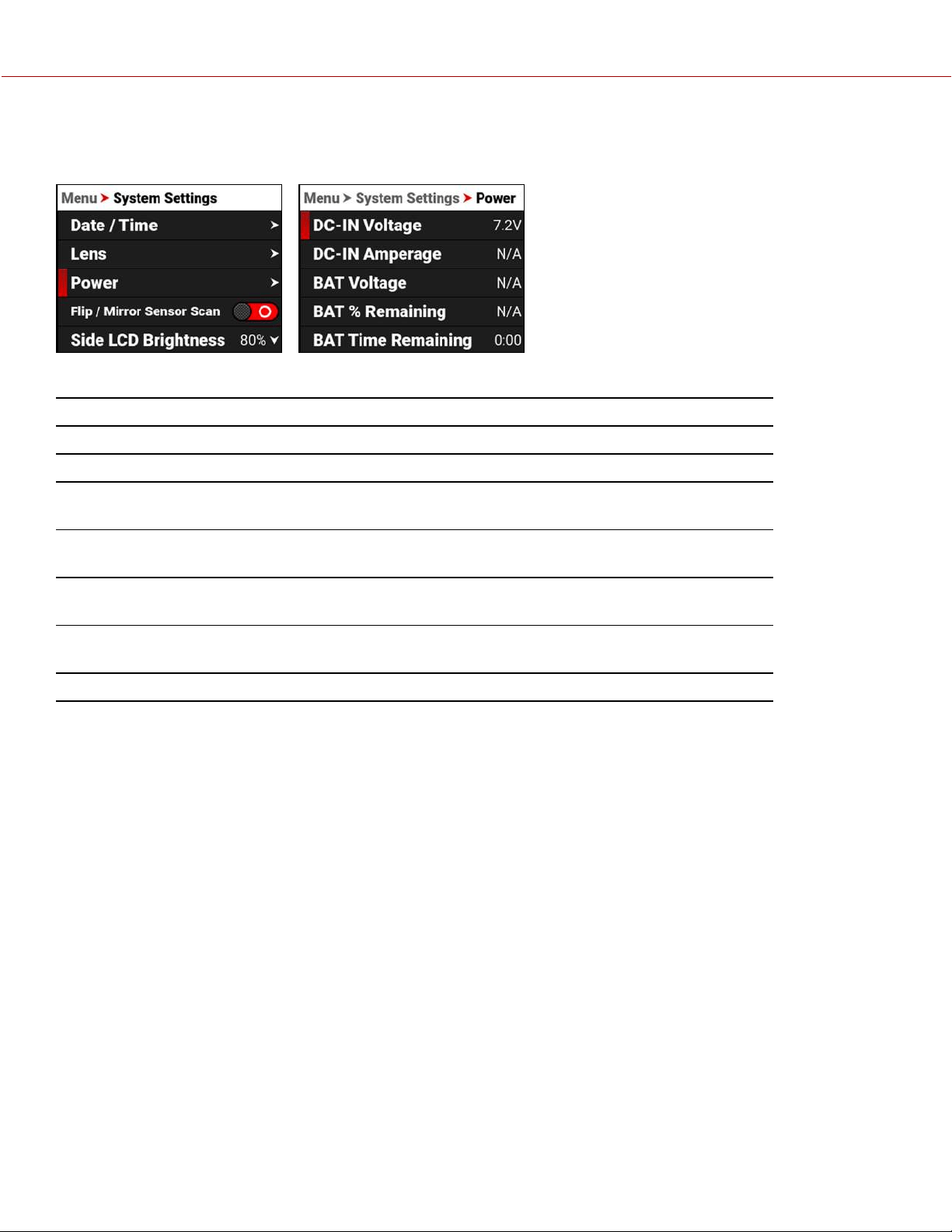
POWER
Use the Power menu to view the various camera power status indicators:
The Power indicators you can view include:
ITEM DETAILS
DC-IN Voltage When DC is connected, this displays the DC Voltage
DC-IN Amperage When DC is connected, this displays the DC Amps
BAT Voltage When a battery is connected in the left #1 slot, this displays the battery
Voltage
BAT % Remaining When a compatible battery is connected in the left #1 slot, this displays the
% of battery charge remaining
BAT Time Remaining When a battery is connected in the left #1 slot, this displays the camera
operating time remaining
BAT Amperage When a battery is connected in the left #1 slot, this displays the battery
Amps
Power Out Enables or disables the 5 V / 500 mA power to the Extension Port
COPYRIGHT © 2021 RED.COM, LLC 955-0198, V1.1, REV. A | 139
V-RAPTOR™ 8K V V OPERATION GUIDE
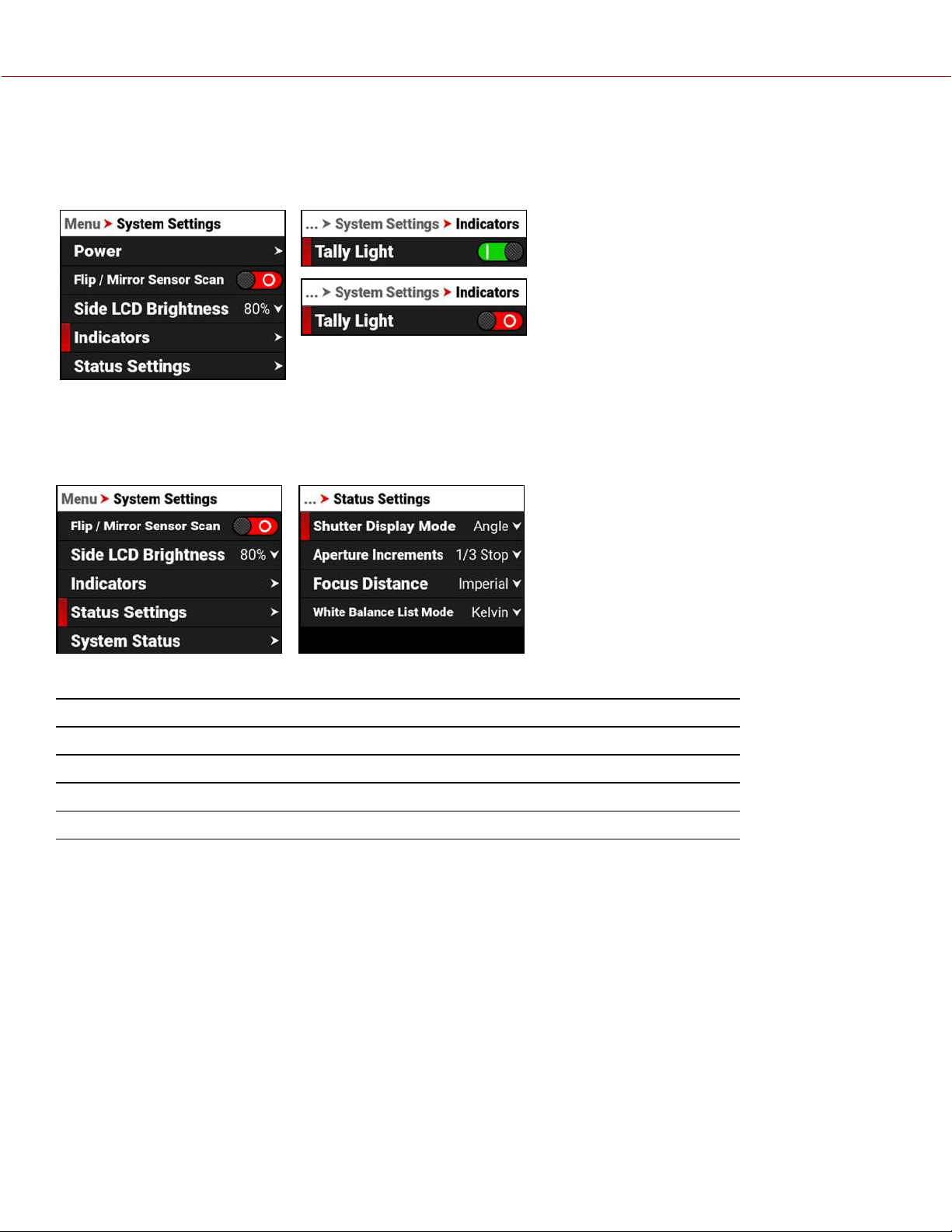
INDICATORS
Use the Indicators menu to enable or disable the tally light (refer to the Camera Body section for more information about
the camera LEDs).
STATUS SETTINGS
Use the Status Settings menu to select the shutter display mode, aperture increment, and focus distance units
displayed in the camera's menus.
The Status Settings that you can configure include:
ITEM DETAILS
Shutter Display Mode Select a time-fraction or an angle for the shutter menu display unit
Aperture Increments Select 1/4 or 1/3 f-stop increments
Focus Distance Select the focus distance units (Metric or Imperial)
White Balance List Mode Select Kelvin or White Balance Presets
COPYRIGHT © 2021 RED.COM, LLC 955-0198, V1.1, REV. A | 140
V-RAPTOR™ 8K V V OPERATION GUIDE
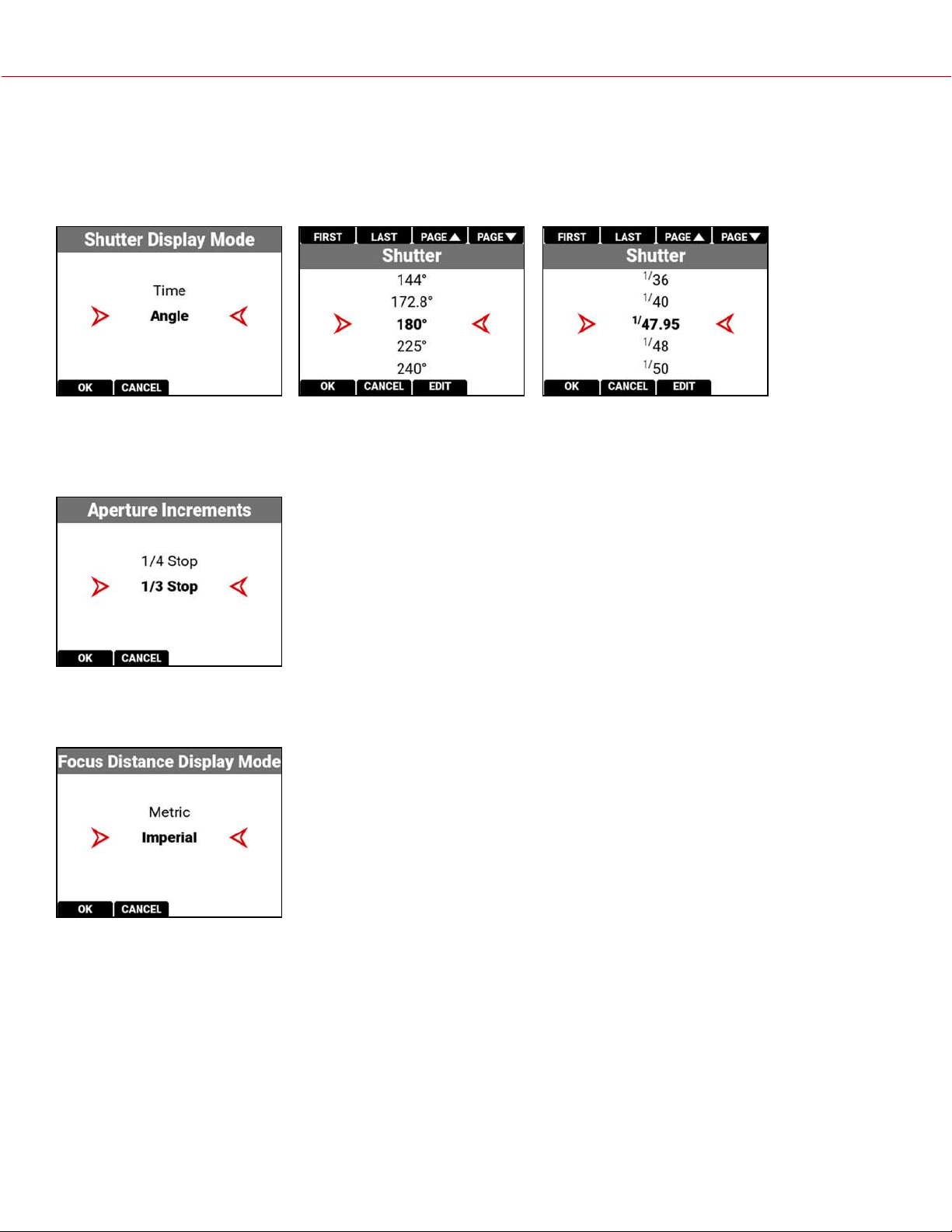
SHUTTER DISPLAY MODE
Use Shutter Display mode to select the way that the camera displays the Shutter setting in the menu.
When select Angle, the Shutter menu displays the choices in degrees. When you select Time, the Shutter menu displays
the choices in fractions of a second.
APERTURE INCREMENTS
Use Aperture Increments to select one fourth increments or one third increments for the camera f-stop settings. The
default is 1/3 Stop.
FOCUS DISTANCE
Use Focus Distance to select Imperial or Metric units for the Lens Focus Distance display. The default is Imperial.
COPYRIGHT © 2021 RED.COM, LLC 955-0198, V1.1, REV. A | 141
V-RAPTOR™ 8K V V OPERATION GUIDE
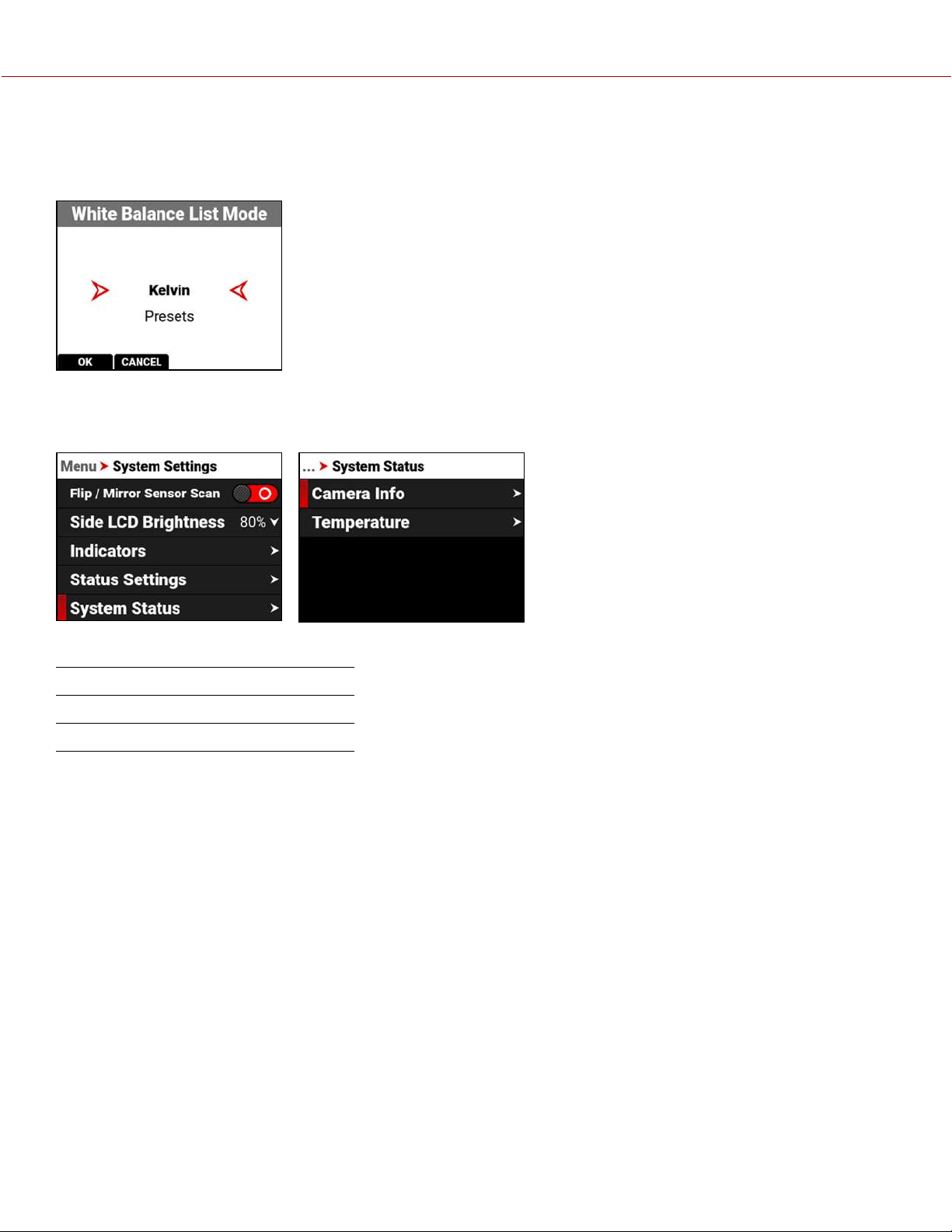
WHITE BALANCE LIST MODE
Use White Balance List Mode to select Kelvin or Presets for the White Balance Color Temperature menu. The default is
Kelvin.
SYSTEM STATUS
Use the System Status menu to view camera information and to view temperature readings.
The system status information you can view includes:
ITEM DETAILS
Camera Info Camera information
Temperature Camera temperatures
COPYRIGHT © 2021 RED.COM, LLC 955-0198, V1.1, REV. A | 142
V-RAPTOR™ 8K V V OPERATION GUIDE
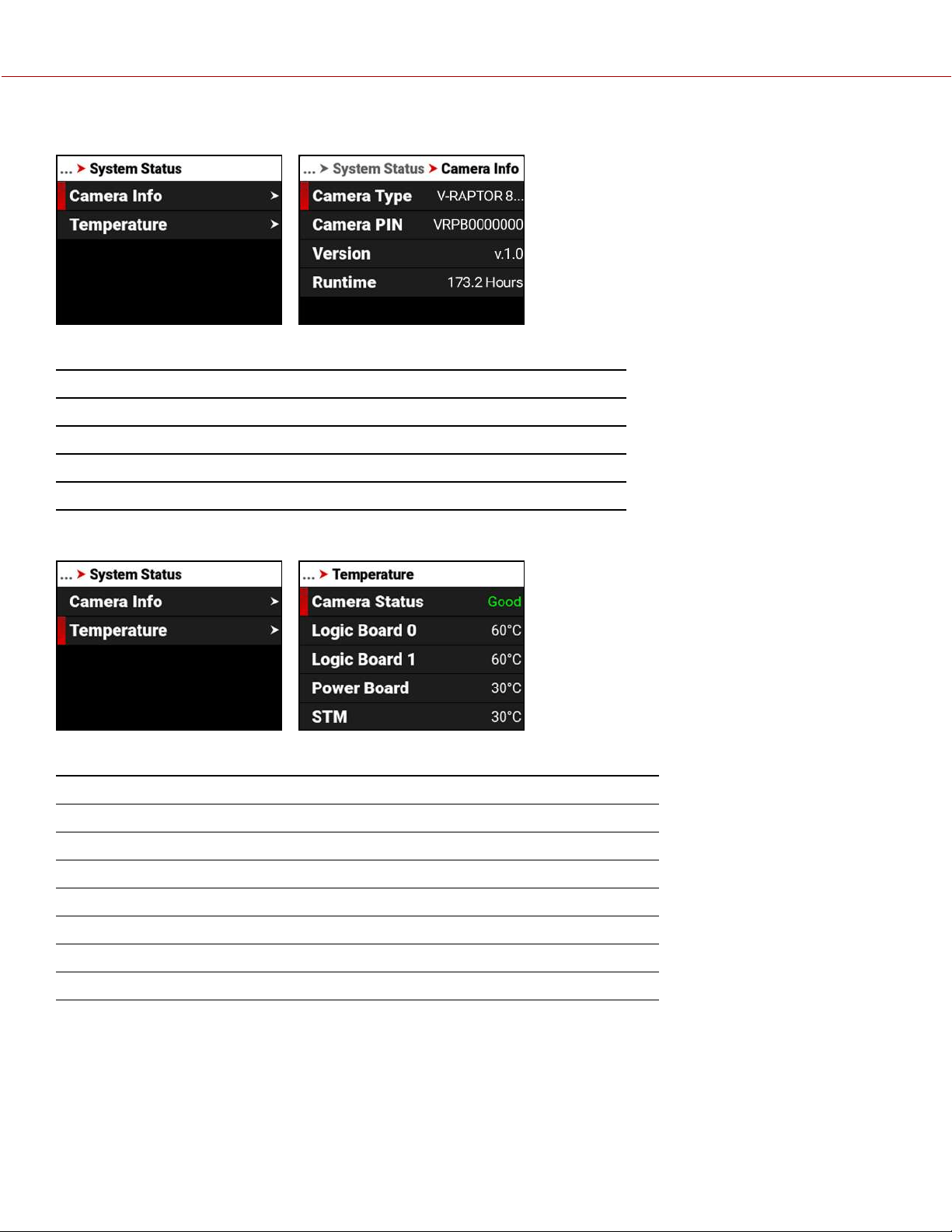
CAMERA INFO
The camera information you can view includes:
ITEM DETAILS
Camera Type Displays the camera description
Camera PIN Displays the camera personal identification number (PIN)
Version Displays the firmware version number installed on the camera
Runtime Displays the total number of hours that the camera has run
TEMPERATURE
The camera temperatures you can view include:
ITEM DETAILS
Camera Status Displays Good (green) or Overheating (yellow)
Logic Board 0 Displays the Celsius temperature of Logic Board 0
Logic Board 1 Displays the Celsius temperature of Logic Board 1
Power Board Displays the Celsius temperature of the power IC board
STM Displays the Celsius temperature of the power STM IC
Sensor Displays the Celsius temperature of the sensor
Calibration Temperature Temperature at which the sensor was calibrated
COPYRIGHT © 2021 RED.COM, LLC 955-0198, V1.1, REV. A | 143
V-RAPTOR™ 8K V V OPERATION GUIDE
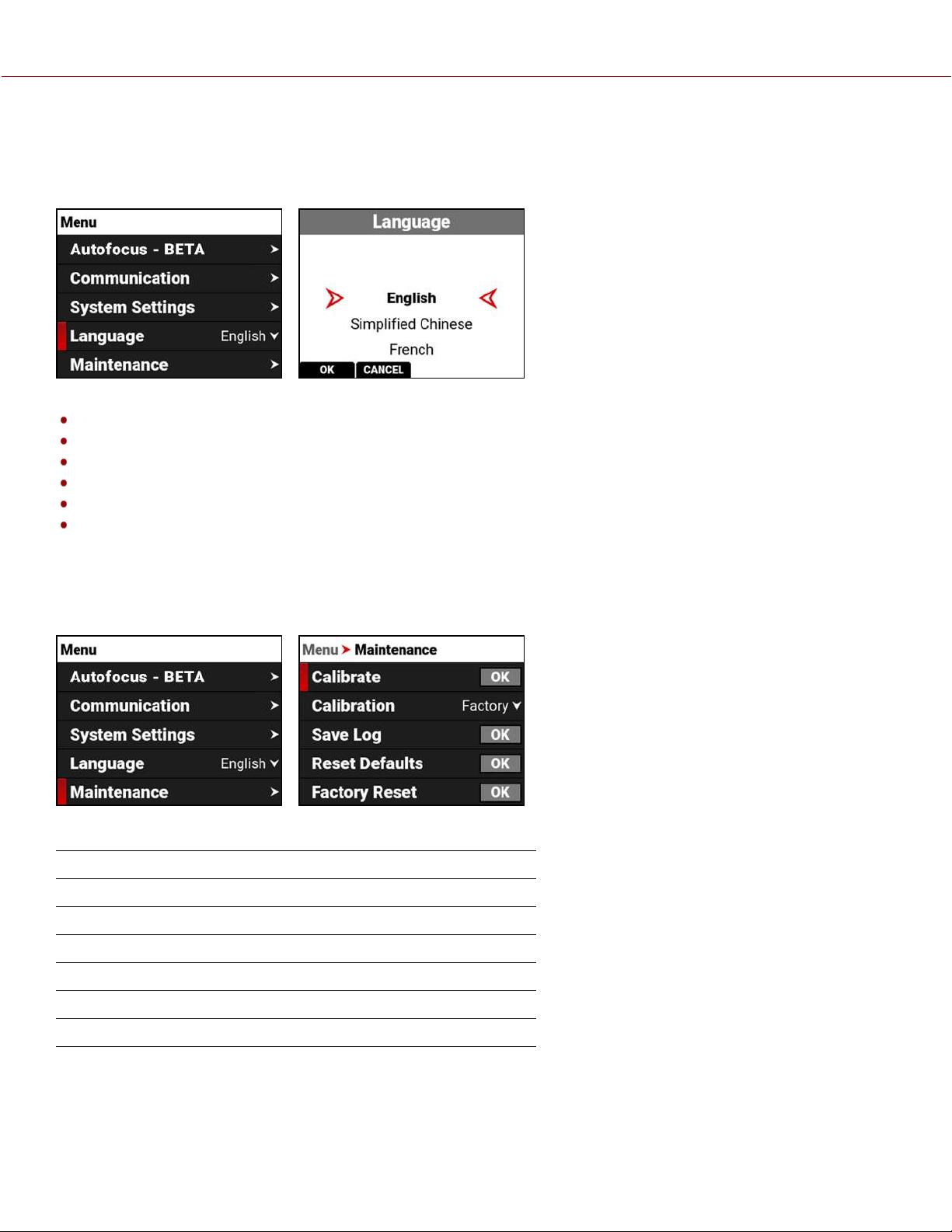
LANGUAGE MENU
The Language menu contains the languages you can select for the user interface (UI).
From the camera LCD menu, navigate to Language and press SEL:
The languages you can select include:
English
Simplified Chinese
French
German
Japanese
Spanish
MAINTENANCE MENU
The Maintenance menu contains the settings you use to perform various maintenance tasks on your camera.
From the camera LCD menu, navigate to Maintenance and press SEL:
Use the Maintenance menu to perform the following camera maintenance tasks:
ITEM DETAILS
Calibrate Performs the selected Calibration
Calibration List of calibration options
Save Log Saves the camera log files to the media
Reset Defaults Resets the camera settings to their default settings
Factory Reset Restores the camera to the factory settings
Upgrade Updates the firmware
COPYRIGHT © 2021 RED.COM, LLC 955-0198, V1.1, REV. A | 144
V-RAPTOR™ 8K V V OPERATION GUIDE
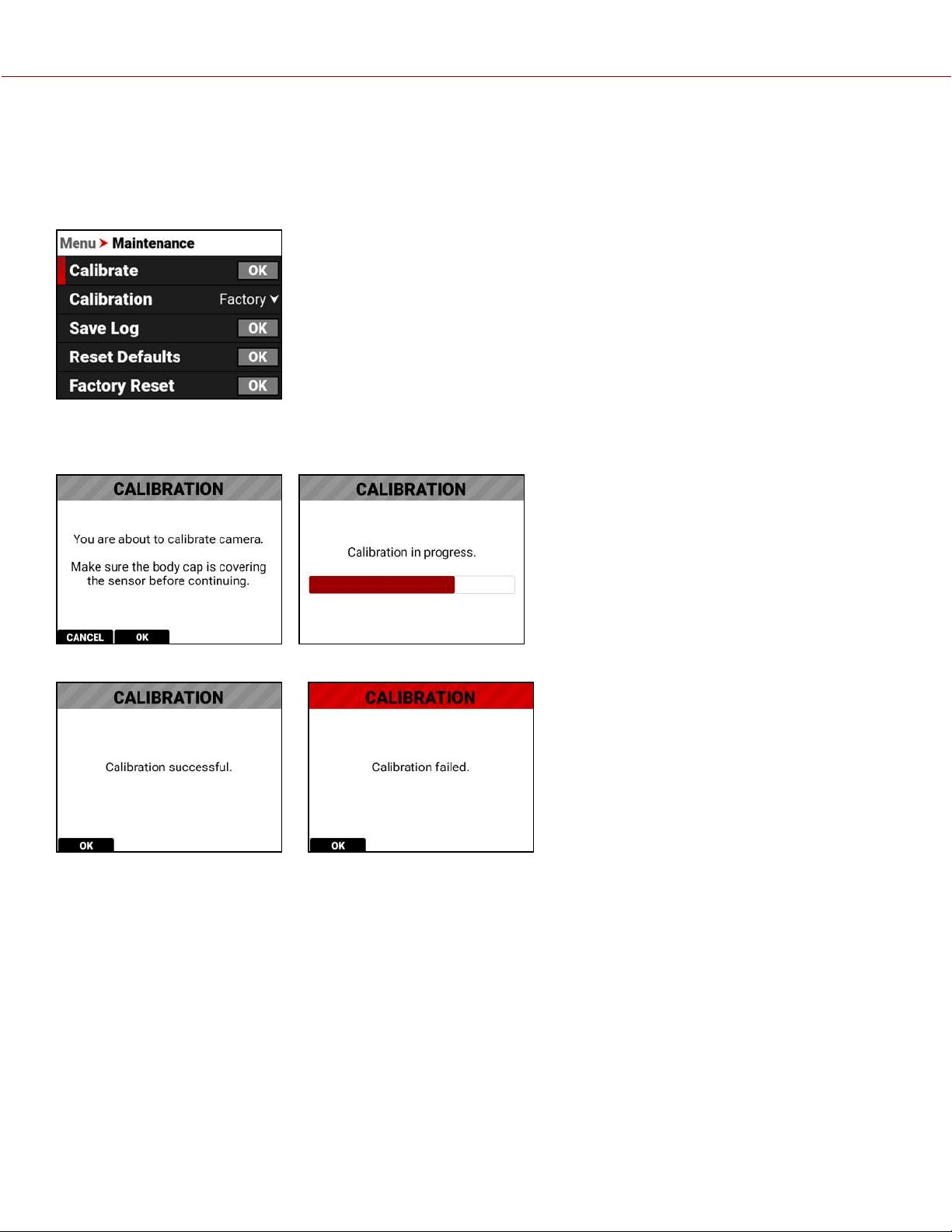
CALIBRATE
Use Calibrate to start the camera calibration process and create your User calibration profile.
Only calibrate the camera after it has reached its operational temperature. This occurs usually within ten minutes after
you turn on the camera in the filming environment. Do not calibrate immediately after powering on.
NOTE: Make sure that the mount cap is installed on the camera before you calibrate the camera.
Press the button below OK to begin calibrating the camera.
When the camera is finished calibrating, the LCD displays the Calibration status message:
or:
COPYRIGHT © 2021 RED.COM, LLC 955-0198, V1.1, REV. A | 145
V-RAPTOR™ 8K V V OPERATION GUIDE
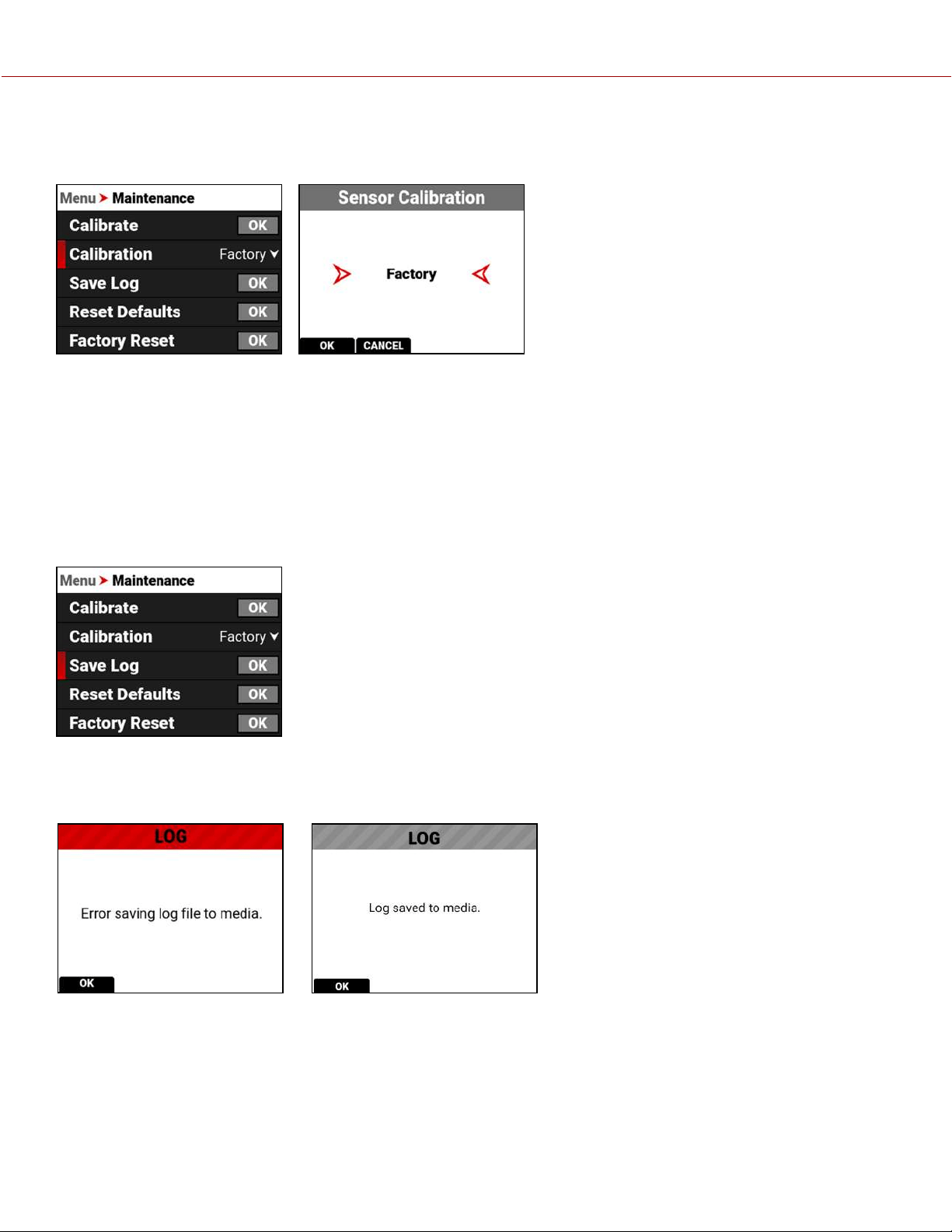
CALIBRATION
Use Calibration to select the active camera Calibration.
You should always select User calibration. The first time you calibrate the camera, the only choice is Factory. After you
perform a calibration, the User calibration profile is added to the list and the camera makes it the default calibration.
Every time you calibrate the camera, the User profile is updated. The only time the User profile is removed, is when you
perform a Factory Reset.
If User calibration is not available, the camera defaults to Factory calibration. Calibrate the camera to generate a new
User calibration profile.
SAVE LOG
Use Save Log to save the camera log to the media.
When the media is full, or missing, the camera will display an error message. When there is no error, the success
message is displayed.
Error: Success:
COPYRIGHT © 2021 RED.COM, LLC 955-0198, V1.1, REV. A | 146
V-RAPTOR™ 8K V V OPERATION GUIDE
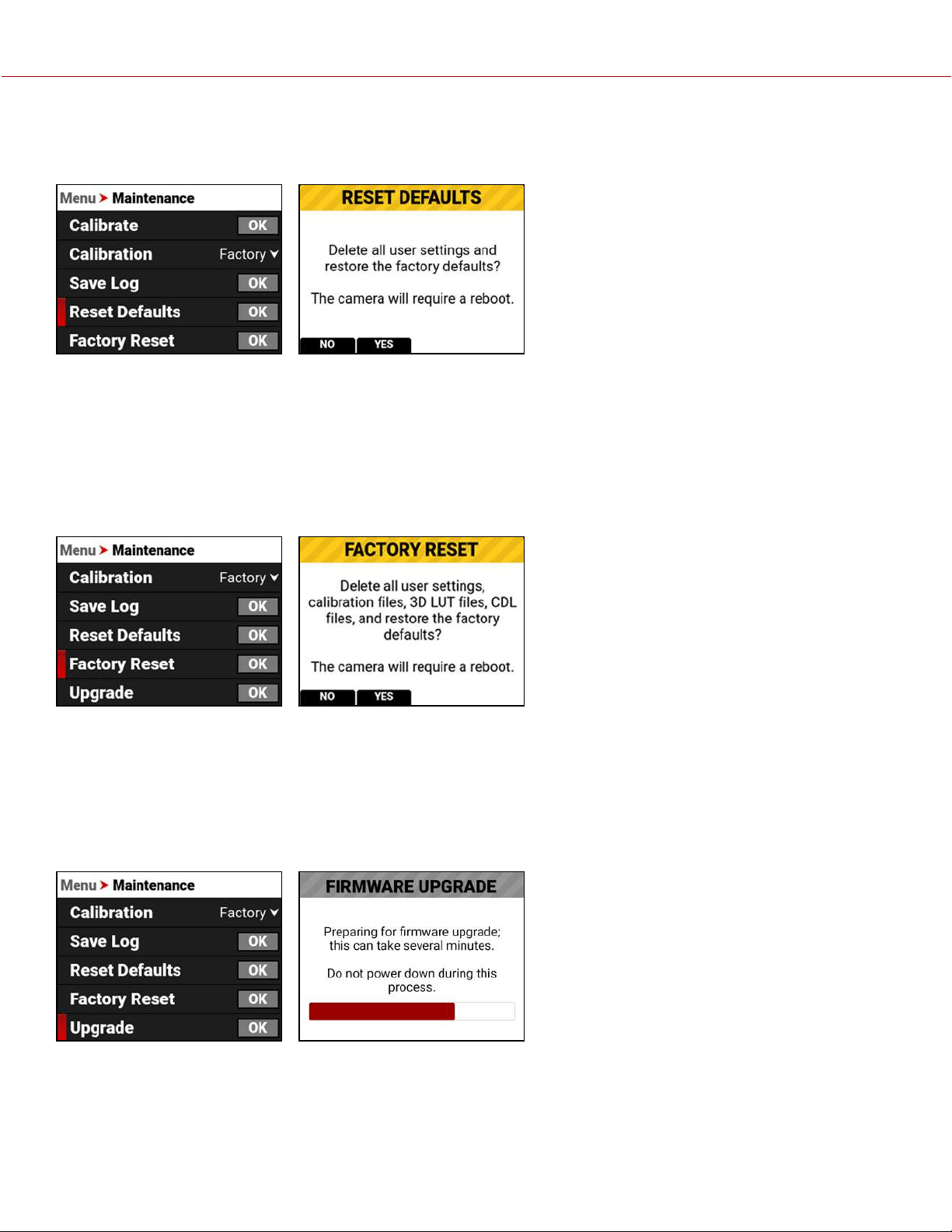
RESET DEFAULTS
Use Reset Defaults to reset the camera to the factory default menu settings.
NOTE: Resetting the camera will delete all of your menu settings.
NOTE: The camera turns off, and then back on to complete the reset process.
Press the button under Yes to reset the camera menus to the defaults settings.
FACTORY RESET
Use Factory Reset to reset the camera to the factory settings.
NOTE: Resetting the camera will delete all of your settings and remove all imported files. The camera turns off, and then
back on to complete the reset process.
Press the button under Yes to reset the camera to the factory settings.
UPGRADE
Use Upgrade to perform a camera firmware update.
For more information about upgrading the firmware, refer to Upgrading the Firmware.
COPYRIGHT © 2021 RED.COM, LLC 955-0198, V1.1, REV. A | 147
V-RAPTOR™ 8K V V OPERATION GUIDE
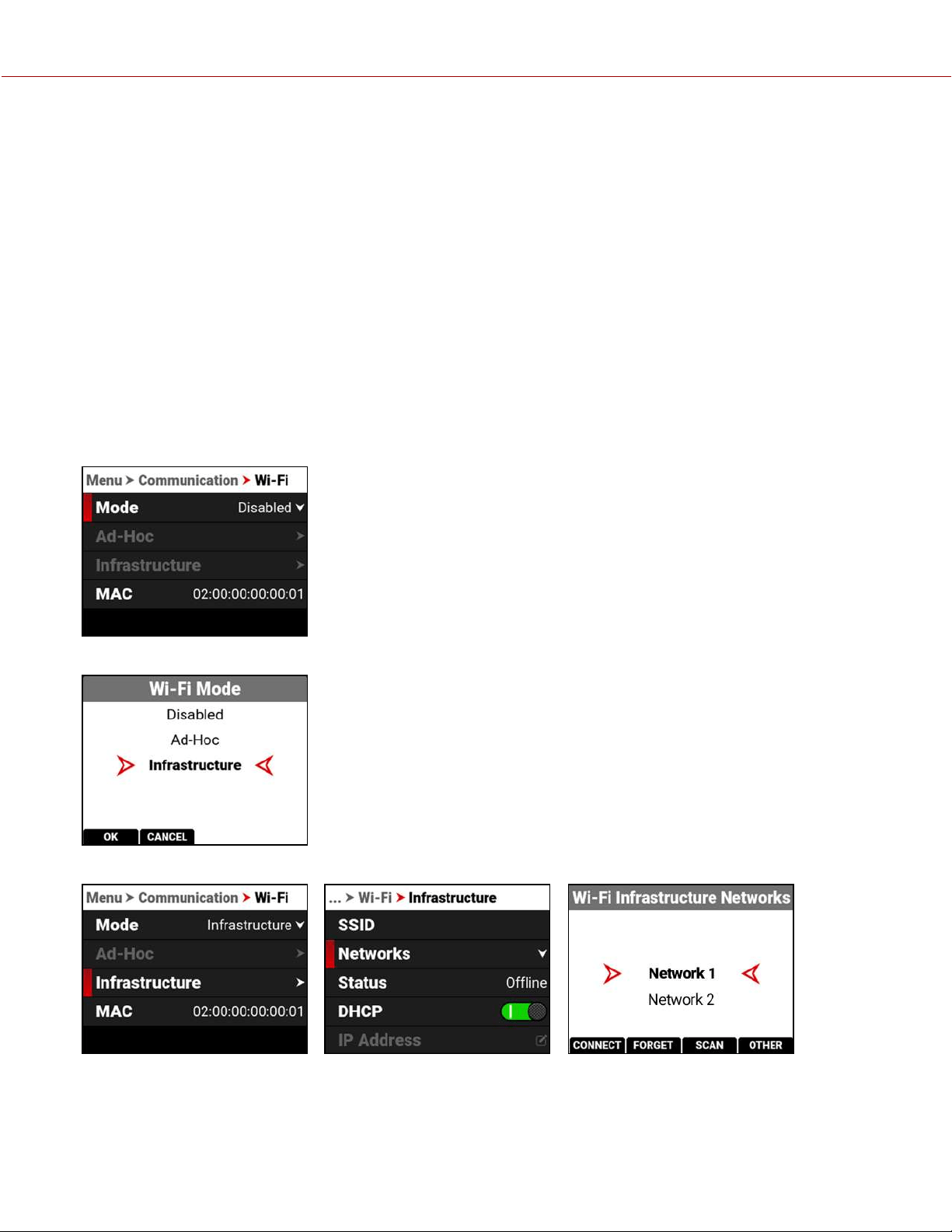
COPYRIGHT © 2021 RED.COM, LLC 955-0198, V1.1, REV. A | 148
5. HOW TO
This section describes how you can use the camera features.
WI-FI CONFIGURATION
The camera offers a wireless (802.11g) connection that provides communication support for third-party applications. As
with all wireless devices, the communication range varies with the environment and any radio frequency (RF)
interference that may be present. You can select a wireless frequency of 2.4 GHz or 5 GHz. For optimal performance,
do not obstruct the antenna with any accessory, mounting plate, or mounting rail.
The camera uses Ad-Hoc mode to set up the camera as a Wi-Fi hot spot.
The camera uses Infrastructure mode to connect to existing Wi-Fi infrastructure.
CONNECTING WIRELESSLY TO AN EXISTING WI-FI NETWORK
This camera uses the WPA2 Wi-Fi protocol.
1. Navigate to the Wi-Fi menu MENU > COMMUNICATION > Wi-Fi.
2. From the Mode option, select Infrastructure.
3. From the Infrastructure menu, select Networks.
V-RAPTOR™ 8K V V OPERATION GUIDE
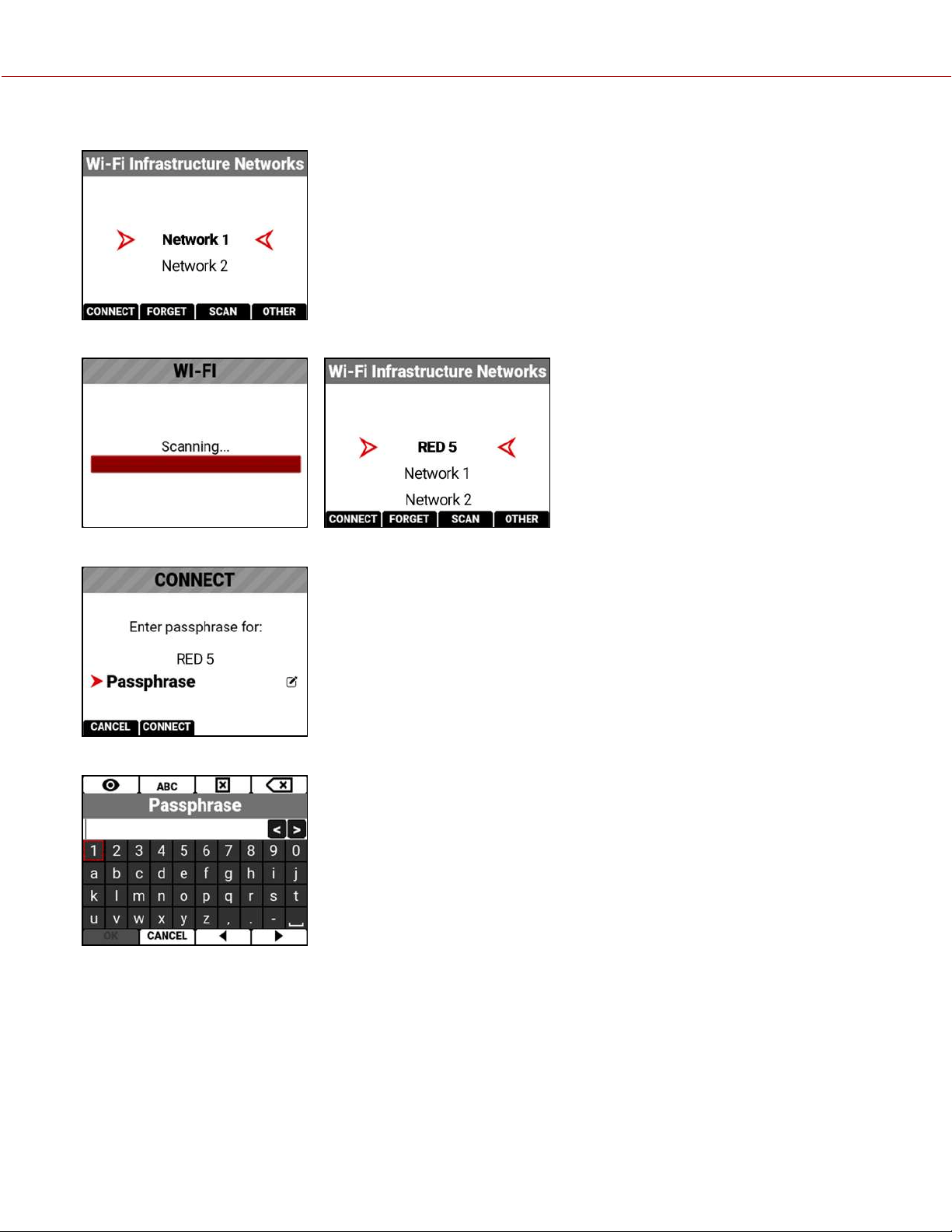
4. Select the network name from the Networks list menu:
or press the button under SCAN to scan for available networks and update the Networks list:
5. Press the button under CONNECT. The CONNECT screen displays:
6. Press SEL. The Passphrase entry screen displays:
COPYRIGHT © 2021 RED.COM, LLC 955-0198, V1.1, REV. A | 149
V-RAPTOR™ 8K V V OPERATION GUIDE
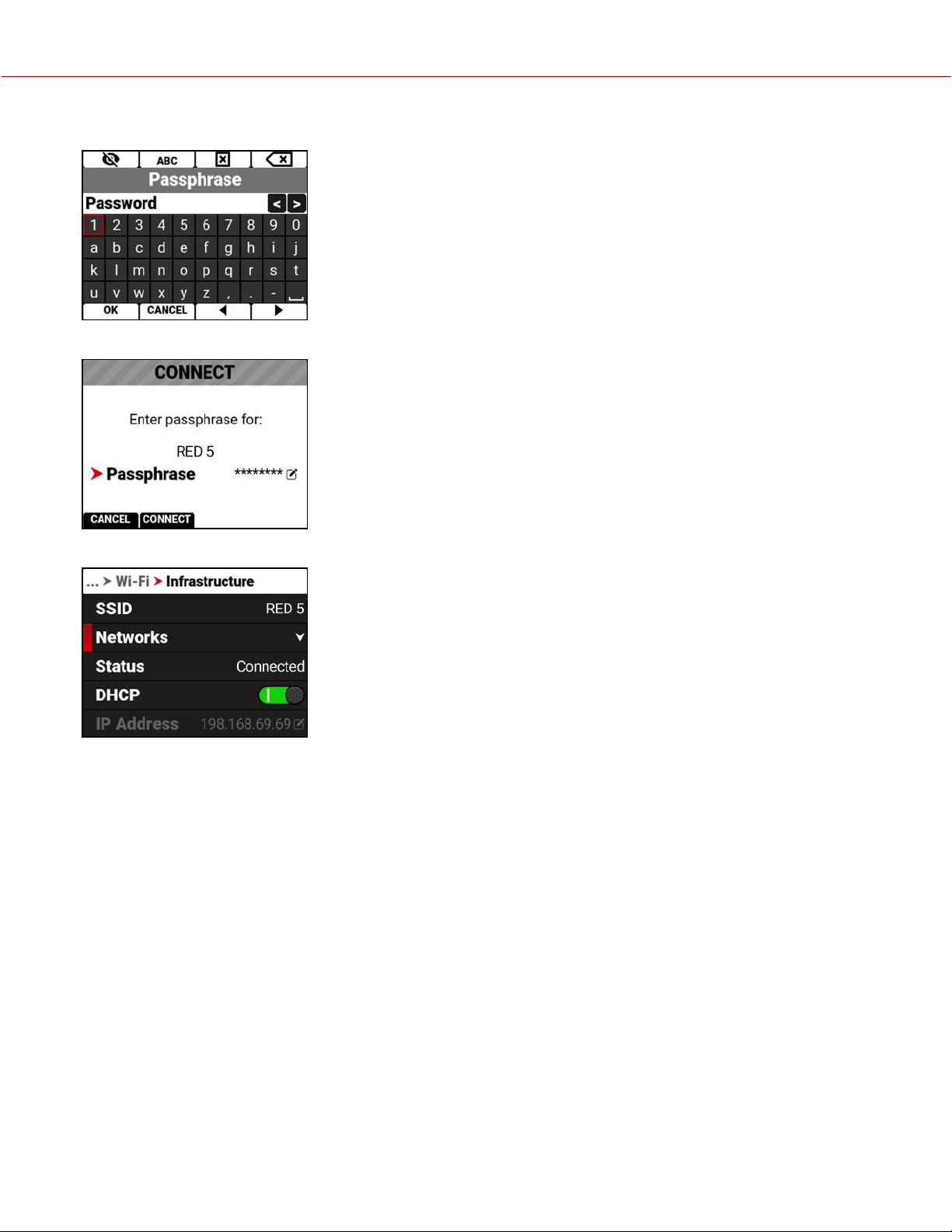
7. Enter the passphrase for the selected network. The passphrase must use a minimum of 8 characters.
8. Press the button below OK on the completed Passphrase entry screen. The completed CONNECT screen displays.
9. Press the button under CONNECT. The camera connects to the selected network:
COPYRIGHT © 2021 RED.COM, LLC 955-0198, V1.1, REV. A | 150
V-RAPTOR™ 8K V V OPERATION GUIDE
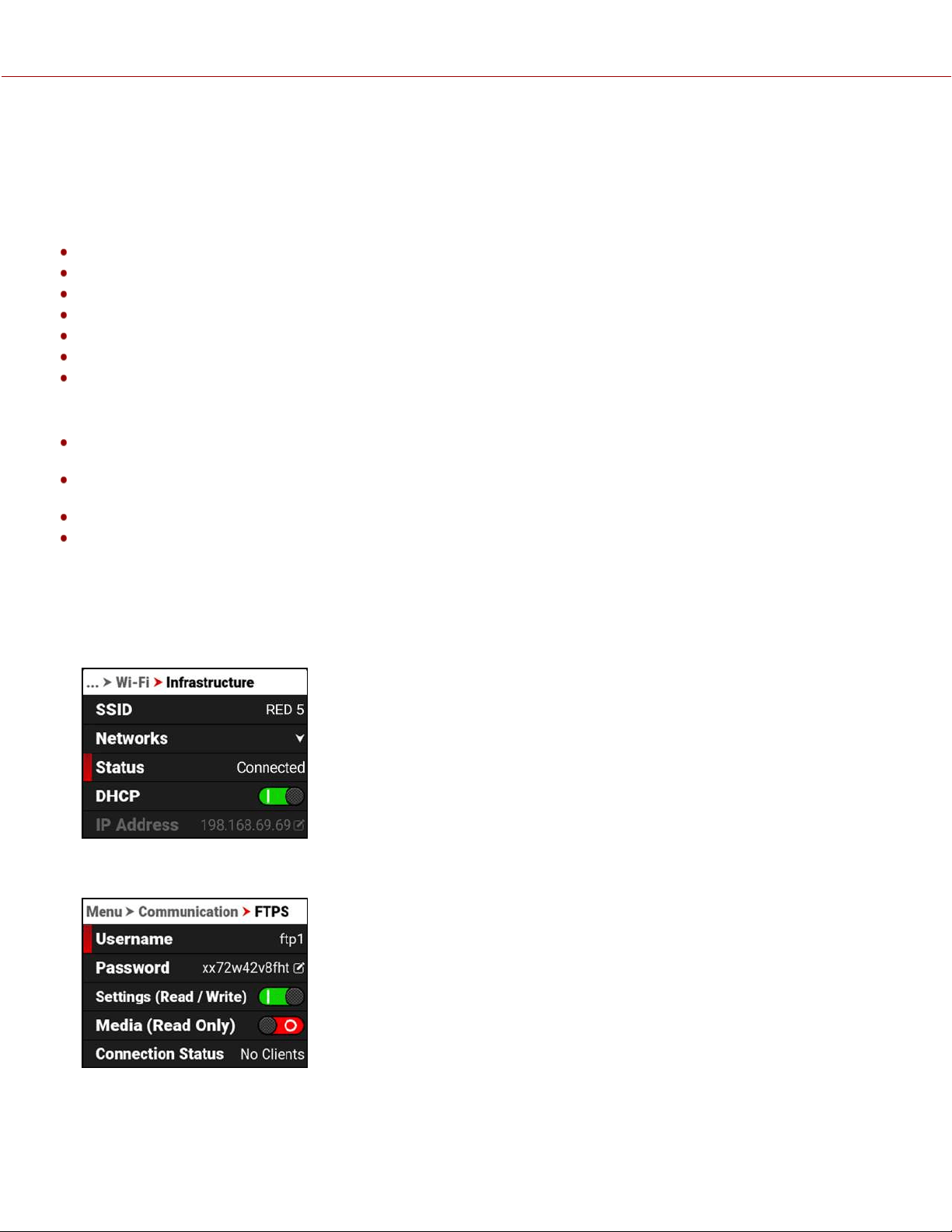
FTPS CONFIGURATION
The File Transfer Protocol Secure (FTPS) offers a fast and secure system for transferring data to and from the camera.
FTPS is available when the camera is enabled and connected to a network over Wi-Fi or through the USB-C port to an
Ethernet adaptor.
The settings for using FTPS on the camera include:
Protocol: FTP or FTPS
Host: [IP ADDRESS OF THE CAMERA]
Port: 21
Encryption: TLS/SSL Explicit encryption
Username: [USERNAME IN FTPS MENU SETTINGS]
Password: [PASSWORD IN FTPS MENU SETTINGS]
Logon Type: Normal
NOTE:
File transfer speeds may vary depending on the strength of the signal (when using Wi-Fi) and the amount of network
traffic. For the fastest and most reliable data transfer, we recommend using a hard-wired connection.
Steps may differ depending on which FTP software you wish to use, consult your software’s user guide for additional
assistance.
When setting up FTP, make sure you use FTP or FTPS and not SFTP as these are different protocols.
For security reasons, the FTPS host name and password are only displayed on the camera FTPS menu.
CAMERA SET-UP
1.
Connect your camera to the network with the desired connection method (Ad-Hoc, Infrastructure or USB-C) and
verify the connection. A successful connection is confirmed when the camera displays "Connected" in the Wi-Fi
Status:
2.
Navigate to Menu > Communication > FTPS. Take note of the username and password. You can also enter a new
password.
3.
Enable the user permissions by toggling Settings or Media to the on or off position. The media folder will display as
an empty folder on the FTP App when Media Access is disabled (off).
4.
The camera is now set-up on FTPS.
COPYRIGHT © 2021 RED.COM, LLC 955-0198, V1.1, REV. A | 151
V-RAPTOR™ 8K V V OPERATION GUIDE
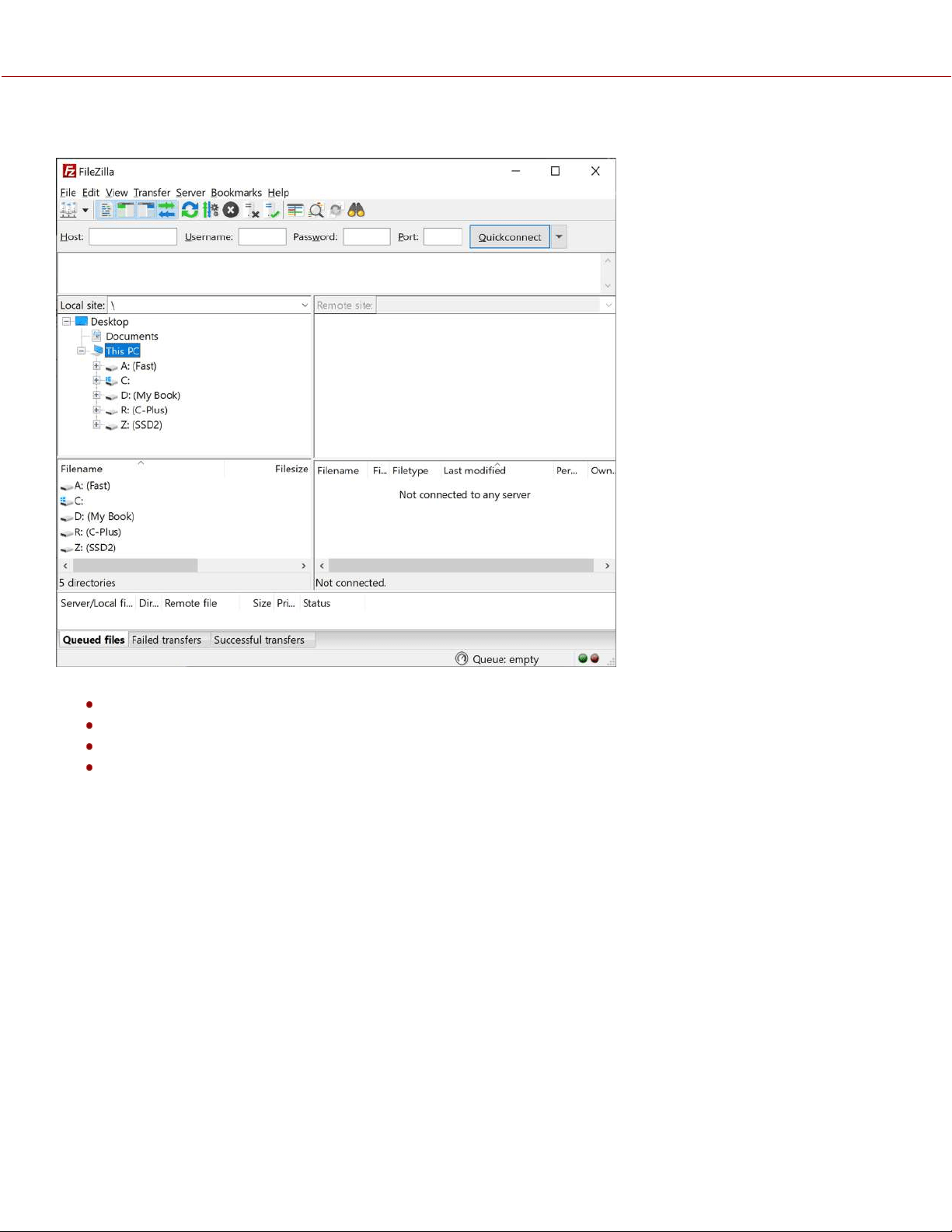
SOFTWARE SET-UP (FILEZILLA)
1.
In FileZilla, enter the following settings:
Host: ftp://
Camera's IP Address
- Example: ftp://192.168.1.93
Username: Username displayed in FTPS menu
Password: Password displayed in FTPS menu
Port: leave blank
COPYRIGHT © 2021 RED.COM, LLC 955-0198, V1.1, REV. A | 152
V-RAPTOR™ 8K V V OPERATION GUIDE
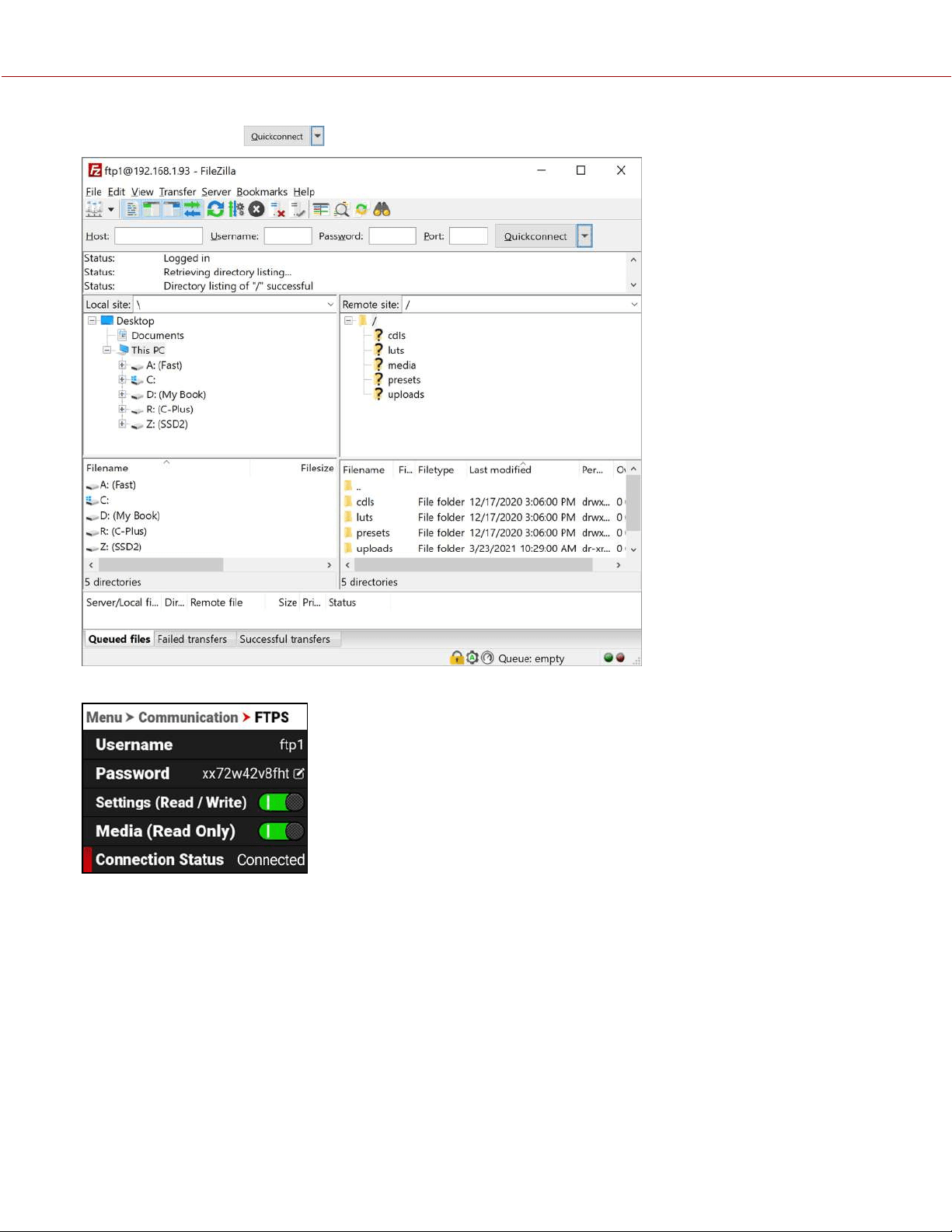
2.
Click on Quickconnect . Depending on the permissions you will now have access to the desired folders.
The camera FTPS menu Connection Status displays Connected:
ADDITIONAL INFORMATION
When uploading files to the camera, make sure that you use the ‘upload’ folder & then the desired sub-directory of luts,
cdls, presets, or upgrade. Media cannot be uploaded to the camera.
The data rate of the FTPS transfer with encryption maxes out at roughly Gigabit Ethernet speeds.
Estimated download time for a full 256 GB is approximately 47 minutes when using a wired connection.
COPYRIGHT © 2021 RED.COM, LLC 955-0198, V1.1, REV. A | 153
V-RAPTOR™ 8K V V OPERATION GUIDE
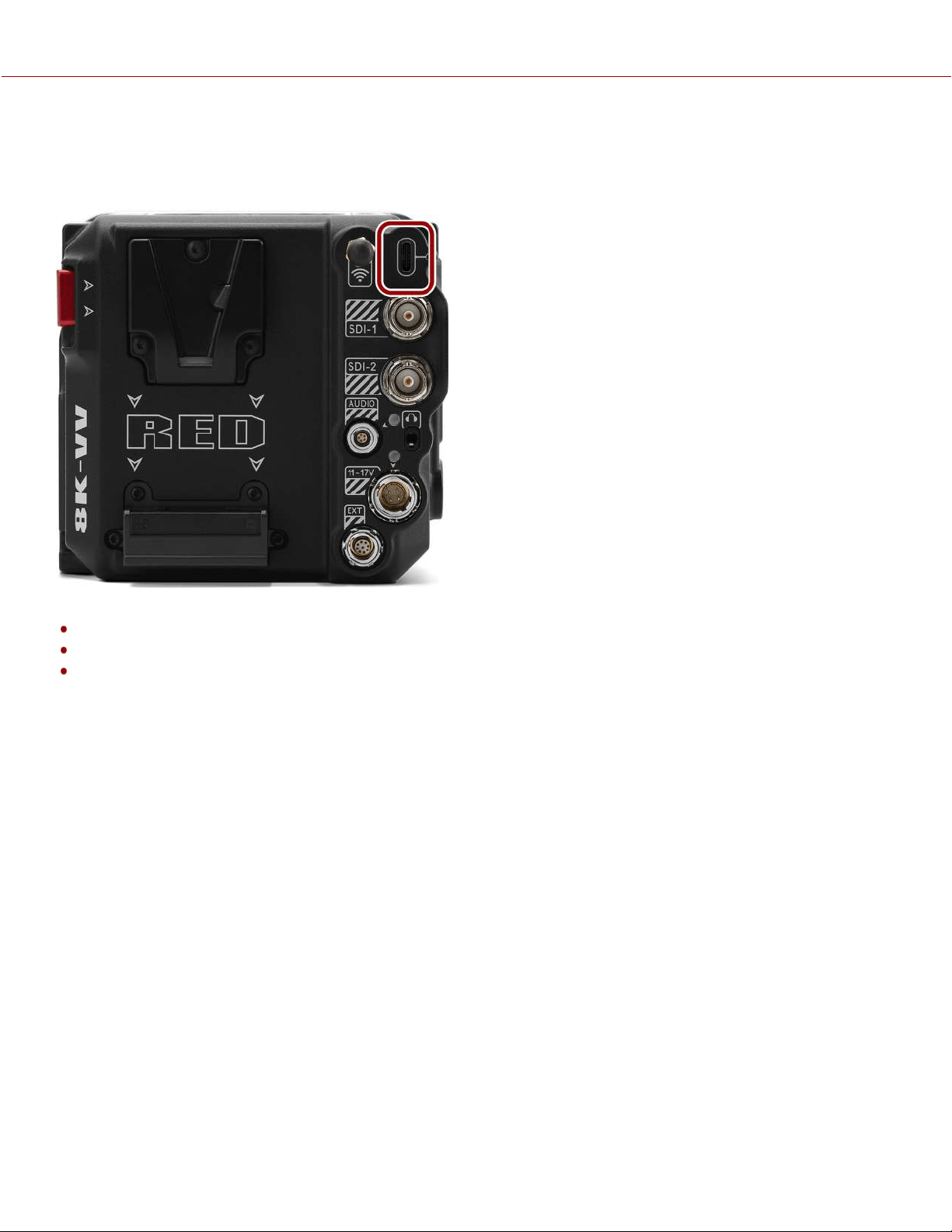
USB-C CONFIGURATION
The REDV-RAPTOR 8K VV offers a USB-C connection that provides communication support for Android devices, Apple
devices, and Ethernet devices.
This section includes instructions for:
USB-C Android Configuration
USB-C Apple Configuration
USB-C Ethernet Configuration
COPYRIGHT © 2021 RED.COM, LLC 955-0198, V1.1, REV. A | 154
V-RAPTOR™ 8K V V OPERATION GUIDE
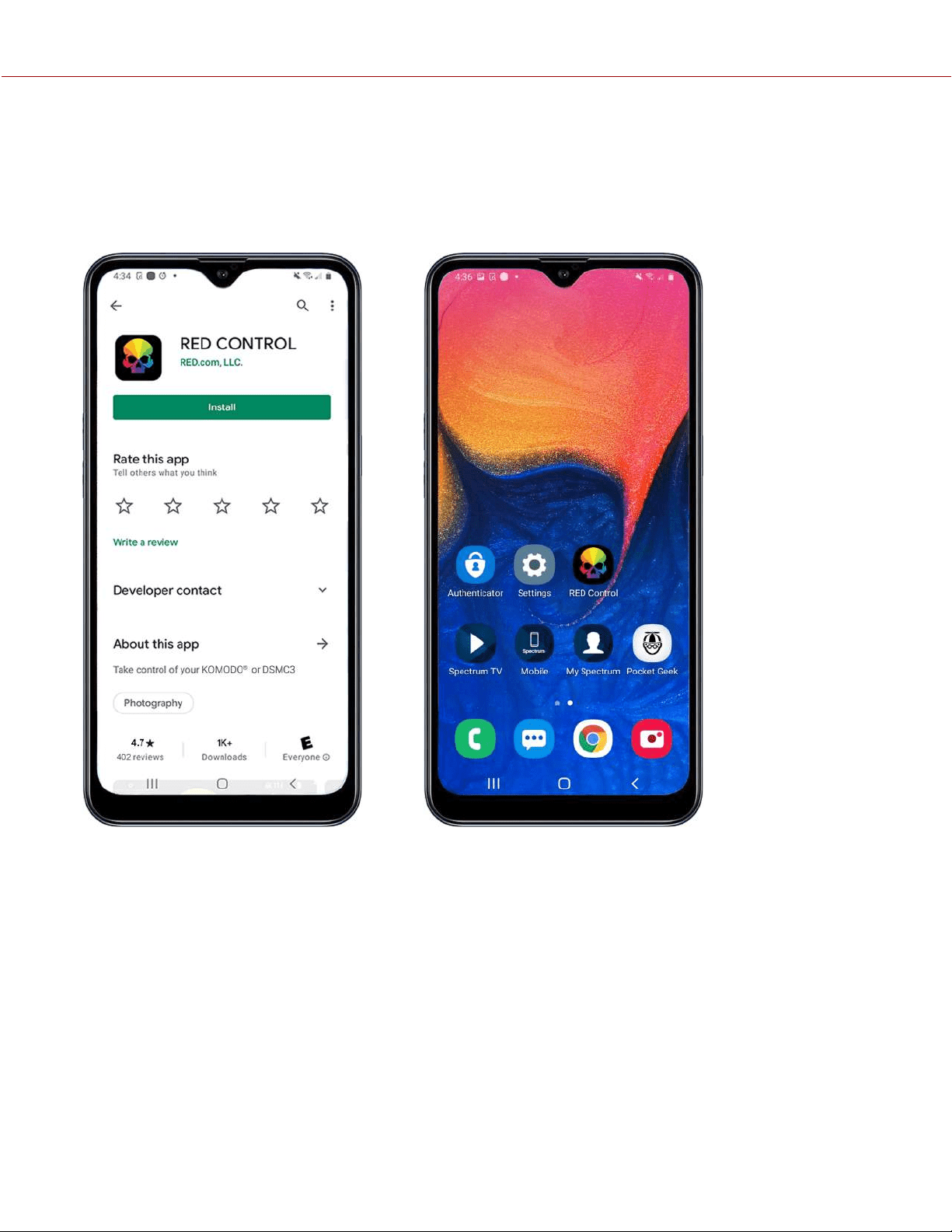
USB-C ANDROID CONFIGURATION
The RED V-RAPTOR 8K VV offers a USB-C connection that provides communication support for Android devices.
CONNECTING TO AN ANDROID DEVICE
1. From the Google Play store, download the RED Control App to the Android device.
2. Connect the Android device to the camera with a USB-C cable.
COPYRIGHT © 2021 RED.COM, LLC 955-0198, V1.1, REV. A | 155
V-RAPTOR™ 8K V V OPERATION GUIDE
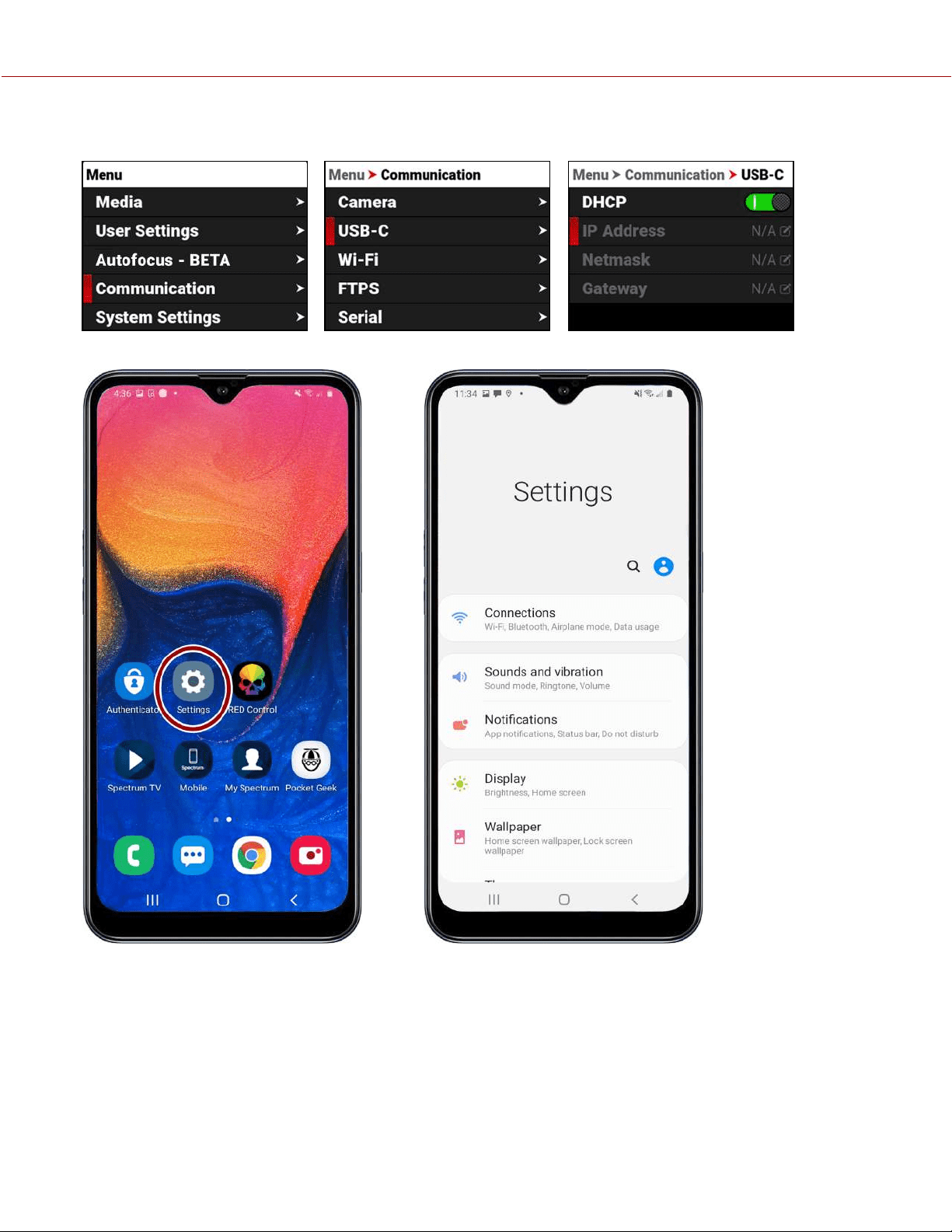
3. Navigate to the Communication > USB-C > IP Address.
4. Open the Android device settings by tapping the Settings icon (gear).
COPYRIGHT © 2021 RED.COM, LLC 955-0198, V1.1, REV. A | 156
V-RAPTOR™ 8K V V OPERATION GUIDE
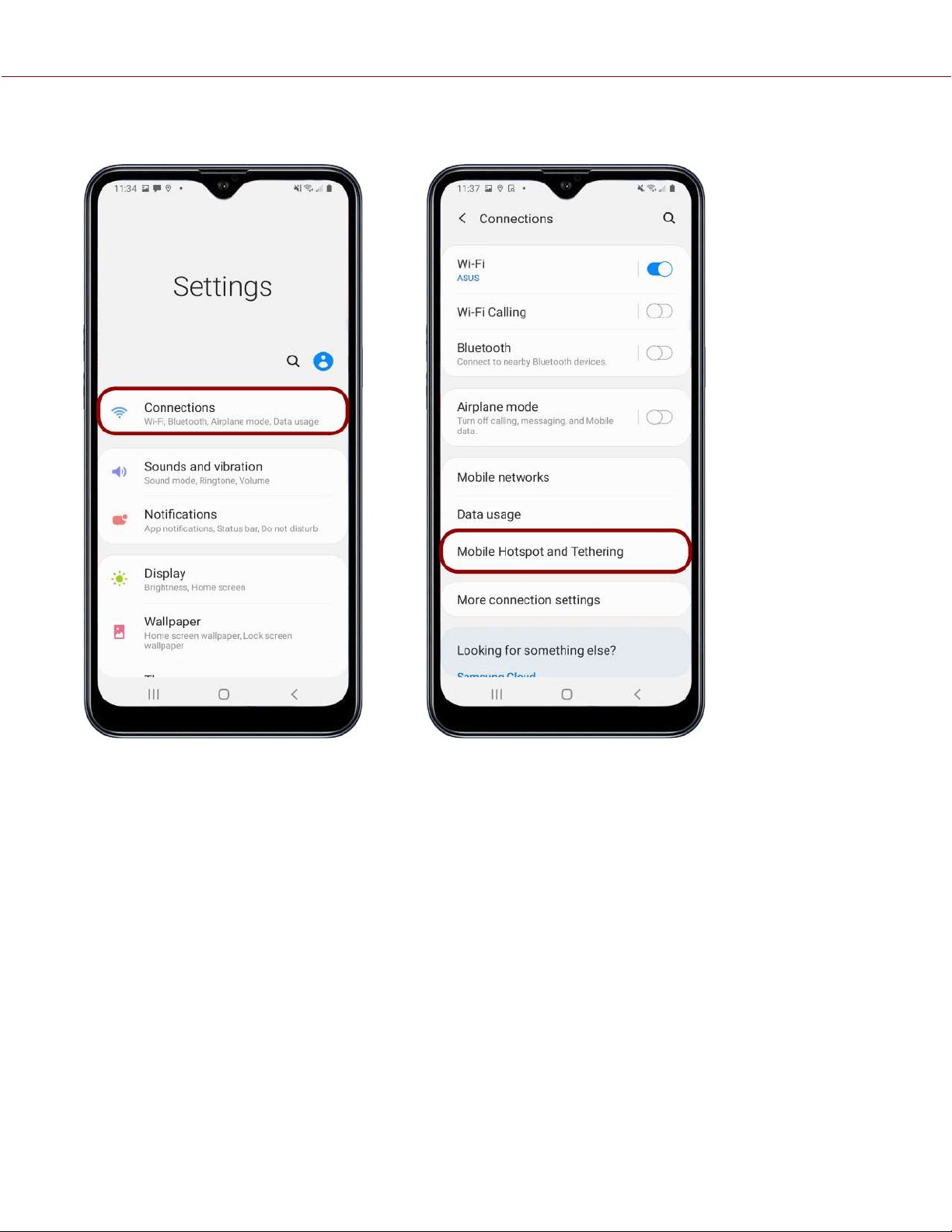
5. Select Connections. 6. Select Mobile Hotspot and Tethering.
NOTE: Mobile Hotspot and Tethering is only available on Android devices with cellular capability.
COPYRIGHT © 2021 RED.COM, LLC 955-0198, V1.1, REV. A | 157
V-RAPTOR™ 8K V V OPERATION GUIDE
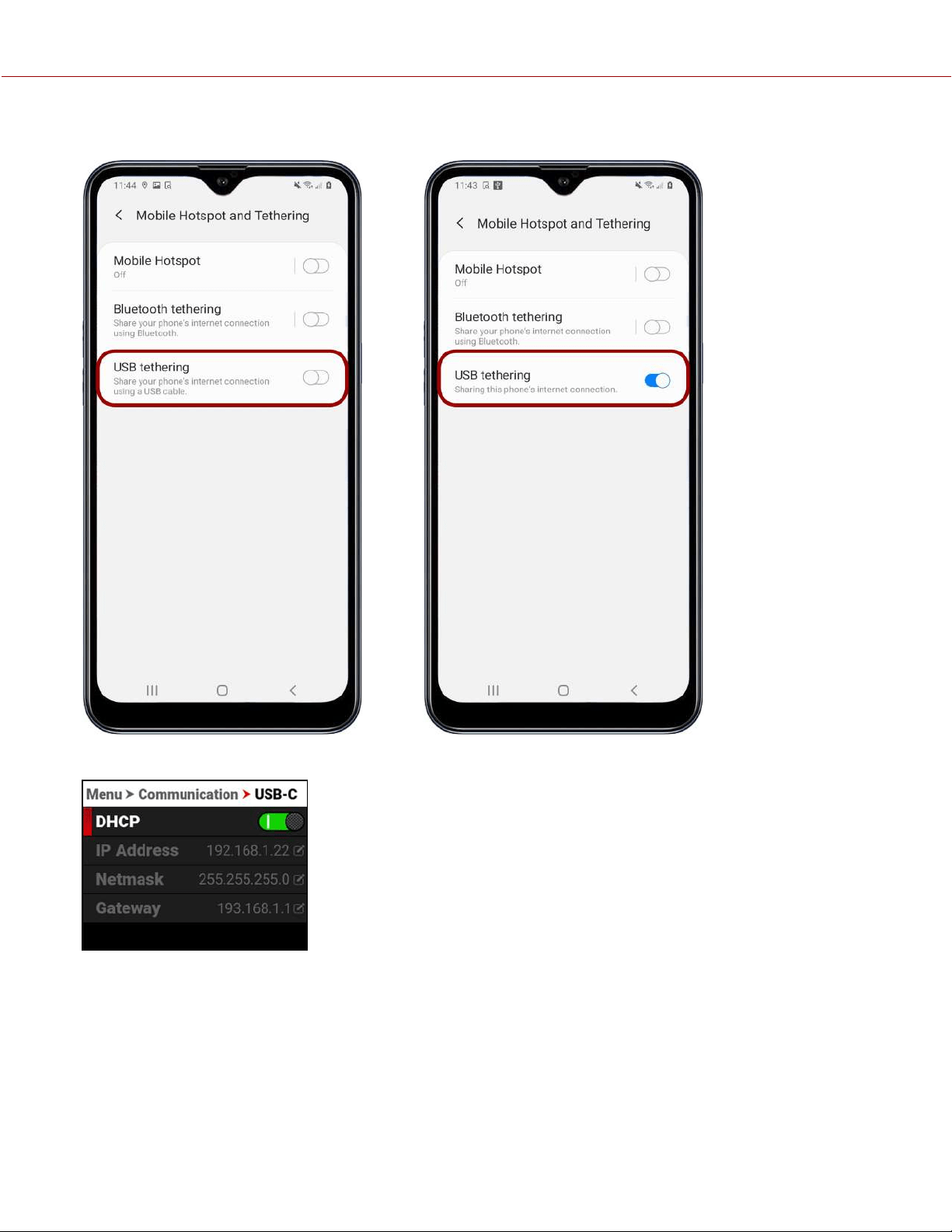
7. Enable USB Tethering.
The camera displays the Android device's IP address in the USB-C IP Address screen:
COPYRIGHT © 2021 RED.COM, LLC 955-0198, V1.1, REV. A | 158
V-RAPTOR™ 8K V V OPERATION GUIDE
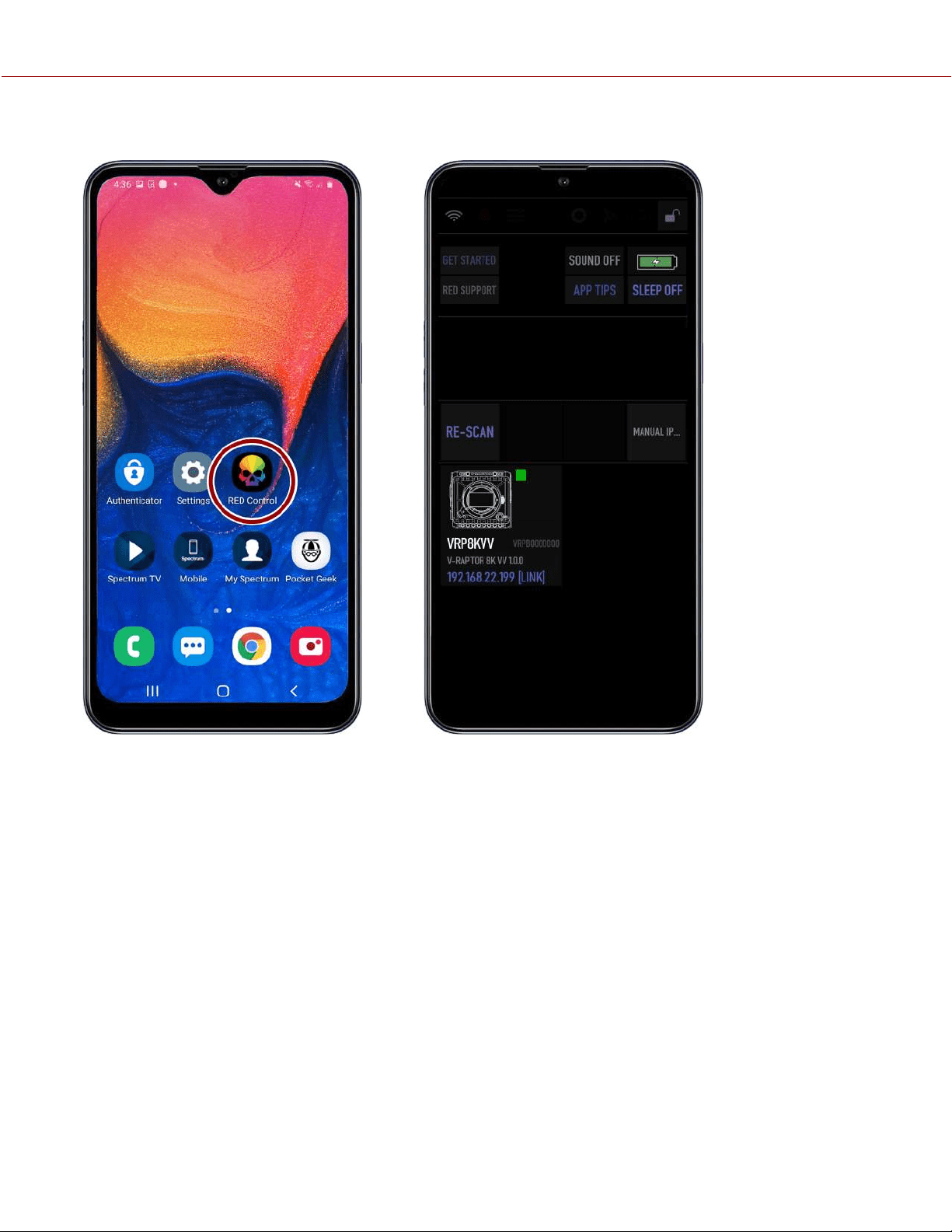
8. From the Android device, tap the RED Control icon to open the RED Control app.
COPYRIGHT © 2021 RED.COM, LLC 955-0198, V1.1, REV. A | 159
V-RAPTOR™ 8K V V OPERATION GUIDE
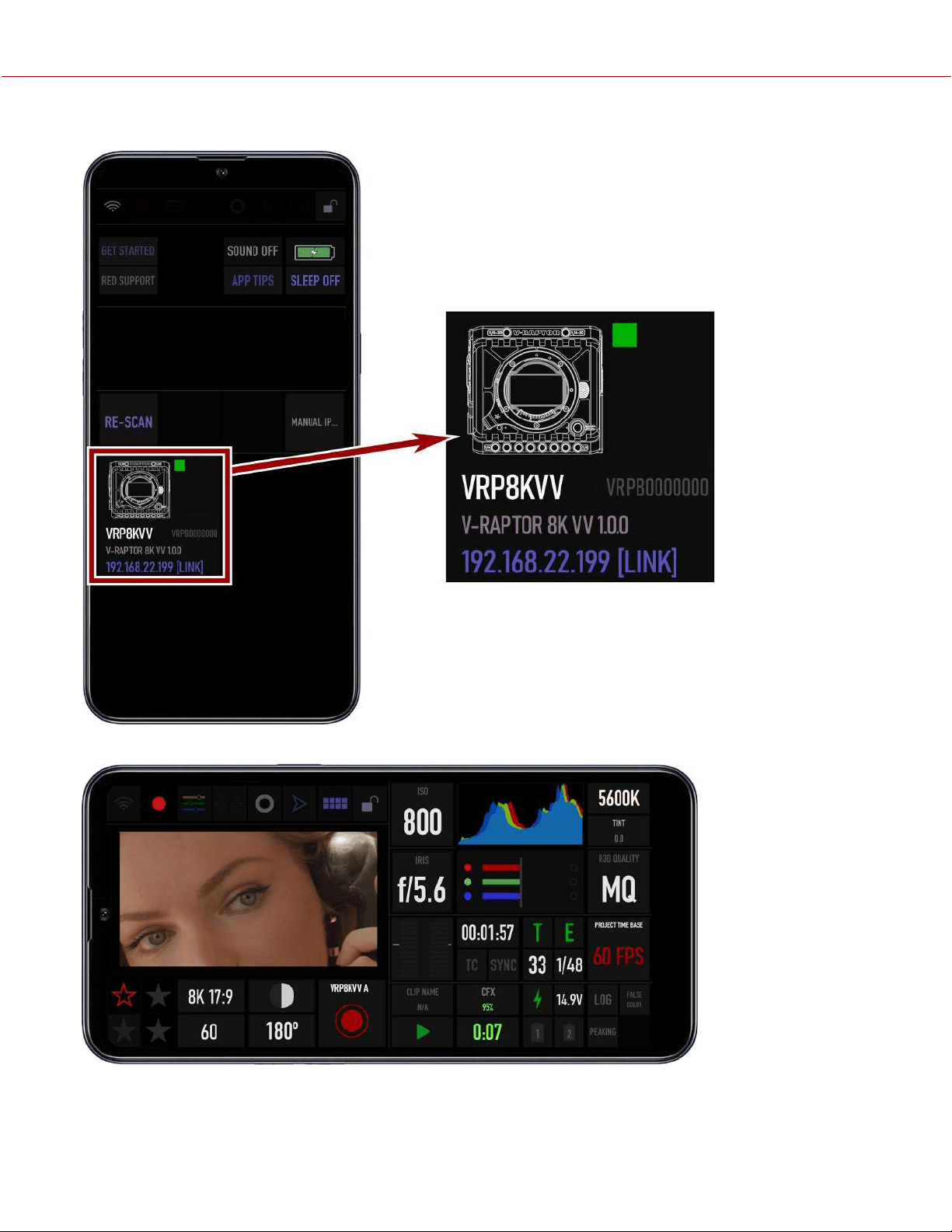
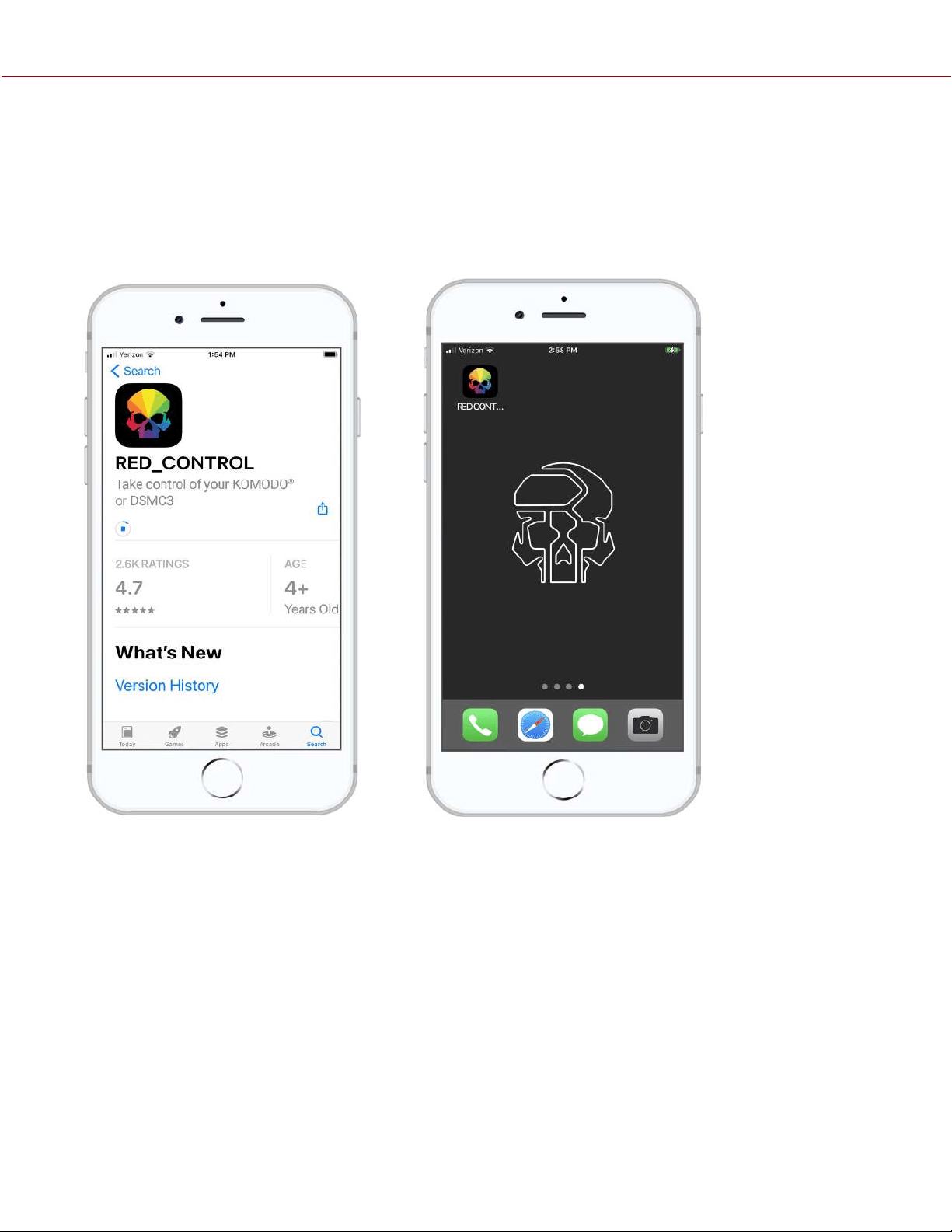
USB-C APPLE CONFIGURATION
The V-RAPTOR 8K VV offers a USB-C connection that provides communication support for Apple devices.
CONNECTING TO AN APPLE DEVICE
1. From the Apple store, download the RED Control App to the Apple device.
Note: Scroll to the bottom of the user agreement to accept the agreement.
2. Connect the Apple device to the camera with a USB-C cable. If the "Trust This Computer?" message displays, skip
to step 7.
COPYRIGHT © 2021 RED.COM, LLC 955-0198, V1.1, REV. A | 161
V-RAPTOR™ 8K V V OPERATION GUIDE
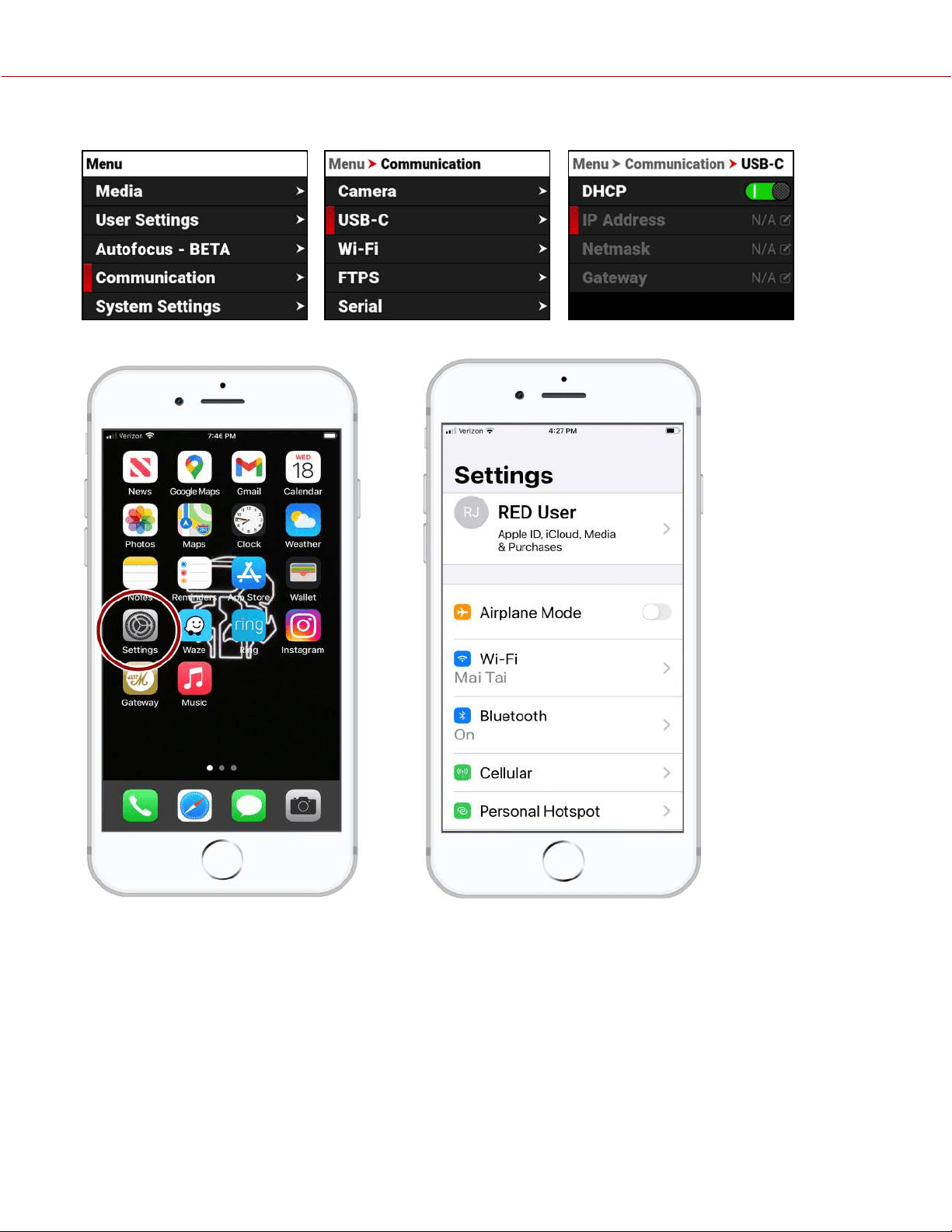
3. Navigate to Communication > USB-C > IP Address.
4. Open the Apple device settings by tapping the Settings icon.
COPYRIGHT © 2021 RED.COM, LLC 955-0198, V1.1, REV. A | 162
V-RAPTOR™ 8K V V OPERATION GUIDE
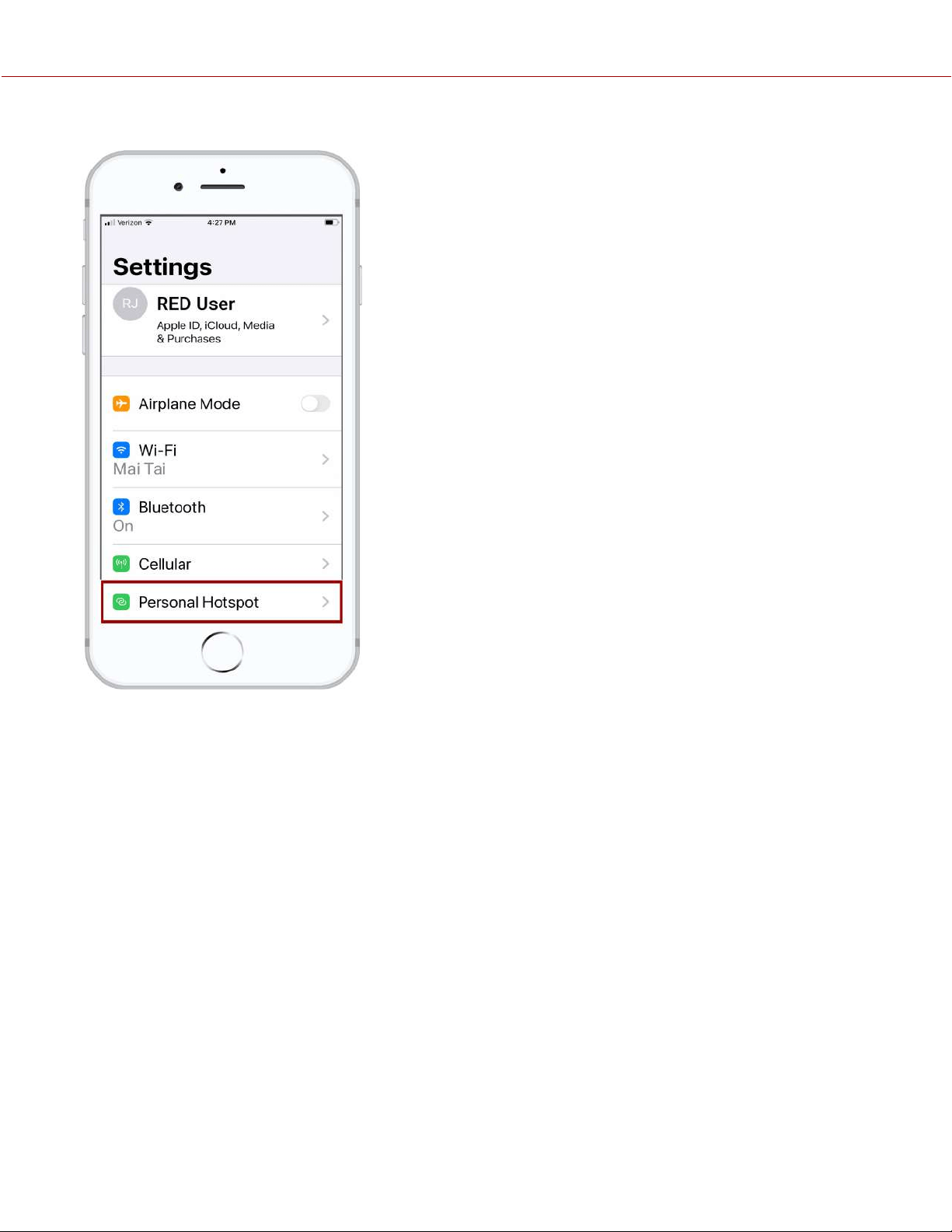
5. Select Personal Hotspot.
COPYRIGHT © 2021 RED.COM, LLC 955-0198, V1.1, REV. A | 163
V-RAPTOR™ 8K V V OPERATION GUIDE
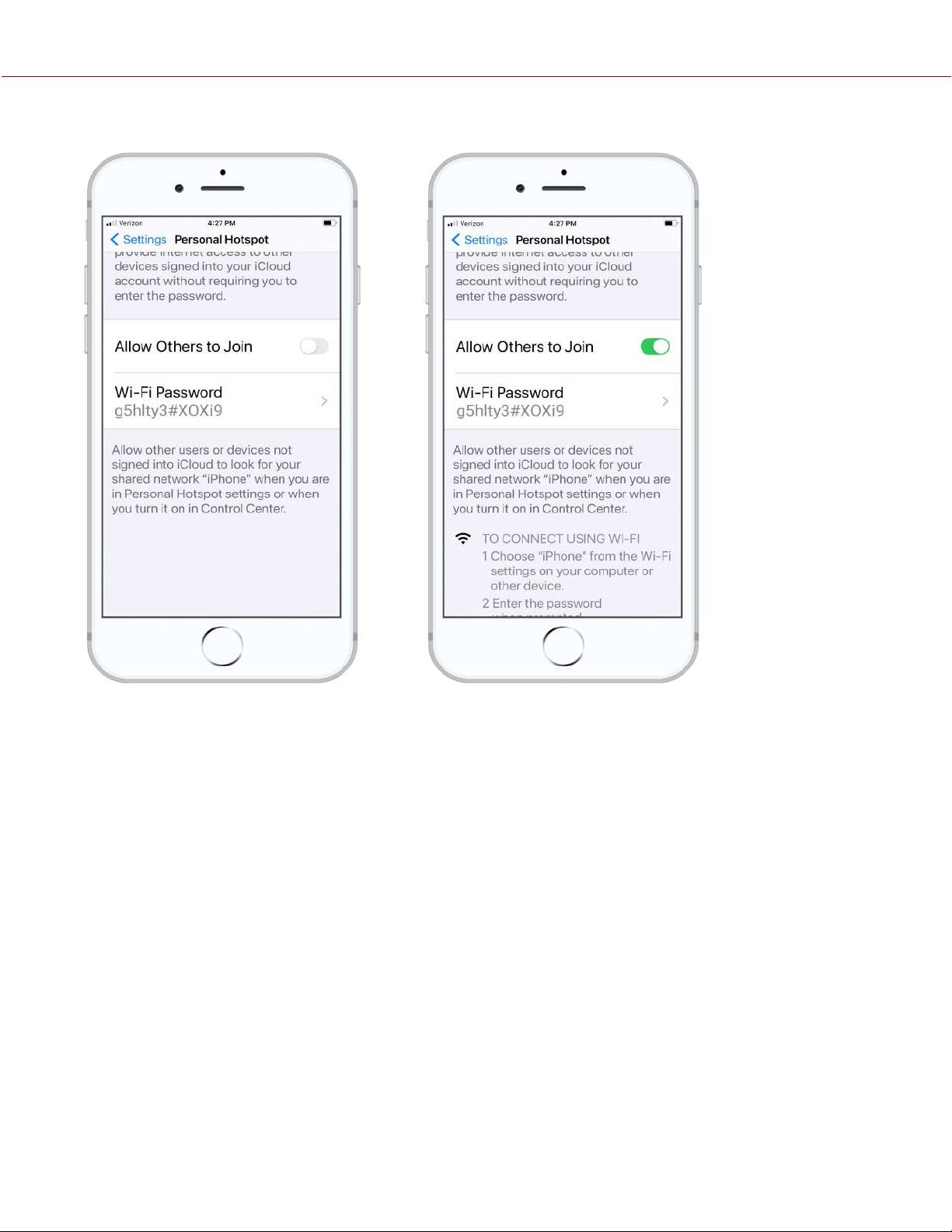
6. Allow others to join.
COPYRIGHT © 2021 RED.COM, LLC 955-0198, V1.1, REV. A | 164
V-RAPTOR™ 8K V V OPERATION GUIDE
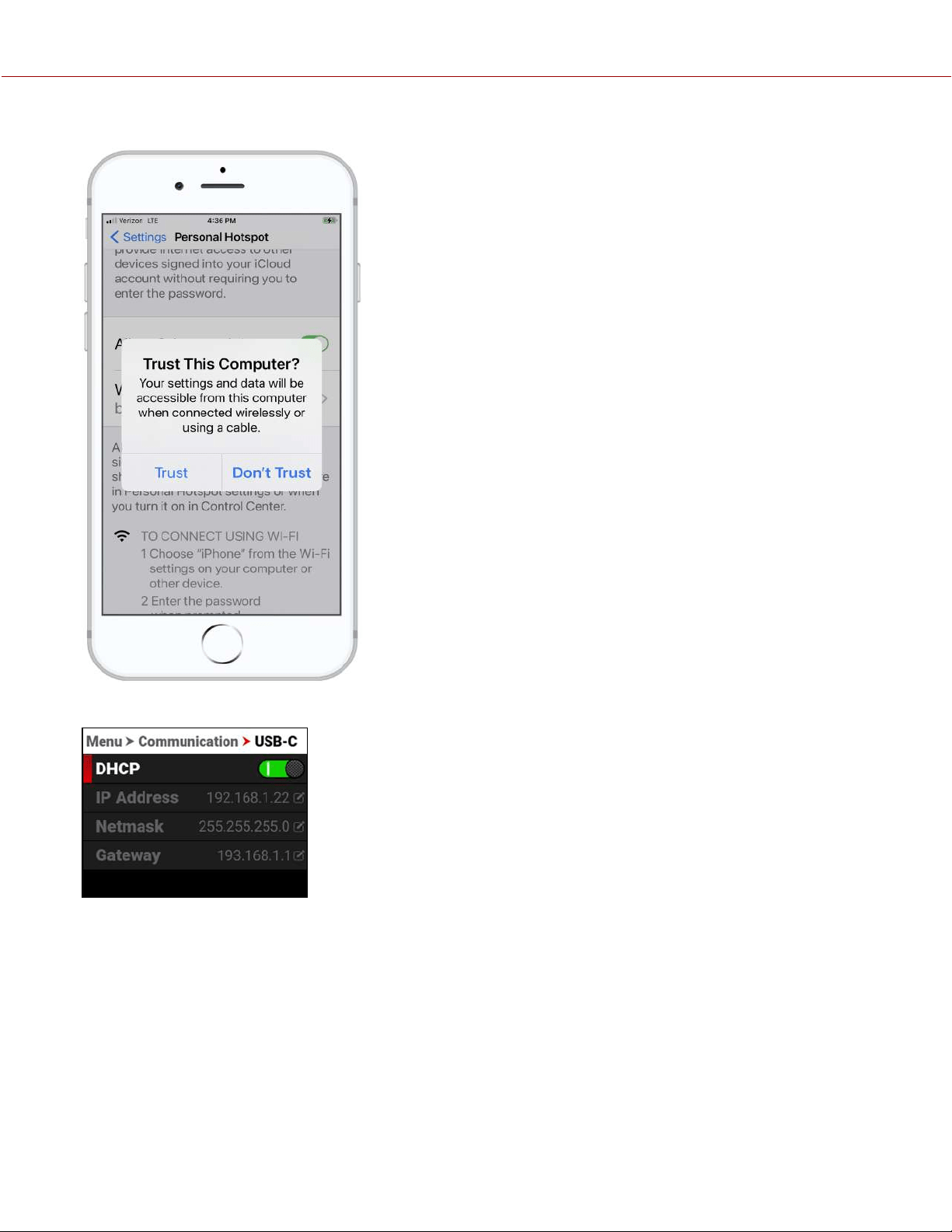
7. The Apple device prompts you to acknowledge that you trust the computer (camera).
The camera displays the Apple device's IP address in the USB-C menu:
COPYRIGHT © 2021 RED.COM, LLC 955-0198, V1.1, REV. A | 165
V-RAPTOR™ 8K V V OPERATION GUIDE
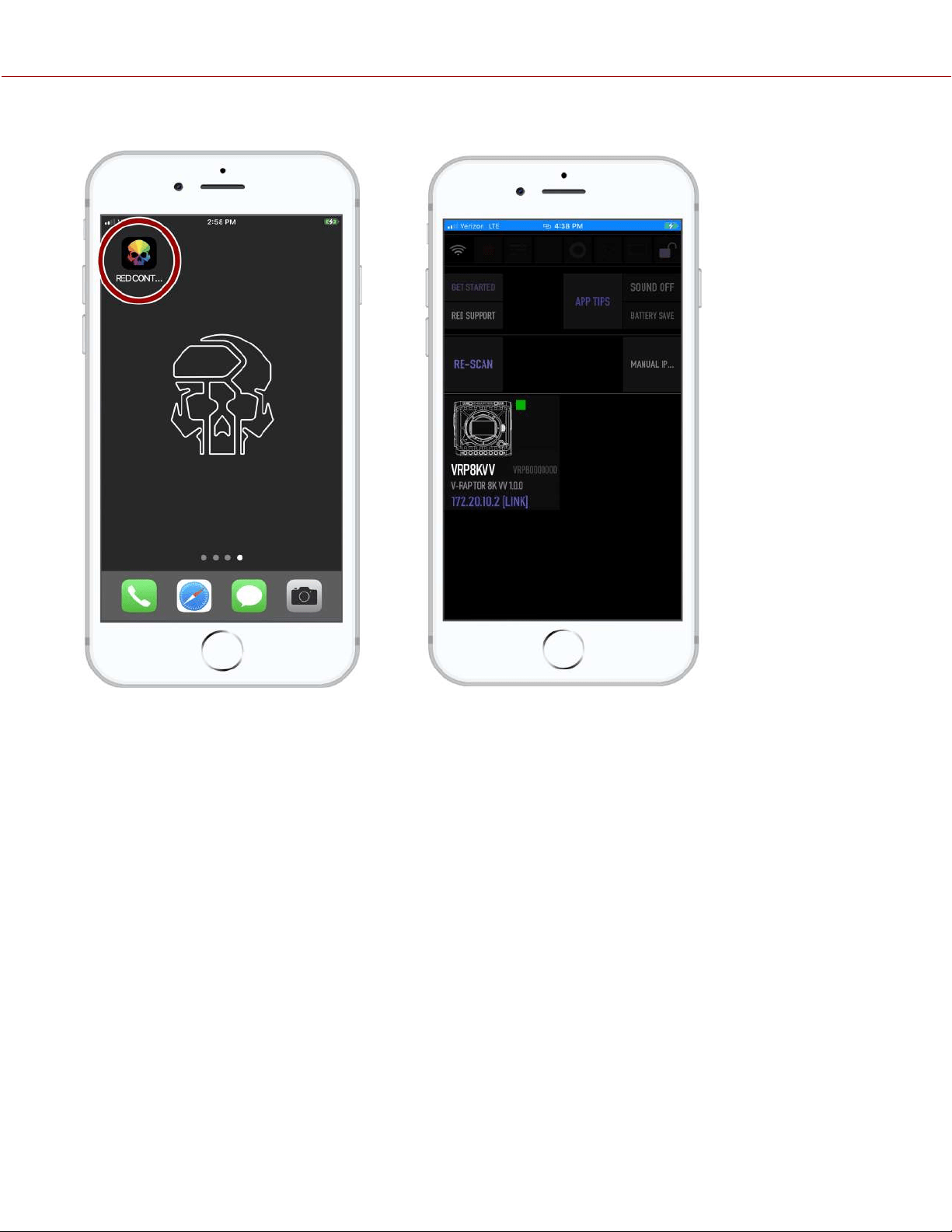
8. From the Apple device, tap the RED Control icon to open the RED Control app.
COPYRIGHT © 2021 RED.COM, LLC 955-0198, V1.1, REV. A | 166
V-RAPTOR™ 8K V V OPERATION GUIDE
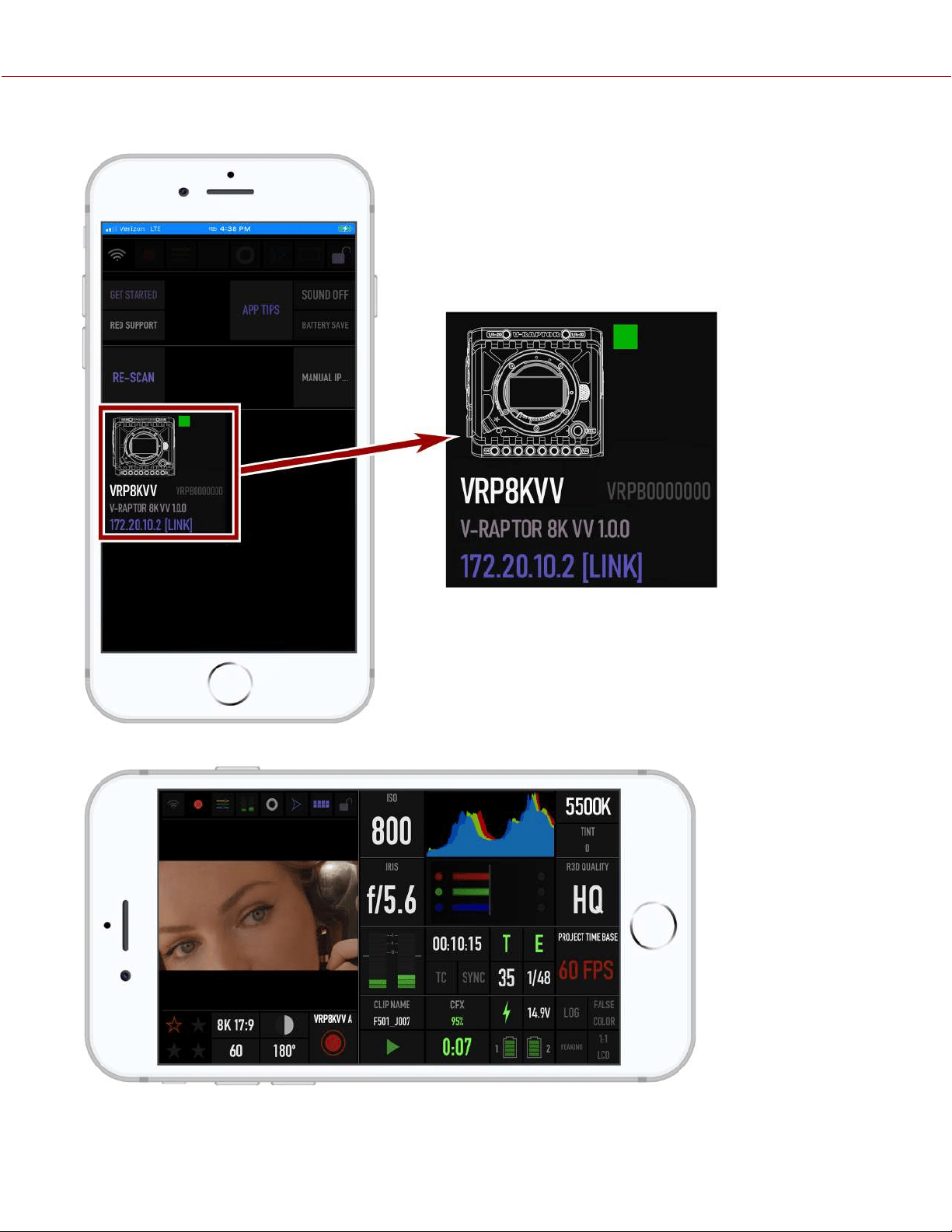
The RED Control app displays the camera connection icon. The word LINK is visible after the IP address.
9. Tap the icon to open the RED Control app tools for the connected camera.
From here you can use the RED Control App to monitor and control the camera.
COPYRIGHT © 2021 RED.COM, LLC 955-0198, V1.1, REV. A | 167
V-RAPTOR™ 8K V V OPERATION GUIDE
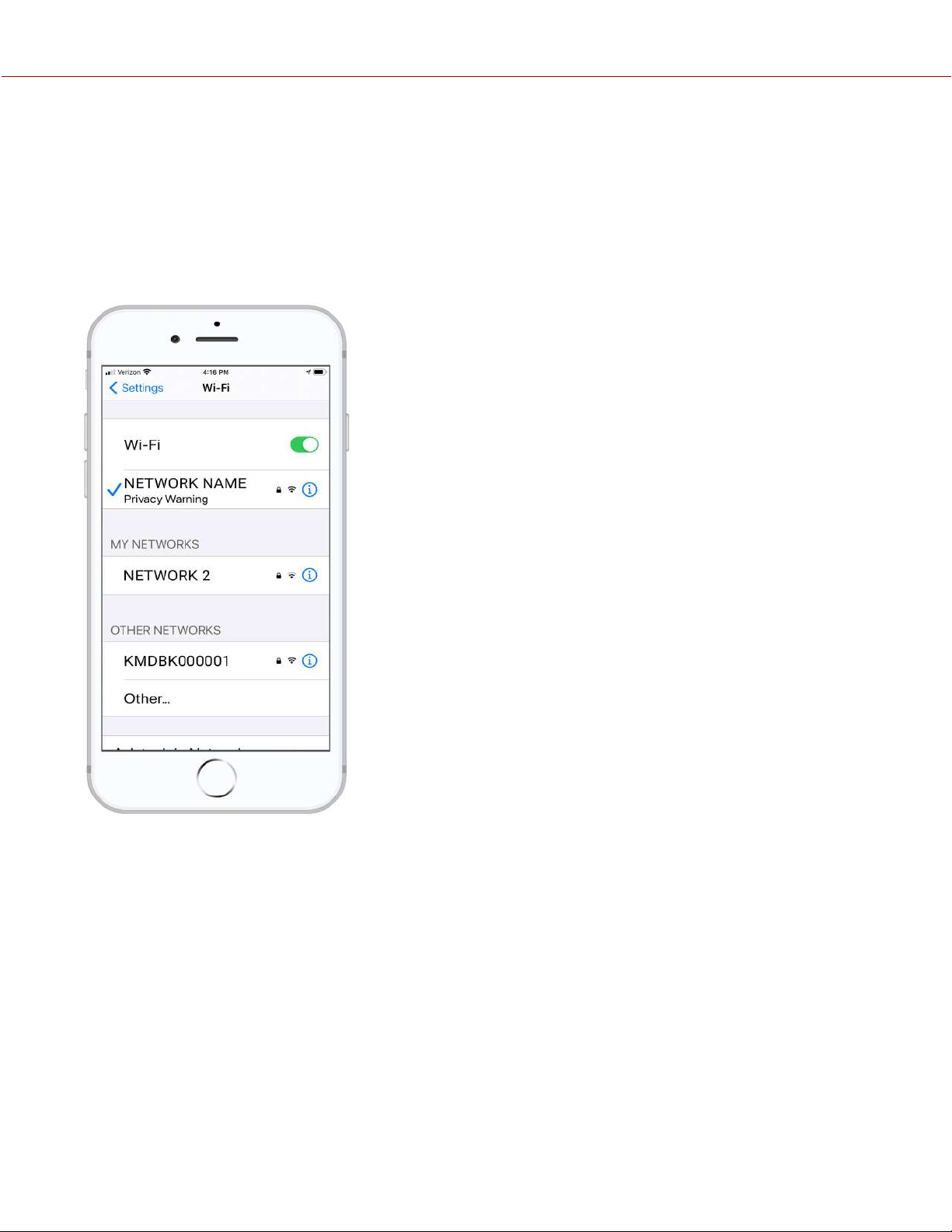
USB-C ETHERNET CONFIGURATION
The RED V-RAPTOR offers a USB-C connection that provides communication support for Ethernet networks.
CONNECTING TO AN ETHERNET NETWORK
You must use a USB-C to Ethernet adapter to connect the camera to an Ethernet network.
1. Connect the camera to the Ethernet network using the USB-C to Ethernet adapter.
2. From a Wi-Fi-enabled device, select the Wi-Fi connection to which the camera is connected.
COPYRIGHT © 2021 RED.COM, LLC 955-0198, V1.1, REV. A | 168
V-RAPTOR™ 8K V V OPERATION GUIDE
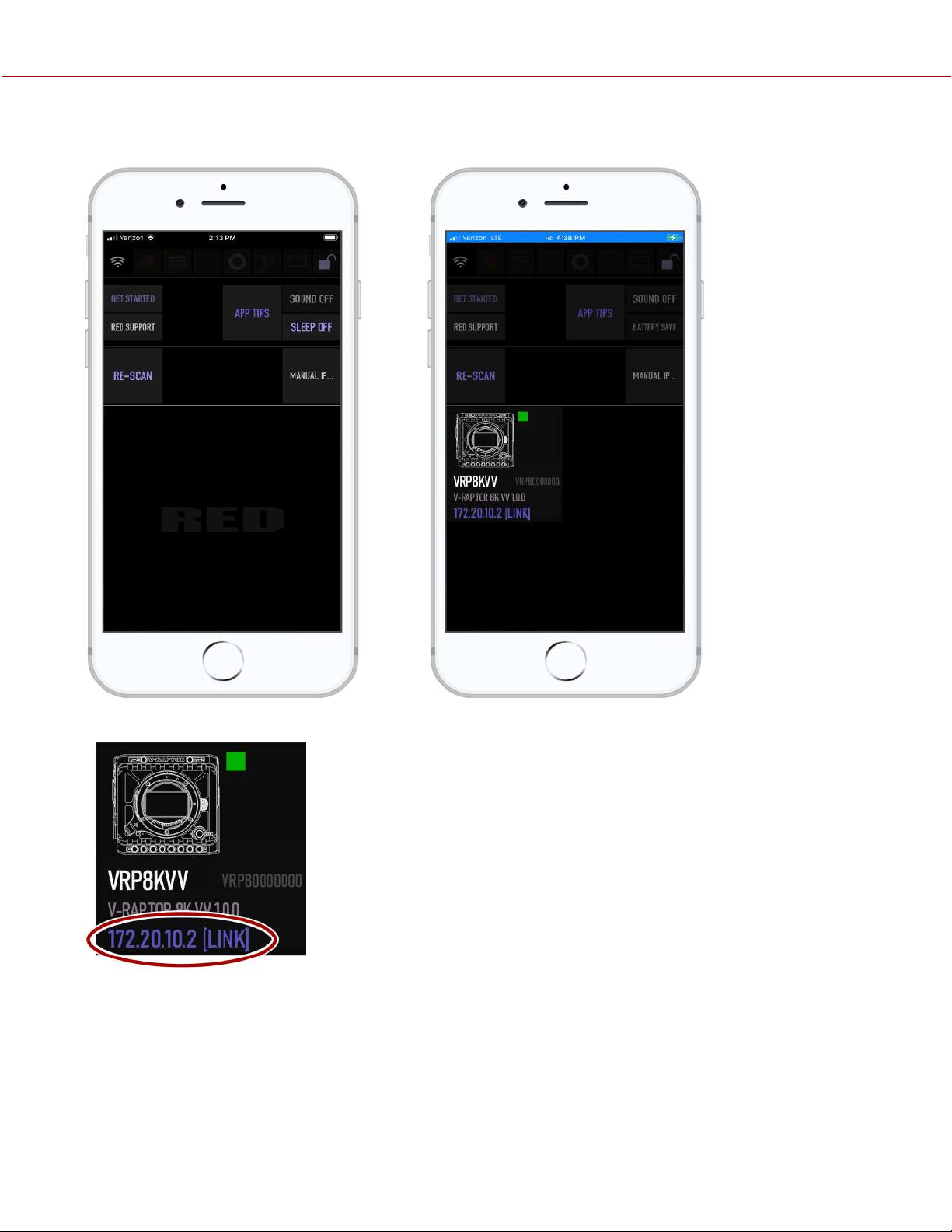
3. Open RED Control on the
Wi-Fi-enabled device.
4. Tap RE-SCAN.
The camera icon displays.
The camera icon displays the camera's Ethernet IP address:
COPYRIGHT © 2021 RED.COM, LLC 955-0198, V1.1, REV. A | 169
V-RAPTOR™ 8K V V OPERATION GUIDE
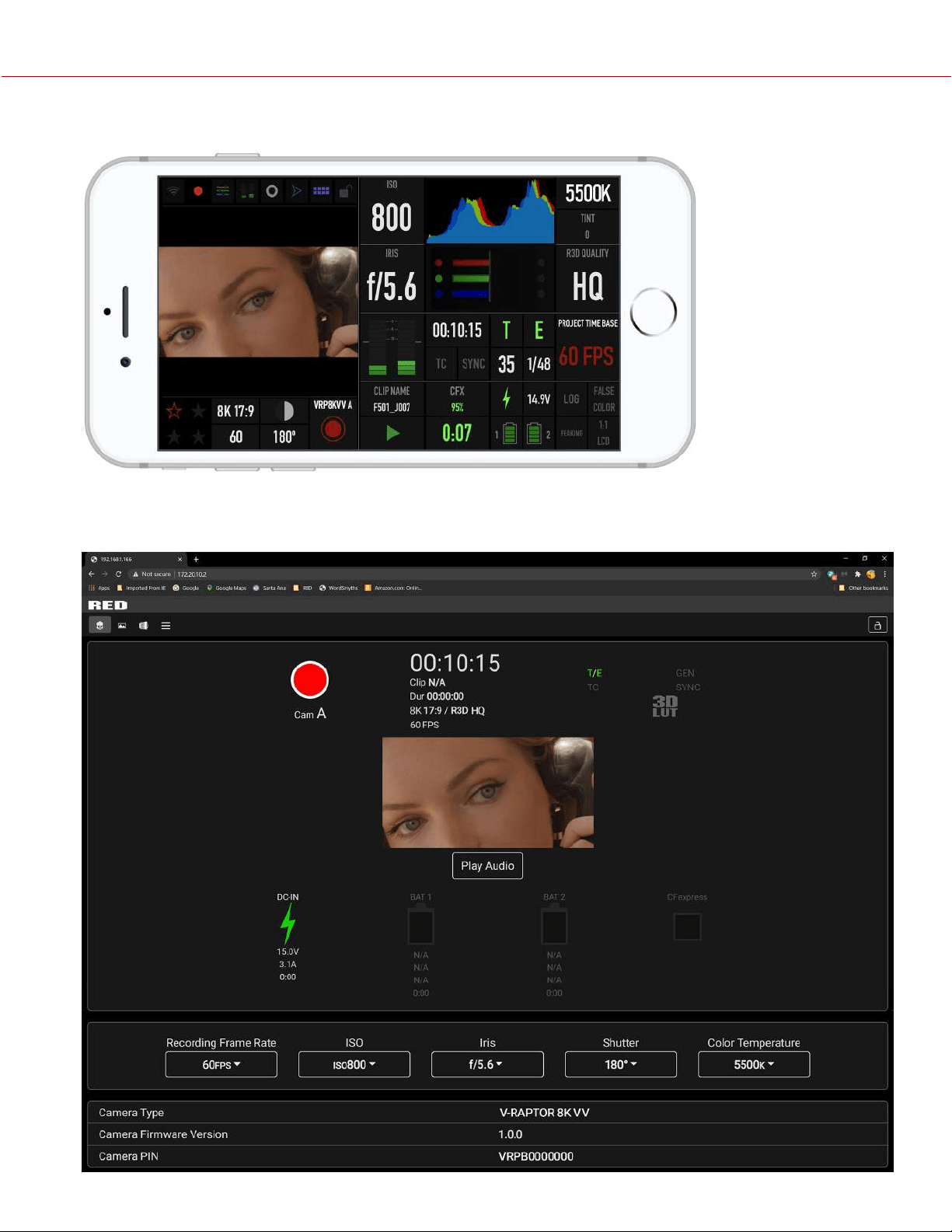
5. Tap the camera icon to open the RED Control app tools for the networked camera.
6. Open a browser from a computer connected to the Ethernet network.
7. In the browser address field, enter the camera IP address displayed on the RED Control camera icon. The RED
Control tools are displayed in the browser.
COPYRIGHT © 2021 RED.COM, LLC 955-0198, V1.1, REV. A | 170
V-RAPTOR™ 8K V V OPERATION GUIDE
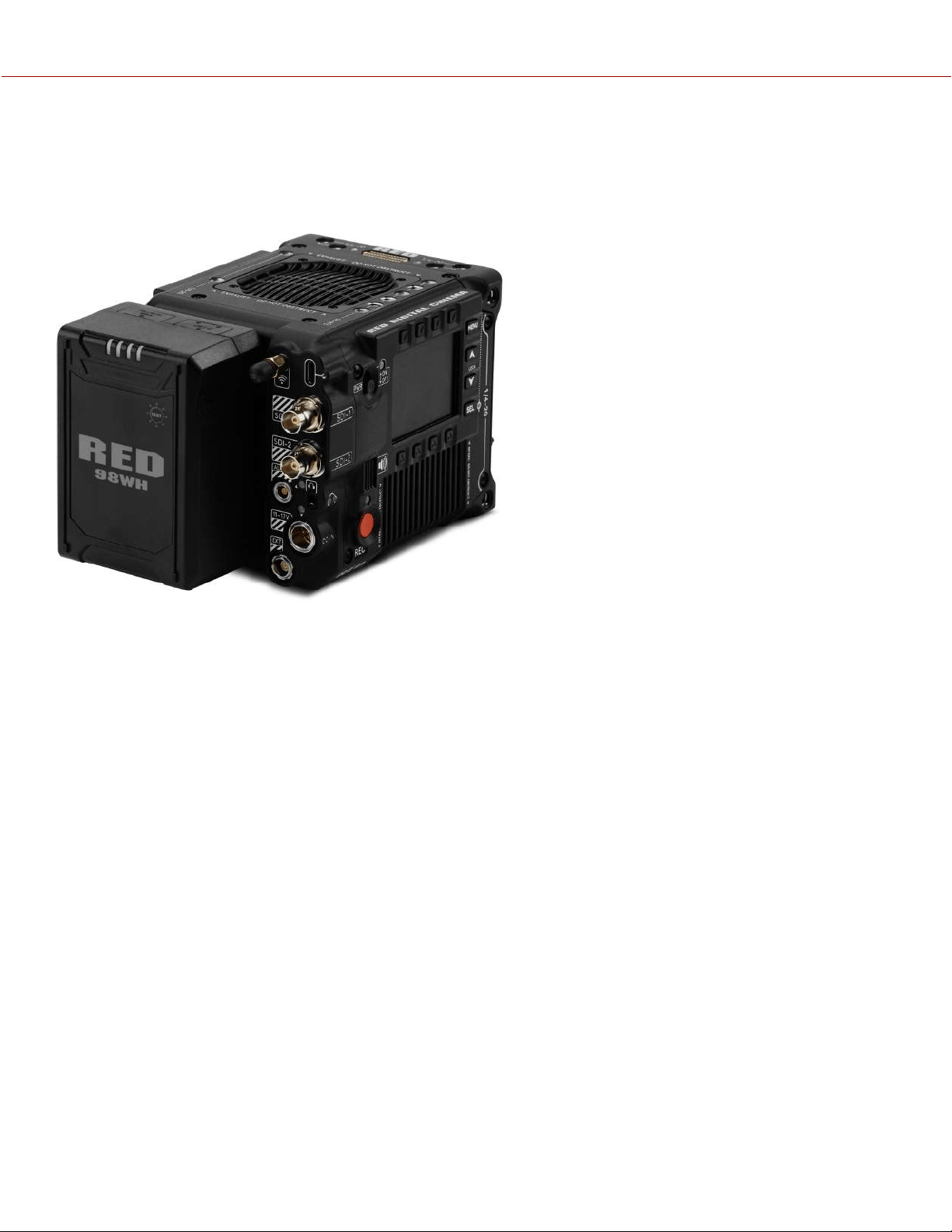
POWER
ATTACHING THE BATTERY
Insert a compatible V-Lock battery (refer to REDVOLT Micro-V Battery) in the battery slot. Slide the battery until it clicks.
The camera can charge the battery while it is attached to the camera, the camera is off, and the DC power adaptor is
connected. The DC Power LED blinks amber until communication is established with the battery. The LED is solid
amber when communication is established and the battery is charging. The LED is green when communication is not
established (incompatible battery) and the battery is not charging.
NOTE: Incompatible batteries will not charge on the camera.
REMOVING THE BATTERY
1. While holding the attached battery, press the Eject Button.
2. Lift the battery out.
POWER COMPONENTS
You can power the V-RAPTOR 8K V V camera with the RED V-RAPTOR 8K VV Power Adaptor, an External DC Power
Source, or with the rear-mounted REDVOLT Micro-V Battery.
For information about charging, storing, or maintaining the batteries, refer to the manufacturer's instructions.
COPYRIGHT © 2021 RED.COM, LLC 955-0198, V1.1, REV. A | 171
V-RAPTOR™ 8K V V OPERATION GUIDE
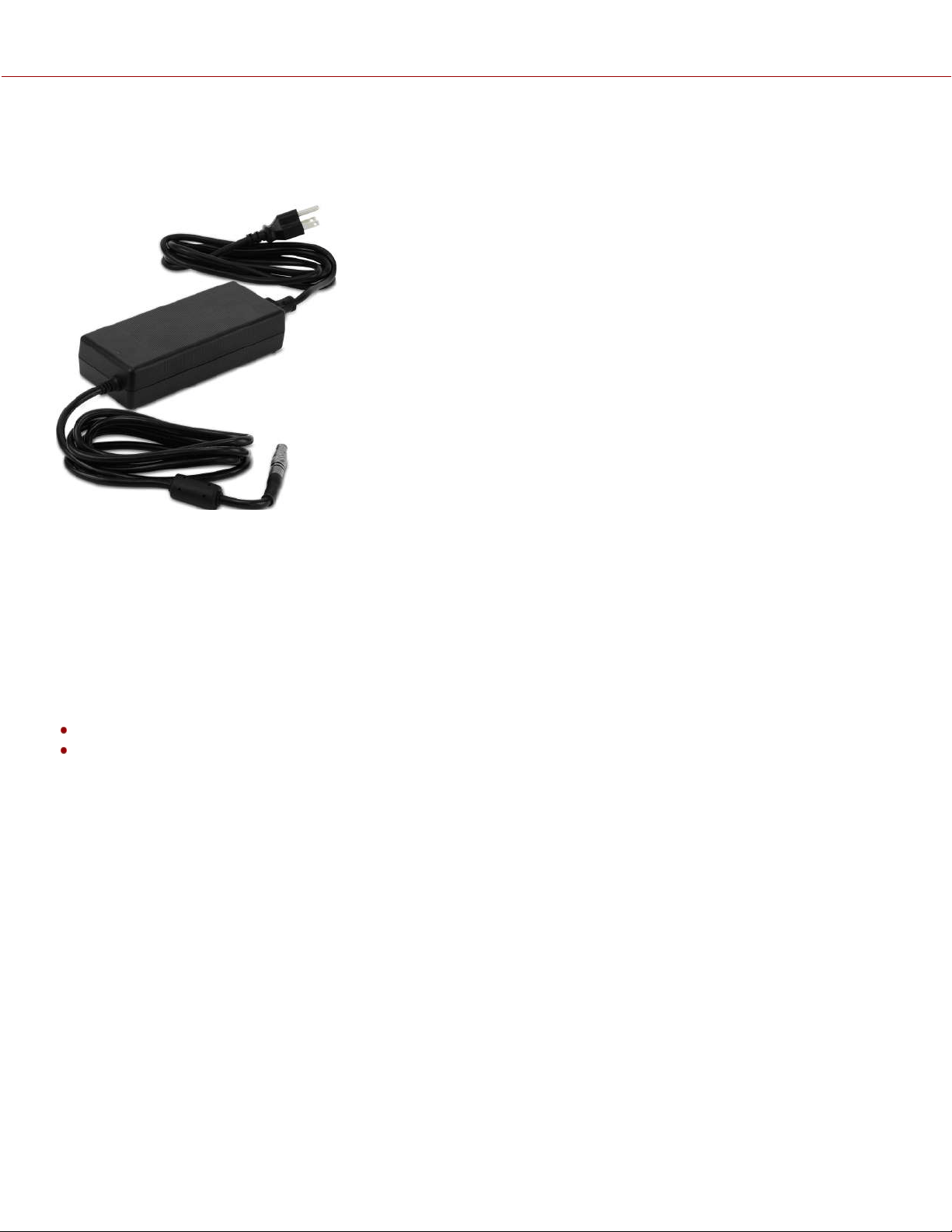
V-RAPTOR 8K VV POWER ADAPTOR
The V-RAPTOR 8K V V 150 Watt AC power adaptor connects to the camera's port to provide DC power for operating
the camera and for recharging the attached REDVOLT Micro-V Battery.
The camera charges the batteries when the camera is off and the power adaptor is connected.
AUTO BOOT ON POWER
The camera supports the Auto Boot on Power feature. This means that if all power sources are removed, and the Power
Switch is set to ON, then when a power source is attached, the camera turns on.
POWER CONSUMPTION
The camera draws various levels of power depending on the configuration and operating conditions. The power
consumption guidelines are:
60 Watts of power in the camera's basic recording configuration at room temperature, 8K, and 24 frames per second
75 Watts maximum when the camera is recording in a high ambient temperature, 8K, and 120 frames per second
POWER PRIORITY
When multiple power sources are connected to the camera, power consumption is prioritized in this sequence:
1. Any power supply connected to the DC IN port.
2. Attached battery.
WARNING: Always attach the power or battery before attaching the SDI BNC cable. Always remove the SDI BNC cable
before removing the power or batteries.
COPYRIGHT © 2021 RED.COM, LLC 955-0198, V1.1, REV. A | 172
V-RAPTOR™ 8K V V OPERATION GUIDE
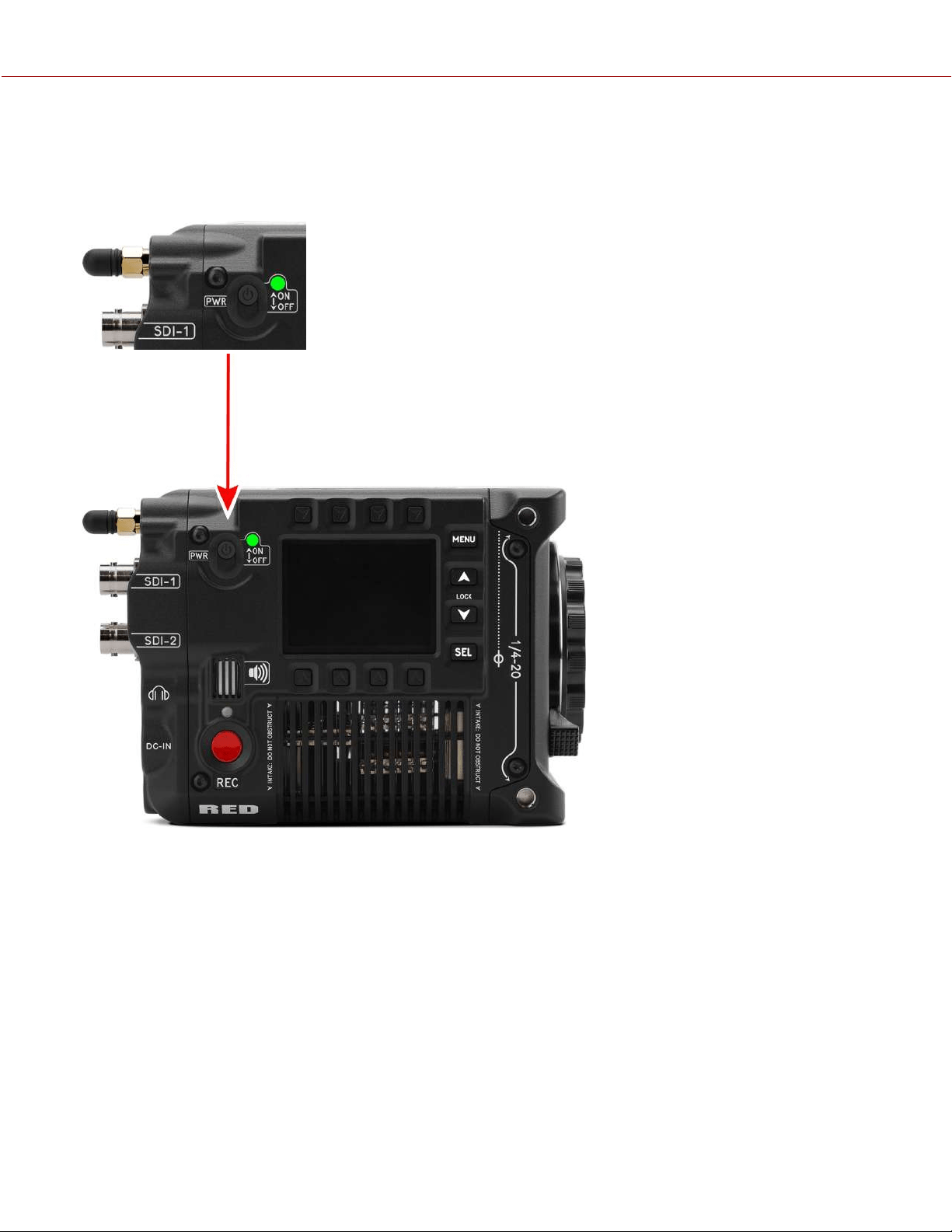
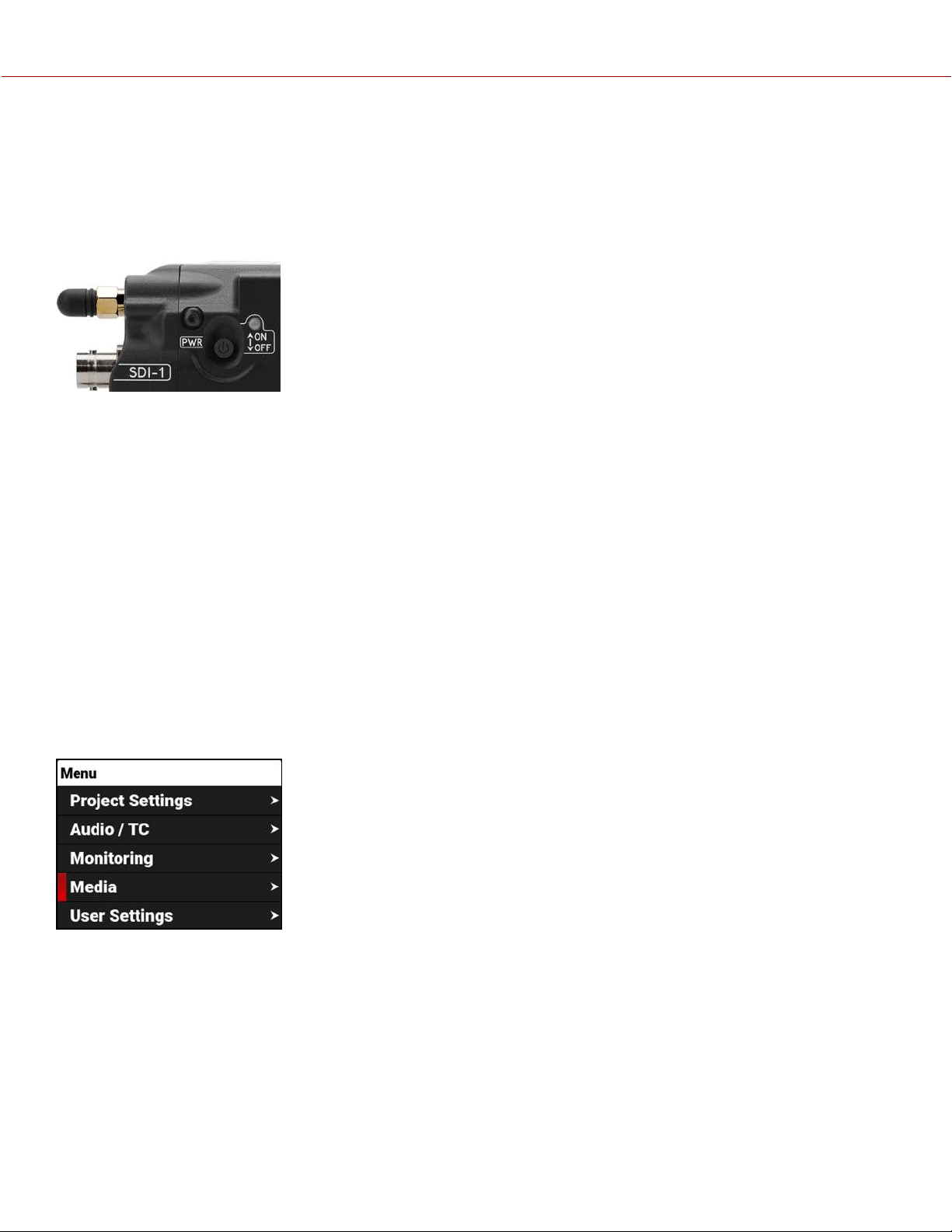
TURNING OFF THE CAMERA
NOTE: The camera stops recording and turns off automatically when the supply voltage drops to 11.5 V.
NOTE: Do not turn off the camera while the camera is recording or formatting media.
Slide the Power Switch down to the OFF position.
MEDIA MANAGEMENT
This section explains how to use, record, format, and offload media for the camera.
WARNING: Do not attach a label to the CFexpress media card. The heat generated by the media can weaken the
label's adhesive, causing the label to detach inside of the camera. Labels can also diminish heat dissipation and cause
excessive wear to the internal components. Removing a label from a CFexpress media card can possibly deform the
card body.
The camera supports exFAT as the file system for the media card to accommodate larger files and data rates. exFAT is
supported both on macOS and MS Windows.
EJECTING MEDIA
IMPORTANT: To ensure data integrity, media must always be ejected prior to removal from the camera. This ensures
that power is removed from the media and any open data files are closed. Failure to properly eject media may result in
lost data or corrupted files.
To eject media from the camera, use the LCD and select Menu > Media.
COPYRIGHT © 2021 RED.COM, LLC 955-0198, V1.1, REV. A | 174
V-RAPTOR™ 8K V V OPERATION GUIDE
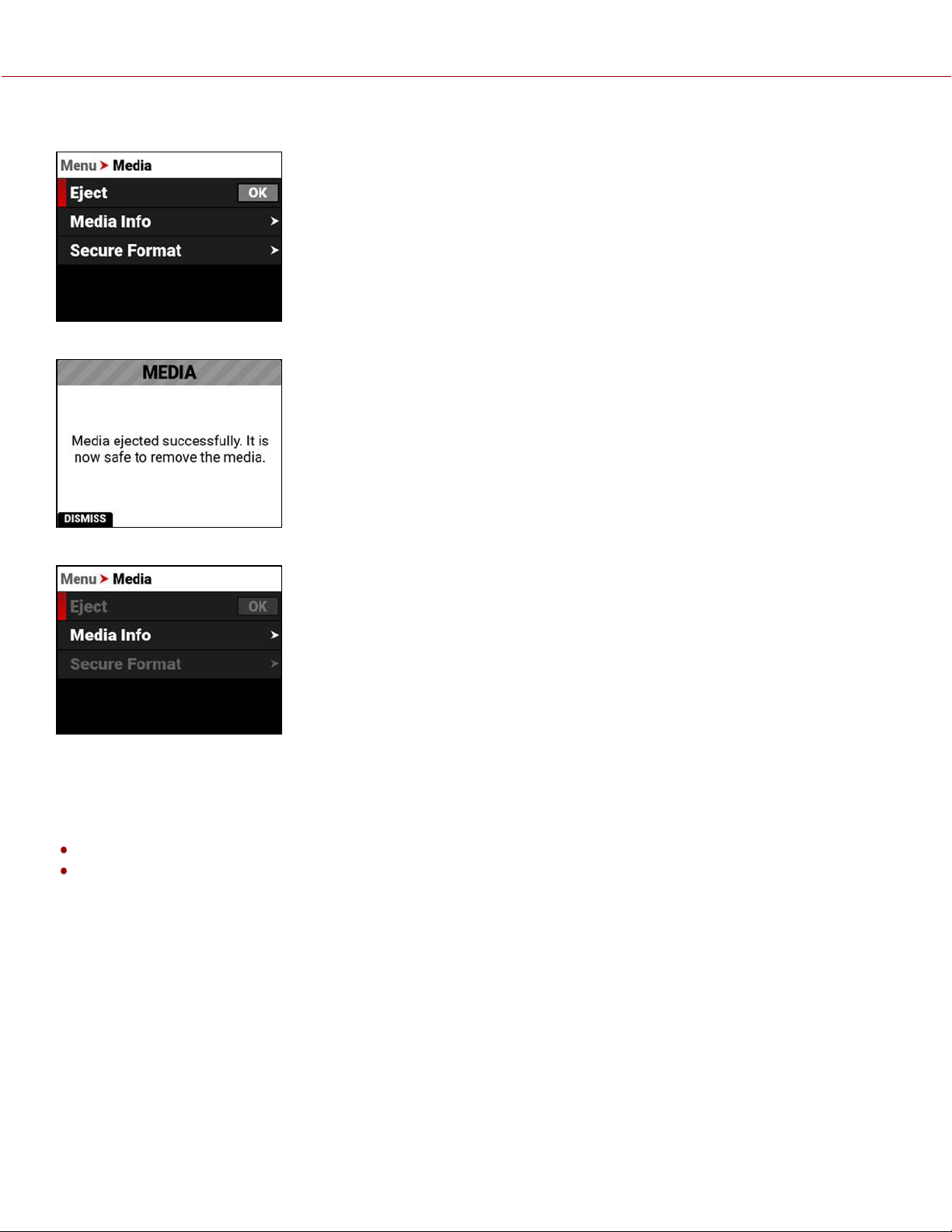
With Eject highlighted, press SELto eject (unmount) the media:
The Success message displays:
The media is now ejected and all media related items are grayed out in the menu.
WARNING: The media can get extremely hot. Use caution when removing media.
Removing a CFexpress media card without ejecting first does not damage the media, however, it does increase the risk
of file corruption. It is good practice to eject the media before removing or disconnecting. Ejecting the media provides
the following benefits:
Protects the integrity of your recorded data
Mounts clips instantly to your workstation in post production
NOTE: If you remove media without ejecting first, you receive a warning notification: “Media removed without first
ejecting. Data integrity risk.” Always eject media before physically removing the CFexpress media card to protect your
media and footage.
COPYRIGHT © 2021 RED.COM, LLC 955-0198, V1.1, REV. A | 175
V-RAPTOR™ 8K V V OPERATION GUIDE
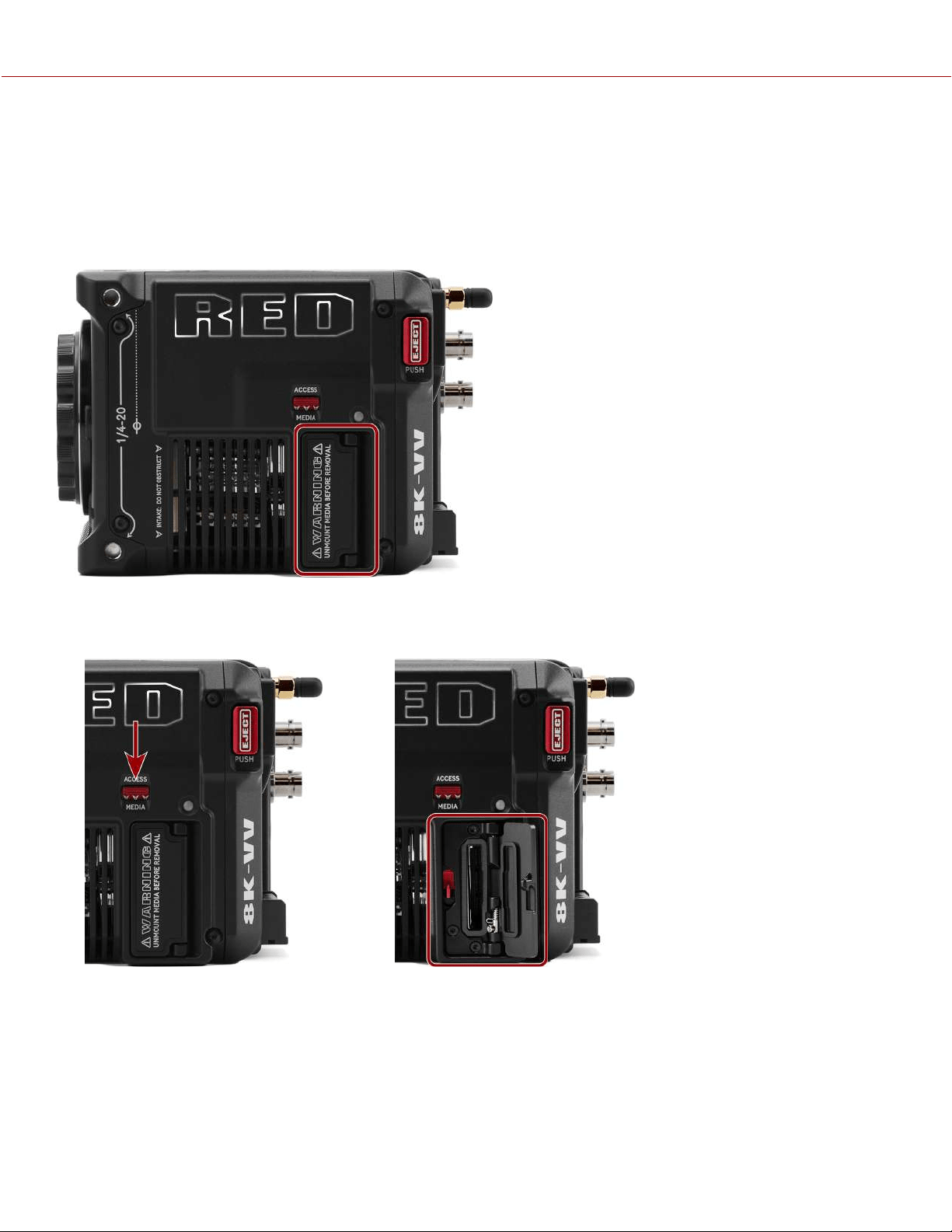
INSERTING MEDIA
The camera contains a covered compartment on the left side where you insert the CFexpress media card.
WARNING: Do not attach a label to the CFexpress media card. The heat generated by the media can weaken the
label's adhesive, causing the label to detach inside of the camera. Labels can also diminish heat dissipation and cause
excessive wear to the internal components. Removing a label from a CFexpress media card can possibly deform the
card body.
INSERTING THE CFEXPRESS MEDIA CARD
1. Press the media door access latch down, and open the media door.
2. Insert the CFexpress media card in the slot with the top of the card facing toward the front of the camera. Insert the
card until the lock clicks.
3. Close the media door and make sure that the door latch clicks.
4. If needed, format the CFexpress media card. Refer to Secure Format for more information.
COPYRIGHT © 2021 RED.COM, LLC 955-0198, V1.1, REV. A | 176
V-RAPTOR™ 8K V V OPERATION GUIDE
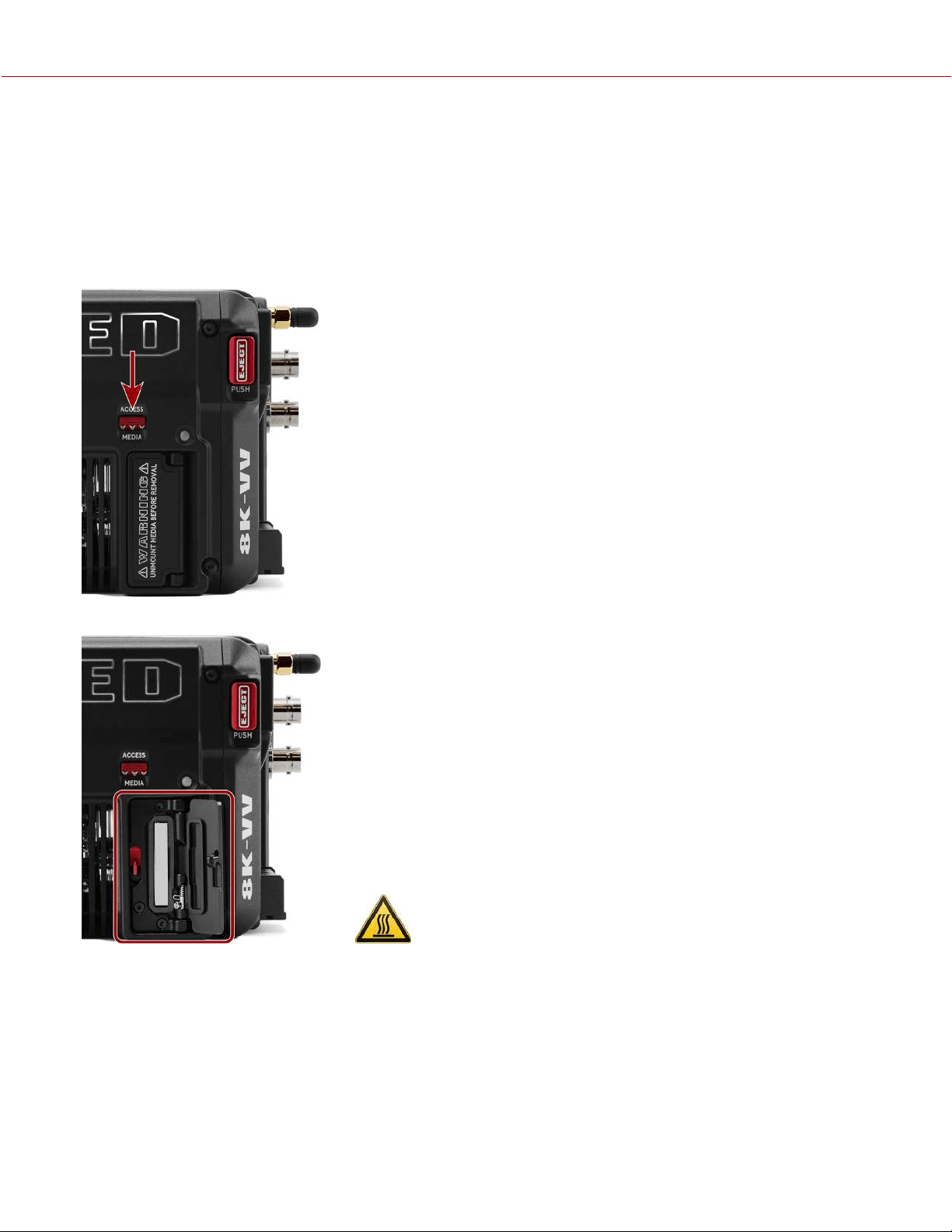
REMOVING THE CFEXPRESS MEDIA CARD
NOTE: Do not remove the CFexpress card while the camera is recording or formatting media. Refer to Media
Management for more information.
WARNING: The media can get extremely hot. Use caution when removing media.
1. If the camera is on, go to Menu >Media and select Eject.
2. Press the media door access latch down and open the media door.
3. Press the CFexpress media card until the lock release clicks. The card will spring out slightly.
4. Let the CFexpress media card cool before gently pulling the card out of the slot.
WARNING: The media can get extremely hot. Use caution when removing media.
5. Close the media door and make sure that the door latch clicks.
COPYRIGHT © 2021 RED.COM, LLC 955-0198, V1.1, REV. A | 177
V-RAPTOR™ 8K V V OPERATION GUIDE
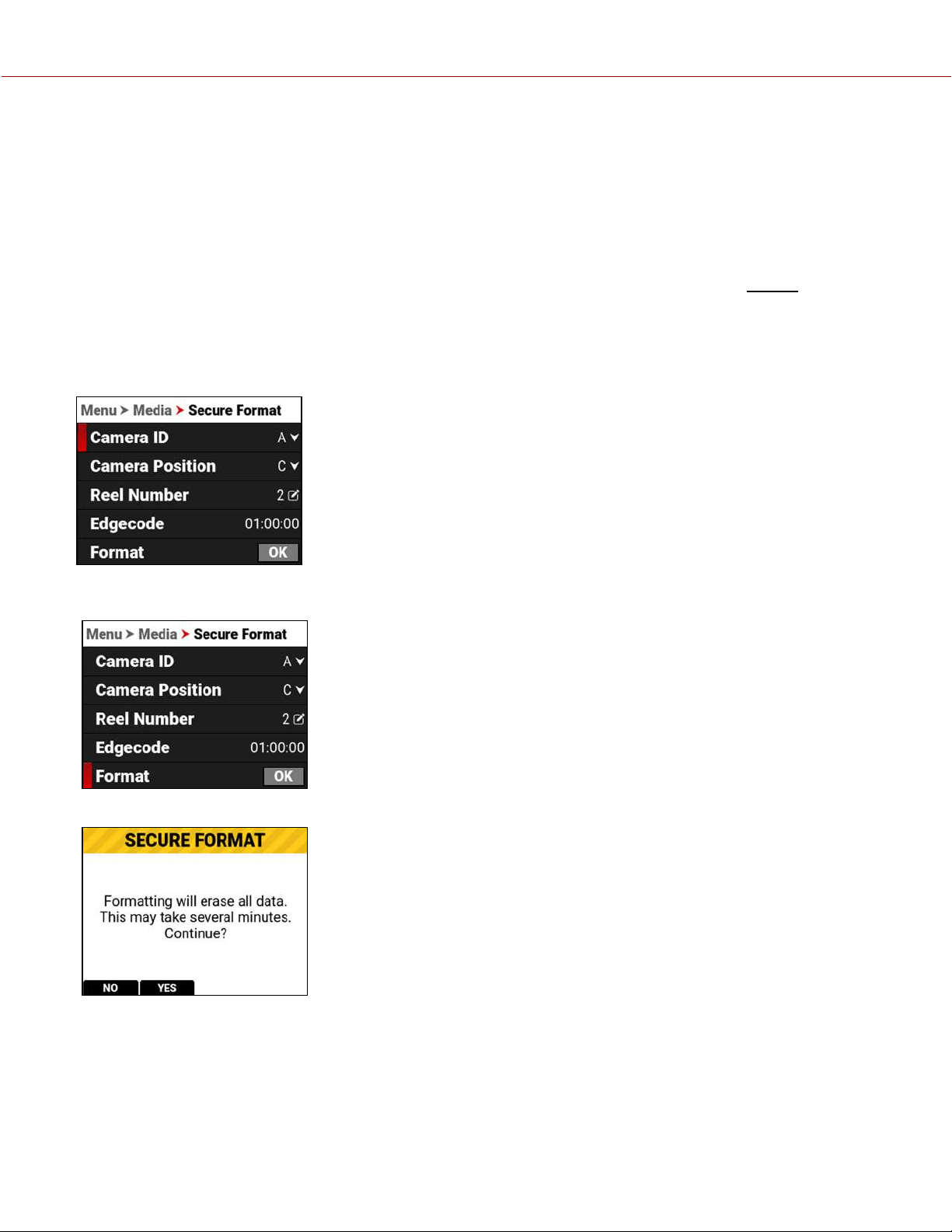
SECURE FORMAT
A secure format is a low level format that rebuilds the CFexpress card file system. A secure format erases all data on
the card.
Perform a secure format when the camera is reporting media-related errors.
PERFORMING A SECURE FORMAT
CAUTION: Ensure all data is backed up before formatting a card. Data erased during formatting cannot be
recovered.
WARNING: The media can get extremely hot. Use caution when removing media.
To perform a secure format, follow the instructions below:
1. Go to Menu > Media > Secure Format:
2. From the Secure Format menu, select the desired Camera ID, Camera Position,Reel Number and Edgecode.
Navigate down to the Format button and press SEL to start the Secure Format process:
The confirmation message displays:
COPYRIGHT © 2021 RED.COM, LLC 955-0198, V1.1, REV. A | 178
V-RAPTOR™ 8K V V OPERATION GUIDE
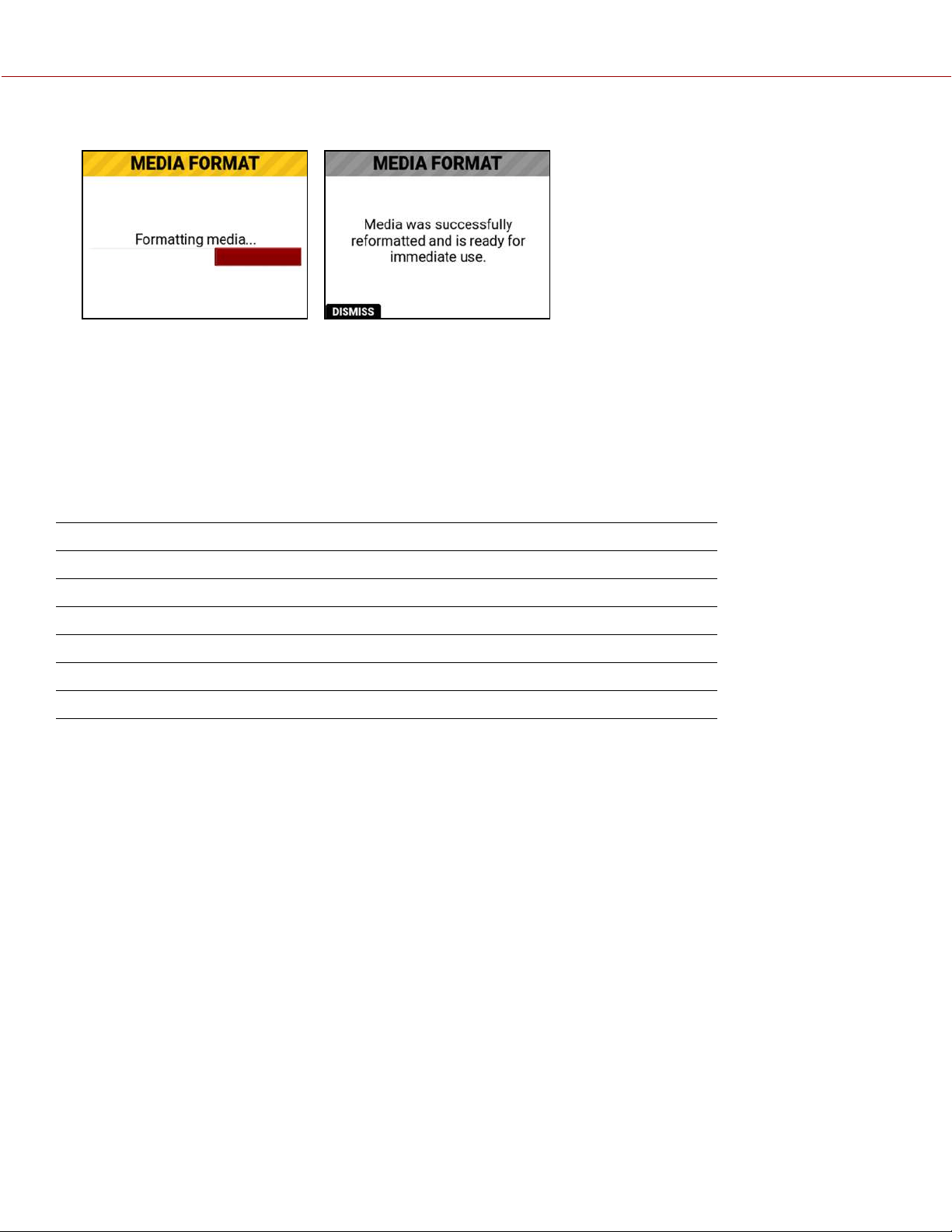
3. Press the button below YES to begin formatting.
FORMATTING MEDIA ON A COMPUTER
RED recommends that you only use a computer to format your CFexpress media card when you cannot mount the
media to the camera. Refer to the Troubleshooting section for more information.
MEDIA INFORMATION
Use the Media Info menu to display the CFexpress media card information.
Media information includes the following:
ITEM DETAILS
Status Displays the CFexpress media card status
Model Number Displays the CFexpress media card model number
Serial Number Displays the CFexpress media card serial number
Firmware Version Displays the CFexpress media card firmware version
Percentage Remaining Displays the CFexpress media card's remaining storage*
Time Remaining Displays the recording time remaining on the CFexpress media card*
* with the current project settings
FILE SYSTEM
The V-RAPTOR 8K V V camera formats the CFexpress media card using exFAT. Both Mac
®
and Windows
®
-based
computers support CFexpress media cards with this format. Refer to the documentation for your operating system to
determine whether there are any limitations to its file format support.
COPYRIGHT © 2021 RED.COM, LLC 955-0198, V1.1, REV. A | 179
V-RAPTOR™ 8K V V OPERATION GUIDE

CLIP FOLDER NAMING CONVENTION
When you record a clip, the camera creates a unique name for the clip folder that uses the format described in the table
below:
ITEM DETAILS EXAMPLE
Camera ID The letter assigned to the camera (refer to Camera ID) A
Reel ID The reel number assigned to the media (refer to Reel Number) 004
Clip Number The camera position letter followed by three digits starting with 001 C001
Month Month that the clip is recorded (refer to Date / Time) 12
Day Day that the clip is recorded (refer to Date / Time) 04
Two Characters Two random alphanumeric characters generated by the camera to prevent any
possibility of duplicates
6M
.RDC Clip folder extension .RDC
For example, a sequence of clip folders within a media folder on camera "A" position "C" may look like this:
A001_C001_12046M.RDC
A001_C002_1204CE.RDC
A001_C003_1204R5.RDC
CLIP METADATA
The following metadata is recorded for each frame of each clip:
Audio Data LTC User Bits (3 32-bit word reg-dump from ISP)
Clip Media Serial Number
Configuration, Camera Name, Network, Model,
Model ID, Serial Number
Production Name
Copyright
REDCODE
®
Date and GMT Reel
Filename Scene
Firmware Version Stereo Setup
Frame Guides Take
Jamsync Setting Timecode
Lens and Shutter Speed/Angle Parameters Unit
Lens Name, Brand, ID, Near Focus, Far Focus
Location
COPYRIGHT © 2021 RED.COM, LLC 955-0198, V1.1, REV. A | 180
V-RAPTOR™ 8K V V OPERATION GUIDE

MEDIA BEST PRACTICES
This section describes best practices to ensure that your CFexpress cards continue to provide reliable storage and fast
data rates. Following these best practices may prevent your CFexpress card from becoming fragmented, which can
lead to data integrity errors.
The only files that should be saved from your computer to your CFexpress card are Preset files, Firmware Upgrade
files, and LUTs. DO NOT save other files, folders, or applications to your media.
DONOT back up your hard drive to the CFexpress card. If using a Mac, the system may ask if you want to back up
your files to the CFexpress card using Time Machine; DONOT use the CFexpress card as a backup disk.
DO NOT delete clips off of your CFexpress card using a computer. Delete clips only by formatting your CFexpress
card in-camera. For more information about formatting your CFexpress card, refer to Secure Format.
DO NOT format your CFexpress card using a computer, unless the CFexpress card cannot mount to the camera. For
more information, refer to Secure Format.
When ejecting the CFexpress card from a computer, ensure that the icon has completely disappeared from the
Finder window (Mac) or from Windows Explorer (Windows) before removing the CFexpress card. Sometimes, the
pop-up saying that the CFexpress card has ejected displays too early.
When the reader has a write-protect switch (such as the RED CFexpress Type B Media), it is recommended that you
set the card reader to write-protect when uploading clips to prevent connected devices from adding any unwanted
data to your CFexpress Type B card.
INDEXING ON A MAC
NOTE: You can use the RED CFexpress Type B card reader with Write-Protect to prevent the Mac OS from indexing
your CFexpress Type B card (refer to RED CFexpress Type B Reader).
Most newer versions of the Mac OS automatically index all external drives when you connect them. This includes when
you connect CFexpress cards.
Indexing makes the connection process take longer. While the CFexpress card connects to the Mac, DONOT remove
the card. Indexing writes hidden files to the CFexpress card. When you insert an indexed CFexpress card in the camera,
it can take the camera a while to recognize the hidden files and connect to the CFexpress card. While waiting for the
CFexpress card to connect, DONOT remove the CFexpress card or turn off the camera. After the camera successfully
connects to the CFexpress card, perform a secure format to remove the hidden files. For more information, refer to
Secure Format.
COPYRIGHT © 2021 RED.COM, LLC 955-0198, V1.1, REV. A | 181
V-RAPTOR™ 8K V V OPERATION GUIDE
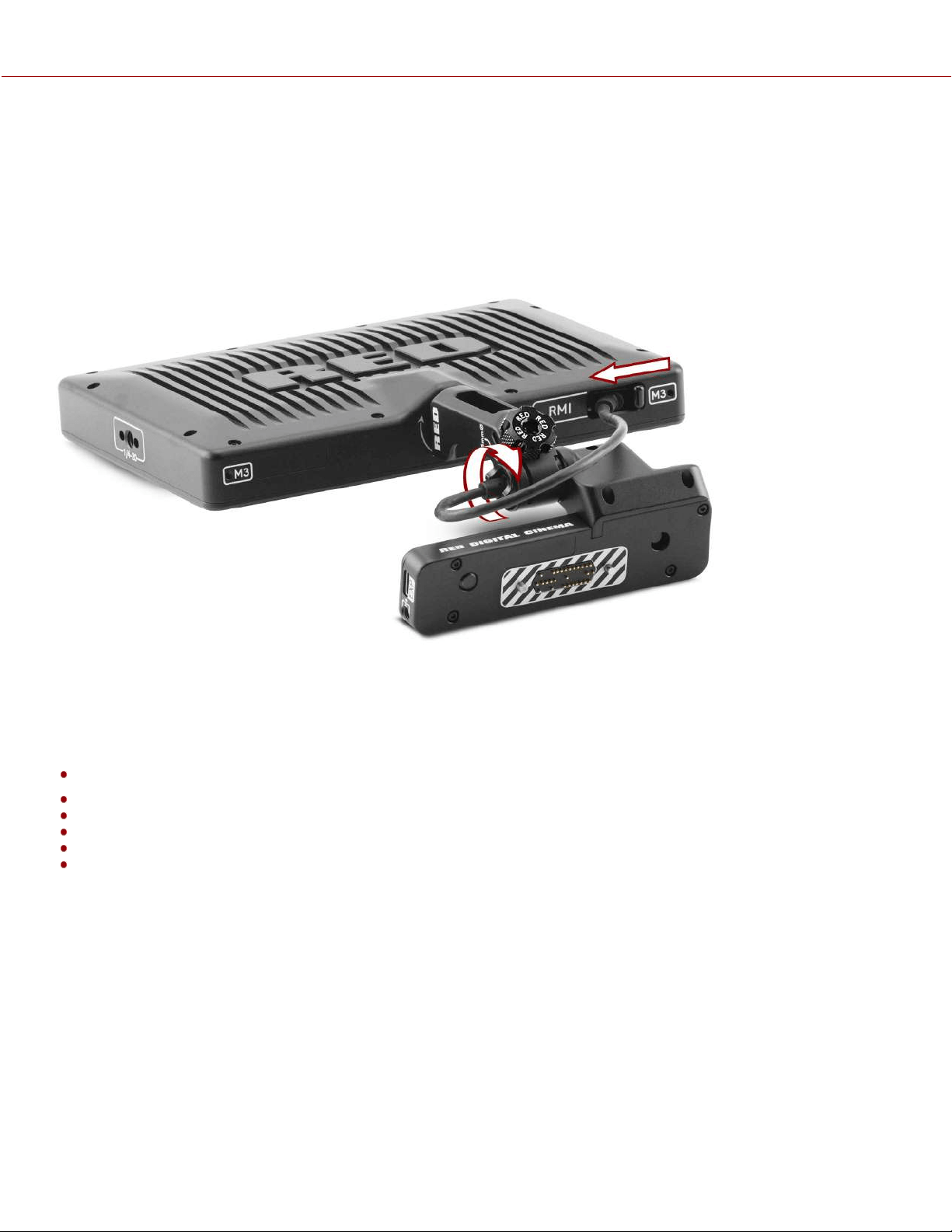
RED MONITOR INTERFACE CABLE
The DSMC3 RED
®
Touch 7.0" LCD monitor includes a custom RED Monitor Interface (RMI) cable that provides
communication between the RMI and the monitor.
Where this cable attaches to the RMI and the monitor, there are special locking features that keep the cable from
accidentally detaching.
To unlock the cable locks, rotate the RMI cable lock and slide the monitor cable lock as shown in the image:
NOTE: The USB-C-style DSMC3 RMI cable is a custom-pinned cable, which is not compatible with standard USB-C
cable ports.
MONITORING
The camera provides several methods for monitoring the image. These monitoring methods include:
DSMC3 RED
®
Touch 7.0" LCD
SDI output to a monitor
RED Control over Wi-Fi to iOS or Android devices
RED Control over USB-C to iOS or Android devices
USB-C to Ethernet adapter to a computer
Live Stream
DSMC3 RED
®
TOUCH 7.0" LCD
The optional DSMC3 RED Touch 7.0" LCD provides a 1920 x 1200 resolution live image from the camera sensor. By
using the Monitoring menu you can use display guides, exposure tools, focus tools, and a magnified image on this
monitor (refer to Top LCD).
SDI OUTPUT TO A MONITOR
SDI ports 1 and 2 provide a 12G SDI signal to allow viewing of the camera image on a 4K SDI monitor.
Use the SDI 1 and 2 menus to select the settings for SDI output, Tools, and Guides (refer to SDI 1 / 2).
WARNING: Under certain circumstances, it is possible for an SDI connector to incur damage when connected to an
accessory and powered without using shielded cables. RED recommends only using high quality, shielded BNC cables
that are rated for 12G-SDI signals and only using shielded power cables for powering SDI accessories.
COPYRIGHT © 2021 RED.COM, LLC 955-0198, V1.1, REV. A | 182
V-RAPTOR™ 8K V V OPERATION GUIDE

Make sure power is connected to the SDI accessory at all times before you connect the BNC to the camera.
Ungrounded power from SDI accessories can damage the camera’s SDI port. To avoid this possible damage, attach the
power source to the accessory before attaching it to the BNC cable. When using RED Approved Third Party battery
plates, unplug the BNC cable prior to hot swapping.
When possible, avoid using P-Tap (also known as D-Tap) cables to power accessories. To avoid damage when using P-
Tap/D-Tap, it’s imperative that the connect/disconnect sequence (below) is followed precisely.
BNC ATTACHMENT INSTRUCTIONS
When attaching SDI accessories:
1.
Connect a power source to the SDI accessory; power on the SDI accessory.
2.
Ensure a power source is connected to the camera. This ensures both are grounded prior to connecting the BNC.
The camera's power state does not have an impact on SDI attachment sequence.
3.
Connect the BNC cable to the accessory, then to the camera.
When detaching an accessory mounted to an SDI output, ensure that you remove the BNC connection to the camera
before removing power to the SDI device:
1.
Shutdown the SDI accessory.
2.
Disconnect the BNC cable from the camera.
3.
Disconnect the power source from the SDI accessory.
When you need to swap out a battery on an accessory mounted to the camera’s SDI port, you must:
1.
Shutdown the SDI accessory.
2.
Disconnect the BNC cable from the camera.
3.
Replace the battery on the SDI accessory.
4.
Connect the BNC cable to the camera.
5.
Power on the SDI accessory.
For more information, refer to Preventing Damage to SDI Outputs.
COPYRIGHT © 2021 RED.COM, LLC 955-0198, V1.1, REV. A | 183
V-RAPTOR™ 8K V V OPERATION GUIDE
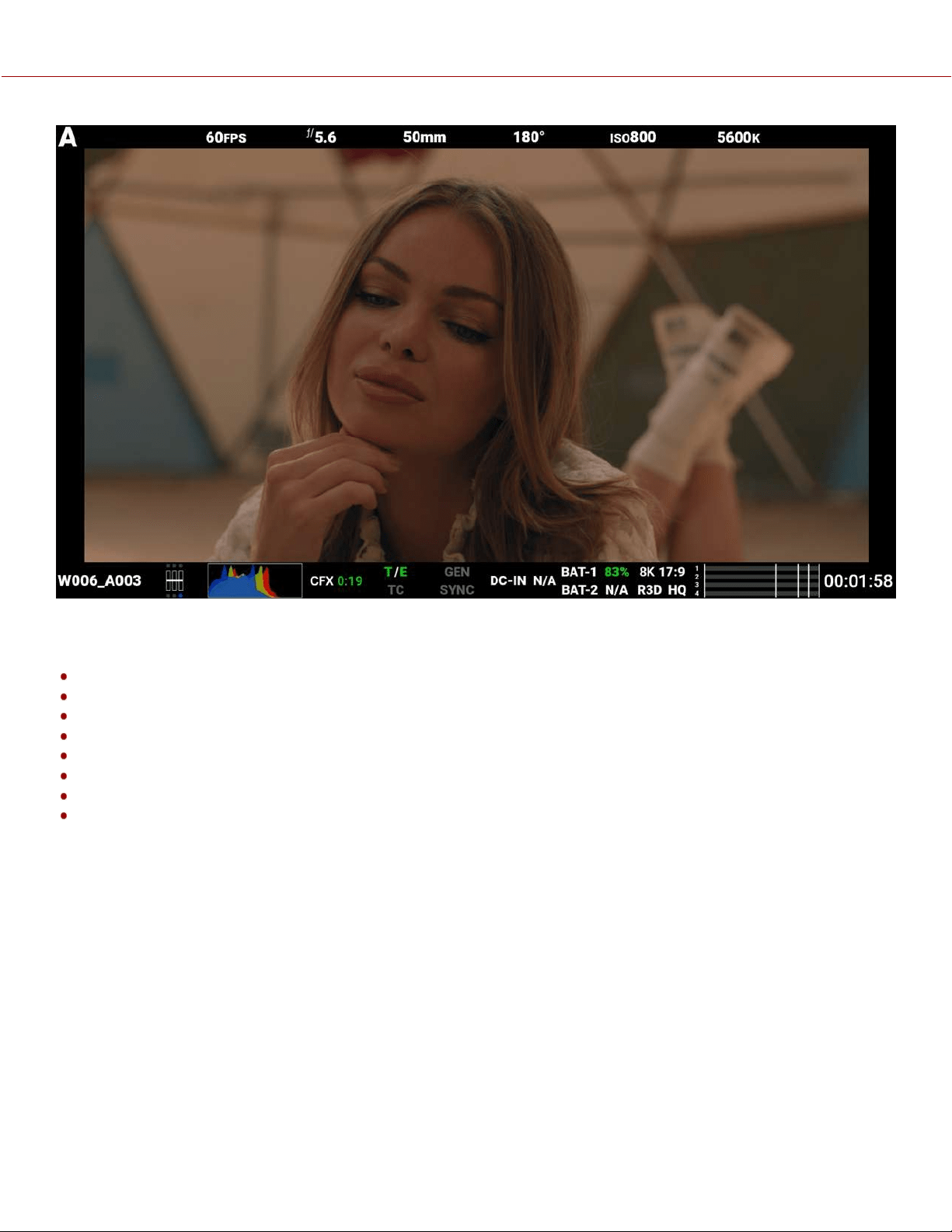
Figure: SDI monitor with SDI Advanced Overlay Mode enabled
SDI port specifications:
Integrated 12G-SDI with 6G-SDI, 3G-SDI, and 1.5G-SDI modes
12G-SDI: Up to 4096 × 2160 4:2:2 for 60p
6G-SDI: Up to 4096 × 2160 4:2:2 for 30p
3G-SDI: Up to 2048 × 1080 4:2:2 for 60p
1.5G-SDI: Up to 2048 × 1080 4:2:2 for 30p and 24p
SMPTE Timecode
HANC metadata
Up to four (4) channels of 24-bit 48 kHz audio (refer to Audio Source)
You can enable or disable the image magnification, the focus and exposure tools, and the guides displayed on images
sent to the SDI monitor by using the SDI 1 and 2 menus (refer to SDI 1 / 2).
COPYRIGHT © 2021 RED.COM, LLC 955-0198, V1.1, REV. A | 184
V-RAPTOR™ 8K V V OPERATION GUIDE
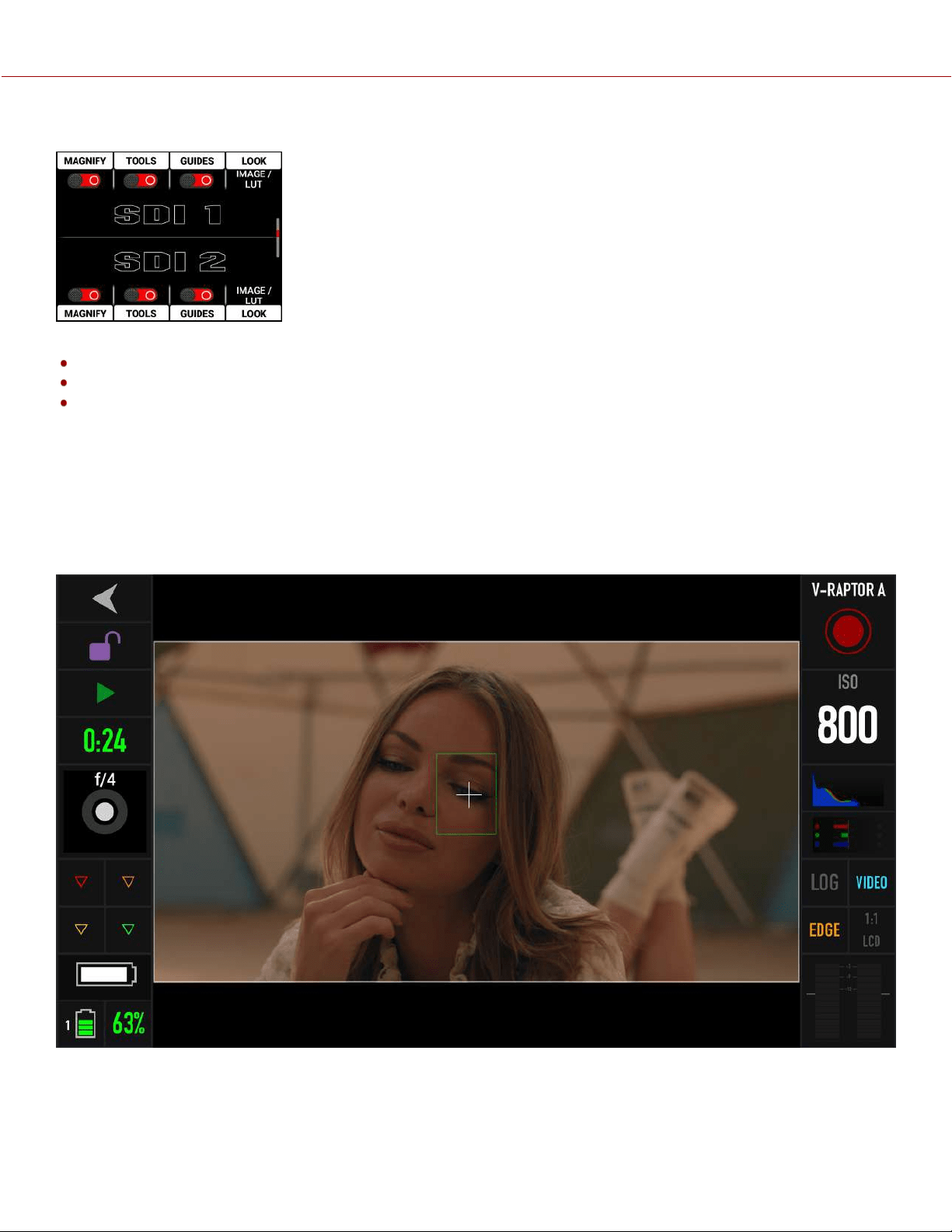
From the side LCD, navigate to the SDI tools (refer to SDI Page).
You can enable or disable the following monitoring tools on SDI, (refer to SDI 1 / 2):
Magnify
SDI tools
SDI guides
You can also select the Image / LUT look defined in the Image / LUT menu, or you can select the RWG
(REDWideGamutRGB) / Log3G10 Image Processing Pipeline (IPP2) look.
RED CONTROL
RED Control allows you to use Wi-Fi to connect to the camera and send monitor images to iOS and Android devices.
NOTE: You must enable live streaming under MENU > MONITORING > LIVE STREAM to enable the image feed.
Figure: RED Control phone monitor over Wi-Fi
COPYRIGHT © 2021 RED.COM, LLC 955-0198, V1.1, REV. A | 185
V-RAPTOR™ 8K V V OPERATION GUIDE
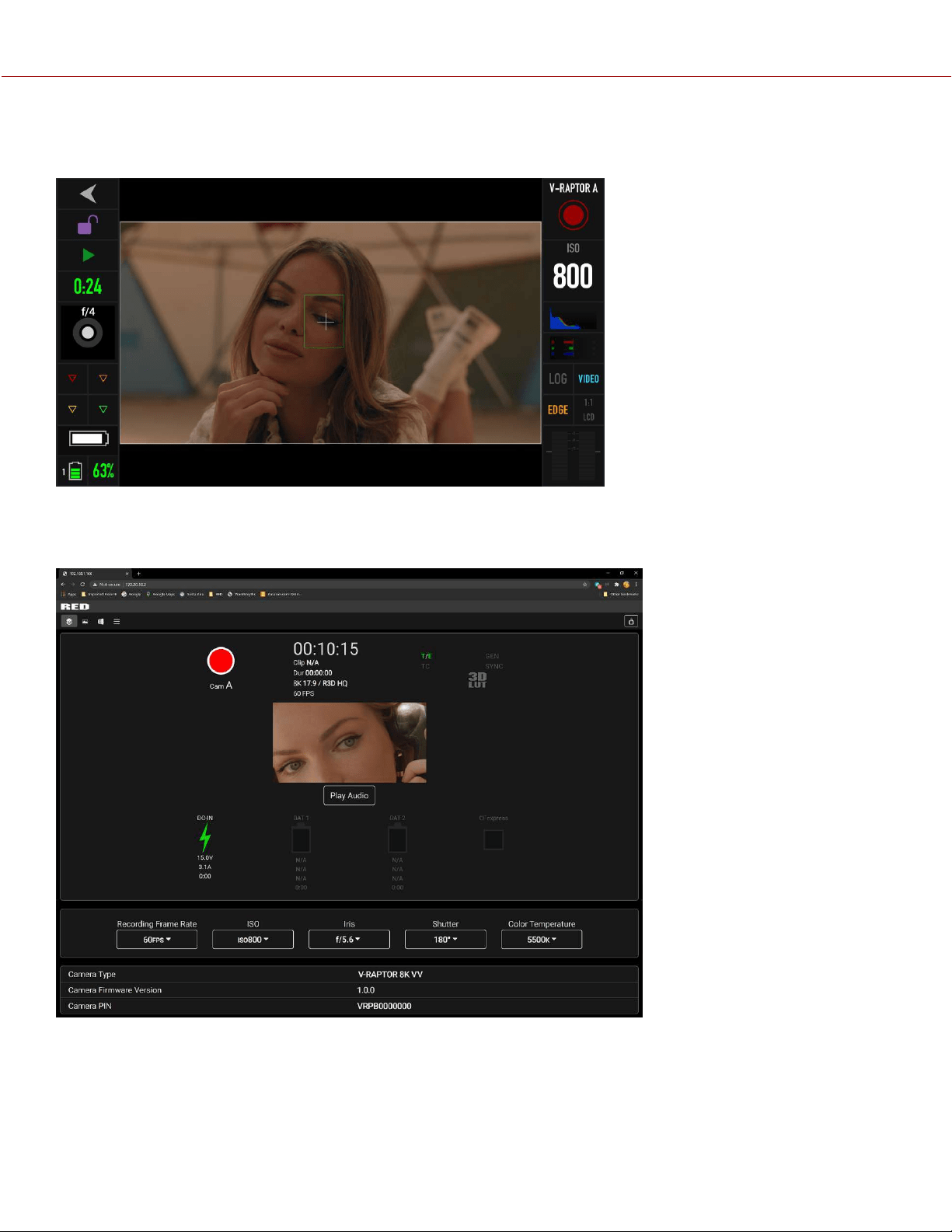
USB-C
Use a USB-C cable to connect to the camera and send monitor images in real-time to USB-C devices.
Figure: USB-C connected to an Android phone with RED Control
With the use of an Ethernet to USB-C adapter, you can also connect Ethernet devices.
Figure: USB-C connected to an Ethernet web browser
You can add :9090 to the end of the URL in your browser to bring up an image-only feed for remote viewing.
NOTE: You must enable live streaming under MENU > MONITORING > LIVE STREAM to enable the image feed.
COPYRIGHT © 2021 RED.COM, LLC 955-0198, V1.1, REV. A | 186
V-RAPTOR™ 8K V V OPERATION GUIDE
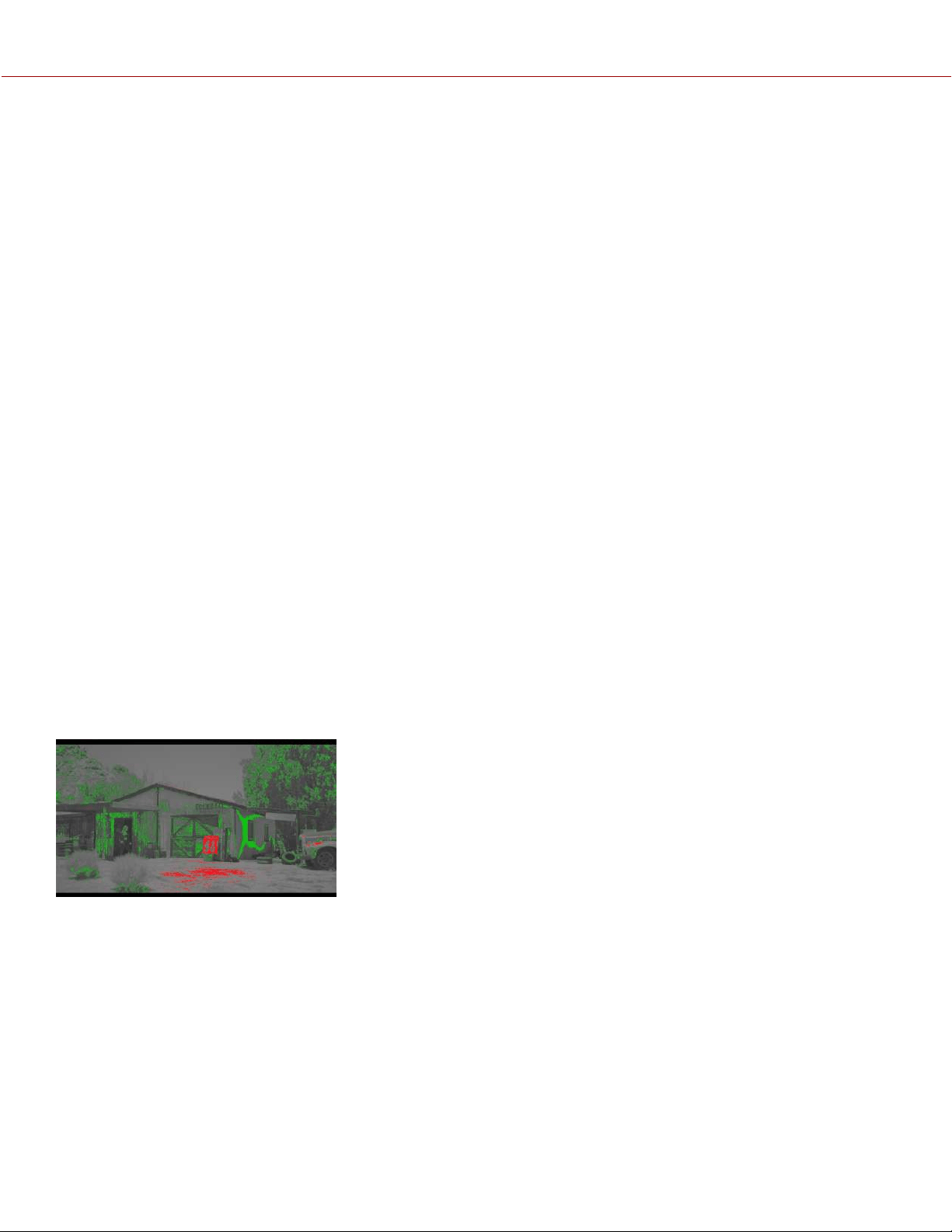
EXPOSURE
The camera offers multiple tools to determine the current image exposure levels, and it provides the tools to adjust the
exposure to the desired levels.
When using the R3D file format, you can correct color temperature and ISO settings at any time. The aperture and
exposure time however, are two of the parameters that you cannot corrected later in R3D files.
While the correct exposure is always an artistic decision, there are best practices for capturing the most dynamic range
while also allowing post production to preserve the intended image information.
The goal is to reduce clipping in the bright and dark parts of the image as much as possible. Otherwise the sensor
information is lost in the overexposed and underexposed areas.
The primary tool for determining the exposure levels is the histogram. It shows the exact luminance levels of the red,
green, and blue pixels after you apply the ISO and White Balance settings. Monitors have their own color gamuts and
brightness levels which makes the monitor less than optimal for determining the camera's exposure levels.
This camera includes a histogram, and a simple RGB raw pixel exposure meter, which allows you to determine proper
exposure regardless of the set ISO or camera look (for more information refer to Histogram Page).
The histogram provides information about how the brightness is distributed in the image. This allows you to see how
close a scene is to clipping in the light and dark areas, which makes it easy to choose aperture, exposure, and ND filter
solutions accordingly.
FALSE COLOR EXPOSURE TOOLS
While the histogram provides information about the brightness distribution and clipping of the image, it does not show
you the areas in the image that are near, or that have reached, clipping. For this, the camera provides image overlays
that provide false colors to indicate precise exposure levels.
FALSE COLOR EXPOSURE MODE
The False Color Exposure mode overlay provides information where the image is close to clipping or already clipping in
the highlights (red) and low-lights (green) (refer to False Color Exposure Mode).
Example of monitored image in Exposure Mode:
COPYRIGHT © 2021 RED.COM, LLC 955-0198, V1.1, REV. A | 187
V-RAPTOR™ 8K V V OPERATION GUIDE
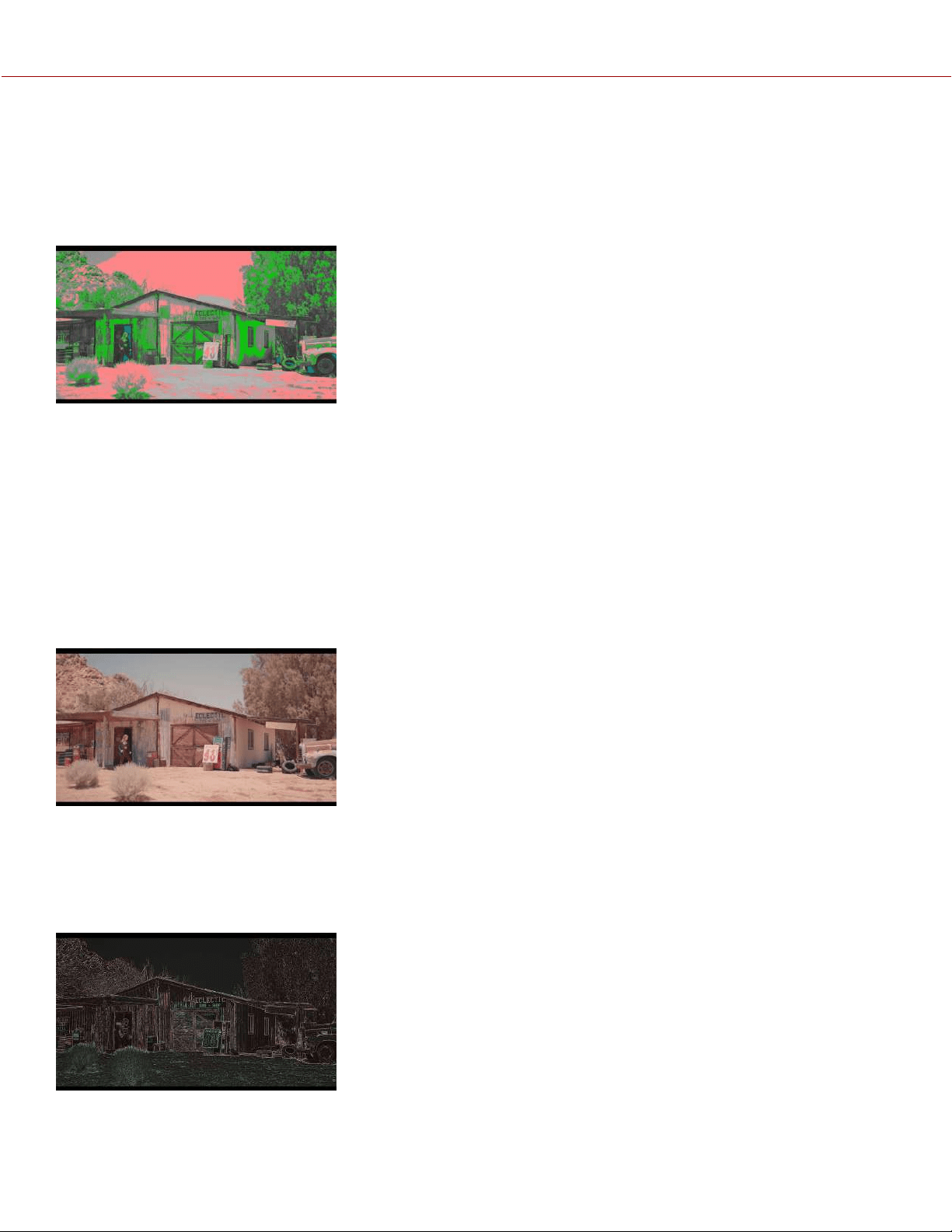
FALSE COLOR VIDEO MODE
The False Color Video mode provides more gradual information about the brightness in different parts of the image. This
is helpful when you want to expose skin color at the right level, while ignoring the fact that backgrounds might be
overexposed or underexposed (refer to False Color Video Mode).
Example of monitored image in Video Mode:
FOCUS
Focus, like Exposure and Recording Frame Rate is a property that cannot be fixed easily in post-production. To make
sure the camera is focused correctly when you begin recording, it is important to employ focus tools that do not rely on
the visibility on the monitor.
The camera interface includes the focus tools you can use to reach the desired image focus (refer to Peaking).
FOCUS PEAKING MODE
The Focus Peaking mode applies a sharpening filter to the image that emphasizes edges of the subject in focus.
Example of monitored image in Focus Peaking mode:
EDGE PEAKING MODE
The Edge Peaking mode hides the image and only show the edges. This provides the best visual representation of the
subject that is currently in focus.
Example of monitored image in Edge Peaking mode:
COPYRIGHT © 2021 RED.COM, LLC 955-0198, V1.1, REV. A | 188
V-RAPTOR™ 8K V V OPERATION GUIDE
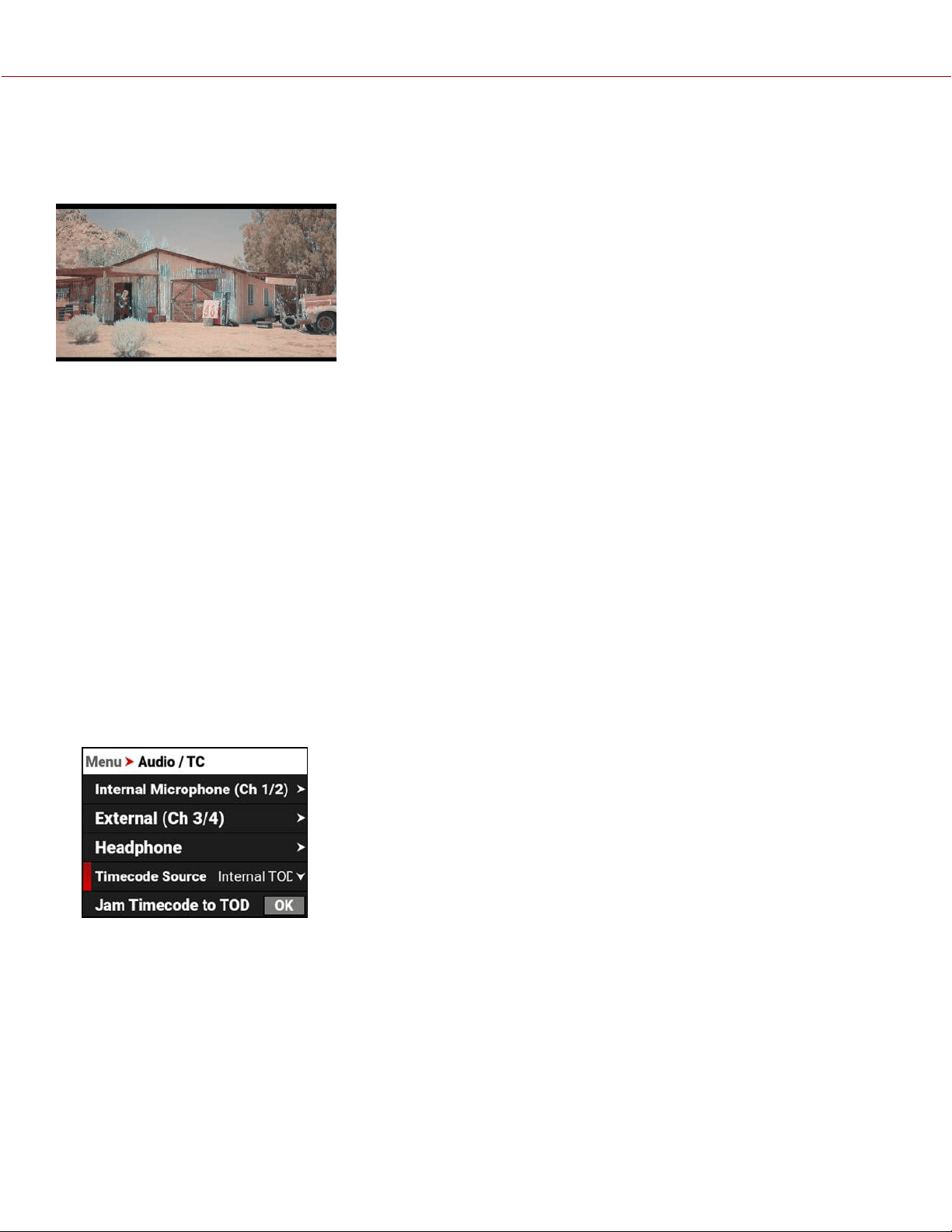
PEAKING PEAKING MODE
The Peaking Peaking mode emphasizes the edges, and it also highlights them by using a selectable color.
Example of monitored image in Peaking Peaking mode:
TIMECODE
Timecode provides a mechanism to reference frame timing from the camera's recorded clips to other devices like
cameras and audio recorders. Some devices can also gather other data like lens metadata or camera orientation that is
referenced by Timecode to merge the data back together in post-processing.
V-RAPTOR 8K V V provides two separate Timecode concepts: Time of Day (TOD) and Edgecode. Both TOD and
Edgecode are stored in the R3D file. The user can select which Timecode displays on the LCD by setting the preference
in Timecode Display Mode.
TIME OF DAY
TOD Timecode reflects the time and date the camera recorded each frame. V-RAPTOR 8K V V synchronizes the TOD
Timecode to an external Timecode generator (when one is connected to the Extension Port) or synchronizes to the
internal real-time clock of the camera.
SETTING UP TOD TIMECODE
To set up TOD Timecode on the camera, perform the following:
1. Open the Audio / Timecode menu: Menu > Audio / TC:
COPYRIGHT © 2021 RED.COM, LLC 955-0198, V1.1, REV. A | 189
V-RAPTOR™ 8K V V OPERATION GUIDE
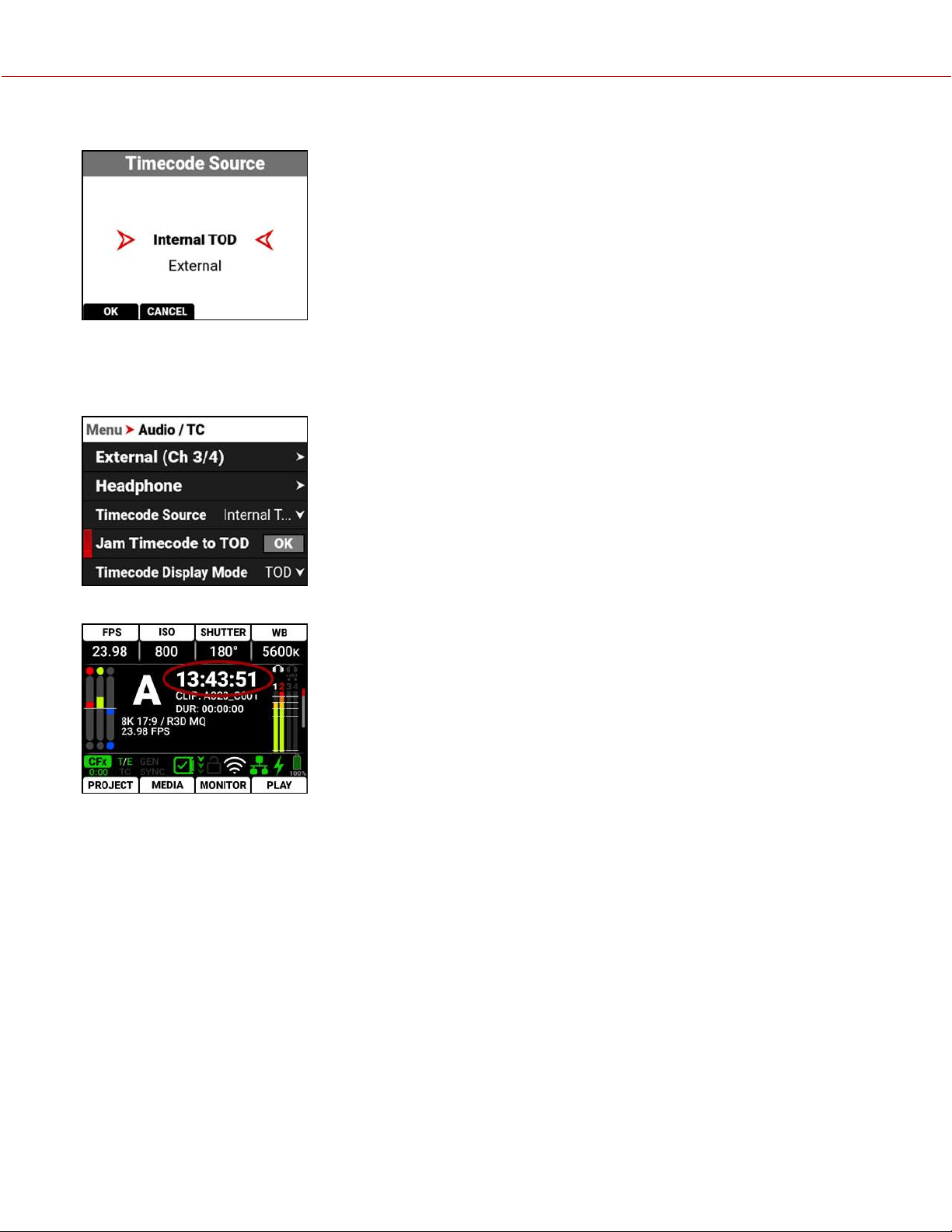
2. Select Timecode Source. The Timecode Source menu opens:
3. Select Internal TOD to use the camera's internal real time clock, or select External to use an external Timecode
generator connected to the . Press the button under OK to confirm the selection.
4. When you select Internal TOD, you can navigate to JAM Timecode to TOD and press SEL to synchronize the
Timecode to the camera's internal clock.
The camera displays the Timecode on the LCD Home page:
NOTE: The timecode is reset when the camera is turned off.
COPYRIGHT © 2021 RED.COM, LLC 955-0198, V1.1, REV. A | 190
V-RAPTOR™ 8K V V OPERATION GUIDE
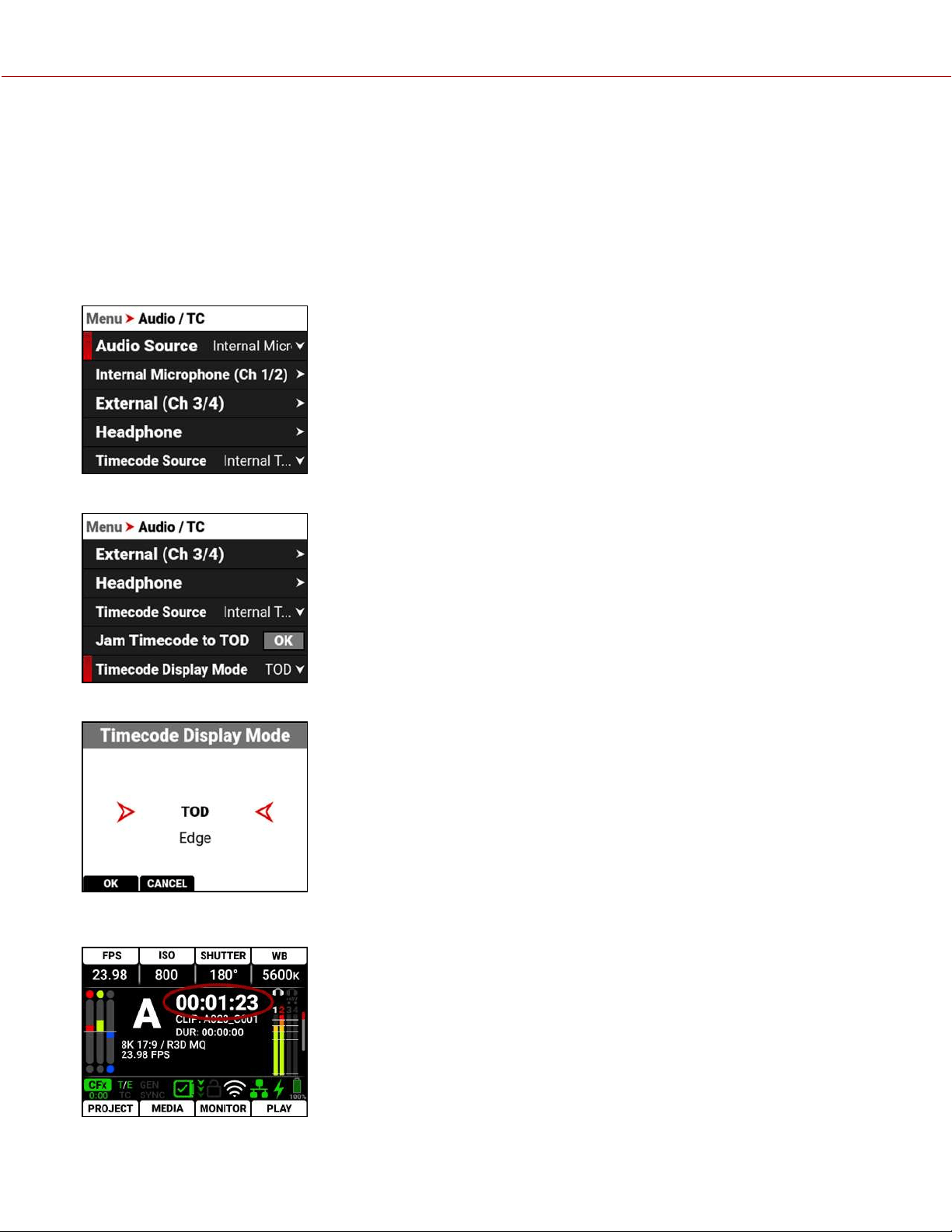
EDGECODE
Edgecode only advances while the camera is recording frames. Each frame is sequential. When the media is replaced,
the new media starts the timer over. You can set the Edgecode timer manually by using Secure Format (refer to Secure
Format for more information).
SETTING UP EDGECODE TIMECODE
To set up Edgecode Timecode on the camera, perform the following:
1. Open the Audio / Timecode menu: Menu > Audio / TC:
2. Navigate down to Timecode Display Mode:
3. Press SEL to select Timecode Display Mode. The Timecode Display Mode menu opens:
4. Select Edge and press the button under OK to use Edgecode. The camera displays the Edgecode on the LCD Home
page:
NOTE: Each new media card will default to an edgecode track starting at 01:00:00. You can change the edgecode to
begin at any desired time by using the Media Format menu (refer to Edgecode).
COPYRIGHT © 2021 RED.COM, LLC 955-0198, V1.1, REV. A | 191
V-RAPTOR™ 8K V V OPERATION GUIDE

ZEBRA MODES
Use Zebra modes to enable and adjust the upper and lower values for two (2) independent zebra indicators. Use Zebra
1 for highlight exposure, and use Zebra 2 for mid-tones or shadows. Zebras are disabled by default.
For more information, refer to the Exposure with RED Cameras: False Color and Zebra Tools article, available at
www.red.com/red-101/exposure-false-color-zebra-tools.
ENABLING THE ZEBRA 1 INDICATOR
1. Go to Menu > Monitoring > Tools and select Zebra 1.
2. Set a Low IRE of 98.
3. Set a High IRE of 100.
Areas of the image exposed within the IRE range are indicated by red diagonal lines at –45°.
The default settings are Low IRE = 98 and High IRE = 100.
ENABLING THE ZEBRA 2 INDICATOR
1. Go to Menu > Monitoring > Tools and select Zebra 2.
2. Set a Low IRE of 41.
3. Set a High IRE of 48.
Areas of the image exposed within the IRE range are indicated by green diagonal lines at 45°.
The default settings are Low IRE = 41 and High IRE = 48.
ZEBRA OVERVIEW
Zebra is a specialty mode that is capable of showing up to two customized overlays with arbitrary IRE ranges. Unlike
the other two modes, Zebra indicators appear as diagonal stripes, they are fully configurable, and they have the
advantage of preserving a full-color base image.
With traditional video cameras, many used a single zebra to indicate highlight detail. It would often be set at 70% (70
IRE), in part because this is where a white piece of paper would begin to have minimal texture when rendered using a
typical contrast curve. Skin tones or skies would be exposed to appear just darker or brighter than these lines. If
enabled, a second zebra would typically indicate either mid-tones or shadows. For deep shadows, you can set the
second indicator to below 10% intensity or 10 IRE, and set the first indicator to highlights above 85 IRE.
However, as with other IRE-based modes, Zebra mode is only applicable for the current ISO settings (such as with SDI
output), not for the raw image data. If anything is changed in post-production, the indicators won't be representative of
the final output tones. In those situations, Zebra mode is more of a preview and output brightness tool than an exposure
tool.
COPYRIGHT © 2021 RED.COM, LLC 955-0198, V1.1, REV. A | 192
V-RAPTOR™ 8K V V OPERATION GUIDE
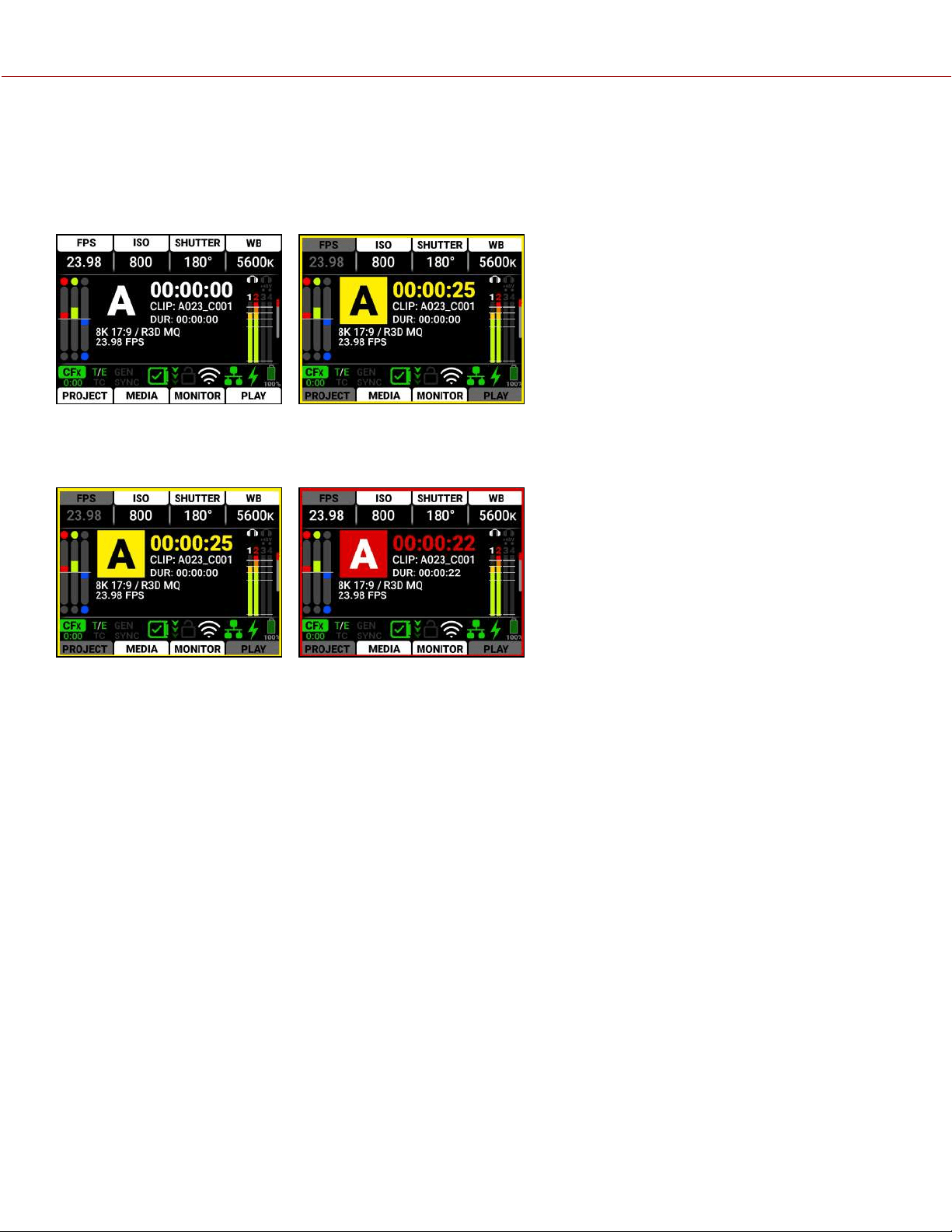
PRE-RECORDING CONTENT
This section explains how to use the Pre-Record feature.
To start pre-recording, press the Record button.
The LCD changes from the Ready appearance to the Pre-Record appearance:
Press the Record button again to start recording.
When you start recording, the appearance of the LCD changes from the Pre-Record appearance to the Record
appearance:
The camera adds the Pre-Record clip to the beginning of your recording.
For information about enabling and configuring Pre-Record, refer to Pre-Record.
COPYRIGHT © 2021 RED.COM, LLC 955-0198, V1.1, REV. A | 193
V-RAPTOR™ 8K V V OPERATION GUIDE

CALIBRATING THE SENSOR
Sensor calibration is a process during which the camera optimizes image quality by ensuring that pixel sensitivity
remains consistent throughout the sensor.
WHEN TO CALIBRATE THE SENSOR
Calibration is required:
When shooting in an environment where the temperature is significantly different (+/- 30° F...) from the current
calibration. The T in the T/E Status Bar indicator will turn yellow (refer to Status Bar for more information)
After an extreme change in exposure time (+/– 1/2 sec). The E in the T/E Status Bar indicator will turn yellow (refer to
Status Bar for more information)
After each firmware upgrade
UPGRADING THE FIRMWARE
You can receive the best performance from your camera by installing the latest firmware. Make a habit of frequently
visiting RED Downloads at www.red.com/downloads to check for new versions of camera firmware, updated operation
guides, and post production software.
VERIFYING THE FIRMWARE VERSION
To view the firmware version that is currently installed on your camera, open Menu > System Settings > System
Status > Camera Info:
Version displays the currently installed camera firmware. A higher number reflects a newer release.
UPGRADING THE FIRMWARE
Install the most recent firmware. Unless otherwise specified in the release notes, you do not need to upgrade to any
firmware in between your current version and the most recent version available online.
NOTE: You must calibrate the sensor after upgrading the camera. For more information, refer to Calibrating the Sensor.
1. Download the most recent firmware for your camera from RED Downloads at www.red.com/downloads.
2. Unzip the firmware zip file.
3. In the unzipped folder, navigate to the upgrade folder.
4. Copy the upgrade folder and its contents to the root level of the CFexpress media card directory.
5. Unmount the CFexpress media card from your computer and remove the media card from the media reader.
6. Insert the CFexpress media card in the camera.
COPYRIGHT © 2021 RED.COM, LLC 955-0198, V1.1, REV. A | 194
V-RAPTOR™ 8K V V OPERATION GUIDE
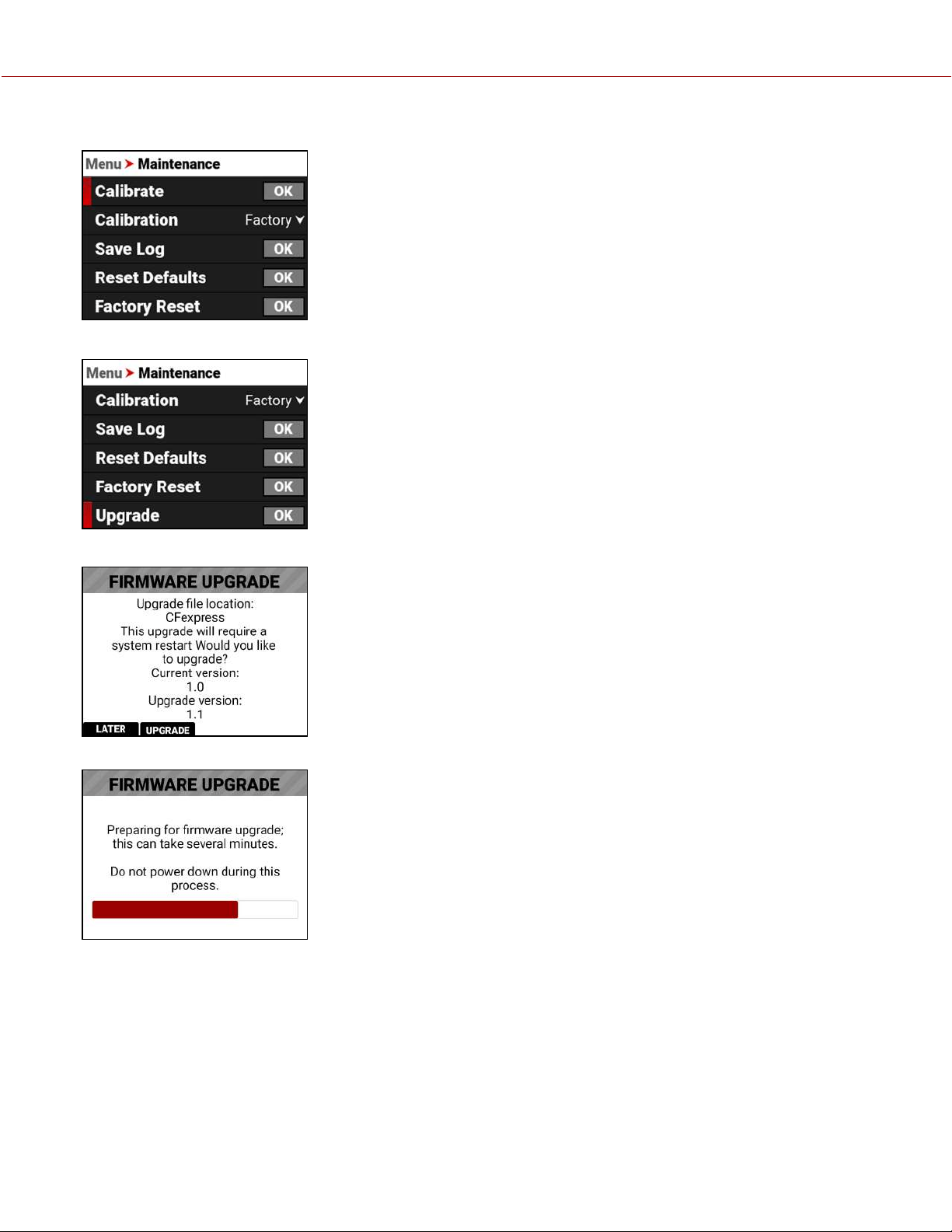
7. From the camera UI, navigate to Menu > Maintenance.
8. From the Maintenance menu, navigate down to Upgrade and press SEL .
The Firmware Upgrade confirmation screen displays:
9. Press the button under UPGRADE to confirm. The Firmware Upgrade progress screen displays:
COPYRIGHT © 2021 RED.COM, LLC 955-0198, V1.1, REV. A | 195
V-RAPTOR™ 8K V V OPERATION GUIDE
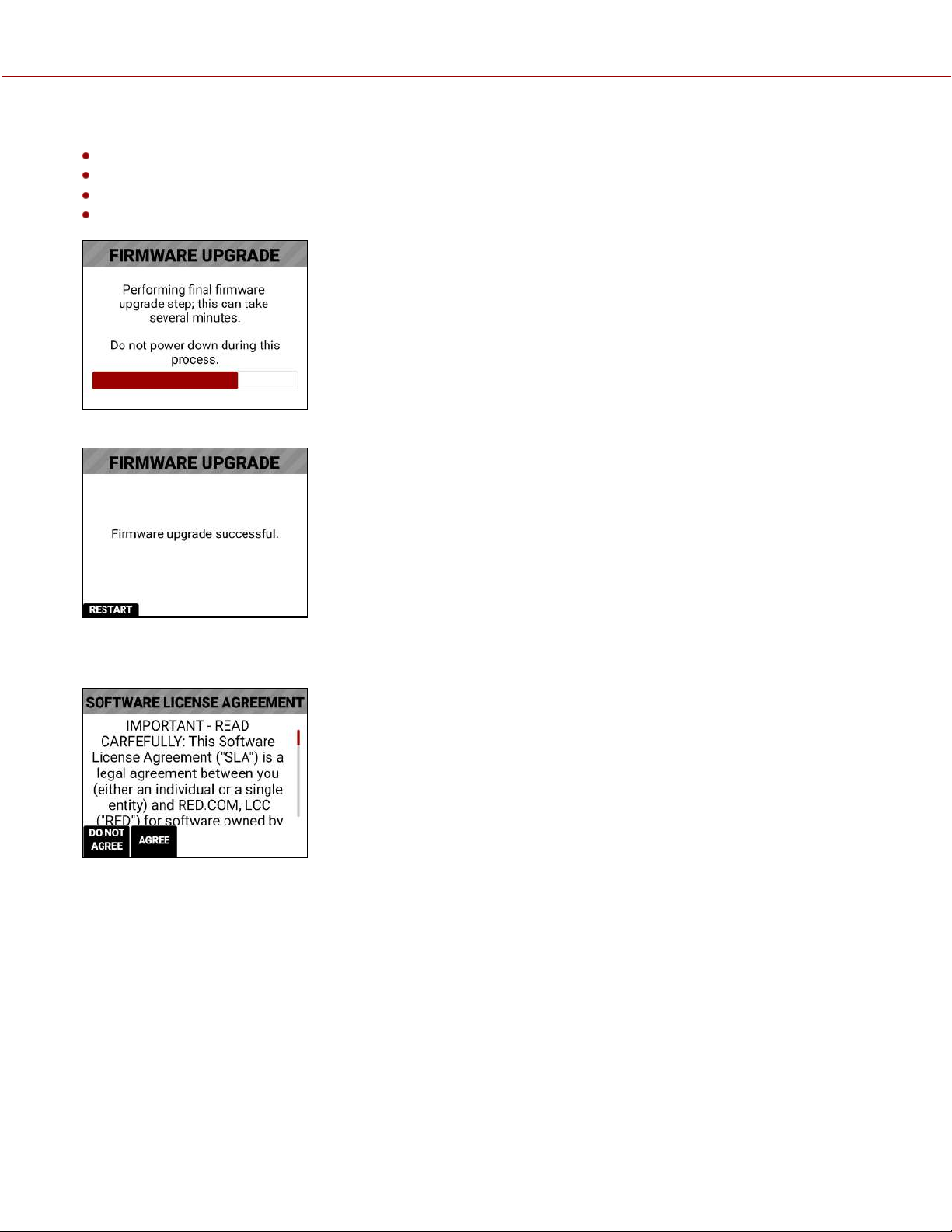
During the upgrade, the fans run at high speed and the following occurs:
The camera displays the SHUTTINGDOWN screen and reboots
The camera restarts and displays the UPGRADING screen
The camera displays the INITIALIZING screen
The camera displays the FIRMWAREUPGRADE progress screen:
The Firmware Upgrade success message screen displays with a RESTART button:
10. Press the button under RESTART. The camera displays the SHUTTINGDOWN screen and reboots again.
11. The camera restarts displaying the V-RAPTOR 8K V V start screen, the INITIALIZING screen, and then the Software
License Agreement (SLA) displays:
12. Press the button under Agree. If you do not agree to the SLA, the camera cannot be used. The SLA continues to
display until it is accepted.
13. Recalibrate the camera before recording. Refer to the Calibration section and Calibrating the Sensor for more
information.
COPYRIGHT © 2021 RED.COM, LLC 955-0198, V1.1, REV. A | 196
V-RAPTOR™ 8K V V OPERATION GUIDE

SYSTEM MAINTENANCE
All RED products are designed for rugged durability, but precision instruments demand proper care. Follow the
instructions in this section to clean, maintain, and store your devices.
WARNING: DO NOT rinse or immerse the camera or other accessories in water. Keep dry at all times.
WARNING: DO NOT use soaps, detergents, ammonia, acetone, alkaline cleaners, abrasive cleaning compounds, or
solvents. These substances may damage lens coatings and electronic circuitry.
WARNING: DO NOT use an excess of cleaning solution.
WARNING: DO NOT reuse swabs or wipes.
WARNING: DO NOT attempt to clean the sensor or optical cavity for any reason. If the sensor becomes dirty, submit a
Support ticket at https://support.red.com.
WARNING: DO NOT attempt to modify, dismantle, or open the camera, lens, or other accessory as doing so may
expose you to electric shock and serious injury. There are no user-serviceable parts inside. Alteration or repairs made to
the camera or accessories, except by a RED authorized service facility, voids all warranties.
WARNING: Use caution with compressed air and gas dusters, since the high pressure, oily residue, cold air,
particulates, and moisture may cause damage. You may use a filtered, non-residue gas duster to clean non-critical
areas, such as around the fans and other recesses on the exterior of the camera. Damage to the camera or other
components of the camera system caused by using compressed air or gas dusters is not covered under warranty.
WARNING: DO NOT use compressed air and gas dusters on the sensor or on any optics.
WARNING: DO NOT use compressed air and gas dusters on or around the integrated microphones on the front of the
camera.
EXTERIOR SURFACES
Use a filtered, non-residue gas duster to clean non-critical areas, such as around the fans and other recesses on the
exterior of the camera.
Clean with a dry lint-free cloth. When cleaning your camera and accessories, remember that the devices are not
waterproof and moisture can damage electronic circuitry.
STORAGE
WARNING: DO NOT store the camera or accessories in any place with extreme temperatures, direct sunlight, high
humidity, severe vibration, or strong magnetic fields.
COPYRIGHT © 2021 RED.COM, LLC 955-0198, V1.1, REV. A | 197
V-RAPTOR™ 8K V V OPERATION GUIDE

LCD SCREEN
This section explains how to clean the side LCD screen.
APPROVED LCD SCREEN CLEANERS
Use only the following products to clean the side LCD screen:
Ionized rubber air bulb
Lens swabs
Dry optical wipes
Delkin Devices Sensor Solution
®
NOTE: Before cleaning the screen with swabs or wipes and a cleaning solution, ALWAYS use an ionized rubber air bulb
to remove any solid particles. Cleaning the screen without removing solid particles increases the risk of scratching the
screen.
PROHIBITED LCD SCREEN CLEANERS
DO NOT use any of the items listed below to clean the built-in LCD screen. These products have not been tested on
RED products and may cause damage or streaking.
• Windex• Solvents• Gas dusters• Compressed air• Rubbing alcohol• Isopropyl alcohol
• Third-party cleaning kits • Pancro Professional Lens Cleaner (or equivalent)
• Pre-packaged lens cleaner containing any additives, such as detergent, anti-static compounds, or fragrance.
WARNING: Damage to the LCD screen or other components of the camera system caused by using prohibited cleaners
is not covered under warranty.
WATER DAMAGE
If your device has come in contact with water or you suspect camera water damage, submit a Support ticket at
https://support.red.com immediately.
WARNING: DO NOT attempt to power any device that may have water damage.
WARNING: DO NOT place the device in a container of rice, silica gel, or desiccant packets in an attempt to dry the
device.
COPYRIGHT © 2021 RED.COM, LLC 955-0198, V1.1, REV. A | 198
V-RAPTOR™ 8K V V OPERATION GUIDE
COPYRIGHT © 2021 RED.COM, LLC 955-0198, V1.1, REV. A | 199
6. TROUBLESHOOTING
GENERAL TROUBLESHOOTING TIPS
This section describes general troubleshooting tips:
Check the current firmware on the camera. If newer firmware is available from RED, download and install that
firmware.
Check the Known Issues List to see if the issue has already been identified by RED.
Turn the camera off and on.
Try using fresh media.
Try different cables and make sure that the cables are properly attached.
Remove all accessories and then re-attach them one-by-one. This process may help you identify whether the issue
is specific to a particular accessory.
Reset the camera to its default settings.
CONTACT SUPPORT
If you are unable to resolve an issue, submit a Support ticket. Include the following with the request:
A Log file. For more information, go to Save Log.
A list of devices, lens, and third-party accessories that were attached when the issue occurred.
The camera power source used when the issue occurred (include battery types, power devices, and power cables).
A description of the issue that occurred.
V-RAPTOR™ 8K V V OPERATION GUIDE
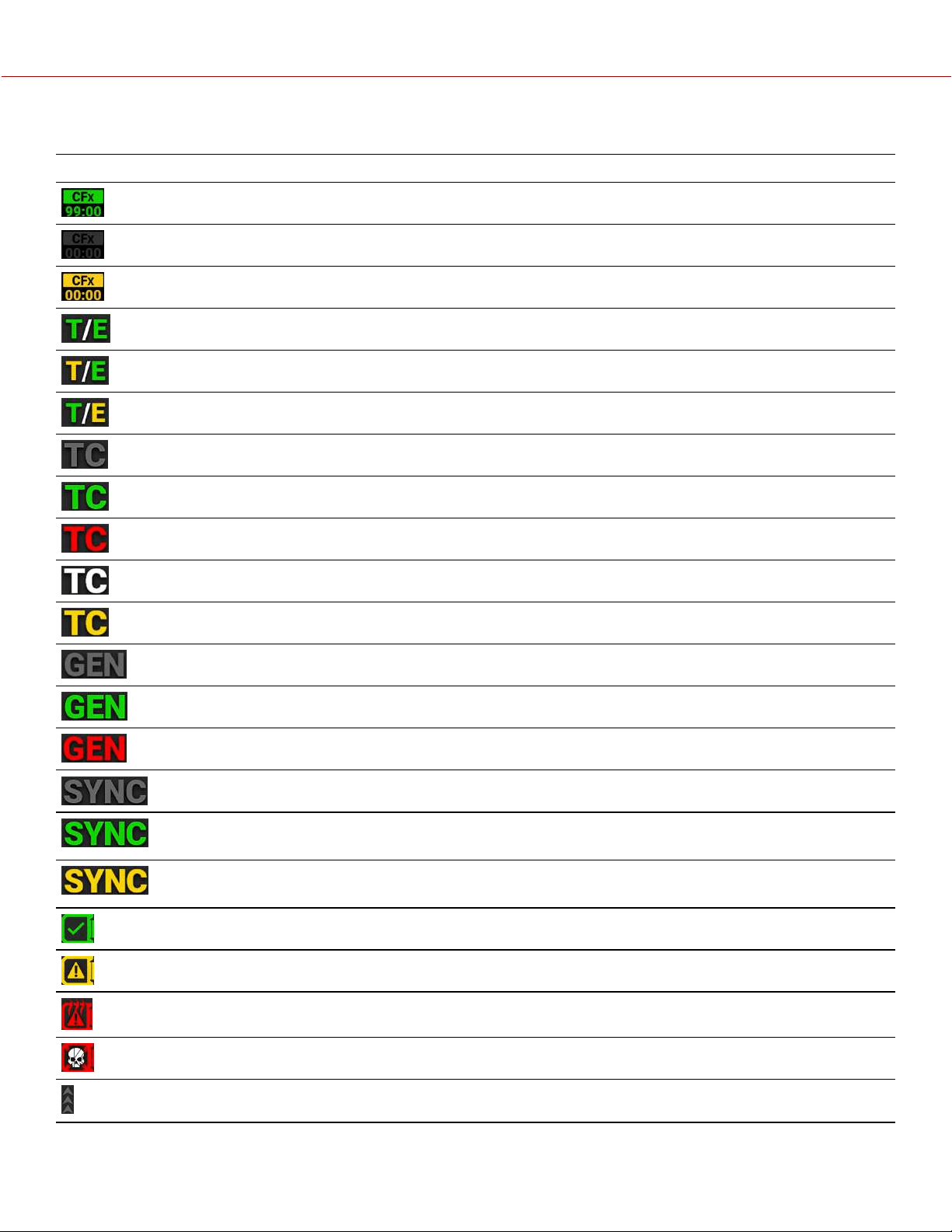
COPYRIGHT © 2021 RED.COM, LLC 955-0198, V1.1, REV. A | 200
STATUS ICONS
The following is a table of the camera's status icons.
ICON DETAILS
The CFexpress media card is good and recording time remaining
The CFexpress media card is missing
The CFexpress media card is incompatible
The sensor temperature (T) and exposure (E) calibration are good
The sensor temperature (T) requires calibration
The sensor exposure (E) requires calibration
Gray indicates that no Timecode generator signal is detected
Green indicates that the Timecode source is connected and jammed
Red indicates that the Timecode source is connected and not jammed
White indicates that the Timecode source is jammed and not connected
Yellow indicates that the Timecode source is cross-jammed (at a different Project Time Base)
Gray indicates that no Genlock signal is detected
Green indicates that the camera is receiving and is locked to a Genlock signal
Red indicates that the camera is receiving and is not locked to a Genlock signal
Gray indicates that no synchronization is detected
Green indicates that the camera's sensor is synchronized with Timecode and that the camera's output
is synchronized with a Genlock signal
Yellow indicates that the camera's sensor is NOT synchronized with Timecode and that the camera's
output is synchronized with a single camera or a Genlock signal
Camera temperature is good
Camera overheating warning
Camera overheating
Camera shutting down
Gray indicates no FTPS data is transferring
V-RAPTOR™ 8K V V OPERATION GUIDE
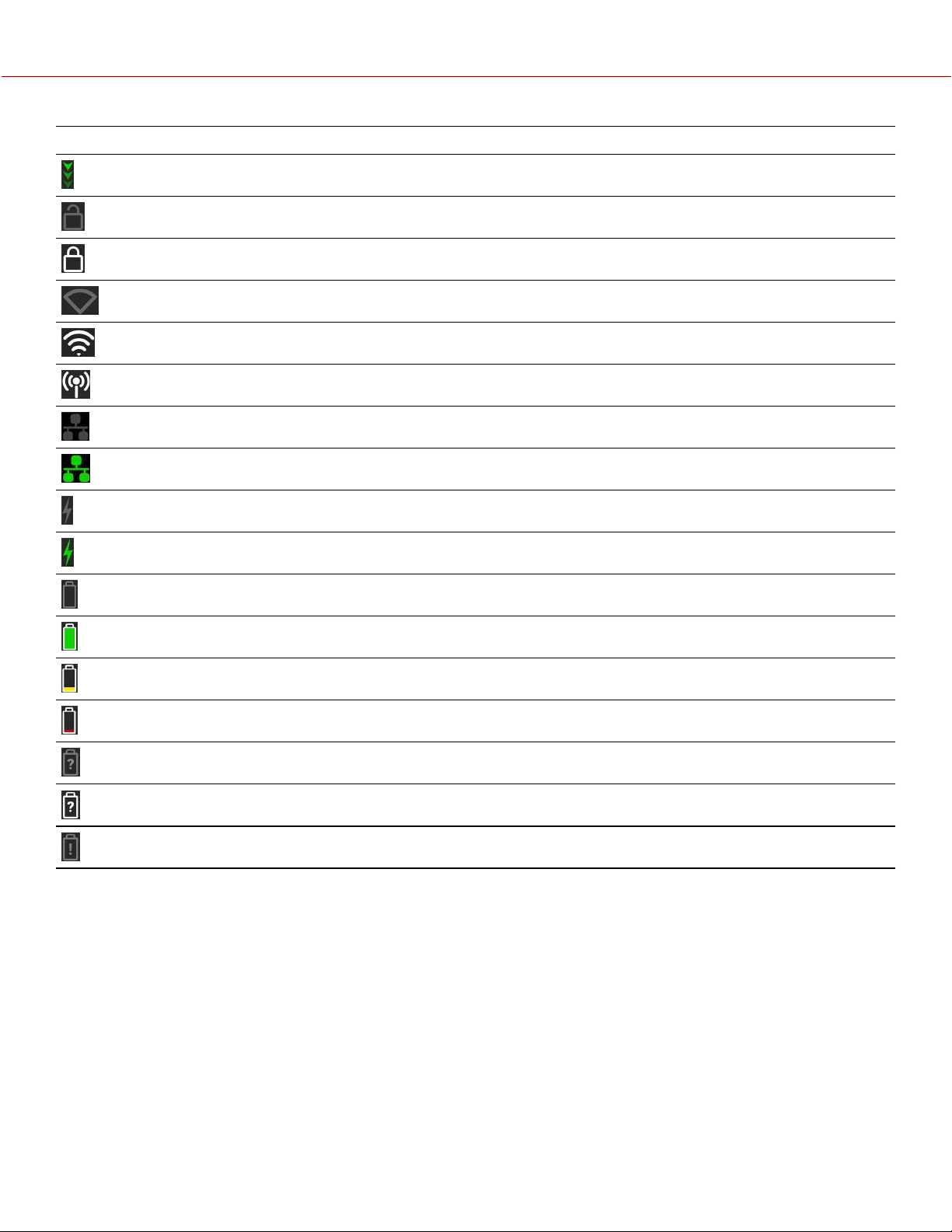
ICON DETAILS
Green arrows indicate FTPS data is transferring
Gray and open indicates that the camera LCD is unlocked
White and closed indicates that the camera LCD is locked
Gray and empty indicates that no Wi-Fi signal is detected
White bars indicate the strength of the Wi-Fi signal detected (Infrastructure)
White antenna indicates that Wi-Fi signal is broadcasting (Ad-hoc)
Gray indicates that the camera is not connected to a network
Green indicates that the camera is connected to a network
Gray indicates that no DC power is connected
Green indicates that the camera is receiving DC power
Gray indicates that no battery is connected
White indicates that the battery is connected and green shows the relative level of charge remaining
Yellow indicates 10 minutes of power remaining
Red indicates less then 5 minutes of power remaining
Gray question mark indicates no communication with the battery and no power
White question mark indicates no communication with the battery and power
Gray exclamation point indicates error communicating with the battery and no power
COPYRIGHT © 2021 RED.COM, LLC 955-0198, V1.1, REV. A | 201
V-RAPTOR™ 8K V V OPERATION GUIDE
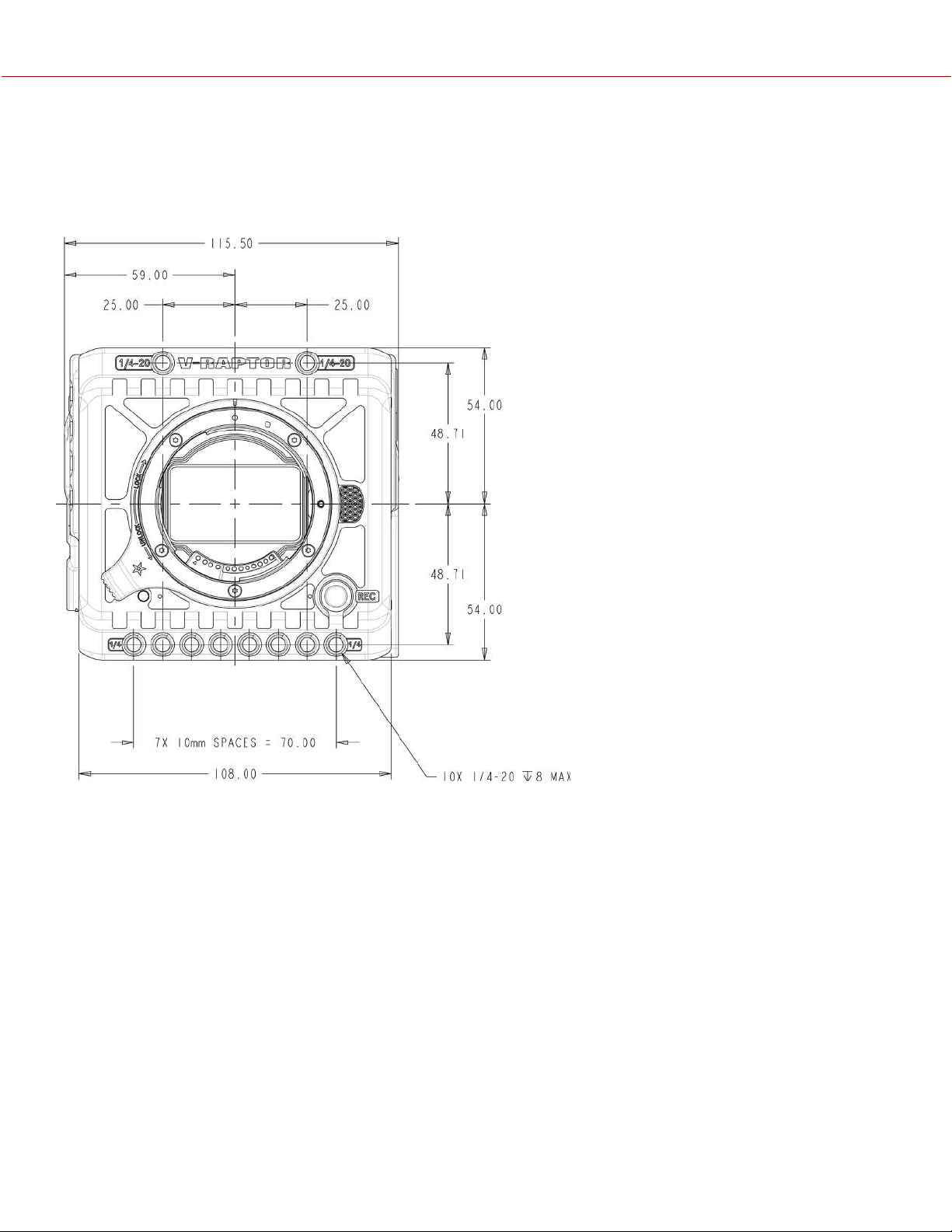
COPYRIGHT © 2021 RED.COM, LLC 955-0198, V1.1, REV. A | 202
7. MECHANICAL DRAWINGS
NOTE: Dimensions are shown in mm.
FRONT VIEW
Figure: Camera Front View
V-RAPTOR™ 8K V V OPERATION GUIDE
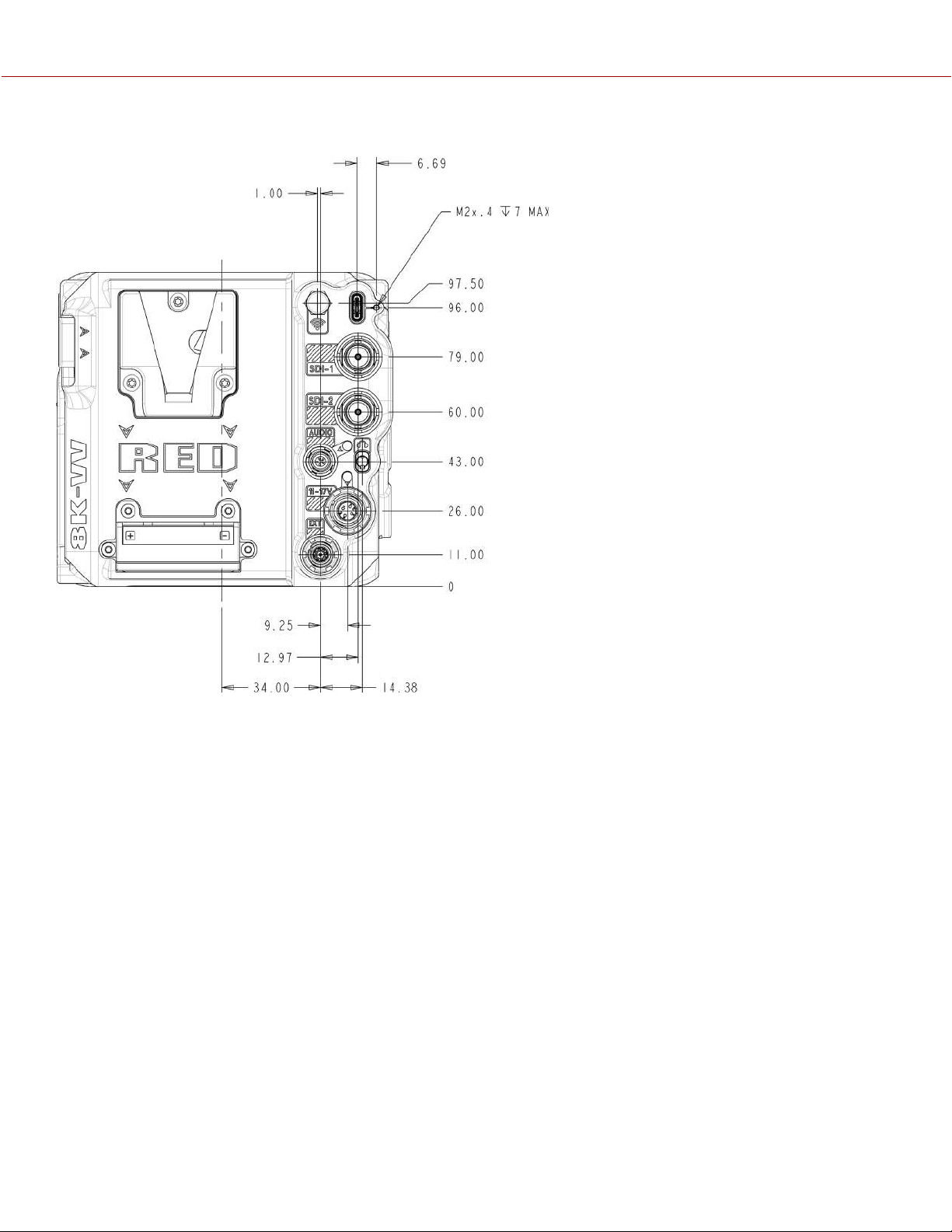
BACK VIEW
Figure: Camera Back View
COPYRIGHT © 2021 RED.COM, LLC 955-0198, V1.1, REV. A | 203
V-RAPTOR™ 8K V V OPERATION GUIDE
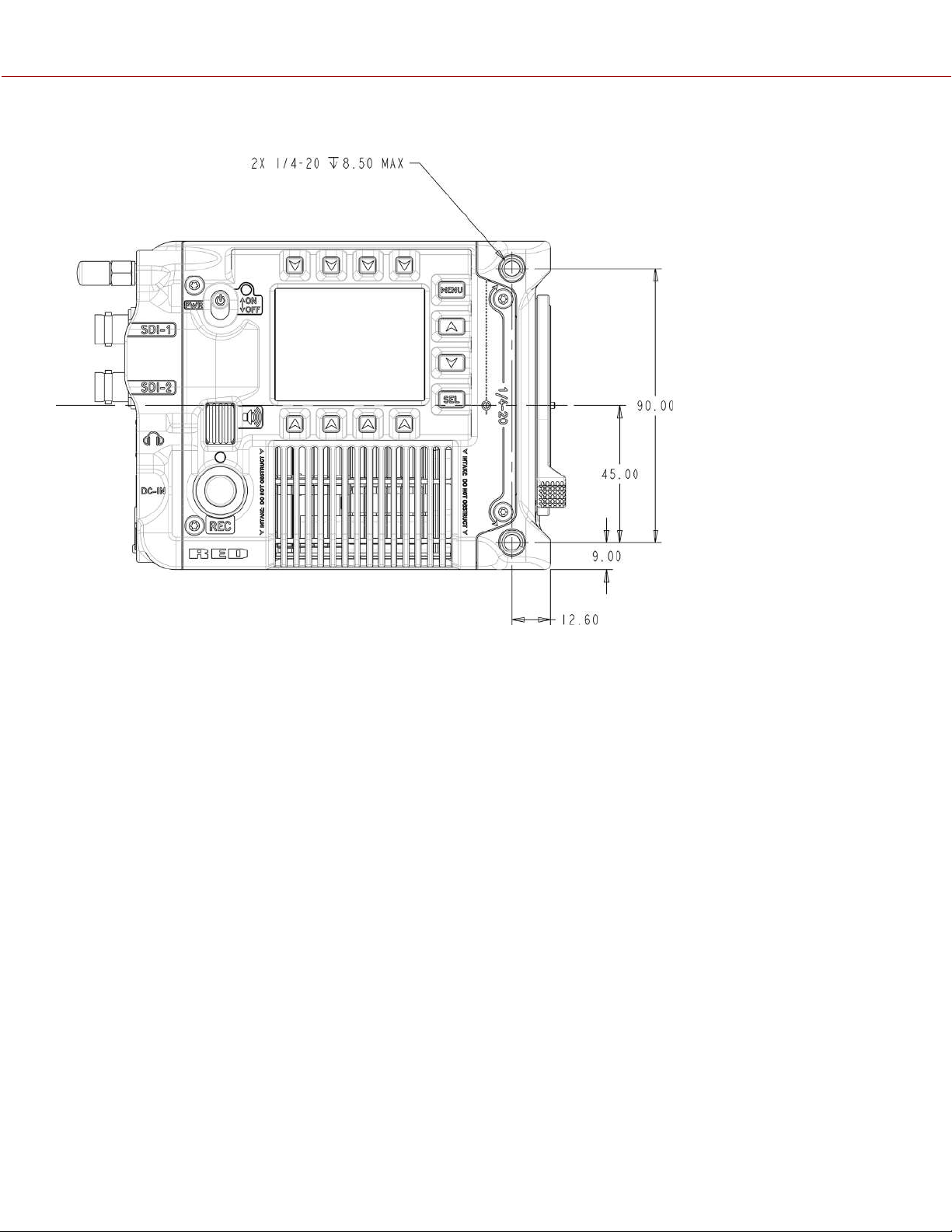
RIGHT SIDE VIEW
Figure: Camera Side View (Right)
COPYRIGHT © 2021 RED.COM, LLC 955-0198, V1.1, REV. A | 204
V-RAPTOR™ 8K V V OPERATION GUIDE
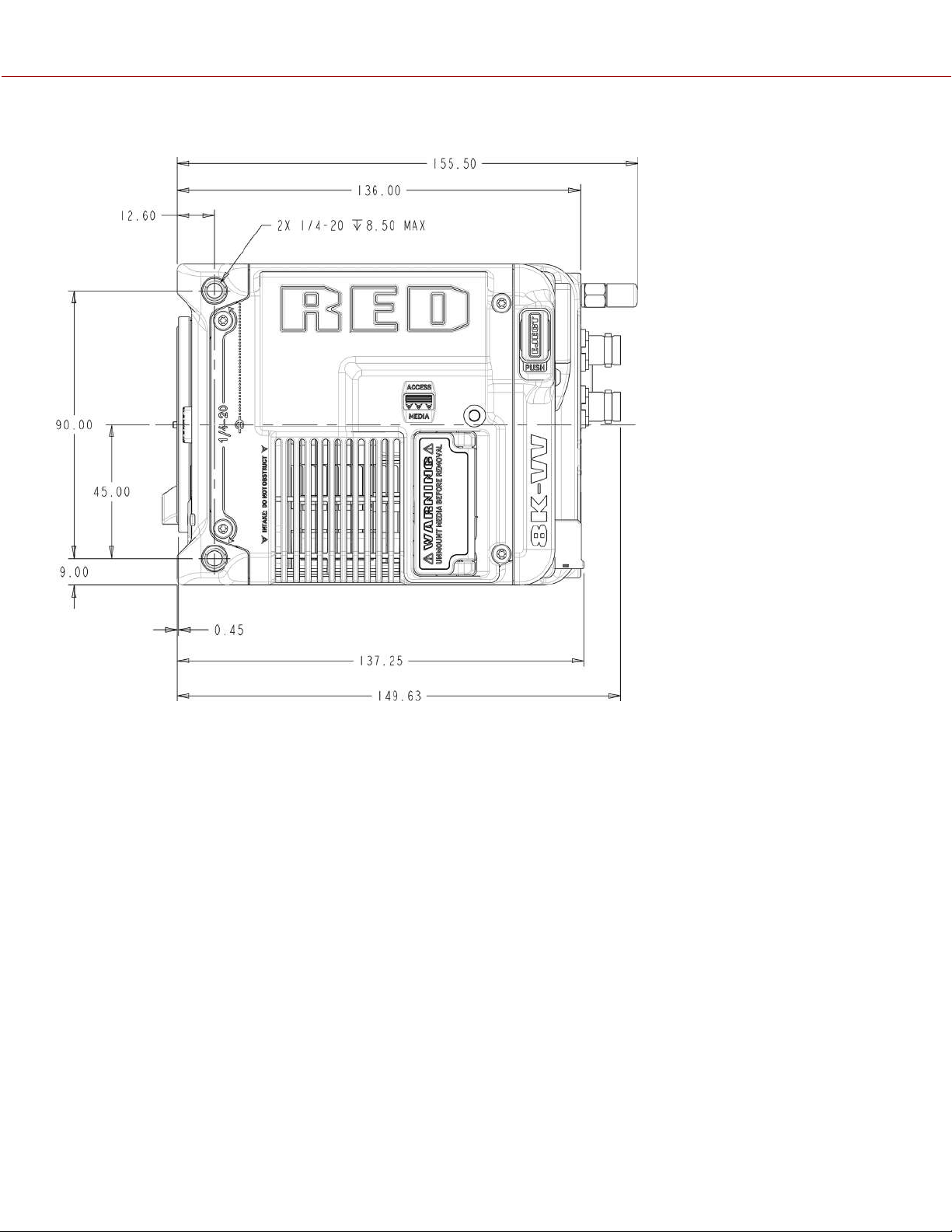
LEFT SIDE VIEW
Figure: Camera Side View (Left)
COPYRIGHT © 2021 RED.COM, LLC 955-0198, V1.1, REV. A | 205
V-RAPTOR™ 8K V V OPERATION GUIDE
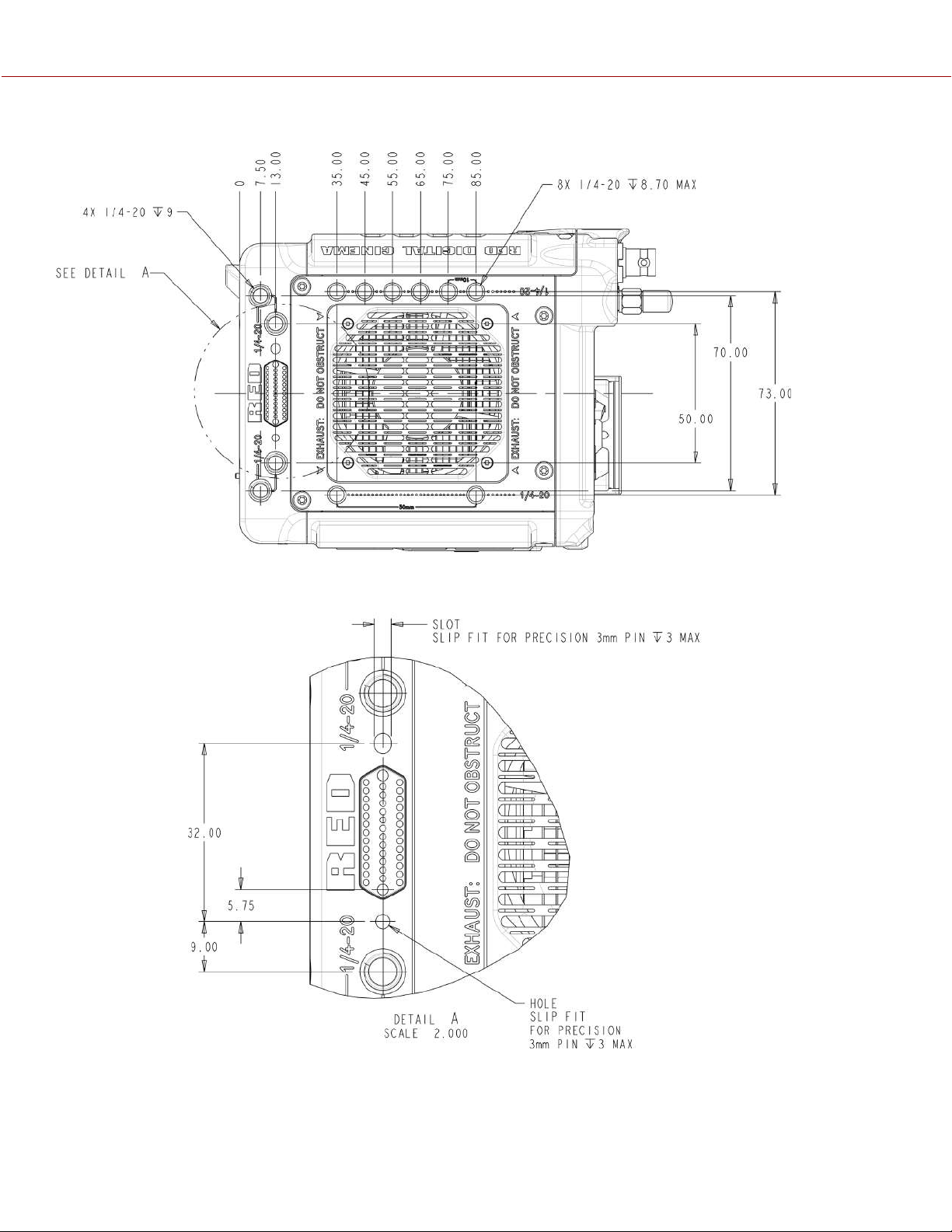
TOP VIEW
Figure: Camera Top View
COPYRIGHT © 2021 RED.COM, LLC 955-0198, V1.1, REV. A | 206
V-RAPTOR™ 8K V V OPERATION GUIDE
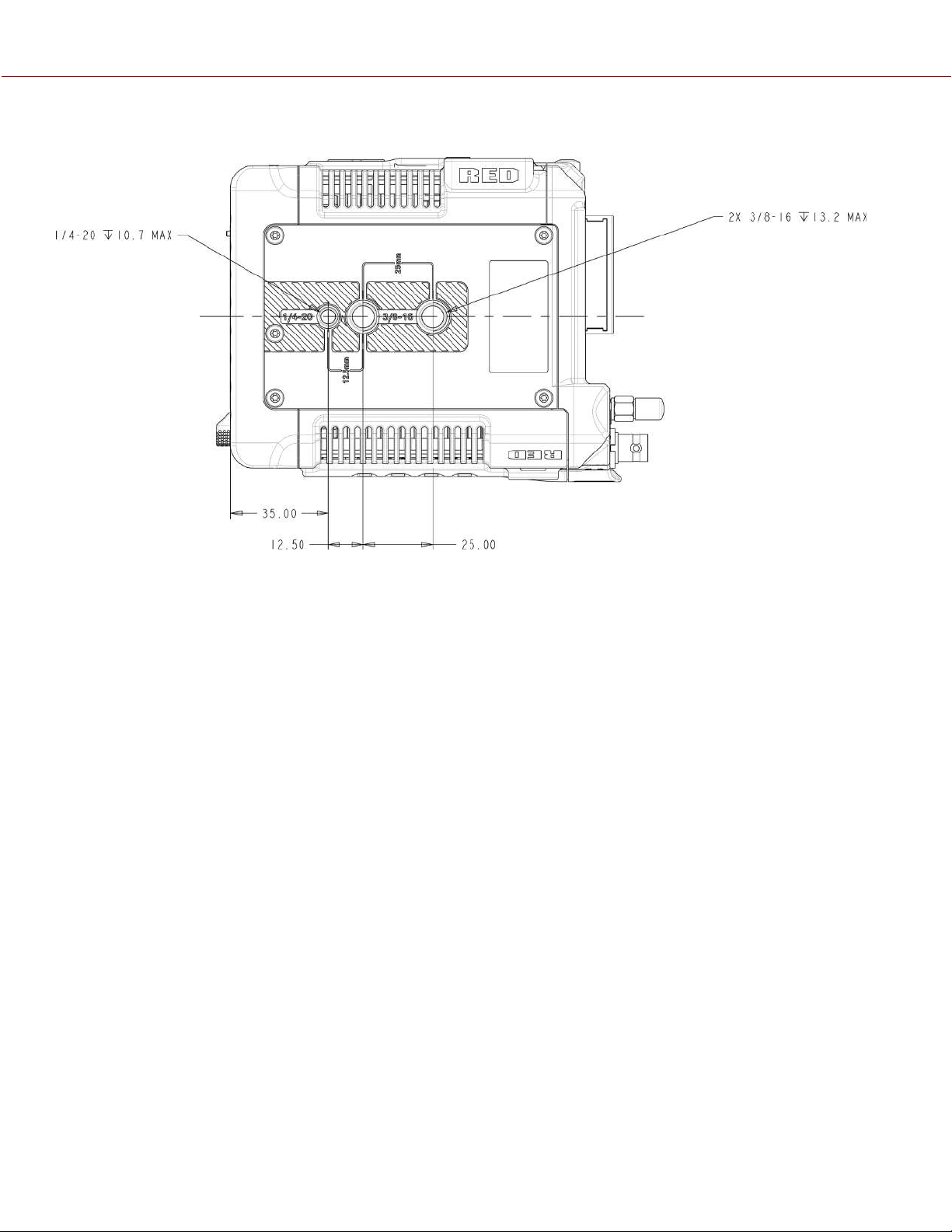
BOTTOM VIEW
Figure: Camera Bottom View
COPYRIGHT © 2021 RED.COM, LLC 955-0198, V1.1, REV. A | 207
V-RAPTOR™ 8K V V OPERATION GUIDE
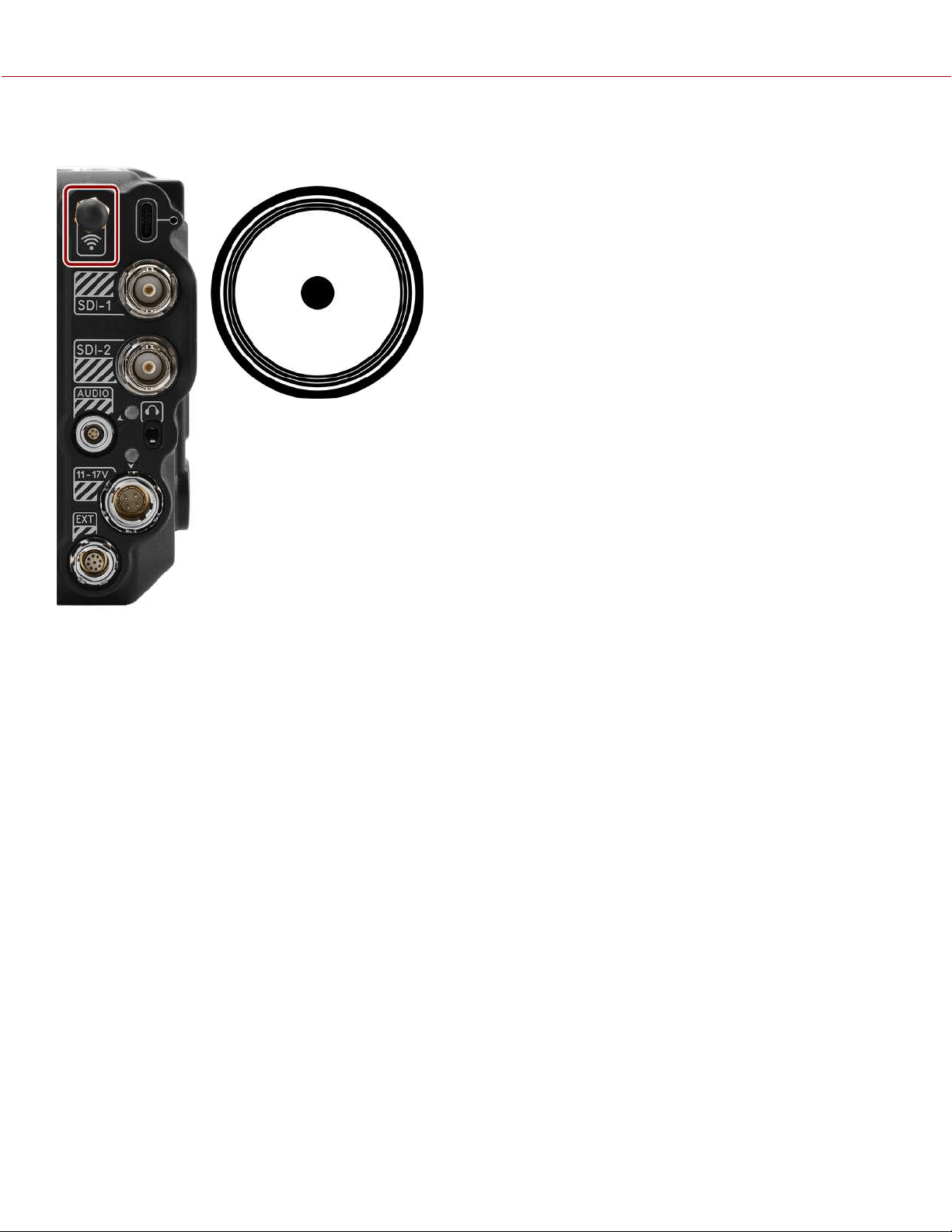
FEMALE RP SMA PORT
The female RP SMA connector provides an attachment for the male RP SMA Wi-Fi antenna.
Figure: Front face of the female RP SMA port (looking at the back of the camera).
NOTE: Mating connector is a Wi-Fi antenna with a standard male RP SMA connector.
COPYRIGHT © 2021 RED.COM, LLC 955-0198, V1.1, REV. A | 208
V-RAPTOR™ 8K V V OPERATION GUIDE
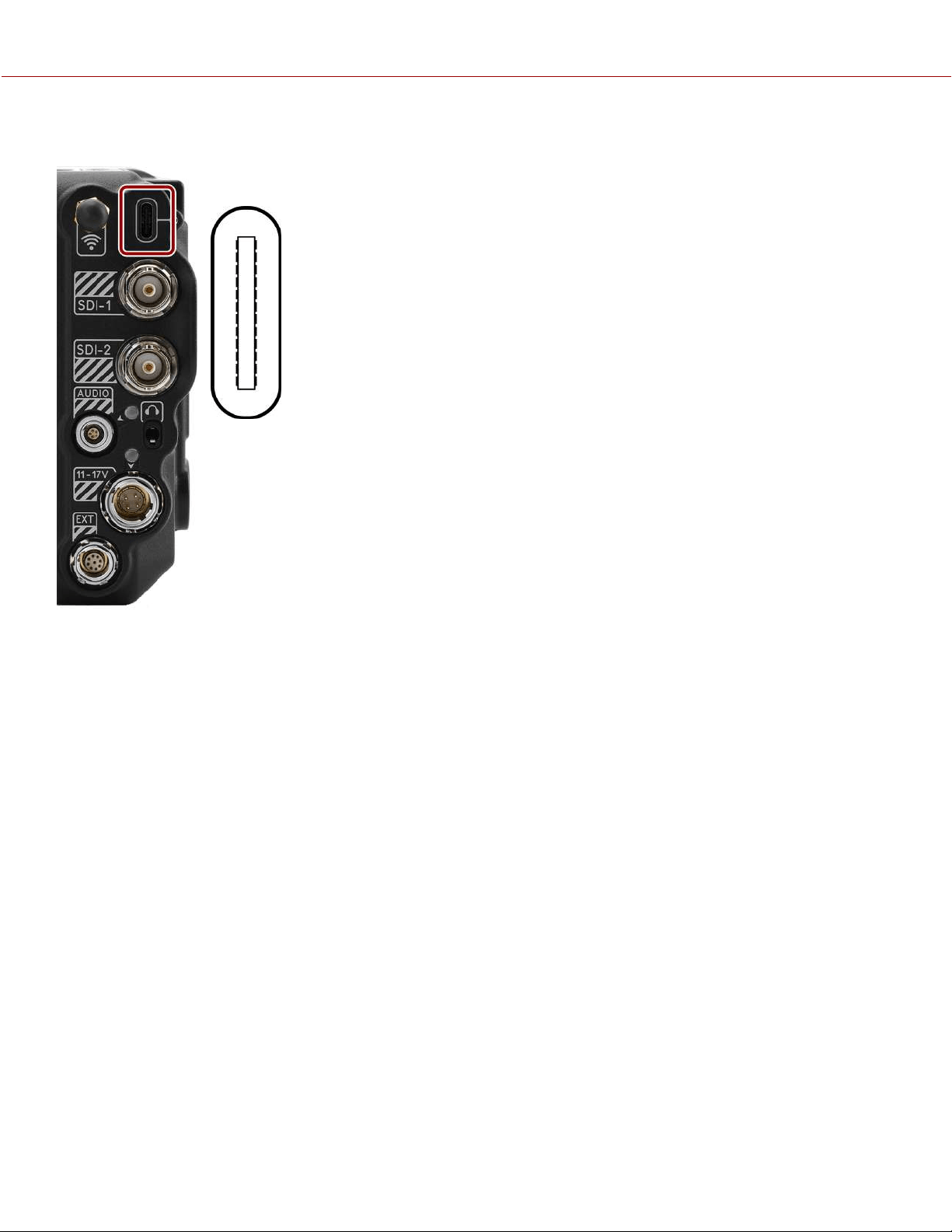
USB-C PORT
The USB-C power out connector supplies 5 Volts of power. The maximum sustained current
draw is 0.5 Amps. The USB-C port is used primarily for data connections.
Figure: Front face of the USB-C port (looking at the back of the camera).
NOTE: Mating connector is a standard USB-C male connector.
COPYRIGHT © 2021 RED.COM, LLC 955-0198, V1.1, REV. A | 209
V-RAPTOR™ 8K V V OPERATION GUIDE
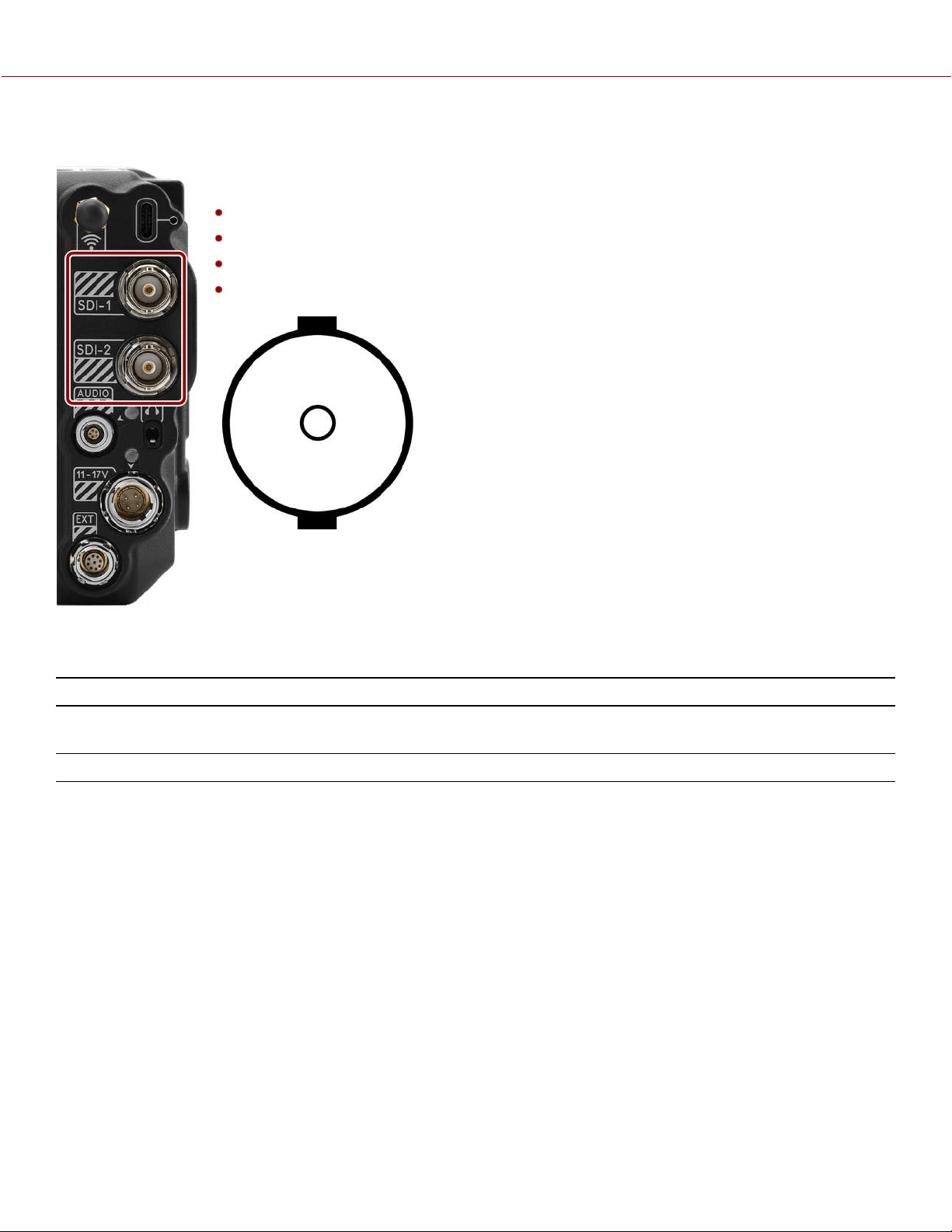
12G-SDI (SDI-1 & SDI-2)
The 12G-SDI male 75 ohm BNC ports deliver 12, 6, 3, or 1.5 Gbps of image bandwidth ideal for
the 4Kp60 format. Other features include:
Up to Four (4) channels of embedded audio
Time of Day and Edge Timecode
Record Tally flag
Clip name information (as SMPTE RP-188 VITC2 HANC metadata)
Figure: Front face of the 12G-SDI male BNC connector (looking at the back of the camera).
12G-SDI 75 OHM MALE BNC CONNECTOR
PIN SIGNAL DESCRIPTION DIRECTION
Center 12/6/3/1.5 G-SDI
Signal
Up to 4096 x 2160: 444 for 30p, 422 for 60p - Log view or LUT view
(SMPTE ST 2082)
Out
Shell Ground Common ground (camera ground) N/A
NOTE: Mating connector is standard 75 Female BNC connector rated for 12G-SDI.
COPYRIGHT © 2021 RED.COM, LLC 955-0198, V1.1, REV. A | 210
V-RAPTOR™ 8K V V OPERATION GUIDE

WARNING: Under certain circumstances, it is possible for an SDI connector to incur damage when connected to an
accessory and powered without using shielded cables. RED recommends only using high quality, shielded BNC cables
that are rated for 12G-SDI signals and only using shielded power cables for powering SDI accessories.
Make sure power is connected to the SDI accessory at all times before you connect the BNC to the camera.
Ungrounded power from SDI accessories can damage the camera’s SDI port. To avoid this possible damage, attach the
power source to the accessory before attaching it to the BNC cable. When using RED Approved Third Party battery
plates, unplug the BNC cable prior to hot swapping.
When possible, avoid using P-Tap (also known as D-Tap) cables to power accessories. To avoid damage when using P-
Tap/D-Tap, it’s imperative that the connect/disconnect sequence (below) is followed precisely.
BNC ATTACHMENT INSTRUCTIONS
When attaching SDI accessories:
1.
Connect a power source to the SDI accessory; power on the SDI accessory.
2.
Ensure a power source is connected to the camera. This ensures both are grounded prior to connecting the BNC.
The camera's power state does not have an impact on SDI attachment sequence.
3.
Connect the BNC cable to the accessory, then to the camera.
When detaching an accessory mounted to an SDI output, ensure that you remove the BNC connection to the camera
before removing power to the SDI device:
1.
Shutdown the SDI accessory.
2.
Disconnect the BNC cable from the camera.
3.
Disconnect the power source from the SDI accessory.
When you need to swap out a battery on an accessory mounted to the camera’s SDI port, you must:
1.
Shutdown the SDI accessory.
2.
Disconnect the BNC cable from the camera.
3.
Replace the battery on the SDI accessory.
4.
Connect the BNC cable to the camera.
5.
Power on the SDI accessory.
For more information, refer to Preventing Damage to SDI Outputs.
COPYRIGHT © 2021 RED.COM, LLC 955-0198, V1.1, REV. A | 211
V-RAPTOR™ 8K V V OPERATION GUIDE
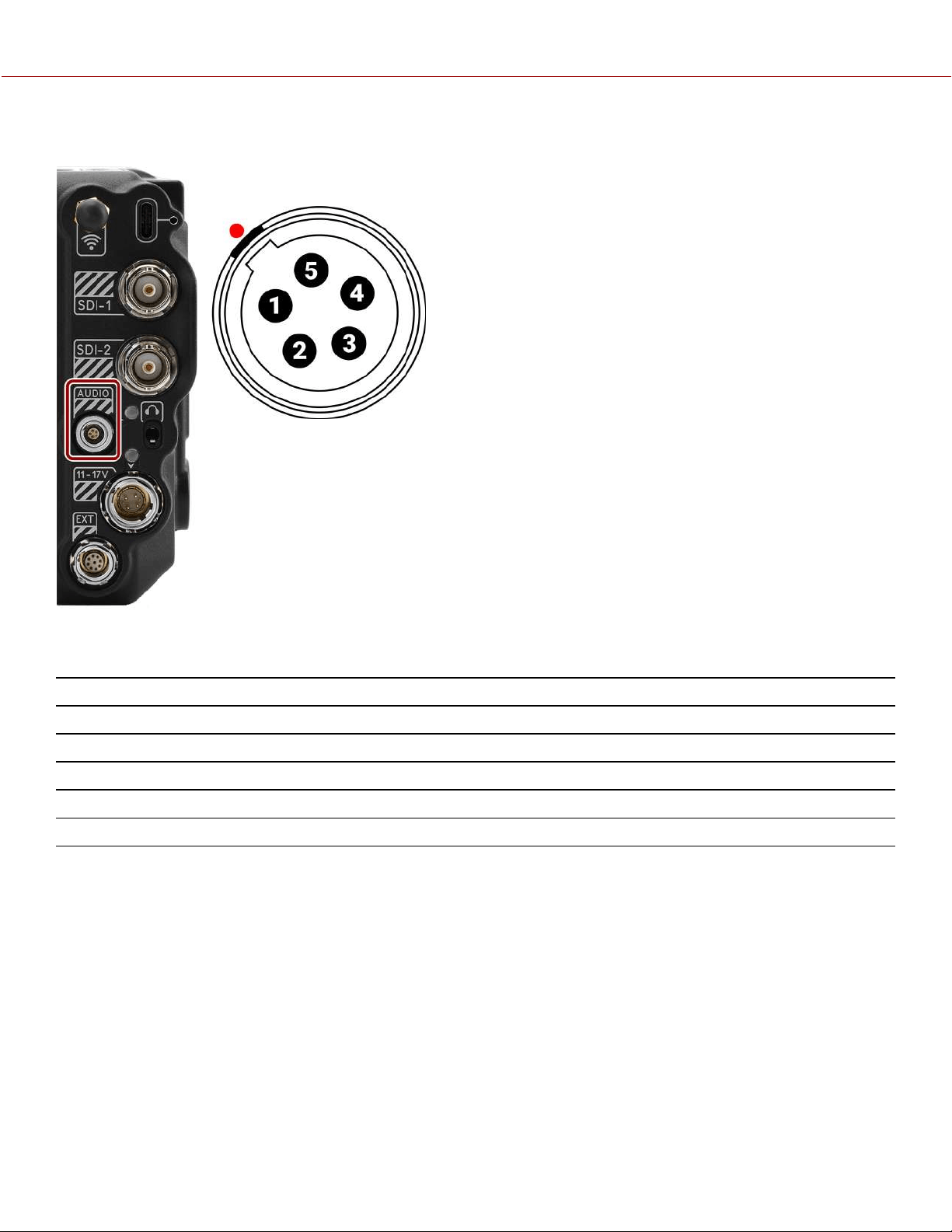
AUDIO PORT
The female 5-pin 00B audio connector accepts 2-channel audio, Line, Mic, and +48V Phantom
Power.
Figure: Front face of the female 5-pin 00B audio connector (looking at the back of the camera).
5-PIN 00B FEMALE AUDIO CONNECTOR
PIN
SIGNAL DESCRIPTION
1
Ground Ground to camera
2
Ch 3 + Channel 3 signal (positive)
3
Ch 3 - Channel 3 negative
4
Ch 4 + Channel 4 signal (positive)
5
Ch 4 - Channel 4 negative
NOTE: Mating connectors are FGG.00.305.CLAD35Z (5-pin 00 circular push-pull connector, straight plug) and
FHG.00.305.CLAD35Z (5-pin 00 circular push-pull connector, right-angle plug).
COPYRIGHT © 2021 RED.COM, LLC 955-0198, V1.1, REV. A | 212
V-RAPTOR™ 8K V V OPERATION GUIDE
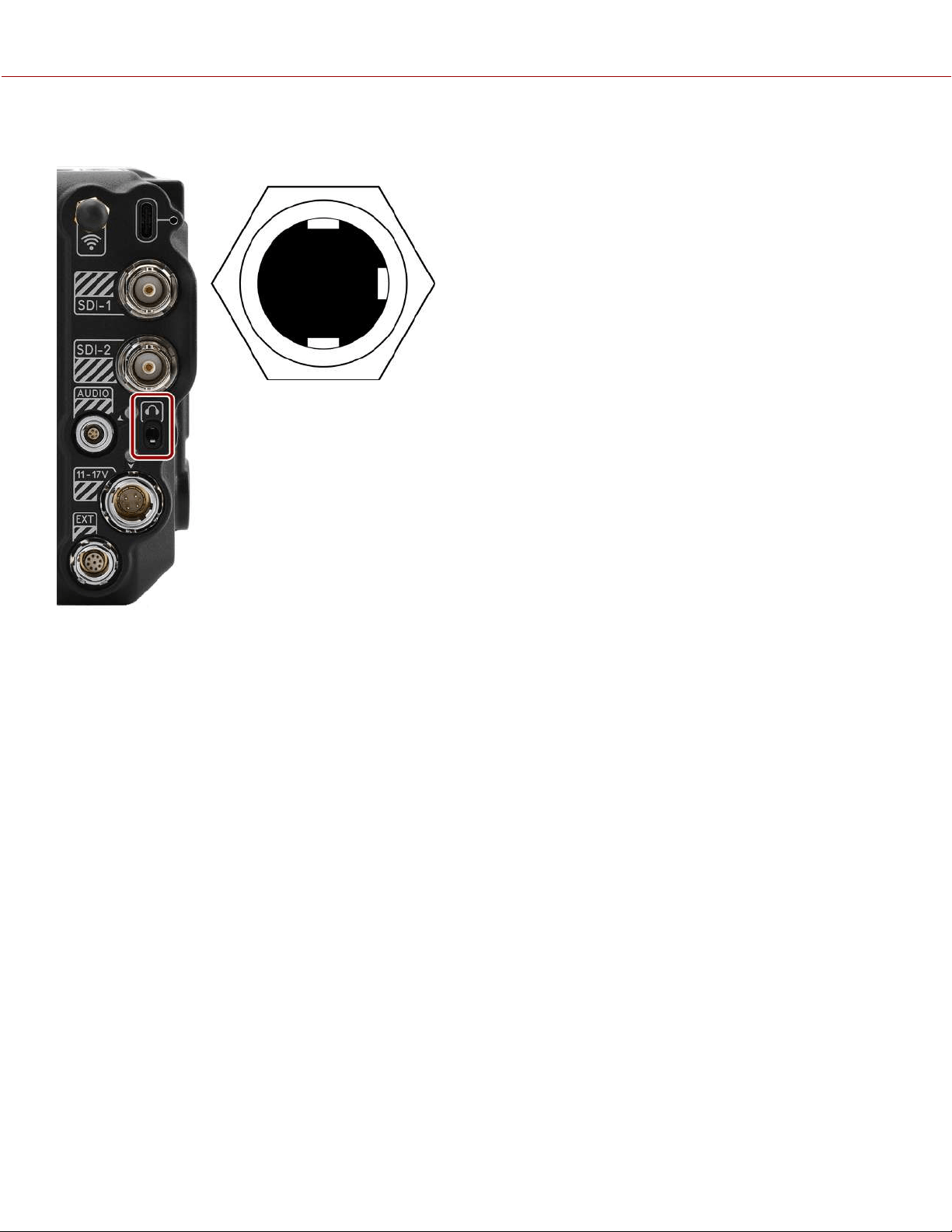
HEADPHONE JACK
The female stereo 3.5 mm headphone jack provides an attachment for stereo headphones.
Figure: Front face of the female 3.5 mm headphone jack (looking at the back of the camera).
NOTE: Mating connector is a 3.5 mm stereo headphone plug.
COPYRIGHT © 2021 RED.COM, LLC 955-0198, V1.1, REV. A | 213
V-RAPTOR™ 8K V V OPERATION GUIDE
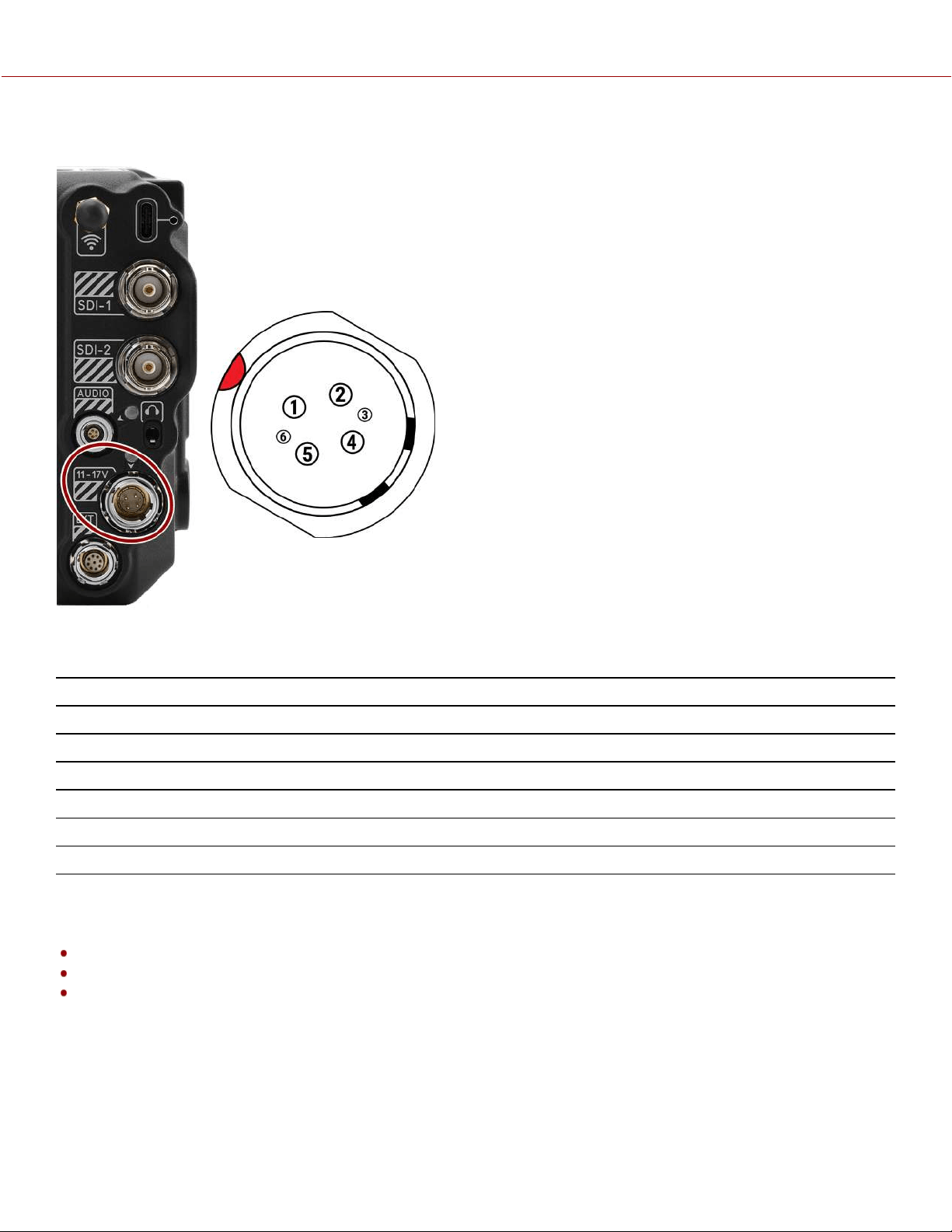
6-PIN DC-IN
The male 6-Pin 1B DC-IN connector accepts DC input power from 11 V DC to 17 V DC. A built-in
power conditioner protects against reverse-polarity connections, electrostatic discharge (ESD),
undervoltage, overvoltage, and overcurrent.
WARNING: Both pairs of +VBATT and GROUND pins must be wired. Using a third-party power
cable that wires only one (1) pair of +VBATT and GROUND pins may damage the power supply
or the camera. Damage to the power supply or other components of the camera system caused
by using an inappropriate power cable is not covered under warranty.
Figure: Front face of the male 6-pin 1B DC power input connector (looking at the back of the
camera).
6-PIN 1B DC INPUT CONNECTOR
PIN
SIGNAL DESCRIPTION
1
+VBATT Power input, +11.5 to +17 V DC
2
+VBATT Power input, +11.5 to +17 V DC
3
SCL-BATT Battery SMBus SCL signal (3.3 V)
4
GROUND Power return (camera ground)
5
GROUND Power return (camera ground)
6
SDA-BATT Battery SMBus SDA signal (3.3 V)
NOTE: Mating connector is FGJ.1B.306.CWLD72Z.
COMPATIBLE CABLES
790-0638: DSMC AC Power Adaptor Pack
790-0164: XLR Power Cable (10')
790-0291: DSMC Battery Belt Clip
COPYRIGHT © 2021 RED.COM, LLC 955-0198, V1.1, REV. A | 214
V-RAPTOR™ 8K V V OPERATION GUIDE
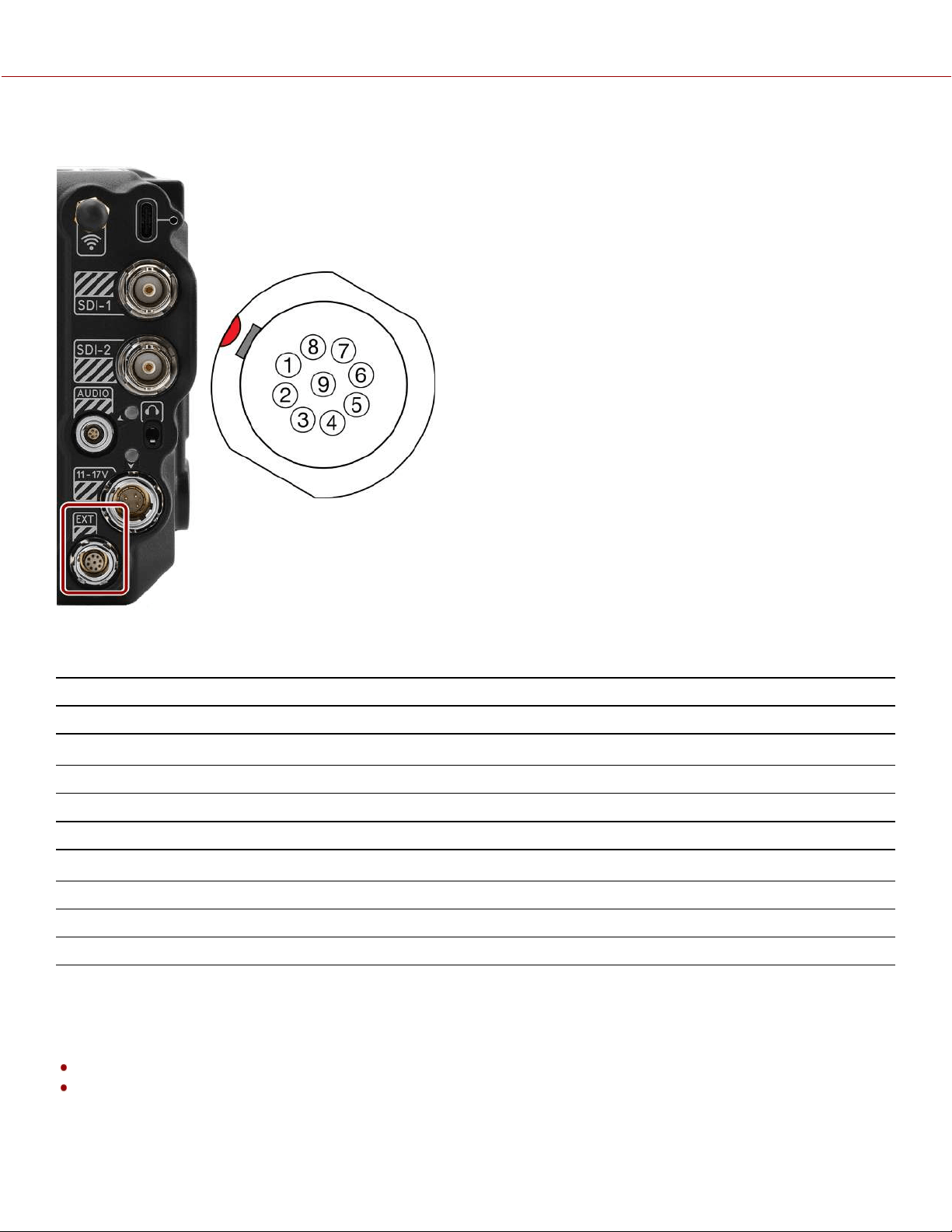
EXTENSION PORT
The female 9-contact 0B ODU Extension port supports serial (RS-232 RX and TX), a General
Purpose Input (GPI) trigger (active-low switch closure), General Purpose Output (GPO),
Timecode, and Genlock. The connector also offers auxiliary 5 Volt power out, with a maximum
sustained current draw of 500 mA.
To operate the GPI contact closure style trigger, short Pin 6 (GPI) to Pin 9 (ground).
Figure: Front face of the female 9-contact Extension port (looking at the back of the camera).
NOTE: The required mating connector is 9-Pin 0L Straight Plug Connector (ODU, part# SX0L0X-
P09MCC0-0001).
9-PIN 0B ODU EXTENSION PORT PINOUT
PIN
SIGNAL DETAILS
1
5 V AUX 5 Volt AUX (500 mA Max) enabled using the Power menu
2
Timecode Out Timecode Out – SMPTE 12M
1
3
GPO General Purpose Out, Sensor Sync, 3.3 Volt Logic Level
4
UART TX Serial RS-232 Transmit
5
UART RX Serial RS-232 Receive
6
GPI General Purpose In, 3.3 Volt Logic Level
2
7
Timecode In Timecode In – SMPTE 12M
8
Genlock Tri-Level Genlock In (SMPTE 296M and 274M)
9
GND Signal and Power Ground
1. Not currently supported.
2. The signal path includes a resistor pulling the signal high, which is designed to work with a closure switch connected to GND.
COMPATIBLE CABLES
790-0685: RED 9-Pin EXT to Flying Lead 1.3’
790-0674: RED EXT to Timecode 3'
COPYRIGHT © 2021 RED.COM, LLC 955-0198, V1.1, REV. A | 215
V-RAPTOR™ 8K V V OPERATION GUIDE
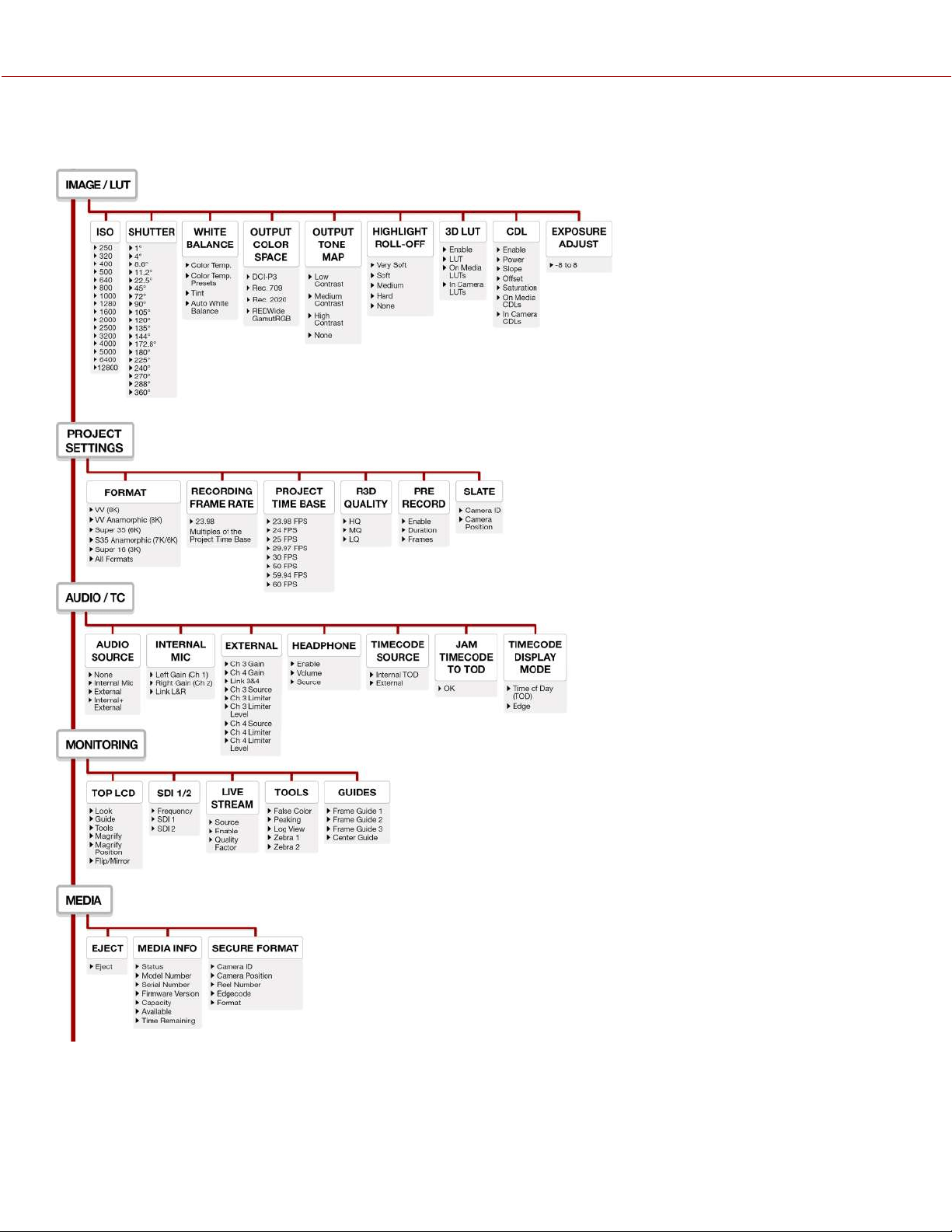
COPYRIGHT © 2021 RED.COM, LLC 955-0198, V1.1, REV. A | 216
8. MENU MAP
V-RAPTOR™ 8K V V OPERATION GUIDE
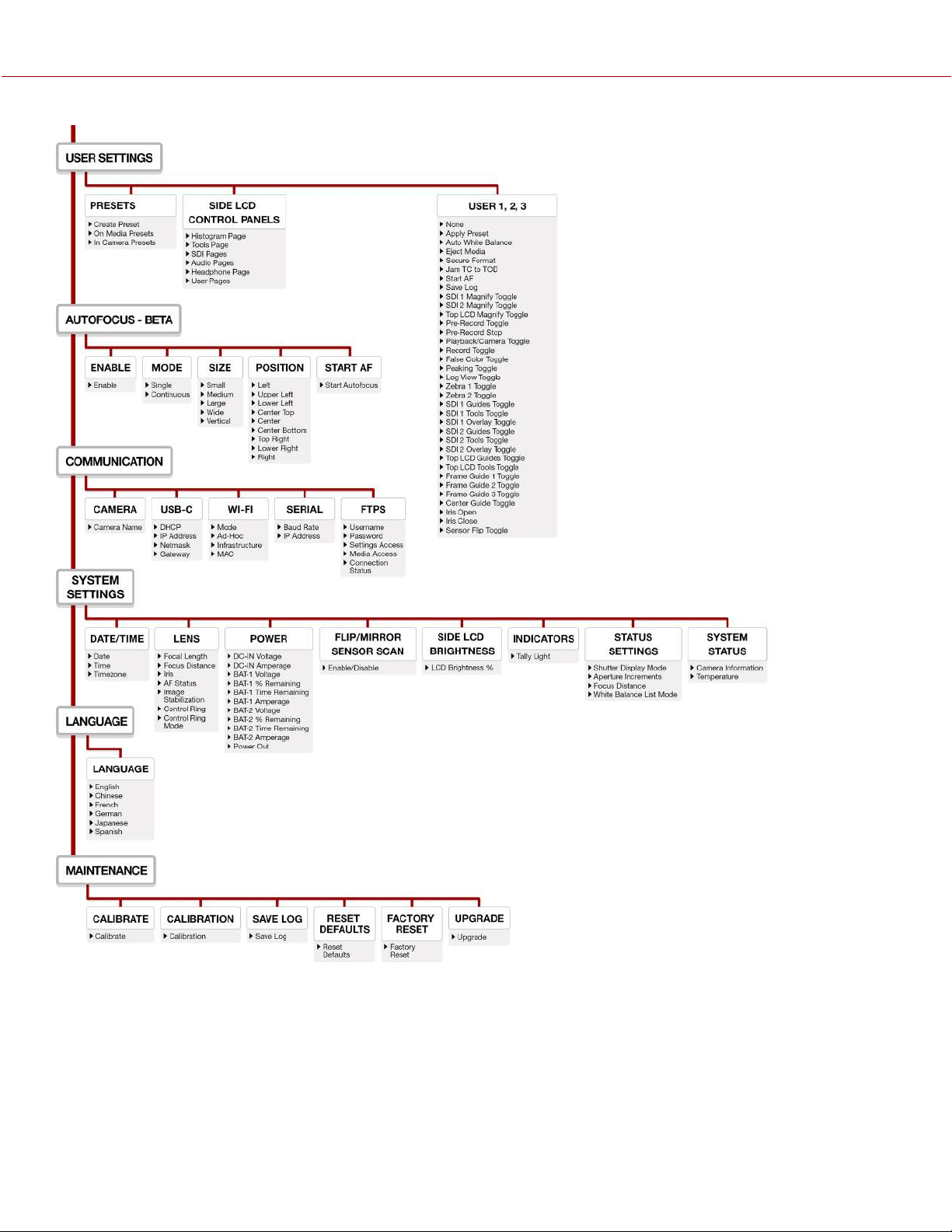
COPYRIGHT © 2021 RED.COM, LLC 955-0198, V1.1, REV. A | 217
V-RAPTOR™ 8K V V OPERATION GUIDE

COPYRIGHT © 2021 RED.COM, LLC 955-0198, V1.1, REV. A | 218
9. TECHNICAL SPECIFICATIONS
Technical specifications reflect both current and projected information. Everything is subject to change.
V-RAPTOR
™
8K
V V
+ 6K S35 (DUAL FORMAT)
ITEM DETAILS
Sensor Type V-RAPTOR 8K V V 35.4 Megapixel, CMOS
Effective Pixels 8192 x 4320
Sensor Size
40.96 mm x 21.60 mm (Diagonal: 46.31 mm)
Dynamic Range 17+ stops
Mount Type RF mount with electronic communication
Supports Canon EF with electronic communication by using compatible Canon RF mount adapters
Accepts Canon RF mount-based lens adaptors for diverse lens choices
1
Max Data Rates Up to 800 MB/s using RED Pro CFexpress or other qualified CFexpress media cards
1
REDCODE
®
RAW
Maximum Frame Rates
VV
Super 35
Super 16
120 fps at 8K 17:9 (8192 x 4320), 150 fps at 8K 2.4:1 (8192 x 3456)
140 fps at 7K 17:9 (7168 x 3780), 175 fps at 7K 2.4:1 (7168 x 3024)
160 fps at 6K 17:9 (6144 x 3240), 200 fps at 6K 2.4:1 (6144 x 2592)
192 fps at 5K 17:9 (5120 x 2700), 240 fps at 5K 2.4:1 (5120 x 2160)
240 fps at 4K 17:9 (4096 x 2160), 300 fps at 4K 2.4:1 (4096 x 1728)
320 fps at 3K 17:9 (3072 x 1620), 400 fps at 3K 2.4:1 (3072 x 1296)
480 fps at 2K 17:9 (2048 x 1080), 600 fps at 2K 2.4:1 (2048 x 864)
Playback Frame Rates
(Project Time Base)
23.98, 24, 25, 29.97, 30, 50, 59.94, and 60 fps, at all resolutions
Best Available
REDCODE
®
Settings
REDCODE HQ, MQ, and LQ at 8K 17:9 (8192 × 4320) up to 60 fps
REDCODE LQ at 8K 17:9 (8192 × 4320) up to 120 fps
REDCODE HQ, MQ, and LQ at 6K 17:9 (6144 × 3240) up to 96 fps
REDCODE MQ, and LQ at 6K 17:9 (6144 × 3240) up to 160 fps
REDCODE HQ, MQ, and LQ at 4K 17:9 (4096 × 2160) up to 240 fps
REDCODE HQ, MQ, and LQ at 2K 17:9 (2048 × 1080) up to 480 fps
REDCODE RAW
Acquisition Formats
8K 17:9 (8192 x 4320), 2:1, 2.4:1, 16:9, 1:1 and Anamorphic 2x, 1.8x, 1.6x, 1.5x, 1.3x, 1.25x
7K 17:9 (7168 x 3780), 2:1, 2.4:1, 16:9, 1:1 and Anamorphic 2x, 1.8x, 1.6x
6K 17:9 (6144 x 3240), 2:1, 2.4:1, 16:9, 1:1 and Anamorphic 1.5x, 1.3x, 1.25x
5K 17:9 (5120 x 2700), 2:1, 2.4:1, 16:9, 1:1
4K 17:9 (4096 x 2160), 2:1, 2.4:1, 16:9, 1:1
3K 17:9 (3072 x 1620), 2:1, 2.4:1, 16:9, 1:1
2K 17:9 (2048 x 1080), 2:1, 2.4:1, 16:9, 1:1
Construction Aluminum Alloy
Weight
4.03 lb without the body cap and the CFexpress Type B media card
Battery Type Integrated V-Lock battery interface optimized for the REDVOLT Micro-V Battery and other
Micro V-Lock batteries
1
DC Power +11 to +17 volts DC using the integrated 6-Pin DC-IN port
Operating Temperature 0˚ C to 40˚ C (32˚ F to 104˚ F)
Storage Temperature –20˚ C to 50˚ C (–4˚ F to 122˚ F)
V-RAPTOR™ 8K V V OPERATION GUIDE

V-RAPTOR
™
8K
V V
+ 6K S35 (DUAL FORMAT)
ITEM DETAILS
Relative Humidity 0% to 85% non-condensing
Color Management Image Processing Pipeline 2 (IPP2)
Supports 33×33×33 3D LUTs
Supports import of CDLs
Audio Integrated dual channel digital mono microphones, uncompressed, 24-bit 48 kHz
Integrated dual channel mic/line/+48 V input through the 5-pin Audio Port, uncompressed,
24-bit 48 kHz
Remote Control Wi-Fi for camera control through interchangeable male RP SMA antenna to female RP SMA
connection. Genlock, Timecode In, GPIO and Ctrl (RS-232) using the integrated 9-pin EXT Port. Wired
control using the USB-C port or Gigabit Ethernet (compatible USB-C to Ethernet adapter
1
required)
allowing remote camera control, live MJPEG preview video feed, and remote media offload
Monitor Outputs Integrated 12G-SDI with 6G-SDI, 3G-SDI, and 1.5G-SDI modes
12G-SDI: Up to 4096 × 2160 4:2:2 for 60p
6G-SDI: Up to 4096 × 2160 4:2:2 for 30p, 25p, and 24p
3G-SDI: Up to 2048 × 1080 4:2:2 for 60p
1.5G-SDI: Up to 2048 × 1080 4:2:2 for 30p, 25p, and 24p
SMPTE Timecode, HANC metadata, and 24-bit 48 kHz audio
Monitor Options DSMC3 RED
®
Touch 7" LCD (top LCD)
Wireless 1080p live preview video feed through 2.4 GHz or 5 GHz Wi-Fi for framing
Integrated 2.4" LCD for camera control (no preview video)
SOFTWARE
RED Control App Access full camera controls and live preview from iOS or Android devices
Available from the Apple App Store and Google Play Store. RED Control works wirelessly or wired
through the USB-C port
1. For more information on accessories, refer to RED.com/third-party-accessories
COPYRIGHT © 2021 RED.COM, LLC 955-0198, V1.1, REV. A | 219
V-RAPTOR™ 8K V V OPERATION GUIDE