JVC
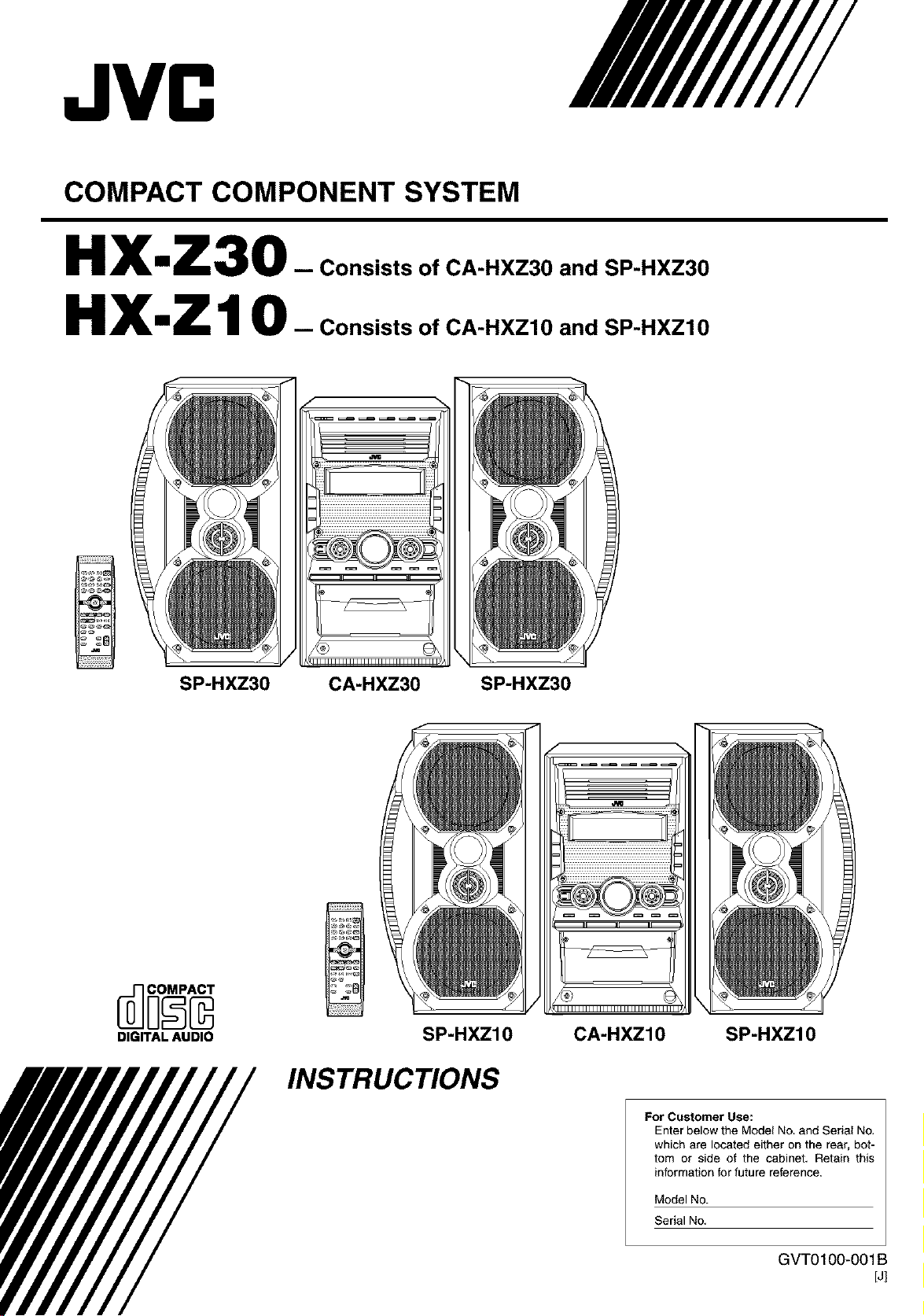
COMPACT COMPONENT SYSTEM
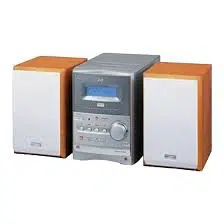
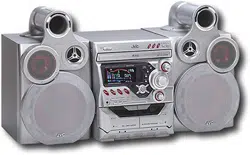
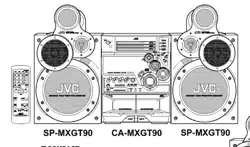
HX-Z30
HX-Z10
-- Consists of CA-HXZ30 and SP-HXZ30
-- Consists of CA-HXZ10 and SP-HXZ10
SP-HXZ30 CA-HXZ30 SP-HXZ30
DIGITAL AUDIO
SP-HXZ10
INSTRUCTIONS
CA-HXZ10 SP-HXZ10
For Customer Use:
Enter below the Model No. and Serial No.
which are located either on the rear, bot-
tom or side of the cabinet. Retain this
information for future reference.
Model No.
Serial No.
GVT0100-001 B
[J]

Warnings, Cautions and Others
Mises en garde, precautions et indications diverses
CAUTION: TO REDUCE THE RISK OF ELECTRIC SHOCK,
DO NOT REMOVE COVER (OR BACK).
NO USER SERVICEABLE PARTS INSIDE.
REFER SERVICING TO QUALIFIED SERVICE PERSONNEL.
I
The lightning flash with arrowhead symbol,
within an equilateral triangle is intended to
alert the user to the presence of uninsulated
"dangerous voltage" within the product's
enclosure that may be of sufficient
magnitude to constitute a risk of electric
shock to persons.
The exclamation point within an equilateral
triangle is intended to alert the user to the
presence of important operating and
maintenance (servicing) instructions in the
literature accompanying the appliance.
WARNING: TO REDUCE THE RISK OF FIRE
OR ELECTRIC SHOCK, DO NOT EXPOSE
THIS APPLIANCE TO RAIN OR MOISTURE.
For U.S.A.
This equipment has been tested and found to comply with the limits
for a Class B digital device, pursuant to part 18 of the FCC Rules.
These limits are designed to provide reasonable protection against
harmful interference in a residential installation.
This equipment generates, uses and can radiate radio frequency
energy and, if not installed and used in accordance with the
instructions, may cause harmful interference to radio
communications. However, there is no guarantee that interference
will net occur in a particular installation. If this equipment does cause
harmful interference to radio or television reception, which can be
determined by turning the equipment off and on, the user is
encouraged to try to correct the interference by one or more of the
following measures:
Reorient or relocate the receiving antenna.
Increase the separation between the equipment and receiver.
Connect the equipment into an outlet on a circuit different from that
to which the receiver is connected.
Consult the dealer or an experienced radio/TV technician for help.
I
CAUTION
To reduce the risk of electrical shocks, fire, etc.:
1. Do not remove screws, covers or cabinet.
2. Do not expose this appliance to rain or moisture.
ATTENTION
Afin d'_viter tout risque d'61ectrocution, d'incendie, etc.:
1. Ne pas enlever les vis ni les panneaux et ne paR ouvrir le
coffret de I'appareiL
2. Ne pas exposer rappareil & ]a pluie ni & I'humidit&
Caution--O/I (standby/on) button!
Disconnect the mains plug to shut the power off completely (all
lamps and indications go off). The O/I (standby/on) button in
any position does not disconnect the mains line.
• When the unit is on standby, the STANDBY lamp lights red.
• When the unit is turned on, the STANDBY lamp goes off.
The power can be remote controlled.
Attention--TouchO/I (attente/sous tension)!
D_connectez la fiche d'alimentation secteur pour mettre
I'appareil compl_tement hors tension (tousles t_moins et toutes
les indications sont 6teints). La touche C".h/I(attente/sous
tension), dans n'importe quelle position, ne d_connecte pas
I'appareil du secteur.
• Quand ]'appareil est en mode d'attente, ]e t_moin STANDBY
est allum_ en rouge.
• Quand ]'apparei] est SOUStension, le t_moin STANBY est
6teint.
L'alimentation peut _tre t_l_command_e.
Note to CATV system installer:
This reminder is provided to call the CATV system installer's
attention to Section 820-40 of the NEC which provides
guidelines for proper grounding and, in particular, specifies that
the cable ground shall be connected to the grounding system of
the building, as close to the point of cable entry as practical.
HX-Z30:35 kg / 78 lbs
HX-ZI0:30 kg / 67 lbs
CAUTIONI
To avoid personal injury or
accidentally dropping the unit,
have two persons unpack, carry,
and install the unit.
- G-1-
For Canada/pour le Canada
CAUTION: TO PREVENT ELECTRIC SHOCK, MATCH WIDE
BLADE OF PLUG TO WIDE SLOT, FULLY INSERT.
ATTENTION: POUR EVITER LES CHOCS ELECTRIQUES,
INTRODUIRE LA LAME LA PLUS LARGE DE LA FICHE DANS
LA BORNE CORRESPONDANTE DE LA PRISE ET POUSSER
JUSQUAU FOND.
For Canada/pour le Canada
THIS DIGITAL APPARATUS DOES NOT EXCEED THE CLASS
B LIMITS FOR RADIO NOISE EMISSIONS FROM DIGITAL
APPARATUS AS SET OUT IN THE INTERFERENCE-CAUSING
EQUIPMENT STANDARD ENTITLED "DIGITAL APPARATUS,"
ICES-003 OF THE DEPARTMENT OF COMMUNICATIONS.
CETAPPAREIL NUMERIQUE RESPECTE LES UMITES DE
BRUITS RADIOELECTRIQUES APPLICABLES AUX
APPAREILS NUMIRIQUES DE CLASSE B PRESCRITES
DANS LA NORME SUR LE MATERIEL BROUILLEUR:
"APPAREILS NUMERIQUES", NMB-003 EDICTEE PAR LE
MINISTRE DES COMMUNICATIONS.
1. CLASS 1 LASER PRODUCT
2. DANGER: Invisible laser radiation when open and interlock failed
or defeated. Avoid direct exposure to beam.
3. CAUTION: Do not open the top cover. There are no user
serviceable parts inside the unit; leave all servicing to qualified
service personnel.
1. PRODUIT LASER CLASSE 1
2. ATTENTION: Radiation laser invisible quand I'appareil est ouvert
ou qua le verrouillage est an panne ou d_sactiv6. Eviter une
exposition directe au rayon.
3. ATTENTION: Ne pas ouvrir le couvercle du dessus. II n'y a
aucune piece utilisable & I'int6rieur. Laisser & un personnel
qualifi_ le soin de r_parer votre appareiL
- G-2-
Introduction
We would like to thank you for purchasing one of our JVC products.
Before operating this unit, read this manual carefully and thoroughly to
obtain the best possible performance from your unit, and retain this manual
for future reference.
AboutThisManual
This manual is organized as follows:
• The manual mainly explains operations using the
buttons and controls on the unit. You can also use the
buttons on the remote control if they have the same or
similar names (or marks) as those on the unit.
If operation using the remote control is different from
that using the unit, it is then explained.
• Basic and common information that is the same for many
functions is grouped in one place, and is not repealed for
each procedm_. For instance, we do not repeat the
information about turning on/off the unit, setting the
volume, changing the sound effects, etc., which are
explained in the section "Common Operations" on pages 9
to 11.
• The following symbols are used in this manual:
Gives you warning and caution to prevent
damage or risk of fire/electric shock.
Furthermore, it gives you information about
what is not good for obtaining the best possible
performance from the unit.
Gives you information and hints you should
know.
Precautions
Powersources
• When unplugging the unit from the wall outlet, always pull
on the plug, not the AC power cord.
._DO handle the power wet hands. ]
m
NOT AC cord with
I
Moisturecondensation
Moislm_ may condense on the lens inside the unit in the
following cases:
• After starting heating in the room
• In a damp morn
• If the unit is brought directly from a cold to a warm place
Should condensation occur, the unit may malfunction. In this
case, leave the unit turned on for a few hours until the moisture
evaporates, unplug the AC power cord, then plug it in again.
Internalheat
A cooling fan is mounted on the rear panel to prevent heat
buildup inside the unit.
For safety, observe the following carefully:
• Make sure there is good ventilation around the
unit. Poor ventilation could overheat and damage
the unit.
• DO NOT block the cooling fan and the ventilation
openings or holes. If they are blocked by a
newspaper or cloth, etc., the heat may not be
able to get out.
Installation
• Install in a place which is level, dry and neither too hot nor
too cold--between 5_C (41°F) and 35°C (95°F).
• Install the unit in a location with adequate ventilation to
prevent internal heat buildup in the unit.
• Leave sufficient distance between the unit and the TV.
• Keep the speakers away from the TV to avoid interference
with TV.
DO NOT install the unit in a location near heat
,_ sources, or in a place subject to direct sunlight,
excessive dust or vibration.
Others
• ShouM any metallic object or liquid fall into the unit,
unplug the AC power cord and consult your dealer befo_
operating any further.
• If you are not going to operale the unit for an extended
period of time, unplug the AC power cord from the wall
outlet.
DO NOT disassemble the unit since there are no
user serviceable parts inside.
If anylhing goes wrong, unplug the AC power cord and
consult your dealer.
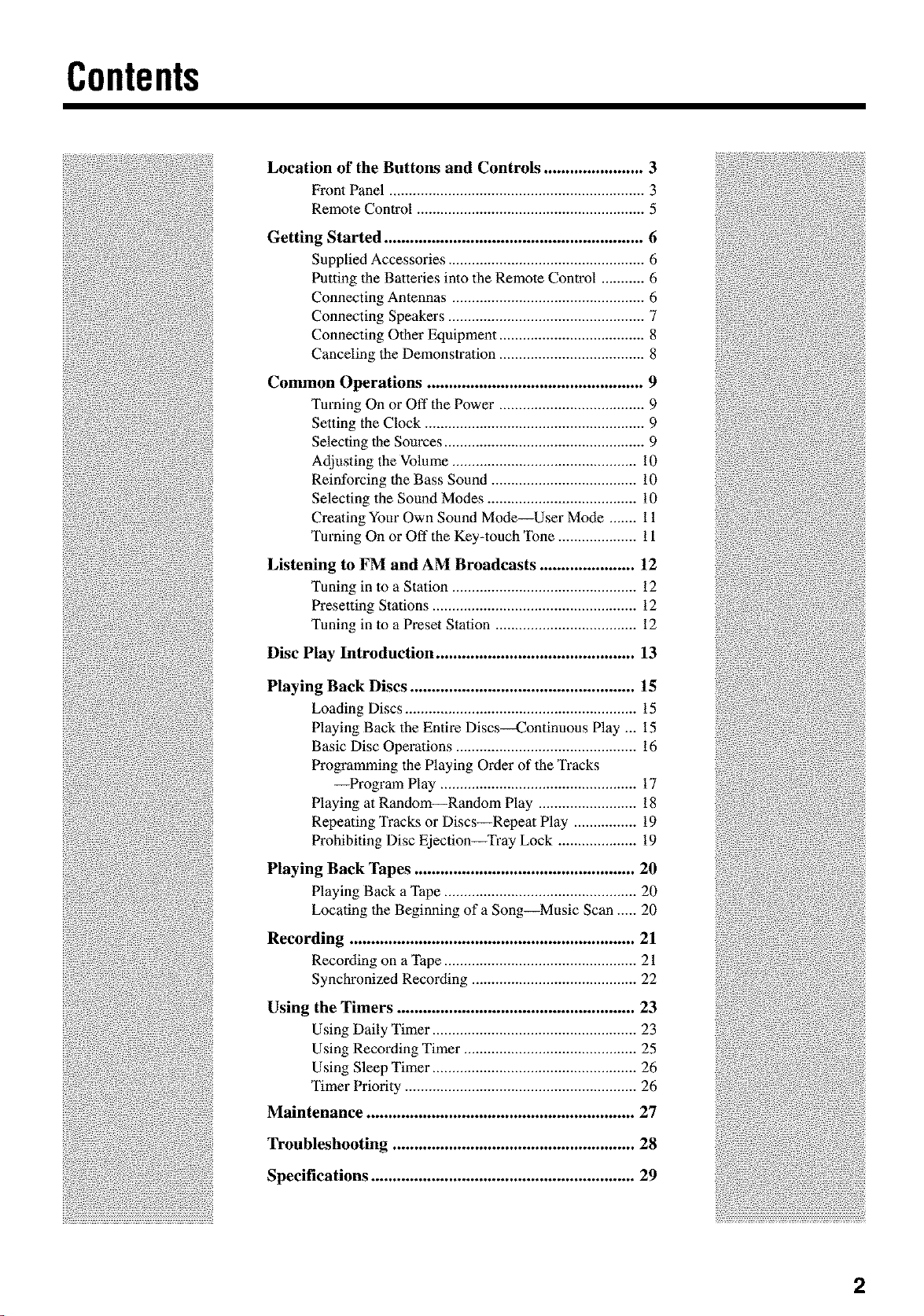
Contents
Location of the Buttons and Controls ....................... 3
Front Panel ................................................................. 3
Remote Control .......................................................... 5
Getting Started ............................................................ 6
Supplied Accessories .................................................. 6
Putting the Batteries into the Remote Control ........... 6
Connecting Antennas ................................................. 6
Connecting Speakers .................................................. 7
Connecting Other Equipment ..................................... 8
Canceling the Demonstration ..................................... 8
Common Operations .................................................. 9
Turning On or Off the Power ..................................... 9
Setting the Clock ........................................................ 9
Selecling the Sources ................................................... 9
Adjusting the Volume ............................................... 10
Reinforcing the Bass Sound ..................................... 10
Selecting the Sound Modes ...................................... 10
Creating Your Own Sound Mode--User Mode ....... 11
Turning On or Off the Key-touch Tone .................... 11
Listening to FM and AM Broadcasts ...................... 12
Tuning in to a Station ............................................... 12
Presetting Stations .................................................... 12
Tuning in to a P_set Station .................................... 12
Disc Play Introduction .............................................. 13
Playing Back Discs .................................................... 15
Loading Discs ........................................................... 15
Playing Back the Entire Discs_ontinuous Play ... 15
Basic Disc Operations .............................................. 16
Programming the Playing Order of the Tracks
--Program Play .................................................. 17
Playing atRandom--Random Play ......................... 18
Repeating Tracks or Discs--Repeat Play ................ 19
Prohibiting Disc Ejection Tray Lock .................... 19
Playing Back Tapes ................................................... 20
Playing Back a Tape ................................................. 20
Locating the Beginning of a Song_Music Scan ..... 20
Recording .................................................................. 21
Recording on aT ape................................................. 2t
Synchronized Recording .......................................... 22
Using the Timers ....................................................... 23
Using Daily Timer .................................................... 23
Using Recording Timer ............................................ 25
Using Sleep Timer .................................................... 26
Timer Priority........................................................... 26
Maintenance .............................................................. 27
Troubleshooting ........................................................ 28
Specifications ............................................................. 29
2
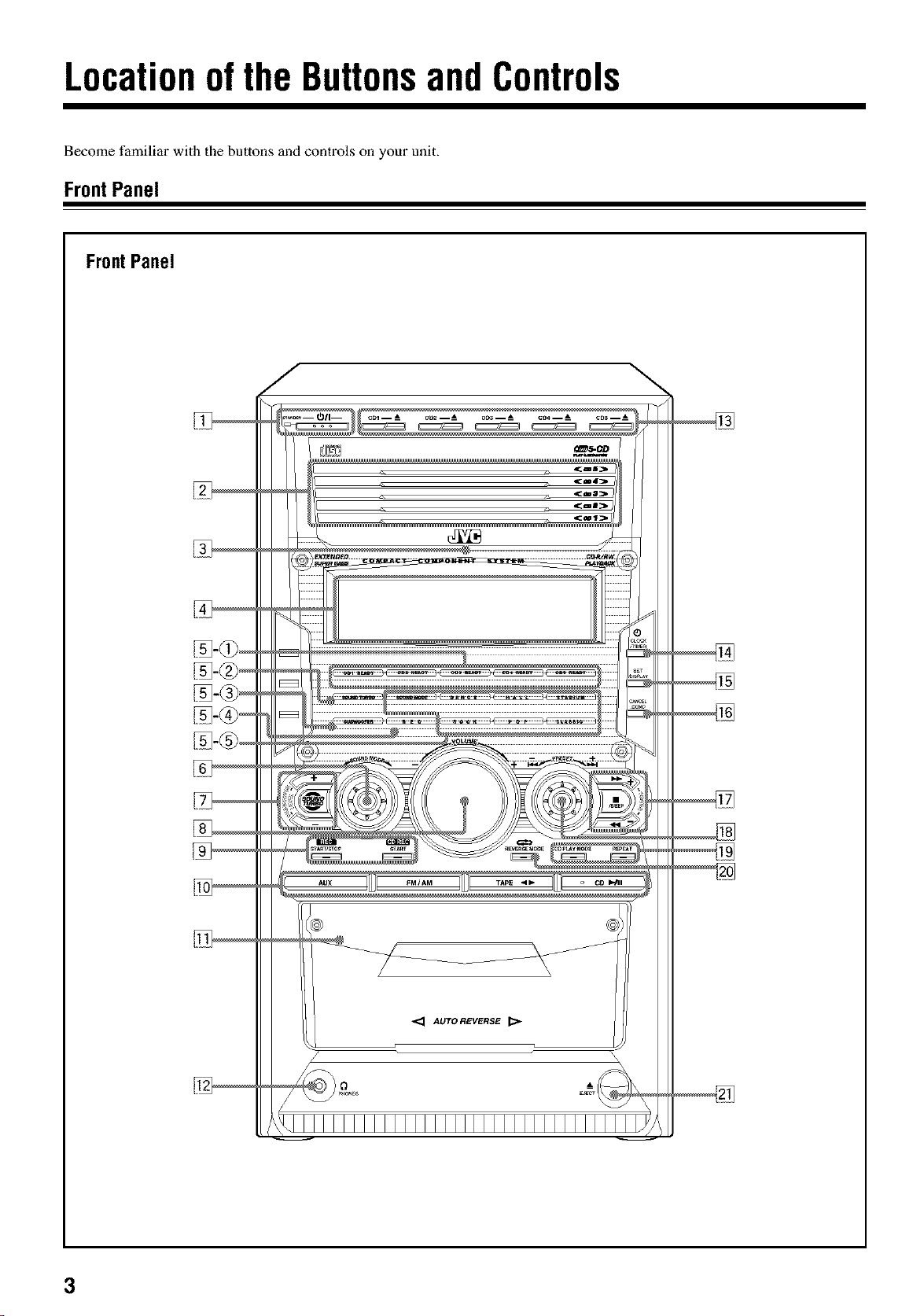
LocationoftheButtonsandControls
Become familiar with the buttons and controls on your unit.
FrontPanel
FrontPanel
3
Continued I_
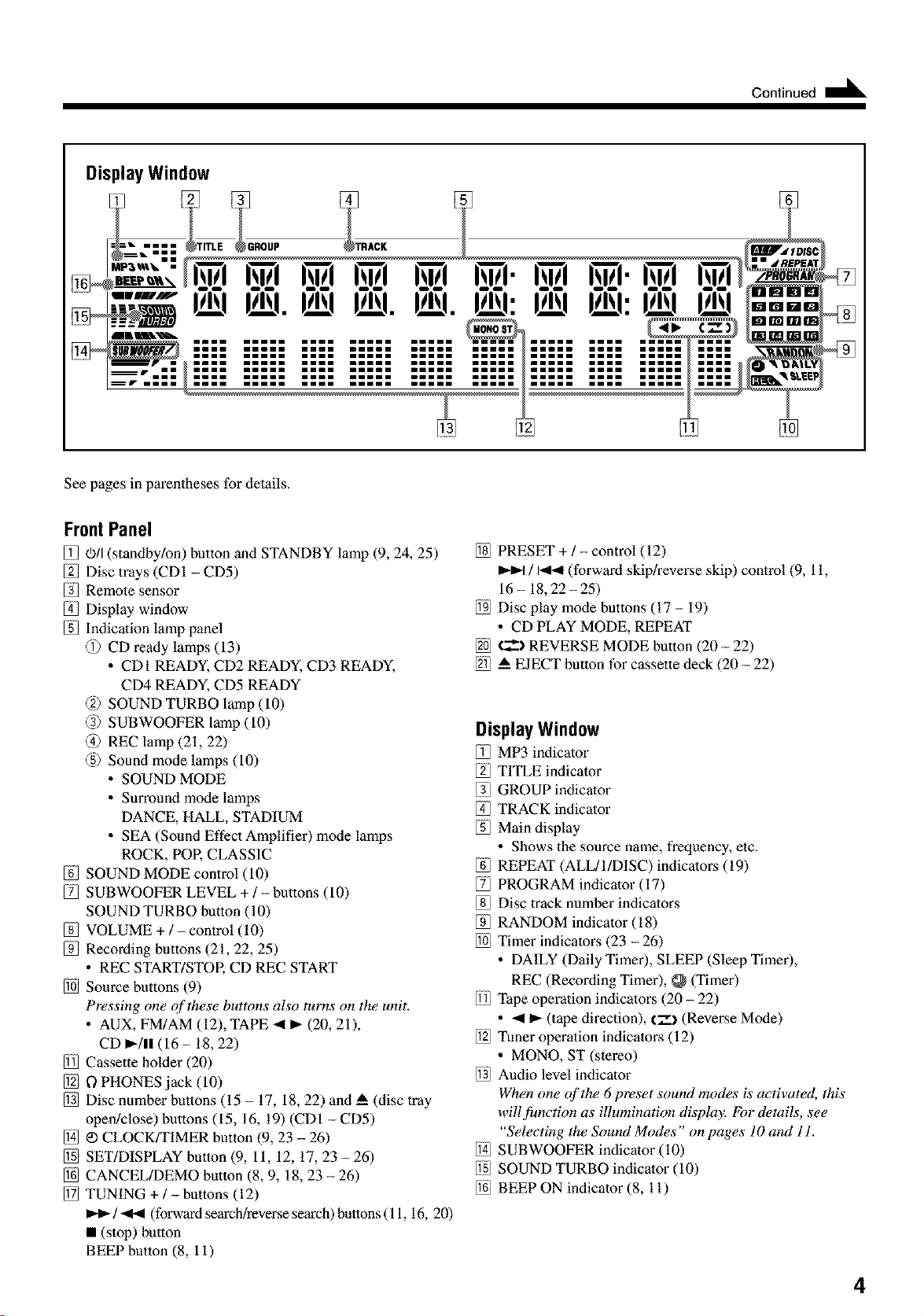
DisplayWindow
::t. _m_m ROUP
--lb. miD
OR
mime mimeR mime mimeR mimeR mimeR mimeR mime
mime BReam maim mimeR mimeR mimeR BReam Beam
mmme BeDim mime imBeD mimeR mimeR mimeR mime
mimeR mime mimeR mimeR mimeR mimeR mime
BReam maim mimeR mimeR mimeR maRie mime
mimeR mime imBeD mimeR mimeR mimeR mime
mimeR mime mimeR mimeR mimeR mimeR mime
See pages in parentheses for details.
FrontPanel
0011(standby/on) button and STANDBY lamp (9, 24, 25)
Disc trays (CDI - CD5)
Remote sensor
Display window
lodicalion lamp panel
@ CD ready lamps (13)
• CDI READY, CD2 READY, CD3 READY,
CD4 READY, CD5 READY
@ SOUND TURBO lamp (10)
@ SUBWOOFER lamp (10)
@ REC lamp (21, 22)
@ Sound mode lamps (10)
• SOUND MODE
• Surround mode lamps
DANCE, HALL, STADIUM
• SEA (Sound Effect Amplifier) mode lamps
ROCK, POR CLASSIC
SOUND MODE control (10)
SUBWOOFER LEVEL + / - buttons (10)
SOUND TURBO bulton (10)
VOLUME + / - control (10)
Recording buttons (21, 22, 25)
• REC START/STOR CD REC START
Source buttons (9)
Pressing one of these buttons also turns on the unit.
• AUX, FM/AM (12), TAPE 411_- (20, 21),
CD D.-/II (16 - 18, 22)
Cassette holder (20)
0 PHONES jack (10)
Disc number buttons (15 - 17, 18, 22) and _ (disc tray
open/close) buttons (15, 16, 19) (CDI - CD5)
_) CLOCK/TIMER button (9, 23 - 26)
SET/DISPLAY button (9, 11, 12, 17, 23 - 26)
CANCEL/DEMO button (8, 9, 18, 23 - 26)
TUNING + / - buttons (12)
/ _ (forward _arch/reverse search) buttons (11, 16, 20)
• (stop) button
BEEP button (8, 11)
PRESET + / - control (12)
/ _ (forw_d skip/reverse skip) control (9, 11,
16- 18, 22-25)
Disc play mode buttons (17 - 19)
• CD PLAY MODE, REPEAT
€.___)REVERSE MODE button (20 - 22)
A EJECT button for cassette deck (20- 22)
DisplayWindow
MP3 indicator
TITLE indicator
GROUP indicator
TRACK indicator
Main display
• Shows the source name, frequency, etc.
REPEAT (ALL/I/DISC) indicators (19)
PROGRAM indicator (17)
Disc track number indicators
RANDOM indicator (18)
Timer indicators (23 - 26)
• DAILY (Daily Timer), SLEEP (Sleep Timer),
REC (Recording Timer), _ (Timer)
Tape operation indicators (20 - 22)
• _ m- (tape direction), l-') (Reverse Mode)
Tuner operation indicators (12)
• MONO, ST (slereo)
Audio level indicator
When one of the 6 preset sound modes is activated, this
will fimction as illumination displa3_ For details, see
"Selecting the Sound Modes" on pages 10 and 11.
SUBWOOFER indicator (10)
SOUND TURBO indicator (10)
BEEP ON indicator (8, 11)
4
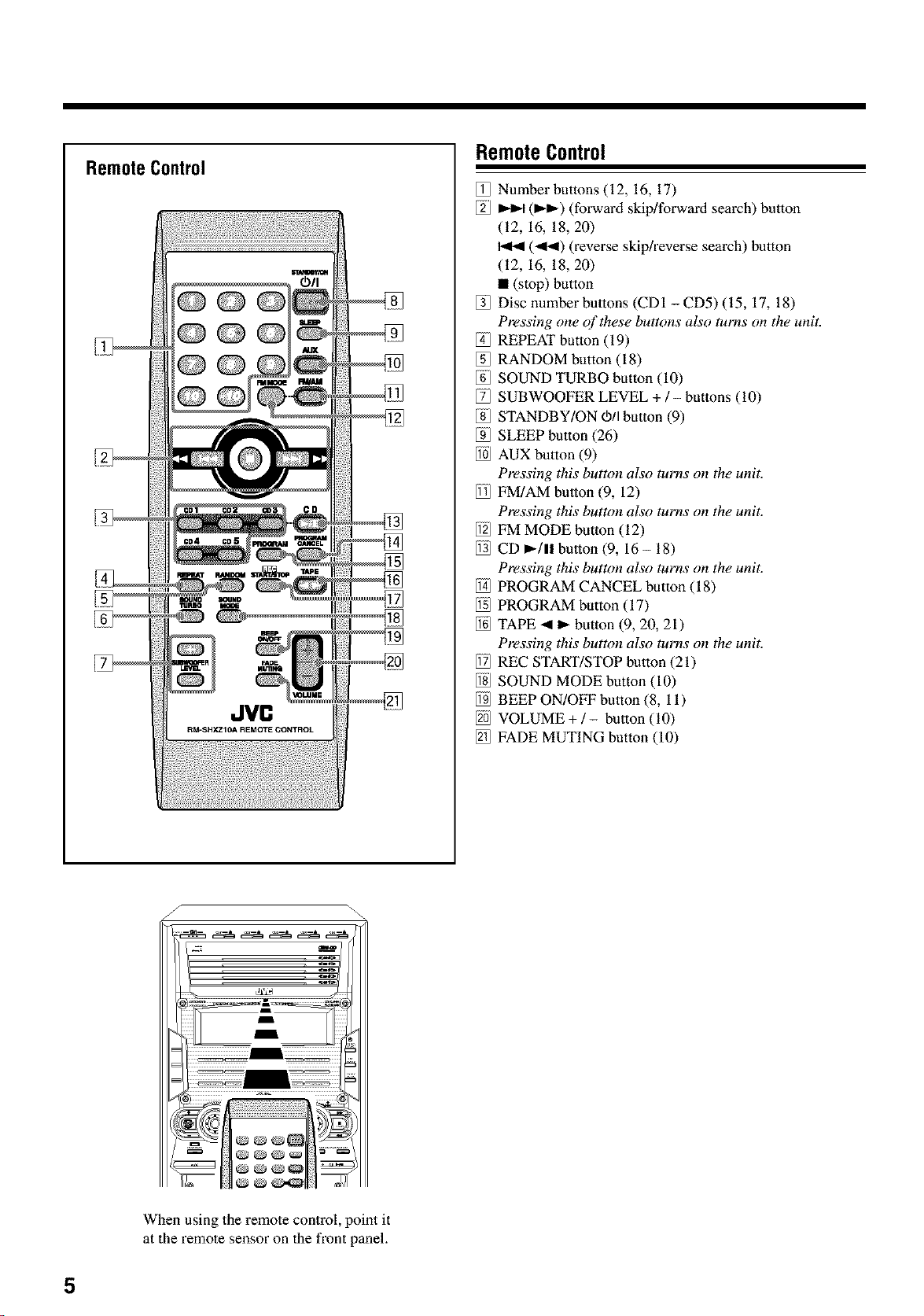
RemoteControl
RemoteControl
Number buttons (12, 16, 17)
_ (1_-) (forward skip/forw_d search) button
(12, 16, 18, 20)
(-qb,9) (reverse skip/reverse search) button
(12, 16, 18, 20)
• (stop) button
Disc number buttons (CDI - CD5) (15, 17, 18)
Pressing one of these buttons also turns on the unit.
REPEAT button (19)
RANDOM button (18)
SOUND TURBO button (10)
SUBWOOFER LEVEL +/- buttons (10)
STANDBY/ON O_/lbutton (9)
SLEEP button (26)
AUX button (9)
Pressing this button also turns on the unit.
FM/AM button (9, 12)
Pressing this button also turns on the unit.
FM MODE button (12)
CD _-/11 button (9, 16 - 18)
Pressing this button also turns on the unit.
PROGRAM CANCEL button (18)
PROGRAM button (17)
TAPE .ql I_- button (9, 20, 21)
Pressing this button also turns on the unit.
REC START/STOP button (2t)
SOUND MODE button (10)
BEEP ON/OFF button (8, 11)
VOLUME +/- button (10)
FADE MUTING button (10)
When using the remote control, point it
at the remote sensor on the front panel.
GettingStarted Continued
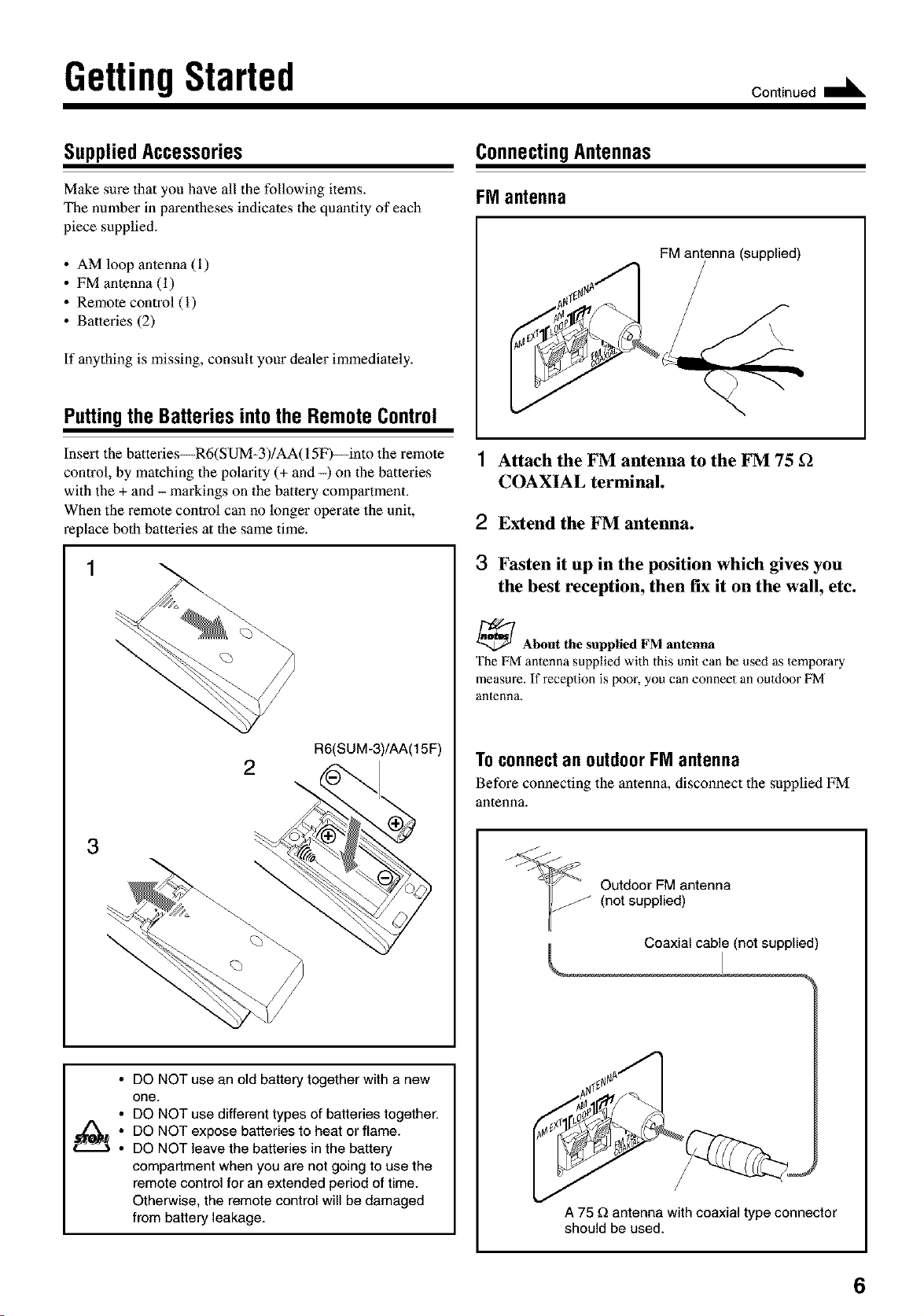
SuppliedAccessories
Make sure that you have all the following items.
The number in parentheses indicates the quantity of each
piece supplied.
• AM loop antenna (1)
• FM antenna (1)
• Remote control (1)
• Batteries (2)
If anything is missing, consult your dealer immediately.
PuttingtheBatteriesintotheRemoteControl
Insert the batteries--R6(SUM-3)/AA(15F)---into the remote
control, by matching the polarity (+ and -) on lhe batteries
with the + and - markings on the battery compartment.
When the remote control can no longer operate the unit,
replace both batteries at the same time.
1
\
R6(SUM-3)/AA(15F)
2
3
\
DO NOT use an old battery together with a new
one.
DO NOT use different types of batteries together.
DO NOT expose batteries to heat or flame.
DO NOT leave the batteries in the battery
compartment when you are not going to use the
remote control for an extended period of time.
Otherwise, the remote control will be damaged
from battery leakage.
ConnectingAntennas
FMantenna
FM antenna (supplied)
1 Attach the FM antenna to the FM 75 f2
COAXIAL terminal.
2 Extend the FM antenna.
3 Fasten it up in the position which gives you
the best reception, then fix it on the wall, etc.
_/ About the supplied FM antenna
The FM antenna supplied with this unit can be used as temporary
measure. If reception is poor, you can connect an outdoor FM
antenna_
ToconnectanoutdoorFM antenna
Before connecting the antenna, disconnect the supplied FM
antenna.
Outdoor FM antenna
(not supplied)
Coaxial cable (not supplied)
A 75 _ antenna with coaxial type connector
should be used.
6
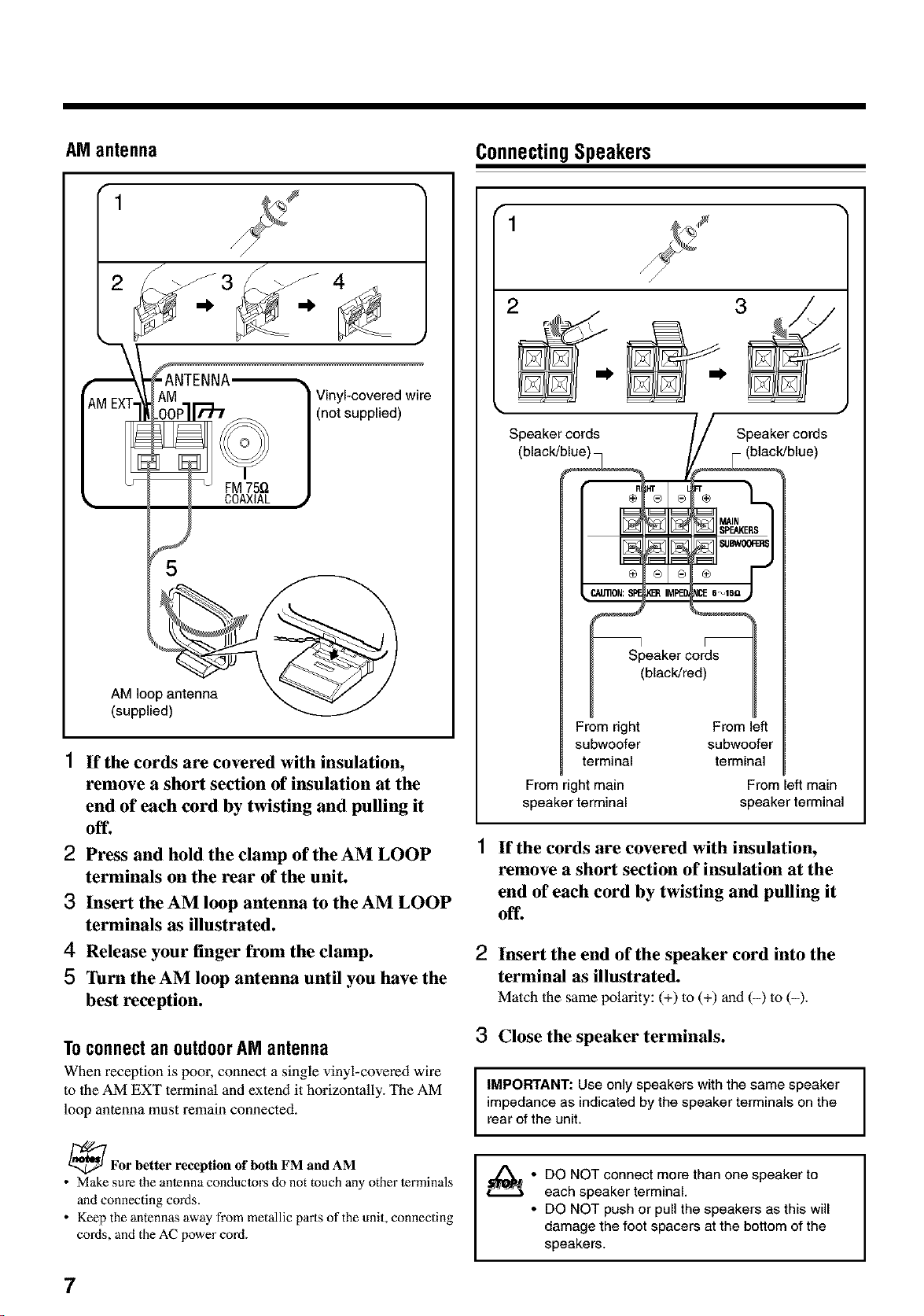
AMantenna
1
2
ConnectingSpeakers
FM75Q
COAXIAL
Vinyl-covered wire
(not supplied)
5
AM loop antenna
(supplied)
1 If the cords are covered with insulation,
remove a short section of insulation at the
end of each cord by twisting and pulling it
off.
2 Press and hold the clamp of the AM LOOP
terminals on the rear of the unit.
3 Insert the AM loop antenna to the AM LOOP
terminals as illustrated.
4 Release your finger from the clamp.
5 Turn the AM loop antenna until you have the
best reception.
ToconnectanoutdoorAMantenna
When z_ception is poor, connect a single vinyl-covez_d wile
to lhe AM EXT lerminal and extend it horizontally. The AM
loop antenna must remain connected.
_For better reception of both FM and AM
• Make sure the antenna conductors do not touch any other terminals
and connecting cords.
• Keep the antennas away from metallic parts of the unit, connecting
cords, and the AC power cord.
1
2
Speaker cords Speaker cords
(black/blue) (black/blue)
® ®
IMPED
Speaker cords
(black/red)
From right From left
subwoofer subwoofer
terminal terminal
From right main
speaker terminal
From left main
speaker terminal
If the cords are covered with insulation,
remove a short section of insulation at the
end of each cord by twisting and pulling it
off.
2 Insert the end of the speaker cord into the
terminal as illustrated.
Match the same polarity: (+) to (+) and (-) to (-).
3 Close the speaker terminals.
I IMPORTANT: Use only speakers with the same speaker I
I
impedance as indicated by the speaker terminals on the
I
rear of the unit.
i_• DO NOT connect more than one speaker to
each speaker terminal.
• DO NOT push or pull the speakers as this will
damage the foot spacers at the bottom of the
speakers.
7
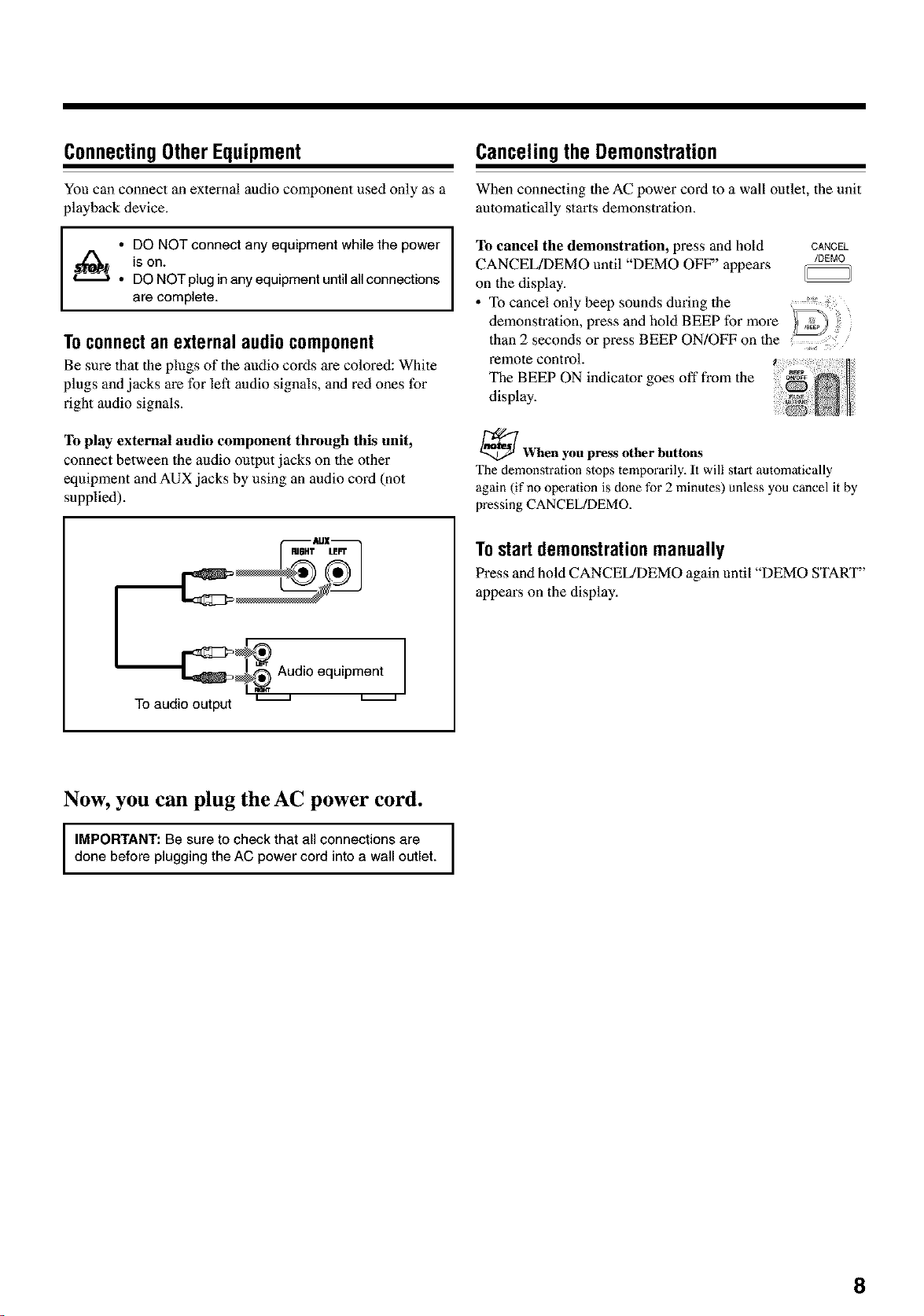
ConnectingOtherEquipment
You can connect an external audio component used only as a
playback device.
• DO NOT connect any equipment while the power [
is on.
I
• DO NOT plug in any equipment until all connections
are complete.
Toconnectanexternalaudiocomponent
Be sure that the plugs of the audio cords are colored: White
plugs and jacks are for left audio signals, and red ones for
right audio signals.
To play external audio component through this unit,
connect between the audio outputjacks on the other
equipment and AUX jacks by using an audio cord (not
supplied).
Cancelingthe Demonstration
When connecting the AC power cord to a wall outlet, the unit
automatically starts demonstration.
To cancel the demonstration, press and hold CANCEL
CANCEL/DEMO until "DEMO OFP" appears /DEMO
on the display.
• To cancel only beep sounds during the .......
demonslration, press and hold BEEP for more
than 2 seconds or press BEEP ON/OFF on the
_mote control.
The BEEP ON indicator goes off from the
display.
_When yon press other buttons
The demonstration stops temporarily, It will start automalically
again (if no operation is done for 2 minutes) unless you cancel it by
pressing CANCEL/DEMO.
To audio output
Audio equipment
Tostartdemonstrationmanually
Press and hoM CANCEL/DEMO again until "DEMO START"
appears on the display.
Now, you can plug the AC power cord.
I MPORTANT: Be sure to check that all connections are I
done before plugging the AC power cord into a wall outlet.
I
8
CommonOperations
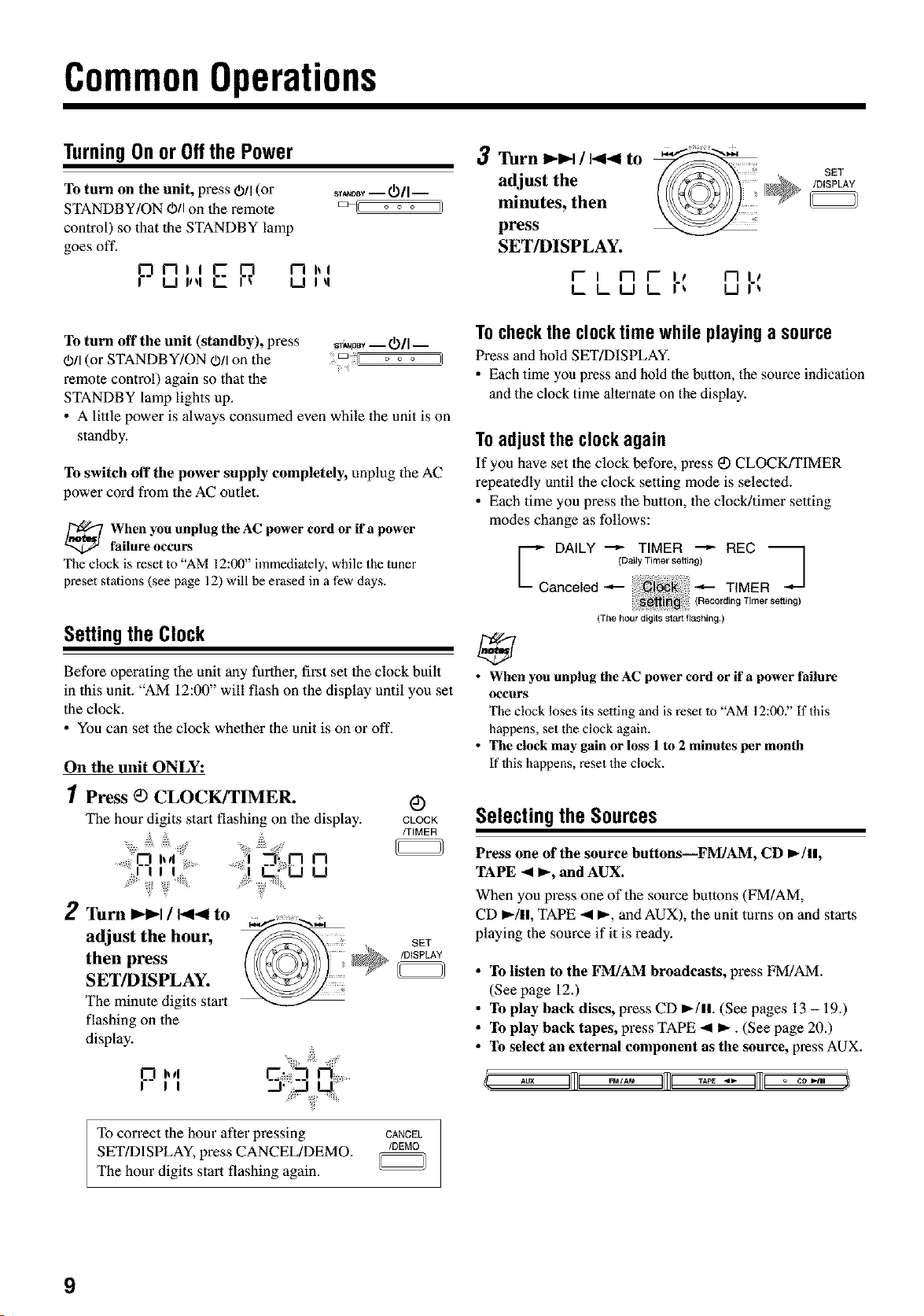
TurningOnorOffthePower
To turn on the unit, press O/I (or sT_ i _/I i
STANDBY/ON O/I on the remote =_C o o o
control) so that the STANDBY lamp
goes off.
PS" ,,,,EP n,,
U Iq
3 Turn l_l_l/l_4to _*':_'_'_'-"_
adjust the _ @
minutes, then
press
SET/DISPLAY.
f- I I-I f- Ii I--Ill
k L U L I'_ U I'_
SET
/DISPLAY
To turn off the unit (standby), press _ -- _/I --
O/I (or STANDBY/ON (b/I on the o o o }}
_mote control) again so lhat the
STANDBY lamp lights up.
• A little power is always consumed even while the unit is on
standby.
To switch off the power supply completely, unplug the AC
power cord from the AC outlet.
When you unplug the AC power cord or if a power
failure occurs
The clock is reset to "AM 12:00" immediately, while the tuner
preset stations (see page 12) will be erased in a few days.
Se_ingtheClock
Befo_ operating the unit any furlher, first set lhe clock built
in this unit. "AM 12:00" will flash on the display until you set
the clock.
• You can set the clock whether the unit is on or off.
On the unit ONLY:
1Press _) CLOCK#FIMER. _)
The hour digits start flashing on the display. CLOCK
/TIMER
n
u
2 TurnIP-I_I/ 1_141to
adjust the hour, _
); SET
then press /DISPLAY
SET/DISPLAY.
The minute digits start
flashing on the
display.
h4
I I I
Tocheckthe clocktime while playinga source
Press and hold SET/DISPLAY.
• Each time you press and hold the button, the source indication
and the clock time alternate on the display.
To adjust the clock again
If you have set the clock before, pl_ss _) CLOCK/TIMER
repealedly until the clock setting mode is selecled.
• Each time you press the button, the clock/timer setting
modes change as follows:
DALLY "-_ TIMER "-_ REC j
(Daily Timer setting)
L-- Canceled --,-- _ TIMER
(Recording Time_ se_ng)
(The hour digits start flashing.)
• When you unplug theAC power cord or ifa power failure
OCCURS
The clock loses its setting and is reset Io "AM 12:007' If this
happens, set the clock again.
• The clock may gain or loss 1 to 2 minutes per month
If Ibis happens, reset the clock.
SelectingtheSources
Press one of the source buttonsIFM/AM, CD I_/11,
TAPE _ P-, and AUX.
When you pl_ss one of the source buttons (FM/AM,
CD _/ll, TAPE -_1I_, and AUX), the unit turnson and starts
playing the source if it is ready.
• To listen to the I_WI/AM broadcasts, press FM/AM.
(See page 12.)
• To play back discs, press CD I_/ll. (See pages 13 - 19.)
• To play back tapes, press TAPE 411_. (See page 20.)
• To select an external component as the source, press AUX.
To correct the hour after pressing CANCEL
SET/DISPLAY, press CANCEL/DEMO. /DEMO
The hour digits start flashing again.
9
Continued I_
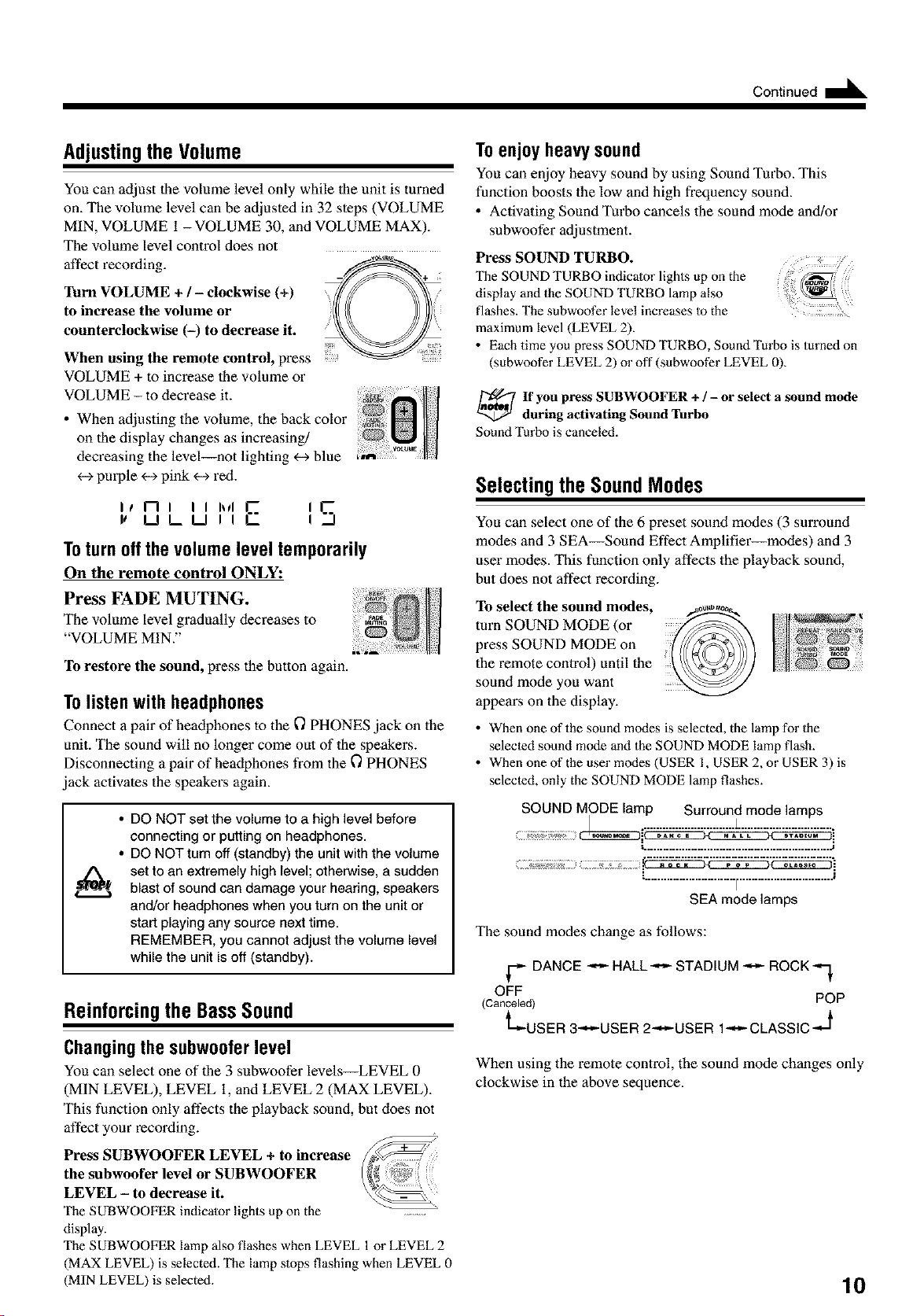
Adjustingthe Volume
You can adjust the volume level only while the unit is turned
on. The volume level can be adjusted in 32 steps (VOLUME
MIN, VOLUME 1 - VOLUME 30, and VOLUME MAX).
The volume level control does not
affect recording.
Turn VOLUME + l - clockwise (+)
to increase the volume or
counterclockwise (-) to decrease it.
When using the remote control, press
VOLUME + to increase lhe volume or
VOLUME - to decrease it.
• When adjusting the volume, the back color
on the display changes as increasing/
decreasing the level--not lighting <--->blue
+-+purple <-_pink <-_red.
I! I'--I I I I hll E I ._
1t U LU II I
Toturnoffthevolumeleveltemporarily
On the remote control ONLY:
Press FADE MUTING.
The volume level gradually decreases to
"VOLUME MIN."
To restore the sound, press the button again.
Tolistenwith headphones
Connect a pair of headphones to the t") PHONES jack on the
unit. The sound will no longer come out of the speakers.
Disconnecting a pair of headphones from the 0 PHONES
jack activates the speakers again.
• DO NOT set the volume to a high level before
connecting or putting on headphones.
• DO NOT turn off (standby) the unit with the volume
set to an extremely high level; otherwise, a sudden
blast of sound can damage your hearing, speakers
and/or headphones when you turn on the unit or
start playing any source next time.
REMEMBER, you cannot adjust the volume level
while the unit is off (standby).
Reinforcingthe BassSound
Changingthe subwooferlevel
You can select one of the 3 subwoofer levels LEVEL 0
(MIN LEVEL), LEVEL 1, and LEVEL 2 (MAX LEVEL).
This function only affects the playback sound, but does not
affect your _ecording.
Press SUBWOOFER LEVEL + to increase
the subwoofer level or SUBWOOFER
LEVEL - to decrease it.
The SUBWOOFER indicator lights up on the .......
display.
The SUBWOOFER lamp also flashes when LEVEL 1or LEVEL 2
(MAX LEVEL) is selected. The lamp slops flashing when LEVEL 0
(MIN LEVEL) is selected.
Toenjoyheavysound
You can enjoy heavy sound by using Sound Turbo. This
function boosts the low and high frequency sound.
• Activating Sound Tm%o cancels lhe sound mode and/or
subwoofer adjustment.
Press SOUND TURBO,
The SOUND TURBO indicator lights up on the
display and the SOUND TURBO lamp also
flashes. The subwoofer level increases Io the
maximum level (LEVEL 2).
• Each time you press SOUND TURBO, Sound Turbo is turned on
(subwoofer LEVEL 2) or off (subwoofer LEVEL 0).
If you press SUBWOOFER + / - or select a sound mode
during activating Sound Turbo
Sound Turbo is canceled.
SelectingtheSoundModes
You can select one of the 6 preset sound modes (3 surround
modes and 3 SEA--Sound Effect Amplifier--modes) and 3
user modes. This function only affects the playback sound,
but does not affect _cording.
To select the sound modes,
turn SOUND MODE (or
press SOUND MODE on
the remote control) until the
sound mode you want
appears on the display.
• When one of the sound modes is selected, the lamp for the
seleeled sound mode and the SOUND MODE lamp flash.
• When one of the user modes (USER 1, USER 2, or USER 3) is
seleeled, only the SOUND MODE lamp flashes.
SOUND MODE lamp Surround mode lamps
/ .............................1..............................
............................. F.............................. a
SEA mode lamps
The sound modes change as follows:
r
DANCE _ HALL-_-_ STADIUM _ ROCK'-I_
OFF
(Canceled) POP
l
-3
'L,'-USER 3-_-,--USER 2-_-_USER 1_-_- CLASSIC
When using the remote control, the sound mode changes only
clockwise in the above sequence.
10
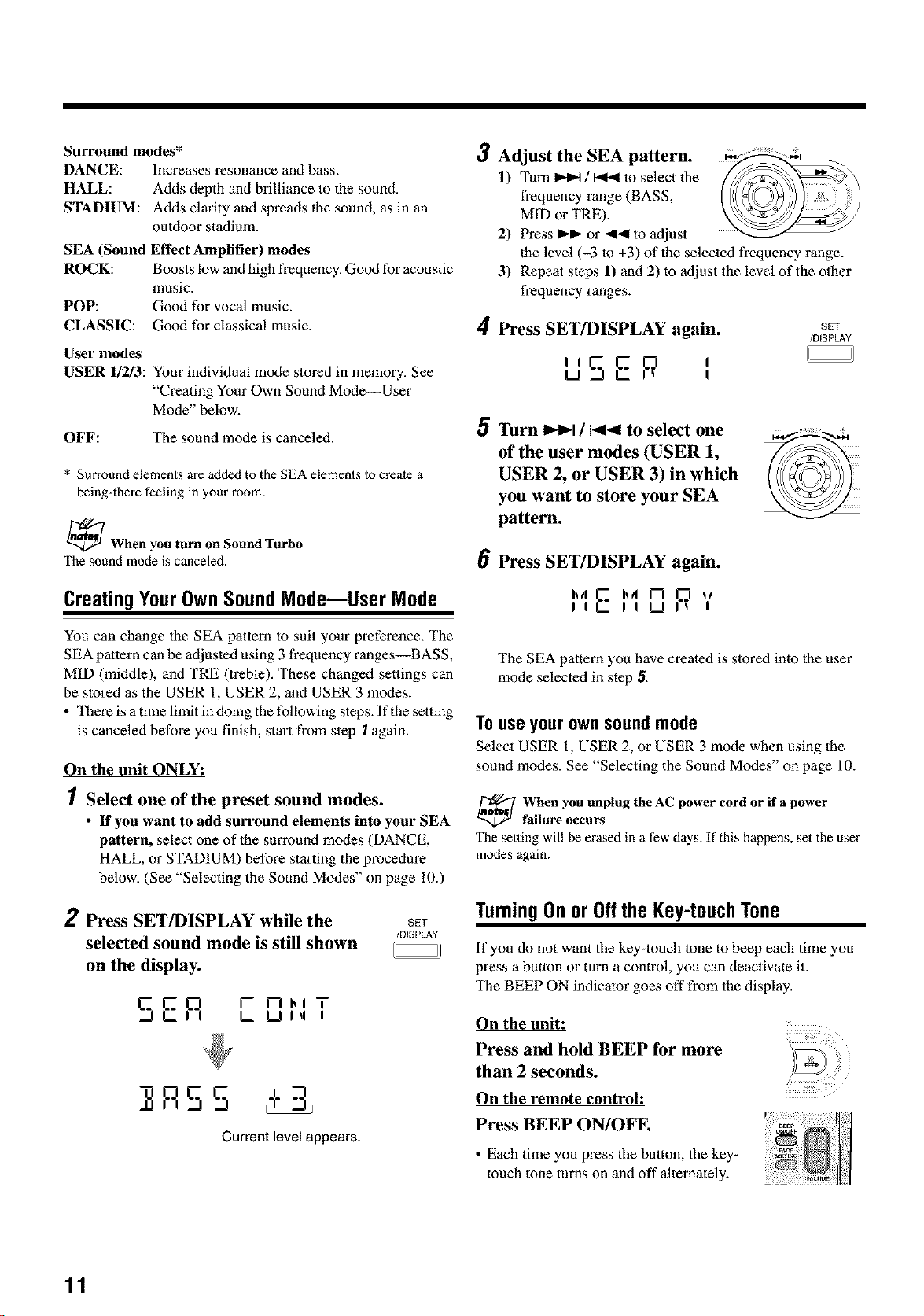
Surround modes*
DANCE: Increases resonance and bass.
HALL: Acids depth and brilliance to the sound.
STADIUM: Acids clarity and spreads the sound, as in an
outdoor stadium.
SEA (Sound Effect Amplifier) modes
ROCK: Boosts low and high frequency. Good for acoustic
music.
POP: Good for vocal music.
CLASSIC: Good for classical music.
User modes
USER 1/2/3: Your individual mode stored in memory. See
"Creating Your Own Sound Mode--User
Mode" below.
OFF: The sound mode is canceled.
* Surround elements are added to the SEA elements to create a
being-there feeling in your room.
_When you turn on Sound Turbo
The sound mode is canceled.
CreatingYourOwnSoundMode--User Mode
You can change the SEA pattern to suit your preference. The
SEA paltern can be adjusted using 3 frequency ranges_BASS,
MID (middle), and TRE (treble). These changed settings can
be stored as the USER 1, USER 2, and USER 3 modes.
• There is a time limit in doing lhe following steps. If the selting
is canceled before you finish, start from step 1 again.
On the unit ONLY:
1 Select one of the preset sound modes.
• If you want to add surround elements into your SEA
pattern, select one of the surround modes (DANCE,
HALL, or STADIUM) before starting the procedure
below. (See "Selecting the Sound Modes" on page 10.)
2 Press SET/DISPLAY while the
selected sound mode is still shown
on the display.
SET
/DISPLAY
SER ,- n,,,
/ Ulq I
,-qRS'- '
Current level appears.
3Adjust the SEA pattern.
1) Turn _ / _1 to select the
frequency range (BASS,
MID or TRE).
2) Press _ or _ to adjust
the level (-3 m +3) of the selected frequency range.
3) Repeat steps 1) and 2) to adjust the level of the other
frequency ranges.
4 Press SET/DISPLAY again.
I
u"SEP ,
SET
/DISPLAY
5 Turn I_l_l / 1_14 to select one
of the user modes (USER 1,
USER 2, or USER 3) in which
you want to store your SEA
pattern.
6 Press SET/DISPLAY again.
I,,, E I,,, 1"7 _ ,,
II II U I
The SEA pattern you have created is stored into the user
mode selected in step 5.
Touseyourownsoundmode
Select USER 1, USER 2, or USER 3 mode when using the
sound modes. See "Selecting the Sound Modes" on page 10.
When you unplug theAC power cord or ifa power
failure occurs
The setting will be erased in a few days. If this happens, set the user
modes again.
TurningOnorOfftheKey-touchTone
If you do not want the key-touch tone to beep each time you
press a button or turn a control, you can deactivate it.
The BEEP ON indicator goes off from the display.
On the unit:
Press and hold BEEP for more
than 2 seconds.
On the remote control:
Press BEEP ON/OFF.
• Each time you press the button, the key-
touch tone turns on and off alternately.
11
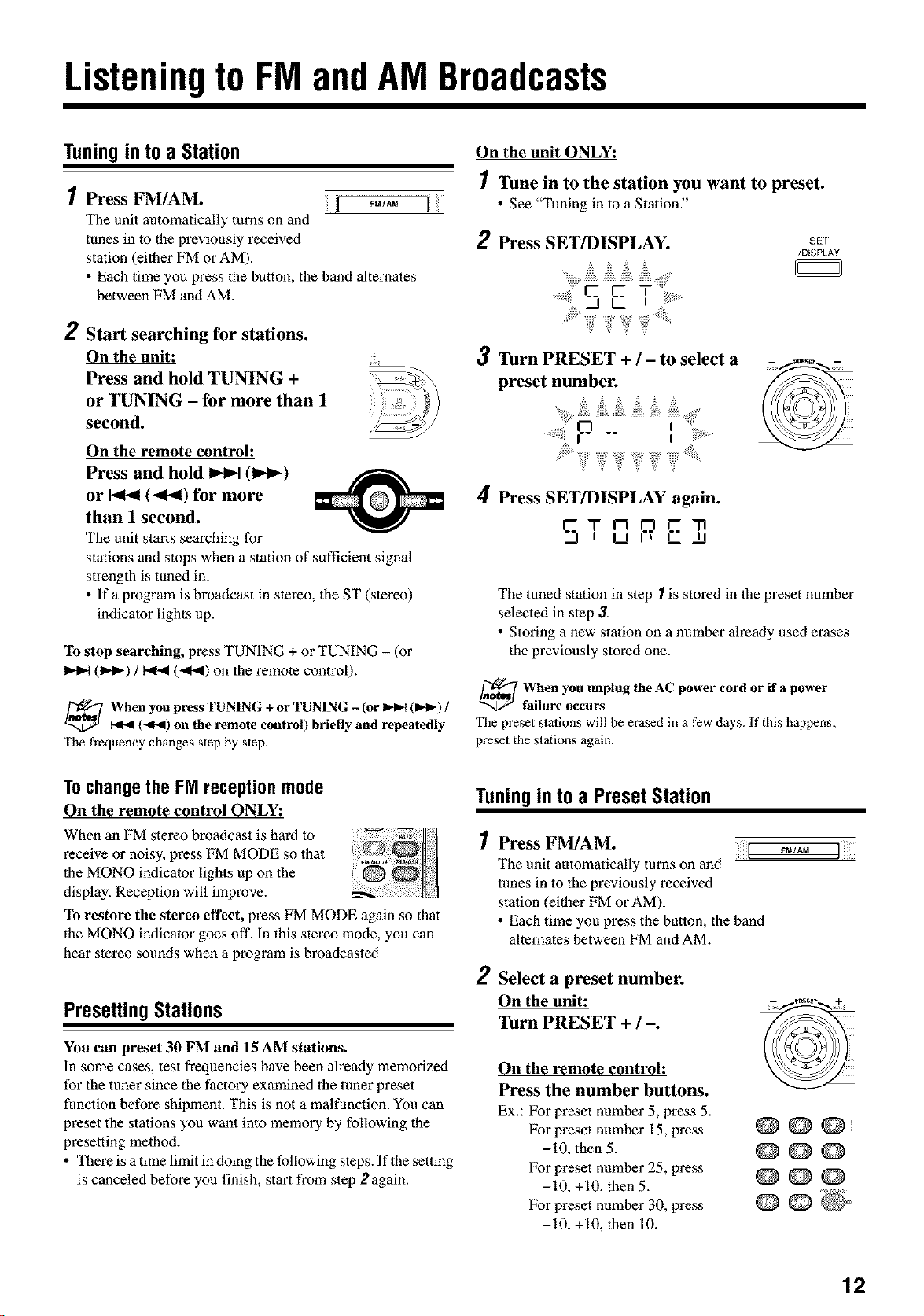
Listeningto FMandAM Broadcasts
Tuningintoa Station
1 Press FM/AM.
The unit automatically turnson and
tunes in to the previously received
station (either FM or AM).
• Each time you press the button, the band alternates
between FM and AM.
2 Start searching for stations.
On the unit:
Press and hold TUNING +
or TUNING - for more than 1
second.
On the remote control:
Press and hold I_l_l (1_I_)
or I_1_1(_1_1) for more
than 1 second.
The unit starts searching for
stations and stops when a station of sufficient signal
strength is tuned in.
• If a program is broadcast in stel_o, the ST (stereo)
indicator lights up.
To stop searching, press TUNING + or TUNING - (or
(1_) / _ (-ql_l) on the remote control).
When you press TUNING + or TUNING - (or _ (I,_1_)/
(41_1) on the remote control) briefly and repeatedly
The frequency changes step by step.
On the unit ONLY:
1 Tune in to the station you want to preset.
• See "Tuning in to aStation."
2 Press SET/DISPLAY.
SET
/DISPLAY
_,,ii_i_¸? ,?? ,?_,_ii_,
3 Turn PRESET + / - to select a
preset number.
4 Press SET/DISPLAY again.
5TSPE .
The tuned station in step 1 is stored in the preset number
selected in step 3.
• Storing a new station on a number ah_ady used erases
the previously sto_d one.
_When unplug the AC cord if a
you power
or
power
failure occurs
The preset stations will be erased in a few days. If this happens,
preset the stations again.
Tochangethe FMreceptionmode
On the remote control ONLY:
When an FM stereo broadcast is hard to
_ceive or noisy, p_ss FM MODE so that
the MONO indicator lights up on the
display. Reception will improve.
To restore the stereo effect, p_ess FM MODE again so that
the MONO indicator goes off. In this stereo mode, you can
hear stereo sounds when a program is broadcasted.
PresettingStations
You can preset 30 FM and 15 AM stations.
In some cases, test frequencies have been already memorized
for the tuner since the factory examined the tuner preset
function before shipment. This is not a malfimction. You can
p_set the stations you want into memory by following the
p_setting method.
• There is a time limit in doing the following steps. If the setting
is canceled before you finish, start from step 2 again.
Tuningintoa PresetStation
1
2
Press FM/AM.
The unit automatically turnson and
tunes in to the previously received
station (either FM orAM).
• Each time you press the button, the band
alternates between FM andAM.
FMIAM
Select a preset number.
On the unit:
Turn PRESET + / -.
liiii;;
On the remote control:
Press the number buttons.
Ex.: For preset number 5, press 5.
For preset number 15, press
+10, then 5.
For preset number 25, press
+10, +10, then 5.
For preset number 30, press
+10, +10, then 10.
@@@M
@@@
@@@
12
DiscPlayIntroduction
This unit has been designed to play back the following discs:
• CD (Audio CD)/CD-R (CD-Recordable)/CD-RW (CD-
ReWritable)
• MP3 disc (MP3 files recorded on a CD-R or CD-RW)*
Whenplayinga CD-RorCD-RW
User-edited CD-Rs (CD-Recordable) and CD-RWs
(CD-ReWritable) can be played back only if they have been
"finalized"
• You can play back your original CD-Rs or CD-RWs l_corded
in music CD format or in MP3 format. However, they may
not be played back depending on their characteristics or
recording conditions.
• Before playing back CD-Rs or CD-RWs, read their
instructions or cautions carefully.
• Some CD-Rs or CD-RWs may not play back on this unit
because of their disc characteristics, damage or stain on
them, or if the player's lens is dirty.
• CD-RWs may _quire a longer readout time. This is caused
by the fact that the reflectance of CD-RWs is lower than for
regular discs.
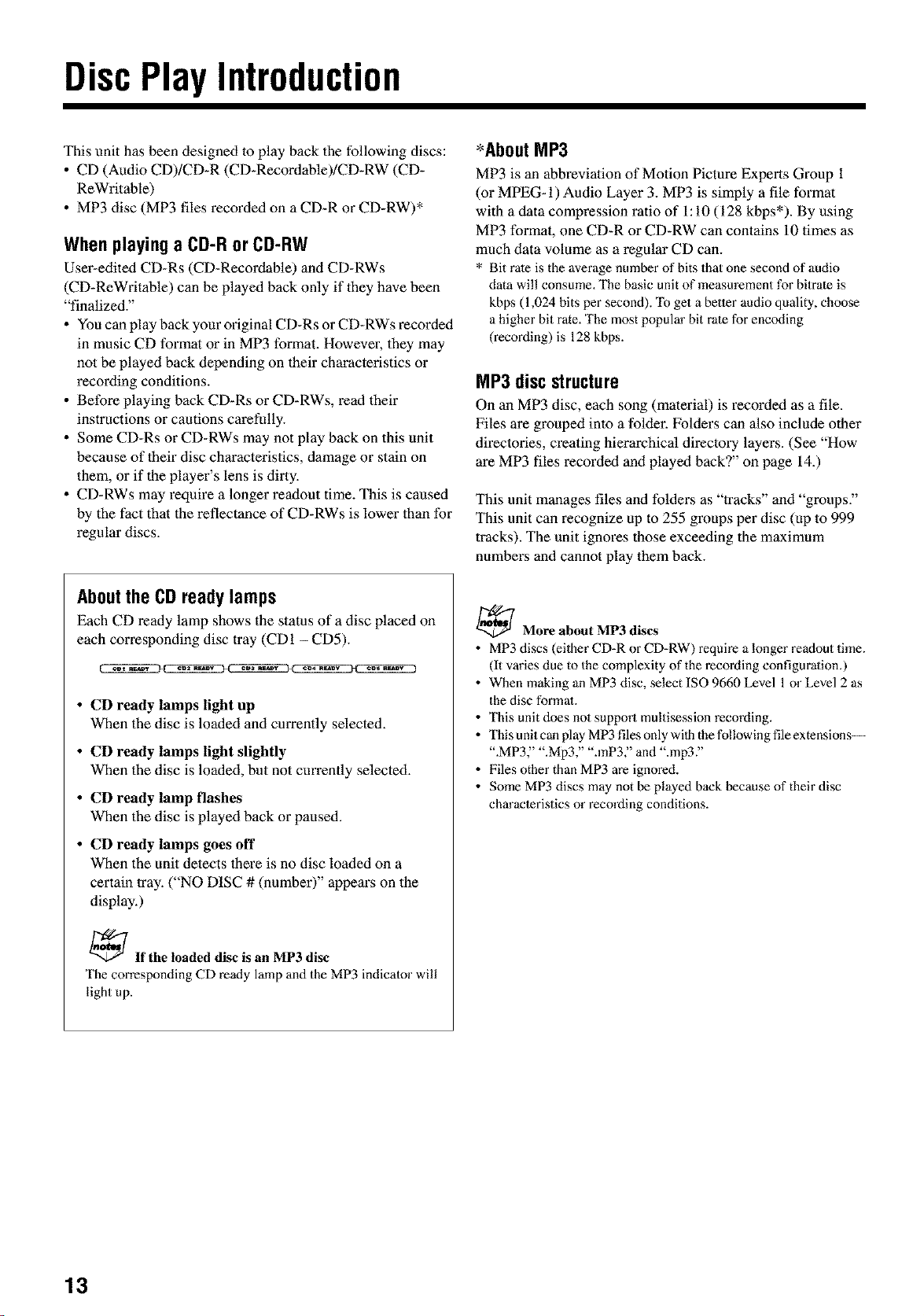
Aboutthe CDreadylamps
Each CD ready lamp shows the status of a disc placed on
each con_sponding disc tray (CD1 - CD5).
• CD ready lamps light up
When the disc is loaded and currently selected.
• CD ready lamps light slightly
When the disc is loaded, but not currently selected.
• CD ready lamp flashes
When the disc is played back or paused.
• CD ready lamps goes off
When the unit detects there is no disc loaded on a
certain tray. ("NO DISC # (number)" appe_s on the
display.)
_If the loaded disc is an MP3 disc
The corresponding CD ready lamp and the MP3 indicator will
light up.
*About MP3
MP3 is an abbreviation of Motion Pictu_ Experts Group l
(or MPEG_I) Audio Layer 3. MP3 is simply a file format
with a data compl_ssion ratio of 1:10 (128 kbps*). By using
MP3 format, one CD-R or CD-RW can contains 10 times as
much data volume as a regular CD can.
* Bit rate is the average number of bits that one second of audio
data will consume. The basic unit of measurement for bitrate is
kbps (1,024 bits per second). "Ibget a better audio quality, choose
a higher bit rate. The most populm" bit rate for encoding
(recording) is 128 kbps.
MP3discstructure
On an MP3 disc, each song (material) is l_corded as a file.
Files are grouped into a folder. Folders can also include other
dil_ctories, cleating hierarchical directory layers. (See "How
are MP3 files recorded and played back?" on page 14.)
This unit manages files and folders as "tracks" and "groups."
This unit can recognize up to 255 groups per disc (up to 999
tracks). The unit igno_vs those exceeding the maximum
numbers and cannot play them back.
_More about MP3 discs
• MP3 discs (eilher CD-R or CD-RW) require a longer readoat time.
(It varies due to the complexity of the recording configuralion.)
• When making an MP3 disc, select ISO 9660 Level 1 or Level 2 as
the disc formal.
• This unit does no1 support multisession recording.
• This unit can play MP3 files only with the following file extensions--
".MP3," ".Mp3," ".raP3," and ".mp3."
• Files other than MP3 are ignored.
• Some MP3 discs may not be played back because of their disc
chm'acteristics or recording conditions.
13
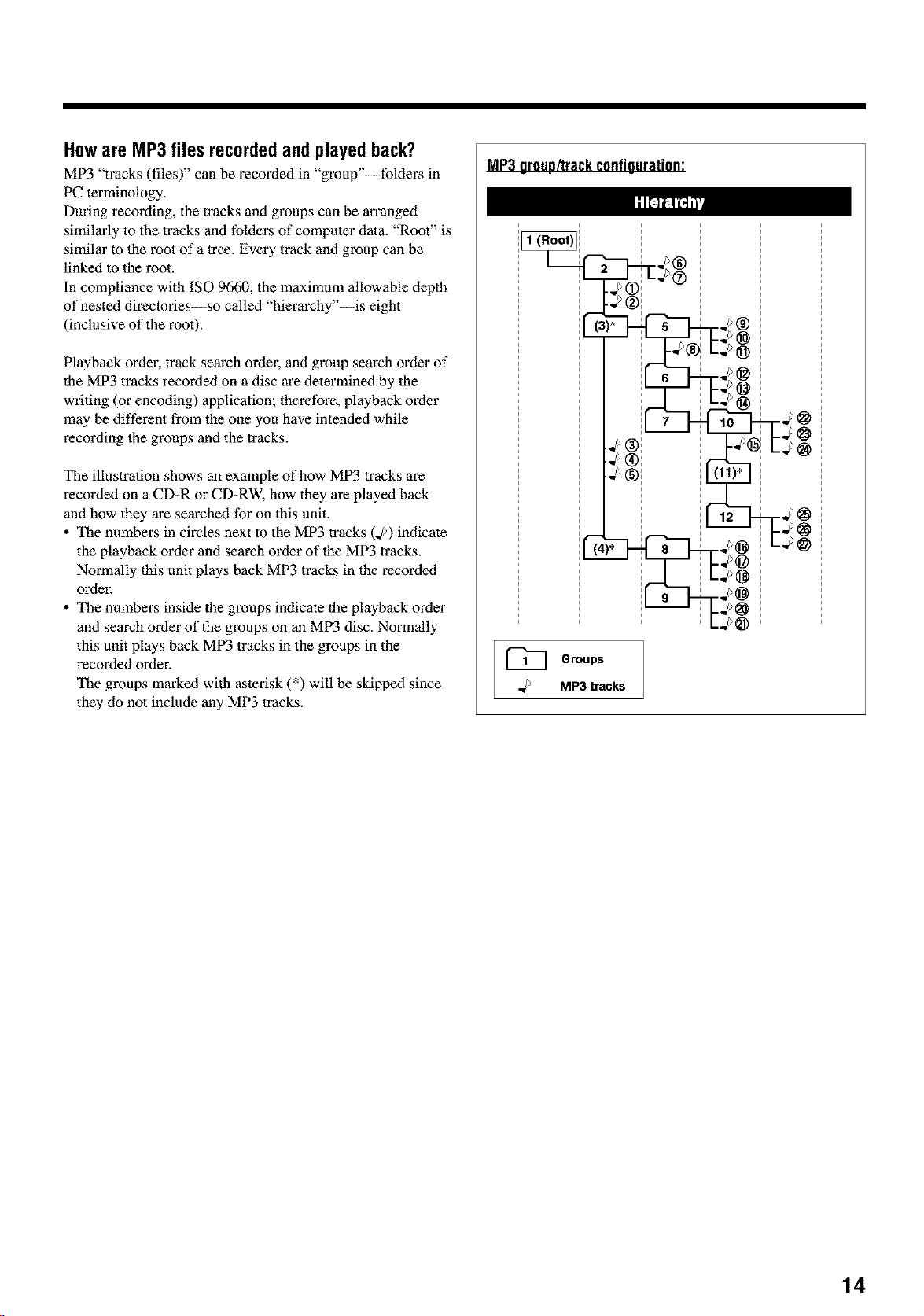
Howare MP3files recordedandplayedback?
MP3 "tracks (files)" can be recorded in "gmap"--foldeB in
PC terminology.
Daring recording, the tracks and groups can be arranged
similarly to the tracks and folders of computer dala. "Root" is
similar to the root of a tree. Every track and group can be
linked to the root.
In compliance with ISO 9660, the maximum allowable depth
of nested direclories--so called "hierarchy"--is eight
(inclusive of the mot).
Playback order, track search ordez, and group search order of
the MP3 tracks recorded on a disc are determined by the
writing (or encoding) application; therefore, playback order
may be different from the one you have intended while
z_cording the groups and the tracks.
The illustration shows an example of how MP3 tracks are
z_corded on a CD-R or CD-RW, how they are played back
and how they are searched for on lhis unit.
• The numbers in circles next lo the MP3 tracks (4)) indicate
the playback order and search order of the MP3 tracks.
Normally this unit plays back MP3 tracks in the l_corded
ordel:
• The numbers inside the groups indicate the playback order
and search order of the groups on an MP3 disc. Normally
this unit plays back MP3 tracks in the groups in the
recorded ordel:
The groups marked with asterisk (*) will be skipped since
they do not include any MP3 _acks.
MP3 oroup/trackconfiquration:
i i
i i
i i
i i
i
i ,
i
i
iE
Groups
MP3 tracks
14
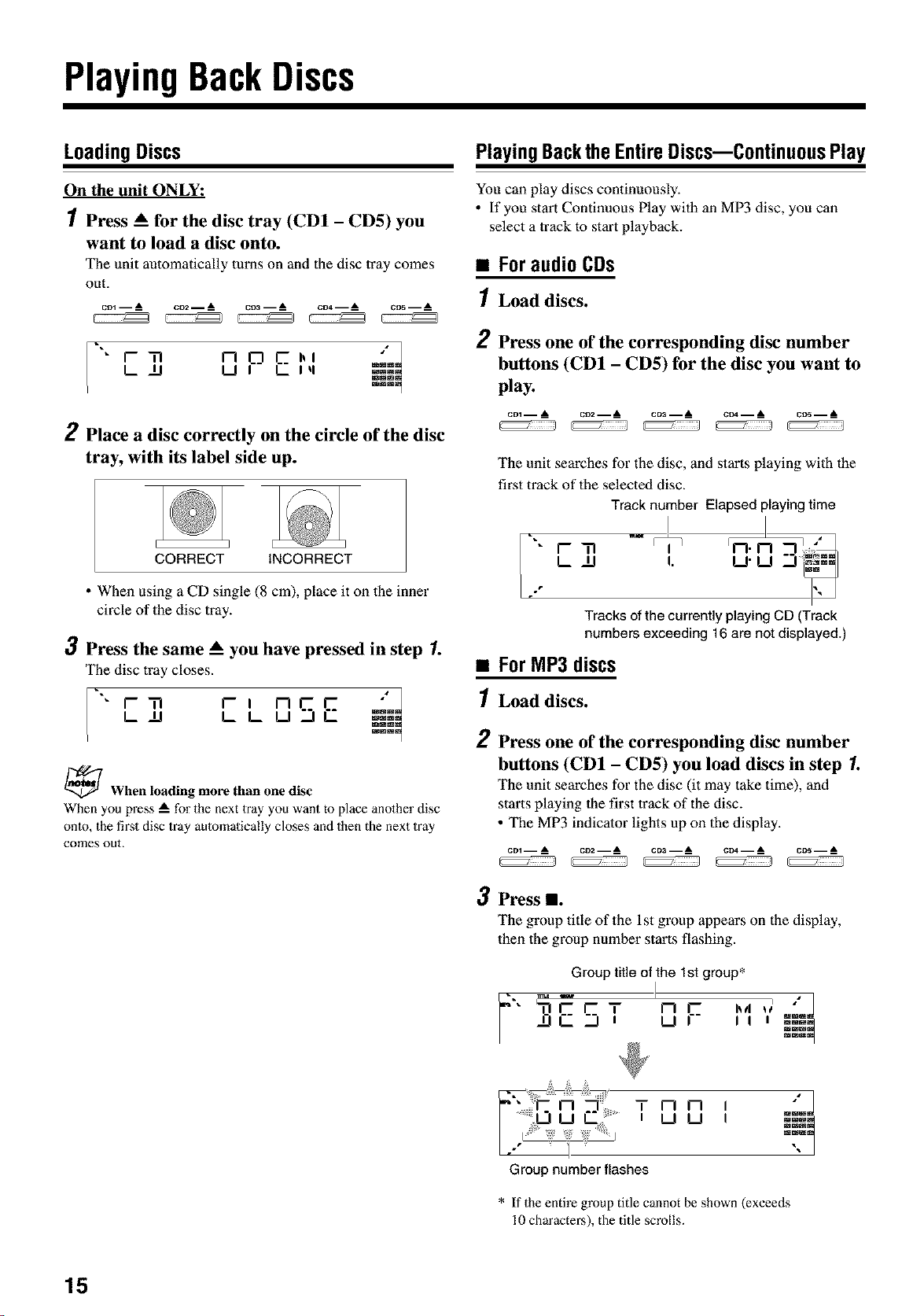
Pla, BackDiscs
LoadingDiscs
On the unit ONLY:
1 Press _ for the disc tray (CD1 - CD5) you
want to load a disc onto.
The unit automatically turns on and the disc tray comes
out.
c01 -- __ C02 -- _ c03 -- __ CD4 -- _ CD5 -- _
I-- 17 n I_I C i_l ,,,,,,
L IJ U I L Iq ggg
mmm
2 Place a disc correctly on the circle of the disc
tray, with its label side up.
CORRECT INCORRECT
• When using a CD single (8 cm), place it on the inner
circle of the disc tray.
3Press the same A you have pressed in step 1.
The disc tray closes.
F, nSE "t
L _ L L U NE
_When loading more than one disc
When you press --- for the next tray you want to place another disc
onto, the first disc tray automatically closes and then the next tray
comes out.
PlayingBacktheEntireDiscs--ContinuousPlay
You can play discs continuously.
• If you start Continuous Play with an MP3 disc, you can
select a track to start playback.
• For audio CDs
1 Load discs.
2
Press one of the corresponding disc number
buttons (CD1 - CD5) for the disc you want to
play.
cm -- A co2 -- _ CVa -- A CW -- _ COS--
The unit searches for the disc, and starts playing with the
first track of the selected disc.
I-"
Track number Elapsed playing time
r-,-I -l" LT!
I 1 [n.n ....._.
L I_J I. U'U g_
Tracks of the currently playing CD (Track
numbers exceeding 16 are not displayed.)
• ForMP3 discs
1Load discs.
2
Press one of the corresponding disc number
buttons (CD1 - CD5) you load discs in step 1.
The unit searches for the disc (it may take time), and
starts playing the first track of the disc.
• The MP3 indicator lights up on the display.
cm -- A co2 -- _A CVa -- A cw -- _A cos -- _A
3 Press I1.
The group title of the Ist group appears on the display,
then the group number starts flashing.
Group title of the 1st group*
"• r" T n i-- hd _t'
I U F- I I _u_'n
Tnn
u u
Group number flashes
mmult
mmt
* If the entire group title cannot be shown (exceeds
10 characters), the title scrolls.
15
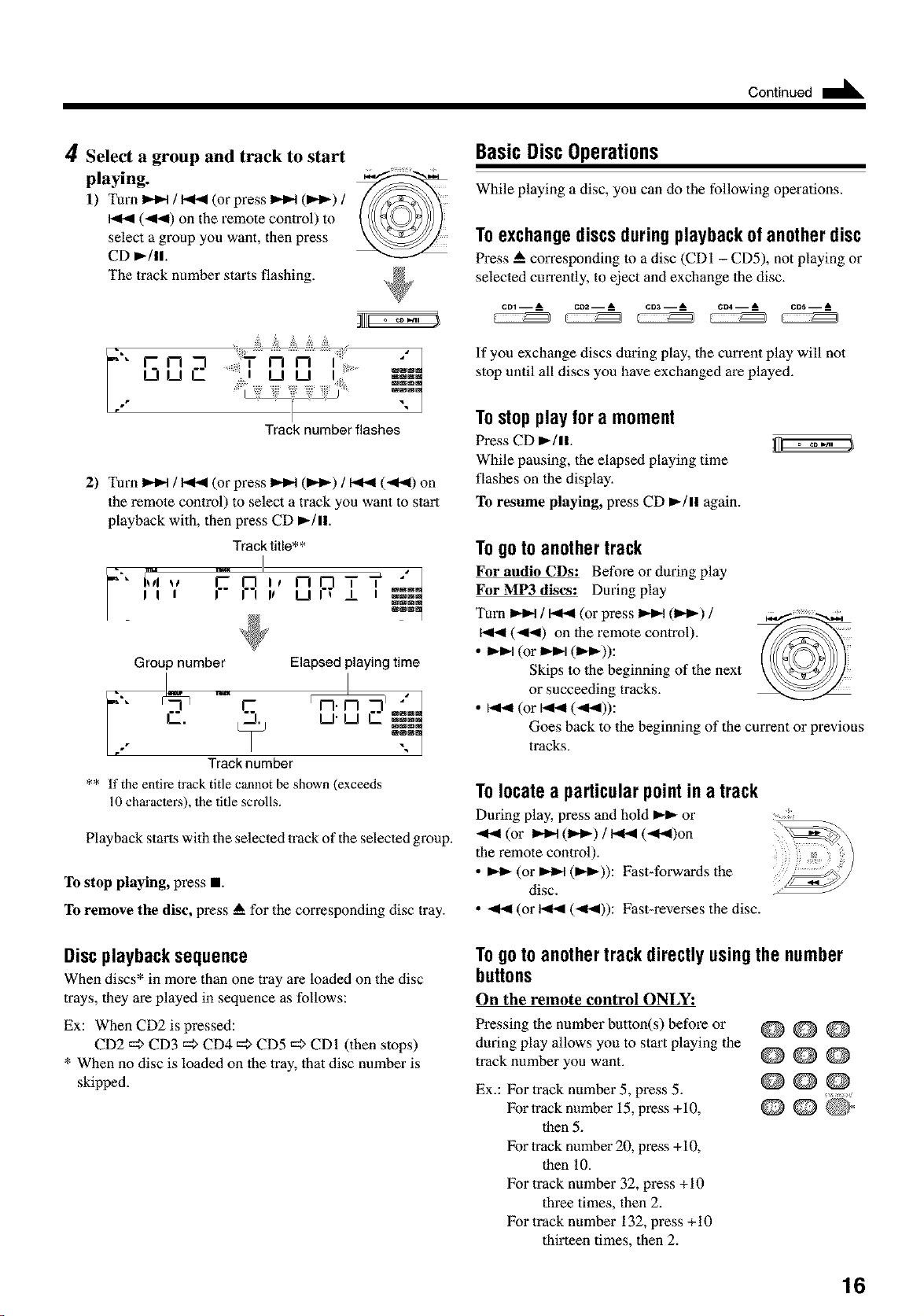
Continued II_
4 Select a group and track to start
playing.
1) Turn _t / _ (or press _t (_t_) /
(-<<) on the remote control) to
select a group you want, then press
CD D,-/ll.
The track number starts flashing.
o _ _i
Track number flashes
2) Turn _ / _ (or press _ (I_,Q / _ (<1<) on
the remote control) to select a track you want to start
playback with, then press CD I_/ll.
Track title* *
nPTT
II I I II It II _ _
Group number Elapsedplaying time
1--
Track number
** If the entire track title cannot be shown (exceeds
10 chm'acle_s), the title scrolls.
Playback starts with the selecled track of the selected group.
To stop playing, press I
To remove the disc, press A for the corrosponding disc tray.
BasicDiscOperations
While playing a disc, you can do the following operations.
Toexchangediscsduringplaybackofanotherdisc
Press & corrosponding to a disc (CDI - CD5), not playing or
selected cmTently, to eject and exchange lhe disc.
cm -- A c02 -- _ CDa-- A CO4-- _ COS--
If you exchange discs during play, the curront play will not
stop until all discs you have exchanged are played.
Tostopplayfor a moment
Press CD _/ll.
While pausing, the elapsed playing time
flashes on the display.
To resume playing, press CD _/ll again.
Togoto anothertrack
For audio CDs: Beforo or during play
For MP3 discs: Daring play
Turn _ / _ (or press _ (1_,-) /
(<1_1) on lhe remole control).
• _ (or _ OD'_)):
Skips to the beginning of the next
or succeeding tracks.
• _ (or_ (_)):
Goes back to the beginning of the current or previous
tracks.
Tolocatea particularpointin atrack
During play, press and hold _ or
-.I.,t(or _q (m,q_)/ _ (<_)on
the remote control).
• _ (or _ (IH_)): Fast-forwards the
disc.
• _ (or _ (4t4)): Fast-reverses the disc.
Discplaybacksequence
When discs* in more than one tray are loaded on the disc
trays, they are played in sequence as follows:
Ex: When CD2 is pressed:
CD2 =;> CD3 =_>CD4 =_>CD5 =;> CD1 (then stops)
* When no disc is loaded on the tray, that disc number is
skipped.
Togoto anothertrackdirectlyusingthe number
buttons
On the remote control ONLY:
Pressing the number button(s) beforo or
during play allows you to start playing the
track number you want.
Ex.: For ¿rack number 5, press 5.
For track number 15, pross +10,
then 5.
For track number 20, pross +10,
then 10.
For track number 32, press +10
three times, then 2.
For track number 132, press +10
thirteen times, then 2.
@@@
@@@
@@@
r
16
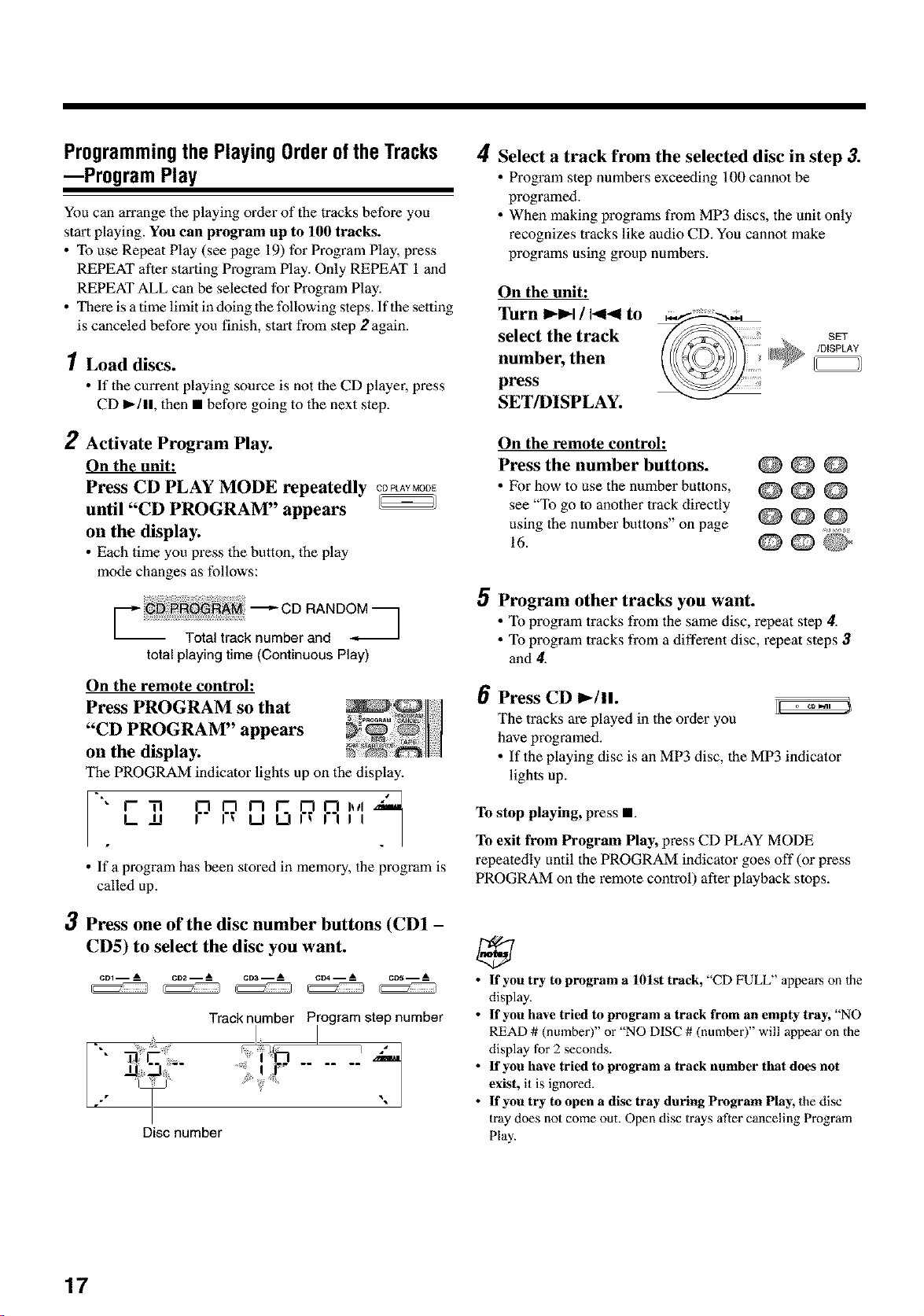
Programmingthe PlayingOrderoftheTracks
--Program Play
You can arrange the playing order of the tracks before you
start playing. You can program up to 100 tracks.
• To use Repeat Play (see page 19) for Program Play, press
REPEAT after starting Program Play. Only REPEAT 1and
REPEAT ALL can be selected for Program Play.
• There is a time limit in doing the following steps. Ifthe setting
is canceled before you finish, start from step 2 again.
1 Load discs.
• If the current playing source is not the CD player, press
CD I_/11, then • before going to the next step.
2 Activate Program Play.
On the unit:
Press CD PLAY MODE repeatedly C0PLAYMODE
until "CD PROGRAM" appears
on the display.
• Each time you press the button, the play
mode changes as follows:
total playing time (Continuous Play)
On the remote control:
Press PROGRAM so that
"CD PROGRAM" appears
on the display.
The PROGRAM indicator lights up on the display.
h 4
PP BPR,,
• If a program has been stored in memory, the program is
called up.
3 Press one of the disc number buttons (CD1 -
CD5) to select the disc you want.
cm -- A co2 -- A CD_ -- A e_ -- A cos -- A
Track number Program step number
Disc number
4
Select a track from the selected disc in step 3.
• Program step numbers exceeding 100 cannot be
programed.
• When making programs from MP3 discs, the unit only
recognizes tracks like audio CD. You cannot make
programs using group numbers.
On the unit:
Turn _1 / 1_14 to
select the track
number, then
press
SET/DISPLAY.
SET
/DISPLAY
On the remote control:
Press the number buttons.
• Pk_rhow to use the number buttons,
see "To go to another track directly
using the number buttons" on page
16.
@@@
@@@
@@@
r t
OQ{D
5
6
Program other tracks you want.
• To program tracks from the same disc, repeat step 4.
• To program tracks from a different disc, repeat steps 3
and 4.
Press CD _/11. I[ .....
The tracks areplayed in the order you
have programed.
• If the playing disc is an MP3 disc, the MP3 indicator
lights up.
To stop playing, press •.
To exit from Program Play, press CD PLAY MODE
repeatedly until the PROGRAM indicator goes off (or press
PROGRAM on the remote control) after playback stops.
• If you try to program a 101st track, "CD FULL" appem_ on Ihe
display.
• If you have tried to program a track from an empty tray, "NO
READ # (nmnber)" or "NO DISC # (number)" will appear on the
display for 2 seconds.
• If yon have tried to program a track number that does not
exist, it is ignored.
• If you try to open a disc tray during Program Play, the disc
tray does not come out. Open disc trays after canceling Program
Play.
17
Continued II_
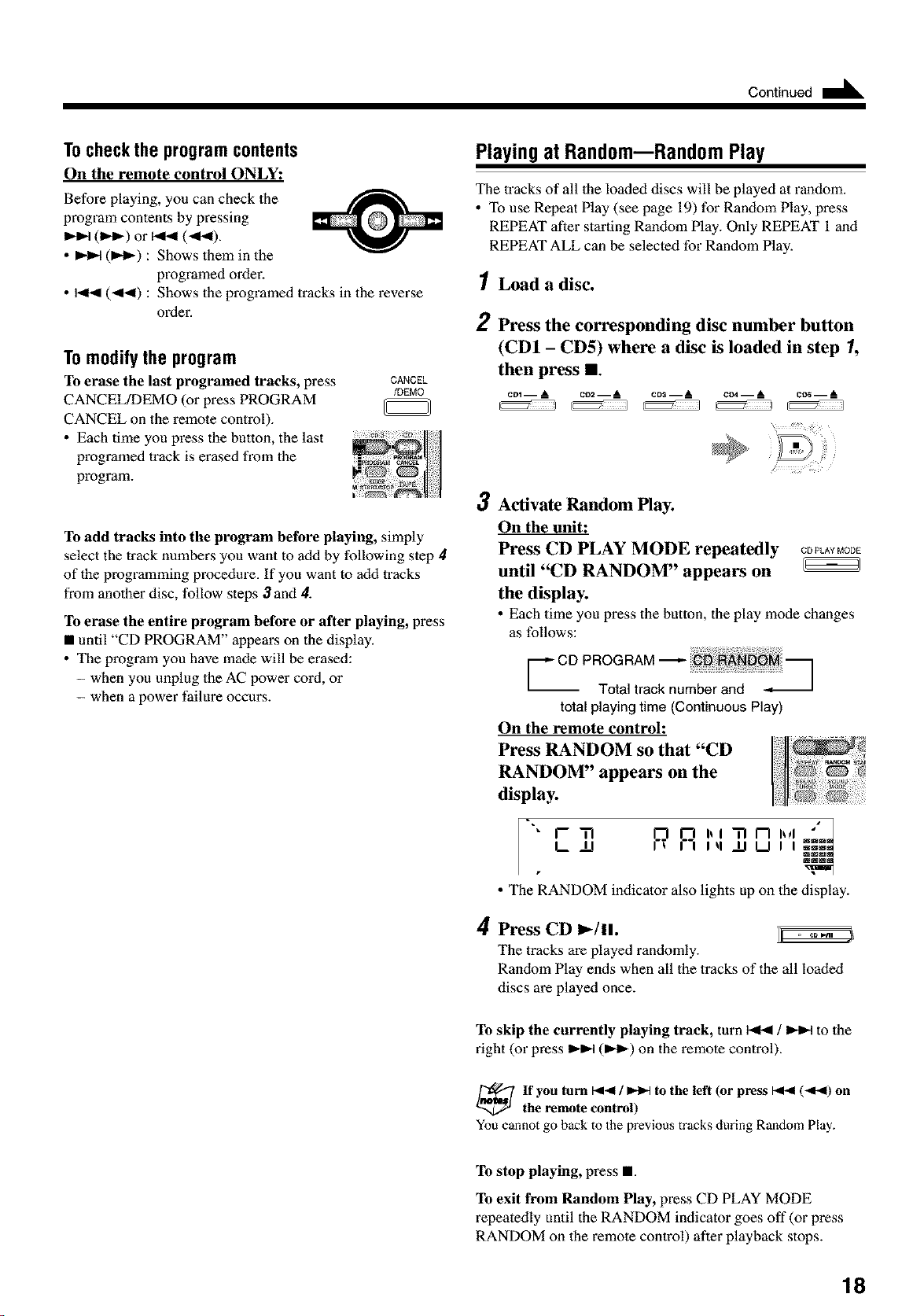
Tocheck the program contents
On the remote control ONLY:
Before playing, you can check the
program contents by pressing
(m,._)or _ (<_).
• _ (1._) : Shows them in the
programed ordm:
• _ (<<) : Shows the programed tracks in the reverse
order.
Tomodifythe program
To erase the last programed tracks, press
CANCEL/DEMO (or press PROGRAM
CANCEL on the remote control).
• Each time you press the button, the last
programed trackis erased from the
program.
CANCEL
/DEMO
To add tracks into the program betbre playing, simply
select the track numbers you want to add by following step 4
of the programming procedure. If you want to add tracks
from another disc, follow steps 3and 4.
To erase the entire program before or after playing, press
• until "CD PROGRAM" appears on the display.
• The program you have made will be erased:
- when you unplug the AC power cord, or
- when a power faihtre occurs.
Playingat RandommRandomPlay
The tracks of all the loaded discs will be played at random.
• To use Repeat Play (see page 19) for Random Play, press
REPEAT after starting Random Play. Only REPEAT 1 and
REPEAT ALL can be selecled for Random Play.
1Load a disc.
2 Press the corresponding disc number button
(CD1 - CD5) where a disc is loaded in step 1,
then press I1.
cm -- A c02 -- _ CDS-- A CO4-- _ CO_--
, ?
3 Activate Random Play.
On the unit:
Press CD PLAY MODE repeatedly CDPLA_MODE
until "CD RANDOM" appears on
the display.
• Each time you press the button, the play mode changes
as follows:
F CD PROGRAM -_
Total track number and -_
total playingtime (Continuous Play)
On the remote control:
Press RANDOM so that "CD
RANDOM" appears on the
display.
=L
" i'- I-'l
Ill
p R ,,, n,,,,...
I q IJ U I I _B._
_wm
• The RANDOM indicator also lights up on the display.
4 Press CD 1.-111. _ ..... :_
The tracks are played randomly.
Random Play ends when all the tracks of the all loaded
discs are played once.
To skip the currently playing track, turn_ / _ to the
right (or press _ (IH_) on the remote control).
If you turn I_ / _ to the left (or press I_ (-,11.,11)on
the remote control)
You cannot go back to the previous tracks during Random Play.
To stop playing, press •.
To exit from Random Play, press CD PLAY MODE
repeatedly until the RANDOM indicator goes off (or press
RANDOM on the remote control) after playback stops.
18
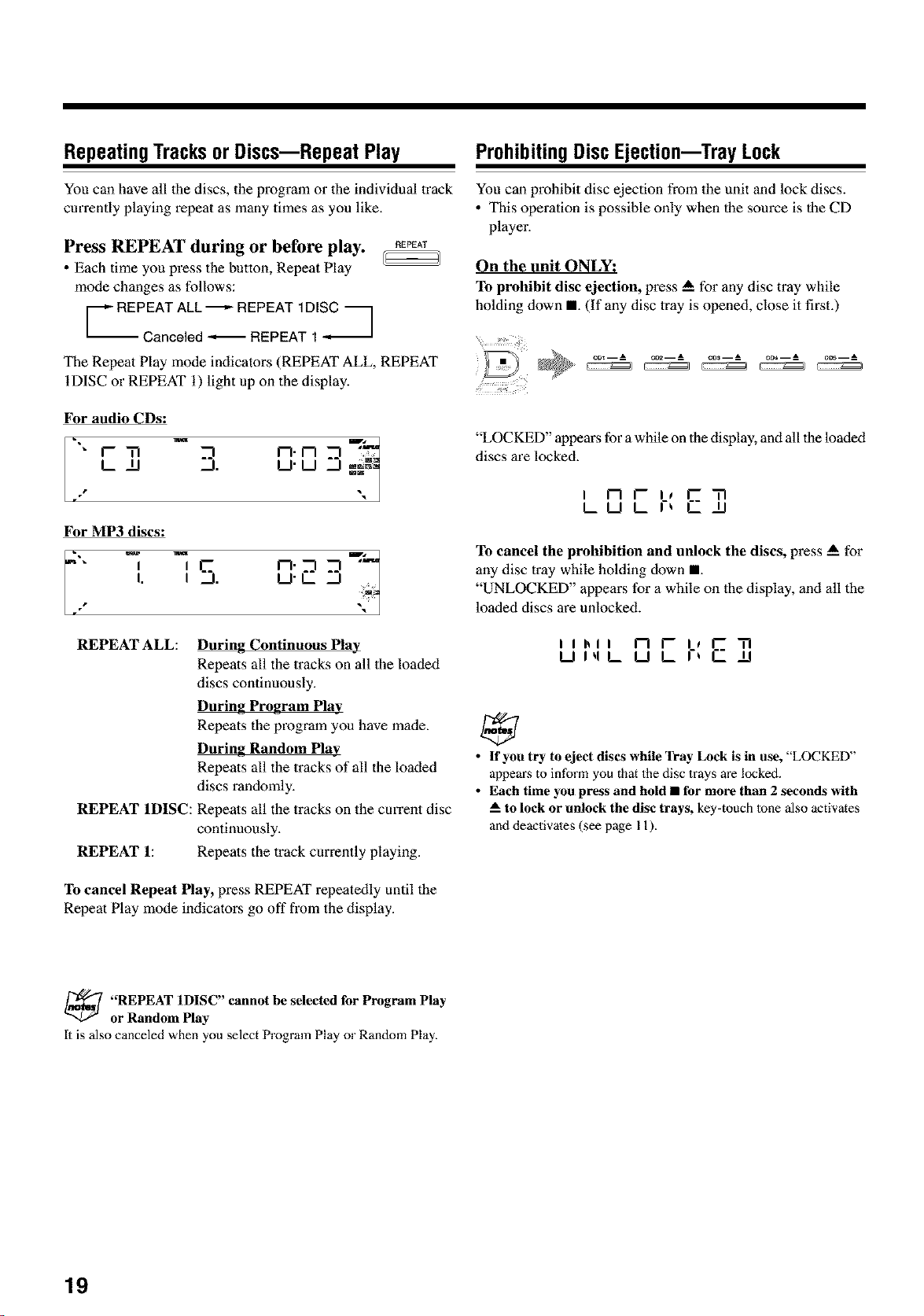
RepeatingTracksorDiscs--Repeat Play
You can have all the discs, the program or the indivMual track
currently playing repeat as many times as you like.
Press REPEAT during or before play.
• Each time you press the button, Repeat Play
mode changes as follows:
F- %2-92L;72_
REPEAT
The Repeat Play mode indicators (REPEAT ALL, REPEAT
IDISC or REPEAT 1) light up on the display.
For audio CDs:
• F ,-7 n.n :.....
L tl . IJ'LI ®-_
For MP3 discs:
I I n.'_
i. i . I.J'C
REPEAT ALL: During Continuous Play
Repeats all the tracks on all the loaded
discs continuously.
During Program Play
Repeats the program you have made.
During Random Play
Repeats all the tracks of all the loaded
discs randomly.
REPEAT 1DISC: Repeats all the tracks on the cun'ent disc
continuously.
REPEAT 1: Repeats the track cun_ntly playing.
To cancel Repeat Play, press REPEAT repeatedly until the
Repeat Play mode indicators go off from the display.
ProhibitingDiscEjection--TrayLock
You can prohibit disc ejection from the unit and lock discs.
• This operation is possible only when the source is the CD
player.
On the unit ONLY:
To prohibit disc ejection, press A for any disc tray while
holding down I. (If any disc tray is opened, close it first.)
co_--A co2--A co_--A coa--A cos--A
"LOCKED" appears for a while on the display, and all the loaded
discs are locked.
I n r- i, I-3
LWLI-_ C II
To cancel the prohibition and unlock the discs, press A for
any disc tray while holding clown I.
"UNLOCKED" appears for a while on the display, and all the
loaded discs are unlocked.
Ilhll n I-- i, I-- i-I
I_11q L !2 L r_ [ ii
• If you try to eject discs while Tray Lock is in use, "LOCKED"
appem:sto inform you that the disc 1rays are locked.
• Each time you press and hold • for more than 2 seconds with
-- to lock or unlock the disc trays, key-touch lone also activates
and deactivates (see page 11).
_ REPEAT 1DISC" cannot be selected for Program Play
or Random Play
It is also canceled when you select Program Play or Random Play.
19
PlaynngBackTapes
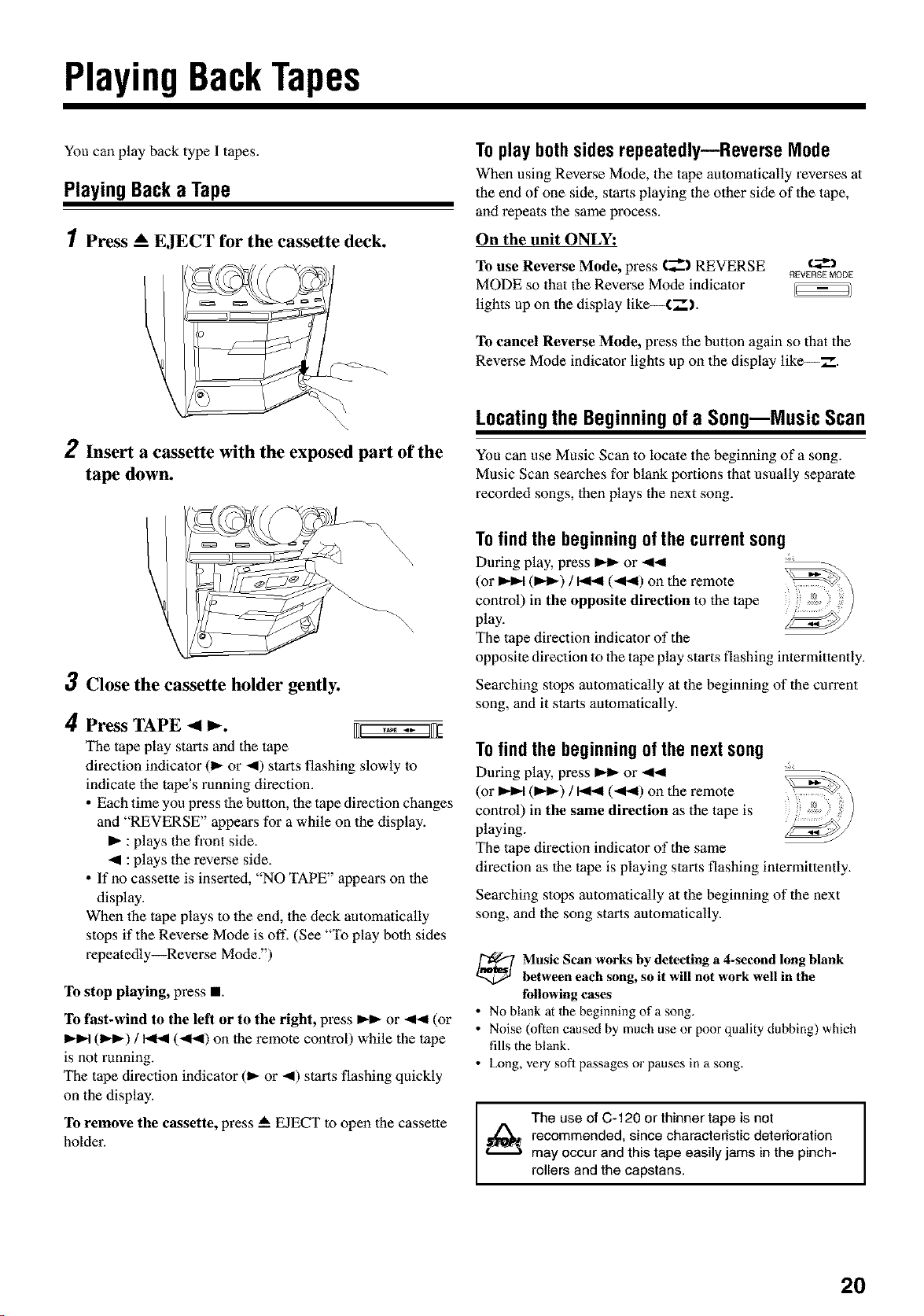
You can play back type I tapes.
PlayingBacka Tape
1 Press _ EJECT for the cassette deck.
I
Toplaybothsidesrepeatedly--ReverseMode
When using Reverse Mode, the tape automatically reverses at
the end of one side, starts playing the other side of the tape,
and repeats the same process.
On the unit ONLY:
To use Reverse Mode, press (_--'_ REVERSE
MODE so that the Reverse Mode indicator
lights up on the display like--CT').
REVERSE MODE
To cancel Reverse Mode, press the button again so that the
Reverse Mode indicator lights up on the display like--.-".
\
2 Insert a cassette with the exposed part of the
tape down.
3 Close the cassette holder gently.
4 Press "rAPE -_ _. _ .... 1_
The tape play starts and the tape
direction indicator (1_ or 4) starts flashing slowly to
indicate the tape's running diz_ction.
• Each time you press the button, the tapedirection changes
and "REVERSE" appears for a while on the display.
I_ :plays the front side.
_1 :plays the reverse side.
• If no cassette is inserted, "NO TAPE" appears on the
display.
When the tape plays to the end, the deck automatically
stops if the Reverse Mode is off. (See "To play both sides
repeatedly_Reverse Mode.")
To stop playing, press II.
To last-wind to the left or to the right, pl_ss _ or _1_ (or
(IDq_) / _ (_1_) on the remote control) while the tape
is not running.
The tape dil_ction indicator (1_ or 4) starts flashing quickly
on the display.
To remove the cassette, press A EJECT to open the cassette
holder.
LocatingtheBeginningofa Song--MusicScan
You can use Music Scan to locate the beginning of a song.
Music Scan searches for blank portions that usually separate
recorded songs, then plays the next song.
Tofindthe beginningofthe currentsong
During play, press _ or
(or _ (I,_-) / _ (-ql_) on the remote
control) in the opposite direction to the tape
play.
The tape direction indicator of the
opposite direction to the tape play starts flashing intermittently.
Searching stops automatically at the beginning of the current
song, and it stm'ts automatically.
Tofindthe beginningofthe nextsong
During play, press _ or
(or _ (I,_-) / _ (-ql_) on the remote
control) in the same direction as the tape is
playing.
The tape direction indicator of the same
di_vction as the tape is playing starts flashing intermittently.
Searching stops automatically at the beginning of the next
song, and the song starts automatically.
_ usic Scan works by detecting a 4-second long blank
between each song, so it will not work well in the
following cases
• No blank at 1he beginning of a song.
• Noise (often caused by much use or poor quality dubbing) which
fills the blank,
• Long, very soft passages or pauses in a song.
I
The use of C-120 or thinner tape is not I
1_ recommended, since characteristic deterioration
I
may occur and this tape easily jams in the pinch-
rollers and the capstans.
2O
Recording
IMPORTANT:
• It should be noted that it may be unlawthl to re-record
pre-recorded tapes, records, or discs without the
consent of the owner of copyright in the sound or video
recording, broadcast or cable program and in any
literary, dramatic, musical, or artistic embodied
therein.
• The recording level is automatically set con'ectly, so it is
not affected by the VOLUME, the SUBWOOFER LEVEL,
and the SOUND MODE controls, or the SOUND TURBO
button. Thus, during recording you can adjust the sound
you are actually listening to without affecting the _cording
level.
• If there are excessive noise or static in the recording you
have made, the unit may he too close to a TV. Increase the
distance between lhe TV and the unit.
• You can only use type I tape for _cording.
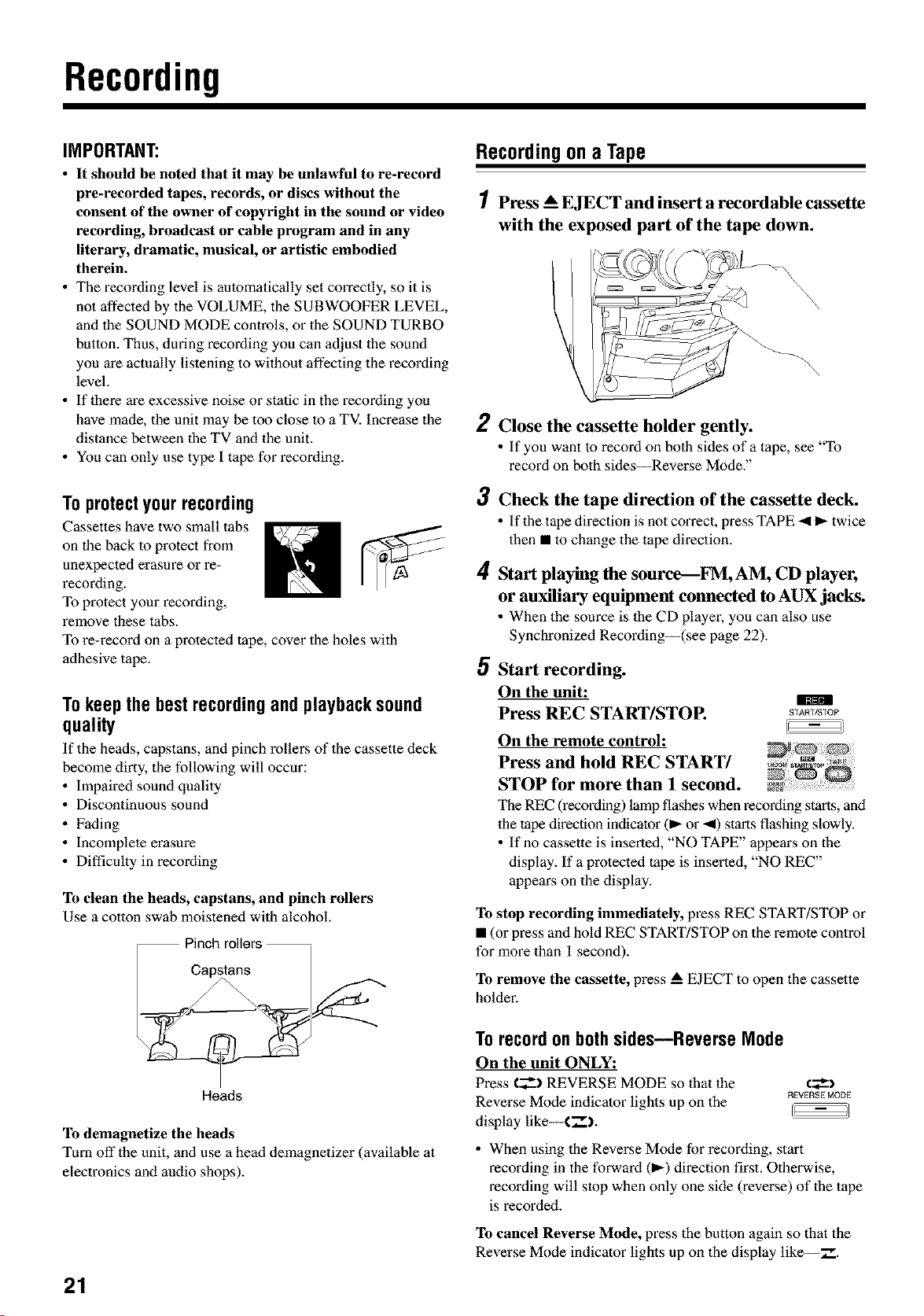
Toprotectyourrecording
Cassettes have two small tabs
on the back to protect from
_mexpecled erasaz_ or re x
recording.
To protect your recording,
remove these tabs.
To re-record on a protected tape, cover the holes with
adhesive tape.
Tokeepthe bestrecordingandplaybacksound
quality
If the heads, capstans, and pinch rollers of the cassette deck
become dirty, the following will occur:
• Impaired sound quality
• Discontinuous sound
• Fading
• Incomplete erasure
• Difficulty in recording
_I1[11
To clean the heads, capstans, and pinch rollers
Use a cotton swab moistened with alcohol.
Pinch rollers
Capstans /
Heads
To demagnetize the heads
Turn off the unit, and use a head demagnetizer (available at
electronics and audio shops).
21
Recordingona Tape
1 Press __ EJEC'r and insert a recordable cassette
with the exposed part of the tape down.
\\
\,
\
2
3
4
5
Close the cassette holder gently.
• If you want to record on both sides of atape, see "To
record on both sides_Reverse Mode."
Check the tape direction of the cassette deck.
• Ifthe tapedirection is notcorrect, press TAPE _ I_ twice
then • to change the tape direction.
Start playing the source--FM, AM, CD player,
or auxiliary equipment connected to AUX jacks.
• When the source is the CD playe_, you can also use
Synchronized Recording--(see page 22).
Start recording.
On the unit:
Press REC START/STOP.
START/STOP
On the remote control:
Press and hold REC START/
STOP for more than 1 second.
The REC (recording) lamp flashes when l_cording starts, and
the tape direction indicator (m-or 4) starts flashing slowly.
• If no cassette is inserted, "NO TAPE" appears on the
display. If a protected tape is inserted, "NO REC"
appe_s on the display.
To stop recording immediately, pl_ss REC START/STOP or
• (or pl_ss and hold REC START/STOP on the remole control
for more than 1 second).
To remove the cassette, press _ EJECT to open the cassette
holdel:
Torecordonbothsides--Reverse Mode
On the unit ONLY:
Press €_--_ REVERSE MODE so that the
Reverse Mode indicator lights up on the
display like--C7_).
R£VERSE MODE
• When using the Reverse Mode for recording, start
_cording in the fo_ard (1_) direction first. Otherwise,
_cording will stop when only one side (reverse) of the tape
is recorded.
To cancel Reverse Mode, press the button again so that the
Reverse Mode indicator lights up on the display like--Z.
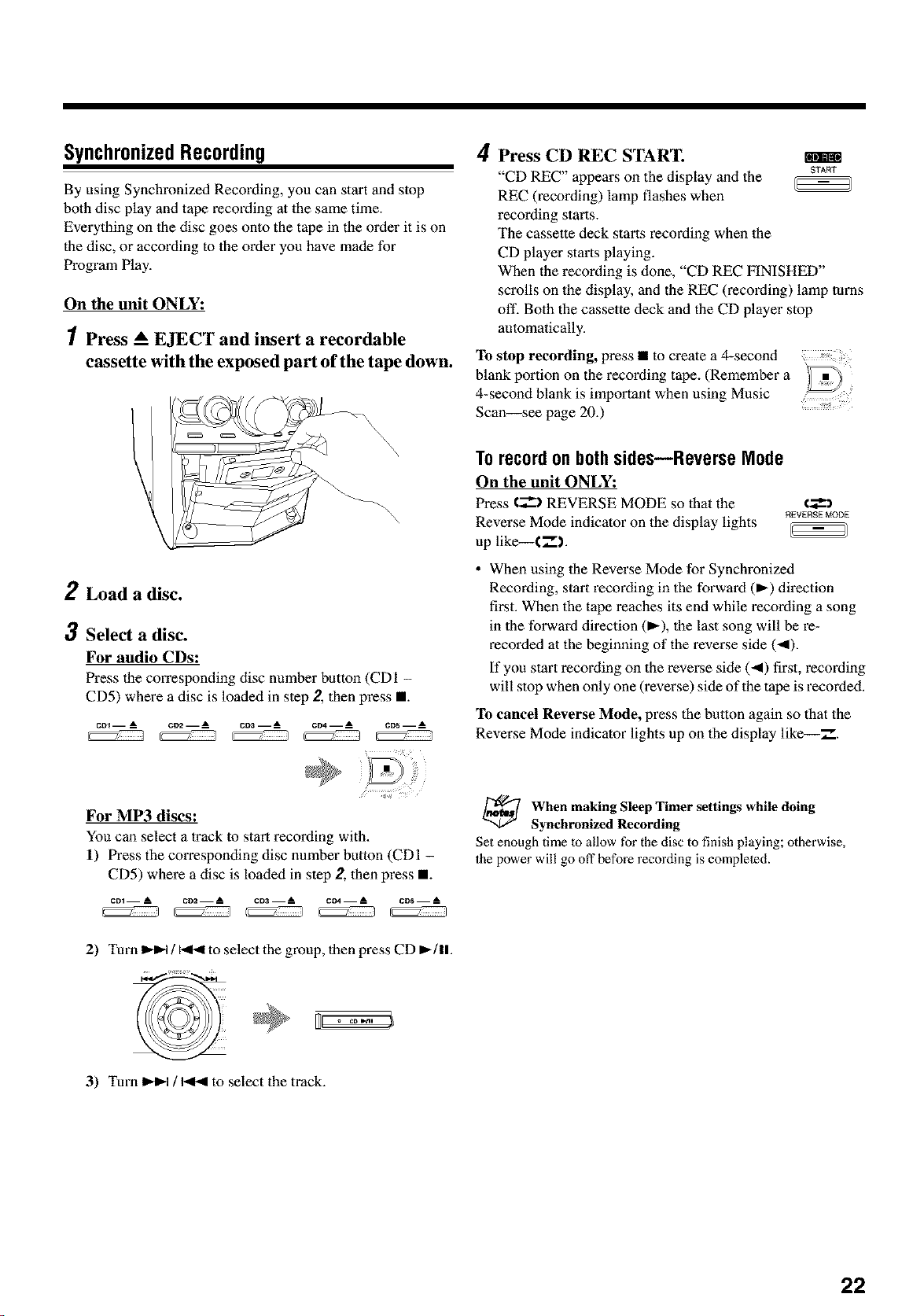
SynchronizedRecording
By using Synchronized Recording, you can start and stop
both disc play and tape _cording at the same time.
Everything on the disc goes onto the tape in the order it is on
the disc, or according to the order you have made for
Program Play.
On the unit ONLY:
1 Press A EJECT and insert a recordable
cassette with the exposed part of the tape down.
4
Press CD REC START.
"CD REC" appears on the display and the srAm
REC 0_cording) lamp flashes when
recording starts.
The cassette deck starts _cording when the
CD player starts playing.
When the recording is done, "CD REC FINISHED"
scrolls on the display, and the REC 0_cording) lamp turns
oft'. Both the cassette deck and the CD player stop
automatically.
To stop recording, press • to create a 4-second
blank portion on the recording tape. (Remember a
4-second blank is important when using Music
Scan--see page 20.)
2 Load a disc.
3 Select a disc.
For audio CDs:
Press the co_xesponding disc number button (CD1 -
CD5) where a disc is loaded in step 2, then pl_ss •.
c01 -- A CI12 __ A c03 -- A CD4 -- A CD5 -- A
/ );;"
For MP3 discs:
You can select a track lo start recording with.
l) Press the corresponding disc number button (CDI -
CD5) where a disc is loaded in step 2, then press •.
CD1 -- A CD2 -- A CD3 -- A CD4 -- __A CD5 -- A
2) Turn _ / _ to select the group, then press CD I,,-/11.
Torecordonbothsides--Reverse Mode
On the unit ONLY:
Press t_ REVERSE MODE so lhat the €_)
REVERSE MODE
Reverse Mode indicator on the display lights
up like--( .-'l.
• When using the Reverse Mode for Synchronized
Recording, start recording in the forward (_-) direction
first. When the tape reaches its end while recording a song
in the forward direction (_-), the last song will be l_-
l_corded at the beginning of the reverse side (_).
If you start recording on the reverse side (_) first, _cording
will stop when only one (reverse) side of the tape is recorded.
To cancel Reverse Mode, press the button again so that the
Reverse Mode indicator lights up on the display like--.-".
When making Sleep Timer settings while doing
Synchronized Recording
Set enough time to allow for the disc to finish playing; otherwise,
the power will go off before recording is completed.
3) Turn _ / _ to select the track.
22
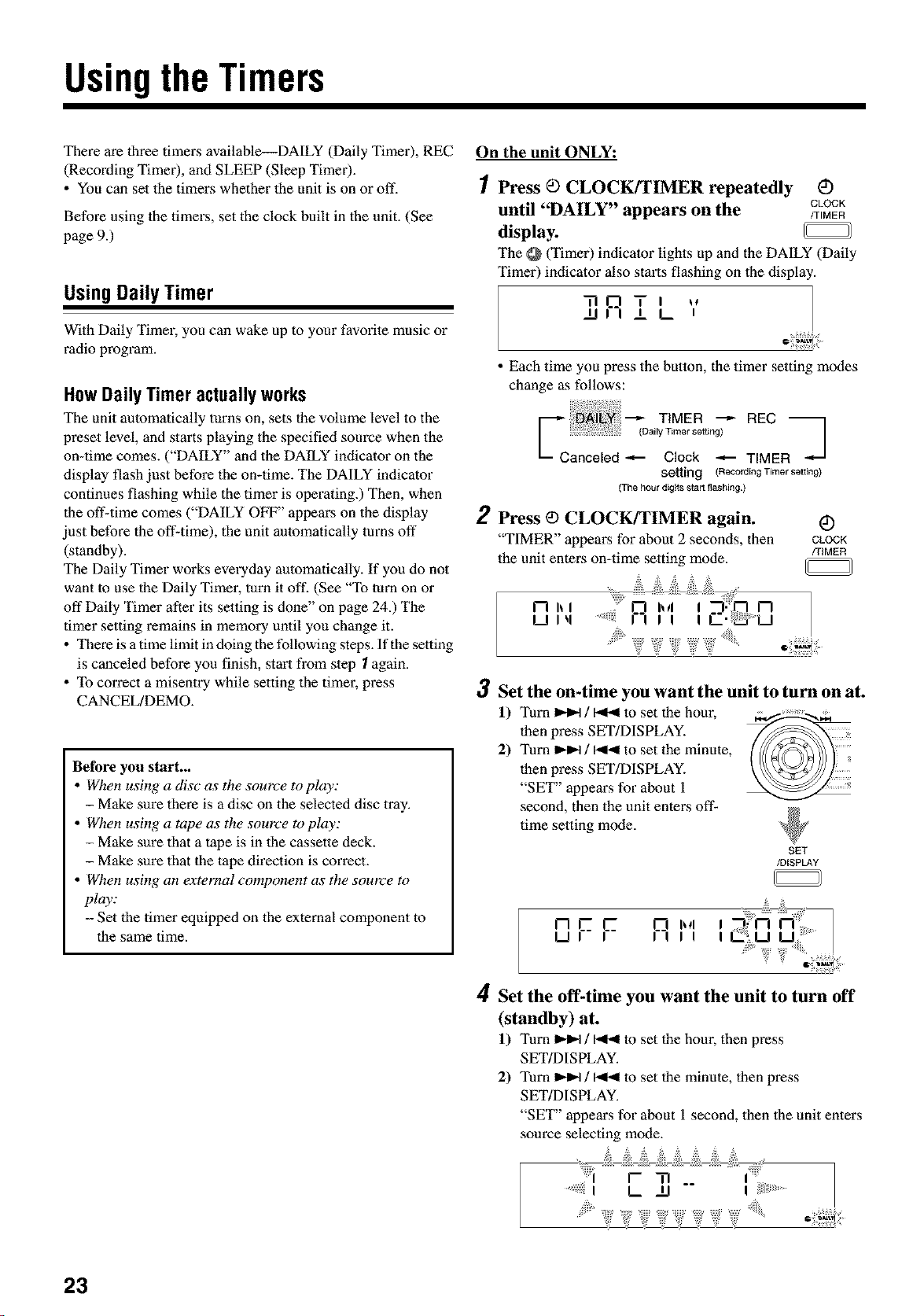
UsingtheTimers
There are three timers available--DAILY (Daily Timer), REC
(Recording Timer), and SLEEP (Sleep Timer).
• You can set the timers whether the unit is on or off.
Before using the timers, set the clock built in the unit. (See
page 9.)
UsingDailyTimer
With Daily Timer, you can wake up to yore" favorite music or
radio program.
HowDailyTimer actuallyworks
The unit automatically turns on, sets the volume level to the
preset level, and starts playing the specified source when the
on-time comes. ("DAILY" and the DAILY indicator on the
display flash just before the on-time. The DAILY indicator
continues flashing while the timer is operating.) Then, when
the off-time comes ("DAILY OFF" appears on the display
just before the off-time), the unit automatically turns off
(standby).
The Daily Timer works everyday automatically. If you do not
want m use the Daily Timer, turn it off. (See "To turn on or
off Daily Timer after its setting is done" on page 24.) The
timer setting remains in memory until you change it.
• There is a time limit in doing the following steps. If the setting
is canceled before you finish, start from step 1 again.
• To correct a misentry while setting the timer, press
CANCEL/DEMO.
Betbre you start...
• When using a disc as the source toplay:
- Make sure the_ is a disc on the selected disc tray.
• When using a tape as the source to play:
- Make sure that a tape is in the cassette deck.
- Make sure that the tape direction is correct.
• When using an external component as the source to
play:
-- Set lhe timer equipped on lhe external component lo
the same time.
On the unit ONLY:
1 Press _ CLOCK/TIMER repeatedly C)
until "DAILY" appears on the /TmMERCLOCK
display.
The _ (Timer) indicator lights up and the DAILY (Daily
Timer) indicator also stm'ts flashing on the display.
,nRTI ,,
u I I_ m
• Each time you press the button, the timer setting modes
change as follows:
T,MER---REC
(Daily Timer setting) l
_J
Canceled _ Clock _ TIMER
setting (Recording Timer setting}
(The hour digits start flashing}
2 Press <9CLOCK/TIMER again.
"TIMER" appears for about 2 seconds, then
the unit enters on-time setting mode.
_i!iiii_diiiiii
1"7 h l .... I I I
u,4 R ,;i i m
'+ # F
CLOCK
/TIMER
3 Set the on-time you want the unit to turn on at.
1) Turn _ / _ lo set the hour,
then press SET/DISPLAY.
2) Turn _ / _ to set the minute,
then press SET/DISPLAY.
"SET" appears for about 1
second, then the unit enters off-
time setting mode.
SET
/DISPLAY
1"7 _ _ _ h_l I
Ul I II I I I
4 Set the off-time you want the unit to turn off
(standby) at.
1) Turn _ / _41 lo set the hour, then p_ss
SET/DISPLAY.
2) Turn _ / _41 to set the minute, then press
SET/DISPLAY.
"SET" appears for about 1 second, then lhe unit enters
source selecting mode.
+++++"+++'+++:'++,_,; k(:' +++++++
23
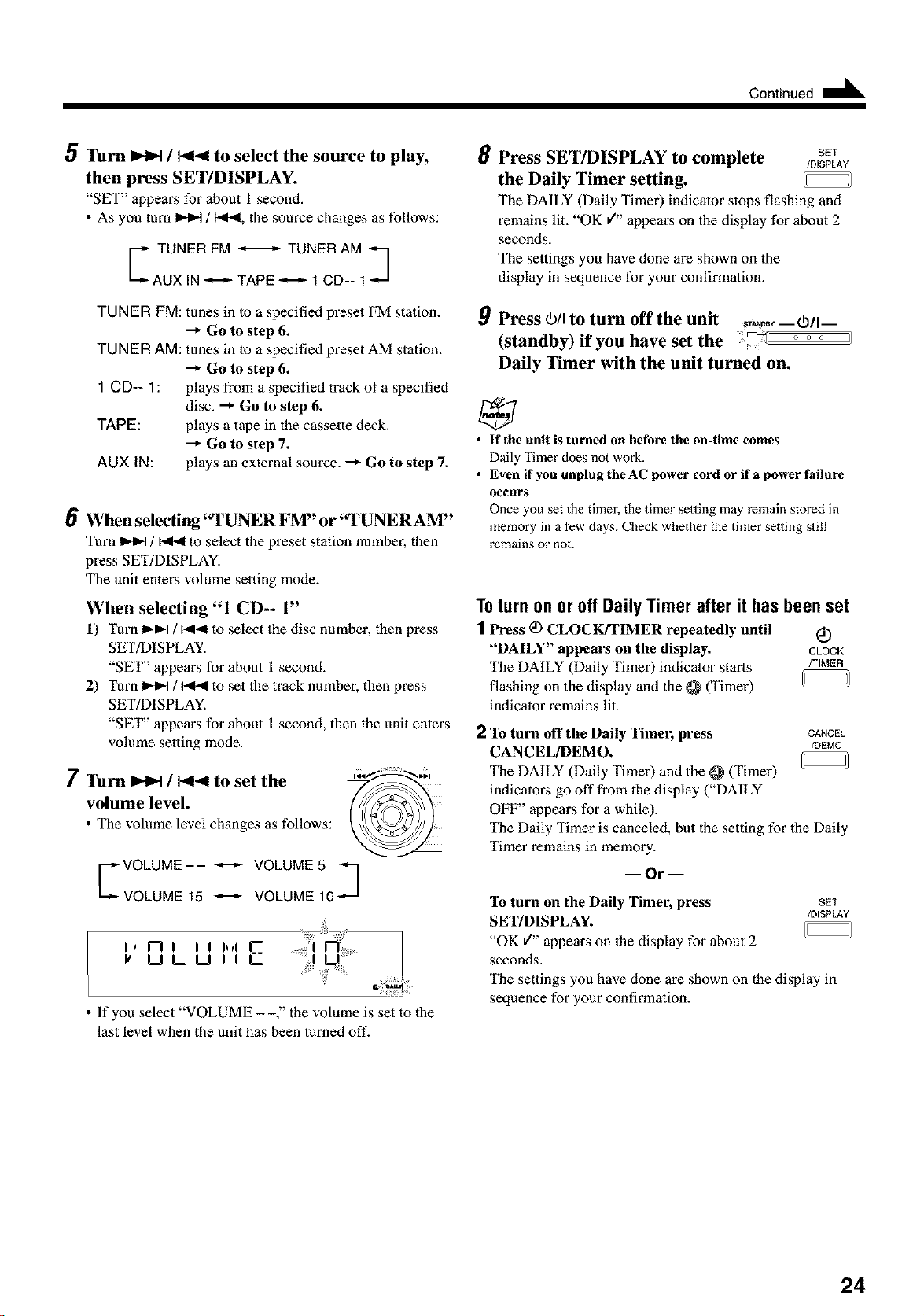
Continued II_
5 "13urn _-I_1 / 1_14 to select the source to play,
then press SET/DISPLAY.
"SET" appears for about 1 second.
• As you turn _ / I_1_, the source changes as follows:
TUNER FM _ TUNER AM q
AUX IN -_--_ TAPE -_--,'- 1 CD-- 1 -.._
TUNER FM: tunes in to a specified p_set FM station.
Go to step 6.
TUNER AM: tunes in to a specified preset AM station.
Go to step 6.
1 CD-- 1: plays from a specified trackof a specified
disc. _ Go to step 6.
TAPE: plays a tape in the cassette deck.
--* Go to step 7.
AUX IN: plays an external source. --_ Go to step 7.
6 Whenselecting"TUNERFM"or'_rUNERAM ''
Turn _ / _ to select the preset station number, then
press SET/DISPLAY.
The unit enters volume setting mode.
When selecting "1 CD-- 1"
1) Turn _ / _ to select the disc number, then press
SET/DISPLAY.
"SET" appears for about 1 second.
2) Turn _ / _ to set lhe track number, then p_ss
SET/DISPLAY.
"SET" appears for about 1 second, then the unit enters
volume setting mode.
7 Turn _-I_1 / 1_14 to set the
volume level.
• The volume level changes as follows:
VOLUME-- -,--_- VOLUME5 q
VOLUME 15 _ VOLUME 10 -",'_
I_n i i i h ll _r_
le ULU II
• If you select "VOLUME --," the volume is set to the
last level when the unit has been turned off.
8
9
Press SET/DISPLAY to complete SET
/DISPLAY
the Daily Timer setting.
The DAILY (Daily Timer) indicator stops flashing and
remains lit. "OK v" appears on the display for about 2
seconds.
The settings you have done are shown on lhe
display in sequence for your confirmation.
Press 0/I to turn off the unit ,,_Y --VII-
(standby) if you have set the o o o 11
Daily Timer with the unit turned on.
• If the unit is turned on before the on-time comes
Daily Timer does not work.
• Even if you unplug the AC power cord or if a power failure
OCCURS
Once you set the timer, the timer setting may remain stored in
memory in a few days. Check whether the timer setting still
remains or not.
ToturnonoroffDailyTimerafterit hasbeenset
1 Press _ CLOCK/TIMER repeatedly until _)
"DAILY" appears on the display. CLOCK
The DAILY (Daily Timer) indicator starts /TIMER
flashing on the display and the @ (Timer)
indicator remains lit.
2 To turn off the Daily Timer, press CANCEL
CANCEL/DEMO. /DEMO
The DAILY (Daily Timer) and the @ (Timer)
indicatol:s go off from the display ("DAILY
OFF' appears for a while).
The Daily Timer is canceled, but the setting for the Daily
Timer remains in memory.
-- Or --
To turn on the Daily Timer, press SET
SET/DISPLAY. /DISPLAY
"OK J" appears on the display for about 2
seconds.
The settings you have done are shown on the display in
sequence for your confirmation.
24
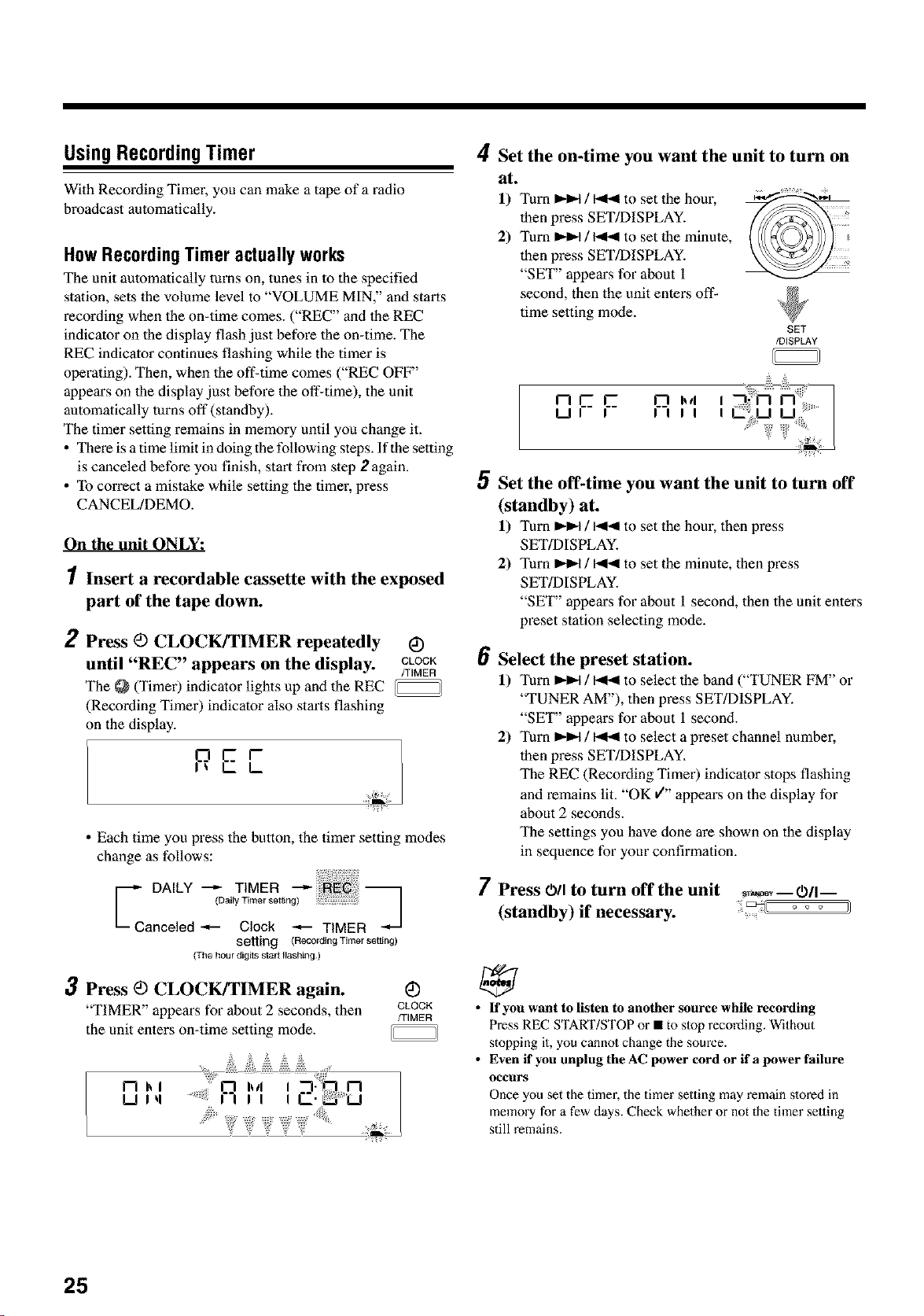
UsingRecordingTimer
With Recording Timer, you can make a tape of a radio
broadcast automatically.
HowRecordingTimeractuallyworks
The unit automatically turns on, tunes in to the specified
station, sets lhe volume level to "VOLUME MIN," and starts
l_cording when lhe on-time comes. ("REC" and the REC
indicator on the display flash just befo_ the on-time. The
REC indicator continues flashing while the timer is
operating). Then, when the off-time comes ("REC OFF"
appears on lhe display just before the off-time), the unit
automatically turns off (standby).
The timer setting remains in memory until you change it.
• There is a time limit in doing lhe following steps. If the selting
is canceled before you finish, start from step 2 again.
• To correct a mistake while setting the timer, press
CANCEL/DEMO.
On the unit ONLY:
1 Insert a recordable cassette with the exposed
part of the tape down.
2 Press _) CLOCK/[IMER repeatedly G
until "REC" appears on the display. CLOCK
/TIMER
The @ (Timer) indicator lights up and lhe REC
(Recording Timer) indicator also starts flashing
on the display.
pE r
I._
• Each time you press the button, the timer setting modes
change as follows:
oA,L -- T,MER
Canceled _- Clock -'-- TIME
setting (Recording Timer set, rig)
(The hour digits starl flashing)
3Press _ CLOCK/[IMER again.
"TIMER" appears for about 2 seconds, then CLOCK
/TIMER
the unit enters on-time setting mode.
n i_i
l._l Iq
4 Set the on4ime you want the unit to turn on
at.
1) Turn _ / _ to set the horn;
then press SET/DISPLAY.
2) Turn _ / _ to set the minute,
then press SET/DISPLAY.
"SET" appears for about 1
second, then the unit enters off-
time setting mode.
SET
/DISPLAY
ncc
Ul I
i!!!i__iii__
n h,, l
,-,,, ,
5 Set the off-time you want the unit to turn off
(standby) at.
1) Turn _ / _ to set the horn; then p_ss
SET/DISPLAY.
2) Turn _ / _ to set the minute, then press
SET/DISPLAY.
"SET" appears for about 1 second, then the unit enters
p_set station selecting mode.
6 Select the preset station.
1) Turn _ / _ to select the band ("TUNER FM" or
'_FUNERAM"), then pl_ss SET/DISPLAY.
"SET" appears for about 1second.
2) Turn _ / _ to select a pz_set channel number,
then press SET/DISPLAY.
The REC (Recording Timer) indicator stops flashing
and l_mains lit. "OK J" appe_s on the display for
about 2 seconds.
The settings you have done are shown on the display
in sequence for your confirmation.
7 Press O/Ito turn off the unit _- Oil-
(standby) if necessary. ° ° °
• If yon want to listen to another source while recording
Press REC START/STOP or • to stop recording. Without
stopping it, you cannot change the source.
• Even if you unplug the AC power cord or if a power failure
oeenrs
Once you set the timer, the timer setting may remain slored in
memory for a few days. Check whether or not the timer setting
still remains.
25
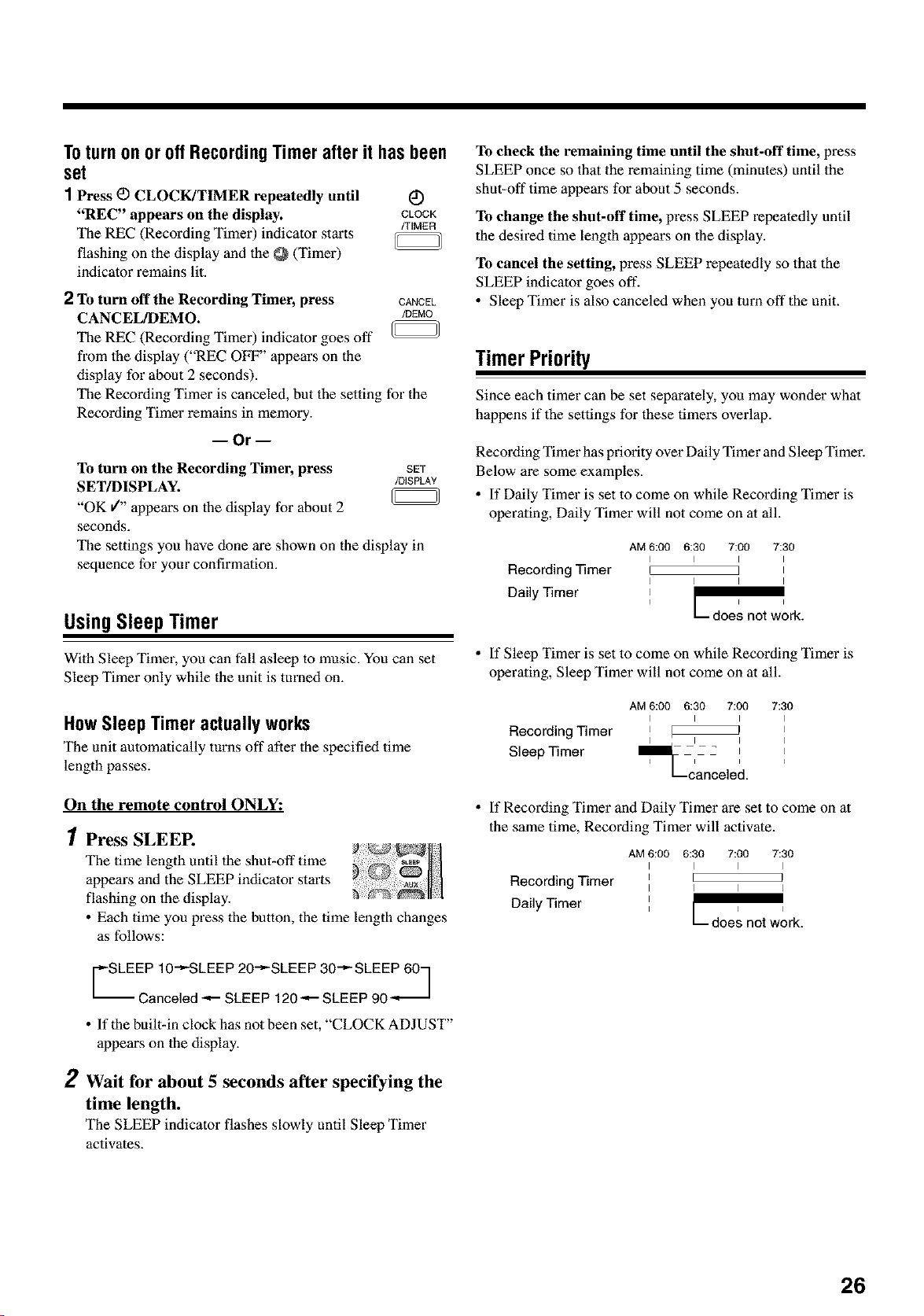
ToturnonoroffRecordingTimerafterit hasbeen
set
1Press _ CLOCK/TIMER repeatedly until _)
"REC" appears on the display. CLOCK
/TIMER
The REC (Recording Timer) indicator starts
flashing on the display and the @ (Timer)
indicator remains lit.
2 To turn off the Recording Timer, press CANCEL
CANCEL/DEMO. /DEMO
The REC (Recording Timer) indicator goes ofl"
from lhe display ("REC OFF" appears on the
display for about 2 seconds).
The Recording Timer is canceled, but the setting for the
Recording Timer remains in memory.
-- Or --
To turn on the Recording Timer, press SET
SET/DISPLAY. /DISPLAY
"OK/" appears on lhe display for about 2
seconds.
The settings you have clone are shown on the display in
sequence for your confirmation.
UsingSleepTimer
With Sleep Timer, you can fall asleep to music. You can set
Sleep Timer only while the unit is turned on.
HowSleepTimer actuallyworks
The unit automatically turns off after the specified time
length passes.
On the remote control ONLY:
1 Press SLEEP.
The lime length until the shut-off time
appe_s and the SLEEP indicator starts
flashing on the display.
• Each time you press the button, lhe time length changes
as follows:
SLEEP 10"-_SLEEP 20"_'-SLEEP 30""-SLEEP 601
Canceled -_--SLEEP 120 -_- SLEEP 90 _
• If the built-in clock has not been set, "CLOCK ADJUST"
appears on the display.
2 Wait for about 5 seconds after specifying the
time length.
The SLEEP indicator flashes slowly until Sleep Timer
activates.
To check the remaining time until the shut-off time, press
SLEEP once so thatthe remaining time (minutes) until the
shut-off time appears for about 5 seconds.
To change the shut-off time, press SLEEP repeatedly until
the desired time length appears on the display.
To cancel the setting, press SLEEP repeatedly so that the
SLEEP indicator goes off.
• Sleep Timer is also canceled when you turn off the unit.
TimerPriority
Since each timer can be set separately, you may womter what
happens if the settings for these timers overlap.
Recording Timer has priority over Daily Timer and Sleep Timer.
Below are some examples.
• If Daily Timer is set to come on while Recording Timer is
operaling, Daily Timer will not come on at all.
AM 6:00 6:30 7:00 7:30
I I I I
Recording Timer [ ]
I I I I
Daily Timer i
I
• If Sleep Timer is set to come on while Recording Timer is
operating, Sleep Timer will not come on at all.
AM 6:00 6:30 7:00 7:30
I I I I
Recording Timer iI _l Ii iI
Sleep Timer ll_._c - 2 i i
anceled.
• If Recording Timer and Daily Timer are set to come on at
the same time, Recording Timer will activate.
AM 6:00 6:30 7:00 7:30
I I I I
Recording Timer _ I
I I I I
Daily Timer ,I
26
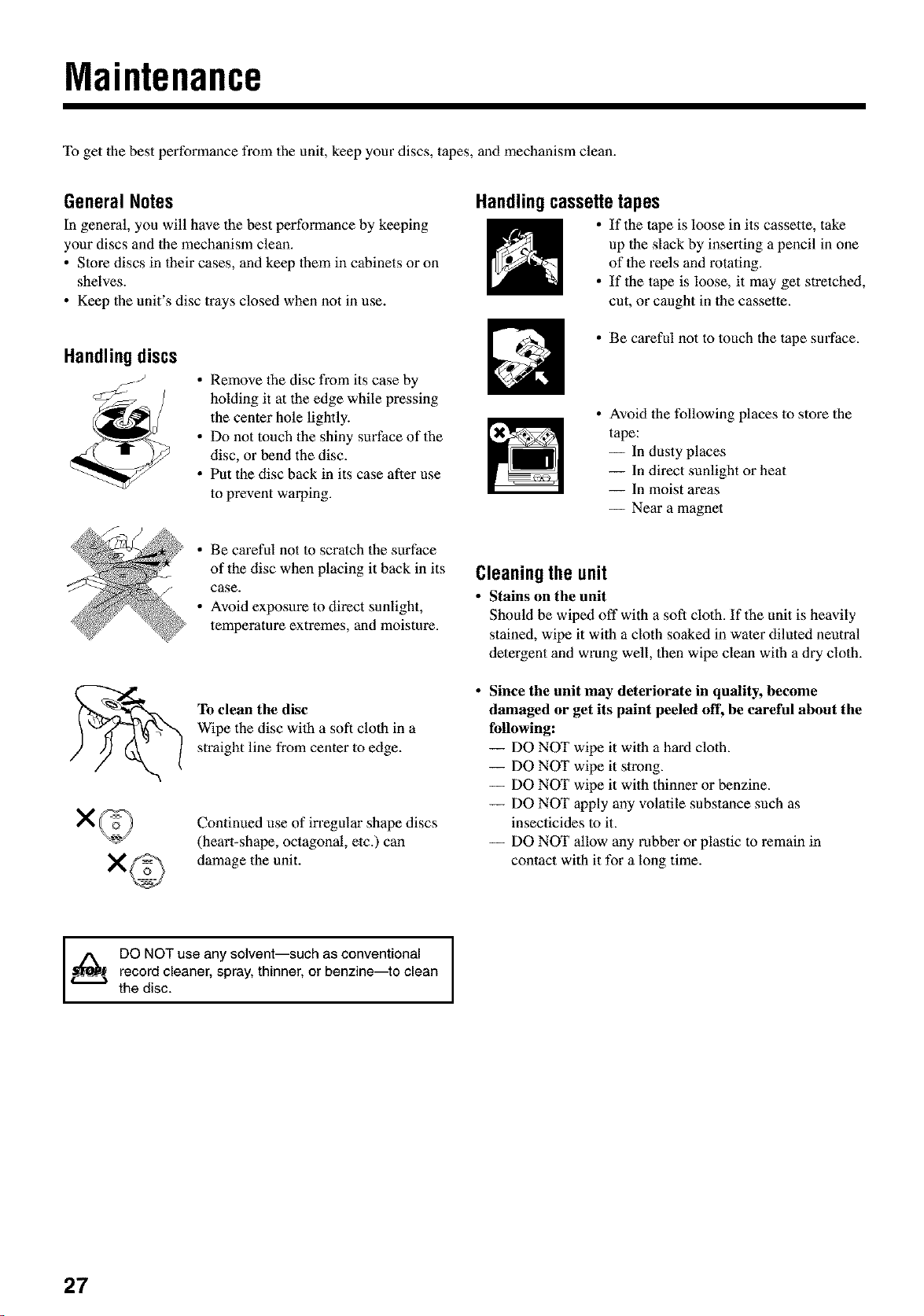
Maintenance
To get the best performance from the unit, keep your discs, tapes, and mechanism clean.
GeneralNotes
In general, you will have the best performance by keeping
your discs and the mechanism clean.
• Store discs in their cases, and keep them in cabinets or on
shelves.
• Keep the unit's disc trays closed when not in use.
Handlingdiscs
/J
• Remove the disc from its case by
holding it at the edge while pressing
the center hole lightly.
• Do not touch the shiny surface of the
disc, or bend the disc.
• Put the disc back in its case after use
to prevent warping.
Handlingcassettetapes
• If the tape is loose in its cassette, take
up the slack by inserting a pencil in one
of the reels and rotating.
• If the tape is loose, it may get stretched,
cut, or caught in the cassette.
• Be careful not to touch the tape surface.
• Avoid the following places to store the
tape:
-- In dusty places
-- In direct sunlight or heat
-- In moist areas
-- Near a magnet
x©
• Be careful not to scratch the surface
of the disc when placing it back in its
case.
• Avoid exposure to direct sunlight,
temperature extremes, and moisture.
To clean the disc
Wipe the disc with a soft cloth in a
straight line from center to edge.
Continued use of inegular shape discs
(heart-shape, octagonal, etc.) can
damage the unit.
Cleaningthe unit
• Stains on the unit
Should be wiped off with a soft cloth. If the unit is heavily
stained, wipe it with a cloth soaked in waler diluted neutral
detergent and wrung well, then wipe clean with a dry cloth.
Since the unit may deteriorate in quality, become
damaged or get its paint peeled off, be careful about the
following:
-- DO NOT wipe it with a hard clolh.
-- DO NOT wipe it strong.
-- DO NOT wipe it with thinner orbenzine.
-- DO NOT apply any volatile substance such as
insecticides to it.
-- DO NOT allow any rubber or plastic to remain in
contact with it for a long time.
DO NOT use any solvent--such as conventional
record cleaner, spray, thinner, or benzine--to clean
the disc.
27
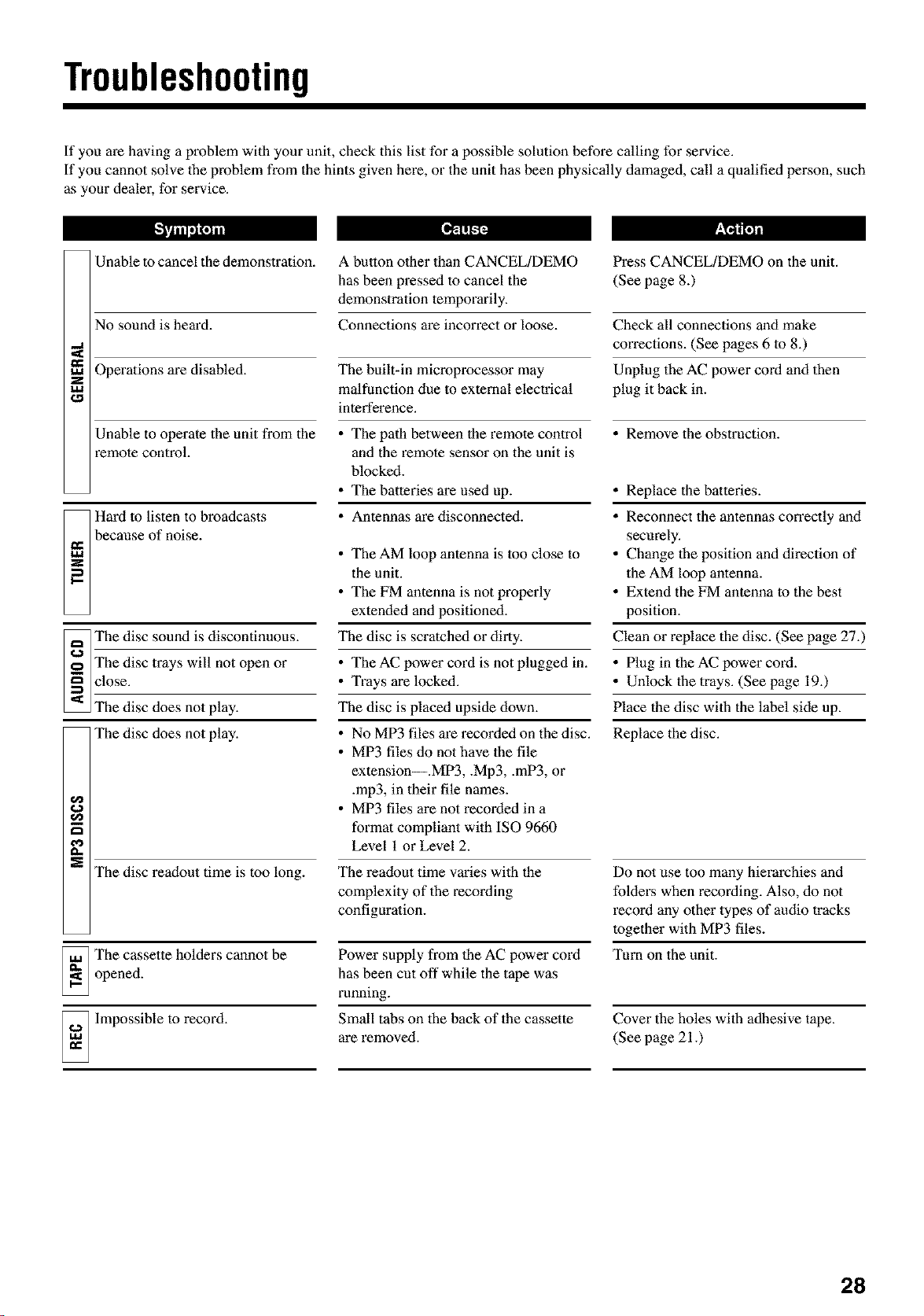
Troubleshooting
If you are having a problem wilh your unit, check this list for a possible solution before calling for service.
If you cannot solve the problem from the hints given here, or the unit has been physically damaged, call a qualified person, such
as your dealer, for service.
[I,_'!lTq_ r,_!'_170/11
Unable to cancel the demonstration.
No sound is heard.
,,,,,I
ua Operations are
disabled.
z
IJd
Unable to operate the unit from the
remote control.
Hard to listen to broadcasts
because of noise.
The fflsc sound is discontinuous.
The disc trays will not open or
close.
The disc does not play.
The disc does not play.
cl
O.
IN
The disc readout time is too long.
The cassette holders cannot be
opened.
_ Impossible to record.
A button other than CANCEL/DEMO
has been pressed to cancel the
demonstration temporarily.
Connections are inconvct or loose.
The built-in microprocessor may
malfunction due to external electrical
interference.
• The path between lhe remole control
and the _mote sensor on the unit is
blocked.
• The batteries are used up.
• Antennas are disconnected.
• The AM loop antenna is too close to
the unit.
• The FM antenna is not properly
extended and positioned.
The disc is scratched or dirty.
• The AC power cord is not plugged in.
• Trays are locked.
The disc is placed upside down.
• No MP3 files are recorded on the disc.
• MP3 files do not have the file
extension--.MP3, .Mp3, .mP3, or
.rap3, in their file names.
• MP3 files are not recorded in a
format compliant with ISO 9660
Level 1 or Level 2.
The readout time varies with the
complexity of the recording
configuration.
Power supply from the AC power cord
has been cut off while the tape was
running.
Small tabs on lhe back of the cassette
are removed.
Press CANCEL/DEMO on the unit.
(See page 8.)
Check all connections and make
corrections. (See pages 6 to 8.)
Unplug the AC power cord and then
plug it back in.
• Remove the obstruction.
• Replace the batteries.
• Reconnect the antennas con'ectly and
secretly.
• Change lhe position and direction of
the AM loop antenna.
• Extend the FM antenna to the best
position.
Clean or replace the disc. (See page 27.)
• Plug in the AC power cord.
• Unlock lhe trays. (See page 19.)
Place the disc with the label side up.
Replace lhe disc.
Do not use too many hierarchies and
folders when recording. Also, do not
_cord any other types of audio tracks
together with MP3 files.
Turn on the unit.
Cover the holes with adhesive tape.
(See page 21.)
28
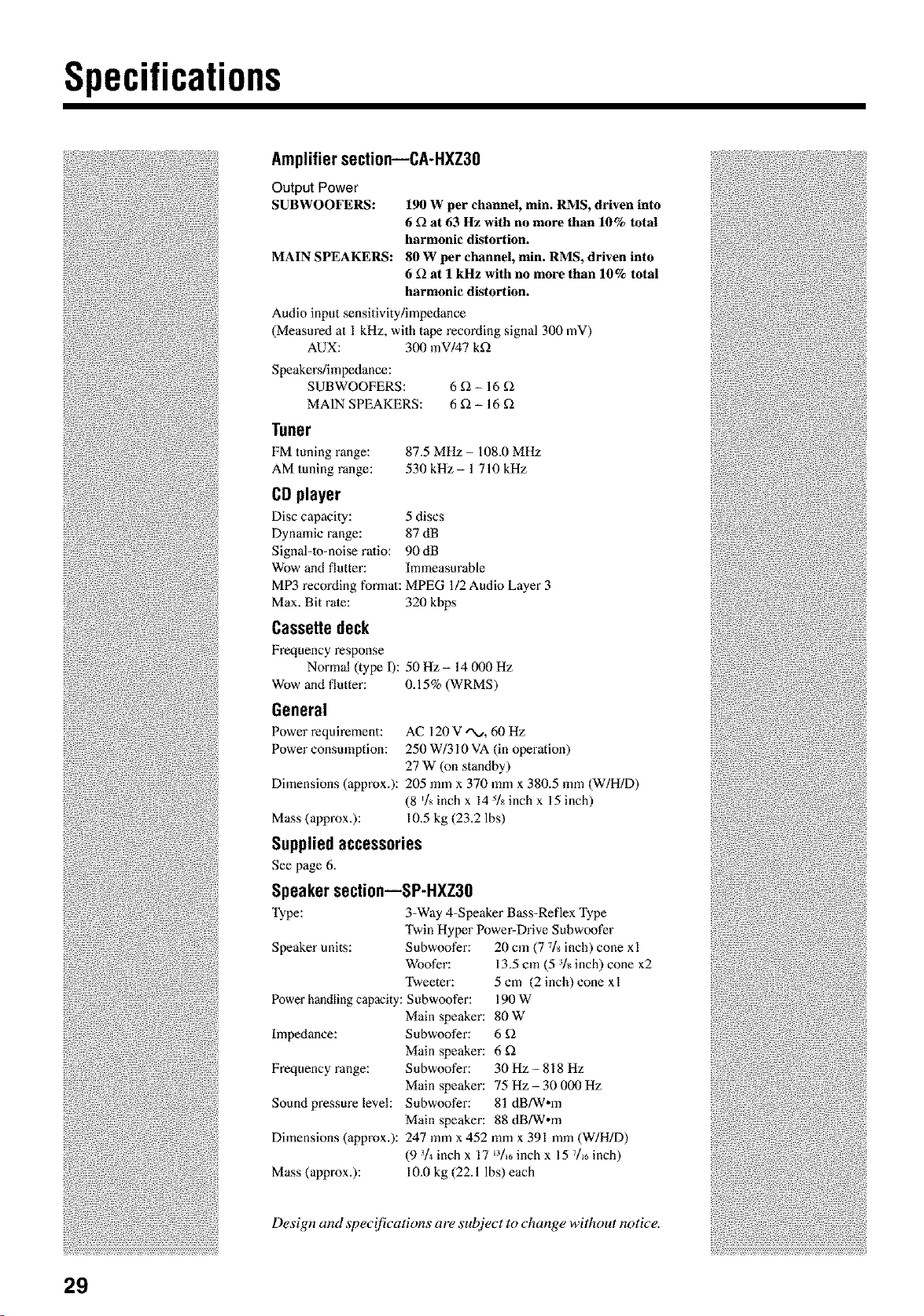
Specifications
Amplifiersection--CA-HXZ30
Output Power
SUBWOOFERS: 190 W per channel, min. RMS, driven into
6 £_at 63 Hz with no more than 10% total
harmonic distortion.
MAIN SPEAKERS: 80 W per channel, min. RMS, driven into
6 £_at 1 kHz with no more than 10% total
harmonic distortion.
Audio input sensitivity/impedance
(Measured at 1 kHz, with tape recording signal 300 mV)
AUX: 300 mV/47 kf2
Speakers/impedance:
SUBWOOFERS: 6 f2 - 16 f2
MAIN SPEAKERS: 6 f2 - 16 f2
Tuner
FM tuning range: 87.5 MHz- 108.0 MHz
AM tuning range: 530 kHz- 1 710 kHz
CDplayer
Disc capacity: 5 discs
Dynamic range: 87 dB
Signal-m-noise ralio: 90dB
Wow and flutter: Immeasurable
MP3 recording formal: MPEG 1/2 Audio Layer 3
Max. Bit rate: 320 kbps
Cassettedeck
Frequency response
Normal (type I):
Wow and flutter:
General
Power requirement:
Power consmnption:
Dimensions (approx.):
Mass (approx.):
50Hz- 14 000 Hz
0.15% (WRMS)
AC 120 V*'N.,. 60 Hz
250 W/310 VA (in operation)
27 W (on standby)
205 mm x 370 mmx 380.5 mm (W/H/D)
(8 _]sinch x 14 5is inch x 15 inch)
10,5 kg (23.2 lbs)
Suppliedaccessories
See page 6.
Speakersection--SP-HXZ30
"l_ype: 3-Way 4=Speaker Bass=Reflex Type
Twin Hyper Power-Drive Subwoofer
Speaker units: Subwoofer:
Woofer:
Tweeter:
Power handling capacity: Subwoofer:
Main speaker:
Impedance: Subwoofer:
Main speaker:
Frequency range: Subwoofer:
Main speaker:
Sound pressure level: Subwoofer:
Dimensions (approx.):
Mass (approx.):
20 cm (7 7A inch) cone xl
13.5 cm (5 A inch) cone x2
5 cm (2 inch) cone xl
190W
80W
6U2
6U2
30Hz-818 Hz
75 Hz - 30 000 Hz
81 dB/W,m
Main speaker: 88 dB/W,m
247 mm x 452 mm x 391 mm (W/H/D)
(9 3/4inch x 17 _3/,, inch x 15 7/_6inch)
10.0 kg (22.1 lbs) each
Design and specifications are subject to change without notice.
29
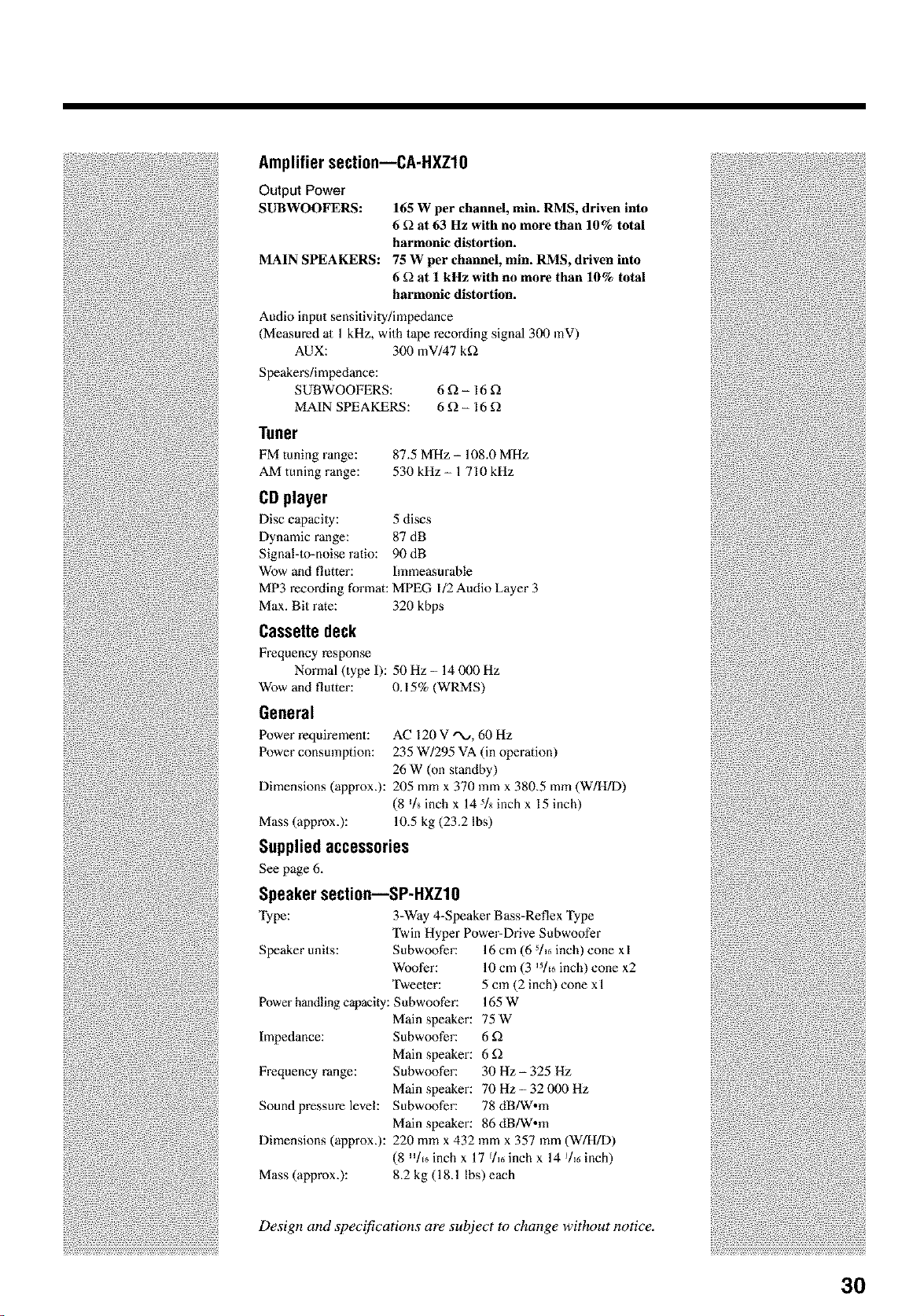
Amplifiersection--CA-HXZlO
Output Power
SUBWOOFERS: 165 W per channel, min. RMS, driven into
6 £) at 63 Hz with no more than 10% total
harmonic distortion.
MAIN SPEAKERS: 75 W per channel, rain. RMS, driven into
6 £) at I kHz with no more than 10% total
harmonic distortion.
Audio input sensitivity/impedance
(Measured al 1 kHz, with tape recording signal 300 mV)
AUX: 300 mV/47 k£)
Speakers/impedance:
SUBWOOFERS: 6 £) - 16 £)
MAIN SPEAKERS: 6 £) - 16 £)
Tuner
FM tuning range: 87.5 MHz - 108.0 MHz
AM tuning range: 530 kHz - 1 710 kHz
CDplayer
Disc capacily: 5 discs
Dynamic range: 87 dB
Signalqo-noise ratio: 90 dB
Wow and flutter: hnmeasurable
MP3 reoording format: MPEG 1/2 Audio Layer 3
Max. Bit rate: 320 kbps
Cassettedeck
Frequency response
Normal (type I): 50 Hz - 14 000 Hz
Wow and flutter:
General
Power requirement:
Power consmnption:
0.15% (WRMS)
AC 120 V'N_, 60 Hz
235 W/295 VA (in operation)
26 W (on standby)
Dimensions (approx.): 205 mmx 370 mmx 380.5 mm (W/H/D)
(8 _/s inch x 14 5A inch x 15 inch)
Mass (approx.): 10.5 kg (23.2 Ibs)
Suppliedaccessories
See page 6,
Speakersection--SP-HXZlO
Type: 3-Way 4-Speaker Bass-Reflex Type
Twin Hyper Power-Drive Subwoofer
Speaker units: Subwoofer:
Woofer:
Tweeter:
Power handling capacity: Subwoofer:
Main speaker:
Impedance: Subwoofer:
Main speaker:
Frequency range: Subwoofer:
Main speaker:
Sound pressure level: Subwoofer:
Dimensions (approx.):
Mass (approx.):
16 cm (6 _/_6inch) cone xl
10 cm (3 _/16inch) cone x2
5 cm (2 inch) cone x1
165W
75 W
6£)
6£)
30 Hz- 325 Hz
70 Hz - 32 000 Hz
78 dB/Wom
Main speaker: 86 dB/Wom
220 mmx 432 mm x 357 mm (W/H/D)
(8 H/16inch x 17 _/., inch x 14 _/., inch)
8.2 kg (18.1 Ibs) each
Design and specifications are subject to change without notice.
3O
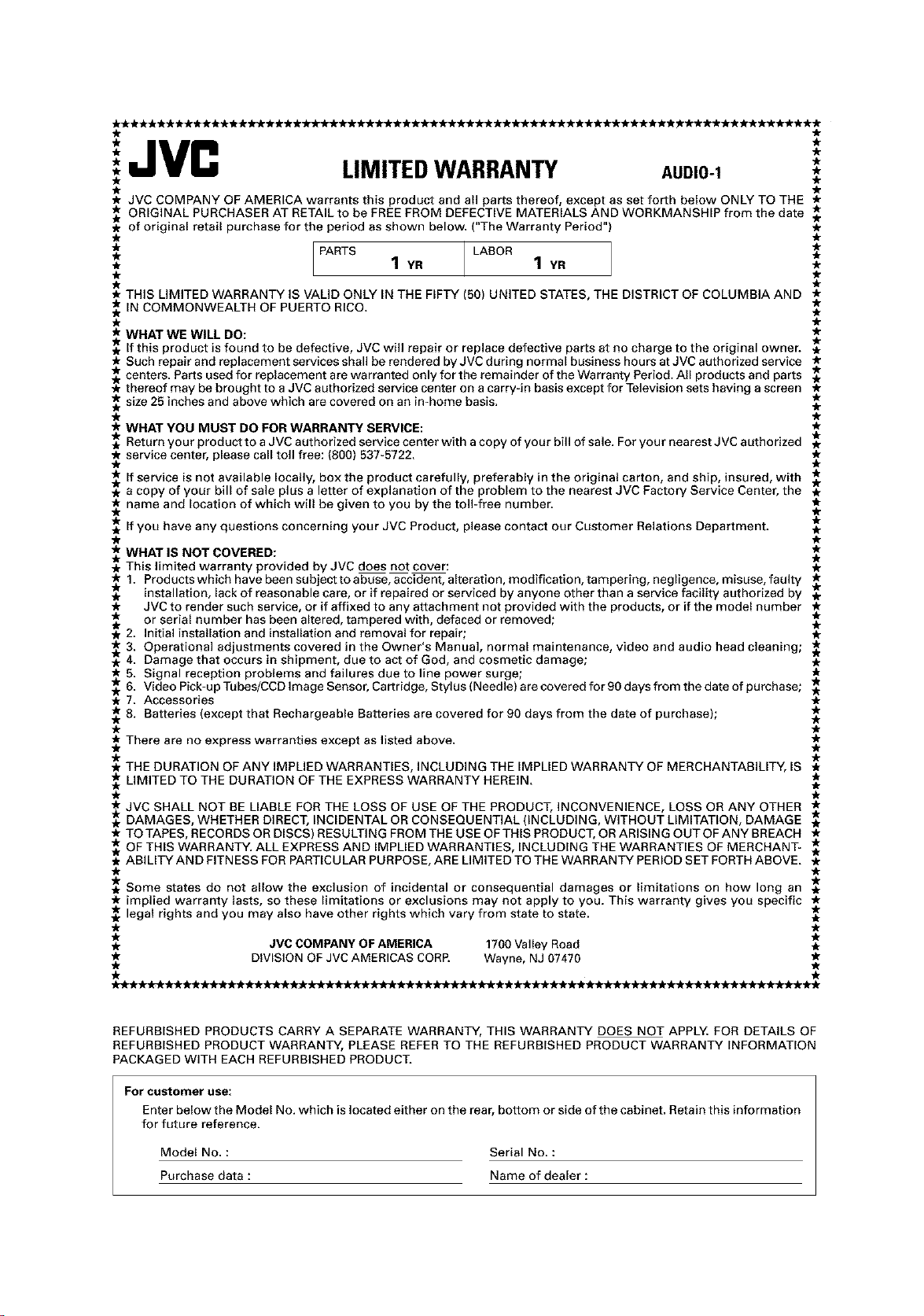
'JVC
* LIMITEDWARRANTY AUDIO-1 *
* JVC COMPANY OF AMERICA warrants this product and all parts thereof, except as set forth below ONLY TO THE *
* ORIGINAL PURCHASER AT RETAIL to be FREE FROM DEFECTIVE MATERIALS AND WORKMANSHIP from the date _
of original retail purchase for the period as shown below. ("The Warranty Period") *
I PARTS LABOR
* 1 YR 1 YR *
. ir
* THIS LIMITED WARRANTY IS VALID ONLY IN THE FIFTY (50) UNITED STATES, THE DISTRICT OF COLUMBIA AND *
IN COMMONWEALTH OF PUERTO RICO, *
** WHAT WE WILL DO: .*
. If this product is found to be defective, JVC will repair or replace defective parts at no charge to the original owner. ,
Such repair and replacement services shall be rendered by JVC during normal business hours at JVC authorized service *
* centers PartsusedforreplacementarewarrantedonlyfortheremainderoftheWarrantyPeriod AII products and parts *
* there_fmaybebr_ughtt_aJVCauth_nzedserv_cecenter_nacarry_mbas_sexceptf_rTeIews_nsetshawngascreen *
size 25 inches and above which are covered on an in-home basis.
_r WHAT YOU MUST DO FOR WARRANTY SERVICE: *
. Return your product to a JVC authorized service center with a copy of your bill of sale. For your nearest JVC authorized
* service center, please call toll free: (800) 537-5722. *
* If service is not available locally, box the product carefully, preferably in the original carton, and ship, insured, with *
, a copy of your billofsale plus a letter of explanation ofthe problem to the nearest JVC Factory Service Center, the,
* name and location of which will be given to you by the toll-free number. *
* If you have any questions concerning your JVC Product, please contact our Customer Relations Department. *
WHAT iS NOT COVERED: **
. This limited warranty provided by JVC does not cover: ,
* 1. Products which have been subject to abuse, accident, alteration, modification, tampering, negligence, misuse, faulty *
. installation, lack of reasonable care, or if repaired or serviced by anyone other than a service facility authorized by *
* JVC to render such service, or if affixed to any attachment not provided with the products, or if the model number *
* or serial number has been altered, tampered with, defaced or removed; *
t_2. Initial installation and installation and removal for repair; .
* 3. Operational adjustments covered in the Owner's Manual, normal maintenance, video and audio head cleaning; *
4. Damage that occurs in shipment, due to act of God, and cosmetic damage;
* 5. Signal reception problems and failures due to line power surge;
,* 6. Video Pick-up Tubes/CCD Image Sensor, Cartridge, Stylus (Needle) are covered for 90 days from the date of purchase; *
* 7. Accessories *
8. Batteries (except that Rechargeabie Batteries are covered for 90 days from the date of purchase);
There are no express warranties except as listed above.
* THE DURATION OF ANY IMPLIED WARRANTIES, INCLUDING THE IMPLIED WARRANTY OF MERCHANTABILITY, IS *
* LIMITED TO THE DURATION OF THE EXPRESS WARRANTY HEREIN.
JVC SHALL NOT BE LIABLE FOR THE LOSS OF USE OF THE PRODUCT, INCONVENIENCE, LOSS OR ANY OTHER *
. DAMAGES, WHETHER DIRECT, INCIDENTAL OR CONSEQUENTIAL (INCLUDING, WITHOUT LIMITATION, DAMAGE _.
* TO TAPES, RECORDS OR DISCS) RESULTING FROM THE USE OF THIS PRODUCT, OR ARISING OUT OF ANY BREACH *
OF THIS WARRANTY. ALL EXPRESS AND IMPLIED WARRANTIES, INCLUDING THE WARRANTIES OF MERCHANT- .*
* ABILITY AND FITN ESS FOR PARTICULAR PURPOSE, ARE LIMITED TO THE WARRANTY PERIOD SET FORTH ABOVE. *
Some states do not allow the exclusion of incidental or consequential damages or limitations on how long an
* implied warranty lasts, so these limitations or exclusions may not apply to you. This warranty gives you specific *
* legal rights and you may also have other rights which vary from state to state. *
. JVC COMPANY OF AMERICA 1700 Valley Road .
_" DIVISION OF JVC AMERICAS CORP. Wayne, NJ 07470 *
_**_***********zlriL'**_,tr_*****_A_r_****_-****ti'_ __***************_*****************
REFURBISHED PRODUCTS CARRY A SEPARATE WARRANTY, THIS WARRANTY DOES NOT APPLY, FOR DETAILS OF
REFURBISHED PRODUCT WARRANTY, PLEASE REFER TO THE REFURBISHED PRODUCT WARRANTY INFORMATION
PACKAGED WITH EACH REFURBISHED PRODUCT.
For customer use:
Enter below the Model No. which is located either on the rear, bottom or side of the cabinet. Retain this information
for future reference.
Model No. : Serial No. :
Purchase data : Name of dealer :
Authorized Service Centers
JVC °
QUALITY SERVICE
HOW TO LOCATE YOUR JVC SERVICE CENTER
TOLL FREE: 1 (888) 537-5722
http://www.jvc.com
Dear Customer,
In order to receive the most satisfaction from your purchase, please read the instruction booklet before
operating the unit. In the event that repairs are necessary, please call 1 (800) 537_5722 for your nearest
authorized servicer or visit our website at www.JVC.com
Remember to retain your Bill of Sale for Warranty Service.
Do not service the television yourself
Caution
To prevent electrical shock, do not open the cabinet. There are no user serviceable
parts inside. Please refer to qualified service personnel for repairs.
Accessories
To purchase accessories for your JVC product, please call toll free: 1 (800) 882-2345 or
on the web at www.JVC.com
BT-51001-5
(0301)

/
JVC
VICTOR COMPANY OF JAPAN, LIMITED
(_ EN
© 2003 VICTOR COMPANY OF JAPAN, LIMITED _ 0203MWMMDWJEM