
I
Dash Camera
User’s Manual
V1.0.2
I
Foreword
Model
CDR8213 Series
Safety Instructions
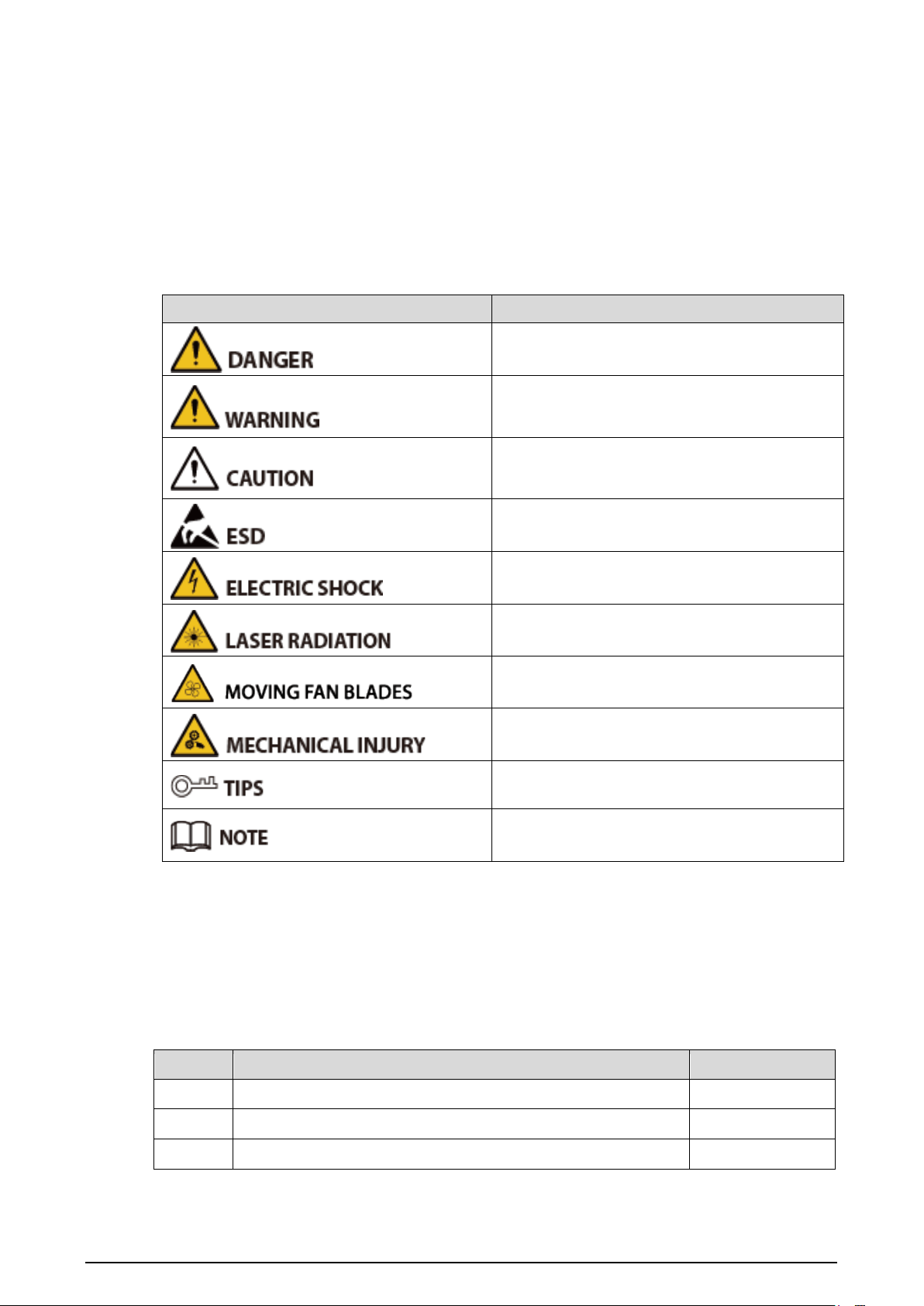
The following categorized signal words with defined meaning might appear in the manual.
Signal Words
Description
Indicates a high potential hazard which, if not
avoided, will result in death or serious injury.
Indicates a medium or low potential hazard
which, if not avoided, could result in slight or
moderate injury.
Indicates a potential risk which, if not avoided,
may result in property damage, data loss, lower
performance, or unpredictable result.
Indicates electrostatic sensitive devices.
Indicates the danger of high voltage.
Indicates a laser radiation hazard.
Indicates dangerous moving parts. Keep away
from rotating fan blades.
Indicates mechanical injuries caused by device
parts.
Provides methods to help you solve a problem or
save your time.
Provides additional information as the emphasis
and supplement to the text.
Terms
To simplify descriptions, some frequently cited functions and names in this manual have the following
meanings:
Unless otherwise specified, “device” in this document refers to “dash camera”
To keep the devices safe, IP addresses, MAC addresses, and serial numbers cited in this manual have
all been modified.
Revision History
Version
Revision Content
Release Time
V1.0.2
Modify camera installation and AI configuration.
2022.10
V1.0.1
Modify the product name.
2022.04
V1.0.0
First release.
2021.09

II
Important Safeguards and Warnings
This section introduces the proper way of using the device, and danger and property damage
preventions. Before using the device, read this manual carefully. Follow the instructions and keep this
manual properly for future reference.
Operating Requirements
Do not place the device in a place exposed to sunlight or near the heat source.
Keep the device away from dampness, dust, or soot.
Keep the device on a stable place to prevent it from falling.
Do not drop or splash liquid onto the device, and make sure that there is no object filled with liquid
on the device to prevent liquid from flowing into it.
Prevent foreign objects from entering the device, which might result in damage.
Put the device in a well-ventilated place, and do not block the ventilation of it.
Use the device within the rated range of power input and output.
Do not dissemble the device.
Transport, use, and store the device under the allowed humidity and temperature conditions.
Do not expose the device to water or excessive moisture when washing the car. A failure to follow
this instruction might result in short circuit, fire, or other malfunctions.
The dust on the circuit board will cause short circuit, which affect the normal operation of the
device and even damage the device. To make the device work stably for a long time, please
regularly use the brush to remove the dust from components, including circuit board, connectors,
and chassis.
Keep the device installed horizontally and make sure the internal anti-vibration components work
properly.
After all the cables are connected, tie up the cables to avoid the dangers such as short circuit, heat
and electric shock resulted from loose cables.
Pay attention to grounding of camera, since poor grounding might lead to chip damage.
Power Supply Requirements
Use locally recommended power cord in the limit of rated specifications.
The appliance coupler is a disconnection device. Keep a convenient angle when using it.
Take care to complete the circuit connection. A failure to follow this instruction might result in
device damage.
Prevent short circuit from occurring on all external wiring parts.
After all the lines connections are completed, you can start connecting power cable.
Ensure the project is well grounded to avoid interference to video and audio signals and avoid
electrostatic or induced voltage to damage the device.
Please unplug the power cable before you remove the audio/video signal cable or RS-232;
otherwise these ports might be damaged.

III
Contents
Foreword .............................................................................................................................................................. I
Important Safeguards and Warnings ................................................................................................................ II
1 Product Introduction ...................................................................................................................................... 5
Overview ..........................................................................................................................................................................................5
Functions ..........................................................................................................................................................................................5
2 Installation ....................................................................................................................................................... 7
Unpack and Check ........................................................................................................................................................................7
Device Structure ............................................................................................................................................................................7
2.2.1 Top Cover ............................................................................................................................................................................7
2.2.2 Side Panel Ports ................................................................................................................................................................8
2.2.3 Port Definition ................................................................................................................................................................ 10
2.2.4 Dimension ....................................................................................................................................................................... 11
Device Installation ..................................................................................................................................................................... 11
2.3.1 Installing SIM Card and TF card................................................................................................................................ 12
2.3.2 Installing Camera .......................................................................................................................................................... 12
2.3.3 Adjusting Angle ............................................................................................................................................................. 13
Cable Connection ...................................................................................................................................................................... 14
2.4.1 Connecting Power Cable............................................................................................................................................ 14
2.4.2 Alarm Input Connection............................................................................................................................................. 16
2.4.3 Cable Layout ................................................................................................................................................................... 18
3 Basic Configuration ....................................................................................................................................... 19
Starting Device ............................................................................................................................................................................ 19
Initializing Device ....................................................................................................................................................................... 19
Logging in to Device ................................................................................................................................................................. 21
Configuring IP Address ............................................................................................................................................................ 24
Configuring General Settings ................................................................................................................................................ 25
3.5.1 General Settings ............................................................................................................................................................ 26
3.5.2 Date&Time ....................................................................................................................................................................... 26
Configuring Record Mode ...................................................................................................................................................... 28
Configuring Storage Plan ........................................................................................................................................................ 29
3.7.1 Record Schedule ........................................................................................................................................................... 29
3.7.2 Snapshot Schedule ...................................................................................................................................................... 31
4 Function Operations ..................................................................................................................................... 34
Live .................................................................................................................................................................................................. 34
4.1.1 Real-time Monitoring Channels .............................................................................................................................. 35
Video Playback ............................................................................................................................................................................ 36
4.2.1 Playback operations ..................................................................................................................................................... 36
4.2.2 Control bar....................................................................................................................................................................... 37
4.2.3 Playing Back Record Video Files .............................................................................................................................. 38
4.2.4 Clipping Recording File .............................................................................................................................................. 39
Alarm Info ..................................................................................................................................................................................... 40
5 System Settings ............................................................................................................................................. 42
Configuring Alarm Events ....................................................................................................................................................... 42
5.1.1 Video Detection ............................................................................................................................................................. 42
5.1.2 Alarm Input ..................................................................................................................................................................... 46
5.1.3 Exception ......................................................................................................................................................................... 47
Configuring AI Plan ................................................................................................................................................................... 49
5.2.1 Configuring ADAS......................................................................................................................................................... 50
5.2.2 Configuring DSM........................................................................................................................................................... 52
5.2.3 Configuring Reminds of the Back Row ................................................................................................................. 57
5.2.4 AI Search........................................................................................................................................................................... 58
File Backup .................................................................................................................................................................................... 58
Configuring Camera Parameters .......................................................................................................................................... 60
5.4.1 Configuring Image Properties.................................................................................................................................. 60

IV
5.4.2 Encode Parameters ...................................................................................................................................................... 61
Configuring Network Parameters ........................................................................................................................................ 66
5.5.1 Ports ................................................................................................................................................................................... 66
5.5.2 Wireless Network........................................................................................................................................................... 68
5.5.3 3G/4G ................................................................................................................................................................................ 71
5.5.4 Email .................................................................................................................................................................................. 73
5.5.5 Register ............................................................................................................................................................................. 75
5.5.6 P2P ...................................................................................................................................................................................... 76
Managing Storage Device ...................................................................................................................................................... 77
5.6.1 Basic ................................................................................................................................................................................... 77
5.6.2 Disk Manager .................................................................................................................................................................. 78
5.6.3 FTP ...................................................................................................................................................................................... 78
Configuring System ................................................................................................................................................................... 80
5.7.1 Configuring Serial Port Parameters ........................................................................................................................ 80
5.7.2 Managing Security ....................................................................................................................................................... 81
5.7.3 Configuring Vehicle Info ............................................................................................................................................. 82
Managing User Account .......................................................................................................................................................... 85
5.8.1 Managing User ............................................................................................................................................................... 86
5.8.2 Managing Group ........................................................................................................................................................... 88
5.8.3 Resetting Password ...................................................................................................................................................... 89
6 Update ............................................................................................................................................................ 92
System Version ............................................................................................................................................................................ 92
Update ............................................................................................................................................................................................ 92
7 System Maintenance ..................................................................................................................................... 94
Requirement for Maintenance .............................................................................................................................................. 94
System Information ................................................................................................................................................................... 94
7.2.1 Log ...................................................................................................................................................................................... 94
7.2.2 Network Info ................................................................................................................................................................... 95
7.2.3 Disk ..................................................................................................................................................................................... 95
7.2.4 Channel Info.................................................................................................................................................................... 95
7.2.5 Satellite Info .................................................................................................................................................................... 96
Automatic Maintenance .......................................................................................................................................................... 97
7.3.1 Auto Reboot .................................................................................................................................................................... 97
7.3.2 Auto Boot up .................................................................................................................................................................. 97
7.3.3 Auto Shutdown System .............................................................................................................................................. 98
7.3.4 Acc Delay .......................................................................................................................................................................... 98
Backup and Restore ................................................................................................................................................................... 98
7.4.1 Backing up Configurations ........................................................................................................................................ 99
7.4.2 Importing Configurations .......................................................................................................................................... 99
7.4.3 Restoring to Default ...................................................................................................................................................100
Network Sniffer .........................................................................................................................................................................101
8 Logging in to the Device from DSS ............................................................................................................. 103
FAQ .............................................................................................................................................. 104
Storage Capacity Calculation .................................................................................................... 107
Cybersecurity Recommendations ............................................................................................. 108
5
1 Product Introduction
Overview
Developed on the new-generation platform, the dash camera is a mobile video monitoring product
that integrate video capturing, locating, drive recording and intelligent analysis functions.
Features:
Up to 3 HDCVI video input channels and 1 built-in ADAS video input channel.
The use of H.264/H.265 encoding ensures high encoding efficiency and saves storage space.
The needs of using the mobile products in different networks are taken into full consideration in
product design and 3G/4G modules or Wi-Fi modules are available.
The use of professional in-vehicle design in standard size features low power consumption and
novel shape.
Unique TF card storage design makes recording backup and management easier.
This product can be widely used for in-vehicle monitoring in public transportation, long-range
passenger transport, police patrol, urban management patrol, cash carriers, hazardous goods
transport, and logistics transport, or video monitoring in harsh environment.
Functions
Table 1-1 Function description
Functions Description
Storage Stores the data in the dedicated format which cannot be falsified to ensure
the data security.
Dual Stream
To cope with the low-bandwidth and instability of wireless network, the
device adopts the dual-stream technology (encode real-time video and the
video in network transmission separately) to optimize the encoding of
network transmission, which improves the control capability of wireless
network transmission.
Video Playback
Every channel takes recording in real time and independently, and you
can play backward, monitor through network, search and download
recordings.
Supports several playback modes:
Slow playback, fast playback,
backward playback, and frame-by-frame playback.
Displays the accurate time when the event occurred during playback.
Backup
Plug in a USB storage device (such as USB and mobile HDD) to back up
the data.
You can back up the data by downloading the files from the memory disk
of the device (such as TF card and USB flash drive) through the network.
6
Functions Description
Alarm Linkage
Provides 3-channel electric level alarm inputs that can connect to signals
such as car door signal, cornering lamp signal, reversing and braking
signal, to give an indication and take a record.
Protective circuit for alarm input ports to prevent device from damage.
Rollover and
Collision Detection
Provides rollover and collision detection and timely releases alarms through
the platform.
Operation through
Network
Supports remote operations through network, such as real-time remote
monitoring, video recording search and playback, and PTZ remote control.
3G/4G, Wi-Fi
Adopts the latest wireless communication technology, which has improved
the manageability of the device.
Communication
Interface
Offers RS-232 port to connect with external in-vehicle display.
1 Micro-USB port supports remote network access through connecting
to Ethernet port.
Compression
Supports multi-channel audio and video signals, and each channel signal
supports real-time compression by independent hardware to realize the sync
between sound and image.
Satellite Positioning
Positioning history and recording linkage are available. Recording search can
be linked with vehicle moving track.
7
2 Installation
This chapter introduces how to install the hardware of the device. Before installation, you need to
know the device information, such as top cover, side, dimensions, and ports. After obtaining a
sufficient understanding, you can install the SIM card, TF card and fix the device as needed.
Unpack and Check
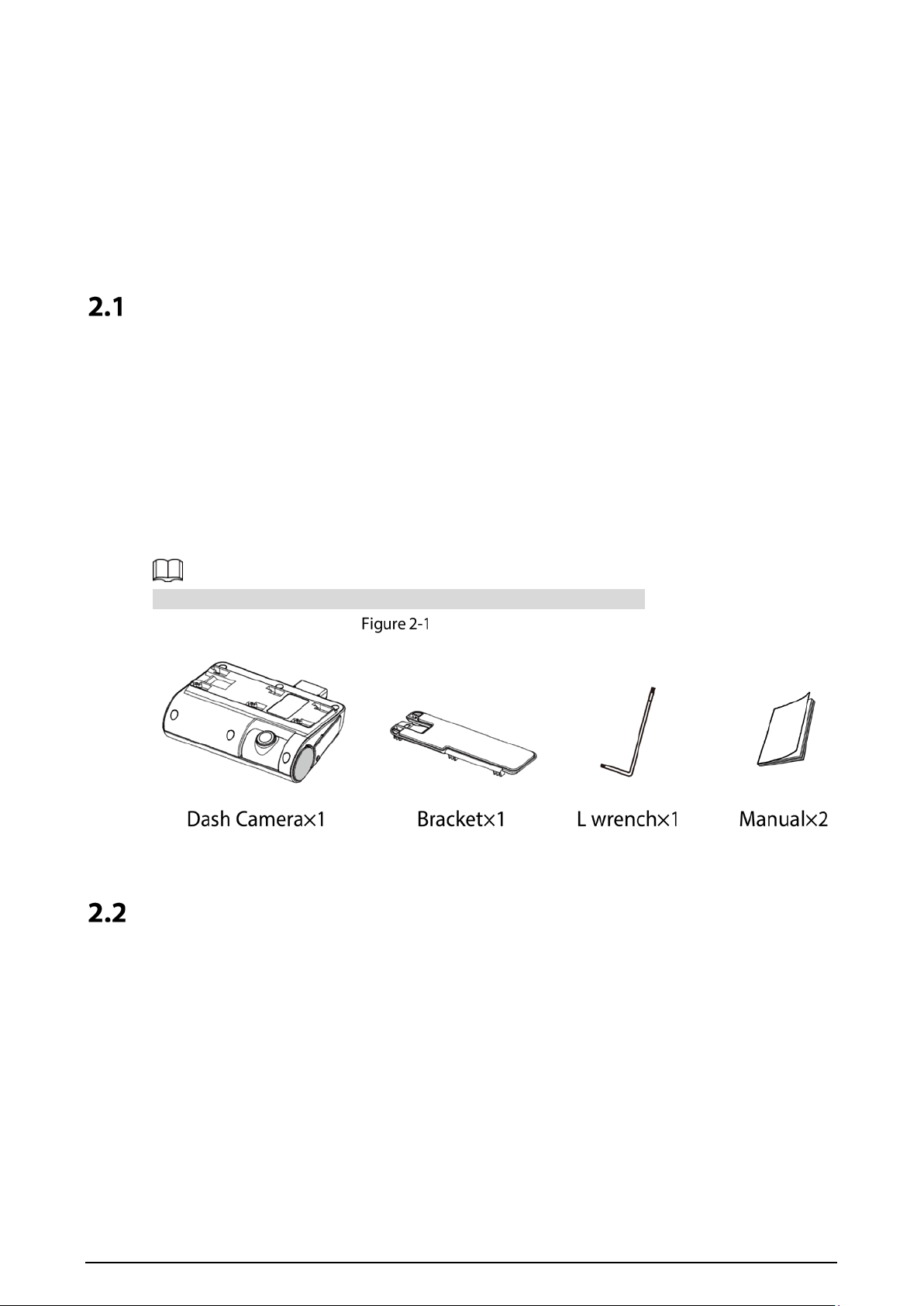
When you receive the device, unpack the box for checks.
Firstly, check if there is any damage on the device appearance (although the packing materials are
specially selected for protecting the device from most of accidental hit during transportation).
Secondly, open the accessory box to check if the accessories are complete against the packing list.
Instructions about labels:
The labels on the device are very important for our after-sales service. To ensure the after-sales service,
keep the labels well, and do not tear or throw away. You need to provide the serial number of the
product when calling the after-sales service.
For tools or accessories not mentioned in the box, please purchase them.
Unpack and Check
Device Structure
2.2.1 Top Cover
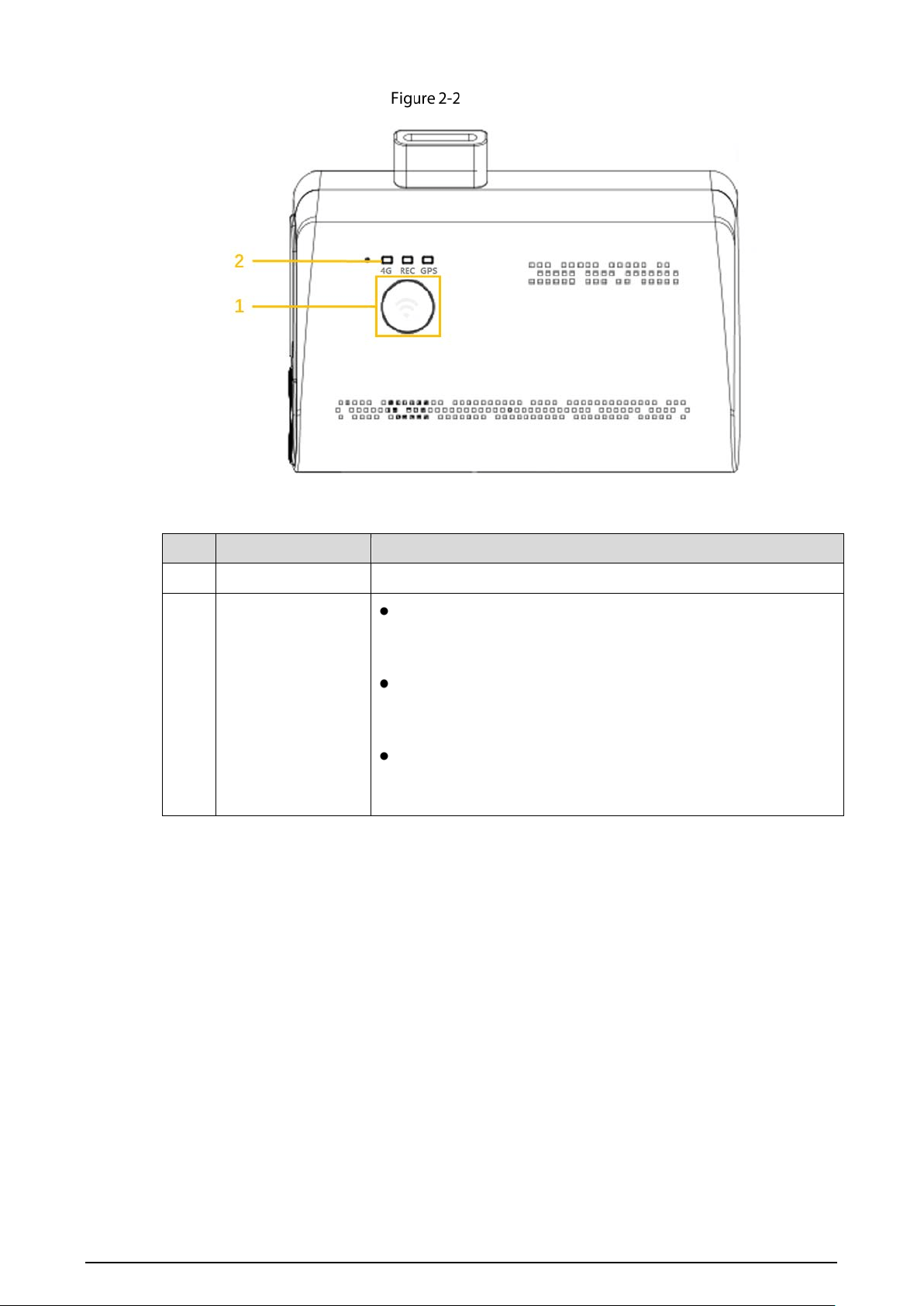
Describes the functions of the front indicator lights and ports.
8
Top Cover
Table 2-1 Descriptions of ports and indicators
No. Name Descriptions
1
Hot Spot Button Press the button to enable or disable the hot spot.
2 Indicator Light
4G
On: 4G is connected.
Off: 4G is not connected.
REC:
On: The camera is recording.
Off: The camera is not recording.
GPS:
On: GPS is normal.
Off: GPS is abnormal.
2.2.2 Side Panel Ports
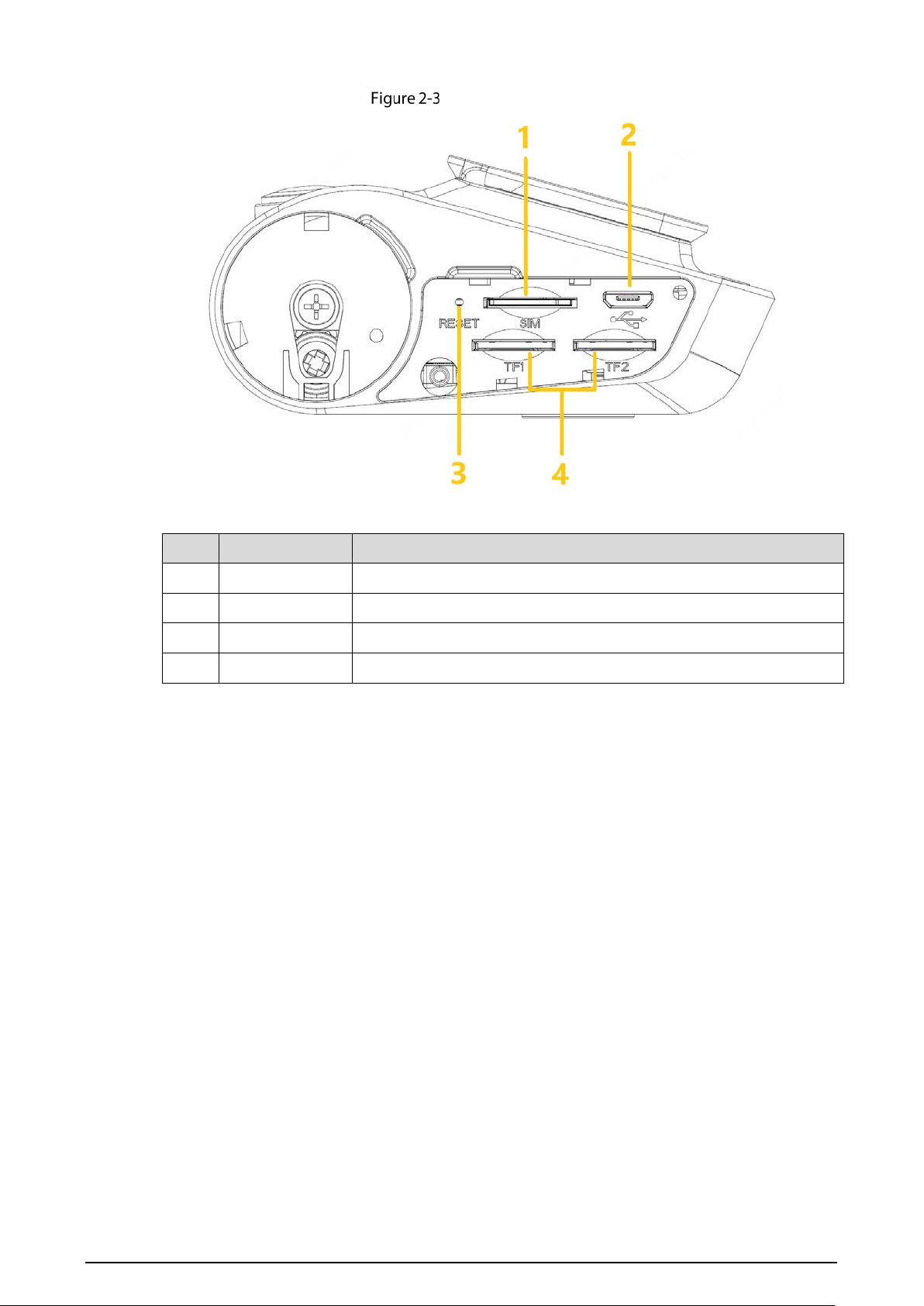
Describes the ports functions of the side panel.
For the ports of the side panel, see Figure 2-3, Table 2-2 for ports function description, and “2.2.3 Port
Definition” for port definition.
9
Side Panel Ports
Table 2-2 Side panel port description
No. Name Function
1 SIM Card Port Insert SIM card
2 USB Port Connect the USB through an adapter cable.
3 RESET Button Button for device reset
4 TF Card Port Insert TF card
10
2.2.3 Port Definition
This manual only describes functions of each ports. You can follow these descriptions to prepare
cables or contact our sales staff for purchasing cables.
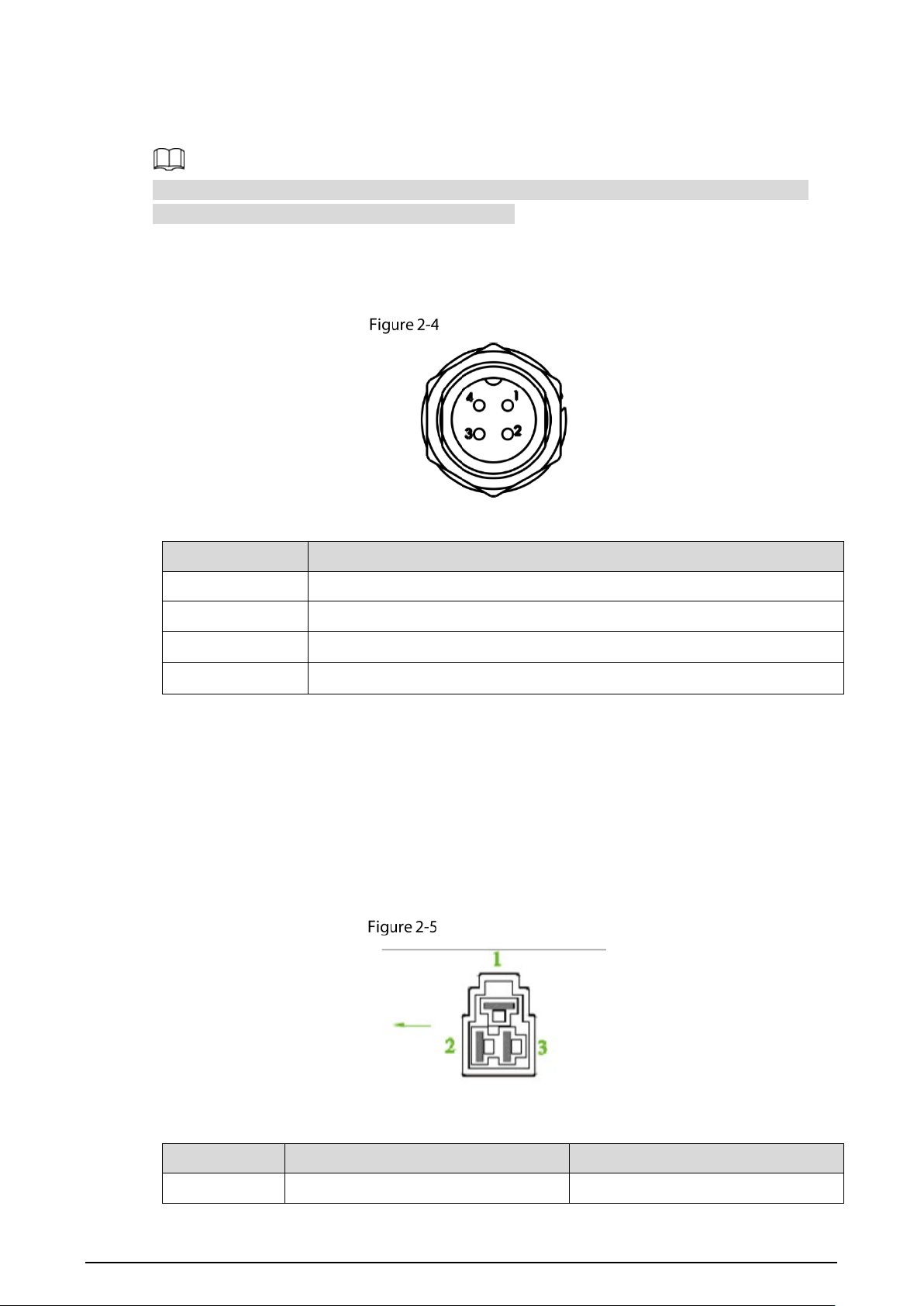
2.2.3.1 Video Input Port
Video Input Port
Table 2-3 Video input port description
Name Description
1 VCC
2
Signal ground
3
Power ground
4 Signal
2.2.3.2 Network Port
The dash camera is not pre-installed with the RJ45 network interface and must use Micro-USB to
convert to RJ45 transfer cable before it can be connected.
2.2.3.3 Power Input
Power Input Port
Table 2-4 Power input port description
Name Pins Cable Color
1 Ground Black
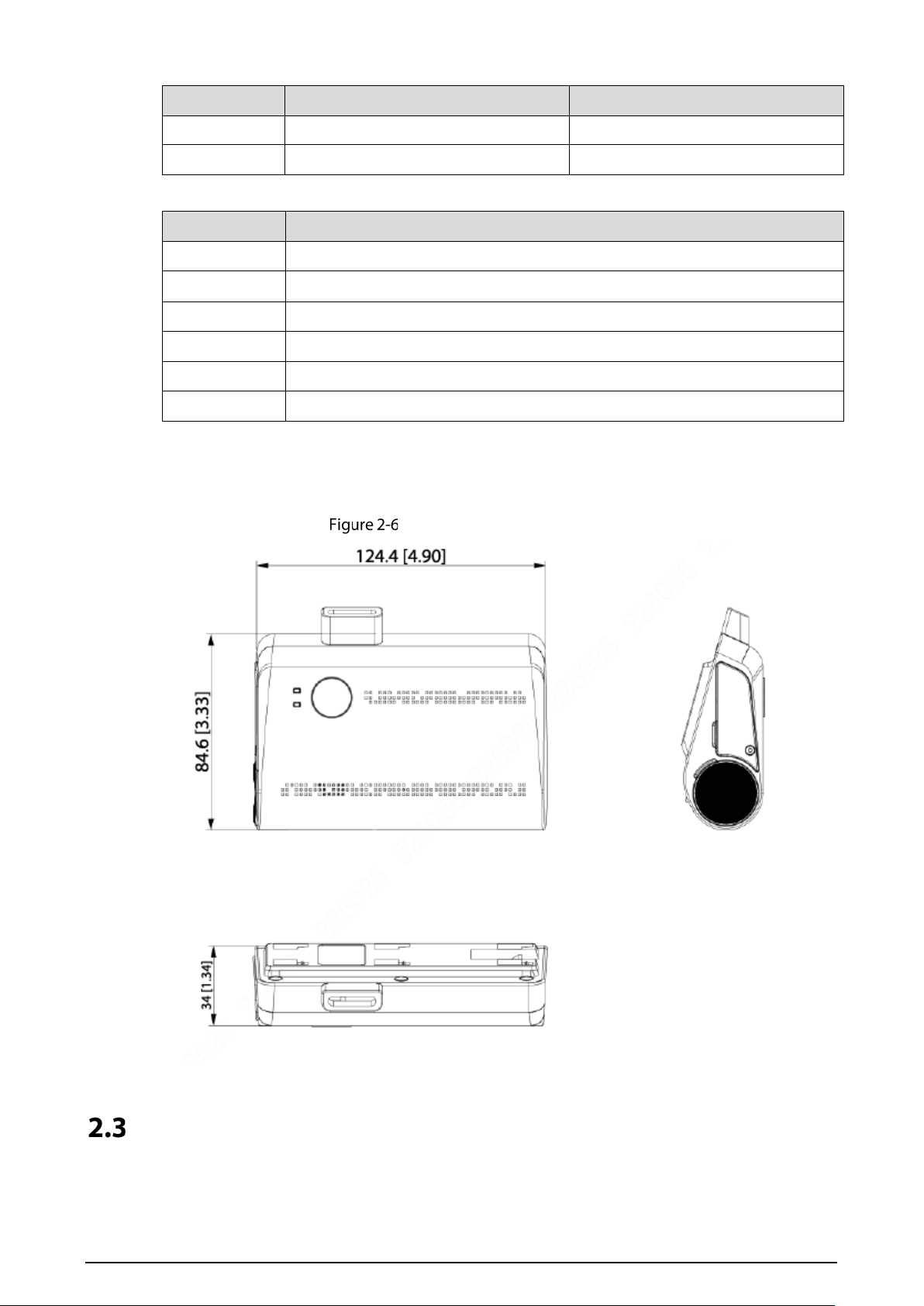
11
Name Pins Cable Color
2 ACC Signal Input Orange
3 Anode Input Red
Table 2-5 Cable Description (1)
Color Pins
Green Alarm input _ 1
Blue Alarm input _ 2
White Alarm input _ 3
Yellow RS232_TX
Orange RS232_RX
Black RS232_GND
2.2.4 Dimension
Dimension (Unit: mm [inch])
Device Installation
When you receive the device, unpack the box to check the device appearance and structures, and then
install SIM card, and other items according to your network situation and storage requirement.
12
Before the installation is completed, make sure the device is disconnected from power, and do not
plug or unplug components when the power is connected.
2.3.1 Installing SIM Card and TF card
The SIM card and TF card are not provided with the device by default. To connect the device to network
through dial-up connection, you need to purchase and install a SIM card. To store recording data, you
need to purchase and install the TF card.
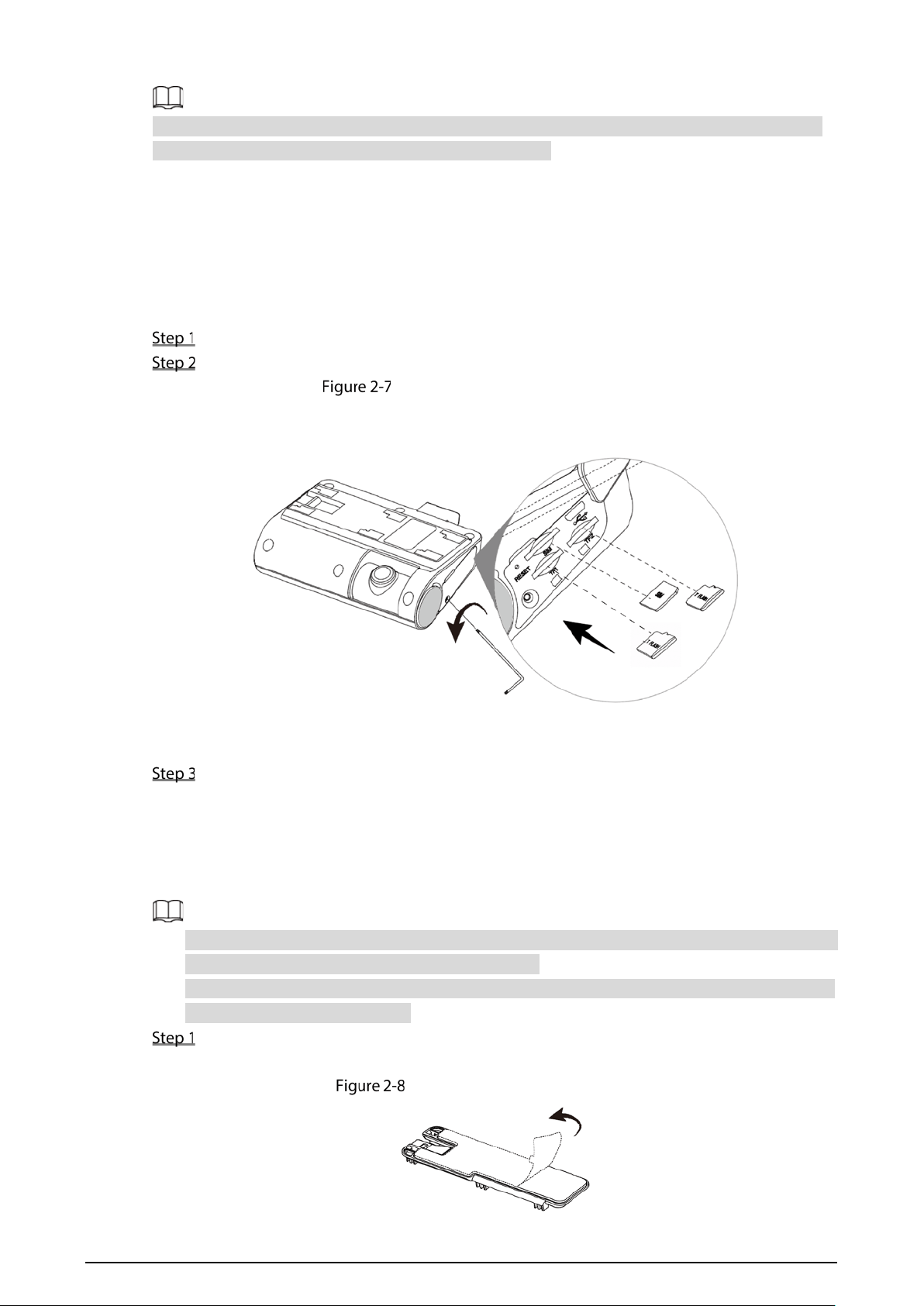
Use the standard T6 wrench to loosen the screws and disassemble the card cover.
Insert the SIM card and TF card into the card slot with corresponding marks.
Installing SIM card and TF card
Close the card cover and tighten the screws with a T6 wrench. SIM card and TF card are
installed.
2.3.2 Installing Camera
The best installation position of the dash camera is near the front windscreen and rear-view mirror,
which is horizontally centered with the windshield.
During installation, please adjust the position of the camera according to the actual situation to
avoid blocking the driver's vision.
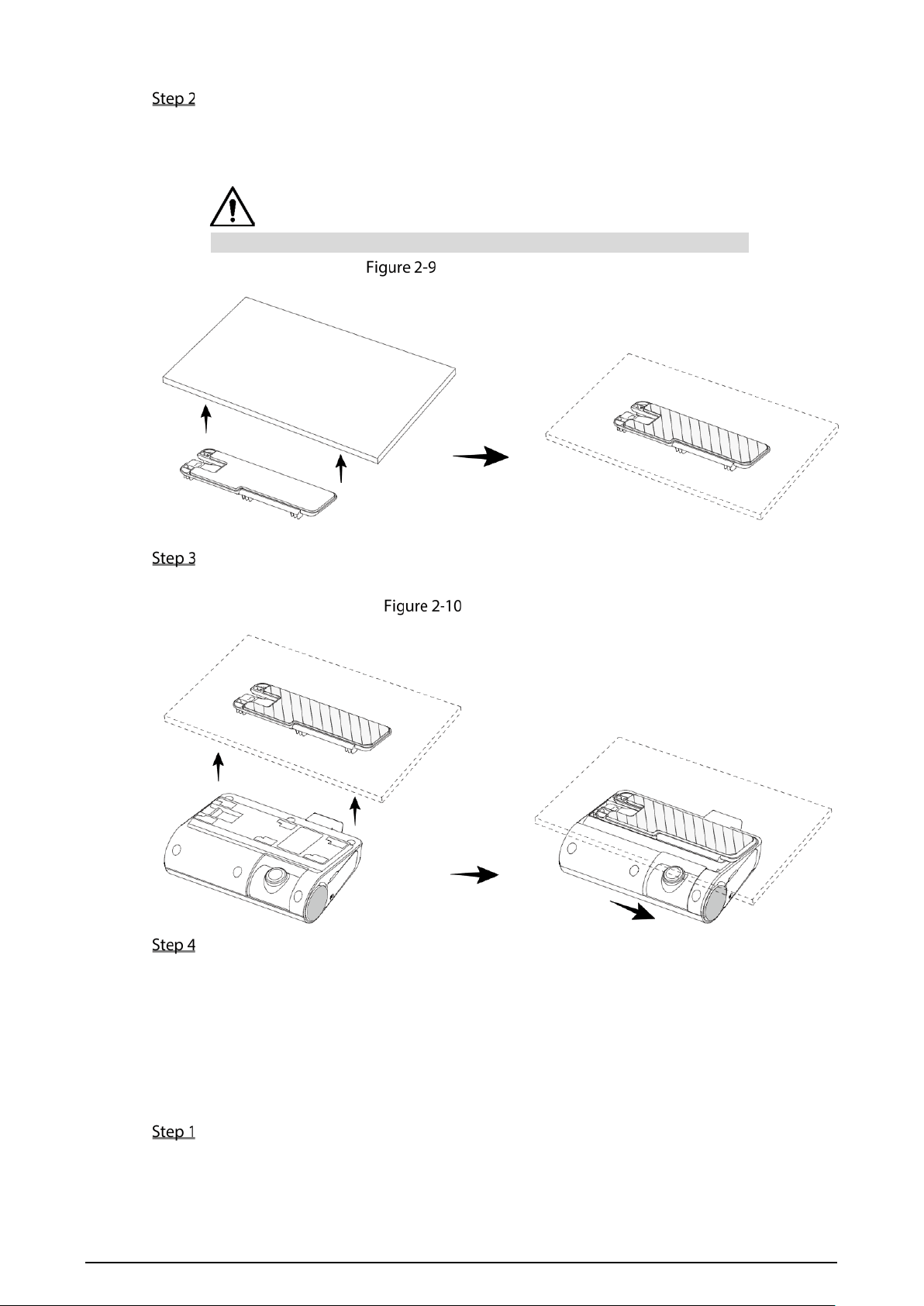
Wipe the windshield clean, make sure there is no dust, and remove the backside glue on the
bracket.
Remove the backside glue
13
Stick the bracket on the windshield and squeeze it with appropriate force to ensure that there
are no bubbles.
After the bracket is stuck firmly, it is recommended to let it stand for 4 hours before installing
the dash camera.
The bracket must be level with the windshield to avoid affecting the calibration.
Installing bracket
Align the groove of the dash camera with the buckle on the bracket, slide the camera until
you hear a "click" as shown in Fix bracket, and fix the body to the mounting bracket.
Fix bracket
Connect cables to the device. For details, see “2.4Cable Connection”.
2.3.3 Adjusting Angle
After the camera is powered on, log in to the WEB interface to preview the video image in real time,
and adjust the camera angle according to the image to align it with the required monitoring position.
Please refer to "3.3Logging in to Device" for logging into the WEB interface.
Open the cover on the side of the camera, and use a PH1 screwdriver to loosen the fixing
screw.
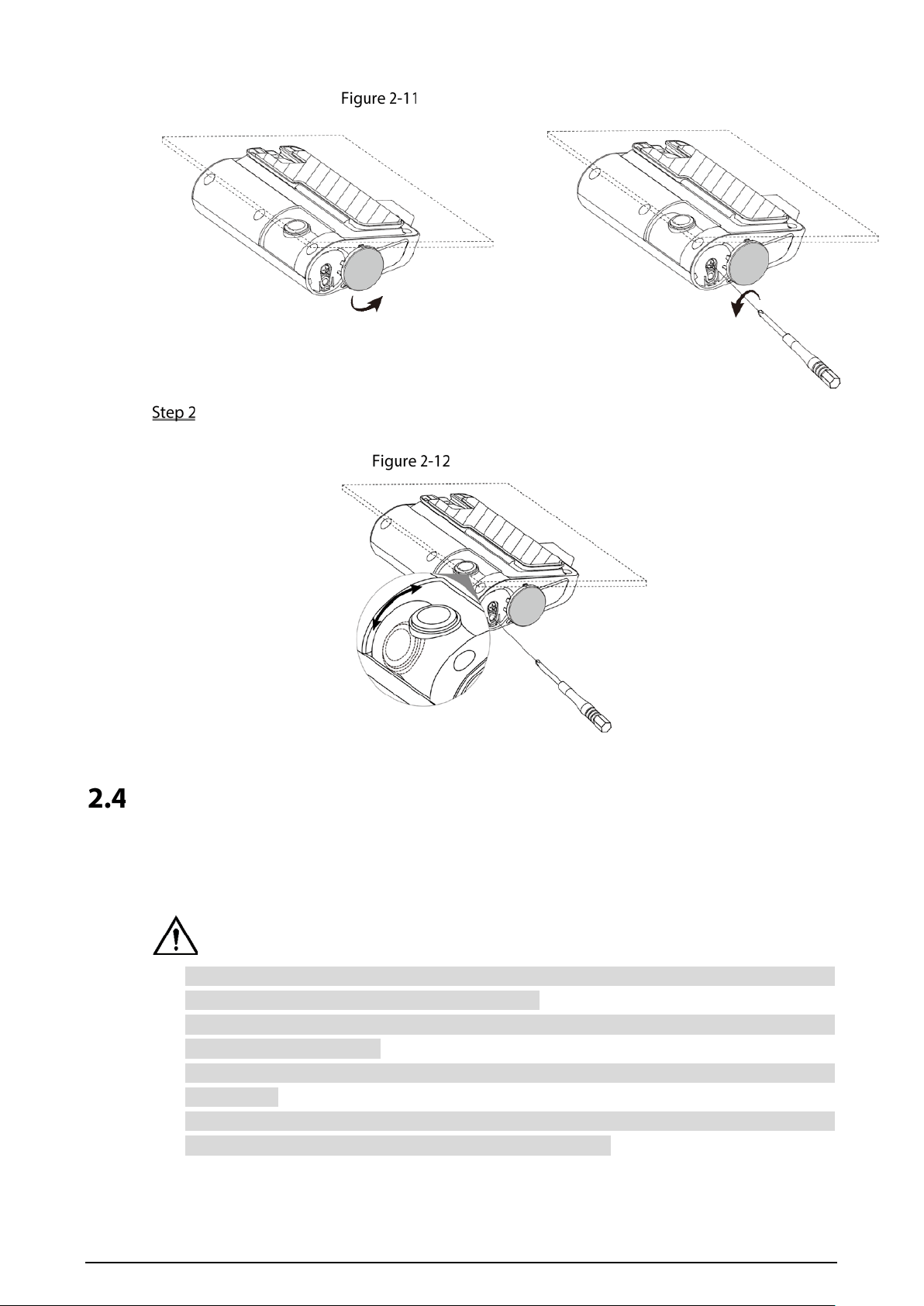
14
Loosen the fixing screw
According to the video image, use PH1 screwdriver to rotate the lens adjustment slot to adjust
the lens angle.
Adjusting lens
Cable Connection
2.4.1 Connecting Power Cable
Before connecting the power cable, confirm whether the input voltage is between 9V DC and 16V
DC. If it is out of the range, it will damage the device.
Please make sure that the positive and negative poles of the power are connected correctly. If not,
the device may be damaged.
The diameter of power cable should be more than 1.0mm². Use power cables recommended by
our company.
When connecting the cables to the device, make sure that the main power switch of the vehicle
is turned off and the key of the vehicle is placed in the off state.
15
2.4.1.1 Overview
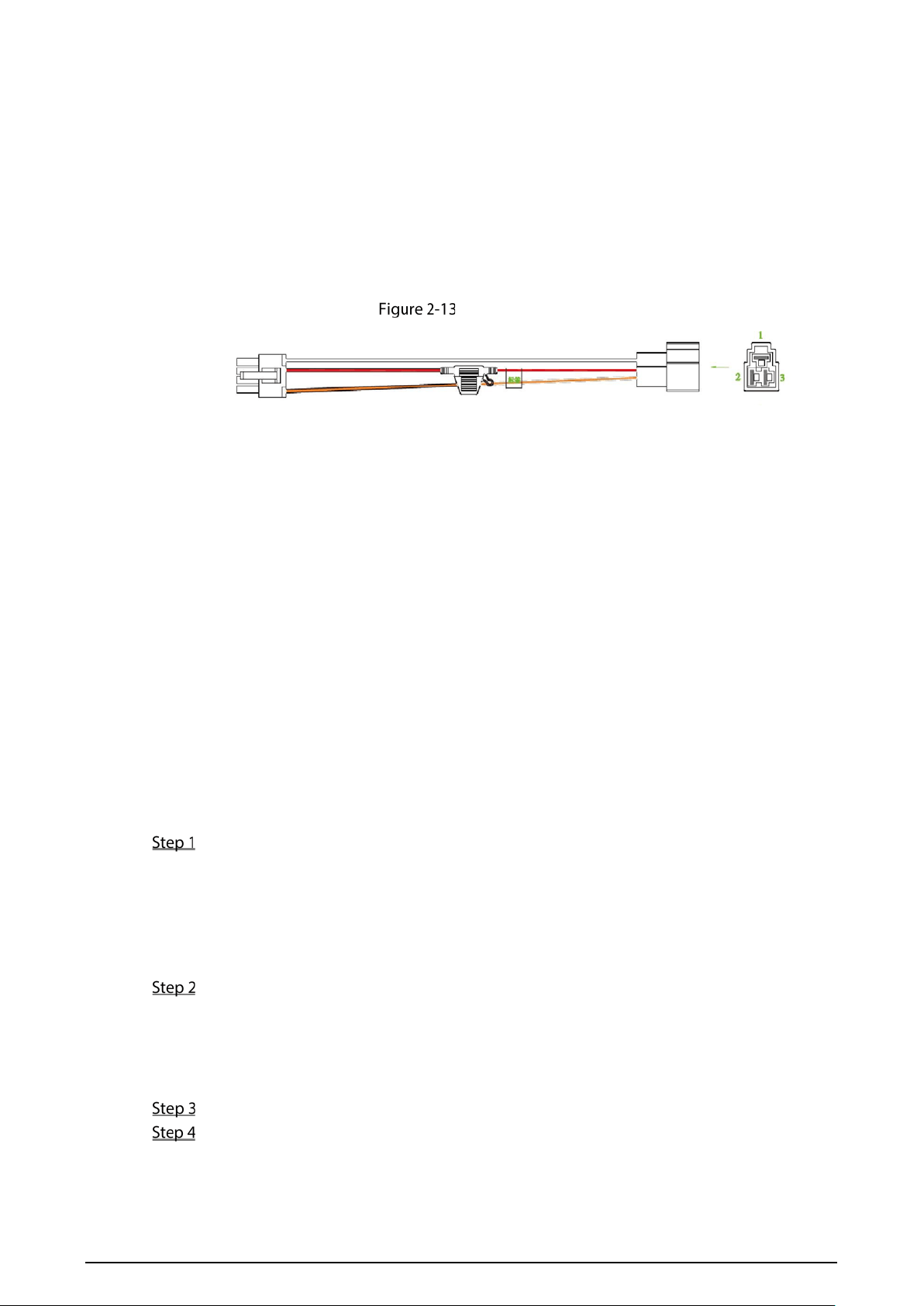
For the power cable of the device, see Figure 2-13.
Connect one end of the power cable to the power port of the device (the left port in the figure),
connect the other end to the vehicle battery (the right port in the figure).
The black one is the grounding cable.
The red one with fuse is positive pole of the power (always-live wire).
The orange one is the ACC signal (key starting wire).
Power Cable
2.4.1.2 Obtain Connection Modes
In order to ensure correct cable connection, it is necessary to obtain the connection mode of the main
power switch through three methods.
Ask the vehicle manufacture the connection modes of the main power switch of the vehicle.
Measure with a multimeter: disconnect the main switch, then measure the voltage between the
vehicle body and the positive pole of the vehicle battery. If the voltage is 12V or 24V, it means that
the main switch disconnects the positive pole. If the voltage is 0V, then the main switch
disconnects the negative pole.
Visual inspection: whether the switch cable near the vehicle battery is connected to the positive
pole or the negative pole.
2.4.1.3 Connecting Operation
The dash camera must be connected to the ground wire. ACC signal, and constant electricity.
Enable the main power switch on the vehicle, place the key in the OFF state, and then measure
the normal live electricity of the vehicle.
Use a multimeter to measure the voltage on the fuse by switching to the DC voltage range.
When the multimeter detects voltage, it measures the normal live electricity on the vehicle.
Generally, the voltage is 24V DC for large vehicles and 12V DC for small vehicles. However, this
is subject to actual data.
When the vehicle key is placed at the ACC state or the ON state, the ACC signal of the vehicle
is measured.
Use a multimeter to measure the voltage on the fuse by switching to the DC voltage range.
When the multimeter detects voltage, remove the car key. If the voltage changes to 0V, it
means that the measured signal is ACC on the car.
Turn off the main power switch on the vehicle, and place key in the OFF state.
Connect the power cable according to the main power switch installation mode. See Figure
2-14 and Figure 2-15.
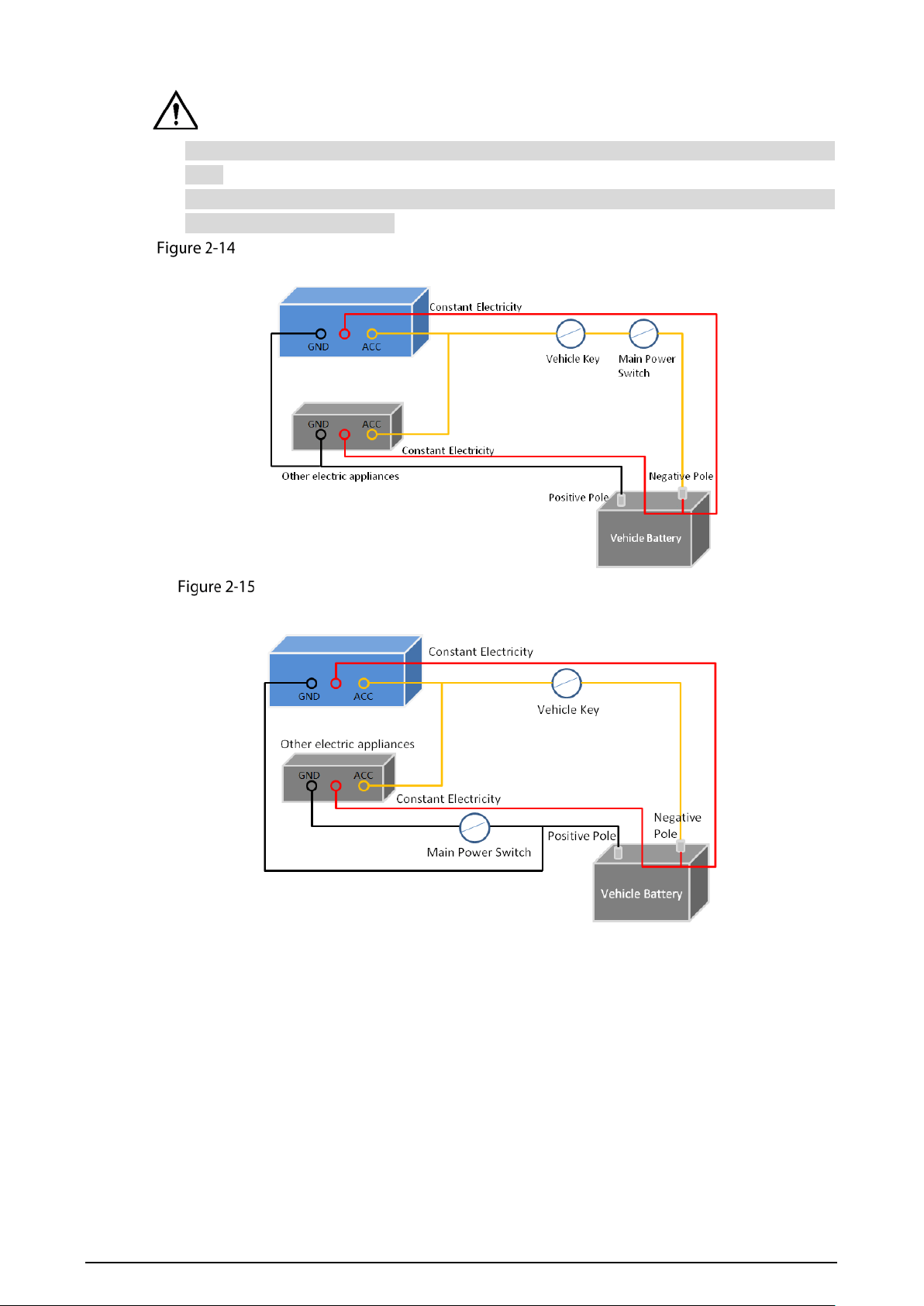
16
The positive and negative poles of the battery must be equipped with protective devices such as
fuses.
For vehicles where the master power switch is installed at the cathode of the accumulator,
isolation installation is needed.
Vehicle main power switch installed on the positive pole of the vehicle battery
Vehicle main switch installed on the negative pole of the vehicle battery
2.4.2 Alarm Input Connection
Before using the alarm function, learn about the connections method of alarm input connection.
Alarm Input
The alarm input port supports alarm signal from ground and device of 12V-24V voltage.
If the alarm device is connected to the device and other devices, use relay for isolation.
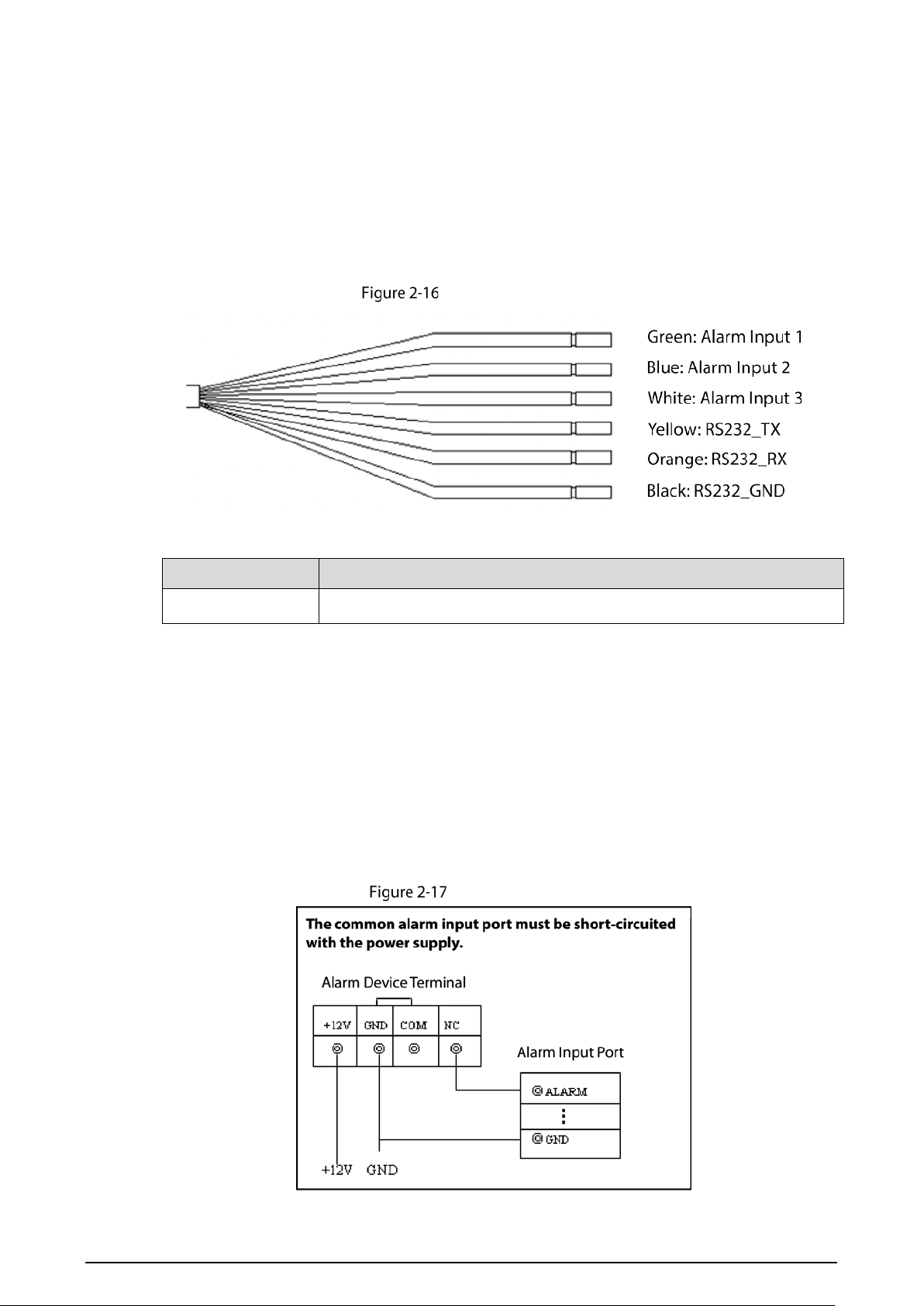
17
No restriction for types of alarm input
The alarm input can be Normally Opened or Normally Closed.
2.4.2.1 Alarm Input Port Introduction
Describes the function of alarm input ports.
Alarm Input Ports
Table 2-6 Alarm input ports description
Name Description
Alarm Input Port Alarm Input Port 1–3, local alarm input port
2.4.2.2 Alarm Input Port Description
Both NO and NC are supported.
The GND of alarm detector is in parallel connection with COM (the power supply of alarm detector
should be from external power source). See Figure 2-17.
The GND of alarm detector is in parallel connection with GND of device.
Connect the NC port of alarm detector to the alarm input port (ALARM).
When supplying power from external power source to the alarm device, the alarm device should
be common-grounded with the device.
NC alarm input
18
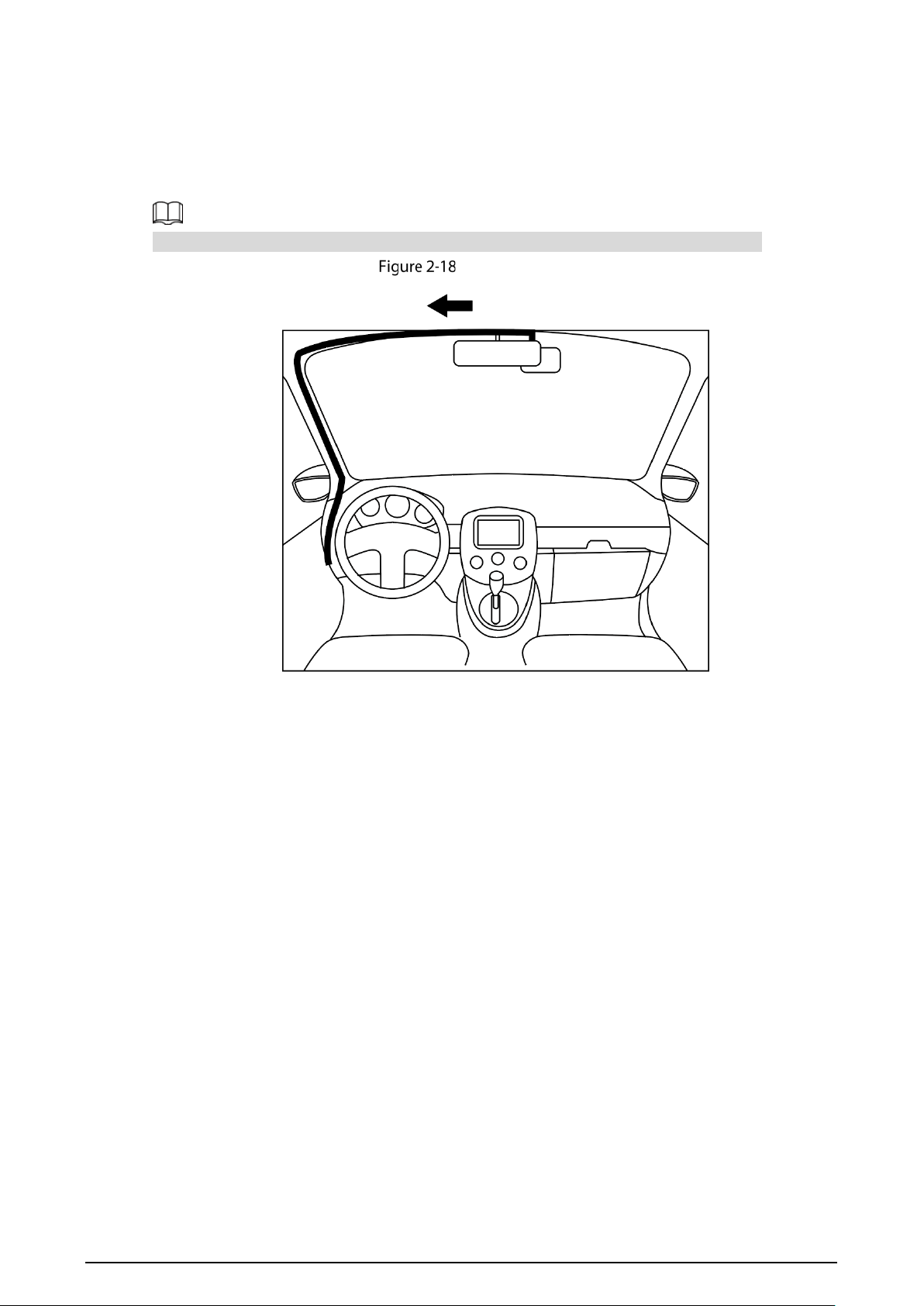
2.4.3 Cable Layout
Use the extension cable to connect the power supply and alarm input port, and lay cables as shown
in the figure.
The camera is not equipped with extension cable by default, please purchase it as needed.
Cable layout

19
3 Basic Configuration
This device can be operated following instructions on the APP or WEB interface. This section introduces
the WEB interface instructions. The local interface is similar and would not be elaborated here.
There are several browsers are supported, including Safari, Firefox, and IE.
Click Refresh, the system displays the latest saved configuration.
Starting Device
Before turning on the device, check whether the input voltage is correct against the device power
requirement.
To ensure the stable work of the device and the external devices connected to the device and to
prolong the service life, we recommend that you should refer to the national related standard to
use the power source that provides stable voltage with less interference from ripples.
In the first power-on, the device needs connection to the ACC to work as intended.
For the first boot up or after restoring to the default factory settings, the initialization interface is
displayed on the screen. Follow on-screen instructions to initialize your device prior to use.
Initializing Device
When you are opening the device for the first time or you have allowed your system to be restored the
factory settings, you need to initialize the device. Only after that can you operate and configure your
device.
Prerequisites
Please make sure the correct network connection between PC and the device.
Procedure
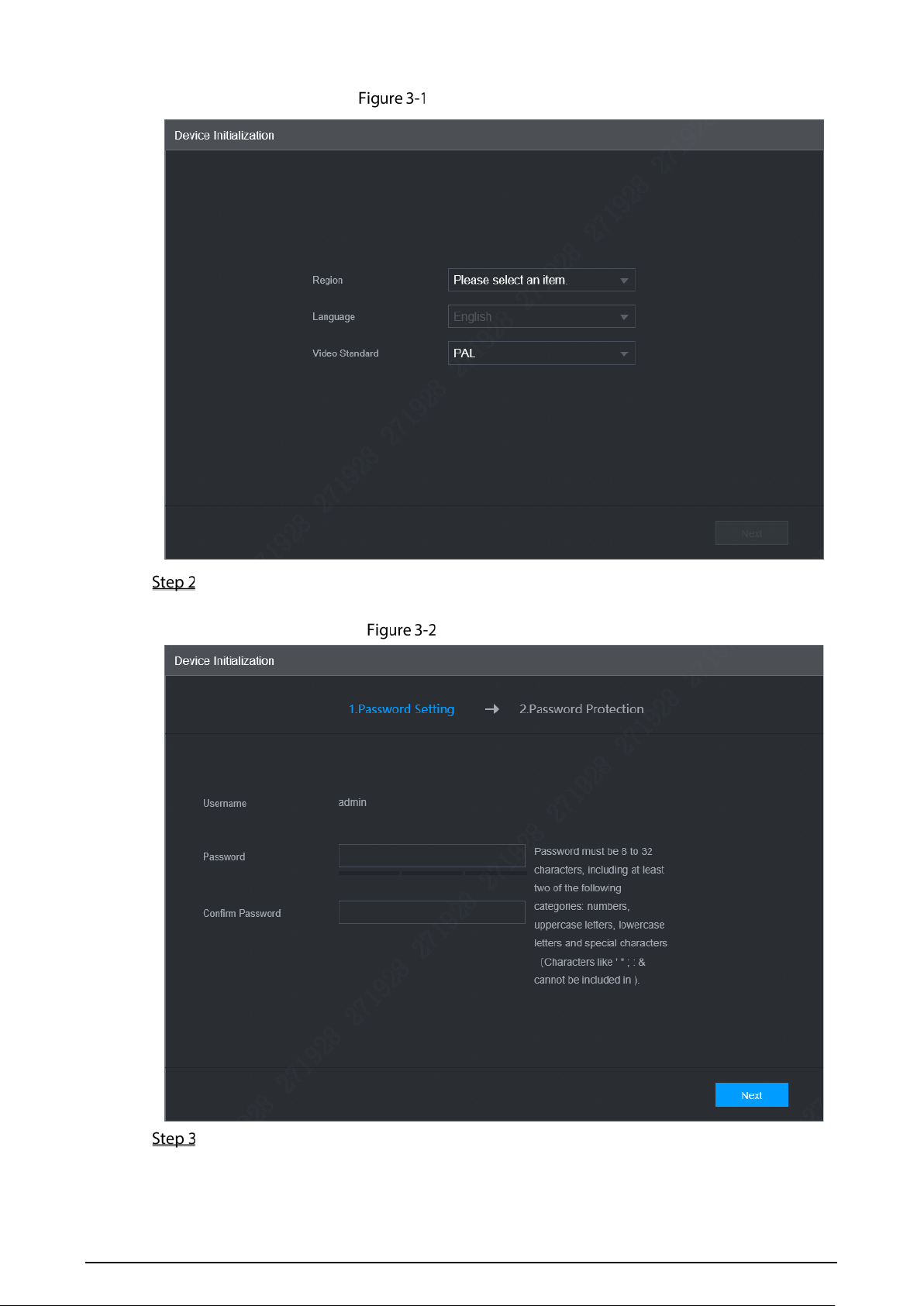
Open the browser, enter the device IP address (the default IP address is 192.168.1.108), and
then press Enter.
The Device Initialization interface is displayed. See Figure 3-1.
21
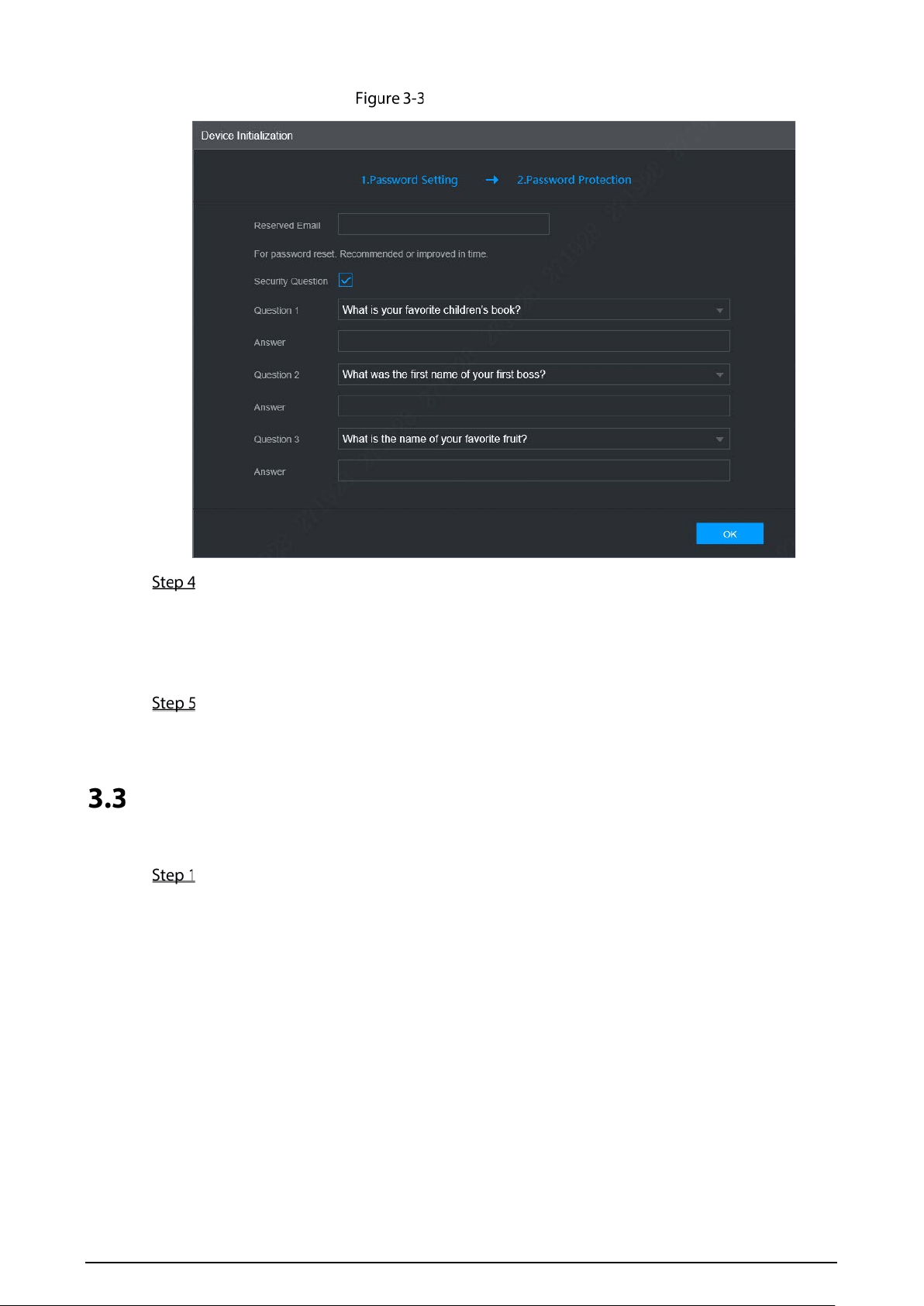
Password Protection
Select the reset type based on your needs. It is recommended to enable the two types as
follows.
Select Reserved Email and then enter email address.
Check the Security Question box, select the question and enter the corresponding
answer.
Click OK.
Device initialization completed.
Logging in to Device
You can log in to and then configure the device.
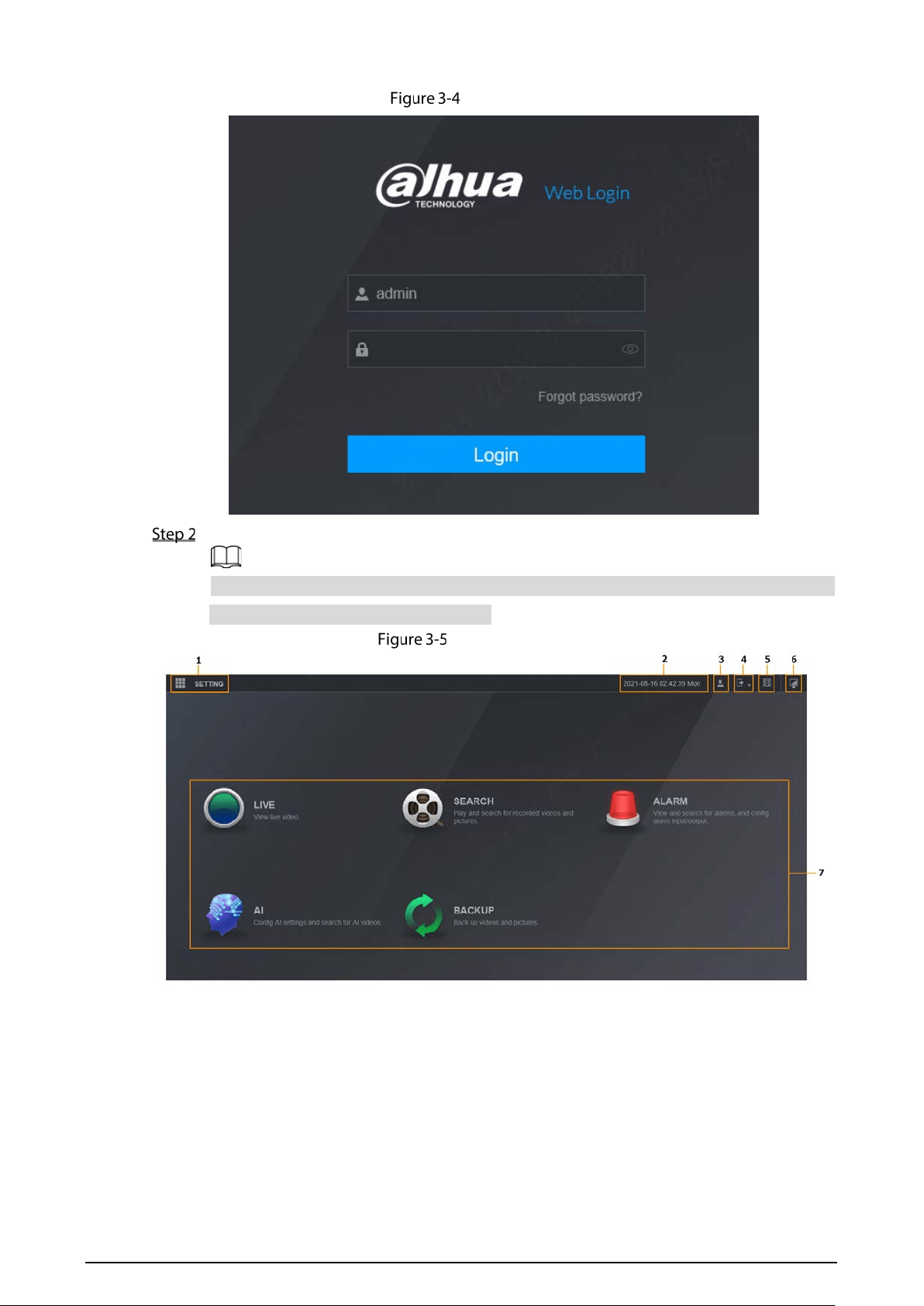
Open the browser, enter the device IP address, and then press Enter.
The WEB Login interface is displayed. See Figure 3-4.
22
WEB login
Enter user name and password, and then click Login.
For admin account, if you forget password, click Forgot password? to find back the password.
For details, see “5.8.3 Resetting Password”.
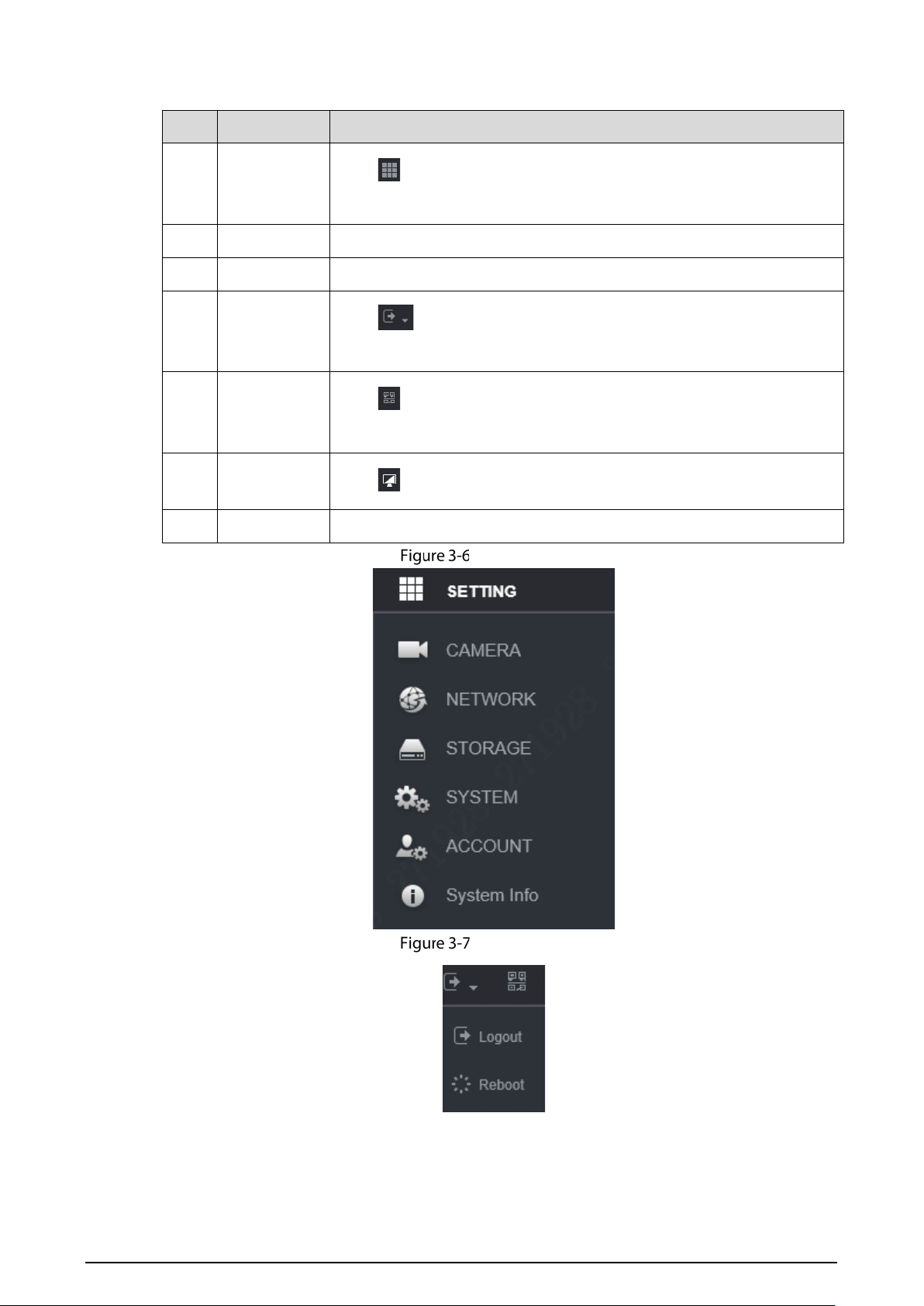
WEB interface
23
Table 3-1 WEB interface description
No. Name Description
1 Setting
Click or Setting, the system displays as Figure 3-6. Click the icon to
go to the configuration interface.
2 Time Display the current time.
3 User Display the user that currently logs in.
4 Logout
Click , the system displays as Figure 3-7. Select Log Out or restart
the device as needed.
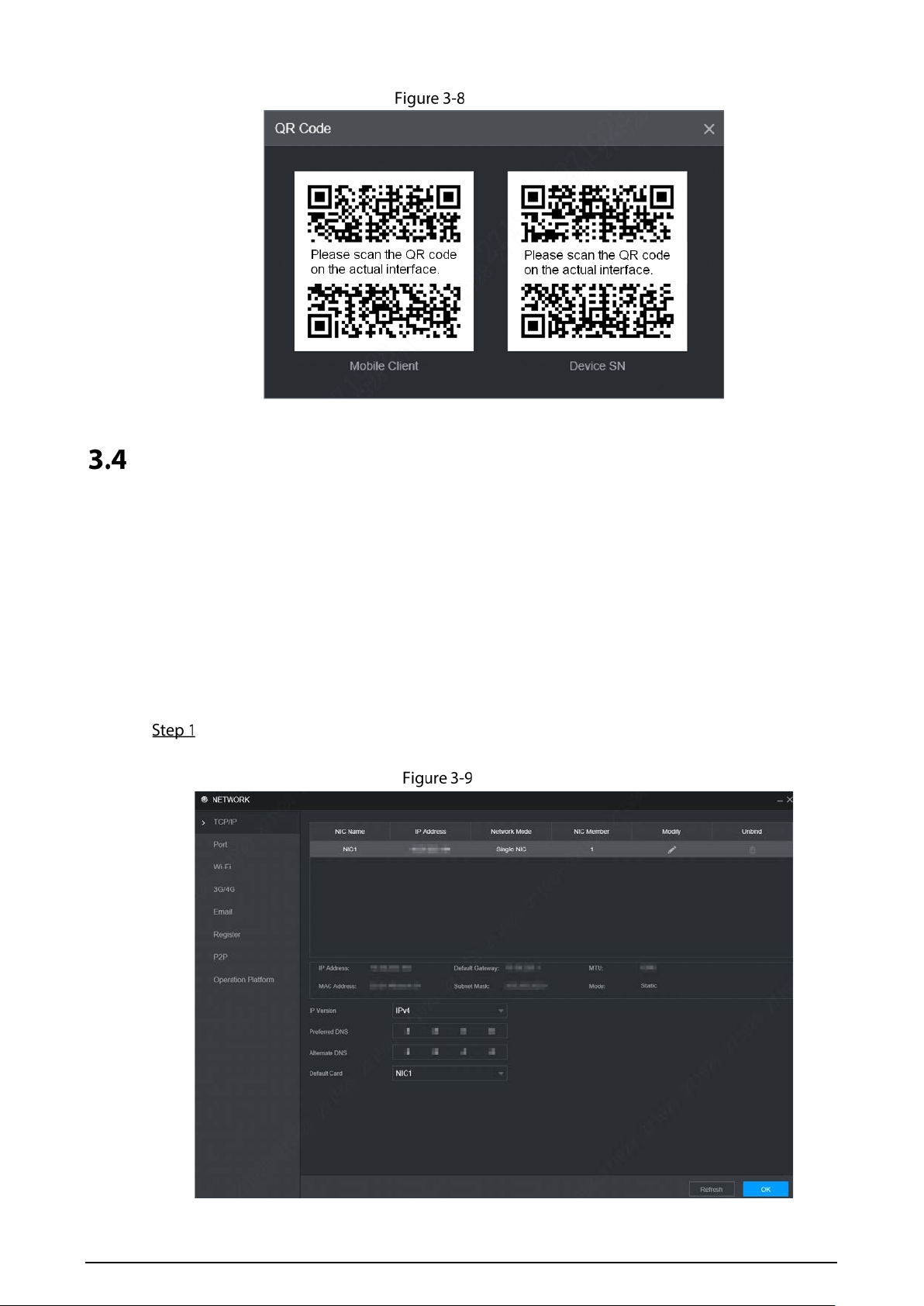
5 QR Code
Click , the system displays asFigure 3-8. Scan device serial number to
add the device to APP.
6 Desktop
Click to return to WEB main interface.
7 Operation System operation
Setting
Logout
24
QR Code
Configuring IP Address
Connect the device to the network and make sure the device can communicate with other devices in
the network diagram.
Prerequisites
Make sure the device is connected to the network properly.
Procedure
Select Setting > Network > TCP/IP.
The TCP/IP interface is displayed. See Figure 3-9.
TCP/IP
25
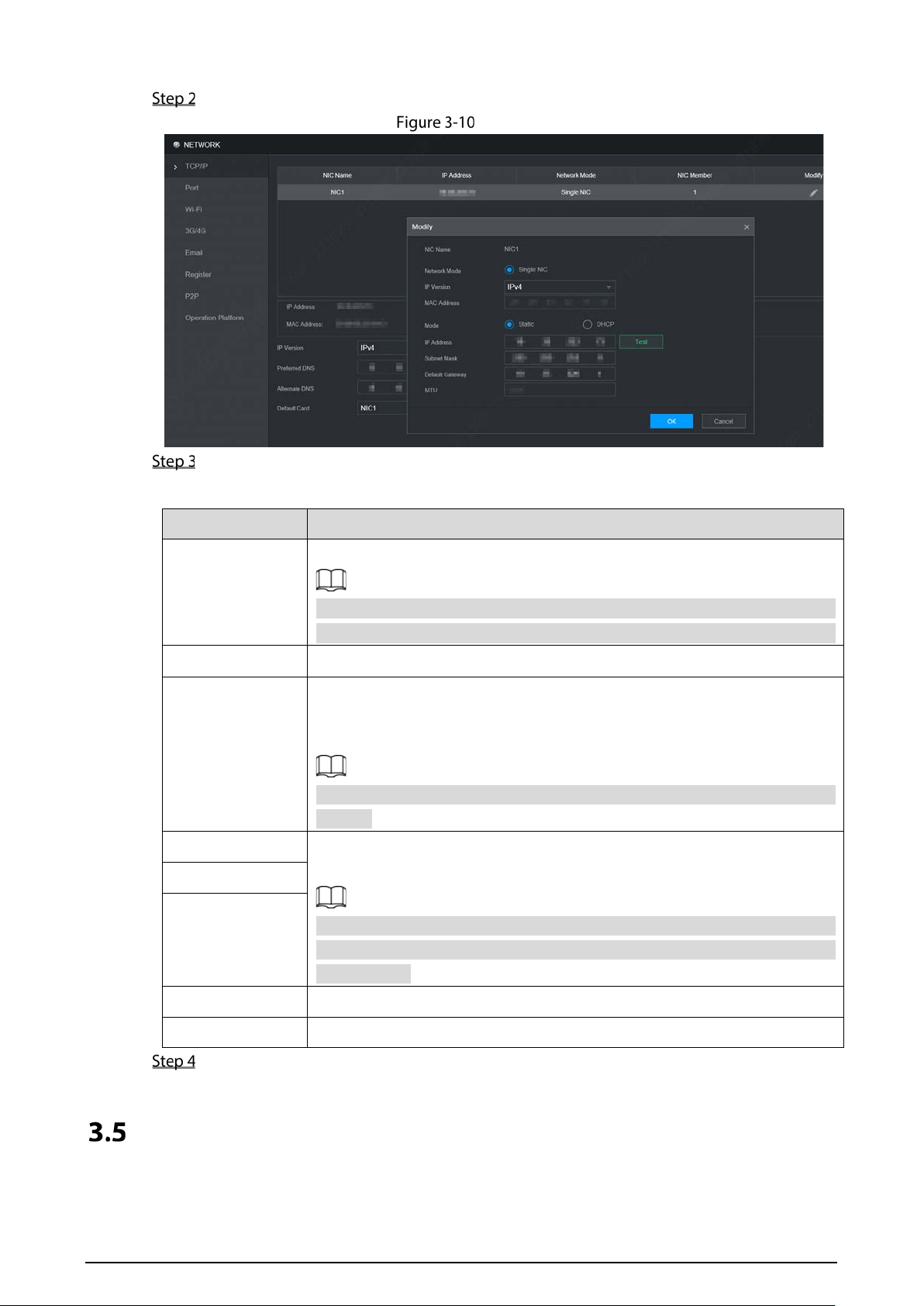
Click Modify. The Modify interface is displayed. See Figure 3-10.
Modify
Configure parameters. For details, see Table 3-2.
Table 3-2 TCP/IP parameters
Parameter Description
IP Version
Select IPv4 or IPv6. Both versions are supported.
For IPv6 version, in the IP address box, the Gateway box, the Preferred DNS
box, and the Alternate DNS box. Please enter 128 bits and it cannot be blank.
MAC Address Indicates the device MAC address which cannot be modified.
DHCP
Select the DHCP box, the system automatically obtains an IP address. When
the DHCP function is enabled, the IP address, Subnet mask and Default
gateway cannot be set manually.
No matter the DHCP function is enabled or not, you can view the current IP
address.
IP Address According to your network plan, enter the modified IP address, gateway an
d
subnet mask.
Please ensure IP address and subnet mask are in the same network segment,
which means the front parts of the IP address and of the default gateway are
the same one.
Subnet Mask:
Default Gateway:
Preferred DNS IP address of DNS server.
Alternate DNS IP address of Alternate DNS.
Click OK.
Configuring General Settings
You can configure the basic settings, including time and date settings.
26
3.5.1 General Settings
Set up the general information of the device, including language, video standard duration, license
plate, and more.
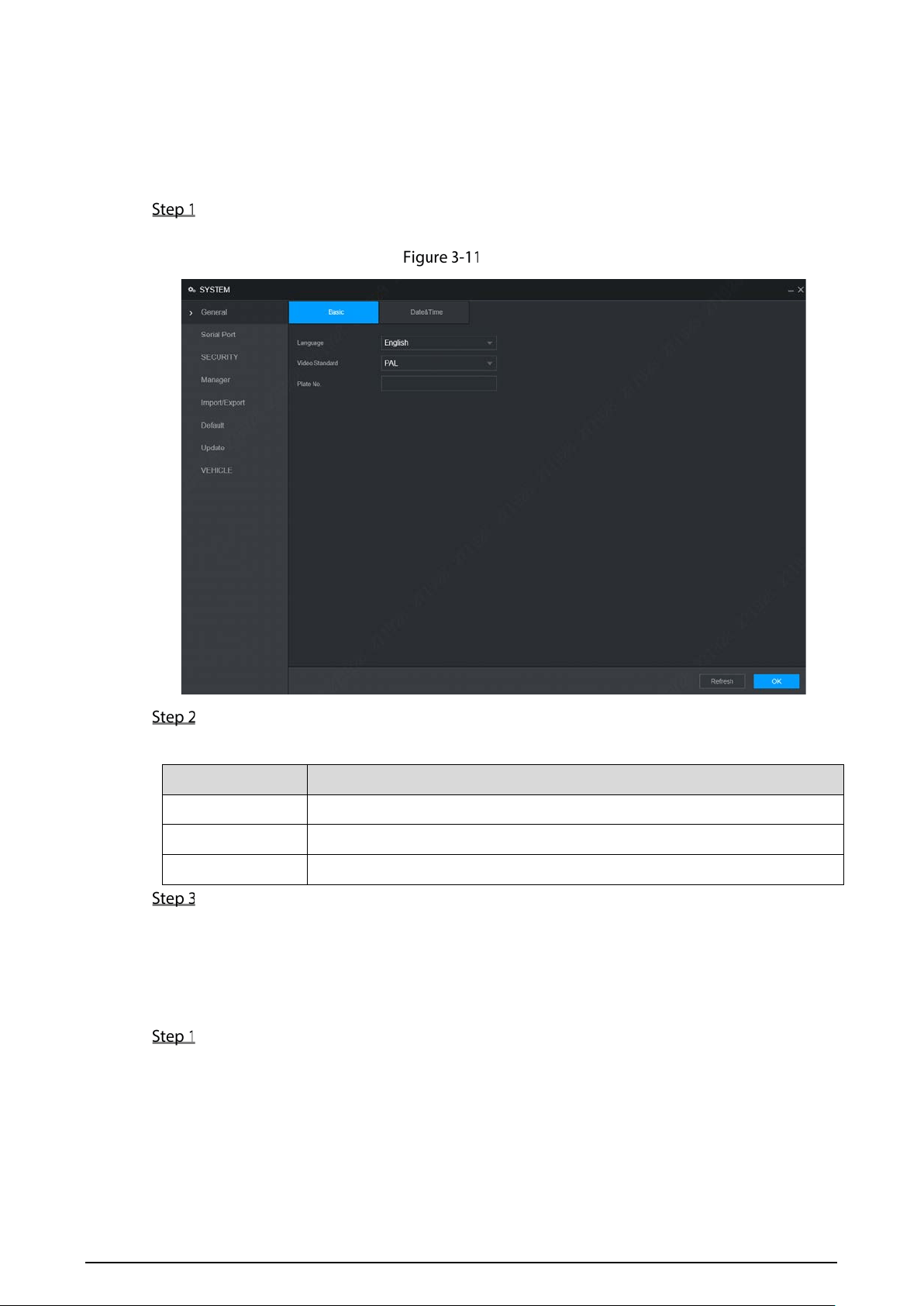
Select Setting > System> General > Basic.
The Basic interface is displayed, see Figure 3-11.
Basic
Configure parameters. For details, see Table 3-3.
Table 3-3 General settings parameter description
Parameter Description
Language Select a language for the device system.
Video Standard Displays the video encode standard.
Plate No. Enter the license plate number of vehicle where the device is located.
Click OK.
3.5.2 Date&Time
You can configure settings such as date format, time format, and timing mode.
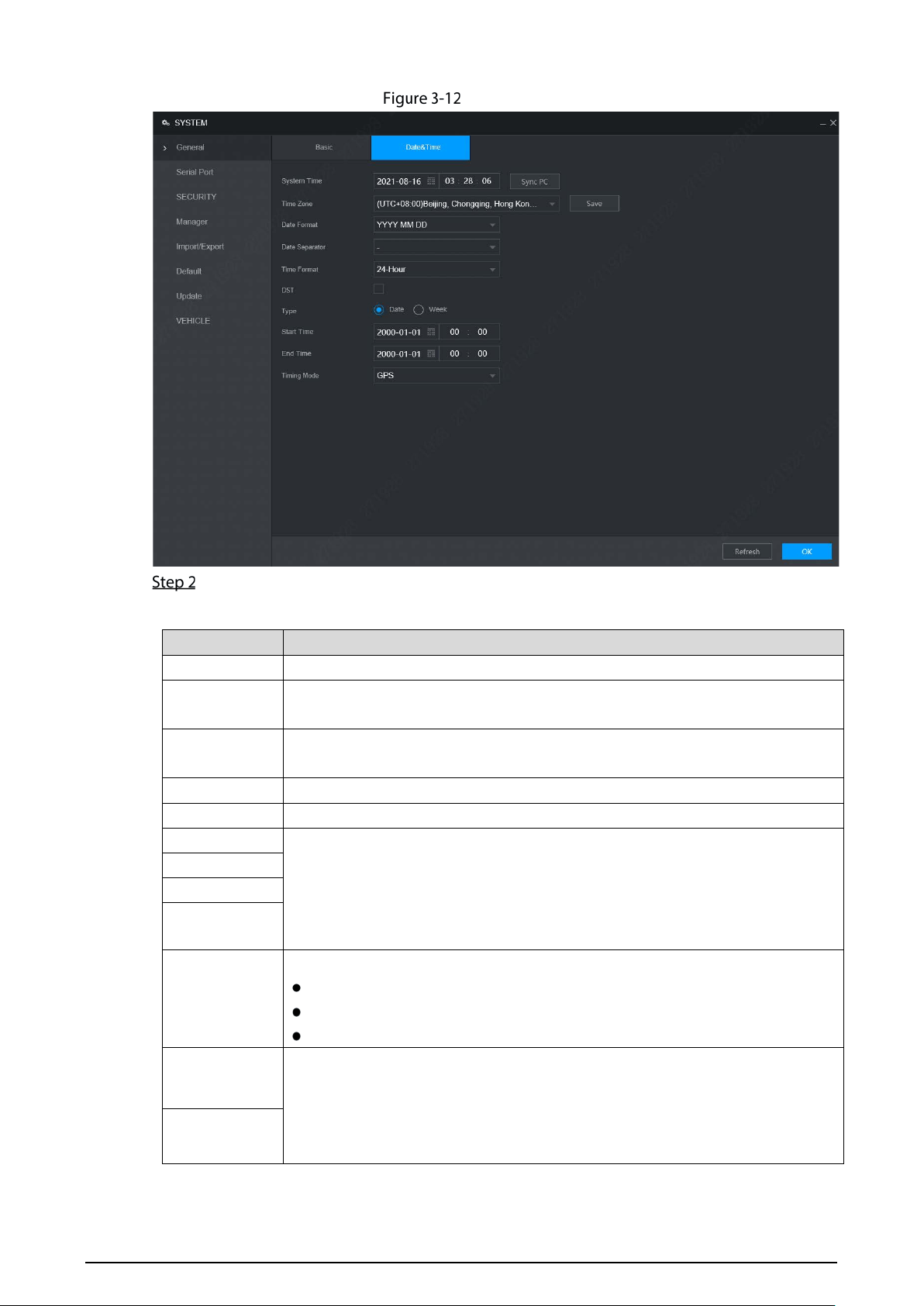
Select Setting > System > General > Date&Time.
The Date&Time interface is displayed. See Figure 3-12.
27
Date&Time
Configure parameters. For details, see Table 3-4.
Table 3-4 Date&Time parameters description
Parameter Description
System Time Displays the current system date and time.
Time Zone
The time zone where the device locates.
In the Timing Mode list, if GPS or NTP is selected, configure this parameter.
Date Format
Set the date display format of the device, including YYYY-MM-DD, MM-DD-YYYY
and DD-MM-YYYY.
Date Separator Separator style of date.
Time Format Select a time format, including 24-hour and 12-hour.
DST The DST is applied in some countries or regions. Select the DST check box if it is
applied where the device is located
1. Select the DST check box.
2. According to the local regulations, configure the type, start time and end
time for the DST.
DST Type
Start Time
End Time
Timing Mode
Select a timing mode, including DSS, GPS, and NTP. The default selection is NTP.
DSS: The system time syncs with DSS platform.
GPS: The system time syncs with satellite.
NTP: The system time syncs with NTP server that you configured.
Server Address
In the Timing Mode list, if NTP is selected, configure this parameter.
After configuring NTP server, the device syncs time with NTP server.
Port
28
Parameter Description
Interval
1. In the Timing Mode list, select NTP to enable the NTP timing function.
2. Configure parameters.
Server: Enter IP address of NTP server.
Synchronize: Click Manual Update to sync the device time with NTP
server.
Port: The system supports TCP protocol only and the default setting is
123.
Interval: Enter the interval that you want the device to sync time with
the NTP server. The maximum value is 65535 minutes.
Click OK.
Configuring Record Mode
The record mode is consisted of manual mode and auto mode. You can also enable or disable the
snapshot function.
Auto: The recording starts automatically according to the record type and recording time as
configured in the recording schedule.
Manual: Keep general recording for 24 hours for the selected channel.
Manual recording operation requires the user have the permission to access Storage Settings.
Check to ensure the HDD installed in the device has been formatted properly.
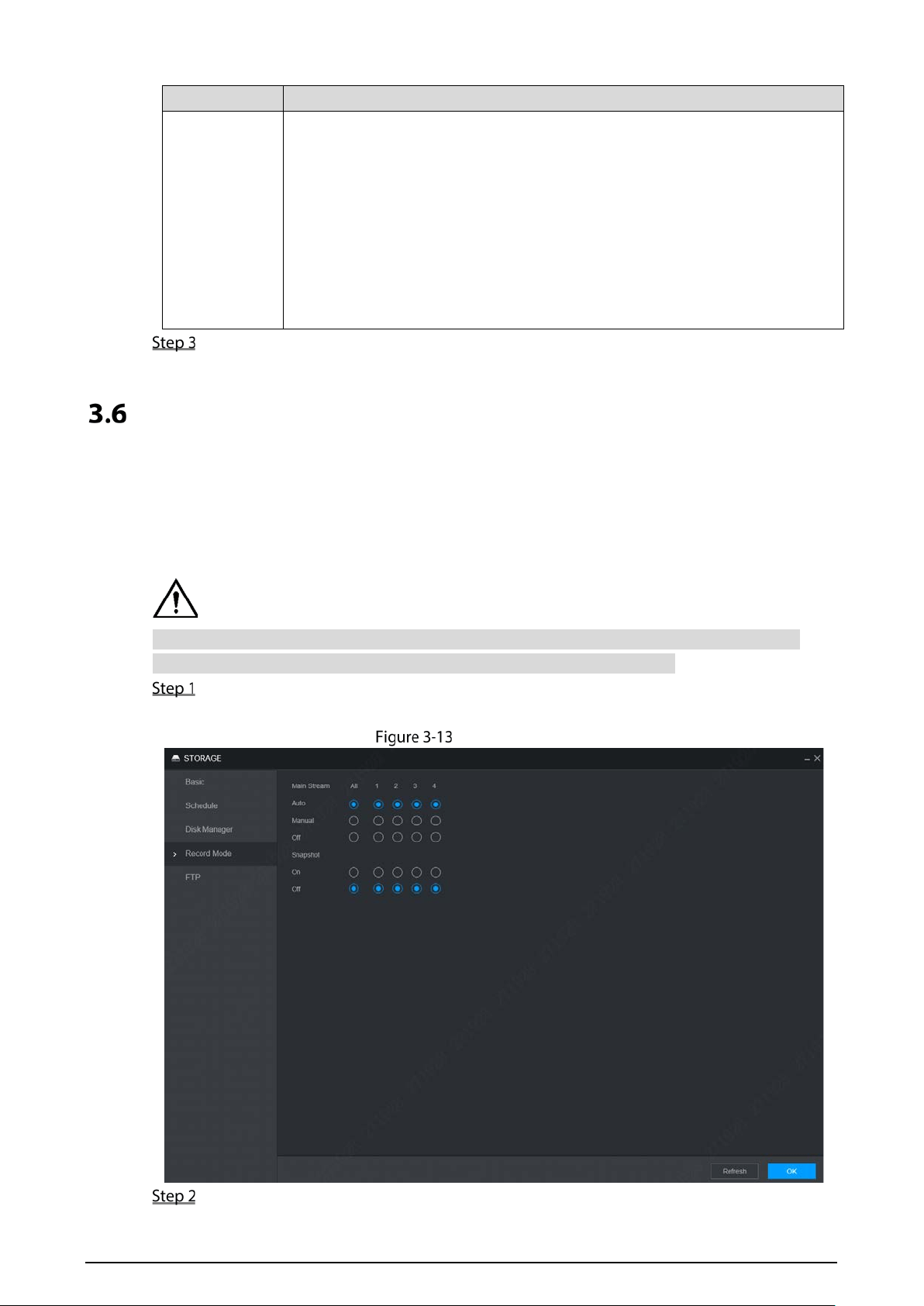
Select Setting > Storage > Record Mode.
The Record Mode interface is displayed. See Figure 3-13.
Record Mode
Configure parameters. For details, see Table 3-5.
29
Table 3-5 Recording control parameters description
Parameter Description
Channel
Displays the channel number.
You can select one or several channels or select All.
Status
Indicates the recording status of corresponding channels. The choices include
Auto, Manual, Enable, and Close.
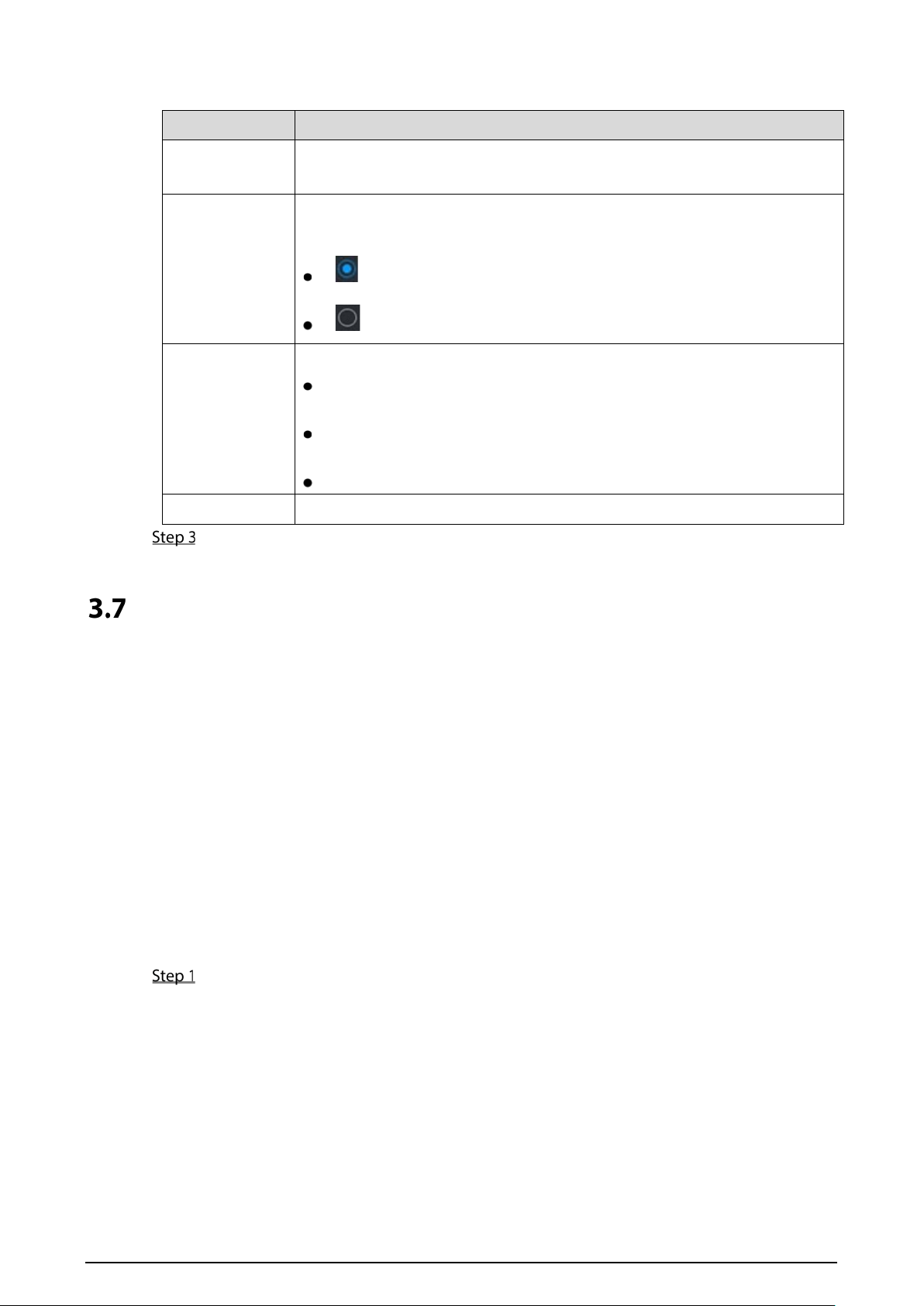
: Selected.
: Not selected.
Auto/Manual/Off
Select the recording mode, including Manual, Auto, and Off
Manual: Top priority. When the Manual check box is selected, the system
keeps general recording for 24 hours for the corresponding channel.
Auto: The system starts recording according to the record type (such as
general alarm, motion detect, and system alarm) and recording time.
Off: Do not record.
On/Off Enable or disable the scheduled snapshot for the corresponding channels.
Click OK.
Configuring Storage Plan
3.7.1 Record Schedule
The default recording setting is 24 hours recording for all channels. You can configure the record type
and recording time according to your actual situation.
Prerequisites
The auto record is enabled for the corresponding channel. For details, see “3.6 Configuring Record
Mode”.
Procedure
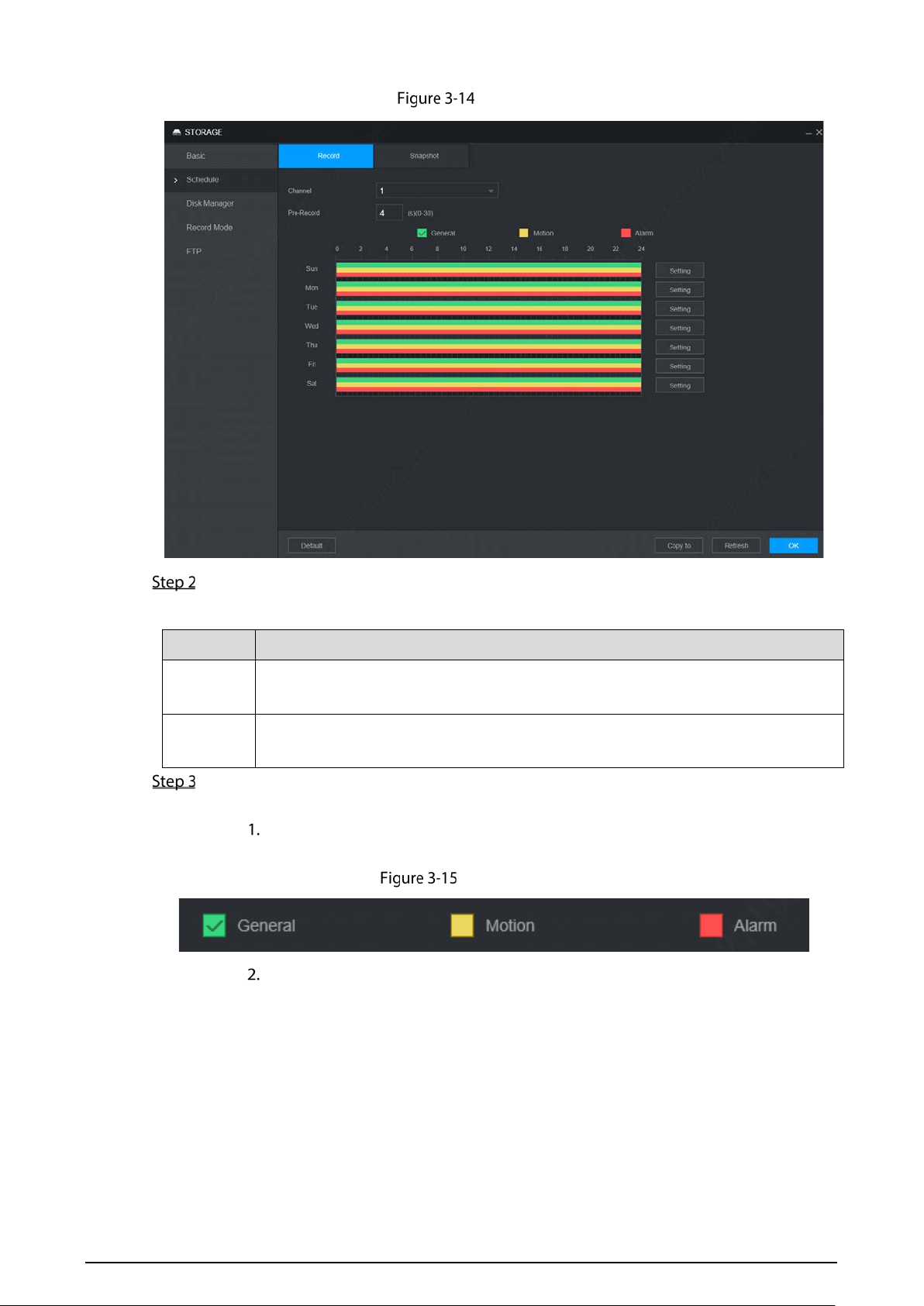
Select Setting > Storage > Schedule > Record.
The Record interface is displayed. See Figure 3-14.
30
Record
Configure parameters. For details, see Table 3-6.
Table 3-6 Recording parameters description
Parameter Description
Channel
Select a channel to configure the corresponding recording schedule. If you
configure the same setting for all channels, select All.
Pre-record
Start recording for 0 seconds to 30 seconds before the alarm event occurs. If you
enter 0 seconds, there will be no pre-recording.
Set periods of the record by drawing or editing.
Drafting method
Select the type of recordings by selecting the check box in front of the type. See
Figure 3-15.
Record type
Press and hold the left button and drag the mouse in the period illustration to draft
the period.
There are six periods in one day. The device activates recordings of the preset type
in each preset period. In the period illustration displayed in the figure, the color bar
shows the Recording Type corresponding to the period.
Green means general recordings are effective.
Yellow means motion recordings are effective.
Red means alarm recordings are effective.
31
Draw
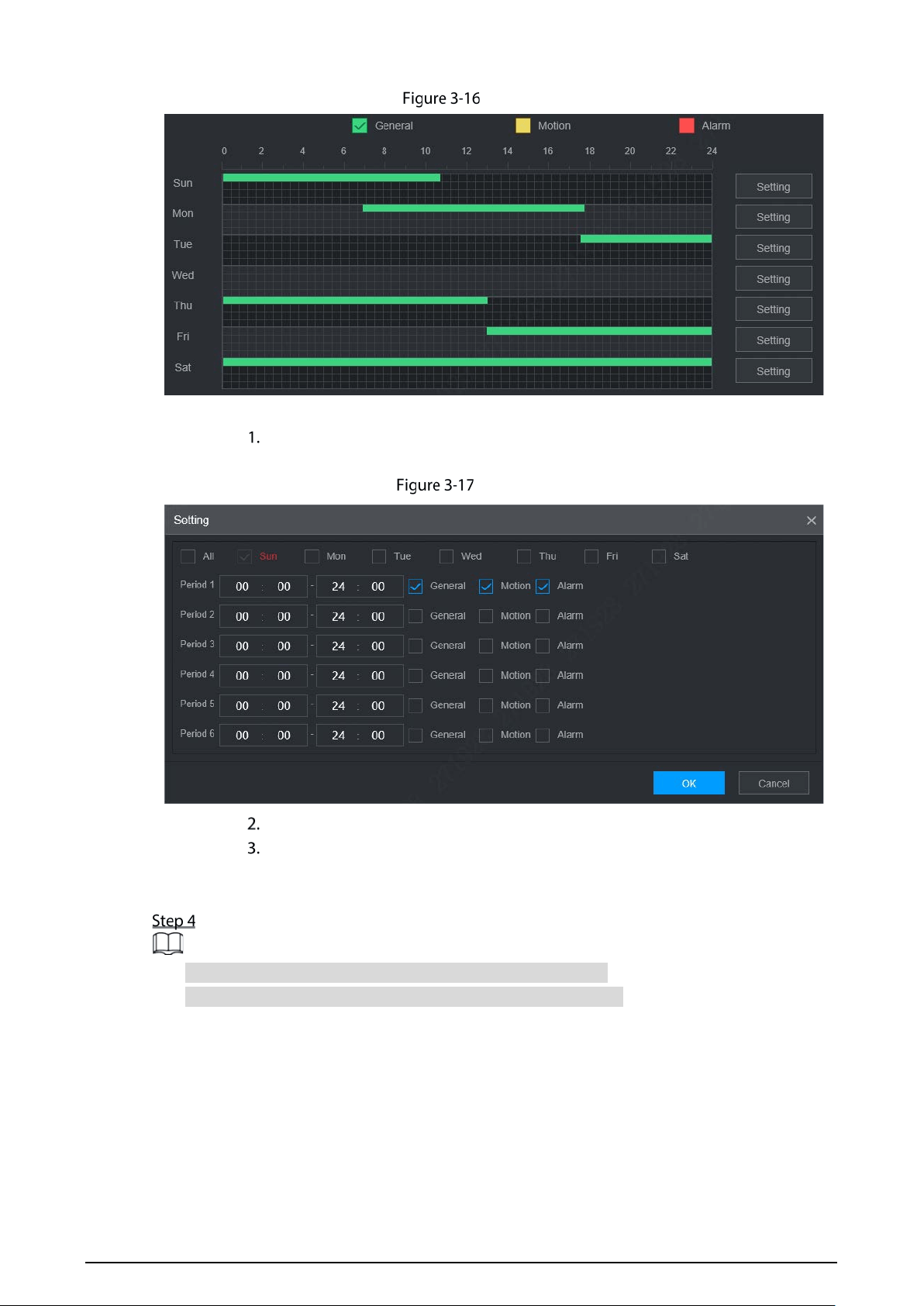
Editing Method
Click Setting corresponding to the week.
The Setting interface is displayed. See Figure 3-17.
Setting
Select the record type and weekday, and enter the recording period.
Click OK.
The recording schedule appears on the Recording Plan interface to view the
configured recording schedule directly.
Click OK.
Click Copy to and you can copy the settings to other channels.
Click Default, and the device is restored to default configuration.
3.7.2 Snapshot Schedule
You can configure the storage schedule for taking the snapshot.
32
Prerequisites
The snapshot is enabled for the corresponding channel. For details, see “3.6 Configuring Record Mode.”
Procedure
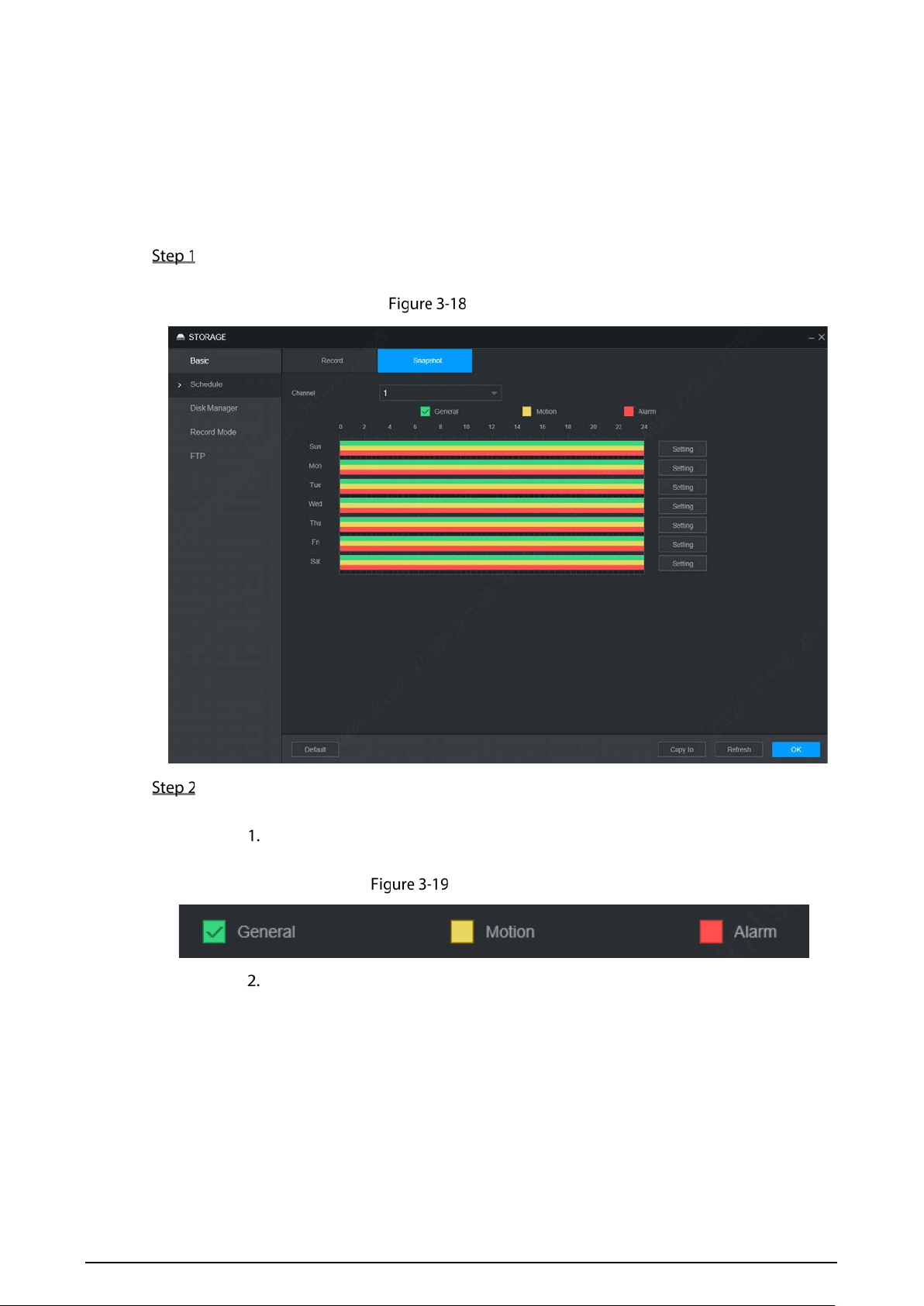
Select Setting > Storage > Schedule > Snapshot.
The Snapshot interface is displayed. See Figure 3-18.
Snapshot
Set snapshot period by drafting and editing.
Drafting method
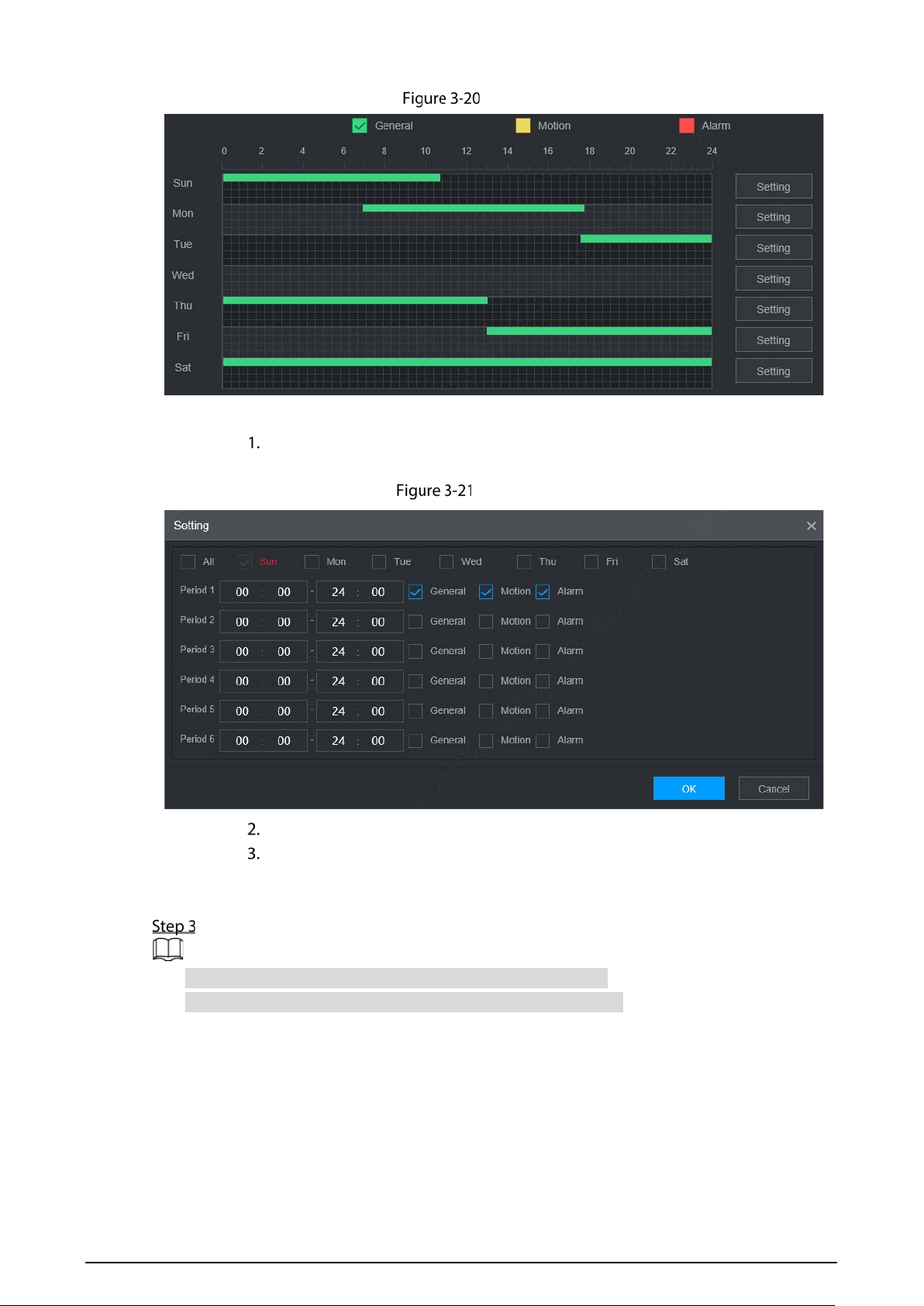
Select the type of snapshot by selecting the check box in front of the type. See
Figure 3-19.
Snapshot Type
Press and hold the left button and drag the mouse in the period illustration to draft
the period.
You can set six periods in one day. The device activates the snapshot method of the
preset type in each preset period. In the period illustration displayed in the figure,
the color bar shows the Snapshot Type corresponding to the period.
Green means general snapshots are effective.
Yellow means motion detection snapshots are effective.
Red means alarm snapshots are effective.
33
Draw
Editing Method
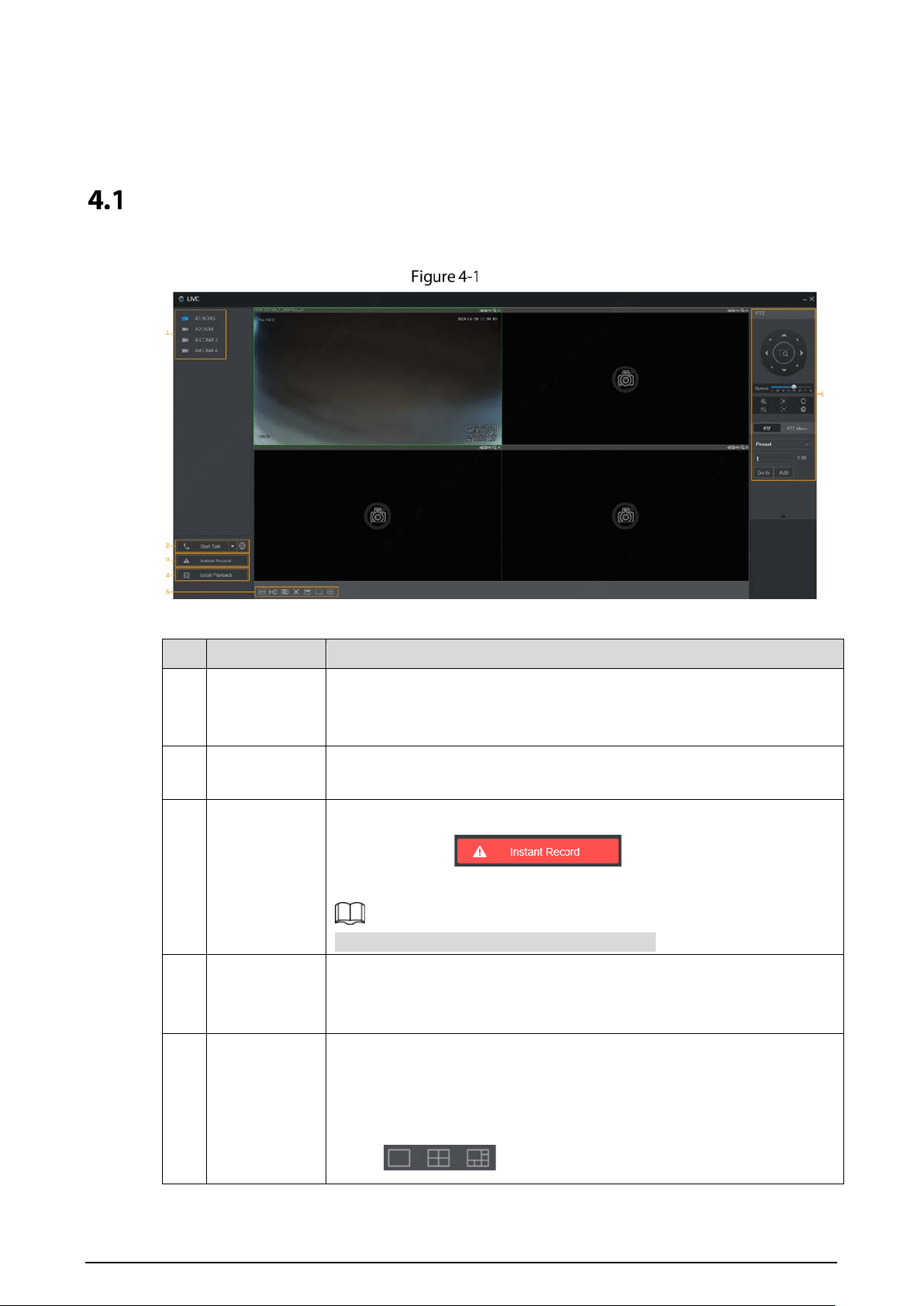
Click Setting.
The Setting interface is displayed. See Figure 3-21.
Setting
Select the snapshot type and weekday, and enter the period for taking snapshot.
Click OK.
Snapshot schedule appears on the Snapshot interface to view the configured
snapshot schedule directly.
Click OK.
Click Copy to and you can copy the settings to other channels.
Click Default, and the device is restored to default configuration.
34
4 Function Operations
Live
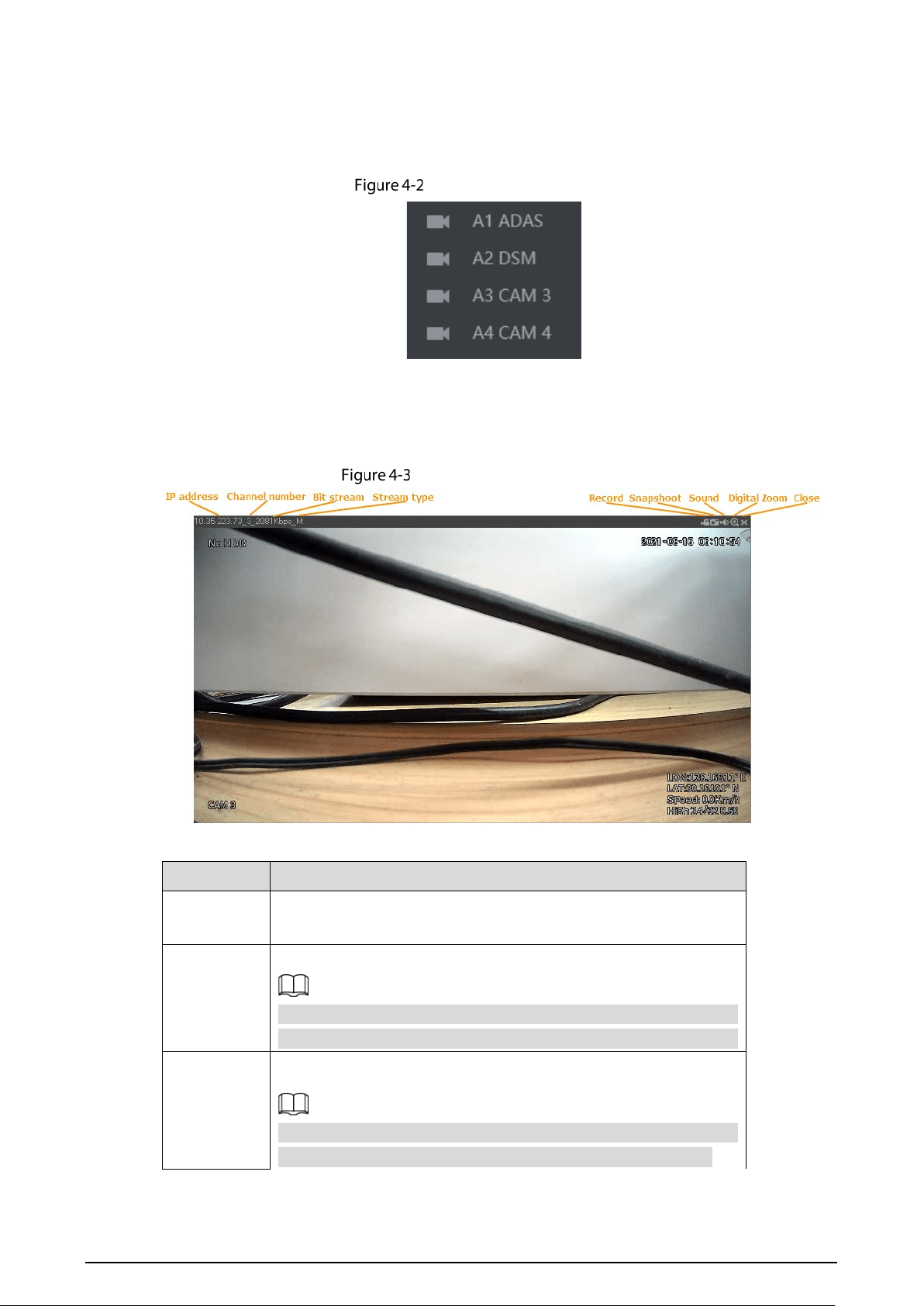
Log interface in and click Live tab, the Live interface is displayed, see Figure 4-1.
Live
Table 4-1 Live interface parameters description
No. Name Description
1
Real-time
monitoring
channels
See “4.1.1Real-time Monitoring Channels”.
2 Start talk
Click Start Talk to communicate with the device.But you should plugin a
microphone before .
3 Instant Record
Click Instant Record and the recording type switches to Manual, when
the icon turns to ; click Instant Record again to
switch the record type back to Auto.
This function is only supported by main stream.
4 Local playback
Plays back the video file (dav) stored on the PC.
Click Local Playback, select the video file in the pop-up dialog box, and
then click Open to start playing back the video file
5
Window
function
operations
Configure the scale, image quality, playback fluency, full screen, and
window split mode.
For real-time monitoring, you can select the fluency or real-time to be the
priority according to your actual requirement.
Select to split the preview window as necessary.
35
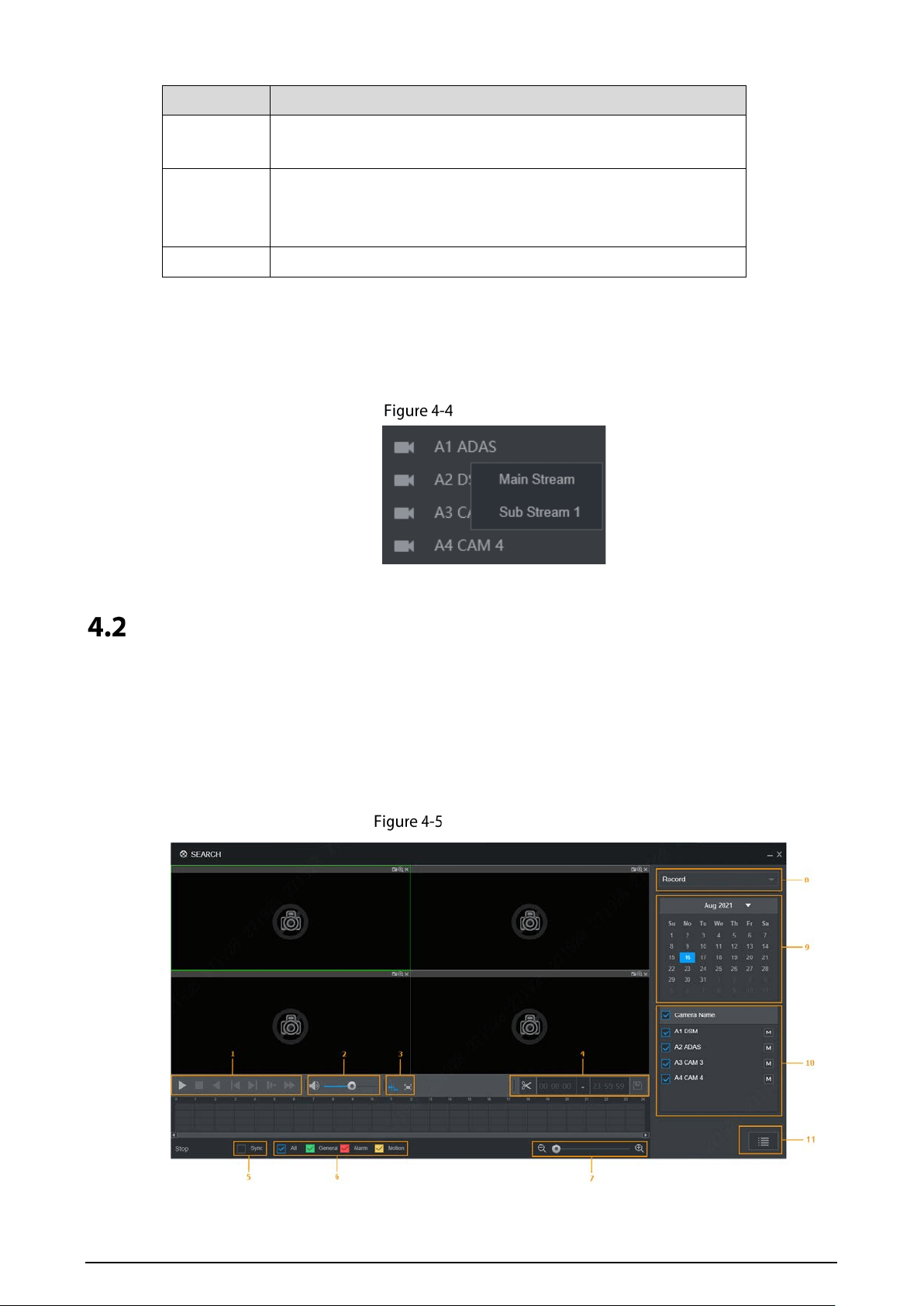
4.1.1 Real-time Monitoring Channels
Displays the list of monitoring channels.
Monitoring channels
Operations in monitoring channels
Click any monitoring channel to display its live video on the screen. See Figure 4-3.
Video monitoring screen
Table 4-2 Video monitoring window parameters description
Parameter Description
Device
Information
Displays the IP address, channel number, bit stream, and stream
type (M represents main stream, S represents sub stream)
Record
Click this icon to start recording; click it again to stop recording.
The recorded files default storage path is C:\RecordDownload. You
can modify this path if needed. For details, see “5.4.2.4Storage Path.”
Snapshot
Click this icon to start taking snapshot.
The snapshots default storage path is C:\PictureDownload. You can
modify this path if needed. For details, see “5.4.2.4Storage Path.”
36
Parameter Description
Sound
Turns on/off audio. If audio function is not enabled in the encode
settings, the monitoring does not give sound
Digital Zoom
Click this icon and then hold down the left mouse button to select
the area you want to enlarge.The area is enlarged. Click this icon
again or right-click on the window to exit.
Close
Close the live view in the window.
Stream Type
The system supports switching between main stream and sub stream in real-time monitoring window.
See Figure 4-4. For details about stream settings, see “5.4.2Encode Parameters”.
Stream type
Video Playback
On the Video Playback interface, you can play back or download video recording files.
4.2.1 Playback operations
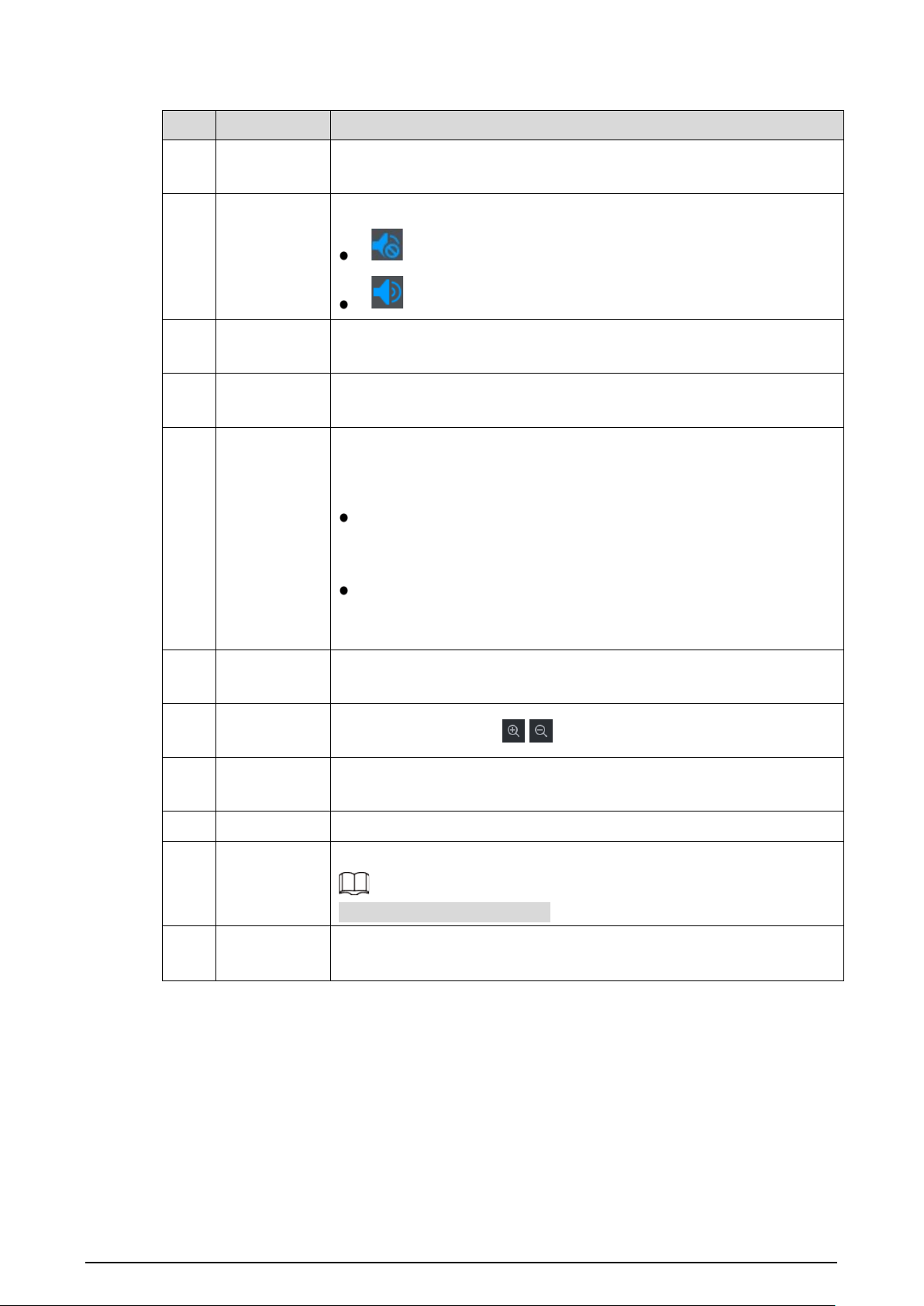
On the main WEB interface, click Search, and the Search interface is displayed. See Figure 4-5.
Video Playback
37
Table 4-3 Function bar description
No. Function Description
1 Control bar
For detailed information about control buttons, see “4.2.4 Clipping
Recording File”.
2
Volume
adjustment
Controls playback volume, including:
means mute mode.
means normal playing and the volume can be adjusted.
3
Full screen
button
To play the video recording in full screen.
4 Video clip
Clip a section of recorded video and save it. See “4.2.4 Clipping Recording
File”.
5 Sync
With Sync selected, when you click in the progress bar to play back the
recordings, the playback time of other channels will sync with the
selected channel in the following ways:
If the playback time of other channels is before the time of the
selected channel, other channels will speed up the playback till
synced with the selected channel.
If the playback time of other channels is after the time of the selected
channel, other channels will pause to wait till synced with the
selected channel.
6 Record Type
The record types include Regular, MD, and Alarm. You can select the type
as needed.
7 Time bar
Move the slider or click / to adjust the time bar.
8 Playback Type
To select the playback type. Only record playback is supported at
present.
9 Calendar Click the date on which you want to play back the recorded video.
10 Channel List
You can set the cameras to focus on.
You can select up to 4 cameras.
11 File List
You can download recorded video by file type or time, and verify the
completeness.
4.2.2 Control bar
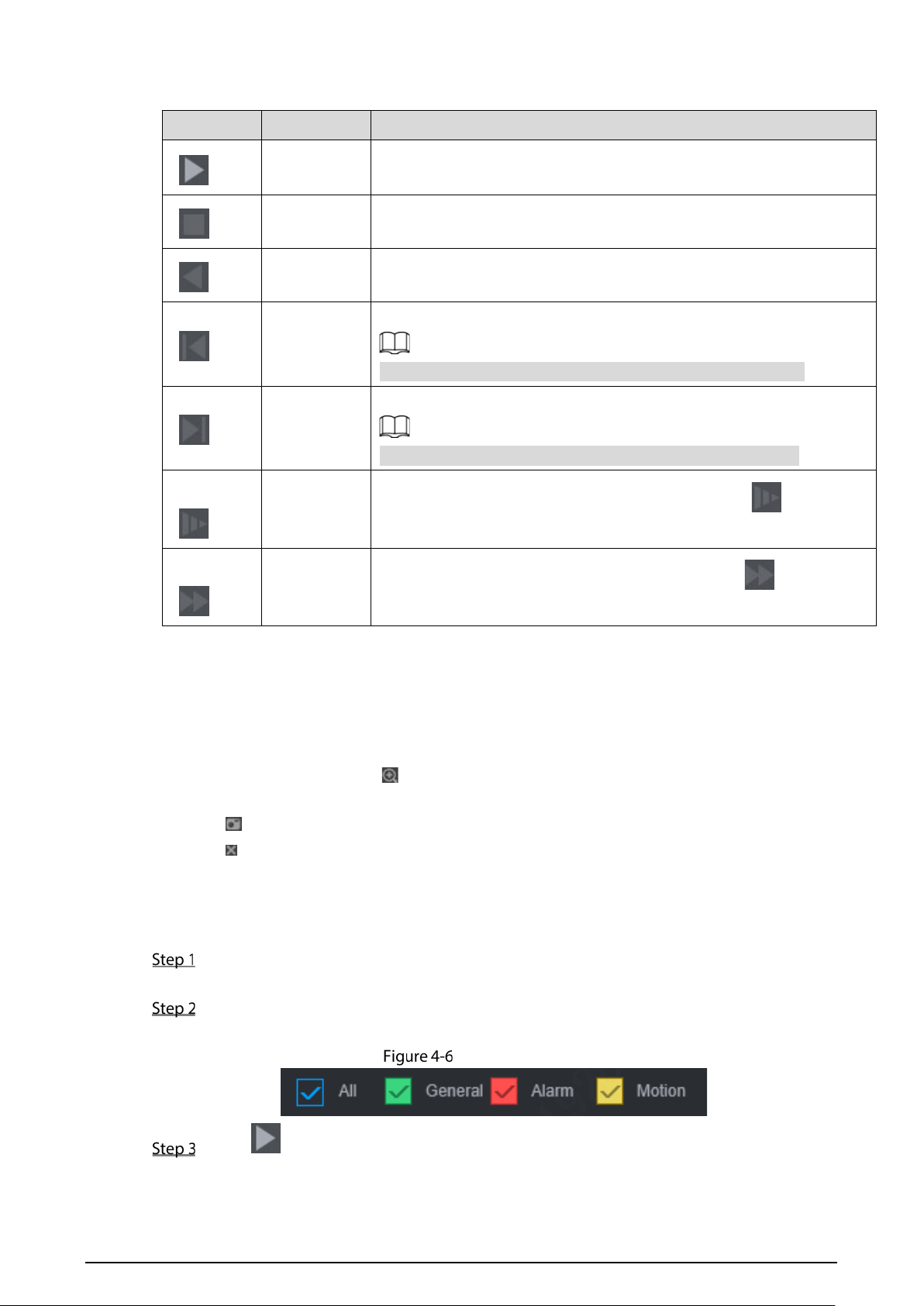
Playback control buttons. For details, see Table 4-4.
38
Table 4-4 Playback controls bar introduction
Icon Function Description
Broadcast
When this icon displays, it means the video is paused or not being
played. You can click this icon to play the video.
Stop During playing back, click this icon to stop playback.
Reverse Play Click this icon to play the video recording backward.
Previous
Frame
Click this icon to jump to the previous frame.
You need to pause the playback before playing the next frame.
Next frame
Click this icon to jump to the next frame.
You need to click the Stop icon before playing the next frame.
Slow
Click this icon to adjust the slow playback speed. Click to start
slow playback.
Fast
Click this icon to adjust the fast playback speed. Click to start fast
playback.
4.2.3 Playing Back Record Video Files
You can play back video recordings by time or file name. During playback, you can conduct the
following operations.
In the channel window, click at the upper right corner and select the area you want to enlarge.
The area is enlarged. Click this icon again or right-click in the window to exit.
Click at the upper right corner to take a snapshot.
Click at the upper right corner to close playback.
4.2.3.1 Playing Back Video Recordings by Date
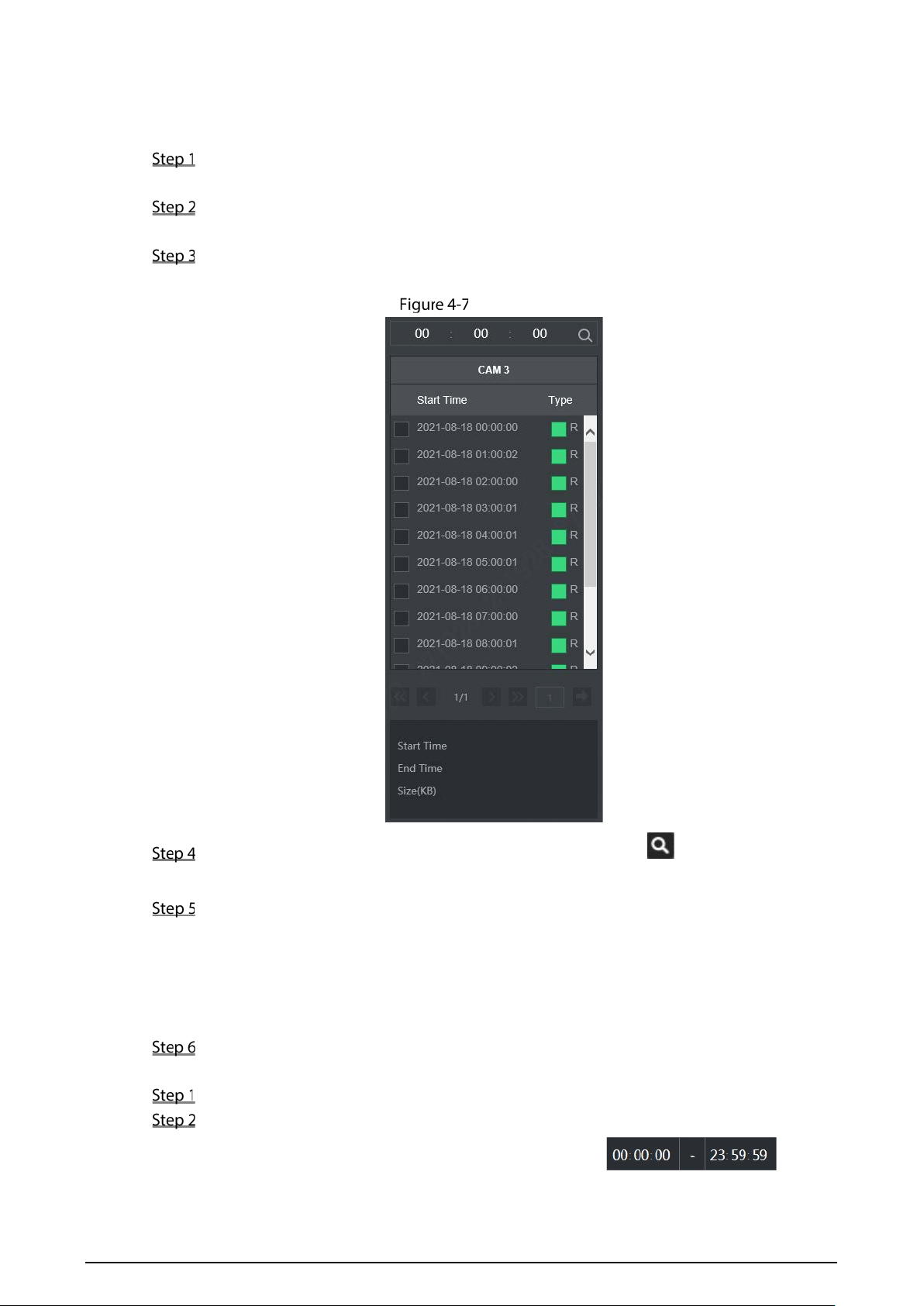
Select the date for searching for the video recordings, and set the corresponding channel as
needed.
Select a date with recorded video files, click on the window channel to select a playback
channel, and then select the record type. See Figure 4-6.
Record Type
Click to start playing back recorded video.
39
4.2.3.2 Playing Back Video Recordings by File Name
Select the date for searching for the video recordings, and set the corresponding channel as
needed.
Select a date with recorded video files, click on the window channel to select a playback
channel.
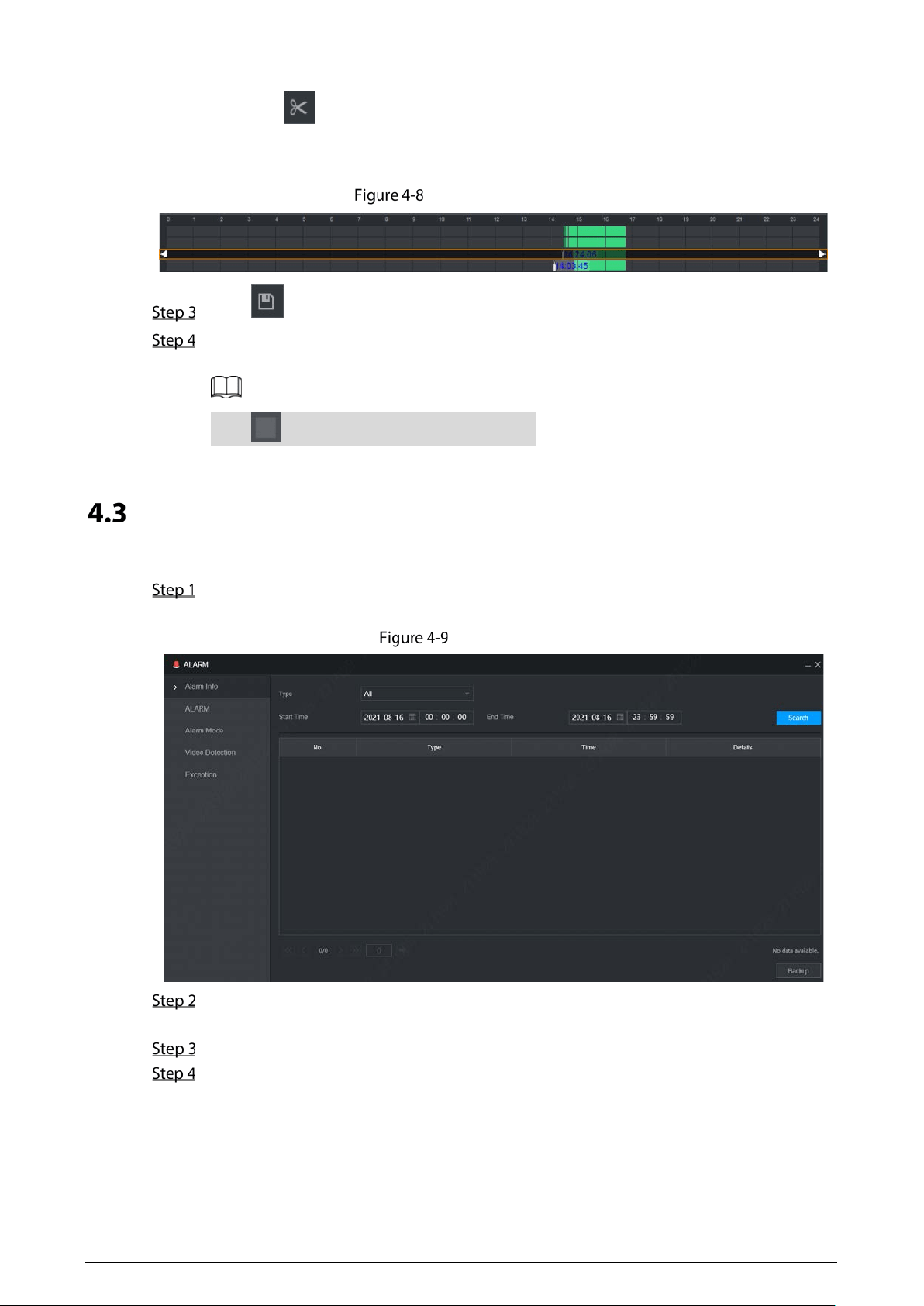
Click File List.
The video recordings are displayed in the list. See Figure 4-7.
File List
Set the start time of the file to be searched for, and then click . The recording files are
displayed.
Double-click the video recordings to start playback.
4.2.4 Clipping Recording File
Clip a section Recorded Video File you do of 0 recorded video, and save it to PC message.
On the Search interface, select Mode, Date, and Record Type for concentration playback.
The corresponding search result is displayed.
Select a playback window.
Capture the video segment you need through the following methods:
Enter the start time and end time you need to edit in .
40
Click , and video clipping frame appears on the time bar. See Figure 4-8. Press the
record edit column (the white column on) and drag to the left or right, to select start time
and end time of clipping.
Video clipping frame
Click to select save path.
Click OK.
The system begins to save the record file and displays the saving progress.
Click to stop downloading the recordings.
Alarm Info
You can view the alarm information during a fixed period.
On the main WEB interface, click Alarm > Alarm Info.
The Alarm Info interface is displayed. See Figure 4-9.
Alarm info (1)
Select Type to set the alarm type to be searched for, including All, Motion Detection, Video
Loss, Tampering, Exception, Local Alarm and Intelligent.
Enter the start time and end time.
Click Search.
Alarm information in the set type during the set period is displayed. See Figure 4-10.
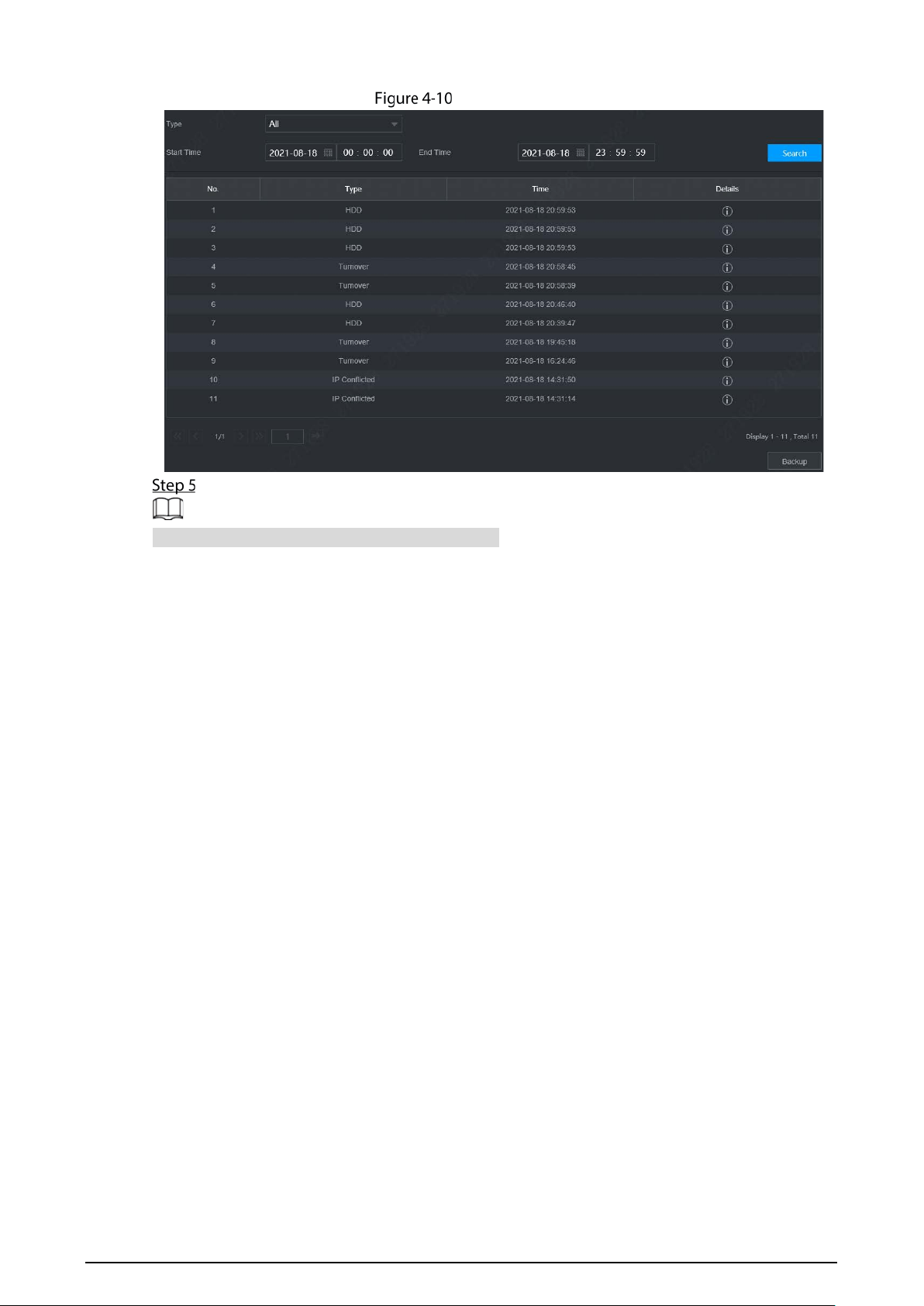
41
Alarm info (2)
Click Backup to back up the obtained alarm information to a local directory.
You need to install relevant controls before backup.
42
5 System Settings
You can set up system information following instructions on the Local interface or WEB interface. This
section introduces the WEB interface instructions. The Local interface is similar and would not be
elaborated here.
Some functions can only be configured on the Local interface. The actual interface shall prevail.
Some functions are not used in actual operations, so they are not described in detail in the
document.
In this section, when you have configured the settings for a channel, click Copy to apply the
settings to other channels. Click Refresh to display the latest configuration. Click Default to
restore to factory default settings.
Configuring Alarm Events
Alarm information settings include the setting of video detection, video alarm input and abnormality.
5.1.1 Video Detection
Video detection includes motion detection, video loss and tampering. This function detects the
abnormal changes and triggers alarms.
5.1.1.1 Video Motion
When the moving object appears and moves fast enough to achieve the preset sensitivity value, the
system triggers an alarm and alarm linkage.
On the main WEB interface, select Alarm > Video Detection > Motion Detect.
The Motion Detect interface is displayed. See Figure 5-1.
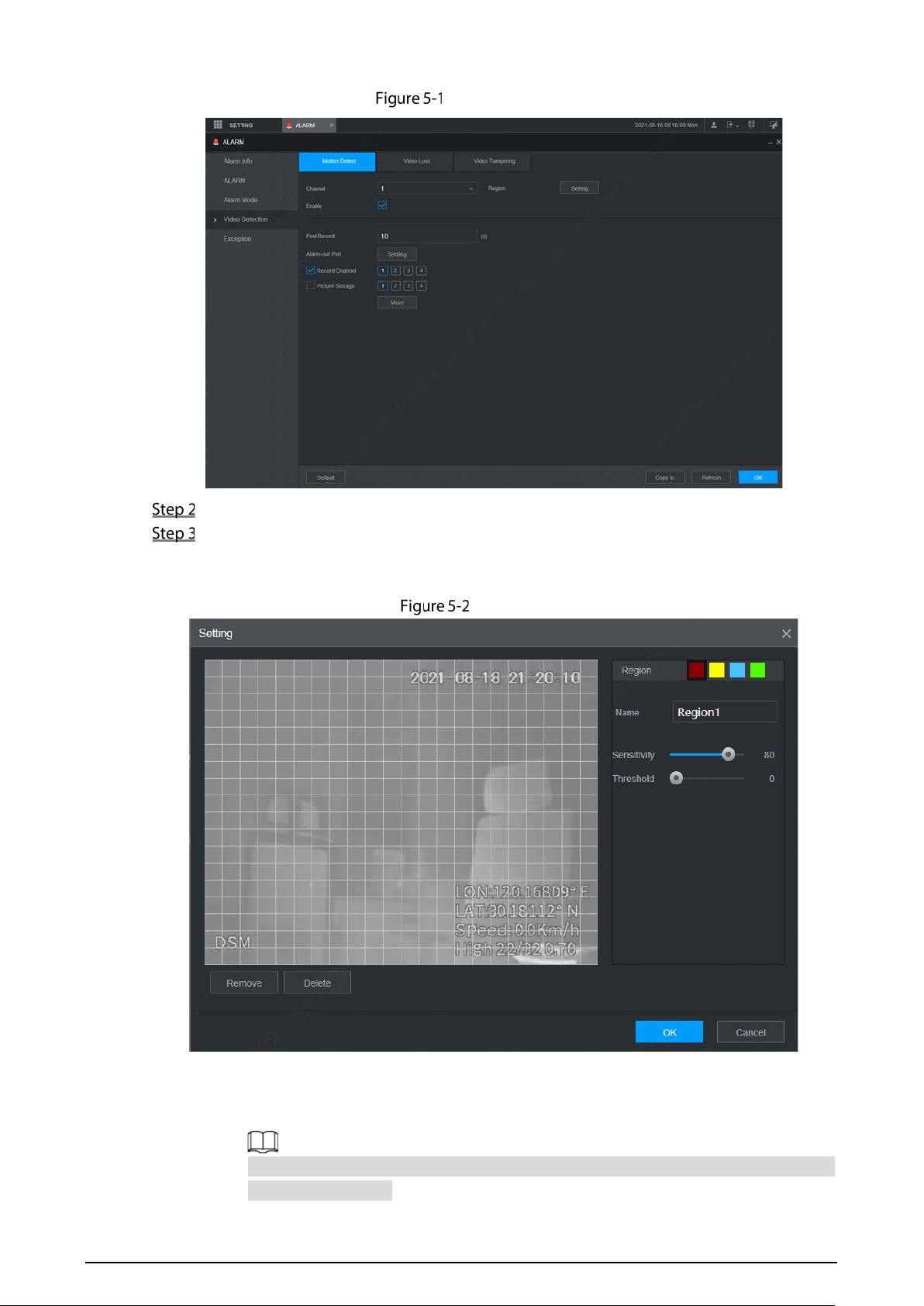
43
Motion Detect
Select the channel number and select Enable to enable the motion detection for the channel.
Set motion detection region.
1) Next to Region, click Setting.
The Setting interface is displayed. See Figure 5-2.
Setting
2) The higher the sensitivity value is, the easier the motion detection is triggered; the lower
the threshold is, the easier the motion detect is triggered. By default, the whole video
image is for motion detect.
Each color represents different region and you can define different motion detection
areas for each region.

44
3) Hold down the left button of the mouse, drag to select the region to be detected, and
set up its sensitivity and threshold value.
Channel alarm events: As long as any one of the four regions triggers alarm, the channel
that houses the region will give alarm.
4) Click OK to finish configuration.
Configure alarm linkage parameters. See Table 5-1 for details.
Table 5-1 Relay activation parameter description
Parameter Description
Post-
Record
The record keeps running for the defined time after alarm is ended.
Record
Channel
Select the Record Channel check box and select a record channel(s), when an
alarm event occurs, the corresponding channel starts recording automatically.
Two more conditions must be satisfied before alarm recording function works:
The motion detection recording is enabled. For details, see “3.7.1 Record.”
The auto recording is enabled. For details, see “3.6 Configuring Record Mode.”
Anti-dither
Click More to set the anti-dither time.
The system records only one event during this period.
Log
Click More, and select the corresponding check box to enable the device to create
a local alarm log when an alarm event occurs.
Send Email
Click More, and select the corresponding check box. When an alarm event occurs,
the system sends email to the specified mailbox.
Set your e-mail first before enabling this function. See “5.5.4 Email” for detailed
operations.
Click OK.
5.1.1.2 Video Loss
When video loss occurs, the system triggers an alarm and configured actions.
On the main WEB interface, select Alarm > Video Detection > Video Loss.
The Video Loss interface is displayed. See Figure 5-3.

45
Video Loss
Select Channel and select Enable to enable the video loss detection for the channel.
Configure alarm linkage parameters. See Table 5-1 for details.
Click OK.
5.1.1.3 Video Tampering
When the camera lens is covered, or the video is displayed in a single color because of the causes such
as sunlight status, the monitoring cannot be continued normally, and in this case, the system activates
alarm and links the configured actions.
On the main WEB interface, select Alarm > Video Detection > Video Tampering.
The Video Tampering interface is displayed. See Figure 5-4.
Video tampering
46
Select Channel and select Enable to enable the video tampering detection for the channel.
Set the sensitivity of detection.
The higher the sensitivity, the easier it is to detect a moving object, but the false alarm rate
might increase.
Configure alarm linkage parameters. See Table 5-1 for details.
Click OK.
5.1.2 Alarm Input
Select different types of input according to alarm sources and set alarm output mode.
On the main WEB interface, select Alarm > Alarm.
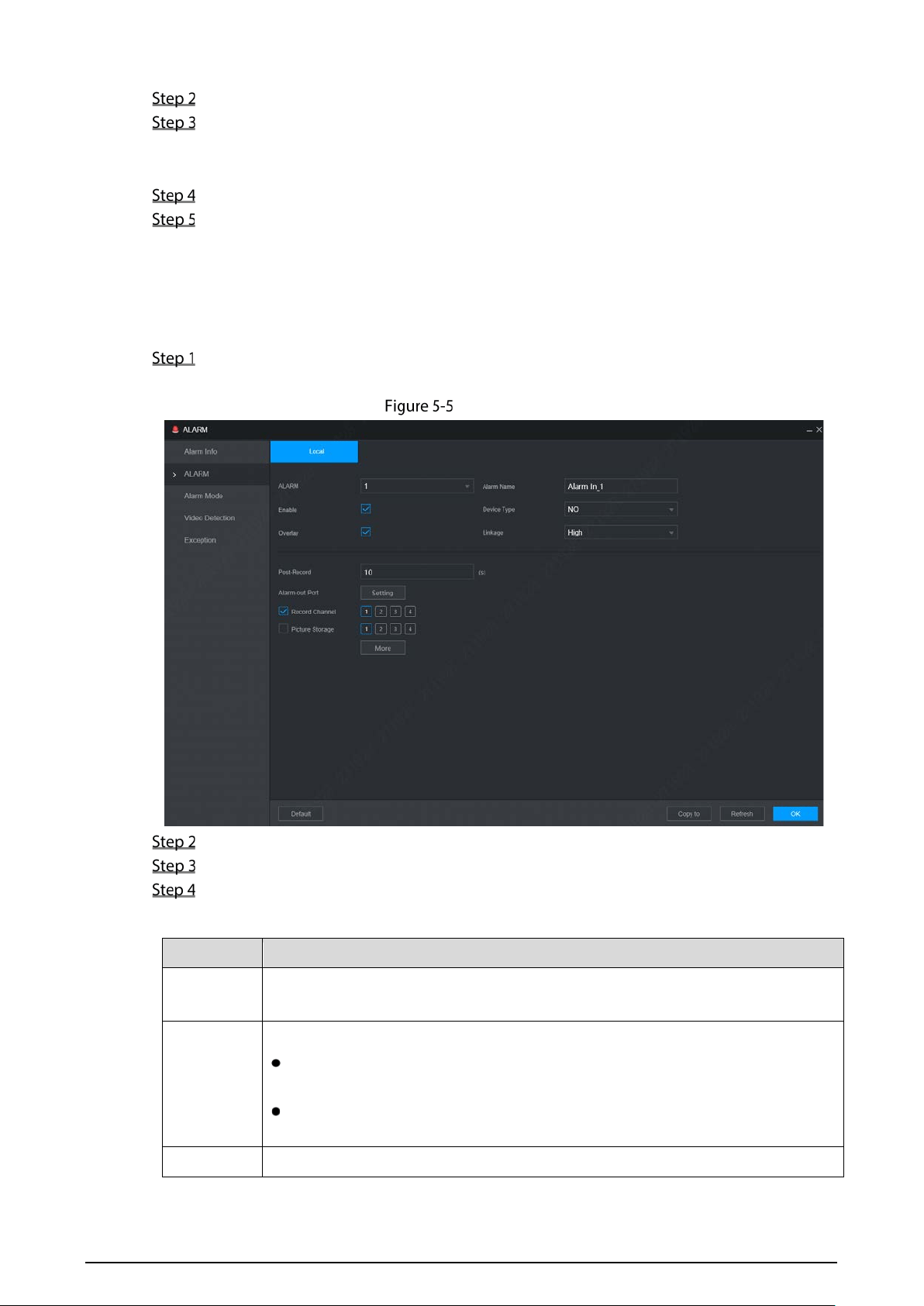
The Alarm interface is displayed. See Figure 5-5.
Alarm input
Local Alarm: The alarm signal detected by the alarm input port on the device.
Select the channel number and select Enable.
Configure parameters. For details, see Table 5-2.
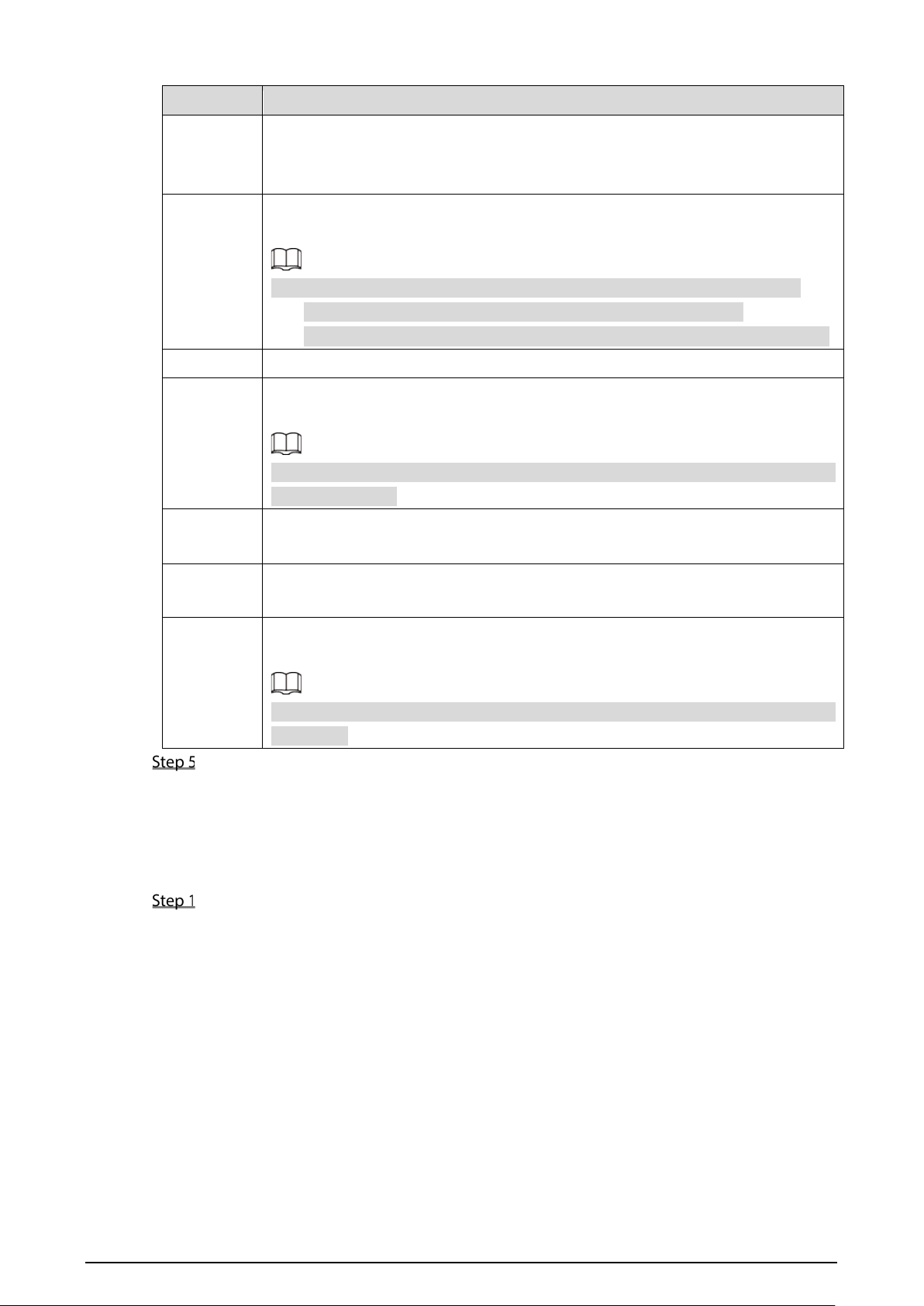
Table 5-2 Alarm parameters description
Parameter Description
Alarm
Name
Enter a customized alarm name.
Device Type
If the Event Type is Local Alarm, configure this parameter.
NO: The alarm signal is disconnected normally. The alarm is triggered when
alarm signal is connected.
NC: The alarm signal is connected normally. The alarm is canceled when alarm
signal is disconnected.
Overlay
Select the Overlay check box to overlay alarm names onto channel images.
47
Parameter Description
Linkage
If the Event Type is Local Alarm, configure this parameter.
If the alarm signal is 12V/24V voltage, select High as the triggering mode; if the
alarm signal is ground voltage, select Low as the triggering mode.
Record
Channel
Select the Record Channel check box and select a record channel(s), when an
alarm event occurs, the corresponding channel starts recording automatically.
Two more conditions must be satisfied before alarm recording function works:
The recording for alarm is enabled. For details, see “3.7.1 Record.”
The auto recording is enabled. For details, see “3.6 Configuring Record Mode.”
Post-Record The video recording will not stop until the record delay time you set has passed.
Picture
Storage
Select the corresponding check box and set the channel. When an alarm event
occurs, the corresponding channel starts capturing automatically.
You can also configure the frequency, size, and quality of snapshot. For details, see
“5.4.2.2 Snapshot.”
Anti-dither
Click More to set the anti-dither time.
The system records only one alarm input event during this period.
Log
Click More, and select the corresponding check box to enable the device to create
a local alarm log when an alarm event occurs.
Send Email
Click More, and select the corresponding check box. When an alarm event occurs,
the system sends email to the specified mailbox.
Set your e-mail first before enabling this function. See “5.5.4 Email” for detailed
operations.
Click OK.
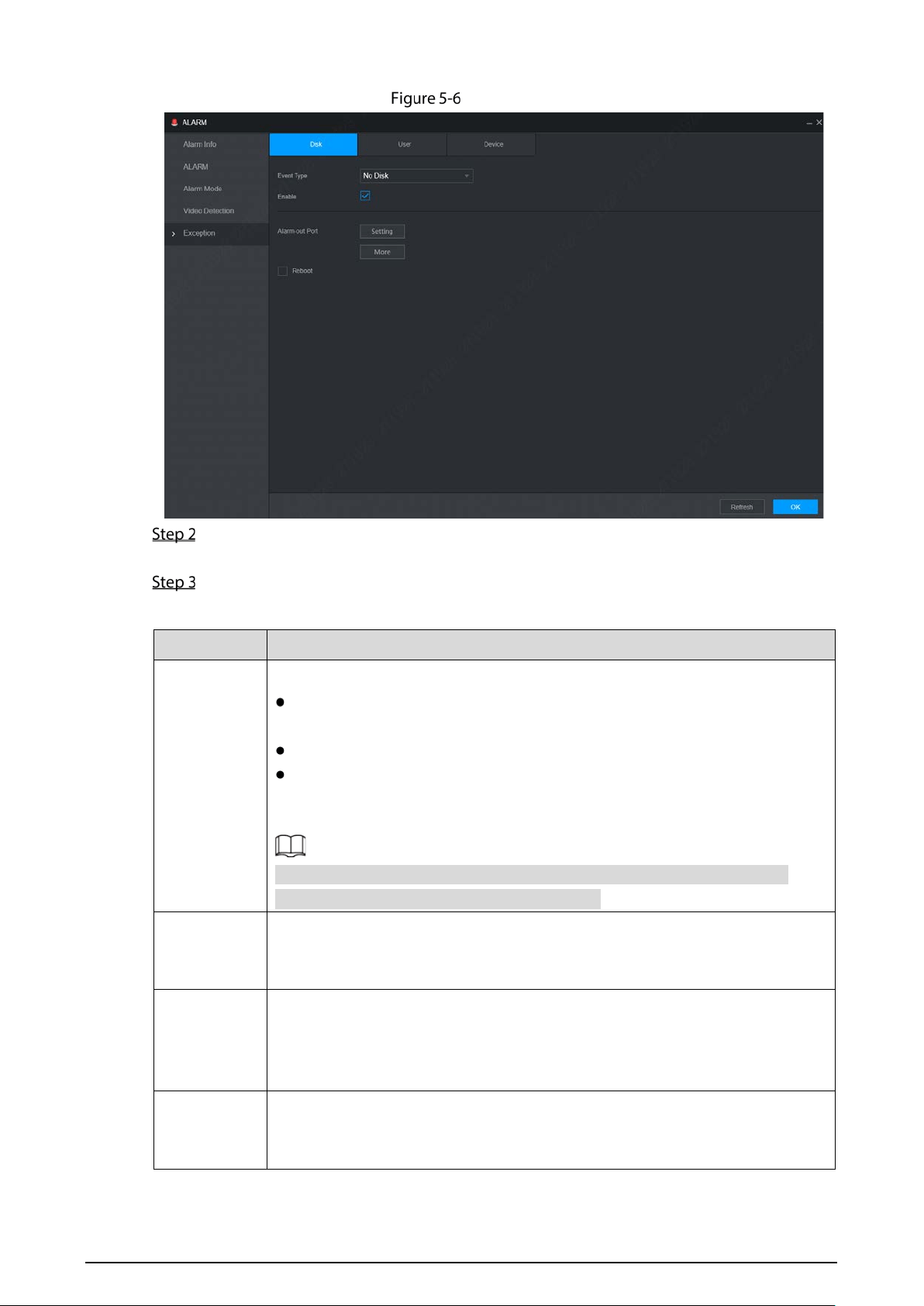
5.1.3 Exception
You can configure the ways to handle the device when errors occur.
On the main WEB interface, select Alarm > Exception.
The Exception interface is displayed. See Figure 5-6.
48
Exception
Select the event type, and select Enable to enable the handling of corresponding abnormal
events.
Configure parameters. For details, see Table 5-3.
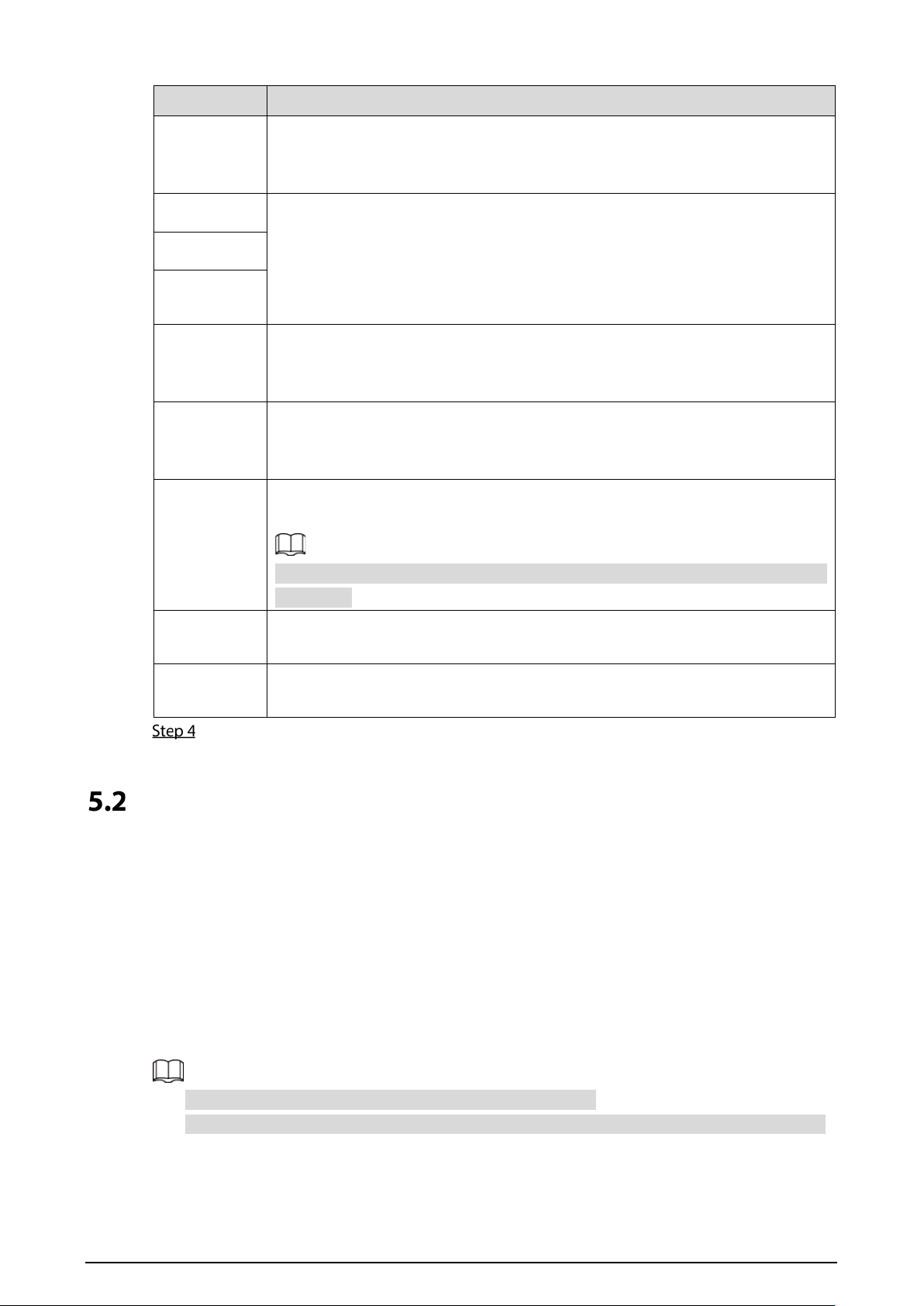
Table 5-3 Abnormal event parameters description
Parameter Description
Event Type
You can configure the corresponding abnormal events on following three tabs.
HDD: To set the ways to handle abnormal HDD events, including No Disk, HDD
Error, Low Space.
User: Includes illegal login.
Device: To set the ways to handle abnormal device events, including
Temperature Too High, Lo
w Battery Safety Exception, Network Security
Exception, Over Speed, Low Speed, Collision, and Rollover.
The supported event type might be different depending on the model you
purchased, and the actual interface shall prevail.
Low Than
Select Disk tab, and if the Event Type is Low Space, configure this parameter.
You can set the percentage of HDD remaining space. When HDD remaining space
is lower than this percentage, an alarm will occur.
Attempt(s)
If the Event Type is Illegal Login, configure this parameter.
The maximum number of allowed password input errors during user login. If the
number of password input errors reaches this value, the user account will be
locked.
Lock Time
If the Event Type is Illegal Login, configure this parameter.
If the number of password input errors reaches this value, the user account will
be locked.
49
Parameter Description
Max
Temperature
If the Event Type is High Temperature, configure this parameter.
Enter the upper limit of device temperature. The alarm is triggered when the
device temperature exceeds this value.
Low Than
If Event Type is Battery Low Space, configure this parameter.
The supply voltage to the device from the vehicle and the percentage of
available supply voltage capacity. When the vehicle is in ACC Off, and the voltage
supplied to the device is less than the percentage of available capacity, the
system triggers an alarm.
Auto
Battery
Voltage
Max Speed
If the Event Type is Over Speed, configure this parameter. The upper limit of
vehicle speed. When the vehicle speed exceeds this value, the system triggers an
alarm.
Min Speed
If Event Type is Low Speed, configure this parameter. The lowest limit of vehicle
speed. When the vehicle speed is lower than this value, the system triggers an
alarm.
Send Email
Click More, and select the corresponding check box. When an alarm event
occurs, the system sends email to the specified mailbox.
Set your e-mail first before enabling this function. See “5.5.4 Email” for detailed
operations.
Log
Information
Click More, and select the corresponding check box to enable the device to
create a local alarm log when an alarm event occurs.
Auto Reboot
Select the Reboot check box. If No HDD alarm occurs, the system restarts within
three minutes.
Click OK.
Configuring AI Plan
AI solution mainly contains active and safe drive. Only when the smart solution is enabled and set can
the corresponding function take effect.
ADAS: Advanced Driver Assistance System for detecting Lane Departure, Vehicles Too Close and
Vehicle Collision pre-warnings, and alarm linkage is triggered and reported to the platform.
DSM: The system can analyze and process the driver behavior information collected by cameras,
and detect actions such as lowering head, yawning, smoking, looking around, and leaving
position.
Left items recognition: The function of left items recognition can intelligently identify items left
in the rear seat, alert when items are detected and upload the platform.
You can enable up to three smart functions at the same time.
The camera installation takes some models as the examples, and the actual model shall prevail.
50
5.2.1 Configuring ADAS
ADAS alarms mainly include Forward Collision Warning, Lane Departure Warning and Headway
Monitoring Warning.
Front-view smart function includes green light reminder, ahead car move reminder, speed limit
reminder and yielding to pedestrian reminder.
Access to cornering lamp signal in advance: Alarm Input_2 (turn left), Alarm Input_3 (turn right).
After the cornering lamp of the vehicle is turned on, no Lane Departure alarm will be triggered.
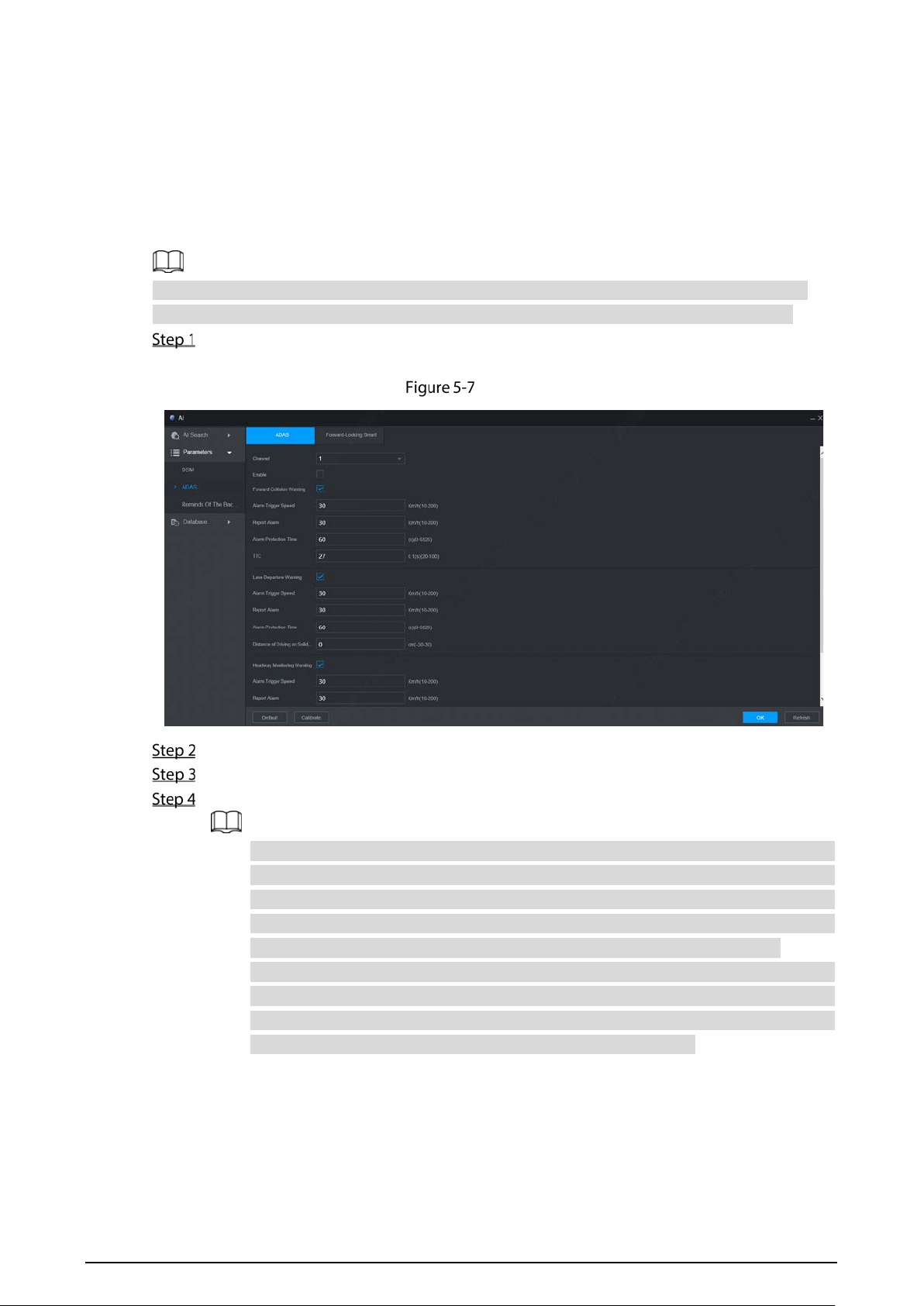
On the main WEB interface, click AI > Parameters > ADAS.
The ADAS interface is displayed. See Figure 5-7.
ADAS
Click Enable and OK to enable the ADAS alarm.
Click Calibrate.
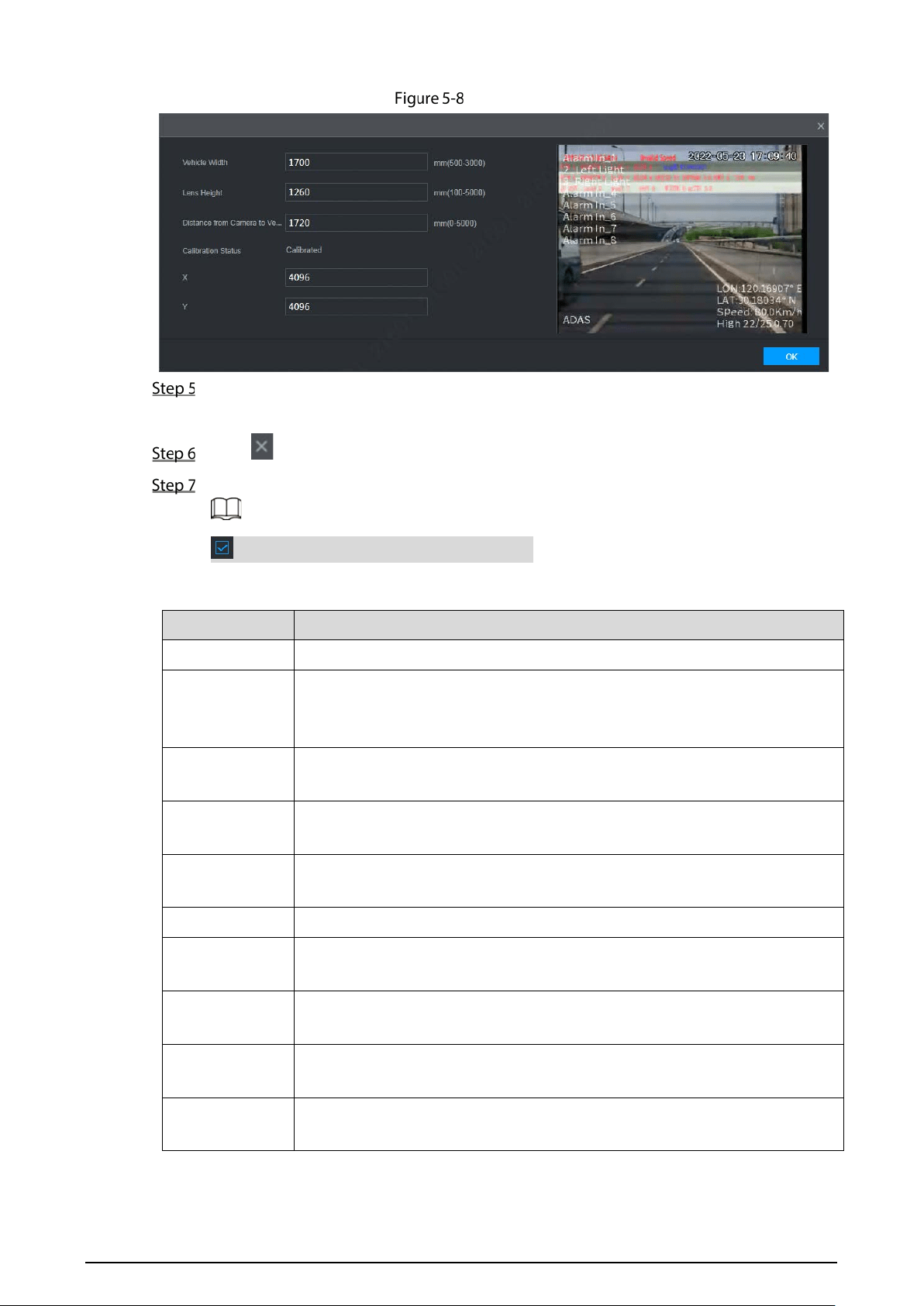
The Calibrate interface is displayed. See Figure 5-8.
Driver assistance relies on the camera installation location, and cannot be used until the
calibration is completed. Try to install the camera in the middle of the windshield. When
configuring parameters, measure the width of the vehicle, the height of the camera, and
the distance from the camera to the vehicle head in advance. After the vehicle travels
for a certain period of time, the device will automatically calibrate the position.
The X value represents the installation yaw angle of the camera, and the range is 2958-
5233; The Y value represents the installation pitch angle of the camera, and the range is
3872-4320. If the parameters exceed the above range, the system will judge that the
camera installation angle is unreasonable and the calibration fails.
51
Calibrate
Enter the vehicle width, the lens height and the distance from the camera to the vehicle head,
and click OK to complete the calibration.
Click to return to the Figure 5-8 interface.
Configure parameters. For details, see Table 5-4.
means the corresponding alarm is enabled.
Table 5-4 ADAS parameter description
Parameter Description
Channel ADAS is fixed to channel 1.
Forward
Collision
Warning
Give a warning if it is possible to collide with the vehicle in the front.
Alarm Trigger
Speed
The speed at which the Forward Collision Warning is triggered: The range is
10km/h–200km/h.
Report Alarm The speed at which the Forward Collision Warning is uploaded: The range is
10km/h–200km/h.
Alarm Protection
Time
Alarm interval time: The range is 0s–6525s.
TTC Time to collision: The range is 2s–10s.
Lane Departure
Warning
Alarm when the vehicle directly changes the lane without turning on the left
or right cornering lamp.
Alarm Trigger
Speed
The speed at which the Lane Departure Warning is triggered: The range is
10km/h–200km/h.
Report Alarm The speed at which the Lane Departure Warning is uploaded: The range is
10km/h–200km/h.
Alarm Protection
Time
Alarm interval time: The range is 0s–6525s.
52
Parameter Description
Distance of
Driving on Solid
Line
Set the distance of driving on solid line: The range is -30cm–30cm.
Headway
Monitoring
Warning
Alarm when the vehicle is too close to the vehicle in the front.
Alarm Trigger
Speed
The speed at which the Headway Monitoring Warning is triggered: The range
is 10km/h–200km/h.
Report Alarm The speed at which the Headway Monitoring Warning is uploaded: The range
is 10km/h–200km/h.
Alarm Protection
Time
Alarm interval time: The range is 0s–6525s.
Vichele Ahead
Start
Remind when the front car starts from stopping.
Alarm Protection
Time
Alarm interval time: The range is 0s–65536s.
TTC Time to collision: The range is 1s–10s.
Click OK.
5.2.2 Configuring DSM
DSM alarms mainly include drowsy driving, distracted driving, calling, no driver, wearing IR-blocking
sunglasses, smoking, lens tampering, unbelted alarm. After being triggered, these alarms require
voice broadcast and upload to the platform.
5.2.2.1 Installing DSM camera
Precautions
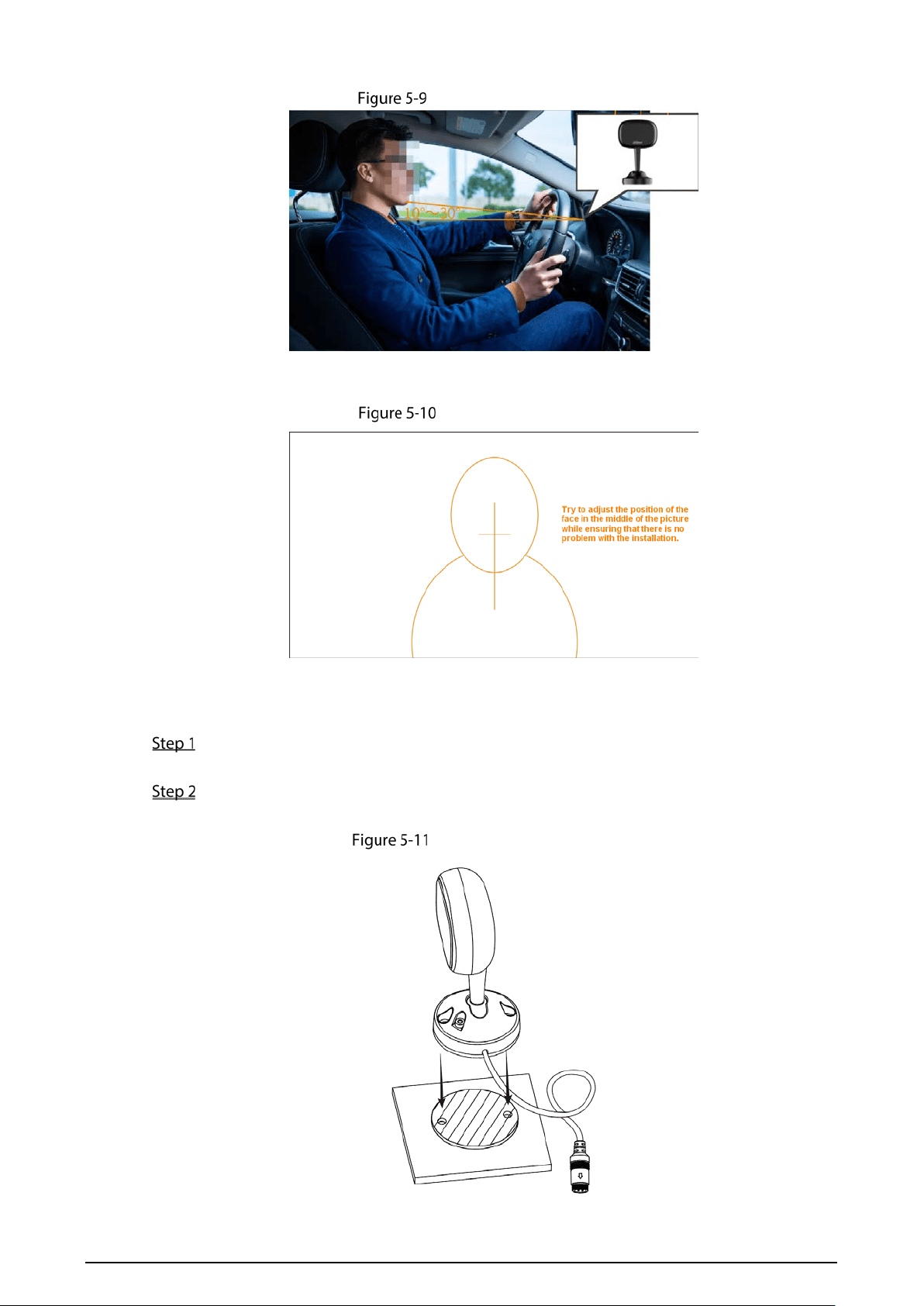
The elevation angle range between the camera lens and the horizontal line below the face should
be 10° ~ 30°, and the camera should be 80cm ~ 90cm away from the face.
53
Installation position
When installing the camera, it is necessary to ensure that the face is in the picture. If the face is
incomplete or not in the picture after bowing, the detection may be invalid.
Face in the picture
Procedure
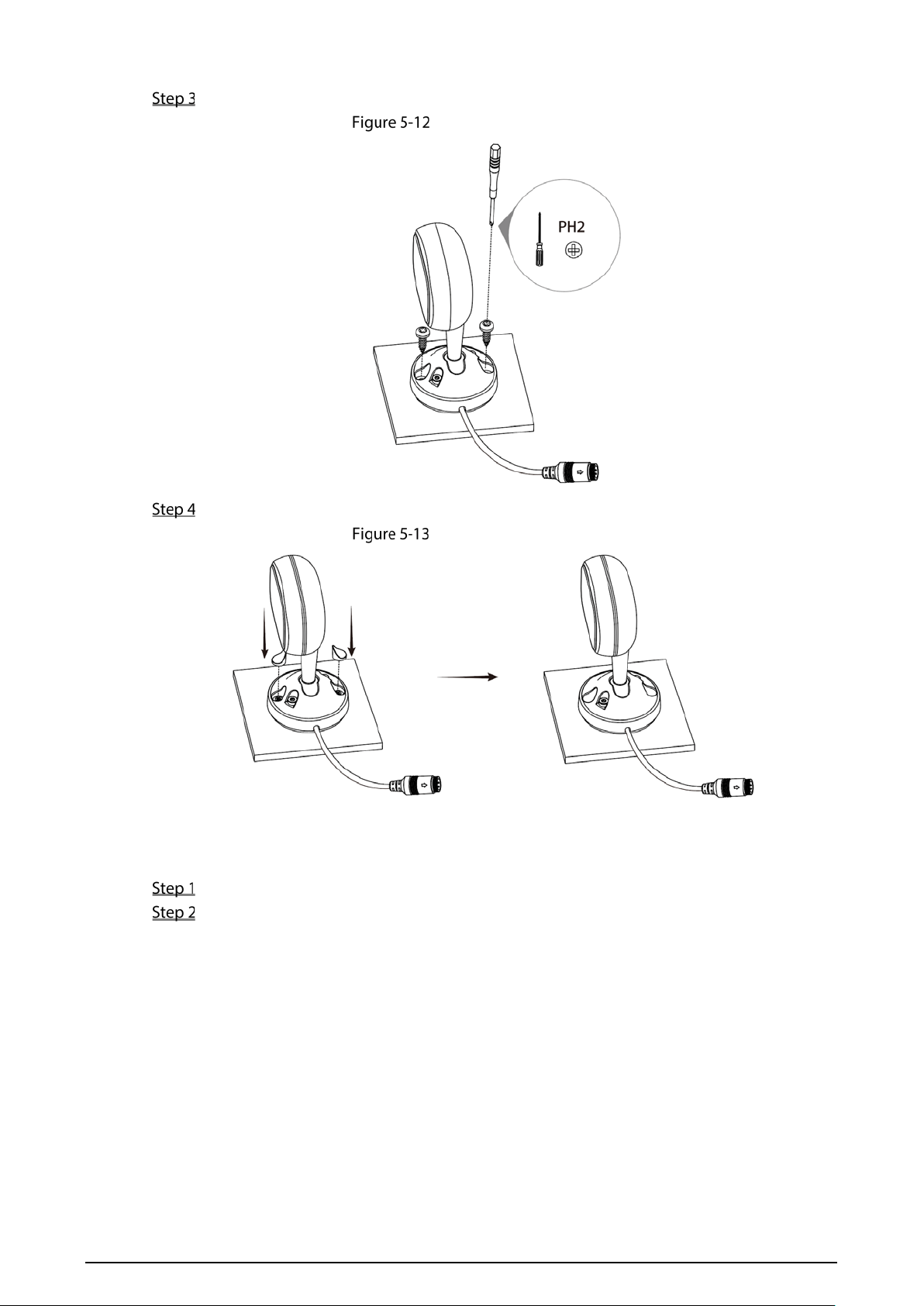
Take out 3M glue from the equipment accessories and stick 3M glue to the camera base (the
cable is led out from the side).
Paste the camera onto the mounting surface according to the monitoring position of the
camera.
Installing camera (1)
54
Use PH2 screwdriver to insert two ST4 × 15 screws into the mounting hole.
Installing camera (2)
Insert the self-tapping screw hole plug into the screw hole.
Installing camera (3)
Adjusting angle
Connect the cable to the DSM port of the dash camera.
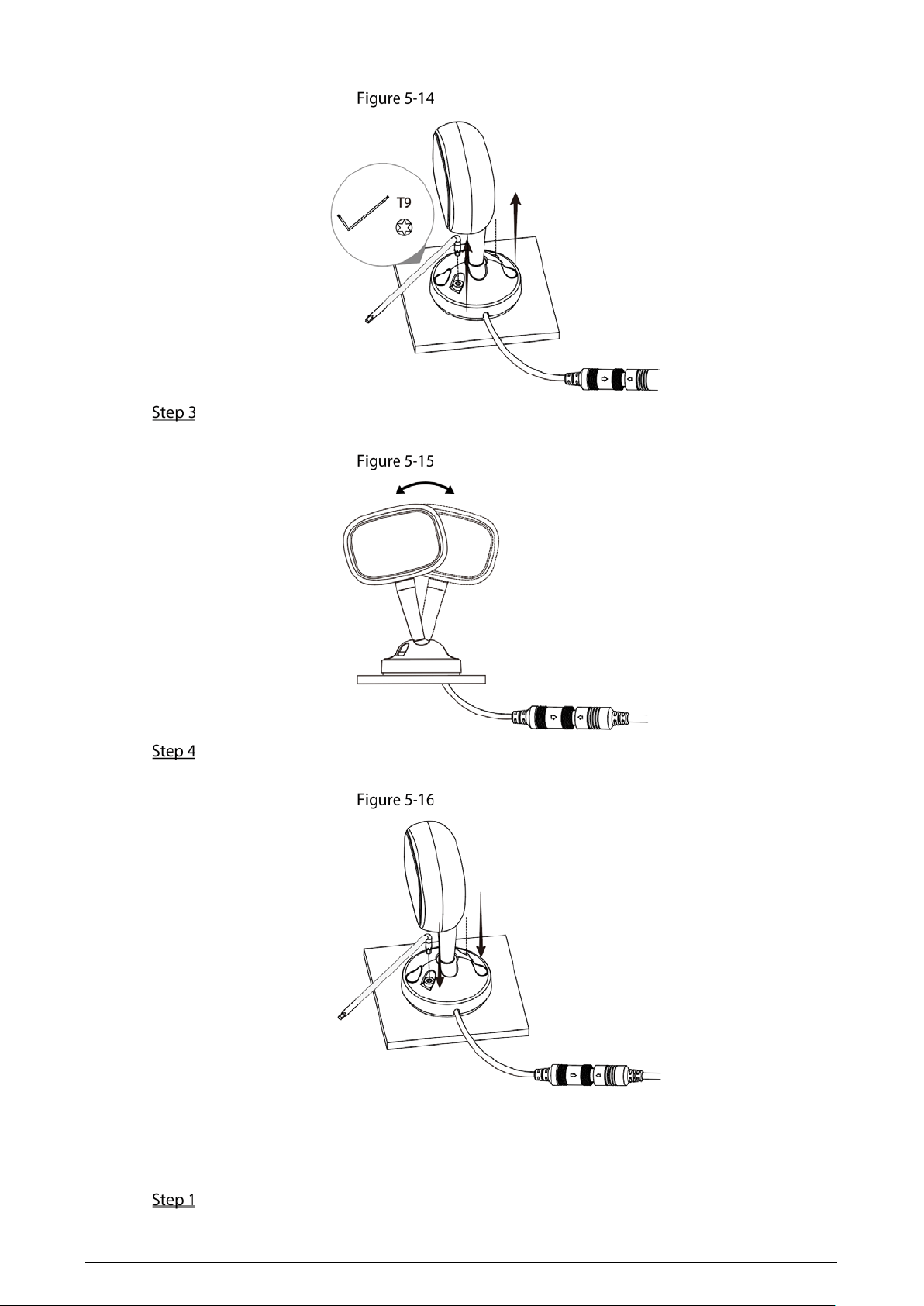
Use a T9 wrench to loosen the fixing screw of the camera ball joint rod.
55
Adjusting angle (1)
After the image is displayed on the local display screen, adjust the lens angle to the
appropriate monitoring position.
Adjusting angle (2)
Tighten the fixing screws of the camera ball joint rod.
The installation is completed.
Adjusting angle (3)
5.2.2.2 Configuring Parameters
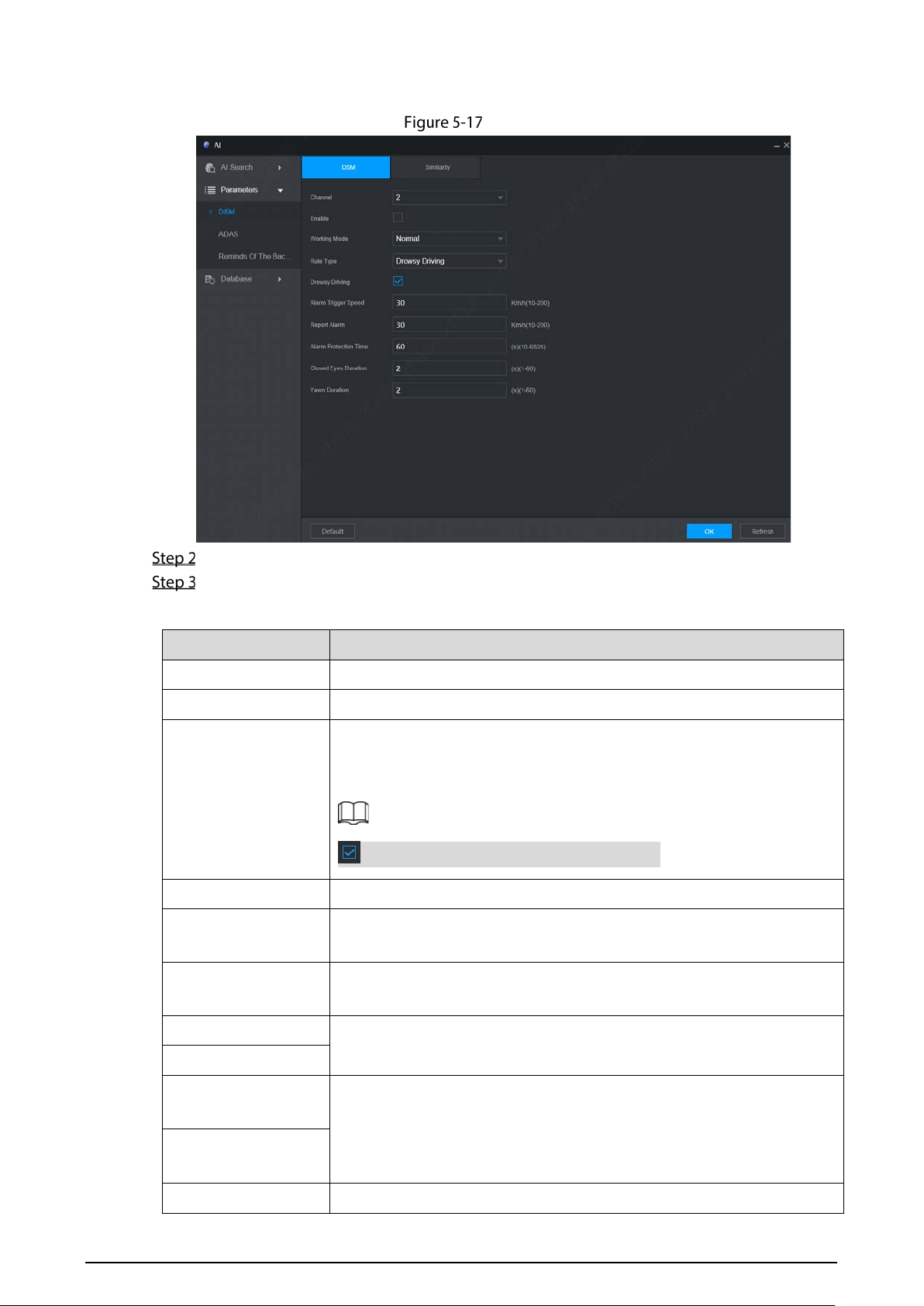
On the main WEB interface, click AI > Parameters > DSM.
56
The DSM interface is displayed. See Figure 5-17.
DSM
Click Enable to enable the DSM alarm.
Configure parameters. For details, see Table 5-5.
Table 5-5 DSM parameter description
Parameter Description
Channel The DSM is fixed to channel 2.
Working Mode Vehicle working modes include normal mode and test mode.
Rule Type
For alarm rules, you can select drowsy driving, distracted driving, calling
when driving, driver not in position, wearing infrared-blocking sunglasses,
smoking when driving, camera being shielded and not wearing seat belt.
means the corresponding alarm is enabled.
Alarm Trigger Speed The speed at which the alarm is triggered: The range is 10km/h–200km/h.
Report Alarm The speed at which the alarm is uploaded: The range is 10km/h–
200km/h.
Alarm Protection
Time
Time of alarm protection: The range is 10s–6525s.
Closed Eyes Duration
Setting is necessary when the rule type is Drowsy Driving: The range is
1s–60s.
Yawn Duration
Lowering Head
Duration
Setting is necessary when the rule type is Distracted Driving: The range
is 1s–60s.
Looking around
Duration
Calling Duration
Setting is necessary when the rule type is Calling: The range is 1s–60s.
57
Parameter Description
Duration without
Driver
Setting is necessary when the rule type is No Driver: The range is 1s–60s.
Duration of Wearing
IR Blocking
Sunglasses
Setting is necessary when the rule type is Wearing IR Blocking
Sunglasses: The range is 1s–60s.
Smoking Duration
Setting is necessary when the rule type is Smoking: The range is 1s–60s.
Tampering Duration
Setting is necessary when the rule type is Lens Tampering: The range is
1s–60s.
Not Wearing Seatbelt
Duration
Setting is necessary when the rule type is Unbelted Alarm: The range is
1s–60s.
Click OK.
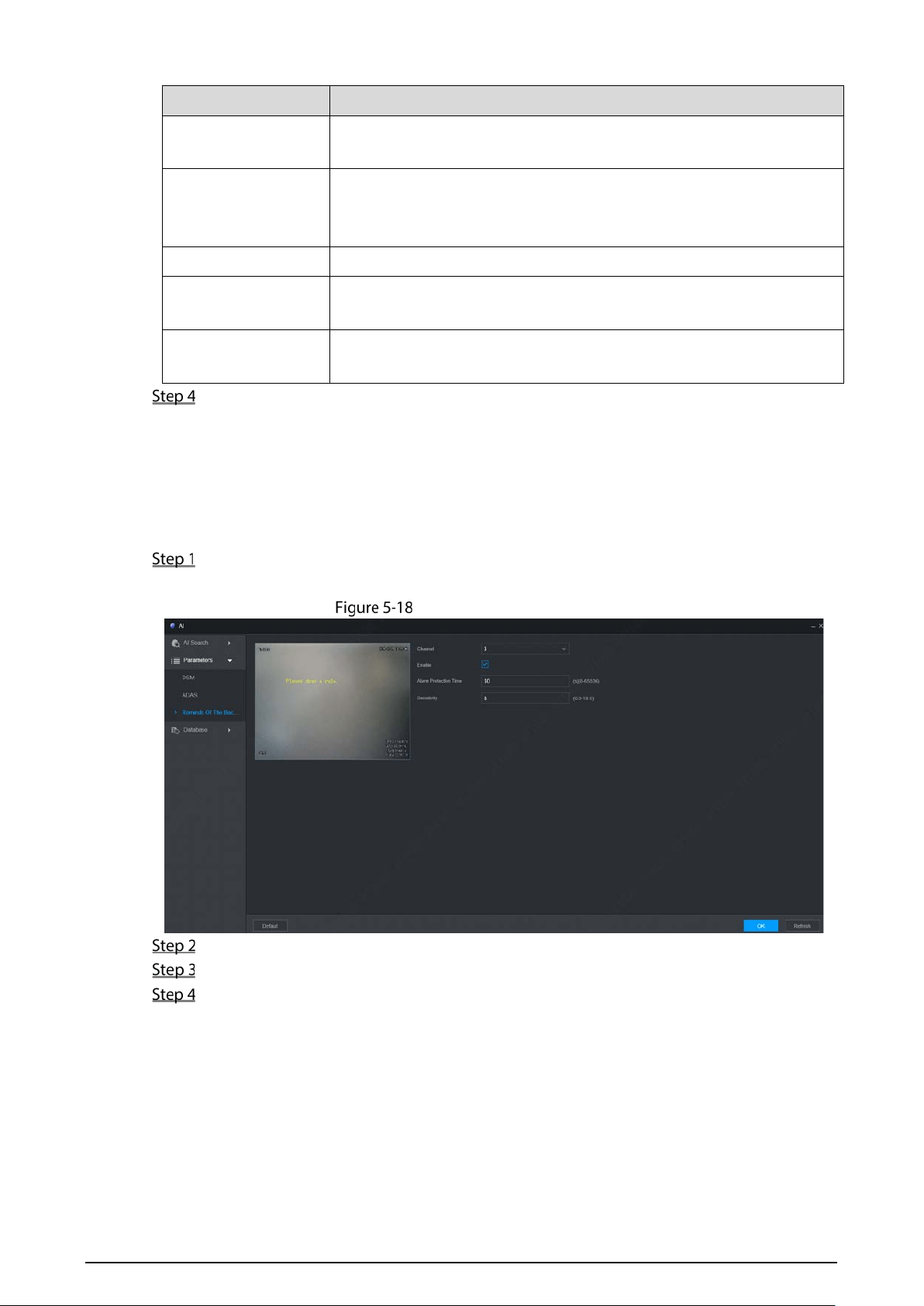
5.2.3 Configuring Reminds of the Back Row
The function of left items recognition can intelligently identify items left in the rear seat, alert when
items are detected and upload the platform.
On the main WEB interface, click AI > Parameters > Reminds of the Back Row
The Reminds of the Back Row interface shown as Figure 5-18 is displayed.
Reminds of the Back Row
Click Enable, “Please draw a rule” appears on the screen.
Draw the area range which needs to be detected. See Figure 5-19.
Click OK.
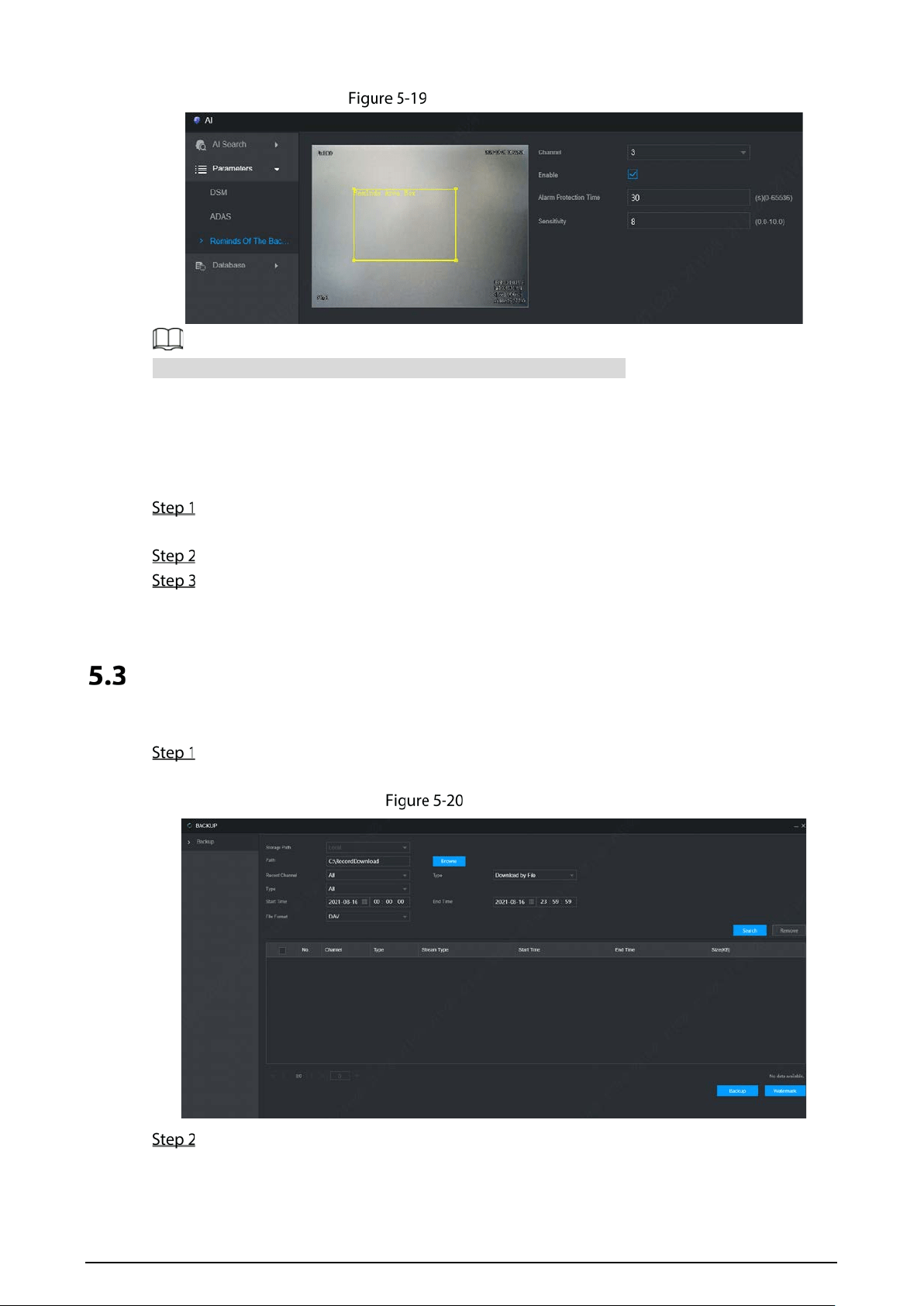
58
Area box of left items
Select a channel from Channel 3 to Channel 4 to enable the detection.
5.2.4 AI Search
Users can set up search parameters and screen out specific alarm recordings for playback.
On the main web interface, select AI > AI Search.
Select DSM, ADAS or Reminds of the Back Row.
Select the channel, start time and end time.
Click Search.
The search result is displayed.
File Backup
Configuring Backup of Video and Picture.
On the main WEB interface, click Backup.
The Backup interface is displayed. See Figure 5-20.
Backup (1)
Configure parameters. For details, see Table 5-6.
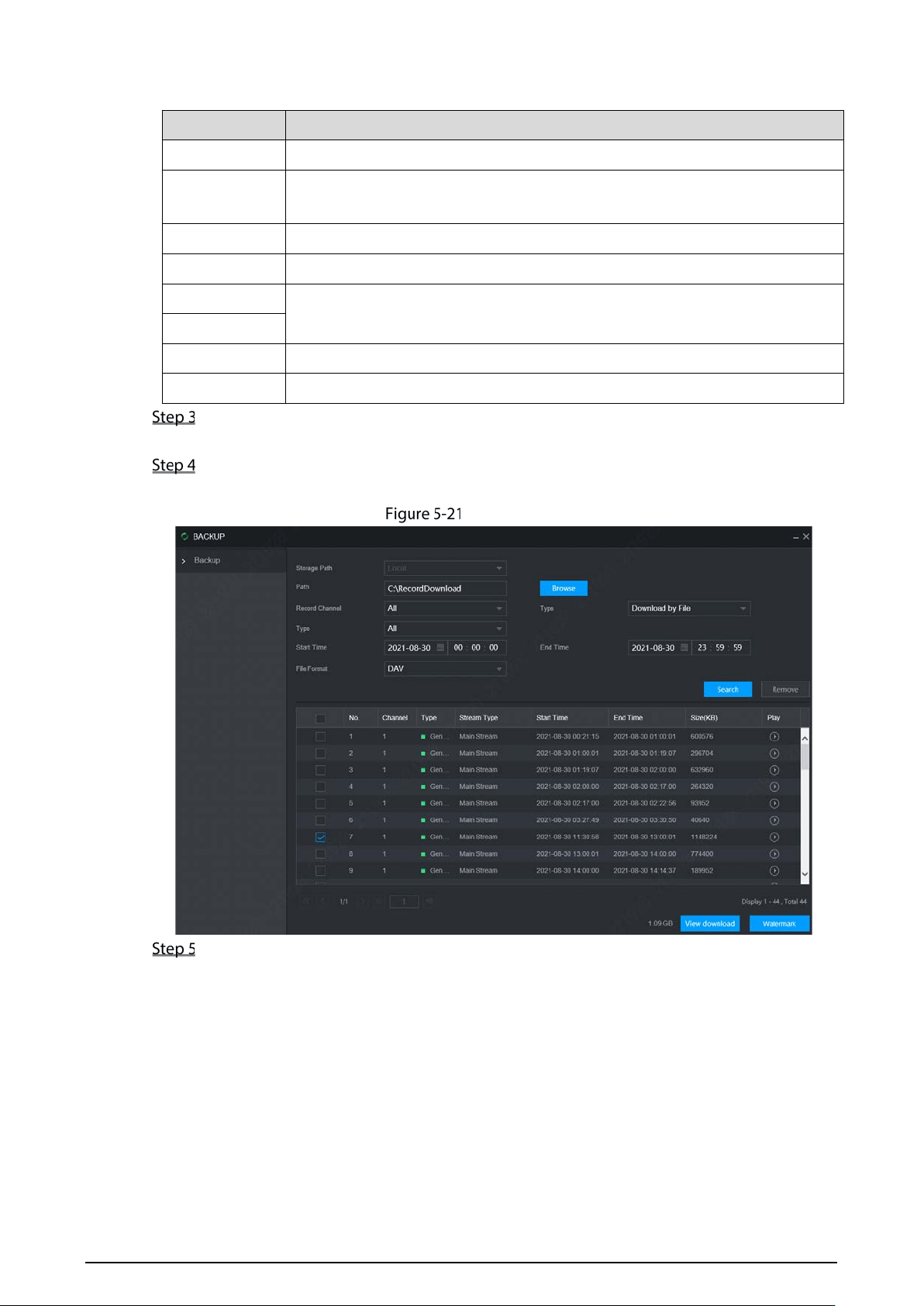
59
Table 5-6 Backup parameters description
Parameters Description
Storage Path Only local address is supported.
Path
File backup path is C:/RecordDownload by default.
Click Browse to set the backup path as needed.
Record Channel Select the channel you want to back up.
Download Type Select the backup type, including download by file and download by time.
Start Time
Set the file backup period.
End Time
File Format Select the backup file format, including DAV and MP4.
Recording Type Select the record type, including All, Alarm, Motion, M&A, General and picture.
Click Search.
The obtained files are displayed.
Select the file that you want to back up, and click Backup.
The Backup button is changed to View Download now. See Figure 5-21.
Download
Click View Download.
The View Download interface is displayed. See Figure 5-22.
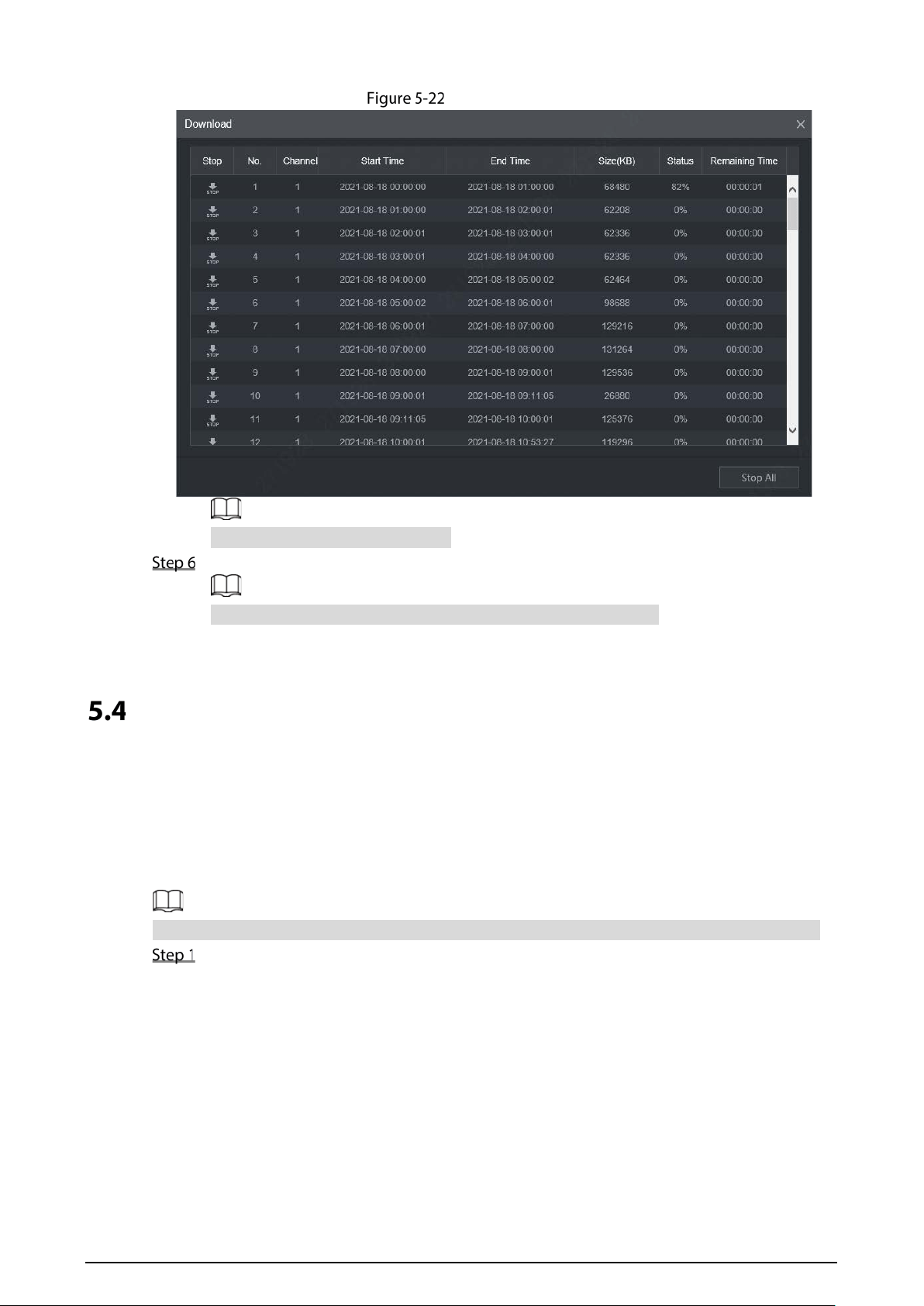
60
View Download
Click Stop All to stop downloading.
(Optional) Select the file that you want to verify, and click Watermark.
Watermark can be used to verify whether the record file is falsified.
The verifying progress and result are displayed.
Configuring Camera Parameters
You can set camera properties and encode parameters.
5.4.1 Configuring Image Properties
You can set up the image property parameters of the channel.
Different cameras correspond to different property parameters. The actual parameters shall prevail.
Select Setting > Camera > Image.
The Image interface is displayed. See Figure 5-23.
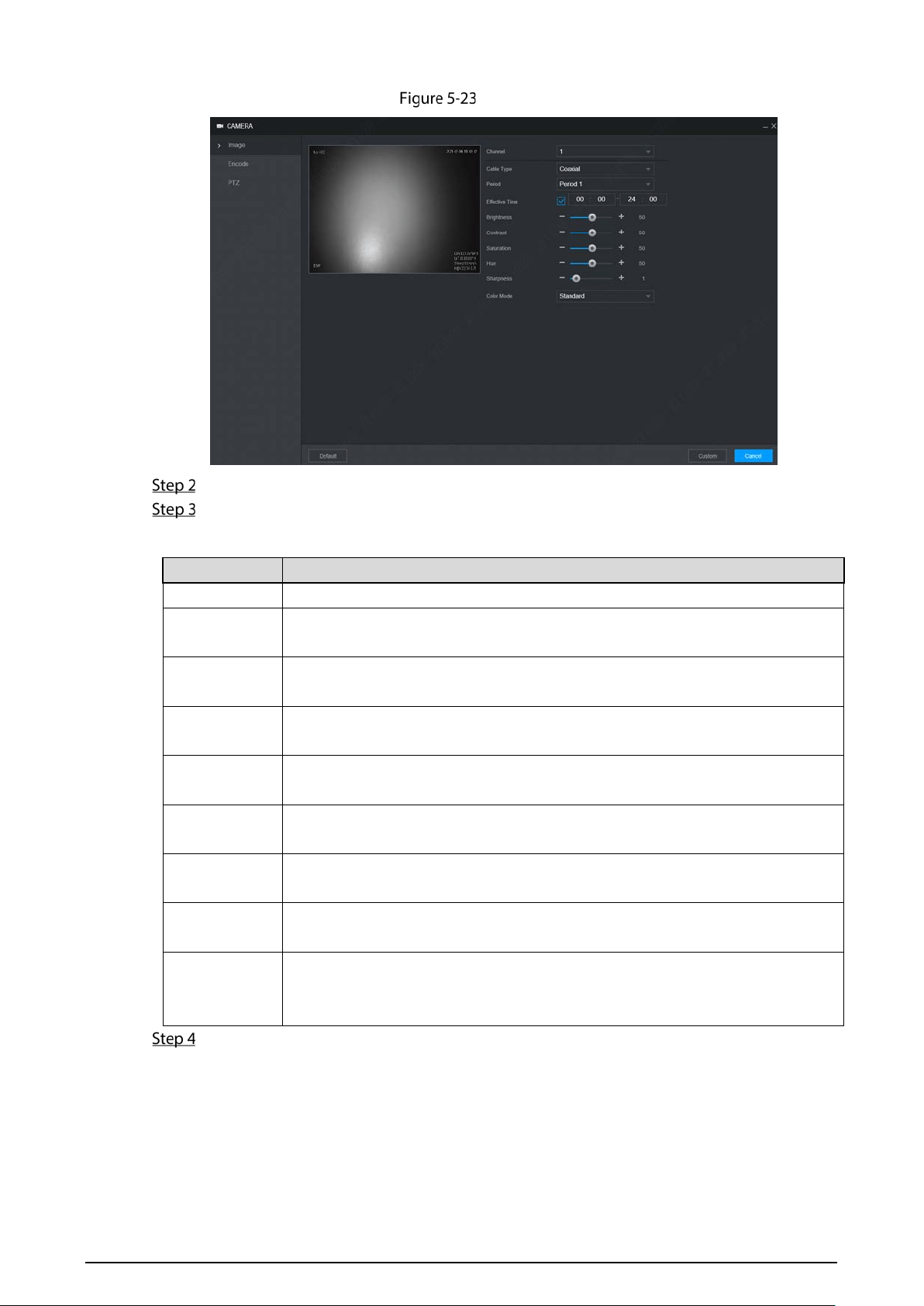
61
Image
Select a Channel.
Configure parameters. For details, see Table 5-7.
Table 5-7 Image properties parameters description
Parameter Description
Cable Type The cable type is fixed to coaxial.
Period
Select the period. There are two Periods for you.You should set up the Effective
Time for different periods.
Brightness
Adjusts the image brightness through linear mode. The bigger the value is, the
brighter the image will become.
Contrast
Adjust the image contrast. The bigger the value is, the more obvious the contrast
between the light area and dark area will become.
Saturation
Adjusts the color darkness. Adjust the saturation according to the actual
situation. The bigger the value, the lighter the color of the image will become.
Hue
Adjusts the color hue. Adjust the hue according to the actual situation. The
bigger the value, the colder the color of the image will become.
Sharpness
Set the sharpness of picture edges. The bigger the value is, the more obvious the
image edge will become.
Hue
Adjusts the color darkness. Adjust the saturation according to the actual
situation. The bigger the value, the lighter the color of the image will become.
Color Mode
Select the color mode. There are 5 preinstall modes you can choose, or you can
set 4 custom modes for options. Preinstall modes includes Standard, Soft, Bright,
Vivid, Bank.
Click OK.
5.4.2 Encode Parameters
You can set Encode, Snapshot, Overlay, and Storage Path.
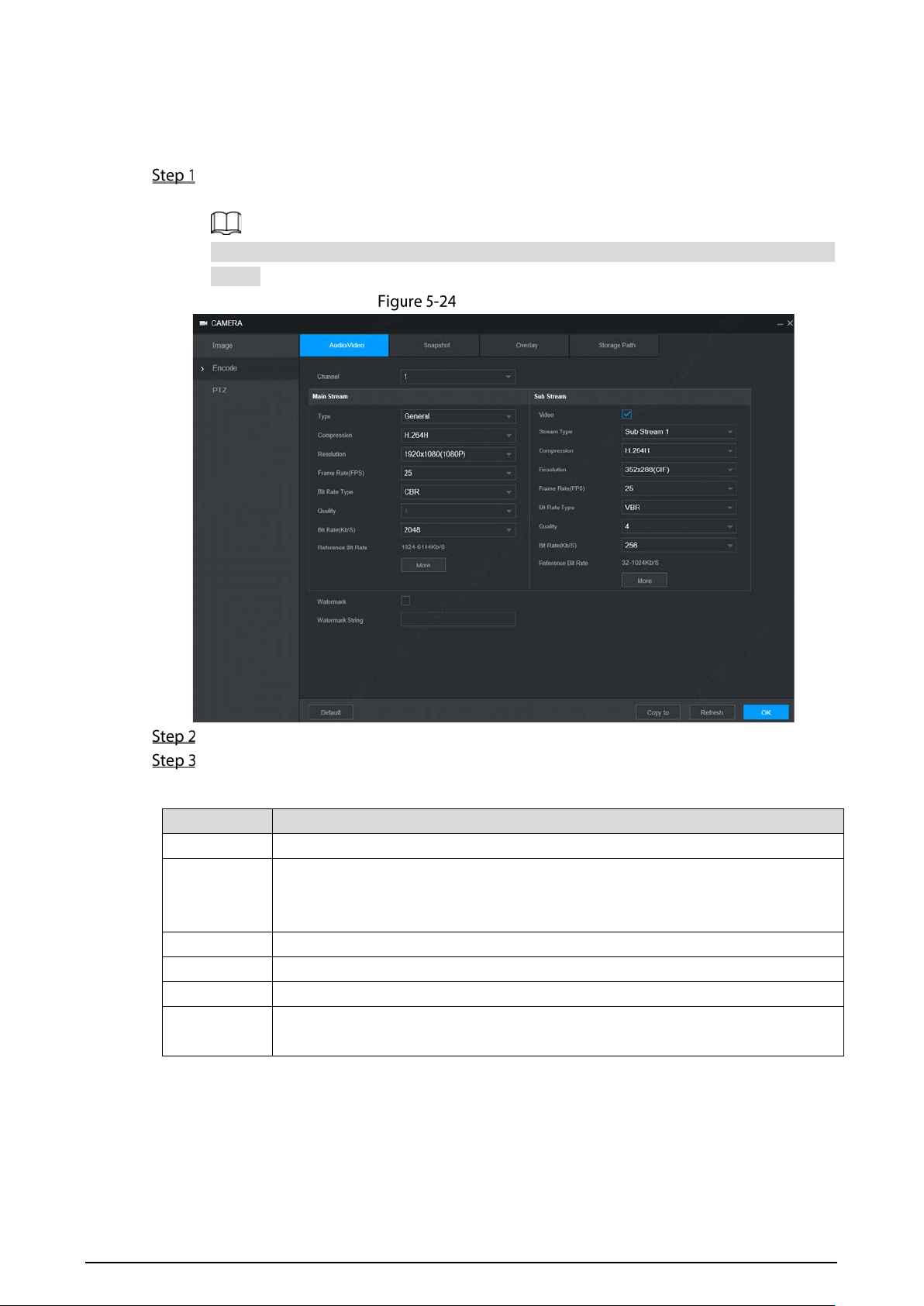
62
Configuring Video and Audio
You can configure the encode settings for main stream and sub stream.
Select Setting > Camera > Encode > Audio/Video.
The Audio/Video interface is displayed. See Figure 5-24.
Encode parameters might be different depending on devices, and the actual product shall
prevail.
Audio/Video
Select a channel number.
Configure parameters. For details, see Table 5-8.
Table 5-8 Stream parameters
Parameter Description
Video Enable the sub stream.
Type
The record type of main stream is permanently fixed as general and cannot be
changed. General, motion detect and alarm use the general stream configurations
for recording.
Stream Type Sub stream types.
Compression Encode mode of video.
Resolution The higher the video resolution, the better the image quality.
Frame Rate
(FPS)
Configure the frames per seconds for videos. The higher the value, the smoother
and more vivid the image.

63
Parameter Description
Bit Rate Type
Select a control mode for bit rate of video.
CBR: The bit rate changes little and keeps close to the defined bit rate value.
VBR (Variable Bit Rate): The bit rate changes along with environment.
It is recommended to select CBR when there might be only small changes in
the monitoring environment, and select VBR when there might be big
changes in the monitoring environment.
The main stream is fixed to VBR.
Quality
This parameter can be configured only when the Bit Rate Type is set as VBR.
Select the image quality level. There are six levels in total. The higher the value,
the better the image will become.
Bit Rate(KB/S)
Configure the encode value for main stream and sub stream.
When CBR is selected, select the bit rate according to the reference bit rate,
and the bit rate changes along the configured value.
When VBR is selected, select the upper limit value of bit rate according to the
reference bit rate, and the bit rate changes along with the monitoring
environment. But the maximum bit rate value changes around the configured
value.
Select Customized, and you can configure bit rate value manually.
Reference Bit
Rate
The system recommends the optimal bit rate range according to the resolution
and frame rate settings.
Audio Enable
Click More to enable the audio.
If the corresponding check box is selected, the video recordings are audio and
video combined streams.
Compression
Select an audio encode format.
The parameters might be different depending on the model you purchased, and
the actual product shall prevail.
Audio Source Source of audio.
Watermark
Select the Watermark check box to verify whether the recorded video is falsified.
Watermark
String
Enter the strings for verifying watermark. The default string is DigitalCCTV. You
can configure at most 127 watermark characters which are composed of number,
letter, underline and dash.
Click OK.
5.4.2.2 Snapshot
You can configure the snapshot settings such as snapshot type, image size, quality, and interval.
Select Figure> Camera > Encode > Snapshot.
The Snapshot interface is displayed, see Figure 5-25.
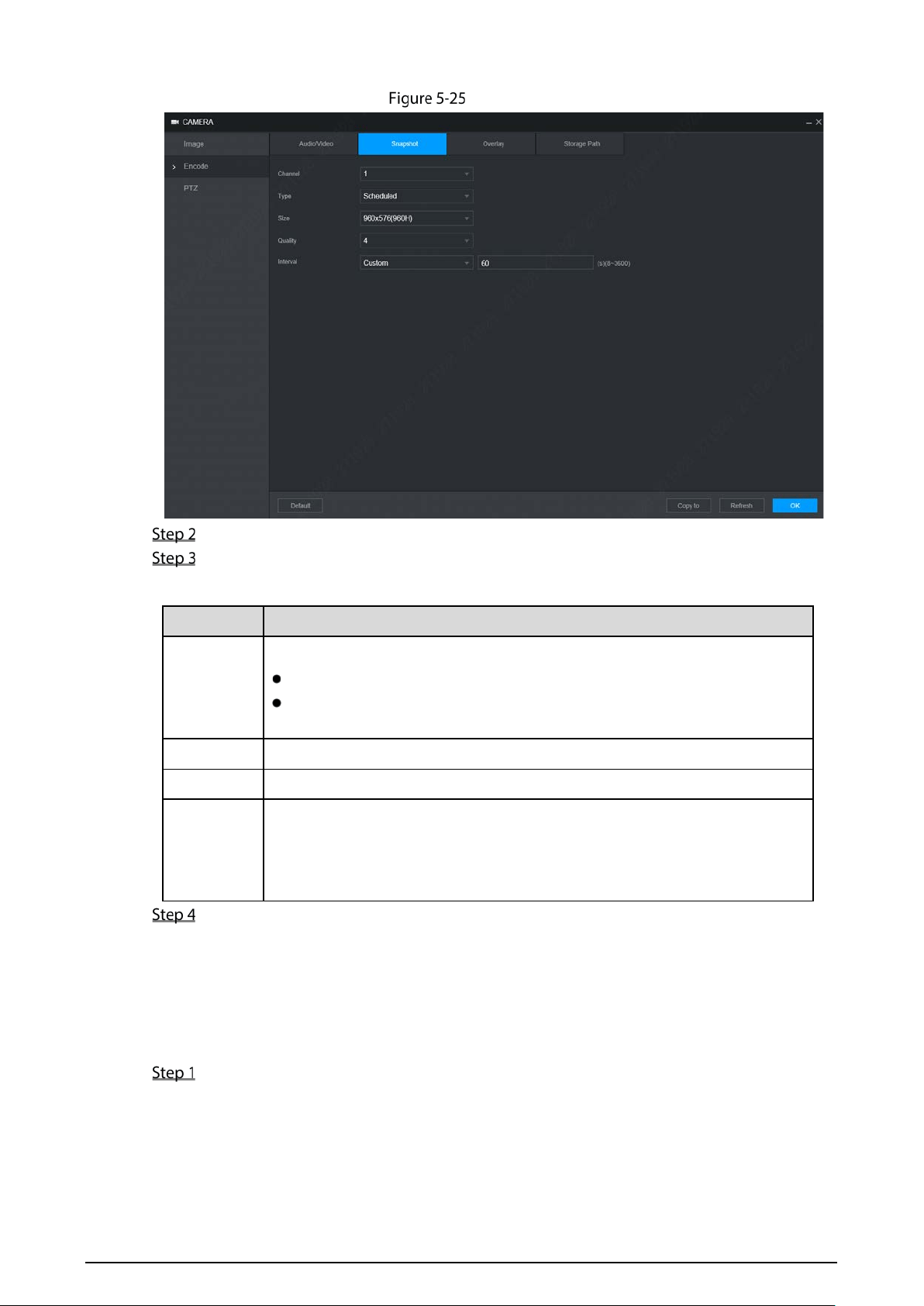
64
Snapshot
Select Channel.
Configure parameters. For details, see Table 5-9.
Table 5-9 Snapshot setting parameters description
Parameter Description
Type
Includes scheduled and event.
Schedule: Take snapshots within the configured period.
Event: Take snapshots when alarms such as local alarm, video detection
and abnormality are triggered.
Size Select a resolution for the captured image.
Quality The image quality and there are six levels in total.
Interval
Interval of taking snapshots.
Select Custom to configure the snapshot interval for manually captured
snapshots. The maximum value you can set is 3600 seconds as an interval
between two snapshots.
Click OK.
5.4.2.3 Overlay
You can configure to display the information such as system time and channel name on each channel
window in the live view screen.
Select Setting > Camera > Encode > Overly.
The Overlay interface is displayed. See Figure 5-26.

65
Overlay
Select Channel.
Configure parameters. For details, see Table 5-10.
Table 5-10 Video overlay parameters description
Parameter Description
Channel
Title
Select Channel Title, and the Setting button is displayed. Then click Setting on the
right of the Channel Title, enter the channel title, and drag it to a proper location.
Time Title
Select the Time Title check box, the Setting button is displayed. Then click Setting,
the time is displayed on the channel window, and then drag it to a proper location.
Plate No
Select the Plate No check box, the Setting button is displayed. Then click Setting,
the license number is displayed on the channel window, and then drag it to a proper
location.
GPS
Display
Select the GPS Display check box, the Setting button is displayed. Then click
Setting, the GPS display frame is displayed on the channel window, and then drag it
to a proper location.
Click OK.
5.4.2.4 Storage Path
You can configure the storage path of captured snapshots and recorded videos.
Select Setting > Camera > Encode > Storage Path.
The Storage Path interface is displayed. See Figure 5-27.
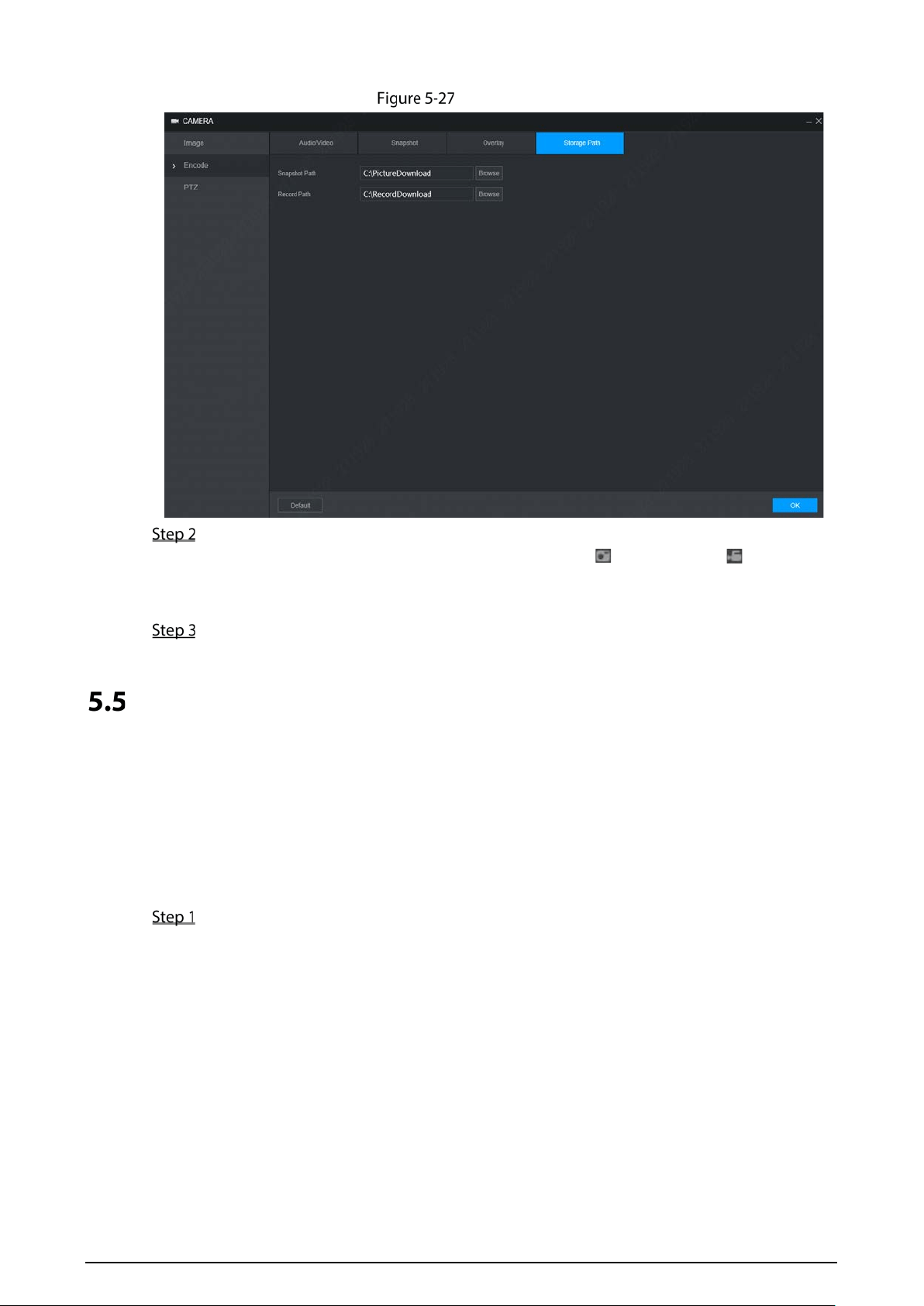
66
Storage path
Click Browse to select the save path for snapshots and recordings.
Images and recordings by using functions of snapshots and recordings on the Live
interface are saved in these two paths by default. Default paths: C:\PictureDownload and
C:\RecordDownload
Click OK.
Configuring Network Parameters
You can set the network parameters of the device as needed, including ports, Wi-Fi parameters, 3G/4G
parameters, Email, auto register.
5.5.1 Ports
Set each port value of the device.
Select Setting > Network > Port.
The Port interface is displayed. See Figure 5-28.
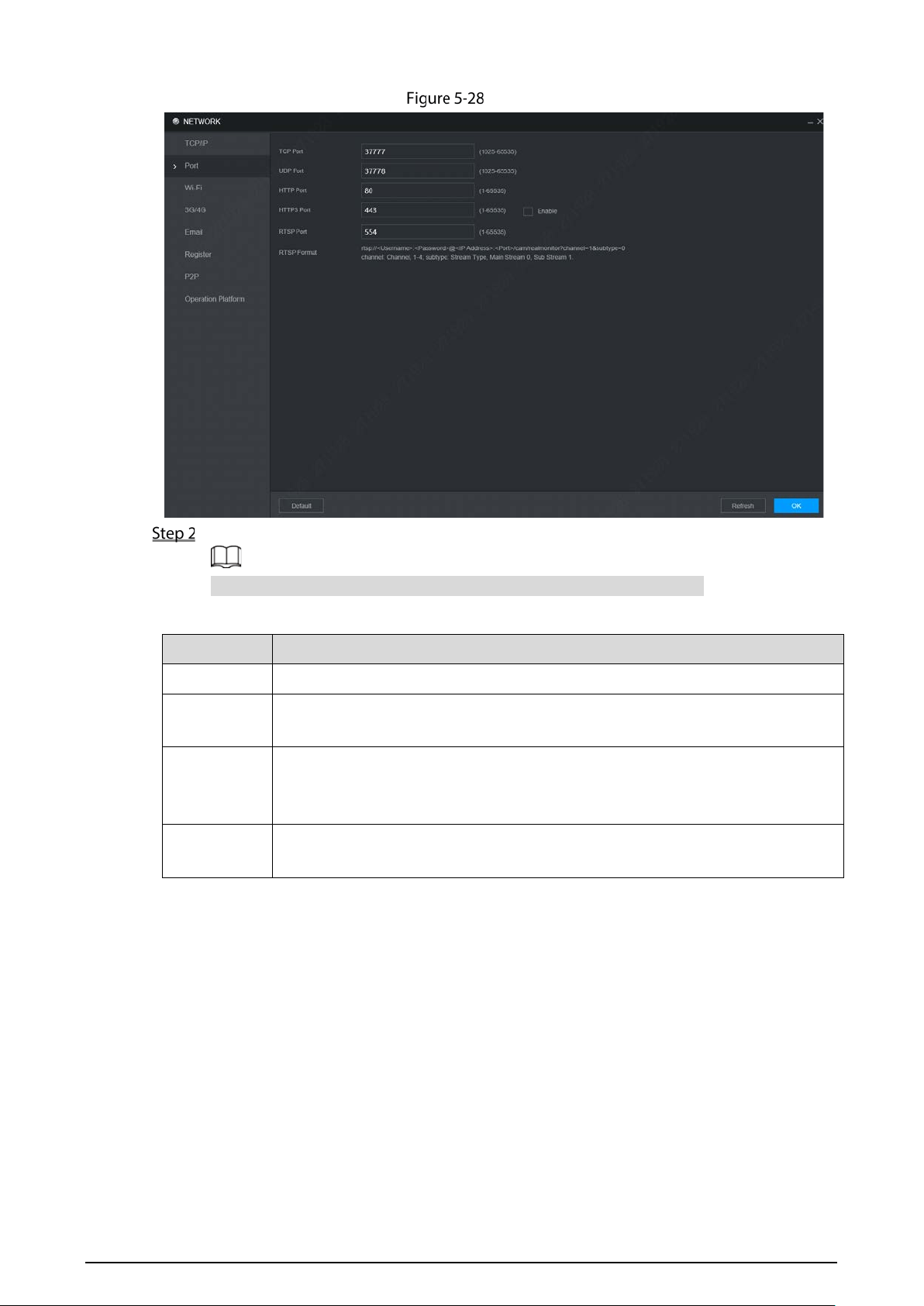
67
Port
Configure the ports of the device. For details, see Table 5-11.
The revised settings take effect after device restart. Proceed with caution.
Table 5-11 Port parameters description
Parameter Description
TCP port Transmission control protocol port. The value is 37777 by default.
UDP Port User Datagram Protocol port.The default value setting is 37778. You can enter the
value according to your actual situation.
HTTP Port
Hyper Text Transfer Protocol port. The default setting is 80. You can enter the
value according to your actual situation, and in this case, please add the modified
port number after the address when logging the device on the browser.
HTTPS Port Hyper Text Transfer Protocol over Secure Socket Layer port. Select the Enable
check box, and then enter the value as needed. The value is 443 by default.

68
Parameter Description
RTSP Port
Real Time Streaming Protocol port. Keep the default value 554 if it is displayed. If
you play live view through Apple’s QuickTime or VLC, the following format is
available. This function is also available for Blackberry.
When the URL format requiring RTSP, you need to specify channel number and
bit stream type in the URL, and also user name and password if needed.
When playing live view with Blackberry smart phone, you need to turn off the
audio, and then set the code mode to H.264B and resolution to CIF.
URL format example:
rtsp://<User Name>:<Password>@<IP
Address>:<Port>/cam/realmonitor?channel=1&subtype=0
User name. For example: admin.
Password: For example: admin_123.
IP address: For example, 192.168.1.16.
Port: The default setting is 554. If the default setting is displayed, you do not
need to configure this parameter.
Channel: Numbers from 1. For example, if it is channel 2, then enter channel=2.
Subtype: stream type. The main stream is 0 (subtype=0); the sub stream is 1
(subtype=1).
For example, if you require the sub stream of channel 2 from a device, then the
URL shall be:
rtsp://admin:[email protected]:554/cam/realmonitor?channel=2&subtype
=1
If certification is not required, you do not need to specify the user name and
password: Use the following format:
rtsp://<IP Address>:<Port>/cam/realmonitor?channel=1&subtype=0
Click OK.
5.5.2 Wireless Network
You can connect the device to a network through Wi-Fi. Make sure the device can communicate with
other devices in the group network. The device itself can also act as a hot spot to share flows with other
terminals.
If both 3G/4G and Wi-Fi are available, the device connects to Wi-Fi and disconnects from 3G/4G.
5.5.2.1 Wi-Fi
You can connect the device to a network through Wi-Fi. Then connect the PC to the same network. You
can log in to the WEB interface by PC to operate the device.
This function is only supported on the device with a Wi-Fi module. The actual situation shall prevail.
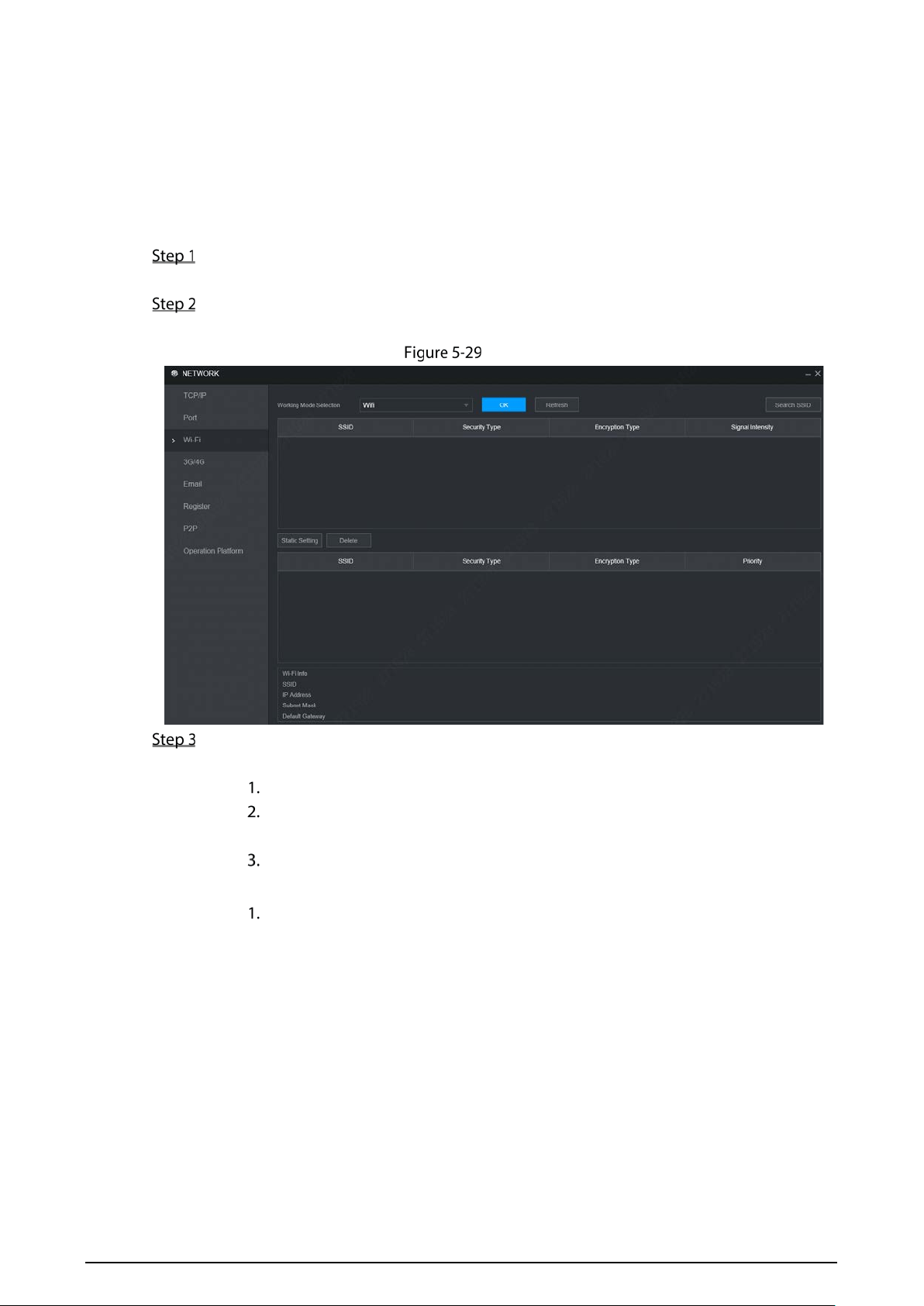
69
Prerequisites
Make sure that the device is connected to a Wi-Fi module.
Procedure
Select Setting > Network > Wi-Fi.
The Wi-Fi interface is displayed.
Select Wi-Fi as the working mode.
The Wi-Fi interface is displayed, see Figure 5-29.
Wi-Fi
Connect to Wi-Fi.
Auto search
Click Search SSID.
The available Wi-Fi networks list including the information such as connection
mode, authorization mode, and signal intensity.
Double-click the Wi-Fi you need, enter the password and click OK.
Add Wi-Fi manually
Click Static Setting.
The Wi-Fi interface is displayed. See Figure 5-30.
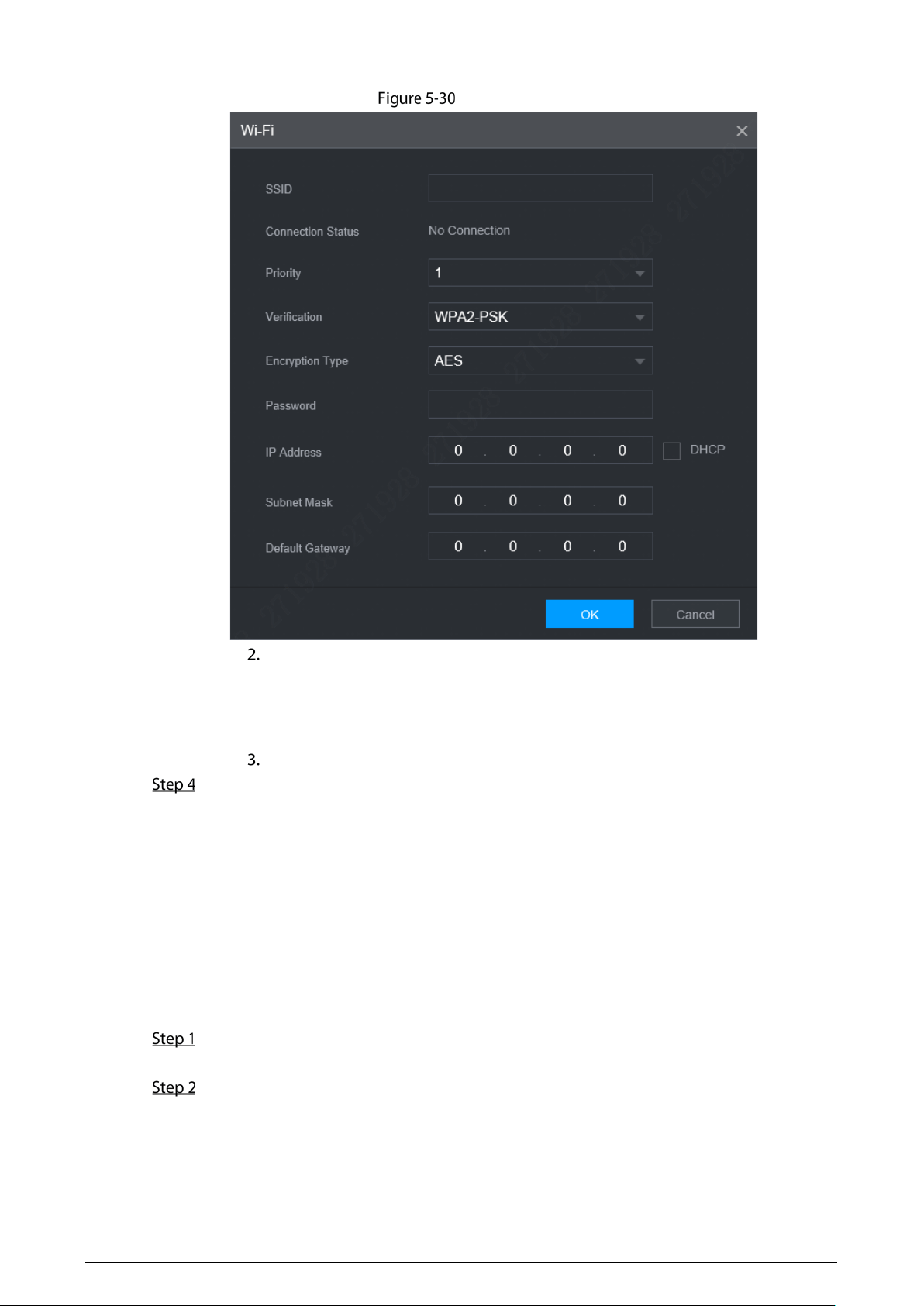
70
Wi-Fi Setting
Enter SSID and password, select priority level, verification type and authentication
type, set IP address, subnet mask, and default gateway.
If you select DHCP check box, after successful connection, the system
automatically obtains the IP address, subnet mask, and gateway.
Click OK.
Click OK.
Click Refresh to refresh the connection status.
After successful connection, you can view the current hot spot, IP address, subnet mask, and
gateway in Wi-Fi Info.
5.5.2.2 Ap
The device can work as a hotspot to share the network connection to other terminals. The terminals
connected to the hot spot can log in to the device through host IP address (192.168.0.108). After login,
you can view videos on the device.
Select Setting > Network > Wi-Fi.
The Wi-Fi interface is displayed.
Select Ap as the working mode.
The Ap interface is displayed. See Figure 5-31.

71
Ap Setting
Enter SSID information, select work band and verification type, and then enter the connection
password.
The work band can only be 2.4G.
Select the check box behind Password, and the password will be visible. The default
password is 12345678.
Click OK.
5.5.3 3G/4G
Prerequisites
Make sure the device is equipped with 3G/4G module and inserted with SIM card from
communication operators.
The dial number, user name, and password have been obtained from the Communication
Operator.
Procedure
Select Setting > Network > 3G/4G.
The 3G/4G interface is displayed. See Figure 5-32.
After 3G/4G module is connected, the module information and wireless signal are displayed;
if not, click Search to search for wireless signal.
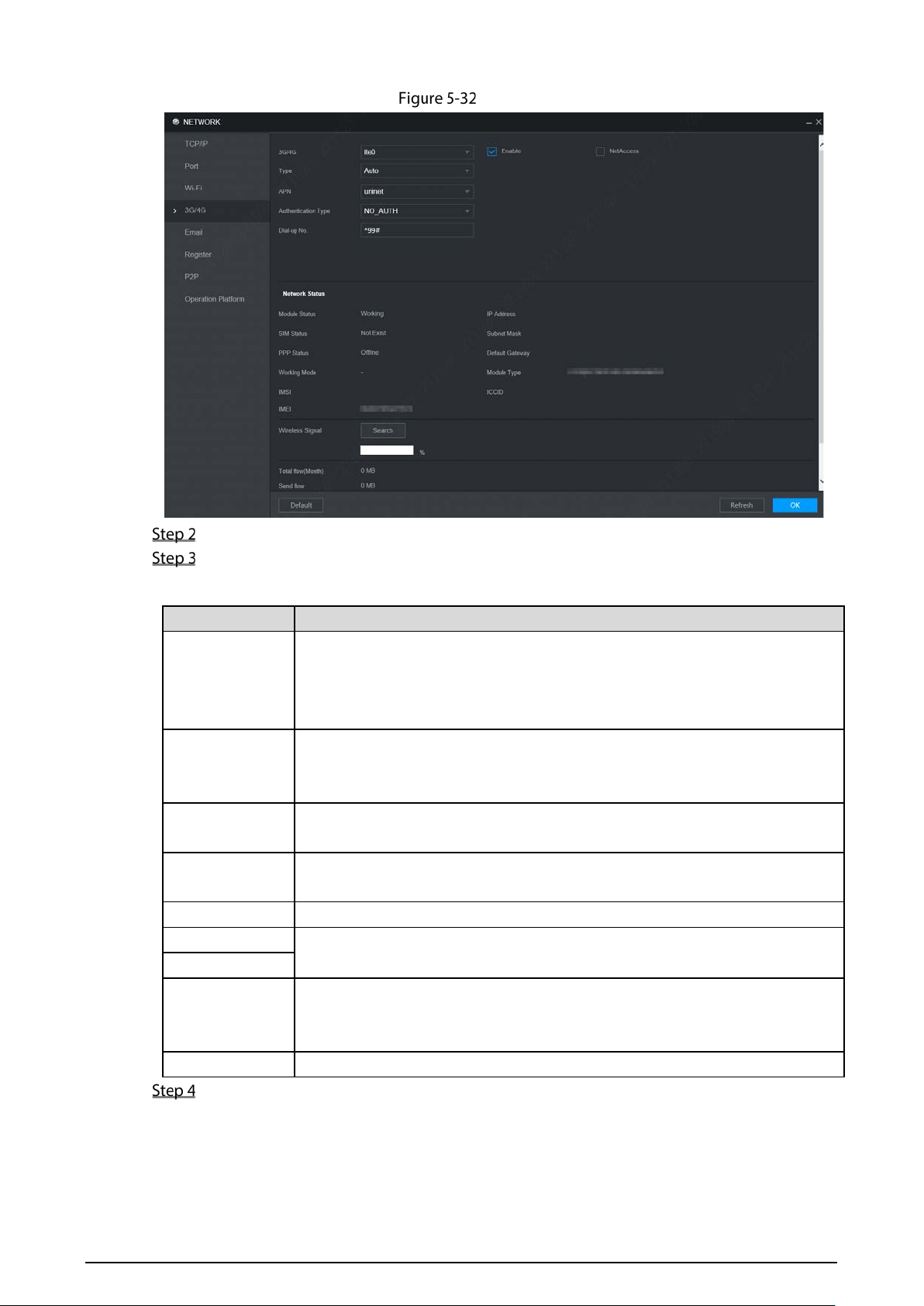
72
3G/4G
Select 3G/4G and Enable to enable the network. This function is enabled by default.
Configure parameters. For details, see Table 5-12.
Table 5-12 3G/4G parameters description
Parameter Description
NetAccess
When the Device is accessed to private network, select the NetAccess check
box, enter APN name and select authentication mode. If PAP or CHAP is
selected for authentication mode, enter user name and password, then the
device is automatically accessed to private network.
Type
When enabled, the network type is displayed, which is used to distinguish
between the 3G/4G modules of different communication operators, such as
TD-LTE.
APN
Displays access point of Communication Operator.
To manually set up APN, select Customized.
Authentication
Type
Includes PAP, CHAP, and NO_AUTH protocols. The system automatically
recognizes and displays the enabled protocol.
Dial-up No Enter the dial number provided from the Communication Operator.
User Name
This parameter needs to be set up when AUTH is set to PAP or CHAP.
The system automatically recognizes the user name and password.
Password
Network Status
After successful dial-up, all relevant information is displayed without any setup
needed. Such information includes module status, SIM status, PPP status,
working mode, IMSI, IMEI, IP address, subnet mask, gateway, and module type.
Wireless Signal
Click Search to search for wireless signals.
Click OK.
After access is succeeded, the obtained IP address is displayed.
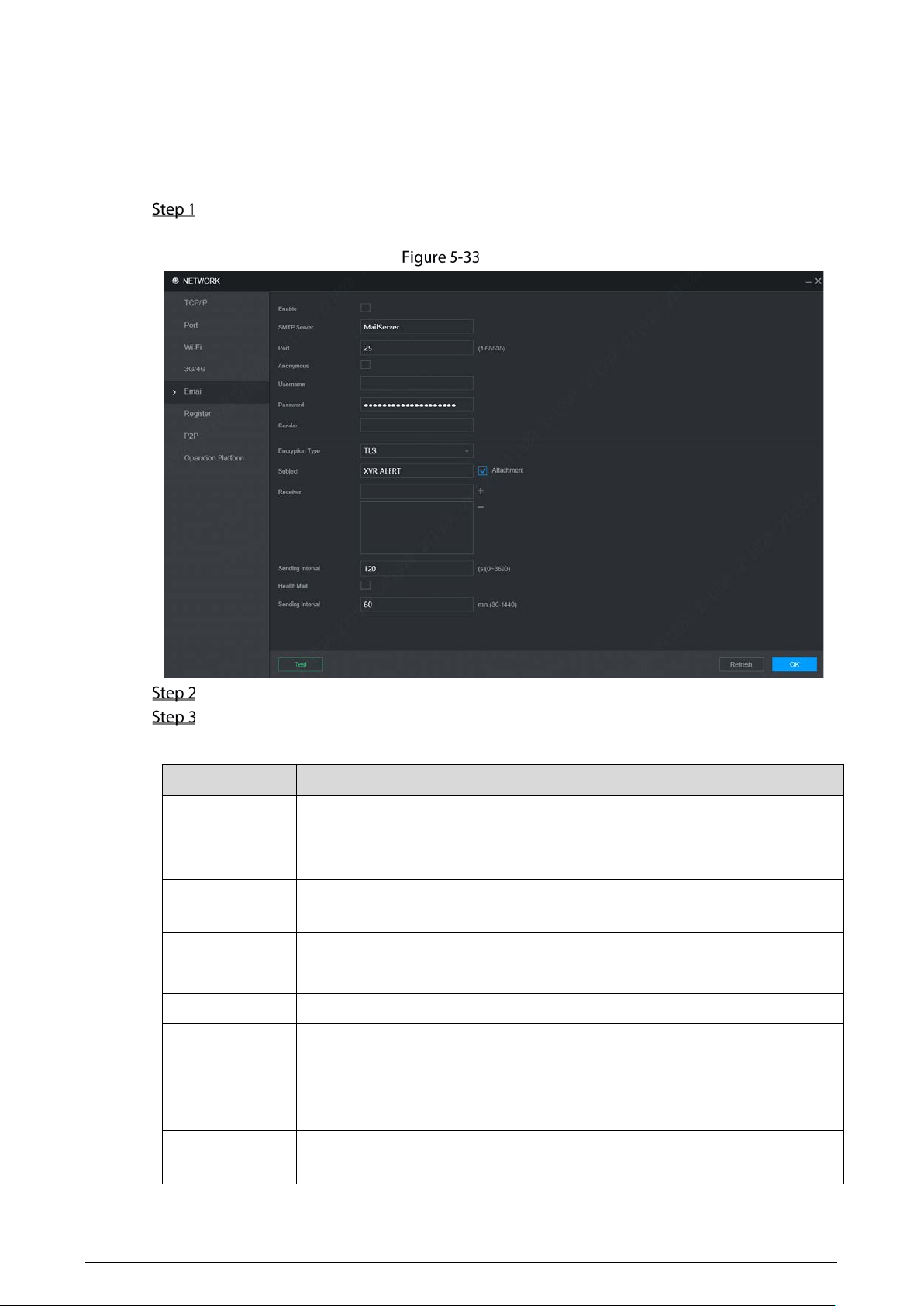
73
5.5.4 Email
You can configure the email settings to enable the system to send the email as a notification when
there is an alarm event occurs, such as video detection and system events.
Select Setting > Network > Email.
The Email interface is displayed. See Figure 5-33.
Email
Select Enable to enable email function.
Configure parameters. For details, see Table 5-13.
Table 5-13 Email parameters description
Parameter Description
SMTP Server
Configure the address of Simple Mail Transfer Protocol. For details, see Table
5-14.
Port Enter the port value of SMTP server. For details, see Table 5-14.
Anonymous
If Anonymous is selected, the sender information is not displayed when
sending an email.
User Name
Enter the user name and password of SMTP server. For details, see Table 5-14.
Password
Sender Sender Email Address
Encryption Type
In the Encrypt list, select an encryption type from NONE, SSL, and TLS. For
details, see Table 5-14.
Subject
You can enter no more than 63 characters in Chinese, English, and Arabic
numerals.
Attachment
If Attachment is enabled, when an alarm takes place, the system can send
alarm linked snapshots.
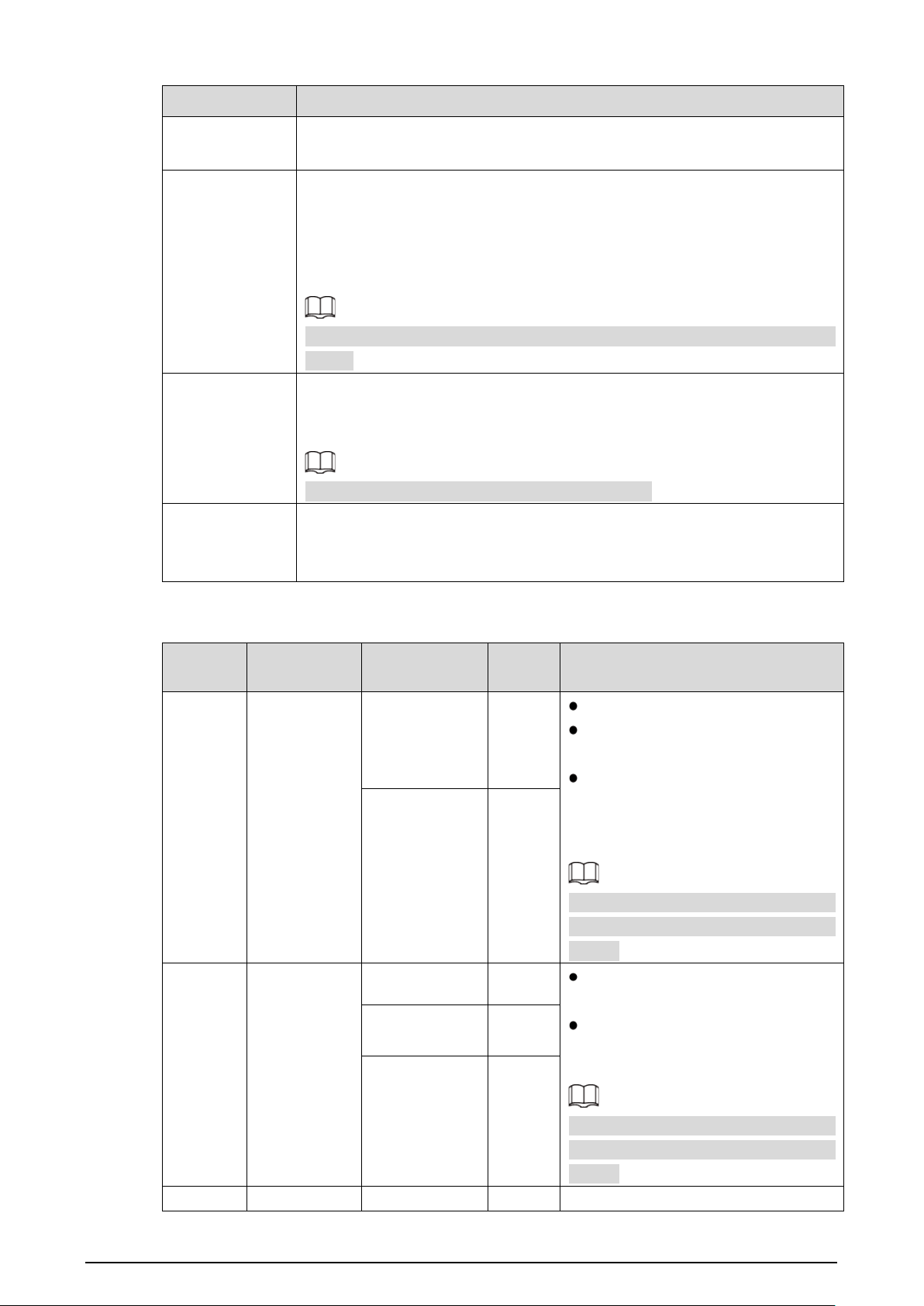
74
Parameter Description
Receiver
Receiver’s Email address You can enter up to three email addresses separated
by colons.
Sending Interval
This is the interval that the system sends an email for the same type of alarm
event, which means, the system does not send an email upon any alarm
event.
The interval ranges from 0 through 3600 seconds. 0 means that there is no
interval.
This setting helps to avoid the large amount of emails caused by frequent alarm
events.
Health Mail
The system can send a test email to check the connection.
Select the Health Mail check box, and then enter the interval. The system can
send a test email to check the connection after the specified interval.
The value ranges from 30 minutes to 1440 minutes.
Test
Click Test to test if emails can be sent out and received as intended. If the
configuration is correct, the receiver’s email account will receive the test
email. Before testing email, click OK to save the email configuration.
For the configuration of major mailboxes, see Table 5-14.
Table 5-14 Common mailbox configuration parameters
Mailbox
type
SMTP server
Authentication
method
Port Description
QQ smtp.qq.com
SSL 465
Do not select None for encryption.
The mailbox must have applied
SMTP service.
The password must be an
“authorized password”.
Both the
QQ login password and email login
password are invalid.
Obtain the authorized password when
your mailbox is
applying for SMTP
service.
TLS 587
163 smtp.163.com
SSL 465/994
The mailbox must have applied
“SMTP” service.
The password must be an
“authorized password”. The email
login password is invalid.
Obtain the authorized password when
your mailbox is ap
plying for SMTP
service.
TLS 25
NONE 25
Sina smtp.sina.com SSL 465
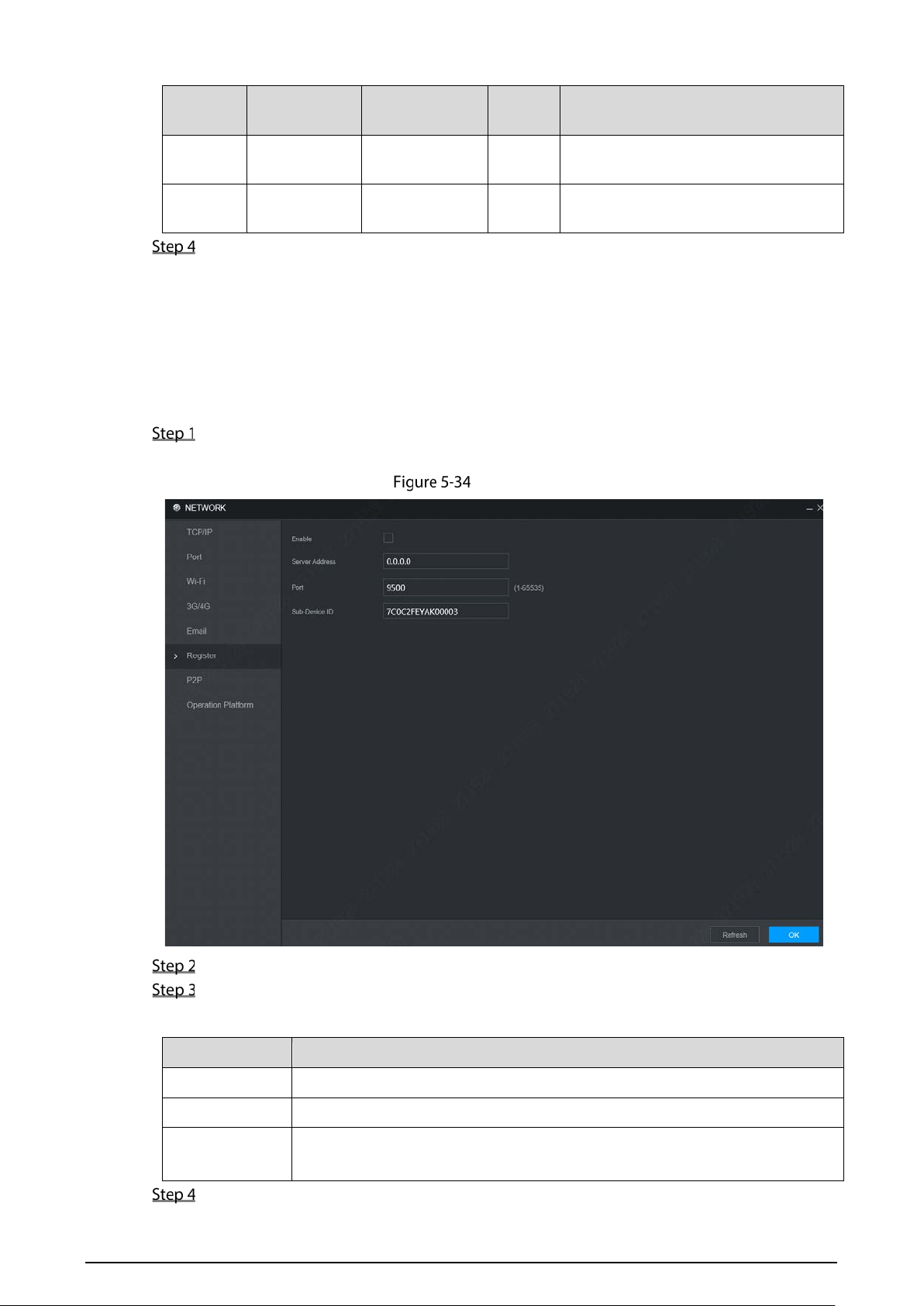
75
Mailbox
type
SMTP server
Authentication
method
Port Description
NONE 25
The mailbox must have applied “SMTP”
service.
126 smtp.126.com NONE 25
The mailbox must have applied “SMTP”
service.
Click OK.
5.5.5 Register
After successfully auto registered, when the device is connected into the Internet, it will report the
current location to the specified server to make it easier for the client software to access to the device,
and to view and monitor it.
Select Setting > Network > Register.
The Register interface is displayed. See Figure 5-34.
Register
Select the Enable check box. (Selected by default)
Configure parameters. For details, see Table 5-15.
Table 5-15 Register parameters
Parameter Description
IP Address Enter the IP address or domain name of the server to register.
Port Enter the port of the server for register.
Sub-device ID
Unique ID for identifying the device. When different devices register to the
same server, the sub-device IDs should be different.
Click OK.
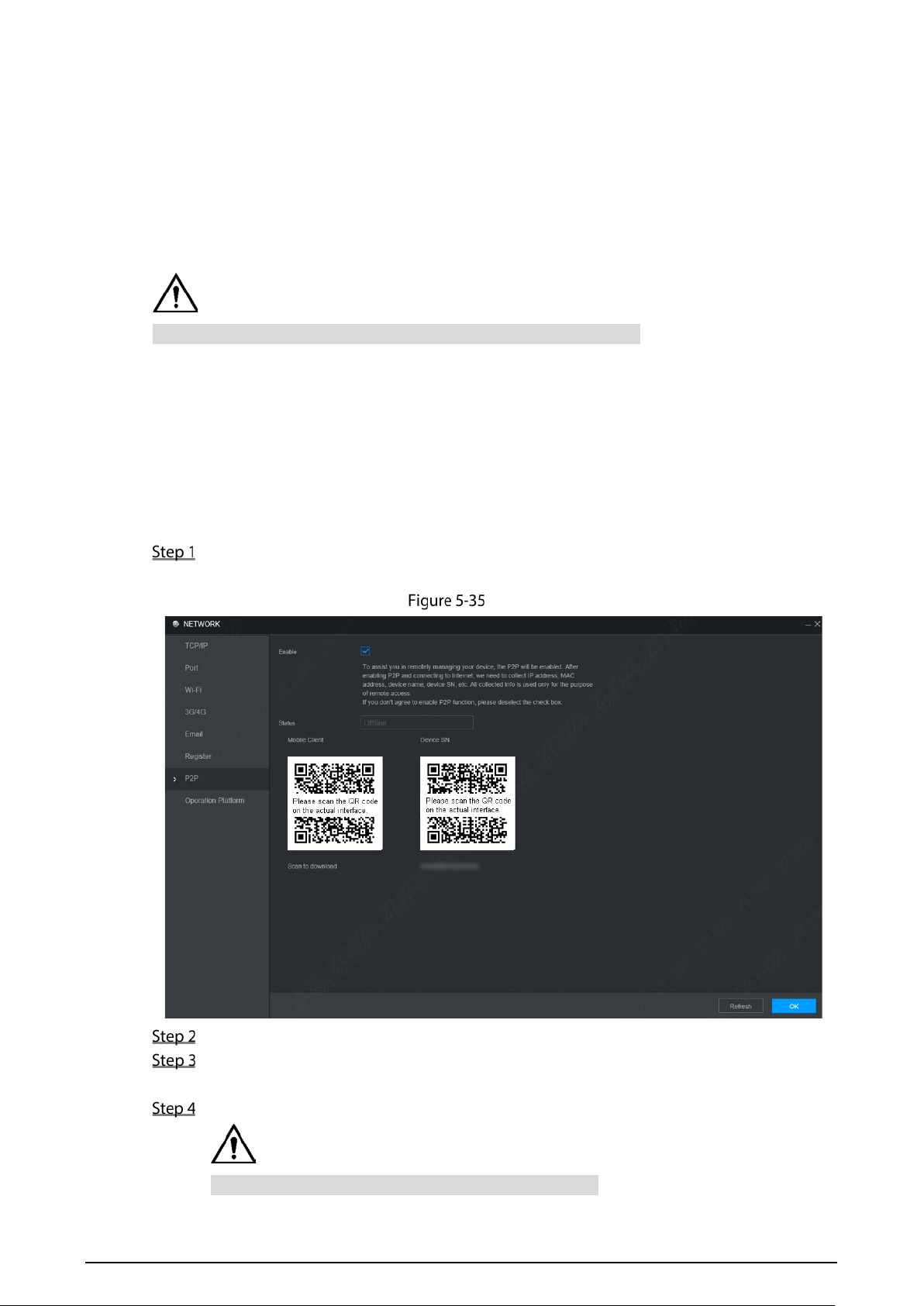
76
5.5.6 P2P
P2P is a private network penetration technology. With this technology, you do not need to apply for
dynamic domain name, set port mapping, or deploy transit server. You can add devices for
management by either of the following two ways.
Scan the QR code on the interface to download APP, and register an account.
Log in www.gotop2p.com platform to register, and then add devices by device serial number.
Before using P2P, make sure that the device is connected to the Internet.
Preconditions
The device had been connected to the Internet.
App has been downloaded and installed on your mobile phone.
Procedure
Select Setting > Network > P2P.
The P2P interface is displayed, see Figure 5-35.
P2P
Select Enable to enable P2P.
Click OK.
The p2p registration is successful when the Status shows Online.
Use Mobile Client to scan the QR code under device SN to add the device to Mobile Client.
Please scan the QR code on the actual interface of device.
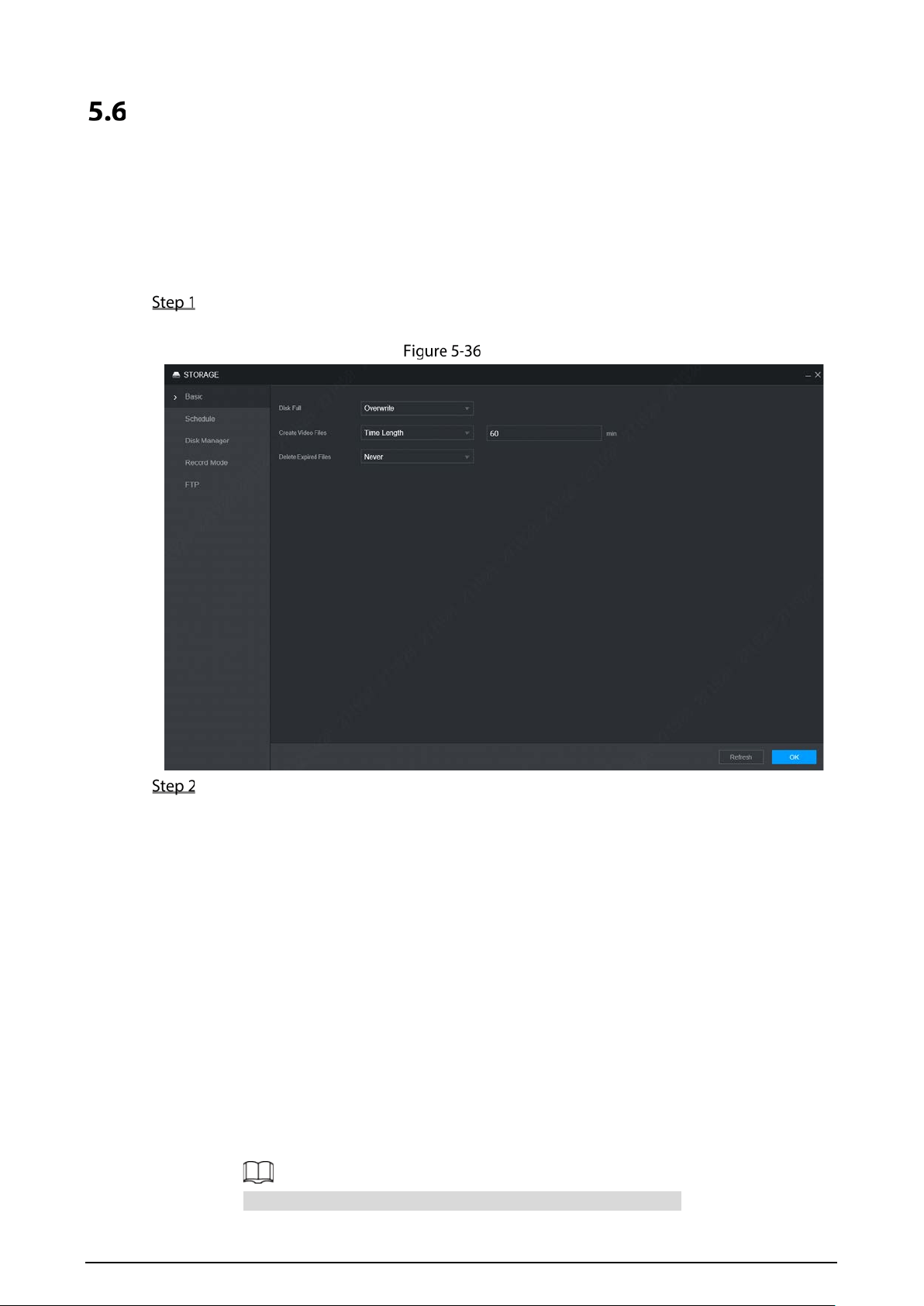
77
Managing Storage Device
You can configure storage, basic information, manage HDD, and review HDD information.
5.6.1 Basic
On the Local interface, you can set up the strategy when the Disk is full and recordings mode.
In the main menu, select Setting>Storage > Basic.
The Basic interface is displayed. See Figure 5-36.
Basic
Configure basic information
Select the processing strategy of stopping recording and overwriting earlier recordings
when TF Card is full.
Stop: The system stops recording when the disk is full.
Overwrite: The system overwrites the oldest files and keeps recording when the disk
is full.
Set up the time length or file size for Video Packaging.
Select the required packaging manner from the Create Video Files drop-down list.
Including Time Length and File Size.
Set the length of time for each video file. The default value is 60 minutes, and the
range is 1 minute –120 minutes.
Set the size of file for each video file. The default value is 1024M, and the range is
128M–2048M.
Set the strategy of deleting old files automatically.
You can enable this function to delete recorded videos or images saved in TF card or FTP
server regularly according to the time gap you have set.
After setting file auto deletion, deleted files cannot be recovered.
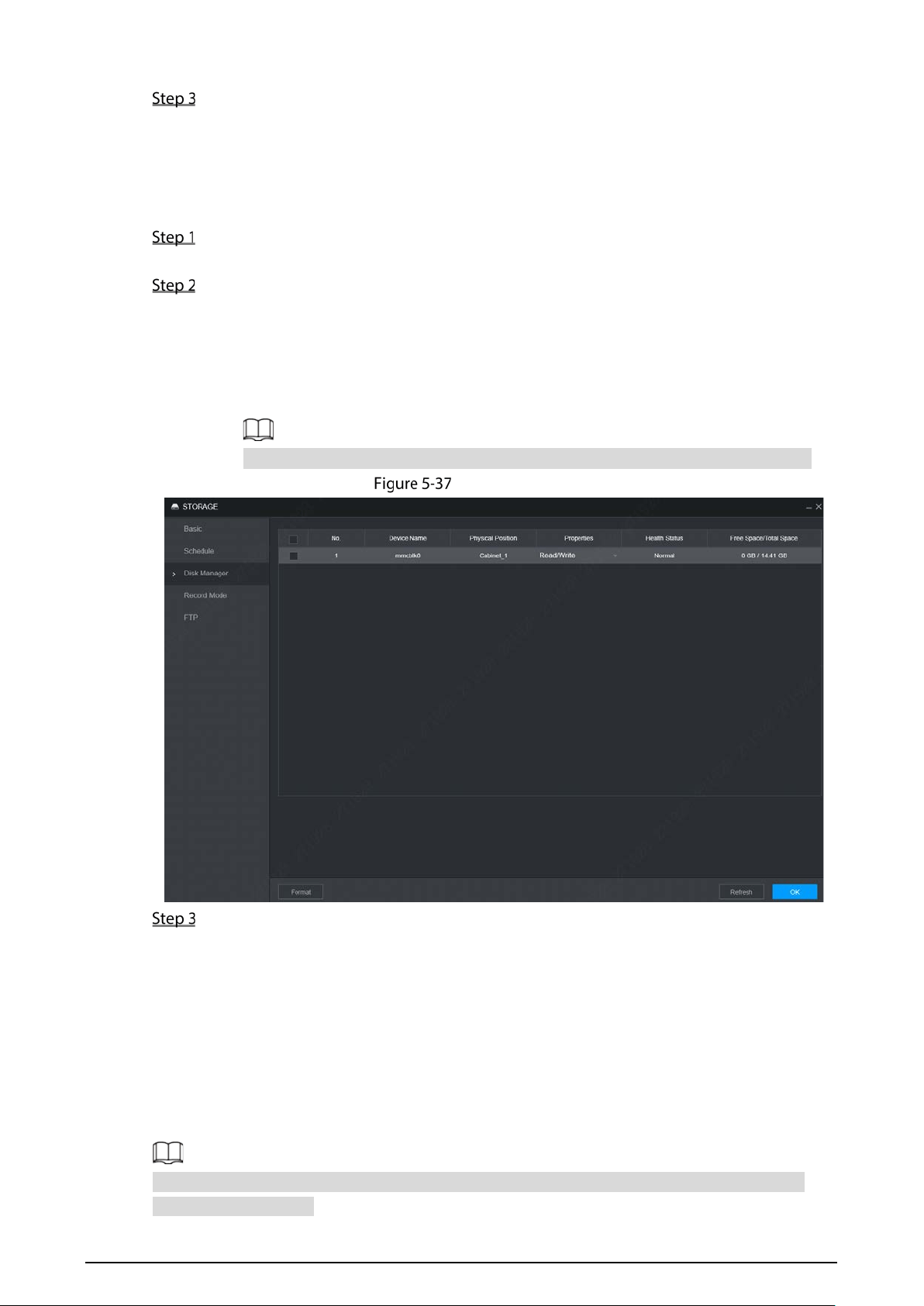
78
Click OK.
5.6.2 Disk Manager
Set the read and write properties of the TF card and view the capacity information of the HDD.
Select Setting > Storage > Disk Manager.
The Disk Manager interface is displayed. See Figure 5-37.
Set the read and write properties of the TF card. You can set the TF card as the Read/Write disk,
Read-Only disk or Redundancy disk under the Properties column.
Read/Write: You can read data from TF card and save data in TF card.
Read-Only: You can only read data from TF card if set to read-only disk.
Redundancy: If the device is connected to two or more TF cards, one of the TF cards can
be set as the redundancy one for recording backup.
Select TF card and click Format to clear all data in the SD card. Proceed with caution.
Disk Manager
Click OK.
5.6.3 FTP
Configure FTP server, and then you can save videos and snapshots to the FTP server.
Prerequisites
You have deployed a FTP server, and created a user with the read & write permission.
The created FTP user should have write permission; otherwise the upload of videos, audios, and
snapshots will be failed.
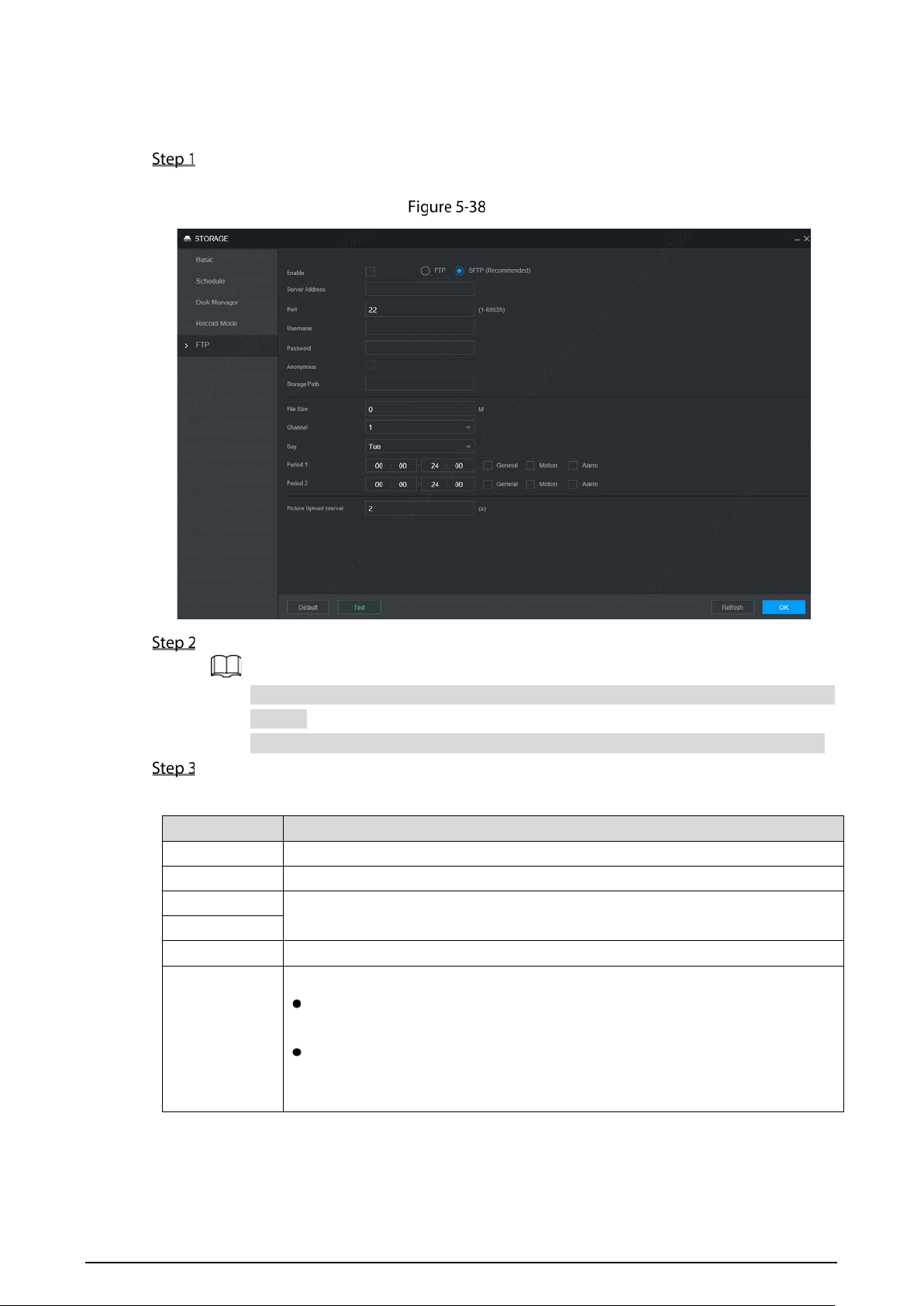
79
Procedure
Select Setting > Storage > FTP.
The FTP interface is displayed, see Figure 5-38.
FTP
Select Enable to enable FTP upload and select FTP type.
Select FTP or SFPT from the drop-down list. SFTP is recommended to enhance network
security.
When FTP is selected, the system gives a risk prompt. Select OK or Cancel as needed.
Configure parameters. For details, see Table 5-16.
Table 5-16 FTP parameters description
Parameter Description
Server Address The IP address of the host PC that is installed with the FTP/SFTP server.
Port By default, SFTP port is 22 and FTP port is 21.
User Name
The user name and password used to access the server.
Password
Anonymous
Select Anonymous if you want to log in to the server anonymously.
Storage Path
Create folder on FTP server.
If you do not enter the name of remote directory, the system automatically
creates the folders according to the IP, time, and channel.
If you enter a name for the remote directory, the system creates a folder with
the entered name under the FTP/SFTP
root directory first, and then
automatically creates folders based on IP, time, and channel.

80
Parameter Description
File Size
Enter the size of the uploaded recorded video.
If the entered size is less than the recorded video size, only a section of the
recorded video can be uploaded.
If the entered size is more than the recorded video size, the whole recorded
video can be uploaded.
If the entered size is 0, the whole recorded video will be uploaded.
Choose
channel
Select the channel that you want to apply the FTP settings.
Weekday
Select the week day and set the time period that you want to upload the
recorded files. You can set two periods for each week.
Select the record type (Alarm, MD, and General) that you want to upload. After
selecting the corresponding recording type next to the corresponding period,
the selected recording type will be uploaded during the configured period.
Period
Picture Upload
Interval
When the Snapshot Type is Schedule, the upload method should be
determined based on the image upload interval and snapshot interval.
If this interval is longer than snapshot interval, the system uploads the
most recent snapshot. For example, if the interval is 5 seconds and
snapshot interval is 2 seconds, the system sends an upload command
to upload the next snapshot every 5 seconds.
If this interval is shorter than snapshot interval, the system uploads the
snapshot per the snapshot interval. For example, if the interval is 5
seconds and snapshot interval is 10 seconds, the system uploads the
snapshot every 10 seconds.
When the Snapshot Type is Event, the system uploads the snapshot as per
the snapshot interval.
You can change the Interval and Type. For details, see “5.4.2.2 Snapshot”.
Click Test to test if the FTP/SFTP server is successfully configured.
The system pops up a message to indicate success or failure.
If failed, please check the network connection or configurations.
Click OK.
Configuring System
You can configure system information, including serial port parameters, security management, and
vehicle information.
5.7.1 Configuring Serial Port Parameters
You can configure the serial port parameters such as baud rate, data bit, stop bit, and parity.
Select Setting > System > Serial Port.
The Serial Port interface is displayed. See Figure 5-39.
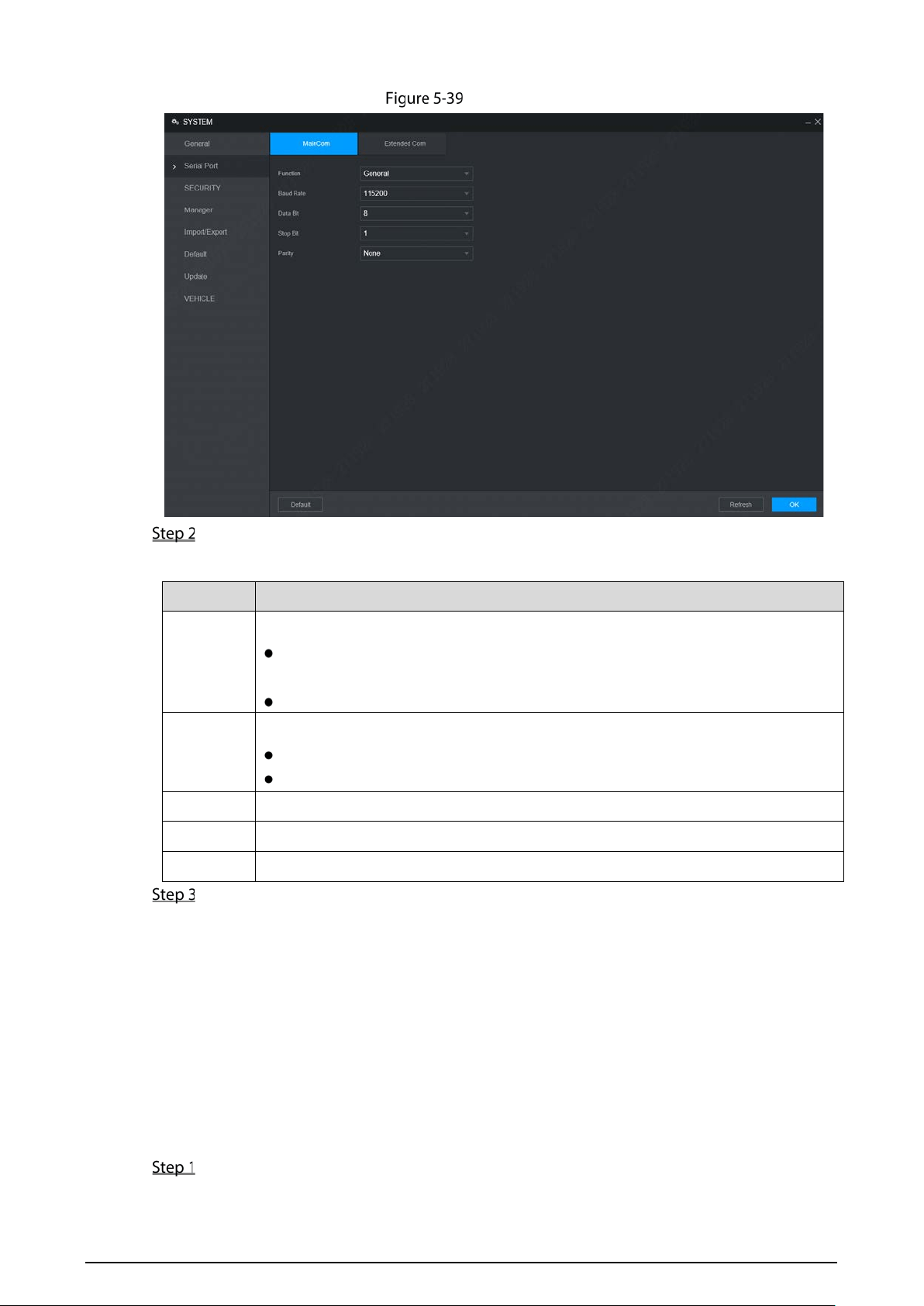
81
Serial port
Configure parameters. For details, see Table 5-17.
Table 5-17 Serial port parameters description
Parameter Description
Function
Select the corresponding protocol.
Console: Upgrades programs and debug by suing the serial interface and mini
terminal software.
GPS:Used to transmit real-time GPS data.
Baud rate
The times of signal changes on the transmission line in time unit.
The default baud rate is 115200 for a console.
The default baud rate is 9600 for a transparent serial port.
Data Bit
Select a data bit. The options include 5,6, 7, and 8.
Stop Bit
Select a stop bit. The options includes 1, 1.5, and 2.
Test
Select a parity mode from None, Odd, Even, Mark, and Null. The default is None.
Click OK.
5.7.2 Managing Security
It is to set security strategy to guarantee device network and data safety. It includes setting host IP
access right and enabling system service, etc.
5.7.2.1 System Service
The corresponding service can only be used after the system service is turned on.
Select Setting > System > Security > System Service.
The System Service interface is displayed. See Figure 5-40.
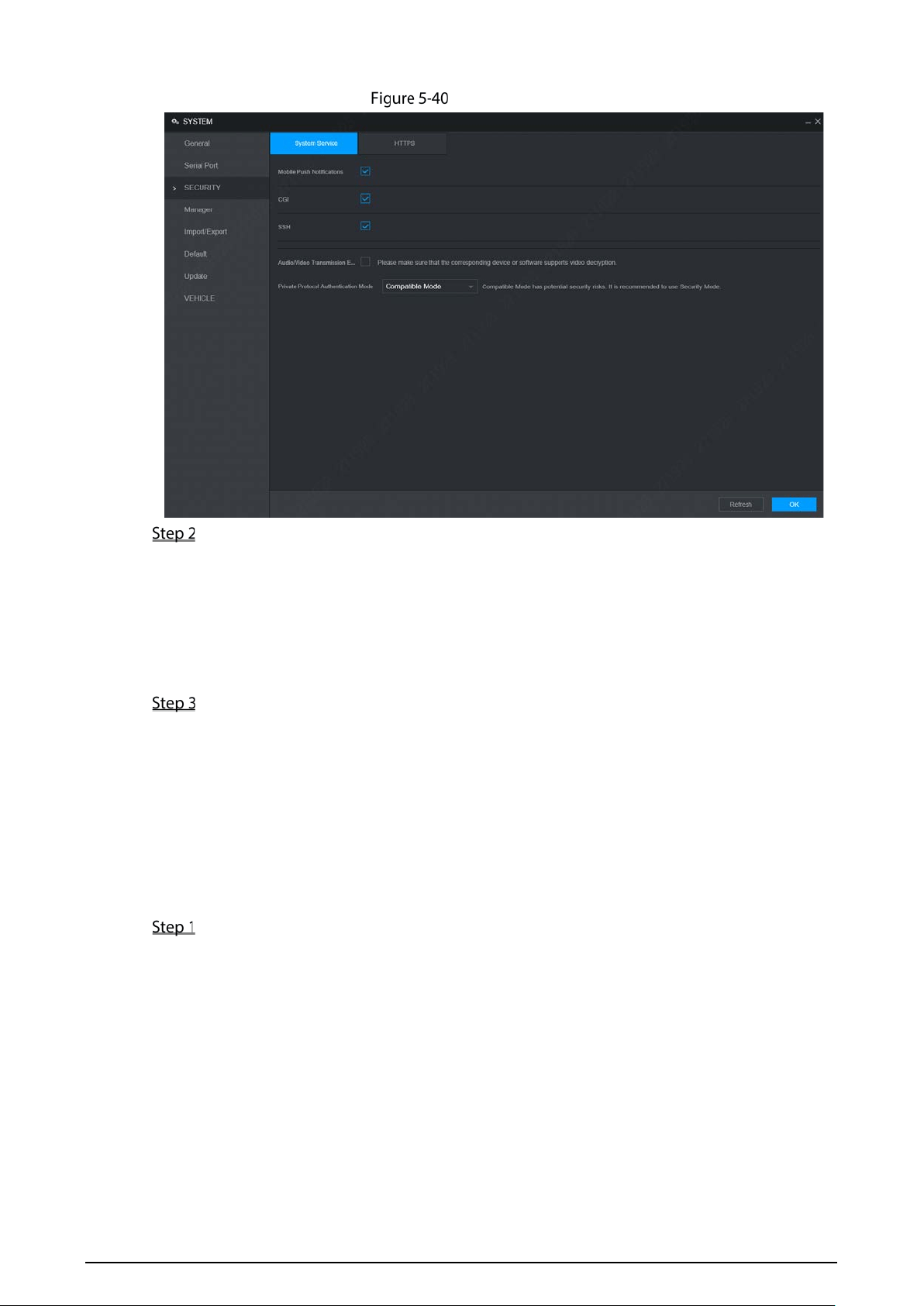
82
System service
Select whether to enable mobile phone push, CGI, SSH, or audio/video transmission
encryption as needed.
App can receive alarm push only when the mobile phone push is enabled and the app
has subscribed alarm.
After enabling CGI, a third-party platform can connect to this device via the CGI protocol.
When audio/video transmission encryption is enabled, audio/video transmission will be
encrypted. Related devices or software shall support video decryption.
Click OK.
5.7.3 Configuring Vehicle Info
You can set the vehicle speed and position report.
5.7.3.1 Configuring Speed
Select Setting > System > Vehicle > Speed.
The Speed interface is displayed. See Figure 5-41.
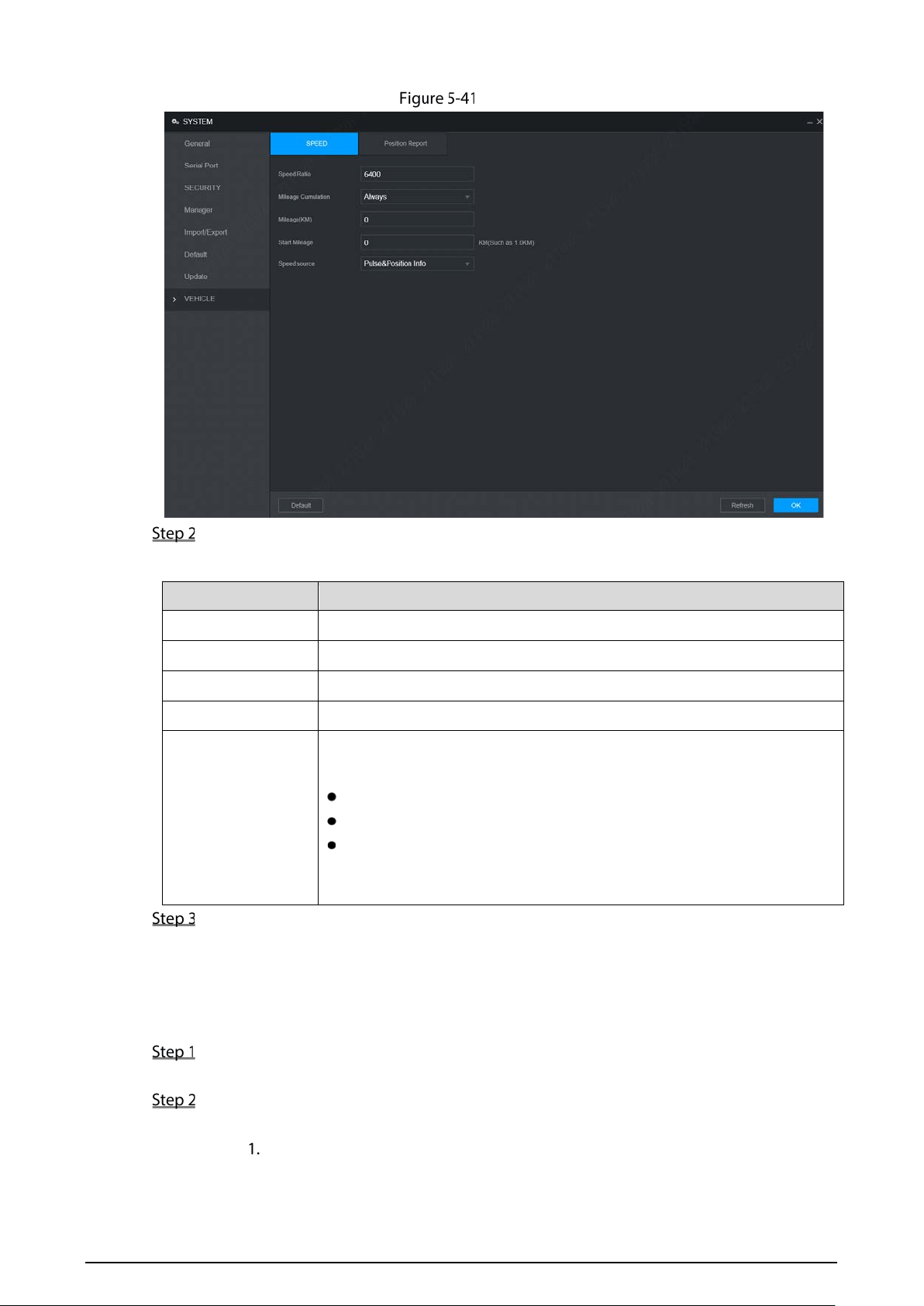
83
Speed
Configure parameters. For details, see Table 5-18.
Table 5-18 Speed parameters description
Parameter Description
Speed Ratio The parameter for converting speed.
Mileage Cumulation Select the vehicle mileage cumulation mode.
Mileage Displays the total mileage.
Start Mileage Enter the initial mileage of the vehicle.
Speed source
Select where the speed is obtained, including Pulse, Position Info, and
Pulse&Position Info.
Pulse 1: Get the speed information from vehicle pulse system.
Position Info: Get the speed information from positioning system.
Pulse&Position Info: Gets the speed information from both the pulse
system and positioning system. Information from the pulse system is
used first.
Click OK.
5.7.3.2 Configuring Position Report
You can configure the position report strategy to be device auto report or report per platform schedule.
Select Setting > System> Vehicle> Position Report.
The Position Report interface is displayed.
Configure the report strategy.
Device auto report.
In the Report Strategy list, select Device Auto.
The Device Auto setting interface is displayed. See Figure 5-42.
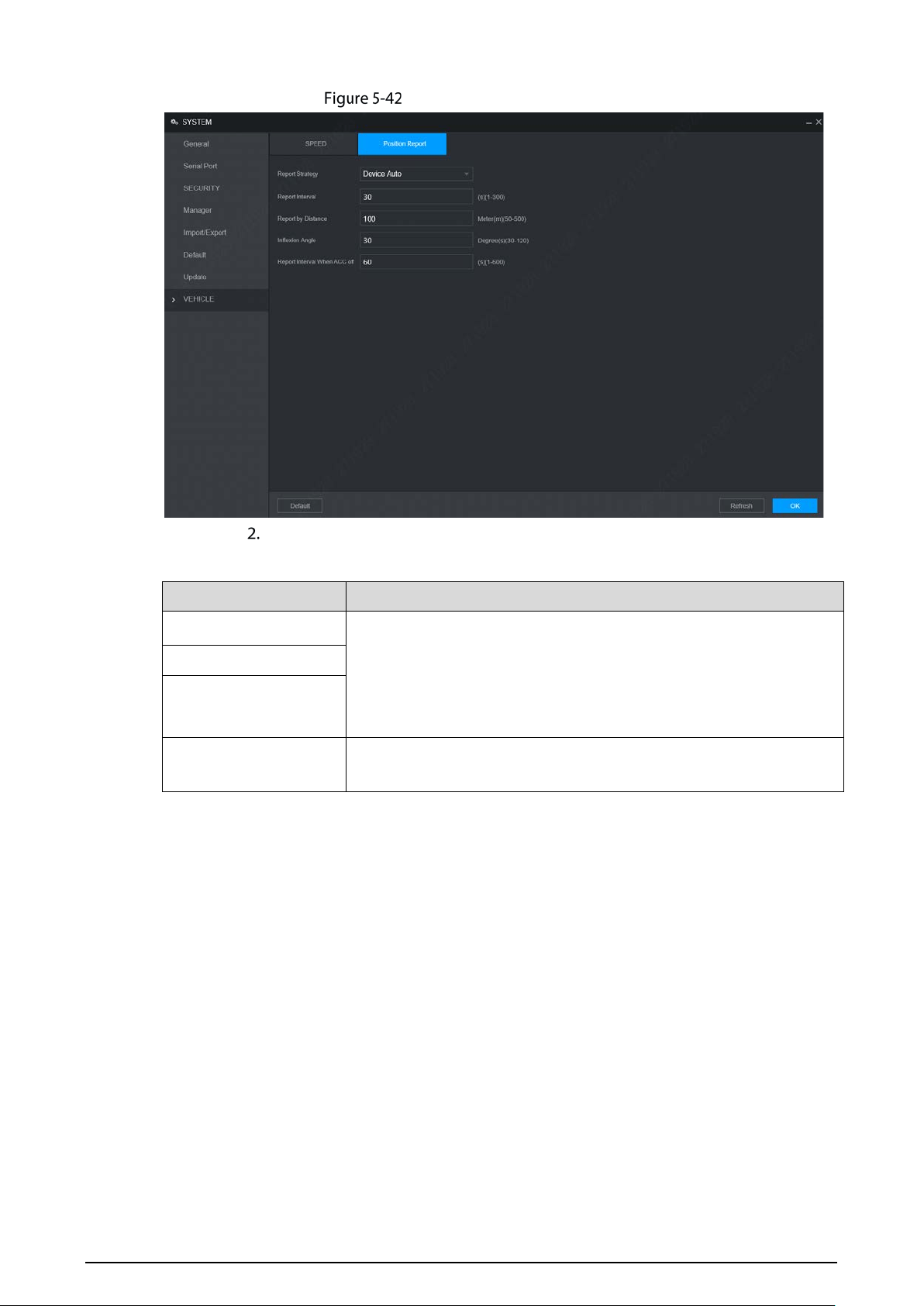
84
Position report (device auto)
Configure parameters. For details, see Table 5-19.
Table 5-19 Device auto report parameters description
Parameter Description
Report Interval When the vehicle ACC status is on, the system report the position to
platform according to the configured report interval, report distance,
and inflexion angle.
The system reports vehicle position to platform only if one of
conditions is satisfied.
Report by Distance
Inflexion Angle
Report Interval When
ACC off
When the vehicle ACC status is off, the system report the position to
platform according to the configured report interval.
Platform schedule.
In the Report Strategy list, select Platform Schedule. The Platform Schedule setting
interface is displayed. See Figure 5-43.
The platform obtains the device position by the configured schedule. The schedule is
configured at the platform. See the user's manual for the platform.
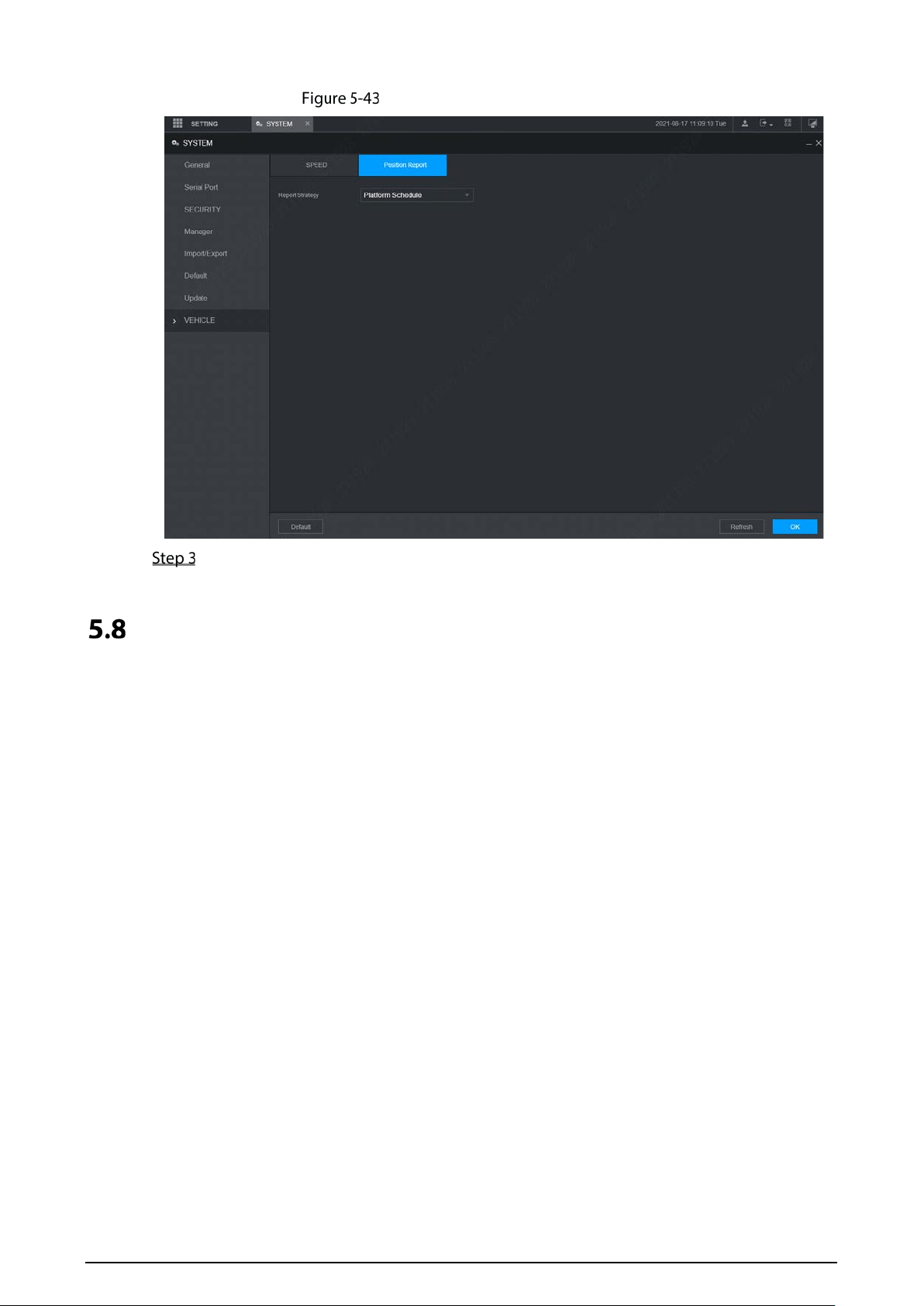
85
Position report (platform schedule)
Click OK.
Managing User Account
You can add, modify and delete user accounts and groups, and configure security questions for admin
account.
The Default User and Authority
The default user account is admin.
The admin account is defined as the highly privileged user by default.
To manage user accounts easily, when defining the user account authority, it is recommended to
give lower authority to common user accounts than advanced user account.
About User and User Group
You can manage the account by user and user group, and the name cannot be repeated.
You can set maximum 64 users and 20 groups.
The default group name by "User" and "Admin" cannot be deleted.
Select the authorities to the user of a group. However, the authorities of the admin account
cannot be specified at your will.
Every user must belong to only one group. When selecting a group for a user, permissions of the
user can only be a subset of group permissions and cannot exceed permission attributes of the
group.
Both the user name and group name support 1–3 characters and can only consist of letter,
number, underline (_), and hyphen (-).
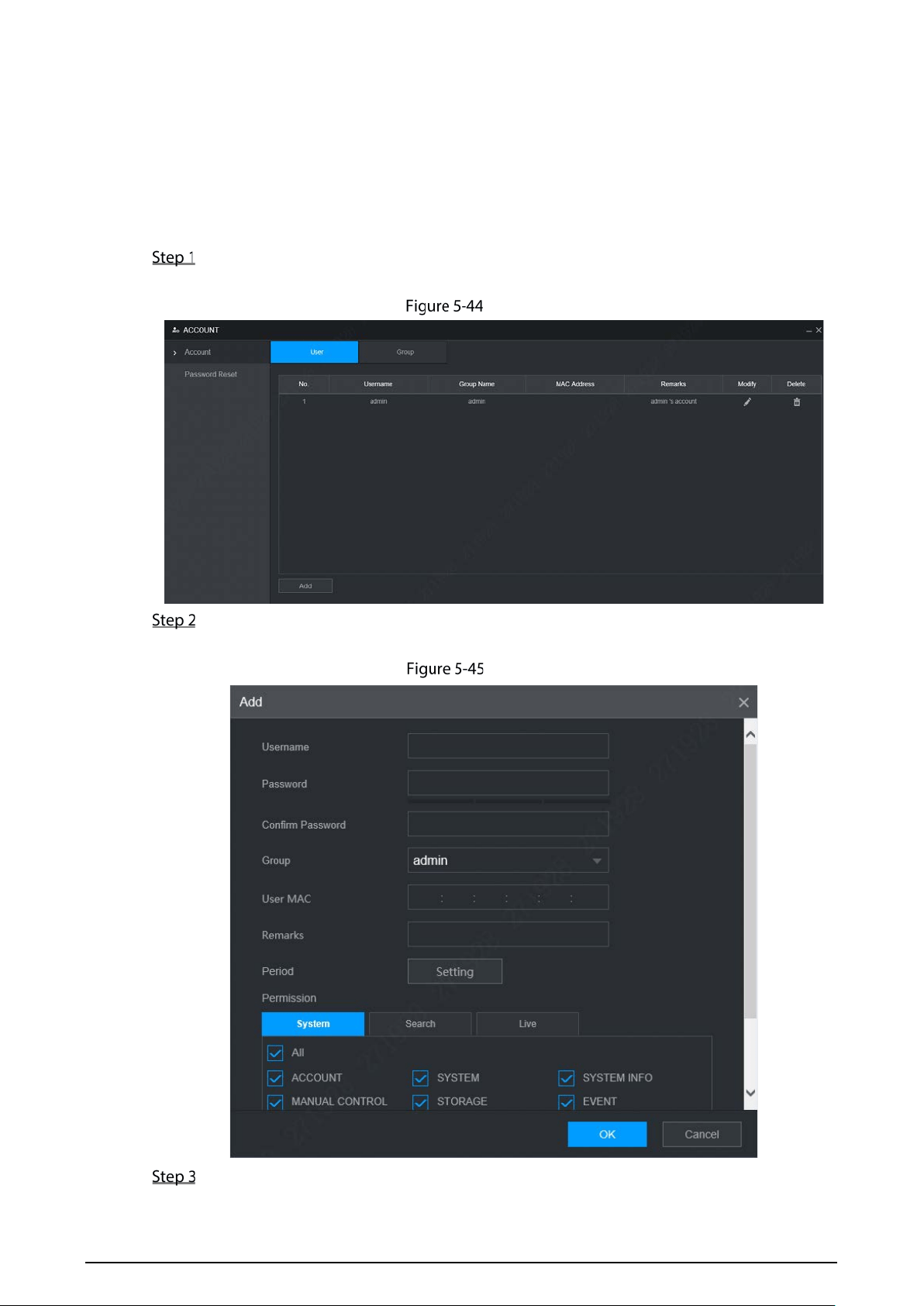
86
5.8.1 Managing User
You can add, delete, or modify user, and set the authorities for the user of a group.
Adding a user
Select Setting > Account > Account > User.
The User interface is displayed. See Figure 5-44.
User
Click Add.
The Add interface is displayed. See Figure 5-45.
Add
Configure parameters. For details, see Table 5-20.
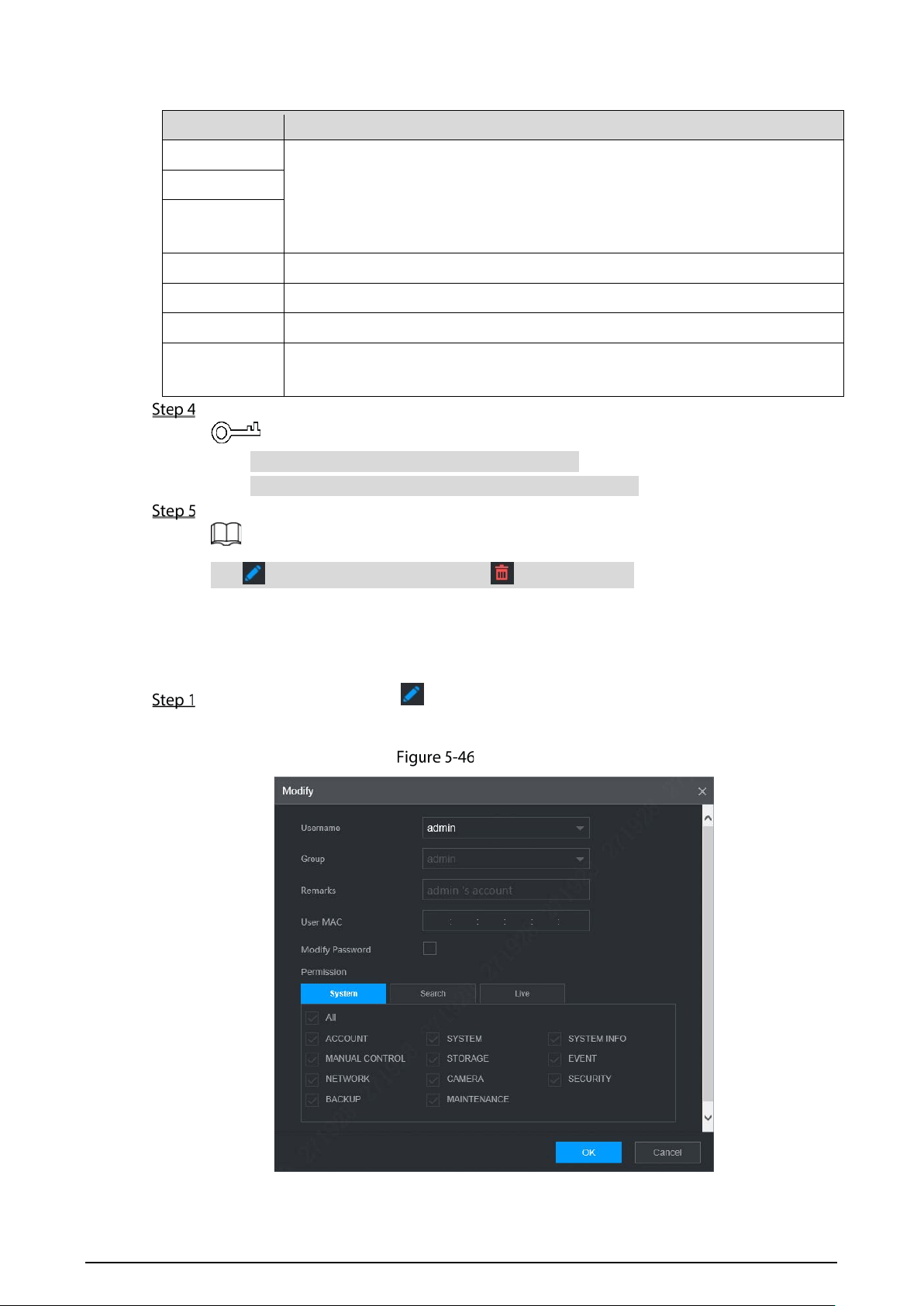
87
Table 5-20 Parameters description for adding user
Parameter Description
User Name
Enter the user name and password, and conform the password.
Login PWD
Confirm
Password
Group Name Select the group that the users belong to.
User MAC Enter user MAC address that is allowed to login the device.
Remark Enter a description of the user.
Period
Click Setting to set a valid period. The user is only allowed to log in to the
device in the set period.
Click System, Search, or Live to set up user permissions.
Select All to select all authorities in the category.
The authorities of the admin account cannot be changed.
Click OK.
Click to modify user information; click to delete the user.
Changing Password
On the User interface, click .
The Modify interface is displayed. See Figure 5-46.
Modify
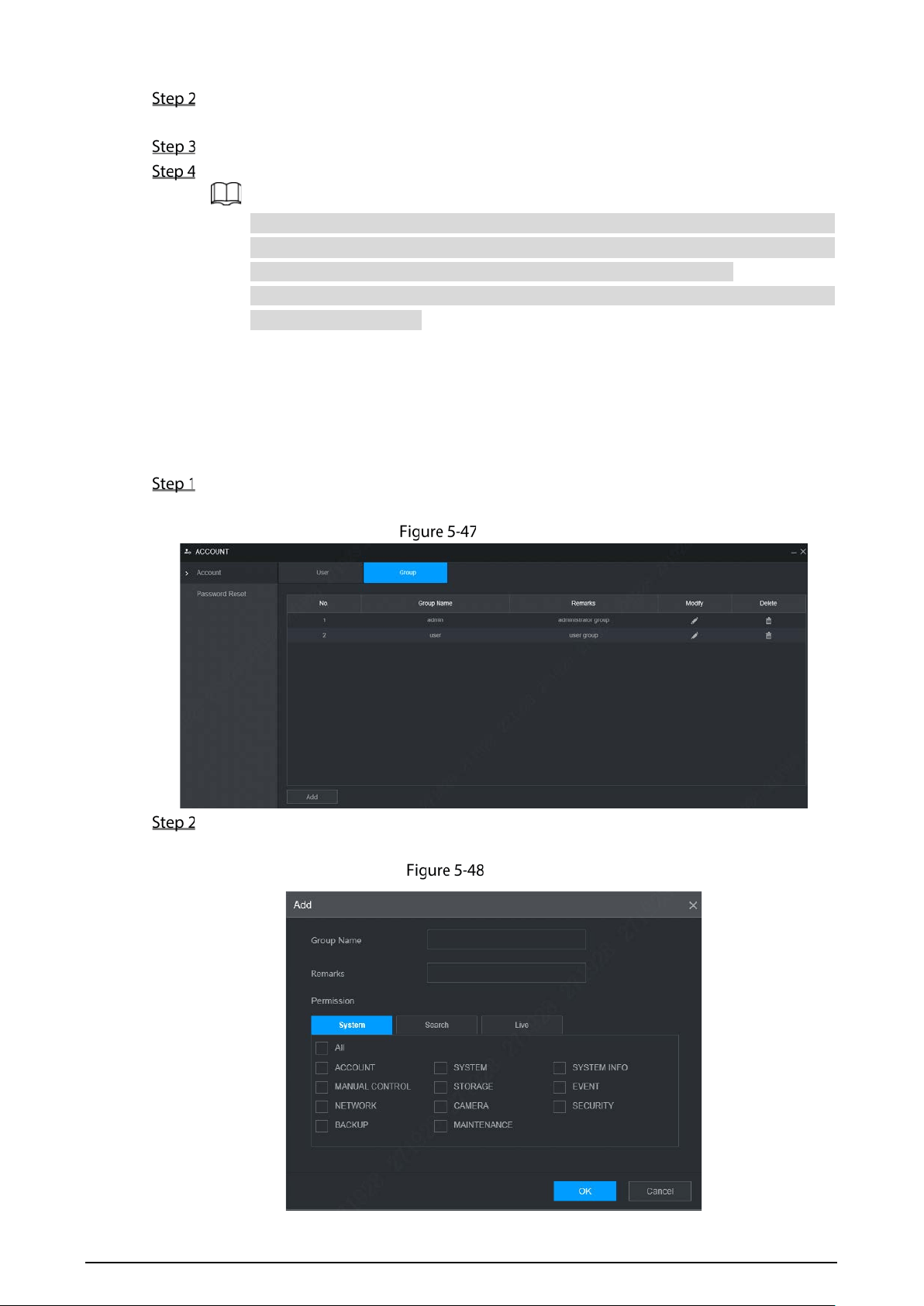
88
Select the Modify Password check box, and then enter old password, new password, and
confirm password in the corresponding box.
Select the authority, including system, playback, and real-time monitoring authorities.
Click OK.
The new password can be set from 8 characters through 32 characters and contains at
least two types from number, letter and special characters (excluding ' " 、; : &). Please
enter a strong password according to the password strength indication.
A user authorized to manage user accounts can modify its own password and the
passwords of other users.
5.8.2 Managing Group
You can perform the operations to manage the group account, such as adding a group, deleting a
group, and modifying a group.
Select Setting > Account > Account > Group.
The Group interface is displayed, see Figure 5-47.
Group
Click Add.
The Add interface is displayed. See Figure 5-48.
Add

89
Set group name and memo.
A group name consists of letters, numbers, and special characters (including "_", "@", ".").
Select the authority, including system, playback, and real-time monitoring authorities.
Select All to select all authorities in the category.
Click OK.
Click to modify the corresponding group information; click to delete the group.
5.8.3 Resetting Password
You can reset the password through the reserved phone number when you forget the login password
of admin.
Open a browser and login the WEB interface of device.
The Login interface is displayed. See Figure 5-49.
Login
Click Forgot Password?
The Password Reset interface is displayed. See Figure 5-50
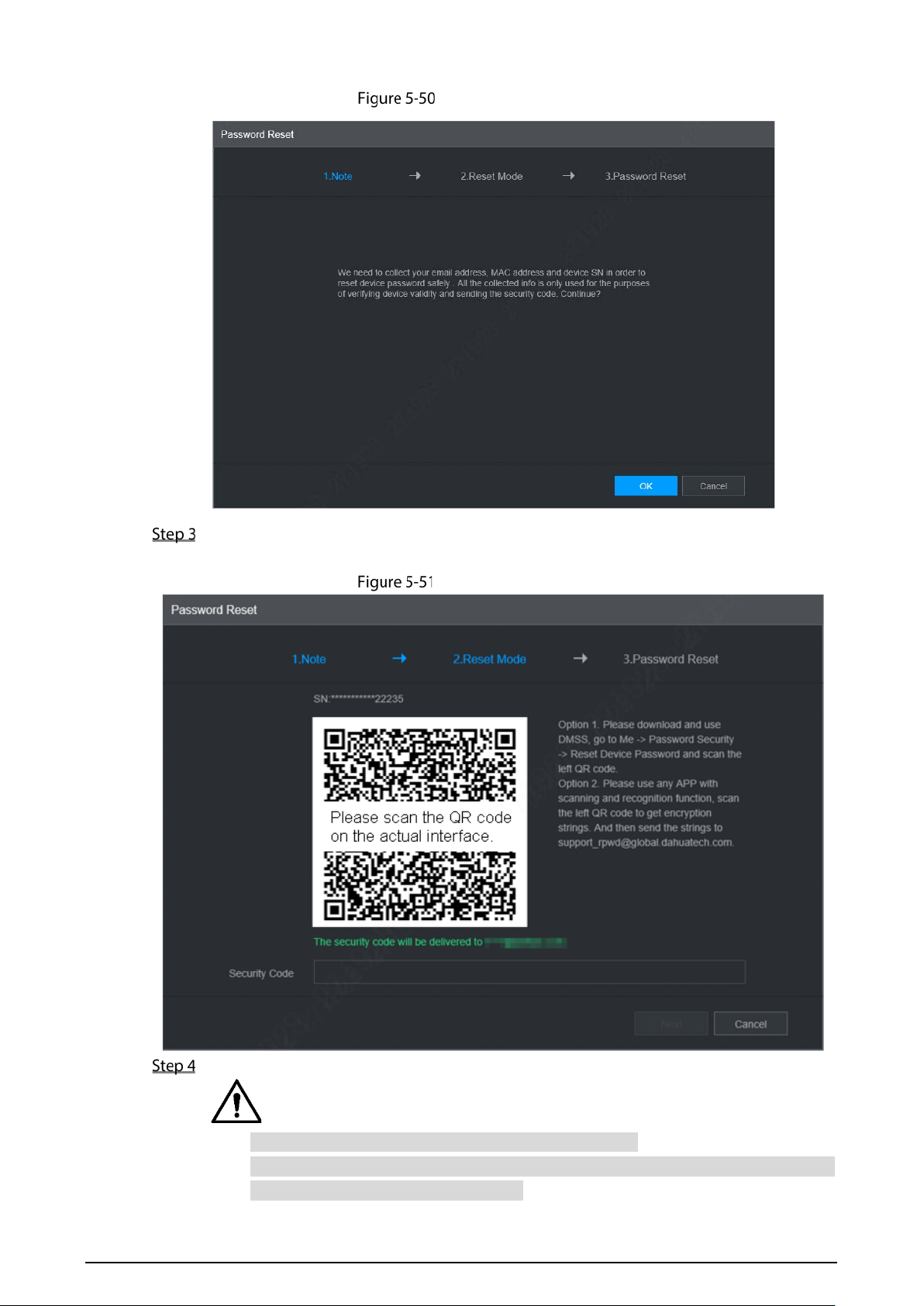
90
Reset password (1)
Click OK.
The Password Reset interface is displayed. See Figure 5-51.
Reset password (2)
Follow the instructions to scan the QR code and get the security code.
Please scan the QR code on the actual interface of device.
At most two security codes will be generated by scanning the same QR code. To get
more security code, refresh the QR code.
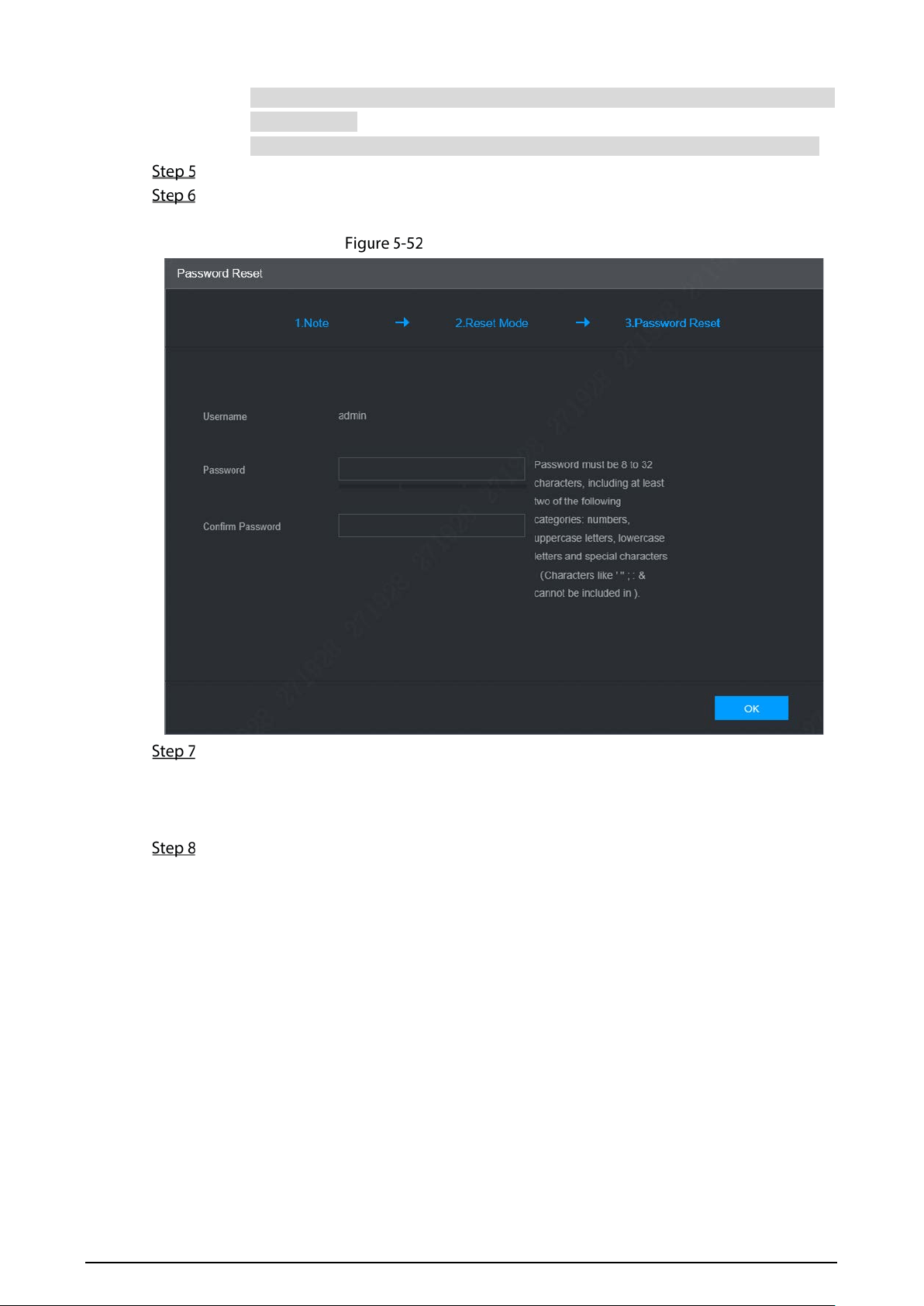
91
Please use the security code within 24 hours after you receive it. Otherwise, it will
become invalid.
Wrong security code entered for up to five times will cause account locked for 5 min.
In the Security Code box, enter the security code received in your provided mailbox.
Click Next.
The new password setting interface is displayed. See Figure 5-52.
New password setting
Reset and confirm the password.
The new password can be set from 8 through 32 non-empty characters and contains at least
two types from number, letter and special characters (excluding “'”, “"”, “;”, “:” and “&”). Please
enter a strong password according to the password strength indication.
Click OK.
The system prompts successful operation and restarts. You can use the new password to log
in to the device.
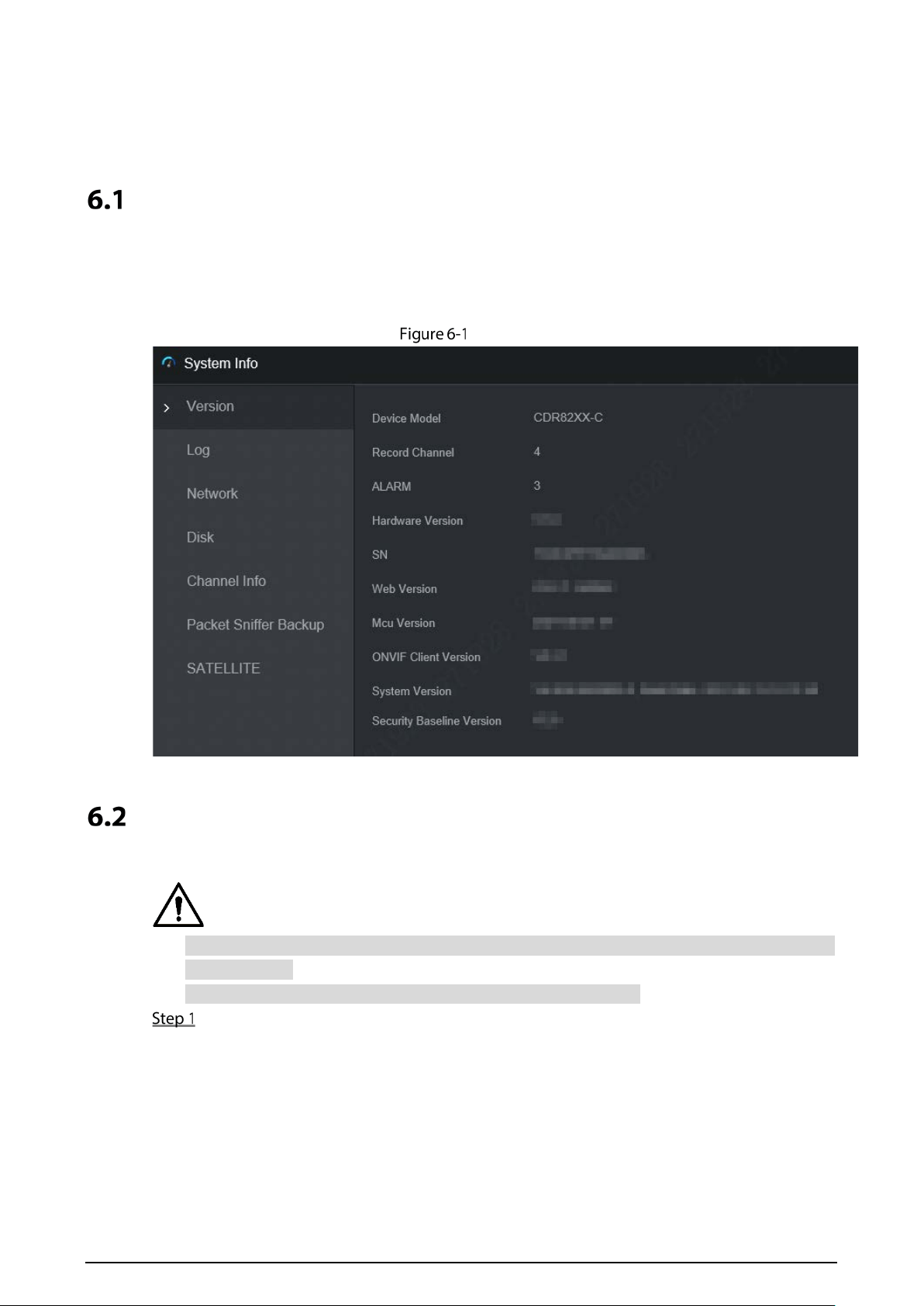
92
6 Update
System Version
You can view the device hardware characteristics, version such information.
Select Setting > System Info > Version.
The Version interface is displayed. See Figure 6-1.
Version
Update
Import the update file in the format of .bin to update the system.
Do not disconnect the power or network, or restart or shut down the device during update
cannot be used.
Incorrect update programs may result in the device unable to work.
Select Setting > System > Update.
The Update interface is displayed. See Figure 6-2.
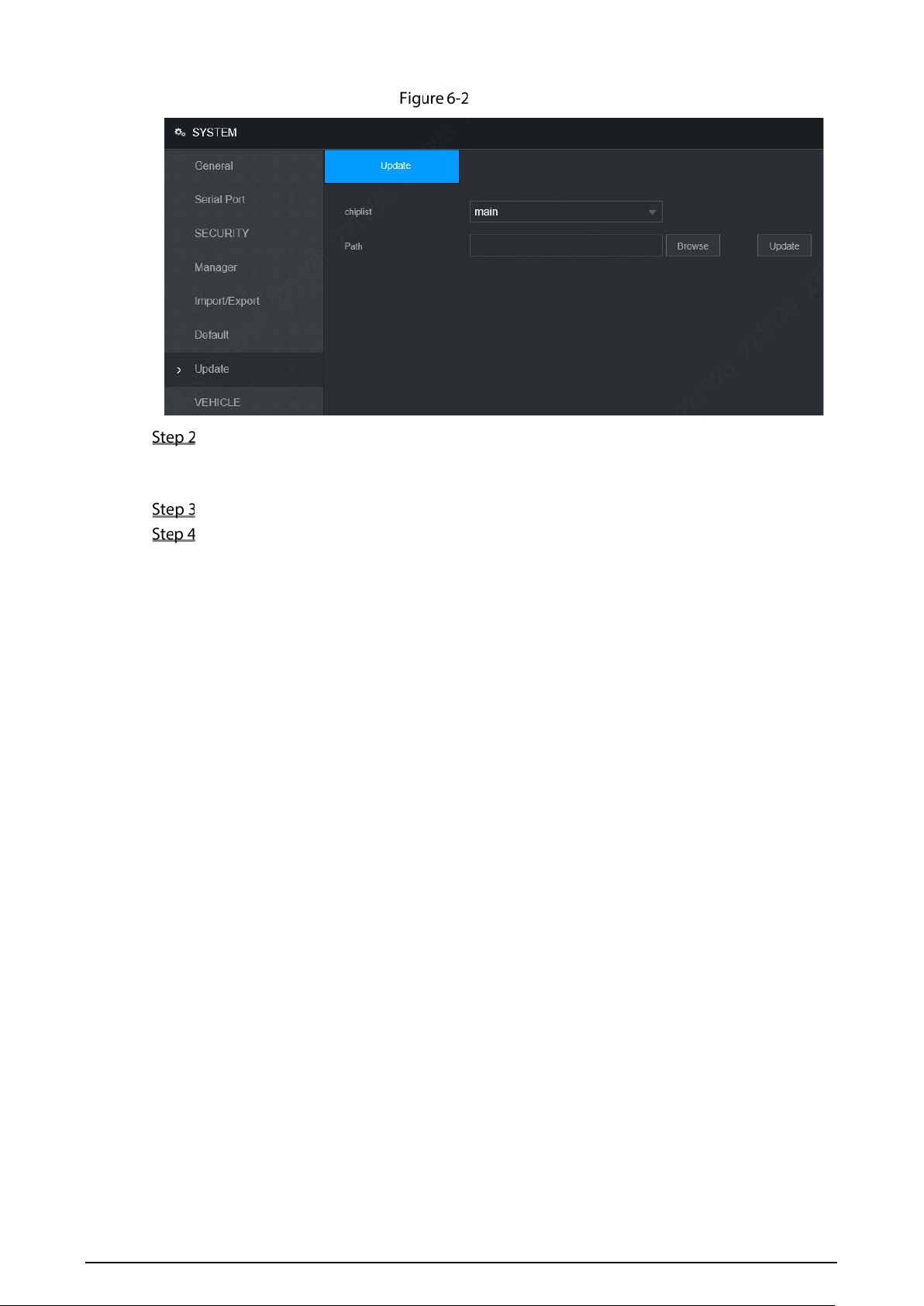
93
Update
Select the chip list that suits your actual needs.
To upgrade system programs, select Main for the chip list.
To upgrade the MCU firmware programs, select MCU for the chip list.
Click Browse and select the upgrade files you want to use.
Click Update.
The system starts upgrading. You should log in to the WEB interface again after upgrading.
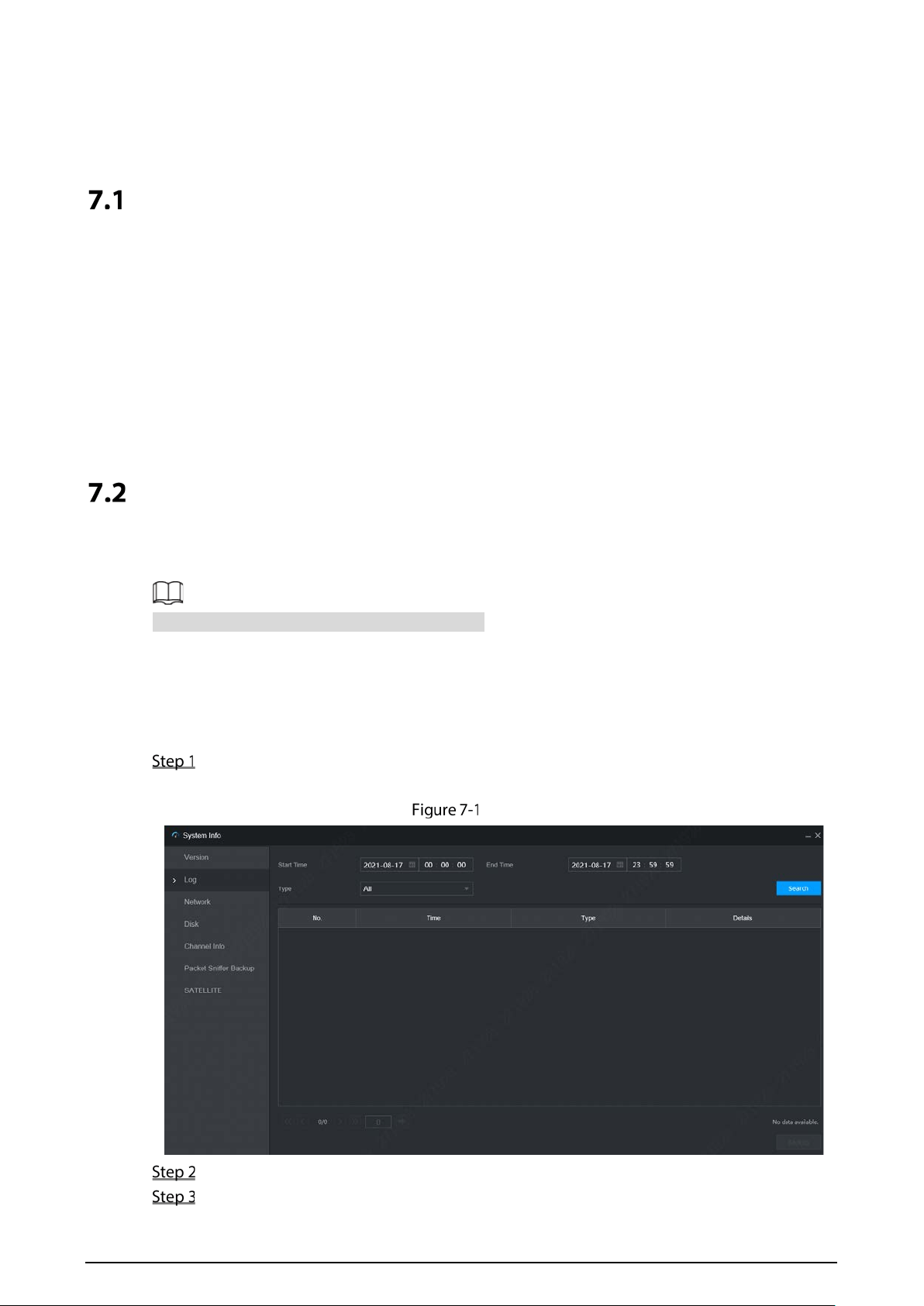
94
7 System Maintenance
Requirement for Maintenance
To keep the device running normally, it is recommended to manage, backup, and maintain the device.
Check the monitoring screen of device regularly.
Delete the unused user and group regularly.
Modify the user password every three months.
View the system logs regularly and analyze the data to handle the abnormalities timely.
Back up the system configurations regularly.
Reboot this device regularly.
Upgrade firmware regularly.
System Information
You can view device version information, logs, network information, HDD information, channel
information, satellite information, and MAC information.
For version information, see “6.1 System Version.”
7.2.1 Log
You can search, view, and back up the logs to local PC.
Select Setting > System Info > Log.
The Log interface is displayed. See Figure 7-1.
Log
Set up Start Time, End Time, and Type.
Click Search.
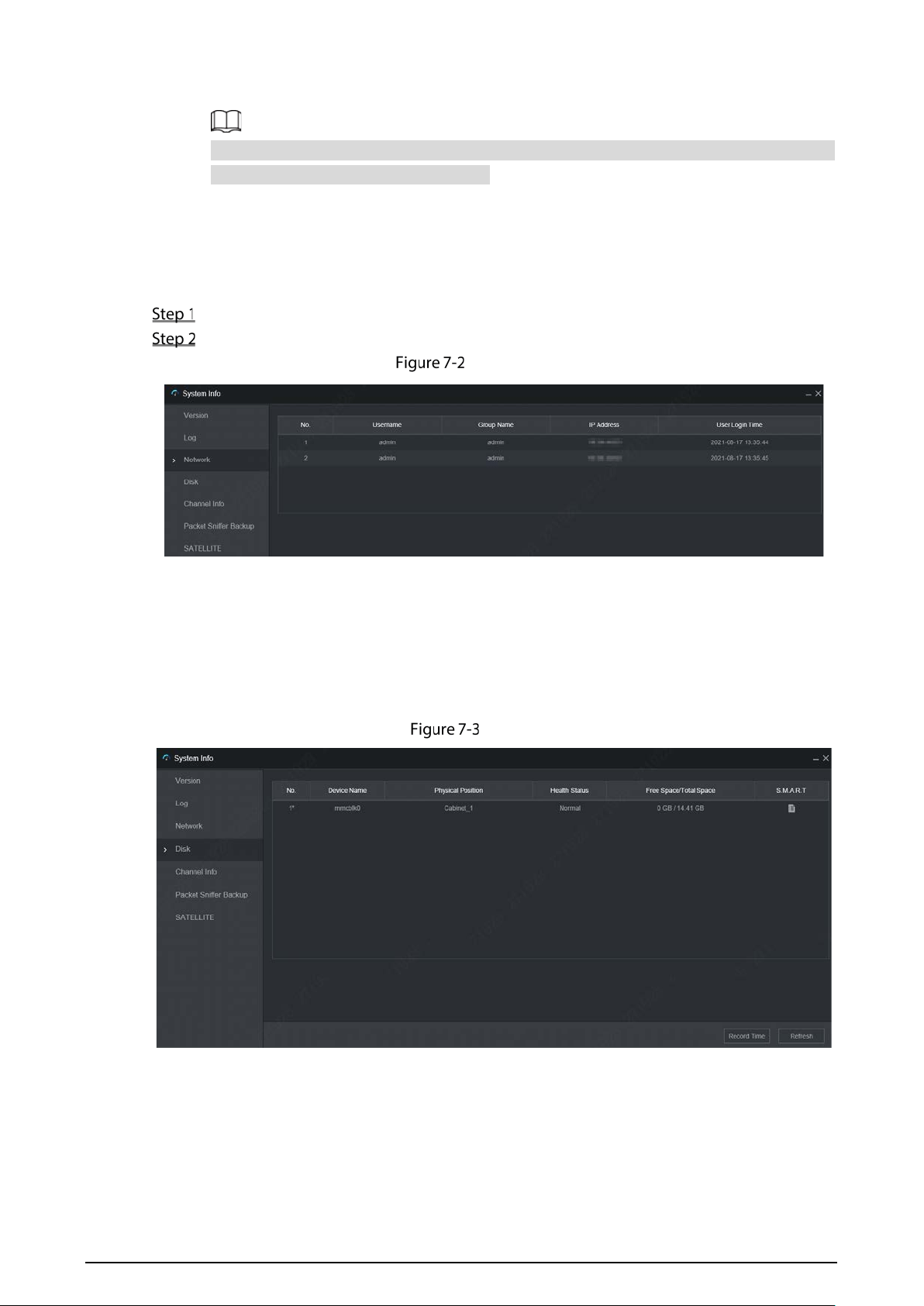
95
The searched logs are displayed.
Select the log that you want to back up, and then click Backup. In the Save as dialog box,
select the save path to save the log to PC.
7.2.2 Network Info
You can view IP information of the logged in device.
Select Setting > System Info > Network. The Network interface is displayed. See Figure 7-2.
Click Refresh and the latest network information is displayed.
Network
7.2.3 Disk
You can view the HDD information of the device, including TF Card name, location, and health.
Select Setting > System Info > Disk. The Disk interface is displayed. See Figure 7-3.
Disk
7.2.4 Channel Info
You can view the channel information.
Select Setting > System Info > Channel Info. The Channel Info interface is displayed. See Figure 7-4.
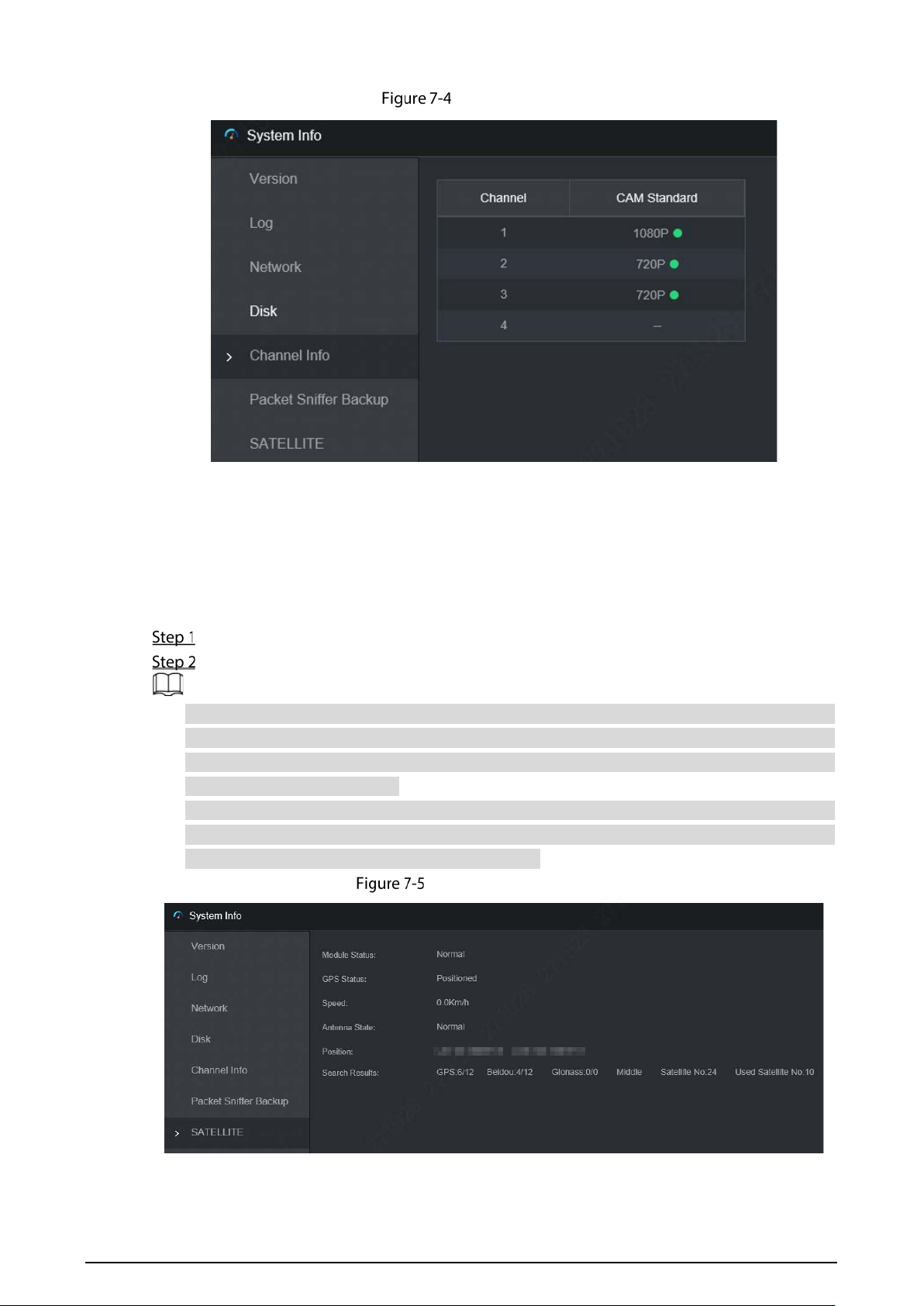
96
Channel Info
7.2.5 Satellite Info
You can view the satellite positioning information such as module status, positioning status, latitude
and longitude, and search results.
Select Setting > System Info > Satellite. The Satellite interface is displayed. See Figure 7-5.
Click Refresh and the latest satellite information is displayed.
If the GPS module status indicates Normal and does not position within five minutes, the GPS
module automatically resets and re-positions. When the positioning information is obtained
again, the GPS module reset times is up to 20, or the device is restarted, you can view the GPS
module reset records in the log.
When the GPS module is short-circuited for more than 10 seconds, the module status is abnormal
and the GPS module is automatically powered off and no longer powered on. After the device is
restarted, the GPS module will be powered on again.
Satellite information
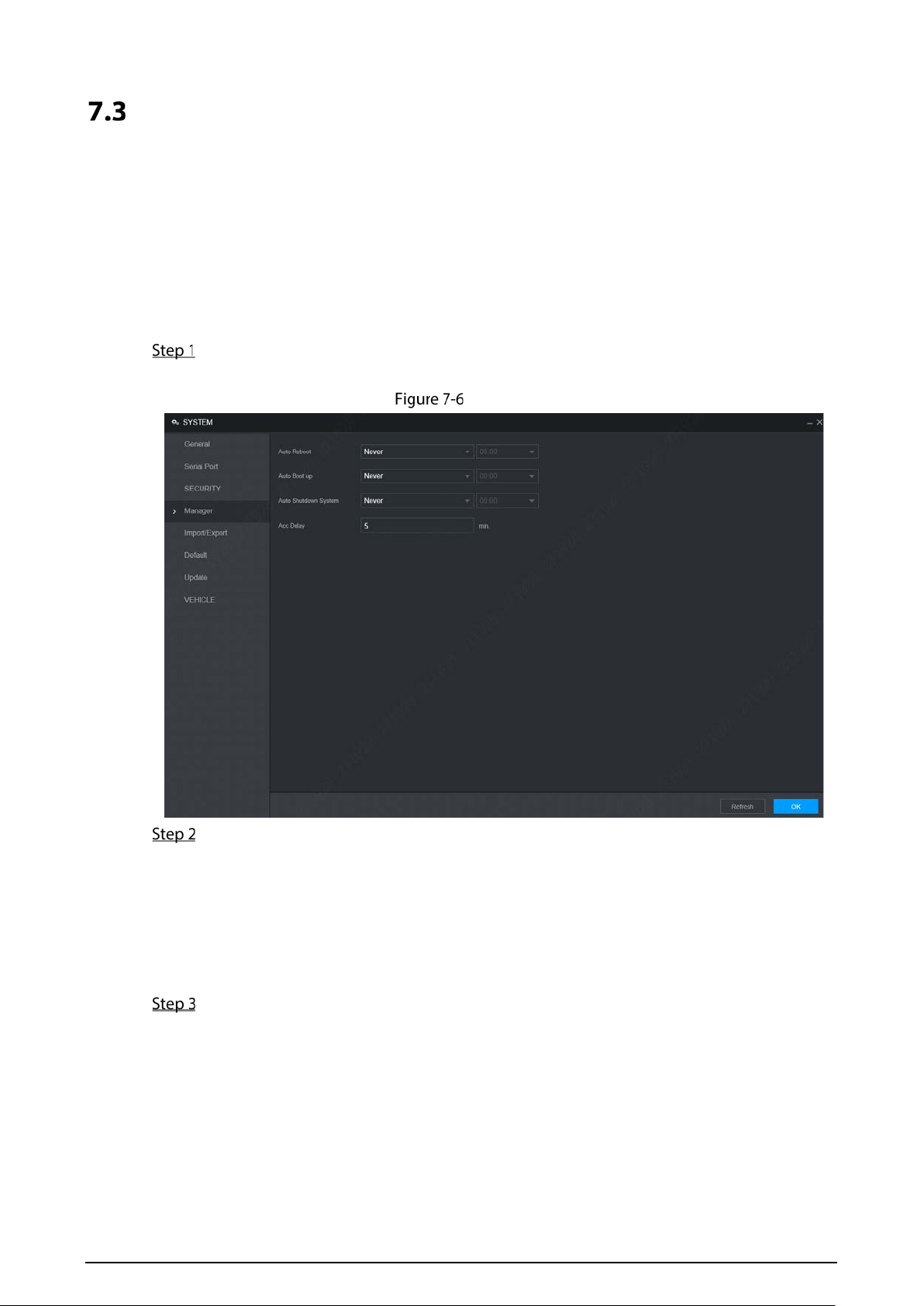
97
Automatic Maintenance
You can configure the automatic maintenance settings such as auto reboot, auto deleting old files,
auto booting up, auto shutdown, and delay for auto shutdown.
7.3.1 Auto Reboot
Once the device is running for a long time, you can set to automatically reboot the device at idle time.
After configuring auto reboot, when the device is working, it reboots according to the schedule.
Select Setting > System > Manager.
The Manager interface is displayed, see Figure 7-6.
Manager
Select the strategy of auto restart.
Select Never, and the device will never restart automatically.
Select Every Day, set the device restart time, and the device will restart automatically at
that time point.
Select Monday to Sunday, set the device restart time, and the device will restart
automatically at that time point every week. If Sunday and 01:00 are selected, the device
will restart automatically at 1:00 every Sunday.
Click OK.
7.3.2 Auto Boot up
After configuring auto start, the device starts automatically at the scheduled time point. If you turn
the vehicle key to ACC before the configured auto start time, the device starts immediately. When the
documentation is powered off, the device will shut down as per the scheduled auto delay for
shutdown.

98
Select Setting > System > Manager.
The Manager interface is displayed.
Select the strategy of auto start.
Select Never, and the device will never start automatically.
Select Every Day and set the time. When you turn the vehicle key to ACC before this time
point, the device starts immediately.
Click OK.
7.3.3 Auto Shutdown System
After configuring auto shutdown, the device automatically shuts down according to the ACC
power off time and auto boot up setting.
If you have set the time for auto start, there are two situations when the ACC is powered off: If the
system time is between the auto start time and auto shutdown time, the device is turned off at
the configured time point. If the system time is before the auto start time or after the auto
shutdown time, the device is turned off immediately.
If the auto booting up is not set, when the ACC is disconnected, the device shuts down at the
scheduled time.
Select Setting > System > Manager.
The Manager interface is displayed, see Figure 7-6.
Select the strategy of auto shutdown.
Select Never, and the device will never shut down automatically.
Select Every Day and set the time. The system will shut down as per the ACC power off
time and auto start setting.
Select Every Day for Auto Shutdown, and then enter the specific time.
Click OK.
7.3.4 Acc Delay
After configuring delay for auto shutdown, when ACC is disconnected, the device shuts down as per
the settings of delay for auto shutdown.
If you enter a delay value that is not 0, the device automatically shuts down after the preset delay.
If you enter 0, the device shuts down as per the auto shutdown settings without delay.
Select Setting > System > Manager.
The Manager interface is displayed, see Figure 7-6.
Configure the auto delay for shutdown.
The value ranges from 0 through 65535. The fault value is 5.
Click OK.
Backup and Restore
You can back up or restore the web configurations and restore to default settings.
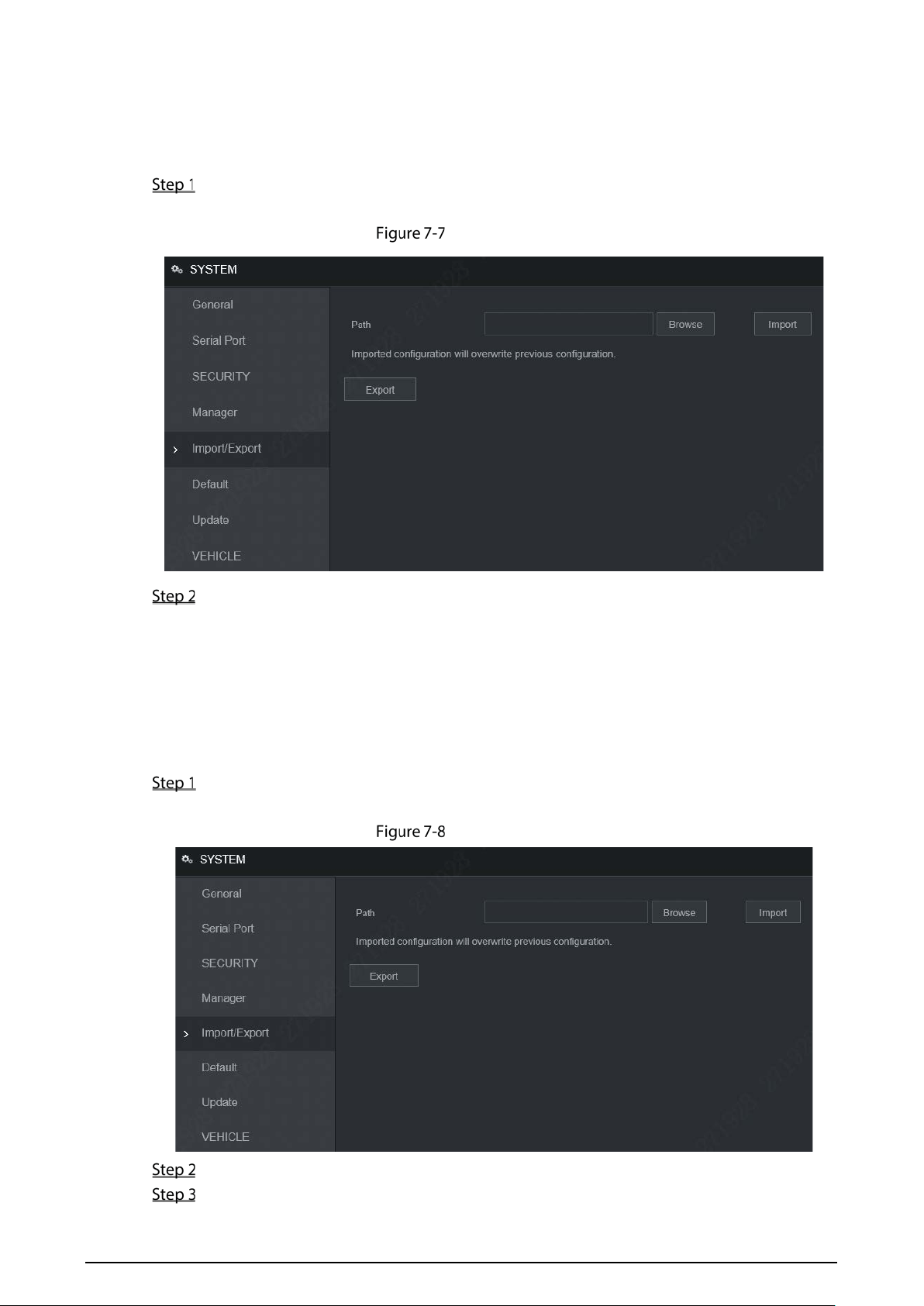
99
7.4.1 Backing up Configurations
You can back up all the configurations of web.
Select Setting > System > Import/Export.
The Import/Export interface is displayed, see Figure 7-6.
Import/Export
Click Export, and select the backup path.
The system starts backing up configurations.
7.4.2 Importing Configurations
You can use the backed up configurations to quickly configure the device and restore the device
configurations.
Select Setting > System > Import/Export.
The Import/Export interface is displayed, see Figure 7-8.
Import/Export
Click Browse, and then select the backup file you want to import.
Click Import.

100
The system pops up the reboot message. Click OK, the system starts importing the
configurations and reboot the device after importing is completed.
7.4.3 Restoring to Default
You can restore the system to default configurations or the factory default. Only the user with the
default & upgrade authorities can do this.
The corresponding functions will be restored to the factory settings, and your current configurations
will be lost. Proceed with caution.
Select Setting > System > Default.
The Default interface is displayed. See Figure 7-9.
Default
Select the check box of the options that you want to restore to the factory default.
Default: Click Default, and the Reboot dialog box is popped up. See Figure 7-10. Then
click OK. All configurations other than user name, password, security questions, device
IP, 4G, Wi-Fi are restored to the default configuration of the device.
Factory Default: Click Factory Default, and the Reboot dialog box is displayed. See
Figure 7-11. Then click OK, and the system restarts. After the device is restarted, the
system will restore to factory defaults, and the device requires initialization again.
Proceed with caution.
When there is a user operating on the local interface, the factory default settings cannot
be performed until the local user log out.
Reboot (1)
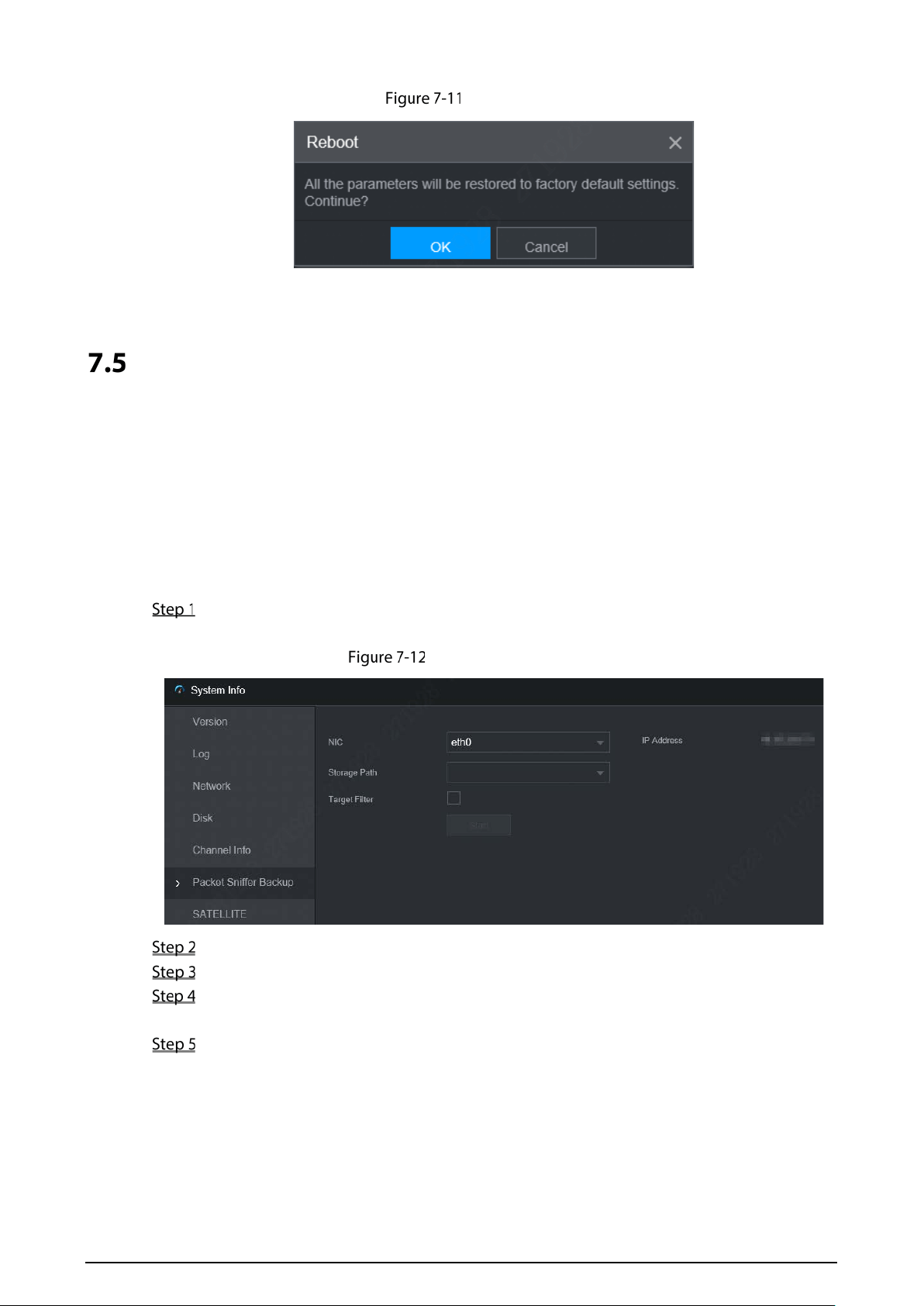
101
Reboot (2)
Network Sniffer
The packet data can be provided to the developers or engineers to analyze the network usage status.
Prerequisites
The device being captured is connected to an external backup device.
Procedure
Select Setting > Info > Packet Sniffer Backup.
The Packet Sniffer Backup interface is displayed, see Figure 7-12.
Packet Sniffer Backup
Select the Ethernet card and save path.
Select the Target Filter check box, and then enter the IP address that you want to filter.
Click Start.
The system starts the sniffer, and the data will be stored to the external backup device.
Click Stop.
The Message dialog box is displayed, see Figure 7-13.
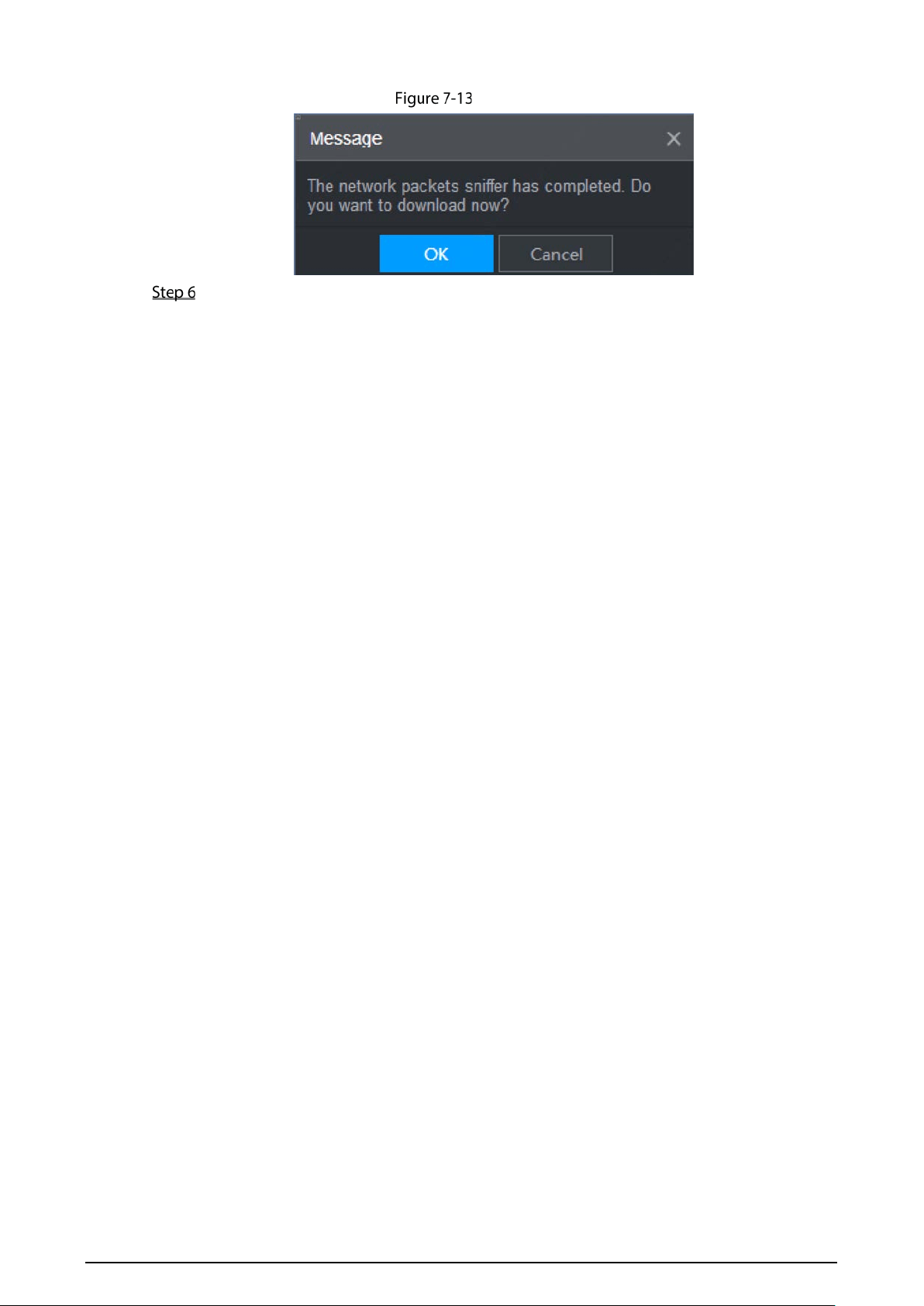
102
Prompt
Click OK or Cancel to complete the task.
Click OK to download the files locally, which can be viewed in the storage path; click
Cancel to stop downloading.
Click Cancel to stop downloading this sniffer file.

103
8 Logging in to the Device from DSS
Beside from WEB, you can also remotely log in to the device from Digital Surveillance System (DSS)
For details, see the manual of DSS.

104
FAQ
If your questions are not solved by following the answers in this document, contact your local
customer service or call customer service at headquarters. We will guide you to solve your problems.
1. Q: Disconnect the constant electricity but the device is still working.
A: Possible reasons:
The UPS setting provides constant power supply to the device when the lithium battery
voltage is above 7V.
2. Q: The device gives squeal after start.
A: Possible reasons:
Connecting to the display and being too close to the camera.
A single channel interface or a large-image multi-channel interface. The first route of sound
comes from a local source.
3. Q: The interface shows that no SIM card is detected.
A: Possible reasons:
SIM card not inserted.
Micro SIM card reversely inserted with its notch facing outward. Follow instructions on the
label to insert the SIM card.
SIM card is damaged.
4. Q: DVR cannot boot up properly.
A: Possible reasons:
The input power is not correct; the input voltage is too low or too high.
Poor contact in the input power cable or incorrect wiring.
HDD is damaged or poor contact between the HDD carrier and HDD.
Main board is damaged.
5. Q: DVR automatically reboots or frequently crashes.
A: Possible reasons:
Input voltage is unstable or too low
The device is not properly installed, which result in poor contact between components.
Poor heat dissipation and too many dusts result in poor working environment for the device.
Hardware malfunction.
6. Q: Blank screen in a channel of the display.
A: Possible reasons:
A camera is damaged. Replace the damaged camera.
The connection wire is damaged. Replace the damaged connection wire.
7. Q: There is no video output for single channel, multiple channels or all channels.
A: Possible reasons:
Incorrect program. Upgrade to the correct program.
Image brightness is set as 0. Restore to default settings.
Video input signal is null or too weak.
Channel protection (or screen protection) is set.
Hardware malfunction.
8. Q: Real-time video image is abnormal, such as color and brightness is distorted.
A: There are the following possibilities:
NTSC and PAL settings are not correct, and the image becomes black and white.

105
Device and monitor resistance is not compatible.
Video network transmission distance is too far or transmission line signal attenuation is too
much.
NVR color or brightness settings are not correct.
9. Q: I cannot search video record in local playback.
A: There are the following possibilities:
Poor contact between the HDD carrier and HDD.
HDD is damaged.
Upgraded a program different from the original program file system.
The video record is overlapped.
The video record is not opened.
10. Q: The local video record is blurry.
A: Possible reasons:
The image quality is too low.
Program read error, bit data is too small, and there is full of mosaic in the screen. Please firstly
try to restart the DVR to solve this problem.
HDD Error
Hardware malfunction.
11. Q: No audio.
A: Possible reasons:
It is not an active speaker.
Audio cable is damaged.
Hardware malfunction.
12. Q: There is audio under monitoring state but no audio under playback state.
A: There are the following possibilities:
Audio function is not enabled.
The corresponding channel does not connect to the camera. Playback is not continuous
when the screen is blue.
13. Q: The time displayed in the video record is wrong.
A: Possible reasons:
Error settings.
Poor battery contact or low voltage.
Crystal oscillator does not work.
14. Q: USB backup error.
A: There are the following possibilities:
Too much data which occupies CPU resources. Please stop recording first and then begin
backup.
Backup device is not compatible.
Backup device is damaged.
The backup device features high power and needs separate power supply.
15. Q: Alarm does not work.
A: Possible reasons:
Incorrect alarm settings.
Incorrect alarm wiring.
Incorrect alarm input signal.
An alarm device is connected to 2 loops at the same time.

106
16. Q: Messy channel display.
A: Possible reasons:
Incorrect selection of camera type. Auto switch is recommended.
The camera is damaged.
17. Q: Record storage period is not enough.
A: Possible reasons:
Low camera quality, dirty lens, camera installed against the light, or iris not properly adjusted
caused large big rate.
HDD capacity is not enough.
The HDD is damaged.
18. Q: No 3G/4G dial-up. No dial-up IP.
A: Possible reasons:
Check if the SIM card is normal.
Check if the SIM card is not in service.
Check if the 3G/4G antenna is connected as intended.
Check if the 128 G/4 G signals are strong enough.
Try out with another SIM card.
19. Q: 3G/4G platform is not online.
A: Possible reasons:
Check if 3G/4G dial-up is normal.
Check if local active registration is correctly set up.
Check if the sever terminal is correctly set up.
20. Q: No GPS data.
A: Possible reasons:
Check if the GPS antenna is connected as intended.
Make sure the GPS antenna is in a place where signals are not blocked.
21. Q: GPS drifting and produces speed for no reason.
A: Possible reasons:
Weak GPS signal.
22. Q: Video record is silent.
A: Possible reasons:
Check if a normal analog camera is connected. Only HDCVI camera with audio input
supports audio.

107
Storage Capacity Calculation
When the device is installed for the first time, make sure the HDD (or TF card) is installed.
Capacity calculation formula:
Total capacity (M) = Channel quantity × Demand time length (hour) × storage capacity occupied per
hour (M/hour)
Recording time calculation formula:
Recording time (hour) = Total capacity (M)
Storage capacity occupied per hour (M/hour) × Channel quantity
The device adopts H.264/H.265 compression technology, which features a large dynamic range.
Therefore, when calculating HDD capacity, you should accord to the bit rate to evaluate the file size
generated per hour from each channel.

108
Cybersecurity Recommendations
The necessary measures to ensure the basic cyber security of the platform:
1. Use Strong Passwords
Please refer to the following suggestions to set passwords:
The length should not be less than 8 characters.
Include at least two types of characters; character types include upper and lower case
letters, numbers and symbols.
Do not contain the account name or the account name in reverse order.
Do not use continuous characters, such as 123, abc, etc.
Do not use overlapped characters, such as 111, aaa, etc.
2. Customize the Answer to the Security Question
The security question setting should ensure the difference of answers, choose different
questions and customize different answers (all questions are prohibited from being set to the
same answer) to reduce the risk of security question being guessed or cracked.
Recommendation measures to enhance platform cyber security:
1. Enable Account Binding IP/MAC
It is recommended to enable the account binding IP/MAC mechanism, and configure the
IP/MAC of the terminal where the commonly used client is located as a whitelist to further
improve access security.
2. Change Password Regularly
We suggest that you change passwords regularly to reduce the risk of being guessed or cracked.
3. Turn On Account Lock Mechanism
The account lock function is enabled by default at the factory, and it is recommended to keep it
on to protect the security of your account. After the attacker has failed multiple password
attempts, the corresponding account and source IP will be locked.
4. Reasonable Allocation of Accounts and Permissions
According to business and management needs, reasonably add new users, and reasonably
allocate a minimum set of permissions for them.
5. Close Non-essential Services and Restrict the Open Form of Essential Services
If not needed, it is recommended to turn off NetBIOS (port 137, 138, 139), SMB (port 445),
remote desktop (port 3389) and other services under Windows, and Telnet (port 23) and SSH
(port 22) under Linux. At the same time, close the database port to the outside or only open to a
specific IP address, such as MySQL (port 3306), to reduce the risks faced by the platform.
6. Patch the Operating System/Third Party Components
It is recommended to regularly detect security vulnerabilities in the operating system and third-
party components, and apply official patches in time.
7. Security Audit
Check online users: It is recommended to check online users irregularly to identify whether
there are illegal users logging in.
View the platform log: By viewing the log, you can get the IP information of the attempt to
log in to the platform and the key operation information of the logged-in user.

109
8. The Establishment of a Secure Network Environment
In order to better protect the security of the platform and reduce cyber security risks, it is
recommended that:
Follow the principle of minimization, restrict the ports that the platform maps externally by
firewalls or routers, and only map ports that are necessary for services.
Based on actual network requirements, separate networks: if there is no communication
requirement between the two subnets, it is recommended to use VLAN, gatekeeper, etc. to
divide the network to achieve the effect of network isolation.