Cellular GPS Tracker
User Manual

About the GPS tracker 3
What is Invoxia Cellular GPS Tracker and how does it work? 3....................................
How does the GPS Tracker's subscription work? 4.......................................................
Will Invoxia Cellular GPS Tracker work anywhere? 4....................................................
Using the GPS tracker 5
Installing the GPS Tracker 5..........................................................................................
Understanding the different alert types 6.......................................................................
Understanding the Tracker’s battery life 7......................................................................
Change the frequency of positions 8..............................................................................
How to set up the anti-theft alert, to be warned of suspicious movement while
stationary? 9...................................................................................................................
How to activate it? 10......................................................................................................
How do I know if my Cellular GPS Tracker is charging? 10............................................
Important : how and where to place your Cellular GPS Tracker, especially on a bike .
10
Important : which App authorizations should you activate 12.........................................
How to update the tracker's firmware 13.........................................................................
Specific issues with your GPS Tracker 14
My GPS Tracker only seems to work in Bluetooth / when near my phone 14................
My GPS Tracker is no longer sending any positions 15..................................................
My GPS Tracker is skipping some positions, some locations are missing 15.................
I cannot install my Cellular GPS Tracker 17....................................................................
Frequently asked questions 18
How can I get support from Invoxia ? 18.........................................................................
Can I share my Tracker with another person / How to install the Tracker on 2 different
accounts? 18...................................................................................................................
What should I do in case of theft? 19..............................................................................
Can I make a permanent connection to my vehicle's power? 19....................................
Why does Invoxia GPS App need to locate me in background (even when I'm not
actively using the App)? 20.............................................................................................
Can I track my valuables in real time? 20.......................................................................
How to remove a GPS Tracker from my account 21.......................................................
How do I deactivate my GPS Tracker? 21......................................................................

About the GPS tracker
—
What is Invoxia Cellular GPS Tracker and how
does it work?
Invoxia Cellular GPS Tracker is a small standalone GPS Tracker that you can
easily hide in your vehicle or with any goods that you wish to protect from
theft or loss.
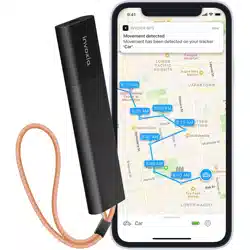
When the GPS Tracker is moving, it will send its position regularly, that you
can visualize in the Invoxia GPS app, available for iOS and Android.!
From the app, you can see the history of movements, and setup alerts
to be notified:
• In case of suspicious movement or if your vehicle gets tipped over
(anti-theft alerts)
• If your Tracker leaves or enters a given zone (geofencing alerts)
• If your Tracker has moved significantly in terms of distance.
The Tracker intelligently combines different technologies to locate itself:
Bluetooth when your smartphone is nearby, Wifi positioning/triangulation in
urban areas (by detecting the Wifi hotspots around and deducting its
position), and GPS as a last resort.
It then sends its position through the cellular LTE-M network. Please note
that it does not use Wifi to communicate its position.
You will need your smartphone to be connected to the Internet to visualize
your Tracker's latest positions.
3
bit.ly/CellularGPSTracker

—
How does the GPS Tracker's subscription work?
Depending on the option you bought, you have 1 or 2-year data plan
included. This leaves you plenty of time to judge if the product fits your
needs.!
After this period is over, you will be notified in the app and by email that it is
time to renew your subscription, which will cost you just $39.90 per year.
Just follow the instructions to renew. You will have the option to buy a
several-year data-plan for an interesting price.!
The Cellular GPS Tracker comes with a built-in SIM-card and an included data
plan.
You will not be able to open the Tracker to access or change the SIM-card as
there is no need to.
—
Will Invoxia Cellular GPS Tracker work anywhere?
Invoxia Cellular GPS Tracker uses the brand new LTE-M (or LTE Cat M1)
network, supported by AT&T in the USA. Your GPS Tracker will thus work
anywhere where there is AT&T 4G coverage, except in the extra inhabited
territories (Puerto Rico, the U.S. Virgin Islands, Guam, the Northern Mariana
Islands, and American Samoa).
Please note that the product might not work where there is typically no
cellphone coverage: in the mountains, in underground parking lots, within
very thick walls etc.!
Contrary to Bluetooth-only trackers, Invoxia Cellular GPS Tracker is
completely standalone and will work even where there is no smartphones
around.
4
bit.ly/CellularGPSTracker
Using the GPS tracker
—
Installing the GPS Tracker
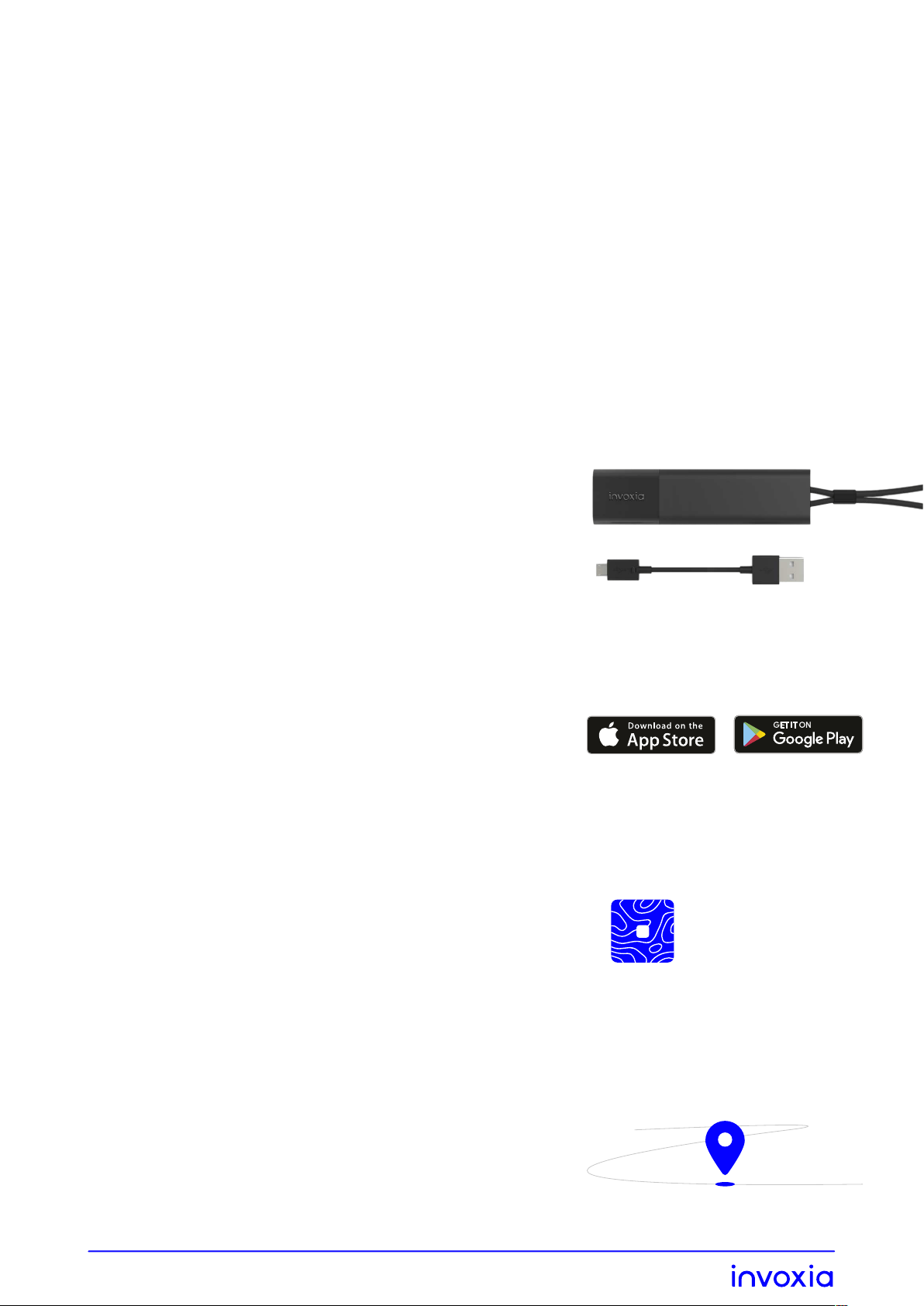
Installing the GPS Tracker is very easy, just follow this simples steps:
1. Charge the tracker using the
provided USB Cable to power up
the device
We recommend that you fully
recharge the device on the first
use, which will take about 80
minutes
2. Download the Invoxia GPS App
on your smartphone
It is available on iOS App Store and
on Android Play Store
3. Launch the Invoxia GPS App.
Follow the instructions to create an
account and to pair and configure
your tracker. This manual can give
you additional information on the
available settings to make the best
use of your tracker.
4. Starts tracking your belonging
Place the tracker on the belonging
you want to track following the
placement tips that you can find
on this manual and that will
guarantee a good reception.
Invoxia GPS
5
bit.ly/CellularGPSTracker

Should you experience any difficulty installing or using! the tracker, please
contact us. The best way to do so is using the application, that way our
support team is able to receive the diagnostic information that will
guarantee you to receive the best help possible. Just click on Contact Us on
the account! settings menu.
You can also visit our help center at the following address :
support.invoxia.com or contact us at the following address : https://
labs.invoxia.io/contact_us/!
Our support team is always available to help you make the best use of
your tracker, so feel free to contact! us if you have any questions or if the
tracker is not working ashas you expected. There often is a solution that will
make sure the tracker fully fits your needs.
—
Understanding the different alert types
It is very important to distinguish between the different alert types. We will
therefore explain to you the differences between each of them.
1. The antitheft alert, or alert for suspicious
movement while stationary
The anti-theft or "movement while stationary" alert warns you after a period
of immobility when the tracker is tilted or shaken to warn you of any
suspicious movement that may be a sign of theft or vandalism. It is
particularly suitable for vehicles.
For this alert to work, your tracker must have been stationary for more than
5 minutes.
Use case: The alert also works in the event of an accidental fall of your
stationary motorbike, which can harm the engine.
6
bit.ly/CellularGPSTracker

By activating the Smart Alarm option, make sure to receive anti-theft alerts
only when your vehicle is moving and you are not within reach, thus filtering
out unnecessary notifications.!
2. The geofencing alerts
This is a geofencing alert. It is triggered when the tracker either leaves or
enters an area that you predefine from the Invoxia GPS application.
Use this alert to be notified if your vehicle is stolen from your house for
instance, or to be reassured when your kids arrive to school or home after
the day.!
"3. The "significant journey" alert
This is an alert that is triggered when your vehicle has been stationary for at
least 5 minutes and a new location is detected because the tracker has
changed its location.
E.g.: Your vehicle has been at your home for 4 hours. A journey is noted
following a location 600 metres from your home. You then receive a
"significant journey" alert.
—
Understanding the Tracker’s battery life
Depending on your using conditions, your GPS Tracker's battery will last
between 15 days and 4 months between charges. This is to be compared
with competitor product's 2-5 days battery life that take a lot of peace of
mind away. You will be notified when your Tracker's battery life gets low so
you can recharge.
7
bit.ly/CellularGPSTracker

Your GPS Tracker's battery life depends on the following:
• If you track your own vehicle, and you have allowed the app to always
locate you, our smart energy management mode will significantly extend
the battery life by relying on your smartphone whenever possible, and
keeping the battery for the important things, like locating your stolen
vehicle. In this mode battery life will last up to 4 months. Otherwise it
will last up to 15 days.!
• Your Tracker regularly sends positions while moving. When stationary, it
will only send one position a day, until it starts moving again. You can set
the frequency of positions that you wish to have while moving, from the
app settings. The more positions you want, the shorter the battery life
between charges.!
• As the GPS Tracker sends positions while moving, the longer you move
during a day, the shorter the battery life between charges. Our battery
life estimates above are based on 2 hours movement a day.
• The GPS Tracker uses several technologies to locate itself: Bluetooth,
WiFi positioning or GPS. If you are in a dense urban area with a lot of
WiFi hotspots around, the battery life will last longer than if you're in the
countryside and the GPS Tracker has to rely a lot on the GPS.
—
Change the frequency of positions
You have the possibility to choose between 3 modes on the mobile App:
high, standard, or low.
Make sure your Bluetooth is on and you are near your tracker, then
follow these steps:
- In order to change the sending frequencies -
• Open the Invoxia GPS mobile app
• Choose your tracker and click on the settings icon then wait for the
bluetooth link to be made
• Click on "update rate"
• Choose the desired frequency
8
bit.ly/CellularGPSTracker

The GPS Tracker will send you its location according to the chosen mode.
Here is the estimated battery life, according to the frequency of the
positions if you use a tracker with SIM card and running on the LTE-M
network:
• Low (Every 30 to 32 minutes) = Battery life: 3 to 7 weeks!
• Standard (Every 10 to 12 minutes) = Battery life: 9 days to 3 weeks
• High (Every 5 to 7 minutes) = Battery life: 4 days to 2 weeks
These are estimates for trips of 1 to 5 hours per day under standard reception
conditions. If you have any doubts, do not hesitate to contact us so that we can
help you.
The different parameters to be taken into account:
• The fact that your phone is close to the tracker while having the
bluetooth on
• Daily travel time
• The geographical area (wifi networks available)
• The different spaces : spaces where GPS location is complicated
(basement/garages/etc.) and therefore energy consuming
—
How to set up the anti-theft alert, to be warned of
suspicious movement while stationary?
The Invoxia GPS Tracker allows you to be alerted in case of suspicious
movement on your vehicle when it is stationary.
If the tracker detects movement after a period of immobility of more than 5
minutes, you will receive a push notification from the Invoxia GPS app.
In addition, if the tracker has detected that your vehicle is likely to have
tipped over, you will be alerted to a change in inclination.
The Anti-Theft Alert allows you to be notified of a possible theft in real time.
9
bit.ly/CellularGPSTracker

—
How to activate it?
This feature will be proposed for the first time when installing your tracker.
No worries, if you did not activate it during the installation you can always
do it later using the following steps:
1. Open your Invoxia GPS application and go to the settings of the
concerned tracker while having the bluetooth of your phone activated
and the tracker close to you.
2. !Wait for the application to connect to the tracker so that the complete
settings options are available
3. Activate or deactivate the anti-theft alert by checking or unchecking the
"movement detected" option.
—
How do I know if my Cellular GPS Tracker is
charging?
When plugged to the charger the white LED on the tracker enabled you to
know the charging state of your tracker:
• When the tracker is charging the LED flashes
• When the tracker has finished charging, the LED stops flashing and
remains static until it is unplugged
—
Important : how and where to place your Cellular
GPS Tracker, especially on a bike
The GPS tracker will only work well if you follow certain rules:
1. Metal is not your friend
10
bit.ly/CellularGPSTracker

The tracker (like any other electronic system) is sensitive to metal and
magnets, which can prevent it from communicating properly. It is therefore
important to avoid placing it in an all-metal compartment at the risk of
creating a so-called Faraday cage.!
On a bike:
If you are using your Tracker to protect a bike, it is strongly
recommended not to place the tracker in the bike frame, handlebars or
seat tube unless your bike is made entirely of carbon fibre. The most
reliable option is under the saddle if you can, so place it in a plastic bag
or plug the connector to prevent any infiltration. You can also slip it into
a piece of bicycle equipment such as a saddlebag.
You can also try to place the tracker inside the plastic cover for your
bike's engine.!
In a car:
If you are using a Tracker in a vehicle, make sure that the Tracker is a
few inches away from metallic parts of the vehicle, and that it does not
have metal right above or around it. The tracker should ideally lay flat
with the Invoxia logo facing upwards.!
In any case, after placing your GPS Tracker where you intend to use it,
perform a first test by taking your vehicle on a ride while making sure
that your smartphone's Bluetooth is switched off.!
2. Water is your worst enemy
The GPS Tracker is not waterproof. If water enters through the connector or
if the tracker is exposed to a high level of humidity, this can lead to
malfunctions. It is therefore necessary to ensure that the tracker never
enters in contact with any liquid and that it is in a watertight compartment. If
you are using your Tracker outdoors, wrap it in a watertight plastic bag, or
use our waterproof pouch accessory (coming soon).
11
bit.ly/CellularGPSTracker

—
Important : which App authorizations should you
activate
Here are the authorizations that are necessary for an optimal experience
with your GPS Tracker:
On iOS
• Bluetooth: it is used for setting up and updating your Tracker, which
cannot function without it. It will also allow for smart alerts: you won't be
notified if you are moving your own vehicle and your smartphone is
nearby. Bluetooth should be authorized and activated at all times on
your iPhone.
• Location: you should set location authorization to always in your phone
settings, as this will significantly maximize your Tracker's battery life,
especially if you track your own vehicle and your Tracker is within range
of your iPhone. Your iPhone's location should be activated at all times.
• Notifications: you should allow push notifications on your iPhone in
order to receive the different alerts (anti-theft, geofencing etc).
• Authorize Face ID if you want to remove a GPS Tracker from your
account without entering a password.!
• Authorize access to your Camera and Photo Library if you want to
customize the Tracker's picture in the app. We will never store or use
your pictures for purposes other than displaying the picture you have
chosen in the app.!
On Android
• Authorize location and location in background, so that the Tracker can
rely on the app when nearby to save its battery life. This will provide you
the best experience with your GPS Tracker. This is also necessary on
Android for Bluetooth to work well.
• Bluetooth should always be activated on your smartphone.
• Location should be activated at all times on your smartphone.!
12
bit.ly/CellularGPSTracker

—
How to update the tracker's firmware
Every once in a while we release a new version of your tracker’s firmware.
These updates contain improvements to the stability and reliability, new
features and bug fixes which will ensure you get the most out of our
products.!
Updating your tracker will take no more than a couple of minutes.!
To update the tracker :
• Ensure it is charged, then bring your tracker close to your phone.!
• Open the Invoxia GPS App.
• Select your tracker from the list at the bottom of the screen. You may
notice a small red badge on the icon. Once you click on it, you'll be
prompted to update its firmware.
13
bit.ly/CellularGPSTracker

Specific issues with your
GPS Tracker
In this section you will find a description of the common issues that you can
experience with your tracker and how to solve them.
Should you not find an answer to your question in this document, feel free
to contact us. Our support team is always available to help.
Please refer to the section How can I get support from Invoxia!to find the
best ways of contacting us.
—
My GPS Tracker only seems to work in Bluetooth /
when near my phone
Your GPS Tracker is completely standalone, which means that it does not
work only when your smartphone is nearby contrary to Bluetooth-only
trackers.
If you have the impression that your GPS Tracker only works when near your
phone:
• Check that you have not placed your GPS Tracker in a place where it
does not have cellular signal. For instance if you put your Tracker in a
metal tube of your Bike, it can happen that it won't get cellular signal but
will still be able to reach your smartphone. Never surround your GPS
Tracker with metal as it won't work in case of theft.
• If it is not the case, try taking the GPS Tracker for a ride while
shutting off your smartphone's Bluetooth. You will be able to check
that the Tracker works properly. If not, try rebooting your Tracker by
pushing the button for 5 seconds, and check AT&T's 4G coverage in your
area.
!
14
bit.ly/CellularGPSTracker

—
My GPS Tracker is no longer sending any
positions
If your GPS Tracker has not sent any position for a while, it can happen that:
•
It has run out of battery: it can happen that the battery drops too fast
for us to warn you of a "low battery" alert. Press the button on your
Tracker to check if it still blinks, which would mean it is still alive. If not,
try charging it.!
•
It is placed somewhere with no signal: it can either not locate itself
(underground, with no Wifi hotspots around...) or it has no cellular signal
to send its position. This can happen if you placed the GPS Tracker in a
metal tube for instance. Try taking the GPS Tracker out and pressing the
button to see if you receive a notification. If your GPS Tracker is in a
undergrond parking space, it will start emitting again once the vehicle
leaves it.!
If your GPS Tracker is charged and in a place where it should normally get
enough signal (outdoors in clear view of the sky for instance), and it sill
doesn't work, try restarting it by keeping the button pressed for 5 seconds.!
If you've charged your GPS Tracker and it still doesn't turn on (no blinking
light when you press the button), and you are sure that your micro-USB
cable is not defective, your GPS Tracker may be broken. Make sure that it has
not been in prolonged contact with water and contact us.
—
My GPS Tracker is skipping some positions, some
locations are missing
Your GPS Tracker sends its location regularly while moving, based on the
frequency you chose in the app settings.!
To send a position, your GPS Tracker needs 4 things:
• To be physically moving: when the Tracker starts physically moving, it
sends positions at the frequency you have chosen in your app settings.
When it stops moving, it will only send its position every 4 hours as
15
bit.ly/CellularGPSTracker

opposed to the frequency you chose in the settings, to improve its
battery life.
• To be moving outside of a fixed place: the Tracker sends the same
position every 4 hours as long as it is within reach of the same WiFi
hotspot, even if it is moving, as we consider that it is staying in the
same place. When the Tracker starts moving again, it will automatically
resume sending positions at your chosen frequency.!
• To be able to locate itself with good enough precision: it needs to
detect either your smartphone nearby, or enough Wifi hotspots around,
or to be outdoors in clear view of the sky to fetch a GPS position. It may
happen that the Tracker is unable to detect where it is, or with a
precision so low that we prefer to filter out the position. In this case you
will not see any position on the map, until the Tracker is able to locate
itself again.!
• To be able to send the position using the network, which depends on the
quality of signal: it may happen that the GPS Tracker is out of reach of
the network (underground, in areas not yet covered by the network, in
rural areas, in the mountains, too close to metal elements...). Do not
forget to check network coverage in your target area. Also please note
that these networks can sometimes experience downtime.
So if you notice that your GPS Tracker sometimes skips positions, it means
that it was unable to locate itself or to send the position at the time. You can
wait to see if the latest location appears when the Tracker retries, or increase
the frequency of positions in your app settings to ensure that you have an
accurate history of movements (it will impact battery life).!
Please also note that if you do not open the Invoxia app very often, it might
take a while for all the past positions to appear, especially if you do not have
optimal Wifi / cellular connection on your smartphone.!
Invoxia's GPS Trackers are not real time, and it can happen that some
positions are missing or imprecise, but the monitoring offered and the
best-in-class battery life should be enough to know where your Tracker
was heading to, and to find it in case of theft or loss, by combining the
Tracker's indicated position and the "proximity radar" functionality on
the last meters."
16
bit.ly/CellularGPSTracker

—
I cannot install my Cellular GPS Tracker
We are sorry that you are experiencing an issue installing your GPS Tracker.
Here are a few things to try:
• Make sure your smartphone model is compatible (the hardware
configuration needs to support our product), by checking the list of
incompatible smartphones here : support.invoxia.com
• Make sure your smartphone Bluetooth is on. Try switching your phone's
Bluetooth off and on again. Make sure to keep your GPS Tracker close to
your smartphone. Avoid trying to install several GPS Trackers in the
same room, and avoid having several smartphones or tablets with the
Invoxia GPS app installed in the vicinity of the Tracker you are trying to
install.!
• Make sure the GPS Tracker has enough battery and is plugged to a
power source. The Tracker light should be on, otherwise make sure that
your micro USB cable is not faulty.!
• As a last resort, try restarting the GPS Tracker via a long press (5
seconds) on the button, and restarting your smartphone, before trying
again.!
If you have bought a Tracker that may have been refurbished or installed
before by someone else, you will be asked to contact us so we can solve the
issue. For security reasons, we do not generally allow a GPS Tracker to be
uninstalled and reused by someone who is not the primary owner.!
If the above steps did not solve the problem, feel free to contact us by
visiting our help center.
17
bit.ly/CellularGPSTracker

Frequently asked questions
—
How can I get support from Invoxia ?
Should you experience any difficulty installing or using! the tracker, please
contact us. The best way to do so is using the application, that way our
support team is able to receive the diagnostic information that will
guarantee you to receive the best help possible. Just click on Contact Us on
the account! settings page.
You can also visit our help center at the following address:
support.invoxia.com or
bit.ly
!https://bit.ly/CellularGPSTracker
or contact us at the following address:
https://labs.invoxia.io/contact_us/!
Our support team is always available to help you make the best use of
your tracker, so feel free to contact! us if you have any questions or if the
tracker is not working ashas you expected. There often is a solution that will
make sure the tracker fully fits your needs.
—
Can I share my Tracker with another person / How
to install the Tracker on 2 different accounts?
As of today, the only way for you to share your GPS Tracker with someone is
for this other person to install the Invoxia GPS app on their smartphone
and log in with the same login info as your account.
It is not possible to install a Tracker on 2 separate accounts as of now.
18 bit.ly/CellularGPSTracker

—
What should I do in case of theft?
In case of theft, the first thing you should do is warn the Police and tell them
that your stolen belonging is equipped with a GPS Tracker, which
dramatically increases the chances of recovering the stolen property.
You can share your account with them so they have access to the Tracker's
latest positions and history. Ensure that the Tracker's remaining level of
battery will allow you to monitor the thieves.!
You can also contact our customer support team by explicitly stating that
your vehicle was stolen, so we can assist you and the Police in the process of
trying to retrieve the stolen vehicle, as we regularly do.!!
The quicker you react, the higher the chances of recovering your vehicle.!
Please do not try to go and retrieve the stolen property by yourself as this
may be dangerous.!
—
Can I make a permanent connection to my
vehicle's power?
Warning: the GPS Tracker should in no case be connected directly to the
vehicle's electric system. An appropriate adapter is required.
If the vehicle is frequently used, you can use a Cigarette Lighter Power to
micro-USB adapter (charger for Android phones for instance).
If the vehicle is seldom used (once every 3 months), it is preferable to use a
car battery to micro-USBadapter.!
If a USB plug is available in your vehicle, use a USB to micro-USB adapter.
Specifications:
•
Input voltage: 12, 24 or 48V depending on vehicle type
•
Output voltage: 5V
•
Output current: minimum 500mA and more
19 bit.ly/CellularGPSTracker

•
Output connector: micro-USB
How to place the Tracker:
Since the GPS Tracker uses radio-frequency technologies, for an optimal
experience please keep the Tracker at least a few a few inches away from
metallic elements in the vehicle. ideally the Tracker should be placed flat,
with the Invoxia logo facing upwards.!
—
Why does Invoxia GPS App need to locate me in
background (even when I'm not actively using the
App)?
Invoxia never uses your location data for other purposes than providing you
the best user experience with your GPS Tracker.
When your Tracker is moving and within range of your smartphone, it will
ask the Invoxia App to provide a location for it, thus saving significant battery
life - that can then be of use when the Tracker moves when you are not
around. This will not take too much of your smartphone's battery and will
make a big change in your battery charging cycle.!
This is why you should authorize the App to always locate you, even in
background.
—
Can I track my valuables in real time?
Sending a location takes a lot of battery, and at Invoxia we strongly believe
that when you discover that your vehicle has been stolen, you had better
have as much battery as possible remaining.
This is why the GPS Tracker does not send locations in real-time when
moving, but on a certain frequency that you can set from the app settings.
The higher the frequency of positions, the more precise the history of
positions, but the shorter the battery life.
20 bit.ly/CellularGPSTracker

In our experience this should be more than enough to know precisely where
your things have traveled, and to find them in case of loss or theft.
However, we are always working on improving the product, and our team is
working on a mode with a higher frequency that you would be able to set on
the go, for instance in case of theft.
!
—
How to remove a GPS Tracker from my account
In order to remove a GPS Tracker from your account:
• Put the GPS Tracker near your smartphone. Make sure that it is
sufficiently charged. Your smartphone's Bluetooth must be switched on.
• Go into the advanced settings of the GPS Tracker in your app, and select
remove from account.
To truly protect your valuables, we make it impossible for someone who
finds your GPS Tracker, to dissociate it from your account and install it on
their own. Which is why it is necessary that you have your GPS Tracker near
you in order to dissociate it from your account.
Please make sure to remove the Tracker properly from your account before
handing it to someone else for them to use, otherwise they will be unable to
install it.!
If you want to remove a GPS Tracker from your account but no longer have
access to it, please contact our support team.
—
How do I deactivate my GPS Tracker?
If you want to temporarily disable your GPS Tracker, for instance because
you will not be using it for a while, follow the steps:
• Keep your GPS Tracker close to your smartphone, and make sure that it
is charged enough. Your smartphone's Bluetooth must be switched on.
• In the Tracker's settings in the Invoxia app, activate the "standby" toggle.
21
bit.ly/CellularGPSTracker

Beware that your GPS Tracker will stop sending any positions, and can
only be reactivated when you have it nearby. Make sure to deactivate
the toggle as soon as you want to start using your Tracker again, by
following the same steps, as it will otherwise be stuck in standby mode.
22 bit.ly/CellularGPSTracker
invoxia.com/us
bit.ly!https://bit.ly/CellularGPSTracker