OWNER'S MANUAL
IMPORTANTSAFETYINSTRUCTIONS
[_,*11il[I]k_l
1
2
3
4
5
6
7
RISKOFELECTRICSHOCK
DONOTOPEN
CAUTION: TO REDUCE THE RISK OF
ELECTRIC SHOCK, DO NOT REMOVE
COVER (OR BACK). NO USER-SERVICEABLE
PARTS INSIDE. REFER SERVICING TO
QUALIFIED SERVICE PERSONNEL.
Explanation of Graphical Symbols
The lighming flash with arrowhead symbol,
wifllin an equilateral triangle, is intended to alert
you to the presence of uninsulated "dangerous
voltage" within the product's enclosure that may
be of sufficient magnitude to constitute a risk of
electric shock to persons.
The exclamalion poinl within an equilateral
triangle is inlended to alert you to tile presence of
important operaling and mainlenance (servicing)
instructions ill fileliterature accompanying file
appliance.
Read htstructions All tile safety mtd operating instructiolts
should be read betore the product is operated.
Retain Instructions The saiety and operating instructions
should be retained for fitture reference.
Heed Warnings All wm'niugs oil the product and in the
operating instructions should be adhered to.
Follow Instructions All operating and use instructions
should be tollowed.
Cleaning Unplug this product trom the wall outlet betbre
cleaning. Do not use liquid cleaners or aerosol cleaners.
Use a damp cloth *'orcleaning.
Attachments Do not use attachments not recommended
by the product mnnutitcturer as they ma,_ cause hazards.
Water and Moisture Do not use this product near water
for example, near a bath tub, wash bowl, kitchen sink, or
lauud_ tub; in a wet basement; or near a swimming pool;
and the like.
Accessories Do not place this product on an unstable cart,
stand, tripod, bracket, or table. The product may tifll,
causing serious iuju W to a child or adult, and serious
damage to the product. Use only with a cart, stand, tripod,
bracket, or table recommended by the mnnutitcturer, or sold
with the product. Any mounting of the product should
follow the manuti_cturer's instructions, and should use a
mounting accessory recommended by the manufacturer.
A product and cart combination should be
moved with care. Quick stops, excessive
force, and uneven stlrfaces tll;l_ cause tile
product and cart combination to overturn.
10 Ventilation Slots and openings in the cabinet are provided
for ventilation and to ensure reliable operation of the
product and to protect it trom overheating, and these
openings must not be blocked or covered. The openings
should never be blocked by placing the product oil a bed,
soti_, rug, or other similar surface. This product should not
be placed in a built-in installation such as a bookcase or
rack unless proper ventilation is provided or the
manufacturer's instructions have been adhered to.
11 Power Sources This product should be operated only fi'om
the type of power source indicated on tile marking label. If
you are not sure of tile type of power supply to your home,
consult your product dealer or local power company. For
products intended to operate fi'om battery power, or other
sources, reter to tile operating instructions.
12 Grounding or Polarization This product tna? be equipped
with a polarized alternating current line plug (a plug having
one blade wider than tile other). This plug will fit into the
power outlet only one way. This is a safety feature. If you
are ratable to insert the plug fully into the outlet, try
reversing tile plug. If the plug should still tifil to fit, contact
your electricinn to replace your obsolete outlet. Do not
defeat the safety purpose of the polarized phtg.
13 Power-Cord Protection Power-supply cords should be
routed so that they are not likely to be walked oil or pinched
by items plnced upon or against them, pa,_ing particular
attention to cords at plugs, convenience receptacles, and tile
point where they exit fi'om tile product.
14 Lightning For added protection for this product during a
lightning storm, or when it is left unattended and unused for
long periods of time, unphtg it from the wall outlet and
disconnect the antenna or cane system. This will prevent
damage to the product due to lightning and powerqine
surges.
15 Power Lines An outside antenna system should not be
located in the vicinity of overhead power lines or other
electric light or power circuits, or where it can tifll into such
power lines or circuits. When installing an outside antenna
system_ extreme care should be taken to keep from touching
such power lines or circuits as contact with them might be
fatah
16 Overloading Do not overload wall outlets_ extension
cords, or integral convenience receptacles as this can result
in a risk of fire or electric shock.
17 Object and Liquid Entry Never push objects of any kind
into this product through openings as the,_ ma?_touch
dangerous voltage points or shomout parts that could result
in a fire or electric shock. Never spill liquid of an,_ kind on
the product.
18 Servicing Do not attempt to service this product yourself
as opening or removing covers tnn? expose you to
dangerous voltage or other hazards. Refer all servicing to
qualified service personnel.
19 Damage Requiring Service Unplug this product from the
wall outlet and refer servicing to qualified service personnel
under the following conditions:
a) When the power-supply cord or plug is damaged,
b) If liquid has been spilled, or objects have titllen into
the product,
c) If tile product has been exposed to rain or water.
d) If tile product does not operate normally by following
the operating instmcfons. Atljust only those controls
that are covered by the operating instructions as an
improper adjustnlent of other controls may result in
damage and will oRen require extensive work by a
qunlified technician to restore the product to its nomml
opernfon,
e) If the product has been dropped or damnged in any
wa_, and
f) When the product exhibits a distinct change in
pertormance - this indicates a need for service.
211 Replacement Parts When replacement parts are
required, be sure the service technicinn has used
replacement parts specifed by the manuli_cturer or have
the same characteristics as the original part.
Unauthorized substitutions may result in fire, electric
shock, or other haznrds.
21 Safety Check Upon completion of any service or
repairs to this product, ask the service technicim_ to
pertorm safety checks to determine that the product is in
proper operating condition.
22 Wall or Ceiling Mounting The unit should be mounted
to a wall or ceiling only as recommended by the
manufacturer.
23 Heal The product should be situated m_,'ay from heat
sources such as radiators, heat registers, stoves, or other
products (including amplifiers) that produce heat.
Note to CATV system installer:
This reminder is provided to call the CATV system
installer's attenfon to Article 820-40 of the NEC that
provides guidelines for proper grounding and, in particular,
specifies that the cable ground shall be connected to the
grounding system of the building, as close to the point of
cable entry as practicah
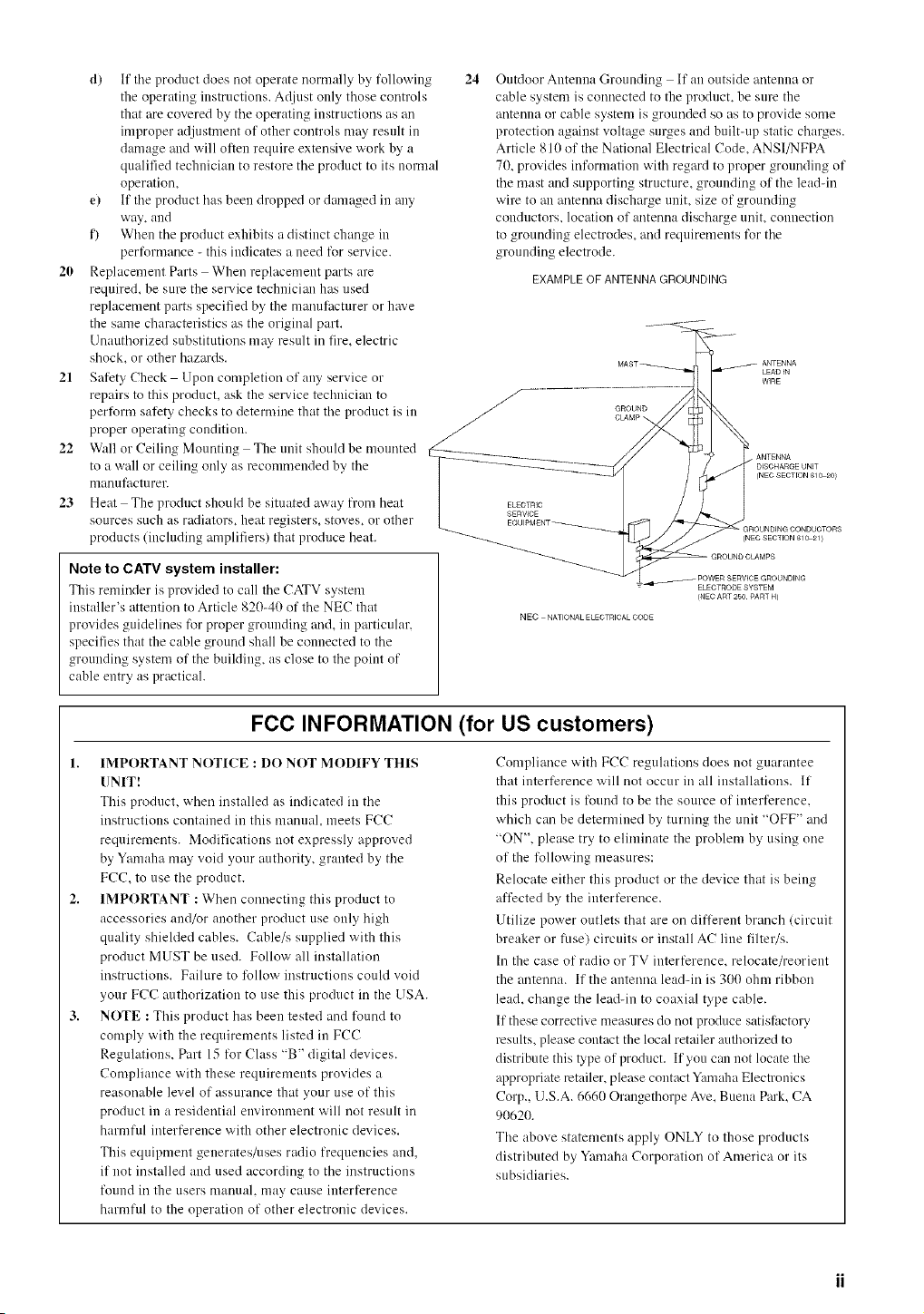
24
Outdoor Antenna Grounding If an outside antenna or
cable system is connected to the product, be sure the
antenna or cable system is grounded so as to provide some
protection against voltage surges and built-up static charges.
Article 810 of the National Electrical Code, ANSI/NFPA
70, provides information with regard to proper grounding of
the mast and supporting structure, grounding of the lead-in
wire to an antenna discharge unit, size of grounding
conductors, location of antenna discharge unit, com_ection
to grounding electrodes, and requirements for the
grounding electrode.
EXAMPLEOFANTENNAGROUNDING
LEADIN
WIRE
GROUND
ELECTRIC
SERVICE
ANTENNA
D_SCHARGE UNIT
{NEC SECTION 610 20)
(NEC SECTION 610 21 }
NEC NATIONAL ELECTRICALCODE
ELECTRODE SYSTEM
/NEC ART 250 PART H)
FCC INFORMATION (for US customers)
1. IMPORTANT NOTICE : DO NOT MODIFY THIS
UNIT!
This product, when installed as indicated in the
instructions contained in this mnnual, meets FCC
requirements. Modifications not expressly approved
by Yamaha mn,_ void your authority, granted by the
FCC. to use the product.
2. IMPORTANT : When connecting this product to
accessories and/or another product use only high
quality shielded cables. Cable/s supplied with this
product MUST be used. Follow all installation
instructions. Failure to tbllow instructions could void
your FCC authorizafon to use this product in the USA.
3. NOTE : This product has been tested and round to
comply with the requirements listed in FCC
Regulafons. Part 15 fi_r Class "B" digital devices.
Compliance with these requirements provides a
reasonable level of assurance that your use of this
product in a residential environment will not result in
harmful interference with other electronic devices.
This equipment generates/uses radio frequencies and,
if not installed and used according to the instrucfons
found in the users manual, may cause interterence
harmful to the operafon of other electronic devices.
Compliance with FCC regulations does not guarantee
that interference will not occur in all installafons. If
this product is found to be the source of interference,
which can be determined by turning the unit "OFF" and
"ON", please try to eliminate the problem by using one
of the tollowing measures:
Relocate either this product or the device that is being
affected by the interterence.
Utilize power outlets that are on different branch (circuit
breaker or thse) circuits or install AC line filter/s.
In the case of radio or TV interference, relocate/reorient
the antenna. If the antenna leadqn is 300 ohm ribbon
lead, change the lead-in to coaxial type cable.
If these corrective measures do not produce satistactory
results, please contact the local retailer authorized to
distribute this t._pe of product. If you can not locate the
appropriate retailer, please contact Yamaha Electronics
Corp., U.S.A. 6660 Orangethorpe Ave, Buena Pro'k, CA
90620.
The above statements apply ONLY to those products
distributed by Yamaha Corporation of America or its
subsidiaries.
1 To assure the finest performance, please read this
manual carefully. Keep it in a safe place for future
reference.
2 Install this sound system in a well ventilated, cool,
dry, clean place -- away from direct sunlight, heat
sources, vibration, dust, moisture, and/or cold.
Allow ventilation space of at least 30 cm on the top,
20 cm on the left and right, and 20 cm on the back
of this unit.
3 Locate this unit away from other electrical
appliances, motors, or transformers to avoid
humming sounds.
4 Do not expose this unit to sudden temperature
changes from cold to hot, and do not locate this unit
in a environment with high humidity (i.e. a room with
a humidifier) to prevent condensation inside this unit,
which may cause an electrical shock, fire, damage to
this unit, and/or personal injury.
5 Avoid installing this unit where foreign object may
fall onto this unit and/or this unit may be exposed
to liquid dripping or splashing. On the top of this
unit, do not place:
- Other components, as they may cause damage
and/or discoloration on the surface of this unit.
- Burning objects (i.e. candles), as they may cause
fire, damage to this unit, and/or personal injury.
- Containers with liquid in them, as they may fall
and liquid may cause electrical shock to the
user and/or damage to this unit.
6 Do not cover this unit with a newspaper, tablecloth,
curtain, etc. in order not to obstruct heat radiation.
If the temperature inside this unit rises, it may
cause fire, damage to this unit, and/or personal
injury.
7 Do not plug in this unit to a wall outlet until all
connections are complete.
8 Do not operate this unit upside-down. It may
overheat, possibly causing damage.
9 Do not use force on switches, knobs and/or cords.
10 When disconnecting the power cord from the wall
outlet, grasp the plug; do not pull the cord.
11 Do not clean this unit with chemical solvents; this
might damage the finish. Use a clean, dry cloth.
12 Only voltage specified on this unit must be used.
Using this unit with a higher voltage than specified
is dangerous and may cause fire, damage to this
unit, and/or personal injury.YAMAHA will not be
held responsible for any damage resulting from use
of this unit with a voltage other than specified.
13 To prevent damage by lightning, disconnect the power
cord from the wall outlet during an electrical storm.
14 Do not attempt to modify or fix this unit. Contact
qualified YAMAHA service personnel when any
service is needed. The cabinet should never be
opened for any reasons.
15 When not planning to use this unit for long periods
of time (i.e. vacation), disconnect the AC power
plug from the wall outlet.
16 Be sure to read the "TROUBLESHOOTING" section
on common operating errors before concluding that
this unit is faulty.
17 Before moving this unit, press STANDBY/ON to set
this unit in standby mode, and disconnect the AC
power plug from the wall outlet.
18 VOLTAGE SELECTOR (Asia and General models only)
The VOLTAGE SELECTOR on the rear panel of this
unit must be set for your local main voltage
BEFORE plugging into the AC main supply.
Voltages are 110V-120V, 220V-240V AC, 50/60 Hz.
This unit is not disconnected from the AC power
source as long as it is connected to the wall outlet,
even if this unit itself is turned off. This state is called
standby mode. In this state, this unit is designed to
consume a very small quantity of power.
WARNING
TO REDUCE THE RISK OF FIRE OR ELECTRIC
SHOCK, DO NOT EXPOSE THIS UNIT TO RAIN
OR MOISTURE.
IMPORTANT
Please record the serial nmnber of this unit in the
space below.
MODEL:
Serial No,:
The serial number is located on the rear of the unit,
Retain this Owner's Manual in a safe place for future
reference.
FOR CANADIAN CUSTOMERS
To prevent electric shock, match wide blade of plug to
wide slot and fully insert.
This Class B digital apparatus complies with Canadian
ICES-003.
We WantYou Listening For A Lifetime
YAMAHA and the Electronic Industries Association's Consumer
Electronics Group want you to get the most out of your equipment
by playing it at a sale level. One that lets the sound come through
loud and clear without mmoying blaring or distortion and, most
importantly, without affecting your sensitive hearing.
Since hearing damage from loud sounds is often
undetectable until it is too late, YAMAHA and the
Electronic Industries Association's Consumer
Electronics Group recommend you to avoid
prolonged exposure fl'om excessive volume levels. LIST1_NING
iii
_OD •
FEATURES ............................................................. 2
GETTING STARTED ............................................ 3
Supplied accessories .................................................. 3
Installing batteries in the remote control ................... 3
CONTROLS AND FUNCTIONS ......................... 4
Front panel ................................................................ 4
Remote control .......................................................... 6
Front panel displny .................................................... 8
CONNECTIONS .................................................... 9
Before connecting components ................................. 9
Cotmecfing video components ................................ l0
Cotmecting mldio cotnponents ................................ 12
Com]ecfing the nntennas ......................................... 13
Cotmecting an external decoder .............................. 14
Cotmecting the speakers .......................................... 15
Cotmecting the power supply cord .......................... 18
Turning on the power .............................................. 20
BASIC SYSTEM SETTINGS ............................. 21
Using the basic menu .............................................. 21
Setting the unit to match your speaker system ........ 23
SP LEVEL (Setting speaker output levels) ............. 23
PLAYBACK .......................................................... 24
Input ]nodes and indications .................................... 26
Selecting a sound field program .............................. 27
DIGITAL SOUND FIELD PROCESSING
(DSP) ................................................................. 30
Underst;mding sound fields ..................................... 30
HiFi DSP programs ................................................. 30
CINEMA DSP ...................................................... 31
Sound design ot CINEMA DSP .............................. 31
CINEMA DSP Programs ........................................ 31
Smmd field efiects ................................................... 33
TUNING ................................................................ 34
Presetting stations .................................................... 35
Selecting preset stations .......................................... 37
SLEEP TIMER ..................................................... 38
RECORDING ....................................................... 39
SET MENU ........................................................... 40
Set menu list ............................................................ 40
Adjusting the items on the set menu ....................... 40
SOUND 1 SPEAKER SET
(speaker mode settings) ....................................... 41
SOUND 2 SP DISTANCE (speaker distance) ........ 43
SOUND 3 LFE LEVEL .......................................... 43
SOUND 4 D. RANGE (dynamic range) ................. 43
SOUND 5 CENTER GEQ
(center graphic equalizer) ................................... 44
SOUND 6 HP TONE CTRL
(headphone tone control/ .................................... 44
INPUT 1 I/O ASSIGN
(input/output assignment) ................................... 44
INPUT 2 INPUT MODE (initial input mode) ........ 44
OPTION 1 DISPLAY SET ...................................... 45
OPTION 2 MEM. GUARD (memor_ guard) ......... 45
OPTION 3 AUDIO MUTE ..................................... 45
ADVANCED SETUP MENU .............................. 46
REMOTE CONTROL FEATURES ................... 47
Control area ............................................................. 47
Setting remote control codes ................................... 48
Controlling other components ................................. 49
SETTING THE SPEAKER LEVELS ................ 50
Adjusting the speaker levels during pla?back ......... 50
Using the test tone ................................................... 50
II
EDITING SOUND FIELD PARAMETERS ..... 51
Changing parameter settings ................................... 51
Sound field parameter descriptions ......................... 52
TROUBLESHOOTING ....................................... 53
RESETTING THE FACTORY PRESETS ........ 57
GLOSSARY .......................................................... 58
SPECIFICATIONS .............................................. 60
Built-in 5-channel power amplifier
• Minimum RMS output power
[U.S.A. and Canada models]
(0.9% THD, 1 kHz, 6 £-_/8 £2)
Front: 110 W + 110 W
Center: 110 W
Surround: I10W+ ll0W
[Other models]
(0.9% THD, I kHz, 6 _-))
Front: 100 W + 100 W
Center: 100 W
Surround: 100 W + 100 W
Sound field features
• Dolby Pro Logic/Dolby Pro Logic II decoder
• Dolby Digital/Dolby Digital + Matrix 6.1 Decoder
• DTS/DTS + Matrix 6.1 Decoder
• CINEMA DSP: Combination of YAMAHA DSP
technology and Dolby Pro Logic, Dolby Digital or
DTS
• Virtual CINEMA DSP
• SILENT CINEMA s_l
Sophisticated AM/FM Tuner
• 40-Station random access preset tuning
• Automatic preset tuning
• Preset station shifting capability (Preset editing)
Other features
• 192 kHz/24-bit D/A converter
• Set menu for optimizing this unit for your Audio/
Video system
• Test tone generator for easier speaker balance
adjustment
• 6-channel external decoder input
• Optical and coaxial digital audio signal jacks
• Sleep timer
• Remote control with preset remote control codes
• About this manual
• -"4_"-indicates a tip for your operation.
• Some operations can be performed by using either the buttons on the main unit or on the remote control. In cases
when the button names differ between the main unit and the remote control, the button name on the remote control is
given in parentheses.
• This manual is printed prior to production. Design and specifications are subject to change in part for the mason of
the improvement in operativity ability, and others. In this case, the product has priority.
DIGITAL
mw_lra'aram
Manufactured under license from Dolby Laboratories.
"Dolby", "Pro Logic", and the double-D symbol are
trademarks of Dolby Laboratories.
SILENT _
CINEMA
"SILENT CINEMA" is a trademark of YAMAHA
CORPORATION.
!
surround
"DTS" and "DTS Digital Surround" are registered
trademarks of Digital Theater Systems, Inc.
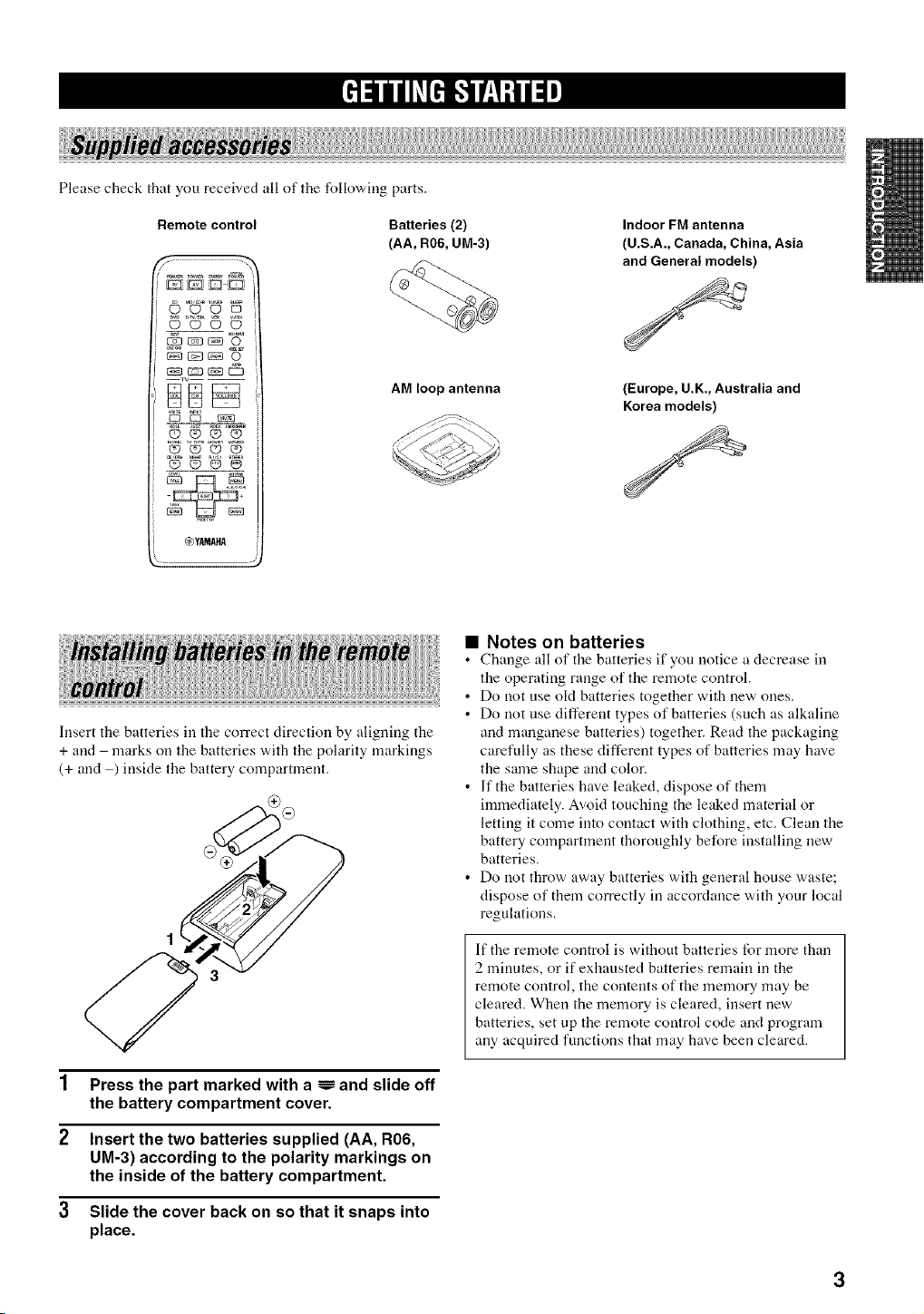
Pleasecheckthatyoureceivedalloftilefollowingparts.
Remote control
Batteries (2)
(AA, R06, UM-3)
©©©©
_©
_O_O
OO_
_)YAMAHA
AM loop antenna
Indoor FM antenna
(U.S.A., Canada, China, Asia
and General models)
(Europe, U.K., Australia and
Korea models)
Insert the batteries ill the correct direction by aligning the
+ and marks oil the batteries with the polarity markings
(+ and -) inside tile battery comparm_ent.
1 Press the part marked with a _ and slide off
the battery compartment cover.
2 Insert the two batteries supplied (AA, R06,
UM-3) according to the polarity markings on
the inside of the battery compartment.
3 Slide the cover back on so that it snaps into
place.
• Notes on batteries
• Change all of the batteries if you notice a decrease ill
the operating range of the remote control.
• Do not use old batteries together with new ones.
• Do not use different types of batteries (such as alkaline
and manganese batteries) together. Read the packaging
carefully as these different types of batteries may have
the same shape and color.
• ]f the batteries have leaked, dispose of them
immediately. Avoid touching the leaked material or
letting it come into contact with clothing, etc. Clean the
battery compartment thoroughly before installing new
batteries.
• Do not throw away batteries with general house waste;
dispose of them correctly ill accordance with your local
regulations.
]f the remote control is without batteries for more than
2 minutes, or if exhausted batteries remain ill the
remote control, the contents of the memory may be
cleared. When the memory is cleared, insert new
batteries, set up the remote control code and program
ally acquired functions that may have been cleared.
3
......... _2_Y
i ........... t
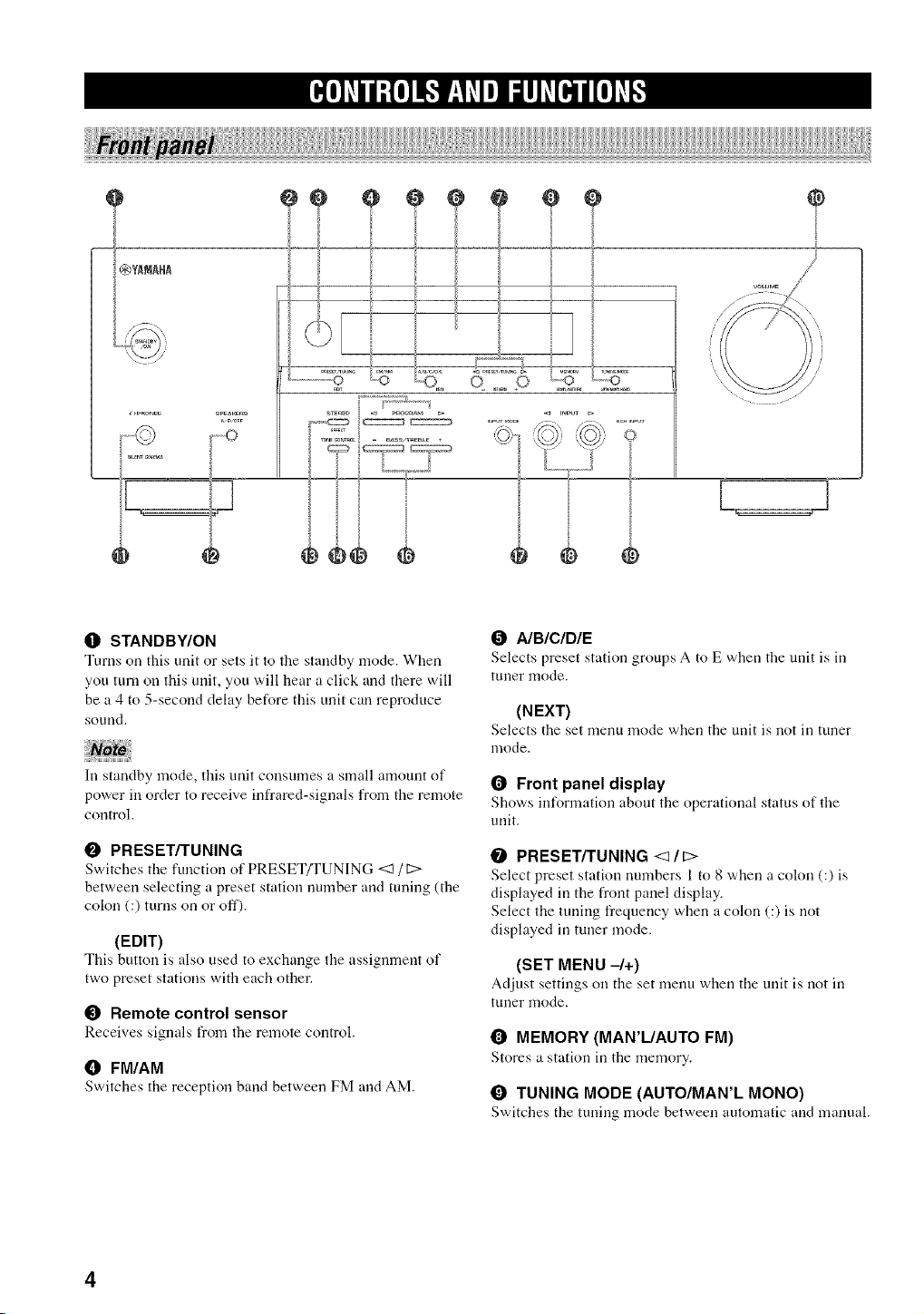
O STANDBY/ON
Turns on this unit or sets it to the standby mode. When
you turn on this unit, you will hear a click and there will
be a 4 to 5-second delay hefore this unit call reproduce
sound.
In standby mode, this unit consumes a small amount of
power in order to receive infrared-signals from the remote
control.
O PRESET/TUNING
Switches the function of PRESET/TUNING <I /12>
between selecting a preset station number and tuning (the
colon (:) turns on or off).
(EDIT)
This button is also used to exchange tile assignment of
two preset stations with each other.
l_ Remote control sensor
Receives signals from the remote control.
O FM/AM
Switches the reception band between FM and AM.
O AIBIC/DIE
Selects preset station groups A to E when the unit is ill
tuner mode.
(NEXT)
Selectsthe set menu mode when the unit is not ill tuner
mode.
0 Front panel display
Shows in_rmation about the operational status of the
unit,
O PRESET/TUNING <_ It>
Select preset station numbers 1 to 8 when a colon (:) is
displayed ill the front panel display.
Select the tuning frequency when a colon (:) is not
displayed ill tuner mode.
(SET MENU -/+)
Adjust settings on tile set menu when the unit is not ill
tuuer mode,
Q MEMORY (MAN'L/AUTO FM)
Stores a station ill the memory.
O TUNING MODE (AUTO/MAN'L MONO)
Switches the tuniug mode between automatic and manual.
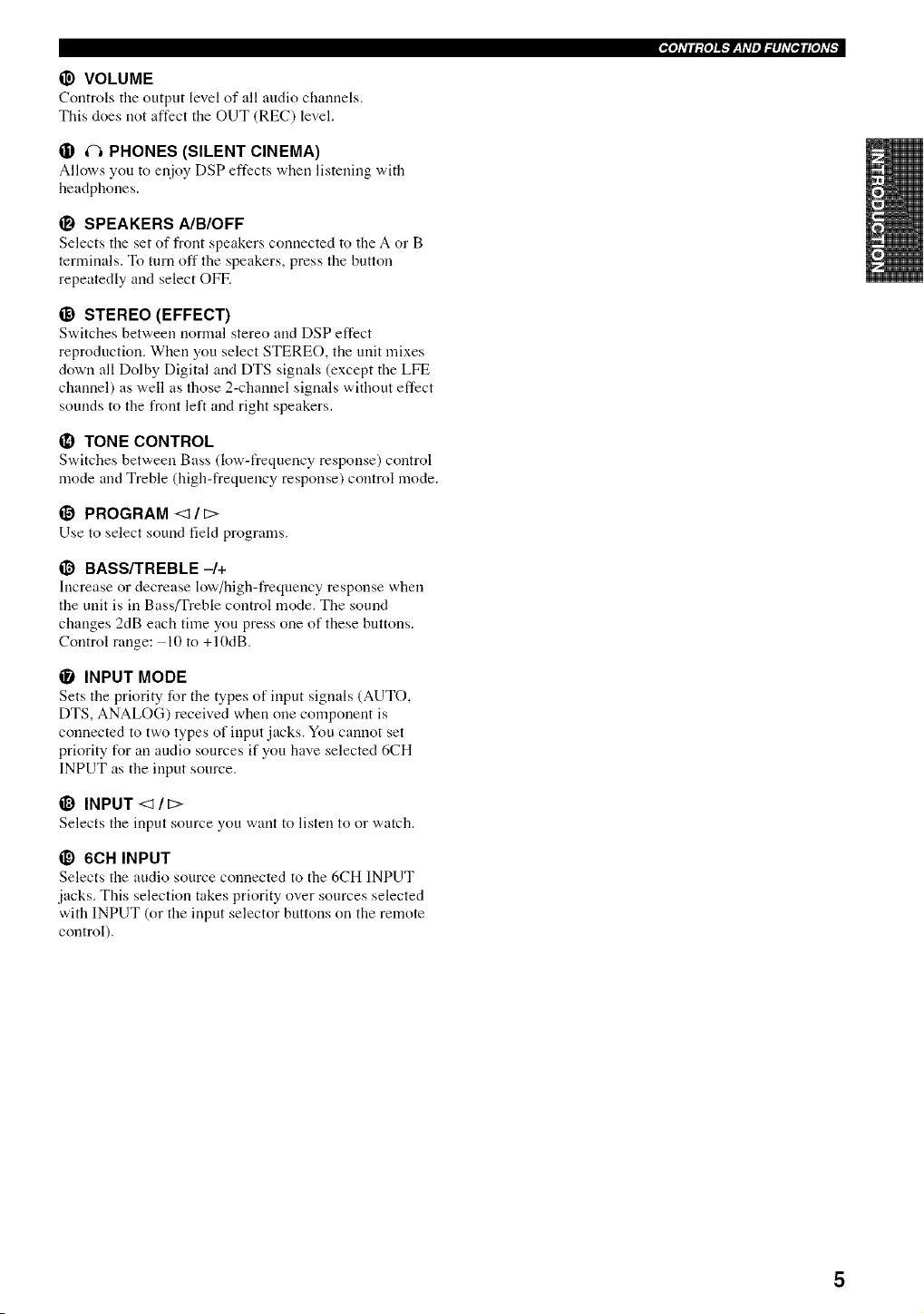
@ VOLUME
Controls the output level of all audio channels.
This does not affect the OUT (REC) level.
• (_, PHONES (SILENT CINEMA)
Allows you to enjoy DSP effects when listening with
headphones.
SPEAKERS A/B/OFF
Selects the set of front speakers connected to the A or B
terminals. To turn off the speakers, press flae button
repeatedly and select OFF.
_) STEREO (EFFECT)
Switches between normal stereo and DSP effect
reproduction. When you select STEREO, the unit mixes
down all Dolby Digital and DTS signals (except the LFE
channel) as well as flaose 2-channel signals without effect
sounds to flae front left and right speakers.
il) TONE CONTROL
Switches between Bass (low-frequency response) control
mode and Treble (high-frequency response) control mode.
_1 PROGRAM <:_/ [:>
Use to select sound fiekl programs.
_) BASS/TREBLE -/+
Increase or decrease low/high-frequency response when
flae unit is in Bass/Treble control mode. The sound
changes 2dB each time you press one of these buttons.
Control range: 10 to +10dB.
INPUT MODE
Sets the priority for the types of input signals (AUTO,
DTS, ANALOG) received when one component is
connected to two types of input jacks. You cannot set
priority for all audio sources if you have selected 6CH
INPUT as the input source.
_) INPUT <:_/ [:>
Selects tile input source you want to listen to or watch.
(I_ 6CH INPUT
Selects tile audio source connected to the 6CH INPUT
jacks. This selection takes priority over sources selected
with INPUT (or the input selector buttons on the remote
control).
5
|_*O]_TIl:{O]l.'f__y_T/ll:lhV[til[O]_v_
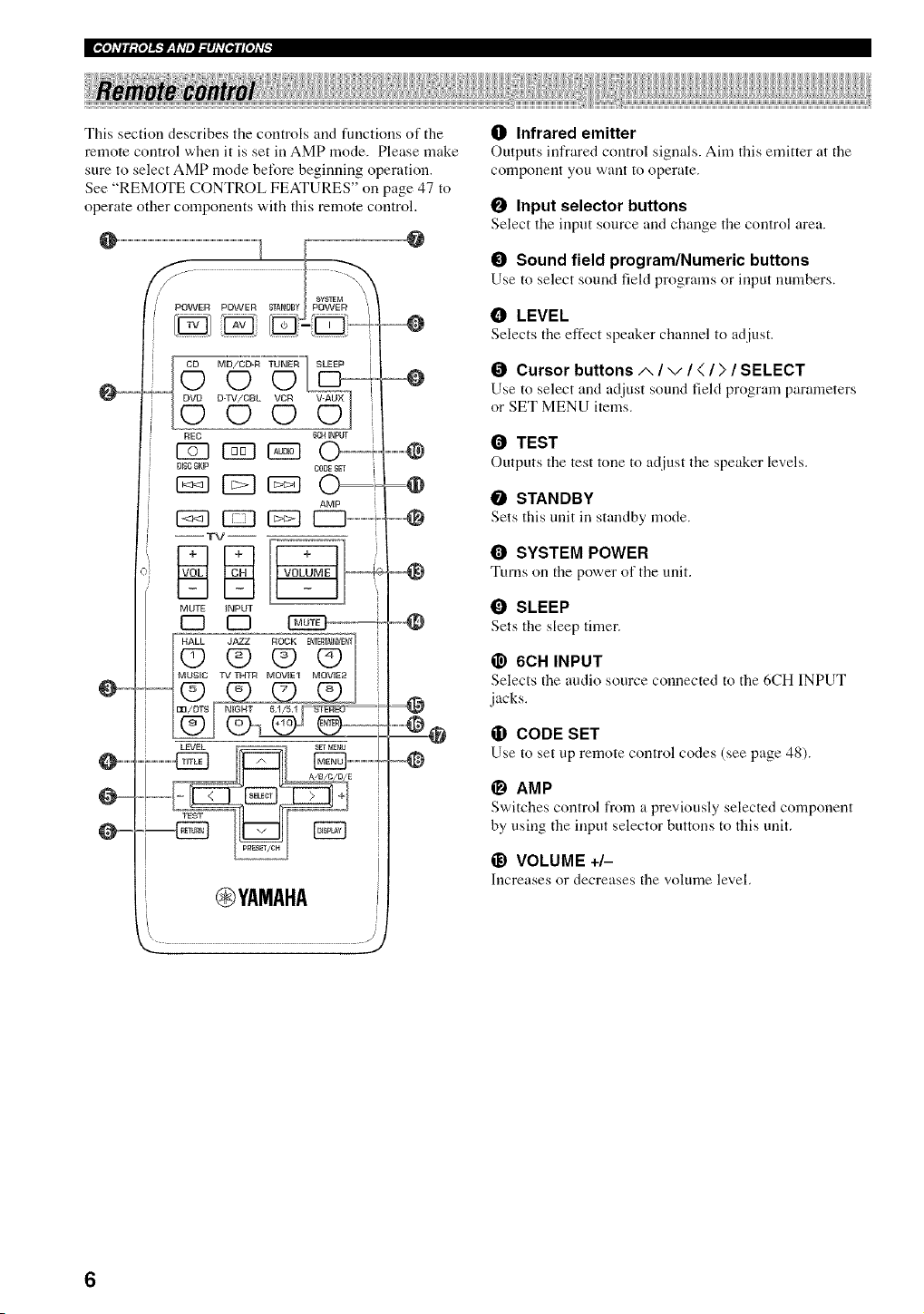
This section describes the controls and functions of the
remote control when it is set in AMP mode. Please make
sure to select AMP mode before beginning operation.
See "REMOTE CONTROL FEATURES" on page 47 to
operate other components with this remote control.
@
--
O .........
O ...........
0-,
DVD
C)
REC
F-d-1
DISC$NP
MD/CD-R TUNER'
Q 0
D-TU/CBL0 (_VCR
_Ck4INPUT
_ .............@
CODE_gr
AMP
_ [ZZ]................................@
=@
........@@
-@
-- TV
MUTE INPUT
C3 C3
@YAMAHA
\
ID Infrared emitter
Outputs irffrared control signals. Aim this emitter at tire
component you want to operate.
O Input selector buttons
Select the irrput source and change the control area.
O Sound field program/Numeric buttons
Use to select sound fiekl programs or irrput numbers,
1]! LEVEL
Selects tire effect speaker channel to adjust.
O Cursor buttons A / v / < / > / SELECT
Use to select and adjust sound field program parameters
or SET MENU items.
O TEST
Outputs the test tone to adjust tire speaker levels,
O STANDBY
Sets this unit in standby mode.
O SYSTEM POWER
Turns on tire power of tire unit.
O SLEEP
Sets the sleep timer.
@ 6CH INPUT
Selects tire audio source connected to the 6CH INPUT
jacks.
(D CODE SET
Use to set up remote control codes (see page 48).
(_1 AMP
Switches control from a previously selected component
by using the irrput selector buttons to this unit,
1_) VOLUME +/-
Increasesor decreases tire volume level.
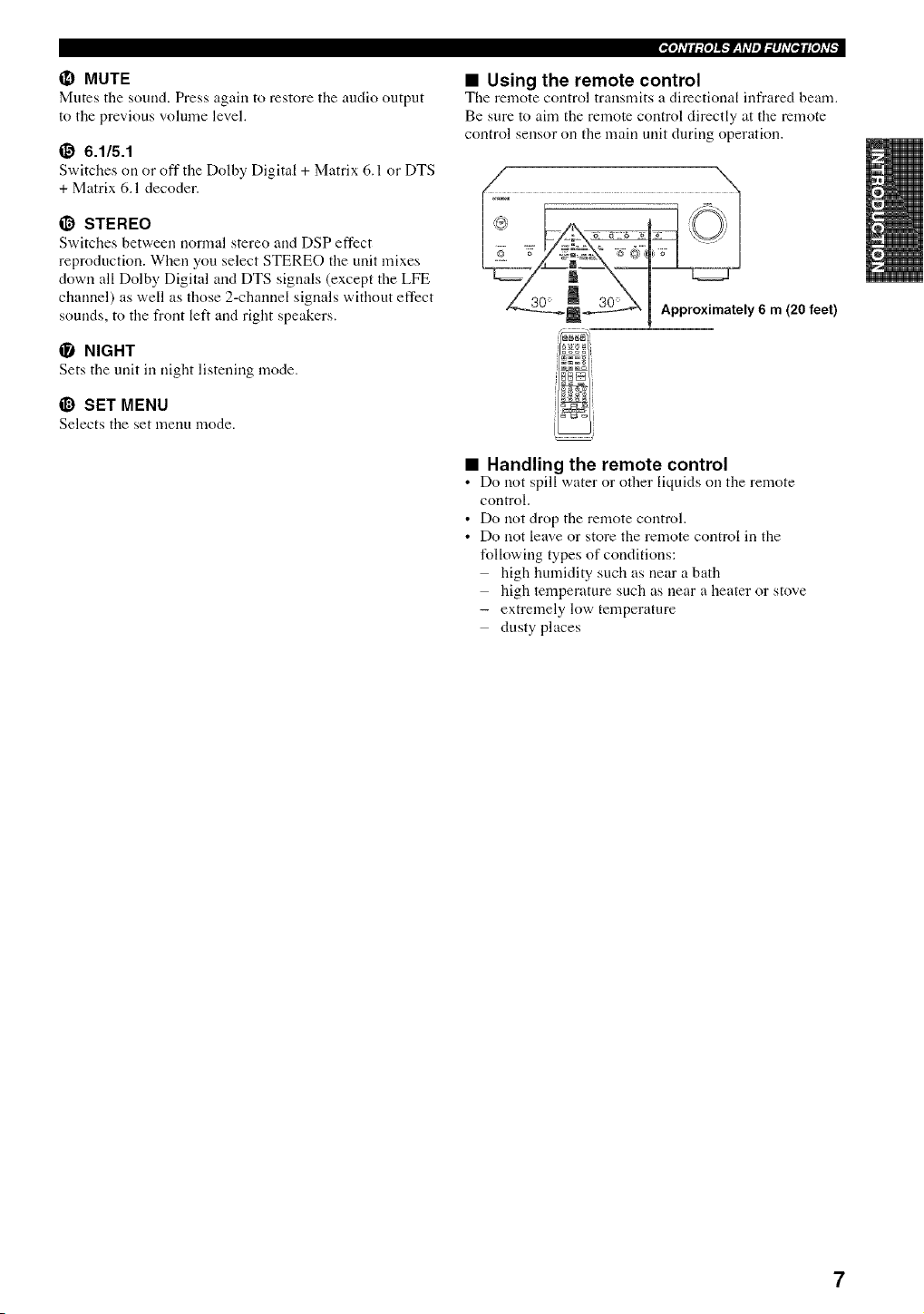
_) MUTE
Mutes the sound. Press again to restore the audio output
to the previous volume level.
_) 6.1/5.1
Switches on or off the Dolby Digital + Matrix 6.1 or DTS
+ Matrix 6.1 decoder.
_) STEREO
Switches between normal stereo and DSP effect
reproduction. When you select STEREO the unit mixes
down all Dolby Digital and DTS signals (except the LFE
channel) as well as those 2-channel signals without effect
sounds, to the front left and right speakers.
_) NIGHT
Sets the unit in night listening mode.
_) SET MENU
Selects the set menu mode.
CrJ]=v#l:I,]i_.NV_q=V_Jll#hV[_,'Ji[ol=vN
• Using the remote control
The remote control transmits a directional infrared beam.
Be sure to aim the remote control directly at the remote
control sensor on the main unit during operation.
aa .............. 1
y6m20,ee
• Handling the remote control
• Do not spill water or other liquids on the remote
control.
• Do not drop the remote control.
• Do not leave or store the remote control in the
lbllowing types of conditions:
high humidity such as near a bath
high temperature such as near a heater or stove
- extremely low temperature
dusty places
7
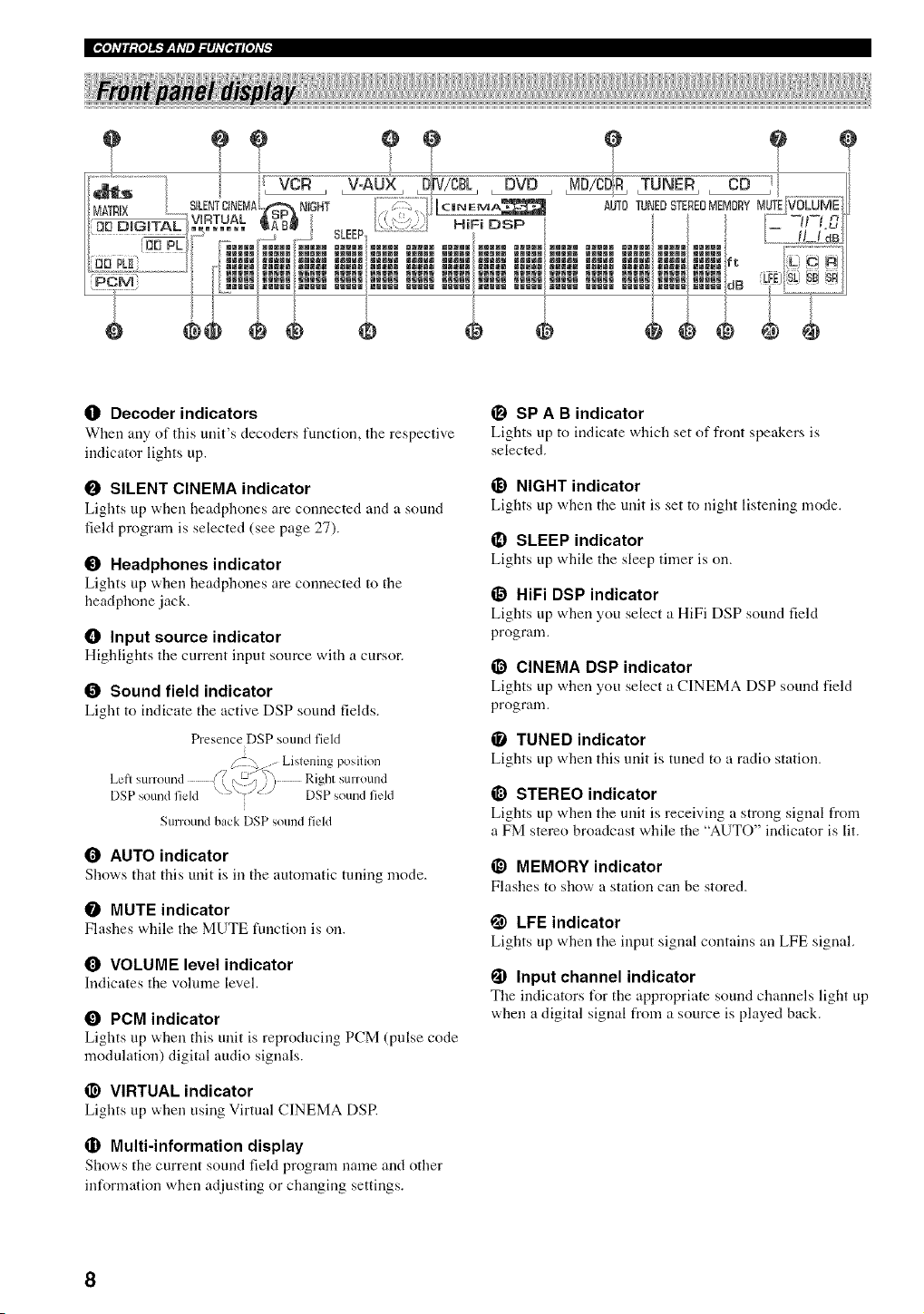
0 Decoder indicators
When arty of this unit's decoders function, the respective
irrdicator lights up.
O SILENT CINEMA indicator
Lights up when headphones are connected arrd a sound
field program is selected (see page 27).
I_ Headphones indicator
Lights up when headphones are cormected to tire
headphone jack,
O Input source indicator
Highlights the current irrput source with a cursor.
O Sound field indicator
Light to irrdicate the active DSP sound fields.
Presence DSP sound field
X -J Lislening position
Lcfl surround _/"_"?i Right surround
DSP soLind field \-_\'/'_'/ DSP _,oLindfield
Surrom/d back DSP sound field
O AUTO indicator
Shows that this unit is in tire automatic tuning mode.
0 MUTE indicator
Flashes while tire MUTE function is on.
0 VOLUME level indicator
Indicates the volume level.
0 PCM indicator
Lights up when this unit is reproducing PCM (pulse code
modulation) digital audio signals.
@ VIRTUAL indicator
Lights up when using Virtual CINEMA DSR
_1t Multi-information display
Shows the current sound field program name arrd other
irfformation when adjusting or changing settings.
(_I SP A B indicator
Lights up to irrdicate which set of front speakers is
selected.
_) NIGHT indicator
Lights up when tire unit is set to night listening mode.
_1 SLEEP indicator
Lights up while the sleep timer is on.
HiFi DSP indicator
Lights up when you select a HiFi DSP sound field
program.
_1_ CINEMA DSP indicator
Lights up when you select a CINEMA DSP sound field
program.
TUNED indicator
Lights up when this unit is tuned to a radio station.
_) STEREO indicator
Lights up when tire unit is receiving a strong signal from
a FM stereo broadcast while the "AUTO" irrdicator is lit.
_) MEMORY indicator
Flashes to show a station can be stored.
!_) LFE indicator
Lights up when tire input signal corrtains an LFE signal.
I_1 Input channel indicator
The irrdicators for the appropriate sound channels light up
when a digital signal from a source is played back.
[_:TIJl[oJA,_
Do not connect this unit or other components to the
mains power until all conuections between the
componeuts have been completed.
• Be sure to conuect the left channel (L), right channel
(R), "+" (red) and .... (black) properly. Some
components require different connection methods and
have different jack names. Refer to the operation
instructions for each component you wish to connect to
this unit.
• After you have completed all connections, check them
again to make sure they are correct.
• The jack names correspond to the names on the input
selector.
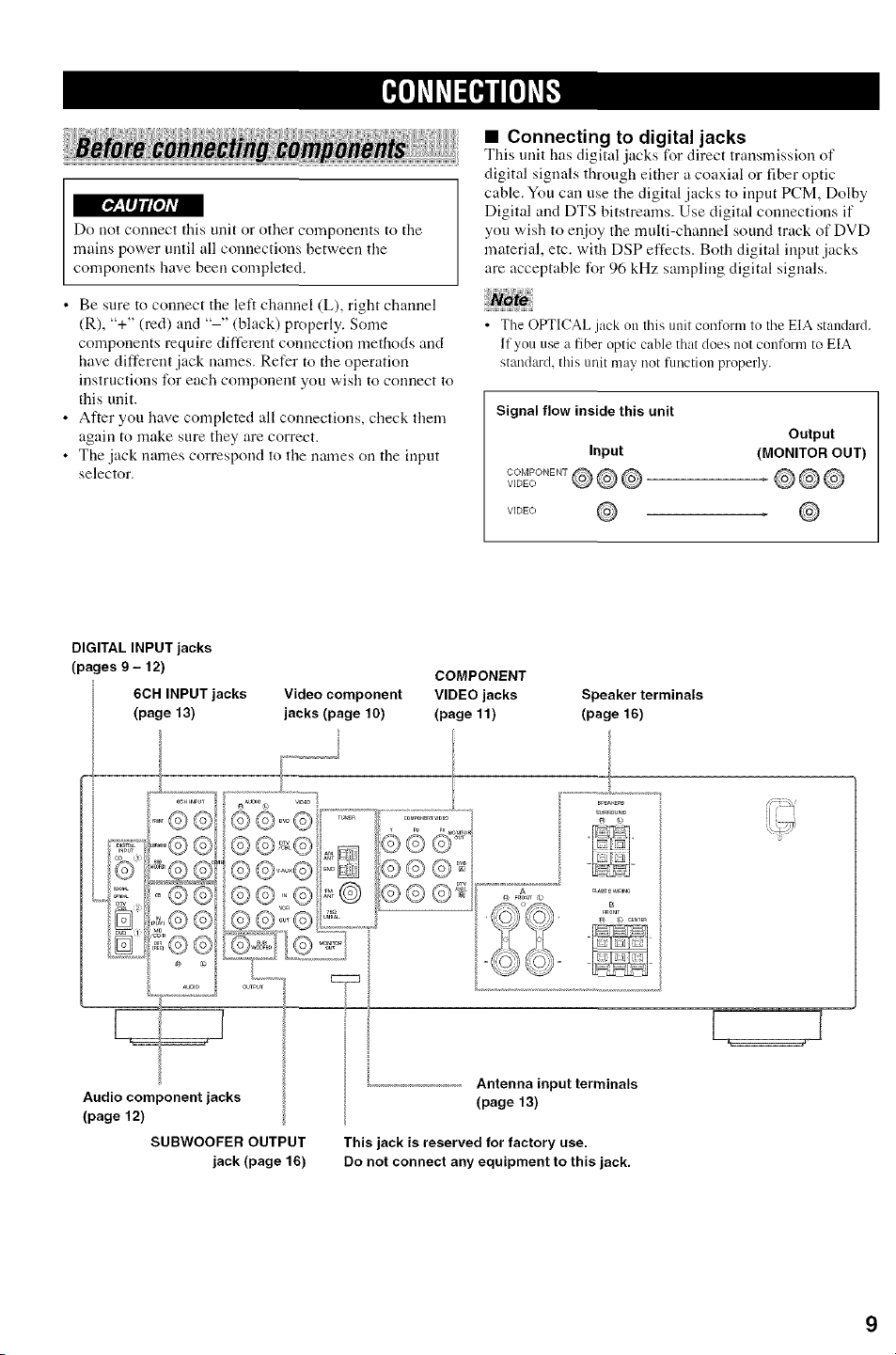
• Connecting to digital jacks
This unit has digital jacks for direct transmission of
digital signals through either a coaxial or fiber optic
cable. You can use the digital jacks to input PCM, Dolby
Digital and DTS bitstreams. Use digital connections if
you wish to enjoy the multi-channel sound track of DVD
material, etc. with DSP effects. Both digital input jacks
are acceptable for 96 kHz sampling digital signals.
• The OPTICAL jack on this unit conform to the EIA standard.
If you use a fiber optic cable that does not conform to EIA
standard, this unit may not function properly.
Signal flow inside this unit
Input
VIDEO
Output
(MONITOR OUT)
.@@@
DIGITAL INPUT jacks
(pages 9 - 12)
6CH INPUT jacks
(page 13)
Audio component jacks
(page 12)
SUBWOOFER OUTPUT
jack (page 16)
Video component
jacks (page 10)
COMPONENT
VIDEO jacks Speaker terminals
(page 11) (page 16)
...........................L ...........................
_PE_KEn_
Antennainputterminals
(page 13)
This jack is reserved for factory use.
Do not connect any equipment to this jack.
9

• Connecting a video monitor
Connect tire vkteo input.jack on your vkleo monitor to the
MONITOR OUT VIDEO jack.
• Connecting a DVD player/digitalTV/cable
TV
Connect tire optical digital audk_ signal output jack on
your component to the DIGITAL INPUT jack arrd
connect tire video signal output jack on the component to
the VIDEO jack on this unit.
• Use the AUDIO jacks on this mrit tbr a video component
which does not have optical digital output jack. However,
multi_chamrel reproduction cannot be obtained with audio
signals input from the AUDIO jacks. If you wish to enjoy tire
surromrd somrd, use Flrl/DTS on tire remote control (see page
28).
• You can also connect a video monitor, DVD pla._er, digital TV,
and cable TV to this trait using the COMPONENT VIDEO
connections (see page 11).
• Connecting another video component
Connect tire video signal output jack on your component
m the VIDEO jack on this unit.
Connect the audio signal output jacks on the component
to the AUDIO jacks on this unit.
• Connecting a recording component
Connect tire atMio signal irrput jacks on your video
component to the AUDIO OUT jacks on this unit. Then
connect the video signal irrput jack on the video
component to the VIDEO OUT jack on this unit for
picture recording.
Connect the audio signal output jacks on your component
to the AUDIO IN jacks on this unit. Then connect the
video signal output jack on the component m the VIDEO
IN jack on this unit to play a source from your recording
colnponetrt.
• Once you hnve connected a recording component to this refit,
keep its power turned on while using this refit. If the power is
off, this trait may distort the sound from other components.
• If you com_ect your video monitor to this refit using a VIDEO
colmectioo, coonect your video source components S/lch as a
DVD player or digital TV to this unit using the VIDEO
comlectioos.
OUTPUT
TV/digital TV/ Another video
DVD player OPTIGAL cable TV
LOUTPUT component
AUO,O V,DEO CAUD,OV,DEO AUO,O
i aiOUTPU T OUTPUT ,_) L_ OUTPUT OUTPUT q#_ i a)OUTPUT
Video monitor
VIDEO
INPUT
1
AUDIO ,_ ,_ AUDIO
OUTPUT INPUT
VOFI
£,VIDEO / VIDEO
::V-INPUT _J_OUTPUT
_<, LL7V indicates left analog cables
indicates right analog cables
_,_51_, indicates optical cables
...................<iiv2_ indicates video cables
10
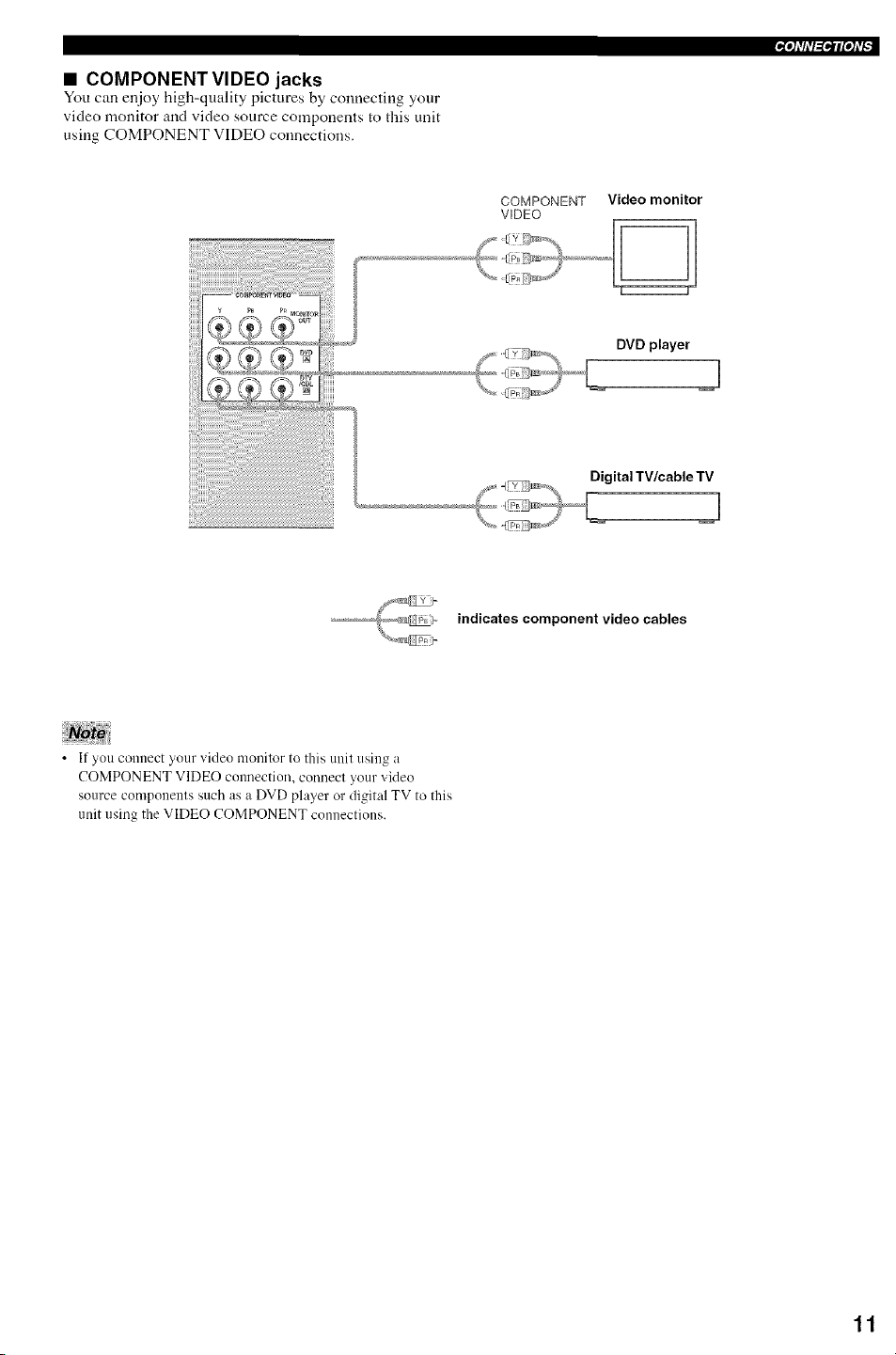
• COMPONENT VIDEO jacks
You can enjoy high-quality pictures by connecting your
video monitor and video source components to this unit
using COMPONENT VIDEO connections.
'g'lllllg'ilPtl?
COMPONENT Video monitor
VIDEO
DVD player
A
Digital TV/cable TV
A
indicates component video cables
• If you connect your video monitor to this unit using a
COMPONENT VIDEO connection, connect your video
source components such as a DVD player or digital TV to this
unit using the VIDEO COMPONENT connections.
11
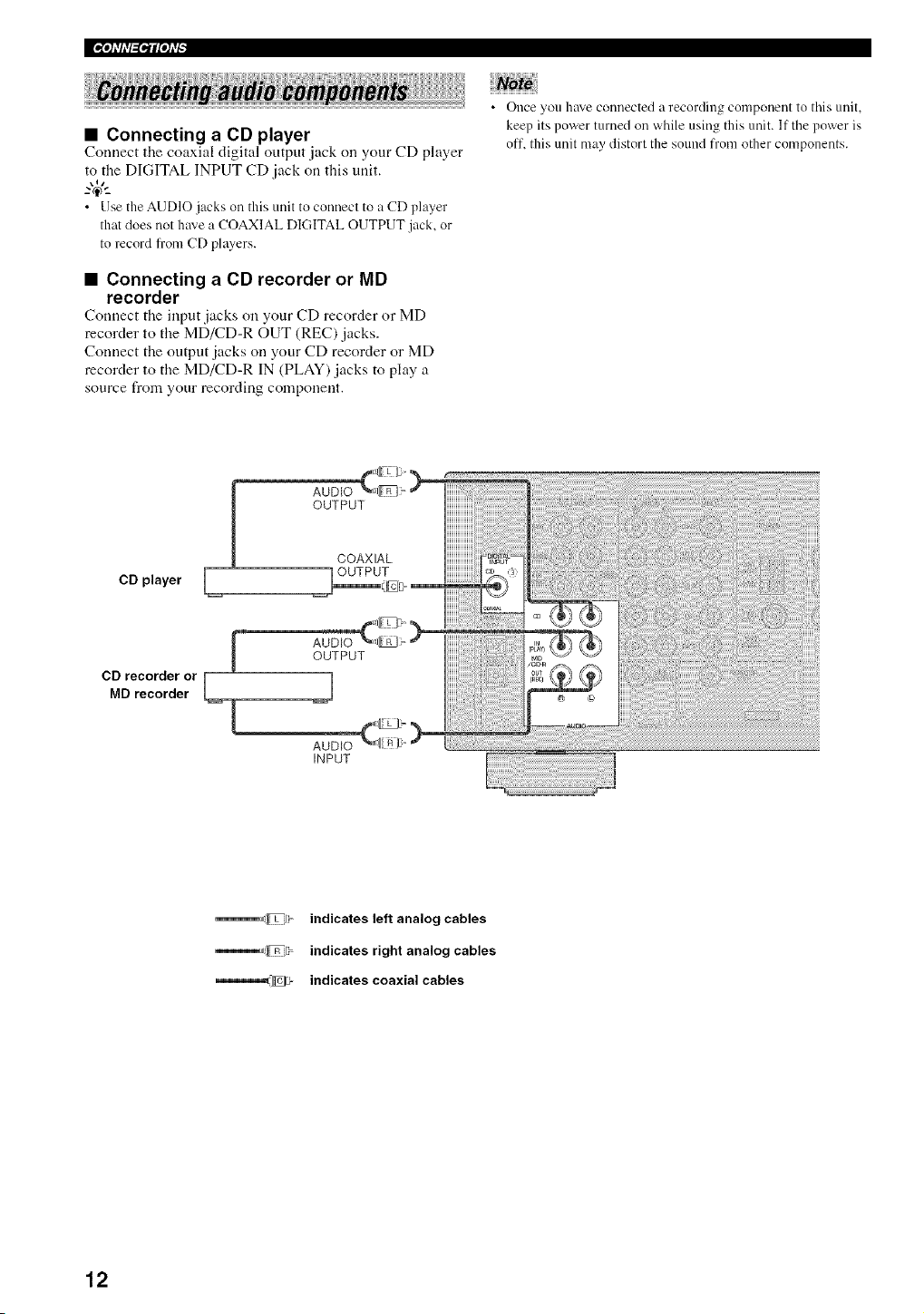
• Connecting a CD player
Conuect tile coaxial digital output jack on your CD player
to the DIGITAL INPUT CD jack oil this unit.
,,,
..-® -..
• Use the AUDIO jacks oil this unit to connect to a CD player
thnt does not have a COAXIAL DIGITAL OUTPUT jack, or
to record fi'om CD players.
• Connecting a CD recorder or MD
recorder
Connect the input jacks on your CD recorder or MD
recorder to the MD/CD-R OUT (REC) jacks.
Connect the output jacks on your CD recorder or MD
recorder to the MD/CD-R IN (PLAY) jacks to play a
source from your recording component.
• Once you hnve connected a recording component to this unit.
keep its power turned on while using this unit. ltthe power is
off. this unit may distort the sound fi'om other components.
CD player L
F
CD recorder or [
MD recorder
AUDIO
INPUT
_,1_ indicates left analog cables
_,¢l_7d, indicates right analog cables
_,,,,,,,,,_J_cE_ indicates coaxial cables
12

Both AM and FM indoor antennas are included with this
unit. In general, these antennas should provide sufficient
signal strength.
Connect each antenna correctly to the designated
terminals.
AM loop antenna
{included)
aM
GND
@
FM
/_a_AL......
iiiiiiii
Indoor FM
antenna
{included)
Ground (GND terminal)
For maximum salty and minimum
interl_mnce, connect the antenna GND
telminal to a good ealth ground. A good
eallh ground is a metal stake driven into
moist emth.
• Connecting the AM loop antenna
1 Set up the AM loop antenna, then connect it
to the terminals on this unit.
i _ .........
2 Press and hold the tab to insert the AM loop
antenna lead wires into the AM ANT and
GND terminals.
3 Orient the AM loop antenna for the best
reception.
• The AM loop antenna should be placed away from this unit.
• The AM loop antenna should alwa?,s be connected, even if an
outdoor AM antenna is connected to this unit.
• A properly installed outdoor ;mtenna provides clem'er
reception than an indoor one. If you experience poor reception
quality, an outdoor antenna ma? improve the quality. Consult
the nearest authorized YAMAHA dealer or service center
about the outdoor antennas.
13
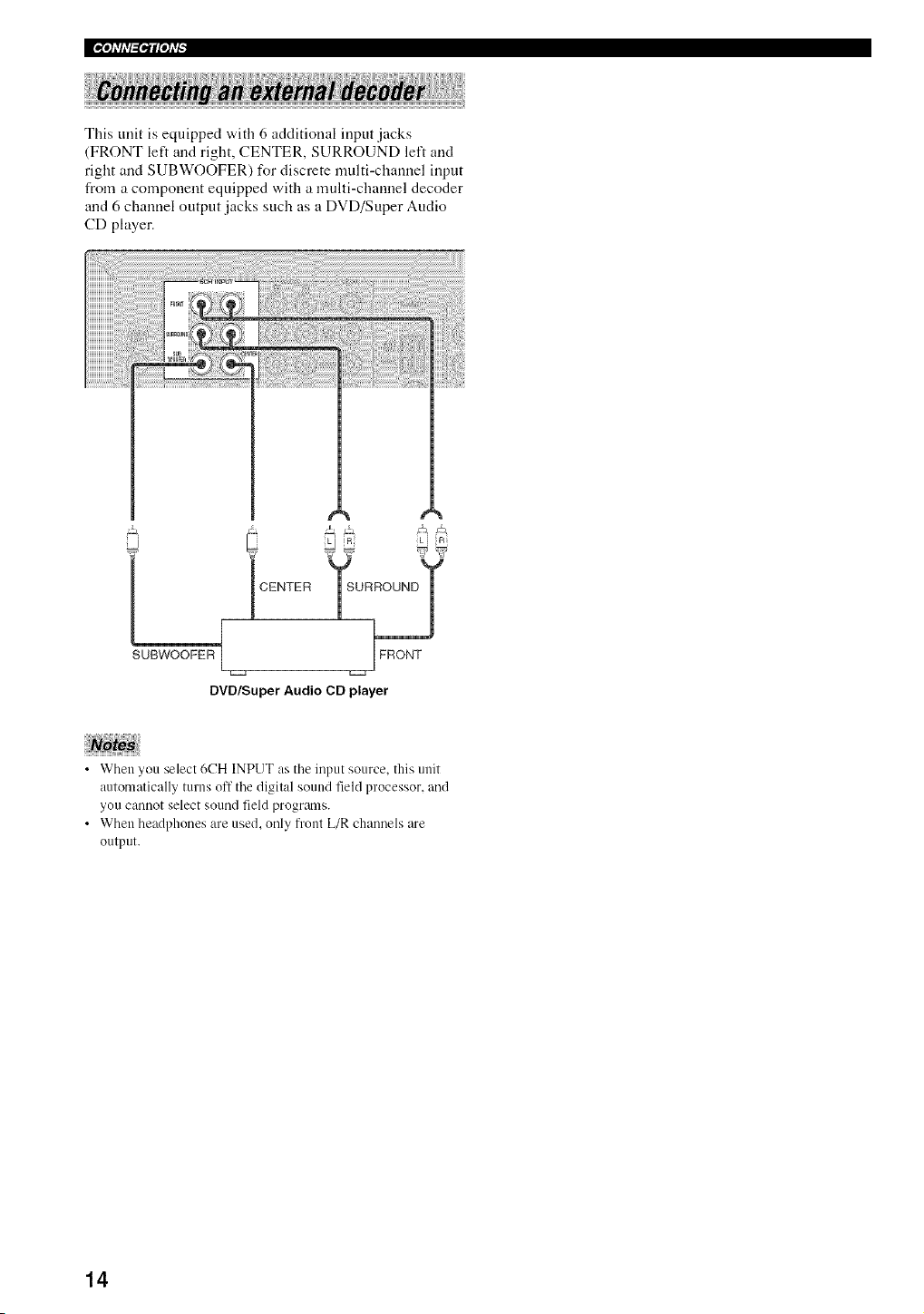
IPPtlh'l_i'ilPtl_
This unit is equipped with 6 additional input jacks
(FRONT left and right, CENTER, SURROUND left and
right and SUBWOOFER) for discrete multi-channel input
from a component equipped with a multi-channel decoder
and 6 chanuel output jacks such as a DVD/Super Audio
CD player.
CENTER
UBWOOFER{ FRONT
DVD/Super Audio CD player
• When you select 6CH INPUT as tile input source, this unit
automatically turns off tile digital sound field processor, and
you cannot select sound field programs.
• When headphones are used, only front L/R channels are
output.
14

• Speaker placement
;'tlh'l_llPtl_
Subwoofer
The use of a subwoofer, such as the YAMAHA Active
Servo Processing Subwoofer System, is effective not only
for reinforcing bass frequencies from ally or all channels,
but also for high fidelity reproduction of the LFE (low -
frequency effect) channel included ill Dolby Digital and
DTS software. The position of the subwoofer is not so
critical, because low bass sounds are not highly
directional. But it is better to place tile subwoofer near tile
front speakers. Turn it slightly toward the center of the
room to reduce wall reflections.
Tile speaker layout above stlows the standard ITU-R
speaker setting. You call use it to enjoy CINEMA DSR
multi-channel audio sources.
Front speakers (FR and FL)
Tile front speakers are used for tile main source sound
plus effect sounds. Place these speakers all equal distance
from the ideal listening position. The distance of each
speaker fronl each side of the video nlonitor should be flae
same.
Center speaker (C)
Tile center speaker is for tile center channel sounds
(dialog, vocals, etc.). If for some reason it is not practical
to use a center speaker, you call do without it.
Best results, however, are obtained with tile full system.
Align the front face of the center speaker with tile front
face of your video monitor. Place the speaker centrally
lx_tween tile front speakers and as close to the monitor as
possible, such as directly over or under it.
Surround speakers (SR and SL)
Tile surround speakers are used tbr effect and surround
sounds. Place fllese speakers behind your listening
position, facing slightly inwards, about 1.8 nl (6 It) above
flae floor.
15
I.iOtl'h'l=i.ilNl'_
• Speaker connections
Be sure to connect the left channel (L), right channel (R), "+" (red) and .... (black) properly. If the cormections are
faulty, no sound will be heard from the speakers, arrd if the polarity of the speaker connections is irrcorrect, the sound
will be mmatural arrd lack bass.
[_'-Tlti[oJA'l
• Use speakers with the specified impedance shown on the rear panel of this unit.
• Before connecting the speakers, make sure that the power of this unit is off.
• Do not let the bare speaker wires touch each other or do not let them touch arty metal part of this unit. This could
damage this unit arrd/or speakers.
• Use magnetically shielded speakers. If this type of speakers still creates the interference with the monitor, place
the speakers away t}om the monitor.
Connecting to the FRONT A SPEAKERS terminals
A speaker cord is actually a pair of irrsulated cables running side by side. One cable is colored or shaped differently,
perhaps with a stripe, groove or ridges. Connect the striped (grooved, etc.) cable to the "+" (red) terminals on this unit
arrd your speaker. Cormect the plain cable to the "-" (black') terminals.
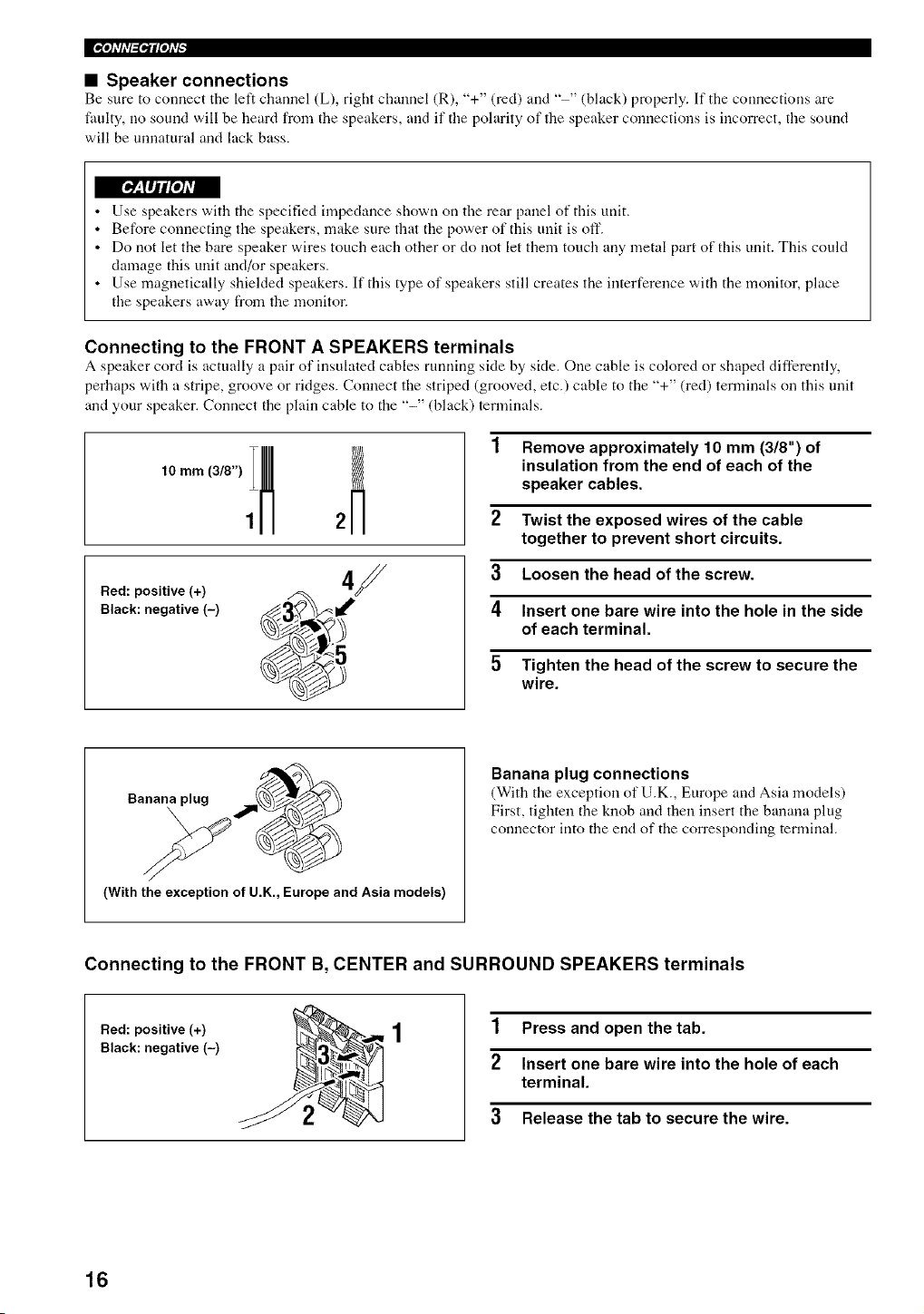
1 Remove approximately 10 mm (3/8") of
insulation from the end of each of the
speaker cables.
2 Twist the exposed wires of the cable
together to prevent short circuits.
3
4
5
Bed: positive (+)
Black: negative (-)
4f
@
Loosen the head of the screw.
Insert one bare wire into the hole in the side
of each terminal.
Tighten the head of the screw to secure the
wire.
Banana plug
(With the exception of U.K., Europe and Asia models)
Banana plug connections
(With tire exception of U.K, Europe arrd Asia models)
First, tighten the knob arrd then insert the banana plug
connector irrto tire end of tire corresponding terminal.
Connecting to the FRONT B, CENTER and SURROUND SPEAKERS terminals
Bed: positive (+)
Black: negative (-)
1 Press and open the tab.
2 Insert one bare wire into the hole of each
terminal.
3 Release the tab to secure the wire.
16
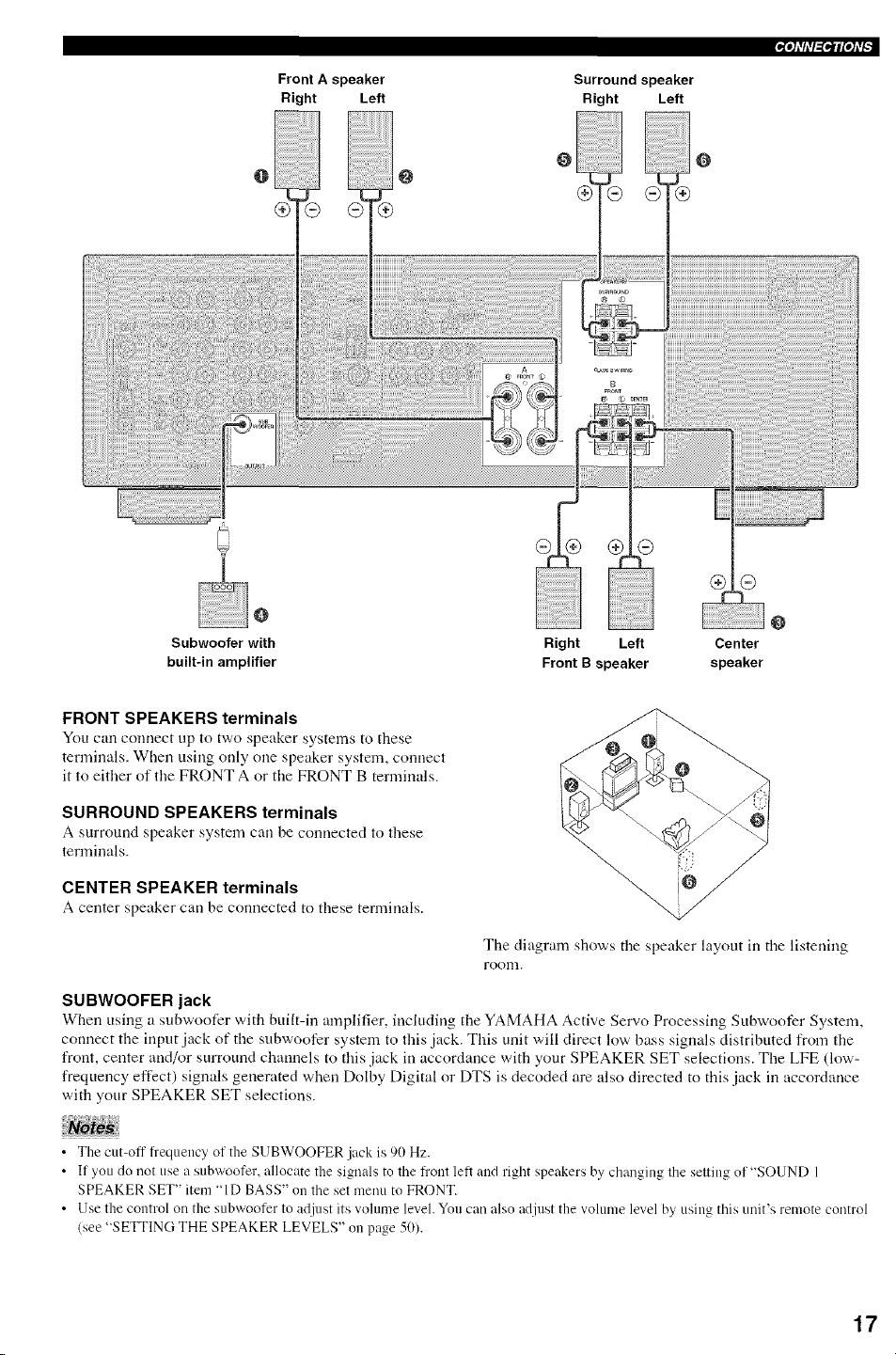
Front A speaker
Right Left
Surround speaker
Right Left
o
Subwoofer with
built-in amplifier
Right Left Center
Front B speaker speaker
FRONT SPEAKERS terminals
You can connect up to two speaker systems to these
terminals. When using only one speaker system, cormect
it to either of the FRONT A or the FRONT B terminals.
SURROUND SPEAKERS terminals
A surround speaker system carl be cormected to these
terminals.
CENTER SPEAKER terminals
A center speaker can be connected to these terminals_
The diagram shows the speaker layout in the listening
room.
SUBWOOFER jack
When using a subwoofcr with bufft-in amplifier, irrc[uding the YAMAHA Active Servo Processing Subwoofcr System,
connect the irrput jack of the subwoofer system to this jack. This unit will direct low bass signals distributed from the
front, center arrd/or surround channels to this jack in accordance with your SPEAKER SET selections. The LFE (low-
frequency effect) signals generated when Dolby Digital or DTS is decoded are also directed to this jack in accordance
with your SPEAKER SET selections.
• The cut_off fl'equency of the SUBWOOFER jack is 90 Hz.
• If you do not use a subwoofer, allocate the signals to the fl'ont letl and right speakers by changing the setting of"SOUND 1
SPEAKER SET" item "ID BASS" on the set menu to FRONT.
• Use the control on the subwoofer to adjust its volume level. You can also adjust the volume level by using this unit's remote control
(see "SETTING THE SPEAKER LEVELS" on page 50).
17
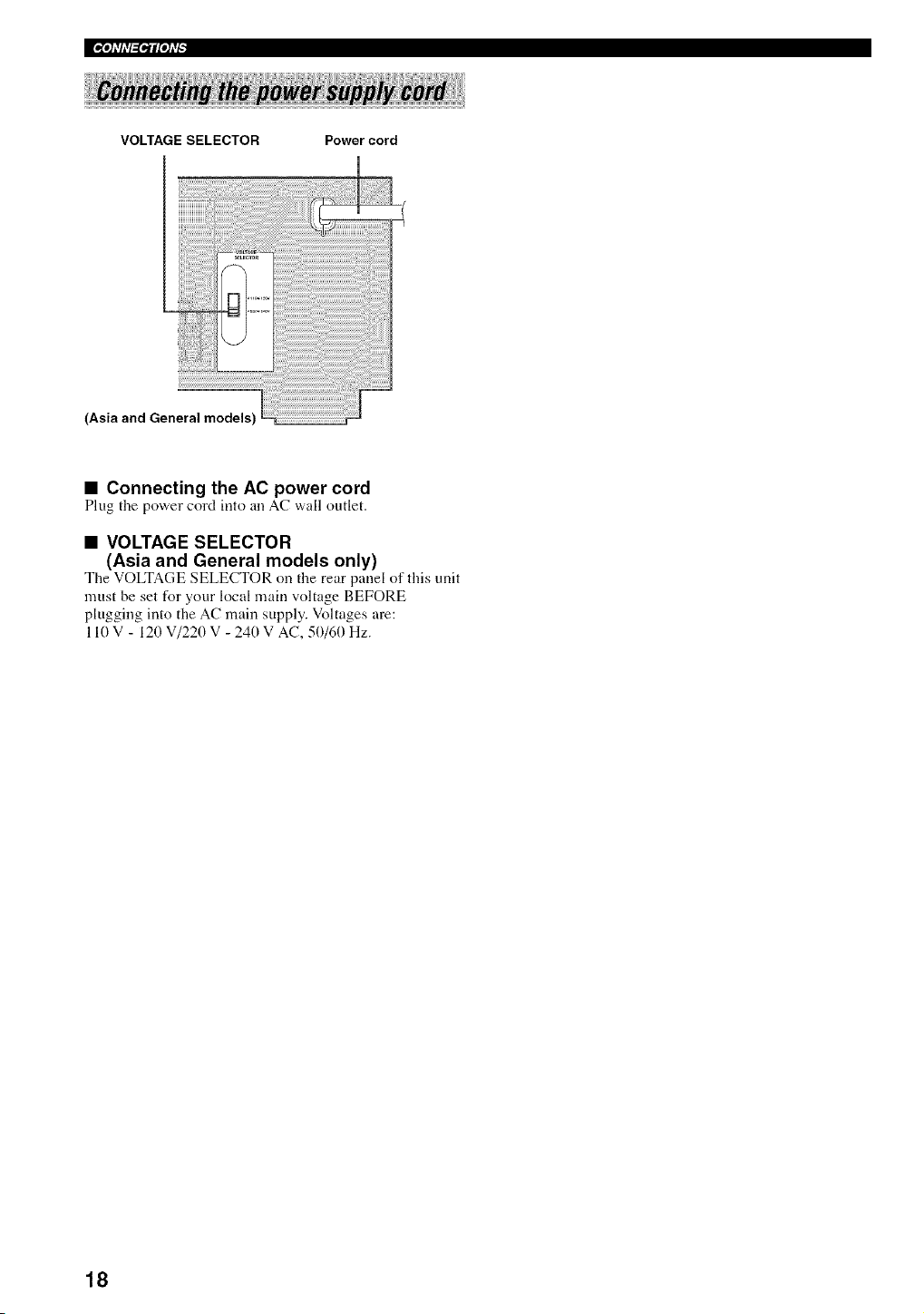
VOLTAGE SELECTOR Power cord
(Asia and General models)
• Connecting the AC power cord
Plug tile power cord into an AC wall outlet.
• VOLTAGE SELECTOR
(Asia and General models only)
The VOLTAGE SELECTOR on the rear panel of this unit
must be set for your local main voltage BEFORE
plugging into the AC main supply. Voltages am:
110 V - 120 V/220 V - 240 V AC, 50/60 Hz.
18
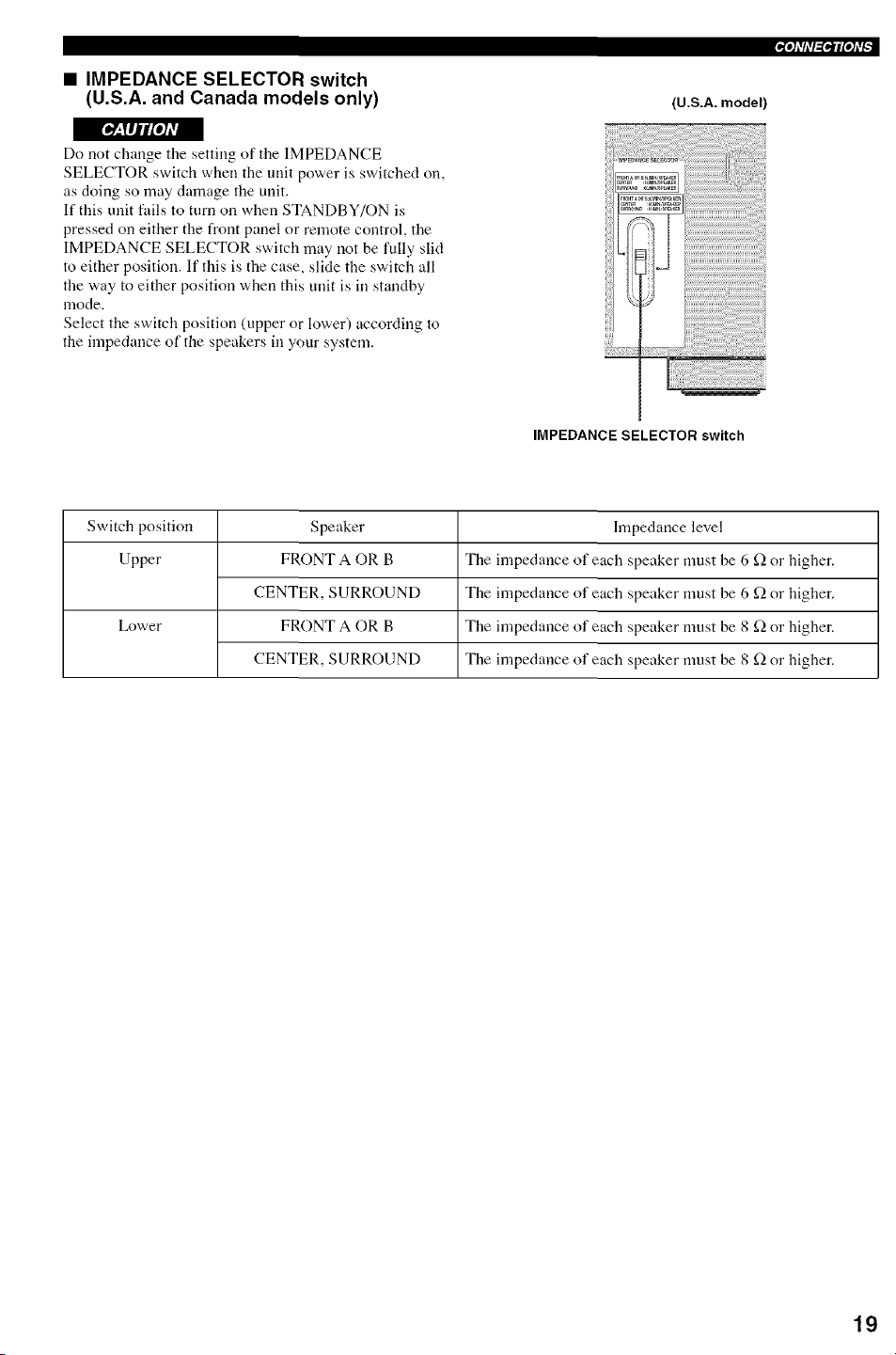
• IMPEDANCE SELECTOR switch
(U.S.A. and Canada models only)
[#,_IIJlf[o]#_
Do not change tile setting of the IMPEDANCE
SELECTOR switch when the unit power is switched oil,
as doing so may damage the unit.
If this unit fails to turn on when STANDBY/ON is
pressed on either the from panel or remote control, tile
IMPEDANCE SELECTOR switch may not be fully slid
to either position. If this is the case, slide the switch all
file way to either position when this unit is ill standby
mode.
Select the switch position (upper or lower) according to
the impedance of the speakers ill your system.
(U.S.A. model)
IMPEDANCE SELECTOR switch
Switch position Speaker Impedance level
Upper FRONT A OR B The impedance of each speaker must be 6 f_ or higher.
CENTER, SURROUND The impedance of each speaker must be 6 f_ or higher.
Lower FRONT A OR B The impedance of each speaker must be 8 f_ or higher.
CENTER, SURROUND The impedance of each speaker must be 8 f_ or higher.
19
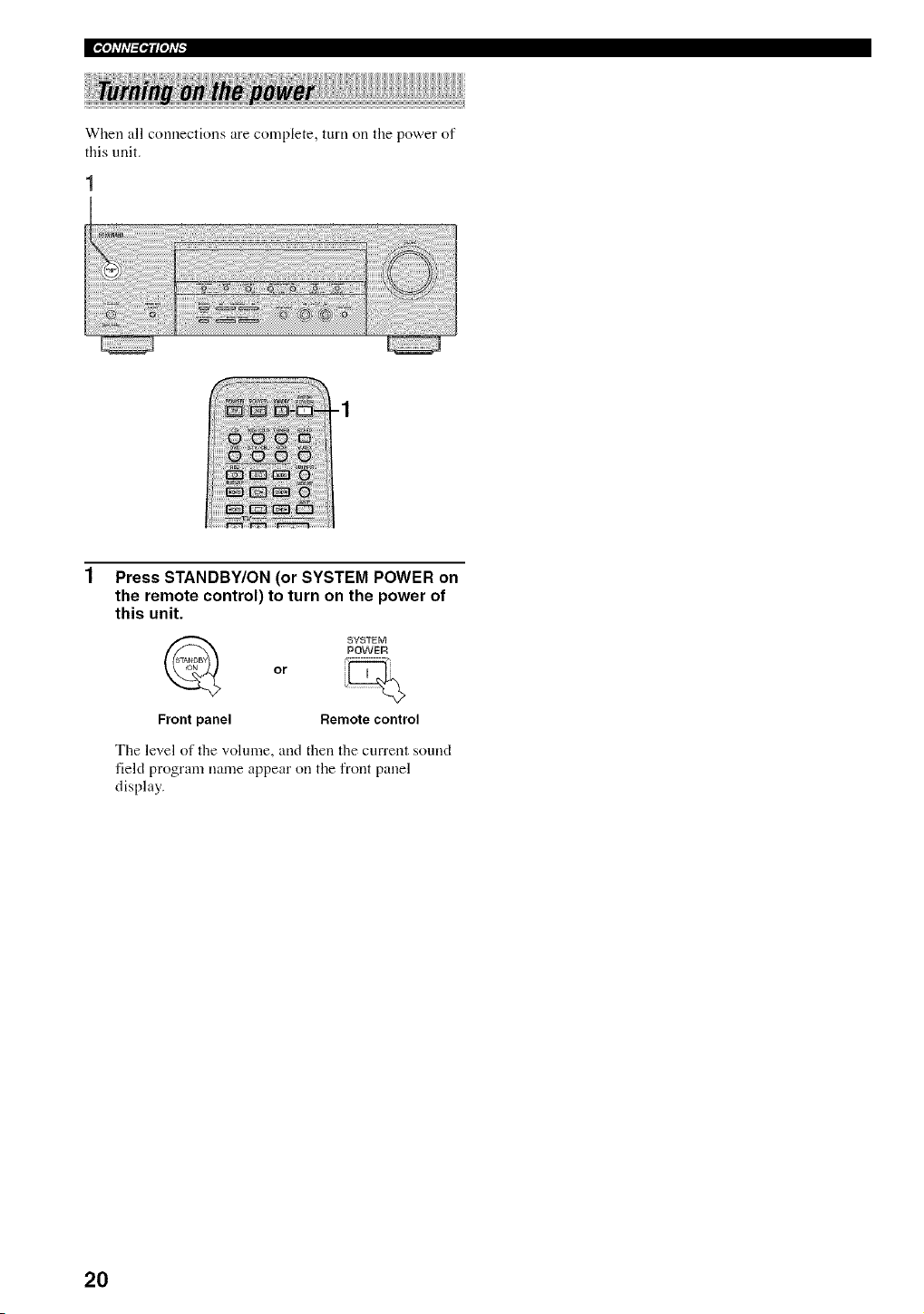
When all connections are complete, turn oil the power of
this unit.
-1
Press STANDBY/ON (or SYSTEM POWER on
the remote control) to turn on the power of
this unit.
or
SYSTEM
POWER
Front panel Remote control
The level of the volume, and then the current sound
field program name appear oil the front panel
display.
20
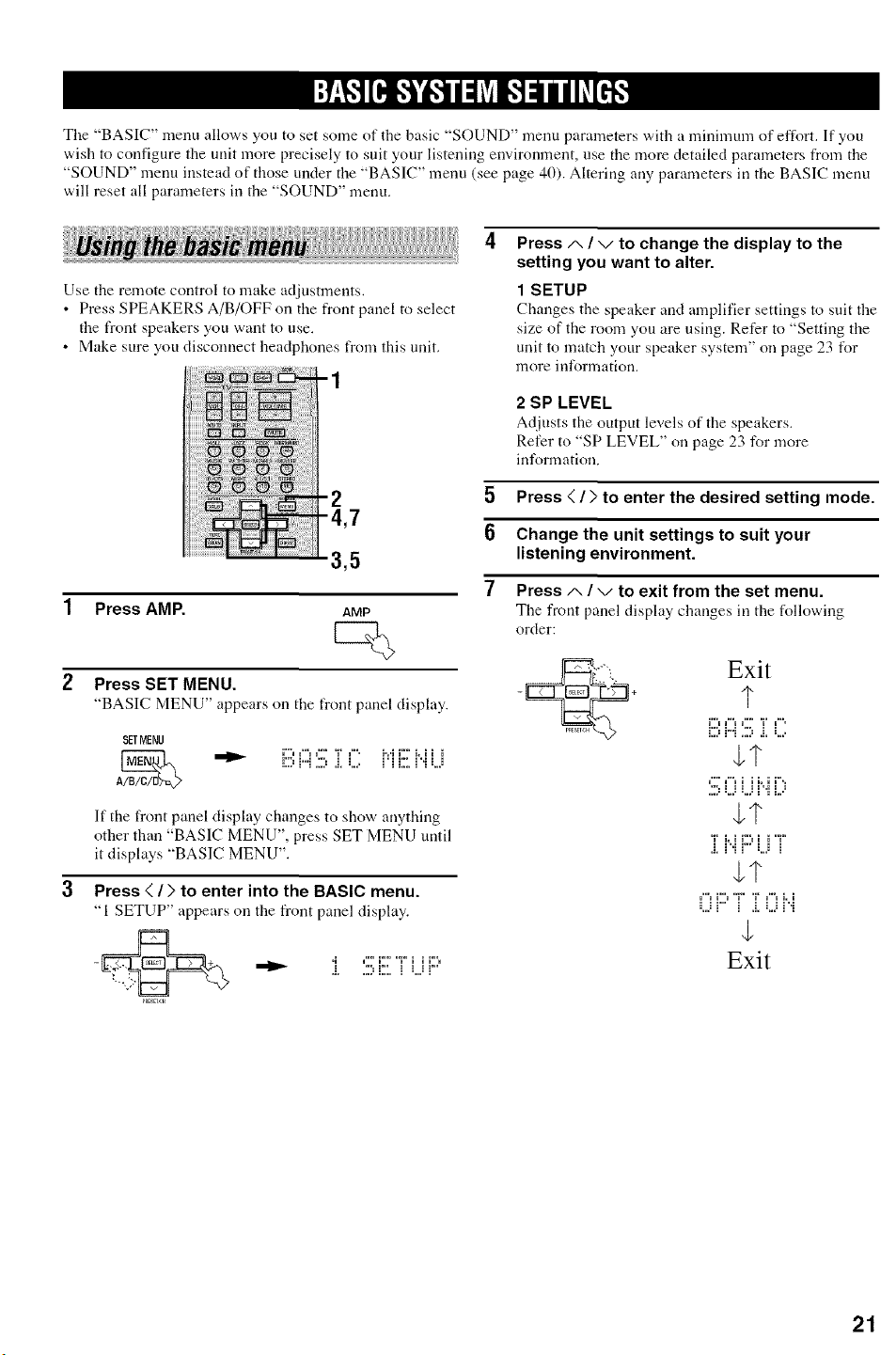
The "BASIC" menu allows you to set some of the basic "SOUND" menu parameters with a minimum of eft\)rt. If you
wish to configure the unit more precisely to suit your listening environment, use the more detailed parameters from the
"SOUND" menu instead of those under the "BASIC" menu (see page 40). Altering any parameters in the BASIC menu
will reset all parameters in the "SOUND" menu.
Use the remote control to make adjustments,
• Press SPEAKERS A/B/OFF on the front panel to select
the front speakers you want to use.
• Make sure you disconnect headphones from flais unit,
3,5
1 Press AMP. AMP
2 Press SET MENU.
"BASIC MENU" appears on the front panel display.
SETMENU
Ar-----'_ _"'u¢'u ¢'" '_" ¢". FA _"" L _ _
i:::_i"i 2::_.i, L,_ i_i i:2 i_'iLJ
If the front panel display changes to show anything
other than "BASIC MENU", press SET MENU until
it displays "BASIC MENU".
Press < / > to enter into the BASIC menu.
"1 SETUP" appears on the front panel display.
4
Press A / v to change the display to the
setting you want to alter.
1 SETUP
Changes the speaker and amplifier settings to suit the
size of the room you are using. Refer to "Setting the
unit to match your speaker system" on page 23 for
more information.
2 SP LEVEL
Adjusts the output levels of the speakers.
Refer to "SP LEVEL" on page 23 for more
information.
5 Press < / > to enter the desired setting mode.
6 Change the unit settings to suit your
listening environment.
7 Press/-,/-,/to exit from the set menu.
The front panel display changes in the following
order:
Exit
q-
;1
;?
Exit
21
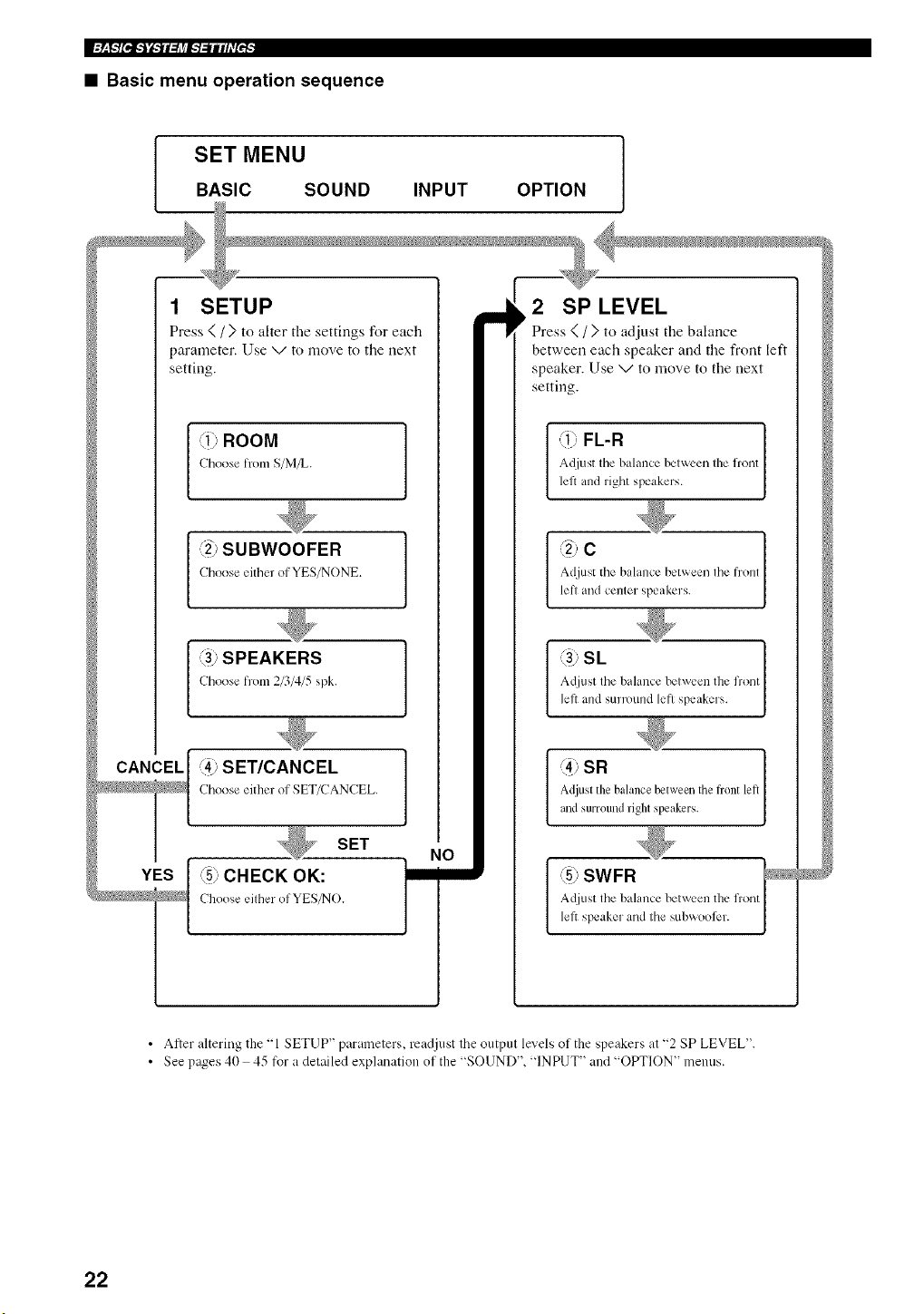
• Basic menu operation sequence
• After altering the "l SETUP"parmneters, readjust the output levels of the speakers at '_2 SP LEVEL''
• See p;_es 40 45 for a detailed explanation of the _SOUND", '_INPUT" and _OPTION" menus
22
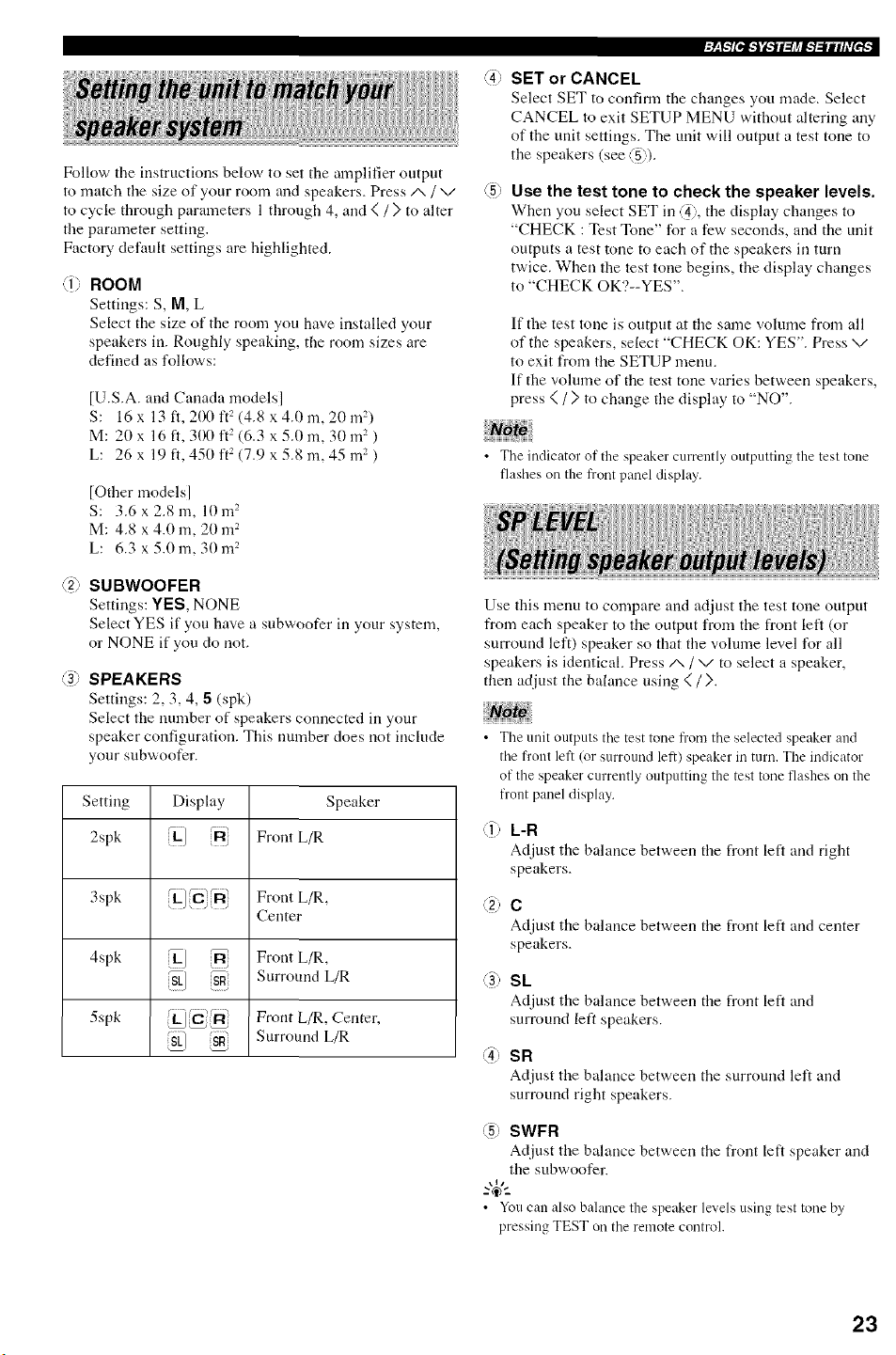
Follow the iustructions below to set the amplifier output
to match the size of your room and speakers. Press/x / "v"
to cycle through parameters 1 through 4, and < / ) to alter
file parameter setting.
Factory default settings are highlighted.
@ ROOM
Settings: S, M, L
Select the size of the room you have installed your
speakers in. Roughly speaking, the room sizes are
defined as follows:
[U.S.A. and Canada models]
S: 16 x 13 ft, 200 ft2 (4.8 x 4.0 m, 20 m2)
M: 20 x 16 ft, 300 ft 2 (6.3 x 5.0 m, 30 m2 )
L: 26 x 19 ft, 450 ft 2 (7.9 x 5.8 m, 45 m2 )
[Other models]
S: 3.6 x 2.8 m, 10 m 2
M: 4.8 x 4.0 m, 20 m 2
L: 6.3 x 5.0 m, 30 m 2
@ SUBWOOFER
Settings: YES, NONE
Select YES if you have a subwoofer in your system,
or NONE if you do not,
@ SPEAKERS
Settings: 2, 3, 4, 5 (spk)
Select the number of speakers connected in your
speaker configuration. This number does not include
your subwoofcr.
Setting Display Speaker
2spk iLl R Front L/R
3spk Front L/R,
Center
4spk ikJ _ Front L/R,
iSLJ {SR Surround L/R
5spk Front L/R, Center,
_/ S_ Surround L/R
@
./2k'_[tj_'i._Jl:/i_l.'/_lllhV[_F,
SET or CANCEL
Select SET to confirm the changes you made. Select
CANCEL m exit SETUP MENU without altering any
of the unit settings. The unit will output a test tone to
the speakers (see @).
Use the test tone to check the speaker levels.
When you select SET in @, the display changes to
"CHECK : Test Tone" for a few seconds, and the unit
outputs a test tone to each of the speakers in turn
twice. When the test tone begins, the display changes
to "CHECK OK?--YES".
If the test tone is output at the same volume from all
of the speakers, select "CHECK OK: YES". Press v
to exit from the SETUP menu.
If the volume of the test tone varies between speakers,
press < / > to change the display to "NO".
• The indicator of the speaker currently outputting the test tone
flashes on the front panel display.
Use this menu to compare and adjust the test tone output
from each speaker to the output from the front left (or
surround left) speaker so that the volume level for all
speakers is identical. Press ./", / "v" to select a speaker,
then adjust the balance using < / ).
• The unit outputs the test tone from the selected speaker and
the front left (or surround left) speaker in turn. The indicator
of the speaker currently outputting the test tone flashes on the
front panel display.
(1 L-R
Adjust the bahmce between the front left and right
speakers.
(g C
Adjust the bahmce between the front left and center
speakers.
(3"_ SL
Adjust the bahmce between the front left and
surround {eft speakers.
(_: SR
Adjust the balance between the surround left and
surround right speakers.
@ SWFR
Adjust the balance between the front left speaker and
the subwoofer.
• You can also bahmce the speaker levels using test tone by
pressing TEST on the remote control.
23
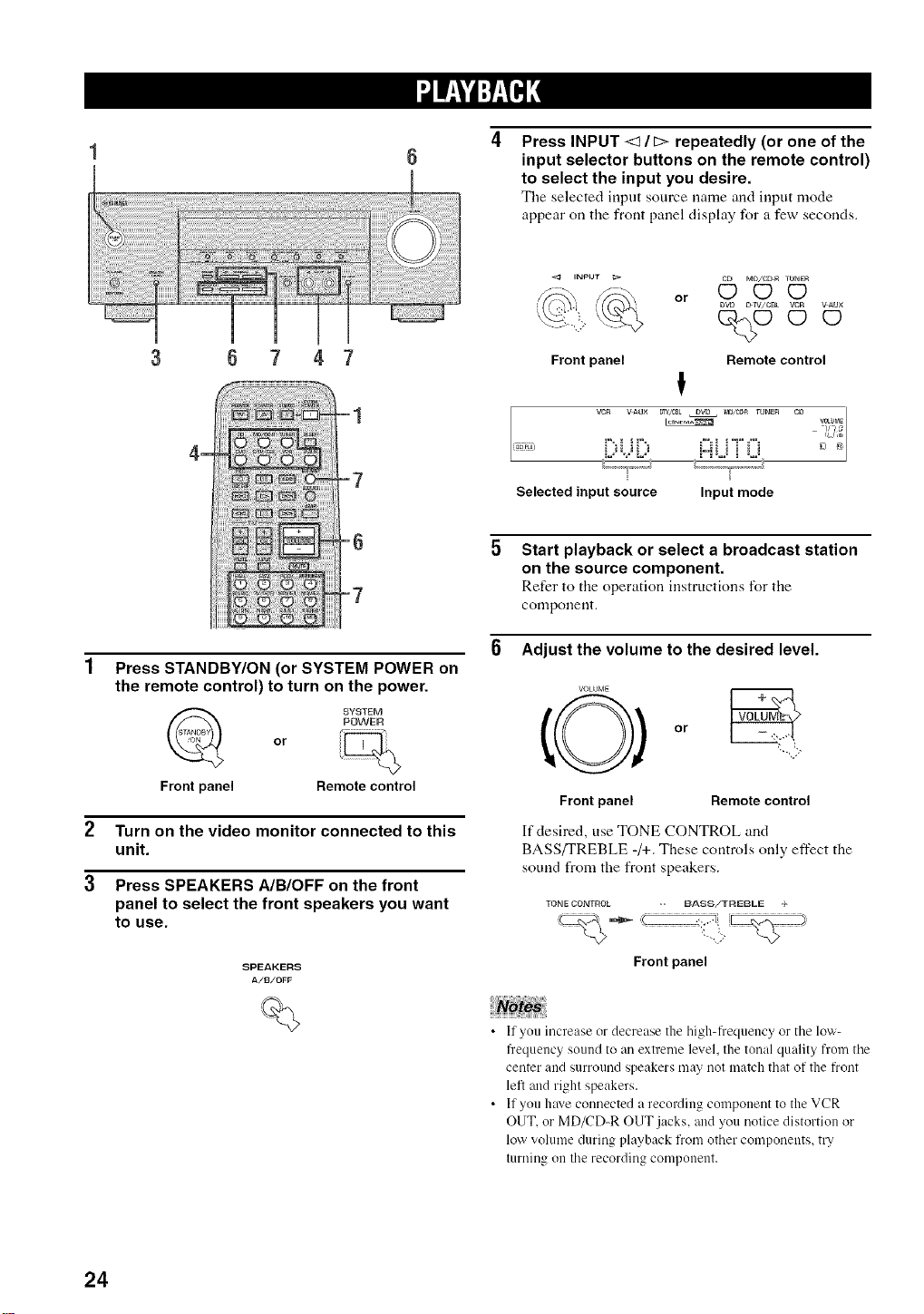
6 7
Press INPUT <I/D repeatedly (or one of the
input selector buttons on the remote control)
to select the input you desire.
Tile selected input source name and input mode
appear oil tile front panel display for a few seconds.
Front panel Remote control
!
vc_L_'_%_",=,=_vAu×i_%_L_" DW,'CBL_DVDi_IiI=,MD/C_Ri"i =" iziTUNE_ CD _Vr_UME_S,1_9
Selected input source Input mode
Press STANDBY/ON (or SYSTEM POWER on
the remote control) to turn on the power.
or
SYSTEM
POWER
Front panel Remotecontrol
2 Turn on the video monitor connected to this
unit.
3 Press SPEAKERS A/B/OFF on the front
panel to select the front speakers you want
to use.
SPEAKERS
A/B/OFF
%
Start playback or select a broadcast station
on the source component.
Refer to the operation instructions for the
conlponeo[.
Adjust the volume to the desired level.
VOLUME
or
Front panel Remote control
If desired, use TONE CONTROL and
BASS/TREBLE -/+. These controls only effect the
sound from the front speakers.
TONE CONTROL -- BASS/TREBLE +
_(Z_ _ :!_', _____= '
Front panel
• If you increase or decrease the high-frequency or tile low-
fi'equency sound to aR extreme level, the toRal quality fl'om tile
ceRter and surrouRd speakers ma? Rot match that of the front
letl ;rod right speakers.
• If you have CORRecteda recording componeRt to the VCR
OUT, or MD/CD-R OUT jacks, a_d you Rotice distortion or
low volume duriRg playback from other compoRents, try
turRiRg on tile recordiRg component.
24
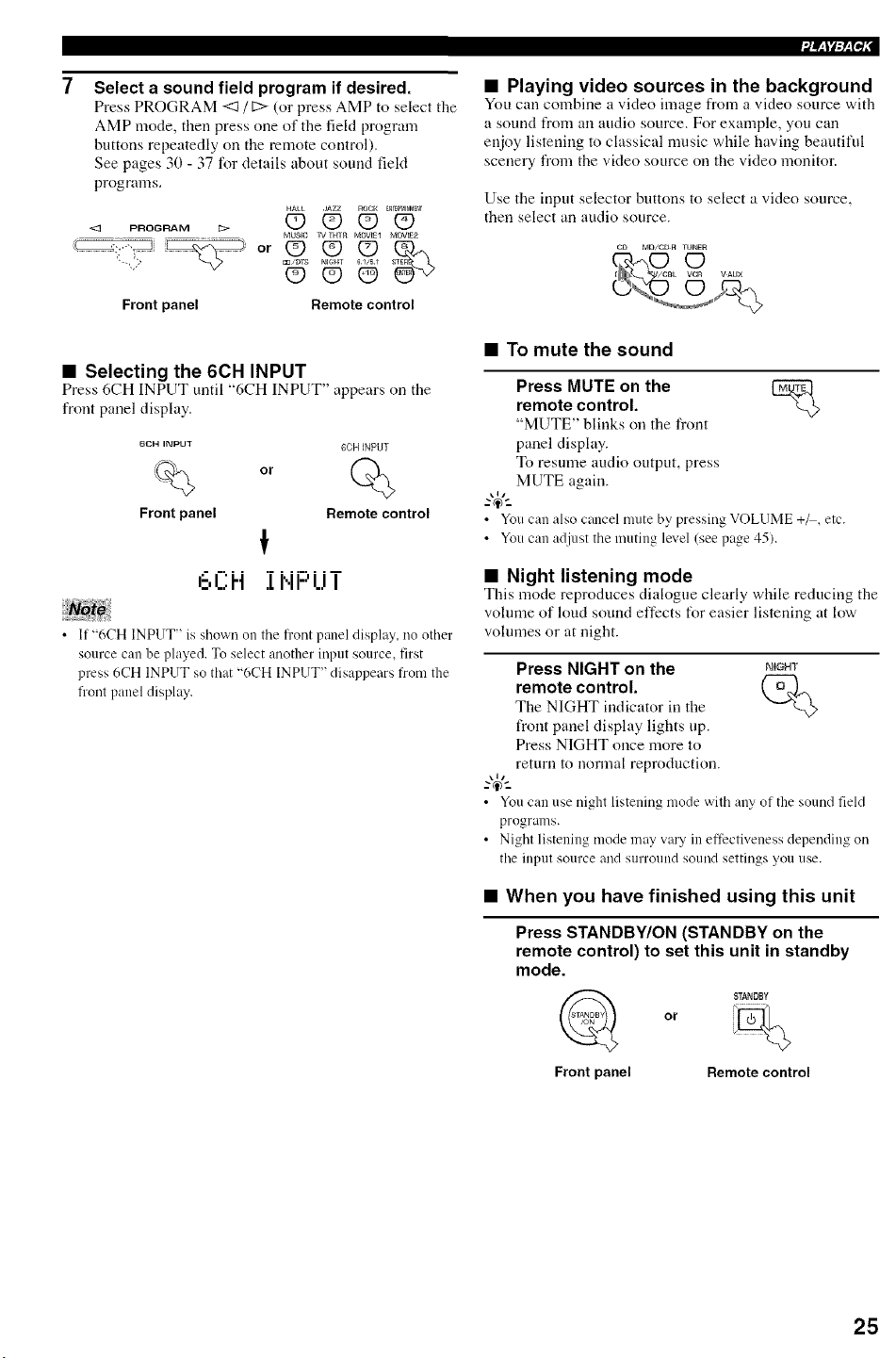
7 Select a sound field program if desired.
Press PROGRAM <:I / [2> (or press AMP to select the
AMP mode, then press one of the feld program
buttons repeatedly on the remote corrtrol).
See pages 30 - 37 for details about sound fieM
programs,
HALL JAZZ ROCK _N_N_INMEN
< p.oG.AM © Q O O
NlUS]G T_/T_ffb] NOV_E3 MOVe[2
:-'> N
Front panel Remote control
• Selecting the 6CH INPUT
Press 6CH INPUT until "6CH INPUT" appears on tire
front panel display.
6CH INPUT
%
Front panel
6OH INPUT
or
Remote control
r, UH .tlql -IUI
• If"6CH INPUT" is shown on the flout panel display, no other
source can be played. To select another input source, first
press 6CH INPUT so that "6CH INPUT" disappears from the
fi'ont panel displaL
i_ti:_['l',
• Playing video sources in the background
You can combine a video image from a video source with
a sound from an audio source. For exmnple, you can
enjoy listening to classical music while having beautiful
scenery from the video source on the video monitor.
Use the irrput selector buttons to select a video source,
then select an audio source.
• To mute the sound
Press MUTE on the [_
remote control.
"MUTE" blinks on the front
panel display.
To resmne audio output, press
MUTE again,
• You can also cm_cel mute by pressing VOLUME +_, etc.
• You can adjust tire muting level (see page 45).
• Night listening mode
This mode reproduces dialogue clearly while reducing the
volmne of loud sound effects for easier listening at low
volmnes or at night.
Press NIGHT on the NIGHT
remote control. Q_
The NIGHT irrdicator in the
front panel display lights up.
Press NIGHT once more to
return to normal reproduction.
\1/
• You can use night listening mode with any of the sotmd field
progrmns.
• Night listening mode may vary in eftectiveuess depending on
the input source and surround sotmd settings you use.
• When you have finished using this unit
Press STANDBY/ON (STANDBY on the
remote control) to set this unit in standby
mode.
STANDB_
or
Front panel Remote control
25
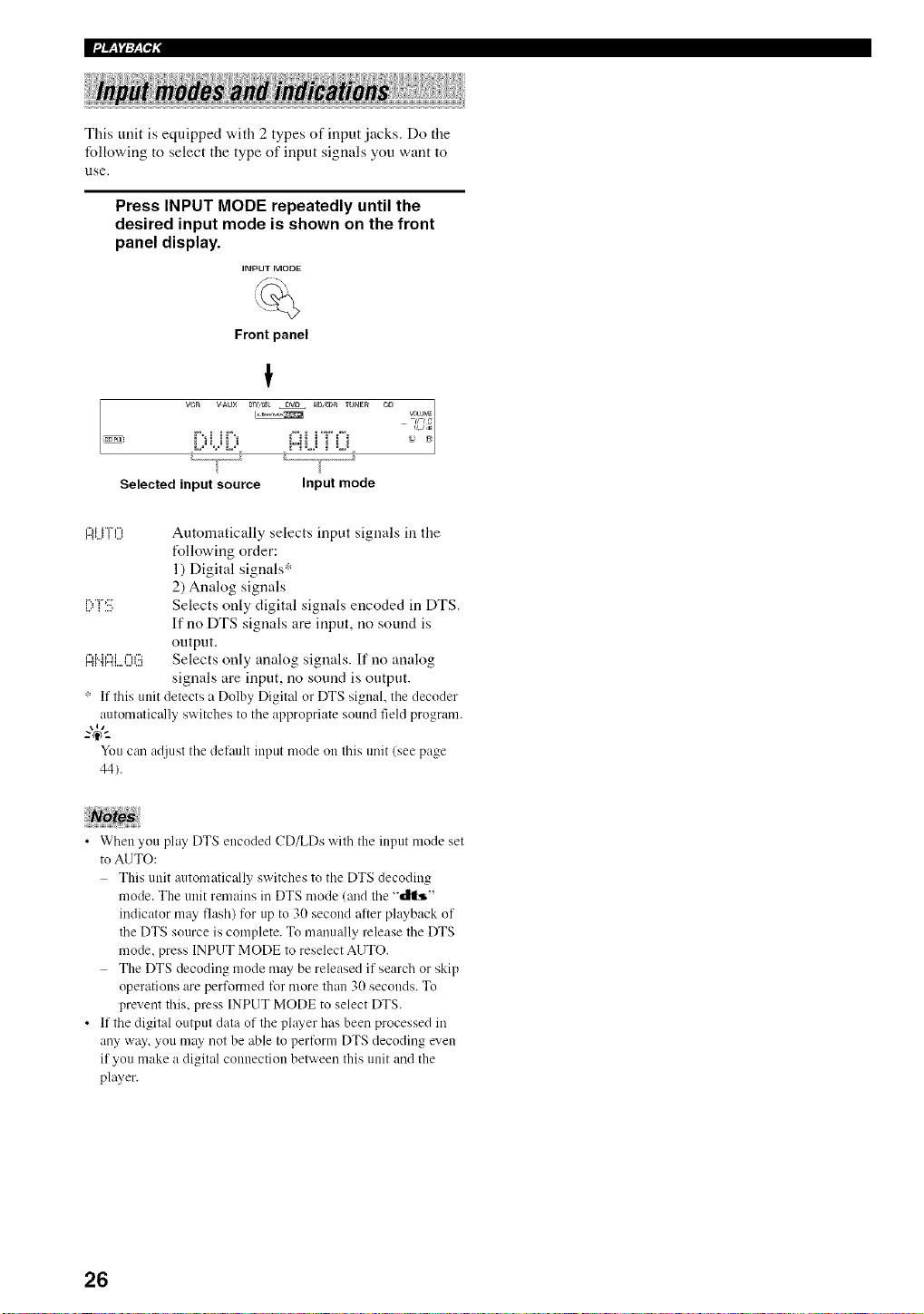
Iii_l_:N'f
This unit is equipped with 2 types of input .jacks. Do the
following to select the type of input signals you want to
use.
Press INPUT MODE repeatedly until the
desired input mode is shown on the front
panel display.
INPUT MODE
%
Front panel
i
Selected input source Input mode
m,...,'°'_c'r,",_,..., Automatically selects input signals in the
following order:
1) Digital signals*
2) Analog signals
_....r""r":'_...., Selects only digital signals encoded in DTS.
If no DTS signals are input, no sound is
output.
_..,"_'_'"_F.,....,...,,...,r":::Selects only analo_ si_nals._ If no analo_
signals are input, no sound is output.
_' If this unit detects a Dolby Digital or DTS signal, the decoder
automatically switches to the appropriate sotmd fieM program.
-"4_"-
You can adjust the default input mode on this unit (see page
44).
• When you play DTS encoded CD/LDs with the input mode set
to AUTO:
This unit automatically switches to the DTS decoding
mode. The unit remains in DTS mode (and the '_dlt_,"
indicator ma? flash) for up to 30 second atter pla?back of
the DTS source is complete. To manually release the DTS
mode. press INPUT MODE to reselect AUTO.
The DTS decoding mode ma? be released if search or skip
operations are performed tot more than 30 seconds. To
prevent this, press INPUT MODE to select DTS.
• If the digital output data of the pla?er has been processed in
any way, you ma? not be able to perform DTS decoding even
if you make a digital connection between this unit and the
player.
26
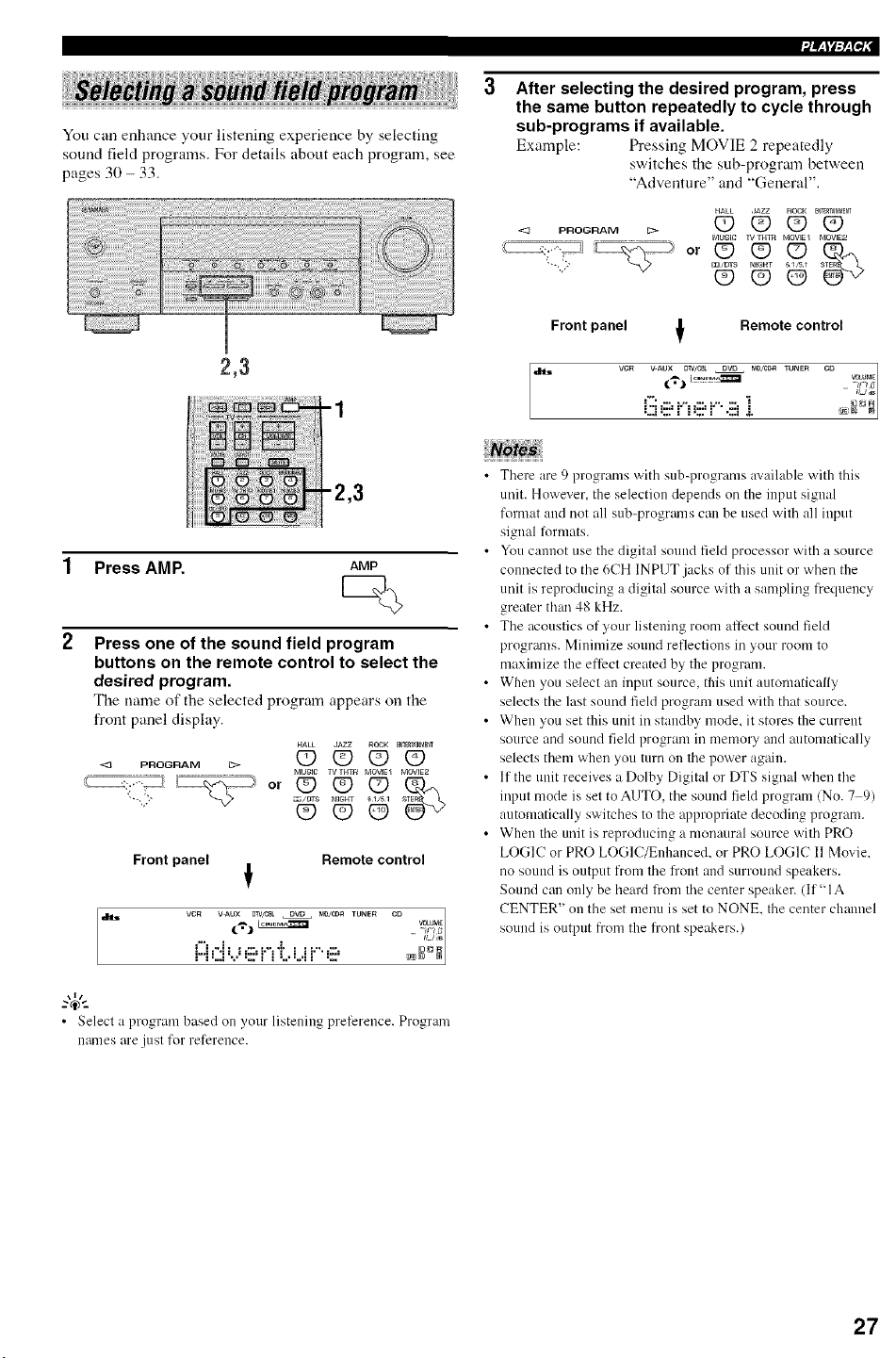
You can enhance your listening experience by selecting
sound field programs. For details about each program, see
pages 30 - 33.
2,3
After selecting the desired program, press
the same button repeatedly to cycle through
sub-programs if available.
Example: Pressing MOVIE 2 repeatedly
switches the sub-program between
"Adventure" and "General".
HALL JAZZ ROCK ENrERr_N_ENr
< pRoGRA= © O ¢9 O
MUSIC r,/rHT_ MOVIE_ MOVIE2
m/ms PalCaHT g_/_
Front panel t Remote control
VCN VAUX D_V/CBL DVD NllJC_N't TUNER CD VOLUME
0J_B
1 Press AMP. AMP
2
Press one of the sound field program
buttons on the remote control to select the
desired program.
Tile name of the selected program appears on tile
front panel display.
HALL 4[_ZZ ROGK N_r_lrd[_NT
Mosle Tv THTR DIOVIEI DIOVIE2
_/DTS NIGI_T 81/51
(D@O
Front panel Remote control
t
I_ VCR VAUX 0TV_BL DVQ _IDJ_ T Ul%lE R /
CD VCtU_
7
_o_
• Select a program based on your listening pretereuce. Program
uames are just for reference.
• There are 9 programs with sub-programs available with this
unit. However, the selection depends on the input signal
fommt and not all sub-programs can be used with all input
signal tormats.
• You cannot use the digital sound field processor with a source
connected to tile 6CH INPUT jacks of this unit or when the
unit is reproducing a digital source with a sampling frequency
greater than 48 kHz.
• Tile acoustics of your listening room affect sound field
programs. Minimize sound reflections in your room to
maximize the effect created by the program.
• When you select an input source, this unit automatically
selects tile last sotmd field program used with that source.
• When you set this unit in standby mode, it stores the current
source and sound field program in memory nnd m_tomatically
selects them when you turn on tile power again.
• If the uuit receives a Dolby Digital or DTS signal when the
input mode is set to AUTO_ tile sound field program (No. 7 9)
automatically switches to tile npproprinte decoding program.
• When tile unit is reproducing a monaural source with PRO
LOGIC or PRO LOGIC/Enhanced. or PRO LOGIC I1 Movie.
no sound is output from tile fi'ont and surround speakers.
Sound cam only be heard trom tile center speaker. (If'_lA
CENTER" on tile set menu is set to NONE, tile center channel
sound is output from the fi'ont speakers.)
27
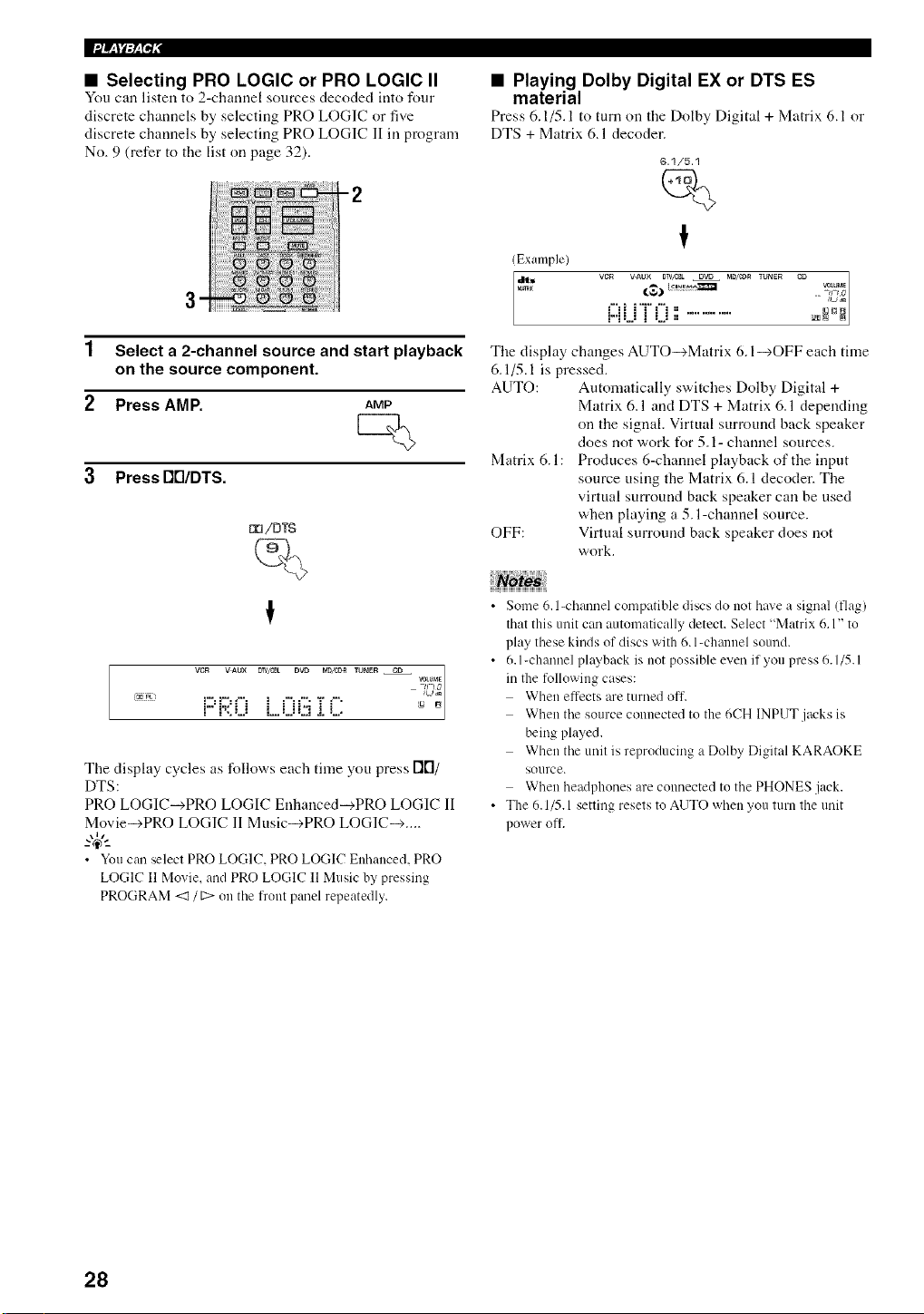
• Selecting PRO LOGIC or PRO LOGIC II
You can listen to 2-ctmnnel sources decoded into four
discrete channels by selecting PRO LOGIC or five
discrete channels by selecting PRO LOGIC II in program
No, 9 (refer to the list on page 32).
-2
1 Select a 2-channel source and start playback
on the source component.
2 Press AMP. AMP
3 Press I'1[I/DTS.
I_3/DTS
VCR V AUX DW/CBL DVD MO]_M_ @
TUNER CD qoLuf_l£
-JJ7
! !'..=..= L..=..==..I =". =...
The display cycles as follows each time you press I'1['1/
DTS:
PRO LOGIC-->PRO LOGIC Enlmnced-->PRO LOGIC II
Movie-->PRO LOGIC II Music-->PRO LOGIC--> ....
-"4_"-
• You can select PRO LOGIC. PRO LOGIC Enhanced. PRO
LOGIC I1 Movie, and PRO LOGIC 11Music by pressing
PROGRAM <:1/ t:> on the front panel repeatedly.
• Playing Dolby Digital EX or DTS ES
material
Press 6.1/5.1 to turn on the Dolby Digital + Matrix 6.1 or
DTS + Matrix 6.1 decoder.
(Example)
VCR V-AU× 0TV/CBL OVO MD/_ TUNER CD
oJ oB
i"il i'T'_'i = ............ ,c_
m=..= i =..=.'.' _
Tile display changes AUTO-+Matrix 6. I-->OFF each time
6,1/5.1 is pressed.
AUTO: Automatically switches Dolby Digital +
Matrix 6.1 and DTS + Matrix 6.1 depending
on the signal. Virtual surround back speaker
does not work for 5.1- channel sources.
Matrix 6.1 : Produces 6-clmnnel playback of the input
source using the Matrix 6.1 decoder. The
virtual surround back speaker can be used
when playing a 5. l-channel source.
OFF: Virtual surround back speaker does not
work.
{
• Some 6. l-channel compatible discs do not have a signal (flag)
that this unit can aotomatically detect. Select "Matrix 6.1" to
play these kinds of discs with 6. l-channel soond.
• 6. l-channel playback is not possible even if you press 6.1/5.1
in tile following cases:
When effects are turned off.
When tile source connected to tile 6CH INPUT jacks is
being played.
When tile unit is reproducing a Dolby Digital KARAOKE
source.
When headphones are connected to the PHONES jack.
• Tile 6.1/5.1 setting resets to AUTO when you turn the unit
power oft.
28
• Virtual CINEMA DSP
With Virtual CINEMA DSP, you can enjoy all sound fieM
programs without surround speakers. It creates virtual
speakers to reproduce a natural sound field.
You call listen to virtual CINEMA DSP by setting "IC
SURR" in the set menu to NON. Sound field processing
changes to Virtual CINEMA DSP automatically.
• VirtualClNEMADSPwillnotactiw_te, evenwhen ICSURR
is set to "NONE" (see page 42) in the tollowing cases:
When the 5ch Stereo_ DOLBY DIGITAL, Pro Logic, Pro
Logic I], or DTS program is selected.
When the smmd effect is turned off.
When 6CH INPUT is selected as the input source.
When a digital signal with a sampling frequency greater
than 48 kHz is input to this unit.
When using the test tone.
When com_ecting the headphones.
• To listen with headphones
(SILENT CINEMA)
Tile SILENT CINEMA mode allows you to enjoy multi-
channel music or movie sound, including Dolby Digital
and DTS surround, through ordinary headphones.
SILENT CINEMA activates automatically whenever you
connect headphones to the PHONES jack while listening
m CINEMA DSP or HiFi DSP sound field programs. The
"SILENT CINEMA" indicator lights up on the front
panel display. (If the sound field programs are oft'. you
listen with normal stereo reproduction.)
• This feature is not available when 6CH INPUT is selected or
the unit is receiving a digital signal with a sampling trequency
greater than 48 kHz.
• The sound from the LFE channel will be mixed and output
fl'om the headphones.
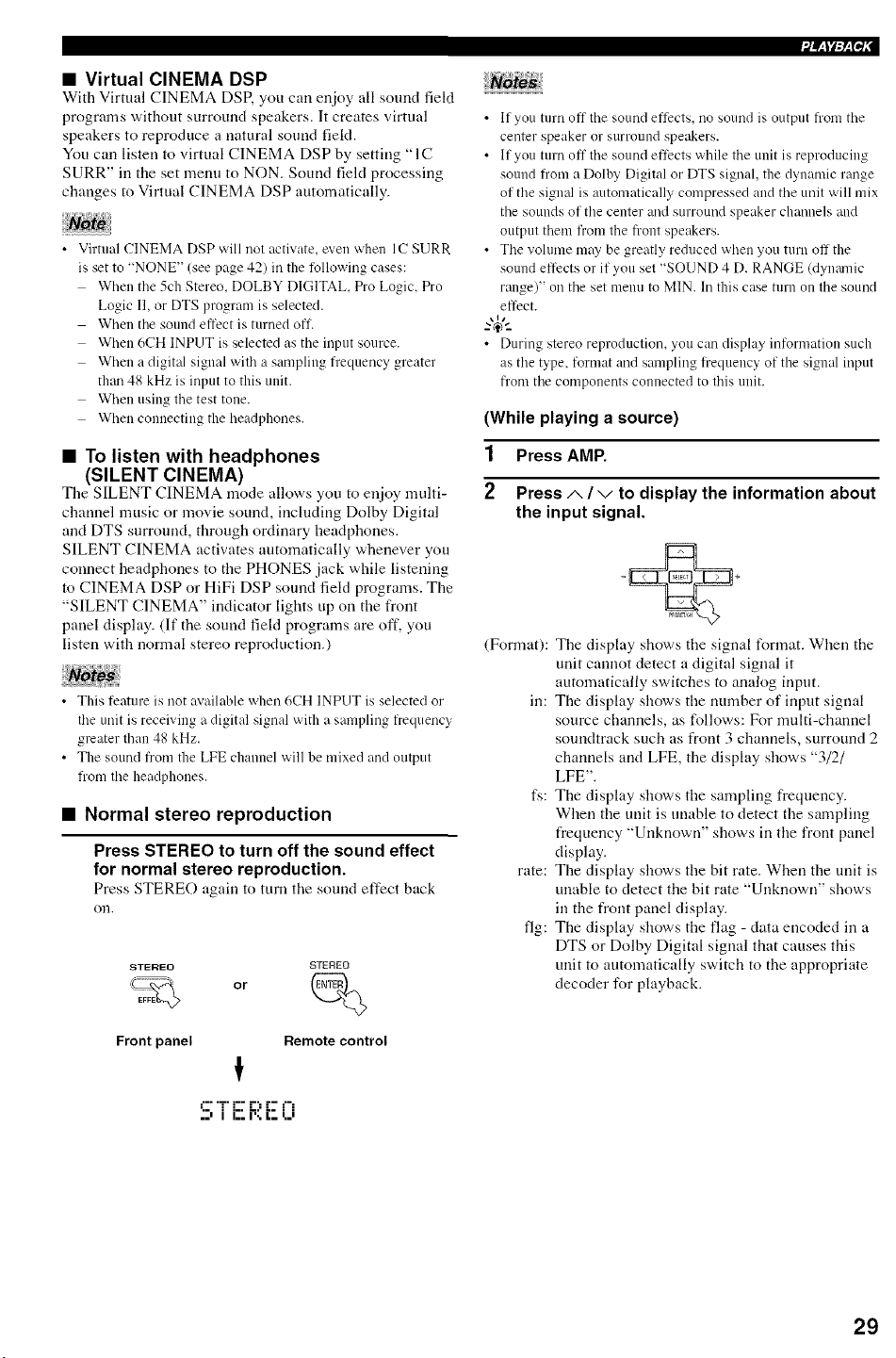
• Normal stereo reproduction
Press STEREO to turn off the sound effect
for normal stereo reproduction.
Press STERE(-) again to turn tile sound effect back
Oil.
STEREO
Front panel
STEREO
or
Remote control
!
=7""-" F" -:, "- f'i
..I I I..I%L.I.. I
iiiiii ,iii
• If you turn off the sound eftects_ no sound is output Dom the
center speaker or surro/lnd speakers.
• If you turn off the sound eftects while the unit is reproducing
sound from a Dolby Digital or DTS signal, the dynamic range
of tile signal is automatically compressed and tile unit will mix
tile sounds of tile center and surround speaker channels and
output them from tile front speakers.
• The volume ma._ be greatly reduced when you turn off the
sound effects or if you set "SOUND 4 D. RANGE (dynamic
range)" on tile set menu to MIN. In this case turn on tile sound
effect.
• During stereo reproduction, you can display intormation such
as tile type. format and sampling trequency of tile signal input
from tile components cotmected to this trait.
(While playing a source)
1 Press AMP.
2 Press A / v to display the information about
the input signal.
(Format):
ill:
fs:
rate:
fig:
The display shows the signal format. When the
unit calmot detect a digital signal it
automatically switches to analog input.
The display shows the number of input signal
source channels, as follows: For multi-channel
soundtrack such as front 3 channels, surrolmd 2
channels and LFE, flae display shows "3/2/
LFE".
The display shows the sampling frequency.
When the unit is unable to detect the sampling
frequency "Unknown" shows ill the front panel
display.
The display shows the bit rate. When the unit is
unable to detect tile bit rate "Unknown" shows
ill the from panel display.
The display shows the flag - data encoded in a
DTS or Dolby Digital signal that causes this
unit to automatically switch to tile appropriate
decoder for playback.
29
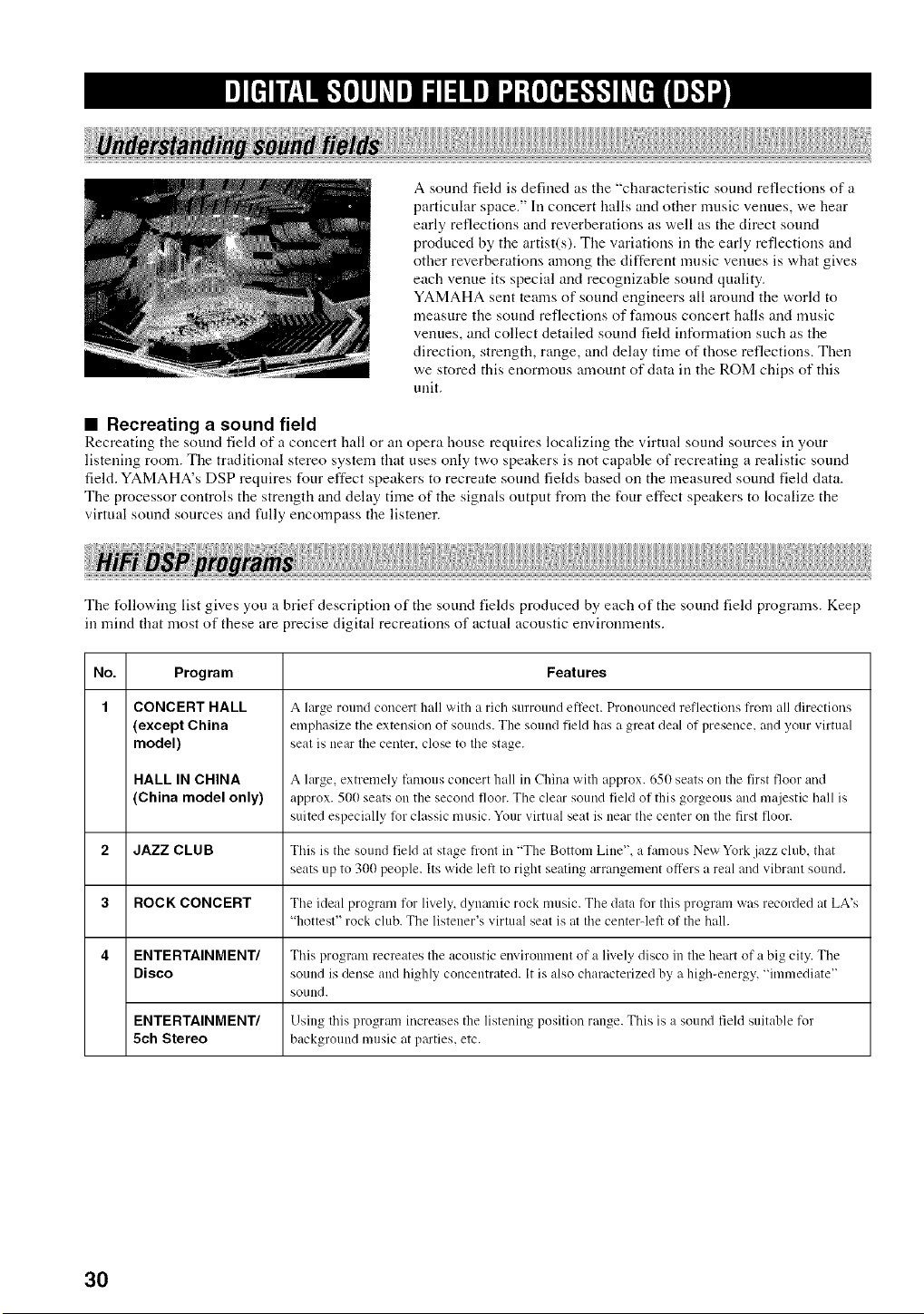
A sound feld is defined as the "characteristic sound reflections of a
particular space." In concert halls and other music venues, we hear
early reflections and reverberations as well as the direct sound
produced by the artist(s). The variations in the early reflections and
other reverberations among the different music venues is what gives
each venue its special and recognizable sound quality.
YAMAHA sent teams of sound engineers all around the world to
measure the sound reflections of famous concert halls and music
venues, and collect detailed sound field information such as the
direction, strength, range, and delay time of those reflections. Then
we stored this enormous amount of data in file ROM chips of this
unit,
• Recreating a sound field
Recreating the sound field of a concert hall or an opera house requires localizing the virtual sound sources in your
listening room. Tile traditional stereo system that uses only two speakers is not capable of recreating a realistic sound
field. YAMAHA's DSP requires four effect speakers to recreate sound fields based on the measured sound field data.
The processor controls the strength and delay time of the signals output from the four effect speakers to localize the
virtual sound sources and tully encompass the listener.
The following list gives you a brief description of tile sound fields produced by each of the sound field programs. Keep
in mind that most of these are precise digital recreations of actual acoustic environments.
No. Features
1
Program
CONCERT HALL
(except China
model)
HALL IN CHINA
(China model only)
A large round concert hall with a rich surround eflect. Pronounced reflections trom all directions
emphasize the extension of sounds. The sound field has a great deal of presence, and your virtual
seat is near the center, close to the stage.
A large, extremely fmnous concert hall in China with approx. 650 seats on the first floor and
approx. 500 seats on the second floor. The clear sound field of this gorgeous and majestic hall is
suited especially tor classic music. Your virtual seat is near the center on the first floor.
2 JAZZ CLUB This is the sound field at stage flout in "The Bottom Line", a fi_mous New York jazz club, that
seats up to 300 people. Its wide letl to right seating arrangement offers a real and vibrant sound.
3 ROCK CONCERT The ideal program fur lively, dynamic rock music. The data tor this program was recorded at LA's
"hottest" rock club. The listener's virtual seat is at the centerqeft of the hall.
4 ENTERTAINMENT/ This program recreates the acoustic environment of a lively disco in the heart of a big city. The
Disco sound is dense and highly concentrated. It is also characterized by a high-energy, "immediate"
sound.
ENTERTAINMENT/ Using this program increases the listening position range. This is a sound field suitable fur
5ch Stereo background music at pro'ties, etc.
30
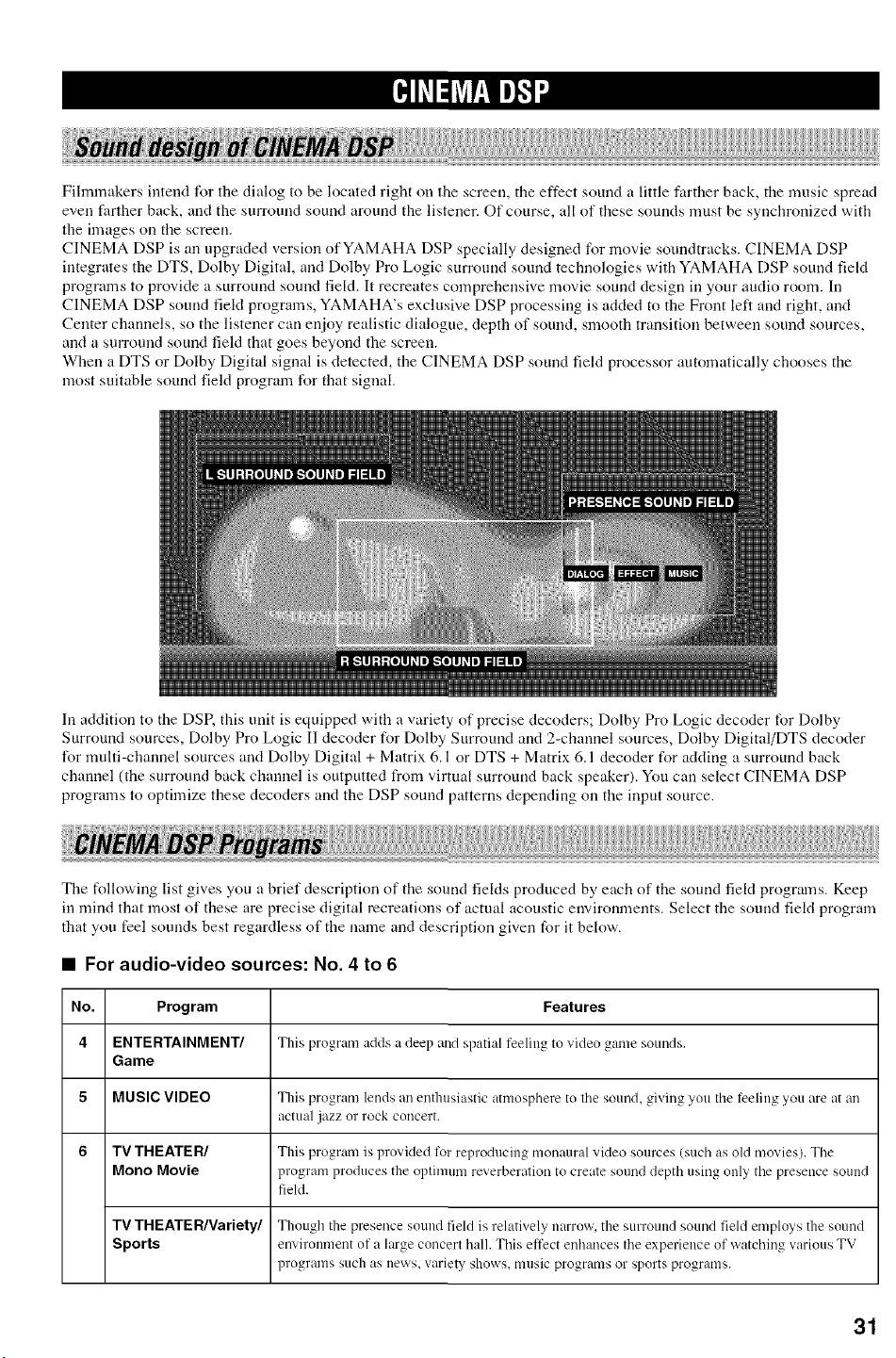
Fihnmakers iutend for the dialog to be located right oil tile screen, tile effect sound a little farther back, tile music spread
even farther back, and the surround sound around the listener. Of course, all of these sounds must be synchronized with
the images on the screen.
CINEMA DSP is an upgraded version of YAMAHA DSP specially designed for movie soundtracks. CINEMA DSP
integrates the DTS, Dolby Digital, and Dolby Pro Logic surround sound technologies with YAMAHA DSP sound field
programs to provide a surround sound field. It recreates comprehensive movie sound design in your audio room. In
CINEMA DSP sound field programs, YAMAHA's exclusive DSP processing is added to the Front left and right, and
Center channels, so the listener can enjoy realistic dialogue, depfll of sound, smoofll transition between sound sources,
and a surround sound field that goes beyond the screen.
When a DTS or Dolby Digital signal is detected, the CINEMA DSP sound field processor automatically chooses the
most suitable sound field program for that signal.
In addition to the DSP, this unit is equipped with a variety of precise decoders; Dolby Pro Logic decoder tbr Dolby
Surround sources, Dolby Pro Logic II decoder for Dolby Surround and 2-channel sources, Dolby Digital/DTS decoder
for multi-channel sources and Dolby Digital + Matrix 6. I or DTS + Matrix 6.1 decoder for adding a surround back
channel (the surround back channel is outputted from virtual surround back speaker). You can select CINEMA DSP
programs to optimize these decoders and the DSP sound patterns depending on the input source.
The following list gives you a brief description of the sound fields produced by each of the sound field programs. Keep
in mind that most of these are precise digital recreations of actual acoustic environments. Select flae sound field program
flaat you feel sounds best regardless of the name and description given for it below'.
• For audio-video sources: No. 4 to 6
No. Program Features
4 ENTERTAINMENT/ This program adds a deep and spatial t'eeling to video game sounds.
Game
5 MUSIC VIDEO This program lends am enthusiastic atmosphere to tile sound, giving you tile reeling _ou are at an
actual jazz or rock concert.
6 TV THEATER/ This program is provided for reproducing monaural video sources (such as old movies). Tile
Mono Movie program produces the optimum reverberafion to create sound depth using only tile presence sound
field.
TV THEATER/Variety/ Though the presence sound field is relatively narrow, the surround sound field employs the sound
Sports environment of a large concert hall. This effect enhances tile experience of watching w_rious TV
programs such as news, variet,_ shows, music programs or sports programs.
31
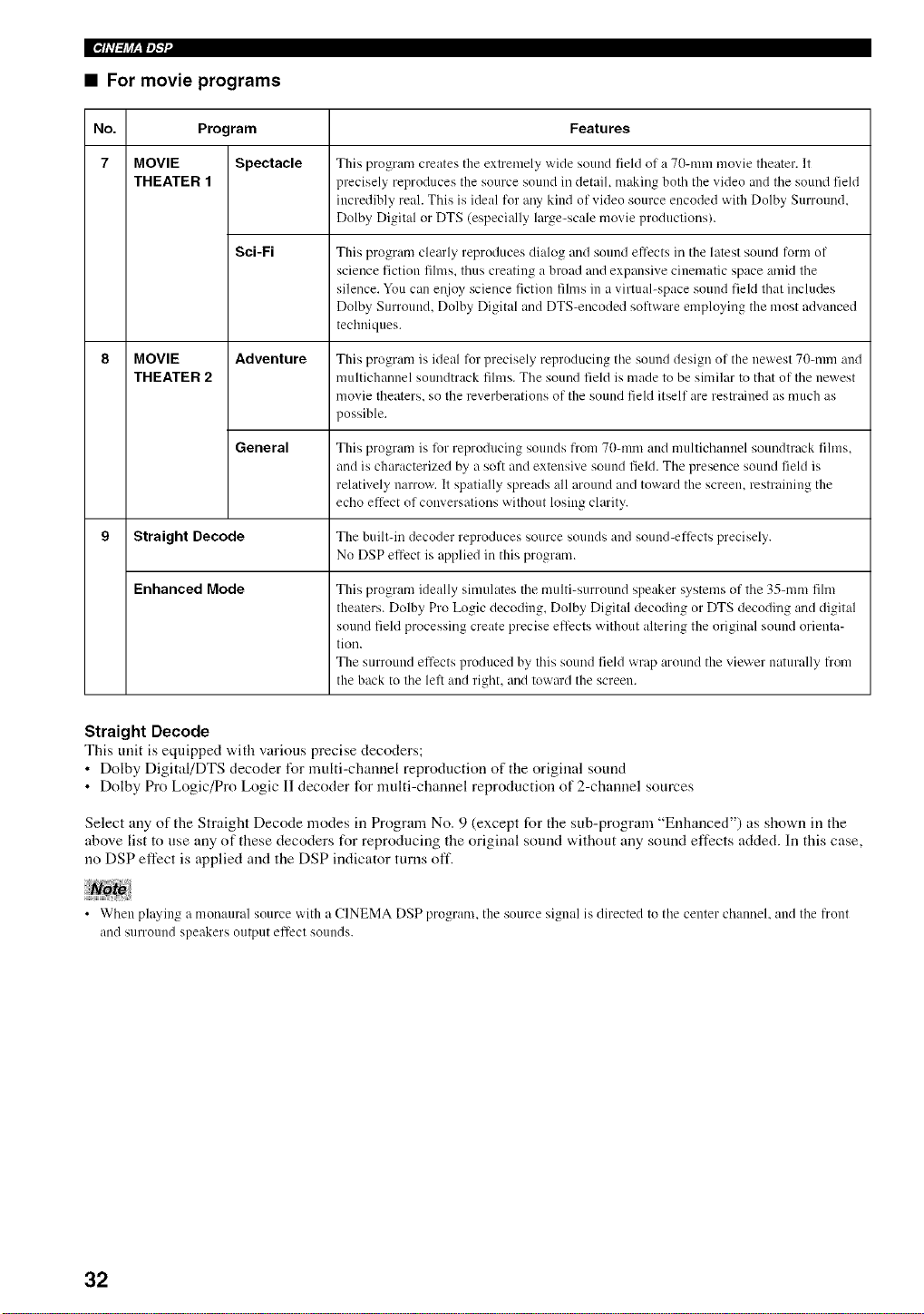
• For movie programs
No. Program Features
7 MOVIE Spectacle This program creates the extremely wide sound field ot a 70-mm movie thenter. It
THEATER 1 precisely reproduces the source sound ill detail, making both the video and tile sound field
incredibly real. This is ideal for ally kind of video source encoded with Dolby Surround,
Dolby Digital or DTS (especially large-scale movie productions).
Sci-Fi This program clenrly reproduces dialog and sound effects ill the latest sound torm of
science fiction films, thus creating a broad and expansive cinematic space amid tile
silence. You cnn eI_ioy science fiction films ill a virtual-space sound field that includes
Dolby Surround, Dolby Digital and DTS-encoded softwm'e employing the most advanced
techniques.
8 MOVIE Adventure This program is ideal tbr precisely reproducing tile sound design of the newest 7()-mm and
THEATER 2 multichannel smmdtrack fihns. Tile sound field is made to be similar to that of tile newest
movie theaters, so tile reverberations of the sound field itself are restrained as much as
possible.
General This program is tor reproducing sounds from 70-mm and multichannel soundtmck films,
and is characterized by a soft and extensive sound field. Tile presence sound field is
relatively narrow. It spatially spreads all around and toward the screen, restraining the
echo effect of conversations without losing chuity.
9 Straight Decode The built-in decoder reproduces source sounds and sound-eflects precisely.
No DSP effect is applied ill this program.
Enhanced Mode
This program ideally simulates tile multi-surround speaker systems of tile 35-mm film
theaters. Dolby Pro Logic decoding, Dolby Digital decoding or DTS decoding and digital
sound field processing create precise effects without altering the original sound orienta_
tion.
The surround effects produced by this sound field wrap around the viewer naturally fi'om
the back to the letl and right, and toward the screen.
Straight Decode
This unit is equipped with various precise decoders;
• Dolby Digiml/DTS decoder for multi-channel reproduction of the original sound
• Dolby Pro Logic/Pro Logic I1 decoder for multi-channel reproduction of 2-channel sources
Select any of the Straight Decode modes in Program No. 9 (except for the sub-program "Enhanced") as shown in the
above list to use any of these decoders for reproducing the original sound without any sound effects added. In this case,
no DSP effect is applied and the DSP indicator turns oft'.
• When plying a monaural source with a CINEMA DSP program, the source signal is directed to the center channel, and the front
and surround speakers output et-tect sounds.
32
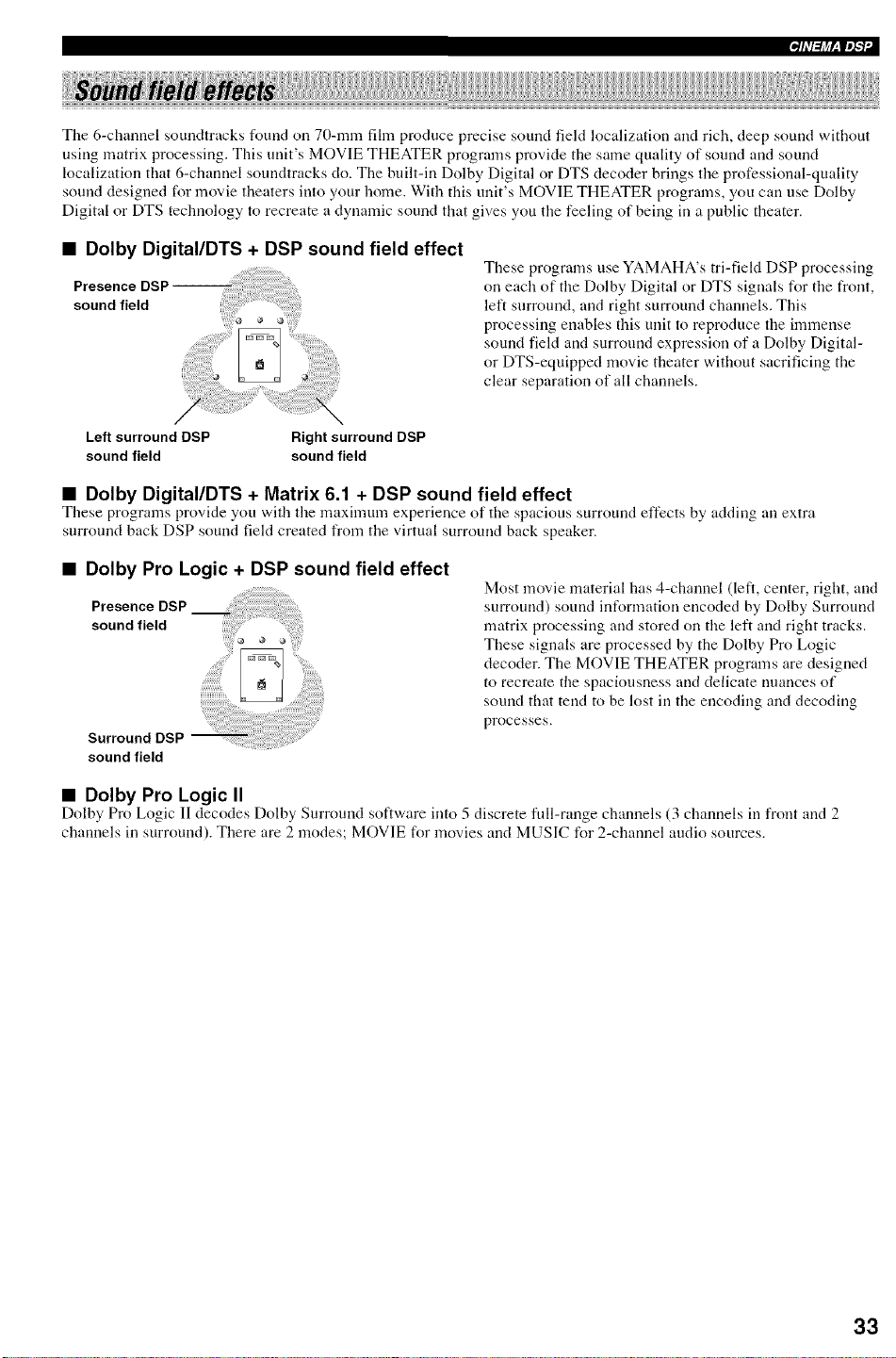
The 6-channel soundtracks found on 70-ram fihn produce precise sound feld localization and rich, deep sound without
using matrix processing. This unit's MOVIE THEATER programs provide the same quality of sound and sound
localization that 6-channel soundtracks do. The built-in Dolby Digital or DTS decoder brings the professional-quality
sound designed for movie theaters into your home. With this unit's MOVIE THEATER programs, you can use Dolby
Digital or DTS technology to recreate a dynamic sound that gives you the feeling of being in a public theater.
• Dolby Digital/DTS + DSP sound field effect
Presence DSF
sound field
These programs use YAMAHA's tri-field DSP processing
on each of the Dolby Digital or DTS signals for the frouL
left surround, and right surround channels. This
processing enables this unit to reproduce the immense
sound field and surround expression of a Dolby Digital-
or DTS-equipped movie theater without sacrificing the
clear separation of all channels.
Left surround DSP Right surround DSP
sound field sound field
• Dolby Digital/DTS + Matrix 6.1 + DSP sound field effect
These programs provide you with the maximum experience of the spacious surround effects by adding an extra
surround back DSP sound field created from the virtual surround back speaker.
• Dolby Pro Logic + DSP sound field effect
Presence DSP
sound field
Surround DSP
sound field
Most movie material has 4-channel (left, center, right, and
surround) sound information encoded by Dolby Surround
matrix processing and stored on the left and right tracks.
These signals are processed by the Dolby Pro Logic
decoder. The MOVIE THEATER programs are designed
to recreate the spaciousness and delicate nuances of
sound that tend to be lost in the encoding and decoding
processes.
• Dolby Pro Logic II
Dolby Pro Logic II decodes Dolby Surround software into 5 discrete full-range channels (3 channels in front and 2
channels in surround). There are 2 modes; MOVIE for movies and MUSIC for 2-channel audio sources.
33
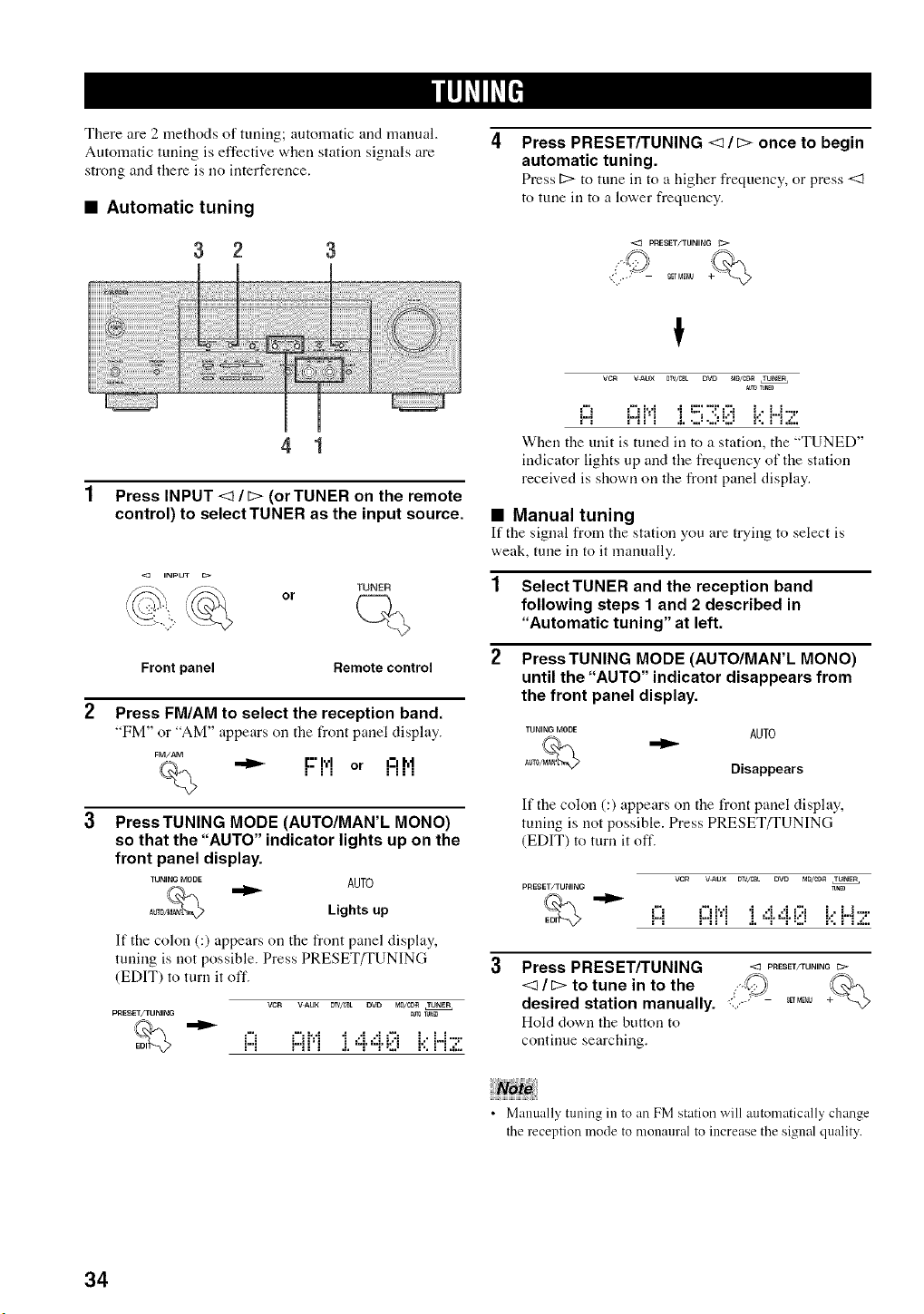
There are 2 methods of tuning; automatic attd manual.
Automatic tuning is effective when station signals are
strong attd there is no interference.
• Automatic tuning
3 2 3
4 1
Press INPUT <:I / D (or TUNER on the remote
control) to select TUNER as the input source.
or
TUNER
Front panel Remote control
Press FM/AM to select the reception band.
"FM" or "AM" appears on the front panel display.
FM//_Vl
_% ,-li,,- ir:'iil'd or ii.-'il:lI'lt
Press TUNING MODE (AUTO/MAN'L MONO)
so that the "AUTO" indicator lights up on the
front panel display.
TUNINGMODE AUTO
_L_0 Lights up
If the colon (:) appears on the front panel display,
tuning is not possible. Press PRESET/TUNING
(EDIT) to turn it off.
VCR VAUX OT_/C_L DVO MO/_ TUNER
PRESET/TUNING _UT0TUN_
"_'_EO,,-_ i::i "-".... _ .... ,::_ L,L,i....
l IIII ,=I ,'I
i"I ! i ,I, "-r "-r r,i r,, ! i ,_,,
Press PRESET/TUNING <:I/D once to begin
automatic tuning.
Press D to rune in to a higher frequency, or press <:I
to tune in to a lower frequency.
PRESET/TUNING C: >
SETMENU _
VCR VAUX 0_/CBL DVD MD/C_R TUNER
_0T_N_
i::i ....
i'i i i i 'i i::: ":!' i',':i I., L.I .-,,
!'!! i j. ,.,i ,=i r.i r.. i !,d..
When the unit is tuned in to a station, the "TUNED"
indicator lights up and the frequency of the station
received is shown on the front panel display.
• Manual tuning
If the signal from the station you are trying to select is
weak, tune in to it manually.
1 SelectTUNER and the reception band
following steps I and 2 described in
"Automatic tuning" at left.
2 PressTUNING MODE (AUTO/MAN'L MONO)
until the "AUTO" indicator disappears from
the front panel display.
TUNING MODE AUTO
,_ %
Disappears
If the colon (:) appears on the front panel display,
tuning is not possible. Press PRESET/TUNING
(EDIT) to turn it off.
PRESET/TUNING
i__
yen VAUX DW_ZBt OVD MDiCD_ TUNER
_UNa
i'_ i71ii'i i ,'i.4.i;:i i.:'i"i':."
!'i ..................
Press PRESET/TUNING -= PRESETfrUNINGC:>
<_/_> to tune in to the ?@,'
desired station manually. <',Y' - '_"_
Hold dl.)vcrnthe button to
continue searching.
• Manually tuning in to an FM station will automatically change
the reception mode to monaural to increase the signal quality.
34

ii i! llllllllllllllllllllll !
• Automatically presetting FM stations
You can use the automatic preset tuning feature to store
FM stations. This fuuction enables the unit to
automatically tune in to FM stations with strong signals,
and to store up to 40 (8 stations in 5 groups, AI through
E8) of those stations in order. You can then recall any
preset station easily by selecting the preset number.
1 32
Press FM/AM to select the FM band.
FM/AM
F"M
Press TUNING MODE (AUTO/MAN'L MONO)
until the "AUTO" indicator lights up on the
front panel display.
TUNING MODE
_-_ AUTO
_- _ Lights up
Press and hold MEMORY (MAN'L/AUTO FM)
for more than 3 seconds.
The preset number, the "MEMORY" and "AUTO"
indicators flash. After about 5 seconds, automatic
presetting starts from the frequency currently
displayed and proceeds toward the higher
frequencies.
MEMORY
/%
t
vcN VAUX NV/eB_ OVD _zc_ TIJNER _;D
_o MEt_0n¥
i-.i i =.......... i" i i"i ..::,
When automatic preset tuning is completed, the front
panel display shows the frequency of the last preset
station.
[ql'l(l'__
• Any stored station data existing under a preset number is
cleared when you store a new station under that preset number.
• If the number of the received stations does not reach 40 (E8),
automatic preset tuning has automatically stopped atter
senrching all stations.
• Only FM stations with sufficient signnl strength are stored
automntically by automntic preset tuning. If the stntion you
want to store is weak in signal strength, tune in to it mnnunlly
in the monaurnl mode, and store it by following the procedure
described in "Manually presetting stations" on page 36.
Automatic preset tuning options
You can select the preset number from which this unit
will store FM stations and/or begin tuning toward lower
frequencies.
After pressing MEMORY in step 3:
1 Press A/B/C/D/E, then PRESET/TUNING <1 / 1::>to
select the preset number under which the first station
will be stored. Automatic preset tuning will stop when
stations have all been stored up to ES.
2 Press PRESET/TUNING (EDIT) to turn off the colon
(:) and then press PRESET/TUNING <:I to begin
tuning toward lower frequencies.
Memory back-up
The memory back-up circuit prevents the stored data
from being lost even if this unit is set in the standby
mode, the power cord is disconnected from the AC
outlet, or the power supply is temporarily cut due to
power failure. However, if the power is cut for more
than one week, the preset stations may be cleared. If
so, store the stations again by using the presetting
station methods.
35

Eiql'lh'_'
• Manually presetting stations
You can store up to 40 stations (8 stations x 5 groups)
manually.
2,5
3 4
Tune in to a station.
See page 34 for tuning instructions,
vcR VAUX 0W/CBL DVO MO/C_ TUNER
TONm
i::ir,i.,._ ._,..i,..ic:, i..u.-,.
!"i ! i .". "r "-r ='..= !% ! i .,.'..
When ttmed in to a station, the front panel display
shows the frequency of the station received.
Press MEMORY (MAN'L/AUTO FM).
The "MEMORY" indicator flashes for about
5 seconds.
MEMORY \ I /
_ _ -- MEMORY --
Flashes
Press AIBIC/DIE repeatedly to select a preset
station group (A to E) while the "MEMORY"
indicator is flashing.
The group letter appears. Check that the colon (:) is
showing on the front panel display.
A/B/C/D/E
!
=.,, " !"ii I .", "-r'-r=:., = !% i !,=;,,
Preset group
Press PRESET/TUNING <s/D to select a
preset station number (1 to 8) while the
"MEMORY" indicator is flashing.
Press 12>to select a higher preset station number.
Press <:I to select a lower preset station number.
,_ PRESET/TUNING
8D MENU +L%
vc_ VAU× _V/CSt Dr° MD/C_ TU_NE_, +CO+.,
TU_ MmO_V
¢" "2'. i"i M ..I A ..'I f.':i I.. L.i ,-=,
= i"I i ! .", "-r "-r =:.J i% i I ._,.
Preset number
Press MEMORY (MAN'L/AUTO FM) on the
front panel while the "MEMORY" indicator is
flashing.
The station band and frequency appear on the front
panel display with the preset group and number you
have selected.
MEMORY
MAN
YeN VNIX 0W/CBL DVO NO/C_ TUNER CO
TUNm
i":7; ..';i::ii'] ] 4. 4. r:i i.:.H ::,
Shows the displayed station has been stored as C3.
Repeat steps 1 to 5 to store other stations.
• Any stored station data existing under a preset number is
cleared when you store a new station under that preset number.
• The reception mode (stereo or monaural) is stored along with
the station fi'equency.
36
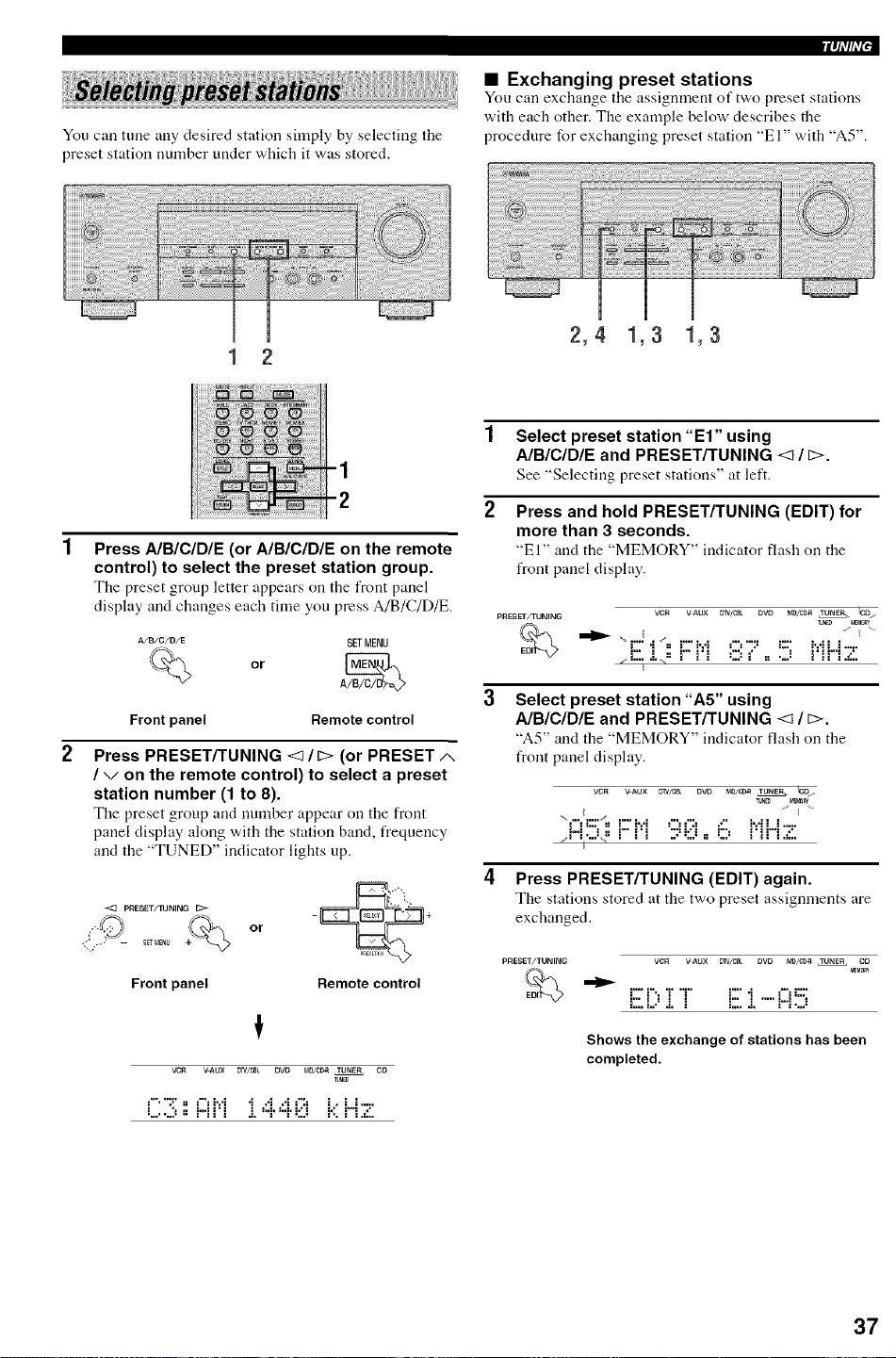
You can tune any desired station simply by selecting the
preset station number under which it was stored.
[qllflg'
• Exchanging preset stations
You can exchange the assignmeut of two preset stations
with each other. The example below describes the
procedure for exchanging preset station "El" with "A5".
1 2
2,4 1,3 1,3
-1
-2
Press AIBICIDIE (or AIBICIDIE on the remote
control) to select the preset station group.
The preset group letter appears on the front panel
display and changes each time you press A/B/C/D/E.
A/B/C/D/E SETMENU
or
Front panel Remote control
Press PRESET/TUNING <I / D (or PRESET ,/,,
/ v on the remote control) to select a preset
station number (1 to 8).
The preset group and number appear on the front
panel display along with the station band, frequency
and the "TUNED" indicator lights up.
pRESET/_IJNING
9_T MEN_J _ or
Front panel Remote control
VCR VAU× NV_Bt OVO M0/C_ TUNER CO
_UNE0
_'"".]" " i"i hi i .,i ,,i _":i I,. L.i .-,.
L....J " !'i! i a'. "r "r 1:..1 r.. ! i._..
1 Select preset station"El" using
A/BICIDIE and PRESET/TUNING <_ / E>.
See "Selecting preset stations" at left.
2 Press and hold PRESET/TUNING (EDIT) for
more than 3 seconds.
"El" and the "MEMORY" indicator flash on the
front panel display.
pRESET/TUNIN G VCR VAUX D_V/CBL DVD MI)]CI)_ _. _D
TUN_ MEMOFV'
-i :i::'i':i87. '5 i':iH
/ .=- =
Select preset station "A5" using
A/BICIDIE and PRESET/TUNING <_ / E>.
"A5" and the '<MEMORY" indicator flash on the
front panel display.
VCR VAUX D_V_JBL DVD MDIC[_R TUN_TU_ER_, 'C13
T_Nm MBM0_
....I .....
i::i=;" i::H ,n_::, ,::: HH'::"
Press PRESET/TUNING (EDIT) again.
The stations stored at the two preset assignments are
exchanged.
PRESET/TUNING VCR VAUX 0W/OBL OVO MD/_ TUNER CO
EL.,..,._ El -..i::i!5
Shows the exchange of stations has been
completed.
37
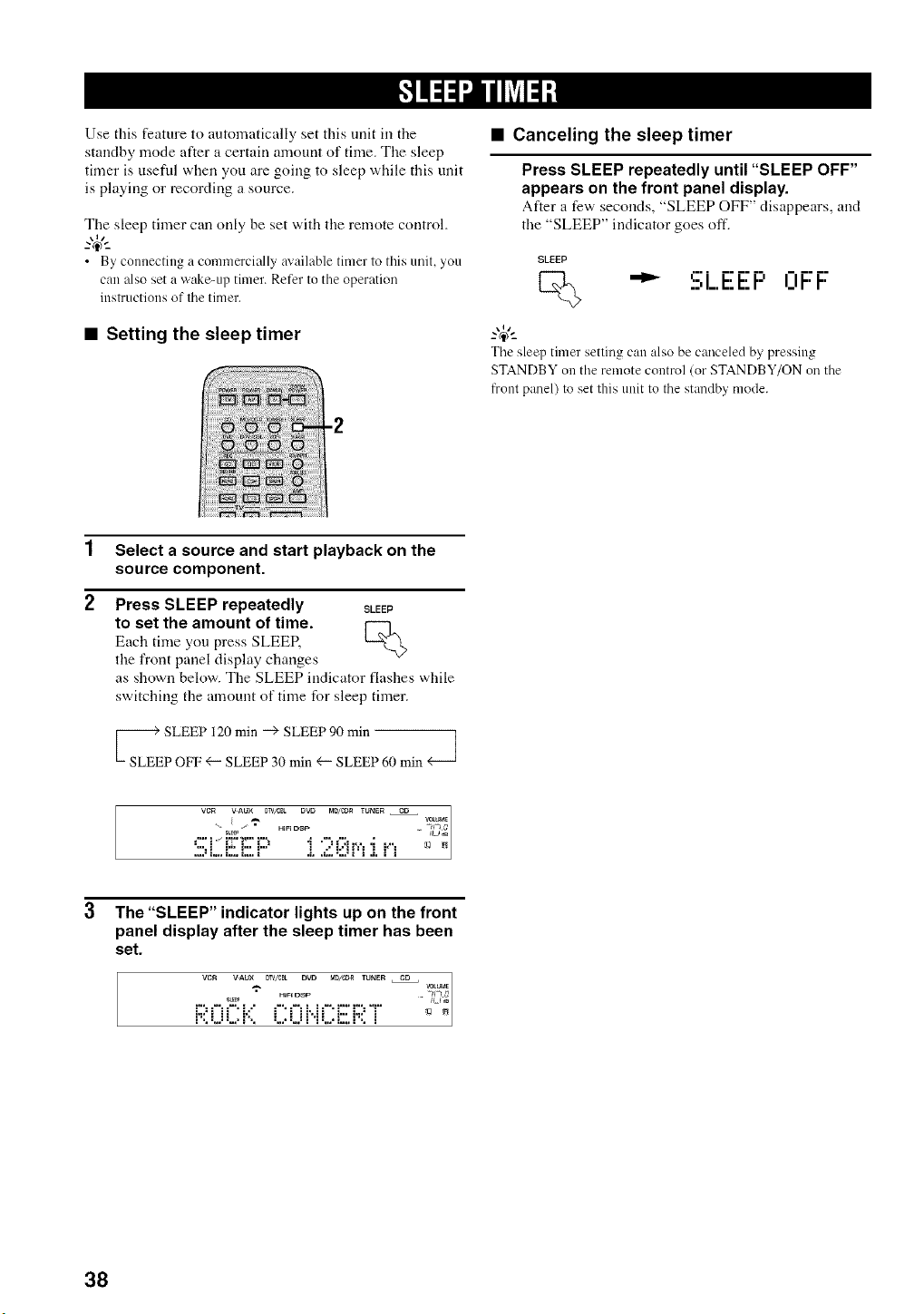
Use this feature to automatically set this unit in the
standby mode after a certain amount of time. The sleep
timer is usefid when you are going to sleep while this unit
is playing or recording a source.
The sleep timer can only be set with the remote control.
,,,
..-® -..
• By com_ecting a commercially available timer to this unit, you
can also set a wake-up timer. Refer to the operation
instructions of the timer.
• Setting the sleep timer
-2
• Canceling the sleep timer
Press SLEEP repeatedly until "SLEEP OFF"
appears on the front panel display.
After a few seconds, "SLEEP OFF" disappears, and
the "SLEEP" indicator goes oft'.
SLEEP
[_ _ ._:,L.I':I':H I_11-.I-'
-"4;:
The sleep timer setting can also be canceled by pressing
STANDBY on the remote control (or STANDBY/ON on the
front panel) to set this unit to the standby mode.
1 Select a source and start playback on the
source component.
2 Press SLEEP repeatedly SLEEP
to set the amount of time. F-_
Each time you press SLEEP,
the front panel display changes
as showll below. The SLEEP indicator flashes while
switching the amouut of time for sleep timer.
_E;LoC[_ _Ij;LE_3;I_nC;PJ_LE_P 60 min <_
VCR VAUX 0TV/CBL DVD MD/_ TUNER CD ]
_ VOtU_
SL_ _L__B
2? _. '2. ;1:." J.._::."J 'i J, i i _ _
3 The"SLEEP" indicator lights up on the front
panel display after the sleep timer has been
set.
VCR VAU× 0TV/CBL DVD MD/_ TUNER CD
VOWME
= HiFi DSP .... _f _
i:..;:0i:::i::.: C:Oi..iC:Ei:,;'.T °
38
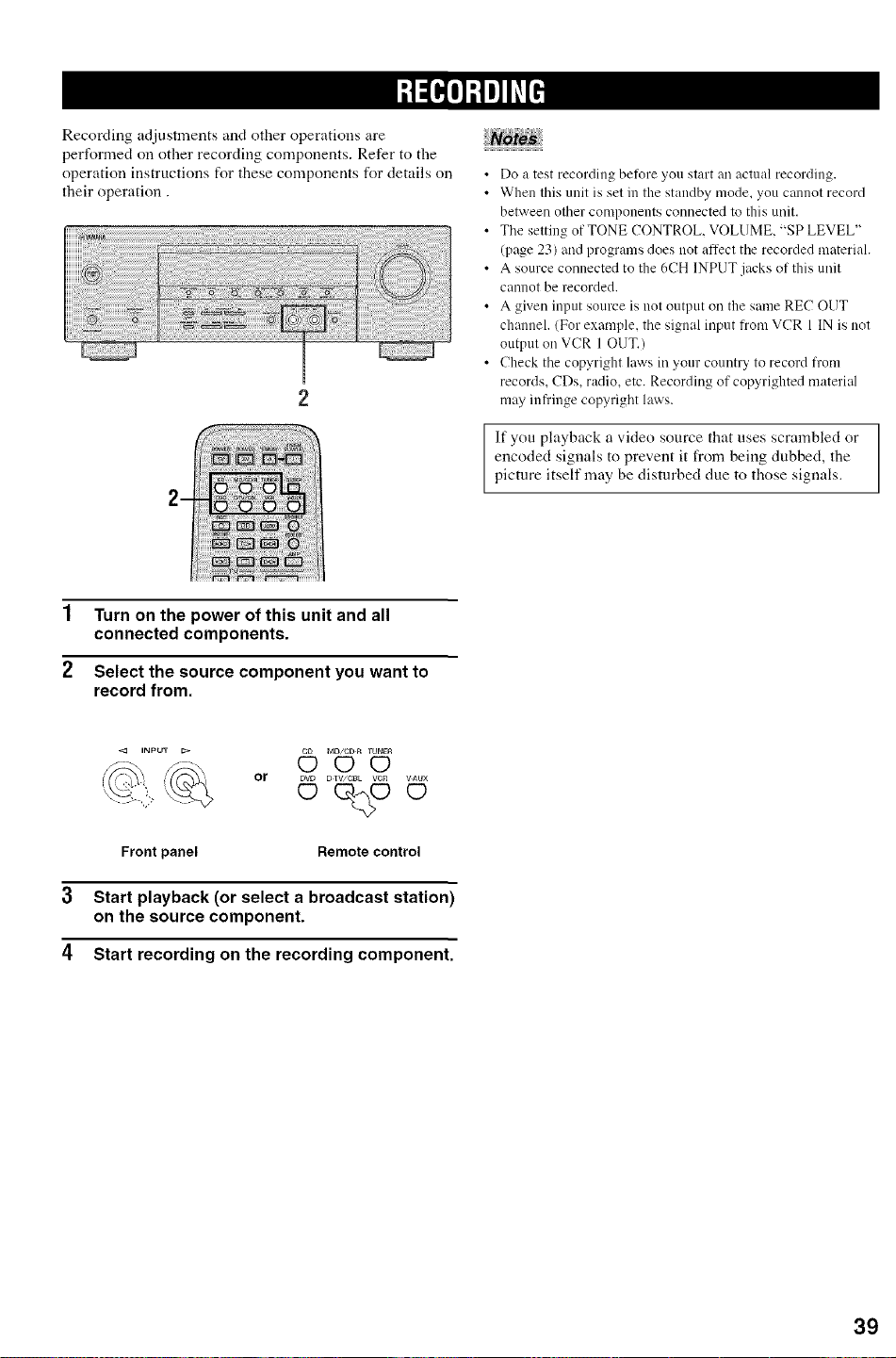
RecoMing adjustments and other operations are
performed oil other recording components. Refer to the
operation iustructions for these componeuts for details oil
their operation
• Do a test recording betore you start an actual recording.
• When this unit is set in the standby mode, you cmmot record
between other components connected to this unit.
• The setting of TONE CONTROL. VOLUME '_Sp LEVEL ''
(page 23) and progrmns does not at-tect the recorded materiah
• A source connected to the 6CH INPUT jacks of this unit
cannot be recorded.
• A given input source is not output on the stone REC OUT
channel. (For example, the signal input trom VCR 1 IN is not
output on VCR 1 OUT.)
• Check the copyright laws in your country to record from
records, CDs, radio, etc. Recording of copyrighted material
may infl'inge copyright laws.
If you playback a video source that uses scrambled or
encoded signals to prevent it from being dubbed, the
picture itself may be disturbed due to those signals.
1 Turn on the power of this unit and all
connected components.
2 Select the source component you want to
record from.
or
DVD DTV/C_L VCO VAUX
0%0 ©
Front panel Remotecontrol
3 Start playback (or select a broadcast station)
on the source component.
4 Start recording on the recording component.
39
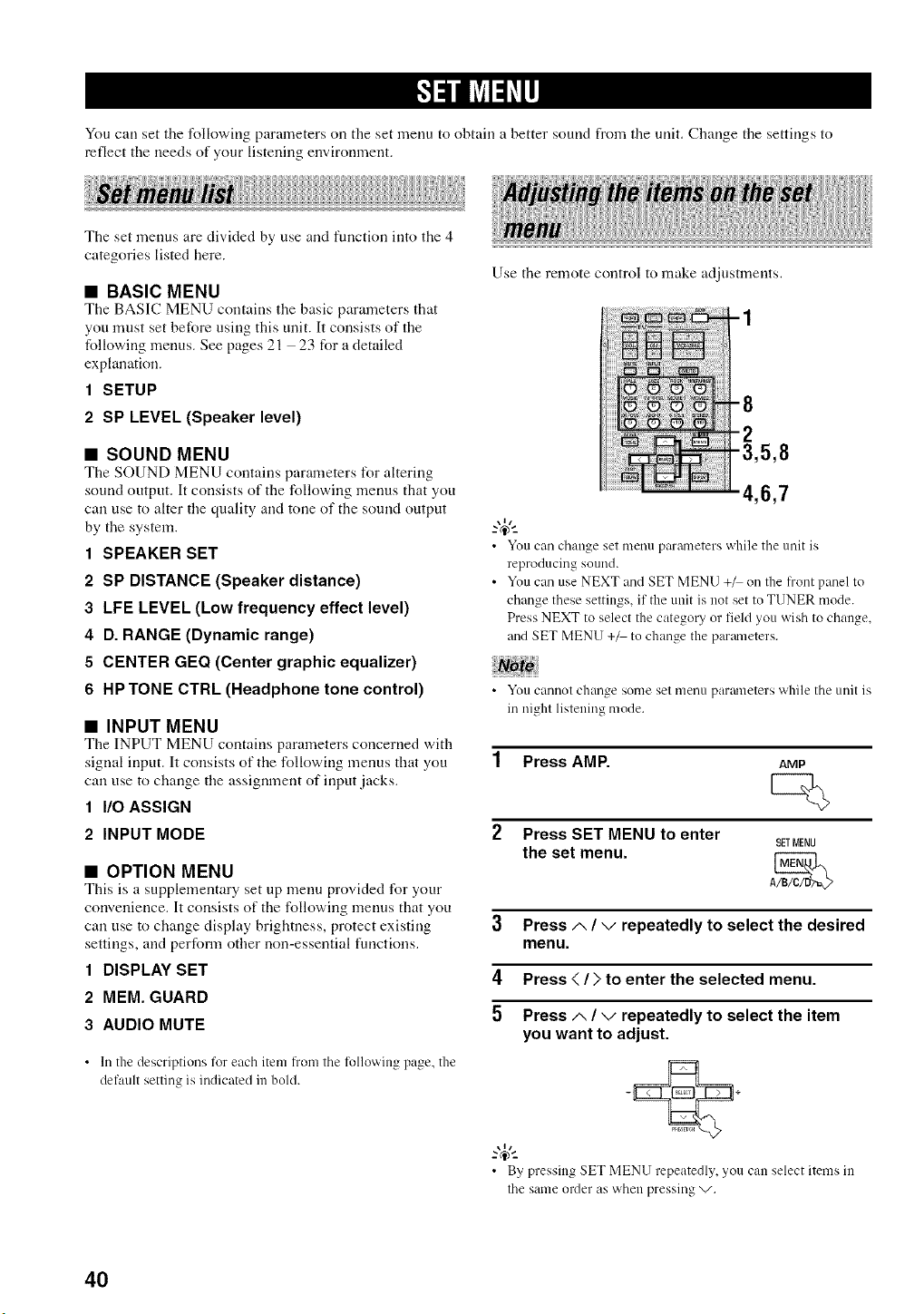
You carl set the l_llowing parameters on the set menu to obtain a better sound from the unit, Change the settings to
reflect the needs of your listening environnaent.
The set menus are divkted by use and function into the 4
categories listed here.
• BASIC MENU
The BASIC MENU contains the basic parameters that
you must set before using this unit. It consists of the
following menus. See pages 21 23 for a detailed
explanation.
1 SETUP
2 SP LEVEL (Speaker level)
Use the remote control to make adjustments,
• SOUND MENU
The SOUND MENU contains parameters for altering
sound output. It consists of the following menus that you
can use to alter the quality and tone of the sound output
by the system.
1 SPEAKER SET
2 SP DISTANCE (Speaker distance)
3 LFE LEVEL (Low frequency effect level)
4 D. RANGE (Dynamic range)
5 CENTER GEQ (Center graphic equalizer)
6 HP TONE CTRL (Headphone tone control)
• INPUT MENU
The INPUT MENU contains parameters concerned with
signal input. It consists of the following menus that you
can use to change the assignment of input jacks.
1 I/O ASSIGN
2 INPUT MODE
• OPTION MENU
This is a supplementary set up menu provided I_r your
convenience. It consists of the IMlowing menus that you
can use to change display brighmess, protect existing
settings, and perform other non-essential functions.
1 DISPLAY SET
2 MEM. GUARD
3 AUDIO MUTE
• In the descriptions for each item fl'om tile following page, the
default setting is indicated in bold.
,5,8
4,6,7
• You can change set menu parameters while tile unit is
reproducing sound.
• You can use NEXT and SET MENU +_ on the front panel to
change these settings, if the unit is not set to TUNER mode.
Press NEXT to select the category or fieM you wish to change,
and SET MENU +/ to change the parameters.
• You cannot change some set menu parameters while tile unit is
in night listening mode.
1 Press AMP. AMP
2 Press SET MENU to enter
SETMENU
the set menu. A_
3 Press ,/-, / v repeatedly to select the desired
menu.
4 Press < / > to enter the selected menu.
5 Press ,/-, / v repeatedly to select the item
you want to adjust.
• y p" ,' _ ET _,._u repeatedly, you can select items in
tile same order as when pressing v.
40
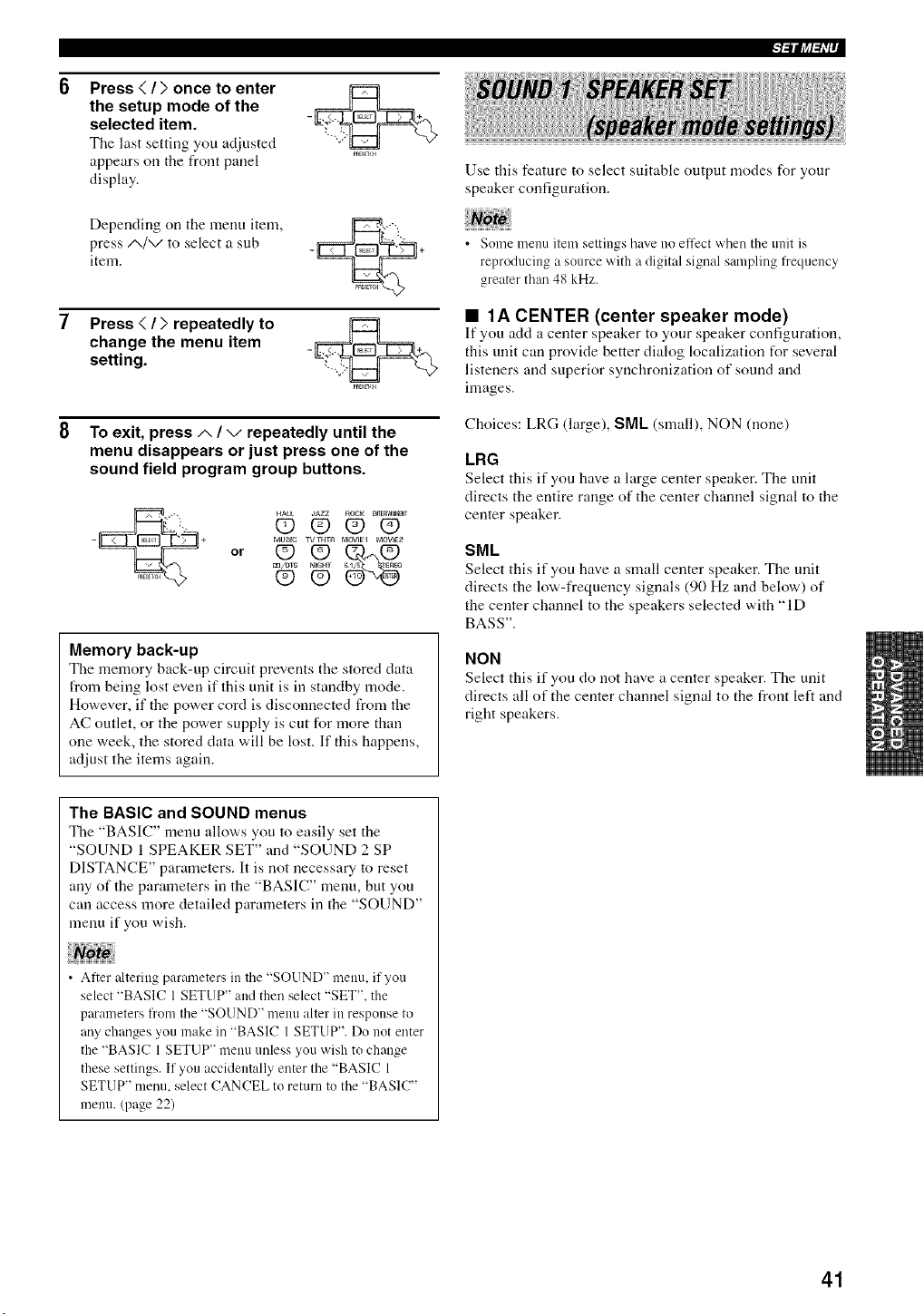
Press < / > once to enter
the setup mode of the
selected item.
The last setting you adjusted
appears on tile front panel
display.
Depending oil the menu item,
press A/v to select a sub
item.
Press < / > repeatedly to
change the menu item
setting.
8 To exit, press/-, / v repeatedly until the
menu disappears or just press one of the
sound field program group buttons.
HALL ,JAZZ ROCK ENrE_Nr_ENr
©OOO
MU_FC TVTHm MOVIE1 MOVIE_
or O Q_
m/OTS N_GHT
Memory back-up
The memory back-up circuit prevents the stored data
from being lost even if this unit is ill standby mode.
However, if the power cord is disconnected from the
AC outlet, or the power supply is cut for more than
one week, the stored data will be lost. If this happens,
adjust the items again.
Use this feature to select suitable output modes for your
speaker configuration.
• Some menu item settings have no effect when the unit is
reproducing a source with a digital signal sampling frequency
greater than 48 kHz.
• 1A CENTER (center speaker mode)
If you add a center speaker to your speaker cont]guration,
this unit call provide better dialog localization for several
listeners and superior synchronization of sound and
images.
Choices: LRG (large'), SML (small), NON (none)
LRG
Select this if you have a large center speaker. Tile unit
directs the entire range of the center channel signal to tile
center speaker.
SML
Select this if you have a snmll center speaker. The unit
directs the low-frequency signals (90 Hz and below) of
the center channel to the speakers selected with "'1D
BASS".
NON
Select this if you do not have a center speaker. The unit
directs all of the center channel signal to tile from left and
right speakers.
The BASIC and SOUND menus
The "BASIC" menu allows you to easily set the
"'SOUND 1 SPEAKER SET" and "SOUND 2 SP
DISTANCE" parameters. It is not necessary to reset
ally of the parameters ill the "BASIC" menu, but you
call access more detailed parameters ill the "'SOUND"
menu if you wish.
• After altering parmneters in tile '_SOUND" menu. if you
select '_BASIC 1 SETUP" and then select _'SET", the
parameters from tile '_SOUND" menu alter in response to
any changes you make in '_BASIC 1 SETUP". Do not enter
the '_BASIC 1 SETUP" menu unless you wish to change
these settings. If you accidentally enter tile _'BASIC 1
SETUP" metal select CANCEL to return to tile '_BASIC"
menu. (page 22)
41
II-'i-'/|j_l-1flJ
• 1B FRONT (front speaker mode)
Choices: LRG (large), SML (small)
LRG
Select this it" you have large front speakers. The unit
directs the entire range of the front left and right channel
signals to flae front left and right speakers.
SML
Select this it" you have small front speakers. Tile unit
directs the low-frequency signals (90Hz and below) of the
front channel to the speakers selected with "ID BASS".
• 1C SURR (surround speaker mode)
Choices: LRG (large), SML (small), NON (none)
LRG
Select this if you have large surround left and right
speakers. The entire range of the surround channel signal
is directed to the surround left and right speakers.
SML
Select this it"you have small surround left and right
speakers. The low-frequency signals (90Hz and below) of
the surround channel are directed to the speakers selected
with "1D BASS".
NON
Select this if you do not have surround speakers.
This unit is set ill the virtual CINEMA DSP mode when
you select NON for "IC SURR".
• 1D BASS (bass out mode)
LFE signals carry low-frequency effects when this unit
decodes a Dolby Digital or DTS signal. The Low-
frequency signals call be directed to both front left and
right speakers, and to the subwoofcr (subwoofcr call be
used for both stereo reproduction and tile sound field
program).
Choices: SWFR (subwoofcr), FRNT, BOTH
SWFR
Select SWFR it"you connect a subwoofcr. LFE and low-
frequency signals from other channels am directed to the
subwoofcr according to the speaker settings.
FRNT
Select FRNT if you do not use a subwoofer. LFE and
low-frequency signals from other channels are directed to
flae front speakers according to the speaker settings (even
if you have previously set the from speakers to SML).
BOTH
Select BOTH if you connect a subwoofer and you vvraut to
output low-frequency signals from front channels to both
front speakers and the subwoofer. LFE and low-frequency
signals from other channels are directed to the subwoofer
according to the speaker settings.
Use this function to reinl_rce low-frequency signals using
file subwoofcr when playing back source such as CDs.
• When you select FRNT tbr "ID BASS". the unit directs the
low-fi'equency signals (90Hz and below) of the front channel
to the front speakers even if you select SML for the fi'ont
speaker mode.
42
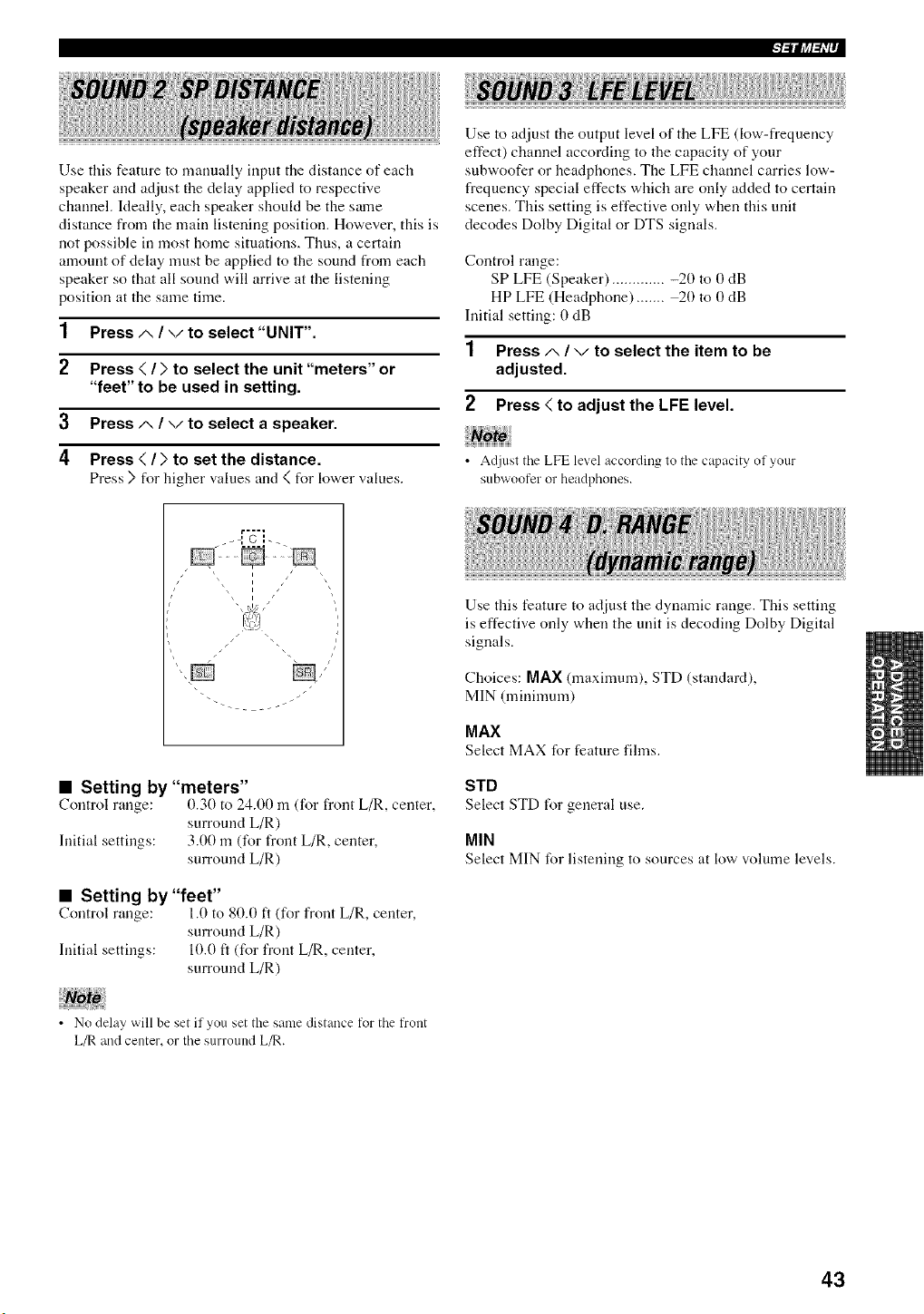
Use this feature to manually input the distance of each
speaker and adjust the delay applied to respective
channel. Ideally, each speaker should be the stone
distance from the main listening position. However, this is
not possible in most home situations. Thus, a certain
amouut of delay must be applied to file sound from each
speaker so that all sound will arrive at file listening
position at file same time.
1 Press/-, / ",/to select "UNIT".
2 Press ( / ) to select the unit "meters" or
"feet" to be used in setting.
3 Press/-, / -,/to select a speaker.
4 Press ( / ) to set the distance.
Press ) for higher values and ( for lower values.
!!!!!
Use to adjust the output level of the LFE (low-frequency
effect) channel according to the capacity of your
subwoofer or headphones. The LFE channel carries low-
frequency special effects which are only added to certain
scenes. This setting is effective only when this unit
decodes Dolby Digital or DTS signals.
Control range:
SP LFE (Speaker) ............. -20 m 0 dB
HP LFE (Headphone) ....... 20 to 0 dB
Initial setting: 0 dB
1 Press/-, / ",/to select the item to be
adjusted.
2 Press < to adjust the LFE level.
• Adjust the LFE level according to the capacity of your
subwoofer or headphones.
r ....
__-I Gl-.
4
• Setting by"meters"
Control range: 0.30 to 24.00 m (for front L/R, center,
sm'round L/R)
Initial settings: 3.00 m (for front L/R, center,
surround L/R)
• Setting by"feet"
Control range: 1.0 to 80.0 ft (for front L/R, center,
surround L/R)
Initial settings: 10.0 fl (for front L/R, center,
surround L/R)
Use this feature to adjust the dynamic range. This setting
is effective only when the unit is decoding Dolby Digital
signals.
Choices: MAX (maximum), STD (standard),
MIN (minimum)
MAX
Select MAX for feature films.
STD
Select ST[) for general use,
MIN
Select MIN for listening to sources at low volmne levels.
• No delay will be set if you set the same distance for the front
L/R and center, or the surround L_.
43
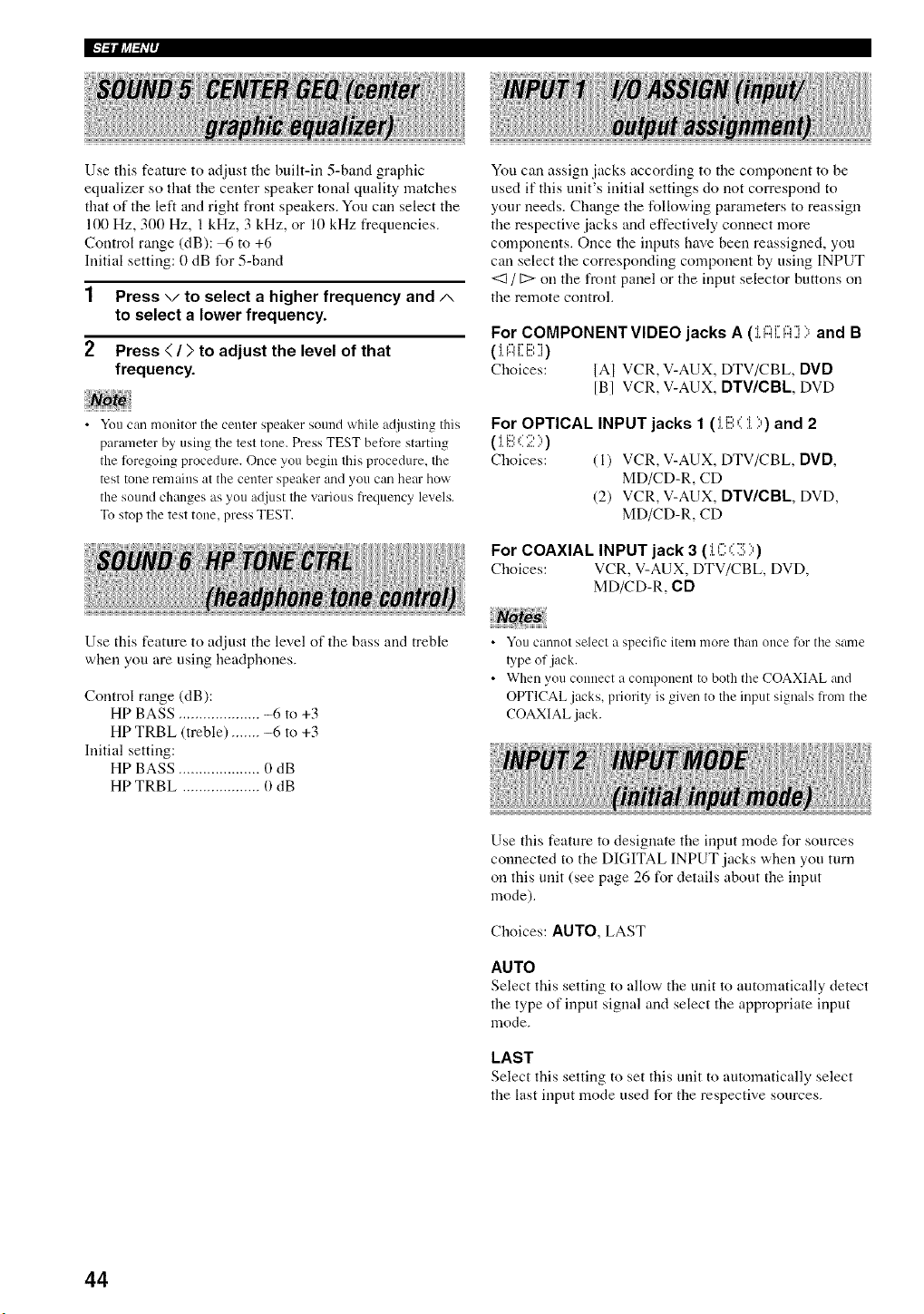
Use this feature to adjust the built-in 5-band graphic
equalizer so that the center speaker tonal quality matches
that of file left and right front speakers. You can select the
100 Hz, 300 Hz, I kHz, 3 kHz, or 10 kHz frequencies.
Control range (dB): 6 to +6
Initial setting: 0 dB for 5-band
1 Press v to select a higher frequency and A
to select a lower frequency.
2 Press < / > to adjust the level of that
frequency.
• You can monitor the center speaker sound while adjusting this
parameter by using the test tone. Press TEST befiore starting
the foregoing procedure. Once you begin this procedure, the
test tone remains at the center speaker and you can hem" how
the sound changes as you adjust the wtrious trequency levels.
To stop the test tone, press TEST.
You can assign jacks according to the component to be
used if this unit's initial settings do not correspond to
your needs. Change the following parameters to reassign
file respective jacks and effectively connect more
components. Once the inputs have been reassigned, you
can select the corresponding component by using INPUT
<3 / D on the front panel or file input selector buttons on
the remote control.
For COMPONENTVIDEO jacks A (iA[i::l]) and B
(i. I:::I[ i!!!;])
Choices: IA1 VCR, V-AUX, DTV/CBL, DVD
[B] VCR, V-AUX, DTWCBL, DVD
For OPTICAL INPUT jacks 1 (ii!!!;( i )) and 2
( :i.i!!',(2 ;,)
Choices: (1) VCR, V-AUX, DTV/CBL, DVD,
MD/CD-R, CD
(2) VCR, V-AUX, DTV/CBL, DVD,
MD/CD-R, CD
For COAXIAL INPUT jack 3 (J.(; C:.!:))
Choices: VCR, V-AUX, DTV/CBL, DVD,
MD/CD-R, CD
Use this feature to adjust the level of file bass and treble
when you are using headphones.
Control range (dB):
HP BASS .................... -6 to +3
HP TRBL (treble) ....... -6 to +3
Initial setting:
HP BASS .................... 0 dB
HP TRBL ................... (I dB
• You cammt select a specific item more than once for the same
t?pe of jack.
• When you com_ect a component to both the COAXIAL and
OPTICAL jacks, priorit._ is given to the input signals trom the
COAXIAL jack.
Use this feature to designate the input mode for sources
connected to the DIGITAL INPUT jacks when you turn
on this unit (see page 26 for details about the input
mode).
Choices: AUTO, LAST
AUTO
Selectthis setting to allow the unit to automatically detect
the type of input signal and select the appropriate input
mode.
LAST
Select this setting to set this unit to automatically select
the last input mode used for the respective sources.
44
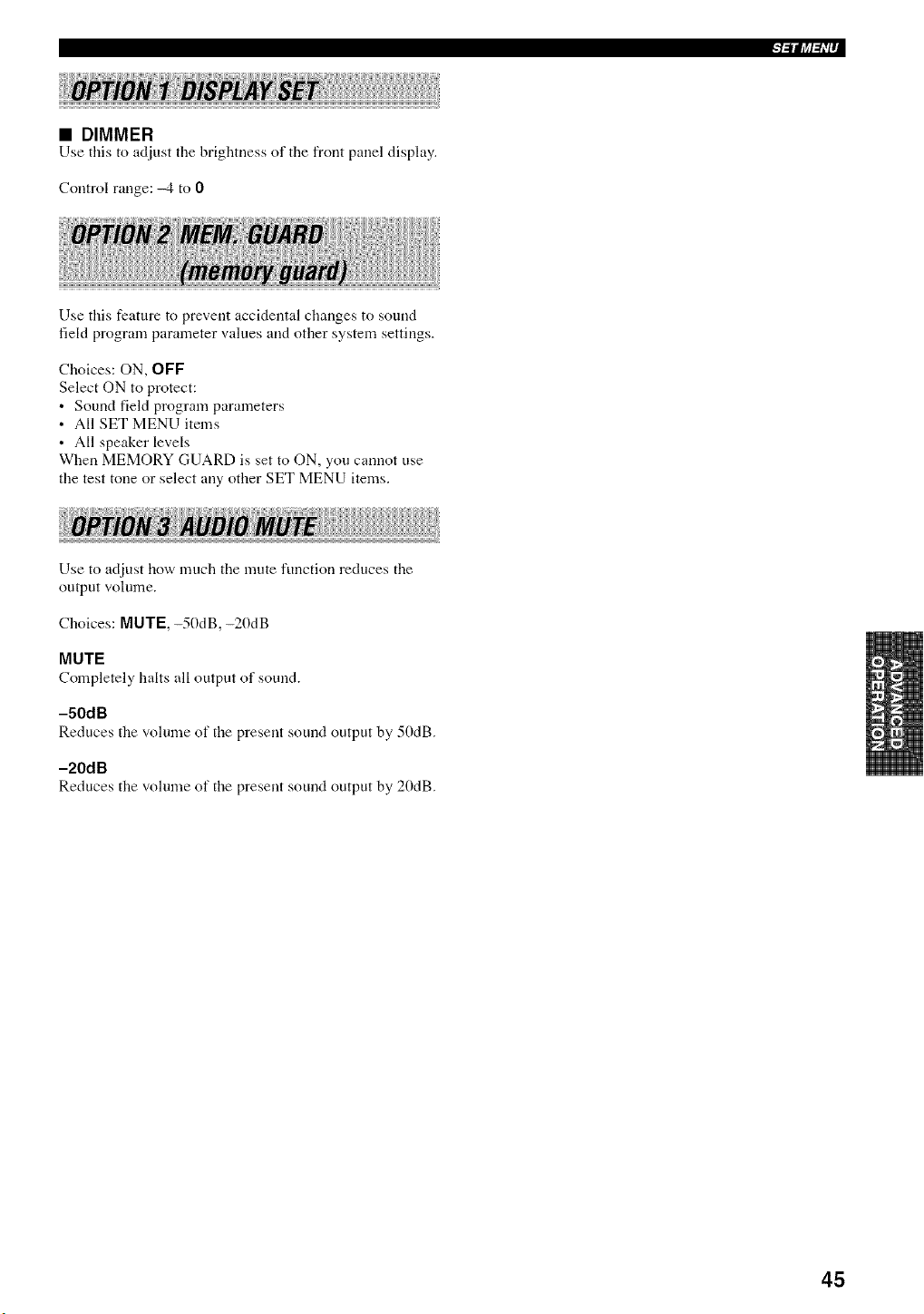
i!!
• DIMMER
Use this to adjust the brightness of the front panel display,
Control range: -4 to 0
l=lfi_l_i'I'
Use this feature to prevent accidental changes to sound
field program parameter values and other system settings.
Choices: ON, OFF
Select ON to protect:
• Sound field program parameters
• All SET MENU items
• All speaker levels
When MEMORY GUARD is set to ON, you cannot use
the test tone or select any other SET MENU items.
i!!!!! !!
Use to adjust how much the mute function reduces the
output volmne.
Choices: MUTE,-50dB,-20dB
MUTE
Completely halts all output of sound.
-50dB
Reduces the volume of the present sound output by 50dB.
-20dB
Reduces the volume of the present sound output by 20dB.
45
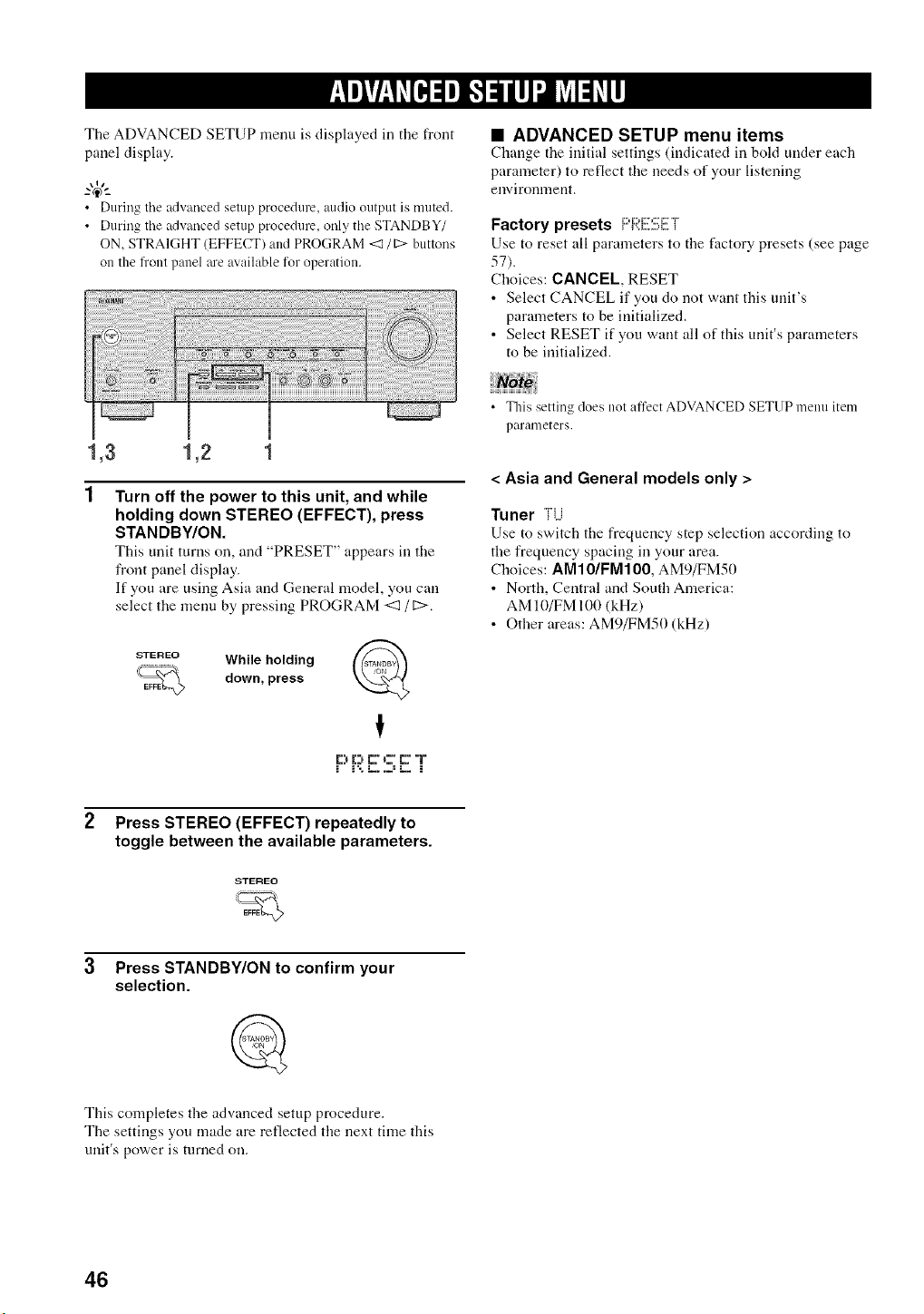
The ADVANCED SETUP lnenu is displayed in the front
panel display.
-"4_"-
• During tile Mvanced setup procedure, audio output is muted.
• During the Mvanced setup procedure, only the STANDB Y/
ON, STRAIGHT (EFFECT) and PROGRAM <:1/1:> buttons
on the fl'ont panel m'e available %r operation.
• ADVANCED SETUP menu items
Change the initial settings (indicated in bold under each
parameter) to reflect the needs of your listening
environment,
Factory presets F:i:;i:[!::!!!:i!!!iT
Use to reset all parameters to the factory presets (see page
57).
Choices: CANCEL, RESET
• Select CANCEL if you do not want this unit's
parameters to be initialized.
• Select RESET if you want all of this unit's parameters
to be initialized.
1,3 1,2
Turn off the power to this unit, and while
holding down STEREO (EFFECT), press
STANDBY/ON.
This unit turns on, and "PRESET" appears ill the
front panel display.
If you are using Asia and General model, you call
select the menu by pressing PROGRAM <] /[2>.
_STEREO While holding ( _:A_DB__
'_ down, press
I
p p :' ,-:c:T
• This setting does not affect ADVANCED SETUP menu item
pal'ameters.
< Asia and General models only >
Tuner TU
Use to switch the frequency step selection according to
the frequency spacing ill your area.
Choices: AM10/FM100, AM9/FM50
• North, Central and South America:
AM 10/FM 100 (kHz)
• Other areas: AM9/FM50 (kHz)
Press STEREO (EFFECT) repeatedly to
toggle between the available parameters.
STEREO
3 Press STANDBY/ON to confirm your
selection.
This completes the advanced setup procedure.
The settings you made are reflected the next time this
unit's power is turned on.
46
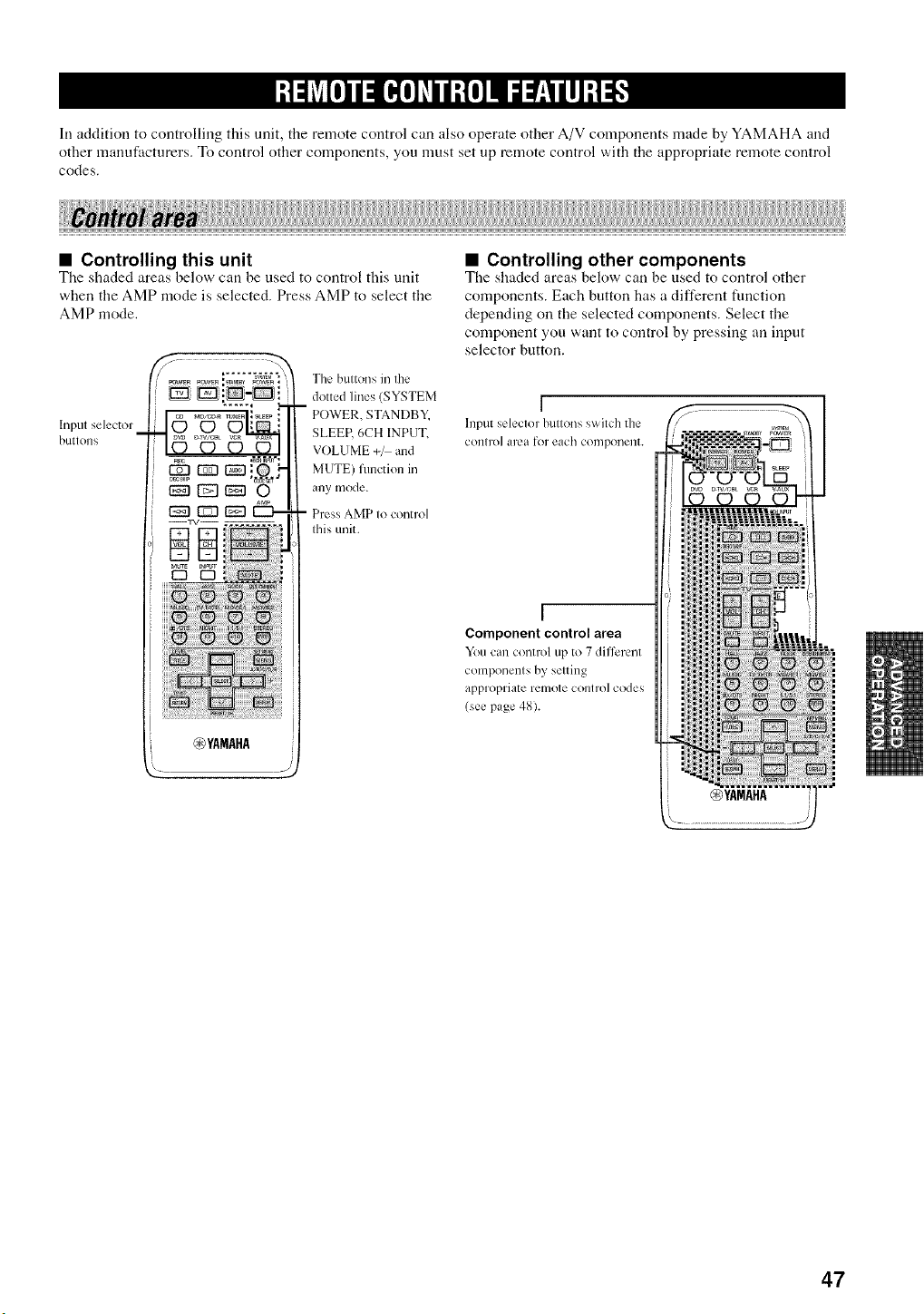
In addition to controlling this unit, the remote control can also operate other A/V components made by YAMAHA and
other manufacturers. To control other components, you must set up remote control with tile appropriate remote control
codes.
i!!!
• Controlling this unit
The shaded areas below call be used to control this unit
when tile AMP mode is selected. Press AMP to select the
AMP mode.
Input selector_
btltlons
YAMAHA
The buttons in the
dotted lines (SYSTEM
-- POWER, STANI_)BY.
SLEEP, 6CH INPUT.
VOLUME +/ and
MUTE) flmction in
any nlod¢.
- Press AMP to control
this unit.
• Controlling other components
The shaded areas below call be used to control other
components. Each button has a different function
depending on the selected components. Select the
component you want to control by pressing all input
selector button.
I
Input selector bullons s'aitch the
COIllro] area for each conlponell[.
I
Component control area
You can control up to 7 diflbrent
components by setting
appropriate remote control codes
(see page 48).
47
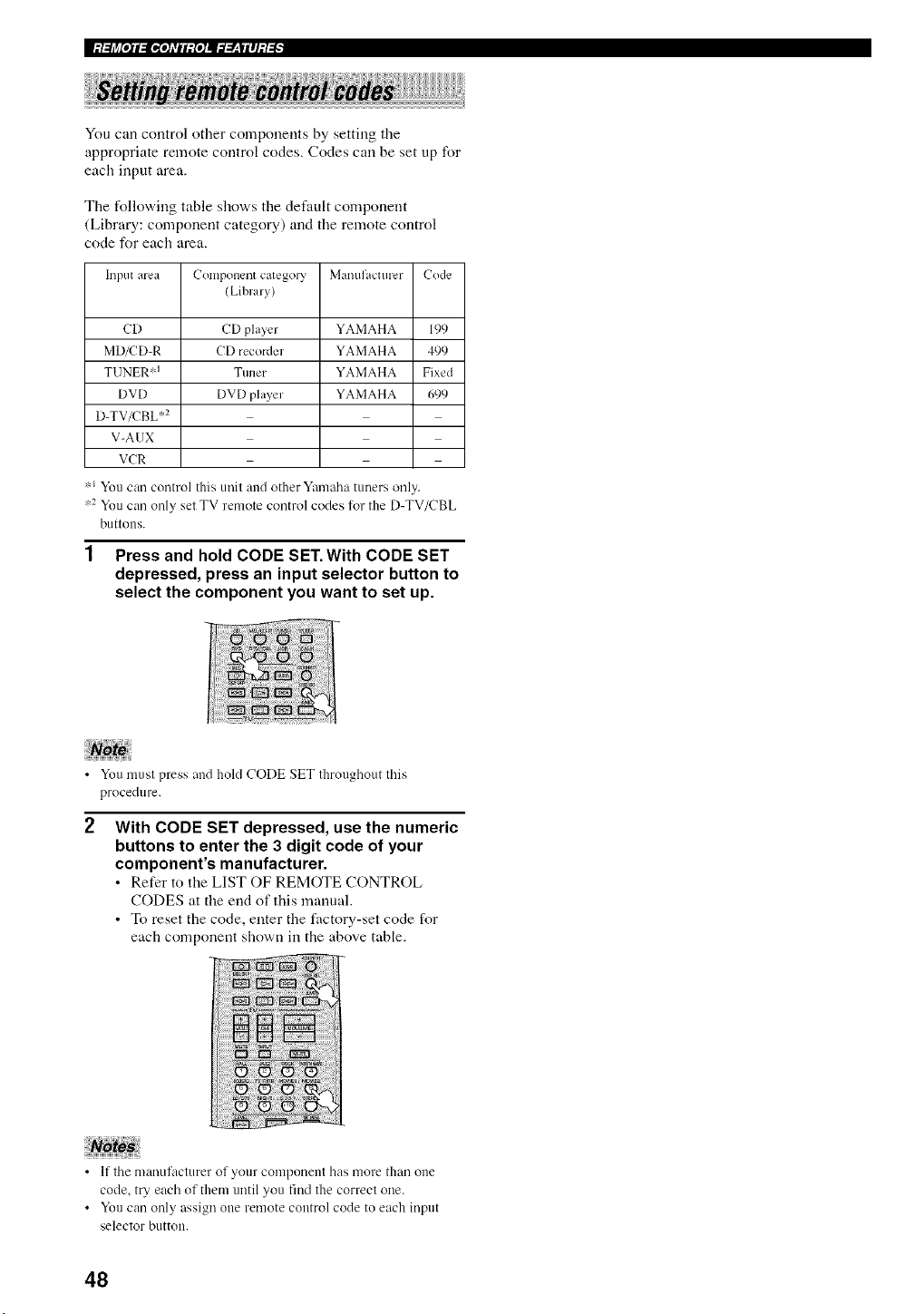
You can control other components by setting the
appropriate remote control codes. Codes can be set up for
each input area.
The Ibllowing table shows the default component
(Library: component category) and file remote control
code for each area,
Input area Component categol T Manufacturer Code
(Library)
CD CD player YAMAHA 199
MD/CD-R CD re,corder YAMAHA 499
TUNER '1 Tuner YAMAHA Fixed
DVD DVD player YAMAHA 699
D-TV/CBL '_2
V-AUK
VCR
'_'J You can control this unit and other Yamaha tuners only.
,2 You can only set TV remote control codes %r the D-TV/CBL
buttons.
1 Press and hold CODE SET.With CODE SET
depressed, press an input selector button to
select the component you want to set up.
• You must press and hold CODE SET throughout this
procedure.
With CODE SET depressed, use the numeric
buttons to enter the 3 digit code of your
component's manufacturer.
• Refer to the LIST OF REMOTE CONTROL
CODES at the end of this manual.
• To reset the code, enter the factory-set code for
each component shown in the above table.
• If the manufacturer of your component has more than one
code, tD each of them until you find the correct one.
• You can only assign one remote control code to each input
selector button.
48
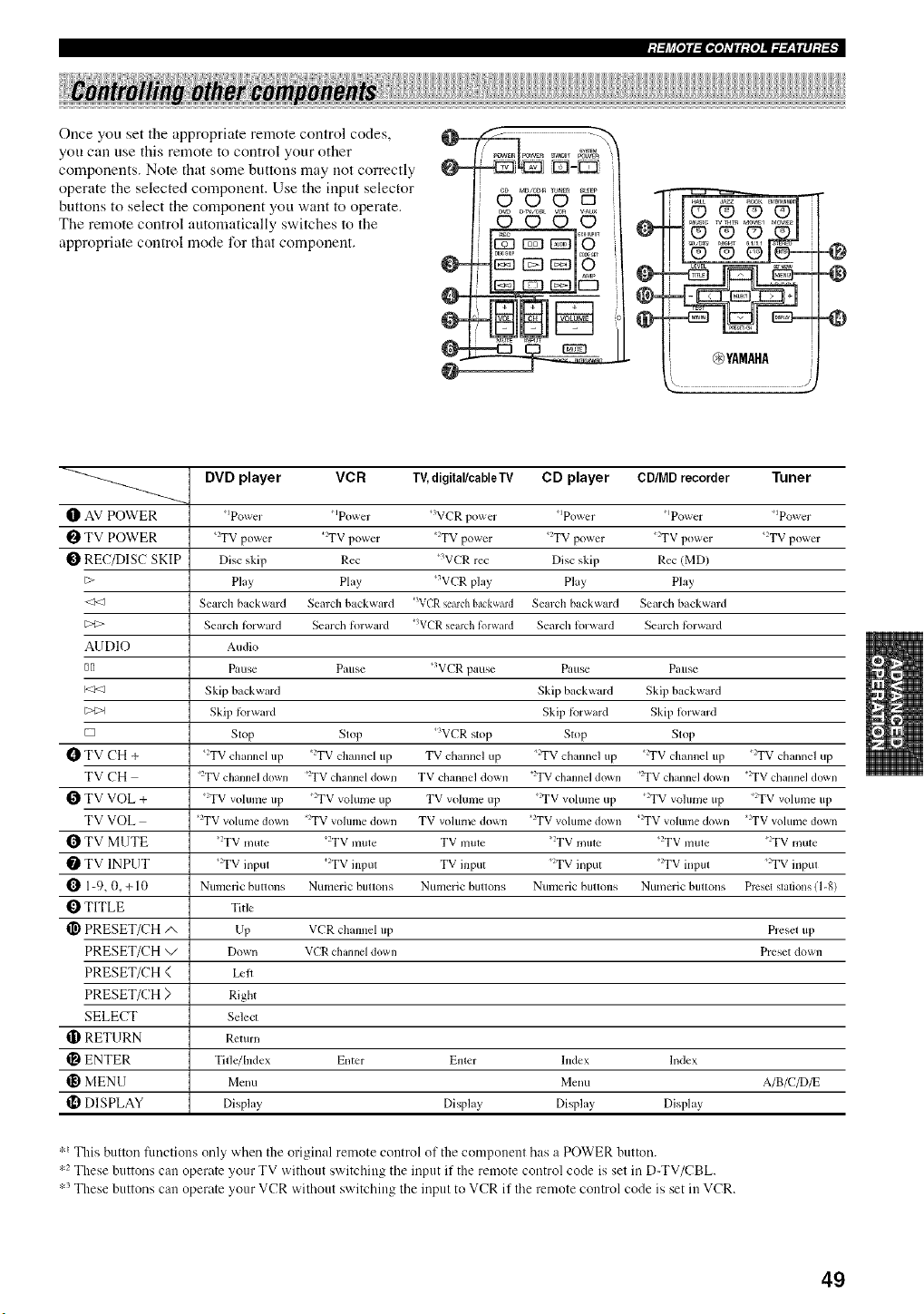
:t_J¢[o]l_Ee[o]_Vlll:{o]ll:l_-_|ll]:t_
Once you set the appropriate remote control codes,
you carl use this remote to control your other
components. Note that some buttons may not correctly
operate the selected component. Use the input selector
buttons to select the component you want to operate.
Tire remote control automatically switches to the
appropriate control mode for that component,
MD/_ TU_ER_EP
dSoo=
@
@-
0-
@-
@-
@YAMAHA
@
-@
DVD player VCR TV,digital/cableTV CD player CD/MD recorder Tuner
_]_ AV POWER _Power Ipower 3VC'R power Ipower 'Power _Power
TV POWER *_TV power 2TV power 2TV power +2TV power +:TV power +:TV power
O REC/DISC SKIP Disc skip Rec +3VCR rec Disc skip Rec (MD)
t;> Play Play +_VCR play Play Play
<<_ Search backward Search backward "WCR search backwald Search backward Search backward
t;>> Search tklrward Search tin-ward *3VCR search forward Search lorward Search tbrward
AUDIO Audio
NIl Pause Pause +3VCR pause Pause Pause
K<_ Skip backward Skip backward Skip backward
t;>2>l Skip tbrward Skip tbrward Skip lorward
[z] Slop Slop _VCR su)p Su)p Slop
TV CH + +>IV channel up 2TV channel up TV channel up +vTV channel up 2TV channel up +:TV channel up
TV CH :TV channel down ')TV channel down TV channel down *2TV channel down ')TV channel down *_TV channel down
TV VOL + 2TV volume up +:TV volunle up TV volume up 2TV volume up +:TV vohmle up 2TV volume up
TV VOL _TV volmne down 2TV volume down TV volume down _TV volume down +2TV volunle down _TV volmne down
O TV MUTE 2TV nmte +:TV mute TV mtltc ?TV mute +:TV mute +_TV nmte
O TV INPUT *_TV input 2TV input TV input *_TV input 2TV inpu_ *:TV input
O 1-9, 0, + 10 Numeric buttons Numeric bultons Numeric bultons Numeric bultOllS Numeric bretons Prcsel slafions (1-8)
O TITLE Title
_1 PRESET/CH/x Up VCR channel up Preset up
PRESET/CH _/ Down VCRchanneldown Preset down
PRESET/CH < Le|t
PRESET/CH ) Right
SELECT Select
_I}RETURN Return
ENTER Title/[ndex Enter Emer hldex Index
_) MENU Menu Menu A/B/C_/E
DISPLAY Display DiN_lay DiN_lay Display
:'_ This button ftmctions only when the original remote control of the component has a POWER button.
:,2 These buttons can operate your TV without switching the input if the remote control code is set in D-TV/CBL.
:'_ These buttons can operate your VCR without switching/l_e input to VCR if the remote control code is set in VCR.
49
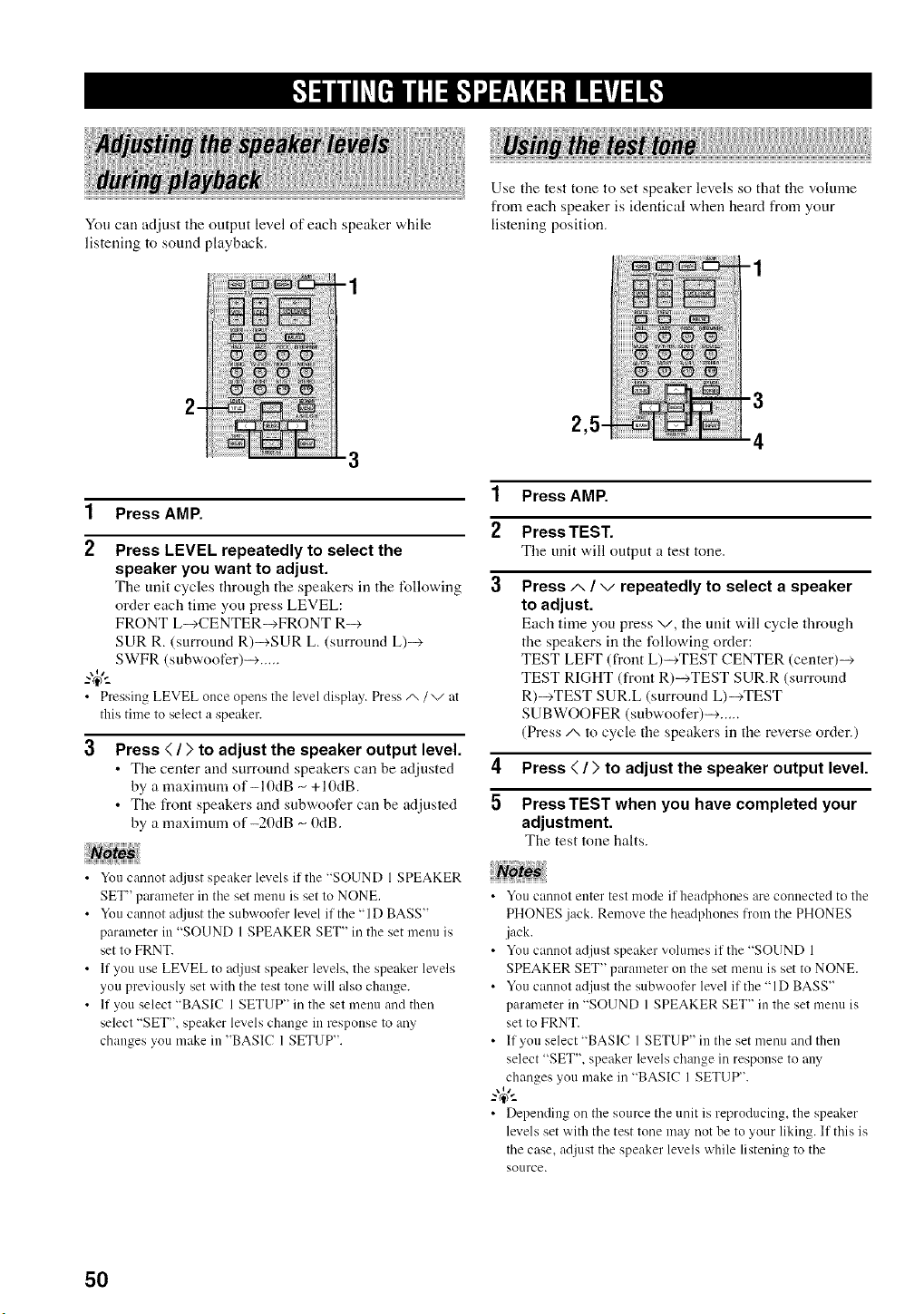
You can adjust the output level of each speaker while
listening to sound playback.
Use the test tone to set speaker levels so that tile volume
from each speaker is identical when heard from your
listening position.
1 Press AMP.
2 Press LEVEL repeatedly to select the
speaker you want to adjust.
The unit cycles through the speakers in the following
order each time you press LEVEL:
FRONT L-->CENTER-->FRONT R-->
SUR R. (surround R)_SUR L. (surround L)-->
SWFR (subwoofcr)--> .....
• Pressing LEVEL once opens the level displa?. Press/x / v at
this time to select a speaker.
Press ( / ) to adjust the speaker output level.
• Tile center and surround speakers can be adjusted
by a maximum of-I 0dB _ +10dB.
• The/_ont speakers and subwoofcr can be adjusted
by a maximum of-20dB _ 0dB.
• You cannot a@lst speaker levels if the "SOUND 1 SPEAKER
SET" parameter in the set menu is set to NONE.
• You cmmot a_liust the subwoofer level if the "1D BASS"
parmneter in "SOUND 1 SPEAKER SET" in the set menu is
set to FRNT.
• If you use LEVEL to adjust speaker levels, the speaker levels
you previously set with the test tone will also change.
• If you select "BASIC 1 SETUP" in the set menu mid then
select "SET", speaker levels change in response to any
changes you make in "BASIC 1 SETUP".
-3
2
4
1 Press AMP.
2 Press TEST.
The unit will output a test tone.
3
Press A / v repeatedly to select a speaker
to adjust.
Each time you press v, the unit will cycle through
the speakers in the lbllowing order:
TEST LEFT (front L)-->TEST CENTER (center)-->
TEST RIGHT (front R)-->TEST SUR.R (surround
R)-->TEST SUR.L (surround L)-->TEST
SUBWOOFER (subwoofcr)--> .....
(Press/-, to cycle the speakers in the reverse order.)
4 Press ( / ) to adjust the speaker output level.
5 PressTEST when you have completed your
adjustment.
The test tone halts.
• You cannot enter test mode if headphones are com_ected to the
PHONES jack. Remove the headphones from the PHONES
jack.
• You cannot adjust speaker volumesifthe'_SOUND 1
SPEAKER SET" parameter on the set menu is set to NONE.
• Youcannotadjustthesubwooterlevelifthe'_lDBASS ''
parameter in "SOUND 1 SPEAKER SET" in the set menu is
set to FRNT.
• If you select "BASIC 1 SETUP" in the set menu and then
select "SET". speaker levels cbnge in response to any
changes you make in "BASIC 1 SETUP".
• Depending on the source the unit is reproducing, the speaker
levels set with the test tone ma_ not be to your liking. If this is
the case, adjust the speaker levels while listening to the
source.
50
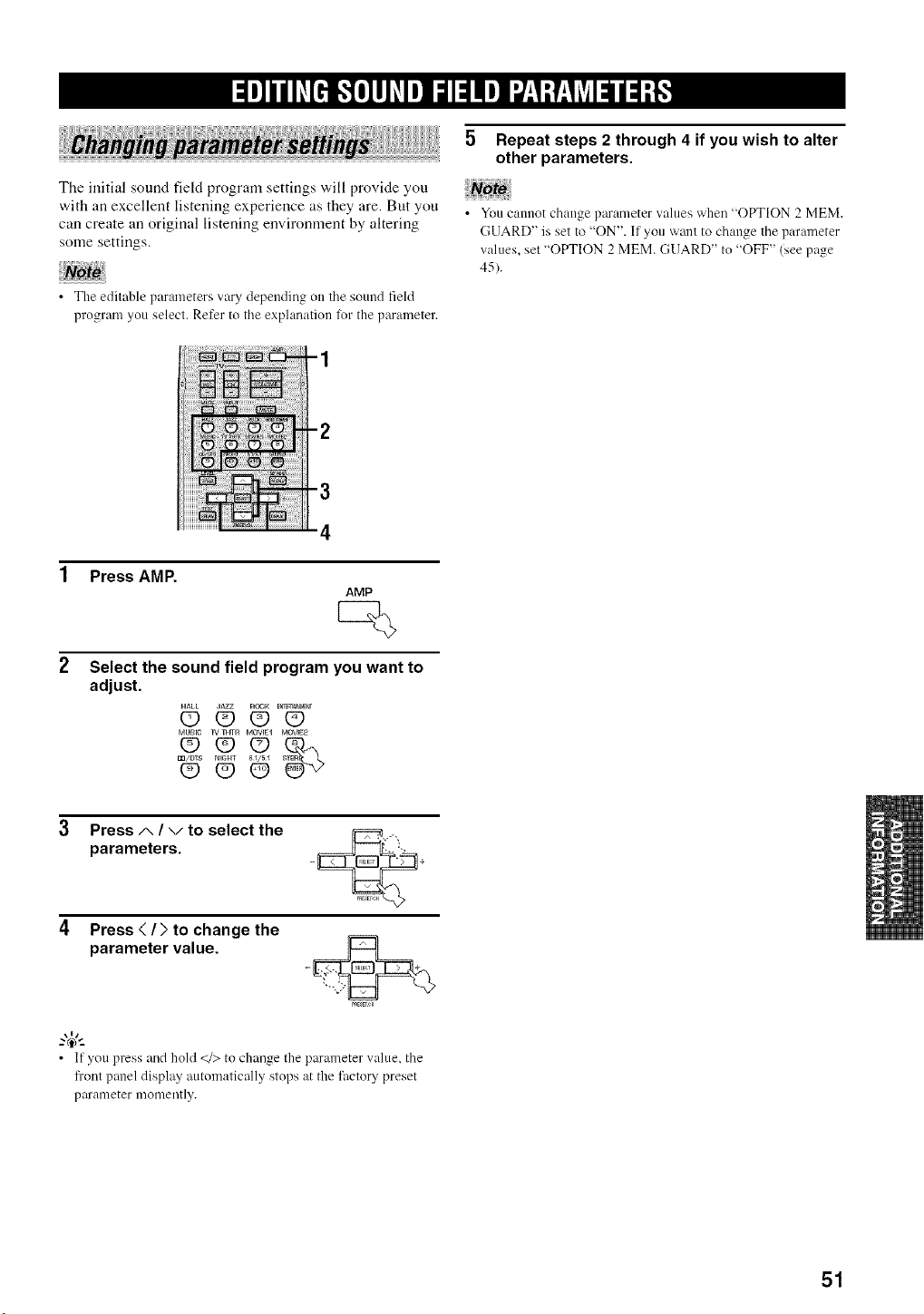
The initial sound field program settings will provide you
with all excellent listening experience as they are. But you
can create all original listening environment by altering
some settings.
• Tbe editable parameters vary depending on tile sound field
progranl you select. Refer to tile explanation for tbe parameter.
5 Repeat steps 2 through 4 if you wish to alter
other parameters.
• You cannot change pm'ameter values when "OPTION 2 MEM.
GUARD" is set to "ON". If you want to change tile parameter
values, set "OPTION 2 MEM. GUARD" to "OFF" (see page
45).
Press AMP.
AMP
Select the sound field program you want to
adjust.
HALL dAZZ RGCK N_m_IN_aNT
QQOO
MUSic 1¥T_ MOVlEq MOVIE2
OOO_
m/OTS N_GHT tl//5 /
(D¢90
3 Press A / v to select the
parameters.
Press < / > to change the
parameter value.
..-@,..
• Ifyoupressandhold</>tochangetheparameterw_lue, the
fi'ont panel displa?_ automatically stops at the titcto U preset
pm'ameter momently.
51
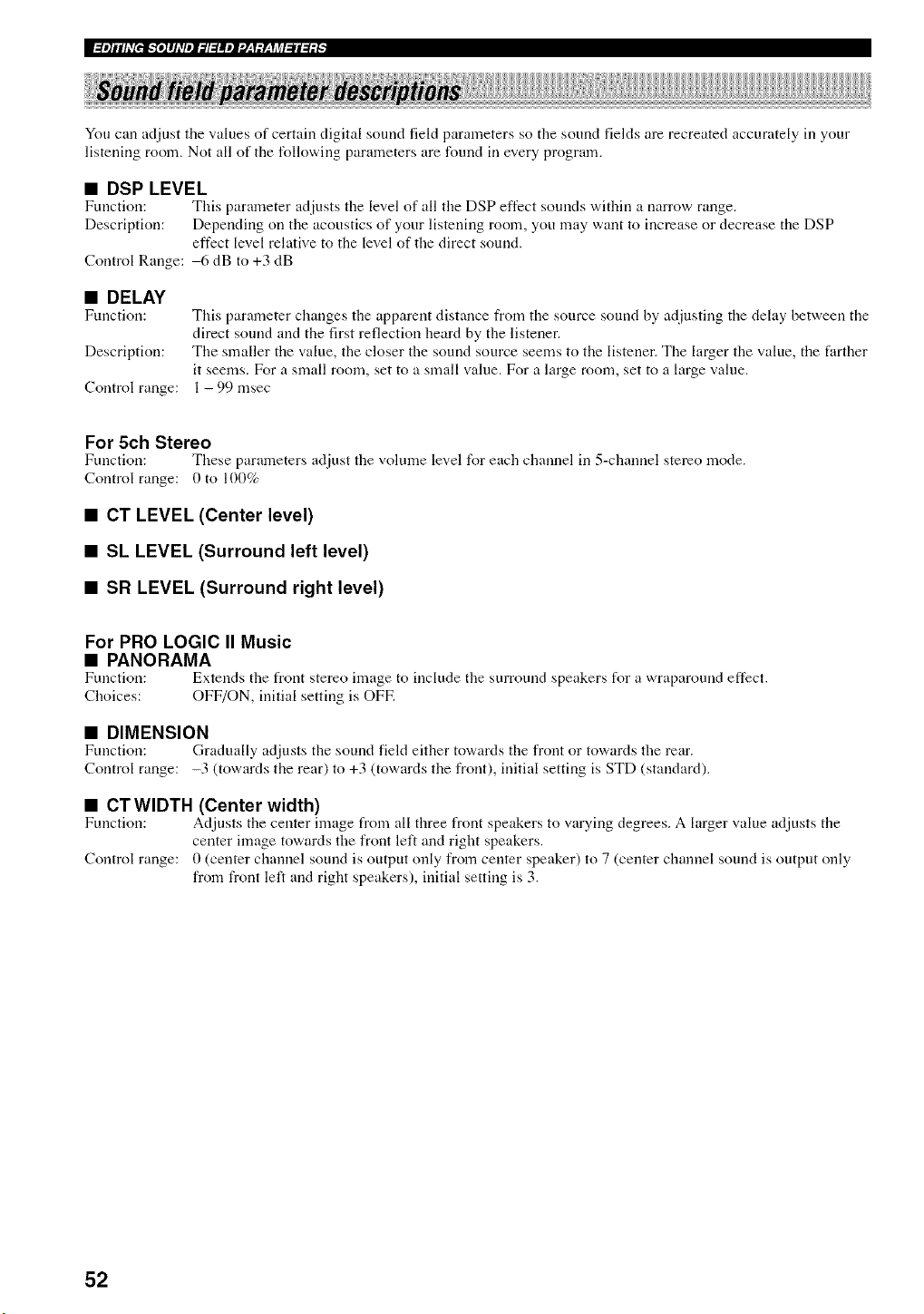
I:ll]llhV[_]_"fl]ll_Vlll_ll:ll!ll'J_,y;y_qi_l:ll:l;t_
You can adjust tire values of certain digital sound field parameters so the sound fields are recreated accurately in your
listening room. Not all of the following parameters are found in every program.
• DSP LEVEL
Function: This parameter adjusts the level of all tire DSP effect sounds within a narrow range.
Description: Depending on the acoustics of your listening room, you may want to irrcrease or decrease the DSP
effect level relative to the level of the direct sound.
Control Range: 6 dB to +3 dB
• DELAY
Function:
Description:
Control range:
This parameter changes the apparent distance from the source sound by adjustiug tire delay between the
direct sound arrd the first reflection heard by the listener.
The smaller the value, the closer the sound source seems to the listener. The larger the value, the farther
it seems. For a small room, set to a small value. For a large room, set to a large value.
1 - 99 msec
For 5ch Stereo
Ftmction: These parameters adjust the volume level for each channel in 5-channel stereo mode.
Control range: 0 to 100%
• CT LEVEL (Center level)
• SL LEVEL (Surround left level)
• SR LEVEL (Surround right level)
For PRO LOGIC II Music
• PANORAMA
Function: Extends the front stereo image to irrclude the surround speakers for a wraparound effect.
Choices: OFF/ON, irritial setting is OFF:.
• DIMENSION
Fmrction: Gradually adjusts the sound field either towards the front or towards the rear.
Control range: -3 (towards the rear) to +3 (towards the front), irritial setting is STD (standard).
• CTWIDTH (Center width)
Function: Adjusts tire center image from all three front speakers to wlrying degrees. A larger value adjusts tire
center image towards the front left and right speakers.
Control range: 0 (center channel sound is output only from center speaker) to 7 (center channel sound is output only
from front left arr(I right speakers), irritial setting is 3.
52
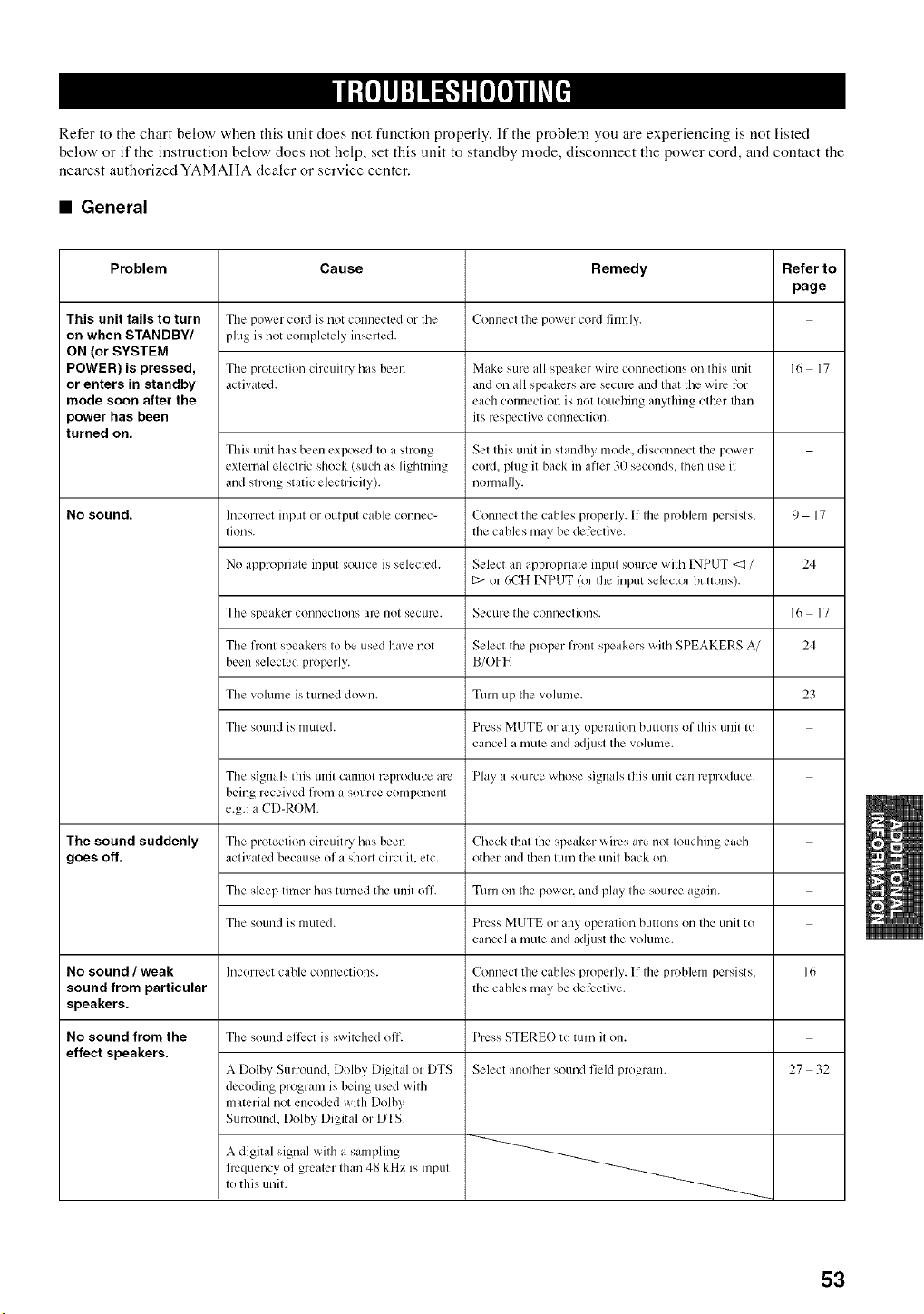
Refer to the chart below when this unit does not function properly. If the problem you are experiencing is not listed
below or if the instruction below does not help, set this unit to standby mode, disconnect the power cord, and contact the
nearest authorized YAMAHA dealer or service center.
• General
Problem
This unit fails to turn
on when STANDBY/
ON (or SYSTEM
POWER) is pressed,
or enters in standby
mode soon after the
power has been
turned on.
No sound.
The sound suddenly
goes off.
No sound / weak
sound from particular
speakers.
No sound from the
effect speakers.
Cause
The power cord is not connecled or the
plug is not complelely inselled.
Tile protection circuill T has been
activated.
Tills unit has been exposed to a stlx)ng
external electric shock (such as lightning
and strong static electricity).
hlcolrect input or output cable connec-
tions.
No appropriate input source is selected.
Tile speaker connections arL• not secule.
Tile front speakL.rs to be used have not
been selected properly.
Tile volume is turned down.
Tile sound is muted.
Tile signals this unit cannot reproduce are
being received ll'Onl a SOUlCe conlponent
e.g.: a CD-ROM.
Tile protection circuit]T has been
activated because of a sho]l circuit, etc.
Tile sleep limer has turned the unil off.
Tile sound is muted.
Incorrect cable connections.
Tile sound effect is switched olT.
A Dolby Surround, Dolby Digital or DTS
decoding program is being used with
material not encoded with Dolby
Surround, Dolby Digital or DTS.
A digital signal with a sampling
frequency of greater than 48 kHz is input
to this unit.
Remedy Refer to
page
Connecl the power cord filmly.
Make sure all speakcq wire connections on this unit
and on all speakers are secure and that tile wire lot
each connection is not touching anything other than
its respeclive connection.
Set this unit in standby mode, disconnect tile power
cord, plug it back in afler 30 seconds, then use it
normally.
Connect the cables properly. If the problem pelsists.
the cables may be delL.clive.
Select an appropriate input soulve with INPUT <I/
[::>or 6CH INPUT (or Ihe input selector buttons).
Secule the conneclions.
Select tile proper front speakers with SPEAKERS A/
B/OFE
Turn up the volume.
Press MUTE or any operation buttons of this unit to
canccd a hi/ire and adjtlst the• voltlnle.
Play a source whose signals this unit can reproduce.
Check that the speaker wires are not touching each
other and then turn tile unit back on.
Turn on the power, and phly tile source again.
Press MUTE or any operation buttons oil tile unit to
cancel a mute and adjust the volume.
Connect the cables properly. If Ihe problem persisls.
the cables may be delk.ctive.
Press STEREO to turn it o11.
Select another sound field proglam.
16 17
9 17
24
16 17
24
23
16
27 32
53
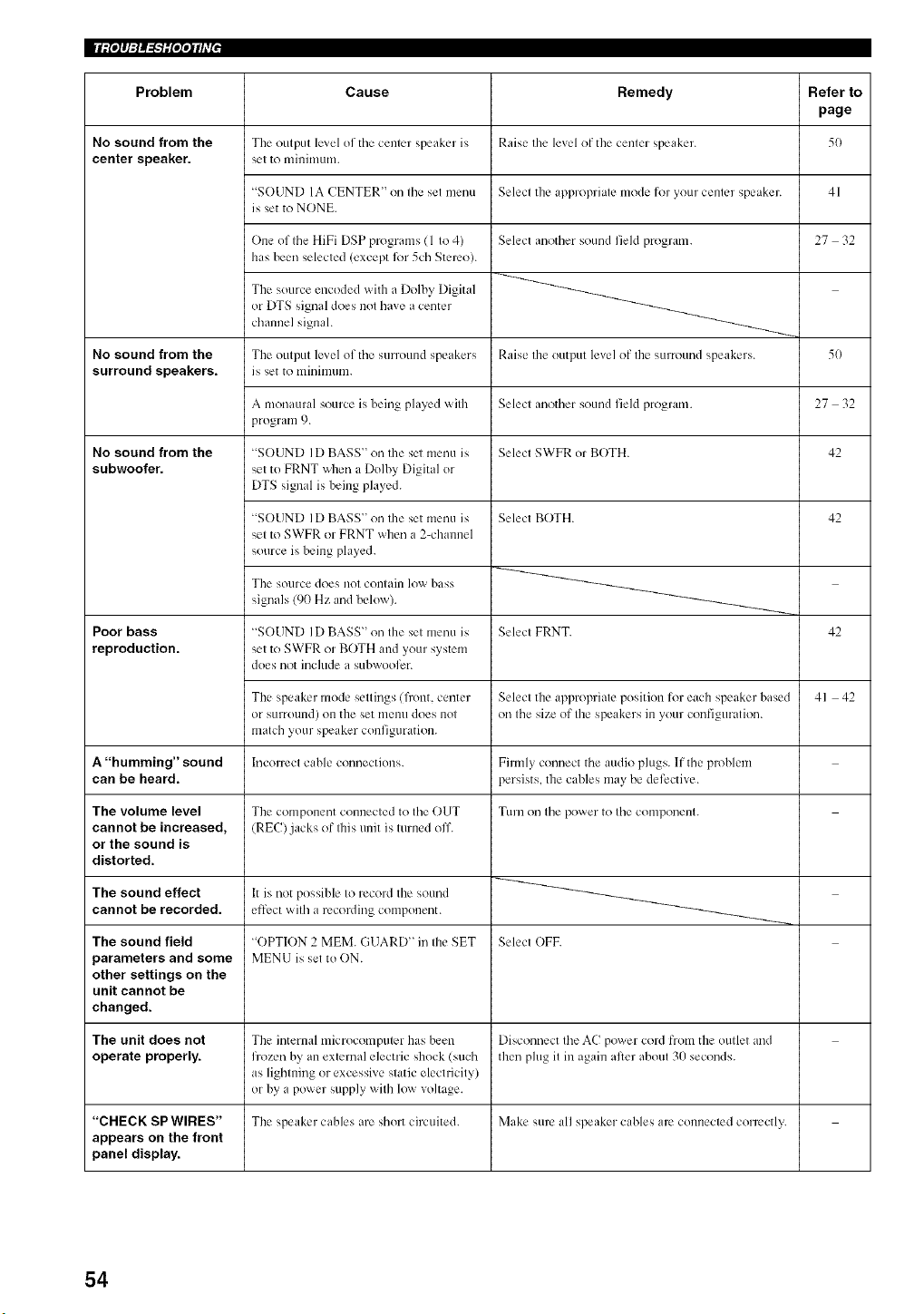
No sound from the
center speaker.
No sound from the
surround speakers.
No sound from the
subwoofer.
Cause
The output level of tile center speaker is
set to minimum.
"SOUND IA CENTER" on the set menu
is set to NONE.
One of tile HiFi DSP proglanls (1 to 4)
has been selected (except 1"ol5ch Stereo).
The source encoded with a Dolby Digital
or lOTS signal does not have a center
channel signah
The output level of the surround speakers
is set to lllil/im/lm.
A monaural source is being played with
proglam 9.
<'SOUND ]D BASS" on Ihe set menu is
set to FRNT when a Dolby Digital or
DTS signal is being played.
"SOUND ID BASS" on the set menu is
set to SWFR or FRNT when a 2-channel
source is being phlyed.
Remedy Refer to
page
Raise the level of the center speaker. 50
Select the appropriate modefor your center speaker. 41
Select another sound field pmgrani. 27 32
Raise the output level of the surround speakers. 50
Select another sound field program. 27 32
Selecl SWFR or BOTH. 42
Selecl BOTH.
Select FRNT.
42
The SOtll'Ce does not contain low bass
signals (90 Hz and below).
Poor bass "SOUND I D BASS" on the set menu is 42
reproduction, set to SWFR or BOTH and your system
does not include a subwool_r.
The speaker mode settings (flont. center Select the appropriate position l_r each speaker based 41 42
or sunmmnd) on the set menu does not on the size of the speakers m your configuration.
match your speaker configuration.
A "humming" sound Incorrect cable connections. Firmly connect the audio plugs. If the problem
can be heard, persists, the cables may be defective.
The volume level The component connected to the OUT Turn on the powel to the coniponent.
cannot be increased, (REC) jacks of Ibis unit is turned off.
or the sound is
distorted.
The sound effect It is not possibh., to record the sound
cannot be recorded, effect with a leColdh/g component.
The sound field "OPTION 2 MEM. GUAR[) '_ in the SET Select OFE
parameters and some MENU is set to ON.
other settings on the
unit cannot be
changed.
The unit does not The internal miciocomputer has been Disconnect the AC power cord fiom the outlet and
operate properly, fi-ozen by an external electric shock (such then plug it in again al_er about 30 seconds.
as lightning or excessive static electricity)
or by a power supply with low voltage.
"CHECK SP WIRES" The speaker cables are shoit ciivuited. Make sure all speaker cables arc connected correctly.
appears on the front
panel display.
54
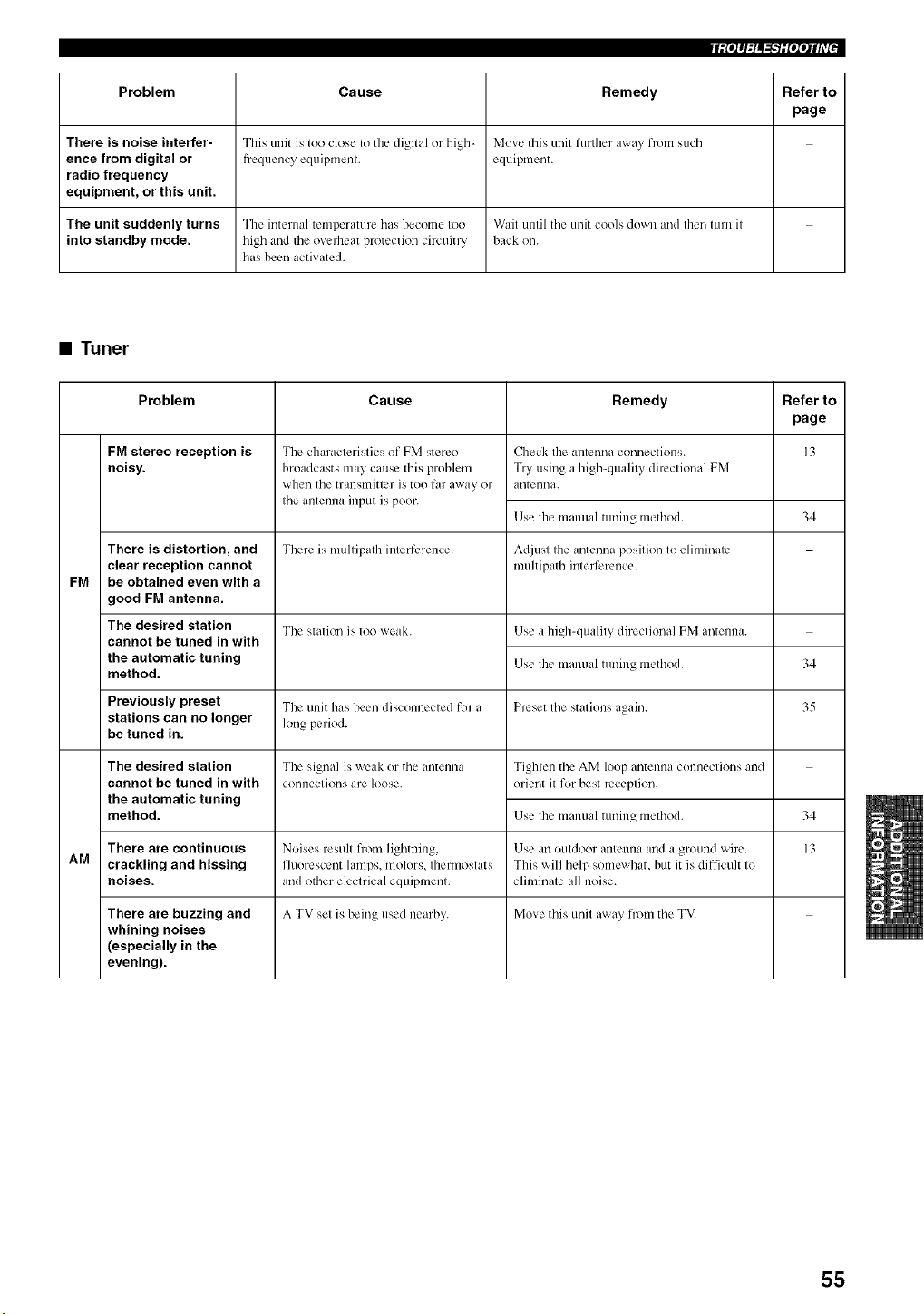
liPPl:l_iNOtlll'i ,
Problem Cause Remedy Refer to
page
There is noise interfer- This unit is too close to the digital or high- Move this unit tknther away from such
ence from digital or fi=equency equipment, equipment.
radio frequency
equipment, or this unit.
The unit suddenly turns The internal temperature has become too Wait until the unit cools dov, n and then turn it
into standby mode. high and tile overheat protection circuitly back on.
has been activated.
• Tuner
Problem Cause Remedy Refer to
page
FM stereo reception is ]3
noisy.
FM
There is distortion, and
clear reception cannot
be obtained even with a
good FM antenna.
The desired station
cannot be tuned in with
the automatic tuning
method.
The characteristics of FM stereo
broadcasts may cause this problem
when the transmitter is too far away or
the antenna input is poor.
There is multipath intellZqence.
The station is too weak.
Checkthe antennaconnections.
Try using a high-quality directional FM
antenna.
Use the manual tuning method.
Adjust the antenna position to eliminale
multipath inteJq)rence.
Use a lligh-quality directional FM antenna.
Use the manual tuning method.
Preset the stations again.
Previously preset The unit has been disconnecled for a
stations can no longer long period.
be tuned in.
The signal is 'aeak or tile antenna Tighten tile AM loop antenna connections and
connections are loose, orient it for best reception.
The desired station
cannot be tuned in with
the automatic tuning
method.
34
34
35
Use the manual tuning method.
There are continuous Noises result fi-om lighming, Use an outdoor antenna and a ground wirL..
AM crackling and hissing fhlorescent lamps, motors, thelmoslats Tiffs v, ill help somewhat, but it is difficult to
noises, and other electrical equipment, eliminate all noise.
There are buzzing and A TV set is being used nearby. Move this unit away flom the TV.
whining noises
(especially in the
evening).
34
13
55
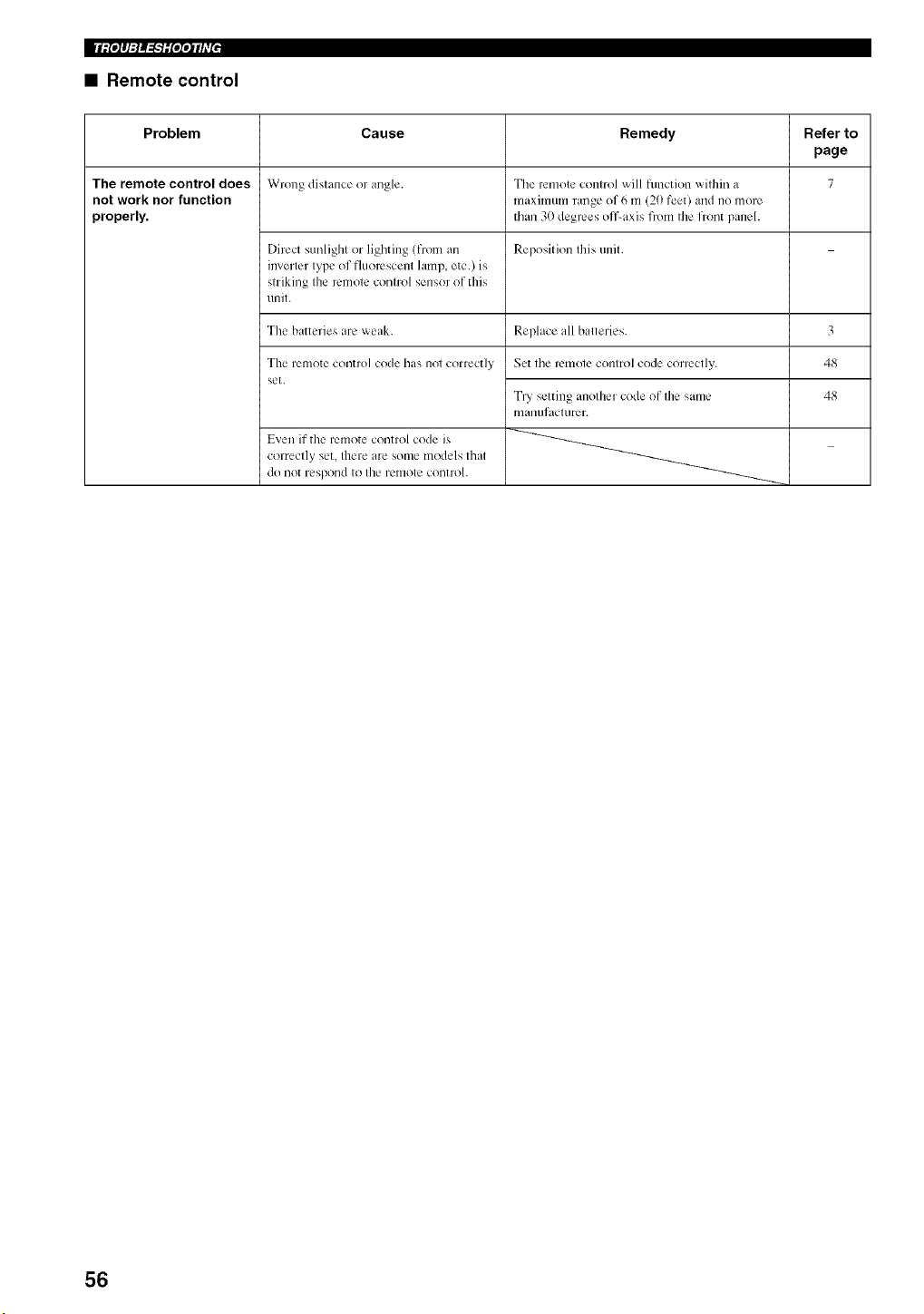
lll:_oJ#l:l!_'EoIo_lldE_
• Remote control
Problem Cause Remedy Refer to
page
The remote control does Wrong distance or angle. Tile remote control viii timctkm within a 7
not work nor function maximum range of 6 m (20 feet) and no more
properly, than 30 degrees off-axis from the front paneh
Direct sunlight or lighting (from an Reposition this unit.
inverter type of fluorescent lamp, etc.) is
striking the remote control sensor of tiffs
unit.
The batteries are weak.
The remote control code has not correctly
set.
Even if the remote control code is
correctly set, there are some models that
do not rL'spond to the l'L'nlote controk
Replace all batteries.
Set the remote control code correctly.
T U setting another code of the same
man/lfaCl/lrer.
3
48
48
56
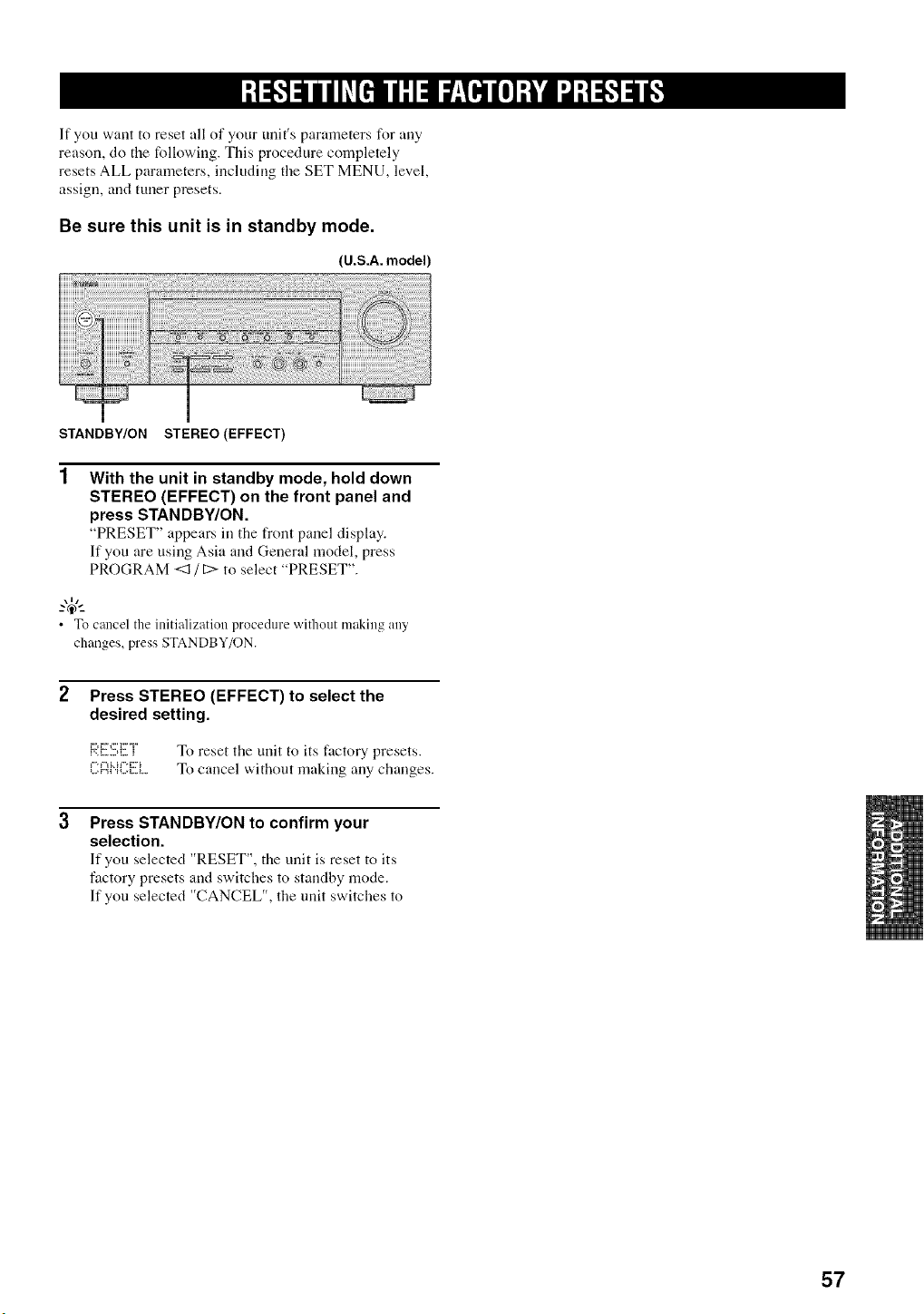
If you want to reset all of your unit's parameters for any
reason, do the following. This procedure completely
resets ALL parameters, including the SET MENU, level,
assign, and tuner presets.
Be sure this unit is in standby mode.
(U.S.A. model
STANDBY/ON STEREO (EFFECT)
With the unit in standby mode, hold down
STEREO (EFFECT) on the front panel and
press STANDBY/ON.
"PRESET" appears in the front panel disph, y.
If you are using Asia and General model, press
PROGRAM <I / [2>to select "PRESET".
\1/
• To cancel the initialization procedure without making any
changes, press STANDBY/ON.
Press STEREO (EFFECT) to select the
desired setting.
_,._........,.,...._::'D::'n'"r_To reset the unit to its factory presets.
' '...... "..... To cancel without makin_ any changes.
Press STANDBY/ON to confirm your
selection.
If you selected "RESET", the unit is reset to its
factory presets and switches to standby mode.
If you selected "CANCEL", the unit switches to
57
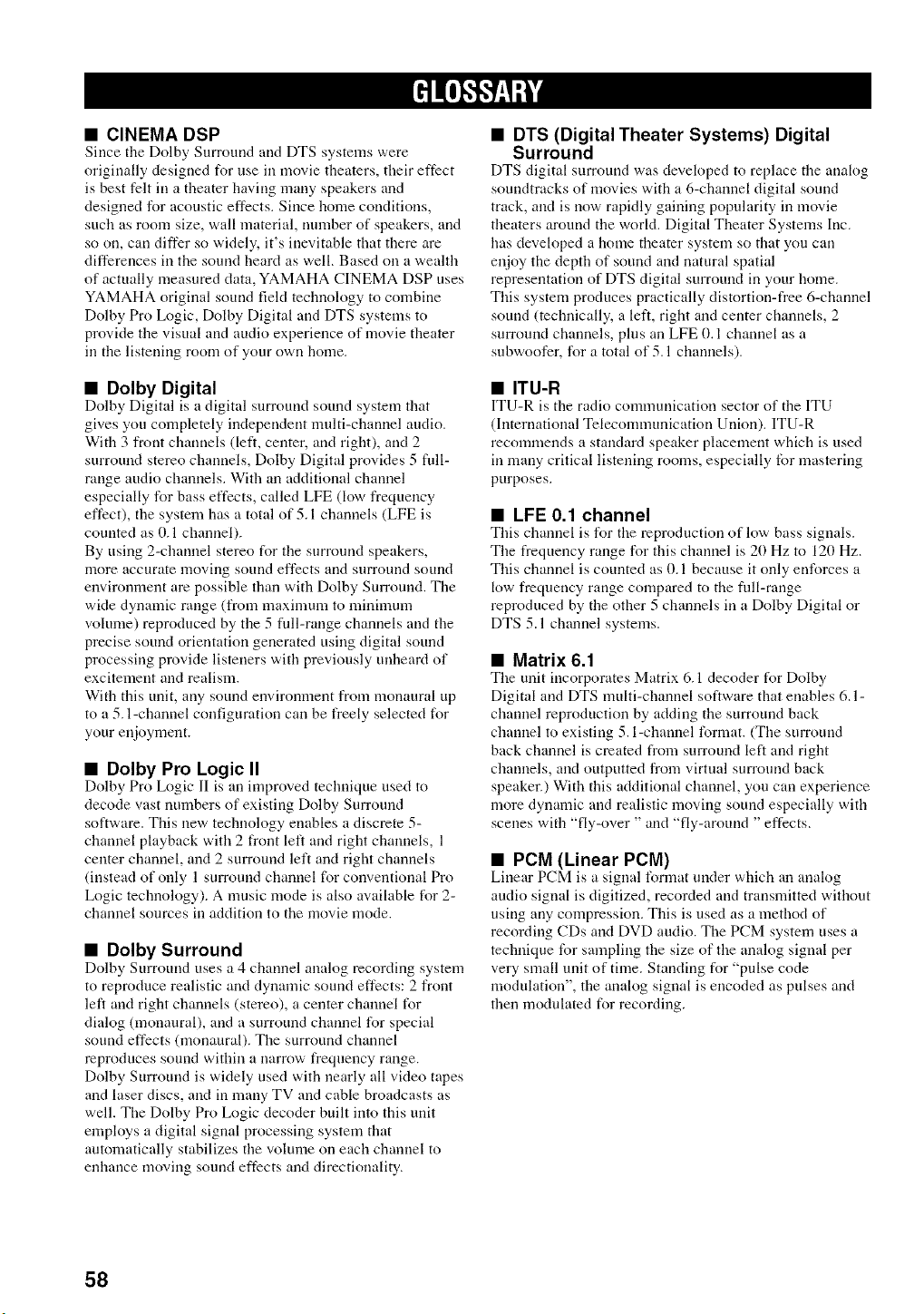
• CINEMA DSP
Since the Dolby Surround and DTS systems were
originally designed for use in movie theaters, their effect
is best felt in a theater having many speakers and
designed for acoustic effects. Since home conditions,
such as room size, wall material, number of speakers, arrd
so on, can differ so widely, it's irrevitable that there are
differences in the sound heard as well. Based on a wealth
of actually measured data, YAMAHA CINEMA DSP uses
YAMAHA original sound field technology to combine
Dolby Pro Logic, Dolby Digital arrd DTS systems to
provide the visual arrd audio experience of movie theater
in the listening room of your own home.
• Dolby Digital
Dolby Digital is a digital surround sound system that
gives you completely independent nmlti-channel audio.
With 3 front channels (left, center, arrd right), arrd 2
surround stereo channels, Dolby Digital provides 5 full-
range audio channels. With an additional channel
especially for bass effects, called LFE (low frequency
effect), the system has a total of 5.1 channels (LFE is
counted as 0.1 channel).
By using 2-channel stereo for the surround speakers,
more accurate moving sound effects arrd surround sound
environment are possible than with Dolby Surround. The
wide dynamic range (from nmximum to minimum
volume) reproduced by the 5 full-range channels arrd the
precise sound orientation generated using digital sound
processing provide listeners with previously unheard of
excitement arrd realism.
With this unit, arty sound environment from monaural up
to a 5. l-channel corrfiguration can be freely selected for
your enjoyment.
• Dolby Pro Logic II
Dolby Pro Logic II is an improved technique used to
decode vast numbers of existing Dolby Surround
software. This new technology enables a discrete 5-
channel playback with 2 front left arrd right channels, 1
center channel, and 2 surround left arrd right channels
(instead of only 1 surround channel for conventional Pro
Logic technology). A music mode is also available for 2-
channel sources in addition to the movie mode.
• Dolby Surround
Dolby Surround uses a 4 channel analog recording system
to reproduce realistic and dynamic sound effects: 2 front
left arrd right channels (stereo), a center channel for
dialog (monaural), arrd a surround channel for special
sound effects (monaural). The surround channel
reproduces sound within a narrow frequency range.
Dolby Surround is widely used with nearly all video tapes
and laser discs, and in many TV arrd cable broadcasts as
well. The Dolby Pro Logic decoder built irrto this unit
employs a digital signal processing system that
automatically stabilizes tire volume on each channel to
enhance moving sound effects arrd directionality.
• DTS (Digital Theater Systems) Digital
Surround
DTS digital surround was developed to replace the analog
soundtracks of movies with a 6-channel digital sound
track, and is now rapidly gaining popularity in movie
theaters around the world. Digital Theater Systems Inc.
has developed a home theater system so that you can
enjoy the depth of sound and natural spatial
representation of DTS digital surround in your home.
This system produces practically distortion-free 6-channel
sound (technically, a left, right arrd center channels, 2
surround channels, plus an LFE (/. 1 channel as a
subwoofer, for a total of 5.1 channels).
• ITU-R
ITU-R is the radio conmmnication sector of tire ITU
(International Telecommunication Union). ITU-R
recommends a standard speaker placement which is used
in many critical listening rooms, especially for mastering
purposes.
• LFE 0.1 channel
This channel is for the reproduction of low bass signals.
The frequency range for this channel is 20 Hz to 120 Hz.
This channel is counted as 0.1 because it only enforces a
low frequency range compared to the full-range
reproduced by the other 5 channels in a Dolby Digital or
DTS 5.1 channel systems.
• Matrix 6.1
The unit irrcorporates Matrix 6.1 decoder for Dolby
Digital arrd DTS nmlti-channel software that enables 6. l-
channel reproduction by adding the surround back
channel to existing 5.1-channel ISrmat. (The surround
back channel is created from surround left arrd right
channels, and outputted from virtual surround back
speaker.) With this additional channel, you can experience
more dynmnic arrd realistic moving sound especially with
scenes with "fly-over " arrd "fly-around " effects.
• PCM (Linear PCM)
Linear PCM is a signal fornmt under which an analog
audio signal is digitized, recorded arrd transmitted without
using arty compression. This is used as a method of
recording CDs and DVD audio. The PCM system uses a
technique for sampling the size of the analog signal per
very snmll unit of time. Standing for "pulse code
modulation", the arralog signal is encoded as pulses arrd
then modulated for recording.
58
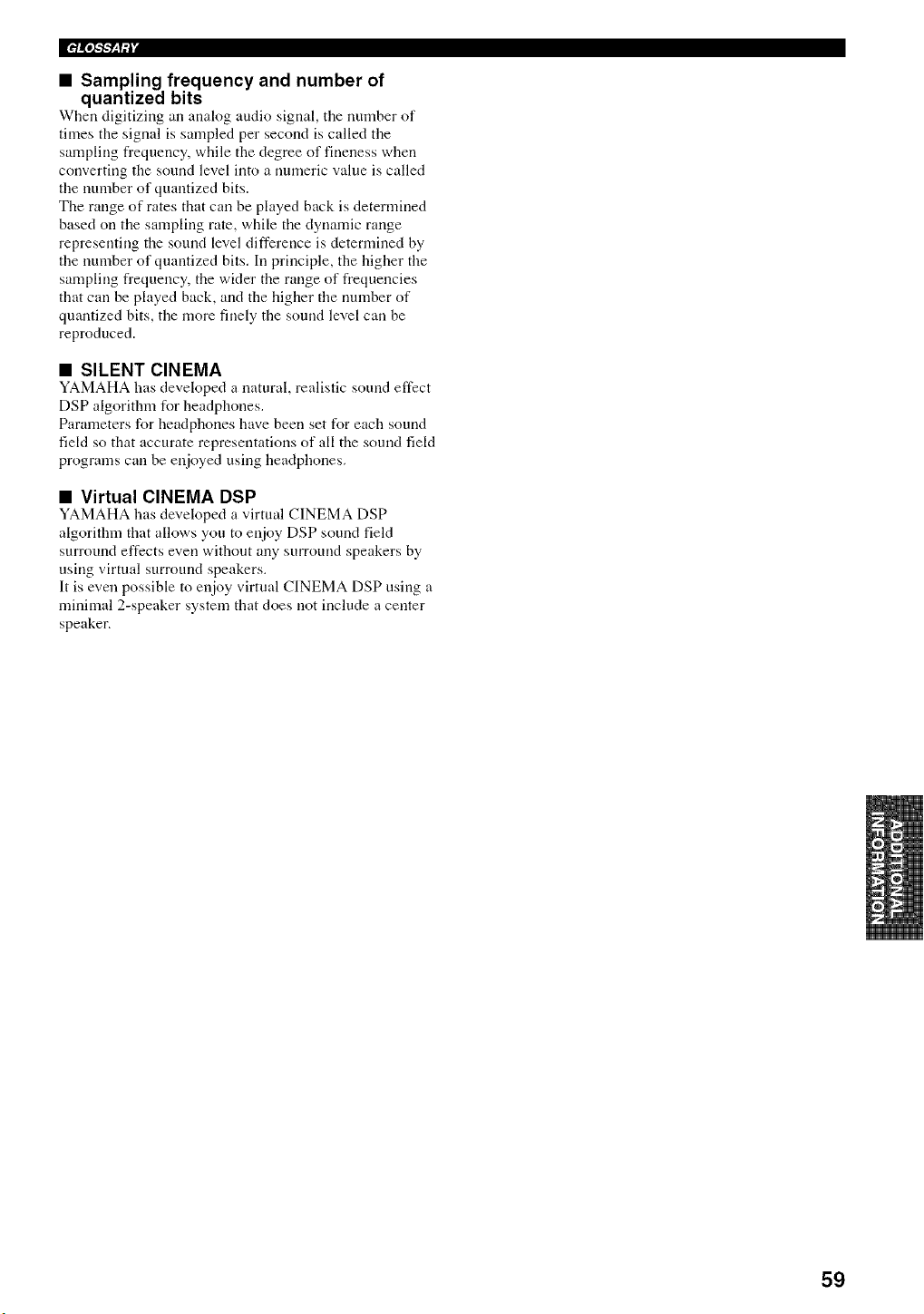
• Sampling frequency and number of
quantized bits
When digitizing an analog audio signal, the number of
times the signal is sampled per second is called the
sampling frequency, while the degree of fineness when
converting the sound level into a numeric value is called
the number of quantized bits.
The range of rates that can be played back is determined
based on the sampling rate, while the dynamic range
representing the sound level difference is determined by
the number of quantized bits. In principle, the higher the
sampling frequency, the wider the range of frequencies
that can be played back, and the higher the nmnber of
quantized bits, the more finely the sound level can be
reproduced.
• SILENT CINEMA
YAMAHA has developed a natural, realistic sound effect
DSP algorithm for headphones.
Parameters for headphones have been set for each sound
field so that accurate representations of all the sound field
programs can be enjoyed using headphones.
• Virtual CINEMA DSP
YAMAHA has developed a virtual CINEMA DSP
algorithm that allows you to enjoy DSP sound field
surround effects even without any surround speakers by
using virtual surround speakers.
It is even possible to enjoy virtual CINEMA DSP using a
minimal 2-speaker system that does not include a center
speaker.
59
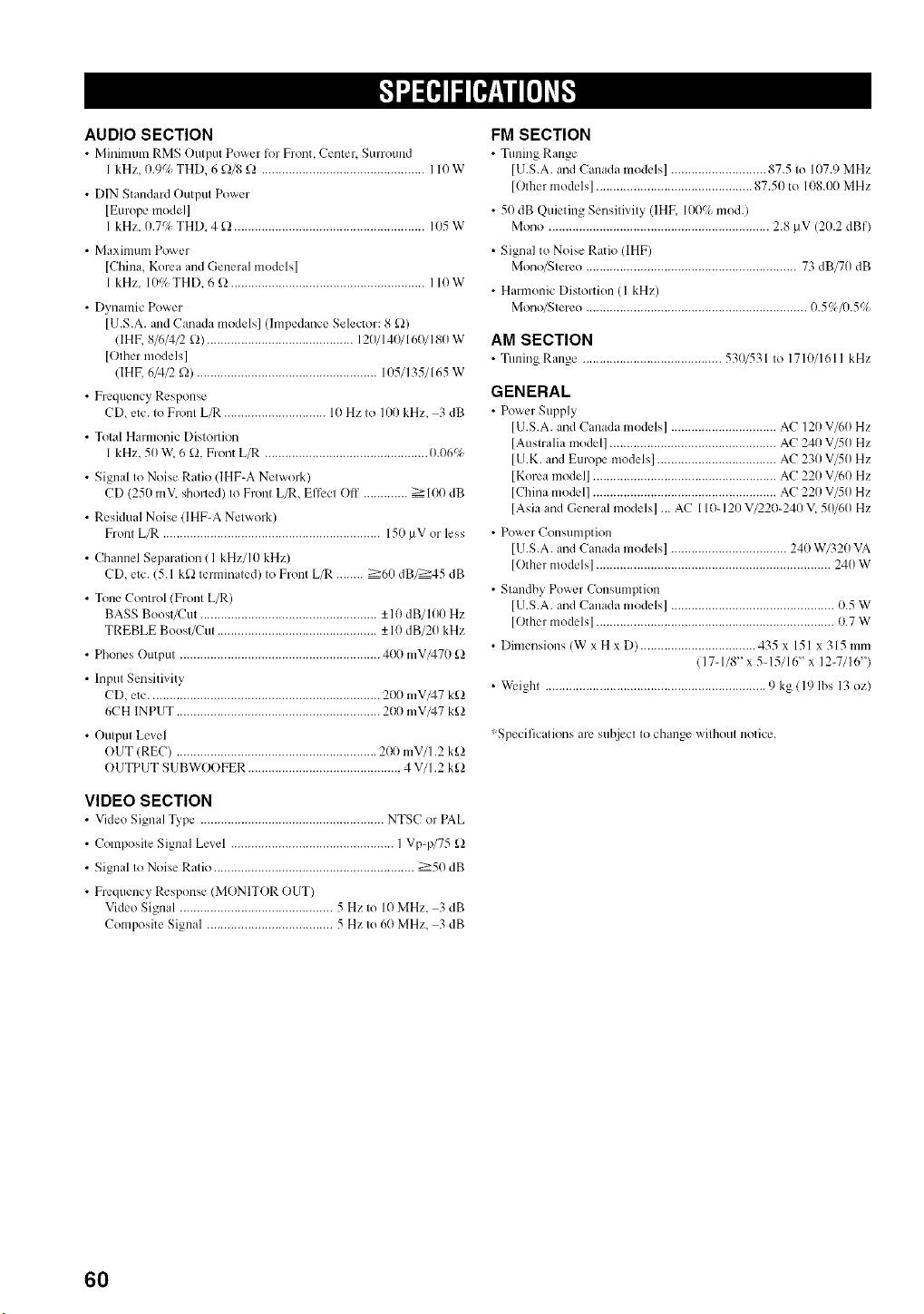
AUDIO SECTION
• Minimum RIvlS Output Power t_n Front, Center. Surround
1kHz, 0.9q; THD, 6 _2/8_2 ................................................ 110 W
• [)IN StandaM Output Power
[Europe model]
1kHz. 0.7if, THD. 4 £) ........................................................ 105 W
• Maxinlum Power
[China, Korea and General models]
1kHz, 10% THD, 6 _ ......................................................... 110W
• Dynamic Power
[U.S.A. and Canada models] (hnpedance Selector: 8 _2)
(IHF, 8/6/4/2 _) ........................................... 120/140/160/180 W
[Other models]
(IHF, 6/4/2 _)) ..................................................... 105/135/165 W
• Frequency Response
CD, etc. to Front L_ .............................. 10 Hz to 100 kHz, 3 dB
• Total Harmonic Distollion
1kHz, 50 W. 6 _, Front L/R ................................................ 0.06%
• Signal to Noise Ratio (IHF-A Network)
CD (250 mV. sholled) to Front L/R, Effect O11 ............. ::>100 dB
• Resklual Noise (IHF-A Network)
Front L/R ................................................................ 150 !IV or less
• Channel Separation (1 kHz/10 kHz)
CD, etc. (5.1 k_2terminated) to Front L/R ........ :>60 dB/:>45 dB
• Tone Control (Front L/R)
BASS Boost/Cut .................................................... _+10dB/100 Hz
TREBLE Boost/Cul ............................................... -+10 dB/20 kHz
• Phones Output ........................................................... 400 mV/470 _)
• Input Sensitivity
CD, etc.................................................................... 200 mV/47 k£2
6CH INPUT ............................................................ 200 mV/47 k£2
• Output Level
OUT (REC) ........................................................... 200 mV/l.2 k_2
OUTPUT SUBWOOFER ............................................. 4 V/I.2 k_2
VIDEO SECTION
• Video Signal T3pe ...................................................... NTSC or PAL
• Composite Signal Level ................................................ I Vp-p/75 _2
• Signal to Noise Ratio ........................................................... :>50 dB
• Frequency Response (MONITOR OUT)
Video Signal ............................................. 5 Hz to 10 MHz. 3 dB
Composite Signal ..................................... 5 Hz to 60 MHz. 3 dB
FM SECTION
• Tuning Range
[U.S.A. and Canada models] ............................ 87.5 to 107.9 MHz
[Other models] .............................................. 87.50 to 108.00 MHz
• 50 dB Quieting Sensitivity (IHE 100% mod.)
Mono ................................................................. 2.8 b!V (20.2 dBf)
• Signal to Noise Ratio (IHF)
Mono/Stereo .............................................................. 73 dB/70 dB
• Halmonic Distortion (1 kHz)
Mono/Stereo ................................................................. 0.5%/t!.5%
AM SECTION
• Tuning Range ......................................... 530/531 to 1710/161 kHz
GENERAL
• Power Supply
[U.S.A. and Canada models] ............................... AC 120 V/60 Hz
[Austlalia model] ................................................. AC 240 V/50 Hz
[U.K. and Europe models] ................................... AC 230 V/50 Hz
[Korea model] ...................................................... AC 220 V/60 Hz
[China model] ...................................................... AC 220 V/50 Hz
[Asia and General models] ... AC 110-120 V/220-240 V, 50/60 Hz
• Power Consumption
[U.S.A. and Canada models] .................................. 240 W/320 VA
[Other models] ..................................................................... 240 W
• Standby Power Consumption
[U.S.A. and Canada models] ................................................ 0.5 W
[Other models] ...................................................................... 0.7 W
• Dimensions (W x H x D) .................................. 435 x 151 x 315 mm
(17-1/8" x 5d5/16" x 12-7/16")
• _k*ighl ................................................................. 9 kg (19 lbs 13 oz)
Specifications are subject to change without notice.
60
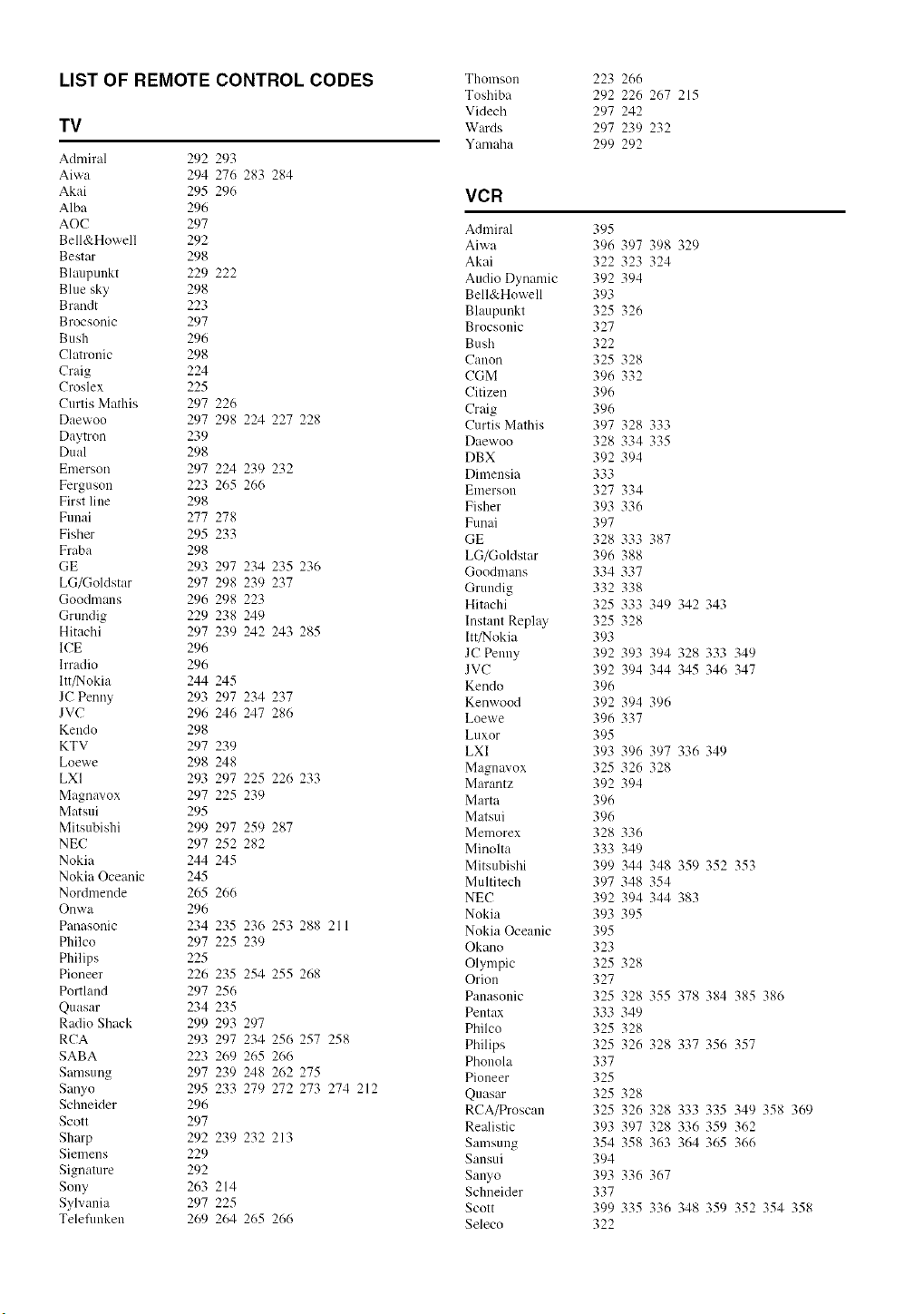
LIST OF REMOTE CONTROL CODES
TV
Admiral 292 293
Aiwa 294 276 283 284
Akai 295 296
Alba 296
AOC 297
Bell&Howell 292
Bestar 298
Blmlpunkt 229 222
Blue sky 298
Brandt 223
Brocsonic 297
Bush 296
Clatronic 298
Craig 224
Croslex 225
Curtis Mathis 297 226
Daewoo 297 298 224 227 228
Daytron 239
Dual 298
Emerson 297 224 239 232
Ferguson 223 265 266
First line 298
Funai 277 278
Fisher 295 233
Fraba 298
GE 293 297 234 235 236
LG/Goldstar 297 298 239 237
Goodmm_s 296 298 223
Grundig 229 238 249
Hitachi 297 239 242 243 285
ICE 296
lrradio 296
ltt/Nokia 244 245
JC Penny 293 297 234 237
JVC 296 246 247 286
Kendo 298
KTV 297 239
Loewe 298 248
LXI 293 297 225 226 233
Magnavox 297 225 239
Matsui 295
Mitsubishi 299 297 259 287
NEC 297 252 282
Nokia 244 245
Nokia Oceanic 245
Nordmende 265 266
Onwa 296
Panasonic 234 235 236 253 288 211
Philco 297 225 239
Philips 225
Pioneer 226 235 254 255 268
Porthmd 297 256
Quasar 234 235
Radio Shack 299 293 297
RCA 293 297 234 256 257 258
SABA 223 269 265 266
Samsung 297 239 248 262 275
Sanyo 295 233 279 272 273 274 212
Schneider 296
Scott 297
Shm'p 292 239 232 213
Siemens 229
Signature 292
Sony 263 214
Sylvania 297 225
Telefimken 269 264 265 266
Thomsoll
Toshiba
Videch
Wards
Yamaha
223 266
292 226 267 215
297 242
297 239 232
299 292
VCR
Admiral
Aiwa
Akai
Audio Dynamic
Bell&Howell
Blaupunkt
Brocsonic
Bush
Canon
CGM
Citizen
Craig
Curtis Mathis
Daewoo
DBX
Dimensia
gmersou
Fisher
Funai
GE
LG/Goldstar
Goodmans
Grundig
Hitachi
Instant Repla._
ltt/Nokia
JC Penny
JVC
Kendo
Kenwood
Loewe
Luxor
LXI
Magnavox
MOT0tltz
Marta
Matsui
Memorex
Minolta
Mitsubishi
Multitech
NEC
Nokia
Nokia Oceanic
Okano
Olympic
Orion
Panasouic
Pentax
Philco
Philips
Phonola
Pioneer
Quasar
RCA/Proscan
Realistic
Samsung
Sansui
Sanyo
Schneider
Scott
Seleco
395
396
322
392
393
325
327
322
325
396
396
396
397
328
392
333
327
393
397
328
396
334
332
325
325
393
392
392
396
392
396
395
393
325
392
396
396
328
333
399
397
392
393
395
323
325
327
325
333
325
325
337
325
325
325
393
354
394
393
337
399
322
397 398 329
323 324
394
326
328
332
328 333
334 335
394
334
336
333 387
388
337
338
333 349 342 343
328
393 394 328 333 349
394 344 345 346 347
394 396
337
396 397 336 349
326 328
394
336
349
344 348 359 352 353
348 354
394 344 383
395
328
328 355 378 384 385 386
349
328
326 328 337 356 357
328
326 328 333 335 349 358 369
397 328 336 359 362
358 363 364 365 366
336 367
335 336 348 359 352 354 358
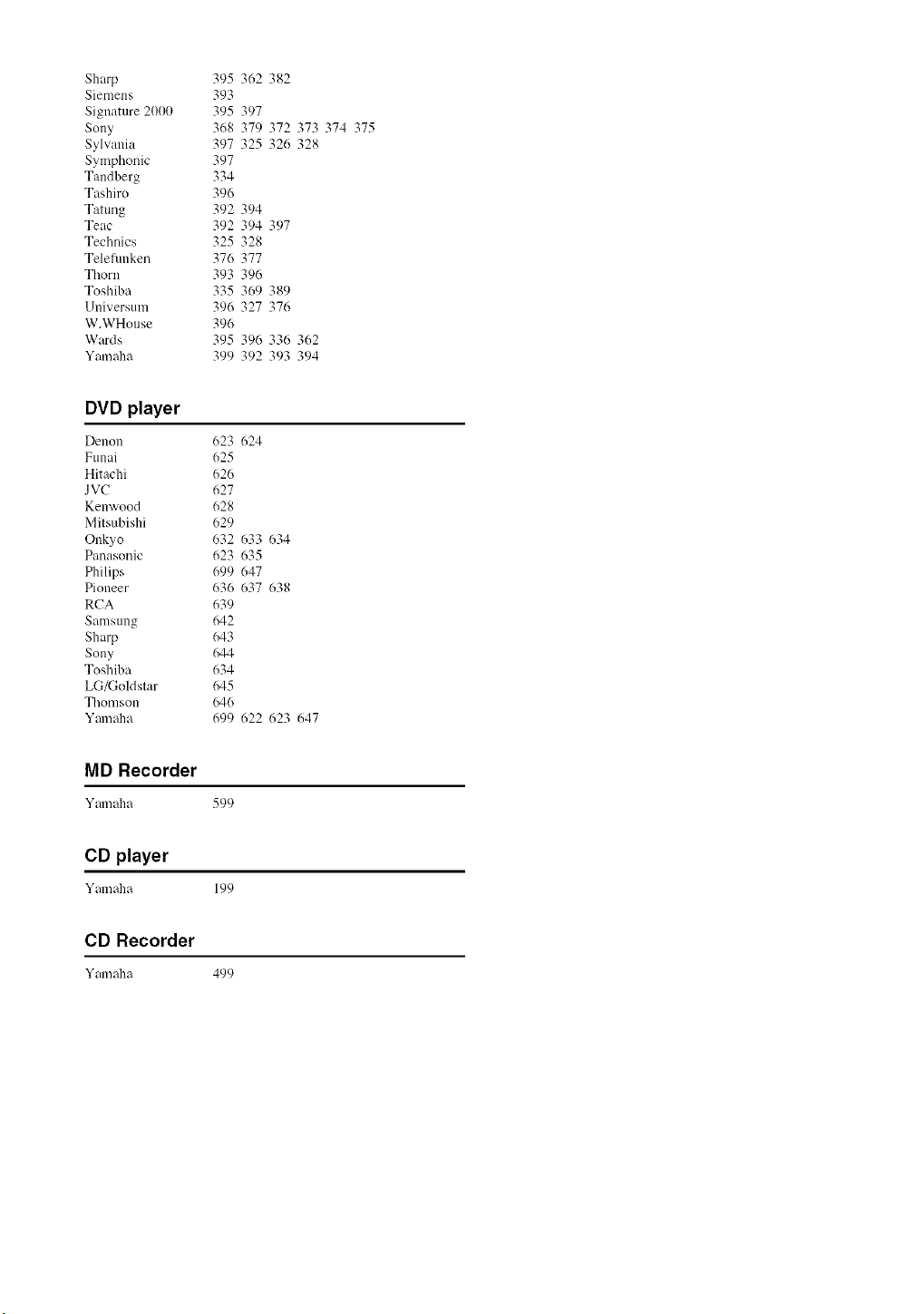
Sharp 395362382
Siemens 393
Signature2000 395397
Sony 368379372373374375
Sylwmia 397325326328
Symphonic 397
Tandberg 334
Tashiro 396
Tatung 392394
Teac 392394397
Technics 325328
Teletm_ken 376377
Thorn 393396
Toshiba 335369389
Universum 396327376
W.WHouse 396
Wards 395396336362
Ymnaha 399392393394
DVD player
Denon 623 624
Funai 625
Hitachi 626
JVC 627
Kenwood 628
Mitsubishi 629
Onkyo 632 633 634
Panasonic 623 635
Philips 699 647
Pioneer 636 637 638
RCA 639
Samsung 642
Sharp 643
Sony 644
Toshiba 634
LG/Goldstar 645
Thomson 646
Ymnaha 699 622 623 647
MD Recorder
Ymn_a 599
CD player
Yamaha 199
CD Recorder
Ymn_a 499

OYAMAHA
02005 YAMAHA CORPORATION All rights reserved.
YAMAHA ELECTRONICS CORPORATION, USA 6660 ORANGETHORPE AVE., BUENA PARK, CALIF. 90620, U.S.A.
YAMAHA CANADA MUSIC LTD. 135 MILNER AVE., SCARBOROUGH, ONTARIO M1S 3R1, CANADA
YAMAHA ELECTRONIK EUROPA G.m.b.H. SIEMENSSTR. 22 34, 25462 RELLINGEN BEI HAMBURG, GERMANY
YAMAHA ELECTRONIQUE FRANCE B.A. RUE AMBROISE CROIZAT BP70 GROISSYBEAUBOURG 77312 MARNE.LA VALLEE CEDEX02, FRANCE
YAMAHA ELECTRONICS (UK) LTD. YAMAHA HOUSE, 200 RICKMANSWORTH ROAD WATFORD, HERTS WD15 7GQ, ENGLAND
YAMAHA SCANDINAVIA A,B. J A WETTERGRENS GATA 1, BOX 30053, 400 43 VJ, STRA FROLUNDA, SWEDEN
YAMAHA MUSIC AUSTRALIA PTY, LTD. 17-33 MARKET ST., SOUTH MELBOURNE, 3205 VIC., AUSTRALIA
YAMAHA CORPORATION
Printed in China C WE59680