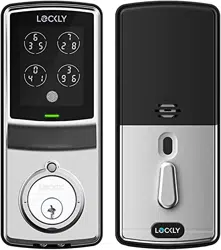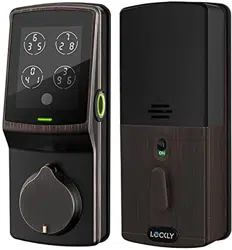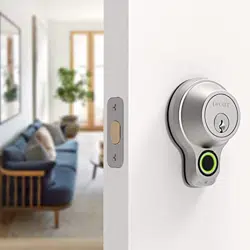
FLEX TOUCH
USER MANUAL

TABLE OF CONTENTS
9
12
13
14
Section 1 - Product Highlights
Section 3 - Using Your Smart Lock
2
3
4
5
6
7
8
1
Section 2 - Product Overview
2.1 Product Overview - Exterior
2.2 Product Overview - Interior
2.3 Getting the Most From Your Lockly
2.4 Pair Lock with Lockly App
2.5 Resetting Your Lock
2.6 Low Battery
2.7 Changing the Battery
1.1 Product Features
3.1 Adding a Fingerprint
3.2 Fingerprint Scanning Directions
3.3 Deleting Stored Fingerprints
3.4 Adding Optional Secure Link
15
16
17
18
19
20
Section 4 - Locking and Unlocking
4.1 Locking/Unlocking Lockly with Fingerprints
4.2 Locking/Unlocking Lockly with App
4.3 Locking/Unlocking Lockly with Physical Key
4.4 Locking/Unlocking with Voice Assistant
4.5 Rain Mode
4.6 Welcome Mode
21
23
24
25
Section 5 - Advanced Features
Section 6 - Important Notes
Section 7 - Cleaning Tips
Section 8 - Safety Precautions
5.1 eBadge
Table of Contents

SECTION 1.11
Advanced 3D Fingerprint Recognition
Biometric Fingerprint Recognition protocol stores up to 99 unique fingerprints.
Accepts only actual fingerprints (no copies or lifted prints) for extra security.
Auto Lock Feature
Never worry that you forgot to lock your door. Custom auto lock feature can be set to
automatically lock 5 seconds up to 5 minutes after unlocking, making sure your door is
always secure.
External Battery and Physical Key Backup
Open with physical backup keys or access externally with emergency power
backup via 9V battery that attaches to external contacts and your registered
fingerprint.
Access Profile Duplication
Allows time saving, secure copying and pasting through the Lockly app of dupli-
cate fingerprint and eKey profiles from one lock to another lock.
Multi-door Locking Mode
Easily program all your Lockly smart locks to lock simultaneously with one touch
using the Lockly app, Amazon Alexa or Google Assistant.*
SmartSync Monitoring
Check real-time* door status and access history on your smartphone with Lockly
mobile app or through Lockly/OS™ online tool anytime, from anywhere.
1.1 Product Features
*Requires optional Secure Link Wi-Fi Hub (sold separately - www.Lockly.com)
For additional support scan
or visit Lockly.com/help
or email [email protected]
SECTION 2.1
2
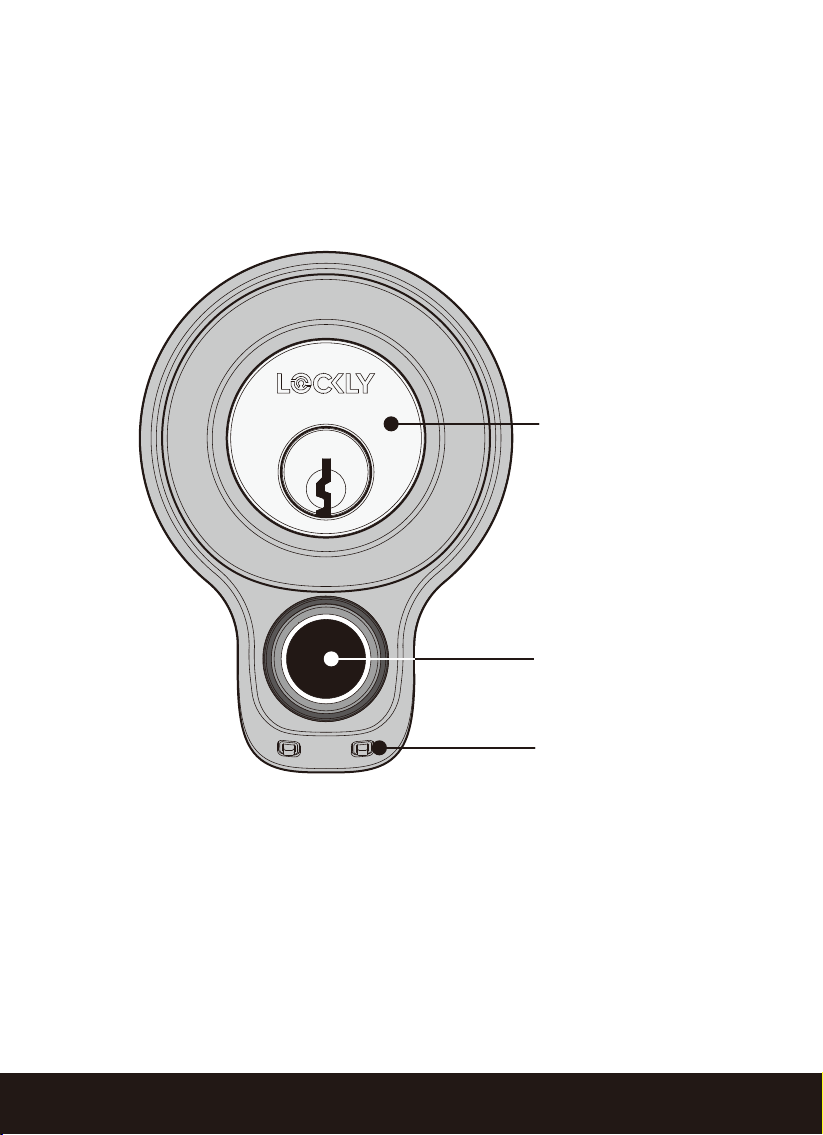
2.1 Product Overview - Exterior
Key Cylinder
9V Backup Contacts
Fingerprint Sensor
SECTION 2.23
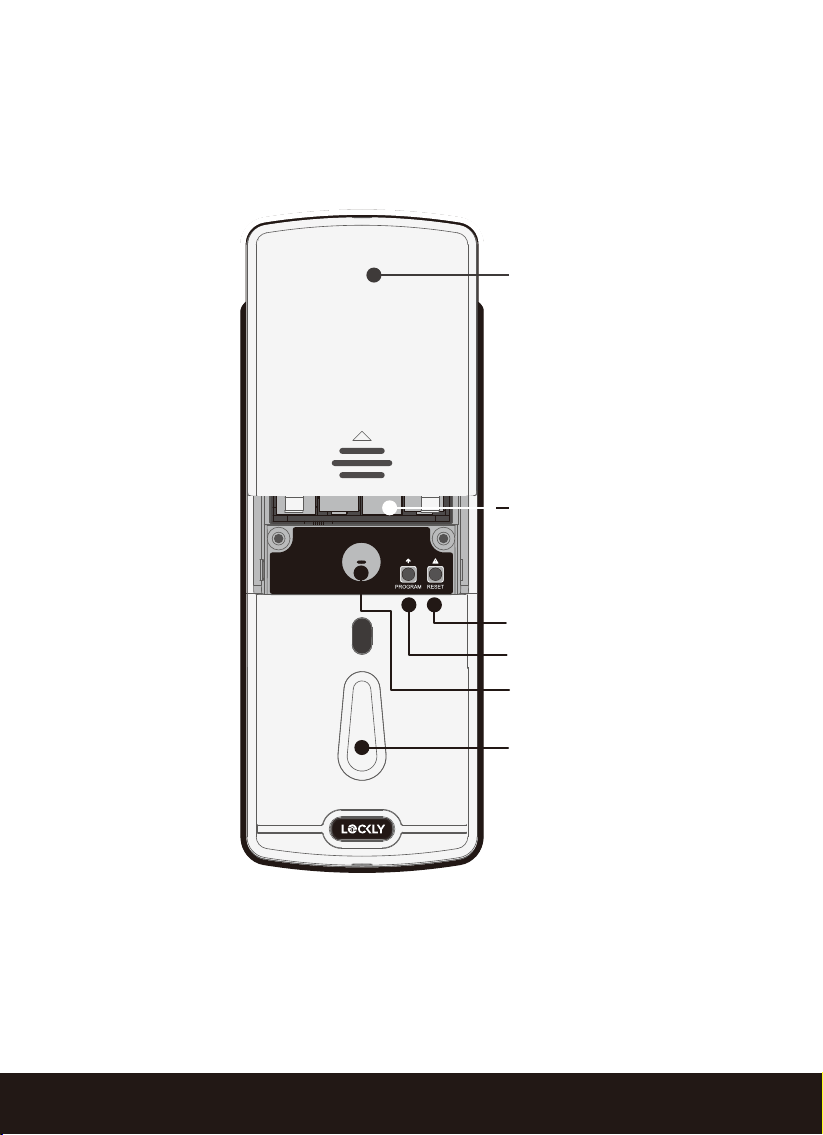
2.2 Product Overview - Interior
Battery Compartment
(4 x AA Alkaline Batteries)
Battery Cover
Thumb-turn
Alert (beep) speaker
Reset Button
Program Button
SECTION 2.3
4
Get the Free App
scan or visit
Lockly.com/app
Lockly
FLEX
TOUCH
Thanks for purchasing your new Lockly. To get the most out of your lock be sure to
read completely through this manual to learn all of its features and capabilities.
Lockly smart locks are at their full potential when used with the free Lockly app.
Be sure to download to take advantage of all of the connected features.
If you have any questions or need help contact customer care at [email protected]
or online Lockly.com/help
To speak to a customer care representative, call (669) 500 – 8835 Monday to Friday,
from 11 AM to 7 PM PST
You can also send an email to [email protected]
2.3 Getting the Most From Your Lockly
SECTION 2.45
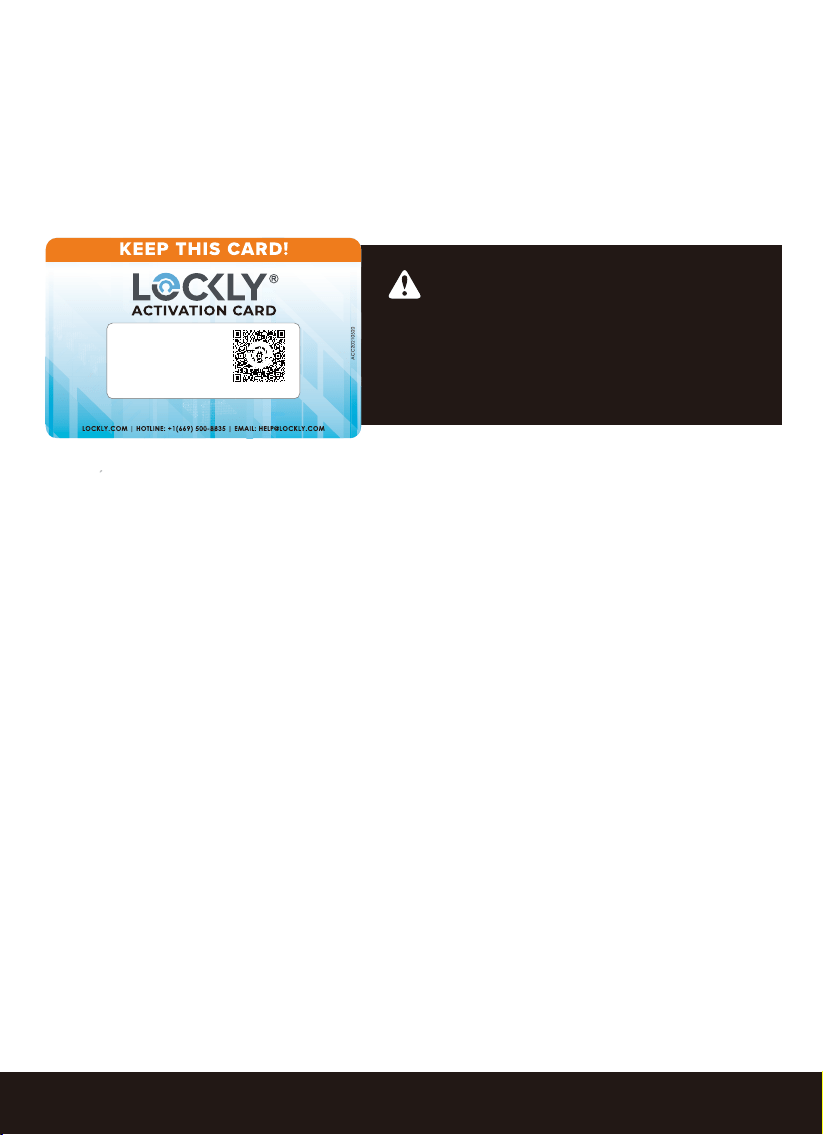
To pair your lock with the free Lockly mobile app, you must have your
Activation Code available. The Activation Code is specific to your lock and is
located on the Activation Code Card included with you smart lock.
2.4 Pair Lock with the Lockly App
1. If you have not, download the Lockly app from the App Store or on Google Play.
2. Open the App and create an account, or log into your existing account.
3. Select set up a new device.
3. Stand within Bluetooth range (10/ft or less) of lock and choose lock model you
wish to pair.
4. Turn on your Bluetooth through your phone settings and select start connecting
5. Choose the lock you wish to pair (e.g. Lockly Flex Touch) and select Yes
Continue to follow on-screen instruction to complete pairing and set-up.
The Activation Code is unique to
each specific lock. DO NOT LOSE IT. Keep
it in a safe place, as you will not be able to
re-pair or reset your lock without it.
SCAN & SAVE
LOCK SERIAL
ACTIVATION CODE
PGDXXXXXXXXXXXXXXXX
XXXXXXXX
SECTION 2.5
6
2.5 Resetting Your Lock
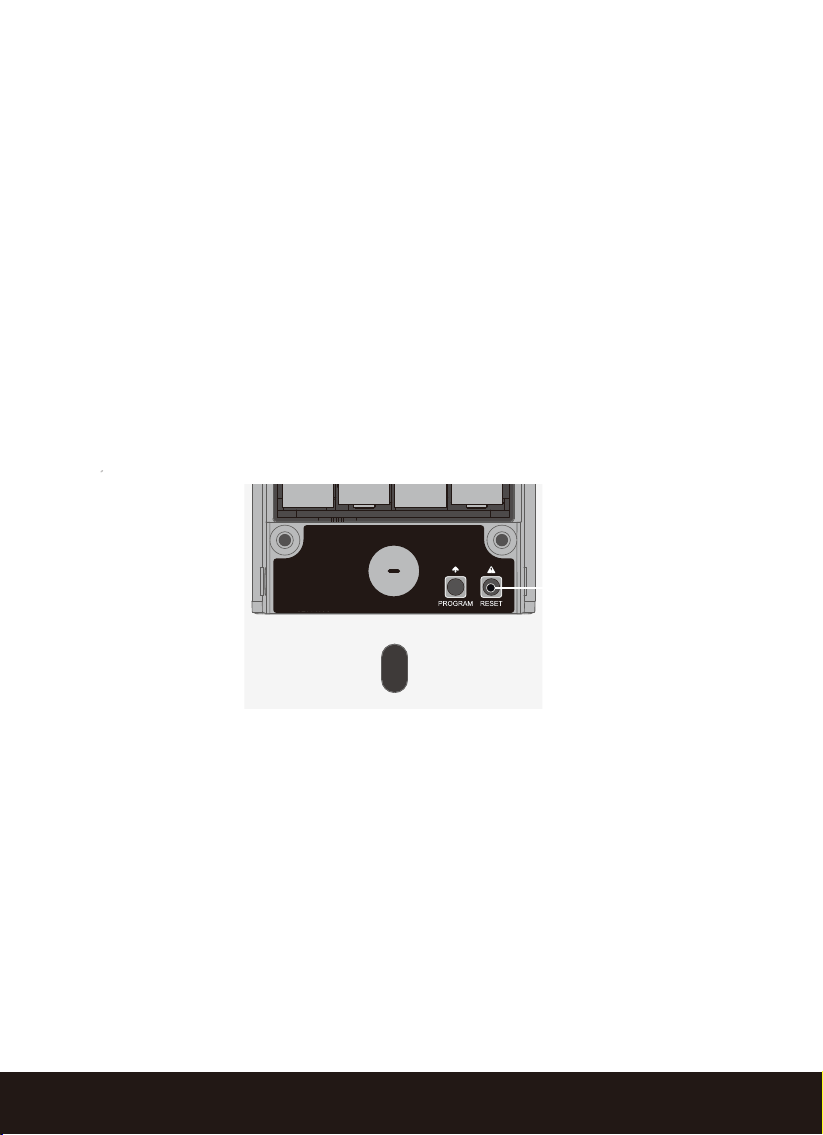
Press Reset Button for one (1) second or till you hear a short beep
See page 5 for re-pairing your lock to the Lockly app
In order to restore your lock to factory default settings, you must have your
“Activation Code” available. The Activation Code is specific to your lock and is
located on the Activation Code Card included with you smart lock, see page (5).
To reset, push the reset button located under the battery cover, in the lower right
corner. WARNING: once the smart lock has been reset, all previously stored data
will be deleted.
To add your lock to the mobile app have your activation code available and refer
to “Pair Lock with Lockly app” on page 5.
Reset Button
Under battery cover
SECTION 2.67
_
+
9V
Alkaline
battery
Lockly Flex Touch will notify you with a continuous beep that it's time to change the
batteries before they reach critical level. You should replace the batteries
imme-
diately
to avoid the lock from shutting down and auto locking.
If you do not change the batteries after hearing the low battery warning alert
beeps, the alert will eventually stop. You will then have 3 chances to unlock using
your fingerprint. If unlocking was successful, the low battery warning alert will come
back on for one minute. The lock will then auto-lock (within 5 seconds) and return
to low battery mode.
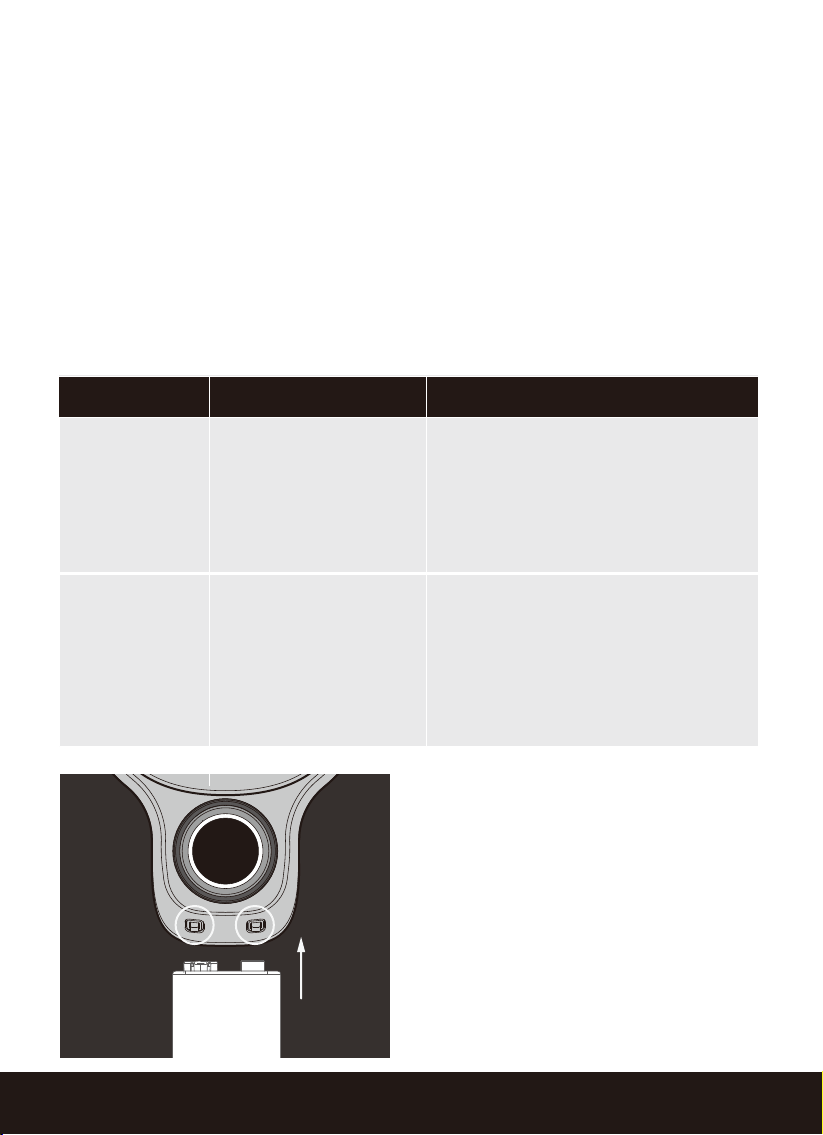
Dead Battery
Condition Indicator Solution
Low Battery
Low battery warning
alert (continuous
beep).
Replace batteries immediately to
avoid battery failure. Lock may
still operate for a short period (up
to 300 cycles) in low battery
condition.
When there is no
alarm sound(conti-
nuous beep)and
fingerprint access is
non-functional.
Replace batteries immediately.
Supplied physical backup keys
can be used to unlock the door.
Alternatively, use a 9V battery as
shown below to temporarily
activate the lock.
Hold a 9V alkaline battery against
the contact points located at the
bottom front side of the lock hold to
activate the fingerprint reader and
scan a registered fingerprint to
unlock.
Once unlocked, replace
batteries
immediately.
2.6 Low Battery Alert
SECTION 2.7
8
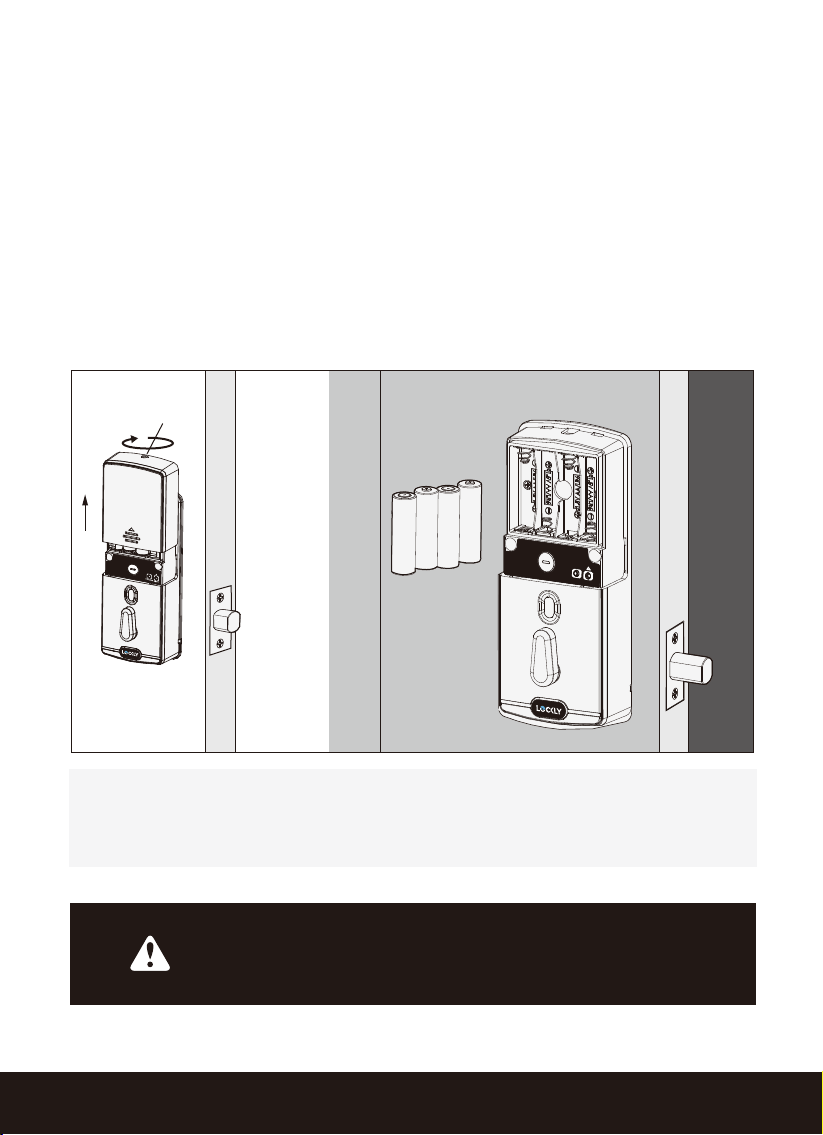
2.7 Changing Batteries
• Make sure the batteries are correctly oriented.
• Replacement of batteries does not affect programmed data.
• Replace only with new batteries. DO NOT mix with used batteries.
Whenever batteries are replaced, reconnecting the
smart lock to your smartphone app is required.
To downloaded the app, visit:Lockly.com/app
Under normal use, batteries can last up to a year. Check batteries
regularly and change right away when the low battery alarm
notification is heard. As a best practice, always use new, major
brand, alkaline batteries.
Open the battery compartment cover by unscrewing the screw
located on the top of the cover and sliding the cover up. Install
four (4) new AA alkaline batteries as shown. Reinstall cover and
tighten screw.
+
+
-
+
-
-
+
-
Screw
RESET
PROGRAM
SECTION 3.1
9
3.1 Adding a Fingerprint
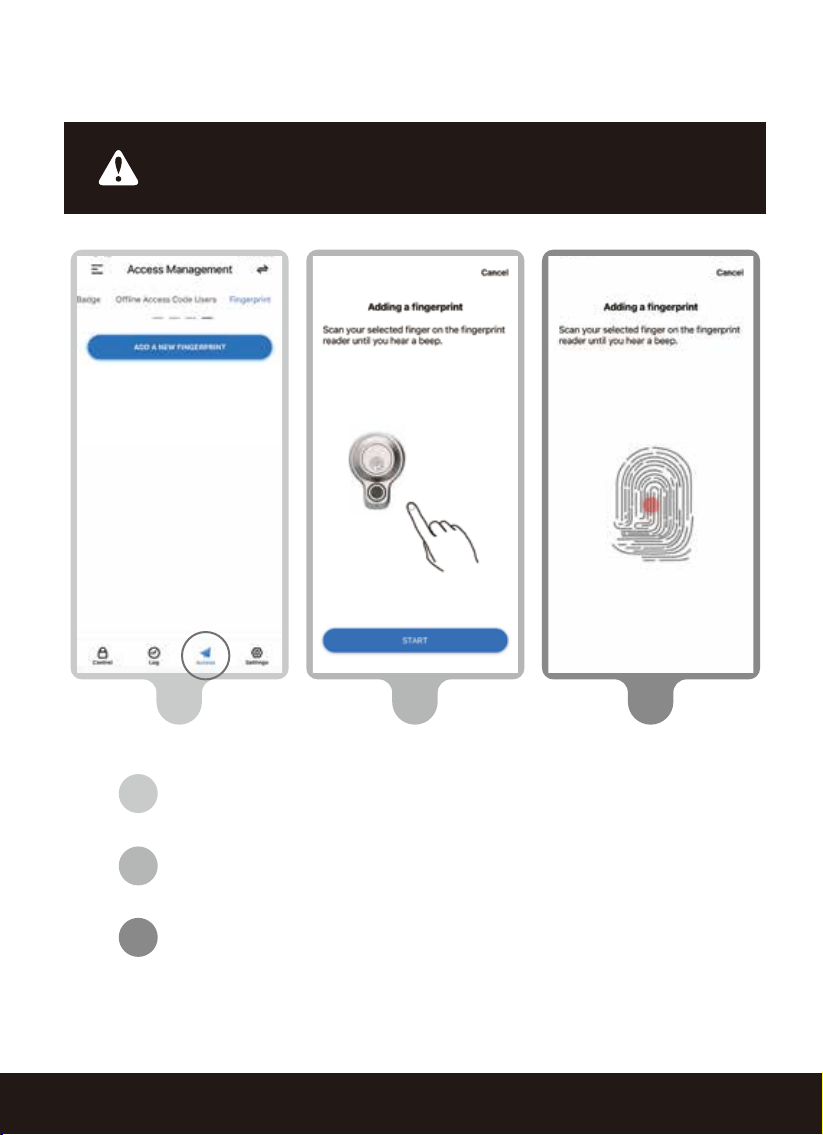
Lockly Flex Touch can store up to 99 fingerprints. Fingerprints are added and
registered using the free Lockly app for iOS or Android. Download the Lockly app
from the App Store or on Google Play then register a new fingerprint under Access
> Fingerprint and follow the on-screen prompts.
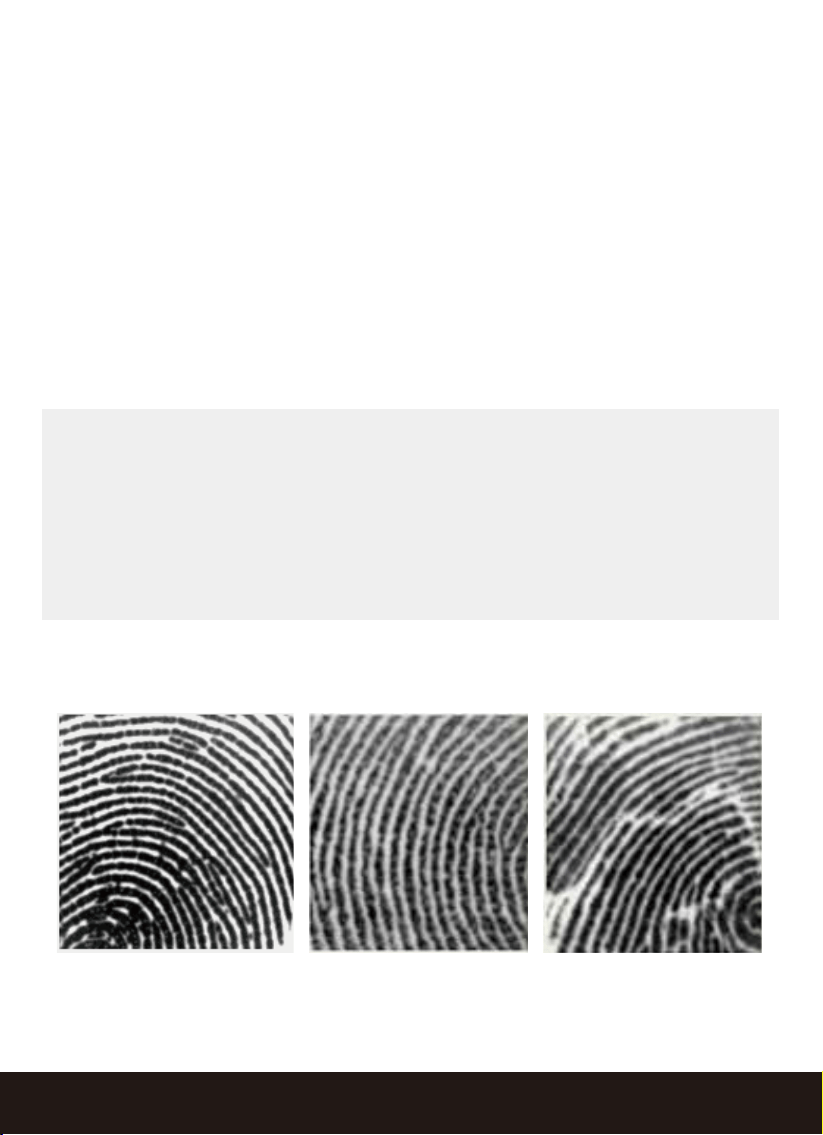
Lockly uses an advanced biometric sensor, providing the most secure fingerprint
authentication. For security reasons, the sensor only accepts fingerprint patterns
that consist of cross intersection points. Patterns with no cross intersection points are
not acceptable.
TIP: check your fingers before registration to make sure the finger you want to
register will be acceptable. If not, use an alternate finger to ensure successful
registration. The following examples show which types of fingerprint patterns
are acceptable. It is highly recommended to enroll at least one finger from
each hand in case the hand you are using is unavailable, (e.g., holding items
in that hand or finger is injured and/or covered.
Fingerprint pattern with
cross intersection lines
Concentric or parallel pattern
with no cross intersection lines
Fingerprint with scars or
worn out ridges
OK Not OK Not OK
SECTION 3.110
On the Lockly app, select the Lockly Flex Touch you wish to
add a fingerprint. Go to Access > Access Management >
Access > Fingerprint.
Select the finger you wish to register and tap "Start.”
Scan your selected finger until you hear a beep indicating
your fingerprint has been successfully registered.
Continued...
3.1 Adding a Fingerprint (Continued)
Make sure fingers and sensor are clean and free of dirt, oil, water,
sweat, or any other moisture or foreign material. Sensor can be
cleaned by wiping with a lint-free microfiber cloth.
3
2
2
1
3
1
SECTION 3.1
11
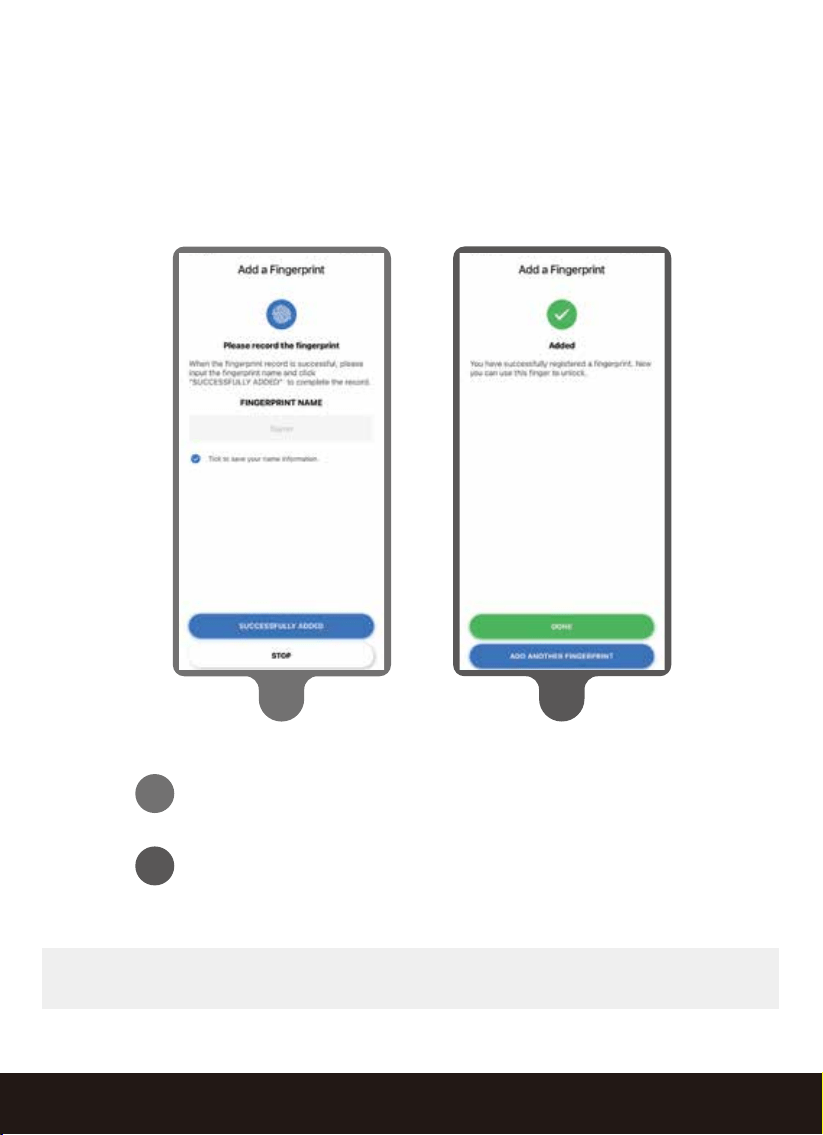
TIP: Scan the same finger more than once to increase accuracy.
Enter a Fingerprint name to save the profile, then tap
"Successfully Added"
Tap "Add Another Fingerprint" to register additional fingers
or tap "Done" .
4
5
4
5
3.1 Adding a Fingerprint (Continued)
SECTION 3.212
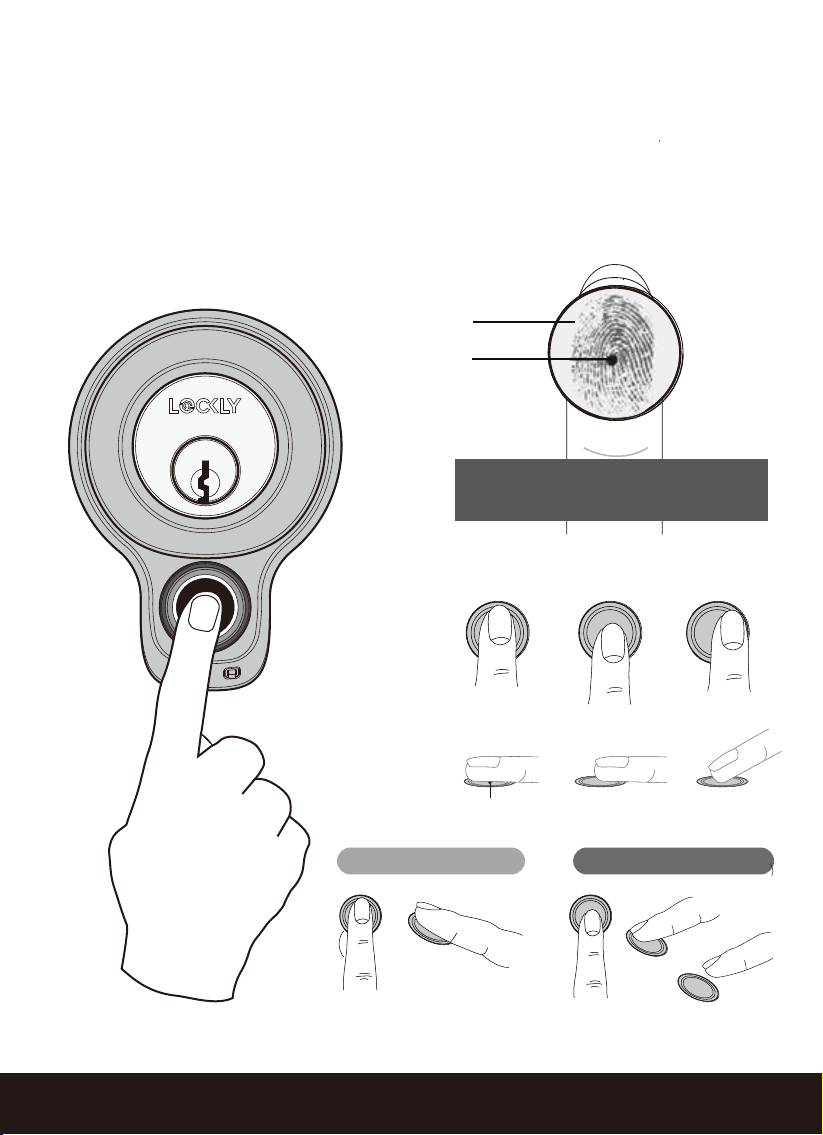
Lockly fingerprint sensors use powerful fingerprint reading algorithms that are able
to detect most fingerprints accurately and quickly, even in less than ideal condi-
tions. Knowing how to place your finger on the sensor correctly helps with consis-
tent and fast recognition.
3.2 Fingerprint Scanning
Sensor
Core
Position your finger on the
Center of the sensor
Top View
Side View
OK
OK
X
X
X
X
Correct
Incorrect
SECTION 3.3
13
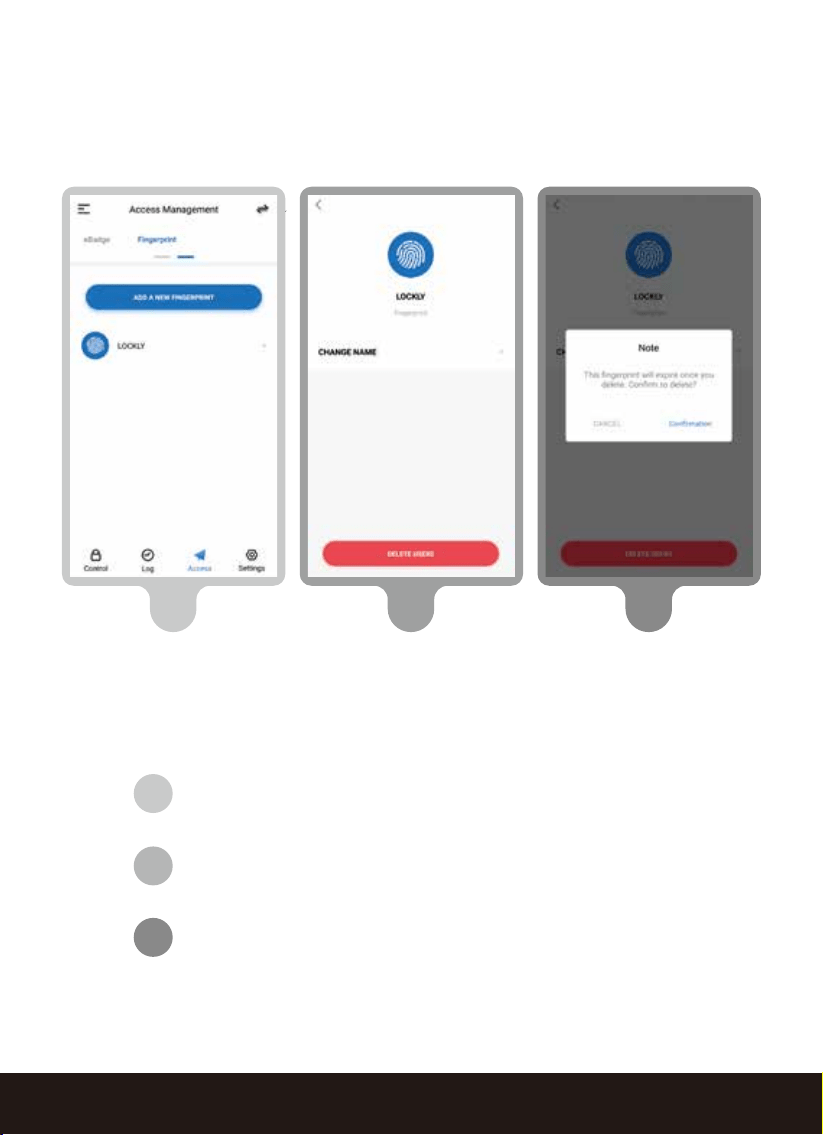
On the Lockly app, select the Lockly Flex Touch you wish to
delete a fingerprint on. Go to Access Management > Fingerprint.
Select the fingerprint by name you wish to delete.
Select [DELETE USER] at bottom.
Confirm. Once a registered fingerprint has been deleted it
cannot be recovered. You will need to re-register the finger
as a new fingerprint to restore.
2
1
3
3.3 Deleting Fingerprints
1 2 3
SECTION 3.414
3.4 Adding Optional Secure Link Wi-Fi hub
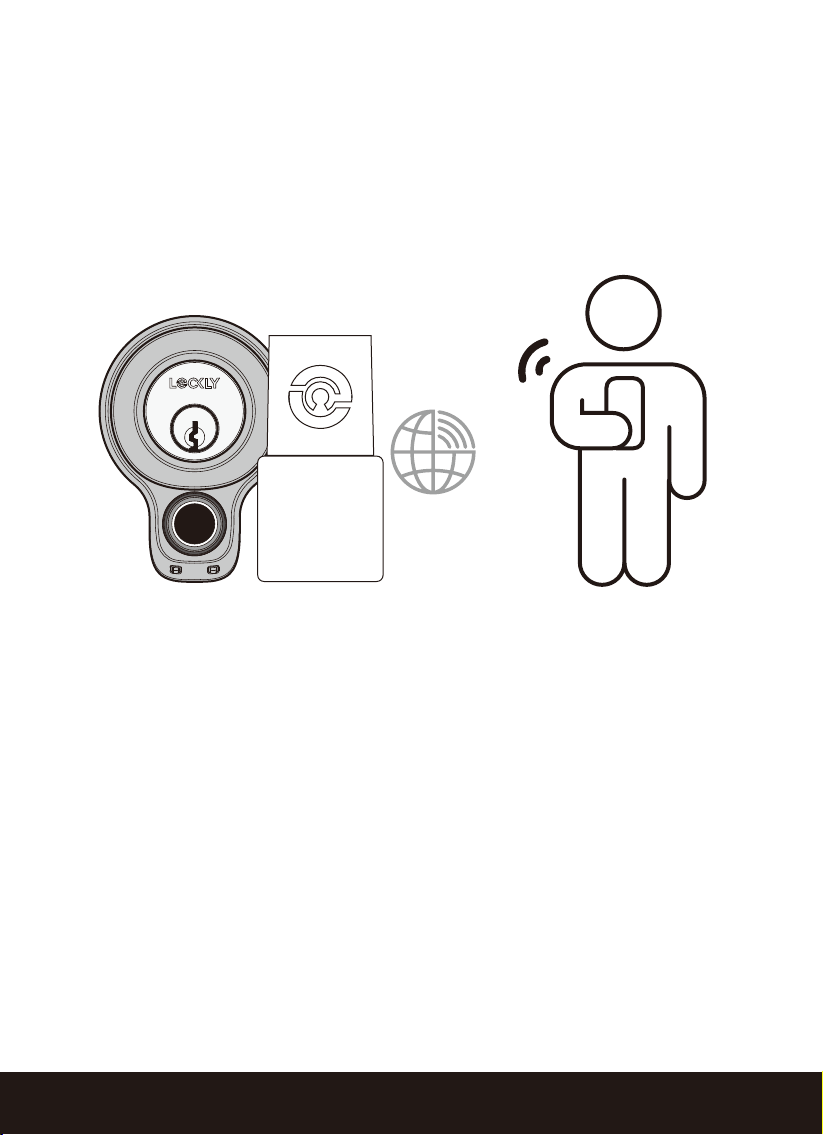
Add Wi-Fi capability by adding the Lockly Secure Link Wi-Fi Hub. Securely
control and manage your door from anywhere, anytime. Remotely lock or
unlock, check door status, grant guest eKeys, Offline Access Codes™, and
see who's coming and going, all from the convenience of your smart-
phone. The hub also enables voice control allowing you to use your Alexa
or Google Assistant-enabled devices.
To set up the Lockly Secure Link and Door Sensor, launch the
Lockly
App, from
the main menu drop down located on the upper left of the screen, select
“Add a New Device” then select “Secure Link Wi-Fi Hub”. Follow the in-app
instructions. To activate voice commands, you will need the Google Home
Assistant or Amazon Alexa device with Actions (Google) and Skill (Amazon)
added before you can configure voice commands.
Secure Link Wi-Fi Hub
Available online at: Lockly.com/hub
SECTION 4.1
15
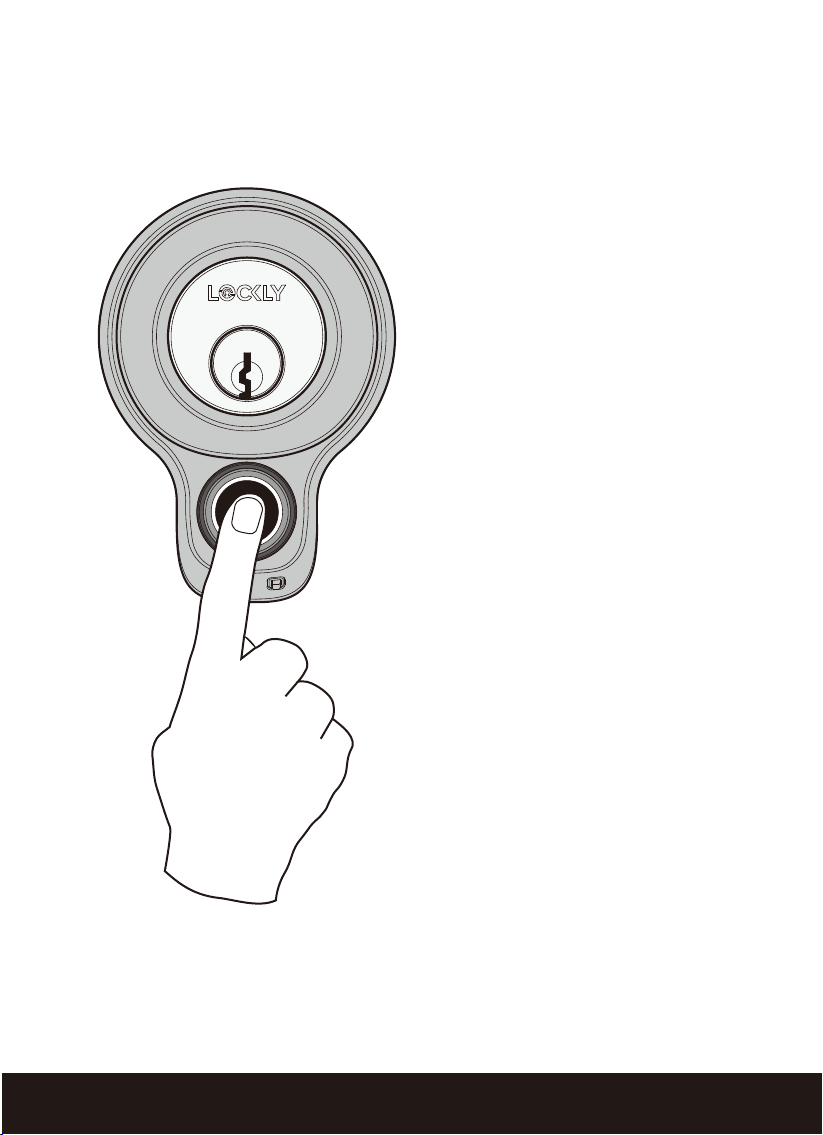
Place a registered finger (to register
see section 3.1.) to the fingerprint
scanner on the low exterior of the
lock.
If your fingerprint is acknowledged,
you will hear a “beep” a green LED
will light, and the deadbolt will
unlock.
If you see a red LED, it means your
fingerprint is not recognized. Wait
until the red LED turns off, then try
again.
See Section 3.2. for tips on best
fingerprint scanning practices
4.1 Locking/Unlocking with Finger
To lock, press the fingerprint
sensor anytime when the door is
closed.
Locking
Unlocking
SECTION 4.216
4.2 Locking/Unlocking with App
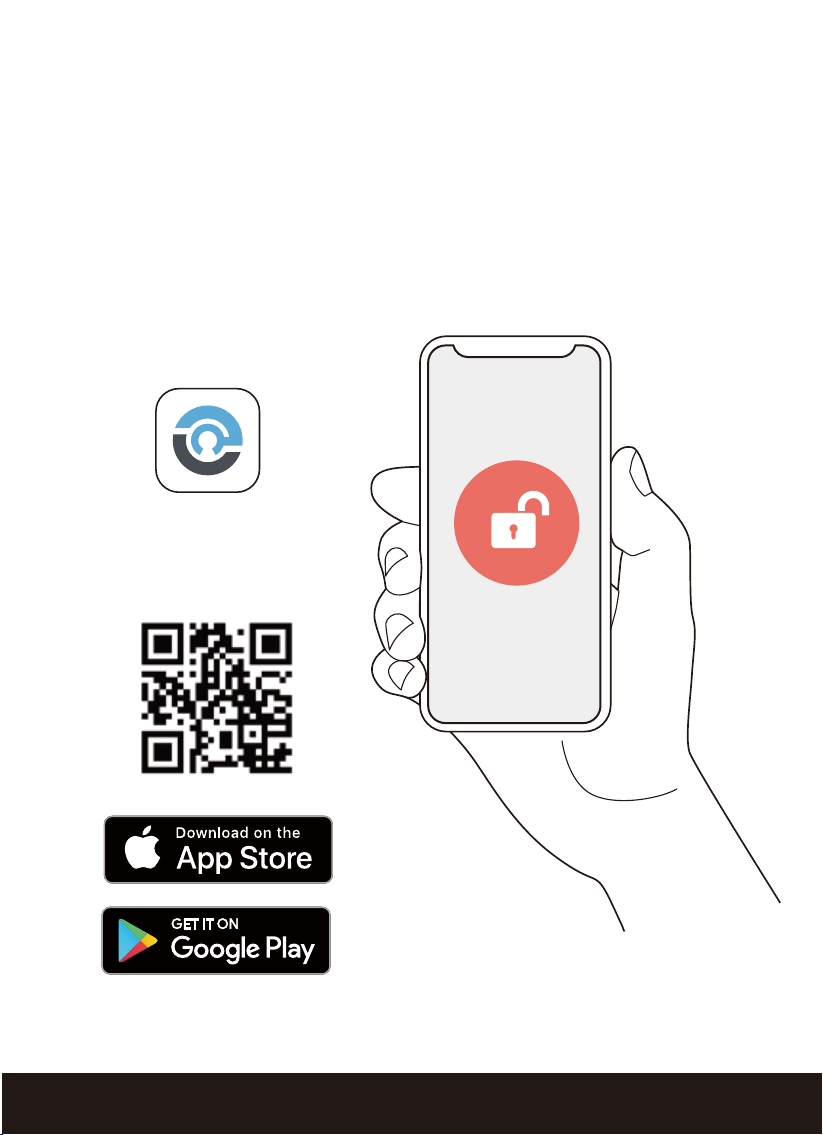
Open the Lockly app and select your lock (e.g., Lockly Flex Touch) tap the lock or
unlock icon.
You will also need the app in order to lock and unlock with your Amazon Alexa or
Google Assistant-enabled devices. To download, visit the link below or search
“Lockly” in the App Store or on Google Play.
Scan or visit
Lockly.com/app
SECTION 4.3
17
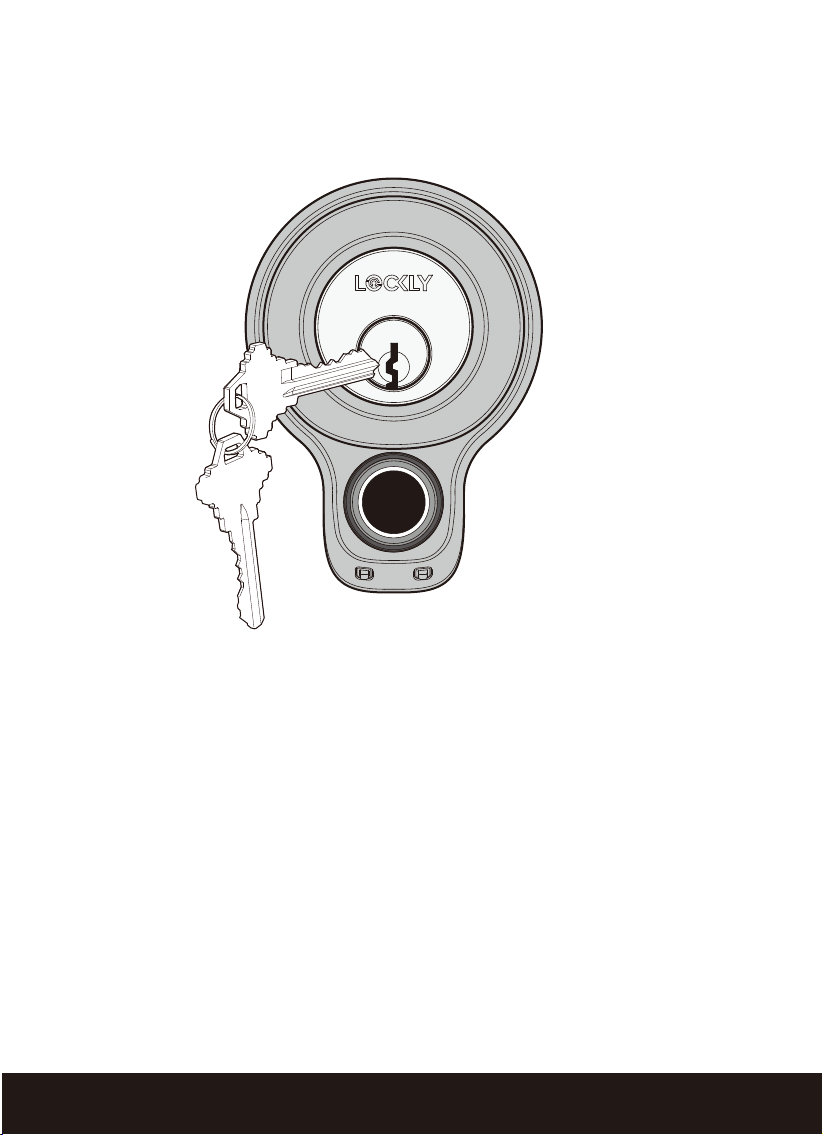
4.3 Locking/Unlocking with Physical Key
To unlock your lock using the physical key (included), insert your key and
turn clockwise or counter clockwise to lock or unlock the door.
SECTION 4.418
4.4 Locking and Unlocking with Voice Assistants
Lockly Flex Touch can be used with your Amazon Alexa or Google Assistant-enabled
devices with the addition of the optional Lockly Secure Link Wi-Fi Hub. Once
installed and configured properly to your lock, make sure you enable the Lockly
Action on Google or the Amazon Alexa Skill before performing voice commands.
Once configured, you can ask questions such as door status or requests for your
door to be locked or unlocked.
EXAMPLES:
*Unlock requests require additional voice security codes that can be configure in the Lockly app settings.
- Alexa, unlock my Front Door.*
- Alexa, is my Front Door locked?
- Alexa, lock my Front Door.
- Alexa, is my Front Door unlocked?
- “Hey Google, unlock the Back Door”
- “Hey Google, is the Back Door locked?”
- “Hey Google, lock the Back Door”
- “Hey Google, is the Back Door unlocked?”
Pre-setup is required in the Google Home
app in order for these queries to work. The
user would need to the name the lock
"Back Door" or as appropriate.
SECTION 4.5
19
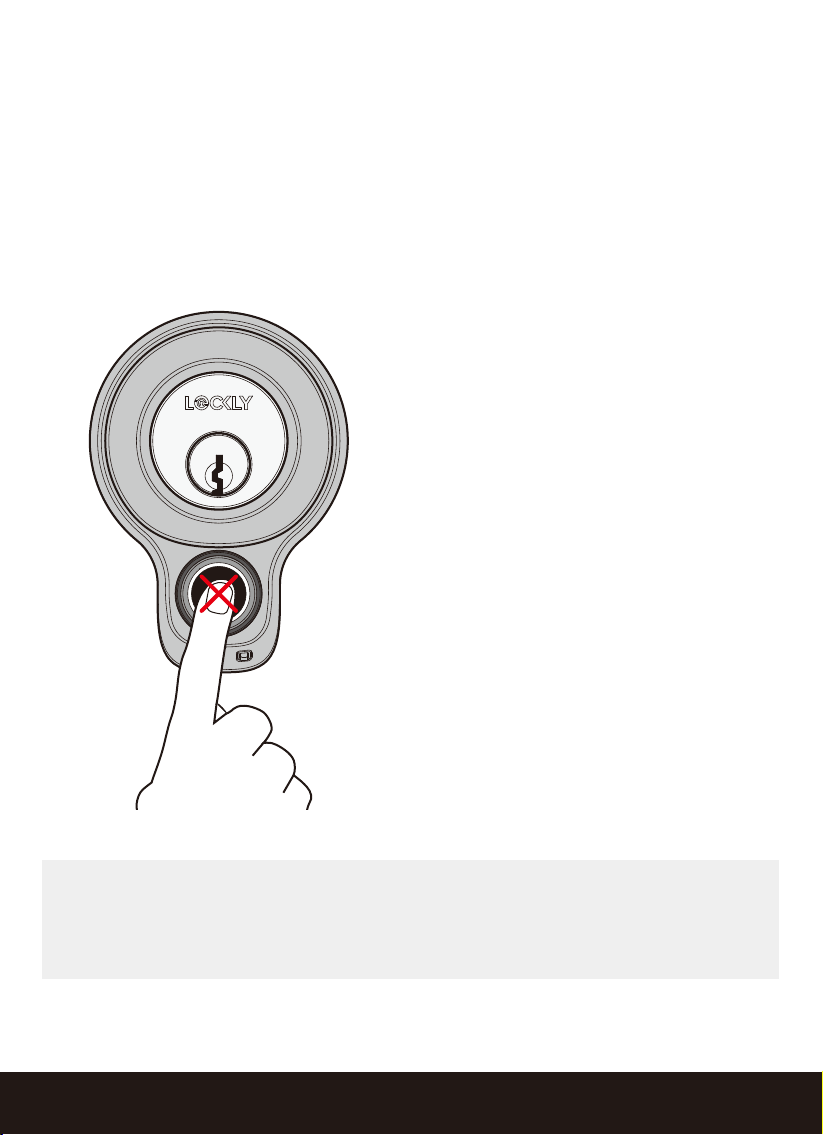
NOTE: when the lock enters Rain Mode, it’s recorded in the log history
on the Lockly app. The app will also send a push notification to your
mobile phone letting you know that the lock is in Rain Mode.
4.5 Rain Mode
RAIN MODE ACTIVATED
fingerprint sensor disabled
ACCESS DURING RAIN MODE
1. Unlock using the Lockly app
2. Unlock with physical key
To protect the lock and extend battery life, Lockly Flex Touch automatically
enters Rain Mode whenever rain or water is detected on the fingerprint sensor
for more than 45 seconds. When Rain Mode is activated, the fingerprint sensor
will not respond. The lock automatically exits rain mode every 30 minutes and
only reenters if rain or water is still detected. See below for ways to access
during Rain Mode.
SECTION 4.620
1
2
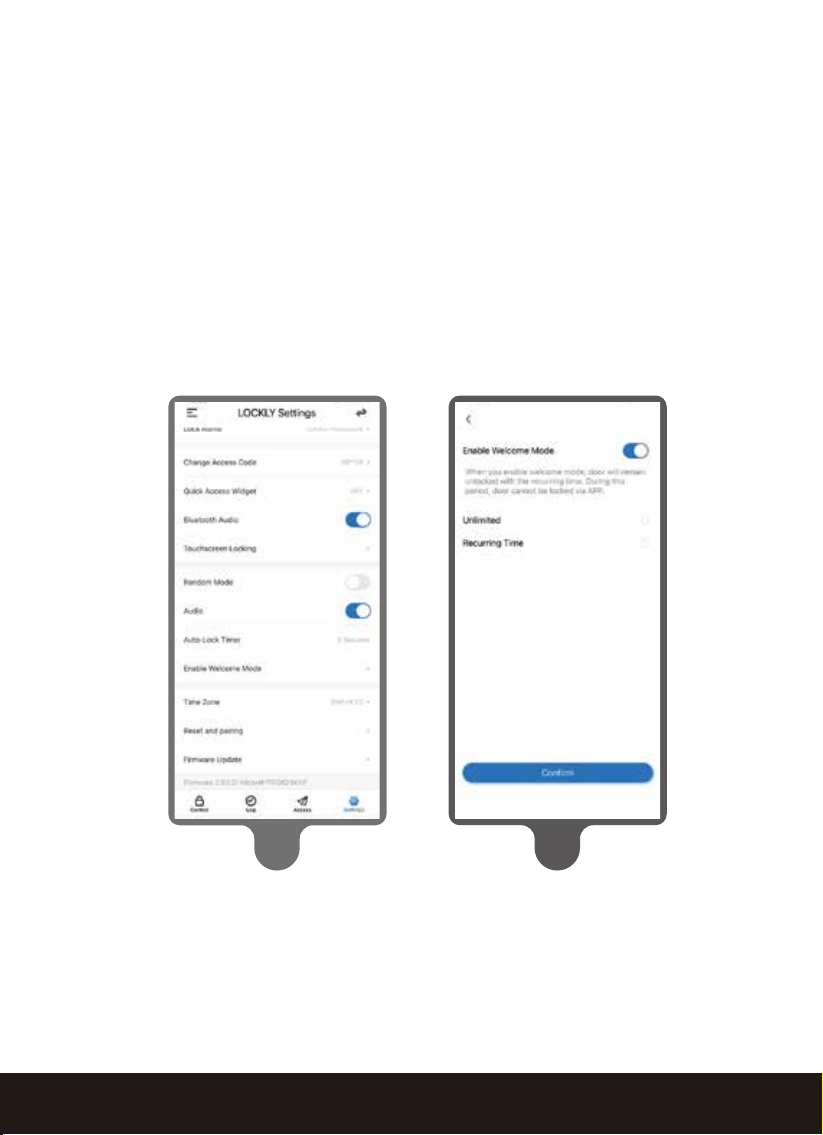
Welcome Mode temporarily disables auto locking, keeping the door open
for a specified period of time eliminating the need for fingerprint key
access.
Enable this feature through the Lockly App. Go to > Settings > Enable
Welcome Mode, then slide button to enable and set the specific time you
require your door unlocked.
4.6 Welcome Mode
SECTION 5.1
21
1 2 3
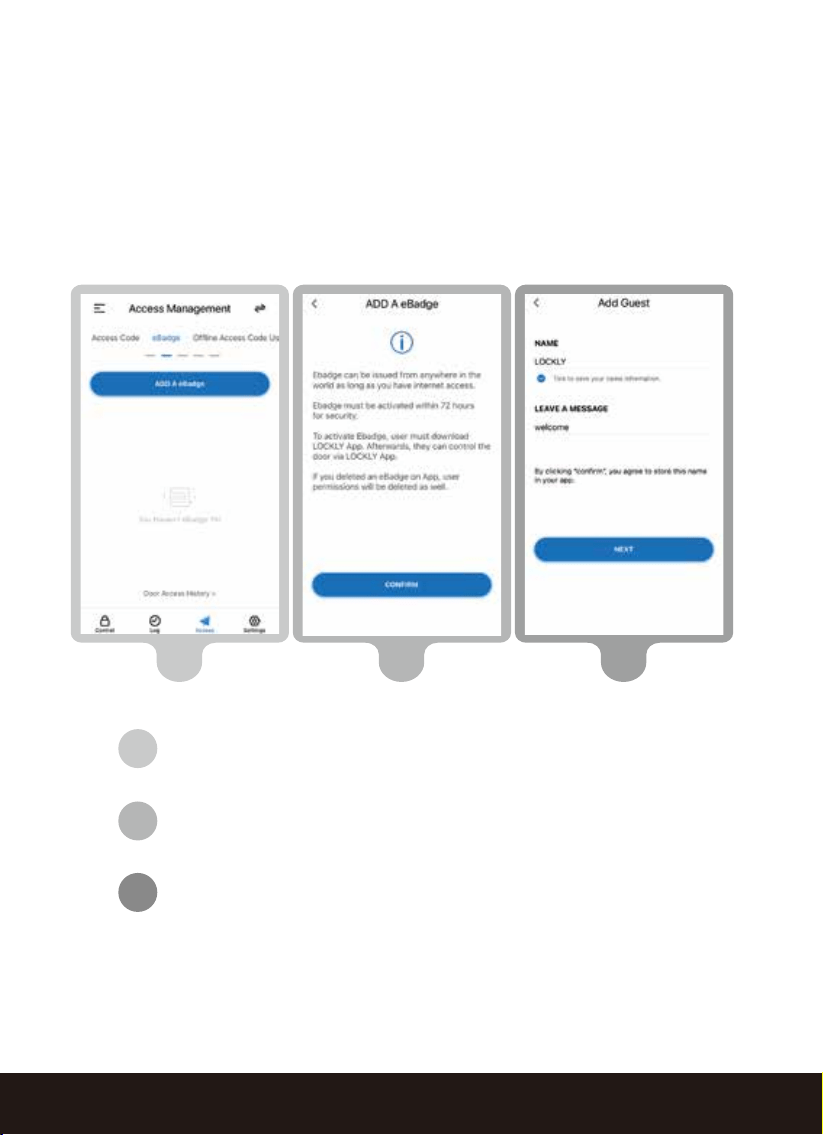
An eBadge is a unique code that can be issued to another user giving
them door access for a specific reoccurring time frame or a valid period of
time. It requires them to download the free Lockly app and access can
only be gained through the app (not the fingerprint reader).
5.1 eBadge
To set up and send a code in the Lockly app, go to > Access >
eBadge (at top) > Add eBadge, then follow the on-screen
prompts.
Confirm you want to add an eBadge.
Give the eBadge name you will recognize. Provide a
custom message that will be sent to the user.
Continued...
2
1
3
SECTION 5.122
4 5 6
7Y20Lockly
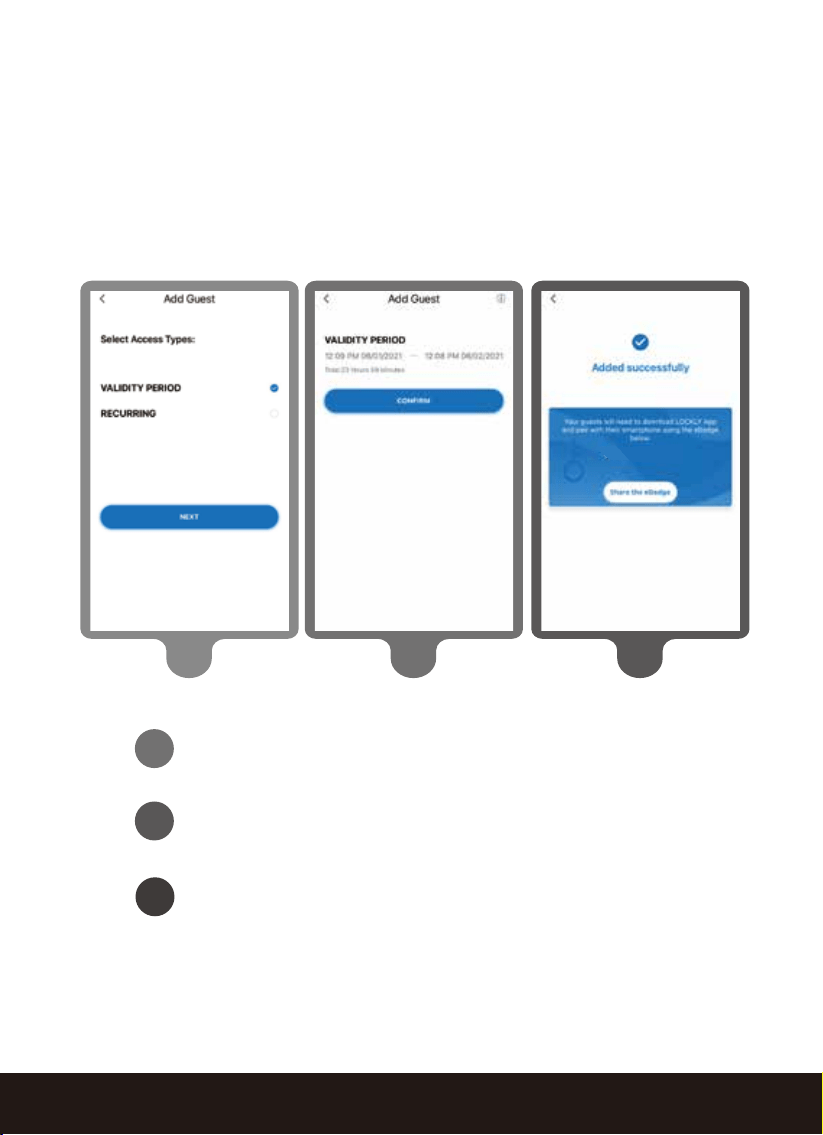
5.1 eBadge (Continued)
6
Select type of access: either a valid period of time or
ongoing reoccurring (can be revoked at anytime).
Review and confirm access type.
Share unique eBadge code.
4
5

SECTION 6.1
23
Troubleshooting
Please visit Lockly.com/help for troubleshooting and the most frequently asked
questions and answers.
Auto Lock Feature
Your lock can be programmed to auto-lock between 5-300 seconds after the
door opening. You can select the timing through the Lockly
®
App.
9V Backup Access
When your Lockly is out of power, you can temporarily activate the fingerprint
sensor by using a 9V battery against the bottom of the exterior side of the smart
lock. Please see Section 2.7 for more info.
Physical Keys
Even though you have your fingerprints registered and eKey stored, it’s always best
practice to carry your physical keys with you at all times in case for any reason.
Re-Keying
Lockly uses a 6-pin (deadbolt editions) and 5-pin (latch editions) lock cylinders
which can be re-keyed using market available re-keying kits from several brands.
It is however, highly recommended to use a professional locksmith to perform this
work.
6.1 Important Notes
To ensure you have access to newly added and latest features,
please visit : www.Lockly.com/newfeatures
SECTION 7.124
7.1 Cleaning
DO DON’T
• Use a microfiber cloth to
clean the fingerprint
reader.
• Clean with slightly damp
microfiber cloth to avoid
scratches.
• When wet, allow to air dry or
wipe dry with a soft
microfiber cloth to avoid
scratches.
• Don’t use abrasives, high
Alkaline cleaners, or
solvents to clean your lock.
• Don’t apply cleaners
in directly sunlight or
during high temperatures.
• Don’t leave cleaning
detergent on the lock for
extended periods of time.
Make sure to wash off
immediately.
• Don’t use scrapers,
squeegees, or razors.
Keeping your Lockly clean insurers optimal performance. Follow the recommenda-
tions below.
SECTION 8.1
25
8.1 Safety Precautions
Read and remind all users of the following safety precautions
Lockly Smart Locks do not have any user serviceable internal parts.
Do not attempt to disassemble the lock. It may cause product
damage and/or personal injury and will void any warranty.
Do not use any inappropriate tools that might cause damage or
malfunction to your lock.
Always check and make sure your door is securely closed and
locked when you leave to prevent unwanted entry.
Restrict access to the back battery panel and check your app
settings regularly to ensure registered access and fingerprints
profiles have not been altered or deleted without your knowledge.
Always dispose of used batteries according to your local require-
ments. NEVER BURN OR PUT BATTERIES IN AN INCINERATOR.
Unauthorized changes or modifications may void your
product warranty. For technical assistance or issues using
your Lockly Flex Touch, contact our customer care team
at [email protected] or visit Lockly.com/help

FCC Warning:
This device complies with Part 15 of the FCC Rules. Operation is subject to the following two
conditions: (1) This device may not cause harmful interference, and (2) this device must accept
any interference received, including interference that may cause undesired operation.
NOTE 1: This equipment has been tested and found to comply with the limits for a Class B digital
device, pursuant to part 15 of the FCC Rules. These limits are designed to provide reasonable
protection against harmful interference in a residential installation. This equipment generates, uses
and can radiate radio frequency energy and, if not installed and used in accordance with the
instructions, may cause harmful interference to radio communications. However, there is no
guarantee that interference will not occur in a particular installation. If this equipment does cause
harmful interference to radio or television reception, which can be determined by turning the
equipment off and on, the user is encouraged to try to correct the interference by one or more of
the following measures:
- Reorient or relocate the receiving antenna.
- Increase the separation between the equipment and receiver.
- Connect the equipment into an outlet on a circuit different from that to which the receiver is
connected.
- Consult the dealer or an experienced radio/TV technician for help.
NOTE 2: Any changes or modifications to this unit not expressly approved by the party responsible
for compliance could void the user's authority to operate the equipment.
FCC Radiation Exposure Statement
The Secure Link Wi-Fi Hub complies with FCC radiation exposure limits set forth for an uncontrolled
environment. It should be installed and operated with minimum distance 20cm between the
radiator & your body.
IC WARNING
This device contains licence-exempt transmitter(s) that comply with Innovation, Science and
Economic Development Canada’s licence-exempt RSS(s). Operation is subject to the following two
conditions:
(1) This device may not cause interference.
(2) This device must accept any interference, including interference that may cause undesired
operation of the device.
L’émetteur/récepteur exempt de licence contenu dans le présent appareil est conforme aux CNR
d’Innovation, Sciences et Développement économique Canada applicables aux appareils radio
exempts de licence. L’exploitation est autorisée aux deux conditions suivantes:
1. L’appareil ne doit pas produire de brouillage;
2. L’appareil doit accepter tout brouillage radioélectrique subi, même si le brouillage est suscepti-
ble d’en compromettre le fonctionnement.
IC Radiation Exposure Statement
This equipment meets the exemption from the routine evaluation limits in section 2.5 of RSS-102. It
should be installed and operated with a minimum distance of 20cm between the radiator and any
part of your body.
Cet équipement est conforme à l'exemption des limites d'évaluation habituelle de la section 2.5 de
lanorme RSS-102. Il doit être installé et utilisé à une distance minimale de 20 cm entre le radiateur et
toute partie de votre corps.
WARNING: This product can expose you to chemicals including Lead, which is known to
the State of California to cause cancer. For more information go to
www.P65Wamings.ca.gov.

For digital versions and instructional videos, please visit the following
link:
http://Lockly.com/help
To ensure you have access to the most updated and newly added
features of your Lockly smart lock, please visit:
www.Lockly.com/newfeatures
© Copyright 2021 Lockly
®
All rights reserved
CHINA 201310487970 | HONG KONG 1194496 | EUROPE 3059689 |AUSTRALIA
2013403169 | RUSSIA 2665222 |TAIWAN 621028 | KOREA 101860096 | INDONESIA
0020160364 | Other Patents Pending
The Bluetooth
®
word mark and logos are registered trademarks owned by the
Bluetooth SIG, Inc. , and any use of such marks by Lockly is under license. Other
trademarks and trade names are those of their respective owners. Google,
Android, Google Play and Google Home are trademarks of Google LLC. ,
Amazon, Alexa and all related logos are trademarks of Amazon.com, Inc.,
or its affiliates.