
EN
LEICA TL2
Instructions
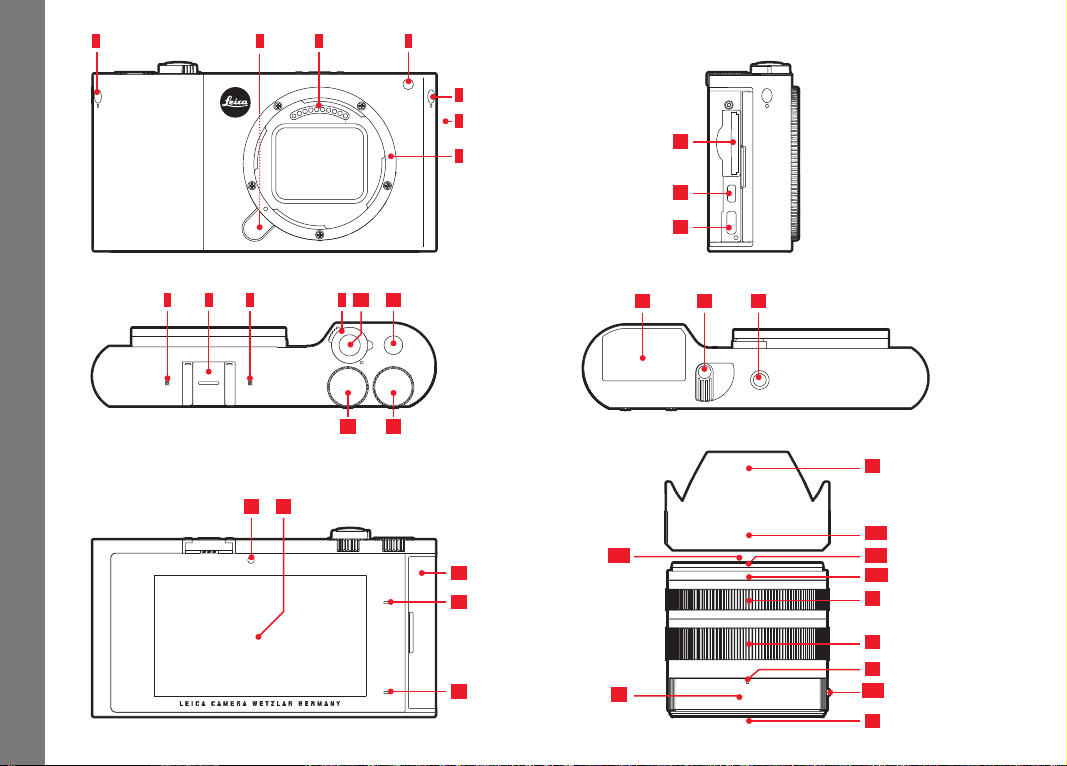
Designation of parts
EN
108
1
5
6
431 2
7 9 11
1213
107 8
1514
16
17
18
19
21
20
22 23 24
25a
25
26a26c
30
26b
27
30a
28
29
31

EN
Designation of parts
109
DESIGNATION OF PARTS
CAMERA
Front view
1 Dummy plugs
2 Lens release button
3 Contact strip
4 Self-timer LED/AF assist light
5 Speaker
6 Bayonet
Top view
7 Microphones
8 Accessory shoe
9 Main switch
10 Shutter button
11 Function button
12 Setting dial
13 Setting dial
Rear view
14 Brightness sensor
15 Monitor
16 Door over sockets
17 Status LED
18 Charge status LED
View from right (Door opened)
19 Memory card slot
20 HDMI socket
21 USB socket
Bottom view
22 Battery
23 Locking lever
24 Tripod thread
LENS
25 Lens hood
a. Index points
26 Front mount
a. External bayonet for lens hood
b. Index point for lens hood
c. Internal thread for filters
27 Distance setting ring
28 Focal length setting ring
29 Index for focal length
30 Fixed Ring
a. Red alignment button
31 Contact strip

EN
110
FOREWORD
Dear Customer,
we wish you a great deal of pleasure and success using your new
Leica TL2.
Please read these instructions in their entirety so that you can
make the most of your Leica TL2.
Use the Quick Start Guide for a fast introduction to your new Leica.
SCOPE OF DELIVERY
Please check the scope of included accessories for completeness
before using your Leica TL2 for the first time.
a. Leica BP-DC13 battery
b. Battery charger BC-DC13 (including interchangeable mains
connector)
c. USB type C cord
d. Dummy plug (inserted when delivered)
e. Carrying strap
f. Carrying strap plug release key
g. Body bayonet cap
h. Accessory shoe cover
i. Registration card
Attention:
Always store small parts (e.g. carrying strap plug release key) as
follows:
– out of reach of children
– in a location where they will not get lost, e.g. in the designated
positions in the camera case
Subject to changes in design and production.
ACCESSORIES
Please visit the Leica Camera AG website for information on the
extensive range of Leica TL2 accessories:
www.leica-camera.com
SPARE PARTS Order no.
Body bayonet cap
16 060
Accessory shoe cover
470-701.801-007
Dummy plug
470-701.001-020
Carrying strap plug release key
470-701.001-029
Silicon carrying strap
439-612.100-000
Lithium ion battery BP-DC 13, silver
18 772
Lithium ion battery BP-DC 13, black
18 773
Battery charger Leica BC-DC 13
470-701.022-000
Mains plug set
470-701.801-005
USB type C cord
470-701.001-035
For United Arab Emirates only:
TRA
REGISTERED No:
ER54783/17
DEALER No:
DA0112968/13

EN
111
This is a Class B product based on the standard of the Voluntary Control Council
for Interference from Information Technology Equipment (VCCI). If this is used
near a radio or television receiver in a domestic environment, it may cause radio
interference. Install and use the equipment according to the instruction manual.
FCC Note:
This equipment has been tested and found to comply with the limits for a
Class B digital device, pursuant to Part 15 of the FCC Rules. These limits are
designed to provide reasonable protection against harmful interfer ence in a
residential installation. This equipment generates, uses, and can radiate
radio frequency energy and, if not installed and used in accordance with the
instructions, may cause harmful interference to radio communications.
However, there is no guar antee that interference will not occur in a particu-
lar installation. If this equipment does cause harmful interference to radio or
television reception, which can be determined by turning the equipment off
and on, the user is encouraged to try to correct the interference by one or
more of the following measures:
• Reorient or relocate the receiving antenna.
• Increase the separation between the equipment and receiver.
• Connect the equipment into an outlet on a circuit
different from that to
which the receiver is connected.
• Consult the dealer or an experienced radio/TV technician for help.
FCC Caution:
To assure continued compliance, follow the attached installation instructions
and use only shielded inter face cables with ferrite core when connecting to
com put er or peripheral devices. Any changes or modifications not expressly
approved by the party responsible for compliance could void the user’s
authority to operate this equipment.
Trade Name: LEICA
Type No. 5370
Responsible party/
Support contact:
Leica Camera Inc.
1 Pearl Count, Unit A, Allendale, New Jersey 07401
Tel.: +1 201 995 0051/ Fax: +1 201 995 1684
This device complies with Part 15 of the FCC Rules. Operation is subject to
the following two conditions: (1) This device may not cause harmful interfer-
ence, and (2) this device must accept any interference received, including
interference that may cause undesired operation.
Type No.: 5370
Tested To Comply
With FCC Standards
FOR HOME OR OFFICE USE
Contains FCC ID: N5A5370
This transmitter must not be co-located or operated in conjunction
with any other antenna or transmitter. This equipment complies with FCC
radiation exposure limits set forth for an uncontrolled environment and meets
the FCC radio frequency (RF) Exposure Guidelines. This equipment has very
low levels of RF energy that are deemed to comply without testing of specific
absorption ratio (SAR).
For Canada only:
CAN ICES-3 (B)/NMB-3(B)
This device complies with RSS-210 of the IC Rules.Operation is subject to
the following two conditions:
(1) This device may not cause harmful interference,
(2) This device must accept any interference received, including interference
that may cause undesired operation of the device. This equipment complies
with IC radiation exposure limits set forth for an uncontrolled environment
and meets RSS-102 of the IC radio frequency (RF) Exposure rules. This
equipment has very low levels of RF energy that are deemed to comply
without testing of specific absorption ratio (SAR).
For Singapore only
Complies with
IDA Standards
DA104328

EN
112
Legal information
Attention:
• Modern electronic components react sensitively to electrostatic
discharge. As people can easily pick up charges of tens of
thousands of volts by walking on synthetic carpets for example,
a discharge can occur when you touch your camera, particularly
if it is placed on a conductive surface. If only the camera hous-
ing is affected, this discharge is harmless to the electronics.
However, despite built-in safety circuits, outer contacts such as
those in the flash shoe should not be touched if at all possible
for safety reasons.
• For any cleaning of the contacts, do not use an optical micro-
fiber cloth (synthetic); use a cotton or linen cloth instead! Before
touching the contacts, you can make sure you discharge any
electrostatic charge by deliberately touching a heating or water
pipe (conductive, grounded material). Please also avoid dirt
deposits and oxidation on the contacts by storing your camera in
a dry location with the lens cap and flash shoe/viewfinder cap
on.
• Use only the recommended accessories to prevent faults, short
circuits, or electric shock.
• Do not attempt to remove parts of the housing (covers); repairs
must be done at authorized service centers only.
Important:
The camera gets warm during use. This is not a malfunction, but
rather due to electronic components such as sensor, processor,
and monitor generating heat when operating. This happens faster
when serial exposures are executed in quick succession or repeat-
edly for a longer stretch of time, and especially in the case of video
recording (4K!). In extreme cases, a protection circuit will shut
down the camera. Naturally this will happen the earlier the warmer
the camera was in the first place, e.g. after being inside a vehicle
or after being subjected to bright sunlight.
Please take these circumstances into account when planning your
shots.
Legal information:
• Please ensure that you observe copyright laws. The recording
and publication of pre-recorded media such as tapes, CDs, or
other published or broadcast material may contravene copyright
laws.
• This also applies to all of the software supplied.
• With regard to videos created using this camera: This product is
licensed under the AVC Patent Portfolio license for the personal
use of a consumer or other uses in which the consumer does
not receive remuneration to (i) encode video in compliance with
the AVC standard (“AVC video”) and/or (ii) decode AVC video
that was encoded by a consumer engaged in a personal activity
and/or was obtained from a video provider licensed to provide
AVC video. No license is granted or shall be implied for any other
use. For more information please visit the MPEG LA, L.L.C.
website at http://www.mpgegla.com. Any other use, including
but not limited to providing AVC video in exchange for remunera-
tion, may require a separate license agreement with MPEG LA,
L.L.C. For more information please visit the MPEG LA, L.L.C.
website at http://www.mpgegla.com.
• The SD and USB logos are registered trademarks.
• Other names, company and product names referred to in these
instructions are trademarks or registered trademarks of the
respective companies.
EN
113
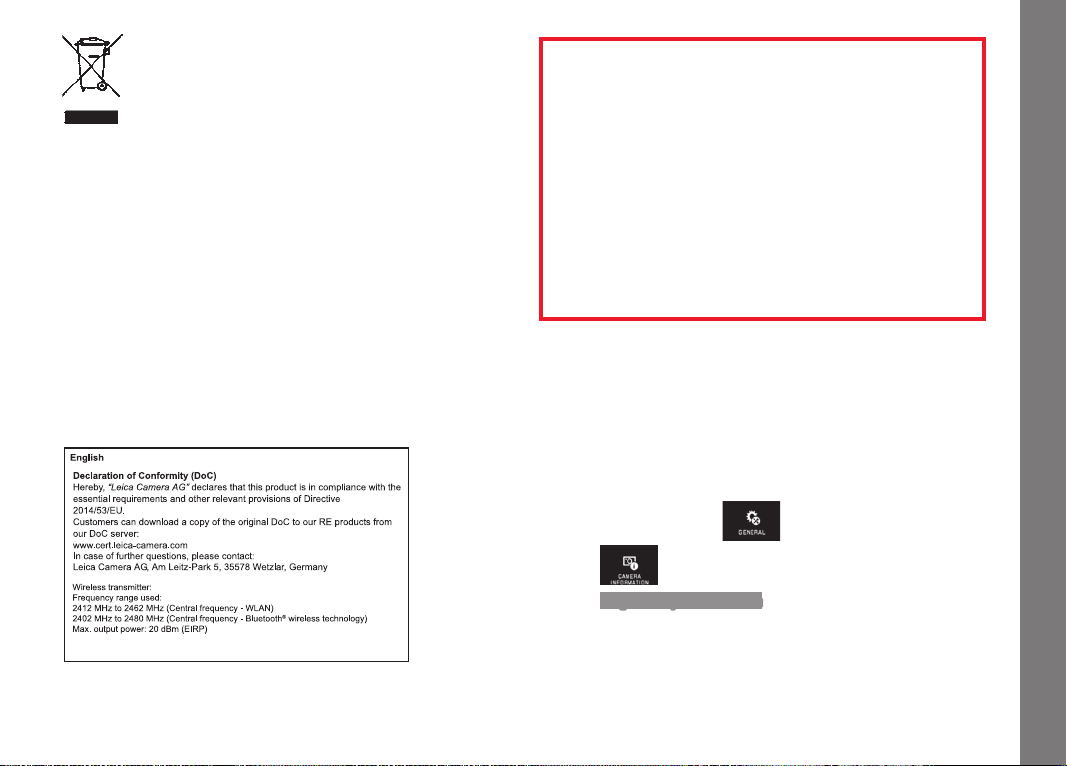
Disposal of electrical and
electronic equipment
(Applies within the EU, and other European countries
with segregated waste collection systems)
This device contains electrical and/or electronic components and
must therefore not be disposed of in general household waste!
Instead, it should be disposed of at a recycling collection point
provided by the local authority. This costs you nothing. If the device
contains standard or rechargeable batteries, these must be
removed first and also be disposed of in line with relevant regula-
tions. Further information on the subject is available from your
local administration, your local waste collection company, or in the
store where you purchased this device.
The CE identification of our products documents compliance
with the fundamental requirements of the applicable EU
directives.
Meaning of the different categories of information in
this manual
Note:
Additional information
Important:
Failure to observe the instructions may cause damage to the
camera, accessories or the photos
Attention:
Failure to observe the instructions may cause personal injury
The production date of your camera can be found on the stickers in
the warranty card and/or on the packaging. The format is: Year/
Month/Day
The specific approvals for this device can be found in the camera
menu.
► In the main menu, select
►
Select
► Select Regulatory information in the submenu.
Legal information

EN
114
Table of Contents
TABLE OF CONTENTS
Designation of parts ................................................................................. 109
Foreword ................................................................................................... 110
Scope of Delivery ...................................................................................... 110
Accessories ............................................................................................... 110
Spare parts ................................................................................................ 110
Preparations
Attaching the carrying strap .................................................................... 116
Changing the battery ............................................................................... 117
Charging the battery ................................................................................ 118
Changing the memory card ..................................................................... 122
Attaching/detaching the lens.................................................................. 124
Compatible lenses .................................................................................... 124
Camera operation
Main switch .............................................................................................. 126
Setting dials .............................................................................................. 126
Shutter button .......................................................................................... 127
Function button ........................................................................................ 127
Gesture control ........................................................................................ 128
Locking/unlocking the right toolbar ........................................................129
INFO displays .......................................................................................... 130
Opening the exposure mode/scene mode menu ..................................... 131
Opening the
MY CAMERA menu ...........................................................131
Opening the main menu .......................................................................... 131
Main menu structure...............................................................................131
Opening a menu item in one of the main menu function groups ............... 131
Navigation in the main and
MY CAMERA menus ....................................132
Menu tiles ..............................................................................................133
Direct setting of function options ............................................................133
Selecting a menu item and setting function options in submenus ............134
Settings in submenus with setting dials and gesture control ...................135
Customizing the MY CAMERA menu ......................................................136
Setting dial menu ....................................................................................138
Locking the setting dial functions ............................................................ 138
Assigning the desired function to the left setting dial ............................... 139
Basic camera settings
Menu language ......................................................................................... 140
Date/time ................................................................................................. 140
Automatic Camera Shutdown .................................................................. 141
Acoustic signals ....................................................................................... 142
Monitor/viewfinder settings ................................................................... 142
Automatic Monitor Shutdown.................................................................. 143
Basic picture settings
File format/compression rate ................................................................. 144
White balance ........................................................................................... 145
ISO Sensitivity .......................................................................................... 146
JPEG image properties ............................................................................. 146
Additional picture settings
Image stabilization ................................................................................... 148
Self-Timer.................................................................................................. 148
Recording the location with GPS ............................................................. 149
Picture mode
Serial exposures ....................................................................................... 150
Focusing ................................................................................................... 150
Autofocus ............................................................................................... 150
AF Auxiliary Light ................................................................................. 151
Autofocus metering methods/Operating modes ...................................152
Spot/single point metering .................................................................. 152
Touch AF/Touch AF + Shutter release .................................................154
Multi-zone metering ............................................................................. 155
Face detection ....................................................................................155
Manual focusing .....................................................................................156
Auxiliary function for manual focusing .................................................. 156

EN
115
Exposure metering and control
Exposure Metering Methods ...................................................................158
Exposure control .....................................................................................158
Program mode - P ................................................................................159
Aperture priority - A .............................................................................160
Shutter speed priority - S ..................................................................... 161
Manual setting - M ...............................................................................162
Histogram ...........................................................................................163
Clipping ............................................................................................... 164
Scene modes ......................................................................................165
Metering memory lock ......................................................................... 166
Exposure compensation .......................................................................166
Automatic exposure bracketing ............................................................167
Flash Photography
Compatible flash units ............................................................................. 168
Attaching a flash unit ............................................................................... 168
Flash modes ............................................................................................. 169
Flash range ............................................................................................... 170
Synchronization time point ...................................................................... 171
Flash exposure compensation ................................................................. 171
Video recording ............................................................................................172
Stabilization ............................................................................................... 173
Starting/ending the recording ....................................................................173
Sound recording ........................................................................................173
Review mode
Continuous review mode ......................................................................... 174
Automatic review ..................................................................................... 174
Viewing Pictures in Portrait Format ........................................................ 175
Selecting pictures .................................................................................... 175
Enlarging/reducing pictures.................................................................... 176
Simultaneous display of 9 pictures .......................................................... 176
Selecting a cropped section ....................................................................... 177
Review menu .............................................................................................178
Slide show .............................................................................................. 178
Marking pictures as favorites/canceling markings ...................................179
Protecting pictures/clearing delete protection ........................................ 179
Deleting images .................................................................................... 180
Selecting the playback source ............................................................. 182
Copying picture data between the internal memory and the inserted
memory card ......................................................................................... 182
Video review ............................................................................................. 184
Cutting and combining video recordings ................................................ 186
Miscellaneous
User profiles ............................................................................................. 188
Resetting all custom settings .................................................................. 190
Resetting the image file numbering ........................................................ 191
Setting up and using the WiFi function ................................................... 192
Transferring data to a computer ............................................................. 196
Formatting ................................................................................................ 197
Using raw data (DNG) .............................................................................. 198
Installing firmware updates ..................................................................... 198
Safety and care instructions .....................................................................199
Appendix
Charger adapter plugs ............................................................................. 203
Main menu ................................................................................................ 204
Exposure mode menu .............................................................................. 207
Index ...........................................................................................................208
Technical data ............................................................................................ 210
Leica service addresses ............................................................................ 212
Table of Contents
EN
116
Preparations
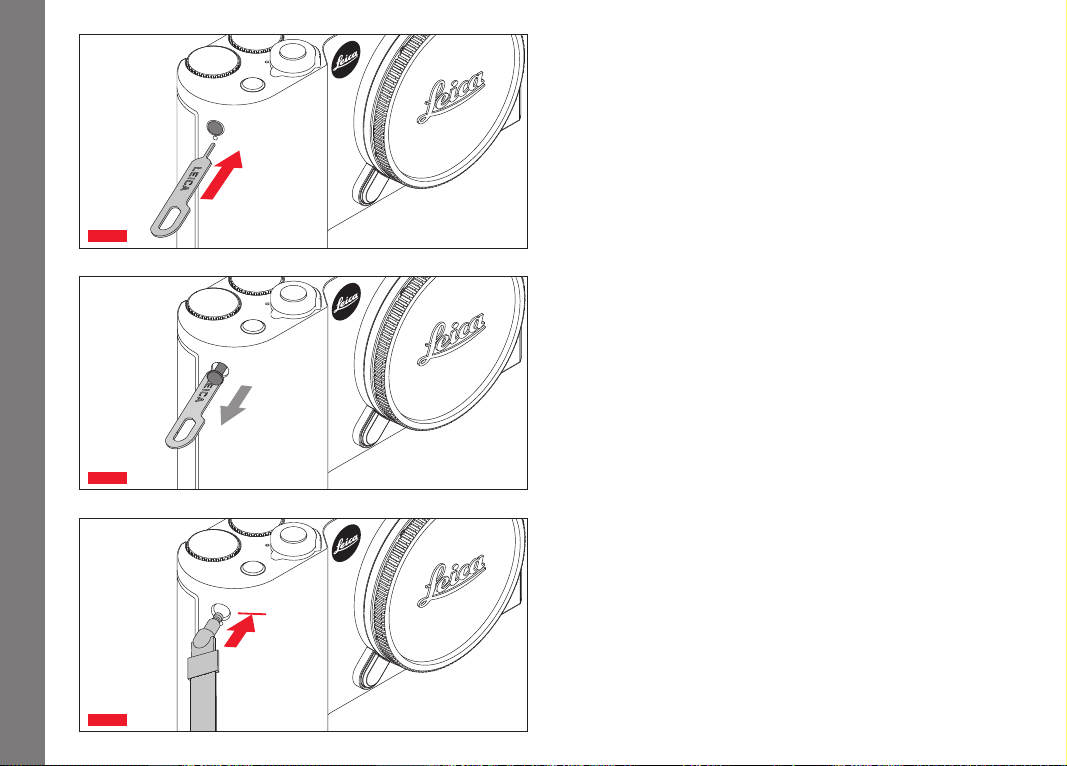
Fig. 1 a
Fig. 1 b
Fig. 1 c
ATTACHING THE CARRYING STRAP
EN
117
Preparations
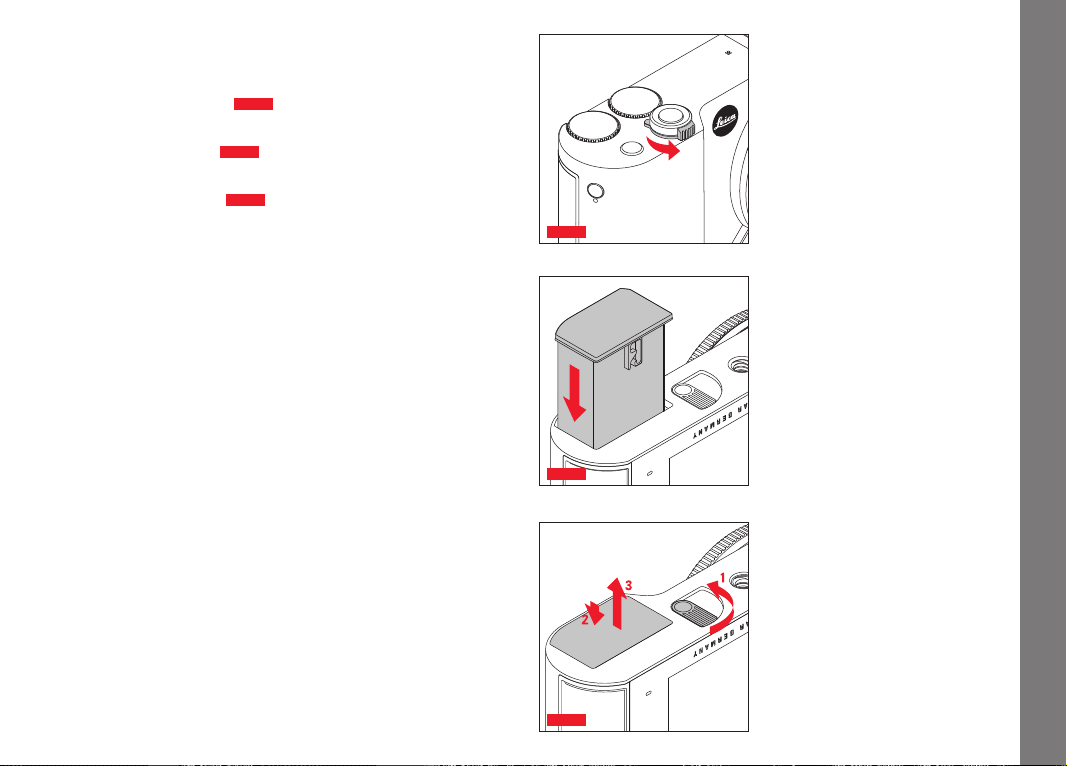
CHANGING THE BATTERY
Turning off the camera
Fig. 2 a
Inserting the battery
Fig. 2 b
Removing the battery
Fig. 2 c
Notes:
• The battery is supplied pre-charged, which means that you can
start using the camera immediately.
• The lock has a retaining mechanism to prevent the battery from
falling out when the camera is held upright.
Important:
Removing the battery with the camera turned on can result in your
settings being deleted, a loss of picture data, and damage to the
memory card.
Fig. 2 a
Fig. 2 b
Fig. 2 c

EN
118
Preparations
CHARGING THE BATTERY
Your Leica TL2 is powered by a Lithium-ion battery. It can be
charged while inserted in the camera using the USB cord supplied
or outside the camera using the charger supplied.
Attention:
• Only the battery types specified and described in this manual
and/or specified and described by Leica Camera AG may be
used in this camera.
• This battery may only be used in the units for which it is
designed and may only be charged exactly as described.
• Using the battery contrary to these instructions and using
battery types not specified in these instructions may result in an
explosion.
• The batteries must not be exposed to sunlight, heat, humidity or
condensation for extended periods. Batteries must not be
placed in a microwave oven or in a high-pressure vessel, as this
may cause an explosion.
• Never throw batteries into a fire, as this may cause an explosion!
• Damp or wet batteries must not be charged or used in the
camera under any circumstances.
• Always ensure that the battery contacts are clean and freely
accessible.
• Whilst lithium ion batteries are secured against short circuits,
they should still be protected against contact with metal objects
like paper clips or jewelry. A short-circuited battery can get very
hot and cause severe burns.
• If a battery is dropped, check the casing and the contacts
immediately for any damage. Using a damaged battery can
damage the camera.
• A battery must be removed from the camera or charger immedi-
ately and replaced if it develops noise, becomes discolored,
deformed, or overheated or if it shows any sign of leakage.
Continued use of a damaged battery may cause overheating and
a risk of fire and/or explosion.
• If liquid leaks out or you smell burning, keep the batteries away
from heat sources. Leaked fluid can catch fire.
• Only the charger specified and described in this manual, or
chargers specified and described by Leica Camera AG, may be
used. The use of other chargers that are not approved by Leica
Camera AG can cause damage to the batteries and, in extreme
cases, serious or life-threatening injuries.
• The charger supplied should be used exclusively for charging this
battery type. Do not attempt to use it for other purposes.
• Ensure that the power socket used is freely accessible.
• Heat is generated during charging. Therefore batteries must not
be charged in small, enclosed or unventilated spaces.
• The battery and charger must not be opened. Repairs may only
be carried out by authorized service centers.
• Keep batteries out of the reach of children. Swallowing batteries
can cause suffocation.
Dispose of used batteries in line with the information pro-
vided in these instructions.

EN
119
Preparations
First Aid:
• Battery fluid coming into contact with the eyes may cause
blindness. Immediately rinse the eyes thoroughly with clean
water. Do not rub the eyes. Seek medical attention immediately.
• If leaked fluid gets onto the skin or clothing, there is a risk of
injury. Rinse the affected areas with clean water.
Notes:
• The battery is supplied partially charged, but it should be
charged before long periods of use.
• In order to charge the battery, it must have a temperature of
between 0°C and 35°C/32°F and 95°F (otherwise the charger
may not turn on or off again).
• Lithium-ion batteries can be charged at any time, regardless of
their current charge level. If a battery is only partly discharged
when charging starts, it is charged to full capacity faster.
• Lithium ion batteries should only be stored partly charged, i.e.
not when fully discharged or fully charged. For very long storage
periods, batteries should be charged for around 15 minutes
twice a year to prevent total discharge.
• The batteries warm up during the charging process. This is
normal and not a malfunction.
• A new battery only reaches its full capacity after it has been fully
charged and – by use in the camera – discharged 2 or 3 times.
This discharge procedure should be repeated roughly every 25
cycles.
• Rechargeable lithium-ion batteries generate power through
internal chemical reactions. This reaction is influenced by ambi-
ent temperature and humidity. To maximize the life of the bat-
tery, it should not be exposed to extremely high or low tempera-
tures for long periods (e.g. in a parked car in summer or winter).
• Even with optimum conditions of use, every battery has a limited
service life. After several hundred charging cycles, this becomes
noticeable as the operating times get significantly shorter.
• In line with the applicable regulations (see p. 113), defective
batteries should be disposed of at an appropriate collection
point for proper recycling.
• The replaceable battery supplies another back-up battery that is
built into the camera. This back-up battery ensures that the date
and time data entered is retained for up to 2 days. If this back-
up battery runs out it must be recharged by inserting a charged
main battery. Once the replaceable battery has been inserted,
the full capacity of the back-up battery is recovered after about
60 hours. This process does not require the camera to be turned
on. However, the date and time will have to be set again.
• Remove the battery if you will not be using the camera for a long
period of time. Turn the camera off using the main switch before
removing the battery. Otherwise, after several weeks the battery
could become totally discharged, i.e. the voltage is sharply
reduced as the camera still consumes a small amount of current
(for saving your settings) even when it is turned off.
EN
120
Preparations
Fig. 3
1.
2.
"click"
Fig. 4 a Fig. 4 b
2.
1.
"click"
Fig. 5 bFig. 5 a
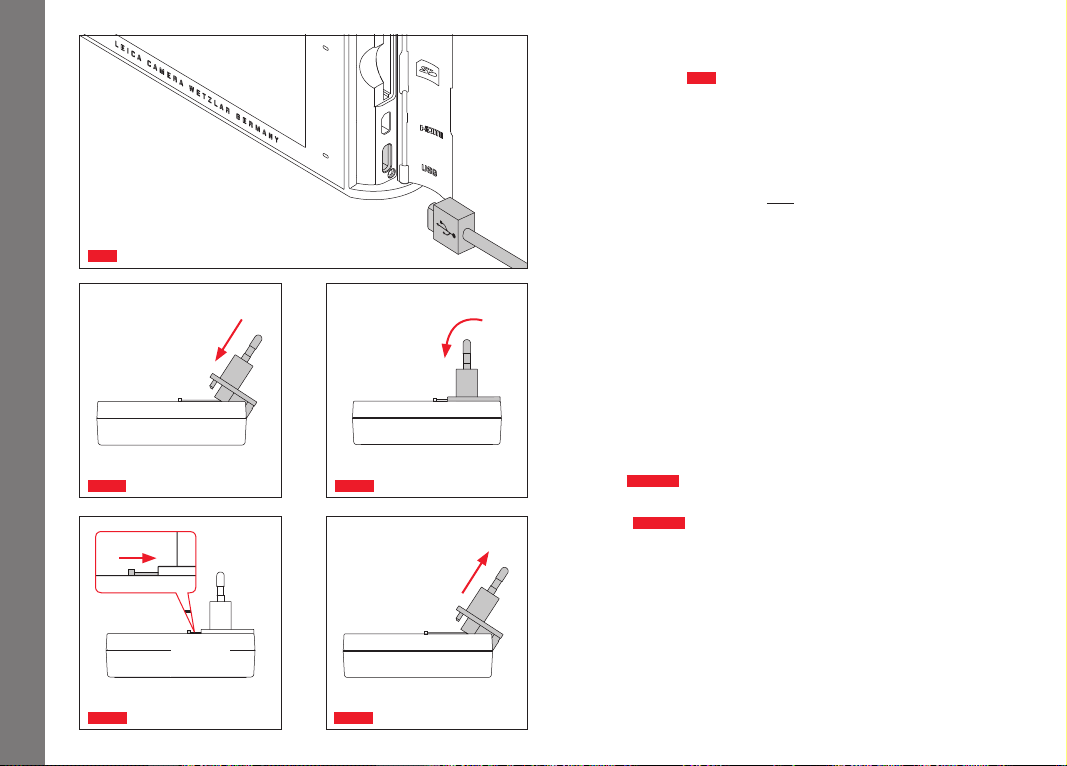
CHARGING THE BATTERY (CONT.)
WITH USB CABLE
Fig. 3
Notes:
• The camera should only be connected to a computer or a stan-
dard USB charger (with a maximum charging current of 500mA
or 1A) and not to a monitor, keyboard, printer, or USB hub.
• The USB charging process is only started when the camera is
turned off.
• If the computer goes into standby mode during charging, this
may cancel the charging process.
Important:
• Use only the USB cable supplied.
WITH THE CHARGER
Changing the mains connector on the charger
Inserting
Fig. 4 a/b
Removing
Fig. 5 a/b
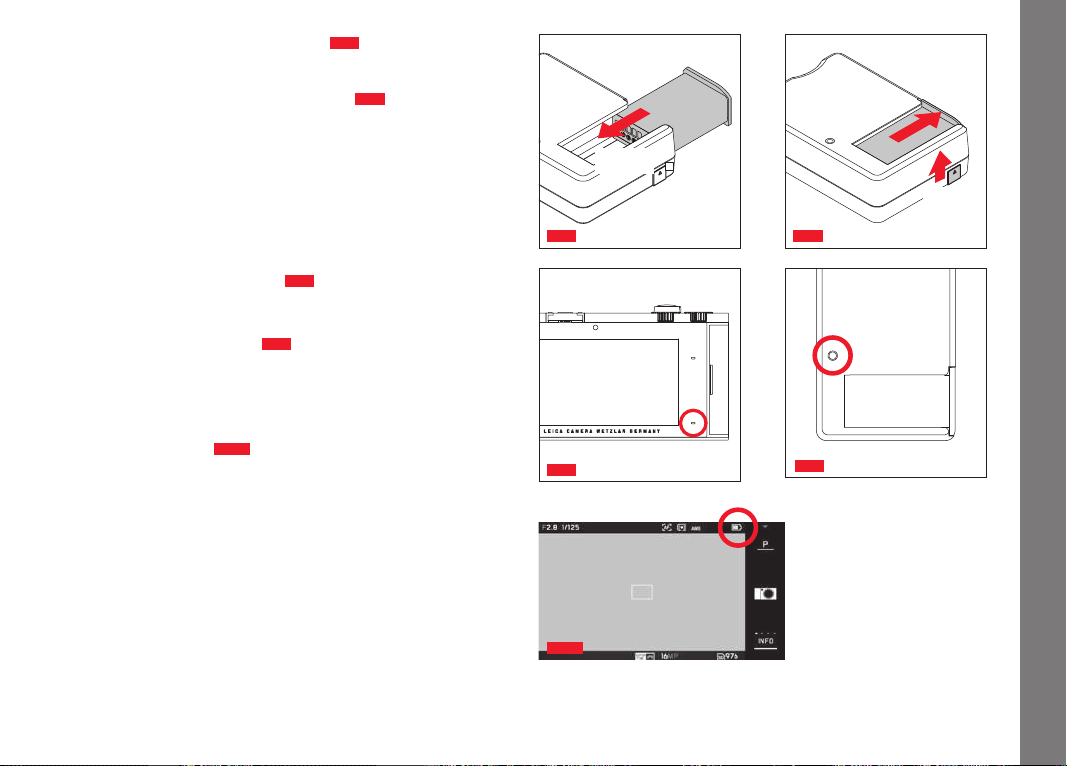
EN
121
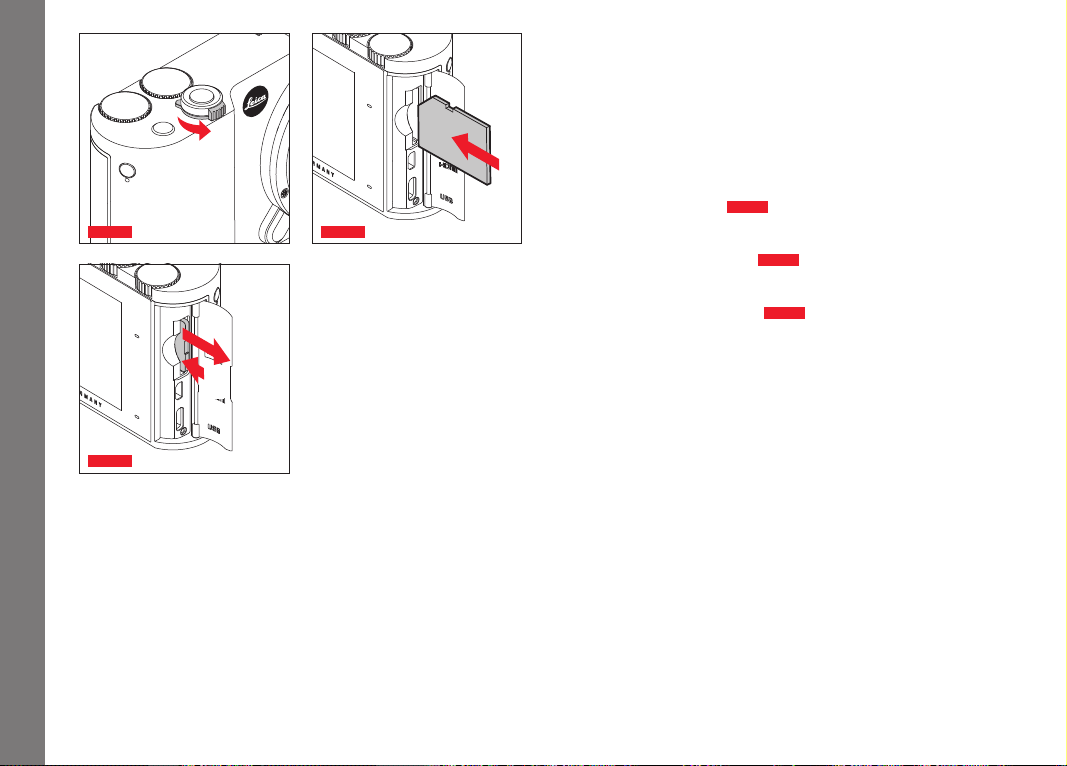
Inserting the battery in the charger
Fig. 6
Removing the battery from the charger
Fig. 7
Notes:
• The charger must be fitted with the appropriate plug for the local
sockets.
• The charger automatically adjusts to the relevant mains voltage.
Charge status displays
The charging process is indicated by LEDs.
With USB cable (LED on camera)
Fig. 8
– continuously red: Charging
– continuous green: Battery fully charged.
With charger (LED on charger
Fig. 9
)
– flashing red: Fault, no charging
– continuously red: Charging
– continuous green: Battery fully charged.
Charge level display
Fig. 10
The charge level of the battery inserted is indicated in the monitor.
The display flashes if the battery only has capacity for a few more
pictures. At this point, the battery should be replaced or recharged.
"click"
Fig. 6 Fig. 7
1.
2.
Fig. 9
Fig. 8
Fig. 10
Preparations
EN
122
Preparations
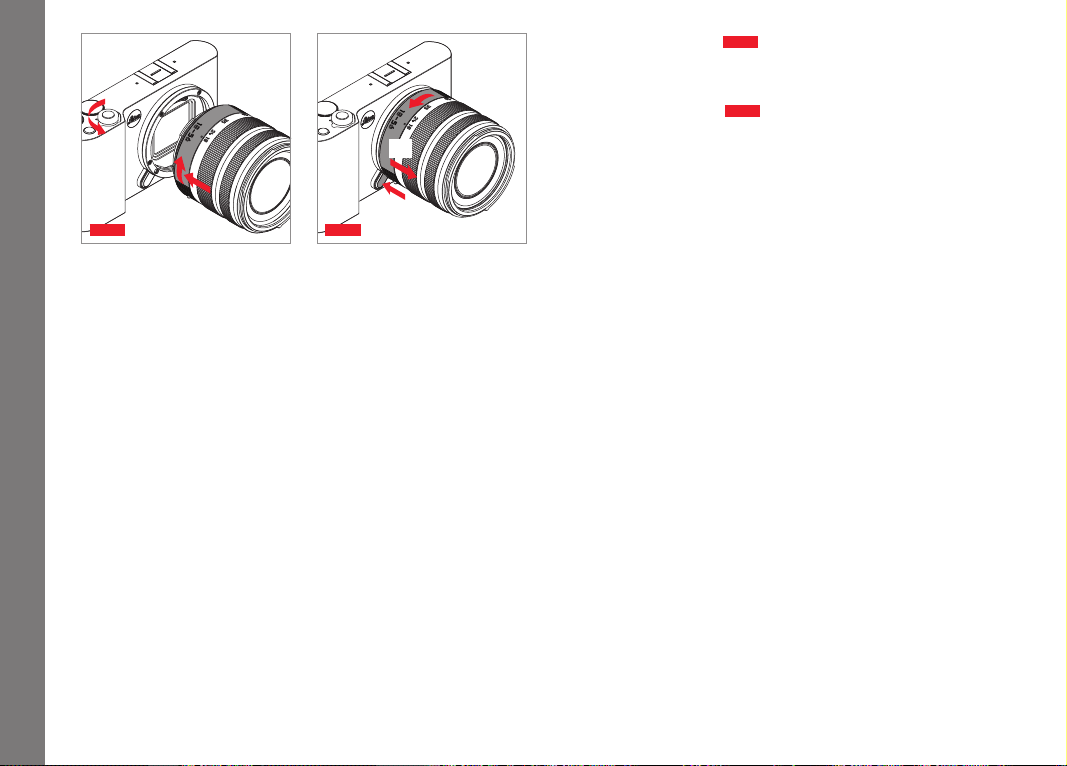
Fig. 11 a Fig. 11 b
Fig. 11 c
1.
2.
CHANGING THE MEMORY CARD
SD, SDHC or SDXC memory cards can be used in the Leica TL2.
However, thanks to an internal 32GB memory you can also take
photos without a memory card.
Turning off the camera
Fig. 11a
Inserting the memory card
Fig. 11b
Removing the memory card
Fig. 11c

EN
123
Preparations
Notes:
• Do not open the compartment and do not remove the memory
card or the battery while the LED is lit to indicate that the cam-
era is accessing the memory. Otherwise, the data on the card
may be destroyed and malfunctions can occur in the camera.
• SD, SDHC, and SDXC memory cards have a write protection
switch, which can be used to prevent unintentional storage and
deletion of pictures. This switch takes the form of a slider on the
non-beveled side of the card; in the lower position, marked
LOCK, the data is protected.
• If the memory card cannot be inserted, check that it is aligned
correctly.
• If a memory card is inserted, pictures are only saved on the
card. If no card is inserted, the camera stores image data in the
internal memory.
• For
4K video recording (see p. 172), memory cards with fast
read/write speeds should be used, preferrably with at least
Class U3 and/or V30 standard. Using slower cards may result in
the recording being aborted immediately after reaching the
internal buffer capacity limit.
• The range of SD/SDHC/SDXC cards is too large for Leica
Camera AG to be able to completely test all available types for
compatibility and quality. Although no damage to the camera or
the card is generally expected, because some "no name" cards
may not fully comply with the SD/SDHC/SDXC standards Leica
Camera AG cannot provide any guarantee of function.
• As electromagnetic fields, electrostatic charge, and defects on
the camera or the card can lead to damage or loss of the data
on the memory card, we recommend that you also transfer the
data to a computer and save it there.
EN
124
Preparations
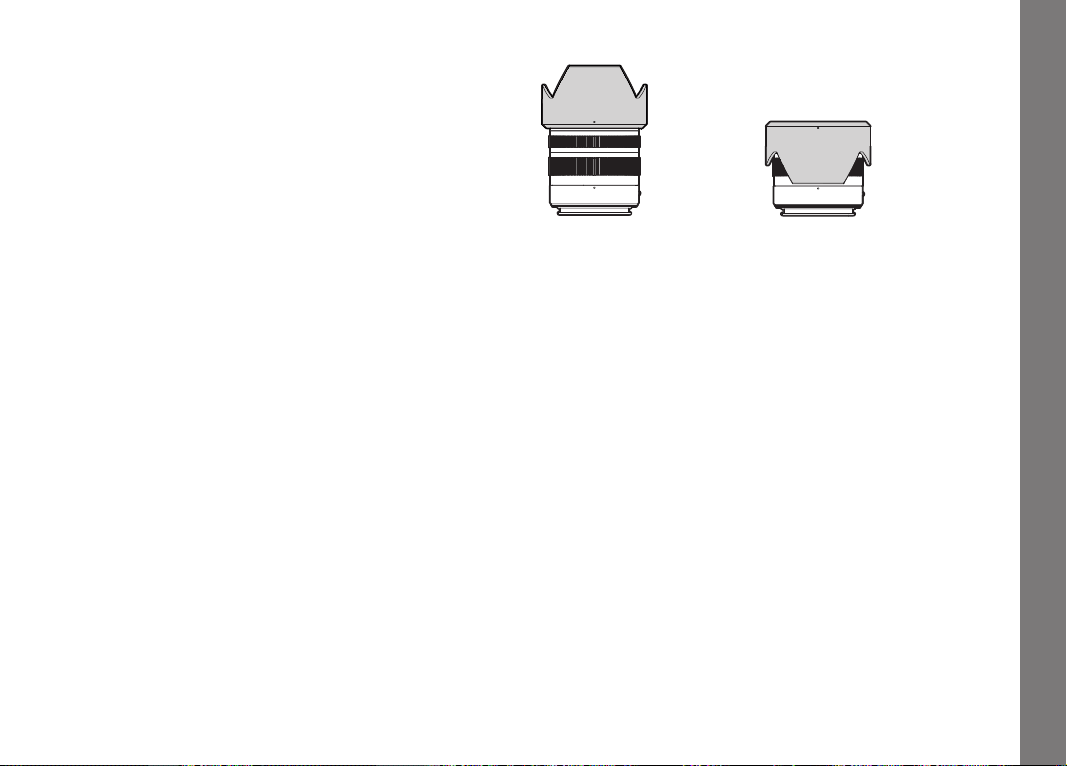
Fig. 12
2.
3.
1.
Fig. 13
2.
3.
1.
ATTACHING THE LENS
Fig. 12
DETACHING THE LENS
Fig. 13
Notes:
• To protect against dust getting into the interior of the camera, it
is important always to have a lens or a cover attached to the
camera body.
• For the same reason, when changing lenses work quickly and in
an environment that is as dust-free as possible.
• Camera or lens rear covers should not be stored in your pants
pocket as they attract dust that can get into the camera when
they are fitted.
COMPATIBLE LENSES
All Leica TL lenses essentially have the same external design: they
have an external bayonet on the front mount for the lens hood and
an internal thread for filters, a setting ring for the distance, a fixed
ring with a red index button for changing lens, and a contact strip
for transferring information and control signals.
Leica TL zoom lenses also have an additional focal length setting
ring with its own index.
Apart from Leica TL lenses, Leica SL lenses can be attached with
their L bayonet to the Leica TL2, making full use of all their func-
tions.
EN
125
Preparations
Depth of field
As Leica TL lenses do not have an aperture ring, there is no depth
of field scale. For the corresponding values, refer to the tables on
the Leica Camera AG website.
Exposure metering and control with zoom lenses for the
Leica TL2
Zoom lenses for the Leica TL2 have a variable maximum aperture
opening depending on the focal length set. To prevent incorrect
exposures, the desired focal length must be determined before
storing the measured value or changing the speed/aperture com-
bination. For further details, refer to the sections under "Exposure
metering and control" starting on p. 158.
When using non-system compatible flash units, the aperture setting
on the flash unit must correspond to the actual aperture.
Lens hood
Picture
setting
Transport
setting
Leica TL lenses are supplied with optimized lens hoods. Thanks to
their symmetrical bayonet, they can be attached quickly and easily
including in reverse for space-saving storage.
Lens hoods reduce stray light and reflections, as well as preventing
damage and dirt on the front lens.
FILTERS
Screw-on filters can be used on lenses for Leica TL2. For the
appropriate diameter, refer to the technical data in the relevant
lens instructions.

EN
126
Camera operation
CAMERA OPERATION
Fig. 14
Fig. 15
MAIN SWITCH
Fig. 14
The Leica TL2 is turned on and off with the main switch:
– Red dot visible = Turned off
– Red dot not visible = Turned on
• The monitor image appears when the camera is turned on.
Note:
The first time you turn on, or when you turn on after resetting all
settings,
PLAY ▸ appears in the top right of the monitor. Pressing
this display starts a welcome video. Playback can be stopped at
any time by touching
SKIP ▸.
The
LANGUAGE submenu then appears, and when you have made
the settings the
DATE/TIME submenu, and finally, once you have
made the settings here, the monitor screen.
SETTING DIALS
Fig. 15
The two setting dials on the Leica TL2 are allocated different
functions in picture, review and menu control modes.

EN
127
Camera operation
SHUTTER BUTTON
Fig. 16
The shutter button works in two stages. Lightly pressing activates
both automatic distance setting and exposure metering and con-
trol, and stores the relevant settings/values. If the camera was
previously in standby mode, this reactivates it and the monitor
image appears again.
Pressing the shutter button all the way down takes a picture.
FUNCTION BUTTON
Fig . 17
You can assign different functions to this button.
Video button (default setting)
Switching from picture to review mode
Turn on viewfinder permanently
Assignment and function are described in the respective sections.
Fig. 16
Fig . 17
EN
128
Tap briefly Tap twice
Swipe
Long touch, drag and
release
Pull apart
Push together
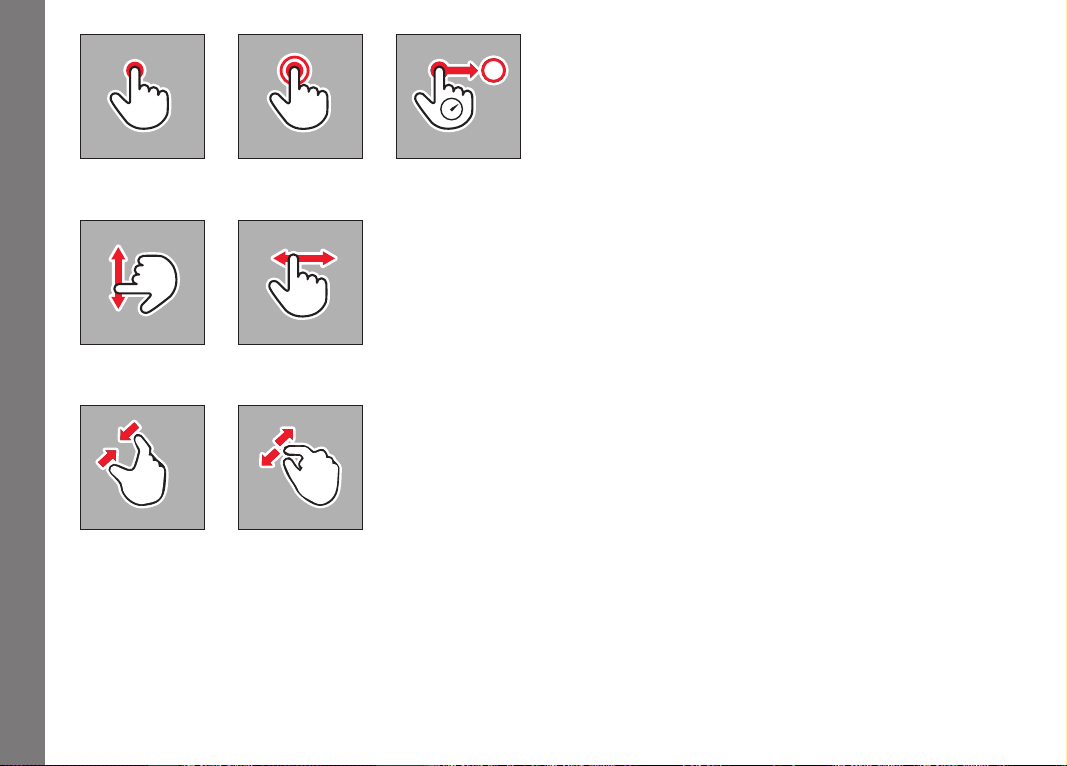
GESTURE CONTROL
The Leica TL2 is predominantly operated using the gestures listed
on the left on the touch-sensitive monitor.
Note:
A light touch is enough, do not press.
Camera operation
EN
129
Camera operation
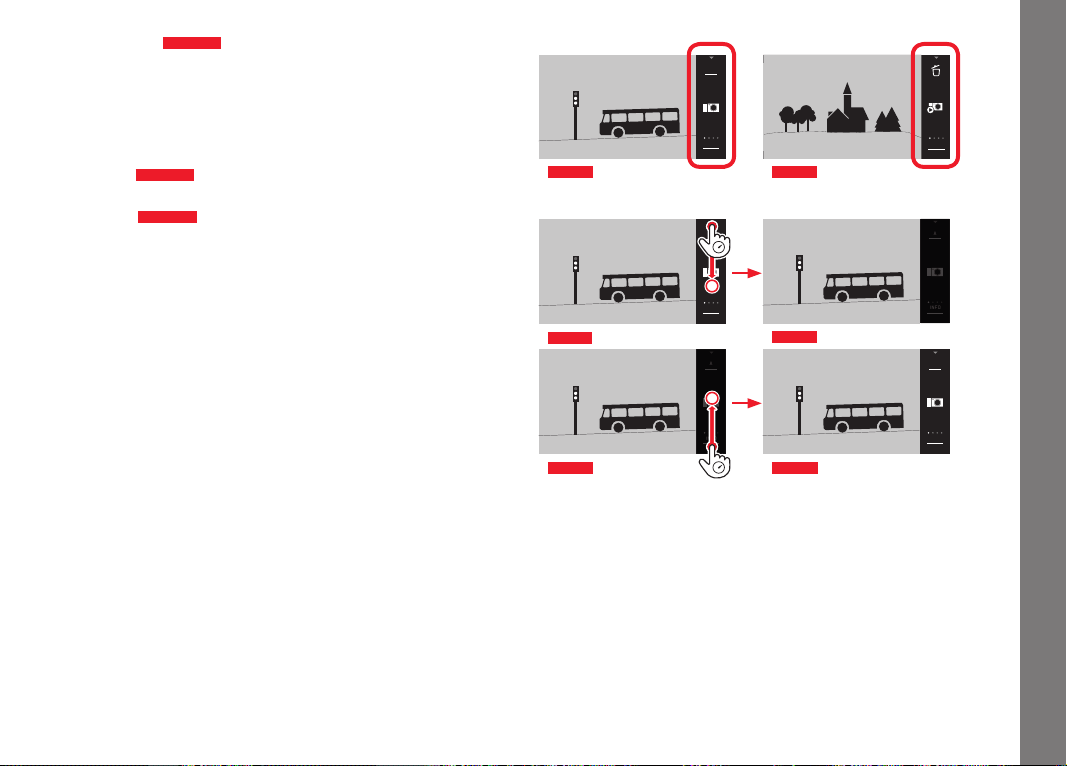
Right toolbar
Fig. 18 a/b
The symbols at the right edge of the monitor are the entry point for
operating the Leica TL2. To prevent unintentional operation, you
can disable these symbols.
Disabling
Fig. 19 a/b
Releasing
Fig. 20 a/b
INFO
1/80002.8F 12500ISO EV
A
-3 2 1 0 21 3+
823412MP
Picture mode
Fig. 18 a
22:45 PM 22.02.2012
999-9000
8234/999912MP
2.8F 1/8000 12500ISO EV
INFO
Review mode
Fig. 18 b
INFO
1/80002.8F 12500ISO EV
A
-3 2 1 0 21 3+
823412MP
Fig. 19 a
INFO
1/80002.8F 12500ISO EV
A
-3 2 1 0 21 3+
823412MP
Fig. 19 b
INFO
1/80002.8F 12500ISO EV
A
-3 2 1 0 21 3+
823412MP
Fig. 20 a
INFO
1/80002.8F 12500ISO EV
A
-3 2 1 0 21 3+
823412MP
Fig. 20 b
EN
130
1/80002.8F 12500ISO EV
A
-3 2 1 0 21 3+
823412MP
INFO
Fig. 21 a
1/602.8F
A
823416MP
AWB
SD
INFO
Fig. 21 b
1/602.8F
A
823416MP
AWB
SD
INFO
Fig. 21 d
1/602.8F
A
823416MP
AWB
SD
INFO
Fig. 21 c
22:45 PM 22.02.2012
999-9000
8234/999912MP
2.8F 1/8000 12500ISO EV
INFO
Fig. 22 a
999-9000
2.8F 1/60 100ISO
AWB
823416MP
SD
INFO
Fig. 22 b
999-9000
2.8F 1/60 100ISO
AWB
823416MP
SD
INFO
Fig. 22 d
999-9000
2.8F 1/60 100ISO
AWB
823416MP
SD
INFO
Fig. 22 c
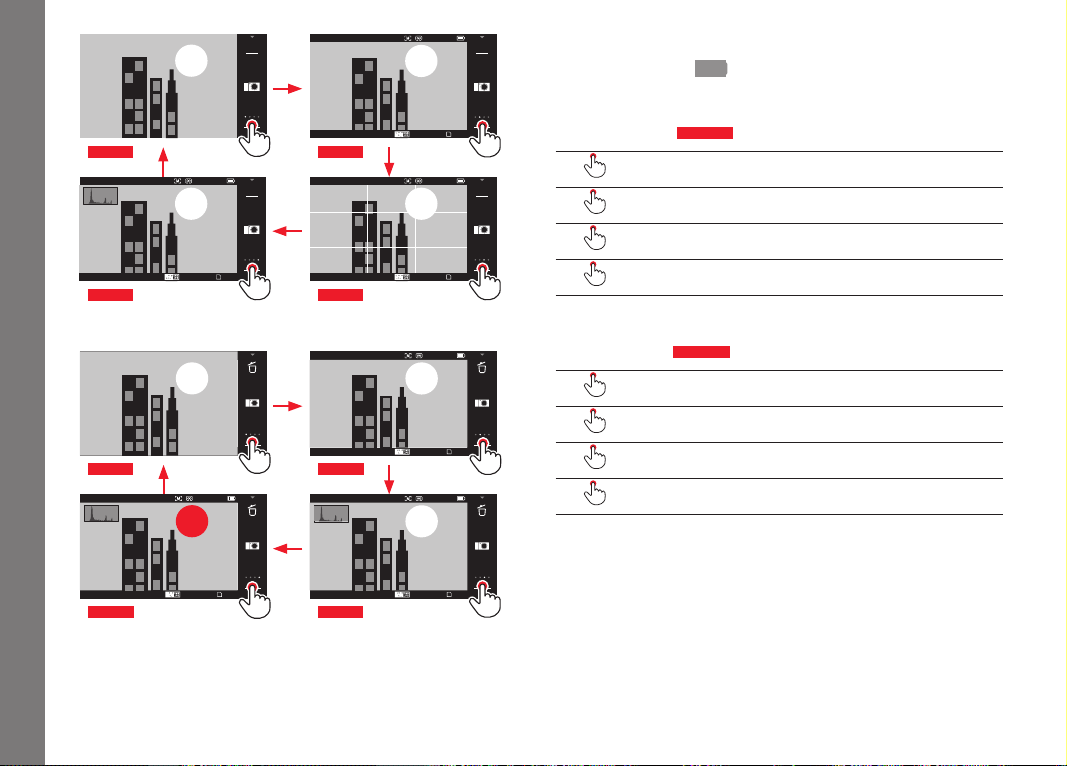
INFO displays
Repeatedly touching
INFO allows you to select the monitor display
according to your desired information set.
In picture mode
Fig. 21 a-d
1x = Status displays in header and footer
2x
= Grid
3x
= Histogram
4x
= No additional information (default setting)
In review mode
Fig. 22 a-d
1x = Status displays in header and footer
2x
= Histogram
3x
= Clipping and histogram
4x
= No additional information (default setting)
Notes:
• In addition, a distance scale appears when focusing manually.
• Details on the histogram and clipping displays, see p.
163/164.
Camera operation
EN
131
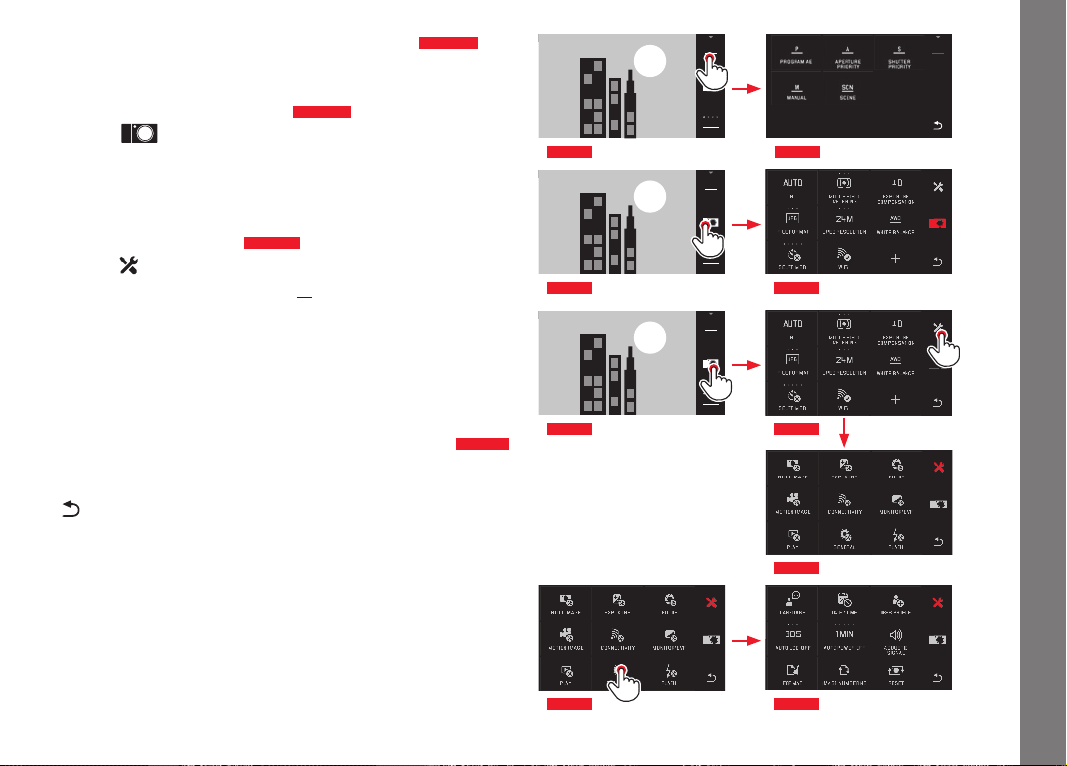
Opening the exposure mode/scene mode menu
Fig. 23 a/b
► touch symbol in the toolbar on top
Opening the MY CAMERA menu
Fig. 24 a/b
► Touch symbol
This menu can be individually configured with functions from the
main menu. This gives you faster access to the functions you use
most frequently.
Opening the main menu
Fig. 25 a-c
► touch symbol in the MY CAMERA menu
The main menu provides access to all menu items on the camera.
Main menu structure
The 9 tiles of the main menu are the access point to the respective
function groups. Each of these groups contain different numbers of
menu items.
Accessing the menu items in a main menu function group
Fig. 26 a/b
Touch the respective tile to call up its menu items.
= Back to the previous menu level/setting, or close menu
altogether
P
Fig. 23 b
1/80002.8F 12500ISO EV
A
-3 2 1 0 21 3+
823412MP
INFO
Fig. 23 a
1/80002.8F 12500ISO EV
A
-3 2 1 0 21 3+
823412MP
INFO
Fig. 24 a Fig. 24 b
1/80002.8F 12500ISO EV
A
-3 2 1 0 21 3+
823412MP
INFO
Fig. 25 a
Fig. 25 c
Fig. 25 b
Fig. 26 a Fig. 26 b
Camera operation

EN
132
Camera operation
Fig. 27 a Fig. 27 b
Fig. 28 a Fig. 28 b
Fig. 28 d Fig. 28 c
Navigation in the main and MY CAMERA menus
The camera provides two different options for navigating in the
menus, the submenus, and the menu items.
– With gesture control and setting dials
Fig. 27 a/b
– Using the setting dials (both have the same function in this case)
and gesture control
Fig. 28 a-d
• Main menu function groups containing more than nine menu
items list these on two pages. This can also be the case in the
MY CAMERA menu. If so, a scrollbar appears on the left, indicat-
ing the current position within that menu.
Note:
Menu items that are not available, e.g. because of other settings,
are indicated by a gray display - instead of white - and are skipped.
EN
133
Camera operation
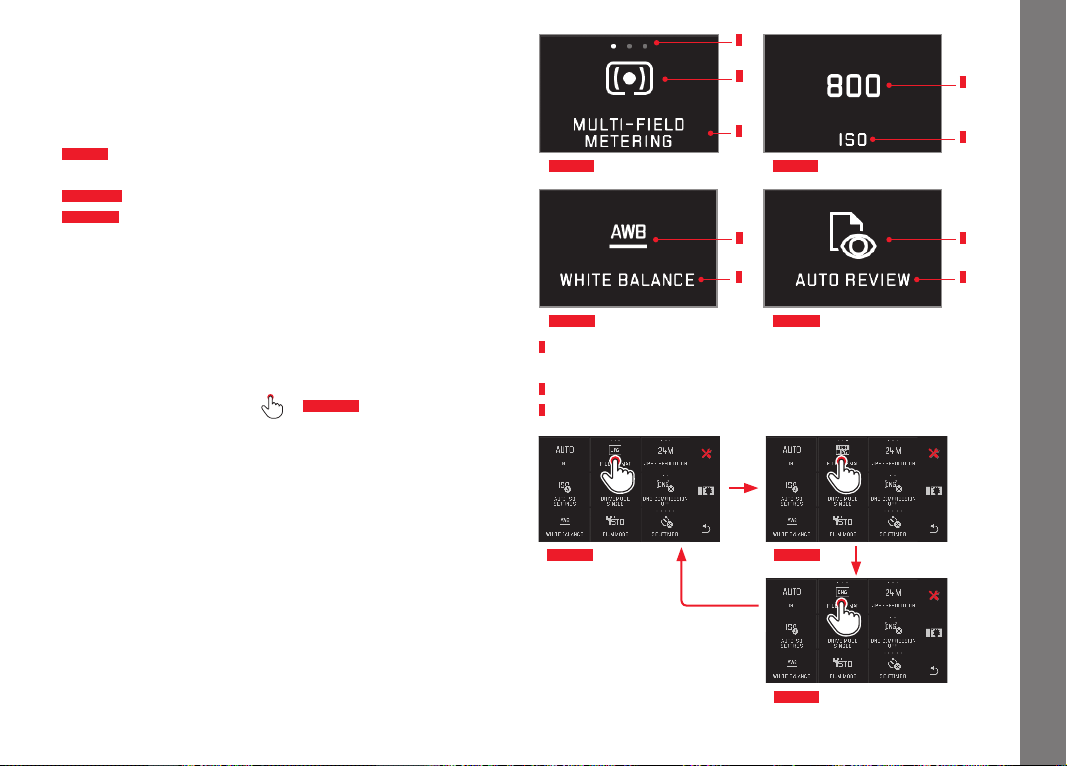
Menu tiles
The main menu function groups as well as menu items are dis-
played in the form of tiles.
Information in the menu item tiles
Fig. 29 a
Display for a tile without submenu; function options
(max. 5) are set directly
Fig. 29 a-d
Changing the order of menu items
Fig. 29 a-d
Name of the menu item and/or the set menu function.
Depending on the scope of the menu item, the tile provides:
– Direct setting of the function options, or
– Access to a submenu
Direct setting of function options
For menu tiles that can be set directly, the next function option is
accessed simply by touching
it
Fig. 30 a-c
.
b
c
b
c
b
c
b
c
a
Fig. 29 c Fig. 29 d
Fig. 29 a Fig. 29 b
a
Display for directly selectable function options,
number of dots = available options
b
Symbol/abbreviation for selected option or value setting
c
Name of function/tile, or selected option
Fig. 30 a Fig. 30 b
Fig. 30 c
EN
134
Camera operation
Fig. 31 a
Fig. 31 b Fig. 31 c
Fig. 31 d Fig. 31 e
Fig. 31 f
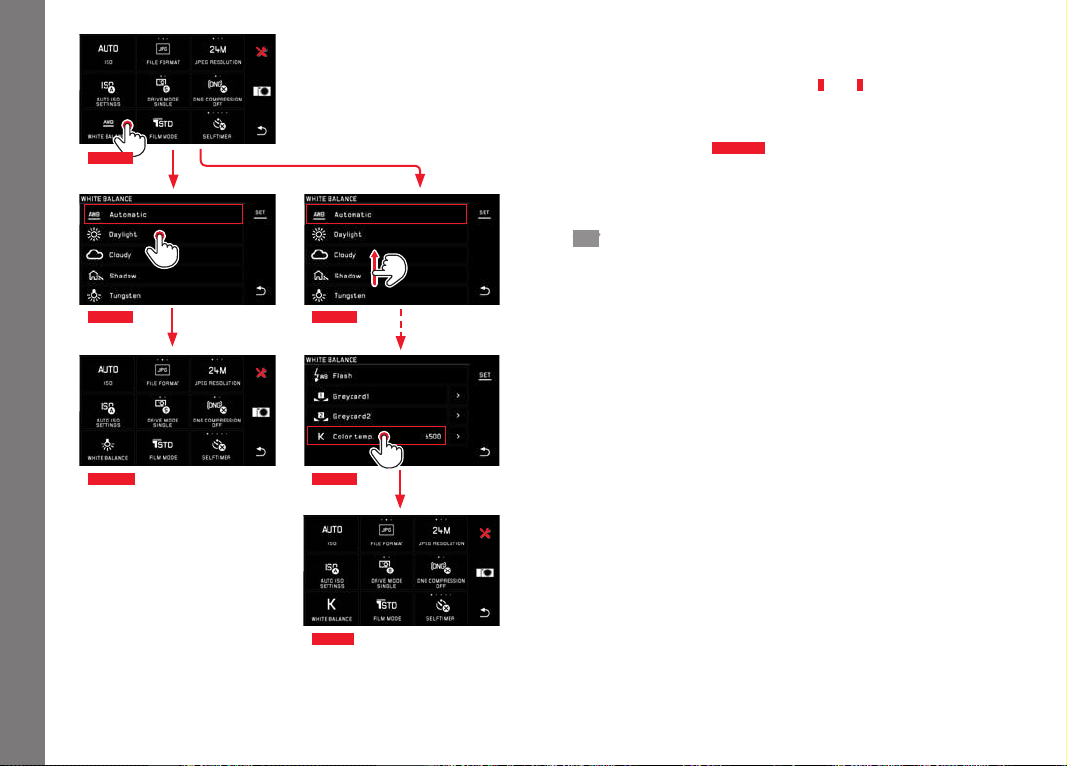
Selecting a menu item and setting function options in
submenus
Menu items that only have the displays
b
and
c
are set using sub-
menus. Their structure differs depending on the function.
With gesture control
Fig. 31 a-f
Swiping scrolls through the submenu list a line at a time.
Notes:
• Marked submenu items can also be set at any time by touching
SET in the toolbar on the right.
• A submenu can include two pages. In such a case, a progress
bar on the left indicates on which page you are at any time.
EN
135
Camera operation
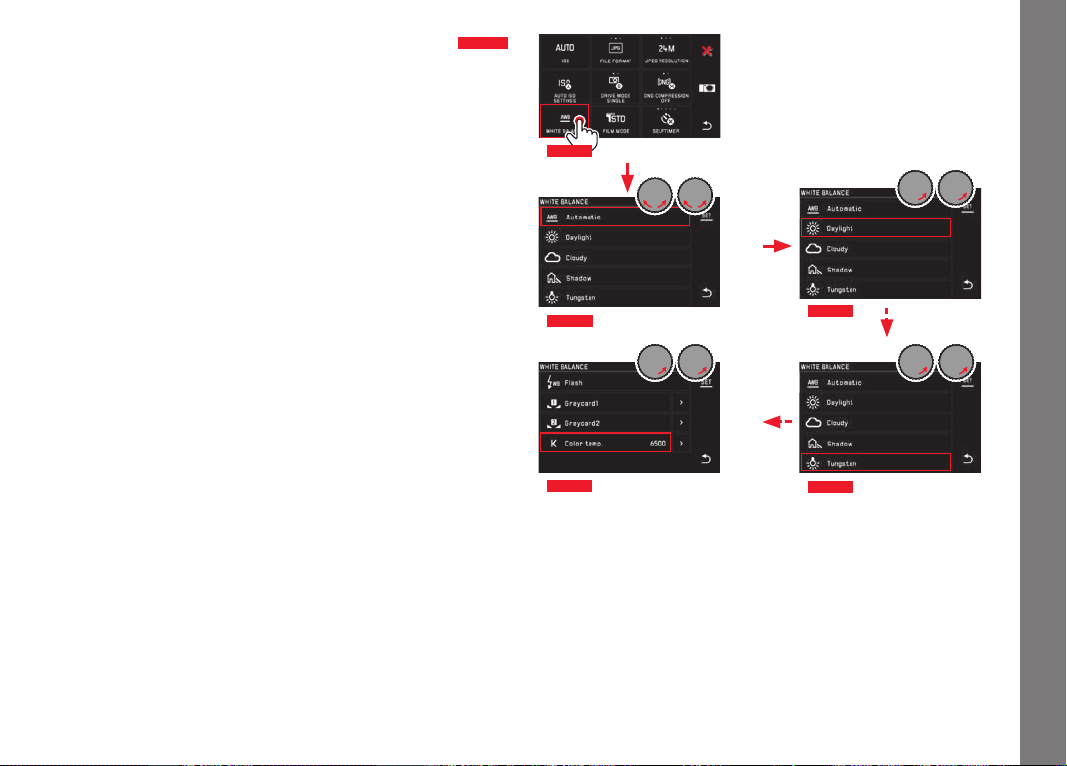
Settings in submenus with setting dials and gesture control
Fig. 32 a-e
Using the setting dials (both have the same function in this case)
function - can be used to select individual options in submenus.
If you continue turning beyond the first or last submenu option on
a page, the submenu list 'jumps' by a page, i.e. the next or previ-
ous lines appear. This also applies to the start and end of the
submenu list (=> "endless loop").
General comments on menu control
• Settings for options that differ from the above explanations or
include additional steps are described in the sections dealing
with the relevant options.
• Some menu items may not be available, e.g. because the rele-
vant functions have fixed settings in the scene modes, or
because the external viewfinder (available as an accessory) they
are related to is not attached. These options are then indicated
by a gray function icon (instead of white) and cannot be
selected.
• The menu is normally opened at the position of the last option
set.
Fig. 32 a
Fig. 32 b
Fig. 32 c
Fig. 32 e
Fig. 32 d
EN
136
Camera operation
Fig. 33 a Fig. 33 b
Fig. 33 d
Fig. 33 c
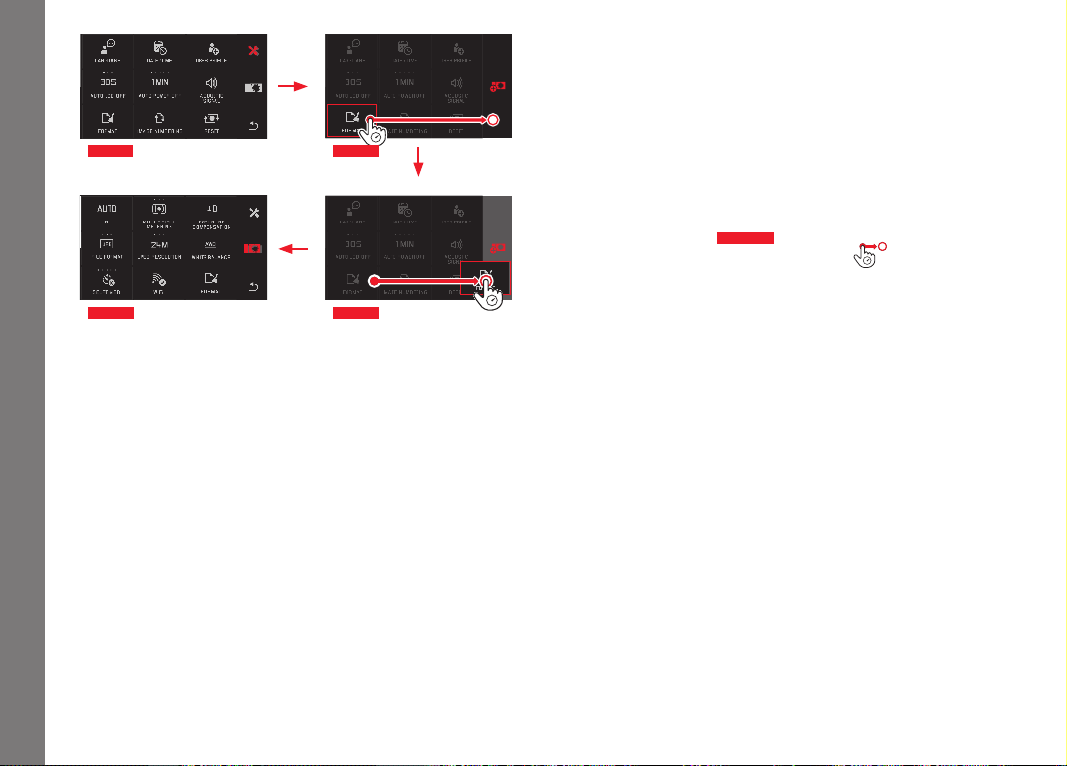
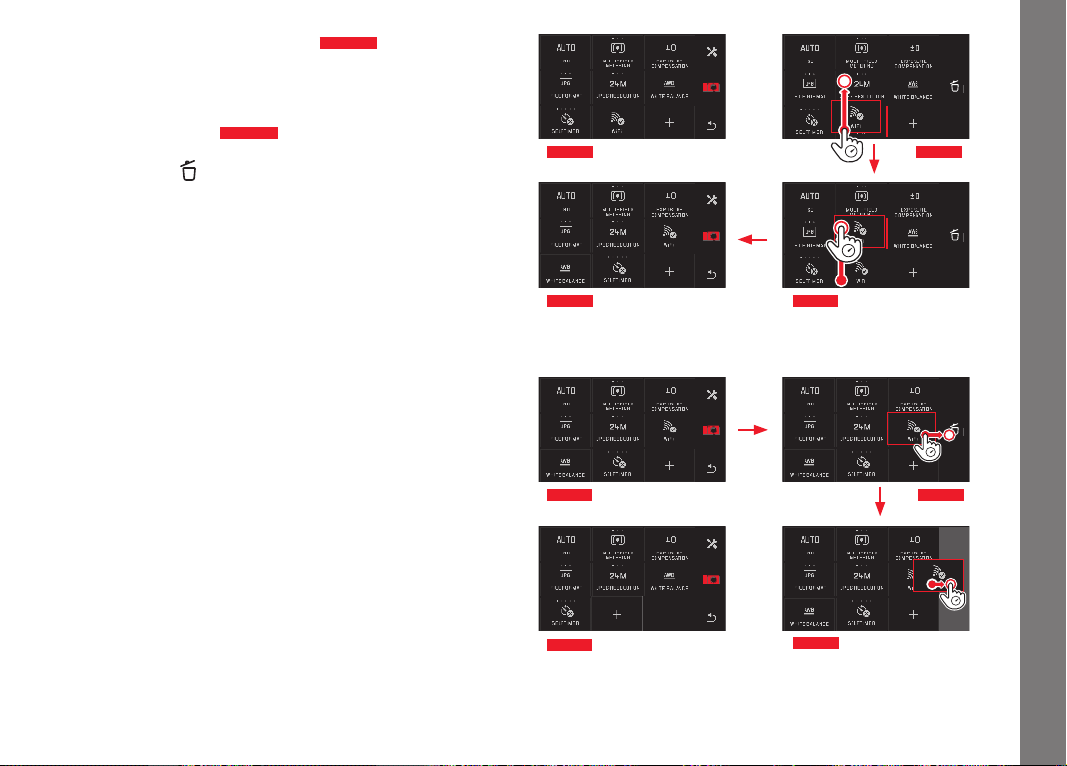
Customizing the MY CAMERA menu
A number of functions are preset as default in the
MY CAMERA
menu.
Every
MY CAMERA menu item’s position in it can be changed, and
every menu item in the main menu function groups can be added
or deleted. This free menu design allows you to individually config-
ure the camera to match your own needs and provides faster
access to the functions you use most frequently.
Adding menu options
Fig. 33 a-d
Menu items can be added using the gesture .
EN
137
Camera operation
Changing the order of menu items
Fig. 34 a-d
The menu items are initially displayed in the order of selection.
However, this order can be changed at any time.
Deleting menu items
Fig. 35 a-c
All menu items can be removed from the MY CAMERA menu by
dragging them to
.
Fig. 34 a
Fig. 34 b
Fig. 34 d
Fig. 34 c
Fig. 35 a
Fig. 35 b
Fig. 35 a
Fig. 35 c

EN
138
Camera operation
INFO
1/80002.8F 12500ISO EV
A
-3 2 1 0 21 3+
823412MP
Fig. 36 a
INFO
1/80002.8F 12500ISO EV
A
-3 2 1 0 21 3+
823412MP
Fig. 36 b
ISO P
INFO
1/80002.8F 12500ISO EV
A
-3 2 1 0 21 3+
823412MP
INFO
1/80002.8F 12500ISO EV
A
-3 2 1 0 21 3+
823412MP
ISO P
Fig. 36 c
INFO
1/80002.8F 12500ISO EV
A
-3 2 1 0 21 3+
823412MP
Fig. 37 a
ISO P
P
INFO
1/80002.8F 12500ISO EV
A
-3 2 1 0 21 3+
823412MP
P
Fig. 37 b
P
1/602.8F
AWB
823416MP
SD
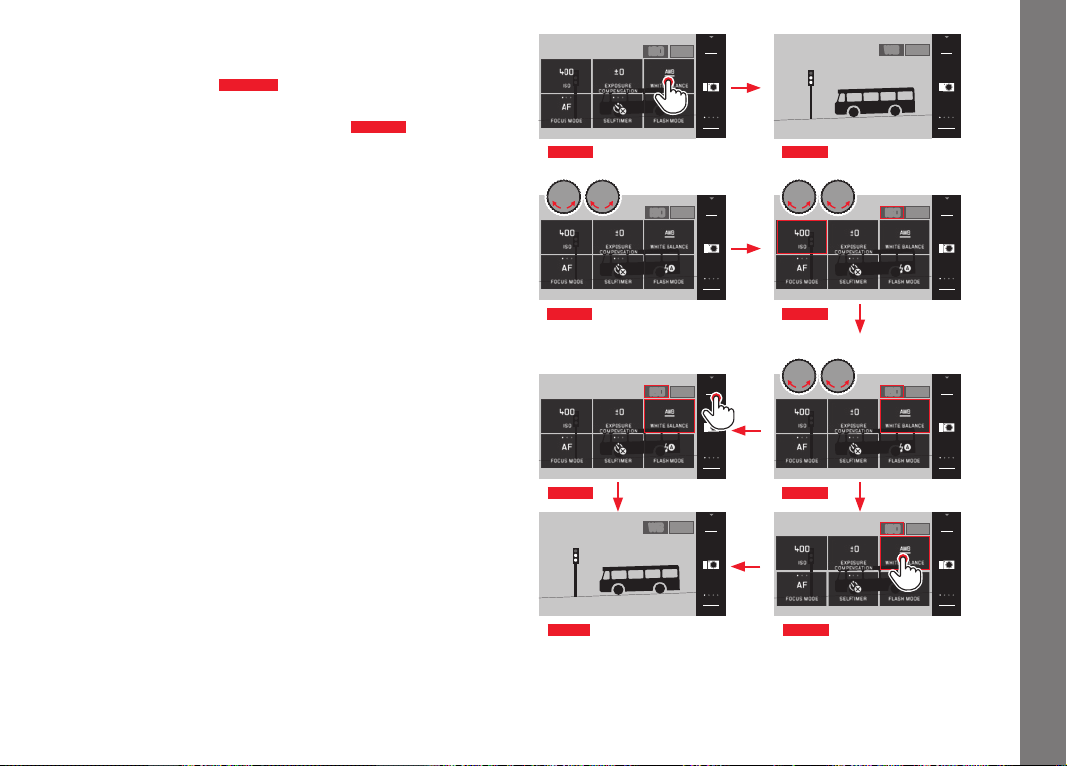
Setting dial menu
In aperture priority, shutter speed priority and automatic program
modes, the right setting dial is assigned the aperture, shutter
speed and program shift functions respectively. In these modes,
the functions represented by the six tiles shown in
Fig. 36 c
can be
assigned to the left setting dial. The factory default is
ISO
.
Opening the main menu
Fig. 36 a-c
The setting dial function displays appear when one of the dials is
turned by one detent position. Touching the left function display
brings up the available function tiles.
Locking/unlocking the setting dials
Fig. 37 a/b
The setting dial functions can be locked/unlocked by touching the
respective function displays for a long time. This is possible with
both setting dials.
EN
139
Camera operation
Assigning the desired function to the left setting dial
With gesture control
Fig. 38 a/b
With a setting dial and gesture control
Fig. 39 a-f
Note:
Regardless of which of the function tiles is active in the menu list
(outlined in red) any of them can be selected at any time by touch-
ing it.
INFO
1/80002.8F 12500ISO EV
A
-3 2 1 0 21 3+
823412MP
INFO
1/80002.8F 12500ISO EV
A
-3 2 1 0 21 3+
823412MP
ISO P
Fig. 38 a
INFO
1/80002.8F 12500ISO EV
A
-3 2 1 0 21 3+
823412MP
WB P
Fig. 38 b
INFO
1/80002.8F 12500ISO EV
A
-3 2 1 0 21 3+
823412MP
INFO
1/80002.8F 12500ISO EV
A
-3 2 1 0 21 3+
823412MP
ISO P
Fig. 39 a
INFO
1/80002.8F 12500ISO EV
A
-3 2 1 0 21 3+
823412MP
INFO
1/80002.8F 12500ISO EV
SET
-3 2 1 0 21 3+
823412MP
ISO P
Fig. 39 b
INFO
1/80002.8F 12500ISO EV
A
-3 2 1 0 21 3+
823412MP
INFO
1/80002.8F 12500ISO EV
SET
-3 2 1 0 21 3+
823412MP
ISO P
Fig. 39 d
INFO
1/80002.8F 12500ISO EV
A
-3 2 1 0 21 3+
823412MP
INFO
1/80002.8F 12500ISO EV
SET
-3 2 1 0 21 3+
823412MP
ISO P
Fig. 39 c
INFO
1/80002.8F 12500ISO EV
A
-3 2 1 0 21 3+
823412MP
WB P
Fig. 39 f
INFO
1/80002.8F 12500ISO EV
A
-3 2 1 0 21 3+
823412MP
INFO
1/80002.8F 12500ISO EV
A
-3 2 1 0 21 3+
823412MP
ISO P
Fig. 39 e
EN
140
Basic camera settings
BASIC CAMERA SETTINGS
MENU LANGUAGE
► In the main menu, select
►
Select
► Select the desired language in the submenu
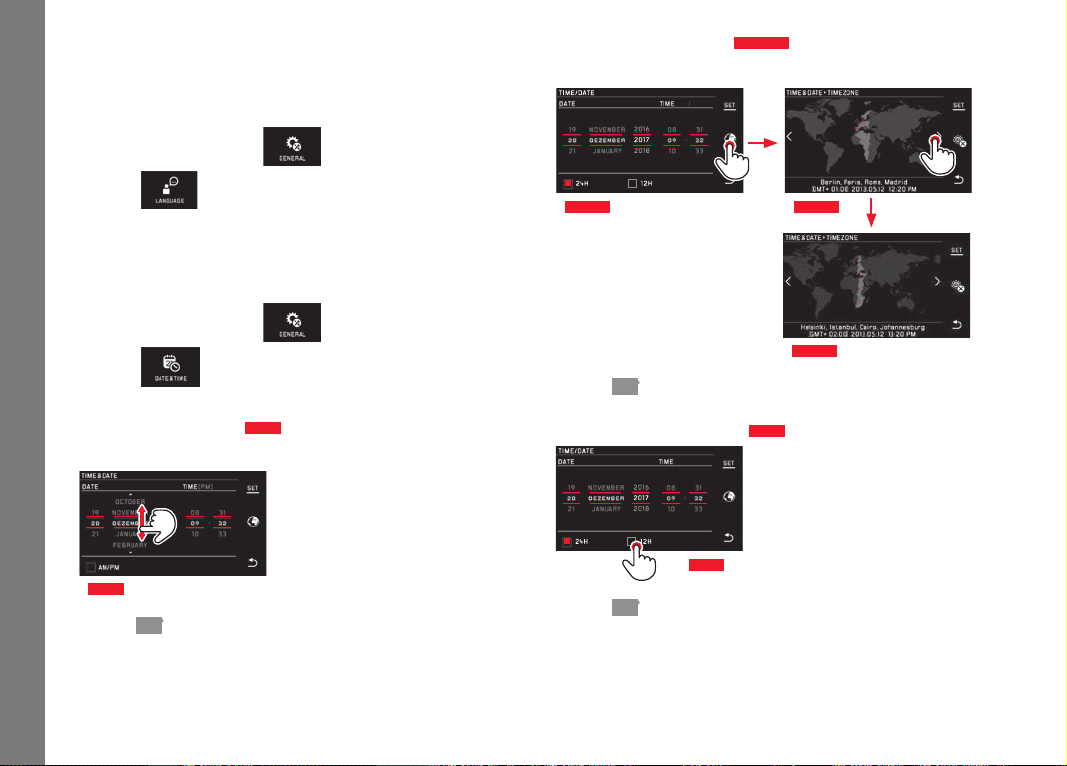
DATE/TIME
► In the main menu, select
►
Select
Setting the date/time
Fig. 40
These settings are made in the same way in all five 'columns'.
Fig. 40
► Press SET to confirm
Selecting the time zone
Fig. 41 a-c
Each touch or drag advances the setting by one time zone.
Fig. 41 c
Fig. 41 bFig. 41 a
Fig. 42a
► Press SET to confirm
Selecting the time format
Fig. 42
Fig. 42
► Press SET to confirm

EN
141
Basic camera settings
Activating/deactivating daylight saving time
Fig. 43 a/b
Fig. 43 a Fig. 43 b
• = off, = on
► Touch SET to confirm
Note:
Even if no battery is inserted or if the battery is flat, the date and
time settings are retained for around 2 days thanks to the built-in
back-up battery. However, after this time they have to be reset.
Automatic Camera Shutdown
If this function is activated, the camera switches to energy-saving
standby mode after the selected time (1/2/5/10/20min).
► In the main menu, select
►
Select
Notes:
• When the camera is in standby mode, it can be turned on at any
time by pressing the shutter button or by turning it off and on
with the main switch.

EN
142
Basic camera settings
Acoustic signals
On the Leica TL2 you can set whether you want particular opera-
tions or a full memory card to be indicated by tones, or whether
you prefer operation of the camera and photography itself to be
largely quiet.
► In the main menu, select
►
Select
► Select the required settings in the Volume, Click , SD card full,
AF Confirmation submenus (OFF, LOW, HIGH)
Monitor/viewfinder settings
For optimum visibility and to adapt to different lighting conditions,
the brightness and color reproduction can be adjusted.
Notes:
• The operations described below using the example of the moni-
tor settings also apply to the viewfinder settings, i.e. for the
EVF
BRIGHTNESS and EVF COLOR ADJUSTMENT menu items.
If the Leica Visoflex external electronic viewfinder available as an
accessory is not attached, these menu options cannot be
selected and the relevant function icons are grayed out.
• The viewfinder is turned on automatically - and the camera
monitor is turned off - as soon as the sensor in the eyepiece
detects that you are looking through the viewfinder. However, if
menu control is active, this does not happen until you tap the
shutter release. You can also switch on the viewfinder with the
function button, provided the latter is set accordingly (see next
page).
Brightness settings
► In the main menu, select
►
Select
or
► Select AUTO in the submenu (for automatic setting controlled by
the external brightness)
or
► Make the desired setting on the scale in the submenu using
or one of the setting dials
EN
143
Basic camera settings
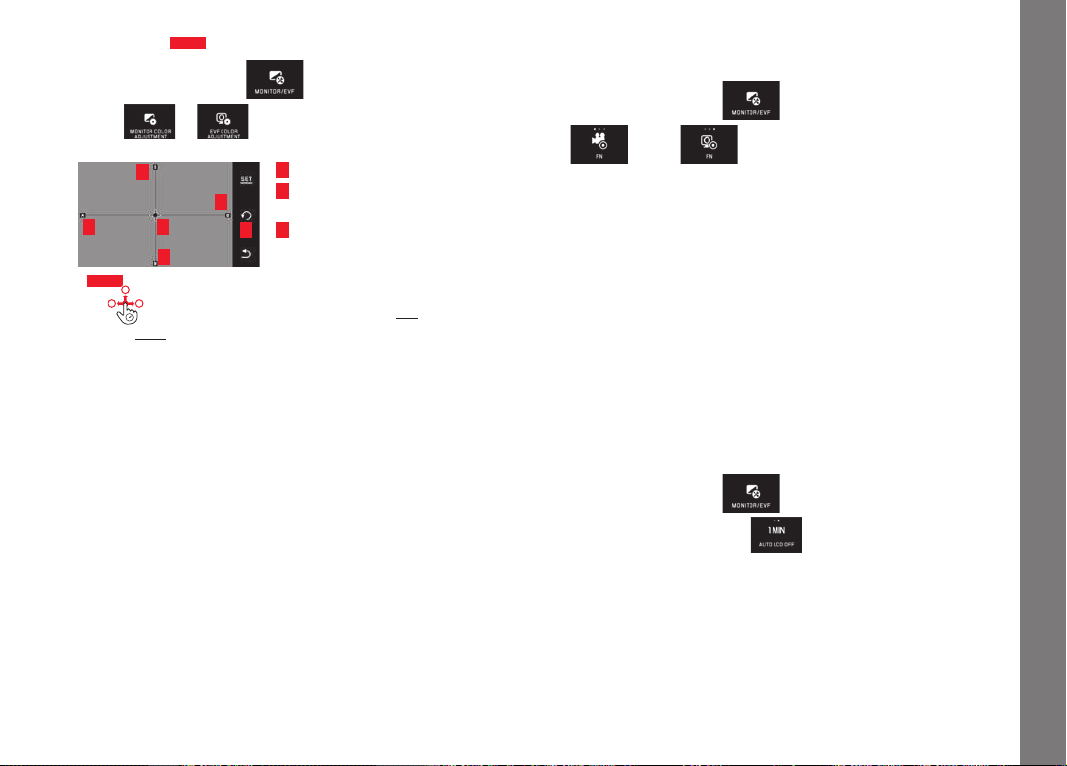
Color settings
Fig. 44
► In the main menu, select
►
Select
or
1.
3.
2.
2.
2.
2.
Fig. 44
1. Cursor for current setting
2. Color directions (Y = yellow, G = green,
B = blue, M = magenta)
3. Symbol for resetting to neutral-position
(center)
► Use or the setting dials - vertical with the left, horizontal
with the right - to move the cursor from its initial position in the
center to the position that results in the desired color reproduc-
tion in the monitor/viewfinder image, i.e. towards the corre-
sponding colors displayed at the edges
• The color reproduction in the monitor/viewfinder image
changes according to your setting.
Setting the function button to switch the viewfinder on
permanently
► In the main menu, select
► In , select
Note:
With this function active, pressing the function button results in the
monitor image never appearing, i.e. regardless of whether or not
you are looking through the viewfinder. Pressing the function
button again reactivates automatic switching between viewfinder
and monitor.
Automatic monitor shutdown
This function enables you to select the time after which the moni-
tor is shut down or whether you want it to remain turned on. Shut-
ting down saves power and also ensures that the camera is ready
to use more quickly when reactivated.
► In the main menu, select
► Select the required setting in

EN
144
Basic picture settings
BASIC PICTURE SETTINGS
File format/compression rate
The JPEG format
JPG and the standardized raw data format DNG (=
digital negative) are available. They can be utilized both separately
and simultaneously.
► In the main menu, select
► Select the required setting in
DNG compression
With the
DNG format, you can select either uncompressed, or, in
order to reduce file sizes, totally lossless compressed recording.
► In the main menu, select
► Select the required setting in
Note:
The indicated remaining number of pictures or recording time are
an approximation, as the file size for compressed images can vary
considerably depending on the subject of the photograph.
JPEG resolution
When the
JPG format is selected, pictures can be taken with 3
different resolutions (numbers of pixels). The settings available are
6M, 12M and 24M (M = megapixels). This allows you to adjust the
setting precisely to the intended use or to the available memory
card capacity.
► In the main menu, select
► Select the required setting in
Note:
The
DNG format is always stored at the maximum resolution
regardless of the
JPG settings.
EN
145
Basic picture settings
White balance
In digital photography, white balance ensures neutral, i.e. natural,
reproduction of color in any light. It is based on the camera being
preset to reproduce a particular color as white.
You can choose between automatic white balance, various presets,
two fixed settings based on selective measurements, and direct
setting of the color temperature.
1.
Automatic (automatic settings)
2.
Daylight (for outdoor pictures in sunshine)
3.
Cloudy (for outdoor pictures in cloudy conditions)
4.
Shadow (for outdoor pictures with the main subject in shadow)
5.
Tungsten (for incandescent bulb lighting)
6.
Flash (for illumination with electronic flash)
7.
Grey card 1 (memory slot for your own measured results)
8.
Grey card 2 (memory slot for your own measured results)
9.
Color temp. (memory slot for fixed setting)
Fixed presets
► In the main menu,
select
►
Select
► Select the required setting in the 1st submenu
Manual setting by metering
► In the main menu,
select
►
Select
► In the 1st submenu, select next to Greycard 1 or Greycard 2
• A yellow frame appears in the center of the monitor with an
instruction below it.
► Aim the frame at a uniform white or gray object that completely
fills the frame
► Touch SET to confirm
The camera releases the shutter and carries out metering and
storage.
The settings can subsequently be retrieved using
Grey card1 or
Grey card2.
Direct color temperature setting
► In the main menu,
select
►
Select
► In the 1st submenu, select next to Color temp.
► Select the required value in the 2nd submenu
Selecting white balance functions with the left adjusting dial.
If the
WB
function is assigned to the left adjusting dial, it can be
used to directly select the required option.

EN
146
Basic picture settings
ISO sensitivity
The ISO setting specifies the possible shutter speed and aperture
combinations at a particular brightness. Higher sensitivities allow
faster shutter speeds and/or smaller apertures (for "freezing" rapid
movements or to increase the depth of field), although this can
also result in greater noise.
► In the main menu,
select
►
Select
► Select the desired setting in the submenu (i.e. AUTO ISO for the
automatic setting, or one of the eight fixed settings)
If the
ISO
function is assigned to the left setting dial, it can be
used to directly select the required option.
Within the
AUTO ISO option it is possible to limit the sensitivity
range to be used (e.g. to control noise), and the slowest shutter
speed to be used can also be specified (e.g. to prevent blurred
pictures of moving subjects):
► In the main menu,
select
►
Select
► Select the Max. exposure time and/or Maximum ISO submenu
► Select the required settings in the Max. exposure time and/or
Maximum ISO submenus
JPEG image properties (Film Mode)
One of the many advantages of digital photography is that it is very
easy to change critical properties of a picture.
On the Leica TL2, you can influence color reproduction, contrast,
sharpness and color saturation before taking the picture.
Note:
The functions and settings described in the next two sections
relate exclusively to pictures in the
JPG format. If the DNG file
format is specified, these settings have no effect as in this case the
image data is always saved in its original format.
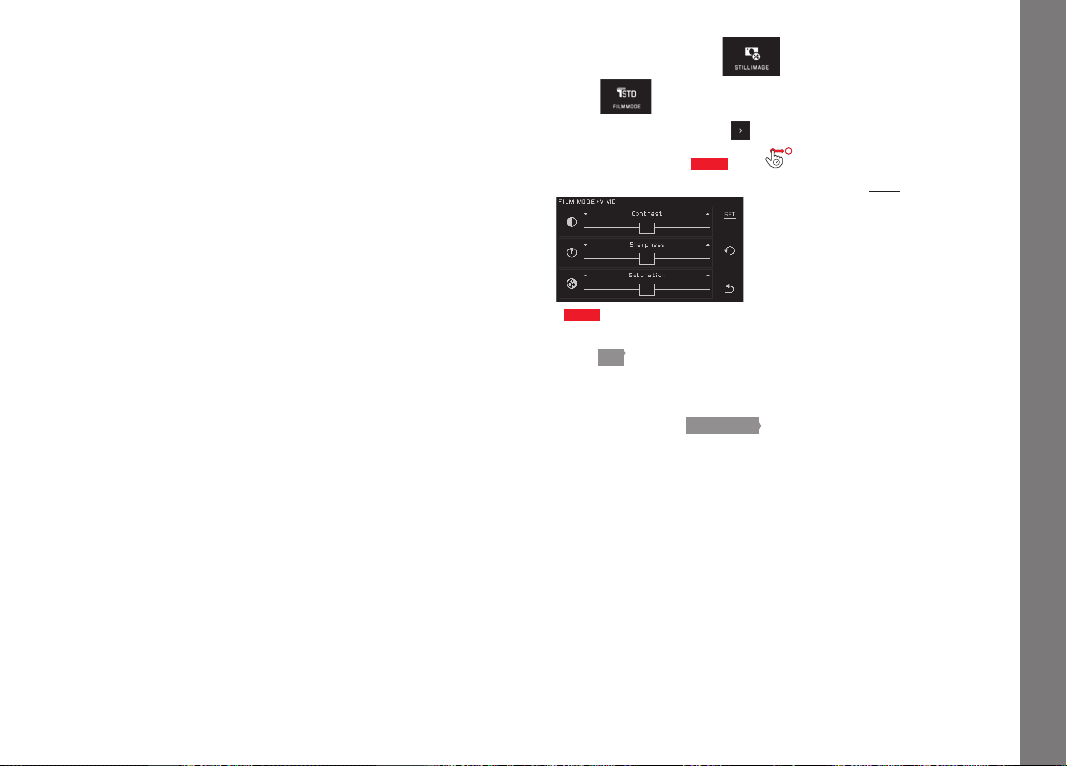
Color Rendering
For the color reproduction, you can select between
Standard, Vivid
– for highly saturated colors – and
Natural – for slightly less satu-
rated colors and a somewhat softer contrast. There are also two
black and white settings
B&W Natural (natural) and B&W High
Contrast (high contrast).
► In the main menu,
select
►
Select
► Select the required setting in the submenu
EN
147
Basic picture settings
Contrast, sharpness, saturation
For each color reproduction setting, these 3 image properties can
also be changed.
– The contrast, i.e. the difference between light and dark sections
of the image, determines whether it has a more “flat” or “bril-
liant” effect. As a consequence, the contrast can be influenced
by increasing or reducing this difference, i.e. by lighter reproduc-
tion of light sections of the image and darker reproduction of
dark sections.
– Focus display – at least of the main subject –using the correct
focusing is a prerequisite for a successful picture. In addition,
the impression of sharpness of a picture is determined by the
edge sharpness, i.e. how small the transition area between light
and dark is at edges in the picture. The impression of being in
focus can thus be changed by expanding or reducing these
areas.
– When shooting in color, saturation determines whether the
colors in the picture tend to appear as “pale” and pastel-like or
“bright” and colorful.
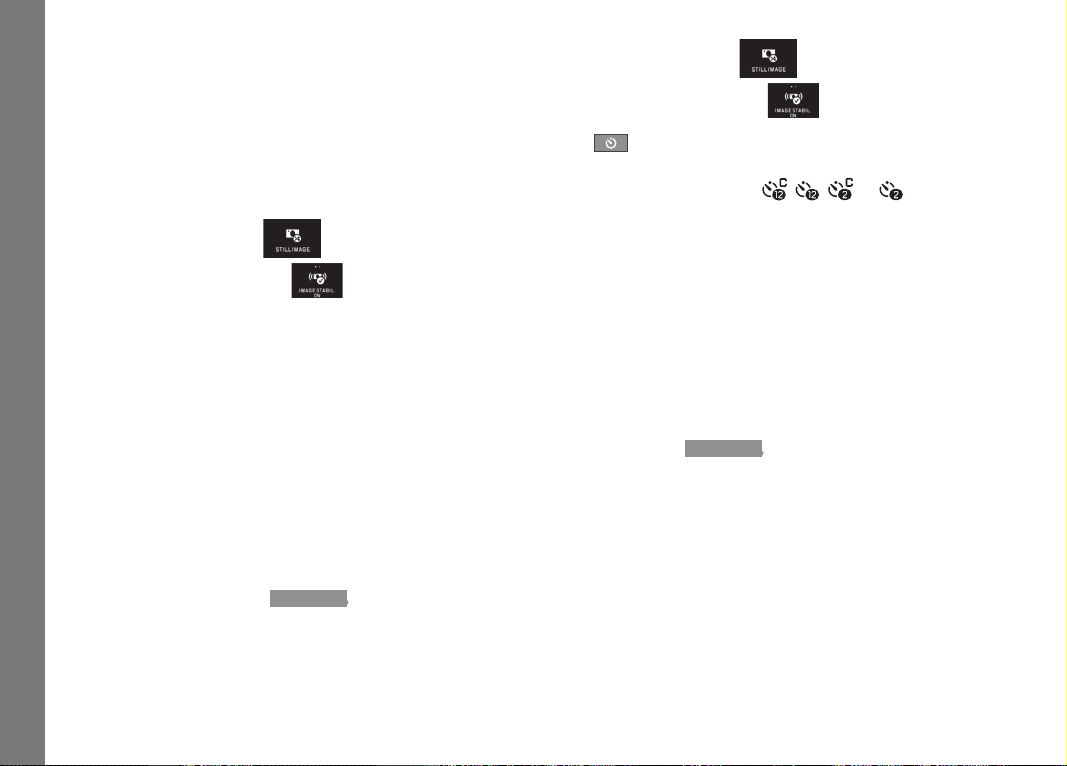
► In the main menu,
select
►
Select
► In the 1st submenu, press for the required color reproduction
► In the 2nd submenu
Fig. 45
, use to adjust the relevant image
property, or make the desired setting using the right setting dial
Fig. 45
► Touch SET to confirm
• Whenever such a setting has been performed, the relevant color
reproduction option is marked in the 1st submenu by an addi-
tional asterisk, e.g.
Standard*.
EN
148
Basic picture settings
ADDITIONAL PICTURE SETTINGS
Image stabilization
When using Leica SL lenses featuring OIS, your Leica TL2 lets you
take advantage of these lenses’ built-in stabilization function. By
doing so, you can often achieve sharp pictures at shutter speeds
that would otherwise be too slow.
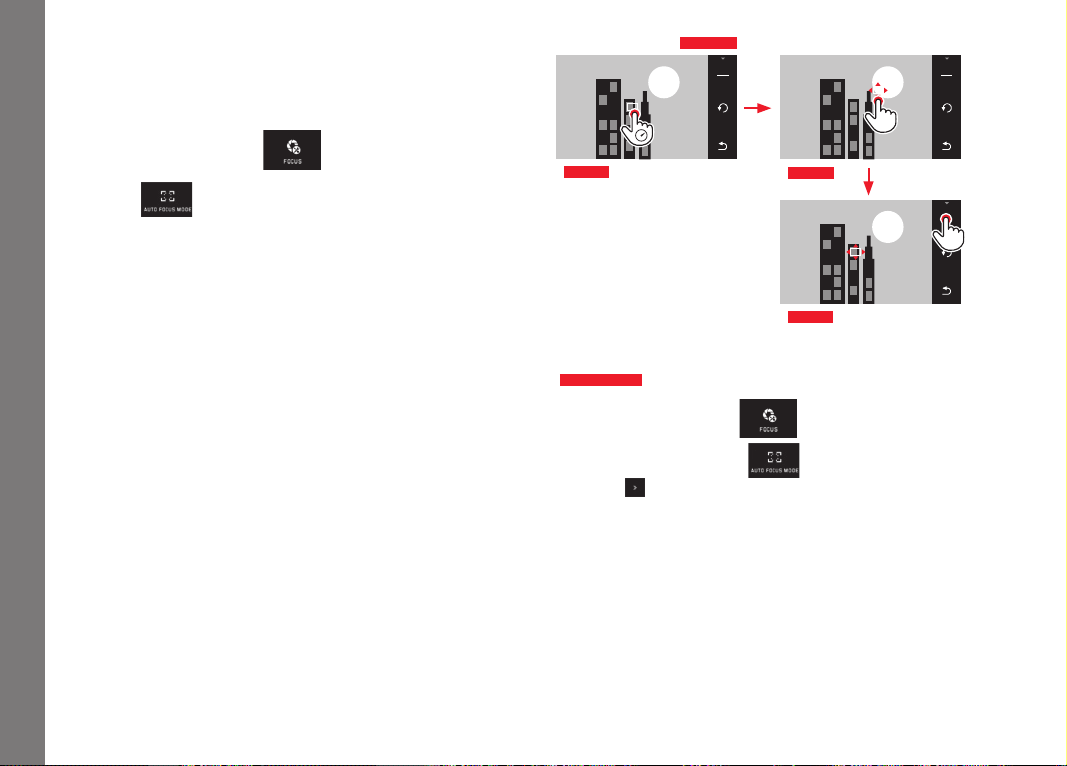
► In the main menu,
select
► Select the required setting in
Notes:
• When using Leica TL lenses, this function is not available, the
respective tile is thereforenot accessible, i.e. ‘grayed out’.
• For further information about OIS, see the respective lens’
instructions.
Self-Timer
You can use the self-timer to take a picture with a delay of either 2
or 12s. This is particularly useful for group photographs, where
you want to appear in the picture yourself or if you want to avoid
the picture being out of focus due to camera shake when releasing
the shutter. We recommend that the camera is placed on a tripod.
Additionally, you can select whether the self-timer operates only
once or for several pictures (
Permanent options).
► In the main menu,
select
► Select the required setting in
If the
function is assigned to the left setting dial, it can be
used to directly select the desired option (see p. 138).
• If the self-timer is turned on
, , , or is displayed.
Operation:
► Press the shutter release all the way down to take the picture
• The progress is indicated by the flashing self-timer LED:
– 12s delay time: slowly at first, faster for the last 2s
– 2s delay time: As described above for the last 2s
• The remaining time is counted down in the monitor.
Notes:
• A delay time in progress can be restarted at any time by press-
ing the shutter button again. The only way to cancel a delay time
in progress though is to turn off the camera.
• When one of the
Permanent options is selected, the function will
remain active even after switching the camera off and back on.
• It is only ever possible to take single pictures when the self-timer
is active, i.e. picture series and automatic bracketing cannot be
combined with self-timer mode.
• In self-timer mode, the focus and exposure are not set when the
shutter button reaches its pressure point, but immediately
before the picture is taken.

EN
149
Basic picture settings
Recording the location with GPS
The external LEICA Visoflex (Typ 020) available as an accessory
contains a GPS (Global Positioning System) receiver. If the view-
finder is attached, this enables the camera to add the location
coordinates to the picture data.
Setting the function
► In the main menu,
select
► Select the required setting in
• The "satellite" symbol in the monitor indicates the relevant
status:
– GPS off: No display
– GPS on, no reception:
– GPS on, reception:
Notes on the function:
• GPS positioning requires as clear a path as possible to at least 3
of the GPS satellites (up to 9 are available from any point on
earth).
• Make sure that the viewfinder is not covered with your hand or
any other item, particularly metal objects.
• It may not be possible to receive good signals from GPS satel-
lites at the following locations or in the following situations. In
such cases, positioning may not be possible at all, or may be
incorrect:
– in closed rooms
– underground
– under trees
– in a moving vehicle
– close to high buildings or in steep valleys
– close to high voltage cables
– in tunnels
– close to 1.5GHz mobile telephones
Information for safe use:
Make sure the GPS function is deactivated on board an aircraft
before takeoff or landing, in hospitals or in other locations where
there are restrictions on wireless transmissions.
Important (legal restrictions on use):
In certain countries or regions, the use of GPS and associated
technologies may be restricted. Therefore, before traveling in other
countries you should consult the relevant country's embassy or
your travel agent.

EN
150
Picture mode
PICTURE MODE
Picture series
The Leica TL2 can be used to take single pictures and series of
pictures.
► In the main menu,
select
► Select the required setting in
Notes:
• Picture series are taken at a frequency of 7fps, provided shutter
speeds of
1
⁄60s and faster are used.
• Picture series are not possible when using the flash. If a flash
function is activated, only one picture is taken.
• If picture series mode is set and the self-timer is used at the
same time, only a single picture is taken.
• After a series of a maximum of 29pictures, the shooting fre-
quency slows down slightly. This is due to the time required to
transfer the data from the buffer memory to the card/internal
memory.
• Regardless of how many pictures are taken in a series, the last
picture is always shown first when they are reviewed.
Focusing
Your Leica TL2 allows automatic as well as manual focusing. There
are two automatic modes - AFs (single autofocus) or AFc (continu-
ous autofocus). In both, you can choose between options covering
either the complete distance setting range, or only short distances,
e.g. to speed up focusing for close-ups.
Automatic focusing (AF/Automatic distance setting)
► In the main menu,
select
► Select the desired setting in
If the
AF
function is assigned to the left setting dial, it can be
used to directly select the required option -
AFs
/
AFc
or
MF
.
• The set function is displayed in the monitor.
The
AFs mode should be used if you want to take photos of sub-
jects that do not, or hardly, move at all. Focus on the area that is
to be in focus by applying light pressure to the shutter button (first
pressure point). If the subject moves between first tapping the
shutter button and the exposure, the desired part of the picture
may no longer be in focus. By contrast, the
AFc mode should be
used if you want to photograph moving subjects. Here, you also
focus on the desired area using the first pressure point of the
shutter button. While it is being held down to the first pressure
point, the camera permanently focuses on the previously focussed
area.

EN
151
Picture mode
• A successful AF setting is displayed as follows:
– The color of the rectangle changes to green
– with multi-zone metering up to 9 green rectangles appear
– an acoustic signal can be heard (if activated).
Notes:
• With the shutter button pressed halfway, it is also possible to
manually change the automatically set distance in autofocus
mode with the lens’ distance setting ring.
• The setting is stored along with the exposure setting.
• In certain situations the AF system is unable to set the distance
correctly, e.g. when:
– The distance to the subject you are aiming at is outside the
setting range of the attached lens, and/or
– The subject is not sufficiently illuminated (see next section).
These situations and subjects are indicated by:
– Color of rectangle changes to red,
– With multi-zone metering the display changes to a single red
rectangle
• When using Leica M or R lenses with the Leica M or R Adapter L
available as an accessory, only manual focusing is possible.
• Depending on the Leica TL lens attached, the
FOCUS MODE
point is supplemented by the measuring methods
AFs Macro
and
AFc Macro.
Important:
The shutter release button is not locked, regardless of whether or
not the focusing is correct for the relevant subject.
AF auxiliary light
The built-in AF auxiliary light extends the operating range of the AF
system in poor lighting conditions. If the function is active, this light
comes on as soon as the shutter button is pressed.
► In the main menu,
select
► Select the required setting in
Note:
The AF auxiliary light illuminates a range of approximately 4m. AF
mode is therefore not available at distances beyond this limit.
EN
152
Picture mode
Autofocus metering methods/Operating modes
For optimum adjustment of the AF system to different subjects,
situations and your compositional ideas, you can choose between
five AF metering methods on the Leica TL2.
► In the main menu,
select
► Select
► Select the required setting in the submenu
Spot/single point measurement
Both metering methods detect only those parts of the subject
within the relevant AF frame.
• The metering zones are indicated by a small AF frame.
The very small metering zone for spot measurement allows focus-
ing on tiny details of the subject.
The slightly longer single point metering zone is less critical when
focusing, and therefore easier to handle while still allowing selec-
tive measuring.
The AF function can also be used for picture series in which the
part of the subject you want to be in focus is always at the same
off-center point in the image.
With both metering methods, you can do this by moving the AF
frame, which is otherwise positioned in the center of the monitor
screen, to another point. This can be done using menu control or
directly.
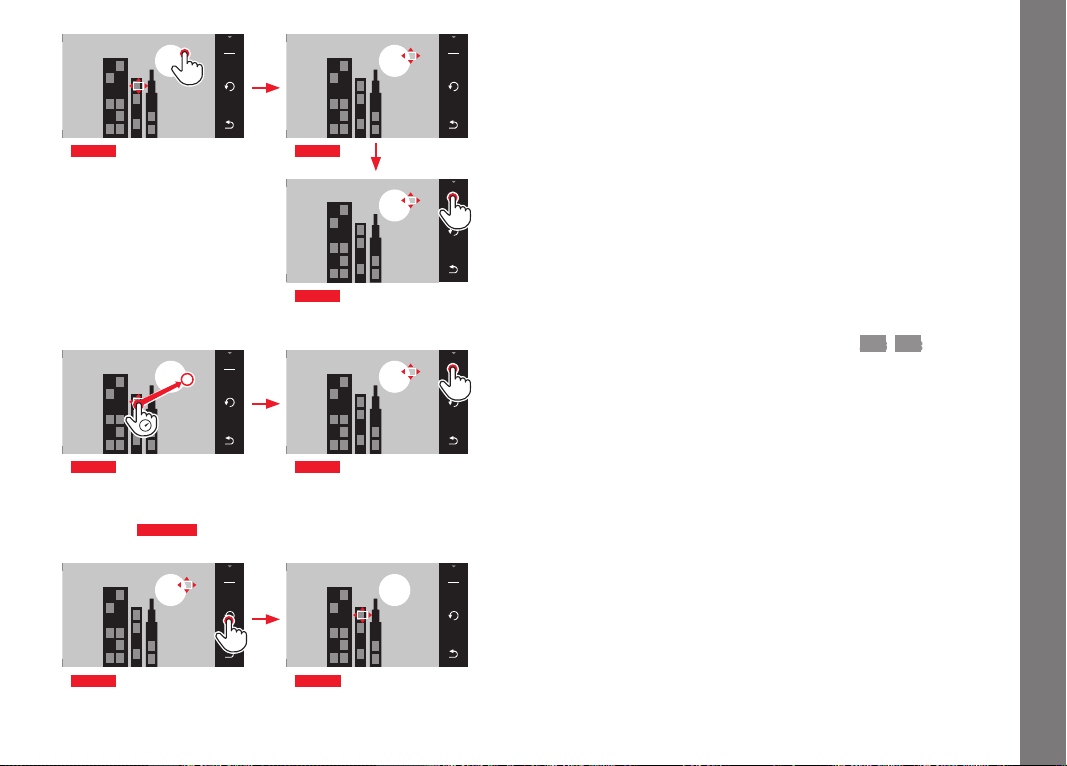
Direct operation
Fig. 46 a-c
1/80002.8F 12500ISO EV
-3 2 1 0 21 3+
823412MP
SET
Fig. 46 a
1/80002.8F 12500ISO EV
-3 2 1 0 21 3+
823412MP
SET
Fig. 46 b
1/80002.8F 12500ISO EV
-3 2 1 0 21 3+
823412MP
SET
Fig. 46 c
Operation after selecting function from menu
Fig. 47 a-c, d/e
► In the main menu,
select
► In the 1st submenu, press
for the required metering
method
The metering zone can then be shifted or moved in two ways.
EN
153
Picture mode
1/80002.8F 12500ISO EV
-3 2 1 0 21 3+
823412MP
SET
Fig. 47 a
1/80002.8F 12500ISO EV
SET
-3 2 1 0 21 3+
823412MP
Fig. 47 b
1/80002.8F 12500ISO EV
SET
-3 2 1 0 21 3+
823412MP
Fig. 47 c
1/80002.8F 12500ISO EV
-3 2 1 0 21 3+
823412MP
SET
Fig. 47 d
1/80002.8F 12500ISO EV
SET
-3 2 1 0 21 3+
823412MP
Fig. 47 e
The frame can be reset directly to the center position before
confirming
Fig. 48 a/b
.
1/80002.8F 12500ISO EV
SET
-3 2 1 0 21 3+
823412MP
Fig. 48 a
1/80002.8F 12500ISO EV
-3 2 1 0 21 3+
823412MP
SET
Fig. 48 b
Note:
In both cases, the metering zones remain at the last positions set
even if the metering method is changed or the camera is turned
off.
Taking photographs
1. Aim the AF frame at the desired subject or move it there
accordingly
2. Press the shutter button to the first pressure point
• The metering system locks on to the registered subject.
3. Keep the shutter button half-pressed until you take the picture
• The AF frame ‘follows’ the locked subject.
4. Push the shutter button all the way down to take the picture
Notes:
• Tracking works regardless of which AF mode (
AFs/AFc) is
selected.
• Tracking stops when you let the shutter button go. In this case
the metering zone will remain at the last position reached.
EN
154
Picture mode
Touch AF/Touch AF + Shutter release
In this mode, the AF frame can be moved for every picture, without
additional settings in the menu. The metering characteristics and
metering zone size correspond to single point metering.
► In the main menu,
select
►
Select
► Select Touch AF or Touch AF + Release in the submenu
Moving the metering zone
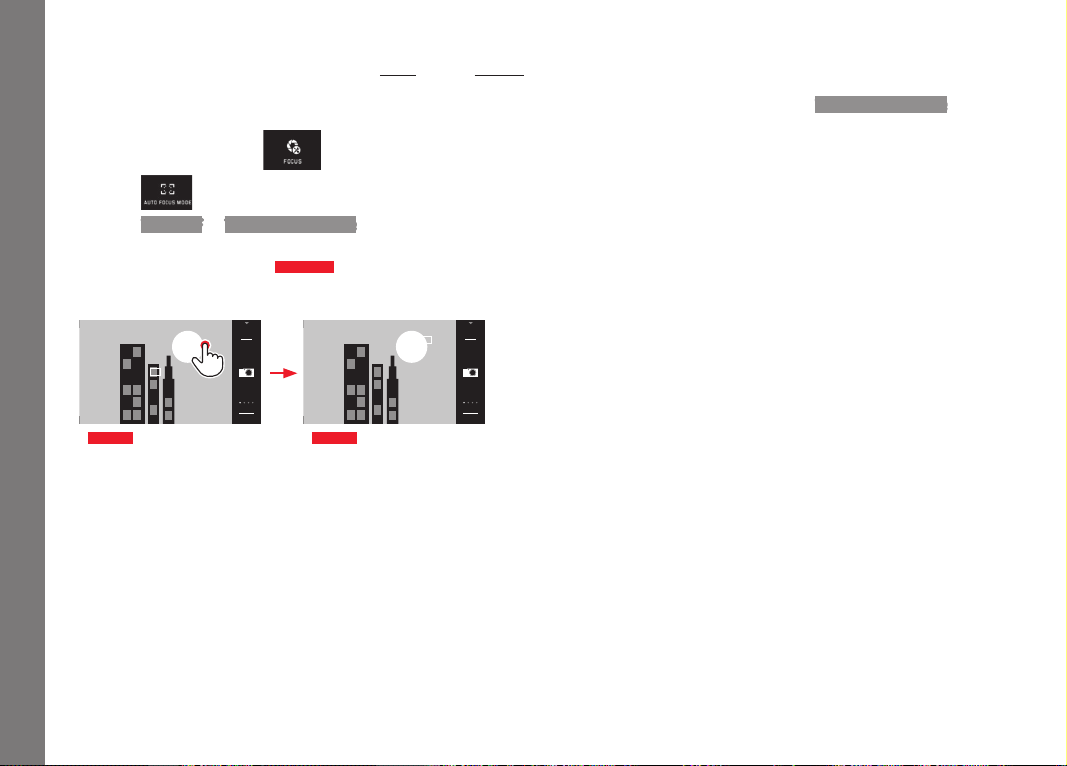
Fig. 49 a/b
► Touch the monitor at the required position in the image field
1/80002.8F 12500ISO EV
A
-3 2 1 0 21 3+
823412MP
INFO
Fig. 49 a
1/80002.8F 12500ISO EV
A
-3 2 1 0 21 3+
823412MP
INFO
Fig. 49 b
• The AF frame 'jumps' to the selected position.
Pictures
In this case, the focusing process does not start when the shutter
button is pressed to the 1st pressure point but immediately when
you touch the monitor. In addition, the
Touch AF + Release func-
tion can be used to focus and automatically take a picture with just
one touch.
Note:
The metering zone remains at the last point determined, even after
turning off the camera.

EN
155
Picture mode
Multi-zone metering
This metering method detects the subject using a total of 49
zones. Focusing is carried out automatically on the parts of the
subject at the shortest distance, thus providing maximum reliability
for snapshots. The zones used are indicated with AF frames.
► In the main menu,
select
►
Select
► Select Multi Point in the submenu
Face detection
In this mode, your Leica TL2 automatically detects faces in the
picture and focuses on the one at the shortest distance. If no faces
are detected, multi-zone metering is used.
► In the main menu,
select
►
Select
► Select Face Detection in the submenu
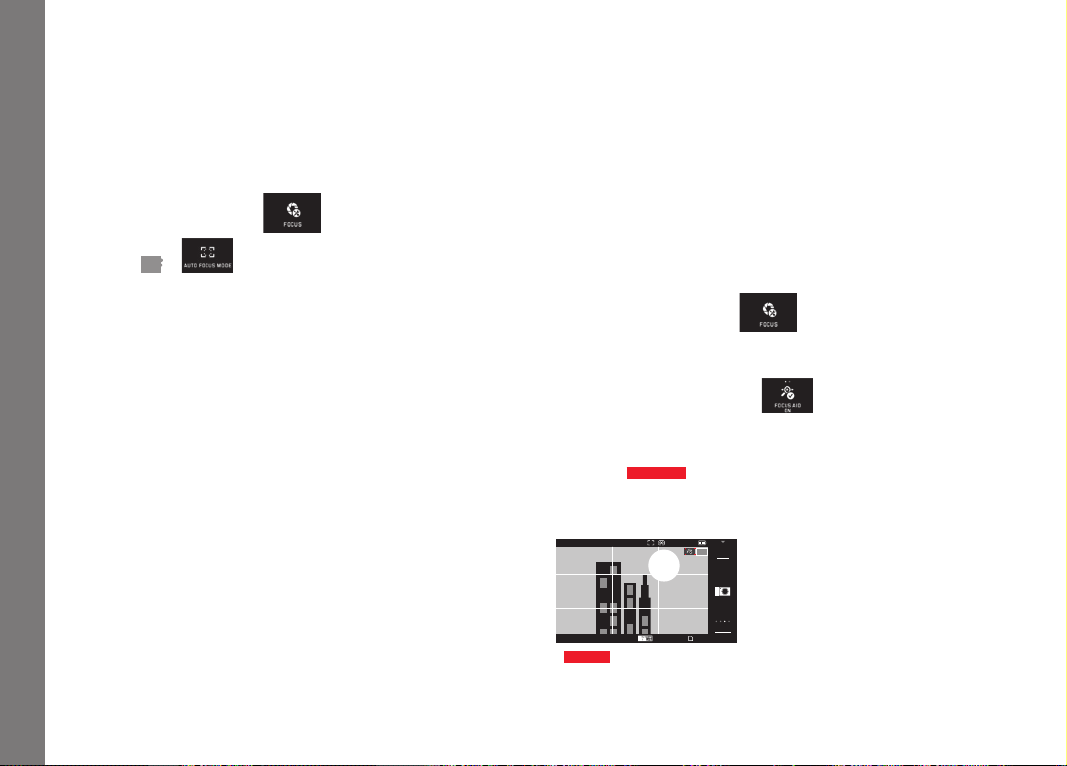
EN
156
Picture mode
Manual focusing
For certain subjects and situations, it can be beneficial to set the
focus yourself, rather than using autofocus. For example, if you are
using the same setting for several pictures and it would be more
work to use metering memory lock, or if you want to keep the
setting at infinity for landscape pictures, or if you want to allow no
or only a slower AF mode in poor, i.e. very dark, lighting conditions.
► In the main menu,
select
►
Select
MF in
Manual focusing is carried out using the corresponding ring on the
lens.
The optimum setting is reached when the monitor screen shows
the key part(s) of your subject as you want them to appear.
Note:
Manual focusing is - with the shutter button pressed down half-way
- possible in autofocus mode as well.
Auxiliary function for manual distance setting
To make it easier to make the setting and to increase accuracy, the
Leica TL2 provides you with two useful tools.
• Marking of clearly focused subjects (focus peaking): Edges of
sharply rendered subject parts are marked red, making it easy to
identify the best setting.
• Enlarged display of a central section:
Reason: The larger details of the subject appear in the monitor,
the more accurately you can assess their sharpness and the
more precisely you can focus.
The default setting is focus peaking on, but you can select the
enlargement function instead, or choose to utilize both simultane-
ously.
Selecting the function
► In the main menu,
select
► Select the desired setting in
Focusing
Fig. 50 a/b
► Determine your trimming
1/100 ISOAUTO0.0F
A
823416MP
AWB
SD
INFO
MF
ISO
Fig. 50 a

EN
157
Picture mode
► Rotate the lens' focusing ring
• All sharply rendered subject detail edges are marked in red.
This happens according to the principle maximum contrast =
sharp. Alternatively or additionally (see previous page), the
monitor image switches to a 3x magnification mode. Also, a
display appears indicating both the present (marked in white)
and the second available magnification factor.
Touching the unmarked factor leads to a 6x magnification, or
switches between the two.
The enlargement level that appears first is always the last one
used. Approx. 5s after the focusing ring was turned the last
time, the camera automatically switches back to the original
monitor image. This can also be initialized at any time by
pressing the shutter button to the 1st pressure point.
► Set the correct focus for the desired subject parts
1/80002.8F 12500ISO EV
-3 2 1 0 21 3+
823412MP
x3
x6
A
INFO
0,3 1 2 ∞
∞631
ft
m
1
2
Fig. 50 b
1 x3-/x6 displays for changing
enlargement
2 Distance scale, the bar indicates
the current setting (only appears in
conjunction with the status dis-
plays, see 'INFO displays')
Notes:
• Focus peaking is based on subject contrast, i.e. differences
between bright and dark.
• If you are using the Leica M- or R-Adapter L, the left setting dial
assignment changes to
FOCUS AID x3, x6 or Off!
• In autofocus mode, too, the automatically set distance can be
altered manually with the distance setting ring when the shutter
release is pressed halfway.

EN
158
Picture mode
EXPOSURE METERING AND CONTROL
Exposure Metering Methods
Your Leica TL2 offers three exposure metering methods to adapt to
prevalent lighting and other conditions like your working methods
or compositional ideas:
► In the main menu,
select
► Select the required setting in
Multiple field metering -
With this metering method, the camera automatically analyses the
brightness differences in the subject and, by comparing them with
programmed brightness distribution patterns, arrives at the likely
position of the main subject and the corresponding best exposure.
As a result, this method is particularly suitable for spontaneous,
uncomplicated, and yet reliable photography, even under difficult
conditions and therefore for the cameras automatic program
mode.
Center-weighted metering -
This metering method allocates the highest weighting to the center
of the image field, but also records all other areas.
Particularly when used in conjunction with metering memory lock,
it allows the exposure to be selectively adjusted to specific sec-
tions of the subject, while simultaneously taking into account the
entire image field.
Spot metering -
This metering method is concentrated exclusively on a small area
in the center of the image. It allows exact measurement of small or
tiny details for precise exposure - preferably in conjunction with
manual setting.
For backlit pictures, for example, you normally need to prevent the
brighter surroundings causing underexposure of the main subject.
The much smaller metering field with spot metering enables these
subject details to be selectively evaluated.
Exposure control
Your Leica TL2 offers four exposure modes for optimized adjust-
ment to the relevant subject or your preferred working method.
Notes:
• Depending on the prevailing light conditions, the brightness of
the monitor image can differ from that of the actual pictures
taken. Particularly for long exposures on dark subjects, the
monitor image appears considerably darker than the - correctly
exposed - picture.
• When using Leica M or R lenses with the Leica M Adapter L or
the Leica R Adapter L (available as accessories), only aperture
priority and manual setting are available, i.e. the automatic
program (
P), shutter speed priority (S) and the scene modes are
not available. If one of these modes is selected, the camera
automatically switches to aperture priority mode when the
adapter is attached. The mode displayed in the monitor also
changes to
A. The aperture value displayed is F0.0.

EN
159
Picture mode
Program mode - P
For fast, fully automatic photography. The exposure is controlled by
an automatic shutter speed and aperture setting.
Setting the mode
► Open the exposure mode/scene mode menu
►
Select
Taking a picture
► Press the shutter button to the 1st pressure point
• Both the shutter speed and aperture value are displayed in
white.
If even a completely open or closed aperture combined with
the fastest or slowest shutter speed will result in under- or
overexposure, both values are displayed in red.
If the automatically calculated pair of values appears to be appro-
priate for the intended composition:
► Press the shutter button all the way down to take the picture
Changing the specified shutter speed/aperture combina-
tions (Shift)
Changing the preset values using the Shift function combines the
reliability and speed of fully automatic exposure control with the
opportunity to vary the speed/aperture combination selected by
the camera at any time to fit in with your own ideas and intentions.
► This is done using the right setting dial. If you prefer to use faster
speeds, e.g. for sports shots, turn it to the left. On the other
hand, if you prefer a larger depth of field, for landscape shots for
example, and are prepared to accept the resulting shower shut-
ter speeds, turn it to the right.
The overall exposure, i.e. the brightness of the image, remains
unchanged. The adjustment range is limited to guarantee correct
exposure.
• Shifted pairs of values are indicated by a + next to the shutter
speed.
To prevent accidental use, the values revert to the default settings
after each picture, and also when exposure metering is automati-
cally deactivated after 12s.

EN
160
Picture mode
Aperture priority - A
Aperture priority mode sets the exposure automatically according
to the manually selected aperture. It is particularly suitable for
pictures where the depth of field is a critical compositional ele-
ment.
By selecting an appropriately low aperture value, you can reduce
the depth of field range, for example in a portrait to "isolate" the
face which is in focus from an unimportant or distracting back-
ground, or conversely you can use a higher aperture value to
increase the depth of field range, so that everything from the
foreground to the background will be sharp in a landscape shot.
Setting the mode
► Open the exposure mode/scene mode menu
►
Select
Taking a picture
► Select the required aperture value with the right setting dial,
► Press the shutter button to the 1st pressure point
• Both the set aperture value and the automatically calculated
shutter speed are displayed in white.
If even the fastest or slowest shutter speed combined with the
set aperture will result in under- or overexposure, both values
are displayed in red.
If the automatically calculated shutter speed appears appropriate
for the intended composition:
► Press the shutter button all the way down to take the picture

EN
161
Picture mode
Shutter speed priority - S
Shutter speed priority mode sets the exposure automatically
according to the manually selected shutter speed. It is therefore
particularly suitable for pictures of moving subjects, where the
sharpness of the movement depicted is a critical compositional
element.
An appropriately fast shutter speed will avoid undesirable blurring
of the movement, i.e. "freeze" your subject or you can use a slower
shutter speed to express the dynamic nature of the movement with
a deliberate "blur effect".
Setting the mode
► Open the exposure mode/scene mode menu
►
Select
Taking a picture
► Select the required shutter speed with the right setting dial,
► Press the shutter button to the 1st pressure point
• Both the set shutter speed and the automatically calculated
aperture value are displayed in white.
If even the lowest or highest aperture value combined with the
set shutter speed will result in under- or overexposure, both
values are displayed in red.
If the automatically calculated aperture value appears to be appro-
priate for the intended composition:
► Press the shutter button all the way down to take the picture

EN
162
Picture mode
Manual setting - M
If, for example, you want to achieve a particular effect that is only
possible with a very specific exposure, or if you want to ensure that
several pictures with different trimming have an absolutely identical
exposure, then you can set the shutter speed and aperture manu-
ally.
Setting the mode
► Open the exposure mode/scene mode menu
►
Select
Taking a picture
► Select the required aperture value with the left setting dial,
► Select the required shutter speed with the right setting dial
► Press the shutter button to the 1st pressure point
• Both the shutter speed and aperture value are displayed in
white.
The light balance scale also appears. It covers a range of
±3EV (exposure value) in
1
⁄3EV increments.
Settings within ±3EV are indicated by white lines on the
scale, settings outside this range by red lines.
► Adjust the settings for correct exposure so that the central mark
is displayed in white.
If the set values and/or the exposure appears to be appropriate for
the intended composition:
► Press the shutter button all the way down to take the picture
Note:
The monitor image displays an exposure simulation for manual
setting.
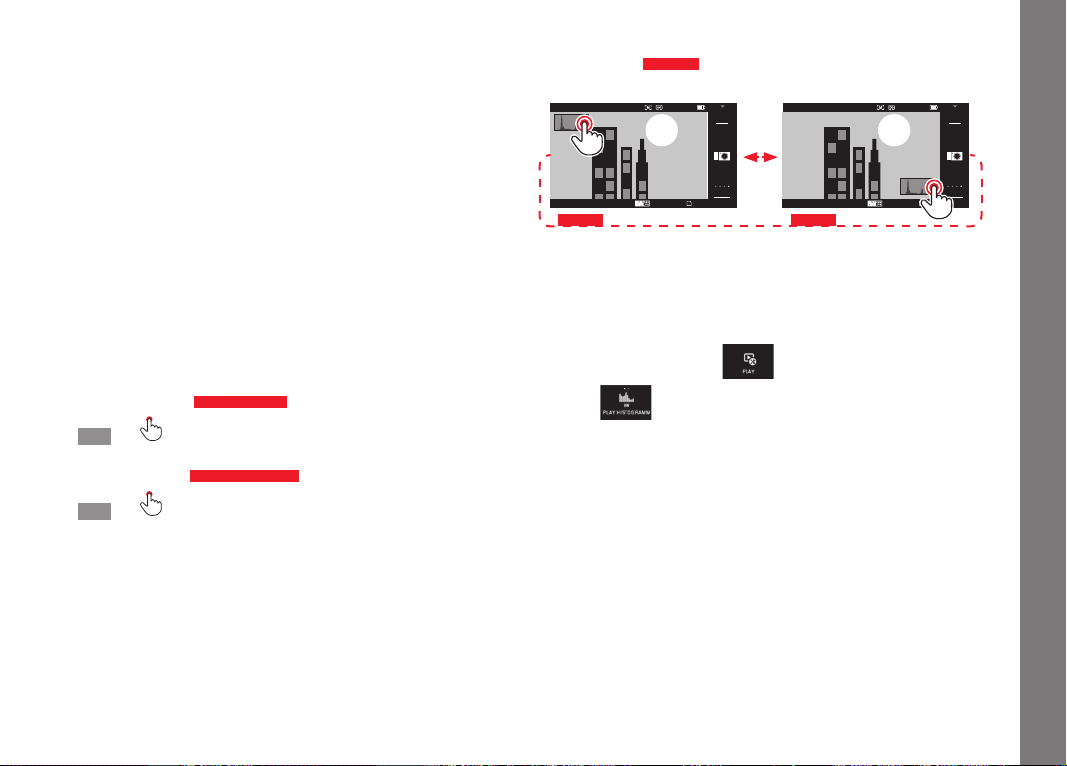
EN
163
Picture mode
Histogram and clipping displays
The Leica TL2 provides you with two displays that make it easy to
determine not only a correct exposure, but also to create a picture
with the desired rendition. Together, they allow quick and easy
assessment of the exposure setting.
Histogram
The histogram depicts the brightness distribution in the picture.
The horizontal axis shows the brightness values from black (left)
through gray to white (right). The vertical axis corresponds to the
number of pixels at each brightness level.
This form of representation – in conjunction with the impression of
the picture itself – provides an additional quick and easy assess-
ment of the exposure setting.
The histogram is available in both picture and review mode.
For picture mode
see p. 24 Fig. 21d
► INFO 3x
For review mode
see p. 24 Fig. 22 b/c
► INFO 2x
The histogram can also be moved to the bottom right corner of the
monitor screen
Fig.51 a/b
.
1/602.8F
A
823416MP
AWB
SD
INFO
1/602.8F
A
823416MP
AWB
SD
INFO
Fig. 51 a Fig. 51 b
In addition to the black&white histogram, in review mode you also
have the option of an RGB histogram, in which the brightness
values for the three colors red, green, and blue are represented
separately:
► In the main menu,
select
► Select
the required setting in

EN
164
Picture mode
Clipping
In review mode, the flashing red clipping display indicates ‘blown
out’, i.e. overexposed parts of a picture. Thus, it serves as a very
simple and precise instrument for selecting and adjusting the
exposure setting.
► INFO 3x
see p. 130
Fig. 22 d
Notes on the histogram and clipping displays:
• For a picture with flash, the picture histogram cannot represent
the final exposure as the flash is fired after the display.
• In picture mode, the histogram should be regarded as a “trend
indicator” and not as a depiction of the exact numbers of pixels.
• The histograms when reviewing and taking a picture may differ
slightly from one another.
• The histogram and clipping displays always refer to the currently
shown picture section.
• The review histogram and the clipping display are available when
showing the complete picture as well as just a section, but not in
the case of simultaneous display of 9 reduced pictures.
• The clipping display is not available for videos.

EN
165
Picture mode
Ssene modes
The Leica TL2 provides nine "advanced" automatic program options
for exceptionally easy and reliable photography. The tenth option
-
– is an automatic snapshot setting for general use.
The other nine are designed for the specific requirements of fre-
quently occurring subject types.
In all cases, a range of additional functions are automatically
controlled in addition to the shutter speed and aperture.
Setting the mode
► Open the exposure mode/scene mode menu
►
Select
► Select the required scene mode
Taking a picture
As in automatic program mode
Notes:
• The Program Shift function is not available.
• The two setting dials have no function.

EN
166
Picture mode
Metering memory lock
For composition reasons, it can be beneficial not to have the main
subject in the center of the picture.
In these cases, metering memory lock - in exposure modes
P, S
and
A, and single zone and spot metering AF modes and focusing
by touch - allows you to first take a reading for the main subject
and then retain the relevant settings until you have selected your
final trimming and are ready to take the picture.
Taking a picture with this function:
► Aim the relevant AF frame at the part of your subject you want to
adjust the sharpness and exposure to.
► Press the shutter button to the first pressure point to set and
store the sharpness and exposure.
► Keep the shutter button half-pressed and move the camera to
set your final trimming.
► Press the shutter button all the way down to take the picture
Exposure compensation
Some subjects consist predominantly of areas of above or below
average brightness, for example extensive areas of snow or, con-
versely, a full-format black steam locomotive. In
P, S, and A expo-
sure modes, it may be more useful in such cases to set an appro-
priate exposure compensation instead of using metering memory
lock for each picture. The same applies if you want to ensure an
identical exposure for several pictures. Values of +3 to -3EV are
available in
1
⁄3EV increments.
► In the main menu, select
► Select
► In the submenu, make the desired setting on the scale using
or one of the setting dials
► Press SET to confirm
If the
EV
function is assigned to the left setting dial, it can be
used to directly select the compensation value.
• If a compensation value is set, it is displayed in the monitor, e.g.
EV+3. During setting, you can observe the effect on the monitor
image, which gets darker or lighter.
Notes:
• When setting the exposure manually, exposure compensation is
only possible using the menu.
• A set exposure compensation remains active even after any
number of pictures and even after turning off the camera, until it
is reset to ±
0 (= center of scale).

EN
167
Picture mode
Automatic exposure bracketing
High contrast subjects that have both very bright and very dark
areas can have very different effects depending on exposure.
The automatic bracketing function enables you to take a series of
three pictures with graduated exposure. You can then select the
best picture for further use.
► In the main menu,
select
►
Select
► In the submenu, make the desired setting on the scale using
or one of the setting dials
► Press SET to confirm
• If bracketing is set, this is indicated by
in the monitor. While
the three pictures are being taken, you can observe the effect as
the monitor screen becomes darker or lighter accordingly.
Notes:
• Depending on the exposure mode, the graduations are produced
by changing the shutter speed (
P /A/M) or the aperture (S).
• The sequence of the pictures is: correct exposure/underexpo-
sure/overexposure.
• Depending on the available shutter speed/aperture combina-
tion, the working range for automatic bracketing may be limited.
• Once set, bracketing remains active even after any number of
releases and even after turning off the camera, i.e. until it is
reset to ±
0 (= center of scale).

EN
168
Picture mode
FLASH PHOTOGRAPHY
COMPATIBLE FLASH UNITS
The following flash units enable TTL flash metering and, depending
on their feature set, a varying number of the functions described in
these instructions.
• The Leica system flash units SF 40, SF 64, and SF 58.
• Other Leica system flash units, except the Leica SF 20.
Other commercially available flash attachments with standard flash
foot and positive center contact, and fired by the
center
contact (X
contact) can also be used. We recommend the use of modern
thyristor-controlled electronic flash units.
ATTACHING A FLASH UNIT
► Turn off the camera and the flash unit.
► Slide back the cover that protects the accessory shoe on the
camera when not in use.
► When attaching, make sure that the flash unit’s foot is fully
inserted into the accessory shoe and, if available, secured
against falling out with the clamping nut. This is important
because changes of position in the accessory shoe can break
the required contacts, causing malfunctions.
1
However, if flash units not specially designed for the camera are used that do not automati-
cally set the white balance on the camera, the
Flash setting should be used (see p.
145).
The flash unit should be set to TTL mode to allow automatic con-
trol by the camera. When set to
A, above- or below-average bright-
ness subjects may not be exposed correctly.
When set to
M, the flash exposure must be controlled by manually
setting a flash output level appropriate for the aperture and shutter
speed settings determined by the camera.
• The display for the set flash mode appears in white (see next
pages). The flash mode will blink red if the flash unit is not fully
charged and therefore not ready.
The camera determines the correct flash output by firing one or
more pre-flashes fractions of a second before the actual exposure.
Immediately afterwards, i.e. during the exposure, the main flash is
fired. All parameters that influence the exposure (e.g. filters,
changed aperture settings) are automatically taken into account.
Notes:
• The flash unit must be ready to flash, otherwise faulty exposures
may result and the camera may generate an error message.
• Serial exposures and automatic bracketing with flash are not
available. In these cases, even if a flash unit is attached and
switched on, a flash mode display will not appear and no flash
will be fired.
• Simultaneous use of a flash unit and the Leica Visoflex elec-
tronic viewfinder is not possible.

EN
169
Picture mode
FLASH MODES
Selecting the mode:
► In the main menu, select
►
Select
► Select the required setting in the submenu
• The flash mode display changes accordingly.
If the
function is assigned to the left setting dial, it can be
used to directly select the required option.
• The set mode is displayed in the monitor.
Note:
If no system compatible flash unit is attached, this setting is not
available and the function therefore grayed out.
Automatic flash activation
This is the default mode. An attached and switched on flash unit is
fired automatically whenever slower shutter speeds could lead to
blurred pictures in poor lighting conditions.
Automatic flash and pre-flash activation
To reduce the "red eye" effect in photographs of people with flash.
If possible, the people should not look directly at the camera. As
the effect is exacerbated when the pupils are wide open in low light
conditions, you should turn on as much room lighting as possible
when taking photographs indoors, for example. The pre-flash,
which is fired shortly before the main flash when you press the
shutter button, narrows the pupils of people looking at the camera
thereby reducing the effect.
Manual flash activation
For backlit pictures, in which your main subject does not fill the
entire frame and is in shadow, or in situations where you want to
moderate high contrasts (e.g. in direct sunlight) (fill in flash). As
long as this mode is activated, an attached and switched on flash
unit will fire each time you take a shot, whatever the prevailing
lighting conditions. The flash power depends on the metered
ambient brightness: in poor light it is the same as in automatic
mode, with a reduced power as the brightness increases. The flash
then works as a fill-in light, e.g. to light up dark shadows in the
foreground or backlit subjects and in order to create more bal-
anced overall lighting.
Manual flash and pre-flash activation
For a combination of the situations and functions described above.

EN
170
Picture mode
Automatic flash activation with slower shutter speeds
For simultaneous and more appropriate, i.e. brighter, rendition of
dark backgrounds and for fill-in flash for the foreground.
Explanation: To minimize the risk of blurring, the shutter speed is
not extended beyond
1
⁄30s in the other flash modes. This is why in
flash shots, objects in the background not illuminated by the flash
are often badly underexposed.
To take adequate account of the available ambient light, the slower
shutter speeds required in such situations (up to 30s) are allowed
in this mode.
Notes:
• Depending on the
AUTO ISO SETTINGS (see p. 146) , it is
possible that the camera will not support slower shutter speeds
as in such cases increasing the ISO sensitivity takes priority.
• The desired slowest shutter speed can be set in the
Slowest
Speed (see p. 146) item.
Automatic flash and pre-flash activation with slower shutter
speeds
For a combination of the situations and functions described above.
Note:
To prevent blurred pictures with the slower shutter speeds in
,
and
modes, you should hold the camera steady, i.e. rest it
on something or use a tripod. Alternatively, you can select a higher
sensitivity.
Flash range
The usable flash range depends on the aperture and sensitivity
values set manually or calculated by the camera. To ensure that the
flash light provides sufficient illumination, it is essential that the
main subject is within the relevant flash range.

EN
171
Picture mode
Synchronization time point
Flash photographs are always illuminated by two light sources, the
available light and the light from the flash. The time at which the
flash is fired normally determines where the parts of the subject
illuminated exclusively or predominantly by the flash are shown in
the frame.
The conventional flash firing point at the beginning of the exposure
can lead to apparent contradictions, e.g. a vehicle being “over-
taken” by the light trail from its own tail lights.
Your Leica TL2 allows you to choose between this conventional
flash firing point and the end of the exposure:
► In the main menu, select
► Select the required setting in
In the example cited, the light trail from the tail lights then follows
the vehicle as expected. This flash technique gives a more natural
impression of movement and dynamics.
Note:
When using the flash with faster shutter speeds, in terms of the
image there is no difference, or only a difference for rapid move-
ments between the two flash firing points.
Flash exposure compensation
This function can be used to selectively reduce or strengthen the
flash exposure regardless of the exposure from available light, e.g.
in a picture taken in the evening, to lighten the face of a person in
the foreground while retaining the lighting atmosphere.
► In the main menu, select
► Select
► In the submenu, make the desired setting on the scale using
or one of the setting dials
► Touch
SET to confirm
• If a compensation is set, this is indicated by
in the monitor.
Notes:
• Flash exposure compensation changes the range of the flash
unit.
• Once set, compensation remains active even after any number
of pictures and even after turning off the camera, until it is reset
to ±
0 (= center of scale).
• Compensation values set in the camera’s menu system are not
effective as soon as one is set on an attached and accordingly
featured flash unit such as the Leica SF64.
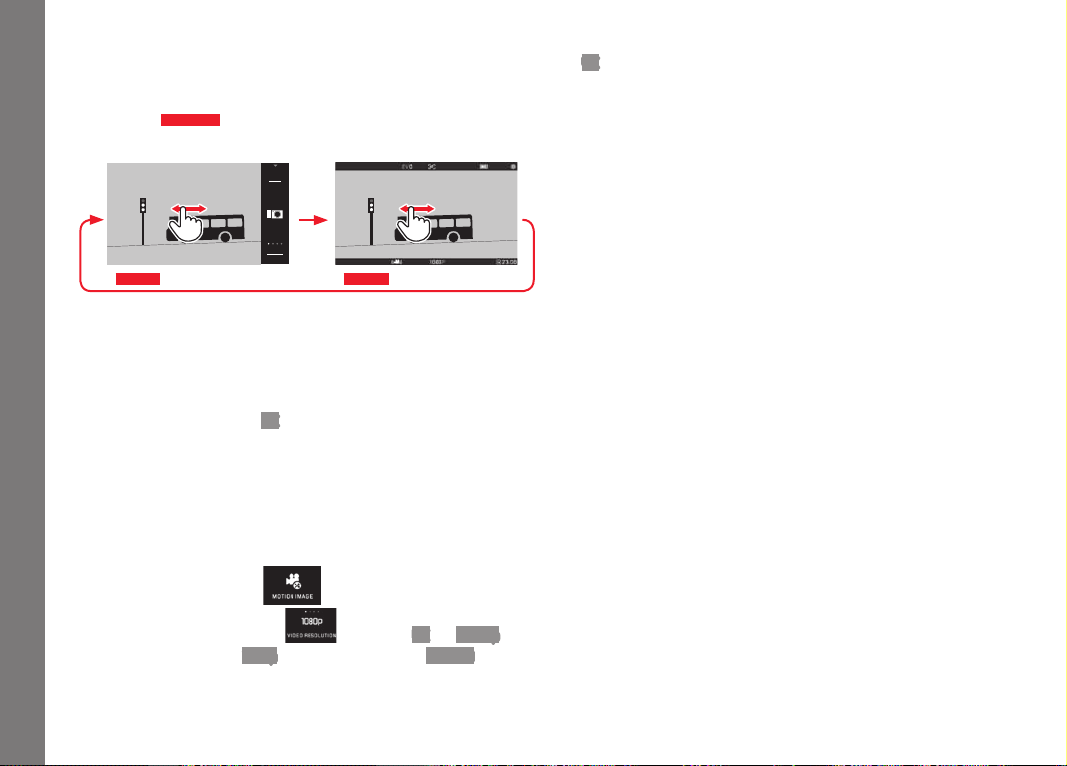
EN
172
Picture mode
VIDEO RECORDING
You can also use the Leica TL2 to make video recordings. Switch-
ing between picture and video preview modesis possible via ges-
ture control
Fig. 52 a/b
.
INFO
1/80002.8F 12500ISO EV
A
-3 2 1 0 21 3+
823412MP
Fig. 52 a
1/80002.8F 12500ISO EV
-3 2 1 0 21 3+
823412MP
Fig. 52 b
Picture mode Video preview mode
Notes:
• As only part of the sensor surface is used, the effective focal
length is increased in each case, i.e. the field of view becomes
correspondingly smaller.
• Uninterrupted video recordings are possible up to a maximum
length of 7/29 minutes (
4K/all other resolutions). The maximum
file size is 4 GB. If a recording exceeds this limit, the respective
part is automatically stored in another file (a.s.o.).
For video recordings, the following functions are available:
Resolution
► In the main menu, select
► Select the desired setting in
, i.e. either
4K
, or
1080p
for
‘full-HD’ recording, or
720p for ‘HD’ recording, or SLOMO for
slow motion recording
Note:
For
4K video recording, memory cards with fast read/write speeds
should be used, preferrably with at least Class U3 and/or V30
standard. Using slower cards may result in the recording being
aborted immediately after reaching the internal buffer capacity
limit.
ISO sensitivity
All settings available in the menu.
Distance setting:
All options described on pages 150-156.
Exposure Metering Methods
All options described on page 158
Exposure control
This is totally independent of the exposure mode and the shutter
speed and aperture settings made for photos.
– Shutter speed: Depending on the selected resolution
– Aperture: Automatic (automatic settings)
– If correct exposure is not possible even with the maximum
aperture, the ISO sensitivity is automatically increased - regard-
less of any manual setting.
Note:
The automatic exposure control takes all brightness fluctuations
into consideration. If you do not want this, e.g. for landscape
pictures and pan shots, you should set the shutter speed manually.
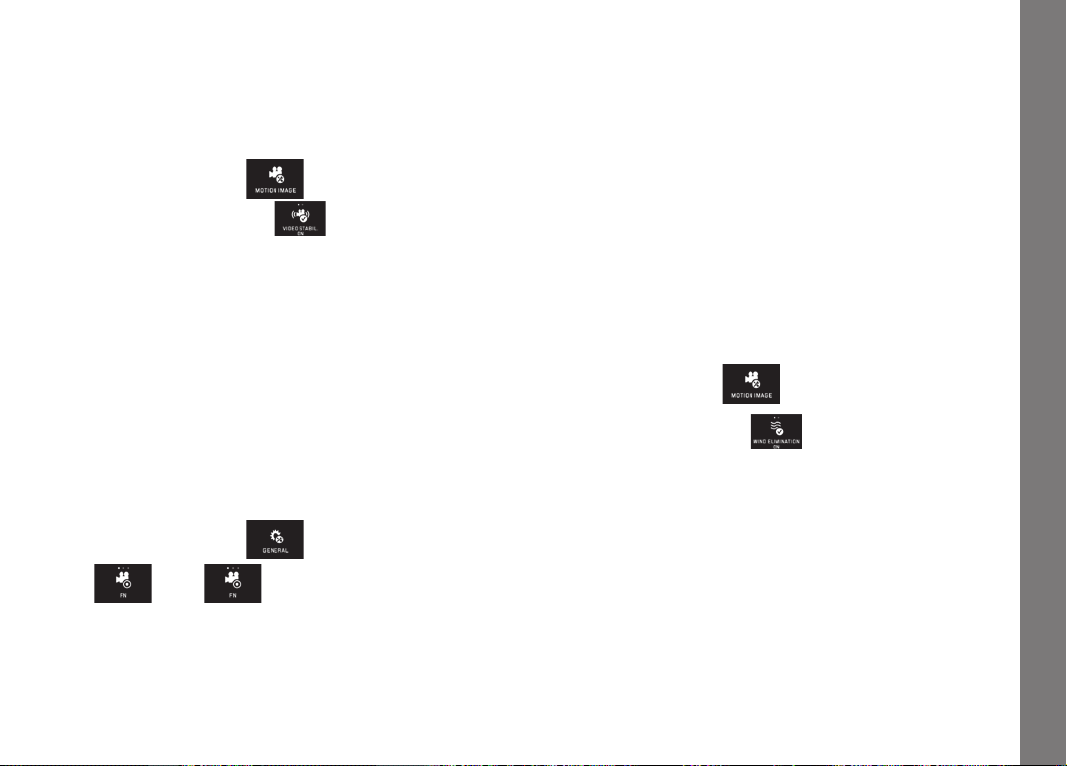
EN
173
Film presets, contrast, sharpness, color saturation:
All options described on pages 146 but in this case only the white
balance, contrast, saturation, and sharpness settings are changed.
Stabilization
► In the main menu, select
► Select the required setting in
Note:
When using video stabilization, the trimming is slightly reduced
compared to operation without stabilization.
Starting/ending the recording
In the default setting, the function button serves as video release.
If, on the other hand, one of the other optional functions is
assigned to this button, two possible procedures are available: To
utilize the function button as video release, it must be reset
accordingly.
► In the main menu, select
► In , select
If you prefer not to change the existing function button setting, you
can utilize the shutter button as an alternative after calling up the
video screen with gesture control
.
Starting:
► Press the function/shutter button
• A video recording in progress is indicated by a flashing red
dot. The remaining recording time is also displayed.
Ending:
► Press the function/shutter button again
Sound recording
Sound is recorded in stereo with the built-in microphones.
To reduce any noise caused by wind during sound recording, a
damping function is available:
► In the main menu, select
► Select the required setting in
Note:
Both autofocus and changing the focal length on zoom lenses
produce noises that may be picked up in the recording.
To prevent this, you should not use either of these functions while
recording is in progress - only adjust the focus manually and do not
change the focal length.
Picture mode
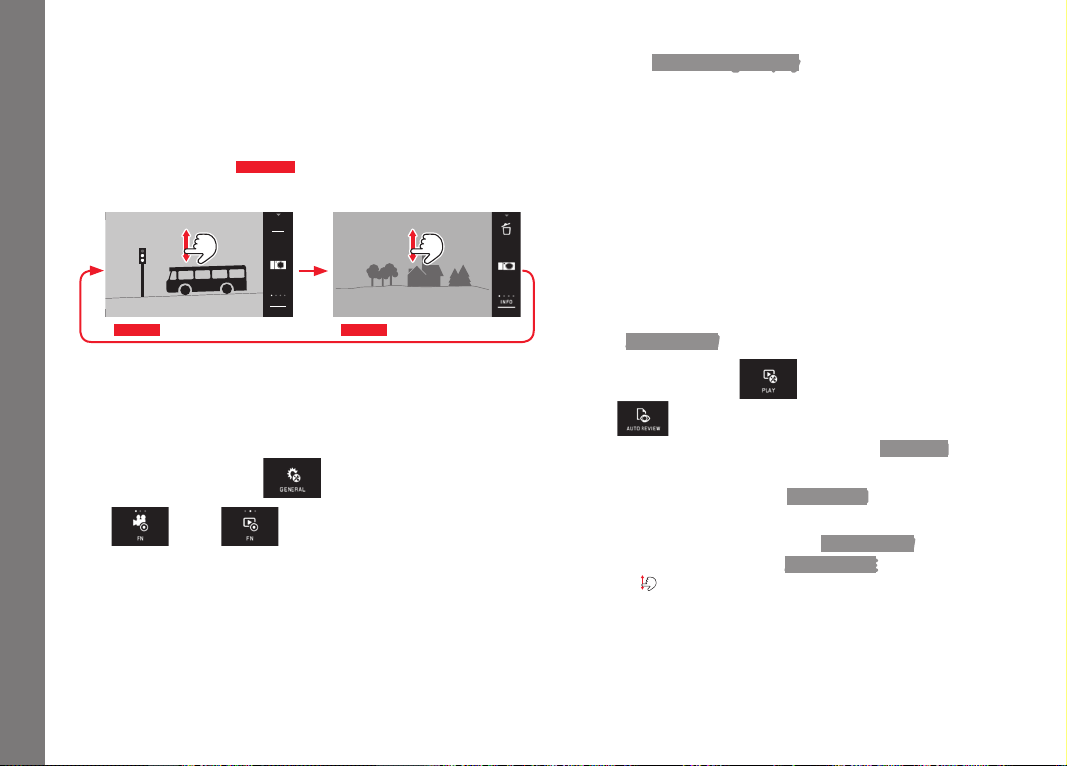
EN
174
Review mode
REVIEW MODE
Continuous review mode
Switching between picture and continuous review modes can be
performed in two ways.
With gesture control
Fig. 53 a/b
INFO
1/80002.8F 12500ISO EV
A
-3 2 1 0 21 3+
823412MP
Picture mode
Review mode
Fig. 53 a Fig. 53 b
Using the function button
In the default setting, the function button serves as video release.
To use it to switch between picture and review modes, it must be
reset accordingly.
► In the main menu, select
► In , select
Notes:
• You can switch back from review mode to picture mode at any
time by tapping the shutter button.
• From the menu, you must select picture mode first before you
can switch to review mode.
• In review mode you can select whether you want to view the
pictures on the card or pictures saved in the internal memory.
• If the memory card or internal memory does not contain any
image files,
No valid image to play appears.
• If you have used the picture series function or automatic brack-
eting, the last or last saved picture in the series is displayed first
- if not all pictures in the series have been overwritten by the
camera's internal back-up memory yet.
• It may not be possible to view files that were not created on this
camera.
• In some cases, the monitor image may not have the usual quality
or the monitor will remain blank and only display the file name.
Automatic review
You can automatically review every picture immediately after taking
it with the
AUTO REVIEW function.
► In the main menu, select
►
Select
► Select the required function or duration in the DURATION
submenu
► Select the desired setting in the HISTOGRAM submenu
Note:
Portrait format pictures displayed using
AUTO REVIEW are initially
shown with no rotation even if the
AUTO ROTATE function is active.
You can use
to rotate the picture.

EN
175
Review mode
VIEWING PICTURES IN PORTRAIT FORMAT
If the camera was held horizontally when taking the picture, the
picture is also displayed this way. For portrait pictures, i.e. taken
with the camera held vertically, this may not be practical when
viewing with the camera held horizontally, if the monitor screen is
not displayed as an upright picture.
► In the main menu, select
►
Select
► Select the desired setting in the submenu
If
On is selected, pictures in portrait format are automatically
displayed upright.
Notes:
• Portrait format pictures displayed upright are necessarily signifi-
cantly smaller.
• This function is not available with
AUTO REVIEW.
SELECTING PICTURES
With gesture control
Fig. 54 a/b-c/d
Fig. 54 a
Fig. 54 b
Fig. 54 c
Fig. 54 d
With left setting dial
Fig. 55 a/b
Fig. 55 a Fig. 55 b
Swiping to the right or turning the setting dial to the right selects
the pictures with higher numbers, swiping to the left or turning the
setting dial to the left selects those with lower numbers. In each
case, the pictures are displayed in an endless loop. When the last
picture is reached, the first is displayed again.

EN
176
Review mode
ENLARGING/REDUCING PICTURES
Being able to enlarge a picture being reviewed makes it possible to
get a better idea of how in focus it is. Pictures can be enlarged and
reduced using the
/ gestures
Fig. 56 a/b
or the right setting
dial
Fig. 57 a/b
. The gesture gives you the maximum enlargement
in two stages
Fig. 58 a-c
.
Fig. 56 b
Fig. 57 b
INFO
INFO
Fig. 56 a
Fig. 57 a
Fig. 58 b
Fig. 58 c
INFO
Fig. 58 a
Note:
Touching the corresponding point on the monitor determines which
part of the picture is enlarged.
Simultaneous display of 9 pictures
Viewing 9 reduced pictures enables you to get an overview or to
find the picture you are looking for more quickly
Fig. 59 a/b
/
Fig. 60
a/b
.
Fig. 59 b
Fig. 60 b
INFO
INFO
Fig. 59 a
Fig. 60 a
Notes:
• Enlarging cannot be performed on videos.
• In the enlarged/9 picture display, additional information cannot
be called up.
• The more the picture is enlarged, the more the reproduction
quality deteriorates – due to the proportionately lower resolu-
tion.
• It may not be possible to enlarge pictures taken using other
camera types.
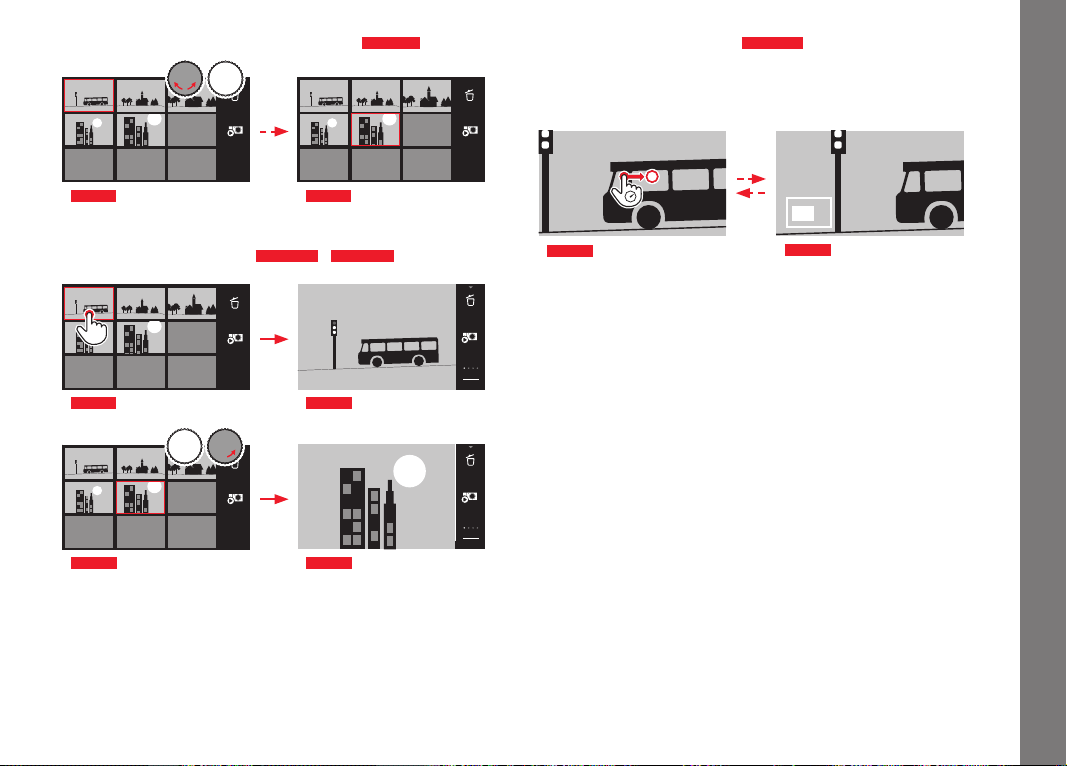
EN
177
Review mode
Selecting a picture in the 9 picture view
Fig. 61 a/b
Fig. 61 a Fig. 61 b
Exiting the 9 picture view
Fig. 62 a/b
/
Fig. 63 a/b
INFO
Fig. 62 a
Fig. 62 b
Fig. 63 a
1/80002.8F 12500ISO EV
A
-3 2 1 0 21 3+
823412MP
INFO
Fig. 63 b
INFO
SELECTING THE TRIMMING
Fig. 64 a/b
In an enlarged picture, you can move the enlarged trimming away
from the center, e.g. to check reproduction of subject details
outside the center.
Fig. 64 a
Fig. 64 b
• The approximate position of the detail in the picture is indicated.
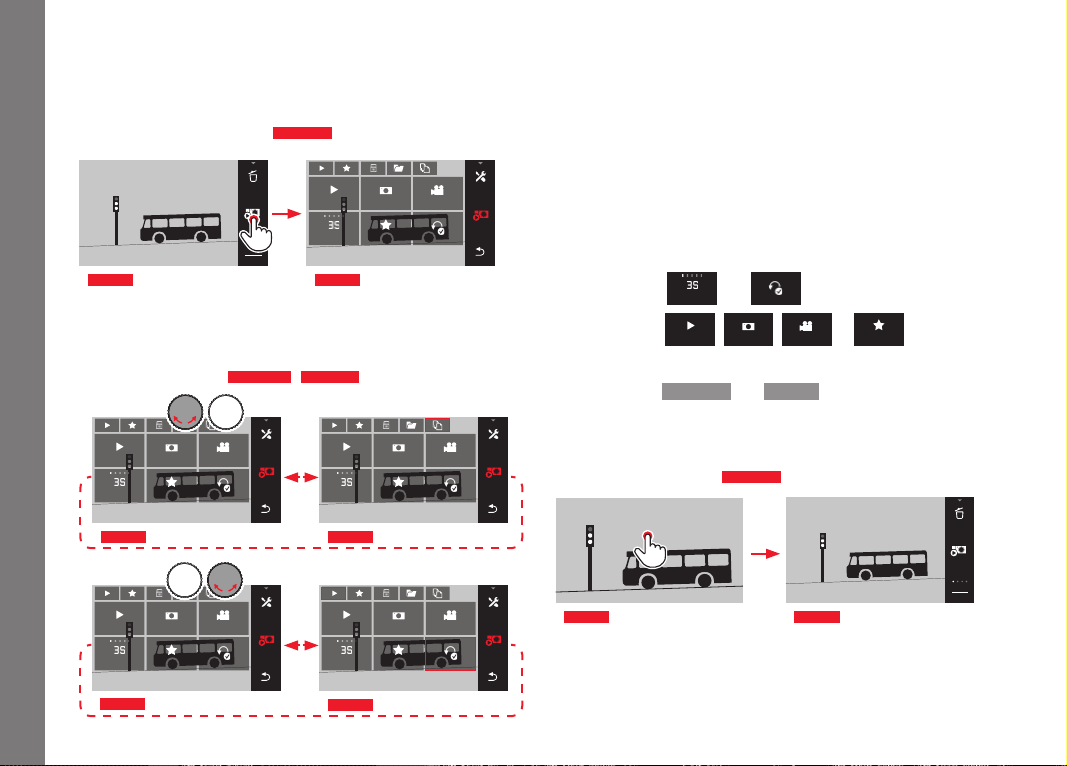
EN
178
Review mode
REVIEW MENU
The review menu contains a range of functions, which can be set
using submenus.
Opening the review menu
Fig. 65 a/b
DURATION REPEAT
PLAY ALL
FAVORITE ONLY
VIDEOS ONLYPICTURES ONLY
Fig. 65 b
INFO
Fig. 65 a
As an alternative to the pure gesture control shown here and on
the following pages, individual operations can also be carried out
using the setting dials
Fig. 66 a/b
/
Fig. 67 a/b
.
DURATION REPEAT
PLAY ALL
FAVORITE ONLY
VIDEOS ONLYPICTURES ONLY
DURATION REPEAT
PLAY ALL
FAVORITE ONLY
VIDEOS ONLYPICTURES ONLY
Fig. 66 a Fig. 66 b
DURATION REPEAT
PLAY ALL
FAVORITE ONLY
VIDEOS ONLYPICTURES ONLY
DURATION REPEAT
PLAY ALL
FAVORITE ONLY
VIDEOS ONLYPICTURES ONLY
Fig. 67 a
Fig. 67 b
Slide show
On the Leica TL2 you can make a setting so that pictures will
automatically be shown in a sequence. Within this function, you
can specify whether all the pictures are to be displayed, or only
those marked as favorites. Or only photos, or only videos. In addi-
tion, you can select the time for which pictures will be displayed,
and whether the slide show will be repeated until you cancel it. The
slide show submenu appears when you open the review menu.
► The subsequent operations are carried out in the relevant sub-
menus:
– Settings in
DURATION
and
REPEAT
– Start with,
PLAY ALL
,
PICTURES ONLY
,
VIDEOS ONLY
or
FAVORITE ONLY
Note:
Your settings in
DURATION and REPEAT are retained even when
you turn the camera off and back on.
Exiting the slide show
Fig. 68 a/b
Fig. 68 a
INFO
Fig. 68 b

EN
179
Review mode
Marking recordings as favorites/canceling markings
You can mark any recording as favorite, e.g. so you can find it more
quickly.
Protecting recordings/clearing delete protection
Recordings that you want to protect from accidentally being
deleted can be marked.
The operations used to mark and protect are the same, the only
difference is the way you enter the relevant submenus:
for
favorites,
for protection. The operations are described here
for favorites as an example.
Marking individually
Fig. 69 a-c
MULTISINGLE
FAVORITE
SET
Fig. 69 b
Fig. 69 c
DURATION REPEAT
PLAY ALL
FAVORITE ONLY
VIDEOS ONLYPICTURES ONLY
Fig. 69 a
At the 3rd step, as an alternative to touching , marking can
also be carried out by touching
SET.

EN
180
Review mode
Marking multiple
Fig. 70 a-c
MULTISINGLE
Fig. 70 b
DURATION REPEAT
PLAY ALL
FAVORITE ONLY
VIDEOS ONLYPICTURES ONLY
Fig. 70 a
FAVORITE
Fig. 70 c
Deleting marking(s)
At the 3rd step, markings can be cleared by touching
or
again.
Notes:
• If you attempt to delete protected pictures, warning messages
appear. If you still want to delete these pictures, clear the
protection as described above.
• Even protected pictures are deleted when you format the mem-
ory card.
Deleting Images
Pictures on the memory card and in the internal memory can be
deleted at any time, either individually, several at a time, or all at
once.
Opening the delete menu
Fig. 71 a/b
INFO
Fig. 71 a
Delete
Single
Multi
All
Fig. 71 b
Deleting single pictures
Fig. 72 a/b
1/80002.8F 12500ISO EV
-3 2 1 0 21 3+
823412MP
INFO
Fig. 72 b
Delete
Single
Multi
All
Fig. 72 a

EN
181
Review mode
Deleting multiple pictures
Fig. 73 a-e
SET
Fig. 73 b
Fig. 73 c
Delete
Single
Multi
All
Do you really want
to delete all
marked images?
NO
YES
SET
Fig. 73 a
Fig. 73 d
Fig. 73 e
Deleting all pictures
Fig. 74 a/b
Do you really want to
delete all images?
NO
YES
Fig. 74 b
Delete
Single
Multi
All
Fig. 74 a
Notes:
• For
SINGLE only:
After deleting, the next picture appears. If the picture is pro-
tected, it continues to be displayed, and the message
This image
is protected appears briefly.
• For
MULTI only:
Pictures already marked as protected cannot be marked for
deleting. If you attempt to do this, a corresponding message
appears briefly.
• For
ALL only:
When deleting is complete, the message
No valid image to play
appears. If deleting cannot be carried out, the original picture is
displayed again.
• When deleting multiple or all pictures, a corresponding informa-
tion screen may appear due to the time required to process the
data.
• If the pictures included some with delete protection,
Protected
images were not deleted appears briefly. The first of these
protected pictures is then displayed.
For protected pictures, the delete protection must first be
cleared before they can be deleted.
• The delete and protection functions always relate exclusively to
pictures from the source (memory card/internal memory) you
have selected in the review menu.
Important:
Pictures cannot be retrieved once they have been deleted.
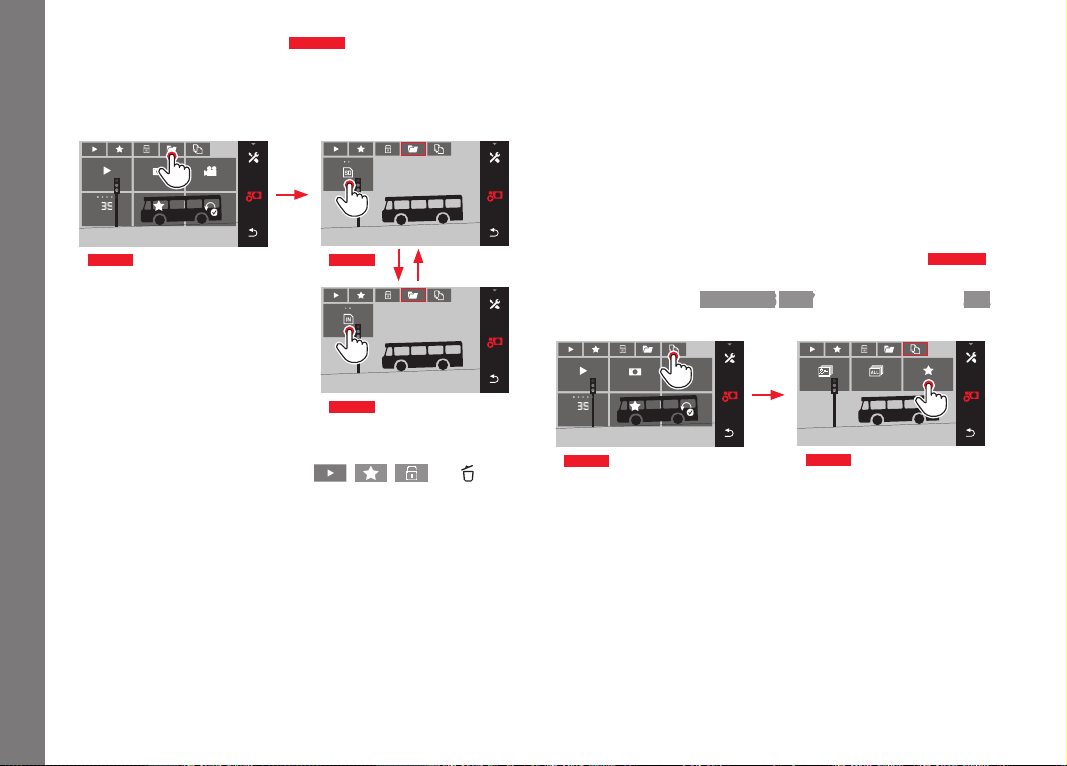
EN
182
Review mode
Selecting the review source
Fig. 75 a-c
Note:
This function is only available if a memory card is inserted.
SD CARD
INTERNAL MEMORY
Fig. 75 b
Fig. 75 c
DURATION REPEAT
PLAY ALL
FAVORITE ONLY
VIDEOS ONLYPICTURES ONLY
Fig. 75 a
The selected source determines not only which pictures are dis-
played, but also which pictures the
, , and func-
tions apply to.
Copying picture data between the internal memory and the
inserted memory card
If a card is inserted, the Leica TL2 saves the picture data to the
card, and if no card is inserted, the internal memory is used. You
can copy the picture data at any time from its original location to
the other - provided the destination has sufficient capacity avail-
able. The copy direction is determined by the selected review
source: If the internal memory is selected, data is copied from
there onto the memory card, and vice versa.
Copying all pictures/pictures marked as favorites
Fig. 76 a/b
The procedure is the same for both functions. The only difference
is whether you select
FAVORITES ONLY, as in the example, or ALL.
#
MULTI ALL FAVORITES ONLY
Fig. 76 b
DURATION REPEAT
PLAY ALL
FAVORITE ONLY
VIDEOS ONLYPICTURES ONLY
Fig. 76 a
Processing of the data begins after around 3s.
• Because of the time required, a corresponding information
screen appears. When the copy operation is complete, a confir-
mation message appears.
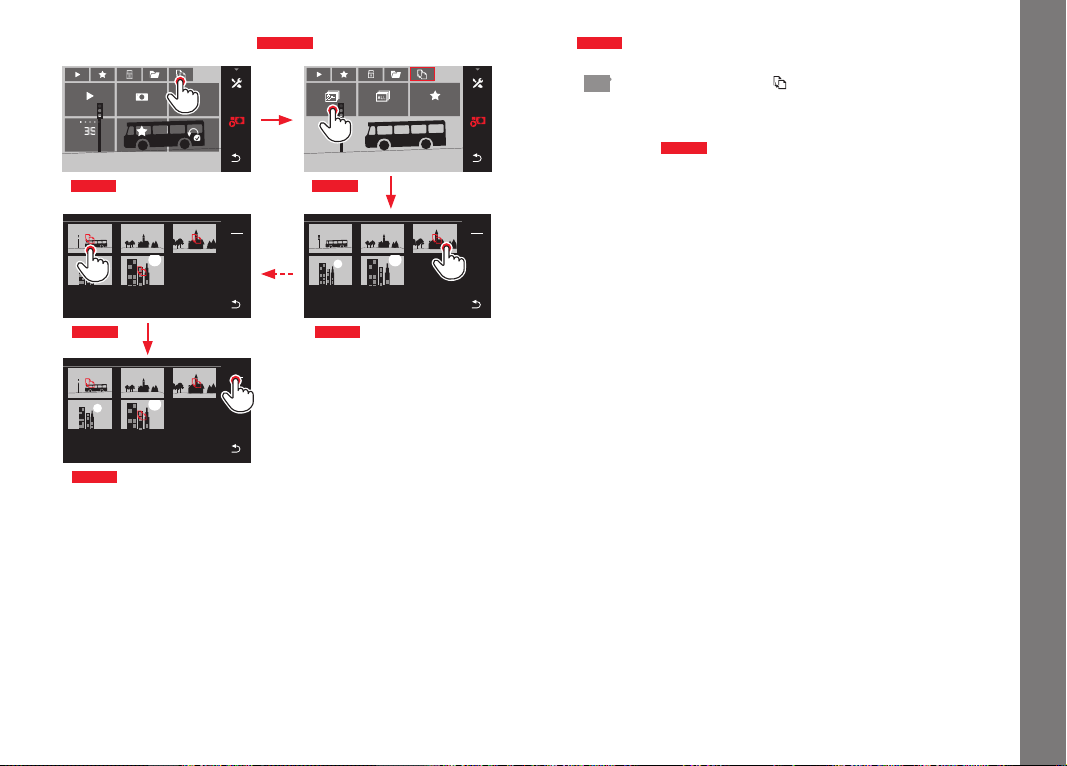
EN
183
Review mode
Copying multiple pictures
Fig. 77 a-e
MULTI ALL FAVORITES ONLY
Fig. 77 b
DURATION REPEAT
PLAY ALL
FAVORITE ONLY
VIDEOS ONLYPICTURES ONLY
Fig. 77 a
Fig. 77 d
Fig. 77 e
COPY MULTI
INTERNAL SD CARD
SET
COPY MULTI
INTERNAL SD CARD
SET
COPY MULTI
INTERNAL SD CARD
SET
Fig. 77 c
Processing of the data begins after around 3s.
• Because of the time required, a corresponding information
screen appears. When the copy operation is complete, a confir-
mation message appears.
From
Fig. 77 c
onwards, you can select the desired pictures using
the setting dials, as an alternative to gesture control.
• The
SET display is replaced with .
Approx.: 2 s after your last marking, the display returns and you
can continue with
Fig. 77 e
.
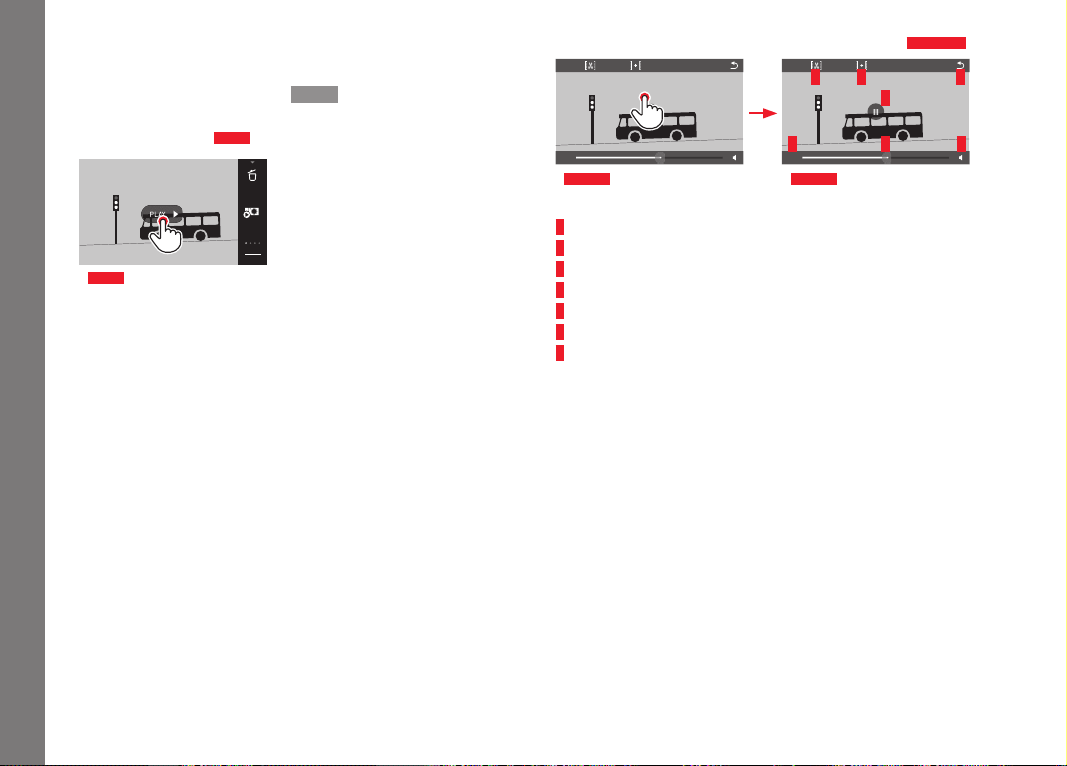
EN
184
Review mode
Video review
If a video recording is selected,
PLAY > appears on the monitor.
Starting playback
Fig. 78
INFO
Fig. 78
Calling up the video and audio control symbols
Fig. 79 a/b
16:12
16:12
1
5 6 7
2 4
3
Fig. 79 a Fig. 79 b
1 Elapsed time
2 Scroll bar with contact area
3 Break
4 Volume
5 Shorten video
6 Combine two videos
7 Back to beginning of video
Note:
The control symbols disappear after 3 s.
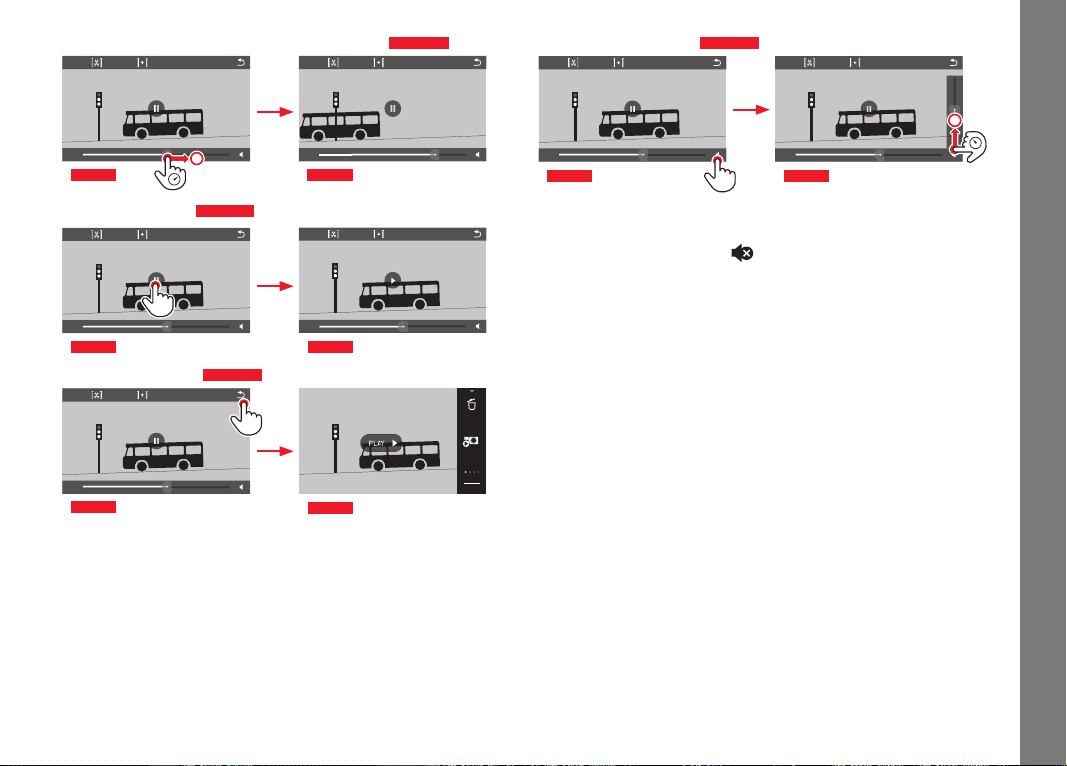
EN
185
Review mode
Continuing playback from a particular point
Fig. 80 a/b
16:12
Fig. 80 a
18:26
Fig. 80 b
Pausing playback
Fig. 81 a/b
16:12
Fig. 81 a
16:12
Fig. 81 b
Stopping playback
Fig. 82 a/b
16:12
Fig. 82 a
INFO
Fig. 82 b
Adjusting the volume
Fig. 83 a/b
16:12
Fig. 83 a
16:12
Fig. 83 b
Note:
The sound is muted at the lowest position of the bar and the
volume symbol will switch to
.
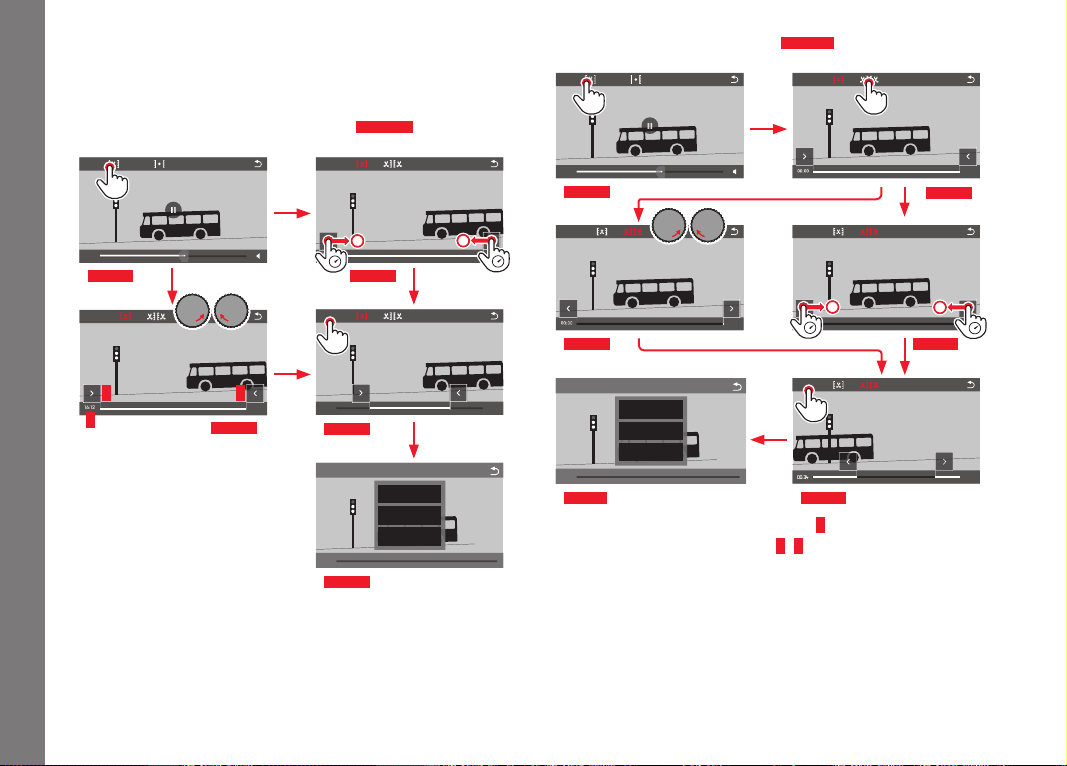
EN
186
Review mode
Cutting and combining video clips
The Leica TL2 provides two different options for cutting a video
recording.
Cutting starting and/or end sections
Fig. 84 a-e
16:12
Fig. 84 a
Fig. 84 d
Fig. 84 c
Fig. 84 e
16:12
SAVE
16:12
SAVE
11:30
SAVE
SAVE AS NEW
OVERWRITE
REVIEW CLIP
12:36
1
2 3
Fig. 84 b
► Operation continued on next page, right-hand column.
Cutting out a particular scene
Fig. 85 a-f
16:12
Fig. 85 a
Fig. 85 d
Fig. 85 f Fig. 85 e
Fig. 85 b
SAVE
SAVE AS NEW
OVERWRITE
REVIEW CLIP
12:36
SAVE
SAVE
SAVE
Fig. 85 c
• During the operation, both the time (1) and a still shot of the
selected start and end points (
2/3) are displayed
► Operation continued on next page, right-hand column.
Note:
You can cut in 1s increments, therefore the initial video must have
a length of at least 3s.
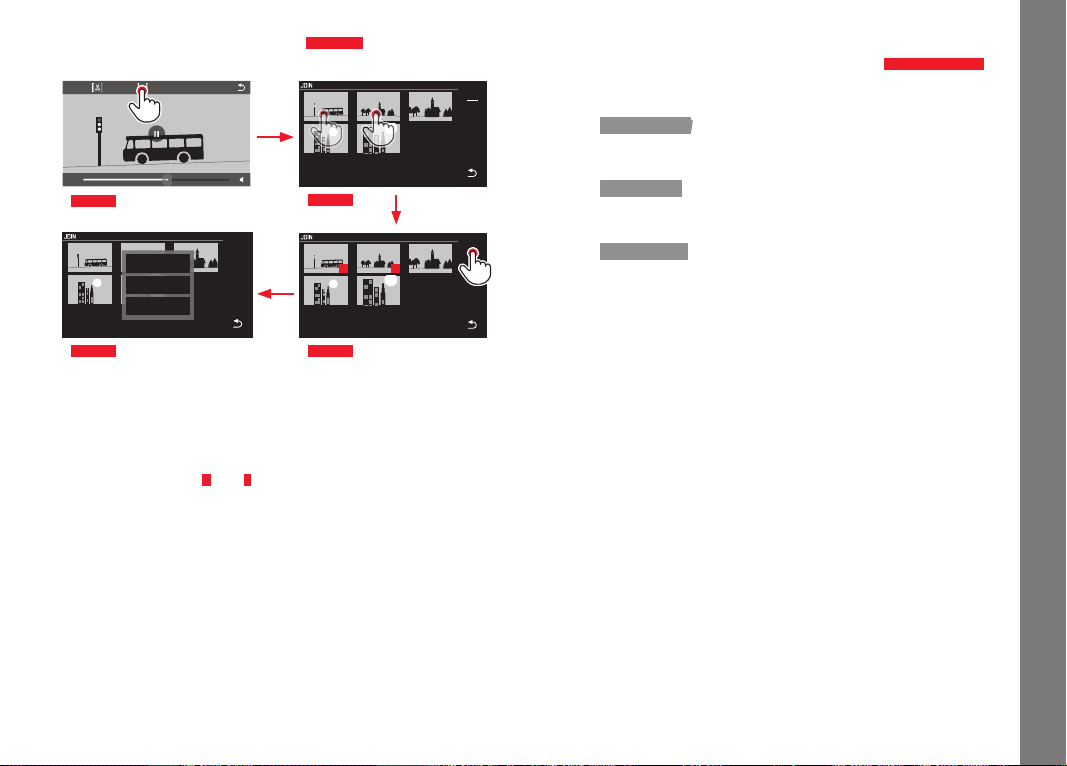
EN
187
Review mode
Combining two video recordings
Fig. 86 a-d
SET
Fig. 86 b
2 1
SET
Fig. 86 cFig. 86 d
16:12
Fig. 86 a
1
SAVE AS NEW
OVERWRITE
REVIEW CLIP
► Operation continued in right-hand column.
Note:
Two videos can be selected for each combination operation. The
order is indicated by
1
and
2
.
When cutting and when combining videos, the operation continues
by selecting one of the three options in the submenu
Fig. 84 e, 85 f, 86 d
and the process is the same.
► Select
SAVE AS NEW
The new video is also saved and the original is retained.
► Select
OVERWRITE
The new video is saved and the original is deleted.
► Select
REVIEW CLIP
The new video is shown. It is not saved and the original is not
deleted.
• In all three cases, a corresponding information screen initially
appears due to the time required to process the data, followed
by the initial scene of the new video.

EN
188
Miscellaneous
MISCELLANEOUS
USER PROFILES
On the Leica TL2, any combination of menu settings can be perma-
nently stored, e.g. so that they can be retrieved quickly and easily
at any time for recurring situations/subjects. A total of three
memory slots are available for these combinations. Of course, you
can reset all menu options to the factory default settings (
Default
Profile).
Creating profiles
► Set the desired functions in the menu
► In the main menu, select
►
Select
► In the submenu, select Save as Profile
► In the Save as Profile submenu, select the desired profile slot
Applying profiles
► In the main menu, select
►
Select
► Select Load Profile in the submenu
► In the
Load Profile submenu, select the desired profile slot, or
Default Profile
Notes:
• By selecting
Default Profile you can access the factory settings
at any time even if other menu settings have been saved in one
or more of the three profile slots.
• Unlike the
function explained in the section “Resetting all
custom settings”, your settings for time, date and language are
not reset with
Default Profile.

EN
189
Miscellaneous
Renaming profiles
► In the main menu, select
►
Select
► Select Rename Profile in the submenu
► In the Rename Profile submenu, select the desired profile slot
► In the corresponding keypad submenu, enter the new name
using touch control to select the desired characters
Transferring profiles from/to a card
You can either copy the profile slots to the memory card, or, vice-
versa, from a memory card to the camera. Both procedures are
performed in principally the same way.
► In the main menu, select
►
Select
► Select Export Profile or Import Profile in the submenu
• A confirmation prompt appears
► Confirm the ex-/import -
YES or reject - NO
Note:
When exporting, all profile slots are transferred to the card, i.e.
including any empty profiles. As a result, when importing profiles
any existing profiles in the camera will be overwritten, i.e. deleted.

EN
190
Miscellaneous
RESETTING ALL CUSTOM SETTINGS
This function allows you to reset all custom settings previously
made in the menu at once and restore the factory default, if so
desired with the exception of the WiFi settings and/or those in the
profiles:
► In the main menu, select
►
Select
• A confirmation prompt appears
► Confirm the reset - YES or reject - NO
• A confirmation screen concerning the WiFi settings appears.
► Confirm deleting the WiFi settings -
NO or reject - YES
• A confirmation screen concerning the profile settings appears.
► Confirm deleting the settings -
NO or reject - YES
Note:
This reset also applies to the settings in
Date/Time and Language.
The next time the camera is turned on, the welcome video is
played again. For details of what to do next, refer to the "Menu
language", and "Date/Time" sections.

EN
191
Miscellaneous
RESETTING THE IMAGE FILE NUMBERING
The Leica TL2 saves picture files with ascending numbers and
stores them in automatically created folders. The names of the
picture files are therefore made up of eight characters, "
L" for the
(Leica) camera, three figures for the folder, and four figures for the
picture, e.g. „
L1001234“. You can reset this numbering at any time:
► In the main menu, select
►
Select
• A confirmation prompt appears
► Confirm - YES or reject - NO
When you reset the numbering, or if the current folder contains the
picture file number 9999, a new folder is automatically created and
the numbering starts over. Example: Last picture before reset
"
L1009999", first picture afterwards "L1010001". For example, you
can use this to sort your picture files more clearly.
The next available number is always used as the folder number, and
a maximum of 999 folders are possible.
If the number capacity is reached at "
L9999999", a corresponding
warning message appears in the monitor and the numbering has to
be reset.
Notes:
• If a memory card is inserted, the numbering is only reset on the
card; if no card is inserted the internal memory numbering.
• If the memory card used already contains a picture file with a
higher number than the last number assigned by the camera, the
numbers are incremented according to the numbering on the
card.
• To reset the folder number to 100, format the memory card or
the internal memory and then immediately reset the image
number. This also resets the picture number (to 0001).
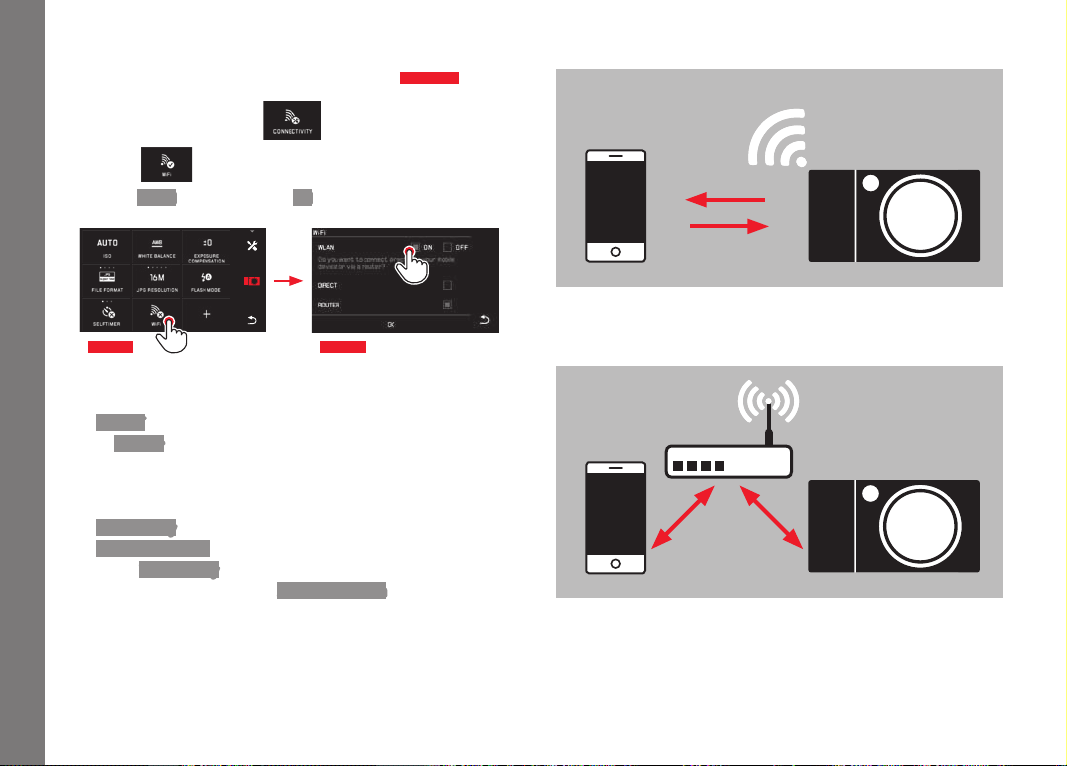
EN
192
Miscellaneous
SETTING UP AND USING THE WIFI FUNCTION
Activating the WiFi function on the camera
Fig. 87 a/b
► In the main menu, select
►
Select
► In the WLAN submenu, select ON
Fig. 87 b
Fig. 87 a
There are various ways of communicating with the Leica TL2 via
WiFi.
–
DIRECT if no WiFi network is available
– or
Router to incorporate the Leica TL2 in an available WiFi
network.
To be able to access the pictures on your Leica TL2, you can
choose between the platform-independent connection
–
Web Gallery and
–
APP Connection .
With the
Web Gallery function, you can very easily access your
camera using a web browser.
APP Connection enables more
comprehensive functions.
Note:
The Leica TL app is available in the Apple™ App Store™/Google™
Play Store™.
DIRECT
ROUTER
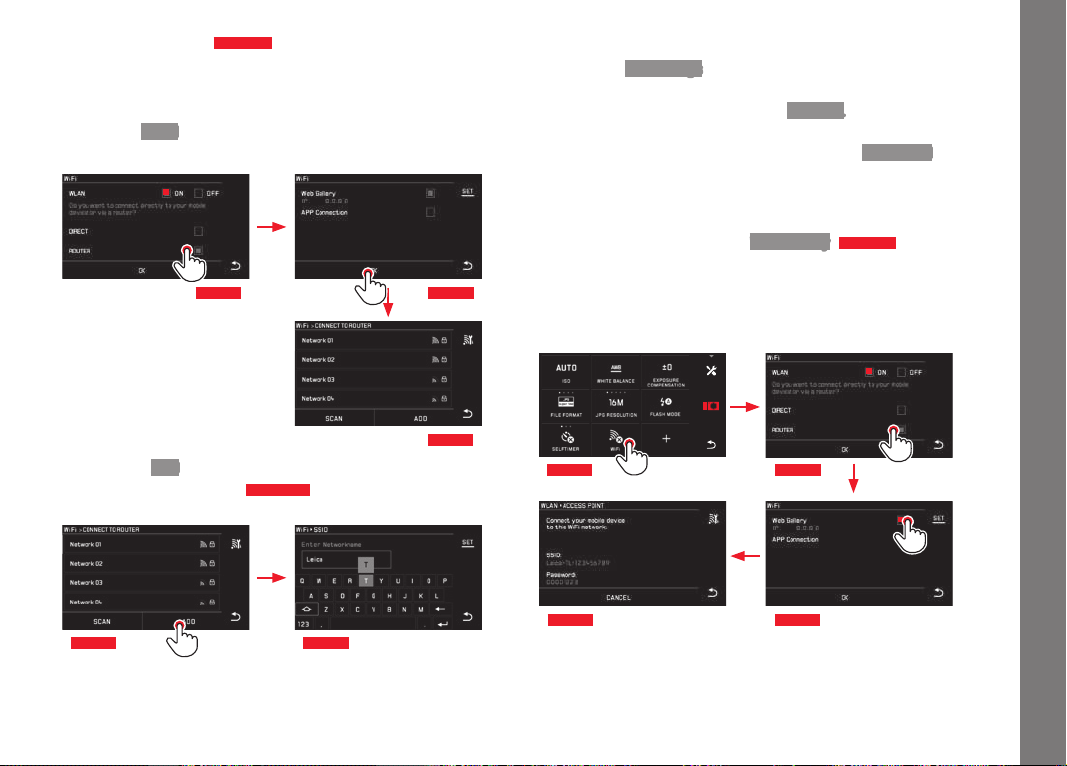
EN
193
Miscellaneous
Selecting a network
Fig. 88 a/c
Select the network you want from the list displayed on the monitor
by touching it. If the relevant network does not appear in the list
immediately, you can start another search for available networks by
toching the
SCAN button.
Fig. 88 b
Fig. 88 c
Fig. 88 a
Touching the ADD button allows you to add "hidden" networks by
entering the network name
Abb. 89 a/b
. Use the keyboard displayed
on the monitor to do this.
Fig. 89 a Fig. 89 b
Enter access data
Pressing the
IP Settings button takes you to the corresponding
submenu. If required, you can enter a fixed IP address and subnet
mask for the camera by touching the
MANUAL button here. How-
ever, these two settings are normally supplied automatically by the
WLAN. Enter the corresponding password in the
Password field to
access the relevant network. If no password is set for the network,
you can leave this field blank.
Access with a web browser (
Web Gallery)
Fig. 90 a-d
In the address line of the web browser enter the (IP) address that is
displayed on the monitor. You can then view and download the
pictures on the camera.
Fig. 90 a Fig. 90 b
Fig. 90 cFig. 90 d
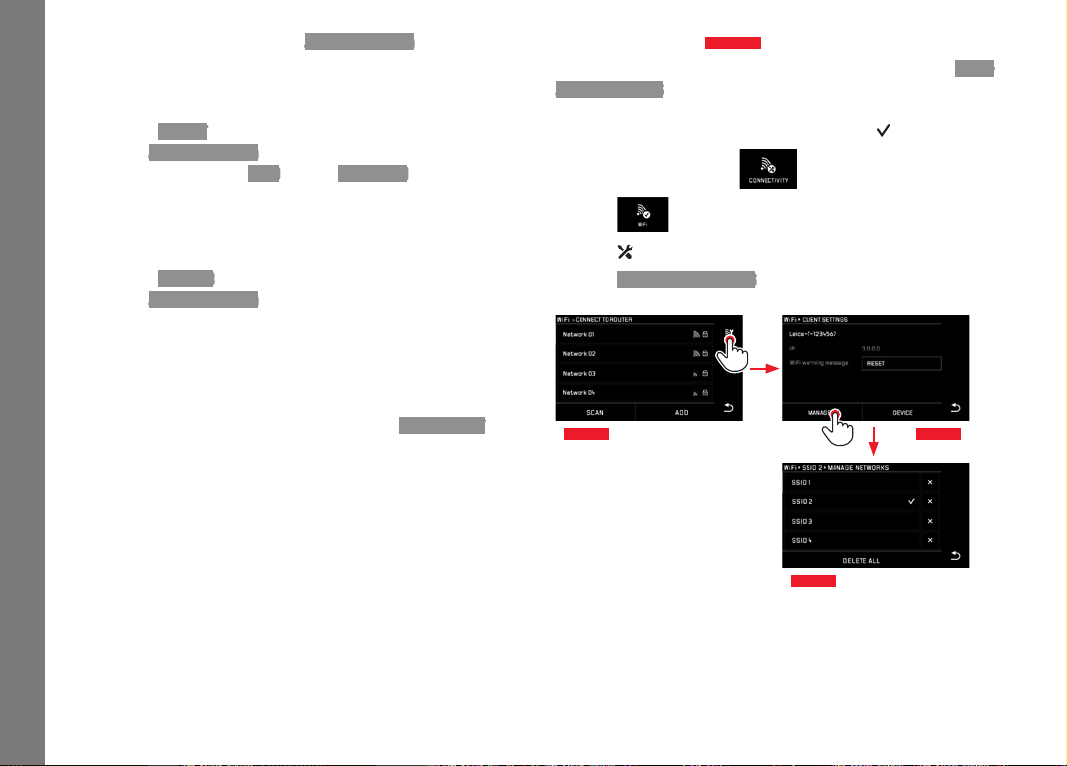
EN
194
Miscellaneous
Access with the Leica TL App (APP Connection)
First of all, select the desired connection method in the camera
menu.
– For a direct connection to a smart phone or tablet:
► Select
DIRECT
► Then
APP Connection
► The network name -
SSID and the Password are displayed on
the camera monitor.
► Select the desired Leica TL2 from the network list on your
smartphone or tablet.
– For connection via an available WiFi network:
► Select
ROUTER
► Then
APP Connection
► Select the desired WiFi network from the list of available
networks
► Enter access data (user/password).
Subsequent connections are established automatically. If you want
to connect the app to another Leica TL2, select
DISCONNECT and
continue as described above to establish the new connection.
Managing networks
Fig. 91 a-c
The settings for different networks can be deleted using the MAN-
AGE NETWORKS option in the WiFi menu. This is recommended for
WLAN networks that you use infrequently or only once.
Connected networks are indicated by a symbol (
).
► In the main menu, select
►
Select
►
Select
in the submenu
► Select MANAGE NETWORKS
Fig. 91 a Fig. 91 b
Fig. 91 c
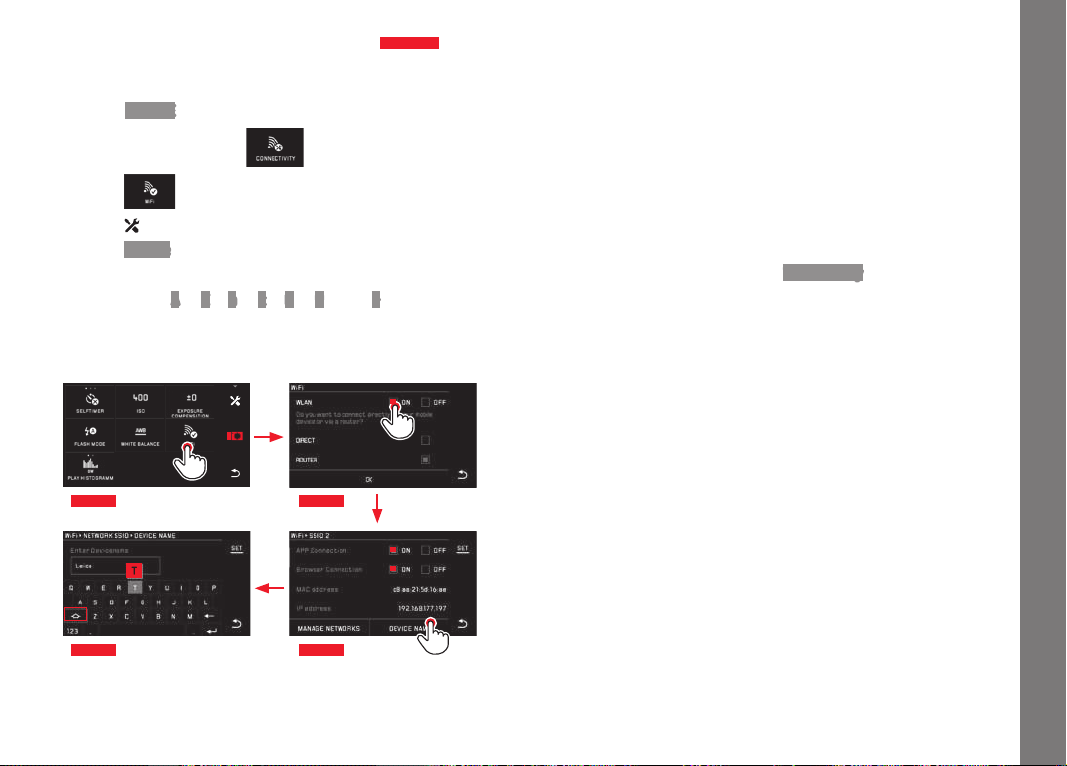
EN
195
Miscellaneous
Changing network names on the Leica TL2
Fig. 92 a-d
You can create a custom network name for your Leica TL2 (factory
default setting:
Leica TL2
Camera Serial Number
). To do this,
touchthe
DEVICE symbol in the WiFi menu on the camera.
► In the main menu, select
►
Select
►
Select
in the submenu
► Select Device
Note:
The characters "
A to Z", "a to z", "0 to 9", and "-" are available for
the name. Blanks cannot be used.
Fig. 92 a
Fig. 92 d
Fig. 92 b
Fig. 92 c
Notes:
• With WiFi access, pictures are only transferred in 2MP resolu-
tion. To access the original data, you should connect the camera
with a USB cable or insert the SD card into an SD card reader.
• Always connect the camera only to secure networks in order to
prevent unauthorized access to your camera and data.
• The WiFi function requires slightly more power. We therefore rec-
ommend that you deactivate the function when it is no longer
required.
• If there is an active USB connection between the camera and a
computer, the WiFi function is disabled on technical grounds.
• There is no access control for the
Web Gallery connection
method. Therefore, make sure that you are working in a secure
WLAN network.

EN
196
Miscellaneous
TRANSFERRING DATA TO A COMPUTER
Using a USB cord/Using the camera as an external drive
The Leica TL2 is compatible with the following operating systems:
Microsoft
®
: Vista
®
7
®
/8
®
Apple
®
Macintosh
®
: Mac
®
OS X (10.6) and later
The camera is equipped with a super-speed USB 3.0 interface for
transferring data.
With Windows operating systems:
The operating system detects the camera as an external drive and
assigns it a drive letter. Transfer the picture data to your computer
using Windows Explorer and save it.
With Mac operating systems:
The camera appears as a storage medium on the desktop. Transfer
the picture data to your computer using Finder and save it.
Important:
• Use only the USB cable supplied.
• While data is being transferred, the USB cable must not be
disconnected as otherwise the computer and/or the camera
may crash. and may even cause irreparable damage to the
memory card.
• The camera must not be turned off or automatically shut itself
down due to a lack of battery power while data is being trans-
ferred, as this can cause the computer to crash.
• For the same reason, the battery must never be removed from
the camera while the connection is active. If the battery capacity
deteriorates while data is being transferred, the INFO screen
appears with the battery capacity flashing. In this case cancel
the data transfer, turn off the camera, and charge the battery.
Using a card reader
Picture data can also be transferred using card readers for SD/
SDHC/SDXC memory cards. Compatible external card readers are
available for computers with a USB interface.
Note:
Your Leica TL2 is equipped with an integrated sensor to detect the
camera directionality – horizontal or vertical (both directions) –
used for each exposure. This information allows the pictures to
always be automatically displayed upright when subsequently
displayed on a computer running the appropriate programs.

EN
197
Miscellaneous
FORMATTING
On the Leica TL2, the picture data in the internal memory and on
an inserted memory card can be deleted separately. For memory
cards, it is not normally necessary to format cards that have
already been inserted. However, if a card that has yet to be format-
ted is inserted for the first time, it must be formatted. In such
cases, the corresponding confirmation prompt appears automati-
cally. Nevertheless, it is recommended that the internal memory
and memory cards be reformatted occasionally, as a certain
amount of residual data (info accompanying pictures) can take up
memory capacity.
► In the main menu, select
►
Select
► Call up the relevant submenu
• A confirmation prompt appears
► Confirm - YES or reject - NO
Notes:
• When formating the memory card, the data on it is irretrievably
lost.
• You should therefore get into the habit of transferring all your
pictures onto a secure bulk storage medium, e.g. the hard drive
on your computer, as soon as possible.
• Do not turn off the camera while the operation is in progress.
• If the memory card has been formatted in another device, such
as a computer, you should reformat it in the camera.
• If the memory card cannot be formatted, you should ask your
dealer or the Leica Product Support for advice.
• Files on the card marked with delete protection will notsimilarly
be lost in formating.

EN
198
Miscellaneous
USING RAW DATA (DNG)
You will need the right software if you want to edit data in DNG
format, e.g. the professional raw data converter Adobe
®
Photo-
shop
®
Lightroom
®
. The software allows you to convert stored raw
data in excellent quality and also offers quality optimized algo-
rithms for digital color processing which create very low noise
results coupled with astonishingly high resolution.
During editing, you can adjust parameters like gradation, sharpness
etc. to achieve the best possible image quality.
INSTALLING FIRMWARE UPDATES
Leica is constantly working on developing and optimizing its prod-
ucts. As digital cameras have many functions that are purely
controlled electronically, some of these improvements and
enhancements to the functions can be installed on the camera at a
later date. For this purpose, Leica offers firmware updates at
irregular intervals that are made available to you on our website for
download. Once you have registered your camera, Leica will notify
you of all new updates.
Further information on registration and firmware updates for your
camera, as well as any amendments and additions to the details
provided in these instructions, can be found in the “Owners’ Login”
area at: https://owners.leica-camera.com
To identify which firmware version is installed:
► In the main menu, select
►
Select
• The current version number on the camera is displayed in the
first line of the submenu.
The second line of the submenu provides access to a display of
various country-specific approval symbols and numbers.
► Select Regulatory information in the submenu.
• The two-page display appears.

EN
199
Safety and care instructions
SAFETY AND CARE INSTRUCTIONS
GENERAL SAFETY INSTRUCTIONS
Do not use your camera in the immediate vicinity of devices with
powerful magnetic, electrostatic or electromagnetic fields (e.g.
induction ovens, microwave ovens, television sets or computer
monitors, video game consoles, cell phones, radio equipment).
• If you place the camera on or very close to a television set, its
magnetic field could interfere with picture recordings.
• The same applies to use in the vicinity of cell phones.
• Strong magnetic fields, e.g. from speakers or large electric
motors, can damage the stored data or the pictures.
• If the camera malfunctions due to the effects of electromagnetic
fields, remove the battery and then turn the camera on again.
Do not use the camera in the immediate vicinity of radio trans-
mitters or high-voltage power lines.
Their magnetic fields can also interfere with picture recordings.
• Protect the camera from contact with insect sprays and other
aggressive chemicals. Petroleum spirit, thinner and alcohol may
not be used for cleaning.
Certain chemicals and liquids can damage the camera’s housing
or the surface finish.
• As rubber and plastics sometimes emit aggressive chemicals,
they should not remain in contact with the camera for a long
time.
• Ensure that sand and dust cannot get into the camera, e.g. on
the beach. Sand and dust can damage the camera and the
memory card. Take particular care when inserting and removing
the card.
• Ensure that water cannot get into the camera, e.g. when it is
snowing or raining and on the beach.
Moisture can cause malfunctions and even irreparable damage
to the camera and the memory card.
• If salt water spray gets onto the camera, wet a soft cloth with
tap water, wring it out thoroughly and wipe the camera with it.
Then wipe down thoroughly with a dry cloth.
Important:
Use only the accessories specified and described in these instruc-
tions or by Leica Camera AG with the camera.
Monitor
• If the camera is exposed to significant temperature fluctuations,
condensation can form on the monitor. Wipe it off carefully with
a soft dry cloth.
• If the camera is very cold when turned on, the monitor image will
initially be slightly darker than normal. As soon as the monitor
warms up, it will reach its normal level of brightness.
The monitor is manufactured using a high-precision process. This
ensures that of the total of around 920,000 pixels more than
99.995% work correctly and only 0.005% remain dark or are always
bright. However, this is not a malfunction and it does not impair the
reproduction of the picture.

EN
200
Safety and care instructions
Picture sensor
• Cosmic radiation (e.g. during flights) can cause pixel defects.
Condensation
If condensation has formed on or in the camera, you should turn it
off and leave it to stand at room temperature for around an hour.
Once the camera temperature has adjusted to room temperature,
the condensation will disappear by itself.
Care instructions
• As any soiling also represents a growth medium for microorgan-
isms, you should take care to keep the equipment clean.
For the camera
• Only clean the camera with a soft, dry cloth. Stubborn dirt
should first of all be covered with a well-thinned cleaning agent
and then wiped off with a dry cloth.
• To remove marks and fingerprints, wipe the camera with a clean
lint-free cloth. Tougher dirt in hard to reach corners of the
camera body can be removed with a small brush.
• All mechanically operated bearings and sliding surfaces on your
camera are lubricated. Please remember this if you will not be
using the camera for a long period of time. To prevent the lubri-
cation points becoming gummed up, the camera shutter should
be operated several times every three months. We also recom-
mend repeated adjustment and use of the setting dials.
For lenses
• Normally, a soft hair brush is sufficient to remove dust from the
outer lens elements. However, in case of more stubborn dirt,
they can be carefully cleaned with a very clean, soft cloth that is
completely free of foreign matter, using circular motions from
the inside to the outside. We recommend micro-fiber cloths
(available from photographic and optical specialists) that are
stored in a protective container and can be washed at tempera-
tures of up to 40°C/104°F (without fabric softener, never iron!).
Cloths for cleaning spectacles that are impregnated with chemi-
cals should not be used as they can damage the lens glass.
• The lens hood supplied also protects the lens from unintentional
fingerprints and the rain.
For the battery
Rechargeable lithium ion batteries generate power through internal
chemical reactions. This reaction is influenced by ambient temper-
ature and humidity. Very high or low temperatures reduce the life
of the battery.
• Always remove the battery if you will not be using the camera for
a long period of time, As otherwise it could become totally
discharged after several weeks, i.e. its voltage drops to a very
low level.
• Lithium ion batteries should only be stored partly charged, i.e.
not when fully discharged or fully charged. For very long storage
periods, the battery should be charged for around 15 minutes
twice a year to prevent total discharge.

EN
201
Safety and care instructions
• Always ensure that the battery contacts are clean and freely
accessible. Whilst lithium ion batteries are secured against short
circuits, they should still be protected against contact with metal
objects like paper clips or jewelry. A short-circuited battery can
get very hot and cause severe burns.
• In order to charge the battery, it must have a temperature of
between 0°C and 35°C/32°F and 95°F (otherwise the charger
may not turn on or off again).
• If a battery is dropped, check the casing and the contacts
immediately for any damage. Using a damaged battery can
damage the camera.
• Batteries have only a limited service life.
• Send defective batteries to an appropriate collection point for
proper recycling.
• Never throw batteries into a fire as this can cause them to
explode.
For the charger
• If the charger is used in the vicinity of radio receivers it can
interfere with reception; maintain a distance of at least 1m /3
ft between the devices.
• When the charger is in use, it can make a noise (buzzing) – this
is quite normal and is not a malfunction.
• When it is not in use, disconnect the charger from the mains as
otherwise it uses a certain (very small) amount of power even
when no battery is inserted in it.
• Always keep the charger contacts clean, and never short circuit
them.
For memory cards
• While a picture is being stored or the memory card is being read,
it must not be removed, and the camera must not be turned off
or exposed to vibrations.
• Make sure to store memory cards in their anti-static container
when not in use.
• Do not store memory cards where they will be exposed to high
temperatures, direct sunlight, magnetic fields or static dis-
charge.
• Do not drop or bend memory cards as this can damage them
and result in loss of the stored data.
• Always remove the memory card if you will not be using the
camera for a long period of time.
• Do not touch the connections on the rear of the memory card
and keep them free of dirt, dust and moisture.
• It is recommended that the memory card be reformatted from
time to time, as fragmentation occurs when deleting, which can
block some of the memory capacity.

EN
202
Safety and care instructions
Storage
• If you are not using the camera for a longer period of time, we
recommend that you:
a. a. Turn it off,
b. Remove the memory card, and
c. Remove the battery
• A lens works like a magnifying glass if bright sunlight shines on
the front of the camera. The camera must therefore never be
stored without lens protection. Using the lens cap and keeping
the camera in the shade (or immediately putting it away in the
case) will help prevent damage to the interior of the camera.
• You should preferably store the camera in a closed and padded
container so that nothing can damage it and it is protected from
dust.
• Store the camera in a dry, adequately ventilated place, where
neither high temperatures nor high humidity will occur. When
used in humid conditions, the camera should be completely free
of all moisture before being stored away.
• Photo cases that became wet during use should be emptied to
prevent damage to your equipment caused by moisture and any
leather-tanning residue released.
• To prevent fungal growth during use in hot, humid tropical cli-
mates, the camera equipment should be exposed to the sun and
air as much as possible. Storage in airtight containers or cases
is recommended only if a desiccant such as silica gel is used.
• To prevent the formation of fungus, do not store the camera in a
leather case for extended periods of time.
• Note down the serial number of your Leica TL2, as this is
extremely important in case of loss.
Safety notes on using carrying straps
• Carrying straps are usually made of strong material. There is
therefore a risk of strangulation.
• Use them only for their intended purpose as a carrying strap on
a camera/on binoculars. Any other use carries the risk of injury
and may possibly result in damage to the carrying strap and is
therefore not permitted.
• Due to the risk of strangulation, carrying straps should not be
used for cameras/binoculars during sporting activities where
there is a high risk of getting caught by the carrying strap (e.g.
climbing in the mountains and comparable outdoor sports).
• Keep carrying straps away from children. They are not toys and
are potentially dangerous for children. Due to the risk of strangu-
lation, it is not suitable for children to use them as carrying
straps for cameras/binoculars.

EN
203
APPENDIX
CHARGER ADAPTER PLUGS
Plug Country
1 US/Japan USA
Canada
Japan
Singapore
Thailand
Taiwan
2 EU EU
Turkey
Russia
3 UK UK
Qatar
UAE
Hong Kong
Malaysia
South Africa
Malta
4 China China
5 Australia Australia
New Zealand
6 Korea Korea
1
3
5
2
4
6
Appendix

EN
204
MAIN MENU
Function groups
1
Still image settings
2
Exposure setting
3
Sharpness settings
4
Video settings
5
Wireless connection settings
6
Monitor/viewfinder settings
7
Review settings
8
Basic camera settings
9
Flash settings
Still image settings
MY CAMERA
1
Page
1a
ISO Sensitivity
x
146
1b
JPG Compression rate
x
144
1c
JPEG Resolution
x
144
1d
Automatic ISO settings 146
1e
Picture sequence 150
1f
DNG compression 144
1g
White balance
x
145
1h
Color Rendering 146
1i
Self-Timer
x
148
1j
Image stabilization
2
148
1
X = Menu items in MY CAMERA menu in the default settings
2
Only available with appropriately equipped Leica SL lenses
Appendix
1
1a
1d
1g
1j
1 1b
1e
1h
1c
1f
1i
4
7
2
5
8
3
6
9
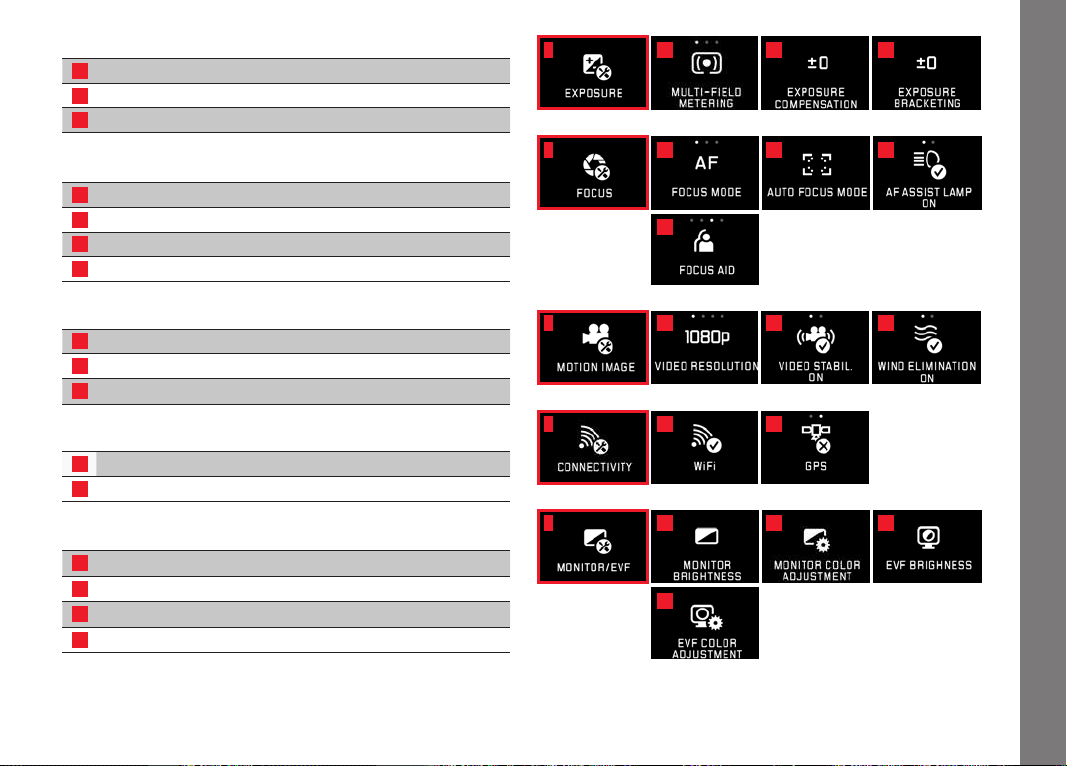
EN
205
Exposure settings
MY CAMERA
1
Page
2a
Exposure metering method
x
158
2b
Exposure compensation
x
166
2c
Automatic bracketing 167
Sharpness settings
3a
Focusing mode 150
3b
Autofocus mode 152
3c
Autofocus auxiliary light 151
3d
Manuak focusing aid 156
Video settings
4a
Video resolution 172
4b
Image stabilization 173
4c
Wind noise damping 173
Wireless connection settings
5a
WiFi connection
x
192
5b
GPS connection
3
149
Monitor/viewfinder settings
6a
Monitor brightness 142
6b
Monitor color reproduction 142
6c
Viewfinder brightness
3
142
6d
Viewfinder color reproduction
3
142
3
Only available with attached viewfinder Leica Visoflex (Typ 020)
Appendix
2
3
4
5
6
2a
3a
4a
5a
6a
6d
3d
2b
3b
4b
5b
6b 6c
2c
3c
4c
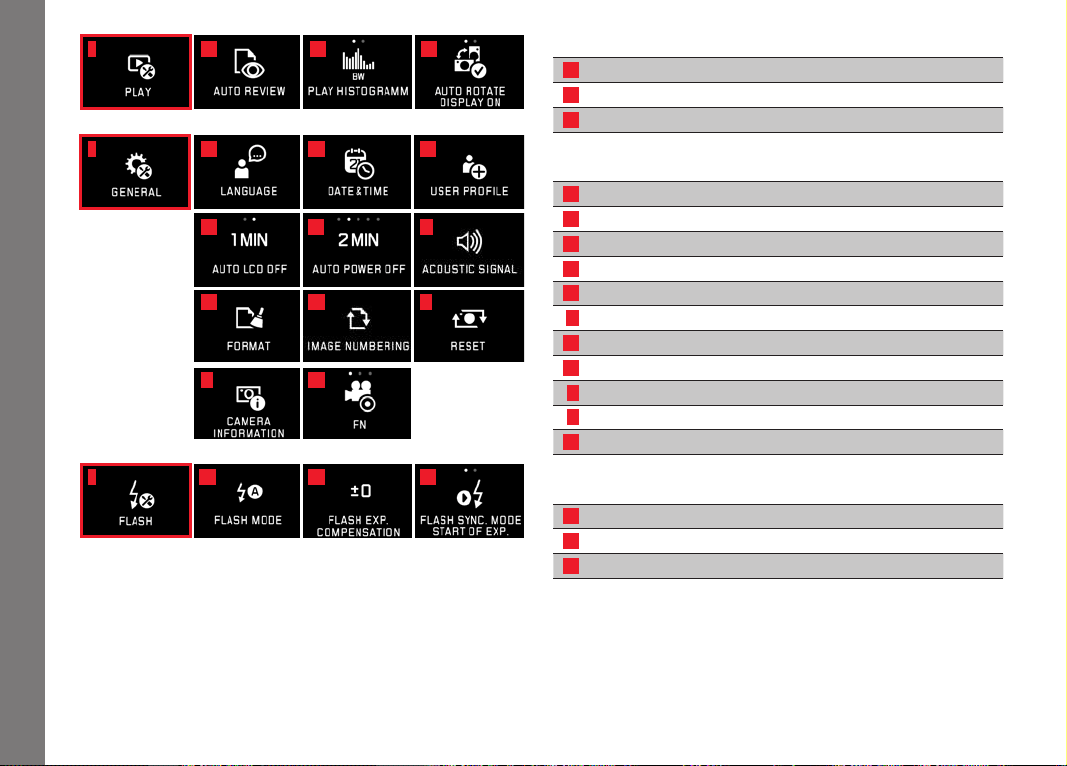
EN
206
Appendix
Review settings
Page
7a
Automatic review 174
7b
Histogram display 163
7c
Automatic image alignment 175
Basic camera settings
8a
Menu languages 140
8b
Date/time 140
8c
Managing user profiles 188
8d
Automatic Monitor Shutdown 142
8e
Automatic Camera Shutdown 143
8f
Acoustic feedback signals 142
8g
Formatting 197
8h
Resetting picture numbering 191
8i
Resetting camera settings 190
8j
Technical camera information 113/199
8k
Function button 127/143/173
Flash Settings
4
9a
Flash mode 169
9b
Flash exposure compensation
5
171
9c
Flash firing point 171
4
Only available with attached flash
5
Only available if attached flash does not allow direkt setting
7
8
9
7a
8a
9a
8d
8g
8j
7b
8b
9b
8e
8h
8k
7c
8c
9c
8f
8i
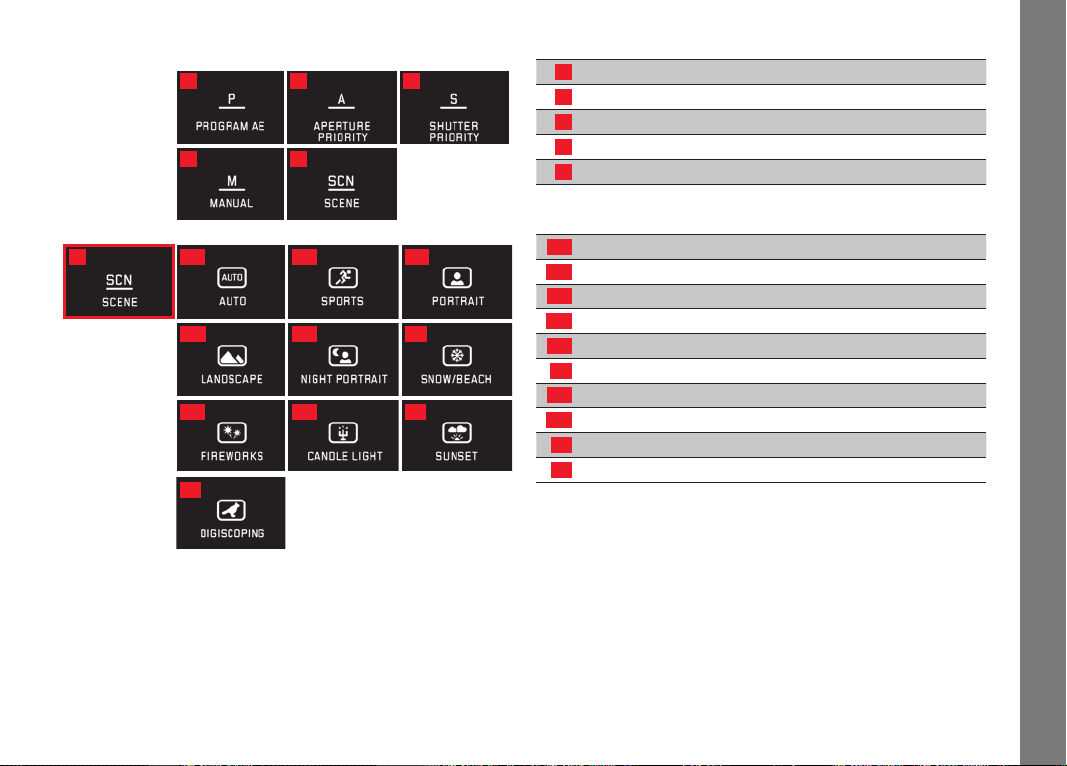
EN
207
Appendix
EXPOSURE MODES
Exposure control modes
Page
10
Automatic program 159
11
Aperture priority mode 160
12
Shutter speed priority 161
13
Manual setting 162
14
Scene modes 165
Scene modes
14a
Advanced automatic program mode
14b
Sport program
14c
Portrait program
14d
Landscape program
14e
Portrait program for dark surroundings
14f
Program for exceptionally bright subjects
14g
Fireworks program
14h
Program for low ambient light
14i
Sunrise/sunset program
14j
Digiscoping program
10
13
14a14
14d
14g
14j
14b
14e
14h
14c
14f
14i
11
14
12

EN
208
Index
INDEX
Attaching the carrying strap ....................................................116
Automatic camera shutdown ...................................................141
Battery, inserting and removing ...............................................117
Cautions .................................................................................199
Clipping ......................................................................... 130/163
Color Rendering ......................................................................179
Color saturation ......................................................................146
Combining video recordings ....................................................186
Compression rate ...................................................................144
Contrast .................................................................................146
Copying picture data ..............................................................182
Cutting video recordings .........................................................186
Deleting pictures .....................................................................180
Detail, selection of the, see Review mode
DNG .............................................................................. 144/198
Electronic viewfinder ...................................................... 142/149
Enlargement of pictures during review .....................................174
Exposure control
Aperture priority mode ........................................................160
Automatic program .............................................................159
Bracketing function, automatic ............................................167
Exposure compensation ......................................................166
Manual setting ....................................................................162
Metering memory lock ........................................................166
Metering methods ...............................................................158
Shift ...................................................................................159
Shutter speed priority ..........................................................161
Scene modes ......................................................................165
File format ..............................................................................144
Firmware downloads ...............................................................198
Flash modes ...........................................................................168
Flash units ..............................................................................168
Focusing .................................................................................150
AF auxiliary light ..................................................................151
Autofocus ...........................................................................150
Focusing aids ......................................................................156
Focusing by touching ..........................................................154
Manual focusing ..................................................................156
Metering methods ...............................................................152
Formatting ..............................................................................197
Frame rate ..............................................................................150
Function button ..................................................... 127/143/173
Gesture control .......................................................................128
GPS ........................................................................................149
Histogram ...................................................................... 130/163
Information service, Leica Product Support .............................212
ISO Sensitivity .........................................................................146
Leica Customer Care ..............................................................212
Main switch ............................................................................126
Marking pictures .....................................................................179
Marking pictures as favorites ..................................................179
Memory card, inserting and removing ......................................122
Menu language .......................................................................140
Monitor ...................................................................................142
Noise (key tones) ....................................................................142

EN
209
Index
Parts, designation ...................................................................109
Picture frequency ...................................................................150
Picture series ..........................................................................150
Profiles ...................................................................................188
Protecting pictures/clearing delete protection ........................179
Raw data ....................................................................... 144/198
Repairs/Leica Customer Care .................................................212
Resetting all individual menu settings ......................................190
Resolution...............................................................................144
Review ....................................................................................174
Review menu ..........................................................................178
Scope of delivery ....................................................................110
Select source (for Review) .......................................................182
Self-Timer ...............................................................................148
Setting dials ............................................................................126
Shutter button, see also Technical data ...................................127
Slide show ..............................................................................178
Software .................................................................................198
Sound recording .....................................................................173
Stabilization ................................................................... 148/173
Storage ...................................................................................202
Time and date .........................................................................140
Transferring data to a computer ..............................................196
Turning on/off, see main switch
USB connection ............................................................. 120/196
Video recording ......................................................................172
Viewfinder ...............................................................................142
Viewing the pictures, see Review mode
Volume ...................................................................................142
White balance .........................................................................145
WiFi ........................................................................................192

EN
210
Technical data
TECHNICAL DATA
Camera nameLeica TL2
Camera typeDigital APS-C system camera
Type-No.5370
Order no.18 187 (silver), 18 188 (black)
Lens mountLeica L bayonet with contact strip for communica-
tion between lens and camera
Compatible lensesLenses with Leica L-Mount, Leica M/R lenses
using the Leica M-Adapter L/R-Adapter L
SensorAPS-C sized CMOS sensor (23.6 x 15.7mm) with
24.96/24.32 million pixels (total/effective), aspect ratio 3:2
Photo ResolutionDNG: 6016 x 4014 Pixels (24 Megapixels),
JPEG: optional 6000 x 4000 Pixels (24 Megapixels), or 4272 x 2856
Pixels (12 Megapixels), or 3024 x 2016 Pixels (6 Megapixels)
Photo file formats/compression rates Optional: JPG, DNG, or
DNG + JPG, DNG optionally uncompressed or compressed (loss-
less)
Video recording formatMP4
Video resolution/frame rate3840 x 2160p (4K) 30fps, 1920 x
1080 p (FHD) 60fps or 1280 x 720 p (HD) fps or 1280 x 720p
(HD) 120fps (
SLOMO)
Video recording timeDepending on ambient or housing temper-
ature video recordings are possible up to a maximum length of 29
minutes, maximum file size is 4 GB, if a recording exceeds this
limit, the respective part is automatically stored in another file
Internal memory32 GB
Storage mediaSD/SDHC/SDXC memory cards, multimedia
cards, UHS II-standard is supported
ISO rangeAutomatic, ISO 100 to ISO 50000
White balanceAutomatic, presets for daylight, cloudy, halogen
lighting, shadow, electronic flash, two memory slots for manually
metered settings, manual color temperature setting
Autofocus systemContrast-based
Autofocus metering methodsSingle point, multi-zone, spot, face
detection, touch AF
Exposure modesAutomatic program, aperture priority, shutter
speed priority, and manual setting, Fully automatic, sport, portrait,
landscape, night portrait, snow/beach, fireworks, candlelight,
sunset, digiscoping
Exposure Metering MethodsMulti-zone, center-weighted, spot
Exposure compensation±3EV in
1
⁄3EV increments
Automatic exposure bracketingThree pictures in graduations
up to ± 3EV, adjustable in
1
⁄3EV increments
Shutter speed range30s to
1
⁄40000s (up to
1
⁄4000s with mechani-
cal, beyond that with electronic shutter)
Picture sequenceApprox. 7 fps (with mechanical shutter) and 20
fps (with electronic shutter), 29 pictures at full speed, then depend-
ing on memory card properties
Flash modes Adjustable with attached, system compatible flash
Flash exposure compensation±3EV in
1
⁄3EV increments
Flash synchronization
1
⁄180s

EN
211
Technical Data
Monitor3.7” TFT LCD, 1.3 million pixels, 854x480 per color
channel
Self-Timer Selectable delay time 2 or 12s
WLAN Complies with IEEE 802.11b/g/n standard (standard
WLAN protocol), channel 1-11, encryption method: WiFi-compatible
WPA™/WPA2™
Power supply Leica BP-DC13 lithium ion battery, rated voltage
7.2V, capacity 985mAh (min.) (based on CIPA standard): approx.
250 pictures, charging time (after total diwscharge): approx. 160
min Manufacturer: Panasonic Energy (Wuxi) Co, Ltd. Made in China
Interfaces Micro (type D) HDMI port, HDMI 1.4b standard is
supported, USB type C port, USB 3.0 Super Speed standard is
supported, battery charging via USB connection possible with max.
1A, accessory shoe with Leica flash interface with integrated
connection for optional accessories
Charger Leica BC-DC13, input: AC 100-240V, 50/60Hz, 0.145A
(100V)-0.08A (240V), automatic reversing, DC 8.4 V, 0.65 A,
Weight: approx. 90 g/3.2 oz, Dimensions: approx.
96x68x28mm, Manufacturer: Shenzen Eng Electronics Co., Ltd.,
Made in China
Body Leica unibody aluminum design, attachment system for
carrying straps and other accessories, ISO accessory shoe with
center and control contacts for flash units or Leica Visoflex elec-
tronic viewfinders
Tripod thread A
1
⁄4 DIN 4503 (
1
⁄4“)
Body dimensions (WxHxD) 134x69x33mm
Weight Approx. 399g/355g (with/without battery)
Scope of delivery Camera body, carrying strap, 2 release keys
for removing the dummy plugs or e.g. the carrying strap, battery
(Leica BP-DC13), charger (Leica BC-DC13) with 6 adapter plugs,
USB type C cord
Software Leica App (free download in Apple™ App Store™/
Google™ Play Store™)
Subject to changes in design and production.

EN
212
LEICA PRODUCT SUPPORT
The Product Support Department at Leica AG can answer any
technical questions relating to Leica products, including support for
the supplied software in writing, on the phone or by email. They are
also the contact point for purchasing advice and to order instruc-
tion manuals. Alternatively, you can send us your questions using
the contact form on the Leica Camera AG homepage.
Leica Camera AG
Product Support/Software Support
Am Leitz-Park 5
35578 Wetzlar, Germany
Tel.: +49(0)6441-2080-111 /-108
Fax: +49(0)6441-2080-490
[email protected] / software-support@leica-camera.com
LEICA CUSTOMER CARE
The Leica Camera AG Customer Care department or the repair
service provided by authorized Leica agents in your country are
available for service, maintenance and repairs of your Leica equip-
ment (see the warranty card for a list of addresses).
Leica Camera AG
Customer Care
Am Leitz-Park 5
35578 Wetzlar, Germany
Tel.: +49(0)6441-2080-189
Fax: +49(0)6441-2080-339
customer.care@leica-camera.com