Bluetooth Padlocks User Guide
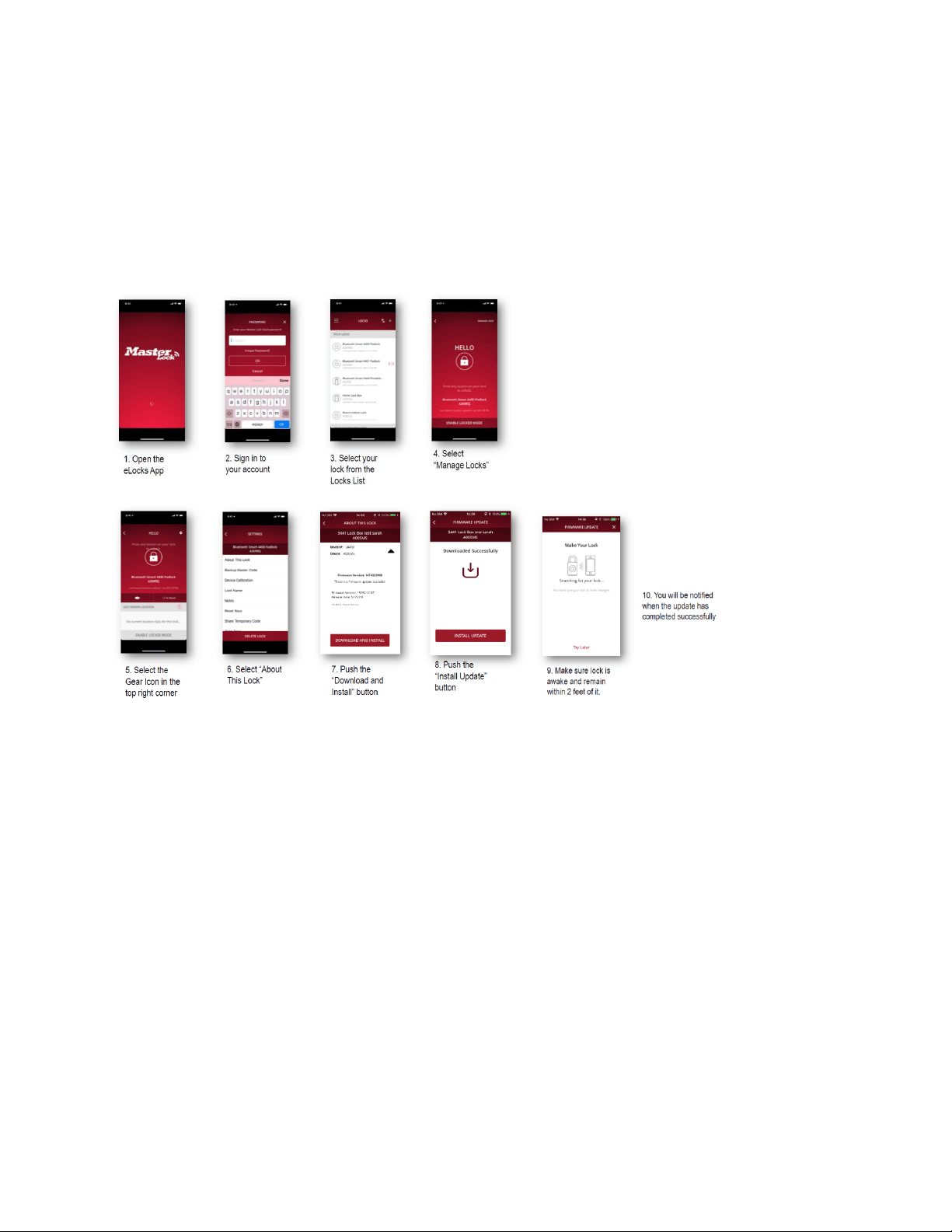
FIRMWARE UPDATES
To ensure your Master Lock Bluetooth Padlock has the most up to date firmware, please follow the
steps outlined below:
LOCKING/UNLOCKING
Q: My 4401DLH outdoor lock light is green but the lock won’t unlock. How do I unlock it?
A: If the lock is in Touch Unlock mode, push the top of the metal shackle firmly down into the lock body
to ensure proper mechanical engagement. Then, press any button on the lock and it should light blue
and unlock, resuming normal operation.
If the lock is in Swipe Unlock mode, push the top of the metal shackle firmly down into the lock body to
ensure proper mechanical engagement. The app should change to blue to show as locked and then
display the swipe arrow prompts to unlock the lock, resuming normal operation.
If you are trying to unlock using a directional manual code on the lock keypad, push the top of the metal
shackle firmly down into the lock body to ensure proper mechanical engagement. Then, enter the
manual code on the lock keypad. It should light blue and unlock, resuming normal operation.
Q: My lock will not relock. What should I do?

A: This can occur if the lock shackle is closed and opened again quickly before the motor has time to
relock the lock. Press any button on the lock keypad and when the lock lights green, close the lock and it
will light blue when locked.
BATTERY
Q: What type of battery does the 4400D use?
A: The 4400D comes with an installed CR2450 lithium button cell battery. For optimal performance,
Master Lock recommends the use of high-quality, name branded, batteries with an expiration date of 8-
10 years from the current year. Generic batteries often do not have the lifespan needed to support long
term usage.
Q: What type of battery does the 4401DLH use?
A: The 4401DLH comes with an installed CR2 lithium photo battery. For optimal performance, Master
Lock recommends the use of high-quality, name brand, batteries with an expiration date of 8-10 years
from the current year. Generic batteries often do not have the lifespan needed to support long term
usage.
Q: How long will the battery last in a Master Lock 4400D padlock?
A: The 4400D battery should last at least 2 years in Touch Unlock Mode and 4 months in Swipe Unlock Mode
with regular use.
Q: How long will the battery last in a Master Lock 4401DLH padlock?
A: The 4401DLH battery should last 5 years in Touch Unlock Mode and 2 years in Swipe Unlock Mode
with regular use.
Q: What if my lock battery dies?
A: If the lock battery dies while the lock is closed, it can be unlocked using an external battery. To
unlock the 4400D with an external battery:
1. If the battery dies when the lock is locked, pull the battery drawer out part way until it stops to
expose the jump contact point. Do not force the drawer open any further.
2. Hold a new CR2450 battery in the slot at a 45-degree angle, with the positive (+) side facing the
front of the lock.
3. While holding the battery in place, with an authorized mobile device within range of the lock,
press any button on the lock (if in Touch Unlock mode). If lock does not unlock, enter the
Primary Code on the lock keypad.
4. When unlocked, open the lock, pull out the battery drawer and install a new CR2450 battery.
5. Close the battery drawer.
To unlock the 4401DLH with an external battery:
1. If the battery dies when the lock is locked, pull down to remove the bottom cover.
2. Hold a 9V battery to the jump contacts on the bottom of the lock.
3. While holding the battery in place, with an authorized mobile device within range of the lock,
press any button on the lock (if in Touch Unlock mode). If lock does not unlock, enter the
Primary Code on the lock keypad.
4. When unlocked, open the lock and the battery door and install a new CR2 battery.
*Please note that after installing a new battery, the low battery icon will no longer display in the app,
after the app and the lock communicate with each other. However, it will take between 2 to 24 hours for
the yellow LED to stop displaying on the lock itself.
Q: I replaced the battery in my lock. Why does the app still show the low battery icon?
A: After installing a new battery, the low battery icon will no longer display in the app, after the app and
the lock communicate with each other. However, it will take 2 to 24 hours on the Indoor Padlock
(4400D), and 2 to 72 hours on the Outdoor Padlock (4401DLH), for the yellow LED to stop displaying on
the lock itself.
Q: What if my phone battery dies? How can I open my padlock?
A: If the phone battery dies, the lock can be unlocked by entering the Primary Code, the current
Temporary Code or the Backup Master Code on the lock keypad.
Q: Why can’t I open the battery drawer/door to replace the battery?
A: To prevent lock tampering, the battery drawer on the 4400D and the battery door on the 4401DLH
can only be opened with the lock in the unlocked position. The drawer on the 4400D can only be
extended part way with the lock in the locked position, to allow for an external battery to access the
jump contact.
INSTRUCTIONS
Q: How do I find the Activation Code in the packaging?
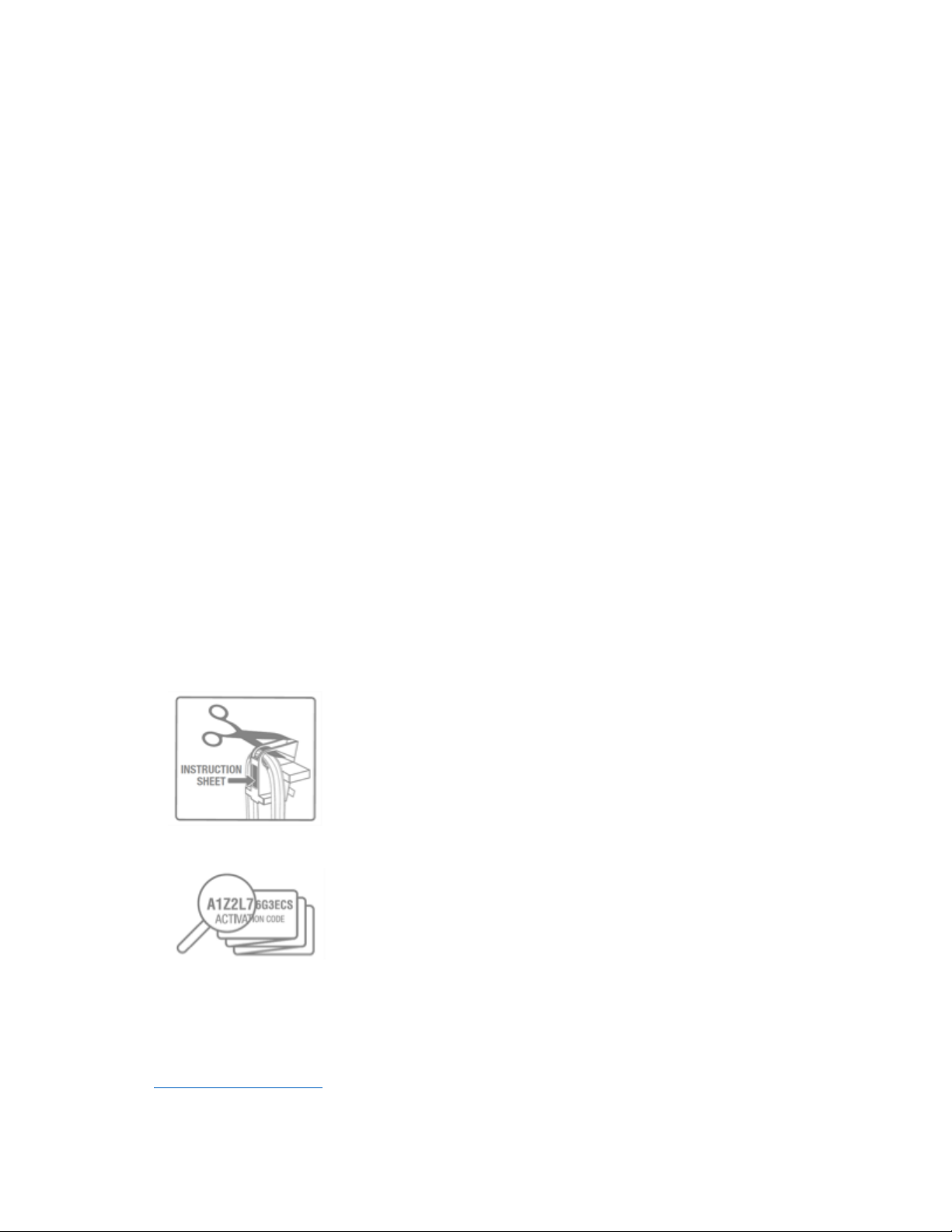
A: To locate the lock's Activation Code on the instruction sheet included in the lock packaging:
1. On the front of the package, cut through the two plastic ribs behind the lock's shackle and
remove the lock from the package.
2. Remove the folded instruction sheet from behind the shackle.
3. Locate the Activation Code at the top left corner of the instruction sheet and enter it as
instructed in the app.
Q: I lost my activation code. How do I obtain a new one for my padlock?
A: The activation code is provided with each lock box in the upper left corner of the instructions. The
instructions are included in the lock box package. If you have lost, or no longer have the instructions,
email masterl[email protected]. In the email, please provide your first and last name, a phone number

where you can be reached, proof of purchase, and a picture of the back of the lock, clearly showing the
serial number and proof that it is not attached to property.
BLUETOOTH COMMUNICATION
Q: What if my phone's Bluetooth is unable to connect to my lock box?
A: Make sure your phone is sufficiently charged. In your phone’s settings, make sure that Bluetooth is
turned on. If you can’t turn Bluetooth on, try restarting your phone and then relaunch the app. The lock
can be unlocked without the app by entering the Primary Code, the current Temporary Code or the
Backup Master Code on the lock keypad.
Q: Is a Wi-Fi connection needed to access my padlock?
A: Wi-Fi is not needed for this product. The owner can grant temporary or permanent access to guests
through the Master Lock Vault eLocks app. A guest can then use their Bluetooth enabled device or
manually enter a code into the keypad or to unlock the padlock.
Q: Are these lock boxes susceptible to Bluetooth "hacking"?
A: Master Lock utilizes Bluetooth technology to facilitate wireless communication between locks and
mobile devices. These locks and lock boxes are designed in a way that prevents the threat of Bluetooth
hacking that exists with some other Bluetooth products. To provide leading-edge security, we employ
robust, military-grade authentication and encryption mechanisms built upon proven, NIST
recommended and FIPS Approved algorithms to deter sniffing, replay and manipulation attempts that
Bluetooth technology has been associated with. These mechanisms are regularly audited by
independent security professionals.
GUEST ACCESS
Q: How do I share access to my lock box?
A: You can share access to your padlock with friends, family or colleagues. To provide Bluetooth access
via email or text:
1. To enable your guests to access your lock box, open the Master Lock Vault eLocks app.
2. Select the lock to which you would like to provide guest access from the Locks list.
3. Touch MANAGE LOCK in the upper right corner. Enter your passcode, if prompted.
4. Scroll down to GUESTS and touch the ADD A GUEST icon in the upper right corner.
5. Select the Appropriate option to choose an existing guest or add a new guest.
6. Follow the prompts to enter your guest's contact information (first name, last name, and email
address are required) and then touch CONTINUE
7. Select your guests’ schedule: UNLIMITED (24/7), DAY (7 am to 7 pm), or NIGHT (7 pm to 7 am)
8. Touch SEND INVITATION
9. You will receive a confirmation that an invitation has been sent.
10. Once your guest opens the link in their invitation, they will be prompted to either log into their
Master Lock Vault account or create a new account.
11. You will receive an email confirmation that they have accepted the invitation.
12. Your guest will see your lock under LOCKS SHARED WITH YOU in their APP and in their Master
Lock Vault account.

Q: How do I accept an invitation to access a Bluetooth lock box?
A: Master Lock Bluetooth padlocks are designed so that the user can gain access using Bluetooth
credentials using a smart phone or by using a traditional manual code entered on the directional pad.
1. The owner logs on to the Master Lock eLocks app and follows the directions to ADD A GUEST,
which results in an invitation being sent via email or text.
2. Open the link in the invitation.
3. Follow the prompts to either log into an existing Master Lock Vault account or create a new
account.
4. The host will receive an email confirmation that you have accepted the invitation.
5. You will see the new lock under LOCKS SHARED WITH YOU in the app and in their Master Lock
Vault account.
Q: How do I revoke guest access to my padlock?
A: To ensure a guest can no longer access a lock, the lock owner, should 1) Revoke Guest Access or
Delete the Guest AND 2) Perform the RESET KEYS function within proximity of the lock.
1. Under YOUR LOCKS, touch the lock for which you wish to remove a guest.
2. Touch MANAGE LOCK in the upper right corner. Enter your passcode, if prompted.
3. Swipe the guest record to the left.
4. Touch the DELETE icon.
5. Select REVOKE ACCESS (to revoke the guest's access to this lock only) or DELETE (to delete the
guest from all locks).
6. Your guest will receive an email notification that their access has been revoked.
7. Make sure that the owner’s device that is synced to the lock is within proximity of the lock
(reset keys cannot be performed remotely).
8. Select the lock from the LOCKS list.
9. Touch MANAGE LOCK in the upper right corner. Enter your passcode, if prompted.
10. Touch the SETTINGS icon in the upper right corner.
11. Touch RESET KEYS.
12. Follow any additional instructions in the APP to save the changes to your lock. This step must be
completed for each lock in instances where there is a lost or stolen device.
Q: What if my guest does not have a Bluetooth enabled device?
A: Your guest can access the lock without a Bluetooth enabled device by entering a Manual Code on the
directional keypad. To assign secondary code access with no expiration:
1. If not already logged on, open the Master Lock Vault eLocks app and touch the appropriate lock
box listed in the LOCKS list.
2. Touch MANAGE LOCK in the upper right corner of the app.
3. Scroll down to Secondary Codes and touch CHANGE SECONDARY CODES then follow the app
instructions to add up to 5 secondary codes.
To assign a temporary code access with an expiration:
1. If not already logged on, open the Master Lock Vault eLocks app and touch the appropriate lock
box listed in the LOCKS list.
2. Touch MANAGE LOCK in the upper right corner of the app.
3. Touch the Settings Icon in the upper right corner of the app.
4. Touch SHARE TEMPORARY CODES and then follow the app instructions to share current or
future codes.

COMPATABILITY
Q: What phones are compatible with Master Lock Bluetooth padlocks?
A: Bluetooth Lock Boxes are designed to work with devices that are built to Bluetooth version 4.0 (or
higher) specifications and implement the capability to communicate with Bluetooth peripherals. The
latest iOS and Android platforms are currently supported.
Q: Are these padlocks compatible with an Apple Watch?
A: Our lock boxes are designed to work with your smartphone. At this time, we do not have an app for
Apple Watch or other smart watches.
GENERAL
Q: Can the 4400D be used outdoors?
A: The 4400D is designed for indoor use only.
Q: Can the 4401DLH be used outdoors?
A: The 4401DLH is designed for indoor and outdoor use.
Q: Where can I find the Master Lock Vault eLocks app?
A: The app is available in the Apple App Store and the Google Play Store. Search for: Master Lock Vault
eLocks.
Q: How many padlocks can I add to my account?
A: If you intend to assign access rights to more than 250 padlocks to an individual user, please contact
Master Lock Customer Service at 1-800-464-2088 and request to speak with an Inside Sales
representative.
Q: Can I unlock the padlock without the app?
A: Yes, the app is only required when you want to use your Bluetooth-enabled device to unlock the lock.
The lock can be unlocked without the app by entering the Primary Code, the current Temporary Code or
the Backup Master Code on the lock keypad.
Q: The keypad on my 4401DLH outdoor lock is frozen so the buttons cannot be pressed. What should I
do?
A: If moisture on the lock keypad freezes so that a button cannot be pressed, we recommend warming
the lock keypad between gloved hands for a short time to melt the ice until the button can be pressed.
The lock should then resume normal operation.
Q: What if my phone is lost or stolen?
A: The owner of a lost or stolen mobile device should immediately go to the Master Lock Vault web site
and change their username and passcode.
