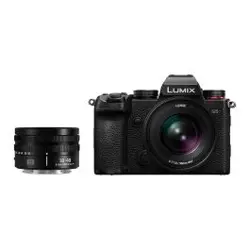

Owner’s Manual
Digital Camera
DC-S1R
DVQP1845ZE
F0319MR5110
A firmware update has been made available to improve camera capabilities and
to add functionality.
0 For information about functions that have been added or modified, refer to the
pages for “Firmware Update”.
Î
Click here to move to “Firmware Update”.

2
Please read these instructions carefully before using this product, and
save this manual for future use.
Register online at http://shop.panasonic.com/support
(U.S. customers only)
Dear Customer,
Thank you for choosing Panasonic!
You have purchased one of the most sophisticated and reliable products on the market
today. Used properly, we’re sure it will bring you and your family years of enjoyment.
Please take time to fill in the information below. The serial number is on the tag located
on the underside of your camera. Be sure to retain this manual as your convenient
camera information source.
Please note that the actual controls and components, menu items, etc. of your Digital
Camera may look somewhat different from those shown in the illustrations in this
Owner’s Manual.
Carefully observe copyright laws.
Recording of pre-recorded tapes or discs or other published or broadcast material for
purposes other than your own private use may infringe copyright laws. Even for the
purpose of private use, recording of certain material may be restricted.
Date of Purchase
Dealer Purchased From
Dealer Address
Dealer Phone No.
Model No.
Serial No.
3
0 This document provides an explanation with the assumption that menu settings are
in the default settings.
0 Description in this document is based on the interchangeable lens (S-R24105).
Symbols Used in the Text
Symbols for recording modes, pictures, and videos that can be used
In this document, symbols are placed at the start of functional explanations (recording
modes, pictures, and videos) showing conditions in which these functions can be
used.
Black icons show conditions in which these can be used, and gray icons show
conditions in which these cannot be used.
Example: /
Operating symbols
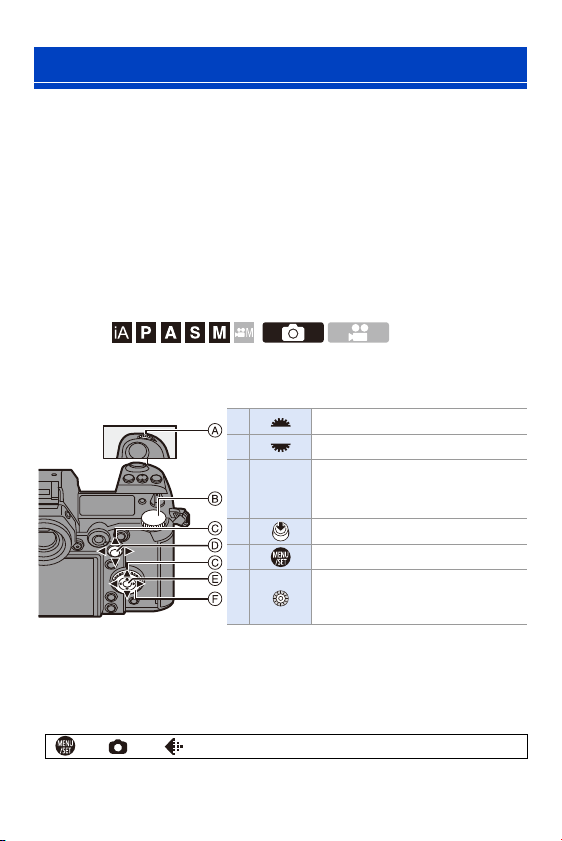
In this document, camera operation is explained using the following symbols:
0 For information about operation methods of the operation part, refer to page
62.
0 Other symbols, such as icons shown on the camera screen, are also used in
explanations.
0 This document describes the procedure for selecting menu items as follows:
Example) Set [Picture Quality] of the [Photo] ([Image Quality]) menu to [STD.].
For information about menu operation methods, refer to page
73.
About Owner’s Manual
A Front dial
B Rear dial
C 3421
Cursor button up/down/left/right
or
Joystick up/down/left/right
D Press the center of the joystick
E [MENU/SET] button
F Control dial
¨ [ ] ¨ [ ] ¨ [Picture Quality] ¨ Select [STD.]

About Owner’s Manual
4
Notification classification symbols
In this document, notifications are classified and described using the following
symbols:
To confirm prior to using the function
Hints for better use of the camera and tips for recording
Notifications and supplementary items regarding specifications
Related information and page number

5
Chapters
1. Introduction
17
2. Getting Started
31
3. Basic Operations
56
4. Easy Recording
77
5. Image Recording
82
6. Focus/Zoom
91
7. Drive/Shutter
125
8. Metering/Exposure/ISO Sensitivity
178
9. White Balance/Image Quality
194
10. Flash
216
11. Recording Videos
230
12. Playing Back and Editing of Images
259
13. Camera Customization
277
14. Menu Guide
303
15. Wi-Fi/Bluetooth
370
16. Connecting to Other Devices
426
17. Materials
445

6
About Owner’s Manual ................................................................3
Chapters ......................................................................................5
Contents by Function.................................................................14
1. Introduction 17
Before Use.................................................................................17
Standard Accessories................................................................20
Lenses That Can Be Used.........................................................21
Memory Cards That Can Be Used.............................................22
Names of Parts..........................................................................24
Camera.............................................................................................. 24
Supplied Lens.................................................................................... 28
Displaying Viewfinder/Monitor ........................................................... 29
Status LCD Display ........................................................................... 30
2. Getting Started 31
Attaching a Shoulder Strap........................................................31
Charging the Battery..................................................................33
Charging with the Charger ................................................................ 33
Battery Insertion ................................................................................ 36
Charging the Battery with the Camera .............................................. 38
Charging While Using the Camera.................................................... 40
Notifications Regarding Charging/Power Supply............................... 42
[Power Save Mode] ........................................................................... 44
Inserting Cards (Optional)..........................................................46
Formatting Cards (Initialization)......................................................... 48
Attaching a Lens........................................................................49
Attaching a Lens Hood ...................................................................... 51
Setting the Clock (When Turning On for the First Time)............53
Contents

Contents
7
3. Basic Operations 56
Basic Recording Operations......................................................56
How to Hold the Camera....................................................................56
Adjusting the Angle of the Monitor .....................................................58
Taking Pictures ..................................................................................59
Recording Videos...............................................................................60
Selecting the Recording Mode...........................................................61
Camera Setting Operations .......................................................62
Display Settings.........................................................................66
Setting the Viewfinder ........................................................................66
Switching Between the Monitor and Viewfinder.................................67
Switching the Display Information......................................................68
Turning On the Status LCD Backlight ................................................70
Quick Menu ...............................................................................71
Menu Operation Methods..........................................................73
[Reset]................................................................................................76
4. Easy Recording 77
Intelligent Auto Mode.................................................................77
Recording Using Touch Functions ............................................80
Touch Shutter ....................................................................................80
Touch AE ...........................................................................................81
5. Image Recording 82
[Aspect Ratio] ............................................................................82
[Picture Size] .............................................................................83
[Picture Quality] .........................................................................85
[Double Card Slot Function] ......................................................87
[Folder / File Settings]................................................................88
[File Number Reset]...................................................................90

Contents
8
6. Focus/Zoom 91
Selecting the Focus Mode .........................................................91
Using AF....................................................................................92
[AF Custom Setting(Photo)] .............................................................. 96
Selecting the AF Mode ..............................................................98
[Face/Eye/Body/Animal Detect.]....................................................... 99
[Tracking]........................................................................................ 102
[225-Area]....................................................................................... 104
[Zone (Vert./ Horz.)]/ [Zone (Square)]/ [Zone (Oval)]...................... 105
[1-Area+]/ [1-Area].......................................................................... 107
[Pinpoint] ........................................................................................ 108
[Custom1] to [Custom3].................................................................. 110
AF Area Movement Operation .................................................112
Moving the AF Area by Touch......................................................... 113
Moving the AF Area Position with the Touch Pad ........................... 115
[Focus Switching for Vert / Hor]....................................................... 116
Record Using MF.....................................................................117
Recording Images with Zoom ..................................................121
Extended Tele Conversion .............................................................. 122
7. Drive/Shutter 125
Selecting the Drive Mode.........................................................125
Taking Burst Pictures...............................................................126
6K/4K Photo Recording ...........................................................130
Notes on 6K/4K Photos ................................................................... 135
Selecting Pictures from a 6K/4K Burst File..............................138
Correcting Pictures After Recording
(Post-Recording Refinement).......................................................... 140
Picture Selection Operations........................................................... 141
Recording with Time Lapse Shot.............................................145
Recording with Stop Motion Animation....................................148
Time Lapse Shot/Stop Motion Animation Videos ....................151
Recording Using the Self-timer................................................153
Bracket Recording ...................................................................155

Contents
9
Post-Focus Recording .............................................................161
Selecting the Focus Position for the Picture to Save .......................164
Focus Stacking ................................................................................166
[Silent Mode]............................................................................169
[Shutter Type]..........................................................................170
Image Stabilizer.......................................................................172
Image Stabilizer Settings .................................................................174
8. Metering/Exposure/ISO Sensitivity 178
[Metering Mode].......................................................................178
Program AE Mode ...................................................................179
Aperture-Priority AE Mode.......................................................181
Shutter-Priority AE Mode.........................................................183
Manual Exposure Mode...........................................................185
Preview Mode..........................................................................188
Exposure Compensation .........................................................189
Locking Focus and Exposure (AF/AE Lock)............................191
Setting the ISO Sensitivity .......................................................192
9. White Balance/Image Quality 194
Setting the White Balance (WB) ..............................................194
Adjusting the White Balance ............................................................197
[Photo Style] ............................................................................199
[Filter Settings].........................................................................204
[Simultaneous Record w/o Filter] .....................................................209
[High Resolution Mode] ...........................................................210
[HLG Photo].............................................................................214
10. Flash 216
Using an External Flash (Optional)..........................................216
Removing the Hot Shoe Cover ........................................................216
Setting Flash Functions ...........................................................219
[Firing Mode]/[Manual Flash Adjust.] ...............................................219
[Flash Mode] ....................................................................................220

Contents
10
[Flash Synchro] ............................................................................... 223
Adjusting the Flash Output .............................................................. 224
[Auto Exposure Comp.] ................................................................... 225
[Red-Eye Removal] ......................................................................... 225
Recording Using a Wireless Flash...........................................226
11. Recording Videos 230
Recording Videos ....................................................................230
Video Settings..........................................................................233
[Rec. File Format]............................................................................ 233
[Rec Quality].................................................................................... 234
[Image Area of Video]...................................................................... 238
[Continuous AF]............................................................................... 239
[AF Custom Setting(Video)]............................................................. 240
[Luminance Level] ........................................................................... 241
Recording While Controlling Overexposure (Knee)......................... 241
Displaying/Setting the Sound Recording Level ............................... 243
Creative Video Mode ...............................................................244
[CreativeVideo Combined Set.] ....................................................... 246
[High Speed Video] ......................................................................... 247
Recording Videos Using a Connected External Device...........248
External Monitor/Recorder ([HDMI Rec Output])............................. 248
External Microphones (Optional)..................................................... 253
XLR Microphone Adaptor (Optional) ............................................... 256
Headphones .................................................................................... 257
12. Playing Back and Editing of Images 259
Playing Back Pictures..............................................................259
Playing Back Videos................................................................261
Extracting a Picture ......................................................................... 263
Switching the Display Mode.....................................................264
Enlarged Display ............................................................................. 264
Thumbnail Screen ........................................................................... 266
Calendar Playback .......................................................................... 267
Group Images ..........................................................................268

Contents
11
Deleting Images....................................................................... 269
[RAW Processing] ...................................................................271
[Video Divide] ..........................................................................276
13. Camera Customization 277
Fn Buttons ...............................................................................278
Register Functions to the Fn Buttons...............................................279
Use the Fn Buttons ..........................................................................285
Fn Lever ..................................................................................286
Register a Function to the Fn Lever.................................................286
Use the Fn Lever .............................................................................288
[Dial Operation Switch] ............................................................289
Register Functions to the Dials ........................................................289
Temporarily Change Dial Operation ................................................290
Quick Menu Customization......................................................291
Register to the Quick Menu .............................................................291
Custom Mode ..........................................................................296
Register in Custom Mode ................................................................296
Using Custom Mode ........................................................................298
Calling Settings ................................................................................299
My Menu..................................................................................300
Registration in My Menu ..................................................................300
Edit My Menu ...................................................................................301
[Save/Restore Camera Setting]...............................................302
14. Menu Guide 303
[Photo] Menu ...........................................................................304
[Video] Menu ........................................................................... 318
[Custom] Menu ........................................................................325
[Setup] Menu ...........................................................................349
[Playback] Menu......................................................................361
Entering Characters.................................................................369

Contents
12
15. Wi-Fi/Bluetooth 370
Wi-Fi/Bluetooth Functions........................................................370
Connecting to a Smartphone ...................................................372
Installing “LUMIX Sync” .................................................................. 373
Connecting to a Smartphone (Bluetooth Connection) ..................... 374
Connecting to a Smartphone ([Wi-Fi connection])........................... 377
Terminating the Wi-Fi Connection................................................... 382
Operating the Camera with a Smartphone ..............................383
[Remote shooting] ........................................................................... 384
[Shutter Remote Control]................................................................. 386
Transferring Recorded Images........................................................ 388
Transferring Recorded Images Automatically ................................. 390
Recording Location Information ...................................................... 392
Camera Power Operations.............................................................. 393
Automatically Setting the Clock....................................................... 394
Saving Settings Information ............................................................ 395
Sending Images from the Camera...........................................396
[Smartphone]................................................................................... 399
[PC] ................................................................................................. 402
[Printer]............................................................................................ 405
[Web service]................................................................................... 407
[Cloud Sync. Service] ...................................................................... 410
Wi-Fi Connections ...................................................................412
[Via Network] ................................................................................... 412
[Direct] ............................................................................................. 416
Connect to Wi-Fi Using Previously Saved Settings......................... 417
Send Settings and Selecting Images.......................................419
Image Send Settings ....................................................................... 419
Selecting Images............................................................................. 420
[Wi-Fi Setup] Menu ..................................................................421
“LUMIX CLUB” ................................................................................ 422

Contents
13
16. Connecting to Other Devices 426
Viewing on a TV ......................................................................426
Importing Images to a PC........................................................430
Installing Software............................................................................430
Copying Images to a PC ..................................................................433
Storing on a Recorder ............................................................. 436
Tethered Recording.................................................................438
Installing Software............................................................................438
Operating the Camera from a PC ....................................................439
Printing ....................................................................................441
17. Materials 445
Using Optional Accessories.....................................................445
Battery Grip (Optional) .....................................................................445
Shutter Remote Control (Optional) ..................................................446
AC Adaptor (Optional)/DC Coupler (Optional) .................................447
Monitor/Viewfinder Displays ....................................................448
Recording Screen ............................................................................448
Playback Screen ..............................................................................453
Message Displays ...................................................................456
Troubleshooting.......................................................................459
Cautions for Use......................................................................470
Usage Duration, Number of Pictures.......................................480
Number of Recordable Pictures, Recordable Time.................482
List of Default Settings/Saving Customization/
Copied Settings .......................................................................485
List of Functions That Can Be Set in Each Recording
Mode........................................................................................497
Specifications ..........................................................................502
Index........................................................................................509
Trademarks and Licences .......................................................517

14
Contents by Function
Power Source
Charging l 33
Charging error l 35
l 40
Battery indication l 42
Power supply l 40
[Battery Information] l 356
Power save function l 44
Usage duration, Number of
pictures
l
480
Card
Cards that can be used l 22
[Card Format] l 48
[Double Card Slot Function] l 87
[Destination Card Slot] l 87
Switching the playback card l 260
l 266
Folder structure l 435
[Folder / File Settings] l 88
[File Number Reset] l 90
Entering characters l 369
Number of recordable
pictures, Recordable time
l
482
Lens
Attaching l 49
[Image Stabilizer] l 172
Basic Settings
[Language] l 359
[Clock Set] l 53
[Time Zone] l 359
[Beep] l 354
[Copyright Information] l 350
[Reset] l 76
Viewfinder
Diopter adjustment l 66
Display magnification l 66
Eye sensor l 67
[Eye Sensor AF] l 332
Display
Recording screen l 448
Playback screen l 453
Viewfinder l 29
Status LCD l 30
Control panel l 451
Switching display l 68
Monitor/viewfinder
adjustment
l
352
Monitor/viewfinder
luminance
l
352
Display speed l 351
Level gauge l 339
Grid lines l 341
[Histogram] l 340
[Sheer Overlay] l 347
Checking overexposure l 346
[HLG View Assist] l 347
AF/MF
Focus mode l 91
Selecting the AF mode l 98
l 331
Face/eye/human detection l 99
Animal detection l 100
Movement tracking l 102
[AF ON] l 94
Moving the AF area l 112
Enlarged display l 94
l 119
Setting the AF sensitivity l 96
AF/AE Lock l 191
Touch AF l 114
[Touch Pad AF] l 115
[AF Assist Light] l 309
MF l 117
[MF Guide] l 330
[MF Assist] l 330
[Focus Peaking] l 310

Contents by Function
15
Drive
Drive mode l 125
Burst l 126
[6K/4K PHOTO] l 130
[Time Lapse Shot] l 145
Recording with Stop Motion
Animation
l
148
[Self Timer] l 153
[Post-Focus] l 161
Image Quality
[Picture Size] l 83
[Picture Quality] l 85
RAW l 85
JPEG l 85
Aspect ratio l 82
[White Balance] l 194
[Photo Style] l 199
[Filter Settings] l 204
[Color Space] l 328
[6K/4K PHOTO Noise
Reduction]
l
140
[Flicker Decrease (Photo)] l 315
[Long Exposure NR] l 306
[i.Dynamic Range] l 307
[Vignetting Comp.] l 308
[Diffraction Compensation] l 308
Taking Pictures
Recording mode l 61
Quick menu l 71
Zoom l 121
[Ex. Tele Conv.] l 122
[Image Stabilizer] l 172
Bracket recording l 155
Bulb recording
l
187
[High Resolution Mode] l 210
[Multiple Exposure] l 316
[HLG Photo] l 214
[Shutter Type] l 170
[Silent Mode] l 169
Remote control recording l 446
Screen display l 448
Exposure
[Exposure Comp.] l 189
Program Shift l 180
Preview mode l
188
[Metering Mode] l 178
AE Lock l 191
[One Push AE] l 283
[Touch AE] l 81
[Sensitivity] l 192
[Extended ISO] l 327
Video Recording
Video recording l 230
Creative Video mode l 244
[Rec. File Format] l 233
[AVCHD] l 233
[MP4] l 233
[Rec Quality] l 234
Resolution l 234
Frame rate l 234
Bit rate l 234
Angle of view l 238
Exposure settings l 231
Setting the AF sensitivity l 240
[Continuous AF] l 239
[High Speed Video] l 247
Luminance level l 241
Knee l 241
Sound recording l 243
Headphones l 257
[Sound Output] l 257
Wind noise reduction l 323
Attenuator l 243
[Flicker Decrease (Video)] l 320
HDMI output l 248
Output bit value (HDMI) l 251
External microphone l 253
XLR Microphone Adaptor l 256
Remote control recording l 446

Contents by Function
16
Flash
External flash l 216
[Firing Mode] l 219
[Flash Mode] l 220
Flash output adjustment l 224
[Flash Synchro] l 223
[Wireless Flash Setup] l 226
Playback
[Auto Review] l 338
Playing back pictures l 259
Playing back videos l 261
Thumbnail display l 266
Calendar display l 267
Enlarged display l 264
Group images l 268
Saving 6K/4K photos l 138
Viewing on a TV l 426
Deleting l 269
Screen display l 453
Editing of Images
[RAW Processing] l 271
[Protect] l 365
[Rating] l 365
[Resize] l 366
[Rotate] l 366
[Video Divide] l 276
[Copy] l 367
Customization
[Custom] menu l 325
Function button l 278
Function lever l 286
Custom recording mode l 296
My Menu l 300
Quick menu l 291
Dial operation l 289
Saving camera settings l 302
Connecting with Other
Devices
Sending images (PC) l 430
Printing l 441
Viewing on a TV l 426
HDMI output l 428
Tethered recording l 438
Cable holder l 249
Wi-Fi/Bluetooth
Bluetooth connection l 374
[Wi-Fi connection] l 377
l 412
[Wi-Fi Setup] l 421
Smartphone app “LUMIX
Sync”
l
372
[Remote shooting] l 384
Location information l 392
Sending images
([Smartphone])
l 388
l 399
Sending images ([PC]) l 402
Sending images ([Printer]) l 405
Sending images ([Web
service])
l
407
Sending images ([Cloud
Sync. Service])
l
410
Saving camera settings l 395
“LUMIX CLUB” l 422
Software
“PHOTOfunSTUDIO” l 431
“SILKYPIX” l 432
“LUMIX Tether” l 438
Maintenance
[Sensor Cleaning] l 359
[Pixel Refresh] l 359
17
1. Introduction
Firmware of Your Camera/Lens
Firmware updates may be provided in order to improve camera capabilities or to add
functionality. For smoother recording, we recommend updating the firmware of the
camera/lens to the latest version.
0 For the latest information on the firmware or to download/
update the firmware, visit the following support website:
https://panasonic.jp/support/global/cs/dsc/
(English only)
0 To check the firmware version of the camera/lens, attach the lens to
the camera and select [Firmware Version] in the [Setup] ([Others])
menu. You can also update the firmware in [Firmware Version]. (l
360)
0 This document provides explanations for camera firmware version 1.0.
Handling of the Camera
Do not subject the camera to strong vibration, impacts, or pressure.
These may cause a malfunction or damage.
– Do not drop or knock against hard surfaces.
– Do not push hard on the lens section or monitor.
If sand, dust, or liquid gets on the monitor, wipe it off with a dry soft
cloth.
– Touch operations may be incorrectly recognized.
When using in low temperatures (s10 oC to 0 oC (14 oF to 32 oF))
– Before use, attach a Panasonic lens with a minimum recommended operating
temperature of j10 oC (14 oF).
Before Use

1. Introduction
18
Do not place a hand inside the camera mount.
This may cause a failure or damage because the sensor is a precision
device.
If you shake the camera while turning the camera off, a sensor may
operate or a rattling sound may be heard. This is caused by the image
stabilizer mechanism in the body. It is not a malfunction.
Splash Resistant
Splash Resistant is a term used to describe an extra level of
protection this camera offers against exposure to a minimal amount
of moisture, water or dust. Splash Resistant does not guarantee that
damage will not occur if this camera is subjected to direct contact
with water.
In order to minimize the possibility of damage please be sure the
following precautions are taken:
– Splash Resistant works in conjunction with the lenses that were specifically
designed to support this feature.
– Securely close the doors, socket caps, contact points cover, etc.
– When the lens or cap is removed or a door is open, do not allow sand, dust, and
moisture to enter inside.
– If liquid gets on the camera, wipe it off with a dry soft cloth.
Condensation (When the Lens, the Viewfinder or Monitor
is Fogged Up)
0 Condensation occurs when there are temperature or humidity differences. Be careful
because condensation can lead to stains or mold on the lens, viewfinder, and
monitor or cause a failure.
0 If condensation occurs, turn off the camera and leave it for approx. 2 hours. The fog
will disappear naturally when the temperature of the camera becomes close to the
ambient temperature.
Be Sure to Perform Trial Recording in Advance
Perform trial recording in advance of an important event (wedding, etc.) to check that
recording can be performed normally.

1. Introduction
19
No Compensation Regarding Recording
Please note that compensation cannot be provided in the event that recording could
not be performed due to a problem with the camera or a card.
Be Careful with Regard to Copyrights
Under copyright law, you may not use the images and audio you have recorded for
other than personal enjoyment without the permission of the copyright holder.
Be careful because there are cases where restrictions apply to recording even for the
purpose of personal enjoyment.
Also Read “Cautions for Use” (l
470)

1. Introduction
20
Check that all the accessories are supplied before using the camera.
0
The accessories and their shape will differ depending on the country or area where
the camera was purchased.
For details on the accessories, refer to “Owner’s Manual” (supplied).
0 Digital camera body is referred to as camera in this document.
0 Battery pack is referred to as battery pack or battery in this document.
0 Battery charger is referred to as battery charger or charger in this document.
0 The memory card is optional.
Standard Accessories
1. Introduction
21
The lens mount of this camera is compliant with the L-Mount standard of
Leica Camera AG. It can be used with 35 mm full-frame compatible
interchangeable lenses and APS-C size interchangeable lenses of this
standard.
0
In this document, a 35-mm full-frame interchangeable lens compliant with the Leica
Camera AG L-Mount standard is referred to as a full-frame lens, and an APS-C-
size interchangeable lens compliant with this standard is referred to as an APS-C
lens. When no differentiation is made between full-frame lenses and APS-C lenses,
they are both referred to as the lens.
Notes on the Use of APS-C Lenses
When APS-C lenses are used, some functions, such as image area, are
disabled or operate differently. (l
82, 83, 130, 161, 170, 204, 210, 214,
238, 316)
Lenses That Can Be Used
0 Refer to catalogs/websites for most current information
regarding supported lenses.
https://panasonic.jp/support/global/cs/dsc/
(English only)
0 The angle of view while recording with an APS-C lens is equivalent to the
angle of view of a focal length of 1.5k when converted to the focal length of a
35 mm film camera. (If a 50 mm lens is used, the angle of view will be
equivalent to a 75 mm lens.)
1. Introduction
22
You can use an XQD memory card and SD memory card with this camera.
0 An XQD memory card is referred to as XQD card in this document.
SD memory card, SDHC memory card, and SDXC memory card are referred to by
the generic name of SD card.
When not differentiating between an XQD card and SD card, a card is referred to as
simply card.
XQD card
0
AVCHD videos cannot be recorded with an XQD card.
SD card
0
For the latest information, check the following support
website.
https://panasonic.jp/support/global/cs/dsc/
(English only)
Memory Cards That Can Be Used
XQD memory card
(32 GB to 256 GB)
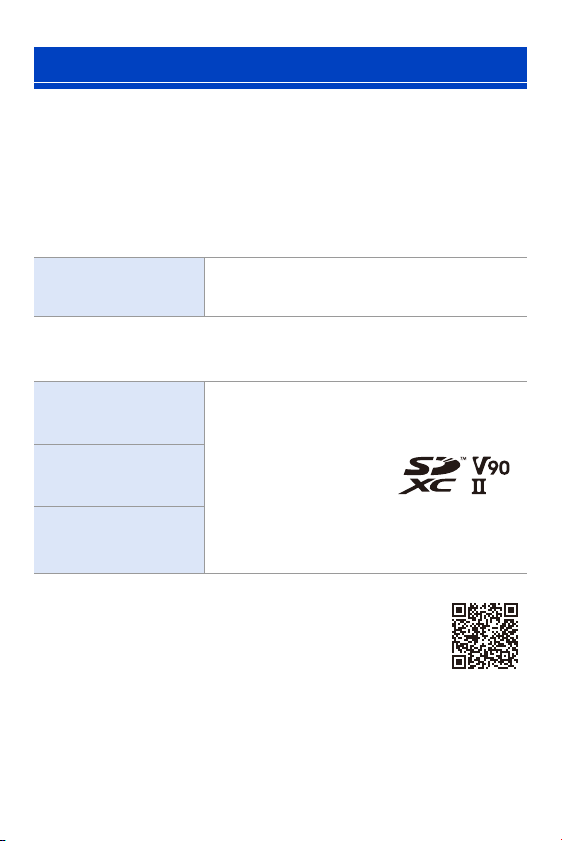
0 Operation with Sony XQD G Series/M Series has
been verified for this camera.
(As of January 2019)
SD memory card
(512 MB to 2 GB)
0 The camera supports SDHC/SDXC memory cards
compliant with UHS Speed Class 3 of the UHS-I/
UHS-II standard.
0 The camera supports
SDHC/SDXC memory
cards compliant with
Video Speed Class 90 of
the UHS-
II standard.
0 Operation with the Panasonic cards on the left has
been verified.
SDHC memory card
(4 GB to 32 GB)
SDXC memory card
(48 GB to 128 GB)
1. Introduction
23
SD Cards That Can Be Used Stably with This Camera
To ensure the following recording functions can be used stably, use a card
of the supported SD Speed Class, UHS Speed Class, and Video Speed
Class.
0
Speed classes are SD card standards to guarantee the minimum speed necessary
for continuous writing.
0 When using an XQD card, you will be able to use the functions regardless of the type
of card.
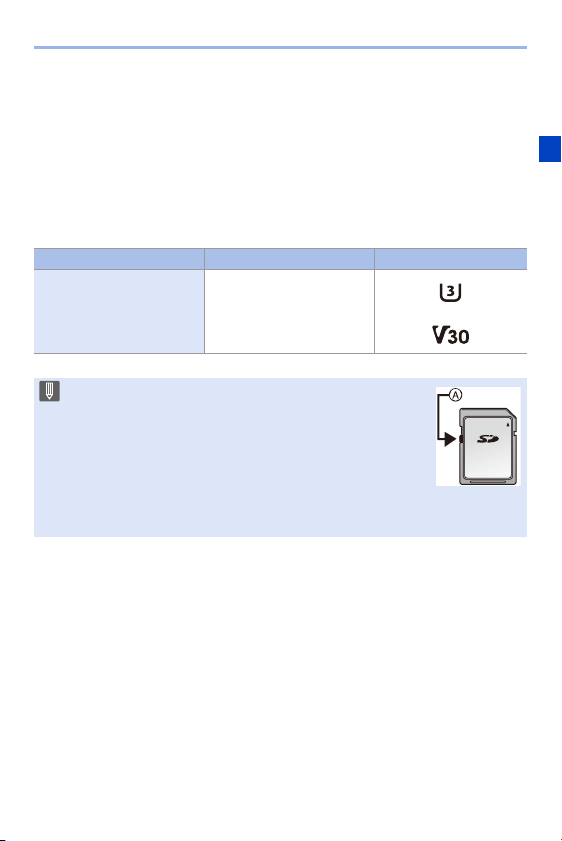
Recording function Speed Class Example of indication
4K video
High Speed Video
6K/4K Photo
Post-Focus
UHS Speed Class 3
Video Speed Class 30 or
higher
0 If you set the write-protect switch A of an SD card to
“LOCK”, you may not be able to write or delete data, format
the card, or display the data in recording date and time
order.
0 The data stored on a card may be damaged due to
electromagnetic waves, static electricity or a failure of the
camera or card. We recommend backing up important data.
0 Keep the memory card out of reach of children to prevent swallowing.
1. Introduction
24
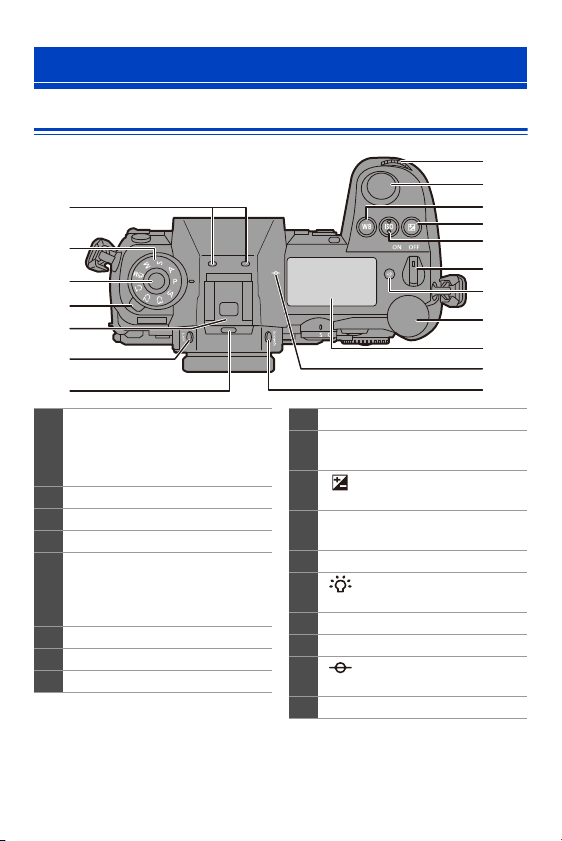
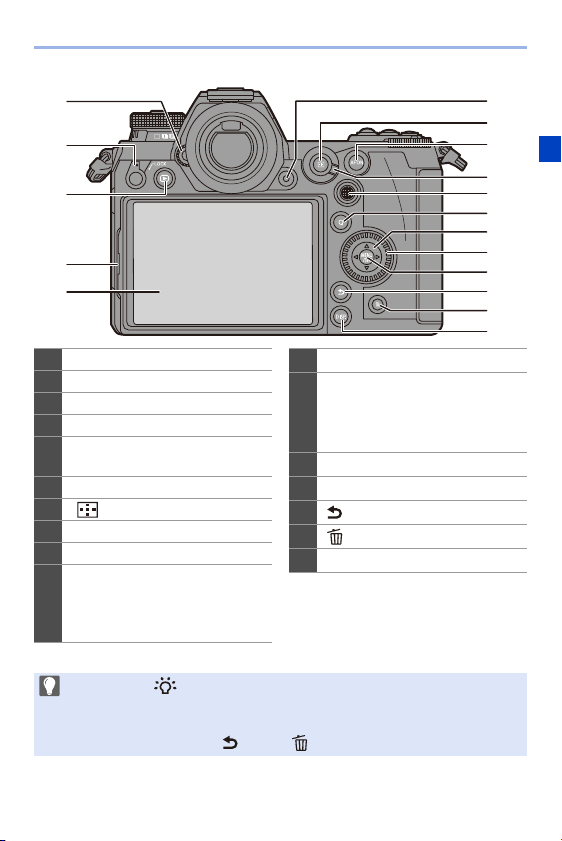
Camera
Names of Parts
3
4
5
6
7
2
1
8
9
10
11
12
13
15
14
16
17
18
1
Stereo microphone (l 243)
0 Take care not to block the
microphone with a finger. Audio
will be difficult to record.
2
Mode dial (l 61)
3
Mode dial lock button (l 61)
4 Drive mode dial (l 125)
5
Hot shoe (hot shoe cover) (l 216)
• Keep the hot shoe cover out of
reach of children to prevent
swallowing.
6 [LVF] button (l 67)
7
Speaker (l 354)
8
Front dial (l 63)
9
Shutter button (l 59)
10
[WB] (White Balance) button
(l
194)
11
[ ] (Exposure compensation)
button (l
189)
12
[ISO] (ISO sensitivity) button
(l
192)
13
Camera on/off switch (l 53)
14
[ ] (Status LCD backlight)
button (l
70, 353)
15
Rear dial (l 63)
16
Status LCD (l 30, 353)
17
[ ] (Recording distance
reference mark) (l
120)
18
[V.MODE] button (l 66)
1. Introduction
25
5
4
3
2
1
7
8
16
17
6
9
10
13
14
15
11
12
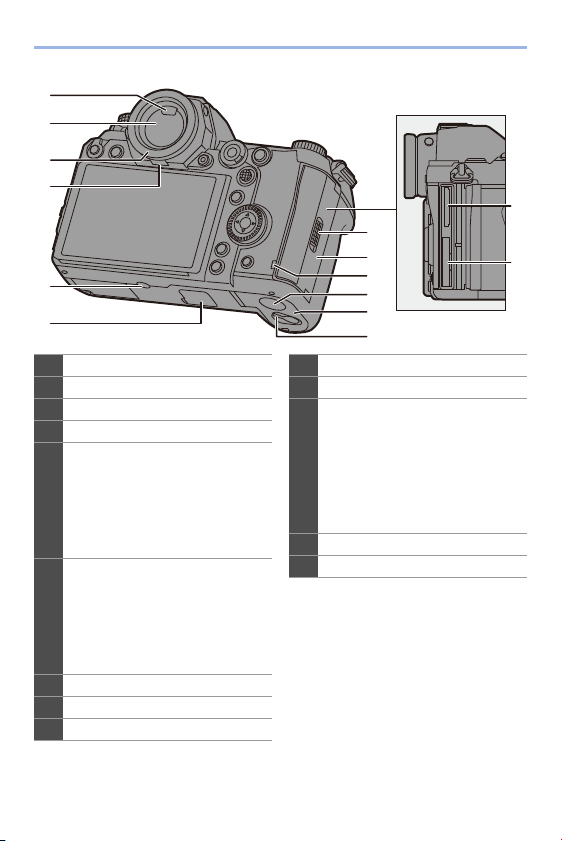
1
Diopter adjustment dial (l 66)
2
Operation lock lever (l 65)
3 [(] (Playback) button (l 259)
4
Monitor lock lever (l 58)
5
Monitor (l 448)/
Touch screen (l
64)
6 Video rec. button (l 230)
7
[ ] (AF mode) button (l 92)
8
[AF ON] button (l 94)
9 Focus mode lever (l 92, 117)
10
Joystick (l 64)/
Fn buttons (l
278)
Center: Fn8, 3: Fn9, 1: Fn10,
4:Fn11, 2: Fn12
11
[Q] button (l 71)
12
Cursor buttons (l 63)/
Fn buttons (l
278)
3: Fn13, 1: Fn14, 4: Fn15,
2: Fn16
13 Control dial (l 63)
14 [MENU/SET] button (l 63, 73)
15 [ ] (Cancel) button (l 75)
16 [ ] (Delete) button (l 269)
17 [DISP.] button (l 68)
0 If you press [ ], the following buttons light.
The lighting timing can be changed in [Illuminated Button] in the [Custom]
([Operation]) menu. (l
337)
–[(] button/[Q] button/[ ] button/[ ] button/[DISP.] button
1. Introduction
26
5
2
8
9
10
11
12
13
6
4
3
1
14
7
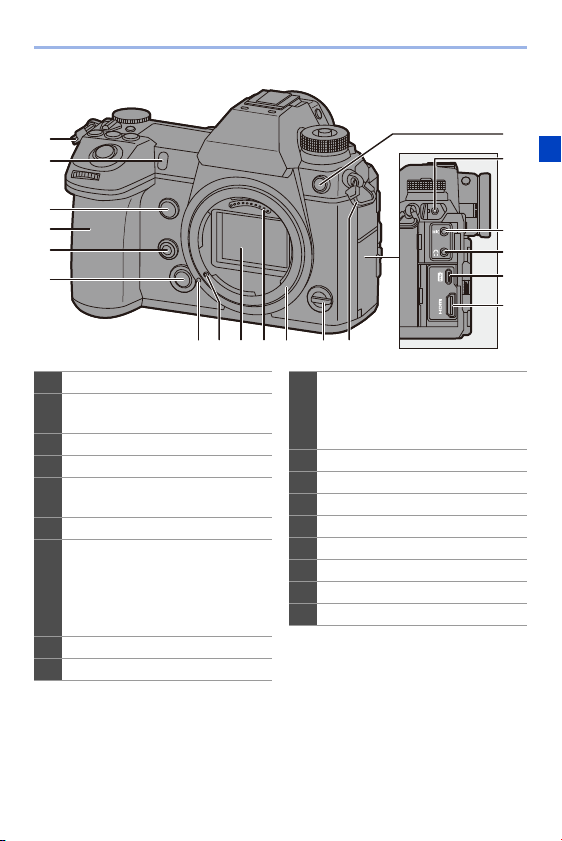
1
Eye sensor (l 67)
2 Viewfinder (l 67)
3
Eye cup (l 473)
4
Eye cup lock lever (l 473)
5
Tripod mount (l 478)
0 If you attempt to attach a tripod
with a screw length of 5.5 mm
(0.22 inch) or more, you may not
be able to securely fix it in place
or it may damage the camera.
6
Battery grip connector (cover for
the battery grip connector)
(l
445)
0 Keep the cover for the battery
grip connector out of reach of
children to prevent swallowing.
7
Card slot 2 (l 46)
8
Card slot 1 (l 46)
9 Card door lock lever (l 46)
10
Card door (l 46)
11 Card access lamp (l 47)
12
DC Coupler cover (l 447)
0 When using an AC adaptor,
ensure that the Panasonic DC
Coupler (DMW-DCC16:
optional) and AC Adaptor
(DMW-AC10: optional) are
used.
13 Battery door (l 36)
14
Battery door release lever (l 36)
1. Introduction
27
3
4
6
5
16 15 14 1317 118
2
1
12
11
10
9
7
8
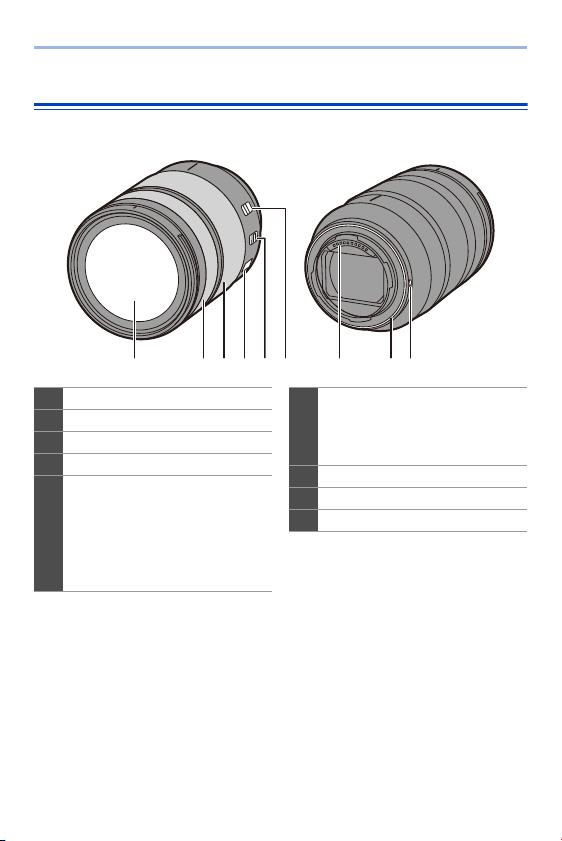
1 Shoulder strap eyelet (l 31)
2
Self-timer lamp (l 153)/
AF assist lamp (l
309)
3
Fn button (Fn1) (l 278)
4
Grip
5
Preview button (l 188)/
Fn button (Fn2) (l
278)
6
Lens release button (l 50)
7
Flash synchro socket (flash
synchro socket cap) (l
217)
0 Keep the flash synchro socket
cap out of reach of children to
prevent swallowing.
8
[REMOTE] socket (l 446)
9 [MIC] socket (l 253)
10
Headphone socket (l 257)
0 Excessive sound pressure from
earphones and headphones can
cause hearing loss.
11
USB port (l 433, 441)
12
[HDMI] socket (l 426)
13
Fn lever (l 286)
14
Mount
15
Contact points
16
Sensor
17
Lens lock pin
18 Lens fitting mark (l 50)
1. Introduction
28
Supplied Lens
S-R24105
7 8 91 2 3 4 5 6
1
Lens surface
2
Focus ring (l 118)
3 Zoom ring (l 121)
4
O.I.S. switch (l 173)
5
[AF/MF] switch (l 92, 117)
0 You can switch between AF and
MF.
If [MF] is set on either the lens or
camera, operation will be with
MF.
6
Zoom lock switch
0 When you set the focal length to
24 mm and set the switch to
[LOCK], the zoom ring is locked.
7
Contact points
8
Lens mount rubber (l 474)
9 Lens fitting mark (l 50)

1. Introduction
29
Displaying Viewfinder/Monitor
At the time of purchase, the viewfinder/monitor displays the following
icons.
For information about the icons other than those described here, refer to
page 448.
Viewfinder Monitor
999
ISO
100
F
4.060
L
FINE
AFSAFS
8 9 1011 12 13 14 15 16 17
1 2 43 5 6 7
999ISO100F4.060
±
0
AFSAFS
L
FINE
1
Photo Style (l 199)
2
Level gauge (l 339)
3
Picture quality (l 85)/
Picture size (l
83)
4
AF area (l 112)
5
Focus mode (l 91, 117)
6
AF mode (l 98)
7
Stabilizer (l 172)
8
Focus (lit green) (l 59)/Recording
state (lit red) (l
211, 230)
9
Recording mode (l 61)
10
Metering mode (l 178)
11
Shutter speed (l 59)
12
Aperture value (l 59)
13
Exposure compensation value
(l
189)/Manual Exposure Assist
(l
186)
14
ISO sensitivity (l 192)
15
Card slot (l 46)/Double card slot
function (l
87)
16
Number of recordable pictures
(l
482)/Number of pictures that can
be taken continuously (l
128)/
Available recording time (l
483)
17
Battery indication (l 42)
0 Press [ ] to switch between display/hide of the level gauge.
1. Introduction
30
Status LCD Display
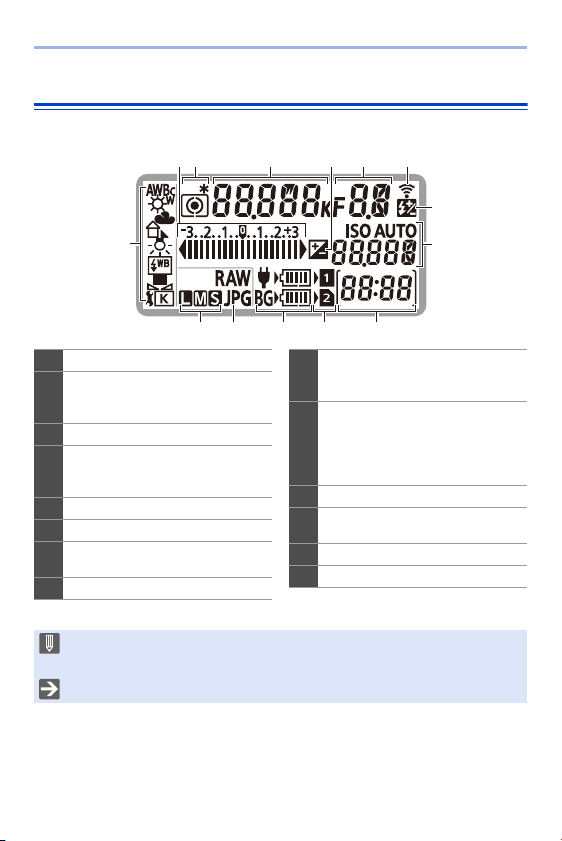
This displays the recording settings of the camera.
1
8
9
42
14 13 12 11 10
6
375
1
White balance (l 194)
2
Exposure compensation value
(l
189)/
Exposure Bracket (l
158)
3
Metering mode (l 178)
4
Shutter speed (l 59)/
White balance (Color Temperatures)
(l
195)
5
Exposure compensation (l 189)
6
Aperture value (l 59)
7
Wireless (Wi-Fi/Bluetooth)
connection state (l
370)
8
Flash output adjustment (l 224)
9
ISO sensitivity (l 192)/
Exposure compensation value
(l
189)
10
Number of recordable pictures
(l
482)/
Number of pictures that can be taken
continuously (l
128)/
Available recording time (l
483)
11
Card slot (l 46)
12
Battery indication (l 42)/
Power supply indication (l
40)
13
Picture quality (l 85)
14
Picture size (l 83)
0 Recording information is not displayed on the status LCD during playback and
menu operation.
0 Lighting method of the status LCD backlight (l 70)
31
2. Getting Started
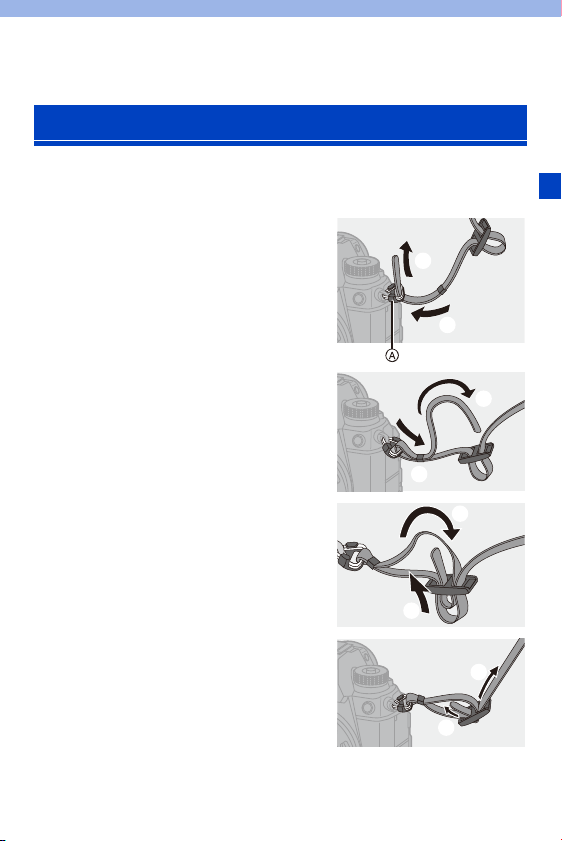
Attach a shoulder strap to the camera with the following procedure to
prevent it from dropping.
1
Pass the shoulder strap
through the shoulder strap
eyelet A.
2
Pass the end of the shoulder
strap through the ring and
then pass it through the
fastener.
3
Pass the end of the shoulder
strap through the other hole of
the fastener.
4
Pull the shoulder strap and
check that it will not come out.
0 Attach the opposite end of the shoulder
strap with the same procedure.
Attaching a Shoulder Strap

2. Getting Started
32
0 Use the shoulder strap around your shoulder.
– Do not wrap the strap around your neck.
It may result in injury or accident.
0 Do not leave the shoulder strap where an infant can reach it.
– It may result in an accident by mistakenly wrapping around the neck.
2. Getting Started
33
You can charge the battery either using the supplied charger, or in the
camera body.
If you turn on the camera, you can also charge the battery while the
camera is powered from an electrical outlet.
Instead of using an electrical outlet, you can also connect the camera
using a device that supports USB PD (USB Power Delivery).
0 The battery that can be used with the camera is DMW-BLJ31. (As of
January 2019)
Charging with the Charger
0 Use the supplied charger and AC adaptor.
0 The indicated charging time is for when the battery has been discharged completely.
The charging time may vary depending on how the battery has been used.
The charging time for the battery in hot/cold environments or a battery that has not
been used for a long time may be longer than normal.
Charging the Battery
0 The battery is not charged at the time of purchase. Charge the battery before
use.
Charging time Approx. 130 min
0 Use the products supplied with the camera for charging.
0 Use the charger indoors.
2. Getting Started
34
1
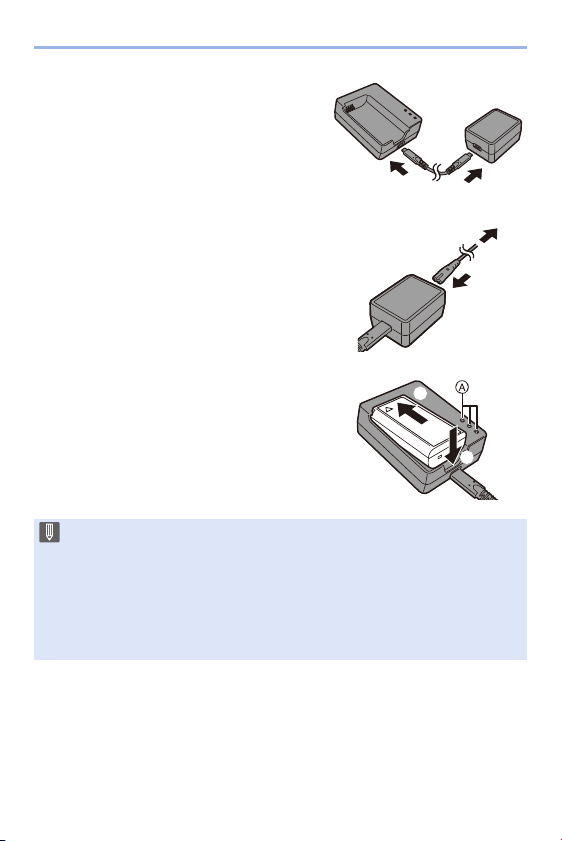
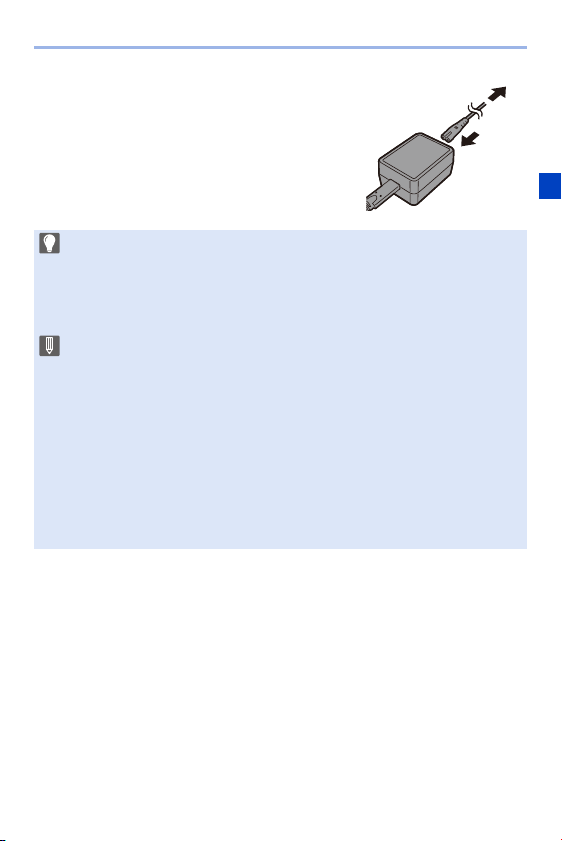
Connect the charger and the
AC adaptor with the USB
connection cable (C–C).
0 Hold the plugs and insert them straight.
(Inserting these at an angle may cause
deformation or malfunction)
2
Connect the AC cable to the
AC adaptor and then insert
into the electrical outlet.
3
Insert the battery.
≥Insert the terminal end of the
battery and push.
≥The [CHARGE] lamp A blinks and
charging begins.
0 Do not use any other USB connection cables except the supplied USB
connection cable (C–C).
This may cause malfunction.
0 Do not use any other AC adaptors except the supplied one.
This may cause malfunction.
0 Do not use any other AC cables except the supplied one.
This may cause malfunction.
2. Getting Started
35
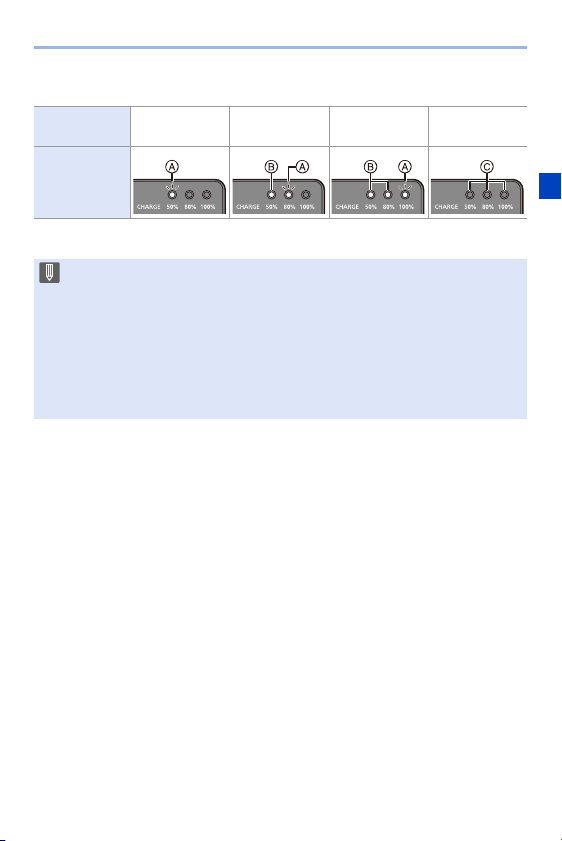
[CHARGE] Lamp
Charging
status
0% to 49% 50% to 79% 80% to 99% 100%
[CHARGE]
lamp
A Blinking B Lit C Off
0 After charging, disconnect the power source connection and remove the
battery.
0 If the [50%] lamp is blinking quickly, then charging is not occurring.
– The temperature of the battery or surroundings is either too high or too low.
Try charging at an ambient temperature between 10 °C and 30 °C (50 oF
and 86 oF).
– The terminals of the charger or the battery are dirty.
Remove the connection to the power source, and wipe with a dry cloth.
2. Getting Started
36
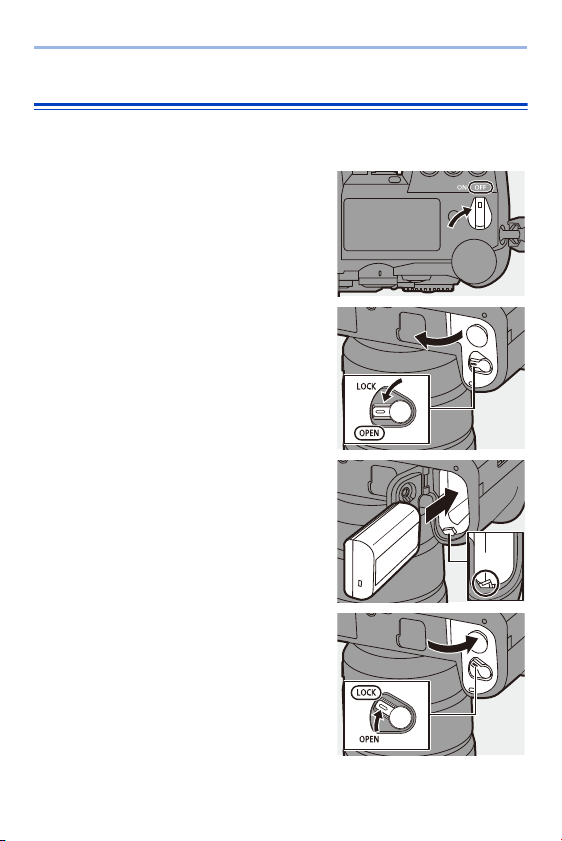
Battery Insertion
0 Always use genuine Panasonic batteries (DMW-BLJ31).
0 If you use other batteries, we cannot guarantee the quality of this product.
1
Turn off the camera.
2
Open the battery door.
≥Move the battery door release lever
to the [OPEN] position.
3
Insert the battery.
≥Insert the terminal end of the
battery and push until a locking
sound is heard.
0
Check that the lever A is holding the
battery in place.
4
Close the battery door.
≥Close the battery door, and move
the battery door release lever to the
[LOCK] position.
2. Getting Started
37
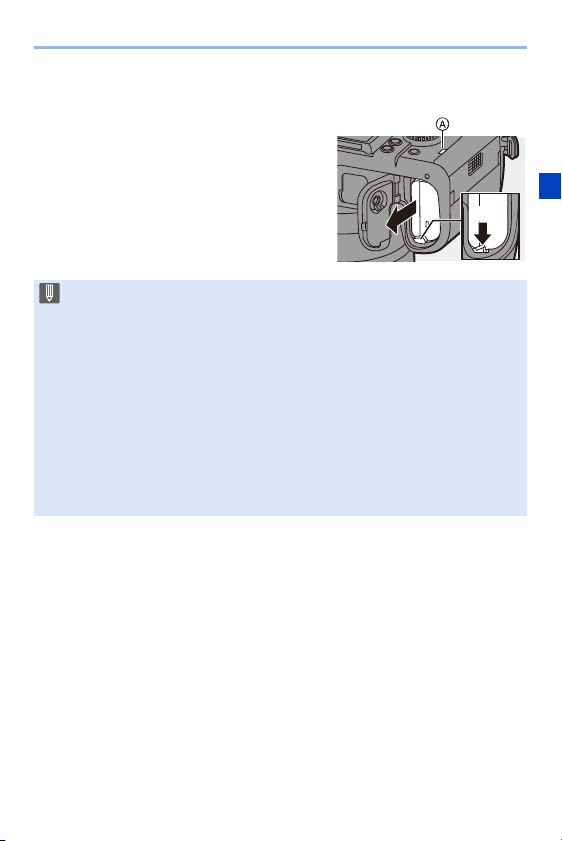
Removing the Battery
1
Turn off the camera.
2
Open the battery door.
0
Check that the card access lamp A is off
and then open the battery door.
3
Push the lever B in the direction of the
arrow and then remove the battery.
0 Ensure that no foreign objects are adhering to the inner side (rubber seal) of
the battery door.
0 Remove the battery after use.
(The battery will drain if left inserted in the camera for a long period of time.)
0 The battery becomes warm after use, during charging, and immediately after
charging.
The camera also becomes warm during use. This is not a malfunction.
0 Check that the camera is turned off and the card access lamp is off before
removing the battery.
(The camera may stop operating correctly or the card and recorded images
may be damaged.)
0 Be careful when removing the battery as the battery will jump out.
2. Getting Started
38
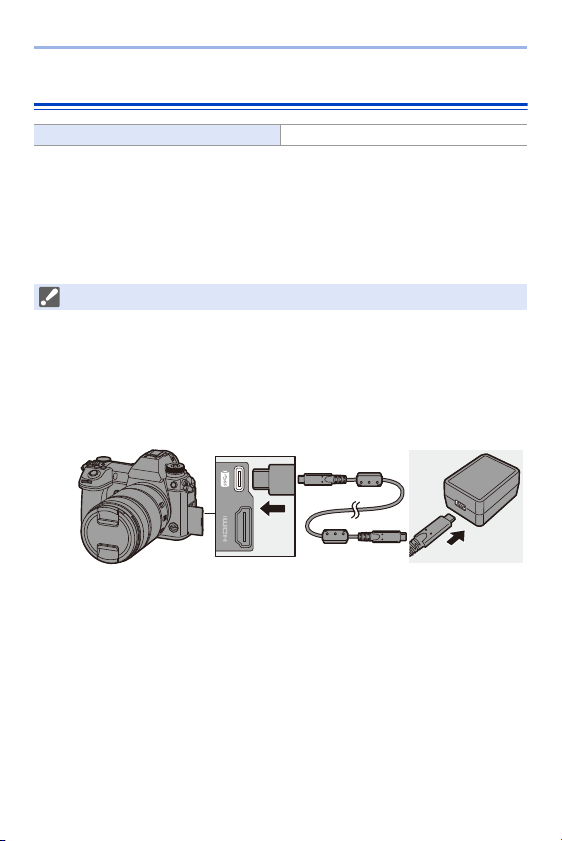
Charging the Battery with the Camera
0 Using the camera body and the supplied AC adaptor.
The camera is turned off.
0 The indicated charging time is for when the battery has been discharged completely.
The charging time may vary depending on how the battery has been used.
The charging time for the battery in hot/cold environments or a battery that has not
been used for a long time may be longer than normal.
1
Turn off the camera.
2
Insert the battery into the camera.
3
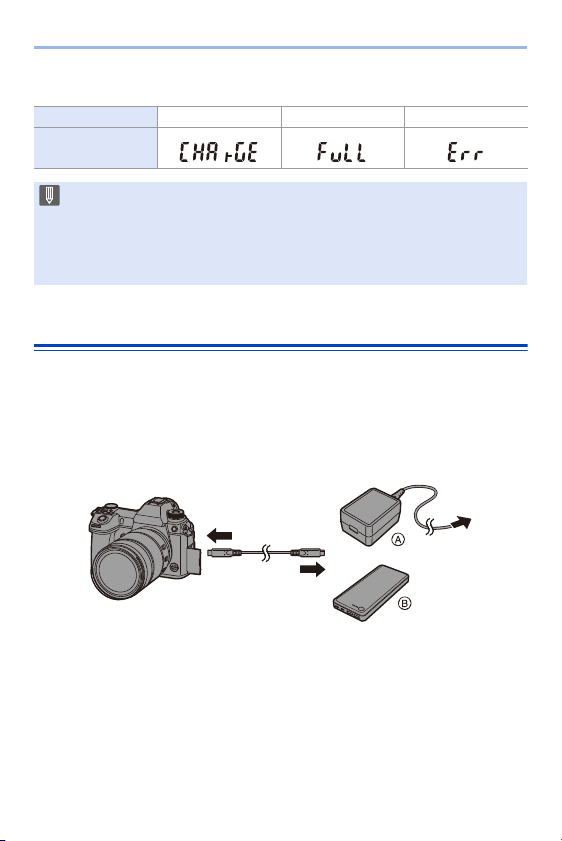
Connect the camera USB port and the AC adaptor using
the USB connection cable (C–C).
0 Hold the plugs and insert them straight.
(Inserting these at an angle may cause deformation or malfunction)
Charging time Approx. 140 min
0 Use the products supplied with the camera for charging.
2. Getting Started
39
4
Connect the AC cable to the AC
adaptor and then insert into the
electrical outlet.
≥The battery display on the status LCD
will blink, and charging starts.
0 You can also charge the battery by connecting a USB device (PC, etc.) and
the camera with the USB connection cable (C–C or A–C).
In that case, charging may take a while.
0 When using the Battery Grip (DMW-BGS1: optional), the battery within the
Battery Grip will also be charged.
0 Do not use any other USB connection cables except the supplied USB
connection cables (C–C and A–C).
This may cause malfunction.
0 Do not use any other AC adaptors except the supplied one.
This may cause malfunction.
0 Do not use any other AC cables except the supplied one.
This may cause malfunction.
0 Even when the camera on/off switch is set to [OFF] thus turning the camera
off, it consumes power.
When the camera will not be used for a long time, remove the power plug from
the electrical outlet in order to save power.
2. Getting Started
40
Status LCD Display
Charging While Using the Camera
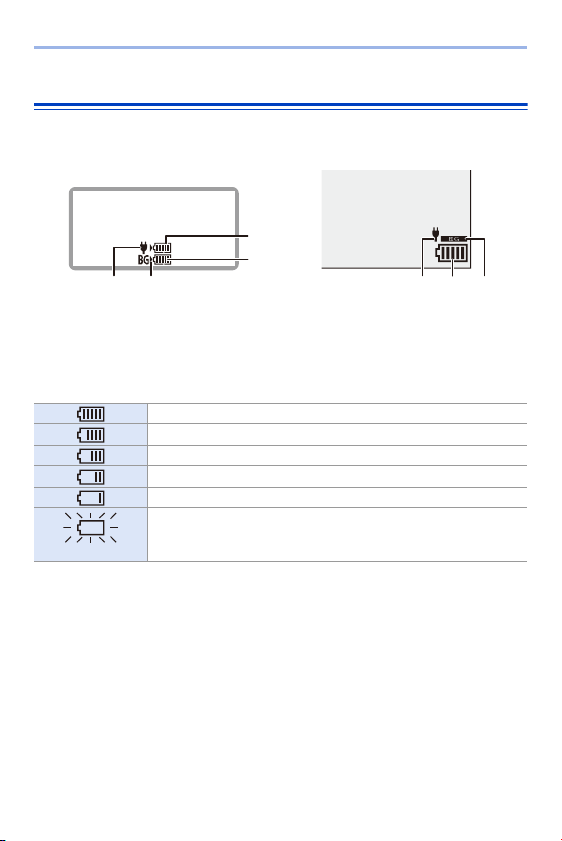
When charging with both the camera body and the supplied AC adaptor
(l
38), you can charge while the camera is being supplied with power by
turning the camera on. You can record while charging.
This is also possible by connecting devices that support USB PD (USB
Power Delivery) to the camera.
0
Insert the battery into the camera.
0 Connect using the supplied USB connection cable (C–C).
0 Use a device (mobile battery, etc.) with an output of 9 V/3 A (27 W or more) that
supports USB PD.
0 When the camera is on, charging will take longer than when the camera is off.
Charging status Charging Charging complete Charging error
Display
0 After charging, disconnect the connection to the power source.
0 When an error is displayed, charging is not possible.
– The temperature of the battery or surroundings is either too high or too low.
Try charging at an ambient temperature between 10 °C and 30 °C (50 oF
and 86 oF).
A AC adaptor B Devices that support USB PD (mobile
battery, etc.)

2. Getting Started
41
0 Even when connecting with devices that support USB PD, you may not be
able to charge while using the camera.
0 If connecting with devices (PC, etc.) that do not support USB PD and turning
the camera on, then this will supply power only.
0 If the camera temperature rises under the any of following conditions,
charging may stop. If the temperature rises further, [ ] will be displayed,
and power supply will stop.
Wait until the camera cools down.
– When continuously recording video, etc. while charging/supplying power
– When the ambient temperature is high
0 Turn off the camera before connecting or disconnecting the power plug.
0 Remaining charge in the battery may decrease depending on usage
conditions. When the battery level is depleted, the camera will turn off.
0 Depending on the power supply capabilities of the connected devices,
charging may not be possible.
2. Getting Started
42
Notifications Regarding Charging/Power Supply
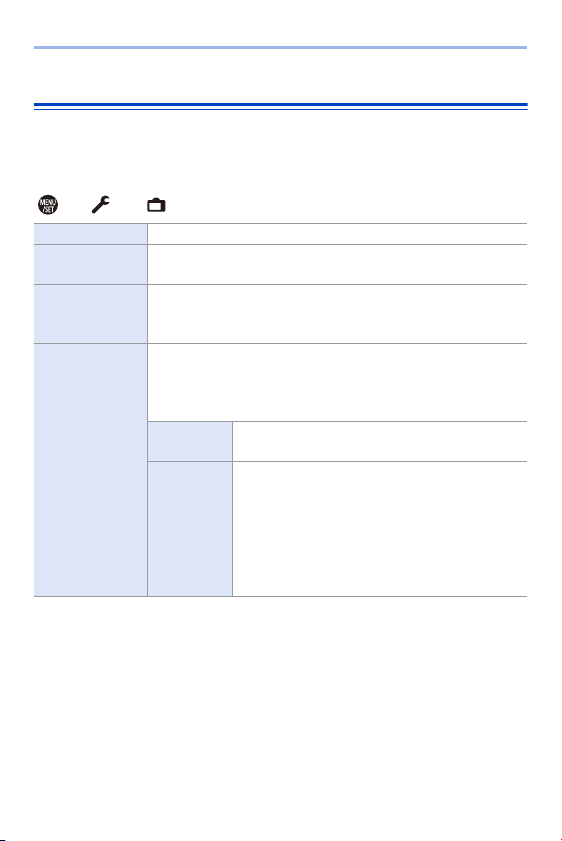
Power Indications
0 The battery level indicated on the screen is approximate.
The exact level varies depending on the environment and the operating conditions.
0 The highest battery level reading of C or D blinks during charging.
0 When a charging error occurs, the status LCD display icon A blinks.
Indication on status LCD Indication on monitor
A Receiving power from the USB
connection cable
B Power source
C The battery level of the battery in the
camera
D The battery level of the battery in the
Battery Grip
E Battery indication
F Using the battery in the Battery Grip
80% or higher
79% to 60%
59% to 40%
39% to 20%
19% or below
Blinking
Low battery
0 Charge or replace the battery.

2. Getting Started
43
0 It has been found that counterfeit battery packs which look very similar
to the genuine product are made available for purchase in some
markets. Some of these battery packs are not adequately protected with
internal protection to meet the requirements of appropriate safety
standards. There is a possibility that these battery packs may lead to fire
or explosion. Please be advised that we are not liable for any accident or
failure occurring as a result of use of a counterfeit battery pack. To
ensure that safe products are used, we recommend that a genuine
Panasonic battery pack is used.
0 Do not leave any metal items (such as clips) near the contact areas of the
power plug.
Otherwise, a fire and/or electric shocks may be caused by short-circuiting or
the resulting heat generated.
0 Do not use the AC adaptor, AC cable, or USB connection cables (C–C and
A–C) on other devices.
This may cause a malfunction.
0 Do not use USB extension cables or USB conversion adaptors.
0 The battery can be charged even when it still has some charge left, but it is not
recommended that the battery charge be frequently topped up while the
battery is fully charged.
(Since characteristic swelling may occur.)
0 If there is a power outage or other problem with the electrical outlet, then
charging may not complete successfully.
Reconnect the power plug.
0 Do not connect to keyboards or printer USB ports, or to USB hubs.
0 If the connected PC enters sleep status, then charging/power supply may
stop.
0 The battery level display on the monitor can be changed to a percentage:
[]
¨ [ ] ¨ [Remaining Battery Level] (l 352)
0 You can confirm the degree of deterioration of the battery:
[]
¨ [ ] ¨ [Battery Information] (l 356)
2. Getting Started
44
[Power Save Mode]
This is a function to automatically turn the camera to sleep (power save)
status or turn off the viewfinder/monitor if no operation is performed for a
set time. Reduces battery consumption.
¨ [ ] ¨ [ ] ¨ Select [Power Save Mode]
0
To recover from [Sleep Mode], [Sleep Mode(Wi-Fi)], or [Power Save LVF Shooting],
perform one of the following operations:
– Press the shutter button halfway.
– Set the camera on/off switch to [OFF] and then [ON] again.
0 To recover from [Auto LVF/Monitor Off], press one of the buttons.
[Sleep Mode] Sets the amount of time until the camera is put into sleep.
[Sleep Mode(Wi-
Fi)]
Sets the camera to sleep 15 minutes after being disconnected
from Wi-Fi.
[Auto LVF/
Monitor Off]
Sets the amount of time it takes for the viewfinder/monitor to turn
off.
(The camera is not turned off.)
[Power Save
LVF Shooting]
Puts the camera into sleep when the recording screen is
displayed using automatic viewfinder/monitor switching.
0 [Power Save LVF Shooting] does not work when [Time to
Sleep] is set to [OFF].
[Time to
Sleep]
Sets the amount of time until the camera is put
into sleep.
[Method of
Activation]
Sets the screen where the camera is put to sleep.
[Only Control Panel]:
Puts the camera into sleep only when the control
panel (l
68) is displayed.
[While Recording Standby]:
Puts the camera into sleep from any screen
during recording standby.

2. Getting Started
45
0 [Power Save Mode] does not work during the following operations:
– PC or printer connection
– Video recording/video playback
– [6K/4K Pre-Burst] recording
– [Time Lapse Shot]
– [Stop Motion Animation] (when [Auto Shooting] is set)
– [Multiple Exposure] recording
– During HDMI output for recording
0 The settings will be as follows when using the AC Adaptor (DMW-AC10:
optional):
– [Sleep Mode], [Sleep Mode(Wi-Fi)], and [Power Save LVF Shooting]:
Disabled
– [Auto LVF/Monitor Off]: [5MIN.]
2. Getting Started
46
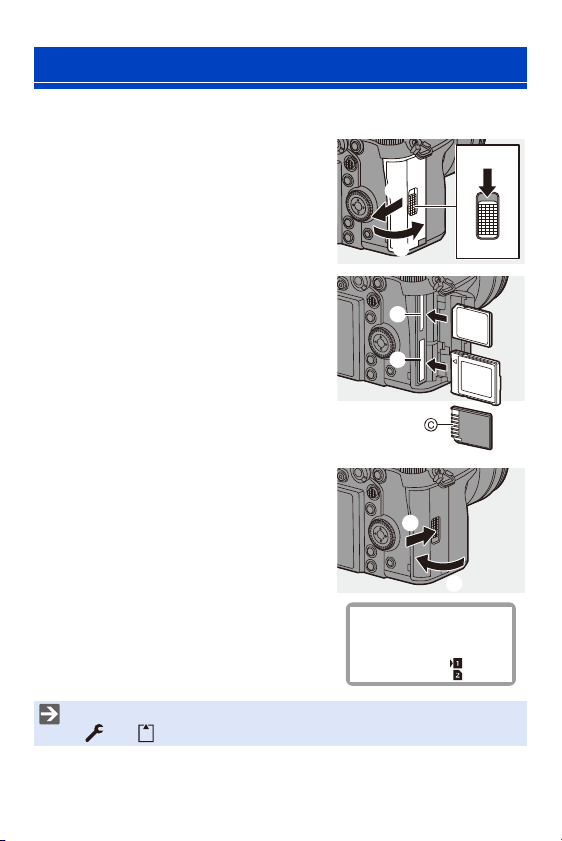
You can use an XQD card and SD card with this camera. (l 22)
1
Open the card door.
≥Slide the card door in the direction
of the arrow while pushing down the
card door lock lever.
2
Insert the cards.
A Card slot 1: XQD card
B Card slot 2: SD card
≥Match the orientation of the cards
as shown in the figure and then
insert them firmly until they click.
0
Do not touch the SD card connection
contacts C.
3
Close the card door.
≥Close the card door and slide it
firmly in the direction of the arrow
until it clicks.
0
The cards are displayed on the status
LCD.
Inserting Cards (Optional)
0 You can set the way to record to card slots 1 and 2.
[]
¨ [ ] ¨ [Double Card Slot Function] (l 87)
2. Getting Started
47
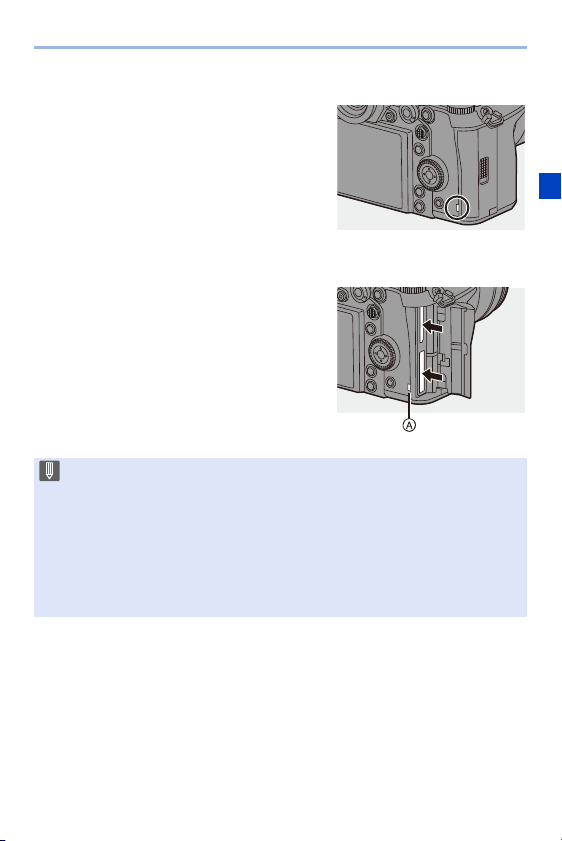
Card Access Indications
The card access lamp lights while the card
is being accessed.
Removing a Card
1
Open the card door.
0
Check that the card access lamp A is off
and then open the card door.
2
Push the card until it clicks and then
pull the card out straight.
0 The card may be hot just after the camera has been used. Be careful when
removing.
0 Do not perform the following operations during access.
The camera may operate incorrectly or the card and recorded images
may be damaged.
– Turn off the camera.
– Remove the battery or card or disconnect the power plug.
– Subject the camera to vibration, impacts, or static electricity.

2. Getting Started
48
Formatting Cards (Initialization)
Format the cards with the camera before use in order to ensure optimal
card performance.
¨ [ ] ¨ [ ] ¨ Select [Card Format]
Settings: [Card Slot 1(XQD)]/[Card Slot 2(SD)]
0 When a card is formatted, all of the data stored in the card is erased and
cannot be restored.
Save a backup of necessary data before formatting the card.
0 Do not turn off the camera or perform another operation during formatting.
0 Take care not to turn off the camera while formatting is in progress.
0 Cards that have not been formatted after purchase should be formatted on the
camera.
0 If the card has been formatted with a PC or other device, format it again with
the camera.
2. Getting Started
49
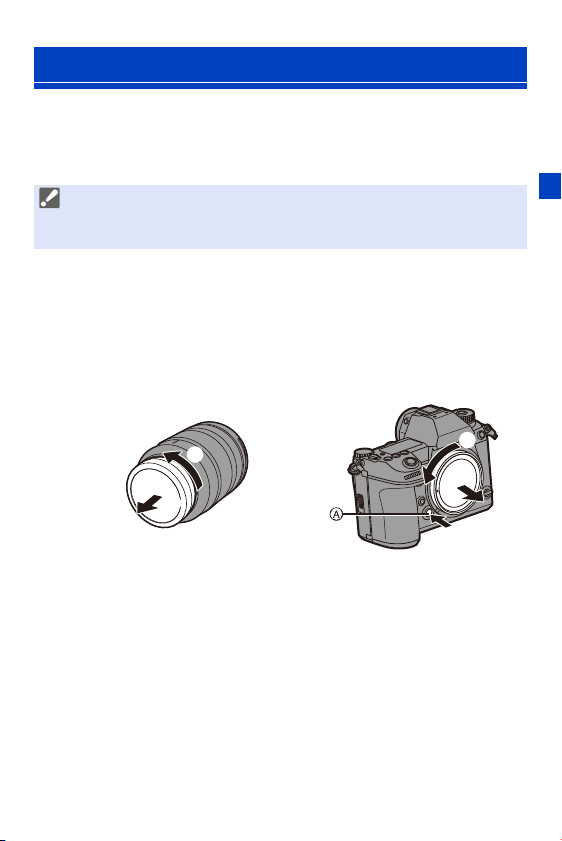
You can attach the Leica Camera AG L-Mount standard lens to this
camera.
For information about the lens that can be used, refer to page
21.
1
Turn off the camera.
2
Turn the lens rear cap and the body cap in the direction
of the arrow to remove them.
≥When removing the body cap, rotate it while pressing the lens
release button A.
Attaching a Lens
0 Change the lens in a location where there is not a lot of dirt and dust. If dirt or
dust gets on the lens, refer to page
472.
0 Change the lens while the lens cap is attached.
2. Getting Started
50
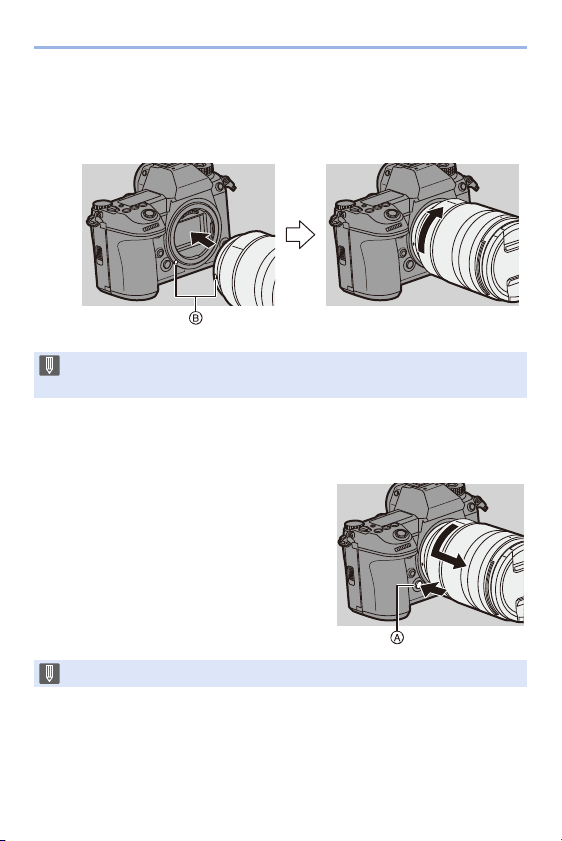
3
Align the lens fitting marks B on the lens and camera
and then rotate the lens in the direction of the arrow.
≥Attach the lens by rotating it until it clicks.
Removing a Lens
1
Turn off the camera.
2
While pressing the lens release button
A, rotate the lens in the direction of the
arrow until it stops and then remove it.
0 Insert the lens straight in.
Inserting this at an angle to attach it may damage the camera lens mount.
0 After removing the lens, be sure to attach the body cap and the lens rear cap.
2. Getting Started
51
Attaching a Lens Hood
For recording against strong backlight, a lens hood can reduce the
inclusion of unwanted light in images and drop in contrast resulting from
the irregular reflection of light that occurs within the lens.
It allows you take more beautiful pictures by cutting out excess light.
When attaching the lens hood (flower shape) supplied with the
interchangeable lens (S-R24105)
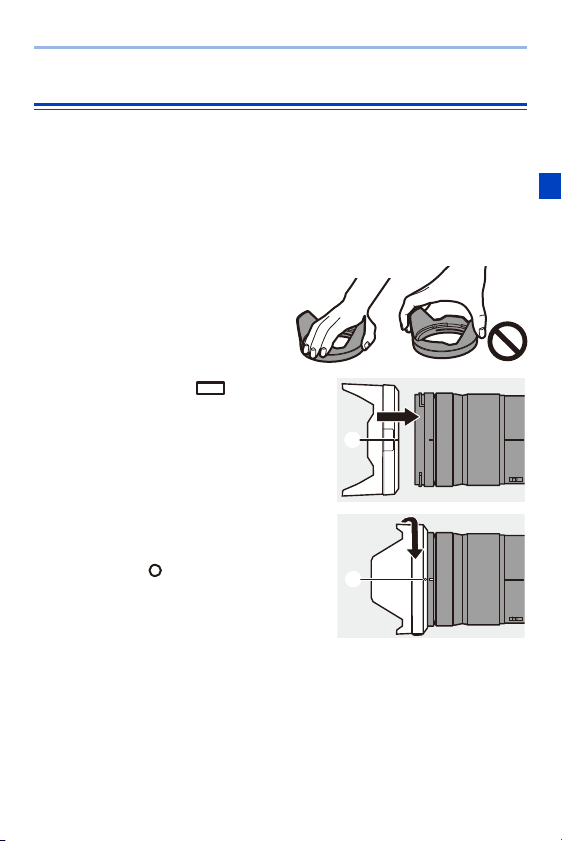
Hold the lens hood by placing your
fingers as shown in the figure.
0
Do not hold the lens hood in such a way
that it will become bent.
1
Align mark A ( ) on the
lens hood with the mark on the
tip of the lens.
2
Rotate the lens hood in the
direction of the arrow to align
mark B ( ) on the lens hood
with the mark on the tip of the
lens.
≥Attach the lens hood by rotating it
until it clicks.
2. Getting Started
52
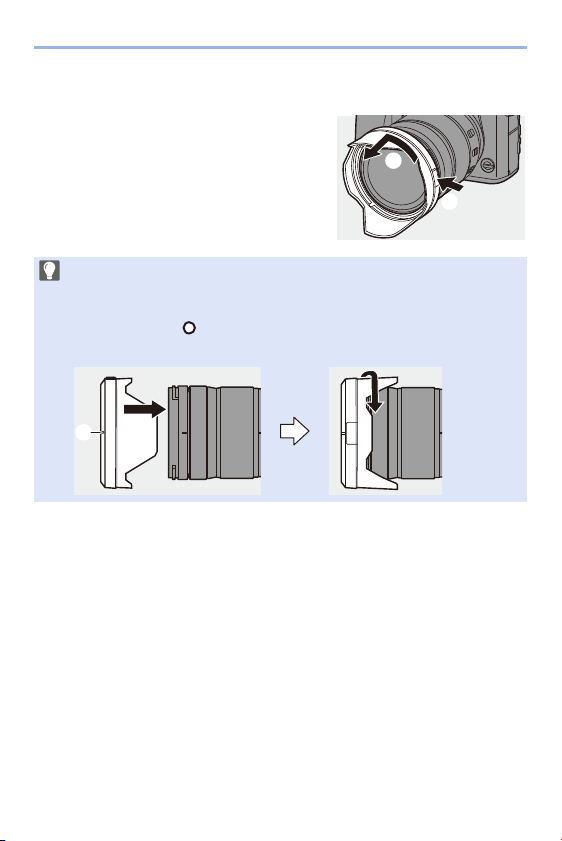
Removing the Lens Hood
While pressing the lens hood button, rotate
the lens hood in the direction of the arrow
and then remove it.
0 The lens hood can be attached in the reverse direction when carrying the
camera.
1 Remove the lens hood.
2 Align mark C ( ) on the lens hood with the mark on the tip of the lens.
3 Attach the lens hood by rotating it in the direction of the arrow until it clicks.
2. Getting Started
53
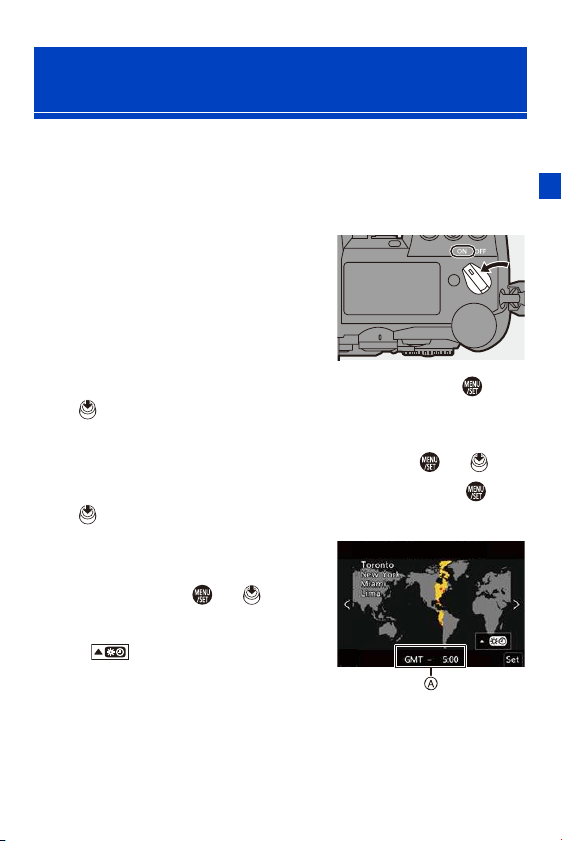
When you turn the camera on for the first time, a screen to set the time
zone and clock appears.
Be sure to set these settings before use to ensure images are recorded
with the correct date and time information.
1
Set the camera on/off switch
to [ON].
≥If the language select screen is not
displayed, proceed to Step
4
.
2
When [Please set the language] appears, press or
.
3
Set the language.
≥Press 34 to select the language and then press or .
4
When [Please set the time zone] appears, press or
.
5
Set the time zone.
≥Press 21 to select the time zone
and then press or .
0 If you are using Daylight Savings
[ ], press 3. (The time will
move forward by 1 hour.)
To return to the normal time, press
3 again.
A Time difference from GMT (Greenwich Mean Time)
Setting the Clock
(When Turning On for the First Time)
2. Getting Started
54
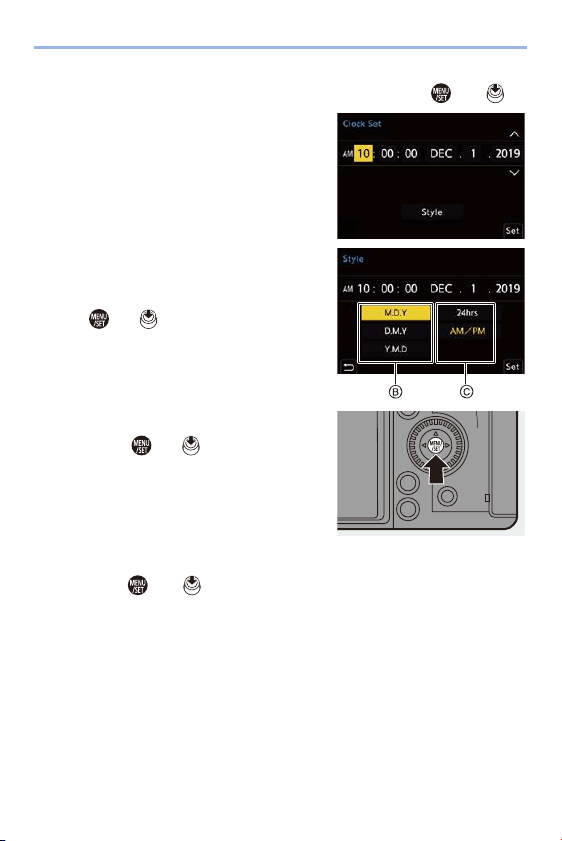
6
When [Please set the clock] appears, press or .
7
Set the clock.
To set the display order B and
time display format C
≥If you select [Style] and then press
or , the screen for setting
the display order and time display
format appears.
8
Confirm your selection.
≥Press or .
9
When [The clock setting has been completed.] appears,
press or .
21: Select an item (year, month,
day, hour, minute, or second).
34: Select a value.

2. Getting Started
55
0 If the camera is used without setting the clock, it will be set to 0:00:00, January
1st 2019.
0 Clock settings are maintained for approx. 3 months using the built-in clock
battery even without the battery.
(Leave the fully-charged battery in the camera for approx. 24 hours to charge
the built-in battery.)
0 [Time Zone] and [Clock Set] can be changed from the menu:
–
¨ [ ] ¨ [ ] ¨ [Time Zone] (l 359)
–
¨ [ ] ¨ [ ] ¨ [Clock Set]
56
3. Basic Operations
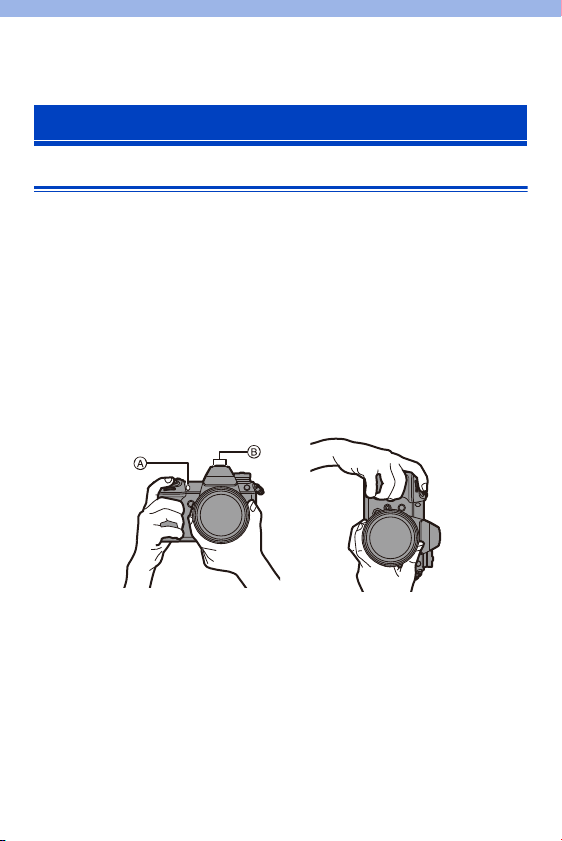
How to Hold the Camera
To minimize camera shake, hold the camera so that it will not move during
recording.
Hold the camera with both hands, keep your arms still at your
side, and stand with your feet shoulder width apart.
≥Hold the camera firmly by wrapping your right hand around the camera
grip.
≥Support the lens from below with your left hand.
0
Do not cover the AF assist lamp A or microphone B with your fingers or other
objects.
Basic Recording Operations
3. Basic Operations
57
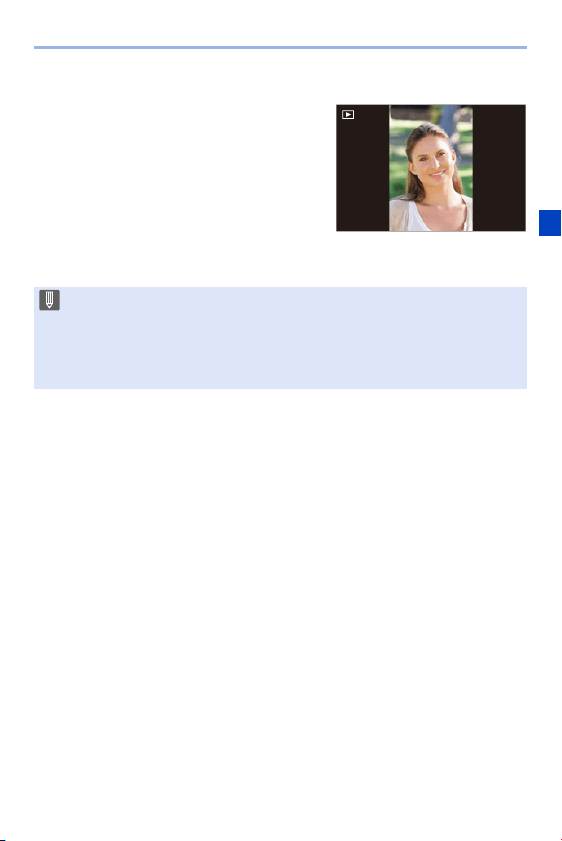
Vertical Orientation Detection Function
This function detects when pictures were
recorded with the camera held vertically
orientated.
With the default settings, pictures are
automatically played back vertically
oriented.
0
If you set [Rotate Disp.] to [OFF], pictures will be
played back without being rotated. (l
363)
0 When the camera is tilted significantly up or down, the vertical orientation
detection function may not work correctly.
0 Images recorded using the following functions cannot be displayed vertically
orientated:
– Video recording/[6K/4K PHOTO]/[Post-Focus]
3. Basic Operations
58
Adjusting the Angle of the Monitor
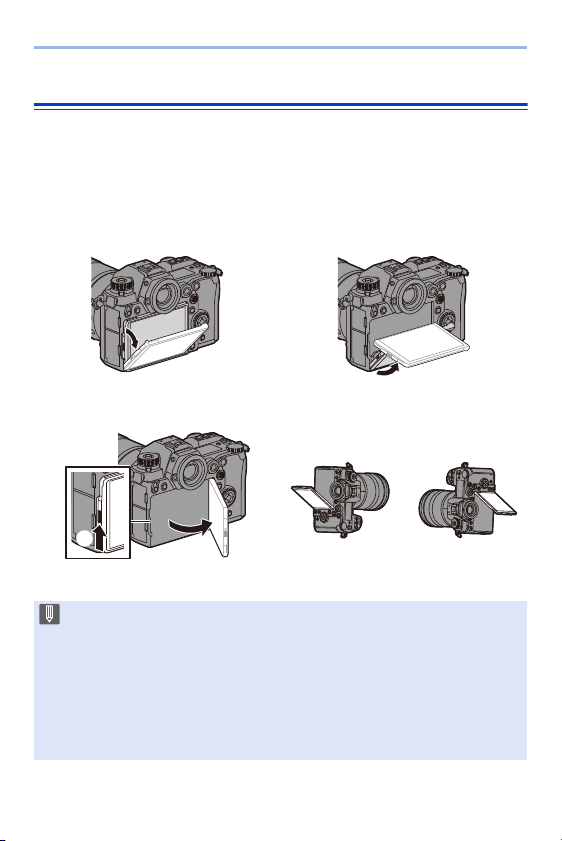
This camera has a 3-axis tiltable monitor.
Adjust the angle of the monitor to match the recording conditions.
This is useful for high and low angle recording.
≥High angle recording (horizontal
position)
≥Low angle recording (horizontal
position)
≥High angle recording/Low angle recording (vertical position)
0
Open the monitor while pushing up on the monitor lock lever.
0 Take care not to trap a finger in the monitor.
0 Do not apply an excessive force to the monitor. This may cause damage or
malfunction.
0 When you will not use the camera, fully close the monitor by returning it to its
original position.
0 When attaching to a tripod, close the monitor by returning it to its original
position.
0 The opening angle of the monitor may be limited by the tripod used.
3. Basic Operations
59
Taking Pictures
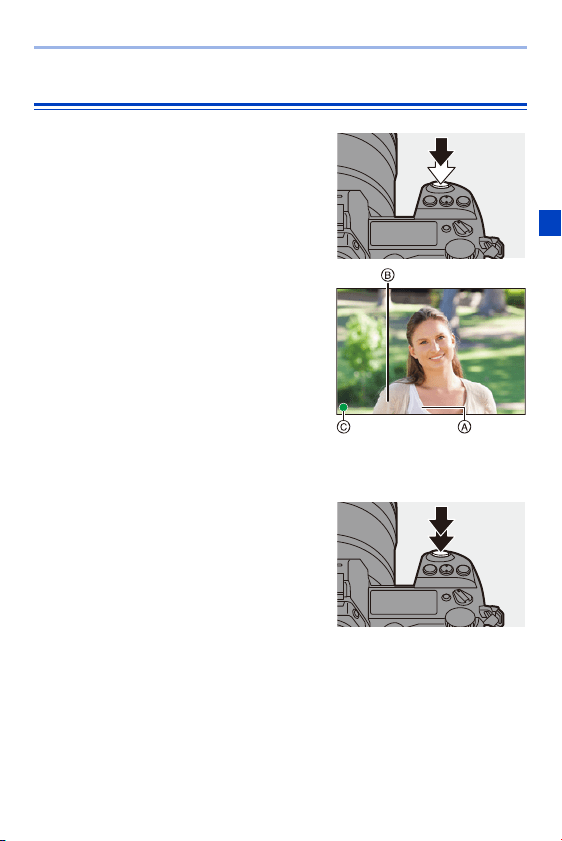
1
Adjust the focus.
≥Press the shutter button halfway
(press it gently).
≥The aperture value A and shutter
speed B are displayed.
(When the correct exposure cannot
be obtained, the indications blink in
red.)
≥Once the subject is in focus, the
focus indication C lights.
(When the subject is not in focus,
the indication blinks.)
0
You can also perform the same operation by pressing [AF ON].
2
Start recording.
≥Press the shutter button fully (press
it further).
F4.0F4.0F4.0606060
3. Basic Operations
60
Recording Videos
1
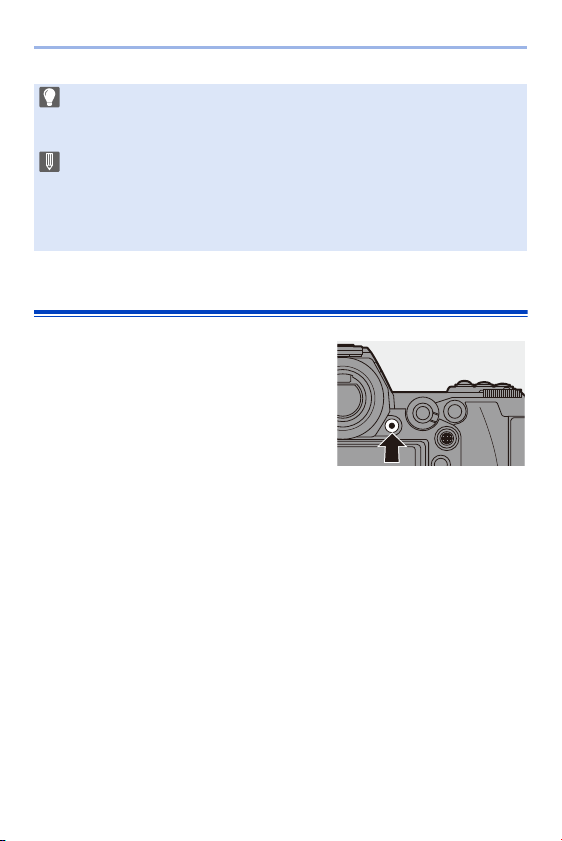
Start recording.
≥Press the video rec. button.
0
Release the video rec. button right after
you press it.
2
Stop recording.
≥Press the video rec. button again.
0 Recorded pictures can be displayed automatically by setting [Auto Review] of
the [Custom] ([Monitor / Display]) menu. You can also change the picture
display duration to your preferred setting. (l
338)
0 With the default settings, you cannot take a picture until the subject is
brought into focus.
If you set [Focus/Shutter Priority] in the [Custom] ([Focus/Shutter])
menu to [BALANCE] or [RELEASE], you will be able to take a picture
even when the subject is not in focus. (l
329)
3. Basic Operations
61
Selecting the Recording Mode
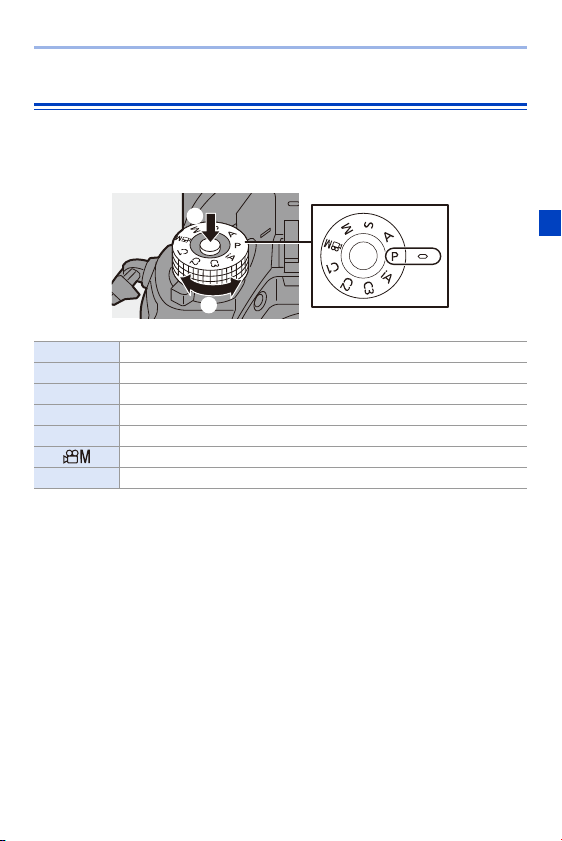
While pressing the mode dial lock button (1), rotate the
mode dial (2).
iA Intelligent Auto mode (l 77)
P Program AE mode (l 179)
A Aperture-Priority AE mode (l 181)
S Shutter-Priority AE mode (l 183)
M Manual Exposure mode (l 185)
Creative Video mode (l 244)
C1/C2/C3 Custom mode (l 296)
3. Basic Operations
62
When changing the camera settings, operate the camera using the
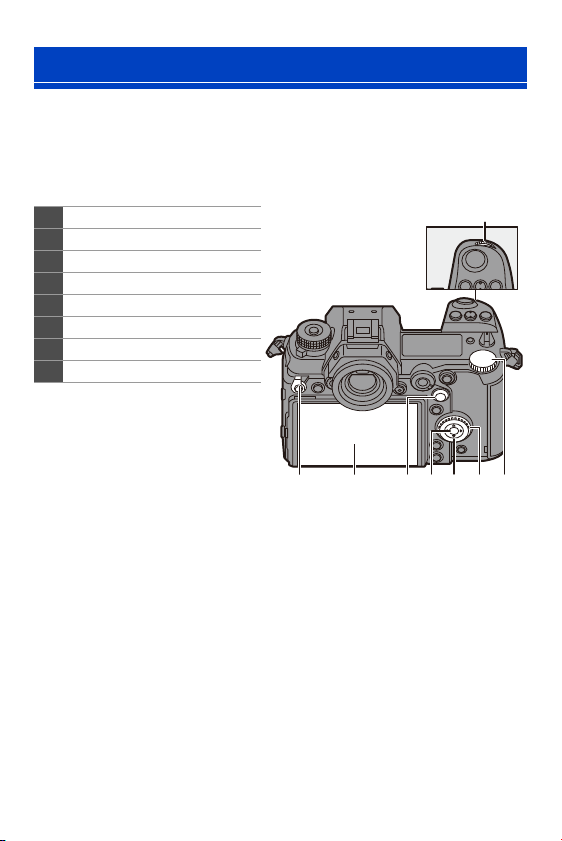
following operation parts.
To prevent accidental operation, you can disable operation with the
operation lock lever.
Camera Setting Operations
1 Front dial (l 63)
2
Rear dial (l 63)
3
Control dial (l 63)
4 Cursor buttons (l 63)
5
[MENU/SET] button (l 63)
6
Joystick (l 64)
7 Touch screen (l 64)
8
Operation lock lever (l 65)
45678 3 2
1
3. Basic Operations
63
Front Dial ( )/Rear Dial ( )
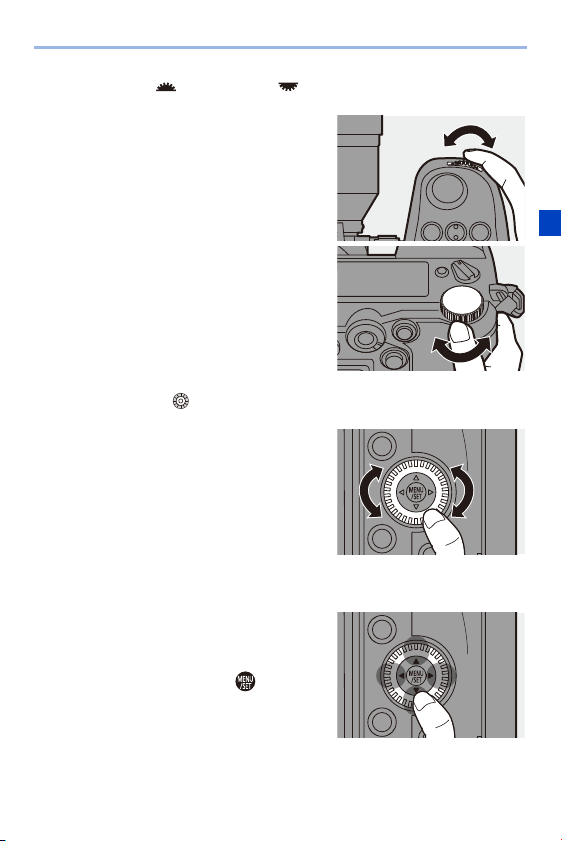
Rotate:
Selects an item or numeric value.
0 Sets the aperture, shutter speed, and other
settings when you are recording in the P/A/S/M
modes.
The operation method can be changed in [Dial
Set.]. (l
336)
Control Dial ( )
Rotate:
Selects an item or numeric value.
0 Adjusts the headphone volume during recording.
The function can be changed in [Control Dial
Assignment] of [Dial Set.]. (l
336)
Cursor Buttons (3421)
Press:
Selects an item or numeric value.
[MENU/SET] Button ( )
Press:
Confirms a setting.
0 Displays the menu during recording and
playback.
3. Basic Operations
64
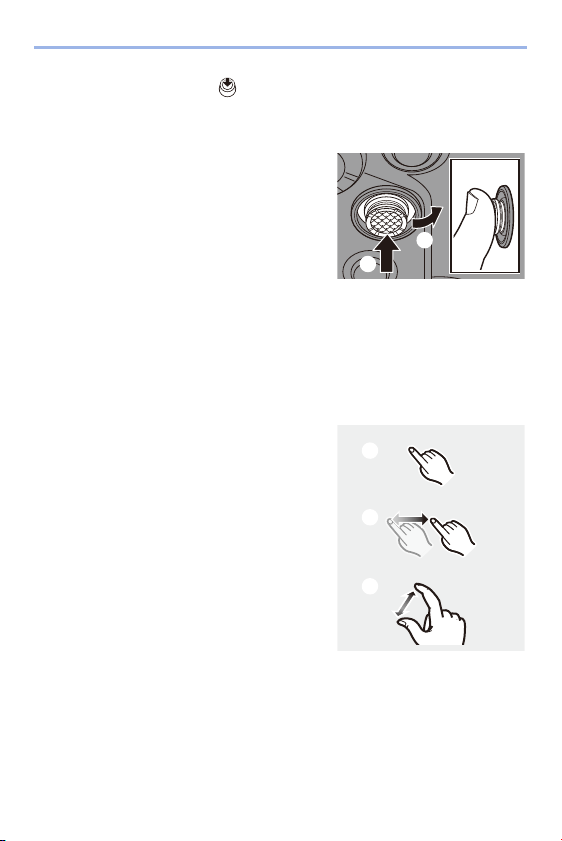
Joystick (3421/)
The joystick can be operated in 8 directions by tilting it up, down, left, right
and diagonally and by pressing the center part.
0
When recording, this moves the AF area and MF Assist.
The joystick functions for recording can be changed in [Joystick Setting]. (l
337)
Touch Screen
Operations can be performed by touching the icons, slide bars, menus,
and other items displayed on the screen.
A Touch
Operation of touching and then lifting your
finger from the touch screen.
B Drag
Operation of moving a finger while it
touches the touch screen.
C Pinch (widen/narrow)
Operations of widening the distance
between two fingers (pinch out) and
narrowing the distance between two fingers
(pinch in) while they are touching the touch
screen.
A Tilt: Selects an item or numeric value, or
moves a position.
0
Place your finger on the center of the joystick
before tilting. The joystick may not work as
expected when the sides are pressed.
B Press: Confirms a setting.
3. Basic Operations
65
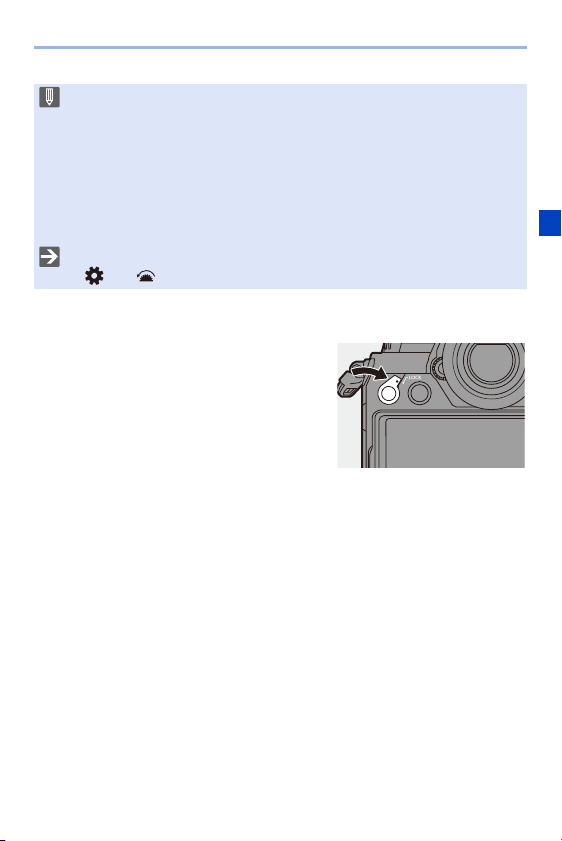
Operation Lock Lever
Aligning the operation lock lever with the
[LOCK] position disables the following
operation parts.
The operation parts to disable can be set in
[Lock Lever Setting] of the [Custom]
([Operation]) menu. (l
334)
– Cursor buttons
– [MENU/SET] button
– Joystick
– Touch screen
– Front dial
– Rear dial
– Control dial
– [DISP.] button
0 Touch the screen with clean and dry fingers.
0 If you will use a commercially available monitor protection sheet, observe the
precautions for the sheet.
(Visibility and operability may be impaired depending on the type of monitor
protection sheet.)
0 The touch screen may not operate correctly in the following cases:
– When you are wearing gloves
– When the touch screen is wet
0 Touch operations can be disabled:
[]
¨ [ ] ¨ [Touch Settings] (l 333)
3. Basic Operations
66
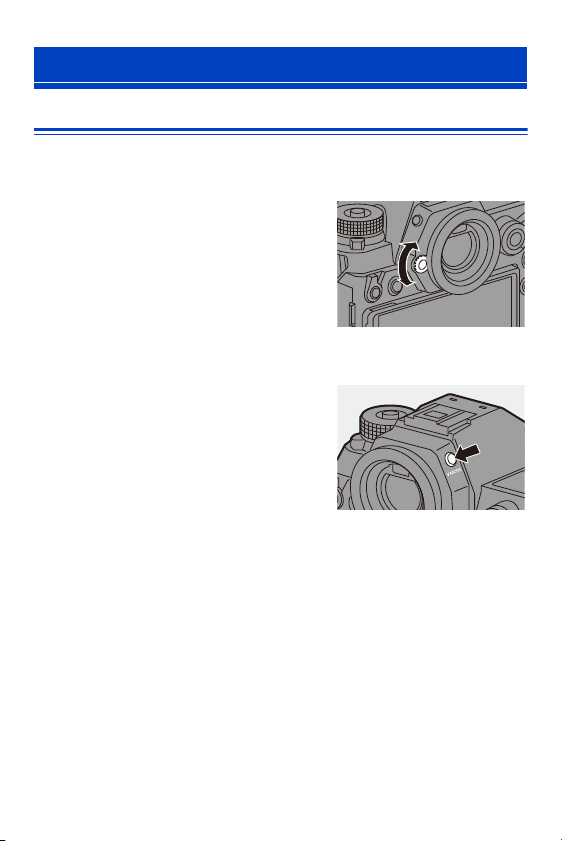
Setting the Viewfinder
Adjusting the Viewfinder Diopter
Rotate the diopter adjustment dial
while looking through the
viewfinder.
0 Adjust the diopter until you can see the
characters clearly.
Switching the Viewfinder Display Magnification
Press [V.MODE].
≥The display magnification of the
viewfinder can be switched between
3 levels.
Display Settings
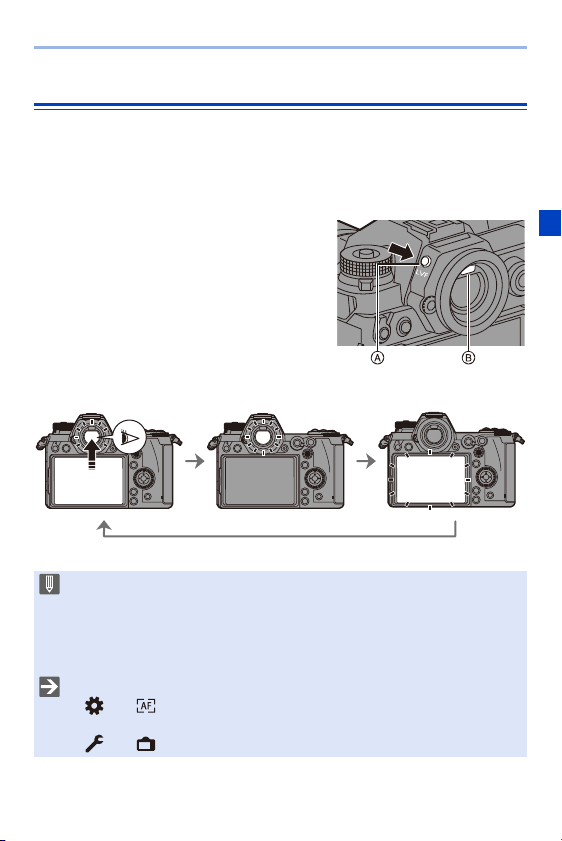
3. Basic Operations
67
Switching Between the Monitor and Viewfinder
With the default settings, automatic viewfinder/monitor switching is set.
When you look through the viewfinder, the eye sensor works and the
camera switches from monitor display to viewfinder display.
You can switch to viewfinder display or monitor display with [LVF].
Press [LVF] A.
B Eye sensor
Automatic viewfinder/
monitor switching
Viewfinder display Monitor display
0 The eye sensor may not work correctly due to the shape of eyeglasses, the
way the camera is held, or bright light shining around the eyepiece.
0 The camera does not switch between the viewfinder and monitor
automatically during video playback.
0 When the monitor is open, the eye sensor does not work.
0 To focus when looking through the viewfinder:
[]
¨ [ ] ¨ [Eye Sensor AF] (l 332)
0 The sensitivity of the eye sensor can be changed:
[]
¨ [ ] ¨ [Eye Sensor] (l 353)
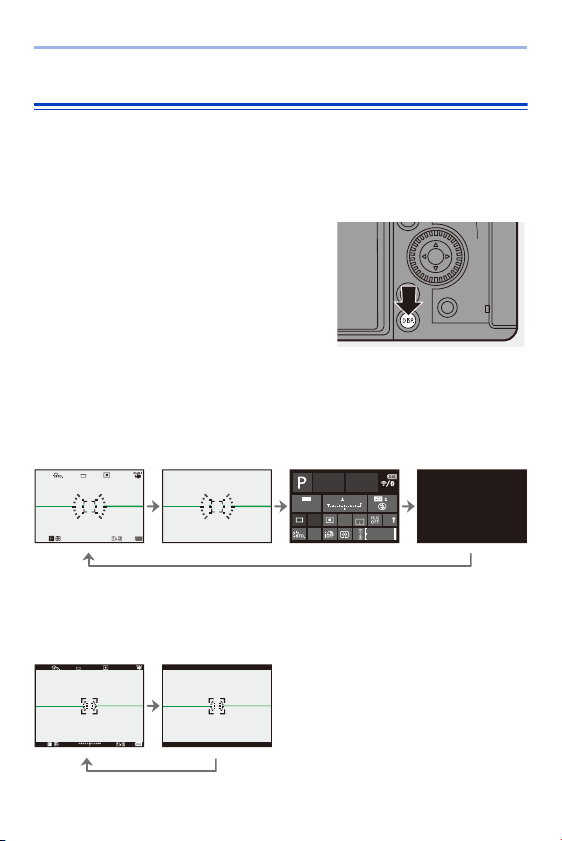
3. Basic Operations
68
Switching the Display Information
The recording information (icons) on the recording screen and playback
screen can be hidden.
The monitor on the rear of the camera can be set to display only recording
information or turned off.
Press [DISP.].
≥The display information is switched.
Recording Screen
Monitor
Viewfinder
With information
Without
information
Control panel Turned off
With information
Without
information
999
±
0
L
AFSAFS
FINE
999
999
AWB
Fn
OFF
0 0
0
ISO
AUTO
AFS FINE
3:2
999
L
FINE
AFSAFS
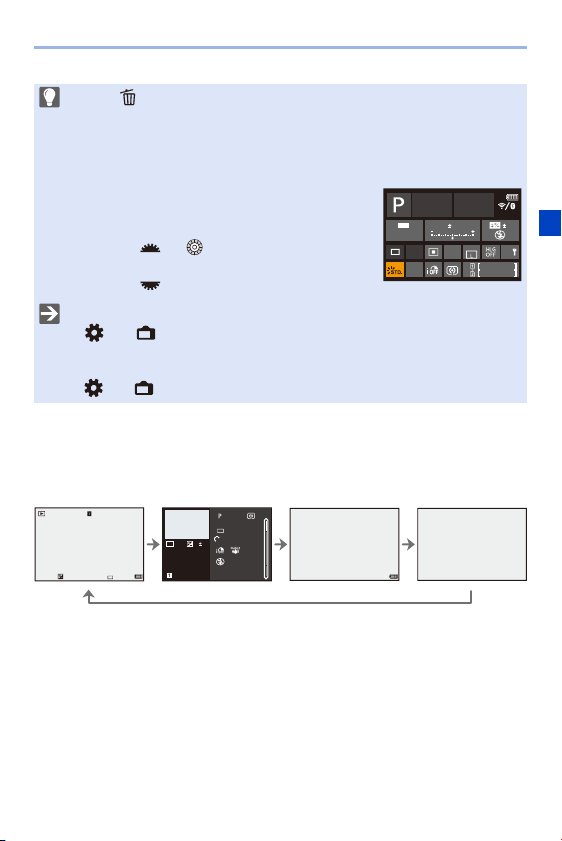
3. Basic Operations
69
Playback Screen
¢1 Pressing 34 switches the display information.
– Detailed information display
– Histogram display
– Photo Style display
– White balance display
– Lens information display
¢2 This is a screen without blinking highlights display that is shown when [Blinking
Highlights] of the [Custom] ([Monitor / Display]) is set to [ON].
In other than this screen, overexposed parts of the screen will blink. (l
345)
0 Press [ ] to switch between display/hide of the level gauge.
This can also be set by using [Level Gauge]. (l
339)
Control panel operation
You can touch items on the control panel to directly change their settings. These
can also be changed with the following operations:
1 Press one of the cursor buttons to enable
selection of items.
0 Selected items are displayed in yellow.
2 Rotate or to select an item.
0 You can also select by pressing 3421.
3 Rotate to change the settings values.
0 The types of screen to display on the monitor can be restricted:
[]
¨ [ ] ¨ [Show/Hide Monitor Layout] (l 345)
0 The display can be changed so that live view and display information do not
overlap:
[]
¨ [ ] ¨ [LVF/Monitor Disp. Set] (l 343)
With information
Detailed
information
display
¢1
Without
information
Display without
blinking
highlights
¢2
999
999
AWB
Fn
OFF
0 0
0
ISO
AUTO
AFS FINE
3:2
10:00 DEC.1.2019 100-0001 1/999
ISO
100
F
4.060
L
FINE
±
0
100
100-0001
ISO
0
F4.0
60
10:00 DEC.1.2019
s
RGB
1/5
FINE
AFS
STD.
L
3:2
AWB
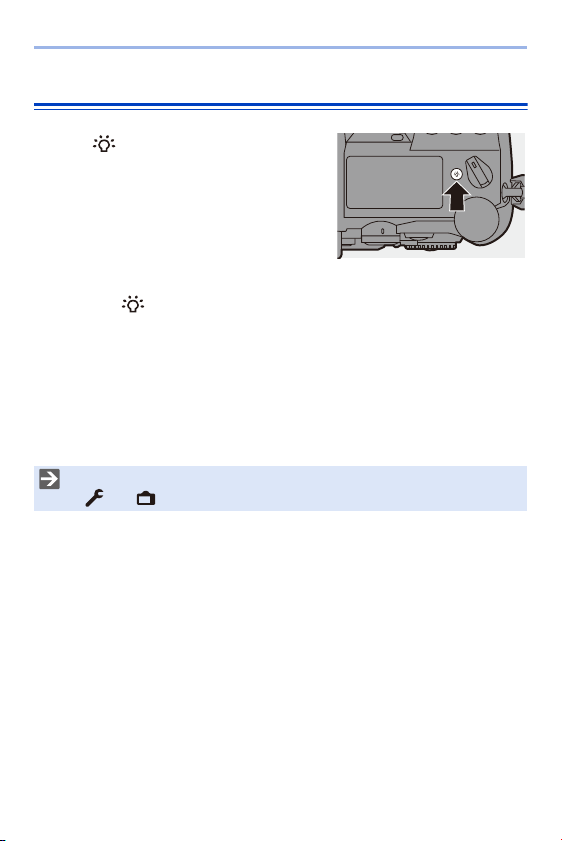
3. Basic Operations
70
Turning On the Status LCD Backlight
Press [ ].
≥The backlight will turn on.
≥If the camera is left without any
operations for approx. 5 seconds, the
backlight turns off.
0 With the default settings, the illumination button
will also light.
0 If you press [ ] again or fully press the shutter button, the backlight turns off.
0 The status LCD backlight and illumination button do not light while you are using the
following functions:
– Video recording/[6K/4K PHOTO]/[Post-Focus]
– Burst recording
– Playback
– Menu
– Quick menu
0 The lighting method of the status LCD backlight can be changed:
[]
¨ [ ] ¨ [Status-LCD] (l 353)
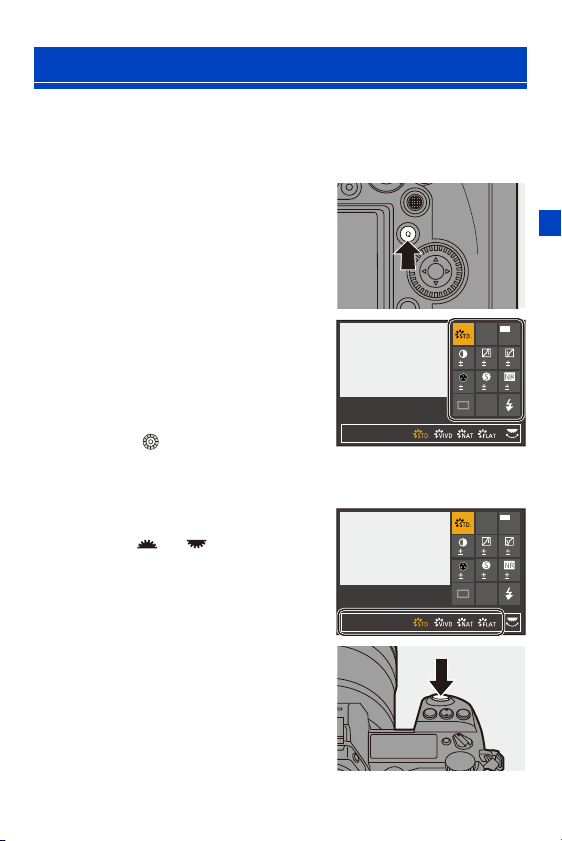
3. Basic Operations
71
This menu enables you to quickly set functions that are frequently used
during recording without calling the menu screen. You can also change the
Quick menu display method and the items to display.
1
Display the Quick menu.
≥Press [Q].
2
Select a menu item.
≥Press 3421.
≥Directions on the diagonal can also
be selected using the joystick.
≥Selection is also possible by
rotating .
≥Selection is also possible by
touching a menu item.
3
Select a setting item.
≥Rotate or .
≥Selection is also possible by
touching a setting item.
4
Close the Quick menu.
≥Press the shutter button halfway.
≥You can also close the menu by
pressing [Q].
Quick Menu
00 0
AWB
3:2
0 0
0
AUTO
ISO
00 0
AWB
3:2
0 0
0
AUTO
ISO

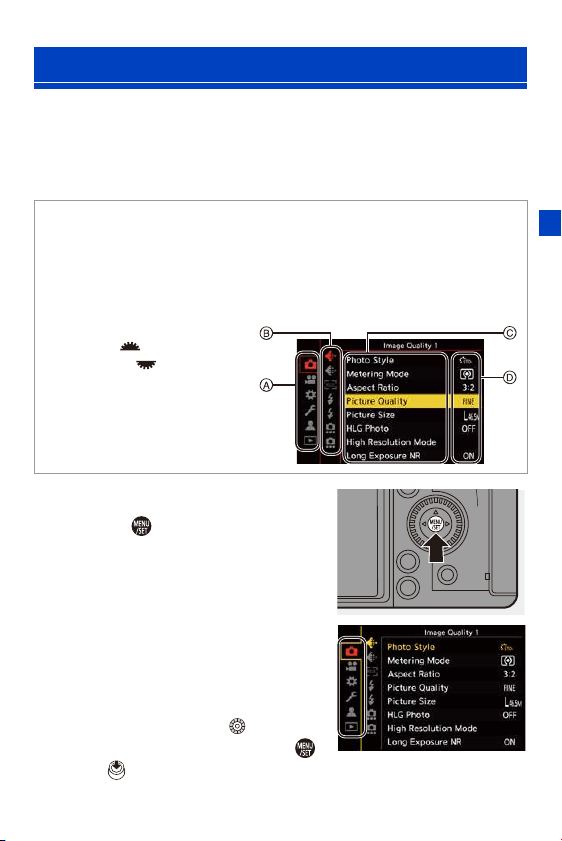
3. Basic Operations
73
In this camera, the menu is used for setting a wide variety of functions and
performing camera customizations.
Menu operation is possible in a variety of ways including using the cursors,
joystick, dials, and touch.
1
Display the menu.
≥Press .
2
Select a main tab.
≥Press 34 to select a main tab and
then press 1.
≥You can also perform the same
operation by rotating to select
the main tab and then pressing
or .
Menu Operation Methods
Configuration and operation parts of the menu
The menu can be operated by pressing 21 to move between menu screens.
Use the operation parts indicated below to operate the main tab, the sub tab, and
menu items without moving to the corresponding menu levels.
0 You can also operate the menu by touching the icons on the main tab and the sub
tab, menu items and setting items.
A Main tab ([Q] button)
B Sub tab ( )
C Menu item ( )
D Setting item
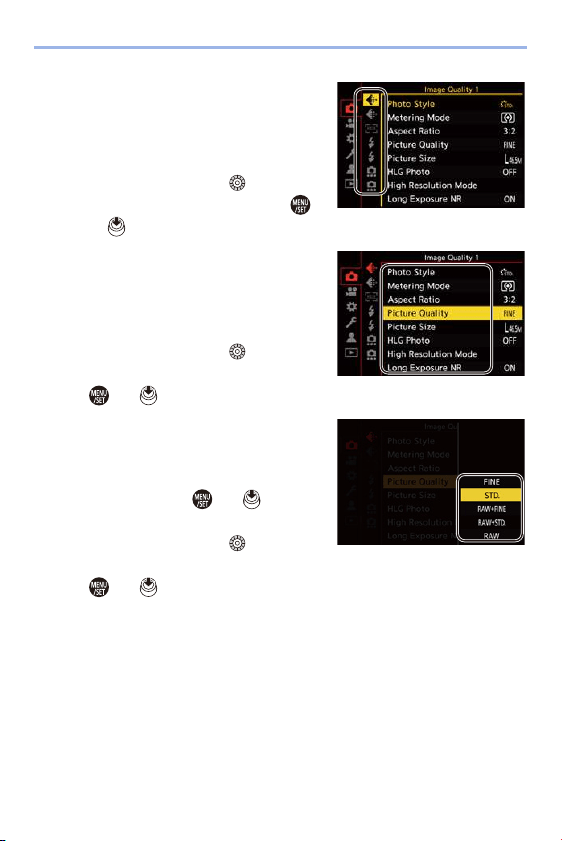
3. Basic Operations
74
3
Select a sub tab.
≥Press 34 to select a sub tab and
then press 1.
≥You can also perform the same
operation by rotating to select
the sub tab and then pressing
or .
4
Select a menu item.
≥Press 34 to select a menu item
and then press 1.
≥You can also perform the same
operation by rotating to select
the menu item and then pressing
or .
5
Select a setting item and then
confirm your selection.
≥Press 34 to select a setting item
and then press or .
≥You can also perform the same
operation by rotating to select
the setting item and then pressing
or .
0
The display and selection methods differ depending on the setting item.
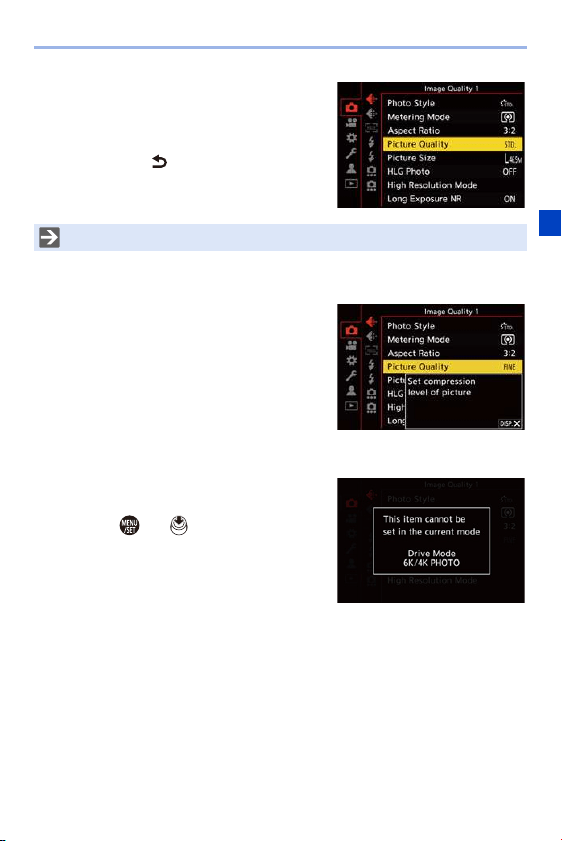
3. Basic Operations
75
6
Close the menu.
≥Press the shutter button halfway.
≥You can also close the menu by
pressing [ ] several times.
Displaying Descriptions About Menu Items and Settings
If you press [DISP.] while a menu item or
setting item is selected, a description about
the item is displayed on the screen.
Grayed Out Menu Items
Menu items that cannot be set are
displayed grayed out.
If you press or while a grayed out
menu item is selected, the reason why it
cannot be set is displayed.
0
The reason why a menu item cannot be set may
not be displayed depending on the menu item.
0 For details about menu items, refer to Menu Guide. (l 303)

3. Basic Operations
76
[Reset]
Return each of the following settings to the default setting:
– Recording settings
– Network settings (settings of [Wi-Fi Setup] and [Bluetooth])
– Setup and custom settings (other than [Wi-Fi Setup] and [Bluetooth])
¨ [ ] ¨ [ ] ¨ Select [Reset]
0 If you reset the setup and custom settings, the following settings will also be
reset:
– Settings of [Rotate Disp.], [Picture Sort], [Magnify from AF Point], [HLG View
Assist (Monitor)], and [Delete Confirmation] in the [Playback] menu
0 The folder numbers and clock settings are not reset.
0 List of default settings (l 485)
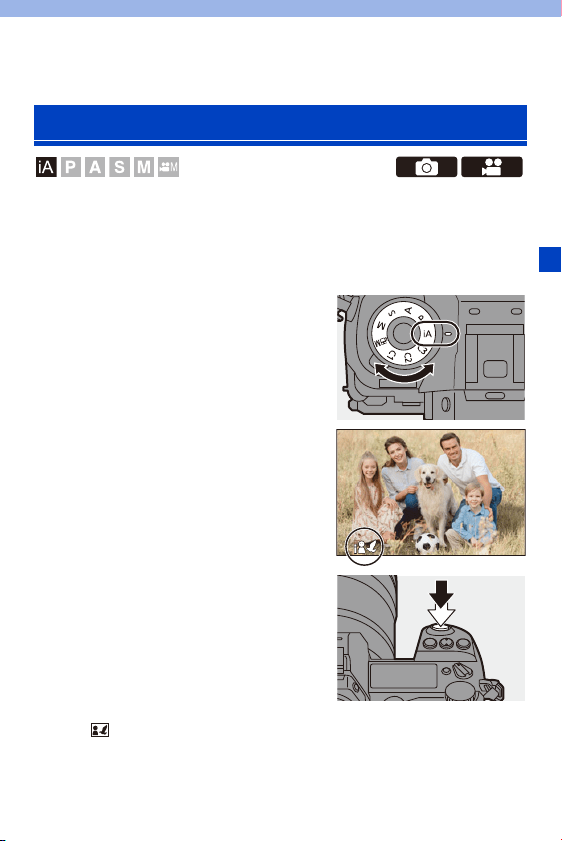
77
4. Easy Recording
The [iA] mode (Intelligent Auto mode) can record images using settings
automatically selected by the camera.
The camera detects the scene to set the optimal recording settings
automatically to match the subject and recording conditions.
1
Set the mode dial to [iA].
2
Aim the camera at the subject.
≥When the camera detects the
scene, the recording mode icon
changes.
(Automatic Scene Detection)
3
Adjust the focus.
≥Press the shutter button halfway.
≥Once the subject is in focus, the
focus indication lights.
(When the subject is not in focus,
the indication blinks.)
0
[ ] of the AF mode works and the AF area is displayed aligned to any
humans or animals.
Intelligent Auto Mode
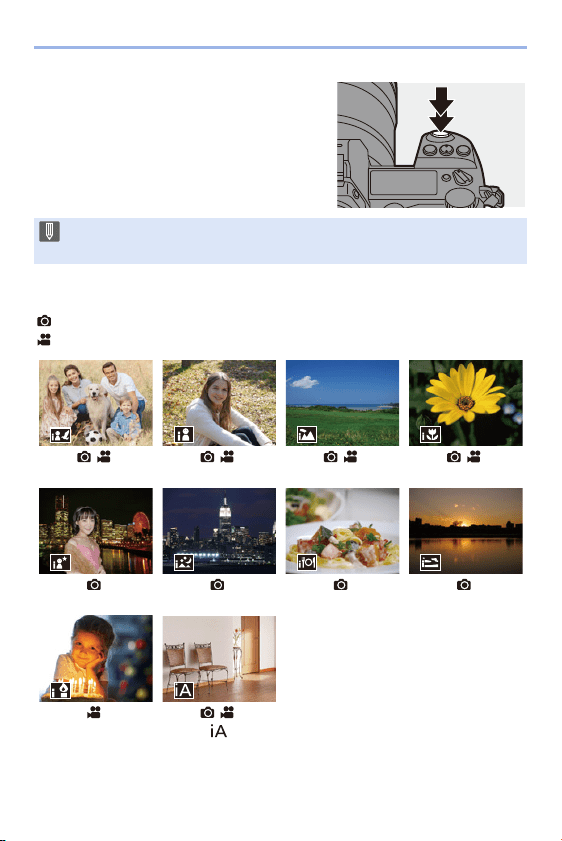
4. Easy Recording
78
4
Start recording.
≥Press the shutter button fully.
Types of Automatic Scene Detection
: Scenes detected during picture taking
: Scenes detected during video recording
¢1 Detected when animal detection is disabled.
¢2 Detected when using an external flash.
0 Backlight compensation operates automatically to prevent subjects from
appearing dark when there is a backlight.
:
i-Portrait & Animal
:
i-Portrait
¢1
:
i-Scenery
:
i-Macro
:
i-Night Portrait
¢2
:
i-Night Scenery
:
i-Food
:
i-Sunset
:
i-Low Light
:
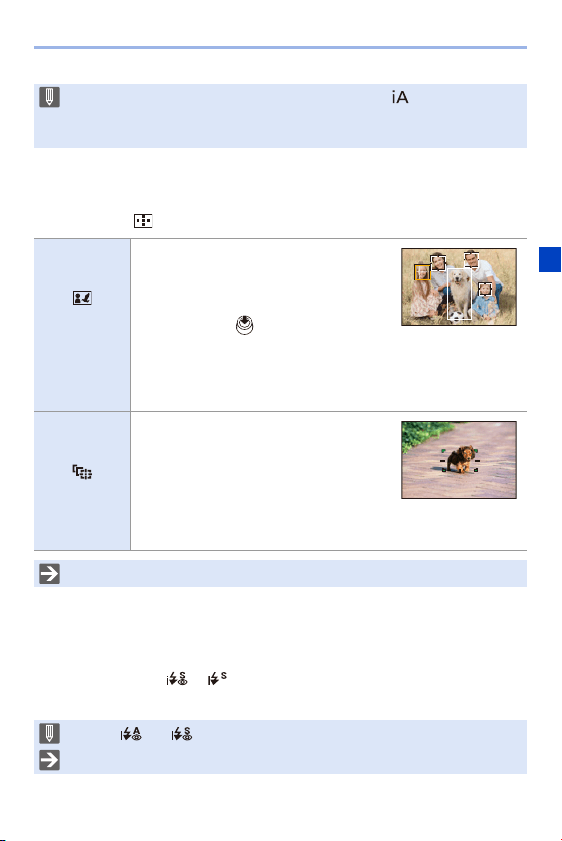
4. Easy Recording
79
AF Mode
Changing the AF mode.
0
Each press of [ ] changes the AF mode.
Flash
When recording using a flash, the camera switches to the appropriate flash
mode for the recording conditions.
When Slow Sync. ([ ], [ ]), be careful with regard to camera shake
because the shutter speed becomes slow.
0 If none of the scenes are applicable, recording is with [ ] (standard setting).
0 Different scene types may be selected for the same subject depending on the
recording conditions.
([Face/Eye/
Body/Animal
Detect.])
The camera detects a person’s face, eyes,
and body (entire body or upper half of the
body) and the body of animals, and adjusts
the focus.
0 Each press of switches the person,
animal or eye to be brought into focus. It
cannot be switched by touching.
0 Animal detection will maintain the enable/disable setting selected
during other than [iA] mode.
([Tracking])
When the focus mode is set to [AFC], the
AF area follows the movement of the
subject, maintaining focusing.
Aim the AF area over the subject and then
press and hold the shutter button halfway.
0 The camera will track the subject while the shutter button is
pressed halfway or fully.
0 For information about AF modes, refer to page 99 and 102.
0 When [ ] or [ ], Red-Eye Removal works.
0 For information about external flashes, refer to page 216.
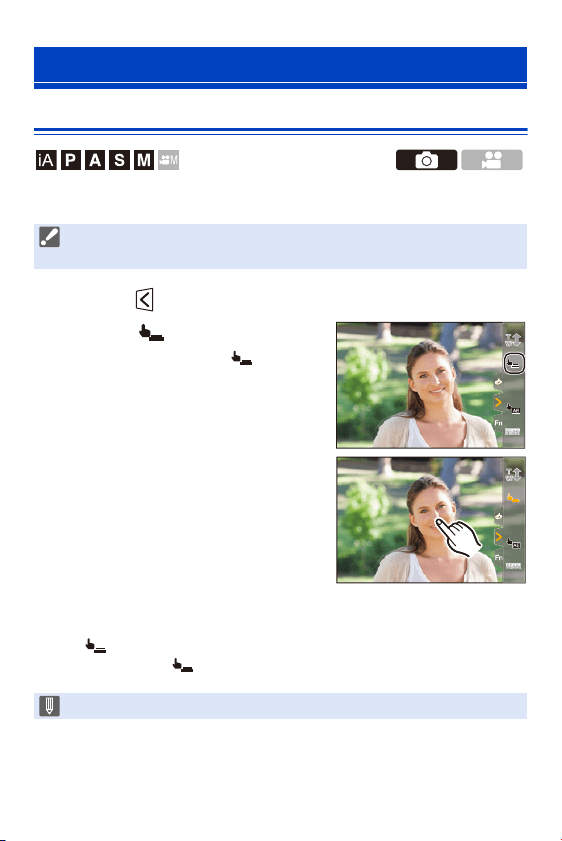
4. Easy Recording
80
Touch Shutter
This function focuses on a touched position and then releases the shutter.
1
Touch [ ].
2
Touch [ ].
≥The icon changes to [ ]
indicating that you can start Touch
Shutter recording.
3
Touch the subject you wish to
focus on.
≥The AF operates and the image will
be recorded.
How to Disable Touch Shutter
Touch [ ].
0
The icon changes to [ ].
Recording Using Touch Functions
0 With the default settings, the Touch Tab is not displayed.
Set [Touch Tab] to [ON] in [Touch Settings]. (l
333)
0 If focus adjustment failed, the AF area will be lit red.
××
××
×
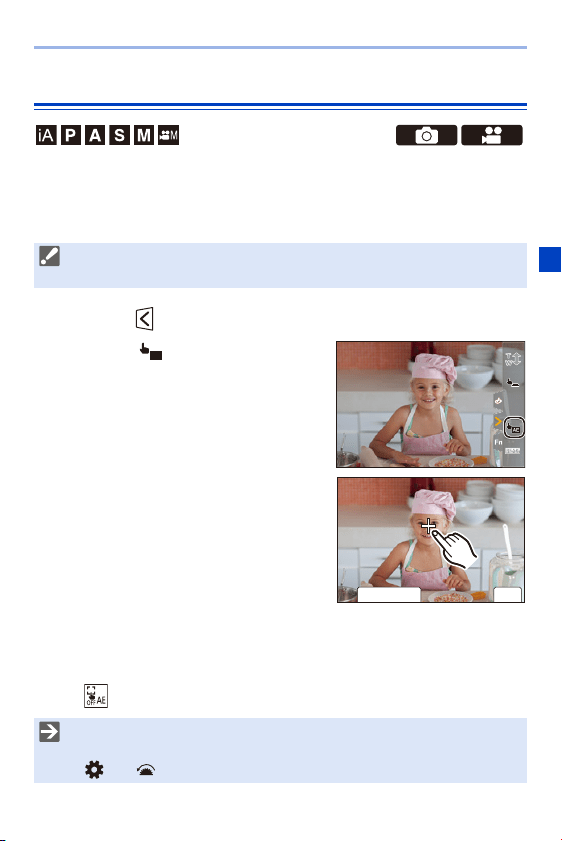
4. Easy Recording
81
Touch AE
This function adjusts the brightness according to a touched position.
When a subject’s face appears dark, you can make the screen brighter to
match the face.
1
Touch [ ].
2
Touch [ ].
≥The Touch AE settings screen
appears.
3
Touch the subject to which
you wish to adjust the
brightness.
0 To return the position to which to adjust
the brightness to the center, touch
[Reset].
4
Touch [Set].
How to Disable Touch AE
Touch [ ].
0 With the default settings, the Touch Tab is not displayed.
Set [Touch Tab] to [ON] in [Touch Settings]. (l
333)
0 You can also adjust both the focus and brightness to those of the position you
touch. (At this time, Touch AE is not available):
[]
¨ [ ] ¨ [Touch Settings] ¨ [Touch AF] ¨ [AF+AE] (l 113)
×
×
AE
ュリヴヱハ
6HW
5HVHW
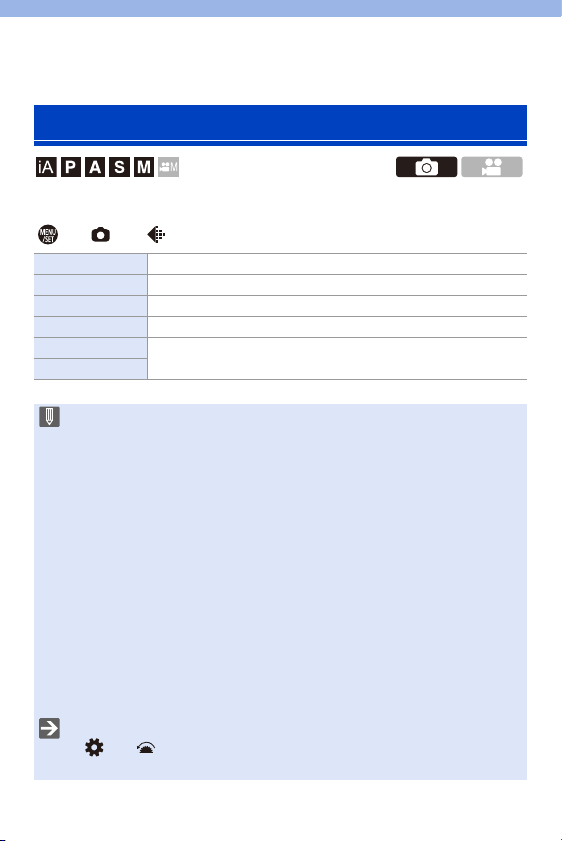
82
5. Image Recording
You can select the image aspect ratio.
¨ [ ] ¨ [ ] ¨ Select [Aspect Ratio]
[Aspect Ratio]
[4:3] Aspect ratio of a 4:3 monitor
[3:2] Aspect ratio of a standard film camera
[16:9] Aspect ratio of a 16:9 TV
[1:1] Square aspect ratio
[65:24]
Panoramic aspect ratio
[2:1]
0 [16:9] and [1:1] aspect ratios are not available when using the following
functions:
– 6K photo
– [Post-Focus] (when set to [6K 18M])
0 [65:24] and [2:1] aspect ratios are not available when using the following
functions:
– [iA] mode
– Taking burst pictures
– [6K/4K PHOTO]/[Post-Focus]
– [Time Lapse Shot]
– [Stop Motion Animation]
– [HLG Photo]
– [High Resolution Mode]
– [Filter Settings]
– [Multiple Exposure]
0 When using APS-C lenses, [65:24]/[2:1] are not available.
0 You can register functions to Fn buttons:
[]
¨ [ ] ¨ [Fn Button Set] ¨ [Setting in REC mode] ¨ [Aspect Ratio]
(l
278)
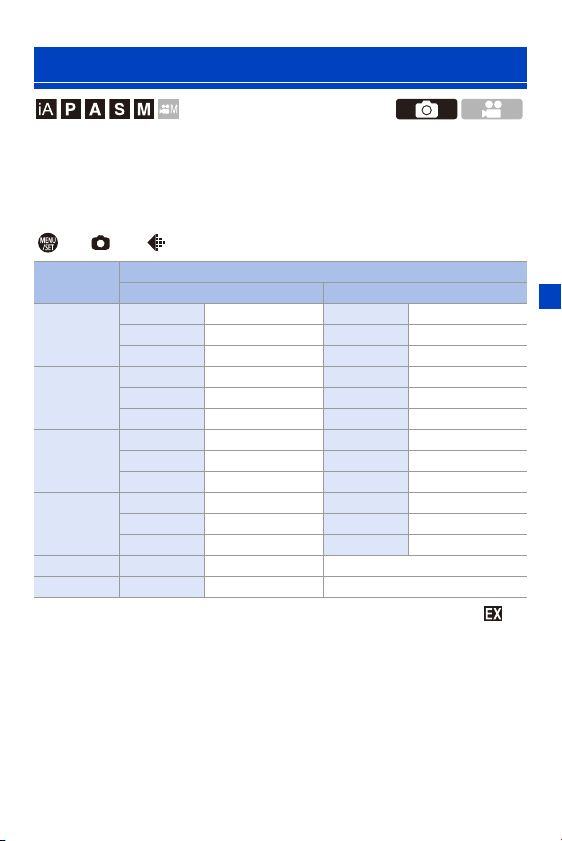
5. Image Recording
83
Sets the picture’s image size. The image size varies depending on the
[Aspect Ratio] or the lens used.
When an APS-C lens is used, the image area switches to the one for
APS-C, thereby narrowing the angle of view.
¨ [ ] ¨ [ ] ¨ Select [Picture Size]
0
When [Ex. Tele Conv.] is set, the [M] and [S] image sizes are indicated with [ ].
[Picture Size]
[Aspect
Ratio]
Picture size
When using full-frame lenses When using APS-C lenses
[4:3]
[L] (41.5M) 7440k5584 [L] (18M) 4880k3664
[M] (21M) 5296k3968 [M] (9M) 3472k2608
[S] (10.5M) 3792k2848 [S] (4.5M) 2480k1856
[3:2]
[L] (46.5M) 8368k5584 [L] (20M) 5504k3664
[M] (23.5M) 5952k3968 [M] (10M) 3920k2608
[S] (12M) 4272k2848 [S] (5M) 2784k1856
[16:9]
[L] (39.5M) 8368k4712 [L] (17M) 5504k3096
[M] (20M) 5952k3352 [M] (8M) 3840k2160
[S] (10M) 4272k2400 [S] (2M) 1920k1080
[1:1]
[L] (31M) 5584k5584 [L] (13.5M) 3664k3664
[M] (15.5M) 3968k3968 [M] (7M) 2608k2608
[S] (8M) 2848k2848 [S] (3.5M) 1856k1856
[65:24] [L] (26M) 8368k3088 s
[2:1] [L] (35M) 8368k4184 s

5. Image Recording
84
0 [Picture Size] is not available when the following functions are being used:
– [6K/4K PHOTO]/[Post-Focus]
– [RAW] ([Picture Quality])
– [High Resolution Mode]
– [Multiple Exposure]
0 You can register functions to Fn buttons:
[]
¨ [ ] ¨ [Fn Button Set] ¨ [Setting in REC mode] ¨ [Picture Size]
(l
278)
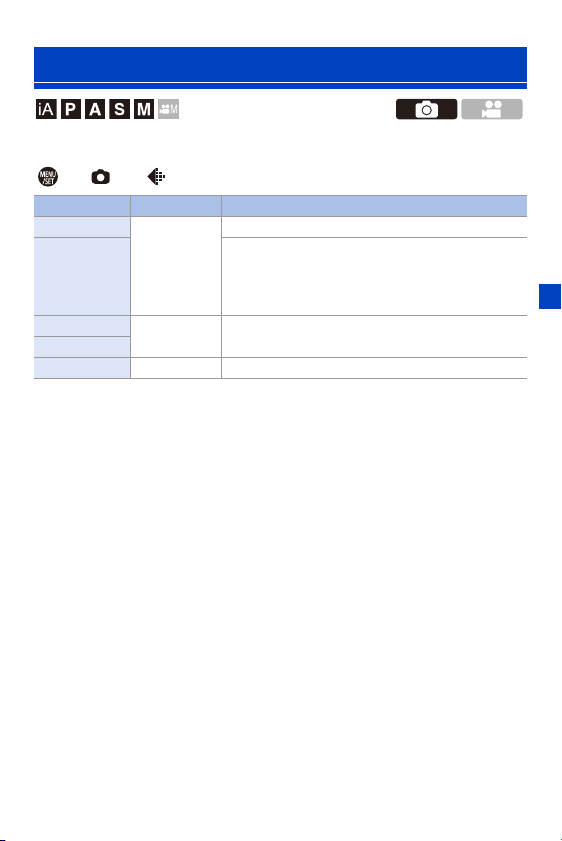
5. Image Recording
85
Set the compression rate used for storing pictures.
¨ [ ] ¨ [ ] ¨ Select [Picture Quality]
[Picture Quality]
Setting File format Settings details
[FINE]
JPEG
JPEG images that give priority to image quality.
[STD.]
JPEG images of standard image quality.
This is useful for increasing the number of
recordable pictures without changing the picture
size.
[RAWrFINE]
RAWiJPEG
This records RAW and JPEG images ([FINE] or
[STD.]) simultaneously.
[RAWrSTD.]
[RAW] RAW This records RAW images.

5. Image Recording
86
Note on RAW
RAW format refers to a data format of images that have not been processed on
the camera.
Playback and editing of RAW images require the camera or the dedicated
software.
0 You can process RAW images on the camera. (l
271)
0 Use software (“SILKYPIX Developer Studio” by Ichikawa Soft Laboratory) to
process and edit RAW files on a PC. (l
430)
0 Pictures taken with [RAW] cannot be displayed enlarged to the maximum
magnification during playback.
Take pictures with [RAWiFINE] or [RAWiSTD.] if you want to check their
focus on the camera after recording.
0 RAW images are always recorded in the [L] size of the [3:2] aspect ratio.
0 When you delete an image recorded with [RAWiFINE] or [RAWiSTD.] on
the camera, both the RAW and JPEG images will be deleted simultaneously.
0 [Picture Quality] is not available when the following functions are being used:
– [6K/4K PHOTO]/[Post-Focus]
– [High Resolution Mode]
– [Multiple Exposure]
0 You can register functions to Fn buttons:
[]
¨ [ ] ¨ [Fn Button Set] ¨ [Setting in REC mode] ¨ [Picture Quality]
(l
278)
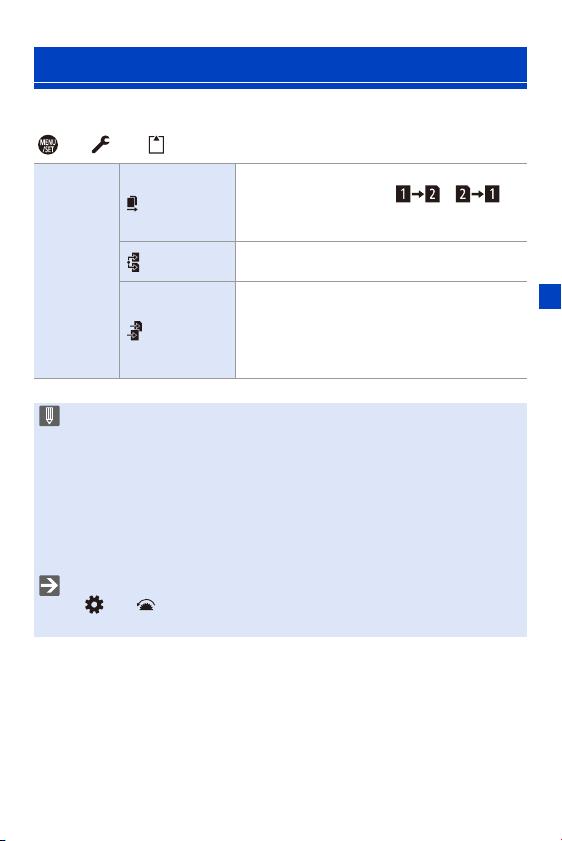
5. Image Recording
87
This sets the way recording to the card slots 1 and 2 is performed.
¨ [ ] ¨ [ ] ¨ Select [Double Card Slot Function]
[Double Card Slot Function]
[Recording
Method]
[Relay Rec]
Selects the priority of card slots for recording.
[Destination Card Slot]: [ ]/[ ]
Relays recording to the card in the other card
slot after the first card runs out of free space.
[Backup
Rec]
Records the same images to both cards
simultaneously.
[Allocation
Rec]
Allows you to specify the card slot to be used for
recording for different image formats.
[JPEG/HLG Photo Destn.]/[RAW Destination]/
[6K/4K Photo Destination]/[Video
Destination]
0 The double slot function is not available for AVCHD videos, as these cannot
be recorded to card slot 1 (XQD card).
Notes about Backup Recording
0 We recommend using cards of the same capacity.
0 When using the following combinations of cards, recording videos, 6K/4K
photos, and recording with [Post-Focus] are not available:
– SDXC memory card and XQD card of 32 GB or less
– SD memory card or SDHC memory card, and XQD card over 32 GB
0 You can register card switching of [Destination Card Slot] to the Fn button:
[]
¨ [ ] ¨ [Fn Button Set] ¨ [Setting in REC mode] ¨ [Destination
Card Slot] (l
278)
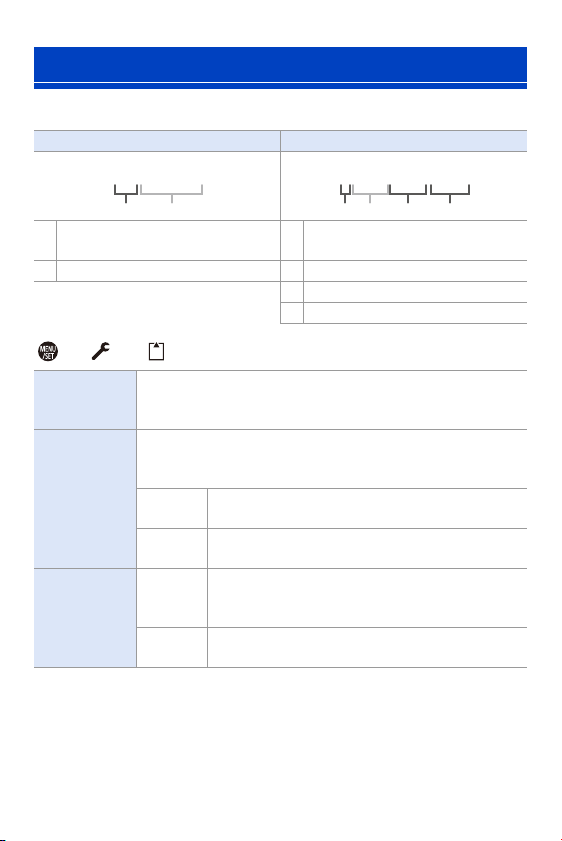
5. Image Recording
88
Set the folder and file name where to save the images.
¨ [ ] ¨ [ ] ¨ Select [Folder / File Settings]
¢ When [Double Card Slot Function] is set to [Allocation Rec], [Select Folder (Slot
1(XQD))] and [Select Folder (Slot 2(SD))] will be displayed.
0 Follow the steps on page
369 when the character entry screen is displayed.
Available characters: alphabetic characters (upper-case), numerals, [ _ ]
[Folder / File Settings]
Folder name File name
1 Folder number (3 digits, 100 to 999) 3
Color space
([P]: sRGB, [ _ ]: AdobeRGB)
2 5-character user-defined segment 4 3-character user-defined segment
5 File number (4 digits, 0001 to 9999)
6 Extension
[Select
Folder]
¢
Selects a folder for storing images.
0 The folder name and the number of files that can be stored will
be indicated.
[Create a New
Folder]
Creates a new folder with an incremented folder number.
0 If there are no recordable folders in the card, a screen for
resetting the folder number is displayed.
[OK]
Increments the folder number without changing the
5-character user-defined segment (2 above).
[Change]
Changes the 5-character user-defined segment
(2 above). This will also increment the folder number.
[File Name
Setting]
[Folder
Number
Link]
Uses the 3-character user-defined segment
(4 above) to set the folder number (1 above).
[User
Setting]
Changes the 3-character user-defined segment
(4 above).
100ABCDE
PABC0001.JPG

5. Image Recording
89
0 Each folder can store up to 1000 files.
0 File numbers are assigned sequentially from 0001 to 9999 in the order of
recording.
If you change the storage folder, a number continuing on from the last file
number will be assigned.
0 In the following cases, a new folder with an incremented folder number will be
created automatically when the next file is saved:
– The number of files in the current folder reaches 1000.
– The file number reaches 9999.
0 New folders cannot be created when there are folders numbered from 100 all
the way up to 999.
We recommend backing up your data and formatting the card.
0 [Select Folder] is not available when [Backup Rec] in [Double Card Slot
Function] is being used.

5. Image Recording
90
Resets the file number of the next recording to 0001.
¨ [ ] ¨ [ ] ¨ Select [File Number Reset]
Settings: [Card Slot 1(XQD)]/[Card Slot 2(SD)]
[File Number Reset]
0 When recording is performed after resetting this item, the folder number is
updated and the file number starts from 0001.
0 Folder numbers from 100 to 999 can be assigned.
When the folder number reaches 999, the file number cannot be reset.
We recommend backing up your data and formatting the card.
0 To reset the folder number to 100:
1 Perform [Card Format] to format the card.
2 Perform [File Number Reset] to reset the file number.
3 Select [Yes] on the folder number reset screen.
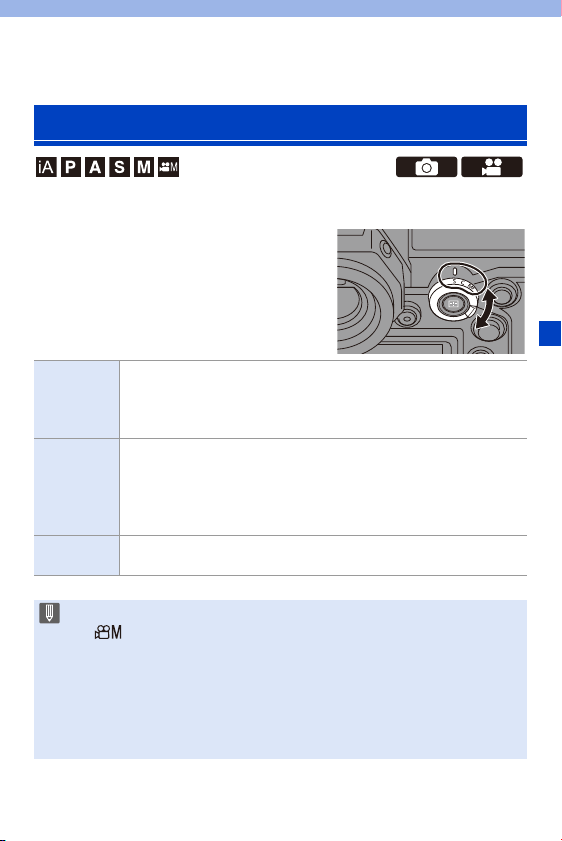
91
6. Focus/Zoom
Select the focusing method (focus mode) to match subject movement.
Set the focus mode lever.
Selecting the Focus Mode
[S]
([AFS])
This is suitable for recording still subjects.
While the shutter button is pressed halfway, this maintains a single
point of focus.
The focus stays locked while the shutter button is pressed halfway.
[C]
([AFC])
This is suitable for recording moving subjects.
While the shutter button is pressed halfway, the focus is constantly
adjusted according to the movement of the subject.
0 This predicts the movement of the subject, maintaining focusing.
(Movement prediction)
[MF]
Manual focusing. Use this when you want to fix the focus or avoid
activating AF. (l
117)
0 [AFC] works in the same manner as [AFS] in the following situations:
– [ ] mode
– In low light situations
0 When the following functions are being used, [AFC] switches to [AFS]:
– [65:24]/[2:1] ([Aspect Ratio])
– [High Resolution Mode]
0 When using [High Speed Video], [AFS] and [AFC] change to [MF].
0 This function is not available for Post-Focus recording.
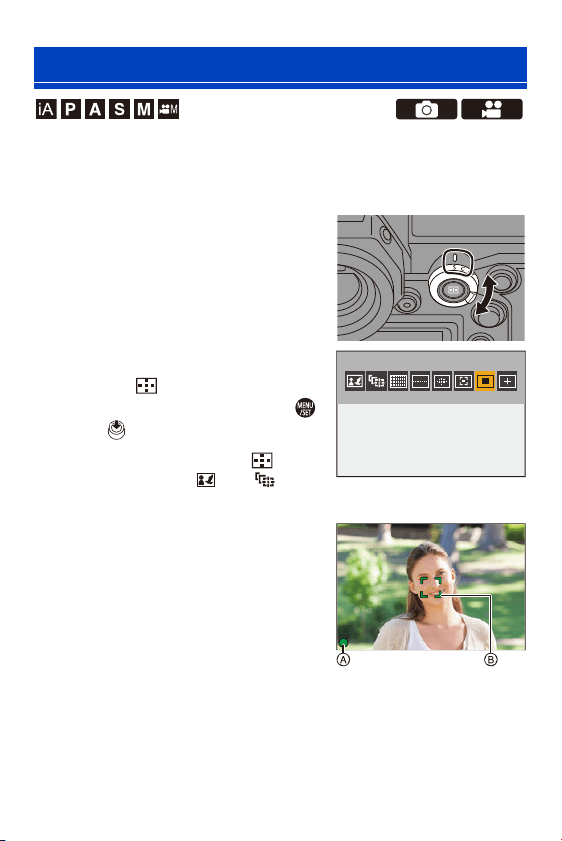
6. Focus/Zoom
92
AF (Auto Focus) refers to automatic focusing.
Select the focus mode and the AF mode appropriate for the subject and
scene.
1
Set the focus mode to [S] or
[C].
≥Set the focus mode lever. (l 91)
2
Select the AF mode.
≥Press [ ] to display the AF mode
selection screen, and set using
or . (l
98)
0
In [iA] mode, each press of [ ]
switches between [ ] and [ ].
(l
79)
3
Press the shutter button
halfway.
≥The AF operates.
0
If maintaining focus on the subject is
difficult during video recording with [AFC],
press the shutter button halfway again to
re-adjust the focus.
Using AF

6. Focus/Zoom
93
Low illumination AF
0
In dark environments, low illumination AF automatically operates, and the focus icon
is indicated as [ ].
0 Achieving focus may take more time than usual.
Starlight AF
0
If the camera detects stars in the night sky after determining low illumination AF, then
Starlight AF will be activated.
When focus is achieved, the focus icon will display [ ], and the AF area will be
displayed on the area in focus.
0 Edges of the screen cannot detect Starlight AF.
Focus
In focus Not in focus
Focus icon A Lights Blinking
AF area B Green Red
AF beep Two beeps —
LOW
STAR
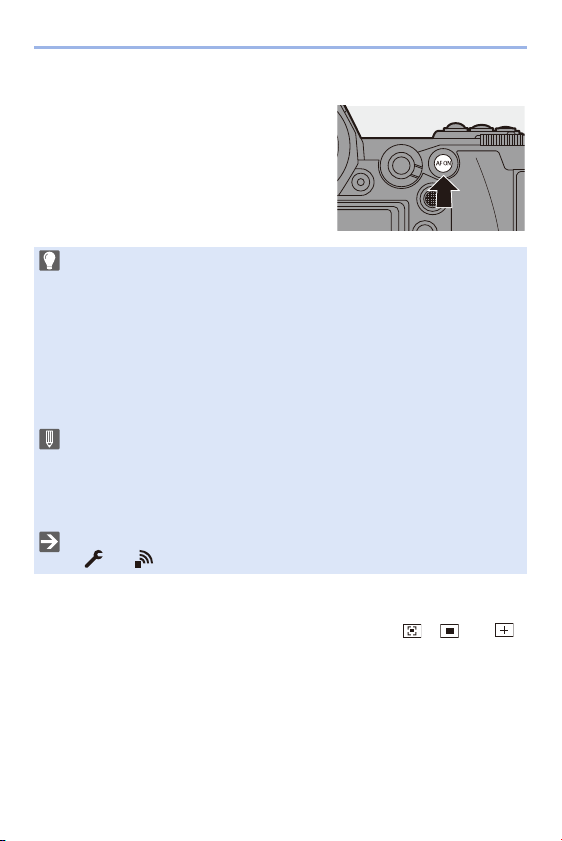
6. Focus/Zoom
94
[AF ON] button
You can also activate AF by pressing [AF ON].
Magnify the AF Area Position ([AF-Point Scope])
This magnifies the focus position when the AF mode is [ ], [ ], or [ ].
(In other AF modes, the center of the screen is magnified.)
This magnifies the subject, allowing you to check focus and observe an
enlarged subject as with a telephoto lens.
0
Use the Fn button registered with [AF-Point Scope] to operate. In default settings,
this is registered in [Fn1].
For information about the Fn button, refer to page
278.
Subjects and recording conditions that make focusing difficult with AF
mode
– Fast-moving subjects
– Extremely bright subjects
– Subjects without contrast
– Subjects recorded through windows
– Subjects near shiny objects
– Subjects in very dark locations
– When recording subjects both distant and near
0 When recording with [AFC], if you move the zoom from the wide-angle end to
the telephoto end, or suddenly reduce the distance to the subject, it may take
time to achieve focus.
0 If using the zoom after achieving focus, the focus may be erroneous. In that
case, re-adjust the focus.
0 The AF beep volume and sound can be changed:
[]
¨ [ ] ¨ [Beep] ¨ [AF Beep Volume]/[AF Beep Tone] (l 354)
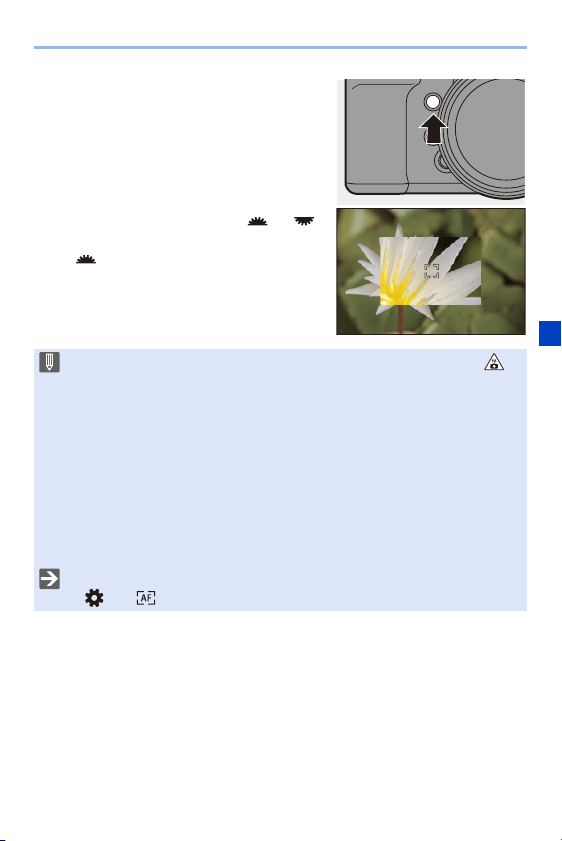
6. Focus/Zoom
95
On the recording screen, press and hold
[Fn1].
0
Part of the screen is displayed enlarged while
[Fn1] is pressed and held.
0 When the screen is enlarged, pressing the
shutter button halfway re-acquires focus in a
small central AF area.
0 When the screen is enlarged, turn or
to adjust the magnification.
Use for more detailed adjustments.
0 If the camera temperature rises under any of the following conditions, [ ]
may be displayed and use of AF Point Scope may not be possible.
Wait until the camera cools down.
– During continuous usage of AF Point Scope
– When the ambient temperature is high
0 When the screen is enlarged, [AFC] changes to [AFS].
0 When the following functions are being used, AF Point Scope cannot be used:
– Video recording/[6K/4K PHOTO]/[Post-Focus]
– [65:24]/[2:1] ([Aspect Ratio])
– [Miniature Effect] ([Filter Settings])
– [Multiple Exposure]
0 You can change the display method of the magnified screen:
[]
¨ [ ] ¨ [AF-Point Scope Setting] (l 332)
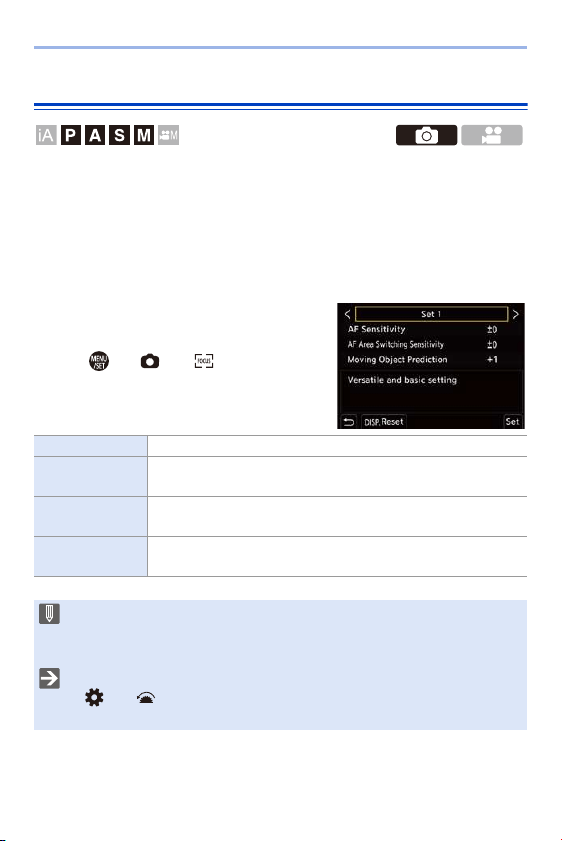
6. Focus/Zoom
96
[AF Custom Setting(Photo)]
Select features of AF operation when recording using [AFC] that are
appropriate for the subject and scene.
Each of these features can be further customized.
1
Set the focus mode to [AFC].
(l
91)
2
Set [AF Custom
Setting(Photo)].
≥ ¨ [ ] ¨ [ ] ¨ [AF Custom
Setting(Photo)]
[Set 1] Basic general-purpose setting
[Set 2]
Setting in which the subject moves in only one direction at a
constant speed
[Set 3]
Setting for scenes in which the subject moves in random
directions, and obstacles are likely to appear
[Set 4]
Setting for scenes where the speed of the subject changes
significantly
0 When the following function is being used, [AF Custom Setting(Photo)] is not
available:
– [6K/4K PHOTO]
0 You can register functions to Fn buttons:
[]
¨ [ ] ¨ [Fn Button Set] ¨ [Setting in REC mode] ¨ [AF Custom
Setting(Photo)] (l
278)

6. Focus/Zoom
97
Adjusting AF Custom Settings
1
Press 21 to select the AF Custom setting type.
2
Press 34 to select items and press 21 to adjust.
0
To reset settings to the default, press [DISP.].
3
Press or .
[AF Sensitivity]
Sets the tracking sensitivity for the movement of subjects.
i
When the distance to the subject changes drastically, the
camera re-adjusts the focus immediately. You can bring
different subjects into focus one after another.
j
When the distance to the subject changes drastically, the
camera waits for a short period of time before re-adjusting
the focus. This allows you to prevent the focus from being
accidentally re-adjusted when, for example, an object
moves across the image.
[AF Area
Switching
Sensitivity]
Sets the sensitivity for switching the AF area to match subject
movement.
(When in an AF mode where the AF area uses 225-area
focusing)
i
When the subject moves out of the AF area, the camera
immediately switches the AF area to keep the subject in
focus.
j
The camera switches the AF area at a gradual pace.
Effects caused by a slight movement of the subject or by
obstacles in front of the camera will be minimized.
[Moving Object
Prediction]
Sets the level of movement prediction for changes in the speed
of subject movement.
0 At larger setting values, the camera tries to maintain focus by
responding even to sudden movements of the subject.
However, the camera becomes more sensitive to slight
movements of the subject, so focusing may become unstable.
0 This is suited to a subject with minimal changes in speed.
i1
These are suited to a subject that changes its speed.
i2
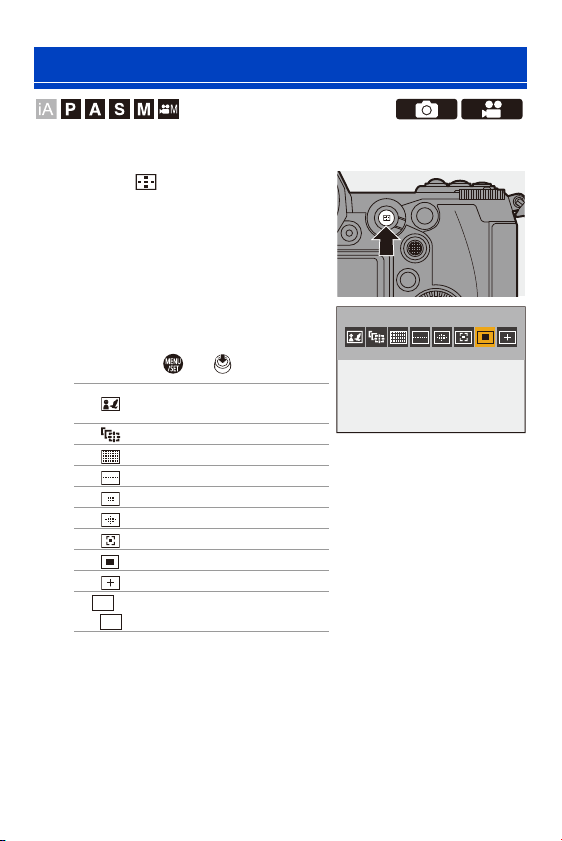
6. Focus/Zoom
98
Select the focusing method to match the position and number of subjects.
1
Press [ ].
≥The AF mode selection screen
appears.
2
Select the AF mode.
≥Press 21 to select an item and
then press or .
¢ This is not displayed with the default settings. From [Show/Hide AF Mode],
you can set the items to display on the selection screen. (l
331)
Selecting the AF Mode
[Face/Eye/Body/
Animal Detect.]
l
99
[Tracking] l 102
[225-Area] l 104
[Zone (Vert./ Horz.)] l 105
[Zone (Square)]
¢
l
105
[Zone (Oval)] l 105
[1-Area+] l 107
[1-Area] l 107
[Pinpoint] l 108
to [Custom1] to
[Custom3]
¢
l
110
ヤヒ
ヤピ
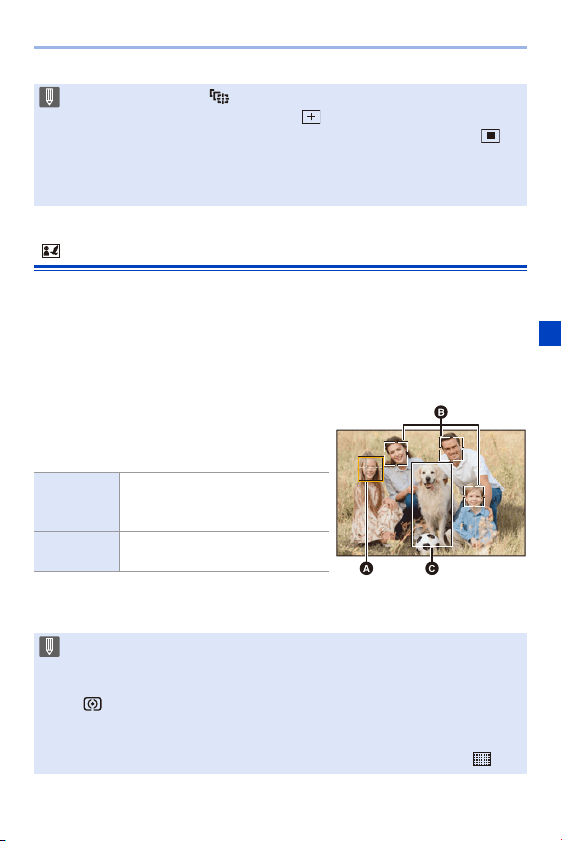
6. Focus/Zoom
99
[Face/Eye/Body/Animal Detect.]
The camera detects a person’s face, eyes, and body (entire body or upper
half of the body) and adjusts the focus.
With the default settings, animal detection will also operate, enabling
detection of animals, such as birds, canines (including wolves), and felines
(including lions).
When the camera detects a person’s face
(A/B) or body or an animal’s body (C), an
AF area is displayed.
0
Eye detection works only for the eyes inside the
yellow frame (A).
0 In [Time Lapse Shot], [ ] cannot be used.
0 When the focus mode is set to [AFC], [ ] is not available.
0 When the following functions are being used, the AF mode is fixed to [ ]:
– [65:24]/[2:1] ([Aspect Ratio])
– [Miniature Effect] ([Filter Settings])
0 The AF mode cannot be set when using Post-Focus.
Yellow
AF area to be brought into focus.
The camera selects this
automatically.
White
Displayed when multiple subjects
are detected.
0 When a person’s eyes are detected, the eye closer to the camera will be
brought into focus.
The exposure will be adjusted to the face. (When [Metering Mode] is set to
[])
0 The camera can detect the faces of up to 15 people.
0 The camera can detect a combined total of up to 3 human and animal bodies.
0 If any humans or animals are not detected, the camera operates as [ ].
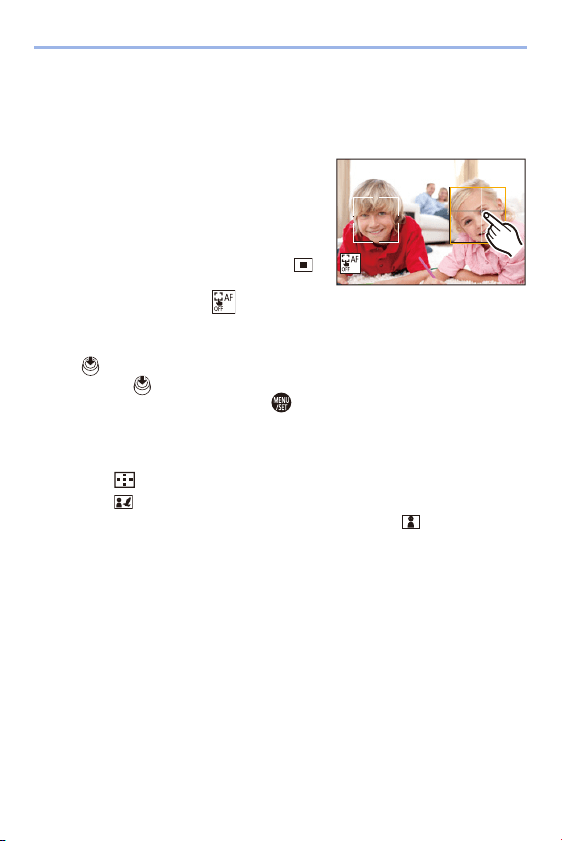
6. Focus/Zoom
100
Specify the Person, Animal, or Eye to Bring into Focus
When the person or animal to be brought into focus is shown using the
white AF area, you can change this to a yellow AF area.
≥Touch operation
Touch the person, animal or eye indicated
with the white AF area.
0
The AF area will change to yellow.
0 Touching outside the AF area displays the AF
area setting screen. Touch [Set] to set the [ ]
AF area at the position touched.
0 To cancel the setting, touch [ ].
≥Button operation
Press .
0
Each press of switches the person, animal or eye to be brought into focus.
0 To cancel the settings specified, press again.
Enable/Disable Animal Detection
1
Press [ ] to display the AF mode selection screen.
2
Select [ ] and then press 3.
0
This disables animal detection, and the icon changes to [ ].
0 Press 3 again to enable animal detection.
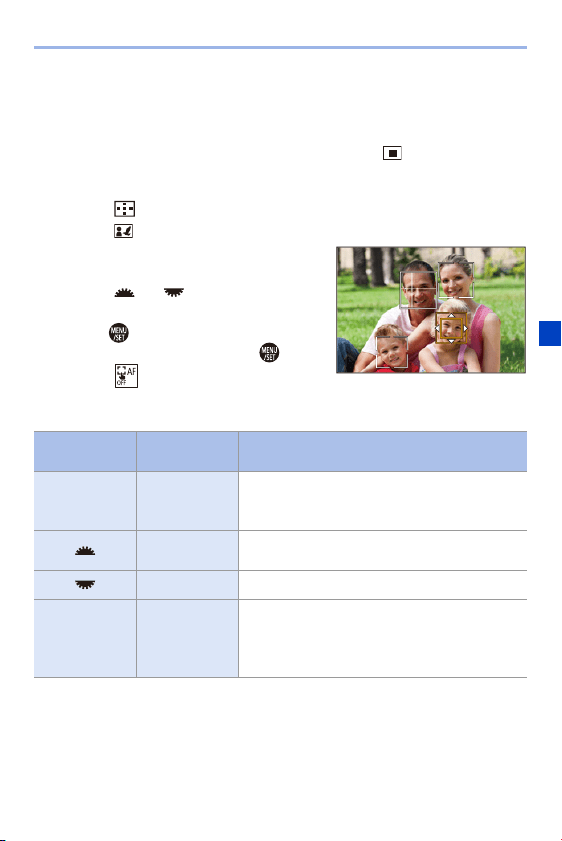
6. Focus/Zoom
101
Move and Change the Size of the Yellow AF Area
You can move the yellow AF area to the position of the white AF area and
replace the white AF area with the yellow AF area.
If moving to a position outside an AF area, then the [ ] AF area will be
set.
1
Press [ ] to display the AF mode selection screen.
2
Select [ ] and then press 4.
3
Press 3421 to move the position of
the AF area.
4
Rotate or to change the size
of the AF area.
5
Press .
0
On the recording screen, press , or
touch [ ] to cancel the AF area setting.
Operations on the AF area movement screen
Button
operation
Touch
operation
Description of operation
3421 Touch
Moves the AF area
0 Positions can be moved to the diagonal
directions using the joystick.
Pinch out/
pinch in
Enlarges/reduces the AF area in small steps.
s Enlarges/reduces the AF area.
[DISP.] [Reset]
First time: Returns the AF area position to the
center.
Second time: Returns the AF area size to the
default setting.
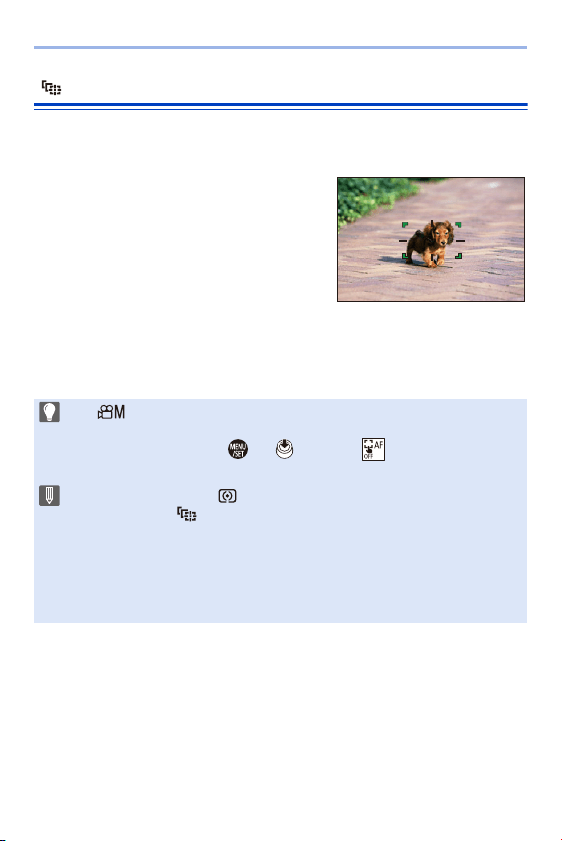
6. Focus/Zoom
102
[Tracking]
When the focus mode is set to [AFC], the AF area follows the movement of
the subject, maintaining focusing.
Start tracking.
≥Aim the AF area over the subject, and
press the shutter button halfway.
The camera will track the subject while
the shutter button is pressed halfway or
pressed fully.
0
The AF area turns red when tracking fails.
0 When the focus mode is set to [AFS], focus will be aligned with the AF area position.
Tracking will not work.
0 In [ ] mode, while recording video, and while recording with [6K/4K
Burst(S/S)], tracking will continue even if the shutter button is released.
To cancel tracking, press or , or touch [ ].
Tracking is also available with [AFS].
0 Set [Metering Mode] to [ ] to continue to adjust the exposure as well.
0 In the following, [ ] operates as [Ø]:
– [Monochrome]/[L.Monochrome]/[L.Monochrome D]/[Monochrome(HLG)]
([Photo Style])
– [Sepia]/[Monochrome]/[Dynamic Monochrome]/[Rough Monochrome]/[Silky
Monochrome]/[Soft Focus]/[Star Filter]/[Sunshine] ([Filter Settings])
– When the subject is small

6. Focus/Zoom
103
Move the Position of the AF Area
1
Press [ ] to display the AF mode selection screen.
2
Select [ ] and then press 4.
3
Press 3421 to move the position of the AF area.
0
Positions can be moved to the diagonal directions using the joystick.
0 You can also move the AF area by touching.
0 To return the position back to the center, press [DISP.].
4
Press .
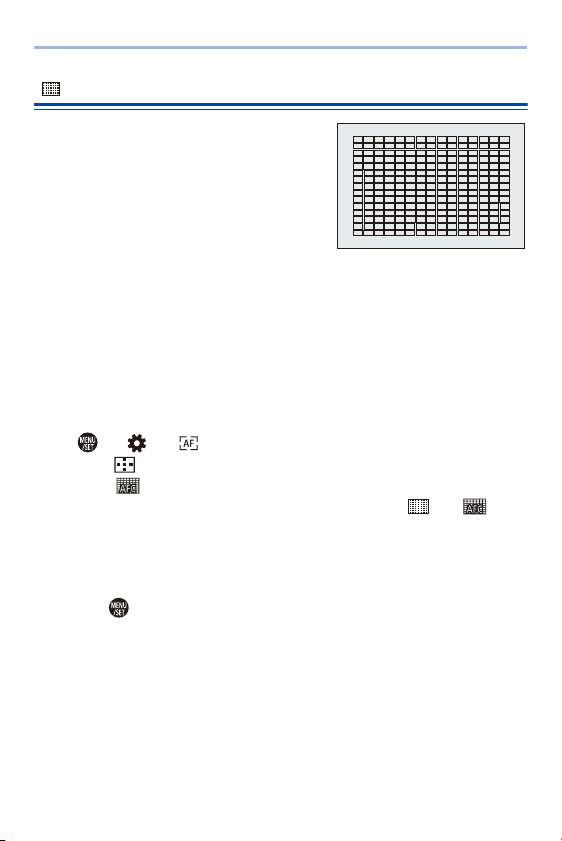
6. Focus/Zoom
104
[225-Area]
The camera selects the most optimal AF
area to focus from 225 areas. When
multiple AF areas are selected, all selected
AF areas will be brought into focus. When
the focus mode is set to [AFC], ensuring
that the subject stays within the 225 areas
during recording will ensure the subject
stays in focus.
Specify the [AFC] Start Point
When the focus mode is set to [AFC], you can specify at which area to start
[AFC].
1
Set the focus mode to [AFC]. (l
91)
2
Set [AFC Start Point (225-Area)] to [ON].
0
¨ [ ] ¨ [ ] ¨ [AFC Start Point (225-Area)] ¨ [ON]
3
Press [ ] to display the AF mode selection screen.
4
Select [ ] and then press 4.
0
After performing Steps 1 and 2, the icon changes from [ ] to [ ].
5
Press 3421 to move the position of the AF area.
0
Positions can be moved to the diagonal directions using the joystick.
0 You can also move the AF area by touching.
0 To return the position back to the center, press [DISP.].
6
Press .
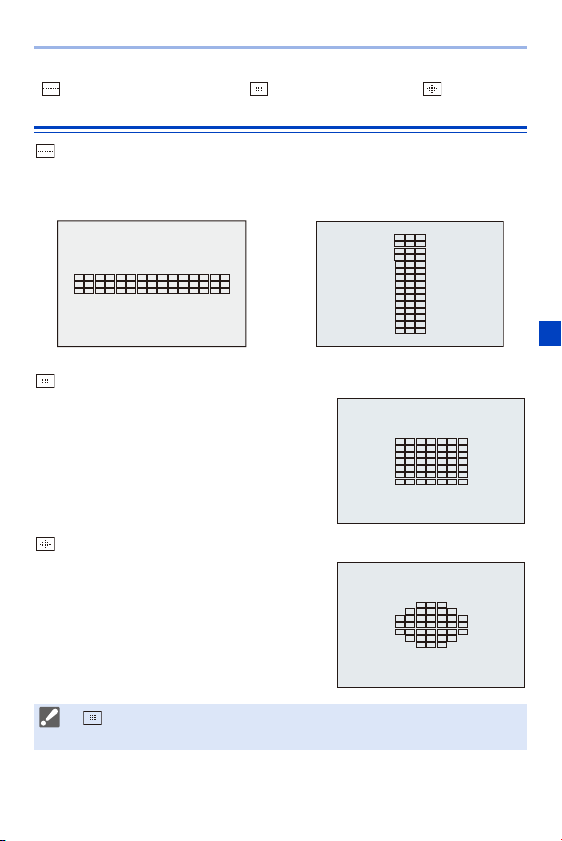
6. Focus/Zoom
105
[Zone (Vert./ Horz.)]/ [Zone (Square)]/ [Zone
(Oval)]
[Zone (Vert./ Horz.)]
From the 225 AF areas, vertical and horizontal zones can be focused.
[Zone (Square)]
From the 225 AF areas, a central square
zone can be focused.
[Zone (Oval)]
From the 225 AF areas, a central oval zone
can be focused.
Horizontal pattern Vertical pattern
0 [ ] is not displayed with default settings. Set [Zone (Square)] to [ON] in
[Show/Hide AF Mode]. (l
331)
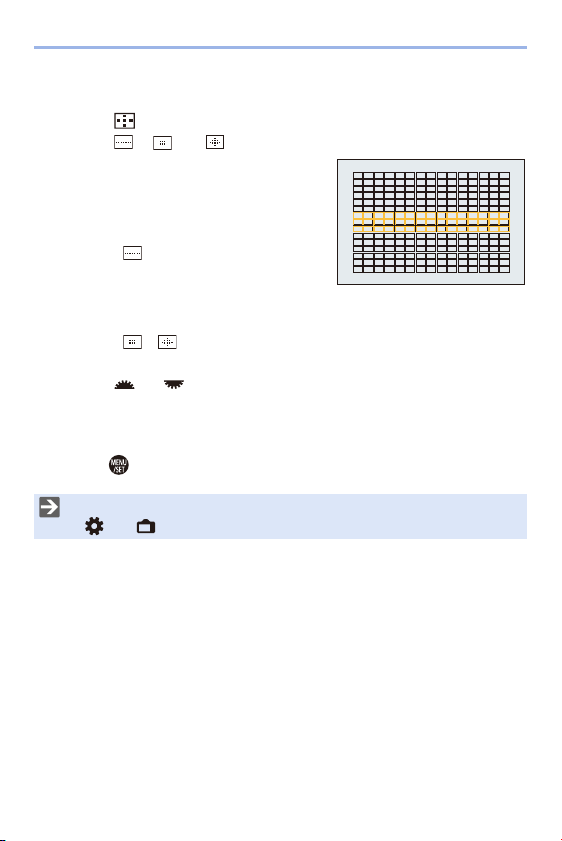
6. Focus/Zoom
106
Move and Change the Size of the AF Area
1
Press [ ] to display the AF mode selection screen.
2
Select [ ], [ ] or [ ] and then press 4.
3
Press 3421 to move the position of
the AF area.
0
You can also move the AF area by
touching.
≥When [ ] is selected
– Press 34 to switch to a horizontal
pattern AF area.
– Press 21 to switch to a vertical pattern AF area.
≥When [ ]/[ ] are selected
– Positions can be moved to the diagonal directions using the joystick.
4
Rotate or to change the size of the AF area.
0
You can also pinch out/pinch in the AF area to change the size.
0 The first press of [DISP.] returns the AF area position to the center. The second
press returns the size of the AF area to the default.
5
Press .
0 The display method for the AF area using 225-area focusing can be changed:
[]
¨ [ ] ¨ [AF Area Display] (l 341)
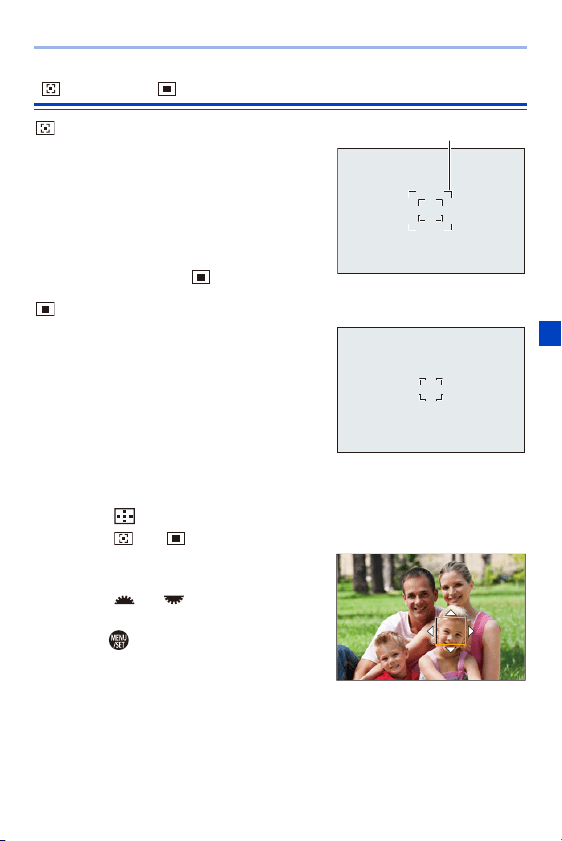
6. Focus/Zoom
107
[1-Area+]/ [1-Area]
[1-Area+]
Emphasis within a single AF area can be
focused.
Even when the subject moves out of the
single AF area, this remains focused in a
supplementary AF area (A).
0
Effective when recording moving subjects that
are difficult to track with [ ].
[1-Area]
Specify the position to be brought into
focus.
Move and Change the Size of the AF Area
1
Press [ ] to display the AF mode selection screen.
2
Select [ ] or [ ] and then press 4.
3
Press 3421 to move the position of
the AF area.
4
Rotate or to change the size
of the AF area.
5
Press .
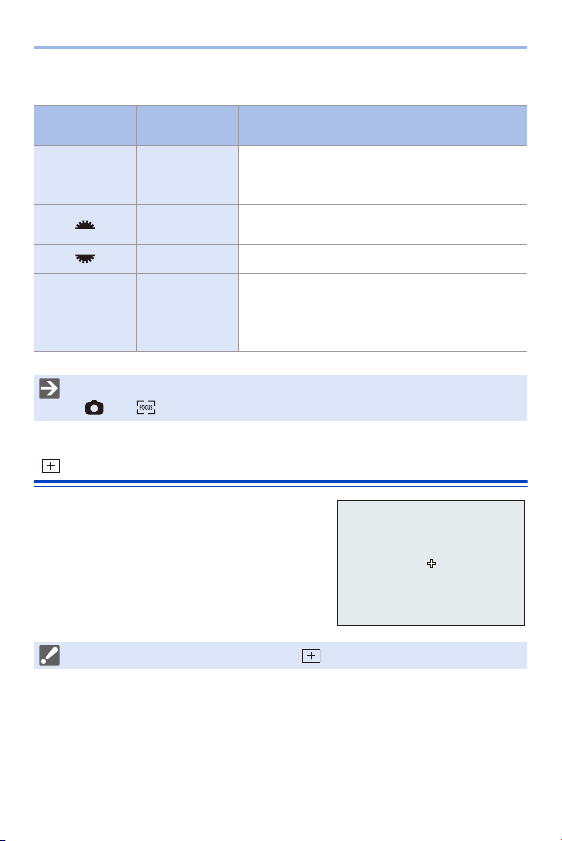
6. Focus/Zoom
108
Operations on the AF area movement screen
[Pinpoint]
You can achieve a more precise focus on a
small point.
If you press the shutter button halfway, the
screen that lets you check the focus will be
enlarged.
Button
operation
Touch
operation
Description of operation
3421 Touch
Moves the AF area
0 Positions can be moved to the diagonal
directions using the joystick.
Pinch out/
pinch in
Enlarges/reduces the AF area in small steps.
s Enlarges/reduces the AF area.
[DISP.] [Reset]
First time: Returns the AF area position to the
center.
Second time: Returns the AF area size to the
default setting.
0 Change the movement speed of a single AF area:
[]
¨ [ ] ¨ [1-Area AF Moving Speed] (l 311)
0 When the focus mode is set to [AFC], [ ] is not available.
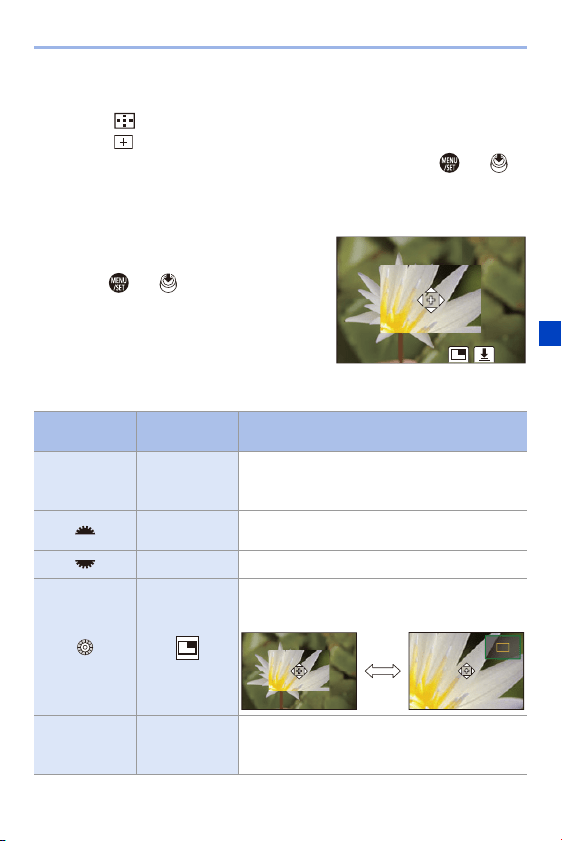
6. Focus/Zoom
109
Move the Position of the AF Area
1
Press [ ] to display the AF mode selection screen.
2
Select [ ] and then press 4.
3
Press 3421 to set the position of [i] and then press or .
0
Positions can be moved to the diagonal directions using the joystick.
0 The selected position on the screen will be enlarged.
0 The AF area cannot be moved to the edge of the screen.
4
Press 3421 to fine-adjust the
position of [i].
5
Press or .
Operations on the Magnification Window
Button
operation
Touch
operation
Description of operation
3421 Touch
Moves [i].
0 Positions can be moved to the diagonal
directions using the joystick.
Pinch out/
pinch in
Enlarges/reduces the screen in small steps.
s Enlarges/reduces the screen.
Switches magnification window (windowed
mode/full screen mode).
[DISP.] [Reset]
First time: Returns to the screen in Step
3
.
Second time: Returns the AF area position to
the center.
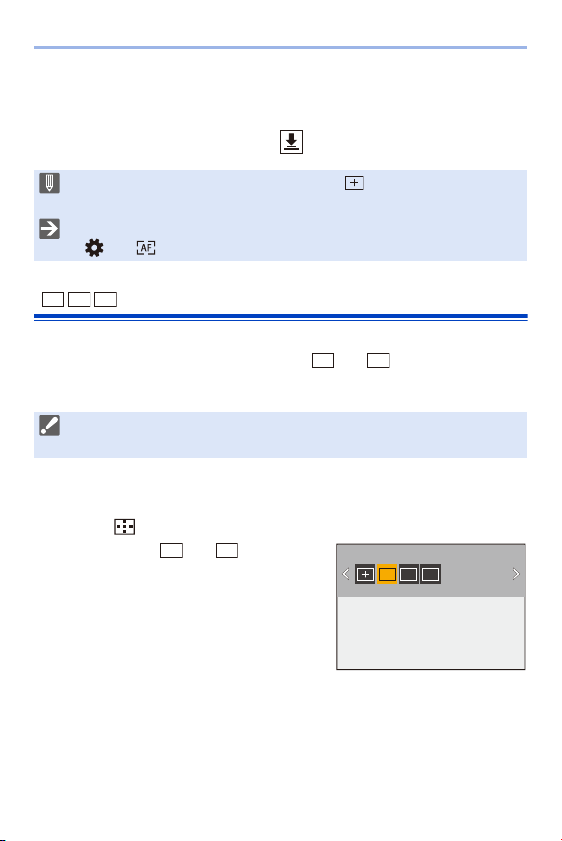
6. Focus/Zoom
110
0 When the picture is displayed in windowed mode, you can enlarge the picture by
approx. 3k to 6k; when the picture is displayed in full screen, you can enlarge the
picture by approx. 3k to 10k.
0 You can also take a picture by touching [ ].
[Custom1] to [Custom3]
The shape of the AF area can be set freely in the 225 AF areas.
The set AF area can be registered using [ ] to [ ].
The AF area can also be moved while maintaining the set shape.
Register the AF Area Shape
1
Press [ ] to display the AF mode selection screen.
2
Select one of [ ] to [ ] and then
press 3.
0 When the following functions are being used, [ ] switches to [Ø]:
– Video recording/[6K/4K PHOTO]
0 You can change the display method of the magnified screen:
[]
¨ [ ] ¨ [Pinpoint AF Setting] (l 331)
0 This is not displayed with default settings. In [Show/Hide AF Mode], set
[Custom1] to [Custom3] to [ON]. (l
331)
ヤヒ
ヤビ
ヤピ
ヤヒ
ヤピ
ヤヒヤビヤピ
ヤヒ
ヤピ
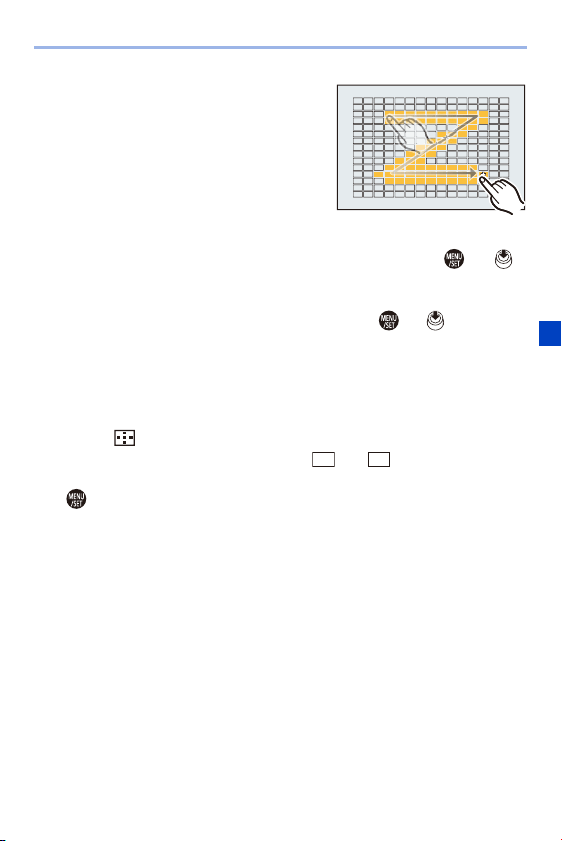
6. Focus/Zoom
111
3
Select the AF area.
≥Touch operation
Touch the area to make the AF area.
0
To select consecutive points, drag the
screen.
0 To cancel selection of the selected AF
area, touch it again.
≥Button operation
Press 3421 to select the AF area and then set with or .
(Repeat this)
0
Positions can be moved to the diagonal directions using the joystick.
0 To cancel selection of the selected AF area, press or again.
0 To cancel all selections, press [DISP.].
4
Press [Q].
Move the Position of the AF Area
1
Press [ ] to display the AF mode selection screen.
2
Select a registered AF mode shape ([ ] to [ ]) and then press 4.
3
Press 3421 to move the position of the AF area and then press
.
0
Positions can be moved to the diagonal directions using the joystick.
0 Press [DISP.] to return the [i] position to the center.
ヤヒ
ヤピ
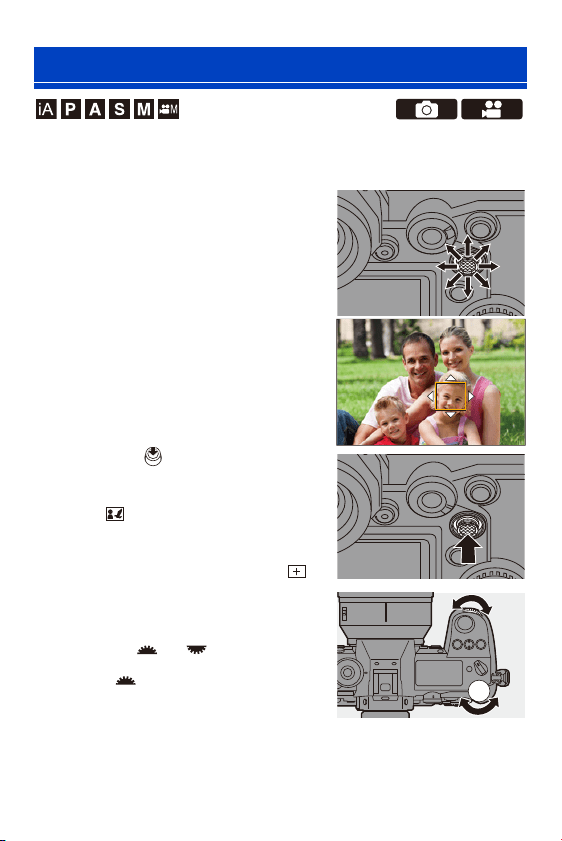
6. Focus/Zoom
112
In default settings, you can use the joystick to directly move and change
the size of the AF area when recording.
1
Move the position of the AF
area.
≥On the recording screen, tilt the
joystick.
0
Pressing enables switching
between the default and set AF area
positions.
In [ ], this operation switches the
person, animal or eye to be brought into
focus.
Display the magnified screen with [ ].
2
Change the size of the AF
area.
≥Rotate or .
0
Use for more detailed adjustments.
0 The first press of [DISP.] returns the AF
area position to the center. The second
press returns the size of the AF area to the default.
AF Area Movement Operation
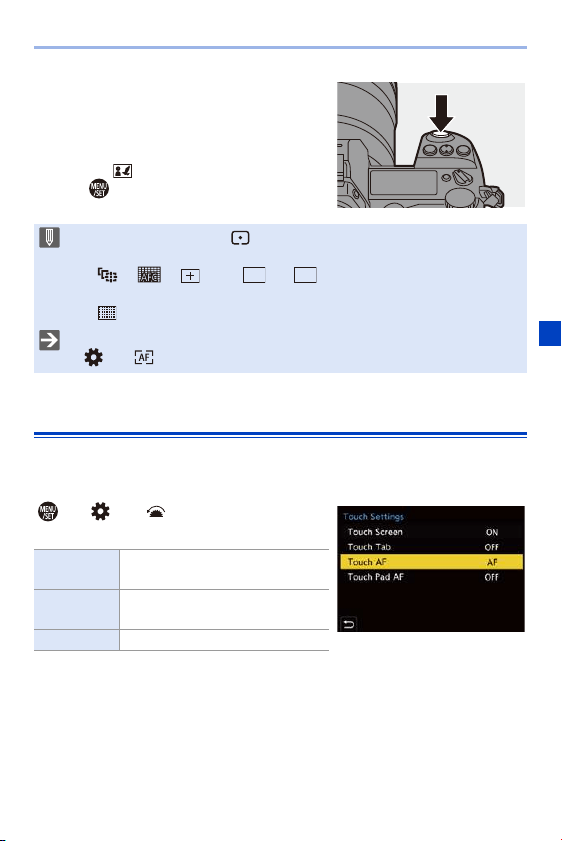
6. Focus/Zoom
113
3
Confirm your selection.
≥Press the shutter button halfway.
≥Return to the recording screen.
0
For [ ], on the recording screen, press
to cancel the AF area setting.
Moving the AF Area by Touch
You can move the AF area to a touched position on the monitor.
You can also change the size of the AF area.
¨ [ ] ¨ [ ] ¨ [Touch Settings] ¨
Select [Touch AF]
0 When [Metering Mode] is [ ], the metering target also moves together with
the AF area.
0 In [ ], [ ], [ ], and [ ] to [ ], the size of the AF area cannot be
changed.
0 In [ ], moving the AF area and changing the size are not possible.
0 You can set the AF area to loop when moved:
[]
¨ [ ] ¨ [Looped Focus Frame] (l 333)
[AF]
This focuses on the touched
subject.
[AF+AE]
This focuses on and adjusts
brightness for the touched subject.
[OFF] —
ヤヒヤピ
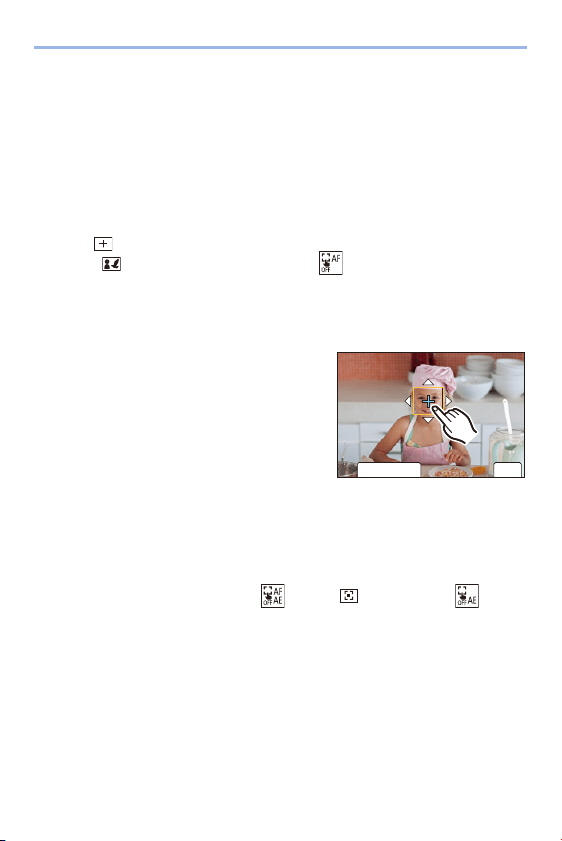
6. Focus/Zoom
114
Focus on the Touched Position ([AF])
1
Touch the subject.
0
Moves the AF area to the touched position.
2
Pinch in/pinch out to change the AF area size.
0
The first touch of [Reset] returns the AF area position to the center. The second
press returns the size of the AF area to the default.
3
Touch [Set].
0
In [ ], touch [Exit].
0 For [ ], on the recording screen, touch [ ] to cancel the AF area setting.
Focus on and Adjust Brightness for the Touched Position
([AF+AE])
1
Touch the subject to which you wish to
adjust the brightness.
0
At the touched position, an AF area that
works in the same way as [Ø] is
displayed.
This places a point to adjust brightness at
the center of the AF area.
2
Pinch in/pinch out to change the AF
area size.
0
The first touch of [Reset] returns the AF area position to the center. The second
press returns the size of the AF area to the default.
3
Touch [Set].
0
On the recording screen, touch [ ] (when [ ] or [Ø] is set: [ ]) to
cancel the [AF+AE] setting.
6HW
ュリヴヱハ
5HVHW
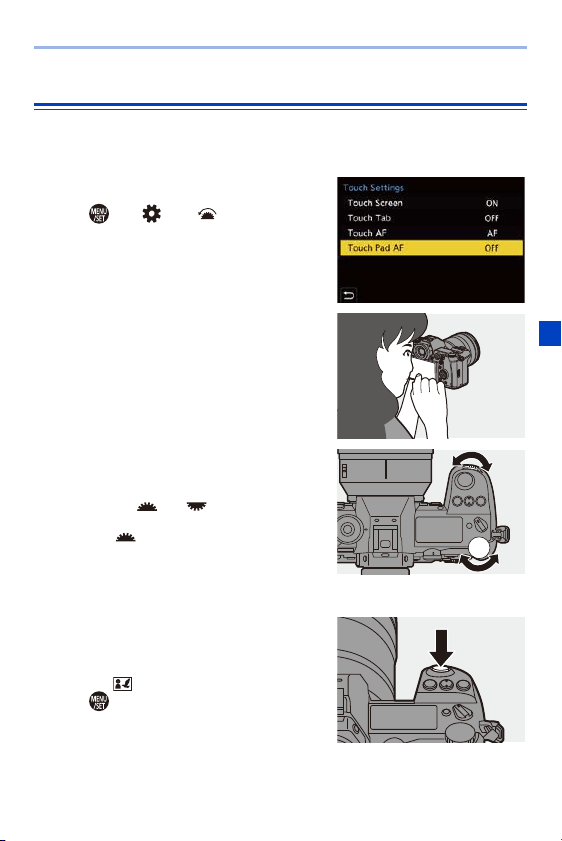
6. Focus/Zoom
115
Moving the AF Area Position with the Touch Pad
During viewfinder display, you can touch the monitor to change the position
and size of the AF area.
1
Set [Touch Pad AF].
≥ ¨ [ ] ¨ [ ] ¨ [Touch
Settings]
¨ [Touch Pad AF] ¨
[EXACT]/[OFFSET]
2
Move the position of the AF
area.
≥During viewfinder display, touch the
monitor.
3
Change the size of the AF
area.
≥Rotate or .
0
Use for more detailed adjustments.
0 The first press of [DISP.] returns the AF
area position to the center. The second
press returns the size of the AF area to the default.
4
Confirm your selection.
≥Press the shutter button halfway.
0
For [ ], on the recording screen, press
to cancel the AF area setting.
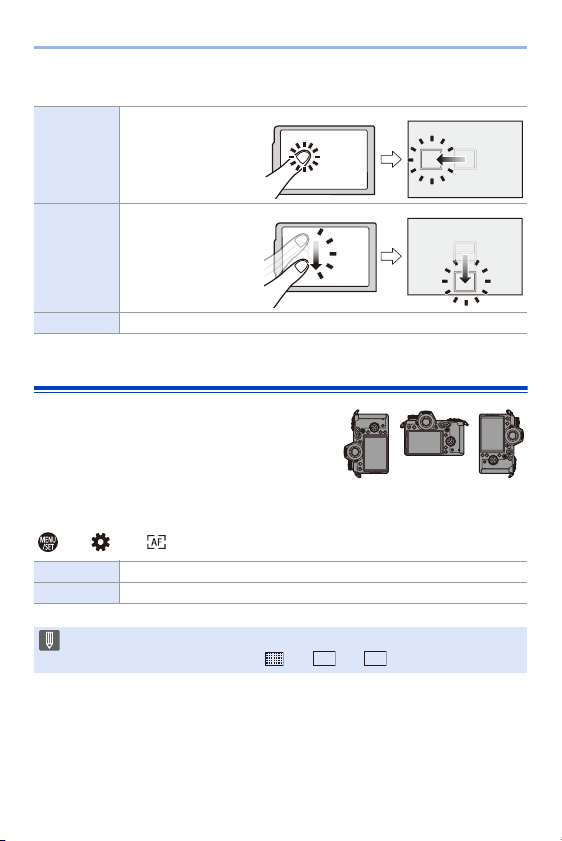
6. Focus/Zoom
116
Setting Items ([Touch Pad AF])
[Focus Switching for Vert / Hor]
Memorizes separate positions for AF areas
for when the camera is vertically aligned and
for when it is horizontally aligned.
Two vertical orientations, left and right, are
available.
¨ [ ] ¨ [ ] ¨ Select [Focus Switching for Vert / Hor]
[EXACT]
Moves the AF area of
the viewfinder by
touching a desired
position on the touch
pad.
[OFFSET]
Moves the AF area of
the viewfinder
according to the
distance you drag the
touch pad.
[OFF] —
[ON] Memorizes separate positions for vertical and horizontal orientations.
[OFF] Sets the same position for vertical and horizontal orientations.
0 In MF, this memorizes the MF Assist display position.
0 This does not work when using [ ] or [ ] to [ ].
ヤヒ
ヤピ
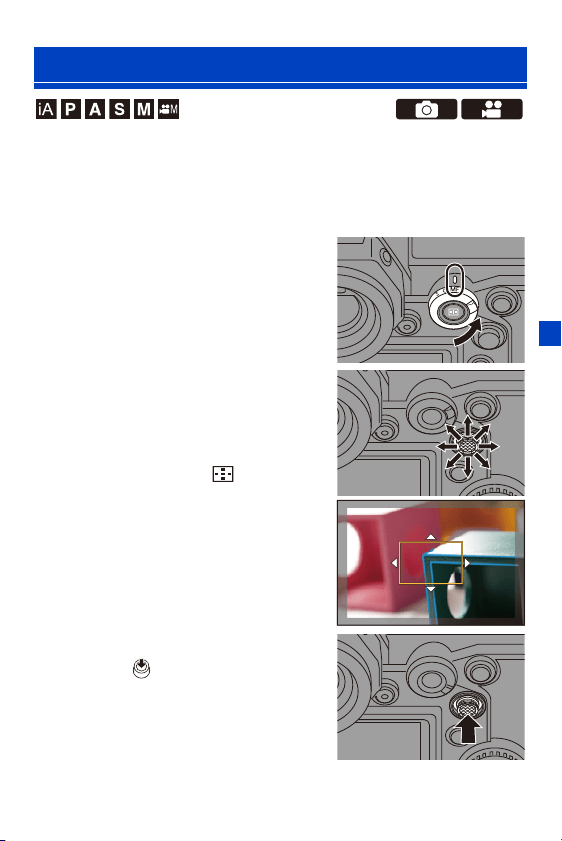
6. Focus/Zoom
117
MF (Manual Focus) refers to manual focusing.
Use this function when you want to fix the focus or when the distance
between the lens and the subject is determined and you do not want to
activate AF.
1
Set the focus mode lever to
[MF].
2
Select the point to be brought
into focus.
≥Tilt the joystick to select the point to
bring into focus.
≥Even by pressing [ ], you can
display the focus position
movement screen.
0
To return the position to be brought into
focus to the center, press [DISP.].
3
Confirm your selection.
≥Press .
≥This switches to the MF Assist
screen, and shows an enlarged
display.
Record Using MF
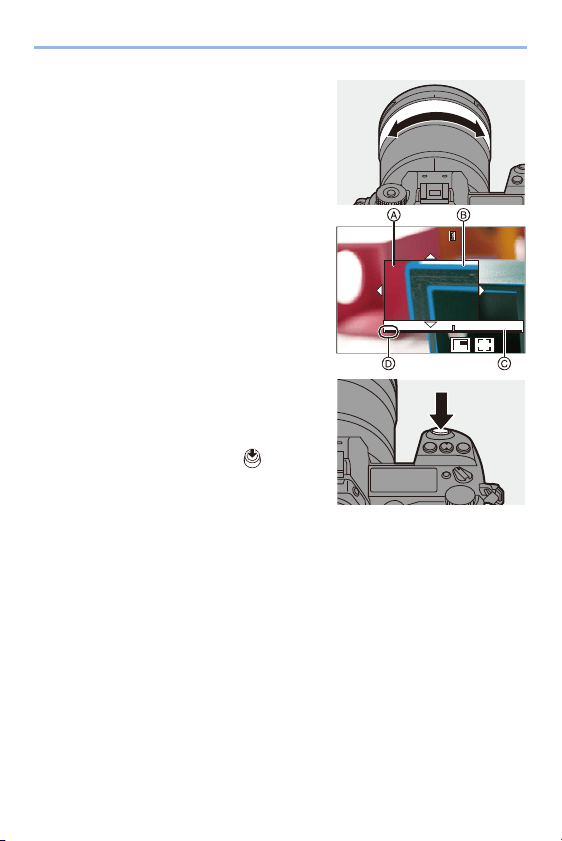
6. Focus/Zoom
118
4
Adjust the focus.
≥Rotate the focus ring.
A MF Assist (enlarged screen)
0 This will display the in-focus portion
highlighted with color. (Peaking B)
0 A recording distance guideline is
displayed.
(MF Guide C)
D Indicator for ¶ (infinity)
5
Close the MF Assist screen.
≥Press the shutter button halfway.
≥This operation can also be
performed by pressing .
6
Start recording.
≥Press the shutter button fully.
AF
∞
30(ft)15 10 7 5 3 2 4"
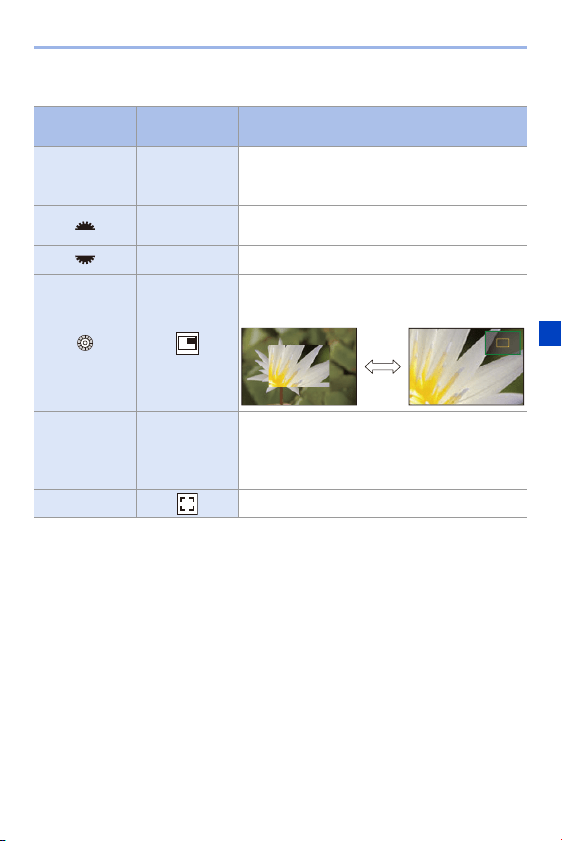
6. Focus/Zoom
119
Operations on the MF Assist Screen
0 When the picture is displayed in windowed mode, you can enlarge the picture by
approx. 3k to 6k; when the picture is displayed in full screen, you can enlarge the
picture by approx. 3k to 20k.
Button
operation
Touch
operation
Description of operation
3421 Drag
Moves the enlarged display position.
0 Positions can be moved to the diagonal
directions using the joystick.
Pinch out/
pinch in
Enlarges/reduces the screen in small steps.
s Enlarges/reduces the screen.
Switches magnification window (windowed
mode/full screen mode).
[DISP.] [Reset]
First time: Returns the MF Assist position to the
center.
Second time: Returns the MF Assist size to the
default setting.
[AF ON] The AF operates.
AF
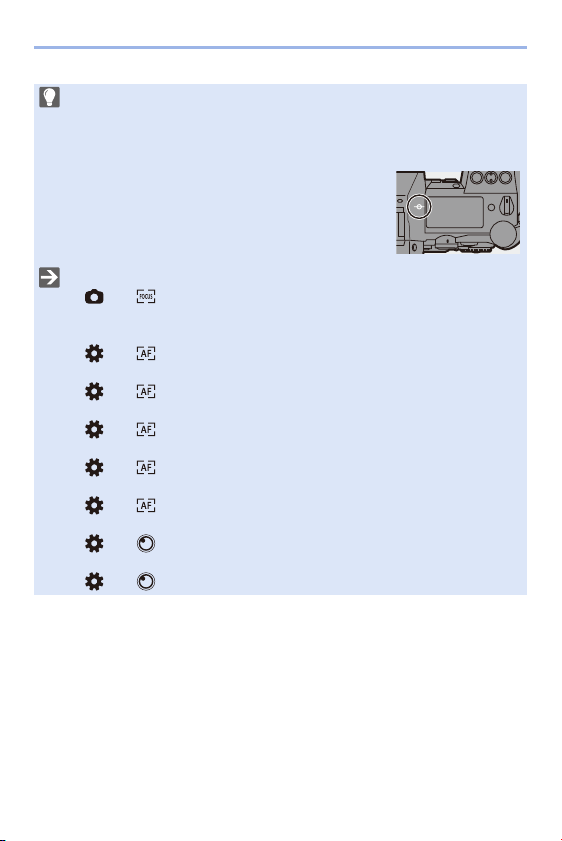
6. Focus/Zoom
120
0 On the recording screen, you can rotate the focus ring to display the MF Assist
screen. If you have enlarged the picture by rotating the focus ring, the assist
screen will close approx. 10 seconds after the operation.
0 During MF, pressing [AF ON] will activate AF.
0 The recording distance reference mark is a mark
used to measure the focus distance.
Use this when taking pictures with MF or taking
close-up pictures.
0 Change the peaking sensitivity and the display method:
[]
¨ [ ] ¨ [Focus Peaking] (l 310)
0 Memorizes the MF Assist position separately for vertical and horizontal
orientations:
[]
¨ [ ] ¨ [Focus Switching for Vert / Hor] (l 116)
0 You can change the display method of the magnified screen:
[]
¨ [ ] ¨ [MF Assist] (l 330)
0 Change the MF Guide display method:
[]
¨ [ ] ¨ [MF Guide] (l 330)
0 Disable focus ring operation:
[]
¨ [ ] ¨ [Focus Ring Lock] (l 330)
0 Set the movement of the MF Assist position to loop:
[]
¨ [ ] ¨ [Looped Focus Frame] (l 333)
0 The camera memorizes the focus position when you turn it off:
[]
¨ [ ] ¨ [Lens Focus Resume] (l 348)
0 The amount of focus movement can be set:
[]
¨ [ ] ¨ [Focus Ring Control] (l 348)
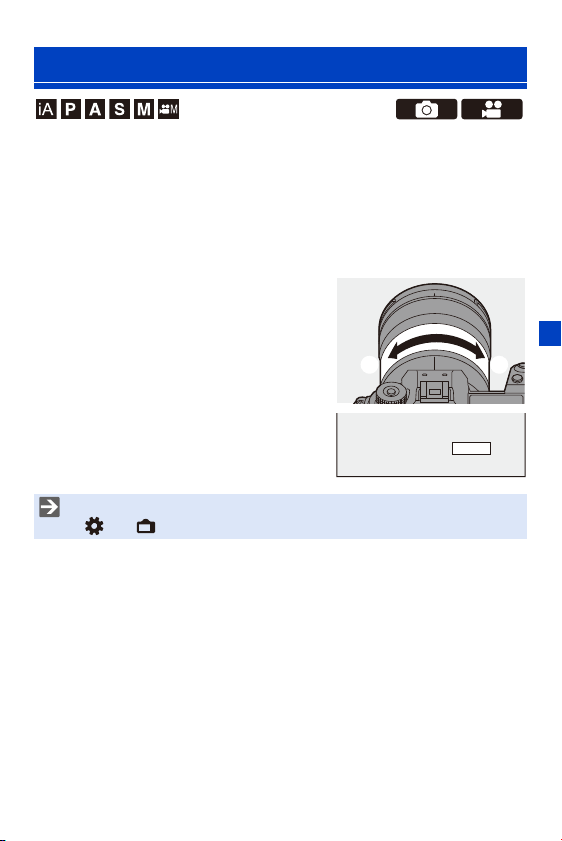
6. Focus/Zoom
121
Use the optical zoom of the lens to zoom to telephoto or wide-angle.
When taking pictures, use [Ex. Tele Conv.] to increase a telescopic effect
without image deterioration.
When recording videos, use [Image Area of Video] to obtain the same
telescopic effect as [Ex. Tele Conv.].
0
For details about [Image Area of Video], refer to page
238.
Rotate the zoom ring.
≥Rotating the zoom ring displays the focal
length on the recording screen.
Recording Images with Zoom
T: Telephoto
W: Wide-angle
0 The focal length display can be hidden:
[]
¨ [ ] ¨ [Focal Length] (l 344)
35mm
6. Focus/Zoom
122
Extended Tele Conversion
[Ex. Tele Conv.] enables you to take pictures that are further enlarged
beyond what is available with the optical zoom, without any deterioration in
image quality.
0
The [Ex. Tele Conv.] maximum magnification ratio differs depending on the [Picture
Size] set in the [Photo] ([Image Quality]) menu.
– Set to [ M]: 1.4k
– Set to [ S]: 2.0k
1
Set [Picture Size] to [M] or [S].
≥ ¨ [ ] ¨ [ ] ¨ [Picture Size] ¨ [M] or [S]
2
Set [Ex. Tele Conv.].
≥ ¨ [ ] ¨ [ ] ¨ [Ex. Tele Conv.]
[ZOOM] Changes the zoom magnification.
[TELE CONV.] Fixes the zoom magnification at the maximum.
[OFF] s
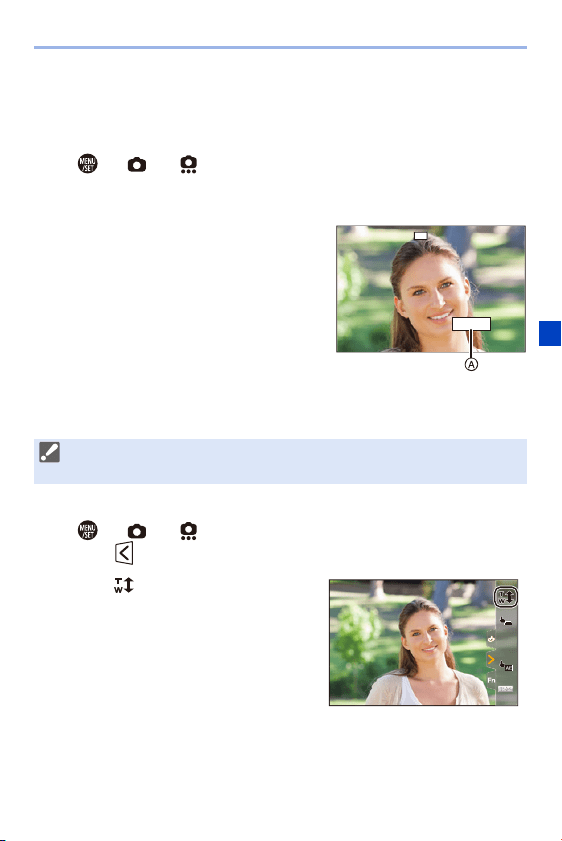
6. Focus/Zoom
123
Changing the Zoom Magnification
Button operation
1
Set [Ex. Tele Conv.] to [ZOOM].
0
¨ [ ] ¨ [ ] ¨ [Ex. Tele Conv.] ¨ [ZOOM]
2
Set the Fn button to [Zoom Control]. (l
278)
3
Press the Fn button.
4
Press the cursor buttons to operate the
zoom.
0
Press the Fn button again, or wait a
specified time to end zoom operation.
0 Displayed zoom magnifications A are
approximate.
Touch operation
1
Set [Ex. Tele Conv.] to [ZOOM].
0
¨ [ ] ¨ [ ] ¨ [Ex. Tele Conv.] ¨ [ZOOM]
2
Touch [ ].
3
Touch [ ].
31: T (telephoto)
24: W (wide-angle)
0 With the default settings, the Touch Tab is not displayed.
Set [Touch Tab] to [ON] in [Touch Settings]. (l
333)
EX1.8x
S
EX
××
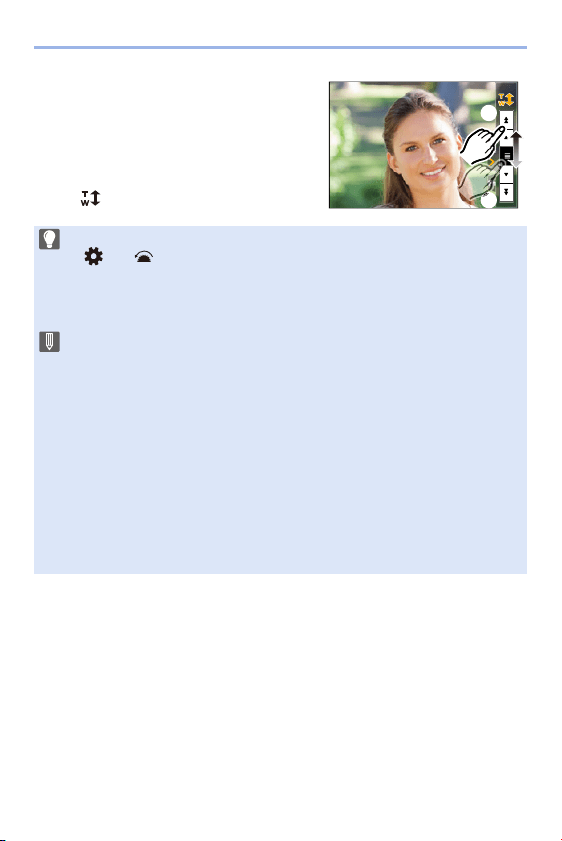
6. Focus/Zoom
124
4
Drag the slide bar to operate the
zoom.
0
To end Touch Zoom operations, touch
[ ] again.
T: Telephoto
W: Wide-angle
0 You can register functions to Fn buttons:
[]
¨ [ ] ¨ [Fn Button Set] ¨ [Setting in REC mode] ¨ [Ex. Tele Conv.]
(l
278)
0 When displaying the [Ex. Tele Conv.] setting screen using the Fn button,
pressing [DISP.] allows you to change the [Picture Size] setting.
0 [Ex. Tele Conv.] is not available when the following functions are being used:
– 6K photo
– [65:24]/[2:1] ([Aspect Ratio])
– [RAW] ([Picture Quality])
– [HLG Photo]
– [High Resolution Mode]
– [Toy Effect]/[Toy Pop] ([Filter Settings])
– [Post-Focus] (only when [6K 18M] is set)
– [Multiple Exposure]
0 [ZOOM] in [Ex. Tele Conv.] is not available when the following functions are
being used:
– [6K/4K PHOTO]/[Post-Focus]
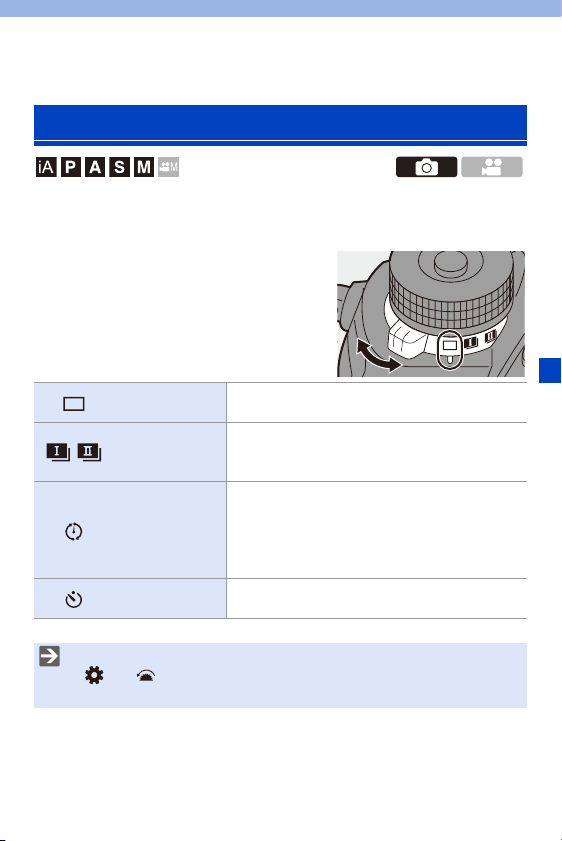
125
7. Drive/Shutter
You can switch the drive mode to Single, Burst, etc. to match the recording
conditions.
Rotating the drive mode dial.
Selecting the Drive Mode
Single
Takes one picture each time the shutter button is
pressed.
/
Burst
(l
126, 130)
Takes pictures continuously while the shutter
button is pressed and held.
6K/4K photo recording is also possible.
Time Lapse
Shot/
Stop Motion
Animation
(l
145, 148)
Takes pictures with Time Lapse Shot or Stop
Motion Animation.
Self-timer
(l
153)
Takes pictures when the set time elapses after the
shutter button is pressed.
0 You can register functions to Fn buttons:
[]
¨ [ ] ¨ [Fn Button Set] ¨ [Setting in REC mode] ¨ [Drive Mode]
(l
278)
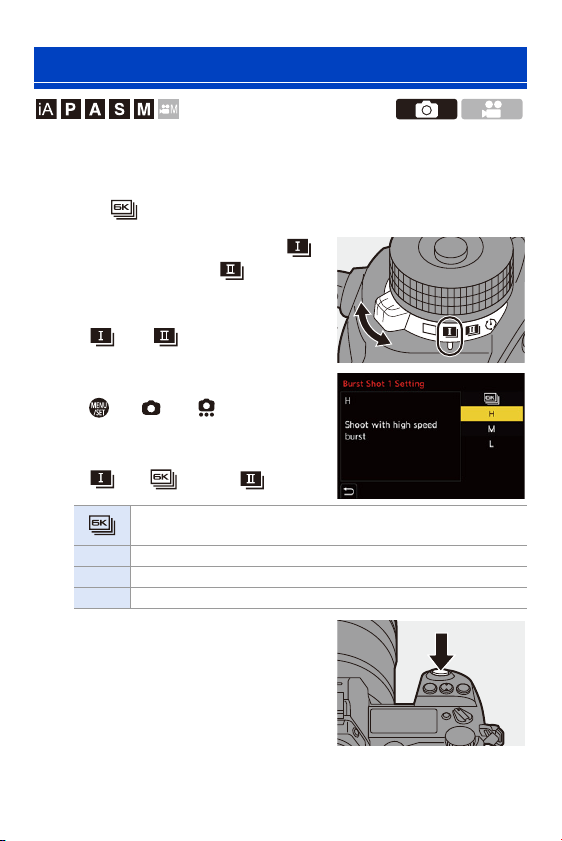
7. Drive/Shutter
126
Takes pictures continuously while the shutter button is pressed and held.
You can choose a burst setting which enables burst recording in high
image quality, [H], [M] or [L], or one which enables high-speed burst
recording, [ ] (6K/4K photo), to suit the recording conditions.
1
Set the drive mode dial to [ ]
(Burst Shot 1) or [ ] (Burst
Shot 2).
0 Configure the burst settings for each of
[ ] and [ ].
2
Select the burst rate.
≥ ¨ [ ] ¨ [ ] ¨ [Burst Shot
1 Setting]/[Burst Shot 2 Setting]
0
With the default settings, [H] is set for
[ ] and is set for [ ].
3
Close the menu.
≥Press the shutter button halfway.
4
Start recording.
0 Takes burst pictures while the shutter
button is pressed fully.
Taking Burst Pictures
For information about 6K/4K photo recording, refer to “6K/4K Photo
Recording”. (l
130)
[H] Takes high-speed burst pictures.
[M] Takes medium-speed burst pictures.
[L] Takes low-speed burst pictures.

7. Drive/Shutter
127
Burst Rate
0 The burst rate may be lower depending on the settings for recording such as [Picture
Size] and focus mode.
Number of burst picture frames
0 When recording under the test conditions specified by Panasonic.
The number of burst picture frames that can be taken becomes fewer depending on
the recording conditions.
0 The burst rate will become lower during recording but pictures can continue to be
taken until the card becomes full.
Mechanical
shutter, electronic
front curtain
Electronic shutter
Live View when
taking burst
pictures
[H]
(High speed)
9 frames/second
([AFS]/[MF])
6 frames/second
([AFC])
9 frames/second
([AFS]/[MF])
5 frames/second
([AFC])
None ([AFS]/[MF])
Available ([AFC])
[M]
(Medium speed)
5 frames/second 5 frames/second Available
[L]
(Low speed)
2 frames/second 2 frames/second Available
[Picture Quality]
[FINE]/[STD.]
[RAWrFINE]/
[RAWrSTD.]
[RAW]
[H]
(High speed)
50 frames or more 35 frames or more 40 frames or more
[M]
(Medium speed)
[L]
(Low speed)
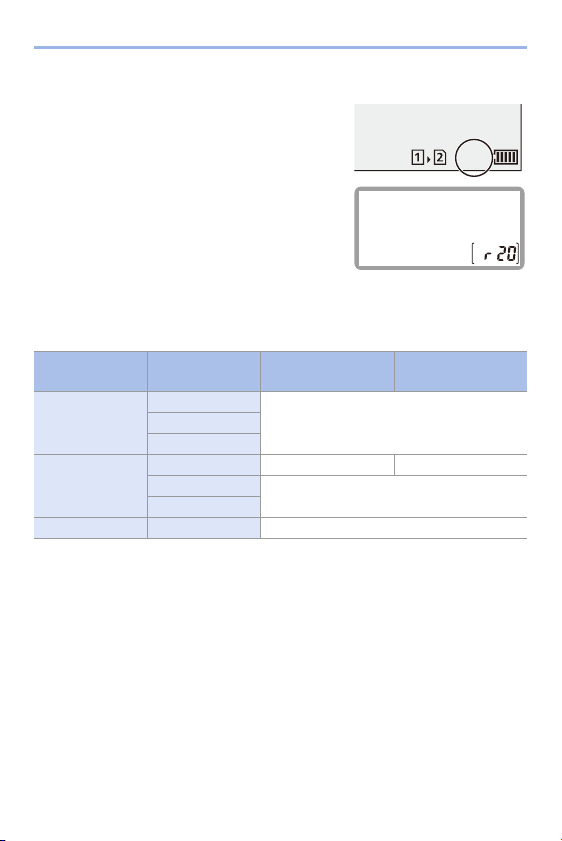
7. Drive/Shutter
128
Number of Pictures That Can Be Taken Continuously
When you press the shutter button halfway,
the number of pictures that can be taken
continuously will appear on the recording
screen and the status LCD.
Example) When 20 frames: [r20]
0 Once recording starts, the number of pictures that
can be taken continuously will decrease.
When [r0] appears, the burst rate decreases.
0 When [r99i] is displayed on the recording screen,
you can take 100 or more burst pictures.
Focus when Taking Burst Pictures
0 When the subject is dark with [AFC], the focus is fixed to that of the first frame.
0 With estimated focus, the burst rate takes priority and the focus is estimated to the
extent possible.
0 With normal focus, the burst rate may become slow.
Focus mode
[Focus/Shutter
Priority]
[H] [M]/[L]
[AFS]
[FOCUS]
Fixed to the focus of the first frame
[BALANCE]
[RELEASE]
[AFC]
[FOCUS] Estimated focus Normal focus
[BALANCE]
Estimated focus
[RELEASE]
[MF] — Focus set with manual focus
r20
ISO
100

7. Drive/Shutter
129
Exposure when Taking Burst Pictures
Focus mode [H] [M]/[L]
[AFS]
Fixed to the exposure of
the first frame
The exposure is adjusted
for each frame
[AFC]
The exposure is adjusted
for each frame
[MF]
Fixed to the exposure of
the first frame
0 It may take a while to save burst pictures.
If you continue to take burst pictures while saving is in progress, the number of
burst picture frames that can be taken will be reduced.
When taking burst pictures, we recommend using a high-speed card.
0 We recommend using the Shutter Remote Control (DMW-RS2: optional) when
taking burst pictures with the shutter button pressed.
0 Taking burst pictures does not work while you are using the following
functions:
– [High Resolution Mode]
– [Rough Monochrome]/[Silky Monochrome]/[Miniature Effect]/[Soft Focus]/
[Star Filter]/[Sunshine] ([Filter Settings])
– [Post-Focus]
– [Multiple Exposure]
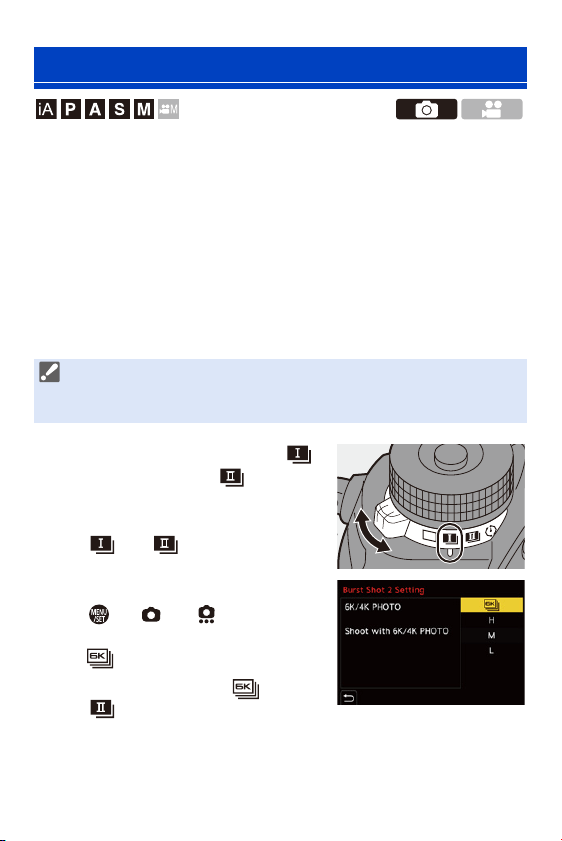
7. Drive/Shutter
130
With 6K Photo, you can take high-speed burst pictures at 30 frames/
second and save the desired pictures, each made up of approx. 18 million
pixels, extracted from their burst file.
With 4K Photo, you can take high-speed burst pictures at 60 frames/
second and save the desired pictures, each made up of approx. 8 million
pixels.
0
“6K PHOTO” is a high-speed burst picture function to extract and save the desired
pictures from images with an aspect ratio for pictures of 4:3 or 3:2 and an effective
picture size equivalent to the number of pixels (approx. 18 megapixels) for images of
6K size (around 6,000 widek3,000 high).
1
Set the drive mode dial to [ ]
(Burst Shot 1) or [ ] (Burst
Shot 2).
0 Configure the burst settings for each of
[ ] and [ ].
2
Select [6K/4K PHOTO].
≥ ¨ [ ] ¨ [ ] ¨ [Burst Shot
1 Setting]/[Burst Shot 2 Setting] ¨
0
With the default settings, is set for
[].
6K/4K Photo Recording
0 Use a card rated at UHS Speed Class 3 or higher when using an SD card for
this function.
0 The angle of view becomes narrower.
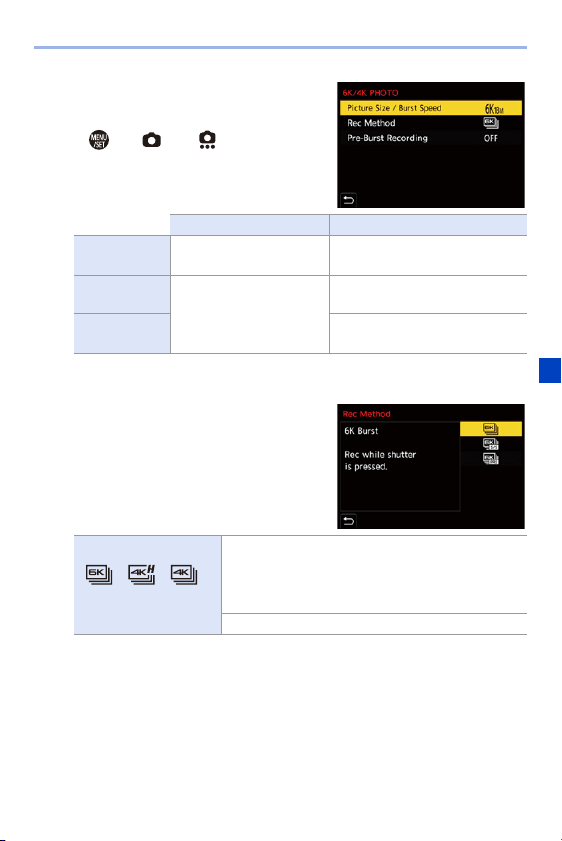
7. Drive/Shutter
131
3
Select [Picture Size / Burst
Speed].
≥ ¨ [ ] ¨ [ ] ¨ [6K/4K
PHOTO]
¨ [Picture Size / Burst
Speed]
¢1 6K photo
¢2 4K photo
4
Select [Rec Method].
Picture size Burst rate
[6K 18M]
¢1
[4:3]:
[3:2]:
4992k3744
5184k3456
30 frames/second
[4K H 8M]
¢2
[4:3]:
[3:2]:
[16:9]:
[1:1]:
3328k2496
3504k2336
3840k2160
2880k2880
60 frames/second
[4K 8M]
¢2
30 frames/second
[] [] []
[6K/4K Burst]
When you wish to capture the best moments of
a fast-moving subject
Takes burst pictures while the shutter button is
pressed.
Audio recording: None
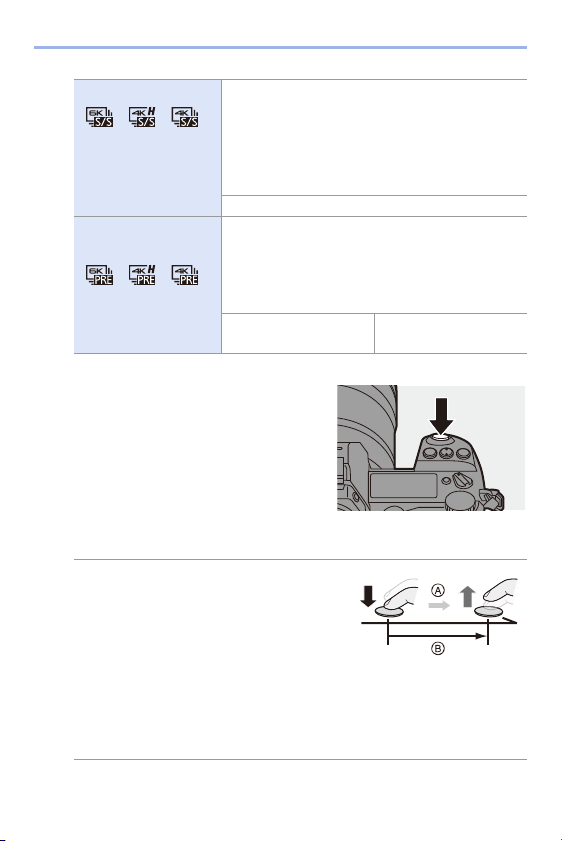
7. Drive/Shutter
132
¢ Audio is not played back during playback with the camera.
5
Close the menu.
≥Press the shutter button halfway.
6
Start recording.
0 [Continuous AF] works and the focus is
adjusted continuously during recording
with AF.
[6K/4K Burst]
[] [] []
[6K/4K Burst(S/S)]
“S/S” is an abbreviation
for start/stop.
When you wish to capture an unpredictable
photo opportunity
Starts taking burst pictures when the shutter button
is pressed. Pressing the button again stops taking
burst pictures.
The start tone and stop tone are output.
Audio recording: Available
¢
[] [] []
[6K/4K Pre-Burst]
When you wish to capture at the moment of a
photo opportunity
Takes burst pictures for approx. 1 second before
and after the moment the shutter button is pressed.
The shutter sound is output once only.
Recording duration:
Approx. 2 seconds
Audio recording: None
1 Press the shutter button halfway.
2 Press the shutter button fully and keep it
pressed during recording.
A Press and hold
B Recording is performed
0 Press the shutter button fully early because
recording will take approx. 0.5 second to start after it is pressed fully.
0 Even if you remove your finger from the shutter button immediately after the
start of recording, recording may be performed for a maximum of approx.
1.5 seconds after you remove it.
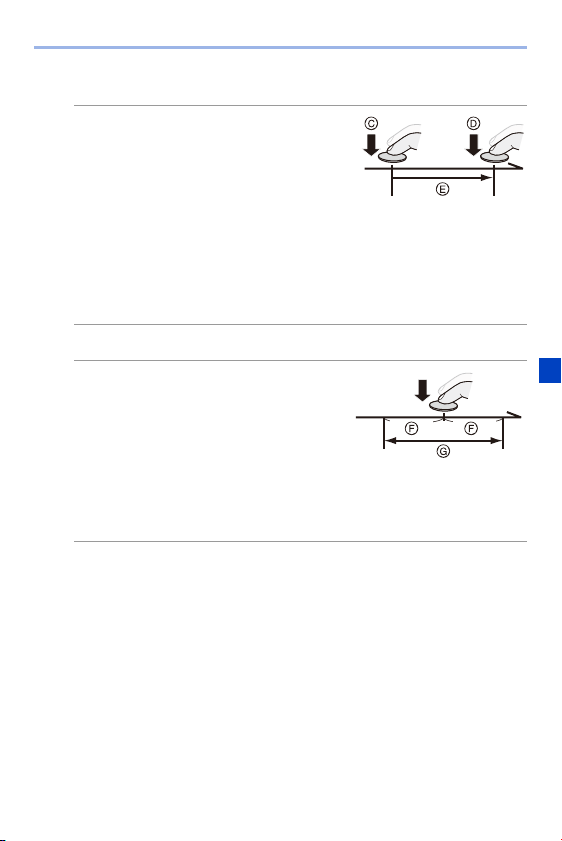
7. Drive/Shutter
133
[6K/4K Burst(S/S)]
[6K/4K Pre-Burst]
0
The camera takes burst pictures and saves the data as a 6K/4K burst file for
which [Rec. File Format] is [MP4].
0 In default settings, Auto Review operates, and a screen that lets you select
pictures from a burst file will be displayed.
To continue recording, press the shutter button halfway to return to the
recording screen.
For how to select and save pictures from a recorded 6K/4K burst file, refer to
page
138.
1 Press the shutter button fully to start
recording.
2 Press the shutter button fully again to
stop recording.
C Start (First)
D Stop (Second)
E Recording is performed
0 You can add markers by pressing [Q] during recording. (Up to 40 markers per
recording)
This allows you to skip to the positions where you added markers when
selecting pictures from a 6K/4K burst file.
Press the shutter button fully.
F Approx. 1 second
G Recording is performed
0 While the recording screen is displayed, the
AF will operate constantly to continue
focusing.
The exposure is also adjusted continuously, except in [M] mode.
0 When the subject is not at the center, use AF/AE Lock if you wish to lock the
focus and exposure. (l
191)
7. Drive/Shutter
134
[Pre-Burst Recording] ([6K/4K Burst]/[6K/4K Burst(S/S)])
The camera starts recording approx. 1 second before the shutter button is
pressed fully, so you will not miss a photo opportunity.
¨ [ ] ¨ [ ] ¨ [6K/4K PHOTO] ¨ Select [Pre-Burst Recording]
Settings: [ON]/[OFF]
0 The continuous recordable time varies depending on the [Picture Size / Burst
Speed] setting.
– [6K 18M]: 10 minutes
– [4K H 8M]/[4K 8M]: 15 minutes
0 The file save method differs depending on the type of card.
– SDHC memory card, XQD card of 32 GB or less:
A new file will be created to continue recording if the file size exceeds 4 GB.
– SDXC memory card, XQD card over 32 GB:
Files are not divided for recording.
0 If the camera temperature rises under the any of following conditions, [ ]
may be displayed and recording may stop. Wait until the camera cools down.
– When 6K/4K photo recording is performed continuously
– When using [6K/4K Pre-Burst]
– When using [Pre-Burst Recording]
– When the ambient temperature is high
0 When [6K/4K Pre-Burst] or [Pre-Burst Recording] is set, the battery drains
faster and the camera temperature rises. Set these settings only when
recording.
0 [PRE] is displayed on the recording screen.
0 The AF operation and function limitations are the same as with [6K/4K Pre-
Burst].

7. Drive/Shutter
135
Notes on 6K/4K Photos
Shutter Sound for Recording
An electronic shutter is used for 6K/4K photo recording. You can set a
shutter sound or beep tone in [Beep] of the [Setup] ([IN/OUT]) menu.
(l
354)
0
High-speed burst pictures can be taken quietly when used in combination with
[Silent Mode]. (l
169)
Difficult Recording Scenes
Recording in extremely bright locations or indoors
When you record in an extremely bright location or under fluorescent/LED
lighting, the color tone or brightness of the image may change or horizontal
stripes may appear on the screen.
Lowering the shutter speed may reduce the effect of horizontal stripes.
Fast-moving subjects
If you record a fast-moving subject, it may appear distorted in the recorded
image.

7. Drive/Shutter
136
Camera Settings for 6K/4K Photo
The settings are automatically switched to the optimal settings for 6K/4K
photo recording.
0 The following [Photo] menus are fixed:
0 6K/4K burst files are taken using the following settings.
The settings in the [Video] menu are not applied to 6K/4K burst files.
¢ Switches to a setting that matches the [Picture Size / Burst Speed] setting.
0 With 6K/4K photo recording, the ranges that the following functions can be set differ
from when taking pictures:
– Shutter speed: 1/30 (1/60 when [4K H 8M] is set) to 1/16000
– [Min. Shutter Speed]: [1/1000] to [1/30] ([1/60] when [4K H 8M] is set)
– Exposure compensation: n3EV
0 With 6K/4K photo recording, the following functions are not available:
–Flash
– Bracket recording
– Program Shift
– AF mode ( )
– [MF Assist] ([6K/4K Pre-Burst] only)
[Picture Size]
¢
[6K] (18 M)
[4K] (8 M)
[Picture Quality] [FINE]
[Shutter Type] [ELEC.]
[Rec. File
Format]
[MP4]
[Continuous AF] [ON]
[Rec Quality]
¢
[6K/200M/30p]
[4K/150M/60p]
[4K/100M/30p]
[Luminance
Level]
[0-1023]
(when 6K photo
recording)
[0-255]
(when 4K photo
recording)

7. Drive/Shutter
137
0 The following functions are not available during 6K/4K photo recording:
– HDMI output
0 Using HDMI output results in the following:
– [6K/4K Pre-Burst] changes to [6K/4K Burst].
– [Pre-Burst Recording] is not available.
0 6K/4K photo recording does not work while you are using the following
functions:
– [High Resolution Mode]
– [Rough Monochrome]/[Silky Monochrome]/[Miniature Effect]/[Soft Focus]/
[Star Filter]/[Sunshine] ([Filter Settings])
– [Post-Focus]
– [Multiple Exposure]
0 When using APS-C lenses, 6K photo is not available.
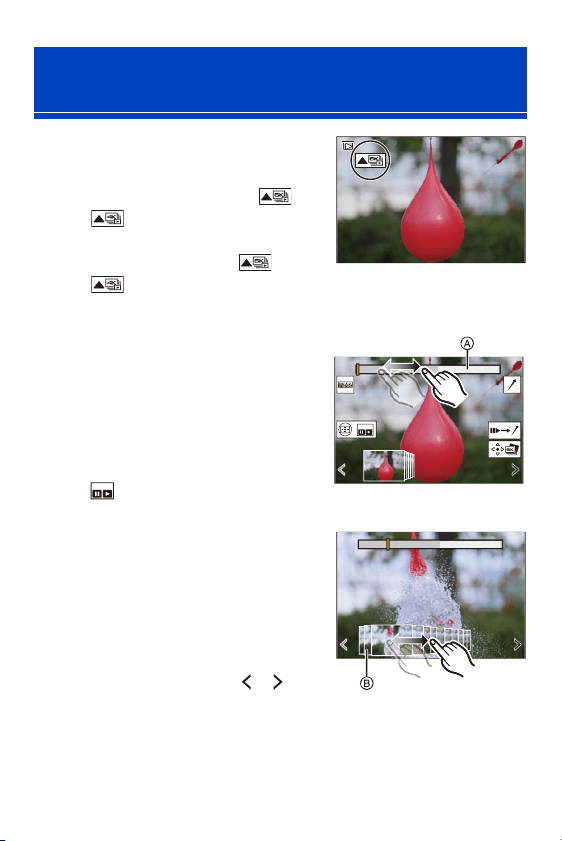
7. Drive/Shutter
138
1
Select a 6K/4K burst file on the
playback screen. (l
259)
≥Select an image with the [ ] or
[ ] icon and then press 3.
≥You can also perform the same
operation by touching [ ] or
[].
0
If the images were recorded with [6K/4K Pre-Burst], proceed to Step
3
.
3
Select the frame to save.
≥Drag the picture selection slide view
B.
≥You can also perform the same
operation by pressing 21.
0 To continuously rewind or forward frame-
by-frame, touch and hold [ ]/[ ].
Selecting Pictures from a 6K/4K Burst
File
2
Roughly select the scene.
≥Drag the slide bar A.
0
For information about how to use the
picture selection slide view screen, refer
to page
141.
0 If the images were recorded with [6K/4K
Burst] or [6K/4K Burst(S/S)], touching
[ ] allows you to select the scene in
the 6K/4K burst playback screen. (l
142)
Picture selection slide view
screen
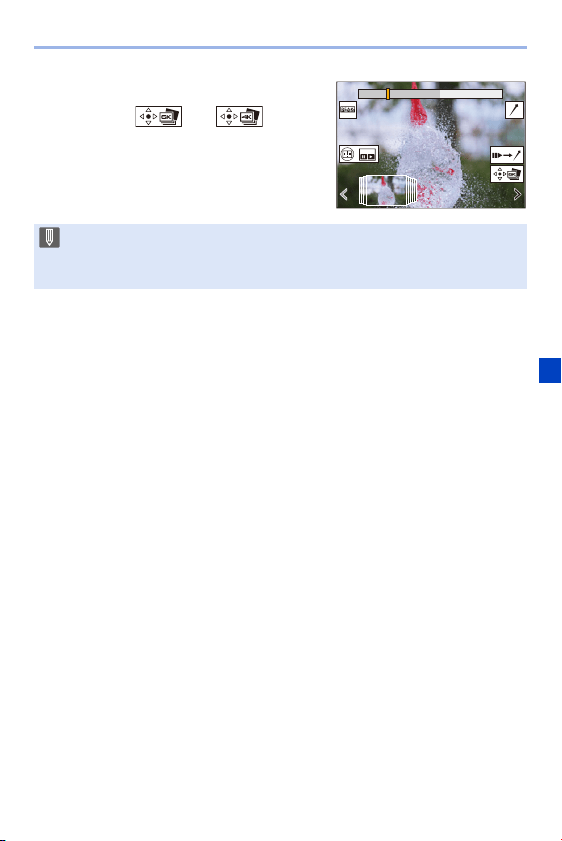
7. Drive/Shutter
139
4
Save the picture.
≥Touch [ ] or [ ].
≥A confirmation screen appears.
0 The picture is saved in JPEG format.
0 The recording information (Exif information), such as the shutter speed,
aperture, and ISO sensitivity, is also saved with the picture that is saved.

7. Drive/Shutter
140
Correcting Pictures After Recording (Post-Recording
Refinement)
Correcting Distortion in Pictures ([Reduce Rolling
Shutter])
When saving pictures, correct any distortion caused by the electronic
shutter (rolling shutter effect).
1
On the save confirmation screen in Step
4
on page
139, touch
[Reduce Rolling Shutter].
0
If correction is not effective, the confirmation screen returns.
2
Check the correction result and then touch [Save].
0
To check the corrected and uncorrected versions of the picture, touch [Set/
Cancel].
Reducing Noise Caused by High Sensitivity ([6K/4K
PHOTO Noise Reduction])
When saving pictures, reduce the noise that occurs due to high ISO
sensitivity.
¨ [ ] ¨ [ ] ¨ Select [6K/4K PHOTO Noise Reduction]
Settings: [AUTO]/[OFF]
0 The angle of view may become narrower if correction is performed.
0 The correction may appear unnatural due to the movement of subjects.
0 The camera may not be able to correct images recorded with other than this
camera.
0 This is not applied to pictures saved with [6K/4K PHOTO Bulk Saving].
0 The camera may not be able to reduce the noise in images recorded with
other than this camera.
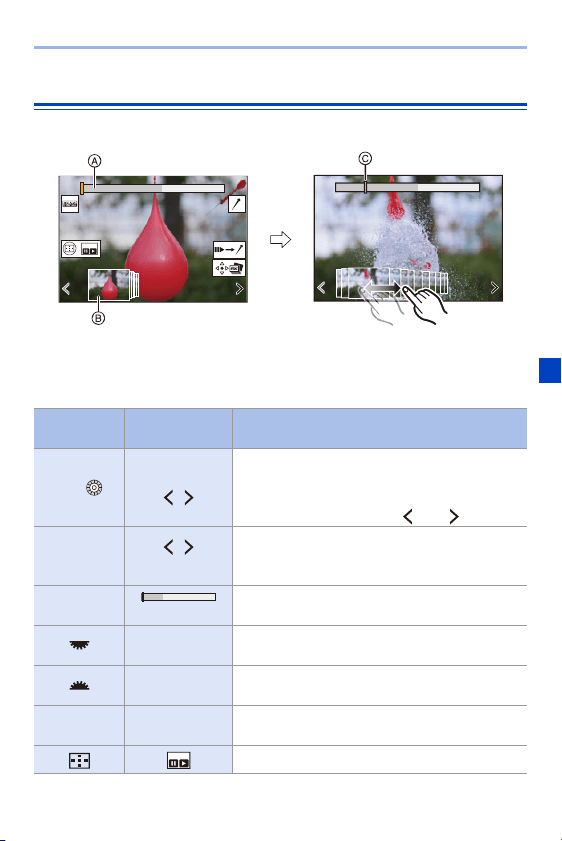
7. Drive/Shutter
141
Picture Selection Operations
Picture Selection Slide View Screen Operations
A Slide bar
B Picture selection slide view
C Position of displayed frame
Button
operation
Touch
operation
Description of operation
21/
Drag/
Selects a frame.
0 To change the frames displayed in the picture
selection slide view, select the frame at the left/
right end and then touch [ ] or [ ].
21
Press and
hold
Touch and hold
Continuously rewinds or forwards frame-by-
frame.
s
Touch/drag
Selects the frame to display.
Pinch out/
pinch in
Enlarges or reduces the display.
s
Selects a frame while maintaining the enlarged
display (during enlarged display).
3421 Drag
Moves the enlarged display position (during
enlarged display).
[] Displays the 6K/4K burst playback screen.
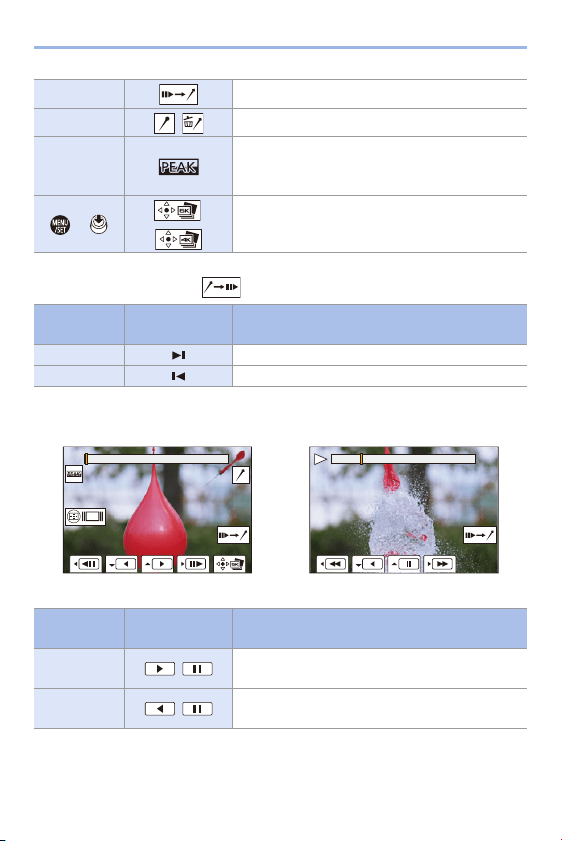
7. Drive/Shutter
142
0 During marker operation, you can skip to set markers or the beginning or end of the
6K/4K burst file. Touching [ ] returns to the original operation.
6K/4K Burst Playback Screen Operations
s Switches to marker operation.
s / Adds or deletes a marker.
s
Displays the in-focus portion highlighted with
color ([Focus Peaking]).
0 Switches in the order of [OFF] > [ON].
/
/
Saves the picture.
Button
operation
Touch
operation
Description of operation
1 Moves to the next marker.
2 Moves to the previous marker.
While paused During continuous playback
Button
operation
Touch
operation
Description of operation
3 /
Performs continuous playback or pauses (during
continuous playback).
4 /
Performs continuous rewind playback or pauses
(during continuous rewind playback).
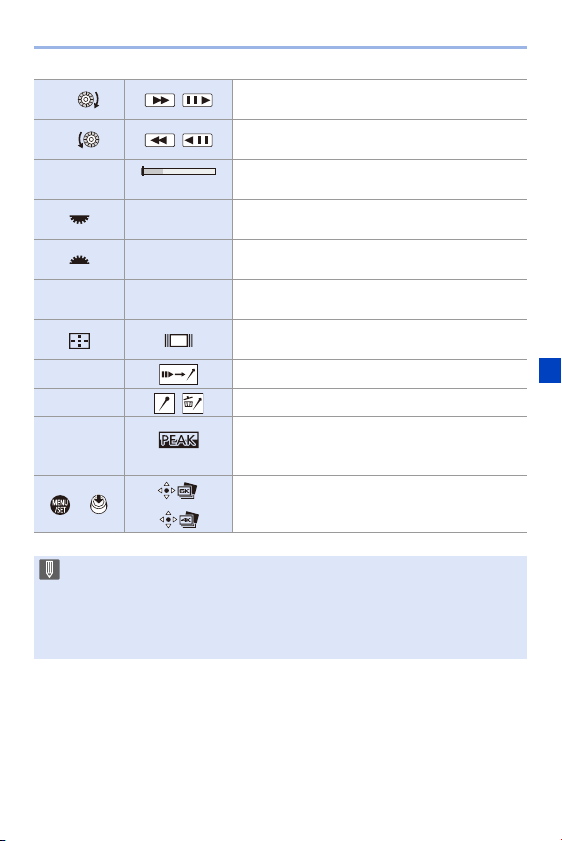
7. Drive/Shutter
143
1/ /
Performs fast-forward playback or performs
frame-by-frame forwarding (while paused).
2/ /
Performs fast-rewind playback or performs
frame-by-frame rewinding (while paused).
s
Touch/drag
Selects the frame to display (while paused).
Pinch out/
pinch in
Enlarges or reduces the display (while paused).
s
Selects a frame while maintaining the enlarged
display (during enlarged display).
3421 Drag
Moves the enlarged display position (during
enlarged display).
[]
Displays the picture selection slide view screen
(while paused).
s Switches to marker operation.
s / Adds or deletes a marker.
s
Displays the in-focus portion highlighted with
color ([Focus Peaking]).
0 Switches in the order of [OFF] > [ON].
/
/
Saves the picture (while paused).
0 To select and save pictures from a 6K/4K burst file on a PC, use the
“PHOTOfunSTUDIO” software. However, please note that 6K/4K burst files
cannot be edited as videos in “PHOTOfunSTUDIO”.
0 To play and edit 6K burst files, you need a high-performance PC environment.
We recommend selecting and saving pictures with the camera.
7. Drive/Shutter
144
Selecting and Saving Pictures Using a TV Screen
0 6K burst files are output to a TV connected via HDMI at a resolution of [4K].
0 Set [HDMI Mode (Playback)] of the [Setup] ([IN/OUT]) menu to either [AUTO] or a
setting with a resolution of [4K]. (l
357)
When connecting to a TV that does not support 4K videos, select [AUTO].
0 Only the 6K/4K burst playback screen will be displayed on the TV.
[6K/4K PHOTO Bulk Saving]
You can save any 5 second period of pictures from a 6K/4K burst file all at
once.
1
Select [6K/4K PHOTO Bulk Saving].
0
¨ [ ] ¨ [ ] ¨ [6K/4K PHOTO Bulk Saving]
2
Press 21 to select a 6K/4K burst file and then press or .
0
If the burst time is 5 seconds or less, all frames are saved as pictures.
3
Select the first frame of the pictures to be saved all at once and then
press or .
0
The selection method is the same as that for selecting pictures from a 6K/4K
burst file.
0 The pictures are saved as a group of burst pictures in JPEG format.
0 You can register functions to Fn buttons:
[]
¨ [ ] ¨ [Fn Button Set] ¨ [Setting in PLAY mode] ¨ [6K/4K PHOTO
Bulk Saving] (l
278)
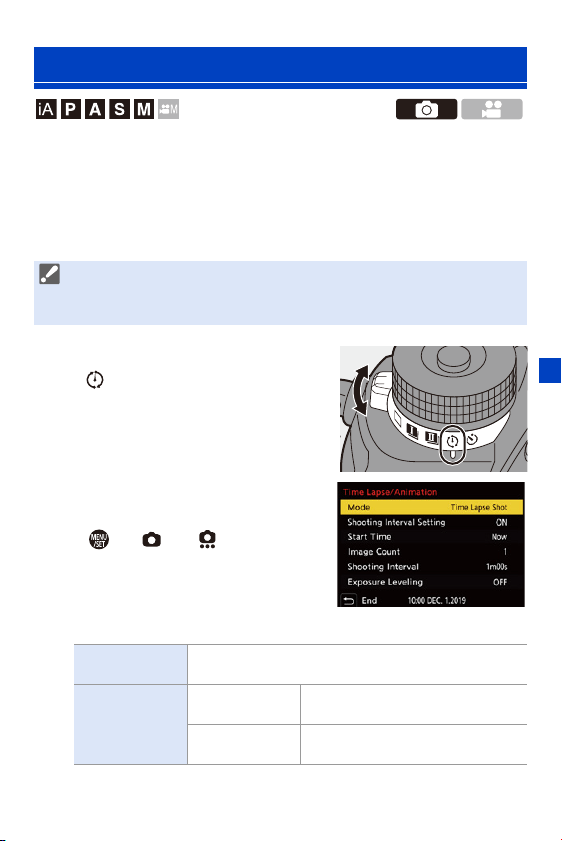
7. Drive/Shutter
145
Pictures are taken automatically at a set recording interval.
This feature is ideal for keeping track of changes over time in subjects such
as animals and plants.
The pictures taken will be saved as a set of group images that can also be
combined into a video.
1
Set the drive mode dial to
[].
2
Set [Mode] to [Time Lapse
Shot].
≥ ¨ [ ] ¨ [ ] ¨ [Time
Lapse/Animation]
¨ [Mode] ¨
[Time Lapse Shot]
3
Set the recording settings.
Recording with Time Lapse Shot
0 Check that the clock is set correctly. (l 53)
0 For long recording intervals, we recommend setting [Lens Focus Resume] to
[ON] in the [Custom] ([Lens / Others]) menu.
[Mode]
Switches between Time Lapse Shot and Stop Motion
Animation.
[Shooting
Interval Setting]
[ON]
Sets the interval before the next
recording takes place.
[OFF]
Takes pictures without leaving
recording intervals.
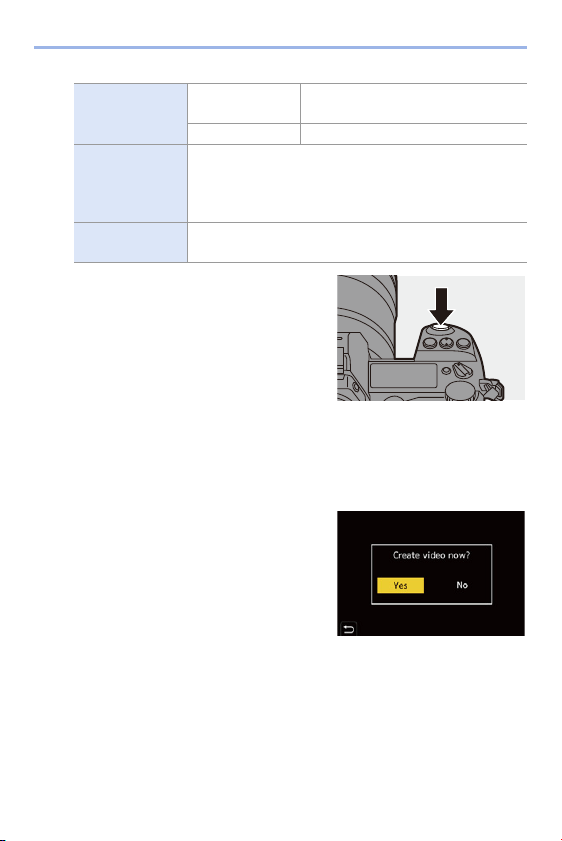
7. Drive/Shutter
146
4
Close the menu.
≥Press the shutter button halfway.
5
Start recording.
≥Press the shutter button fully.
0
When [Start Time Set] is set, the camera
will enter into sleep status until the start
time is reached.
0 During recording standby, the camera enters into sleep status when no
operation is performed for a certain period of time.
0 The recording will stop automatically.
6
Create a video. (l 151)
0 After the recording has stopped, select
[Yes] on the confirmation screen to
proceed to create a video.
Even if you select [No], you can still
create a video with [Time Lapse Video] in
the [Playback] ([Process Image]) menu.
(l
364)
[Start Time]
[Now]
Starts recording when the shutter
button is pressed fully.
[Start Time Set] Starts recording at the set time.
[Image Count]/
[Shooting
Interval]
Sets the number of pictures and the recording interval to
be taken.
0 [Shooting Interval] is not displayed when [Shooting
Interval Setting] is set to [OFF].
[Exposure
Leveling]
Adjusts the exposure automatically to prevent large
changes in brightness between adjacent frames.
7. Drive/Shutter
147
Operations during Time Lapse Shot Recording
Pressing the shutter button halfway during sleep status will turn on the
camera.
0
You can perform the following operations by pressing [Q] during Time Lapse Shot
recording.
[Continue] Returns to the recording. (Only during recording)
[Pause] Pauses the recording. (Only during recording)
[Resume]
Resumes the recording. (Only while paused)
0 You can also press the shutter button halfway to resume.
[End] Stops the Time Lapse Shot recording.
0 Pictures recorded to more than one card cannot be combined into a single
video.
0 Group images containing pictures taken with [HLG Photo] cannot be
converted to videos.
0 The camera gives priority to achieving the correct exposure, so it may not take
pictures at the set interval or take the set number of pictures.
Furthermore, it may not end at the end time displayed on the screen.
0 Time Lapse Shot is paused in the following cases.
– When the charge on the battery runs out
– When you set the camera on/off switch to [OFF]
You can set the camera on/off switch to [OFF] and replace the battery or
card.
Set the camera on/off switch to [ON] and then press the shutter button fully
to resume recording.
(Note that the images recorded after replacing the card will be saved as a
separate set of group images.)
0 [Exposure Leveling] is not available in [M] mode if the ISO sensitivity is set to
other than [AUTO].
0 [Time Lapse Shot] is not available when using the following functions:
– [High Resolution Mode]
– [Post-Focus]
– [Multiple Exposure]
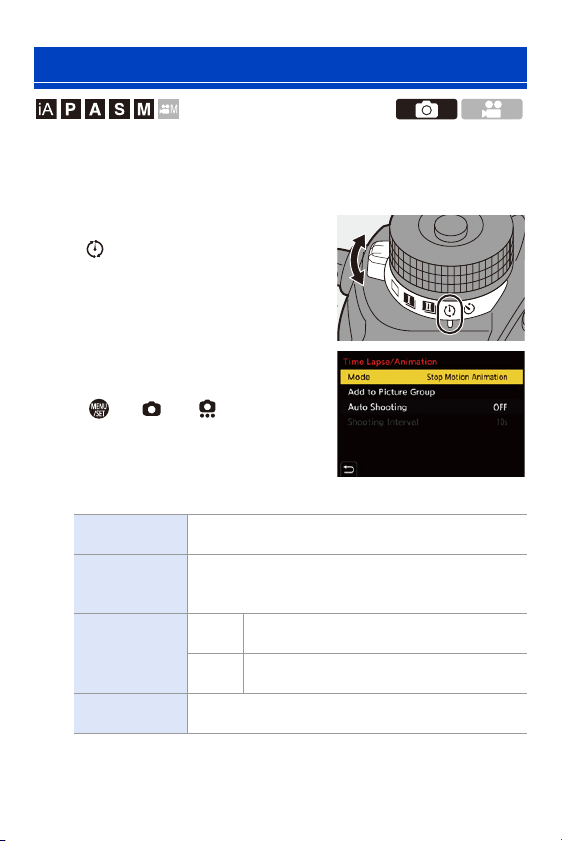
7. Drive/Shutter
148
Take pictures while moving the subject little by little.
The pictures taken will be saved as a set of group images that can be
combined into a stop motion video.
1
Set the drive mode dial to
[].
2
Set [Mode] to [Stop Motion
Animation].
≥ ¨ [ ] ¨ [ ] ¨ [Time
Lapse/Animation] ¨ [Mode] ¨ [Stop
Motion Animation]
3
Set the recording settings.
Recording with Stop Motion Animation
[Mode]
Switches between Time Lapse Shot and Stop Motion
Animation.
[Add to Picture
Group]
Allows you to continue recording for a set of stop motion
images that have already been recorded.
0 Select an image and proceed to Step
5
.
[Auto Shooting]
[ON]
Takes pictures automatically at a set recording
interval.
[OFF]
This is for taking pictures manually, frame by
frame.
[Shooting
Interval]
Sets the recording interval for [Auto Shooting].
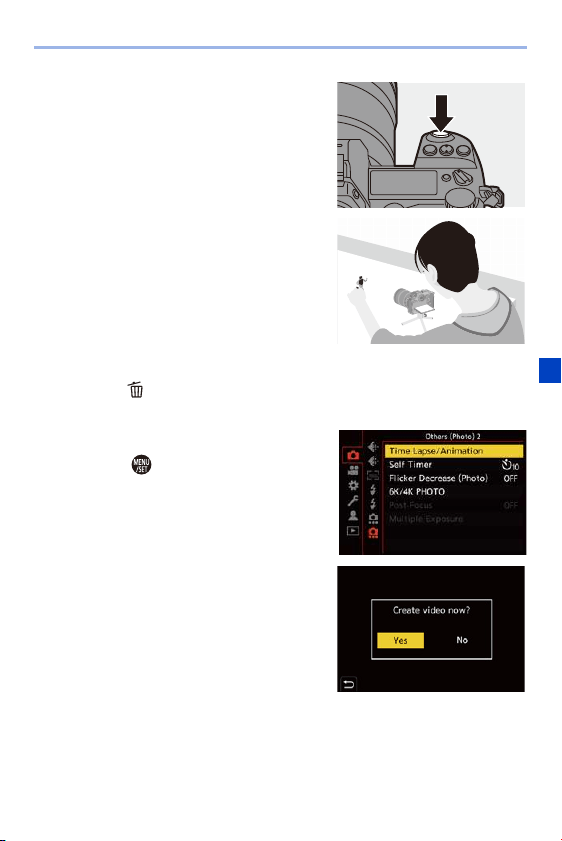
7. Drive/Shutter
149
4
Close the menu.
≥Press the shutter button halfway.
5
Start recording.
≥Press the shutter button fully.
≥Take pictures repeatedly while
moving the subject little by little.
0
The recording screen displays up to two
pictures taken previously. Use them as
reference for the amount of movement.
0 You can play back the recorded stop
motion images by pressing [(] during
recording.
Press [ ] to delete unnecessary images.
To return to the recording screen, press [(] again.
6
Stop recording.
≥Press and then select [Time
Lapse/Animation] from the [Photo]
menu to stop recording.
7
Create a video. (l 151)
0 After the recording has stopped, select
[Yes] on the confirmation screen to
proceed to create a video.
Even if you select [No], you can still
create a video with [Stop Motion Video] in
the [Playback] ([Process Image]) menu.
(l
364)

7. Drive/Shutter
150
0 Group images containing pictures taken with [HLG Photo] cannot be
converted to videos.
0 Up to 9999 frames can be recorded.
0 If the camera is turned off while recording, a message for resuming the
recording is displayed when it is turned on. Selecting [Yes] allows you to
continue the recording from the interruption point.
0 The camera gives priority to achieving the correct exposure, so it may not take
pictures at the set interval when the flash, etc. is used for recording.
0 A picture cannot be selected from [Add to Picture Group] when it is the only
one that was taken.
0 [Stop Motion Animation] is not available when using the following functions:
– [High Resolution Mode]
– [Post-Focus]
– [Multiple Exposure]
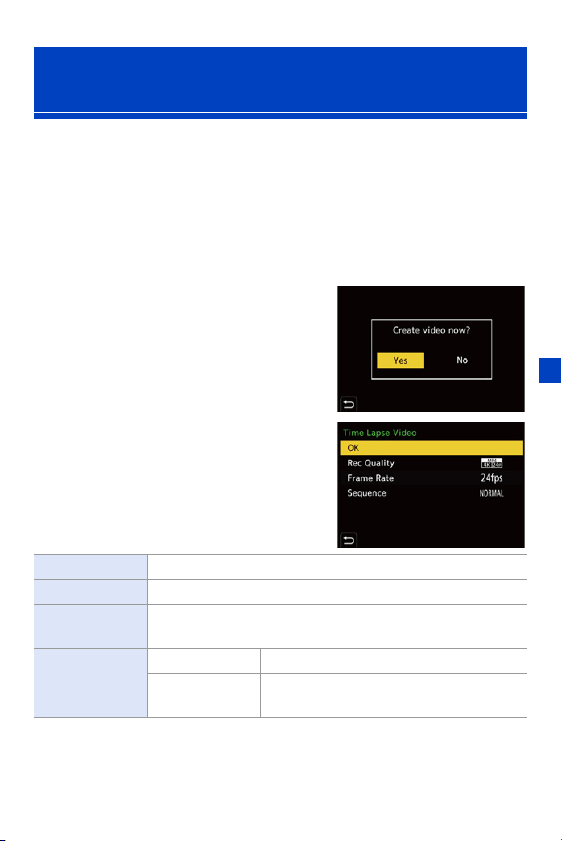
7. Drive/Shutter
151
After performing Time Lapse Shot or stop motion recording, you can
proceed to create a video.
0 Refer to the sections below about these recording functions.
– Time Lapse Shot recording: l
145
– Stop motion recording: l 148
0 You can also create videos with [Time Lapse Video] (l 364) or [Stop Motion Video]
(l
364) in the [Playback] menu.
1
Select [Yes] on the
confirmation screen that
appears after recording.
2
Set the options for creating a
video.
3
Select [OK].
≥A video will be created in the [MP4]
recording file format.
Time Lapse Shot/Stop Motion Animation
Videos
[OK] Creates a video.
[Rec Quality] Sets the video image quality.
[Frame Rate]
Sets the number of frames per second.
The larger the number is, the smoother the video will be.
[Sequence]
[NORMAL] Splices pictures together in recording order.
[REVERSE]
Splices pictures together in reverse
recording order.

7. Drive/Shutter
152
0 Videos cannot be created if the recording time exceeds 29 minutes and
59 seconds.
0 In the following cases, videos cannot be created if the file size exceeds 4 GB:
– When an SDHC memory card or an XQD card of 32 GB or less is being
used and the size for [Rec Quality] is set to [4K]
– When the size for [Rec Quality] is set to [FHD]
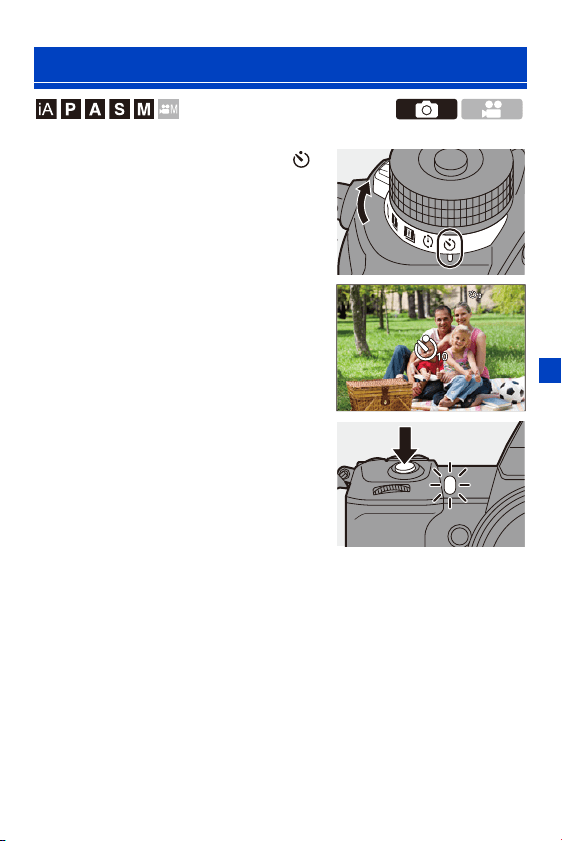
7. Drive/Shutter
153
1
Set the drive mode dial to [ ].
2
Decide on the composition
and then adjust the focus.
≥Press the shutter button halfway.
0
The focus and exposure are fixed when
the shutter button is pressed halfway.
3
Start recording.
≥Press the shutter button fully.
≥The self-timer lamp blinks and then
the shutter is released.
Recording Using the Self-timer
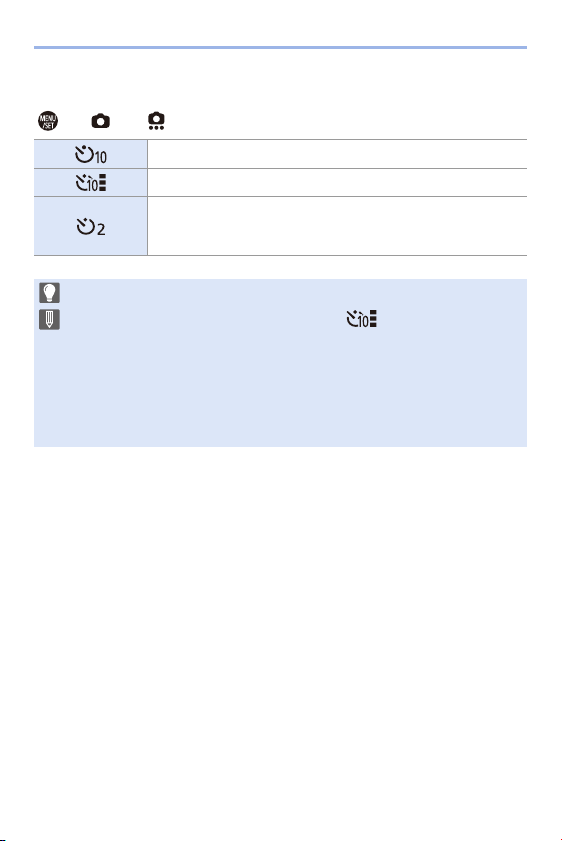
7. Drive/Shutter
154
Setting the Self-timer Time
¨ [ ] ¨ [ ] ¨ Select [Self Timer]
[] Takes a picture after 10 seconds.
[] Takes 3 pictures at approx. 2 second intervals after 10 seconds.
[]
Takes a picture after 2 seconds.
0 This setting is a convenient way to avoid camera blur caused
by pressing the shutter button.
0 We recommend using a tripod when recording with the self-timer.
0 When the following functions are being used, [ ] is not available:
– [Simultaneous Record w/o Filter] ([Filter Settings])
– Bracket recording
– [Multiple Exposure]
0 The self-timer does not work while you are using the following functions:
– [High Resolution Mode]
– [Post-Focus]
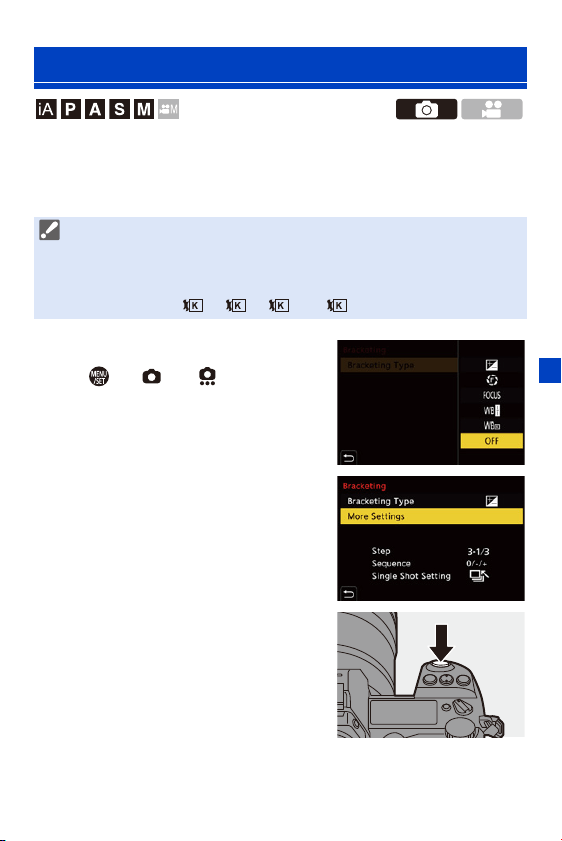
7. Drive/Shutter
155
When the shutter button is pressed, the camera can record multiple
images while automatically changing the setting value for exposure,
aperture, focus or white balance (adjustment value or color temperature).
1
Set [Bracketing Type].
≥ ¨ [ ] ¨ [ ] ¨
[Bracketing] ¨ [Bracketing Type]
2
Set [More Settings].
≥For information about [More
Settings], refer to page for each
bracketing method.
3
Close the menu.
≥Press the shutter button halfway.
4
Focus on the subject and then
take pictures.
Bracket Recording
0 Aperture Bracket can be selected in the following modes:
– [A] mode
– [M] mode (when ISO sensitivity is set to [AUTO])
0 White Balance Bracket (Color Temperature) can be selected when the white
balance is set to [ ], [ ], [ ], or [ ].
1
2
3
4
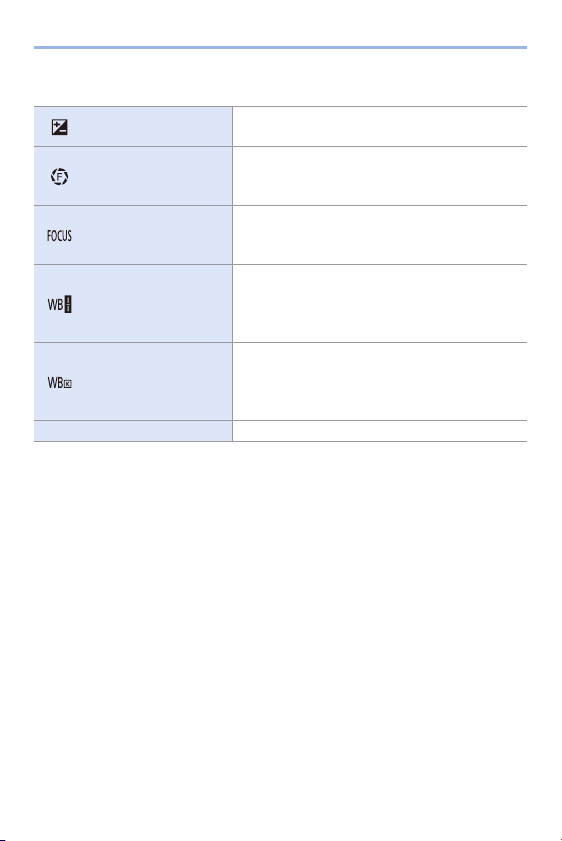
7. Drive/Shutter
156
Setting Items ([Bracketing Type])
How to Cancel Bracketing
Select [OFF] in Step
1
.
[]Exposure Bracket
When the shutter button is pressed, the camera
records while changing the exposure. (l
158)
[]Aperture Bracket
When the shutter button is pressed, the camera
records while changing the aperture value.
(l
158)
[]Focus Bracket
When the shutter button is pressed, the camera
records while changing the focus position.
(l
159)
[]
White Balance
Bracket
When the shutter button is pressed once, the
camera automatically records three images with
the different white balance adjustment values.
(l
160)
[]
White Balance
Bracket (Color
Temperature)
When the shutter button is pressed once, the
camera automatically records three images with
the different white balance color temperatures.
(l
160)
[OFF] s

7. Drive/Shutter
157
0 Only Exposure Bracket is available when [Aspect Ratio] is set to [65:24] or
[2:1].
0 White Balance Bracket and White Balance Bracket (Color Temperature) are
not available when using the following functions:
– [iA] mode
– Taking burst pictures
–[RAWiFINE]/[RAWiSTD.]/[RAW] ([Picture Quality])
– [HLG Photo]
– [Filter Settings]
0 Bracket recording is not available while you are using the following functions:
– [6K/4K PHOTO]/[Post-Focus]
– [Time Lapse Shot]
– [Stop Motion Animation] (when [Auto Shooting] is set)
– [High Resolution Mode]
– [Rough Monochrome]/[Silky Monochrome]/[Miniature Effect]/[Soft Focus]/
[Star Filter]/[Sunshine] ([Filter Settings])
– [Multiple Exposure]
0 You can register functions to Fn buttons:
[]
¨ [ ] ¨ [Fn Button Set] ¨ [Setting in REC mode] ¨ [Bracketing]
(l
278)

7. Drive/Shutter
158
[More Settings] (Exposure Bracket)
[More Settings] (Aperture Bracket)
Example when the initial position is set to F8.0
1 1st image, 2 2nd image, 3 3rd image ... 7 7th image
[Step]
Sets the image count and exposure compensation step.
[3•1/3] (record 3 images in 1/3 EV steps) to [7•1] (record
7 images in 1 EV steps)
[Sequence] Sets the order in which images are recorded.
[Single Shot
Setting]
[]: Takes only one image each time the shutter button is
pressed.
[]: Takes all of the set number of images when the shutter
button is pressed once.
0 The bracket indication blinks until all of the set number of
pictures is taken.
0 This cannot be set when taking burst pictures.
If you press and hold the shutter button, burst pictures are
taken until the set number of images is recorded.
0 When you record images with Exposure Bracket after setting the exposure
compensation value, the images recorded are based on the selected
exposure compensation value.
[Image Count]
[3]/[5]: Records the set number of images while alternately
setting the aperture value in the sequence of one before and
then one after using the initial aperture value as the reference.
[ALL]: Records images using all aperture values.
0 If you press and hold the shutter button, burst pictures are
taken until the set number of images is recorded.
4.02.8 5.6 8.0 11 16 22
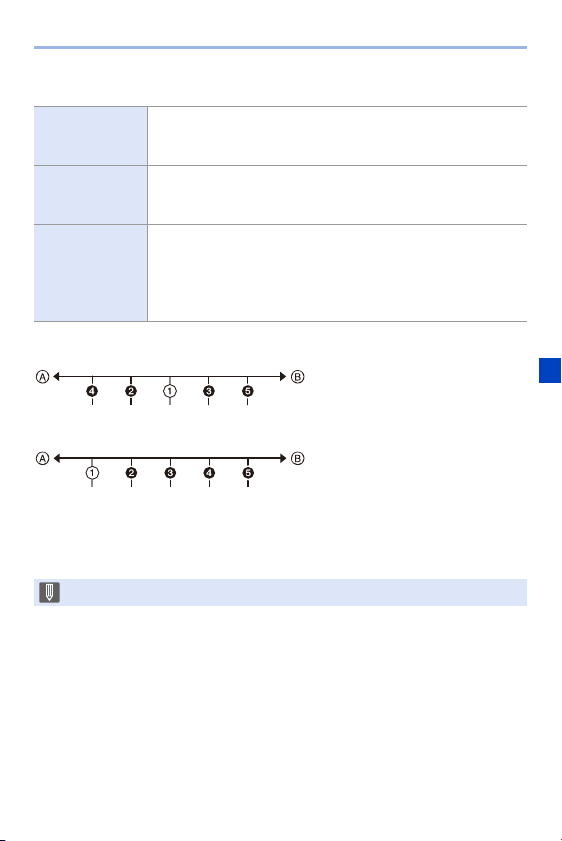
7. Drive/Shutter
159
[More Settings] (Focus Bracket)
Example when [Sequence]: [0/s/r] is set
Example when [Sequence]: [0/r] is set
A Focus: closer
B Focus: more distant
1 1st image, 2 2nd image ... 5 5th image ...
[Step]
Sets the focus adjustment step.
0 The distance that the focus position is moved becomes shorter
if the initial focus position is close, and longer if it is far away.
[Image Count]
Sets the image count.
0 This cannot be set when taking burst pictures.
Burst pictures are taken while the shutter button is pressed.
[Sequence]
[0/s/r]: Records while alternately moving the focus position in
the sequence of forward and then backward using the initial
focus position as the reference.
[0/r]: Records while moving the focus position toward the far
side using the initial focus position as the reference.
0 Pictures recorded with Focus Bracket are displayed as images of one group.
・・・・・・
・・・
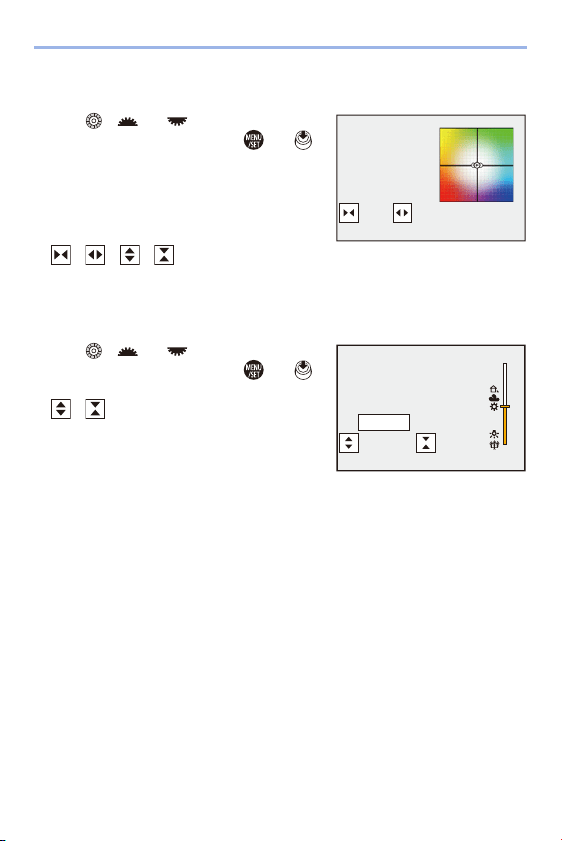
7. Drive/Shutter
160
[More Settings] (White Balance Bracket)
Rotate , or to set the
correction step and then press or .
Rotate to the right:
Horizontal direction ([A] to [B])
Rotate to the left:
Vertical direction ([G] to [M])
0 The correction step can also be set by touching
[ ]/[ ]/[ ]/[ ].
[More Settings] (White Balance Bracket (Color
Temperature))
Rotate , or to set the
correction step and then press or .
0
The correction step can also be set by touching
[ ]/[ ].
G
GGG
GGG
AAA
AAAB
BBB
BBB
MMM
MMM
±300K
5500K
5500K
5500K
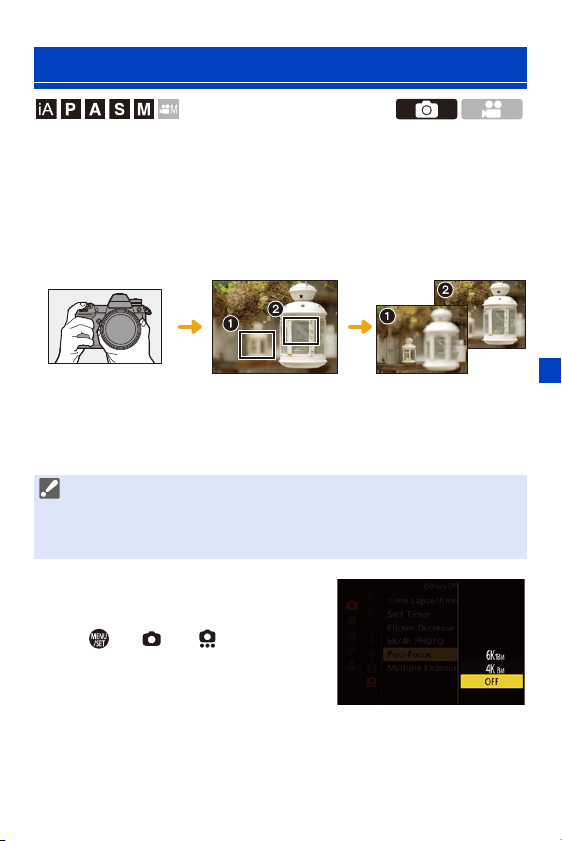
7. Drive/Shutter
161
Taking burst pictures with the same image quality as 6K/4K photos while
automatically changing the focus position.
You can select the focus position for the picture to save after recording.
Also Focus Stacking lets you combine images with multiple focus
positions.
This function is suitable for subjects that do not move.
1
Set the image quality for [Post-
Focus].
≥ ¨ [ ] ¨ [ ] ¨ [Post-
Focus] ¨ [6K 18M]/[4K 8M]
Post-Focus Recording
Perform burst 6K/4K
photo recording while
automatically shifting the
focus.
Touch the desired focus
point.
A picture with the desired
focus point is made.
0 Use a card rated at UHS Speed Class 3 or higher when using an SD card for
this function.
0 The angle of view becomes narrower.
0 When performing Focus Stacking, we recommend using a tripod.
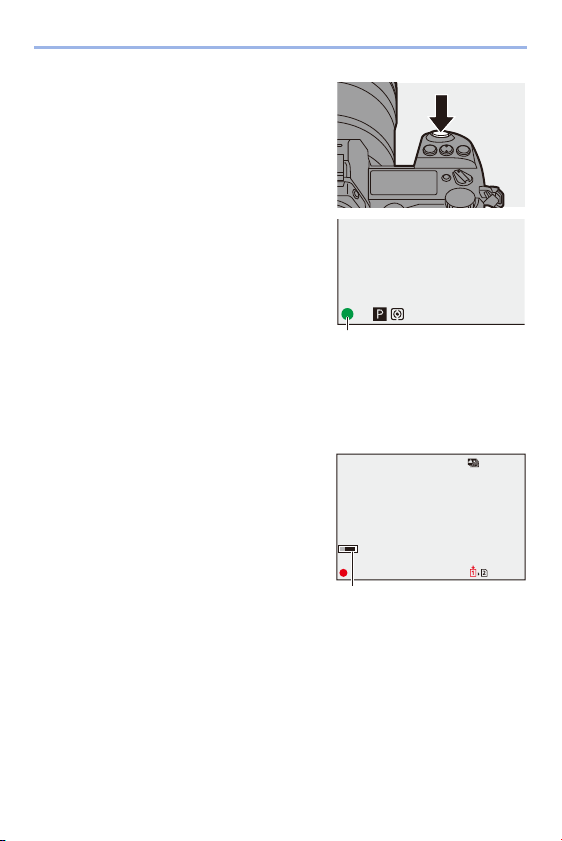
7. Drive/Shutter
162
2
Close the menu.
≥Press the shutter button halfway.
3
Decide on the composition
and then adjust the focus.
≥Press the shutter button halfway.
≥AF detects the focus position on the
screen. (Excluding the edges of the
screen)
0 If no areas on the screen can be brought into focus, the focus indication (A)
blinks and recording is not possible.
0 Maintain the same distance to the subject and the same composition until
recording finishes.
4
Start recording.
≥Press the shutter button fully.
0
Recording is performed while
automatically changing the focus
position.
When the icon (B) disappears, recording
ends automatically.
0 A video will be recorded with [Rec. File
Format] set to [MP4]. (Audio will not be recorded.)
0 In default settings, Auto Review operates, and a screen that lets you select
the point to be focused will be displayed. (l
164)
ISO
10F4.060
±
0
9m59s

7. Drive/Shutter
163
Limitations on Post-Focus Recording
0 Since recording is performed with the same image quality as 6K/4K photos,
limitations apply to recording functions and menus.
For details, refer to “Camera Settings for 6K/4K Photo” on page
136.
0 In addition to the limitations of 6K/4K photos, focus settings cannot be changed
during Post-Focus recording.
0 If the camera temperature rises under the any of following conditions, [ ]
may be displayed and recording may stop. Wait until the camera cools down.
– While recording continuously with Post-Focus
– When the ambient temperature is high
0 When using APS-C lenses, [6K 18M] is not available.
0 When the following functions are being used, [Post-Focus] is not available:
– [Time Lapse Shot]
– [Stop Motion Animation]
– [High Resolution Mode]
– [Rough Monochrome]/[Silky Monochrome]/[Miniature Effect]/[Soft Focus]/
[Star Filter]/[Sunshine] ([Filter Settings])
– [Multiple Exposure]
0 You can register functions to Fn buttons:
[]
¨ [ ] ¨ [Fn Button Set] ¨ [Setting in REC mode] ¨ [Post-Focus]
(l
278)
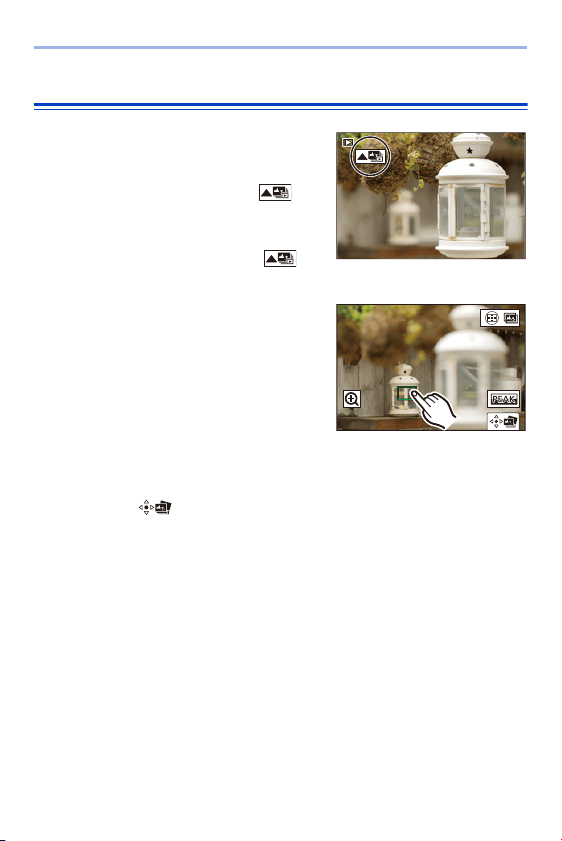
7. Drive/Shutter
164
Selecting the Focus Position for the Picture to Save
1
Select a Post-Focus image on
the playback screen. (l
259)
≥Select an image with the [ ]
icon and then press 3.
≥You can also perform the same
operation by touching the [ ]
icon.
2
Touch the point to be brought
into focus.
0 When the point is in focus, a green frame
appears.
0 If there is no picture with the selected
point in focus, a red frame appears.
A picture cannot be saved.
0 The edge of the screen cannot be selected.
3
Save the picture.
≥Touch [ ].
0
The picture is saved in JPEG format.
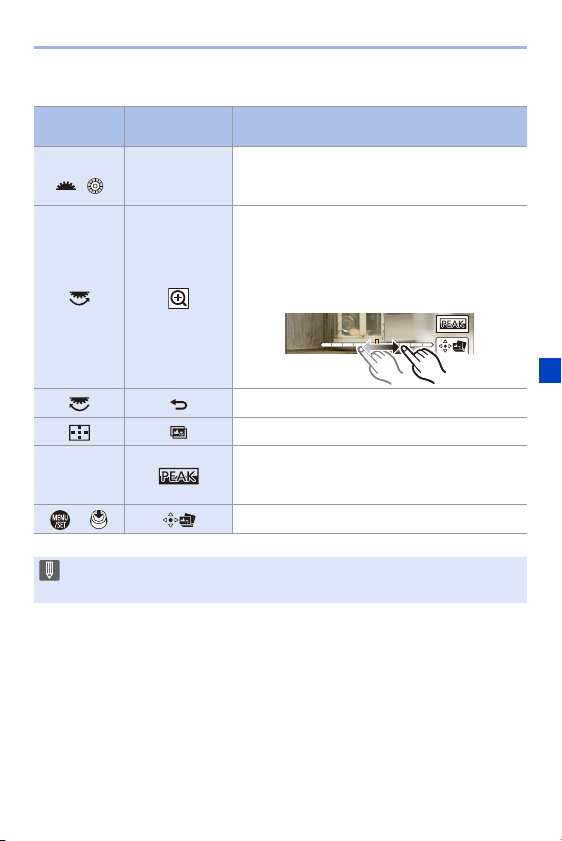
7. Drive/Shutter
165
Focus Position Selection Operations
Button
operation
Touch
operation
Description of operation
3421/
/
Touch
Selects a focus position.
0 Selection is not possible during enlarged
display.
Enlarges the display.
0 During enlarged display, you can fine-adjust the
focus by dragging the slide bar.
(You can also perform the same operation by
pressing 21.)
Reduces the display (during enlarged display).
[] Switches to Focus Stacking operation. (l 166)
s
Displays the in-focus portion highlighted with
color ([Focus Peaking]).
0 Switches in the order of [OFF] > [ON].
/ Saves the picture.
0 You cannot display an image on a TV screen and then select the focus
position.
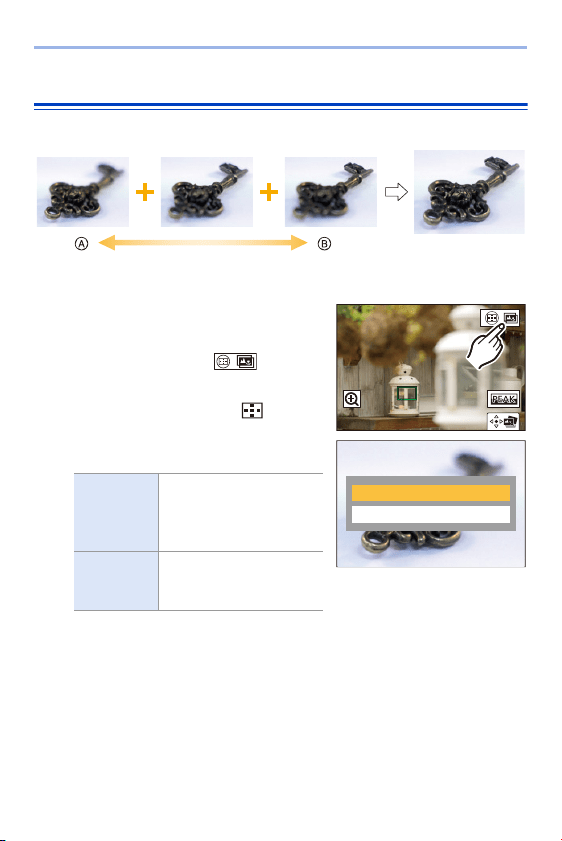
7. Drive/Shutter
166
Focus Stacking
Save a picture with multiple focus positions merged.
A Focus: closer
B Focus: more distant
1
On the screen for selecting the
focus position in Step
2
on
page
164, touch [ ].
≥You can also perform the same
operation by pressing [ ].
2
Select the merging method.
[Auto
Merging]
Automatically selects
pictures suitable for
merging and then merges
them into a single picture.
[Range
Merging]
Merges pictures with
selected focus positions
into a single picture.
$XWR0HUJLQJ
5DQJH0HUJLQJ
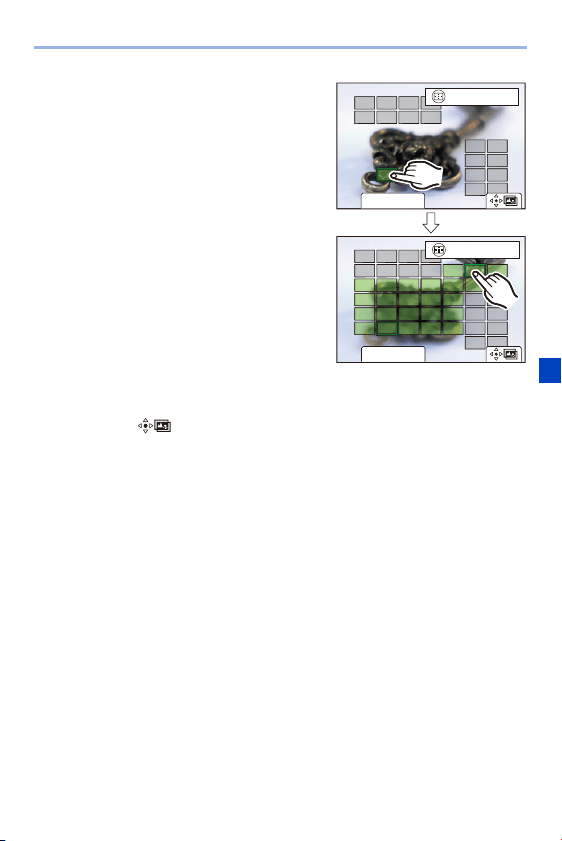
7. Drive/Shutter
167
3
(When [Range Merging] is
selected)
Touch the points to be brought
into focus.
0 Select at least two points.
Selected points are indicated with a
green frame.
0 The in-focus range between the two
selected points is displayed in green.
0 Ranges that cannot be selected are
displayed in gray.
0 To cancel the selection, touch a point with
a green frame again.
0 To select consecutive points, drag the
screen.
4
Save the picture.
≥Touch [ ].
6HW&DQFHO
ュリヴヱハ
5HVHW
6HW&DQFHO
ュリヴヱハ
5HVHW
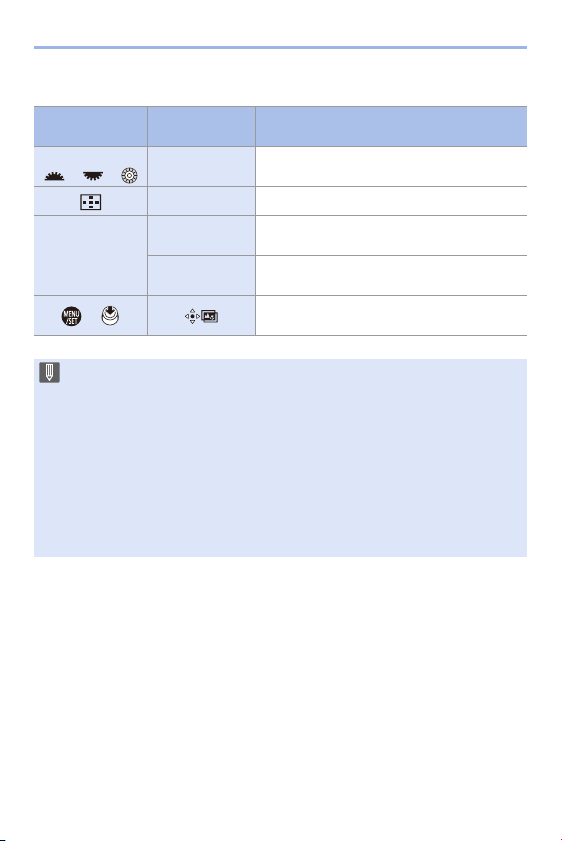
7. Drive/Shutter
168
Operations when [Range Merging] is Selected
Button
operation
Touch
operation
Description of operation
3421 /
/ /
Touch Selects a point.
[] [Set/Cancel] Sets or cancels a point.
[DISP.]
[All]
Selects all points.
(Before selecting points)
[Reset]
Cancels all selections.
(After selecting points)
/
Merges the pictures and saves the resulting
picture.
0 The picture is saved in JPEG format, and the recording information (Exif
information), such as the shutter speed, aperture, and ISO sensitivity, of the
picture with the closest point is also saved with the picture that is saved.
0 Image misalignment due to camera shake will be adjusted automatically. If
adjustments are made, the angle of view will become slightly narrower when
the pictures are merged.
0 If the subject moves during recording or the distance between subjects is
great, merging may create an unnatural picture.
0 Focus Stacking may not be available for images recorded with other than this
camera.
7. Drive/Shutter
169
This disables all operation sounds and light output at once.
The audio from the speaker will be muted and the flash and the AF assist
lamp will be set to forced off mode.
0
The following settings are fixed:
– [Flash Mode]: [Œ] (Forced Flash Off)
– [AF Assist Light]: [OFF]
– [Shutter Type]: [ELEC.]
– [Beep Volume]: [ ] (OFF)
– [AF Beep Volume]: [ ] (OFF)
– [E-Shutter Vol]: [ ] (OFF)
¨ [ ] ¨ [ ] ¨ Select [Silent Mode]
Settings: [ON]/[OFF]
[Silent Mode]
0 Even when [ON] is set, the following function lights/blinks:
– Card access lamp
– Self-timer lamp
– Status LCD Backlight
– Illumination button
0 Use this function at your own responsibility sufficiently considering the privacy,
portrait, and other rights of subjects.
0 You can register functions to Fn buttons:
[]
¨ [ ] ¨ [Fn Button Set] ¨ [Setting in REC mode] ¨ [Silent Mode]
(l
278)
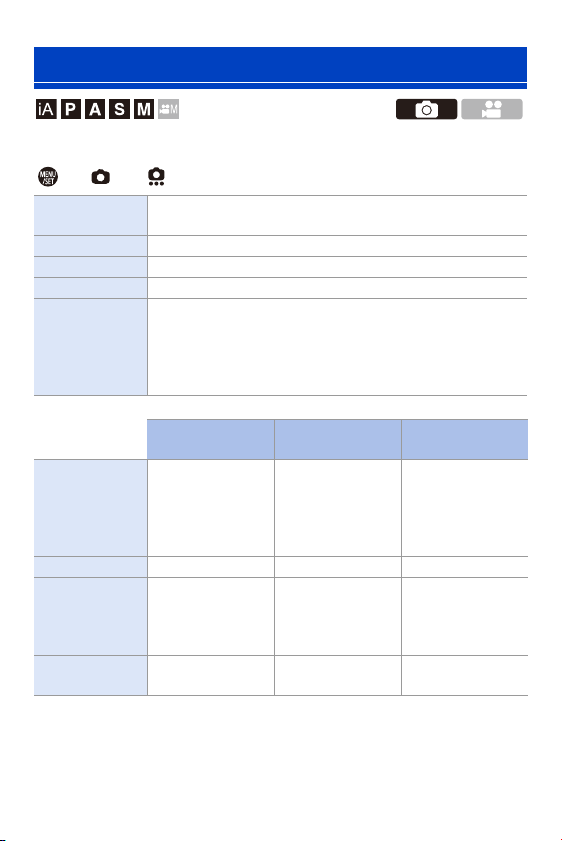
7. Drive/Shutter
170
Select the shutter type to use for taking pictures.
¨ [ ] ¨ [ ] ¨ Select [Shutter Type]
¢1 This setting is available only in [M] mode.
¢2 The electronic shutter sound can be set in [E-Shutter Vol] and [E-Shutter Tone] in
[Beep] of the [Setup] ([IN/OUT]) menu. (l
354)
[Shutter Type]
[AUTO]
Switches the shutter type automatically depending on the
recording conditions and shutter speed.
[MECH.] Records with the mechanical shutter type.
[EFC] Records with the electronic front curtain type.
[ELEC.] Records with the electronic shutter type.
[ELEC.+NR]
Records with the electronic shutter type.
When pictures are taken at slower shutter speeds, the shutter is
closed after recording to perform long shutter noise reduction.
0 The next picture cannot be taken during long shutter noise
removal.
Mechanical
shutter type
Electronic front
curtain type
Electronic shutter
type
Mechanism
This type starts and
ends exposure with
the mechanical
shutter.
This type starts
exposure
electronically and
ends it with the
mechanical shutter.
This type starts and
ends exposure
electronically.
Flash 33—
Shutter speed
(sec.)
[B] (Bulb, max.
approx.
30 minutes)
¢1
,
60 to 1/8000
[B] (Bulb, max.
approx.
30 minutes)
¢1
,
60 to 1/2000
[B] (Bulb, max.
approx.
60 seconds)
¢1
,
60 to 1/16000
Shutter sound
Mechanical shutter
sound
Mechanical shutter
sound
Electronic shutter
sound
¢2
7. Drive/Shutter
171
0 The electronic front curtain type reduces blur caused by the shutter because the
amount of vibration from the shutter is small compared to the mechanical shutter
type.
0 The electronic shutter type allows you to record without vibration from the shutter.
0 When [ ] is displayed on the screen, recording will be with the electronic
shutter type.
0 When a moving subject is recorded using the electronic shutter, the subject
may appear distorted in the picture.
0 When you record using the electronic shutter under lighting such as
fluorescent or LED lighting, horizontal stripes may be recorded. In such a
case, lowering the shutter speed may reduce the effect of horizontal stripes.
0 When [Silent Mode] is being used, [Shutter Type] is fixed to [ELEC.].
0 When using APS-C lenses, [EFC] is not available.
0 You can register functions to Fn buttons:
[]
¨ [ ] ¨ [Fn Button Set] ¨ [Setting in REC mode] ¨ [Shutter Type]
(l
278)
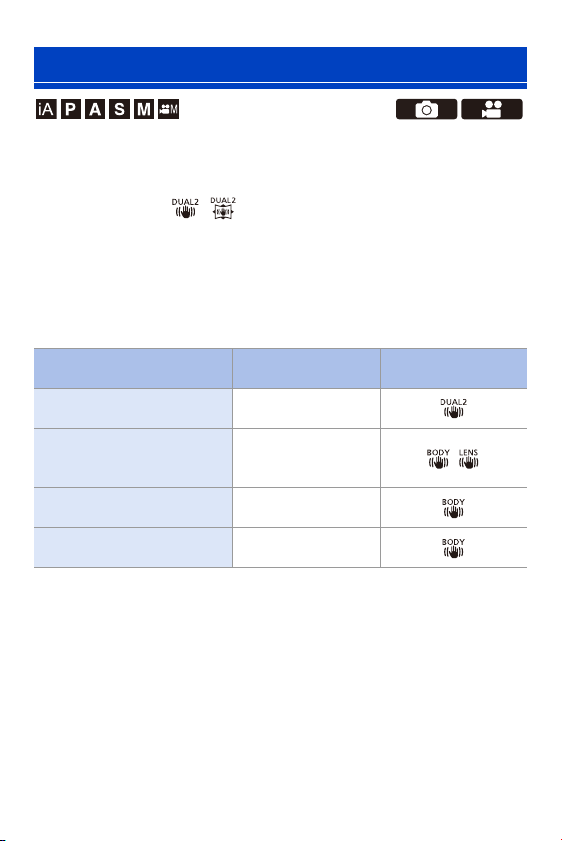
7. Drive/Shutter
172
The camera can use both the in-body image stabilizer and the in-lens
image stabilizer.
Of the Dual I.S. modes that effectively combine two image stabilizers, this
supports Dual I.S.2 ( , ) with high correction efficiency.
Furthermore, during video recording, you can use the 5-Axis Hybrid Image
Stabilizer that incorporates electronic stabilization.
Available image stabilizers (As of January 2019)
Image stabilizers that can be used will differ depending on the attached
lens.
0
The 5-Axis Hybrid Image Stabilizer can be used with any lenses.
Image Stabilizer
Attached lens
Available image
stabilizer
Example of screen
display
Panasonic lenses with image
stabilization function
BodyrLens
(Dual I.S.2)
Other manufacturer’s lenses
with image stabilization
function
Body or Lens /
Lenses without image
stabilizer
Body
Lenses without
communication function
Body
7. Drive/Shutter
173
Using the Image Stabilizer
0 When using a lens with an O.I.S. switch, set it to [ON].
0 When using lenses without a function for communicating with this camera, a
message asking you to check the focal length setting is displayed after you turn on
the camera.
Correctly operating the image stabilization function requires that the focal length be
set to match the attached lens.
Set the focal length in accordance as prompted by the message.
This can also be set using the menu. (l
174)
0 When the shutter button is pressed halfway, the camera shake alert icon
[ ] may be displayed on the recording screen.
If this is displayed, we recommend using a tripod, the self timer or the Shutter
Remote Control (DMW-RS2: optional).
0 We recommend turning off the image stabilizer function when using a tripod.
0 The image stabilizer may cause vibration or produce operational sound during
operation, but these are not malfunctions.
0 When the following function is being used, the image stabilizer function is not
available:
– [High Resolution Mode]
0 You can display the reference point and check the camera shake status:
[]
¨ [ ] ¨ [I.S. Status Scope] (l 348)

7. Drive/Shutter
174
Image Stabilizer Settings
Set the image stabilizer movement to match the recording situation.
¨ [ ] ¨ [ ] ¨ Select [Image Stabilizer]
[Operation Mode]
Sets the stabilization movement (blur) to match the
recording method (normal, panning). (l
175)
[Body(B.I.S.) /
Lens(O.I.S.)]
([Body]) Uses the in-body image stabilizer.
([Lens]) Uses the in-lens image stabilizer.
0 This can be set when using other manufacturer’s lenses
with an image stabilization function.
[When to Activate]
[ALWAYS]
The image stabilizer is always
operating.
[HALF-
SHUTTER]
The image stabilizer operates when the
shutter button is pressed halfway.
[E-Stabilization
(Video)]
Camera shake during video recording is corrected along
the vertical, horizontal, roll, pitch, and yaw axes through the
combined use of the in-lens, in-body, and electronic
stabilizers. (5-Axis Hybrid Stabilizer)
0 When [E-Stabilization (Video)] is operating, [ ] or
[ ] is displayed on the recording screen.
0 The angle of view may become narrower if set to [ON].
[Boost I.S. (Video)]
Increases the effectiveness of the image stabilizer during
video recording.
This effect can help provide a stable composition when you
want to perform recording from a fixed perspective. (l
176)
[Focal Length Set]
When using lenses without a function for communicating
with this camera, manually set the focal length. (l
177)
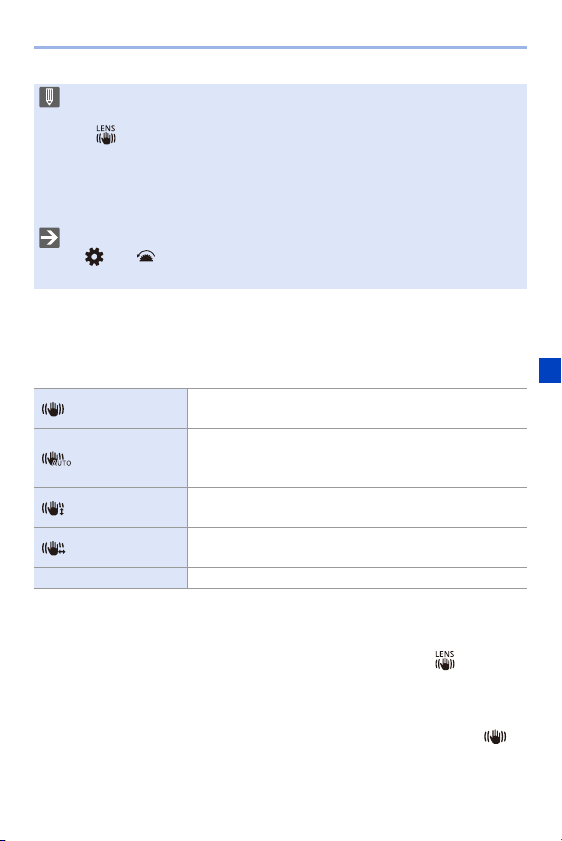
7. Drive/Shutter
175
[Operation Mode]
Set the stabilization movement (blur) to match the recording method
(normal, panning).
0 Operation modes that can be used will differ depending on the used lenses and on
[Body(B.I.S.) / Lens(O.I.S.)] settings.
0 [Panning (Auto)] is not displayed when using other manufacturer’s lenses with an
image stabilization function with [Body(B.I.S.) / Lens(O.I.S.)] set to [ ]. Set to
either [Panning (Left/Right)] or [Panning (Up/Down)] to suit the panning direction.
0 When using lenses with an O.I.S. switch, the camera’s operation mode cannot be
set to [OFF].
0 When the following functions are being used, [Operation Mode] switches to [ ]
([Normal]):
– Video recording/[6K/4K PHOTO]/[Post-Focus]
0 When the following functions are being used, [When to Activate] is fixed to
[ALWAYS]:
– [ ] ([Body(B.I.S.) / Lens(O.I.S.)])
– Video recording/[6K/4K PHOTO]/[Post-Focus]
0 When the following function is being used, [E-Stabilization (Video)] is not
available:
– [High Speed Video]
0 You can register functions to Fn buttons:
[]
¨ [ ] ¨ [Fn Button Set] ¨ [Setting in REC mode] ¨ [E-Stabilization
(Video)] (l
278)
[Normal]
Corrects vertical, horizontal, and rotational camera shake.
This function is suitable for normal recording.
[Panning (Auto)]
Automatically detects the panning direction, and corrects
vertical and horizontal camera shake.
This function is suitable for panning.
[Panning (Left/
Right)]
Corrects vertical camera shake.
This is suitable for horizontal panning.
[Panning (Up/
Down)]
Corrects horizontal camera shake.
This is suitable for vertical panning.
[OFF] Turns the image stabilization function OFF.
7. Drive/Shutter
176
[Boost I.S. (Video)]
Increase the effectiveness of the image stabilizer during video recording.
This effect can help provide a stable composition when you want to
perform recording from a fixed perspective.
Settings: [ON]/[OFF]
0
When [Boost I.S. (Video)] is operating, [ ] is displayed on the recording screen.
0 To change composition while recording, first set this to [OFF] before moving the
camera.
To set this to [OFF] during recording, use the Fn button. (l
278)
0 Longer focal lengths will result in weaker stabilization.
0 You can register functions to Fn buttons:
[]
¨ [ ] ¨ [Fn Button Set] ¨ [Setting in REC mode] ¨ [Image
Stabilizer] (l
278)
0 When [Body(B.I.S.) / Lens(O.I.S.)] is set to [ ], [Boost I.S. (Video)] is not
available.
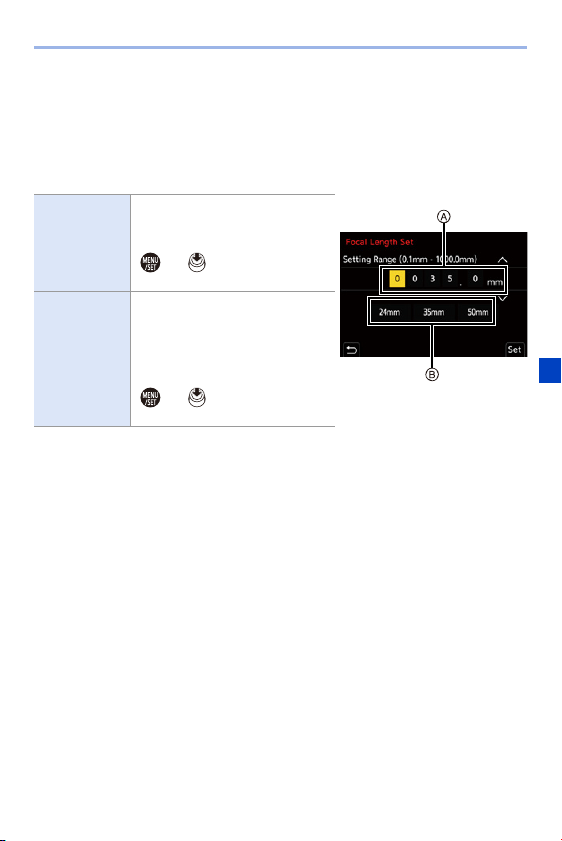
7. Drive/Shutter
177
[Focal Length Set]
When using lenses without a function for communicating with this camera,
manually set the focal length inscribed on the lens.
Up to three focal length settings can be registered.
Registered focal length settings can be called.
Entering
focal length
input A
Enter the focal length.
21: Select
34: Select a numeric value.
or : Confirm
0 0.1 mm to 1000 mm can be set.
Registration
and calling B
Register the entered focal length.
Call the registered focal length.
21: Select
[DISP.]: Register the entered
focal length.
or : Call the registered
focal length.
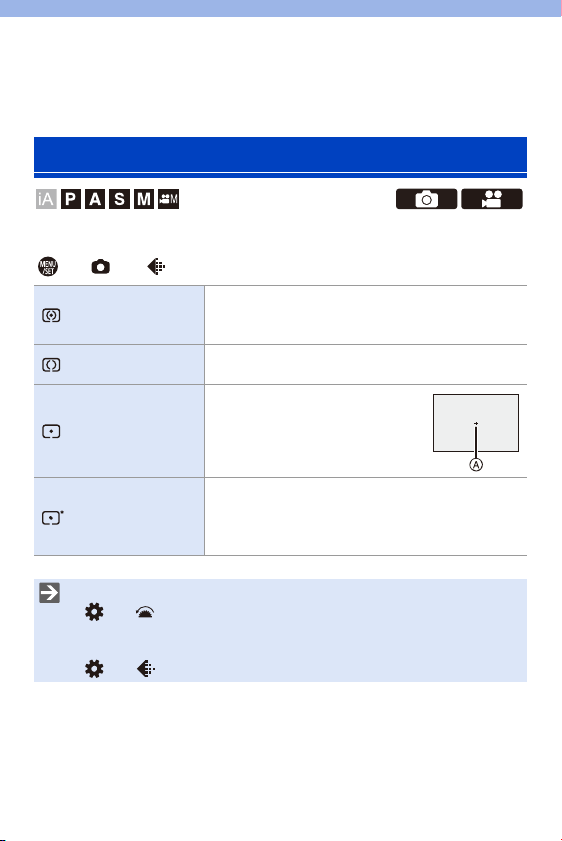
178
8. Metering/Exposure/ISO
Sensitivity
Type of optical measurement to measure brightness can be changed.
¨ [ ] ¨ [ ] ¨ Select [Metering Mode]
[Metering Mode]
(Multi-metering)
Method in which the most suitable exposure is
measured by judging the allocation of brightness on
the whole screen.
(Center-weighted)
Method used to perform measuring which focuses on
the center of the screen.
(Spot)
Method used to measure the
extremely small part around the
spot-metering target A.
(Highlight-
weighted)
Method used to perform measuring which focuses on
the highlighted parts of the screen to prevent
overexposure.
This is suitable for theatre photography, etc.
0 You can register functions to Fn buttons:
[]
¨ [ ] ¨ [Fn Button Set] ¨ [Setting in REC mode] ¨ [Metering Mode]
(l
278)
0 The standard value for correct exposure can be adjusted:
[]
¨ [ ] ¨ [Exposure Offset Adjust.] (l 328)
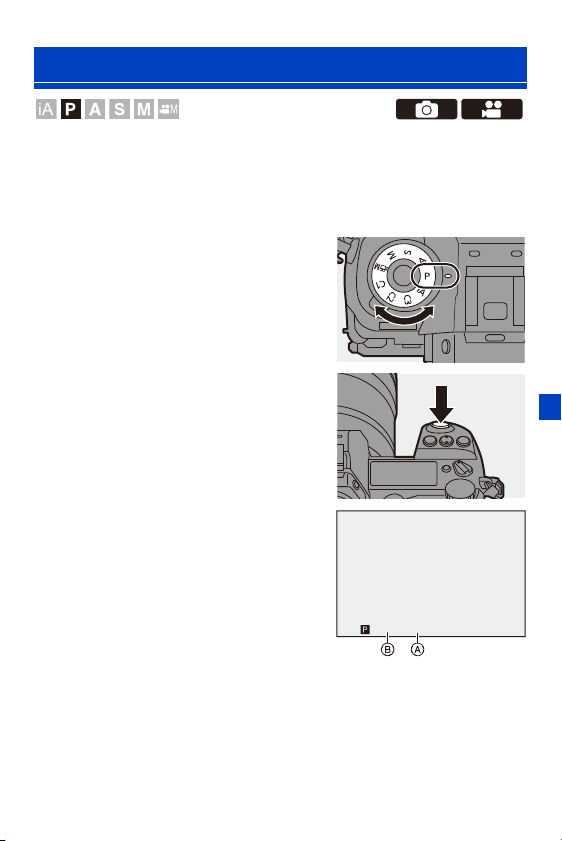
8. Metering/Exposure/ISO Sensitivity
179
In [P] mode (Program AE mode), the camera automatically sets the shutter
speed and aperture value for the brightness of the subject.
You can also use Program Shift to change combinations of shutter speed
and aperture values while keeping the same exposure.
1
Set the mode dial to [P].
2
Press the shutter button
halfway.
≥This displays the aperture value A
and shutter speed value B on the
recording screen.
0
If the correct exposure is not achieved,
the aperture value and shutter speed
blink red.
3
Start recording.
Program AE Mode
F4.060
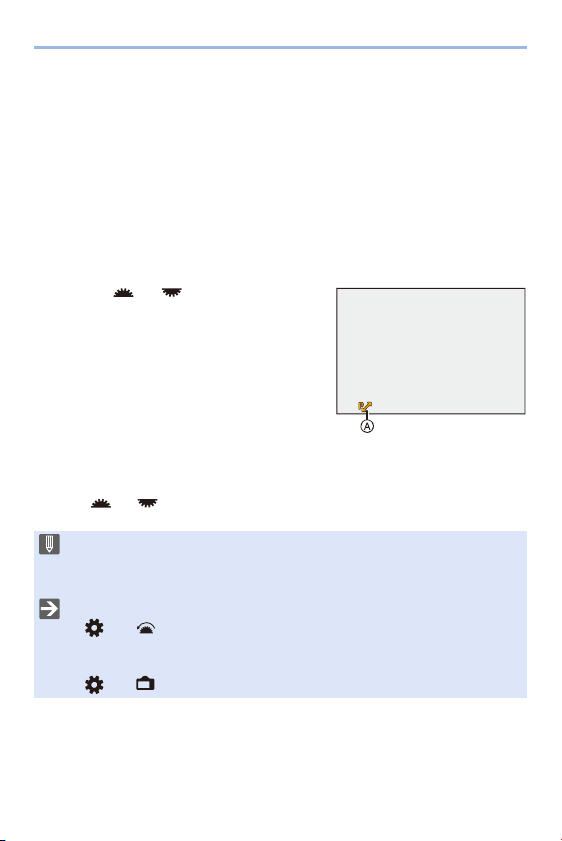
8. Metering/Exposure/ISO Sensitivity
180
Program Shift
You can change the shutter speed and aperture value combination set
automatically by the camera while maintaining the same exposure.
With this, you can, for example, make the background more defocused by
decreasing the aperture value or capture a moving subject more
dynamically by slowing the shutter speed.
1
Press the shutter button halfway.
0
This displays the aperture value and shutter speed value on the recording
screen. (Approx. 10 seconds)
2
Rotate or while the values are
displayed.
0
This displays the Program Shift icon A on
the recording screen.
3
Start recording.
Canceling Program Shift
– Set the camera on/off switch to [OFF].
– Rotate or until the Program Shift icon disappears.
0 Program Shift is not available when using the following functions:
–Flash
– [6K/4K PHOTO]/[Post-Focus]
0 You can customize dial operations:
[]
¨ [ ] ¨ [Dial Set.] ¨ [Assign Dial (F/SS)] (l 336)
0 The recording screen can display an exposure meter indicating the
relationship between aperture value and shutter speed:
[]
¨ [ ] ¨ [Expo.Meter] (l 344)
F5.630
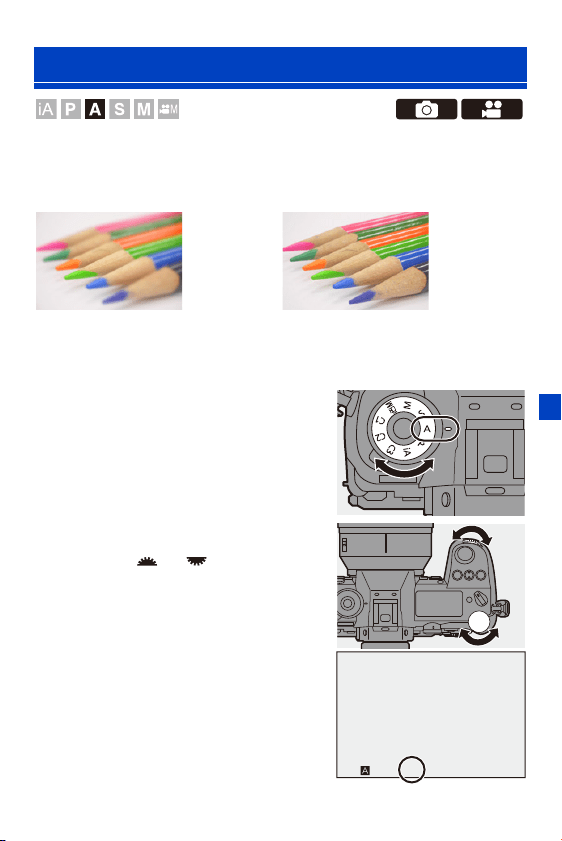
8. Metering/Exposure/ISO Sensitivity
181
In [A] mode (Aperture-Priority AE mode), you can set the aperture value
before recording.
The shutter speed will be automatically set by the camera.
1
Set the mode dial to [A].
2
Set the aperture value.
≥Rotate or .
3
Start recording.
0 If the correct exposure is not achieved
when the shutter button is pressed
halfway, the aperture value and the
shutter speed blink red.
Aperture-Priority AE Mode
Smaller aperture values
It becomes easier to defocus the
background.
Larger aperture values
It becomes easier to bring everything into
focus including the background.
F8.0F8.0F8.0
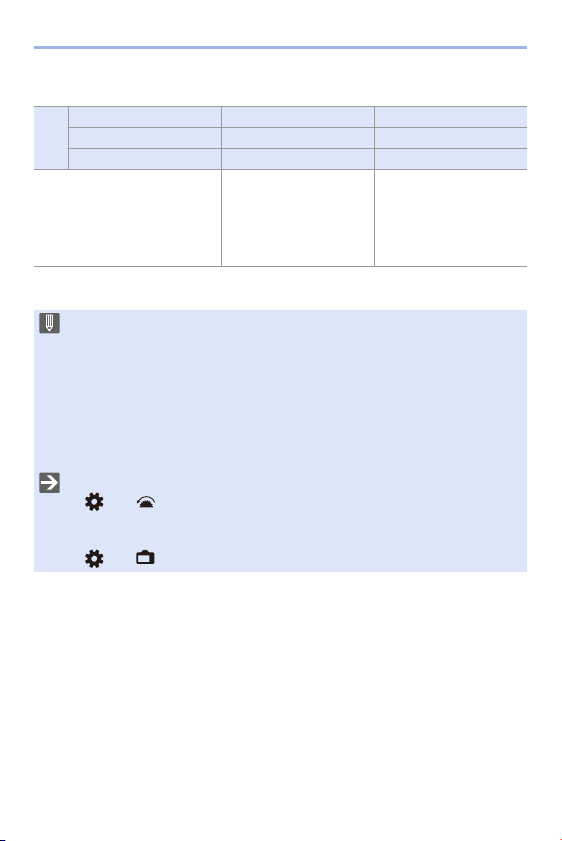
8. Metering/Exposure/ISO Sensitivity
182
Depth of Field Characteristics
¢1 Recording conditions
¢1
Aperture value Small Large
Focal length of lens Tele Wide
Distance to subject Near More distant
Depth of field
(area in sharp focus)
Shallow (narrow)
Example: When you
want to take a image
with a defocused
background.
Deep (wide)
Example: When you
want to take a image
with focus as far as the
background.
0 The effects of the set aperture value and shutter speed will not be visible on
the recording screen.
To check the effects on the recording screen, use [Preview]. (l
188)
0 The brightness of the recording screen and of actual recorded images may
differ.
Check the images on the playback screen.
0 When using a lens with an aperture ring, set the position of the aperture ring to
other than [A] to use the aperture value of the lens.
0 You can customize dial operations:
[]
¨ [ ] ¨ [Dial Set.] ¨ [Rotation (F/SS)] (l 336)
0 The recording screen can display an exposure meter indicating the
relationship between aperture value and shutter speed:
[]
¨ [ ] ¨ [Expo.Meter] (l 344)
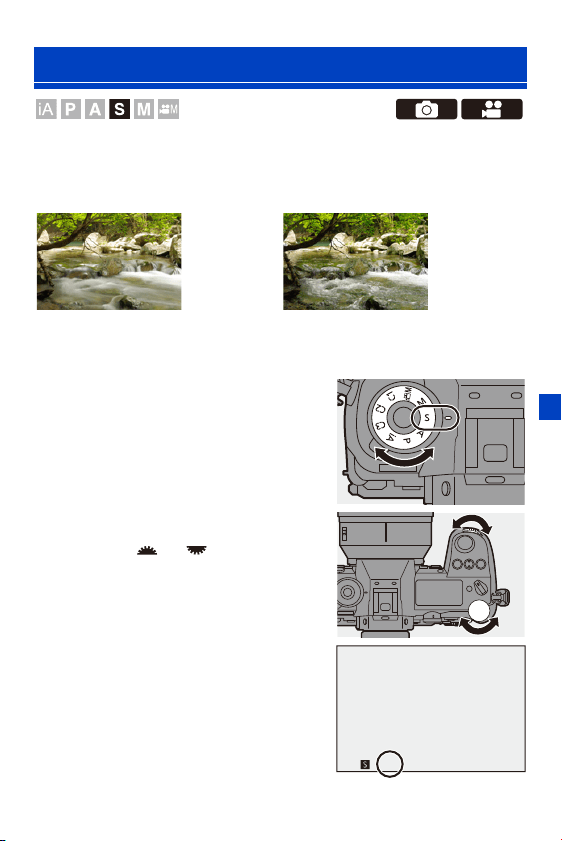
8. Metering/Exposure/ISO Sensitivity
183
In [S] mode (Shutter-Priority AE mode), you can set the shutter speed
before recording.
The aperture value will be automatically set by the camera.
1
Set the mode dial to [S].
2
Set the shutter speed.
≥Rotate or .
3
Start recording.
0 If the correct exposure is not achieved
when the shutter button is pressed
halfway, the aperture value and the
shutter speed blink red.
Shutter-Priority AE Mode
Slower shutter speeds
It becomes easier to capture motion
Faster shutter speeds
It becomes easier to freeze motion
250250250
8. Metering/Exposure/ISO Sensitivity
184
0 The effects of the set aperture value and shutter speed will not be visible on
the recording screen.
To check the effects on the recording screen, use [Preview]. (l
188)
0 The brightness of the recording screen and of actual recorded images may
differ.
Check the images on the playback screen.
0 Shutter speeds faster than 1/320 of a second are not available when you fire
the flash. (l
222)
0 You can customize dial operations:
[]
¨ [ ] ¨ [Dial Set.] ¨ [Assign Dial (F/SS)]/[Rotation (F/SS)] (l 336)
0 The recording screen can display an exposure meter indicating the
relationship between aperture value and shutter speed:
[]
¨ [ ] ¨ [Expo.Meter] (l 344)
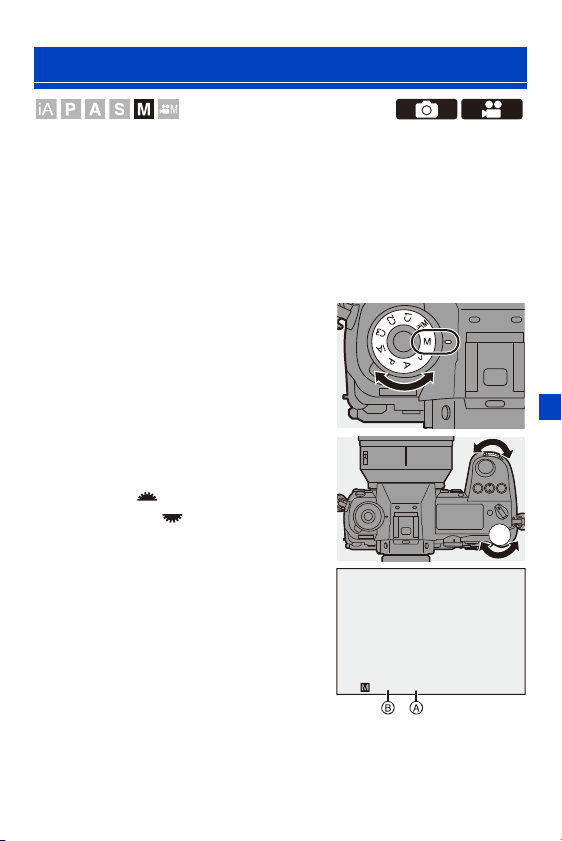
8. Metering/Exposure/ISO Sensitivity
185
In [M] mode (Manual Exposure mode), you can take pictures by manually
setting the aperture value and shutter speed.
In default settings, the ISO sensitivity is set to [AUTO].
As a result, the ISO sensitivity will be adjusted according to the aperture
value and shutter speed.
Exposure compensation can also be used when ISO sensitivity is set to
[AUTO].
1
Set the mode dial to [M].
2
Set the aperture value and
shutter speed.
≥Rotate to set the aperture
value, and to set the shutter
speed.
A Aperture value
B Shutter speed
3
Start recording.
0 If the correct exposure is not achieved
when the shutter button is pressed
halfway, the aperture value and the
shutter speed blink red.
Manual Exposure Mode
F5.6303030
8. Metering/Exposure/ISO Sensitivity
186
Available Shutter Speeds (Sec.)
Manual Exposure Assist
When ISO sensitivity is set to other than [AUTO], Manual Exposure Assist
(example: ) will be displayed on the recording screen.
You can check the difference between the current exposure value and the
correct exposure (n0) measured by the camera.
0
Use Manual Exposure Assist as a guide.
We recommend checking the images on the playback screen when recording.
[MECH.] [B] (Bulb, max. approx. 30 minutes), 60 to 1/8000
[EFC] [B] (Bulb, max. approx. 30 minutes), 60 to 1/2000
[ELEC.] [B] (Bulb, max. approx. 60 seconds), 60 to 1/16000
0 The effects of the set aperture value and shutter speed will not be visible on
the recording screen.
To check the effects on the recording screen, use [Preview]. (l
188)
You can set the preview mode to operate constantly in [M] mode.
[]
¨ [ ] ¨ [Constant Preview] (l 339)
0 The brightness of the recording screen and of actual recorded images may
differ.
Check the images on the playback screen.
0 When using a lens with an aperture ring, set the position of the aperture ring to
other than [A] to use the aperture value of the lens.
0 Shutter speeds faster than 1/320 of a second are not available when you fire
the flash. (l
222)
0 You can customize dial operations:
[]
¨ [ ] ¨ [Dial Set.] ¨ [Assign Dial (F/SS)]/[Rotation (F/SS)] (l 336)
0 The recording screen can display an exposure meter indicating the
relationship between aperture value and shutter speed:
[]
¨ [ ] ¨ [Expo.Meter] (l 344)
+
1

8. Metering/Exposure/ISO Sensitivity
187
[B] (Bulb)
If you set the shutter speed to [B] (Bulb), the shutter stays open while the
shutter button is pressed fully. (up to approx. 30 minutes)
The shutter closes when the shutter button is released.
Use this when you want to keep the shutter open for a long time to record
images of fireworks, night scenery or a starry sky.
0 We recommend using a tripod or the Shutter Remote Control (DMW-RS2:
optional) during bulb recording.
0 Bulb recording may create noticeable noise.
If you are concerned about noise, we recommend that you set [Long Exposure
NR] to [ON] in the [Photo] ([Image Quality]) menu before recording.
0 Bulb is not available when using the following functions:
– [6K/4K PHOTO]/[Post-Focus]
– [Time Lapse Shot]
– [Stop Motion Animation] (when set to [Auto Shooting])
– [Bracketing]
– [High Resolution Mode]
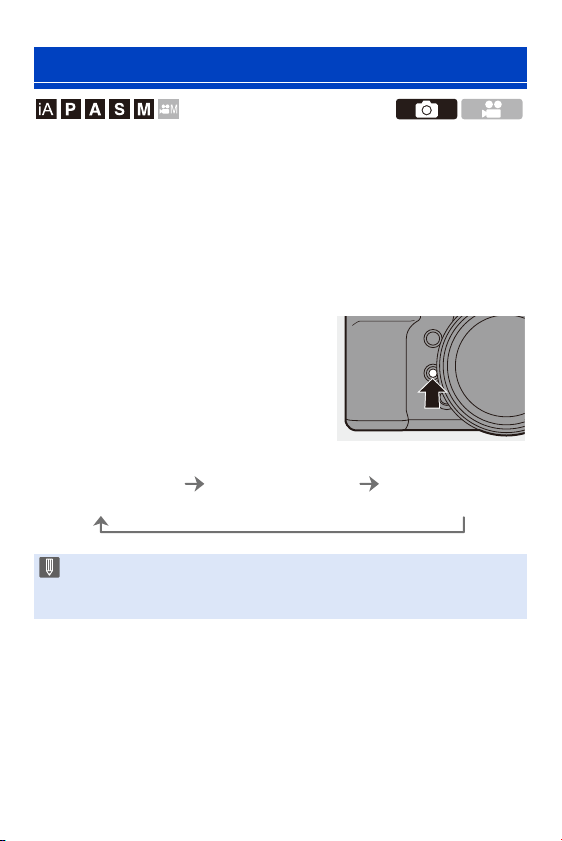
8. Metering/Exposure/ISO Sensitivity
188
You can check the effects of aperture on the recording screen by physically
closing the aperture blades of the lens to the aperture value set for actual
recording.
In addition to the effects of aperture, you can check the effects of shutter
speed at the same time.
0
Use the Fn button registered with [Preview] to operate. In default settings, this is
registered in [Fn2].
For information about the Fn button, refer to page
278.
Press the preview button.
0 Each press of the button switches between the
effect preview screens.
Preview Mode
Aperture effect: OFF
Shutter speed effect:
OFF
Aperture effect: ON
Shutter speed effect:
OFF
Aperture effect: ON
Shutter speed effect:
ON
0 It is possible to record in preview mode.
0 Range for shutter speed effect check is 8 seconds to 1/16000 of a second.
0 Preview mode is not available when recording with [6K/4K Pre-Burst].
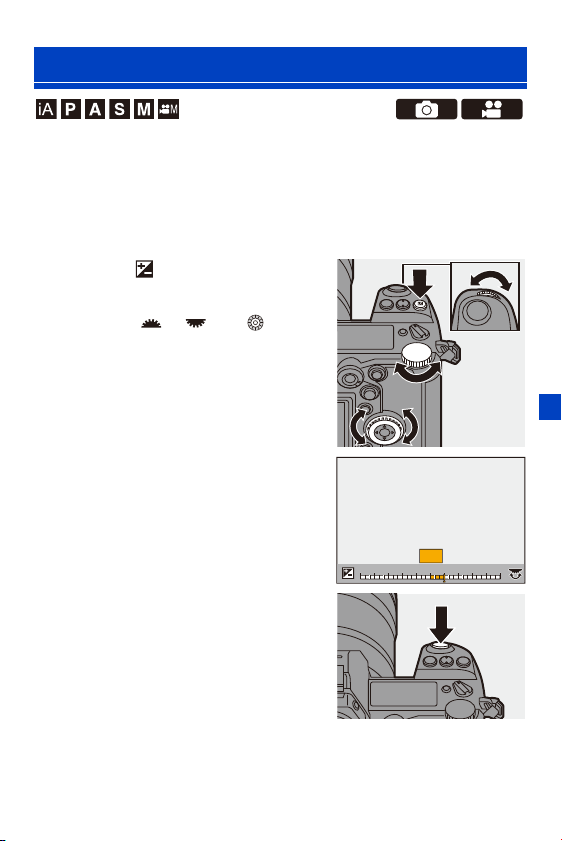
8. Metering/Exposure/ISO Sensitivity
189
You can compensate the exposure when the correct exposure determined
by the camera is too bright or too dark.
You can adjust the exposure in 1/3 EV steps in a range of n5EV.
When recording videos or recording with 6K/4K Photo or Post-Focus, the
range changes to n3EV.
1
Press [ ].
2
Compensate the exposure.
≥Rotate [ ], [ ], or [ ].
3
Confirm your selection.
≥Press the shutter button halfway.
Exposure Compensation
2
2
2
2
2
2
1
1
+3+3+1+1 +2+2 +3+3
-
5
-
5
-
4
-
4
-
3
-
3
-
2
-
2
-
1
-
100
+5+5+4+4
+
+
1
8. Metering/Exposure/ISO Sensitivity
190
0 In [M] mode, you can compensate the exposure by setting the ISO sensitivity
to [AUTO].
0 When [Auto Exposure Comp.] is set to [ON], the flash output will automatically
be set to the level appropriate to the exposure compensation.
0 When the exposure compensation value falls below or exceeds n3 EV, the
brightness of the recording screen will no longer change.
Press the shutter button halfway or use AE Lock to reflect the value on the
recording screen.
0 When the exposure compensation value falls below or exceeds the n3 EV
range, exposure compensation values on the status LCD are indicated with
[ ]/[ ]. (l
30)
0 The set exposure compensation value is stored even if you turn off the
camera. (When [Exposure Comp. Reset] is set to [OFF])
0 The standard value for correct exposure can be adjusted:
[]
¨ [ ] ¨ [Exposure Offset Adjust.] (l 328)
0 You can set the exposure compensation value to be reset when the camera is
turned off:
[]
¨ [ ] ¨ [Exposure Comp. Reset] (l 328)
0 You can change the operation of the [ ] button:
[]
¨ [ ] ¨ [WB/ISO/Expo. Button] (l 335)
0 Exposure Bracket can be set and flash output can be adjusted on the
exposure compensation screen:
[]
¨ [ ] ¨ [Exposure Comp. Disp. Setting] (l 335)
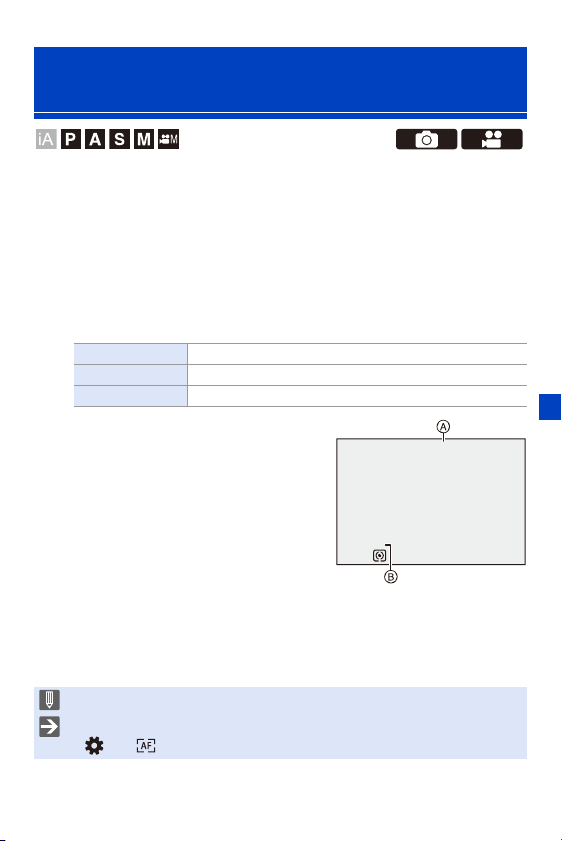
8. Metering/Exposure/ISO Sensitivity
191
Lock the focus and exposure in advance to take pictures with the same
focus and exposure settings while changing the composition.
This is useful when you want to bring an edge of the screen into focus or
there is a backlight, for example.
1
Register [AE LOCK], [AF LOCK], or [AF/AE LOCK] to the
Fn button. (l
278)
0 These cannot be registered to [Fn3] to [Fn7].
2
Lock focus and exposure.
≥Press and hold the Fn button.
≥If focus is locked, then the AF lock
icon A will be displayed.
≥If exposure is locked, then the AE
lock icon B will be displayed.
3
Hold the Fn button to decide on the composition and
then perform recording.
≥Press the shutter button fully.
Locking Focus and Exposure (AF/AE
Lock)
[AE LOCK] The exposure is locked.
[AF LOCK] The focus is locked.
[AF/AE LOCK] Both focus and exposure are locked.
0 Program Shift can be set even when AE is locked.
0 You can maintain lock even without pressing and holding the Fn button:
[]
¨ [ ] ¨ [AF/AE Lock Hold] (l 329)
AFLAFL
AELAEL
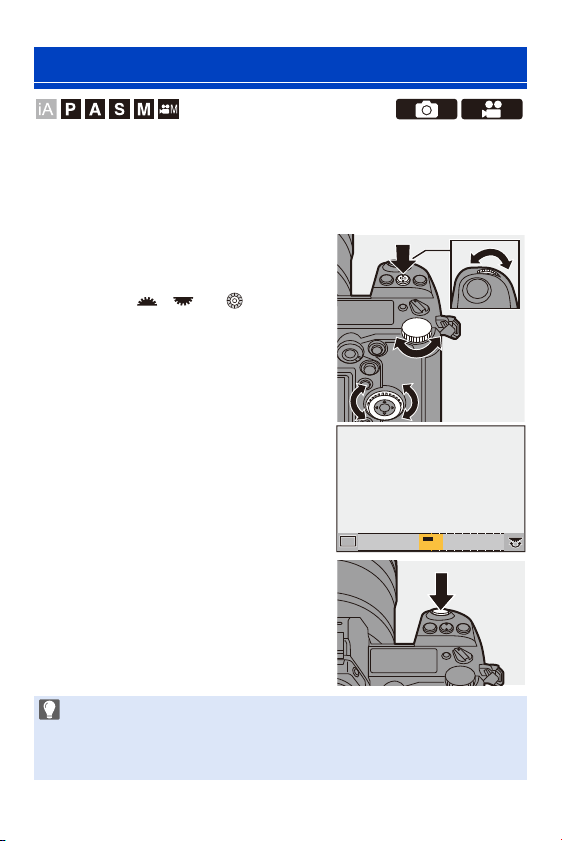
8. Metering/Exposure/ISO Sensitivity
192
You can set light sensitivity (ISO sensitivity).
With the default settings, you can set ISO100 to 25600 in 1/3 EV
increments.
The range that can be set will differ depending on the functions used.
1
Press [ISO].
2
Select ISO sensitivity.
≥Rotate , , or .
≥Selection is also possible by
pressing [ISO].
3
Confirm your selection.
≥Press the shutter button halfway.
Setting the ISO Sensitivity
Characteristics of the ISO Sensitivity
Higher ISO sensitivities enable faster shutter speeds even in dark places, so
camera shake and subject blur can be prevented. However, higher ISO
sensitivities also increase the amount of noise in the recorded images.
2
2
2
2
2
2
1
1
1
00
1
00
2
00
2
00
4
0
4
0
ISO
ISO
ISOISOISO
ISOISOISOISOISOISOISO
AUTO
AUTO
8. Metering/Exposure/ISO Sensitivity
193
Setting Items (ISO Sensitivity)
¢1 Default setting. The upper limit can be changed with [ISO Sensitivity (photo)].
¢2 Default setting. The upper limit can be changed with [ISO Sensitivity (video)].
0 When the following functions are being used, the ISO sensitivity that can be set is
restricted.
– [High Resolution Mode]: Up to an upper limit of [ISO3200]
– [Filter Settings]: Down to a lower limit of [ISO100], up to an upper limit of
[ISO6400] (The lower limit changes to [ISO400] when [High Dynamic] is set.)
– [Multiple Exposure]: Down to a lower limit of [ISO100], up to an upper limit of
[ISO6400]
– [Like709] ([Photo Style]): Down to a lower limit of [ISO100]
– [Standard(HLG)]/[Monochrome(HLG)] in [Photo Style]: Down to a lower limit of
[ISO320]
[AUTO]
The ISO sensitivity is automatically adjusted according
to the brightness.
Confirm ISO sensitivity by pressing the shutter button
halfway.
0 Taking picture: Maximum [ISO6400]
¢1
0 Video recording: Maximum [ISO6400]
¢2
[100] to [25600]
The ISO sensitivity is fixed at the selected value.
0 You can extend the ISO sensitivity range in between
a lower limit of L.50 and an upper limit of H.51200 by
setting [Extended ISO] (l
327) to [ON] in the
[Custom] ([Image Quality]) menu.
0 You can set upper and lower limits for ISO auto when taking pictures:
–[ ]
¨ [ ] ¨ [ISO Sensitivity (photo)] (l 306)
–[ ]
¨ [ ] ¨ [ISO Sensitivity (video)] (l 319)
0 You can change the intervals between ISO sensitivity settings values:
[]
¨ [ ] ¨ [ISO Increments] (l 327)
0 You can change the operation of the [ISO] button:
[]
¨ [ ] ¨ [WB/ISO/Expo. Button] (l 335)
0 You can set the upper limit for ISO auto on the ISO sensitivity settings screen:
[]
¨ [ ] ¨ [ISO Displayed Setting] (l 335)
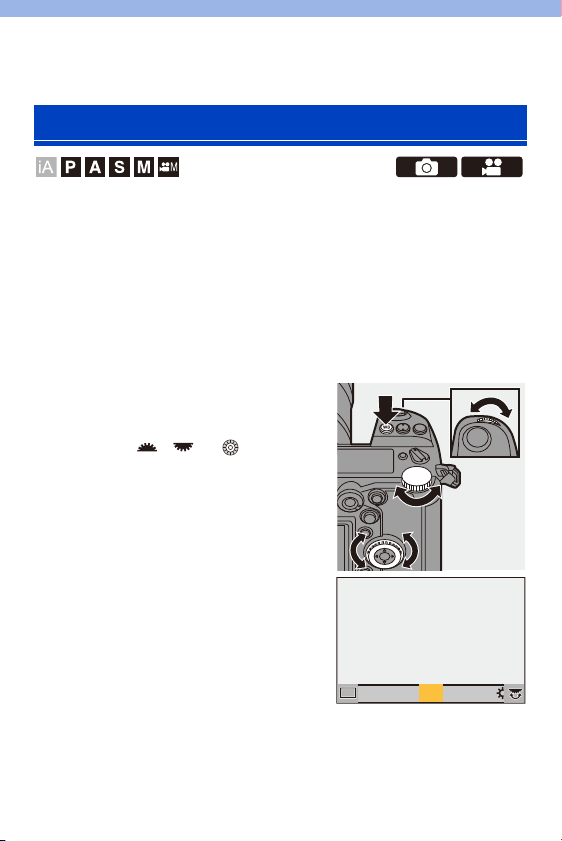
194
9. White Balance/Image Quality
White balance (WB) is a function that corrects the color cast produced by
the light illuminating the subject.
It corrects the colors so that white objects appear in white to make the
overall color closer to what is seen by the eye.
Normally, you can use auto ([AWB], [AWBc] or [AWBw]) to obtain the
optimal white balance.
Set this function when the coloring of the image is different from what you
expected, or you want to change the coloring to capture the ambience.
1
Press [WB].
2
Select the white balance.
≥Rotate , or .
≥Selection is also possible by
pressing [WB].
Setting the White Balance (WB)
1
1
2
2
2
2
2
2
AWBc
AWBc
AWBw
AWBw
WBWBWBWBWBWBWBWBWBWBWB
AWBAWB
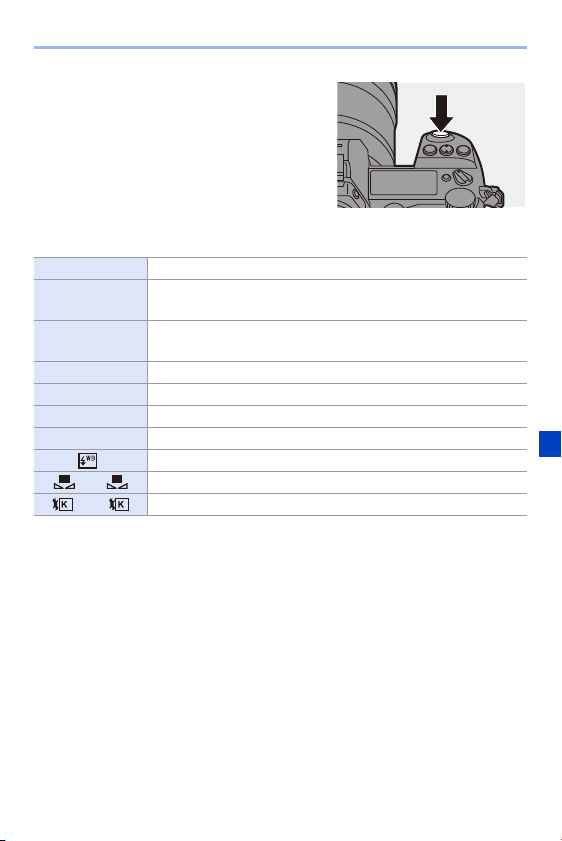
9. White Balance/Image Quality
195
3
Confirm your selection.
≥Press the shutter button halfway.
Setting Items (White Balance)
¢ It operates as [AWB] during video recording or when recording with [6K/4K
PHOTO] or [Post-Focus].
[AWB] Auto
[AWBc]
Auto (Reduces the reddish hue under an incandescent light
source)
[AWBw]
Auto (Leaves the reddish hue under an incandescent light
source)
[V] Clear sky
[Ð] Cloudy sky
[î] Shade under a clear sky
[Ñ] Incandescent light
[]
¢
Flash
[] to []White sets 1 to 4 (l 197)
[] to []Color temperatures 1 to 4 (l 197)
1 4
1 4
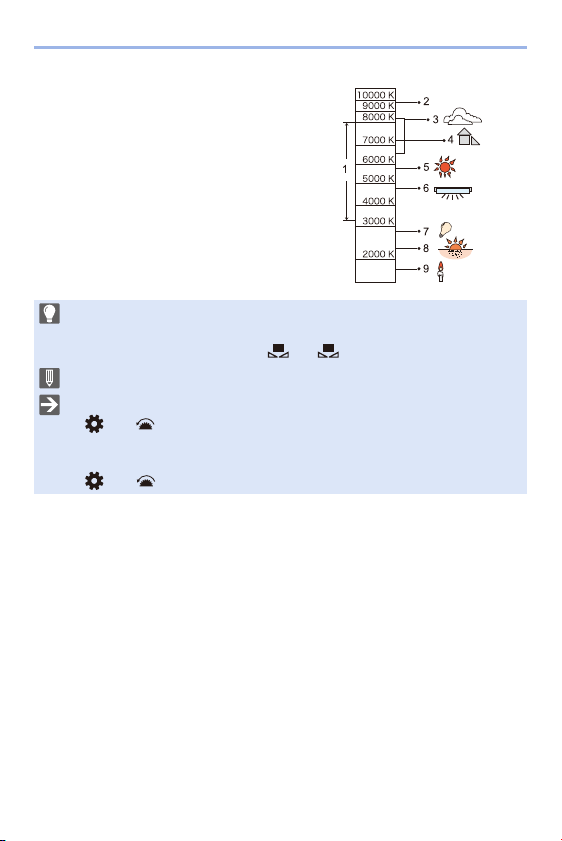
9. White Balance/Image Quality
196
1 [AWB] will work within this range.
2 Blue sky
3 Cloudy sky (Rain)
4 Shade
5 Sunlight
6 White fluorescent light
7 Incandescent light bulb
8 Sunrise and sunset
9 Candlelight
KlKelvin Color Temperature
0 Under fluorescent lighting, LED lighting fixture, etc., the appropriate white
balance will vary depending on the lighting type.
Use [AWB], [AWBc], [AWBw] or [ ] to [ ].
0 The white balance is fixed to [AWB] while [Filter Settings] is being used.
0 The white balance setting items can be registered to Fn buttons:
[]
¨ [ ] ¨ [Fn Button Set] ¨ [Setting in REC mode] ¨ [White Balance]
(l
278)
0 You can change the operation of the [WB] button:
[]
¨ [ ] ¨ [WB/ISO/Expo. Button] (l 335)
1
4
9. White Balance/Image Quality
197
White Sets ([ ] to [ ])
Take pictures of a white object under the light source of the recording
location to adjust the white balance until it appears white.
1
Press [WB] and then select any value from [ ] to [ ].
2
Press 3.
3
Aim the camera at a white object so that it appears inside the frame at
the center of the screen and then press or .
0
This will set the white balance and return you to the recording screen.
Color Temperatures ([ ] to [ ])
Set the numeric value for the white balance color temperature.
1
Press [WB] and then select any value from [ ] to [ ].
2
Press 3.
0
The color temperature setting screen is displayed.
3
Press 34 to select the color temperature and then press or .
0
You can set the White Balance Bracket (Color Temperature) by rotating ,
or . (l
160)
Adjusting the White Balance
You can adjust the coloring even when the coloring you want to apply is not
produced by the selected white balance.
1
Press [WB].
0 You can set a color temperature from [2500K] to [10000K].
1
4
1
4
1
4
1
4
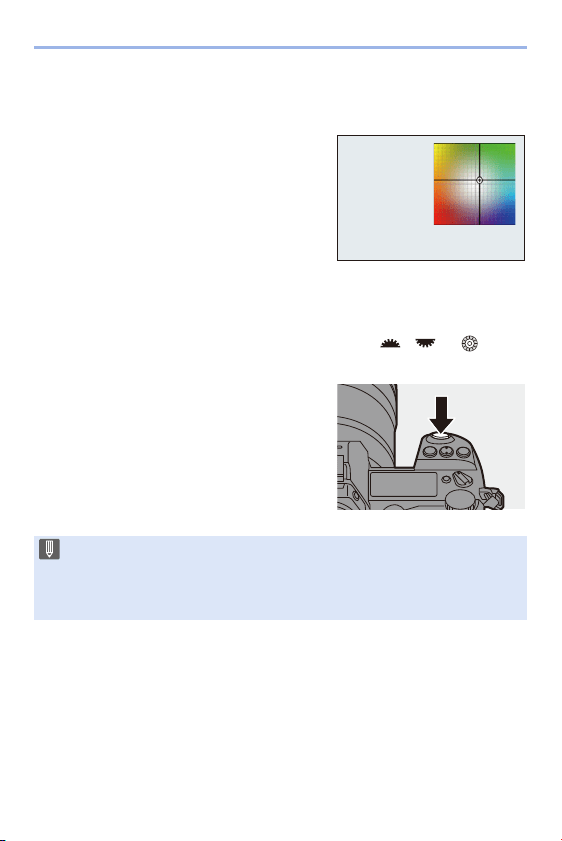
9. White Balance/Image Quality
198
2
Select the white balance and then press 4.
≥The adjustment screen is displayed.
3
Adjust the coloring.
0 You can also make adjustments in
diagonal directions by using the joystick.
0 You can also touch the graph to make adjustments.
0 Press [DISP.] to return to the unadjusted state.
0 You can set the White Balance Bracket by rotating , or .
(l
160)
4
Confirm your selection.
≥Press the shutter button halfway.
2: [A] (AMBER: ORANGE)
3: [G] (GREEN: GREENISH)
1: [B] (BLUE: BLUISH)
4: [M] (MAGENTA: REDDISH)
0 When the white balance is adjusted, the color of its recording screen icon
changes to the adjusted color.
Adjusting toward the [G] side will display [i], while adjusting toward the [M]
side will display [j].
GGG
GGG
MMM
MMM
AAA
AAAB
BBB
BBB
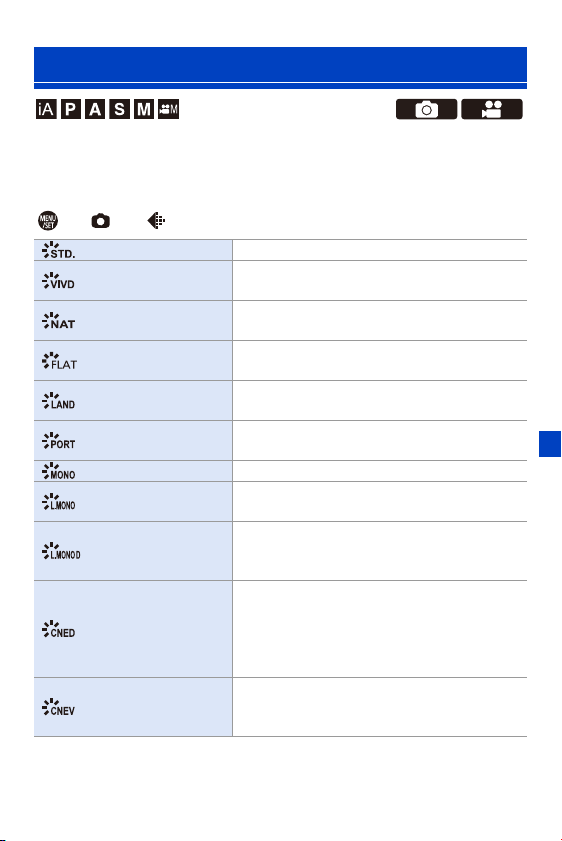
9. White Balance/Image Quality
199
You can select the finishing settings of images to suit your subjects and
expression styles.
The image quality can be adjusted for each Photo Style.
¨ [ ] ¨ [ ] ¨ Select [Photo Style]
[Photo Style]
[Standard] The standard setting.
[Vivid]
A setting that produces a more vivid quality with
higher saturation and contrast.
[Natural]
A setting that produces a softer quality with lower
contrast.
[Flat]
A setting that produces a flatter image quality
with lower saturation and contrast.
[Landscape]
A setting suited for sceneries with vivid blue skies
and greens.
[Portrait]
A setting suited for portraits with a healthy and
beautiful skin tone.
[Monochrome] A monochrome setting with no color shades.
[L.Monochrome]
A black-and-white setting with rich gradation and
crisp black accents.
[L.Monochrome D]
A monochrome setting that creates a dynamic
impression with enhanced highlights and
shadows.
[Cinelike D]
A setting that creates a film-like finishing touch
using a gamma curve and gives priority to the
dynamic range.
0 This function is suitable for video editing
processes.
[Cinelike V]
A setting that creates a film-like finishing touch
using a gamma curve that gives priority to the
contrast.
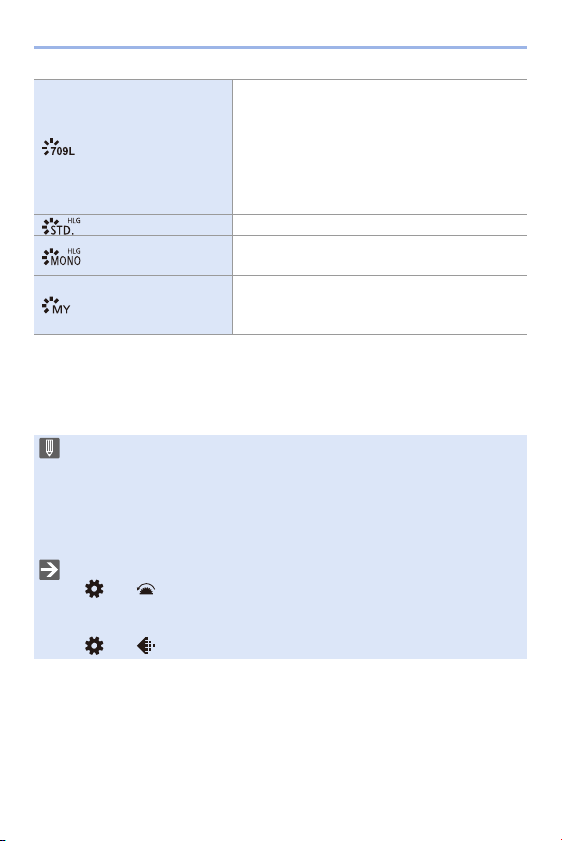
9. White Balance/Image Quality
200
¢1 When [HLG Photo] is set, only this item can be selected.
¢2 Effects up to [MY PHOTO STYLE 4] are displayed with the default settings. You
can set the items to display in the menu with [Show/Hide Photo Style] in [Photo
Style Settings]. (l
327)
[Like709]
A setting that minimizes overexposure by
applying a gamma curve correction equivalent to
Rec.709 to perform compression (knee
adjustment) of high-luminance areas.
0 Rec.709 is an abbreviation of “ITU-R
Recommendation BT.709”, a standard for high-
definition broadcasting.
[Standard(HLG)]
¢1
A setting used to record [HLG Photo].
[Monochrome(HLG)]
¢1
A setting used to record [HLG Photo] in
monochrome.
[MY PHOTO STYLE 1]
to [MY PHOTO STYLE
10]
¢2
Adjusts the image quality of Photo Style items to
your preferred settings and registers these as My
Photo Style items. (l
203)
0 In [iA] mode, operation differs from that in other recording modes.
– [Standard] or [Monochrome] can be set.
– The setting will be reset to [Standard] when the camera is switched to
another recording mode or it is turned off.
– Image quality cannot be adjusted.
0 When [Filter Settings] is being used, [Photo Style] is not available.
0 You can register functions to Fn buttons:
[]
¨ [ ] ¨ [Fn Button Set] ¨ [Setting in REC mode] ¨ [Photo Style]
(l
278)
0 You can make detailed Photo Style settings:
[]
¨ [ ] ¨ [Photo Style Settings] (l 327)
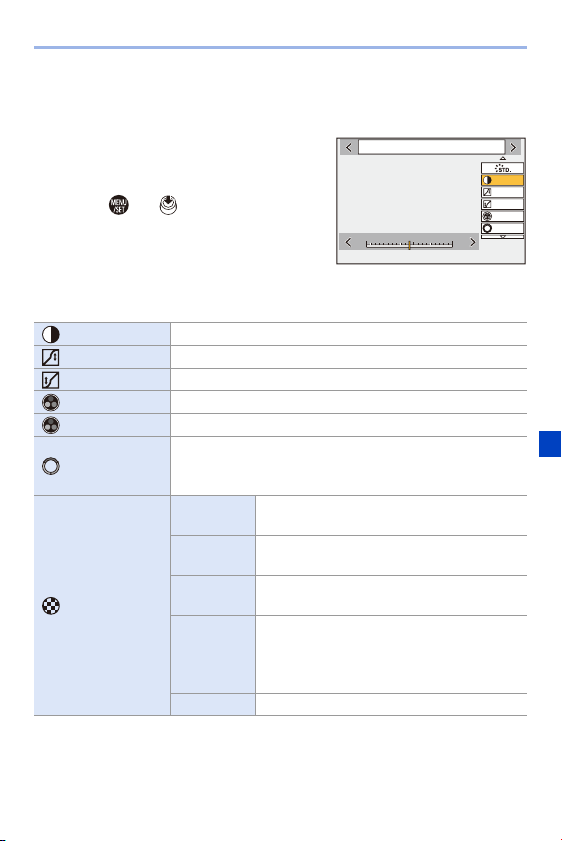
9. White Balance/Image Quality
201
Adjusting the Image Quality
1
Press 21 to select the type of Photo Style.
2
Press 34 to select an item and then
press 21 to adjust.
0
Adjusted items are indicated with [¢].
3
Press or .
0
When the image quality is adjusted, the
Photo Style icon on the recording screen is
indicated with [¢].
Settings Items (Picture Mode)
[Contrast]
¢1
Adjusts the contrast in the image.
[Highlight]
¢1
Adjusts the brightness of bright areas.
[Shadow]
¢1
Adjusts the brightness of dark areas.
[Saturation]
¢2
Adjusts the vividness of colors.
[Color Tone]
¢3
Adjusts blue and yellow tints.
[Hue]
¢2
Assuming that the reference point is red, this rotates the hue
toward violet/magenta or yellow/green to adjust the coloring
of the entire image.
[Filter
Effect]
¢3
[Yellow]
Enhances the contrast. (Effect: weak)
Records the sky with a clear blue.
[Orange]
Enhances the contrast. (Effect: medium)
Records the sky with a darker blue.
[Red]
Enhances the contrast. (Effect: strong)
Records the sky with a much darker blue.
[Green]
Skin and lips of people appear in natural
tones.
Green leaves appear brighter and more
enhanced.
[Off] s
6WDQGDUG
-
5
-
500
+5+5
±0
±0
±0
±0
±0
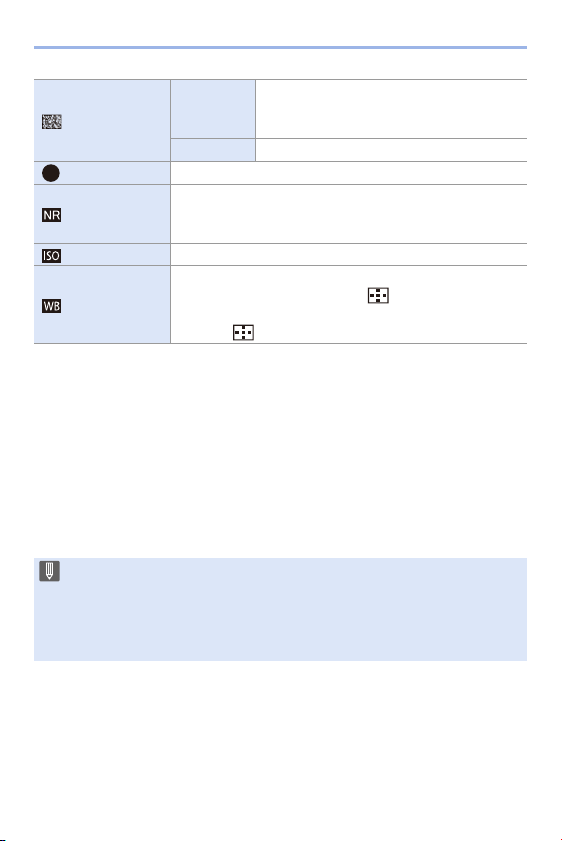
9. White Balance/Image Quality
202
¢1 Cannot be adjusted when [Like709], [Standard(HLG)] or [Monochrome(HLG)] is
selected.
¢2 Available when anything other than [Monochrome], [L.Monochrome],
[L.Monochrome D] or [Monochrome(HLG)] is selected.
¢3 Available when [Monochrome], [L.Monochrome], [L.Monochrome D] or
[Monochrome(HLG)] is selected.
¢4 Available when [Monochrome], [L.Monochrome] or [L.Monochrome D] is selected.
¢5 Available when [MY PHOTO STYLE 1] to [MY PHOTO STYLE 10] is selected. To
use this, set [Sensitivity] and [White Balance] to [ON] in [Add Effects] in [My Photo
Style Settings] in [Photo Style Settings] of the [Custom] ([Image Quality]) menu.
[Grain
Effect]
¢4
[Low]/
[Standard]/
[High]
Sets the grain effect level.
[Off] s
[Sharpness] Adjusts the outlines in the image.
[Noise
Reduction]
Adjusts the noise reduction effect.
0 Increasing the effect may cause a slight drop in picture
resolution.
[Sensitivity]
¢5
Sets the ISO sensitivity. (l
192)
[White
Balance]
¢5
Sets the white balance. (l
194)
0 While [WB] is selected, press [ ] to display the white
balance setting screen.
Press [ ] again to return to the original screen.
0 You can set the knee mode with [Like709].
For details, refer to page
241.
0 The effects of [Grain Effect] cannot be checked on the recording screen.
0 [Grain Effect] is not available when using the following functions:
– Video recording/[6K/4K PHOTO]/[Post-Focus]
S

9. White Balance/Image Quality
203
Registering Settings in My Photo Style
1
Press 21 to select the type of Photo Style.
2
Adjust the image quality.
0
My Photo Style displays the types of Photo Style at the top of image quality
adjustment.
Select the base Photo Style.
3
Press [DISP.].
4
(When [MY PHOTO STYLE 1] to [MY PHOTO STYLE 10] is selected)
Press 34 to select [Save Current Setting] and then press or
.
5
Press 34 to select the registration destination number and then
press or .
0
A confirmation screen will be displayed.
On the confirmation screen, press [DISP.] to change the My Photo Style name.
Up to 22 characters may be entered. Double-byte characters are treated as 2
characters.
For information on how to enter characters, refer to page
369.
Changing the Registered Contents of My Photo Style
1
Select any value from [MY PHOTO STYLE 1] to [MY PHOTO STYLE
10].
2
Press [DISP.] and then set the item.
[Load Preset Setting]
[Save Current Setting]
[Edit Title]
[Restore to Default]
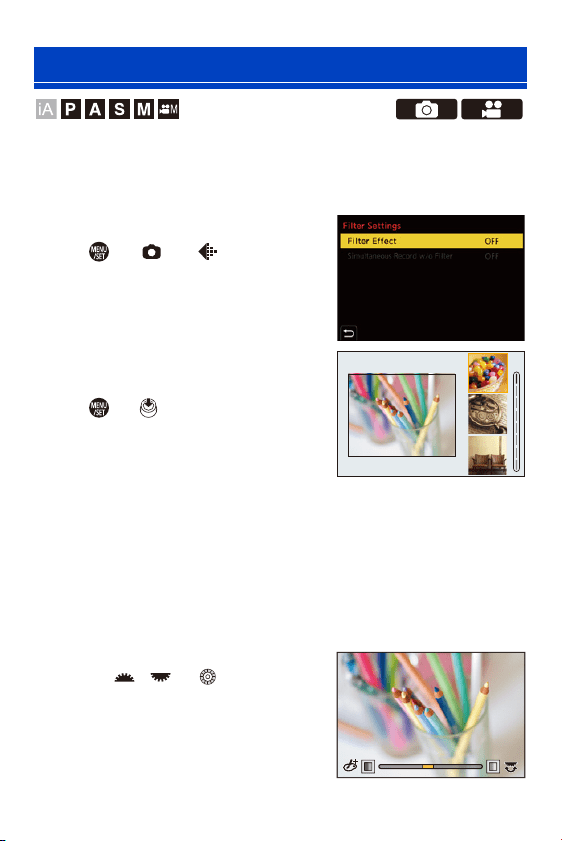
9. White Balance/Image Quality
204
This mode records with additional image effects (filters).
You can adjust the effect for each filter.
In addition, you can simultaneously take pictures without effects.
1
Set the [Filter Effect].
≥ ¨ [ ] ¨ [ ] ¨ [Filter
Settings]
¨ [Filter Effect] ¨ [SET]
2
Select the filter.
≥Press 34 to select, and then press
or .
≥You can also select the image effect
(filter) by touching the sample
picture.
0
Press [DISP.] to switch the screen in the order of normal display, guide
display, and list display.
The guide display shows the description of each filter.
Adjusting the Filter Effect
You can adjust the filter effect.
1
Select the filter.
2
On the recording screen, press [WB].
3
Rotate , or to set.
0
To return to the recording screen, press
[WB] again.
0 When the filter effect is adjusted, the filter
icon on the recording screen is indicated
with [¢].
[Filter Settings]
1/8
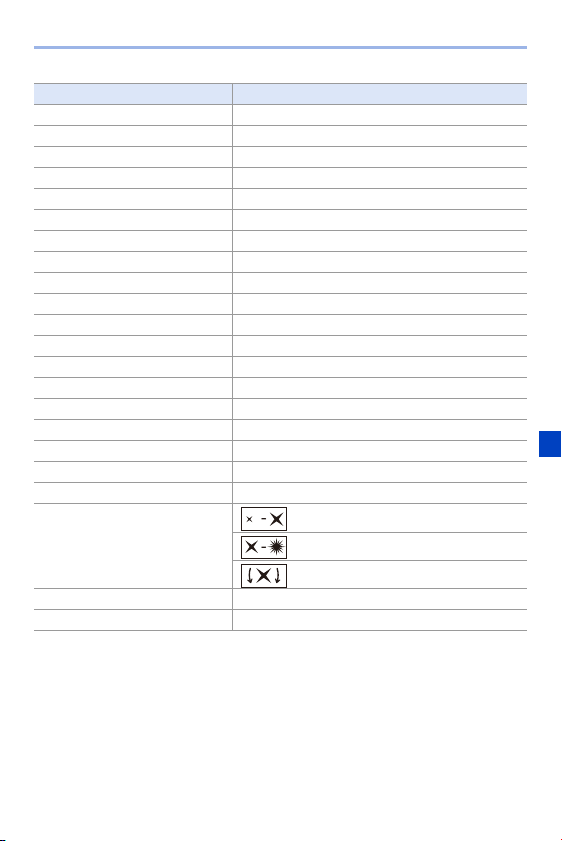
9. White Balance/Image Quality
205
Filter Items that can be adjusted
[Expressive] Vividness
[Retro] Coloring
[Old Days] Contrast
[High Key] Coloring
[Low Key] Coloring
[Sepia] Contrast
[Monochrome] Coloring
[Dynamic Monochrome] Contrast
[Rough Monochrome] Grittiness
[Silky Monochrome] Defocus level
[Impressive Art] Vividness
[High Dynamic] Vividness
[Cross Process] Coloring
[Toy Effect] Coloring
[Toy Pop] Area with reduced peripheral brightness
[Bleach Bypass] Contrast
[Miniature Effect] Vividness
[Soft Focus] Defocus level
[Fantasy] Vividness
[Star Filter]
: Short rays/Long rays
: Few rays/Many rays
: Rotate to left/Rotate to right
[One Point Color] Amount of color left
[Sunshine] Coloring
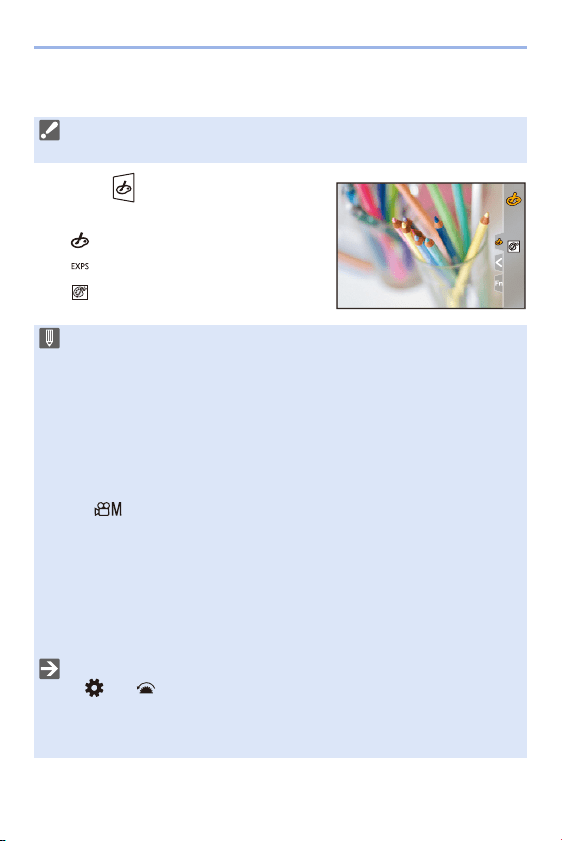
9. White Balance/Image Quality
206
Setting a Filter with Touch Operation
1
Touc h [ ].
2
Touch the item to set.
[ ]: Filter on/off
[ ]: Filter
[ ]: Filter effect adjustment
0 The default settings are for the touch tab to not be displayed.
Set the [Touch Tab] in [Touch Settings] to [ON]. (l
333)
0 White balance will be fixed to [AWB] and the flash will be fixed to [Œ] (Forced
Flash Off).
0 The upper limit to ISO sensitivity is [ISO6400].
0 When [High Dynamic] is set, the lower limit of the ISO sensitivity is fixed to
[ISO400] and the higher limit to [ISO6400].
0 Depending on the filter, the recording screen may seem as if frames are
missed.
0 [Rough Monochrome]/[Silky Monochrome]/[Soft Focus]/[Star Filter]/[Sunshine]
are not available when using the following functions:
– [ ] mode
– Video recording
0 When [Image Area of Video] is [APS-C] or [PIXEL/PIXEL], recording video
with [Toy Effect]/[Toy Pop] is not possible.
0 When using APS-C lenses, [Toy Effect]/[Toy Pop] are not available.
0 [Filter Effect] is not available when using the following functions:
– [High Resolution Mode]
– [High Speed Video]
0 Filter on/off operations can be registered to a Fn button:
[]
¨ [ ] ¨ [Fn Button Set] ¨ [Setting in REC mode] ¨ [Filter Effect]
(l
278)
0 When displaying the [Filter Effect] setting screen using the Fn button, pressing
[DISP.] displays the filter selection screen.
EXPS
EXPS
EXPS
EXPS
EXPS
EXPS

9. White Balance/Image Quality
207
Setting the Type of Defocus ([Miniature Effect])
1
Set [Filter Effect] to [Miniature Effect].
2
Press 3 to display the setting screen.
0
The setting screen can also be displayed by touching [ ] then [ ].
3
Press 34 or 21 to move the in-
focus portion.
0
You can also move the in-focus portion by
touching the screen.
0 You can also switch the defocus orientation
by touching [ ].
4
Rotate , or to change the
size of in-focus portion.
0
The portion can also be enlarged/reduced by pinching out/pinching in the
screen.
0 To reset the in-focus portion setting to the default, press [DISP.].
5
Press or to set.
0 No audio is recorded in videos.
0 When video recording, the length of a recorded video will be approx. 1/10 of
the actual recording time.
(If you record for 10 minutes, the resulting video recording will be approx.
1 minute long.)
The available recording time displayed for this effect will be approx. 10 times
longer than for normal video recording.
0 If you end video recording after a short time, the camera may go on recording
for a certain period.
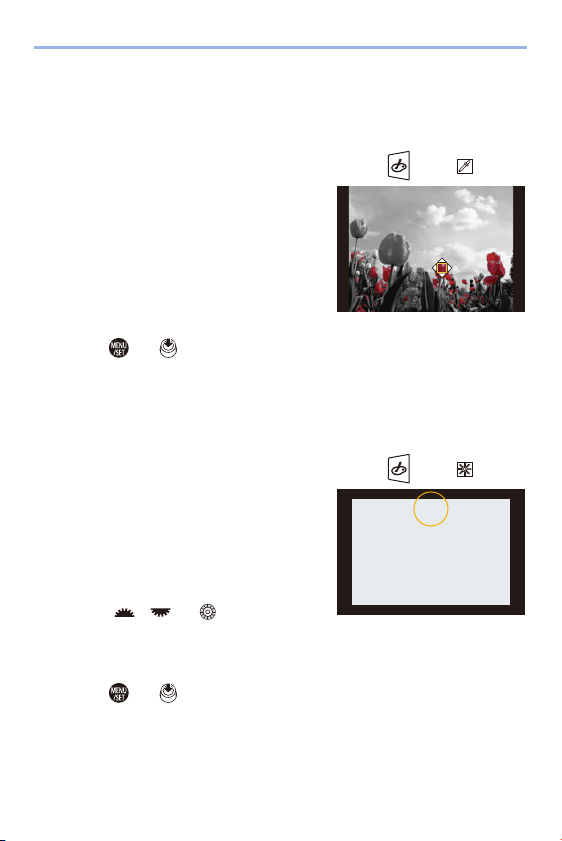
9. White Balance/Image Quality
208
Setting the Color to Be Left ([One Point Color])
1
Set [Filter Effect] to [One Point Color].
2
Press 3 to display the setting screen.
0
The setting screen can also be displayed by touching [ ] then [ ].
3
Press 3421 to move the frame and
select the color you want to leave.
0
Positions can be moved to the diagonal
directions using the joystick.
0 You can also select the color you want to
leave by touching the screen.
0 To return the frame back to the center,
press [DISP.].
4
Press or to set.
Setting the Light Source Position and Size ([Sunshine])
1
Set [Filter Effect] to [Sunshine].
2
Press 3 to display the setting screen.
0
The setting screen can also be displayed by touching [ ] then [ ].
3
Press 3421 to move the center
position of the light source.
0
Positions can be moved to the diagonal
directions using the joystick.
0 The position of the light source can also be
moved by touching the screen.
4
Rotate , or to adjust the
size of the light source.
0
This can also be enlarged/reduced by pinching out/pinching in the screen.
0 To reset the light source setting to the default, press [DISP.].
5
Press or .

9. White Balance/Image Quality
209
[Simultaneous Record w/o Filter]
You can simultaneously take pictures with no added filter effects.
¨ [ ] ¨ [ ] ¨ [Filter Settings] ¨ Select [Simultaneous Record w/
o Filter]
Settings: [ON]/[OFF]
0 [Simultaneous Record w/o Filter] is not available when using the following
functions:
– Burst recording
– [6K/4K PHOTO]/[Post-Focus]
– [Time Lapse Shot]
– [Stop Motion Animation]
–[RAWiFINE]/[RAWiSTD.]/[RAW] ([Picture Quality])
– [Bracketing]
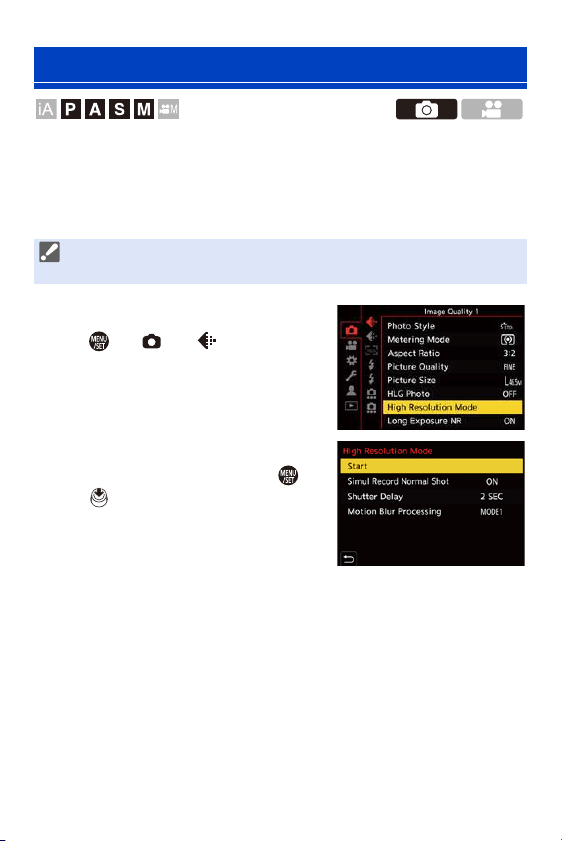
9. White Balance/Image Quality
210
This merges pictures with a high resolution from multiple recorded images.
This function is suitable for recording subjects that do not move.
Merged pictures will be saved as RAW files with a maximum image size of
187 M.
1
Set [High Resolution Mode].
≥ ¨ [ ] ¨ [ ] ¨ [High
Resolution Mode]
2
Start High Resolution mode.
≥Select [Start] and then press or
.
[High Resolution Mode]
0 Use a tripod to minimize camera shake.
0 The image stabilization function is automatically turned off.
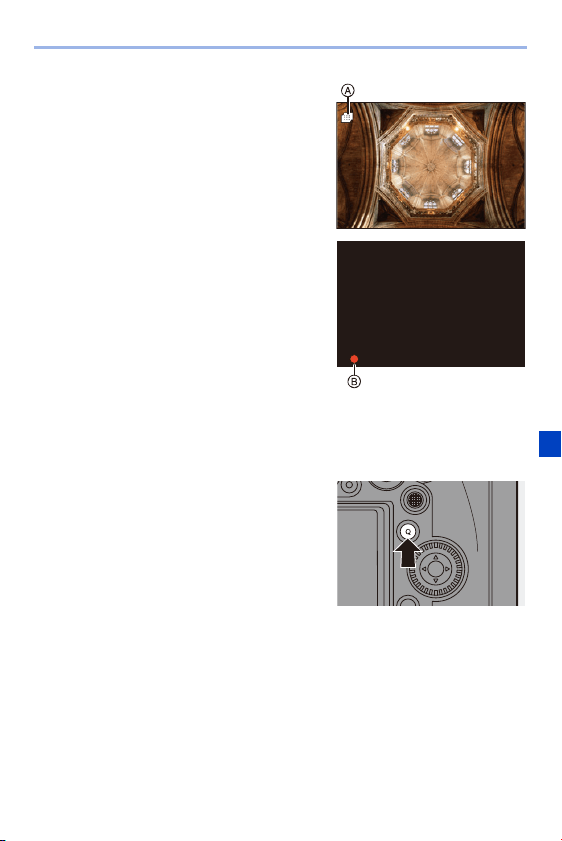
9. White Balance/Image Quality
211
3
Decide on the composition
and then fix the camera in
place.
0 If blurring is detected, the High
Resolution mode icon A blinks.
4
Start recording.
≥Press the shutter button fully.
0
With the default settings, [Shutter Delay]
is activated, so there will be a gap in time
from when the shutter button is pressed
until the shutter is released.
0 The screen goes dark during recording.
0 The recording state indication (red) B
blinks.
Do not move the camera while it is blinking.
0 You can continue recording when the merging process ends.
5
End [High Resolution Mode].
≥Press [Q].
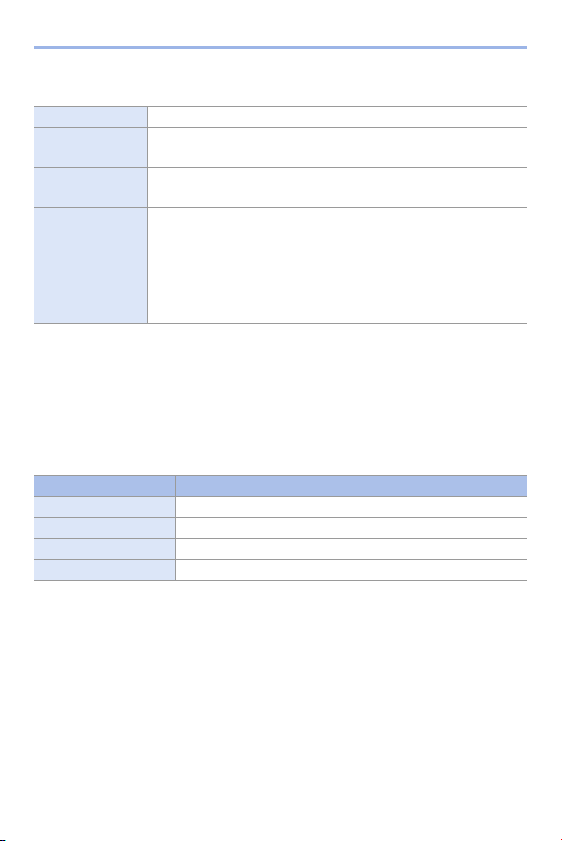
9. White Balance/Image Quality
212
Setting Items ([High Resolution Mode])
Picture Quality/Image Size After Merging
0 The recording [Picture Quality] will be [RAW].
0 RAW images recorded in [High Resolution Mode] cannot be processed from [RAW
Processing] in the [Playback] menu. Use the “SILKYPIX Developer Studio” software.
(l
430)
0 The image size will vary depending on the [Aspect Ratio] setting.
[Start] Starts High Resolution mode.
[Simul Record
Normal Shot]
Simultaneously takes pictures that are not merged when [ON] is
set. The first picture will be saved with [Picture Size] set to [L].
[Shutter Delay]
Sets the delay time from when the shutter button is pressed until
the shutter is released.
[Motion Blur
Processing]
Sets the correction method to use when the subject moved.
[MODE1]: This gives priority to High Resolution mode, therefore
subject blur appears as an afterimage in the picture.
[MODE2]: This reduces afterimage from subject blur, but cannot
obtain the same High Resolution mode effect in the corrected
range.
[Aspect Ratio] Picture size
[4:3] 14880k11168 (166 M)
[3:2] 16736k11168 (187 M)
[16:9] 16736k9424 (157.5 M)
[1:1] 11168k11168 (124.5 M)

9. White Balance/Image Quality
213
0 In [High Resolution Mode], the following functions are restricted:
– [Shutter Type]: Fixed to [ELEC.]
– Minimum aperture value: F16
– Shutter speed: 1 second to 1/16000 of a second
– ISO sensitivity: Up to [ISO3200]
– Focus mode: Fixed to [AFS] or [MF]
0 When you record in an extremely bright location or under fluorescent/LED
lighting, the coloring or brightness of the image may change or horizontal
stripes may appear on the screen.
Lowering the shutter speed may reduce the effect of horizontal stripes.
0 The image produced by combining is displayed when Auto Review.
0 The image periphery cannot be displayed enlarged when the camera is used
for playback.
0 Devices other than this camera may not be able to play back images recorded
using [High Resolution Mode].
0 When the following functions are being used, [High Resolution Mode] is not
available:
– [Time Lapse Shot]
– [Stop Motion Animation]
– [Filter Settings]
– [Multiple Exposure]
0 When using APS-C lenses, recording in [High Resolution Mode] is not
possible.
0 You can register functions to Fn buttons:
[]
¨ [ ] ¨ [Fn Button Set] ¨ [Setting in REC mode] ¨ [High
Resolution Mode] (l
278)
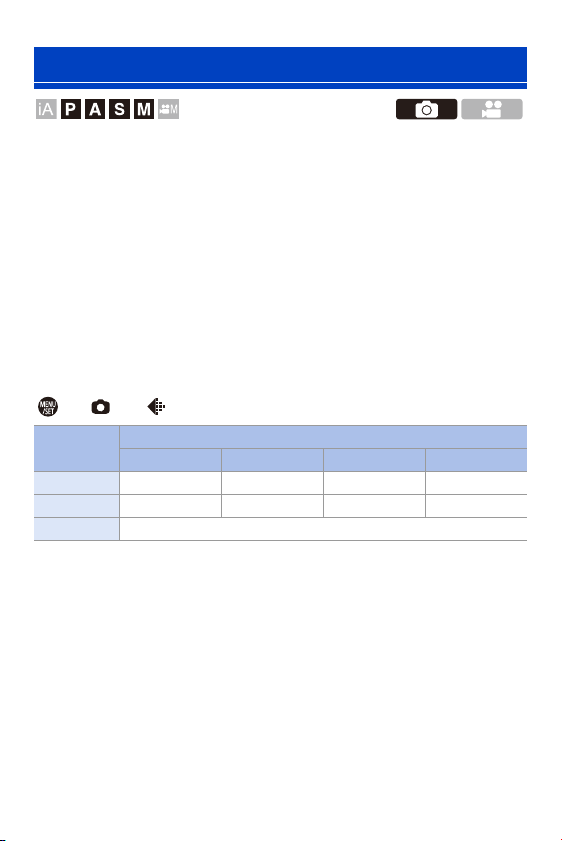
9. White Balance/Image Quality
214
Records an HLG format picture with a wide dynamic range. Bright lights
that are easily overexposed, and dark areas that are easily underexposed
can be recorded showing fine quality and rich colors just as seen with the
human eyes.
Recorded pictures can be output over HDMI to devices (TV, etc.) that
support HLG format pictures for viewing.
Additionally, devices that also support the HSP format can directly play
back images.
0
“HLG (Hybrid Log Gamma)” is an international standard (ITU-R BT.2100) HDR
format.
0 “HSP” is an HDR picture format using HLG format video technology. These images
are saved with a “.HSP” file extension.
¨ [ ] ¨ [ ] ¨ Select [HLG Photo]
0
The picture size of HLG-format pictures differs depending on [Aspect Ratio] settings.
[Aspect Ratio] settings of [65:24] and [2:1] cannot be set.
0 [Photo Style] can be selected from [Standard(HLG)] or [Monochrome(HLG)]. (l
199)
0 JPEG images and RAW images are recorded simultaneously in accordance with
[Picture Quality] (l
85) and [Picture Size] (l 83).
RAW images recorded using [HLG Photo] can be written as HLG images using
[RAW Processing] (l
271).
[HLG Photo]
Setting
items
[Aspect Ratio]
[4:3] [3:2] [16:9] [1:1]
[8K-Res.] 5760k4320 6464k4320 7680k4320 4320k4320
[4K-Res.] 2880k2160 3232k2160 3840k2160 2144k2144
[OFF] s

9. White Balance/Image Quality
215
0 The monitor and viewfinder on this camera do not support display of HLG
format images.
With [HLG View Assist] in the [Custom] ([Monitor / Display]) menu, you can
display images that have been converted for confirmation on the monitor/
viewfinder of the camera or a device connected via HDMI. (l
347)
0 HLG images appear darker on devices that do not support the HLG format.
0 When using APS-C lenses, [8K-Res.] cannot be used.
0 When the following functions are being used, [HLG Photo] is not available:
– [6K/4K PHOTO]/[Post-Focus]
– [High Resolution Mode]
– [Filter Settings]
– [Multiple Exposure]
0 You can register functions to Fn buttons:
[]
¨ [ ] ¨ [Fn Button Set] ¨ [Setting in REC mode] ¨ [HLG Photo]
(l
278)
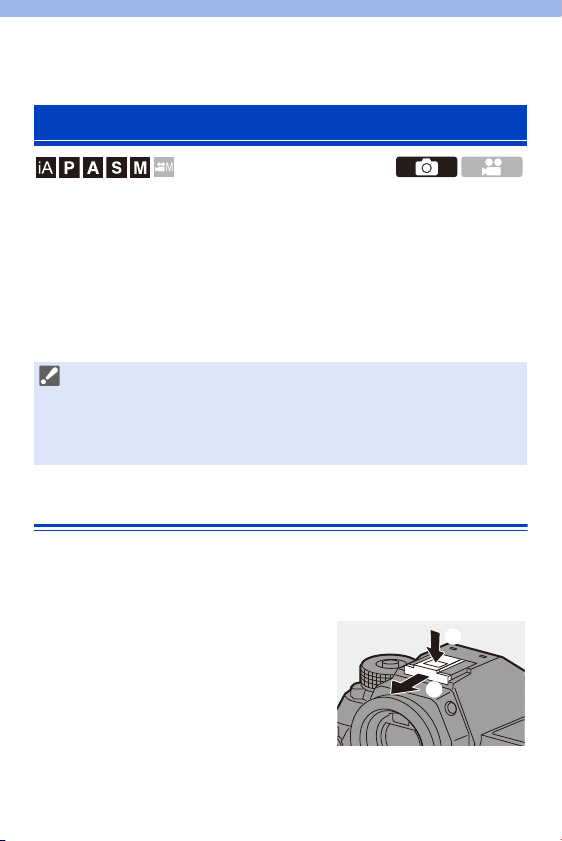
216
10. Flash
If you attach the Flash (DMW-FL580L/DMW-FL360L/DMW-FL200L:
optional) to the hot shoe, you can record using the flash.
You can also use a commercially available external flash by connecting a
commercially available synchro cable to the flash synchro socket.
Furthermore, by attaching a compatible external flash to the camera, you
can wirelessly control external flashes placed in positions away from the
camera.
Removing the Hot Shoe Cover
Before attaching the Flash (optional), remove the hot shoe cover.
Refer to the operating instructions for the Flash for details about how to
attach it.
Remove the hot shoe cover by
pulling it in the direction indicated
by arrow 2 while pressing it in the
direction indicated by arrow 1.
Using an External Flash (Optional)
0 Before use, remove the lens hood to prevent vignetting.
0 Flash recording is not possible when the following functions are being used:
– Video recording/[6K/4K PHOTO]/[Post-Focus]
– [ELEC.]/[Silent Mode]/[High Resolution Mode]
– [Filter Settings]
10. Flash
217
Connecting a Synchro Cable to the Flash Synchro Socket
You can use a commercially available external flash by connecting a
commercially available synchro cable to the flash synchro socket.
The socket has a lock screw to prevent the cable from falling off.
Before connecting the synchro cable to the flash synchro socket, remove
the flash synchro socket cap.
1
Rotate the flash synchro socket cap in
the direction of the arrow to remove.
0
Be careful not to lose the flash synchro
socket cap.
2
Connect the synchro cable to the flash
synchro socket.
0
For the connection, refer to the operating
instructions for the synchro cable.
0 Use an external flash with a synchronization voltage of 400 V or less.
0 Do not use the synchro cables with the length of 3 m (9.8 feet) or more.
0 The flash synchro socket has no polarity. You can use a synchro cable
regardless of its polarity.

10. Flash
218
Notes on Flash Recording
0 Do not bring any object near the flash. Heat or light may cause the object to
deform or discolor.
0 If you record repeatedly, time may be needed to charge the flash.
While the flash is charging, images will be recorded without the flash firing.
0 When an external flash is attached, do not carry the camera by holding only
the external flash. It may become detached.
0 When using a commercially available external flash, do not use one with
reversed polarity or function for communicating with a camera.
It may cause the camera to malfunction, or it may not operate correctly.
0 Refer to the operating instructions for the external flash for details.
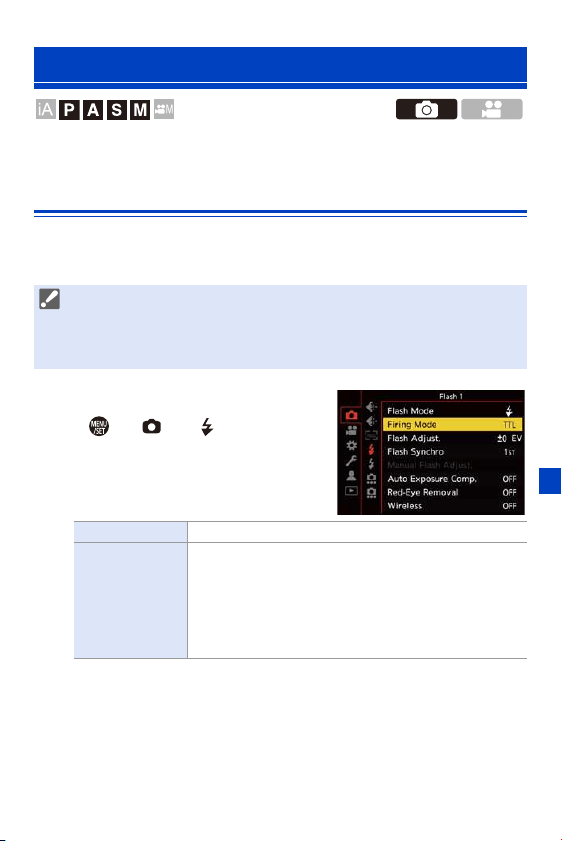
10. Flash
219
You can set the flash function to control flash firing from the camera.
[Firing Mode]/[Manual Flash Adjust.]
You can select whether to set the flash output automatically or manually.
When setting the flash output manually, you can set it on the camera.
1
Set the [Firing Mode].
≥ ¨ [ ] ¨ [ ] ¨ [Firing
Mode]
Setting Flash Functions
0 Firing mode cannot be set when using a Flash (DMW-FL580L/DMW-FL360L/
DMW-FL200L: optional). It can be set only when using an external flash that
does not use a battery (supplied with some models of Panasonic digital
cameras).
[TTL] Sets flash output to be set automatically by the camera.
[MANUAL]
Sets the flash output manually.
0 With [TTL], you can record the images you want even
when recording dark scenes where the flash output
tends to become greater.
0 The flash output ([1/1], etc.) is displayed on the flash
icon of the recording screen.

10. Flash
220
2
(When set to [MANUAL])
Select [Manual Flash Adjust.]
and then press or .
3
Press 21 to set the flash
output and then press or
.
0 It can be set within the range of [1/1] (full
flash output) to [1/64] in 1/3 steps.
[Flash Mode]
Set the flash mode.
¨ [ ] ¨ [ ] ¨ Select [Flash
Mode]
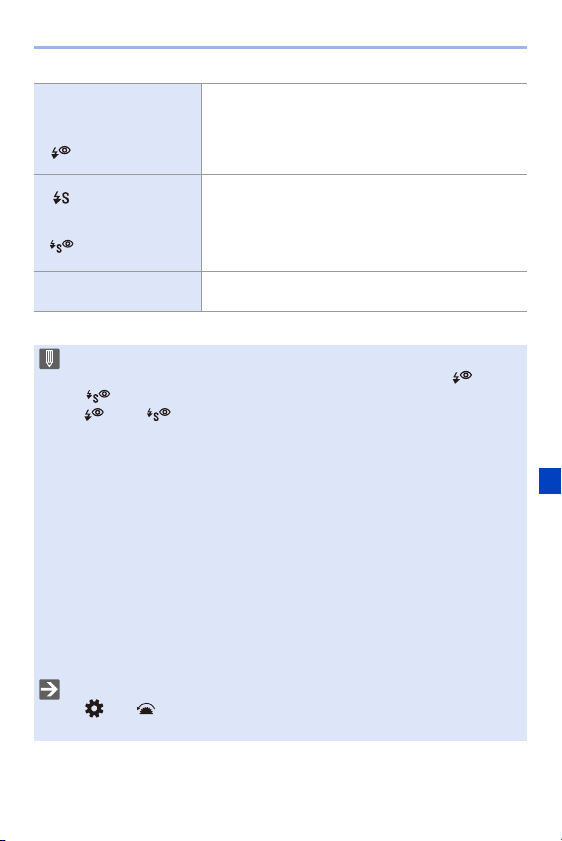
10. Flash
221
[‰]
(Forced Flash
On)
The flash fires every time regardless of the recording
conditions.
This is suitable for recording when there is backlighting
or under lighting such as fluorescent light.
[]
(Forced On/Red-
Eye)
[](Slow Sync.)
When recording images against a dark background
landscape, this feature will slow the shutter speed
when the flash fires.
0 Slower shutter speeds may result in blurry images.
To avoid this, we recommend using a tripod.
[]
(Slow Sync./
Red-Eye)
[Œ]
(Forced Flash
Off)
The flash does not fire.
0 The flash fires twice.
The interval between the first and second firings is longer when [ ] or
[ ] is set. The subject should not move until the second firing has finished.
0 [ ] and [ ] cannot be used when the following are set:
– [Firing Mode]: [MANUAL]
– [Flash Synchro]: [2ND]
– [Wireless]: [ON]
0 Some flash modes may not be available depending on the settings on the
external flash.
0 The effectiveness of red-eye reduction varies from person to person.
The effect, which is influenced by factors such as distance to the subject and
whether the subject is looking at the camera when the preliminary flash is
fired, may not be very noticeable in some cases.
0 When the following functions are being used, the flash mode is fixed to [Œ]:
– Video recording/[6K/4K PHOTO]/[Post-Focus]
– [ELEC.]/[Silent Mode]/[High Resolution Mode]
– [Filter Settings]
0 You can register functions to Fn buttons:
[]
¨ [ ] ¨ [Fn Button Set] ¨ [Setting in REC mode] ¨ [Flash Mode]
(l
278)
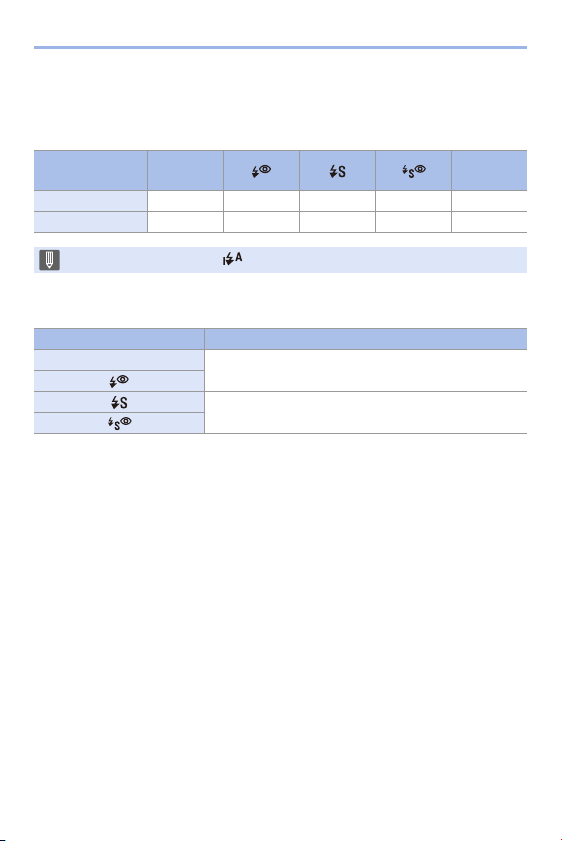
10. Flash
222
Available flash settings by recording mode
The available flash settings depend on the recording mode.
(3: Available, —: Not available)
Shutter speeds for flash modes
¢1 In [S] mode, this will be 60 seconds and in [M] mode it will be B (Bulb).
¢2 The maximum setting changes to 1/250 of a second in [P]/[A] modes.
0 The guide number decreases when the shutter speed is set to 1/320 of a second.
Recording
mode
‰ Œ
[P]/[A] 33333
[S]/[M] 33——3
0 In [iA] mode, this will be [ ].
[Flash Mode] Shutter speed (sec.)
‰
1/60
¢1
to 1/320
¢2
1 to 1/320
¢2
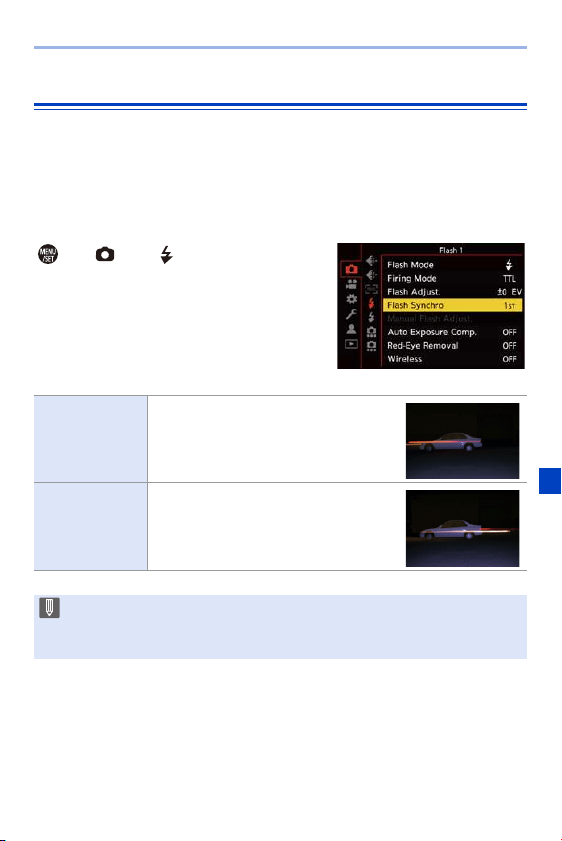
10. Flash
223
[Flash Synchro]
When a moving subject is recorded at night using a slow shutter and flash,
a trail of light may appear in front of the subject.
If you set [Flash Synchro] to [2ND], you can take a dynamic picture with a
trail of light appearing behind the subject by firing the flash immediately
before the shutter closes.
¨ [ ] ¨ [ ] ¨ Select [Flash
Synchro]
[1ST]
This is the normal method for recording
with the Flash.
[2ND]
The light source appears behind the
subject and the picture becomes
dynamic.
0 When [2ND] is set, [2nd] is displayed on the flash icon of the recording screen.
0 When [Wireless] is set to [ON], this is fixed to [1ST].
0 The effect may not be adequately achieved at faster shutter speeds.
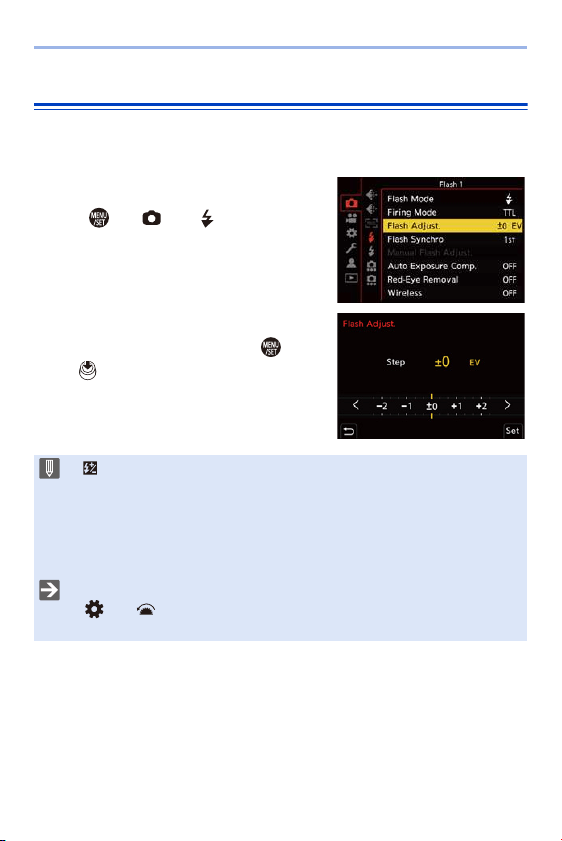
10. Flash
224
Adjusting the Flash Output
You can adjust the flash output when taking pictures with the flash in TTL
output mode.
1
Select [Flash Adjust.].
≥ ¨ [ ] ¨ [ ] ¨ [Flash
Adjust.]
2
Press 21 to adjust the flash
output and then press or
.
0 It can be adjusted within the range of
[j3 EV] to [i3 EV] in 1/3 EV steps.
0 [ ] is displayed on the recording screen.
0 For information about adjusting the flash output when recording using a
wireless flash, refer to page
228.
0 [Flash Adjust.] cannot be used when the following are set:
– [Firing Mode]: [MANUAL]
– [Wireless]: [ON]
0 You can register functions to Fn buttons:
[]
¨ [ ] ¨ [Fn Button Set] ¨ [Setting in REC mode] ¨ [Flash Adjust.]
(l
278)
10. Flash
225
[Auto Exposure Comp.]
Automatically adjust the flash output in conjunction with the exposure
compensation value. (l
189)
¨ [ ] ¨ [ ] ¨ Select [Auto Exposure Comp.]
Settings: [ON]/[OFF]
[Red-Eye Removal]
When [Flash Mode] is set to [ ] or [ ], the camera automatically
detects red-eye and corrects image data.
¨ [ ] ¨ [ ] ¨ Select [Red-Eye Removal]
Settings: [ON]/[OFF]
0 When [ON] is set, [ ] is displayed on the flash icon.
0 Red-eye cannot be corrected depending on its appearance.
0 When [HLG Photo] is being used, [Red-Eye Removal] is not available.
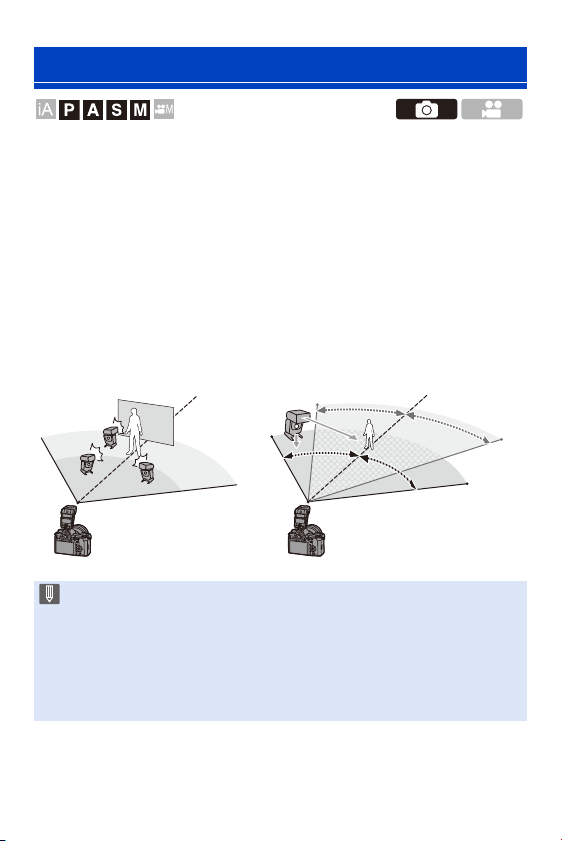
10. Flash
226
You can use a Flash (DMW-FL580L/DMW-FL360L/DMW-FL200L:
optional) to record using a wireless flash.
You can separately control the firing of three flash groups and the flash
attached to the hot shoe of the camera.
Placing a Wireless Flash
Place the wireless flash with its wireless sensor facing the camera.
Recording Using a Wireless Flash
Placement example
When C is placed to erase the
shadow in the background of the
subject that the flash groups A and B
will create
Placement range
When DMW-FL360L is attached
0 The placement range serves as a guide for when recording with the camera
held horizontally. The range differs depending on the surrounding
environment.
0 We recommend using a maximum of three wireless flashes in each group.
0 If the subject is too close, communication light may affect the exposure.
You can reduce the effect by setting [Communication Light] to [LOW] or
lowering the output with a diffuser or similar device. (l
229)
A
B
C
5m
5m
7m
7m
50°50°
50°50°
30°30°
30°30°
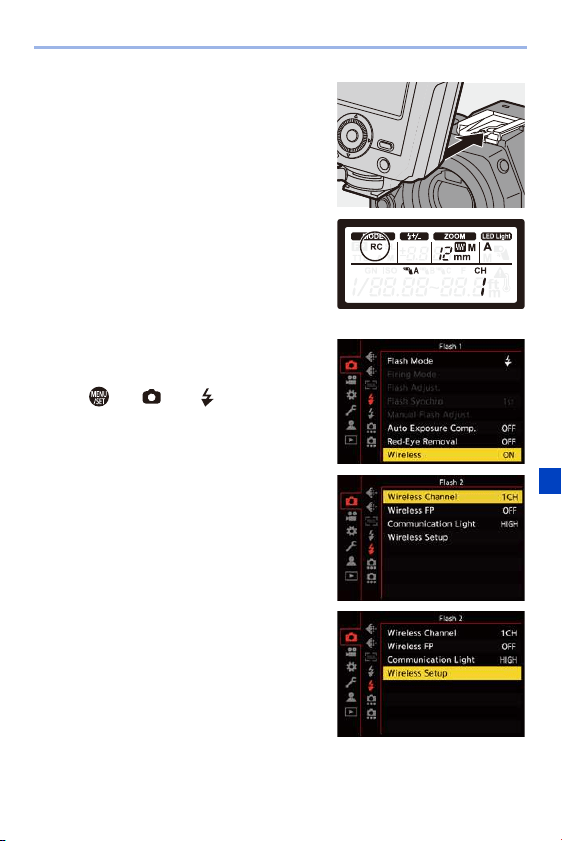
10. Flash
227
1
Attach an external flash to the
camera. (l
216)
2
Set the wireless flashes to
[RC] mode and then place
them.
0 Set the channel and group for the
wireless flashes.
3
Enable the wireless flash
function of the camera.
≥ ¨ [ ] ¨ [ ] ¨ [Wireless]
¨ [ON]
4
Set [Wireless Channel].
0 Select the same channel as on the
wireless flash side.
5
Set [Wireless Setup].
0 Set the firing mode and flash output.
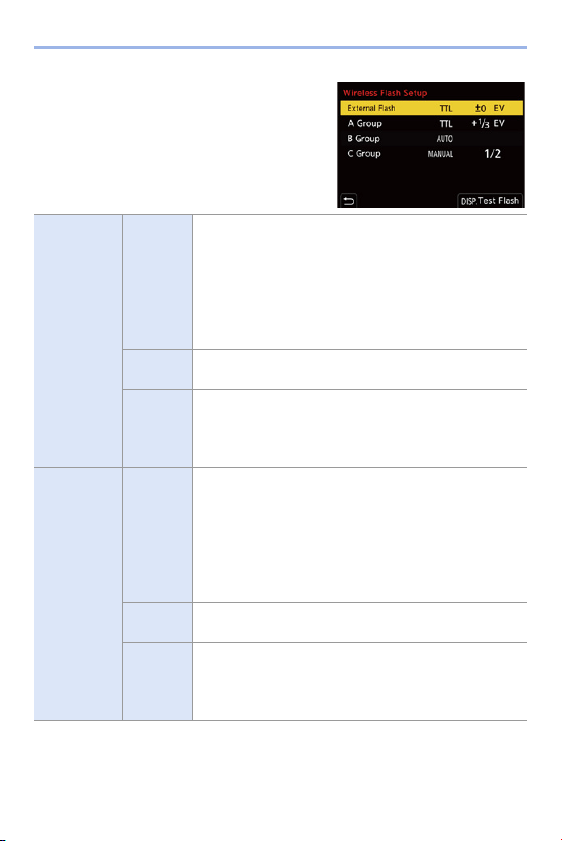
10. Flash
228
Setting Items ([Wireless Setup])
0 To fire a test flash, press [DISP.].
¢1 This cannot be selected when [Wireless FP] is set.
¢2 This cannot be set when using the Flash (DMW-FL200L: optional).
[External
Flash]
¢1
[Firing
Mode]
[TTL]: The camera automatically sets the flash output.
[AUTO]
¢2
: Sets the flash output on the external flash
side.
[MANUAL]: Sets the flash output of the external flash
manually.
[OFF]: The external flash outputs only communication
light.
[Flash
Adjust.]
Adjusts the flash output of the external flash manually
when [Firing Mode] is set to [TTL].
[Manual
Flash
Adjust.]
Sets the flash output of the external flash when [Firing
Mode] is set to [MANUAL].
0 It can be set within the range of [1/1] (full flash output)
to [1/128] in 1/3 steps.
[A Group]/
[B Group]/
[C Group]
[Firing
Mode]
[TTL]: The camera automatically sets the flash output.
[AUTO]
¢1
: Sets the flash output on the wireless flash
side.
[MANUAL]: Sets the flash output of the wireless flash
manually.
[OFF]: The wireless flashes of the specified group will
not fire.
[Flash
Adjust.]
Adjusts the flash output of the wireless flash manually
when [Firing Mode] is set to [TTL].
[Manual
Flash
Adjust.]
Sets the flash output of the wireless flash when [Firing
Mode] is set to [MANUAL].
0 It can be set within the range of [1/1] (full flash output)
to [1/128] in 1/3 steps.

10. Flash
229
[Wireless FP]
The external flash performs FP firing (repeated high-speed firing of the
flash) during wireless recording, enabling recording using the Flash even
at fast shutter speeds.
¨ [ ] ¨ [ ] ¨ Select [Wireless FP]
Settings: [ON]/[OFF]
[Communication Light]
Set the strength of communication light.
¨ [ ] ¨ [ ] ¨ Select [Communication Light]
Settings: [HIGH]/[STANDARD]/[LOW]
0 You can register functions to Fn buttons:
[]
¨ [ ] ¨ [Fn Button Set] ¨ [Setting in REC mode] ¨ [Wireless Flash
Setup] (l
278)
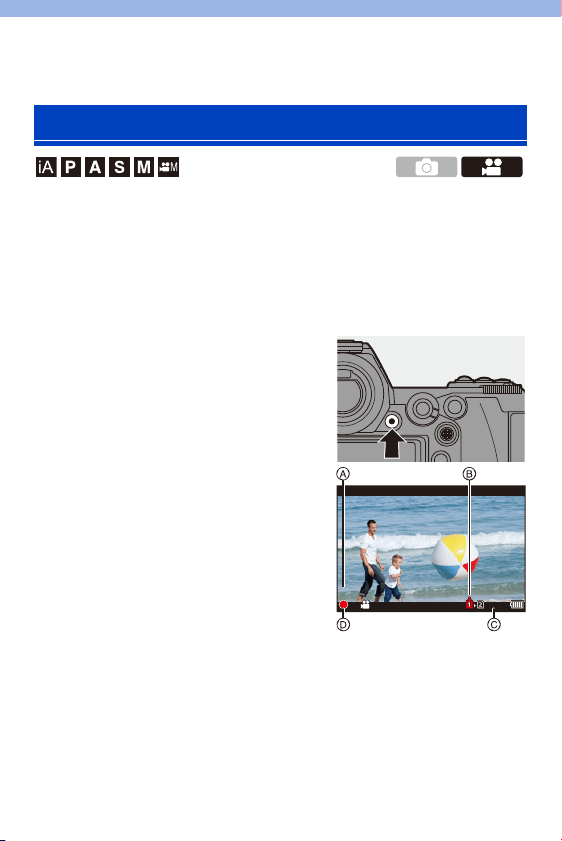
230
11. Recording Videos
This camera can record 4K videos in MP4 format and full high-definition
videos that comply with the AVCHD standard.
Furthermore, the Creative Video mode, especially created for video
recording, enables you to record using settings for exposure, white
balance, etc., especially suited to video.
Audio is recorded in stereo.
1
Start recording.
≥Press the video rec. button.
≥The live view angle of view changes
to the angle of view for video
recording, and the available
recording time and elapsed
recording time are displayed.
A Elapsed recording time
B Card access indication
C Available recording time
D Recording state indication
0 Release the video rec. button right after
you press it.
0 The recording state indication and card
access indication light red while videos are being recorded.
0 h: hour, m: minute, s: second
2
Stop recording.
≥Press the video rec. button again.
Recording Videos
24m59s24m59s24m59s
3
s
3
s
3
s
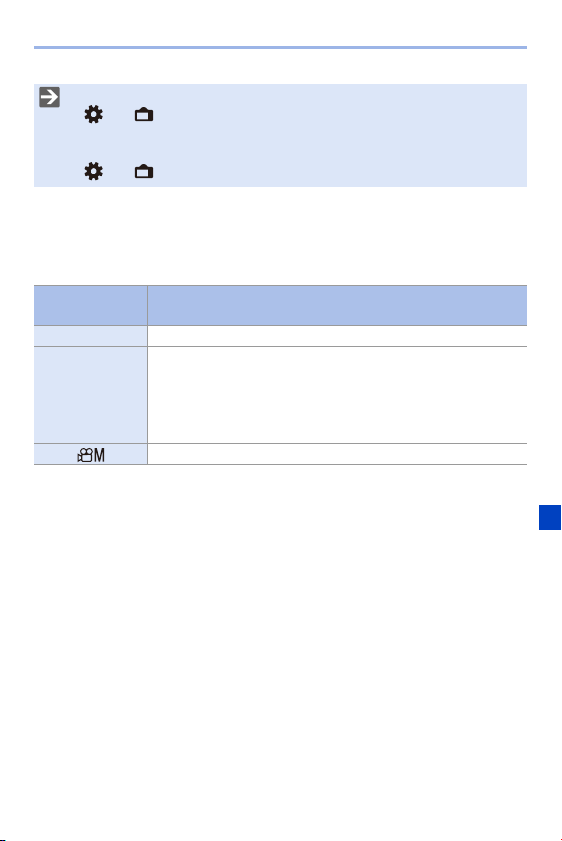
11. Recording Videos
231
Exposure Control While Video Recording
Videos will be recorded using the aperture, shutter speed, and ISO
sensitivity settings below.
0 The available recording time can be displayed during recording standby:
[]
¨ [ ] ¨ [Photos/Videos Remaining] (l 345)
0 You can switch the live view angle of view to the angle of view for video
recording:
[]
¨ [ ] ¨ [Photo/Video Preview] (l 344)
Recording
mode
Aperture value/shutter speed/ISO sensitivity
iA The camera automatically makes the settings to suit the scene.
P/A/S/M
The settings vary depending on the [Auto Exposure in P/A/S/M]
in the [Video] ([Image Quality]) menu. The default setting is
[ON].
[ON]: Records with values set automatically by the camera.
[OFF]: Records with manually set values.
Set manually.

11. Recording Videos
232
0 If an operation such as a zoom or button operation is performed during video
recording, that operation sound may be recorded.
0 The functions available during the video recording differ depending on the
lens you are using. Also, the lens operation sound may be recorded.
0 If the operation sound of pressing the video rec. button to end recording
bothers you, try the following:
– Record the video about 3 seconds longer, and then divide the last part of the
video using [Video Divide] in the [Playback] ([Edit Image]) menu.
– Use the Shutter Remote Control (DMW-RS2: optional) for recording.
0 Depending on the type of card, the card access indication may appear for a
while after video recording. This is not a malfunction.
0 Even when playback is performed on a supported device, situations may
occur where image or sound quality is poor, recording information is not
displayed correctly, or playback is not possible, for example.
If you experience any of these, play them back on the camera.
0 If the camera temperature rises under the any of following conditions, [ ]
may be displayed and recording may stop. Wait until the camera cools down.
– During continuous video recording
– When the ambient temperature is high
0 Video recording is not possible while you are using the following functions:
– [Time Lapse Shot]
– [Stop Motion Animation]
– [Rough Monochrome]/[Silky Monochrome]/[Soft Focus]/[Star Filter]/
[Sunshine] ([Filter Settings])
– [HLG Photo]
– [Post-Focus]
11. Recording Videos
233
[Rec. File Format]
Sets the video recording file format.
¨ [ ] ¨ [ ] ¨ Select [Rec. File Format]
Video Settings
[AVCHD]
This data format is suitable for playback on high-definition TVs.
0 AVCHD videos cannot be recorded to XQD cards.
[MP4] This data format is suitable for playback on PCs.
0 You can register functions to Fn buttons:
[]
¨ [ ] ¨ [Fn Button Set] ¨ [Setting in REC mode] ¨ [Motion Pic. Rec
Format] (l
278)
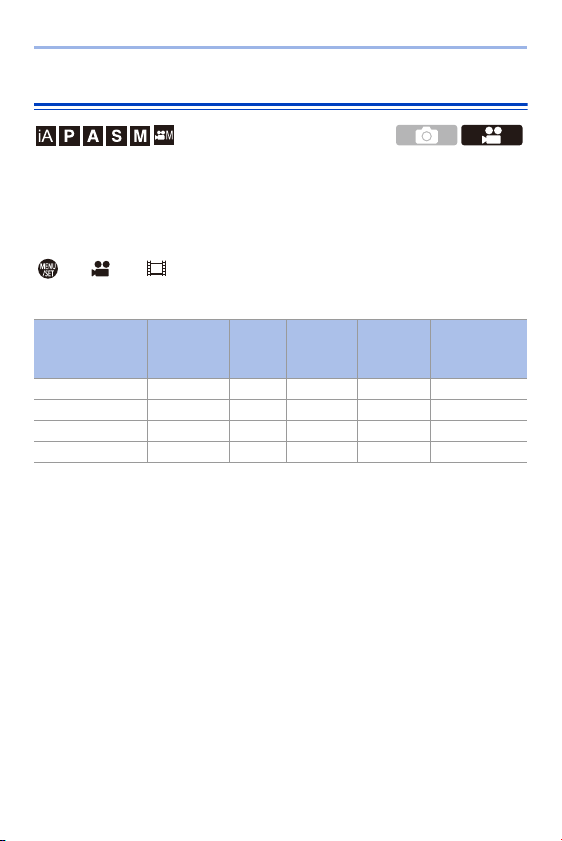
11. Recording Videos
234
[Rec Quality]
Sets the video recording image quality.
This camera can record videos in 4K (3840k2160) or full high-definition
(1920k1080) resolution. The image quality settings that can be selected
vary depending on the [Rec. File Format] setting.
¨ [ ] ¨ [ ] ¨ Select [Rec Quality]
[Rec. File Format]: [AVCHD]
¢1 AVCHD Progressive
¢2 Sensor output: 30 frames/second
[Rec Quality] Resolution
Frame
rate
Bit rate YUV/bit
Audio
compression
method
[FHD/28M/60p]
¢1
1920k1080 60p 28 Mbps 4:2:0/8 bit Dolby Audio
[FHD/17M/60i] 1920k1080 60i 17 Mbps 4:2:0/8 bit Dolby Audio
[FHD/24M/30p] 1920k1080 60i
¢2
24 Mbps 4:2:0/8 bit Dolby Audio
[FHD/24M/24p] 1920k1080 24p 24 Mbps 4:2:0/8 bit Dolby Audio

11. Recording Videos
235
[Rec. File Format]: [MP4]
¢3 These videos are intended for editing on a PC.
Playback and editing on other than this camera require a high-performance PC
environment.
¢4 Recording stops when the continuous recording time exceeds 15 minutes.
0 In this document, 4K resolution (3840k2160) video is indicated as 4K video, and full
high definition resolution (1920k1080) video is indicated as FHD video.
[Rec Quality] Resolution
Frame
rate
Bit rate YUV/bit
Audio
compression
method
[4K/LPCM/150M/
60p]
¢3, 4
3840k2160 60p 150 Mbps 4:2:0/8 bit LPCM
[4K/100M/30p]
¢4
3840k2160 30p 100 Mbps 4:2:0/8 bit AAC
[4K/100M/24p]
¢4
3840k2160 24p 100 Mbps 4:2:0/8 bit AAC
[FHD/28M/60p] 1920k1080 60p 28 Mbps 4:2:0/8 bit AAC
[FHD/20M/30p] 1920k1080 30p 20 Mbps 4:2:0/8 bit AAC

11. Recording Videos
236
0 All videos will be recorded using Long GOP to compress the images.
0 The higher the bit rate value is, the higher the image quality becomes.
Since the camera employs the VBR recording format, the bit rate is changed
automatically depending on the subject to record. As a result, the available
recording time is shortened when a fast-moving subject is recorded.
0 4K videos cannot be recorded when recording with [Miniature Effect] in [Filter
Settings].
0 When recording 4K videos to an SD card, use a card rated at UHS Speed
Class 3 or higher.
0 You can register functions to Fn buttons:
[]
¨ [ ] ¨ [Fn Button Set] ¨ [Setting in REC mode] ¨ [Motion Pic. Rec
Quality] (l
278)

11. Recording Videos
237
Size Interval for Dividing Files
[Rec. File Format] [Rec Quality] Size interval for dividing files
[AVCHD] All
A new file will be created to continue
recording if the file size exceeds 4 GB.
The files recorded can be played back
continuously.
[MP4]
FHD
A new file will be created to continue
recording if the continuous recording
time exceeds 30 minutes or the file size
exceeds 4 GB.
4K
When using an SDHC memory card
or an XQD card of 32 GB or less:
A new file will be created to continue
recording if the file size exceeds 4 GB.
When using an SDXC memory card or
an XQD card over 32 GB:
Files are not divided for recording.
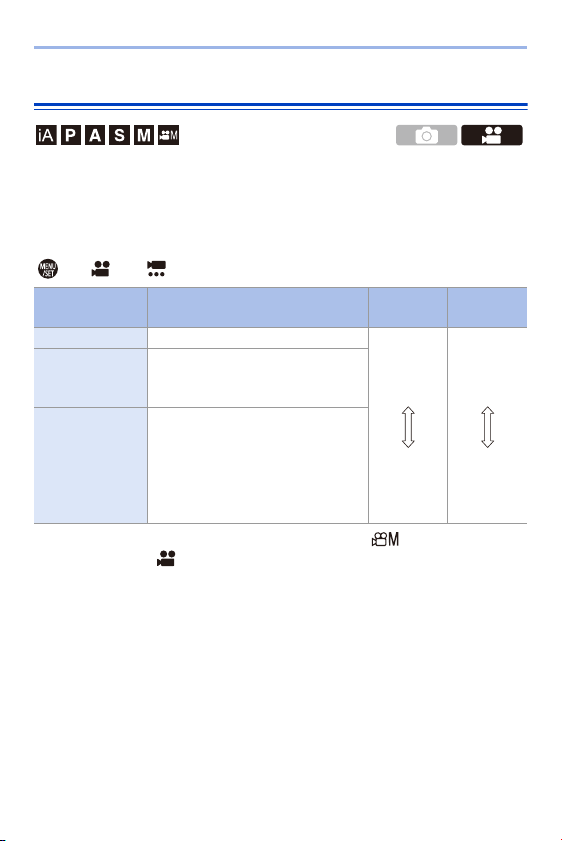
11. Recording Videos
238
[Image Area of Video]
Set the image area during video recording.
The angle of view differs depending on the image area.
Narrowing the image area allows you to achieve a telescopic effect without
image deterioration.
¨ [ ] ¨ [ ] ¨ Select [Image Area of Video]
0
To check the image area in recording modes other than [ ] mode, set [Photo/
Video Preview] to [ ]. (l
344)
0 When using APS-C lenses, [FULL] automatically switches to [APS-C].
0 When using the following functions, the image area of [FULL] and the angle of view
will become narrower:
Item Settings details
Angle of
view
Telescopic
effect
[FULL] Records with the full sensor area.
Wide
Narrow
None
High
[APS-C]
Records using a range
corresponding to the APS-C lens
image circle.
[PIXEL/PIXEL]
Records with one pixel on the
sensor, which is equal to one pixel of
the video.
Records a range corresponding to
the resolution range in [Rec Quality].
(l
234)
– 4K Video
– [60/30p 4K]/[48/23.98p 4K] ([High Speed Video])
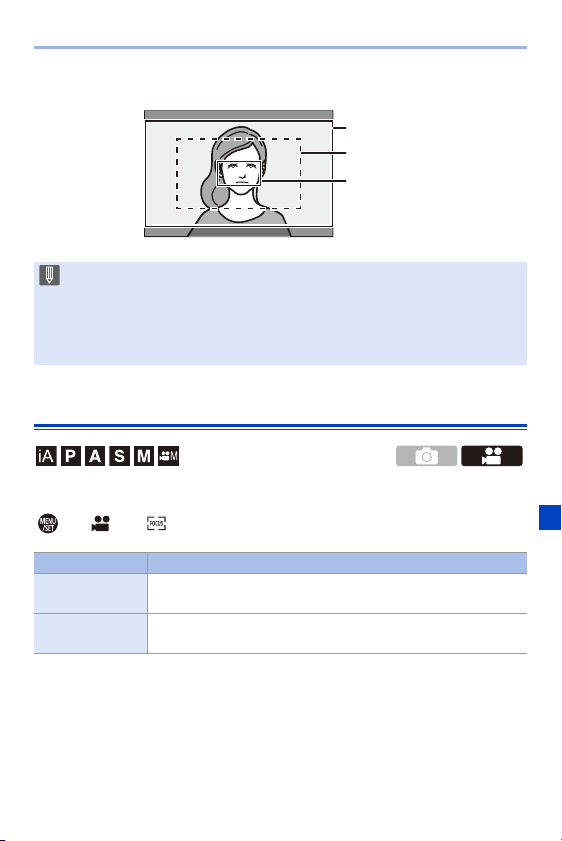
11. Recording Videos
239
Image area (Ex.: FHD video)
[Continuous AF]
You can select how to set the focus in AF when recording videos.
¨ [ ] ¨ [ ] ¨ Select [Continuous AF]
0 When the following functions are being used, [Image Area of Video] is fixed to
[APS-C]:
– [180/30p FHD] ([High Speed Video])
0 When the following functions are being used, [PIXEL/PIXEL] is not available:
– [High Speed Video]
[Continuous AF] Description of setting
[ON]
The camera automatically keeps focusing on subjects during
recording.
[OFF]
The camera maintains the focus position at the start of
recording.
FULL
APS-C
PIXEL/PIXEL
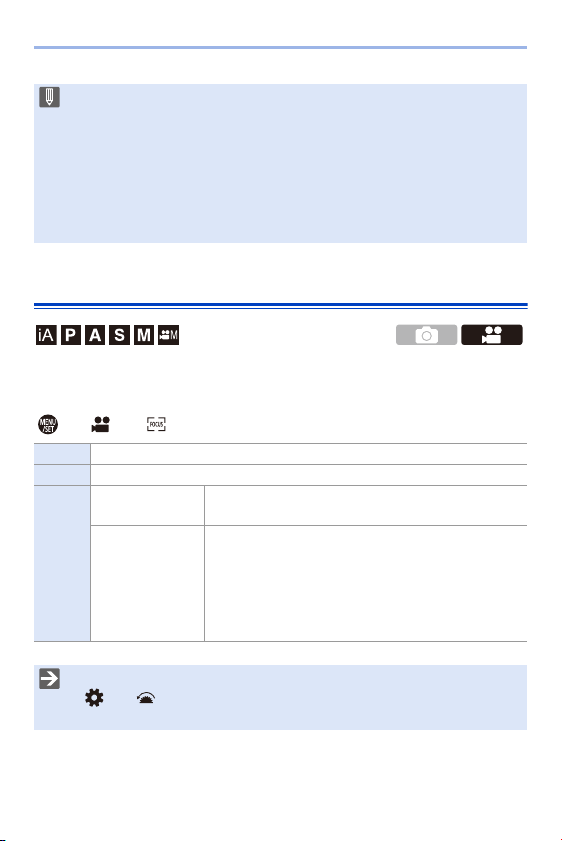
11. Recording Videos
240
[AF Custom Setting(Video)]
You can fine-adjust the focusing method for video recording using
[Continuous AF].
¨ [ ] ¨ [ ] ¨ Select [AF Custom Setting(Video)]
0 If you press the shutter button halfway while recording a video, the camera will
re-adjust the focus.
0 Depending on the recording conditions or lens used, the AF operation sound
may be recorded during video recording.
If the operation sound bothers you, we recommend recording with
[Continuous AF] set to [OFF].
0 If the zoom is operated while recording videos, the subject may take a while to
come into focus.
[ON] Enables the following settings.
[OFF] Disables the following settings.
[SET]
[AF Speed]
[r] side: Focus moves at a faster speed.
[s] side: Focus moves at a slower speed.
[AF Sensitivity]
[r] side: When the distance to the subject changes
significantly, the camera immediately readjusts the
focus.
[s] side: When the distance to the subject changes
significantly, the camera waits for a little before
readjusting the focus.
0 You can register functions to Fn buttons:
[]
¨ [ ] ¨ [Fn Button Set] ¨ [Setting in REC mode] ¨ [AF Custom
Setting(Video)] (l
278)
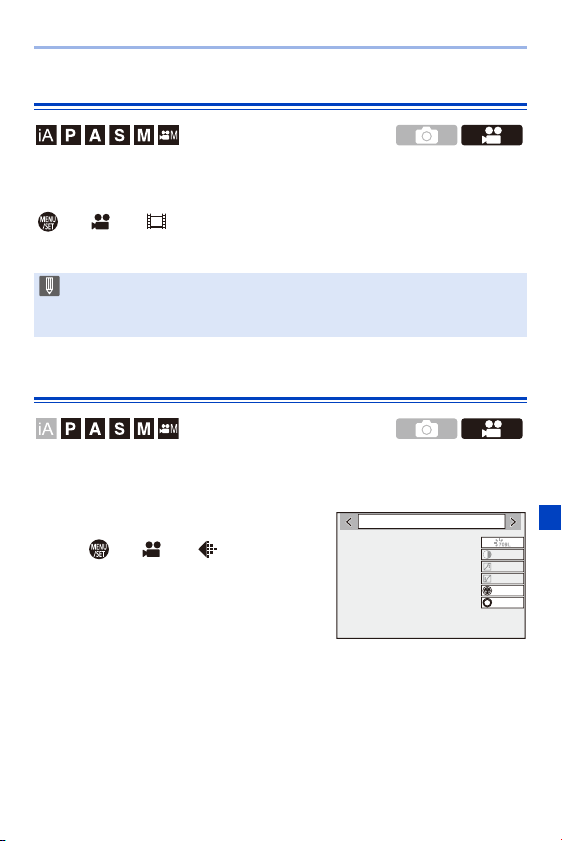
11. Recording Videos
241
[Luminance Level]
You can set the luminance range to suit the purpose of video recording.
0
This can be set when [Rec. File Format] is set to [MP4].
¨ [ ] ¨ [ ] ¨ Select [Luminance Level]
Settings: [0-255]/[16-255]
Recording While Controlling Overexposure (Knee)
When [Photo Style] is set to [Like709], you can adjust the knee so that
recording can be performed with minimal overexposure.
1
Set [Photo Style] to [Like709].
≥ ¨ [ ] ¨ [ ] ¨ [Photo
Style]
¨ [Like709]
0 This is fixed to [16-255] when [Rec. File Format] is set to [AVCHD].
0 This is fixed to [64-940] when recording [HLG Photo] and to [0-255] when
taking other types of pictures.
/LNH
±0
±0

11. Recording Videos
242
2
Press [Q].
3
Select a knee setting.
≥Press 21 to select a setting item.
4
Confirm your selection.
≥Press or .
[AUTO]
Adjusts the compression levels of high-luminance areas
automatically.
[MANUAL]
Allows you to adjust the master knee point and master
knee slope manually.
Press 34 to select an item and then press 21 to
adjust.
[POINT]: Master knee point
[SLOPE]: Master knee slope
0 Rotate to adjust the knee master point, and
to adjust the knee master slope.
0 Values within the following ranges can be set:
– Master knee point: 80 to 107
– Master knee slope: 0 to 99
[Off] —
$872
11. Recording Videos
243
Displaying/Setting the Sound Recording Level
[Sound Rec Level Disp.]
The sound recording level is displayed on the recording screen.
¨ [ ] ¨ [ ] ¨ Select [Sound Rec Level Disp.]
Settings: [ON]/[OFF]
[Sound Rec Level Adj.]
Manually adjust the sound recording level.
1
Select [Sound Rec Level Adj.].
0
¨ [ ] ¨ [ ] ¨ [Sound Rec Level Adj.]
2
Press 21 to adjust the sound recording level and then press or
.
0
You can adjust the sound recording level within the range from j12 dB to
i6 dB in steps of 1 dB.
0 Displayed dB values are approximate.
[Sound Rec Level Limiter]
The sound recording level is adjusted automatically to minimize sound
distortion (crackling noise).
¨ [ ] ¨ [ ] ¨ Select [Sound Rec Level Limiter]
Settings: [ON]/[OFF]
0 When [Sound Rec Level Limiter] is set to [OFF], [Sound Rec Level Disp.] is
fixed to [ON].
0 You can register functions to Fn buttons:
[]
¨ [ ] ¨ [Fn Button Set] ¨ [Setting in REC mode] ¨ [Sound Rec
Level Disp.] (l
278)
0 You can register functions to Fn buttons:
[]
¨ [ ] ¨ [Fn Button Set] ¨ [Setting in REC mode] ¨ [Sound Rec
Level Adj.] (l
278)
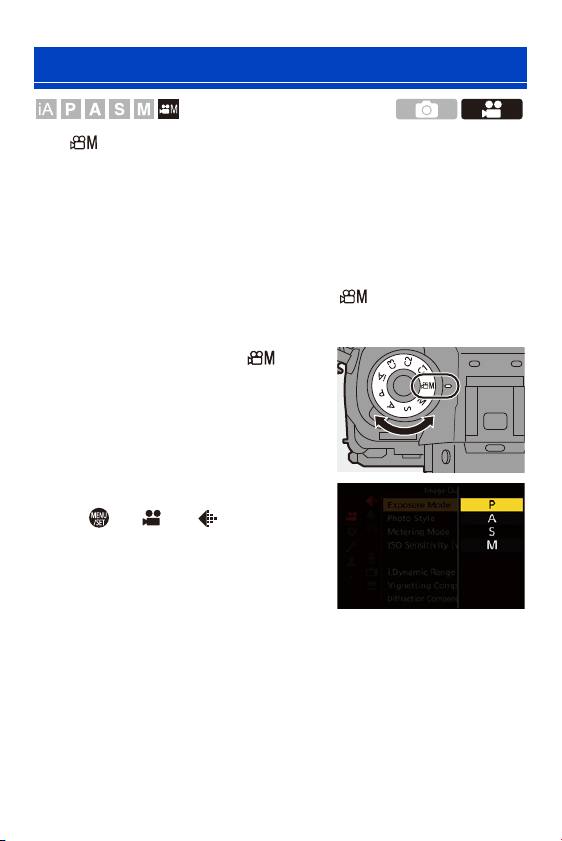
11. Recording Videos
244
The [ ] mode (Creative Video mode) is a recording mode used
exclusively for video recording. In this mode, you can perform the same
exposure operations as in [P]/[A]/[S]/[M] modes.
Change the exposure and audio settings with touch operation to prevent
operation sounds from being recorded.
Settings such as exposure and white balance can be changed
independent of picture taking settings.
The following videos can only be recorded in [ ] mode:
0 [High Speed Video] (l
247)
1
Set the mode dial to [ ].
2
Set the exposure mode.
≥ ¨ [ ] ¨ [ ] ¨ [Exposure
Mode]
¨ [P]/[A]/[S]/[M]
0
You can perform the same exposure
operations as the [P]/[A]/[S]/[M] modes.
3
Close the menu.
≥Press the shutter button halfway.
4
Start recording.
≥Press the shutter button or video rec. button.
5
Stop recording.
≥Press the shutter button or video rec. button again.
Creative Video Mode
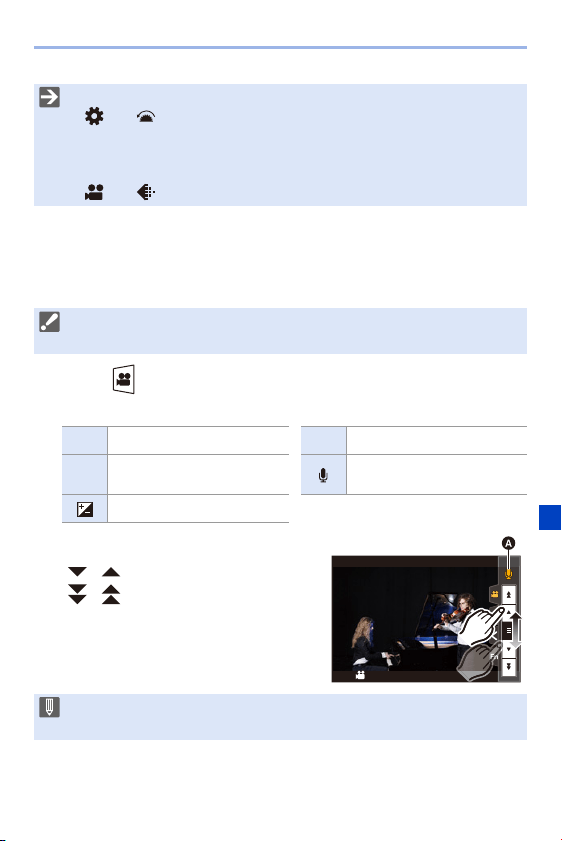
11. Recording Videos
245
Operations During Video Recording
Change the exposure and audio settings with touch operation to prevent
operation sounds from being recorded.
1
Touch [ ].
2
Touch an icon.
3
Drag the slide bar to set the item.
0
If you touch icon (A), the screen of Step
2
is redisplayed.
0 You can register functions to Fn buttons:
[]
¨ [ ] ¨ [Fn Button Set] ¨ [Setting in REC mode] ¨ [Exposure
Mode] (l
278)
0 You can set the upper and lower limits for ISO auto when recording in Creative
Video mode.
[]
¨ [ ] ¨ [ISO Sensitivity (video)] (l 319)
0 With the default settings, the Touch Tab is not displayed.
Set [Touch Tab] to [ON] in [Touch Settings]. (l
333)
Aperture value ISO sensitivity
Shutter speed
Sound recording level
adjustment
Exposure compensation
[ ]/[ ]: Changes the setting slowly.
[ ]/[ ]: Changes the setting quickly.
0 The shutter speed can be set within a range of 1/25 of a second to 1/16000 of
a second.
F
ISO
SS
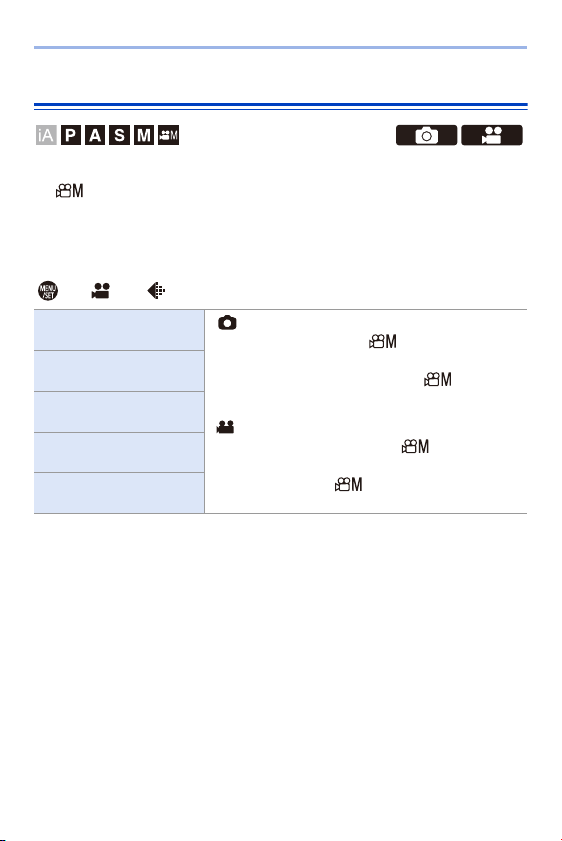
11. Recording Videos
246
[CreativeVideo Combined Set.]
In default settings, settings such as exposure and white balance changed
in [ ] mode are also reflected in picture recording in [P]/[A]/[S]/[M]
modes.
From the [CreativeVideo Combined Set.] menu, you can separate settings
for video recording and for picture recording.
¨ [ ] ¨ [ ] ¨ Select [CreativeVideo Combined Set.]
[F/SS/ISO/Exposure
Comp.]
[]:
Links recording settings in [ ] mode and [P]/[A]/
[S]/[M] mode.
0 Select to use the same settings in [ ] mode and
[P]/[A]/[S]/[M] mode.
[]:
Configures recording settings in [ ] mode and [P]/
[A]/[S]/[M] mode individually.
0 Select to separate [ ] mode and [P]/[A]/[S]/[M]
mode settings.
[White Balance]
[Photo Style]
[Metering Mode]
[AF Mode]
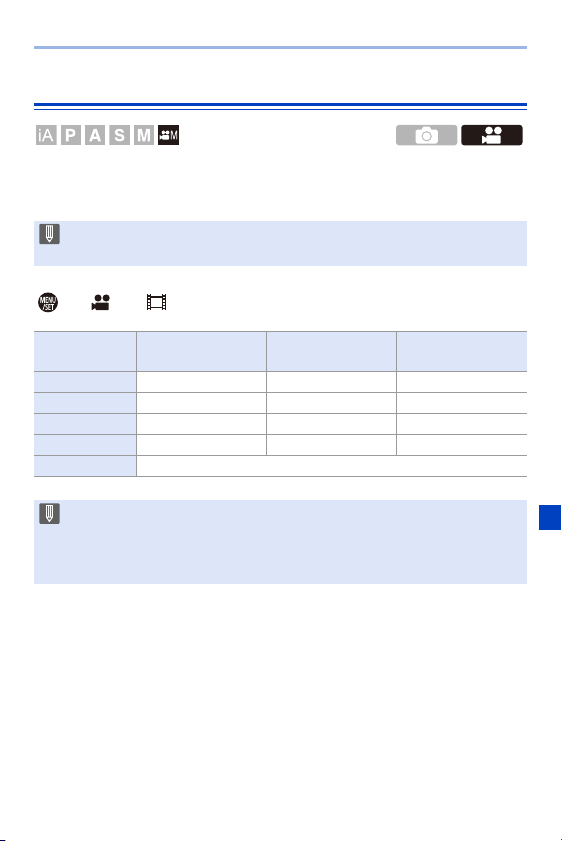
11. Recording Videos
247
[High Speed Video]
Records slow videos of MP4 format by performing ultra-high-speed
recording.
¨ [ ] ¨ [ ] ¨ Select [High Speed Video]
0 Use a card rated at UHS Speed Class 3 or higher when using an SD card for
this function.
Item
Frame rate
(for recording)
[Rec Quality]
(for storage)
Slow motion effect
[180/30p FHD] 180 frames/second FHD/20M/30p Approx. 1/6k
[120/30p FHD] 120 frames/second FHD/20M/30p Approx. 1/4k
[60/30p 4K] 60 frames/second 4K/100M/30p Approx. 1/2k
[48/23.98p 4K] 48 frames/second 4K/100M/24p Approx. 1/2k
[OFF] —
0 The setting of the focus mode switches to [MF].
0 Sound is not recorded.
0 You can perform continuous High Speed Video recording for up 10 minutes.
0 Under fluorescent lighting, flicker or horizontal stripes may be seen.
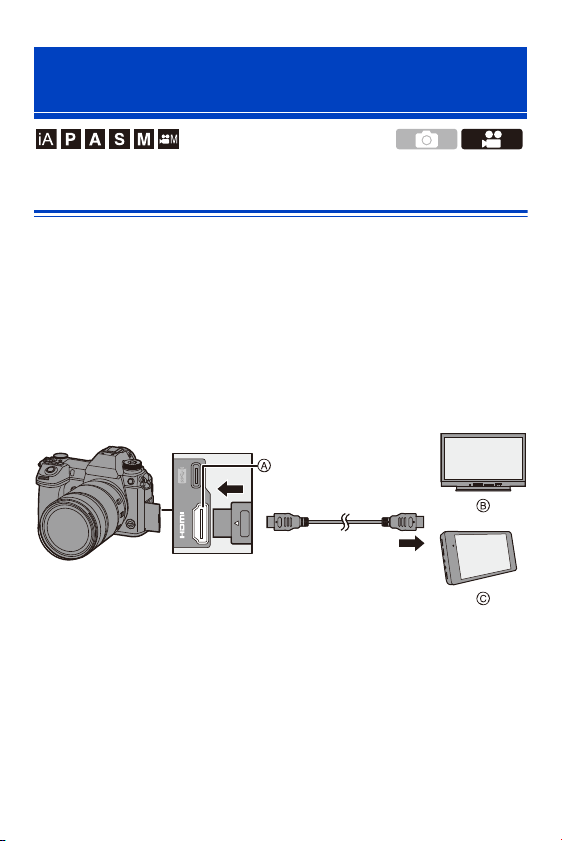
11. Recording Videos
248
External Monitor/Recorder ([HDMI Rec Output])
You can record while outputting the camera images to an external monitor
or external recorder connected with an HDMI cable.
HDMI output control differs between during recording and during playback.
0
Refer to page
357 for settings during playback.
Getting started:
0 Turn off the camera and the external monitor/external recorder.
Connect the camera and an external monitor or external
recorder with a commercially available HDMI cable.
0 Check the direction of the terminals and plug in/out straight holding onto the plug.
(Inserting these at an angle may cause deformation or malfunction)
0 Do not connect the cable to the wrong terminals. This may cause a malfunction.
Recording Videos Using a Connected
External Device
A [HDMI] socket (Type A)
B External monitor
C External recorder
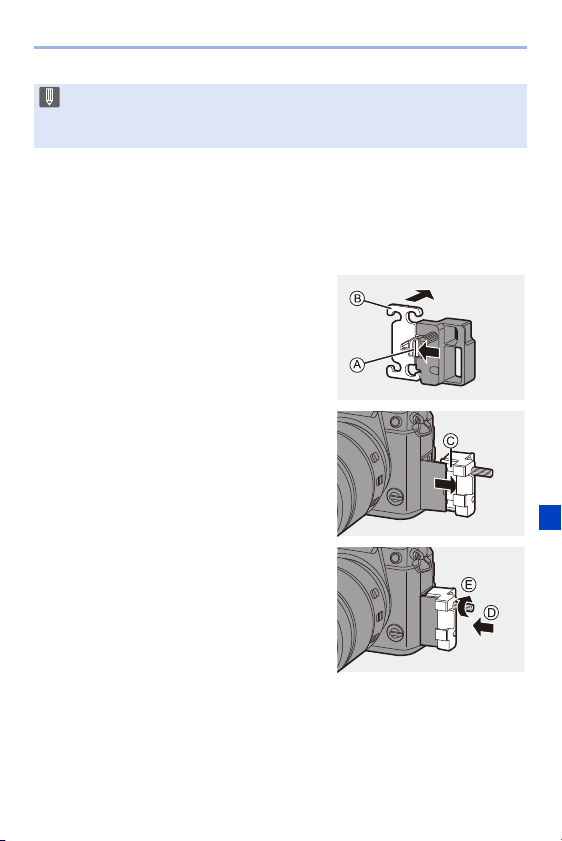
11. Recording Videos
249
Attaching the Cable Holder
Use of the supplied cable holder prevents detachment of the cable and
damage to the terminals.
0 Put the camera on a stable surface to perform this task.
1
While pushing A, slide the clamp
portion (B) of the cable holder to
remove it.
2
Open the door of the terminal section
and slide the door into the part marked
C.
3
Loosely mount the cable holder to the
mount on the camera (D), and then
rotate the screws in the direction of the
arrows to secure the cable holder (E).
0 Use a “High Speed HDMI cable” with the HDMI logo.
Cables that do not comply with the HDMI standards will not work.
“High Speed HDMI cable” (Type A–Type A plug, up to 1.5 m (4.9 feet) long)
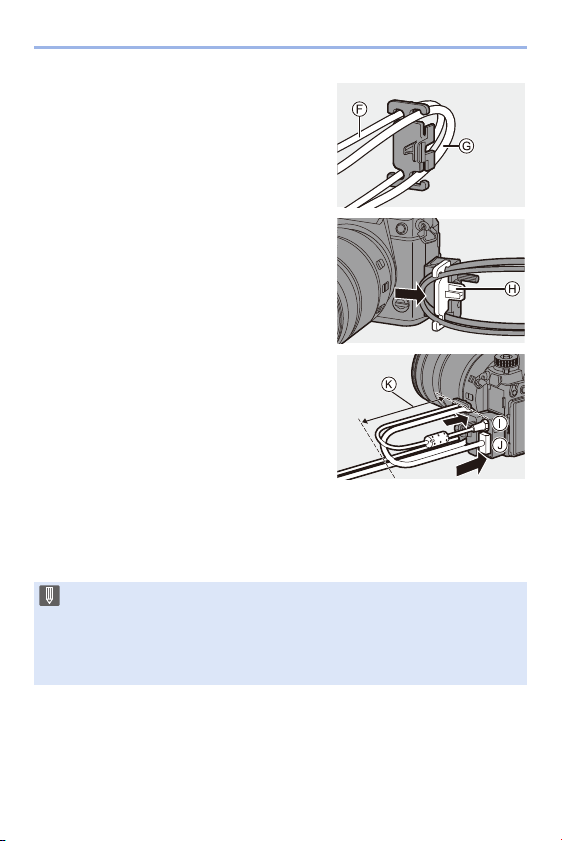
11. Recording Videos
250
4
Fit the USB connection cable (C–C or
A–C) (F) and HDMI cable (G) to the
clamp.
5
Slide the clamp portion (H) to attach it
to the cable holder.
6
Connect the USB connection cable
(C–C or A–C) to the USB port (I).
7
Connect the HDMI cable to the [HDMI]
socket (J).
K Leave some slack so that this section
has a length of at least 10 cm (0.33 feet).
Removing the cable holder
To remove the cable holder, follow the steps for attaching it in the reverse
order.
0 Do not use any other USB connection cables except the supplied USB
connection cables (C–C and A–C).
0 We recommend using an HDMI cable with a thickness diameter of 6.5 mm
(0.26 inch) or less.
0 It may not be possible to attach HDMI cables of certain shapes.
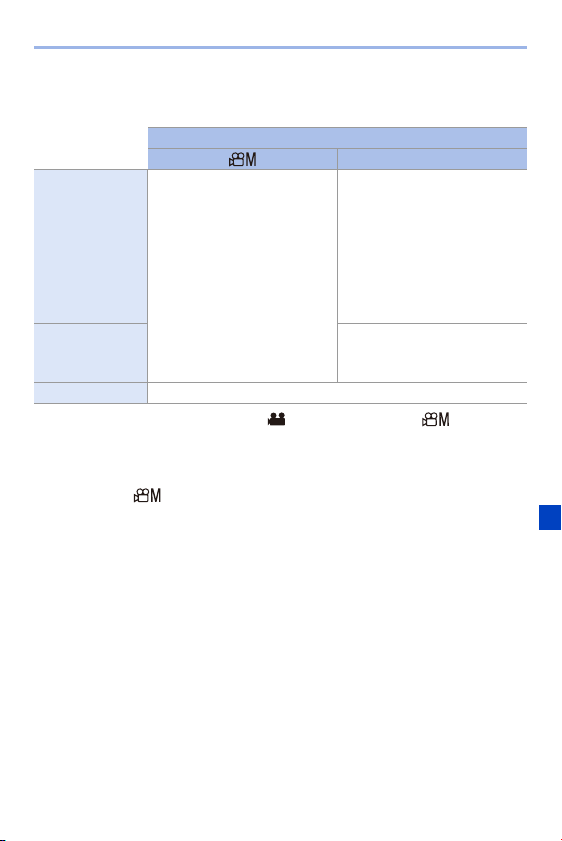
11. Recording Videos
251
Images Output via the [HDMI] Socket (Sorted by
Recording Mode)
0 When [Photo/Video Preview] is set to [ ] in a mode other than [ ], the aspect
ratio, resolution, and frame rate for output are in accordance with the [Rec Quality]
setting in the [Video] ([Image Format]) menu.
0 When recording videos, the output method changes to one equivalent to the output
method of the [ ] mode.
0 It may take some time for the output method to change.
Recording Mode
iA/P/A/S/M
Aspect ratio
Output is in accordance with
the [Rec Quality] setting in the
[Video] ([Image Format])
menu.
Output is in accordance with
the [Aspect Ratio] setting in the
[Photo] ([Image Quality])
menu.
0 With other than [16:9],
pictures are output with
bands added to their top and
bottom or the left and right.
Resolution,
frame rate
The output setting is
determined by the connected
device.
Output bit value Output at 8-bit.

11. Recording Videos
252
Setting the Information Display During HDMI Output
Select whether or not to output the information display of the camera to an
external device connected via HDMI.
¨ [ ] ¨ [ ] ¨ [HDMI Rec Output] ¨ Select [Info Display]
Settings: [ON]/[OFF]
0 When you use the HDMI output during recording, the image may be displayed
with a time lag.
0 Beep sounds, AF beep, and electronic shutter sounds are muted during HDMI
output.
0 When you check the image and audio from the TV connected to the camera,
the microphone of the camera may pick up the sound from the speakers of the
TV, producing an abnormal sound (audio feedback).
If this occurs, move the camera away from the TV or lower the volume on the
TV.
0 Certain setting screens are not output via HDMI.
0 There is no output via HDMI while you are using the following functions:
– [6K/4K PHOTO]/[Post-Focus]
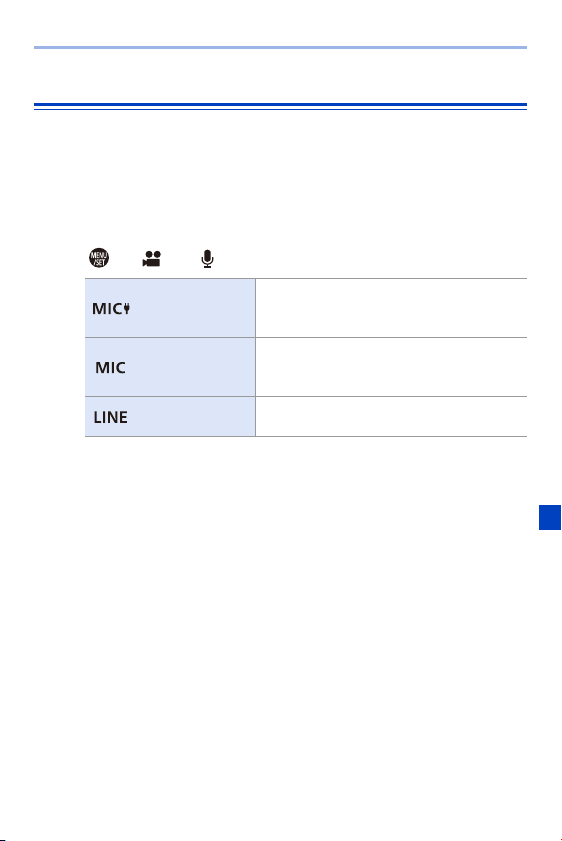
11. Recording Videos
253
External Microphones (Optional)
With a Stereo Shotgun Microphone (DMW-MS2: optional) or Stereo
Microphone (VW-VMS10: optional), you can record higher-quality audio
compared to the built-in microphone.
1
Set the [Mic Socket] that suits the device to be
connected.
≥ ¨ [ ] ¨ [ ] ¨ [Mic Socket]
0 The setting will be fixed to [Mic Input (Plug-in Power)] when a Stereo Shotgun
Microphone (DMW-MS2: optional) is connected.
0 When using [Mic Input (Plug-in Power)], if you connect an external
microphone that does not require power supply, the connected external
microphone may malfunction.
Check the device before connecting.
2
Turn off the camera.
[Mic Input (Plug-
in Power)]
When connecting an external microphone
that requires a power supply from the camera
[MIC] terminal.
[Mic Input]
When connecting an external microphone
that does not require a power supply from the
camera [MIC] terminal.
[Line Input]
When connecting an external audio device
for line output.
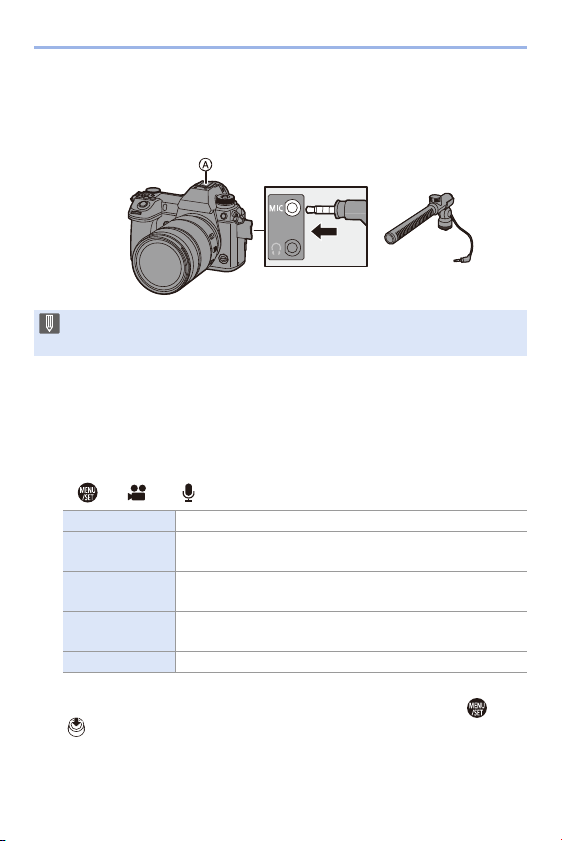
11. Recording Videos
254
3
Connect the camera and external microphone.
0 If mounting the external microphone on the camera hot shoe A, remove the
hot shoe cover. (l
216)
Setting the Sound Pickup Range (DMW-MS2: Optional)
When using the Stereo Shotgun Microphone (DMW-MS2: optional), you
can set the microphone sound pickup range.
1
Select [Special Mic.].
0
¨ [ ] ¨ [ ] ¨ [Special Mic.]
2
(When [MANUAL] is selected)
Press 21 to adjust the sound pickup range and then press or
.
0 Do not use the stereo microphone cables with the length of 3 m (9.8 feet) or
more.
[STEREO] Picks up sound over a wide area.
[LENS AUTO]
Picks up sound from a range automatically set by the lens
angle of view.
[SHOTGUN]
Helps prevent picking up background noise, and records
sound from a specific direction.
[S. SHOTGUN]
Narrows the sound pickup range more than with
[SHOTGUN].
[MANUAL] Sets the range manually for sound pickup.

11. Recording Videos
255
Reduction of Wind Noise
This reduces wind noise when an external microphone is connected.
¨ [ ] ¨ [ ] ¨ Select [Wind Cut]
Settings: [HIGH]/[STANDARD]/[LOW]/[OFF]
0 You can register a function with the Fn button:
[]
¨ [ ] ¨ [Fn Button Set] ¨ [Setting in REC mode] ¨ [Mic. Directivity
Adjust] (l
278)
0 While the external microphone is connected, [ ] is displayed on the screen.
0 When an external microphone is connected, [Sound Rec Level Disp.]
automatically turns [ON], and the recording level is displayed on the screen.
0 When the external microphone is attached, do not carry the camera by holding
the external microphone. It may become detached.
0 If noises are recorded when using the AC adaptor, use the battery.
0 When [Special Mic.] is set to [LENS AUTO], [S. SHOTGUN] or [MANUAL],
[Sound Output] is fixed to [REC SOUND].
0 When a Stereo Microphone (VW-VMS10: optional) is used, [Special Mic.] is
fixed to [STEREO].
0 Setting [Wind Cut] may alter the usual sound quality.
0 For details, refer to the operating instructions for the external microphone.
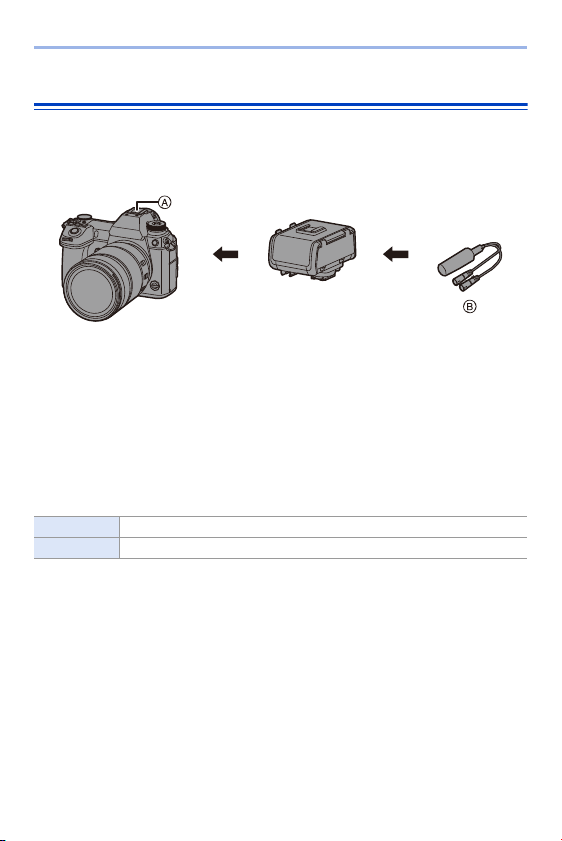
11. Recording Videos
256
XLR Microphone Adaptor (Optional)
By attaching an XLR Microphone Adaptor (DMW-XLR1: optional) to the
camera, you can use a commercially available XLR microphone to enable
the recording of superior-quality stereo audio.
A Hot shoe
B Commercially available XLR microphone
Getting started:
0 Turn off the camera, and remove the hot shoe cover. (l
216)
Attach the XLR Microphone Adaptor to the hot shoe, and then turn on the
camera.
0
When the XLR Microphone Adaptor is attached, [XLR Mic Adaptor Setting]
automatically turns [ON].
[ON] Records audio using the XLR microphone.
[OFF] Records audio using the built-in microphone.
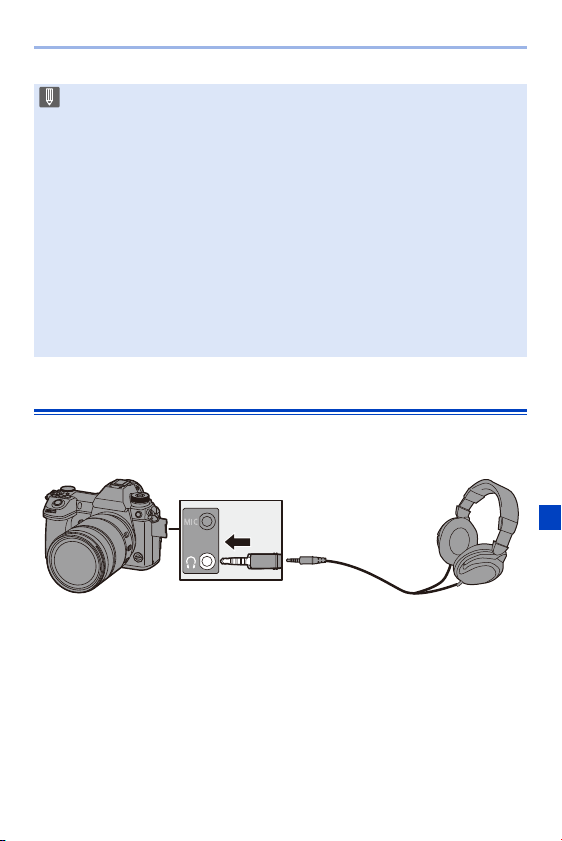
11. Recording Videos
257
Headphones
You can record videos while monitoring their sound by connecting
commercially available headphones to the camera.
0
Do not use the headphone cables with the length of 3 m (9.8 feet) or more.
0 When headphones are connected, beep sounds, AF beep, and electronic shutter
sounds are muted.
0 When [XLR Mic Adaptor Setting] is set to [ON], the following settings are fixed:
– [Sound Rec Level Limiter]: [OFF]
– [Wind Noise Canceller]: [OFF]
– [Special Mic.]: [STEREO]
– [Sound Output]: [REC SOUND]
0 [Sound Rec Level Adj.] cannot be used when [XLR Mic Adaptor Setting] is set
to [ON].
0 When the XLR Microphone Adaptor is attached, [Sound Rec Level Disp.]
automatically turns [ON], and the recording level is displayed on the screen.
0 When the XLR Microphone Adaptor is attached, do not carry the camera by
holding the XLR Microphone Adaptor. It may become detached.
0 If noises are recorded when using the AC adaptor, use the battery.
0 For details, refer to the operating instructions for the XLR Microphone
Adaptor.
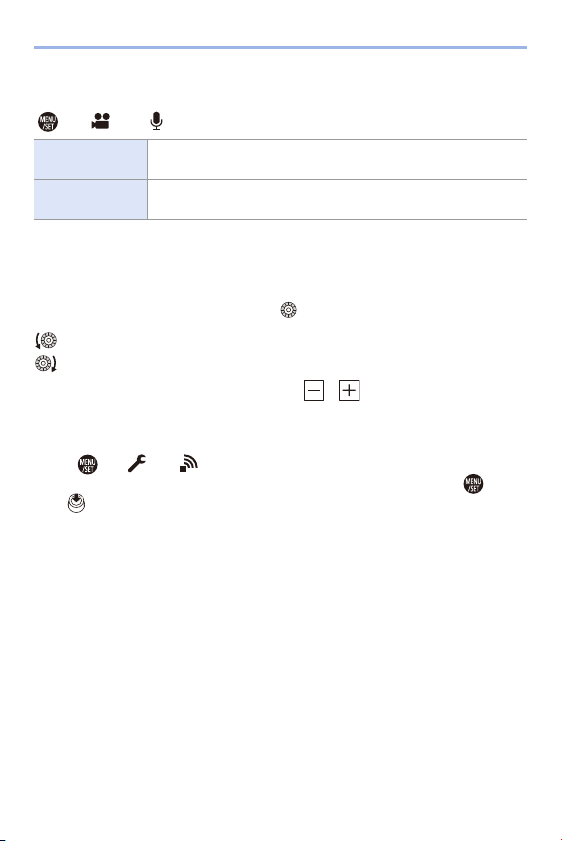
11. Recording Videos
258
Switching the Sound Output Method
¨ [ ] ¨ [ ] ¨ Select [Sound Output]
0 When recording with an HDMI connection, this is fixed to [REC SOUND].
Adjusting the Headphone Volume
Connect the headphones and rotate .
0
You can also adjust the volume by touching [ ]/[ ] on the playback screen.
To adjust the volume using the menu:
1
Select [Headphone Volume].
0
¨ [ ] ¨ [ ] ¨ [Headphone Volume]
2
Press 34 to adjust the headphone volume and then press or
.
0
It can be adjusted in a range of [0] to [LEVEL15].
[REALTIME]
Audio without time lag.
It may differ from the sound recorded in videos.
[REC SOUND]
Audio to be recorded in videos.
Output sound may be delayed from actual sound.
: Reduces the volume.
: Increases the volume.
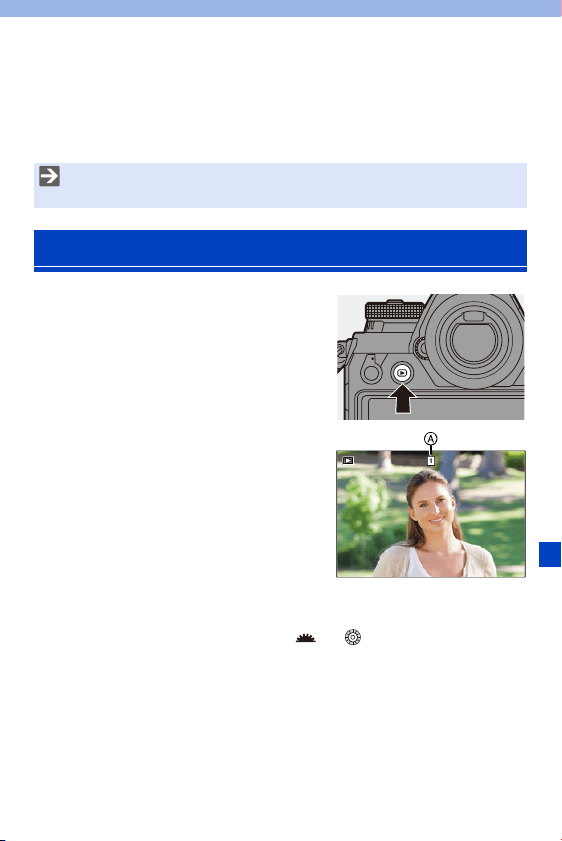
259
12. Playing Back and Editing of
Images
This chapter explains the playing back and editing of images.
1
Display the playback screen.
≥Press [(].
2
Select a picture.
A Card slot
≥Select the pictures by pressing
21.
2: Move to the previous image
1: Move to the next image
≥You can move continuously through
images by pressing and holding
21.
≥You can also select by rotating or .
≥You can also move through images by dragging the screen
horizontally. By leaving your finger touching the left or right edge of
the screen after dragging to change the image, you can
continuously move through images.
0
If images are continuously moved through, the card being played back
changes.
0 Refer to “[Playback] Menu” starting on page 361 for details about protection,
ratings, and other playback and editing functions.
Playing Back Pictures
1/9991/9991/999
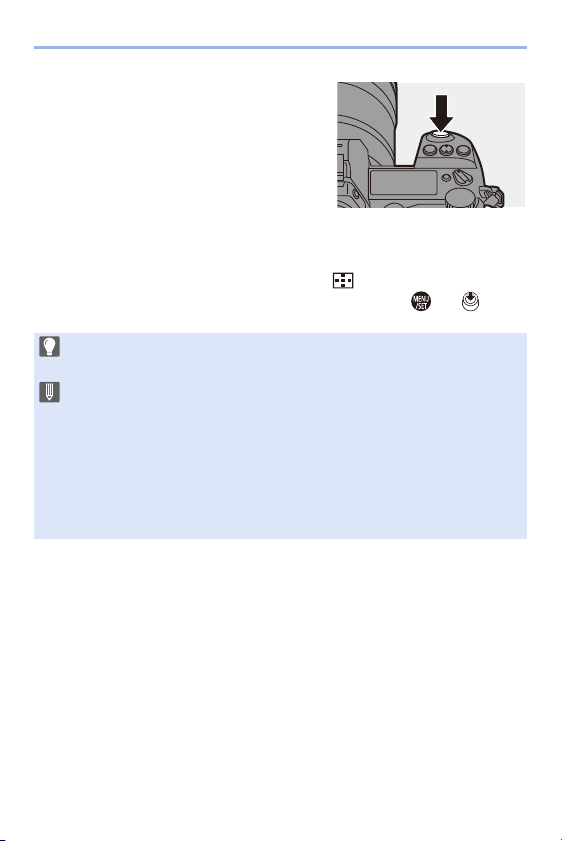
12. Playing Back and Editing of Images
260
3
Stop playback.
≥Press the shutter button halfway.
≥You can also stop playback by
pressing [(].
Switching the Card to Display
Images are displayed separately by card slot.
To switch the card to display, after pressing [ ], press 34 to select
[Card Slot 1(XQD)] or [Card Slot 2(SD)], and then press or .
0 You can transfer pictures to a smartphone connected by Bluetooth by pressing
[Q]. (l
401)
0 This camera complies with the “Design rule for Camera File system” (DCF)
and “Exchangeable Image File Format” (Exif) standards established by “Japan
Electronics and Information Technology Industries Association” (JEITA).
The camera cannot play back files that do not comply with the DCF standard.
Exif is a file format for pictures which allows recording information, etc. to be
added.
0 Images recorded on devices other than this one may not be played back or
edited correctly on this camera.
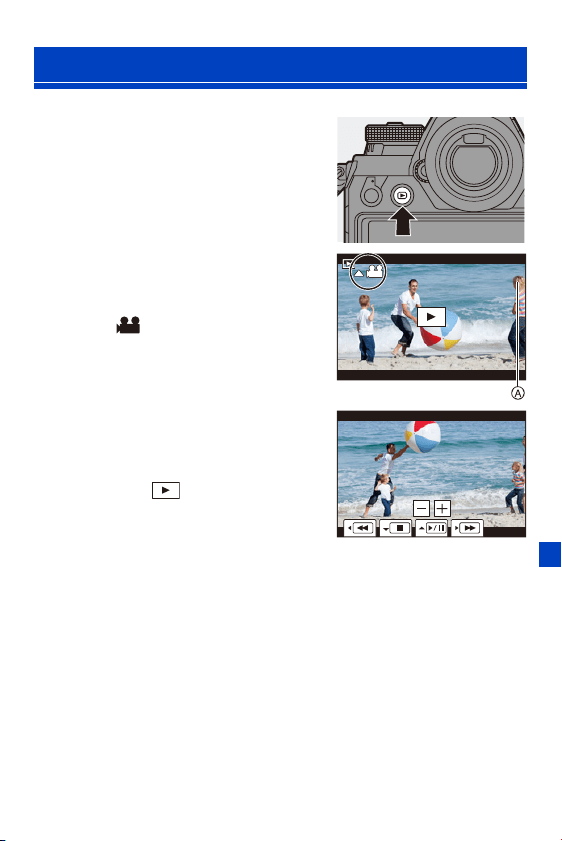
12. Playing Back and Editing of Images
261
1
Display the playback screen.
≥Press [(].
2
Select a video.
0 For information about how to select
images, refer to page
259.
0 The [ ] video icon is displayed for a
video.
A Video recording time
3
Play back the video.
≥Press 3.
≥You can also start playback by
touching [ ] at the center of the
screen.
≥The elapsed playback time is
displayed on the screen.
Example) When 8 minutes 30 seconds: 8m30s
0
h: hour, m: minute, s: second
4
Stop playback.
≥Press 4.
Playing Back Videos
8m30s
8m30s
8m30s
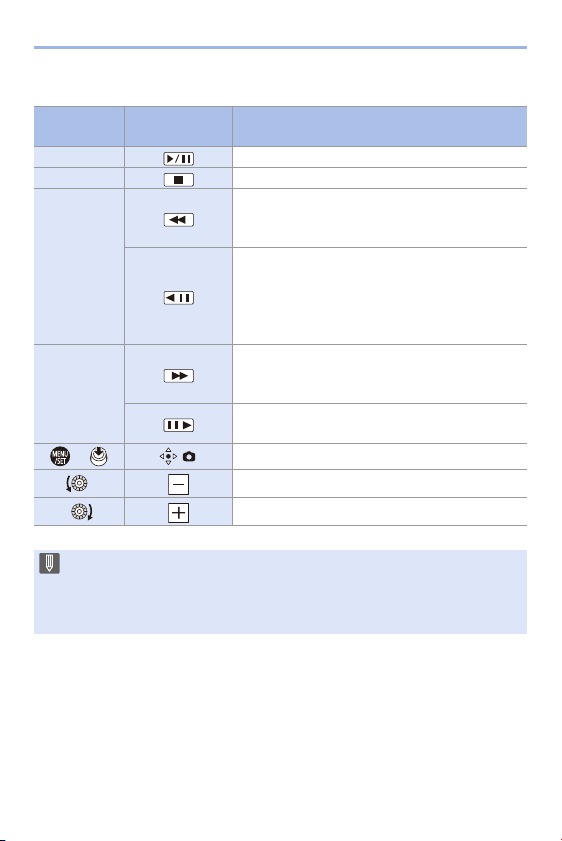
12. Playing Back and Editing of Images
262
Operations During Video Playback
Button
operation
Touch
operation
Description of operation
3 Plays/pauses.
4 Stops.
2
Performs fast-rewind playback.
0 If you press 2 again, the fast-rewind speed
increases.
Performs frame-by-frame rewinding (while
paused).
0 During the playback of AVCHD video, frame-
by-frame rewinding will be at an approx.
0.5 second interval.
1
Performs fast-forward playback.
0 If you press 1 again, the fast-forward speed
increases.
Performs frame-by-frame forwarding (while
paused).
/ Extracts a picture (while paused). (l 263)
Reduces the volume.
Increases the volume.
0 The camera can play back videos in AVCHD and MP4 formats.
0 Some information (recording information, etc.) is not displayed for an AVCHD
video.
0 To play back videos on a PC, use the “PHOTOfunSTUDIO” software.
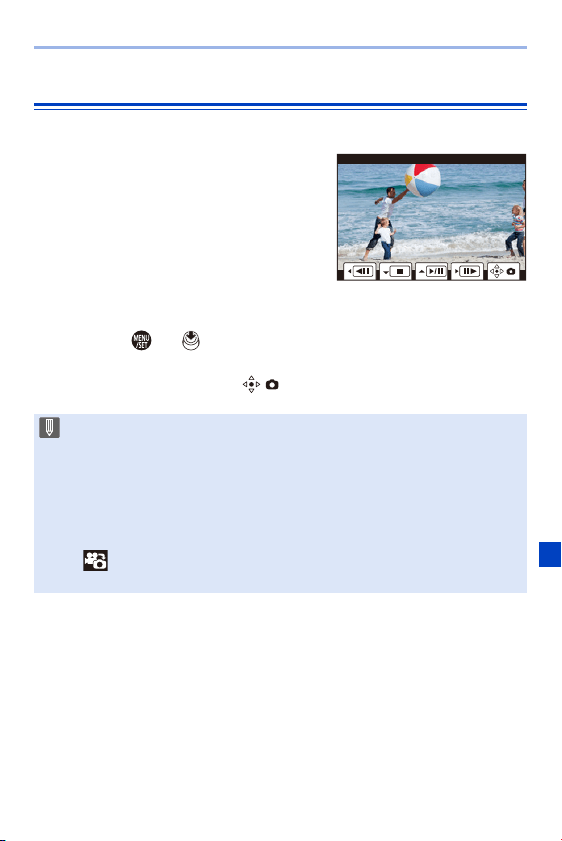
12. Playing Back and Editing of Images
263
Extracting a Picture
Extract one frame of a video and save it as a JPEG image.
1
Pause playback at the position
you wish to extract a picture.
≥Press 3.
0
To fine-adjust the position, press 21
(frame-by-frame forward or frame-by-
frame rewind).
2
Save the picture.
≥Press or .
≥You can also perform the same
operation by touching [ ].
0 The picture created from the video is saved with a 16:9 image aspect ratio and
[FINE] picture quality.
The picture size will differ depending on the video.
– When a picture is created from a 4K video: 3840k2160
– When a picture is created from a FHD video: 1920k1080
0 The image quality of a picture created from a video may be coarser than
normal.
0 [ ] is displayed on the detailed information display screen for a picture
created from a video.
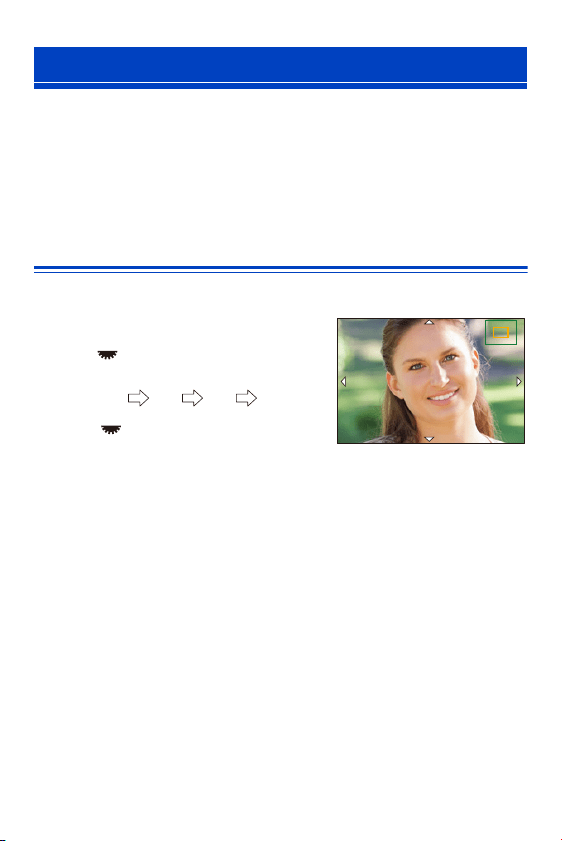
12. Playing Back and Editing of Images
264
You can use features to do things like enlarge recorded images for display
and switch to thumbnail display to display multiple images at once (multi-
playback).
You can also switch to Calendar display to show images of a selected
recording date.
Enlarged Display
Playback images can be displayed enlarged (Playback Zoom).
Enlarging the playback screen.
≥Rotate to the right.
≥The playback screen is enlarged in the
order of 2k 4k 8k 16k.
0
Rotating to the left returns to the previous
display size.
0 Pictures taken with [Picture Quality] set to [RAW] cannot be displayed enlarged at
16k.
0 You cannot enlarge the edges of images recorded using [High Resolution Mode].
Switching the Display Mode
2.0X2.0X
2.0X
2.0X
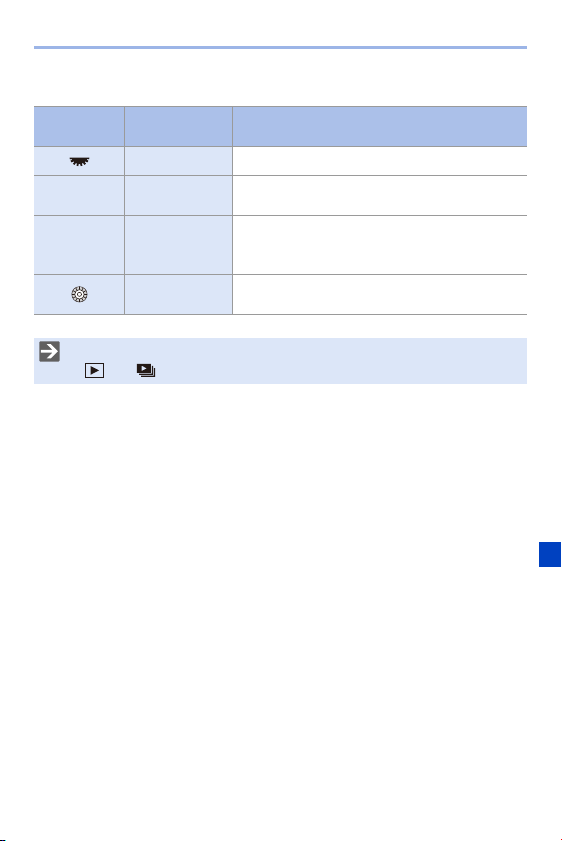
12. Playing Back and Editing of Images
265
Operations During Enlarged Display
Button
operation
Touch
operation
Description of operation
s Enlarges/reduces the screen.
s
Pinch out/
pinch in
Enlarges/reduces the screen in small steps.
3421 Drag
Moves the enlarged display position.
Positions can be moved to the diagonal
directions using the joystick.
s
Forwards or rewinds images while maintaining
the same zoom magnification and zoom position.
0 You can enlarge the point focused with AF:
[]
¨ [ ] ¨ [Magnify from AF Point] (l 363)
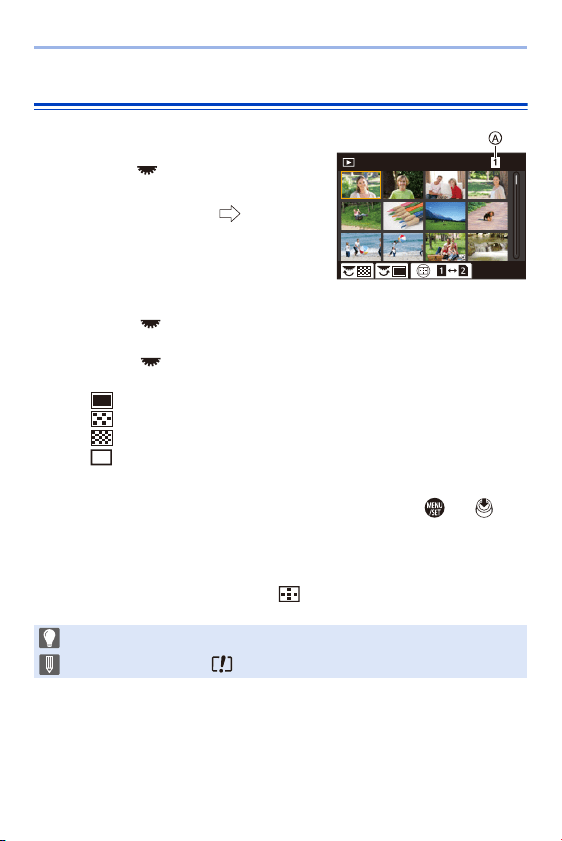
12. Playing Back and Editing of Images
266
Thumbnail Screen
1
Switch to thumbnail display.
≥Rotate to the left.
≥The display is switched in the order
of 12-image screen 30-image
screen.
A Card
0 An orange frame is shown around the
selected image.
0 Rotating to the left during 30-image screen display switches to calendar
display. (l
267)
0 Rotating to the right returns to the previous display.
0 You can also switch the display by touching an icon.
[ ]: 1-image screen
[ ]: 12-image screen
[ ]: 30-image screen
[ ]: Calendar (l
267)
2
Select an image.
≥Press 3421 to select an image and then press or .
Switching the Card to Display
Images are displayed separately by card slot.
To switch the card to display, press [ ] during thumbnail display.
0 You can scroll the screen by dragging the thumbnail display up or down.
0 Images indicated with [ ] cannot be played back.
1/999
CAL
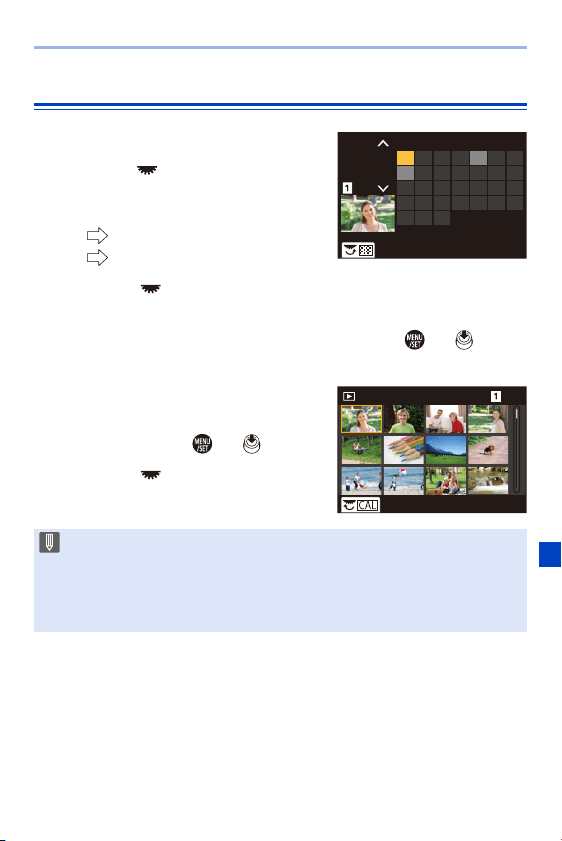
12. Playing Back and Editing of Images
267
Calendar Playback
1
Switch to Calendar Playback.
≥Rotate to the left.
≥The display is switched in the order
of thumbnail screen (12 images)
thumbnail screen (30 images)
Calendar Playback.
0
Rotating to the right returns to the previous display.
2
Select the recording date.
≥Press 3421 to select a date and then press or .
0
The selected date is displayed in orange.
3
Select an image.
≥Press 3421 to select an image
and then press or .
0
Rotating to the left returns to
Calendar Playback.
0 The card to display cannot be switched during Calendar display.
0 The recording date of the image selected in the playback screen becomes the
date selected when the calendar screen is first displayed.
0 The range that the calendar can be displayed is January 2000 to December
2099.
7654321
141312111098
21201918171615
2827262524
31
2322
SUN
SATFRITHUWEDTUEMON
3029
2019
12
1/999
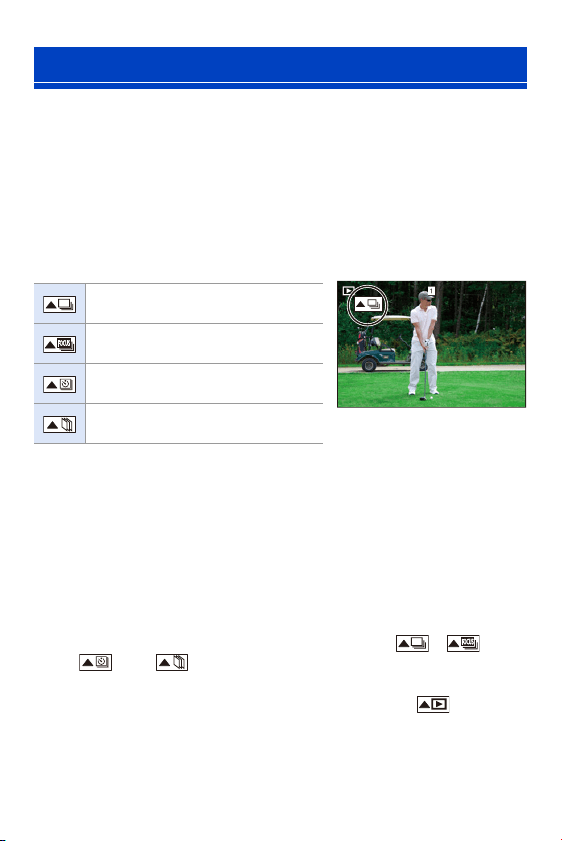
12. Playing Back and Editing of Images
268
Images recorded with Time Lapse Shot or Stop Motion Shooting are
handled as group images in the camera, and can be deleted and edited on
a group basis.
(For example, if you delete a group image, all images in the group are
deleted.)
You can also delete and edit each image in a group individually.
Images Handled as Group Images by the Camera
Playing and Editing the Images in a Group One by One
Operations such as the thumbnail screen, enlarged display, and deleting
images are available with images in groups just as with normal picture
playback.
1
Press [(] to display the playback screen.
2
Select the group image for playback. (l
259)
3
Press 3 to display the images in the group.
0
You can also perform the same operations by touching [ ], [ ],
[ ], and [ ].
4
Press 21 to select an image.
0
To return to the normal playback screen, press 3 or touch [ ] again.
Group Images
Group images saved with [6K/4K
PHOTO Bulk Saving].
Group images recorded with Focus
Bracket.
Group images recorded with Time
Lapse Shot.
Group images recorded with Stop
Motion Shooting.
1/9991/9991/999
75 pic.
75 pic.75 pic.
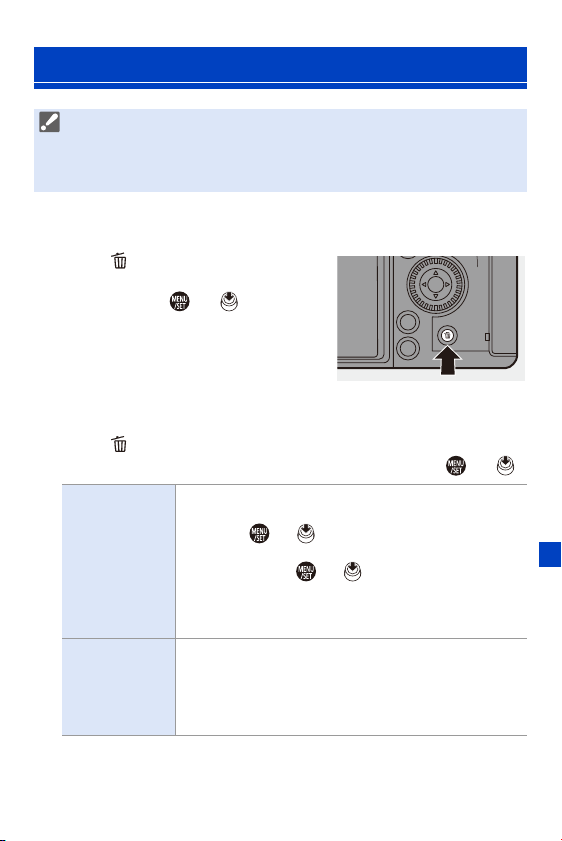
12. Playing Back and Editing of Images
269
[Delete Single]
1
Press [ ] in playback state.
2
Press 34 to select [Delete Single]
and then press or .
[Delete Multi]/[Delete All]
1
Press [ ] in playback state.
2
Press 34 to select the deletion method and then press or .
Deleting Images
0 Images cannot be restored once they have been deleted. Carefully confirm
the images before deletion.
0 You can only delete the images in the card of the selected card slot.
0 If you delete a group image, all images in the group are deleted.
[Delete Multi]
Selecting and deleting multiple images.
1 Press 3421 to select the image to delete and then
press or .
0 [‚] is displayed for the selected image.
0 If you press or again, the selection is
canceled.
0 Up to 100 images can be selected.
2 Press [DISP.] to delete the selected image.
[Delete All]
Deleting all images in a card.
0 If you select [Delete All], all images in the card are
deleted.
0 If you select [Delete All Non-rating], all images except
those with a rating set are deleted.

12. Playing Back and Editing of Images
270
0 To switch the card selected for deleting images, press [ ] and then select
the card slot.
0 Depending on the number of images to be deleted, it may take some time to
delete them.
0 You can register functions to Fn buttons:
[]
¨ [ ] ¨ [Fn Button Set] ¨ [Setting in PLAY mode] ¨ [Delete Single]
(l
278)
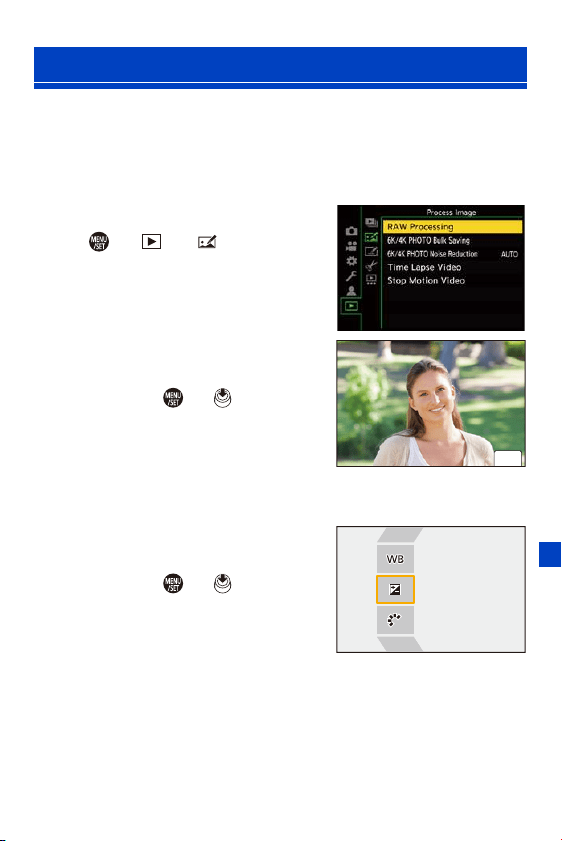
12. Playing Back and Editing of Images
271
This processes pictures taken in RAW format on the camera and saves
them in JPEG format.
You can also save images recorded with [HLG Photo] in the RAW format
as HLG format.
1
Select [RAW Processing].
≥ ¨ [ ] ¨ [ ] ¨ [RAW
Processing]
2
Select the RAW image.
≥Press 21 to select an image and
then press or .
0
When group images are selected, press
3 and then select an image in the group.
Press 3 again to return to the normal
selection screen.
0 The settings from the time of recording are reflected in displayed images.
3
Select a setting item.
≥Press 34 to select an item and
then press or .
[RAW Processing]
6HW
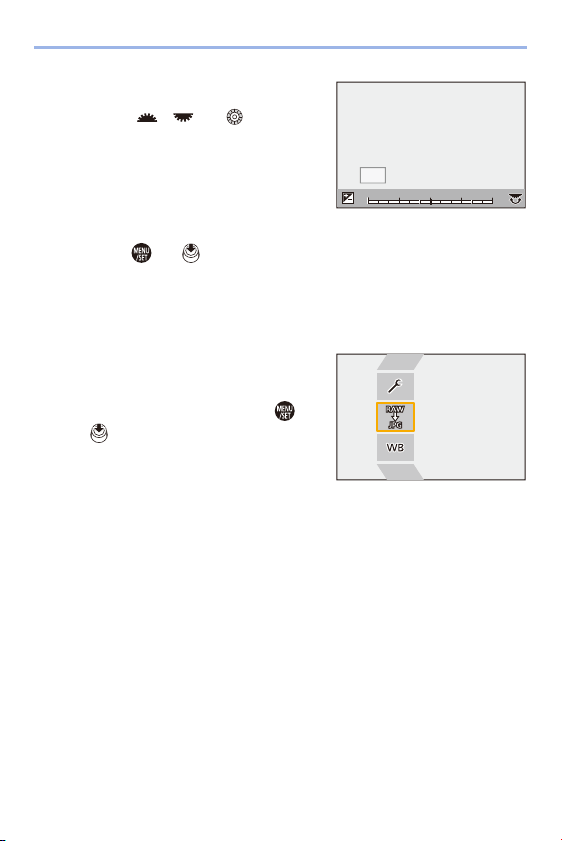
12. Playing Back and Editing of Images
272
4
Change the setting.
≥Rotate , , or .
0
The image can be enlarged/reduced by
pinching out/pinching in the screen.
5
Confirm the setting.
≥Press or .
≥The screen of Step
3
reappears.
To set another item, repeat Steps
3
to
5
.
6
Save the image.
≥Press 34 to select [Begin
Processing] and then press or
.
+1+1 +2+2
-
2
-
2
-
1
-
100
DISP.

12. Playing Back and Editing of Images
273
Setting Items ([RAW Processing])
[Begin Processing] Saves the image.
[White Balance]
Selects and adjusts the white balance.
Selecting the item with [ ] enables processing with the
same setting as at the time of recording.
0 If you press 4 in the [White Balance] selection screen, the
white balance adjustment screen appears.
0 If you press 3 while [ ] to [ ] of [White Balance] is
selected, the color temperature setting screen appears.
[Brightness
correction]
Corrects the brightness. (n2 EV)
[Photo Style]
Selects a Photo Style.
0 If you press [Q] while [Like709] of [Photo Style] is selected,
the knee setting screen appears.
0 When you have selected [HLG] in [File Format] in [More
Settings], only [Standard(HLG)] and [Monochrome(HLG)]
are available for selection.
[i.Dynamic Range]
¢1
Selects the setting of [i.Dynamic Range].
[Contrast]
¢1
Adjusts the contrast. (n5)
[Highlight]
¢1
Adjusts the brightness of bright portions. (n5)
[Shadow]
¢1
Adjusts the brightness of dark portions. (n5)
[Saturation]
¢2
/
[Color Tone]
¢3
Adjusts the saturation or color tone. (n5)
[Hue]
¢2
Adjusts the hue. (n5)
[Filter Effect]
¢3
Selects filter effects.
[Grain Effect]
¢4
Selects a grain effect setting.
[Noise Reduction] Sets noise reduction. (n5)
[Sharpness] Adjusts the sharpness. (n5)
1
4

12. Playing Back and Editing of Images
274
¢1 Cannot be adjusted when [Like709] is selected in [Photo Style], or if [HLG] is
selected in [File Format] in [More Settings].
¢2 Available when items other than [Monochrome], [L.Monochrome], [L.Monochrome
D], or [Monochrome(HLG)] are selected in [Photo Style].
¢3 Available when [Monochrome], [L.Monochrome], [L.Monochrome D], or
[Monochrome(HLG)] is selected in [Photo Style].
¢4 Available when [Monochrome], [L.Monochrome], or [L.Monochrome D] is selected
in [Photo Style].
[More Settings]
[Revert To Original]: Returns the settings to the ones from
the time of recording.
[File Format]: Selects a file format from [JPG] or [HLG].
(Only images recorded with [HLG Photo])
[Color Space]: Selects a Color Space setting from [sRGB]
and [Adobe RGB]. (Only when [JPG] is selected in [File
Format])
[Picture Size]: Selects the size for storing images.
[HLG View Assist (Monitor)]/[HLG View Assist (HDMI)]:
Uses the same settings as [Monitor] and [HDMI] in [HLG
View Assist] of the [Custom] menu. (l
347)
0 [HLG View Assist (Monitor)] and [HLG View Assist
(HDMI)] can only be selected when [HLG] is selected in
[File Format].
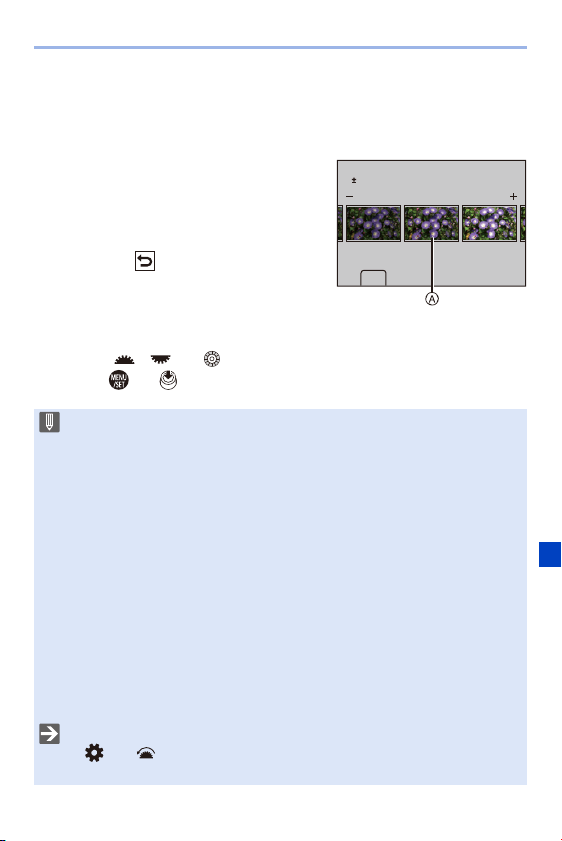
12. Playing Back and Editing of Images
275
Displaying a Comparison Screen
You can change a setting while checking the effect by displaying images
with the applied setting value side by side.
1
Press [DISP.] in the screen of Step
4
.
0
The image with the current setting A is
displayed at the center.
0 Touching the image with the current setting
enlarges it.
Touching [ ] returns to the original
display.
0 A comparison screen cannot be displayed
while [Noise Reduction] or [Sharpness] is
selected.
2
Rotate , , or to change the setting.
3
Press or to confirm the setting.
0 RAW images recorded with the camera are always recorded in the [L] size of
[3:2].
With this function, images are processed with the aspect ratio and the angle of
view of [Ex. Tele Conv.] from the time of recording.
0 When images recorded enlarged with [Ex. Tele Conv.] are processed, they
cannot be processed with a [Picture Size] setting that is larger than the size at
the time of recording.
0 The [White Balance] item is fixed to the setting from the time of recording for
pictures recorded with multiple exposures.
0 The [Brightness correction] effect differs from the effect of exposure
compensation during recording.
0 The results of RAW processing with this function and with the “SILKYPIX
Developer Studio” software do not completely match.
0 RAW processing cannot be performed on the following types of RAW images:
– Images recorded with the [High Resolution Mode]
– Images recorded with devices other than this camera
0 You can register functions to Fn buttons:
[]
¨ [ ] ¨ [Fn Button Set] ¨ [Setting in PLAY mode] ¨ [RAW
Processing] (l
278)
DISP.
0
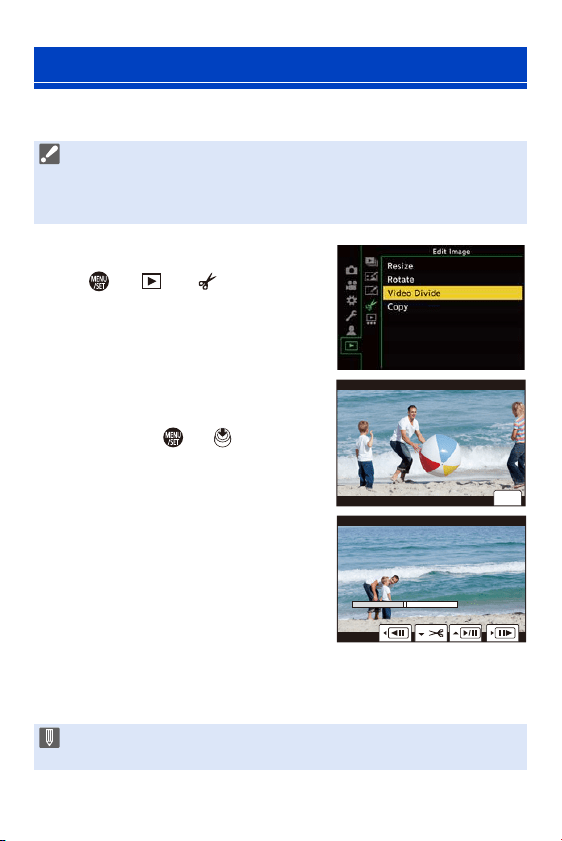
12. Playing Back and Editing of Images
276
Divide a recorded video or 6K/4K burst file into two.
1
Select [Video Divide].
≥ ¨ [ ] ¨ [ ] ¨ [Video
Divide]
2
Select and play the images.
≥Press 21 to select an image and
then press or .
3
Pause playback at the position
you wish to divide.
≥Press 3.
0
To fine-adjust the position, press 21
(frame-by-frame forward or frame-by-
frame rewind).
4
Divide the video.
≥Press 4.
[Video Divide]
0 Images cannot be returned to their original state once they have been divided.
Carefully confirm the images before performing the divide operation.
0 Do not remove the card or battery from the camera during the divide process.
The images may be lost.
0 Dividing the video at a point close to the start or end may not be possible.
0 Videos with a short recording time cannot be divided.
6HW
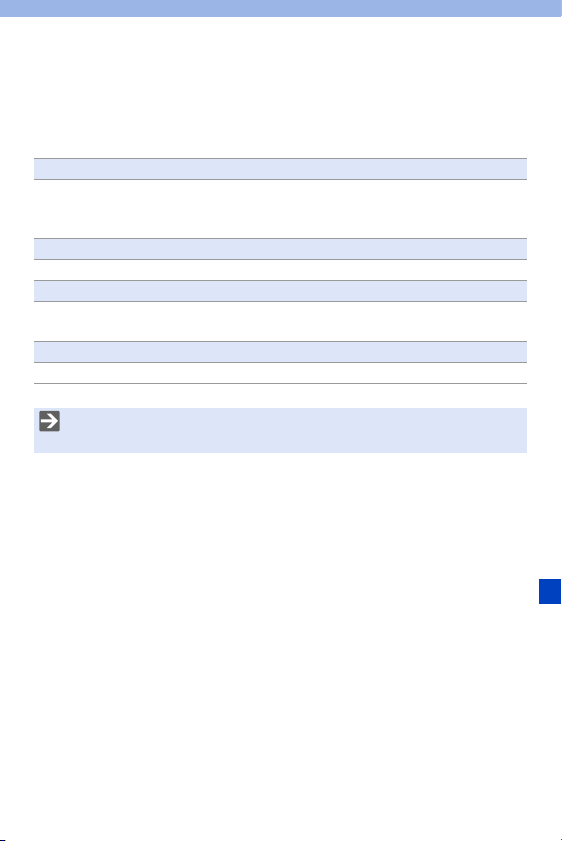
277
13. Camera Customization
This chapter explains the customization function with which you can
configure the camera to your preferred settings.
Change how buttons, dials, etc. on the camera are to be operated.
Fn buttons
Fn lever
Dials
l
278
l 286
l 289
Register the currently set information of the camera.
Custom mode l
296
Change menu display items.
Quick menu customization
My Menu registration
l
291
l 300
Import camera settings information onto another camera.
Save/load camera settings l
302
0 Detailed settings for camera operations and screen display are available in
the [Custom] menu. (l
325)
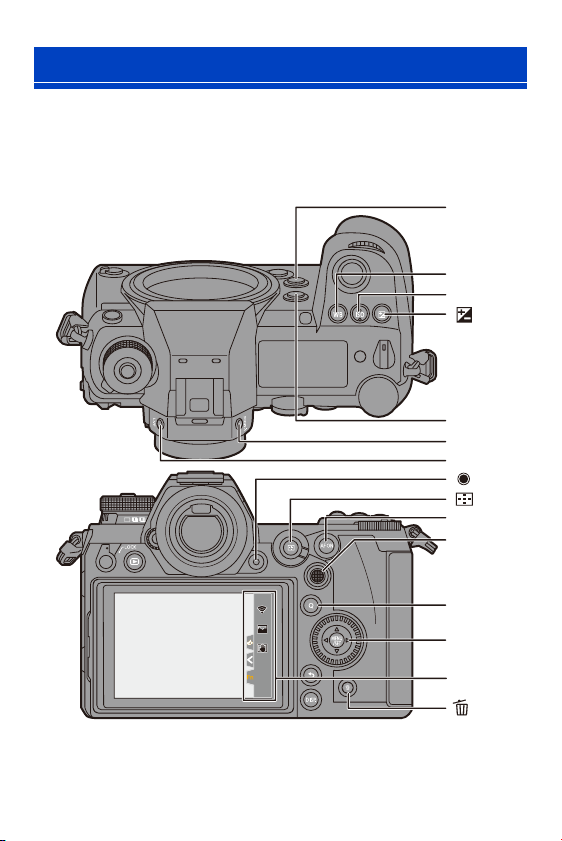
13. Camera Customization
278
You can register functions to the Fn (Function) buttons. Additionally, you
can register other functions to specialized buttons such as [WB], in the
same way as with the Fn buttons.
Different functions can be set for both during recording and playback.
Fn Buttons
Fn4Fn4Fn4
Fn3
Fn3Fn3
Fn7Fn7Fn7
OFFOFFOFF
Fn6Fn6Fn6
OFFOFFOFF
Fn5Fn5Fn5
Fn2
WB
ISO
Fn1
Fn8
: Fn9
: Fn10
: Fn11
: Fn12
: Fn13
: Fn14
: Fn15
: Fn16
V.MODE
LVF
Fn3
-
Fn7
AF ON
Q
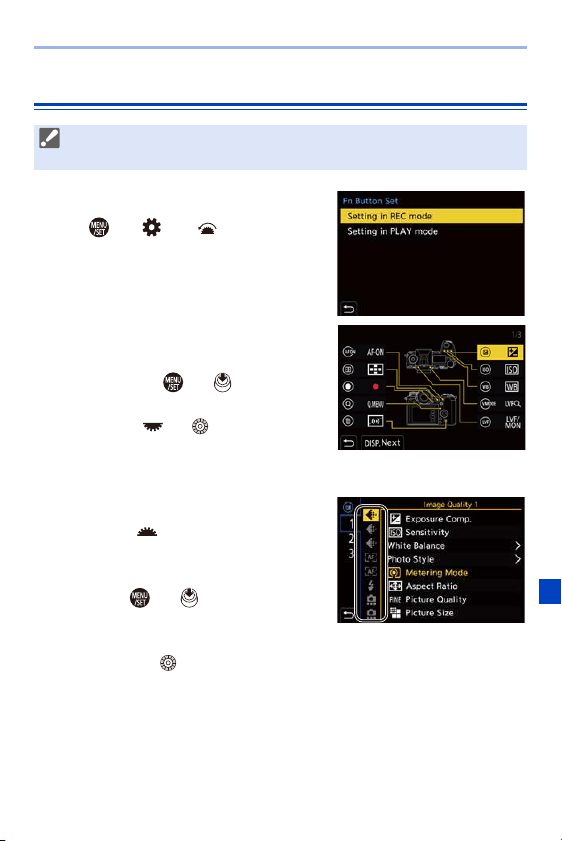
13. Camera Customization
279
Register Functions to the Fn Buttons
1
Select [Fn Button Set].
≥ ¨ [ ] ¨ [ ] ¨ [Fn Button
Set]
¨ [Setting in REC mode]/
[Setting in PLAY mode]
2
Select the button.
≥Press 34 to select the button and
then press or .
≥Selection is also possible by
rotating or .
0 Press [DISP.] to display [Fn1] to [Fn16].
When [Setting in PLAY mode] is selected, only [Fn1] to [Fn2] are displayed.
3
Find the function to register.
≥Rotate to select the sub tab
where the function to register is
categorized (l 281, 284) and then
press or .
≥You can also select by pressing 2
to select the sub tab, pressing 34
or rotating , and then pressing 1.
≥Switch the [1] to [3] tabs by pressing [Q].
0 With default settings, [Fn8] to [Fn12] on the joystick cannot be used.
When using functions, set the [Joystick Setting] to [Fn]. (l
337)
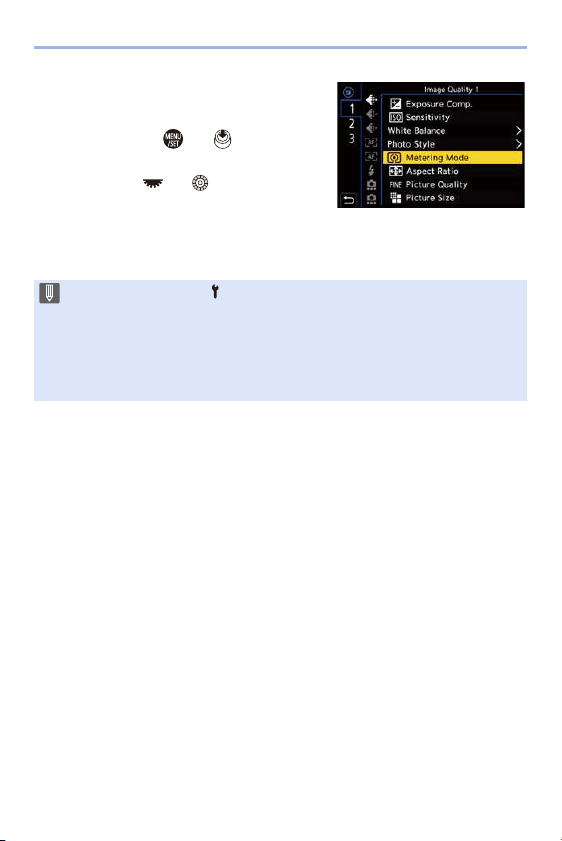
13. Camera Customization
280
4
Register the function.
≥Press 34 to select a function and
then press or .
≥Selection is also possible by
rotating or .
0 Select items with [N] by selecting the
item again.
0 Depending on the button, some functions cannot be registered.
0 You can also touch [ ] on the control panel (l 68) to display the screen in
Step
2
.
0 You can also press and hold the Fn button (2 sec.) to display the screen in
Step
4
.
(This may not be displayed depending on the registered function and on the
button type.)
Fn
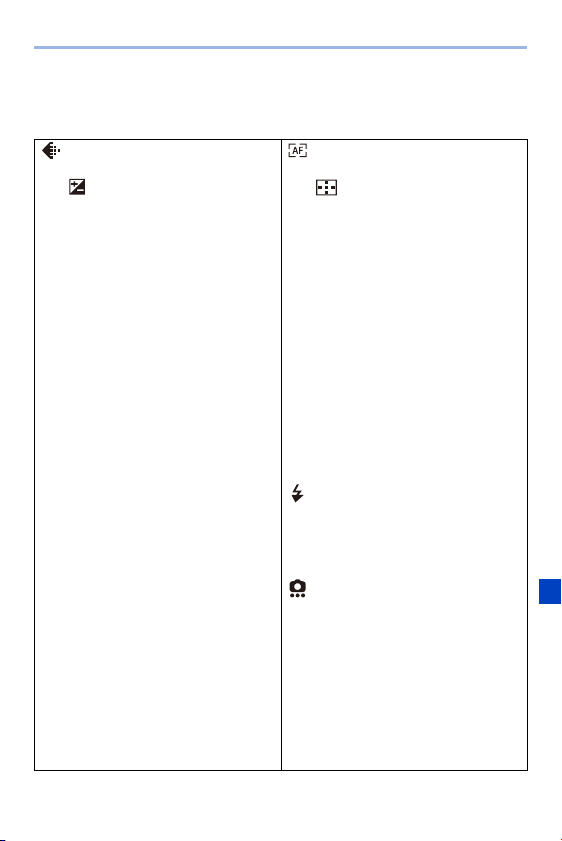
13. Camera Customization
281
Setting Items ([Fn Button Set]/[Setting in REC mode])
[1] Tab
[Image Quality]
– [Exposure Comp.] (l
189)
[]
¢
– [Sensitivity] (l
192)
[ISO]
¢
– [White Balance] (l
194)
[WB]
¢
– [Photo Style] (l
199)
– [Metering Mode] (l
178)
– [Aspect Ratio] (l
82)
– [Picture Quality] (l
85)
– [Picture Size] (l
83)
– [HLG Photo] (l
214)
– [High Resolution Mode] (l
210)
– [1 Shot Spot Metering] (l
283)
– [Long Exposure NR] (l
306)
– [Min. Shutter Speed] (l
307)
– [1 Shot RAW+JPG] (l
283)
– [i.Dynamic Range] (l
307)
– [Filter Effect] (l
204)
– [One Push AE] (l
283)
– [Touch AE] (l
81)
– [Exposure Mode] (l
244)
[Focus/Shutter]
– [AF Mode/MF] (l
98)
[]
¢
– [AF Custom Setting(Photo)] (l
96)
– [AF Custom Setting(Video)] (l
240)
– [Focus Peaking] (l
310)
– [Focus Peaking Sensitivity] (l
310)
– [1-Area AF Moving Speed] (l
311)
– [Focus Ring Lock] (l
330)
– [AE LOCK] (l
191)
– [AF LOCK] (l
191)
– [AF/AE LOCK] (l
191)
– [AF-ON] (l
94)
[AF ON]
¢
– [AF-Point Scope] (l
94)
[Fn1]
¢
– [Focus Area Set] (l
283)
[Flash]
– [Flash Mode] (l
220)
– [Flash Adjust.] (l
224)
– [Wireless Flash Setup] (l
226)
[Others (Photo)]
– [Drive Mode] (l
125)
– [1 Shot "6K/4K PHOTO"] (l
283)
– [Bracketing] (l
155)
– [Silent Mode] (l
169)
– [Image Stabilizer] (l
172)
– [Shutter Type] (l
170)
– [Ex. Tele Conv.] (l
122)
– [Flicker Decrease (Photo)] (l
315)
– [Post-Focus] (l
161)
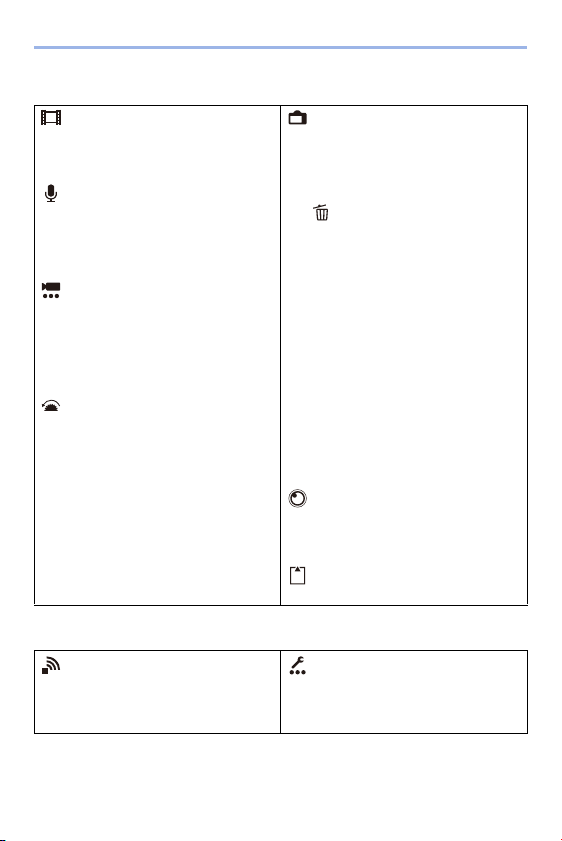
13. Camera Customization
282
[2] Tab
[3] Tab
¢ Fn button default settings
0 To return an Fn button to its default, select [Restore to Default].
[Image Format]
– [Motion Pic. Rec Format] (l
233)
– [Motion Pic. Rec Quality] (l
234)
[Audio]
– [Sound Rec Level Disp.] (l
243)
– [Sound Rec Level Adj.] (l
243)
– [Mic. Directivity Adjust] (l
254)
[Others (Video)]
– [Image Stabilizer] (l
174)
– [E-Stabilization (Video)] (l
174)
– [Boost I.S. (Video)] (l
174)
[Fn5]
¢
[Operation]
– [Q.MENU] (l
71)
[Q]
¢
– [Rec / Playback Switch] (l
283)
– [Video Record] (l
230)
Video rec. button
¢
– [LVF/Monitor Switch] (l
67)
[LVF]
¢
– [LVF Magnification] (l
66)
[V.MODE]
¢
– [Dial Operation Switch] (l
290)
[Monitor / Display]
– [Preview] (l
188)
[Fn2]
¢
– [Constant Preview] (l
339)
– [Level Gauge] (l
339)
[]
¢
– [Histogram] (l
340)
[Fn4]
¢
– [Photo Grid Line] (l
341)
– [Live View Boost] (l
342)
– [Monochrome Live View] (l
342)
– [Night Mode] (l
343)
– [LVF/Monitor Disp. Style] (l
283)
– [Photo/Video Preview] (l
344)
– [Zebra Pattern] (l
346)
– [HLG View Assist (Monitor)] (l
347)
– [HLG View Assist (HDMI)] (l
347)
– [Sheer Overlay] (l
347)
– [I.S. Status Scope] (l
348)
[Lens / Others]
– [Focus Ring Control] (l
348)
– [Zoom Control] (l
123)
[Card/File]
– [Destination Card Slot] (l
283)
[IN/OUT]
– [Wi-Fi] (l
370)
[Fn3]
¢
[Others]
– [No Setting]
[Fn6] to [Fn16]
¢
– [Restore to Default]

13. Camera Customization
283
0 For details about some of the functions, refer to the section below.
[1 Shot Spot
Metering]
Records with the metering mode set to [ ] (Spot
metering) once only.
[1 Shot RAW+JPG]
Records a RAW image and a JPEG image simultaneously
once only.
[One Push AE]
Adjusts the aperture value and shutter speed to the settings
suited for the correct exposure determined by the camera.
[Focus Area Set] Displays the AF area/MF Assist transition screen.
[1 Shot "6K/4K
PHOTO"]
Performs 6K/4K photo recording only once.
[Rec / Playback
Switch]
Switches to the playback screen.
[LVF/Monitor Disp.
Style]
Switches the displayed monitor or viewfinder display style.
[Destination Card
Slot]
Changes the priority of cards for recording.
This can be used if [Double Card Slot Function] (l
87) is
set to [Relay Rec].
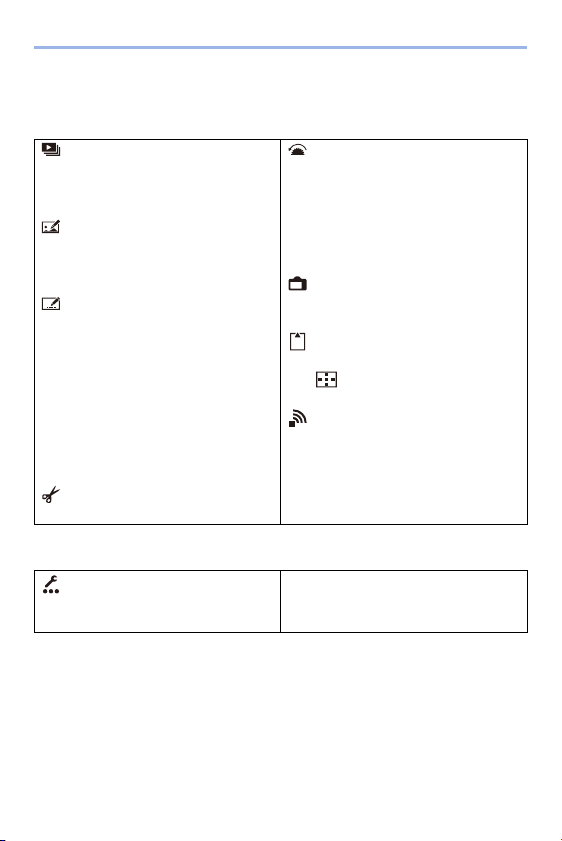
13. Camera Customization
284
Setting Items ([Fn Button Set]/[Setting in PLAY mode])
[1] Tab
[2] Tab
¢ Fn button default settings
0 To return an Fn button to its default, select [Restore to Default].
[Playback Mode]
– [Magnify from AF Point] (l
363)
– [HLG View Assist (Monitor)] (l
347)
[Process Image]
– [RAW Processing] (l
271)
– [6K/4K PHOTO Bulk Saving] (l
144)
[Add/Delete Info.]
– [Delete Single] (l
269)
– [Protect] (l
365)
–[Rating¿1] (l
365)
–[Rating¿2] (l
365)
–[Rating¿3] (l
365)
[AF ON]
¢
–[Rating¿4] (l
365)
–[Rating¿5] (l
365)
[Edit Image]
– [Copy] (l
367)
[Operation]
– [Rec / Playback Switch] (l
285)
– [LVF/Monitor Switch] (l
67)
[LVF]
¢
– [Video Record] (l
230)
Video rec. button
¢
[Monitor / Display]
– [Night Mode] (l
343)
[Card/File]
– [Card Slot Change] (l
260)
[]
¢
[IN/OUT]
– [Wi-Fi] (l
370)
– [Send Image (Smartphone)] (l
401)
[Q]
¢
– [HLG View Assist (HDMI)] (l
347)
[Others]
– [6K/4K Photo Play] (l
285)
– [No Setting]
[Fn1] to [Fn2]
¢
– [Restore to Default]
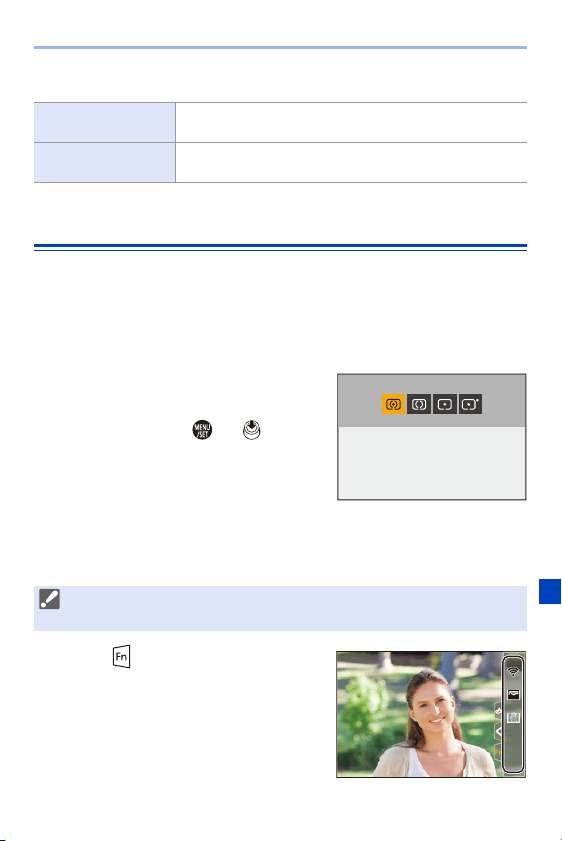
13. Camera Customization
285
0 For details about some of the functions, refer to the section below.
Use the Fn Buttons
During recording, pressing the Fn buttons enables usage of the functions
registered in [Setting in REC mode], and during playback, usage of the
functions registered in [Setting in PLAY mode].
1
Press the Fn button.
2
Select a setting item.
≥Press 21 to select a setting item
and then press or .
0
Display and selection methods of a
setting item differ depending on the menu
item.
Use [Fn3] to [Fn7] (Touch Icons)
During recording, you can use the Fn buttons within the Touch Tab.
1
Touch [ ].
2
Touch one of [Fn3] to [Fn7].
[Rec / Playback
Switch]
Switches to the recording screen.
[6K/4K Photo Play]
Displays the screen to select pictures to save from a 6K/4K
burst file.
0 With the default settings, the Touch Tab is not displayed. Set [Touch Tab] to
[ON] in [Touch Settings]. (l
333)
Fn4Fn4Fn4
Fn3
Fn3Fn3
Fn7Fn7Fn7
OFFOFFOFF
Fn6Fn6Fn6
OFFOFFOFF
Fn5Fn5Fn5
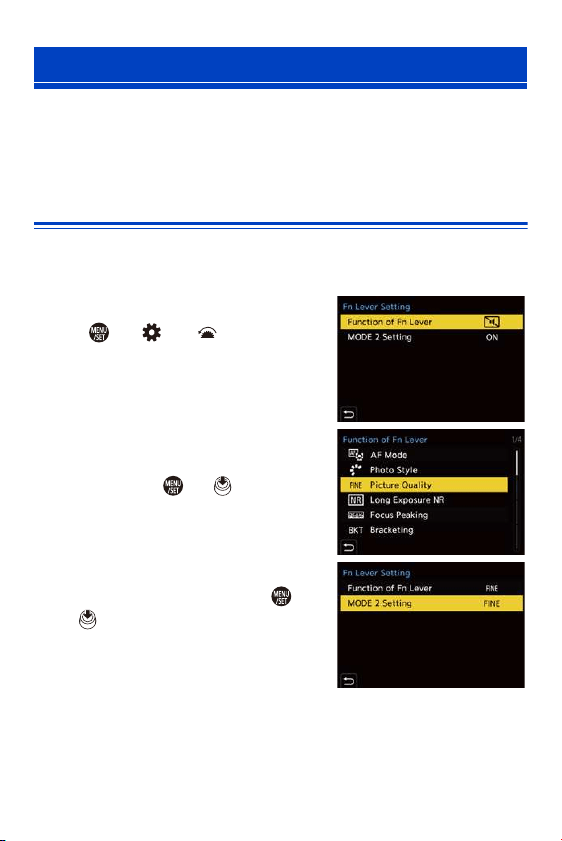
13. Camera Customization
286
You can register a function with the Fn (function) lever. The registered
function can be enabled instantly by toggling the Fn lever.
In default settings, [Silent Mode] is registered.
Register a Function to the Fn Lever
Register the function and setting value that operate for when the Fn lever
is switched to [MODE2].
1
Set [Function of Fn Lever].
≥ ¨ [ ] ¨ [ ] ¨ [Fn Lever
Setting]
¨ [Function of Fn Lever]
2
Register the function.
≥Press 34 to select a function and
then press or .
3
Press 34 to select [MODE 2
Setting] and then press or
.
Fn Lever
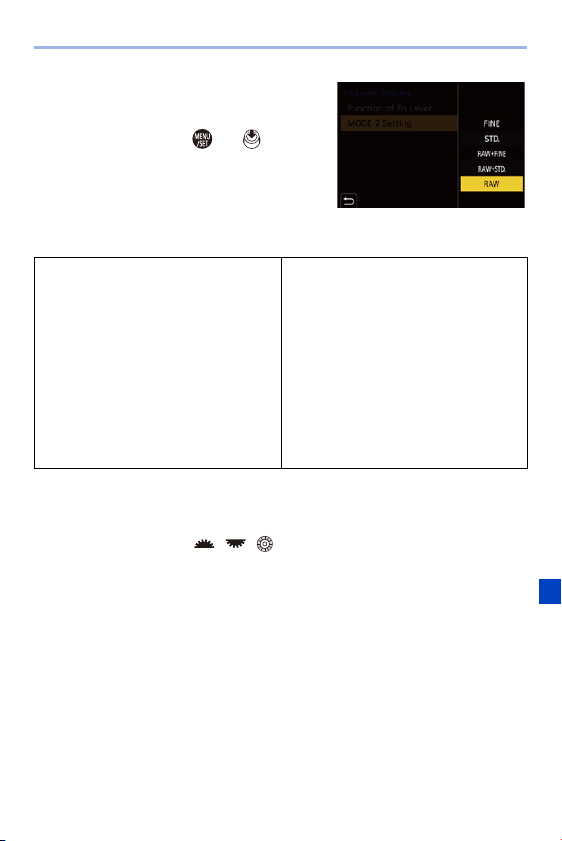
13. Camera Customization
287
4
Select a setting value.
≥Press 34 to select a setting value
and then press or .
Setting Items ([Function of Fn Lever])
¢ Fn lever default setting
0 To return the Fn lever to its default, select [Restore to Default].
0 [Front/Rear/Control Dial Lock] is a function that can only be set in the Fn lever. It
disables the operation of / / .
– [AF Mode] (l
98)
– [Photo Style] (l
199)
– [Picture Quality] (l
85)
– [Long Exposure NR] (l
306)
– [Focus Peaking] (l
310)
– [Bracketing] (l
155)
– [Silent Mode]
¢
(l
169)
– [Image Stabilizer] (l
172)
– [Shutter Type] (l
170)
– [Self Timer] (l
153)
– [6K/4K PHOTO (Pre-Burst)] (l
134)
– [Focus Ring Lock] (l
330)
– [Touch Screen] (l
64)
– [Touch Pad AF] (l
115)
– [Auto Review (Photo)] (l
338)
– [Live View Boost] (l
342)
– [Night Mode] (l
343)
– [Sheer Overlay] (l
347)
– [Front/Rear/Control Dial Lock] (l
287)
– [No Setting]
– [Restore to Default]
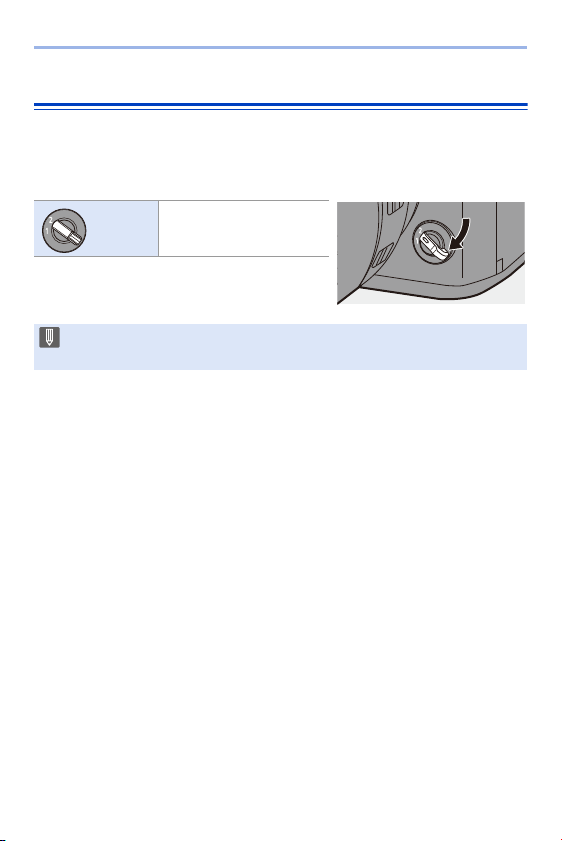
13. Camera Customization
288
Use the Fn Lever
Turning the lever to the [MODE2] position enables the function registered
with the Fn lever.
Switching the Fn lever.
MODE2
The registered function is
enabled.
0 Depending on the recording mode and camera settings, some registered
functions may not work.
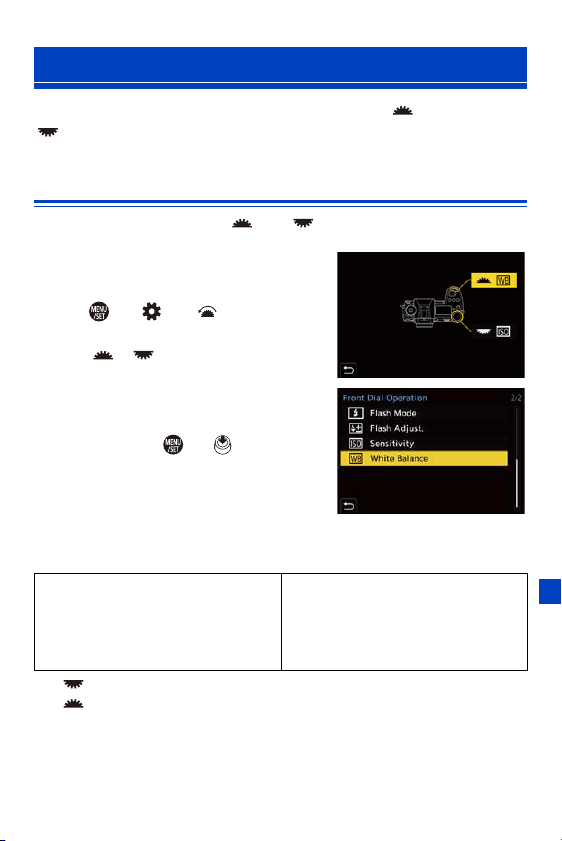
13. Camera Customization
289
This temporarily changes the functions operated with (front dial) and
(rear dial).
Register Functions to the Dials
Register functions to each of and .
1
Select [Dial Operation Switch
Setup].
≥ ¨ [ ] ¨ [ ] ¨ [Dial Set.]
¨ [Dial Operation Switch Setup] ¨
[]/[]
2
Register the function.
≥Press 34 to select a function and
then press or .
Functions That Can Be Registered
¢1 default setting
¢2 default setting
[Dial Operation Switch]
– [Photo Style] (l 199)
– [Filter Effect] (l
204)
– [Aspect Ratio] (l
82)
– [AF Mode] (l
98)
– [6K/4K PHOTO] (l
130)
– [i.Dynamic Range] (l
307)
– [Flash Mode] (l
220)
– [Flash Adjust.] (l
224)
– [Sensitivity]
¢1
(l
192)
– [White Balance]
¢2
(l
194)
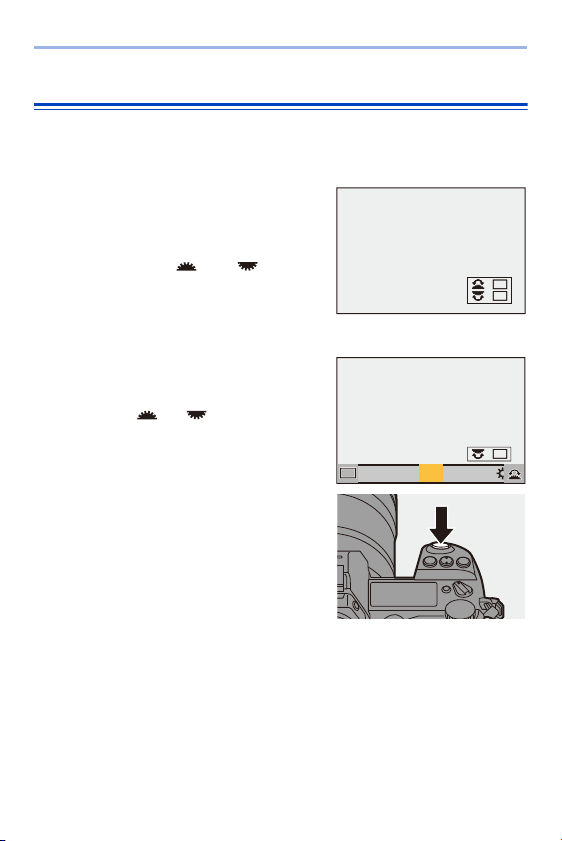
13. Camera Customization
290
Temporarily Change Dial Operation
Use the Fn button to temporarily change dial operation.
1
Set [Dial Operation Switch] to the Fn button. (l 278)
2
Switch dial operation.
≥Press the Fn button set in Step
1
.
≥A guide will display the functions
registered to and .
0
If no operations are performed, then
several seconds later, the guide
disappears.
3
Change the setting of the
registered function.
≥Rotate or while the guide
is displayed.
4
Confirm your selection.
≥Press the shutter button halfway.
ISOISOISOISO
WBWBWBWB
AWBc
AWBc
AWBw
AWBw
WB
WBWBWB
WBWBWBWBWBWBWB
AWB
AWB
ISOISOISOISO
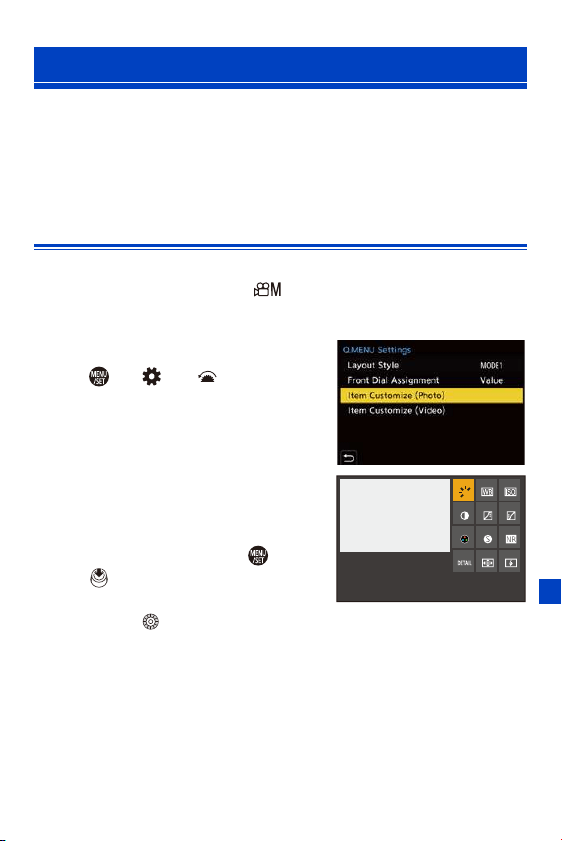
13. Camera Customization
291
You can change Quick menu items depending on the recording mode.
Additionally, you can change the items to display on the Quick menu and
their order to suit your preferences.
For information about Quick menu operation methods, refer to page
71.
Register to the Quick Menu
Change the menus to be displayed in the Quick menu.
These can be set separately for [ ] mode (Video) and for other
recording modes (Photo).
1
Select [Q.MENU Settings].
≥ ¨ [ ] ¨ [ ] ¨ [Q.MENU
Settings] ¨ [Item Customize
(Photo)] / [Item Customize (Video)]
2
Select the Item position (1 to
<).
≥Press 3421 to select the
position and then press or
.
≥Selection is also possible by
rotating .
≥Directions on the diagonal can also be selected using the joystick.
Quick Menu Customization
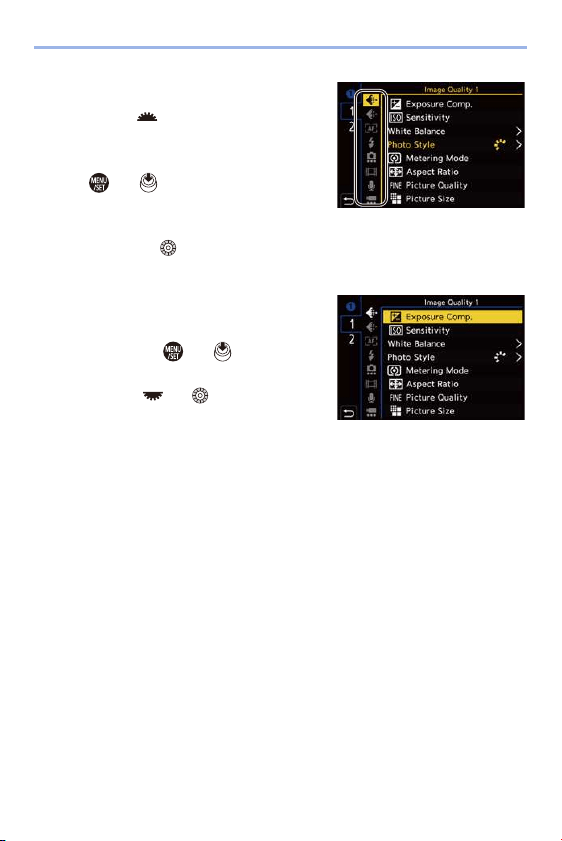
13. Camera Customization
292
3
Find the function to register.
≥Rotate to select the sub tab
where the function to register is
categorized (l
293) and then press
or .
≥You can also select by pressing 2
to select the sub tab, pressing 34
or rotating , and then pressing 1.
≥Each press of the [Q] switches between tabs [1] and [2].
4
Register menu items.
≥Press 34 to select an item and
then press or .
≥Selection is also possible by
rotating or .
0 Select items with [N] by selecting the
item again.
13. Camera Customization
293
Menu Items That Can Be Registered
[1] Tab
[Image Quality]
– [Exposure Comp.] (l
189)
– [Sensitivity] (l
192)
– [White Balance] (l
194)
– [Photo Style] (l
199)
– [Metering Mode] (l
178)
– [Aspect Ratio] (l
82)
– [Picture Quality] (l
85)
– [Picture Size] (l
83)
– [HLG Photo] (l
214)
– [Long Exposure NR] (l
306)
– [Min. Shutter Speed] (l
307)
– [i.Dynamic Range] (l
307)
– [Filter Effect] (l
204)
– [Exposure Mode] (l
244)
[Focus/Shutter]
– [AF Mode] (l
98)
– [AF Custom Setting(Photo)] (l
96)
– [AF Custom Setting(Video)] (l
240)
– [Focus Peaking] (l
310)
– [Focus Peaking Sensitivity] (l
310)
– [1-Area AF Moving Speed] (l
311)
[Flash]
– [Flash Mode] (l
220)
– [Flash Adjust.] (l
224)
– [Wireless Flash Setup] (l
226)
[Others (Photo)]
– [Drive Mode] (l
125)
– [Bracketing] (
l
155)
–
[Silent Mode] (l
169)
– [Image Stabilizer] (l
172)
– [Shutter Type] (l
170)
– [Ex. Tele Conv.] (l
122)
– [Flicker Decrease (Photo)] (l
315)
– [Post-Focus] (l
161)
[Image Format]
– [Motion Pic. Rec Format] (l
233)
– [Motion Pic. Rec Quality] (l
234)
[Audio]
– [Sound Rec Level Disp.] (l
243)
– [Sound Rec Level Adj.] (l
243)
– [Mic. Directivity Adjust] (l
254)
[Others (Video)]
– [Image Stabilizer] (l
174)
– [E-Stabilization (Video)] (l
174)
– [Boost I.S. (Video)] (l
174)
13. Camera Customization
294
[2] Tab
[Monitor / Display]
– [Constant Preview] (l
339)
– [Level Gauge] (l
339)
– [Histogram] (l
340)
– [Photo Grid Line] (l
341)
– [Live View Boost] (l
342)
– [Monochrome Live View] (l
342)
– [Night Mode] (l
343)
– [LVF/Monitor Disp. Set] (l
343)
– [Photo/Video Preview] (l
344)
– [Zebra Pattern] (l
346)
– [HLG View Assist (Monitor)] (l
347)
– [HLG View Assist (HDMI)] (l
347)
– [Sheer Overlay] (l
347)
– [I.S. Status Scope] (l
348)
[Lens / Others]
– [Focus Ring Control] (l
348)
[Card/File]
– [Card Slot Change] (l
260)
[IN/OUT]
– [Wi-Fi] (l
370)
[Others]
– [No Setting]
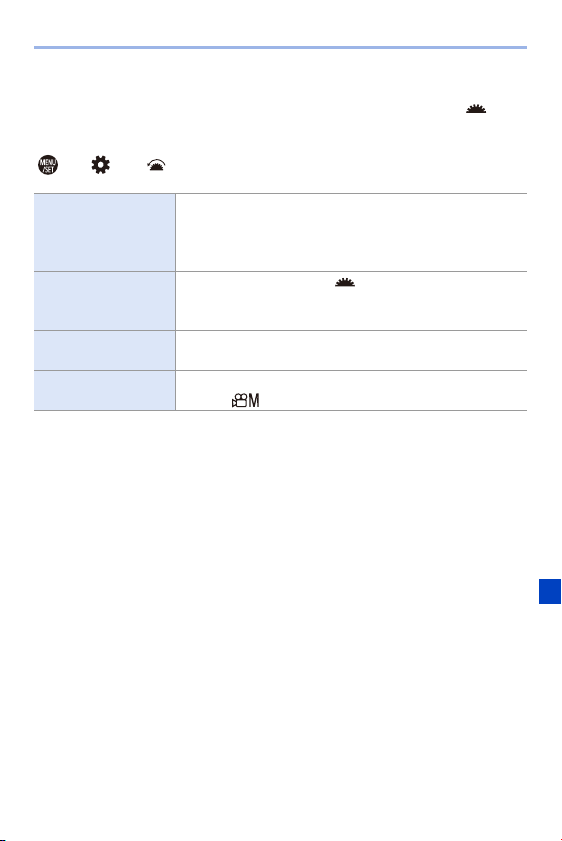
13. Camera Customization
295
Quick Menu Detailed Settings
Change the appearance of the Quick menu and the operation of
during menu display.
¨ [ ] ¨ [ ] ¨ Select [Q.MENU Settings]
[Layout Style]
Changes the appearance of the Quick menu.
[MODE1]: Displays the live view and the menu
simultaneously.
[MODE2]: Displays the menu in full screen.
[Front Dial
Assignment]
Changes the operation of in the Quick menu.
[Item]: Selects menu items.
[Value]: Selects setting values.
[Item Customize
(Photo)]
Customizes the Quick menu to display when the mode dial
is set to iA/P/A/S/M.
[Item Customize
(Video)]
Customizes the Quick menu to display when the mode dial
is set to .
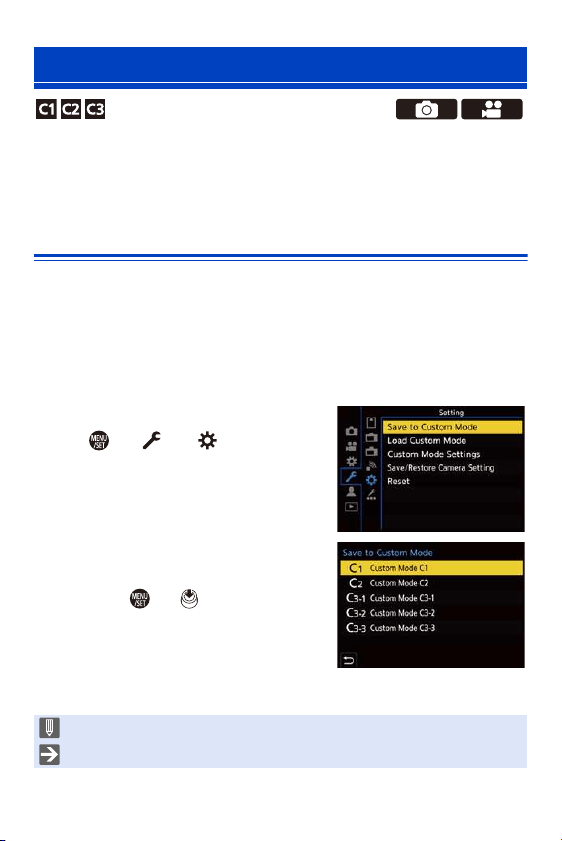
13. Camera Customization
296
Recording modes and menu settings that match your preferences can be
registered in Custom mode. You can use registered settings by switching
the mode dial to [C1] to [C3] modes.
Register in Custom Mode
You can register the currently set information of the camera.
At the time of purchase, the default settings of the [P] mode menus are
registered with all Custom modes.
1
Set to recording mode and menu settings of the state
you wish to save.
2
Select [Save to Custom Mode].
≥ ¨ [ ] ¨ [ ] ¨ [Save to
Custom Mode]
3
Register.
≥Select the save-to number and then
press or .
0
Press [DISP.] to change the Custom
mode name.
For information on how to enter
characters, refer to page
369.
Custom Mode
0 You cannot register [iA] mode in Custom mode.
0 List of settings that can be registered in Custom mode (l 485)

13. Camera Customization
297
Custom Mode Detailed Settings
Set the ease of use of Custom mode.
You can create additional Custom mode sets, and how long to retain
temporarily changed settings details.
¨ [ ] ¨ [ ] ¨ Select [Custom Mode Settings]
[Limit No. of Custom
Mode]
Sets the number of Custom modes that can be registered in
[C3].
A maximum of 10 sets can be registered; 3 sets are
available as default settings.
[Edit Title]
Changes the selected Custom mode name.
A maximum of 22 characters can be entered. A two-byte
character is treated as two characters.
0 For information on how to enter characters, refer to page
369.
[How to Reload
Custom Mode]
Sets the timing at which to return the settings that were
changed temporarily while the Custom mode was being
used to their registered settings.
[Change Recording Mode]/[Return from Sleep Mode]/
[Turn the Power ON]
[Select Loading
Details]
Sets the types of settings to call with [Load Custom Mode].
[F / SS / ISO Sensitivity]: Enables calling of aperture
value, shutter speed, and ISO sensitivity settings.
[White Balance]: Enables calling of white balance settings.
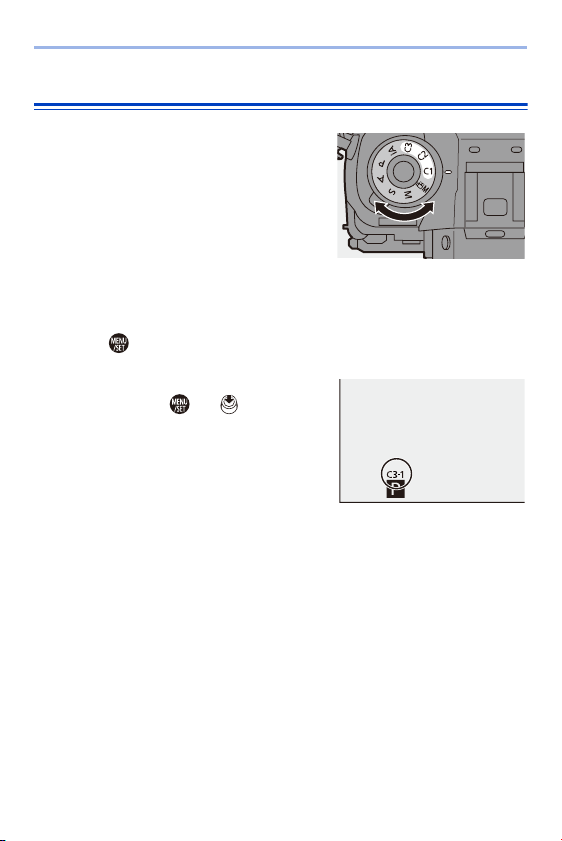
13. Camera Customization
298
Using Custom Mode
Set the mode dial to one of [C1] to
[C3].
≥If [C3], the last-used Custom mode will be
called up.
[C3] Custom Mode Selection
1
Set the mode dial to [C3].
2
Press .
0
The Custom mode selection menu appears.
3
Press 34 to select the Custom mode
and then press or .
0
The selected Custom mode icon will be
displayed on the recording screen.
Changing Registered Details
Registered settings do not change even if you change the camera settings
temporarily with the mode dial set to [C1] to [C3].
To change the registered details, overwrite them by using [Save to Custom
Mode] in the [Setup] ([Setting]) menu.
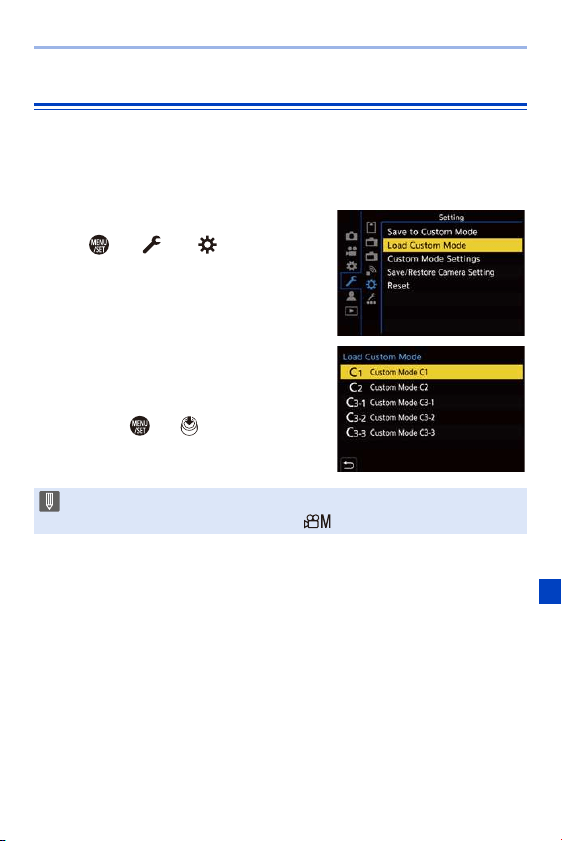
13. Camera Customization
299
Calling Settings
Call registered Custom mode settings to the selected recording mode and
overwrite the current settings with these.
1
Set to the mode dial to use.
2
Select [Load Custom Mode].
≥ ¨ [ ] ¨ [ ] ¨ [Load
Custom Mode]
3
Select the Custom mode to
call.
≥Select the Custom mode and then
press or .
0 Calling of Custom modes is not possible between those created from [P]/[A]/
[S]/[M] modes and those created from [ ] mode.
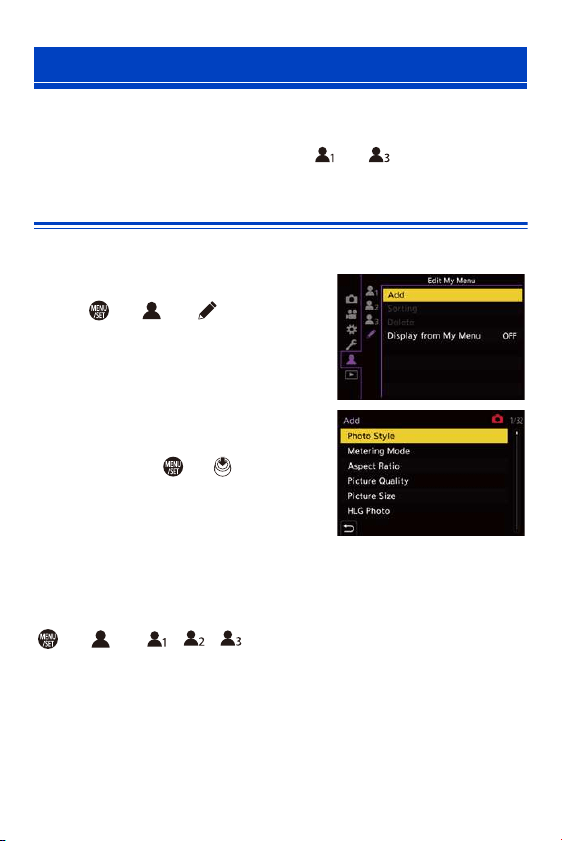
13. Camera Customization
300
Register frequently-used menus in My Menu.
A maximum of 23 items can be registered.
Registered menus can be called up from [ ] to [ ].
Registration in My Menu
Select a menu, and register this in My Menu.
1
Select [Add].
≥ ¨ [ ] ¨ [ ] ¨ [Add]
2
Register.
≥Select the menu to register and
then press or .
Calling up My Menu
Call up the menus registered in My Menu.
¨ [ ] ¨ [ ]/[ ]/[ ] ¨ Registered menus
My Menu
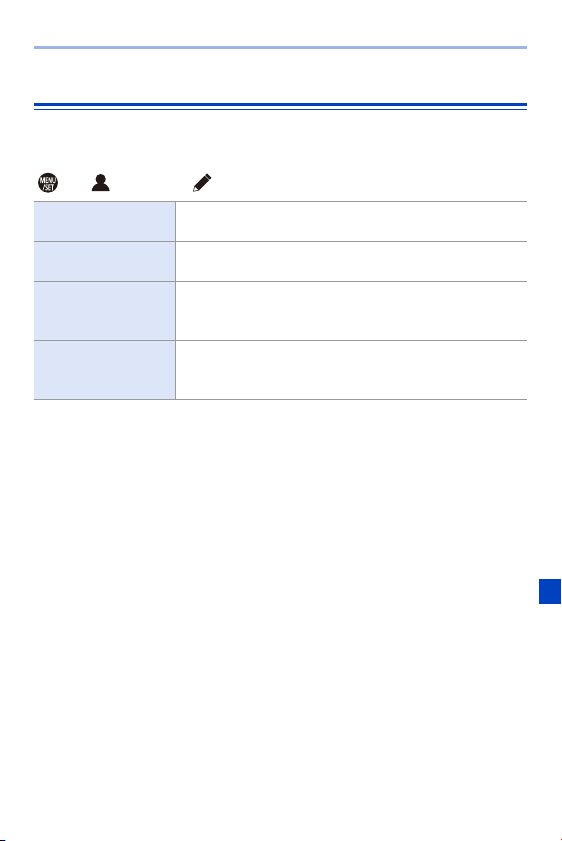
13. Camera Customization
301
Edit My Menu
You can reorder the display order of My Menu, and delete unnecessary
menus.
¨ [ ] ¨ Select [ ]
[Add]
Selects and registers the menus to be displayed in My
Menu.
[Sorting]
Changes the order of My Menu.
Select the menu to change, then set the destination.
[Delete]
Deletes menus that are registered to My Menu.
[Delete Item]: Selects the menu, then deletes.
[Delete All]: Deletes all menus registered in My Menu.
[Display from My
Menu]
Displays My Menu first when displaying a menu.
[ON]: Displays My Menu.
[OFF]: Displays the last-used menu.
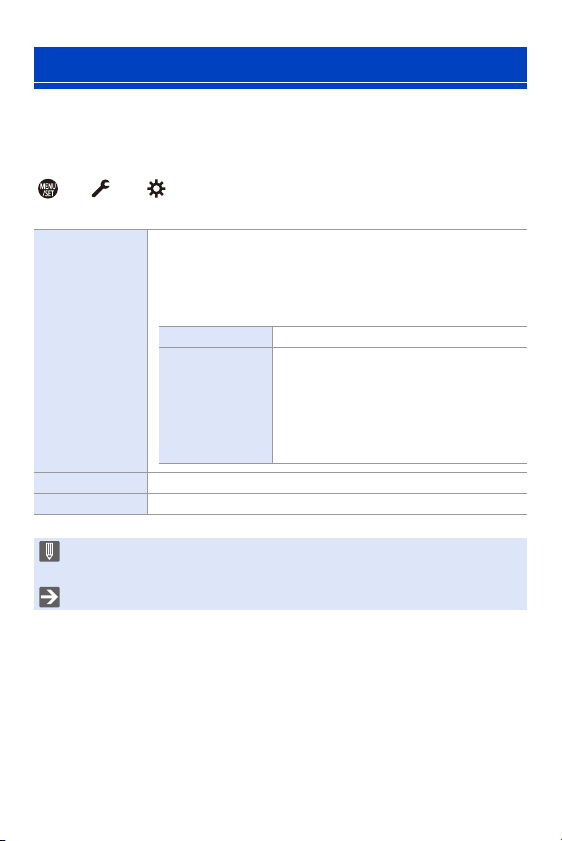
13. Camera Customization
302
Saves the camera’s settings information to the card.
Saved settings information can be loaded to the camera, letting you set the
same settings on multiple cameras.
¨ [ ] ¨ [ ] ¨ Select [Save/Restore Camera Setting]
Settings: [Card Slot 1(XQD)]/[Card Slot 2(SD)]
[Save/Restore Camera Setting]
[Save]
Saves the camera’s settings information to the card.
0 If saving new data, then select [New File], and if overwriting an
existing file, select that existing file.
0 When [New File] is selected, a screen to select the file name
to save as is displayed.
[OK] Saves using the file name on the screen.
[Change the file
name]
Changes the file name and saves the file.
0 Available characters: alphabetic
characters (upper-case), numerals, up
to 8 characters
0 For information on how to enter
characters, refer to page
369.
[Load] Loads settings information on a card onto the camera.
[Delete] Deletes settings information on the card.
0 Only settings information from the same model can be loaded.
0 Up to 10 instances of settings information can be saved on one card.
0 List of functions for which saving of settings information is possible (l 485)
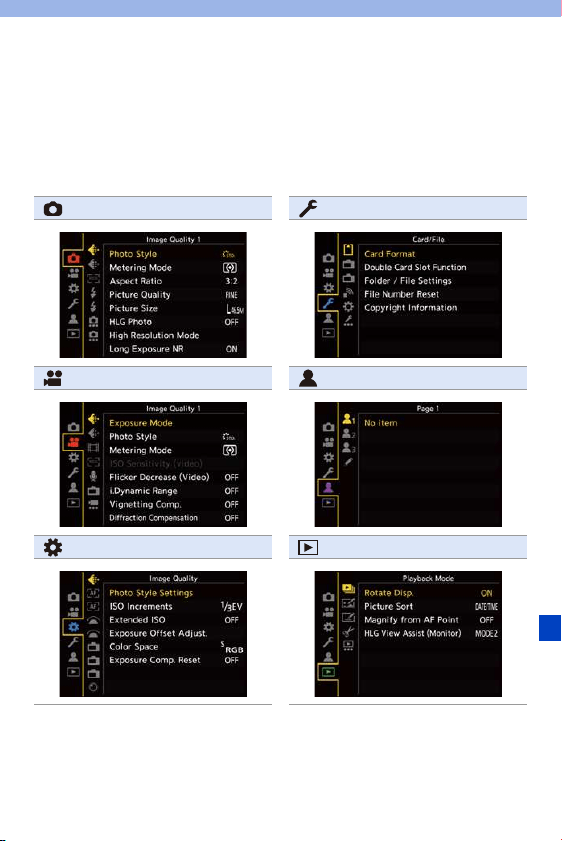
303
14. Menu Guide
This chapter provides a menu list and default settings. Menus explained in
detail in other chapters are indicated with page numbers.
0 For information about menu operation methods, refer to page
73.
0 For information about methods of entering characters, refer to page
369.
[Photo] Menu (l 304) [Setup] Menu (l 349)
[Video] Menu (l 318) [My Menu] (l 300)
[Custom] Menu (l 325) [Playback] Menu (l 361)
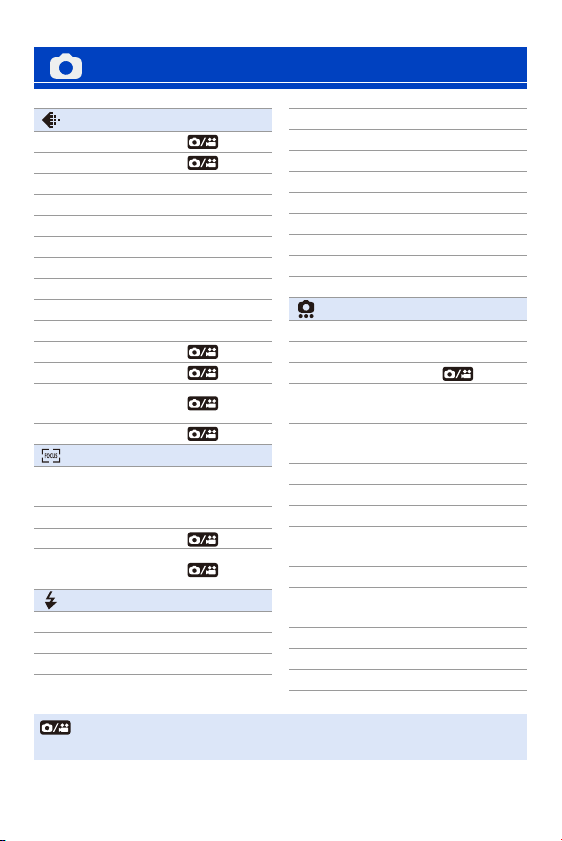
14. Menu Guide
304
[Photo] Menu
[Image Quality] l 305
[Photo Style] l 199
[Metering Mode] l 178
[Aspect Ratio] l 82
[Picture Quality] l 85
[Picture Size] l 83
[HLG Photo] l 214
[High Resolution Mode] l 210
[Long Exposure NR] l 306
[ISO Sensitivity (photo)] l 306
[Min. Shutter Speed] l 307
[i.Dynamic Range] l 307
[Vignetting Comp.] l 308
[Diffraction
Compensation]
l
308
[Filter Settings] l 204
[Focus] l 309
[AF Custom
Setting(Photo)]
l
96
[AF Assist Light] l 309
[Focus Peaking] l 310
[1-Area AF Moving
Speed]
l
311
[Flash] l 311
[Flash Mode]
l
220
[Firing Mode]
l
219
[Flash Adjust.]
l
224
[Flash Synchro] l 223
[Manual Flash Adjust.]
l
220
[Auto Exposure Comp.] l 225
[Red-Eye Removal] l 225
[Wireless]
l
227
[Wireless Channel]
l
227
[Wireless FP] l 229
[Communication Light]
l
229
[Wireless Setup] l 228
[Others (Photo)] l 313
[Bracketing]
l
155
[Silent Mode] l 169
[Image Stabilizer]
l
174
[Burst Shot 1 Setting]
l
126
l 130
[Burst Shot 2 Setting]
l
126
l 130
[Shutter Type] l 170
[Shutter Delay] l 314
[Ex. Tele Conv.]
l
122
[Time Lapse/Animation]
l
145
l 148
[Self Timer]
l
153
[Flicker Decrease
(Photo)]
l
315
[6K/4K PHOTO]
l
130
[Post-Focus]
l
161
[Multiple Exposure] l 316
: Menu items common to the [Photo] menu and [Video] menu.
Their settings are synchronized.
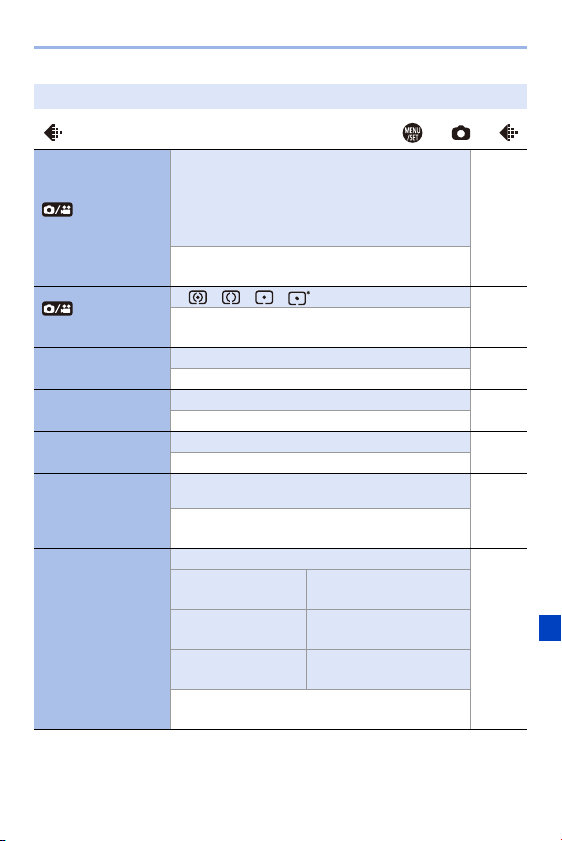
14. Menu Guide
305
`: Default settings
[Image Quality] ¨ ¨
[Photo Style]
`[Standard]/[Vivid]/[Natural]/[Flat]/[Landscape]/
[Portrait]/[Monochrome]/[L.Monochrome]/
[L.Monochrome D]/[Cinelike D]/[Cinelike V]/
[Like709]/[Standard(HLG)]/[Monochrome(HLG)]/
[MY PHOTO STYLE 1] to [MY PHOTO STYLE 10]
l
199
You can select the finishing settings of images to
suit your subjects and expression styles.
[Metering Mode]
`[ ]/[ ]/[ ]/[ ]
l
178
Type of optical measurement to measure
brightness can be changed.
[Aspect Ratio]
[4:3]/`[3:2]/[16:9]/[1:1]/[65:24]/[2:1]
l
82
You can select the image aspect ratio.
[Picture Quality]
`[FINE]/[STD.]/[RAWiFINE]/[RAWiSTD.]/[RAW]
l
85
Set the compression rate used for storing pictures.
[Picture Size]
`[L]/[M]/[S]
l
83
Sets the picture’s image size.
[HLG Photo]
[8K-Res.]/[4K-Res.]/`[OFF]
l
214
Records an HLG format picture with a wide
dynamic range.
[High Resolution
Mode]
[Start]
l
210
[Simul Record
Normal Shot]
`[ON]/[OFF]
[Shutter Delay] [30 SEC] to [1/8 SEC] (`[2
SEC])/[OFF]
[Motion Blur
Processing]
`[MODE1]/[MODE2]
Merges pictures with a high resolution from
multiple recorded images.
14. Menu Guide
306
[Image Quality] ¨ ¨
[Long Exposure
NR]
`[ON]/[OFF]
—
The camera automatically removes noise
generated when recording images with a slow
shutter speed.
0 The next picture cannot be taken during noise
removal.
0 When the following functions are being used,
[Long Exposure NR] is not available:
– Video recording/[6K/4K PHOTO]/[Post-Focus]
– [ELEC.] (Excluding [ELEC.+NR])/[Silent
Mode]/[High Resolution Mode]
0 This menu item can be registered to the Fn
button. (l
278)
[ISO Sensitivity
(photo)]
[ISO Auto Lower
Limit Setting]
`[100] to [12800]
—
[ISO Auto Upper
Limit Setting]
`[AUTO]/[200] to [25600]
Sets the lower and upper limits for ISO sensitivity
when ISO sensitivity is set to [AUTO].
14. Menu Guide
307
[Image Quality] ¨ ¨
[Min. Shutter
Speed]
`[AUTO]/[1/16000] to [1/1]
—
Sets the minimum shutter speed when the ISO
sensitivity is set to [AUTO].
0 The shutter speed may become slower than the
set value in recording situations where correct
exposure cannot be achieved.
0 This menu item can be registered to the Fn
button. (l
278)
[i.Dynamic Range]
[AUTO]/[HIGH]/[STANDARD]/[LOW]/`[OFF]
—
Contrast and exposure are compensated when
the brightness difference between the background
and subject is great, etc.
0 Compensation effect may not be achieved
depending on the recording conditions.
0 When the following functions are being used,
[i.Dynamic Range] is not available:
– [Like709]/[Standard(HLG)]/
[Monochrome(HLG)] ([Photo Style])
– [Filter Settings]
0 This menu item can be registered to the Fn
button. (l
278)
14. Menu Guide
308
[Image Quality] ¨ ¨
[Vignetting Comp.]
`[ON]/[OFF]
—
When the screen periphery darkens as a result of
the lens characteristics, you can record pictures
with the brightness of the screen periphery
corrected.
0 Compensation effect may not be achieved
depending on the recording conditions.
0 Noise in the periphery of the picture may stand
out with higher ISO sensitivity.
0 When the following functions are being used,
[Vignetting Comp.] is not available:
– [Ex. Tele Conv.]
– [High Speed Video]
– [APS-C]/[PIXEL/PIXEL] ([Image Area of
Video])
[Diffraction
Compensation]
[AUTO]/`[OFF]
—
The camera raises the image resolution by
correcting the blurriness caused by diffraction
when the aperture is closed.
0 Compensation effect may not be achieved
depending on the recording conditions.
0 Noise may stand out with higher ISO sensitivity.
[Filter Settings]
[Filter Effect] [ON]/`[OFF]/[SET]
l
204
[Simultaneous
Record w/o Filter]
[ON]/`[OFF]
This mode records with additional image effects
(filters).
14. Menu Guide
309
[Focus] ¨ ¨
[AF Custom
Setting(Photo)]
`[Set 1]/[Set 2]/[Set 3]/[Set 4]
l
96
Select features of AF operation when recording
using [AFC] that are appropriate for the subject
and scene.
[AF Assist Light]
`[ON]/[OFF]
—
When recording in low light conditions, pressing
the shutter button halfway lights the AF assist
lamp, making it easier for the camera to focus.
0 The effective range of the AF assist lamp is
different depending on the lens used.
– When the interchangeable lens (S-R24105) is
attached and at Wide:
Approx. 1.0 m (3.3 feet) to 3.0 m (9.8 feet)
0 Remove the lens hood.
0 The AF assist lamp gets slightly blocked when
the interchangeable lens (S-R24105) is used,
but it does not affect the performance.
0 The AF assist lamp may be greatly blocked, and
it may become harder to focus when a lens with
large diameter is used.
0 When [Silent Mode] is being used, [AF Assist
Light] is fixed to [OFF].
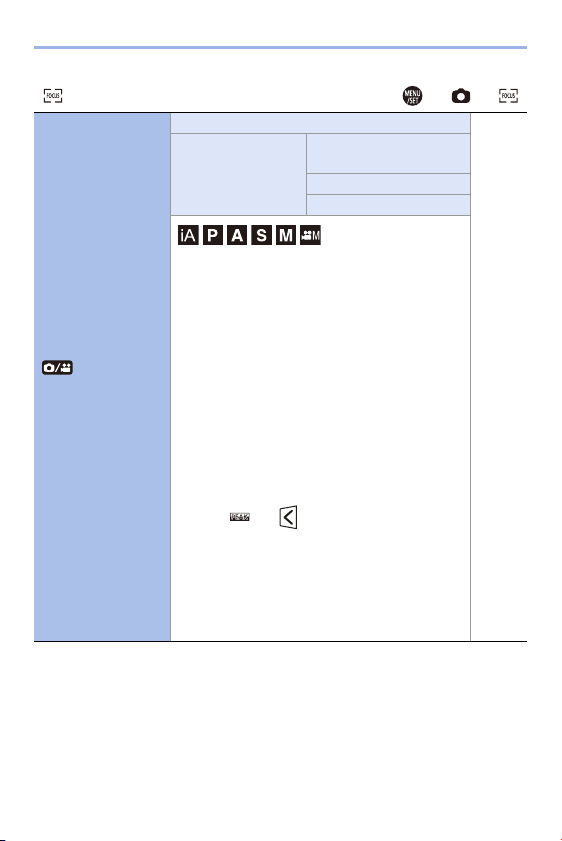
14. Menu Guide
310
[Focus] ¨ ¨
[Focus Peaking]
`[ON]/[OFF]
—
[SET] [Focus Peaking
Sensitivity]
[Display Color]
[Display While AFS]
During MF operation, in-focus portions (portions
on the screen with clear outlines) are highlighted
with color.
0 If the [Focus Peaking Sensitivity] is adjusted to
the negative direction, portions to be highlighted
are reduced, allowing you to achieve a more
precise focus.
0 With [Display Color], you can set the display
color of the in-focus portion.
0 If [Display While AFS] is set to [ON], when the
shutter button is pressed halfway in focus mode
[AFS], you can display Peaking.
0 You can display the Touch Tab (l
333) and then
touch [ ] in [ ] to switch [ON]/[OFF].
0 When [Rough Monochrome] of [Filter Settings]
is being used, [Focus Peaking] is not available.
0 When [Live View Boost] is being used, [Focus
Peaking] is not available.
0 This menu item can be registered to the Fn
button. (l
278)

14. Menu Guide
311
[Focus] ¨ ¨
[1-Area AF Moving
Speed]
`[FAST]/[NORMAL]
—
Sets the speed when moving a single AF area.
This operates when AF mode is set to [ ], [ ]
or [ ].
0 This menu item can be registered to the Fn
button. (l
278)
[Flash]
¨ ¨
[Flash Mode]
`[‰]/[ ]/[ ]/[ ]/[Œ]
l
220
Set the flash mode.
[Firing Mode]
`[TTL]/[MANUAL]
l
219
You can select whether to set the flash output
automatically or manually.
[Flash Adjust.]
[j3 EV] to [i3 EV] (`[±0 EV])
l
224
When [Firing Mode] is set to [TTL], you can adjust
the flash output.
[Flash Synchro]
`[1ST]/[2ND]
l
223
Sets the flash mode to Second Curtain Synchro.
[Manual Flash
Adjust.]
`[1/1] to [1/128]
l
220
When [Firing Mode] is set to [MANUAL], you can
set the flash output.
[Auto Exposure
Comp.]
[ON]/`[OFF]
l
225
Automatically adjust the flash output in conjunction
with the exposure compensation value.
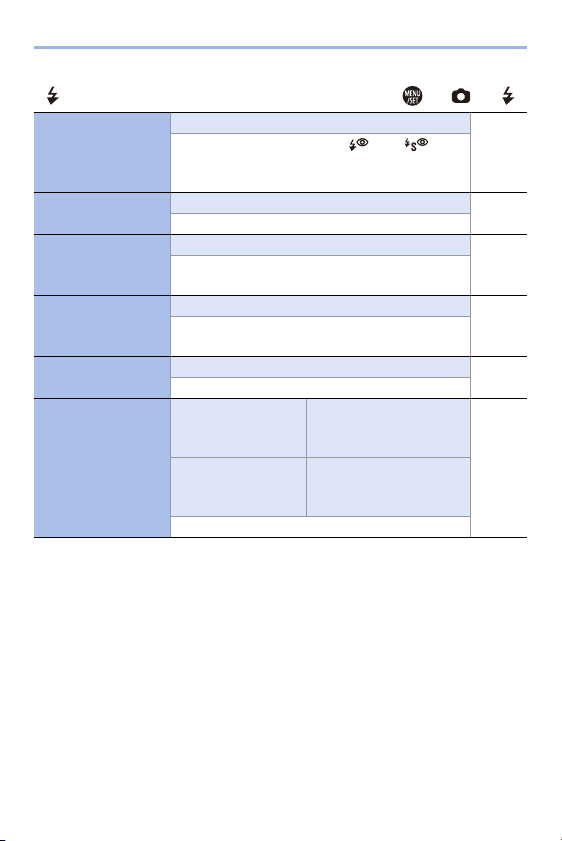
14. Menu Guide
312
[Flash] ¨ ¨
[Red-Eye Removal]
[ON]/`[OFF]
l
225
When [Flash Mode] is set to [ ] or [ ], the
camera automatically detects red-eye and corrects
image data.
[Wireless]
[ON]/`[OFF]
l
227
Enables recording using a wireless flash.
[Wireless Channel]
`[1CH]/[2CH]/[3CH]/[4CH]
l
227
Sets the channel to use when recording with a
wireless flash.
[Wireless FP]
[ON]/`[OFF]
l
229
Uses FP firing for an external flash when recording
with a wireless flash.
[Communication
Light]
`[HIGH]/[STANDARD]/[LOW]
l
229
Set the strength of communication light.
[Wireless Setup]
[External Flash] [Firing Mode]/[Flash
Adjust.]/[Manual Flash
Adjust.]
l
228
[A Group]/[B Group]/
[C Group]
[Firing Mode]/[Flash
Adjust.]/[Manual Flash
Adjust.]
Sets details for wireless flash recording.
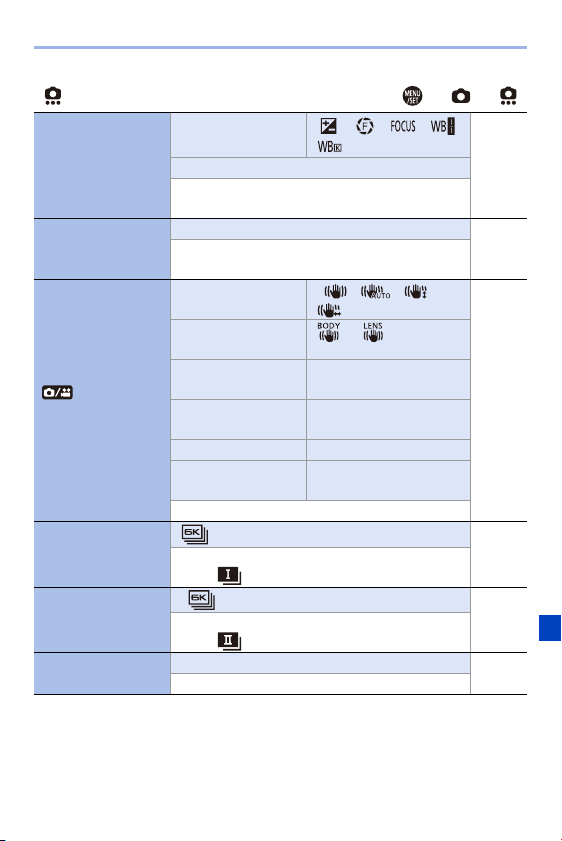
14. Menu Guide
313
[Others (Photo)] ¨ ¨
[Bracketing]
[Bracketing Type]
[ ]/[ ]/[ ]/[ ]/
[]/`[OFF]
l
155
[More Settings]
You can take multiple pictures while automatically
adjusting a setting.
[Silent Mode]
[ON]/`[OFF]
l
169
Disables all operation sounds and light output at
once.
[Image Stabilizer]
[Operation Mode] `[ ]/[ ]/[ ]/
[ ]/[OFF]
l
172
[Body(B.I.S.) /
Lens(O.I.S.)]
[]/`[]
[When to Activate] [ALWAYS]/`[HALF-
SHUTTER]
[E-Stabilization
(Video)]
[ON]/`[OFF]
[Boost I.S. (Video)] [ON]/`[OFF]
[Focal Length Set] [0.1 mm] to [1000.0 mm]
(`[35.0 mm])
Configures image stabilizer settings.
[Burst Shot 1
Setting]
[]/`[H]/[M]/[L]
l
126
l 130
Sets the burst recording operation of the drive
mode [ ].
[Burst Shot 2
Setting]
`[ ]/[H]/[M]/[L]
l
126
l 130
Sets the burst recording operation of the drive
mode [ ].
[Shutter Type]
[AUTO]/`[MECH.]/[EFC]/[ELEC.]/[ELEC.+NR]
l
170
Select the shutter type to use for taking pictures.
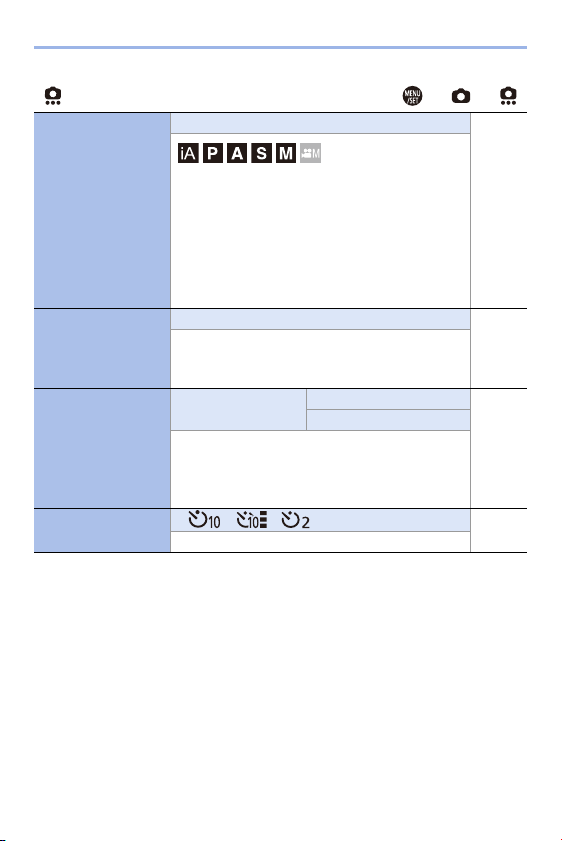
14. Menu Guide
314
[Others (Photo)] ¨ ¨
[Shutter Delay]
[8SEC]/[4SEC]/[2SEC]/[1SEC]/`[OFF]
—
To reduce camera shake and shutter-induced blur,
the shutter is released after the specified time has
passed since the shutter button was pressed.
0 When the following functions are being used,
[Shutter Delay] is not available:
– Video recording/[6K/4K PHOTO]/[Post-Focus]
– [High Resolution Mode]
[Ex. Tele Conv.]
[ZOOM]/[TELE CONV.]/`[OFF]
l
122
You can take pictures that are further enlarged
beyond what is available with the optical zoom,
without any deterioration in image quality.
[Time Lapse/
Animation]
[Mode] [Time Lapse Shot]
l
145
l 148
[Stop Motion Animation]
Time Lapse Shot automatically starts/stops
recording at a set recording interval.
Stop Motion Animation enables you to take
pictures while moving the subject little by little.
[Self Timer]
`[ ]/[ ]/[ ]
l
153
Sets the self-timer duration.
14. Menu Guide
315
[Others (Photo)] ¨ ¨
[Flicker Decrease
(Photo)]
[ON]/`[OFF]
—
Detects flickering such as that under fluorescent
lighting, and records using a timing that minimizes
this.
0 The reduction effect may not be obtained
depending on the recording conditions.
0 When Flicker Decrease is operating, the
[FLICKER] icon will be displayed in yellow on
the recording screen.
0 When the following functions are being used,
[Flicker Decrease (Photo)] is not available:
– Video recording/[6K/4K PHOTO]/[Post-Focus]
0 When the following functions are being used,
[Flicker Decrease (Photo)] is not available:
– [ELEC.]/[Silent Mode]
0 This menu item can be registered to the Fn
button. (l
278)
[6K/4K PHOTO]
[Picture Size / Burst
Speed]
`[6K 18M]/[4K H 8M]/
[4K 8M]
l
130
[Rec Method] `[6K/4K Burst]/[6K/4K
Burst(S/S)]/[6K/4K Pre-
Burst]
[Pre-Burst
Recording]
[ON]/`[OFF]
Sets 6K/4K photos.
You can save pictures extracted from a burst file
taken using high-speed burst.
14. Menu Guide
316
[Others (Photo)] ¨ ¨
[Post-Focus]
[6K 18M]/[4K 8M]/`[OFF]
l
161
Taking burst pictures with the same image quality
as 6K/4K photos while automatically changing the
focus position.
You can select the focus position for the picture to
save after recording.
[Multiple Exposure]
[Start]
—
[Auto Gain] `[ON]/[OFF]
[Overlay] [ON]/`[OFF]
You can apply an effect equivalent to four
exposures on a single image.
[Start]: Starts exposure for multiple exposures.
[Auto Gain]: Automatically adjusts brightness in
accordance with image count.
[Overlay]: Allows multiple exposure for recorded
RAW images. After selecting [Start], a selection
screen for images to stack is displayed.
0 After selecting [Start], pressing the shutter
button fully starts multiple exposure.
0 Preview is displayed for each recording, and the
following operations are available:
– [Next] (You can also
perform the same
operation by pressing
the shutter button
halfway.)
– [Retake]
– [Exit]: Records the picture, and finishes
multiple exposure recording.
([LW
5HWDNH
1H[W
14. Menu Guide
317
[Others (Photo)] ¨ ¨
[Multiple Exposure]
(Continued)
0 Recording the picture will automatically stop
multiple exposure recording.
0 To finish multiple exposure recording before
starting the recording, press [Q] on the recording
screen.
0 Recording information for the last-recorded
image will be saved as recording information for
images recorded with multiple exposures.
0 [Overlay] can be set only for RAW images
recorded with the camera.
0 For RAW images recorded using the following
functions, [Overlay] cannot be set:
– [65:24]/[2:1] ([Aspect Ratio])
– [HLG Photo]
0 When the following functions are being used,
[Multiple Exposure] is not available:
– [Time Lapse Shot]
– [Stop Motion Animation]
– [High Resolution Mode]
– [Filter Settings]
0 When using APS-C lenses, [Multiple Exposure]
is not available.
—
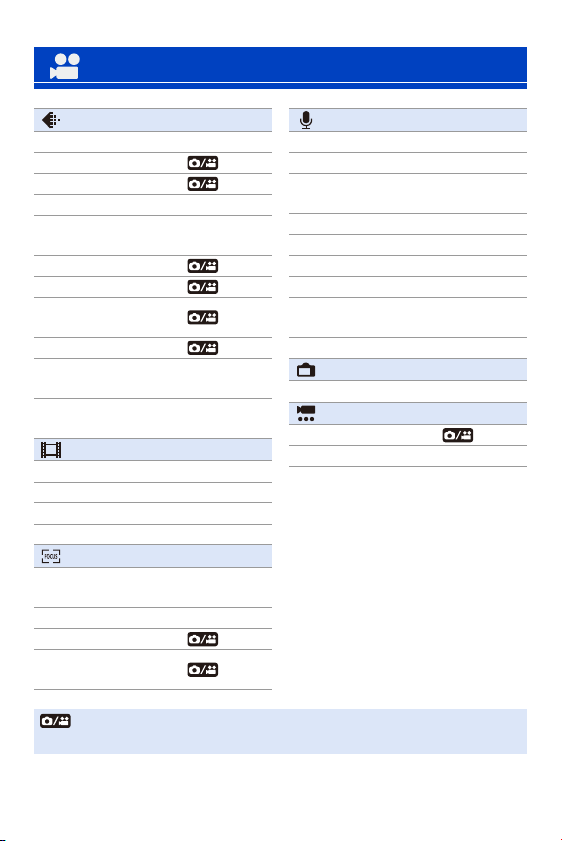
14. Menu Guide
318
[Video] Menu
[Image Quality] l 319
[Exposure Mode] l 244
[Photo Style] l 199
[Metering Mode] l 178
[ISO Sensitivity (video)] l 319
[Flicker Decrease
(Video)]
l
320
[i.Dynamic Range] l 307
[Vignetting Comp.] l 308
[Diffraction
Compensation]
l
308
[Filter Settings] l 204
[Auto Exposure in P/A/
S/M]
l
321
[CreativeVideo
Combined Set.]
l
246
[Image Format] l 321
[Rec Quality] l 234
[High Speed Video] l 247
[Rec. File Format] l 233
[Luminance Level] l 241
[Focus] l 322
[AF Custom
Setting(Video)]
l
240
[Continuous AF] l 239
[Focus Peaking] l 310
[1-Area AF Moving
Speed]
l
311
[Audio] l 322
[Sound Rec Level Disp.] l 243
[Sound Rec Level Adj.] l 243
[Sound Rec Level
Limiter]
l
243
[Wind Noise Canceller] l 323
[Wind Cut] l 255
[Mic Socket] l 253
[Special Mic.] l 254
[XLR Mic Adaptor
Setting]
l
256
[Sound Output] l 257
[Monitor / Display] l 324
[HDMI Rec Output] l 252
[Others (Video)] l 324
[Image Stabilizer] l 174
[Image Area of Video] l 238
: Menu items common to the [Photo] menu and [Video] menu.
Their settings are synchronized.
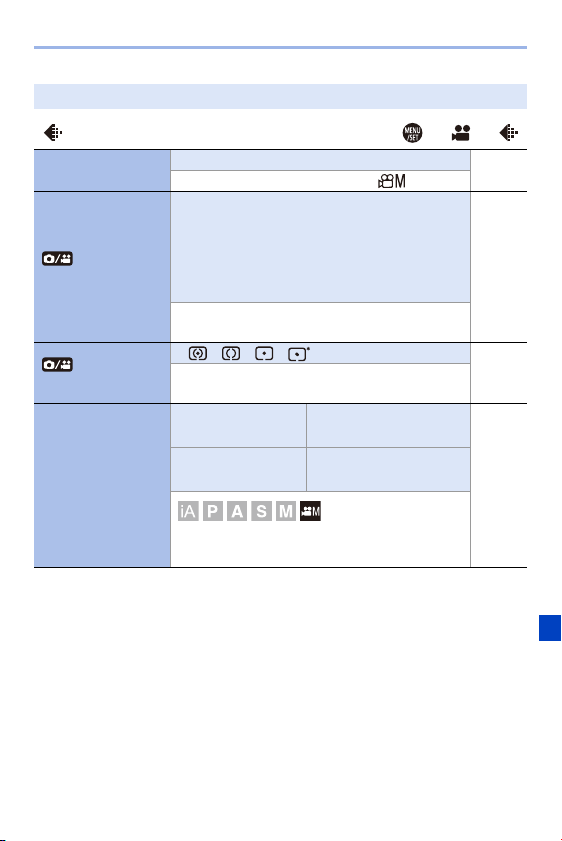
14. Menu Guide
319
`: Default settings
[Image Quality] ¨ ¨
[Exposure Mode]
`[P]/[A]/[S]/[M]
l
244
Sets the exposure mode to use in [ ] mode.
[Photo Style]
`[Standard]/[Vivid]/[Natural]/[Flat]/[Landscape]/
[Portrait]/[Monochrome]/[L.Monochrome]/
[L.Monochrome D]/[Cinelike D]/[Cinelike V]/
[Like709]/[Standard(HLG)]/[Monochrome(HLG)]/
[MY PHOTO STYLE 1] to [MY PHOTO STYLE 10]
l
199
You can select the finishing settings of images to
suit your subjects and expression styles.
[Metering Mode]
`[ ]/[ ]/[ ]/[ ]
l
178
Type of optical measurement to measure
brightness can be changed.
[ISO Sensitivity
(video)]
[ISO Auto Lower
Limit Setting]
`[100] to [12800]
—
[ISO Auto Upper
Limit Setting]
`[AUTO]/[200] to [25600]
Sets the lower and upper limits for ISO sensitivity
when ISO sensitivity is set to [AUTO].
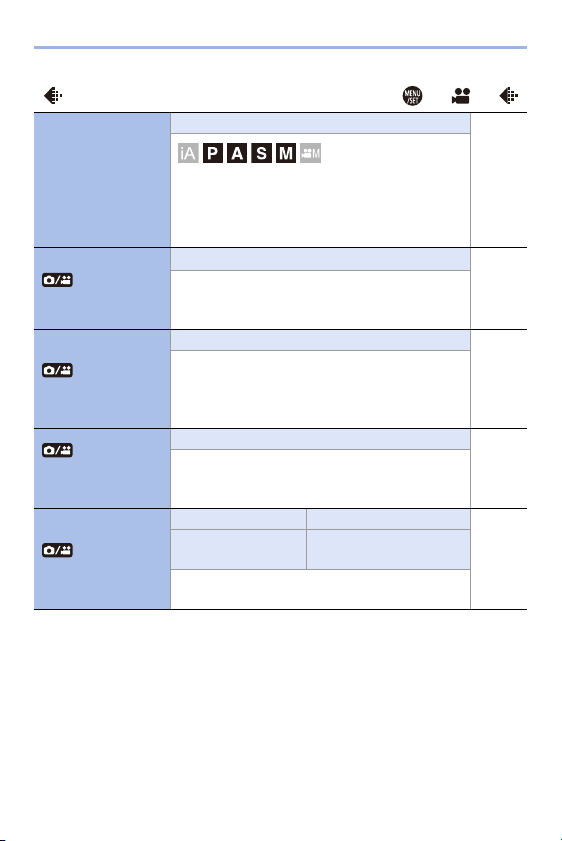
14. Menu Guide
320
[Image Quality] ¨ ¨
[Flicker Decrease
(Video)]
[1/50]/[1/60]/[1/100]/[1/120]/`[OFF]
—The shutter speed can be fixed to reduce the
flicker or striping in the video.
0 When [Auto Exposure in P/A/S/M] is [OFF],
[Flicker Decrease (Video)] is not available.
[i.Dynamic Range]
[AUTO]/[HIGH]/[STANDARD]/[LOW]/`[OFF]
l 307
Contrast and exposure are compensated when
the brightness difference between the background
and subject is great, etc.
[Vignetting Comp.]
`[ON]/[OFF]
l
308
When the screen periphery darkens as a result of
the lens characteristics, you can record pictures
with the brightness of the screen periphery
corrected.
[Diffraction
Compensation]
[AUTO]/`[OFF]
l
308
The camera raises the image resolution by
correcting the blurriness caused by diffraction
when the aperture is closed.
[Filter Settings]
[Filter Effect] [ON]/`[OFF]/[SET]
l
204
[Simultaneous
Record w/o Filter]
[ON]/`[OFF]
This mode records with additional image effects
(filters).
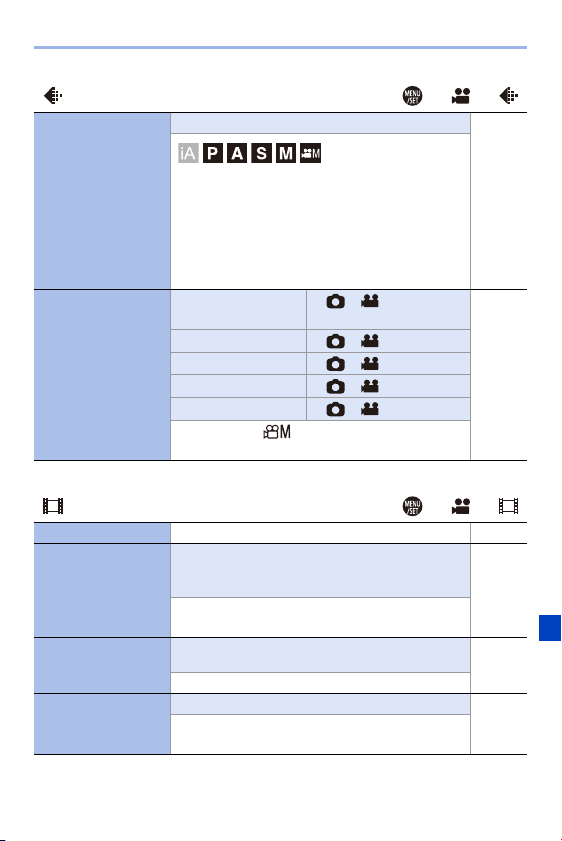
14. Menu Guide
321
[Image Quality] ¨ ¨
[Auto Exposure in
P/A/S/M]
`[ON]/[OFF]
—
Selects the setting method for aperture value,
shutter speed, and ISO sensitivity for the video
being recorded. (l
231)
[ON]: Records with values set automatically by
the camera.
[OFF]: Records with manually set values.
[CreativeVideo
Combined Set.]
[F/SS/ISO/Exposure
Comp.]
`[]/[]
l
246
[White Balance] `[]/[]
[Photo Style] `[]/[]
[Metering Mode] `[]/[]
[AF Mode] `[]/[]
Content set in [ ] mode can be separated from
when taking pictures.
[Image Format]
¨ ¨
[Rec Quality] Sets the video recording image quality. l 234
[High Speed Video]
[180/30p FHD]/[120/30p FHD]/[60/30p 4K]/
[48/23.98p 4K]/`[OFF]
l 247
Records slow motion videos of MP4 format by
performing ultra-high-speed recording.
[Rec. File Format]
[AVCHD]/`[MP4]
l
234
Sets the video recording file format.
[Luminance Level]
[0-255]/`[16-255]
l
241
You can set the luminance range to suit the
purpose of video recording.
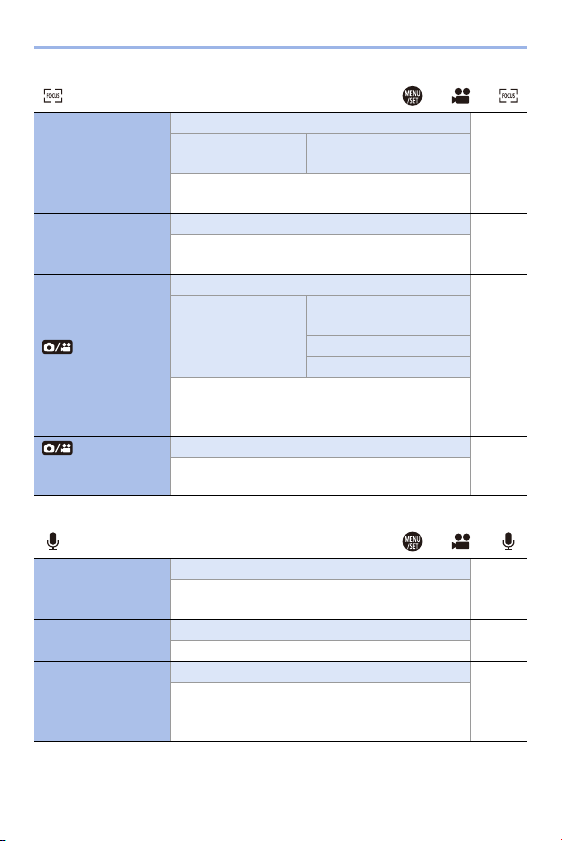
14. Menu Guide
322
[Focus] ¨ ¨
[AF Custom
Setting(Video)]
[ON]/`[OFF]
l
240
[SET] [AF Speed]/
[AF Sensitivity]
You can fine-adjust the focusing method for video
recording using [Continuous AF].
[Continuous AF]
`[ON]/[OFF]
l
239
You can select how to set the focus in AF when
recording videos.
[Focus Peaking]
`[ON]/[OFF]
l 310
[SET] [Focus Peaking
Sensitivity]
[Display Color]
[Display While AFS]
During MF operation, in-focus portions (portions
on the screen with clear outlines) are highlighted
with color.
[1-Area AF Moving
Speed]
`[FAST]/[NORMAL]
l
311
Sets the speed when moving a single AF area.
[Audio]
¨ ¨
[Sound Rec Level
Disp.]
[ON]/`[OFF]
l
243
The sound recording level is displayed on the
recording screen.
[Sound Rec Level
Adj.]
[j12dB] to [i6dB] (`[0dB])
l
243
Manually adjust the sound recording level.
[Sound Rec Level
Limiter]
`[ON]/[OFF]
l
243
The sound recording level is adjusted
automatically to minimize sound distortion
(crackling noise).
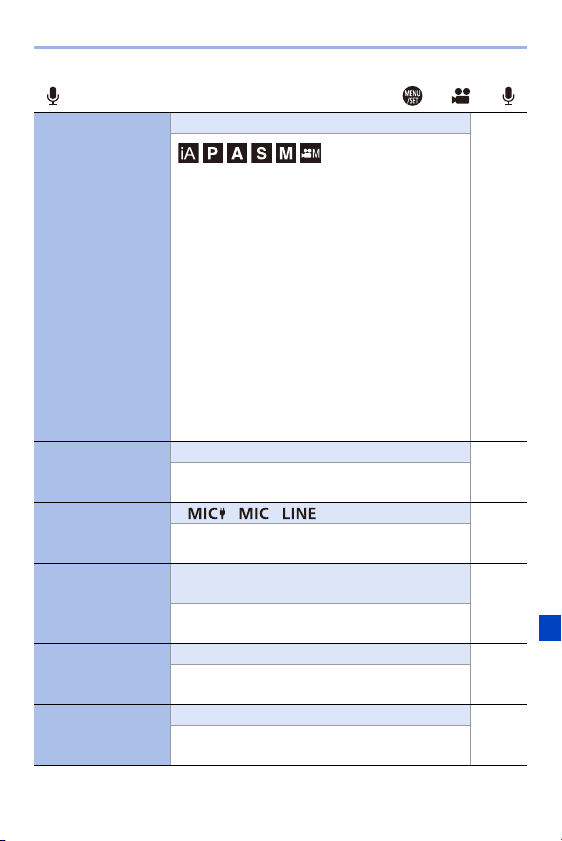
14. Menu Guide
323
[Audio] ¨ ¨
[Wind Noise
Canceller]
[HIGH]/`[STANDARD]/[OFF]
—
This reduces the wind noise coming into the built-
in microphone while maintaining sound quality.
0 [HIGH] effectively reduces the wind noise by
reducing the low-pitched sound when a strong
wind is detected.
0 [STANDARD] extracts and reduces only the
wind noise without deteriorating the sound
quality.
0 You may not see the full effect depending on the
recording conditions.
0 This function works only with the built-in
microphone.
When an external microphone is connected,
[Wind Cut] is displayed. (l
255)
[Wind Cut]
[HIGH]/[STANDARD]/[LOW]/`[OFF]
l
255
This reduces wind noise when an external
microphone is connected.
[Mic Socket]
`[ ]/[ ]/[ ]
l
253
Sets the [MIC] socket input method that suits the
device to be connected.
[Special Mic.]
`[STEREO]/[LENS AUTO]/[SHOTGUN]/
[S. SHOTGUN]/[MANUAL]
l
254
Sets the sound pickup range when using the
Stereo Shotgun Microphone (optional).
[XLR Mic Adaptor
Setting]
`[ON]/[OFF]
l
256
Enables recording from the XLR Microphone
Adaptor (optional).
[Sound Output]
`[REALTIME]/[REC SOUND]
l
257
Sets the audio output method when headphones
are connected.
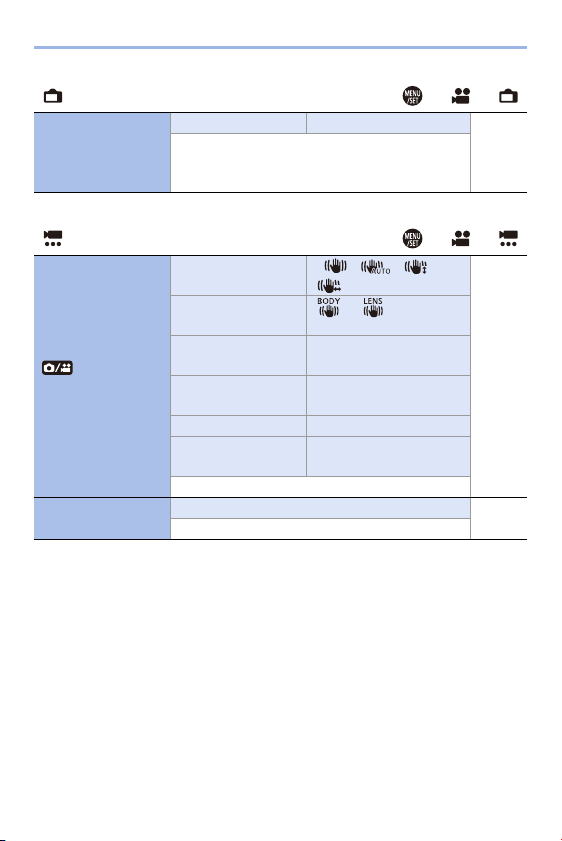
14. Menu Guide
324
[Monitor / Display] ¨ ¨
[HDMI Rec Output]
[Info Display] `[ON]/[OFF]
l
252
Select whether or not to output the information
display of the camera to an external device
connected via HDMI.
[Others (Video)]
¨ ¨
[Image Stabilizer]
[Operation Mode] `[ ]/[ ]/[ ]/
[ ]/[OFF]
l
172
[Body(B.I.S.) /
Lens(O.I.S.)]
[]/`[]
[When to Activate] [ALWAYS]/`[HALF-
SHUTTER]
[E-Stabilization
(Video)]
[ON]/`[OFF]
[Boost I.S. (Video)] [ON]/`[OFF]
[Focal Length Set] [0.1 mm] to [1000.0 mm]
(`[35.0 mm])
Configures image stabilizer settings.
[Image Area of
Video]
`[FULL]/[APS-C]/[PIXEL/PIXEL]
l
238
Sets the image area during video recording.
14. Menu Guide
325
[Custom] Menu
[Image Quality] l 327
[Photo Style Settings] l 327
[ISO Increments] l 327
[Extended ISO] l 327
[Exposure Offset Adjust.] l 328
[Color Space] l 328
[Exposure Comp. Reset] l 328
[Focus/Shutter] l 329
[Focus/Shutter Priority] l 329
[Focus Switching for Vert / Hor] l 116
[AF/AE Lock Hold] l 329
[AF+MF] l 329
[MF Assist] l 330
[MF Guide] l 330
[Focus Ring Lock] l 330
[Show/Hide AF Mode] l 331
[Pinpoint AF Setting] l 331
[AF-Point Scope Setting] l 332
[Shutter AF] l 332
[Half-Press Shutter] l 332
[Quick AF] l 332
[Eye Sensor AF] l 332
[Looped Focus Frame] l 333
[AFC Start Point (225-Area)] l 104
[Operation] l 333
[Q.MENU Settings] l 291
[Touch Settings] l 333
[Lock Lever Setting] l 334
[Fn Button Set] l 278
[Fn Lever Setting] l 286
[WB/ISO/Expo. Button] l 335
[ISO Displayed Setting] l 335
[Exposure Comp. Disp.
Setting]
l
335
[Dial Set.] l 336
[Joystick Setting] l 337
[Illuminated Button] l 337
[Video Rec. Button (Remote)] l 446
14. Menu Guide
326
[Monitor / Display] l 338
[Auto Review] l 338
[Constant Preview] l 339
[Level Gauge] l 339
[Histogram] l 340
[Photo Grid Line] l 341
[Framing Outline] l 341
[Center Marker] l 341
[AF Area Display] l 341
[Live View Boost] l 342
[Monochrome Live View] l 342
[Night Mode] l 343
[LVF/Monitor Disp. Set] l 343
[Expo.Meter] l 344
[Focal Length] l 344
[Photo/Video Preview] l 344
[Photos/Videos Remaining] l 345
[Show/Hide Monitor Layout] l 345
[Blinking Highlights] l 345
[Zebra Pattern] l 346
[HLG View Assist] l 347
[Sheer Overlay] l 347
[I.S. Status Scope] l 348
[Lens / Others] l 348
[Lens Focus Resume] l 348
[Focus Ring Control] l 348
14. Menu Guide
327
`: Default settings
[Image Quality] ¨ ¨
[Photo Style
Settings]
[Show/Hide Photo
Style]
[Vivid]/[Natural]/[Flat]/[Landscape]/
[Portrait]/[L.Monochrome]/
[L.Monochrome D]/[Cinelike D]/
[Cinelike V]/[Like709]/[MY PHOTO
STYLE 1] to [MY PHOTO STYLE
10]
Sets Photo Style items to be displayed on the menu.
[My Photo Style
Settings]
[Add Effects]
[Load Preset Setting]
Enables detailed image quality adjustment settings for My
Photo Style.
[Add Effects]: Enables [ISO] and [WB] adjustments on the
image quality adjustment screen.
[Load Preset Setting]: Sets the timing at which image
quality adjustment values changed in My Photo Style are
returned to their registered state.
[Reset Photo Style]
Returns details changed in [Photo Style] and [Photo Style
Settings] to their default settings.
[ISO Increments]
`[1/3 EV]/[1 EV]
Changes the intervals between ISO sensitivity adjustment
values.
[Extended ISO]
[ON]/`[OFF]
Setting of ISO sensitivity to a minimum of [ISO50] and a
maximum of [ISO51200] is possible.

14. Menu Guide
328
[Image Quality] ¨ ¨
[Exposure Offset
Adjust.]
[Multi Metering] [j1EV] to [i1EV] (`[±0EV])
[Center Weighted] [j1EV] to [i1EV] (`[±0EV])
[Spot] [j1EV] to [i1EV] (`[±0EV])
[Highlight Weighted] [j1EV] to [i1EV] (`[±0EV])
Adjusts the exposure level that is the standard correct
exposure for each item of [Metering Mode].
0 Adds the adjustment value from this function to the
exposure compensation value (l
189) when recording.
For video recording, [6K/4K PHOTO], and [Post-Focus], it
is not possible to add an adjustment value of a range that
exceeds n3EV.
[Color Space]
`[sRGB]/[AdobeRGB]
This sets the method for correcting the color reproduction of
the recorded images on the screens of a PC or on a device
such as a printer.
[sRGB]: This is widely used in PCs and similar devices.
[AdobeRGB]: AdobeRGB is mainly used for business
purposes such as professional printing because it has a
greater range of reproducible colors than sRGB.
0 Set to [sRGB] if you are not very familiar with AdobeRGB.
0 When the following functions are being used, the setting is
fixed to [sRGB]:
– Video recording/[6K/4K PHOTO]/[Post-Focus]
– [Like709] ([Photo Style])
– [Filter Settings]
[Exposure Comp.
Reset]
[ON]/`[OFF]
This resets the exposure value when you change the
recording mode or turn off the camera.

14. Menu Guide
329
[Focus/Shutter] ¨ ¨
[Focus/Shutter
Priority]
[AFS] `[FOCUS]/[BALANCE]/[RELEASE]
[AFC] [FOCUS]/`[BALANCE]/[RELEASE]
This sets whether to give priority to focus or shutter release
during AF.
[FOCUS]: Disables recording when focus is not achieved.
[BALANCE]: Performs recording while controlling the
balance between focusing and shutter release timing.
[RELEASE]: Enables recording even when focus is not
achieved.
[Focus Switching
for Vert / Hor]
[ON]/`[OFF]
Memorizes separate positions for AF areas for when the
camera is vertically aligned and for when it is horizontally
aligned.
0 For details, refer to page
116.
[AF/AE Lock Hold]
[ON]/`[OFF]
Turning this [ON] maintains the lock after releasing the
button until it is pressed again.
[AF+MF]
[ON]/`[OFF]
You can fine-adjust the focus manually during AF Lock by
rotating the focus ring.
– When focus mode is [AFS], and the shutter button is
pressed halfway
– When [AF ON] is pressed
– When locked using the Fn button [AF LOCK] or [AF/AE
LOCK]
14. Menu Guide
330
[Focus/Shutter] ¨ ¨
[MF Assist]
[Focus Ring] `[ON]/[OFF]
[AF Mode/MF] [ON]/`[OFF]
[Press Joystick] [ON]/`[OFF]
[MF Assist Display] [FULL]/`[PIP]
This sets the display method of MF Assist (enlarged screen).
[Focus Ring]: The screen is enlarged by focusing with the
lens.
[AF Mode/MF]: The screen is enlarged by pressing [ ].
[Press Joystick]: Press the joystick to enlarge the display.
(if [Joystick Setting] is set to [D.FOCUS Movement]) (l
337)
[MF Assist Display]: Sets the display method (windowed
mode/full screen mode) of MF Assist (enlarged screen).
0 While you are using the following functions, MF Assist will
not be displayed:
– Video recording
– [6K/4K Pre-Burst]
[MF Guide]
[]/`[ ]/[OFF]
During MF, MF Guide, which acts as a guide to recording
distance, is displayed on the screen. You can select from
meters or feet for the display unit.
[Focus Ring Lock]
[ON]/`[OFF]
This disables the focus ring operation of the interchangeable
lens during MF to lock the focus.
0 [MFL] is displayed on the recording screen while the focus
ring is locked.
0 This menu item can be registered to the Fn button.
(l
278)
14. Menu Guide
331
[Focus/Shutter] ¨ ¨
[Show/Hide AF
Mode]
[Face/Eye/Body/
Animal Detect.]
`[ON]/[OFF]
[Tracking] `[ON]/[OFF]
[225-Area] `[ON]/[OFF]
[Zone (Vert./ Horz.)] `[ON]/[OFF]
[Zone (Square)] [ON]/`[OFF]
[Zone (Oval)] `[ON]/[OFF]
[1-Area+] `[ON]/[OFF]
[Pinpoint] `[ON]/[OFF]
[Custom1] [ON]/`[OFF]
[Custom2] [ON]/`[OFF]
[Custom3] [ON]/`[OFF]
Sets the AF mode items to be displayed on the AF mode
selection screen.
[Pinpoint AF
Setting]
[Pinpoint AF Time] [LONG]/`[MID]/[SHORT]
[Pinpoint AF Display] [FULL]/`[PIP]
Changes enlarged screen settings displayed when AF mode
is [ ].
[Pinpoint AF Time]: Sets the time for which the screen is
enlarged when the shutter button is pressed halfway.
[Pinpoint AF Display]: Sets the display method (windowed
mode/full screen mode) of the enlarged screen.

14. Menu Guide
332
[Focus/Shutter] ¨ ¨
[AF-Point Scope
Setting]
[Keep Enlarged
Display]
[ON]/`[OFF]
[PIP Display] [FULL]/`[PIP]
Changes the enlarged screen settings of AF-Point Scope
(l
94).
[Keep Enlarged Display]: Setting this to [ON] maintains the
enlarged screen after pressing the Fn button until it is
pressed again.
[PIP Display]: Sets the display method (windowed mode/full
screen mode) of the enlarged screen.
[Shutter AF]
`[ON]/[OFF]
This adjusts focus automatically when you press the shutter
button halfway.
[Half-Press Shutter]
[ON]/`[OFF]
You can release the shutter quickly by pressing the shutter
button halfway.
[Quick AF]
[ON]/`[OFF]
When the amount of camera blur becomes small, the
camera will automatically adjust the focus and focus
adjustment will then be quicker when the shutter is pressed.
0 The battery will drain faster than usual.
0 This function is not available in the following cases:
– In preview mode
– In low light situations
[Eye Sensor AF]
[ON]/`[OFF]
When looking through the viewfinder, if the eye sensor
operates, then AF will function.
0 [Eye Sensor AF] may not work in low light situations.
14. Menu Guide
333
[Focus/Shutter] ¨ ¨
[Looped Focus
Frame]
[ON]/`[OFF]
When moving the AF area or MF Assist, this enables its
position to loop from one edge to the other edge of the
screen.
[AFC Start Point
(225-Area)]
[ON]/`[OFF]
When using [ ] with the focus mode set to [AFC], you can
specify at which area to start [AFC].
0 For details, refer to page
104.
[Operation]
¨ ¨
[Q.MENU Settings]
[Layout Style] `[MODE1]/[MODE2]
[Front Dial
Assignment]
[Item]/`[Value]
[Item Customize (Photo)]
[Item Customize (Video)]
Customizes the Quick menu.
0 For details, refer to page
291.
[Touch Settings]
[Touch Screen] `[ON]/[OFF]
[Touch Tab] [ON]/`[OFF]
[Touch AF] `[AF]/[AF+AE]/[OFF]
[Touch Pad AF] [EXACT]/[OFFSET]/`[OFF]
Enables touch operation.
[Touch Screen]: All touch operations.
[Touch Tab]: Operations of tabs, such as [ ] on the right
side of the screen.
[Touch AF]: Operation to optimize the focus ([AF]) for a
touched subject. Alternatively, operation to optimize both the
focus and brightness ([AF+AE]). (l
113)
[Touch Pad AF]: Touch pad operation during viewfinder
display. (l
115)
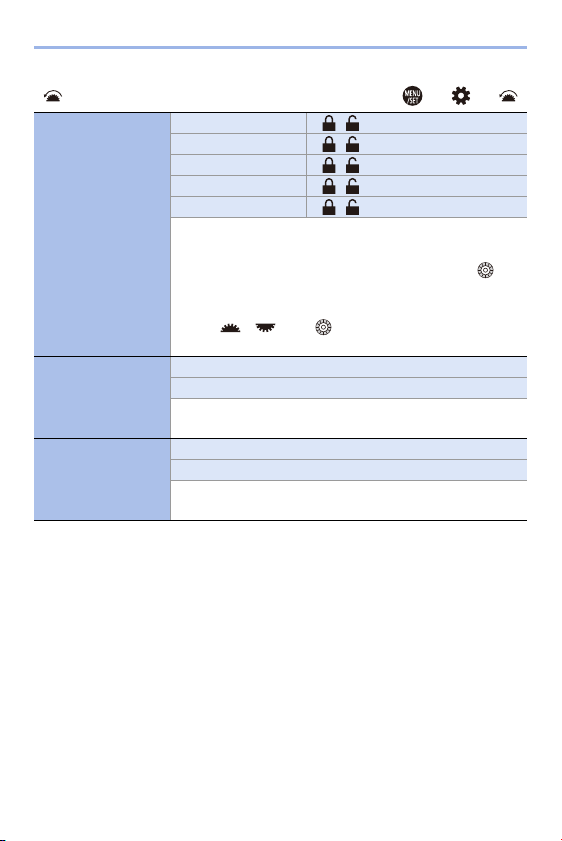
14. Menu Guide
334
[Operation] ¨ ¨
[Lock Lever Setting]
[Cursor] ` /
[Joystick] ` /
[Touch Screen] ` /
[Dial] ` /
[DISP. Button] ` /
Sets the operations to be disabled with the operation lock
lever. (Only for recording screen)
[Cursor]: Cursor buttons, [MENU/SET] button, and
[Joystick]: Joystick
[Touch Screen]: Touch screen
[Dial]: , , and
[DISP. Button]: [DISP.] button
[Fn Button Set]
[Setting in REC mode]
[Setting in PLAY mode]
Registers a function to the Fn button.
0 For details, refer to page
279.
[Fn Lever Setting]
[Function of Fn Lever]
[MODE 2 Setting]
Registers a function to the Fn lever.
0 For details, refer to page
286.
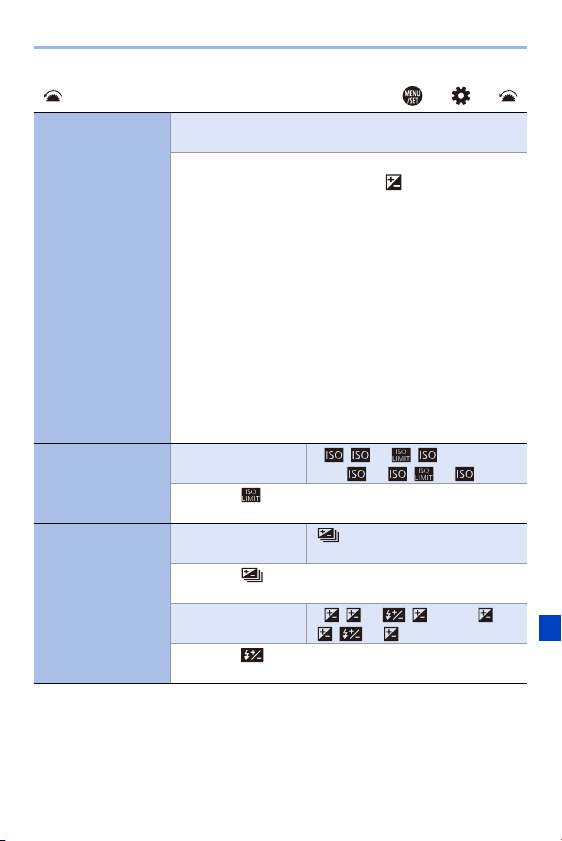
14. Menu Guide
335
[Operation] ¨ ¨
[WB/ISO/Expo.
Button]
[WHILE PRESSING]/[AFTER PRESSING1]/`[AFTER
PRESSING2]
This sets the operation to be performed when [WB] (White
Balance), [ISO] (ISO sensitivity) or [ ] (Exposure
Compensation) is pressed.
[WHILE PRESSING]: Allows you to change the setting
while pressing and holding the button.
Release the button to confirm the settings value, and to
return to the recording screen.
[AFTER PRESSING1]: Press the button to change settings.
Press the button again to confirm the settings value, and to
return to the recording screen.
[AFTER PRESSING2]: Press the button to change settings.
Each press of the button switches the settings value.
(Except that of exposure compensation) To confirm your
selection and return to the recording screen, press the
shutter button halfway.
[ISO Displayed
Setting]
[Front/Rear Dials] `[ / ] / [ / ] /
[OFF/ ] / [ / ] / [ /OFF]
Assigning [ ] lets you change [ISO Auto Upper Limit
Setting] on the ISO sensitivity settings screen.
[Exposure Comp.
Disp. Setting]
[Cursor Buttons (Up/
Down)]
[]/`[OFF]
Assigning [ ] lets you set exposure bracketing on the
exposure compensation screen.
[Front/Rear Dials] `[ / ] / [ / ] / [OFF/ ] /
[ / ] / [ /OFF]
Assigning [ ] lets you adjust flash output on the exposure
compensation screen.
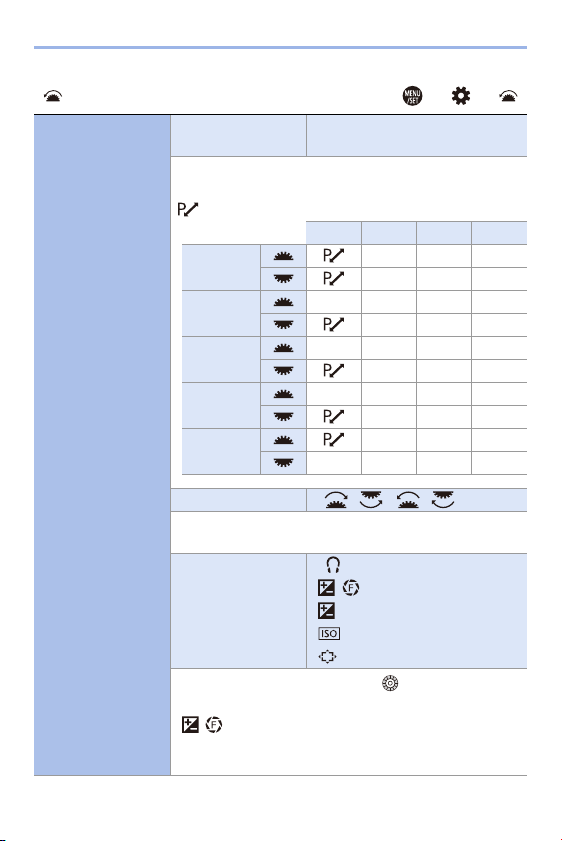
14. Menu Guide
336
[Operation] ¨ ¨
[Dial Set.]
[Assign Dial (F/SS)] `[SET1]/[SET2]/[SET3]/[SET4]/
[SET5]
Sets the operations to be assigned to the dials in [P]/[A]/[S]/
[M] modes.
: Program Shift, F: Aperture value, SS: Shutter speed
P A S M
[SET1]
FSSF
FSSSS
[SET2]
s F s F
s SS SS
[SET3]
ssSS SS
F s F
[SET4]
sss F
FSSSS
[SET5]
FSSF
sssSS
[Rotation (F/SS)] `[ ]/[ ]
Changes the rotational directions of the dials for aperture
value and shutter speed adjustment.
[Control Dial
Assignment]
`[ ] ([Headphone Volume])/
[ / ] ([Exposure / Aperture])/
[ ] ([Exposure Comp.])/
[ ] ([Sensitivity])/
[ ] ([Focus Frame Size])
Sets the function to be assigned to on the recording
screen.
[/]: In [M] mode, this assigns the operation to adjust
the aperture value. In other than [M] mode, this assigns the
operation of exposure compensation.
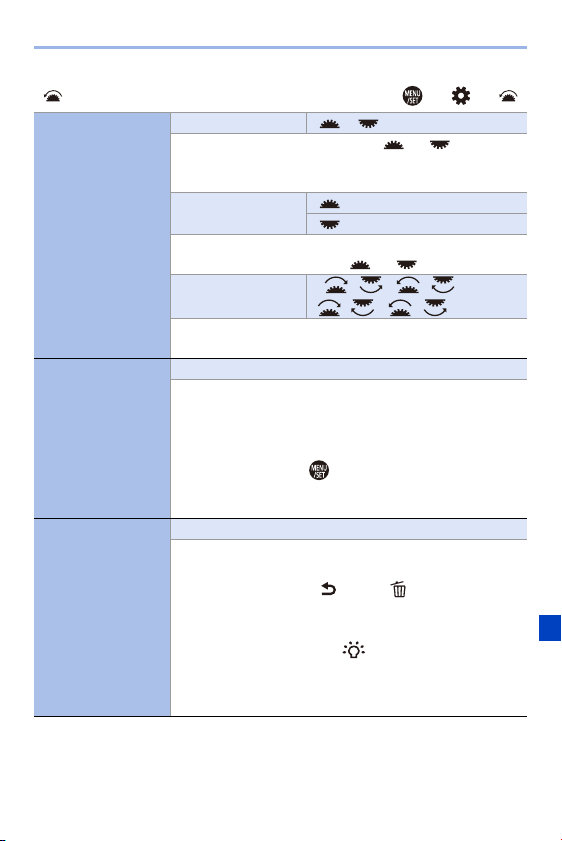
14. Menu Guide
337
[Operation] ¨ ¨
[Dial Set.]
(Continued)
[Exposure Comp.] [ ]/[ ]/`[OFF]
Assigns exposure compensation to or . (Except in
[M] mode)
0 The [Assign Dial (F/SS)] setting takes priority.
[Dial Operation
Switch Setup]
[]
[]
In the Fn button [Dial Operation Switch], this sets the items
to be assigned temporarily to or . (l
289)
[Rotation (Menu
Operation)]
`[]/[]/
[ ]/[ ]
Changes the rotational direction of the dials when operating
menus.
[Joystick Setting]
`[D.FOCUS Movement]/[Fn]/[MENU]/[OFF]
Sets the joystick movement on the recording screen.
[D.FOCUS Movement]: Moves the AF area and MF Assist.
(l
112, 117)
[Fn]: Operates as the Fn button.
[MENU]: Operates as . Operations that can be
performed by moving the joystick are disabled.
[OFF]: Disables the joystick.
[Illuminated Button]
[ON1]/`[ON2]/[OFF]
Sets the lighting timing of the illumination button.
The following illumination buttons light:
–[(] button/[Q] button/[ ] button/[ ] button/[DISP.]
button
[ON1]: Buttons are always lit while the camera is turned on.
[ON2]: Buttons are lit when [ ] is pressed. If no
operations are performed for approx. 5 seconds, this turns
off.
[OFF]: The buttons are not lit.

14. Menu Guide
338
[Operation] ¨ ¨
[Video Rec. Button
(Remote)]
`[ON]/[OFF]
Disables the video rec. button on the Shutter Remote
Control (optional).
0 For details, refer to page
446.
[Monitor / Display] ¨ ¨
[Auto Review]
[Duration Time
(photo)]
[HOLD]/[5SEC] to [1SEC]/`[OFF]
[Duration Time (6K/
4K PHOTO)]
`[HOLD]/[OFF]
[Duration Time (Post-
Focus)]
`[HOLD]/[OFF]
[Playback Operation
Priority]
[ON]/`[OFF]
This displays an image immediately after it is recorded.
[Duration Time (photo)]: Sets the Auto Review when
taking pictures.
[Duration Time (6K/4K PHOTO)]: Sets the Auto Review
when recording 6K/4K photos.
[Duration Time (Post-Focus)]: Sets the Auto Review when
recording with Post-Focus.
[Playback Operation Priority]: When this is set to [ON],
you can toggle the playback screen during Auto Review, or
delete pictures.
0 If you set [Duration Time (photo)] to [HOLD], the image
recorded stays displayed until the shutter button is
pressed halfway.
[Playback Operation Priority] will be fixed to [ON].
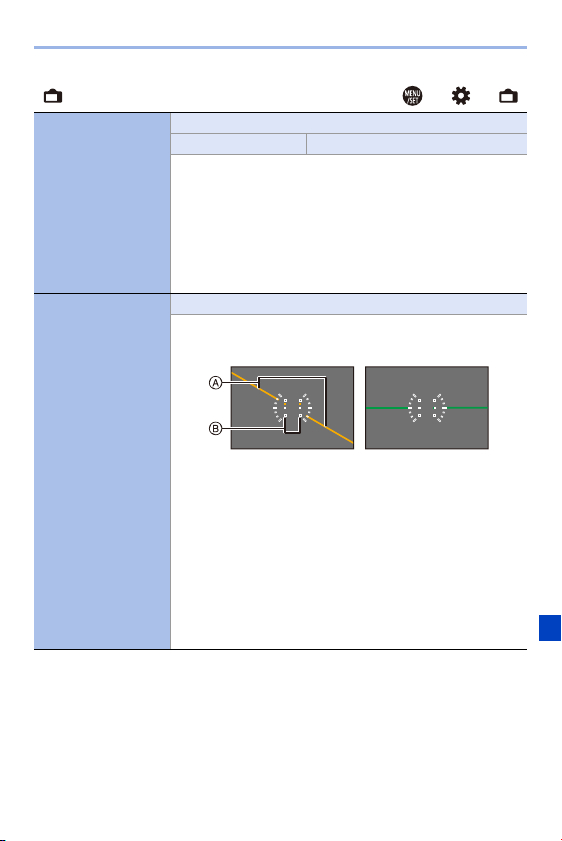
14. Menu Guide
339
[Monitor / Display] ¨ ¨
[Constant Preview]
[ON]/`[OFF]
[SET] [Preview While MF Assist]
You can always confirm the effects of aperture and shutter
speed on the recording screen when in [M] mode.
Preview also operates in the MF Assist screen when
[Preview While MF Assist] is set to [ON].
0 This function does not work when using the flash.
0 This menu item can be registered to the Fn button.
(l
278)
[Level Gauge]
`[ON]/[OFF]
Displays the level gauge which is useful in correcting
camera tilt.
A Horizontal
B Vertical
0 When there is no tilt, the indicator color changes to green.
0 Even after correcting the tilt, there may still be an error of
approx. n1o.
0 When the camera is tilted significantly upwards or
downwards, the level gauge may not be displayed
correctly.
0 This menu item can be registered to the Fn button.
(l
278)
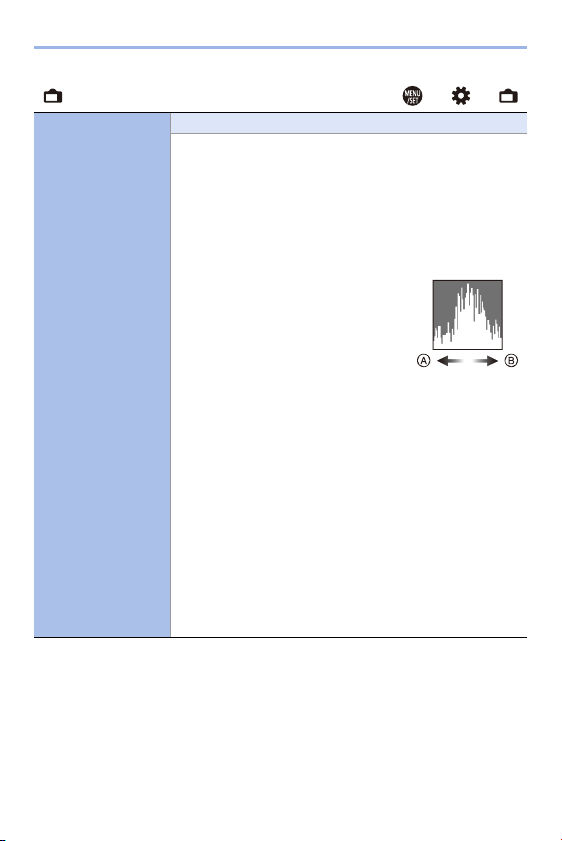
14. Menu Guide
340
[Monitor / Display] ¨ ¨
[Histogram]
[ON]/`[OFF]
This displays the histogram.
Turning this [ON] displays the histogram transition screen.
Press 3421 to set the position.
Positions can be moved to the diagonal directions using the
joystick.
0 You can also move the position by dragging the histogram
on the recording screen.
0 A histogram is a graph that displays
brightness along the horizontal axis,
and the number of pixels at each
brightness level on the vertical axis.
By looking at the distribution of the
graph, you can determine the current
exposure.
A Dark
B Bright
0 When the recorded image and the histogram do not match
each other under the following conditions, the histogram is
displayed in orange:
– During exposure compensation
– When the flash fires
– When the correct exposure is not achieved, such as in
low light situations.
0 The histogram is an approximation in the recording mode.
0 This menu item can be registered to the Fn button.
(l
278)
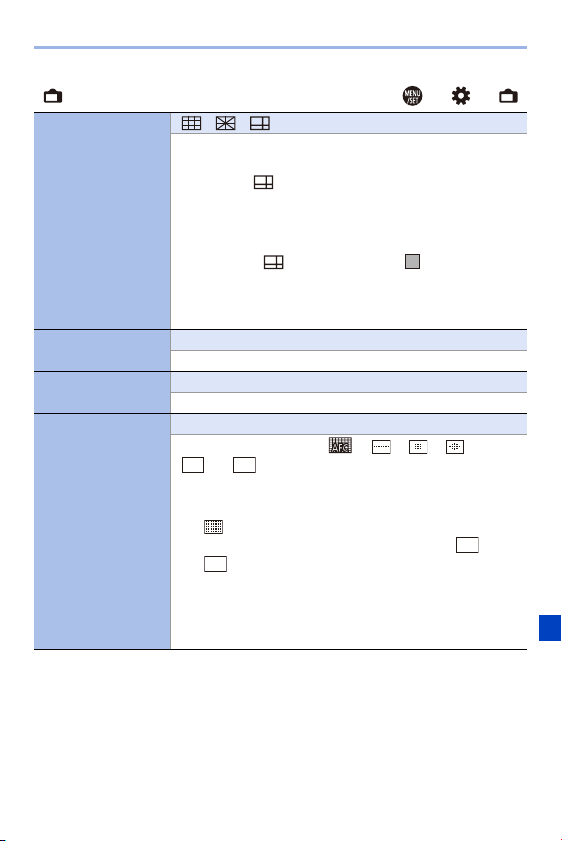
14. Menu Guide
341
[Monitor / Display] ¨ ¨
[Photo Grid Line]
[ ]/[ ]/[ ]/`[OFF]
Sets the grid line pattern to be displayed on the recording
screen.
When using [ ], you can press 3421 to set the
position.
Positions can be moved to the diagonal directions using the
joystick.
0 When using [ ], you can also drag [ ] on the grid lines
on the recording screen to move the position.
0 This menu item can be registered to the Fn button.
(l
278)
[Framing Outline]
[ON]/`[OFF]
Displays the outline for the live view.
[Center Marker]
[ON]/`[OFF]
The center of the recording screen will be displayed as [i].
[AF Area Display]
`[ON]/[OFF]
Displays the AF areas of [ ], [ ], [ ], [ ], and
[ ] to [ ].
0 AF areas are not displayed in the following cases:
– When [AFC Start Point (225-Area)] is not used during
[]
– When AF area shapes are not registered in [ ] to
[]
0 When the following functions are being used, [AF Area
Display] is not available:
– Video recording
– [6K/4K PHOTO]
ヤヒ
ヤピ
ヤヒ
ヤピ

14. Menu Guide
342
[Monitor / Display] ¨ ¨
[Live View Boost]
[MODE1]/[MODE2]/`[OFF]
[SET] [P/A/S/M]/`[M]
Displays the screen brighter to make it easier to check
subjects and compositions even in low-light environment.
[MODE1]: Setting for low brightness, with priority given to a
soft display.
[MODE2]: Setting for high brightness, with priority given to
image visibility.
0 You can change the Recording Mode in which [Live View
Boost] works by using [SET].
0 This mode does not affect recorded images.
0 Noise may be more noticeable in the screen than in the
recorded image.
0 This function does not work in the following cases:
– When adjusting the exposure (when the shutter button is
pressed halfway, for example)
– When recording a video or 6K/4K photo
– When using [Filter Settings]
– When using [Constant Preview]
0 This menu item can be registered to the Fn button.
(l
278)
[Monochrome Live
View]
[ON]/`[OFF]
You can display the recording screen in black and white.
0 If you use the HDMI output during recording, the image will
not be displayed in black and white.
0 [Monochrome Live View] is not available when [Night
Mode] is used.
0 This menu item can be registered to the Fn button.
(l
278)
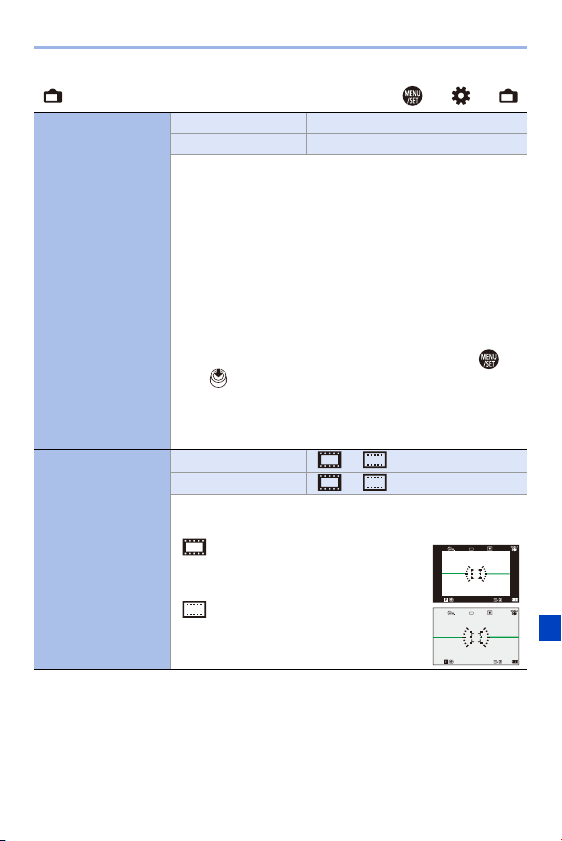
14. Menu Guide
343
[Monitor / Display] ¨ ¨
[Night Mode]
[Monitor] [ON]/`[OFF]
[LVF] [ON]/`[OFF]
Displays monitor and viewfinder in red.
In dark environments, this reduces brightness of the screen
that can make the surroundings difficult to see.
You can also set the luminance of the red display.
1 Press 3421 to select [ON] on the monitor or
viewfinder (LVF).
2 Press [DISP.] to display the brightness adjustment
screen.
0 Display the monitor to adjust the monitor, and display
the viewfinder to adjust the viewfinder.
3 Press 21 to adjust luminance and then press or
.
0 This effect is not applied to images output via HDMI.
0 This menu item can be registered to the Fn button.
(l
278)
[LVF/Monitor Disp.
Set]
[LVF Disp. Set] []/`[]
[Monitor Disp. Set] []/`[]
You can select whether to display the live view in full screen
or to avoid covering the information display.
[]: Scales down images slightly so
that you can better review the composition
of the images.
[]: Scales images to fill the entire
screen so that you can see their details.
999
±
0
AFSAFS
L
FINE
AFSAFS
999
±
0
L
FINE
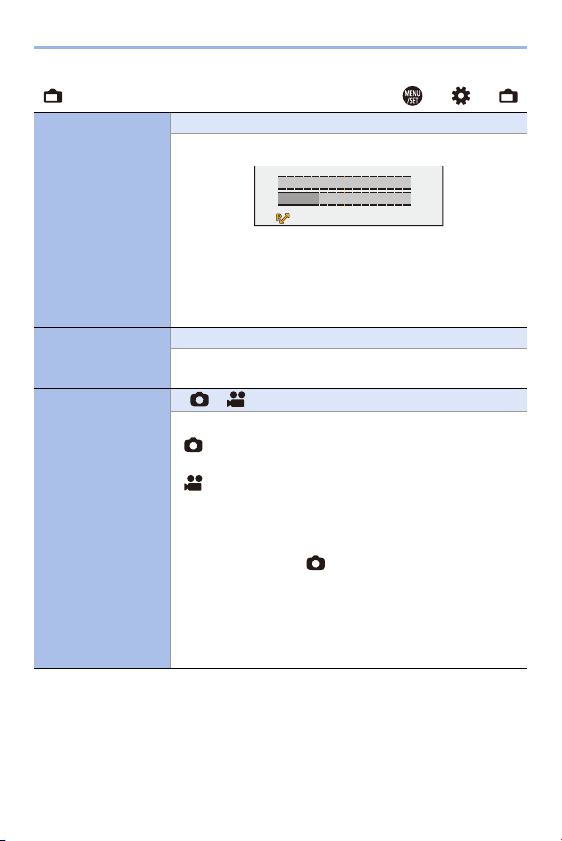
14. Menu Guide
344
[Monitor / Display] ¨ ¨
[Expo.Meter]
[ON]/`[OFF]
This displays the exposure meter.
0 Set to [ON] to display the exposure meter when
performing Program Shift, setting aperture, and setting
shutter speed.
0 If no operations are performed for approx. 4 seconds, the
exposure meter disappears.
[Focal Length]
`[ON]/[OFF]
Displays the focal length on the recording screen during
zoom control.
[Photo/Video
Preview]
`[]/[]
Switches the live view angle of view.
[]: Displays the recording area according to the angle of
view for picture-taking.
[]: Displays the recording area according to the angle of
view for video recording.
0 Angle of view display is a guideline.
0 When the following functions are being used, [Photo/Video
Preview] is fixed to [ ]:
– [6K/4K PHOTO]/[Post-Focus]
– [65:24]/[2:1] ([Aspect Ratio])
– [HLG Photo]
0 This menu item can be registered to the Fn button.
(l
278)
F5.630
SSSS
FF
125 60 30 15 8
5.64.0 8.0 11
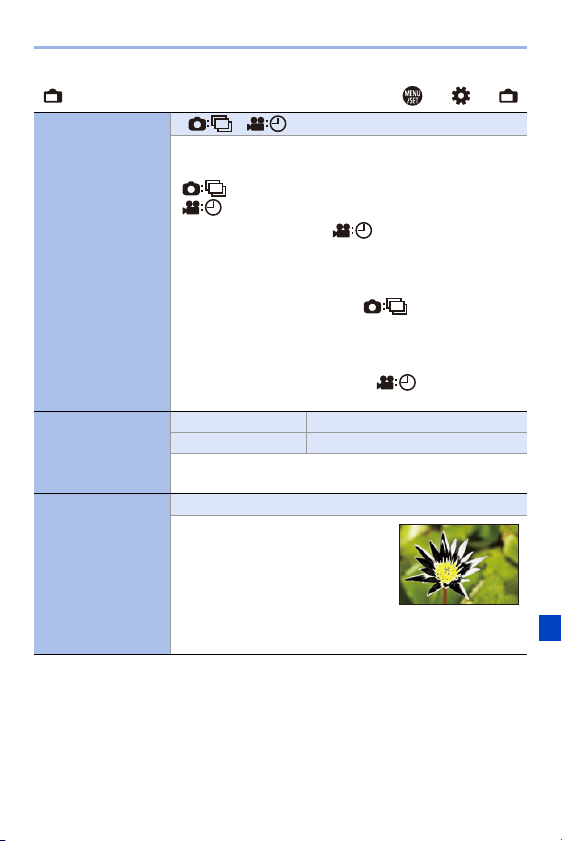
14. Menu Guide
345
[Monitor / Display] ¨ ¨
[Photos/Videos
Remaining]
`[ ]/[ ]
This will switch display between the number of recordable
pictures and available recording time.
[]: Displays the number of recordable pictures.
[]: Displays the available recording time for video.
0 Even when this is set to [ ], the number of
recordable pictures is displayed for a while after a picture
is taken.
0 When the following functions are being used, [Photos/
Videos Remaining] is fixed to [ ]:
– [65:24]/[2:1] ([Aspect Ratio])
– [HLG Photo]
0 When the following functions are being used, [Photos/
Videos Remaining] operates as [ ]:
– [6K/4K Burst]/[6K/4K Burst(S/S)]/[Post-Focus]
[Show/Hide Monitor
Layout]
[Control Panel] `[ON]/[OFF]
[Black Screen] `[ON]/[OFF]
Displays the control panel and black screen when switching
between displays using the [DISP.] button. (l
68)
[Blinking
Highlights]
[ON]/`[OFF]
Overexposed areas appear blinking
in black and white during Auto
Review or playback.
0 At the end of the playback screen
transition, a non-highlighted
display is added.
Use this to delete the highlight display. (l
69)
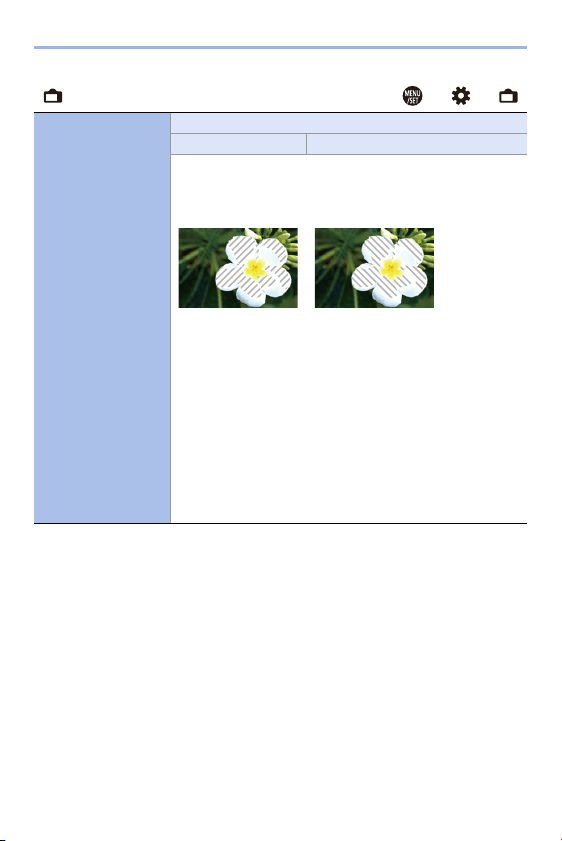
14. Menu Guide
346
[Monitor / Display] ¨ ¨
[Zebra Pattern]
[ZEBRA1]/[ZEBRA2]/`[OFF]
[SET] [Zebra 1]/[Zebra 2]
This indicates areas where overexposure may occur in a
zebra pattern.
[ZEBRA1] [ZEBRA2]
Select [SET] to set the brightness to be processed as a
zebra pattern.
0 You can select a brightness value between [50%] and
[105%].
In [Zebra 2], you can select [OFF].
If you select [100%] or [105%], only the areas that are
already overexposed are displayed in a zebra pattern.
The smaller the value is, the wider the brightness range to
be processed as a zebra pattern will be.
0 This menu item can be registered to the Fn button.
(l
278)
14. Menu Guide
347
[Monitor / Display] ¨ ¨
[HLG View Assist]
[Monitor] [MODE1]/`[MODE2]/[OFF]
[HDMI] `[AUTO]/[MODE1]/[MODE2]/[OFF]
At recording or playback of [HLG Photo], this displays
images with converted color gamut and brightness on the
camera monitor/viewfinder, or outputs these over HDMI.
[AUTO]: Converts images before outputting them via HDMI
while applying the effect of [MODE2]. This conversion
setting works only when the camera is connected to a
device that does not support HDR (HLG format).
[MODE1]: Converts with an emphasis on bright areas such
as sky.
[MODE2]: Converts with an emphasis on the brightness of a
main subject.
0 During the dynamic range conversion of HDR images,
[MODE1] or [MODE2] is displayed on the screen.
When the conversion is not performed, [HLG] is displayed.
0 This menu item can be registered to the Fn button.
(l
278)
[Sheer Overlay]
[ON]/`[OFF]
[SET] [Transparency]/[Image Select]/
[Reset at Power Off]
Displays recorded pictures by overlapping on the recording
screen.
0 Use [Image Select] to select the pictures to be displayed.
Press 21 to select pictures and then press or
to confirm.
0 When the following functions are being used, [Sheer
Overlay] is not available:
– Video recording/[6K/4K PHOTO]/[Post-Focus]
0 This menu item can be registered to the Fn button.
(l
278)
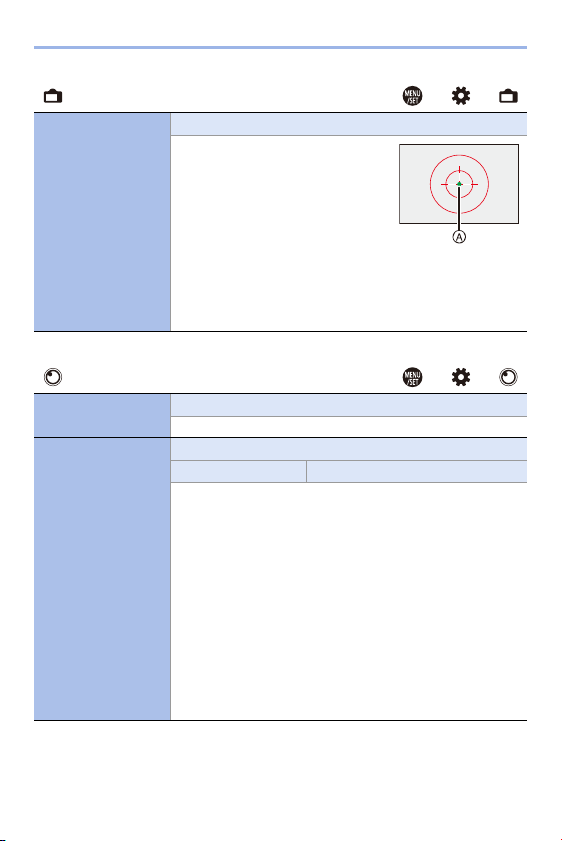
14. Menu Guide
348
[Monitor / Display] ¨ ¨
[I.S. Status Scope]
[ON]/`[OFF]
Displays a reference point on the
recording screen in order to let you
check for camera shake.
A Reference point
0 When the following functions are
being used, [I.S. Status Scope] is
not available:
– Video recording/[6K/4K PHOTO]/[Post-Focus]
0 This menu item can be registered to the Fn button.
(l
278)
[Lens / Others] ¨ ¨
[Lens Focus
Resume]
[ON]/`[OFF]
The camera saves the focus position when you turn it off.
[Focus Ring
Control]
`[NON-LINEAR]/[LINEAR]
[SET] [90°] to [360°] (`[150°])/[Maximum]
Sets the amount of movement for focusing using the focus
ring. (When using supported lenses)
0 The interchangeable lens (S-R24105) supplied with Lens
Kit products supports this function.
[NON-LINEAR]: Focus responds by accelerating according
to rotation speed of the focus ring.
[LINEAR]: Focus responds at a constant amount according
to the rotational angle of the focus ring.
[SET]: Sets the rotational angle of the focus ring for when
[LINEAR] is selected.
0 This menu item can be registered to the Fn button.
(l
278)
14. Menu Guide
349
[Setup] Menu
[Card/File] l 350
[Card Format] l 48
[Double Card Slot Function] l 87
[Folder / File Settings] l 88
[File Number Reset] l 90
[Copyright Information] l 350
[Monitor / Display] l 351
[Power Save Mode] l 44
[Monitor Frame Rate] l 351
[LVF Frame Rate] l 351
[Monitor Settings]/[Viewfinder] l 352
[Monitor Backlight]/[LVF
Luminance]
l
352
[Remaining Battery Level] l 352
[Status-LCD] l 353
[Eye Sensor] l 353
[Level Gauge Adjust.] l 353
[IN/OUT] l 354
[Beep] l 354
[Headphone Volume] l 258
[Wi-Fi] l 354
[Bluetooth] l 354
[USB] l 355
[Battery Information] l 356
[Battery Use Priority] l 445
[TV Connection] l 357
[Setting] l 358
[Save to Custom Mode] l 296
[Load Custom Mode] l 299
[Custom Mode Settings] l 297
[Save/Restore Camera Setting] l 302
[Reset] l 76
[Others] l 359
[Clock Set] l 53
[Time Zone] l 359
[Pixel Refresh] l 359
[Sensor Cleaning] l 359
[Language] l 359
[Firmware Version] l 360
[Online Manual] l 360
[Approved Regulations] l 360
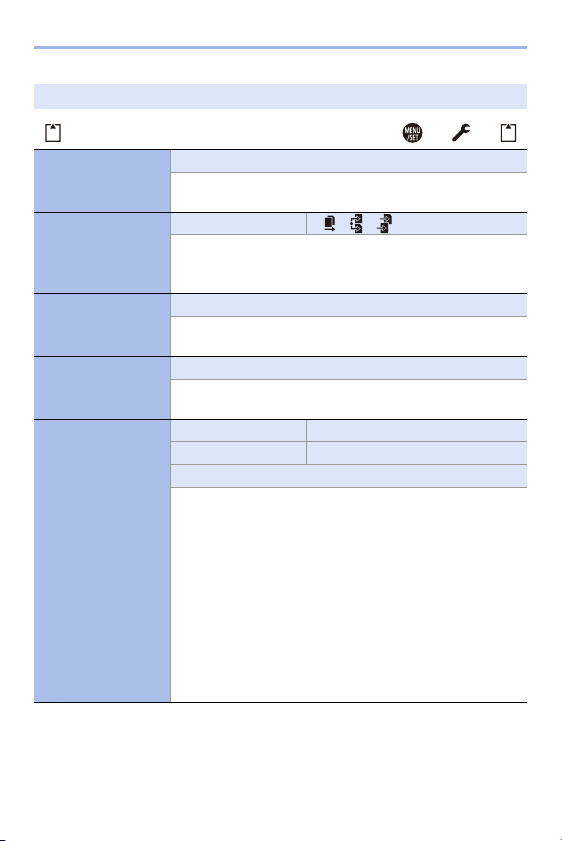
14. Menu Guide
350
`: Default settings
[Card/File] ¨ ¨
[Card Format]
[Card Slot 1(XQD)]/[Card Slot 2(SD)]
Formats the card (initialization).
0 For details, refer to page
48.
[Double Card Slot
Function]
[Recording Method] `[ ]/[ ]/[ ]
This sets the way recording to the card slots 1 and 2 is
performed.
0 For details, refer to page
87.
[Folder / File
Settings]
[Select Folder]/[Create a New Folder]/[File Name Setting]
Set the folder and file name where to save the images.
0 For details, refer to page
88.
[File Number Reset]
[Card Slot 1(XQD)]/[Card Slot 2(SD)]
Resets the file number of the next recording to 0001.
0 For details, refer to page
90.
[Copyright
Information]
[Artist] [ON]/`[OFF]/[SET]
[Copyright Holder] [ON]/`[OFF]/[SET]
[Display Copyright Info.]
Records the names of the artist and the copyright holder in
the image Exif data.
0 You can register names from [SET] in [Artist] and
[Copyright Holder].
For information on how to enter characters, refer to page
369.
0 Up to 63 characters may be entered.
0 You can confirm registered copyright information in
[Display Copyright Info.].
0 Copyright information cannot be registered in AVCHD
videos.
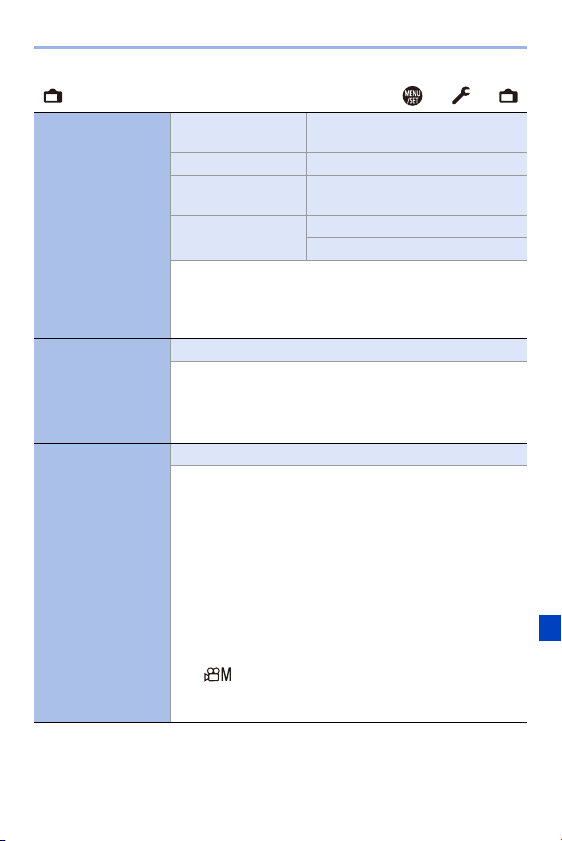
14. Menu Guide
351
[Monitor / Display] ¨ ¨
[Power Save Mode]
[Sleep Mode] [10MIN.]/`[5MIN.]/[2MIN.]/[1MIN.]/
[OFF]
[Sleep Mode(Wi-Fi)] `[ON]/[OFF]
[Auto LVF/Monitor
Off]
`[5MIN.]/[2MIN.]/[1MIN.]/[OFF]
[Power Save LVF
Shooting]
[Time to Sleep]
[Method of Activation]
This is a function to automatically turn the camera to sleep
(power save) status or turn off the viewfinder/monitor if no
operation is performed for a set time.
0 For details, refer to page
44.
[Monitor Frame
Rate]
[30fps]/`[60fps]
This sets the monitor frame rate.
[30fps]: Reduces the power consumption, extending the
operating time.
[60fps]: Enables smooth display of movements.
[LVF Frame Rate]
`[60fps]/[120fps]
This sets the viewfinder frame rate.
[60fps]: Reduces the power consumption for a longer
operating time.
[120fps]: Enables smooth display of movements.
0 [LVF120] is displayed on the viewfinder when it is
displayed at [120fps].
0 When the following functions are being used, the camera
displays in [60fps]:
– Video recording
– Playback
– [ ] mode
– [6K/4K PHOTO]
– HDMI output
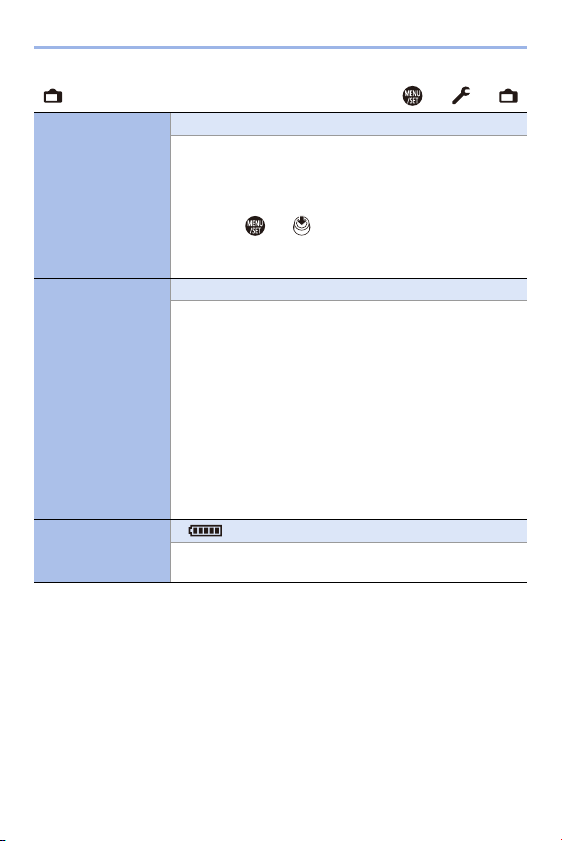
14. Menu Guide
352
[Monitor / Display] ¨ ¨
[Monitor Settings]/
[Viewfinder]
[Brightness]/[Contrast]/[Saturation]/[Red Tint]/[Blue Tint]
This adjusts the brightness, coloring, and red or blue tints of
the monitor/viewfinder.
1 Press 34 to select the setting item, and press 21 to
adjust.
2 Press or to confirm the setting.
0 It will adjust the monitor when the monitor is in use, and
the viewfinder when the viewfinder is in use.
[Monitor Backlight]/
[LVF Luminance]
`[AUTO]/[j3] to [r3]
Adjusts monitor/viewfinder luminance.
[AUTO]: The brightness is adjusted automatically
depending on how bright it is around the camera.
0 Adjusts the monitor luminance when displaying the
monitor, and the viewfinder luminance when displaying the
viewfinder.
0 When either [AUTO] is set, or the adjusted value is set to
positive side, the usage period will shorten.
0 [AUTO] is not available on the playback screen.
0 When [Night Mode] is being used, [Monitor Backlight]/[LVF
Luminance] are not available.
[Remaining Battery
Level]
`[ ]/[%]
Switches the battery remaining level display between a bar
and a percentage (%) display.
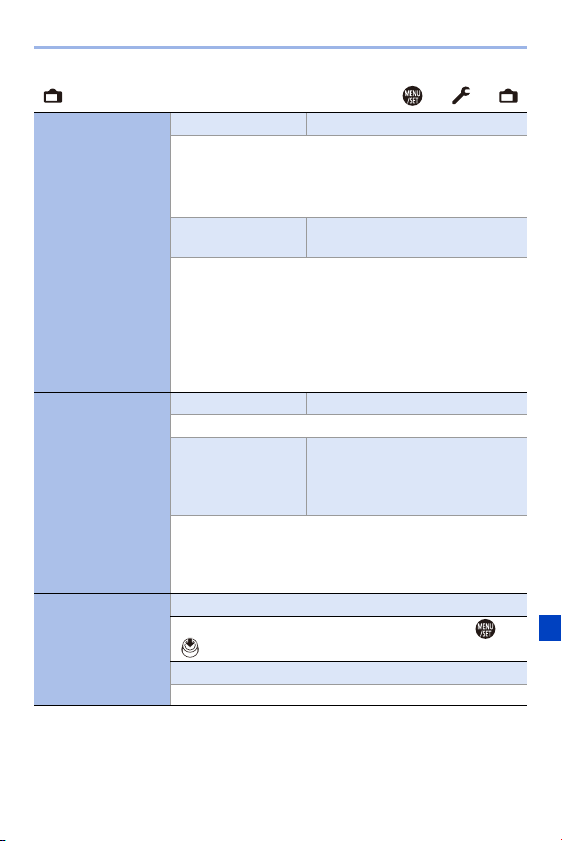
14. Menu Guide
353
[Monitor / Display] ¨ ¨
[Status-LCD]
[Backlight] `[H]/[L]/[OFF]
Sets the lighting method of the status LCD backlight.
[H]: Brightens the status LCD backlight.
[L]: Darkens the status LCD backlight.
[OFF]: Turns off the status LCD backlight.
[Display While Power
Off]
`[ON]/[OFF]
When set to [ON], this displays the following information on
the status LCD even when the camera is turned off:
– Battery indication
– Card slot
– Number of recordable pictures/Recordable time
– Wireless (Wi-Fi/Bluetooth) connection state
– Charging/charging complete/charging error displays
[Eye Sensor]
[Sensitivity] `[HIGH]/[LOW]
This will set the sensitivity of the eye sensor.
[LVF/Monitor Switch] `[LVF/MON AUTO] (automatic
viewfinder/monitor switching)/
[LVF] (viewfinder)/
[MON] (monitor)
This will set the method for switching between the viewfinder
and monitor.
0 If you press [LVF] to switch the display, the [LVF/Monitor
Switch] setting will also switch.
[Level Gauge
Adjust.]
[Adjust.]
Hold the camera in a horizontal position, and press or
. The level gauge will be adjusted.
[Level Gauge Value Reset]
Restores the default level gauge setting.
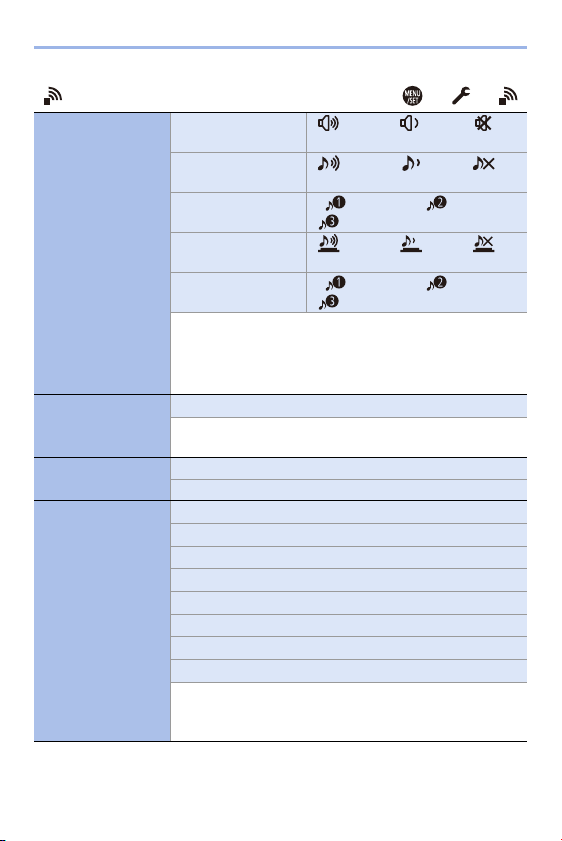
14. Menu Guide
354
[IN/OUT] ¨ ¨
[Beep]
[Beep Volume] [ ] (High)/`[ ] (Low)/[ ]
(Off)
[AF Beep Volume] [ ] (High)/`[ ] (Low)/[ ]
(Off)
[AF Beep Tone] `[ ] (Pattern 1)/[ ] (Pattern 2)/
[ ] (Pattern 3)
[E-Shutter Vol] [ ] (High)/`[ ] (Low)/[ ]
(Off)
[E-Shutter Tone] `[ ] (Pattern 1)/[ ] (Pattern 2)/
[ ] (Pattern 3)
Sets the beep sounds, AF beep, and electronic shutter
sounds.
0 When [Silent Mode] is being used, [Beep Volume], [AF
Beep Volume], and [E-Shutter Vol] are [OFF].
[Headphone
Volume]
[0] to [LEVEL15] (`[LEVEL3])
Adjusts the volume when headphones are connected.
0 For details, refer to page
258.
[Wi-Fi]
[Wi-Fi Function] (l 370)
[Wi-Fi Setup] (l 421)
[Bluetooth]
[Bluetooth] (l 374)
[Send Image (Smartphone)] (l 399)
[Remote Wakeup] (l 393)
[Returning from Sleep Mode] (l 387)
[Auto Transfer] (l 390)
[Location Logging] (l 392)
[Auto Clock Set] (l 394)
[Wi-Fi network settings]
[Wi-Fi network settings]: Registers the Wi-Fi access point.
Wireless access points used to connect the camera to Wi-Fi
networks will be registered automatically.
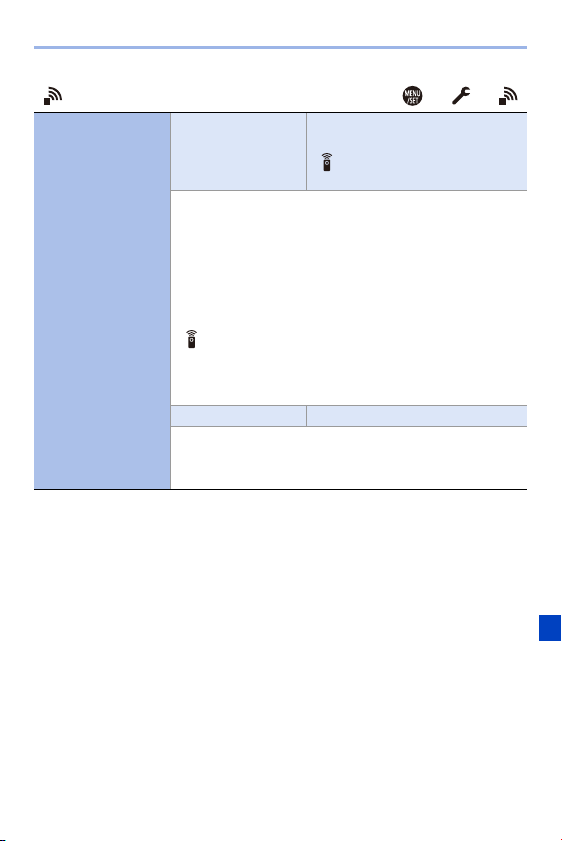
14. Menu Guide
355
[IN/OUT] ¨ ¨
[USB]
[USB Mode] `[y][Select on connection]/
[z][PC(Storage)]/
[ ][PC(Tether)]/
[{][PictBridge(PTP)]
This sets the communication method to be used when the
USB connection cable is connected.
[y][Select on connection]: Select this setting to select
the USB communication system when connecting to another
device.
[z][PC(Storage)]: Select this setting to export images to a
connected PC.
[ ][PC(Tether)]: Select this setting to control the camera
from a PC installed with “LUMIX Tether”.
[{][PictBridge(PTP)]: Select this setting when connecting
to a printer that supports PictBridge.
[USB Power Supply] `[ON]/[OFF]
Provides power from the USB connection cable. (l
40)
0 Even if this item is set to [OFF], power will be supplied
when the AC adaptor is connected.
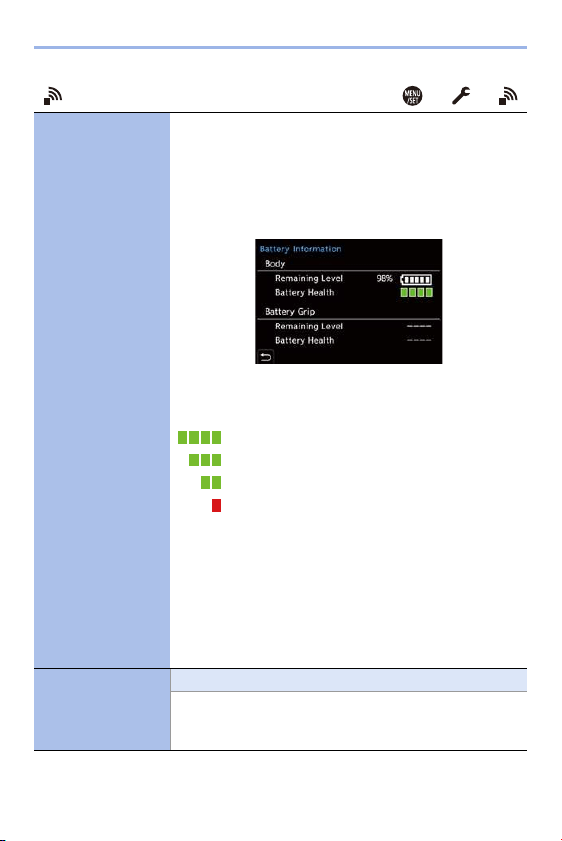
14. Menu Guide
356
[IN/OUT] ¨ ¨
[Battery
Information]
Displays the remaining level and degree of deterioration of
the battery.
If the usage duration drops significantly even when the
battery is fully charged, then the battery is at the end of its
service life.
Check its status, and replace with a new battery.
[Remaining Level]: Displays the battery remaining level as
a percentage (1% units) and as a bar.
[Battery Health]:
(Green): No deterioration
(Green): Slight deterioration
(Green): Moderate deterioration
(Red): Significant deterioration. Replace
with a new battery.
0 Batteries have lower rechargeable capacity in colder
ambient temperatures. Even if a new battery is charged at
around 5 °C (41 oF) or below, [Battery Information] may
show significant deterioration. When this is again charged
with a temperature range from 10 °C to 30 °C (50 oF to
86 oF), the indication for the degree of deterioration returns
to “No deterioration”.
[Battery Use
Priority]
[BODY]/`[BG]
Selects which battery to use first when the batteries are
installed in both the camera and the Battery Grip.
0 For details, refer to page
445.

14. Menu Guide
357
[IN/OUT] ¨ ¨
[TV Connection]
[HDMI Mode
(Playback)]
`[AUTO]/[4K/60p]/[4K/30p]/[1080p]/
[1080i]/[720p]/[480p]
Sets the output resolution during HDMI connection.
[AUTO]: Outputs images at an output resolution suited to
the connected TV.
0 If no image appears on the TV with [AUTO], switch to a
constant setting other than [AUTO] to set a format
supported by your TV.
(Refer to the operating instructions for the TV.)
[HLG View Assist
(HDMI)]
`[AUTO]/[MODE1]/[MODE2]/[OFF]
At recording or playback of [HLG Photo], this converts its
color gamut and brightness for display.
0 This is linked with [HDMI] in [HLG View Assist] under the
[Custom] ([Monitor / Display]) menu.
For details, refer to page
347.
[VIERA Link (CEC)] [ON]/`[OFF]
You can use the device remote control to operate the
camera when it is connected to a VIERA Link compatible
device using an HDMI cable.
0 For details, refer to page
428.
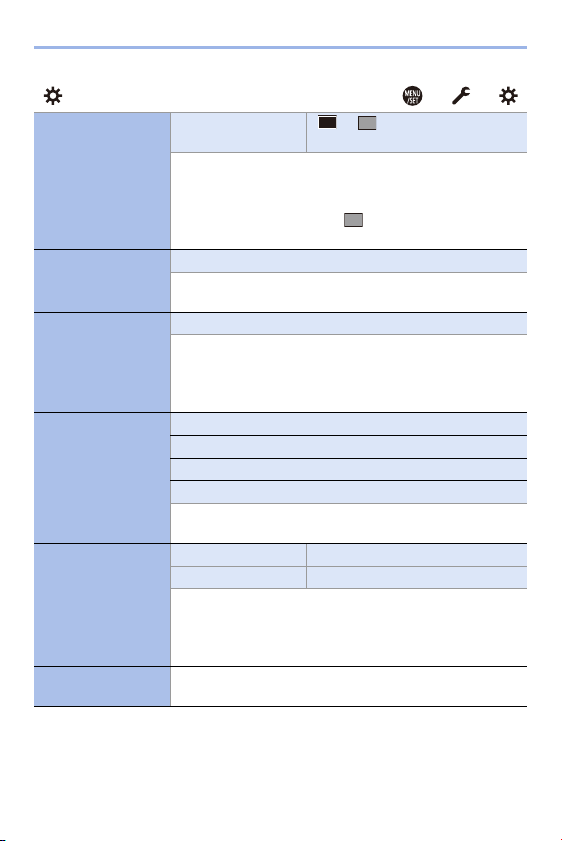
14. Menu Guide
358
[Setting] ¨ ¨
[TV Connection]
(Continued)
[Background
Color(Playback)]
[]/`[]
Sets the color of the bands displayed on the top and bottom
or the left and right of images output on a TV or similar
display.
0 We recommend setting to [ ] to prevent burn-in on the
screen of the output destination.
[Save to Custom
Mode]
[C1]/[C2]/[C3-1] to [C3-10]
You can register the currently set information of the camera.
0 For details, refer to page
296.
[Load Custom
Mode]
[C1]/[C2]/[C3-1] to [C3-10]
Calls registered Custom mode settings to the selected
recording mode and overwrites the current settings with
these.
0 For details, refer to page
299.
[Custom Mode
Settings]
[Limit No. of Custom Mode]
[Edit Title]
[How to Reload Custom Mode]
[Select Loading Details]
Set the ease of use of Custom mode.
0 For details, refer to page
297.
[Save/Restore
Camera Setting]
[Card Slot 1(XQD)] [Save]/[Load]/[Delete]
[Card Slot 2(SD)] [Save]/[Load]/[Delete]
Saves the camera’s settings information to the card.
Saved settings information can be loaded to the camera,
letting you set the same settings on multiple cameras.
0 For details, refer to page
302.
[Reset]
Returns the camera to its default settings.
0 For details, refer to page 76.
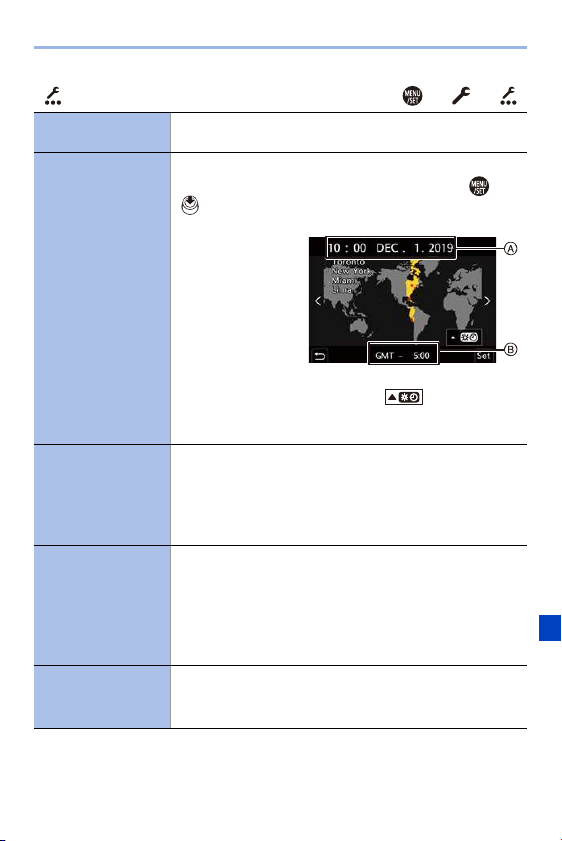
14. Menu Guide
359
[Others] ¨ ¨
[Clock Set]
Sets the date and time.
0 For details, refer to page 53.
[Time Zone]
Sets the time zone.
Press 21 to select the time zone and then press or
to confirm.
A Current time
B Time difference
from GMT
(Greenwich
Mean Time)
0 If you are using Daylight Savings [ ], press 3. (The
time will move forward by 1 hour.)
To return to the normal time, press 3 again.
[Pixel Refresh]
This optimizes the image sensor and image processing.
0 The image sensor and image processing are optimized
when the camera is purchased. Use this function when
bright spots that do not exist in the subject get recorded.
0 Turn the camera off and on after the pixels are corrected.
[Sensor Cleaning]
Dust reduction to blow off the debris and dust that have
affixed to the front of the image sensor is performed.
0 The dust reduction function will operate automatically
when you set the camera on/off switch to [ON], but you
can use this function when the dust is particularly
noticeable.
[Language]
This set the language displayed on the screen.
0 If you set a different language by mistake, select [~] from
the menu icons to set the desired language.
14. Menu Guide
360
[Others] ¨ ¨
[Firmware Version]
[Firmware Update]/[Software info]
You can check the firmware versions of the camera and
lens.
In addition, you can update the firmware, and display
information about the camera software.
[Firmware Update]: Updates firmware.
1 Download the firmware from the site on page
17.
2 Save the firmware to the root directory of the card (the
first folder that appears when you access the card on
your PC), and then insert the card into the camera.
3 From [Firmware Version], select [Firmware Update],
press or , and then select [Yes] to update the
firmware.
[Software info]: Displays information about the camera
software.
0 When a supported optional item (XLR Microphone
Adaptor, etc.) is attached to the camera, you can also
check its firmware version.
[Online Manual]
[URL display]/[QR Code display]
Displays the URL or QR code in order to download the
“Owner’s Manual” (PDF format).
[Approved
Regulations]
Displays the certification number for radio regulations.
14. Menu Guide
361
[Playback] Menu
[Playback Mode] l 363
[Rotate Disp.] l 363
[Picture Sort] l 363
[Magnify from AF Point] l 363
[HLG View Assist (Monitor)] l 363
[Process Image] l 364
[RAW Processing] l 271
[6K/4K PHOTO Bulk Saving] l 144
[6K/4K PHOTO Noise
Reduction]
l
140
[Time Lapse Video] l 364
[Stop Motion Video] l 364
[Add/Delete Info.] l 365
[Protect] l 365
[Rating] l 365
[Edit Image] l 366
[Resize] l 366
[Rotate] l 366
[Video Divide] l 276
[Copy] l 367
[Others] l 368
[Delete Confirmation] l 368
0 Images recorded by another device may not be correctly played back or
edited with the camera.
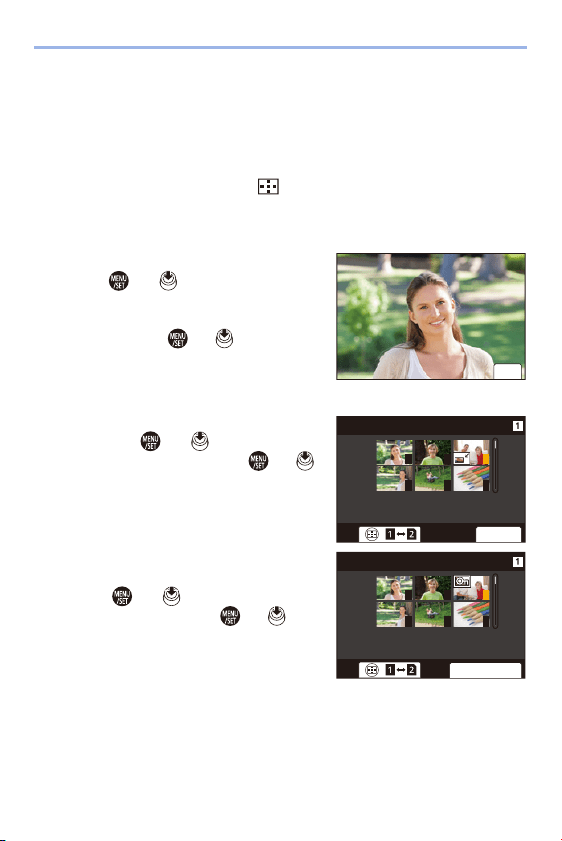
14. Menu Guide
362
How to Select an Image(s) in the [Playback] menu
Follow the steps below when the image selection screen is displayed.
0
When [Single] and [Multi] are not available, select an image in the same way as
when [Single] is selected.
0 Images are displayed separately by card slot.
To switch the card to display, press [ ] and select the card slot.
0 You can only select images on one card at a time.
When [Single] has been selected
1
Press 21 to select the image.
2
Press or .
0
If [Set/Cancel] is displayed at the right
bottom of the screen, the setting is
canceled when or is pressed
again.
When [Multi] has been selected
1
Press 3421 to select the image and
then press or (repeat).
0
The setting is canceled when or
is pressed again.
2
Press [DISP.] to execute.
When [Protect] is selected
Press 3421 to select the image, and
then press or to set (repeat).
0
The setting is canceled when or is
pressed again.
6HW
2.
ュリヴヱハ
321
654
321
654
6HW&DQFHO

14. Menu Guide
363
`: Default settings
[Playback Mode] ¨ ¨
[Rotate Disp.]
`[ON]/[OFF]
Automatically displays pictures vertically if they were
recorded when holding the camera vertically.
0 When you play back pictures on a PC, use an OS and
software that support Exif.
The picture may not be displayed as rotated.
[Picture Sort]
[FILE NAME]/`[DATE/TIME]
This sets the order in which the camera displays images
during playback.
[FILE NAME]: Displays images by folder name/file name.
[DATE/TIME]: Displays images by recording date.
0 If you insert another card, it may take some time to read all
data, therefore pictures may not be displayed in the set
order.
[Magnify from AF
Point]
[ON]/`[OFF]
Enlarges the AF focus location when enlarging the image.
0 If the image was recorded in [High Resolution Mode] or is
out of focus, the center of the image is enlarged.
0 This menu item can be registered to the Fn button.
(l
278)
[HLG View Assist
(Monitor)]
[MODE1]/`[MODE2]/[OFF]
At recording or playback of [HLG Photo], this converts its
color gamut and brightness for display.
0 This is linked with [Monitor] in [HLG View Assist] under the
[Custom] ([Monitor / Display]) menu.
For details, refer to page
347.
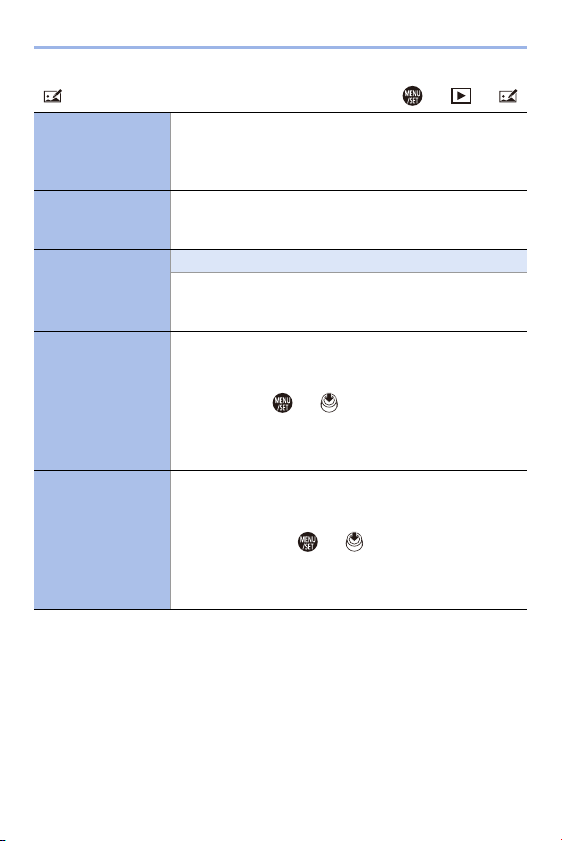
14. Menu Guide
364
[Process Image] ¨ ¨
[RAW Processing]
Processes pictures taken in RAW format on the camera and
saves them in JPEG format. In addition, RAW images
recorded using [HLG Photo] can be saved in HLG format.
0 For details, refer to page
271.
[6K/4K PHOTO Bulk
Saving]
You can save any 5 second period of pictures from a 6K/4K
burst file all at once.
0 For details, refer to page
144.
[6K/4K PHOTO
Noise Reduction]
`[AUTO]/[OFF]
When saving pictures, reduce the noise that occurs due to
high ISO sensitivity.
0 For details, refer to page
140.
[Time Lapse Video]
This creates videos from group images recorded with [Time
Lapse Shot].
1 Press 21 to select a [Time Lapse Shot] group and
then press or .
2 Select the options for creating a video to combine the
pictures into a video.
0 For details, refer to page
151.
[Stop Motion Video]
This creates videos from group images recorded with [Stop
Motion Animation].
1 Press 21 to select the Stop Motion Animation group
and then press or .
2 Select the options for creating a video to combine the
pictures into a video.
0 For details, refer to page
151.

14. Menu Guide
365
[Add/Delete Info.] ¨ ¨
[Protect]
[Single]/[Multi]/[Cancel]
You can set protection for images so that they will not be
deleted by mistake.
However, if you format the card, the protected images will
also be deleted.
0 For information about how to select images, refer to page
362.
0 [Cancel] only allows to cancel settings at once for the
images in a single card.
0 Be careful because the [Protect] setting may be disabled
on a device other than this camera.
0 This menu item can be registered to the Fn button.
(l
278)
[Rating]
[Single]/[Multi]/[Cancel]
If you set any of the five different rating levels for images,
you can do the following:
0 Deleting all images except for those with ratings.
0 Check the rating level in the file details display in operating
systems such as Windows 10, Windows 8.1, and
Windows 8. (JPEG images only)
1 Select an image. (l
362)
2 Press 21 to select a rating level (1 to 5) and then
press or .
0 When [Multi] is selected, repeat Steps 1 and 2.
0 To cancel the setting, set the rating level to [OFF].
0 [Cancel] only allows to cancel settings at once for the
images in a single card.
0 AVCHD videos can be set to “5” only.
0 This menu item can be registered to the Fn button.
(l
278)
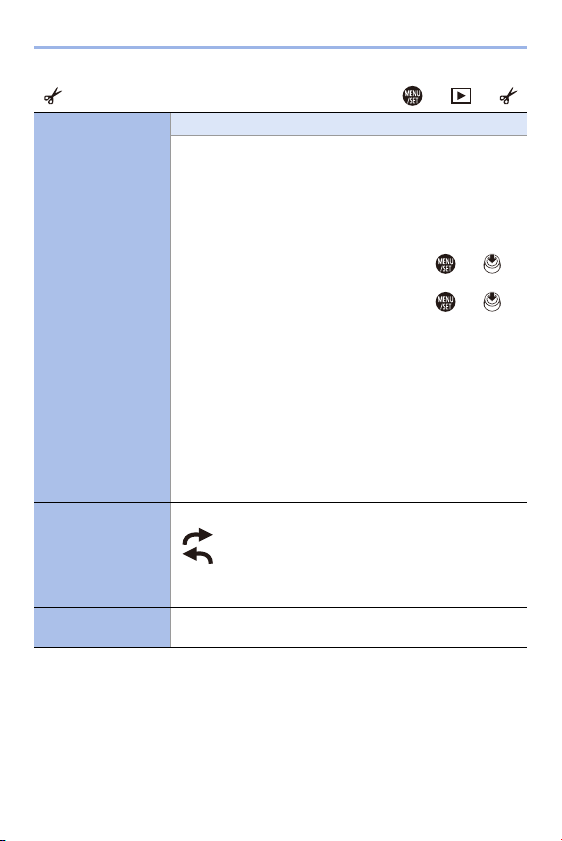
14. Menu Guide
366
[Edit Image] ¨ ¨
[Resize]
[Single]/[Multi]
Reduce the picture size of JPEG images and save them as
different images to enable them to be easily used for web
pages or sent as email attachments.
0 For information about how to select images, refer to page
362.
– When [Single] is selected, after choosing the image,
press 34 to select the size, then press or .
– When [Multi] is selected, before choosing the images,
press 34 to select the size, then press or .
0 You can set up to 100 images at once with [Multi].
0 The image quality of the resized image becomes lower.
0 [Resize] is not available while you are using the following
functions:
– Video recording/[6K/4K PHOTO]/[Post-Focus]
– Group images
– [65:24]/[2:1] ([Aspect Ratio])
– [RAW] ([Picture Quality])
– [HLG Photo]
– [High Resolution Mode]
[Rotate]
Rotate images manually in 90o steps.
[]: Rotates 90o clockwise.
[]: Rotates 90o counter-clockwise.
0 For information about how to select images, refer to page
362.
[Video Divide]
Divide a recorded video or 6K/4K burst file into two.
0 For details, refer to page 276.
14. Menu Guide
367
[Edit Image] ¨ ¨
[Copy]
[Copy Direction] `[ ]/[ ]
[Select Copy]/[Copy All in Folder]/[Copy All in Card]
You can copy the images in one of the cards to the other
card.
0 Copied images will be saved in a new folder.
[Select Copy]: Copies selected images.
1 Select the folder containing the images to copy.
2 Select the images. (l
362)
[Copy All in Folder]: Copies all images in a folder.
1 Select the folder to copy.
2 Check the images to be copied and then press or
to execute copying.
[Copy All in Card]: Copies all images in the card.
Using the Fn button to copy images
If you press the Fn button with [Copy] assigned while playing
back images one at a time, the image currently being played
back will be copied to the other card.
0 Select the copy destination folder from the following
options. In the case of group images, [Create a New
Folder] is selected automatically.
[Same Folder Number as Source]: Copies to a folder with
the same name as the folder of the image to be copied.
[Create a New Folder]: Creates a new folder with an
incremented folder number and then copies the image to it.
[Select Folder]: Selects a folder to store the image and then
copies the image to it.
14. Menu Guide
368
[Edit Image] ¨ ¨
[Copy]
(Continued)
0 You can set up to 100 images at once with [Select Copy].
0 The [Protect] setting is not copied.
0 Copying may take a while.
0 AVCHD videos cannot be copied.
0 When using the following combinations of cards, videos,
6K/4K photos, and images recorded with [Post-Focus]
cannot be copied:
– Copying from an SDXC memory card to an XQD card of
32 GB or less
– Copying from an XQD card of over 32 GB to an SD
memory card or SDHC memory card
[Others]
¨ ¨
[Delete
Confirmation]
["Yes" first]/`["No" first]
This sets which option, [Yes] or [No], will be highlighted first
when the confirmation screen for deleting an image is
displayed.
["Yes" first]: [Yes] is highlighted first.
["No" first]: [No] is highlighted first.
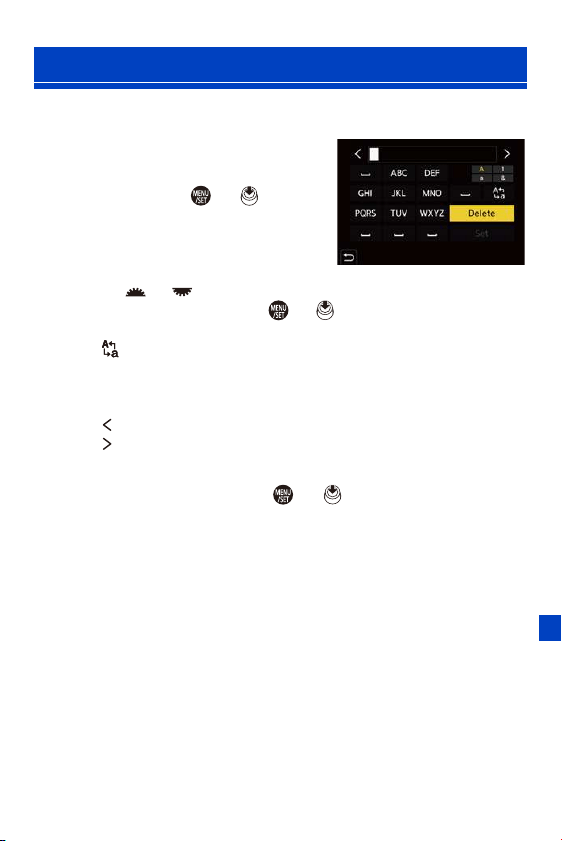
14. Menu Guide
369
Follow the steps below when the character entry screen is displayed.
1
Enter characters.
≥Press 3421 to select characters
and then press or until the
character to enter is displayed.
(Repeat this)
0 To repeatedly enter the same character,
rotate or to the right to move the entry position cursor.
0 If you select an item and press or , you can perform the following
operations:
– [ ]: Change the character type to [A] (upper case characters), [a] (lower
case characters), [1] (numbers), and [&] (special characters)
–[] ]: Enter a blank
– [Delete]: Delete a character
– [ ]: Move the entry position cursor to the left
– [ ]: Move the entry position cursor to the right
2
Complete entering.
≥Select [Set] and then press or .
Entering Characters
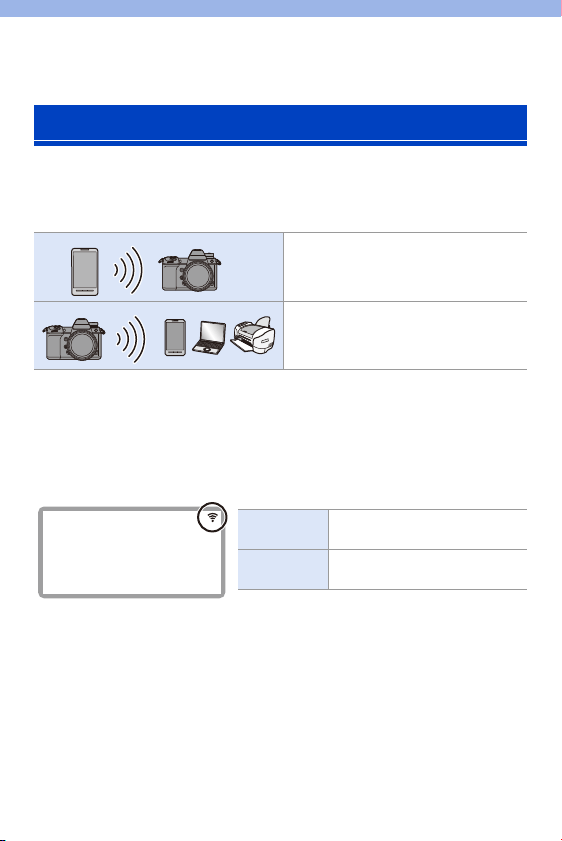
370
15. Wi-Fi/Bluetooth
Using the camera Wi-Fi
R
/Bluetooth
R
functionality, you can remotely
operate the camera from a smartphone, and transfer images to a
smartphone by the camera operation.
This document refers to both smartphones and tablets as smartphones.
Wireless Icon Display
During usage of the Wi-Fi/Bluetooth functions, the wireless icon on the
status LCD will be lit or blink.
Wi-Fi/Bluetooth Functions
You can use the “LUMIX Sync”
smartphone app for remote recording
and image transfers.(l
372)
You can transfer images to another
device, such as a smartphone or PC, by
operating the camera. (l
396)
Lights
Wi-Fi/Bluetooth function is on, or
connecting
Blinking
Image data from camera
operation is being sent

15. Wi-Fi/Bluetooth
371
0 Do not remove the card or battery or move to an area without any reception
while sending images.
0 The camera cannot be used to connect to a public wireless LAN connection.
0 We strongly recommend that you set an encryption to maintain information
security.
0 We recommend that you use a sufficiently charged battery when sending
images.
0 When the remaining battery level is low, it may not be possible to connect to or
maintain communication with other devices.
(A message such as [Communication error] is displayed.)
0 Images may not be completely sent depending on radio wave conditions.
If the connection is terminated while sending images, images with missing
parts may be sent.
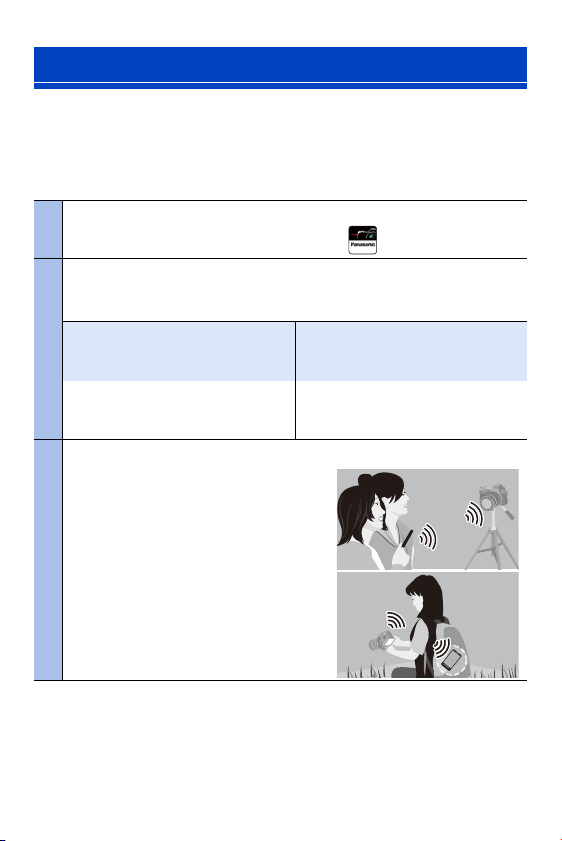
15. Wi-Fi/Bluetooth
372
Connect with a smartphone which has the “Panasonic LUMIX Sync”
(below: “LUMIX Sync”) smartphone app installed.
Use “LUMIX Sync” for remote recording and image transfers.
Connecting to a smartphone
Connections between the camera and a smartphone are described on
pages
374 to 381.
You can also use the camera to transfer images to a smartphone.
For details, refer to “Sending Images from the Camera” on page
396.
Connecting to a Smartphone
1
Install “LUMIX Sync” on your smartphone. (l
373)
Connect to a network, and install “LUMIX Sync” .
2
Connect to a smartphone.
Connect the camera and the smartphone using a method depending on the
smartphone.
Using a smartphone that supports
Bluetooth Low Energy
0 Bluetooth connection (l 374)
Using a smartphone that does not
support Bluetooth Low Energy
0 Wi-Fi connection (l 377)
Connect using simple connection
setup procedure (pairing).
Connect with Wi-Fi.
You can also use a QR code to
connect easily.
3
Operate the camera using the smartphone. (l 383)
Using “LUMIX Sync” to carry out the
following operations:
0 [Remote shooting] (l 384)
0 [Shutter Remote Control] (l 386)
0 Transferring Recorded Images (l 388)
0 Transferring Recorded Images
Automatically (l
390)
0 Recording Location Information (l 392)
0 Camera Power Operations (l 393)
0 Automatically Setting the Clock (l 394)
0 Saving Settings Information (l 395)
15. Wi-Fi/Bluetooth
373
Installing “LUMIX Sync”
“LUMIX Sync” is an application for smartphones provided by Panasonic.
1
Connect the smartphone to a network.
2
(Android) Select “Google Play™ Store”.
(iOS) Select “App Store”.
3
Enter “Panasonic LUMIX Sync” or “LUMIX” into the
search box.
4
Select and install the “Panasonic LUMIX Sync” .
Supported OS
Android™: Android 5 or higher
iOS: iOS 11 or higher
0 Use the latest version.
0 Supported OSs are current as of January 2019 and are subject to change.
0 Some of the screens and information provided in this document may differ
from your device depending on the supported OS and “LUMIX Sync” version.
0 Read the [Help] in the “LUMIX Sync” menu for further details on how to
operate.
0 The app may not operate correctly depending on your
smartphone.
For information on the “LUMIX Sync”, refer to the support
site below.
https://panasonic.jp/support/global/cs/dsc/
(English only)
0 Depending on your data plan, downloading the app or transferring pictures
and videos via a mobile network, such as 4G (LTE) or 3G, may incur high data
usage charges.
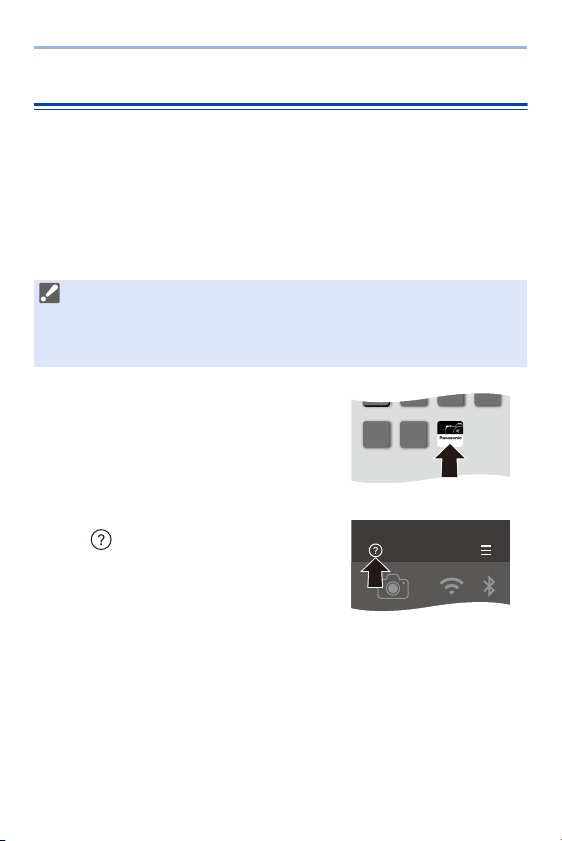
15. Wi-Fi/Bluetooth
374
Connecting to a Smartphone (Bluetooth Connection)
Follow a simple connection setup procedure (pairing) to connect to a
smartphone that supports Bluetooth Low Energy.
When pairing is set up, the camera also automatically connects to the
smartphone via Wi-Fi.
0
For the first-time connection, pairing settings are required.
For information about connecting for the second and subsequent times, refer to
page
376.
1
On the smartphone, start up
“LUMIX Sync”.
≥A message regarding device
(camera) registration is displayed.
Select [Next].
0
If you have closed the message, select
[ ], then register the camera using
[Camera registration (pairing)].
0 A message is displayed if the Bluetooth
function of the smartphone is turned off.
(For Android devices) Allow turning on
the Bluetooth function.
(For iOS devices) Follow the message to turn on the Bluetooth function in the
settings screen of the smartphone and then display “LUMIX Sync”.
2
Check the content in the
displayed guide and select [Next] until the screen to
register the camera is displayed.
Supported smartphones
Android™: Android 5 or higher with Bluetooth 4.0 or higher
(excluding those that do not support Bluetooth Low Energy)
iOS: iOS 11 or higher
LUMIX Sync
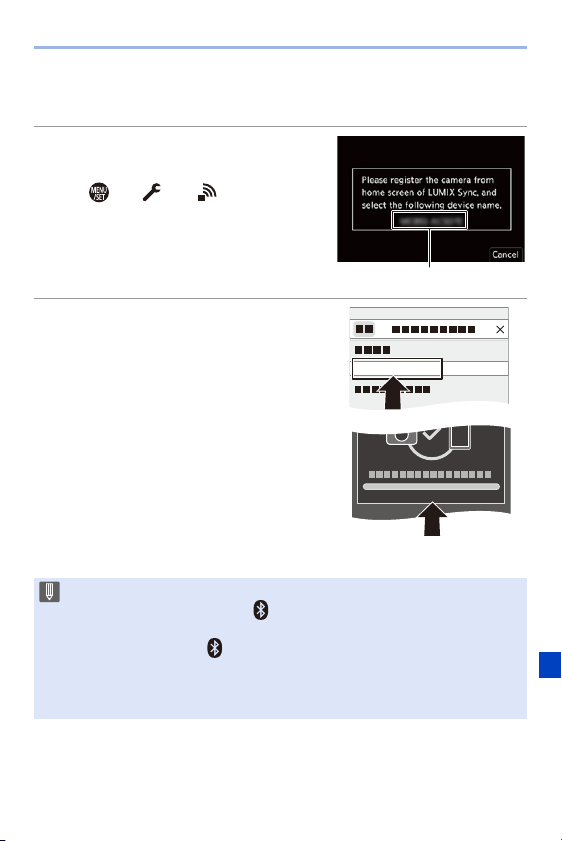
15. Wi-Fi/Bluetooth
375
Operating the camera in accordance with the smartphone
guide.
3
Set the camera to Bluetooth
pairing standby status.
≥ ¨ [ ] ¨ [ ] ¨ [Bluetooth]
¨ [Bluetooth] ¨ [SET] ¨ [Pairing]
≥The camera enters connection
standby status, and the device
name (A) is displayed.
4
On the smartphone, select the
camera device name.
0 (iOS devices) When a message to
confirm the change of destination is
displayed, select [Join].
5
When a message indicating
that device registration is
complete, select [OK].
≥A Bluetooth connection between
the camera and the smartphone will
be made.
0 The paired smartphone is registered as a paired device.
0 During Bluetooth connection, [ ] is displayed in the recording screen.
When the Bluetooth function is enabled, but a connection is not established
with the smartphone, [ ] appears translucent.
0 Up to 16 smartphones can be registered.
If you try to register more than 16 smartphones, the registration information
will be deleted from the oldest first.
XXXXXXXXXXXX
OK
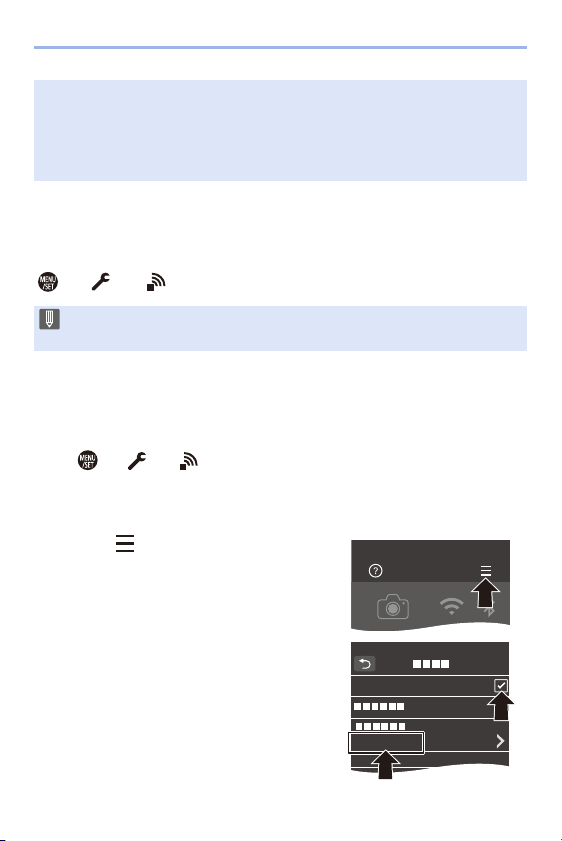
15. Wi-Fi/Bluetooth
376
End Bluetooth Connection
To terminate the Bluetooth connection, turn off the Bluetooth function of the
camera.
¨ [ ] ¨ [ ] ¨ [Bluetooth] ¨ [Bluetooth] ¨ Select [OFF]
Connecting to a Paired Smartphone
Connect paired smartphones using the following procedure.
1
Enable the Bluetooth function of the camera.
0
¨ [ ] ¨ [ ] ¨ [Bluetooth] ¨ [Bluetooth] ¨ [ON]
2
On the smartphone, start up “LUMIX Sync”.
0
If a message is displayed indicating that the smartphone is searching for
cameras, close the message.
3
Select [ ].
4
Select [Bluetooth Setup].
5
Turn Bluetooth ON.
6
From [Camera registered] items, select
the camera’s device name.
0 (iOS devices) If the Wi-Fi connection attempt fails during Bluetooth
connection, follow the message displayed to allow connection to the camera.
If you still cannot connect, select the SSID of the camera on the Wi-Fi setup
screen of the smartphone to connect. If the SSID is not displayed, turn off and
on the camera, then perform the Bluetooth connection settings again.
0 Even if you terminate the connection, the pairing information for it will not be
deleted.
LUMIX Sync
Bluetooth
XXXXXXXX

15. Wi-Fi/Bluetooth
377
Canceling Pairing
1
Cancel the pairing setting of the camera.
0
¨ [ ] ¨ [ ] ¨ [Bluetooth] ¨ [Bluetooth] ¨ [SET] ¨ [Delete]
2
Select the smartphone for which to cancel the pairing.
Connecting to a Smartphone ([Wi-Fi connection])
Use Wi-Fi to connect the camera and a smartphone that does not support
Bluetooth Low Energy.
With default settings, simple connection with smartphones is possible
without entering a password.
You can also use password authentication for enhanced connection
security.
0
You can also connect via Wi-Fi to a smartphone that supports Bluetooth Low Energy
by following the same steps.
0 Even if you set up pairing with more than one smartphone, you can only
connect to one smartphone at a time.
0 When pairing takes some time, canceling the pairing settings on both the
smartphone and camera and re-establishing the connection may result in the
camera being detected correctly.
0 Also cancel the pairing setting on the smartphone.
0 When [Reset] in the [Setup] ([Setting]) menu is used to reset the network
settings, the information for registered devices is deleted.
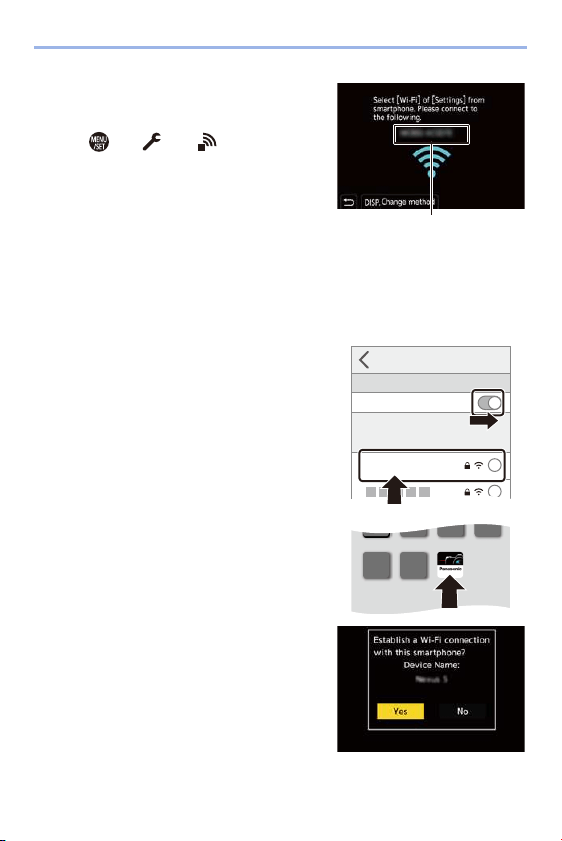
15. Wi-Fi/Bluetooth
378
1
Set the camera to Wi-Fi
connection standby status.
≥ ¨ [ ] ¨ [ ] ¨ [Wi-Fi] ¨
[Wi-Fi Function] ¨ [New
Connection]
¨ [Remote Shooting &
View]
≥The SSID (A) of the camera is
displayed on the screen.
0
You can also perform the same operation by pressing the Fn button assigned
with [Wi-Fi].
For information about the Fn button, refer to page
278.
2
In the setting menu of the
smartphone, turn the Wi-Fi
function ON.
3
Select the SSID displayed on
the camera.
4
On the smartphone, start up
“LUMIX Sync”.
5
(At the first connection)
Confirm the device name
displayed on the camera and
then select [Yes].
Wi-Fi
Wi-Fi
XXXXXXXX
i
i
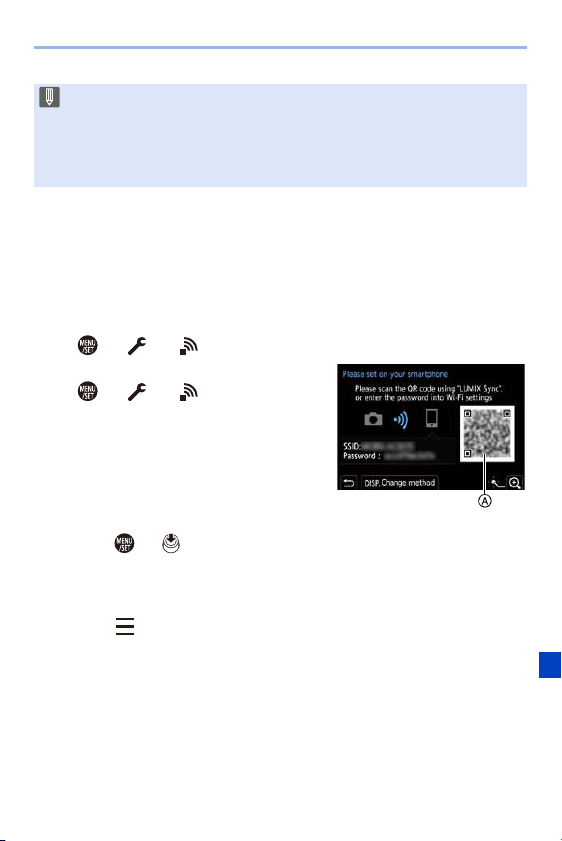
15. Wi-Fi/Bluetooth
379
Using Password Authentication to Connect
You can enhance Wi-Fi connection security by using password
authentication through either manual input or a QR code.
Scanning QR code to connect
1
Set [Wi-Fi Password] on the camera to [ON].
0
¨ [ ] ¨ [ ] ¨ [Wi-Fi] ¨ [Wi-Fi Setup] ¨ [Wi-Fi Password] ¨ [ON]
2
Display the QR code (A).
0
¨ [ ] ¨ [ ] ¨ [Wi-Fi] ¨ [Wi-Fi
Function]
¨ [New Connection] ¨ [Remote
Shooting & View]
0 You can also perform the same operation
by pressing the Fn button assigned with
[Wi-Fi].
For information about the Fn button, refer
to page
278.
0 Press or to enlarge the QR code.
3
On the smartphone, start up “LUMIX Sync”.
0
If a message is displayed indicating that the smartphone is searching for
cameras, close the message.
4
Select [ ].
5
Select [Wi-Fi connection].
6
Select [QR code].
7
Scan the QR code displayed on the screen of the camera using
“LUMIX Sync”.
0
(iOS devices) When a message to confirm the change of destination is
displayed, select [Join].
0 When a device different than the one you want to connect to is displayed, the
camera will automatically connect to that device if you select [Yes].
If there are other Wi-Fi connection devices nearby, we recommend using
either manual password input or QR code to connect with password
authentication. (l
379)
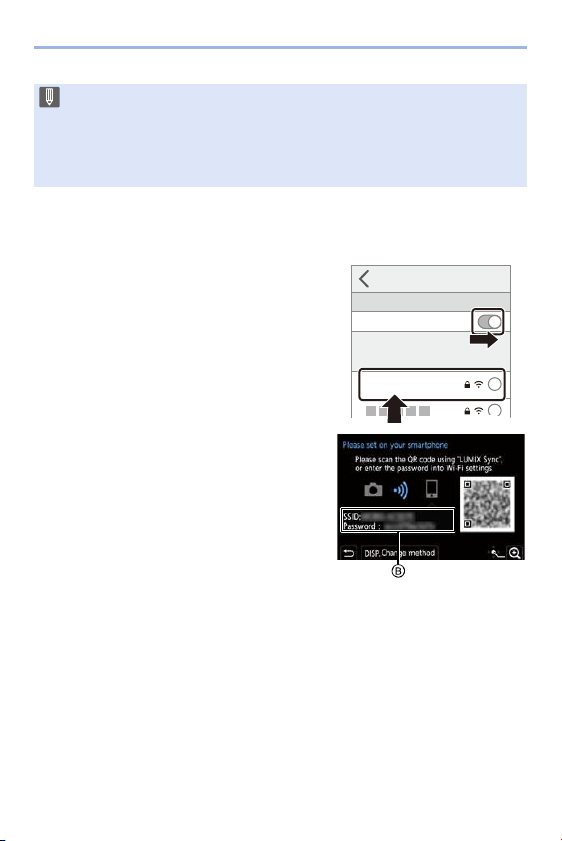
15. Wi-Fi/Bluetooth
380
Manually entering a password to connect
1
Display the screen in Step
2
on page
379.
2
In the setting menu of the smartphone,
turn the Wi-Fi function ON.
3
On the Wi-Fi setup screen, select the
SSID (B) displayed on the camera.
4
(At the first connection)
Enter the password (B) displayed on
the camera.
5
On the smartphone, start up “LUMIX
Sync”.
0 (iOS devices) If the Wi-Fi connection fails, follow the message displayed to
allow connection to the camera. If you still cannot connect, select the SSID of
the camera on the Wi-Fi setup screen of the smartphone to connect. If the
SSID is not displayed, turn off and on the camera, then perform the Wi-Fi
connection settings again.
Wi-Fi
Wi-Fi
XXXXXXXX
i
i

15. Wi-Fi/Bluetooth
381
Connection Methods Other Than the Default Settings
When connecting with [Via Network], or [WPS Connection] in [Direct],
follow the steps below:
1
Display the connection method setting screen for the camera.
0
¨ [ ] ¨ [ ] ¨ [Wi-Fi] ¨ [Wi-Fi Function] ¨ [New Connection] ¨
[Remote Shooting & View]
2
Press [DISP.].
Connecting via network
1 Select [Via Network] and then press or .
0 Follow the connection method on page
412 to connect the camera to a wireless
access point.
2 In the setting menu of the smartphone, turn the Wi-Fi function ON.
3 Connect the smartphone to the wireless access point that the camera is
connected to.
4 On the smartphone, start up “LUMIX Sync”.
Connecting directly
1 Select [Direct] and then press or .
0 Select [WPS Connection], and follow the connection method on page
416 to
connect the camera to a smartphone.
2 On the smartphone, start up “LUMIX Sync”.
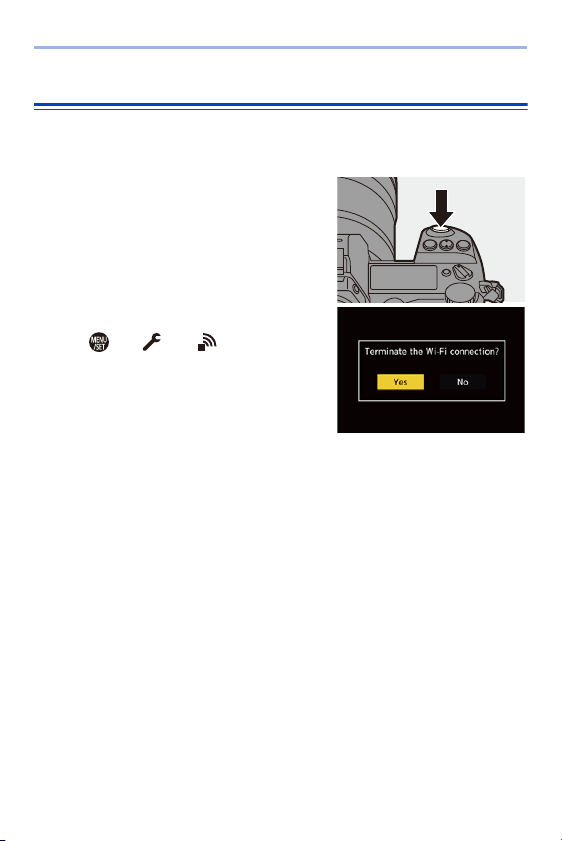
15. Wi-Fi/Bluetooth
382
Terminating the Wi-Fi Connection
To end the Wi-Fi connection between the camera and smartphone, follow
the steps below:
1
Set the camera to recording
mode.
≥Press the shutter button halfway.
2
End Wi-Fi connection.
≥ ¨ [ ] ¨ [ ] ¨ [Wi-Fi] ¨
[Wi-Fi Function]
¨ [Yes]
0
You can also perform the same operation
by pressing the Fn button assigned with
[Wi-Fi].
For information about the Fn button, refer
to page
278.
3
On the smartphone, close the
“LUMIX Sync”.
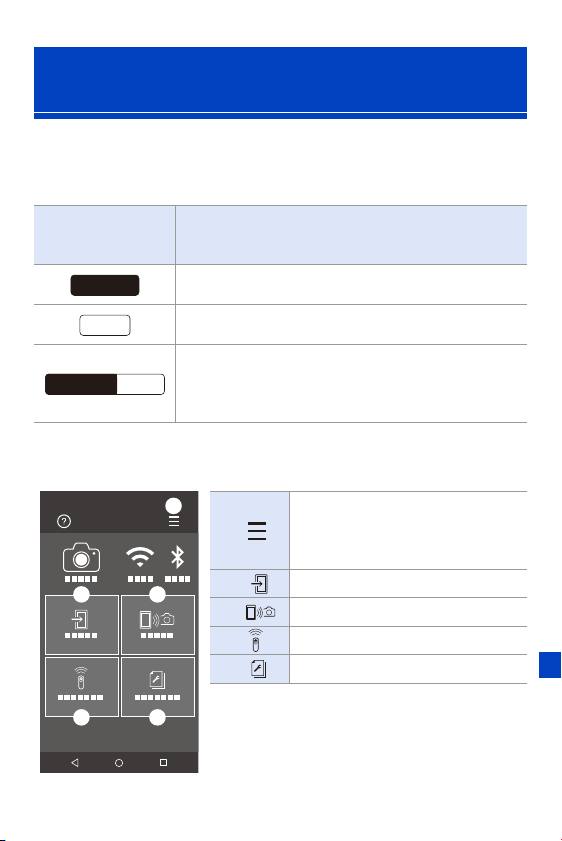
15. Wi-Fi/Bluetooth
383
Required Wireless Connectivity Type
Depending on the function used, the required type of wireless connection
will differ.
Home Screen
When you start up “LUMIX Sync”, the home screen is displayed.
Operating the Camera with a
Smartphone
Wireless
connectivity
required
Support for Bluetooth Low Energy
Indicates that the function can be used with smartphones
that support Bluetooth Low Energy.
Indicates that the function can be used with smartphones
that do not support Bluetooth Low Energy.
Indicates that the function can be used with smartphones
that support Bluetooth Low Energy.
0 Indicates that the function requires you to connect to a
smartphone using both Bluetooth and Wi-Fi.
A
App settings (l 376, 379, 393)
This allows connection settings,
camera power operations, and displays
Help.
B
[Import images] (l 388)
C
[Remote shooting] (l 384)
D
[Shutter Remote Control] (l 386)
E
[Camera settings copy] (l 395)
Bluetooth
Wi-Fi
Wi-FiBluetooth
LUMIX Sync
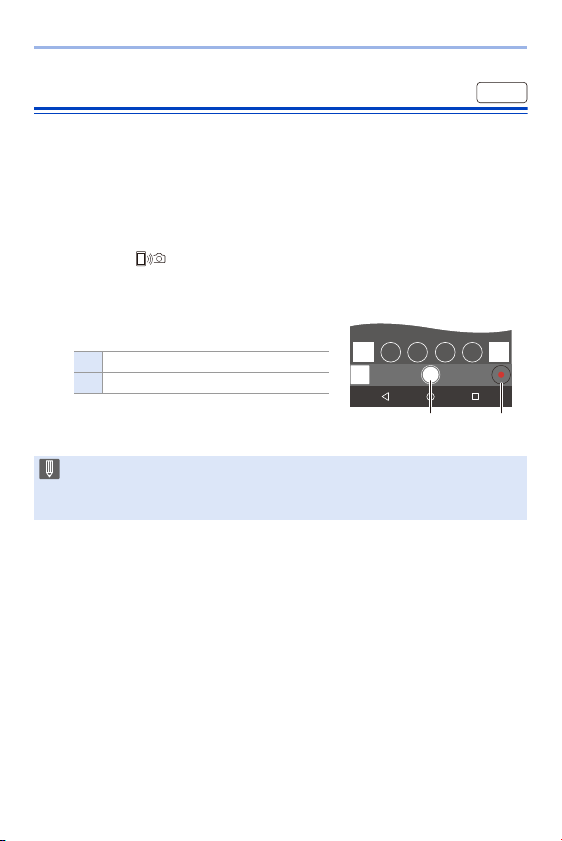
15. Wi-Fi/Bluetooth
384
[Remote shooting]
You can use the smartphone to record from a remote location while
viewing the live view images from the camera.
Getting started:
0 Connect the camera to a smartphone. (l
374, 377)
0 On the smartphone, start up “LUMIX Sync”.
1
Select [ ] ([Remote shooting]) in the home screen.
0 (iOS devices) When a message to confirm the change of destination is
displayed, select [Join].
2
Start recording.
0 The recorded image is saved on the
camera.
A Takes a picture
B Starts/ends the video recording
0 Certain features, including some settings, may not be available.
0 Remote recording is not possible while you are using the following function:
– [Time Lapse Shot]
Wi-Fi
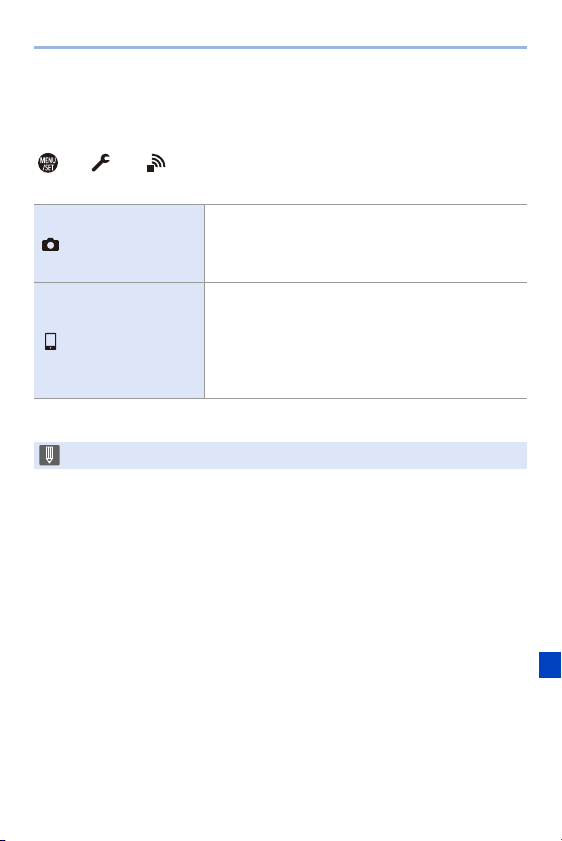
15. Wi-Fi/Bluetooth
385
Operation Method During Remote Recording
Set either the camera or the smartphone as the priority control device to be
used during remote recording.
¨ [ ] ¨ [ ] ¨ [Wi-Fi] ¨ [Wi-Fi Setup] ¨ Select [Priority of
Remote Device]
0
The default setting is [Camera].
[Camera]
Operation is possible on both the camera and the
smartphone.
0 The camera’s dial settings, etc. cannot be changed
with the smartphone.
[Smartphone]
Operation is possible only on the smartphone.
0 The camera’s dial settings, etc. can be changed with
the smartphone.
0 To end remote recording, press any of the buttons
on the camera to turn on the screen, and select
[End].
0 The setting of this function cannot be changed while the connection is active.
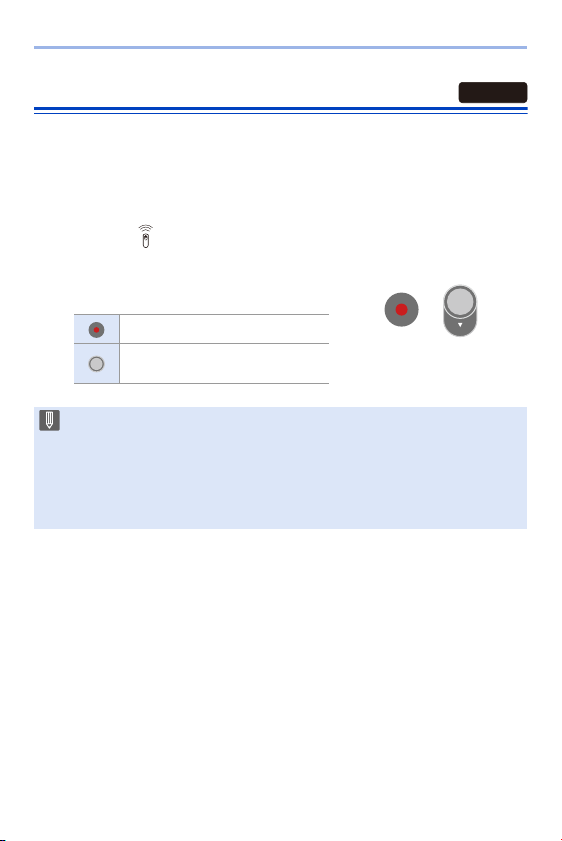
15. Wi-Fi/Bluetooth
386
[Shutter Remote Control]
You can use the smartphone as a remote control for the shutter.
Getting started:
0 Connect the camera to a smartphone by Bluetooth. (l
374)
0 On the smartphone, start up “LUMIX Sync”.
1
Select [ ] ([Shutter Remote Control]) in the home
screen.
2
Start recording.
Starts/ends the video recording
Takes a picture
0 Bulb recording (l
387)
0 To use the [Shutter Remote Control] to cancel [Sleep Mode] on the camera,
set [Bluetooth] in the [Setup] ([IN/OUT]) menu as follows, then connect via
Bluetooth:
– [Remote Wakeup]: [ON]
– [Auto Transfer]: [OFF]
0 The camera cannot be turned on by using [Shutter Remote Control].
Bluetooth
LOCK
15. Wi-Fi/Bluetooth
387
Bulb Recording
The shutter can be kept open from the start to end of recording, which is
useful for recording of starry skies or night scenery.
Getting started:
0 Set the camera to [M] mode. (l
185)
0 Set the camera shutter speed to [B] (Bulb). (l
187)
1
Touch [ ] to start recording (keep touching, without removing your
finger).
2
Remove your finger from [ ] to end recording.
0
Slide [ ] in the direction of [LOCK] to record with the shutter button locked
in a fully-pressed state.
(Slide [ ] back to its original position or press the camera shutter button to
stop recording)
0 During [B] (Bulb) recording, if the Bluetooth connection is broken, then carry out
Bluetooth connection again, then end recording from the smartphone.
Shortening the Return Time from [Sleep Mode]
Select the smartphone function for which to shorten the time to wake the
camera up from [Sleep Mode].
Getting started:
0 Set [Bluetooth] and [Remote Wakeup] on the camera to [ON]. (l
393)
¨ [ ] ¨ [ ] ¨ [Bluetooth] ¨ Select [Returning from Sleep Mode]
[Remote /
Transfer Priority]
Shortens the time to return when using [Remote
shooting] or [Import images].
[Remote Shutter
Priority]
Shortens the time to return when using [Shutter
Remote Control].
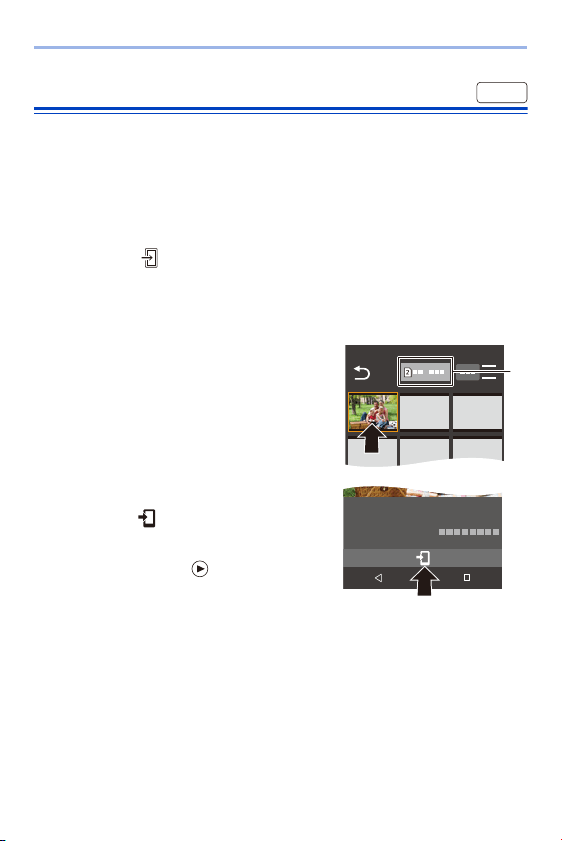
15. Wi-Fi/Bluetooth
388
Transferring Recorded Images
Transfer an image stored on the card to the smartphone connected via
Wi-Fi.
Getting started:
0 Connect the camera to a smartphone. (l
374, 377)
0 On the smartphone, start up “LUMIX Sync”.
1
Select [ ] ([Import images]) in the “LUMIX Sync”
home screen.
0 (iOS devices) When a message to confirm the change of destination is
displayed, select [Join].
2
Select the image to transfer.
0 You can switch the card displayed by
touching A.
3
Transfer the image.
≥Select [ ].
0
If the image is a video, you can play it
back by touching [ ] at the center of
the screen.
Wi-Fi

15. Wi-Fi/Bluetooth
389
0 You will need Android 7.0 or higher to save RAW pictures on an Android
device.
Depending on the smartphone or the OS, these may not be displayed
correctly.
0 When a video is played back, this has a small data size and is transmitted
using “LUMIX Sync”, therefore its image quality will differ from that of the
actual video recording.
Depending on the smartphone and on the usage conditions, the image quality
may deteriorate or the sound may skip during video or picture playback.
0 Images recorded using the following functions cannot be transferred:
– [AVCHD], [MP4] 4K videos
– [6K/4K PHOTO]/[Post-Focus]
– [HLG Photo] (HLG format pictures)
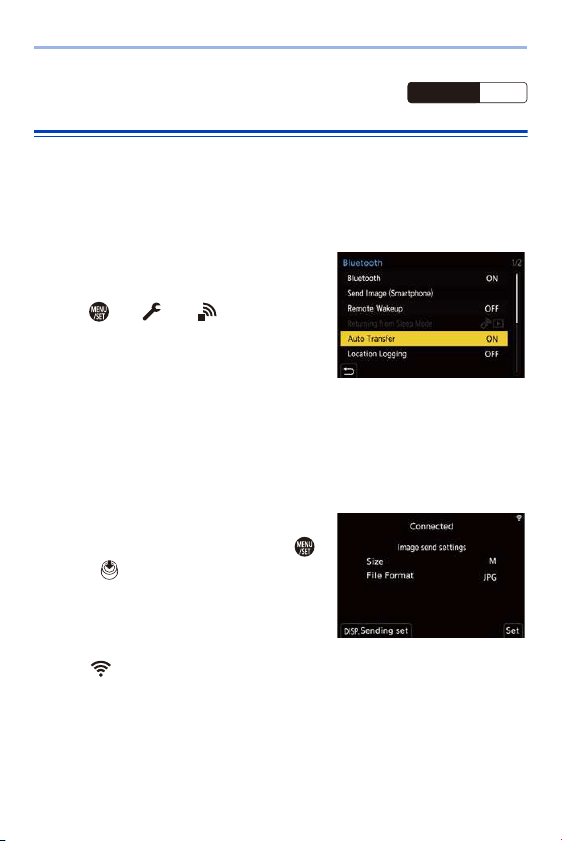
15. Wi-Fi/Bluetooth
390
Transferring Recorded Images
Automatically
You can automatically transfer recorded pictures to a smartphone as they
are taken.
Getting started:
0 Connect the camera to a smartphone by Bluetooth. (l
374)
1
Enable [Auto Transfer] on the
camera.
≥ ¨ [ ] ¨ [ ] ¨ [Bluetooth]
¨ [Auto Transfer] ¨ [ON]
0
If a confirmation screen is displayed on
the camera asking you to terminate the
Wi-Fi connection, select [Yes] to terminate it.
2
On the smartphone, select [Yes].
0 (iOS devices) When a message to confirm the change of destination is
displayed, select [Join].
0 The camera automatically makes a Wi-Fi connection.
3
Check the send settings on
the camera and then press
or .
0 To change the send setting, press
[DISP.]. (l
419)
0 The camera will enter a mode where it
can automatically transfer images and
[ ] will be displayed on the recording screen.
(If the settings are not displayed, then automatic image transfer is not
possible. Check the status of the Wi-Fi connection to the smartphone.)
Wi-FiBluetooth
15. Wi-Fi/Bluetooth
391
4
Record with the camera.
0 This automatically sends the recorded pictures to the specified device as they
are taken.
0 [ ] is displayed in the recording screen of the camera while a file is being
sent.
To Stop the Automatic Transfer of Images
¨ [ ] ¨ [ ] ¨ [Bluetooth] ¨ [Auto Transfer] ¨ Select [OFF]
≥A confirmation screen is displayed, asking you to terminate the Wi-Fi
connection.
0 If the [Bluetooth] and [Auto Transfer] settings of the camera are [ON], the
camera automatically connects to the smartphone via Bluetooth and Wi-Fi
when you turn on the camera.
Start up the “LUMIX Sync” to connect to the camera.
The camera will enter a mode where it can automatically transfer images and
[ ] is displayed in the recording screen of the camera.
0 When [Auto Transfer] is set to [ON], [Wi-Fi Function] cannot be used.
0 If the camera is turned off during image transfer, and the file sending is
interrupted, then turn on the camera to restart the sending.
– If the storage status of unsent files changes, then sending of files may no
longer be possible.
– If there are many unsent files, then sending of all files may not be possible.
0 Saving RAW format images on Android devices requires Android 7.0 or
higher.
Depending on the smartphone or the OS, these may not be displayed
correctly.
0 Images recorded with the following functions cannot be transferred
automatically:
– Video recording/[6K/4K PHOTO]/[Post-Focus]
– [HLG Photo] (HLG format pictures)
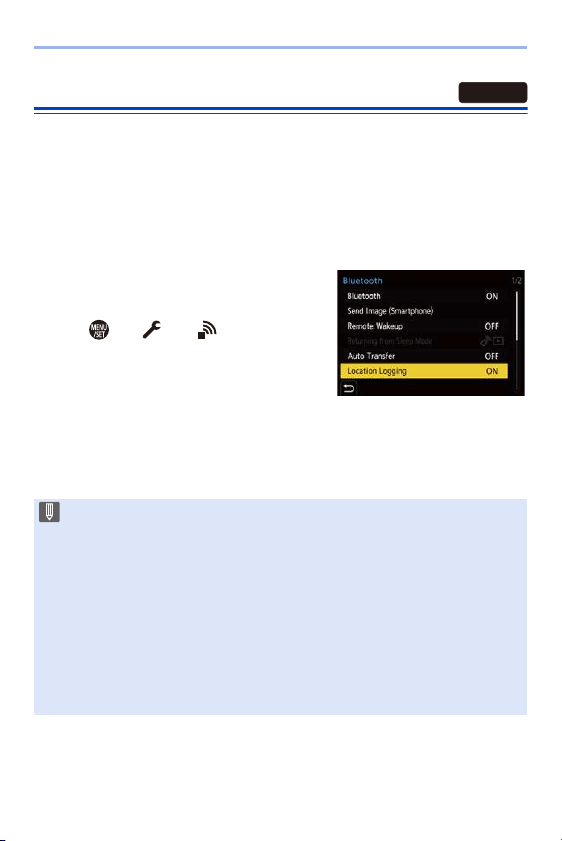
15. Wi-Fi/Bluetooth
392
Recording Location Information
The smartphone sends its location information to the camera via Bluetooth,
and the camera performs recording while writing the acquired location
information.
Getting started:
0 Enable the GPS function on the smartphone.
0 Connect the camera to a smartphone by Bluetooth. (l
374)
1
Enable [Location Logging] on
the camera.
≥ ¨ [ ] ¨ [ ] ¨ [Bluetooth]
¨ [Location Logging] ¨ [ON]
0
The camera will enter a mode where
location information can be recorded and
[ ] is displayed in the recording screen of the camera.
2
Record images with the camera.
0 Location information will be written to the recorded images.
0 When [ ] on the recording screen appears translucent, location
information cannot be acquired, therefore data cannot be written.
Smartphone GPS positioning may not be possible if the smartphone is within
a building, a bag, or similar. Move the smartphone to a position affording a
wide view of the sky to improve positioning performance.
In addition, refer to the operating instructions of your smartphone.
0 Images with location information are indicated with [ ].
0 Be sure to pay special attention to the privacy, the likeness rights, etc. of the
subject when you use this function. Use at your own risk.
0 The smartphone drains its battery faster while acquiring location information.
0 Location information is not written to AVCHD videos.
Bluetooth
GPS
GPS
GPS

15. Wi-Fi/Bluetooth
393
Camera Power Operations
Even when the camera is turned off, the smartphone can be used to start
the camera and record images, or check the recorded images.
Getting started:
1
Connect to a smartphone using Bluetooth. (l
374)
2
Enable [Remote Wakeup] on the camera.
0
¨ [ ] ¨ [ ] ¨ [Bluetooth] ¨ [Remote Wakeup] ¨ [ON]
3
Set the camera on/off switch to [OFF].
4
On the smartphone, start up “LUMIX Sync”.
Turning On the Camera
Select [Remote shooting] in the “LUMIX Sync” home screen.
0
(iOS devices) When a message to confirm the change of destination is displayed,
select [Join].
0 The camera turns on, and automatically connects using Wi-Fi.
Turning Off the Camera
1
Select [ ] in the “LUMIX Sync” home screen.
2
Select [Turn off the camera].
3
Select [Power OFF].
0 When [Remote Wakeup] has been set, the Bluetooth function continues to
work even if the camera on/off switch is set to [OFF], so the battery will drain.
Wi-FiBluetooth
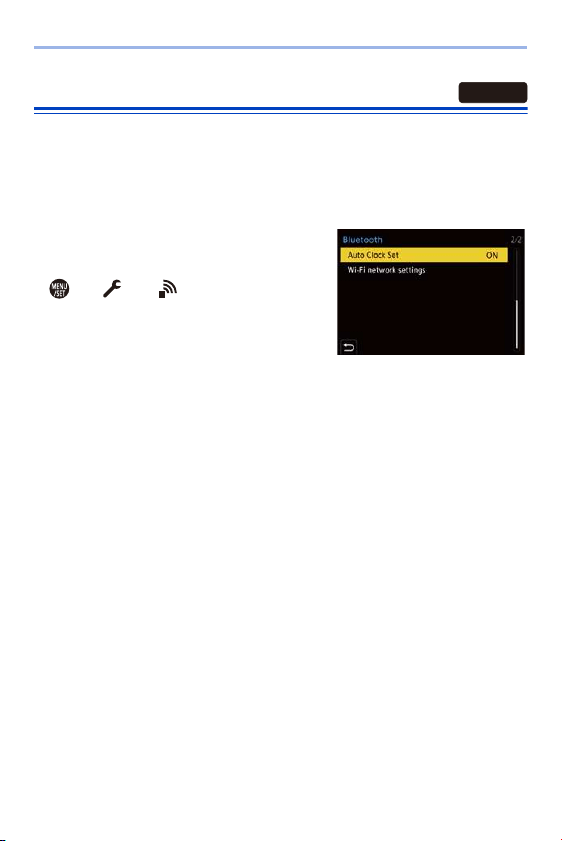
15. Wi-Fi/Bluetooth
394
Automatically Setting the Clock
Synchronize the clock and the time zone setting of the camera with those
of a smartphone.
Getting started:
0 Connect the camera to a smartphone by Bluetooth. (l
374)
Enabling [Auto Clock Set] on the
camera.
≥ ¨ [ ] ¨ [ ] ¨ [Bluetooth] ¨
[Auto Clock Set] ¨ [ON]
Bluetooth

15. Wi-Fi/Bluetooth
395
Saving Settings Information
This saves the camera’s settings information to the smartphone.
Saved settings information can be loaded to the camera, letting you set the
same settings on multiple cameras.
Getting started:
0 Connect the camera to a smartphone by Bluetooth. (l
374)
1
Select [ ] ([Camera settings copy]) in the “LUMIX
Sync” home screen.
2
Save or load setup information.
0 Read the [Help] in the “LUMIX Sync” menu for further details on how to
operate the “LUMIX Sync”.
0 Only settings information from the same model can be loaded.
0 When transferring settings information, a Wi-Fi connection is automatically
created.
(iOS devices) When a message to confirm the change of destination is
displayed, select [Join].
0 You can save or load the settings information of items that are the same as
those in [Save/Restore Camera Setting] under the [Setup] ([Setting]) menu.
Wi-FiBluetooth
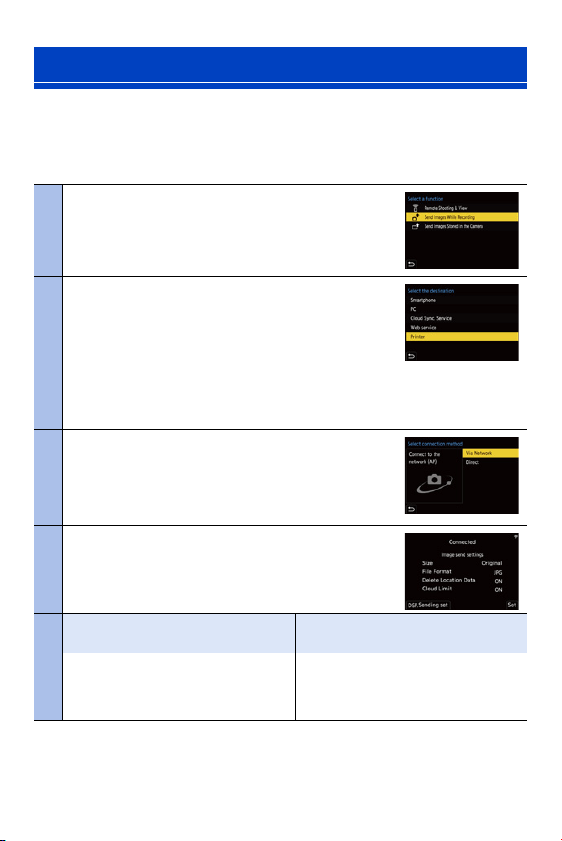
15. Wi-Fi/Bluetooth
396
Operate the camera to send recorded images to a device connected by
Wi-Fi.
Operation flow
Sending Images from the Camera
1
Select the sending method.
Use the camera menu to select the sending method
from either [Send Images While Recording] or [Send
Images Stored in the Camera].
2
Select the destination (type of the
destination device).
– [Smartphone] (l 399)
– [PC] (l
402)
– [Cloud Sync. Service] (l
410)
– [Web service] (l
407)
– [Printer] (l
405)
3
Select the connection method and then
connect by Wi-Fi.
– [Via Network] (l
412)
– [Direct] (l
416)
4
Check the send settings.
Change the send settings as necessary.
– Image send settings (l
419)
5
[Send Images While Recording]
[Send Images Stored in the
Camera]
Take pictures.
This automatically sends the recorded
pictures as they are taken.
Select one or more images.
Send the selected images.
– Selecting images (l
420)

15. Wi-Fi/Bluetooth
397
Detailed information about connection methods for each destination device
is described on pages
399 to 411.
Refer to the following pages for the steps common to all devices.
– Wi-Fi connections: [Via Network] (l
412)/[Direct] (l 416)
– Image send settings (l
419)
– Selecting images (l
420)
Images That Can be Sent
Images that can be sent differ depending on the destination device.
0
You will need Android 7.0 or higher to send RAW images to a [Smartphone] when
using an Android device.
0 AVCHD videos with a file size exceeding 4 GB cannot be sent to a [PC].
0 4K videos cannot be sent to [Smartphone], [Cloud Sync. Service], and [Web
service].
0 It is not possible to send HLG format pictures recorded with [HLG Photo].
However, the RAW/JPEG images recorded at the same time will be sent to
[Smartphone], [PC], [Cloud Sync. Service] or [Web service].
Destination device
Images that can be sent
[Send Images While
Recording]
[Send Images Stored in
the Camera]
[Smartphone] (l
399) JPEG/RAW JPEG/RAW/MP4
[PC] (l
402) JPEG/RAW
JPEG/RAW/MP4/AVCHD/
6K/4K burst files/
Post-Focus images
[Cloud Sync. Service]
(l
410)
JPEG JPEG/MP4
[Web service] (l
407) JPEG JPEG/MP4
[Printer] (l
405) — JPEG
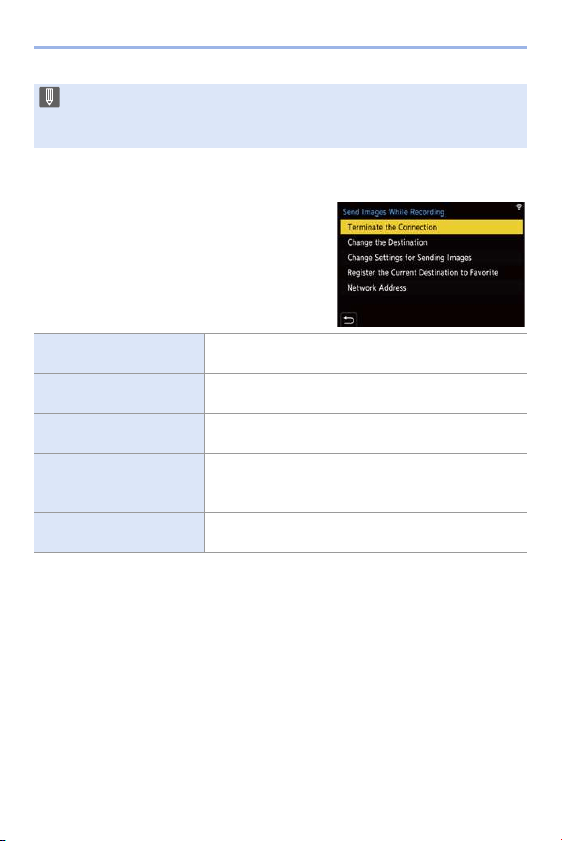
15. Wi-Fi/Bluetooth
398
Fn Button Assigned with [Wi-Fi]
You can perform the following operations by
pressing the Fn button assigned with
[Wi-Fi] after connecting to Wi-Fi.
For information on Fn buttons, refer to page
278.
0
Depending on the Wi-Fi function being used or the connection destination, you may
not be able to perform some of these operations.
0 Sending may not be possible depending on your device.
0 It may not be possible to send images recorded with devices other than this
camera, or images edited or processed on a PC.
[Terminate the
Connection]
Terminates the Wi-Fi connection.
[Change the Destination]
Terminates the Wi-Fi connection, and allows you to
select a different Wi-Fi connection.
[Change Settings for
Sending Images]
Sets the image size, file format, and other items for
sending recorded images. (l
419)
[Register the Current
Destination to Favorite]
Registers the current connection destination or
method so that you can easily connect with the same
connection settings next time.
[Network Address]
Displays the MAC address and IP address of the
camera. (l
422)
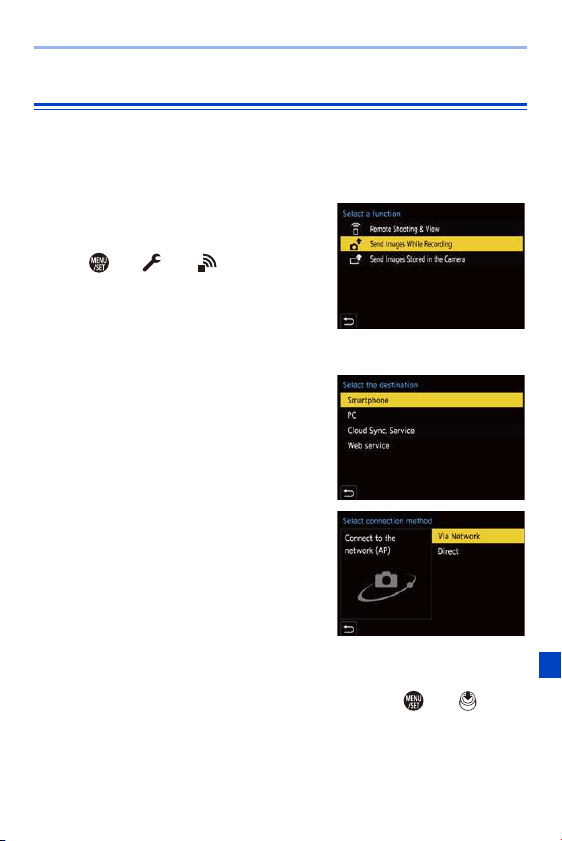
15. Wi-Fi/Bluetooth
399
[Smartphone]
Transfer recorded images to a smartphone connected using Wi-Fi.
Getting started:
0 Install “LUMIX Sync” on your smartphone. (l
373)
1
Select the method for sending
the images on the camera.
≥ ¨ [ ] ¨ [ ] ¨ [Wi-Fi] ¨
[Wi-Fi Function]
¨ [New
Connection] ¨ [Send Images While
Recording] or [Send Images Stored
in the Camera]
2
Set the destination to
[Smartphone].
3
Connect the camera to a
smartphone by Wi-Fi.
≥Select [Via Network] (l 412) or
[Direct] (l
416), and then connect.
4
On the smartphone, start up
“LUMIX Sync”.
5
Select the destination smartphone on the camera.
6
Check the send settings and then press or .
0 To change the send settings of images, press [DISP.]. (l
419)

15. Wi-Fi/Bluetooth
400
7
When [Send Images While Recording] is selected:
Take pictures.
0 This automatically sends the recorded pictures to the specified device as they
are taken.
0 [ ] is displayed in the recording screen of the camera while a file is being
sent.
0 To end the connection, follow the steps below:
¨ [ ] ¨ [ ] ¨ [Wi-Fi] ¨ [Wi-Fi Function] ¨ [Yes]
When [Send Images Stored in the Camera] is selected:
Select one or more images.
0 Select [Single Select] or [Multi Select], and then select one or more images.
(l
420)
0 To end the connection, select [Exit].
0 When recording, recording is prioritized so it will take time for sending to
complete.
0 If the camera is turned off, or the Wi-Fi is disconnected before sending is
completed, then sending will not restart.
0 You may not be able to delete files or use the [Playback] menu while sending.
0 When [Auto Transfer] in [Bluetooth] is set to [ON], [Wi-Fi Function] is not
available.

15. Wi-Fi/Bluetooth
401
Sending Images on the Camera to a Smartphone with
Simple Operations
You can transfer pictures to a smartphone connected by Bluetooth just by
pressing the Fn button during playback.
You can also use the menu to connect easily.
0
Use the Fn button registered with [Send Image (Smartphone)] to operate. In default
settings, this is registered in [Q].
For information about the Fn button, refer to page
278.
Getting started:
0 Install “LUMIX Sync” on your smartphone. (l
373)
0 Connect the camera to a smartphone by Bluetooth. (l
374)
0 Press [(] on the camera to display the playback screen.
Send a single image
1
Press 21 to select the image.
2
Press [Q].
3
Select [Single Select].
0
To change the send settings of
images, press [DISP.]. (l
419)
4
On the smartphone, select
[Yes].
0
This connects automatically using
Wi-Fi.
Send multiple images
1
Press [Q].
2
Select [Multi Select].
0
To change the send settings of
images, press [DISP.]. (l
419)
3
Select the images and then
transfer.
21: Select images
or : Set/Cancel
[DISP.]: Transfer
4
On the smartphone, select
[Yes].
0
This connects automatically using
Wi-Fi.
0 (iOS devices) When a message to confirm the change of destination is
displayed, select [Join].
0 This function is not available when [Auto Transfer] in [Bluetooth] is set to [ON].

15. Wi-Fi/Bluetooth
402
Using the menu to transfer easily.
¨ [ ] ¨ [ ] ¨ [Bluetooth] ¨ [Send Image (Smartphone)]
Settings: [Single Select]/[Multi Select]
0
If [Single Select], press 21 to select the image and then press or to
execute.
0 If [Multi Select], use the same operation as with the Fn button to execute.
[PC]
Send recorded images to the PC connected with Wi-Fi.
Getting started:
0 Turn on the PC.
0 Create a destination folder for images.
0 If the workgroup of the destination PC has been changed from the standard setting,
change the corresponding setting of the camera in [PC Connection]. (l
421)
Create a Destination Folder for Images
When using Windows (Example for Windows 7)
1
Select the destination folder and then right-click.
2
Select [Properties] and then enable folder sharing.
0
You can also use “PHOTOfunSTUDIO” to create folders.
For details, refer to the operating instructions for “PHOTOfunSTUDIO”.
When using Mac (Example for OS X v10.8)
1
Select the destination folder and then click the items in the following
order.
[File]
¨ [Get Info]
2
Enable folder sharing.
Supported OS
Windows: Windows 10/Windows 8.1/Windows 8/Windows 7
Mac: OS X v10.5 to v10.11, macOS 10.12 to macOS 10.14
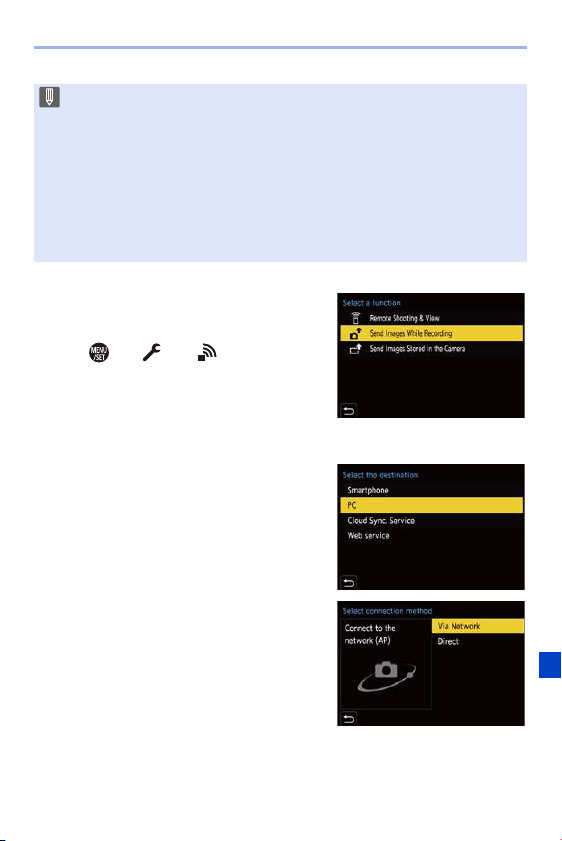
15. Wi-Fi/Bluetooth
403
1
Select the method for sending
images on the camera.
≥ ¨ [ ] ¨ [ ] ¨ [Wi-Fi] ¨
[Wi-Fi Function] ¨ [New
Connection]
¨ [Send Images While
Recording] or [Send Images Stored
in the Camera]
2
Set the destination to [PC].
3
Connect the camera and
smartphone by Wi-Fi.
≥Select [Via Network] (l 412) or
[Direct] (l 416), and then connect.
0 Create a PC account name (up to 254 characters) and password (up to
32 characters) consisting of alphanumeric characters.
A destination folder may not be created if the account name includes non-
alphanumeric characters.
0 When the computer name (NetBIOS name for Mac) contains a space (blank
character), etc., it may not be recognized.
In that case, we recommend changing the name to one consisting only of 15
or less alphanumeric characters.
0 For details, refer to the operating instructions for your PC or Help on the OS.
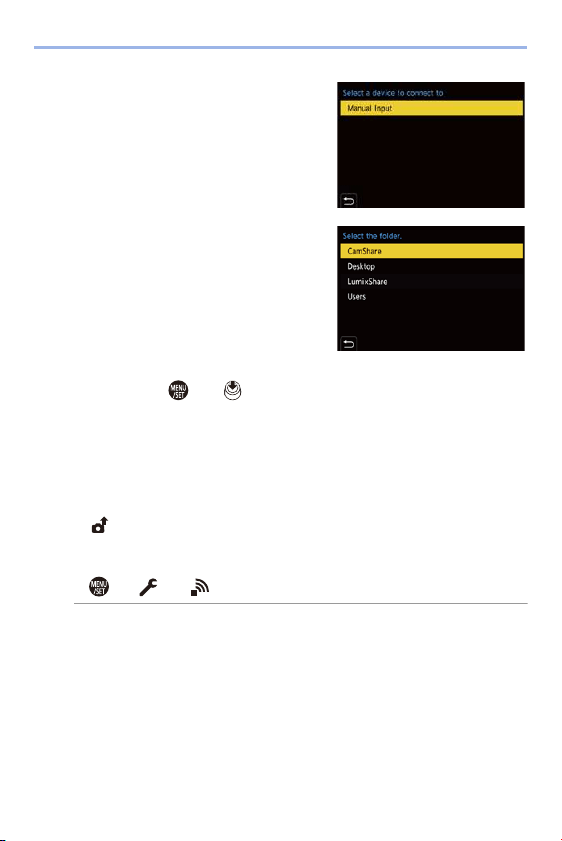
15. Wi-Fi/Bluetooth
404
4
Enter the computer name of
the PC name you want to
connect to (for Mac, the
NetBIOS name).
0 For information on how to enter
characters, refer to page
369.
5
Select a folder for storing
images.
0 Folders sorted by sent date will be
created in the selected folder, and
images will be saved there.
6
Check the send settings and
then press or .
0 To change the send setting, press [DISP.]. (l
419)
7
When [Send Images While Recording] is selected:
Take pictures.
0 This automatically sends the recorded pictures to the specified device as they
are taken.
0 [ ] is displayed in the recording screen of the camera while a file is being
sent.
0 To end the connection, follow the steps below:
¨ [ ] ¨ [ ] ¨ [Wi-Fi] ¨ [Wi-Fi Function] ¨ [Yes]
When [Send Images Stored in the Camera] is selected:
Select one or more images.
0 Select [Single Select] or [Multi Select], and then select one or more images.
(l
420)
0 To end the connection, select [Exit].
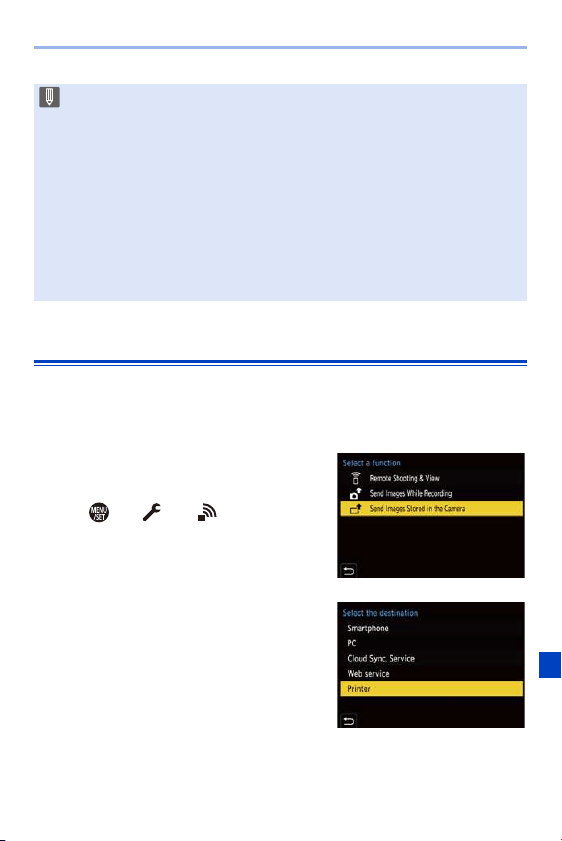
15. Wi-Fi/Bluetooth
405
[Printer]
You can send images to a PictBridge (wireless LAN)
¢
-supported printer
connected by Wi-Fi for printing.
¢ DPS over IP standard-compliant
1
Select the method for sending
images on the camera.
≥ ¨ [ ] ¨ [ ] ¨ [Wi-Fi] ¨
[Wi-Fi Function] ¨ [New
Connection]
¨ [Send Images
Stored in the Camera]
2
Set the destination to [Printer].
0 If the screen for a user account and password entry appears, enter the one
you set on your PC.
0 When the firewall of the OS, security software, etc. is enabled, connecting to
the PC may not be possible.
0 During recording, these have priority, so it will take time until sending is
complete.
0 If the camera is turned off, or the Wi-Fi is disconnected before sending is
completed, then sending will not restart.
0 You may not be able to delete files or use the [Playback] menu while sending.
0 When [Auto Transfer] in [Bluetooth] is set to [ON], [Wi-Fi Function] is not
available.
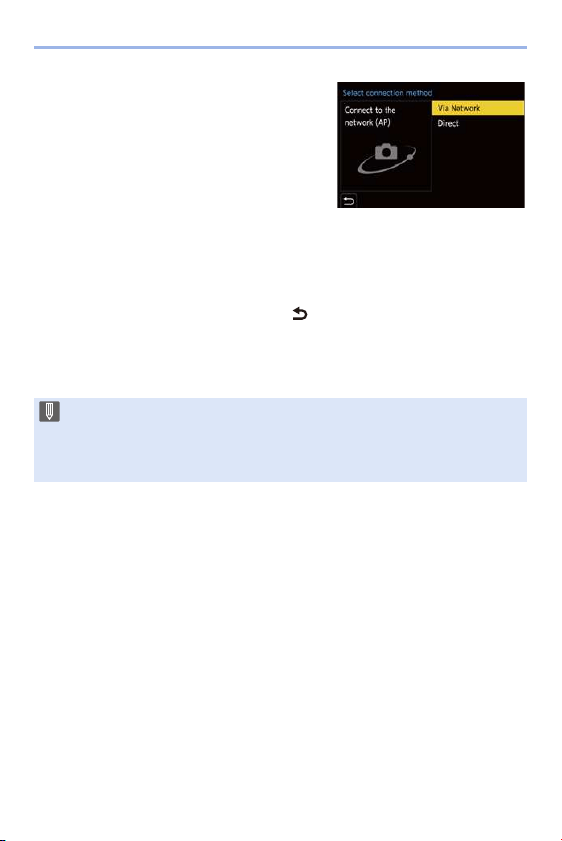
15. Wi-Fi/Bluetooth
406
3
Connect the camera to a
printer by Wi-Fi.
≥Select [Via Network] (l 412) or
[Direct] (l
416), and then connect.
4
Select the destination printer.
5
Select and print images.
0 The procedure for selecting images is the same as the one for when the USB
connection cable is connected. (l
442)
0 To terminate the connection, press [ ].
0 You can also end the connection by pressing the Fn button assigned with
[Wi-Fi].
For information about the Fn button, refer to page
278.
0 For details about PictBridge (wireless LAN-compatible) printers, contact their
manufacturers.
0 When [Auto Transfer] in [Bluetooth] is set to [ON], [Wi-Fi Function] is not
available.
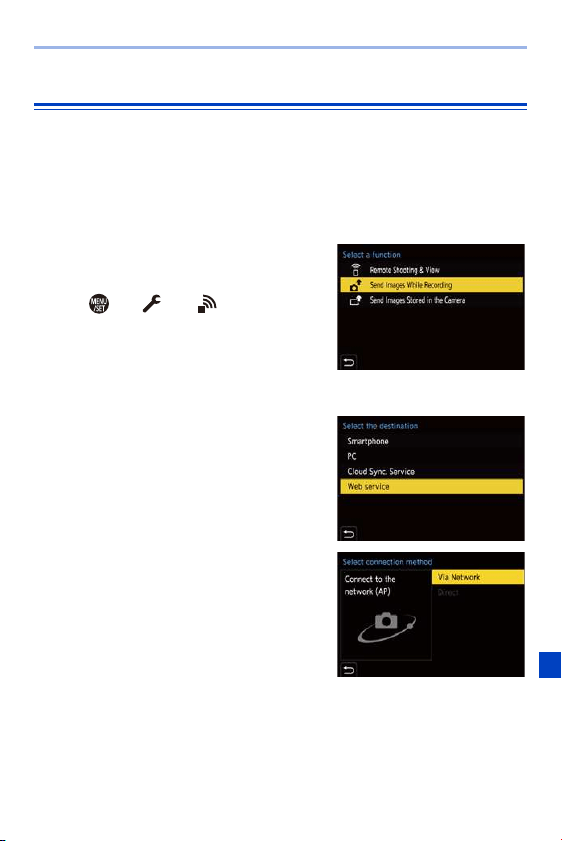
15. Wi-Fi/Bluetooth
407
[Web service]
You can use “LUMIX CLUB” to upload recorded images to web services
such as social networking sites.
Getting started:
0 Register with “LUMIX CLUB”. (l
422)
0 Before sending images to a service, register that web service. (l
424)
1
Select the method for sending
images on the camera.
≥ ¨ [ ] ¨ [ ] ¨ [Wi-Fi] ¨
[Wi-Fi Function]
¨ [New
Connection] ¨ [Send Images While
Recording] or [Send Images Stored
in the Camera]
2
Set the destination to [Web
service].
3
Connect to the web service.
≥Select [Via Network] and then
connect. (l
412)

15. Wi-Fi/Bluetooth
408
4
Select the web service.
5
Check the send settings and then press or .
0 To change the send settings of images, press [DISP.]. (l
419)
6
When [Send Images While Recording] is selected:
Take pictures.
0 This automatically sends the recorded pictures to the specified service as
they are taken.
0 [ ] is displayed while a file is being sent.
0 To end the connection, follow the steps below:
¨ [ ] ¨ [ ] ¨ [Wi-Fi] ¨ [Wi-Fi Function] ¨ [Yes]
When [Send Images Stored in the Camera] is selected:
Select one or more images.
0 Select [Single Select] or [Multi Select], and then select one or more images.
(l
420)
0 To end the connection, select [Exit].

15. Wi-Fi/Bluetooth
409
0 During recording, these have priority, so it will take time until sending is
complete.
0 If the camera is turned off, or the Wi-Fi is disconnected before sending is
completed, then sending will not restart.
0 You may not be able to delete files or use the [Playback] menu while sending.
0 If image sending fails, a report email outlining the failure will be sent to the
email address registered in the “LUMIX CLUB”.
0 Panasonic assumes no responsibility for any damages resulting from the
leakage, loss, etc. of images uploaded on web services.
0 When uploading images to a web service, do not delete images from the
camera, even after they have finished sending, until you have checked that
they have been properly uploaded to the web service.
Panasonic assumes no responsibility for any damages resulting from the
deletion of images stored on the camera.
0 Images uploaded to web services cannot be displayed or deleted with the
camera.
0 Images may contain information that can be used to identify the user, such as
recording dates and times, and location information. Check carefully when
uploading the images to a web service.
0 When [Auto Transfer] in [Bluetooth] is set to [ON], [Wi-Fi Function] is not
available.
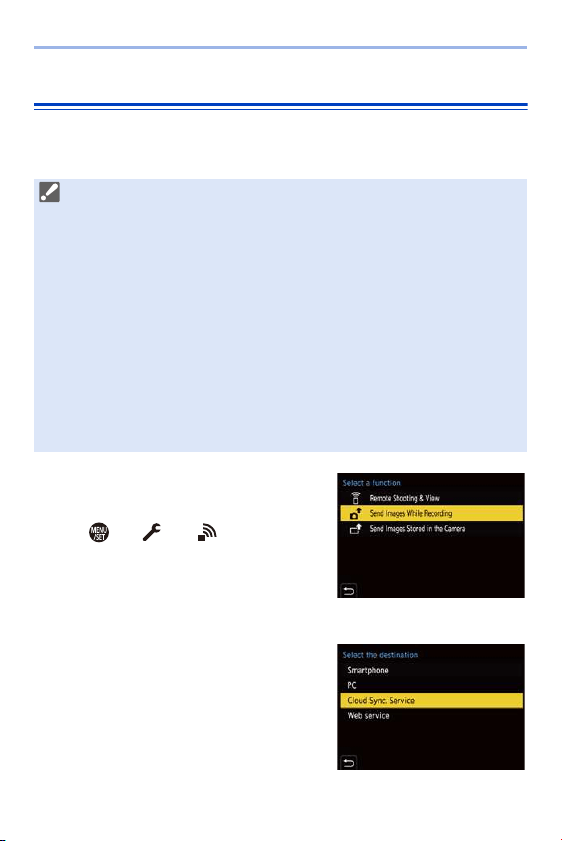
15. Wi-Fi/Bluetooth
410
[Cloud Sync. Service]
This camera can automatically transfer recorded images to a cloud sync
service via “LUMIX CLUB” to send them to a PC or smartphone.
1
Select the method for sending
images on the camera.
≥ ¨ [ ] ¨ [ ] ¨ [Wi-Fi] ¨
[Wi-Fi Function] ¨ [New
Connection]
¨ [Send Images While
Recording] or [Send Images Stored
in the Camera]
2
Set the destination to [Cloud
Sync. Service].
To use [Cloud Sync. Service] (As of January 2019)
0 You need to register to the “LUMIX CLUB” (l
422) and set up cloud
synchronization to send images to a cloud folder.
To set up cloud synchronization, use “PHOTOfunSTUDIO”.
0 Sent images are temporarily saved in the cloud folder. These can be
synchronized with your PC, smartphone, and other devices.
0 A cloud folder stores sent images for 30 days (up to 1000 images).
Please note that the images will be deleted automatically in the following
cases:
– If 30 days have passed after sending (even if within 30 days of the transfer,
if images have been downloaded to all specified devices, then these may be
deleted)
– If there are in excess of 1000 images (depending on the [Cloud Limit]
(l
419) setting)
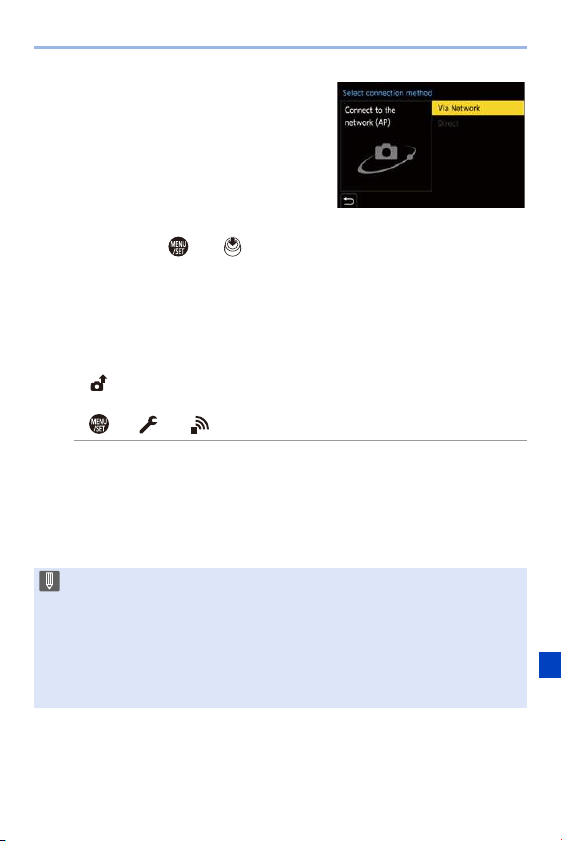
15. Wi-Fi/Bluetooth
411
3
Connect to the cloud sync
service.
≥Select [Via Network] and then
connect. (l
412)
4
Check the send settings and
then press or .
0 To change the send settings of images, press [DISP.]. (l
419)
5
When [Send Images While Recording] is selected:
Take pictures.
0 This automatically sends the recorded pictures to the cloud sync services as
they are taken.
0 [ ] is displayed while a file is being sent.
0 To end the connection, follow the steps below:
¨ [ ] ¨ [ ] ¨ [Wi-Fi] ¨ [Wi-Fi Function] ¨ [Yes]
When [Send Images Stored in the Camera] is selected:
Select one or more images.
0 Select [Single Select] or [Multi Select], and then select one or more images.
(l
420)
0 To end the connection, select [Exit].
0 During recording, these have priority, so it will take time until sending is
complete.
0 If the camera is turned off, or the Wi-Fi is disconnected before sending is
completed, then sending will not restart.
0 You may not be able to delete files or use the [Playback] menu while sending.
0 When [Auto Transfer] in [Bluetooth] is set to [ON], [Wi-Fi Function] is not
available.
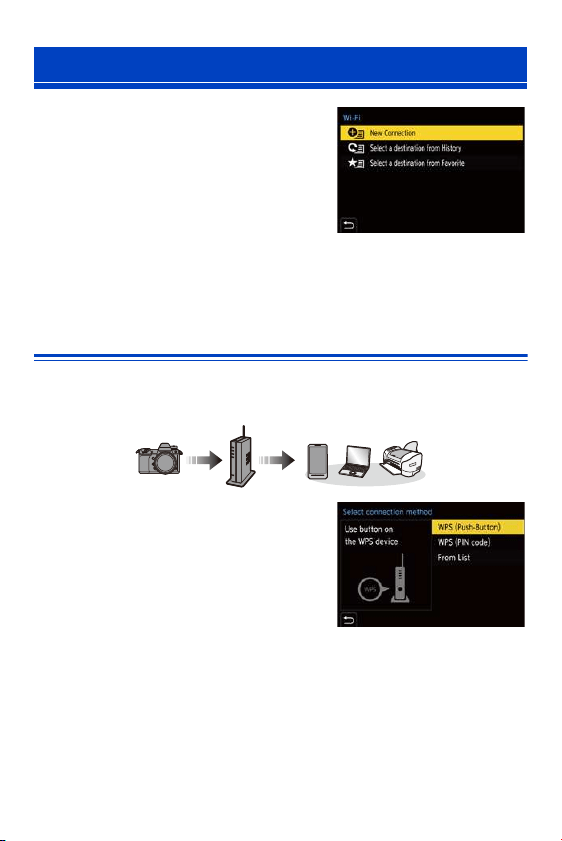
15. Wi-Fi/Bluetooth
412
When [New Connection] has been selected
in [Wi-Fi Function] in [Wi-Fi] of the [Setup]
([IN/OUT]) menu, select the connection
method from either [Via Network] or [Direct]
to connect.
On the other hand, when you use [Select a
destination from History] or [Select a
destination from Favorite], the camera connects to the selected device with
the previously-used settings.
[Via Network]
Connect the camera and destination device through the wireless access
point.
Select the method for connecting to
a wireless access point.
Wi-Fi Connections
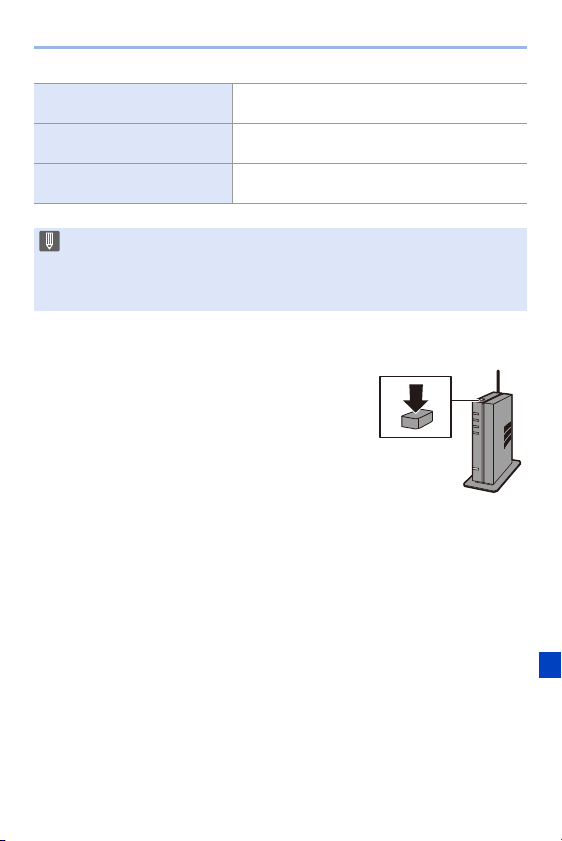
15. Wi-Fi/Bluetooth
413
[WPS (Push-Button)] (l 413)
Press the WPS button on the wireless access
point to set up a connection.
[WPS (PIN code)] (l 414)
Enter a PIN code into the wireless access point to
set up a connection.
[From List] (l 414)
Searches for a wireless access point to use, and
connects to this.
0 After selecting [Via Network] once, the camera will connect to the previously-
used wireless access point.
To change the wireless access point used for connection, press [DISP.] and
change the connection destination.
[WPS (Push-Button)]
Press the WPS button on the wireless access
point to set up a connection.
Press the wireless access point WPS button until
it switches to WPS mode.
Example)
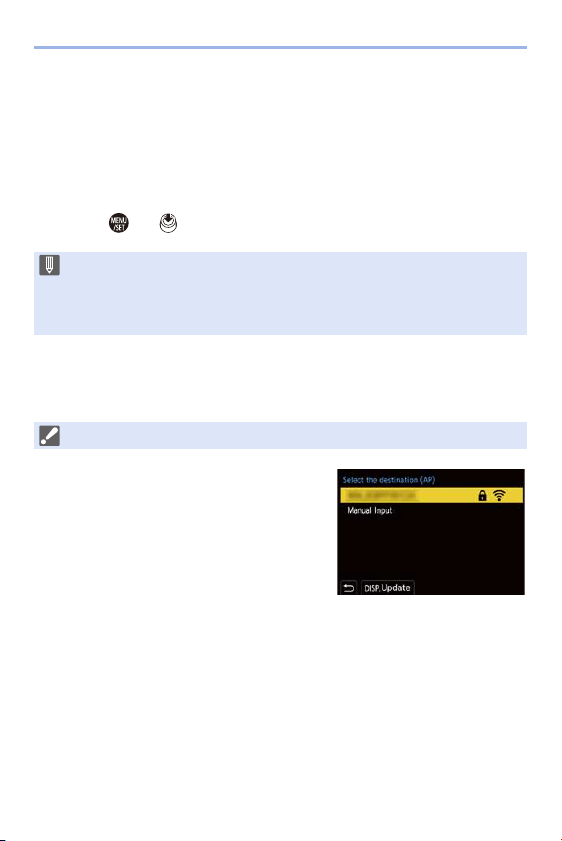
15. Wi-Fi/Bluetooth
414
[WPS (PIN code)]
Enter a PIN code into the wireless access point to set up a connection.
1
On the camera screen, select the wireless access point you are
connecting to.
2
Enter the PIN code displayed on the camera screen into the wireless
access point.
3
Press or of the camera.
[From List]
Searches for a wireless access point to use, and connects to this.
1
Select the wireless access point you
are connecting to.
0
Press [DISP.] to run a wireless access point
search again.
0 If no wireless access point is found, refer to
“Connecting by Manual Input” on page
415.
2
(If network authentication is encrypted)
Enter the encryption key.
0
For information on how to enter characters, refer to page
369.
0 WPS is a function that allows you to easily configure the settings related to the
connection and security of wireless LAN devices.
For details about the operation and compatibility of WPS, refer to the
operating instructions for the wireless access point.
0 Confirm the encryption key of the wireless access point.
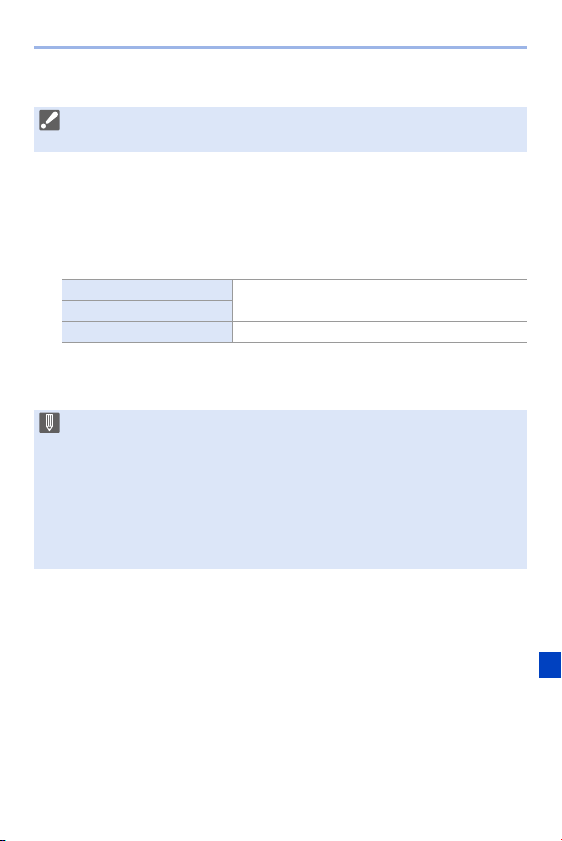
15. Wi-Fi/Bluetooth
415
Connecting by Manual Input
1
In the screen in Step
1
of “[From List]”, select [Manual Input]. (l
414)
2
Enter the SSID of the wireless access point you are connecting to, and
then select [Set].
0
For information on how to enter characters, refer to page
369.
3
Select the network authentication type.
4
(When other than [No Encryption] is selected)
Enter the encryption key and then select [Set].
0 Check the SSID, security type, encryption type, and encryption key of the
wireless access point you are using.
[WPA2-PSK]
Supported encryption methods: [TKIP], [AES]
[WPA2/WPA-PSK]
[No Encryption] —
0 Check the operating instructions and settings of the wireless access point.
0 If a connection cannot be made, the signal strength of the wireless access
point may be too weak.
For details, refer to “Message Displays” (l
456) and
“
Troubleshooting”
(
l 459).
0 Depending on your environment, the communication speed with the wireless
access point may decrease, or the wireless access point may not be available
for use.
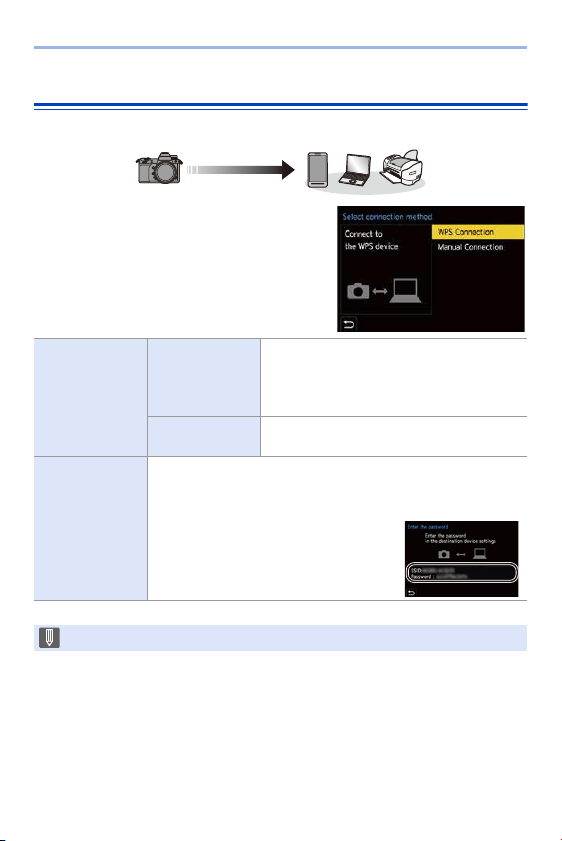
15. Wi-Fi/Bluetooth
416
[Direct]
Directly connect the camera and the destination device.
Select the method for connecting
with the destination device.
[WPS
Connection]
[WPS (Push-
Button)]
Press the WPS button on the destination
device to connect.
0 On the camera, press [DISP.] to extend
the connection wait time.
[WPS (PIN
code)]
Enter the PIN code into the camera, and
connect.
[Manual
Connection]
Search for the camera on the destination device to connect.
Enter the SSID and password displayed on the camera into the
device.
0 If the destination is set to
[Smartphone], the password is not
displayed. Select the SSID to establish
a connection. (l
377)
0 Please also refer to the operating instructions for the device to be connected.
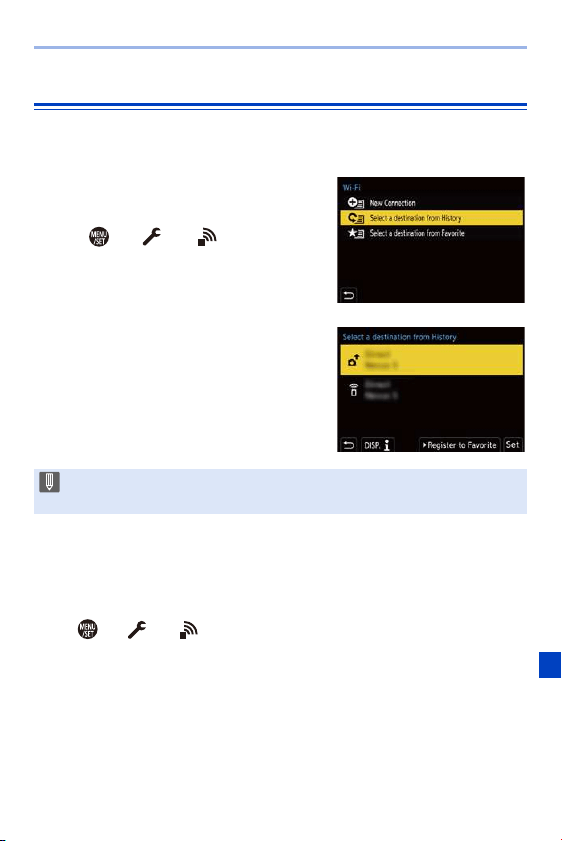
15. Wi-Fi/Bluetooth
417
Connect to Wi-Fi Using Previously Saved Settings
Use the Wi-Fi connection history to connect using the same settings as
previously.
1
Display the Wi-Fi connection
history.
≥ ¨ [ ] ¨ [ ] ¨ [Wi-Fi] ¨
[Wi-Fi Function] ¨ [Select a
destination from History] or [Select
a destination from Favorite]
2
Select the History item to
connect to.
0 Press [DISP.] to confirm details of the
connection history.
Register to Favorite
You can register the Wi-Fi connection history to Favorite.
1
Display the Wi-Fi connection history.
0
¨ [ ] ¨ [ ] ¨ [Wi-Fi] ¨ [Wi-Fi Function] ¨ [Select a destination
from History]
2
Select the History item to register and then press 1.
3
Enter a registration name and then press [Set].
0
For information on how to enter characters, refer to page
369.
0 A maximum of 30 characters can be entered. A two-byte character is treated as
two characters.
0 If the settings of the device to connect to have been changed, it may not be
possible to connect to the device.
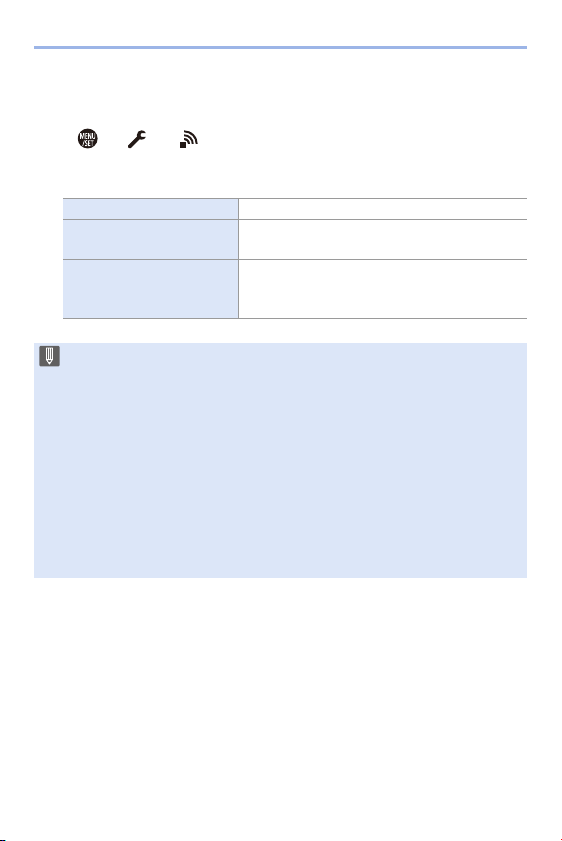
15. Wi-Fi/Bluetooth
418
Editing Items Registered in Favorite
1
Display items registered to Favorite.
0
¨ [ ] ¨ [ ] ¨ [Wi-Fi] ¨ [Wi-Fi Function] ¨ [Select a destination
from Favorite]
2
Select the History item to edit in Favorite and then press 1.
[Remove from Favorite] —
[Change the Order in
Favorite]
Specify the destination location of the desired
item to change the display order.
[Change the Registered
Name]
Enter characters to change the registered name.
0 For information on how to enter characters,
refer to page
369.
0 The number of items that can be saved in History is limited. Register
frequently-used connection settings to Favorite.
0 When [Reset] in the [Setup] ([Setting]) menu is used to reset the network
settings, the content registered in History and Favorite is deleted.
0 If the device you want to connect to (smartphone, etc.) is connected to a
wireless access point other than the camera, you cannot connect the device to
the camera using [Direct].
Change the Wi-Fi settings of the device you want to connect to so that the
access point to be used is set to the camera. You can also select [New
Connection] and reconnect the devices. (l
377)
0 It may be difficult to connect to networks to which many devices are
connected. In these cases, connect using [New Connection].
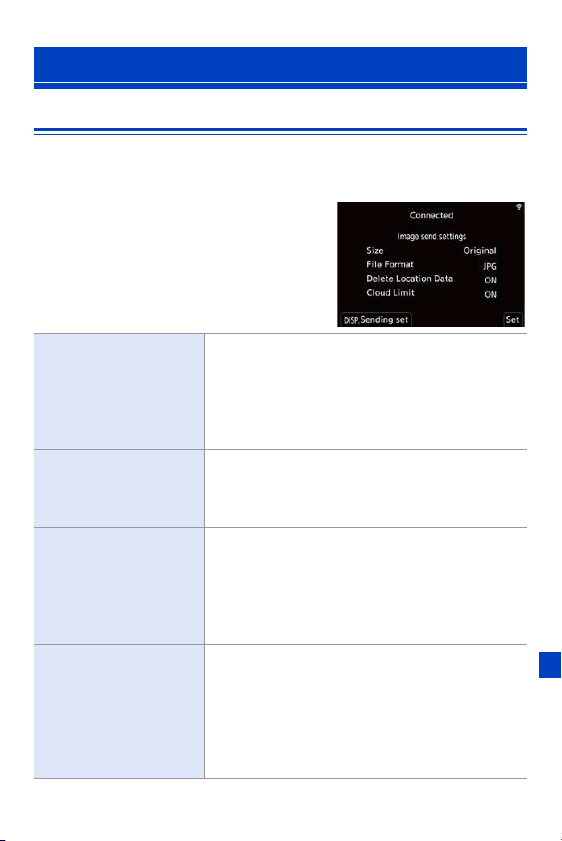
15. Wi-Fi/Bluetooth
419
Image Send Settings
Set the size, file format, and other items for sending the image to the
destination device.
1
After Wi-Fi connection, the
send settings confirmation
screen will be displayed, so
press [DISP.].
2
Change the send settings.
Send Settings and Selecting Images
[Size]
Resize the image to send.
[Original]/[Auto]/[Change] ([M], [S], or [VGA])
0 The [Auto] image size changes depending on the
status of the destination device.
(This can be set when the destination is [Web
service])
[File Format]
Sets the file format of images to send.
[JPG]/[RAWiJPG]/[RAW]
0 This can be set when the destination is
[Smartphone] or [PC].
[Delete Location Data]
Select whether to delete the location information from
images before sending them.
0 This can be set when the destination is [Cloud Sync.
Service] or [Web service].
0 This operation only deletes the location information
from the images that are set to be sent.
[Cloud Limit]
You can select whether to send images when the
cloud folder runs out of free space.
[ON]: Does not send images.
[OFF]: Deletes images from the oldest ones, then
sends new images.
0 This can be set when the destination is [Cloud Sync.
Service].
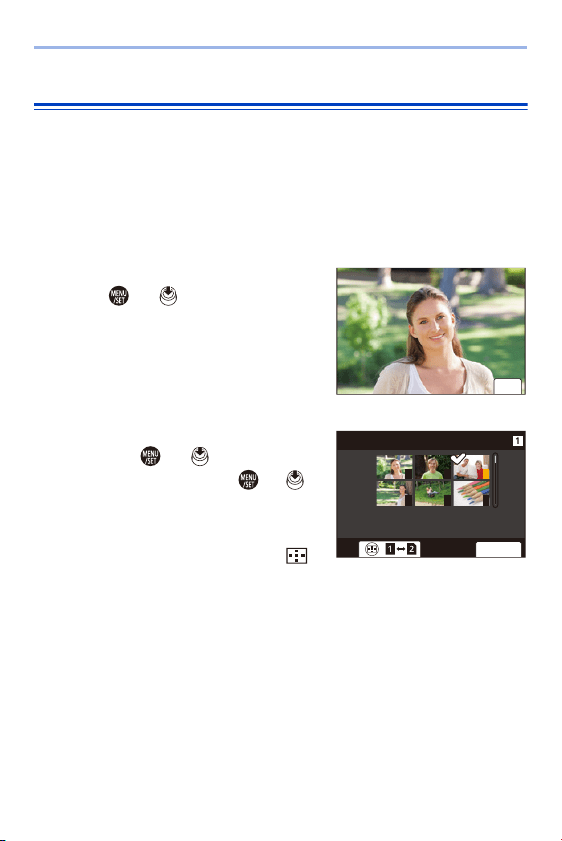
15. Wi-Fi/Bluetooth
420
Selecting Images
When sending by [Send Images Stored in the Camera], select the images
using the following procedure.
1
Select [Single Select] or [Multi Select].
2
Select the image.
[Single Select] setting
1
Press 21 to select an image.
2
Press or .
[Multi Select] setting
1
Press 3421 to select an image and
then press or . (Repeat this)
0 To cancel the setting, press or
again.
0 Images are displayed separately by card
slot.
To switch the card to display, press [ ].
0 Selecting images at once is possible only
for the images in a single card.
2
Press [DISP.] to execute.
6HW
2.
ュリヴヱハ
321
654

15. Wi-Fi/Bluetooth
421
This configures the settings required for the Wi-Fi function.
The settings cannot be changed when connected to Wi-Fi.
Displaying the [Wi-Fi Setup] menu.
≥ ¨ [ ] ¨ [ ] ¨ [Wi-Fi] ¨ [Wi-Fi Setup]
[Wi-Fi Setup] Menu
[Priority of Remote
Device]
This sets either the camera or the smartphone as the
priority control device to be used during remote
recording. (l
385)
[Wi-Fi Password]
You can use a password to connect for enhanced
security. (l
379)
[LUMIX CLUB]
This acquires or changes the “LUMIX CLUB” login ID.
(
l 423)
[PC Connection]
You can set the workgroup.
To send images to a PC, you need to connect to the
same workgroup as the destination PC.
(The default setting is “WORKGROUP”.)
0 To change the workgroup name, press or
and enter the new workgroup name.
For information on how to enter characters, refer to
page
369.
0 To return to the default settings, press [DISP.].
[Device Name]
You can change the name (SSID) of the camera.
0 To change the SSID, press [DISP.] and enter the
new SSID name.
For information on how to enter characters, refer to
page
369.
0 A maximum of 32 characters can be entered.
15. Wi-Fi/Bluetooth
422
“LUMIX CLUB”
Refer to the “LUMIX CLUB” site for details.
https://lumixclub.panasonic.net/eng/c/
[Wi-Fi Function Lock]
To prevent incorrect operation and use of the Wi-Fi
function by a third party and to protect personal
information in the camera and included with images,
protect the Wi-Fi function with a password.
[Setup]: Enter any 4-digit numbers as the password.
0 For information on how to enter characters, refer to
page
369.
[Cancel]: Cancel the password.
0 Once a password is set, you are required to enter it
each time you use the Wi-Fi function.
0 If you forget your password, you can use [Reset] in
the [Setup] ([Setting]) menu to reset the network
settings and thereby reset the password.
[Network Address]
Displays the MAC address and IP address of the
camera.
0 The service may be suspended due to regular maintenance or unexpected
troubles, and the service contents may be changed or added, without prior
notice to the users.
The service may also be stopped in whole or in part with a reasonable period
of advance notice.
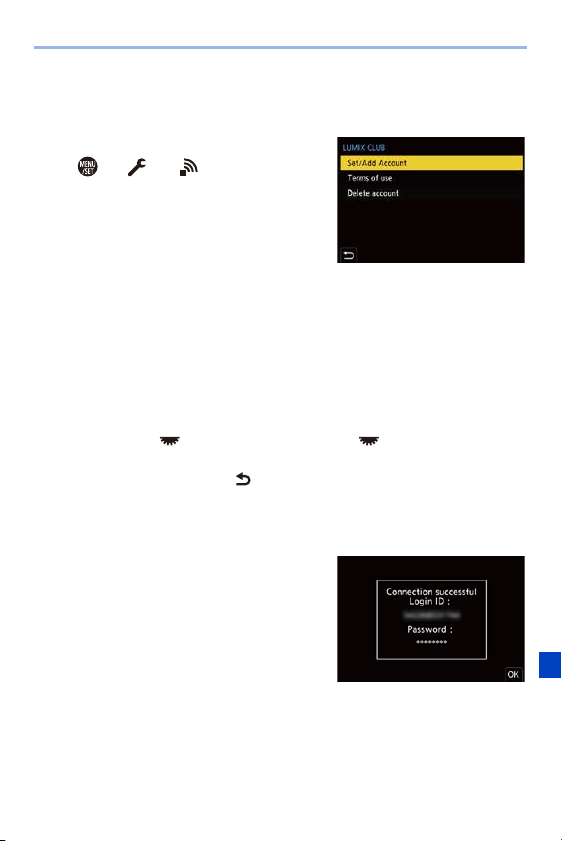
15. Wi-Fi/Bluetooth
423
Obtain a New Login ID from the Camera
From the camera menu, acquire a “LUMIX CLUB” login ID.
1
Follow the menu path.
0
¨ [ ] ¨ [ ] ¨ [Wi-Fi] ¨ [Wi-Fi
Setup]
¨ [LUMIX CLUB] ¨ [Set/Add
Account]
¨ [New account]
0 Connect to the network.
Proceed to the next page by selecting
[Next].
2
Select and set the method for connecting to a wireless access point,
and set. (l
412)
0
Except for the first-time connection, the camera will connect to the previously-
used wireless access point.
To change the connection destination, press [DISP.].
0 Proceed to the next page by selecting [Next].
3
Read through the “LUMIX CLUB” terms of use and then select [Agree].
0
Switch pages: 34
0 Zoom: Rotate to the right (to restore: rotate to the left)
0 Move the enlarged area: 3421
0 Cancel without registering: [ ] button
4
Enter a password.
0
Enter any combination of 8 to 16 characters and numbers for the password.
0 For information on how to enter characters, refer to page
369.
5
Check the login ID and then select
[OK].
0
Be sure to make a note of the login ID and
password.
0 The login ID (12-digit number) will be
displayed automatically.
15. Wi-Fi/Bluetooth
424
Register a Web Service with “LUMIX CLUB”
Getting started:
0 Make sure that you have created an account on the web service you want to use,
and have the login information available.
1
Connect to the “LUMIX CLUB” site using a smartphone
or PC.
https://lumixclub.panasonic.net/eng/c/
2
Enter your “LUMIX CLUB” login ID and password to log
in.
0
If you have not registered your email address to the “LUMIX CLUB” yet, please
register it.
3
Select and register the web service you want to use for web service
link settings.
0
Follow the on-screen instructions to perform the registration.
Confirm/Change Login ID or Password
Getting started:
0 When using the acquired login ID, check the ID and password.
0 Access the “LUMIX CLUB” website from your PC to change the password.
1
Follow the menu path.
0
¨ [ ] ¨ [ ] ¨ [Wi-Fi] ¨ [Wi-Fi
Setup]
¨ [LUMIX CLUB] ¨ [Set/Add
Account]
¨ [Set Login ID]
0 The login ID and password are displayed.
0 The password is displayed as “ ”.
2
Select the item to change.
0 Confirm web services supported by “LUMIX CLUB” in “FAQ/
Contact us” at the website below.
https://lumixclub.panasonic.net/eng/c/lumix_faqs/

15. Wi-Fi/Bluetooth
425
3
Enter the login ID or password.
0
For information on how to enter characters, refer to page
369.
4
Select [Exit].
Checking the “LUMIX CLUB” Terms of Use
Check the details if the terms of use have been updated, for example.
¨ [ ] ¨ [ ] ¨ [Wi-Fi] ¨ [Wi-Fi Setup] ¨ [LUMIX CLUB] ¨ Select
[Terms of use]
Deleting Your Login ID and Closing Your “LUMIX CLUB”
Account
Delete the login ID from the camera when transferring it to another party or
disposing of it.
You can also close your “LUMIX CLUB” account.
1
Follow the menu path.
0
¨ [ ] ¨ [ ] ¨ [Wi-Fi] ¨ [Wi-Fi Setup] ¨ [LUMIX CLUB] ¨ [Delete
account]
0 A message is displayed. Select [Next].
2
Select [Yes] on the login ID delete confirmation screen.
0
A message is displayed. Select [Next].
3
Select [Yes] on the confirmation screen asking whether to close the
“LUMIX CLUB” account.
0
A message is displayed. Select [Next].
0 To continue without closing the account, select [No] to delete only the login ID.
4
Select [OK].
0 You can only change or delete the login ID acquired with the camera.
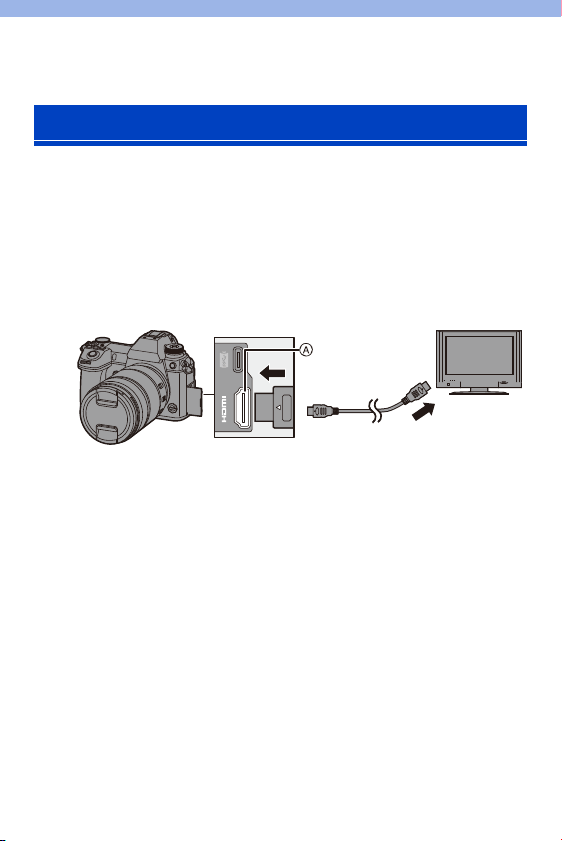
426
16. Connecting to Other Devices
You can connect the camera to a TV to view recorded pictures and videos
on the TV.
Getting started:
0 Turn off the camera and TV.
1
Connect the camera and TV with a commercially
available HDMI cable.
A [HDMI] socket (Type A)
0 Check the direction of the terminals and plug in/out straight holding onto the
plug.
(Inserting these at an angle may cause deformation or malfunction)
0 Do not connect the cable to the wrong terminals. This may cause a
malfunction.
2
Turn on the TV.
3
Switch the input of the TV.
≥Switch the input of the TV to match the terminal to which you
connected the HDMI cable.
4
Turn on the camera.
Viewing on a TV
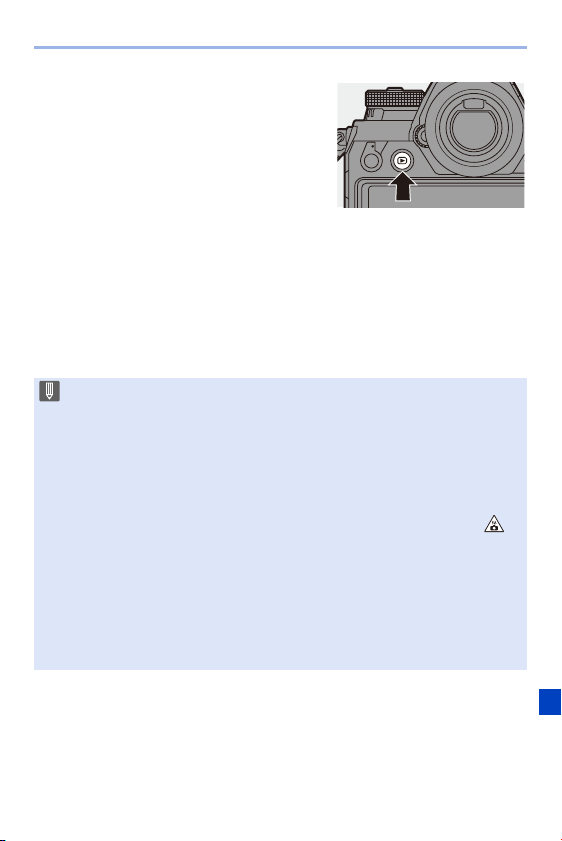
16. Connecting to Other Devices
427
5
Display the playback screen.
≥Press [(].
≥The recorded images are displayed
on the TV. (The monitor and
viewfinder of the camera will turn
off.)
0
With the default settings, pictures are output at the optimal resolution for the
connected TV.
The output resolution can be changed in [HDMI Mode (Playback)]. (l
357)
0 Depending on the aspect ratio, gray bands may be displayed on the top and
bottom or the left and right of images.
You can change the band color in [Background Color(Playback)] in [TV
Connection] of the [Setup] ([IN/OUT]) menu. (l
358)
0 Use a “High Speed HDMI cable” with the HDMI logo.
Cables that do not comply with the HDMI standards will not work.
“High Speed HDMI cable” (Type A–Type A plug, up to 1.5 m (4.9 feet) long)
0 No sound is output from the camera speakers during HDMI output.
0 The [HDMI] socket does not work if you also connect the USB connection
cable.
Power can be supplied using the AC adaptor.
0 If the camera temperature rises under the any of following conditions, [ ]
may be displayed and the HDMI output may stop.
Wait until the camera cools down.
– During continuous HDMI output
– When the ambient temperature is high
0 Change the screen mode on your TV if images are displayed with the top or
bottom cut off.
0 Please also refer to the operating instructions for the TV.

16. Connecting to Other Devices
428
Using VIERA Link (HDMI)
VIERA Link (HDMI) (HDAVI Control™) is a function that allows you to use
your remote control for the Panasonic TV for easy operations when the
camera has been connected to a VIERA Link compatible device using an
HDMI cable for automatic linked operations.
(Not all operations are possible.)
1
Connect the camera to a Panasonic TV compatible with VIERA Link
(HDMI) using a commercially available HDMI cable. (l
426)
2
Turn on the camera.
3
Turn on the VIERA Link.
0
¨ [ ] ¨ [ ] ¨ [TV Connection] ¨ [VIERA Link (CEC)] ¨ [ON]
4
Display the playback screen.
0
Press [(].
5
Operate with the remote control for the TV.
Power off link
If you turn off the TV with its remote control, the camera will also turn off.
Automatic input switching
If you turn on the camera and then press [(], the input of the TV automatically
switches to input to which this camera is connected.
Furthermore, when the TV power is in the standby state, it turns on automatically.
(When “Power on link” on the TV is set to “Set”)
0 To use VIERA Link (HDMI), you need to also configure the settings on the TV.
For the setting procedure, refer to the operating instructions for the TV.

16. Connecting to Other Devices
429
0 Use a “High Speed HDMI cable” with the HDMI logo.
Cables that do not comply with the HDMI standards will not work.
“High Speed HDMI cable” (Type A–Type A plug, up to 1.5 m (4.9 feet) long)
0 VIERA Link is a unique Panasonic function built on an HDMI control function
using the standard HDMI CEC (Consumer Electronics Control) specification.
Linked operations with HDMI CEC compatible devices made by other
companies are not guaranteed.
0 The camera supports VIERA Link Ver.5. VIERA Link Ver.5 is the standard for
Panasonic’s VIERA Link compatible devices. This standard is compatible with
Panasonic’s conventional VIERA Link devices.
0 Operation using the buttons on the camera will be limited.

16. Connecting to Other Devices
430
If you connect the camera to a PC, you can copy the recorded images to
the PC.
For Windows, install the supplied software “PHOTOfunSTUDIO” to copy
your images. (l
430)
For Mac, copy the files or folders inside the card by dragging and dropping.
(l 434)
Furthermore, use “SILKYPIX Developer Studio” (Windows version or Mac
version) to process and edit RAW images, and “LoiLoScope” (Windows
version only) to edit videos.
Installing Software
Install the software to perform operations such as organizing and
correcting recorded images, processing RAW images, and editing videos.
Importing Images to a PC
0 To download the software, your PC needs to be able to connect to the internet.
0 Downloading may take a while depending on the communication environment.
0 Supported OSs are current as of January 2019 and are subject to change.

16. Connecting to Other Devices
431
PHOTOfunSTUDIO 10.1 PE
This software allows you to manage your images. For example, it allows
you to import pictures and videos to your PC and then sort them by
recording date, model name.
You can also perform operations such as writing images to a DVD,
correcting images, and editing videos.
Check the following site and then download and install the software.
https://panasonic.jp/support/global/cs/soft/download/d_pfs1001pe.html
(English only)
Download expiration: March 2024
Operating environment
0
A high-performance PC environment is required to use the playback and editing
functions for 4K videos or the picture cropping function for 6K/4K photos.
For details, refer to the operating instructions for “PHOTOfunSTUDIO”.
0 “PHOTOfunSTUDIO” is not available for Mac.
Supported OS
Windows 10 (32-bit/64-bit)
Windows 8.1 (32-bit/64-bit)
Windows 7 (32-bit/64-bit) SP1
0 For 4K videos and 6K/4K photos, a 64 bit version of the
Windows 10/Windows 8.1/Windows 7 OS is required.
CPU Pentium
®
4 (2.8 GHz or higher)
Display At least 1024k768 (1920k1080 or higher is recommended)
Installed memory 1 GB or more for 32-bit, 2 GB or more for 64-bit
Free hard disk
space
450 MB or more for installing the software

16. Connecting to Other Devices
432
SILKYPIX Developer Studio SE
This software processes and edits RAW images.
Edited images can be saved in a format (JPEG, TIFF, etc.) that can be
displayed on a PC.
Check the following site and then download and install the software.
http://www.isl.co.jp/SILKYPIX/english/p/
Operating environment
0
For more information such as how to use “SILKYPIX Developer Studio”, refer to the
Help or the Ichikawa Soft Laboratory’s support website.
30-Day Full Trial Version of “LoiLoScope”
This software allows you to easily edit videos.
Check the following site and then download and install the software.
http://loilo.tv/product/20
Operating environment
0 You can download a trial version that can be used for free for 30 days.
0 For more information on how to use “LoiLoScope”, refer to the “LoiLoScope”
manual available for download at the website.
0 “LoiLoScope” is not available for Mac.
Supported OS
Windows
Windows 10
Windows 8.1
Windows 7
Mac
OS X v10.6.8 to v10.11
macOS 10.12 to macOS 10.14
Supported OS Windows
Windows 10
Windows 8.1
Windows 8
Windows 7
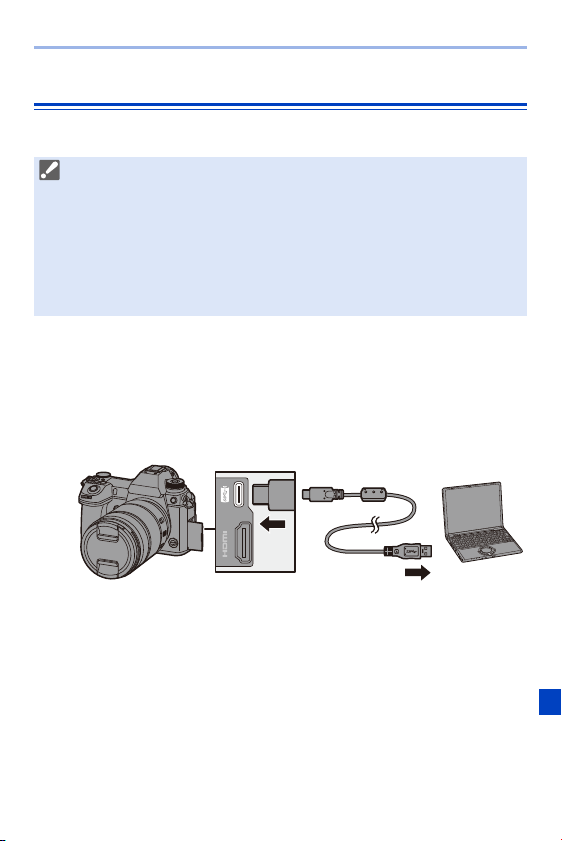
16. Connecting to Other Devices
433
Copying Images to a PC
Use “PHOTOfunSTUDIO” to copy recorded images to your PC.
Getting started:
0 Turn on the camera and PC.
0 Install “PHOTOfunSTUDIO” on PC. (l
430)
1
Connect the camera and PC with the USB connection
cable (C–C or A–C).
0 Plug in/out straight holding onto the plug.
(Inserting these at an angle may cause deformation or malfunction)
0 Do not connect the cable to the wrong terminals. This may cause a
malfunction.
0 If you are using a Mac, or in any situation where “PHOTOfunSTUDIO” cannot
be installed, refer to page
434.
0 AVCHD videos may not be imported correctly by copying the files or folders.
– For Windows, be sure to use “PHOTOfunSTUDIO” to import AVCHD
videos.
– For Mac, you can use “iMovie” to import AVCHD videos. Depending on the
recording quality, however, it may not be possible to import them.
(For details on “iMovie”, please contact Apple Inc.)
16. Connecting to Other Devices
434
2
Press 34 to select [PC(Storage)] and then press or
.
0 A message about charging may be displayed. Wait for a while until the
message disappears.
3
Copy images to the PC using “PHOTOfunSTUDIO”.
0 Do not delete or move the copied files and folders in, for example, Windows
Explorer.
Playback and editing using “PHOTOfunSTUDIO” will become no longer
possible.
Copying to a PC Without Using “PHOTOfunSTUDIO”
Even if you are using a Mac, or in any situation where
“PHOTOfunSTUDIO” cannot be installed, you can still copy files and
folders by connecting the camera to the PC and then dragging and
dropping them to it.
0 If [USB Mode] is set to [PC(Storage)] in the [Setup] ([IN/OUT]) menu, the
camera will be automatically connected to the PC without the [USB Mode]
selection screen being displayed. (l
355)
0 Do not use any other USB connection cables except the supplied USB
connection cables (C–C and A–C).
0 Take care not to turn off the camera while images are being imported.
0 After importing of the images is completed, perform the operation to safely
remove the USB connection cable on the PC.
0 Turn off the camera and disconnect the USB connection cable before
removing the card from the camera. Otherwise, the recorded data may be
damaged.

16. Connecting to Other Devices
435
Operating environment
The camera can be connected to a PC running any of the following OSs which can
detect mass storage devices.
Folder Structure Inside Card
For Windows, the drive (“LUMIX”) is displayed in [Computer]. For Mac, the drive
(“LUMIX”) is displayed on the desktop.
Supported OS
Windows
Windows 10
Windows 8.1
Windows 8
Windows 7
Mac
OS X v10.5 to v10.11,
macOS 10.12 to macOS 10.14
Card
CAMSET: The camera’s setup
information
DCIM: Images
1 Folder number
2 Color space P: sRGB
_: AdobeRGB
3 File number
4 JPG: Pictures
RW2: RAW file images
HSP: HLG format pictures
MP4: MP4 videos
6K/4K burst files
AVCHD: AVCHD videos
AVCHD
DCIM
100XXXXX
101XXXXX
999XXXXX
PXXX0001.JPG
PXXX1000.JPG
PRIVATE
CAMSET
AD_LUMIX
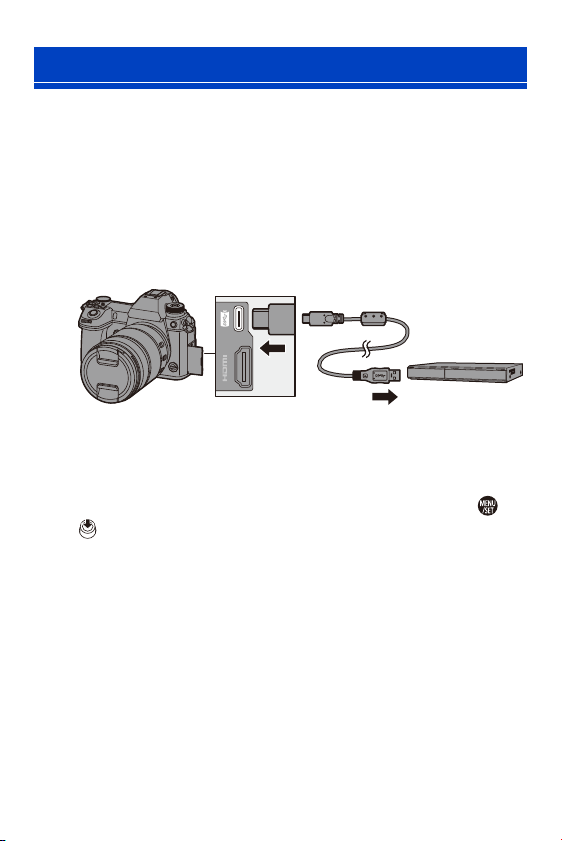
16. Connecting to Other Devices
436
By connecting the camera to a Panasonic Blu-ray disc recorder or DVD
recorder, you can store the pictures and videos.
Getting started:
0 Turn on the camera and recorder.
0 Images to be stored should be saved on an XQD card and inserted in card slot 1.
1
Connect the camera and recorder with the USB
connection cable (C–C or A–C).
0 Plug in/out straight holding onto the plug.
(Inserting these at an angle may cause deformation or malfunction)
0 Do not connect the cable to the wrong terminals. This may cause a
malfunction.
2
Press 34 to select [PC(Storage)] and then press or
.
0 A message about charging may be displayed. Wait for a while until the
message disappears.
3
Operate the recorder to store the images.
Storing on a Recorder

16. Connecting to Other Devices
437
0 If [USB Mode] is set to [PC(Storage)] in the [Setup] ([IN/OUT]) menu, the
camera will be automatically connected to the recorder without the [USB
Mode] selection screen being displayed. (l
355)
0 Do not use any other USB connection cables except the supplied USB
connection cables (C–C and A–C).
0 Take care not to turn off the camera while storage is in progress.
0 Images such as 4K videos may not be supported depending on your recorder.
0 Turn off the camera and disconnect the USB connection cable before
removing the card from the camera. Otherwise, the recorded data may be
damaged.
0 For the storage and playback procedures, refer to the operating instructions
for the recorder.

16. Connecting to Other Devices
438
If you install the “LUMIX Tether” camera control software on your PC, you
can connect the camera to the PC via USB and then control the camera
from the PC and record while checking the live view on the PC screen
(tethered recording).
In addition, you can output via HDMI to an external monitor or TV during
tethered recording.
Installing Software
“LUMIX Tether”
This software is for controlling the camera from a PC.
It allows you to change various settings and to record remotely and then
save the images to the PC.
Check the following site and then download and install the software.
https://panasonic.jp/support/global/cs/soft/download/d_lumixtether.html
Operating environment
Tethered Recording
Supported OS
Windows Windows 10, Windows 8.1, Windows 7
Mac
OS X v10.10 to v10.11, macOS 10.12, macOS
10.13
Interface USB port (SuperSpeed USB (USB 3.0))
0 Supported OSs are current as of January 2019 and are subject to change.
0 To download the software, your PC needs to be able to connect to the internet.
0 Downloading may take a while depending on the communication environment.
0 For how to operate the software, refer to the operation guide for “LUMIX
Tether”.
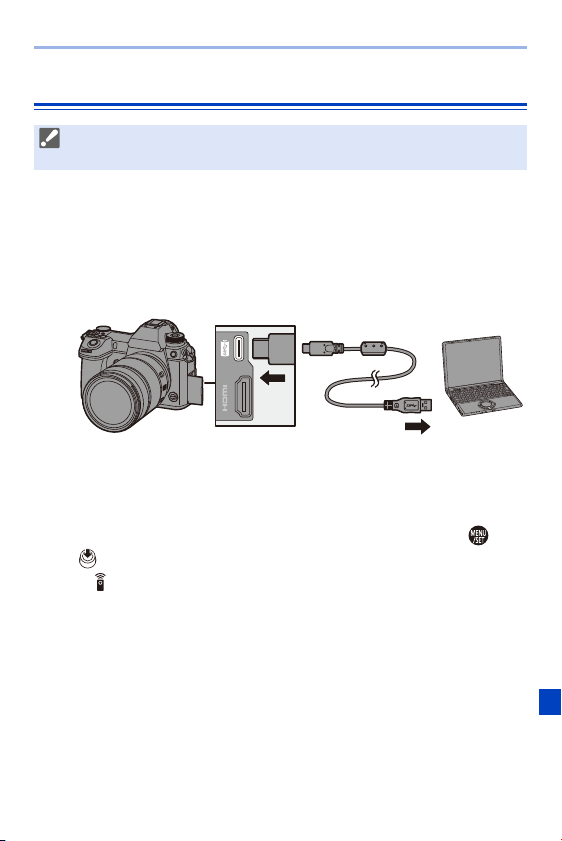
16. Connecting to Other Devices
439
Operating the Camera from a PC
Getting started:
0 Turn on the camera and PC.
0 Install “LUMIX Tether” on PC.
1
Connect the camera and PC with the USB connection
cable (C–C or A–C).
0 Plug in/out straight holding onto the plug.
(Inserting these at an angle may cause deformation or malfunction)
0 Do not connect the cable to the wrong terminals. This may cause a
malfunction.
2
Press 34 to select [PC(Tether)] and then press or
.
≥[ ] is displayed on the screen.
0
A message about charging may be displayed. Wait for a while until the
message disappears.
3
Use “LUMIX Tether” to operate the camera from the PC.
0 To output via HDMI to an external monitor or TV, connect the camera and
external monitor or TV with an HDMI cable. (l
426)

16. Connecting to Other Devices
440
0 If [USB Mode] is set to [PC(Tether)] in the [Setup] ([IN/OUT]) menu, the
camera will be automatically connected to the PC without the [USB Mode]
selection screen being displayed. (l
355)
0 Do not use any other USB connection cables except the supplied USB
connection cables (C–C and A–C).
0 The Wi-Fi/Bluetooth functions are not available while there is a PC connection
with [PC(Tether)].
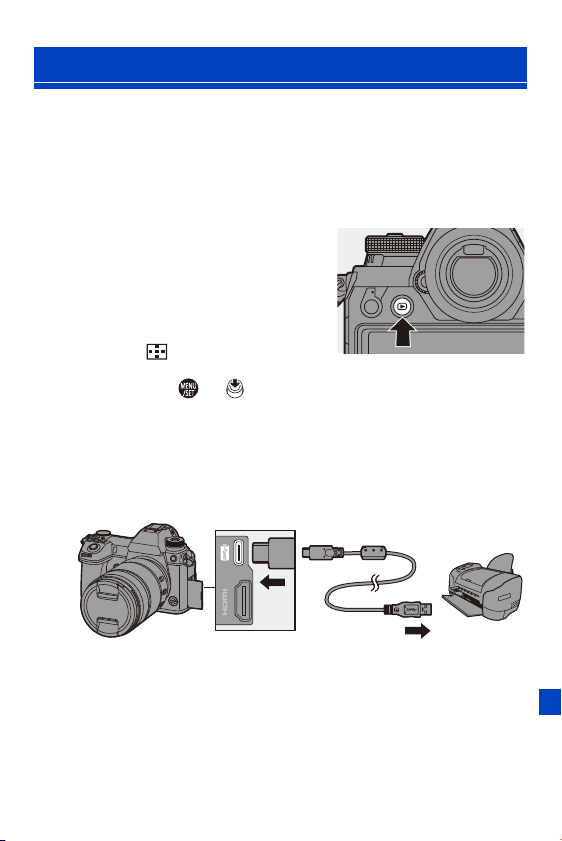
16. Connecting to Other Devices
441
If you connect the camera to a printer that supports PictBridge, you can
select pictures on the camera’s monitor and then print them.
Getting started:
0 Turn on the camera and printer.
0 Set the print quality and other settings on the printer.
1
Display the playback screen.
≥Press [(].
0
Images are displayed separately by card
slot.
To switch the card to display, after
pressing [ ], press 34 to select
[Card Slot 1(XQD)] or [Card Slot 2(SD)],
and then press or .
0 You can also select the card to be displayed using the Fn button [Card Slot
Change] (l
284).
0 The card for printing cannot be changed after connecting to the printer.
2
Connect the camera and printer with the USB
connection cable (C–C or A–C).
0 Plug in/out straight holding onto the plug.
(Inserting these at an angle may cause deformation or malfunction)
0 Do not connect the cable to the wrong terminals. This may cause a
malfunction.
Printing
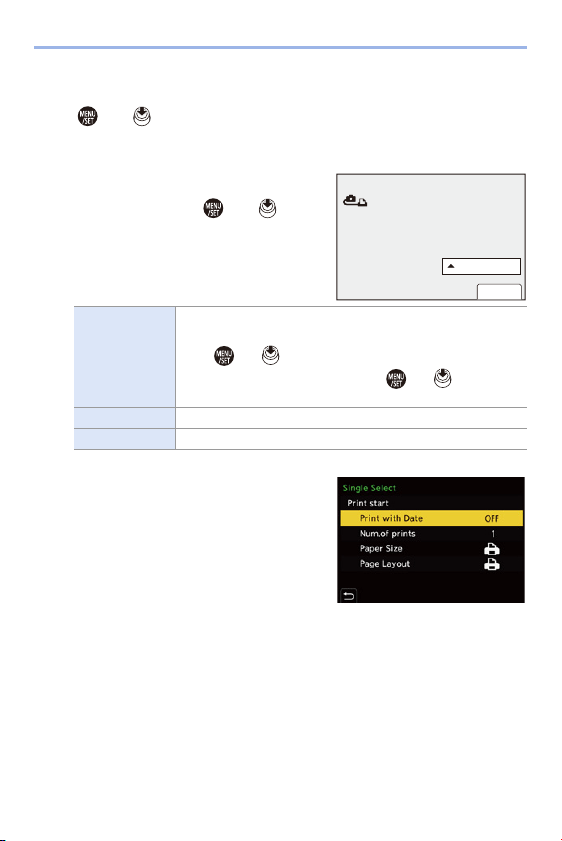
16. Connecting to Other Devices
442
3
Press 34 to select [PictBridge(PTP)] and then press
or .
0 A message about charging may be displayed. Wait for a while until the
message disappears.
4
Press 21 to select a picture
and then press or .
≥To print multiple pictures, press 3,
set the picture selection method,
and then select pictures.
5
Set the printer settings.
[Multi Select]
Selects the picture to print.
1 Press 3421 to select a picture and then press
or .
0 To cancel the setting, press or again.
2 Press [DISP.] to end selection.
[Select All] Prints all the stored pictures.
[Rating] Prints all pictures with [Rating] levels from [¿1] to [¿5].
PictBridge
0XOWL3ULQW
3ULQW
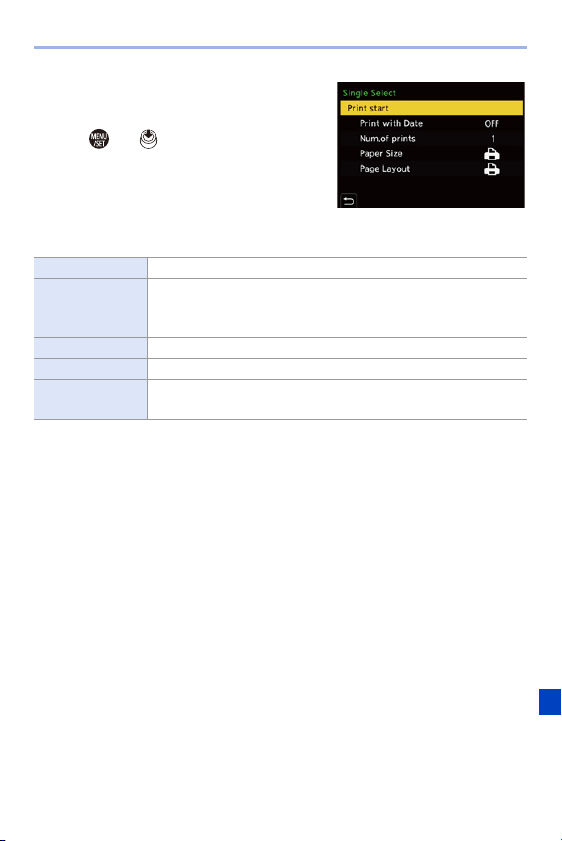
16. Connecting to Other Devices
443
6
Start printing.
≥Select [Print start] and then press
or .
Setting Items (Print Settings)
[Print start] Starts printing.
[Print with Date]
Sets printing with date.
0 If the printer does not support date printing, the date cannot be
printed.
[Num.of prints] Sets the number of prints to be printed (up to 999).
[Paper Size] Sets the paper size.
[Page Layout]
Sets whether to add borders and how many images to be
printed on each sheet of paper.

16. Connecting to Other Devices
444
0 If [USB Mode] is set to [PictBridge(PTP)] in the [Setup] ([IN/OUT]) menu, the
camera will be automatically connected to the printer without the [USB Mode]
selection screen being displayed. (l
355)
0 Do not use any other USB connection cables except the supplied USB
connection cables (C–C and A–C).
0 Take care not to turn off the camera while printing is in progress.
0 When connecting with the printer is not possible, set [USB Power Supply] to
[OFF] and then try connecting again. (l
355)
0 Do not disconnect the USB connection cable while [å] (Cable disconnect
prohibit icon) is displayed.
0 Disconnect the USB connection cable after printing.
0 Turn off the camera and disconnect the USB connection cable before
removing the card from the camera. Otherwise, the recorded data may be
damaged.
0 To print images with paper size and layout settings not supported by the
camera, set the [Paper Size] and [Page Layout] to [{] and then select the
desired settings on the printer.
(For details, refer to the operating instructions for your printer.)
0 If a yellow [¥] is displayed during printing, the camera is receiving an error
message from the printer.
After printing finishes, check that there is no problem with the printer.
0 If the number of prints is high, the pictures may be printed in batches. In this
case, the remaining number of prints indicated may differ from the number set.
0 When you print RAW images, JPEG images that were recorded at the same
time will be printed. If JPEG images were not recorded, printing is not
possible.
0 Recorded images cannot be printed while you are using the following
functions:
– Video recording/[6K/4K Burst]/[Post-Focus]
– [HLG Photo]
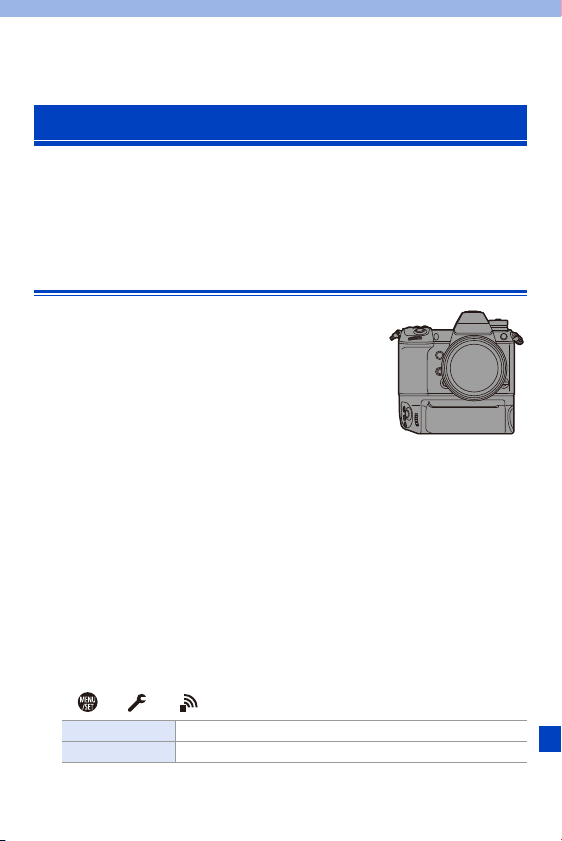
445
17. Materials
0 For information on the external flash, refer to page
216.
0 For information on the external microphone, refer to page
253.
0 For information on the XLR Microphone Adaptor, refer to page
256.
0 Some optional accessories may not be available in some countries.
Battery Grip (Optional)
When mounted on the camera, the Battery Grip
(DMW-BGS1: optional) improves ease of operation
and grip when the camera is held vertically.
Also, inserting a battery into the Battery Grip
provides a stable supply of power even for long
periods of recording.
Selecting Battery Usage Priority
Selects which battery to use first when the batteries are installed in both
the camera and the Battery Grip.
The order of battery charging using the camera body is also determined by
this setting.
Getting started:
0 Turn the camera off, and remove the cover for the battery grip connector.
1
Attach the Battery Grip to the camera.
2
Turn on the camera.
3
Set the battery use priority.
0
¨ [ ] ¨ [ ] ¨ [Battery Use Priority]
Using Optional Accessories
[BODY] The battery in the camera is used first.
[BG] The battery in the Battery Grip is used first.
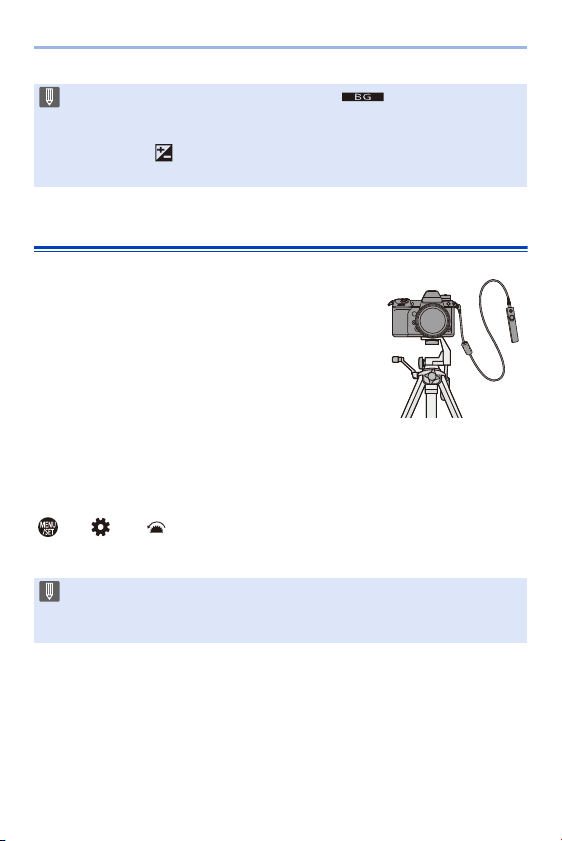
17. Materials
446
Shutter Remote Control (Optional)
You can connect the Shutter Remote Control
(DMW-RS2: optional) to use the camera as
follows:
– Fully pressing the shutter button without camera shake
– Securing the shutter button during bulb recording and
burst recording
– Start/end the video recording
Shutter Remote Control Video Rec. Button
You can disable the video rec. button when not recording a video to
prevent erroneous operation.
¨ [ ] ¨ [ ] ¨ Select [Video Rec. Button (Remote)]
Settings: [ON]/[OFF]
0 When the battery in the Battery Grip is used, [ ] is displayed on the
screen.
0 You can assign functions of your choice to the [Fn] button, [WB] button, [ISO]
button, and [ ] button on the Battery Grip. (l
278)
0 Refer to the operating instructions for the Battery Grip for details.
0 Always use a genuine Panasonic Shutter Remote Control (DMW-RS2:
optional).
0 Refer to the operating instructions for the Shutter Remote Control for details.

17. Materials
447
AC Adaptor (Optional)/DC Coupler (Optional)
With an AC Adaptor (DMW-AC10: optional) and DC Coupler (DMW-
DCC16: optional), you can perform recording and playback without
worrying about the remaining battery charge.
0 Be sure to purchase both an AC Adaptor and a DC Coupler as a set.
They cannot be used independently of one another.
0 When the DC Coupler is being mounted, the DC Coupler cover opens, so the
structure ceases to be dust and splash resistant.
Do not allow sand, dust and water droplets to adhere to or enter the camera.
After use, confirm that no foreign objects are adhering to the DC Coupler
cover, then firmly close the cover.
0 For details, refer to the operating instructions for the AC Adaptor and DC
Coupler.

17. Materials
448
0 The screen is an monitor display example of when [LVF/Monitor Disp. Set] is set to
[].
Recording Screen
1
Monitor/Viewfinder Displays
×
Fn7Fn7
Fn4Fn4
Fn3Fn3
Fn5Fn5
Fn6Fn6
OFFOFF
OFFOFF
ISO
SS
FF
MINIMINI
AWB
BKT
AEL BKT
AFSAFS
999
ISO
100F4.060
+
1
/
3
24m59s24m59s
GPS
APS-C
L
FINE
RAW
+
HLG
4K
‰
Œ
Flash mode (l 220)
Flash setting (l 223, 226)
AWBc
AWBw
VÐî
Ñ
White balance (l 194)
White Balance Bracket,
White Balance Bracket
(Color Temperature)
(l
160)
Adjusting the white balance
(l
197)
Photo Style (l 199)
Filter setting (l 204)/
Filter effect adjustment
(l
204)
WL
1
1
BKT
AWB
AWB
AWB
EXPS
HLG Photo (l 214)
Picture quality (l 85)/
Picture size (l
83)
Extended Tele Conversion
(l
122)
Recording file format/
Recording quality (l
233)
Electronic shutter (l 170)
High Speed Video (l 247)
Focus mode (l 91, 117)
Focus Bracket (l 159)
AFL AF Lock (l 191)
Peaking (l 310)
60
p
180fps
AFS
AFC
MF
AFS
BKT
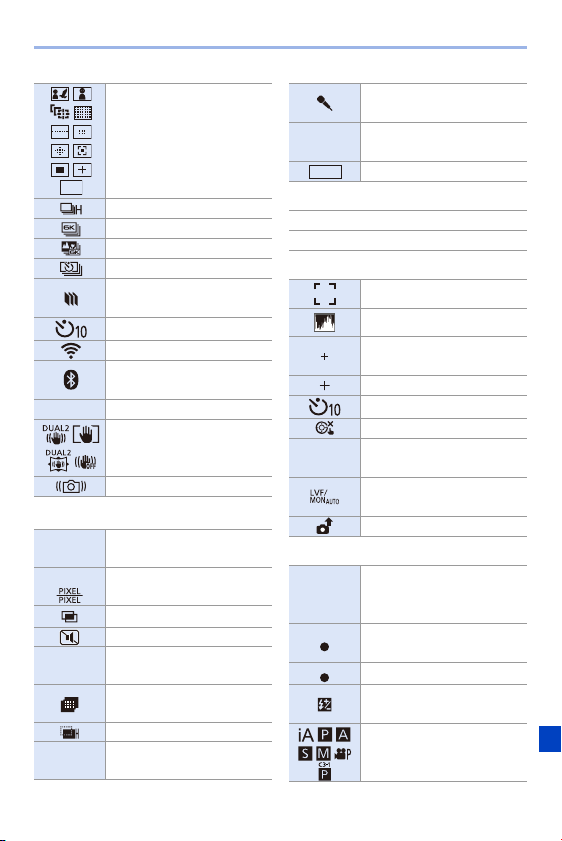
17. Materials
449
2
3
4
5
AF mode (l 98)
Burst (l 126)
6K/4K Photo (l 130)
Post-Focus (l 161)
Time Lapse Shot (l 145)
Stop Motion Animation
(l
148)
Self-timer (l 153)
Connected to Wi-Fi
Connected to Bluetooth
(l
375)
GPS Location logging (l 392)
Image stabilizer (l 172)
Camera shake alert (l 173)
PRE
Pre-Burst recording
(l
134)
APS-C Image area of video
(l
238)
Multiple exposures (l 316)
Silent mode (l 169)
FLICKER
Flicker Decrease (Photo)
(l
315)
High Resolution mode
(l
210)
Overlay indication (l 347)
Sound recording level
limiter ([OFF]) (l
243)
ヤヒ
LMT
OFF
External microphone
(l
253)
XLR
XLR microphone adaptor
setting (l
256)
HLG View Assist (l 347)
Exposure meter (l
344)
Sound recording level (l
243)
AF area (l 112)
Histogram (l 340)
Spot metering target
(l
178)
Center marker (l 341)
Self-timer (l 153)
Lock lever (l 65)
8m30s
Elapsed recording time
(l
230)
Automatic viewfinder/
monitor switching (l
67)
Image being sent (l 390)
¥
Focus (green light on)
(l
59)/Recording state (red
light on) (l
211, 230)
Focus (in low light
situations) (l
93)
Focus (Starlight AF) (l 93)
Adjusting the Flash Output
(l
224)
Recording mode (l 61)
MON
HDMI
MODE2
HLG
LOW
STAR
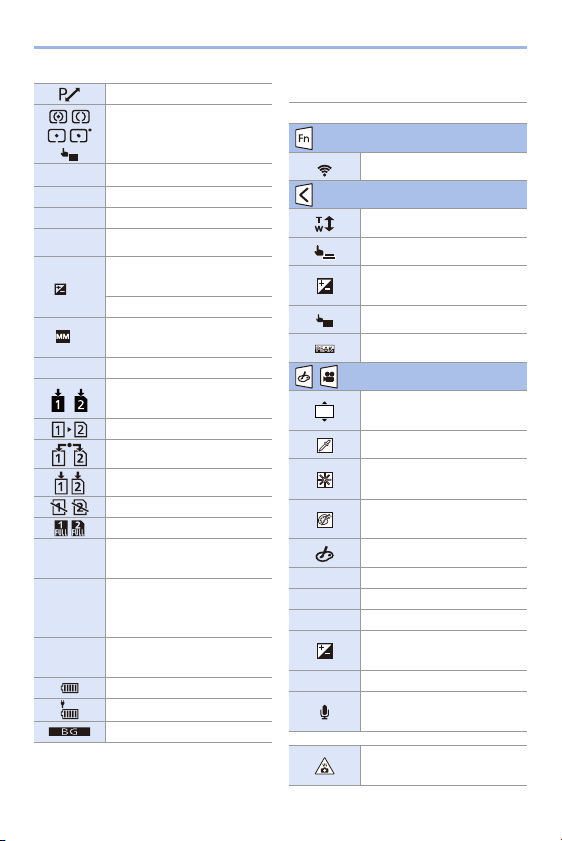
17. Materials
450
6
Program Shift (l 180)
Metering mode (l 178)
AE Lock (l 191)
60
Shutter speed (l 59)
F4.0
Aperture value (l 59)
Aperture Bracket (l 158)
Exposure compensation
value (l
189)
Exposure Bracket (l 158)
Manual Exposure Assist
(l
186)
ISO sensitivity (l 192)
Card access indication
(lights red) (l
230)
Relay recording (l 87)
Backup recording (l 87)
Allocation recording (l 87)
No card
Card full
999
Number of recordable
pictures (l
482)
r20
Number of pictures that can
be taken continuously
(l
128)
8m30s
Available recording time
(l
483)
Battery indication (l 42)
Power supply (l 40)
Battery Grip (l 445)
AE
A
E
L
F4.0
BKT
BKT
+
1
/
3
+
1
ISO100
Touch Tab (l 333)
Fn button (l 285)
Touch Zoom (l 123)
Touch Shutter (l 80)
Exposure compensation
(l
189)
Touch AE (l 81)
Peaking (l 310)
/ (l 245)
Type of defocus ([Miniature
Effect]) (l
207)
One Point Color (l 208)
Light source position
([Sunshine]) (l
208)
Filter effect adjustment
(l
204)
Filter on/off (l 206)
MINI
Filter setting (l 204)
F
Aperture value (l 59)
SS
Shutter speed (l 59)
Exposure compensation
(l
189)
ISO ISO sensitivity (l 192)
Sound recording level
adjustment (l
243)
Temperature rise warning
icon (l
460)
Fn3
×
AE
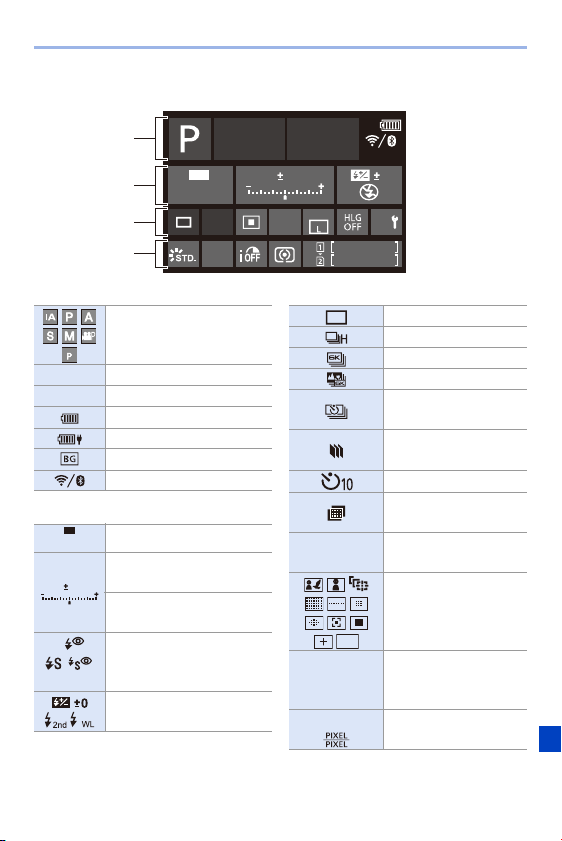
17. Materials
451
Control Panel
1
2
3
F 4.0
1/60
999
999
AWB
Fn
OFF
0 0
0
ISO
AUTO
AFS FINE
3:2
Recording mode (l 61)
1/60 Shutter speed (l 59)
F4.0 Aperture value (l 59)
Battery indication (l 42)
Power supply (l 40)
Battery Grip (l 445)
Wi-Fi/Bluetooth (l 370)
ISO sensitivity (l 192)
Exposure compensation
value (l
189)
Manual Exposure Assist
(l
186)
‰
Œ
Flash mode (l 220)
Flash setting (l 223, 224,
226)
C1
ISO
AUTO
0
0
WL
Single (l 125)
Burst (l 126)
6K/4K Photo (l 130)
Post-Focus (l 161)
Time Lapse Shot
(l
145)
Stop Motion Animation
(l
148)
Self-timer (l 153)
High Resolution mode
(l
210)
Focus mode (l 91,
117)
AF mode
(
l 98)
FINE
STD.
RAW
Picture quality (l 85)
APS-C Image area of video
(l
238)
AFS
AFC MF
ヤヒ
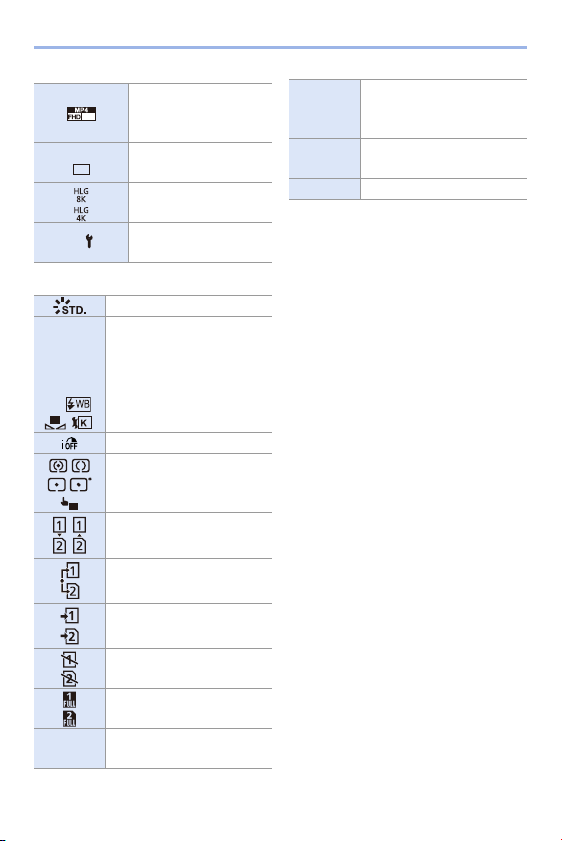
17. Materials
452
4
Recording file format/
Recording quality
(l
233)
Picture size/Aspect
ratio (l
83)
HLG Photo (l 214)
Fn button settings
(l
278)
Photo Style (l 199)
AWB
AWBc
AWBw
VÐî
Ñ
White balance (l 194)
i.Dynamic Range (l 307)
Metering mode (l 178)
Relay recording (l 87)
Backup recording (l 87)
Allocation recording (l 87)
No card
Card full
999
Number of recordable
pictures (l
482)
60
p
L
3:2
Fn
1
1
AE
r20
Number of pictures that can
be taken continuously
(l
128)
r8m30s
Available recording time
(l
483)
---- No card
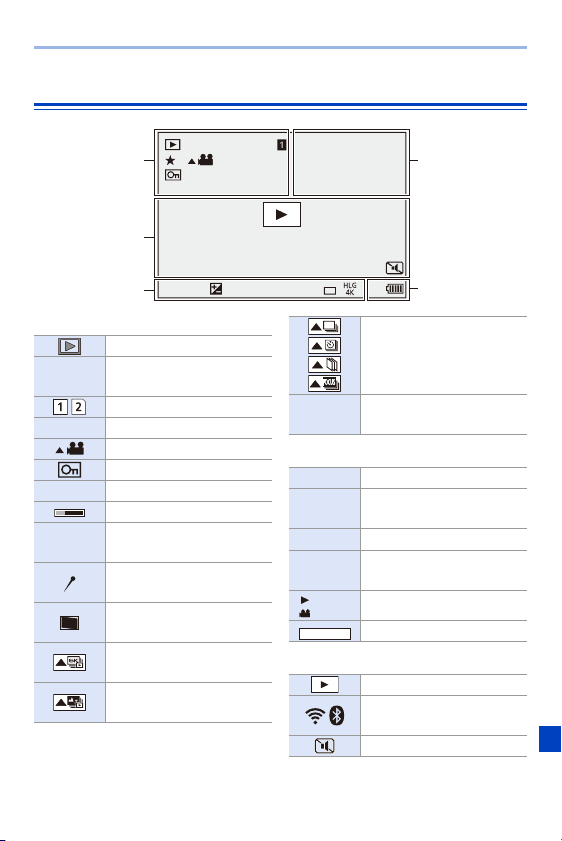
17. Materials
453
Playback Screen
1
2
3
100-0001 1/999
8m30s
ISO
100
F
4.0
APS-C
60
3
GPS
L
FINE
10:00 DEC.1.2019
±
0
Playback status
Recording date and time
(l
53)
Card slot (l 46)
Ü
3
Rating (l 365)
Video playback (l 261)
Protected picture (l 365)
GPS Location logging (l 392)
Obtaining information
å
Cable disconnect prohibit
icon (l
444)
Marker available indication
(l
141, 142)
Reduce Rolling Shutter
(l
140)
Saving pictures from a 6K/
4K burst file (l
138)
Saving pictures from a
Post-Focus image (l
164)
DEC.1.2019
10:00
Group images (l 268)
8m30s
Elapsed playback time
(l
261)
100-0001 Folder/file number (l 435)
1/999
Image number/Total
number of images
Number of group images
8m30s
Video recording time
(l
261)
High speed video (l 247)
HLG view assist (l 347)
Playback (video) (l 261)
Wi-Fi/Bluetooth connection
state
Silent mode (l 169)
SLF
XX
s
XX
m
XX
s
MON
MODE2

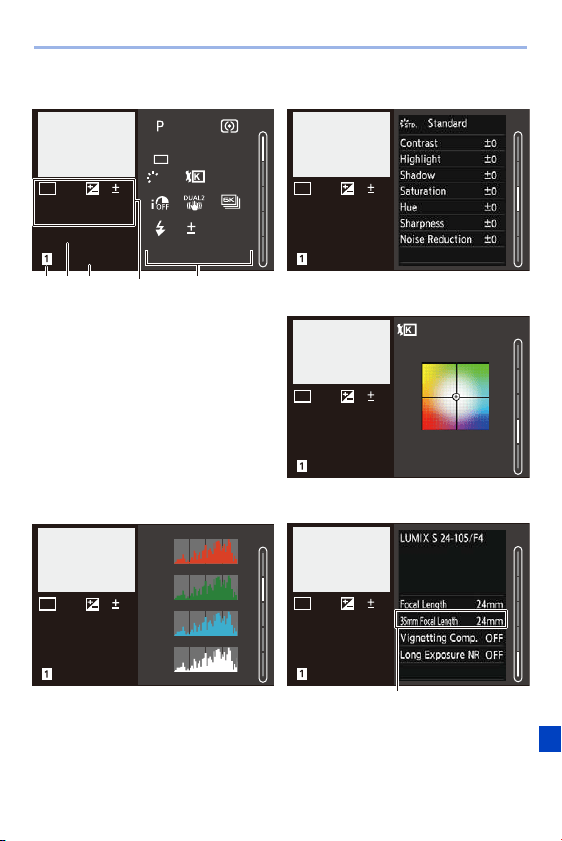
17. Materials
455
Detailed information display
1 Card slot (l
46)
2 Recording date and time (l
53)
3 Folder/file number (l
435)
4 Recording information (basic)
5 Recording information (advanced)
Histogram display
Photo Style display
White balance display
Lens information display
6 The focal length corresponding to the
angle of view when using a full-frame
lens with the [Aspect Ratio] set to
[3:2]
100
100-0001
ISO
ISO
0
F4.0
60
10:00 DEC.1.2019
s
RGB
1/5
FINE
AFS
5500
0
STD.
L
3:2
1
2/5
R
Y
B
G
100
100-0001
ISO
ISO
0
F4.0
60
10:00 DEC.1.2019
3/5
100
100-0001
ISO
ISO
0
F4.0
60
10:00 DEC.1.2019
100
100-0001
ISO
ISO
0
F4.0
60
4/5
5500K
1
G
M
AB
10:00 DEC.1.2019
5/5
100
100-0001
ISOISO
0
F4.0
60
10:00 DEC.1.2019

17. Materials
456
Meanings of main messages displayed on the camera screen, and
response methods.
Card
0 It is a format that cannot be used with the camera.
Either insert another card, or back up any necessary data before formatting. (l
48)
0 Use a card compatible with the camera. (l
22)
0 Unable to access the card. Reinsert the card.
0 Insert a different card.
0 Failure to read or write data.
Turn off the camera, reinsert the card, and then turn it on again.
0 The card may be broken.
0 Insert a different card.
0 Insufficient SD card write speed for video, 6K/4K photo, or Post-Focus recording.
Use an SD card of a supported Speed Class. (l
23)
0 If the recording stops even when you are using an SD card that meets the specified
Speed Class rating, the data writing speed of the SD card is getting slow.
We recommend backing up data, and formatting (l
48).
0 Depending on the type of card, recording may stop part way.
0 Card door or battery door is opened while writing to a card. Wait until writing is
finished, then turn the camera off and remove.
Message Displays
[Memory Card Error]/[Format this card?]
[Memory Card Error]/[This memory card cannot be used]
[Insert memory card again.]/[Try another card]
[Read Error]/[Write Error]/[Please check the card]
[Recording was cancelled due to the limitation of the writing speed of
the card]
[Now writing]

17. Materials
457
Lens
0 Remove the lens once, and then attach it again without pressing the lens release
button. (l
49)
Turn on the camera again, and if it is still displaying, contact the dealer.
0 Remove the lens from the camera body and gently wipe the contacts on the lens and
the camera body using a dry cotton swab.
Attach the lens, turn on the camera again, and if it is still displaying, contact the
dealer.
Battery
0 Use a genuine Panasonic battery.
If this message is displayed even when a genuine Panasonic battery is used, contact
the dealer.
0 If the terminal of the battery is dirty, remove the dirt and dust from them.
Wi-Fi
0 The wireless access point information set on the camera is wrong.
Check the authentication type and encryption key. (l
415)
0 Radio waves from other devices may block the connection to a wireless access
point.
Check the status of other devices that are connected to the wireless access point as
well as the status of other wireless devices.
[The lens is not attached properly. Do not push lens release button
while lens is attached.]
[Lens attachment failed. Please make sure the lens is attached
correctly.]
[This battery cannot be used]
[Failed to connect wireless access point]/[Connection failed]/[No
destination found]

17. Materials
458
0 Radio waves from the wireless access point are getting weak.
Perform the connection closer to the wireless access point.
0 Depending on the wireless access point, connection may be automatically
disconnected after specific time has passed.
Reconnect the connection again.
0 Change the access point to connect to in the smartphone Wi-Fi settings to the
camera.
Others
0 Images that do not comply with the DCF standard cannot be deleted.
Back up any necessary data before formatting the card. (l
48)
0 Images that do not comply with the DCF standard cannot be edited.
0 The maximum number of folder numbers has been reached, so new folders cannot
be created.
Back up any necessary data before formatting the card. (l
48)
After formatting, execute [File Number Reset] in the [Setup] ([Card/File]) menu to
reset the folder number to 100. (l
90)
0 Turn off and on the camera.
If the message is displayed even when doing this several times, contact the dealer.
[Connection failed. Please retry in a few minutes.]/[Network
disconnected. Transfer stopped.]
[Connection failed]
[Some pictures cannot be deleted]/[This picture cannot be deleted]
[Cannot be set on this picture]
[A folder cannot be created]
[Please turn camera off and then on again]/[System Error]

17. Materials
459
First, try out the following procedures
(l 459 to 469).
0
[Power Save Mode] is enabled. (l
44)
0 When [6K/4K Pre-Burst] or [Pre-Burst Recording] is set, the battery drains faster.
Set these settings only when recording.
0 When connected to Wi-Fi, the battery drains quickly.
Turn the camera off frequently such as by using [Power Save Mode] (l
44).
Troubleshooting
If the problem is not resolved, it may be improved by selecting
[Reset] (l
76) on the [Setup] ([Setting]) menu.
Power, Battery
The camera turns off automatically.
The battery becomes flat too quickly.

17. Materials
460
0 In high ambient temperatures or if the camera is used for continuous recording, the
temperature of the camera will rise.
To protect the camera against a rise in temperature, after [ ] is displayed,
recording will be stopped, and the following functions will not be available for a time.
Wait until the camera cools down.
– [6K/4K PHOTO]
– [Post-Focus]
– Video recording
– [AF-Point Scope]
– HDMI output
– Power supply via the USB connection cable
0 If [Focus/Shutter Priority] is set to [FOCUS], then recording will not take place until
focus is achieved. (l
329)
0 Images may look whitish when the lens or image sensor gets dirty with fingerprints or
similar.
If the lens is dirty, turn the camera off, then wipe the lens surface with a soft, dry
cloth.
For information about how to clean the image sensor, refer to page
472.
0 Ensure AE Lock is not set where it is not appropriate. (l 191)
Recording
Recording stops before finishing.
Cannot record.
Cannot use some functions.
Cannot record images.
The shutter will not operate immediately when the shutter button is
pressed.
The recorded image is whitish.
The recorded image is too bright or dark.

17. Materials
461
0 When drive mode is set to [ ] (Burst Shot 1) or [ ] (Burst Shot 2), pressing
and holding the shutter button will take burst pictures. (l
125)
0 When bracketing is set, then pressing the shutter button records multiple images
while automatically changing the settings. (l
155)
0 Confirm the following details:
– Is the subject outside of the focus range?
– Is [Shutter AF] set to [OFF]? (l
332)
– Is [Focus/Shutter Priority] set to [RELEASE]? (l
329)
– Is AF Lock (l
191) set where it is not appropriate?
0 The shutter speed will become slower and the stabilizer function may not work
properly when recording in dark places.
In these cases, use a tripod and the self-timer when recording.
0 Try the following:
– Reduce the ISO sensitivity. (l
192)
– Increase [Noise Reduction] of [Photo Style] to the positive direction, or adjust each
item other than [Noise Reduction] to the negative direction. (l
201)
– Set [Long Exposure NR] to [ON]. (l
306)
0 When a moving subject is recorded while using the following functions, the subject
may appear distorted in the picture:
– [ELEC.]
– Video recording
– [6K/4K PHOTO]
This is a characteristic of the CMOS sensor that is the image sensor of the camera,
and is not a malfunction.
Multiple images are recorded at once.
The subject is not focused properly.
The recorded image is blurred.
The stabilizer is not effective.
The recorded image looks rough.
Noise appears on the picture.
The subject appears distorted on the image.

17. Materials
462
0 This is characteristic of CMOS sensors which serve as
the camera’s pickup sensors.
This is not a malfunction.
0 When using the electronic shutter (l
170), lowering the
shutter speed may reduce the effect of the horizontal
stripes.
0 If flicker is noticeable when recording pictures, set
[Flicker Decrease (Photo)]. (l
315)
0 If flicker or horizontal stripes are noticeable when recording video, this can be
mitigated by fixing the shutter speed.
Either set [Flicker Decrease (Video)] (l
320), or record in [ ] mode (l 244).
0 Stripes may appear in high ISO sensitivity or depending on the lens you use.
Decrease the ISO sensitivity. (l
192)
0 When recording under fluorescent or LED lighting fixture, etc., increasing the shutter
speed may introduce slight changes to brightness or coloring.
These are a result of the characteristics of the light source and do not indicate a
malfunction.
0 When recording subjects in extremely bright locations or recording under fluorescent
lighting, LED lighting fixture, mercury lamp, sodium lighting, etc., the coloring or
screen brightness may change or horizontal striping may appear on the screen.
0 Pixels may be missing from the image sensor.
Perform [Pixel Refresh]. (l
359)
0 At the time of purchase, [Silent Mode] is registered to the Fn lever.
Switch the Fn lever to [MODE1]. (l
286)
Striping or flicker may appear under lighting such as fluorescent
lighting and LED lighting fixture.
Stripes appear in high ISO sensitivity.
The brightness or coloring of the recorded image is different from the
actual scene.
Bright spot not in subject is recorded.
Cannot set [Silent Mode] to [OFF].
17. Materials
463
0 When using a large capacity card, you may not be able to record for a while after
turning on the camera.
0 Recording video using the SD card requires an SD card of a supported speed class.
Use a compatible SD card. (l
23)
0 Depending on the recording conditions or the lens used, the sound of aperture and
focus actions may be recorded in videos.
You can set the focus operation during video recording to [OFF] in [Continuous AF]
(l
239).
0 Do not block the microphone hole during video recording.
0 We recommend setting the [ ] mode and recording with touch operation if you
are bothered about the operation sounds during recording. (l
245)
0 Folders and images processed on a PC cannot be played on the camera.
We recommend using the software “PHOTOfunSTUDIO” to write images from the
PC to the card.
0 When Red-Eye Removal ([ ] or [ ]) is performed, red parts may be
corrected to black.
We recommend recording images with the flash mode set to [‰] or [Red-Eye
Removal] set to [OFF]. (l
225)
Video
Cannot record videos.
Video recording stops in the middle.
In videos, abnormal clicking and buzzing sounds are recorded.
The recorded audio is very quiet.
An operation sound is recorded in a video.
Playback
Cannot play back.
There are no recorded pictures.
Red part of the recorded image has changed color to black.

17. Materials
464
0 If no operations are performed during the set time period, [Auto LVF/Monitor Off]
(l
44) is activated, and the Monitor/Viewfinder turns off.
0 When an object or your hand is positioned near the eye sensor, the Monitor display
may switch to the Viewfinder display.
0 This occurs when the shutter button is pressed halfway, or when the subject
brightness changes, making the lens aperture change.
This is not a malfunction.
0 When the camera is connected to a PC or printer, it is not possible to switch to the
viewfinder display.
0 The viewfinder of the camera is built with OLED components Screen burn-in may
occur on the screen/viewfinder when a same image is displayed for a long period of
time, but it does not affect the recorded images.
0 This is characteristic of the viewfinder of the camera and not a malfunction.
It does not affect the recorded images.
0 The flash does not fire when using the following functions:
– Video recording (l
230)/[6K/4K PHOTO] (l 130)/[Post-Focus] (l 161)
– [ELEC.] (l
170)/[Silent Mode] (l 169)/[High Resolution Mode] (l 210)
– [Filter Settings] (l
204)
Monitor/Viewfinder
The monitor/viewfinder turns off when the camera is turned on.
It may flicker for an instant or the brightness of the screen may
change significantly for an instant.
Cannot switch between the monitor and viewfinder even when [LVF]
is pressed.
Unevenly bright parts or irregular colors appear on the viewfinder.
The coloring of the viewfinder differs from the actual tone.
Flash
The flash does not fire.

17. Materials
465
General tips for using a Wi-Fi connection
0
Use within the communication range of the device to be connected.
0 Usage near devices that utilize the 2.4 GHz frequency such as microwave ovens
and cordless telephones may result in the radio wave being lost.
Use the camera at a sufficient distance from these devices.
0 When the remaining battery level is low, it may not be possible to connect to or
maintain communication with other devices.
(A message such as [Communication error] is displayed.)
0 If you place the camera on a metal table or shelf, the radio waves may be adversely
affected. In such cases, you may not be able to establish a connection.
Move the camera away from the metal surface.
Wireless access point
0
Confirm that the connected wireless access point can be used.
0 Confirm the radio wave conditions of the wireless access point.
– Move the camera closer to the wireless access point.
– Change the location and angle of the wireless access point.
0 Depending on the wireless access point, the radio wave may not be displayed even
though it is present.
– Turn off and then on the wireless access point.
– If the wireless channel of the wireless access point cannot be set automatically,
manually set the channel supported by the camera.
– If the wireless access point SSID is set not to broadcast, it may not be detected.
Enter the SSID, and then connect. (l
415)
0 From the Wi-Fi setting menu on the smartphone, turn off and then on the Wi-Fi
function.
Wi-Fi Function
A Wi-Fi connection cannot be established.
Radio waves get disconnected.
Wireless access point is not displayed.
The camera is not displayed in the Wi-Fi setting screen of the
smartphone.

17. Materials
466
0 Depending on the version of the OS, there are two types of user account (local
account/Microsoft account).
Ensure you use the local account user name and password.
0 At the time of purchase, this camera is set to use a workgroup name of
“WORKGROUP”.
If you have changed the workgroup name of the PC, this will not be recognized.
In the [Wi-Fi Setup] menu, [PC Connection], change the workgroup name of the PC
to which to connect. (l
421)
0 Check that the login name and password are correctly typed.
0 When the clock settings of the PC connected to the camera differs considerably from
those of the camera, the camera cannot be connected to the PC depending on the
OS.
– Confirm that the [Clock Set]/[Time Zone] settings of the camera match the time,
date, and time zone settings of the Windows or Mac.
If there are considerable differences, correct them.
0 Confirm that the login information (login ID/user name/email address/password) is
correct.
0 Is the size of the image too large?
– Reduce the image size at [Size] (l
419), and then send.
– Transmit after dividing the video with [Video Divide] (l
276).
0 It may take longer time to transmit when distance to the wireless access point is far.
Transmit closer to the wireless access point.
0 File format of the video that can be sent differs depending on the destination.
(l
397)
When trying to connect to a PC by Wi-Fi, this does not recognize the
user name and password, and connection is not possible.
The PC is not recognized when I use a Wi-Fi connection.
The camera cannot be connected to the PC using the Wi-Fi function.
Images cannot be transmitted to the web service.
It takes time to transmit an image to the web service.
Transmission of the image fails midway.
Some images cannot be transmitted.

17. Materials
467
0 In the [Setup] ([Setting]) menu, [Reset], reset network settings. (l 76)
However, all information set in [Wi-Fi Setup] and [Bluetooth] will also be reset.
(With the exception of [LUMIX CLUB])
0 Confirm the connection with the TV. (l
426)
0 Set the TV input to HDMI input.
0 Depending on the [Aspect Ratio], gray bands may be displayed on the top and
bottom or the left and right of the images. You can change the band color in
[Background Color(Playback)] in [TV Connection] of the [Setup] ([IN/OUT]) menu.
(l
358)
0 Check that the [VIERA Link (CEC)] of the camera is set to [ON]. (l 357)
0 Check the VIERA Link setting on the connected device.
0 Turn off and on the camera.
0 Set the [USB Mode] of the camera to [PC(Storage)]. (l
355)
0 Turn the camera off and on.
I have forgotten the password for the Wi-Fi.
TV, PC, Printer
No image on the TV.
The TV screen is blurry or not colored.
The TV images are displayed with gray bands.
VIERA Link is not working.
Cannot communicate with the PC.

17. Materials
468
0 Check if your PC supports SDXC memory cards.
0 When connecting the camera to the PC, a message recommending that the card be
formatted may be displayed. Do not format the card.
0 If the [Access] displayed on the monitor does not disappear, turn off the camera and
disconnect the USB connection cable, and then connect again.
0 Pictures cannot be printed using a printer that does not support PictBridge.
0 Set to [PictBridge(PTP)] in [USB Mode]. (l
355)
0 If the printer has trimming or borderless printing functions, cancel these settings
before printing.
(Refer to the operating instructions for your printer.)
0 Depending on the photo studio, images recorded with their aspect ratio set to 16:9
can be printed at sizes in 16:9 aspect ratio. Ask the photo studio in advance.
0 An alarm may sound when a door is opened while writing to a card. Wait until writing
finishes, then turn the camera off and remove the card or battery.
0 The sound is caused by the in-body stabilizer. This is not a malfunction.
0 Depending on the lens you attach, it may move inside and create a sound. This is
not a malfunction.
0 This is the noise of the dust reduction function working (l
472); it is not a
malfunction.
The card is not recognized by the PC.
(SDXC memory card is used.)
Cannot print when the camera is connected to a printer.
The ends of the images are cut at printing.
Others
An alarm sounds when the card door or battery door is opened.
When I shake the camera, I hear a rattling sound from the camera.
When I shake the camera, I hear a rattling sound from the attached
lens.
The camera makes a noise when it is turned on.
17. Materials
469
0 The lens movement and aperture operation emit sound when turning the camera on
or off; this is not a malfunction.
0 This is the sound of aperture operation when brightness changes; this is not a
malfunction.
0 In dark places, the AF Assist Lamp (l
309) lights red to make it easier to focus on a
subject.
0 Reselect the language from the menu using the following procedure:
¨ [ ] ¨ [ ] ¨ [~] ¨ Select desired language (l 359)
0 During use, the camera may get warm, but this does not affect performance or
quality.
0 When the camera is left for a long time, the clock may reset.
Reset the clock. (l
53)
There is a sound from the lens unit.
A red lamp sometimes lights when the shutter button is pressed
halfway.
An unreadable language was selected by mistake.
The camera becomes warm.
The clock is wrong.

17. Materials
470
The camera
Keep this unit as far away as possible from electromagnetic
equipment (such as microwave ovens, TVs, video games etc.).
0 If you use this unit on top of or near a TV, the pictures and/or sound on this unit may
be disrupted by electromagnetic wave radiation.
0 Do not use this unit near cell phones because doing so may result in noise adversely
affecting the pictures and/or sound.
0 Recorded data may be damaged, or pictures may be distorted, by strong magnetic
fields created by speakers or large motors.
0 Electromagnetic wave radiation may adversely affect this unit, disturbing the pictures
and/or sound.
0 If this unit is adversely affected by electromagnetic equipment and stops functioning
properly, turn this unit off and remove the battery or disconnect AC adaptor. Then
reinsert the battery or reconnect AC adaptor and turn this unit on.
Do not use this unit near radio transmitters or high-voltage lines.
0
If you record near radio transmitters or high-voltage lines, the recorded pictures and/
or sound may be adversely affected.
Always use the supplied cords and cables.
If you use optional accessories, use the cords and the cables
supplied with them.
Do not extend the cords or the cables.
Keep items away from the magnetic parts
(A/B/C) that are easily influenced by
magnetism.
0
The effects of the magnets may cause items like
bank cards, commuter cards, and clocks to cease
functioning correctly.
Cautions for Use

17. Materials
471
Do not spray the camera with insecticides or volatile chemicals.
0
If the camera is sprayed with such chemicals, the body of the camera may be
damaged and the surface finish may peel off.
Do not keep products made of rubber, PVC or similar materials in
contact with the camera for a long period of time.
When using in cold places or at low temperatures
0 Skin burns may result if you leave the metal parts of the camera in direct
contact with the skin for long periods of time at cold places (environments
with temperatures at or below 0 oC (32 oF), such as ski resorts or places at high
altitude).
Use gloves or similar when using it for long periods.
0 The performance of the battery (number of recordable pictures/operating time) may
decrease temporarily at temperatures between j10 °C and 0 °C (14 oF and 32 oF).
Keep the battery warm as you are using by keeping it inside your cold weather gear
or clothes. Battery performance will recover when the internal temperature rises
again.
0 The battery cannot be charged at temperatures below 0 °C (32 oF).
An error message is shown on the charger or on the camera body when charging is
not possible.
– When charging with the charger: The 50% charged lamp blinks rapidly.
– When charging in the camera body: “Err ( )” is displayed on the status LCD.
0 If using in cold locations, do not allow water droplets and snow to remain on the
camera.
If these are left on the camera, water may freeze in gaps in the camera on/off switch,
speaker, and microphone, making these parts difficult to move, and/or leading to
reduced volume. This is not a malfunction.

17. Materials
472
Cleaning
Before cleaning the camera, remove the battery or the DC Coupler,
and disconnect the power plug from the electrical outlet. Then wipe
the camera with a dry, soft cloth.
0
When the camera is soiled badly, it can be cleaned by wiping the dirt off with a wrung
wet cloth, and then with a dry cloth.
0 Do not use solvents such as benzine, thinner, alcohol, kitchen detergents, etc., to
clean the camera, since it may deteriorate the external case or the coating may peel
off.
0 When using a chemical cloth, be sure to follow the accompanying instructions.
Dirt on the image sensor
If dirt gets inside the mount when changing lenses, depending on the
recording conditions, it may adhere to the image sensor and appear on the
recorded picture.
To prevent debris or dust adhering to internal parts of the body, avoid
changing the lens in a dusty environment and always fit the body cap or a
lens when storing the camera.
Remove any dirt on the body cap before attaching it.
Dust reduction function
The camera has a dust reduction function that will blow off the dirt and dust
that have affixed to the front of the image sensor.
This function will function automatically when the camera is turned on, but
if the dirt is particularly noticeable, from the [Setup] ([Others]) menu,
perform [Sensor Cleaning].
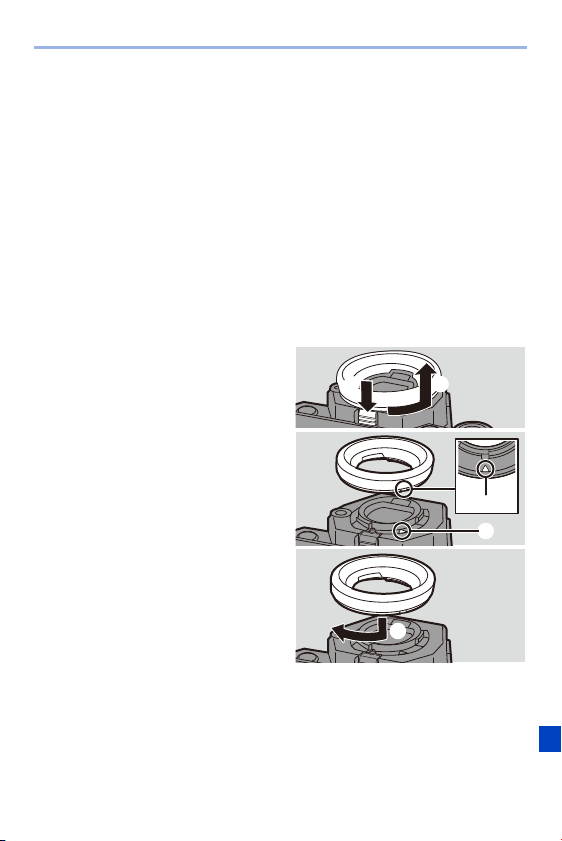
17. Materials
473
Removing dirt on the image sensor
The image sensor is very precise and delicate, so be sure to observe the
following when you do have to clean it yourself.
0
Blow dust off the surface of the image sensor using a commercially available blower.
Do not blow the dust off with excessive power.
0 Do not put the blower brush further inside than the lens mount.
0 Do not let the blower brush touch the image sensor as the image sensor may get
scratched.
0 Do not use any objects except a blower brush to clean the image sensor.
0 If you cannot remove the dirt or dust with the blower, consult the dealer or
Panasonic.
Cleaning the Viewfinder
If the viewfinder is dirty, then remove
the eye cup and clean.
While pushing the eye cup lock lever
(1), rotate the eye cup in the
direction of the arrow and remove
(2).
Blow dirt off the surface of the
viewfinder using a commercially
available blower, then lightly wipe
with a soft, dry cloth.
0
After cleaning, align the fitting marks (#)
3 and rotate the eye cup in the direction
of the arrow until a click is heard (4).
0 Be careful not to lose the eye cup.
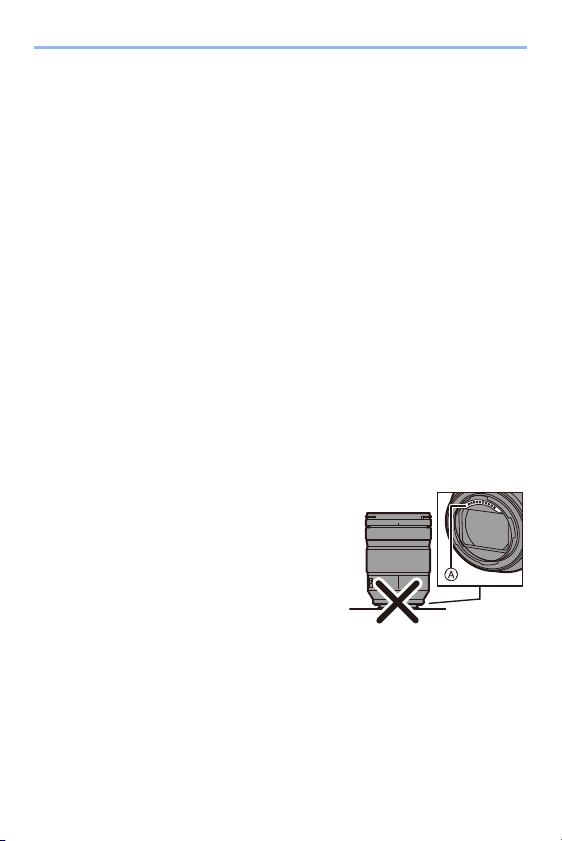
17. Materials
474
Monitor/Viewfinder
0 Do not push hard on the monitor.
This may cause irregular coloration or malfunction.
0 If the camera gets cold in the cold place, the picture on the monitor/viewfinder will be
slightly darker than usual at first when you turn the camera on.
When the interior of the camera warms up, this will return to normal brightness.
0 Extremely high precision technology is employed to produce the Monitor/Viewfinder
screen. However there may be some dark or bright spots (red, blue or green) on the
screen. This is not a malfunction.
Though the Monitor/Viewfinder screen parts are produced with highly controlled
precision technology, some pixels may be inactive or always lit.
The spots will not be recorded on images on a card.
Lens
0 Do not push hard on the lens surface.
0 Do not aim the lens at the sun or strong light sources.
The concentrated light may cause fire or damage.
0 Soiling on the lens surface (water, oil, fingerprints, etc.) may impact image quality.
Before and after use, lightly wipe the lens surface with a soft, dry cloth.
0 When the camera is not being used, attach the lens cap and lens rear cap to prevent
dust and dirt from adhering to or entering the camera.
0 To protect the lens contact points A, do not do the
following.
These may cause a malfunction.
– Touch the lens contact points.
– Soil the lens contact points.
– Place the lens with its mount surface facing
down.
0 To improve the dust and splash resistant
performance of the interchangeable lens
(S-R24105), a lens mount rubber is used in the mount.
– The lens mount rubber will leave scuff marks on the digital camera mount, but this
does not impact performance.
– To replace the lens mount rubber, contact Panasonic.
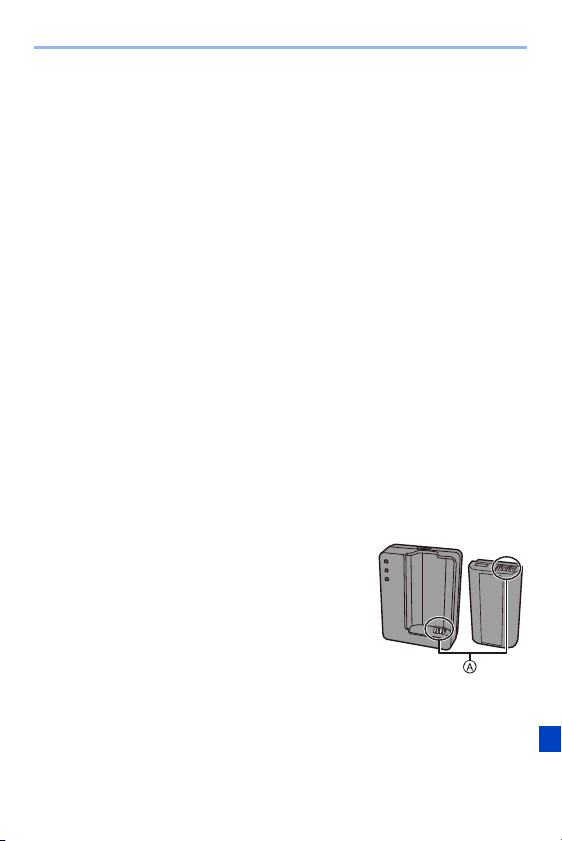
17. Materials
475
Battery
The battery is a rechargeable lithium ion battery.
It is highly sensitive to temperature and humidity, and the effect on performance
increases as the temperature rises or drops.
Always remove the battery after use.
0
Place the removed battery in a plastic bag, and store or keep away from metallic
objects (clips, etc.) for storage or transport.
If you drop the battery accidentally, check to see if the body of the
battery and the contacts are deformed.
0 Damage to the camera will result if a battery with deformed contacts is inserted into
the camera.
Dispose of unusable battery.
0
The battery has a limited life.
0 Do not throw the battery into fire because it may cause an explosion.
0 The unusable battery should be discarded in accordance with battery recycling laws.
Call the RBRC hotline at 1-800-822-8837 for information.
Do not allow battery terminals to come into contact with metal objects
(such as necklaces, hairpins, etc.).
0 This can cause short-circuiting or heat generation and you may be badly burned if
you touch a battery.
Charger, AC Adaptor
0 The [CHARGE] lamp may blink under the influence of
static electricity or electromagnetic wave, depending on
the charging environment. This phenomenon has no
effects on charging.
0 If you use the battery charger near a radio, the radio
reception may be disturbed.
Keep the charger 1 m (3.3 feet) or more away from
radio.
0 During usage, the AC adaptor may emit an electrical hum; this is not a malfunction.
0 After use, be sure to disconnect the power supply device from the electrical outlet.
(A very small amount of current is consumed if it is left connected.)
0 Keep the contacts A of the charger and battery clean.
Wipe them with a dry cloth if they get dirty.

17. Materials
476
Card
Do not leave the card in areas with high temperatures, direct sunlight,
or areas prone to electromagnetic waves and static.
Do not bend or drop the card.
Do not subject the card to strong vibration.
0
Otherwise, the card and recorded data may be damaged.
0 Put the card in the card case or the storage bag after use and when storing or
carrying the card.
0 Do not allow dirt, water or other foreign objects to get into the contacts on the card.
Additionally, do not touch the contacts with your hands.
Points to remember when disposing of/transferring the memory card
Format or delete using the camera or a PC will only modify the file management
information, so it will not delete the data in the card completely.
We recommend physically destroying the card or using commercially available PC
data deletion software to delete the card data completely when disposing of/
transferring the card.
You are responsible for handling of data on cards.
Personal information
Personal information is stored within the camera and in recorded images.
We recommend that you enhance security by setting a Wi-Fi password and
Wi-Fi function lock to protect personal information. (l
421, 422)
Disclaimer
0
Information including personal information may be altered or vanish due to
erroneous operation, effect of static electricity, accident, malfunction, repair, or other
handlings.
Please note in advance that Panasonic is not liable in any way for any direct or
indirect damage from the alteration or vanishing of information or personal
information.

17. Materials
477
When requesting a repair or transferring/disposing of the camera
0
After making a copy of personal information, be sure to delete information, including
personal information, such as wireless LAN connection settings that you have
registered or saved within the camera with [Reset]/[Delete account]. (l
76 , 425)
0 Reset the settings to protect the personal information. (l
76)
0 Remove the card from the camera.
0 Settings may return to factory default when camera is repaired.
0 Please contact the dealer where you purchased the camera or Panasonic if above
operations are not possible due to malfunction.
When transferring/disposing of the card, refer to “Points to remember
when disposing of/transferring the memory card” on page
476.
When uploading images to a web service
0
Images may contain information that can be used to identify the user, such as
recording dates and times, and location information.
Confirm details carefully before uploading images to a web service.
When not using the camera for a long period of time
0 Ensure you remove the battery and card from the camera.
When the battery is left inserted in the camera, a small amount of current will always
flow even if the camera is turned off.
If the battery is left in the camera, it may over-discharge, and be rendered unusable
even after charging.
0 Store the battery in a cool and dry place with a relatively stable temperature.
(Recommended temperature: 15 oC to 25 oC (59 oF to 77 oF); recommended
humidity: 40%RH to 60%RH)
0 If storing for a long period of time, it is recommended that the battery be charged
once per year, fully drained in the camera, then removed from the camera and then
stored again.
0 We recommend storing the camera with a desiccant (silica gel) when you keep it in a
closet or a cabinet.
0 Check all the parts before recording when you have not used the camera for a long
period of time.

17. Materials
478
Image Data
0 Recorded data may be damaged or lost if the camera breaks down due to
inappropriate handling.
Panasonic will not be liable for any damage caused due to loss of recorded data.
Tripod
0 Make sure the tripod is stable when the camera is attached to it.
0 When using a tripod, removal of the battery may not be possible.
0 Make sure that the screw on the tripod is not at an angle when attaching or removing
the tripod.
Using excessive force may damage the camera tripod mount.
Also, care is required because tightening the screw excessively may damage the
camera, or cause the rating label to come off.
0 Please also refer to the operating instructions for the tripod.
Shoulder Strap
0 If you attach a heavy interchangeable lens to the camera body, do not carry the
camera by the shoulder strap.
Hold the camera and the lens when carrying them.
Wi-Fi Function
Use the camera as a wireless LAN device
When using devices or computer systems that require more reliable
security than wireless LAN devices, ensure that the appropriate measures
are taken for safety designs and defects for the systems used.
Panasonic will not take any responsibility for any damage that arises when
using the camera for any purpose other than as a wireless LAN device.

17. Materials
479
Use of the Wi-Fi function of the camera is presumed to be in
countries where it is sold
There is the risk that the camera violates the radio wave regulations if used
in countries other than those where it is sold, and Panasonic takes no
responsibility for any violations.
There is the risk that data sent and received via radio waves may be
intercepted
Please note that there is the risk that data sent and received via radio
waves may be intercepted by a third party.
Do not use the camera in areas with magnetic fields, static electricity
or interference
0
Do not use the camera in areas with magnetic fields, static electricity or interference,
such as near microwave ovens.
These may cause the interruption of the radio waves.
0 Using the camera near devices such as microwave ovens or cordless telephones
that use the 2.4 GHz radio wave band may cause a decrease in performance in both
devices.
Do not connect to the wireless network you are not authorized to use
When the camera utilizes its wireless LAN function, wireless networks will
be searched automatically.
When this happens, wireless networks that you are not authorized to use
(SSID
¢
) may be displayed, however do not attempt to connect to the
network as it may be considered as unauthorized access.
¢ SSID refers to the name that is used to identify a network over a wireless LAN
connection. If the SSID matches for both devices, transmission is possible.
17. Materials
480
Listed below are the time lengths available for recording and the numbers
of pictures that can be taken when the supplied battery is being used.
0 The numbers of recordable pictures listed here are based on the CIPA (Camera &
Imaging Products Association) standard.
0 Using the XQD card from Sony.
(Using the SD card from Panasonic for the recordable time and actual recordable
time for AVCHD)
0 Using the interchangeable lens (S-R24105).
0 The values listed are approximate.
Recording Pictures (When Using the Monitor)
Recording Pictures (When Using the Viewfinder)
The numbers in parentheses indicate the values that result when [Time to
Sleep] in [Power Save LVF Shooting] is set to [1SEC] and the [Power Save
LVF Shooting] function works as intended.
(Based on the test conditions derived from the CIPA standard and
specified by Panasonic)
Usage Duration, Number of Pictures
Number of recordable pictures Approx. 360 pictures
Number of recordable pictures
Approx. 340 pictures
(Approx. 1100 pictures)
17. Materials
481
Recording Videos (When Using the Monitor)
[AVCHD] (Recording with the recording quality set to [FHD/17M/60i])
[MP4] (Recording with the recording quality set to [FHD/28M/60p])
[MP4] (Recording with the recording quality set to [4K/LPCM/150M/60p])
0
Actual recordable time is the time available for recording when repeating actions
such as turning the camera on and off, starting/stopping recording, etc.
Playback (When Using the Monitor)
Recordable time Approx. 150 min
Actual recordable time Approx. 75 min
Recordable time Approx. 140 min
Actual recordable time Approx. 70 min
Recordable time Approx. 100 min
Actual recordable time Approx. 50 min
Playback time Approx. 270 min
0 The operating times and number of recordable pictures will differ according to
the environment and the operating conditions.
For example, in the following case, the operating times shorten and the
number of recordable pictures is reduced:
– In low-temperature environments, such as on ski slopes.
0 If the usage duration drops significantly even when the battery is fully charged,
then the battery is at the end of its service life.
Check the battery status, and replace with a new battery. (l
356)

17. Materials
482
Listed below are the numbers of pictures and the time lengths of videos
that can be recorded on an XQD card and an SD card.
0 The values listed are approximate.
Number of Recordable Pictures
0 [Aspect Ratio]: [3:2]; [Picture Quality]: [FINE]
0 [Aspect Ratio]: [3:2]; [Picture Quality]: [RAWrFINE]
¢ Indicates the number of pictures when [L]-size JPEG images are recorded
simultaneously with [HLG Photo] set to [8K-Res.].
Number of Recordable Pictures,
Recordable Time
[Picture
Size]
XQD card capacity SD card capacity
32 GB 64 GB 120 GB 240 GB 32 GB 64 GB 128 GB
[L] (46.5M) 1280 2480 4430 8730 1310 2640 5230
[M] (23.5M) 2440 4690 8380 16270 2500 4990 9880
[S] (12M) 4410 8450 15090 28620 4520 8980 17790
8K-Res.
¢
620 1210 2170 4300 640 1290 2560
[Picture
Size]
XQD card capacity SD card capacity
32 GB 64 GB 120 GB 240 GB 32 GB 64 GB 128 GB
[L] (46.5M) 330 640 1150 2290 330 680 1350
[M] (23.5M) 370 730 1310 2600 380 780 1540
[S] (12M) 400 780 1410 2800 410 830 1660
8K-Res.
¢
260 500 900 1800 260 530 1060

17. Materials
483
Available Recording Time (When Recording Videos)
0 “h” is an abbreviation for hour, “m” for minute and “s” for second.
0 The recordable time is the total time of all the videos which have been recorded.
0 [Rec. File Format]: [AVCHD]
[Rec
Quality]
SD card capacity
32 GB 64 GB 128 GB
[FHD/28M/
60p]
2h30m 5h00m 10h00m
[FHD/17M/
60i]
4h10m 8h15m 16h25m
[FHD/24M/
30p]
[FHD/24M/
24p]
2h55m 5h50m 11h40m

17. Materials
484
0 [Rec. File Format]: [MP4]
[Rec
Quality]
XQD card capacity SD card capacity
32 GB 64 GB 120 GB 240 GB 32 GB 64 GB 128 GB
[4K/LPCM/
150M/60p]
27m00s 53m00s 1h35m 3h10m 27m00s 56m00s 1h50m
[4K/100M/
30p]
[4K/100M/
24p]
40m00s 1h20m 2h20m 4h45m 41m00s 1h25m 2h45m
[FHD/28M/
60p]
2h25m 4h45m 8h35m 17h10m 2h30m 5h00m 9h55m
[FHD/20M/
30p]
3h15m 6h20m 11h25m 22h55m 3h20m 6h40m 13h15m
0 Depending on the recording conditions and the type of card, the number of
recordable pictures and available recording time vary.
0 [9999i] is displayed on the recording screen if the remaining number of
recordable pictures is 10000 or more.
The status LCD will display [9999].
0 The continuous recordable time for videos is displayed on the screen.
0 If the remaining recordable time is 60 minutes or more, then [59:59] will be
displayed on the status LCD.
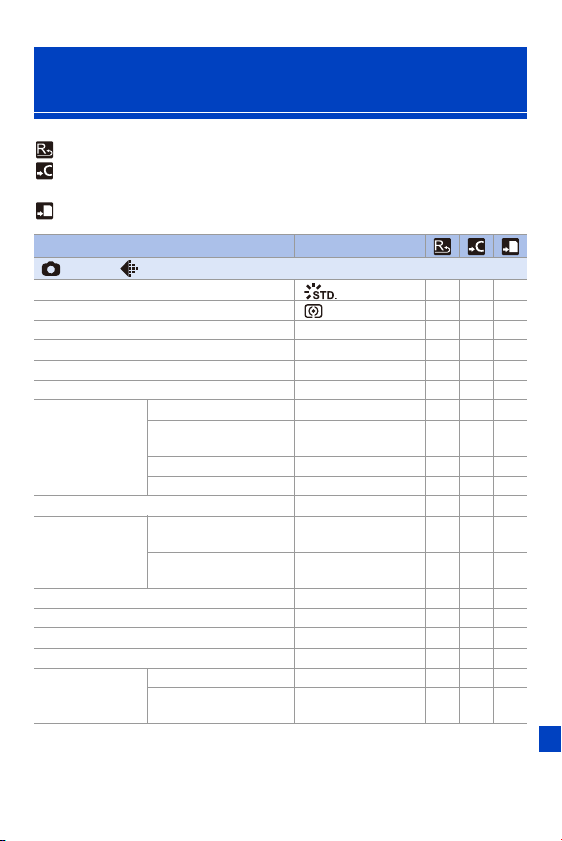
17. Materials
485
List of Default Settings/Saving
Customization/Copied Settings
: Using [Reset], the function to return to default settings
: Using [Save to Custom Mode], the function to save settings details in the Custom
mode
: Using [Save/Restore Camera Setting], the function to copy settings details
Menu Default settings
[Photo]: [Image Quality]
[Photo Style] [ ] 333
[Metering Mode] [ ] 333
[Aspect Ratio] [3:2] 333
[Picture Quality] [FINE] 333
[Picture Size] [L] (46.5M) 333
[HLG Photo] [OFF] 333
[High Resolution
Mode]
[Start] —
[Simul Record Normal
Shot]
[ON] 333
[Shutter Delay] [2 SEC] 333
[Motion Blur Processing] [MODE1] 333
[Long Exposure NR] [ON] 333
[ISO Sensitivity
(photo)]
[ISO Auto Lower Limit
Setting]
[100] 333
[ISO Auto Upper Limit
Setting]
[AUTO] 333
[Min. Shutter Speed] [AUTO] 333
[i.Dynamic Range] [OFF] 333
[Vignetting Comp.] [ON] 333
[Diffraction Compensation] [OFF] 333
[Filter Settings]
[Filter Effect] [OFF] 333
[Simultaneous Record w/o
Filter]
[OFF] 333
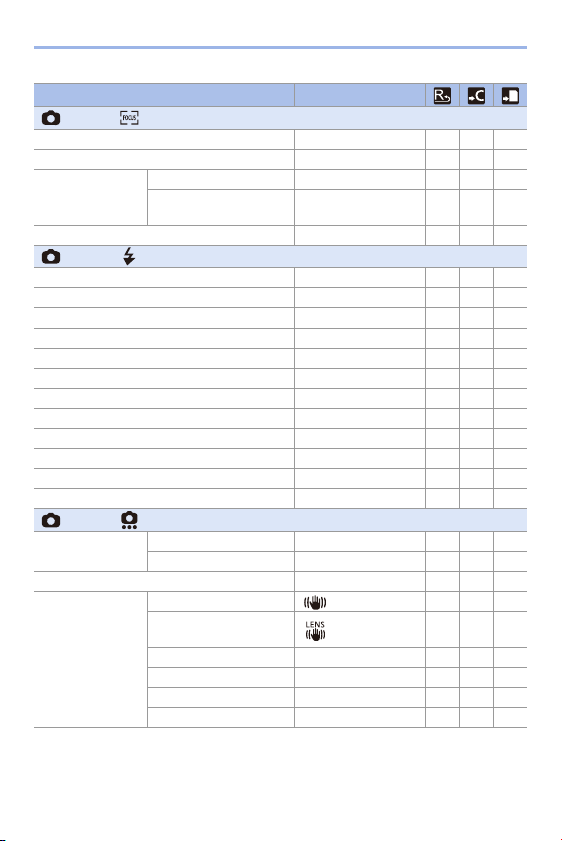
17. Materials
486
Menu Default settings
[Photo]: [Focus]
[AF Custom Setting(Photo)] [Set 1] 333
[AF Assist Light] [ON] 333
[Focus Peaking]
[ON]/[OFF] [ON] 333
[Focus Peaking
Sensitivity]
— 333
[1-Area AF Moving Speed] [FAST] 333
[Photo]: [Flash]
[Flash Mode] [‰] 333
[Firing Mode] [TTL] 333
[Flash Adjust.] [±0 EV] 333
[Flash Synchro] [1ST] 333
[Manual Flash Adjust.] [1/1] 333
[Auto Exposure Comp.] [OFF] 333
[Red-Eye Removal] [OFF] 333
[Wireless] [OFF] 333
[Wireless Channel] [1CH] 333
[Wireless FP] [OFF] 333
[Communication Light] [HIGH] 333
[Wireless Setup] — 333
[Photo]: [Others (Photo)]
[Bracketing]
[Bracketing Type] [OFF] 333
[More Settings] — 333
[Silent Mode] [OFF] 333
[Image Stabilizer]
[Operation Mode] [ ] 333
[Body(B.I.S.) /
Lens(O.I.S.)]
[] 333
[When to Activate] [HALF-SHUTTER] 333
[E-Stabilization (Video)] [OFF] 333
[Boost I.S. (Video)] [OFF] 333
[Focal Length Set] 35.0 mm 333
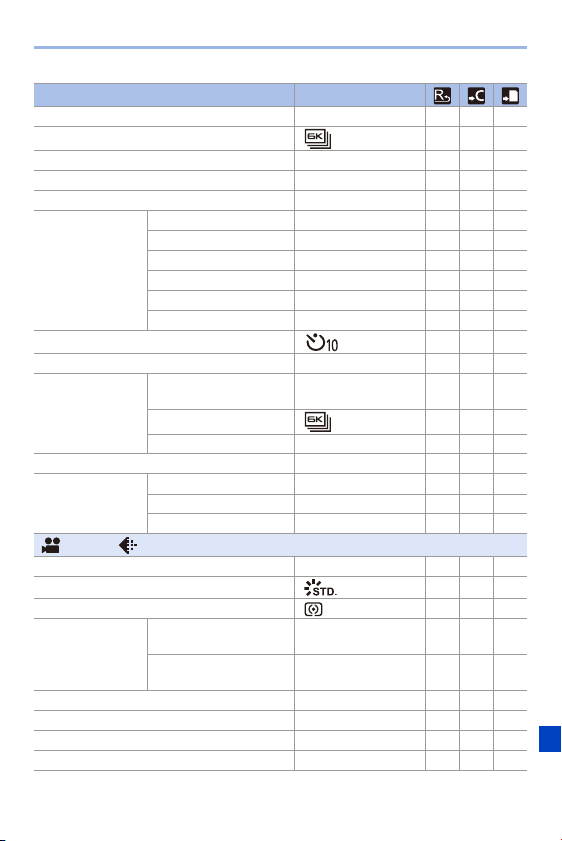
17. Materials
487
Menu Default settings
[Burst Shot 1 Setting] [H] 333
[Burst Shot 2 Setting] [ ] 333
[Shutter Type] [MECH.] 333
[Shutter Delay] [OFF] 333
[Ex. Tele Conv.] [OFF] 333
[Time Lapse/
Animation]
[Mode] [Time Lapse Shot] 333
[Shooting Interval Setting] [ON] 333
[Start Time] [Now] 333
[Image Count] 1 333
[Shooting Interval] 1m00s 333
[Exposure Leveling] [OFF] 333
[Self Timer] [ ] 333
[Flicker Decrease (Photo)] [OFF] 333
[6K/4K PHOTO]
[Picture Size / Burst
Speed]
[6K 18M] 333
[Rec Method] [ ] 333
[Pre-Burst Recording] [OFF] 333
[Post-Focus] [OFF] 333
[Multiple Exposure]
[Start] —
[Auto Gain] [ON] 333
[Overlay] [OFF] 333
[Video]: [Image Quality]
[Exposure Mode] [P] 333
[Photo Style] [ ] 333
[Metering Mode] [ ] 333
[ISO Sensitivity
(video)]
[ISO Auto Lower Limit
Setting]
[100] 333
[ISO Auto Upper Limit
Setting]
[AUTO] 333
[Flicker Decrease (Video)] [OFF] 333
[i.Dynamic Range] [OFF] 333
[Vignetting Comp.] [ON] 333
[Diffraction Compensation] [OFF] 333
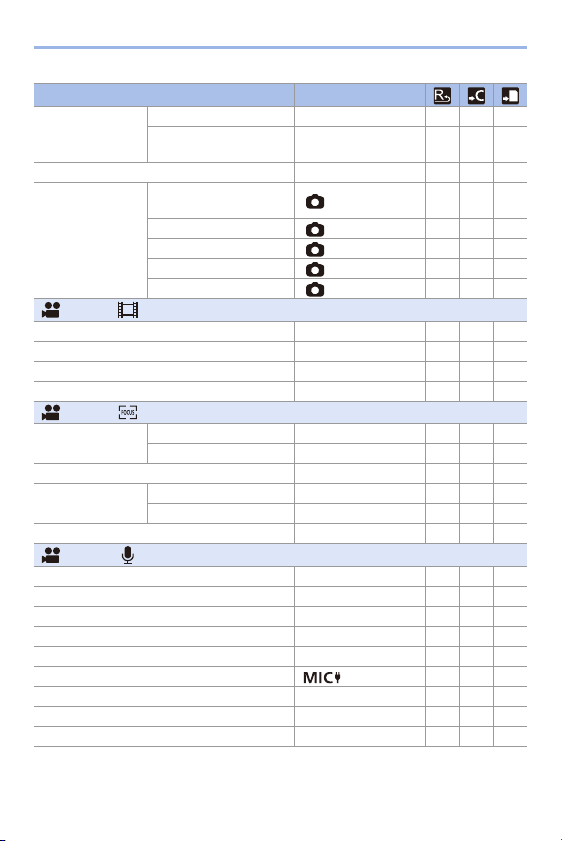
17. Materials
488
Menu Default settings
[Filter Settings]
[Filter Effect] [OFF] 333
[Simultaneous Record w/o
Filter]
[OFF] 333
[Auto Exposure in P/A/S/M] [ON] 333
[CreativeVideo
Combined Set.]
[F/SS/ISO/Exposure
Comp.]
[] 333
[White Balance] [ ] 333
[Photo Style] [ ] 333
[Metering Mode] [ ] 333
[AF Mode] [ ] 333
[Video]: [Image Format]
[Rec Quality] [FHD/28M/60p] 333
[High Speed Video] [OFF] 333
[Rec. File Format] [MP4] 333
[Luminance Level] [16-255] 333
[Video]: [Focus]
[AF Custom
Setting(Video)]
[ON]/[OFF] [OFF] 333
[SET] — 333
[Continuous AF] [ON] 333
[Focus Peaking]
[ON]/[OFF] [ON] 333
[SET] — 333
[1-Area AF Moving Speed] [FAST] 333
[Video]: [Audio]
[Sound Rec Level Disp.] [OFF] 333
[Sound Rec Level Adj.] [0dB] 333
[Sound Rec Level Limiter] [ON] 333
[Wind Noise Canceller] [STANDARD] 333
[Wind Cut] [OFF] 333
[Mic Socket] [ ] 333
[Special Mic.] [STEREO] 333
[XLR Mic Adaptor Setting] [ON] 333
[Sound Output] [REALTIME] 333
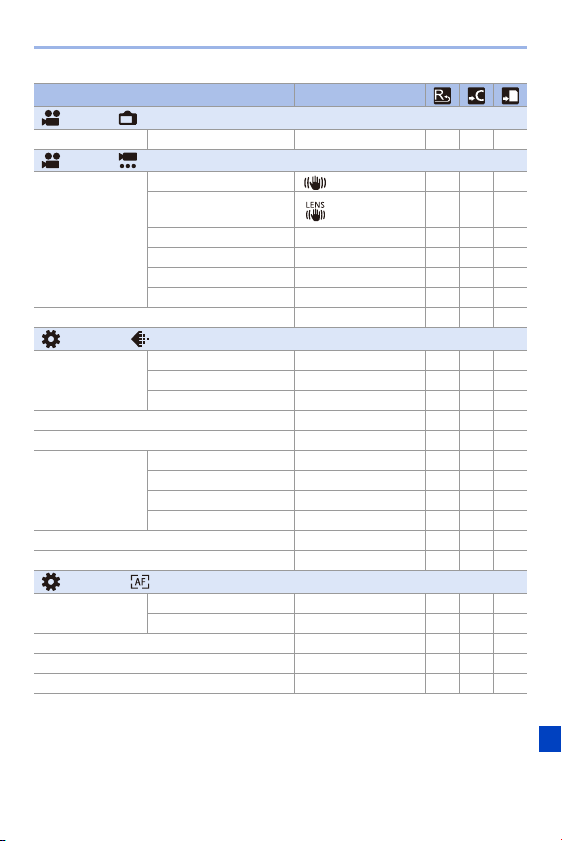
17. Materials
489
Menu Default settings
[Video]: [Monitor / Display]
[HDMI Rec Output] [Info Display] [ON] 333
[Video]: [Others (Video)]
[Image Stabilizer]
[Operation Mode] [ ] 333
[Body(B.I.S.) /
Lens(O.I.S.)]
[] 333
[When to Activate] [HALF-SHUTTER] 333
[E-Stabilization (Video)] [OFF] 333
[Boost I.S. (Video)] [OFF] 333
[Focal Length Set] 35.0 mm 333
[Image Area of Video] [FULL] 333
[Custom]: [Image Quality]
[Photo Style
Settings]
[Show/Hide Photo Style] — 333
[My Photo Style Settings] — 333
[Reset Photo Style] —
[ISO Increments] [1/3 EV] 333
[Extended ISO] [OFF] 333
[Exposure Offset
Adjust.]
[Multi Metering] [n0 EV] 333
[Center Weighted] [n0 EV] 333
[Spot] [n0 EV] 333
[Highlight Weighted] [n0 EV] 333
[Color Space] [sRGB] 333
[Exposure Comp. Reset] [OFF] 333
[Custom]: [Focus/Shutter]
[Focus/Shutter
Priority]
[AFS] [FOCUS] 333
[AFC] [BALANCE] 333
[Focus Switching for Vert / Hor] [OFF] 333
[AF/AE Lock Hold] [OFF] 333
[AF+MF] [OFF] 333
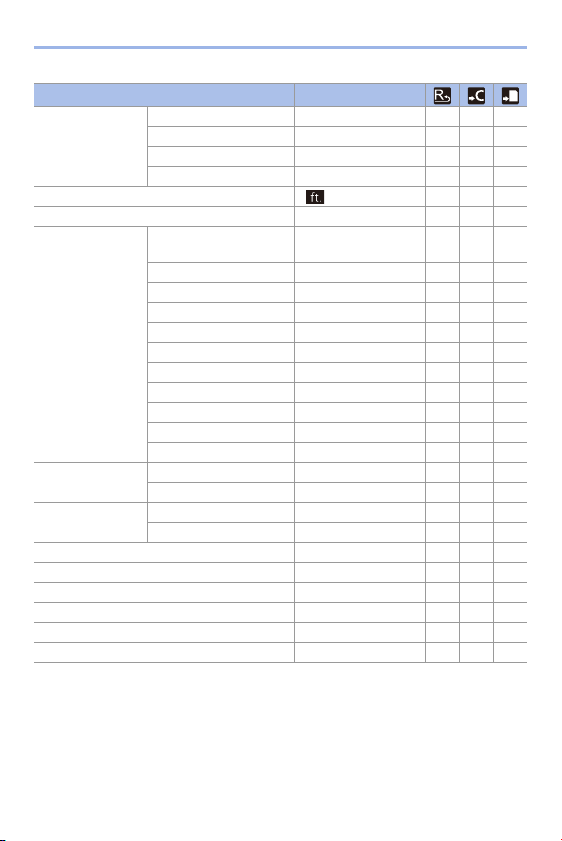
17. Materials
490
Menu Default settings
[MF Assist]
[Focus Ring] [ON] 333
[AF Mode/MF] [OFF] 333
[Press Joystick] [OFF] 333
[MF Assist Display] [PIP] 333
[MF Guide] [ ] 333
[Focus Ring Lock] [OFF] 333
[Show/Hide AF
Mode]
[Face/Eye/Body/Animal
Detect.]
[ON] 333
[Tracking] [ON] 333
[225-Area] [ON] 333
[Zone (Vert./ Horz.)] [ON] 333
[Zone (Square)] [OFF] 333
[Zone (Oval)] [ON] 333
[1-Area+] [ON] 333
[Pinpoint] [ON] 333
[Custom1] [OFF] 333
[Custom2] [OFF] 333
[Custom3] [OFF] 333
[Pinpoint AF
Setting]
[Pinpoint AF Time] [MID] 333
[Pinpoint AF Display] [PIP] 333
[AF-Point Scope
Setting]
[Keep Enlarged Display] [OFF] 333
[PIP Display] [PIP] 333
[Shutter AF] [ON] 333
[Half-Press Shutter] [OFF] 333
[Quick AF] [OFF] 333
[Eye Sensor AF] [OFF] 333
[Looped Focus Frame] [OFF] 333
[AFC Start Point (225-Area)] [OFF] 333
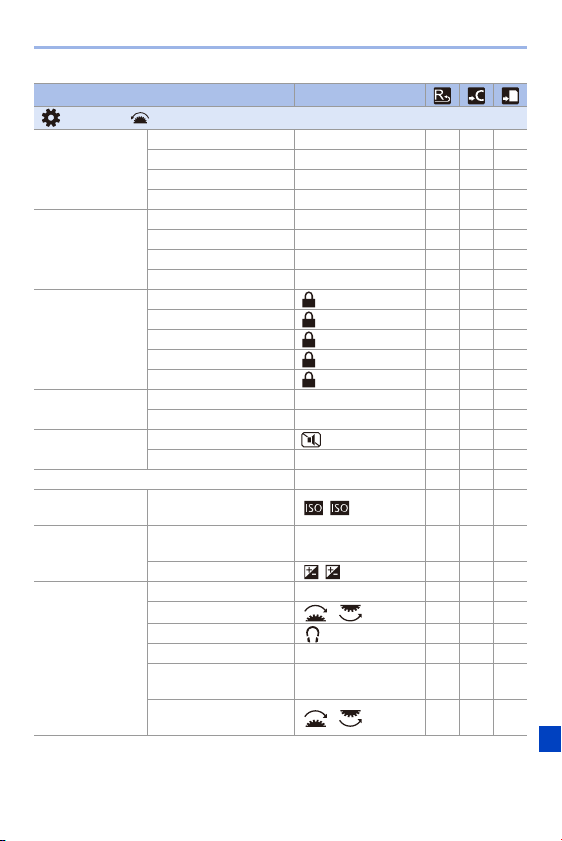
17. Materials
491
Menu Default settings
[Custom]: [Operation]
[Q.MENU Settings]
[Layout Style] [MODE1] 333
[Front Dial Assignment] [Value] 333
[Item Customize (Photo)] — 333
[Item Customize (Video)] — 333
[Touch Settings]
[Touch Screen] [ON] 333
[Touch Tab] [OFF] 333
[Touch AF] [AF] 333
[Touch Pad AF] [OFF] 333
[Lock Lever Setting]
[Cursor] 333
[Joystick] 333
[Touch Screen] 333
[Dial] 333
[DISP. Button] 333
[Fn Button Set]
[Setting in REC mode] — 333
[Setting in PLAY mode] — 333
[Fn Lever Setting]
[Function of Fn Lever] [Silent Mode] 333
[MODE 2 Setting] [ON] 333
[WB/ISO/Expo. Button] [AFTER PRESSING2] 333
[ISO Displayed
Setting]
[Front/Rear Dials] [ / ] 333
[Exposure Comp.
Disp. Setting]
[Cursor Buttons (Up/
Down)]
[OFF] 333
[Front/Rear Dials] [ / ] 333
[Dial Set.]
[Assign Dial (F/SS)] [SET1] 333
[Rotation (F/SS)] [ ] 333
[Control Dial Assignment] [ ] 333
[Exposure Comp.] [OFF] 333
[Dial Operation Switch
Setup]
— 333
[Rotation (Menu
Operation)]
[] 333
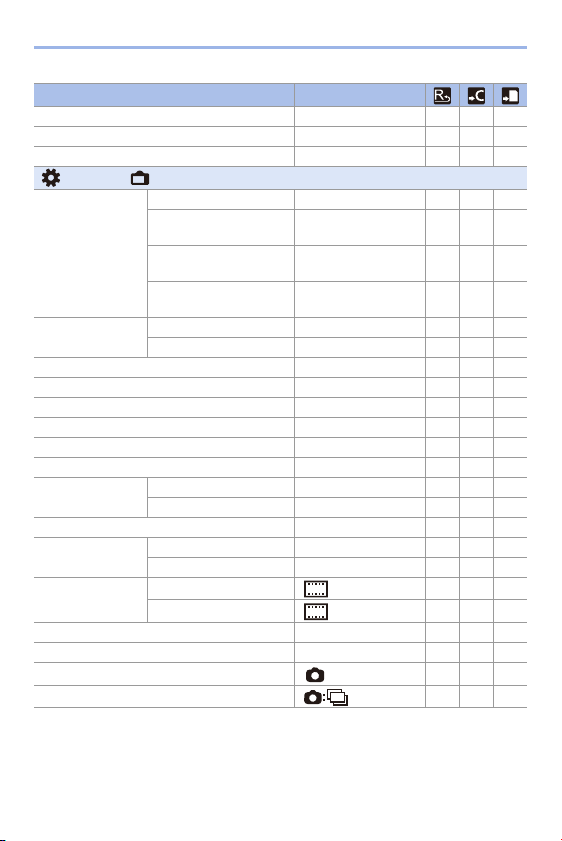
17. Materials
492
Menu Default settings
[Joystick Setting] [D.FOCUS Movement] 333
[Illuminated Button] [ON2] 333
[Video Rec. Button (Remote)] [ON] 333
[Custom]: [Monitor / Display]
[Auto Review]
[Duration Time (photo)] [OFF] 333
[Duration Time (6K/4K
PHOTO)]
[HOLD] 333
[Duration Time (Post-
Focus)]
[HOLD] 333
[Playback Operation
Priority]
[OFF] 333
[Constant Preview]
[ON]/[OFF] [OFF] 333
[SET] — 333
[Level Gauge] [ON] 333
[Histogram] [OFF] 333
[Photo Grid Line] [OFF] 333
[Framing Outline] [OFF] 333
[Center Marker] [OFF] 333
[AF Area Display] [ON] 333
[Live View Boost]
[MODE1]/[MODE2]/[OFF] [OFF] 333
[SET] [M] 333
[Monochrome Live View] [OFF] 333
[Night Mode]
[Monitor] [OFF] 333
[LVF] [OFF] 333
[LVF/Monitor Disp.
Set]
[LVF Disp. Set] [ ] 333
[Monitor Disp. Set] [ ] 333
[Expo.Meter] [OFF] 333
[Focal Length] [ON] 333
[Photo/Video Preview] [ ] 333
[Photos/Videos Remaining] [ ] 333
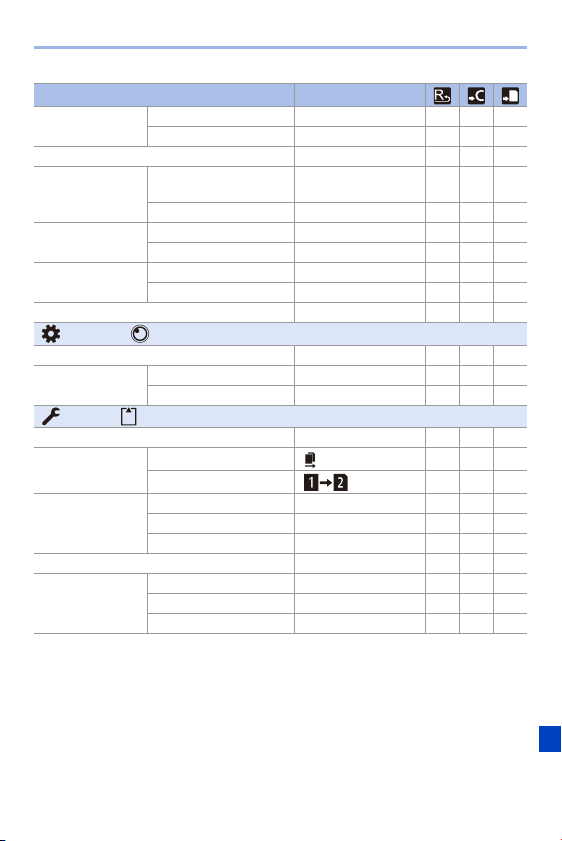
17. Materials
493
Menu Default settings
[Show/Hide Monitor
Layout]
[Control Panel] [ON] 333
[Black Screen] [ON] 333
[Blinking Highlights] [OFF] 333
[Zebra Pattern]
[ZEBRA1]/[ZEBRA2]/
[OFF]
[OFF] 333
[SET] — 333
[HLG View Assist]
[Monitor] [MODE2] 333
[HDMI] [AUTO] 333
[Sheer Overlay]
[ON]/[OFF] [OFF] 3
[SET] — 3
[I.S. Status Scope] [OFF] 333
[Custom]: [Lens / Others]
[Lens Focus Resume] [OFF] 333
[Focus Ring
Control]
[NON-LINEAR]/[LINEAR] [LINEAR] 333
[SET] [150°] 333
[Setup]: [Card/File]
[Card Format] —
[Double Card Slot
Function]
[Recording Method] [ ] 33
[Destination Card Slot] [ ] 33
[Folder / File
Settings]
[Select Folder] —
[Create a New Folder] —
[File Name Setting] [Folder Number Link] 33
[File Number Reset] —
[Copyright
Information]
[Artist] [OFF] 33
[Copyright Holder] [OFF] 33
[Display Copyright Info.] —
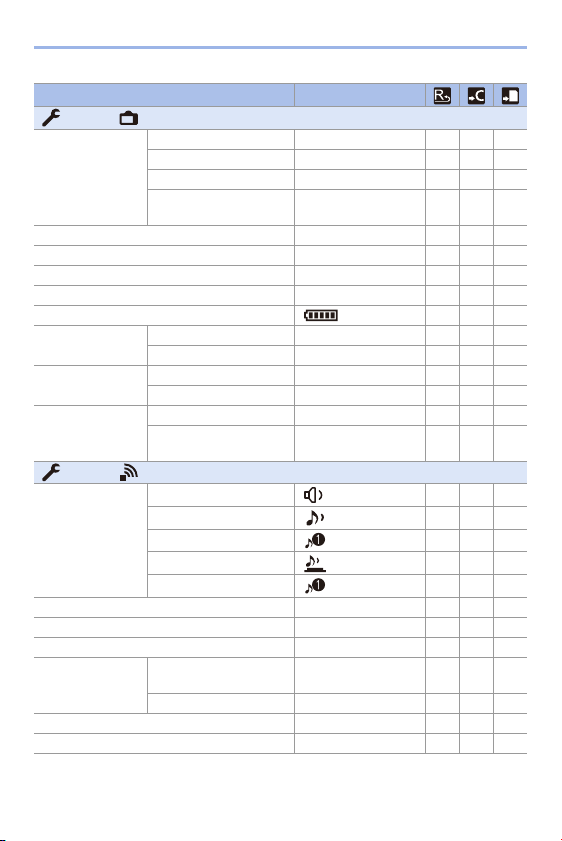
17. Materials
494
Menu Default settings
[Setup]: [Monitor / Display]
[Power Save Mode]
[Sleep Mode] [5MIN.] 33
[Sleep Mode(Wi-Fi)] [ON] 33
[Auto LVF/Monitor Off] [5MIN.] 33
[Power Save LVF
Shooting]
— 33
[Monitor Frame Rate] [60fps] 33
[LVF Frame Rate] [60fps] 33
[Monitor Settings]/[Viewfinder] — 3
[Monitor Backlight]/[LVF Luminance] [AUTO] 33
[Remaining Battery Level] [ ] 33
[Status-LCD]
[Backlight] [H] 33
[Display While Power Off] [ON] 33
[Eye Sensor]
[Sensitivity] [HIGH] 33
[LVF/Monitor Switch] [LVF/MON AUTO] 33
[Level Gauge
Adjust.]
[Adjust.] — 3
[Level Gauge Value
Reset]
—
[Setup]: [IN/OUT]
[Beep]
[Beep Volume] [ ] 33
[AF Beep Volume] [ ] 33
[AF Beep Tone] [ ] 33
[E-Shutter Vol] [ ] 33
[E-Shutter Tone] [ ] 33
[Headphone Volume] [LEVEL3] 33
[Wi-Fi] — 3
[Bluetooth] — 3
[USB]
[USB Mode]
[y][Select on
connection]
33
[USB Power Supply] [ON] 33
[Battery Information] —
[Battery Use Priority] [BG] 33
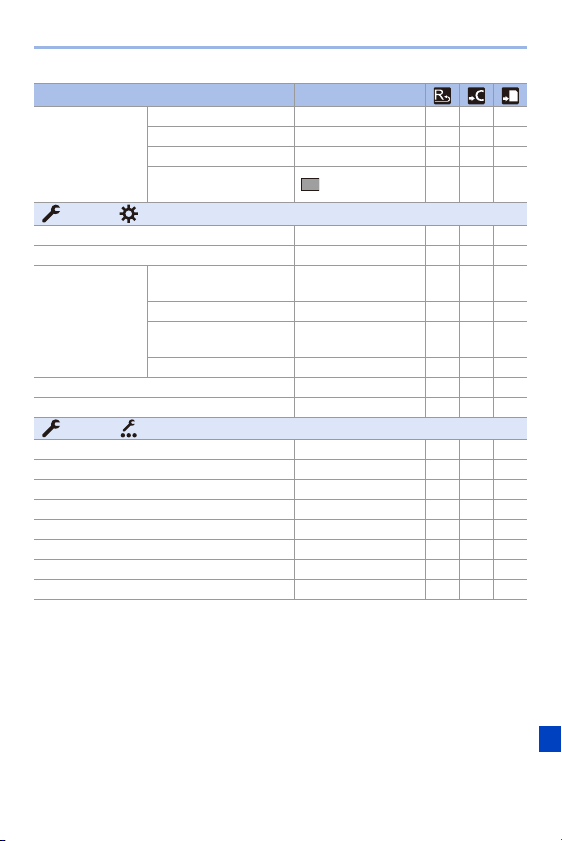
17. Materials
495
Menu Default settings
[TV Connection]
[HDMI Mode (Playback)] [AUTO] 33
[HLG View Assist (HDMI)] [AUTO] 333
[VIERA Link (CEC)] [OFF] 33
[Background
Color(Playback)]
33
[Setup]: [Setting]
[Save to Custom Mode] — 33
[Load Custom Mode] — 33
[Custom Mode
Settings]
[Limit No. of Custom
Mode]
[3] 33
[Edit Title] — 33
[How to Reload Custom
Mode]
— 33
[Select Loading Details] — 33
[Save/Restore Camera Setting] —
[Reset] —
[Setup]: [Others]
[Clock Set] 0:00:00 1/1/2019
[Time Zone] GMT −5:00 3
[Pixel Refresh] —
[Sensor Cleaning] —
[Language] — 3
[Firmware Version] —
[Online Manual] —
[Approved Regulations] —
17. Materials
496
Menu Default settings
[My Menu]: [Edit My Menu]
[Add] —
[Sorting] —
[Delete] —
[Display from My Menu] [OFF] 33
[Playback] menu: [Playback Mode]
[Rotate Disp.] [ON] 33
[Picture Sort] [DATE/TIME] 33
[Magnify from AF Point] [OFF] 33
[HLG View Assist (Monitor)] [MODE2] 333
[Playback] menu: [Process Image]
[RAW Processing] —
[6K/4K PHOTO Bulk Saving] —
[6K/4K PHOTO Noise Reduction] [AUTO] 33
[Time Lapse Video] —
[Stop Motion Video] —
[Playback] menu: [Add/Delete Info.]
[Protect] —
[Rating] —
[Playback] menu: [Edit Image]
[Resize] —
[Rotate] —
[Video Divide] —
[Copy] —
[Playback] menu: [Others]
[Delete Confirmation] ["No" first] 33
17. Materials
497
List of Functions That Can Be Set in
Each Recording Mode
Menu iA P A S M
[Photo]: [Image Quality]
[Photo Style] 33333
[Metering Mode] 3333
[Aspect Ratio] 33333
[Picture Quality] 33333
[Picture Size] 33333
[HLG Photo] 3333
[High Resolution Mode]
[Start] 3333
[Simul Record Normal
Shot]
3333
[Shutter Delay] 3333
[Motion Blur Processing] 3333
[Long Exposure NR] 3333
[ISO Sensitivity (photo)]
[ISO Auto Lower Limit
Setting]
3333
[ISO Auto Upper Limit
Setting]
3333
[Min. Shutter Speed] 33
[i.Dynamic Range] 3333
[Vignetting Comp.] 3333
[Diffraction Compensation] 3333
[Filter Settings]
[Filter Effect] 3333
[Simultaneous Record w/
o Filter]
3333
[Photo]: [Focus]
[AF Custom Setting(Photo)] 3333
[AF Assist Light] 3333
17. Materials
498
Menu iA P A S M
[Focus Peaking]
[ON]/[OFF] 33333
[SET] 33333
[1-Area AF Moving Speed] 33333
[Photo]: [Flash]
[Flash Mode] 3333
[Firing Mode] 3333
[Flash Adjust.] 3333
[Flash Synchro] 3333
[Manual Flash Adjust.] 3333
[Auto Exposure Comp.] 3333
[Red-Eye Removal] 3333
[Wireless] 3333
[Wireless Channel] 3333
[Wireless FP] 3333
[Communication Light] 3333
[Wireless Setup] 3333
[Photo]: [Others (Photo)]
[Bracketing]
[Bracketing Type] 33333
[More Settings] 33333
[Silent Mode] 33333
[Image Stabilizer]
[Operation Mode] 33333
[Body(B.I.S.) /
Lens(O.I.S.)]
33333
[When to Activate] 33333
[E-Stabilization (Video)] 33333
[Boost I.S. (Video)] 33333
[Focal Length Set] 33333
17. Materials
499
Menu iA P A S M
[Burst Shot 1 Setting] 33333
[Burst Shot 2 Setting] 33333
[Shutter Type] 33333
[Shutter Delay] 33333
[Ex. Tele Conv.] 33333
[Time Lapse/Animation] 33333
[Self Timer] 33333
[Flicker Decrease (Photo)] 33333
[6K/4K PHOTO]
[Picture Size / Burst
Speed]
33333
[Rec Method] 33333
[Pre-Burst Recording] 33333
[Post-Focus] 33333
[Multiple Exposure]
[Start] 3333
[Auto Gain] 3333
[Overlay] 3333
[Video]: [Image Quality]
[Exposure Mode] 3
[Photo Style] 333333
[Metering Mode] 33333
[ISO Sensitivity (video)]
[ISO Auto Lower Limit
Setting]
3
[ISO Auto Upper Limit
Setting]
3
[Flicker Decrease (Video)] 3333
[i.Dynamic Range] 33333
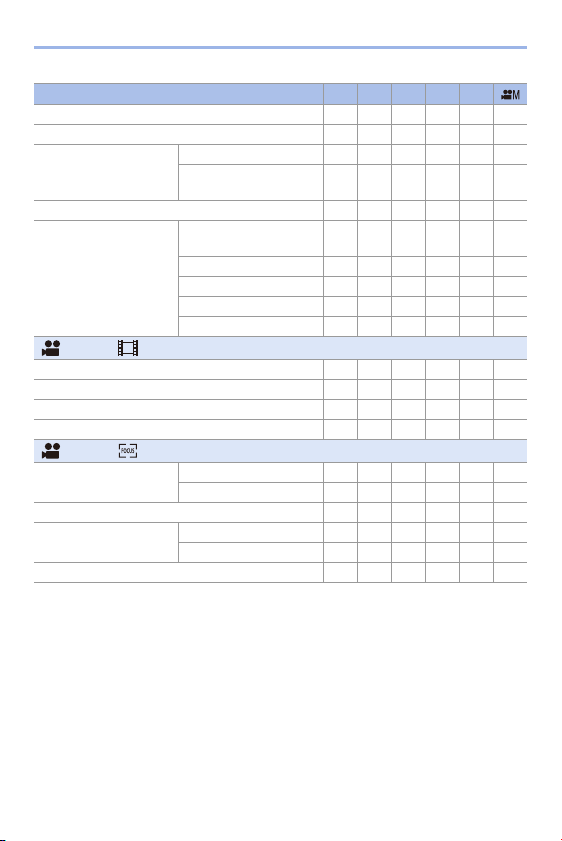
17. Materials
500
Menu iA P A S M
[Vignetting Comp.] 33333
[Diffraction Compensation] 33333
[Filter Settings]
[Filter Effect] 33333
[Simultaneous Record w/
o Filter]
3333
[Auto Exposure in P/A/S/M] 33333
[CreativeVideo Combined
Set.]
[F/SS/ISO/Exposure
Comp.]
33333
[White Balance] 33333
[Photo Style] 33333
[Metering Mode] 33333
[AF Mode] 33333
[Video]: [Image Format]
[Rec Quality] 333333
[High Speed Video] 3
[Rec. File Format] 333333
[Luminance Level] 333333
[Video]: [Focus]
[AF Custom
Setting(Video)]
[ON]/[OFF] 333333
[SET] 333333
[Continuous AF] 333333
[Focus Peaking]
[ON]/[OFF] 333333
[SET] 333333
[1-Area AF Moving Speed] 333333
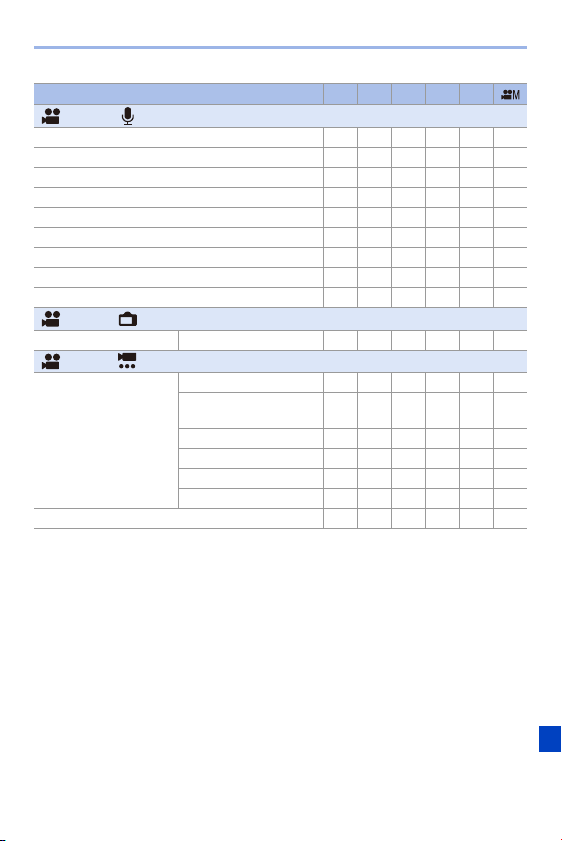
17. Materials
501
Menu iA P A S M
[Video]: [Audio]
[Sound Rec Level Disp.] 333333
[Sound Rec Level Adj.] 333333
[Sound Rec Level Limiter] 333333
[Wind Noise Canceller] 333333
[Wind Cut] 333333
[Mic Socket] 333333
[Special Mic.] 333333
[XLR Mic Adaptor Setting] 333333
[Sound Output] 333333
[Video]: [Monitor / Display]
[HDMI Rec Output] [Info Display] 333333
[Video]: [Others (Video)]
[Image Stabilizer]
[Operation Mode] 333333
[Body(B.I.S.) /
Lens(O.I.S.)]
333333
[When to Activate] 33333
[E-Stabilization (Video)] 333333
[Boost I.S. (Video)] 333333
[Focal Length Set] 333333
[Image Area of Video] 333333

17. Materials
502
The specifications are subject to change for performance enhancement.
Digital camera body (DC-S1R):
Information for your safety
Specifications
Power source:
Power consumption:
9.0 V
6.6 W (when recording with the monitor)
(When using the interchangeable lens (S-R24105))
4.6 W (when playing back with the monitor)
(When using the interchangeable lens (S-R24105))
Type
Type Digital Single Lens Mirrorless camera
Recording media Card slot 1: XQD memory card
Card slot 2: SD memory card / SDHC memory card
¢
/
SDXC memory card
¢
¢ Compliant with UHS-I/UHS-II UHS Speed Class 3,
UHS-II Video Speed Class 90
Double slot recording function is available.
Lens mount Leica Camera AG L-Mount
Image sensor
Image sensor 35 mm full-frame (36.0 mmk24.0 mm) CMOS sensor, a
total of 50,440,000 pixels, primary color filter
Camera effective
pixels
47,300,000 pixels

17. Materials
503
Recording format for still images
File format for still
images
JPEG (DCF compliant, Exif 2.31 compliant) / RAW / HLG
photo (CTA-2072 compliant)
File format for 6K/4K
photos
6K photo: MP4 (H.265/HEVC, AAC (2ch))
4K photo: MP4 (H.264/MPEG-4 AVC, AAC (2ch))
Picture size
(pixels)
When the aspect ratio setting is [4:3]
7440k5584 (L) / 5296k3968 (M) / 3792k2848 (S) /
14880k11168 ([High Resolution Mode]) /
4992k3744 (6K photo) / 3328k2496 (4K photo) /
5760k4320 ([HLG Photo]/[8K-Res.]) /
2880k2160 ([HLG Photo]/[4K-Res.])
When the aspect ratio setting is [3:2]
8368k5584 (L) / 5952k3968 (M) / 4272k2848 (S) /
16736k11168 ([High Resolution Mode]) /
5184k3456 (6K photo) / 3504k2336 (4K photo) /
6464k4320 ([HLG Photo]/[8K-Res.]) /
3232k2160 ([HLG Photo]/[4K-Res.])
When the aspect ratio setting is [16:9]
8368k4712 (L) / 5952k3352 (M) / 4272k2400 (S) /
16736k9424 ([High Resolution Mode]) /
3840k2160 (4K photo) /
7680k4320 ([HLG Photo]/[8K-Res.]) /
3840k2160 ([HLG Photo]/[4K-Res.])
When the aspect ratio setting is [1:1]
5584k5584 (L) / 3968k3968 (M) / 2848k2848 (S) /
11168k11168 ([High Resolution Mode]) /
2880k2880 (4K photo) /
4320k4320 ([HLG Photo]/[8K-Res.]) /
2144k2144 ([HLG Photo]/[4K-Res.])
When the aspect ratio setting is [65:24]
8368k3088 (L)
When the aspect ratio setting is [2:1]
8368
k4184 (L)
Image quality for
pictures
Fine
/ Standard / RAWiFine / RAWiStandard / RAW

17. Materials
504
Recording format for video
Video format AVCHD Progressive / AVCHD / MP4
Audio format AVCHD Dolby Audio™ (2ch)
MP4 AAC (2ch), LPCM (2ch, 48 kHz/16 bit)
Image quality for
videos
[Rec. File Format]: [AVCHD], [MP4]
Refer to page
234 of this document for details.
Refer to page
247 of this document for details about High
Speed Video.
Viewfinder / Monitor
Viewfinder OLED Live Viewfinder (4:3) (approx. 5,760,000 dots) (a
field of view ratio of approx. 100%)
(Magnification approx 0.78k, with 50 mm lens at infinity;
j1.0 m
j1
, when the aspect ratio is set to [3:2]) (with
diopter adjustment j4.0 to i2.0 diopter)
Monitor 3.2q TFT LCD (3:2) (approx. 2,100,000 dots) (a field of
view ratio of approx. 100%), touch screen
Focus
Auto focus type TTL type based on image detection (Contrast AF)
Focus mode AFS / AFC / MF
AF mode Automatic detection (Face/Eye/Body/Animal) / Tracking /
225-Area / Zone (Vertical/Horizontal) / Zone (Square) /
Zone (Oval) / 1-AreaiSupplementary / 1-Area / Pinpoint /
Custom1, 2, 3 (Focus area selection is possible by
touching or with the joystick)

17. Materials
505
Exposure control
Light metering
system,
Light metering mode
1728-zone metering, multi-metering / center-weighted
metering / spot metering / highlight-weighted metering
Metering range EV 0 to EV 18
Exposure Program AE, Aperture-Priority AE, Shutter-Priority AE,
Manual Exposure
Exposure
compensation
1/3 EV steps, ±5 EV
ISO sensitivity
(standard output
sensitivity)
1/3 EV steps, AUTO / 100 to 25600
When [Extended ISO] is set: AUTO / 50 to 51200
Image stabilizer
Image stabilizer type Compliant with Image sensor shift type, 5-axis stabilizer,
Dual I.S.2
Image stabilizer
effect
6.0 stops
Based on the CIPA standard (Yaw/Pitch direction: focal
length f=105 mm)
(When using the interchangeable lens (S-R24105))
White balance
White balance mode AWB / AWBc / AWBw / Daylight / Cloudy / Shade /
Incandescent lights / Flash / White Set 1, 2, 3, 4 /
Color temperature 1, 2, 3, 4
Shutter
Shutter type Focal-plane shutter
Shutter speed Pictures:
B (Bulb) (max. approx. 30 minutes), 60 seconds to 1/8000
of a second (mechanical shutter)
B (Bulb) (max. approx. 30 minutes), 60 seconds to 1/2000
of a second (electronic front curtain)
B (Bulb) (max. approx. 60 seconds), 60 seconds to
1/16000 of a second (electronic shutter)
Videos:
1/25 of a second to 1/16000 of a second

17. Materials
506
Burst recording
Mechanical shutter/
Electronic front
curtain
9 frames/second (high speed, AFS/MF),
6 frames/second (high speed, AFC),
5 frames/second (medium speed),
2 frames/second (low speed)
Electronic shutter 9 frames/second (high speed, AFS/MF),
5 frames/second (high speed, AFC),
5 frames/second (medium speed),
2 frames/second (low speed)
Number of burst
picture frames
[FINE] / [STD.]: 50 frames or more
[RAWrFINE] / [RAWrSTD.]: 35 frames or more
[RAW]: 40 frames or more
When recording is performed under the test conditions
specified by Panasonic
Minimum illumination
Approx. 6 lx (when the shutter speed is 1/30 of a second)
(When using the interchangeable lens (S-R24105))
Flash (when using an external flash)
Flash mode Auto / Auto/Red-Eye / Forced Flash On / Forced On/Red-
Eye / Slow Sync. / Slow Sync./Red-Eye / Forced Flash Off
Flash
synchronization
speed
Equal to or smaller than 1/320 of a second
(The guide number decreases at 1/320 of a second, only
during [S]/[M] modes)
Zoom
Extended Tele
Conversion
(Picture)
Max. 2k (when a picture size of [S] is selected.)
Microphone / Speaker
Microphone Stereo
Speaker Monaural
Language select
[ENGLISH] / [DEUTSCH] / [FRANÇAIS] / [ITALIANO] / [ESPAÑOL] / [
繁體中文]/
[PORTUGUÊS] / [¢]

17. Materials
507
Interface
USB SuperSpeed USB3.1 GEN1 Type C
Supports USB Power Delivery (9.0 V/3.0 A)
HDMI HDMI Type A
[REMOTE] ‰ 2.5 mm jack
[MIC] ‰ 3.5 mm jack
Headphones ‰ 3.5 mm jack
Flash Synchro Yes
Splash Resistant
Yes
Dimensions / Mass
Dimensions Approx. 148.9 mm (W)k110.0 mm (H)k96.7 mm (D)
(5.86q (W)k4.33q (H)k3.81q (D))
(excluding the projecting parts)
Mass (Weight) Approx. 1020 g/2.25 lb (with one XQD memory card and
the battery)
Approx. 898 g/1.98 lb (camera body)
Operating environment
Recommended
operating
temperature
s10 oC
¢
to 40 oC (14 oF to 104 oF)
¢ The performance of the battery (number of
recordable pictures/operating time) may decrease
temporarily when using in a temperature between
s10 oC and 0 oC (14 oF and 32 oF) (cold places such
as ski resorts or places at high altitude).
Permissible relative
humidity
10%RH to 80%RH

17. Materials
508
35 mm full-frame interchangeable lens:
S-R24105 “LUMIX S 24-105 mm F4 MACRO O.I.S.”
Mount Leica Camera AG L-Mount
Focal length f=24 mm to 105 mm
Lens construction 16 elements in 13 groups (2 aspherical ED lenses,
2 aspherical lenses, 1 UED lens, 2 ED lenses)
Aperture type 9 diaphragm blades/Circular aperture diaphragm
Maximum aperture F4.0
Minimum aperture value F22
Angle of view 84o (Wide) to 23o (Tele)
Recording range 0.30 m (0.98 feet) to ¶ (from the focus distance
reference line)
Maximum image
magnification
0.5k
Image stabilizer Yes
Filter diameter 77 mm
Maximum diameter ‰84 mm (3.3q)
Overall length Approx. 118 mm (4.6q) (from the tip of the lens to the
base side of the lens mount)
Mass (Weight) Approx. 680 g (1.4991 lb)
Dust and splash resistant Yes
Recommended operating
temperature
j10 oC to 40 oC (14 oF to 104 oF)
Permissible relative
humidity
10%RH to 80%RH

17. Materials
509
Numerics
1 Shot "6K/4K PHOTO" .....................
283
1 Shot RAW+JPG.............................. 283
1 Shot Spot Metering......................... 283
1-Area (AF)........................................ 107
1-area AF moving speed ................... 311
1-Area+ (AF)...................................... 107
225-Area (AF).................................... 104
6K/4K Burst ....................................... 131
6K/4K Burst (S/S) .............................. 132
6K/4K burst file .................................. 138
6K/4K PHOTO ................................... 130
6K/4K PHOTO Bulk Saving ............... 144
6K/4K PHOTO Noise Reduction........ 140
6K/4K Photo Play .............................. 285
6K/4K Pre-Burst................................. 132
A
AC adaptor ................................
447, 475
AF ........................................................ 92
AF area display.................................. 341
AF assist lamp ................................... 309
AF Custom Setting (Photo).................. 96
AF Custom Setting (Video)................ 240
AF mode .............................................. 98
AF ON.......................................... 94, 119
AF Tracking ................................. 79, 102
AF/AE lock......................................... 191
AF/AE lock hold ................................. 329
AF+AE ............................................... 114
AF+MF............................................... 329
AFC ..................................................... 91
AFC Start Point (225-Area) ............... 104
AF-Point Scope ................................... 94
AF-Point Scope setting...................... 332
AFS...................................................... 91
Aperture Bracket................................ 158
Aperture-Priority AE mode................. 181
Approved Regulations ....................... 360
Aspect Ratio ........................................ 82
Auto Clock Set ................................... 394
Auto Exposure Comp......................... 225
Auto exposure in P/A/S/M.................. 321
Auto focus............................................ 92
Auto LVF/Monitor Off ........................... 44
Auto Review....................................... 338
Auto Transfer ..................................... 390
Auto White Balance ........................... 195
Automatic scene detection................... 78
Available recording time
(for video recording)...................
481, 483
AVCHD .............................................. 233
AVCHD Progressive .......................... 234
B
Backlight compensation.......................
78
Battery .................................. 33, 36, 475
Battery Grip........................................ 445
Battery indication ............................... 352
Battery information............................. 356
Battery Use Priority............................ 445
Beep .................................................. 354
Blinking highlights .............................. 345
Bluetooth (menu) .......................354, 374
Boost I.S. (Video)............................... 176
Bracket............................................... 155
Bulb............................................187, 387
Burst Rate.......................................... 127
Burst Shot .......................................... 126
Burst Shot 1 Setting...................126, 130
Burst Shot 2 Setting...................126, 130
Index

17. Materials
510
C
Cable holder.......................................
249
Calendar screen................................. 267
Card ................................ 22, 46, 87, 476
Card Slot Change ..................... 284, 294
Center marker .................................... 341
Center-weighted metering.................. 178
Charge .................................................33
Cleaning............................................. 472
Clock Set.............................................. 53
Cloud Limit ......................................... 419
Cloud sync service............................. 410
Color space............................... 328, 435
Color Tone .........................................201
Communication Light ......................... 229
Compression rate........................ 85, 305
Condensation....................................... 18
Constant preview ............................... 339
Continuous AF (Video)....................... 239
Contrast ............................................. 201
Control dial........................................... 63
Control panel............................... 68, 451
Copy................................................... 367
Copyright information......................... 350
Creating a picture from a video.......... 263
Creative video combined set.............. 246
Creative Video mode ......................... 244
Custom (AF)....................................... 110
Custom menu..................................... 325
Custom mode..................................... 296
Custom Mode Settings....................... 297
D
Date printing.......................................
443
DC coupler ......................................... 447
DCF standard..................................... 260
Delete................................................. 269
Delete confirmation ........................... 368
Delete Location Data......................... 419
Delete Single..................................... 269
Destination Card Slot ........................ 283
Device Name..................................... 421
Dial operation switch setup ............... 289
Dial setting................................. 336, 337
Diffraction compensation................... 308
Diopter adjustment .............................. 66
Double Card Slot Function .................. 87
Drive mode........................................ 125
Dust reduction function...................... 472
E
Electronic Front Curtain.....................
170
Electronic Shutter.............................. 170
Enlarged display................................ 264
Entering characters ........................... 369
E-Stabilization (Video)....................... 174
Exposure Bracket.............................. 158
Exposure compensation.................... 189
Exposure compensation display
setting................................................
335
Exposure compensation reset........... 328
Exposure meter................................. 344
Exposure Mode ................................. 244
Exposure offset adjustment............... 328
Extended ISO.................................... 327
Extended Tele Conversion................ 122
External flash..................................... 216
External microphone ......................... 253
External Monitor/Recorder ................ 248
Eye cup ............................................. 473
Eye sensor ........................................ 353
Eye sensor AF................................... 332

17. Materials
511
F
Face/Eye/Body/Animal Detect.......
79, 99
File number................. 88, 435, 453, 455
File Number Reset............................... 90
Filter Effect ........................................ 204
Filter Settings..................................... 204
Firing Mode........................................ 219
Firmware update.......................... 17, 360
Flash.................................................. 216
Flash Adjust....................................... 224
Flash mode........................................ 220
Flash Synchro.................................... 223
Flash synchro socket......................... 217
Flicker decrease (photo).................... 315
Flicker decrease (video) .................... 320
Fn button ........................................... 278
Fn Button Set..................................... 279
Fn lever.............................................. 286
Fn Lever Setting ................................ 286
Focal length ....................................... 344
Focus........................................... 92, 239
Focus Area Set.................................. 283
Focus Bracket.................................... 159
Focus mode......................................... 91
Focus peaking ................................... 310
Focus ring control .............................. 348
Focus ring lock .................................. 330
Focus Stacking .................................. 166
Focus Switching for Vert/Hor............. 116
Focus/shutter priority ......................... 329
Folder number ...... 88, 90, 435, 453, 455
Folder/File Settings.............................. 88
Forced flash off.................................. 221
Format ................................................. 48
Framing outline.................................. 341
Front dial.............................................. 63
G
Gamma setting (Photo Style).............
199
Group image ...................................... 268
H
Half-press shutter ..............................
332
HDAVI Control
TM
................................
428
HDMI cable ....................... 248, 426, 428
HDMI mode (play).............................. 357
HDMI Rec Output .............................. 252
Headphone Volume ........................... 258
High Resolution mode ....................... 210
High Speed Video.............................. 247
Highlight............................................. 201
Highlight-weighted metering .............. 178
Histogram .......................................... 340
HLG photo ......................................... 214
HLG view assist ................................. 347
Hot shoe cover................................... 216
Hue .................................................... 201
I
i.Dynamic range.................................
307
I.S. status scope ................................ 348
Illuminated button .............................. 337
Image area of video ........................... 238
Image Quality..................................... 201
Image stabilizer.................................. 172
Info Display (During HDMI Output) .... 252
Intelligent Auto mode ........................... 77
iOS..................................................... 373
ISO displayed setting......................... 335
ISO increments .................................. 327
ISO sensitivity .................................... 192
ISO sensitivity (photo)........................ 306
ISO sensitivity (video) ........................ 319

17. Materials
512
J
Joystick ................................................
64
Joystick setting................................... 337
K
Knee...................................................
241
L
Lens ......................................
21, 49, 474
Lens focus resume............................. 348
Lens hood ............................................ 51
Level gauge ....................................... 339
Level gauge adjustment..................... 353
Live view boost .................................. 342
Load Custom Mode............................ 299
Location logging................................. 392
Lock lever setting ............................... 334
Long exposure NR ............................. 306
Looped focus frame ........................... 333
Low illumination AF.............................. 93
Luminance Level................................ 241
LUMIX CLUB ..................................... 422
LUMIX Sync ....................................... 373
LUMIX Tether..................................... 438
LVF frame rate ................................... 351
LVF Luminance.................................. 352
LVF/Monitor Disp. Style ..................... 283
LVF/monitor display set ..................... 343
LVF/monitor switch ............................ 353
M
Magnify from AF point........................
363
Manual Exposure mode ..................... 185
Manual Flash Adjust. ................ 220, 228
Manual focus...................................... 117
Mechanical Shutter ............................ 170
Metering mode ................................... 178
MF ..................................................... 117
MF Assist........................................... 330
MF Assist display .............................. 330
MF Guide........................................... 330
Mic Socket......................................... 253
Minimum shutter speed..................... 307
Monitor ........................................ 58, 448
Monitor backlight ............................... 352
Monitor frame rate............................. 351
Monitor settings................................. 352
Monochrome live view....................... 342
MP4................................................... 233
Multi-metering.................................... 178
Multiple exposure .............................. 316
My Menu............................................ 300
N
Network Address...............................
422
Night mode........................................ 343
Number of pictures that can be taken
continuously ......................................
128
Number of prints................................ 443
Number of recordable
pictures......................................
480, 482
O
One Push AE.....................................
283
Online Manual ................................... 360
Operation lock lever ............................ 65
Optical zoom ..................................... 121
P
Page Layout ......................................
443
Paper Size......................................... 443
PC connection...........402, 421, 430, 438
Photo grid line ................................... 341
Photo Style........................................ 199
Photo style settings ........................... 327

17. Materials
513
Photo/video preview ..........................
344
PHOTOfunSTUDIO ........................... 431
Photos/videos remaining ................... 345
PictBridge .......................................... 442
Picture Quality ..................................... 85
Picture Size ......................................... 83
Picture sort ........................................ 363
Pinpoint (AF)...................................... 108
Pinpoint AF setting ............................ 331
Pixel refresh....................................... 359
Play back ........................................... 259
Play back video ................................. 261
Playback menu .................................. 361
Post-Focus ........................................ 161
Post-Recording Refinement .............. 140
Power Save LVF Shooting .................. 44
Power Save Mode ............................... 44
Pre-Burst recording ........................... 134
Preview.............................................. 188
Print ................................................... 441
Program AE mode ............................. 179
Program Shift..................................... 180
Protect ............................................... 365
Q
Q.MENU Settings ..............................
291
Quick AF............................................ 332
Quick menu ................................. 71, 291
R
Rating ................................................
365
RAW .................................................... 85
RAW Processing ............................... 271
Rear dial .............................................. 63
Rec Quality ........................................ 234
Rec. File Format ................................ 233
Rec/Playback Switch ................. 283, 285
Recording distance reference............ 120
Recording videos ............................... 230
Recording with Time Lapse Shot....... 145
Red-eye removal ............................... 225
Reduce Rolling Shutter...................... 140
Register to Favorite
(Wi-Fi connection)..............................
417
Remote operation .............................. 384
Remote Shooting & View................... 372
Remote Wakeup ................................ 393
Reset ................................................... 76
Resize................................................ 366
Restore to Default............. 282, 284, 287
Returning from Sleep Mode............... 387
Rotate ................................................ 366
Rotate display .................................... 363
S
Saturation ..........................................
201
Save to Custom Mode ....................... 296
Save/Restore Camera Setting ........... 302
SD card................................................ 22
SD Speed Class .................................. 23
Self-timer ........................................... 153
Send Image (smartphone) .........399, 401
Sending file format............................. 419
Sending size ...................................... 419
Sensor cleaning ................................. 359
Setup menu ....................................... 349
Shadow.............................................. 201
Sheer overlay..................................... 347
Shoulder strap ..................................... 31
Show/hide AF mode .......................... 331
Show/hide monitor layout .................. 345
Shutter AF.......................................... 332
Shutter delay...................................... 314
Shutter Remote Control .............386, 446

17. Materials
514
Shutter type........................................ 170
Shutter-Priority AE mode ................... 183
Silent mode ........................................ 169
Simultaneous Record w/o Filter ......... 209
Sleep Mode.......................................... 44
Sleep Mode (Wi-Fi) .............................. 44
Sound Output..................................... 258
Sound Rec Level Adj. ........................ 243
Sound Rec Level Disp. ...................... 243
Sound Rec Level Limiter.................... 243
Special Mic......................................... 254
Spot metering..................................... 178
Starlight AF ..........................................93
Status LCD.................................. 30, 353
Status LCD backlight .................. 70, 353
Stereo Shotgun Microphone .............. 253
Stop Motion Animation....................... 148
Stop motion video .............................. 364
Storage (recorder).............................. 436
T
Thumbnail screen ..............................
266
Time lapse video................................ 364
Time zone ..........................................359
Touch AE .............................................81
Touch AF .................................. 114, 333
Touch Pad AF ........................... 115, 333
Touch screen ....................................... 64
Touch Settings ................................... 333
Touch Shutter ...................................... 80
Touch tab ........................................... 333
Touch Zoom....................................... 123
Tripod................................................. 478
TTL.................................... 219, 224, 311
TV connection .................................... 357
TV Playback....................................... 426
U
UHS Speed Class ...............................
23
USB connection cable
...............
34, 38, 40, 433, 436, 439, 441
USB mode......................................... 355
USB PD (USB Power Delivery)........... 40
USB power supply............................. 355
V
V.MODE button ...................................
66
Version display.................................. 360
Vertical orientation detection
function................................................
57
Video Divide ...................................... 276
Video menu ....................................... 318
Video rec. button ......................... 60, 230
Video Rec. Button (Remote) ............. 446
Video Speed Class.............................. 23
VIERA Link (CEC)..................... 357, 428
Viewfinder............................ 66, 352, 448
Vignetting compensation................... 308
W
WB/ISO/Exposure button ..................
335
Web service....................................... 407
White balance.................................... 194
White Balance Adjustment ................ 197
White Balance Bracket...................... 160
White Balance Bracket
(Color Temperature)..........................
160
Wi-Fi function .................................... 370
Wi-Fi function lock............................. 422
Wi-Fi network settings....................... 354
Wi-Fi password.................................. 421
Wi-Fi setup menu .............................. 421
Wind Cut............................................ 255
Wind noise canceler.......................... 323

17. Materials
515
Wireless.............................................
227
Wireless Channel .............................. 227
Wireless flash .................................... 226
Wireless FP ....................................... 229
Wireless icon ..................................... 370
Wireless printing ................................ 405
Wireless Setup .................................. 228
WPS .......................................... 413, 416
X
XLR Microphone Adaptor ..................
256
XQD card............................................. 22
Z
Zebra pattern .....................................
346
Zoom ................................................. 121

17. Materials
516

17. Materials
517
0 L-Mount is a trademark or registered trademark of Leica Camera AG.
0 XQD is a trademark of Sony Corporation.
0 SDXC Logo is a trademark of SD-3C, LLC.
0 The terms HDMI and HDMI High-Definition Multimedia Interface, and the HDMI Logo
are trademarks or registered trademarks of HDMI Licensing Administrator, Inc. in the
United States and other countries.
0 The USB Type-C
TM
Charging Trident Logos are trademarks of USB Implementers
Forum, Inc.
0 The SuperSpeed USB Trident Logo is a registered trademark of USB Implementers
Forum, Inc.
0 “AVCHD”, “AVCHD Progressive” and the “AVCHD Progressive” logo are trademarks
of Panasonic Corporation and Sony Corporation.
0 Dolby, Dolby Audio, and the double-D symbol are trademarks of Dolby Laboratories.
0 HDAVI Control™ is a trademark of Panasonic Corporation.
0 Adobe is a trademark or registered trademark of Adobe Systems Incorporated in the
United States and/or other countries.
0 Pentium is a trademark of Intel Corporation in the U.S. and/or other countries.
0 Windows is a registered trademark or trademark of Microsoft Corporation in the
United States and/or other countries.
0 iMovie, Mac, OS X and macOS are trademarks of Apple Inc., registered in the U.S.
and other countries.
0 App Store is a service mark of Apple Inc.
0 Android and Google Play are trademarks or registered trademarks of Google LLC.
Trademarks and Licences
17. Materials
518
0 The Bluetooth
®
word mark and logos are registered trademarks owned by Bluetooth
SIG, Inc. and any use of such marks by Panasonic Corporation is under license.
Other trademarks and trade names are those of their respective owners.
0 The Wi-Fi CERTIFIED™ Logo is a certification mark of Wi-Fi Alliance
®
.
0 The Wi-Fi Protected Setup™ Logo is a certification mark of Wi-Fi Alliance
®
.
0 “Wi-Fi
®
” is a registered trademarks of Wi-Fi Alliance
®
.
0 “Wi-Fi Protected Setup™”, “WPA™”, and “WPA2™” are trademarks of Wi-Fi
Alliance
®
.
0 This product uses “DynaFont” from DynaComware Corporation. DynaFont is a
registered trademark of DynaComware Taiwan Inc.
0 QR Code is a registered trademark of DENSO WAVE INCORPORATED.
0 Other names of systems and products mentioned in these instructions are usually
the registered trademarks or trademarks of the manufacturers who developed the
system or product concerned.

17. Materials
519
This product is licensed under the AVC Patent Portfolio License for the personal use of
a consumer or other uses in which it does not receive remuneration to (i) encode video
in compliance with the AVC Standard (“AVC Video”) and/or (ii) decode AVC Video that
was encoded by a consumer engaged in a personal activity and/or was obtained from
a video provider licensed to provide AVC Video. No license is granted or shall be
implied for any other use. Additional information may be obtained from MPEG LA,
L.L.C.
See http://www.mpegla.com

Firmware Update
Firmware Has Been Updated
A firmware update has been made available to improve camera capabilities and
to add functionality.
The subsequent sections describe functions that have been added or modified.
Also refer to the “Owner’s Manual”.
0 To check the firmware version of the camera, select [Firmware Version] in the
[Setup] ([Others]) menu.
0 For the latest information on the firmware or to download/update the firmware,
visit the following support site:
https://panasonic.jp/support/global/cs/dsc/
(English only)
Î
Click here to move to the cover page of the “Owner’s Manual”.

F-2
Before Use F-4
About Applications/Software ............................................................F-4
Firmware Ver. 1.2 F-5
Improved Image Stabilizer Performance ................................. F-5
[AF-ON : Near Shift]/[AF-ON : Far Shift].................................. F-6
Firmware Ver. 1.3 F-7
Support for CFexpress Cards.................................................. F-7
Number of Recordable Pictures, Recordable Time
(CFexpress Card)...........................................................................F-10
Improved Compatibility with Interchangeable Lenses ........... F-12
Changes to the Operation of the Image Stabilizer When Using
Other Manufacturer’s Lenses .........................................................F-12
[Lens Fn Button Setting] Has Been Added.....................................F-13
Changes to the AF Function .................................................. F-14
Support for [AF+MF] in AFC...........................................................F-14
[MODE2] Has Been Added to [Continuous AF]..............................F-14
Support for Exposure Operations During
[High Speed Video] Recording .............................................. F-15
Additions/Changes to Other Functions.................................. F-16
[Destination Card Slot] Has Been Added to the
[RAW Processing] Setting Items ....................................................F-16
[0.5SEC] Has Been Added to the [Duration Time (photo)] of
[Auto Review] .................................................................................F-17
Support for [Forced Flash Off] in [iA] Mode....................................F-17
[AF Assist Light] Has Been Added to the [Video] Menu .................F-17
[Off (Disable Press and Hold)] Has Been Added to
[Fn Button Set] ...............................................................................F-18
[Preview Aperture Effect] Has Been Added to [Fn Button Set].......F-18
[Photo Luminance Level] Has Been Added to [TV Connection] .....F-19
Support for AE Lock in [M] Mode ...................................................F-19
Contents

Contents
F-3
Support for Aperture/Shutter Speed Operations When Monitor
is Off............................................................................................... F-19
Added Menus ........................................................................ F-20
Firmware Ver. 1.5 F-22
Support for 50p/25p Recording Qualities .............................. F-22
[Switch NTSC/PAL] Has Been Added............................................ F-22
50p/25p Recording Qualities Have Been Added ........................... F-23
Improved Ease of Operation.................................................. F-25
Changes to How All Images Are Deleted....................................... F-25
Added Menus ........................................................................ F-26
Firmware Ver. 1.6 F-27
Additions/Changes to AF Functions ...................................... F-27
Improved Automatic Detection AF Performance............................ F-27
Automatic Detection AF Has Been Added to [1-Area+]/[1-Area] ... F-28
Support for the [AF+MF] Function During Recording of Video ...... F-29
Additions/Changes to Video Functions.................................. F-30
[MOV] Has Been Added to [Rec. File Format] for Video to
Support 5K Recording Qualities..................................................... F-30
[Like2100(HLG)] Has Been Added to [Photo Style] to Support
HLG Video Recording .................................................................... F-33
[16-235] Has Been Added to [Luminance Level] ........................... F-35
[XLR Mic Adaptor Setting] Has Been Changed to Support
Recording of High Resolution Audio .............................................. F-36
[4K/60p Bit Mode]/[4K/50p Bit Mode] Has Been Added to
[HDMI Rec Output]......................................................................... F-37
[SS/Gain Operation] Has Been Added........................................... F-38
[Red REC Frame Indicator] Has Been Added ............................... F-39
Support for Vertical Playback of Video .......................................... F-39
Additions/Changes to Other Functions.................................. F-40
Support for Transfer of 4K Video Files to Smartphones ................ F-40
Fn Buttons/Fn Lever ...................................................................... F-40
Added Menus ........................................................................ F-41

F-4
Before Use
About Applications/Software
When you have updated the firmware for the camera, use the latest
version of the application for your smartphone or the software for your PC.
“LUMIX Sync”
0
Install or update the application on your smartphone.
“PHOTOfunSTUDIO 10.1 PE”
0
Check the following site and then download and install the software:
<If already using>
https://panasonic.jp/support/global/cs/soft/download/d_pfs101pe_up.html
(English only)
<If installing for the first time>
https://panasonic.jp/support/global/cs/soft/download/d_pfs1001pe.html
(English only)
“LUMIX Tether”
0 Check the following site and then download and install the software:
https://panasonic.jp/support/global/cs/soft/download/d_lumixtether.html
(English only)

F-5
Firmware Ver. 1.2
Image stabilizer performance has been improved.
¢ Requires interchangeable lenses with a firmware version of 1.1 or higher.
To check the firmware version of the lens, attach the lens to the camera and select
[Firmware Version] in the [Setup] ([Others]) menu. You can also update the
firmware in [Firmware Version].
For the latest information on the firmware or to download/update the firmware,
visit the following support site:
https://panasonic.jp/support/global/cs/dsc/
(English only)
Improved Image Stabilizer Performance
Image stabilizer effect In-body image stabilizer: 6.0 stops
Based on the CIPA standard (Yaw/Pitch direction: focal
length f=50 mm)
(When using the interchangeable lens (S-X50))
Dual I.S.2
¢
: 6.5 stops
Based on the CIPA standard
(Yaw/Pitch direction: focal length f=105 mm)
(When using the interchangeable lens (S-R24105))
(Yaw/Pitch direction: focal length f=200 mm)
(When using the interchangeable lens (S-R70200))
Firmware Ver. 1.2
F-6
An Fn button function has been added so that AF operates giving priority to
close-up or distant subjects.
¨ [ ] ¨ [ ] ¨ [Fn Button Set] ¨ Select [Setting in REC mode]
[1] tab: [Focus/Shutter]
0 These cannot be registered to [Fn3] to [Fn7].
[AF-ON : Near Shift]/[AF-ON : Far Shift]
[AF-ON : Near Shift]
AF operates giving priority to close-up subjects.
This function is useful when the camera
mistakenly focuses on the background.
[AF-ON : Far Shift]
AF operates giving priority to distant subjects.
This function is useful when taking pictures
through fences or nets.
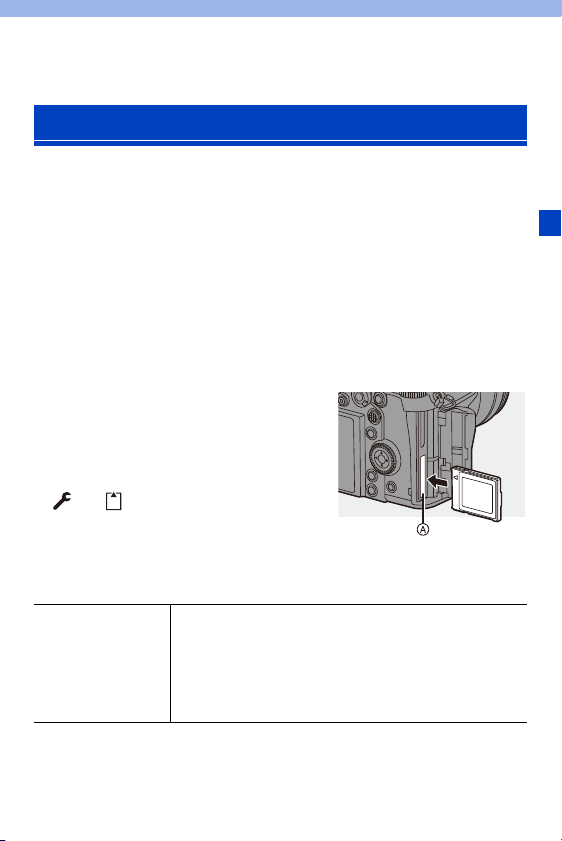
F-7
Firmware Ver. 1.3
CFexpress cards are now supported.
You can use the following CFexpress cards.
CFexpress card (CFexpress Ver2.0 Type B)
0 Operation with SanDisk CFexpress cards (64 GB to 512 GB) has been verified. (As
of November 2019)
0 AVCHD videos cannot be recorded with a CFexpress card.
0 For the latest information, check the following support site:
https://panasonic.jp/support/global/cs/dsc/
(English only)
Slot for CFexpress Cards
Insert CFexpress cards into card slot 1 A.
0
When using menu operations to select a card
slot, select [Card Slot 1(XQD)].
0 Format the cards with the camera before use in
order to ensure optimal card performance.
[]
¨ [ ] ¨ [Card Format]
0 The card may be hot just after the camera has
been used. Be careful when removing.
Number of Burst Picture Frames (CFexpress Cards)
Support for CFexpress Cards
Number of burst
picture frames
[FINE] / [STD.]: 50 frames or more
[RAWiFINE] / [RAWiSTD.]: 35 frames or more
[RAW]: 40 frames or more
When using a CFexpress card
When recording is performed under the test conditions
specified by Panasonic

Firmware Ver. 1.3
F-8
Notice Using CFexpress Cards
Notes about Backup Recording
[]
¨ [ ] ¨ [Double Card Slot Function] ¨ [Recording Method] ¨ [ ] ([Backup
Rec])
0 When using the following combinations of cards, recording videos, 6K/4K photos,
and recording with [Post-Focus] are not available:
– SDXC memory card and CFexpress card of 32 GB or less
– SD memory card or SDHC memory card, and CFexpress card over 32 GB
Notes about 6K/4K Photos
0 The file save method differs depending on the type of card.
– CFexpress card of 32 GB or less:
A new file will be created to continue recording if the file size exceeds 4 GB.
– CFexpress card over 32 GB:
Files are not divided for recording.
Notes about Creating Time Lapse Shot/Stop Motion Animation Videos
0 In the following cases, videos cannot be created if the file size exceeds 4 GB:
– When a CFexpress card of 32 GB or less is being used and the size for [Rec
Quality] is set to [4K]
– When the size for [Rec Quality] is set to [FHD]
Notes about [Rec. File Format]
[]
¨ [ ] ¨ [Rec. File Format]
0 AVCHD videos cannot be recorded to CFexpress cards.
Notes about [Copy]
[]
¨ [ ] ¨ [Copy]
0 When using the following combinations of cards, videos, 6K/4K photos, and images
recorded with [Post-Focus] cannot be copied:
– Copying from an SDXC memory card to a CFexpress card of 32 GB or less
– Copying from a CFexpress card of over 32 GB to an SD memory card or SDHC
memory card

Firmware Ver. 1.3
F-9
Dividing Files When Recording Videos (CFexpress Cards)
[Rec. File Format] [Rec Quality] Size interval for dividing files
[MP4]
FHD
A new file will be created to continue
recording if the continuous recording
time exceeds 30 minutes or the file size
exceeds 4 GB.
4K
When using a CFexpress card of
32 GB or less:
A new file will be created to continue
recording if the file size exceeds 4 GB.
When using a CFexpress card over
32 GB:
Files are not divided for recording.

Firmware Ver. 1.3
F-10
Number of Recordable Pictures, Recordable Time
(CFexpress Card)
Listed below are the numbers of pictures and the time lengths of videos
that can be recorded on a CFexpress card.
Number of Recordable Pictures
0 The values are for when SanDisk CFexpress cards are used.
0 The values listed are approximate.
0 [Aspect Ratio]: [3:2]; [Picture Quality]: [FINE]
0 [Aspect Ratio]: [3:2]; [Picture Quality]: [RAWiFINE]
¢ Indicates the number of pictures when [L]-size JPEG images are recorded
simultaneously with [HLG Photo] set to [8K-Res.].
[Picture Size]
CFexpress card capacity
64 GB 128 GB 256 GB 512 GB
[L] (46.5M) 2600 5220 10270 20550
[M] (23.5M) 4920 9860 19140 38290
[S] (12M) 8870 17750 33660 67340
8K-Res.
¢
1270 2550 5050 10110
[Picture Size]
CFexpress card capacity
64 GB 128 GB 256 GB 512 GB
[L] (46.5M) 670 1350 2690 5390
[M] (23.5M) 770 1540 3060 6140
[S] (12M) 820 1650 3290 6590
8K-Res.
¢
530 1060 2120 4240

Firmware Ver. 1.3
F-11
Available Recording Time (When Recording Videos)
0 “h” is an abbreviation for hour, “m” for minute and “s” for second.
0 The recordable time is the total time of all the videos which have been recorded.
0 The values are for when SanDisk CFexpress cards are used.
0 The values listed are approximate.
0 [Rec. File Format]: [MP4]
[Rec Quality]
CFexpress card capacity
64 GB 128 GB 256 GB 512 GB
[4K/LPCM/150M/60p] 56m00s 1h50m 3h45m 7h30m
[4K/100M/30p]
[4K/100M/24p]
1h20m 2h45m 5h40m 11h20m
[FHD/28M/60p] 5h00m 10h05m 20h15m 40h30m
[FHD/20M/30p] 6h40m 13h25m 27h00m 54h05m
Firmware Ver. 1.3
F-12
Changes to the Operation of the Image Stabilizer
When Using Other Manufacturer’s Lenses
Setting items for [Body(B.I.S.) / Lens(O.I.S.)] have been changed.
[Body(B.I.S.) / Lens(O.I.S.)] can be set when using other manufacturer’s
lenses with an image stabilizer function.
¨ [ ] ¨ [ ] ¨ [Image Stabilizer] ¨ Select [Body(B.I.S.) /
Lens(O.I.S.)]
Improved Compatibility with
Interchangeable Lenses
[]([Body])
The in-body image stabilizer corrects for vertical,
horizontal, and rotational shake.
[]([Lens + Body (Roll)])
The in-lens image stabilizer corrects for vertical
and horizontal shake, while the in-body image
stabilizer corrects for rotational shake.

Firmware Ver. 1.3
F-13
[Lens Fn Button Setting] Has Been Added
Register a function to the focus button of an interchangeable lens.
¨ [ ] ¨ [ ] ¨ Select [Lens Fn Button Setting]
Setting Items ([Lens Fn Button Setting])
0
[Focus Stop] is registered in the default setting.
When [Focus Stop] is used, the focus is locked while the focus button is pressed and
held.
0 When using an interchangeable lens that has a switch for the image stabilizer
(normal/panning), [Image Stabilizer] in [Lens Fn Button Setting] is not available.
– [Focus Stop]
– [AF Mode/MF]
– [Focus Ring Lock]
– [AE LOCK]
– [AF LOCK]
– [AF/AE LOCK]
– [AF-ON]
– [AF-ON : Near Shift]
– [AF-ON : Far Shift]
– [AF-Point Scope]
– [Focus Area Set]
– [Image Stabilizer]
– [Preview]
– [Preview Aperture Effect]
– [No Setting]
– [Off (Disable Press and Hold)]
– [Restore to Default]
Firmware Ver. 1.3
F-14
Support for [AF+MF] in AFC
When the focus mode is set to [AFC], [AF+MF] is now available.
When using AF, [AF+MF] can be used even when AF Lock is not engaged.
¨ [ ] ¨ [ ] ¨ [AF+MF]
[MODE2] Has Been Added to [Continuous AF]
You can select how to set the focus in AF during recording videos.
The camera is now able to continue to focus even during video recording
standby.
¨ [ ] ¨ [ ] ¨ Select [Continuous AF]
Changes to the AF Function
[MODE1]
The camera continues to automatically focus only during
recording.
0 The same functionality as [ON] in the past.
[MODE2]
The camera keeps focusing on subjects during recording
standby and during recording.
0 The camera can keep focusing during recording standby when
any of the following are set:
– [ ] mode
– [Photo/Video Preview] in the [Custom] ([Monitor / Display])
menu is set to [ ]
[OFF] The camera maintains the focus point at the start of recording.
Firmware Ver. 1.3
F-15
When recording with [High Speed Video], it is now possible to set ISO
sensitivity and [Exposure Mode].
Exposure operations appropriate to [Exposure Mode] ([P]/[A]/[S]/[M]) are
possible.
¨ [ ] ¨ [ ] ¨ [High Speed Video]
¨ [ ] ¨ [ ] ¨ [Exposure Mode]
0 In the [iA] mode, the camera automatically keeps focusing during recording
standby, irrespective of the [Continuous AF] setting.
0 When the following function is being used, [MODE1] switches to [MODE2]:
– HDMI output
0 [MODE2] does not work during recording standby in the following cases:
– In preview mode
– In low light situations
Support for Exposure Operations During
[High Speed Video] Recording
Firmware Ver. 1.3
F-16
[Destination Card Slot] Has Been Added to the [RAW
Processing] Setting Items
You can select the card slot to which to save images processed with RAW.
1
Select [RAW Processing].
≥ ¨ [ ] ¨ [ ] ¨ [RAW Processing]
2
Select the RAW image.
3
Select [More Settings] from the setting items.
4
Select [Destination Card Slot] and set the card slot to be
saved to.
Additions/Changes to Other Functions
[AUTO]
Saved to the same card slot as the RAW format image to be
processed.
[] Saved to card slot 1.
[] Saved to card slot 2.
Firmware Ver. 1.3
F-17
[0.5SEC] Has Been Added to the [Duration Time
(photo)] of [Auto Review]
After taking a picture, the recorded image is displayed for approx.
0.5 seconds.
¨ [ ] ¨ [ ] ¨ [Auto Review] ¨ [Duration Time (photo)] ¨
[0.5SEC]
Support for [Forced Flash Off] in [iA] Mode
It is now possible to set [Forced Flash Off] in [iA] mode.
¨ [ ] ¨ [ ] ¨ [Flash Mode] ¨ [ ] ([Forced Flash Off])
[AF Assist Light] Has Been Added to the [Video]
Menu
[AF Assist Light] has been added to the [Video] ([Focus]) menu.
When in [ ] mode, it is now possible to set [AF Assist Light].
¨ [ ] ¨ [ ] ¨ [AF Assist Light]
0 This is a menu item in common with [AF Assist Light] in the [Photo] ([Focus]) menu.
Their settings are synchronized.
Firmware Ver. 1.3
F-18
[Off (Disable Press and Hold)] Has Been Added to [Fn
Button Set]
A setting item has been added that disables display of the function
registering screen even when you press and hold the Fn button.
¨ [ ] ¨ [ ] ¨ Select [Fn Button Set]
[Setting in REC mode]
¨ [3] tab: [Others]
[Setting in PLAY mode]
¨ [2] tab: [Others]
[Preview Aperture Effect] Has Been Added to [Fn
Button Set]
An Fn button function has been added so that you can preview the
aperture effect.
¨ [ ] ¨ [ ] ¨ [Fn Button Set] ¨ Select [Setting in REC mode]
[2] tab: [Monitor / Display]
0 These cannot be registered to [Fn3] to [Fn7].
[Off (Disable Press and
Hold)]
The button does not work as an Fn button.
The function registering screen is not displayed
when you press and hold (2 seconds) the Fn button.
0 The firmware update has changed the default setting for [Fn6] and [Fn7] in
[Setting in REC mode] from [No Setting] to [Off (Disable Press and Hold)].
[Preview Aperture Effect]
The aperture effect can be previewed while the Fn
button is being pressed.
Firmware Ver. 1.3
F-19
[Photo Luminance Level] Has Been Added to [TV
Connection]
Sets the level of luminance when outputting pictures to TVs, etc.
¨ [ ] ¨ [ ] ¨ [TV Connection] ¨ Select [Photo Luminance
Level]
Settings: [0-255]/[16-255]
Support for AE Lock in [M] Mode
When in [M] mode, it is now possible to use the AE Lock.
¨ [ ] ¨ [ ] ¨ [Fn Button Set] ¨ Select [Setting in REC mode]
[1] tab: [Focus/Shutter]
Support for Aperture/Shutter Speed Operations When
Monitor is Off
Aperture value and shutter speed settings with the front dial and rear dial
are now possible when the monitor is off.
0 When pictures recorded with [HLG Photo] are output without converting with
[HLG View Assist], they are output with the setting [64-940].
[AE LOCK]
0 The AE Lock can be used in [M] mode when the ISO
sensitivity is set to [AUTO].
[AF/AE LOCK]
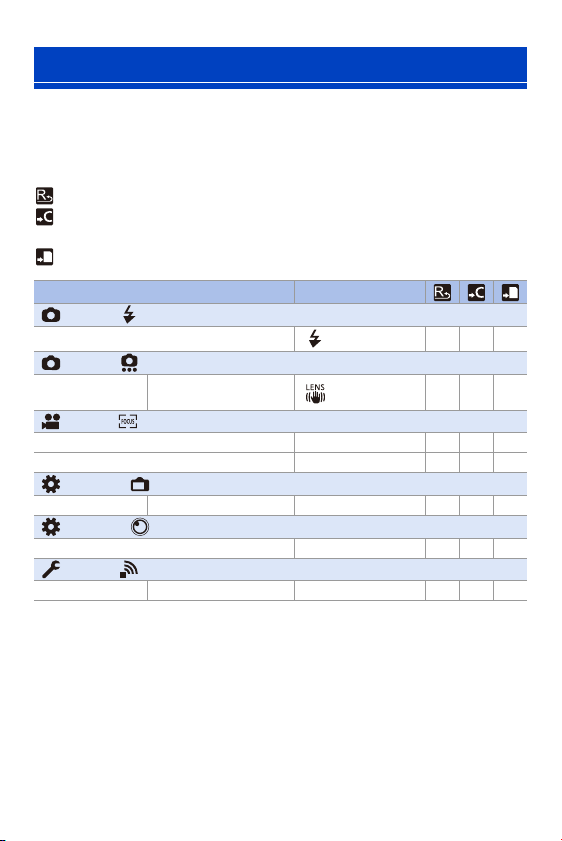
Firmware Ver. 1.3
F-20
Specifications information for the menus added by the firmware update.
List of Default Settings/Saving Customization/Copied
Settings
Added Menus
: Using [Reset], the function to return to default settings
: Using [Save to Custom Mode], the function to save settings details in the Custom
mode
: Using [Save/Restore Camera Setting], the function to copy settings details
Menu Default settings
[Photo]: [Flash]
[Flash Mode] [ ] 333
[Photo]: [Others (Photo)]
[Image Stabilizer]
[Body(B.I.S.) /
Lens(O.I.S.)]
[] 333
[Video]: [Focus]
[Continuous AF] [MODE1] 333
[AF Assist Light] [ON] 333
[Custom]: [Monitor / Display]
[Auto Review] [Duration Time (photo)] [OFF] 333
[Custom]: [Lens / Others]
[Lens Fn Button Setting] [Focus Stop] 333
[Setup]: [IN/OUT]
[TV Connection] [Photo Luminance Level] [16-255] 33
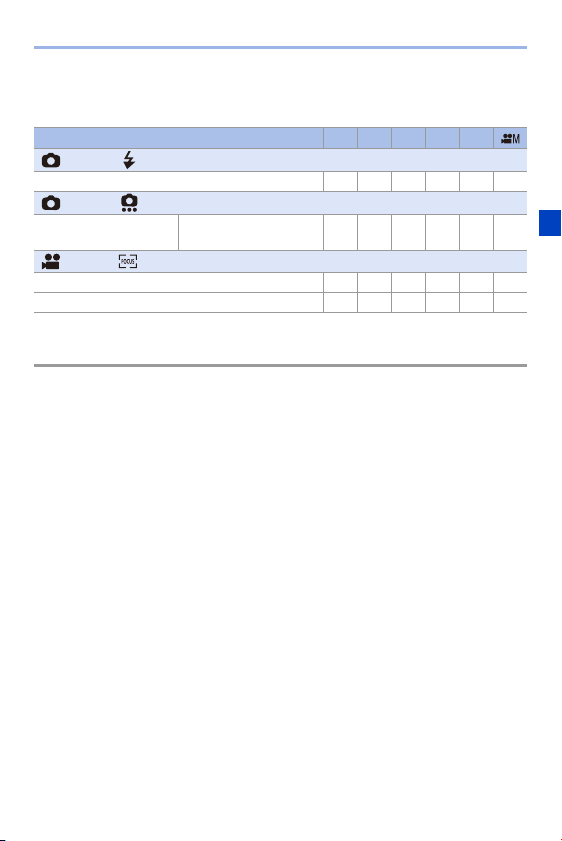
Firmware Ver. 1.3
F-21
List of Functions That Can Be Set in Each Recording
Mode
0 SanDisk is a registered trademark or trademark of Western Digital Corporation or its
affiliates in the US and/or other countries.
Menu iA P A S M
[Photo]: [Flash]
[Flash Mode] 33333
[Photo]: [Others (Photo)]
[Image Stabilizer]
[Body(B.I.S.) /
Lens(O.I.S.)]
33333
[Video]: [Focus]
[Continuous AF] 333333
[AF Assist Light] 33333
F-22
Firmware Ver. 1.5
[Switch NTSC/PAL] has been added to the [Video] menu. Along with video
for the NTSC TV broadcast system, it is now possible to record video with
a frame rate for 50p/25p PAL.
[Switch NTSC/PAL] Has Been Added
The image qualities you can select in [Rec Quality] are switched to the
image qualities with the frame rate to suit the NTSC/PAL TV broadcast
system.
¨ [ ] ¨ [ ] ¨ Select [Switch NTSC/PAL]
Support for 50p/25p Recording Qualities
[NTSC]
The image qualities for NTSC can be selected in [Rec Quality].
0 The setting is [NTSC] in the default settings.
[PAL]
The image qualities for PAL can be selected in [Rec Quality].
0 AVCHD video cannot be recorded when set to [PAL].
0 The recording qualities and frame rate can be selected to suit the [Switch
NTSC/PAL] setting when turning group images recorded with [Time Lapse
Shot] or [Stop Motion Animation] into video.
0 If you record using the setting that differs from the broadcasting system of
your region, it may not be possible for you to properly play back videos on
your TV.
We recommend using the setting as it was at the time of purchase if you are
unsure about broadcasting systems.
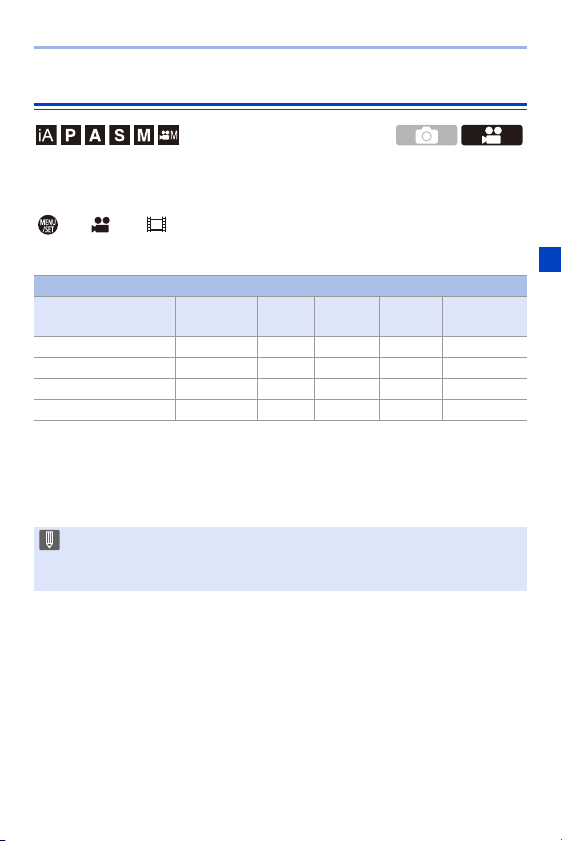
Firmware Ver. 1.5
F-23
50p/25p Recording Qualities Have Been Added
When [Switch NTSC/PAL] is set to [PAL], recording qualities that can be
selected have been added.
¨ [ ] ¨ [ ] ¨ Select [Rec Quality]
[Rec. File Format]: [MP4]
¢1 These videos are intended for editing on a PC.
Playback and editing on other than this camera require a high-performance PC
environment.
[Switch NTSC/PAL]: [PAL]
[Rec Quality] Resolution
Frame
rate
Bit rate YUV/bit Audio format
[4K/LPCM/150M/50p]
¢
1, 2
3840k2160 50p 150 Mbps 4:2:0/8 bit LPCM
[4K/100M/25p]
¢
2
3840k2160 25p 100 Mbps 4:2:0/8 bit AAC
[FHD/28M/50p]
1920k1080 50p 28 Mbps 4:2:0/8 bit AAC
[FHD/20M/25p]
1920k1080 25p 20 Mbps 4:2:0/8 bit AAC
¢2 Recording stops when the continuous recording time exceeds 15 minutes.
0 All videos will be recorded using Long GOP to compress the images.
0 When recording 4K videos to an SD card, use a card rated at UHS Speed
Class 3 or higher.

Firmware Ver. 1.5
F-24
Video Recording Time
Listed below are the time lengths of videos that can be recorded on a card.
0
Video recording time is the total time of all the videos which have been recorded.
0 The values listed are approximate.
0 “h” is an abbreviation for hour, “m” for minute and “s” for second.
0 [Rec. File Format]: [MP4]
[Rec Quality]
XQD card capacity SD card capacity
32 GB 64 GB 120 GB 240 GB 32 GB 64 GB 128 GB
[4K/LPCM/150M/50p]
27m00s 53m00s 1h35m 3h10m 27m00s 56m00s 1h50m
[4K/100M/25p]
40m00s 1h20m 2h20m 4h45m 41m00s 1h25m 2h45m
[FHD/28M/50p]
2h25m 4h45m 8h35m 17h10m 2h30m 5h00m 9h55m
[FHD/20M/25p]
3h15m 6h20m 11h25m 22h55m 3h20m 6h40m 13h15m
[Rec Quality]
CFexpress card capacity
64 GB 128 GB 256 GB 512 GB
[4K/LPCM/150M/50p]
56m00s 1h50m 3h45m 7h30m
[4K/100M/25p]
1h20m 2h45m 5h40m 11h20m
[FHD/28M/50p]
5h00m 10h05m 20h15m 40h30m
[FHD/20M/25p]
6h40m 13h25m 27h00m 54h05m
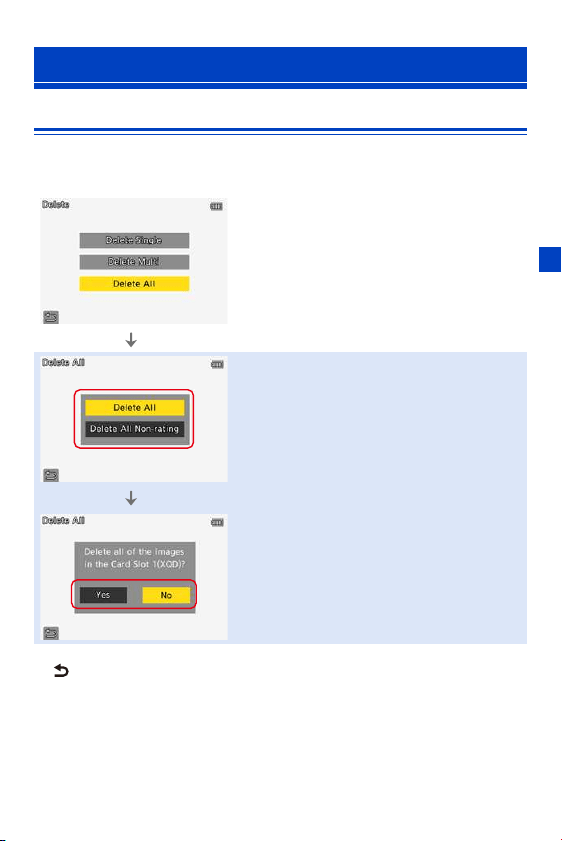
Firmware Ver. 1.5
F-25
Changes to How All Images Are Deleted
To prevent unintentional deletion of images, touch operations are
prohibited in some screens for deleting all images.
¢ [ ] can be operated with a touch operation.
Improved Ease of Operation
Touch operation allowed
Touch operation not allowed
¢
Touch operation not allowed
¢

Firmware Ver. 1.5
F-26
Specifications information for the menus added by the firmware update.
List of Default Settings/Saving Customization/Copied
Settings
List of Functions That Can Be Set in Each Recording
Mode
Added Menus
: Using [Reset], the function to return to default settings
: Using [Save to Custom Mode], the function to save settings details in the Custom
mode
: Using [Save/Restore Camera Setting], the function to copy settings details
Menu Default settings
[Video]: [Image Format]
[Rec Quality] [FHD/28M/60p] 333
[Switch NTSC/PAL] [NTSC] 333
Menu iA P A S M
[Video]: [Image Format]
[Rec Quality] 333333
[Switch NTSC/PAL] 333333
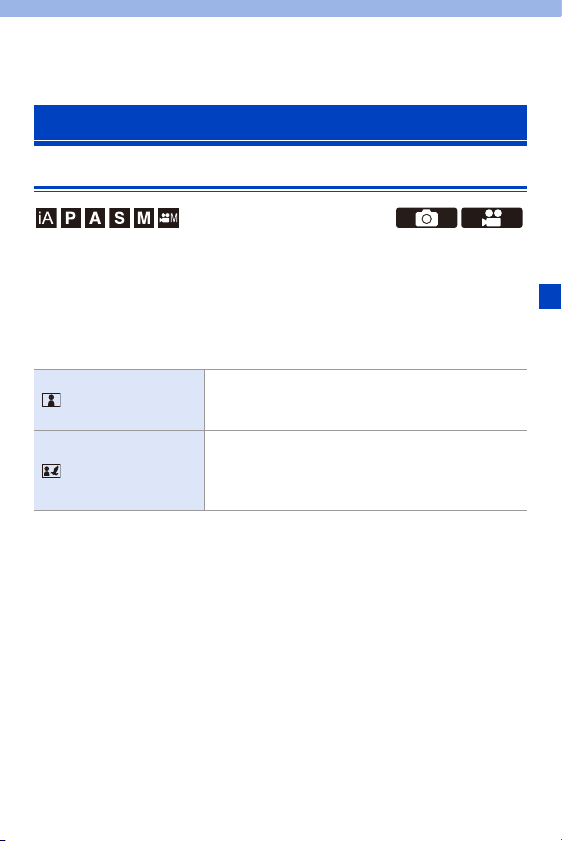
F-27
Firmware Ver. 1.6
Improved Automatic Detection AF Performance
Automatic detection is now able to detect the heads of people whose faces
are not facing directly to the front.
The item names have been changed from [Face/Eye/Body Detection] to
[Human Detect AF], and from [Face/Eye/Body/Animal Detect.] to [Human/
Animal Detect AF] accordingly.
Additions/Changes to AF Functions
[Human Detect AF]
The camera detects a person’s face, eyes, and body
(entire body, upper half of the body, or head) and
adjusts the focus.
[Human/Animal
Detect AF]
Along with humans, animals such as birds, canines
(including wolves), and felines (including lions) will be
detected.
Animals will be prioritized for detection over humans.
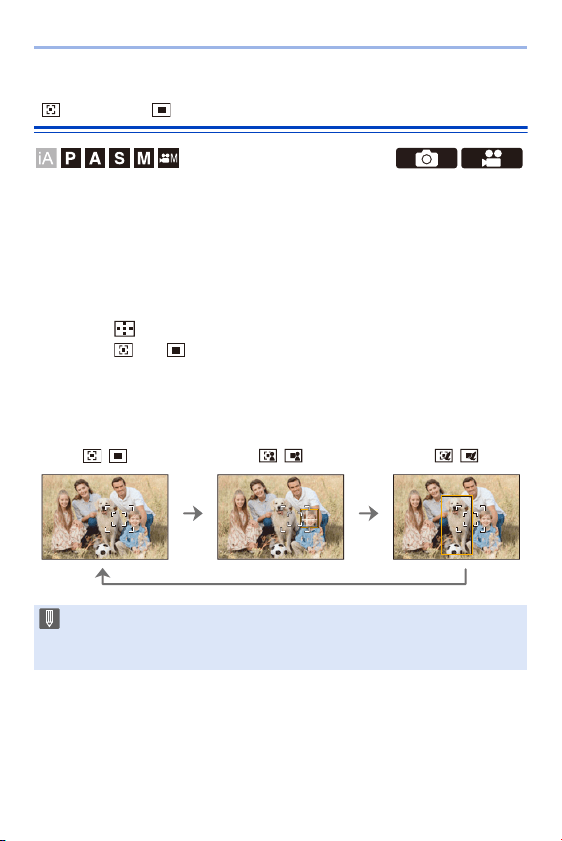
Firmware Ver. 1.6
F-28
Automatic Detection AF Has Been Added to
[1-Area+]/ [1-Area]
Automatic detection is now available in the [1-Area+]/[1-Area] AF modes.
When a part of a human or animal enters the [1-Area+]/[1-Area] AF area,
the automatic detection AF area is indicated in yellow.
Eye detection works when a person’s face is inside the AF area.
Switching of Automatic Detection
1
Press [ ] to display the AF mode selection screen.
2
Select [ ] or [ ] and then press 3.
0
Each press of 3 switches automatic detection.
0 The automatic detection settings of [1-Area+] and [1-Area] are linked.
Automatic detection:
OFF
/
[Human Detect AF]:
ON
/
[Human/Animal
Detect AF]: ON
/
0 Only 1 human or animal can be automatically detected in the AF area.
0 You cannot change the person, animal or eye being focused on during
automatic detection.
Firmware Ver. 1.6
F-29
Support for the [AF+MF] Function During Recording
of Video
During video recording, the MF mode is engaged when you rotate the
focus ring, and the AF mode is engaged when you stop rotating the focus
ring.
¨ [ ] ¨ [ ] ¨ [AF+MF]
0 When [Continuous AF] is set to [MODE2], the focus can be adjusted manually
even during recording standby.
Firmware Ver. 1.6
F-30
[MOV] Has Been Added to [Rec. File Format] for
Video to Support 5K Recording Qualities
[MOV] added to [Rec. File Format] enables recording of MOV format video.
When set to [MOV], recording qualities with resolution of 5K and 10-bit can
be set.
¨ [ ] ¨ [ ] ¨ Select [Rec. File Format]
Video Recording Quality Available for [MOV]
¨ [ ] ¨ [ ] ¨ Select [Rec Quality]
[Rec. File Format]: [MOV]
0
In this document, videos are indicated as follows according to their resolution:
– 5K (4992k3744) video: 5K video
Additions/Changes to Video Functions
0 The angle of view becomes narrower.
[MOV] This data format is suitable for image editing.
[Switch NTSC/PAL]: [NTSC]
[Rec Quality] Resolution Frame rate Bit rate YUV/bit Audio format
[5K/10bit/200M/30p]
4992k3744 30p 200 Mbps 4:2:0/10 bit LPCM
[5K/10bit/200M/24p]
4992k3744 24p 200 Mbps 4:2:0/10 bit LPCM
[Switch NTSC/PAL]: [PAL]
[Rec Quality] Resolution Frame rate Bit rate YUV/bit Audio format
[5K/10bit/200M/25p]
4992k3744 25p 200 Mbps 4:2:0/10 bit LPCM

Firmware Ver. 1.6
F-31
Size Interval for Dividing Files
0 All videos will be recorded using Long GOP to compress the images.
0 When recording to an SD card, use a card rated at UHS Speed Class 3 or
higher.
0 [Image Area of Video] is fixed to [PIXEL/PIXEL].
0 Recording stops when the continuous recording time exceeds 15 minutes.
0 MOV format video recording is not available when [Filter Settings] is set to
[Miniature Effect].
0 When using APS-C lenses, recording of 5K video is not available.
0 When the following function is being used, [E-Stabilization (Video)] is not
available:
– 5K video
0 The “PHOTOfunSTUDIO” software for PCs cannot handle 5K video.
[Rec. File Format] [Rec Quality] Size interval for dividing files
[MOV] All
When using an SDHC memory card
or an XQD card/CFexpress card of
32 GB or less:
A new file will be created to continue
recording if the continuous recording
time exceeds 30 minutes or the file size
exceeds 4 GB.
When using an SDXC memory card or
an XQD card/CFexpress card over
32 GB:
A new file will be created to continue
recording if the continuous recording
time exceeds 3 hours and 4 minutes or
the file size exceeds 96 GB.
Firmware Ver. 1.6
F-32
Available Recording Time for the Battery (When Using the
Monitor)
Listed below are the time lengths available for recording that can be taken
when the supplied battery is being used.
0 Using the XQD card from Sony.
0 Using the interchangeable lens (S-R24105).
0 The values listed are approximate.
0 Actual recordable time is the time available for recording when repeating actions
such as turning the camera on and off, starting/stopping recording, etc.
[MOV] (Recording with the recording quality set to [5K/10bit/200M/30p])
Available Recording Time for Cards
Listed below are the time lengths of videos that can be recorded on a card.
0
The available recording time is the total time of all the videos which have been
recorded.
0 The values listed are approximate.
0 [Rec. File Format]: [MOV]
0 “h” is an abbreviation for hour, “m” for minute and “s” for second.
Recordable time Approx. 70 min
Actual recordable time Approx. 35 min
[Rec Quality]
XQD card capacity SD card capacity
32 GB 64 GB 120 GB 240 GB 32 GB 64 GB 128 GB
[5K/10bit/200M/30p]
[5K/10bit/200M/24p]
[5K/10bit/200M/25p]
19m00s 39m00s 1h10m 2h20m 20m00s 42m00s 1h20m
[Rec Quality]
CFexpress card capacity
64 GB 128 GB 256 GB 512 GB
[5K/10bit/200M/30p]
[5K/10bit/200M/24p]
[5K/10bit/200M/25p]
42m00s 1h20m 2h50m 5h40m
Firmware Ver. 1.6
F-33
[Like2100(HLG)] Has Been Added to [Photo Style] to
Support HLG Video Recording
When the recording quality is set to MOV format 10-bit, you can record
HLG format video with a wide dynamic range.
Bright lights that are easily overexposed, and dark areas that are easily
underexposed can be recorded showing fine quality and rich colors just as
seen with the human eyes.
You can view the video that you record by outputting via HDMI to devices
(TVs, etc.) that support the HLG format, or playing back directly on
supporting devices.
0
“HLG (Hybrid Log Gamma)” is an international standard (ITU-R BT.2100) HDR
format.
1
Set the mode dial to [ ].
0
[Like2100(HLG)] is available only when the camera is set to [ ] mode.
2
Set [Rec. File Format] to [MOV].
0
¨ [ ] ¨ [ ] ¨ [Rec. File Format] ¨ [MOV]
3
Select [Rec Quality].
0
¨ [ ] ¨ [ ] ¨ [Rec Quality] ¨ Video recording quality
0 Items available for recording with [Like2100(HLG)] are indicated as [HLG
available] on the screen.
4
Set [Photo Style] to [Like2100(HLG)].
0
¨ [ ] ¨ [ ] ¨ [Photo Style] ¨ [Like2100(HLG)]
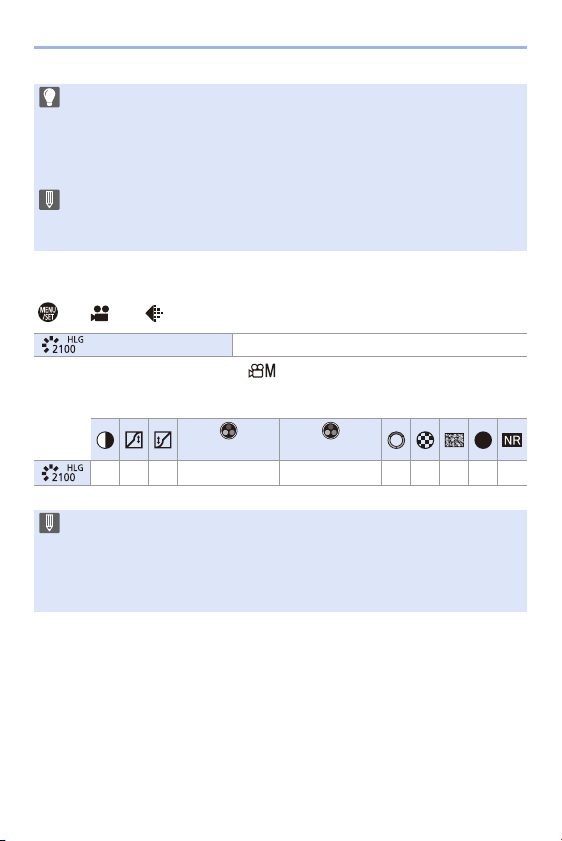
Firmware Ver. 1.6
F-34
[Like2100(HLG)] Has Been Added to [Photo Style]
¨ [ ] ¨ [ ] ¨ Select [Photo Style]
¢ Can only be selected when in the [ ] mode and set to a 10-bit [Rec Quality].
0 The items that you can adjust the image quality for depend on the Photo Style type.
0 The monitor and viewfinder on this camera do not support display of HLG
format images.
With [Monitor] in [HLG View Assist] in the [Custom] ([Monitor / Display]) menu,
you can display the images converted for monitoring on the monitor/viewfinder
of this camera.
0 HLG images are shown dark on devices that do not support the HLG format.
With [HDMI] in [HLG View Assist] in the [Custom] ([Monitor / Display]) menu,
you can set the conversion method for images displayed for monitoring.
[Like2100(HLG)]
¢
A setting used to record HLG format video.
([Saturation]) ([Color Tone])
sss 3 s 3 ss33
0 When [Photo Style] is set to [Like2100(HLG)], the following functions are
restricted:
– The lower limit of available ISO sensitivities will become [ISO320].
– [i.Dynamic Range] is fixed to [OFF].
– [Luminance Level] is fixed to [64-940].
S
Firmware Ver. 1.6
F-35
[16-235] Has Been Added to [Luminance Level]
The [16-235] setting item is added, and operation changes to the following.
¨ [ ] ¨ [ ] ¨ Select [Luminance Level]
Settings: [0-255]/[16-235]/[16-255]
0 When [Rec Quality] is set to 10-bit video, the setting items change to [0-1023],
[64-940], and [64-1023].
0 When [Rec. File Format] is set to [AVCHD], [0-255] cannot be set.
0 When [Photo Style] is set to [Like2100(HLG)], this is fixed to [64-940].
Firmware Ver. 1.6
F-36
[XLR Mic Adaptor Setting] Has Been Changed to
Support Recording of High Resolution Audio
Sampling frequency can be set.
Recording of high resolution audio is supported when recording MOV
format video.
¨ [ ] ¨ [ ] ¨ Select [XLR Mic Adaptor Setting]
0
The set sampling frequency is also applied to the sound output over HDMI.
Down-converting Audio and Outputting to HDMI
[96kHz/24bit] and [48kHz/24bit] audio is down-converted to match the
connected device.
¨ [ ] ¨ [ ] ¨ [HDMI Rec Output] ¨ Select [Sound Down
Convert]
Settings: [AUTO]/[OFF]
[96kHz/24bit]
Records high resolution
sound at 96 kHz/24-bit.
Only available when [Rec.
File Format] is set to [MOV].
[48kHz/24bit]
Records high-quality sound at
48 kHz/24-bit.
[48kHz/16bit] Records standard-quality sound at 48 kHz/16-bit.
[OFF] Records sound using the built-in microphone of the camera.
Firmware Ver. 1.6
F-37
[4K/60p Bit Mode]/[4K/50p Bit Mode] Has Been Added
to [HDMI Rec Output]
In the [ ] mode, setting of output bit value for images output over HDMI
is possible for 4K/60p or 4K/50p video.
¨ [ ] ¨ [ ] ¨ [HDMI Rec Output] ¨ Select [4K/60p Bit Mode]/
[4K/50p Bit Mode]
Settings: [4:2:2 10bit]/[4:2:0 8bit]
0 The menu name changes according to the [Switch NTSC/PAL] setting.
0 This works in the [ ] mode, when set to [Rec Quality] of 4K/60p or 4K/50p,
and outputting over HDMI.
0 When using HDMI output for 4K/60p/4:2:2 10-bit or 4K/50p/4:2:2 10-bit
images, video cannot be recorded to a card.
0 When using HDMI output for HLG video, during HDMI output of 4K/60p/4:2:2
10-bit or 4K/50p/4:2:2 10-bit images, from the [Video] ([Image Quality]) menu,
set [Photo Style] to [Like2100(HLG)].
Firmware Ver. 1.6
F-38
[SS/Gain Operation] Has Been Added
It is now possible to set the shutter speed by angle and the gain
(sensitivity) by dB units.
¨ [ ] ¨ [ ] ¨ Select [SS/Gain Operation]
[SEC/ISO] Displays the shutter speed in seconds and the gain in ISO.
[ANGLE/ISO]
Displays the shutter speed in degrees and the gain in ISO.
0 The angle can be set in a range between 11° and 358°.
[SEC/dB]
Displays the shutter speed in seconds and the gain in dB.
0 0 dB is equivalent to [ISO100].
0 When [SS/Gain Operation] is set to [SEC/dB], menu names change as shown
below:
– [ISO Sensitivity (video)]
¨ [Gain Setting]
– [ISO Auto Lower Limit Setting]
¨ [Auto Gain Lower Limit Setting]
– [ISO Auto Upper Limit Setting]
¨ [Auto Gain Upper Limit Setting]
– [Extended ISO]
¨ [Extended Gain Setting]
– [ISO Displayed Setting]
¨ [Gain Displayed Setting]
0 When [SS/Gain Operation] is set to [SEC/dB], the icon in the Touch Tab
changes from [ ] to [ ].
ISO
GAIN
Firmware Ver. 1.6
F-39
[Red REC Frame Indicator] Has Been Added
A red frame is displayed on the recording screen that indicates that video
is being recorded.
¨ [ ] ¨ [ ] ¨ [Red REC Frame Indicator]
Settings: [ON]/[OFF]
Support for Vertical Playback of Video
When video is recorded with the camera held vertically, the video is
automatically played back vertically on smartphones and PCs.
0 In the camera playback screen, playback is vertical only in the thumbnail
display.
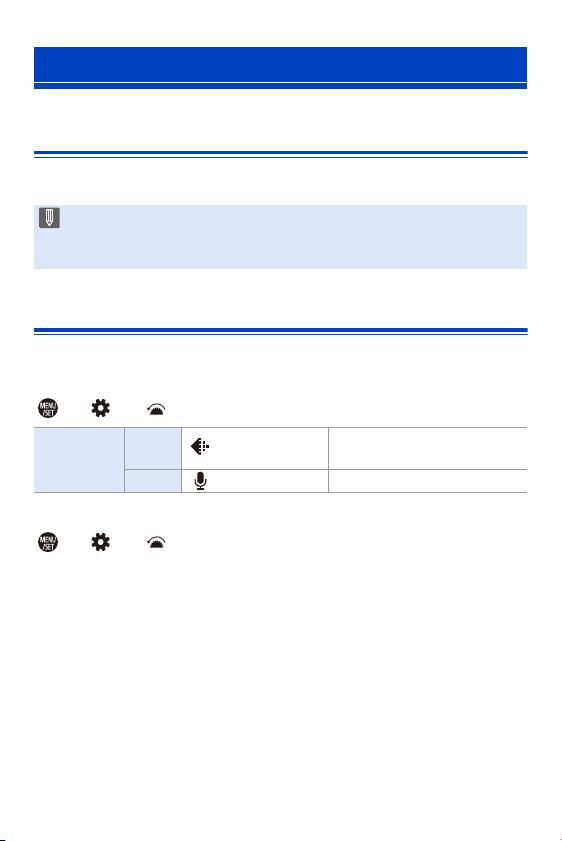
Firmware Ver. 1.6
F-40
Support for Transfer of 4K Video Files to
Smartphones
It is now possible to transfer 4K MP4 video files to smartphones.
Fn Buttons/Fn Lever
Usage of the following functions is enabled.
Fn buttons
¨ [ ] ¨ [ ] ¨ [Fn Button Set]
Fn lever
¨ [ ] ¨ [ ] ¨ [Fn Lever Setting]
0
When [Function of Fn Lever] is set to [Photo Style]:
– [Like2100(HLG)]
Additions/Changes to Other Functions
0 It is not possible to transfer images with file sizes exceeding 4 GB.
0 Images recorded using the following function cannot be transferred:
– Audio format: LPCM
[Setting in
REC mode]
[1] tab [Image Quality]
[Photo Style]
– [Like2100(HLG)]
[2] tab [Audio] – [XLR Mic Adaptor Setting]
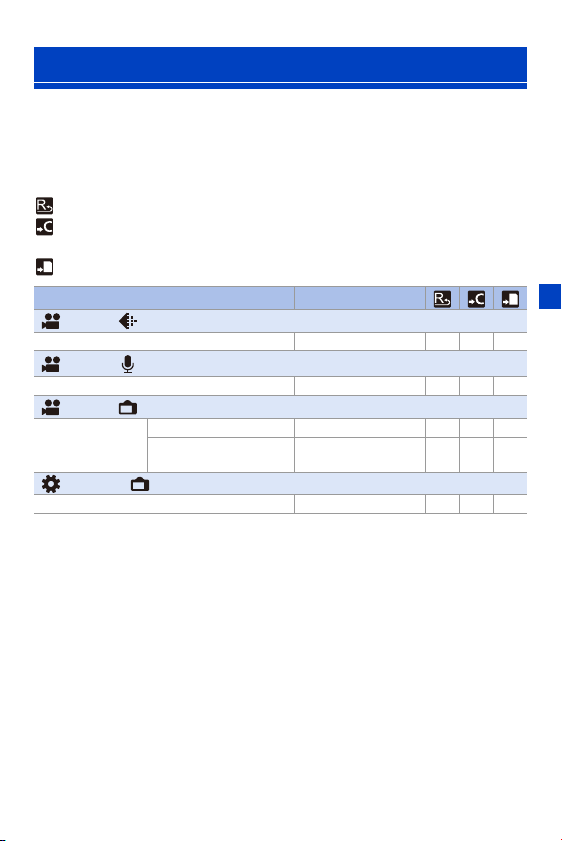
Firmware Ver. 1.6
F-41
Specifications information for the menus added by the firmware update.
List of Default Settings/Saving Customization/Copied
Settings
Added Menus
: Using [Reset], the function to return to default settings
: Using [Save to Custom Mode], the function to save settings details in the Custom
mode
: Using [Save/Restore Camera Setting], the function to copy settings details
Menu Default settings
[Video]: [Image Quality]
[SS/Gain Operation] [SEC/ISO] 333
[Video]: [Audio]
[XLR Mic Adaptor Setting] [48kHz/16bit] 333
[Video]: [Monitor / Display]
[HDMI Rec Output]
[Sound Down Convert] [OFF] 333
[4K/60p Bit Mode]/
[4K/50p Bit Mode]
[4:2:0 8bit] 333
[Custom]: [Monitor / Display]
[Red REC Frame Indicator] [OFF] 333

Firmware Ver. 1.6
F-42
List of Functions That Can Be Set in Each Recording
Mode
0 QuickTime and the QuickTime logo are trademarks or
registered trademarks of Apple Inc., used under license
therefrom.
Menu iA P A S M
[Video]: [Image Quality]
[SS/Gain Operation] 3
[Video]: [Audio]
[XLR Mic Adaptor Setting] 333333
[Video]: [Monitor / Display]
[HDMI Rec Output]
[Sound Down Convert] 333333
[4K/60p Bit Mode]/
[4K/50p Bit Mode]
333333