
ii
Quick Topic Search
You can return to this page by tapping or clicking in the lower right of any page.
Main Topics
Introduction ............................................................................................................................iii
Table of Contents................................................................................................................... x
Parts of the Camera ............................................................................................................... 1
Getting Started......................................................................................................................14
Basic Shooting and Playback Operations ....................................................................22
Shooting Features................................................................................................................30
Playback Features.................................................................................................................83
Movies ......................................................................................................................................95
Connecting the Camera to a TV, Printer, or Computer........................................ 109
Using the Menu..................................................................................................................119
Technical Notes..................................................................................................................181
Common Topics
For Your Safety Tips for Setting
Exposure
Manual Focus Creative Mode
Functions of
the Controls
Functions That
Cannot Be Used
Simultaneously
Troubleshooting Index
iii
Introduction
Read This First
Introduction
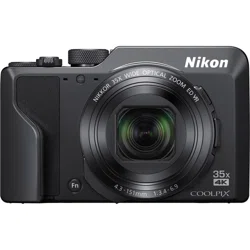
Thank you for purchasing the Nikon COOLPIX A1000 digital camera.
Symbols and Conventions Used in This Manual
• Tap or click in the lower right of each page to display “Quick Topic Search”
(Aii).
• Symbols
• SD, SDHC, and SDXC memory cards are referred to as “memory cards” in this
manual.
• Smartphones and tablets are referred to as “smart devices.”
• The setting at the time of purchase is referred to as the “default setting.”
• The names of menu items displayed on the camera screen, and the names of
buttons or messages displayed on a computer screen appear in bold.
• In this manual, images are sometimes omitted from screen display samples so that
screen indicators can be more clearly shown.
Read This First
Symbol Description
This icon marks cautions and information that should be read before
using the camera.
This icon marks notes and information that should be read before using
the camera.
This icon marks other pages containing relevant information.
iv
Introduction
Read This First
Information and Precautions
Life-Long Learning
As part of Nikon’s “Life-Long Learning” commitment to ongoing product support and
education, continually updated information is available online at the following websites:
• For users in the U.S.A.: https://www.nikonusa.com/
• For users in Europe: https://www.europe-nikon.com/support/
• For users in Asia, Oceania, the Middle East, and Africa: http://www.nikon-asia.com/
Visit these websites to keep up-to-date with the latest product information, tips, answers to
frequently asked questions (FAQs), and general advice on digital imaging and photography.
Additional information may be available from the Nikon representative in your area. Visit the
website below for contact information.
https://imaging.nikon.com/
Use Only Nikon Brand Electronic Accessories
Nikon COOLPIX cameras are designed to the highest standards and include complex
electronic circuitry. Only Nikon brand electronic accessories (including battery chargers,
batteries, AC adapters, and USB cables) certified by Nikon specifically for use with this Nikon
digital camera are engineered and proven to operate within the operational and safety
requirements of this electronic circuitry.
THE USE OF NON-NIKON ELECTRONIC ACCESSORIES COULD DAMAGE THE CAMERA AND
MAY VOID YOUR NIKON WARRANTY.
The use of third-party rechargeable Li-ion batteries not bearing the Nikon holographic seal
could interfere with normal operation of the camera or result in the batteries overheating,
igniting, rupturing, or leaking.
For more information about Nikon brand accessories, contact a local authorized Nikon
dealer.
Before Taking Important Pictures
Before taking pictures on important occasions (such as at weddings or before taking the
camera on a trip), take a test shot to ensure that the camera is functioning normally. Nikon
will not be held liable for damages or lost profits that may result from product malfunction.
Holographic seal: Identifies this
device as an authentic Nikon product.

v
Introduction
Read This First
About the Manuals
• No part of the manuals included with this product may be reproduced, transmitted,
transcribed, stored in a retrieval system, or translated into any language in any form, by
any means, without Nikon’s prior written permission.
• Illustrations and screen content shown in this manual may differ from the actual product.
• Nikon reserves the right to change the specifications of the hardware and software
described in these manuals at any time and without prior notice.
• Nikon will not be held liable for any damages resulting from the use of this product.
• While every effort was made to ensure that the information in these manuals is accurate
and complete, we would appreciate it were you to bring any errors or omissions to the
attention of the Nikon representative in your area (address provided separately).
Comply with Copyright Notices
Under copyright law, photographs or recordings of copyrighted works made with the
camera can not be used without the permission of the copyright holder. Exceptions apply
to personal use, but note that even personal use may be restricted in the case of
photographs or recordings of exhibits or live performances.
Disposing of Data Storage Devices
Please note that deleting images or formatting data storage devices such as memory cards
or built-in camera memory does not completely erase the original image data. Deleted files
can sometimes be recovered from discarded storage devices using commercially available
software, potentially resulting in the malicious use of personal image data. Ensuring the
privacy of such data is the user’s responsibility.
Before discarding a data storage device or transferring ownership to another person, make
sure to reset all of the camera’s settings in Reset all in the setup menu (A120). After
resetting, erase all data in the device using commercial deletion software, or format the
device in Format memory or Format card in the setup menu (A120), then completely
refill it with images containing no private information (for example, images of empty sky).
Care should be taken to avoid injury or damage to property when physically destroying
memory cards.
Conformity Marking
Follow the procedure below to display some of the conformity markings that the camera
complies with.
Press the d button M z menu icon M Conformity marking M k button
vi
Introduction
For Your Safety
To prevent damage to property or injury to yourself or to others, read “For Your Safety”
in its entirety before using this product.
Keep these safety instructions where all those who use this product will read them.
For Your Safety
DANGER
Failure to observe the precautions marked
with this icon carries a high risk of death or
severe injury.
WARNING
Failure to observe the precautions marked
with this icon could result in death or
severe injury.
CAUTION
Failure to observe the precautions marked
with this icon could result in injury or
property damage.
WARNING
• Do not use while walking or operating a vehicle. Failure to observe this
precaution could result in accidents or other injury.
• Do not disassemble or modify this product. Do not touch internal parts
that become exposed as the result of a fall or other accident. Failure to
observe these precautions could result in electric shock or other injury.
• Should you notice any abnormalities such as the product producing
smoke, heat, or unusual odors, immediately disconnect the battery or
power source. Continued operation could result in fire, burns or other injury.
• Keep dry. Do not handle with wet hands. Do not handle the plug with wet
hands. Failure to observe these precautions could result in fire or electric shock.
• Do not let your skin remain in prolonged contact with this product while it
is on or plugged in. Failure to observe this precaution could result in low-
temperature burns.
• Do not use this product in the presence of flammable dust or gas such as
propane, gasoline or aerosols. Failure to observe this precaution could result in
explosion or fire.
• Do not aim the flash at the operator of a motor vehicle. Failure to observe
this precaution could result in accidents.
vii
Introduction
For Your Safety
• Keep this product out of reach of children. Failure to observe this precaution
could result in injury or product malfunction. In addition, note that small parts
constitute a choking hazard. Should a child swallow any part of this product, seek
immediate medical attention.
• Do not entangle, wrap or twist the straps around your neck. Failure to
observe this precaution could result in accidents.
• Do not use batteries, chargers, AC adapters, or USB cables not specifically
designated for use with this product. When using batteries, chargers, AC
adapters, and USB cables designated for use with this product, do not:
- Damage, modify, forcibly tug or bend the cords or cables, place them
under heavy objects, or expose them to heat or flame.
- Use travel converters or adapters designed to convert from one voltage
to another or with DC-to-AC inverters.
Failure to observe these precautions could result in fire or electric shock.
• Do not handle the plug when charging the product or using the AC
adapter during thunderstorms. Failure to observe this precaution could result
in electric shock.
• Do not handle with bare hands in locations exposed to extremely high or
low temperatures. Failure to observe this precaution could result in burns or
frostbite.
CAUTION
• Do not leave the lens pointed at the sun or other strong light sources.
Light focused by the lens could cause fire or damage to product’s internal parts.
When shooting backlit subjects, keep the sun well out of the frame.
• Turn this product off when its use is prohibited. Disable wireless features
when the use of wireless equipment is prohibited. The radio-frequency
emissions produced by this product could interfere with equipment onboard
aircraft or in hospitals or other medical facilities.
• Remove the battery and disconnect the AC adapter if this product will not
be used for an extended period. Failure to observe this precaution could result
in fire or product malfunction.
• Do not touch moving parts of the lens or other moving parts. Failure to
observe this precaution could result in injury.
• Do not fire the flash in contact with or in close proximity to the skin or
objects. Failure to observe this precaution could result in burns or fire.
viii
Introduction
For Your Safety
• Do not leave the product where it will be exposed to extremely high
temperatures, for an extended period such as in an enclosed automobile
or in direct sunlight. Failure to observe this precaution could result in fire or
product malfunction.
• Do not transport the camera with a tripod or similar accessory attached.
Failure to observe this precaution could result in injury or product malfunction.
DANGER for Batteries
• Do not mishandle batteries. Failure to observe the following precautions could
result in the batteries leaking, overheating, rupturing, or catching fire:
- Use only rechargeable batteries approved for use in this product.
- Do not expose batteries to flame or excessive heat.
- Do not disassemble.
- Do not short-circuit the terminals by touching them to necklaces, hairpins, or
other metal objects.
- Do not expose batteries or the products in which they are inserted to powerful
physical shocks.
• Charge only as indicated. Failure to observe this precaution could result in the
batteries leaking, overheating, rupturing, or catching fire.
• If battery liquid comes into contact with the eyes, rinse with plenty of
clean water and seek immediate medical attention. Delaying action could
result in eye injuries.
WARNING for Batteries
• Keep batteries out of reach of children. Should a child swallow a battery, seek
immediate medical attention.
• Do not immerse batteries in water or expose to rain. Failure to observe this
precaution could result in fire or product malfunction. Immediately dry the
product with a towel or similar object should it become wet.
•
Discontinue use immediately should you notice any changes in the
batteries, such as discoloration or deformation. Cease charging EN-EL12
rechargeable batteries if they do not charge in the specified period of time.
Failure to observe these precautions could result in the batteries leaking,
overheating, rupturing, or catching fire.
• When batteries are no longer needed, insulate the terminals with tape.
Overheating, rupture, or fire may result should metal objects come into contact
with the terminals.
x
Table of Contents
Table of Contents
Quick Topic Search ............................................................................................................... ii
Main Topics...................................................................................................................................................................... ii
Common Topics ........................................................................................................................................................... ii
Introduction ........................................................................................................................... iii
Read This First ......................................................................................................................................... iii
Symbols and Conventions Used in This Manual ..................................................................................... iii
Information and Precautions ............................................................................................................................... iv
For Your Safety ....................................................................................................................................... vi
Parts of the Camera .............................................................................................................. 1
The Camera Body.................................................................................................................................... 2
Principle Functions of the Controls.................................................................................................. 4
Operating the Touch Panel................................................................................................................. 7
The Monitor/Viewfinder..................................................................................................................... 10
For Shooting................................................................................................................................................................. 10
For Playback.................................................................................................................................................................. 13
Getting Started..................................................................................................................... 14
How to Attach the Strap..................................................................................................................... 15
Inserting the Battery and Memory Card....................................................................................... 16
Removing the Battery or Memory Card...................................................................................................... 16
Charging the Battery ........................................................................................................................... 17
Changing the Angle of the Monitor............................................................................................... 19
Camera Setup......................................................................................................................................... 20
Basic Shooting and Playback Operations ................................................................... 22
Shooting Images................................................................................................................................... 23
Using the Flash ........................................................................................................................................................... 25
Recording Movies ..................................................................................................................................................... 25
Touch Shooting.......................................................................................................................................................... 26
Switching Between the Monitor and Viewfinder.................................................................................. 26
Playing Back Images............................................................................................................................ 27
Deleting Images .................................................................................................................................... 28
The Image Selection Screen for Deletion .................................................................................................. 29
xi
Table of Contents
Shooting Features............................................................................................................... 30
Selecting a Shooting Mode............................................................................................................... 31
A (Auto) Mode .................................................................................................................................... 32
Scene Mode (Shooting Suited to the Shooting Conditions) ................................................ 33
Tips and Notes About Scene Mode............................................................................................................... 34
Shooting with Easy Panorama.......................................................................................................................... 42
Playback with Easy Panorama........................................................................................................................... 44
Shooting with Smart Portrait (Enhancing Human Faces When Shooting)........................... 45
Creative Mode (Applying Effects When Shooting)................................................................... 51
A, B, C, and D Modes (Setting the Exposure for Shooting)............................................... 53
Tips for Setting Exposure...................................................................................................................................... 54
The Control Range of the Shutter Speed (A, B, C, and D Modes) ......................................... 56
Setting Shooting Functions with the Multi Selector (m/n/p/o) .................................... 57
Flash Mode.............................................................................................................................................. 58
Self-timer ................................................................................................................................................. 61
Focus Mode ............................................................................................................................................ 63
Using Manual Focus................................................................................................................................................ 64
Using the Creative Slider.................................................................................................................... 66
Exposure Compensation (Adjusting Brightness) ...................................................................... 68
Using the w (Function) Button ..................................................................................................... 69
Using the Zoom..................................................................................................................................... 70
Using Touch Shooting ........................................................................................................................ 72
Focusing................................................................................................................................................... 73
The Shutter-release Button................................................................................................................................. 73
Using Target Finding AF ....................................................................................................................................... 74
Using Face Detection ............................................................................................................................................. 75
Subjects Not Suitable for Autofocus............................................................................................................. 76
Focus Lock..................................................................................................................................................................... 77
Default Settings (Flash Mode, Self-timer, and Focus Mode)................................................. 78
Functions That Cannot Be Used Simultaneously When Shooting...................................... 80
Playback Features................................................................................................................ 83
Playback Zoom ...................................................................................................................................... 84
Thumbnail Playback/Calendar Display......................................................................................... 85
Viewing and Deleting Images in a Sequence............................................................................. 86
Viewing Images in a Sequence......................................................................................................................... 86
Deleting Images in a Sequence ....................................................................................................................... 87
xii
Table of Contents
Editing Images (Still Images) ............................................................................................................ 88
Before Editing Images ............................................................................................................................................ 88
Quick Retouch: Enhancing Contrast and Saturation .......................................................................... 89
D-Lighting: Enhancing Brightness and Contrast ................................................................................... 89
Red-eye Correction: Correcting Red-eye When Shooting with the Flash ............................. 90
Glamour Retouch: Enhancing Human Faces........................................................................................... 90
Filter Effects: Applying Digital Filter Effects............................................................................................... 92
Crop: Creating a Cropped Copy....................................................................................................................... 94
Movies ..................................................................................................................................... 95
Basic Operations of Movie Recording and Movie Playback .................................................. 96
Capturing Still Images While Recording Movies .................................................................... 100
Shooting Time-lapse Movies......................................................................................................... 101
Short Movie Show Mode (Combining Movie Clips to Create Short Movies) ............... 103
Operations During Movie Playback ............................................................................................ 106
Editing Movies .................................................................................................................................... 107
Extracting Only the Desired Portion of a Movie.................................................................................. 107
Saving a Frame from a Movie as a Still Image...................................................................................... 108
Connecting the Camera to a TV, Printer, or Computer....................................... 109
Utilizing Images.................................................................................................................................. 110
Viewing Images on a TV .................................................................................................................. 111
Printing Images Without a Computer ........................................................................................ 112
Connecting the Camera to a Printer.......................................................................................................... 112
Printing Images One at a Time ...................................................................................................................... 113
Printing Multiple Images ................................................................................................................................... 114
Transferring Images to a Computer (ViewNX-i)...................................................................... 116
Installing ViewNX-i................................................................................................................................................. 116
Transferring Images to a Computer ........................................................................................................... 116
Using the Menu................................................................................................................. 119
Menu Operations............................................................................................................................... 120
The Image Selection Screen............................................................................................................................ 122
Menu Lists ............................................................................................................................................ 123
The Shooting Menu.............................................................................................................................................. 123
The Movie Menu..................................................................................................................................................... 124
The Playback Menu............................................................................................................................................... 124
The Network Menu ............................................................................................................................................... 125
The Setup Menu ..................................................................................................................................................... 126
The Shooting Menu (Common Across Shooting Modes) ................................................... 127
Image Quality ........................................................................................................................................................... 127
Image Size................................................................................................................................................................... 129

xiii
Table of Contents
The Shooting Menu (A, B, C, or D Mode).............................................................................. 130
White Balance (Adjusting Hue)...................................................................................................................... 130
Metering ...................................................................................................................................................................... 133
Continuous Shooting .......................................................................................................................................... 134
ISO Sensitivity ........................................................................................................................................................... 138
Exposure Bracketing............................................................................................................................................. 139
AF Area Mode........................................................................................................................................................... 140
Autofocus Mode ..................................................................................................................................................... 143
Noise Reduction Filter......................................................................................................................................... 144
M Exposure Preview ............................................................................................................................................. 144
The Movie Menu ................................................................................................................................ 145
Movie Options.......................................................................................................................................................... 145
Autofocus Mode ..................................................................................................................................................... 150
Movie VR ...................................................................................................................................................................... 151
Wind Noise Reduction ........................................................................................................................................ 152
Frame Rate.................................................................................................................................................................. 152
The Playback Menu........................................................................................................................... 153
Mark for Upload....................................................................................................................................................... 153
Slide Show .................................................................................................................................................................. 154
Protect........................................................................................................................................................................... 155
Rotate Image............................................................................................................................................................. 155
Copy (Copy Between the Memory Card and Internal Memory)............................................... 156
Sequence Display................................................................................................................................................... 157
The Network Menu ........................................................................................................................... 158
Operating the Text Input Keyboard............................................................................................................ 160
The Setup Menu................................................................................................................................. 161
Time Zone and Date ............................................................................................................................................ 161
Monitor Settings ..................................................................................................................................................... 163
EVF Auto Toggle (Automatically Switching the Display to the Viewfinder)...................... 165
Date Stamp ................................................................................................................................................................ 166
Self-timer: After Release ..................................................................................................................................... 167
Photo VR ...................................................................................................................................................................... 168
AF Assist ....................................................................................................................................................................... 169
Digital Zoom ............................................................................................................................................................. 169
Assign Side Zoom Control................................................................................................................................ 170
AE/AF Lock Button ................................................................................................................................................ 171
Sound Settings......................................................................................................................................................... 172
Auto Off........................................................................................................................................................................ 172
Format Card/Format Memory........................................................................................................................ 173
Language .................................................................................................................................................................... 174
HDMI Output ............................................................................................................................................................ 174
Charge by Computer........................................................................................................................................... 175

xiv
Table of Contents
Image Comment .................................................................................................................................................... 176
Copyright Information ........................................................................................................................................ 177
Location Data ........................................................................................................................................................... 178
Toggle Av/Tv Selection ...................................................................................................................................... 178
MF Peaking................................................................................................................................................................. 179
Reset All........................................................................................................................................................................ 179
Touch-screen Controls........................................................................................................................................ 179
Conformity Marking.............................................................................................................................................. 180
Firmware Version.................................................................................................................................................... 180
Technical Notes................................................................................................................. 181
Notices ................................................................................................................................................... 182
Notes About Wireless Communication Functions ................................................................ 184
Caring for the Product ..................................................................................................................... 187
The Camera................................................................................................................................................................ 187
The Battery ................................................................................................................................................................. 188
The Charging AC Adapter................................................................................................................................. 189
Memory Cards.......................................................................................................................................................... 190
Cleaning and Storage....................................................................................................................... 191
Cleaning....................................................................................................................................................................... 191
Storage.......................................................................................................................................................................... 191
Error Messages.................................................................................................................................... 192
Troubleshooting ................................................................................................................................ 195
File Names............................................................................................................................................ 206
Accessories........................................................................................................................................... 207
ML-L7 Remote Control........................................................................................................................................ 208
Specifications ...................................................................................................................................... 212
Memory Cards That Can Be Used................................................................................................................. 216
Index....................................................................................................................................................... 218
1
Parts of the Camera
Parts of the Camera
The Camera Body ...................................................................................................................2
Principle Functions of the Controls .................................................................................4
Operating the Touch Panel.................................................................................................7
The Monitor/Viewfinder.....................................................................................................10
2
Parts of the Camera
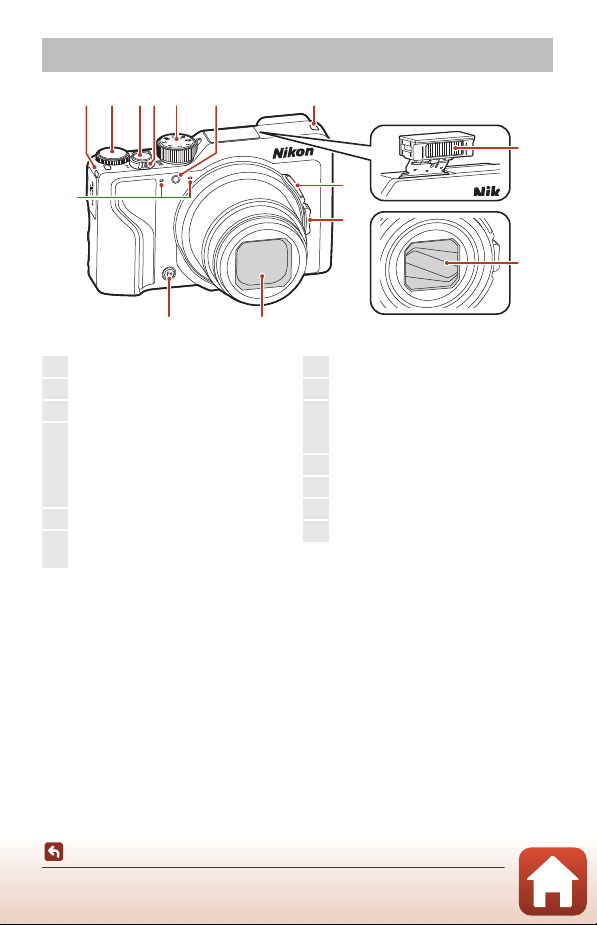
The Camera Body
The Camera Body
1 2345 6 1
8
9
7
10
1112
13
Flash raised
Lens cover closed
1
Eyelet for strap
................................................ 15
2
Command dial
.................................................. 53
3
Shutter-release button
.......................24, 73
4
Zoom control................................................70
f : Wide-angle ..................................70
g : Telephoto......................................70
h : Thumbnail playback............... 85
i : Playback zoom........................... 84
5
Mode dial
..................................................... 23,
31
6
Self-timer lamp
.............................................. 61
AF-assist illuminator
..................................169
7
Flash
................................................................. 25,
58
8
q (snap-back zoom) button.............. 71
9
Side zoom control...................................... 70
f : Wide-angle .................................. 70
g : Telephoto ..................................... 70
10
Lens cover
11
Lens
12
w (function) button .............................. 69
13
Microphone (stereo)
3
Parts of the Camera
The Camera Body
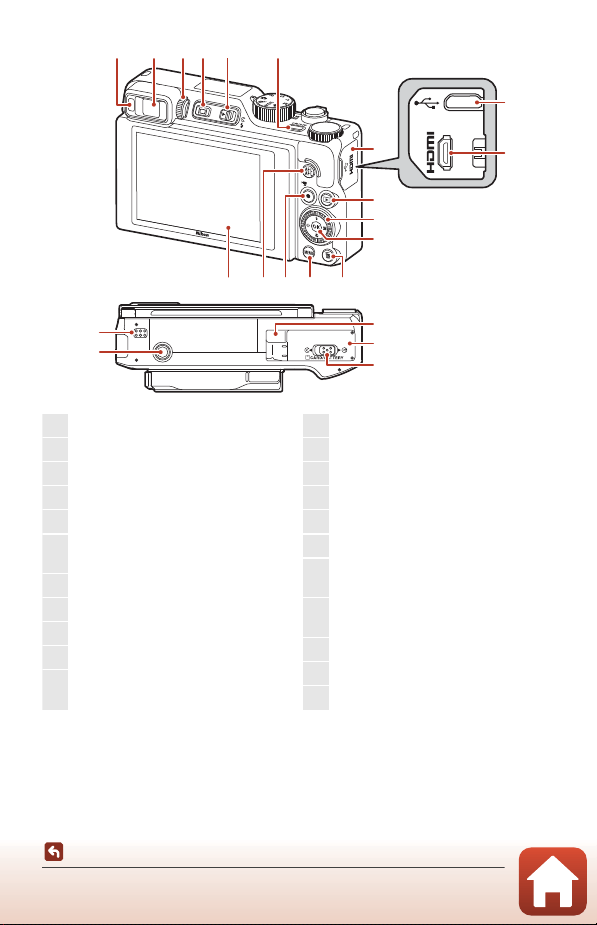
* In this manual, pressing up, down, left, or right on the multi selector is expressed as H, I,
J, or K.
7
10
11
12
12345 6
1314151617
18
19
20
21
22
8
9
1
Eye sensor .......................................................26
2
Electronic viewfinder................................26
3
Diopter adjustment control................. 26
4
x (monitor) button ...............................26
5
K (flash pop-up) control ........... 25, 58
6
Power switch/power-on lamp
(charge lamp)........................................ 17, 20
7
Connector cover
................................... 17,
110
8
Micro-USB connector
..................... 17,
110
9
HDMI micro connector (Type D)
....... 110
10
c (playback) button...............................27
11
Rotary multi selector
(multi selector)*................................ 57, 120
12
k (apply selection) button
............... 120
13
l (delete) button ...................................... 28
14
d (menu) button
................................. 120
15
b (e movie-record) button............. 96
16
g (AE-L/AF-L) button..................... 6, 171
17
Monitor
........................................................10
, 19
18
Power connector cover (for optional
AC adapter)
19
Battery-chamber/memory card slot
cover................................................................... 16
20
Lock lever ........................................................ 16
21
Tripod socket
22
Speaker
4
Parts of the Camera
Principle Functions of the Controls
Principle Functions of the Controls
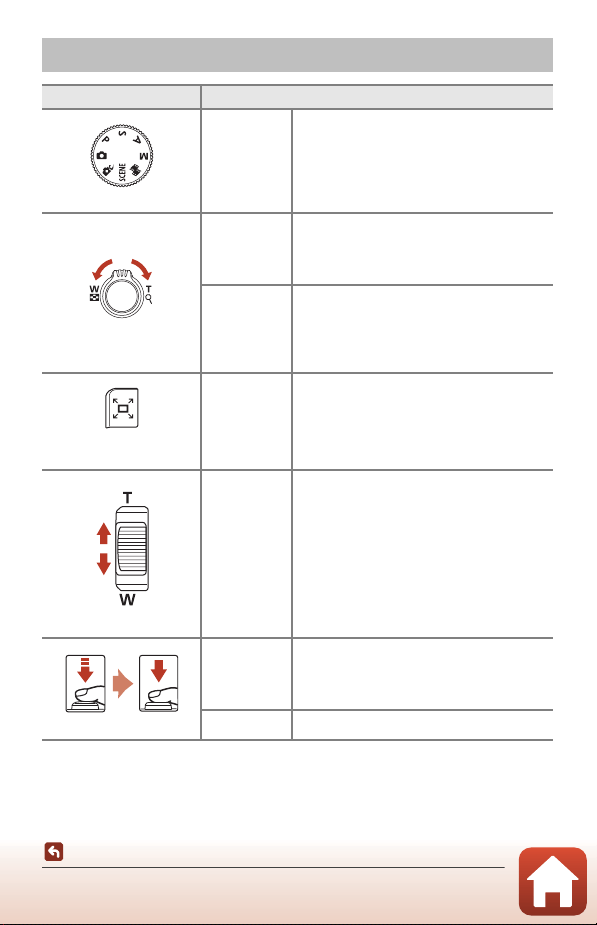
Control Main Function
Mode dial
For shooting Select a shooting mode (A31).
Zoom control
For shooting
Move toward g (i) (telephoto) to zoom in
closer to the subject, and move toward f
(h) (wide-angle) to zoom out and view a
larger area.
For playback
• Move toward g (i) to zoom in on the
image, and move toward f (h) to
display images as thumbnails or the
calendar.
• Adjust the volume for movie playback.
q (Snap-back) zoom
button
For shooting Widen the angle of view temporarily.
Side zoom control
For shooting
Use the function assigned in Assign side
zoom control.
• Zoom (default setting): Move toward g
(telephoto) to zoom in closer to the
subject, and move toward f (wide-
angle) to zoom out and view a larger area.
• Manual focus: When the focus mode is set
to E (manual focus), adjust the focus.
• Set the f-number, ISO sensitivity, exposure
compensation, or white balance.
Shutter-release button
For shooting
When the button is pressed halfway: Set
focus and exposure.
When the button is pressed all the way:
Release the shutter.
For playback Return to shooting mode.
5
Parts of the Camera
Principle Functions of the Controls
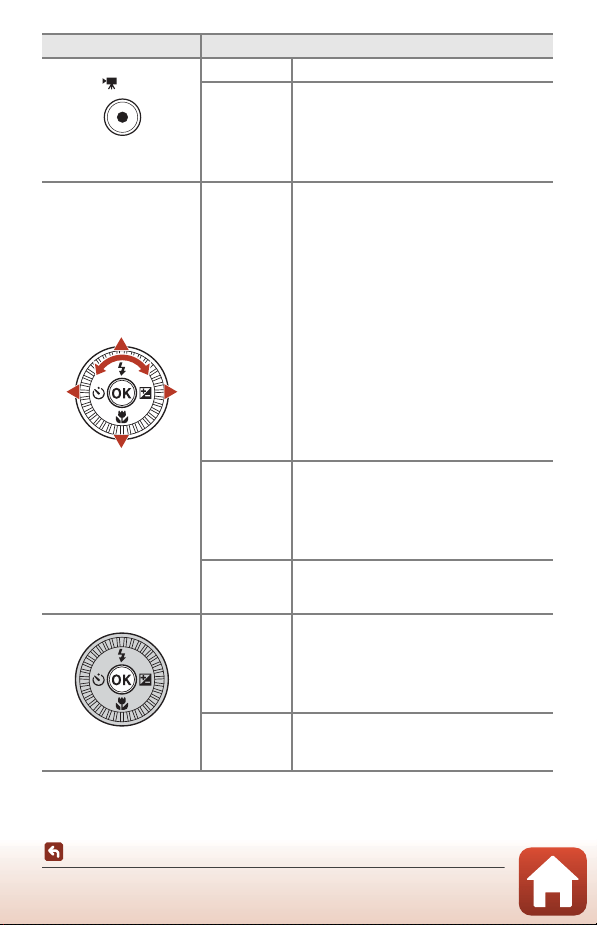
b (e movie-record)
button
For shooting Start and stop movie recording.
For playback Return to shooting mode.
Multi selector
For shooting
• While the shooting screen is displayed:
Display the following setting screens by
pressing:
-Up (H): m (flash mode)
-Left (J): n (self-timer)
-Down (I): p (focus mode)
-Right (K): o (exposure compensation/
brightness, vividness, hue, Active D-
Lighting)
• When the shooting mode is A (A53):
Rotate the multi selector to set the flexible
program.
• When the shooting mode is B (A53):
Rotate the multi selector to set the shutter
speed.
• When the shooting mode is C or D:
Rotate the multi selector to set the
f-number.
For playback
• While the playback screen is displayed:
Change the displayed image using up
(
H), left (J), down (I), right (K), or by
rotating the multi selector.
• While a zoomed image is displayed: Move
the display area.
For setting
• Select an item using HIJK or by
rotating the multi selector, and then apply
the selection by pressing the k button.
k (apply selection)
button
For playback
• Display individual images of a sequence in
full-frame playback mode (A28).
• Scroll an image shot with Easy panorama.
• Play back movies.
• Switch from thumbnail playback or zoomed
image display to full-frame playback.
For setting
Apply the item that you selected by using
the multi selector.
Control Main Function
6
Parts of the Camera
Principle Functions of the Controls
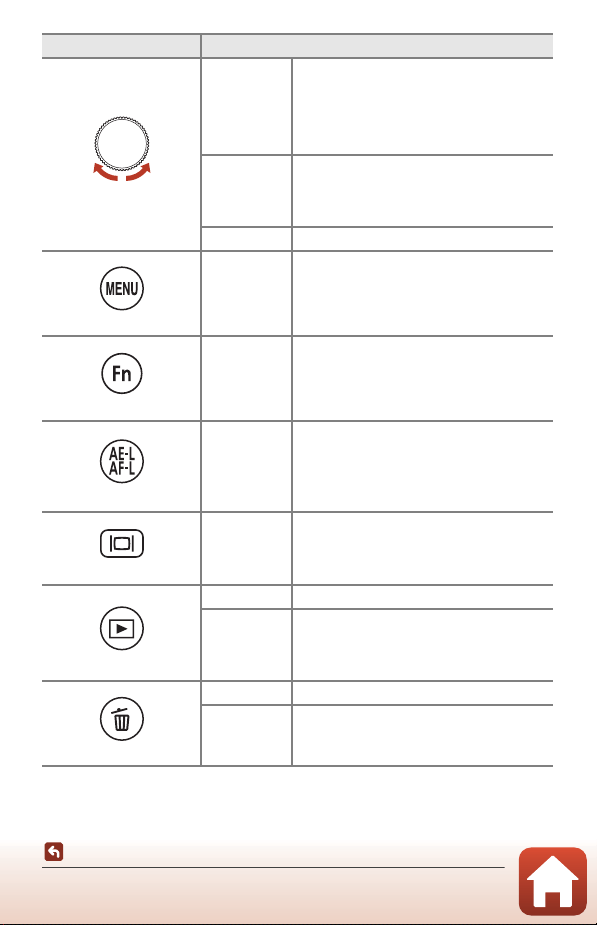
Command dial
For shooting
• When the shooting mode is A (A53):
Set the flexible program.
• When the shooting mode is B or D
(A53): Set the shutter speed.
• When the shooting mode is C (A53):
Set the f-number.
For playback
• While the playback screen is displayed:
Change the displayed image.
• When a zoomed image is displayed:
Change the magnification rate.
For setting Select an item.
d (menu) button
For shooting/
playback
Display or close the menu (A120).
w (function) button
For shooting
When the shooting mode is A, B, C, or D:
Display or close the setting menus such as
Continuous or Photo VR.
g (AE-L/AF-L) button
For shooting
Fix the exposure and/or focus according to
the AE/AF lock button setting.
x (monitor) button
For shooting/
playback
Switch between the monitor and viewfinder
(A26).
c (playback) button
For shooting Play back images (A27).
For playback
• When the camera is turned off, press and
hold down this button to turn the camera
on in playback mode (A27).
• Return to shooting mode.
l (delete) button
For shooting Delete the last image that was saved (A28).
For playback Delete images (A28).
Control Main Function
7
Parts of the Camera
Operating the Touch Panel
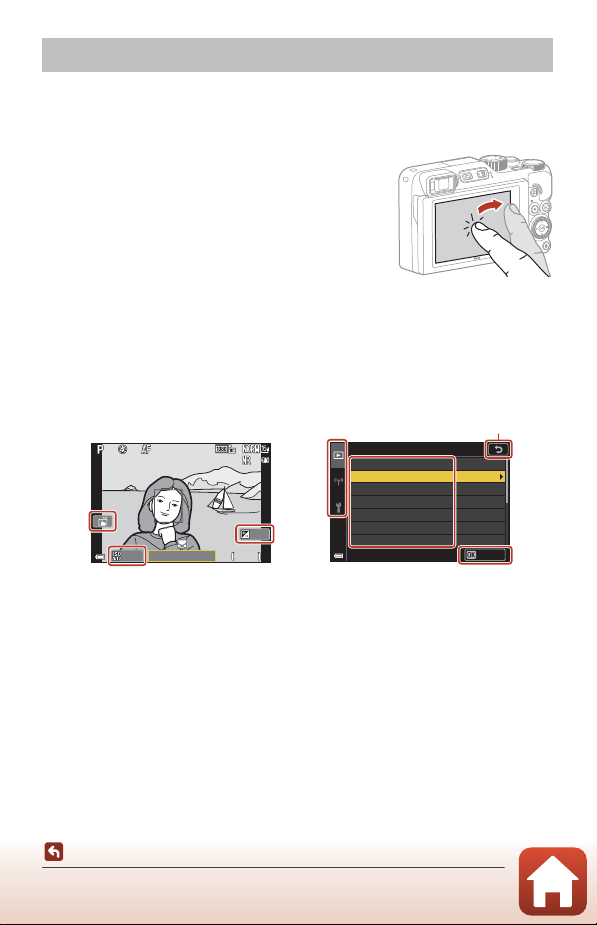
The monitor of this camera is a touch panel, and can be operated by touching it with
your fingers.
Tapping
Briefly touch the touch panel.
• Tap to select items in the shooting screen and
menus.
• Tap to select images in thumbnail playback mode.
• Quickly tap twice in full-frame playback mode to
zoom in on images. Quickly tap twice in zoomed
images to cancel playback zoom.
• Tap to use the touch shooting function.
• Tap to input characters using the keyboard.
You can tap the following items (varies depending on the settings and status of the
camera).
• Shooting screen: Areas with a gray frame, etc.
• Menus: Menu icons, menu items, areas with a gray frame, etc.
Operating the Touch Panel
F 3 .4
F3.4
5 0 0
500
2 5 m 0s
25m 0s
1 / 25 0
1/250
0 . 0
0.0
1 0 0
100
Filter effects
Cross screen
Selective color
Soft portrait
Fisheye
Painting
Vignette
Miniature eect
Conrm
Return to the previous screen
without changing settings
MenuShooting screen
8
Parts of the Camera
Operating the Touch Panel
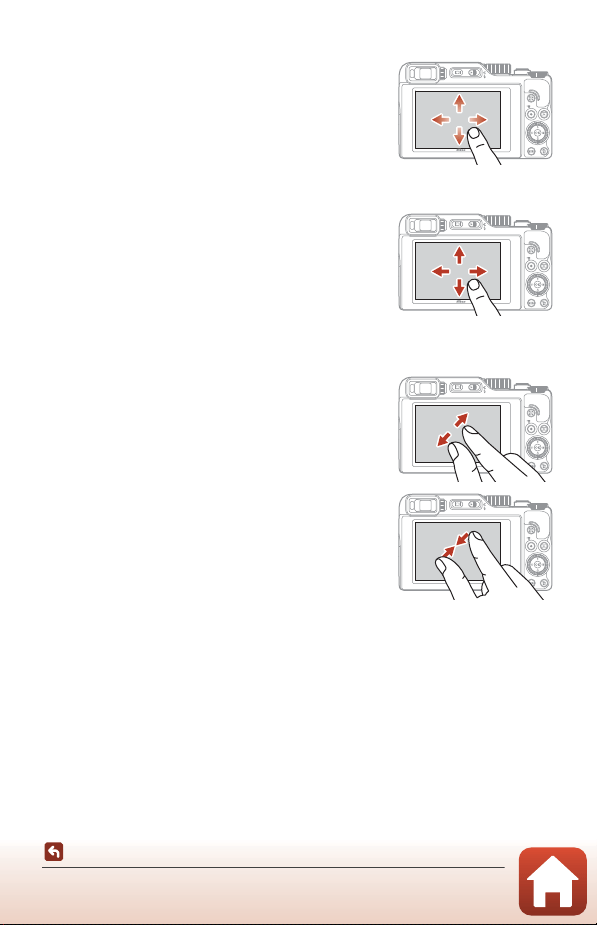
Flicking
Sweep your finger up, down, left, or right on the touch
panel.
• Displays the previous or next image during playback
(full-frame playback).
• Scrolls the screen in menus and thumbnail playback.
Sliding
Touch the touch panel, move your finger up, down, left,
or right, and then release.
• Scrolls the screen in menus and thumbnail playback.
• Moves the display range while a zoomed image is
displayed.
• Operates sliders such as those in the creative slider.
• Adjusts the start or end point when editing movies.
Spreading/pinching
Touch the touch panel with two fingers, and spread
them apart or pinch them together.
• Changes the number of thumbnails displayed in
thumbnail playback.
• Zooms in or out on an image during playback.

9
Parts of the Camera
Operating the Touch Panel
B Notes About the Touch Panel
• The touch panel of this camera is a capacitive type. It may not respond when you touch it
with your fingernails or with gloves on.
• Do not press the touch panel with sharp-pointed, hard objects.
• Do not press or rub the touch panel with excessive force.
• The touch panel may not respond when you apply a commercially-available protective
film.
B Notes About Operating the Touch Panel
• The camera may not operate properly if your fingers are still touching the touch panel or
something touches another part of the touch panel when you tap.
• The camera may not operate properly if you do the following when sliding/spreading/
pinching.
- Hit the touch panel
- The distance over which your fingers move is too short
- Lightly touch the touch panel when moving your fingers
- The speed at which you move your fingers is too fast
- The difference in timing between your two fingers when spreading/pinching is too large
C Enabling or Disabling Touch Operation
You can enable or disable touch operation using Touch-screen controls in the setup
menu (A120).
10
Parts of the Camera
The Monitor/Viewfinder
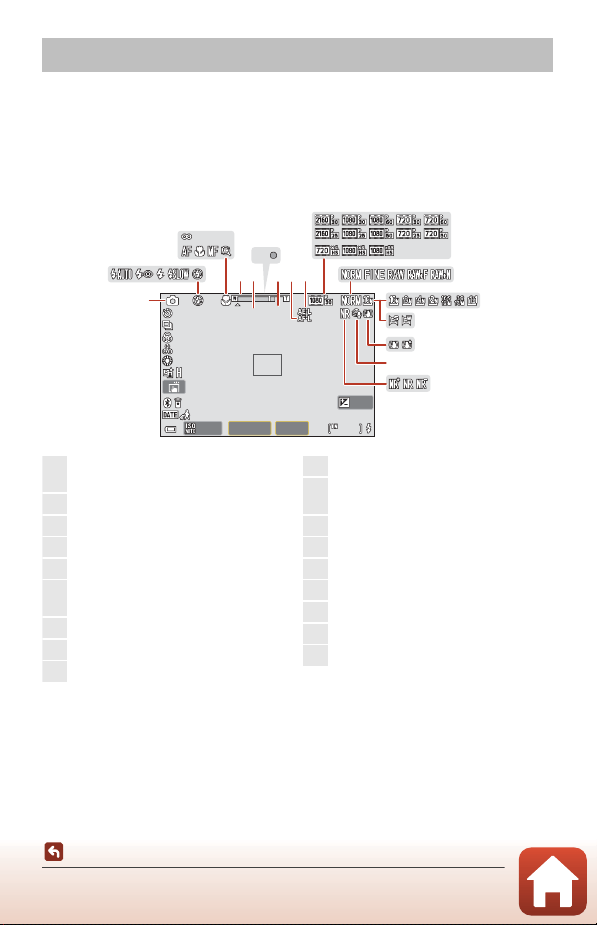
The information that is displayed on the shooting or playback screen changes
depending on the camera’s settings and state of use.
By default, information is displayed when the camera is turned on and when you
operate the camera, and turns off after a few seconds (when Photo info is set to
Auto info in Monitor settings (A163)).
For Shooting
The Monitor/Viewfinder
F 3 . 4F3.4 9 9 9999
2 9 m 0 s29m 0s
1 / 2 5 01/250
0 . 00.0
2 9 m 0 s29m 0s
x 2 .0x 2.0
1 010
8 4 0m m840mm
1 0 0100
A FAF
1
56 8
2
3
7
910
12
11
16
17
13
14
15
18
4
1
Shooting mode............................................31
Effect group (creative mode)...............51
2
Flash mode .....................................................58
3
Focus mode....................................................63
4
Infinity lock......................................................40
5
Zoom indicator.....................................63, 70
6
Focal length (in 35mm [135] format)
................................................................................70
7
Focus indicator.............................................24
8
Digital zoom magnification..................70
9
AF-L...................................................................171
10
AE-L ..................................................................171
11
Movie options (normal
speed movies) ........................................... 146
12
Movie options (HS movies)................ 147
13
Image quality .............................................127
14
Image size.....................................................129
15
Easy panorama.............................................42
16
Vibration reduction icon
............. 151, 168
17
Wind noise reduction............................152
18
Noise reduction filter............................. 144
11
Parts of the Camera
The Monitor/Viewfinder
F 3 . 4
F3.4
9 9 9
999
2 9 m 0 s
29m 0s
1 / 2 5 0
1/250
0 . 0
0.0
2 9 m 0 s
29m 0s
x 2 .0
x 2.0
1 0
10
8 4 0m m
840mm
1 0 0
100
40
9 9 9 9
9999
9 9 9
999
21
22
23
252627
29
31
32
20
24
33
34
35
36
37
38
39
41
42
43
44
19
28
30
19
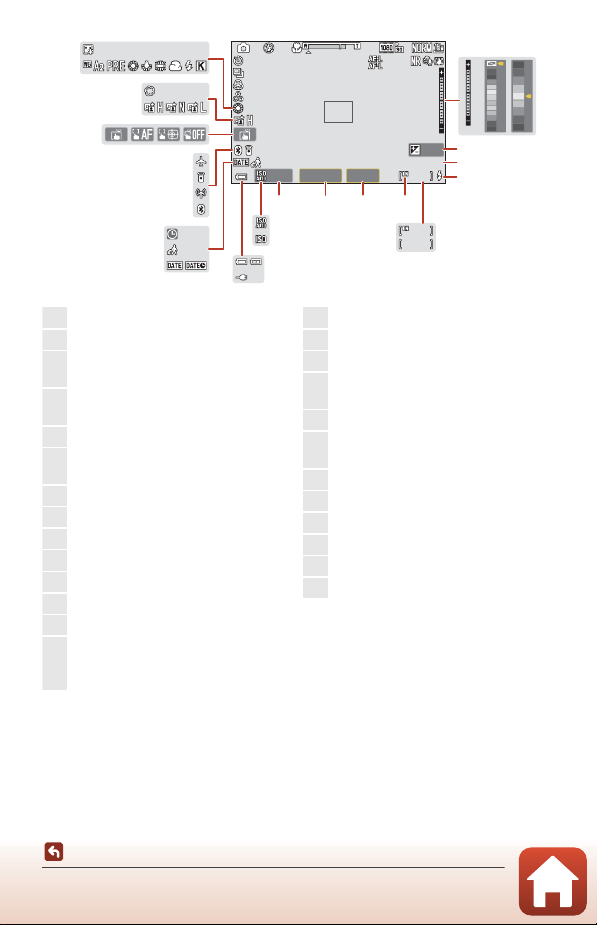
Color bar........................................ 36, 39, 104
20
Exposure indicator .....................................55
21
Exposure compensation value
................................................................45, 66, 68
22
Remaining movie recording time
........................................................................96, 98
23
Ready light ......................................................58
24
Number of exposures remaining
(still images)....................................................23
25
Internal memory indicator....................23
26
F-number .........................................................53
27
Shutter speed................................................53
28
ISO sensitivity .............................................138
29
ISO sensitivity auto indicator ............138
30
ISO sensitivity indicator........................138
31
Battery level indicator ..............................23
32
Charging AC Adapter connection
indicator
AC Adapter connection indicator
33
Date stamp ..................................................166
34
Travel destination icon ......................... 161
35
“Date not set” indicator........................ 196
36
Bluetooth communication
indicator ........................................................159
37
Wi-Fi communication indicator ......159
38
Bluetooth remote control connected
.............................................................................210
39
Airplane mode...........................................158
40
Touch shooting............................................72
41
Active D-Lighting........................................66
42
Soft.......................................................................45
43
White balance............................................ 130
44
Foundation makeup .................................45
12
Parts of the Camera
The Monitor/Viewfinder
F 3 . 4F3.4 9 9 9999
2 9 m 0 s29m 0s
1 / 2 5 01/250
0 . 00.0
8 4 0m m840mm
2 9 m 0 s29m 0s
x 2 .0x 2.0
1 010
1 0 0100
45
46
47
48
6 0601 2 0120
± 0 . 3±0.3 ± 0 . 7±0.7
± 1 . 0±1.0
49
50
51
52
53
54
55
1 010 33
55
56
57
58
59
60
61
62
63
64
65
66
67
2 m 3 0 s2 m 30s
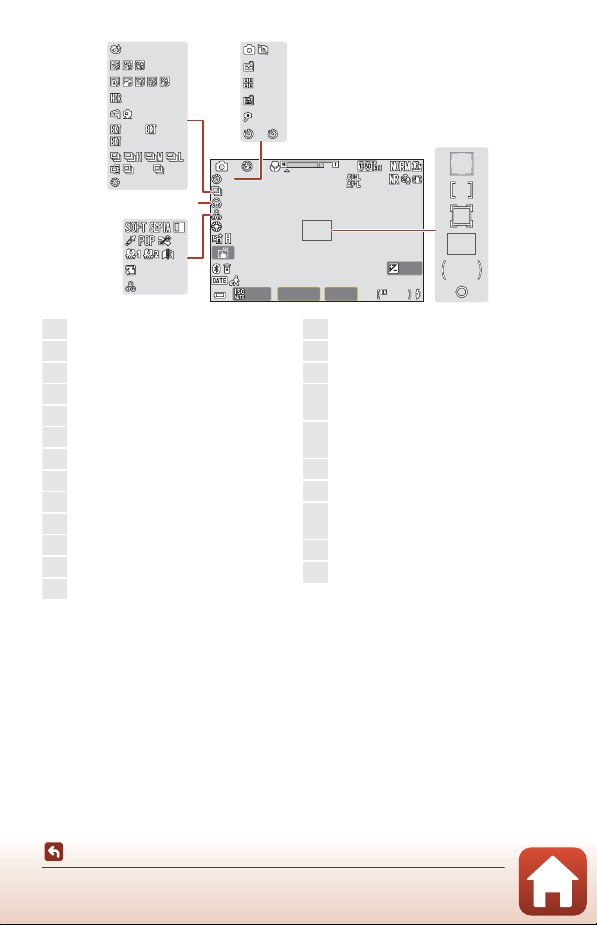
45
Hue ..............................................................45, 66
46
Skin softening ...............................................45
47
Special effects ............................................104
48
Vividness...................................................45, 66
49
Continuous shooting mode .....38, 134
50
Exposure bracketing..............................139
51
Hand-held/tripod ...............................35, 36
52
Backlighting (HDR).....................................37
53
Time-lapse movie ....................................101
54
Multiple exp. Lighten................................40
55
Blink proof icon ............................................49
56
Self-timer indicator ....................................61
57
Self-portrait timer .......................................61
58
Pet portrait auto release.........................38
59
Self-Collage ....................................................47
60
Smile timer......................................................50
61
Still image capture (during movie
recording) ....................................................100
62
Focus area (face detection, pet
detection) ..............................38, 50, 75, 140
63
Focus area (manual, center)...... 77, 141
64
Focus area (subject tracking)............141
65
Focus area (target finding AF)
..................................................................... 74, 141
66
Center-weighted area........................... 133
67
Spot metering area................................. 133
13
Parts of the Camera
The Monitor/Viewfinder
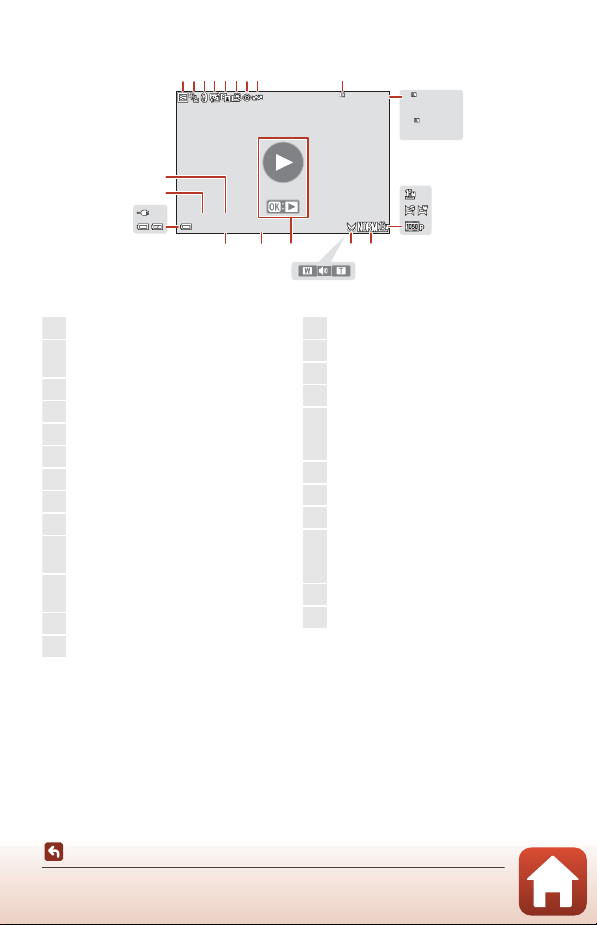
For Playback
1 0 0- 0 0 0 4. J P G
100-0004.JPG
1 5 /1 1 / 2 01 9 15 : 3 0
15/11/2019 15:30
9 9 9/ 9 9 9
999/999
9 9 9/ 9 9 9
999/999
9 9 99 / 9 9 99
9999/9999
2 9 m0 0 s
29m 00s
2 9 m0 0 s
29m 00s
122345678 9
10
11
1516181920
17
12
13
14
21
22
23
24
1
Protect icon
..................................................155
2
Sequence display (when Individual
pictures is selected)..............................157
3
Filter effects icon......................................... 92
4
Glamour retouch icon............................. 90
5
D-Lighting icon ........................................... 89
6
Quick retouch icon.................................... 89
7
Red-eye correction icon......................... 90
8
Marked for upload icon........................153
9
Internal memory indicator ................... 23
10
Current image number/total number
of images
11
Movie length or elapsed playback
time
12
Image size .....................................................129
13
Easy panorama ............................................ 44
14
Movie options ............................................145
15
Image quality..............................................127
16
Crop icon..................................................84, 94
17
Volume indicator......................................106
18
Movie playback guide
Sequence playback guide
Easy panorama playback guide
19
Time of recording
20
Date of recording
21
Battery level indicator ..............................23
22
Charging AC Adapter connection
indicator
AC Adapter connection indicator
23
Folder name ................................................206
24
File number and type............................206
14
Getting Started
Getting Started
How to Attach the Strap ....................................................................................................15
Inserting the Battery and Memory Card.......................................................................16
Charging the Battery...........................................................................................................17
Changing the Angle of the Monitor ..............................................................................19
Camera Setup
...............................................................................................................................20
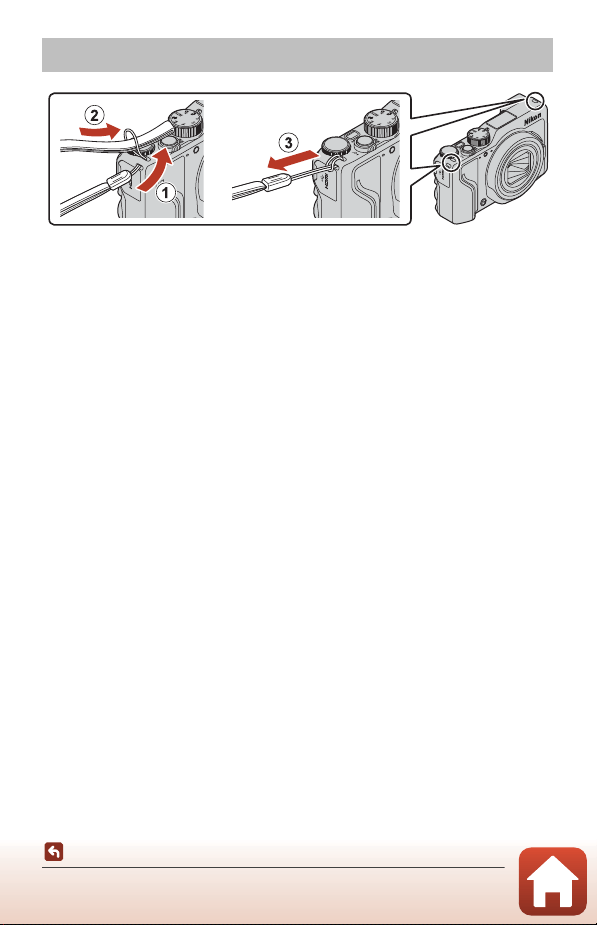
16
Getting Started
Inserting the Battery and Memory Card
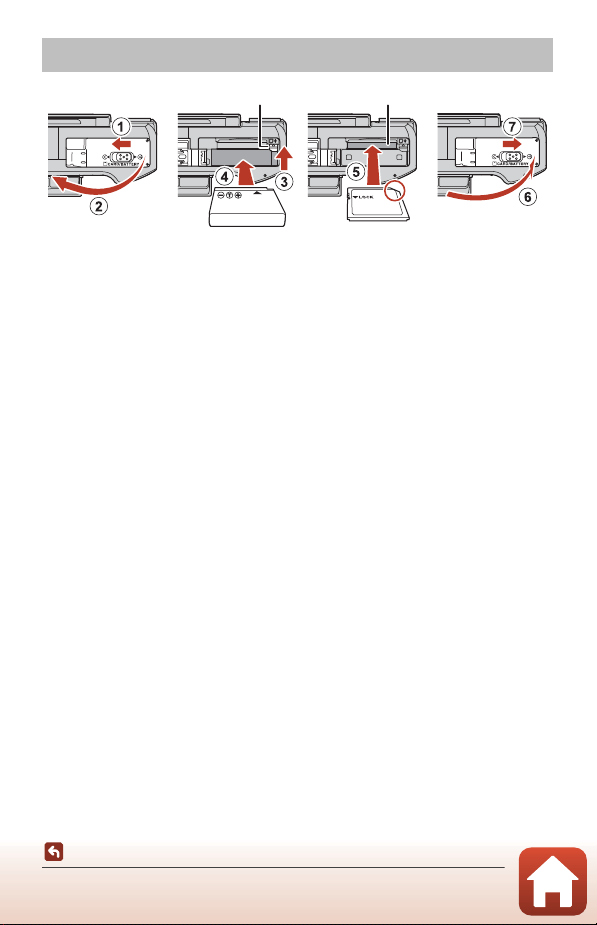
• With the battery’s positive and negative terminals oriented correctly, move the
orange battery latch (3), and fully insert the battery (4).
• Slide the memory card in until it clicks into place (5).
• Be careful not to insert the battery or memory card upside-down or backward, as
this could cause a malfunction.
• If the write-protect switch of the memory card is locked, you cannot shoot, delete
images, or format the memory card.
• Camera data, including images and movies, can be saved either on a memory card
or in the internal memory. To use the internal memory, remove the memory card.
B Formatting a Memory Card
The first time you insert a memory card that has been used in another device into this
camera, make sure to format it with this camera.
• Note that formatting a memory card permanently deletes all images and other
data on the memory card. Be sure to make copies of any images you wish to keep
before formatting the memory card.
• Insert the memory card into the camera, press the d button, and select Format card in
the setup menu (A120).
Removing the Battery or Memory Card
Turn the camera off and make sure that the power-on lamp and screen have turned
off, and then open the battery-chamber/memory card slot cover.
• Move the battery latch to eject the battery.
• Gently push the memory card into the camera to partially eject the memory card.
• Be careful when handling the camera, battery, and memory card immediately after
using the camera, as they may be hot.
Inserting the Battery and Memory Card
Battery latch Memory card slot
17
Getting Started
Charging the Battery
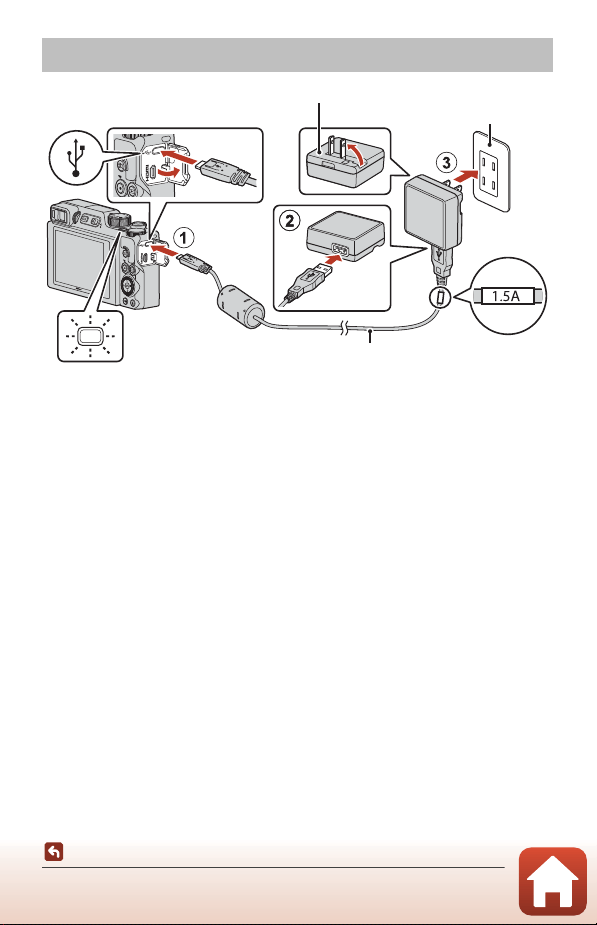
* A plug adapter is attached depending on the country or region of purchase. The
shape of the plug adapter varies with the country or region of purchase.
• Charging starts when the camera is connected to an electrical outlet while the
battery is inserted, as shown in the illustration. The power-on lamp (charge lamp)
slowly flashes while the battery is charging.
• When charging is complete, the power-on lamp (charge lamp) turns off. Unplug the
Charging AC Adapter from the electrical outlet, and disconnect the USB cable.
Charging time is about 2 hours and 30 minutes for a fully exhausted battery.
• The battery cannot be charged when the power-on lamp (charge lamp) quickly
flashes, possibly due to one of the reasons described below.
- The ambient temperature is not suited to charging.
- The USB cable or Charging AC Adapter is not properly connected.
- The battery is damaged.
B Notes About the USB Cable
•
Do not use a USB cable other than the UC-E21. Using a USB cable other than the UC-E21 could
result in overheating, fire, or electric shock.
•
Check the shape and direction of the plugs and do not insert or remove the plugs at an angle.
Charging the Battery
Power-on lamp (charge lamp)
Electrical outlet
USB cable (included)
Charging AC Adapter*

18
Getting Started
Charging the Battery
B Notes About Charging the Battery
• The camera can be operated while the battery is charging, but the charging time
increases. The power-on lamp (charge lamp) turns off while the camera is being operated.
- Movies cannot be recorded while the battery is charging.
• Do not, under any circumstances, use another make or model of AC adapter other than
the EH-73P/EH-73PCH Charging AC Adapter, and do not use a commercially available
USB-AC adapter or a battery charger for a mobile phone. Failure to observe this precaution
could result in overheating or in damage to the camera.
19
Getting Started
Changing the Angle of the Monitor
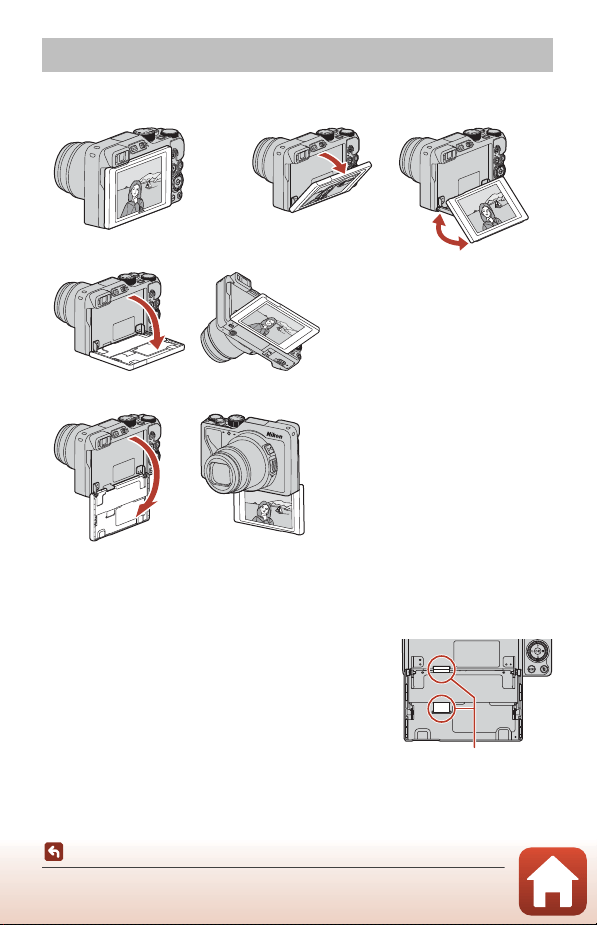
You can adjust the direction and angle of the monitor.
B Notes About the Monitor
• When moving the monitor, do not apply excessive force and move slowly within the
monitor's adjustable range so that the connection will not be damaged.
• Do not touch the rear side of the monitor. Failure to
observe this precaution could cause product malfunction.
Changing the Angle of the Monitor
For normal shooting When shooting in a low position
When taking self-portraits
When shooting in a high position
Be particularly careful not
to touch these areas.
20
Getting Started
Camera Setup
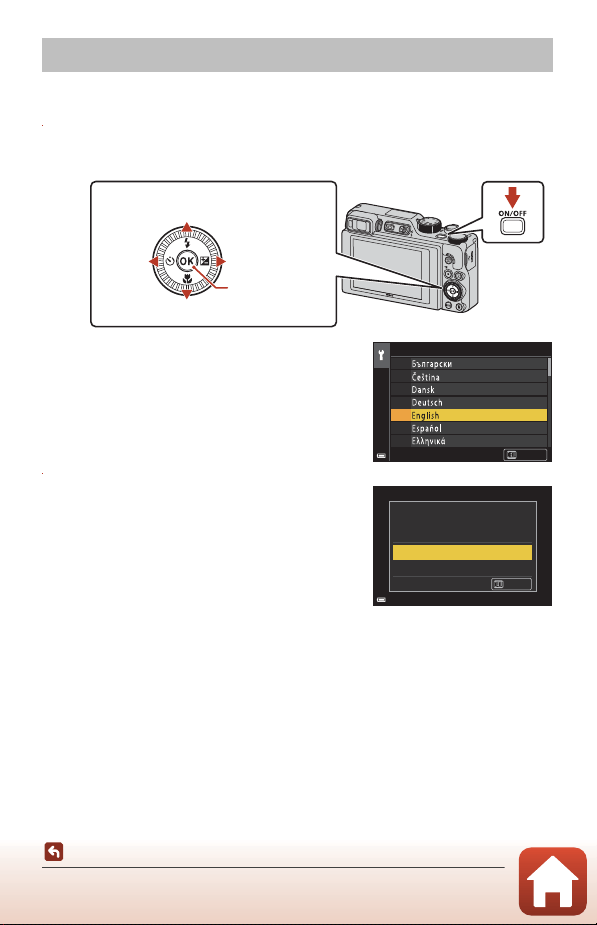
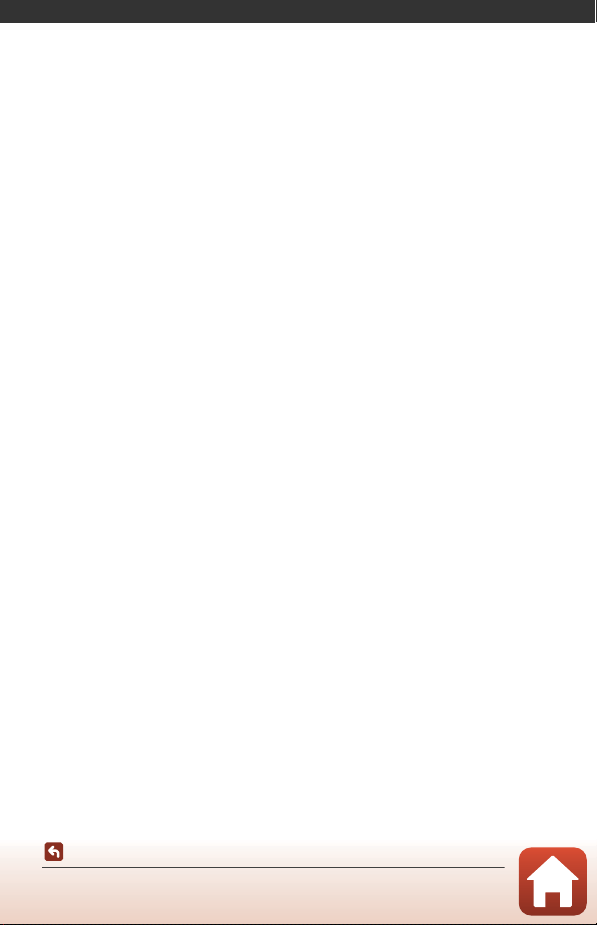
When the camera is turned on for the first time, screens to set the display language
and camera clock are displayed.
1 Turn on the camera.
• Use the multi selector to select and adjust settings.
• A language selection screen will be displayed.
Use the multi selector HI to highlight a
language and press the k button to select.
The displayed languages vary depending on
the country or region.
2 Select Yes and press the k button.
Camera Setup
Multi selector
k button
(apply selection)
Up
Down
Left Right
Power
switch
Language
Cancel
Choose time zone and
set date and time?
Yes
No
Cancel
21
Getting Started
Camera Setup
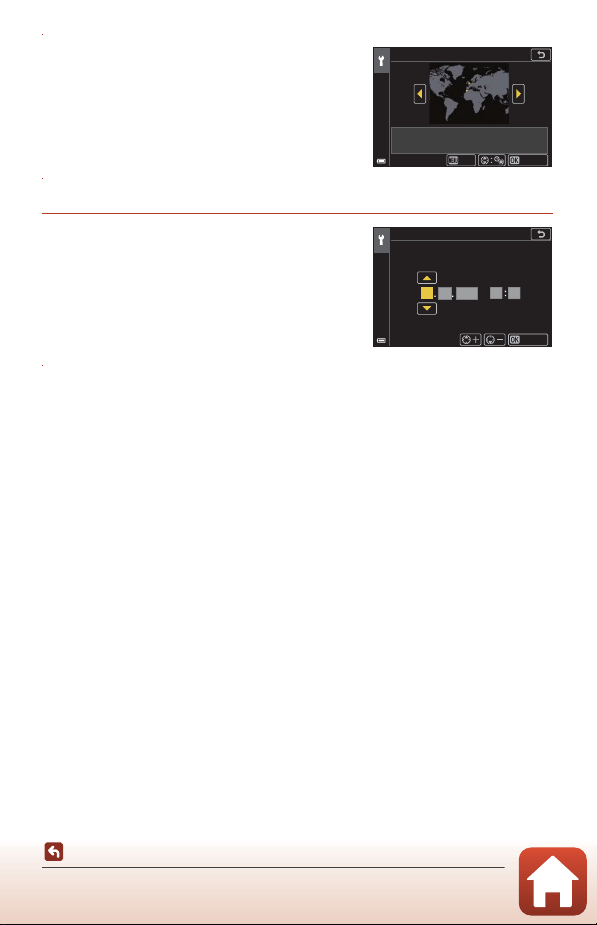
3 Highlight your home time zone and
press the k button.
• Press H to set daylight saving time. When it is
on, the time is one hour earlier and W is
displayed. When you press I to turn it off, the
time goes back one hour.
4 Press HI to select a date format and press the k button.
5 Enter the current date and time for
the camera clock and press the k
button.
• Press JK to highlight items and press HI to
change.
• Select the minute field and press the k button
to confirm the setting.
6 When prompted, select Yes and press the k button.
• The camera switches to the shooting screen when setup is complete.
C Setting the Language
The language can be set at any time in Language in the z setup menu (A120).
C To Change the Time Zone and Date Setting
Set in Time zone and date in the z setup menu.
In Time zone, the time is one hour earlier when daylight saving time is on, and goes back
one hour when it is off.
London, Casablanca
UTC+0
Home tim e zone
Back
Conrm
00 00
Date and time
DM Y
h m
Conrm
2019
0101
22
Basic Shooting and Playback Operations
Basic Shooting and Playback
Operations
Shooting Images...................................................................................................................23
Playing Back Images............................................................................................................27
Deleting Images....................................................................................................................28
23
Basic Shooting and Playback Operations
Shooting Images
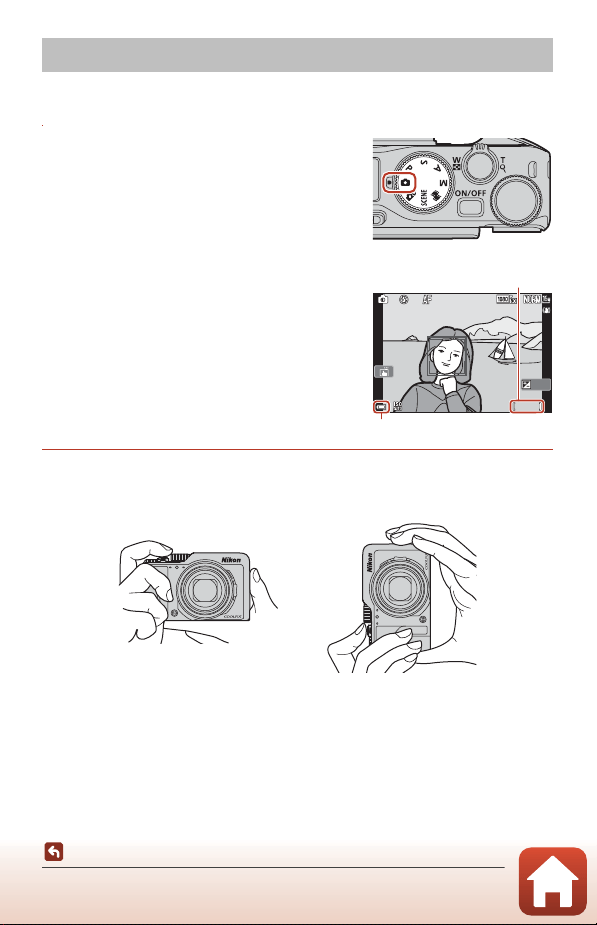
A (auto) mode is used here as an example. A (auto) mode enables you to perform
general shooting in a variety of shooting conditions.
1 Rotate the mode dial to A.
• Battery level indicator
b: The battery level is high.
B: The battery level is low.
• Number of exposures remaining
C is displayed when no memory card is
inserted in the camera, and images are saved in
the internal memory.
2 Hold the camera steady.
• Keep fingers and other objects away from the lens, flash, AF-assist illuminator, eye
sensor, microphone, and speaker.
Shooting Images
1 / 25 0
1/250
F 3 .4
F3.4
5 0 0
500
2 5 m 0s
25m 0s
0 . 0
0.0
1 0 0
100
Battery level indicator
Number of exposures
remaining
24
Basic Shooting and Playback Operations
Shooting Images
3 Frame the picture.
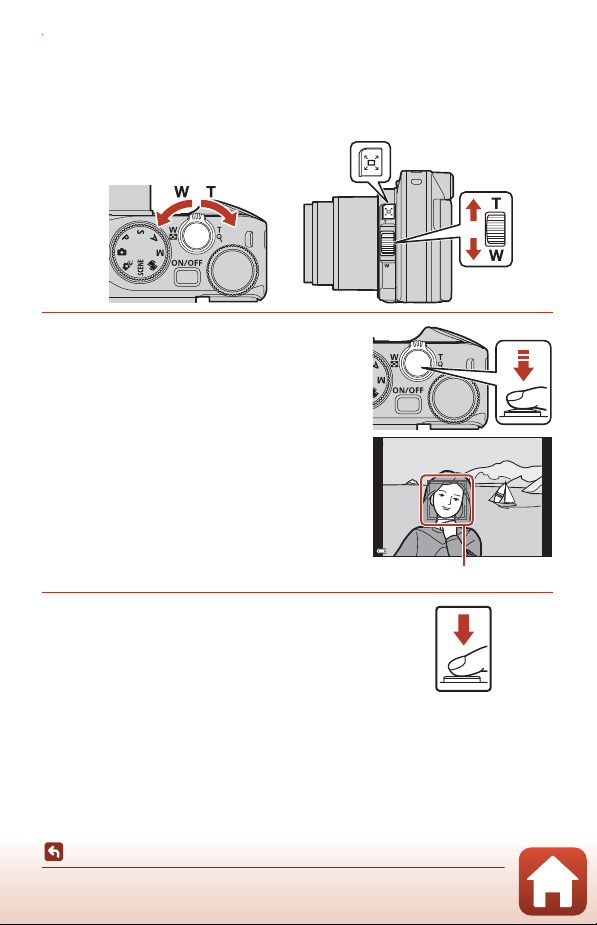
• Move the zoom control or the side zoom control to change the zoom lens position.
• If you lose sight of the subject while shooting with the lens in telephoto position,
press the q (snap-back zoom) button to temporarily widen the visible area so that
you can frame the subject more easily.
4 Press the shutter-release button
halfway.
• To press the shutter-release button “halfway”
means to press and hold the button at the
point where you feel a slight resistance.
• When the subject is in focus, the focus area or
focus indicator is displayed in green.
• When you are using digital zoom, the camera
focuses in the center of the frame and the
focus area is not displayed.
• If the focus area or focus indicator flashes, the
camera is unable to focus. Modify the
composition and try pressing the shutter-
release button halfway again.
5 Without lifting your finger, press the
shutter-release button all the way
down.
Zoom out Zoom in
Zoom in
Zoom out
1 / 25 0
1/250
F 3 .4
F3.4
Focus area
25
Basic Shooting and Playback Operations
Shooting Images
B Notes About Saving Images or Movies
The indicator showing the number of exposures remaining or the indicator showing the
remaining recording time flashes while images or movies are being saved. Do not open
the battery-chamber/memory card slot cover or remove the battery or memory
card while an indicator is flashing. Doing this could result in loss of data, or in damage to the
camera or the memory card.
C The Auto Off Function
• When no operations are performed for about one minute, the screen turns off, the camera
enters standby mode, and then the power-on lamp flashes. The camera turns off after
remaining in standby mode for about three minutes.
• To turn the screen back on while the camera is in standby mode, perform an operation
such as pressing the power switch or shutter-release button.
C When Using a Tripod
• We recommend using a tripod to stabilize the camera in the following situations:
- When shooting in dim lighting with the flash mode set to W (off )
- When the zoom is at a telephoto position
• When using a tripod to stabilize the camera during shooting, set Photo VR to Off in the
setup menu (A120) to prevent potential errors caused by this function.
Using the Flash
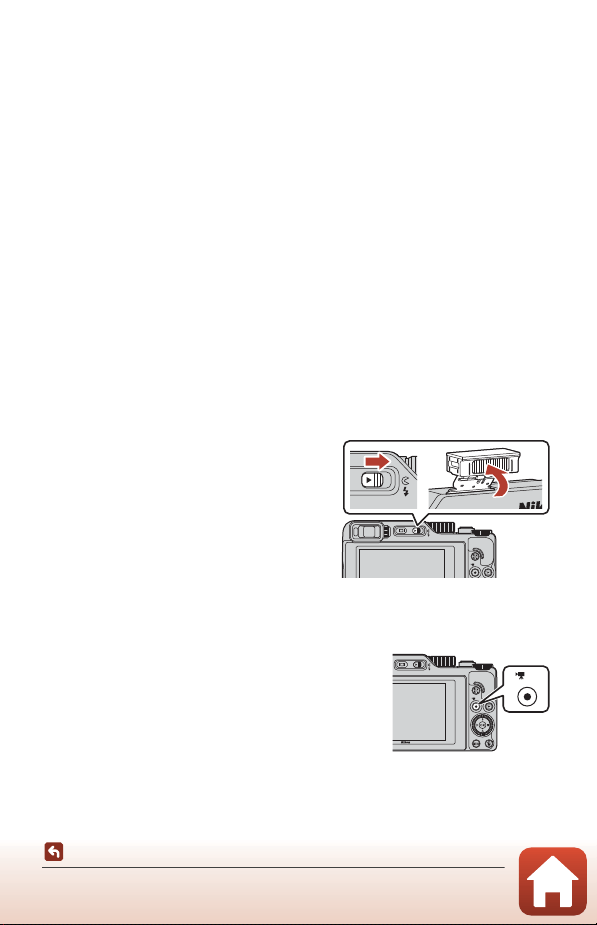
In situations where a flash is needed, such as in
dark locations or when the subject is backlit,
move the K (flash pop-up) control to raise
the flash.
• When the shooting screen is displayed, you
can press the multi selector H (m) to set
the flash mode. To set the flash to always
fire, select m (fill flash).
• When not using the flash, gently push to
lower the flash until it clicks shut.
Recording Movies
Display the shooting screen and press the b (e
movie-record) button to start recording a movie. Press
the b (e) button again to end recording.
26
Basic Shooting and Playback Operations
Shooting Images
Touch Shooting
You can switch the touch shooting feature by
tapping the touch shooting icon on the shooting
screen.
• At the default setting A Touch shutter, the
shutter is released when you simply tap the
subject on the screen without using the shutter-
release button.
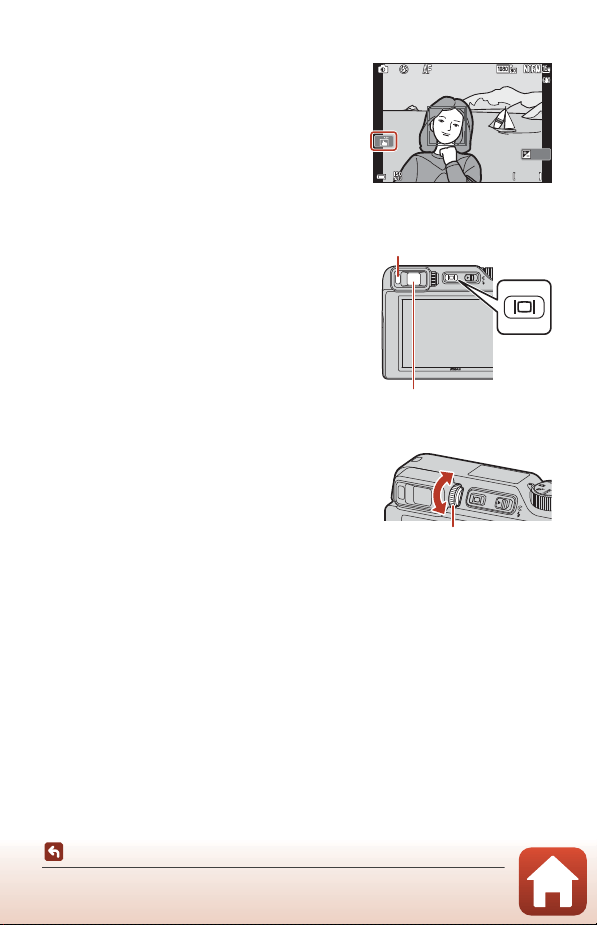
Switching Between the Monitor and Viewfinder
It is recommended that you use the viewfinder
when bright conditions make it difficult to see the
monitor, such as when outdoors in sunlight.
• When you bring your face close to the
viewfinder, the eye sensor responds to it and the
viewfinder turns on, and the monitor turns off
(default setting).
• You can also press the x (monitor) button to
switch the display between the monitor and
viewfinder.
Diopter Adjustment of the Viewfinder
When the display in the viewfinder is difficult to see,
adjust by rotating the diopter adjustment control
while looking through the viewfinder.
• Take care not to scratch your eye with your
fingertips or nails.
B Notes About Checking and Adjusting Image Colors
Use the monitor on the back of the camera because the monitor has higher color
reproducibility than the viewfinder.
1 / 25 01/250 F 3 . 4F3.4 5 0 0500
2 5 m 0s25m 0s
0 . 00.0
1 0 0100
Eye sensor
Viewfinder
Diopter adjustment control
27
Basic Shooting and Playback Operations
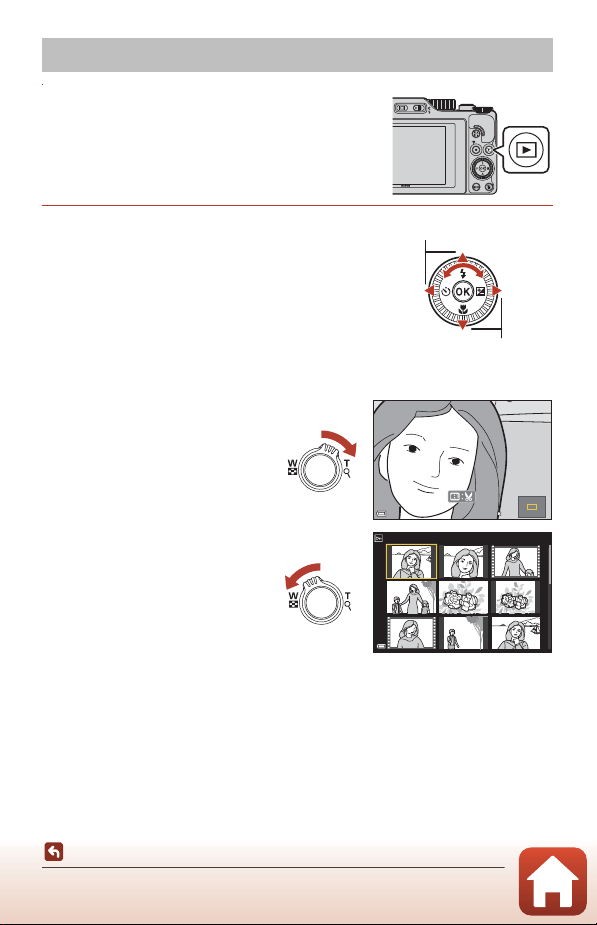
Playing Back Images
1 Press the c (playback) button to enter
playback mode.
• If you press and hold down the c button while
the camera is turned off, the camera turns on in
playback mode.
2 Use the multi selector to select an
image to display.
• Press and hold down HIJK to scroll through
the images quickly.
• Images can also be selected by rotating the multi
selector or command dial.
• To play back a recorded movie, press the k
button.
• To return to shooting mode, press the c button
or shutter-release button.
• Move the zoom control toward
g (i) in full-frame playback
mode to zoom in on an image.
• In full-frame playback mode,
move the zoom control toward
f (h) to switch to thumbnail
playback mode and display
multiple images on the screen.
C Operating the Touch Panel on the Playback Screen
You can use the touch panel to operate the playback screen (A7).
Playing Back Images
Display the previous image
Display the next image
3 . 0
3.0
1/20
28
Basic Shooting and Playback Operations
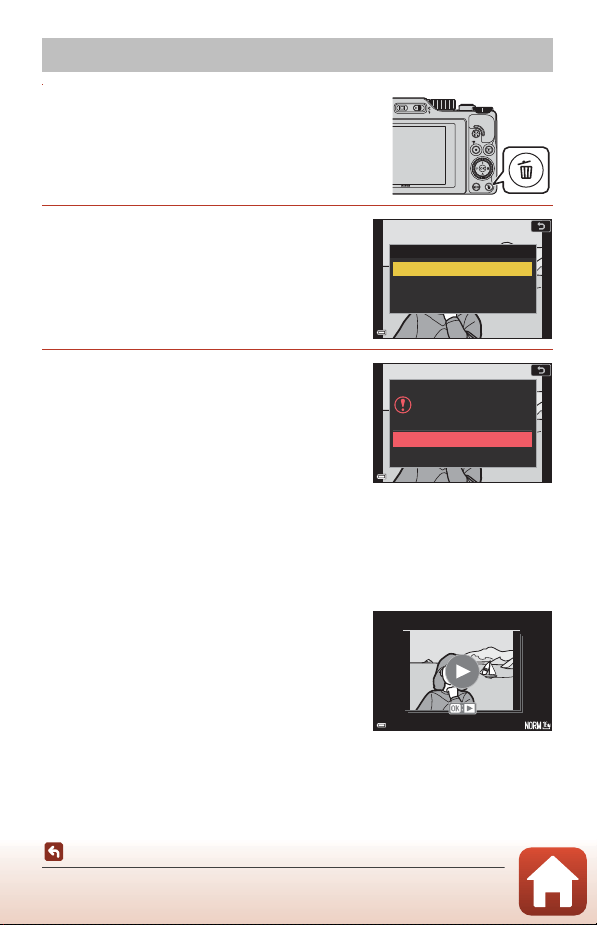
Deleting Images
1 In playback mode, press the l (delete)
button to delete the image currently
displayed on the screen.
2 Use the multi selector HI to select
the desired deletion method and
press the k button.
• To exit without deleting, press the d button.
3 Select Yes and press the k button.
• Deleted images cannot be recovered.
B Notes About Deleting Images Simultaneously Saved in RAW and JPEG
When using this camera to delete images captured using RAW + Fine or RAW + Normal in
the Image quality (A123) setting, both of the simultaneously saved RAW and JPEG
images are deleted. You cannot delete only one format.
B Deleting Images Captured Continuously (Sequence)
• Images captured continuously or with the self-collage
function are saved as a sequence, and only one image
in the sequence (the key picture) is displayed in
playback mode (default setting).
•
If you press the
l
button while a key picture is displayed for a
sequence of images, all images in the sequence are deleted.
•
To delete individual images in a sequence, press the
k
button to display them one at a time and press the
l
button.
C Deleting the Image Captured While in Shooting Mode
When using shooting mode, press the l button to delete the last image that was saved.
Deleting Images
Current image
Erase selected images
All images
Delete
No
Yes
Erase 1 image?
1 0 0 - 0 0 0 4 . J P G
100-0004.JPG
1 5 / 1 1 / 2 0 1 9 1 5 : 3 0
15/11/2019 15:30
1 / 5
1/5
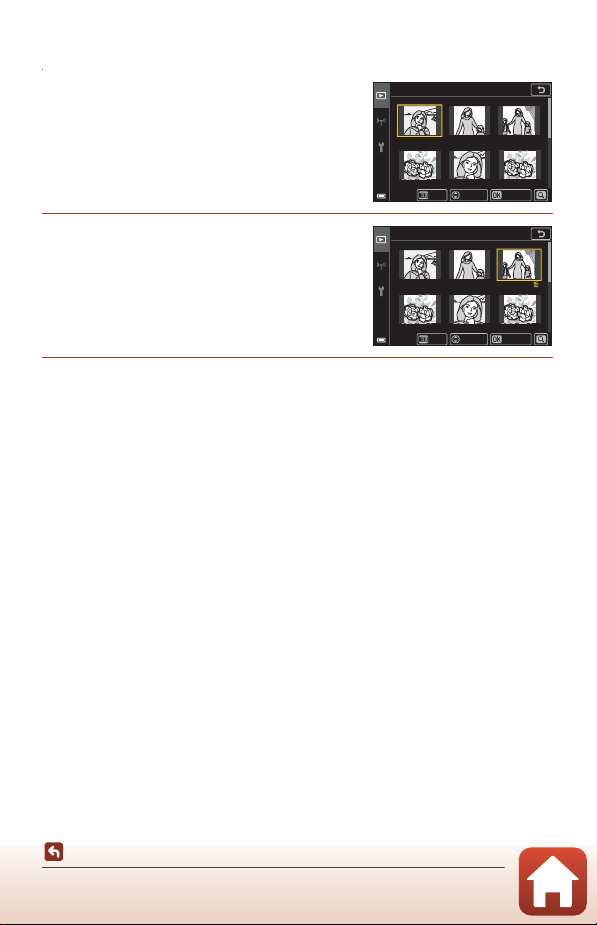
29
Basic Shooting and Playback Operations
Deleting Images
The Image Selection Screen for Deletion
1 Use the multi selector JK or rotate
it to select the image that you want
to delete.
• Move the zoom control (A2) toward g (i) to
switch to full-frame playback, or f (h) to
switch to thumbnail playback.
2 Use HI to select ON or OFF.
• When ON is selected, an icon is displayed
under the selected image. Repeat steps 1 and 2
to select additional images.
3 Press the k button to apply the image selection.
• A confirmation dialog is displayed. Follow the on-screen instructions to operate.
Erase selected images
Back
Conrm
ON/OFF
Erase selected images
Back
Conrm
ON/OFF
30
Shooting Features
Shooting Features
Selecting a Shooting Mode ..............................................................................................31
A (Auto) Mode....................................................................................................................32
Scene Mode (Shooting Suited to the Shooting Conditions) ................................33
Creative Mode (Applying Effects When Shooting) ..................................................51
A, B, C, and D Modes (Setting the Exposure for Shooting)...............................53
Setting Shooting Functions with the Multi Selector (m/n/p/o) ....................57
Flash Mode..............................................................................................................................58
Self-timer.................................................................................................................................61
Focus Mode ............................................................................................................................63
Using the Creative Slider ...................................................................................................66
Exposure Compensation (Adjusting Brightness)......................................................68
Using the w (Function) Button.....................................................................................69
Using the Zoom ....................................................................................................................70
Using Touch Shooting........................................................................................................72
Focusing ..................................................................................................................................73
Default Settings (Flash Mode, Self-timer, and Focus Mode).................................78
Functions That Cannot Be Used Simultaneously When Shooting .....................80
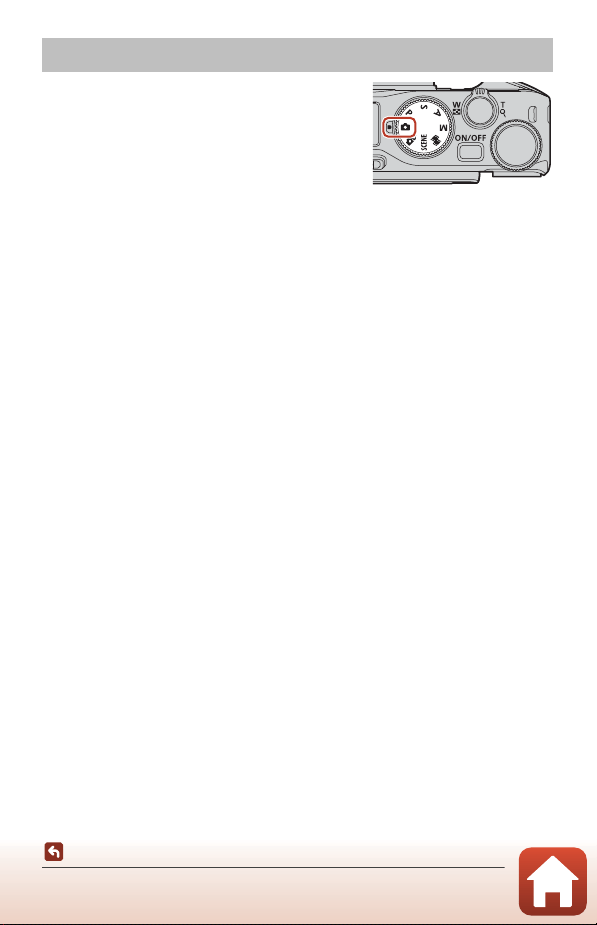
31
Shooting Features
Selecting a Shooting Mode
You can rotate the mode dial to align the desired
shooting mode with the indicator mark on the
camera body.
• A (Auto) mode
Select this mode to perform general shooting in a variety of shooting conditions.
• o (Creative) mode
Apply effects to images during shooting.
• y (Scene) modes
You can press the d button and select a scene mode to shoot using settings
suited for the conditions.
When Scene auto selector (default setting) is selected, the camera recognizes the
shooting conditions when you frame a picture, and you can take pictures in
accordance with the conditions.
• M (Short movie show) mode
The camera creates a short movie that is up to 30 seconds long (e1080/30p or
S1080/25p) by recording and automatically combining multiple movie clips
that are several seconds long.
• A, B, C, and D modes
Select these modes for greater control over shutter speed and f-number.
C Help Display
The descriptions of functions are displayed while changing the shooting mode or while the
setting screen is displayed.
Press the shutter-release button halfway to quickly switch to shooting mode. You can show
or hide the descriptions using Help display in Monitor settings (A126) in the setup
menu.
Selecting a Shooting Mode
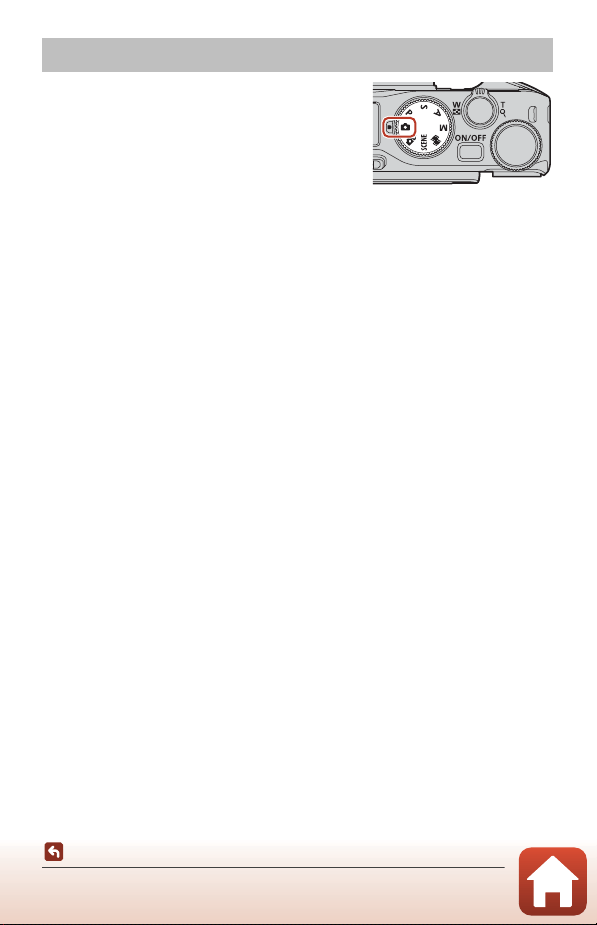
32
Shooting Features
A (Auto) Mode
Select this mode to perform general shooting in a
variety of shooting conditions.
• When the camera detects a human face, it
focuses on that face (A75).
Functions Available in A (Auto) Mode
• Flash mode (A58)
• Self-timer (A61)
• Focus mode (A63)
• Exposure compensation (A68)
• Shooting menu (common across shooting modes) (A127)
A (Auto) Mode
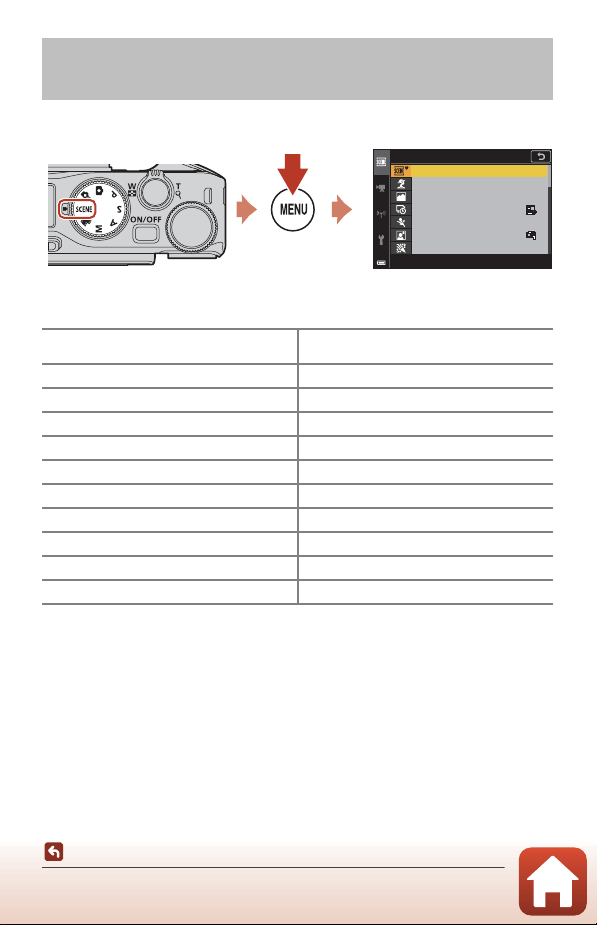
33
Shooting Features
Scene Mode (Shooting Suited to the Shooting Conditions)
Select any one of scene modes based on the shooting conditions, and you can take
pictures with the appropriate settings for those conditions.
Press the d button to display the scene menu and select one of the following scene
modes using the multi selector.
1
The camera focuses on the area in the center of the frame.
2
The camera focuses on the area in the center of the frame (during autofocus).
3
Use of a tripod is recommended because the shutter speed is slow. Set Photo VR
(A168) to Off in the setup menu when using a tripod to stabilize the camera during
shooting.
4
The camera focuses at infinity (during autofocus).
5
Use of a tripod is recommended because the shutter speed is slow.
Scene Mode (Shooting Suited to the Shooting
Conditions)
o
Scene auto selector (default setting)
(A34)
j Night landscape (A36)
1
b Portrait
k Close-up (A36)
c Landscape
1
u Food (A36)
N Time-lapse movie (A101) m Fireworks show (A37)
3, 4
d Sports (A34)
2
o Backlighting (A37)
1
e Night portrait (A35) p Easy panorama (A42)
1
f Party/indoor (A35)
1
O Pet portrait (A38)
Z Beach
1
O Soft (A39)
1
z Snow
1
I Selective color (A39)
1
h Sunset
1, 3
U Multiple exp. Lighten (A40)
5
i Dusk/dawn
1, 3
F Smart portrait (A45)
Scene menu
Scene auto selector
Portrait
Por tr a it
Landscape
La n ds cap e
Time-lapse movie
Tim e - la pse m o vi e
Sports
Sp o r ts
Night portrait
Ni ght p o r tra it
Party /indoor
Par ty /i n do or
34
Shooting Features
Scene Mode (Shooting Suited to the Shooting Conditions)
Tips and Notes About Scene Mode
y M o Scene auto selector
• The camera recognizes the shooting conditions when you frame a picture, and you can
take pictures in accordance with the conditions.
• Under some shooting conditions, the camera may not select the desired settings. In
this case, select another shooting mode (A31).
• When the digital zoom is in effect, the shooting mode icon changes to J.
y M d Sports
• While the shutter-release button is held all the way down, images are captured
continuously.
• The camera can capture up to about 10 images continuously at a rate of about 10 fps
(when set to Normal (image quality) and i 4608×3456 (image size)).
• The frame rate for continuous shooting may become slow depending on the current
image quality setting, image size setting, the memory card used, or shooting
conditions.
• Focus, exposure, and hue for the second and subsequent images are fixed at the values
determined with the first image.
A Portrait (for taking close-up portraits of one or two people)
B
Portrait (for taking portraits of large numbers of people, or images in which the
background takes up a large portion of the frame)
C Landscape
D Night portrait (for taking close-up portraits of one or two people)
E
Night portrait (for taking portraits of large numbers of people, or images in
which the background takes up a large portion of the frame)
F Night landscape
G Close-up
H Backlighting (for taking pictures of subjects other than people)
I Backlighting (for taking portrait pictures)
J Other shooting conditions
35
Shooting Features
Scene Mode (Shooting Suited to the Shooting Conditions)
y M e Night portrait
• Raise the flash before shooting.
• On the screen displayed when e Night portrait is selected, select u Hand-held or
w Tripod.
• u Hand-held:
-While the e icon on the shooting screen is displayed in green, press the shutter-
release button all the way to capture a series of images which are combined into a
single image and saved.
-While the e icon on the shooting screen is displayed in white, press the shutter-
release button all the way to capture one image.
- Once the shutter-release button is pressed all the way, hold the camera still until a still
image is displayed. After taking a picture, do not turn the camera off before the screen
switches to the shooting screen.
- If the subject moves while the camera is shooting continuously, the image may be
distorted, overlapped, or blurred.
- The angle of view (i.e., the area visible in the frame) seen in the saved image is
narrower than that seen on the shooting screen.
- Continuous shooting may not be possible in certain shooting conditions.
• w Tripod:
- One image is captured at a slow shutter speed when the shutter-release button is
pressed all the way.
- Vibration reduction is disabled regardless of the Photo VR setting (A168) in the
setup menu.
y M f Party/indoor
• To avoid the effects of camera shake, hold the camera steady. Set Photo VR (A168) to
Off in the setup menu when using a tripod to stabilize the camera during shooting.
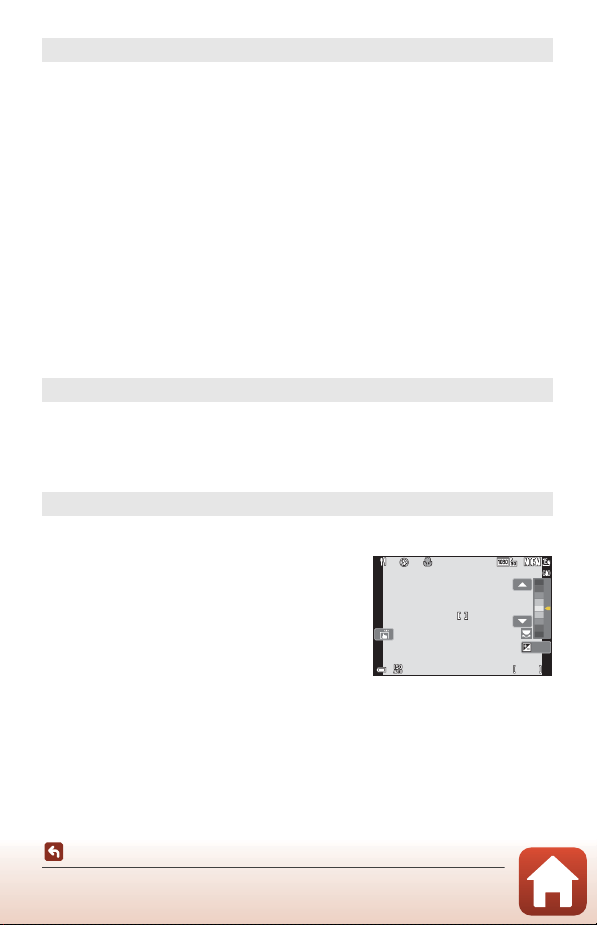
36
Shooting Features
Scene Mode (Shooting Suited to the Shooting Conditions)
y M j Night landscape
• On the screen displayed when j Night landscape is selected, select u Hand-held
or w Tripod.
• u Hand-held:
-While the j icon on the shooting screen is displayed in green, press the shutter-
release button all the way to capture a series of images which are combined into a
single image and saved.
-While the j icon on the shooting screen is displayed in white, press the shutter-
release button all the way to capture one image.
- Once the shutter-release button is pressed all the way, hold the camera still until a still
image is displayed. After taking a picture, do not turn the camera off before the screen
switches to the shooting screen.
- The angle of view (i.e., the area visible in the frame) seen in the saved image is
narrower than that seen on the shooting screen.
- Continuous shooting may not be possible in certain shooting conditions.
• w Tripod:
- One image is captured at a slow shutter speed when the shutter-release button is
pressed all the way.
- Vibration reduction is disabled regardless of the Photo VR setting (A168) in the
setup menu.
y M k Close-up
• The focus mode (A63) setting is changed to p (macro close-up) and the camera
automatically zooms to the closest position at which it can focus.
• You can move the focus area. Press the k button, use the multi selector HIJK or
rotate it to move the focus area, and press the k button to apply the setting.
y M u Food
• The focus mode (A63) setting is changed to p (macro close-up) and the camera
automatically zooms to the closest position at which it can focus.
• You can rotate the command dial or multi selector
to adjust the hue. The hue setting is saved in the
camera’s memory even after the camera is turned
off.
• You can move the focus area. Press the k button,
use the multi selector HIJK or rotate it to move
the focus area, and press the k button to apply the
setting.
1 / 25 0
1/250
F 3 .4
F3.4
5 0 0
500
2 5 m 0s
25m 0s
0 . 0
0.0
1 0 0
100
37
Shooting Features
Scene Mode (Shooting Suited to the Shooting Conditions)
B Notes About HDR
Use of a tripod is recommended. Set Photo VR (A168) in the setup menu to Off
when using a tripod to stabilize the camera.
y M m Fireworks show
• You can press the k button when the shooting screen is displayed to focus using
manual focus. See step 2 in “Using Manual Focus” (A64) for more information.
• The shutter speed is fixed at 4 seconds.
• Exposure compensation cannot be used (A68).
y M o Backlighting
• On the screen displayed when o Backlighting is selected, select On or Off to enable
or disable the high dynamic range (HDR) function based on the shooting conditions.
• Off: The flash fires to prevent the subject from being hidden in shadow. Shoot images
with the flash raised.
- Press the shutter-release button all the way to capture one image.
• On
: Use when taking pictures with very bright and dark areas in the same frame.
- When the shutter-release button is pressed all the way, the camera shoots images
continuously and saves the following two images.
- A non-HDR composite image
- An HDR composite image in which the loss of details in highlights or shadows is
minimized
- If there is only enough memory to save one image, an image processed by D-Lighting
(A89) at the time of shooting, in which dark areas of the image are corrected, is the
only image saved.
- Once the shutter-release button is pressed all the way, hold the camera still until a still
image is displayed. After taking a picture, do not turn the camera off before the screen
switches to the shooting screen.
- The angle of view (i.e., the area visible in the frame) seen in the saved image is
narrower than that seen on the shooting screen.
- Under some shooting conditions, dark shadows may appear around bright subjects
or bright areas may appear around dark subjects.
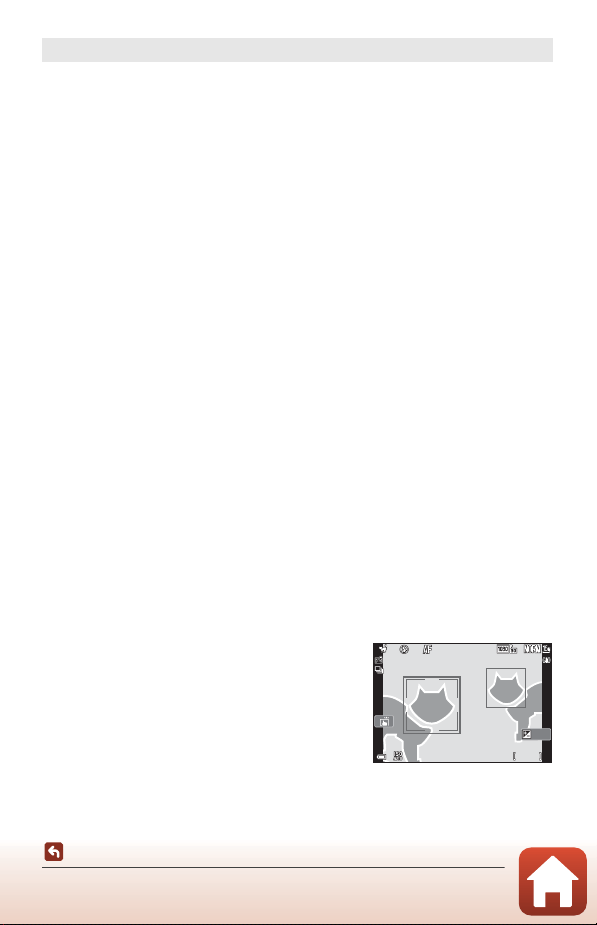
38
Shooting Features
Scene Mode (Shooting Suited to the Shooting Conditions)
B Pet Portrait Auto Release and Self-portrait Timer
The following settings can be set when you press the multi selector J (n).
• Y Pet portrait auto release: The camera automatically releases the shutter when it
detects the face of a dog or cat.
- Pet portrait auto release is set to k after five bursts have been taken.
- You can also release the shutter by pressing the shutter-release button. When
V Continuous is selected, images are captured continuously while the shutter-release
button is held all the way down.
• r5s Self-portrait timer: The shutter is released 5 seconds after you press the shutter-
release button all the way down.
Frame the picture after you press the shutter-release button all the way down.
- See “Self-timer” (A61) for more information.
- The camera focuses on the face of a dog, cat, or human when detected.
- The camera cannot shoot images continuously.
• k: The camera releases the shutter when the shutter-release button is pressed all the
way down.
- The camera focuses on the face of a dog, cat, or human when detected.
- When V Continuous is selected, images are captured continuously while the shutter-
release button is held all the way down.
B Focus Area
• When the camera detects a face, the face is displayed
inside a yellow border. When the camera acquires
focus on a face displayed inside a double border
(focus area), the double border changes to green. If
no faces are detected, the camera focuses on the
subject in the center of the frame.
• Under some shooting conditions, the face of a dog,
cat, or human may not be detected and other
subjects may be displayed inside a border.
y M O Pet portrait
• When you point the camera at a dog or cat, the camera detects the face of a dog or cat
and focuses on it. By default, the shutter is automatically released when the face of a
dog or cat is detected (pet portrait auto release).
• On the screen displayed when O Pet portrait is selected, select U Single or V
Continuous.
- U Single: Whenever the face of a dog or cat is detected, the camera captures one
image.
- V Continuous: Whenever the face of a dog or cat is detected, the camera captures
three images continuously.
1 / 25 0
1/250
F 3 .4
F3.4
5 0 0
500
2 5 m 0s
25m 0s
0 . 0
0.0
1 0 0
100
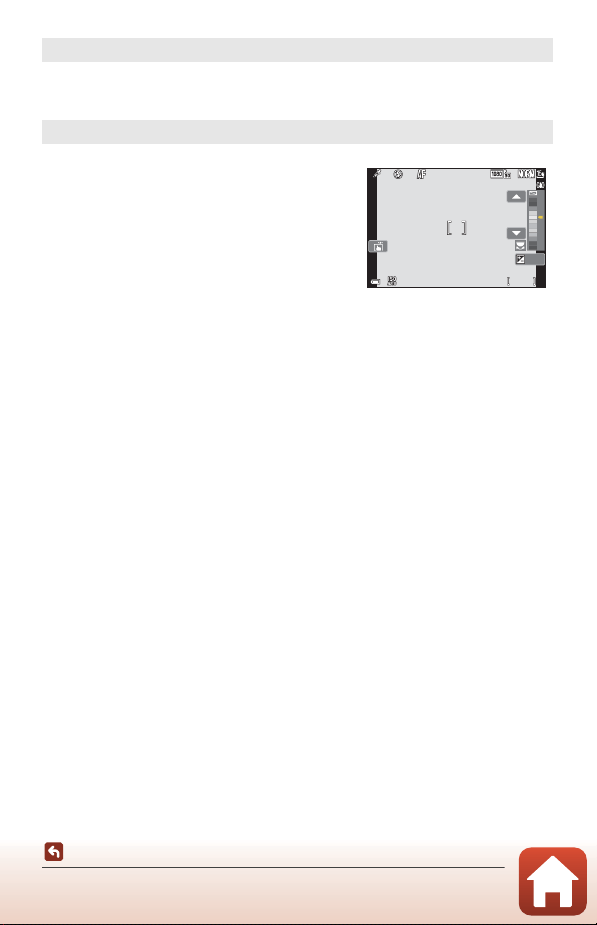
39
Shooting Features
Scene Mode (Shooting Suited to the Shooting Conditions)
y M O Soft
• Applies a slight soft-focus effect over the entire frame for a softer image.
• Certain Movie options (A145) are not available.
y M I Selective color
• Keeps only a selected color and makes other colors black-and-white.
• Rotate the command dial to select the desired
color.
F 3 .4
F3.4
5 0 0
500
2 5 m 0s
25m 0s
0 . 0
0.0
1 / 25 0
1/250
1 0 0
100
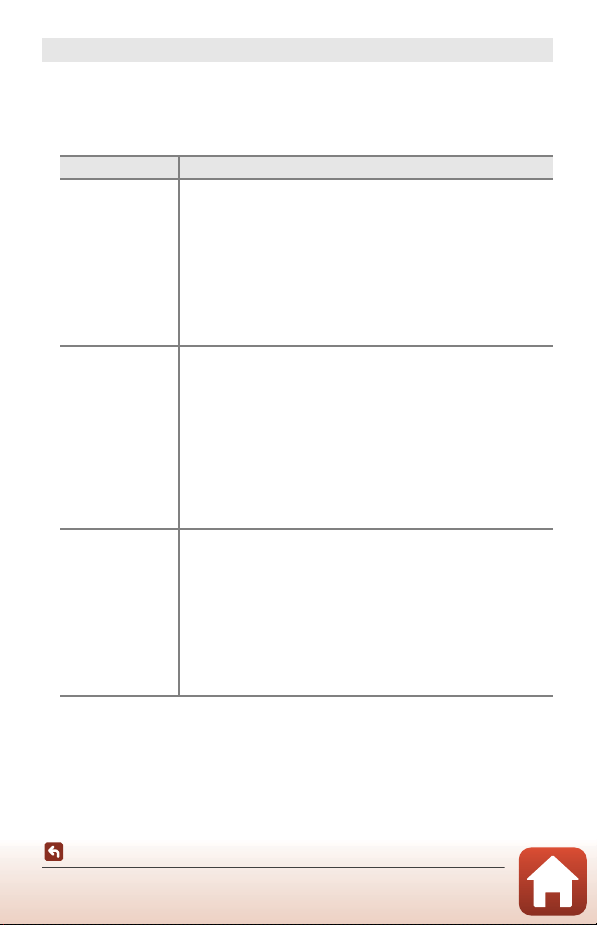
40
Shooting Features
Scene Mode (Shooting Suited to the Shooting Conditions)
• The screen may turn off during the shooting interval. The power-on lamp turns on
while the screen is off.
•
To end shooting before it automatically ends, press the
k
button while the screen is on.
• When you have obtained the desired trails, end shooting. If you continue shooting,
details in the composited areas may be lost.
y M U Multiple exp. Lighten
• The camera automatically captures moving subjects at regular intervals, compares each
image and composites only their bright areas, and then saves them as one image. Light
trails such as the flow of car lights or motion of stars are captured.
• On the screen displayed when U Multiple exp. Lighten is selected, select
V Nightscape + light trails, W Nightscape + star trails, or S Star trails.
Option Description
V Nightscape +
light trails
Use to capture the flow of car lights against a night landscape
background.
• The camera focuses on the area in the center of the frame.
• You can rotate the command dial or multi selector to set the
desired interval between the shots. The set interval becomes the
shutter speed. You can also set the shutter speed by tapping the
shutter speed indicator on the shooting screen. When 50 shots
are taken, the camera automatically stops shooting.
• For every 10 shots taken, one composite image with trails
overlapped from the start of shooting is automatically saved.
W Nightscape +
star trails
Use to capture the motion of stars with a night landscape in the
frame.
• The focus is fixed at infinity. R is displayed on the shooting
screen.
• The zoom moves to the maximum wide-angle position
automatically.
• Shots are taken at a shutter speed of 20 seconds at about every
5 seconds. When 300 shots are taken, the camera
automatically stops shooting.
• For every 30 shots taken, one composite image with trails
overlapped from the start of shooting is automatically saved.
S Star trails
Use to capture the motion of stars.
• The focus is fixed at infinity. R is displayed on the shooting
screen.
• The zoom moves to the maximum wide-angle position
automatically.
• Shots are taken at a shutter speed of 25 seconds at about every
5 seconds. When 300 shots are taken, the camera
automatically stops shooting.
• For every 30 shots taken, one composite image with trails
overlapped from the start of shooting is automatically saved.
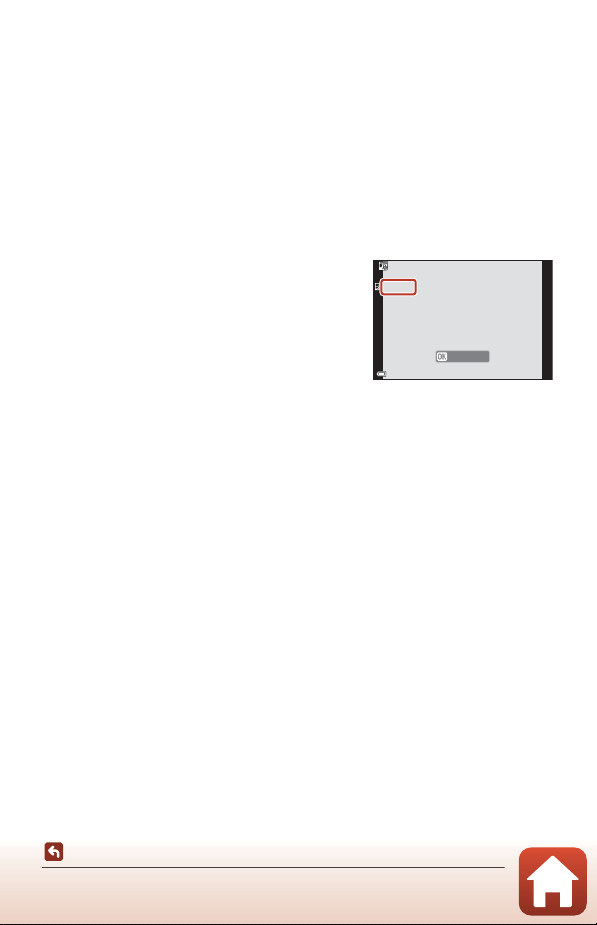
41
Shooting Features
Scene Mode (Shooting Suited to the Shooting Conditions)
B Notes About Multiple Exp. Lighten
• The camera cannot capture images if a memory card is not inserted.
• Do not rotate the mode dial or remove the memory card until shooting ends.
• Use a sufficiently charged battery to prevent the camera from turning off unexpectedly.
• Exposure compensation cannot be used (A68).
• When using W Nightscape + star trails or S Star trails, the telephoto zoom position
is restricted to the angle of view equivalent to that of approx. 300 mm lens (in 35mm [135]
format).
• Vibration reduction is disabled regardless of the Photo VR setting (A168) in the setup
menu.
C Time Remaining
You can check the time remaining until shooting
automatically ends on the screen.
1 0 m 0s
10m 0s
End recording
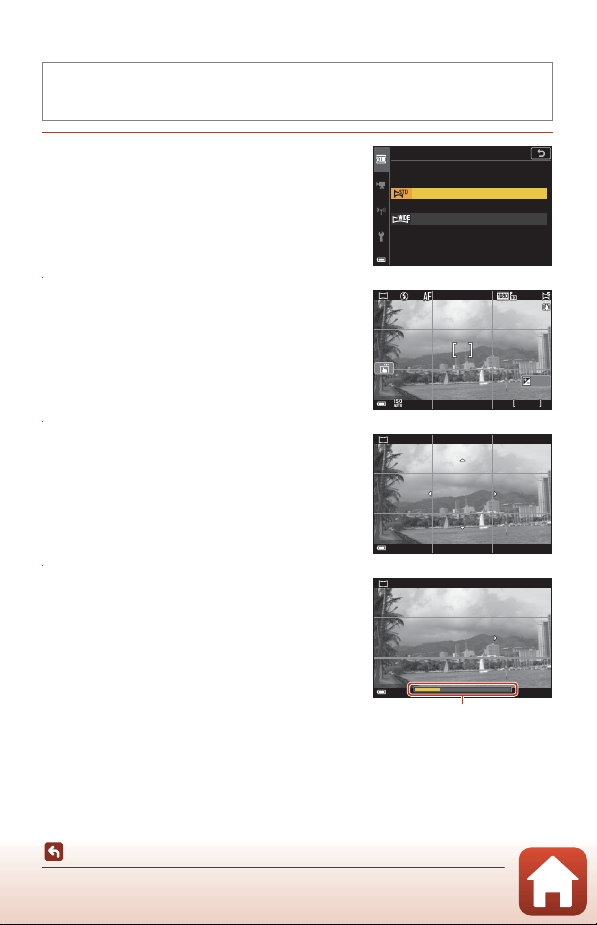
42
Shooting Features
Scene Mode (Shooting Suited to the Shooting Conditions)
Shooting with Easy Panorama
1 Select W Normal or X Wide as
the shooting range and press the
k button.
2 Frame the first edge of the panorama
scene, and then press the shutter-
release button halfway to focus.
• The zoom position is fixed at wide-angle.
• The camera focuses in the center of the frame.
3 Press the shutter-release button all
the way, and then remove your
finger from the shutter-release
button.
• KLJI are displayed to indicate the
direction of camera movement.
4 Move the camera in one of the four
directions until the guide indicator
reaches the end.
• When the camera detects which direction it is
moving in, shooting begins.
• Shooting ends when the camera captures the
specified shooting range.
• Focus and exposure are locked until shooting
ends.
Rotate the mode dial to y M d button M p Easy panorama M k
button
Normal
Easy panoram a
Wide
F 3 .4
F3.4
5 0 0
500
2 5 m 0s
25m 0s
0 . 0
0.0
1 / 25 0
1/250
1 0 0
100
Guide
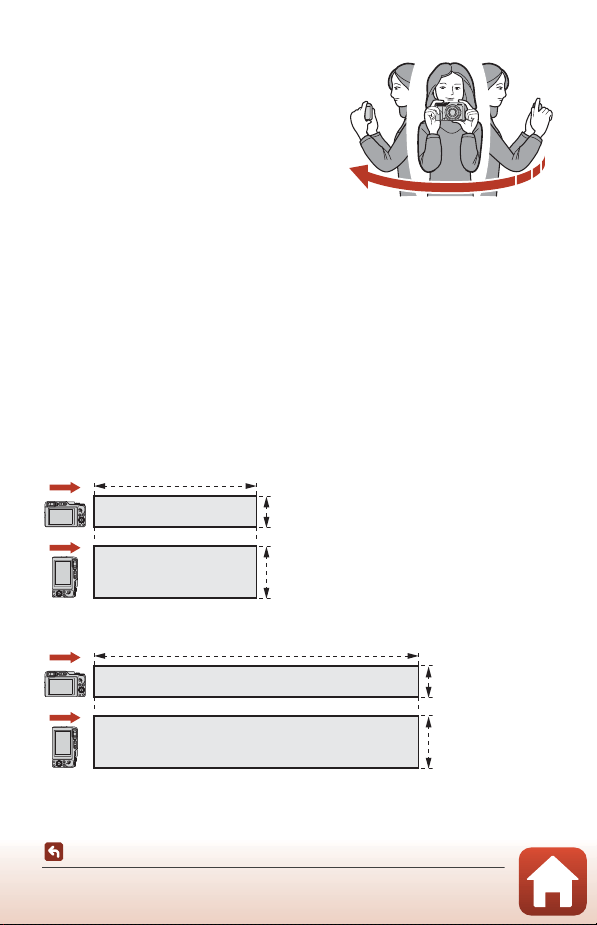
43
Shooting Features
Scene Mode (Shooting Suited to the Shooting Conditions)
Example of Camera Movement
• Using your body as the axis of rotation, move the
camera slowly in an arc, in the direction of the
marking (KLJI).
• Shooting stops if the guide does not reach the
edge within about 15 seconds (when
W
Normal is selected) or within about 30 seconds
(when
X Wide is selected) after shooting
starts.
B Notes About Easy Panorama Shooting
• The range of the image seen in the saved image is narrower than that seen on the screen
at the time of shooting.
• If the camera is moved too quickly or shaken too much, or if the subject is too uniform
(e.g. walls or darkness), an error may occur.
• If shooting is stopped before the camera reaches the half-way point in the panorama
range, a panorama image is not saved.
C Image Size of Easy Panorama
There are four different maximum image sizes (in pixels), as described below. If more than
half of the panorama range is captured but shooting ends before reaching the edge of the
range, the image size becomes smaller than as described below.
When W Normal is set
When X Wide is set
4800
920
1536
9600
920
1536
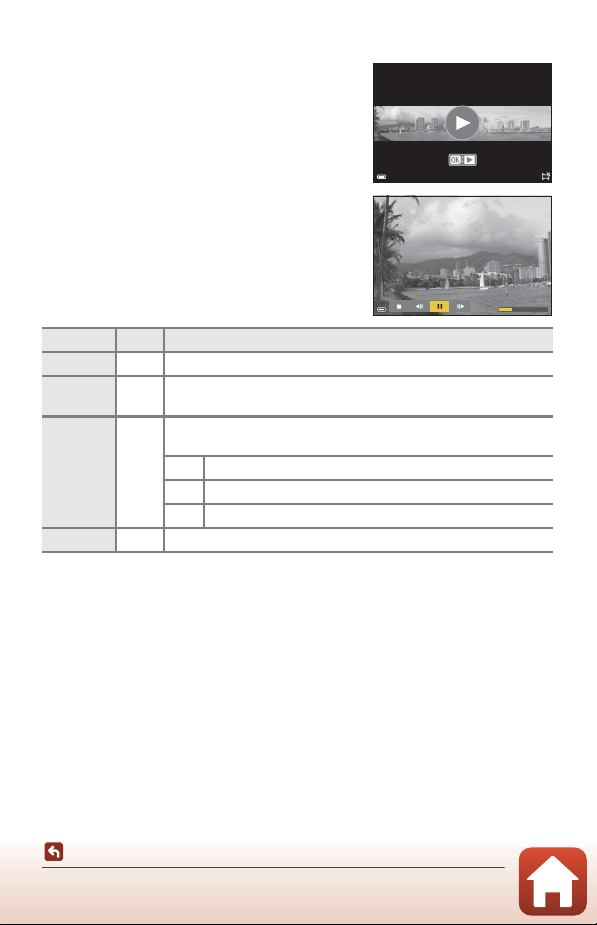
44
Shooting Features
Scene Mode (Shooting Suited to the Shooting Conditions)
Playback with Easy Panorama
Switch to playback mode (A27), display an image
captured using easy panorama in full-frame
playback mode, and then press the k button to
scroll the image in the direction that was used
when shooting.
• Rotate the multi selector or command dial to
fast-forward or rewind scroll playback.
Playback controls are displayed on the screen
during playback.
Use the multi selector JK to select a control, and
then press the k button to perform the operations
described below.
* These operations can also be performed by rotating the multi selector or command dial.
B Notes About Easy Panorama Images
• The images cannot be edited on this camera.
• This camera may not be able to scroll the playback of, or zoom in on, easy panorama
images captured with another make or model of digital camera.
B Notes About Printing Panorama Images
The entire image may not be able to be printed depending on the printer’s settings.
Additionally, printing may not be possible depending on the printer.
Function Icon Description
Rewind A Hold down the k button to rewind scroll playback.*
Fast-
forward
B Hold down the k button to fast-forward scroll playback.*
Pause E
Pause playback. The operations listed below can be performed
while paused.
C Hold down the k button to rewind.*
D Hold down the k button to scroll.*
F Resume automatic scrolling.
End G Return to full-frame playback mode.
1 0 0 - 0 0 0 4 . J P G
100-0004.JPG
1 5 / 1 1 / 2 0 1 9 1 5 : 3 0
15/11/2019 15:30
4 / 4
4/4
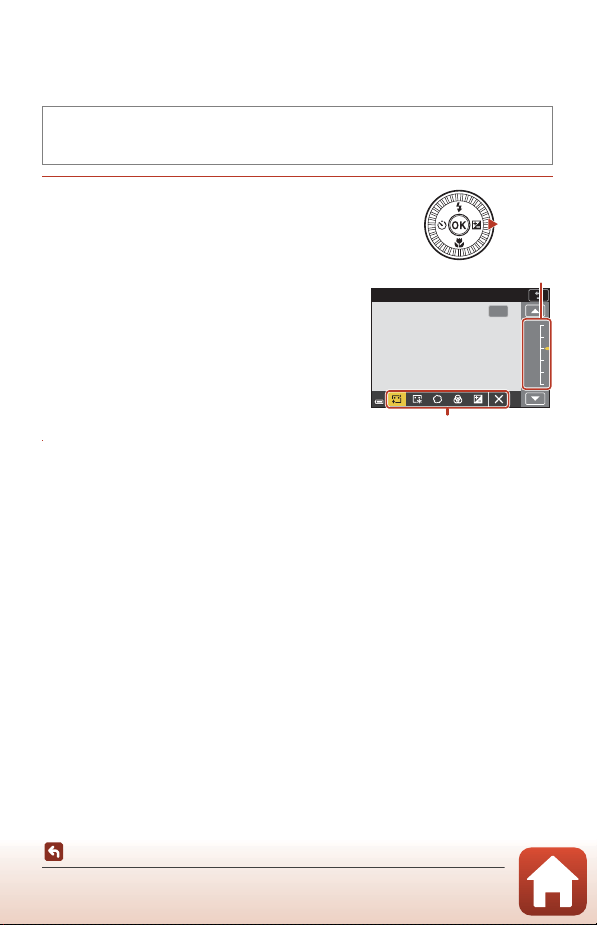
45
Shooting Features
Scene Mode (Shooting Suited to the Shooting Conditions)
Shooting with Smart Portrait (Enhancing Human Faces
When Shooting)
You can take a picture with the glamour retouch function to enhance human faces.
1 Press the multi selector K to apply
an effect.
• Use JK to select the desired effect.
• Use HI to select the amount of effect.
• You can simultaneously apply multiple effects.
B Skin softening, l Foundation makeup,
Q Soft, G Vividness, o Brightness (Exp.
+/-)
• Select f Exit to hide the slider.
• After configuring the desired effects, press the
k button or select f Exit.
2 Frame the picture and press the shutter-release button.
B Notes About Smart Portrait
• When Soft is set, some Movie options (A145) are not available.
• The amount of effect may differ between the image on the shooting screen and the saved
image.
C Glamour Retouch Settings
A histogram is displayed when you select Brightness (Exp. +/-).
See “Using the Histogram” (A68) for more information.
Rotate the mode dial to y M d button M F Smart portrait M k
button M d button
OK
OFF
1
2
3
4
5
Skin softening
Slider
Effects

46
Shooting Features
Scene Mode (Shooting Suited to the Shooting Conditions)
Functions Available in Smart Portrait
• Glamour retouch (A45)
• Self-Collage (A47)
• Blink proof (A49)
• Smile timer (A50)
• Flash mode (A58)
• Self-timer (A61)
• Shooting menu (common across shooting modes) (A127)
Using Skin Softening and Foundation Makeup
• When Smart portrait scene mode is set to Skin softening or Foundation
makeup and the camera detects a human face, it processes the image to soften
facial skin tones or adjust facial colors before saving the image (up to three faces).
• You can also save images with the Skin softening effect applied when shooting
in Scene auto selector, Portrait, or Night portrait scene mode. The amount of
effect cannot be adjusted.
• You can also apply the effects of Skin softening or Foundation makeup in
Glamour retouch in the playback menu after shooting (A90).
B Notes About Skin Softening
• It may take more time than usual to save images after shooting.
• Under some shooting conditions, the desired results may not be achieved, or the effects
may be applied to areas of the image where there are no faces.
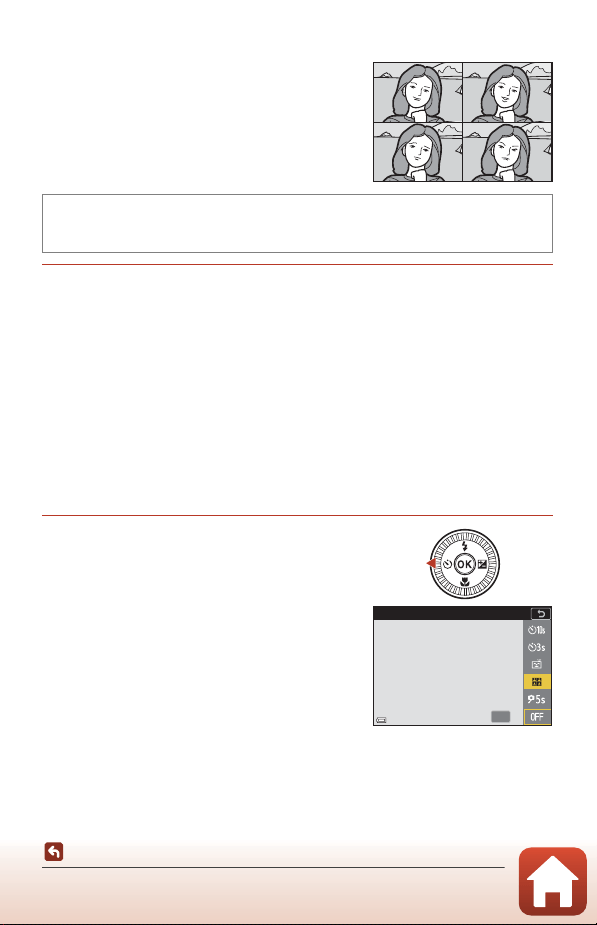
47
Shooting Features
Scene Mode (Shooting Suited to the Shooting Conditions)
Using Self-Collage
The camera can capture a series of four or nine
images at intervals and save them as a one-frame
image (a collage image).
1 Set self-collage.
• Number of shots: Set the number of shots that the camera automatically captures
(number of captured images for an aggregated image). 4 (default setting) or 9 can
be selected.
• Interval: Set the interval time between each shot. Short, Medium (default setting),
or Long can be selected.
• Shutter sound: Set whether to activate the shutter sound when shooting with the
self-collage function.
Standard, SLR, Magic (default setting), or Off can be selected. If you set other than
Off, countdown sound is produced.
The setting that is specified for Shutter sound in Sound settings in the setup
menu is not applied to this setting.
• After the settings are complete, press the d button or shutter-release button to
exit the menu.
2 Press the multi selector J to select
n Self-Collage, and press the k
button.
• A confirmation dialog is displayed.
• If you want to apply glamour retouch when
shooting, set the effect before selecting self-
collage (
A45).
Rotate the mode dial to y M d button M F Smart portrait M k
button M Self-Collage M k button
OK
Self-Collage
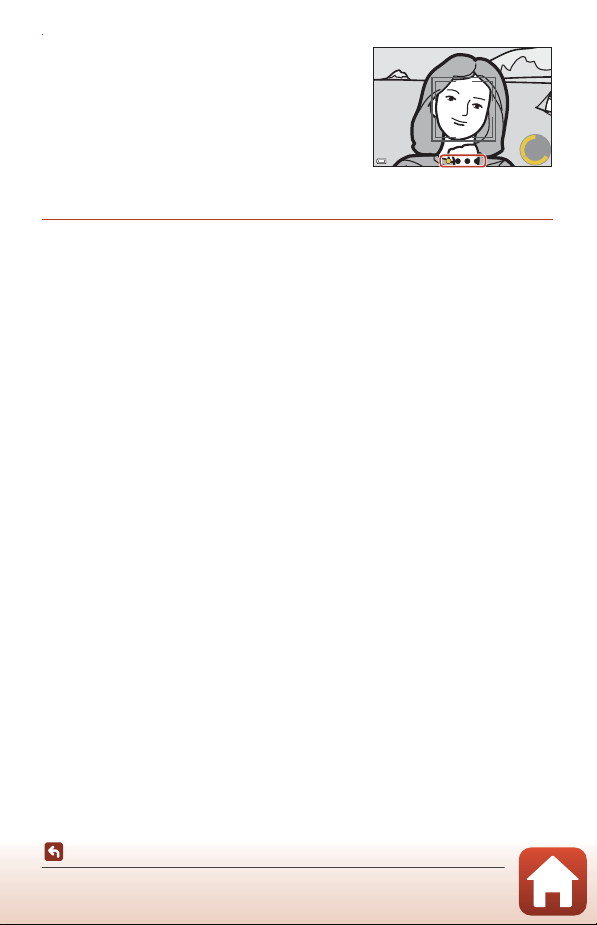
48
Shooting Features
Scene Mode (Shooting Suited to the Shooting Conditions)
3 Take a picture.
• When you press the shutter-release button, a
countdown starts (about five seconds) and the
shutter is automatically released.
• The camera automatically releases the shutter
for the remaining pictures. A countdown starts
about three seconds before shooting.
• The number of shots is indicated by U on the
screen. It is displayed in yellow during shooting and it changes to white after
shooting.
4 On the screen displayed when the camera finishes taking the
specified number of shots, select Yes and press the k button.
• The collage image is saved.
• Each captured image is saved as an individual image separate from the collage
image. The images are grouped as a sequence, and a one-frame collage image is
used as the key picture (A86).
• When No is selected, the collage image is not saved.
B Notes About Self-Collage
• If you perform the operations listed below before the camera takes the specified number
of shots, shooting is canceled and the collage image is not saved. The pictures that were
taken before shooting was canceled are saved as individual images.
- Press the shutter-release button
-Raise or lower the flash
• If images are captured using Date stamp (A166), the date and time are stamped only at
the bottom right of the aggregated image. The date and time cannot be stamped on
each image within the aggregated image.
• This function may not be available to use in combination with other functions (A80).
2
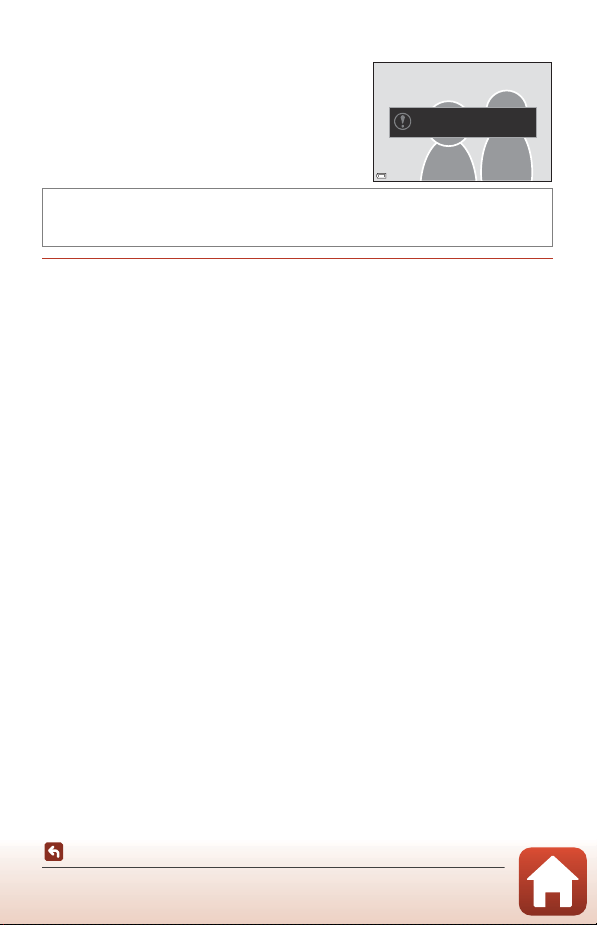
49
Shooting Features
Scene Mode (Shooting Suited to the Shooting Conditions)
Using Blink Proof
The camera automatically releases the shutter twice
with every shot and saves one image in which the
subject’s eyes are open.
• If the camera saved an image in which the
subject’s eyes may have been closed, the dialog
shown on the right is displayed for a few
seconds.
Select On or Off (default setting) in Blink proof and press the
k button.
B Notes About Blink Proof
This function may not be available to use in combination with other functions (A80).
Rotate the mode dial to y M d button M F Smart portrait M
k button M Blink proof M k button
A blink was detected in the
picture just taken.
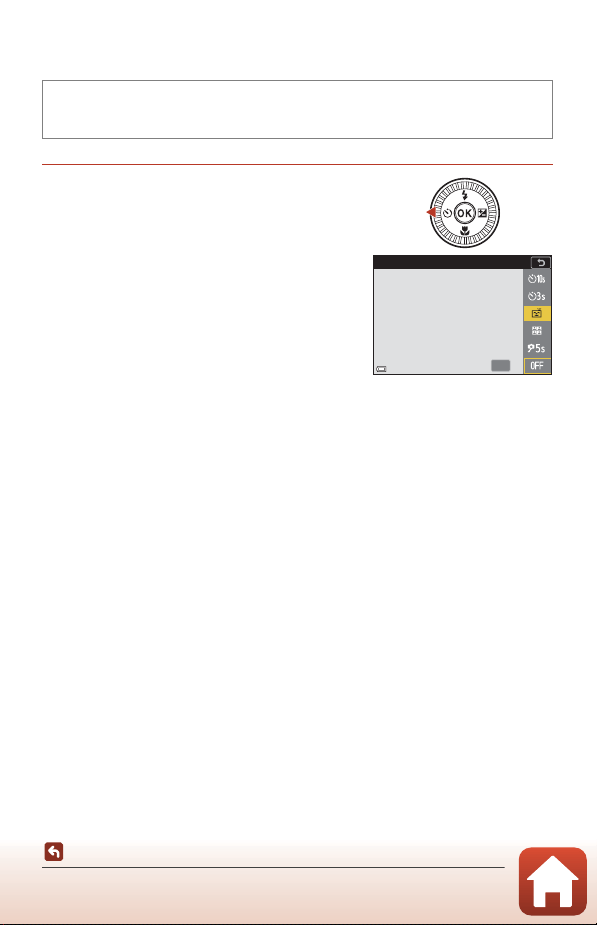
50
Shooting Features
Scene Mode (Shooting Suited to the Shooting Conditions)
Using Smile Timer
The camera automatically releases the shutter whenever a smiling face is detected.
Press the multi selector J to select
a Smile timer and press the k button.
• Set the glamour retouch function before
selecting smile timer (A45).
• When you press the shutter-release button to
take a picture, smile timer is terminated.
B Notes About Smile Timer
• Under some shooting conditions, the camera may be unable to detect faces or smiles
(
A75). The shutter-release button can also be used for shooting.
• This function may not be available to use in combination with other functions (
A80).
C When the Self-timer Lamp Flashes
When using smile timer, the self-timer lamp flashes when the camera detects a face and
flashes quickly immediately after the shutter is released.
Rotate the mode dial to y M d button M F Smart portrait M k
button M d button
OK
Smile timer
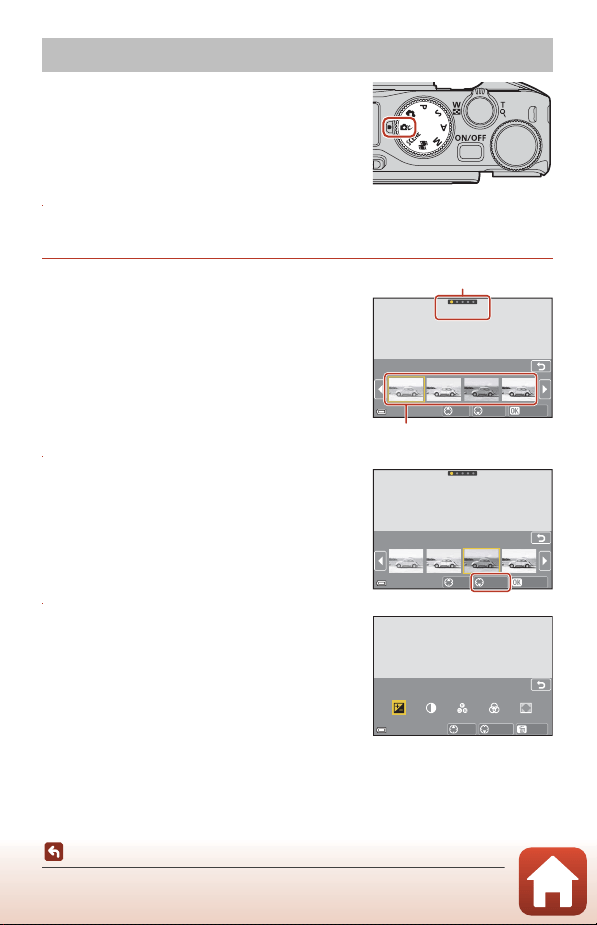
51
Shooting Features
Creative Mode (Applying Effects When Shooting)
Apply effects to images during shooting.
• Five effect groups are available: Light (default
setting), Depth, Memory, Classic, and Noir.
1 Press the k button.
• The effect selection screen is displayed.
2 Use the multi selector J K to select
an effect.
• The effect group can be changed by rotating
the command dial.
• To exit without saving the selection, press H.
3 To adjust the effect, press I.
• If you do not want to adjust the effect, press
the k button to proceed to step 6.
4 Use J K to highlight the desired
option and then press I.
• Select Exposure compensation, Contrast, Hue,
Saturation, or Peripheral illumination. The
options that can be selected vary depending on the
group.
Creative Mode (Applying Effects When Shooting)
Light
Li g ht
Dream
ConrmBack Adjust
Effect group
Effects
LightLi g ht
Pop
ConrmBack Adjust
Exposure compensation
Reset
Back
Adjust
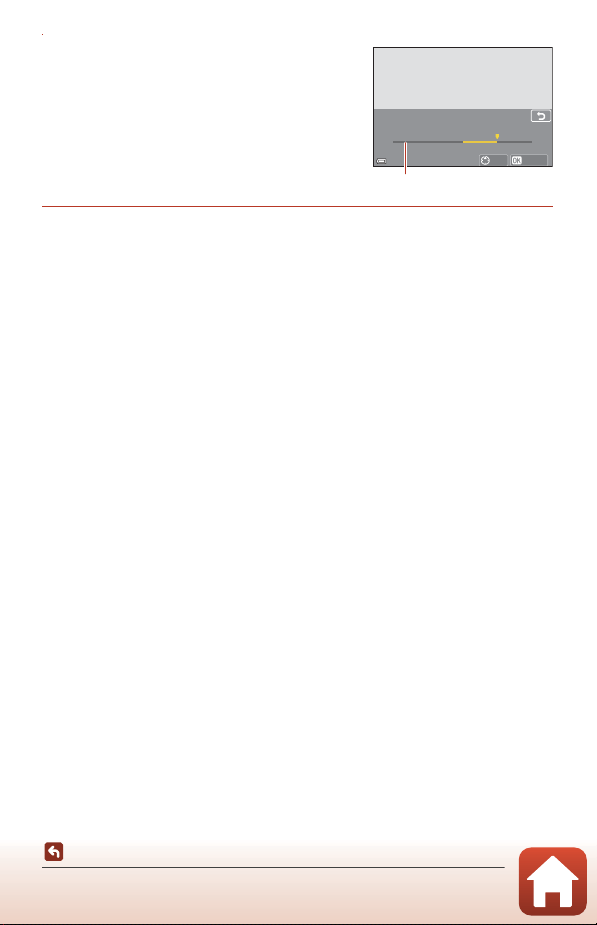
52
Shooting Features
Creative Mode (Applying Effects When Shooting)
5 Use J K to adjust the effect level
and press the k button.
6 Press the shutter-release button or the b (e movie-record)
button to shoot.
• The camera detects the main subject and focuses on it (target finding AF) (A74). If
a human face is detected, the camera automatically sets focus priority on it.
C Selecting an Effect Group
You can also select an effect group by pressing the d button when the screen in step 1 is
displayed.
Functions Available in Creative Mode
• Flash mode (A58)
• Self-timer (A61)
• Focus mode (A63)
• Exposure compensation (A68)
• Shooting menu (common across shooting modes) (A127)
Contrast
Back
Conrm
50
Slider
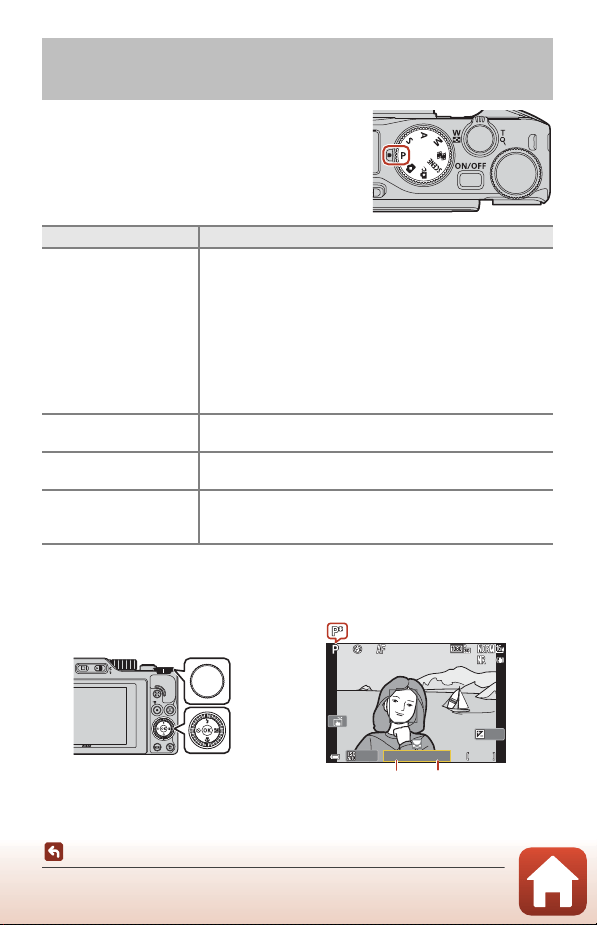
53
Shooting Features
A, B, C, and D Modes (Setting the Exposure for Shooting)
In A, B, C, and D modes, you can set exposure
(combination of shutter speed and f-number)
according to the shooting conditions. Also, you can
achieve greater control when shooting images by
setting the shooting menu options (A120).
1
You can also set this function by tapping the shutter speed indicator on the shooting screen.
2
You can also set this function by tapping the f-number indicator on the shooting screen.
3
The allocations of the controls for setting the exposure can be changed using Toggle
Av/Tv selection in the setup menu (A120).
A
,
B
,
C
, and
D
Modes (Setting the Exposure for
Shooting)
Shooting mode Description
A Programmed auto
You can let the camera adjust the shutter speed and f-number.
• The combination of shutter speed and f-number can be
changed by rotating the command dial or multi selector
(flexible program). While the flexible program is in effect, O
(flexible program mark) is displayed on the upper left of the
screen.
• To cancel the flexible program, rotate the command dial or
multi selector in the opposite direction than when you set
it until O is no longer displayed, change the shooting
mode, or turn off the camera.
B Shutter-priority auto
Rotate the command dial or multi selector to set the shutter
speed.
1
The camera automatically determines the f-number.
C Aperture-priority auto
Rotate the command dial or multi selector to set the f-number.
2
The camera automatically determines the shutter speed.
D Manual
3
Set both the shutter speed and f-number. Rotate the
command dial to set the shutter speed.
1
Rotate the multi
selector to set the f-number.
2
F 3 .4
F3.4
5 0 0
500
2 5 m 0s
25m 0s
1 / 25 0
1/250
0 . 0
0.0
1 0 0
100
Multi selector
Command dial
Shutter speed
F-number
Flexible program is in effect.
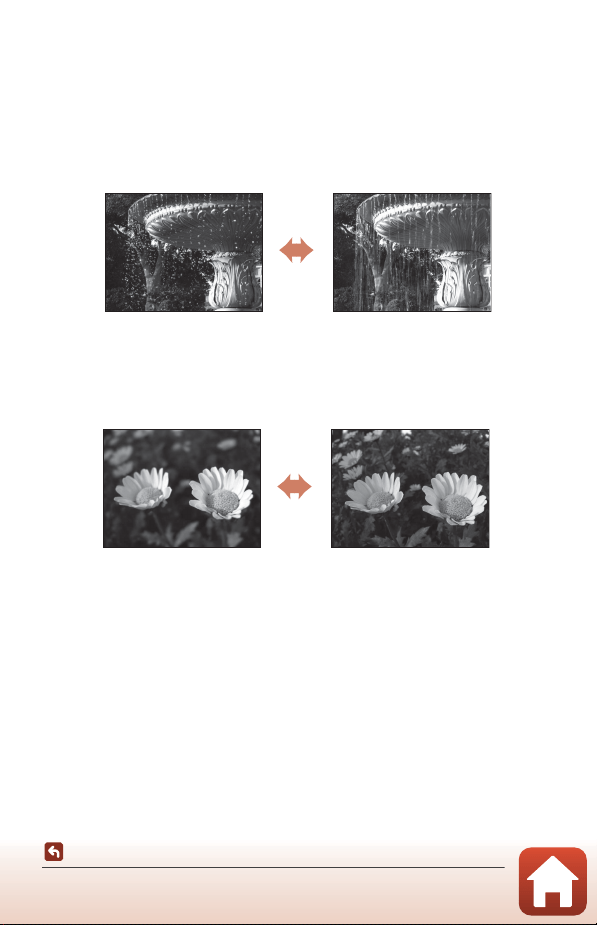
54
Shooting Features
A, B, C, and D Modes (Setting the Exposure for Shooting)
Tips for Setting Exposure
The sense of dynamism and amount of background defocus in subjects vary by
changing the combinations of shutter speed and f-number even if the exposure is the
same.
Effect of the Shutter Speed
The camera can make a fast-moving subject appear static at a fast shutter speed, or
highlight the motion of a moving subject at a slow shutter speed.
Effect of the F-number
The camera can bring the subject, foreground and background into focus, or blur the
subject’s background intentionally.
C Shutter Speed and F-number
• The control range of the shutter speed differs depending on the zoom position, f-number,
or ISO sensitivity setting.
• The f-number of this camera also changes depending on the zoom position.
• When zooming is performed after the exposure is set, exposure combinations or the
f-number may be changed.
• Large apertures (expressed by small fnumbers) let more light into the camera, and small
apertures (large f-numbers) let less light. The smallest f-number represents the largest
aperture, and the largest f-number represents the smallest aperture.
Faster
1/1000 s
Slower
1/30 s
Small f-number
(larger aperture)
f/3.4
Large f-number
(smaller aperture)
f/8
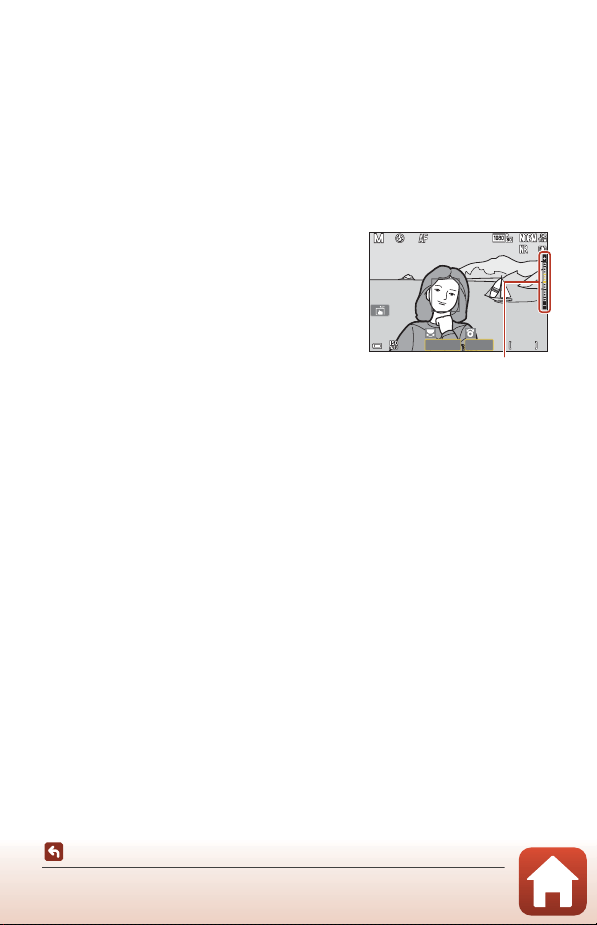
55
Shooting Features
A, B, C, and D Modes (Setting the Exposure for Shooting)
B Notes About Setting Exposure
When the subject is too dark or too bright, it may not be possible to obtain the appropriate
exposure. In such cases, the shutter speed indicator or f-number indicator flashes (in A, B,
and C modes), or the exposure indicator is displayed in red (in D mode) when the shutter-
release button is pressed halfway. Change the shutter speed setting or f-number.
B Setting Exposure During Movie Recording
When recording movies in A, B, C, or D mode, the shutter speed and f-number settings
are not applied.
Exposure Indicator (When in D Mode)
The degree of deviation between the adjusted
exposure value and the optimal exposure value
measured by the camera is displayed in the
exposure indicator on the screen. The degree of
deviation in the exposure indicator is displayed in
terms of EV (–2 to +2 EV in increments of 1/3 EV).
B Notes About ISO Sensitivity
When ISO sensitivity (A123) is set to Auto (default setting) or Fixed range auto, the ISO
sensitivity in D mode is fixed at ISO 100.
Functions Available in A, B, C, and D Modes
• Flash mode (A57)
• Self-timer (A57)
• Focus mode (A57)
• Creative slider (A57)
• Shooting menu (A120)
• Functions that can be set using the w (function) button (A121)
C Focus Area
The focus area for autofocus varies depending on the setting of AF area mode (A123) in
the shooting menu. When set to Target finding AF (default setting), the camera detects
the main subject and focuses on it. If a human face is detected, the camera automatically
sets focus priority on it.
F 3 .4
F3.4
5 0 0
500
2 5 m 0s
25m 0s
1 / 25 0
1/250
1 0 0
100
Exposure indicator
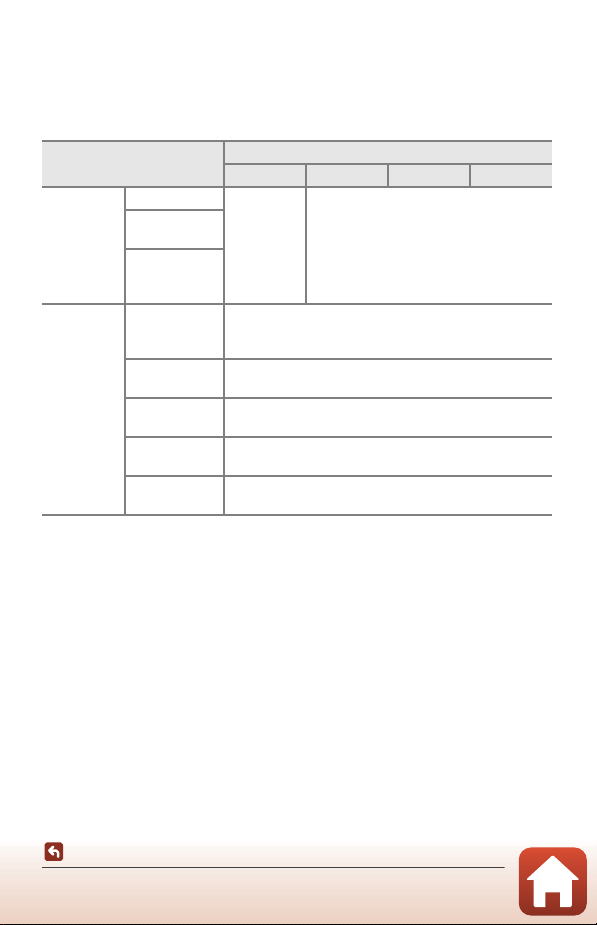
56
Shooting Features
A, B, C, and D Modes (Setting the Exposure for Shooting)
The Control Range of the Shutter Speed (A, B, C, and
D Modes)
The control range of the shutter speed differs depending on the zoom position,
f-number, or ISO sensitivity setting. Additionally, the control range changes in the
following continuous shooting settings.
1
The ISO sensitivity setting is restricted depending on the continuous shooting setting
(A81).
2
In D mode, the ISO sensitivity is fixed at ISO 100.
Setting
Control range (second)
A mode B mode C mode D mode
ISO
sensitivity
1
(A138)
Auto
2
1/2000–1 s 1/2000–8 s
ISO 100-400
2
ISO 100-800
2
ISO 100, 200,
400, 800, 1600,
3200, 6400
Continuous
(A134)
Continuous H,
Continuous M,
Continuous L
1/2000–1 s
Pre-shooting
cache
1/4000–1/125 s
Continuous H:
120 fps
1/4000–1/125 s
Continuous H:
60 fps
1/4000–1/60 s
Intvl timer
shooting
Same as when Single is set
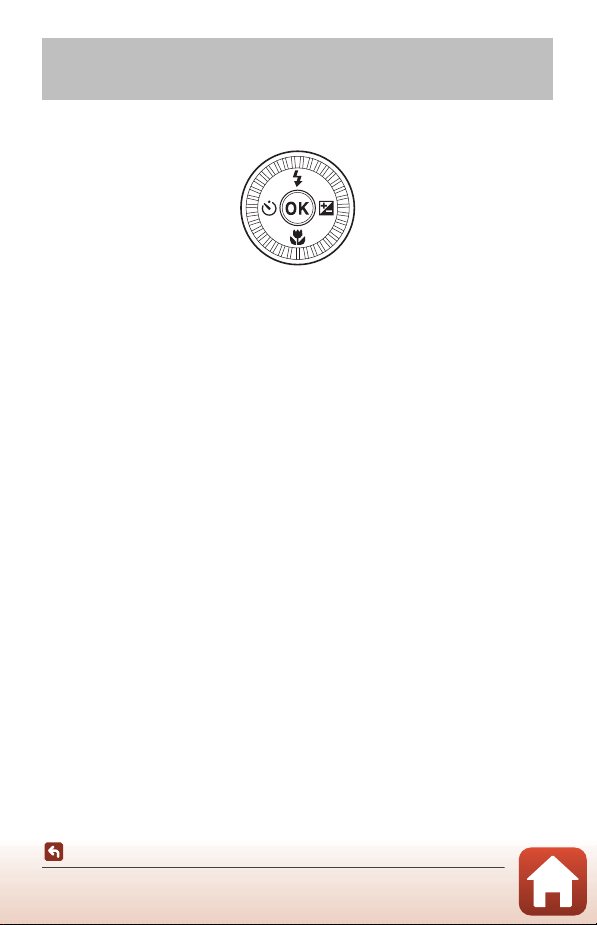
57
Shooting Features
Setting Shooting Functions with the Multi Selector (m/n/p/o)
When the shooting screen is displayed, you can press the multi selector H (m) J (n)
I (p) K (o) to set the functions described below.
• m Flash mode
When the flash is raised, the flash mode can be set according to shooting
conditions. The flash always fires when m (fill flash) or m (standard flash) is selected.
• n Self-timer/Self-portrait timer
The camera releases the shutter when the set number of seconds elapses after you
press the shutter-release button.
• p Focus mode
According to the distance to the subject, A (autofocus) or D (macro close-up) can
be set. E (manual focus) can also be set when the shooting mode is A, B, C, or
D, or when the scene mode is Sports or Fireworks show.
• o Creative slider/Exposure compensation
- Creative slider: When the shooting mode is set to A, B, C, or D mode, you
can adjust the brightness (exposure compensation), vividness, hue, and Active
D-Lighting.
- Exposure compensation: When the shooting mode is set to modes other
than A, B, C, or D mode, you can adjust the brightness (exposure
compensation).
The functions that can be set vary depending on the shooting mode.
Setting Shooting Functions with the Multi
Selector (m/n/p/o)
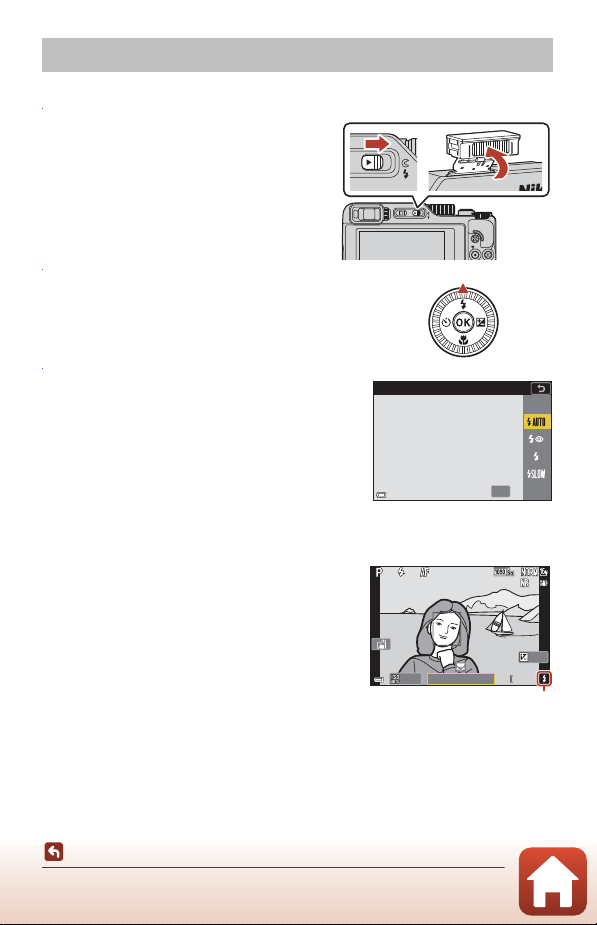
58
Shooting Features
Flash Mode
When the flash is raised, the flash mode can be set according to shooting conditions.
1 Move the K (flash pop-up)
control to raise the flash.
• When the flash is lowered, flash operation
is disabled and S is displayed.
2 Press the multi selector H (m).
3 Select the desired flash mode (A59)
and press the k button.
• If the setting is not applied by pressing the k
button, the selection will be canceled.
B The Ready Light
While the flash is charging, K flashes. The camera
cannot shoot images. If charging is complete, K is
displayed steadily.
Flash Mode
OK
Auto
F 3 .4
F3.4
5 0 0
500
2 5 m 0s
25m 0s
1 / 25 0
1/250
1 0 0
100
0 . 0
0.0
Ready light
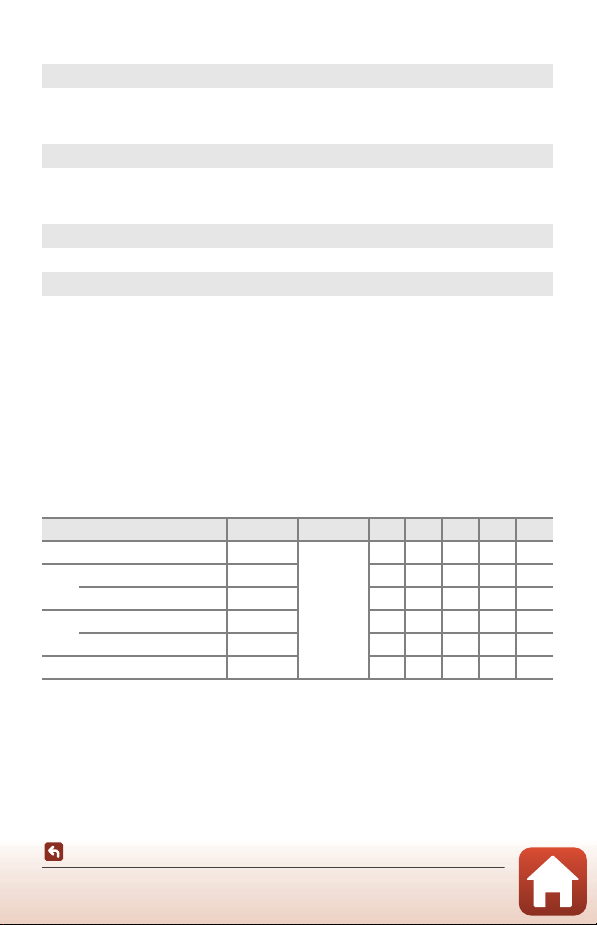
59
Shooting Features
Flash Mode
Available Flash Modes
B Notes About Shooting with the Flash
When you use the flash at the wide-angle zoom position, the edge of the image may be
dark depending on the shooting distance.
This may be improved by adjusting the zoom slightly to a telephoto position.
C The Flash Mode Setting
The available flash modes differ depending on the shooting mode.
1
For shooting modes A, B, C and D, the setting is saved in the camera’s memory even
after the camera is turned off.
2
Availability depends on the setting. See “Default Settings (Flash Mode, Self-timer, and
Focus Mode)” (A78) for more information.
U
Auto
The flash fires when necessary, such as in dim lighting.
• The flash mode indicator is only displayed immediately after setting on the
shooting screen.
V
Auto+red-eye reduction/Red-eye reduction
Reduce red-eye in portraits caused by the flash (A60).
• When Red-eye reduction is selected, the flash fires whenever a picture is
taken.
X
Fill flash/Standard flash
The flash fires whenever a picture is taken.
Y Slow sync
Suited to evening and night portraits that include background scenery. The flash
fires when necessary to illuminate the main subject; slow shutter speeds are used
to capture background at night or under dim lighting.
Flash mode A, o y n A
1
B
1
C
1
D
1
U Auto w
2
–––––
V
Auto+red-eye reduction w – – – – –
Red-eye reduction – – wwww
X
Fill flash w – – – – –
Standard flash – – wwww
Y Slow sync w – w – w –

60
Shooting Features
Flash Mode
C Auto+Red-eye Reduction/Red-eye Reduction
If the camera detects red-eye while saving an image, the affected area is processed to
reduce red-eye before the image is saved.
Note the following when shooting:
• More time than usual is required to save images.
• Red-eye reduction may not produce the desired results in some situations.
• In rare cases, red-eye reduction may be applied to areas of an image unnecessarily. In
these cases, select another flash mode and take the picture again.
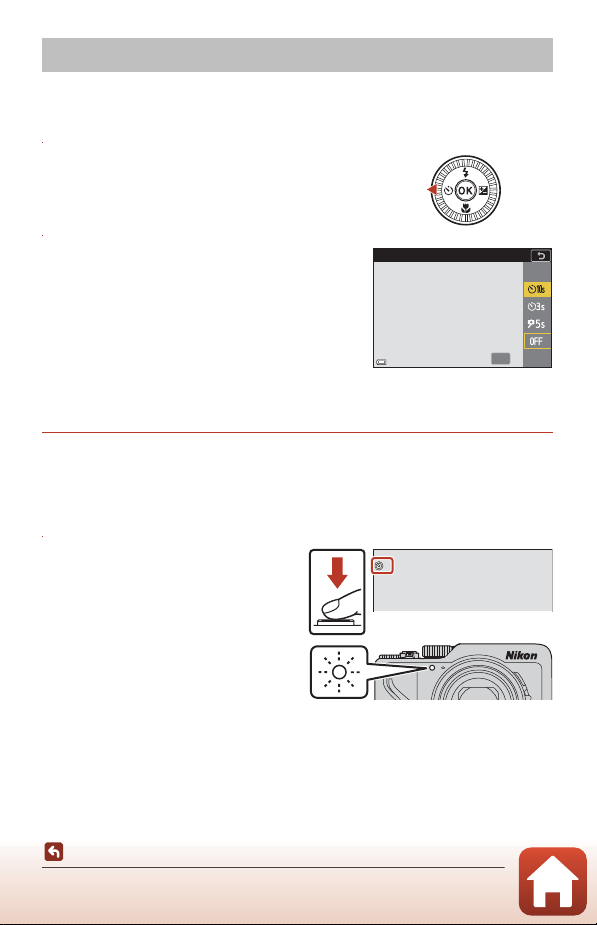
61
Shooting Features
Self-timer
The camera releases the shutter when the set number of seconds elapses after you
press the shutter-release button. Set Photo VR (A168) to Off in the setup menu
when using a tripod to stabilize the camera during shooting.
1 Press the multi selector J (n).
2 Select the number of seconds until
the shutter is released, and press the
k button.
• n10s (10 seconds): Use on important
occasions, such as weddings.
• n3s (3 seconds): Use to prevent camera shake.
• r5s (5 seconds, self-portrait timer): Use for self-
portraits.
• If the setting is not applied by pressing the k button, the selection will be
canceled.
3 Frame the picture and press the shutter-release button halfway.
• When using n10s (10 seconds) or n3s (3 seconds), make sure that the subjects
are in focus.
• When using r5s (5 seconds, self-portrait timer), press the shutter-release button all
the way down in step 4, and then frame the picture.
4 Press the shutter-release
button all the way down.
• Countdown starts. The self-timer
lamp flashes and then glows steadily
about one second before the shutter
is released.
• To stop the countdown, press the
shutter-release button again.
Self-timer
OK
Self-timer
99

62
Shooting Features
Self-timer
C Focus and Exposure When Shooting with the Self-timer
• n10s/n3s: The focus and exposure are locked when you press the shutter-release
button all the way down.
• r5s: The focus and exposure are set right before the shutter is released.
C The Self-timer Setting
• The setting may not be available with some shooting modes (A78).
• You can use Self-timer: after release (A167) in the setup menu to set whether to
cancel the self-timer after using it to shoot.
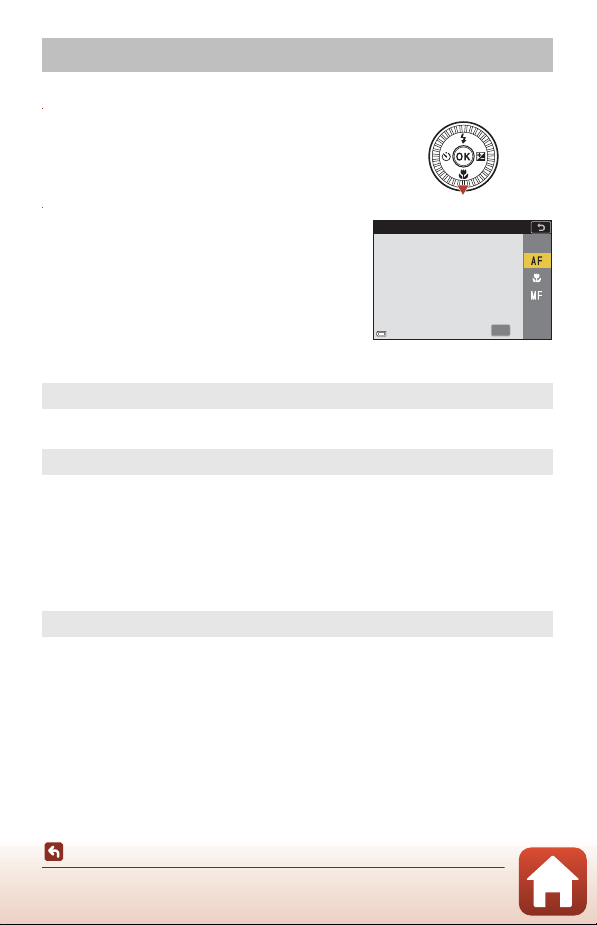
63
Shooting Features
Focus Mode
You can select the focus mode that is appropriate for the shooting distance.
1 Press the multi selector I (p).
2 Select the desired focus mode
(A63) and press the k button.
• If the setting is not applied by pressing the
k button, the selection will be canceled.
Available Focus Modes
C The Focus Mode Setting
• The setting may not be available with some shooting modes (A78).
• For shooting modes A, B, C, and D, the setting is saved in the camera’s memory even
after the camera is turned off.
Focus Mode
A
Autofocus
Use when the distance from the subject to the lens is 50 cm (1 ft 8 in.) or more, or
2.0 m (6 ft 7 in.) or more at the maximum telephoto zoom position.
D
Macro close-up
Set when taking close-up pictures.
When the zoom ratio is set to a position where F and the zoom indicator are
displayed in green, the camera can focus on subjects as close as approximately
10 cm (4 in.) from the lens. When the zoom is at a position more wide-angled
than where G is displayed, the camera can focus on subjects as close as
approximately 1 cm (0.4 in.) from the lens.
At the maximum telephoto zoom position, the camera can focus on subjects as
close as approximately 2.0 m (6 ft 7 in.) from the lens.
E
Manual focus
The focus can be adjusted on any subject at a distance from approximately 1 cm
(0.4 in.) to innity (∞) from the lens (A64). The closest distance at which the
camera can focus varies depending on the zoom position.
OK
Autofocus
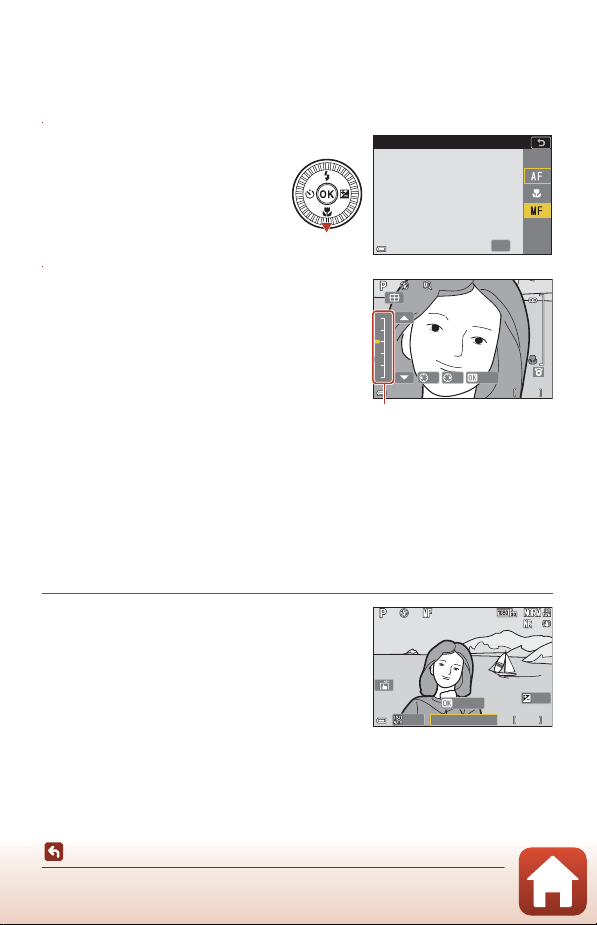
64
Shooting Features
Focus Mode
Using Manual Focus
Available in the following shooting modes.
• A, B, C, and D modes
• Sports or Fireworks show scene mode
1 Press the multi selector I
(p), select E (manual
focus), and then press the
k button.
2 Use the multi selector to adjust the
focus while checking the enlarged
view.
• An enlarged view of the center area of the
image is displayed. Press K to switch the view
between 2×, 4×, and 1×.
• Rotate the multi selector clockwise to focus on
near subjects, or counterclockwise to focus on
far subjects. The focus can be adjusted in
higher detail by rotating the multi selector
slowly. The focus can also be adjusted by rotating the command dial.
• When J is pressed, the camera focuses on the subject in the center of the frame
with autofocus. The manual focus can be operated after the camera focuses with
autofocus.
• Focusing is assisted by highlighting areas that are in focus in white (peaking)
(A65). Press HI to adjust the peaking level.
• Press the shutter-release button halfway to confirm the composition of the picture.
Press the shutter-release button all the way to take the picture.
3 Press the k button.
• The set focus is locked.
• Press the shutter-release button all the way to
take the picture.
• To readjust the focus, press the k button to
display the screen in step 2.
OK
Manual focus
F 3 .4
F3.4
5 0 0
500
1 / 25 0
1/250
1
2
3
4
5
0
0 . 5m
0.5m
AF
x4
Done
Peaking level
F 3 .4
F3.4
5 0 0
500
2 5 m 0s
25m 0s
1 / 25 0
1/250
0 . 0
0.0
Adjust MF
1 0 0
100

65
Shooting Features
Focus Mode
C E (Manual Focus)
• The digits displayed for the gauge on the right of the screen in step 2 serve as a guideline
for the distance to a subject that is in focus when the gauge is near the center.
• The closest distance at which the camera can focus varies depending on the zoom
position. At the maximum wide-angle zoom position, the camera can focus on subjects as
close as approximately 1 cm (0.4 in.) from the lens. At the maximum telephoto zoom
position, the camera can focus on subjects as close as approximately 2.0 m (6 ft 7 in.) from
the lens.
• The actual range at which the subject can be in focus varies depending on the f-number
and zoom position. To see whether the subject is in focus, check the image after shooting.
• Set Assign side zoom control (A126) in the setup menu to Manual focus to focus by
using the side zoom control instead of the multi selector in step 2.
C Manual Focus During Movie Recording
If you set the focus mode to E and press the b (e movie-record) button, you can focus
while recording movies by using the command dial or multi selector.
C Peaking
• The range of the contrast level considered to be in focus can be changed by adjusting the
peaking level. It is effective to set the level low for high contrast subjects, and high for low
contrast subjects.
• Peaking highlights high contrast areas of the image in white. Under some shooting
conditions, highlighting may not work properly or areas that are not in focus may be
highlighted.
• You can disable the peaking display using MF peaking (A126) in the setup menu.
• When Movie options (A124) in the movie menu is set to an HS movie option, peaking
cannot be displayed while recording movies.
C Operating the Touch Panel on the Manual Focus Shooting Screen
You can use the touch panel to operate the monitor (A7).
• Spread/pinch while a zoomed image is displayed to change the magnification rate.
• Slide while a zoomed image is displayed to view a different area of the image. When you
tap E, the display area returns to the center of the frame.
C To Focus Using the ML-L7 Remote Control (Available Separately)
• You can press the multi selector HI on the remote control to adjust the focus with the
remote control when using manual focus.
• If you press the k button on the remote control, you can lock the camera to the set focus.
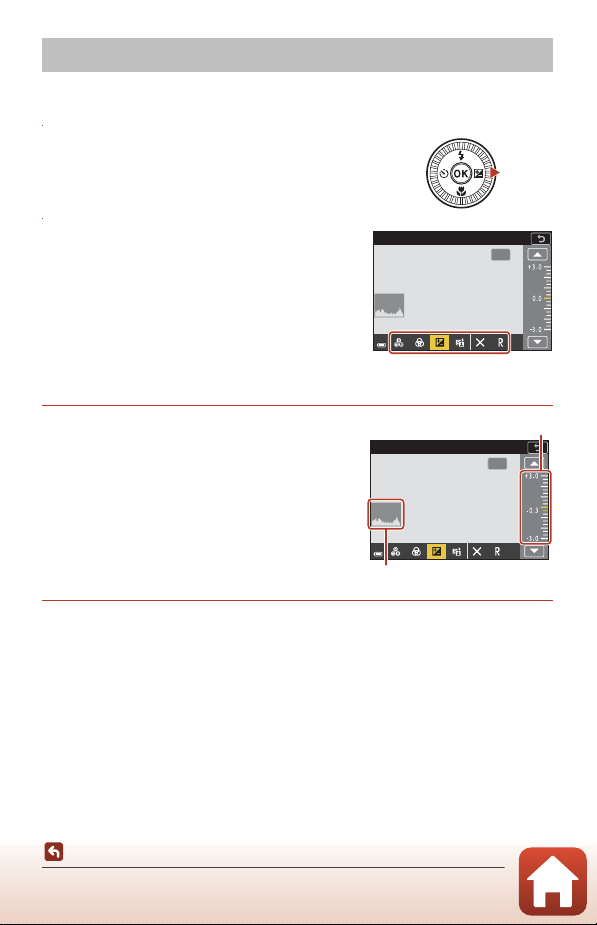
66
Shooting Features
Using the Creative Slider
When the shooting mode is set to A, B, C, or D mode, you can adjust the brightness
(exposure compensation), vividness, hue, and Active D-Lighting when shooting.
1 Press the multi selector K (o).
2 Use JK to select an item.
• F Hue: Adjust the hue (reddish/bluish) of the
entire image.
• G Vividness: Adjust the vividness of the
entire image.
• o Brightness (Exp. +/-): Adjust the
brightness of the entire image.
• J Active D-Lighting: Reduce the loss of
details in highlights and shadows. Select w (High), x (Normal), y (Low) for
the amount of effect.
3 Use HI to adjust the level.
• You can preview the results on the screen.
• To set another item, return to step 2.
• Select f Exit to hide the slider.
• To cancel all settings, select g Reset and press
the k button. Return to step 2 and adjust the
settings again.
4 Press the k button when setting is complete.
• The settings are applied and the camera returns to the shooting screen.
Using the Creative Slider
OK
Brightness (Exp. +/-)
OK
Brightness (Exp. +/-)
Slider
Histogram

67
Shooting Features
Using the Creative Slider
C Creative Slider Settings
• When the shooting mode is set to D mode, Brightness (Exp. +/-) cannot be used.
• Active D-Lighting is not applied to movies recorded with Movie options set to h HS
720/4×.
• When using Active D-Lighting, noise (randomly-spaced bright pixels, fog, lines) may be
emphasized, dark shadows may appear around bright subjects, or bright areas may
appear around dark subjects under some shooting conditions.
• When using Active D-Lighting, gradation skipping may occur depending on the subject.
• This function may not be available to use in combination with other functions (A80).
• The following settings are saved in the camera’s memory even after the camera is turned
off.
- Hue
- Vividness
- Brightness (Exp. +/-)
- Active D-Lighting
• See “Using the Histogram” (A68) for more information.
C Active D-Lighting Versus D-Lighting
• The Active D-Lighting option in the shooting menu captures images while reducing loss
of details in highlights, and adjusts the tone when saving images.
• The D-Lighting (A89) option in the playback menu adjusts the tone of saved images.
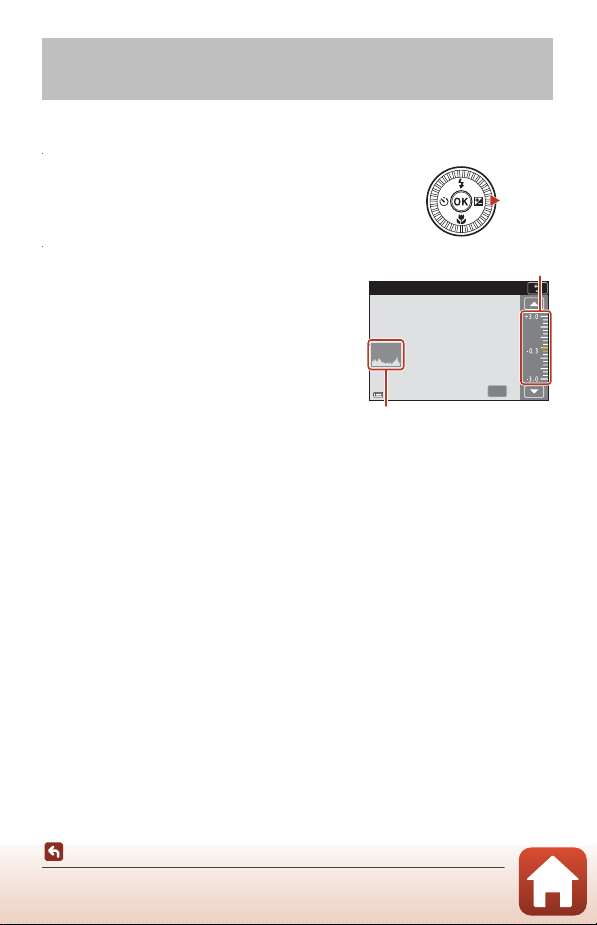
68
Shooting Features
Exposure Compensation (Adjusting Brightness)
When the shooting mode is set to A (auto) mode, scene mode, creative mode, or
short movie show mode, you can adjust the brightness (exposure compensation).
1 Press the multi selector K (o).
2 Select a compensation value and
press the k button.
• To brighten the image, set a positive (+) value.
• To darken the image, set a negative (–) value.
• The compensation value is applied, even
without pressing the k button.
• When the shooting mode is Smart portrait
scene mode, the glamour retouch screen is
displayed instead of the exposure
compensation screen (A45).
C Exposure Compensation Value
• Exposure compensation cannot be used in the following scene modes:
- Time-lapse movie (during Night sky (150 minutes) or Star trails (150 minutes))
- Fireworks show
- Multiple exp. Lighten
• When the exposure compensation is set while using a flash, the compensation is applied
to both the background exposure and the flash output.
C Using the Histogram
A histogram is a graph showing the distribution of tones in the image. Use as a guide when
using exposure compensation and shooting without the flash.
• The horizontal axis corresponds to pixel brightness, with dark tones to the left and bright
tones to the right. The vertical axis shows the number of pixels.
• Increasing the exposure compensation value shifts the tone distribution to the right, and
decreasing it shifts the tone distribution to the left.
Exposure Compensation (Adjusting
Brightness)
OK
Exposure compensation
Histogram
Slider
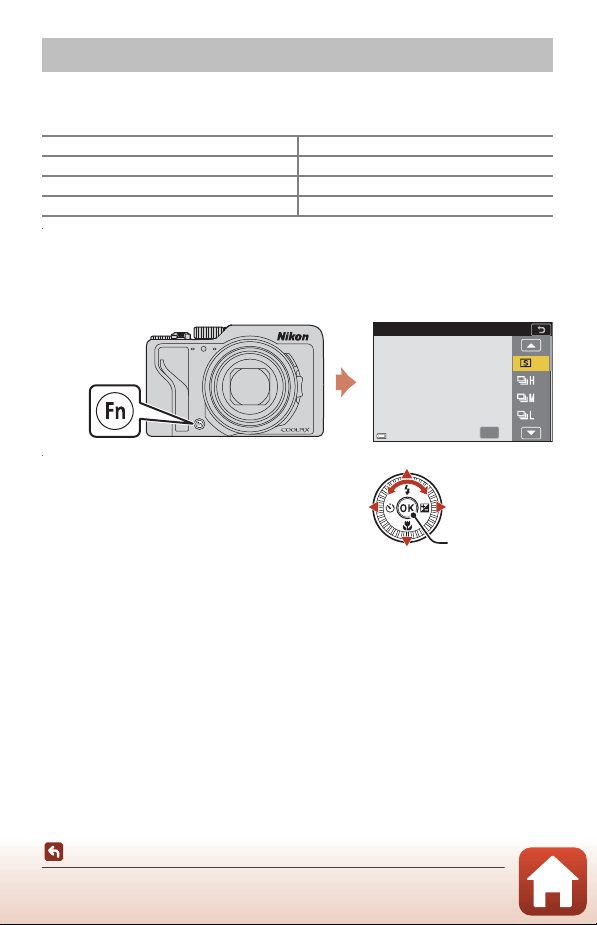
69
Shooting Features
Using the w (Function) Button
If you press the w button in A, B, C, or D mode, you can quickly configure the pre-
saved menu options.
• The menu options listed below can be saved.
1 Press the w (function) button when the shooting screen is
displayed.
• The setting options of the menu that was set (default setting is Continuous) and
U Fn button can be selected.
2 Use the multi selector to select a
setting and press the k button.
• If the setting is not applied by pressing the
k button, the selection will be canceled.
• To return to the shooting screen without
changing the setting, press the w button or
shutter-release button.
• To set a different menu option, select U Fn button and press the k button. Select
the desired menu option and press the k button to set it.
Using the w (Function) Button
Image quality (A127) Continuous (A134)
Image size (A129) ISO sensitivity (A138)
White balance (A130) AF area mode (A140)
Metering (A133) Photo VR (A168)
OK
Single
Apply selection
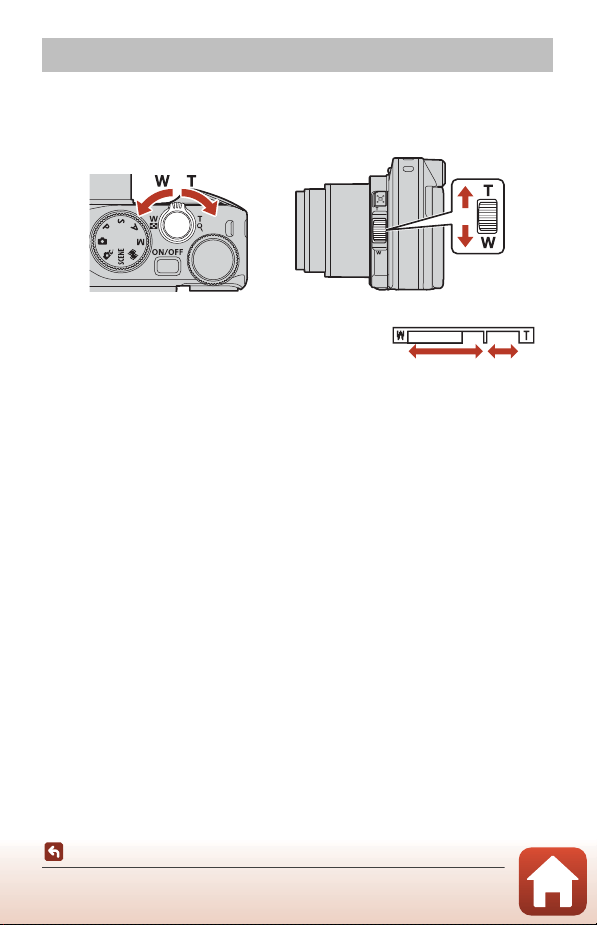
70
Shooting Features
Using the Zoom
When you move the zoom control or side zoom control, the zoom lens position changes.
• To zoom in: Move toward g
• To zoom out: Move toward f
When you turn the camera on, the zoom moves to the maximum wide-angle position.
• A zoom indicator and focal length (in 35mm [135]
format) are displayed on the shooting screen when
the zoom control or side zoom control is moved.
• Digital zoom, which allows you to further magnify
the subject up to approximately 4× the maximum
optical zoom ratio, can be activated by moving and
holding the zoom control or side zoom control toward g when the camera is
zoomed in to the maximum optical zoom position.
• Rotating the zoom control all the way in either direction adjusts the zoom quickly
(except while recording movies).
• The function of the side zoom control can be set in the Assign side zoom control
(A170) in the setup menu.
• When using the ML-L7 Remote Control (available separately), the camera zooms in
when the + button on the remote control is pressed and zooms out when the –
button is pressed.
C Digital Zoom
The zoom indicator changes to blue when the digital zoom is activated, and it changes to
yellow when the zoom magnification is increased further.
•
Zoom indicator is blue: Image quality is not noticeably reduced by using the Dynamic Fine Zoom.
• Zoom indicator is yellow: There may be cases in which image quality is noticeably reduced.
• The indicator remains blue across a wider area when the image size is smaller.
• The zoom indicator does not change to blue in the following situations.
- When Exposure bracketing is set
- When recording movies
• The zoom indicator may not change to blue when using certain continuous shooting
settings or other settings.
Using the Zoom
Zoom out Zoom in
Zoom out
Zoom in
Zoom control Side zoom control
Optical
zoom
Digital
zoom
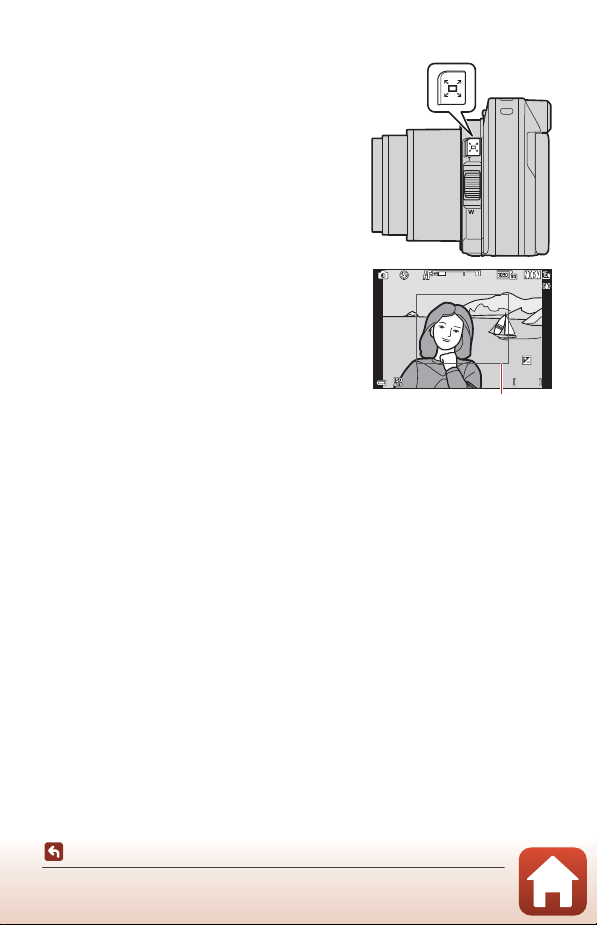
71
Shooting Features
Using the Zoom
Using the Snap-back Zoom
If you lose sight of the subject while shooting with
the lens in telephoto position, press the q (snap-
back zoom) button to temporarily widen the visible
area (angle of view) so that you can frame the
subject more easily.
• While pressing the q button, frame the subject
inside the framing border of the shooting
screen. To widen the visible area, move the
zoom control or side zoom control toward f
while pressing the q button.
• Release the q button to return to the original
zoom position.
• Snap-back zoom is not available during movie
recording.
F 3 .4F3.4 5 0 0500
2 5 m 0s25m 0s
0 . 00.0
1 0 0100
1 / 25 01/250
7 0 m m70mm
Framing border
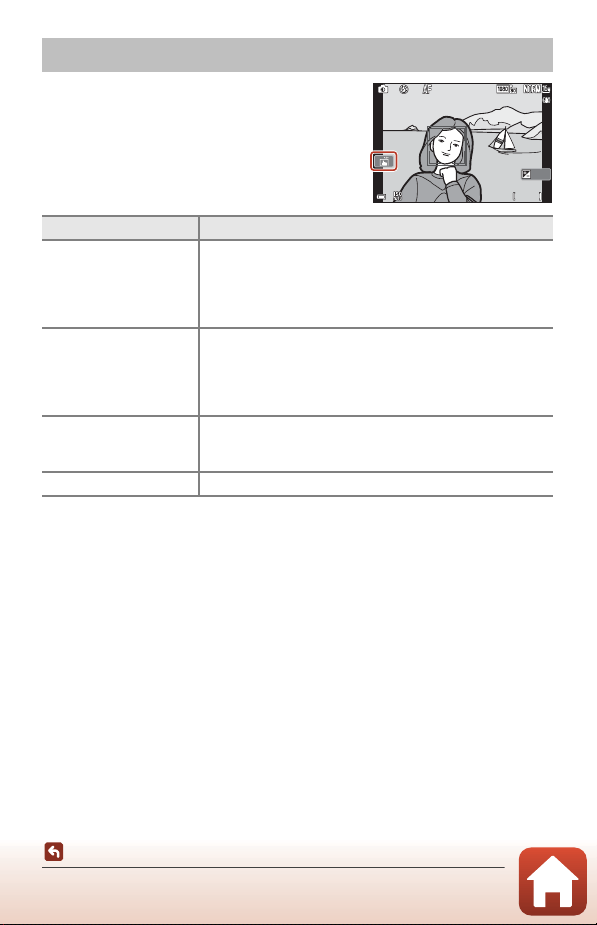
72
Shooting Features
Using Touch Shooting
You can switch the touch shooting feature by
tapping the touch shooting icon on the shooting
screen.
B Notes About Touch Shooting
• The displayed items vary depending on the shooting mode and settings.
• The AF area that can be set by tapping varies depending on the shooting mode and
settings.
• When the focus mode is E (manual focus), the camera does not adjust the focus even
when you tap.
• While P is displayed, the camera does not adjust the focus even when you tap because
the focus is locked.
• Only one image is captured even when continuous shooting is set. To capture images
continuously, press the shutter-release button.
• You cannot use touch shooting while recording movies.
Using Touch Shooting
Option Description
A Touch shutter
(default setting)
The camera focuses on the tapped subject with autofocus
and releases the shutter.
• When the camera recognizes faces (A75), it focuses on
the subject displayed with a double-framed AF area.
• The shutter-release button can also be used for shooting.
B Touch AF
Tap to select the AF area for autofocus in the following
situations:
• In A, B, C, or D mode, AF area mode (A140) is set to
Manual (spot), Manual (normal), or Manual (wide)
• Close-up or Food scene mode
C Touch subject
tracking
In A, B, C, or D mode, when AF area mode is set to
Subject tracking, you can register the subject that you want
to track by tapping it.
D Touch shooting off Disables touch shooting.
1 / 25 0
1/250
F 3 .4
F3.4
5 0 0
500
2 5 m 0s
25m 0s
0 . 0
0.0
1 0 0
100
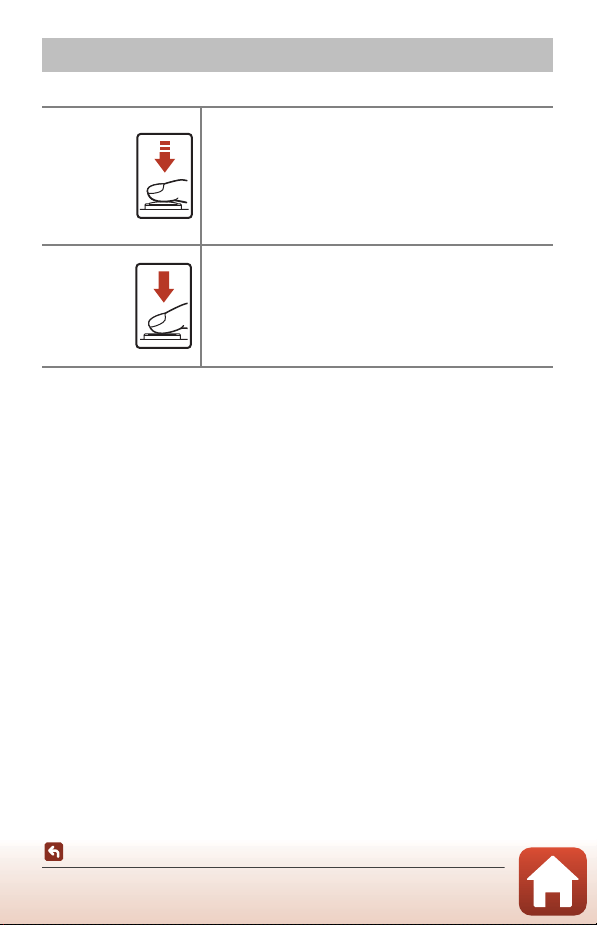
73
Shooting Features
Focusing
The Shutter-release Button
Focusing
Press halfway
To press the shutter-release button “halfway” means to press
and hold the button at the point where you feel a slight
resistance.
• Focus and exposure (shutter speed and f-number) are set
when you press the shutter-release button halfway. Focus
and exposure remain locked while the button is pressed
halfway.
• The focus area varies depending on the shooting mode.
Press all the
way
To press the shutter-release button “all the way” means to
press the button down completely.
• The shutter is released when the shutter-release button is
pressed all the way.
• Do not use force when pressing the shutter-release
button, as this may result in camera shake and blurred
images. Press the button gently.
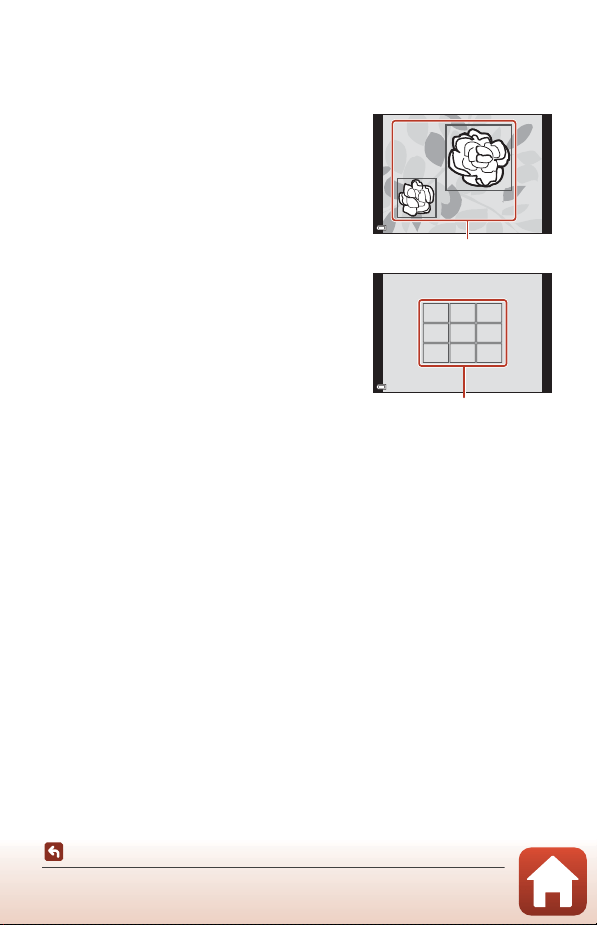
74
Shooting Features
Focusing
Using Target Finding AF
When AF area mode (A140) is set to Target finding AF in A, B, C, or D mode, or
when in creative mode, the camera focuses in the manner described below when you
press the shutter-release button halfway.
• The camera detects the main subject and
focuses on it. When the subject is in focus, the
focus area is displayed in green. If a human face
is detected, the camera automatically sets focus
priority on it.
• If no main subject is detected, the camera
automatically selects one or more of the nine
focus areas containing the subject closest to the
camera. When the subject is in focus, the focus
areas that are in focus are displayed in green.
B Notes About Target Finding AF
• Depending on shooting conditions, the subject that the camera determines to be the
main subject may vary.
• The main subject may not be detected when using certain settings in White balance or
creative mode effect groups.
• The camera may not detect the main subject appropriately in the following situations:
- When the subject is very dark or bright
- When the main subject lacks clearly defined colors
- When the shot is framed so that the main subject is on the edge of the screen
- When the main subject is composed of a repeating pattern
F 3 .4
F3.4
1 / 25 0
1/250
Focus areas
F 3 .4
F3.4
1 / 25 0
1/250
Focus areas
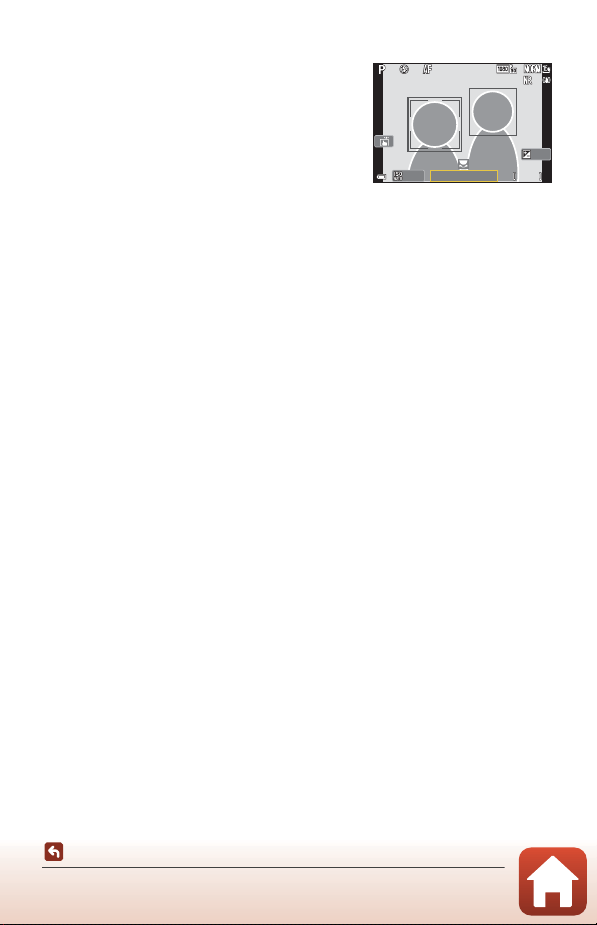
75
Shooting Features
Focusing
Using Face Detection
In the following settings, the camera uses face
detection to automatically focus on human faces.
• A (auto) mode (A31)
• Scene auto selector, Portrait, Night portrait,
or Smart portrait scene mode (A33)
• Short movie show mode (A103)
• When AF area mode (A140) is set to Face
priority
If the camera detects more than one face, a double border is displayed around the
face that the camera focuses on, and single borders are displayed around the other
faces.
If the shutter-release button is pressed halfway when no faces are detected:
• In A (auto) mode, short movie show mode, or when AF area mode is set to Face
priority, the camera selects the focus area containing the subject closest to the
camera.
• When Scene auto selector is selected, the focus area changes depending on the
shooting conditions that the camera recognizes.
• In Portrait, Night portrait, or Smart portrait, the camera focuses on the area in
the center of the frame.
B Notes About Face Detection
• The camera’s ability to detect faces depends on a variety of factors, including the direction
in which the faces are looking.
• The camera cannot detect faces in the following situations:
- When faces are partially hidden by sunglasses or otherwise obstructed
- When faces take up too much or too little of the frame
F 3 .4
F3.4
5 0 0
500
2 5 m 0s
25m 0s
1 / 25 0
1/250
0 . 0
0.0
1 0 0
100

76
Shooting Features
Focusing
Subjects Not Suitable for Autofocus
The camera may not focus as expected in the following situations. In rare cases, the
subject may not be in focus despite the fact that the focus area or the focus indicator
is displayed in green:
• Subject is very dark
• Objects of sharply differing brightness are included in the shooting conditions (e.g.
the sun behind the subject makes that subject appear very dark)
• No contrast between the subject and surroundings (e.g. a portrait subject wearing
a white shirt is standing in front of a white wall)
• Several objects are at different distances from the camera (e.g. the subject is inside
a cage)
• Subjects with repeating patterns (window blinds, buildings with multiple rows of
similarly shaped windows, etc.)
• Subject is moving rapidly
In the situations noted above, try pressing the shutter-release button halfway to
refocus several times, or focus on another subject positioned at the same distance
from the camera as the actual desired subject, and use focus lock (A77).
The camera can also focus using manual focus (A63, 64).
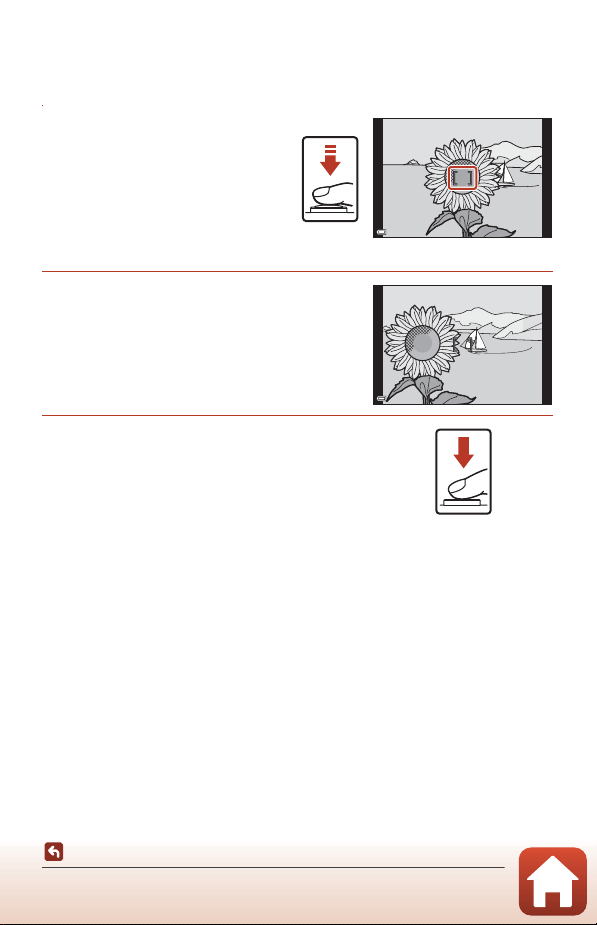
77
Shooting Features
Focusing
Focus Lock
Use focus lock to capture creative compositions even when the focus area is set to the
center of the frame.
1 Position the subject in the
center of the frame and
press the shutter-release
button halfway.
• The camera focuses on the subject
and the focus area is displayed in
green.
• Exposure is also locked.
2 Without lifting your finger,
recompose the picture.
• Make sure to maintain the same distance
between the camera and the subject.
3 Press the shutter-release button all the
way down to take the picture.
C Moving the Focus Area to the Desired Position
In A, B, C, or D shooting mode, the focus area can be moved using the multi selector by
setting AF area mode (A140) in the shooting menu to one of the manual options.
C Using the g (AE-L/AF-L) Button
You can also use the g button to lock the exposure or focus instead of pressing and
holding the shutter-release button halfway (A171).
F 3 .4
F3.4
1 / 25 0
1/250
F 3 .4F3.41 / 25 01/250
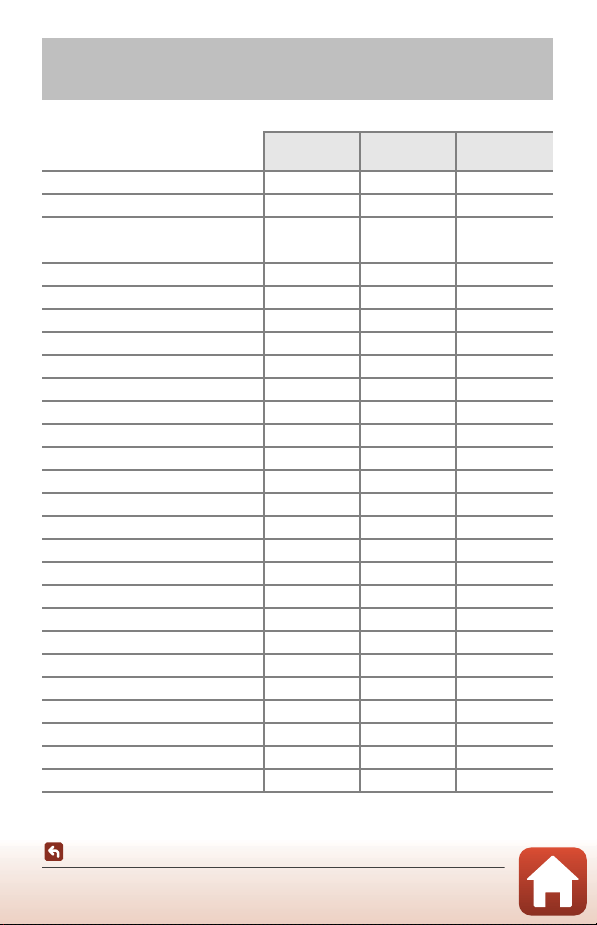
78
Shooting Features
Default Settings (Flash Mode, Self-timer, and Focus Mode)
The default settings for each shooting mode are listed below.
Default Settings (Flash Mode, Self-timer, and
Focus Mode)
Flash mode
(A57)
Self-timer
(A57)
Focus mode
(A57)
A (auto) U k A
1
o (creative mode) U k A
1
y (scene mode)
o (scene auto selector) U
2
k A
3
b (portrait) V k A
3
c (landscape) W
3
k
4
A
3
N (time-lapse movie) W
3
k A
3
d (sports) W
3
k
3
A
5
e (night portrait) V
3
k A
3
f (party/indoor) V
6
k A
3
Z (beach) U k A
1
z (snow) U k A
1
h (sunset) W
3
k A
3
i (dusk/dawn) W
3
k
4
A
3
j (night landscape) W
3
k
4
A
3
k (close-up) U k p
3
u (food) W
3
k p
3
m (fireworks show) W
3
k
3
E
3
o (backlighting) X/W
7
k A
3
p (easy panorama) W
3
k
3
A
3
O (pet portrait)
W
3
Y
8
A
1
O (soft) U k A
1
I (selective color) U k A
1
U (multiple exp. lighten) W
3
n3s A
3
F (smart portrait) U
9
k
10
A
3
M (short movie show) W
3
k A
1
A, B, C, and D X k A

79
Shooting Features
Default Settings (Flash Mode, Self-timer, and Focus Mode)
1
E (manual focus) cannot be selected.
2
The camera automatically selects the flash mode appropriate for the shooting
conditions it has selected. W (off) can be selected manually.
3
Cannot be changed.
4
r5s Self-portrait timer cannot be used.
5
A (autofocus) or E (manual focus) can be selected.
6
May switch to slow sync with red-eye reduction flash mode.
7
When HDR is set to Off, the flash mode is fixed at X (fill flash). When HDR is set to On,
the flash mode is fixed at W (off).
8
Y Pet portrait auto release and r5s Self-portrait timer can be used. n10s or
n3s cannot be used.
9
Cannot be used when Blink proof is set to On.
10
a Smile timer and n Self-Collage can be used in addition to n10s, n3s, or r5s
Self-portrait timer.
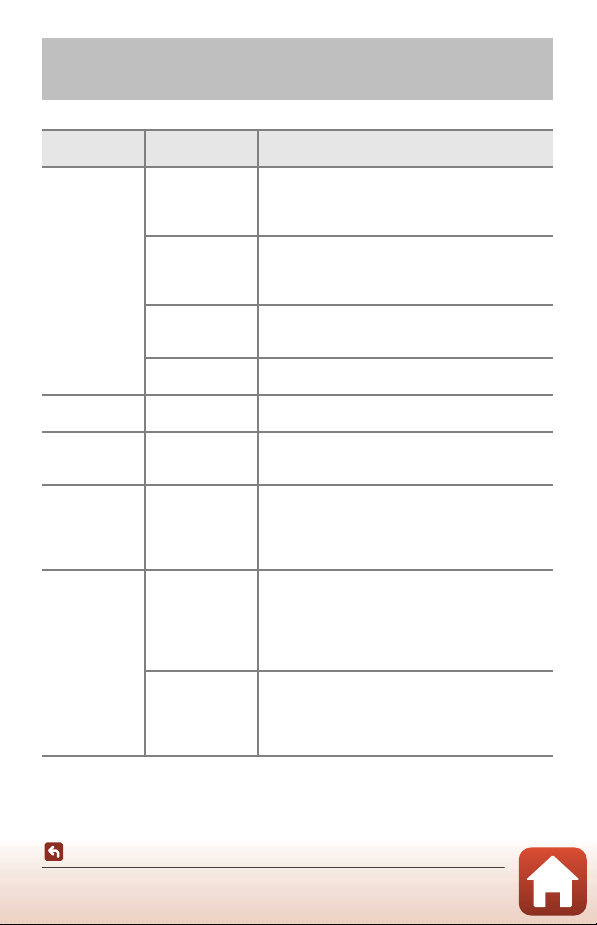
80
Shooting Features
Functions That Cannot Be Used Simultaneously When Shooting
Some functions cannot be used with other menu settings.
Functions That Cannot Be Used
Simultaneously When Shooting
Restricted
function
Option Description
Flash mode
Image quality
(A127)
When saving RAW images, red-eye is not reduced
even when V (auto+red-eye reduction/red-eye
reduction) is set (including simultaneously saved
JPEG images).
Continuous
(A134)
When Continuous H, Continuous M,
Continuous L, Pre-shooting cache,
Continuous H: 120 fps, or Continuous H: 60 fps
is selected, the flash cannot be used.
Exposure
bracketing
(A139)
The flash cannot be used.
Blink proof
(A49)
When Blink proof is set to On, the flash cannot be
used.
Self-timer
AF area mode
(A140)
When Subject tracking is selected, the self-timer
cannot be used.
Hue/vividness
(using the
creative slider)
Image quality
(A127)
When RAW, RAW + Fine, or RAW + Normal is
selected, hue and vividness cannot be set using
the creative slider.
Image quality
Continuous
(A134)
• When Pre-shooting cache is selected, Image
quality is fixed at Normal.
• When Continuous H: 120 fps or Continuous
H: 60 fps is selected, RAW, RAW + Fine, or
RAW + Normal cannot be used.
Image size
Image quality
(A127)
• Wh
en RAW is
selected, Image size is fixed at
i 4608×3456.
• When RAW + Fine or RAW + Normal is
selected, Image size of JPEG images can be set.
However, e 4608×2592, J 4608×3072, or
H 3456×3456 cannot be selected.
Continuous
(A134)
Image size is set as follows depending on the
continuous shooting setting:
• Pre-shooting cache: B 1600×1200
• Continuous H: 120 fps: B 1600×1200
• Continuous H: 60 fps: B 1600×1200
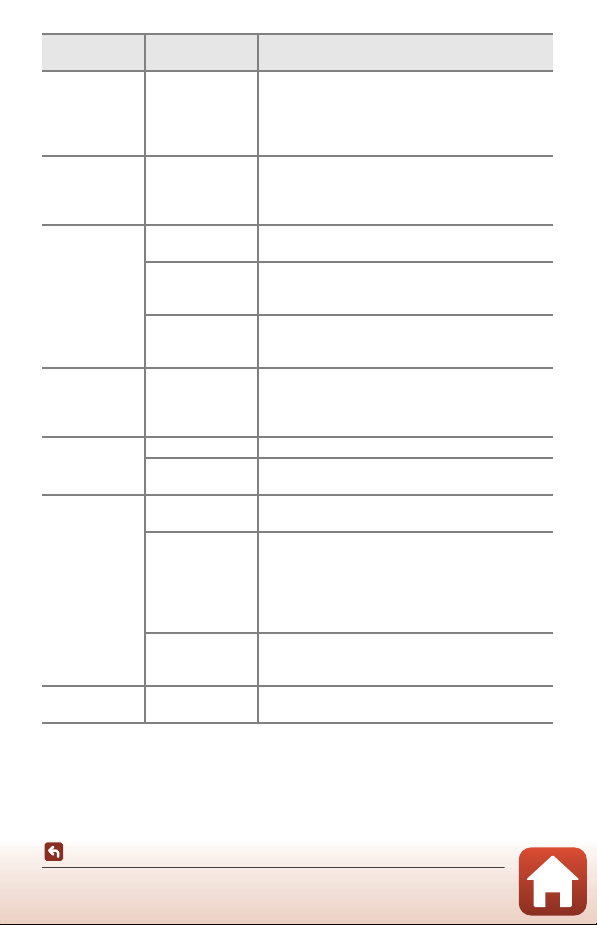
81
Shooting Features
Functions That Cannot Be Used Simultaneously When Shooting
White balance
Hue (using the
creative slider)
(A66)
When hue is adjusted using the creative slider,
White balance in the shooting menu cannot be
set. To set White balance, select g in the creative
slider setting screen to reset the brightness,
vividness, hue, and Active D-Lighting.
Metering
Active D-Lighting
(using the
creative slider)
(A66)
When using Active D-Lighting, Metering is reset
to Matrix.
Continuous
Self-timer (A61)
If the self-timer is used when Pre-shooting cache
is selected, the setting is fixed at Single.
Image quality
(A127)
When RAW, RAW + Fine, or RAW + Normal is
selected, Pre-shooting cache, Continuous H:
120 fps, or Continuous H: 60 fps cannot be used.
Exposure
bracketing
(A139)
Cannot be used at the same time.
ISO sensitivity
Continuous
(A134)
When Pre-shooting cache, Continuous H: 120
fps, or Continuous H: 60 fps is selected, the ISO
sensitivity setting is automatically specified
according to the brightness.
Exposure
bracketing
Self-timer (A61) Exposure bracketing cannot be used.
Continuous
(A134)
Cannot be used at the same time.
AF area mode
Focus mode
(A63)
When E (manual focus) is set, AF area mode
cannot be set.
Hue
(us
ing the
creative slider)
(A66)
When hue is adjusted using the creative slider in
Target finding AF mode, the camera does not
detect the main subject. To detect the main
subject, select g in the creative slider setting
screen to reset the brightness, vividness, hue, and
Active D-Lighting.
White balance
(A130)
When a setting other than Auto is selected for
White balance in Target finding AF mode, the
camera does not detect the main subject.
Autofocus
mode
Focus mode
(A63)
When E (manual focus) is set, Autofocus mode
cannot be set.
Restricted
function
Option Description
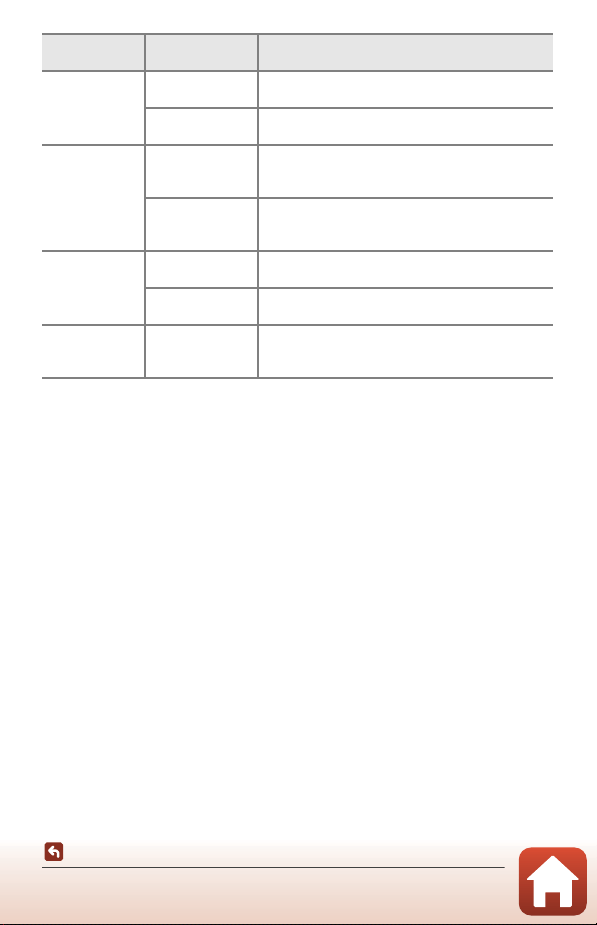
82
Shooting Features
Functions That Cannot Be Used Simultaneously When Shooting
B Notes About Digital Zoom
• Depending on the shooting mode or the current settings, digital zoom may not be
available (A169).
• When digital zoom is in effect, the camera focuses in the center of the frame.
Blink proof
Self-Collage
(A47)
When Self-Collage is set, Blink proof cannot be
used.
Smile timer
(A50)
When Smile timer is set, Blink proof cannot be
used.
Date stamp
Image quality
(A127)
When RAW, RAW + Fine, or RAW + Normal is
selected, date and time cannot be stamped on
images.
Continuous
(A134)
When Pre-shooting cache, Continuous H: 120
fps, or Continuous H: 60 fps is selected, date and
time cannot be stamped on images.
Digital zoom
Image quality
(A127)
When RAW, RAW + Fine, or RAW + Normal is
selected, digital zoom cannot be used.
AF area mode
(A140)
When Subject tracking is selected, digital zoom
cannot be used.
Shutter sound
Exposure
bracketing
(A139)
Shutter sound is disabled.
Restricted
function
Option Description
83
Playback Features
Playback Features
Playback Zoom......................................................................................................................84
Thumbnail Playback/Calendar Display.........................................................................85
Viewing and Deleting Images in a Sequence.............................................................86
Editing Images (Still Images) ............................................................................................88
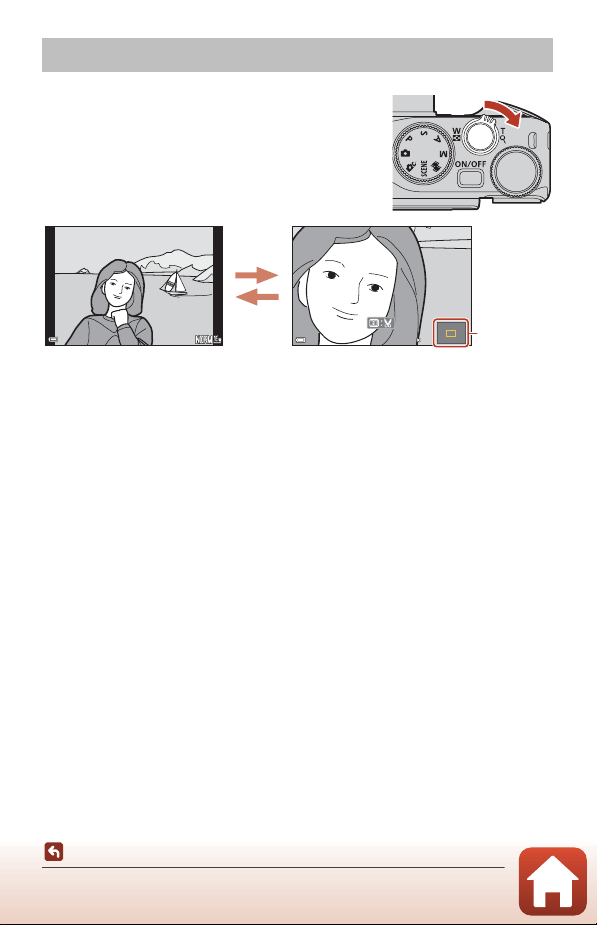
84
Playback Features
Playback Zoom
Moving the zoom control toward g (i playback zoom)
in full-frame playback mode (A27) zooms in on the
image.
• You can change the magnification rate by moving the zoom control toward f
(h) or g (i). The zoom can also be adjusted by rotating the command dial.
• To view a different area of the image, press the multi selector HIJK.
• When a zoomed image is displayed, press the k button to return to full-frame
playback mode.
C Cropping Images
When a zoomed image is displayed, you can press the d button to crop the image to
include only the visible portion and save it as a separate file (A94).
C Operating the Touch Panel on the Playback Screen
You can use the touch panel to operate the playback screen (A7).
Playback Zoom
g (i)
1 0 0 - 0 0 0 4 . J P G
100-0004.JPG
1 5 / 1 1 / 2 0 1 9 1 5 : 3 0
15/11/2019 15:30
4 / 4
4/4
3 . 0
3.0
Image is zoomed in.Full-frame Playback
Displayed
area guide
g (i)
f (h)
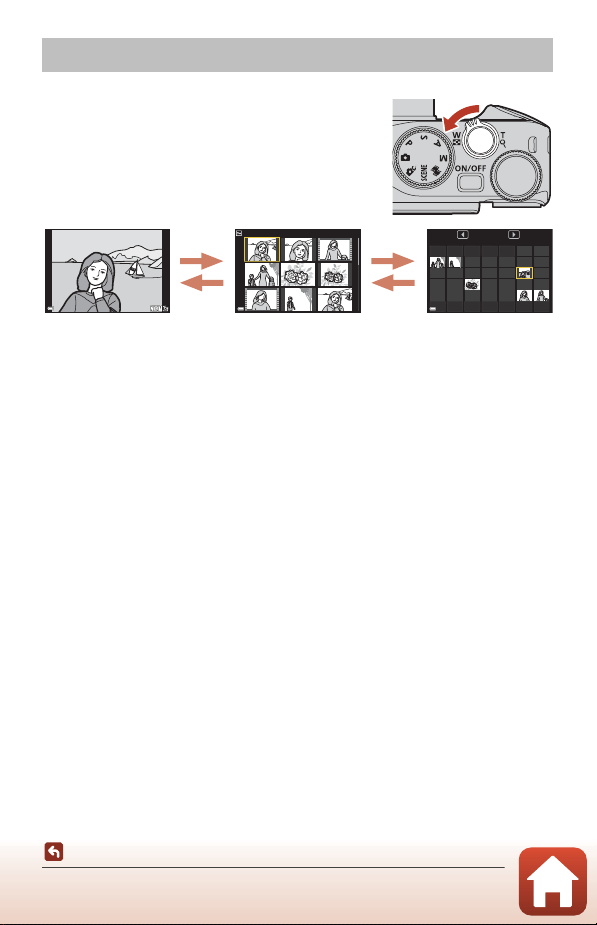
85
Playback Features
Thumbnail Playback/Calendar Display
Moving the zoom control toward f (h thumbnail
playback) in full-frame playback mode (A27) displays
images as thumbnails.
• You can change the number of thumbnails displayed by moving the zoom control
toward f
(
h
)
or g (i).
• While using thumbnail playback mode, press the multi selector HIJK or rotate
it to select an image, and then press the k button to display that image in full-
frame playback mode.
• While using calendar display mode, press HIJK or rotate it to select a date, and
then press the k button to display the images captured on that day.
• You can also select an image by rotating the command dial.
B Notes About Calendar Display
Images captured when the camera’s date is not set are treated as images captured on
January 1, 2019.
C Operating the Touch Panel on the Playback Screen
You can use the touch panel to operate the playback screen (A7).
Thumbnail Playback/Calendar Display
f (h)
1 00- 00 0 4. J PG
100-0004.JPG
1 5/1 1/ 2 01 9 1 5: 3 0
15/11/2019 15:30
4 /4
4/4
1/20
Sun Mon Tue Wed Thu Fri Sat
2019
11
1
1
1
2
2
3
34
4
45
5
56
6
67
7
7
29
29
2928
28
2827
27
2726
26
2625
25
2524
24
24
23
23
2322
22
2221
21
2120
20
2019
19
1918
18
1817
17
17
16
16
1615
15
1514
14
1413
13
1312
12
1211
11
1110
10
10
9
9
8
8
30
30
30
Thumbnail PlaybackFull-frame Playback Calendar Display
g (i)
f (h) f (h)
g (i)
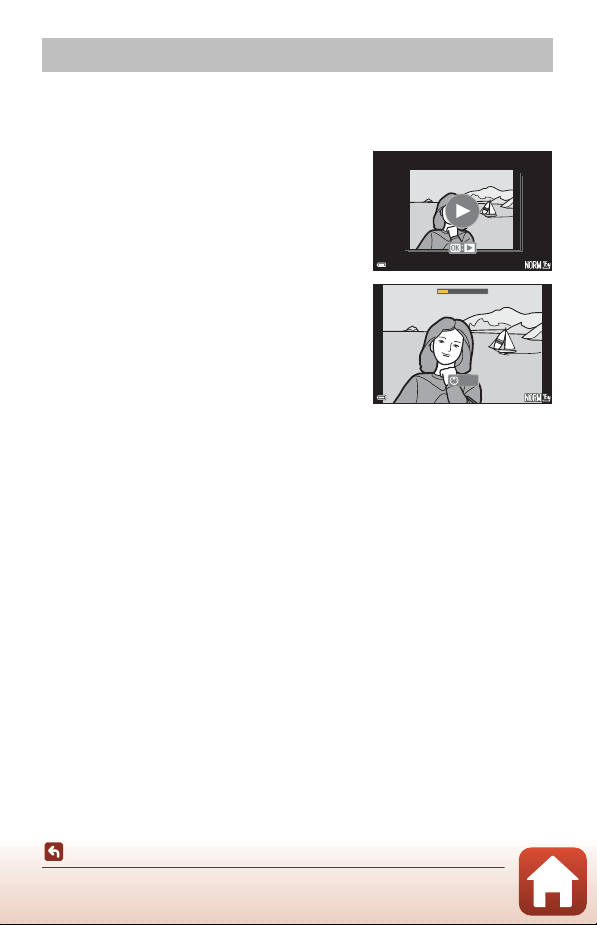
86
Playback Features
Viewing and Deleting Images in a Sequence
Viewing Images in a Sequence
Images captured continuously or with the self-collage function are saved as a
sequence.
One image in a sequence is used as the key picture
to represent the sequence when displayed in full-
frame playback mode or thumbnail playback mode.
To display each image in the sequence individually,
press the k button.
After pressing the k button, the operations listed
below are available.
• To display the previous or next image, rotate the
multi selector or press JK.
• To display images that are not included in the
sequence, press H to return to the key picture
display.
• To display images in a sequence as thumbnails,
or to play them back in a slide show, set
Sequence display (A157) to Individual pictures in the playback menu.
B Sequence Display Options
Images captured with cameras other than this camera cannot be displayed as a sequence.
C Playback Menu Options Available When Using Sequence
• When images in a sequence are displayed in full-frame playback mode, press the d
button to select functions in playback menu (A153).
• If you press the d button when a key picture is displayed, the following settings can be
applied to all images in the sequence:
- Mark for upload, Protect, Copy
Viewing and Deleting Images in a Sequence
1 0 0 - 0 0 0 4 . J P G
100-0004.JPG
1 5 / 1 1 / 2 0 1 9 1 5 : 3 0
15/11/2019 15:30
1 / 5
1/5
1 5 / 1 1 / 2 0 1 9 1 5 : 3 0
15/11/2019 15:30
1 / 5
1/5
1 0 0 - 0 0 0 4 . J P G
100-0004.JPG
Back

87
Playback Features
Viewing and Deleting Images in a Sequence
Deleting Images in a Sequence
When the l (delete) button is pressed for images in a sequence, the images that are
deleted vary depending on how the sequences are displayed.
• When the key picture is displayed:
- Current image: All images in the displayed sequence are deleted.
- Erase selected images: When a key picture is selected on the erase selected
images screen (A29), all images in that sequence are
deleted.
- All images: All images on the memory card or in the internal
memory are deleted.
• When images in a sequence are displayed in full-frame playback mode:
- Current image: The image currently displayed is deleted.
- Erase selected images: Images that are selected in the sequence are deleted.
- Entire sequence: All images in the displayed sequence are deleted.
88
Playback Features
Editing Images (Still Images)
Before Editing Images
You can easily edit images on this camera. Edited copies are saved as separate files.
Edited copies are saved with the same shooting date and time as the original.
C Restrictions on Image Editing
• RAW images cannot be edited.
• A JPEG image can be edited up to 10 times. A still image created by editing a movie can
be edited up to 9 times.
• You may not be able to edit images of a certain size or with certain editing functions.
Editing Images (Still Images)
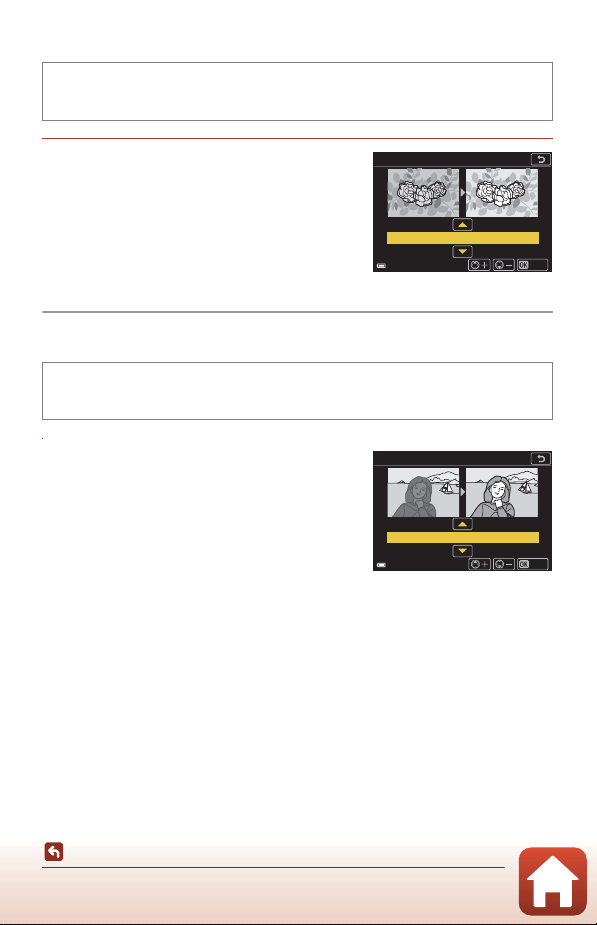
89
Playback Features
Editing Images (Still Images)
Quick Retouch: Enhancing Contrast and Saturation
Use the multi selector HI to select the
desired effect level and press the
k button.
• The edited version is displayed on the right.
• To exit without saving the copy, press J.
D-Lighting: Enhancing Brightness and Contrast
Use the multi selector HI to select the
desired effect level and press the
k button.
• The edited version is displayed on the right.
• To exit without saving the copy, press J.
Press the c button (playback mode) M Select an image M d button M
Quick retouch M k button
Press the c button (playback mode) M Select an image M d button M
D-Lighting M k button
Save
Quick retouch
Normal
Normal
D-Lighting
Save
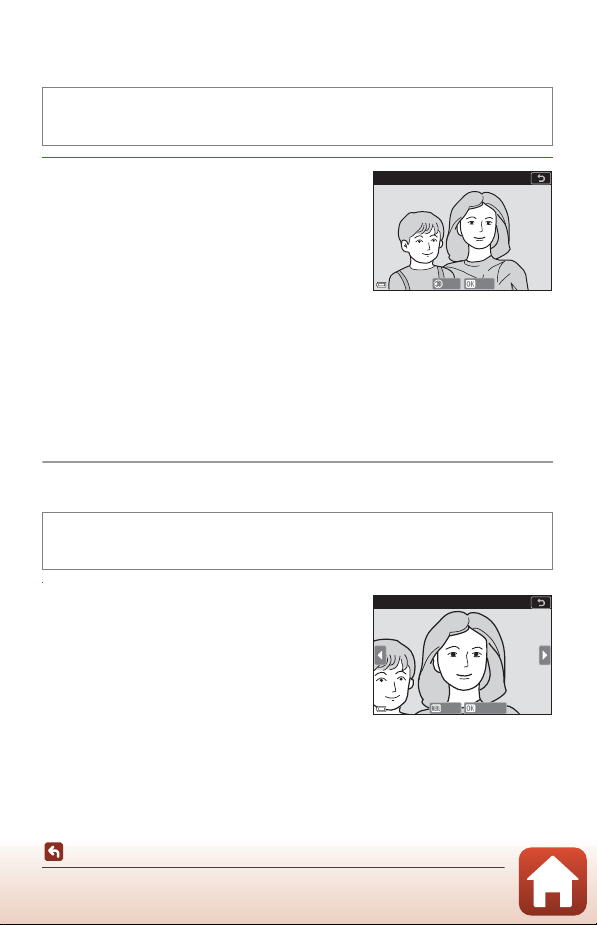
90
Playback Features
Editing Images (Still Images)
Red-eye Correction: Correcting Red-eye When
Shooting with the Flash
Preview the result and press the
k button.
• To exit without saving the copy, press the multi
selector J.
B Notes About Red-eye Correction
• Red-eye correction can only be applied to images when red-eye is detected.
• Red-eye correction can be applied to pets (dogs or cats) even if their eyes are not red.
• Red-eye correction may not produce the desired results in some images.
• In rare cases, red-eye correction may be applied unnecessarily to other areas of the image.
Glamour Retouch: Enhancing Human Faces
1 Use the multi selector HIJK to
select the face that you want to
retouch and press the k button.
• When only one face is detected, proceed to
step 2.
Press the c button (playback mode) M Select an image M d button M
Red-eye correction M k button
Press the c button (playback mode) M Select an image M d button M
Glamour retouch M k button
Red-eye correction
Save
Back
Subject selection
Conrm
Back
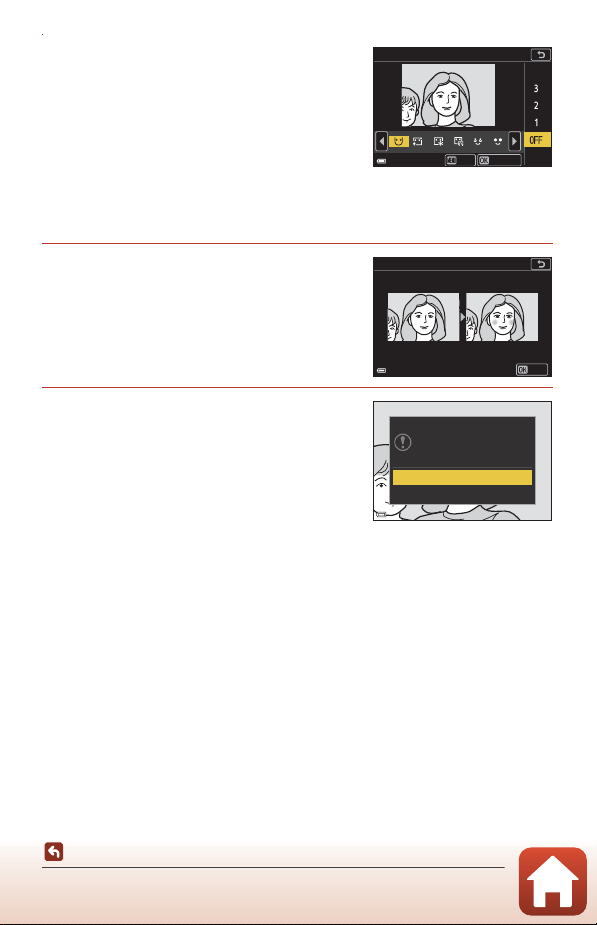
91
Playback Features
Editing Images (Still Images)
2 Use JK to select the effect, use HI
to select the effect level, and press
the k button.
• You can simultaneously apply multiple effects.
Adjust or check the settings for all effects
before pressing the k button.
F Small face, B Skin softening,
l Foundation makeup, m Glare
reduction, E Hide eye bags, A Big eyes, G Whiten eyes, n Eye shadow,
o Mascara, H Whiten teeth, p Lipstick, D Redden cheeks
• Press the d button to return to the screen for selecting a person.
3 Preview the result and press the k
button.
• To change the settings, press J to return to
step 2.
• To exit without saving the edited image, press
the d button.
4 Select Yes and press the k button.
• An edited copy is created.
B Notes About Glamour Retouch
• Only one face at a time can be edited. To apply glamour retouch to another face, edit the
edited image again.
• Depending on the direction in which faces are looking, or the brightness of faces, the
camera may be unable to accurately detect faces, or the glamour retouch function may
not perform as expected.
• If no faces are detected, a warning is displayed and the screen returns to the playback
menu.
• The glamour retouch function is available only for images captured at an ISO sensitivity of
1600 or lower, and the image size of 640 × 480 or larger.
Small face
PreviewBack
Preview
Save
Yes
No
Save OK?
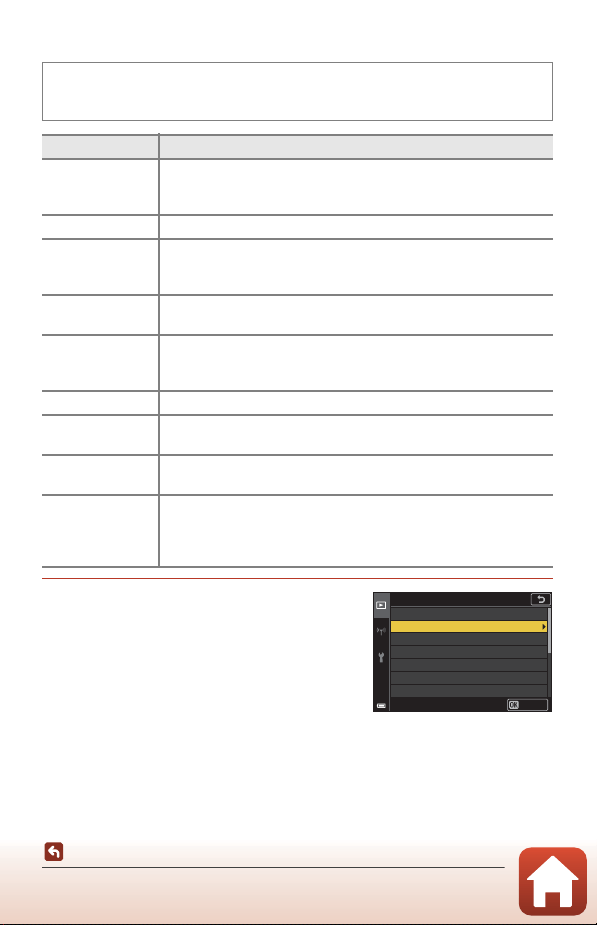
92
Playback Features
Editing Images (Still Images)
Filter Effects: Applying Digital Filter Effects
1 Use the multi selector HI to select
the desired filter effect and press the
k button.
• When effects other than Selective color are
selected, proceed to step 3.
Press the c button (playback mode) M Select an image M d button M Filter
effects M k button
Option Description
Soft portrait
Blurs the background of human subjects. When no human subjects
are detected, keeps the area in the center of the frame in focus and
blurs the surrounding area.
Selective color Keeps only a selected color and makes other colors black-and-white.
Cross screen
Produces star-like rays of light that radiate outward from bright
objects such as sunlight reflections and city lights. Suitable for night
scenes.
Fisheye
Creates images that look like they were shot with a fisheye lens.
Suitable for images shot in macro mode.
Miniature effect
Creates images that look like close-up photos of a diorama. Suitable
for images shot while looking down from a high location, with the
main subject near the center of the frame.
Painting Creates images with the ambience of paintings.
Vignette
Lowers the peripheral light intensity from the center to the edges of
an image.
Photo illustration
Emphasizes outlines and reduces the number of colors to create
images with the ambience of illustrations.
Portrait (color +
B&W)
Makes colors of the background of human subjects black-and-white.
When no human subjects are detected, keeps colors of the area in
the center of the frame and makes the surrounding area black-and-
white.
Filter effects
Cross screen
Selective color
Soft portrait
Fisheye
Painting
Vignette
Miniature eect
Conrm
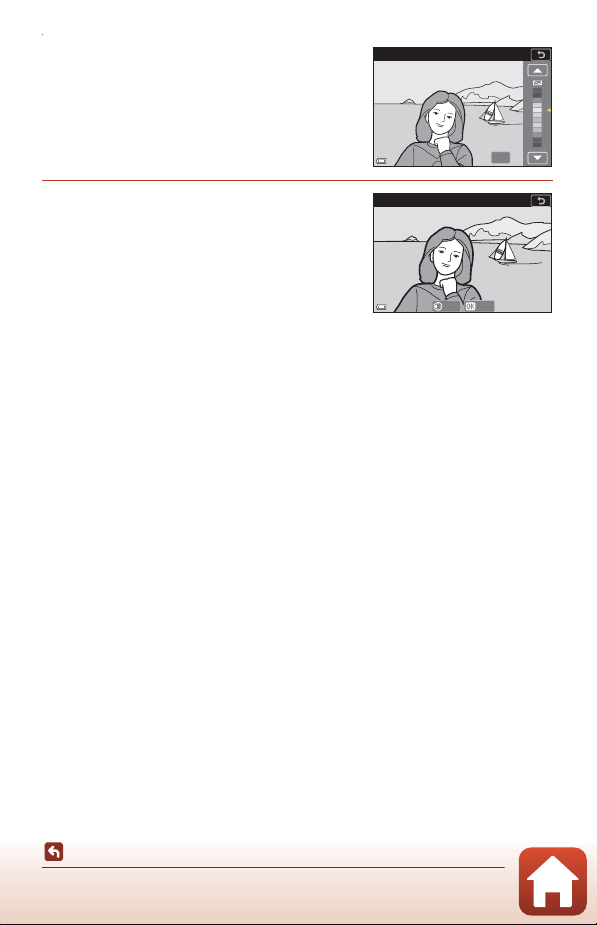
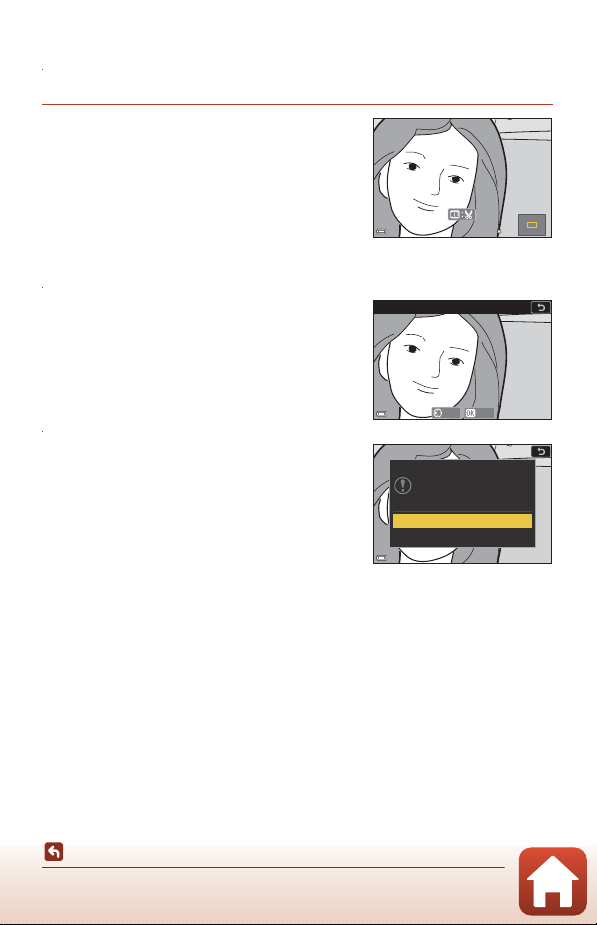
94
Playback Features
Editing Images (Still Images)
Crop: Creating a Cropped Copy
1 Move the zoom control to enlarge the image (A84).
2 Adjust the image so that only the
portion that you want to keep is
displayed, and then press the d
(menu) button.
• Move the zoom control toward g (i) or f
(h) to adjust the magnification rate. Set a
magnification rate at which u is displayed.
• Use the multi selector HIJK to scroll to the portion of the image that you want
to display.
3 Confirm the area that you want to
keep, and press the k button.
• To reselect a cropping area, press J to return
to step 2.
• To exit without saving the cropped image,
press the d button.
4 Select Yes and press the k button.
• An edited copy is created.
B Notes About Cropping
Easy panorama images cannot be edited.
C Image Size
• The aspect ratio (horizontal to vertical) of the cropped copy is the same as the original.
• When the image size of the cropped copy is 320 × 240 or smaller, the image is displayed at
a smaller size during playback.
3 . 0
3.0
Trim
Save
Back
Save this image as
displayed?
Yes
No
95
Movies
Movies
Basic Operations of Movie Recording and Movie Playback..................................96
Capturing Still Images While Recording Movies....................................................100
Shooting Time-lapse Movies.........................................................................................101
Short Movie Show Mode (Combining Movie Clips to Create Short Movies)... 103
Operations During Movie Playback............................................................................106
Editing Movies.................................................................................................................... 107
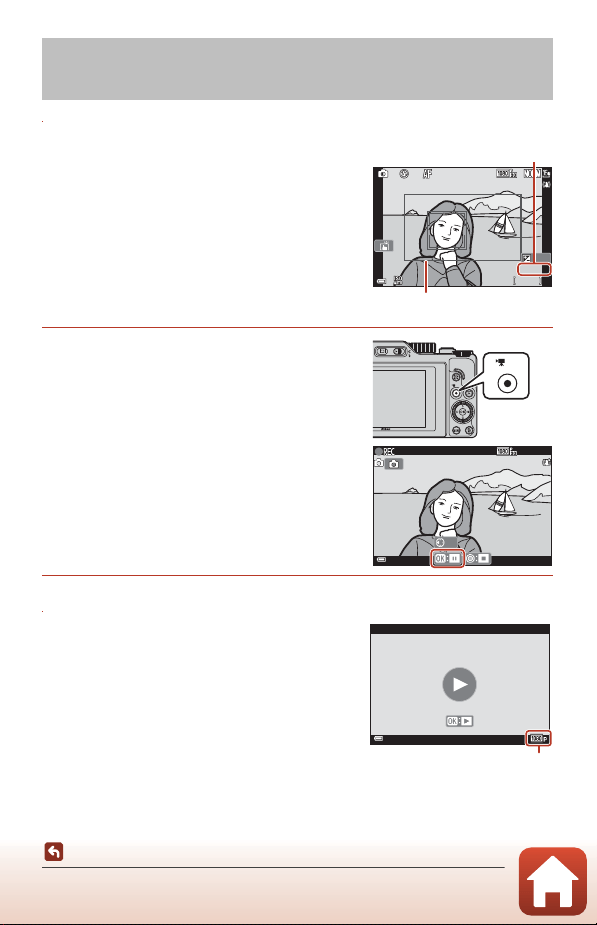
96
Movies
Basic Operations of Movie Recording and Movie Playback
1 Display the shooting screen.
• Check the remaining amount of movie
recording time.
• It is recommended that you display the movie
frame that indicates the area that will be
recorded in a movie (A97).
2 Press the b (e movie-record)
button to start movie recording.
• The camera focuses in the center of the frame.
• Press the k button to pause recording, and
press the k button again to resume recording
(except when an HS movie option is selected in
Movie options). Recording automatically ends
if it remains paused for about five minutes.
• You can capture a still image by pressing the
shutter-release button while recording a movie
(A100).
3 Press the b (e) button again to end recording.
4 Select a movie in full-frame playback
mode and press the k button to
play it back.
• An image with a movie options icon is a movie.
Basic Operations of Movie Recording and
Movie Playback
F 3 .4
F3.4
5 0 0
500
2 5 m 0s
25m 0s
0 . 0
0.0
1 / 25 0
1/250
1 0 0
100
Remaining movie
recording time
Movie frame
2 5 m 0s25m 0s
AF
1 0 0 - 0 0 0 5 . M P 4
100-0005.MP4
1 5 / 1 1 / 2 0 1 9 1 5 : 3 0
15/11/2019 15:30
1 0 s
10s
Movie options

97
Movies
Basic Operations of Movie Recording and Movie Playback
Movie Frame
• Set Photo info in Monitor settings (A163) in the setup menu to Movie
frame+auto info to display the movie frame. Check the range of a movie in a
frame before movie recording.
• The area that is recorded in a movie varies depending on the Movie options or
Movie VR settings in the movie menu.
Focus and Exposure While Recording Movies
• The focus can be adjusted during movie recording in the following manner in
accordance with the Autofocus mode (A143) setting of the movie menu.
- A Single AF (default setting): The focus is locked when movie recording
starts. To perform the autofocus function during movie recording, press the
multi selector J.
- B Full-time AF: The focus is adjusted repeatedly even during movie
recording. When you press the g button during movie recording, the exposure
or focus is locked. To unlock, press the g button again.
• When the focus mode (A63) is E (manual focus), adjust the focus manually. The
focus can be adjusted while recording movies by rotating the multi selector
counterclockwise to focus on far subjects or clockwise to focus on near subjects.
The focus can also be adjusted by rotating the command dial. Set Assign side
zoom control (A170) in the setup menu to Manual focus to focus by using the
side zoom control.
• The camera continues to set the exposure while recording movies. When you press
the g button, the exposure or focus is locked.
• The function of the K button when it is pressed while recording movies differs
depending on the AE/AF lock button (A171) setting in the setup menu.
- When set to AE lock only or AE lock (Hold): Pressing K locks the focus. To
unlock, press K again.
- When set to AF lock only: Pressing K locks the exposure. To unlock, press K
again.

98
Movies
Basic Operations of Movie Recording and Movie Playback
Maximum Movie Recording Time
Individual movie files cannot exceed 29 minutes in length, even when there is
sufficient free space on the memory card for longer recording.
The maximum size of a single movie file is 4 GB. If a file exceeds 4 GB even when you
record for less than 29 minutes, it is split into multiple files and cannot be played back
continuously (A145).
• The remaining recording time for a single movie is displayed on the shooting
screen.
• Recording may end before either limit is reached if camera temperature becomes
elevated.
• The actual remaining recording time may vary depending on the movie content,
subject movement, or type of memory card.
• Memory cards with an SD Speed Class rating of 6 (Video Speed Class V6) or faster
are recommended for recording movies. When Movie options is set to d
2160/30p (4K UHD) or c 2160/25p (4K UHD), memory cards with a UHS Speed
Class rating of 3 (Video Speed Class V30) or faster are recommended. When using a
memory card with a lower Speed Class rating, movie recording may stop
unexpectedly.
B Camera Temperature
• The camera may become hot when recording movies for an extended period of time or
when the camera is used in a hot area.
• If the inside of the camera becomes extremely hot when recording movies, the camera
will automatically stop recording. The amount of time remaining until the camera stops
recording (B10s) is displayed.
After the camera stops recording, it turns itself off.
Leave the camera off until the inside of the camera has cooled.
Notes About Movie Recording
B Notes About Saving Images or Movies
• The indicator showing the number of exposures remaining or the indicator showing the
remaining recording time flashes while images or movies are being saved. Do not open
the battery-chamber/memory card slot cover or remove the battery or memory
card while an indicator is flashing. Doing this could result in loss of data, or in damage to
the camera or the memory card.
• When using the camera’s internal memory, saving movies may take some time.
• When using certain Movie options settings, it may not be possible to save the movie in
the internal memory or copy it from a memory card to the internal memory.

99
Movies
Basic Operations of Movie Recording and Movie Playback
B Notes About Recorded Movies
• There may be some degradation in image quality when digital zoom is used.
• The sounds of zoom control operation, zoom, autofocus lens drive movement, movie
vibration reduction, and aperture operation when brightness changes may be recorded.
• The following phenomena may be seen on the screen while recording movies. These
phenomena are saved in the recorded movies.
- Banding may occur in images under fluorescent, mercury-vapor, or sodium-vapor
lighting.
- Subjects that move quickly from one side of the frame to the other, such as a moving
train or car, may appear skewed.
- The entire movie image may be skewed when the camera is panned.
- Lighting or other bright areas may leave residual images when the camera is moved.
• Depending on the distance to the subject or the amount of zoom applied, colored stripes
may appear on subjects with repeating patterns (fabrics, lattice windows, etc.) during
movie recording and playback. This occurs when the pattern in the subject and the layout
of the image sensor interfere with each other; it is not a malfunction.
B Notes About Vibration Reduction During Movie Recording
• When Movie VR (A151) in the movie menu is set to On (hybrid), the angle of view (i.e.,
the area visible in the frame) becomes narrower during movie recording.
• When using a tripod to stabilize the camera during recording, set Movie VR to Off to
prevent potential errors caused by this function.
B Notes About Autofocus for Movie Recording
Autofocus may not perform as expected (A76). Should this occur, focus using manual
focus (A63, 64) or try the following:
1. Set
Autofocus mode
in the movie menu to Single AF (default setting) before starting
movie recording.
2. Frame another subject (positioned at the same distance from the camera as the intended
subject) in the center of the frame, press the b (e) button to start recording, and modify
the composition.
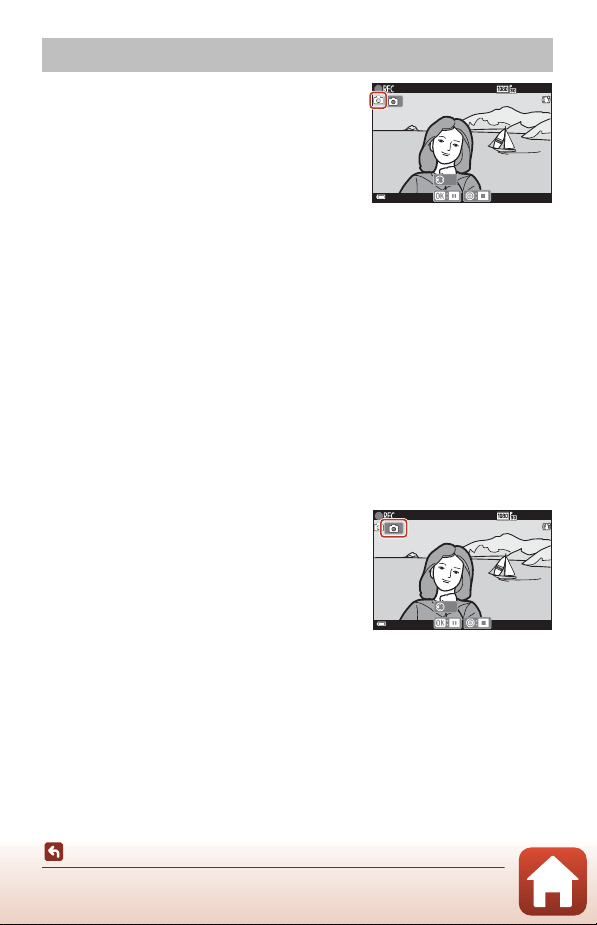
100
Movies
Capturing Still Images While Recording Movies
If the shutter-release button is pressed all the way
while recording a movie, one frame is saved as a still
image (JPEG image). Movie recording continues
while the still image is being saved.
• A still image can be captured when Q is
displayed on the screen. When z is displayed, a
still image cannot be captured.
• The size of the captured still image is the same as
the movie image size (A146). The image quality
is fixed at Normal.
B Notes About Capturing Still Images During Movie Recording
• Still images cannot be saved during movie recording in the following situations:
- When the remaining movie recording time is less than five seconds
- When Movie options (A145) is set to an HS movie option
• The frames of a movie that were recorded when a still image was being captured may not
play back smoothly.
• The sounds of operating the shutter-release button when saving a still image may be
heard in the recorded movie.
• If the camera moves when the shutter-release button is pressed, the image may be
blurred.
C Capturing Still Images with Touch-screen Controls
You can also capture still images while recording
movies by tapping Q on the screen.
Capturing Still Images While Recording Movies
2 5 m 0s
25m 0s
AF
2 5 m 0s
25m 0s
AF
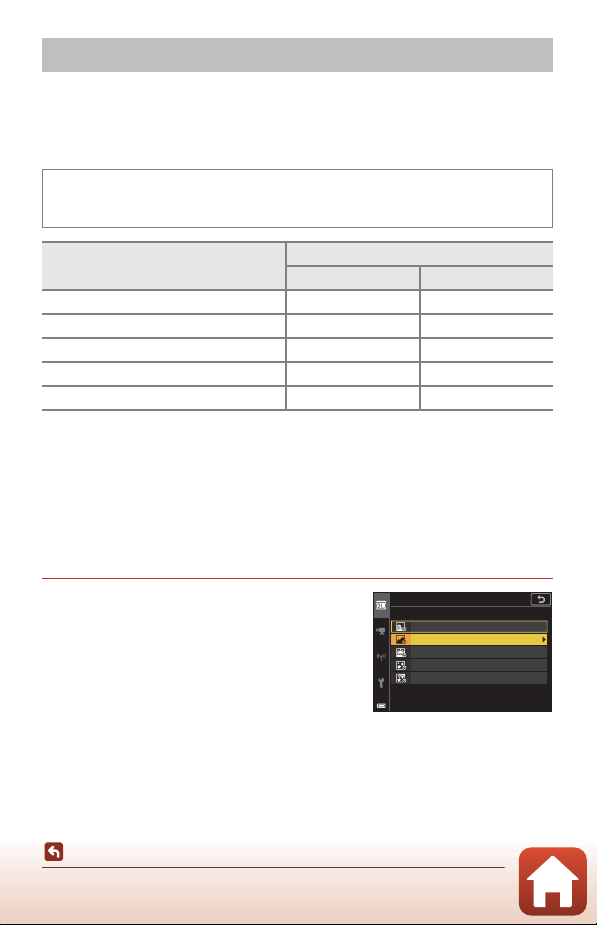
101
Movies
Shooting Time-lapse Movies
The camera can automatically capture still images at a specified interval to create
time-lapse movies that are approximately 10 seconds long.
• When the Frame rate setting of the movie menu is set to 30 fps (30p/60p), 300
images are captured and saved with e 1080/30p. When set to 25 fps (25p/
50p), 250 images are captured and saved with S 1080/25p.
1
The camera focuses on the area in the center of the frame.
2
The camera focuses at infinity.
3
Suited for recording the movement of stars. The focus is fixed at infinity.
4
The zoom moves to the maximum wide-angle position automatically. The telephoto
zoom position is restricted to the angle of view equivalent to that of approx. 300 mm lens
(in 35mm [135] format).
5
Star movement appears as lines of light due to image processing. The focus is fixed at
infinity.
1 Use the multi selector HI to select
a type, and press the k button.
Shooting Time-lapse Movies
Rotate the mode dial to y M d button M N Time-lapse movie M k
button
Type (required shooting time)
Interval time
30 fps (30p/60p) 25 fps (25p/50p)
O Cityscape (10 minutes)
1
2 s 2.4 s
P Landscape (25 minutes)
2
5 s 6 s
Q Sunset (50 minutes)
2
10 s 12 s
R Night sky (150 minutes)
3, 4
30 s 36 s
S Star trails (150 minutes)
4, 5
30 s 36 s
Night sky (150 minutes)
Time-lapse movie
Cityscape (10 minutes)
Landscape (25 minutes)
Sunset (50 minutes)
Star trails (150 minutes)
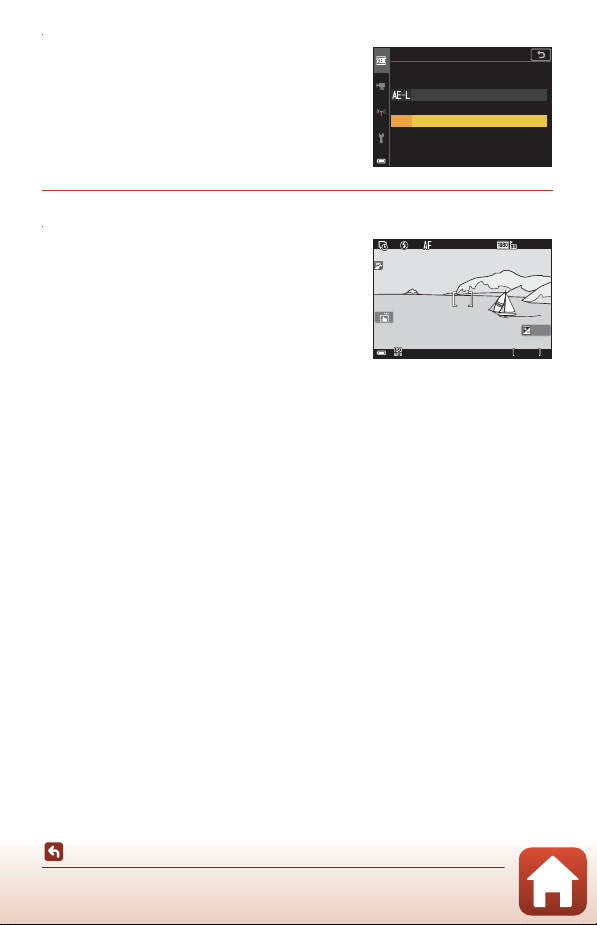
102
Movies
Shooting Time-lapse Movies
2 Select whether or not to fix exposure
(brightness), and press the k button
(except Star trails (150 minutes)
and Night sky (150 minutes)).
• When AE-L on is selected, the exposure used
for the first image is used for all images. When
the brightness changes drastically like at dusk,
AE-L off is recommended.
3 Stabilize the camera by using a tool such as a tripod.
4 Press the shutter-release button to
capture the first image.
• Set exposure compensation (A68) before
releasing the shutter for the first image.
Exposure compensation cannot be changed
after the first image is captured. Focus and hue
are fixed when the first image is captured.
• The shutter is automatically released for the
second and subsequent images.
• The screen may turn off while the camera is not capturing images. The power-on
lamp flashes while the screen is off.
• Shooting ends automatically when 300 or 250 images are captured.
• Press the k button to end shooting before the required shooting time elapses and
create a time-lapse movie.
• Sound and still images cannot be saved.
B Notes About Time-lapse Movie
• The camera cannot capture images if a memory card is not inserted.
• Do not rotate the mode dial or remove the memory card until shooting ends.
• Use a sufficiently charged battery to prevent the camera from turning off unexpectedly.
• Time-lapse movies cannot be recorded by pressing the b (e) button.
• Vibration reduction is disabled regardless of the Photo VR setting (A168) in the setup
menu.
AE-L o
AE-L on
Landscape (25 minutes)
2 5 m 0s25m 0s
5 0 05001 / 25 01/250 F 3 . 4F3.4
0 . 00.0
2 5 m 0s25m 0s
1 0 0100
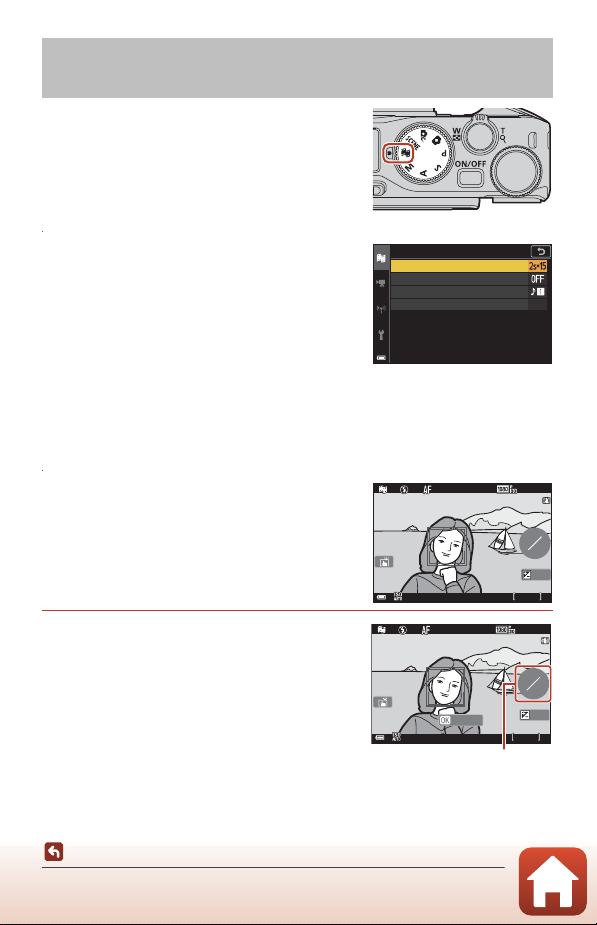
103
Movies
Short Movie Show Mode (Combining Movie Clips to Create Short Movies)
The camera creates a short movie that is up to 30
seconds long (e1080/30p or S1080/25p)
by recording and automatically combining multiple
movie clips that are several seconds long.
1 Press the d (menu) button and
configure the settings for recording
movies.
• Number of shots: Set the number of movie
clips that the camera records and the recording
time for each movie clip. By default, the camera
records 15 movie clips that are 2 seconds each
to create a 30-second short movie.
• Special effects (A104): Apply various effects to movies when shooting.
Effects can be changed for each movie clip.
• Background music: Select the background music. Move the zoom control (A2)
toward g (i) to preview it.
• After the settings are complete, press the d button or shutter-release button to
exit the menu.
2 Press the b (e movie-record)
button to record a movie clip.
• The camera automatically stops recording the
movie clip when the time specified in step 1
elapses.
• Movie clip recording can be paused temporarily.
See “Pausing Movie Recording” (A105).
3 Check the recorded movie clip, or
delete it.
• To check it, press the k button.
• To delete it, press the l button. The last
recorded movie clip or all movie clips can be
deleted.
• To continue recording movie clips, repeat the
operation in step 2.
• To change the effects, return to step 1.
Short Movie Show Mode (Combining Movie
Clips to Create Short Movies)
Short movie show
Number of shots
Special eects
Background music
End recording
F 3 .4
F3.4
5 0 0
500
2 5 m 0s
25m 0s
0 . 0
0.0
0
15
1 / 25 0
1/250
1 0 0
100
F 3 .4F3.4 5 0 0500
Preview
2 4 m3 6s24m36s
0 . 00.0
12
15
1 / 25 01/250
1 0 0100
Number of movie clips
recorded
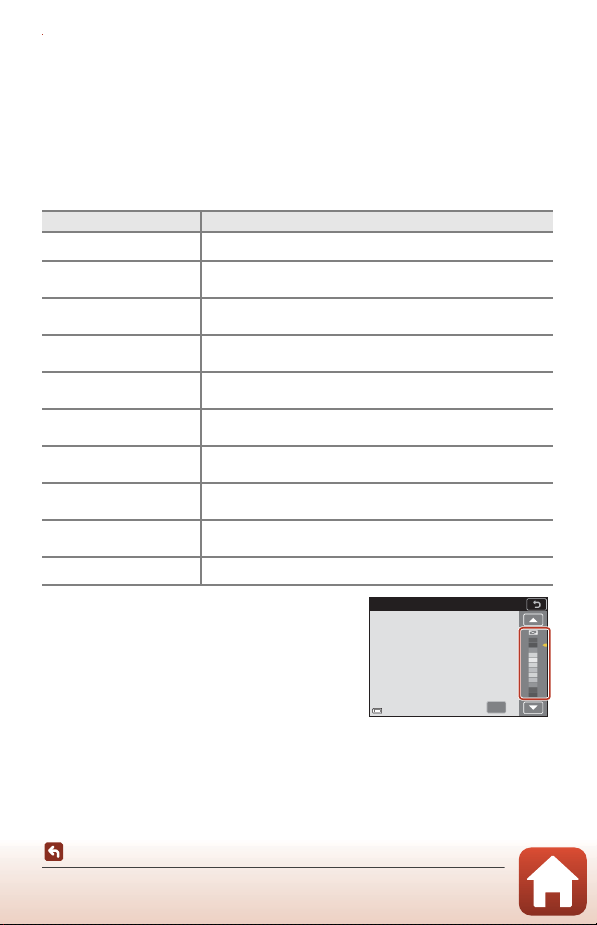
104
Movies
Short Movie Show Mode (Combining Movie Clips to Create Short Movies)
4 Save the short movie show.
• The short movie show is saved when the camera finishes recording the specified
number of movie clips.
• To save a short movie show before the camera finishes recording the specified
number of movie clips, press the d button when the shooting standby screen is
displayed, and then select End recording.
• Movie clips are deleted when a short movie show is saved.
Special Effects
• When Selective color or Cross process is
selected, use the multi selector HI to select
the desired color, and press the k button to
apply the color.
Function Description
O Soft Softens the image by adding a slight blur to the entire image.
P Nostalgic sepia
Adds a sepia tone and reduces the contrast to simulate the
qualities of an old photograph.
F High-contrast mono.
Creates a black-and-white photograph with a strong
contrast.
I Selective color
Keeps only a selected color and makes other colors black-
and-white.
l Pop
Increases the color saturation of the entire image to create a
bright look.
o Cross process
Gives the image a mysterious appearance based on a specific
color.
m Toy camera effect 1
Gives the entire image a yellowish hue and darkens the
image periphery.
n Toy camera effect 2
Decreases the color saturation of the entire image and
darkens the image periphery.
b Mirror
Reflects the left half of the image from the center to create a
symmetric image.
k Off (default setting) No effect is applied to the image.
OK
Selective color
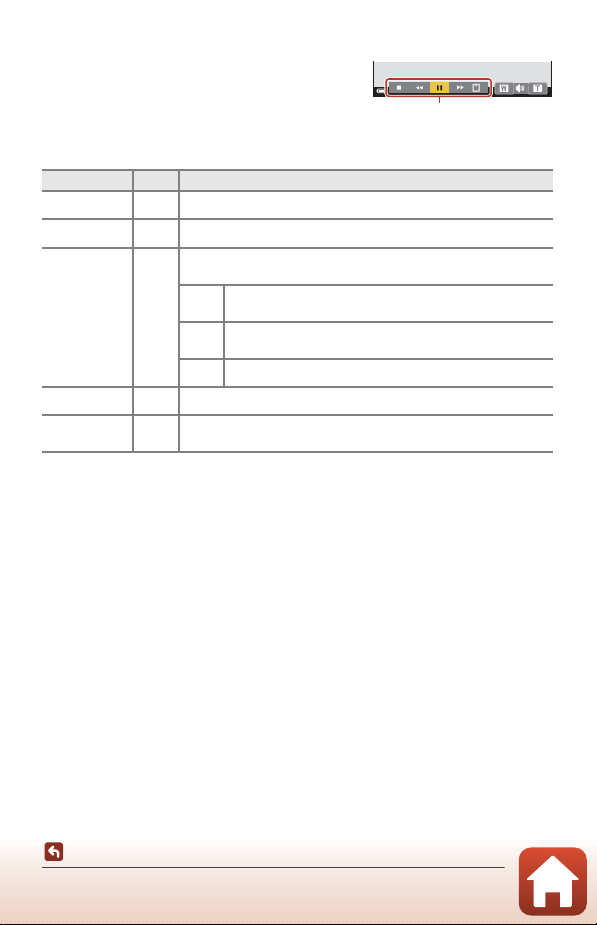
105
Movies
Short Movie Show Mode (Combining Movie Clips to Create Short Movies)
Operations During Movie Clip Playback
To adjust the volume, move the zoom control while
a movie clip is playing (A2).
Playback controls are displayed on the screen.
The operations described below can be performed
by using the multi selector JK to select a control
and then pressing the k button.
B Notes About Recording a Short Movie Show
• The camera cannot record movies if a memory card is not inserted.
• Do not exchange the memory card until a short movie show is saved.
C Pausing Movie Recording
• A still image with Normal in image quality and e 4608×2592 in image size can be
captured if you press the shutter-release button when the shooting standby screen is
displayed.
• You can pause movie recording and play back images or enter other shooting modes to
take pictures. Movie recording resumes when you enter short movie show mode again.
Functions Available in Short Movie Show Mode
• Self-timer (A61)
• Focus mode (A63)
• Exposure compensation (A68)
• Short movie show menu (A103)
• Movie options menu (A145)
Function Icon Description
Rewind A Hold down the k button to rewind the movie.
Fast-forward B Hold down the k button to fast-forward the movie.
Pause E
Pause playback. The operations listed below can be performed
while paused.
C
Rewind the movie one frame. Hold down the k button
for continuous rewinding.
D
Advance the movie one frame. Hold down the k button
for continuous advancing.
F Resume playback.
End playback G Return to the shooting screen.
End
recording
p Save the short movie show using the recorded movie clips.
Playback controls
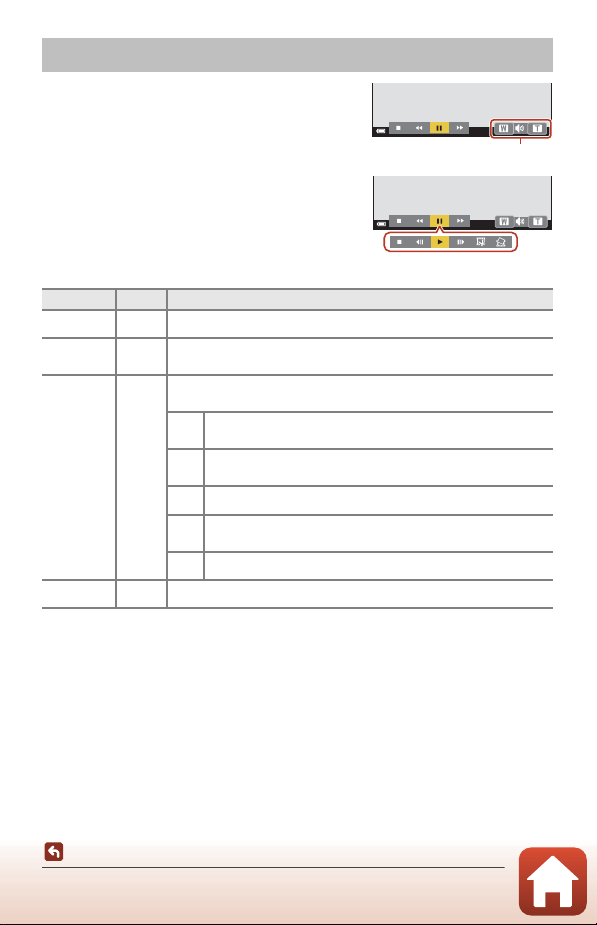
106
Movies
Operations During Movie Playback
To adjust the volume, move the zoom control while
a movie is playing (A2).
Rotate the multi selector or the command dial to
fast-forward or rewind.
Playback controls are displayed on the screen.
The operations described below can be performed
by using the multi selector JK to select a control
and then pressing the k button.
* The movie can also be advanced or rewound by one frame by rotating the multi selector
or command dial.
C Operating the Touch Panel During Movie Playback
Tap the screen during movie playback to pause the movie (A7). Tap the screen while the
movie is paused to resume playback.
Operations During Movie Playback
Function Icon Description
Rewind A Hold down the k button to rewind the movie.
Fast-
forward
B Hold down the k button to fast-forward the movie.
Pause E
Pause playback. The operations listed below can be performed
while paused.
C
Rewind the movie one frame. Hold down the k button for
continuous rewinding.*
D
Advance the movie one frame. Hold down the k button for
continuous advancing.*
F Resume playback.
I
Extract the desired portion of a movie and save it as a
separate file.
H Extract a single frame of a movie and save it as a still image.
End G Return to full-frame playback mode.
Volume indicator
When paused
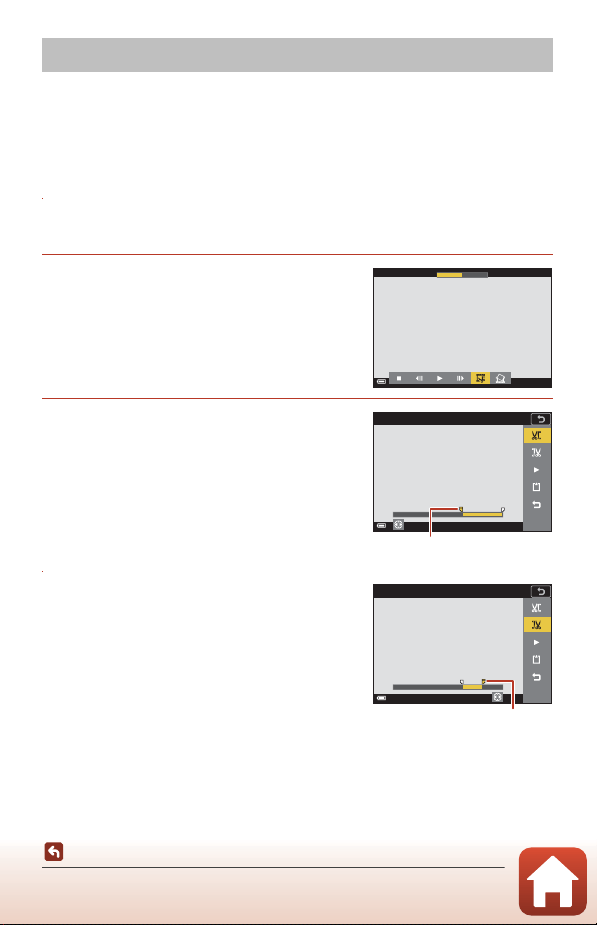
107
Movies
Editing Movies
When editing movies, use a sufficiently charged battery to prevent the camera from
turning off during editing. When the battery level indicator is B, movie editing is not
possible.
Extracting Only the Desired Portion of a Movie
The desired portion of a recorded movie can be saved as a separate file.
1 Play back a desired movie and pause at the start point of the
portion that you want to extract (A106).
2 Use the multi selector JK to select
the I control, and then press the
k button.
3 Use HI to select M (choose start
point).
• Use JK or rotate the command dial to move
the start point. You can also adjust it by sliding
the start point icon (A7).
• To cancel editing, select O (back), and press
the k button.
4 Use HI to select N (choose end
point).
• Use JK or rotate the command dial to move
the end point. You can also adjust it by sliding
the end point icon.
• To preview the specified portion, use HI to
select F and then press the k button. Press
the k button again to stop previewing.
Editing Movies
1 m 3 0 s
1m30s
1 m 0s
1m 0s
Choose start point
Start point
3 0 s30s
Choose end point
End point
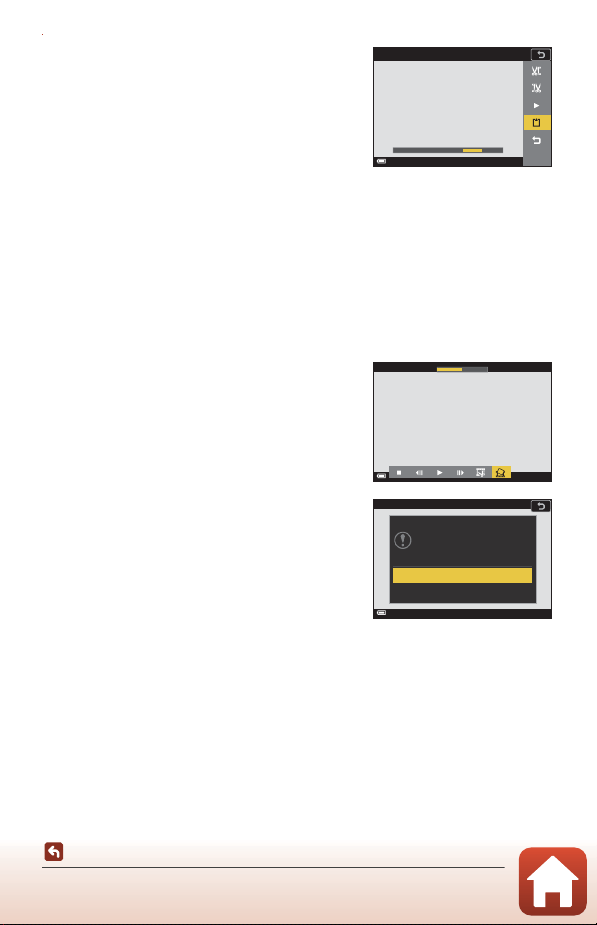
108
Movies
Editing Movies
5 Use HI to select m (save) and press
the k button.
• Follow the instructions on the screen to save
the movie.
B Notes About Movie Extracting
• A movie that was created by editing cannot be edited again.
• The actual trimmed portion of a movie may differ slightly from the portion selected using
the start and end points.
• Movies cannot be trimmed so that they are less than two seconds long.
Saving a Frame from a Movie as a Still Image
The desired frame of a recorded movie can be extracted and saved as a still image.
• Pause a movie and display the frame to be
extracted (A106).
• Use the multi selector JK to select the H
control and press the k button.
• Select Yes when a confirmation dialog is
displayed, and press the k button to save the
image.
• The still image is saved with Normal as the
image quality. The image size is determined by
the original movie image size (A146).
B Restrictions on Extracting Still Images
Still images cannot be extracted from a movie recorded with an HS movie option.
3 0 s
30s
Save
1 m 3 0 s
1m30s
Yes
No
Copy this frame as a still image?
109
Connecting the Camera to a TV, Printer, or Computer
Connecting the Camera to a TV,
Printer, or Computer
Utilizing Images ................................................................................................................. 110
Viewing Images on a TV..................................................................................................111
Printing Images Without a Computer........................................................................ 112
Transferring Images to a Computer (ViewNX-i) ..................................................... 116
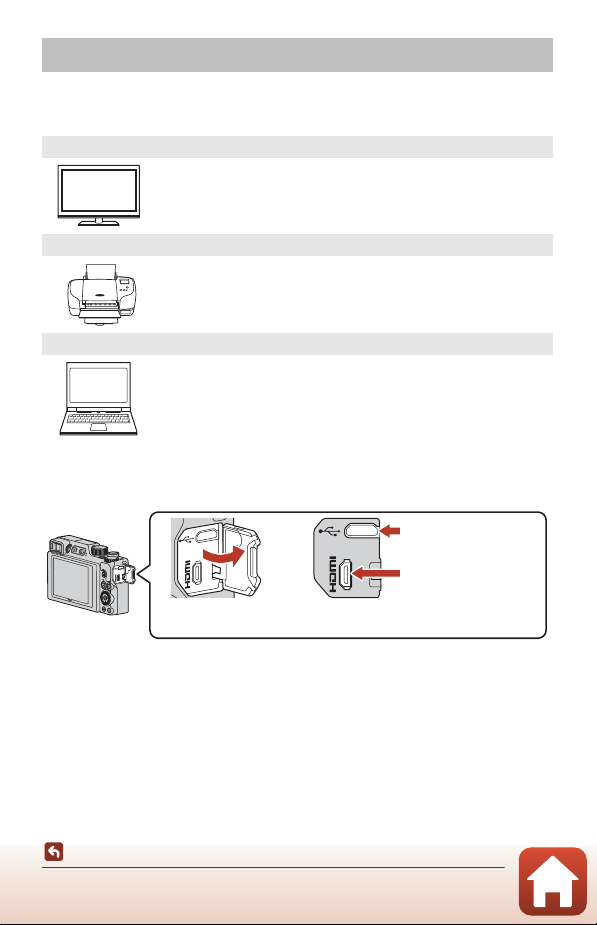
110
Connecting the Camera to a TV, Printer, or Computer
Utilizing Images
In addition to using the SnapBridge app to enjoy the captured images, you can also
utilize the images in various ways by connecting the camera to the devices described
below.
B Notes About Connecting Cables to the Camera
• Make sure to turn the camera off before connecting or disconnecting cables. Check the
shape and direction of the plugs and do not insert or remove the plugs at an angle.
• Make sure that the camera battery is sufficiently charged. If the EH-62F AC Adapter
(available separately) is used, this camera can be powered from an electrical outlet. Do
not, under any circumstances, use an AC adapter other than the EH-62F. Failure to observe
this precaution could result in overheating or damage to the camera.
• For information about the connection methods and subsequent operations, refer to the
documentation included with the device in addition to this document.
Utilizing Images
Viewing Images on a TV
Images and movies captured with the camera can be viewed on a TV.
Connection method: Connect a commercially available HDMI cable
to the TV’s HDMI input jack.
Printing Images Without a Computer
If you connect the camera to a PictBridge-compatible printer, you can
print images without using a computer.
Connection method: Connect the camera directly to the printer’s USB
port with the USB cable.
Transferring Images to a Computer (ViewNX-i)
You can transfer images and movies to a computer for viewing and
editing.
Connection method: Connect the camera to the computer’s USB port
with the USB cable.
• Before connecting to a computer, install ViewNX-i on the computer.
Open the connector
cover.
HDMI micro connector
(Type D)
Insert the plug.
Micro-USB connector
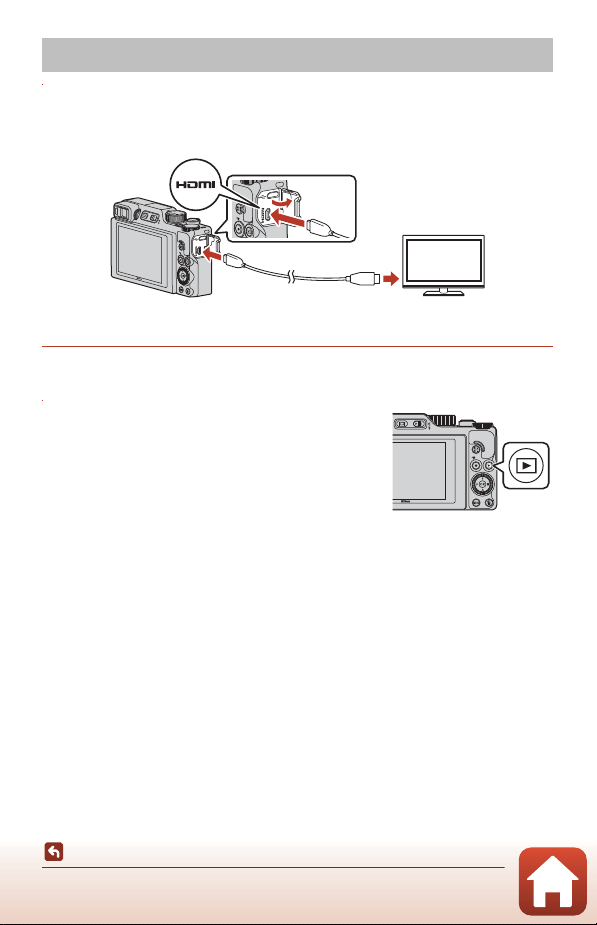
111
Connecting the Camera to a TV, Printer, or Computer
Viewing Images on a TV
1 Turn off the camera and connect it to the TV.
• Check the shape and direction of the plugs and do not insert or remove the plugs at
an angle.
2 Set the TV’s input to external input.
• See the documentation provided with your TV for details.
3 Press and hold down the c (playback)
button to turn on the camera.
• Images are displayed on the TV.
• To play back movies that were saved using d
2160/30p (4K UHD) or c 2160/25p (4K UHD)
in 4K UHD quality, use a TV and HDMI cable that
support 4K.
B Notes When an HDMI Cable Is Connected
• When you switch the camera to shooting mode, the shooting screen is displayed, but you
cannot shoot while connected with an HDMI cable.
• The shooting screen of the camera is displayed on the screen for HDMI output, but audio
is not output.
• Shooting and photo information is not displayed on the screen for HDMI output.
• You cannot perform touch operations when an HDMI cable is connected.
• The network menu cannot be selected when an HDMI cable is connected.
Viewing Images on a TV
HDMI micro connector
(Type D)
To HDMI jack
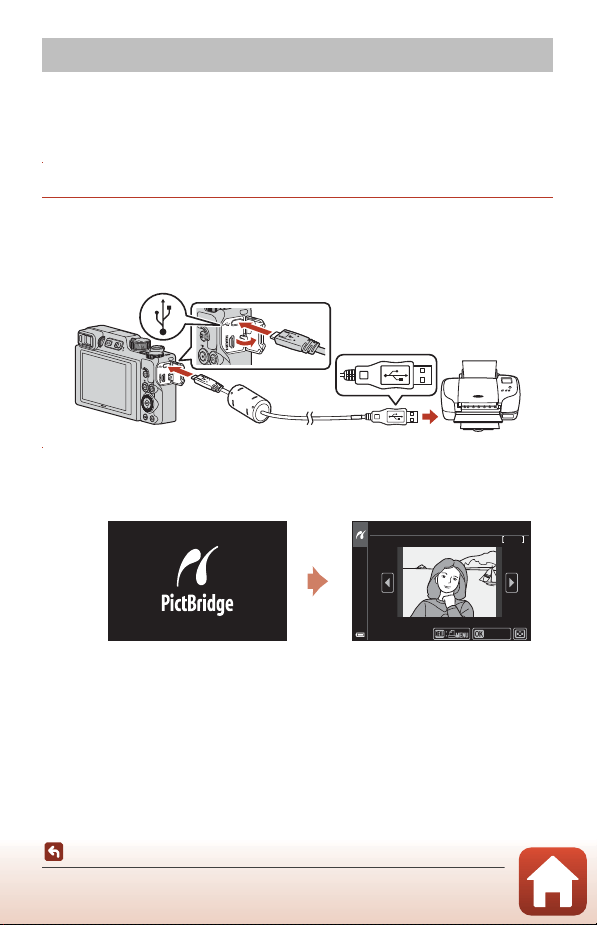
112
Connecting the Camera to a TV, Printer, or Computer
Printing Images Without a Computer
Users of PictBridge-compatible printers can connect the camera directly to the printer
and print images without using a computer.
Connecting the Camera to a Printer
1 Turn on the printer.
2 Turn off the camera and connect it to the printer using the USB
cable.
• Check the shape and direction of the plugs and do not insert or remove the plugs at
an angle.
3 The camera is automatically turned on.
• The PictBridge startup screen (1) is displayed on the camera screen, followed by
the Print selection screen (2).
B If the PictBridge Startup Screen Is Not Displayed
When Auto is selected for Charge by computer (A175), it may be impossible to
print images with direct connection of the camera to some printers. If the PictBridge
startup screen is not displayed after the camera is turned on, turn the camera off and
disconnect the USB cable. Set Charge by computer to Off and reconnect the camera
to the printer.
Printing Images Without a Computer
Print selection
15/11/2019 No. 32
32
Conrm
12
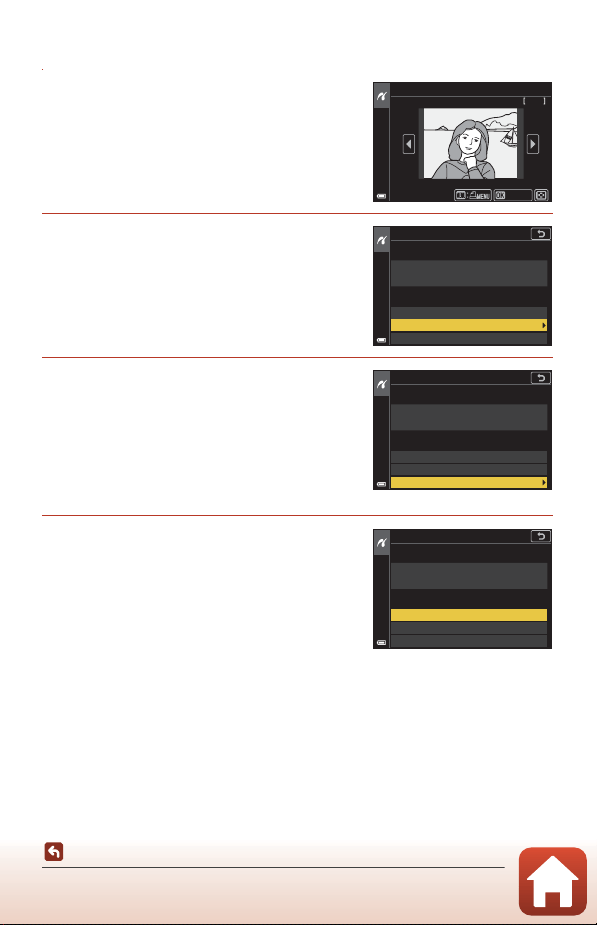
113
Connecting the Camera to a TV, Printer, or Computer
Printing Images Without a Computer
Printing Images One at a Time
1 Use the multi selector JK to select
the desired image and press the k
button.
• Move the zoom control toward f (h) to
switch to thumbnail playback or g (i) to
switch to full-frame playback.
2 Use HI to select Copies and press
the k button.
• Use HI to set the desired number of copies
(up to nine) and press the k button.
3 Select Paper size and press the k
button.
• Select the desired paper size and press the k
button.
• To print with the paper size setting configured
on the printer, select Default.
• The paper size options available on the camera
vary depending on the printer that you use.
4 Select Start print and press the k
button.
• Printing starts.
Print selection
15/11/2019 No. 32
32
Conrm
PictBridge
Start print
Copies
Paper size
1
prints
PictBridge
Start print
Copies
Paper size
4
prints
PictBridge
Start print
Copies
Paper size
4
prints
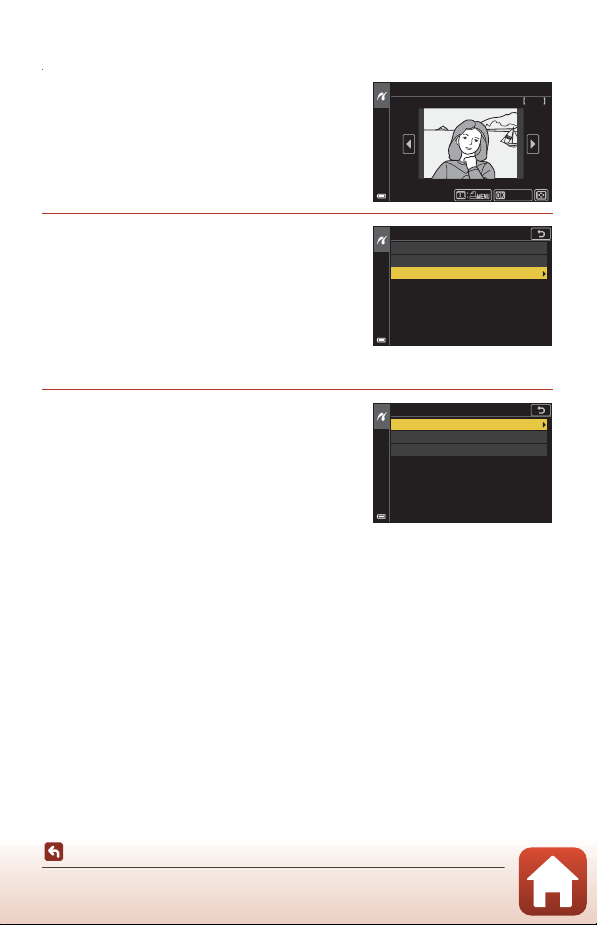
114
Connecting the Camera to a TV, Printer, or Computer
Printing Images Without a Computer
Printing Multiple Images
1 When the Print selection screen is
displayed, press the d (menu)
button.
2 Use the multi selector HI to select
Paper size and press the k button.
• Select the desired paper size and press the k
button.
• To print with the paper size setting configured
on the printer, select Default.
• The paper size options available on the camera
vary depending on the printer that you use.
• To exit the print menu, press the d button.
3 Select Print selection or Print all
images, and press the k button.
Print selection
15/11/2019 No. 32
32
Conrm
Print selection
Print all images
Paper size
Print menu
Print selection
Print all images
Paper size
Print menu
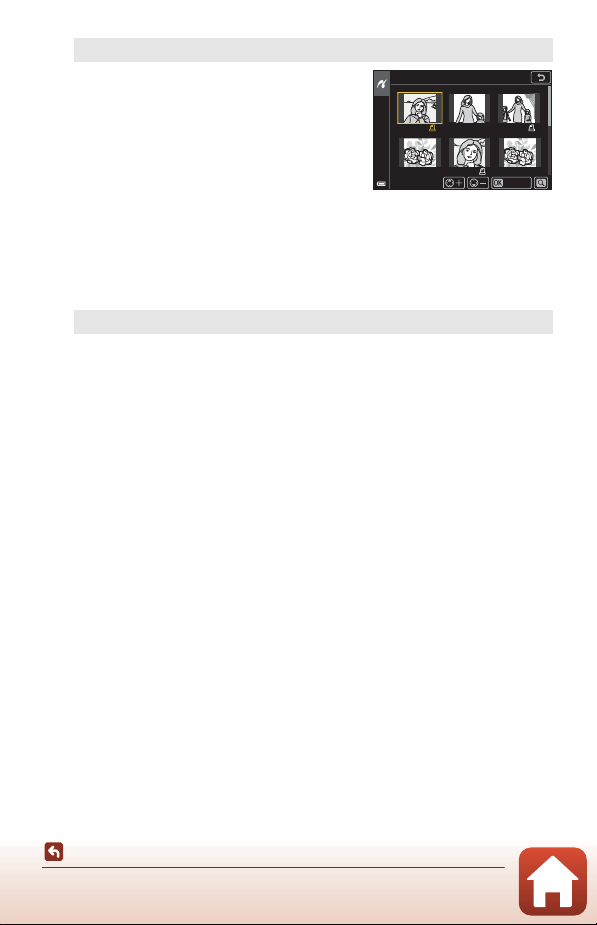
115
Connecting the Camera to a TV, Printer, or Computer
Printing Images Without a Computer
Print selection
Select images (up to 99) and the number
of copies (up to 9) of each.
• Use the multi selector JK to select
images, and use HI to specify the
number of copies to be printed.
• Images selected for printing are
indicated by a and the number of
copies to be printed. To cancel the
print selection, set the number of
copies to 0.
• Move the zoom control toward g (i) to switch to full-frame playback or f
(h) to switch to thumbnail playback.
• Press the k button when setting is complete. When the screen for
confirming the number of print copies is displayed, select Start print and
press the k button to start printing.
Print all images
One copy each of all images saved in the internal memory, or on the memory
card, is printed.
• When the screen for confirming the number of print copies is displayed,
select Start print and press the k button to start printing.
5
1 1
3
Conrm
Print selection
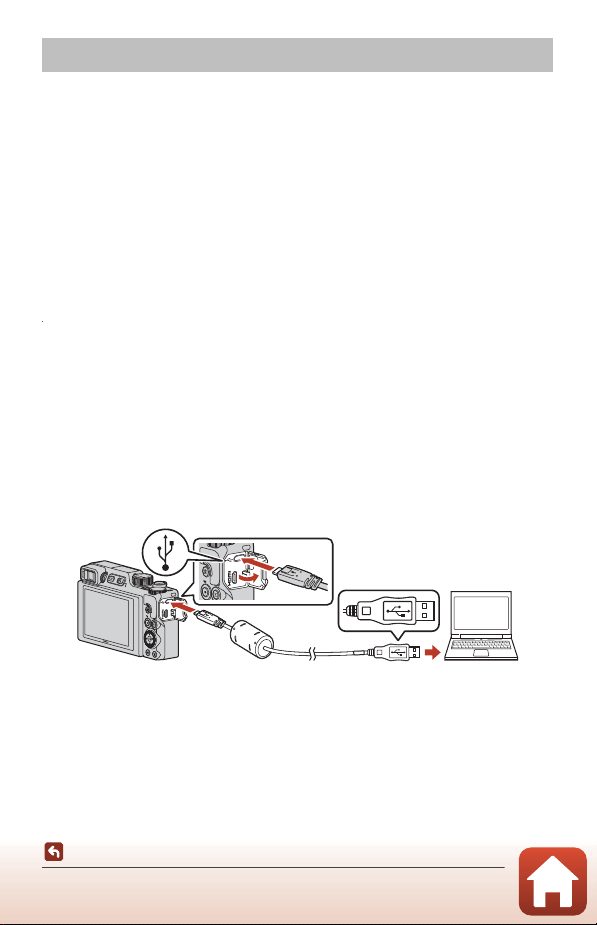
116
Connecting the Camera to a TV, Printer, or Computer
Transferring Images to a Computer (ViewNX-i)
Installing ViewNX-i
ViewNX-i is Nikon software that enables you to transfer images and movies to your
computer for viewing and editing.
To install ViewNX-i, download the latest version of the ViewNX-i installer from the
following website and follow the on-screen instructions to complete installation.
https://downloadcenter.nikonimglib.com
For system requirements and other information, see the Nikon website for your
region.
Transferring Images to a Computer
The items displayed on your computer screen may change when you update the
version of your operating system or software.
1 Prepare a memory card that contains images.
You can use any of the methods below to transfer images from the memory card to a
computer.
• SD memory card slot/card reader: Insert the memory card into the card slot of
your computer or the card reader (commercially available) that is connected to the
computer.
• Direct USB connection: Turn the camera off and ensure that the memory card is
inserted in the camera. Connect the camera to the computer using the USB cable.
The camera automatically turns on.
To transfer images that are saved in the camera’s internal memory, remove the
memory card from the camera before connecting it to the computer.
B Notes About Connecting the Camera to a Computer
Disconnect all other USB-powered devices from the computer. Connecting the
camera and other USB-powered devices to the same computer simultaneously may
cause a camera malfunction or excessive power supply from the computer, which
could damage the camera or memory card.
Transferring Images to a Computer (ViewNX-i)
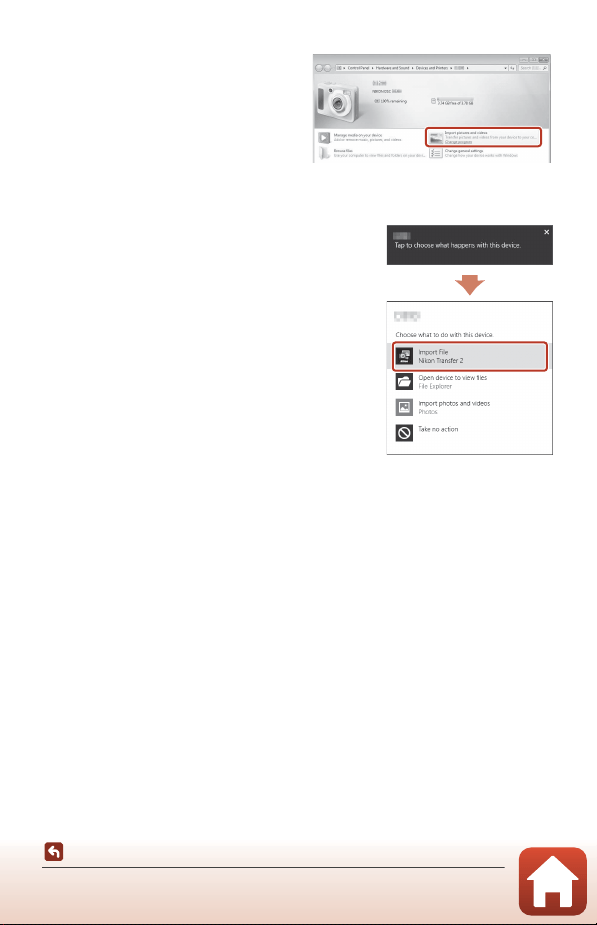
117
Connecting the Camera to a TV, Printer, or Computer
Transferring Images to a Computer (ViewNX-i)
If a message is displayed prompting you to choose a program, select Nikon Transfer 2.
• When using Windows 7
If the dialog shown on the right is
displayed, follow the steps below to
select Nikon Transfer 2.
1Under Import pictures and
videos, click Change program. A
program selection dialog will be
displayed; select Nikon Transfer 2
and click OK.
2 Double-click the Nikon Transfer 2 icon.
• When using Windows 10 or Windows 8.1
If the dialog shown on the right is displayed, click
the dialog and then click Import File/Nikon
Transfer 2.
• When using OS X or macOS
If Nikon Transfer 2 does not automatically start, launch the Image Capture
application that comes bundled with Mac while the camera and your computer are
connected, and select Nikon Transfer 2 as the default application to open when the
camera is connected to your computer.
If the memory card contains a large number of images, it may take a while for Nikon
Transfer 2 to start. Wait until Nikon Transfer 2 starts.
B Notes About Connecting the USB Cable
Operation is not guaranteed if the camera is connected to the computer via a USB hub.
C Using ViewNX-i
Consult online help for more information.
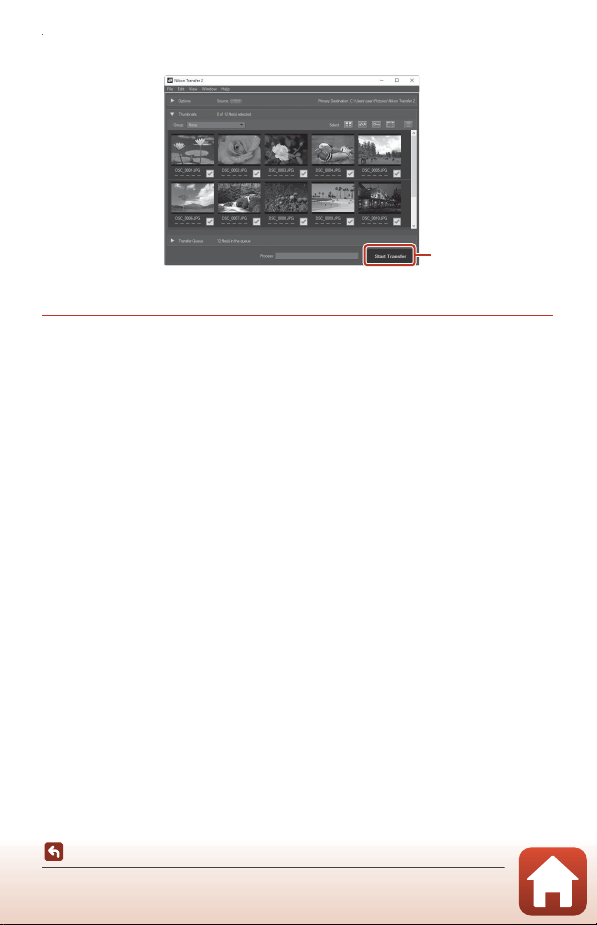
118
Connecting the Camera to a TV, Printer, or Computer
Transferring Images to a Computer (ViewNX-i)
2 After Nikon Transfer 2 starts, click Start Transfer.
• Image transfer begins. When image transfer is complete, ViewNX-i starts and the
transferred images are displayed.
3 Terminate the connection.
• If you are using a card reader or card slot, choose the appropriate option in the
computer operating system to eject the removable disk corresponding to the
memory card and then remove the memory card from the card reader or card slot.
• If the camera is connected to the computer, turn the camera off and disconnect the
USB cable.
C Capture NX-D
Use Nikon’s Capture NX-D software to fine-tune photos or to change settings for RAW
pictures and save them in other formats. It is available for download from the following
website:
https://downloadcenter.nikonimglib.com
Start Transfer
119
Using the Menu
Using the Menu
Menu Operations...............................................................................................................120
Menu Lists ............................................................................................................................123
The Shooting Menu (Common Across Shooting Modes)...................................127
The Shooting Menu (A, B, C, or D Mode)..............................................................130
The Movie Menu................................................................................................................ 145
The Playback Menu........................................................................................................... 153
The Network Menu ........................................................................................................... 158
The Setup Menu.................................................................................................................161
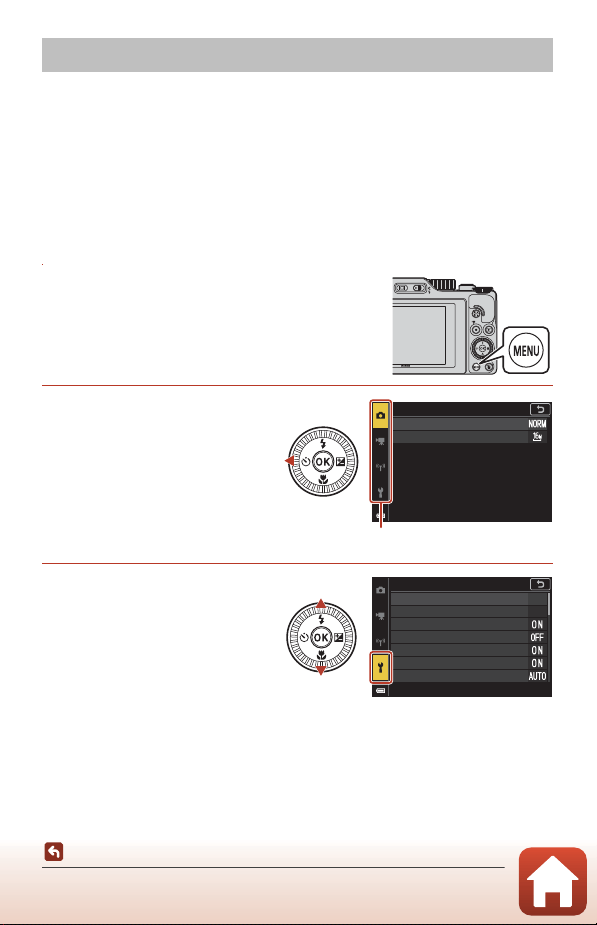
120
Using the Menu
Menu Operations
You can set the menus listed below by pressing the d (menu) button.
• A Shooting menu
1, 2
• e Movie menu
1
• c Playback menu
3
• J Network menu
• z Setup menu
1
Press the d button when the shooting screen is displayed.
2
Menu icons and available setting options vary depending on the shooting mode.
3
Press the d button when the playback screen is displayed.
1 Press the d (menu) button.
• The menu is displayed.
2 Press the multi selector
J.
• The current menu icon is
displayed in yellow.
3 Select a menu icon and
press the k button.
• The menu options become
selectable.
Menu Operations
Image quality
Image size
Shooting menu
Menu icons
Time zone and date
Date stamp
Monitor settings
Self-timer: after release
Photo VR
EVF auto toggle
AF assist
Set up
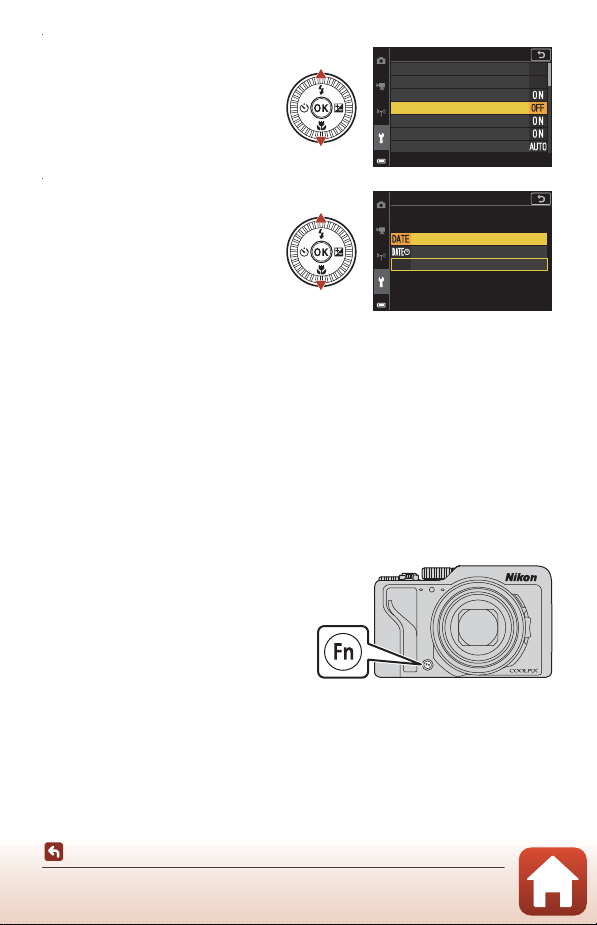
121
Using the Menu
Menu Operations
4 Select a menu option and
press the k button.
• Certain menu options cannot
be set depending on the
current shooting mode or the
state of the camera.
5 Select a setting and press
the k button.
• The setting you selected is
applied.
• When you are finished using
the menu, press the d
button.
• When a menu is displayed, you
can switch to shooting mode by pressing the shutter-release button or b (e)
button.
C Command Dial or Multi Selector Operation When a Menu Is Displayed
When a menu or setting items are displayed, you can select a menu option also by rotating
the command dial or multi selector.
C Operating the Touch Panel on Menus
You can use the touch panel to operate menus (A7).
Using the w (Function) Button
If you press the w button in A, B, C, or
D mode, you can quickly configure the
pre-saved menu options (default setting
is Continuous). To set a different menu
option, select U Fn button and select
the desired menu option.
Time zone and date
Date stamp
Monitor settings
Self-timer: after release
Photo VR
EVF auto toggle
AF assist
Set up
Date stamp
Date
Date and time
O
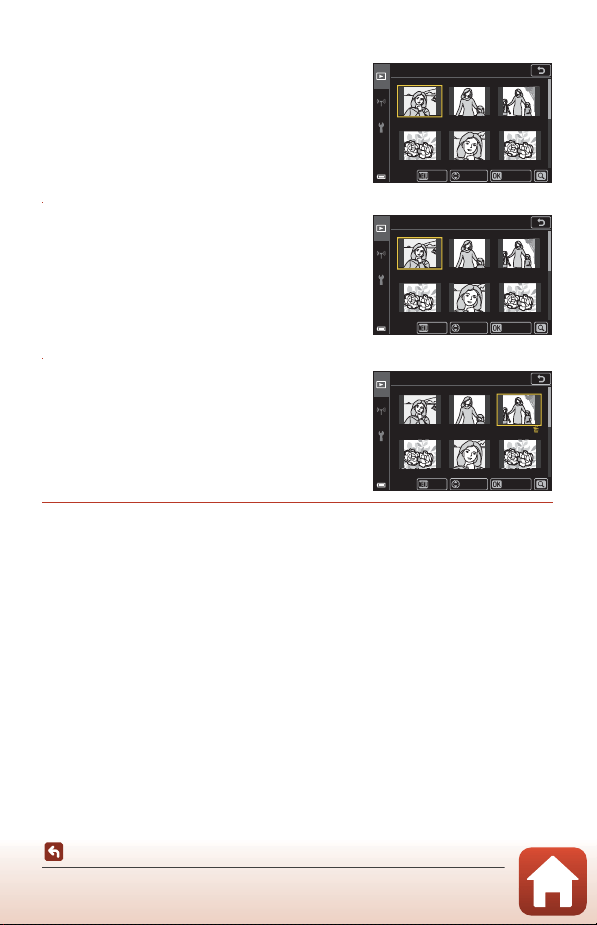
122
Using the Menu
Menu Operations
The Image Selection Screen
When an image selection screen such as the one
shown on the right is displayed while operating the
camera menu, follow the procedures described
below to select the images.
1 Use the multi selector JK or rotate
it to select the desired image.
• Move the zoom control (A2) toward g (i) to
switch to full-frame playback, or f (h) to
switch to thumbnail playback.
• Only one image can be selected for Rotate
image.
Proceed to step 3.
2 Use HI to select ON or OFF.
• When ON is selected, an icon is displayed
under the selected image. Repeat steps 1 and 2
to select additional images.
3 Press the k button to apply the image selection.
• When a confirmation dialog is displayed, follow the on-screen instructions to
operate.
Erase selected images
Back
Conrm
ON/OFF
Erase selected images
Back
Conrm
ON/OFF
Erase selected images
Back
Conrm
ON/OFF
123
Using the Menu
Menu Lists
The Shooting Menu
Common Options
* Also can be set by pressing the w (function) button (A121).
For A, B, C, and D Modes
* Also can be set by pressing the w (function) button (A121).
Menu Lists
Enter shooting mode M d button
Option Default setting A
Image quality* Normal 127
Image size* i 4608×3456 129
Option Default setting A
White balance*
Auto (normal)
130
Metering* Matrix 133
Continuous* Single 134
ISO sensitivity* Auto 138
Exposure bracketing
• Number of shots: Bracketing off
• Bracketing increment: ±0.3
139
AF area mode* Target finding AF 140
Autofocus mode Pre-focus 143
Noise reduction filter Normal 144
M exposure preview On 144
124
Using the Menu
Menu Lists
The Movie Menu
The Playback Menu
1
Select an image on the image selection screen. See “The Image Selection Screen”
(A122) for more information.
2
Edited images are saved as separate files. Some images may not be edited.
Enter shooting mode M d button M e menu icon M k button
Option Default setting A
Movie options e 1080/30p or S 1080/25p 145
Autofocus mode Single AF 150
Movie VR On (hybrid) 151
Wind noise reduction Off 152
Frame rate –152
Press the c button (playback mode) M d button
Option A
Mark for upload
1
153
Quick retouch
2
89
D-Lighting
2
89
Red-eye correction
2
90
Glamour retouch
2
90
Filter effects
2
92
Slide show 154
Protect
1
155
Rotate image
1
155
Copy
1
156
Sequence display
157
126
Using the Menu
Menu Lists
The Setup Menu
* Also can be set by pressing the w (function) button (A121).
Press the d button M z menu icon M k button
Option A
Time zone and date 161
Monitor settings 163
EVF auto toggle 165
Date stamp 166
Self-timer: after release 167
Photo VR* 168
AF assist 169
Digital zoom 169
Assign side zoom control 170
AE/AF lock button 171
Sound settings 172
Auto off 172
Format card/Format memory 173
Language 174
HDMI output 174
Charge by computer 175
Image comment 176
Copyright information 177
Location data 178
Toggle Av/Tv selection 178
MF peaking 179
Reset all 179
Touch-screen controls 179
Conformity marking 180
Firmware version 180
127
Using the Menu
The Shooting Menu (Common Across Shooting Modes)
Image Quality
Set the image quality (compression ratio) used when saving images.
Lower compression ratios result in higher quality images, but the number of images
that can be saved is reduced.
The setting is also applied to other shooting modes.
B Notes About Image Quality
• Image quality cannot be set in the following shooting modes:
- Time-lapse movie and Easy panorama scene modes
-Short movie show mode
• RAW images cannot be captured in the following shooting modes:
- Scene modes
-Creative mode
-Short movie show mode
If you change the shooting mode to any of the above shooting modes when a RAW
image quality has been selected, the image quality will change to Fine or Normal.
• This function may not be available to use in combination with other functions (A80).
The Shooting Menu (Common Across Shooting
Modes)
Enter shooting mode M d button M Image quality M k button
Option Description
a Fine
Finer image quality than Normal.
Compression ratio of about 1:4
b Normal
(default setting)
Normal image quality, suitable for most applications.
Compression ratio of about 1:8
F RAW
Raw data from the image sensor are saved without additional
processing. You can use a computer to change settings that were
set during shooting such as white balance and contrast.
• Image size is fixed at i 4608×3456
File format: RAW (NRW), Nikon’s own format
G RAW + Fine
Two images are recorded at the same time, one RAW image and
one fine-quality JPEG image.
H RAW + Normal
Two images are recorded at the same time, one RAW image and
one normal-quality JPEG image.

128
Using the Menu
The Shooting Menu (Common Across Shooting Modes)
C RAW Images of This Camera
• RAW images cannot be processed on this camera.
• ViewNX-i (A116) needs to be installed on the computer to be able to view RAW images
on the computer.
• RAW images cannot be edited or printed directly. You can adjust images or process RAW
images if you transfer RAW images to a computer, and then use software such as Capture
NX-D (A118).
C Saving of RAW and JPEG Images at the Same Time
• The RAW image and the JPEG image that are saved at the same time have the same file
number but with their own extensions, “.NRW” and “.JPG” respectively (A206).
• When playing back on the camera, only the JPEG image is displayed.
• Note that when the JPEG image is deleted, the RAW image that was saved at the same
time is also deleted.
C Number of Images That Can Be Saved
• The approximate number of images that can be saved can be checked on the screen
when shooting (A23).
• Note that due to JPEG compression, the number of images that can be saved may vary
greatly depending on the image content, even when using memory cards with the same
capacity and the same image quality and image size settings. In addition, the number of
images that can be saved may vary depending on the make of the memory card.
• If the number of exposures remaining is 10,000 or more, the number of exposures
remaining display shows “9999.”
129
Using the Menu
The Shooting Menu (Common Across Shooting Modes)
Image Size
Set the image size (number of pixels) used when saving JPEG images.
The larger the image size, the larger the size at which it can be printed, but the
number of images that can be saved is reduced.
The setting is also applied to other shooting modes.
* The numerical values indicate the number of pixels that are captured.
Example: i 4608×3456 = approx. 16 megapixels, 4608×3456 pixels
B Notes About Printing Images at 1:1 Aspect Ratio
Change the printer setting to “Border” when printing images at a 1:1 aspect ratio.
Some printers may not be able to print images at a 1:1 aspect ratio.
B Notes About Image Size
• Image size cannot be set in the following shooting modes:
- Time-lapse movie and Easy panorama scene modes
-Short movie show mode
• This function may not be available to use in combination with other functions (A80).
Enter shooting mode M d button M Image size M k button
Option*
Aspect ratio (horizontal to vertical)
i 4608×3456 (default setting) 4:3
I 3264×2448 4:3
L 2272×1704 4:3
B 1600×1200 4:3
e 4608×2592 16:9
J 4608×3072 3:2
H 3456×3456 1:1
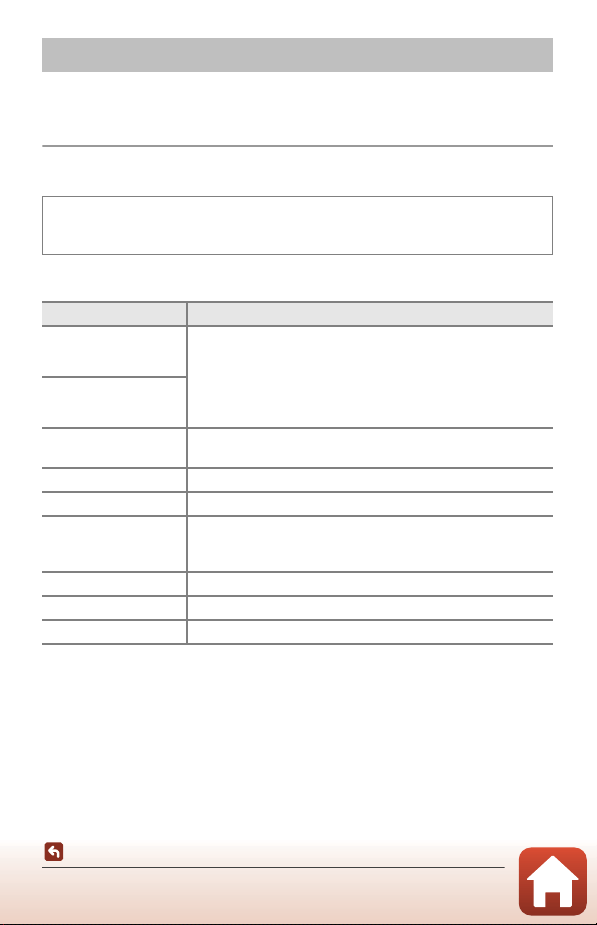
130
Using the Menu
The Shooting Menu (A, B, C, or D Mode)
• See “Image Quality” (A127) and “Image Size” (A129) for information about
Image quality and Image size.
White Balance (Adjusting Hue)
Adjust white balance to suit the light source or weather conditions in order to make
the colors in images match what you see with your eyes.
* Fine adjustments in seven steps are available. Apply positive (+) to increase blue hue and
negative (–) to increase red hue.
B Notes About White Balance
• Lower the flash when white balance is set to any setting other than Auto (normal), Auto
(warm lighting), or Flash (A25).
• This function may not be available to use in combination with other functions (A80).
The Shooting Menu (A, B, C, or D Mode)
Rotate the mode dial to A, B, C, or D M d button M A, B, C, or D menu
icon M White balance M k button
Option Description
a Auto (normal)
(default setting)
White balance is automatically adjusted.
When set to Auto (warm lighting), the images are preserved
with warm colors if they are shot under an incandescent light
source. When using the flash, white balance is adjusted
according to the flash lighting condition.
a2 Auto (warm
lighting)
b Preset manual
Use when the desired result is not achieved with Auto
(normal), Auto (warm lighting), Incandescent, etc. (A132).
c Daylight* Use under direct sunlight.
d Incandescent* Use under incandescent lighting.
e Fluorescent
Use under most types of fluorescent lighting. Choose one of 1
(cool-white fluorescent), 2 (day white fluorescent), and 3
(daylight fluorescent).
f Cloudy* Use under overcast skies.
g Flash* Use with the flash.
x Choose color temp. Use to directly specify color temperature (A131).
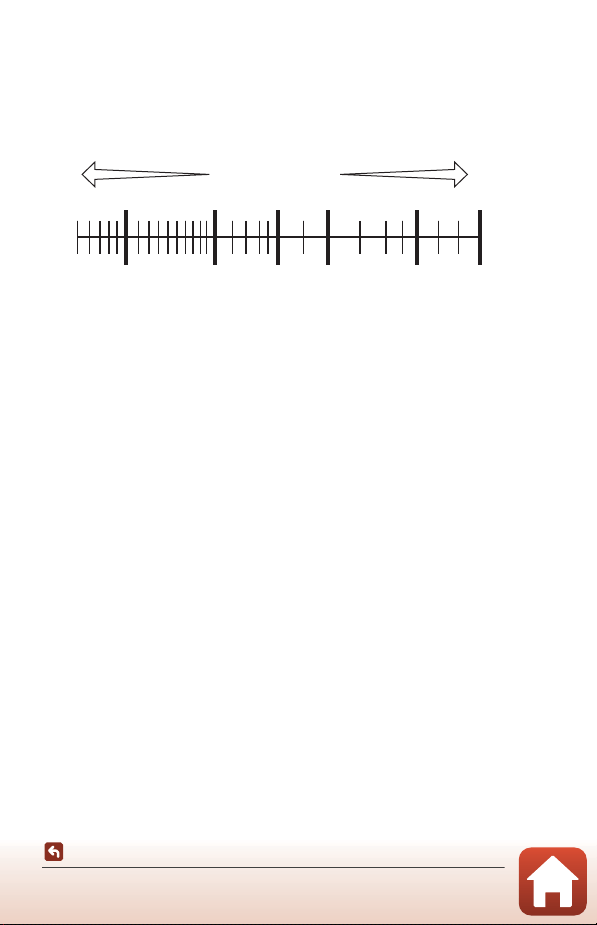
131
Using the Menu
The Shooting Menu (A, B, C, or D Mode)
C Color Temperature
Color temperature is an objective measure of colors of light sources which are expressed in
the unit of absolute temperature (K: Kelvin). Light sources with lower color temperatures
appear more reddish, while light sources with higher color temperatures appear more
bluish.
3000 4000 5000 6000 8000 10000
[K]
112 3 4 8 9 0a567
Red Blue
1
Sodium-vapor lamps: 2700K
2
Incandescent/
Warm-white fluorescent: 3000K
3
White fluorescent: 3700K
4
Cool-white fluorescent: 4200K
5
Day white fluorescent: 5000K
6
Direct sunlight: 5200K
7
Flash: 5400K
8
Cloudy: 6000K
9
Daylight fluorescent: 6500K
0
High temp. mercury-vapor: 7200K
a
Shade: 8000K
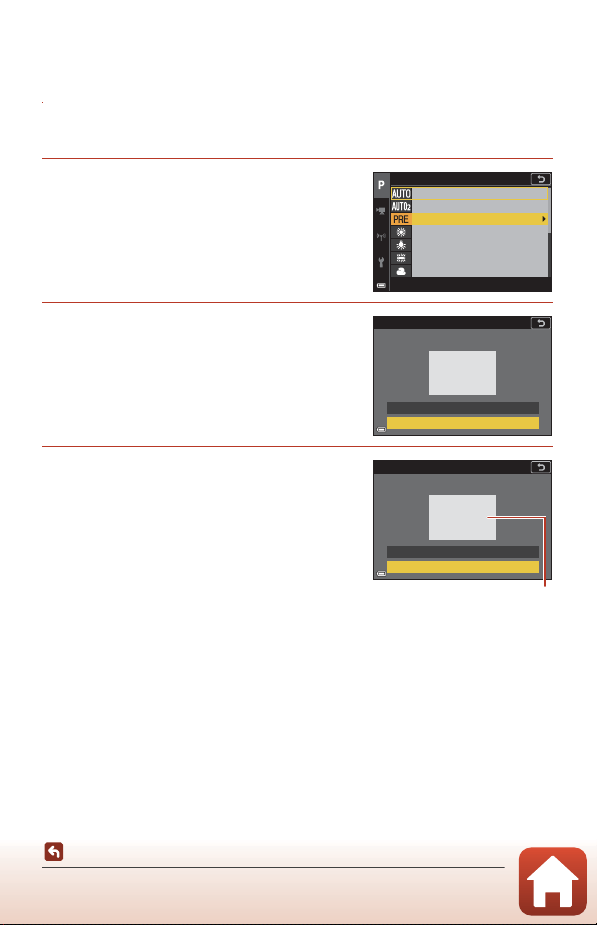
132
Using the Menu
The Shooting Menu (A, B, C, or D Mode)
Using Preset Manual
Follow the procedures described below to measure the white balance value under
the lighting used during shooting.
1 Place a white or gray reference object under the lighting that
will be used during shooting.
2 Use the multi selector HI to select
Preset manual, and press the k
button.
• The lens extends to the zoom position for
measurement.
3 Select Measure.
• To apply the last measured value, select
Cancel and press the k button.
4 Frame the white or gray reference
object in the measuring window, and
press the k button to measure the
value.
• The shutter is released and measurement is
complete (no image is saved).
B Notes About Preset Manual
A white balance value for flash lighting cannot be measured with Preset manual. When
shooting using the flash, set White balance to Auto (normal), Auto (warm lighting), or
Flash.
White balance
Auto (normal)
Aut o ( no r ma l)
Auto (warm lighting)
Aut o ( war m l ig hti ng )
Incandescent
In can de s ce n t
Daylight
Day li g ht
Fluorescent
Flu o re s ce n t
Cloudy
Cl o ud y
Preset manual
Preset manual
Measure
Cancel
Preset manual
Measure
Cancel
Measuring window
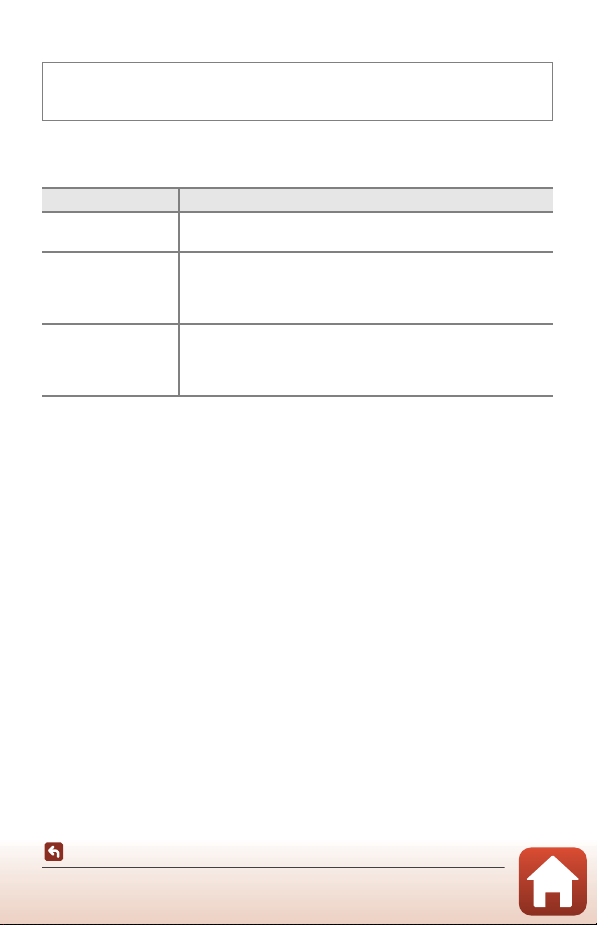
133
Using the Menu
The Shooting Menu (A, B, C, or D Mode)
Metering
The process of measuring the brightness of the subject to determine the exposure is
known as “metering.”
Use this option to set the method of how the camera meters exposure.
* To set focus and exposure for off-center subjects, change AF area mode to manual and
set the focus area to the center of the frame, and then use focus lock (A77).
B Notes About Metering
• When digital zoom is in effect, Center-weighted or Spot is selected depending on the
zoom ratio.
• This function may not be available to use in combination with other functions (A80).
C Display on the Shooting Screen
When Center-weighted or Spot is selected, the metering range guide (A12) is displayed.
Rotate the mode dial to A, B, C, or D M d button M A, B, C, or D menu
icon M Metering M k button
Option Description
G Matrix
(default setting)
The camera uses a wide area of the screen for metering.
Recommended for typical shooting.
q Center-weighted
The camera meters the entire frame but assigns greatest weight
to the subject in the center of the frame. The classic metering for
portraits; it preserves background details while letting lighting
conditions in the center of the frame determine exposure.*
r Spot
The camera meters the area shown by the circle in the center of
the frame. This can be used when the subject is much lighter or
darker than the background. Ensure that the subject is within the
area shown by the circle when shooting.*
134
Using the Menu
The Shooting Menu (A, B, C, or D Mode)
Continuous Shooting
Rotate the mode dial to A, B, C, or D M d button M A, B, C, or D menu
icon M Continuous M k button
Option Description
U Single
(default setting)
One image is captured each time the shutter-release button is
pressed.
k Continuous H
While the shutter-release button is held all the way down, images
are captured continuously.
• The camera can capture up to about 10 images continuously
at a rate of about 10 fps (when set to Normal (image quality)
and i 4608×3456 (image size)).
K Continuous M
While the shutter-release button is held all the way down, images
are captured continuously.
• The camera can capture up to about 200 images continuously
at a rate of about 7 fps (when set to Fine or Normal (image
quality) and i 4608×3456 (image size)).
m Continuous L
While the shutter-release button is held all the way down, images
are captured continuously.
• The camera can capture up to about 200 images continuously
at a rate of about 3 fps (when set to Fine or Normal (image
quality) and i 4608×3456 (image size)).
L Pre-shooting
cache
Pre-shooting cache shooting begins when the shutter-release button
is pressed halfway. When the shutter-release button is pressed all the
way down, the camera saves the current image as well as the images
captured immediately before the button is pressed (
A
135). Pre-
shooting cache makes it easy to capture perfect moments.
• The camera can capture up to about 10 images continuously
at a rate of about 15 fps (including a maximum of 5 images
captured in the pre-shooting cache).
• The image quality is fixed at Normal and the image size is
fixed at B 1600×1200.
n Continuous H:
120 fps
Each time the shutter-release button is pressed all the way down,
images are captured continuously at a high speed rate.
• The camera can capture up to about 60 images continuously
at a rate of about 120 fps.
• The image size is fixed at B 1600×1200.
j Continuous H:
60 fps
Each time the shutter-release button is pressed all the way down,
images are captured continuously at a high speed rate.
• The camera can capture up to about 60 images continuously
at a rate of about 60 fps.
• The image size is fixed at B 1600×1200.
M Intvl timer
shooting
The camera automatically captures still images continuously at
the specified interval (A136).
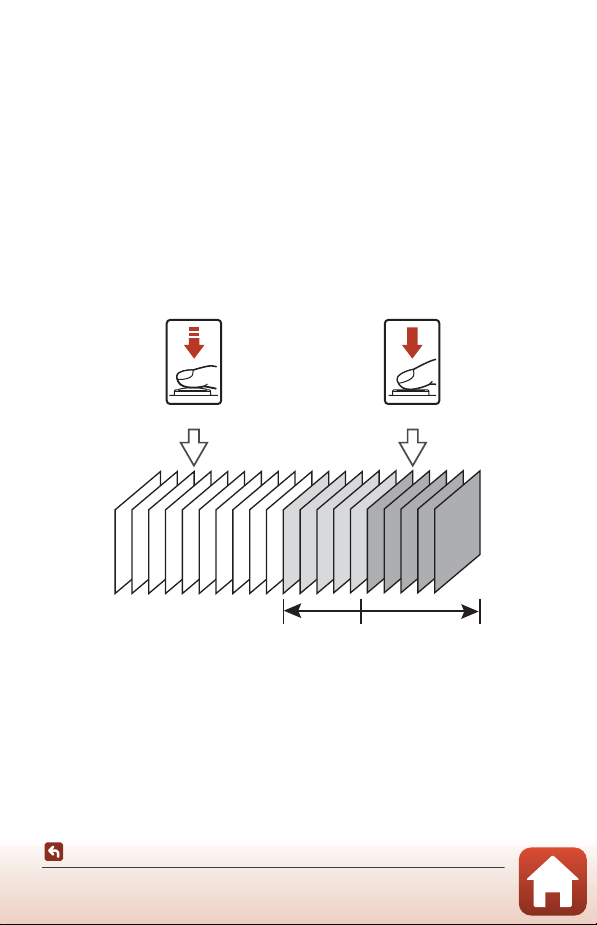
135
Using the Menu
The Shooting Menu (A, B, C, or D Mode)
B Notes About Continuous Shooting
• Focus, exposure and white balance are fixed at the values determined with the first shot in
each series (except Intvl timer shooting).
• It may take some time to save the images after shooting.
• When ISO sensitivity increases, noise may appear in captured images.
• The frame rate may become slower depending on the image quality, image size, memory
card type or shooting conditions (such as when saving RAW images).
• When using Pre-shooting cache, Continuous H: 120 fps, or Continuous H: 60 fps,
banding or variance in brightness or hue may occur in images that were captured under
lighting that flashes quickly at high speeds, such as fluorescent, mercury-vapor, or
sodium-vapor lighting.
• This function may not be available to use in combination with other functions (A80).
C Pre-shooting Cache
When the shutter-release button is pressed halfway or all the way down, images are saved
as described below.
• The pre-shooting cache icon (N) on the shooting screen changes to green while the
shutter-release button is pressed halfway.
Press down halfway Press down all the way
Images saved before
pressing all the way
Images saved by
pressing all the way
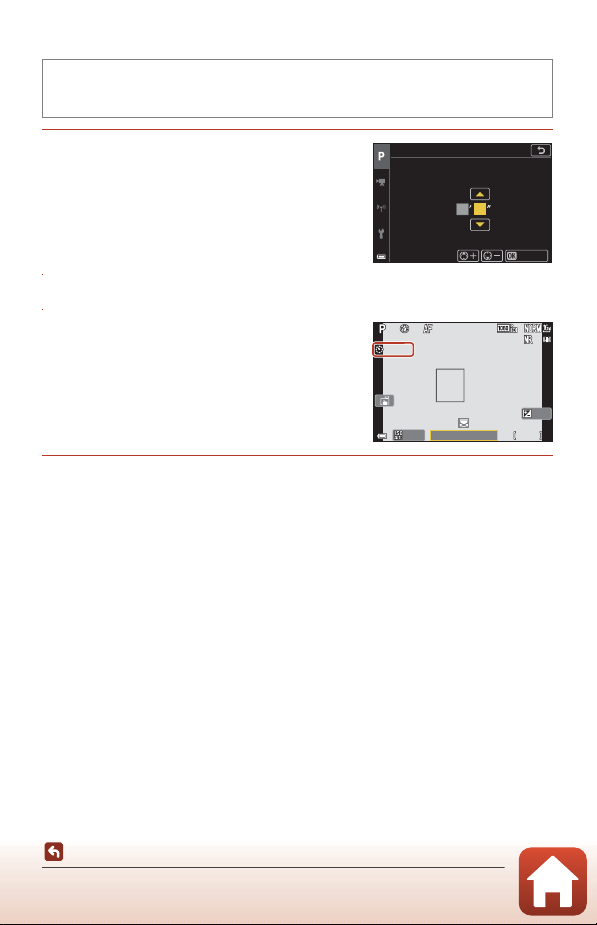
136
Using the Menu
The Shooting Menu (A, B, C, or D Mode)
Interval Timer Shooting
1 Set the desired interval between
each shot.
• Use JK to select an item, and use HI to set
the time.
• Press the k button when setting is complete.
2 Press the d (menu) button to display the shooting screen.
3 Press the shutter-release button to
shoot the first image.
• The shutter is automatically released at the
specified interval to shoot second and
subsequent images.
• The screen turns off and the power-on lamp
flashes during the intervals between shots.
4 When the desired number of images have been captured, press
the shutter-release button.
• Shooting ends.
• Shooting ends automatically in the following situations:
- When the memory card becomes full
- When the number of images captured continuously reaches 9999
Rotate the mode dial to A
,
B
,
C
, or
D M d button M A
,
B
,
C
, or
D menu
icon M Continuous M k button M Intvl timer shooting M k button
3002
Intvl timer shooting
ms
Conrm
F 3 .4
F3.4
5 0 0
500
2 5 m 0s
25m 0s
1 / 25 0
1/250
0 . 0
0.0
1 0 0
100
2 m 30 s
2m30s

137
Using the Menu
The Shooting Menu (A, B, C, or D Mode)
B Notes About Interval Timer Shooting
• To prevent the camera from turning off unexpectedly during shooting, use a sufficiently
charged battery.
• If the EH-62F AC Adapter (available separately; A207) is used, this camera can be
powered from an electrical outlet. Do not, under any circumstances, use an AC adapter
other than the EH-62F. Failure to observe this precaution could result in overheating or
damage to the camera.
• Do not rotate the mode dial to a different setting while interval timer shooting is in
progress. Shooting will end.
• If the shutter speed is slow and saving an image takes time compared to the specified
interval, some of the shots during Interval timer shooting may be canceled.
• You can also use the shutter-release button on the ML-L7 Remote Control (available
separately) to start shooting, but not to end shooting. To end shooting, press the shutter-
release button on the camera.
138
Using the Menu
The Shooting Menu (A, B, C, or D Mode)
ISO Sensitivity
A higher ISO sensitivity allows darker subjects to be captured. Additionally, even with
subjects of similar brightness, pictures can be taken at faster shutter speeds, and
blurring caused by camera shake and subject movement can be reduced.
• When a higher ISO sensitivity is set, images may contain noise.
C Notes About ISO Sensitivity
• In D (manual) mode, when set to Auto, ISO 100-400, or ISO 100-800, the ISO sensitivity
is fixed at ISO 100.
• This function may not be available to use in combination with other functions (A80).
C ISO Sensitivity Display on the Shooting Screen
• When Auto or Fixed range auto is selected, the value for ISO sensitivity automatically
specified is displayed.
• You can also set this function by tapping the ISO sensitivity display on the shooting
screen.
Rotate the mode dial to A, B, C, or D M d button M A, B, C, or D menu
icon M ISO sensitivity M k button
Option Description
a Auto
(default setting)
Sensitivity is automatically selected from the range of ISO 100 to
1600.
I Fixed range auto
The range in which the camera automatically adjusts ISO
sensitivity can be selected from ISO 100-400 or ISO 100-800.
100, 200, 400, 800,
1600, 3200, 6400
ISO sensitivity is fixed at the specified value.
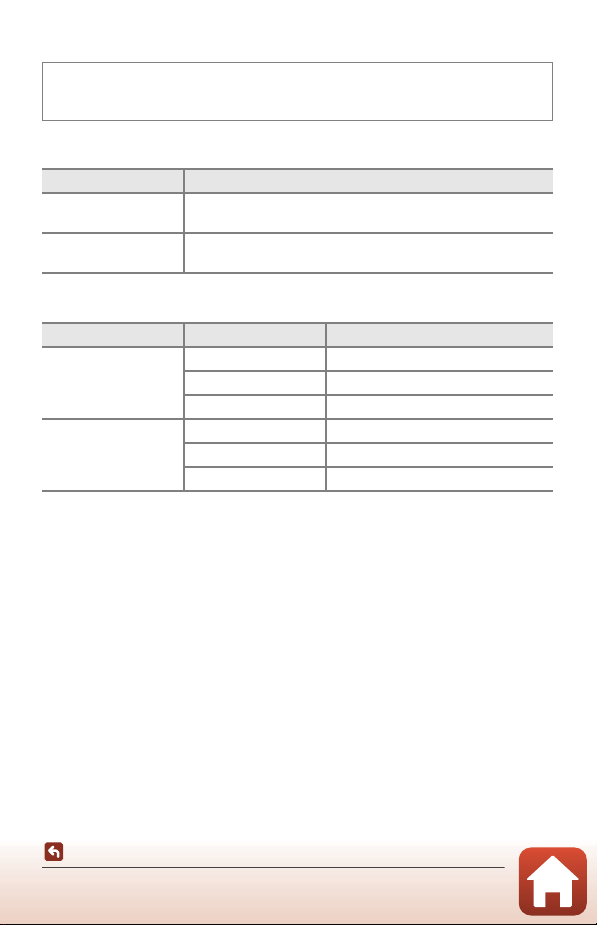
139
Using the Menu
The Shooting Menu (A, B, C, or D Mode)
Exposure Bracketing
The exposure (brightness) can be changed automatically during continuous shooting.
This is effective for shooting when it is difficult to adjust the picture brightness.
The relationships between the settings and shooting order are listed below.
B Notes About Exposure Bracketing
• Exposure bracketing is not available in D (manual) mode.
• When exposure compensation (A66) and ±0.3, ±0.7, or ±1.0 in Bracketing increment
are set simultaneously, the combined exposure compensation values are applied.
• This function may not be available to use in combination with other functions (A80).
Rotate the mode dial to A, B, or C M d button M A, B, or C menu icon M
Exposure bracketing M k button
Option Description
Number of shots
Select Bracketing off (default setting), 3, or 5 for the number of
images to capture continuously.
Bracketing increment
Select ±0.3 (default setting), ±0.7, or ±1.0 for the step width
used in exposure compensation.
Number of shots Bracketing increment Shooting order
3
±0.3 0, -0.3, +0.3
±0.7 0, -0.7, +0.7
±1.0 0, -1.0, +1.0
5
±0.3 0, -0.7, -0.3, +0.3, +0.7
±0.7 0, -1.3, -0.7, +0.7, +1.3
±1.0 0, -2.0, -1.0, +1.0, +2.0
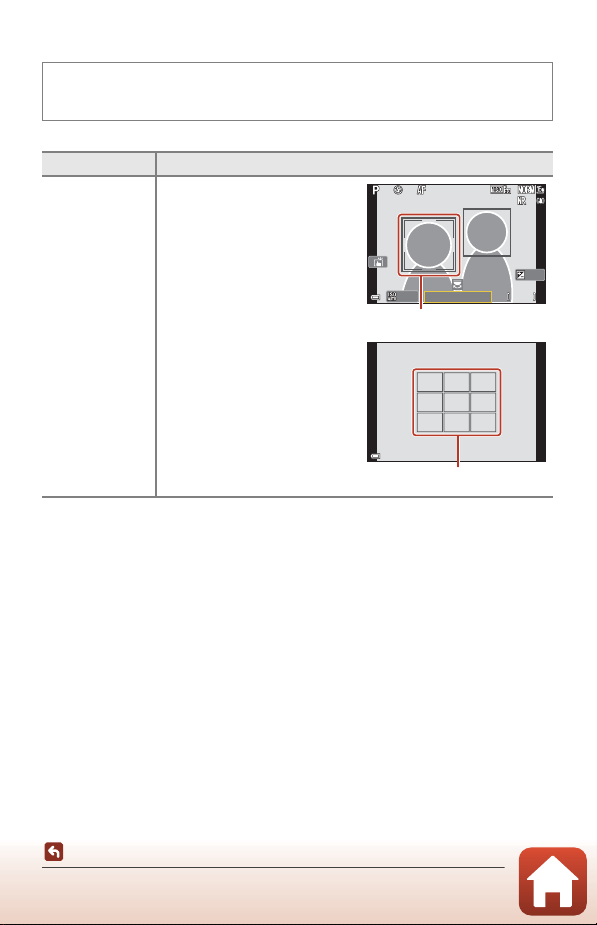
140
Using the Menu
The Shooting Menu (A, B, C, or D Mode)
AF Area Mode
Set how the camera selects the focus area for autofocus.
Rotate the mode dial to A
,
B
,
C or D M d button M A
,
B
,
C or D menu icon
M AF area mode M k button
Option Description
a Face priority
When the camera detects a
human face, it focuses on that
face. See “Using Face Detection”
(A75) for more information.
When framing a composition
with no human subjects or
detected faces, the camera
automatically selects one or more
of the nine focus areas containing
the subject closest to the camera
when the shutter-release button
is pressed halfway.
F 3 .4
F3.4
5 0 0
500
2 5 m 0s
25m 0s
1 / 25 0
1/250
0 . 0
0.0
1 0 0
100
Focus area
F 3 .4F3.41 / 25 01/250
Focus area
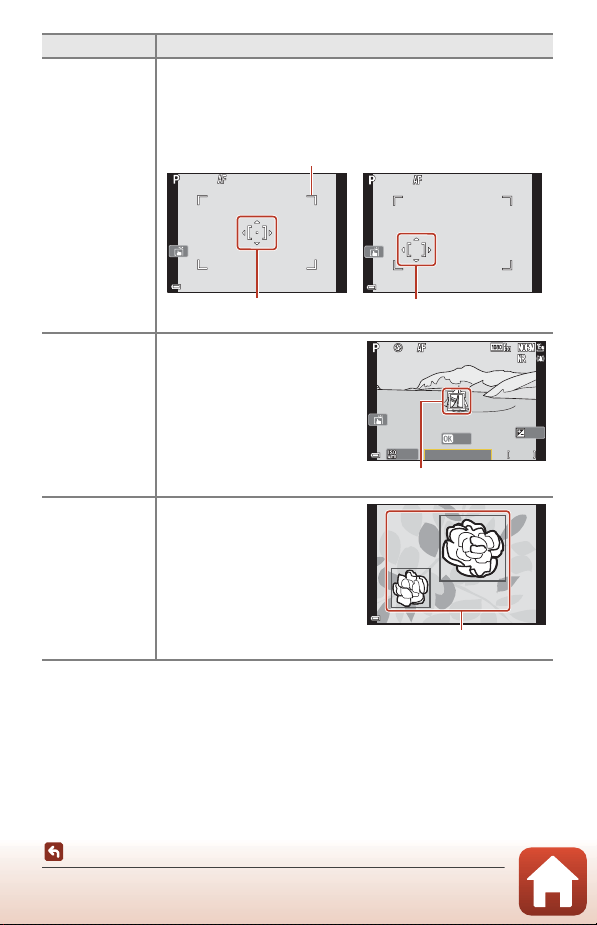
141
Using the Menu
The Shooting Menu (A, B, C, or D Mode)
B Notes About AF Area Mode
• When digital zoom is in effect, the camera focuses on the area in the center of the frame
regardless of the AF area mode setting.
• This function may not be available to use in combination with other functions (A80).
N Manual
(spot)
x Manual
(normal)
O Manual
(wide)
Use the multi selector HIJK to move the focus area to where you
want to focus.
To use the multi selector to configure the flash mode or other
settings, press the k button. To return to moving the focus area,
press the k button again.
s Subject
tracking
Use this function to take pictures
of moving subjects. Register the
subject on which the camera
focuses. The focus area
automatically moves to track the
subject. See “Using Subject
Tracking” (A142) for more
information.
M Target
finding AF
(default setting)
When the camera detects the
main subject, it focuses on that
subject.
See “Using Target Finding AF”
(A74) for more information.
Option Description
Focus area (centered)
Scope of movable focus area
Focus area (moving)
F 3 .4
F3.4
5 0 0
500
2 5 m 0s
25m 0s
1 / 25 0
1/250
0 . 0
0.0
1 0 0
100
Exit
Focus area
F 3 .4
F3.4
1 / 25 0
1/250
Focus areas
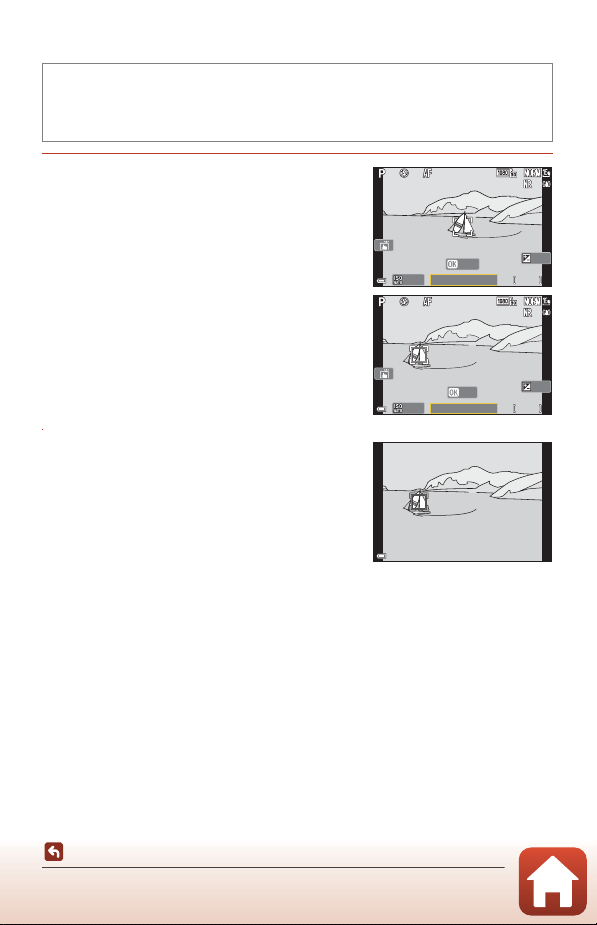
142
Using the Menu
The Shooting Menu (A, B, C, or D Mode)
Using Subject Tracking
1 Register a subject.
• Align the subject that you want to track with
the border in the center of the frame and press
the k button.
• When the subject is registered, a yellow border
(focus area) is displayed around it and the
camera begins tracking the subject.
• If the subject cannot be registered, the border
is displayed in red. Change the composition
and try registering the subject again.
• To cancel subject registration, press the k
button.
• If the camera can no longer track the registered
subject, the focus area disappears. Register the
subject again.
2 Press the shutter-release button all
the way to take the picture.
• If the shutter-release button is pressed while
the focus area is not displayed, the camera
focuses on the subject in the center of the
frame.
B Notes About Subject Tracking
• If you perform operations such as zooming while the camera is tracking the subject, the
registration is canceled.
• Subject tracking may not be possible in certain shooting conditions.
Rotate the mode dial to A
,
B
,
C or D M d button M A
,
B
,
C or D menu
icon M AF area mode M k button M s Subject tracking M k button M d
button
F 3 .4
F3.4
5 0 0
500
2 5 m 0s
25m 0s
1 / 25 0
1/250
0 . 0
0.0
1 0 0
100
Start
F 3 .4
F3.4
5 0 0
500
2 5 m 0s
25m 0s
1 / 25 0
1/250
0 . 0
0.0
1 0 0
100
Exit
F 3 .4
F3.4
1 / 25 0
1/250
143
Using the Menu
The Shooting Menu (A, B, C, or D Mode)
Autofocus Mode
Set how the camera focuses when shooting still images.
B Notes About Autofocus Mode
This function may not be available to use in combination with other functions (A80).
C Autofocus Mode for Short Movie Show Mode or Movie Recording
Autofocus mode for short movie show mode or movie recording can be set with
Autofocus mode (
A150) in the movie menu.
Rotate the mode dial to A
,
B
,
C or D M d button M A
,
B
,
C or D menu
icon M Autofocus mode M k button
Option Description
A Single AF
The camera focuses only when the shutter-release button is
pressed halfway.
B Full-time AF
The camera always focuses even if the shutter-release button is not
pressed halfway. The sound of lens drive movement is heard while
the camera focuses.
a Pre-focus
(default setting)
Even if the shutter-release button is not pressed halfway, the
camera focuses when subject movement is detected or when the
composition of the framed image is significantly changed.
144
Using the Menu
The Shooting Menu (A, B, C, or D Mode)
Noise Reduction Filter
Set the strength of the noise reduction function that is normally performed when
saving images.
M Exposure Preview
Set whether or not to reflect the brightness to the shooting screen when the
exposure is changed in D (manual) mode.
Rotate the mode dial to A
,
B
,
C, or D M d button M A
,
B
,
C, or D menu
icon M Noise reduction filter M k button
Option Description
Q High Performs noise reduction at a level higher than the standard strength.
M Normal
(default setting)
Performs noise reduction at the standard strength.
R Low Performs noise reduction at a level lower than the standard strength.
Rotate the mode dial to A
,
B
,
C or D M d button M A
,
B
,
C or D menu icon
M M exposure preview M k button
Option Description
On (default setting) Reflects the brightness to the shooting screen.
Off Does not reflect the brightness to the shooting screen.
145
Using the Menu
The Movie Menu
Movie Options
Select the desired movie option to record. Select normal speed movie options to
record at normal speed, or HS movie options (A147) to record in slow or fast motion.
The movie options that can be selected vary depending on the Frame rate setting
(A152).
• Memory cards with an SD Speed Class rating of 6 (Video Speed Class V6) or faster
are recommended for recording movies (A216). When Movie options is set to
d 2160/30p (4K UHD) or c 2160/25p (4K UHD), memory cards with a UHS
Speed Class rating of 3 (Video Speed Class V30) or faster are recommended.
The Movie Menu
Enter shooting mode M d button M e menu icon M Movie options M k
button
146
Using the Menu
The Movie Menu
Normal Speed Movie Options
1
Cannot be selected when you are using the internal memory.
2
Cannot be selected in Soft or Smart portrait (when Soft is set) scene mode.
• Individual movie files cannot exceed 29 minutes in length, even when there is
sufficient free space on the memory card for longer recording. The maximum size
of a single movie file is 4 GB. If a file exceeds 4 GB even when you record for less
than 29 minutes, it is split into multiple files and cannot be played back
continuously.
• The actual remaining recording time may vary depending on the movie content,
subject movement, or type of memory card.
Option (Image size/
Frame rate, File format)
Image size
Aspect ratio
(horizontal to
vertical)
Max. recording time
per file
(approx.)
d 2160/30p (4K UHD)
1, 2
c 2160/25p (4K UHD)
1, 2
3840 × 2160 16:9 9 min
e 1080/30p
S 1080/25p
(default setting)
1920 × 1080 16:9 25 min
e 1080/60p
2
f 1080/50p
2
1920 × 1080 16:9 13 min
f 720/30p
V 720/25p
1280 × 720 16:9 29 min
i 720/60p
X 720/50p
1280 × 720 16:9 27 min
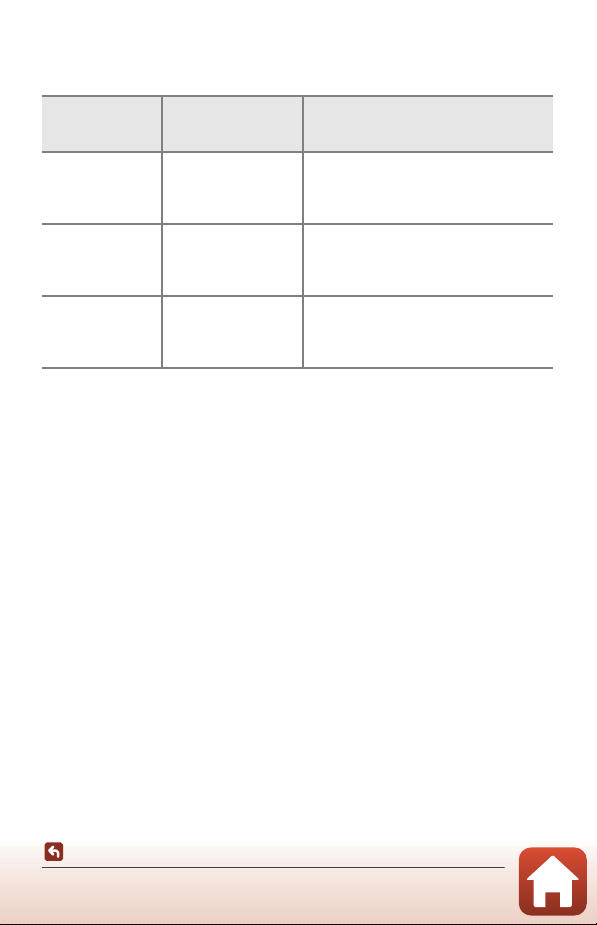
147
Using the Menu
The Movie Menu
HS Movie Options
Recorded movies are played back in fast or slow motion.
See “Recording Movies in Slow Motion and Fast Motion (HS Movie)” (A149).
1
Cannot be selected in Soft or Smart portrait (when Soft is set) scene mode.
2
While recording movies, the camera can be switched between normal speed movie
recording and slow motion or fast motion movie recording. The maximum recording
time shown here refers to the case when recording continues without being switched to
normal speed.
B Notes About HS Movie
• Sound is not recorded.
• Still images cannot be saved during movie recording.
• Movie recording cannot be paused.
• Zoom position, focus, exposure, and white balance are locked when movie recording
starts.
Option
Image size
Aspect ratio
(horizontal to vertical)
Description
h HS 720/4×
1
1280 × 720
16:9
1/4-speed slow motion movies
• Max. recording time
2
:
7 minutes and 15 seconds (playback
time: 29 minutes)
U HS 1080/2×
1
1920 × 1080
16:9
1/2-speed slow motion movies
• Max. recording time
2
:
14 minutes and 30 seconds (playback
time: 29 minutes)
V HS 1080/0.5×
1920 × 1080
16:9
2× speed fast motion movies
• Max. recording time
2
:
29 minutes (playback time: 14 minutes
and 30 seconds)
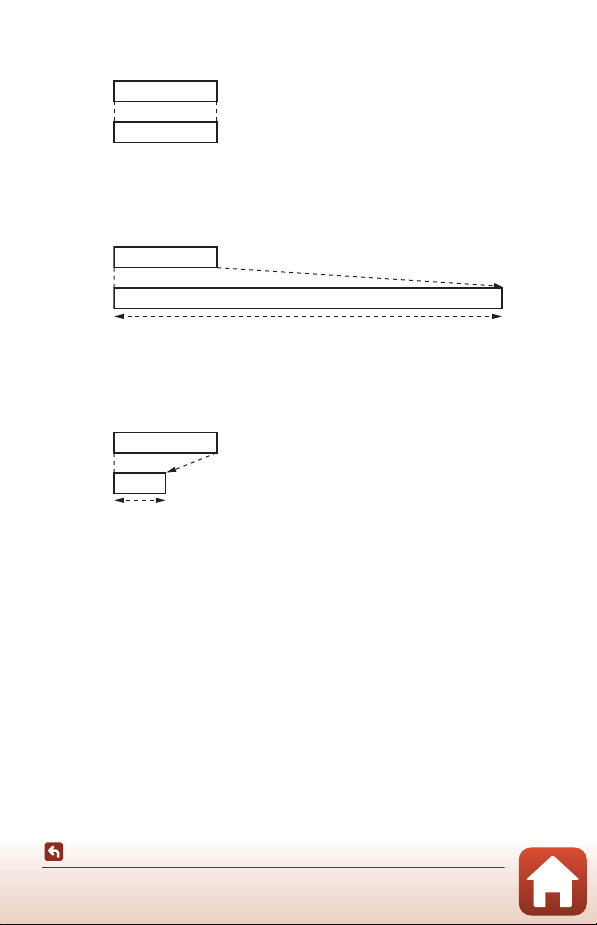
148
Using the Menu
The Movie Menu
C Playing Back in Slow Motion and Fast Motion
When recording at normal speed:
When recording at h HS 720/4×:
Movies are recorded at 4× normal speed.
They are played back in slow motion at 4× slower speed.
When recording at V HS 1080/0.5×:
Movies are recorded at 1/2 normal speed.
They are played back in fast motion at 2× faster speed.
Playback
time
Recording
time
10 s
10 s
Recording
time
Playback
time
40 s
10 s
Slow motion playback
Recording
time
Playback
time
10 s
5 s
Fast motion playback
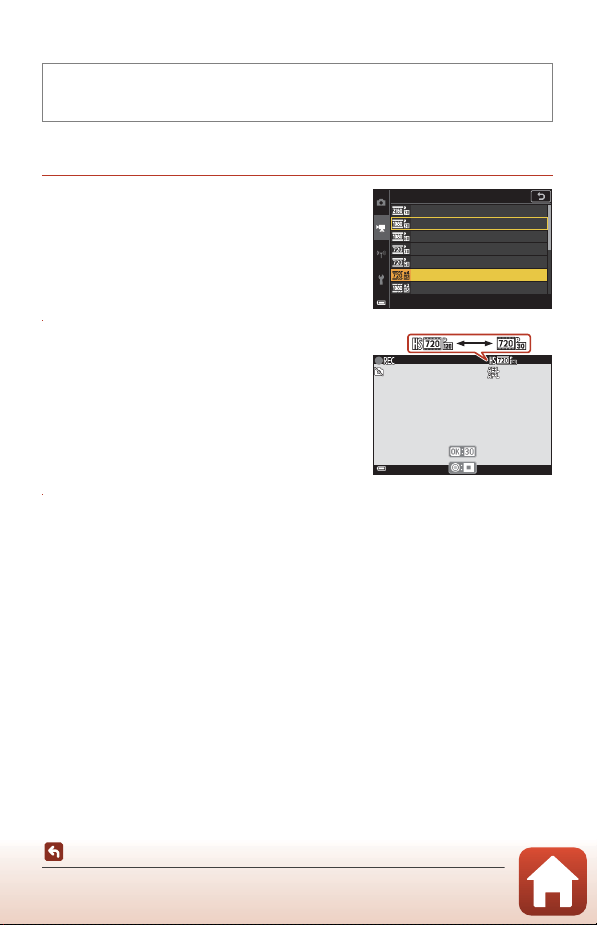
149
Using the Menu
The Movie Menu
Recording Movies in Slow Motion and Fast Motion (HS Movie)
Movies recorded using HS movie can be played back in slow motion at 1/4 or 1/2 of
the normal playback speed, or in fast motion at twice the normal playback speed.
1 Use the multi selector HI to select
an HS movie option (A147) and
press the k button.
• After applying the option, press the d
button to return to the shooting screen.
2 Press the b (e movie-record)
button to start recording.
• The camera starts recording an HS movie.
• The camera switches between normal speed
movie recording and HS movie recording each
time the k button is pressed.
• The movie options icon changes when
switching between HS movie recording and
normal speed movie recording.
3 Press the b (e) button to end recording.
Enter shooting mode M d button M e menu icon M Movie options M
k button
Movie options
1080/30p
2160/30p
1080/60p
720/30p
HS 720/4×
HS 1080/2×
720/60p
5 s
5s
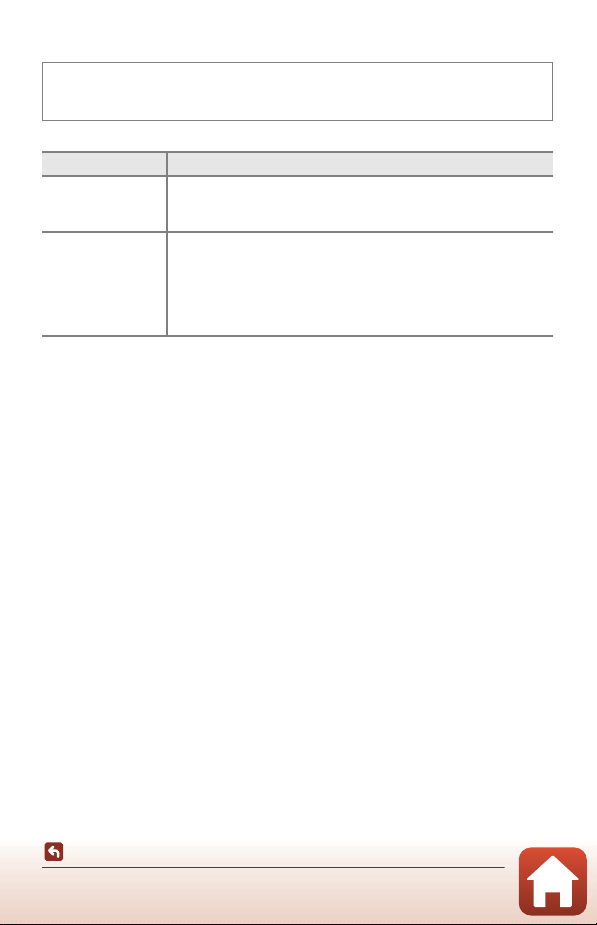
150
Using the Menu
The Movie Menu
Autofocus Mode
Set how the camera focuses in short movie show mode or when recording movies.
B Notes About Autofocus Mode
When an HS movie option is selected in Movie options, the setting is fixed at Single AF.
Enter shooting mode M d button M e menu icon M Autofocus mode M k
button
Option Description
A Single AF
(default setting)
Focus is locked when movie recording starts.
Select this option when the distance between the camera and the
subject will remain fairly consistent.
B Full-time AF
The camera focuses continuously.
Select this option when the distance between the camera and
subject will change significantly during recording. The sound of the
camera focusing may be heard in the recorded movie. Use of
Single AF is recommended to prevent the sound of the camera
focusing from interfering with recording.
151
Using the Menu
The Movie Menu
Movie VR
Select the vibration reduction setting used in short movie show mode or when
recording movies.
Select Off when using a tripod to stabilize the camera during recording.
B Notes About Movie VR
• When an HS movie option is selected in Movie options, the setting is fixed at Off.
• The effects of camera shake may not be completely eliminated in some situations.
Enter shooting mode M d button M e menu icon M Movie VR M k button
Option Description
V On (hybrid)
(default setting)
Performs optical compensation for camera shake using the lens
shift method. Also performs electronic VR using image processing.
The angle of view (i.e., the area seen in the frame) becomes
narrower.
g On Performs compensation for camera shake using lens shift VR.
Off Compensation is not performed.
152
Using the Menu
The Movie Menu
Wind Noise Reduction
B Notes About Wind Noise Reduction
When an HS movie option is selected in Movie options, the setting is fixed at Off.
Frame Rate
Select the frame rate used in time-lapse movie, short movie show mode, or when
recording movies. When the frame rate setting is switched, options that can be set in
Movie options (A145) change.
Enter shooting mode M d button M e menu icon M Wind noise reduction
M k button
Option Description
Y On
Reduces the sound that is produced when wind passes over
the microphone during movie recording. Other sounds may
become difficult to hear during playback.
Off (default setting) Wind noise reduction is disabled.
Enter shooting mode M d button M e menu icon M Frame rate M k
button
Option Description
30 fps (30p/60p) Suited for playback on a TV using the NTSC standard.
25 fps (25p/50p) Suited for playback on a TV using the PAL standard.
153
Using the Menu
The Playback Menu
See “Editing Images (Still Images)” (A88) for information about image editing
functions.
Mark for Upload
Select still images in the camera and upload them to a smart device that has a wireless
connection established with the SnapBridge app.
On the image selection screen (A122), select or deselect images to upload.
• The size of images that are uploaded is restricted to 2 megapixels. To upload still
images at their original size, use Download pictures in the SnapBridge app.
• RAW images and movies cannot be selected. To upload movies to a smart device,
use Download pictures in the SnapBridge app.
• Note that when you select Reset all (A179) in the setup menu or Restore
default settings (A159) in the network menu, the Mark for upload settings that
you made are canceled.
The Playback Menu
Press the c button (playback mode) M d button M Mark for upload M k
button
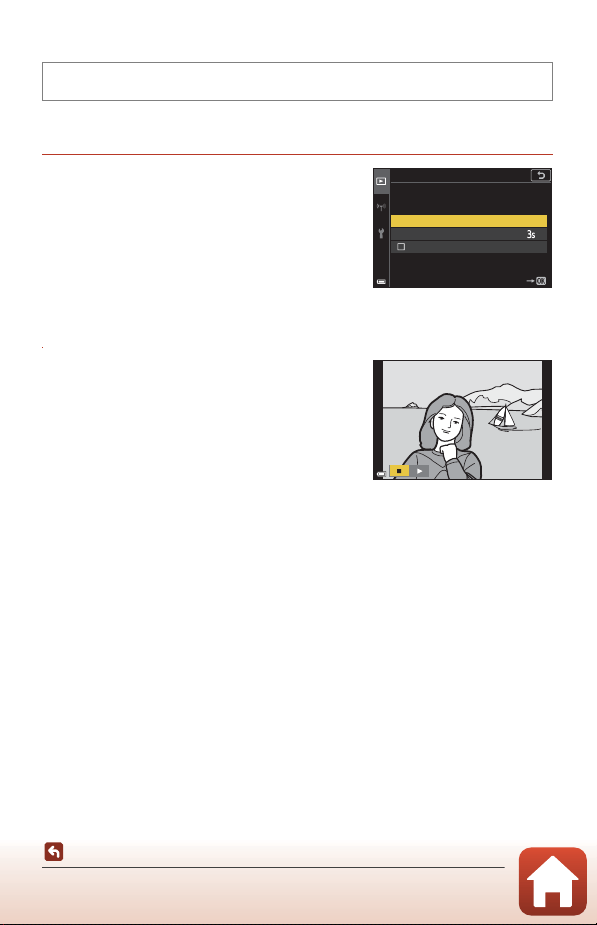
154
Using the Menu
The Playback Menu
Slide Show
Play back images one by one in an automated “slide show.” When movie files are
played back in the slide show, only the first frame of each movie is displayed.
1 Use the multi selector HI to select
Start and press the k button.
• The slide show begins.
• To change the interval between images, select
Frame intvl, press the k button, and specify
the desired interval time before selecting Start.
• To repeat the slide show automatically, select
Loop and press the k button before selecting
Start.
• The maximum playback time is up to about 30 minutes even if Loop is enabled.
2 End or restart the slide show.
• The screen shown on the right is displayed
after the slide show ends or is paused. To exit
the show, select G and then press the k
button. To resume the slide show, select F
and then press the k button.
Operations During Playback
• Use the multi selector HIJK or rotate it to display the previous/next image.
Press and hold them down to rewind/fast-forward images quickly.
• Press the k button to pause or end the slide show.
Press the c button (playback mode) M d button M Slide show M k button
Slide show
Start
Frame intvl
Loop
Pause
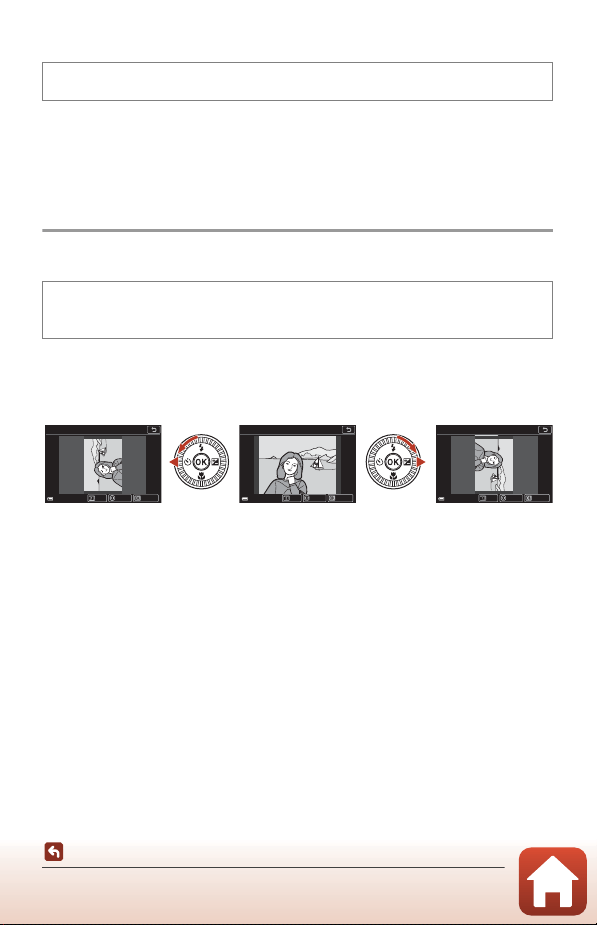
155
Using the Menu
The Playback Menu
Protect
The camera protects selected images from accidental deletion.
Select images to protect or cancel protection from the image selection screen
(A122).
Note that formatting the memory card or the camera’s internal memory permanently
deletes all data including protected files (A173).
Rotate Image
Specify the orientation in which saved still images are displayed during playback.
Select an image from the image selection screen (A122). When the rotate image
screen is displayed, use the multi selector JK or rotate it to rotate the image 90
degrees.
Press the k button to finalize display orientation, and save orientation information
with the image.
Press the c button (playback mode) M d button M Protect M k button
Press the c button (playback mode) M d button M Rotate image M k
button
Rotate image
ConrmBack Rotate
Rotate image
ConrmBack Rotate
Rotate image
ConrmBack Rotate
Rotate 90 degrees
counterclockwise
Rotate 90 degrees
clockwise
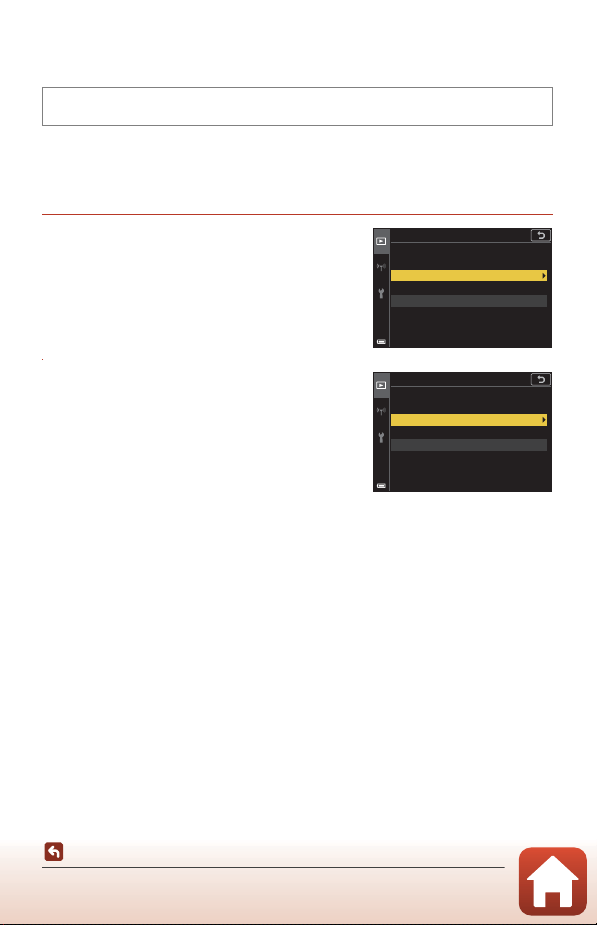
156
Using the Menu
The Playback Menu
Copy (Copy Between the Memory Card and Internal
Memory)
Images can be copied between a memory card and the internal memory.
• When a memory card that contains no images is inserted and the camera is switched to
playback mode, Memory contains no images. is displayed. In that case, press the d
button to select Copy.
1 Use the multi selector HI to select
a destination option to which images
are copied and press the k button.
2 Select a copy option and press the k
button.
• When you choose Selected images, use the
image selection screen to specify images
(A122).
B Notes About Copying Images
• Only files in formats that this camera can record can be copied.
• Operation is not guaranteed with images captured with another make of camera or that
have been modified on a computer.
C Copying Images in a Sequence
• If you select a key picture of a sequence in Selected images, all images in the sequence
are copied.
• If you press the d button while images in a sequence are displayed, only the Card to
camera copy option is available. All images in the sequence are copied if you select
Current sequence.
Press the c button (playback mode) M d button M Copy M k button
Copy
Camera to card
Card to camera
Camera to card
Selected images
All images
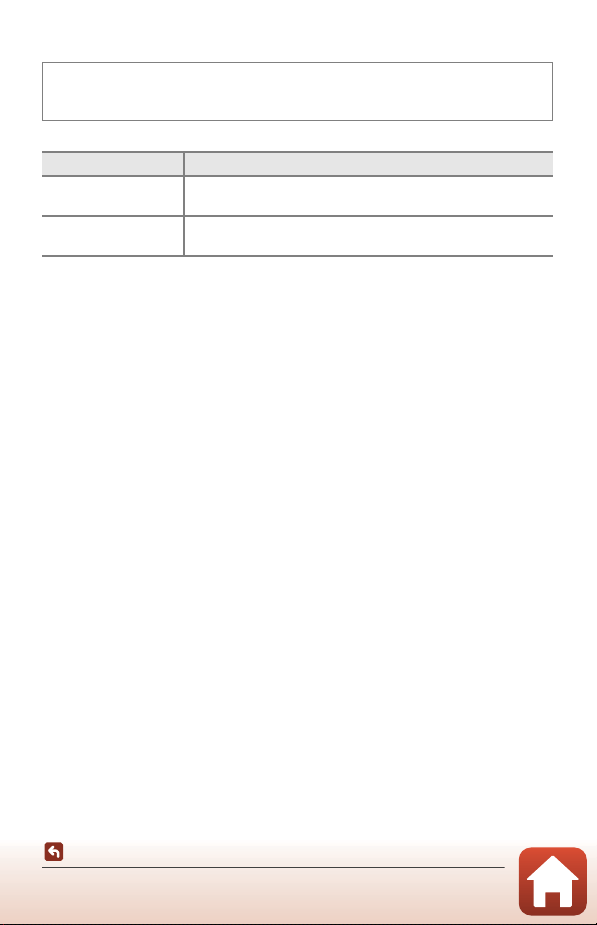
157
Using the Menu
The Playback Menu
Sequence Display
Select the method used to display images in the sequence (A86).
Settings are applied to all sequences, and the setting is saved in the camera’s memory
even after the camera is turned off.
Press the c button (playback mode) M d button M Sequence display M
k button
Option Description
Q Individual pictures
Displays each image in a sequence individually.
F is displayed on the playback screen.
C Key picture only
(default setting)
Displays only the key picture for images in a sequence.
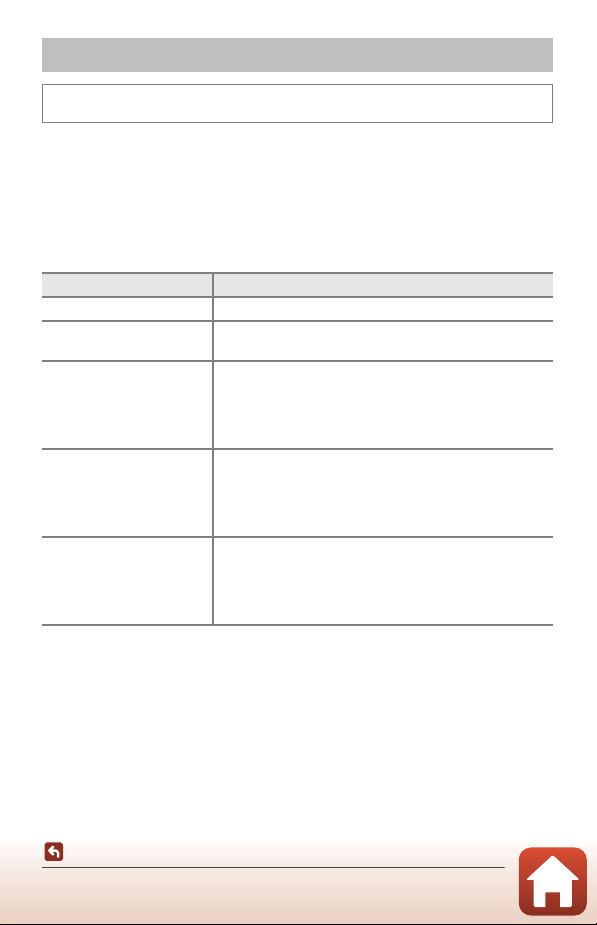
158
Using the Menu
The Network Menu
Configure the wireless network settings to connect the camera to a smart device or
the ML-L7 Remote Control (available separately).
• When you establish a wireless connection between the camera and a smart device
with the SnapBridge app installed, you can upload images captured with the
camera to the smart device or perform remote photography. See the included
“SnapBridge Connection Guide” for the connection procedure.
• Some settings cannot be changed while a wireless connection is established. To
change them, disconnect the wireless connection.
The Network Menu
Press the d button M J menu icon M k button
Option Description
Airplane mode Select On to turn off all wireless connections.
Choose connection
Select whether to connect the camera to a smart device or
the ML-L7 Remote Control (available separately).
Connect to smart device
Select when using the SnapBridge app to connect the
camera and a smart device. See the included “SnapBridge
Connection Guide” for more information.
• Select Smart device in Choose connection before
selecting this option.
Connection to remote
Select when connecting the ML-L7 Remote Control
(available separately) with the camera. The camera waits for
the connection to be established (A210).
• Select Remote control in Choose connection before
selecting this option.
Send while shooting
Set the conditions for automatically sending images to a
smart device.
• The size of images that are uploaded is restricted to 2
megapixels. To upload still images at their original size,
use Download pictures in the SnapBridge app.
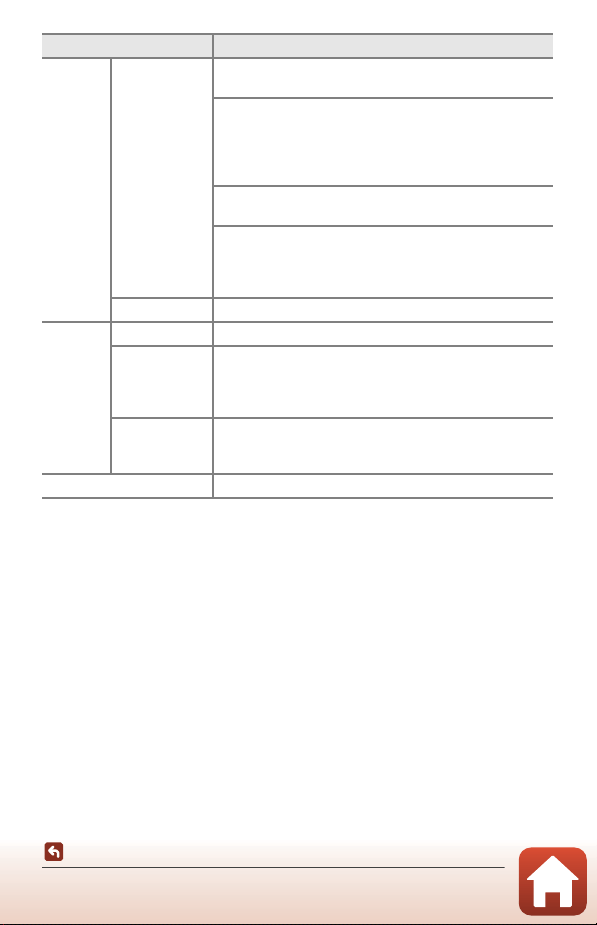
159
Using the Menu
The Network Menu
* See “Operating the Text Input Keyboard” (A160) for information on how to enter
alphanumeric characters.
C Bluetooth Communication Indicator on the Shooting Screen
• On: The camera is connected to a smart device via Bluetooth.
• Flashing: The camera is waiting for the connection to a smart device to be reestablished. It
also flashes when Bluetooth communication is disconnected while uploading images
(A203).
Wi-Fi
Network
settings
SSID*: Change the SSID. Set a 1- to 32-character
alphanumeric SSID.
Auth./encryp.: Select whether or not to encrypt the
communications between the camera and the connected
smart device.
Communications are not encrypted when Open is
selected.
Password*: Set the password. Set an 8- to 36-character
alphanumeric password.
Channel: Select the channel used for the Wi-Fi connection.
If the communication quality is poor or the image upload
speed is extremely slow when using a Wi-Fi connection, try
changing the channel.
Current settings Display the current settings.
Bluetooth
Connection Select Disable to turn off Bluetooth communication.
Paired devices
Change the smart device to connect with, or delete the
connected smart device.
This camera can be paired with up to five smart devices,
but can connect to only one device at a time.
Send while off
Set whether or not to allow the camera to communicate
with the smart device when the camera is off or in standby
mode (A25).
Restore default settings Restore all network menu settings to their default values.
Option Description
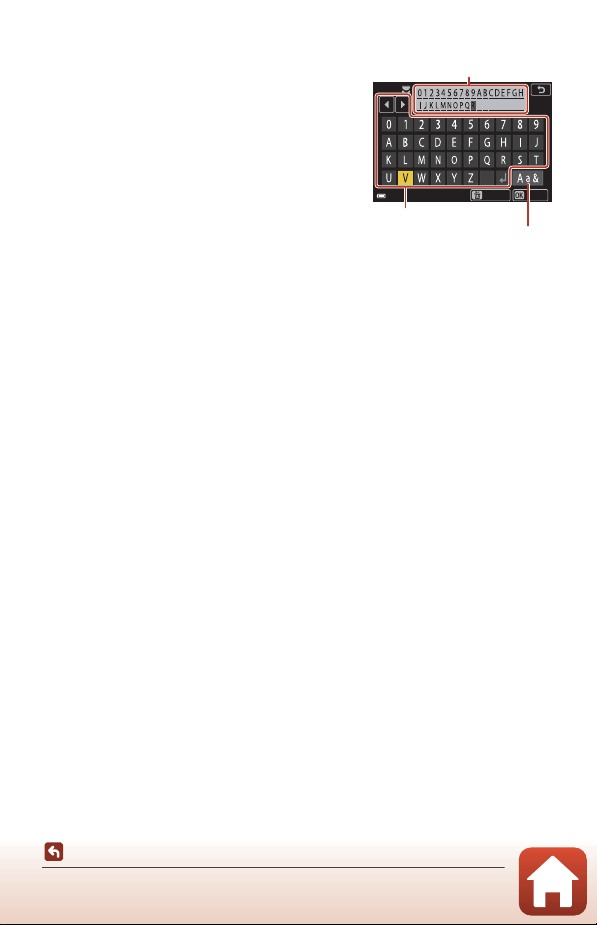
160
Using the Menu
The Network Menu
Operating the Text Input Keyboard
• Use the multi selector HIJK to select
alphanumeric characters. Press the k button to
enter the selected character in the text field and
move the cursor to the next space.
• Select the change character type icon and press
the k button to change the character type.
• To move the cursor in the text field, rotate the
command dial.
• To delete characters, move the cursor to the text
field you want to delete and press the l button.
• To apply the setting, select P on the keyboard
and press the k button.
C Operating the Touch Panel on the Text Input Keyboard
You can input characters by tapping the text field, keyboard, or change character type icon.
InputDelete
Text field
Keyboard
Change character type icon
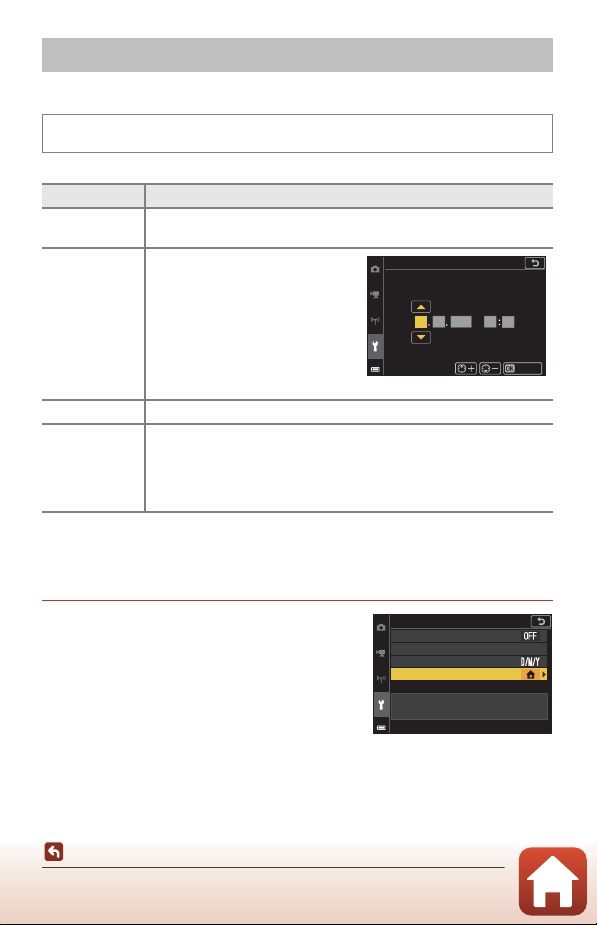
161
Using the Menu
The Setup Menu
Time Zone and Date
Set the camera clock.
*Can be set only when Sync with smart device is set to Off.
Setting the Time Zone
1 Use the multi selector HI to select
Time zone and press the k button.
The Setup Menu
Press the d button M z menu icon M Time zone and date M k button
Option Description
Sync with
smart device
Select On to synchronize the date and time setting with a smart device.
Enable the clock synchronization function of the SnapBridge app.
Date and time*
• Select a field: Press the multi
selector JK.
• Edit the date and time: Press
HI. Date and time can also be
changed by rotating the multi
selector or command dial.
• Apply the setting: Select the
minute field setting and press
the k button.
Date format Select Year/Month/Day, Month/Day/Year, or Day/Month/Year.
Time zone*
Set time zone and daylight saving time.
• When Travel destination (
x) is set after having set the home time
zone (w), the time difference between the travel destination and the
home time zone is automatically calculated, and the date and time
are saved for the selected region.
Date and time
DM Y h m
2019
0101
00 00
Conrm
Time zone and date
Date format
Date and time
Sync with smart device
Time zone
London, Casablanca
UTC+0
15/11/2019 15:30
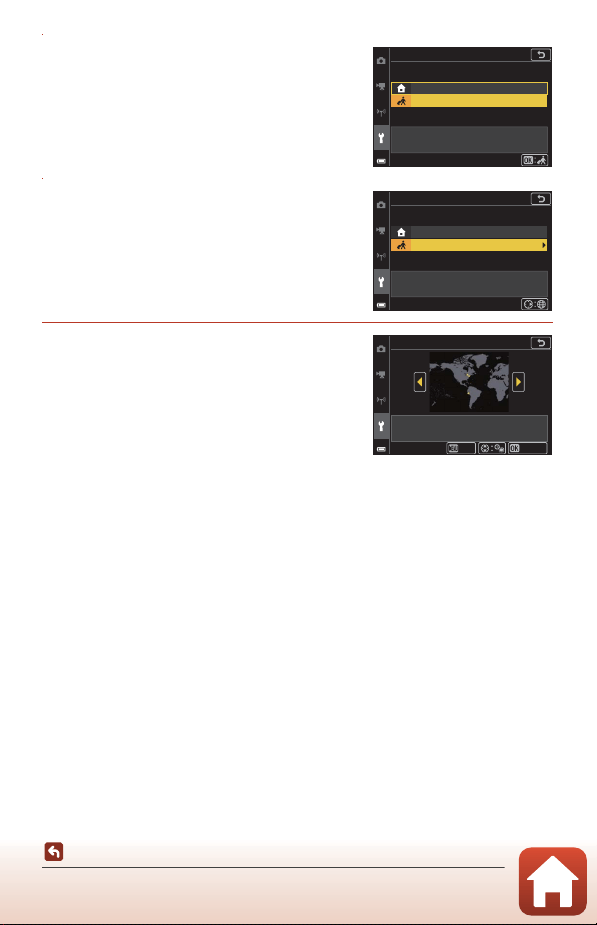
162
Using the Menu
The Setup Menu
2 Select w Home time zone or x
Travel destination and press the k
button.
• The date and time displayed on the screen
changes depending on whether the home
time zone or travel destination is selected.
3 Press K.
4 Use JK to select the time zone.
• Press H to enable daylight saving time
function, and W is displayed. Press I to
disable the daylight saving time function.
• Press the k button to apply the time zone.
• If the correct time is not displayed for the home
or travel destination time zone setting, set the
appropriate time in Date and time.
Travel destination
Home time zone
Time zone
London, Casablanca
UTC+0
15/11/2019 15:30
Travel destination
Home time zone
Time zone
London, Casablanca
UTC+0
15/11/2019 15:30
UTC-5
Back
Travel destination
New York, Toronto, Lima
Conrm
15/11/2019 10:30
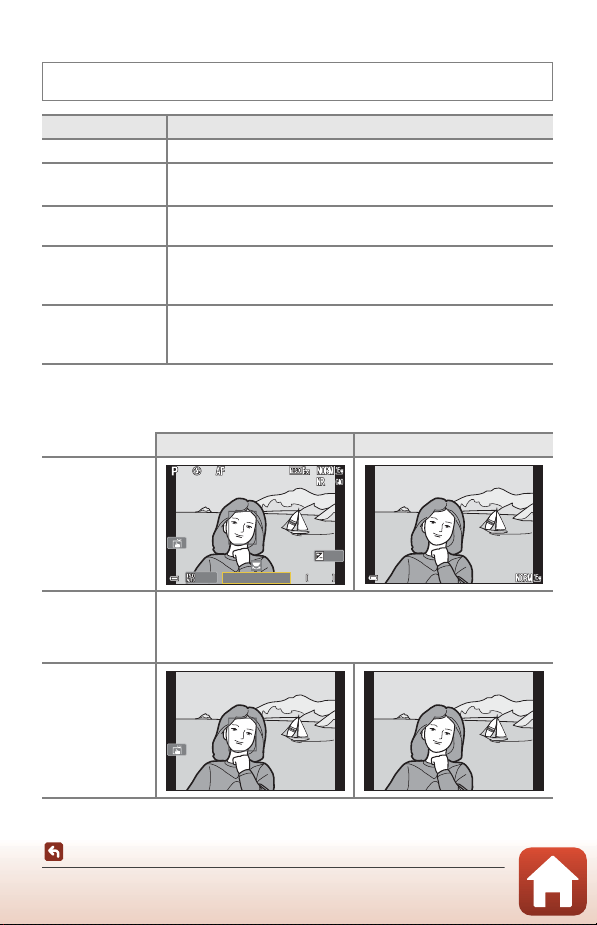
163
Using the Menu
The Setup Menu
Monitor Settings
Photo Info
Press the d button M z menu icon M Monitor settings M k button
Option Description
Photo info Set whether or not to display information on the screen.
Monitor brightness
Adjust the monitor brightness.
• Default setting: 3
EVF brightness
Adjust the viewfinder brightness.
• Default setting: 3
Help display
The descriptions of functions are displayed while changing the
shooting mode or while the setting screen is displayed.
• Default setting: On
Image review
Set whether or not to display the captured image immediately after
shooting.
• Default setting: On
Shooting mode Playback mode
Show info
Auto info
(default setting)
The same information as shown in Show info is displayed, and it is
hidden as shown in Hide info if no operations are performed for a
few seconds. The information is displayed again when an operation is
performed.
Hide info
F 3 .4
F3.4
5 0 0
500
2 5 m 0s
25m 0s
1 / 25 0
1/250
0 . 0
0.0
1 0 0
100
1 0 0 - 0 0 0 4 . J P G
100-0004.JPG
1 5 / 1 1 / 2 0 1 9 1 5 : 3 0
15/11/2019 15:30
4 / 4
4/4
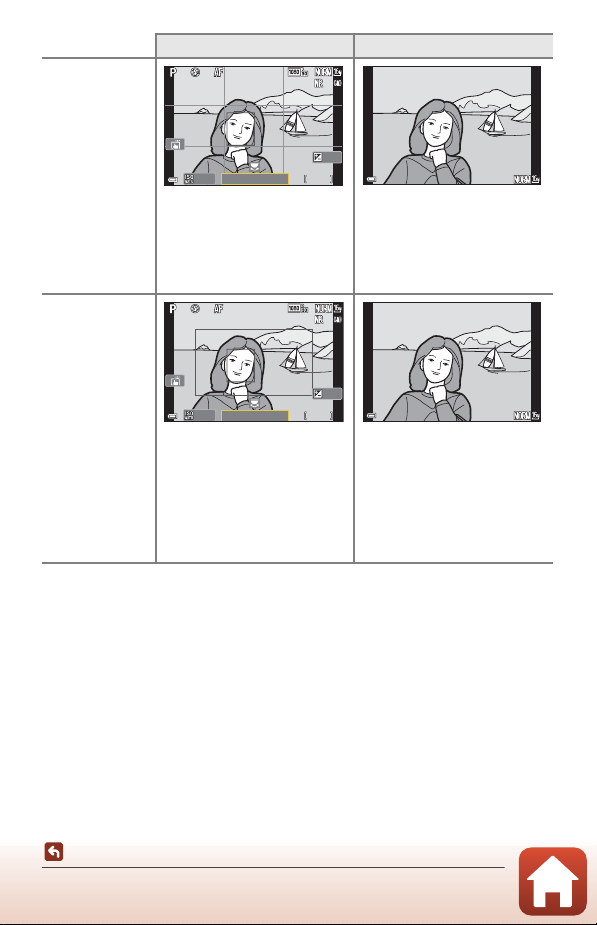
164
Using the Menu
The Setup Menu
Framing
grid+auto info
In addition to the information
shown in Auto info, a framing
grid is displayed to help frame
pictures.
The framing grid is not displayed
while recording movies.
Same as Auto info.
Movie
frame+auto info
In addition to the information
shown in Auto info, a frame is
displayed before movie
recording begins that represents
the area that will be captured
when recording movies.
The movie frame is not displayed
while recording movies.
Same as Auto info.
Shooting mode Playback mode
F 3 .4
F3.4
5 0 0
500
2 5 m 0s
25m 0s
1 / 25 0
1/250
0 . 0
0.0
1 0 0
100
1 0 0 - 0 0 0 4 . J P G
100-0004.JPG
1 5 / 1 1 / 2 0 1 9 1 5 : 3 0
15/11/2019 15:30
4 / 4
4/4
F 3 .4F3.4 5 0 0500
2 5 m 0s25m 0s
1 / 25 01/250
0 . 00.0
1 0 0100
1 0 0 - 0 0 0 4 . J P G
100-0004.JPG
1 5 / 1 1 / 2 0 1 9 1 5 : 3 0
15/11/2019 15:30
4 / 4
4/4
165
Using the Menu
The Setup Menu
EVF Auto Toggle (Automatically Switching the Display
to the Viewfinder)
Press the d button M z menu icon M EVF auto toggle M k button
Option Description
On
(default setting)
When you bring your face close to the viewfinder, the eye sensor
responds to it and the display is automatically switched from the
monitor to viewfinder.
Off
Even when you bring your face close to the viewfinder, the display
is not switched to the viewfinder.
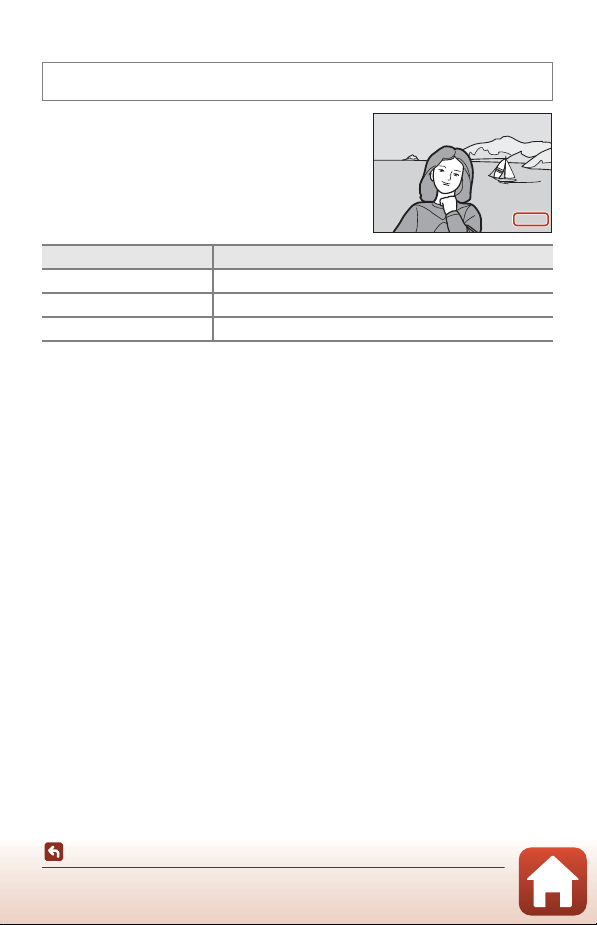
166
Using the Menu
The Setup Menu
Date Stamp
The shooting date and time can be stamped on
images when shooting.
B Notes About Date Stamp
• Stamped date and time form a permanent part of image data and cannot be deleted. The
date and time cannot be stamped on images after they have been captured.
• The date and time cannot be stamped in the following situations:
- When the scene mode is set to Night portrait (when set to Hand-held), Night
landscape (when set to Hand-held), Backlighting (when HDR is set to On), Easy
panorama, or Multiple exp. Lighten
- When Image quality (A127) is set to RAW, RAW + Fine, or RAW + Normal
- When Continuous (A134) is set to Pre-shooting cache, Continuous H: 120 fps, or
Continuous H: 60 fps
- When recording movies
- When saving still images during movie recording
- When extracting still images from a movie during movie playback
• The stamped date and time may be difficult to read when using a small image size.
Press the d button M z menu icon M Date stamp M k button
Option Description
W Date Date is stamped on images.
X Date and time Date and time are stamped on images.
Off (default setting) Date and time are not stamped on images.
1 5.1 1 .20 1 9
15.11.2019
167
Using the Menu
The Setup Menu
Self-timer: After Release
Set whether to cancel the self-timer after using it to shoot (A61).
Press the d button M z menu icon M Self-timer: after release M k button
Option Description
o Exit self-timer mode
(default setting)
The self-timer is canceled after shooting.
• After shooting in Multiple exp. Lighten scene mode,
self-timer is not canceled. To end self-timer, manually
set the self-timer setting to k.
• Pet portrait auto release and Smile timer are not
canceled.
k Stay in self-timer mode
The self-timer photography continues after shooting.
• When the camera is turned off, self-timer is canceled.
• Self-Collage is canceled.
168
Using the Menu
The Setup Menu
Photo VR
Select the vibration reduction setting used when shooting still images.
Select Off when using a tripod to stabilize the camera during shooting.
B Notes About Photo VR
• After turning on the camera or after switching from playback mode to shooting mode,
wait until the shooting screen is ready before taking pictures.
• Images on the screen may be displayed blurry immediately after shooting.
• Vibration reduction may be unable to completely eliminate the effects of camera shake in
some situations.
Press the d button M z menu icon M Photo VR M k button
Option Description
On
(default setting)
Performs compensation for camera shake using lens shift VR.
Off Compensation is not performed.
169
Using the Menu
The Setup Menu
AF Assist
Digital Zoom
B Notes About Digital Zoom
• Digital zoom cannot be used in the following scene modes:
- Portrait, Night portrait, Night landscape, Backlighting (when HDR is set to On),
Easy panorama, Pet portrait, Smart portrait
• Digital zoom cannot be used in other shooting modes when using certain settings
(A82).
Press the d button M z menu icon M AF assist M k button
Option Description
a Auto
(default setting)
The AF-assist illuminator automatically lights up when you
press the shutter-release button under dim lighting. The
illuminator has a range of about 3.5 m (11 ft) at the maximum
wide-angle position and about 5.0 m (16 ft) at the maximum
telephoto position.
• The AF-assist illuminator may not light depending on the
position of the focus area or the shooting mode.
Off The AF-assist illuminator does not light.
Press the d button M z menu icon M Digital zoom M k button
Option Description
On
(default setting)
Digital zoom is enabled.
Off Digital zoom is disabled.
170
Using the Menu
The Setup Menu
Assign Side Zoom Control
Choose the function to be performed during shooting when the side zoom control is
moved.
1
When the focus mode is set to modes other than E, operation of the side zoom control
is disabled.
2
In shooting modes where the f-number cannot be set, operation of the side zoom control
is disabled.
3
When the ISO sensitivity cannot be set, operation of the side zoom control is disabled.
4
When the exposure compensation cannot be set, operation of the side zoom control is
disabled.
5
When the white balance cannot be set, operation of the side zoom control is disabled.
Press the d button M z menu icon M Assign side zoom control M k button
Option Description
Y Zoom (default setting) Adjust the zoom (A70).
E Manual focus
1
When the focus mode is set to E (manual focus), use
the side zoom control to focus (A64).
• Move the side zoom control toward g to focus on
distant subjects.
• Move the side zoom control toward f to focus on
near subjects.
Z Aperture
2
Set the f-number (A53).
b ISO sensitivity
3
Display the ISO sensitivity setting screen (A138).
Move the side zoom control while the setting screen is
displayed to select an item.
o Exposure compensation
4
Display the exposure compensation setting screen
(A66, 68).
Move the side zoom control while the setting screen is
displayed to select a compensation value.
c White balance
5
Display the white balance setting screen (A130).
Move the side zoom control while the setting screen is
displayed to select an item.
k None
The side zoom control does not operate even if it is
moved.
171
Using the Menu
The Setup Menu
AE/AF Lock Button
Choose the function to be performed during shooting when the g (AE-L/AF-L)
button (A3) is pressed.
1
When the exposure compensation setting screen is displayed, the focus and exposure
locks are released.
2
When the exposure compensation setting screen is displayed, the exposure lock is
released.
3
When the exposure compensation is changed, the exposure lock is released.
4
When the exposure compensation setting screen is displayed, the focus lock is released.
B Notes About AE/AF Lock Button
• The exposure is not locked even if you press the g button in the following shooting
modes.
- D (manual) mode
- Time-lapse movie (during Night sky (150 minutes) or Star trails (150 minutes)),
Fireworks show, or Multiple exp. Lighten scene mode
• When the focus mode (A63) is E (manual focus), the focus is not locked even if you
press the g button.
Press the d button M z menu icon M AE/AF lock button M k button
Option Description
a AE/AF lock
(default setting)
Hold down the g button to lock both the focus and exposure.
1
b AE lock only Hold down the g button to lock the exposure.
2
c AE lock (Hold)
Press the g button to lock the exposure. Exposure lock is not
released even if you press the shutter-release button.
3
Press the g button again to release the exposure lock.
d AF lock only Hold down the g button to lock the focus.
4
172
Using the Menu
The Setup Menu
Sound Settings
Auto Off
Set the amount of time that elapses before the camera enters standby mode (A25).
You can select 30 s, 1 min (default setting), 5 min, or 30 min.
C Setting the Auto Off Function
The time that passes before the camera enters standby mode is fixed in the following
situations:
• When a menu is displayed: 3 minutes (when auto off is set to 30 s or 1 min)
• When shooting using Pet portrait auto release: 5 minutes (when auto off is set to 30 s
or 1 min)
• When shooting using Smile timer: 5 minutes (when auto off is set to 30 s or 1 min)
• When the AC adapter is connected: 30 minutes
• When waiting for connecting with Connect to smart device: 30 minutes
Press the d button M z menu icon M Sound settings M k button
Option Description
Button sound
When On (default setting) is selected, the camera produces
one beep when operations are performed, two beeps when
focus is acquired on the subject, and three beeps when an
error occurs. The welcome screen sound is also produced.
• Sounds are disabled when using Pet portrait scene
mode.
Shutter sound
When On (default setting) is selected, the shutter sound is
produced when the shutter is released.
• The shutter sound is not produced when recording
movies or when using Easy panorama or Pet portrait
scene mode.
Press the d button M z menu icon M Auto off M k button
173
Using the Menu
The Setup Menu
Format Card/Format Memory
Use this option to format a memory card or the internal memory.
Formatting the memory cards or internal memory permanently deletes all
data. Data that has been deleted cannot be recovered. Make sure to save
important images to a computer before formatting.
• You may not be able to select this setting while a wireless connection is
established.
Formatting a Memory Card
• Insert a memory card into the camera.
• Select Format card in the setup menu and then press the k button.
Formatting the Internal Memory
• Remove the memory card from the camera.
• Select Format memory in the setup menu and then press the k button.
To start formatting, select Format on the screen that is displayed and press the k
button.
• Do not turn the camera off or open the battery-chamber/memory card slot cover
during formatting.
Press the d button M z menu icon M Format card/Format memory M
k button
174
Using the Menu
The Setup Menu
Language
Select a language for display of camera menus and messages.
HDMI Output
Select the image resolution when outputting through HDMI.
When Auto (default setting) is selected, 2160p, 1080p, or 720p is selected
automatically for the resolution supported by the connected TV.
Press the d button M z menu icon M Language M k button
Press the d button M z menu icon M HDMI output M k button
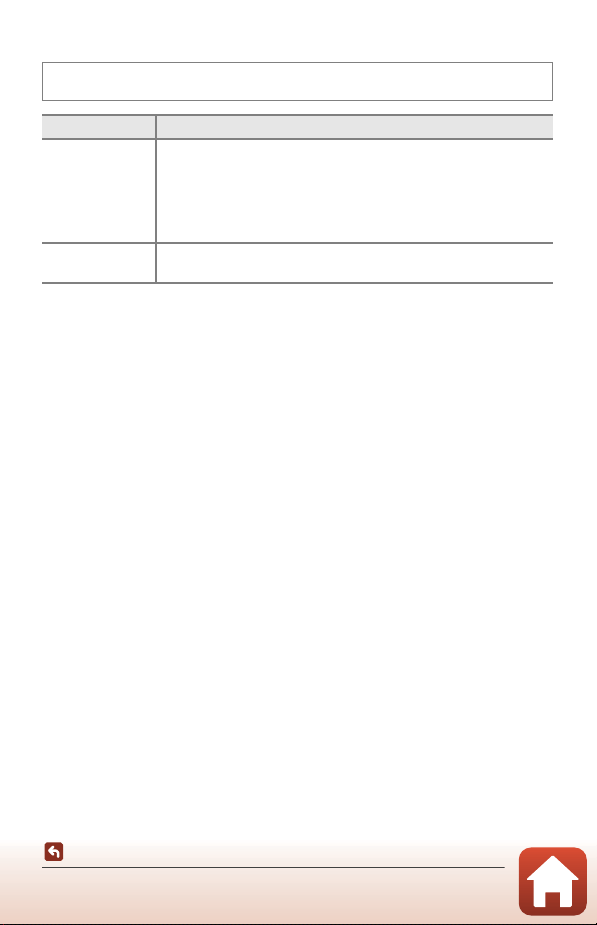
175
Using the Menu
The Setup Menu
Charge by Computer
B Notes About Charging with a Computer
• When connected to a computer, the camera turns on and starts charging. If the camera is
turned off, charging stops.
• About 5 hours are required to charge a fully exhausted battery. Charging time increases
when images are transferred while the battery is charging.
• The camera turns off automatically if there is no communication with the computer for 30
minutes after the battery has finished charging.
B When the Power-on Lamp (Charge Lamp) Quickly Flashes
Charging cannot be performed, possibly due to one of the reasons described below.
• The ambient temperature is not suited to charging. Charge the battery indoors with an
ambient temperature of 5°C to 35°C (41°F to 95°F).
• The USB cable is not connected correctly or the battery is faulty. Make sure that the USB
cable is connected correctly or replace the battery if necessary.
• The computer is in sleep mode and is not supplying power. Wake up the computer.
• The battery cannot be charged because the computer cannot supply power to the
camera due to the computer’s settings or its specifications.
Press the d button M z menu icon M Charge by computer M k button
Option Description
a Auto
(default setting)
When the camera is connected to a computer that is running
(A110), the battery inserted into the camera is automatically
charged using power supplied by the computer.
• The power-on lamp (charge lamp) slowly flashes while the battery
is charging. When charging is complete, the power-on lamp
(charge lamp) changes from flashing to on.
Off
The battery inserted into the camera is not charged when the camera
is connected to a computer.
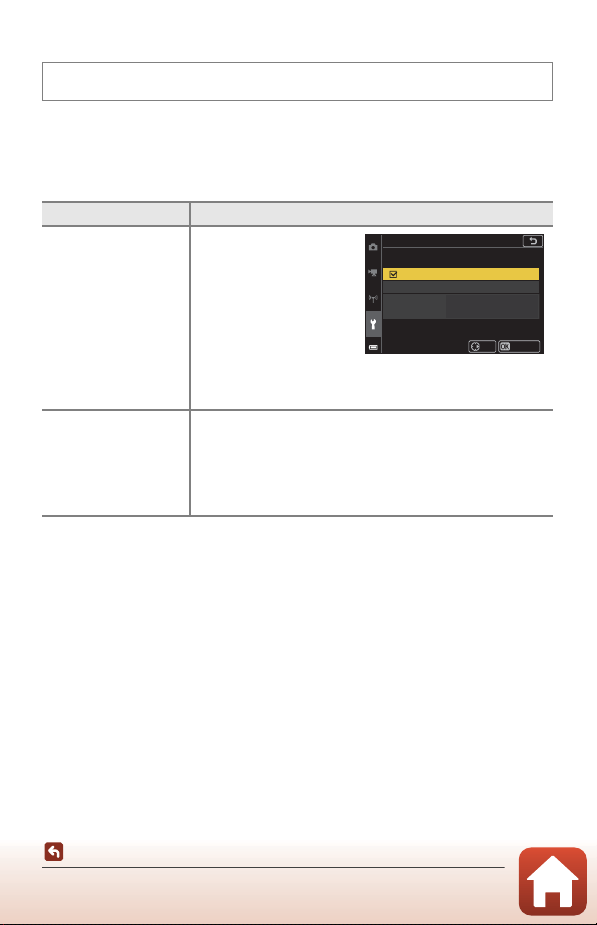
176
Using the Menu
The Setup Menu
Image Comment
Attach a comment that was previously registered to images that will be captured.
You can imprint the attached comment to images that will be sent to a smart device
using the SnapBridge app. You must configure the SnapBridge app in advance. See
SnapBridge app online help for more information.
You can also check the attached comment using ViewNX-i metadata.
B Notes About Image Comments
Image comments cannot be attached to movies.
C Image Comments Display
Image comments are not displayed even if images are played back on the camera.
Press the d button M z menu icon M Image comment M k button
Option Description
Attach comment
A comment registered
with Input comment is
attached to images.
• Select Attach
comment, press K,
and set the check box
to on (w). When you
press the k button,
the setting is enabled,
and the comment will be attached to the images captured
afterwards.
Input comment
You can register a comment of up to 36 alphanumeric
characters.
• Select Input comment, press K, and the input screen is
displayed.
See “Operating the Text Input Keyboard” (A160) for
information about the input method.
Image comment
Input comment
Attach comment
ConrmSet
XXXXXXXXXXXXXXXXXX
XXXXXXXXXXXXXXXXXX
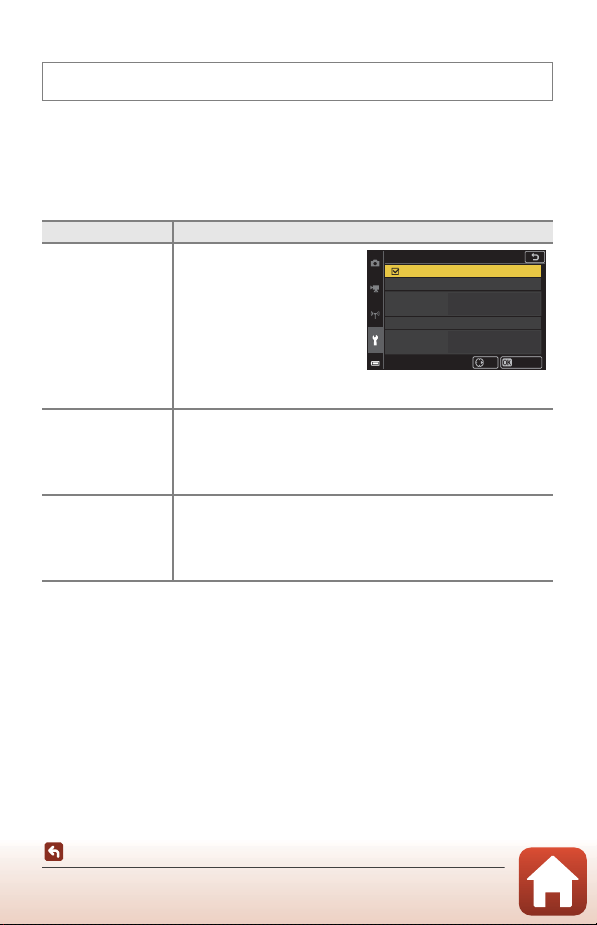
177
Using the Menu
The Setup Menu
Copyright Information
Attach the copyright information that was previously registered to images that will be
captured.
You can imprint the attached copyright information to images that will be sent to a
smart device using the SnapBridge app. You must configure the SnapBridge app in
advance. See SnapBridge app online help for more information.
You can also check the attached copyright information using ViewNX-i metadata.
B Notes About Copyright Information
• Copyright information cannot be attached to movies.
• To prevent illegal use of artist names and copyright owner names when lending or
transferring ownership of the camera, make sure to disable the Attach copyright info
setting. Also, make sure that the artist name and copyright owner name are blank.
• Nikon is not responsible for any kind of trouble or damage resulting from the use of
Copyright information.
C Copyright Information Display
• Copyright information is not displayed even if images are played back on the camera.
• If you input both Artist and Copyright, only the copyright owner name is imprinted to
images in the SnapBridge app.
Press the d button M z menu icon M Copyright information M k button
Option Description
Attach copyright
info
Copyright information registered
with
Artist
and
Copyright
is
attached to images.
• Select Attach copyright
info, press K, and set the
check box to on (w).
When you press the k
button, the setting is
enabled, and the copyright
information will be attached to the images captured afterwards.
Artist
You can register an artist name of up to 36 alphanumeric
characters.
• Select Artist, press K, and the input screen is displayed. See
“Operating the Text Input Keyboard” (A160) for information
about the input method.
Copyright
You can register a copyright owner name of up to 54
alphanumeric characters.
• Select Copyright, press K, and the input screen is displayed.
See “Operating the Text Input Keyboard” (A160) for
information about the input method.
ConrmSet
XXXXXXXXXXXXXXXXXX
XXXXXXXXXXXXXXXXXX
XXXXXXXXXXXXXXXXXX
XXXXXXXXXXXXXXXXXX
Copyright information
Artist
Copyright
Attach copyright info
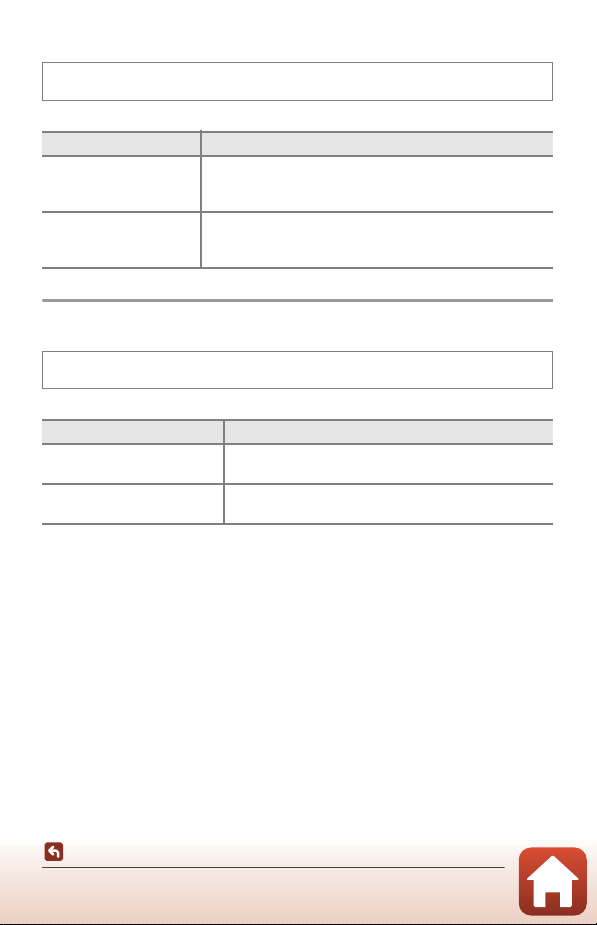
178
Using the Menu
The Setup Menu
Location Data
Set whether or not to add shooting location information to the images that you take.
Toggle Av/Tv Selection
Change which controls to use for setting the exposure in D mode.
Press the d button M z menu icon M Location data M k button
Option Description
Download from device
Select Yes to add location information from the smart device
to the images that you take. Enable the location information
function of the SnapBridge app.
Position
Display the obtained location information.
• The information is not updated while it is being displayed.
To update it, perform Position again.
Press the d button M z menu icon M Toggle Av/Tv selection M k button
Option Description
k Do not toggle selection
(default setting)
Use the command dial to set the shutter speed (Tv), and
the multi selector to set the f-number (Av).
o Toggle selection
Use the multi selector to set the shutter speed (Tv), and
the command dial to set the f-number (Av).
179
Using the Menu
The Setup Menu
MF Peaking
Reset All
When Reset is selected, the camera’s settings are restored to their default values.
• The network menu settings are also restored to their default values.
• Some settings, such as Time zone and date or Language, are not reset.
• You may not be able to select this setting while a wireless connection is
established.
C Resetting File Numbering
To reset file numbering to “0001”, delete all images saved on the memory card or in the
internal memory before selecting Reset all.
Touch-screen Controls
Set whether to enable touch controls (A7).
Default setting: Enable
Press the d button M z menu icon M MF peaking M k button
Option Description
On
(default setting)
When operating E (manual focus), focusing is assisted by
highlighting areas that are in focus in white on the image
displayed on the screen (A64, 65).
Off Peaking is disabled.
Press the d button M z menu icon M Reset all M k button
Press the d button M z menu icon M Touch-screen controls M k button
180
Using the Menu
The Setup Menu
Conformity Marking
View some of the conformity markings that the camera complies with.
Firmware Version
View the current camera firmware version.
• You may not be able to select this setting while a wireless connection is
established.
Press the d button M z menu icon M Conformity marking M k button
Press the d button M z menu icon M Firmware version M k button
181
Technical Notes
Technical Notes
Notices...................................................................................................................................182
Notes About Wireless Communication Functions ................................................184
Caring for the Product..................................................................................................... 187
The Camera.................................................................................................................187
The Battery..................................................................................................................188
The Charging AC Adapter......................................................................................189
Memory Cards............................................................................................................ 190
Cleaning and Storage ......................................................................................................191
Cleaning .......................................................................................................................191
Storage .........................................................................................................................191
Error Messages ...................................................................................................................192
Troubleshooting................................................................................................................195
File Names............................................................................................................................206
Accessories ..........................................................................................................................207
ML-L7 Remote Control............................................................................................208
Specifications......................................................................................................................212
Memory Cards That Can Be Used........................................................................216
Index ......................................................................................................................................218
182
Technical Notes
Notices
Notices for Customers in the U.S.A.
IMPORTANT SAFETY INSTRUCTIONS -
SAVE THESE INSTRUCTIONS.
DANGER - TO REDUCE THE RISK OF FIRE OR ELECTRIC SHOCK, CAREFULLY
FOLLOW THESE INSTRUCTIONS
For connection to a supply not in the U.S.A., use an attachment plug adapter of the
proper configuration for the power outlet if needed.
The power supply unit is intended to be correctly orientated in a vertical or floor
mount position.
Federal Communications Commission (FCC) Radio Frequency Interference
Statement
This equipment has been tested and
found to comply with the limits for a
Class B digital device, pursuant to Part
15 of the FCC rules. These limits are
designed to provide reasonable
protection against harmful
interference in a residential installation. This equipment generates, uses, and can
radiate radio frequency energy and, if not installed and used in accordance with the
instructions, may cause harmful interference to radio communications. However,
there is no guarantee that interference will not occur in a particular installation. If this
equipment does cause harmful interference to radio or television reception, which
can be determined by turning the equipment off and on, the user is encouraged to
try to correct the interference by one or more of the following measures:
• Reorient or relocate the receiving antenna.
• Increase the separation between the equipment and receiver.
• Connect the equipment into an outlet on a circuit different from that to which the
receiver is connected.
• Consult the dealer or an experienced radio/television technician for help.
CAUTIONS
Modifications
The FCC requires the user to be notified that any changes or modifications made to
this device that are not expressly approved by Nikon Corporation may void the user’s
authority to operate the equipment.
Notices
183
Technical Notes
Notices
Interface Cables
Use the interface cables sold or provided by Nikon for your equipment. Using other
interface cables may exceed the limits of Class B Part 15 of the FCC rules.
Nikon Inc.,
1300 Walt Whitman Road, Melville, New York 11747-3064, U.S.A.
Tel: 631-547-4200
Notice for Customers in Canada
CAN ICES-3 B / NMB-3 B
Notices for Customers in Europe
This symbol indicates that electrical and electronic equipment is to be
collected separately.
The following apply only to users in European countries:
• This product is designated for separate collection at an appropriate
collection point. Do not dispose of as household waste.
• Separate collection and recycling helps conserve natural resources and
prevent negative consequences for human health and the environment that might
result from incorrect disposal.
• For more information, contact the retailer or the local authorities in charge of waste
management.
DISPOSE OF USED BATTERIES ACCORDING TO THE INSTRUCTIONS.
This symbol on the battery indicates that the battery is to be collected
separately.
The following apply only to users in European countries:
• All batteries, whether marked with this symbol or not, are designated
for separate collection at an appropriate collection point. Do not
dispose of as household waste.
• For more information, contact the retailer or the local authorities in charge of waste
management.
CAUTION: RISK OF EXPLOSION IF BATTERY IS REPLACED BY AN INCORRECT
TYPE.
184
Technical Notes
Notes About Wireless Communication Functions
Restrictions on Wireless Devices
The wireless transceiver included in this product conforms to wireless regulations in
the country of sale and is not for use in other countries (products purchased in the EU
or EFTA can be used anywhere within the EU and EFTA). Nikon does not accept
liability for use in other countries. Users who are unsure as to the original country of
sale should consult with their local Nikon service center or Nikon-authorized service
representative. This restriction applies to wireless operation only and not to any other
use of the product.
Security
Although one of the benefits of this product is that it allows others to freely connect
for the wireless exchange of data anywhere within its range, the following may occur
if security is not enabled:
• Data theft: Malicious third-parties may intercept wireless transmissions to steal user
IDs, passwords, and other personal information.
• Unauthorized access: Unauthorized users may gain access to the network and alter
data or perform other malicious actions. Note that due to the design of wireless
networks, specialized attacks may allow unauthorized access even when security is
enabled. Nikon is not responsible for data or information leaks that may occur
during data transfer.
• Do not access networks that you are not permitted to use, even if they are
displayed on your smartphone or tablet. Doing so may be regarded as
unauthorized access. Only access networks that you are permitted to use.
Personal Information Management and Disclaimer
• User information registered and configured on the product, including wireless LAN
connection settings and other personal information, is susceptible to alteration
and loss resulting from operational error, static electricity, accident, malfunction,
repair or other handling. Always keep separate copies of important information.
Nikon is not responsible for any direct or indirect damages or lost profits resulting
from alteration or loss of content that is not attributable to Nikon.
• Before discarding this product or transferring it to another owner, perform Reset
all in the setup menu (A120) to delete all user information registered and
configured with the product, including wireless LAN connection settings and other
personal information.
• Nikon is not responsible for any damages resulting from unauthorized use of this
product by third parties in the event that the product is stolen or lost.
Notes About Wireless Communication
Functions
185
Technical Notes
Notes About Wireless Communication Functions
Precautions when Exporting or Carrying This Product Abroad
This product is controlled by the United States Export Administration Regulations
(EAR). The permission of the United States government is not required for export to
countries other than the following, which as of this writing are subject to embargo or
special controls: Cuba, Iran, North Korea, Sudan, and Syria (list subject to change).
Notice for Customers in the U.S.A. and Canada
Federal Communications Commission (FCC) and Innovation, Science and
Economic Development Canada (ISED)
Declaration of Conformity
This device complies with part 15 of FCC Rules and Innovation, Science and Economic
Development Canada’s licence-exempt RSSs. Operation is subject to the following
two conditions: (1) this device may not cause harmful interference, and (2) this device
must accept any interference received, including interference that may cause
undesired operation.
FCC/ISED RF Exposure Statement
This transmitter must not be co-located or operated in conjunction with any other
antenna or transmitter.
The available scientific evidence does not show that any health problems are
associated with using low power wireless devices. There is no proof, however, that
these low power wireless devices are absolutely safe. Low power Wireless devices
emit low levels of radio frequency energy (RF) in the microwave range while being
used. Whereas high levels of RF can produce health effects (by heating tissue),
exposure of low-level RF that does not produce heating effects causes no known
adverse health effects. Many studies of low-level RF exposures have not found any
biological effects. Some studies have suggested that some biological effects might
occur, but such findings have not been confirmed by additional research.
This product has been tested and found to comply with FCC/ISED radiation exposure
limits set forth for an uncontrolled environment and meets the FCC radio frequency
(RF) Exposure Guidelines and RSS-102 of the ISED radio frequency (RF) Exposure rules.
Please refer to the SAR test report that was uploaded to FCC website.
186
Technical Notes
Notes About Wireless Communication Functions
Notice for Customers in Europe
Declaration of Conformity (Europe)
Hereby, Nikon Corporation declares that the radio equipment type COOLPIX A1000 is
in compliance with Directive 2014/53/EU.
The full text of the EU declaration of conformity is available at the following internet
address: https://imaging.nikon.com/support/pdf/DoC_N1721.pdf.
• Maximum output power:
- Wi-Fi: 9.98 dBm (EIRP)
- Bluetooth: 3.54 dBm (EIRP)
- Bluetooth Low Energy: 2.98 dBm (EIRP)
• Operating frequency:
- Wi-Fi: 2412–2462 MHz (channels 1–11)
- Bluetooth: 2402–2480 MHz
- Bluetooth Low Energy: 2402–2480 MHz
Notice for Customers in Singapore
This device complies with radio-frequency regulations.
Complies with
IMDA Standards
DA103423
187
Technical Notes
Caring for the Product
Observe the precautions described below in addition to the warnings in “For Your
Safety” (Avi-ix) when using or storing the device.
The Camera
Do Not Apply Strong Impact to the Camera
The product may malfunction if subjected to strong shock or vibration. In addition, do not
touch or apply force to the lens or lens cover.
Keep Dry
The device will be damaged if immersed in water or subjected to high humidity.
Avoid Sudden Changes in Temperature
Sudden changes in temperature, such as when entering or leaving a heated building on a
cold day, can cause condensation to form inside the device. To prevent condensation, place
the device in a carrying case or a plastic bag before exposing it to sudden changes in
temperature.
Keep Away from Strong Magnetic Fields
Do not use or store this device in the vicinity of equipment that generates strong
electromagnetic radiation or magnetic fields. Doing so could result in loss of data or camera
malfunction.
Do Not Point the Lens at Strong Light Sources for Extended
Periods
Avoid pointing the lens at the sun or other strong light sources for extended periods when
using or storing the camera. Intense light may cause the image sensor to deteriorate or
produce a white blur effect in photographs.
Turn the Product Off Before Removing or Disconnecting the
Power Source or Memory Card
Do not remove the battery while the product is on, or while images are being saved or
deleted. Forcibly cutting power in these circumstances could result in loss of data or in
damage to the memory card or internal circuitry.
Caring for the Product

188
Technical Notes
Caring for the Product
Notes About the Monitor
• Monitors (including electronic viewfinders) are constructed with extremely high precision;
at least 99.99% of pixels are effective, with no more than 0.01% being missing or defective.
Hence while these displays may contain pixels that are always lit (white, red, blue, or
green) or always off (black), this is not a malfunction and has no effect on images recorded
with the device.
• Images in the monitor may be difficult to see under bright lighting.
• Do not apply pressure to the monitor, as this could cause damage or malfunction. Should
the monitor break, care should be taken to avoid injury caused by broken glass and to
prevent the liquid crystal from the display touching the skin or entering the eyes or
mouth.
The Battery
Precautions for Use
• Note that the battery may become hot after use.
• Do not use the battery at ambient temperatures below 0°C (32°F) or above 40°C (104°F) as
this could cause damage or malfunction.
• If you notice any abnormalities such as excessive heat, smoke, or an unusual smell coming
from the battery, immediately discontinue use and consult your retailer or Nikon-
authorized service representative.
• After removing the battery from the camera or optional battery charger, put the battery in
a plastic bag, etc. in order to insulate it.
Charging the Battery
Check the battery level before using the camera and replace or charge the battery if
necessary.
• Charge the battery indoors with an ambient temperature of 5°C to 35°C (41°F to 95°F)
before use.
• A high battery temperature may prevent the battery from charging properly or
completely, and may reduce battery performance. Note that the battery may become hot
after use; wait for the battery to cool before charging.
When charging the battery inserted into this camera using the Charging AC Adapter or a
computer, the battery is not charged at battery temperatures below 0°C (32°F) or above
50°C (122°F).
• Do not continue charging once the battery is fully charged as this will result in reduced
battery performance.
• The battery temperature may increase during charging. However, this is not a
malfunction.
Carrying Spare Batteries
Whenever possible, carry fully charged spare batteries when taking pictures on important
occasions.
Using the Battery When Cold
On cold days, the capacity of batteries tends to decrease. If an exhausted battery is used at a low
temperature, the camera may not turn on. Keep spare batteries in a warm place and exchange as
necessary. Once warmed, a cold battery may recover some of its charge.

189
Technical Notes
Caring for the Product
Battery Terminals
Dirt on the battery terminals may prevent the camera from functioning. Should the battery
terminals become dirty, wipe them off with a clean, dry cloth before use.
Charging an Exhausted Battery
Turning the camera on or off while an exhausted battery is inserted in the camera may result
in reduced battery life. Charge the exhausted battery before use.
Storing the Battery
• Always remove the battery from the camera or optional battery charger when it is not
being used. Minute amounts of current are drawn from the battery while it is in the
camera, even when not in use. This may result in excessive battery drain and complete
loss of function.
• Charging a used battery within six months is recommended. When storing the battery for
long periods, recharge it at least once every six months and use the camera until the
battery level indicator is B before returning it to storage.
• Put the battery in a plastic bag, etc. in order to insulate it and store it in a cool place. The
battery should be stored in a dry location with an ambient temperature of 15°C to 25°C (59°F
to 77°F). Do not store the battery in hot or extremely cold locations.
Battery Life
A marked drop in the time a fully charged battery retains its charge, when used at room
temperature, indicates that the battery needs to be replaced. Purchase a new battery.
Recycling Used Batteries
Recycle rechargeable batteries in accord with local regulations, being sure to first insulate
the terminals with tape.
The Charging AC Adapter
• The EH-73P/EH-73PCH Charging AC Adapter is for use only with compatible devices. Do
not use with another make or model of device.
• Do not use any USB cable other than the UC-E21. Using a USB cable other than the UC-E21
could result in overheating, fire or electric shock.
• Do not, under any circumstances, use another make or model of AC adapter other than
the EH-73P/EH-73PCH Charging AC Adapter, and do not use a commercially available
USB-AC adapter or a battery charger for a mobile phone. Failure to observe this precaution
could result in overheating or in damage to the camera.
• The EH-73P/EH-73PCH is compatible with AC 100–240 V, 50/60 Hz electrical outlets. When
using in other countries, use a plug adapter (commercially available) as necessary. For
more information about plug adapters, consult your travel agency.
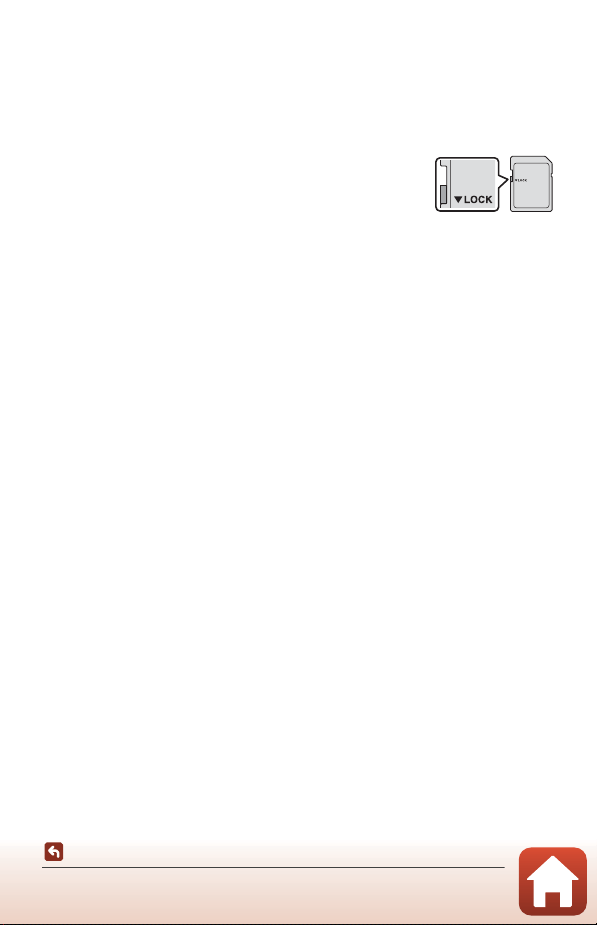
190
Technical Notes
Caring for the Product
Memory Cards
Precautions for Use
• Use only Secure Digital memory cards (A216).
• Be sure to follow the precautions described in the documentation included with the
memory card.
• If the write-protect switch of the memory card is locked, you
cannot shoot, delete images, or format the memory card.
• Do not put labels or stickers on memory cards.
Formatting
• Do not format the memory card using a computer.
• The first time you insert a memory card that has been used in another device into this
camera, be sure to format it with this camera. We recommend formatting new memory
cards with this camera before using them with this camera.
• Note that formatting a memory card permanently deletes all images and other
data on the memory card. Be sure to make copies of any images you wish to keep
before formatting the memory card.
• If the message Card is not formatted. Format card? is displayed when the camera is
turned on, the memory card must be formatted. If there is data that you do not want to
delete, select No. Copy the necessary data to a computer, etc. If you want to format the
memory card, select Yes. The confirmation dialog will be displayed. To start formatting,
press the k button.
• Do not perform the following during formatting, while data is being written to or deleted
from the memory card, or during data transfer to a computer. Failure to observe this
precaution could result in the loss of data or in damage to the camera or memory card:
- Open the battery-chamber/memory card slot cover to remove/insert the battery or
memory card.
-Turn off the camera.
- Disconnect the AC adapter.
16
GB
Write-protect switch
191
Technical Notes
Cleaning and Storage
Cleaning
Do not use alcohol, thinner, or other volatile chemicals.
Storage
Remove the battery if the camera will not be used for an extended period. To prevent
mold or mildew, take the camera out of storage at least once a month.
Turn the camera on and release the shutter a few times before putting the camera
away again. Do not store the camera in any of the following locations:
• Places that are poorly ventilated or subject to humidity of over 60%
• Exposed to temperatures above 50°C (122°F) or below –10°C (14°F)
• Next to equipment that produces strong electromagnetic fields, such as televisions
or radios
For storing the battery, follow the precautions in “The Battery” (A188) in “Caring for
the Product” (A187).
Cleaning and Storage
Lens/
viewfinder
Avoid touching glass parts with your fingers. Remove dust or lint with a
blower (typically a small device with a rubber bulb attached to one end that
is pumped to produce a stream of air out the other end). To remove
fingerprints or other stains that cannot be removed with a blower, wipe the
lens with a soft cloth, using a spiral motion that starts at the center of the
lens and working toward the edges. If this fails, clean the lens using a cloth
lightly dampened with commercial lens cleaner.
Monitor
Remove dust or lint with a blower. To remove fingerprints and other stains,
clean the monitor with a soft, dry cloth, being careful not to apply pressure.
Body
Use a blower to remove dust, dirt, or sand, then wipe gently with a soft, dry
cloth. After using the camera at the beach or other sandy or dusty
environment, wipe off any sand, dust, or salt with a dry cloth lightly
dampened with fresh water and dry thoroughly. Note that foreign matter
inside the camera could cause damage not covered by the warranty.
192
Technical Notes
Error Messages
Refer to the table below if an error message is displayed.
Error Messages
Display Cause/Solution A
Battery temperature
is elevated. The
camera will turn off.
The camera turns off automatically. Wait until the
camera or battery temperature has cooled before
resuming use.
–
The camera will turn
off to prevent
overheating.
Memory card is write
protected.
The write-protect switch is locked. Unlock it. 190
This card cannot be
used.
An error occurred while accessing the memory card.
• Use an approved memory card.
• Check that the terminals are clean.
• Confirm that the memory card is correctly inserted.
16, 216
This card cannot be
read.
Card is not
formatted. Format
card?
The memory card has not been formatted for use in
the camera.
Formatting deletes all data saved on the memory card.
If you need to keep copies of any images, make sure to
select No and save the copies to a computer or other
medium before formatting the memory card. Select
Yes and press the k button to format the memory
card.
16, 190
Out of memory. Delete images or insert a new memory card. 16, 28
Image cannot be
saved.
An error occurred while saving the image.
Insert a new memory card or format the memory card
or internal memory.
16, 173
The camera has run out of file numbers.
Insert a new memory card or format the memory card
or internal memory.
16, 173
There is insufficient space to save the copy.
Delete images from the destination.
28
Image cannot be
modified.
Check that the images can be edited. 88, 201
Cannot record
movie.
A time-out error occurred while saving the movie on
the memory card.
Select a memory card with a faster write speed.
98, 216
193
Technical Notes
Error Messages
Memory contains no
images.
There are no images in the internal memory or on the
memory card.
• Remove the memory card to play back images in
the internal memory.
16
• To copy the images saved in the camera’s internal
memory to the memory card, press the d button
to select Copy in the playback menu.
120
File contains no
image data.
The file was not created or edited with this camera.
The file cannot be viewed on this camera.
View the file using a computer or the device used to
create or edit this file.
–
Cannot select this
image.
RAW images and images captured with other cameras
cannot be marked for upload.
–
All images are
hidden.
There are no images available for a slide show, etc. –
This image cannot be
deleted.
The image is protected.
Disable protection.
155
The flash is lowered.
When the scene mode is Scene auto selector, you
can take a picture even if the flash is lowered but the
flash will not fire.
34
Raise the flash.
When the scene mode is Night portrait or
Backlighting with HDR set to Off, you must raise the
flash to take a picture.
35, 37
No card present.
When shooting in Time-lapse movie or Multiple
exp. Lighten scene mode, or when the shooting
mode is set to short movie show mode, insert a
memory card.
–
Turn the camera off
and then on again.
An error occurred in lens operation.
Do not apply excessive force on the lens.
If you turn the camera off and then on again, lens
operation will return to normal.
If the error persists even after turning the camera off
and then on again, contact your retailer or Nikon-
authorized service representative.
–
Communications
error
An error occurred while communicating with the printer.
Turn the camera off and reconnect the USB cable.
112
System error
An error occurred in the camera’s internal circuitry.
Turn the camera off, remove and reinsert the battery,
and turn the camera on. If the error persists, contact
your retailer or Nikon-authorized service representative.
195
Display Cause/Solution A
194
Technical Notes
Error Messages
* See the documentation provided with your printer for further guidance and information.
Printer error: check
printer status.
After solving the problem, select Resume and press the
k button to resume printing.*
–
Printer error: check
paper.
Load the specified size of paper, select Resume, and
press the k button to resume printing.*
–
Printer error: paper
jam.
Remove the jammed paper, select Resume, and press
the k button to resume printing.*
–
Printer error: out of
paper.
Load the specified size of paper, select Resume, and
press the k button to resume printing.*
–
Printer error: check
ink.
There is a problem with the printer’s ink.
Check the ink, select Resume, and press the k button
to resume printing.*
–
Printer error: out of
ink.
Replace the ink cartridge, select Resume, and press the
k button to resume printing.*
–
Printer error: file
corrupt.
There is a problem with the image file to be printed.
Select Cancel and press the k button to cancel printing.*
–
Display Cause/Solution A
195
Technical Notes
Troubleshooting
If the camera fails to function as expected, check the list of common problems below
before consulting your retailer or Nikon-authorized service representative.
Power, Display, Settings Issues
Troubleshooting
Problem Cause/Solution
A
The camera is on
but does not
respond.
• Wait for recording to end.
–
• If the problem persists, turn the camera off.
If the camera does not turn off, remove and reinsert the
battery or batteries or, if you are using an AC adapter,
disconnect and reconnect the AC adapter.
Note that although any data currently being recorded will
be lost, data that have already been recorded will not be
affected by removing or disconnecting the power source.
The camera
cannot be turned
on.
• The battery is exhausted. 16, 17,
188
• The power switch is enabled a few seconds after the
battery is inserted. Wait a few seconds before pressing
the power switch.
–
The camera turns
off without
warning.
• The camera automatically turns off to save power (auto
off function).
25
• The camera and battery may not work properly at low
temperatures.
188
• The inside of the camera has become hot. Leave the
camera off until the inside of the camera has cooled, and
then try turning it on again.
–
The monitor or
viewfinder is
blank.
• The camera is off. 20
• The battery is exhausted. 23
• The camera automatically turns off to save power (auto
off function).
25
• You cannot turn on both the monitor and viewfinder at
the same time. It may take a while to switch between the
monitor and viewfinder.
–
• The camera is connected to a computer. –
• Interval timer shooting, or Time-lapse movie or Multiple
exp. Lighten scene mode shooting is in progress.
–
The camera
becomes hot.
The camera may become hot when used for an extended
period of time to record movies or send images, or when
used in a hot environment; this is not a malfunction.
–
196
Technical Notes
Troubleshooting
The battery
inserted in the
camera cannot be
charged.
• Confirm all connections. 17
• When connected to a computer, the camera may not
charge for any of the reasons described below.
- Off is selected for Charge by computer in the setup
menu.
175
- Battery charging stops if the camera is turned off. –
- Battery charging is not possible if the camera’s display
language and date and time have not been set, or the
date and time were reset after the camera’s clock
battery was exhausted. Use the Charging AC Adapter to
charge the battery.
20
- Battery charging may stop when the computer enters
sleep mode.
–
- Depending on the computer specifications, settings,
and status, battery charging may not be possible.
–
The monitor is
hard to see.
• The surrounding area is too bright. 26
- Move to a darker place.
- Use the viewfinder.
• Adjust the screen brightness. 163
The viewfinder is
hard to see.
• Adjust the diopter of the viewfinder.
• Adjust the viewfinder brightness.
26
163
The camera does
not switch
between the
monitor and
viewfinder.
• The display does not switch in the following situations:
- While operating the zoom when recording movies
- During movie playback
- When editing movies
• The display may not switch while the camera is being
operated.
–
O flashes on the
screen.
• If the camera clock has not been set, O flashes on the
shooting screen, and images and movies saved before
the clock is set are dated “00/00/0000 00:00” and “01/01/
2019 00:00” respectively.
Set the correct time and date for Time zone and date in
the setup menu.
11, 161
Date and time of
recording are not
correct.
•
The camera clock is not as accurate as ordinary watches or
clocks. Periodically compare the time of the camera clock
with that of a more accurate timepiece and reset as required.
Problem Cause/Solution
A
197
Technical Notes
Troubleshooting
No information
displayed on the
screen.
Hide info is selected for Photo info in Monitor settings
in the setup menu.
163
Date stamp not
available.
Time zone and date has not been set in the setup menu. 161
Date not stamped
on images even
when
Date stamp
is enabled.
• The date cannot be stamped with certain shooting
modes or when using certain settings in other functions.
• The date cannot be stamped on movies.
80, 166
Screen for setting
time zone and
date is displayed
when the camera
is turned on.
The clock battery is exhausted; all settings were restored to
their default values. Configure the camera settings again.
• The internal clock battery is used to power the camera
clock and to retain certain settings. Charging time of the
clock battery takes about 10 hours when you insert the
battery into the camera or connect the AC adapter
(available separately) to the camera, and the clock battery
operates for several days even after the camera battery is
removed.
–
The camera
settings reset.
The camera
makes sound.
Depending on the Autofocus mode setting or the
shooting mode, the camera may produce an audible
focusing sound.
31,
143,
150
Unable to select a
menu.
• Some functions cannot be used with other menu settings. 80
• Some menus are not available while a wireless
connection is established. Disconnect the wireless
connection.
–
• The network menu cannot be selected when an HDMI
cable is connected.
–
Problem Cause/Solution
A
198
Technical Notes
Troubleshooting
Shooting Issues
Problem Cause/Solution
A
Cannot switch to
shooting mode.
Disconnect the USB cable. 110
Cannot take
pictures or record
movies.
• When the camera is in playback mode, press the c
button, shutter-release button, or b(e) button.
2, 27
• When menus are displayed, press the d button. 121
• The flash is charging while K is flashing. 58
• Movies cannot be recorded when the camera is
connected to the Charging AC Adapter.
18
• You cannot shoot while connected with an HDMI cable. 111
• Insert a memory card with sufficient free space into the
camera.
16
• The battery is exhausted. 16, 17,
188
The camera
cannot focus.
• The subject is too close. Try shooting using the Scene
auto selector or Close-up scene mode, or the macro
close-up focus mode.
33, 34,
36, 63
• Incorrect focus mode setting. Check or change the setting. 63
• The subject is hard to focus on. 76
• Set AF assist in the setup menu to Auto. 169
• The focus mode is set to E (manual focus). 63, 64
• Turn the camera off and then on again. –
Colored stripes
appear on the
screen when
shooting.
Colored stripes may appear when shooting subjects with
repeating patterns (such as window blinds); this is not a
malfunction.
–
199
Technical Notes
Troubleshooting
Images are
blurred.
• Use the flash. 58
• Increase the ISO sensitivity value. 138
• Enable Photo VR when shooting still images. Enable
Movie VR when recording movies.
151,
168
• Use a tripod to stabilize the camera (using the self-timer
at the same time is more effective).
61
Bright specks
appear in images
captured with flash.
Flash is reflecting off particles in the air. Lower the flash, and
set the flash mode setting to W (off).
58
Flash does not fire.
• The flash is lowered. 25, 58
• The flash does not fire with certain shooting modes or
when using certain settings in other functions.
78, 80
Digital zoom
cannot be used.
• Digital zoom is set to Off in the setup menu. 169
• Digital zoom cannot be used with certain shooting
modes or when using certain settings in other functions.
82, 169
Image size not
available.
Image size cannot be selected with certain shooting
modes or when using certain settings in other functions.
80, 129
No sound when
the shutter is
released.
Off is selected for Shutter sound in Sound settings in the
setup menu. No sound is produced with some shooting
modes or settings, even when On is selected.
172
AF-assist
illuminator does
not light.
Off is selected for the AF assist option in the setup menu.
AF-assist illuminator may not light depending on the
position of the focus area or the current shooting mode,
even when Auto is selected.
169
Images appear
smeared.
The lens is dirty. Clean the lens. 191
Colors are
unnatural.
White balance or hue is not adjusted properly.
36, 66,
130
Randomly spaced
bright pixels
(“noise”) appear in
image.
The subject is dark and the shutter speed is too slow or ISO
sensitivity is too high. Noise can be reduced by:
• Using the flash 25, 58
• Specifying a lower ISO sensitivity setting 138
Problem Cause/Solution
A
200
Technical Notes
Troubleshooting
Images are too
dark
(underexposed).
• The flash is lowered, or a shooting mode that restricts the
flash is selected.
25, 58,
78
• The flash window is blocked. 23
• The subject is beyond the range of the flash. 213
• Adjust exposure compensation. 66, 68
• Increase ISO sensitivity. 138
• The subject is backlit. Select Backlighting scene mode,
or raise the flash and set the flash mode to X (fill flash/
standard flash).
37, 58
Images are too
bright
(overexposed).
Adjust exposure compensation. 66, 68
Areas other than
red eyes are
corrected.
Use any shooting mode other than Night portrait, and
change the flash mode to any setting other than V
(auto+red-eye reduction/red-eye reduction) and try taking
the picture again.
58, 78
Skin tones are not
softened.
• Under some shooting conditions, facial skin tones may
not be softened.
46
• For images containing four or more faces, try using Skin
softening in Glamour retouch in the playback menu.
90
Saving images
takes time.
It may take more time to save images in the following
situations:
• When the noise reduction function is in operation, such
as when shooting in a dark environment
–
• When the flash mode is set to V (auto+red-eye
reduction/red-eye reduction)
59
• When capturing images in the following scene modes:
- Hand-held in Night portrait 35
- Hand-held in Night landscape 36
- HDR is set to On in Backlighting 37
- Easy panorama
42
• When Image quality is set to RAW, RAW + Fine, or
RAW + Normal
127
• When the skin softening function is applied while
shooting
46
• W
h
en using continuous shooting mode 134
Problem Cause/Solution
A
201
Technical Notes
Troubleshooting
Playback Issues
A ring-shaped
belt or rainbow-
colored stripe
appears on the
screen or images.
When shooting with backlighting or when a very strong
light source (such as sunlight) is in or out of the frame, a
ring-shaped belt or rainbow-colored stripe (ghosting) may
occur. Change the position of the light source, or frame the
picture so that the light source does not enter the frame,
and try again.
–
Problem Cause/Solution
A
File cannot be
played back.
• This camera may not be able to play back images saved
with another make or model of digital camera.
–
• This camera cannot play back RAW images or movies
saved with another make or model of digital camera.
–
• This camera may not be able to play back data edited on
a computer.
–
• Files cannot be played back during interval timer
shooting.
134
Cannot zoom in
on image.
• Playback zoom cannot be used with movies.
–
• This camera may not be able to zoom in on images
captured with another make or model of digital camera.
• When zooming in on a small-sized image, the
magnification rate shown on the screen may differ from
the actual magnification rate of the image.
Cannot edit
image.
• Some images cannot be edited. Images that have already
been edited may not be edited again.
44, 88
• There is not enough free space on the memory card or in
the internal memory.
–
• This camera is unable to edit images captured with other
cameras.
–
• Editing functions used for images are not available for
movies.
–
Cannot rotate
image.
This camera cannot rotate images captured with another
make or model of digital camera.
–
Problem Cause/Solution
A
202
Technical Notes
Troubleshooting
External Device Issues
Problem Cause/Solution
A
Cannot establish
a wireless
connection with a
smart device.
1
• When establishing a wireless connection for the first time,
refer to the instructions in the included “SnapBridge
Connection Guide”.
–
• If a wireless connection is established, perform the
following operations.
–
-Turn the camera off and then on again.
- Restart the SnapBridge app.
- Cancel the connection and then establish a connection
again.
• Check the Network menu settings in the camera. 158
-Set Airplane mode to Off.
-Set Bluetooth M Connection to Enable.
-Set Choose connection to Smart device.
• If the camera is registered with two or more smart
devices, select the smart device you want to connect in
Network menu M Bluetooth M Paired devices in the
camera. If two or more cameras are registered in the
SnapBridge app, switch the connection on the app.
159
• Use a sufficiently charged battery. –
• Insert a memory card with sufficient free space into the
camera.
16
• Disconnect the HDMI cable or USB cable. 110
• Enable Bluetooth, Wi-Fi, and the location data functions
on the smart device.
–
• In the A tab of the SnapBridge app M Auto link
options M turn on Auto link. If it is off, Download
pictures and Remote photography can be used, but
images cannot be downloaded automatically.
–
203
Technical Notes
Troubleshooting
Cannot upload
images to a smart
device that has a
wireless
connection
established with
the SnapBridge
app.
1
• Perform the operations described below when uploading
automatically.
-Set Network menu M Send while shooting M Still
images in the camera to Yes.
158
-In the A tab of the SnapBridge app M Auto link
options M turn on Auto link.
–
-In the A tab of the SnapBridge app M Auto link
options M turn on Auto download.
–
-If Network menu M Bluetooth M Send while off in
the camera is set to Off, turn on the camera or change
the setting to On.
159
• When there is a large number of images to upload during
Bluetooth communication, communication may be
disconnected while uploading images. If you turn the
camera off and then on again, it is reconnected to the smart
device. Image upload resumes if the camera is reconnected
to the smart device in the following situations.
- When Network menu M Send while shooting M
Still images in the camera is set to Yes
- When images are marked for upload in Playback
menu M Mark for upload in the camera
–
• You may not be able to upload images or uploading may
be canceled while the camera is being operated.
–
Cannot perform
remote
photography from a
smart device that
has a wireless
connection
established with the
SnapBridge app.
1
• You cannot perform remote photography when there is
no free space in the internal memory or memory card.
Delete unnecessary images or insert a memory card with
sufficient free space.
–
• You may not be able to perform remote photography
while the camera is being operated.
–
Cannot download
still images at the
original size in the
SnapBridge app.
1
For Send while shooting and Mark for upload in the
camera, the size of images that are downloaded is restricted
to 2 megapixels. To download still images at their original
size, use Download pictures in the SnapBridge app.
–
Communication
quality is poor or
image upload
speed is extremely
slow when using
wireless connection
with the
SnapBridge app.
1
On the camera, try changing the channel in Network
menu M Wi-Fi M Network settings.
159
Problem Cause/Solution
A
204
Technical Notes
Troubleshooting
The camera does
not respond
when operating
the ML-L7
Remote Control.
2
• The camera is not connected to the ML-L7 Remote
Control (available separately). Press the power button on
the remote control to establish the connection. If M is not
displayed on the shooting screen, perform pairing again.
•
The remote control can be used only for shooting operations.
• The w1/w2 buttons on the remote control cannot be
used with this camera.
210
208
208
Cannot be paired
with the ML-L7
Remote Control.
2
Check the Network menu settings in the camera.
• Set Choose connection to Remote control.
• Set Airplane mode to Off.
• Set Bluetooth M Connection to Enable.
158
Images saved in the
camera are not
displayed on a
connected smart
device or computer.
If the number of images saved on a memory card in the
camera exceeds 10,000, images captured thereafter may not
be displayed in a connected device.
• Reduce the number of images saved on the memory
card. Copy the necessary images to a computer, etc.
–
Images are not
displayed on TV.
• A computer or printer is connected to the camera. –
• The memory card contains no images. –
• Remove the memory card to play back images in the
internal memory.
16
Nikon Transfer 2
does not start
when the camera
is connected to a
computer.
• The camera is off. –
• The battery is exhausted. 16, 17,
188
• The USB cable is not correctly connected. 110,
116
• The camera is not recognized by the computer. –
• The computer is not set to start Nikon Transfer 2
automatically. For more information about Nikon Transfer
2, refer to help information contained in ViewNX-i.
–
The PictBridge
screen is not
displayed when
the camera is
connected to a
printer.
With some PictBridge-compatible printers, the PictBridge
startup screen may not be displayed and it may be
impossible to print images when Auto is selected for
Charge by computer in the setup menu. Set Charge by
computer to Off and reconnect the camera to the printer.
175
Images to be
printed are not
displayed.
• The memory card contains no images. –
• Remove the memory card to print images in the internal
memory.
16
Problem Cause/Solution
A
205
Technical Notes
Troubleshooting
1
See the included “SnapBridge Connection Guide” and SnapBridge online help.
2
Refer to the User’s Manual provided with the ML-L7 Remote Control (available separately).
Cannot select
paper size with
the camera.
The camera cannot be used to select the paper size in the
following situations, even when printing from a PictBridge-
compatible printer. Use the printer to select the paper size.
–
• The printer does not support the paper sizes specified by
the camera.
• The printer automatically selects the paper size.
Problem Cause/Solution
A
206
Technical Notes
File Names
Images or movies are assigned file names as follows.
B Notes
When images are captured with the Image quality (A127) setting set to RAW + Fine or
RAW + Normal, the RAW and JPEG images that are saved at the same time are assigned the
same identifier and file number. The pair of images is saved in the same folder, and is
counted as one file.
C Folders for Storing Files
Still images and movies shot or recorded with this camera are saved in folders of the
memory card or internal memory.
• Sequential numbers are added to folder names in ascending order, starting with “100” and
ending with “999”.
• A new folder is created in the following situations:
- When the number of files in a folder reaches 999
- When a file in a folder is numbered “9999”
File Names
(1) Identifier
Not shown on the screen of the camera.
• DSCN: Original still images, movies, still images created by the
movie editing function
• RSCN: Cropped copies
• FSCN: Images created by an image editing function other than
crop, movies created by the movie editing function
(2) File number
Assigned in ascending order, starting with “0001” and ending with
“9999.”
• A new folder is created each time a series of images are captured
using interval timer shooting, and the images are saved in that
folder with file numbers starting with “0001.”
(3) Extension
Indicates file format.
• .JPG: JPEG still images
• .NRW: RAW still images
• .MP4: Movies
(3)(2)(1)
.JPG0001DSCN
File name:
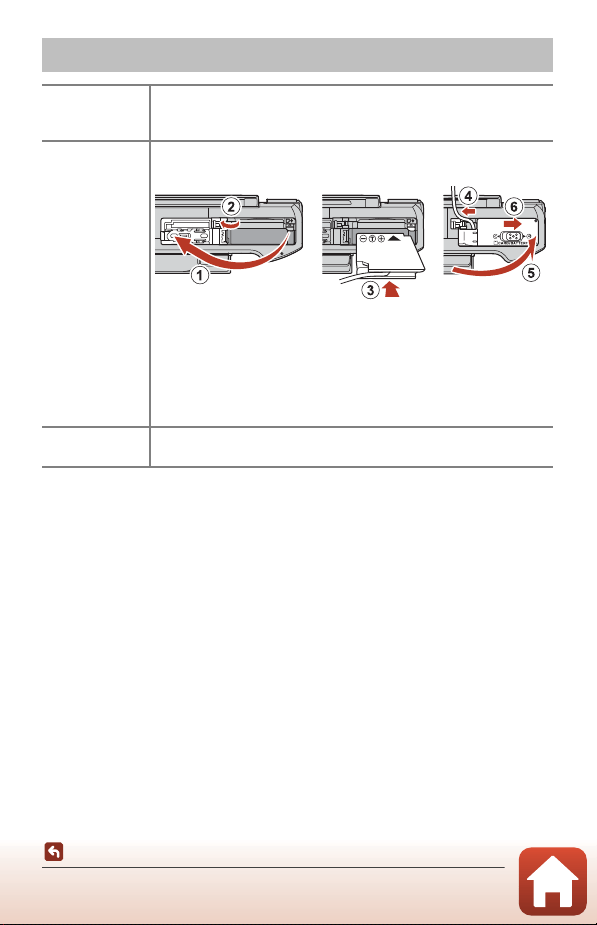
207
Technical Notes
Accessories
Availability may vary with country or region.
See our website or brochures for the latest information.
Accessories
Battery charger
MH-65 Battery Charger
Charging time is about 2 hours and 30 minutes for a fully exhausted
battery.
AC adapter
EH-62F AC Adapter
(connect as shown)
Make sure that the power connector cable is fully inserted in the
power connector slot before inserting the AC adapter into the battery
chamber. In addition, make sure that the power connector cable is
fully inserted in the battery chamber slot before closing the battery-
chamber/memory card slot cover. If part of the cable protrudes from
the slots, the cover or cable may be damaged when the cover is
closed.
Remote control
accessories
ML-L7 Remote Control
See “ML-L7 Remote Control” (A208) for information on how to use it.
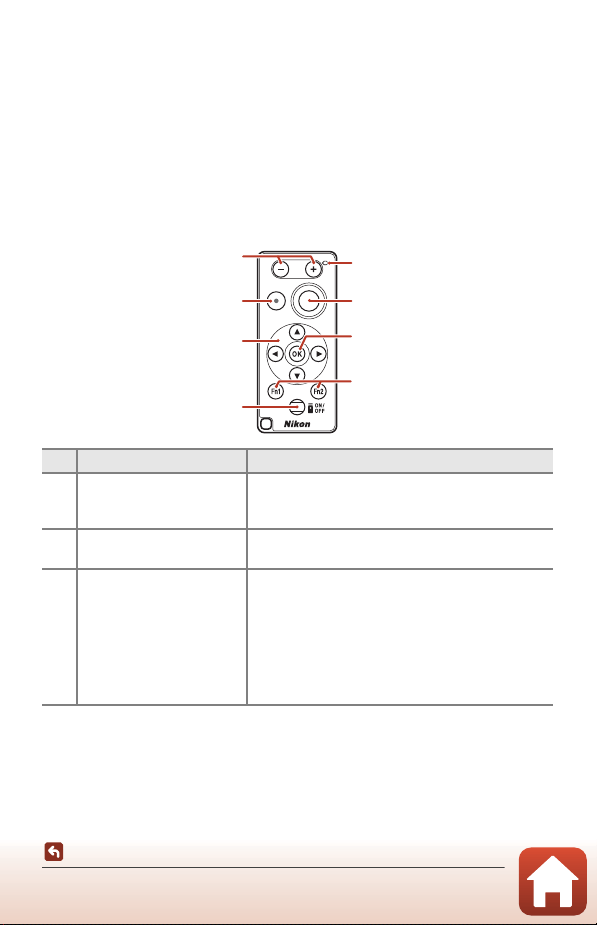
208
Technical Notes
Accessories
ML-L7 Remote Control
You can pair (A210) the separately available ML-L7 Remote Control with the camera,
and use it to operate the camera. The operations described in “Parts and Functions of
the Remote Control (for COOLPIX A1000)” (A208) can be performed when shooting
with this camera.
• The camera can only be paired with one remote control at a time. When the
camera is paired with a different remote control, only the most recent paired
remote control is enabled.
• Refer to the User’s Manual provided with the ML-L7 Remote Control.
Parts and Functions of the Remote Control (for COOLPIX A1000)
Control Function
1 – button/+ button
While the shooting screen is displayed, zooms out
when the – button is pressed and zooms in when
the + button is pressed.
2 Movie recording button
Starts recording a movie when the button is pressed,
and stops recording when pressed again.
3Multi selector
• Functions similarly to the multi selector on the
camera, enabling you to configure settings on the
shooting screen, such as the flash mode (A58),
self-timer (A61), focus mode (A63), creative
slider (A66), and exposure compensation
(A68).
• When using manual focus, the focus can be
adjusted with HI (A64).
1
2
3
4
5
7
8
6
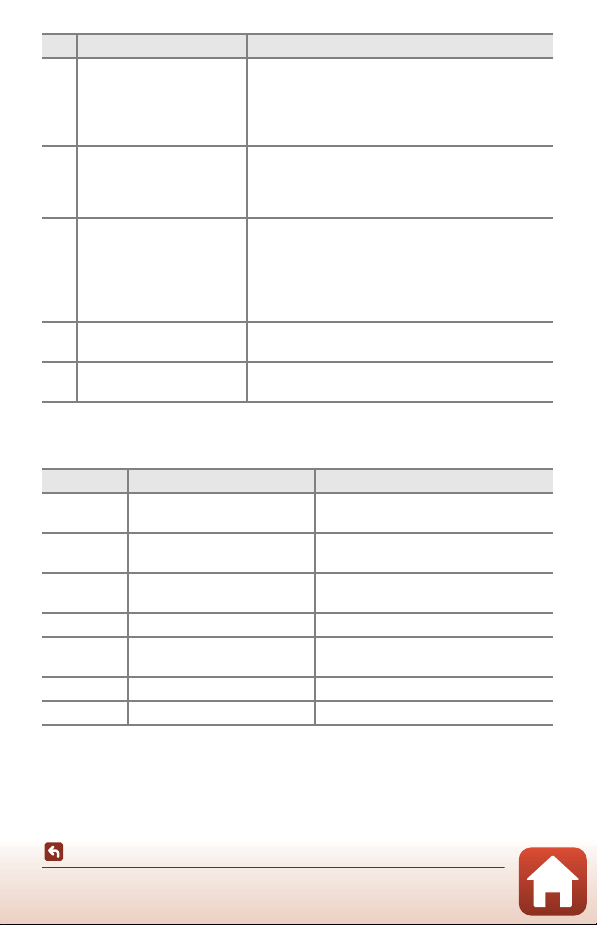
209
Technical Notes
Accessories
Status Lamp on the Remote Control (for COOLPIX A1000)
4Power button
Press the button to turn on the remote control and
search for a camera that has already been paired.
Press and hold the button (for at least 3 seconds) to
search for a new pairing camera. To turn off the
remote control, press the button again.
5Status lamp
Indicates the remote control status or shooting
session status, based on the color and behavior of
the lamp. See “Status Lamp on the Remote Control
(for COOLPIX A1000)” (A209) for more information.
6 Shutter-release button
Functions similarly to the shutter-release button on
the camera.
• Half-press and press-and-hold operations are not
available.
• When using the self-timer, you can press the
button during the countdown to cancel shooting.
7 k (apply selection) button
Applies the selected item. When adjusting manual
focus, press this button to stop focusing.
8
w1 (Function 1) / w2
(Function 2) buttons
Cannot be used with this camera.
Color Status Description
Green Flashing about every second
Remote control is searching for a camera
that has already been paired.
Green
Flashing quickly (about every
0.5 seconds)
Pairing process is being performed.
Green Flashing about every 3 seconds
Connection is established between
remote control and camera.
Orange Flashes once Still image shooting starts.
Orange Flashes twice
Still image shooting ends (Time-lapse
movie, Multiple exp. Lighten).
Red Flashes once Movie recording starts.
Red Flashes twice Movie recording ends.
Control Function
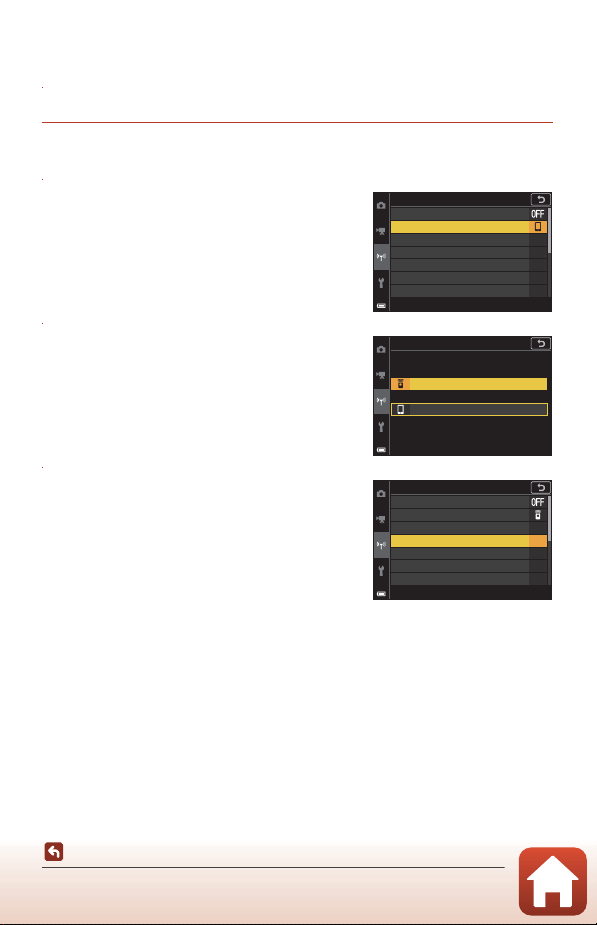
210
Technical Notes
Accessories
Pairing the Camera and Remote Control
Before using the remote control for the first time, it must be paired with the camera.
1 Press the d button on the camera.
2 Press the multi selector J, use HI to select the J menu icon,
and press the k button.
3 Select Choose connection, and
press the k button.
4 Select Remote control, and press
the k button.
5 Select Connection to remote, and
press the k button.
• Pairing is enabled and the camera waits for the
connection to be established.
Airplane mode
Connection to remote
Choose connection
Send while shooting
Wi-Fi
Connect to smart device
Bluetooth
Network menu
Remote control
Choose connection
Smart device
Airplane mode
Connection to remote
Choose connection
Send while shooting
Wi-Fi
Connect to smart device
Bluetooth
Network menu
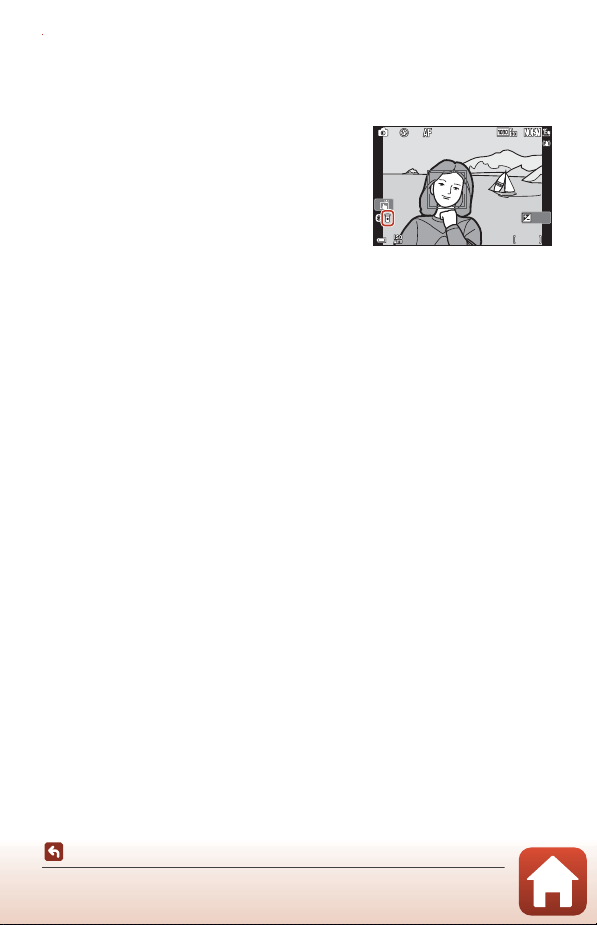
211
Technical Notes
Accessories
6 Press and hold (for at least 3 seconds) the power button on the
remote control.
• Pairing starts for the camera and remote control. During the process, the status
lamp on the remote control flashes about every 0.5 seconds.
• When pairing is complete, a connection is
established between the camera and the
remote control. When you enter shooting
mode, M is displayed on the shooting screen.
• If a pairing failure message is displayed,
perform the procedure again from step 5.
Switching the Connection to a Smart Device
• Switch the connection from Remote control to Smart device in Choose
connection in the camera network menu (A158, 210).
• When the SnapBridge app is launched on your smart device, and a connection is
established between the camera and smart device, L is displayed on the shooting
screen.
• When establishing a wireless connection with a smart device for the first time, see
the included “SnapBridge Connection Guide”.
1 / 25 0
1/250
F 3 .4
F3.4
5 0 0
500
2 5 m 0s
25m 0s
0 . 0
0.0
1 0 0
100
212
Technical Notes
Specifications
Nikon COOLPIX A1000 Digital Camera
Specifications
Type Compact digital camera
Number of effective
pixels
16.0 million (Image processing may reduce the number of
effective pixels.)
Image sensor 1/2.3-in. type CMOS; approx. 16.79 million total pixels
Lens
NIKKOR lens with 35× optical zoom
Focal length
4.3–151 mm (angle of view equivalent to that of 24–840 mm
lens in 35mm [135] format)
f/-number f/3.4–6.9
Construction 13 elements in 11 groups (4 ED lens elements)
Digital zoom
magnification
Up to 4× (angle of view equivalent to that of approx. 3360 mm lens
in 35mm [135] format)
Vibration reduction
Lens shift (still images)
Combination of lens shift and electronic VR (movies)
Autofocus (AF) Contrast-detect AF
Focus range
• [W]: Approx. 50 cm (1 ft 8 in.)–∞,
[T]: Approx. 2.0 m (6 ft 7 in.)–∞
• Macro close-up:
[W]: Approx. 1 cm (0.4 in.)–∞,
[T]: Approx. 2.0 m (6 ft 7 in.)–∞
(All distances measured from center of front surface of lens)
Focus-area selection
Face priority, manual (spot), manual (normal), manual (wide),
subject tracking, target finding AF
Viewfinder
Electronic viewfinder, 0.5 cm (0.2-in.) approx. 1166k-dot equivalent
LCD with the diopter adjustment function (–4 – +4 m
-1
)
Frame coverage
(shooting mode)
Approx. 98% horizontal and vertical (compared to actual
picture)
Frame coverage
(playback mode)
Approx. 98% horizontal and vertical (compared to actual
picture)
Monitor
7.6 cm (3-in.), approx. 1036k-dot, wide viewing angle TFT LCD
(touch panel) with anti-reflection coating and 5-level
brightness adjustment, tilting TFT LCD
Frame coverage
(shooting mode)
Approx. 98% horizontal and vertical (compared to actual
picture)
Frame coverage
(playback mode)
Approx. 98% horizontal and vertical (compared to actual
picture)
213
Technical Notes
Specifications
Storage
Media Internal memory (approx. 81 MB), SD/SDHC/SDXC memory card
File system DCF and Exif 2.31 compliant
File formats
Still images: JPEG, RAW (NRW) (Nikon’s own format)
Movies: MP4 (Video: H.264/MPEG-4 AVC, Audio: AAC stereo)
Image size
Still images
16 M 4608×3456, 8 M 3264×2448,
4 M 2272×1704, 2 M 1600×1200,
16:9 12 M 4608×2592, 3:2 14 M 4608×3072,
1:1 3456×3456
Movies
2160/30p (4K UHD), 2160/25p (4K UHD),
1080/30p, 1080/25p, 1080/60p, 1080/50p,
720/30p, 720/25p, 720/60p, 720/50p,
HS 720/4×, HS 1080/2×, HS 1080/0.5×
ISO sensitivity
(Standard output
sensitivity)
• ISO 100–1600
• ISO 3200, 6400 (available when using A, B, C, or D mode)
Exposure
Metering mode Matrix, center-weighted, spot
Exposure control
Programmed auto exposure with flexible program, shutter-
priority auto, aperture-priority auto, manual, exposure
bracketing, exposure compensation (–3.0 – +3.0 EV in steps of
1/3 EV)
Shutter Mechanical and CMOS electronic shutter
Speed
• 1/2000–1 s
• 1/2000–8 s (B, C, or D mode)
• 1/4000 s (maximum speed during high-speed continuous
shooting)
• 25 s (Star trails in Multiple exp. Lighten scene mode)
Aperture Electromagnetic 3-blade iris diaphragm
Range 7 steps of 1/3 EV (W) (C, D mode)
Self-timer
• 10 s, 3 s
• 5 s (self-portrait timer)
Flash
Range (approx.)
(ISO sensitivity: Auto)
[W]: 0.5–6.0 m (1 ft 8 in.–19 ft)
[T]: 2.0–3.0 m (6 ft 7 in.–9 ft 10 in.)
Flash control TTL auto flash with monitor preflashes
Interface
USB connector
Micro-USB connector (Do not use any USB cable other than
the included UC-E21 USB Cable.), Hi-Speed USB
• Supports Direct Print (PictBridge)
HDMI output connector
HDMI micro connector (Type D)
214
Technical Notes
Specifications
• All measurements are performed in conformity with Camera and Imaging Products
Association (CIPA) standards or guidelines.
1
Battery life does not reflect the use of SnapBridge and may vary with the conditions of
use, including temperature, the interval between shots, and the length of time that
menus and images are displayed.
2
Individual movie files cannot exceed 29 minutes in length, even when there is sufficient free
space on the memory card for longer recording. The maximum size of a single movie file is
4 GB. If a file exceeds 4 GB even when you record for less than 29 minutes, it is split into
multiple files and cannot be played back continuously.
Wi-Fi (Wireless LAN)
Standards IEEE 802.11b/g (standard wireless LAN protocol)
Operating frequency 2412–2462 MHz (channels 1-11)
Maximum output
power
9.98 dBm (EIRP)
Authentication Open system, WPA2-PSK
Bluetooth
Communication
protocols
Bluetooth Specification Version 4.1
Operating frequency
Bluetooth: 2402–2480 MHz
Bluetooth Low Energy: 2402–2480 MHz
Maximum output
power
Bluetooth: 3.54 dBm (EIRP)
Bluetooth Low Energy: 2.98 dBm (EIRP)
Power sources
One EN-EL12 Rechargeable Li-ion Battery (included)
EH-62F AC Adapter (available separately)
Charging time
Approx. 2 h 30 min (when using EH-73P/EH-73PCH Charging
AC Adapter and when no charge remains)
Battery life
1
Still images Approx. 250 shots when using EN-EL12
Movie recording
(actual battery life for
recording)
2
Approx. 55 min (when using EN-EL12)
Tripod socket 1/4 (ISO 1222)
Dimensions
(W × H × D)
Approx. 114.2 × 71.7 × 40.5 mm (4.5 × 2.9 × 1.6 in.)
(excluding projections)
Weight Approx. 330 g (11.7 oz) (including battery and memory card)
Operating environment
Temperature 0°C–40°C (32°F–104°F)
Humidity 85% or less (no condensation)
215
Technical Notes
Specifications
EN-EL12 Rechargeable Li-ion Battery
EH-73P/EH-73PCH Charging AC Adapter
The symbols on this product represent the following:
D AC, E DC, F Class II equipment (The construction of the product is double-insulated.)
• Nikon will not be held liable for any errors this manual may contain.
• The appearance of this product and its specifications are subject to change without
notice.
• The sample images displayed on the camera and the images and illustrations in the
manual are for illustrative purposes only.
Type Rechargeable lithium-ion battery
Rated capacity DC 3.7 V, 1050 mAh
Operating temperature 0°C–40°C (32°F–104°F)
Dimensions (W × H × D) Approx. 32 × 43.8 × 7.9 mm (1.3 × 1.7 × 0.3 in.)
Weight Approx. 22.5 g (0.8 oz)
Rated input AC 100–240 V, 50/60 Hz, MAX 0.14 A
Rated output DC 5.0 V, 1.0 A
Operating temperature 0°C–40°C (32°F–104°F)
Dimensions (W × H × D)
Approx. 55 × 22 × 54 mm (2.2 × 0.9 × 2.2 in.)
(excluding plug adapter)
For India: Approx. 55 × 63.5 × 59 mm
Weight
Approx. 51 g (1.8 oz) (excluding plug adapter)
For India: Approx. 76 g

216
Technical Notes
Specifications
Memory Cards That Can Be Used
The camera supports SD, SDHC, and SDXC memory cards.
• The camera supports UHS-I.
• Memory cards with an SD Speed Class rating of 6 (Video Speed Class V6) or faster
are recommended for recording movies. When Movie options is set to d
2160/30p (4K UHD) or c 2160/25p (4K UHD), memory cards with a UHS Speed
Class rating of 3 (Video Speed Class V30) or faster are recommended. When using a
memory card with a lower Speed Class rating, movie recording may stop
unexpectedly.
• If you use a card reader, make sure that it is compatible with your memory card.
• Contact the manufacturer for information on features, operation, and limitations
on use.
Trademark Information
• Windows is either a registered trademark or trademark of Microsoft
Corporation in the United States and/or other countries.
• The Bluetooth® word mark and logos are registered trademarks owned by
Bluetooth SIG, Inc. and any use of such marks by Nikon Corporation is under
license.
• Apple®, App Store®, the Apple logos, Mac, OS X, macOS, iPhone®, iPad®, iPod
touch® and iBooks are trademarks or registered trademarks of Apple Inc., in the
U.S. and other countries.
• Android, Google Play and the Google Play logo are trademarks of Google LLC.
The Android robot is reproduced or modified from work created and shared by
Google and used according to terms described in the Creative Commons 3.0
Attribution License.
• iOS is a trademark or registered trademark of Cisco Systems, Inc., in the United
States and/or other countries and is used under license.
• Adobe, the Adobe logo, Acrobat, and Reader are either trademarks or
registered trademarks of Adobe Systems Incorporated in the United States
and/or other countries.
• SDXC, SDHC, and SD Logos are trademarks of SD-3C, LLC.
• PictBridge is a trademark.
217
Technical Notes
Specifications
• HDMI, HDMI logo and High-Definition Multimedia Interface are trademarks or
registered trademarks of HDMI Licensing, LLC.
• Wi-Fi and the Wi-Fi logo are trademarks or registered trademarks of the Wi-Fi
Alliance.
• All other trade names mentioned in this manual or the other documentation
provided with your Nikon product are the trademarks or registered trademarks
of their respective holders.
AVC Patent Portfolio License
This product is licensed under the AVC Patent Portfolio License for the personal and
non-commercial use of a consumer to (i) encode video in compliance with the AVC
standard (“AVC video”) and/or (ii) decode AVC video that was encoded by a consumer
engaged in a personal and non-commercial activity and/or was obtained from a video
provider licensed to provide AVC video. No license is granted or shall be implied for
any other use. Additional information may be obtained from MPEG LA, L.L.C.
See http://www.mpegla.com.
FreeType License (FreeType2)
Portions of this software are copyright © 2012 The FreeType Project
(https://www.freetype.org). All rights reserved.
MIT License (HarfBuzz)
Portions of this software are copyright © 2019 The HarfBuzz Project
(https://www.freedesktop.org/wiki/Software/HarfBuzz). All rights reserved.
Use of the Made for Apple badge means that an accessory has been designed
to connect specifically to the Apple products identified in the badge, and has
been certified by the developer to meet Apple performance standards. Apple is
not responsible for the operation of this device or its compliance with safety
and regulatory standards. Please note that the use of this accessory with an
Apple product may affect wireless performance.
218
Technical Notes
Index
Symbols
A Auto mode..................................... 31, 32
o Creative mode.......................... 31, 51
y Scene mode........................ 31, 33
C Aperture-priority auto mode
........................................................................ 31, 53
B Shutter-priority auto mode..... 31, 53
n Short movie show mode ..... 31, 103
A Programmed auto mode ......... 31, 53
D Manual mode ................................. 31, 53
c Playback mode..................................... 27
i Playback zoom ............................... 27, 84
f (Wide-angle)............................ 2, 24, 70
h Thumbnail playback................ 27, 85
g (Telephoto) ................................. 2, 24, 70
g AE-L/AF-L button.................... 3, 6, 171
q Snap-back zoom button ...... 2, 4, 71
k Apply selection button ...... 3, 5, 120
c Playback button........................ 3, 6, 27
l Delete button............................... 3,
6, 28
b (e M
o
vie-record) button... 3, 5, 25
w Function button ..................... 2, 6, 69
K Flash pop-up control........ 3, 25, 58
d Menu button........................ 3, 6, 120
x Monitor button ........................ 3, 6, 26
o Creative slider................................ 57, 66
n Self-timer........................................... 57, 61
p Focus mode.................................... 57, 63
m Flash mode ....................................... 57, 58
o Exposure compensation
..................................................... 45, 57, 66, 68
A
AC adapter......................................... 110, 207
Accessories.................................................. 207
Active D-Lighting ....................................... 66
AE/AF lock button ........................ 126, 171
AF area mode......................... 69, 123, 140
AF assist .............................................. 126, 169
AF-assist illuminator...................................... 2
Airplane mode ................................ 125, 158
Aperture-priority auto mode ....... 31, 53
App.................................................................... 158
Assign side zoom control........ 126, 170
Auto flash ........................................................ 59
Auto mode .............................................. 31, 32
Auto off....................................... 25, 126, 172
Auto+red-eye reduction............... 59, 60
Autofocus
......................... 63, 76, 123, 124, 143, 150
Autofocus mode.... 123, 124, 143, 150
B
Background music................................... 103
Backlighting o.................................... 33, 37
Battery ......................... vi, 16, 17, 188, 214
Battery charger.......................................... 207
Battery level indicator............................... 23
Battery-chamber/memory card slot
cover............................................ 3, 16, 17, 110
Beach Z........................................................... 33
Blink proof....................................................... 49
Bluetooth............................................ 125, 159
Button sound .............................................. 172
C
Calendar display.......................................... 85
Capture NX-D.............................................. 118
Capturing still images while recording
movies............................................................. 100
Charge by computer.................. 126, 175
Charge lamp.............................................. 3, 17
Charging AC Adapter
.................................................. vi, 17, 189, 215
Index

219
Technical Notes
Index
Choose connection ..................... 125, 158
Clock......................................................... 20, 161
Close-up k ........................................... 33, 36
Color temperature.................................... 131
Command dial ................................... 2, 6, 53
Computer............................................ 110, 116
Conformity marking ................... 126, 180
Connect to smart device.......... 125, 158
Connection to remote ............... 125, 158
Connector cover.......................... 3, 17, 110
Continuous .............................. 69, 123, 134
Copy ..................................................... 124, 156
Copyright information ............... 126, 177
Creative mode....................................... 31, 51
Creative slider....................................... 57, 66
Crop........................................................... 84, 94
D
Date and time..................................... 20, 161
Date format.......................................... 21, 161
Date stamp....................................... 126, 166
Daylight saving time ...................... 21, 162
Delete........................................................ 28, 87
Digital zoom............................ 70, 126, 169
Diopter adjustment control............ 3, 26
Direct Print.......................................... 110, 112
D-Lighting............................................ 89, 124
Dusk/dawn i .............................................. 33
E
Easy panorama p............................. 33, 42
Easy panorama playback....................... 44
Editing movies ........................................... 107
Editing still images .................................... 88
End recording............................................. 104
EVF auto toggle.............................. 126, 165
EVF brightness ........................................... 163
Exposure bracketing ................... 123, 139
Exposure compensation
..................................................... 45, 57, 66, 68
Extracting still images................ 106, 108
Eye sensor .................................................. 3, 26
Eyelet for strap.......................................... 2, 15
F
Face detection .............................................. 75
Face priority ................................................ 140
Fast motion movies .................... 147, 149
File name ...................................................... 206
Fill flash ............................................................. 59
Filter effects......................................... 92, 124
Fireworks show m............................. 33, 37
Firmware version .......................... 126, 180
Fixed range auto....................................... 138
Flash...................................................... 2, 25, 58
Flash mode............................................. 57, 58
Flick ......................................................................... 7
Fn button......................................................... 69
F-number.......................................................... 53
Focal length........................................ 70, 212
Focus....................... 24, 73, 140, 143, 150
Focus area............................................... 12, 24
Focus indicator ............................................. 10
Focus lock ........................................................ 77
Focus mode........................................... 57, 63
Food u...................................................... 33, 36
Format..................................................... 16, 173
Format card.............................. 16, 126, 173
Format internal memory...................... 173
Format memory ............................ 126, 173
Format memory cards................... 16, 173
Foundation makeup........................ 45, 46
Frame rate.........................................
124, 152
F
u
ll-frame playback.......... 13, 27, 84, 85
Full-time AF...................................... 143, 150
Functions that cannot be used
simultaneously............................................. 80
G
Glamour retouch ................... 45, 90, 124

220
Technical Notes
Index
H
HDMI cable......................................... 110, 111
HDMI micro connector.................... 3, 110
HDMI output................................... 126, 174
HDR...................................................................... 37
Help display ................................................. 163
High-speed continuous ....................... 134
Histogram .............................................. 66, 68
HS movie ........................................... 147, 149
Hue...................................................................... 66
I
Image comment........................... 126, 176
Image quality.......................... 69, 123, 127
Image review .............................................. 163
Image size................................. 69, 123, 129
Internal memory.......................................... 16
Internal memory indicator ............. 11, 13
Interval .............................................................. 47
Interval timer shooting............. 134, 136
ISO sensitivity.......................... 69, 123, 138
L
Landscape c................................................ 33
Language .......................................... 126, 174
Lens.............................................................. 2, 212
Li-ion rechargeable battery
.......................................... vi, 16, 17, 188, 215
Location data................................... 126, 178
M
M exposure preview................... 123, 144
Macro close-up............................................. 63
Manual focus........................................ 63, 64
Manual mode ........................................ 31, 53
Mark for upload.............................. 124, 153
Memory capacity................................ 23, 96
Memory card........................... 16, 190, 216
Memory card slot ........................................ 16
Metering .................................... 69, 123, 133
MF peaking....................................... 126, 179
Microphone (stereo)..................................... 2
Micro-USB connector
.......................................... 3, 17, 110, 112, 116
Mode dial...................................... 2, 4, 23, 31
Monitor ..................................... 3, 10, 19, 191
Monitor brightness.................................. 163
Monitor settings............................ 126, 163
Movie menu .................................... 120, 145
Movie options................................. 124, 145
Movie playback........................ 27, 96, 106
Movie recording.................................. 25, 96
Movie recording time remaining
...................................................................... 96, 98
Movie VR ............................................. 124,
151
M
u
lti selector ................................... 3, 5, 120
Multiple exp. Lighten U.............. 33, 40
N
Network menu............................... 120, 158
Night landscape j........................... 33, 36
Night portrait e................................. 33, 35
Noise reduction filter.................. 123, 144
Number of exposures remaining
.................................................................... 23, 128
Number of shots.............................. 47, 103
P
Paper size............................................ 113, 114
Party/indoor f ................................... 33, 35
Pet portrait auto release......................... 38
Pet portrait O ...................................... 33, 38
Photo info...................................................... 163
Photo VR............................................. 126, 168
PictBridge ............................................ 110, 112
Playback ....................................... 27, 86, 106
Playback menu................................ 120, 153
Playback mode............................................. 27
Playback zoom.................................... 27, 84
Portrait b......................................................... 33

221
Technical Notes
Index
Power.................................................................. 20
Power switch/power-on lamp...... 3, 20
Pre-focus........................................................ 143
Preset manual............................................. 132
Pre-shooting cache...................... 134, 135
Pressing halfway ........................... 4, 24, 73
Print.............................................. 110, 113, 114
Printer .................................................... 110, 112
Programmed auto mode ............... 31, 53
Protect.................................................. 124, 155
Q
Quick retouch.................................... 89, 124
R
Ready light....................................................... 58
Red-eye correction......................... 90, 124
Red-eye reduction............................. 59, 60
Remote control ........................................ 208
Reset all................................................ 126, 179
Restore default settings ............ 125, 159
Rotary multi selector ............................... 3, 5
Rotate image.................................... 124, 155
S
Scene auto selector o................ 33, 34
Scene mode ........................................... 31, 33
SD memory card................... 16, 190, 216
Selective color I............................... 33, 39
Self-collage..................................................... 47
Self-portrait timer........................................ 61
Self-timer .................................................. 57, 61
Self-timer lamp ........................................ 2, 61
Self-timer: after release ............. 126, 167
Send while shooting................... 125, 158
Sequence ................................................ 28, 86
Sequence display ................. 86, 124, 157
Setup menu...................................... 120, 161
Shooting .......................................... 23, 31, 96
Shooting menu .................. 120, 127, 130
Shooting mode ............................................ 31
Short movie show menu..................... 103
Short movie show mode............. 31, 103
Shutter sound.................................... 47, 172
Shutter speed ....................................... 53, 56
Shutter-priority auto mode........... 31, 53
Shutter-release button........ 2, 4, 24, 73
Side zoom control........................... 2,
4, 24
Sing
le
............................................................... 134
Single AF............................................ 143, 150
Skin softening...................................... 45, 46
Slide ........................................................................ 7
Slide show......................................... 124, 154
Slow motion movies .................. 147, 149
Slow sync......................................................... 59
Smart portrait F ............................... 33, 45
Smile timer ..................................................... 50
SnapBridge app......................................... 158
Snow z ............................................................ 33
Soft ...................................................................... 45
Soft O .............................................. 33, 39
Sound settings ............................... 126, 172
Speaker ................................................................. 3
Special effects................................. 103, 104
Sports d.................................................. 33, 34
Standard flash............................................... 59
Strap..................................................................... 15
Subject tracking ............................ 141, 142
Sunset h ......................................................... 33
Sync with smart device......................... 161
T
Tap........................................................................... 7
Target finding AF............................. 74, 141
Telephoto........................................................ 70
Thumbnail playback ......................... 27, 85
Time difference.......................................... 161
Time zone.............................................. 21, 161
Time zone and date............ 20, 126, 161

222
Technical Notes
Index
Time-lapse movie N..................... 33, 101
Toggle Av/Tv selection.............. 126, 178
Touch panel....................................................... 7
Touch shooting................................... 26, 72
Touch-screen controls ............... 126, 179
Tripod socket ........................................ 3, 214
TV.............................................................. 110, 111
U
USB cable ......................... 17, 110, 112, 116
V
Viewfinder............................... 3, 10, 26, 191
ViewNX-i ......................................................... 116
Vividness................................................. 45, 66
Volume ........................................................... 106
W
White balance ........................ 69, 123, 130
Wide-angle...................................................... 70
Wi-Fi....................................................... 125, 159
Wind noise reduction................ 124, 152
Z
Zoom ......................................................... 24, 70
Zoom control............................ 2, 4, 24, 70
2019
CT8L01(11)
6MQ00811-01
No reproduction in any form of this manual, in whole or in part
(except for brief quotation in critical articles or reviews), may be
made without written authorization from NIKON CORPORATION.