Keep this user guide for future reference. Always retain your proof of purchase in case of
Warranty service.
www.oricom.com.au
Operating Instructions
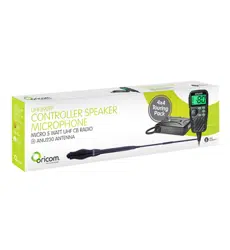
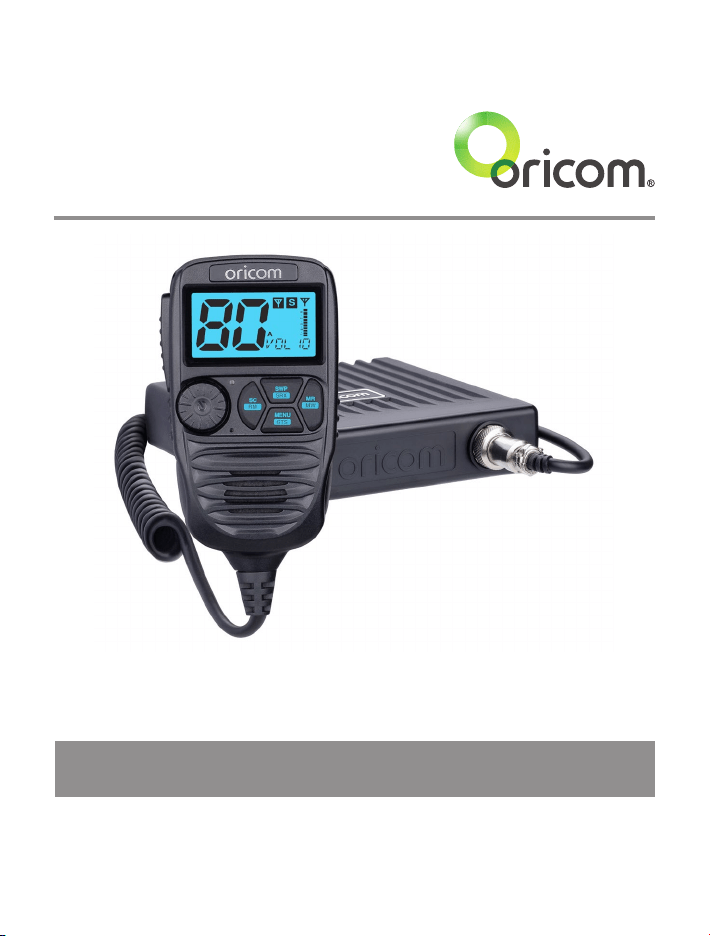
DTX4200X 80 Channel UHF Citizen Band Radio

When a narrowband radio receives a transmission from an older wideband radio the speech may sound loud and
distorted – simply adjust your radio volume for the best listening performance. When an older wideband radio
receives a signal from a new narrowband radio the speech may sound quieter - simply adjust your radio volume for
best listening performance. When operating a narrowband radio or Channel 41 - 80 interference is possible from
wideband radios transmitting on high power or on adjacent frequency.
The issues described above are not a fault of the radio but a consequence of mixed use of wideband and narrowband
radios.
This unit complies with all relevant Australian
and New Zealand approval requirements
AS/NZS 4365:2011

3
Table of contents
Introduction ..................................................................................4
Important information ...................................................................5
Installation of your Oricom Radio...................................................6
Controls and Indicators .................................................................8
Operations .................................................................................. 12
UHF CB channels and frequencies ..............................................27
Express Warranty (Australia) .......................................................31
Need Help?
If you need assistance setting up or using your Oricom product now or in
the future, call Oricom Support.
Australia (02) 4574 8888
www.oricom.com.au
Mon-Fri 8am – 6pm AEST
New Zealand 0800 67 42 66
www.oricom.co.nz
Mon-Fri 10am – 8pm NZST

4
Introduction
Introduction
Thank you for choosing the Oricom DTX4200X 5 watt UHF CB Radio.
Oricom is a 100% Australian owned and operated company, engineering
radio communication products specically for the diverse and unique
conditions of Australia and New Zealand since 2003. This product was
manufactured in Korea under strict quality control.
Key Features
• Dual receive
• IP54 dust and splash resistant
• 3 memory groups of 16 channels per group
• 96 Multi-colour backlight display
• Backlight brightness (5 pre-set levels plus auto)
• Fast scanning 80 channels within 3 seconds
• Rotary volume/channel and squelch control
• Duplex
• 38 CTCSS & 104 DCS codes
• Heavy duty diecast metal chassis
• Slide-in mounting bracket
• Auto power off (off/1h/2h/4h)
• 3.5mm external jack (for optional external speaker (Model
No. SPE85))
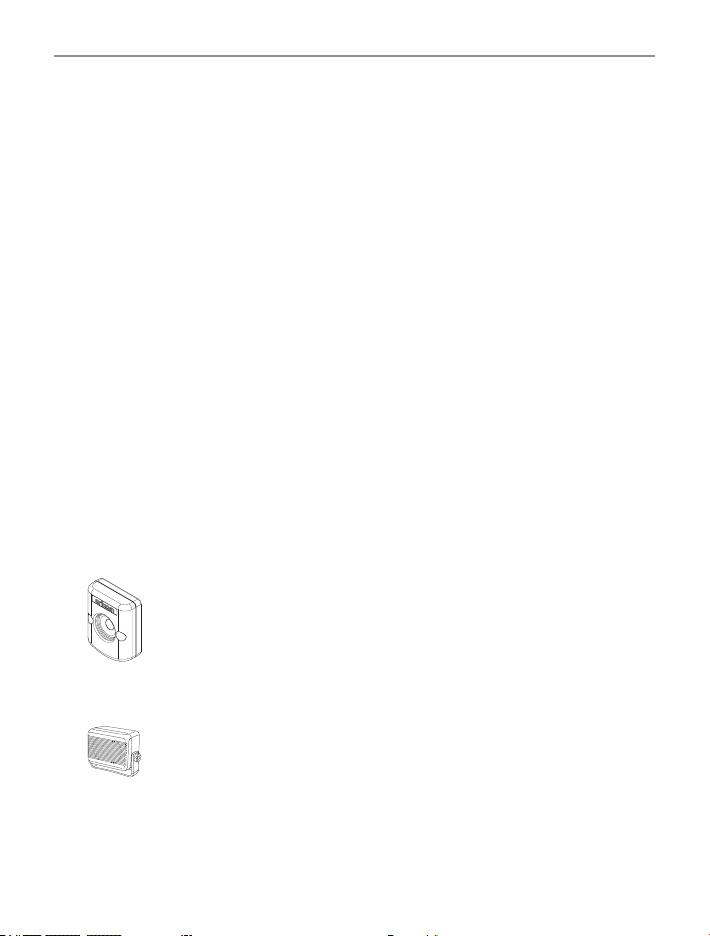
Optional Accessories (See page 7 for details)
External speaker (SPE85)
Magnetic microphone holder (MMM100)
5
Important information
Please read before installing or operating your
Oricom Radio
The operation of your UHF radio in Australia and New Zealand is subject
to conditions in the following licenses:
In Australia the ACMA Radio communications (Citizen Band Radio
Stations) and in New Zealand by MED the General User Radio License
for Citizen Band Radio.
Safety Information and Warnings
WARNING
Potentially Explosive Atmospheres
Turn your radio OFF when in any area with a potentially
explosive atmosphere. Sparks in such areas could cause an
explosion or re resulting in injury or even death.
NOTE: Areas with potentially explosive atmospheres are often,
but not always clearly marked. They include fuelling areas such
as below deck on boats; fuel or chemical transfer or storage
facilities; areas where the air contains chemicals or particles,
such as grain, dust, or metal powders; and any other area where
you would normally be advised to turn off your vehicle engine.
Blasting Caps and Areas
To avoid possible interference with blasting operations, turn
your radio OFF near electrical blasting caps or in a “blasting
area” or in areas posted: “Turn off two way radios.” Obey all
signs and instructions.
Electromagnetic Interference/Compatibility
Nearly every electronic device is susceptible to electromagnetic
interference (EMI). To avoid the possibility of electromagnetic
interference and/or compatibility conicts, turn off your radio
in any location where posted notices instruct you to do so such
as health care facilities.

6
Installation of your Oricom Radio
CAUTION
When installing your radio in your vehicle, check that during
installation you do not damage any wiring or vehicle components
that may be hidden around the mounting position. Ensure
the installation does not interfere with the operation of the
vehicle and meets all regulatory and safety requirements for
accessories tted to your vehicle.
For optimum performance your radio needs to be installed
correctly. If you are unsure about how to install your radio, we
suggest you have your radio professionally installed by a UHF
specialist or Auto electrician. When installing the radio, avoid
mounting it close to heaters or air conditioners. Never press
the PTT or CALL button before connecting the antenna to the
radio.
Wiring Methods
There are two possible wiring congurations for connecting to the
vehicles power supply.
A. Radio stays ON when the ignition is switched OFF
Connect the radio’s negative (black) lead to the vehicle chassis, or
directly to the battery’s negative terminal.
Connect the radio’s positive (red) lead via the 3 Amp fuse to the
battery’s positive terminal. Alternatively, the positive lead could be
connected at the fuse box at a point that has DC Power continuously
available (preferably the battery side of the ignition switch) via the 3
Amp fuse.
B. Radio turns OFF with the ignition switch
Connect the radio’s negative (black) lead to the vehicle’s chassis, or
directly to the battery’s negative terminal.
The radio’s positive (red) lead should connect to an accessory point in
the vehicle’s fuse box via the 3 Amp fuse.
7
Installation of your Oricom Radio
Antenna information
The antenna (not supplied) is of critical importance, to maximize your
output power and receiver sensitivity.
A poorly installed, inferior quality antenna or one not designed for the
correct frequency band will give poor performance. You should only
purchase an antenna designed for the 477MHz frequency band.
Antenna installation
1. Connect the antenna to the rear antenna socket using a PL259 coaxial
connector (not supplied).
2. To obtain maximum performance from the radio, select a high quality
antenna and mount it in a good location. Never press the PTT or
CALL button before connecting the antenna to the radio.
3. For best performance always mount your antenna as high as possible
and away from all other antennas or poles.
Optional Accessories
The following Oricom accessories can be purchased directly from
Oricom. Visit oricom.com.au.
Optional Magnetic Microphone Holder
Mounting bracket for easy installation. Model number
MMM100.
Optional External Speaker
Depending on the installation, it may be necessary to use an
external speaker (not supplied) to give improved volume and
clarity. This can be plugged into the EXT –SPK socket on the
rear of the unit. Model No. SPE85.
8
Controls and Indicators
Controls and Indicators
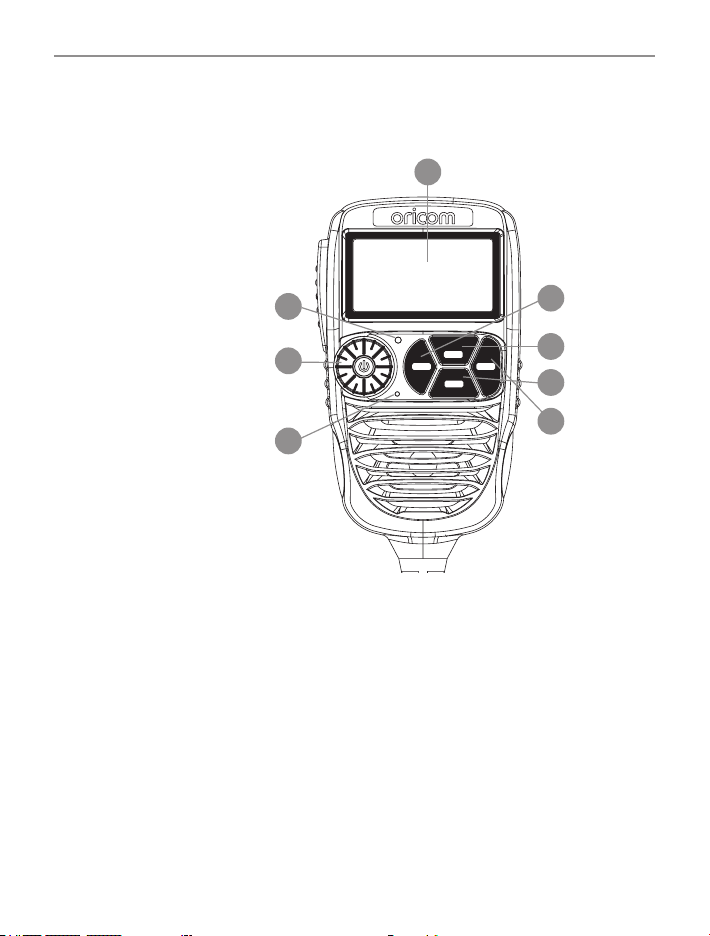
Front View
SC
RM
MR
MW
SWP
SRX
GTS
MENU
6
1
2
4
5
3
7
8
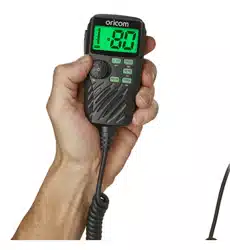
1. (Jog Wheel) Power on/off and Volume/channel/squelch and SVL
(sub receiver volume)
2. Scan (open scan/memory group scan)/scan skip
3. Memory recall/memory write
4. Main & Sub channel swapping/SRX on/off
5. Menu/Group tone scan
6. Microphone
7. LCD display
8. Light sensor
Oricom offer a
unique Jog Wheel,
which makes using
the Controller
Speaker Microphone
simple and intuitive.
9
Controls and Indicators
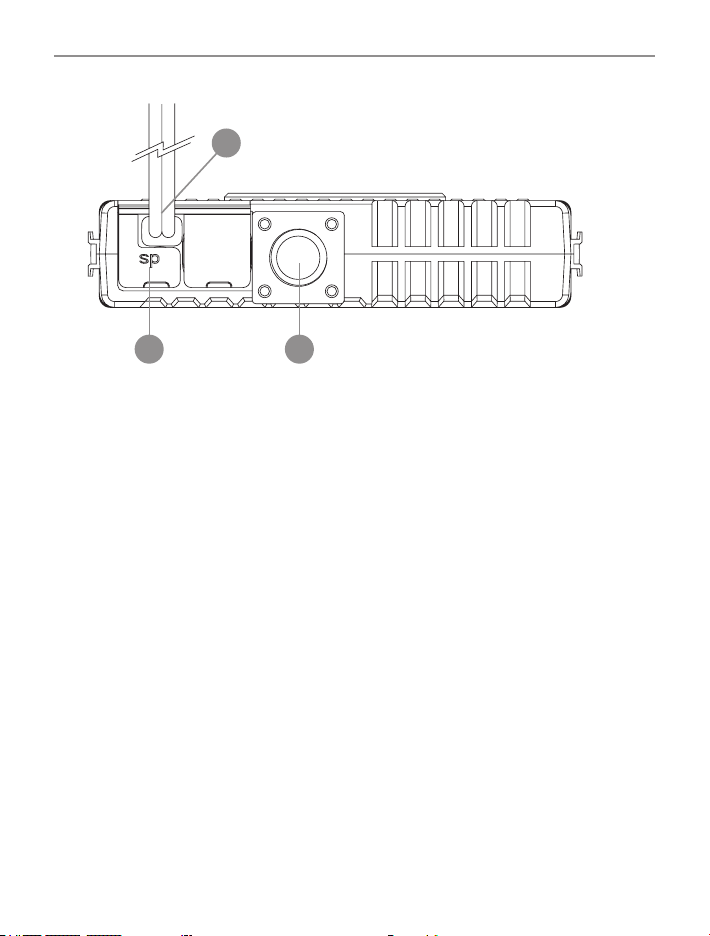
Rear View
1
2
3
1. 3.5mm external jack for optional 8 ohm speaker
2. Power supply connection
3. Antenna connection
10
Controls and Indicators
LCD Icons & Indicators
5
6
7
8
31
10 9
2
4
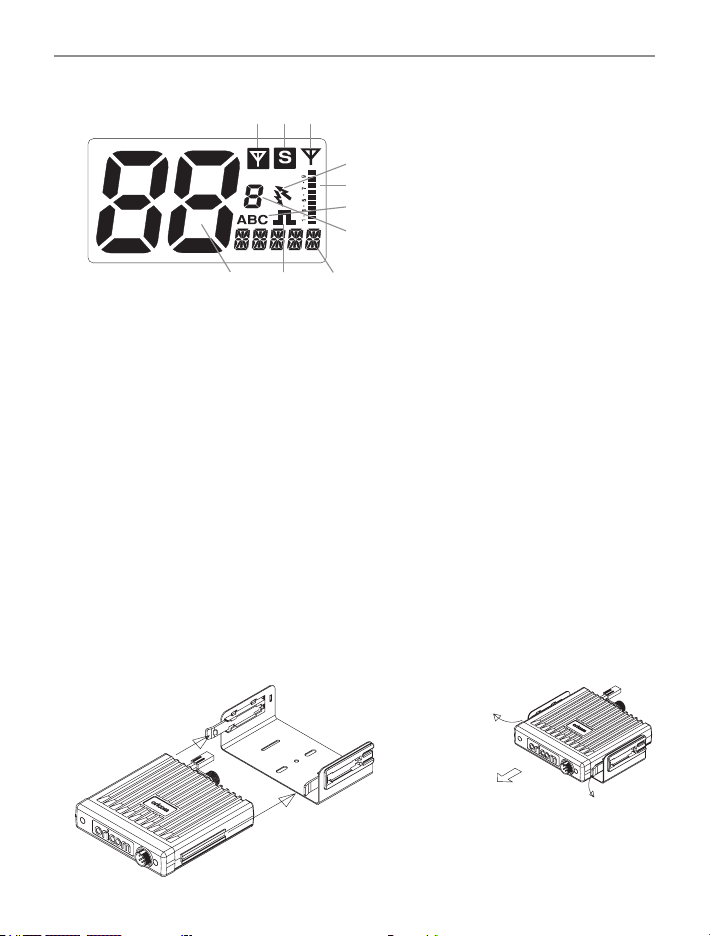
1. Sub channel busy 6. Group display (A, B, C groups)
2. Sub channel on 7. Group address channel
3. Main receiver busy 8. Status display
4. Duplex on 9. CTCSS or DCS on
5. Signal strength & TX power
& SWR meter
10. Channel display
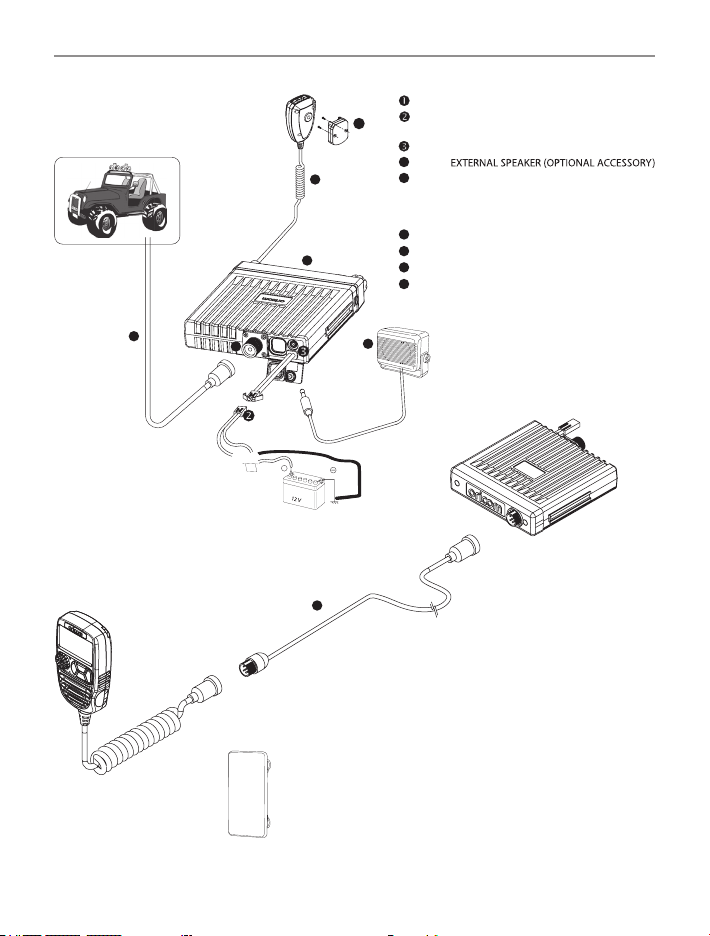
TO MOUNT: SLIDE
INTO UNIVERSAL
MOUNTING BRACKET
TO REMOVE:
SLIDE OUT HOLDING
BRACKETS AWAY FROM
UHF RADIO
Installation of the DTX4200X and tting optional accessories
Mounting the UHF radio
The universal mounting bracket supplied with your UHF radio allows
overhead/dash mounting.
Mount the UHF radio via the bracket, securely with the supplied screws in
the desired location, ensuring the surface is sturdy and can support the
weight of the radio.
11
Controls and Indicators
9
RED:
+
BLACK:
BATTERY
TO CHASSIS
FUSE
(OPTIONALACCESSORY)
SPE85 EXTERNAL SPEAKER
- - - - - - - - - - - - - - - -
O
5
1
4
6
8
7
ANTENNA CONNECTOR
4
EXTERNAL SPEAKER JACK
5
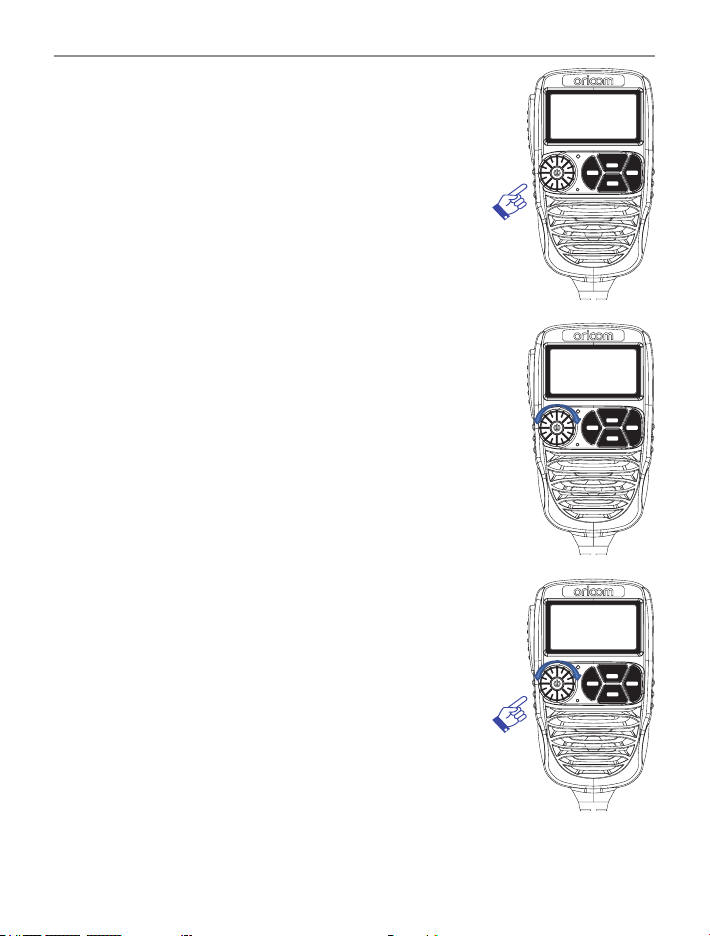
MICROPHONE HANGER - Fit the supplied
microphone hanger in the desired location.
(Optional Magnetic microphone mount is
available online - Model no. MMM100)
DC POWER CABLE-Connects to 12V.
Pay attention to polarities.
6
CONTROLLER SPEAKER MIC
7
ANTENNA CABLE NOT INCLUDED
8
TRANSCEIVER
SPE85
9
EXTENSION CABLE
Installation Diagram
If you wish to install the transceiver behind the dash, read our below blanking plate
install guide (Blanking plate not included)
NOTE: The below instructions provide general guidance around this method of install.
1) When installing the transceiver behind the dash of a vehicle, the spare blanking
plate should be removed from the vehicle.
A suitable hole should be carefully drilled into the desired location of the spare
blanking plate to the size of extension lead microphone connection, as above
reference image (9).
2) Before the extension lead is afxed behind the new hole in the blanking plate,
the nut should be unscrewed from the extension cable and removed.
3) Once the nut is removed, the extension lead can be installed into the hole,
and the nut can be secured on the front to keep the cable in position.
4) Transceiver can then be mounted behind the dash, and blanking plate placed into
position in the vehicle.
5) Microphone can then be plugged into the extension lead in the centre of the
blanking plate.
12
Operations
Operations
Turning on the Power
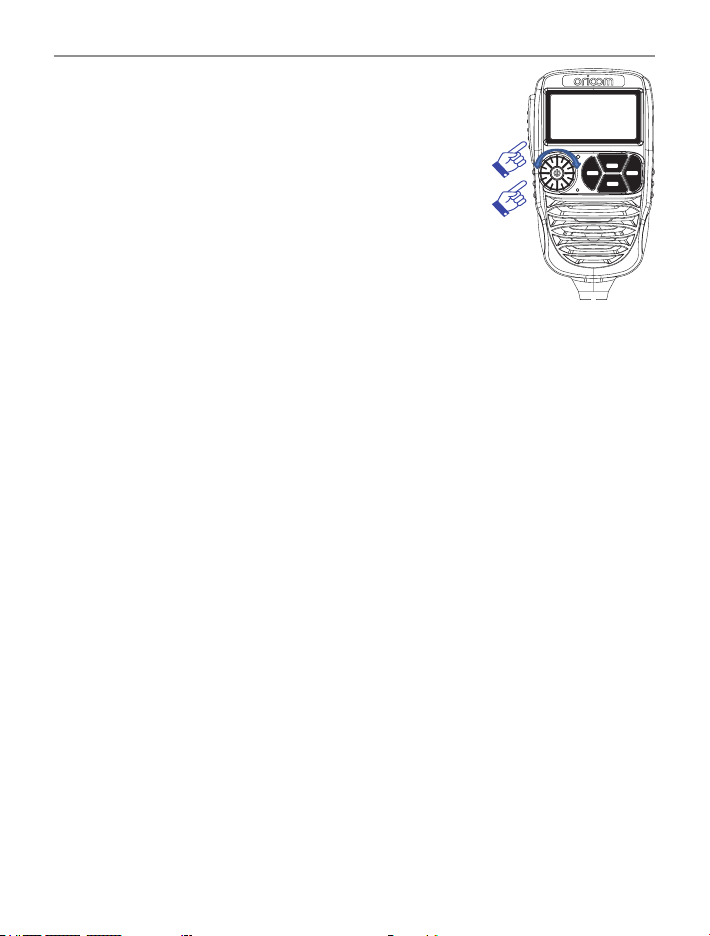
Press and hold the Jog Wheel.
Setting the Volume
Rotate the Jog Wheel clockwise to adjust
the sound level for comfortable reception.
Selecting a channel
Press Jog Wheel once. "CH" will appear
on the LCD.
Select the channel by rotating the Jog Wheel.
Turn the Jog Wheel clockwise to adjust
channel UP. Turn the Jog Wheel
anti-clockwise to adjust channel
DOWN.
SC
RM
MR
MW
SWP
SRX
GTS
MENU
SC
RM
MR
MW
SWP
SRX
GTS
MENU
SC
RM
MR
MW
SWP
SRX
GTS
MENU
13
Operations
Setting the Squelch Level
1. Press Jog Wheel 2 times. The current
squelch level is displayed.
2. Select the squelch level by rotating the
Jog Wheel.
1 - Max sensitivity (Min. squelch)
15 - Min. sensitivity (Max/Tight squelch)
Off - Squelch open
Setting SRX (Sub Receiver) Volume
1. Press Jog Wheel 3 times, then "SVL" is displayed.
2. Rotate the Jog Wheel to adjust the SRX volume.
Note :
*
If a button is not pressed within 2 seconds the radio will
automatically exit the sub display of "VOL" "CH" "SQL" and "SVL".
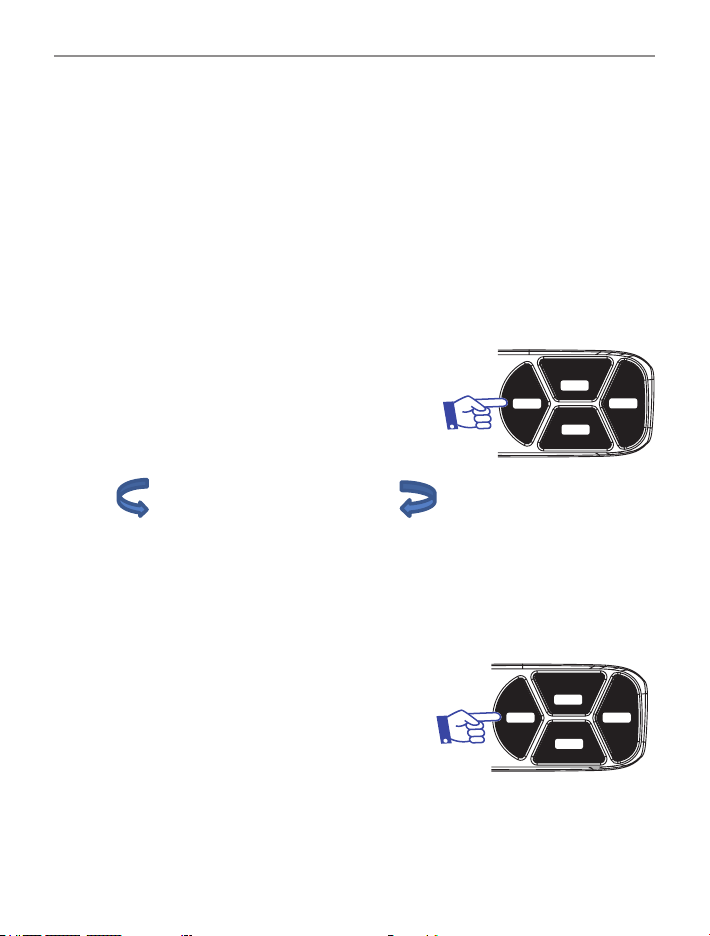
PTT (Push-To-Talk) button
Pressing the PTT button activates the transmitter.
The RF (radio frequency) level will appear on the LCD display as you are
transmitting.
To receive, release the PTT button and then TX will disappear on the
LCD display.
When transmitting, hold the Mic two inches (5cm) from your mouth
and speak clearly in a normal voice across the front of the Mic area.
SC
RM
MR
MW
SWP
SRX
GTS
MENU
14
Operations
Scanning
The Scan feature allows you to search for active channels automatically.
There are 3 scanning modes:
Open Scan, Group Memory Scan and Group tone Scan (a special case
of Group Memory Scan).
Open scan
Press SC/RM to start scan. The OS-SC sub menu display will appear on
the LCD display.
When a signal is found, scanning will stop
at that channel to allow the signal to be
heard, then resume scanning when the
channel is clear again.
The scan resume time can be set to 5, 10
or 15 seconds of P5 (default).
ch 1-2-3-4-5-6-7 ….. 77-78-79-80
Note: During open scan rotating the Jog Wheel will not change the scan
direction.
To stop the scan, press the SC/RM button or press the PTT.
Remove Memory in Scanning
To remove a channel from the
scan, press and hold SC/RM
button for 2 seconds.
The channel will be removed from the
current scan. When the scan stops, the
removed channel will be reinstated.
SC
RM
MR
MW
SWP
SRX
GTS
MENU
2 sec
SC
RM
MR
MW
SWP
SRX
GTS
MENU

15
Operations
For example we are removing CH02 from the scan. You may want to
remove this channel due to constant noise.
1. Press SC/RM button for 2 seconds.
2. Scanning will resume.
3. Channel 02 is removed from this scan.
Scan 1-2-3-4-5-6-7 ….. 77-78-79-80
RM Scan 1-3-4-5-6-7 ….. 77-78-79-80
Note: Up to 10 channels can be removed for the current scan.
Group Memory Scan
Memory scan must be stored to the memory channels in groups A to C.
Refer to memory recall function on page 16.
1. Press MR/MW button to change between A, B, C (A,B,C will start ashing).
When A, B, C are ashing, all groups will be scanned starting with
the selected group. When A, B and C are not ashing, then only the
selected group will scan.
2. Press Scan button to start group scan.
The MS-SC sub menu display appears on the LCD.
3. To stop Group memory Scan, press SC/RM button or PTT.
Group Tone Scan
When Group Tone Scan is enabled, it will allow continual communication
across congested channels.
Group tone scan channels stored into Group memory scan and only
opens the squelch for signals with the correct subcode (38 CTCSS or
104 DCS tone).
To achieve this, all radios in your group must have the same channels in
A, B, C memory (group memory channels) and use the same Subcode
(38 CTCSS and 104 DCS tone).
16
Operations
By scanning only group channels, radios in the network will be able
to detect and receive group transmissions which will be continual
communication without interruption. When transmitting in this mode,
the radio switches to an unused group channel if it detects another
signal with no code/the wrong code, on the channel last used by the
group.
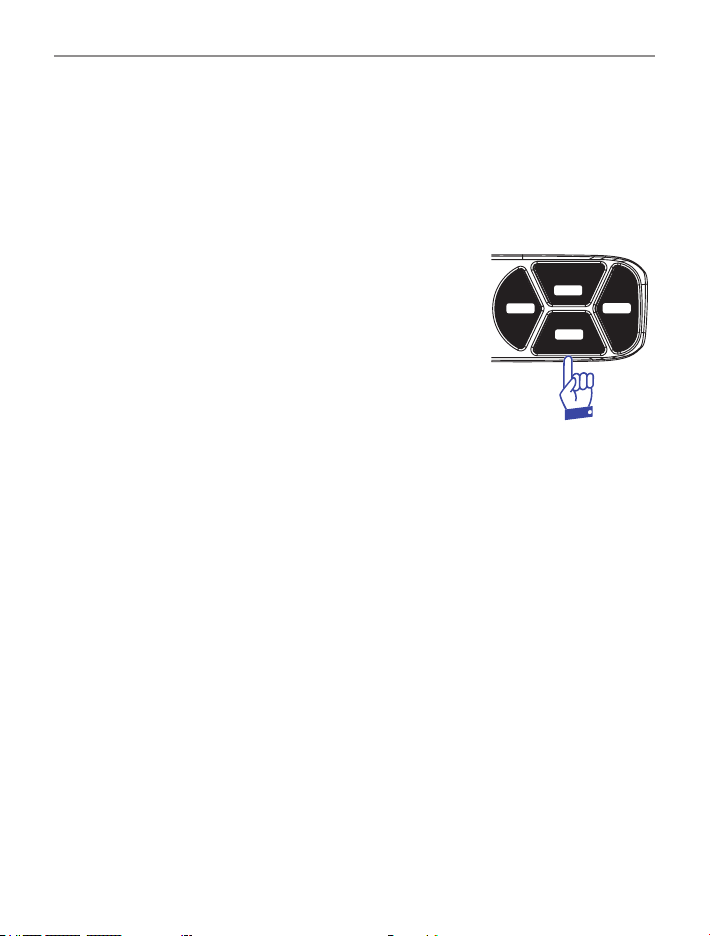
1. Press and hold MENU/GTS button to activate Group Tone Scan.
All group tone scan stored into Group memory
channel and CTCSS 01 (67Hz) is set for Group
Tone Scan.
The group tone code can be changed in the
settings menu.
2. To stop Group memory Scan, Press MENU/GTS
button or PTT.
Memory Recall
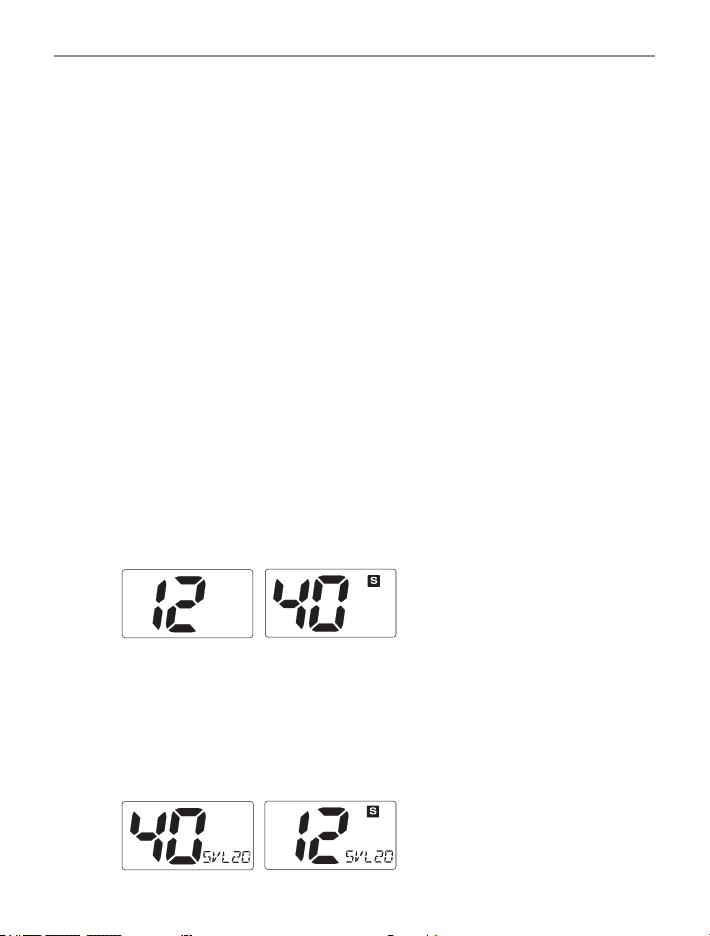
This feature allows the user to recall the stored channels using the MR
button.
To access the stored channels, simply press the "MR" button, and the
"A" will appear at the right side on the LCD. Press the MR button again
to cycle through A - B - C (A,B,C will start ashing).
When A, B and C are ashing, press SC/RM button to start all memory
group scanning.
For scanning A, B or C only, select non ashing preferred group (A, B or
C) press SC/RM.
The DTX4200X has no information stored in the memory channels.
SC
RM
MR
MW
SWP
SRX
GTS
MENU
17
Operations
Memory Write
Select the channel you want to store.
For this example we will write CH09 to B group and group channel 8.
1. Press and hold the MR/MW button to store a channel.
"A" will appear and the group channel will ash.
2. Press MR/MW button to select B group.
3. Press Jog Wheel to engage CH mode.
4. Rotate Jog Wheel until 8 is shown in group channel display.
5. Press and hold MR/MW button to save & exit from memory write.
SWP (Swapping Dual RX channel)
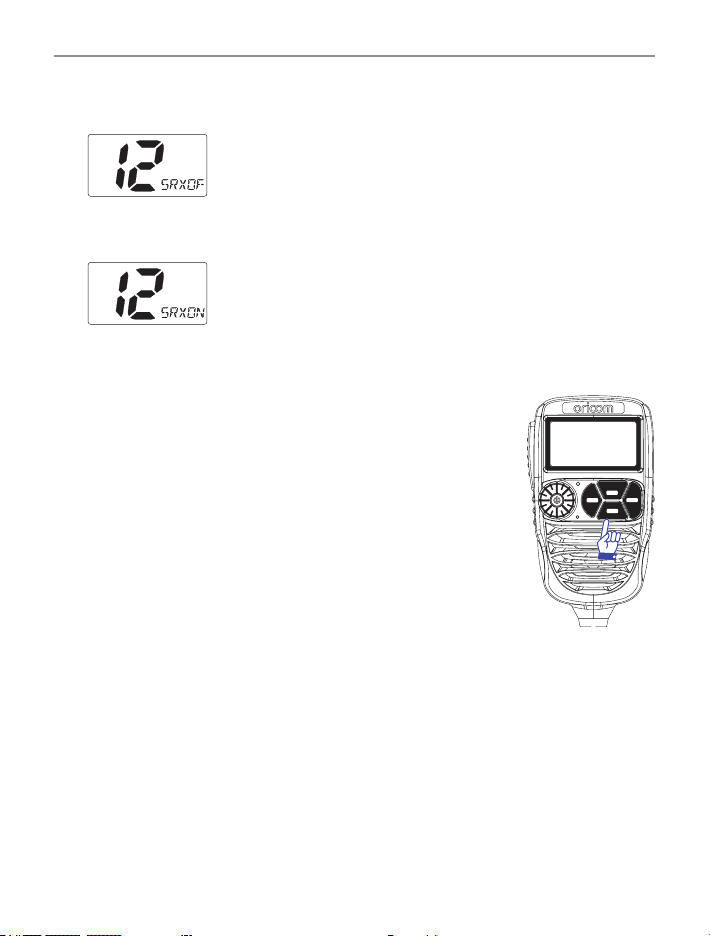
The DTX4200X can receive two channels simultaneously.
The main receiver default channel is 12 and Sub receiver default channel
is 40.
The Sub channel can be turned on and off by pressing and holding the
SWP/SRX button. The "S" indicator on the display will be on if the SRX
is on.
It is not possible to transmit on the SRX channel you must swap the
SRX and Main RX to transmit on that channel.
To adjust the volume of the SRX channel, push the channel change
selector 3 times, the display will show SVL and the level. Adjust desired
volume level by rotating channel change selector, the setting will
automatically save, press PTT to exit.
18
Operations
SRX On/Off
Press and hold SWP/SRX button to turn SWP/SRX off.
To return to Dual RX mode, press and hold the SRX button for
2 seconds.
Menu list
*
Press MENU/GTS button to access menu.
*
Use the Jog Wheel to change the value of
each setting.
*
If a button is not pressed within 8 seconds the
radio will automatically exit the menu mode.
*
You can exit the menu at any time by briey
pressing PTT button.
*
Please see below menu modes.
SC
RM
MR
MW
SWP
SRX
GTS
MENU
19
Operations
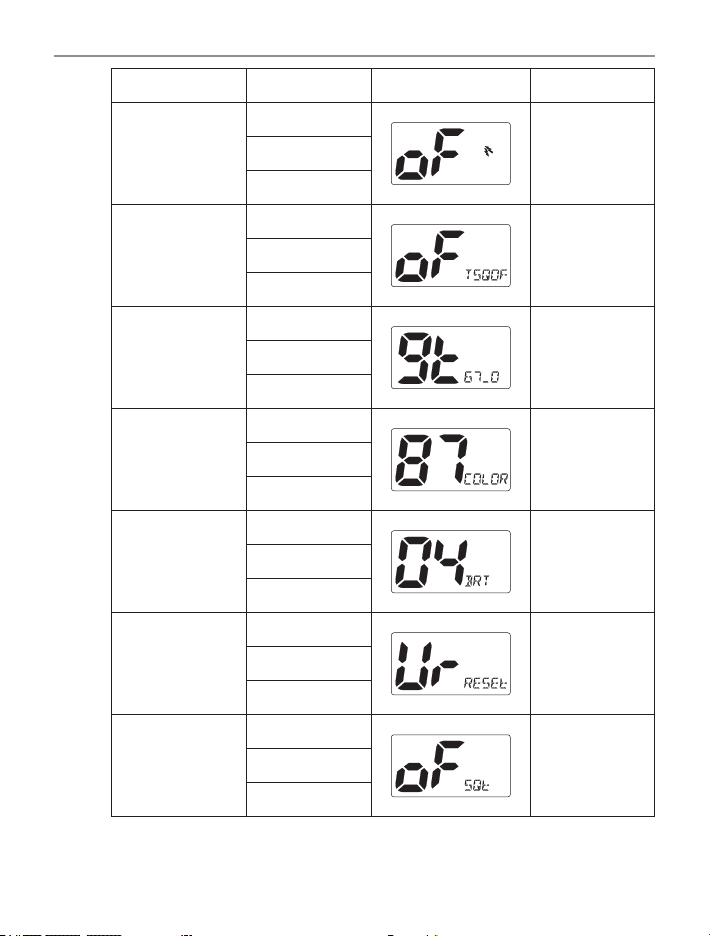
Function Step Display Default
Duplex On/Off
Off
On
On
CTCSS and DCS
Off
Offto
104
Group Tone
Scan
CT1(67Hz)
CT1 (67Hz)to
DCS104
Backlight LED
colour
0
87(Sky Blue)to
95
Backlight
Dimmer
Auto
4to
5
Factory Reset
User
User reset
Factory
Squelch tail
Off
Off
On
20
Operations
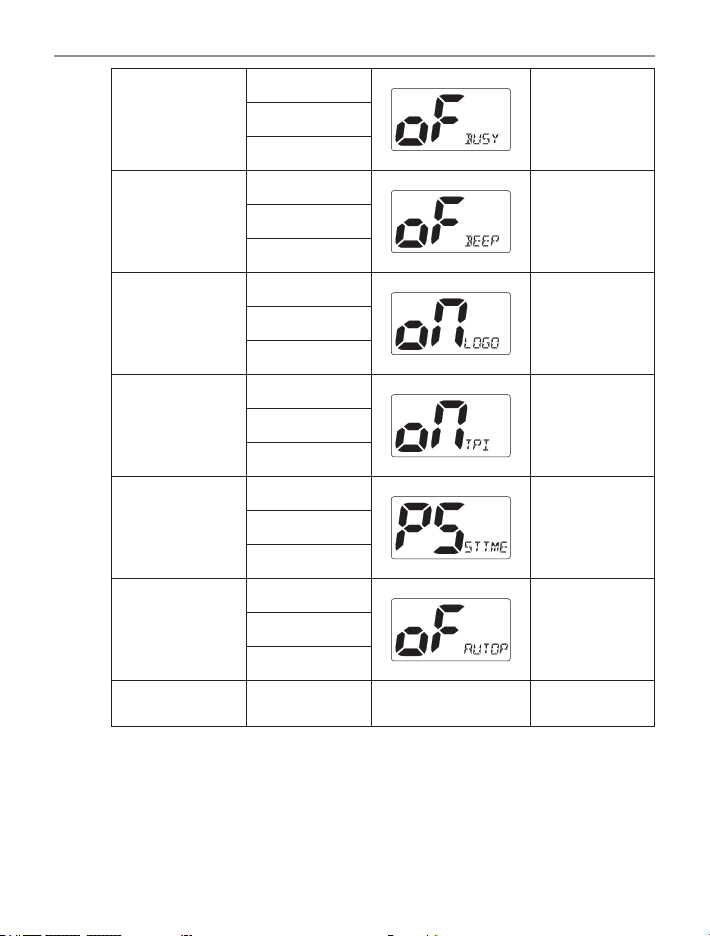
Busy channel
lock
Off
Off
On
Key Beep
Off
Off
On
Logo Display
On
On
Off
TPI
On
On
Off
Scan resume
time
P5
P5to
5,10,15
Auto power Off
Off
Offto
1H,2H,4H
Software
version
ver--3
21
Operations
Duplex
General
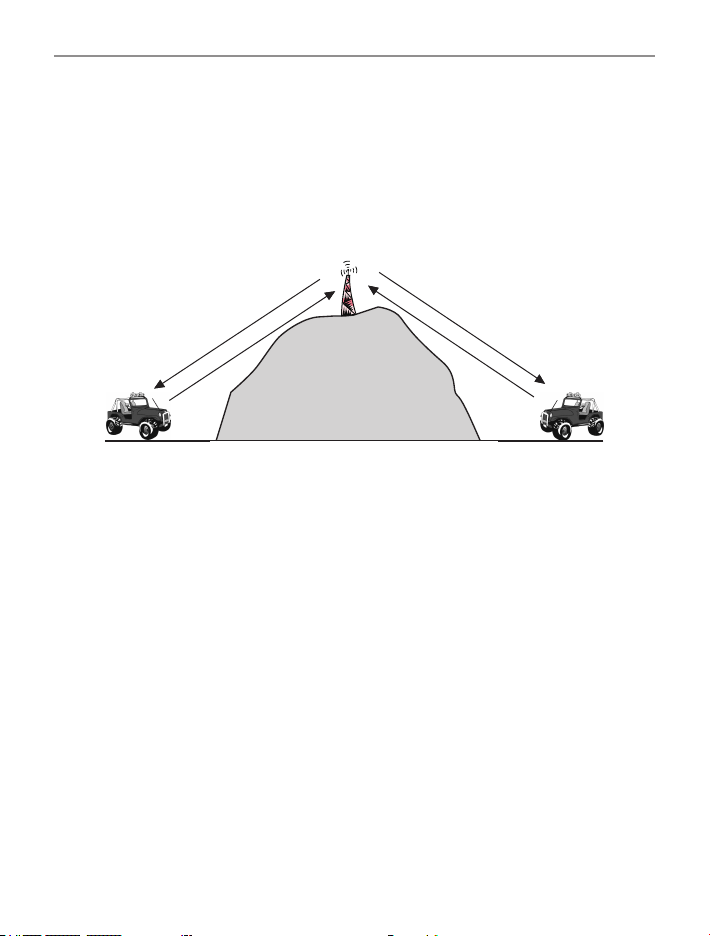
Your radio has a Repeater Access function to allow use of local repeater
stations (if available in your area). Repeaters are shared radio systems
installed by interested parties (clubs, local business etc.) that receive
transmissions on specic channels and re-transmit (or repeat) the
received signal to another channel.
Channel 2
Channel 32
C
h
a
n
n
e
l 2
Channel 32
Repeater Station
The Repeater Access function can be set (from channel 1 to 8 and 41
- 48) used by local repeater stations. When activated, your radio will
receive the Repeater on its specic channel (all repeater outputs are on
channel 1 to 8 and 41 to 48) but transmit to the repeater channel 31
through 38 and 71 to 78.
(Factory default is set to On for all repeater channels).
e.g.
CH01 on Duplex mode will receive on CH01 but transmit on CH31.
CH02 on Duplex mode will receive on CH02 but transmit on CH32.
If you transmit on CH01 duplex mode, you are actually transmitting on
CH31.
The repeater station receives your signal on CH31 and retransmits on
CH01.
Your UHF radio allows you to pre-select Duplex operation individually
on each channel.

22
Operations
CH and
Number
Simplex mode Transmit/Receiver Duplex mode Transmit/Receiver
Frequency (MHz) Frequency (MHz)
1 476.425 477.175 CH31
2 476.450 477.200 CH32
3 476.475 477.225 CH33
4 476.500 477.250 CH34
5 476.525 477.275 CH35
6 476.550 477.300 CH36
7 476.575 477.325 CH37
8 476.600 477.350 CH38
41 476.4375 477.1875 CH71
42 476.4625 477.2125 CH72
43 476.4875 477.2375 CH73
44 476.5125 477.2625 CH74
45 467.5375 477.2875 CH75
46 476.5625 477.3125 CH76
47 476.5875 477.3375 CH77
48 476.6125 477.3625 CH78
For this example we are adopting CH01 as the channel being used for
repeater use.
1. Press Menu to display Duplex setting.
2. Turn the Jog Wheel to change the setting between ON and OFF.
Note: You can only turn Duplex on when you are on a duplex channel.
3. Press PTT to save & exit from the menu mode.
4. Duplex on icon is displayed when a selected channel is set to Duplex
mode. See LCD Icons & Indicators on page 10 No.3.

23
Operations
CTCSS and DCS setting
This feature allows you to receive signals only from callers who have
selected the same CTCSS and DCS code.
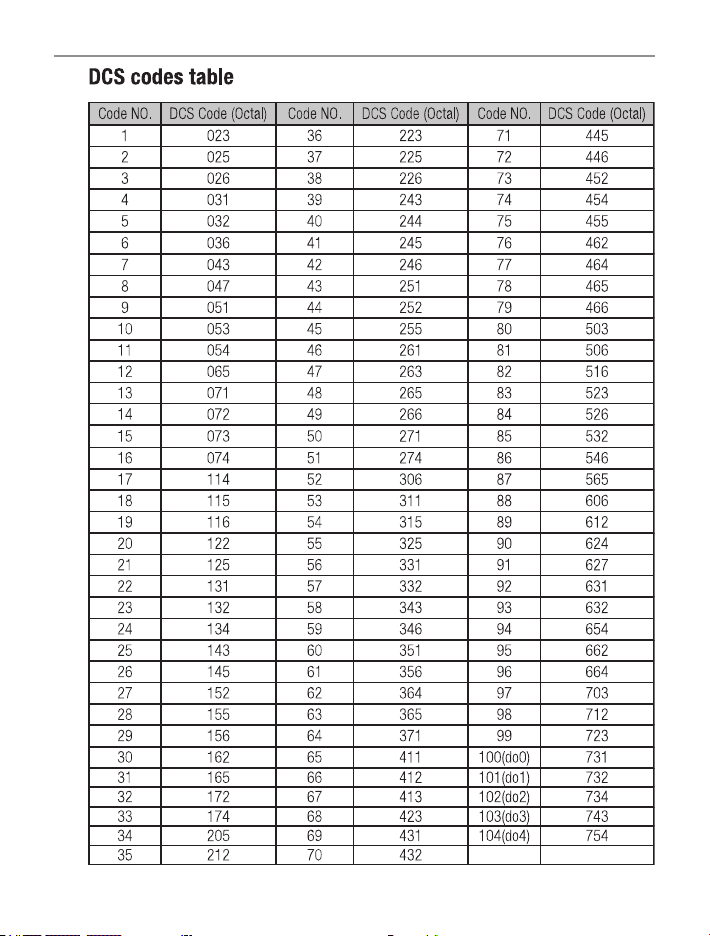
DCS is similar to CTCSS. It provides 104 extra, digitally coded, squelch
codes that follow after the 38 CTCSS codes. CTCSS 1 - 38, followed by
DCS 1 - 104. (Displays A0 to A4 for 100 to 104)
CTCSS and DCS are not available on CH05 and CH35. For your
reference a list of the available channels, corresponding frequencies and
guidelines for their use and selection is in the CTCSS and DCS channel
list on pages 29 and 30.
For Australia, channel 05 and 35 are reserved for Emergency calls.
Group Tone setting
The group tone scan default tone selected is CTCSS 01 (67Hz).
You can select from CTCC 01 - 38 to DCS 01 to 104 code for Group
tone scan.
96 Multi-colour Backlight
You can select from 96 different multi-colour backlighting for the LCD
backlight.
Backlight dimmer
You can reduce the brightness of the backlight by selecting levels 1 to
5, off or Auto, which will adjust the level of brightness depending on
ambient light.
Factory Reset
To reset your radio, press and hold SC/RM button while turning the
power on.
The display "AL-reset" or "User-reset" will indicate reset type.
The reset type can be selected in menu mode.
User reset will not delete any stored memory channels.
AL-reset will clear all memory channels and reset all settings back to factory.

24
Operations
Squelch Tail
Squelch Tail is the noise heard after the transmitting party releases the
PTT and is heard by the receiving party.
If Squelch tail is turned on, on both radios this squelch noise will be
muted.
Busy channel Lock
If the channel is already in use, you can prevent the UHF CB radio
from accidentally transmitting over a channel already in use. This is
particularly important when using CTCSS/DCS.
Key Beep
The key beep emits a tone when you press any of the buttons on the
microphone (except PTT button).
Logo Display
The logo display function can be enabled or disabled.
TPI
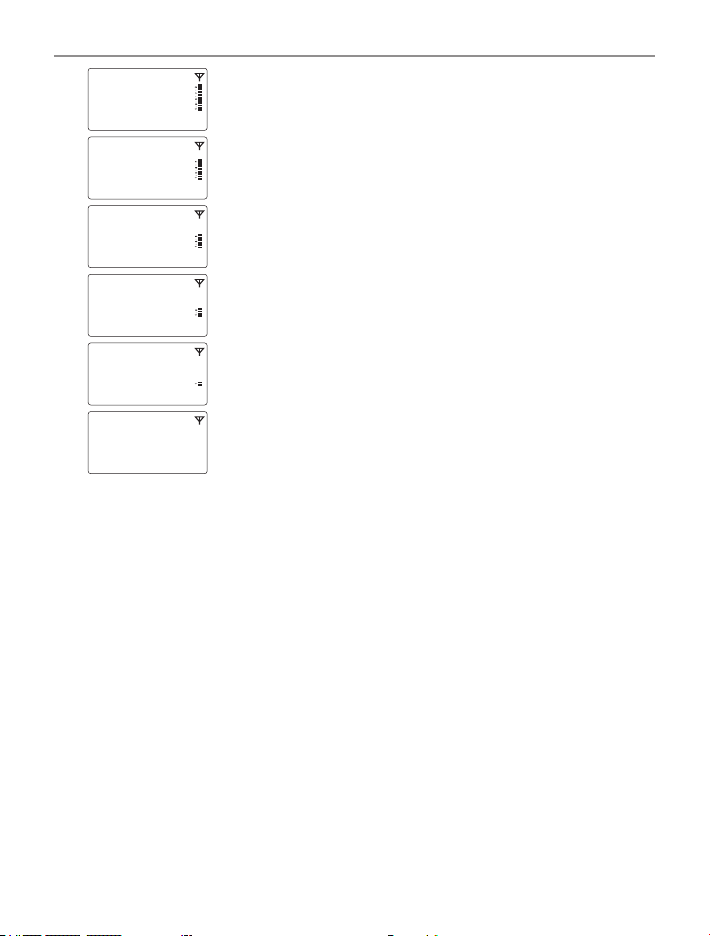
TPI Transmit Power Indicator
VSWR Voltage Standing Wave Ratio is a measurement of how well the
antenna (and cable) is matched to the radios output. It is best measured
at the antenna as the cable can affect this measurement.
TPI indicates the level of RF power delivered to the antenna connector.
This allows you to see how well the antenna is matched to the UHF
radio.
Generally a VSWR of less than 2 is an acceptable match.
25
Operations
BLINKING
BLINKING
BLINKING
BLINKING
Correct Antenna install with 5W
VSWR 1.2 with 4.5W
VSWR 2.6 with 4W
VSWR 3.5 with 3.5W
VSWR 4.4 with 3W
< 3W
The VSWR and Power test can vary depending on installation
conditions. If TPI feature is turned off in the settings menu, the TPI
indicator will show 5 bars during TX.
If an incorrect or no antenna is connected and power output is less than
3.5W, “ANT-X” will be displayed when TPI feature is turned on or off.
When “ANT-X” is displayed, the radio has enabled protection mode and
reduced RF output.
26
Operations
Scan resume time
You can select 5, 10, or 15 sec depending on your selection. SCAN will start
again after a 5, 10, or 15 sec pause even though a signal is still present.
If P5 is selected, SCAN will stop on all channels as long as a signal is
present. It will then resume SCAN again 5 seconds after no transmission
is present.
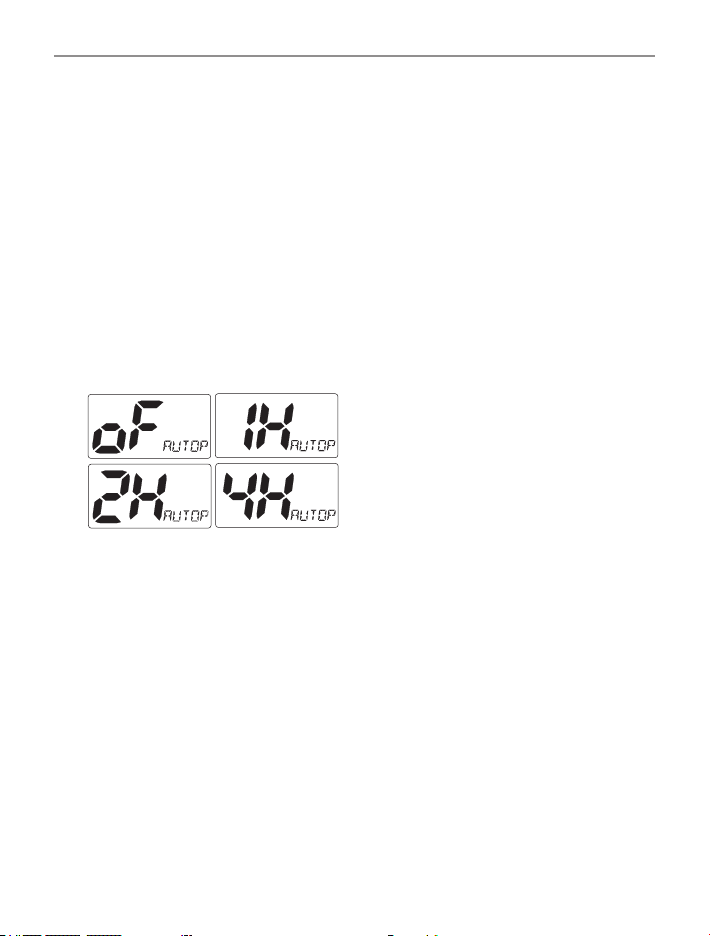
Auto power OFF
The auto power off function is activated when no transmitting and no
key function is present for the time selected.
The automatic power off time can be adjusted to OFF, 1, 2, or 4 hours in
menu mode.
27
UHF CB channels and frequencies
UHF CB channels and frequencies

28
UHF CB channels and frequencies
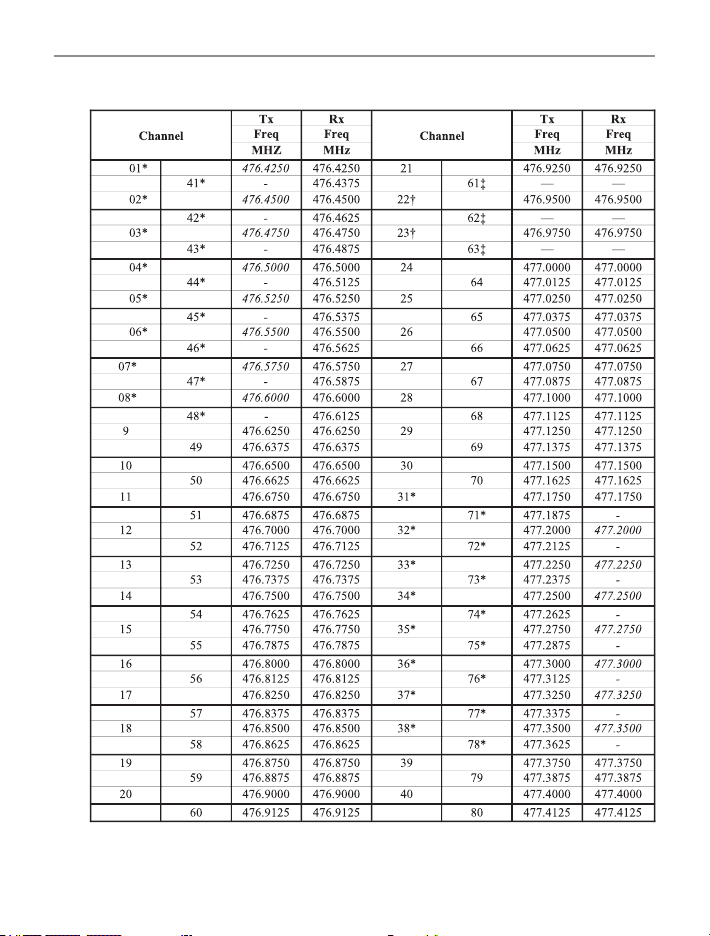
* The primary use for these channels is repeater operation using
750 kHz offset. Channels 1-8 inclusive are used for mobile reception
and channels 31-38 for mobile transmission. Note that additional
channels 41-48 and 71-78 are also available for repeater operation
to supplement channels 1-8 and-31-38 respectively as approved by
the ACMA CBRS Class Licence in Australia and the MED GURL in
New Zealand. In addition, any designated repeater channel may be
used for simplex operation in areas where it is not used for repeater
operation.
† Speech telephony shall be inhibited on these channels.
‡ At the time of production Channels 61, 62 and 63 are guard channels
and are not available for use.
Channels 5 and 35 (paired for Duplex repeaters) are reserved as
emergency channels and should be used only in an emergency.
CTCSS and DCS will not operate on these channels.
A list of currently authorised channels can be obtained from the ACMA
website in Australia and the MED website in New Zealand. Channel 11
is a calling channel generally used to call others and channel 40 is the
customary road vehicle channel.
Once contact is established on the calling channel, both stations should
move to another unused "SIMPLEX" channel to allow others to use the
calling channel.
UHF CB Radios normally transmit and receive on the same frequency
which is known as the simplex operation.
Channels 22 and 23 are for Telemetry and Telecommand use, voice
communications are not allowed on these channels by law.
Channel 9 and above are the best choices for general use in Simplex mode.
29
UHF CB channels and frequencies
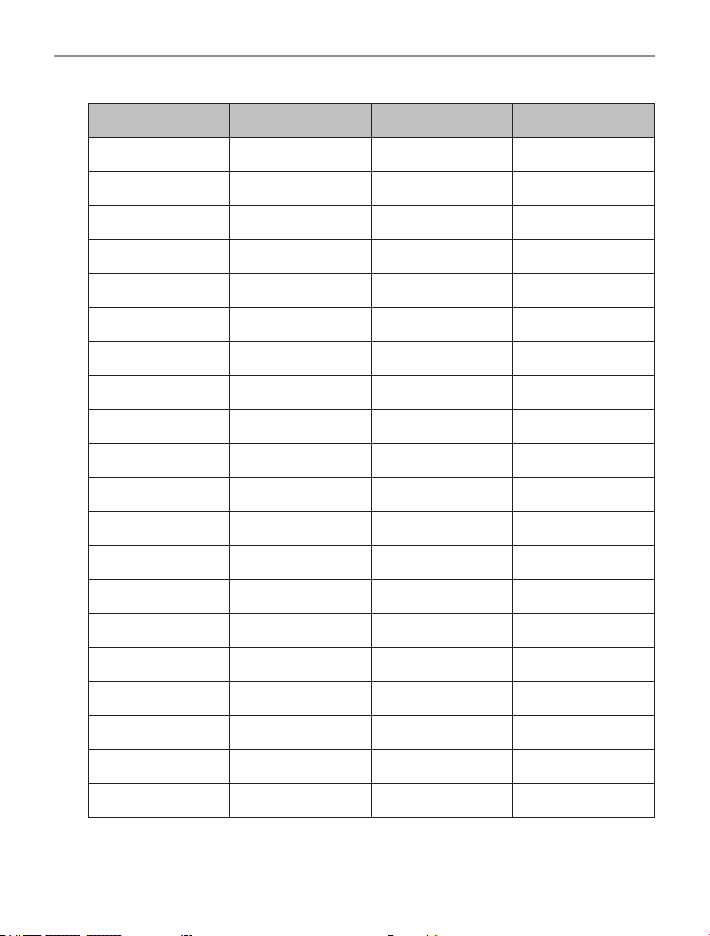
38 CTCSS CODE LIST
CODE Frequency(Hz) CODE Frequency(Hz)
OFF OFF 20 131.8
1 67.0 21 136.5
2 71.9 22 141.3
3 74.4 23 146.2
4 77.0 24 151.4
5 79.7 25 156.7
6 82.5 26 162.2
7 85.4 27 167.9
8 88.5 28 173.8
9 91.5 29 179.9
10 94.8 30 186.2
11 97.4 31 192.8
12 100.0 32 203.5
13 103.5 33 210.7
14 107.2 34 218.1
15 110.9 35 225.7
16 114.8 36 233.6
17 118.8 37 241.8
18 123.0 38 250.3
19 127.3
30
UHF CB channels and frequencies

31
Express Warranty (Australia)
Express Warranty (Australia)
This Express Warranty is provided by Oricom International Pty Ltd ABN 46
086 116 369, Unit 1, 4 Sovereign Place, South Windsor NSW 2756, herein
after referred to as “Oricom”.
Oricom warrants that the product is free from defects in materials or
workmanship during the Express Warranty Period. This Express Warranty
does not extend to any product from which the serial number has been
removed or was purchased outside of Australia.
The benets of this Express Warranty are in addition to other rights and
remedies you may have under the Australian Consumer Law. Our goods
come with guarantees that cannot be excluded under the Australian
Consumer Law. You are entitled to a replacement or refund for a major
failure and compensation for any other reasonably foreseeable loss or
damage. You are also entitled to have the goods repaired or replaced if the
goods fail to be of acceptable quality and the failure does not amount to a
major failure. In the event of a minor failure, Oricom reserves the right to
choose to repair or replace the product.
The Express Warranty Period will be a period of 5 years beginning on the
date of purchase of the product evidenced by your dated sales receipt.
You are required to provide proof of purchase as a condition of receiving
Express Warranty services.
You are entitled to a replacement product or repair of the product at our
discretion according to the terms and conditions of this document if
your product is found to be faulty within the Express Warranty Period.
This Express Warranty extends to the original purchaser only and is not
transferable.
Products distributed by Oricom are manufactured using new materials or
new and used materials equivalent to new in performance and reliability.
Spare parts may be new or equivalent to new. Spare parts are warranted
to be free from defects in material or workmanship for thirty (30) days or
for the remainder of the Express Warranty Period of the Oricom branded
product in which they are installed, whichever is longer. During the Express

32
Express Warranty (Australia)
Warranty Period, Oricom will where possible repair and if not replace the
faulty product or part thereof. All component parts removed under this
Express Warranty become the property of Oricom. In the unlikely event
that your Oricom product has a recurring failure, Oricom may always,
subject to the Competition and Consumer Act 2010, at its discretion, elect
to provide you with a replacement product of its choosing that is at least
equivalent to your product in performance.
No change to the conditions of this Express Warranty is valid unless it is
made in writing and signed by an authorised representative of Oricom.
Oricom will not be liable under this Express Warranty, and to the extent
permitted by law will not be liable for any defect, loss, damage or injury
arising out of or in connection with a:
1. Failure by you to adhere to the warnings and follow the instructions set
out in this user guide for the proper installation and use of the product;
2. Willful misconduct or deliberate misuse by you of the product;
3. Any external cause beyond our control, including but not limited to power
failure, lightning or over voltage; or
4. Modication to the product or services carried out on the product by
anyone other than Oricom or Oricom’s authorised service provider.
How to make a claim under your Express Warranty in
Australia
Oricom has a simple warranty process for you to follow:
• Please call or email our Customer Support Team, 02 4574 8888 or
• A Customer Support Team member will verify after troubleshooting with
you if your product qualies under warranty. If so, they will give you a
Product Return Authorisation number.
• We will then email a Return Authorisation form and a Repair Notice (if
necessary), together with instructions on how to return the product for
warranty service.

33
Express Warranty (Australia)
Please note that if a Customer Support Team member advises that your
product does not qualify for return, this warranty does not apply to your
product. Products that are authorised to be returned to Oricom in Australia
must include all of the following:
• A completed Return Authorisation form
• A copy of your Proof of Purchase (please keep your original copy)
• The faulty product, including all accessories.
Send the approved returns to:
Oricom International Pty Ltd
Locked Bag 658
South Windsor NSW 2756 Australia
Please note that this Express Warranty excludes expenses incurred by
you in returning any faulty product to us. You must arrange and pay any
expenses incurred (including postage, delivery, freight, transportation or
insurance of the product) to return the faulty product to us, however, we
will arrange delivery of the repaired or replaced faulty product to you.
Important Information
Repair Notice
Please be aware that the repair of your products may result in the loss of
any user-generated data (such as stored telephone numbers, text messages
and contact information). Please ensure that you have made a copy of any
data saved on your product before sending for repair. Please also be aware
that products presented for repair may be replaced by refurbished products
or parts of the same type rather than being repaired.

ORICOM CUSTOMER SUPPORT
Oricom have a trained and dedicated team of Customer Support
Representatives, each with the knowledge and resources to assist in
answering your questions quickly and efciently.
Oricom Support - Australia
For all product enquiries, troubleshooting or to discuss the range of Oricom
products, feel free to contact Oricom or visit our website for answers to
frequently asked questions.
(02) 4574 8888
Monday - Friday 8am – 6pm AEST
Email: [email protected]
www.oricom.com.au
Oricom Support - New Zealand
0800 674 266
Monday - Friday 11am - 7pm NZST
Email: [email protected]
Ref:26112020