Keep this user guide for future reference.
Always retain your proof of purchase in case of
warranty service.
www.oricom.com.au
Operating Instructions
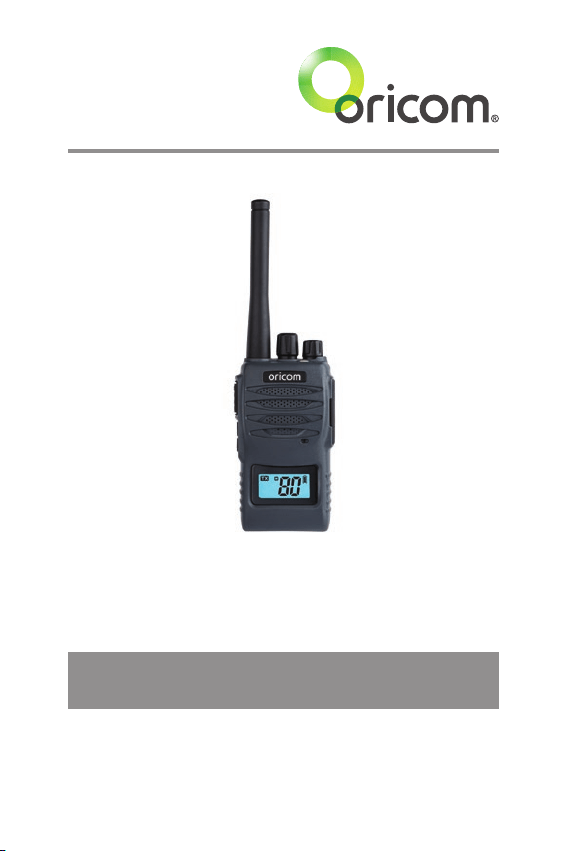
UHF5400 80 Channel UHF
Citizen Band Radio

This unit complies with all relevant Australian and
New Zealand approval requirements
AS/NZS 4365: 2011 including radio communications
(NZS2772.1 for human exposure) standard 2003.
When a narrowband radio receives a transmission from an older wideband radio the
speech may sound loud and distorted – simply adjust your radio volume for the best
listening performance. When an older wideband radio receives a signal from a new
narrowband radio the speech may sound quieter - simply adjust your radio volume for
best listening performance. When operating a narrowband radio or Channel 41 - 80
interference is possible from wideband radios transmitting on high power or on
adjacent frequency.
The issues described above are not a fault of the radio but a consequence of mixed
use of wideband and narrowband radios.
R-NZ

3
Safety Information and Warnings .....................4
Introduction .....................................................8
Pack Contents ................................................10
Installation ..................................................... 11
Controls and Indicators ..................................13
Operations ..................................................... 15
UHF CB Channels and Frequencies ................26
Express Warranty ...........................................31
Table of Contents
Need Help?
If you need assistance setting up or using your Oricom
product now or in the future, call Oricom Support.
Australia (02) 4574 8888
www.oricom.com.au
Mon-Fri 8am – 6pm AEST
New Zealand 0800 674 266
www.oricom.co.nz
Mon-Fri 10am – 8pm NZST
4
Safety Information and Warnings
Lithium-ion Battery Pack Warning
• This equipment contains a Lithium-ion Battery pack.
• Do not short circuit the Battery pack.
• Do not charge the Lithium-ion Battery pack used in this equipment in
any other charger.
• Lithium-ion Batteries must be disposed of properly.
• The Lithium-ion Battery pack contained in this equipment may
explode if disposed of in a re.
• Lithium-ion Batteries should not be exposed to high temperature
environments as they may not operate correctly in these conditions.
• Always keep out of direct sunlight in conned environments.
Information on Safe Operation
WARNING
Read This Information Before Using Your Oricom Radio.
The operation of your UHF radio in Australia and New
Zealand is subject to conditions in the following licenses:
In Australia, the ACMA Radio communications (Citizen
Band Radio Stations) and in New Zealand by MED the
General User Radio License for Citizen Band Radio.
Radio Antenna
Do not use any radio that has a damaged antenna. If a
damaged antenna comes in contact with the skin, a minor
burn may result.
Unauthorized antennas, modications, or attachments
could damage the radio and violate compliance. Do Not
change or modify the antenna.
Do not hold the antenna when the radio is "in use". Holding
the antenna reduces range and may cause bodily harm.
Safety and general use whilst in a vehicle
Check the State and Federal laws and regulations
regarding the use of two way radios in the area where you
drive, and always obey them.

5
Safety Information and Warnings
WARNING
For Vehicles tted with Air Bags
Do not place your radio in the area over an air bag or in
the air bag deployment area.
Air bags inate with great force. If a radio is placed in
the air bag deployment area and the air bag inates, the
radio may be propelled with great force and cause serious
injury to the occupants of the vehicle.
Potentially Explosive Atmospheres
Turn your radio OFF when in any area with a potentially
explosive atmosphere.
Sparks in such areas could cause an explosion or re
resulting in injury or even death.
NOTE:
Areas with potentially explosive atmospheres are often,
but not always, clearly marked. They include fuelling areas such
as below deck on boats, fuel or chemical transfer or storage
facilities, areas where the air contains chemicals or particles;
such as grain, dust or metal powder and any other area where
you would normally be advised to turn off your vehicle engine.
Blasting Caps and Areas
To avoid possible interference with blasting operations,
turn your radio Off near electrical blasting caps in a
"blasting area" or in areas posted: "Turn off two way
radios".
Obey all signs and instructions.
Exposure to Radio Frequency Energy
Your Oricom two-way radio complies with Australian
Communication Authority Radio communications
(Electromagnetic Radiation-Human Exposure)
Standard,2003.

6
WARNING
To ensure optimal radio performance and to make sure
human exposure to radio frequency electromagnetic
energy is within the guidelines set out in the above
standards, always adhere to the following procedures:
Transmit and Receive Procedure
Your two-way radio contains a transmitter and a receiver.
To control your exposure and ensure compliance with the
general population/uncontrolled environment exposure
limits, always adhere to the following procedures:
• Transmit no more than 50% of the time.
• To receive calls, release the PTT button.
• To transmit (talk), press the Push to Talk (PTT) button.
Transmitting 50% of the time, or less, is important
because the radio generates measurable RF energy
exposure only when transmitting (in terms of measuring
standards compliance).
Always hold the radio approximately 5cm in front of your
mouth with the antenna pointing away from your head.
Radio Operation and EME Exposure
Unauthorized antennas, modications, or attachments
could damage the radio and violate compliance. Do NOT
hold the antenna when the radio is "IN USE."
Holding the antenna reduces the effective range.
Do not use the radio if the antenna is damaged. If a
damaged antenna makes contact with your skin, a minor
burn can result.
If you wear a radio on your body when transmitting,
always t the radio on the belt clip (supplied). Always
ensure the radio and its antenna is at least 5cm from your
body when transmitting.
Electromagnetic Interference/Compatibility
Nearly every electronic device is susceptible to
electromagnetic interference (EMI).
Safety Information and Warnings

7
Safety Information and Warnings
WARNING
To avoid the possibility of electromagnetic interference and/
or compatibility conicts, turn off your radio in any location
where posted notices instruct you to do so such as health care
facilities.
Aircraft
When instructed to do so, turn off your radio when
onboard an aircraft. Any use of a radio must be in
accordance with applicable regulations per airline crew
instructions.
Medical Devices - Pacemakers
The Advanced Medical Technology Association
recommends that a minimum separation of 6 inches
(15cm) be maintained between a handheld wireless radio
and pacemaker.
These recommendations are consistent with the
independent research by and recommendations of the
U.S. Food and Drug Administration.
People with pacemakers should:
• Always keep the radio more than 15cm from their
pacemaker when the radio is turned ON.
• Not carry the radio in the breast pocket.
• Use the ear opposite the pacemaker to minimize the
potential for interference.
• Turn the radio OFF immediately if there is any reason to
suspect that interference is taking place.
Medical Devices - Hearing Aids
Some radios may interfere with some hearing aids.
In the event of such interference, you may want to consult
your hearing aid manufacturer to discuss alternatives.
General warnings
Never use your radio outdoors during a thunderstorm.
Keep the radio out of reach of babies and your children.

8
Introduction
Introduction
Thank you for choosing the Oricom UHF5400 5 Watt Handheld Radio.
Key Features
• 5/1 watt switchable TX power
• Long life battery: Lithum-Ion rechargeable 1200 mAh
• 12V mains power adaptor and 12V car charger
• Die cast metal chassis
• 80 Narrowband channels
• Channel scan (Open/Priority)
• Duplex
• Backlit LCD display
• Signal monitoring
• 38 CTCSS & 104 DCS Privacy codes
• Keypad lock
• 5 calling tones
• Roger Beep
• Priority channel
• 5 different Scrambler functions
• Triple watch
• VOX function
• Squelch tail on/off
• Busy channel lockout function
• Key beep
• Memory channel On/Off
• Auto power save mode
• Battery indicator
• Low battery alert function
• Removable exible antenna
• 2.5mm jack for optional headset or speaker mic

9
Introduction
Customized multi menu function
1. TX power HI(5W)/LO(1W)
2. Digital Squelch setting (Auto, 1 to 5 levels)
3. User selectable 38 CTCSS and 104 DCS codes
4. Scrambler setting (Off, 1 to 5 different frequencies)
5. Duplex On/Off
6. VOX sensitivity (Off, 1 to 3 levels)
7. Priority channel memory
8. Scan mode (Open or Priority (GS) scan)
9. Busy channel lockout (On or Off)
10. 5 Selectable call tones (Off, 1 to 5 melody)
11. Key beep tone (On or Off)
12. Roger beep tone (On or Off)
13. Triple watch sub channel 1 setting
14. Triple watch sub channel 2 setting
15. Memory channel (On or Off)
16. Squelch tail (On or Off)
17. Firmware version
10
Pack Contents
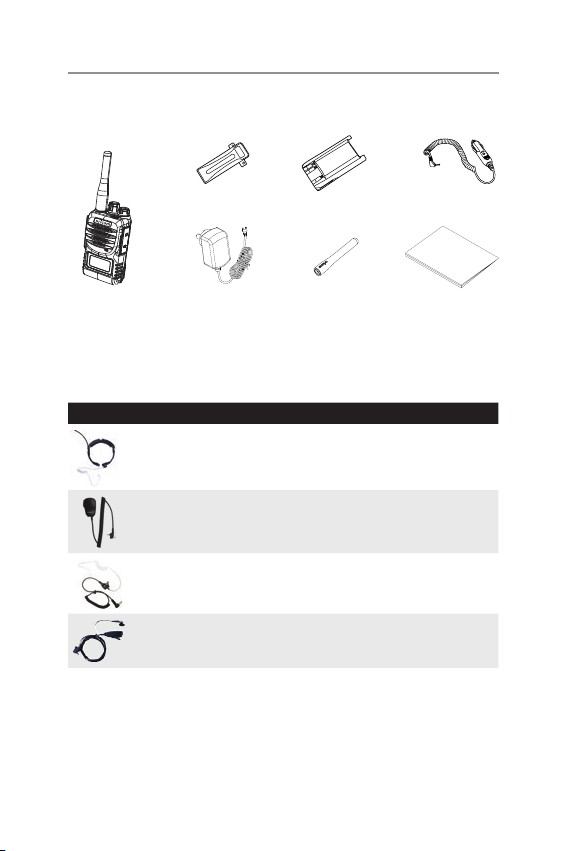
Oricom UHF5400 Accessories
The following Oricom UHF5400 accessories can be purchased directly from
Oricom. Visit www.oricom.com.au or call (02) 4574 8888.
Model No. Description
THMIC5000 Throat microphone with voice tube for noisy
environments.
SPKMIC5000 Heavy duty IP54 speaker microphone
EARSET5000 Earbud with 3.5mm jack suits SPKMIC5000 or
any radio with 3.5mm jack
EBVOX5000 Small compact speaker with in-line mic
FOR A FULL LIST OF CURRENT PARTS AND ACCESSORIES VISIT
www.oricom.com.au
The following items are included in your UHF5400 single pack.
AC Adaptor
User Guide
Antenna
Belt Clip
Lithium-ion Battery pack
UHF5400 Radio
Car Charger
11
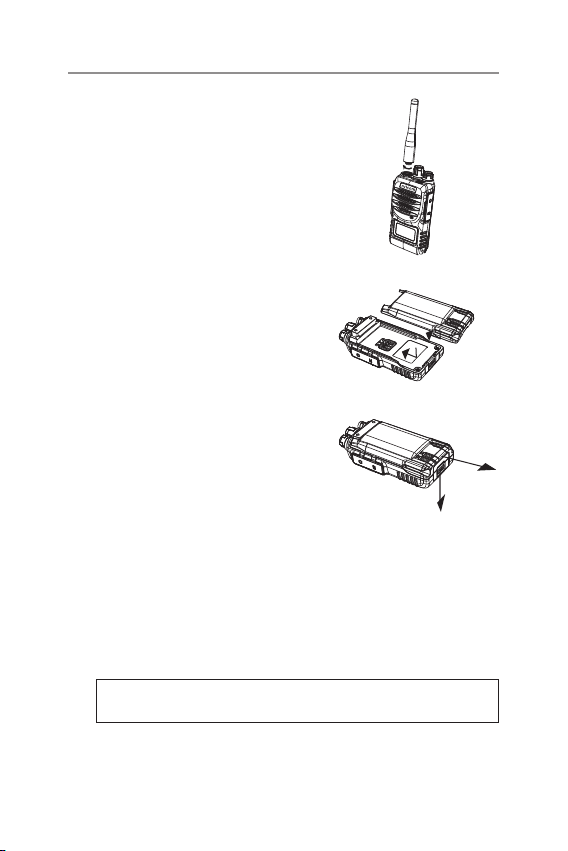
Antenna
Attach the antenna to the UHF5400 radio
(see diagram).
Be sure the antenna is rmly secured
(nger tight only).
Battery Pack
Install Battery Pack - Place the battery
pack onto the back of the radio, slide
battery into position until you hear a click
(see diagram).
Remove Battery Pack - Push battery
catch in direction of arrow and then slide
the battery off.
Battery Charging
When the battery pack is new, it should be fully charged before being
used for the rst time.
If left unused, your transceiver’s battery pack will discharge itself within
a few months.
If you have not used your UHF5400 for some time, you will need to
recharge the battery pack before use.
Warning: Use only the supplied power adaptor. The use of other
types may be dangerous and will void your warranty.
Installation

12
Charging the Radio
Plug the supplied mains power adaptor into an household outlet, and
then plug the DC jack directly into the charging Jack on the radio. It
takes approximately 3 hours to fully recharge with the radio powered
off.
When charging is complete, remove the power adaptor jack from the
radio and detach the mains power adaptor from the outlet.
You can also charge the radio using the 12V adaptor supplied. Plug the
adaptor into the 12V outlet in your car and insert jack directly into the
charging jack on the radio.
Warning: Do not transmit while charging the battery.
Belt Clip
Line up the belt clip to the 2 screw holes on the back of the radio.
Install the two screws to secure the belt clip to the radio.
Speaker Mic (Optional accessory - not supplied)
To connect the speaker mic, t the plug into the Charging, External
speaker & Microphone jack and tighten the retaining screw (nger tight
only).
Installation
13
Controls and Indicators
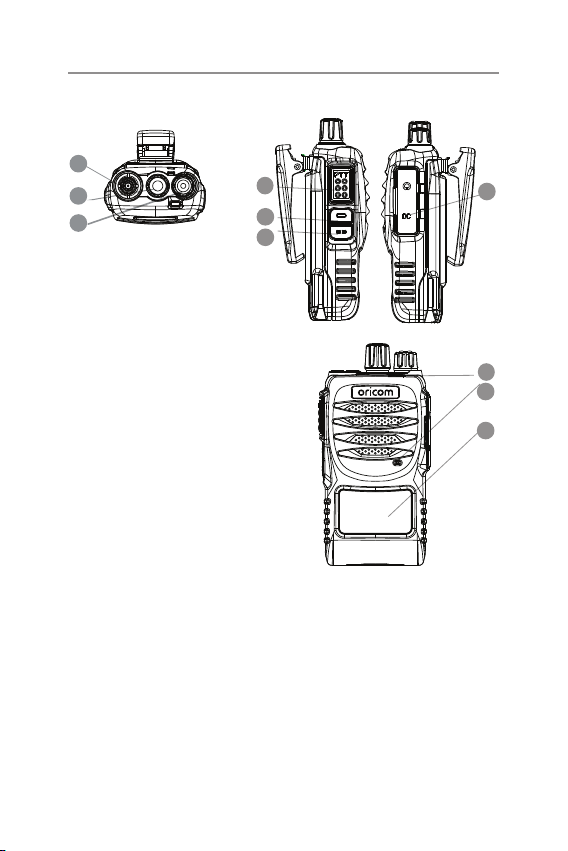
Basic Control
1. Antenna
2. Channel switch
3. Power On/Off and volume adjust
4. Push to talk (PTT)/Melody call
5. Monitor On/Triple Watch
6. Scan/Menu
7. Charging, External speaker &
Microphone jack
8. RX/TX LED indicator
9. Microphone
10. LCD
1
2
3
5
6
7
4
9
10
8
14
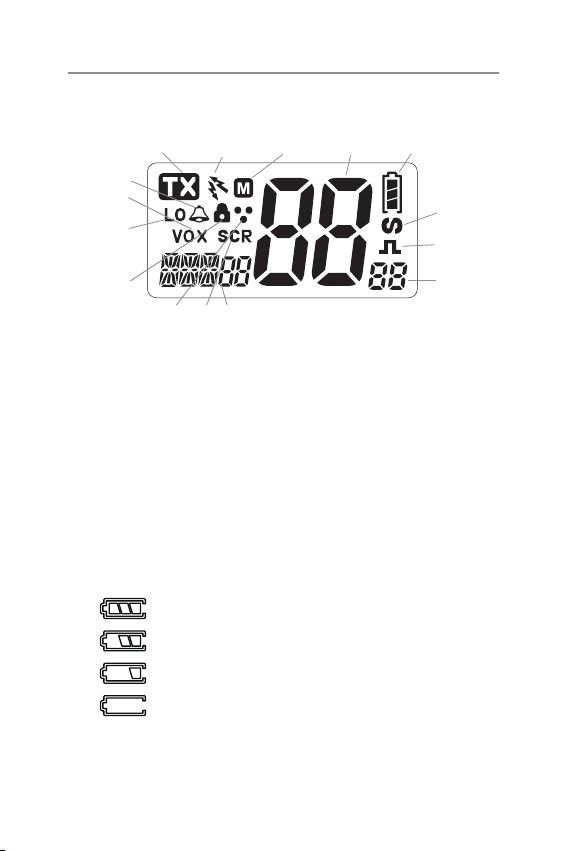
LCD Display
A. TX indicator H. CTCSS/DCS code
B. Duplex on I. Function
C. Memory J. Scrambler on
D. Channel display K. Tri Watch on
E. Battery indicator L. Key Lock
F. CTCSS on M. Low TX power
G. DCS on N. VOX
O. Roger Beep on
Battery Level Display
The battery icon in the top right hand corner of the LCD shows the
current battery level at all times.
The battery level is displayed in 4 levels as below.
Battery 100% fully charged
Battery approx 70%
Battery approx 30%
Low battery with alert beep tone
Battery life: Typically 15 Hours (This is based on the following duty
cycle TX 5%/RX 5%/Stand by 90%)
Controls and Indicators
O
N
M
G
K J
H
L
A BC DE
F
I

15
When(PTT) is pressed at low battery, an error tone sounds and
transmission is disabled.
Once at low battery the unit will automatically shutdown.
Recharge when convenient. When battery is empty, charge time is
approximately 3 hours to fully charge.
Power On/Off
To turn on the transceiver, turn the volume knob clockwise until you
hear a click.
To turn off the transceiver, turn the volume knob fully counter-clockwise
until you hear a click.
Volume
Rotate the Volume knob until you reach the desired level.
Channel Selection
Rotate channel knob until you select the desired channel.
Transmission and Reception
To transmit, keep the PTT button rmly pressed and the red LED will
illuminate.
Wait for approximately 1 second and then speak in the direction of the
microphone, and hold the device at a distance of about 5cm from your
mouth.
When you have nished, release the PTT.
When the radio is in reception mode, you will automatically receive
communications and the green LED will illuminate.
MON (Monitor) Function
The Monitor button is used for temporarily opening the squelch,
in order to listen to signals that are too weak to keep the squelch
permanently opened.
For brief listening, press Monitor briey to turn Squelch off, press
briey again to turn Squelch back on.
Operations

16
Triple Watch Function
Pressing and holding the monitor button activates the Triple watch
function. The Triple Watch feature allows for monitoring of 2 or 3
channels, this includes the currently selected channel and the channels
stored in TRI 1 and TRI 2.
These channels can be set in the menu under TR1 and TR2 with any
additional features set (CTCSS/DCS/Duplex). If only one additional
channel is required then select “off” in TRI 2.
Once Watch is activated, by pressing and holding the Monitor button,
the TRI 1 and TRI 2 channels are checked in the following sequence:
Main channel is checked for 0.7 of a second, then TRI 1 for 0.15
seconds, TRI 2 for 0.15 seconds and then back to the Main channel.
The sequence is repeated until turned off, or until a signal is detected.
If there is a signal present on TRI 1 or TRI 2, the radio will wait on
that Channel for 5 seconds after the signal is no longer present, then
continue in its triple watch scanning sequence.
Press and hold the monitor button to stop on a specic channel and
disable the triple watch scan.
Duplex
Duplex can be turned off and on for each channel in Menu mode. The
Display shows DPX only available on channels (1-8) and (41-48). When
turned on, the transmit channel will be as shown in the table on page
18.
Operations
17
General
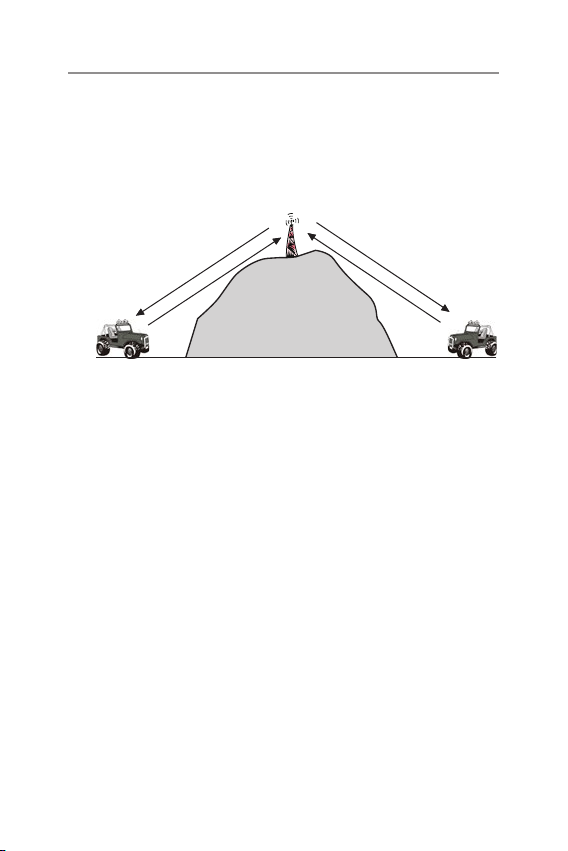
Your radio has a Repeater Access function to allow use of local
repeater stations (if available in your area). Repeaters are a shared
radio system installed by interested parties (clubs, local businesses
etc.) that pick transmissions on specic channels and re-transmit (or
repeat) the received signal to another channel.
Channel
2
Channel
32
C
h
a
n
n
e
l
2
Channel 32
Repeater Station
The Repeater Access function can be set (from channel 1 to 8 and
41 - 48) used by local repeater stations. When activated, your radio
will receive the Repeater on its specic channel (all repeater output are
on channel 1 to 8 and 41-48) but transmit to the repeater channel 31
through 38 and 71 to 78.
e.g
CH01 on Duplex mode will receive on CH01 but transmit on CH31.
CH02 on duplex mode will receive on CH02 but transmit on CH32.
If you transmit on CH01 duplex mode, you are actually transmitting on
CH31.
The repeater station down converts your signal and retransmits on CH01.
Operations
18
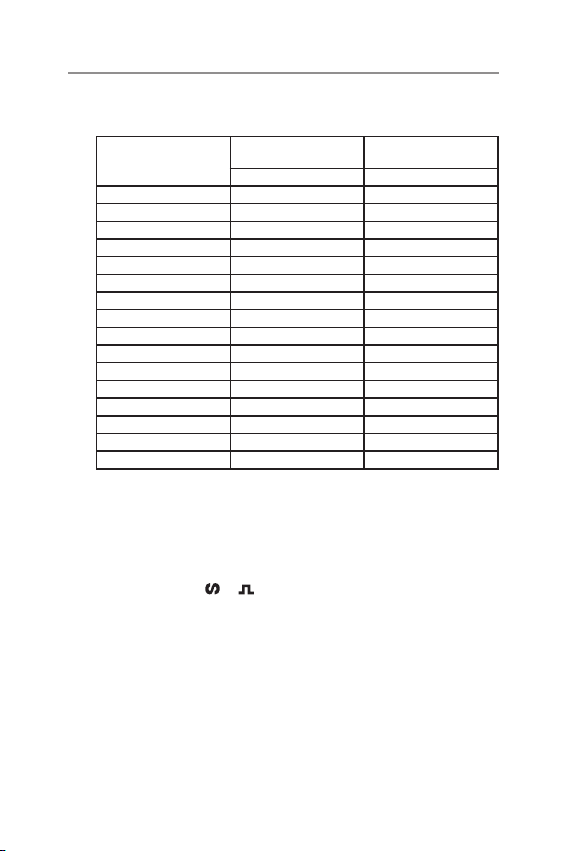
Your UHF5400 allows you to pre-select Duplex operation individually on
each channel.
CH and number
Simplex mode Transmit/
Receiver
Duplex Mode Transmit/
Receiver
Frequency (MHz) Frequency (MHz)
1 476.425 477.175 CH31
2 476.450 477.200 CH32
3 476.475 477.225 CH33
4 476.500 477.250 CH34
5 476.525 477.275 CH35
6 476.550 477.300 CH36
7 476.575 477.325 CH37
8 476.600 477.350 CH38
41 476.4375 477.1875 CH71
42 476.4625 477.2125 CH72
43 476.4875 477.2375 CH73
44 476.5125 477.2625 CH74
45 476.5375 477.2875 CH75
46 476.5625 477.3125 CH76
47 476.5875 477.3375 CH77
48 476.6125 477.3625 CH78
CTCSS/DCS
To activate CTCSS or DCS, please select the required tone in menu mode
as this will activate CTCSS or DCS on the current channel only. To turn
CTCSS or DCS off on the current channel, select “off” in menu mode.
The Display shows
or when on.
Menu
The Menu provides a convenient method of customizing some of the
radio’s functions.
The following Menu Options are available.
Note that some settings are only available on certain channels.
To access the Menu:
Operations

19
Operations
1. Press and hold the Menu button, the rst menu function is displayed.
2. Briey press the menu button to cycle through each available function.
After the last function has been selected, the cycle returns to the
beginning.
3. Use the channel up or down dial to change the parameters of the
selected function.
4. To exit the menu, press PTT button or press and hold the menu
button for 2 seconds.
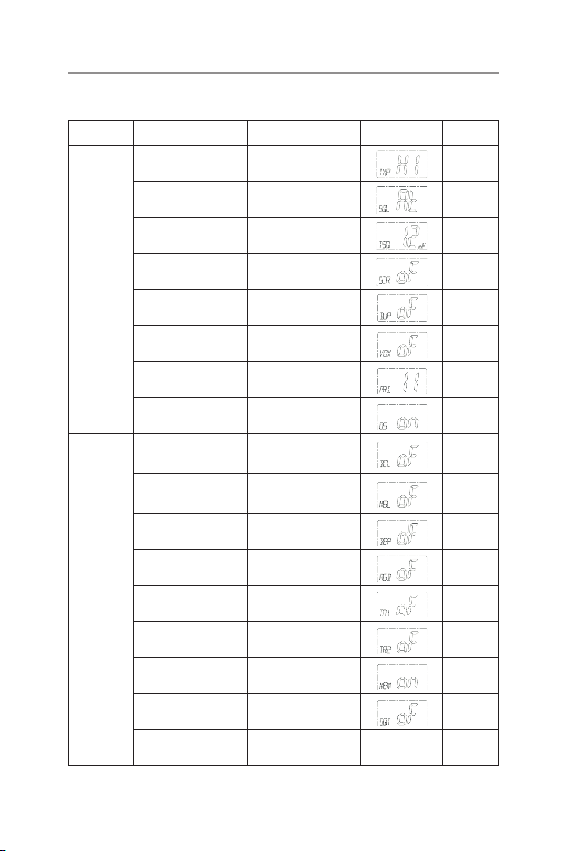
The following features can be selected by using the “MENU” button:
1. TX power HI(5W)/LO(1W)
2. Digital Squelch setting (Auto, 1 to 5 levels)
3. User selectable 38 CTCSS and 104 DCS codes
4. Scrambler setting (Off, 1 to 5 different frequencies)
5. Duplex On/Off
6. VOX sensitivity (Off, 1 to 3 levels)
7. Priority channel memory
8. Scan mode (Open or Priority (GS) scan)
9. Busy channel lockout (On or Off)
10. 5 Selectable call tones (Off, 1 to 5 melody)
11. Key beep tone (On or Off)
12. Roger beep tone (On or Off)
13. Triple watch sub channel 1 setting
14. Triple watch sub channel 2 setting
15. Memory channel (On or Off)
16. Squelch tail (On or Off)
17. Firmware version
20
* Please see below menu modes.
Control Functions Step Display Default
MENU
TX Power High or Low High
SQ level Auto or 1 to 5 Auto
CTCSS or DCS TSQ38 or DCS104 Off
Scrambler Off or 1 to 5 Off
Duplex On or Off On
VOX Off or 1 to 3 Off
Priority Channel On or Off 11
Scan mode OS or GS OS
MENU
Busy channel
lockout
On or Off
Off
5 Selectable call
tone
Off or 1 to 5 Off
Key beep tone On or Off
Off
Roger beep tone On or Off Off
Triple watch CH1 One CH memory Off
Triple watch CH2 One CH memory Off
Memory On/Off On or Off On
Squelch tail On or Off Off
Firmware version Ver01
Operations
21
Squelch Level
The radio has 5 preset (off to 5) squelch levels:
Off - SQ off (monitor on condition)
1 - Maximum sensitivity (minimum squelch)
5- Minimum sensitivity (maximum/tight squelch)
CTCSS and DCS Setting
This feature allows you to receive signals only from callers who have
selected the same CTCSS and DCS code.
DCS is similar to CTCSS. It provides 104 extra, digital squelch codes
that follow after the 38 CTCSS codes. CTCSS 1-38, followed by DCS
1-104, displayed as 1 to A4.
Scanning
The UHF5400 has two types of scanning: Open scanning (OS) and
Priority scanning (GS).
Scanning allows you to search for active channels programmed in the
memory.
You can choose Scan type in menu mode.
To initiate scanning:
Press menu key and scanning starts. OS icon appears during scanning.
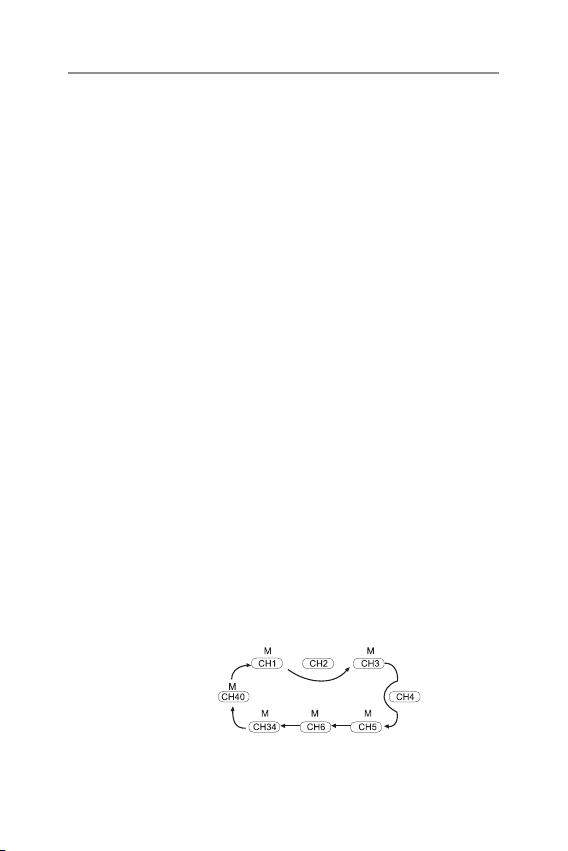
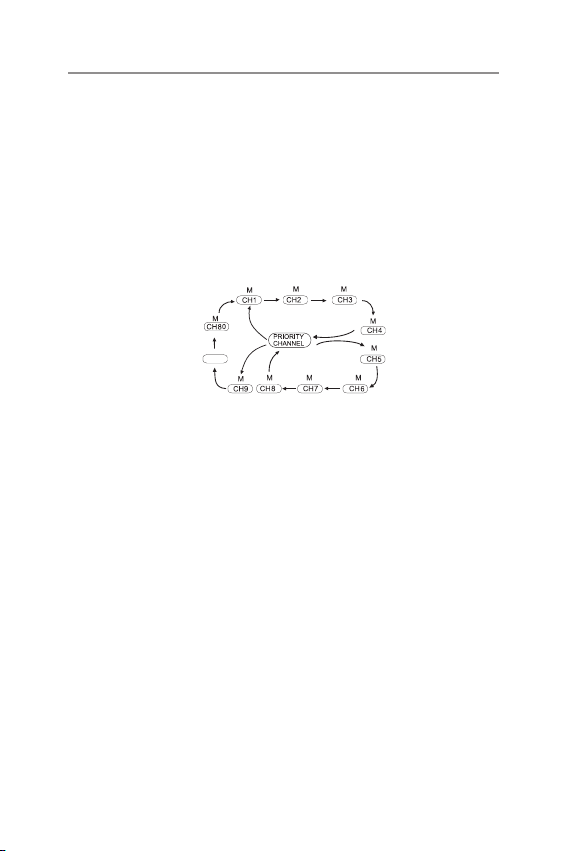
Open Scan (OS) Mode
The Open Scan feature scans for activity on all CB channels in
memory. Once a channel is located, scanning will pause, this will allow
the signal to be heard.
Open Scan
Operations
22
Priority Scan (GS) Mode
With Priority Scan, the Radio scans for activity, but in addition, it also
inserts your Priority Channel into the scan sequence.
This means that your Priority Channel will be monitored regularly while
scanning to ensure that no calls are missed. Any signal received on
your Priority Channel will take precedence over any signals received on
the other channels.
The priority channel will be checked after every 4th channel scanned.
PRIORITY SCAN
......
Transmit RF Power Control
The maximum RF transmit power of UHF5400 is 5 watts.
You can switch to low power mode in the menu, when low power is
selected “LO” appears on the LCD display.
VOX Sensitivity Level Setting
In VOX mode, the radio will transmit a signal only when it is activated
by your voice or other sound around you. The unit will transmit for a
short time (approximately 2 seconds) after you have stopped talking.
The level of VOX sensitivity is shown by a number on the LCD screen
(Off to 3 levels).
At the highest level (1), the unit will pick up soft sounds (including
background noise). At the lowest level (3), it will pick up louder sounds
only.
VOX operation is not recommended if the radio will be used in a noisy
or windy environment. A VOX headset is also available, this can be
purchased from your re-seller or online at www.oricom.com.au.
Operations

23
Priority Channel Set
To store a Priority Channel, select the required channel in menu mode.
The letter “PRI” will appear when the selected channel is set to Priority.
This Channel will then be automatically monitored during the Priority
Scan.
NOTE: You can only store one channel as your priority channel.
Duplex
Duplex mode can be turned on or off on the duplex channels. When
turned on, the transmit channel will be as shown in the table on
page 18.
Key Beep
The Beep tone emits a tone when you press any of the buttons (except
PTT button).
Roger Beep
This function emits a beep on the communication party to inform that
the transmission is nished.
Busy Channel Lock
If the channel is already in use, you can prevent the UHF CB radio
from transmitting. This is particularly important when using CTCSS/
DCS.
Squelch Tail
Squelch Tail is the noise heard after the transmitting party releases PTT
and is heard by the receiving party.
If Squelch Tail is turned ON, on both radios this squelch noise will be
muted.
Operations
24
Memory On/Off
The factory has pre-programmed all the UHF CB channels into the
Open SCAN channel memory.
However, you can change or customize the channels in this menu.
To remove the channel from memory, press up or down in this menu.
The memory icon “M” disappears.
5 Selectable Call Tones
You can select from 5 call tones. This is the tone that is emitted when
the PTT is pushed 2 times within 1/2 a second.
Current regulations require calling tones to be restricted to one
transmission per minute. If a second transmission is attempted
within one minute, then an error tone will sound.
Scramble
Scramble enables private communications by scrambling the voice
signal.
This prevents users without descrambler equipment or a compatible
unit, from understanding the conversation.
Select desired channel. SCR appears when scramble setting from off
and 1 to 5.
NOTE: All radios will need to have the same scrambler setting to
descramble the conversation.
Key Lock
To prevent accidental entries, you can lock the keypad.
To enable or disable the “Key lock” Function:
Turn radio off. While holding Menu button turn the Radio on.
When the key lock is active, a warning beep will be heard if you
attempt to press keys (except for the PTT button).
Operations

25
Operations
Factory Reset
If the radio’s display locks up or stops functioning properly, you might
need to reset your UHF radio.
Caution: This procedure clears all the information you have stored in
your UHF radio.
Before you reset your UHF radio, try turning it off and on again.
If your UHF radio is still not functioning correctly, you may need to reset
the UHF radio.
To reset, Press and Hold Monitor and power on. “Reset” will appear in
the display. The radio will then return to standby mode.
TOT (Time Out Timer)
Australian and New Zealand standards require that if the PTT is
pressed for more than 3 minutes the unit must stop transmitting. The
radio is set to stop transmitting after 2 minutes and 30 seconds of
continuous transmission. “TOT-on” will appear in the display and it will
emit a beep sound to indicate that TOT is activated.

26
Channel Frequency Table
Radiocommunications (Citizen Band Radio Stations) Class
Licence 2002
No licence is required to own or operate this radio in Australia and
New Zealand. The Radiocommunications (Citizen Band Radio Stations)
Class Licence 2002 contains the technical parameters, operating
requirements, conditions of licence and relevant standards for Citizen
Band (CB) radios. CB radios must comply with the class licence for
their use to be authorised under the class licence.
UHF Channels and Frequencies
IMPORTANT NOTE: The operation of your UHF radio in Australia and
New Zealand is subject to conditions in the following licenses:
In Australia, the ACMA Radio Communications (Citizen Band Radio
Stations) and in New Zealand by MED the General User Radio License
for Citizen Band Radio.
UHF CB Channels and Frequencies
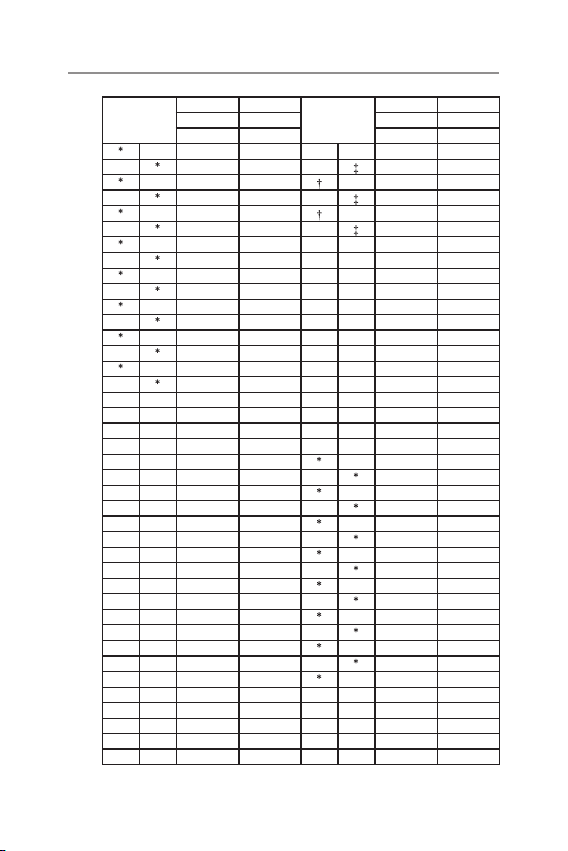
27
Channel
TX RX
Channel
TX RX
Freq Freq Freq Freq
MHZ MHz MHZ MHZ
01
476.4250 476.4250 21 476.9250 476.9250
41
- 476.4375 61 - -
02
476.4500 476.4500 22 476.9500 476.9500
42
- 476.4625 62 - -
03
476.4750 476.4750 23 476.9750 476.9750
43
- 476.4875 63 - -
04
476.5000 476.5000 24 477.0000 477.0000
44
- 476.5125 64 477.0125 477.0125
05
476.5250 476.5250 25 477.0250 477.0250
45
- 476.5375 65 477.0375 477.0375
06
476.5500 476.5500 26 477.0500 477.0500
46
- 476.5625 66 477.0625 477.0625
07
476.5750 476.5750 27 477.0750 477.0750
47
- 476.5875 67 477.0875 477.0875
08
476.6000 476.6000 28 477.1000 477.1000
48
- 476.6125 68 477.1125 477.1125
09 476.6250 476.6250 29 477.1250 477.1250
49 476.6375 476.6375 69 477.1375 477.1375
10 476.6500 476.6500 30 477.1500 477.1500
50 476.6625 476.6625 70 477.1625 477.1625
11 476.6750 476.6750 31
477.1750 477.1750
51 476.6875 476.6875 71
477.1875 -
12 476.7000 476.7000 32
477.2000 477.2000
52 476.7125 476.7125 72
477.2125 -
13 476.7250 476.7250 33
477.2250 477.2250
53 476.7375 476.7375 73
477.2375 -
14 476.7500 476.7500 34
477.2500 477.2500
54 476.7625 476.7625 74
477.2625 -
15 476.7750 476.7750 35
477.2750 477.2750
55 476.7875 476.7875 75
477.2875 -
16 476.8000 476.8000 36
477.3000 477.3000
56 476.8125 476.8125 76
477.3125 -
17 476.8250 476.8250 37
477.3250 477.3250
57 476.8375 476.8375 77
477.3375 -
18 476.8500 476.8500 38
477.3500 477.3500
58 476.8625 476.8625 78* 477.3625 -
19 476.8750 476.8750 39 477.3750 477.3750
59 476.8875 476.8875 79 477.3875 477.3875
20 476.9000 476.9000 40 477.4000 477.4000
60 476.9125 476.9125 80 477.4125 477.4125
UHF CB Channels and Frequencies

28
The primary use for these channels is repeater operation using
750 kHz offset. Channels 1-8 and 41-48 inclusive are used for mobile
reception and channels 31-38 and 71-78 for mobile transmission.
In addition, any designated repeater channel may be used for simplex
operation in areas where it is not used for repeater operation.
Speech telephony shall be inhibited on these channels.
At the time of production, Channels 61, 62 and 63 are guard
channels and are not available for use.
Channel 5 and 35 (paired for Duplex repeaters) are reserved as
emergency channels and should be used only in an emergency.
CTCSS and DCS will not operate on channels 5 and 35.
A list of currently authorised channels can be obtained from the ACMA
website in Australia and the MED website in New Zealand. Channel 11
is a calling channel generally used to call others and channel 40 is the
customary road vehicle channel.
Once contact is established on the calling channel, both stations
should move to another unused “SIMPLEX” channel to allow others to
use the calling channel.
Channels 22 and 23 are for Telemetry and Telecommand use, voice
communications are not allowed on these channels by law.
Channel 9 and above are the best choices for general use in Simplex
mode.
UHF CB Channels and Frequencies

29
UHF CB Channels and Frequencies
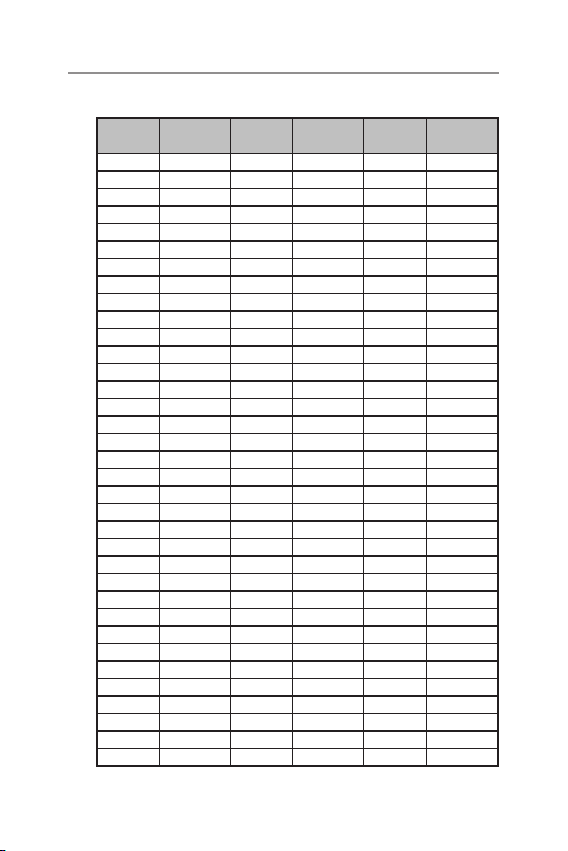
38 CTCSS CODE LIST
CODE Frequency (Hz) CODE Frequency (Hz)
OFF OFF 20 131.8
1 67.0 21 136.5
2 71.9 22 141.3
3 74.4 23 146.2
4 77.0 24 151.4
5 79.7 25 156.7
6 82.5 26 162.2
7 85.4 27 167.9
8 88.5 28 173.8
9 91.5 29 179.9
10 94.8 30 186.2
11 97.4 31 192.8
12 100.0 32 203.5
13 103.5 33 210.7
14 107.2 34 218.1
15 110.9 35 225.7
16 114.8 36 233.6
17 118.8 37 241.8
18 123.0 38 250.3
19 127.3
30
DCS codes table
Code No.
DCS Code
(Octal)
Code No.
DCS Code
(Octal)
Code No.
DCS Code
(Octal)
1 023 36 223 71 445
2 025 37 225 72 446
3 026 38 226 73 452
4 031 39 243 74 454
5 032 40 244 75 455
6 036 41 245 76 462
7 043 42 246 77 464
8 047 43 251 78 465
9 051 44 252 79 466
10 053 45 255 80 503
11 054 46 261 81 506
12 065 47 263 82 516
13 071 48 265 83 523
14 072 49 266 84 526
15 073 50 271 85 532
16 074 51 274 86 546
17 114 52 306 87 565
18 115 53 311 88 606
19 116 54 315 89 612
20 122 55 325 90 624
21 125 56 331 91 627
22 131 57 332 92 601
23 132 58 343 93 632
24 134 59 346 94 654
25 143 60 351 95 662
26 145 61 356 96 664
27 152 62 364 97 703
28 155 63 365 98 712
29 156 64 371 99 723
30 162 65 411 100 (A0) 731
31 165 66 412 101 (A1) 732
32 172 67 413 102 (A2) 734
33 174 68 423 103 (A3) 743
34 205 69 431 104 (A4) 754
35 212 70 432
UHF CB Channels and Frequencies

31
Express Warranty (Australia)
This Express Warranty is provided by Oricom International Pty Ltd ABN 46
086 116 369, Unit 1, 4 Sovereign Place, South Windsor NSW 2756, herein
after referred to as “Oricom”.
Oricom products come with guarantees that cannot be excluded under the
Australian Consumer Law. You are entitled to a replacement or refund for a
major failure and compensation for any other reasonably foreseeable loss
or damage. You are also entitled to have the goods repaired or replaced if
the goods fail to be of acceptable quality and the failure does not amount
to a major failure. Oricom warrants that the product is free from defects in
materials or workmanship during the Express Warranty Period. This Express
Warranty does not extend to any product from which the serial number has
been removed or was purchased outside of Australia.
Nothing in this Express Warranty excludes, restricts or modies any
condition, warranty, guarantee, implied term, right or remedy pursuant to
the Australian Consumer Law and which may not be so excluded, restricted
or modied. For such conditions, terms, guarantees and warranties that
cannot be excluded, restricted or modied, Oricom limits the remedies
available to extent permitted in the relevant legislation.
The Express Warranty Period will be 3 years (excluding battery cells and
rechargeable battery packs) from the date of purchase of the product
evidenced by your dated sales receipt. You are required to provide proof of
purchase as a condition of receiving Express Warranty services.
You are entitled to a replacement product or repair of the product at
our discretion according to the terms and conditions of this document
if your product is found to be faulty within the Express Warranty Period.
This Express Warranty extends to the original purchaser only and is not
transferable.
Products distributed by Oricom are manufactured using new materials or
new and used materials equivalent to new in performance and reliability.
Spare parts may be new or equivalent to new. Spare parts are warranted
to be free from defects in material or workmanship for thirty (30) days or
for the remainder of the Express Warranty Period of the Oricom branded
product in which they are installed, whichever is longer. During the Express
Warranty Period, Oricom will where possible repair and if not replace the
faulty product or part thereof. All component parts removed under this
Express Warranty

32
Express Warranty
Express Warranty become the property of Oricom. In the unlikely event that
your Oricom product has a recurring failure, Oricom may always, subject to
the Competition and Consumer Act 2010, at its discretion, elect to provide
you with a replacement product of its choosing that is at least equivalent to
your product in performance.
No change to the conditions of this Express Warranty is valid unless it is
made in writing and signed by an authorised representative of Oricom.
Oricom will not be liable under this Express Warranty, and to the extent
permitted by law will not be liable for any defect, loss, damage or injury
arising out of or in connection with a:
1. Failure by you to adhere to the warnings and follow the instructions set
out in this user guide for the proper installation and use of the product;
2. Wilful misconduct or deliberate misuse by you of the product;
3. Any external cause beyond our control, including but not limited to power
failure, lightning or over voltage; or
4. Modication to the product or services carried out on the product by
anyone other than Oricom or Oricom’s authorised service provider.

33
How to make a claim under your Express
Warranty in Australia
Oricom has a simple warranty process for you to follow:
• Please call or email our Customer Support Team, (02) 4574 8888 or
• A Customer Support Team member will verify after troubleshooting with
you if your product qualies under warranty. If so, they will give you a
Product Return Authorisation number.
• We will then email or fax a Return Authorisation form and a Repair
Notice (if necessary), together with instructions on how to return the
goods for warranty service.
Please note that if a Customer Support Team member advises that your
product does not qualify for return, this warranty does not apply to your
product. Products that are authorised to be returned to Oricom in Australia
must include all of the following:
• A completed Return Authorisation form
• A copy of your Proof of Purchase (please keep your original copy)
• The faulty product, including all accessories.
Send the approved returns to:
Oricom International Pty Ltd
Locked Bag 658
South Windsor NSW 2756 Australia
Please note that this Express Warranty excludes expenses incurred by
you in returning any faulty product to us. You must arrange and pay any
expenses incurred (including postage, delivery, freight, transportation or
insurance of the product) to return the faulty product to us, however, we will
arrange delivery of the repaired or replaced faulty product to you.
Express Warranty

34
Important Information
Repair Notice
Please be aware that the repair of your goods may result in the loss
of any user generated data (such as stored telephone numbers, text
messages and contact information). Please ensure that you have made
a copy of any data saved on your goods before sending for repair.
Please also be aware that goods presented for repair may be replaced
by refurbished goods or parts of the same type rather than being
repaired.
Express Warranty


Ref:30082021
ORICOM CUSTOMER SUPPORT
Oricom have a trained and dedicated team of Customer Support
Representatives, each with the knowledge and resources to assist
in answering your questions quickly and efciently.
Oricom Support - Australia
For all product enquiries, troubleshooting or to discuss the range of
Oricom products, feel free to contact Oricom or visit our website for
answers to frequently asked questions.
(02) 4574 8888
Monday - Friday 8am - 6pm AEST
Email: [email protected]
www.oricom.com.au
Oricom Support - New Zealand
0800 674 266
Monday - Friday 11am - 7pm NZST
Email: [email protected]