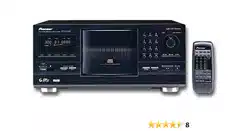
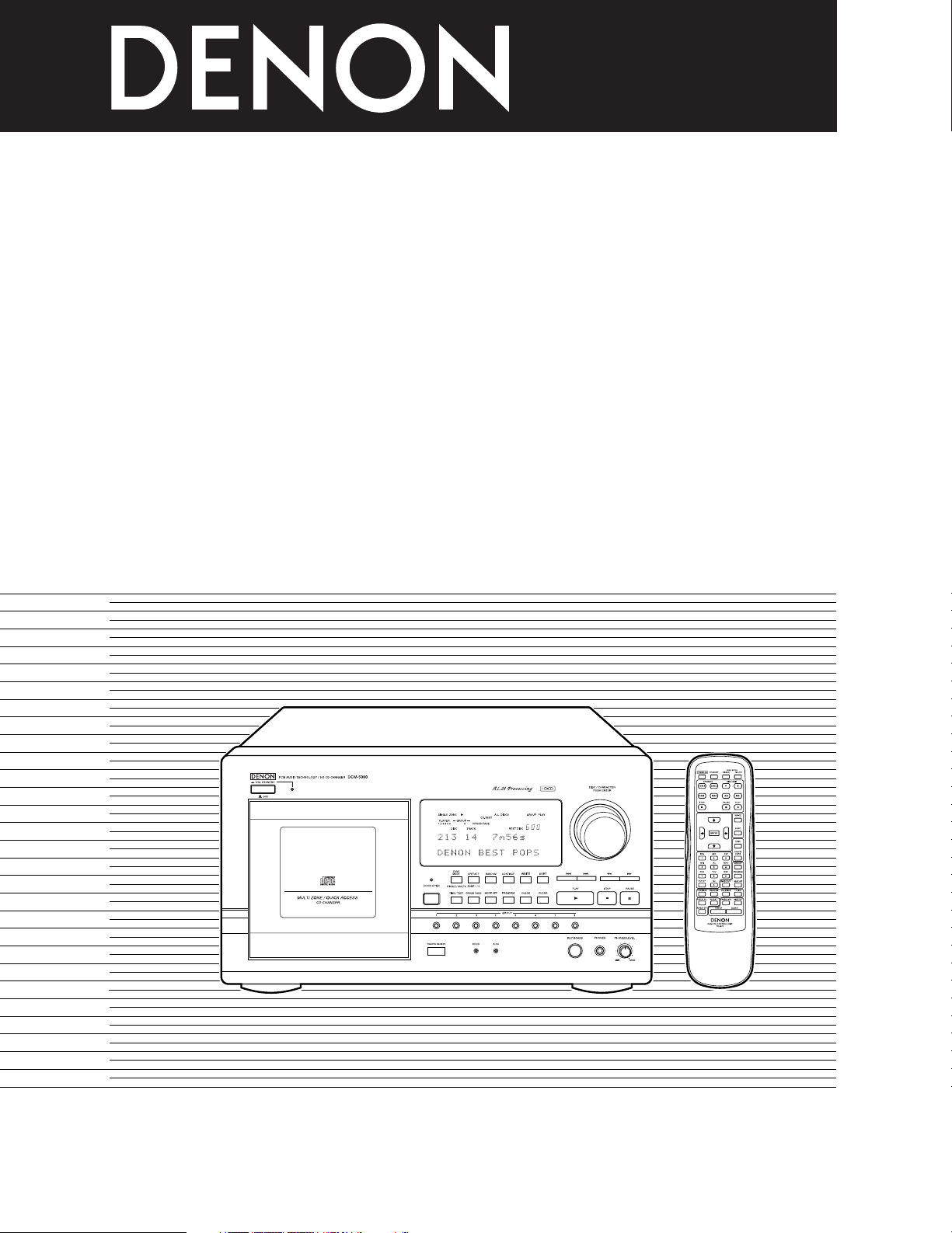
STEREO CD PLAYER
DCM
-
5000
OPERATING INSTRUCTIONS
MODE D’EMPLOI
INSTRUCCIONES DE OPERACION
FOR ENGLISH READERS PAGE 005 ~ PAGE 041
POUR LES LECTEURS FRANCAIS PAGE 042 ~ PAGE 078
PARA LECTORES DE ESPAÑOL PAGINA 079 ~ PAGINA 115
2
IMPORTANT TO SAFETY
WARNING:
TO PREVENT FIRE OR SHOCK HAZARD, DO NOT EXPOSE THIS
APPLIANCE TO RAIN OR MOISTURE.
LABELS (for U.S.A. model only)
CERTIFICATION
THIS PRODUCT COMPLIES WITH DHHS RULES 21 CFR SUBCHAPTER
JAPPLICABLE AT DATE OF MANUFACTURE.
CAUTION:
1. Handle the power supply cord carefully
Do not damage or deform the power supply cord. If it is damaged or
deformed, it may cause electric shock or malfunction when used. When
removing from wall outlet, be sure to remove by holding the plug
attachment and not by pulling the cord.
2. Do not open the top cover
In order to prevent electric shock, do not open the top cover.
If problems occur, contact your DENON dealer.
3. Do not place anything inside
Do not place metal objects or spill liquid inside the CD player.
Electric shock or malfunction may result.
Please, record and retain the Model name and serial number of your set
shown on the rating label.
Model No. DCM-5000 Serial No.
CAUTION
RISK OF ELECTRIC SHOCK
DO NOT OPEN
CAUTION: TO REDUCE THE RISK OF ELECTRIC SHOCK,
DO NOT REMOVE COVER (OR BACK). NO
USER-SERVICEABLE PARTS INSIDE. REFER
SERVICING TO QUALIFIED SERVICE
PERSONNEL.
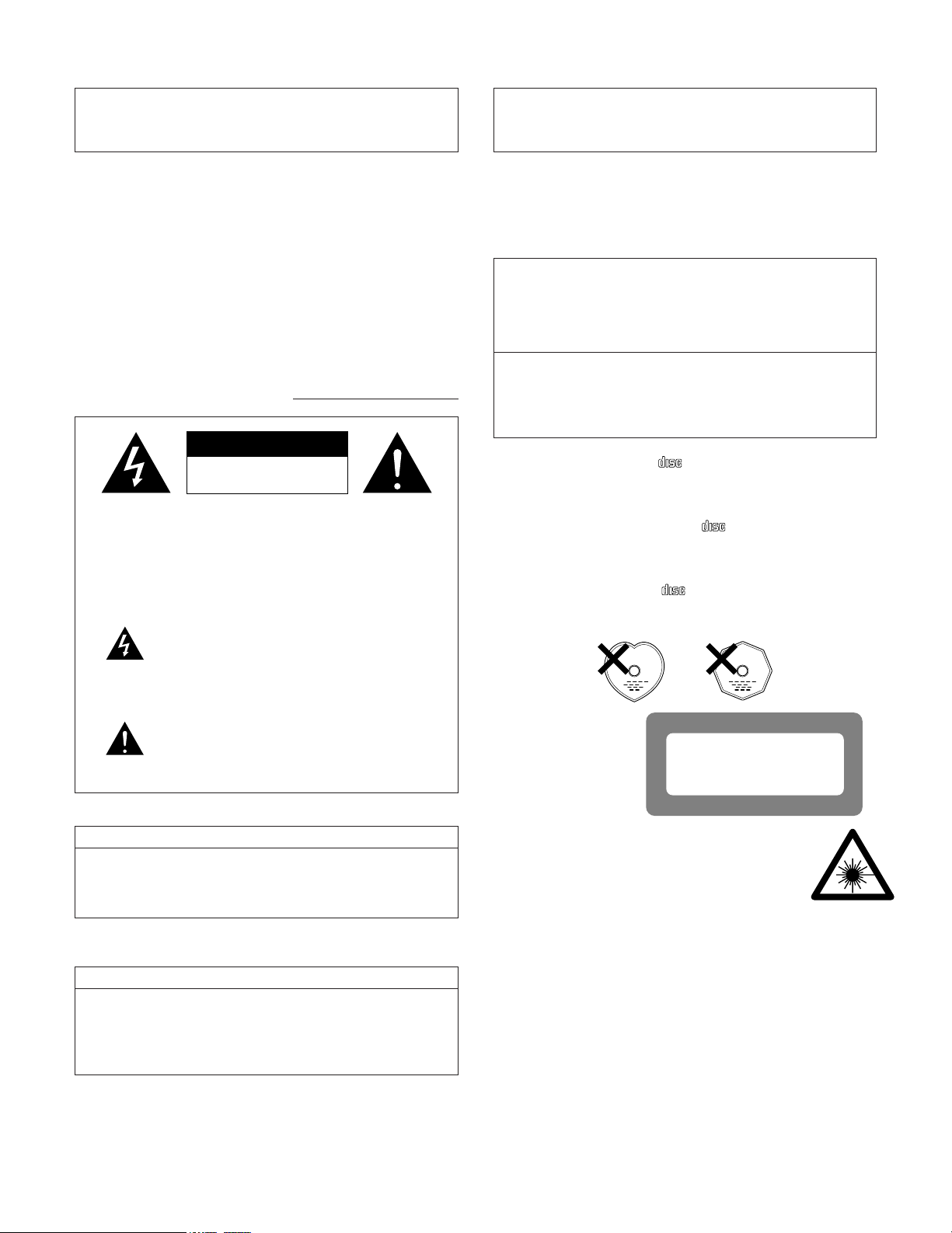
The lightning flash with arrowhead symbol, within
an equilateral triangle, is intended to alert the
user to the presence of uninsulated “dangerous
voltage” within the product’s enclosure that may
be of sufficient magnitude to constitute a risk of
electric shock to persons.
The exclamation point within an equilateral
triangle is intended to alert the user to the
presence of important operating and maintenance
(servicing) instructions in the literature
accompanying the appliance.
CAUTION:
USE OF CONTROLS OR ADJUSTMENTS OR REFORMANCE OF PROCE-
DURES OTHER THAN THOSE SPECIFIED HEREIN MAY RESULT IN HAZ-
ARDOUS RADIATION EXPOSURE.
THE COMPACT DISC PLAYER SHOULD NOT BE ADJUSTED OR REPAIRED
BY ANYONE EXCEPT PROPERLY QUALIFIED SERVICE PERSONNEL.
This device complies with Part 15 of the FCC Rules. Operation is
subject to the following two conditions : (1) This device may not
cause harmful interference, and (2) this device must accept any
interference received, including interference that may cause
undesired operation.
This Class B digital apparatus meets all requirements of the
Canadian Interference-Causing Equipment Regulations.
Cet appareil numérique de la classe B respecte toutes les
exigences du Règlement sur le matériel brouilleur du Canada.
• FOR U.S.A. & CANADA MODEL ONLY
CAUTION
TO PREVENT ELECTRIC SHOCK DO NOT USE THIS (POLARIZED)
PLUG WITH AN EXTENSION CORD, RECEPTACLE OR OTHER
OUTLET UNLESS THE BLADES CAN BE FULLY INSERTED TO
PREVENT BLADE EXPOSURE.
• POUR LES MODELES AMERICAINS ET
CANADIENS UNIQUEMENT
ATTENTION
POUR PREVENIR LES CHOCS ELECTRIQUES NE PAS UTILISER
CETTE FICHE POLARISEE AVEC UN PROLONGATEUR UNE PRISE
DE COURANT OU UNE AUTRE SORTIE DE COURANT, SAUF SI LES
LAMES PEUVENT ETRE INSEREES A FOND SANS EN LAISSER
AUCUNE PARTIE A DECOUVERT.
Use compact discs that include the mark.
CD’s with special shapes (heart-shaped CD’s, octagonal CD’s etc.) cannot be played
on this set.
Attempting to do so may damage the set. Do not use such CD’s.
DIGITAL AUDIODIGITAL AUDIO
COMPACTCOMPACT
Utiliser des disques compacts portant le logo .
Des CD avec des formes spéciales (CD en forme de coeur, des CD octogonaux, etc.)
ne peuvent pas être lus sur cet appareil.
Le fait de l’essayer, risque d’endommager le lecteur. Ne pas utiliser de tels CD.
DIGITAL AUDIODIGITAL AUDIO
COMPACTCOMPACT
Use discos compactos con la marca .
En este equipo no es posible reproducir CDs con formas especiales (CDs con forma de
corazón, CDs octagonales, etc.).
Si intenta hacerlo, el equipo podrá resultar dañado. No use este tipo de CDs.
DIGITAL AUDIODIGITAL AUDIO
COMPACTCOMPACT
CLASS 1 LASER PRODUCT
LUOKAN 1 LASERLAITE
KLASS 1 LASERAPPARAT
,
CLASS 1
LASER
PRODUCT
,
,,
ADVARSEL: USYNLIG LASERSTRÅLING VED ÅBNING, NÅR
SIKKERHEDSAFBRYDERE ER UDE AF FUNKTION.
UNDGÅ UDSAETTELSE FOR STRÅLING.
VAROITUS! LAITTEEN KÄYTTÄMINEN MUULLA KUIN TÄSSÄ
KÄYTTÖOHJEESSA MAINITULLA TAVALLA SAATTAA
ALTISTAA KÄYTTÄJÄN TURVALLISUUSLUOKAN 1
YLITTÄVÄLLE NÄKYMÄMTTÖMÄLLE LASERSÄTEILYLLE.
VARNING– OM APPARATEN ANVÄNDS PÅ ANNAT SÄTT ÄN I DENNA
BRUKSANVISNING SPECIFICERATS, KAN ANVÄNDAREN
UTSÄTTAS FÖR OSYNLIG LASERSTRÅLNING SOM
ÖVERSKRIDER GRÄNSEN FÖR LASERKLASS 1.
NOTE:
This CD player uses the semiconductor laser. To allow you to enjoy music at a
stable operation, it is recommended to use this in a room of 5 °C (41 °F) ~ 35
°C (95 °F).
• DECLARATION OF CONFORMITY
We declare under our sole responsibility that this product, to which this declaration
relates, is in conformity with the following standards:
EN60065, EN55013, EN55020, EN60555-2 and EN60555-3.
Following the provisions of 73/23/EEC, 89/336/EEC and 93/68/EEC Directive.
• DECLARATION DE CONFORMITE
Nous déclarons sous notre seule responsabilité que l’appareil, auquel se réfère
cette déclaration, est conforme aux standards suivants:
EN60065, EN55013, EN55020, EN60555-2 et EN60555-3.
D’après les dispositions de la Directive 73/23/EEC, 89/336/EEC et 93/68/EEC.
• DECLARACIÓN DE CONFORMIDAD
Declaramos bajo nuestra exclusiva responsabilidad que este producto al que hace
referencia esta declaración, está conforme con los siguientes estándares:
EN60065, EN55013, EN55020, EN60555-2 y EN60555-3.
Siguiendo las provisiones de las Directivas 73/23/EEC, 89/336/EEC y 93/68/EEC.
3
SAFETY INSTRUCTIONS
1. Read Instructions – All the safety and operating
instructions should be read before the appliance is
operated.
2. Retain Instructions – The safety and operating instructions
should be retained for future reference.
3. Heed Warning – All warnings on the appliance and in the
operating instructions should be adhered to.
4. Following Instructions – All operating and use instructions
should be followed.
5. Water and Moisture – The appliance should not be used
near water – for example, near a bathtub, washbowl,
kitchen sink, laundry tub, in a wet basement, or near a
swimming pool, and the like.
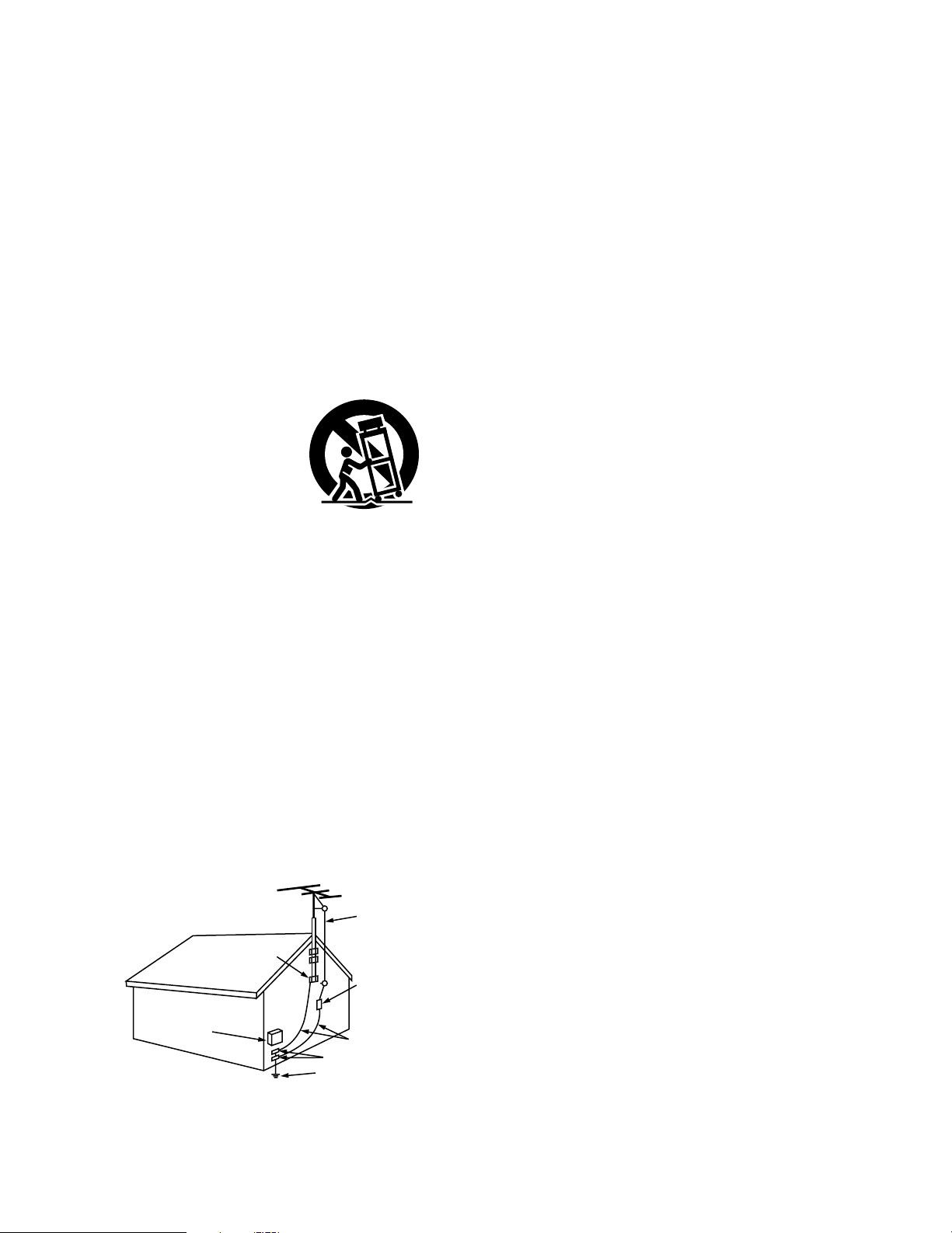
6. Carts and Stands – The appliance should be used only with
a cart or stand that is recommended by the manufacturer.
6A. An appliance and cart
combination should be
moved with care.
Quick stops, excessive
force, and uneven
surfaces may cause
the appliance and cart
combination to overturn.
7. Wall or Ceiling Mounting – The appliance should be
mounted to a wall or ceiling only as recommended by the
manufacturer.
8. Ventilation – The appliance should be situated so that its
location or position does not interfere with its proper
ventilation. For example, the appliance should not be
situated on a bed, sofa, rug, or similar surface that may
block the ventilation openings; or, placed in a built-in
installation, such as a bookcase or cabinet that may
impede the flow of air through the ventilation openings.
9. Heat – The appliance should be situated away from heat
sources such as radiators, heat registers, stoves, or other
appliances (including amplifiers) that produce heat.
10. Power Sources – The appliance should be connected to a
power supply only of the type described in the operating
instructions or as marked on the appliance.
11. Grounding or Polarization – Precautions should be taken so
that the grounding or polarization means of an appliance is
not defeated.
12. Power-Cord Protection – Power-supply cords should be
routed so that they are not likely to be walked on or
pinched by items placed upon or against them, paying
particular attention to cords at plugs, convenience
receptacles, and the point where they exit from the
appliance.
14. Cleaning – The appliance should be cleaned only as
recommended by the manufacturer.
15. Power Lines – An outdoor antenna should be located away
from power lines.
16. Outdoor Antenna Grounding – If an outside antenna is
connected to the receiver, be sure the antenna system is
grounded so as to provide some protection against voltage
surges and built-up static charges. Article 810 of the
National Electrical Code, ANSI/NFPA 70, provides
information with regard to proper grounding of the mast
and supporting structure, grounding of the lead-in wire to
an antenna-discharge unit, size of grounding conductors,
location of antenna-discharge unit, connection to grounding
electrodes, and requirements for the grounding electrode.
See Figure A.
17. Nonuse Periods – The power cord of the appliance should
be unplugged from the outlet when left unused for a long
period of time.
18. Object and Liquid Entry – Care should be taken so that
objects do not fall and liquids are not spilled into the
enclosure through openings.
19. Damage Requiring Service – The appliance should be
serviced by qualified service personnel when:
A. The power-supply cord or the plug has been damaged;
or
B. Objects have fallen, or liquid has been spilled into the
appliance; or
C. The appliance has been exposed to rain; or
D. The appliance does not appear to operate normally or
exhibits a marked change in performance; or
E. The appliance has been dropped, or the enclosure
damaged.
20. Servicing – The user should not attempt to service the
appliance beyond that described in the operating
instructions. All other servicing should be referred to
qualified service personnel.
FIGURE A
EXAMPLE OF ANTENNA GROUNDING
AS PER NATIONAL
ELECTRICAL CODE
ANTENNA
LEAD IN
WIRE
GROUND
CLAMP
ELECTRIC
SERVICE
EQUIPMENT
ANTENNA
DISCHARGE UNIT
(NEC SECTION 810-20)
GROUNDING CONDUCTORS
(NEC SECTION 810-21)
GROUND CLAMPS
POWER SERVICE GROUNDING
ELECTRODE SYSTEM
(NEC ART 250, PART H)
NEC - NATIONAL ELECTRICAL CODE
4
ENGLISH FRANCAIS
NOTE ON USE / HINWEISE ZUM GEBRAUCH / OBSERVATIONS RELATIVES A L’UTILISATION
NOTE SULL’USO / NOTAS SOBRE EL USO / ALVORENS TE GEBRUIKEN / OBSERVERA
OBSERVAÇÕES QUANTO AO USO
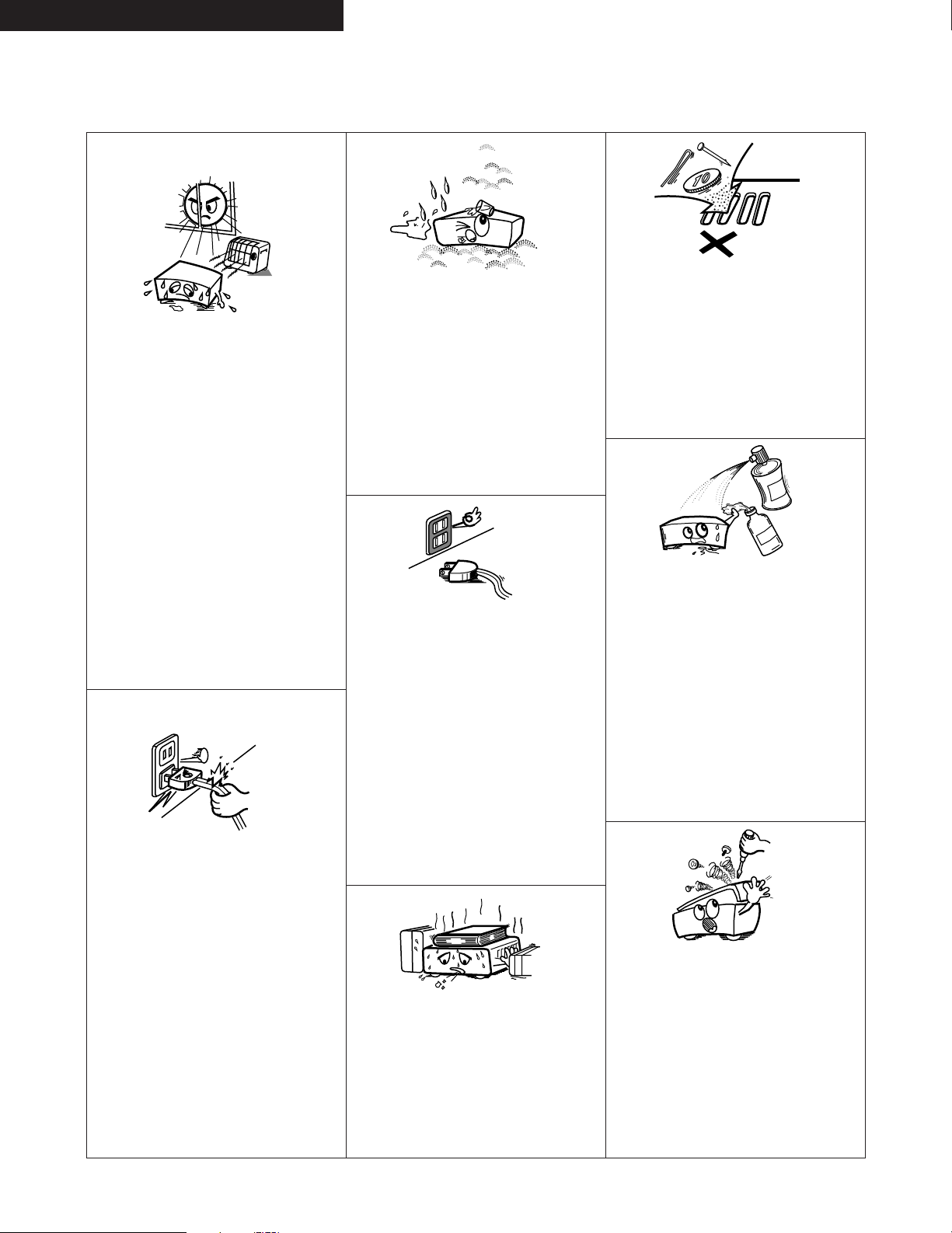
• Avoid high temperatures.
Allow for sufficient heat dispersion when
installed on a rack.
• Vermeiden Sie hohe Temperaturen.
Beachten Sie, daß eine ausreichend
Luftzirkulation gewährleistet wird, wenn das
Gerät auf ein Regal gestellt wird.
• Eviter des températures élevées.
Tenir compte d’une dispersion de chaleur
suffisante lors de l’installation sur une étagère.
• Evitate di esporre l’unità a temperature alte.
Assicuratevi che ci sia un’adeguata dispersione
del calore quando installate l’unità in un mobile
per componenti audio.
• Evite altas temperaturas.
Permite la suficiente dispersión del calor
cuando está instalado en la consola.
• Vermijd hoge temperaturen.
Zorg voor een degelijk hitteafvoer indien het
apparaat op een rek wordt geplaatst.
• Undvik höga temperaturer.
Se till att det finns möjlighet till god
värmeavledning vid montering i ett rack.
• Evite temperaturas altas.
Conceda suficiente dispersão de calor quando o
equipamento for instalado numa prateleira.
• Keep the set free from moisture, water, and
dust.
• Halten Sie das Gerät von Feuchtigkeit, Wasser
und Staub fern.
• Protéger l’appareil contre l’humidité, l’eau et
lapoussière.
• Tenete l’unità lontana dall’umidità, dall’acqua e
dalla polvere.
• Mantenga el equipo libre de humedad, agua y
polvo.
• Laat geen vochtigheid, water of stof in het
apparaat binnendringen.
• Utsätt inte apparaten för fukt, vatten och
damm.
• Mantenha o aparelho livre de qualquer
umidade, água ou poeira.
• Do not let foreign objects in the set.
• Keine fremden Gegenstände in das Gerät
kommen lassen.
• Ne pas laisser des objets étrangers dans
l’appareil.
• E’ importante che nessun oggetto è inserito
all’interno dell’unità.
• No deje objetos extraños dentro del equipo.
• Laat geen vreemde voorwerpen in dit apparaat
vallen.
• Se till att främmande föremål inte tränger in i
apparaten.
• Não deixe objetos estranhos no aparelho.
• Do not let insecticides, benzene, and thinner
come in contact with the set.
• Lassen Sie das Gerät nicht mit Insektiziden,
Benzin oder Verdünnungsmitteln in Berührung
kommen.
• Ne pas mettre en contact des insecticides, du
benzène et un diluant avec l’appareil.
• Assicuratevvi che l’unità non venga in contatto
con insetticidi, benzolo o solventi.
• No permita el contacto de insecticidas, gasolina
y diluyentes con el equipo.
• Laat geen insektenverdelgende middelen,
benzine of verfverdunner met dit apparaat in
kontakt komen.
• Se till att inte insektsmedel på spraybruk,
bensen och thinner kommer i kontakt med
apparatens hölje.
• Não permita que inseticidas, benzina e
dissolvente entrem em contacto com o
aparelho.
• Never disassemble or modify the set in any
way.
• Versuchen Sie niemals das Gerät auseinander
zu nehmen oder auf jegliche Art zu verändern.
• Ne jamais démonter ou modifier l’appareil
d’une manière ou d’une autre.
• Non smontate mai, nè modificate l’unità in
nessun modo.
• Nunca desarme o modifique el equipo de
ninguna manera.
• Nooit dit apparaat demonteren of op andere
wijze modifiëren.
• Ta inte isär apparaten och försök inte bygga om
den.
• Nunca desmonte ou modifique o aparelho de
alguma forma.
• Unplug the power cord when not using the set
for long periods of time.
• Wenn das Gerät eine längere Zeit nicht
verwendet werden soll, trennen Sie das
Netzkabel vom Netzstecker.
• Débrancher le cordon d’alimentation lorsque
l’appareil n’est pas utilisé pendant de longues
périodes.
• Disinnestate il filo di alimentazione quando
avete l’intenzione di non usare il filo di
alimentazione per un lungo periodo di tempo.
• Desconecte el cordón de energía cuando no
utilice el equipo por mucho tiempo.
• Neem altijd het netsnoer uit het stopkontakt
wanneer het apparaat gedurende een lange
periode niet wordt gebruikt.
• Koppla ur nätkabeln om apparaten inte kommer
att användas i lång tid.
• Desligue o fio condutor de força quando o
aparelho não tiver que ser usado por um longo
período.
* (For sets with ventilation holes)
• Do not obstruct the ventilation holes.
• Die Belüftungsöffnungen dürfen nicht verdeckt
werden.
• Ne pas obstruer les trous d’aération.
• Non coprite i fori di ventilazione.
• No obstruya los orificios de ventilación.
• De ventilatieopeningen mogen niet worden
beblokkeerd.
• Täpp inte till ventilationsöppningarna.
• Não obstrua os orifícios de ventilação.
• Handle the power cord carefully.
Hold the plug when unplugging the cord.
• Gehen Sie vorsichtig mit dem Netzkabel um.
Halten Sie das Kabel am Stecker, wenn Sie den
Stecker herausziehen.
• Manipuler le cordon d’alimentation avec
précaution.
Tenir la prise lors du débranchement du cordon.
• Manneggiate il filo di alimentazione con cura.
Agite per la spina quando scollegate il cavo
dalla presa.
• Maneje el cordón de energía con cuidado.
Sostenga el enchufe cuando desconecte el
cordón de energía.
• Hanteer het netsnoer voorzichtig.
Houd het snoer bij de stekker vast wanneer
deze moet worden aan- of losgekoppeld.
• Hantera nätkabeln varsamt.
Håll i kabeln när den kopplas från el-uttaget.
• Manuseie com cuidado o fio condutor de
energia.
Segure a tomada ao desconectar o fio.
ESPAÑOL
ENGLISH
5
Thank you for purchasing the DENON compact disc player. Read the Operating Instructions thoroughly, and operate this player properly.
TABLE OF CONTENTS
z
MAIN FEATURES ……………………………………………………5
x
BEFORE USING ………………………………………………………5
c
CAUTIONS ON INSTALLATION ……………………………………6
v
CAUTIONS DURING USE ……………………………………………6
b
CONNECTIONS ………………………………………………………7
n
INSTALLATION ……………………………………………………8, 9
m
FLUORESCENT DISPLAY …………………………………………10
,
NORMAL PLAYBACK …………………………………………11 ~ 14
.
VARIOUS PLAYBACK FUNCTIONS …………………………15 ~ 17
⁄0
PROGRAMMED PLAYBACK …………………………………18 ~ 21
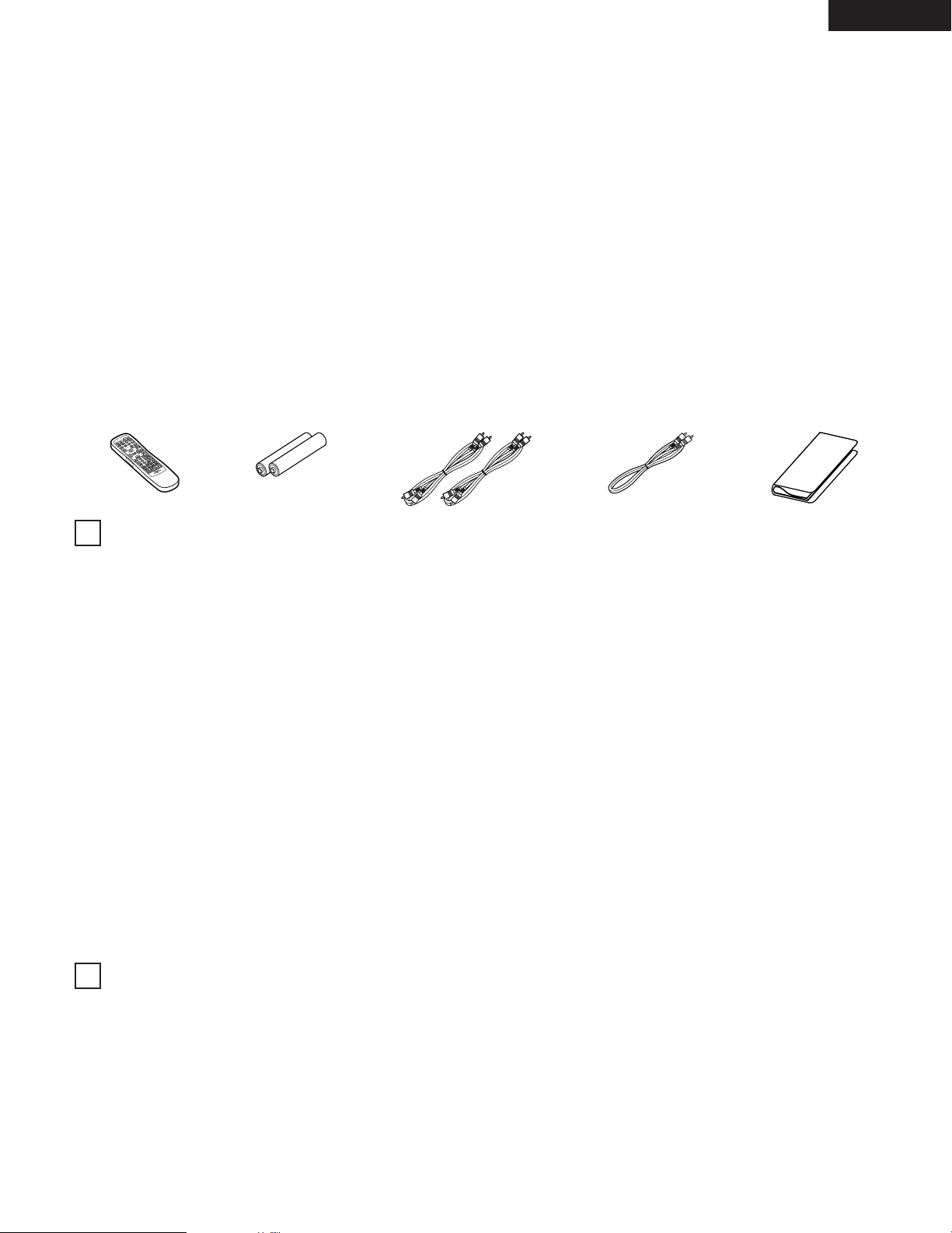
• ACCESSORIES
Check that the following parts are included in addition to the main unit.
⁄1
USING DISC FILES ……………………………………………22 ~ 29
⁄2
BEST HIT PLAY MODE ………………………………………30 ~ 32
⁄3
OSD (On-Screen Display) ……………………………………33 ~ 36
⁄4
CONNECTING AND OPERATING A KEYBOARD ………………37
⁄5
REMOTE CONTROL UNIT ……………………………………38, 39
⁄6
COMPACT DISCS ……………………………………………………40
⁄7
TROUBLESHOOTING ………………………………………………40
⁄8
ERROR MESSAGE …………………………………………………41
⁄9
SPECIFICATIONS ……………………………………………………41
MAIN FEATURES
BEFORE USING
Pay attention to the following before using this unit:
• Moving the set.
To prevent short circuits or damaged wires in the connection cords,
always unplug the power cord and disconnect the connection cords
between all other audio components when moving the set.
• Before turning the power operation switch on.
Check once again that all connections are proper and that there are
not problems with the connection cords. Always set the power
operation switch to the standby position before connecting and
disconnecting connection cords.
• Store this instructions in a safe place.
After reading, store this instructions along with the warranty in a
safe place.
Also fill in the items on the back page for your convenience.
• Note that the illustrations in this instructions may differ from
the actual set for explanation purpose.
W Warranty
(North America model).………1
Y Connection cords (audio).……2
(1) 100-CD rack type CD changer
The CDs are stored in a rack so they can be loaded and replaced
easily.
(2) Multi-zone system with two CD drive mechanisms
The DCM-5000 is equipped with two CD drive mechanisms, so
separate playback signals can be output from the two zones.
(3) Quick access (in the single zone mode)
The two CD drive mechanisms can be used alternately so that CDs
can be played consecutively with no waiting time when switching
to the next CD.
In addition, a cross fade function makes it possible to switch from
one CD to another naturally.
(4) CD Text compatibility
The DCM-5000 is compatible with CD Text discs, so the disc title,
track titles and artist names recorded on the disc can be displayed.
(5) DISC file function
Disc titles, track titles and artist names can be stored in the
memory for individual discs and the discs can be categorized in
groups.
In addition, a keyboard (IBM PC type) can be connected so that
disc files can be input from the keyboard.
The memory contents are, always preserved even in the event of
prolonged power outage, due to the use of non-voltage memory
strage.
(6) OSD (On-Screen Display)
A monitor TV can be connected to the VIDEO OUT jacks so that
program editing, etc., can be performed while watching the
monitor TV’s screen.
(7) Daisy chain connection
Up to five DCM-5001s (sold separately) can be connected,
transforming the system into a CD changer with a maximum of
600 discs.
(8) AL24 Processing and HDCD
®
(High Definition Compatible Digital
®
) decoder
(For zone 1 and in the single zone mode. Not applicable for zone
2.)
AL24 Processing is an analog waveform reproduction technology
which carries over conventional ALPHA Processing and further
reduces quantization distortion. It offers compatibility with the
high number of bits and high sampling rates of next generation
media.
HDCD is an encoding/decoding technology which greatly reduces
distortion that occurs during digital recording while offering
compatibility with the conventional CD format.
The DCM-5000 is equipped with an HDCD decoder that
automatically identifies whether the CD is a conventional disc or an
HDCD disc and conducts digital signal processing accordingly.
RT
Q Operating instructions .………1
(European model.....…………2)
T R6P/AA batteries ..……………2
R Remote control unit
(RC-272) .………………………1
I CD booklet file and label..……1
E Service station list ……………1
U Connection cord
(video).…………………………1
YUI
1
2
ENGLISH
The CD player uses a microcomputer for controlling internal
electronic circuits. In the event that the player is used while a
near-by tuner or TV is turned on, although unlikely, interference
could occur either in the sound from the tuner or the picture of
the TV. To avoid this, please take the following precautions.
• Keep the CD player as far away from the tuner or TV set as
possible.
• Keep the power cord and connecting cords of the CD player
separate from the antenna wires of the tuner and TV.
• Interference is particular likely to occur when an indoor
antenna or a 300 Ω/ohms feeder cable is used. Thus, use of an
outdoor antenna and 75 Ω/ohms coaxial cable is strongly
recommended.
6
CAUTIONS ON INSTALLATION
CAUTIONS DURING USE
• This compact disc player is capable of playing
discs which have the mark at right.
• During track selection, during search and
when the player sustains a strong impact, the
disc’s rotational speed changes greatly,
causing a small noise to be emitted. This is
not a malfunction of the player.
• If the CD player is operated while an FM or AM broadcast is
being received, there may be noise in the FM or AM reception.
Please switch the power to the CD player off at such times.
• The DCM-5000 has a broad dynamic range. Please exercise
caution when turning up the volume on the amplifier in cases
when the playback volume is low. If the volume is turned up
too high, it could damage the speakers.
C
• Do not use any discs but exclusive audio discs with this CD
player.
• Placing this player or its connection cords near a TV or other
audio device could cause a humming sound to be emitted. if
this occurs, relocate the player or reroute the connection
cords.
• Be sure to remove the disc from the player before moving it.
The discs could be damaged if left in the player while it is
being moved.
• Do not move the player from a cold place to a warm place
suddenly. If the player is cold when brought into a warm room,
condensation could form, preventing proper operation of the
player. If condensation does form on the player when it is
brought into a warm room, wait at least 30 minutes before
use.
Wall
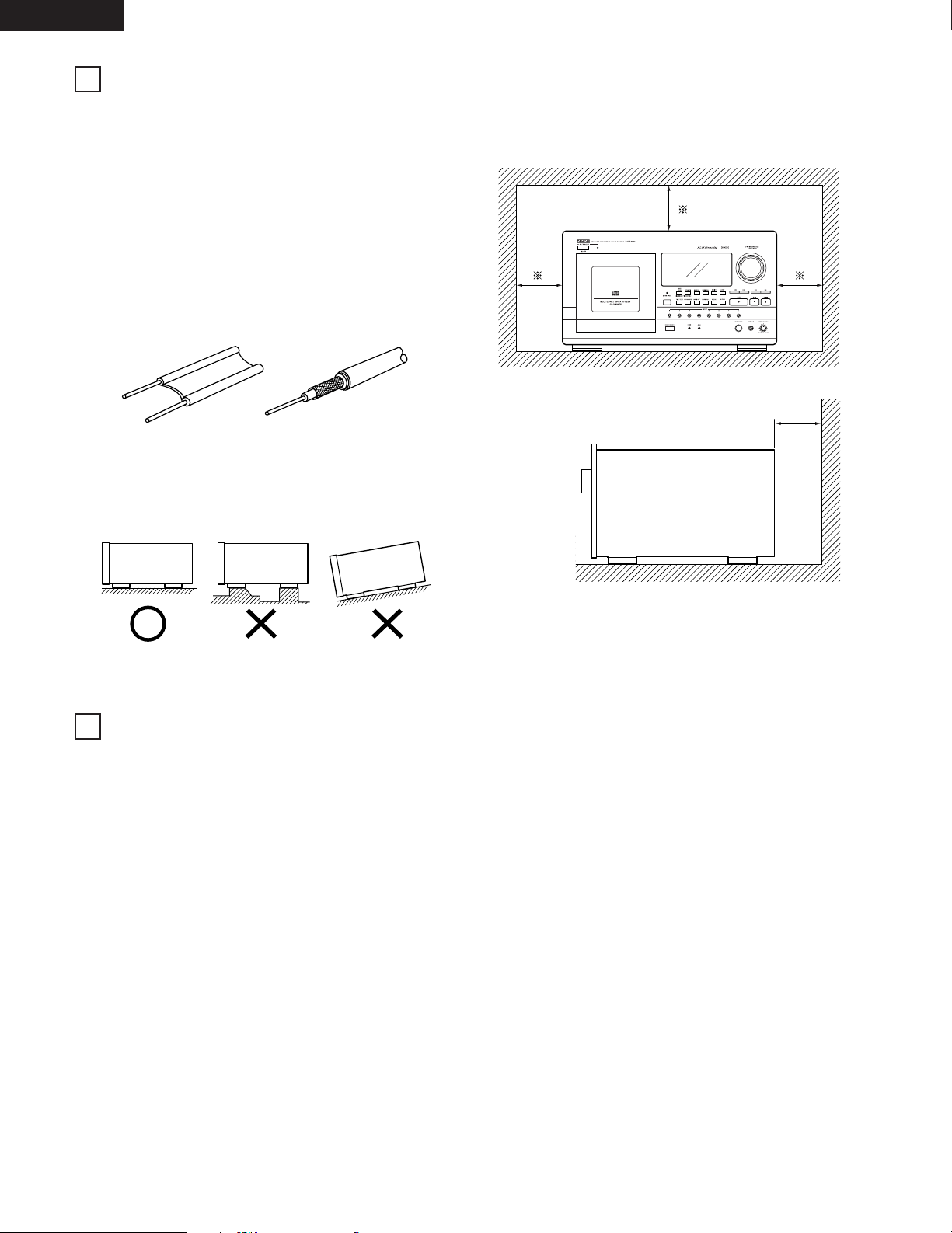
10 cm or more
For heat dispersal, leave at least 10 cm of space between the
top, back and sides of this unit and wall or other
components.
Be sure to install the player on a flat surface. Setting it at a slant
may result in malfunction or damage.
3
4
300 Ω/ohms feeder cable 75 Ω/ohms coaxial cable
Flat surface Uneven surface Slanted surface
10 cm or more
ENGLISH
7
CONNECTIONS
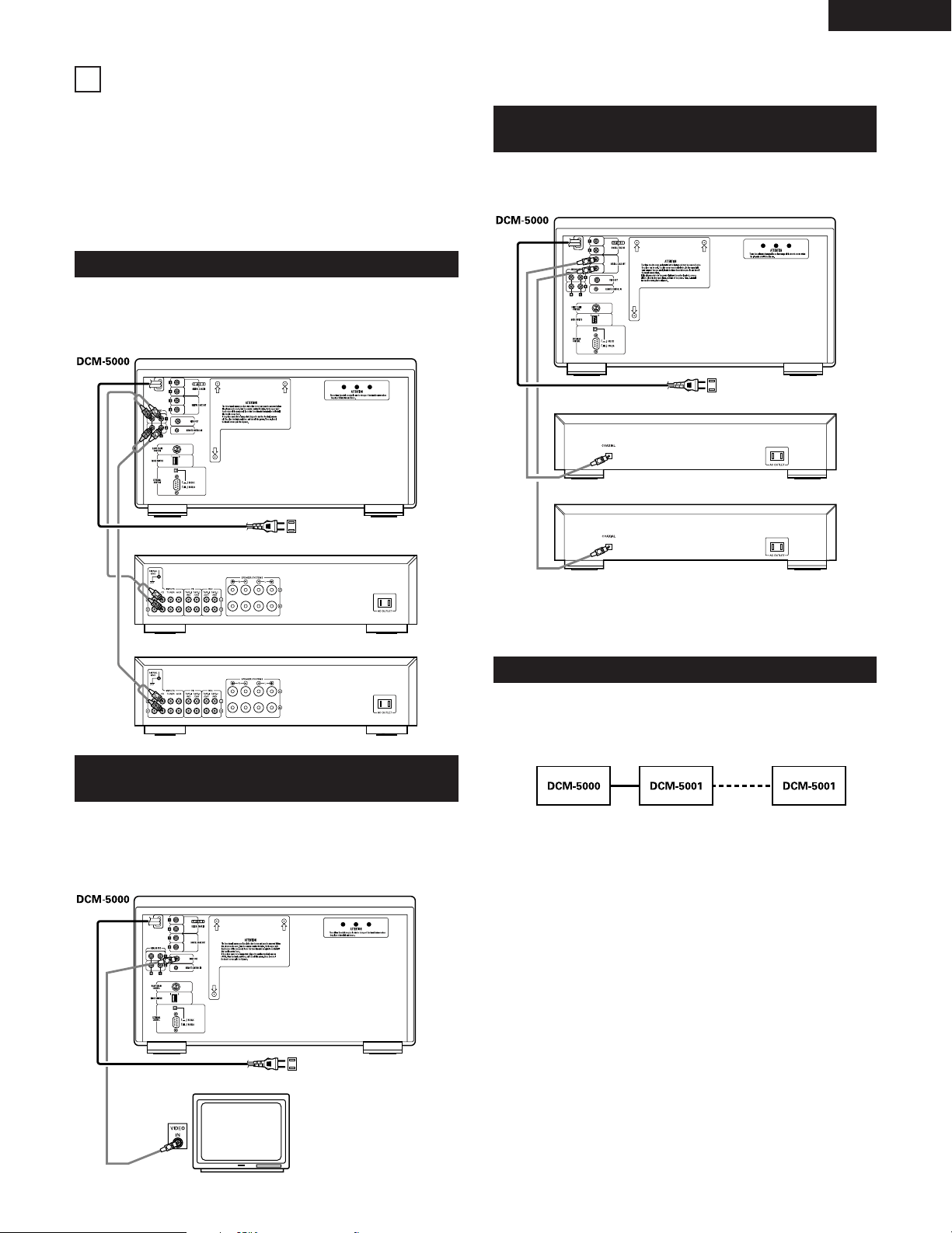
Connection Precautions
• Before proceeding with connections or disconnections of cable and
power cords, be sure to turn all system components off.
• Ensure that all cables are connected properly to the L (left) and R
(right) jacks.
• Insert plugs fully into the terminals.
• Connect the output jacks to the amplifier CD, AUX or TAPE PLAY
input jacks.
Connect one end of the connection cord supplied with the CD player to
the output terminals, left (L) and right (R) of the CD player, and the
other end to the CD, AUX, or TAPE PLAY input terminals, left (L) and
right (R), of the amplifier.
Use a 75 Ω/ohms coaxial pin cord to connect the digital output jack
(DIGITAL COAX OUT) of the DCM-5000 to the digital input jack
(COAXIAL) on a digital processor or D/A unit.
When this is done, programs and disc files can be created and edited
while watching the monitor TV screen.
Use a 75 Ω/ohms video coaxial pin cord to connect the video output
jack (VIDEO OUT) of the DCM-5000 to the video input jack (VIDEO
INPUT) on a TV’s.
2
Daisy chain connections
Up to five DCM-5001s (sold separately) can be connected to the
DCM-5000, transforming the system into a CD changer with a
maximum of 600 discs.
* For details on connections, refer to the DCM-5001’s operating
instructions.
2
Connecting a Keyboard
For faster and easier alpha-numeric text entry, an IBM compatible
keyboard can be connected to the DCM-5000.
For details on connections, refer to “CONNECTING AND
OPERATING A KEYBOARD” (page 37).
* The DCM-5000 is provided with computer and remote control
interface ports, for compatibility with external remote control
solutions offered by third party vendors. Contact your dealer or
installation consultant for advice if you are considering the purchase
of an external control system.
NOTE:
When the single zone mode is selected, no digital data is output from
the ZONE 2 side.
5
Connecting the Analog Output Jacks
Connecting the Video Output Jack
(VIDEO OUT)
ZONE 2 Amplifier
ZONE 1 Amplifier
Power Supply outlet
Power Supply outlet
Connecting the Digital Output Jack
(COAXIAL)
Other Connections
Monitor TV
Power Supply outlet
ZONE 1 Digital processor or D/A converter unit (Amplifier)
ZONE 2 Digital processor or D/A converter unit (Amplifier)
ENGLISH
8
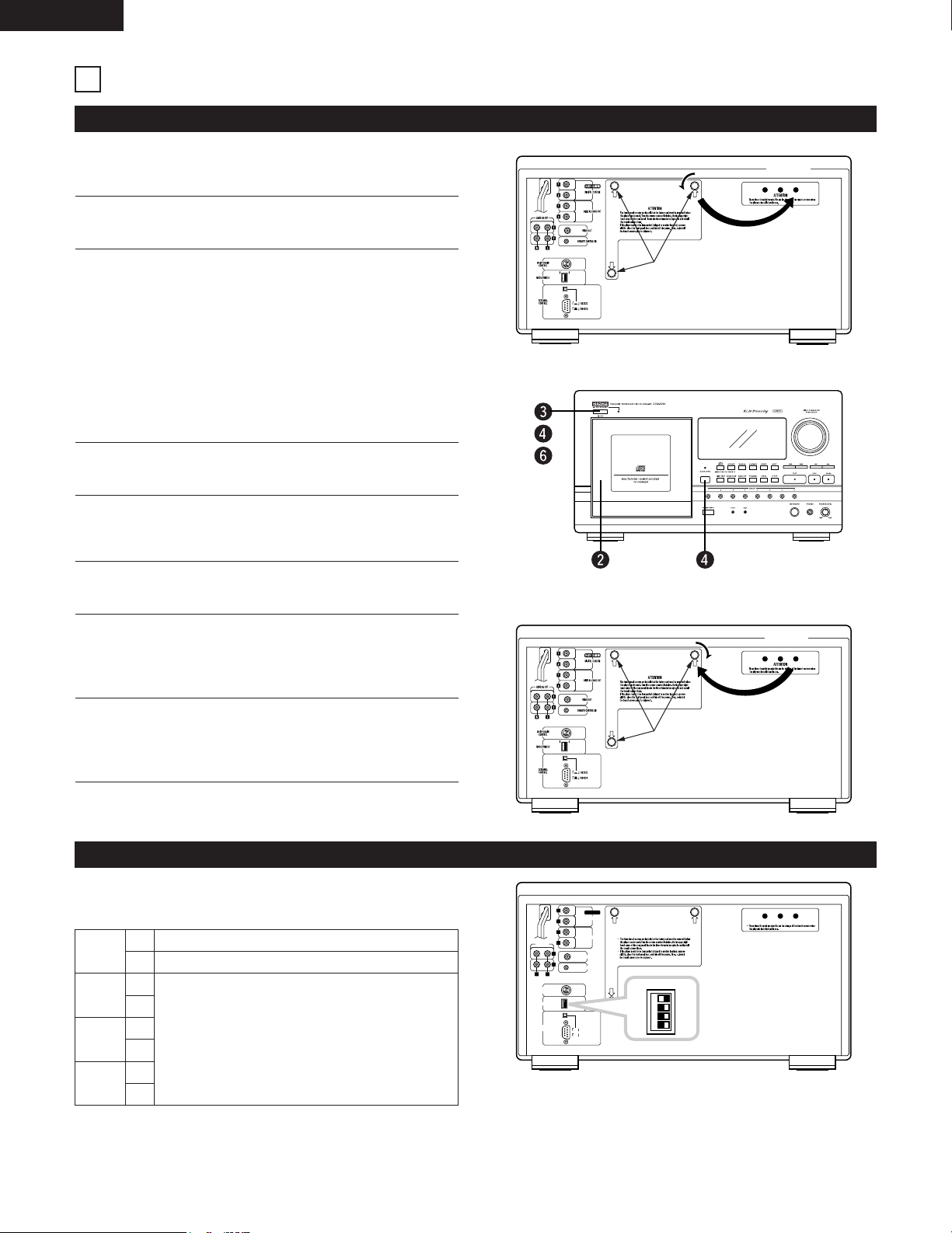
The internal mechanisms are locked in place with shipping
screws to protect them from shocks and vibrations. Be sure to
remove the shipping screws (three) before using the player.
1
Turn the three shipping screws on section A of the rear
panel counterclockwise and remove them.
1
Remove all the CDs from the disc rack following the
procedure described under “Loading CDs” (page 9).
4
Press the power operation switch (¢ ON/STANDBY) while
pressing in the DOOR OPEN button to turn the power on.
Do not release the DOOR OPEN button until “FIX
SCREW” appears on the display.
3
Press the power operation switch (¢ ON/STANDBY) to
turn the power off.
6
Press the power operation switch (¢ ON/STANDBY) to
turn the power off.
5
Once “FIX SCREW” appears on the display, remove the
three shipping screws from section B of the rear panel, put
them in the holes in section A, then tighten them to lock
the internal mechanism in place.
2
2
Fasten the removed shipping screws in the holes in section
B.
* The shipping screws and rubber washers will be
needed when shipping the player in the future, so be
sure to fasten them to the holes in section B so as
not to lose them.
Shipping screws
There are mode switches on the rear panel for setting the
operation mode. Set the mode switches according to the usage
purpose.
To control with a personal computer.
To use in the stand alone mode.
These do not affect the DCM-5000’s operation
mode.
SW 1
SW 2
SW 3
SW 4
0
1
0
1
0
1
0
1
q
1234
1
DIGITAL COAX IN
DAISY CHAIN IN
DIGITAL COAX OUT
VIDEO OUT
REMOTE CONTROL IN
2
1
2
1
2
ANALOG OUT
RL
CONTROL
DAISY CHAIN
CONTROL
EXTERNAL
MODE SWITCH
¢ RS232C
£ RS422A
10
ATTENTION
ATTENTION
10
1234
*
When SW 1 is set to “0”, the only operations possible on the DCM-
5000 are turning the power on and off and opening the door.
Upon shipment from the factory, SW 1 is set to “1” and all the other
switches are set to “0”.
[When moving the player]
When shipping the player, be sure to protect the internal
mechanisms from shocks and vibrations using the procedure
described below.
Close the front cover.
•“NO DISC” appears on the display once all the CDs
have been removed.
Section
A
INSTALLATION
6
Removing the Shipping Screws
MODE Switch Settings
w
Section
B
Section
A
Section
B
Shipping screws
t

ENGLISH
9
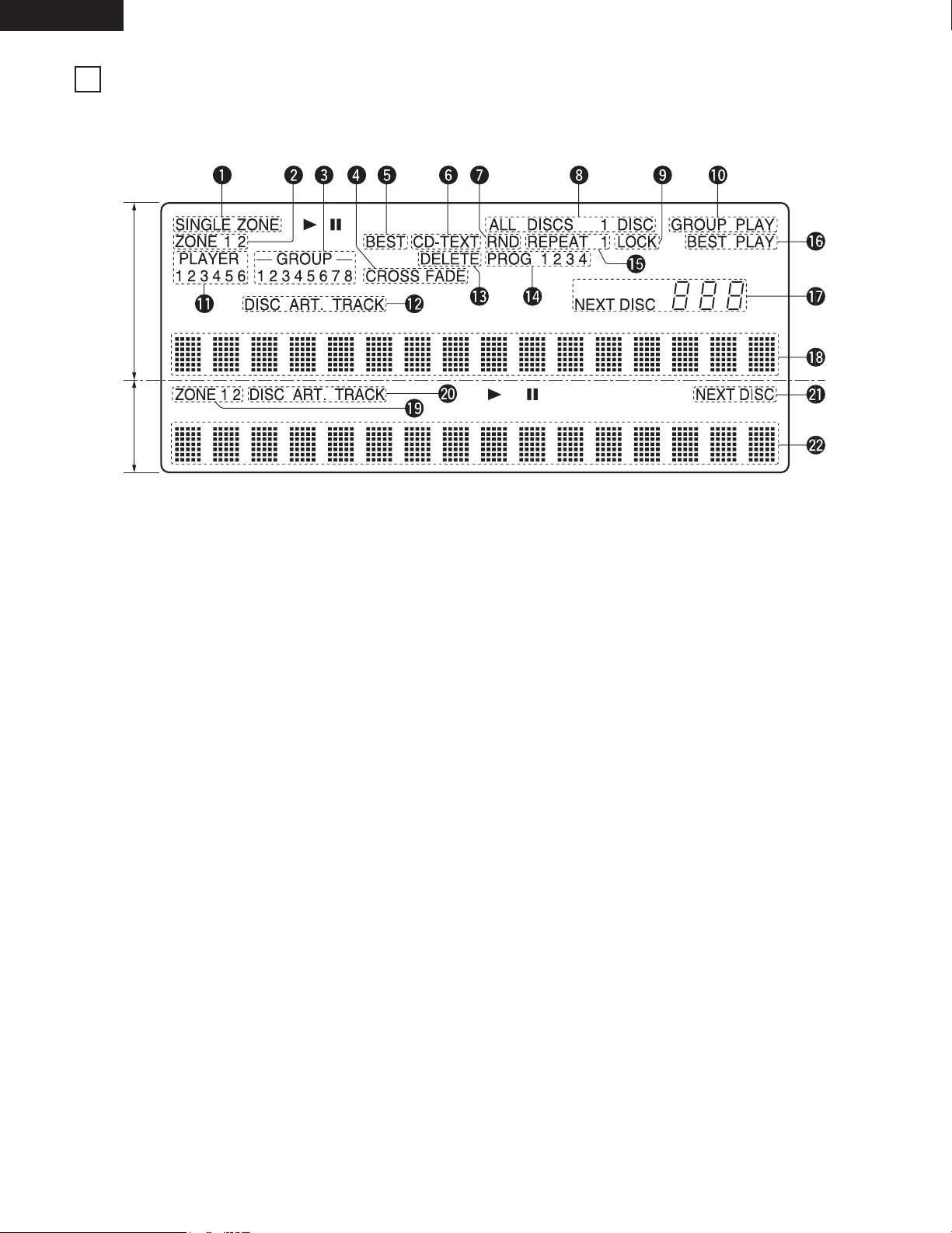
Loading CDs
1
2
3
Press the power operation switch (¢
ON/STANDBY) to turn on the power.
Press the DOOR OPEN button to open
the front cover.
• The DOOR OPEN LED flashes (red).
Once the cover is open, the LED stops
flashing remaining lit (red).
Press the eject button.
• The disc rack unlocks and pops out a
little.
4
Grasp the disc rack’s handle and pull the disc rack toward
you.
6
Grasp the disc rack’s handle and push the disc rack in until
it locks (until you hear a click).
7
Close the front cover.
• Push the front cover in until it locks (until you hear a
click). The DOOR OPEN LED turns off.
• If no discs are loaded in the set, the DOOR OPEN LED
lights (green).
NOTES:
• Never put your hands or other objects inside the set
when the front cover is open. Doing so may result in
injury or damage.
• Never place anything other than CDs on the disc rack.
Doing so may result in damage.
• If you drop a disc into the player or drop a disc from the
disc rack inside the player, disconnect the power
immediately and contact your store of purchase.
• This model is for 12 cm CD. Do not insert an 8 cm CD
nor 8 cm CD with an adaptor. It damages both the player
and the disc.
• When the door opens, the last play modes except for
zone mode are cleared.
ALL DISCS continuous mode is set after the door closes.
2
Booklet file
The liner notes or lyric cards for up to 100 CDs can be stored in the included booklet file.
We recommend attaching number stickers with the same numbers as the slits in which the discs are loaded to the booklet file’s
pockets.
600 number seals are provided for use should extra units be installed in a daisy chain.
2
Removing CDs
Following the procedure under “Loading CDs” to draw out the disc rack, then remove the CDs.
After removing the CDs, push the disc rack all the way in and close the front cover.
* Always remove all the CDs when moving the player. If discs are loaded, shocks or vibrations may cause scratches or damage to the
CDs or the internal mechanisms.
5
Insert the CDs in the slits with the desired numbers.
• Set the discs with the label side facing back.
Back
Front
Handle
Set with the label
side facing back
Disc rack
ENGLISH
10
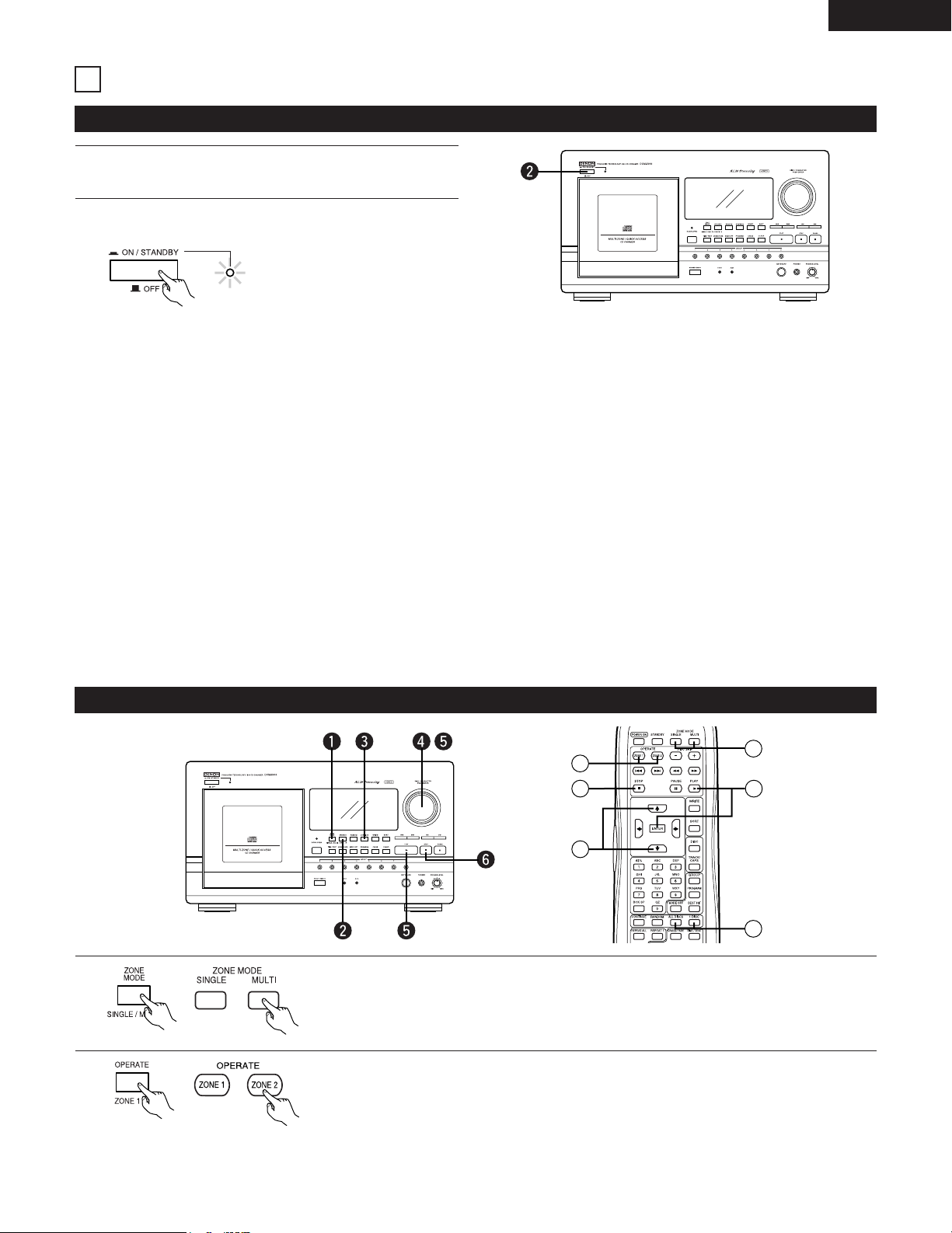
The fluorescent display consists of the main display at the top and the sub display at the bottom. When in the multi-zone mode, the
zone selected with the OPERATE button is displayed on the main display, and the various operations are only possible for the zone
displayed on the main display.
q
SINGLE ZONE
This lights when in the single zone mode.
w
ZONE 1/ZONE 2
These indicate the zone selected with the OPERATE button when
in the multi-zone mode.
e
GROUP 1 to 8
The group number registered on the CD being played lights.
Only selected group number lights in the group play mode.
r
CROSS FADE
This lights when the cross fade play mode is selected.
t
BEST
This lights when the track being played is registered as a best hit.
y
CD TEXT
This lights when the CD being played is a CD Text disc.
u
RND
This lights in the random play mode.
i
ALL DISCS/1 DISC
These light in the continuous play mode, the random play mode
and the group play mode.
ALL DISCS: All the CDs are played according to the selected
mode.
1 DISC: Only the selected CD is played.
o
LOCK
This lights when the player is being controlled by external PC
control. In this case, none of the buttons on the main unit or the
remote control unit other than the DOOR OPEN button will
operate.
!0
GROUP PLAY
This lights in the group play mode.
!1
PLAYER 1 to 6
These indicate the numbers of the players connected in a daisy
chain.
!2
DISC/ART./TRACK
These indicate what is displayed on the character display below
the indicators.
DISC: The CD number or disc title is displayed.
ART.: The artist’s name is displayed.
TRACK: The track number or track title is displayed.
!3
DELETE
This lights when playing CDs containing deleted tracks.
!4
PROG 1 to 4
These indicate the applicable program when in the programmed
play mode.
!5
REPEAT/REPEAT 1
These light in the repeat play mode according to the currently set
play mode.
!6
BEST PLAY
This lights in the best play mode.
!7
NEXT DISC
In the all discs mode, the number of the CD to be played next on
the main zone side is displayed here.
!8
MAIN ZONE CHARACTER DISPLAY
• In the single zone mode, the disc title is displayed here.
• In the multi-zone mode, the display depends on the display
mode, as follows:
TEXT mode: The disc and track titles are displayed.
TIME mode: The disc number, track number and elapsed time
are displayed.
!9
ZONE 1/ZONE 2
These indicate the sub zone (the zone not selected with the
OPERATE button) when in the multi-zone mode.
@0
DISC/ART./TRACK
These indicate what is displayed on the character display below
the indicators.
@1
NEXT DISC
This lights when the number of the CD to be played next is
displayed on the sub zone side. The number of the CD is
displayed on the character display below the indicator.
@2
SUB ZONE CHARACTER DISPLAY
The display depends on the display mode, as follows:
• In the single zone mode:
TEXT mode: The track title or artist’s name is displayed.
TIME mode: The disc number, track number and elapsed time
are displayed.
• In the multi-zone mode:
TEXT mode: The disc and track titles are displayed.
TIME mode: The disc number, track number and elapsed time
are displayed.
FLUORESCENT DISPLAY
7
Main display
Sub display
ENGLISH
11
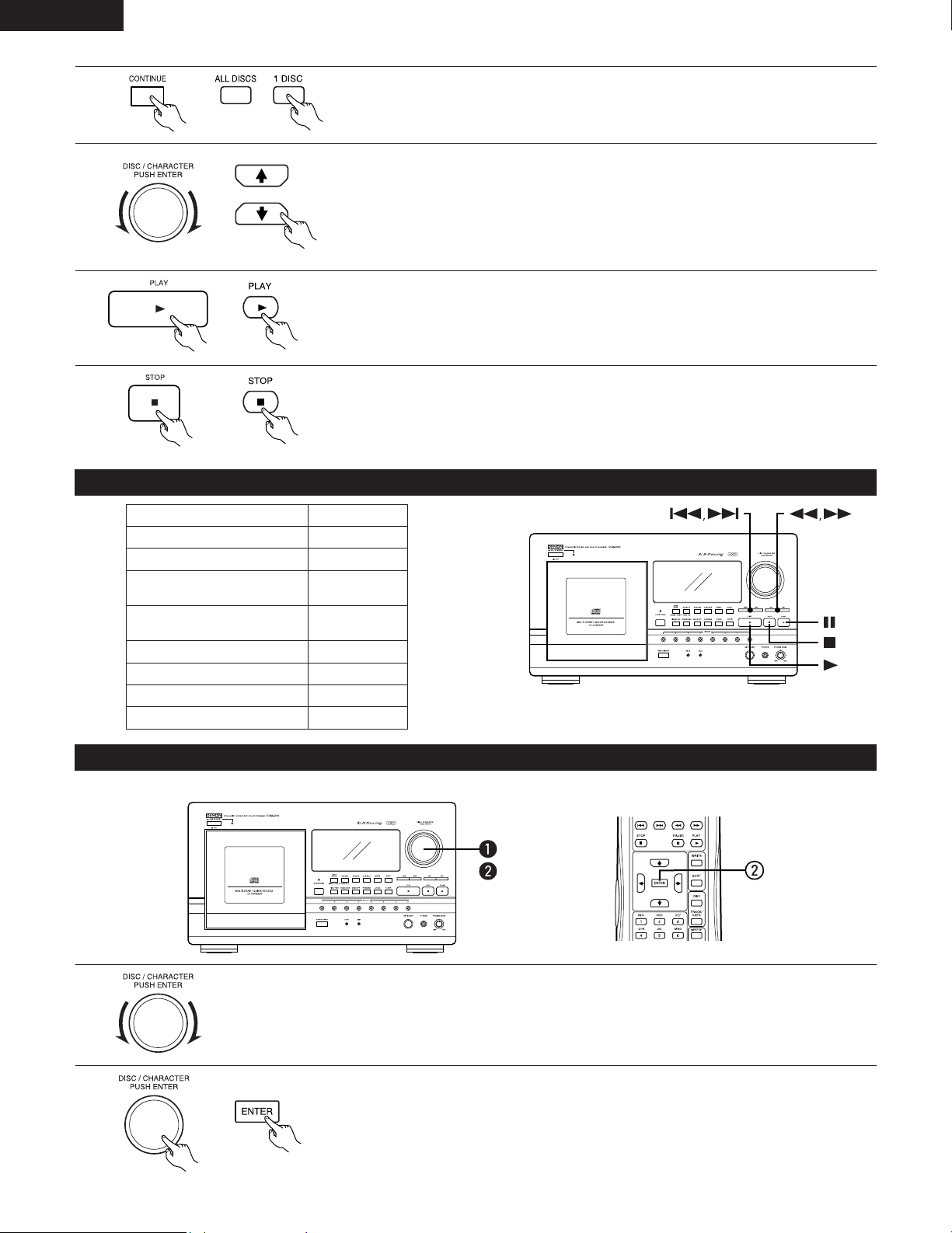
¢ ON/STANDBY:
• When the button is pressed, the power turns on and the power LED lights.
When on (when the LED is lit green): The DCM-5000 can be operated from either the main unit or the remote control unit.
The standby mode is set (the LED lights red) when the STANDBY button on the remote
control unit is pressed and the operation is terminated.
In the standby mode (LED lit red): The power turns on (the LED lights green) when the POWER ON button on the remote
control unit is pressed. (The player is set to the last play modes)
£ OFF:
• When the button is pressed while the power is on, the power turns off and the power LED also turns off.
* When the power is off, the DCM-5000 cannot be operated from the remote control unit.
1
2
3
4
5
6
2
Zone modes
The DCM-5000 has two sets of outputs (zone 1 and zone 2), and different playback signals can be output from each zone.
Select the zone mode before starting playback.
SINGLE: The same signals are output from zone 1 and zone 2.
MULTI: Separate playback signals are output from zone 1 and zone 2.
2
Play modes
The DCM-5000 has two play modes, the ALL DISCS and the 1 DISC modes. Select the play mode before starting playback.
ALL DISCS: All the CDs are played continuously.
1 DISC: Only the selected CD is played.
NORMAL PLAYBACK
8
Before Starting
1
Refer to “CONNECTIONS” (page 7) and check that all
connections are proper.
2
1
Press the power operation switch (
¢
ON/STANDBY) to
turn the power on.
Playing CDs
Press the ZONE MODE button to select the zone mode (SINGLE or MULTI).
* This operation is valid when the each zone is in the stop condition.
2
If the multi-zone mode is selected, press the OPERATE button to select the zone to be played
(zone 1 or zone 2).
• The play mode can be set and CDs selected for the play zone displayed on the main display.
* This operation is not necessary when the single zone mode is selected.
Lights green
ENGLISH
12
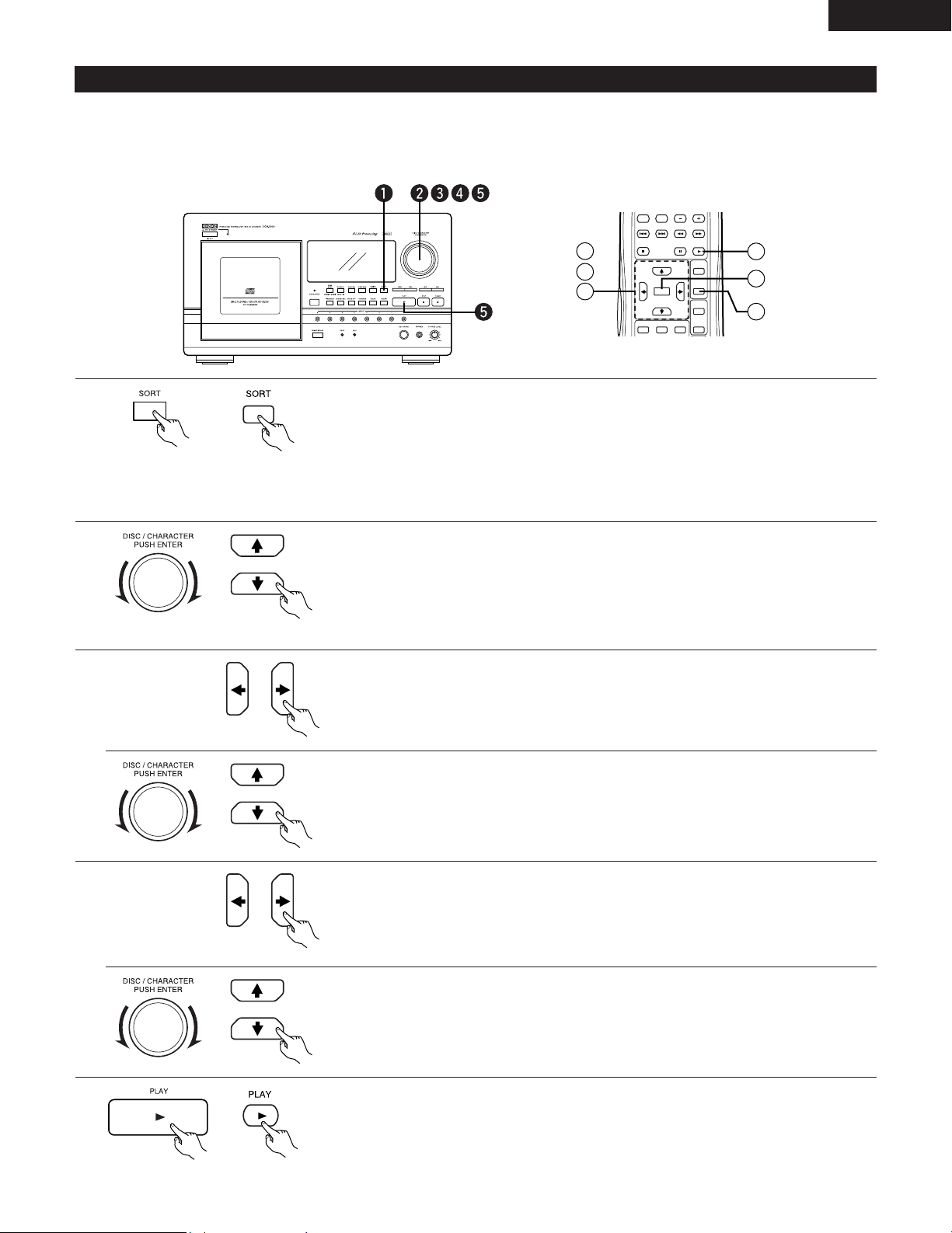
In the ALL DISCS CONTINUOUS mode, it is possible to select the CD to be played next during playback.
3
4
5
6
1
2
Press the CONTINUE button (on the remote control unit press the ALL DISCS or 1 DISC
button) to select the play mode.
Turn the jog dial (on the remote control unit press the
↑ or ↓ button) to select the CD to be
played.
* It is also possible to select CDs by inputting the disc number. (Refer to page 14.)
* When in the multi zone mode, it is not possible to specify the discs that are used
or reserved for a next disc in the other zone. This applies to all kind of play
modes.
Press the PLAY button or the jog dial (on the remote control unit press the PLAY or ENTER
button) to start playback.
* If the multi-zone mode is selected, repeat the above operations from step 3 for the
other zone.
To stop playback, press the STOP button.
Other Operations
Selecting the Next CD to be Played During Playback
When you want to:
Pause playback:
Resume playback:
Proceed to the next CD
(remote control unit only):
Return to the previous CD
(remote control unit only):
Proceed to the next track:
Return to the previous track:
Press:
3
(pause)
1
DISC SKIP +
DISC SKIP –
9
8
Manual search reverse:
6
Manual search forward: 7
Turn the jog dial and select the CD to be played.
• Playback of the selected CD starts when the currently playing CD ends.
Press the ENTER button to stop the currently playing CD and play the selected CD.
ENGLISH
13
There are three sort functions for searching for the desired CD.
Q SORT/DISC NO.: Use this function to search for discs in the order of the disc numbers.
W SORT/DISC ABC: Use this function to search for discs in the order of the disc titles (in alphabetical order).
E SORT/ARTIST: Use this function to search for discs in the order of the artist names (in alphabetical order).
OPERATE
ZONE 2
ZONE 1
ENTER
SORT
DISC
TRACK/
CAPS
#$%
ABC DEF
123
WRITE
PLAY
DISC SKIP
PAUSE
STOP
2
3
4
1
5
5
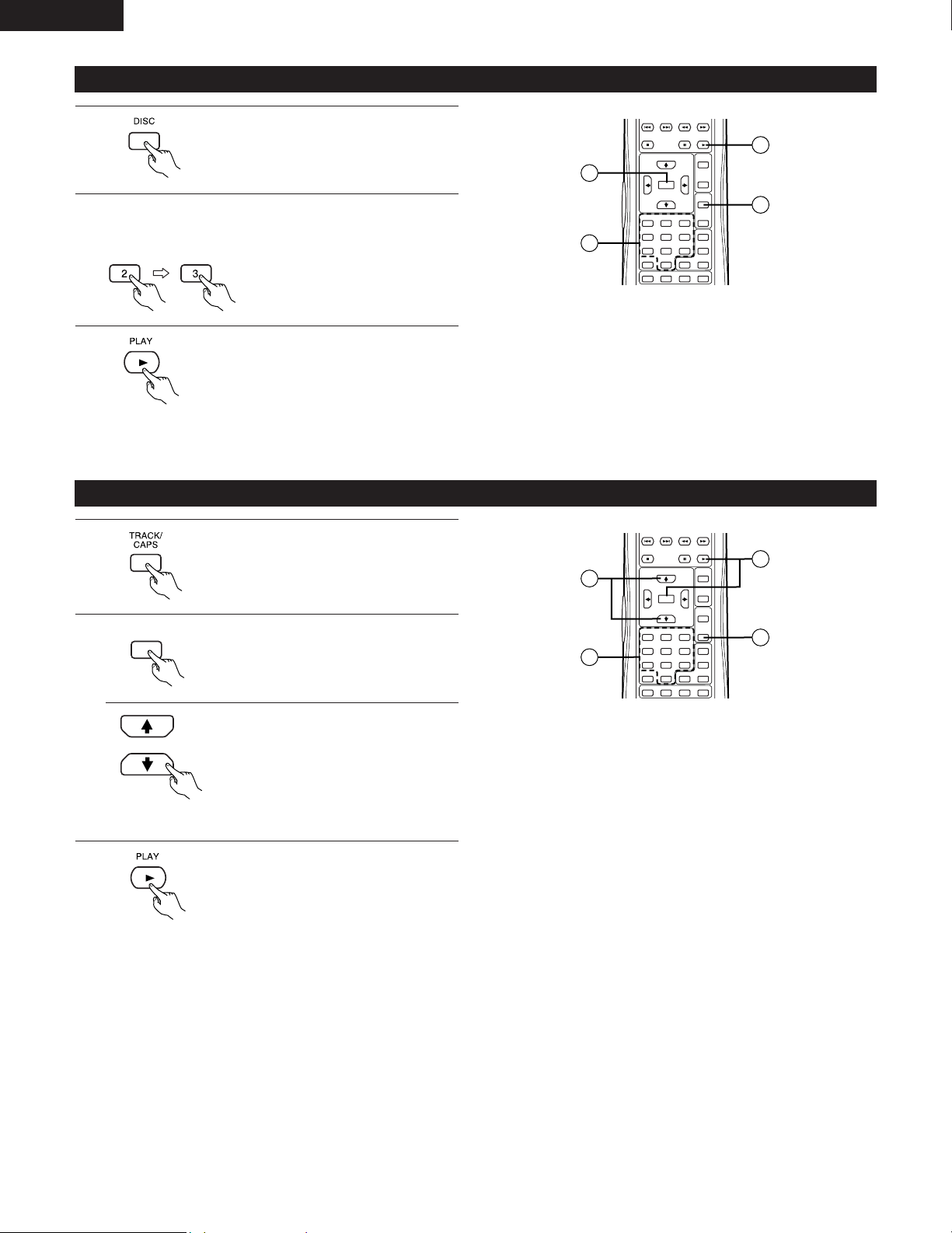
Using the Sort Function
1
2
3
4
5
Press the SORT button to display the desired sort mode.
• The mode switches as follows each time the button is pressed.
SORT/DISC NO.: Perform step 2 below.
SORT/DISC ABC: Perform step 3 below.
SORT/ARTIST: Perform step 4 below.
• If the PLAY button is pressed directly after pressing the SORT button during playback,
the playback display reappears.
To select CDs by disc number:
Turn the jog dial (on the remote control unit press the ↑ or ↓ button) to select the CD to be
played.
* When the
←
or
→
button on the remote control unit is pressed, the disc number
skips forward or backward by 10 numbers.
* To start playback, proceed to step 5.
To select CDs by disc title:
When SORT/DISC ABC is selected, the disc whose title begins with the specified
character is displayed.
Use the ← and → buttons to change the first character in alphabetical order.
Turn the jog dial (on the remote control unit press the ↑ or ↓ button) to select the desired
CD from among the disc titles starting with the selected character.
* To start playback, proceed to step 5.
NOTE: Sorting by disc title and artist’s name is case sensitive. Upper case “A” should be
used for the first character of a disc name and/or artist’s name.
To select discs by artist’s name:
Press the ← or → button on the remote control unit and select the artist’s name.
• The artist’s names are displayed in alphabetical order.
• In case of the SORT/ARTIST in the multi zone mode, operate with checking the on-
screen display.
Turn the jog dial (on the remote control unit press the
↑
or
↓
button) to select the desired
CD from among the discs with the selected artist’s name.
Press the PLAY button or the jog dial (on the remote control unit press the PLAY or ENTER
button) to start playback.
ENGLISH
14
CONTINUE
RANDOM
ALL DISCS
1 DISC
ENTER
SORT
DISC
TRACK/
CAPS
BEST HIT
PROGRAM
GROUP
MODE OFF
BCK SP
#$%
ABC DEF
GHI
PRS
JKL MNO
TUV
WXY
QZ
123
456
789
0
WRITE
PLAY
PAUSE
STOP
1
3
3
2
CONTINUE
RANDOM
ALL DISCS
1 DISC
ENTER
SORT
DISC
TRACK/
CAPS
BEST HIT
PROGRAM
GROUP
MODE OFF
BCK SP
#$%
ABC DEF
GHI
PRS
JKL MNO
TUV
WXY
QZ
123
456
789
0
WRITE
PLAY
PAUSE
STOP
2
2
3
1
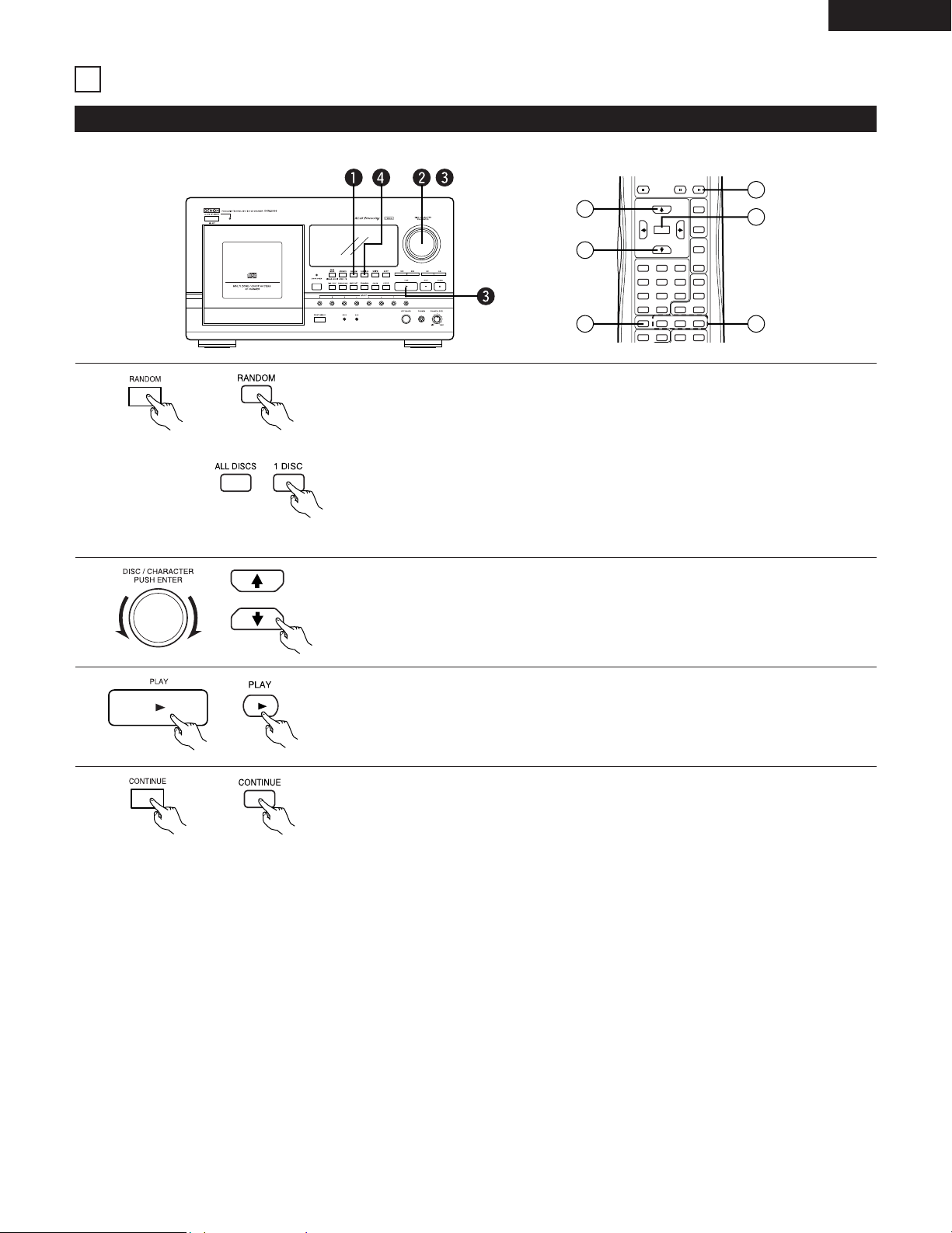
Selecting CDs by Inputting the Disc Number
Selecting a Specific Track Directly
1
2
3
Press the DISC button.
Press the PLAY or ENTER button to
start playing the selected disc.
3
Press the PLAY or ENTER button to
start playing the selected track.
1
Press the TRACK/CAPS button.
2
DEF
3
Use the number buttons to select the
desired track.
Example: To select track 3
* When monitoring the on-screen
display, it is possible to select the
track while checking the track titles.
(Refer to page 34.)
• Use the
↑
and
↓
buttons to select the
desired track.
Use the number buttons to select the desired CD.
Example: To select disc number 23
ENGLISH
15
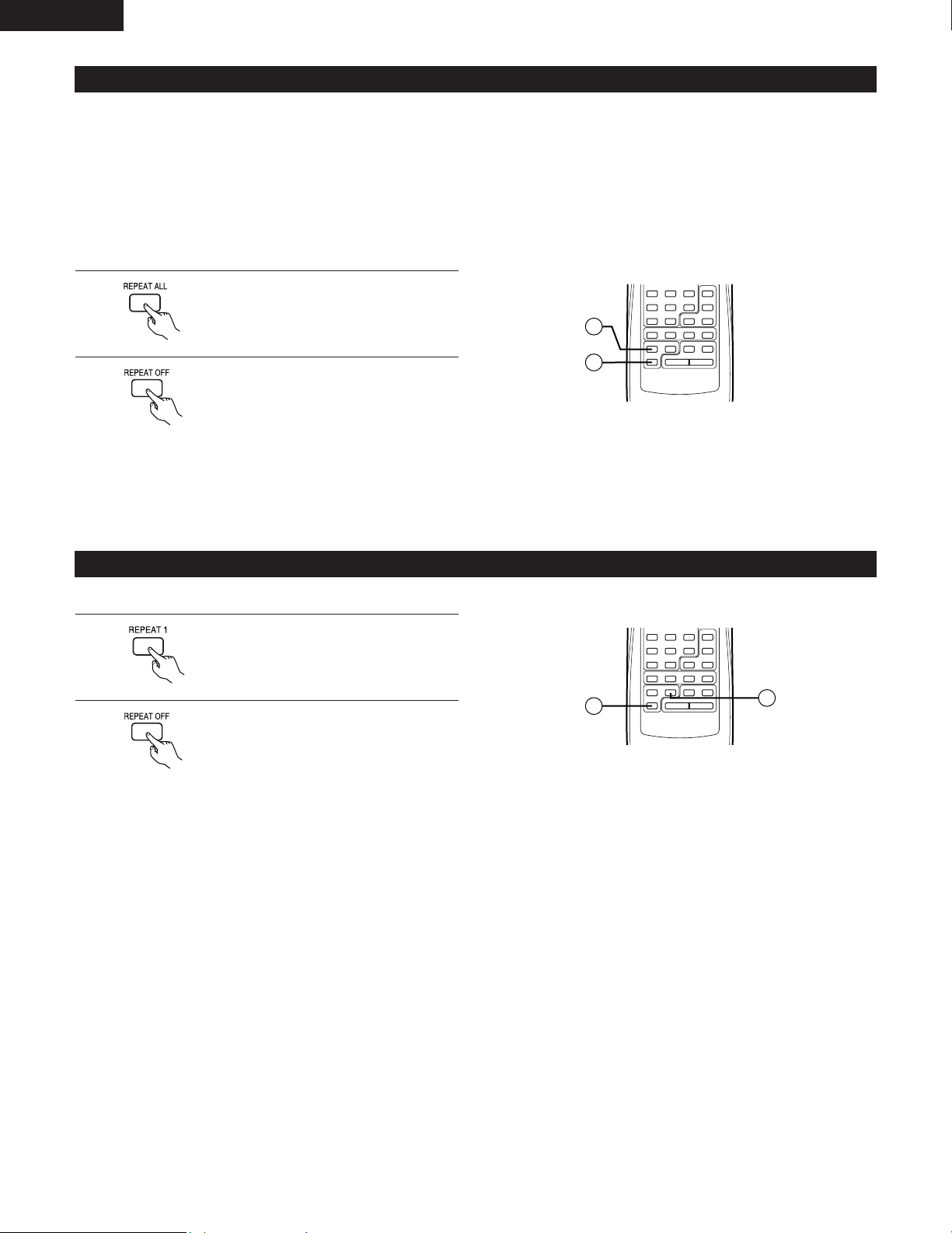
Use this function to play the tracks on the CD in random order.
CONTINUE
RANDOM
ALL DISCS
1 DISC
ENTER
SORT
DISC
TRACK/
CAPS
BEST HIT
PROGRAM
GROUP
MODE OFF
BCK-SP
#$%
ABC DEF
GHI
PRS
JKL MNO
TUV
WXY
QZ
123
456
789
0
CROSS FADE TIME / TEXTREPEAT ALL
REPEAT 1
WRITE
PLAY
PAUSE
STOP
2
2
4
3
3
1
then
VARIOUS PLAYBACK FUNCTIONS
9
Playing Tracks in Random Order
1
2
3
4
Press the RANDOM button (on the remote control unit press the RANDOM button, then
press the ALL DISCS or 1 DISC button) to select the play mode.
• The mode switches between 1 DISC
⇔
ALL DISCS each time the RANDOM button on
the main unit is pressed.
ALL DISCS: All the CDs are played in random order.
One track is selected at random from each of the CDs.
1 DISC: The tracks on the selected CD are played in random order.
* “RND” appears on the display window when the random play mode is selected.
In the 1 DISC mode, turn the jog dial (on the remote control unit press the
↑
or
↓
button) to
select the disc to be played.
Press the PLAY button or the jog dial (on the remote control unit press the PLAY or ENTER
button) to start random playback.
2
To go to the next random track: Press
9 button during playback.
Press the CONTINUE button to cancel random playback.
• If the RANDOM button is pressed during playback in the continuous mode, the random play mode is set.
• If the RANDOM button on the main unit is pressed during random playback, the random mode switches (between 1 DISC
⇔
ALL
DISCS).
• If the 1 DISC or ALL DISCS button on the remote control unit is pressed during random playback, the random mode switches.
• Random playback is also available in Group play mode (ALL DISCS Random) and Best Hit play mode.
• You cannot use Sort function in the ALL DISCS Random mode.
ENGLISH
16
REMOTE CONTROL UNIT
RC-272
CONTINUE
RANDOM
ALL DISCS
1 DISC
CHECK
CLEAR
BEST HIT
REPEAT OFF
PROGRAM
GROUP
MODE OFF
BCK SP
GHI
PRS
JKL MNO
TUV
WXY
QZ
456
789
0
B
CROSS FADE TIME / TEXTREPEAT ALL
REPEAT 1
2
1
[This operation is only possible from the remote control unit]
When the all-repeat mode is selected, the discs are played as follows according to the set play mode.
Q ALL DISCS CONTINUOUS mode: All the tracks on all the CDs are played repeatedly.
W 1 DISC CONTINUOUS mode: All the tracks on the selected CD are played repeatedly.
E ALL DISCS RANDOM mode: One track (selected randomly) on each CD is played repeatedly.
R 1 DISC RANDOM mode: All the tracks on the selected CD (current disc) are played repeatedly in random order.
T PROGRAM mode &
BEST HIT PLAY mode: The program is played repeatedly.
REMOTE CONTROL UNIT
RC-272
CONTINUE
RANDOM
ALL DISCS
1 DISC
CHECK
CLEAR
BEST HIT
REPEAT OFF
PROGRAM
GROUP
MODE OFF
BCK SP
GHI
PRS
JKL MNO
TUV
WXY
QZ
456
789
0
B
CROSS FADE TIME / TEXTREPEAT ALL
REPEAT 1
1
2
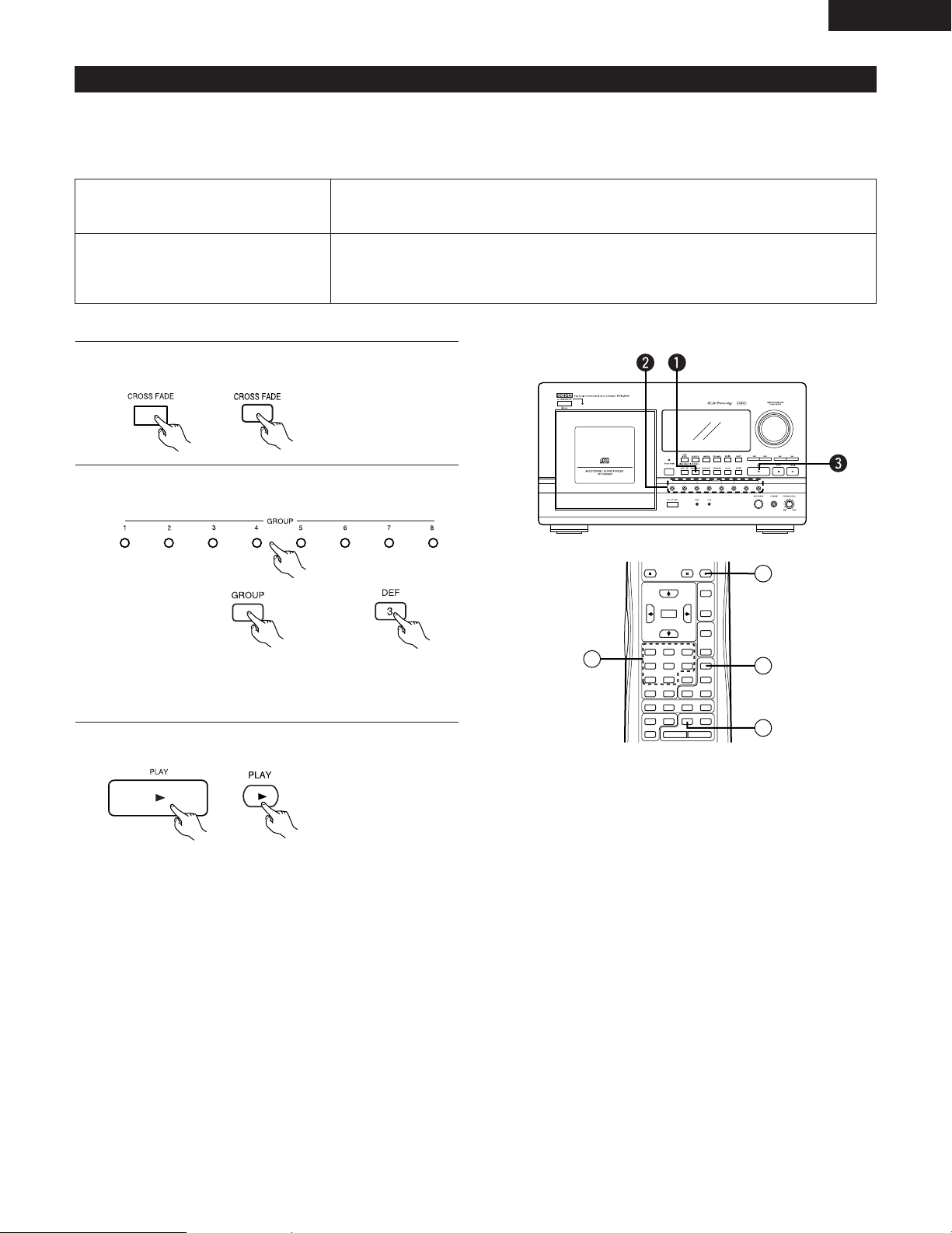
Playing Repeatedly
Press the REPEAT ALL button.
* “REPEAT” appears on the display.
1
Press the REPEAT OFF button to cancel
repeat playback.
2
Press the REPEAT 1 button.
* “REPEAT 1” appears on the display.
Press the REPEAT OFF button to cancel
repeat playback.
1
2
• If the REPEAT ALL button is pressed during playback, the mode switches to the all repeat play mode.
• If the REPEAT ALL button is pressed during playback in the repeat 1 play mode, the mode switches to the all repeat play mode.
• If the REPEAT 1 button is pressed during playback, the mode switches to the single track repeat play mode.
• If the REPEAT 1 button is pressed during playback in the all repeat play mode, the mode switches to the single track repeat play
mode.
[This operation is only possible from the remote control unit]
Playing a Single Track Repeatedly
ENGLISH
17
The cross fade play function can only be used in the single zone mode.
The cross fade mode allows you to play tracks continuously without breaks in the sound by fading in and out when switching from
playback on one disc to a track on the next disc.
Random modes are automatically selected in the Cross fade playback, as described on the table below.
CONTINUE
RANDOM
ALL DISCS
1 DISC
CHECK
CLEAR
ENTER
SORT
DISC
TRACK/
CAPS
BEST HIT
REPEAT OFF
PROGRAM
GROUP
MODE OFF
BCK SP
#$%
ABC DEF
GHI
PRS
JKL MNO
TUV
WXY
QZ
123
456
789
0
CROSS FADE TIME / TEXTREPEAT ALL
REPEAT 1
WRITE
PLAY
PAUSE
STOP
1
2
3
2
* “ALL DISCS”, “Random”, and “REPEAT” are always selected in the cross fade mode.
In the stop mode, press the CROSS FADE button.
Cross Fade Playback
1
To play groups, press the GROUP button and select the
group to be played.
2
To cancel the group mode in the cross fade mode, press
the MODE OFF button while in the stop mode.
Press the PLAY button to start cross fade playback.
3
To select on the
remote control
unit:
then
Example: To select group 3
2
To cancel the cross fade mode, first stop playback then press
the CROSS FADE button. (“Random”, “Repeat” are also
canceled)
NOTES:
• No signals are output from the digital outputs when the cross
fade mode is selected.
• AL24 processing and HDCD are both disabled when the cross
fade mode is selected.
• To enter into the CROSS FADE mode from Program or Best
hit play mode:
First press MODE OFF button in the stop mode, then press
CROSS FADE button. (Program or Best hit play mode is
canceled)
Cross fade playback is performed between tracks on discs selected at random (one track per disc).
Order of playback: Disc 3, Tr 5 e Disc 18, Tr 1 e Disc 56 Tr 3 e Disc 29, Tr 4 e …
Cross fade playback is performed between tracks on discs selected at random within the selected group
(one track per disc).
Order of playback: Disc 3, Tr 5 e Disc 18, Tr 1 e Disc 56 Tr 3 e Disc 29, Tr 4 e …
ALL DISCS Random mode:
Group Random mode:
ENGLISH
18
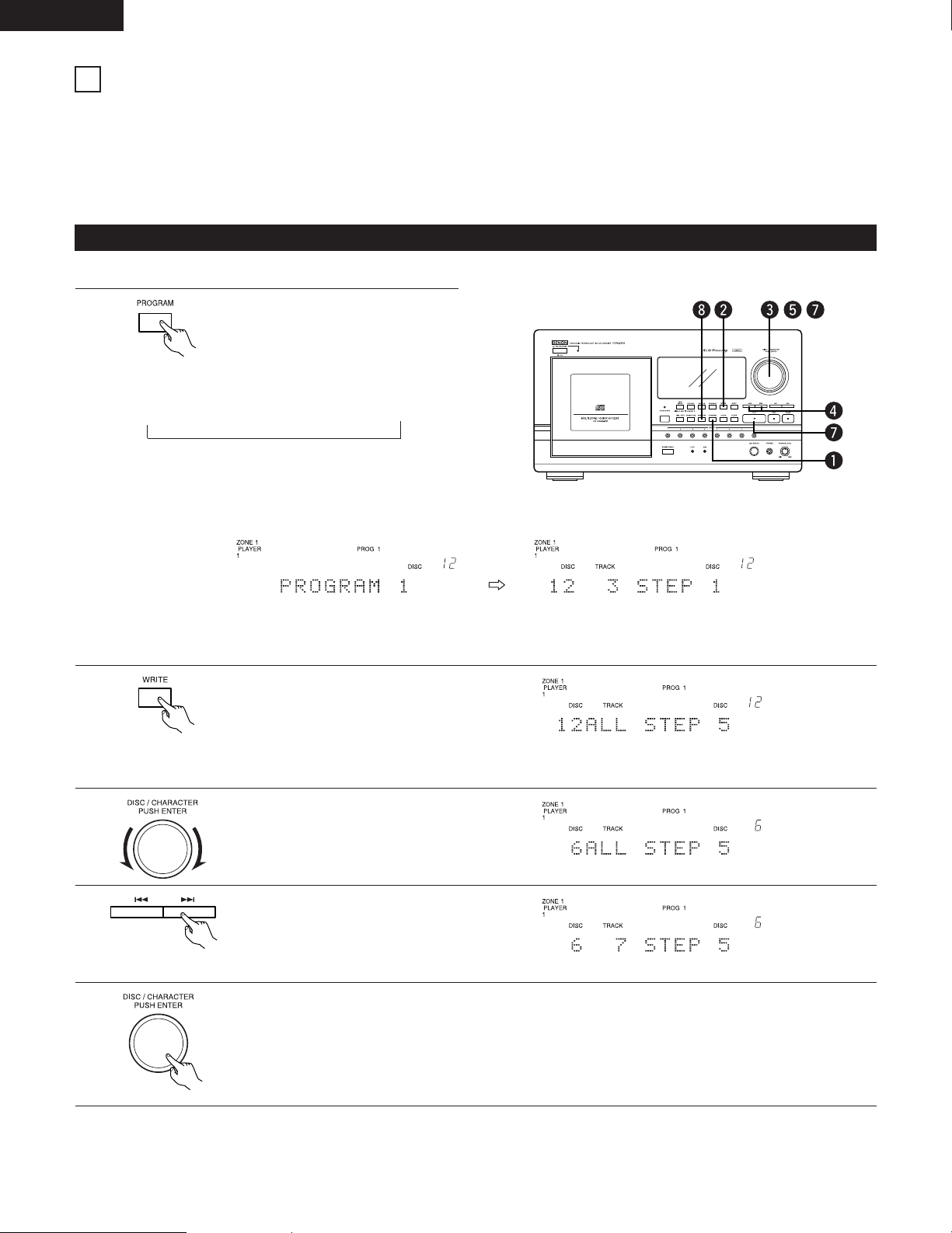
This function allows you to choose the desired CDs or tracks and play them in the programed order.
For types of programs can be set for zone 1, four more programs for zone 2, and four more programs for the single zone mode. Up to
40 steps can be set in each program.
A single track or all the tracks on a single disc can be set for one step.
It is possible to set the program either during playback and stop mode.
In the program mode, deleted tracks (refer to page 29) are skipped during playback.
[Programming from the main unit]
PROGRAMMED PLAYBACK
10
Programming
1
Press the PROGRAM button and
select the desired program number.
2
3
4
5
Press the WRITE button.
• The programming mode is set.
* The programming mode is
canceled if the WRITE button is
pressed again.
Turn the jog dial to select the desired
CD.
* To program all the tracks on the
CD, proceed to step 5.
Use the
8 and 9 buttons to
select the desired track.
Press the jog dial.
• The selected CD (or track) is stored in the program.
6
To continue programming other CDs or tracks, repeat steps 2 to 5 above.
* The program number and the display switch each time
the PROGRAM button is pressed.
“PROG 1”
→
“PROG 2”
→
“PROG 3”
→
“PROG 4”
* If there are already entries at the selected program
number, the disc number, track number, and step
number for the first step in the program appear on the
display.
The current disc number is indicated in the disc number section
and the number of the step to be programmed flashes in the
step number section.
When disc number 6 is selected.
When track number 7 is selected.
•
Example of display: When a program number that already has entries is selected in the multi-zone mode:
* If a program number with no entries is selected, “NO ENTRY” is displayed after “PROGRAM *”.
* If a program number that already has entries is selected during playback, programmed playback starts after “PROGRAM *” is
displayed and the display returns to the play mode display.
ENGLISH
19
7
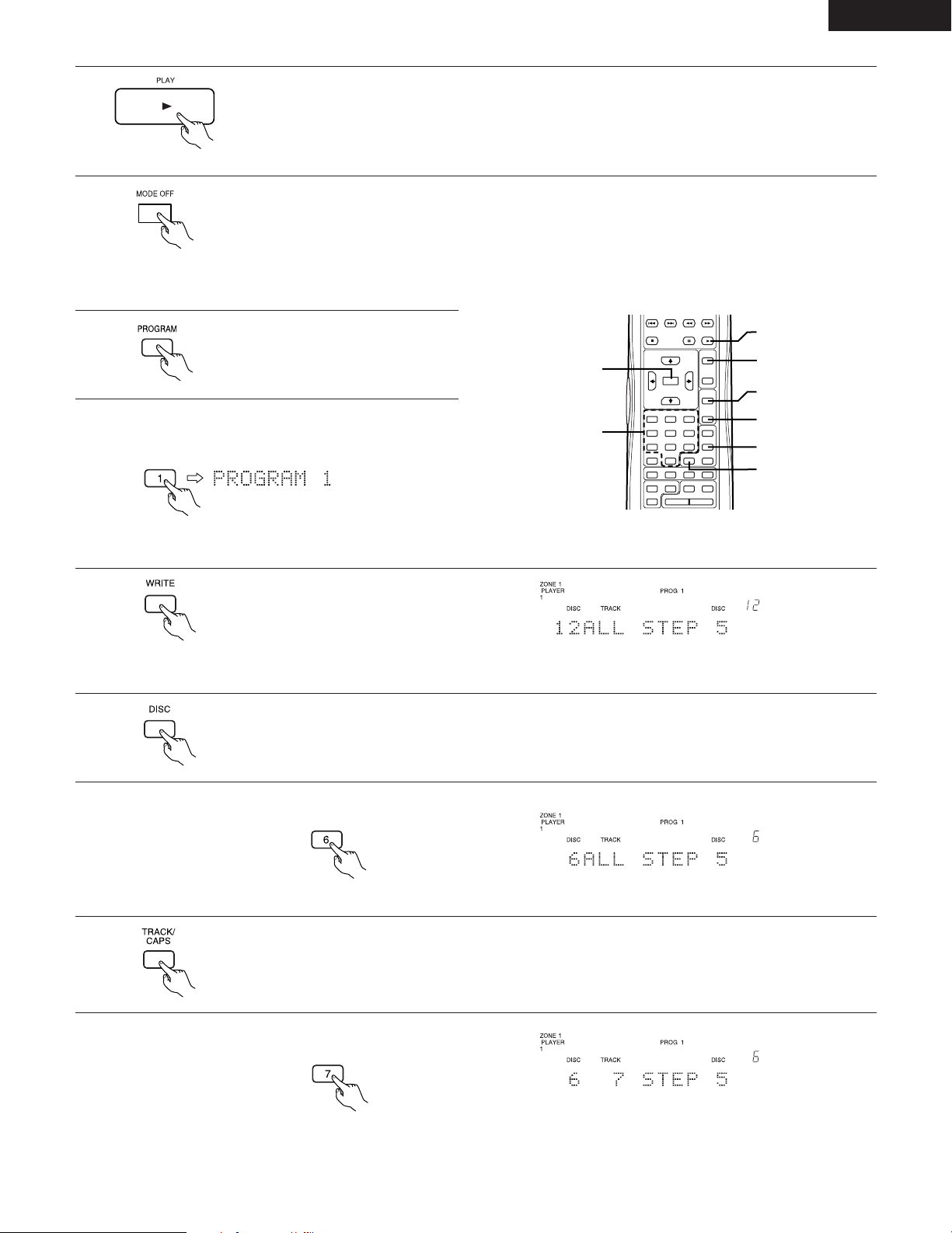
Press the PLAY button or the jog dial to start program playback.
* The step in the program (disc, track) that are not found in the player or being used in the other zone, are
skipped during playback.
8
To cancel the program mode, press the MODE OFF button.
[Programming from the remote control unit]
1
Press the PROGRAM button.
*
“
PROGRAM-
-
“
appears on the
display.
CONTINUE
RANDOM
ALL DISCS
1 DISC
CHECK
CLEAR
ENTER
SORT
DISC
TRACK/
CAPS
BEST HIT
REPEAT OFF
PROGRAM
GROUP
MODE OFF
BCK SP
#$%
ABC DEF
GHI
PRS
JKL MNO
TUV
WXY
QZ
123
456
789
0
CROSS FADE TIME / TEXTREPEAT ALL
REPEAT 1
WRITE
PLAY
PAUSE
STOP
!0
e
r
y
q
!1
i
!0
w
t
u
3
Press the WRITE button.
• The programming mode is set.
* The programming mode is
canceled if the WRITE button is
pressed again.
4
Press the DISC button.
* If a program number that already has entries is selected during playback, programmed playback starts after
“
PROGRAM *
“
is
displayed and the display returns to the play mode display.
The current disc number is indicated in the disc number section
and the number of the step to be programmed flashes in the
step number section.
2
Use number buttons 1 to 4 to select the desired program
number.
Example: To select program number 1
6
Press the TRACK/CAPS button.
When track number 7 is selected.
5
Use the number buttons to select the desired CD.
When disc number 6 is selected.
* To program all the tracks on the CD, proceed to step 8.
7
Use the number buttons to select the desired track.
Example: To select disc
number 6
Example: To select track
number 7
ENGLISH
20
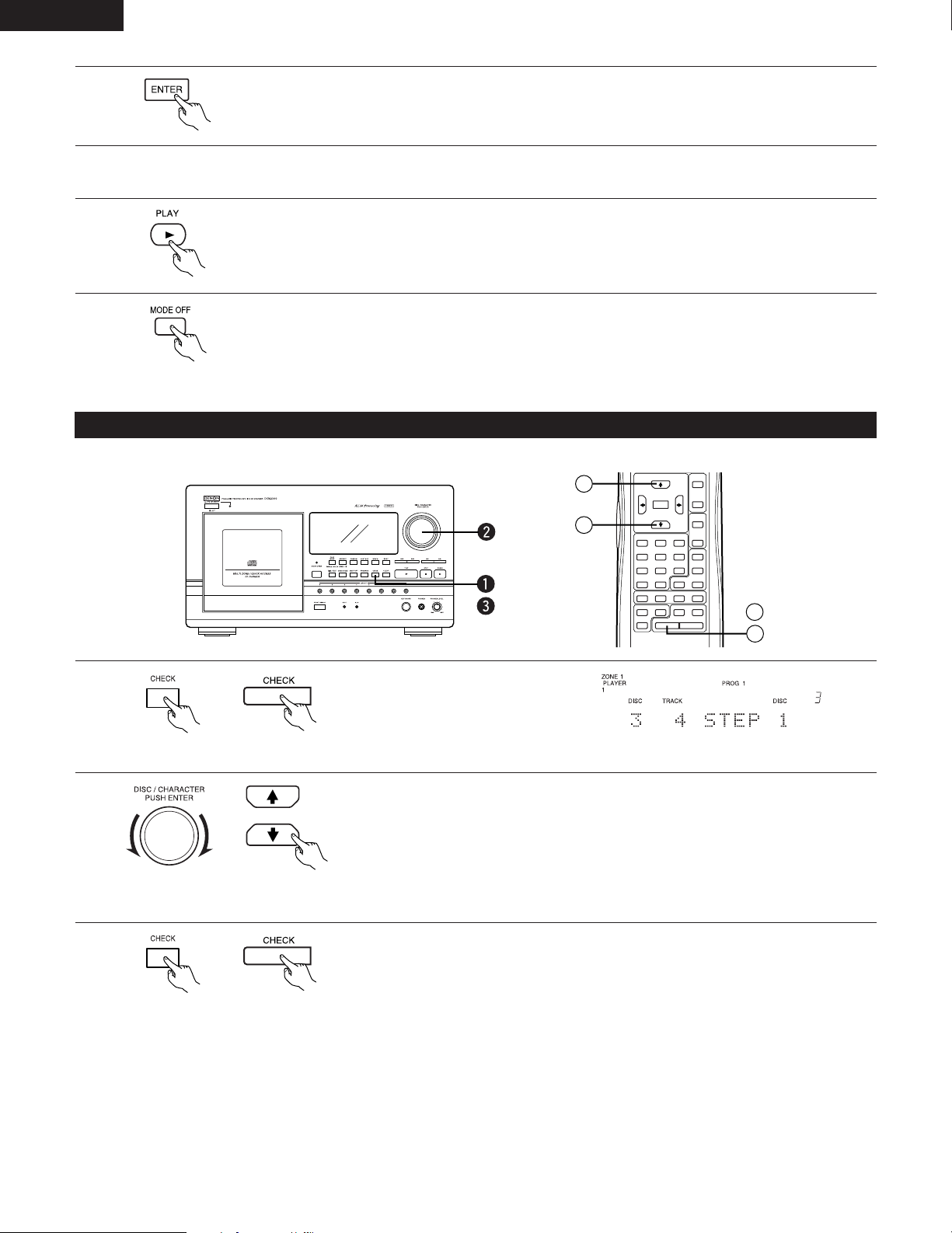
8
Press the ENTER button.
• The selected CD (or track) is stored in the program.
9
To continue programming other CDs or tracks, repeat steps 3 to 8 above.
10
Press the PLAY or ENTER button to start program playback.
11
To cancel the program mode, press the MODE OFF button.
Checking the Programs
Use this function to check the programmed CDs or tracks before or during playback.
2
Turn the jog dial (or on the remote control unit use the
↑
or
↓
button) to move forward
(backward) through the program and check its contents.
1
Press the CHECK button while in the
program mode.
* There is no need to do this when
in the stop mode.
During playback, the number of the currently
playing step is displayed.
*
“
PROGRAM * END
“
is displayed if the jog dial is turned clockwise (or on the remote control unit if the
↓
button is pressed)
from the last step.
3
To stop checking the program, press the CHECK button again.
* There is no need to do this when in the stop mode.
REMOTE CONTROL UNIT
RC 272
CONTINUE
RANDOM
ALL DISCS
1 DISC
CHECK
CLEAR
ENTER
SORT
DISC
TRACK/
CAPS
BEST HIT
REPEAT OFF
PROGRAM
GROUP
MODE OFF
BCK SP
#$%
ABC DEF
GHI
PRS
JKL MNO
TUV
WXY
QZ
123
456
789
0
B
CROSS FADE TIME / TEXTREPEAT ALL
REPEAT 1
WRITE
1
3
2
2
ENGLISH
21
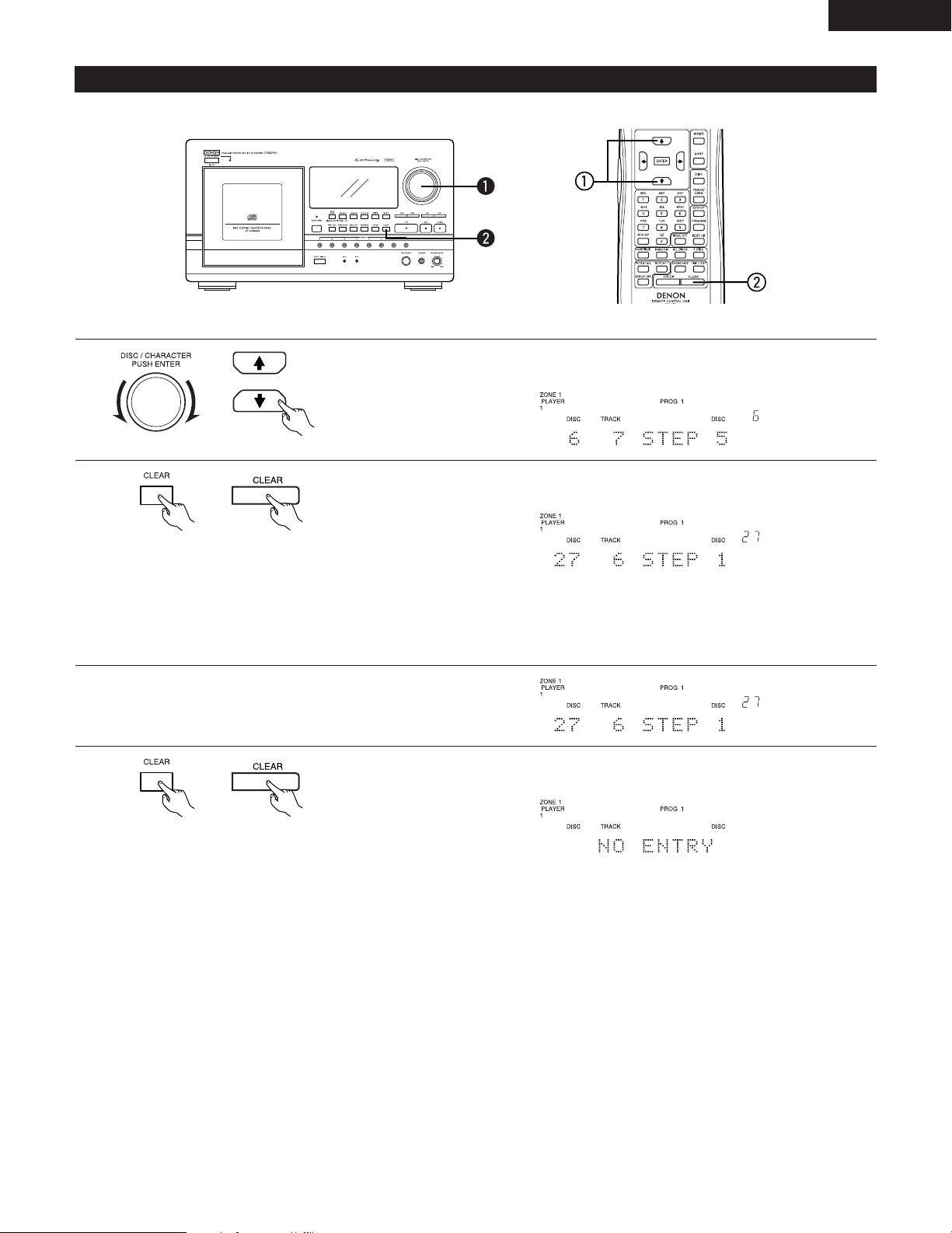
Clearing Programs
Programs can be cleared while stopped in the program mode.
2
Turn the jog dial (on the remote control unit press the ↑ or ↓ button) to move forward (or
backward) and display the step to be cleared.
1
Press the CLEAR button.
• The entry for the displayed step number is cleared and the first step is displayed.
2
Clearing CDs (or tracks) in the middle of a program
2
1
Press the CLEAR button continuously until
“
ALL CLEAR
“
is displayed.
• The entire current program is cleared and
“
NO ENTRY
“
appears on the display.
2
Clearing the entire current program
Select the program number.
(Refer to pages 18 and 19.)
Adding to the end of programs.
Follow steps 2 to 5 under
“
Programming from the main unit
“
(page 18) or steps 3 to 8 under “Programming from the remote control
unit” (page 18) to add CDs (or tracks) to the end of the program.
* If CLEAR is pressed without
performing the operation in step 1,
the first step is cleared.
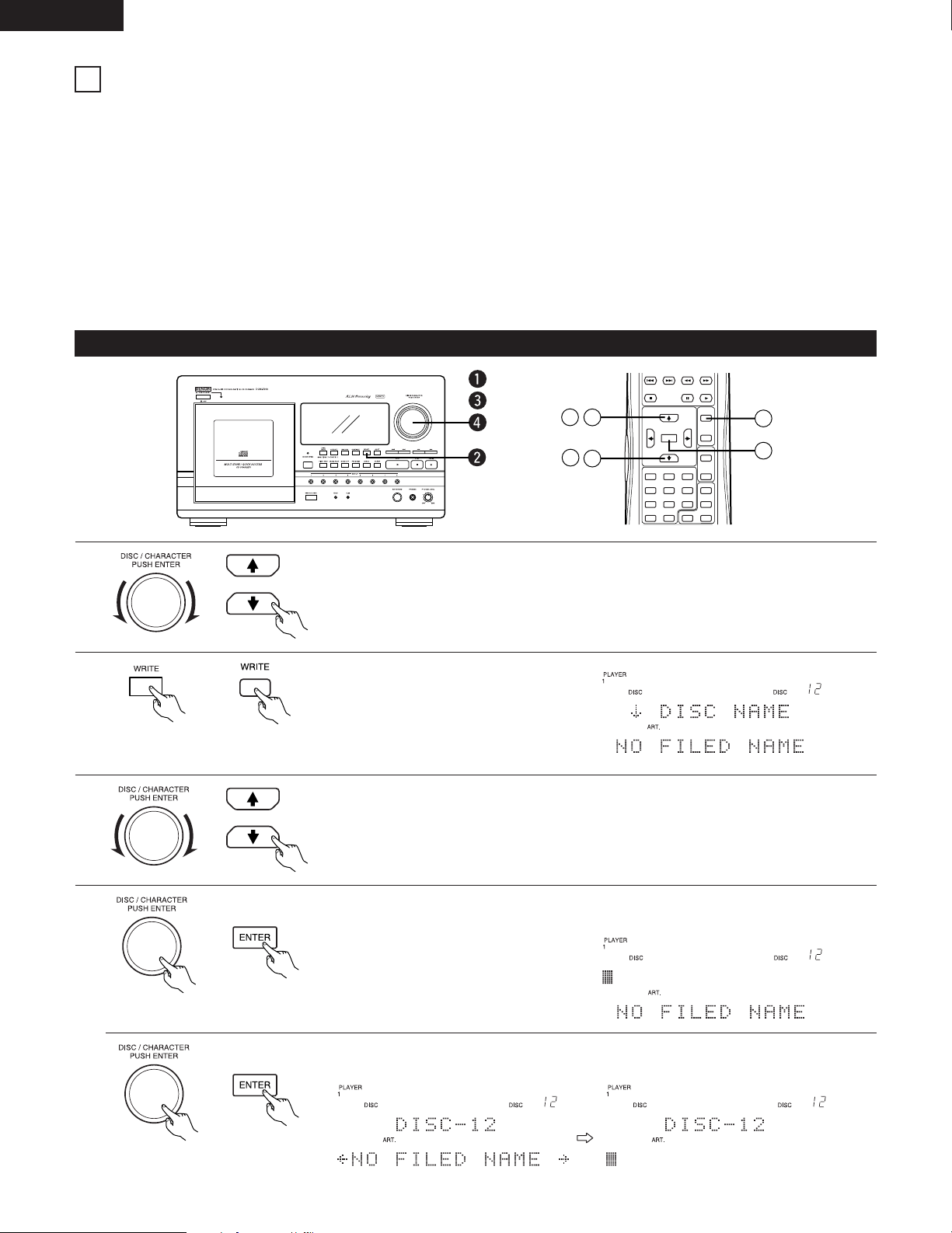
ENGLISH
2
About Disc Files
With disc files, disc titles, artists’ names and track titles can be given for individual CDs and the discs can be categorized in groups.
Each disc can be labeled up to 30 tracks. Titles can have up to 16 characters.
Disc files are stored in the memory even when the power is off.
NOTES:
• Disc files are stored for the discs’ slit numbers, so they remain in the memory even when the CDs have been replaced. Before
replacing CDs, erase all the disc files one by one in order, then create new disc files for the new CDs.
• CD Text discs have various types of text information (disc title, artist name, etc.) stored on them. This information is automatically
stored in a disc file when the CD is played, and cannot be changed. CD Text discs can however be registered in groups like other
CDs.
• It is not possible to set the disc file writing mode while in the multi-zone or random mode.
22
USING DISC FILES
Writing Disc Files
1
Turn the jog dial (on the remote control unit press the
↑
or
↓
button) and select the disc for
which you want to create a disc file.
* It is also possible to select CDs by inputting the disc number. (Refer to page 14.)
2
Press the WRITE button.
* If the WRITE button is pressed
again, the disc file writing mode is
canceled and the player returns to
the previous mode.
3
Turn the jog dial (on the remote control unit press the ↑ or ↓ button) to display the disc file
items.
DISC NAME
⇔
ARTIST NAME
⇔
GROUP FILE
⇔
TRACK 1
⇔
...
* Track titles can be stored for up to 30 tracks.
4
Press the jog dial (on the remote control unit press the ENTER button) to set the character
input mode.
When inputting a disc name:
When the artist’s name is selected, press the jog dial again.(On the remote control unit
press the ENTER button again.)
11
ENTER
SORT
DISC
TRACK/
CAPS
BEST HIT
PROGRAM
GROUP
MODE OFF
BCK SP
#$%
ABC DEF
GHI
PRS
JKL MNO
TUV
WXY
QZ
123
456
789
0
WRITE
PLAY
PAUSE
STOP
1
2
3
4
3
1
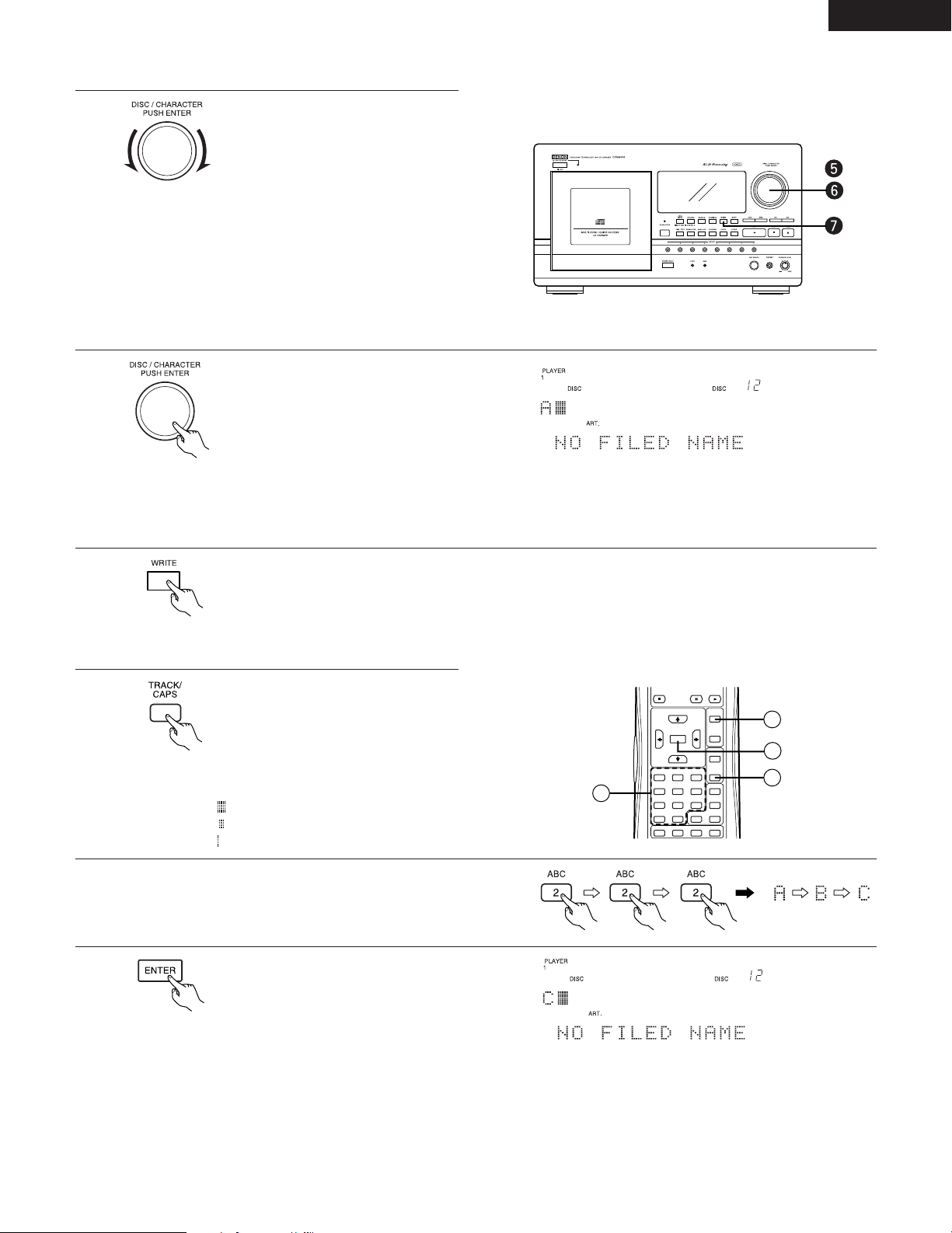
ENGLISH
The cursor changes each time the button is pressed to
indicate a different character type.
Capital letters: flashing
Small letters: flashing
Numbers: flashing
23
[Inputting characters from the main unit]
5
Turn the jog dial to select the first
character (letter, number or symbol).
When the jog dial is turned clockwise, the characters
(letters, numbers or symbols) change as shown below.
When turned counterclockwise, the characters change in
the opposite order.
(space) ABCDEFGHIJKLMNOPQRSTUVWXYZ
abcdefghijklmnopqrstuvwxyz
0123456789
!"#$%&'()*+,-./:;<=>?@[\]^_`{|}~
6
Press the jog dial.
• The character is entered and the
cursor (flashing) moves to the right.
* To input other characters, repeat steps 5 and 6.
If you make a mistake, press the CLEAR button then start over from the beginning.
To move to another item (for example to input the artist’s name after inputting the disc name), press the ENTER button again
to return to step 3.
7
Press the WRITE button to cancel the disc file writing mode and return to the previous mode.
[Inputting characters from the remote control unit]
8
Press the TRACK/CAPS button to
select the type of character (capital
letter, small letter, number or
symbol).
CONTINUE
RANDOM
ALL DISCS
1 DISC
ENTER
SORT
DISC
TRACK/
CAPS
BEST HIT
PROGRAM
GROUP
MODE OFF
BCK SP
#$%
ABC DEF
GHI
PRS
JKL MNO
TUV
WXY
QZ
123
456
789
0
WRITE
PLAY
PAUSE
STOP
9
8
10
11
9
Use the number buttons to select the desired character
(letter, number or symbol).
10
Press the ENTER button.
• The character is entered and the
cursor (flashing) moves to the right.
* To input other characters, repeat steps 8 to 10.
If you make a mistake, press the BCK SP (back space) button then input the correct character. (Refer to page 24.)
If the CLEAR button is pressed, all of the input characters are cleared, so start over from step 5 or 8.
To move to another item (for example to input the artist’s name after inputting the disc name), press the ENTER button again
to return to step 3.
Example: To select C
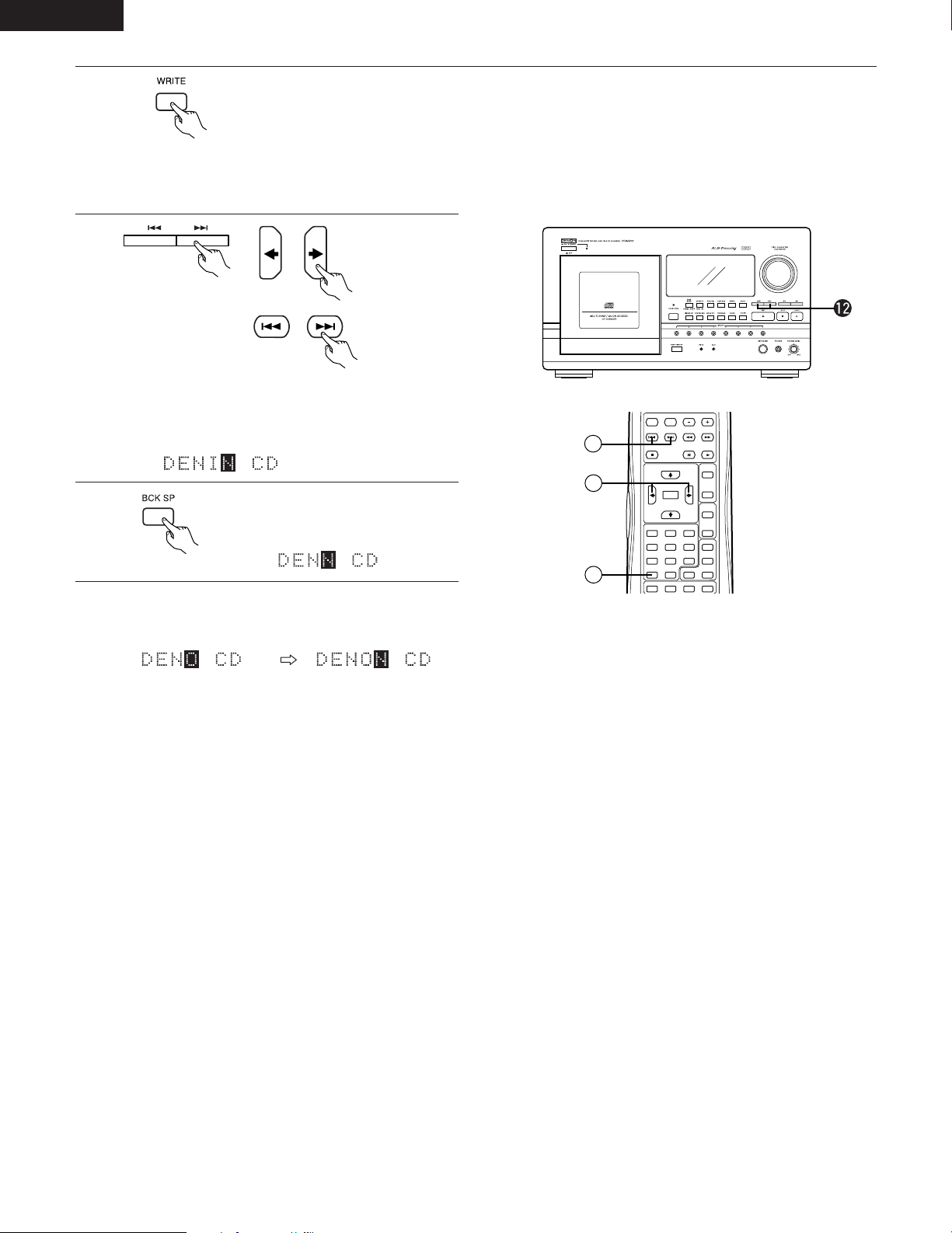
ENGLISH
Repeat steps 8 to 10 to input the correct character.
24
11
Press the WRITE button to cancel the disc file writing mode and return to the previous mode.
[Correcting characters]
12
Press the 8 or 9 button (or the ← or → button on
the remote control unit) to move the cursor (flashing) to
the right of the character to be corrected.
OPERATE
ZONE 2
ZONE 1
CONTINUE
RANDOM
ALL DISCS
1 DISC
ENTER
SORT
DISC
TRACK/
CAPS
BEST HIT
PROGRAM
GROUP
MODE OFF
BCK SP
#$%
ABC DEF
GHI
PRS
JKL MNO
TUV
WXY
QZ
123
456
789
0
WRITE
PLAY
DISC SKIP
PAUSE
STOP
12
13
12
13
Press the BCK SP button.
• The character to the left of the
cursor (flashing) is cleared.
14
Select the character. Press the ENTER button.
2
You can select the artist’s name without inputting characters
At step 4 (on page 22) when the “NO FILED NAME” flashes, as you turn the jog dial (on the remote control unit use ← and →
buttons), the display shows the artist’s names registered for other discs. Press ENTER to select the artist’s name for the current
disc.
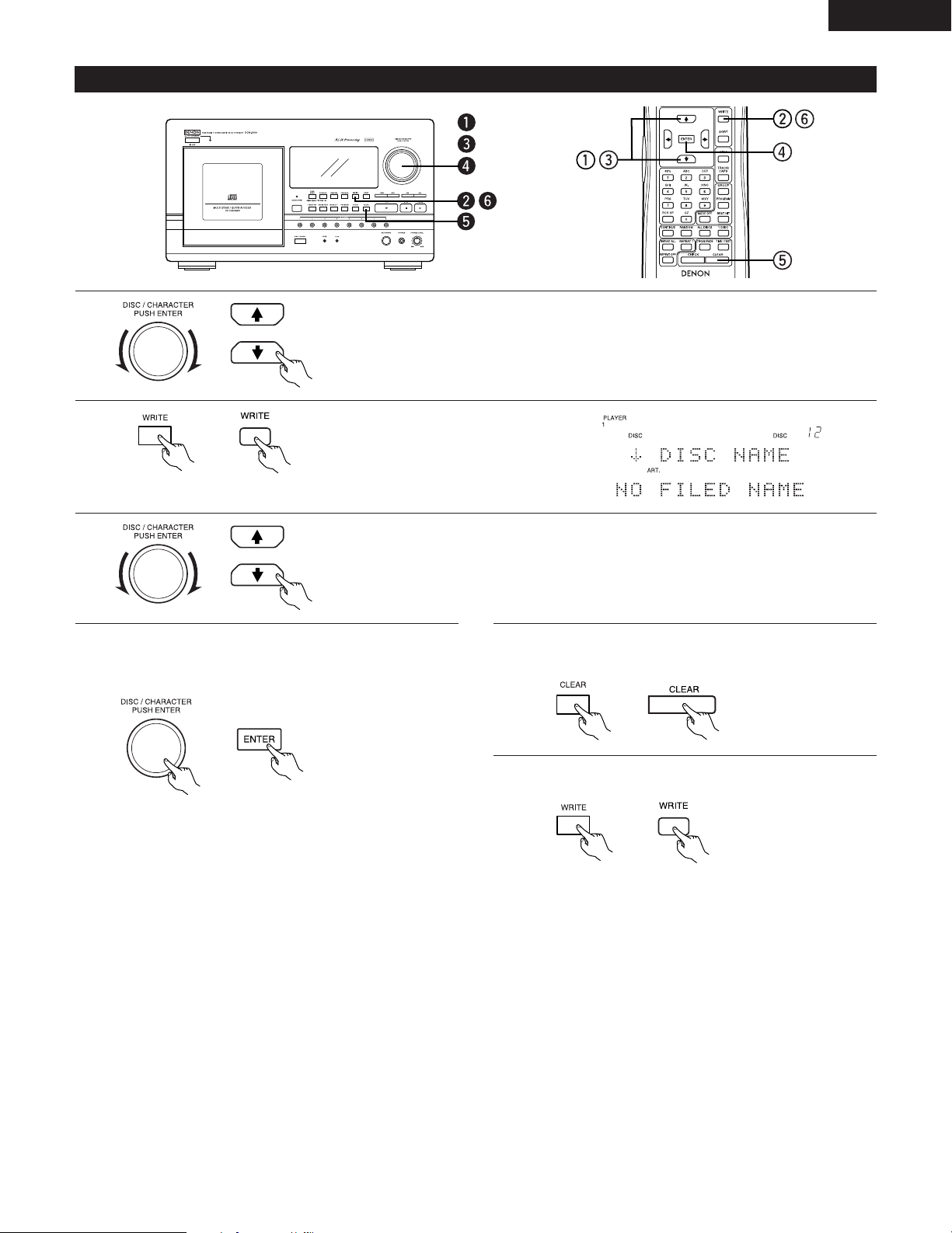
ENGLISH
25
Clearing Disc Files
1
Turn the jog dial (on the remote control unit press the
↑
or
↓
button) to select the CD
whose disc file you want to clear.
* It is also possible to select CDs by inputting the disc number. (Refer to page 14.)
2
Press the WRITE button.
* If the WRITE button is pressed
again, the disc file writing mode is
canceled and the player returns to
the previous mode.
3
4
Turn the jog dial (on the remote control unit press the
↑
or
↓
button) to display the disc file
item you want to clear.
DISC NAME
⇔
ARTIST NAME
⇔
GROUP FILE
⇔
TRACK 1
⇔
...
5
Press the CLEAR button.
* The item selected in step 3 is cleared.
6
Press the WRITE button, to return to the previous mode.
2
Clearing all the player’s disc files (disc titles, artists’ names, track titles and group files)
(This operation is only possible from the main unit.)
1. Press the power operation switch while holding in the WRITE and CLEAR buttons to turn on the power.
2.
“
ALL ERASE
“
is displayed. (release the WRITE and CLEAR buttons)
When
“
ALL ERASE
“
turns off, all the disc files are erased.
No buttons will work until
“
ALL ERASE
“
turns off. The greater the number of discs whose disc files are to be erased, the
longer it takes for the disc files to be erased.
• When players are connected in daisy chain, all the files in the connected players are erased.
2
Clearing all the disc files for one CD
(This operation is only possible from the main unit.)
1. Select the disc whose disc files you want to erase.
2. Press the WRITE button to set the write mode.
3. Press the CLEAR button while pressing in the CHECK button until
“
FILE ERASED
“
is displayed.
The disc files for the selected CD are erased and the disc file writing mode is set.
Press the jog dial (on the remote control unit press the
ENTER button).
* For the artist’s name, press the ENTER button again.
ENGLISH
26
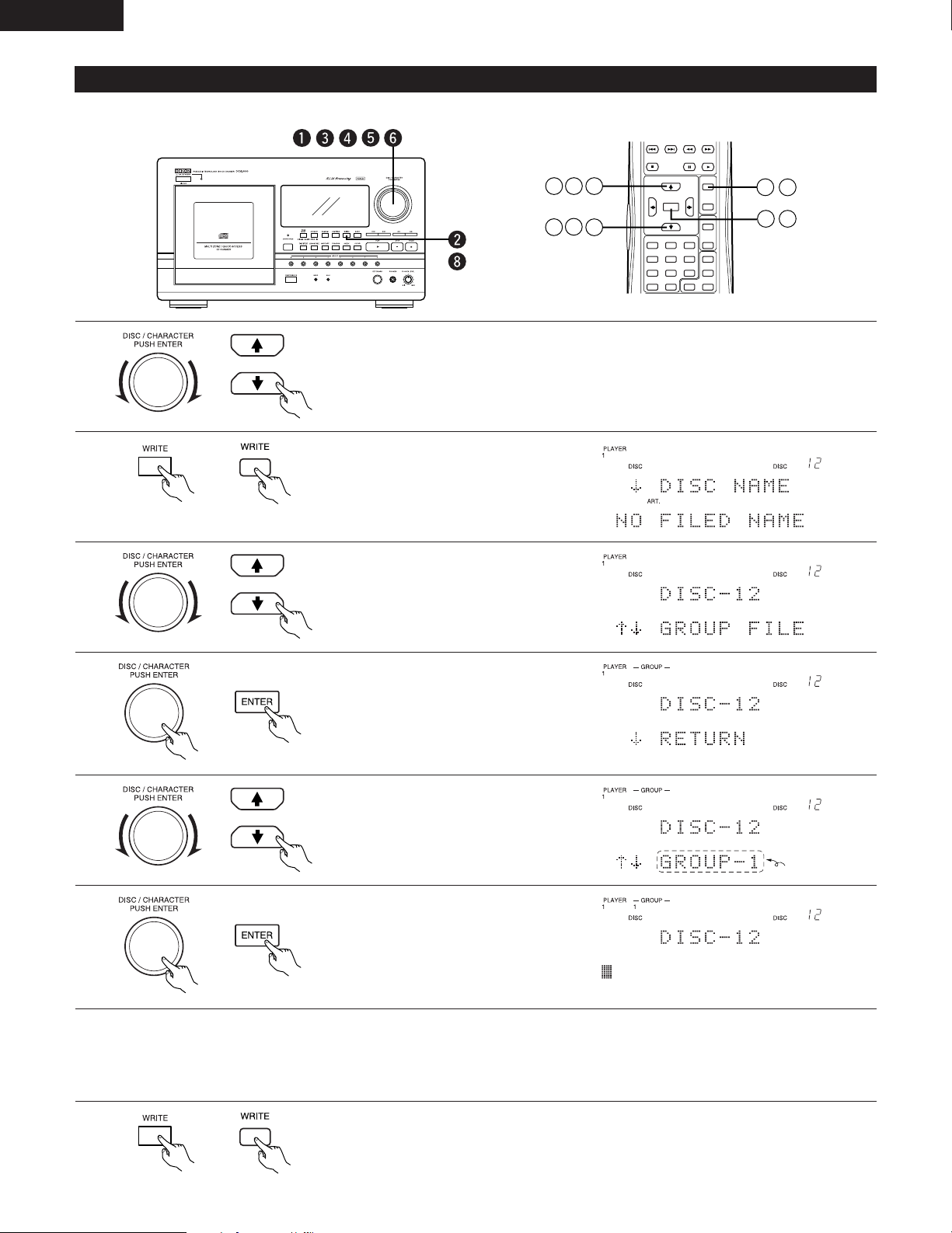
Categorizing CDs in groups
ENTER
SORT
DISC
TRACK/
CAPS
BEST HIT
PROGRAM
GROUP
MODE OFF
BCK SP
#$%
ABC DEF
GHI
PRS
JKL MNO
TUV
WXY
QZ
123
456
789
0
WRITE
PLAY
PAUSE
STOP
1
2
3
8
5
6
1
3
5
4
1
Turn the jog dial (on the remote control unit press the
↑
or
↓
button) to select the CD you
want to register in groups.
* It is also possible to select CDs by inputting the disc number. (Refer to page 14.)
2
Press the WRITE button.
* If the WRITE button is pressed
again, the disc file writing mode is
canceled and the player returns to
the previous mode.
3
Turn the jog dial (on the remote
control unit press the
↑
or
↓
button)
to display
“
GROUP FILE
“.
4
Press the jog dial (on the remote
control unit press the ENTER button).
2
Registering CDs in groups
When no group has been registered:
5
Turn the jog dial (on the remote
control unit press the
↑
or
↓
button)
to display the desired group.
6
Press the jog dial (on the remote
control unit press the ENTER button).
• The group name input mode is set.
7
Enter the group name.
Enter the group name following “Inputting characters from the main unit” (page 23) steps 5 and 6 or “Inputting characters from
the remote control unit” (page 23) steps 8 to 10.
* One CD can be registered in up to four groups. To register a CD in multiple groups, repeat steps 5 to 7.
8
Press the WRITE button.
• The disc file writing mode is canceled and the player returns to the previous mode.
flashes

ENGLISH
27
2
Clearing CDs from groups
ENTER
SORT
DISC
TRACK/
CAPS
BEST HIT
PROGRAM
GROUP
MODE OFF
BCK SP
#$%
ABC DEF
GHI
PRS
JKL MNO
TUV
WXY
QZ
123
456
789
0
WRITE
PLAY
PAUSE
STOP
2
3
2
4
1
Follow steps 1 to 4 under “Registering CDs in groups” (page 26) to display the group name.
2
Turn the jog dial (on the remote
control unit press the
↑
or
↓
button)
to display the desired group.
3
Press the jog dial (on the remote
control unit press the ENTER button).
The CD is cleared from the displayed
group.
The group name flashes
2
Clearing the current disc from all the groups in which it is registered
At step 2 above, display
“
NO GROUP
“
, then press the ENTER button to clear the disc from all the groups at once.
2
Clearing group names
1
Follow steps 1 to 5 under “Registering CDs in groups”
(page 26) to display the group name.
CONTINUE
RANDOM
ALL DISCS
1 DISC
CHECK
CLEAR
ENTER
SORT
DISC
TRACK/
CAPS
BEST HIT
REPEAT OFF
PROGRAM
GROUP
MODE OFF
BCK SP
#$%
ABC DEF
GHI
PRS
JKL MNO
TUV
WXY
QZ
123
456
789
0
B
CROSS FADE TIME / TEXTREPEAT ALL
REPEAT 1
WRITE
4
3
2
3
Press the CLEAR button.
4
Press the WRITE button.
• The disc file writing mode is canceled and the player
returns to the previous mode.
4
Press the WRITE button.
• The disc file writing mode is canceled and the player returns to the previous mode.
This lights when the CD is
registered in this group
Press the jog dial (on the remote control unit press the
ENTER button).
2
NOTE: Group names can only be cleared if CDs are registered in the group.
* To clear the CD from other groups, repeat steps 2 and 3.
ENGLISH
28
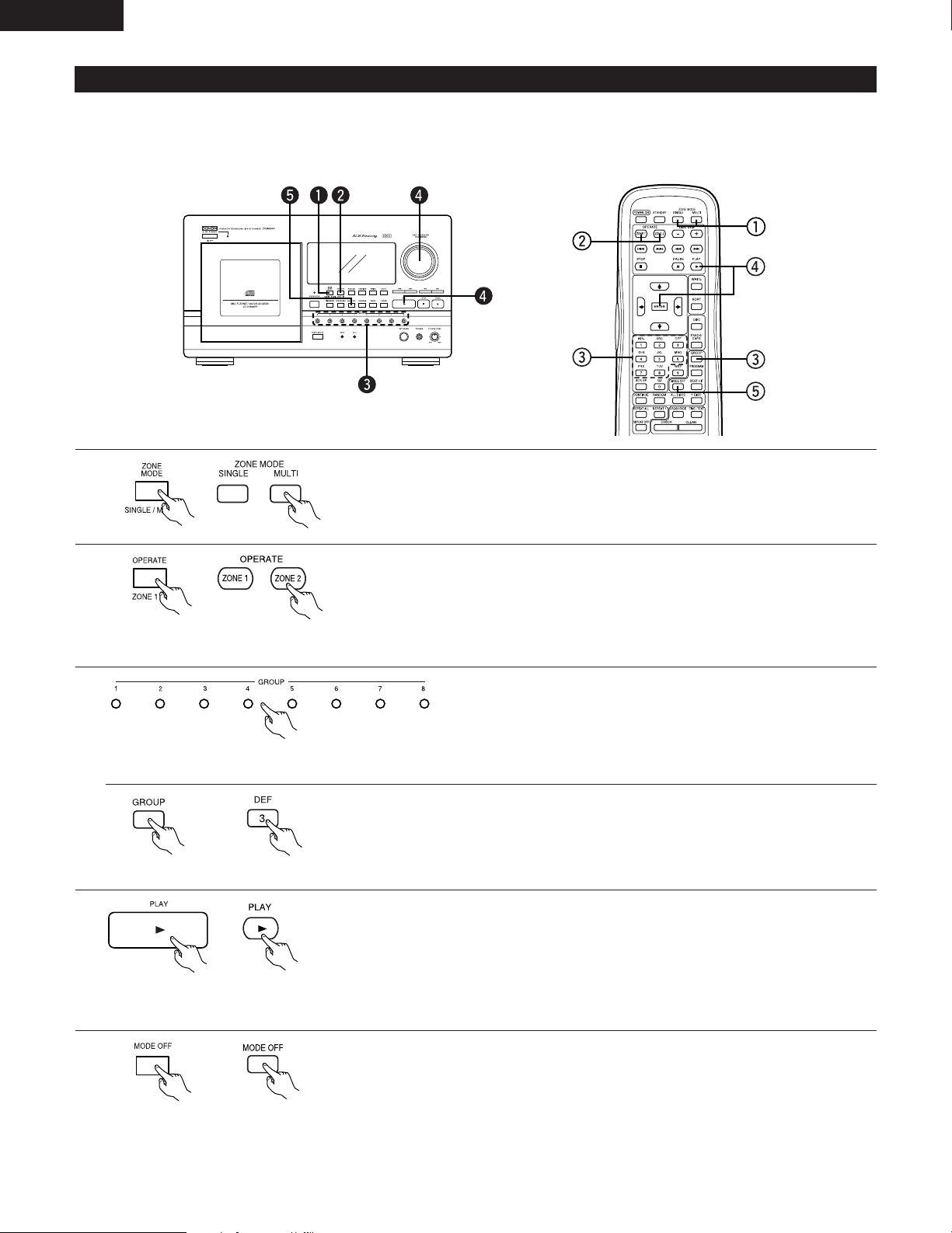
Playing Groups
When the group play mode is selected, the discs are played as follows according to the set play mode:
Q All DISCS CONTINUOUS mode: All the CDs in the group are played continuously.
W All DISCS RANDOM mode: One track (selected randomly) on each CD in the group are played in random order.
1
Press the ZONE MODE button and select the zone mode (SINGLE or MULTI).
2
When the multi-zone mode is selected, press the OPERATE button to select the zone to
be played (zone 1 or zone 2).
• The play mode can be set and CDs selected for the play zone displayed on the main
display.
* This operation is not necessary when the single zone mode is selected.
3
Press the GROUP button and select the group to be played.
[Selecting the group from the remote control unit]
Press the GROUP button, then press the number button to select the desired group.
4
Press the PLAY button or the jog dial (on the remote control unit press the PLAY or ENTER
button) to start playback from the CD with the lowest number within the group list.
2
To specify the disc from which playback is to start, select the disc on the main unit or
the remote control unit.
* If the multi-zone mode is selected, repeat the above operations from step 2 for the
other zone. In this case it is not possible to play the same group.
5
To cancel group playback, press the MODE OFF button.
Example: When group 3 is selected
then
ENGLISH
29
2
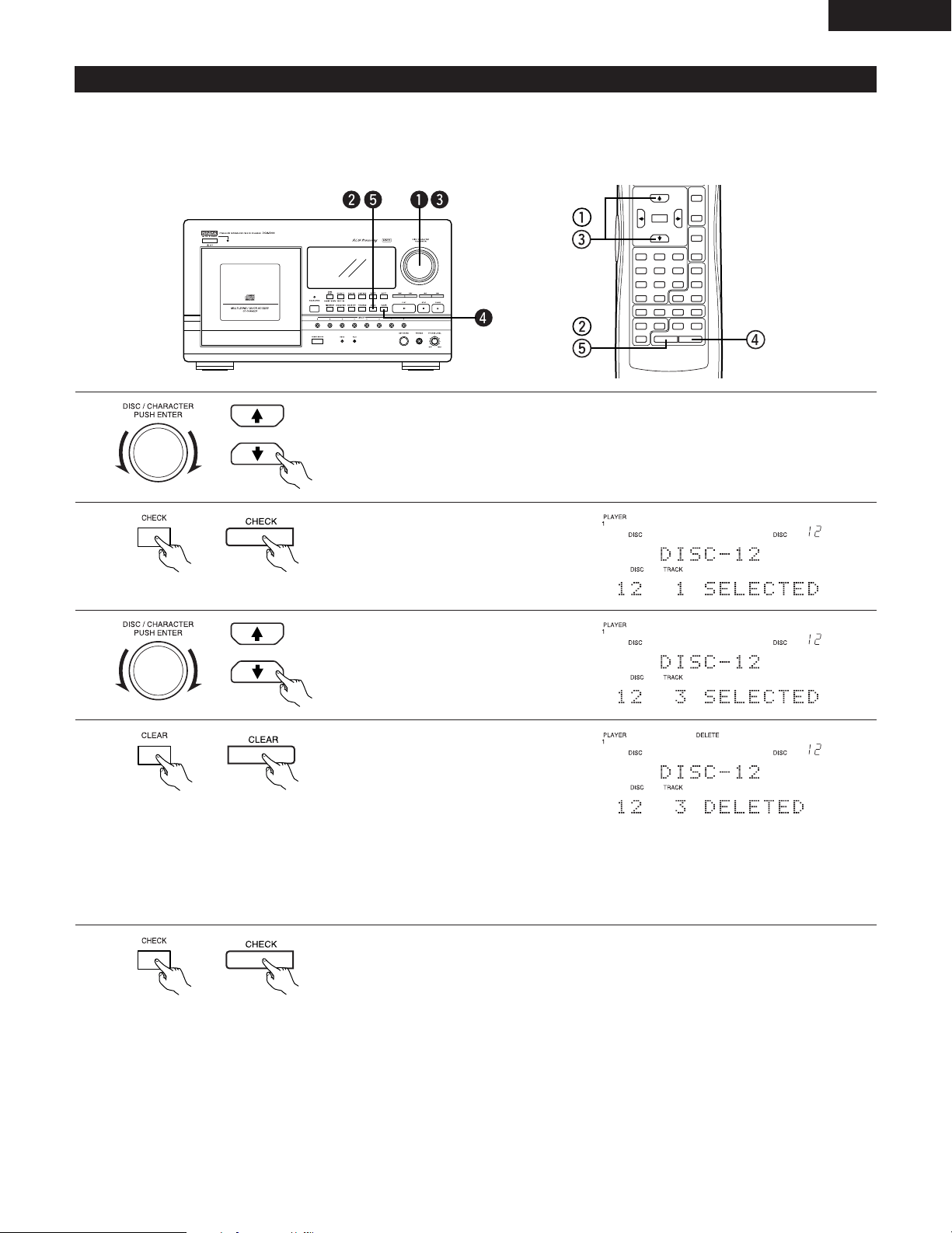
Delete File function
This function can be used to delete certain tracks from a disc and only play the desired tracks.
When that disc is played, the deleted tracks are skipped.
• Up to 100 tracks can be deleted for each of zone 1, zone 2 and the single zone modes.
Using the Delete File Function
REMOTE CONTROL UNIT
RC-272
CONTINUE
RANDOM
ALL DISCS
1 DISC
CHECK
CLEAR
ENTER
SORT
DISC
TRACK/
CAPS
BEST HIT
REPEAT OFF
PROGRAM
GROUP
MODE OFF
BCK SP
#$%
ABC DEF
GHI
PRS
JKL MNO
TUV
WXY
QZ
123
456
789
0
B
CROSS FADE TIME / TEXTREPEAT ALL
REPEAT 1
WRITE
1
Turn the jog dial (on the remote control unit press the
↑
or
↓
button) to select the CD for
which you want to create a delete file.
* It is also possible to select CDs by inputting the disc number. (Refer to page 14.)
2
Press the CHECK button.
3
Turn the jog dial (on the remote
control unit press the
↑
or
↓
button)
to select the track to be deleted.
4
Press the CLEAR button to display
“
DELETED
“
.
• The displayed track is stored in the
delete file.
* To continue deleting other tracks, repeat steps 3 and 4.
2
Removing tracks from the delete file
Select (display) the track you want to remove from the delete file then press the CLEAR button.“DELETED“ switches to
“SELECTED“ and that track is no longer deleted.
2
Removing all the tracks from the delete file at once
Press the CLEAR button until “ALL SELECTED“ is displayed.
5
Press the CHECK button to cancel the delete file mode and return to the previous mode.
ENGLISH
30
BEST HIT PLAY MODE
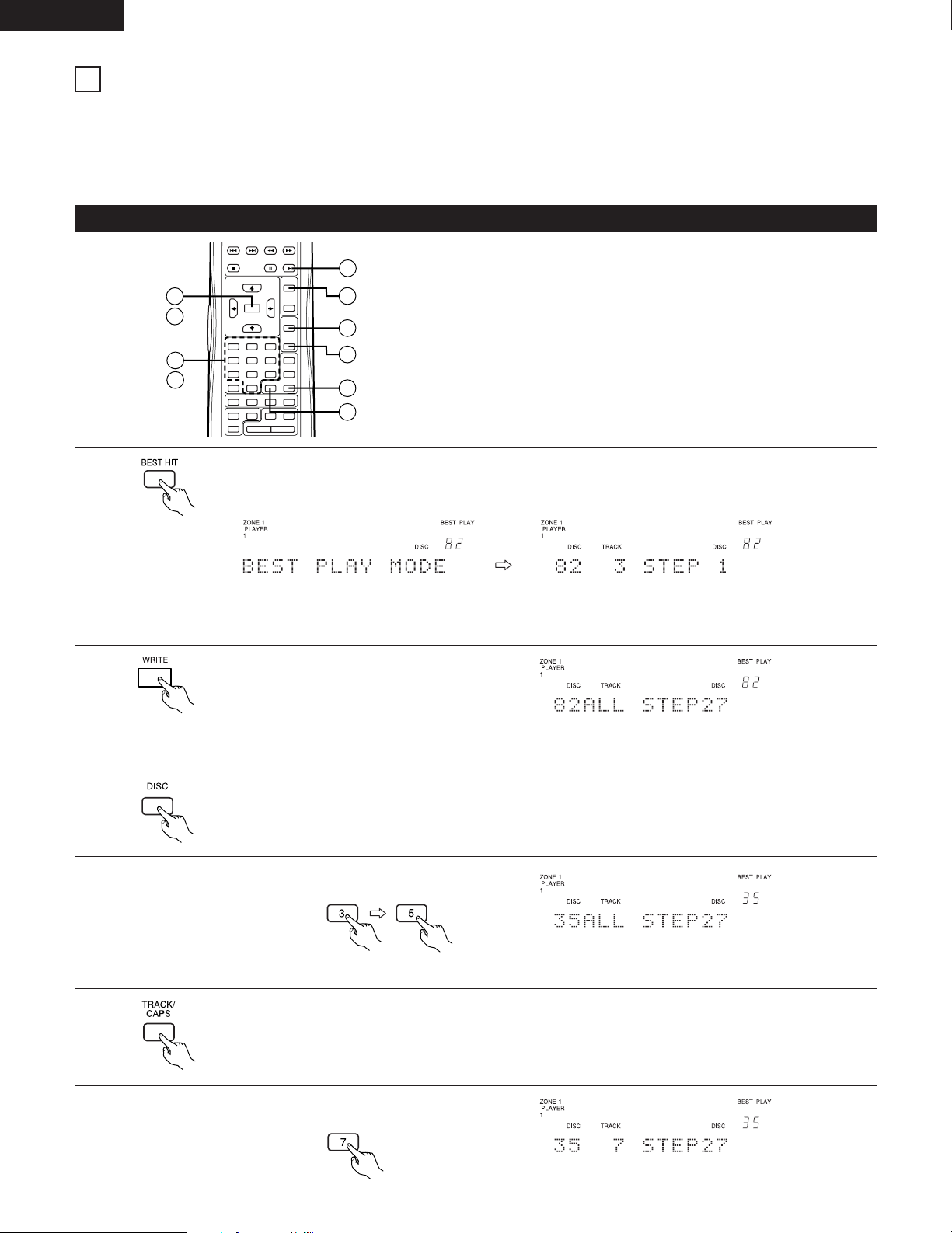
Registering Best Hits
2
About the best hit play mode
Use this function to make it easy to play CDs or tracks you listen to often.
One step in the best hit list consists of one track or all the tracks on one CD. Up to 100 steps can be stored for each of zone 1, zone
2 and the single zone modes.
In the best hit play mode, the discs are played in order starting from the lowest disc number.
CONTINUE
RANDOM
ALL DISCS
1 DISC
CHECK
CLEAR
ENTER
SORT
DISC
TRACK/
CAPS
BEST HIT
REPEAT OFF
PROGRAM
GROUP
MODE OFF
BCK SP
#$%
ABC DEF
GHI
PRS
JKL MNO
TUV
WXY
QZ
123
456
789
0
CROSS FADE TIME / TEXTREPEAT ALL
REPEAT 1
WRITE
PLAY
PAUSE
STOP
1
2
3
4
5
6
11
9
9
7
1
Press the BEST HIT button.
Display example: When there are already entries on the best hit list in the multi-zone mode.
*“NO ENTRY“ is displayed after “BEST PLAY MODE“ if a zone for which there are no entries is selected.
* If a zone for which there are entries is selected during playback, after “BEST PLAY MODE“ is displayed the best hit play
mode starts and the normal playback display reappears.
2
Press the WRITE button.
• The best hit input mode is set.
3
Press the DISC button.
The current disc number is indicated in the disc number section
and the number of the step to be written flashes in the step
number section.
When disc number 35 is selected.
5
Press the TRACK/CAPS button.
4
* To register all the tracks on the disc, proceed to step 7.
When track number 7 is selected.
6
Example: To select disc number 35
Example: To select track number 7
12
Use the number buttons to select the desired track.
Use the number buttons to select the desired disc.
* Register tracks or CDs on the best hit list while in the stop mode.
(not possible in the Random mode)

ENGLISH
31
7
Press the ENTER button.
• The selected CD (or track) is registered.
8
Repeat steps 2 to 7 above to register more CDs or tracks on the best hit list.
9
Press the PLAY or ENTER button to start best hit playback.
* The step in the Best Hit List (disc, track) that are not found in the player or being used in the other zone,
are skipped during playback.
10
To cancel the best hit play mode, press the MODE OFF button.
Checking the Best Hit List
Use this function to check the best hit list before or during playback.
2
Turn the jog dial (or on the remote control unit use the
↑
or
↓
button) to move forward
(backward) through the best hit list and check its contents.
REMOTE CONTROL UNIT
RC 272
CONTINUE
RANDOM
ALL DISCS
1 DISC
CHECK
CLEAR
ENTER
SORT
DISC
TRACK/
CAPS
BEST HIT
REPEAT OFF
PROGRAM
GROUP
MODE OFF
BCK SP
#$%
ABC DEF
GHI
PRS
JKL MNO
TUV
WXY
QZ
123
456
789
0
B
CROSS FADE TIME / TEXTREPEAT ALL
REPEAT 1
WRITE
1
3
2
2
1
Press the CHECK button while in the
best hit play mode.
* There is no need to do this when
in the stop mode.
During playback, the number of the currently
playing step is displayed.
*“BEST LIST END“ is displayed if the jog dial is turned clockwise (or on the remote control unit if the
↓
button is pressed)
from the last step.
3
To stop checking the best hit list, press the CHECK button again.
* There is no need to do this when in the stop mode.
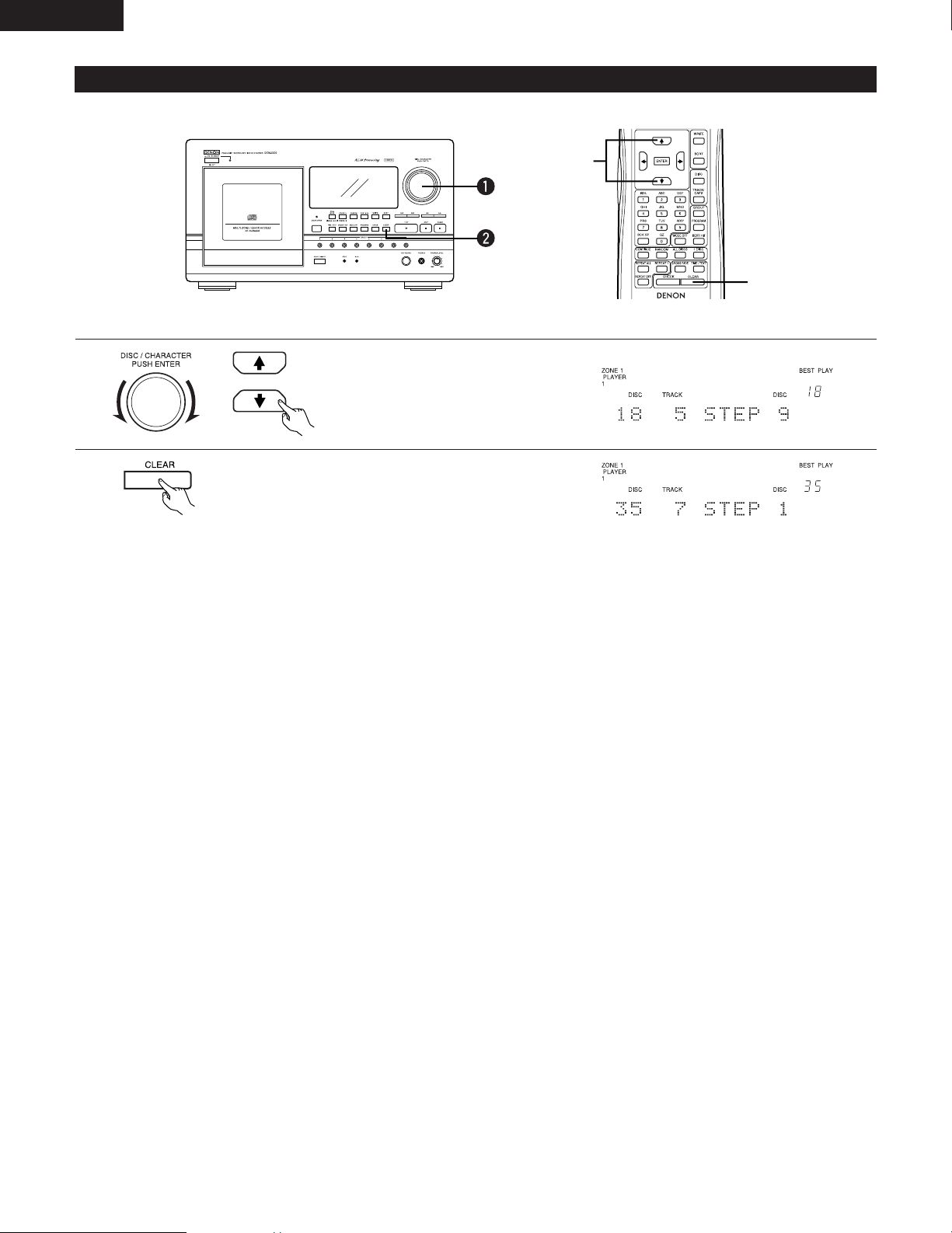
ENGLISH
32
Clearing CDs or Tracks from the Best Hit List
CDs or tracks in the best hit list can be cleared while stopped in the best hit play mode. (not possible in the Random mode)
2
q
w
1
Press the CLEAR button.
• The CD (or track) for the displayed step number is
cleared and the first step is displayed.
2
Clearing CDs (or tracks) in the middle of the best hit list
2
Adding to the end of the best hit list
Follow steps 2 to 7 under “Registering Best Hits” (page 30) to add CDs (or tracks) to the end of the best hit list.
Turn the jog dial (on the remote
control unit press the
↑
or
↓
button)
to move forward (or backward) and
display the step to be cleared.
* If CLEAR is pressed without performing the operation in step 1, the first
step is cleared.
2
Clearing all steps in the best hit list: Hold down clear until “ALL CLEAR” is dispayed.
(“NO ENTRY” appears on the display)
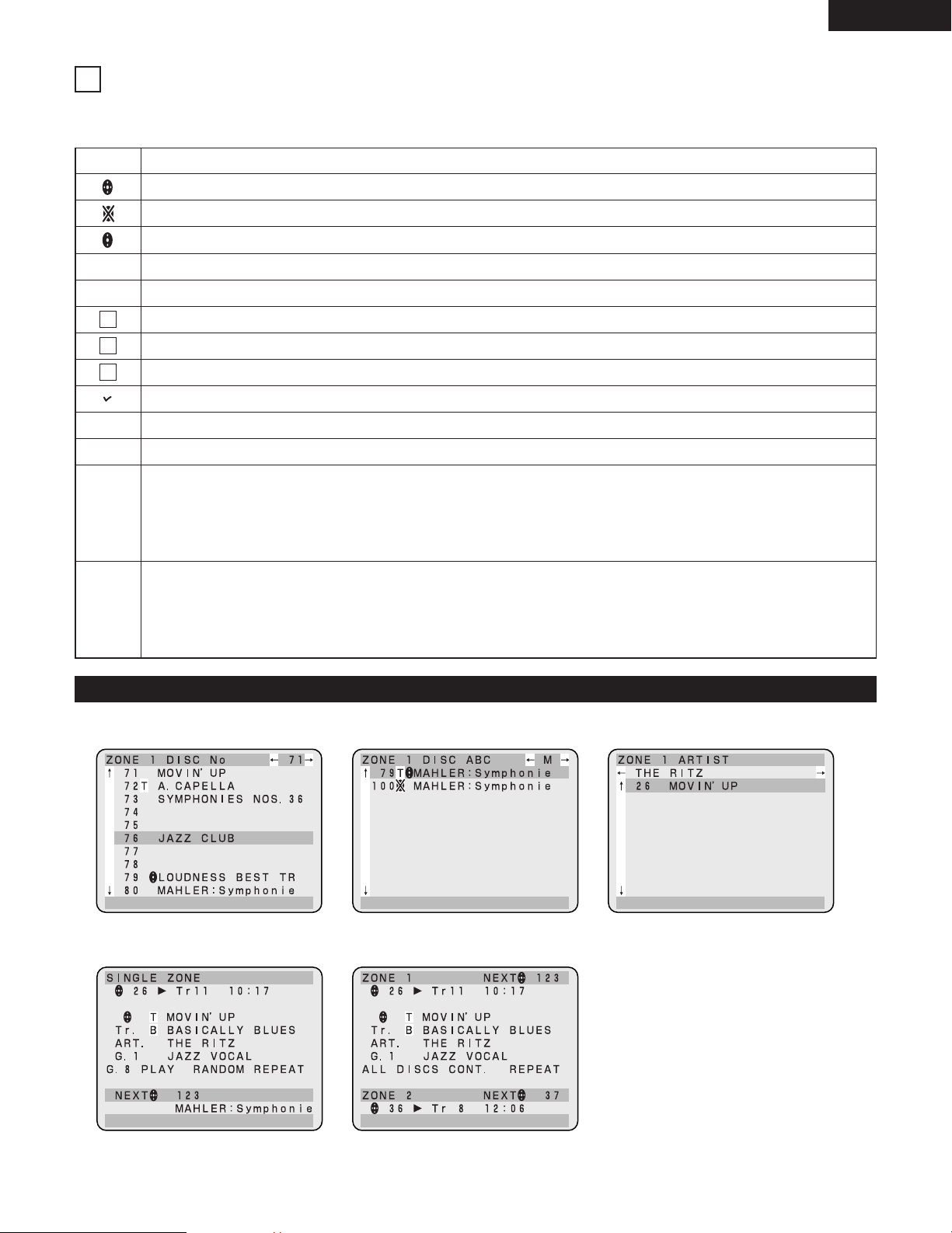
ENGLISH
33
Displayed when the track is registered in the delete file.
Displayed when the track is registered on the best hit list.
Symbol
Use this function to select CDs and register or edit programs and disc files while watching the monitor TV’s screen.
2
CD selection screens
2
On-screen display symbols
Description
Disc mark (Not displayed when there is no corresponding disc.)
Displayed when no discs are loaded in the disc rack.
Displayed when a disc is used in the sub zone.
Displayed when a disc is playing.
Displayed when a disc is paused.
Displayed for CD-Text discs.
Displayed when the disc is registered in a group and indicates groups selected for group playback.
When the
↑
button on the remote control unit is pressed, the cursor moves up.
When the
↓
button on the remote control unit is pressed, the cursor moves down.
When the
←
button on the remote control unit is pressed in the following cases:
While at the disc number sort screen: The 10 previous discs are displayed.
While at the disc title sort screen: The disc titles for the previous first letter (A
←
B
←
C) are displayed.
While at the artists’ name sort screen: The previous artists’ names in alphabetical order are displayed.
While at the character input screen: The character input position (cursor) moves to the left.
When the → button on the remote control unit is pressed in the following cases:
While at the disc number sort screen: The 10 following discs are displayed.
While at the disc title sort screen: The disc titles for the following first letter (A → B → C) are displayed.
While at the artists’ name sort screen: The following artists’ names in alphabetical order are displayed.
While at the character input screen: The character input position (cursor) moves to the right.
↑
↓
←
→
1
3
2
Screens in the play mode
In the single zone play mode In the multi-zone play mode
OSD (On-Screen Display)
13
T
B
D
Basic Operation Screens
Screen showing the discs sorted by disc number Screen showing the discs sorted by disc title Screen showing the discs sorted by artist’s name
* During playback in the 1 DISC
mode, use this screen to check the
disc title, etc., and select the disc.
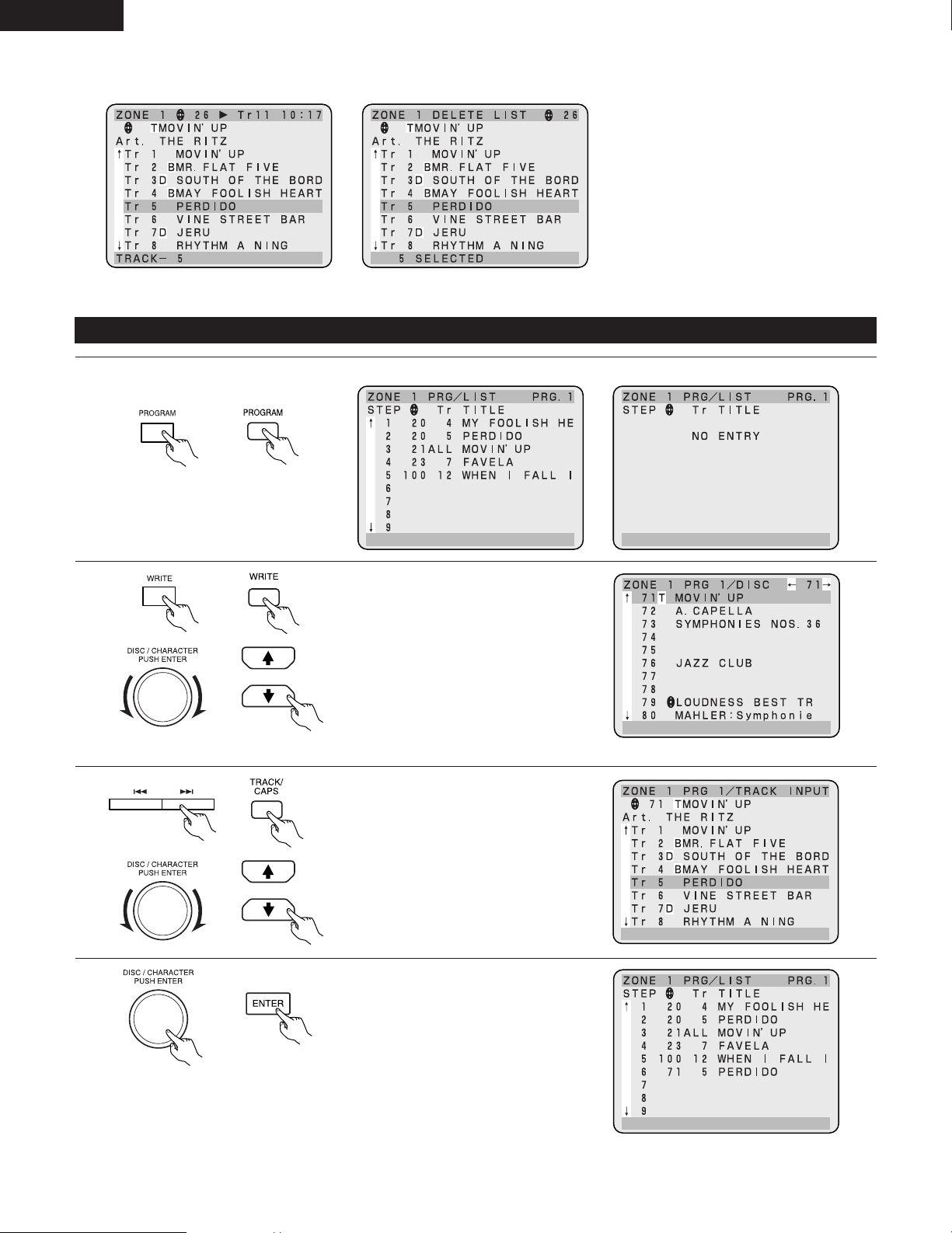
ENGLISH
34
2
Screens when tracks are being selected and the delete file is being set
When tracks are selected When the delete file is being set
When the program has been set When the program has not been set
1
2
When the WRITE button is pressed,
the screen switches to the disc
selection screen.
3
Press the 8 or 9 button (on the
remote control unit press the
TRACK/CAPS button) to switch to the
track selection screen.
Turn the jogdial (on the remote
control unit press the
↑
or
↓
button) to
move the cursor on the screen and
select the desired disc.
* To program all the tracks on the CD, proceed to step 4.
Turn the jogdial (on the remote
control unit press the
↑
or
↓
button) to
move the cursor on the screen and
select the desired track.
4
Press the ENTER button.
The selected CD (or track) is set and
the screen switches to the program
list screen.
*
On the remote control unit, press
the PROGRAM button, then press a
number button (1 to 4).
Program Operation Screens
Press the PROGRAM button.
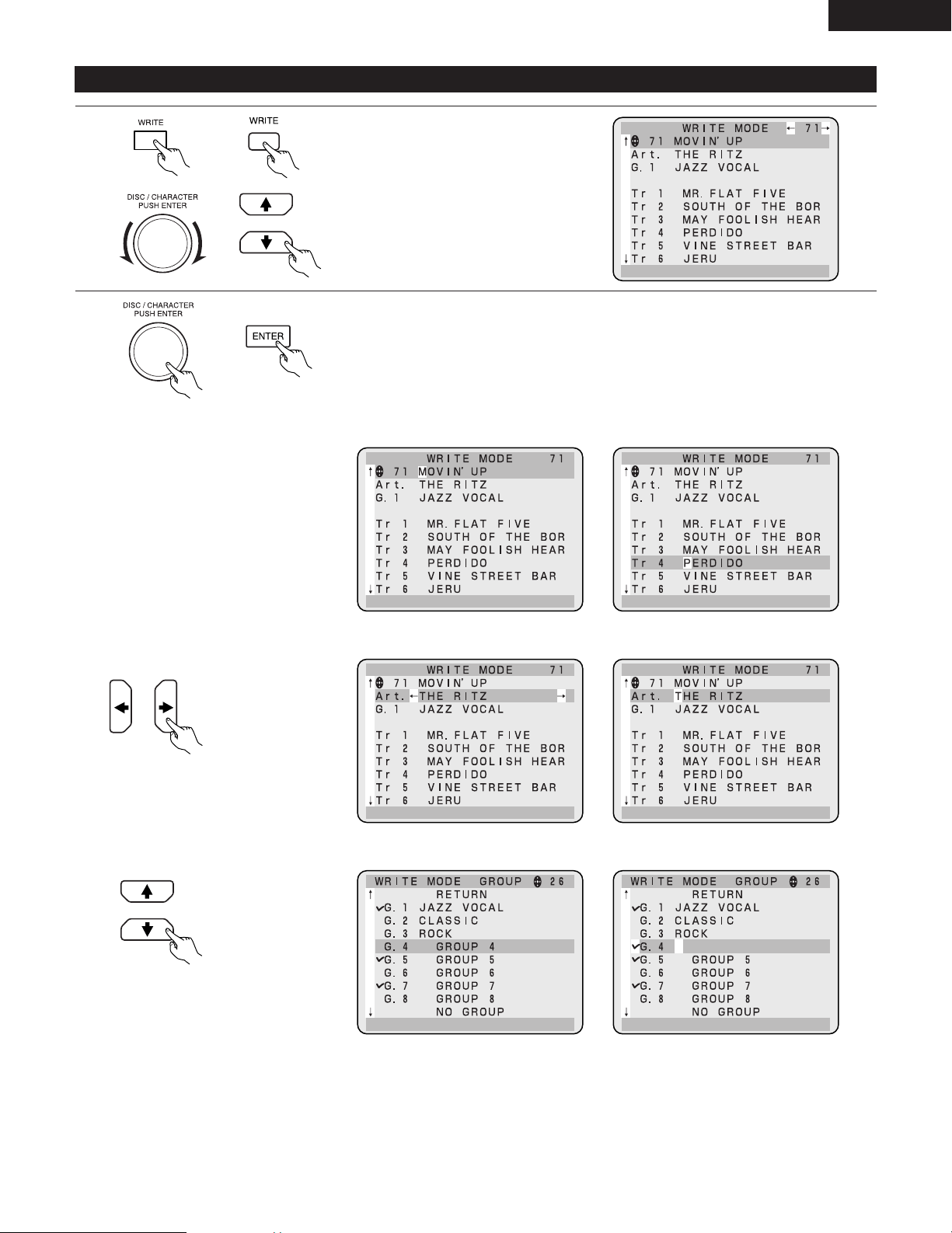
ENGLISH
35
1
Press the WRITE button.
The disc file input screen appears.
Turn the jogdial (on the remote
control unit press the
↑
or
↓
button) to
move the cursor and select the item
to be edited.
2
Press the ENTER button.
The screen switches to the input screen for the selected item.
* For instructions on inputting characters, refer to page 23.
Disc title input screen Track title input screen
2
When an artist is selected
Display for selecting registered artists’ names
Artist name input screen
Use the
←
and
→
buttons on the
remote control unit
to search for
registered artists’
names.
Press the ENTER button again to
display the artist name input screen.
2
When a disc or track title is
selected
2
When a group is selected
Display for selecting registered groups Group name input screen
Use the
↑
and
↓
buttons on the
remote control unit
to search for
registered groups.
Press the ENTER button again to
register the group and display the
group name input screen.
Disc File Operation Screen
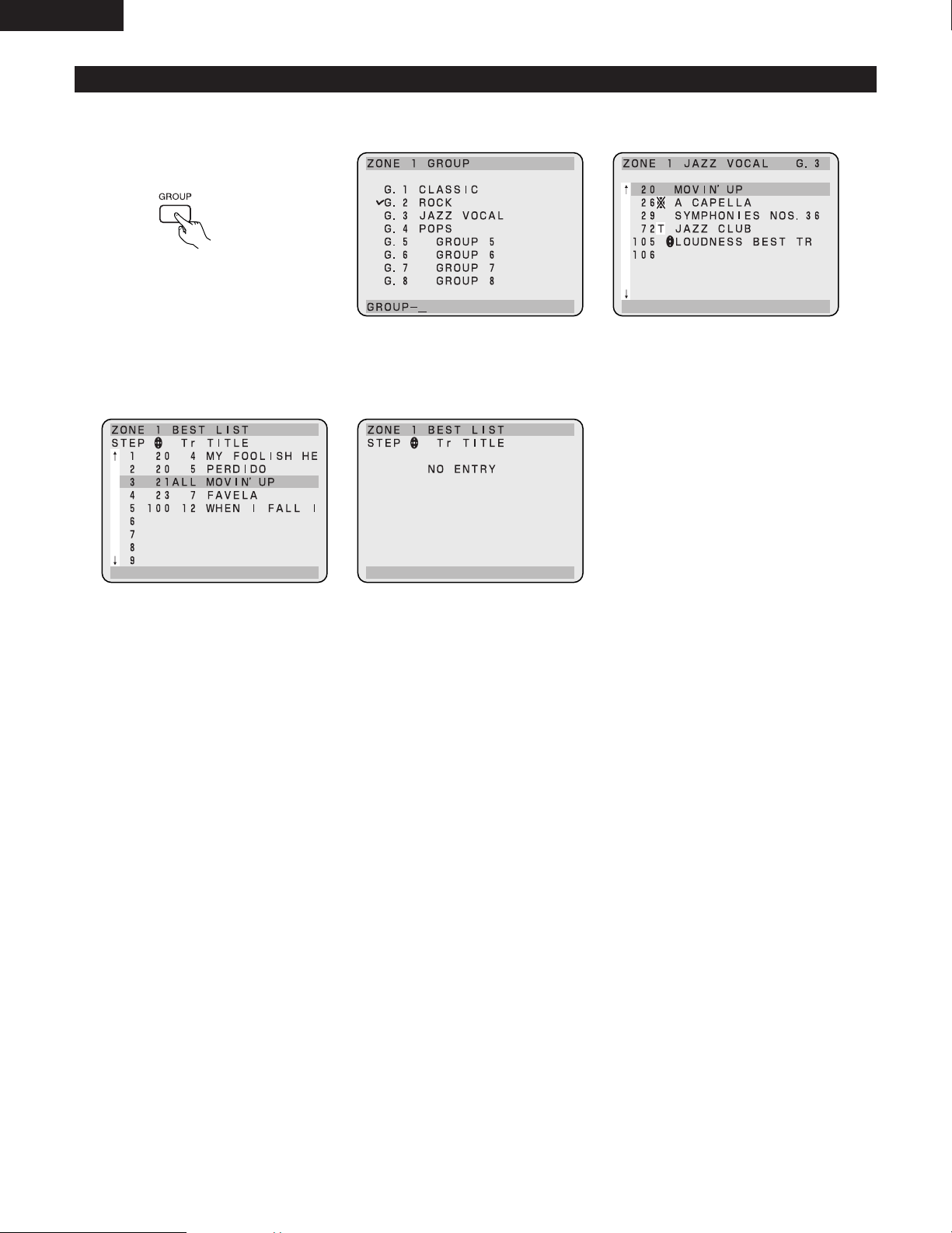
ENGLISH
36
2
Group selection screen
Group selection screen Q
Group selection screen W
Press the GROUP button on the remote
control unit to display group selection
screen Q.
When a number button is pressed and a
group is selected, group selection
screen W appears.
2
Best hit list checking screen
When CDs or tracks are registered
on the best hit list
When no CDs or tracks are registered
on the best hit list
Other Operation Screens
Specify the step using the jog dial or
the
↑
and
↓
buttons, then press ENTER
(PLAY) to play the desired track (or CD).
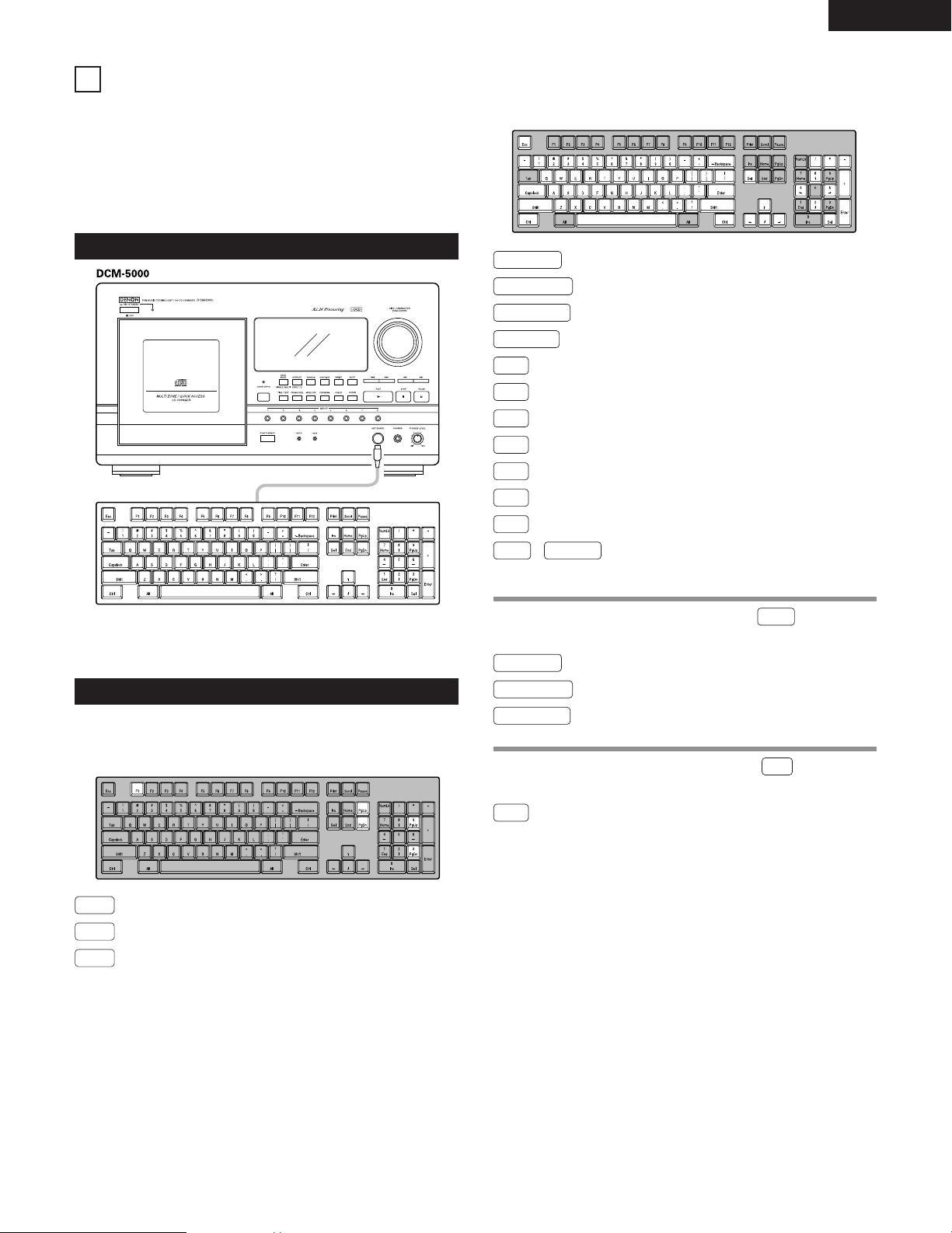
ENGLISH
+
37
An IBM PC compatible keyboard can be connected and disc files
can be created from the keyboard.
Connectable keyboard: IBM US101 keyboard
(connector: 6-pin mini DIN PS/2
type)
Applicable cord: SCAN CODE SET 02
NOTE: Turn off the power of the DCM-5000 before connecting
the keyboard.
The keys on the keyboard are assigned to remote control unit
and main unit operations.
• Operations before disc files are input
Sets the disc file input mode.
PgUp
Decrements the disc number by 10.
Increments the disc number by 10.
• Operations after disc files are input
Letter keys
Input small letters (when CapsLock is off).
Number keys
Input numbers.
Symbol keys
Input symbols.
Backspace
Deletes previous character.
Del
Del
Deletes character.
←
Selects the line and item on the OSD.
→
Selects the line and item on the OSD.
↑
Selects the line and item on the OSD.
↓
Selects the line and item on the OSD.
Enter
Sets data, and selects the item.
Esc
Cancels the disc file input mode.
Capslock
Switches between small letters, and capital
letters.
When keys are pressed while holding in the key, the keys
functions as follows:
Shift
Letter keys
Input Capital letters (when CapsLock is off)
Number keys
Input symbols.
Symbol keys
Input (upper) symbols.
When keys are pressed while holding in the key, the keys
functions as follows:
Clears disc and track titles.
CONNECTING AND OPERATING A KEYBOARD
14
Connecting the Keyboard
Keyboard Operations
Keyboard
F1
PgDn
Ctrl
Shift
NOTES:
• Input numbers via keyboard:
use top row keys 1, 2, 3 …… 9, 0
• Num Lock keypad only provides cursor functions.
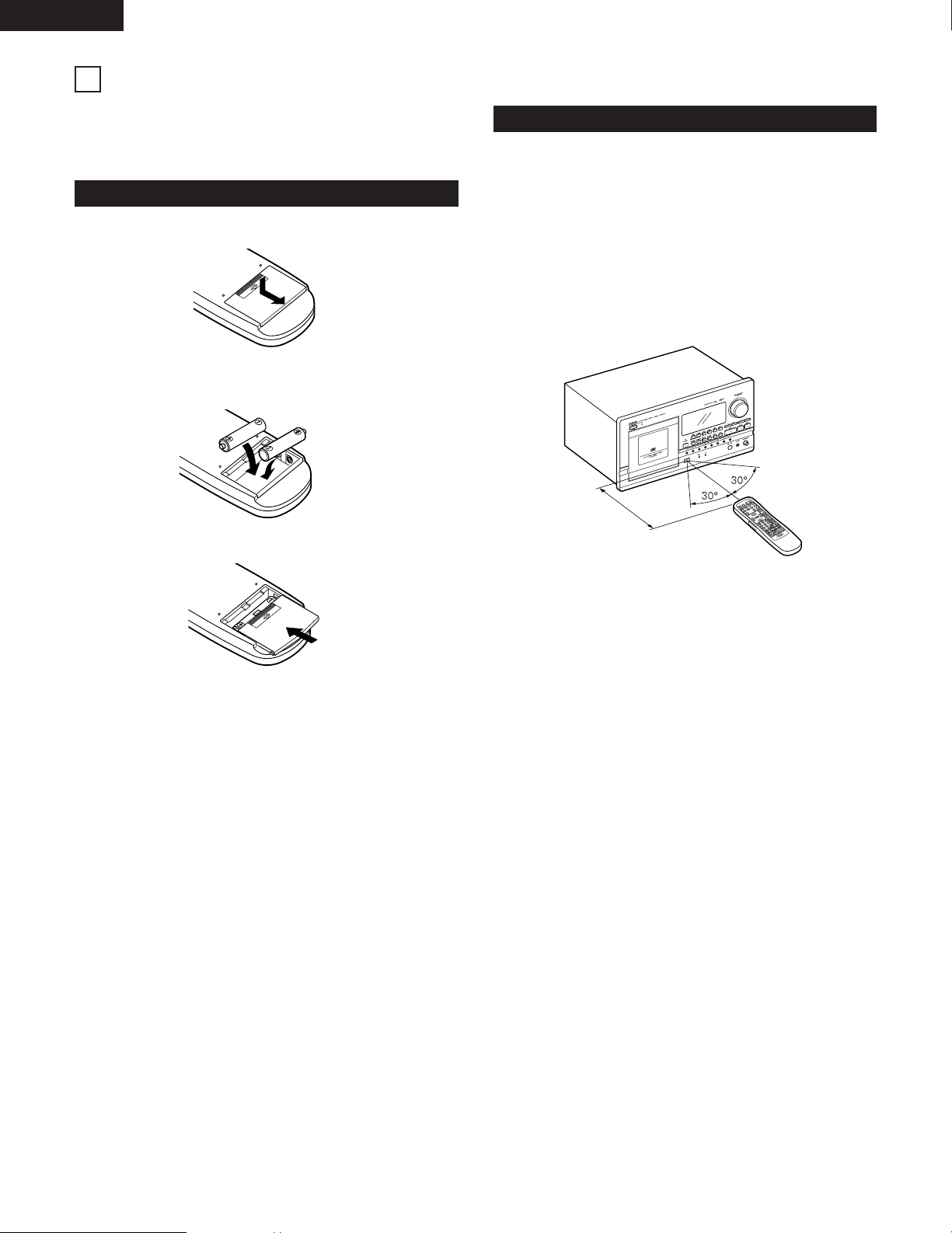
ENGLISH
38
The accessory RC-272 remote control unit can be used to control
the CD player from a convenient distance.
Load batteries in the remote control unit before using it.
1. Remove the battery cover on the back of remote control unit.
2. Insert two R6P (standard size AA) dry cell batteries with
correct polarity as indicated inside the battery compartment.
3. Replace the battery cover.
Notes on the Batteries
• The remote control unit uses standard size AA dry cell
batteries.
• The batteries will need to be replaced approximately once a
year. Replacement may be necessary earlier depending on
how much the remote control unit is used.
• If, in less than a year from the time new batteries were
inserted, the remote control fail to operate the CD player from
a near-by position, it is time to replace the batteries.
• Insert the batteries properly, following the polarity diagram
inside the battery compartment, in other words make sure (+)
and (–) terminals are properly aligned.
• Batteries are prone to damage and leakage.
Therefore:
• Do not combine new batteries with used ones.
• Do not combine different types of batteries.
• Do not jumper opposite poles of the batteries, expose them
to heat, break them open nor expose of them in open fire.
• If the remote control unit is not to be used for a long period of
time, remove the batteries from the unit.
• If the batteries have leaked, remove any traces of battery fluid
from the battery compartment, wiping thoroughly with a dry
cloth. Then insert new batteries.
• Operate the remote control unit while pointing it towards the
remote control sensor on the CD player (see below).
• The remote control unit can be used at a distance up to 8
meters in a straight line from the CD player. This distance
decreases if there are obstructions blocking the signal path or
when the remote control unit is operated at an angle from the
remote control sensor.
• The buttons on the remote control unit have identical functions
with those on the CD player.
However, the following functions cannot be remote controlled:
Power ON/OFF.
Notes on Operation
• Do not press identical buttons on the CD player and remote
control unit simultaneously as this may cause malfunction.
• The remote control unit may be difficult to operate if the
remote control sensor is exposed to strong light, such as
direct sunlight or light from fluorescent lamp, or if these are
obstacles between the remote control unit and the sensor.
REMOTE CONTROL UNIT
15
Inserting the dry cell batteries
Directions for Use
Approx. 8 m
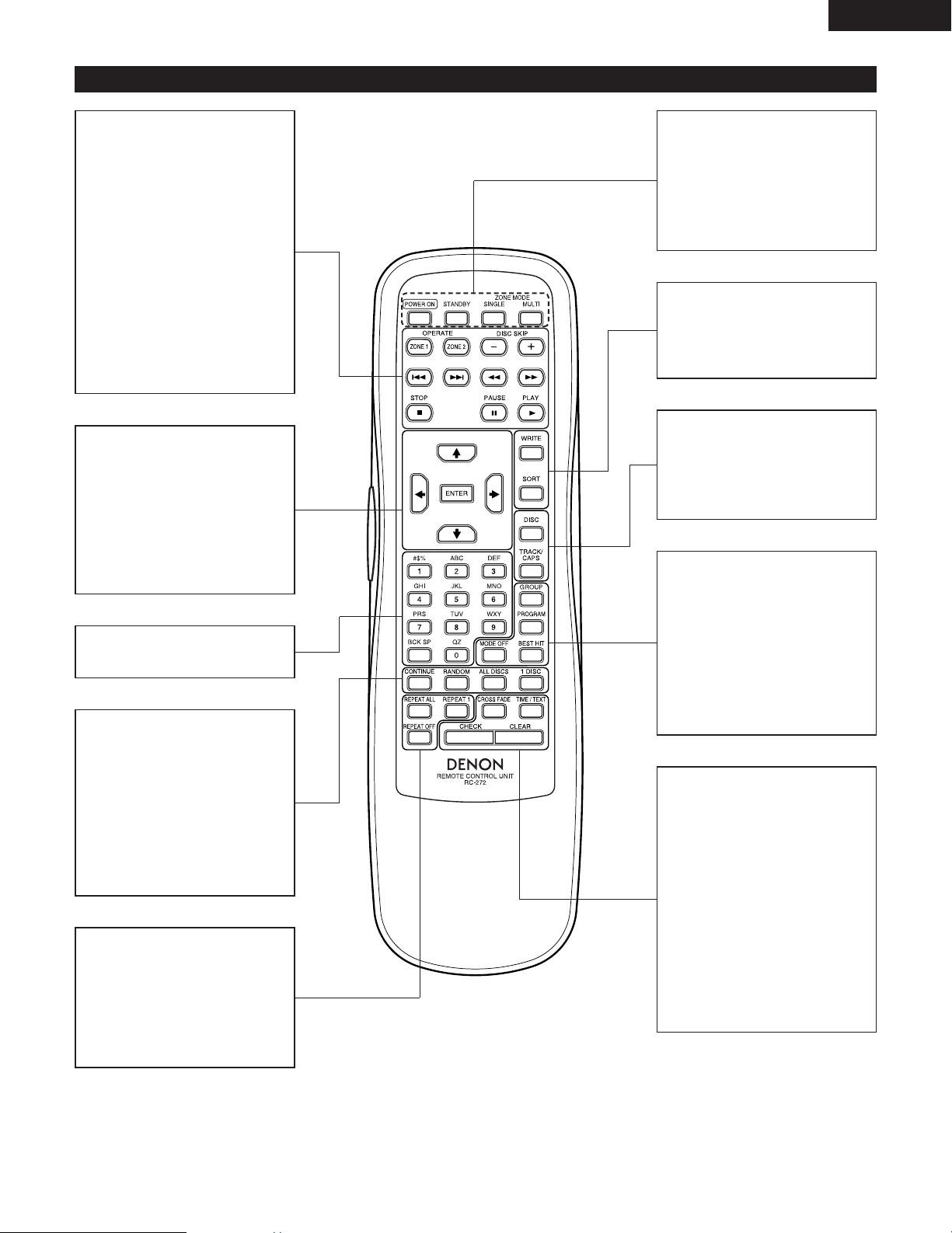
ENGLISH
39
CONTINUE button
Press this button to select the
continuous play mode.
RANDOM button
Press this button to select the random
play mode.
ALL DISCS button
Press this button to select the all disc
play mode.
1 DISC button
Press this button to select the one
disc play mode.
REPEAT ALL button
Press this button to select the all-
repeat play mode.
REPEAT 1 button
Press this button to select the one
track repeat play mode.
REPEAT OFF button
Press this button to cancel the repeat
mode.
POWER ON button
Press this when the main unit is in the
standby mode to turn the power on.
STANDBY button
Press this when the main unit is in the
power on mode to turn the power to
the standby mode.
ZONE MODE SINGLE/MULTI button
Use this to select the zone mode.
WRITE button
Use this when registering programs,
disc files and best hits.
SORT button
Use this to select the way in which
the CDs are sorted.
DISC button
Use this to select CDs directly with
the number buttons.
TRACK/CAPS button
Use this to select tracks directly with
the number buttons and to select the
characters type to be input.
GROUP button
Press this button to select the group.
PROGRAM button
Press this button to register and play
programs.
BEST HIT button
Press this button to register and play
best hits.
MODE OFF button
Press this button to cancel the group
play, program play and best hit play
modes.
CROSS FADE button
Press this button in the single zone
play mode to turn the cross fade
function on and off.
TIME/TEXT button
Switches the character display.
TIME: The CD number, track number
and playing time are displayed.
TEXT: The text title, track title and
artist’s name are displayed.
CHECK button
Press this button to check the
contents of the programs and delete
file.
CLEAR button
Use this button to clear programs,
disc file titles and the best hit list, and
when creating delete files.
Remote Control Unit RC-272
OPERATE ZONE 1/ZONE 2 buttons
Use these to select the play zone in
the multi-zone mode.
DISC SKIP +/– buttons
Use these to skip the currently playing
disc.
8/9 buttons
Use
8 to return to previous tracks,
9 to move ahead to subsequent
tracks.
2 button
Stops playback.
3 button
Pauses playback.
1 button
Starts playback.
6 Manual search reverse
7 Manual search forward
↑
/
↓
buttons
Use these to select items, etc., when
checking programs, creating delete
files and writing disc files.
←
/
→
buttons
Use these to move the cursor in the
writing mode, etc.
ENTER button
Press this button to set the character
input mode, check the input
characters, start playback, etc.
Number buttons
Use these to select CDs and tracks, to
input characters, etc.
ENGLISH
40
Page
No buttons other than the OPEN
button function.
1. Cautions in Handling Compact discs
• Do not get fingerprints, oil, dirt or other substances on the
compact disc. If the disc becomes dirty, wipe it off with a
dry, soft cloth.
• Do not clean compact discs with benzene, paint thinner,
water, record spray, anti-static agent, silicon cloth or similar
substances.
• Take particular care to prevent scratches to the back side of
the compact disc when removing it from the case and
when inserting it in its case.
• Do not bend compact discs.
• Do not apply to compact discs.
• Do not attempt to enlarge the center hole of the disc.
• Do not write on the label (printed) side of the disc with a
ball point pen or pencil.
• Bringing a CD into a warm room from a cold place could
cause moisture to condense on the disc surface. Do not
attempt to dry the disc with a hair dryer, etc.
2. Storage of Compact Discs
• To prevent dust, scratches, deformation, etc., be sure to
store compact discs in their case.
• Do not store compact discs in the following locations.
1. Places where direct sunlight strikes for long periods of
time.
2. Places with a high humidity or a lot of dust.
3. Places reached by heat from a heater or similar
appliance.
If a problem should arise, first check the following.
1. Are all connections correct ?
2. Have you operated the player according to the Operating Instructions ?
If this unit is not operating properly, check the items listed in the table below. Should the problem persist, there may be a malfunction.
Disconnect the power immediately and contact your store of purchase.
Symptom Cause Measures
Display not lit when power
switch set to on.
• Power cord not plugged in securely. • Check the insertion of the power cord plug.
• Turn the power on with the remote control unit
after turning the POWER switch on.
7
11
When the play button is pressed,
playback does not start.
• There are no discs in the disc rack.
• Is the disc dirty or scratched ?
• Are you attempting to play the disc playing in
the other zone or the next disc ?
• Are you operating the other zone ?
• Insert a CD.
• Wipe the dirt off the disc or replace the disc.
• Select a disc other than the disc playing in the
other zone or the next disc.
• Press the OPERATE button to specify the zone
to be operated.
9
40
11
11
There is no sound, or it is
distorted.
• Is the output cord properly connected to the
amplifier ?
• Have the amplifier controls been set correctly ?
• Check the connections.
• Adjust the amplifier’s controls.
7
–
A specific position of the disc
will not play.
• There are no discs in the disc rack.
• Is the disc dirty or scratched ?
• Insert a CD.
• Wipe the dirt off the disc or replace the disc.
9
40
Programmed playback does not
work.
• Have programming been properly done ? • Reset the program. 17
No data is output from the digital
output lack.
• Is the pin cord properly connected ? • Check the connections.
NOTE: When the single zone mode is selected,
no digital data is output from the zone 2
side.
7
• The dip switches on the rear panel are set to
the external PC control mode.
• Turn the power switch off, set the dip switches
properly, then turn the power switch back on.
8
This unit dose not operate
properly when remote control
unit is used.
• Batteries dead.
• Remote control unit too far from this unit.
• Obstacle between this unit and remote control
unit.
• Different button is begging pressed.
• < and > ends of battery inserted in reverse.
• Replace with new batteries.
• Move closer.
• Remove obstacle.
• Press the proper button.
• Insert batteries properly.
38
38
38
–
38
COMPACT DISCS
16
TROUBLESHOOTING
17
ENGLISH
41
ANALOG
ZONE 1/ZONE 2
No. of Channels: 2 Channels
Frequency Response: 2 ~ 20,000 Hz
Wow & Flutter: Below measurable limit:
(
±
0.001 % W.peak)
Output Level: 2.0 V
ZONE 1
Dynamic Range: 100 dB
Signal-to-noise Ratio: 110 dB
Harmonic Distortion: 0.005 % (1 kHz)
ZONE 2
Dynamic Range: 96 dB
Signal-to-noise Ratio: 100 dB
Harmonic Distortion: 0.008 % (1 kHz)
DIGITAL
Output: COAXIAL (0.5 V
P-P
75 Ω/ohms)
(ZONE 1/ZONE 2)
DISCS Compact Disc format
GENERAL CHARACTERISTICS
Power Supply: AC 120 V, 60 Hz
(for North America model)
AC 230 V, 50 Hz (for Europe model)
Power Consumption: 42 W
Dimensions: 434 (W) x 243 (H) x 474.5 (D) mm
(17-3/32”) x (9-9/16”) x (18-43/64”)
Weight: 16.2 kg (35 lbs 11 oz)
REMOTE CONTROL
UNIT RC-272
Remote Control
System: Infrared pulse system
Power Supply: 3 V DC; two R6P
(standard size AA) dry cell batteries
External Dimensions: 68 (W) x 233 (H) x 20 (D) mm
(2-43/64”) x (9-11/16”) x (25/32”)
Weight: Approx. 160 g (5.6 oz)
ERROR MESSAGE
18
SPECIFICATIONS
19
Error messages may appear on the panel’s display window if a disc cannot be played or if the set stops operating. If this
happens, follow the instructions on the table below.
“Error 0*2* 000” to
“Error 0*34 000” appears on the
display.
(“*” is a number code or alphabet A to F)
The disc is loaded upside-down in the disc rack or the disc is dirty or scratched.
Check the disc again.
If the problem persists, please inform your store of purchase of the displayed error
code.
“Error 4827 ***” or
“Error 4828 ***” appears on the
display.
(“***” is a number code)
A code from “Error 4825 ***” to
“Error 4842 ***” appears on the
display. (except for the 4827 and 4828)
(“***” is a number code)
The disc rack may not be fully inserted in the set.
Open the door and press the disc rack in again until it locks (until a click is heard).
After closing the door, turn the power off, then turn the power back on to start up the
set.
If the problem persists, please inform your store of purchase of the displayed error
code.
Please inform your store of purchase of the displayed error code.
HDCD
®
and High Definition Compatible Digital
®
are registered trademarks of Pacific Microsonics, Inc.
* Design and specifications are subject to change without notice in the course of product improvement.
If the error code except for the table above appears, please inform your sotre of purchase of the displayed error code.
Printed in Japan 511 3368 003 901
14-14, AKASAKA 4-CHOME, MINATO-KU, TOKYO 107-8011, JAPAN
Telephone: (03) 3584-8111
Cable: NIPPON COLUMBIA TOKYO Telex: JAPANOLA J22591