FI019-EN-WW-01
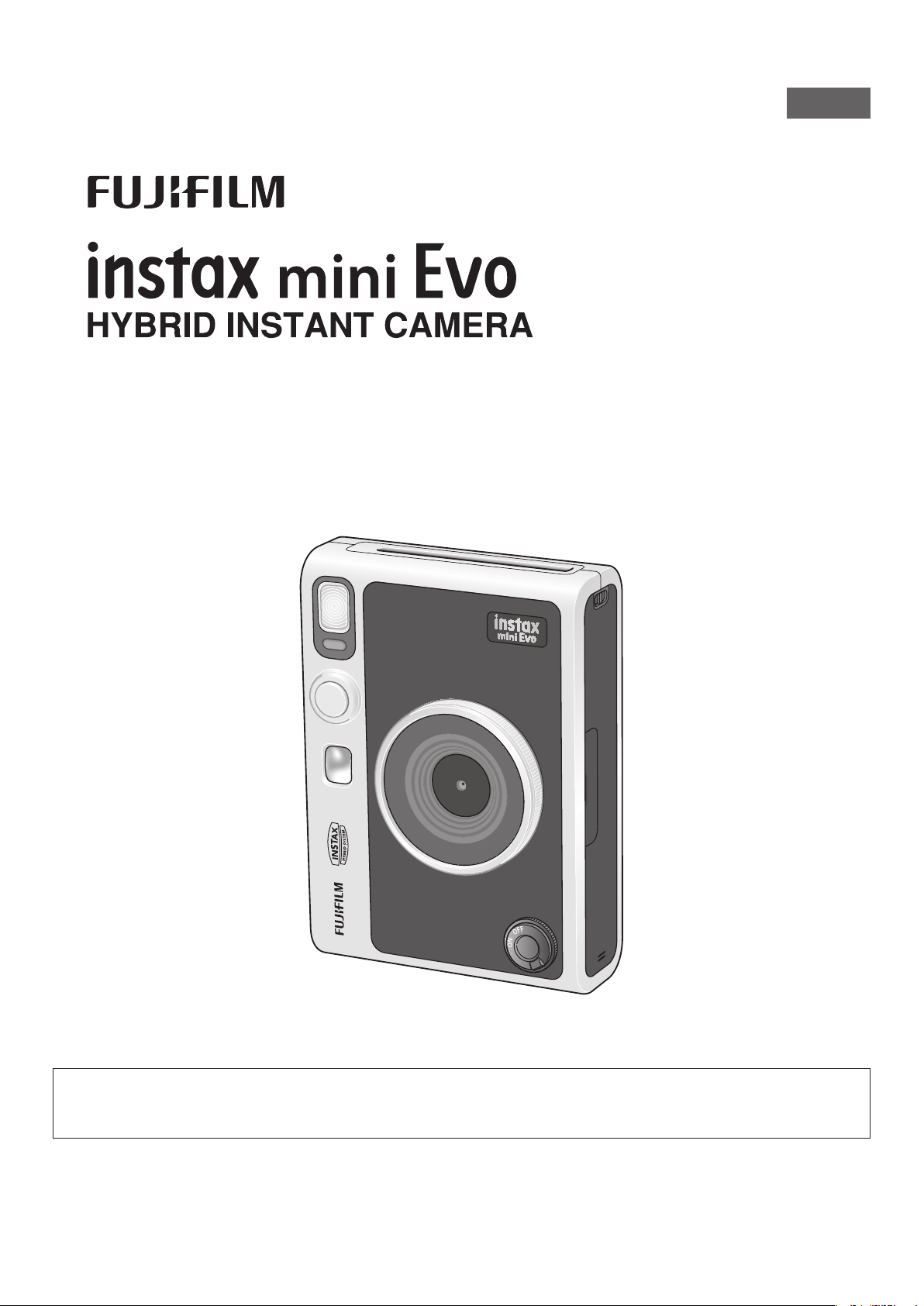
User’s Guide (Full version)
model number: FI019
WW_EN
[INSTANT PRINT
+
DIGITAL TECHNOLOGIES]
•This User's Guide (Full version) corresponds to firmware version Ver.1.01. Depending on the firmware version, the functions and screens
may differ from those described.
•There are two methods to upgrade the firmware. For details, refer to [FIRMWARE UPGRADE].(p. 22)
I
N
S
T
A
X
L
E
N
S
2
8
m
m
F
2
.
0
F
O
C
U
S
R
A
N
G
E
0
.
1
m
~
∞

2
Table of Contents
Before Use ����������������������������������������������������������������������������������� 3
Notes on Disposing of the Camera ����������������������������������������3
About This Camera �������������������������������������������������������������������� 3
Main Features ������������������������������������������������������������������������������������3
Functions Available with the Smartphone Application ������������3
Part Names ����������������������������������������������������������������������������������4
LCD Screen display �������������������������������������������������������������������� 6
Using the Select buttons ����������������������������������������������������������7
Attaching the Shoulder Strap �������������������������������������������������7
Charging the Battery ����������������������������������������������������������������8
Charging Status Indication �������������������������������������������������������������8
Power On/Off ������������������������������������������������������������������������������8
How to Check the Battery Level �����������������������������������������������������9
Configure the initial settings ��������������������������������������������������� 9
Loading/Unloading the instax mini Instant Film Pack �����11
Loading the Film Pack ������������������������������������������������������������������� 11
Unloading a Used Film Pack �������������������������������������������������������� 12
Basic Shooting and Playback ������������������������������������������������12
Taking Photos ��������������������������������������������������������������������������������� 12
Playing Back the Images You Have Taken ��������������������������������� 13
Changing the Display on the Playback Screen ������������������������ 13
Print ��������������������������������������������������������������������������������������������14
About the Remaining Film Sheets Display ������������������������������� 15
Adding Effects to Your Photos ����������������������������������������������15
Selecting Lens Effects ������������������������������������������������������������������� 15
Selecting a Film Effect ������������������������������������������������������������������� 16
Specifying an Effect Combination ����������������������������������������16
Registering an Effect Combination �������������������������������������������� 16
Calling up Favorite Effects������������������������������������������������������������ 16
Various Shots ���������������������������������������������������������������������������� 17
Changing the Brightness of the Image �������������������������������������� 17
Using the Self-Timer to Take Photos������������������������������������������� 17
Taking Photos with the Flash������������������������������������������������������� 18
Taking Macro Photos ��������������������������������������������������������������������� 18
Matching the Light Source when Taking Photos ��������������������� 19
Taking a Photo of Yourself (Selfie) ���������������������������������������������� 19
Using AF/AE Lock to Take Photos ����������������������������������������������� 20
Printing from Print History ����������������������������������������������������20
Using the Memory Card ���������������������������������������������������������21
Inserting a Memory Card �������������������������������������������������������������� 21
Using the Shooting Menu ������������������������������������������������������22
Using the PLAYBACK MENU ���������������������������������������������������23
Smartphone App Linked Functions �������������������������������������24
Direct print function ��������������������������������������������������������������������� 24
Remote shooting function ����������������������������������������������������������� 24
Print image storage function ������������������������������������������������������� 24
Specifications ���������������������������������������������������������������������������24
Troubleshooting ����������������������������������������������������������������������25
IMPORTANT SAFETY NOTICE �������������������������������������������������26
Simple Camera Care ���������������������������������������������������������������������� 27
Bluetooth® Devices: Cautions ������������������������������������������������������ 28
3
WW_EN
Before Use
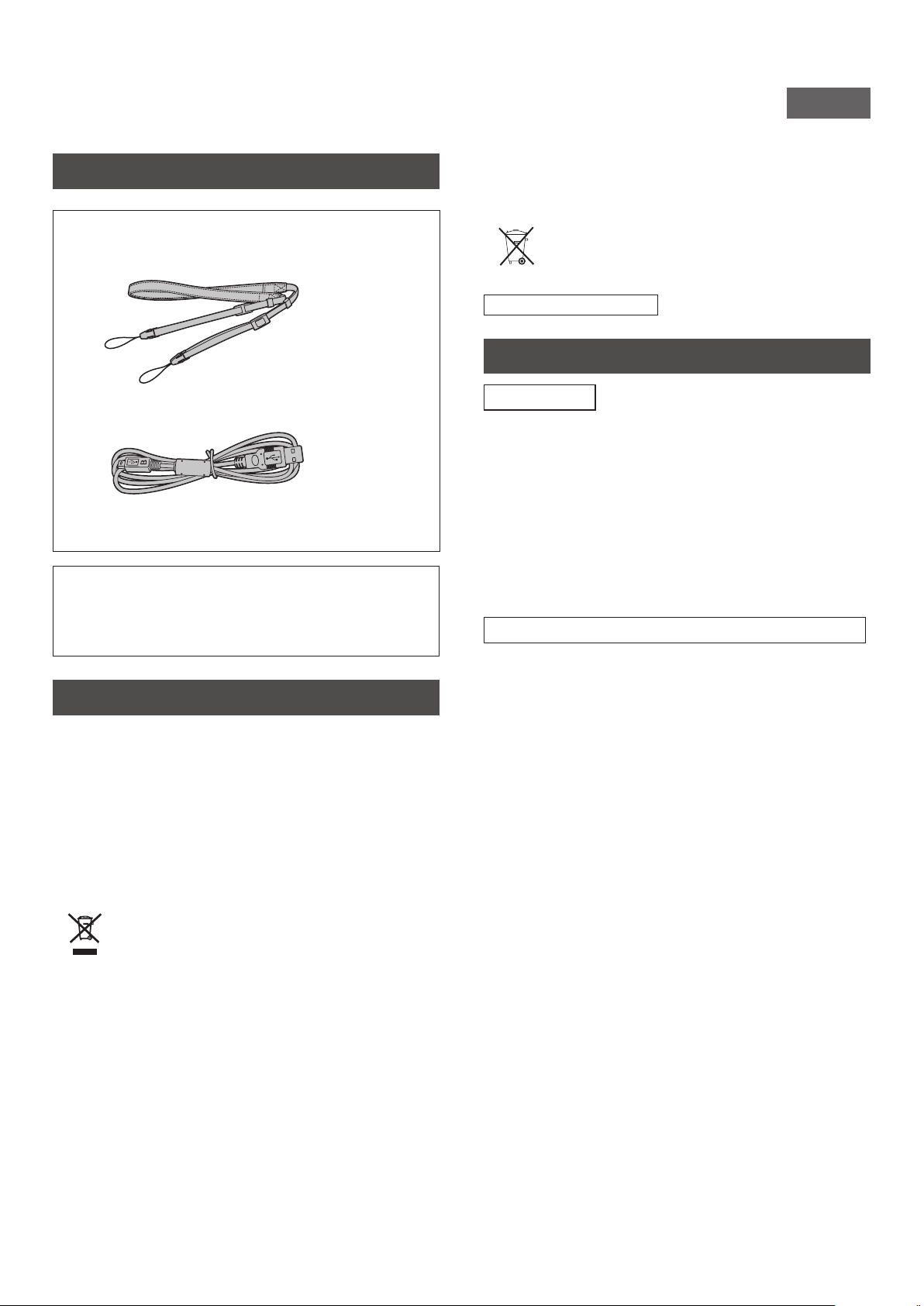
Before using the camera, check you have the following.
•User’s Guide (1)
•Shoulder strap (1)
•USB cable for charging (1)
Supplied Accessories
•Use the strap over your shoulder, not around your neck.
•Make sure the shoulder strap does not hang over the film
ejection slot.
•The battery has not been fully charged at the factory, be sure
to charge the battery before using the camera.
Notes on Disposing of the Camera
A built-in lithium ion battery is used in this camera.
When you dispose of the camera, follow your local regulations and
dispose of it properly.
Please refer to the supplied CONTACT INFORMATION sheet for
disposal advice.
If your country or region is not included in the sheet, please
contact your local distributor.
CAUTION
Do not remove the built-in battery by yourself; this may cause you
injury.
Disposal of Electrical and Electronic Equipment in
Private Households
Disposal of used Electrical & Electronic Equipment
(Applicable in the European Union and other European
countries with separate collection systems)
This symbol on the product, or in the manual and in the warranty,
and/or on its packaging indicates that this product should not be
treated as household waste. Instead it should be taken to an
appropriate collection point for the recycling of electrical and
electronic equipment.
By ensuring this product is disposed of correctly, you will help
prevent potential negative consequences to the environment and
human health, which could otherwise be caused by inappropriate
waste handling of this product.
The recycling of materials will help to conserve natural resources.
For more detailed information about recycling of this product,
please contact your local city office, your household waste
disposal service or the shop where you purchased the product.
In Countries outside of EU: If you wish to discard this product,
please contact your local authorities and ask for the correct
method of disposal.
This Symbol on the batteries or accumulators indicates
that those batteries should not be treated as
household waste.
For customers in Turkey:
EEE Complies with Directive.
About This Camera
Main Features
● The highest image quality in the history of instax� (*As of
December 2021)
● 100 different image expressions with 10 lens effects and 10
film effects�
● You can take photos while looking at the LCD Screen and save
them to either the main unit or the micro SD card�
● You can choose which photos to print�
● Luxury classic design�
● Analog-like operation with lens dial, film dial, and print lever�
● Features a selfie mirror for easy selfies�
Functions Available with the Smartphone Application
● Direct Print
Transfer a photo from your smartphone to the camera, and print
it with the instax Direct Print feature. Before printing the photo,
you can use the smartphone app to move, rotate, zoom in, zoom
out, or crop the photo.
● Remote Shooting
Control the camera with your smartphone for remote shooting
of photos.
● Print Photo Save
You can save printed photos taken with the camera to the
smartphone app. You can add instax frames to your photos and
save them on your smartphone.
4
Part Names
Front
1
2
3
4
5
6
7
8
13
12
11
10
9
Rear
15
14
16
17
18
19 20 21
4
22
23
24
13
25
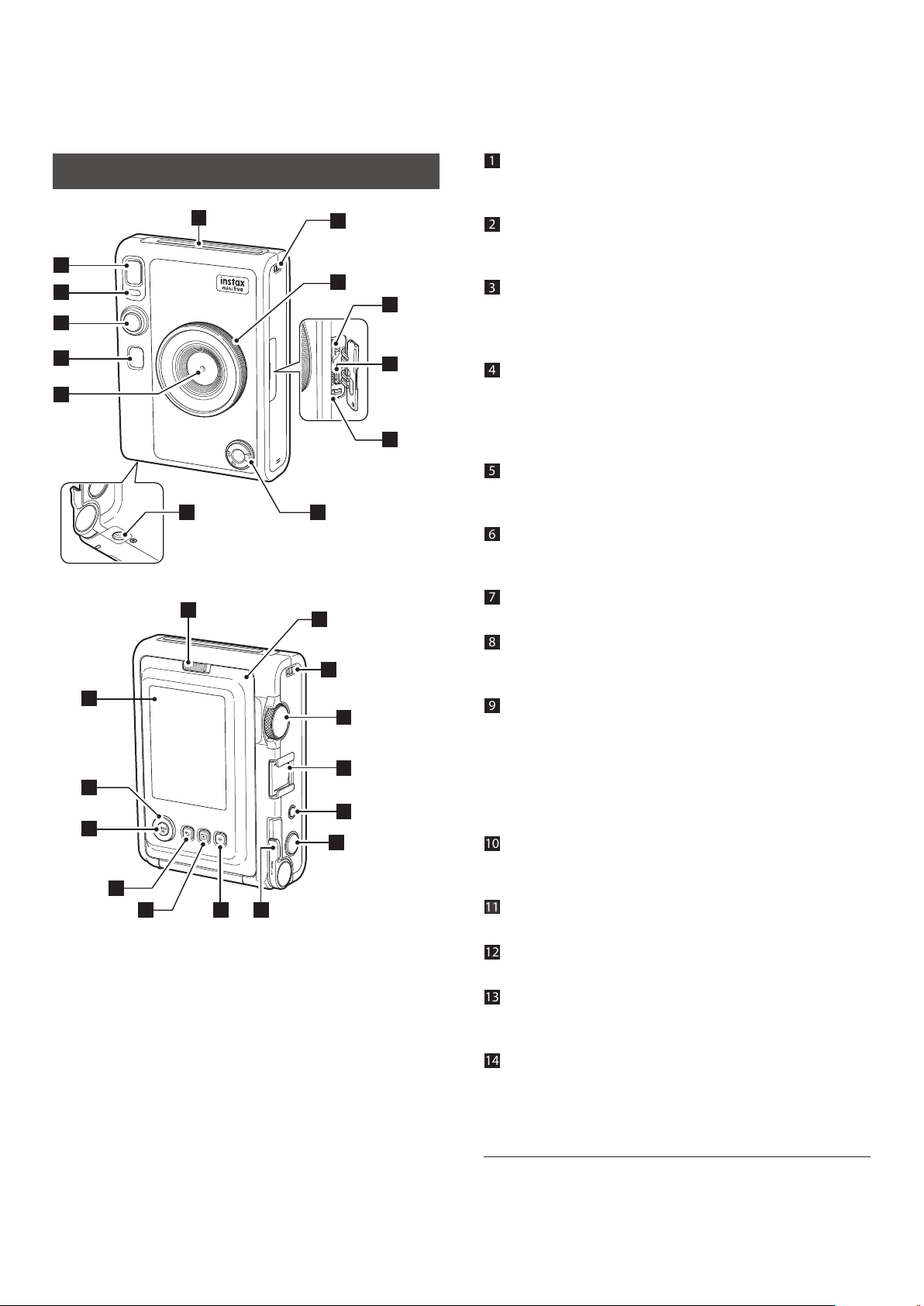
1 Film ejection slot
The exposed film is ejected from the film ejection slot during
printing.
2 Flash
The flash operates depending on the setting. You can also set
the flash to not operate.
3 Self timer lamp/Charging lamp
The self timer lamp/charging lamp blinks when you take a
photo with the self-timer. It also lights up during charging and
turns off when charging is complete.
4 Shutter button
Press the shutter button halfway to focus on the subject.
Keeping the shutter button pressed halfway, press it fully to
operate the camera shutter and take a photo. Press the shutter
button in playback mode to switch to shooting mode.
5 Selfie mirror
You can see yourself in the selfie mirror to check the
composition of the photo, and ensure you are in the shot.
6 Lens
This is the lens used to take photos. Make sure that your fingers
or other body parts do not obstruct the lens during shooting.
7 Tripod hole
You can attach a tripod by using this hole.
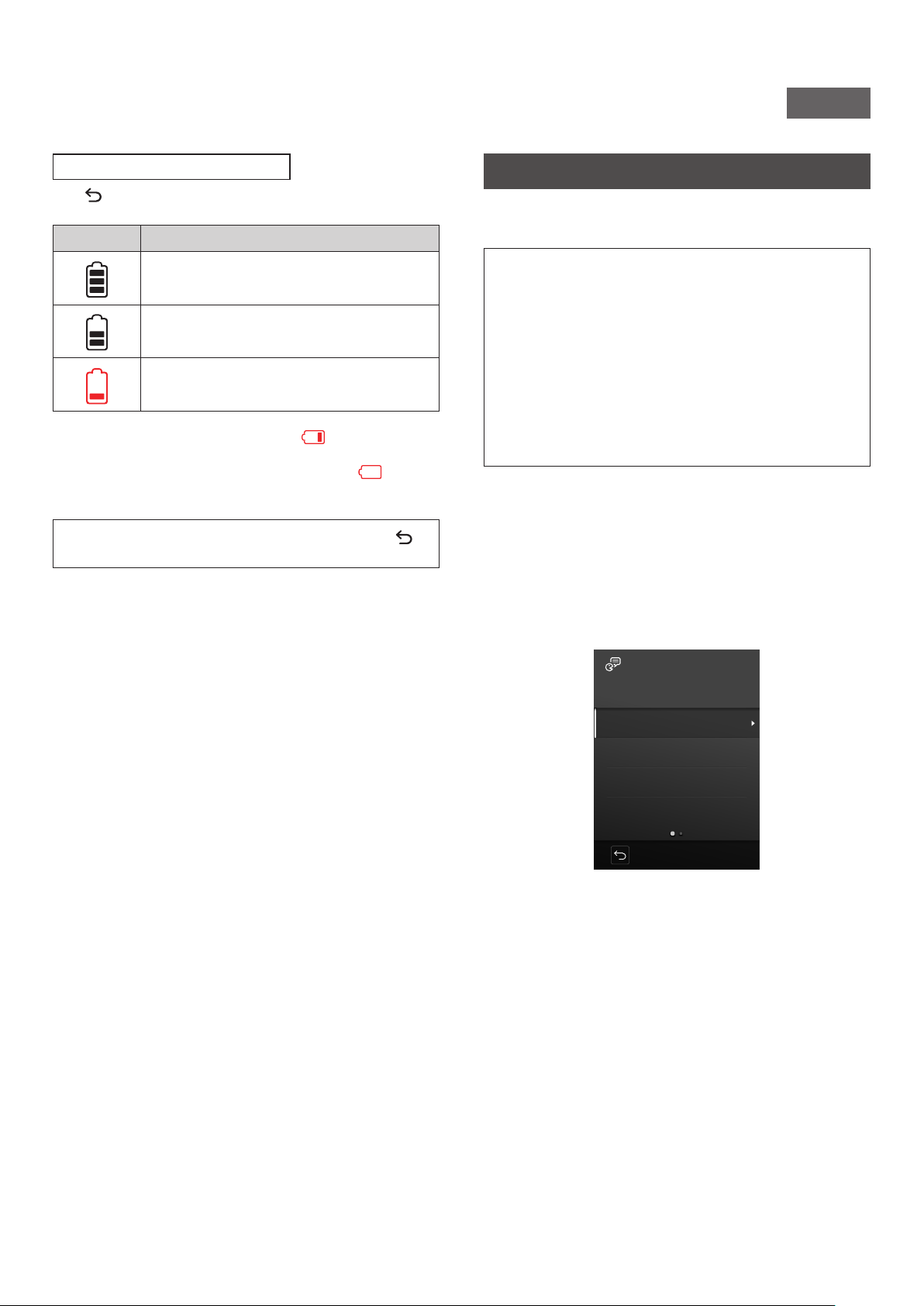
8 Power switch
Turn the power switch clockwise to turn on the power. Turn it
counter-clockwise to turn off the power.
9 Reset button *1
If the camera is not operating properly, press this button to
force the camera to turn off. After pressing the reset button,
turn the power switch off and then on again to start the
camera. Do not use the reset button while the camera is
operating normally. Doing so may cause the photo data to be
erased.
10 USB port (micro USB Micro-B)
This is the USB port for charging the camera. The USB port
cannot be used for data transfer.
11 Micro SD card slot
This is the slot for a micro SD card.
12 Lens dial *2
Turn the lens dial to switch between 10 different lens effects.
13 Strap hook
Pass the cord on the strap through the strap hook to attach the
strap to the camera.
14 Film door lock
Slide the film door lock to unlock the film door so that it can be
lifted open.
*1 If the camera is not working properly, press the reset button to
reset it.
*2 Lens effects are processed digitally.
5
WW_EN
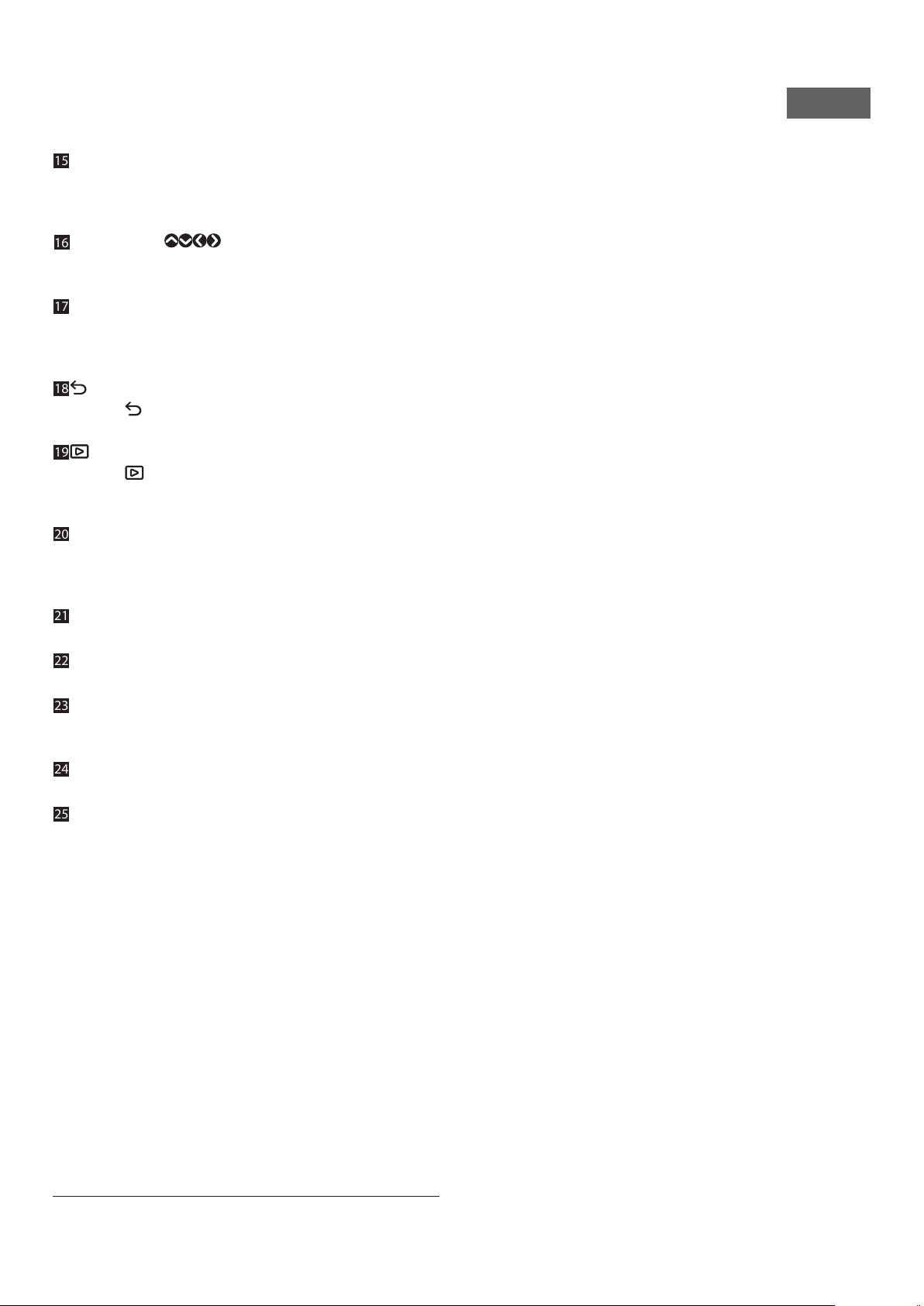
15
LCD Screen
You can see the subject to be photographed during shooting
and check photos you have taken on the LCD Screen. You can
also view and select the menus on the LCD Screen.
16 Select buttons (
)
Use the select buttons to select menu items and to use the
functions displayed on the LCD Screen.
17 MENU/OK button
During shooting or playback, press the MENU/OK button to
display the menu on the LCD Screen. This button is also used to
confirm menu items.
18
(Back) button
Press the
(Back) button to return to the previous screen. This
button is also used to cancel photo printing.
19
(Playback) button
Press the
(Playback) button to display the photos you have
taken on the LCD Screen. When in shooting mode, this button
is also used to switch to playback mode.
20 +(Function) button
Press the +(Function) button in shooting mode to check the
current effect on the LCD Screen. You can also save and recall
effects.
21 Print lever
Print the image displayed on the LCD Screen.
22 Effect reset button
Return both the lens and film effects to normal.
23 Accessory shoe
Attach camera accessories using the accessory shoe.
24 Film dial *3
Turn the film dial to switch between 10 different film effects.
25 Film door
When loading/unloading a film pack, slide the film door lock to
unlock the film door and lift it open. Do not open the film door
until you have used up the film.
*3 Film effects are processed digitally.
6
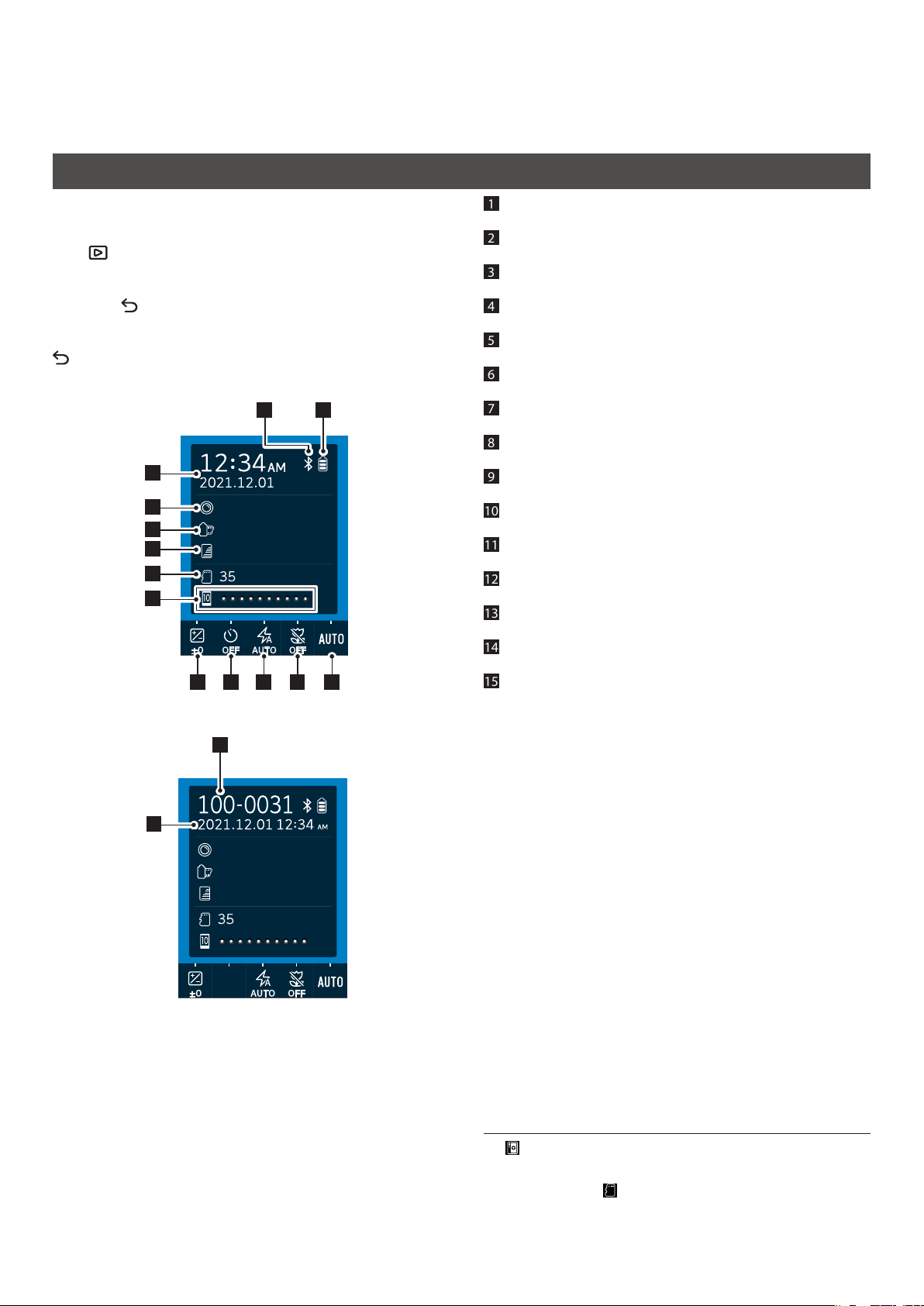
LCD Screen display
When the camera is turned on, the shooting screen appears on the
LCD Screen.
•To switch from the shooting screen to the playback screen, press
the (Playback) button.
•To switch from the playback screen to the shooting screen, press
the Shutter button fully.
If you press (Back) while the shooting screen or playback screen
is displayed, the following information will appear on the LCD
Screen. To return to the shooting screen or playback screen, press
(Back) again.
Shooting screen
1
2
3
4
5
7 8 9 10 11
1213
6
LENS #1 Normal
FILM #1 Normal
instax-Rich Mode
Playback screen
15
14
LENS #1 Normal
FILM #1 Normal
instax-Rich Mode
1
Current date and time
2
Lens effects
3
Film effects
4
Print quality
5
Number of shots available*4
6
Film remaining indicator
7
EXPOSURE
8
SELF-TIMER
9
FLASH
10
MACRO
11
WHITE BALANCE
12
Battery remaining indicator
13
Bluetooth connection status indicator
14
Frame number
15
Shooting date and time
*4 (Camera) is displayed when the internal memory is used.
When the number of shots available is 10 or less, the icon is
displayed in red. (Memory card) is displayed when a
memory card is used.
7
WW_EN
Using the Select buttons
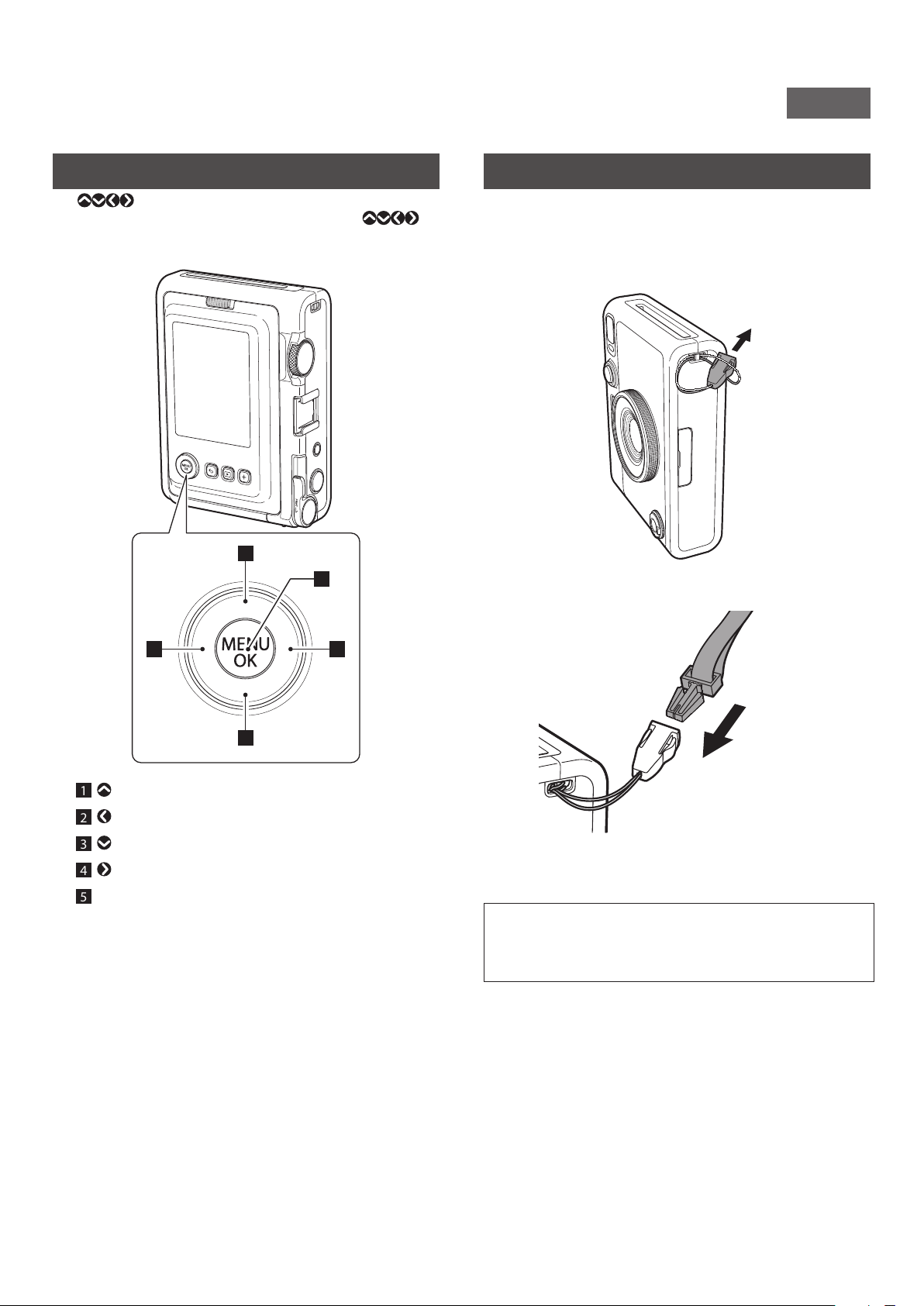
The (Up/Down/Left/Right) buttons are used to select
menu items and to call the functions assigned to the
buttons. The [MENU/OK] button is used to display menus and
make selections.
2 4
1
3
5
1 Move (up).
2 Move (left).
3 Move (down).
4 Move (right).
5 Determines which menu item is displayed or selected.
Attaching the Shoulder Strap
Follow the steps below to attach the shoulder strap to the camera
body.
1
Insert one end of the shoulder strap through the
strap hook on the camera�
2
Attach the strap body to the end of the strap�
3
Attach the other end in the same manner�
•The shoulder strap should be worn on the shoulder, not
hanging around the neck.
•Make sure the shoulder strap does not hang over the film
ejection slot.
8
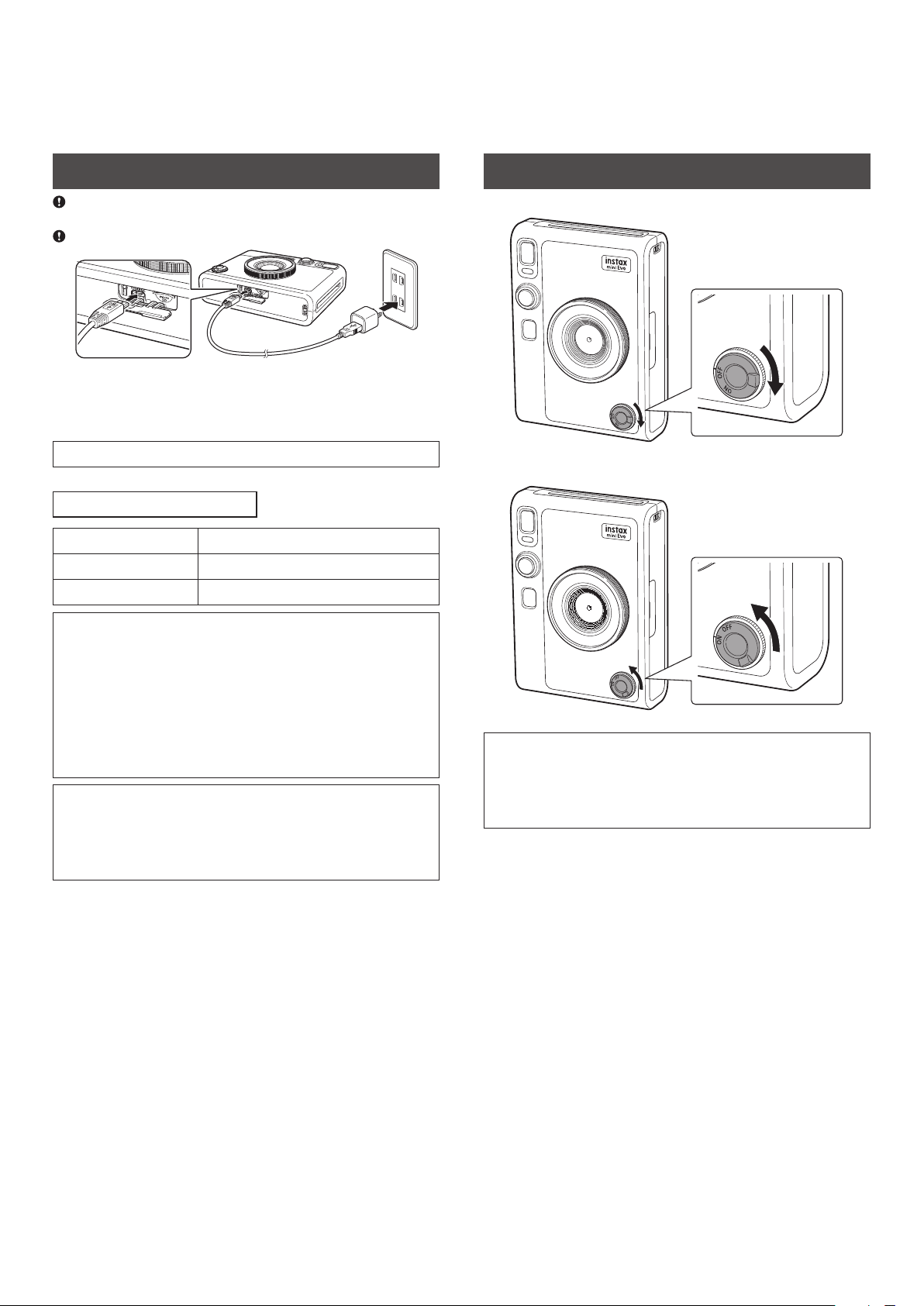
Charging the Battery
Turn off the camera before charging the battery. Battery will not
charge if the camera is turned on.
Be careful to properly attach cable as indicated below
Connect the camera using the supplied Micro USB cable to a USB
AC adapter (supplied with your smartphone) then connect the
USB AC adapter to an indoor power outlet.
Charging time is approximately 2 to 3 hours.
Charging Status Indication
While charging Self timer lamp lights up.
Charging finished Self timer lamp goes off.
Charging error Self timer lamp flashes.
When charging from a PC:
•Connect the camera directly to the PC, not through a USB hub
or keyboard.
•If the PC goes into hibernation (sleep mode) while charging,
charging will be stopped. To continue charging, wake up the
PC from hibernation (sleep mode) and reconnect the USB
cable.
•Depending on your PC's specifications, settings, or condition,
it may not be possible to charge the battery.
•It is not possible to remove the battery.
•The battery has not been fully charged at the factory, be sure
to charge the battery before using the camera.
•Please refer to “Simple Camera Care” for precautions
regarding the battery. (p. 27)
Power On/Off
To turn the camera on, turn the power switch clockwise.
To turn the camera off, turn the power switch anticlockwise.
•If you do not operate the camera for a certain period of time, it
will automatically turn off. If the camera turns off automatically,
turn the power switch off and then on again to turn it on.
•You can also adjust the time until the camera turns off.
(p.22)
9
WW_EN
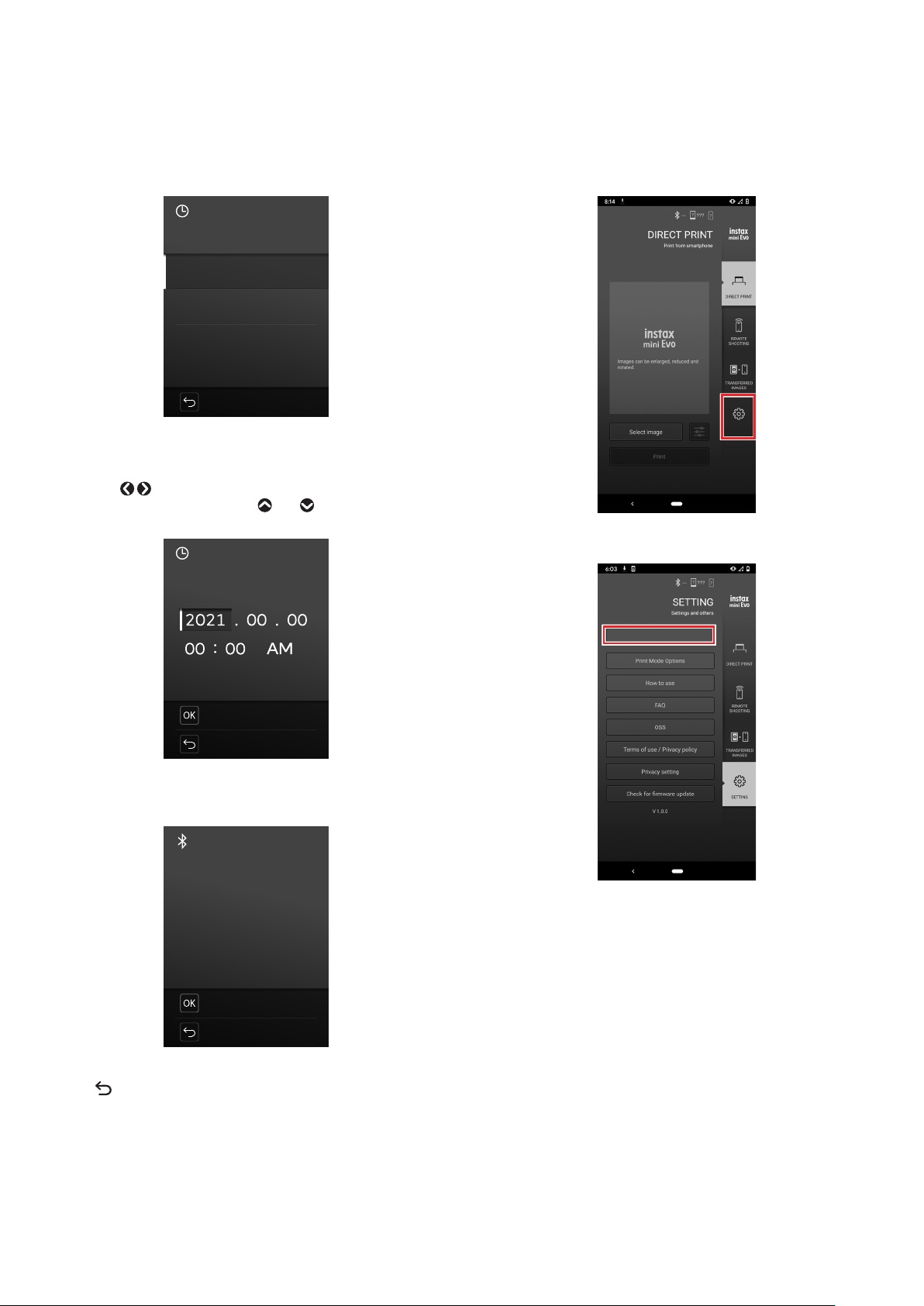
How to Check the Battery Level
Press (Back) on the shooting or playback screen to display the
remaining battery charge on the LCD Screen.
Display Remaining battery charge
Sufficient battery charge remaining.
Less than half of battery charge remaining.
Recharging the battery is recommended.
Low battery charge. Please recharge the battery
as soon as possible.
•When the battery charge is low, an icon (
) will also appear in
the lower right corner of the LCD Screen.
•When the battery is completely depleted, an icon ( ) will
appear in the middle of the LCD Screen and the power will turn
off.
To return to the shooting screen or playback screen, press
(Back) again.
Configure the initial settings
When you turn on the camera for the first time after purchase, you
will be automatically prompted to set the language to use, the
date and time, and to pair your smartphone.
Before pairing registration, install the “instax mini Evo” app on
your smartphone.
•If you are using an Android OS smartphone, search for “instax
mini Evo” on Google Play and install it.
*Requirements for Android OS smartphones: Android
version 7 or later and have Google Play installed.
•If you are using an iOS smartphone, search for “instax mini
Evo” in the App Store and install it.
*Requirements for iOS smartphones: iOS version 12 or later
Depending on your smartphone model, you may not be able to
use the smartphone app even if you have installed it and meet
the above operation requirements.
This setting can be set at a later time� If you want to set or re-set
it later, set it from [言語/LANG�], [DATE/TIME], and [BLUETOOTH
SETTINGS] in the setup menu�
1
Turning on the power�
•When you turn on the camera for the first time after
purchase, the language setting screen will appear.
2
Select the language you want to use, and then press
[MENU/OK]�
言語/LANG.
日本語
ENGLISH
FRANCAIS
DEUTSCH
ESPAÑOL
NO
10
3
Set the year, month, and date in that order, and then
press [MENU/OK]�
DATE/TIME
NO
YY.MM.DD
DD.MM.YY
MM/DD/YY
4
Set the year, month, day, hour, and minute, and then
press [MENU/OK]�
Press to select the item to be set (year, month, day,
hour, minute) and then press and to select the number
to be set.
DATE/TIME
YY.MM.DD
NO
SET
Next, configure the pairing settings.
5
Press [MENU/OK]�
BLUETOOTH SETTINGS
Pair this product
with a smartphone
to use the functions
linked to
this product’s
smartphone app.
NO
PAIRING
•If you do not want to configure the pairing settings, press
(Back) to exit the initial settings.
6
Launch the “instax mini Evo” smartphone app and
tap [SETTINGS]�
SETTINGS
7
Tap [Bluetooth settings] on the smartphone app�
Bluetooth settings
11
WW_EN
8
Tap [Connect] on the smartphone app�
Connect
•To check the camera’s OWN NAME, display the shooting
menu. (p. 22) Then, select [BLUETOOTH SETTINGS],
[INFORMATION], and [OWN NAME] in this order.
9
Allow pairing�
10
Confirm that pairing registration has been
completed�
PAIRING
REGISTRATION
PAIRING
COMPLETE
When pairing registration is complete, the screen switches
to the shooting screen.
Loading/Unloading the instax mini Instant
Film Pack
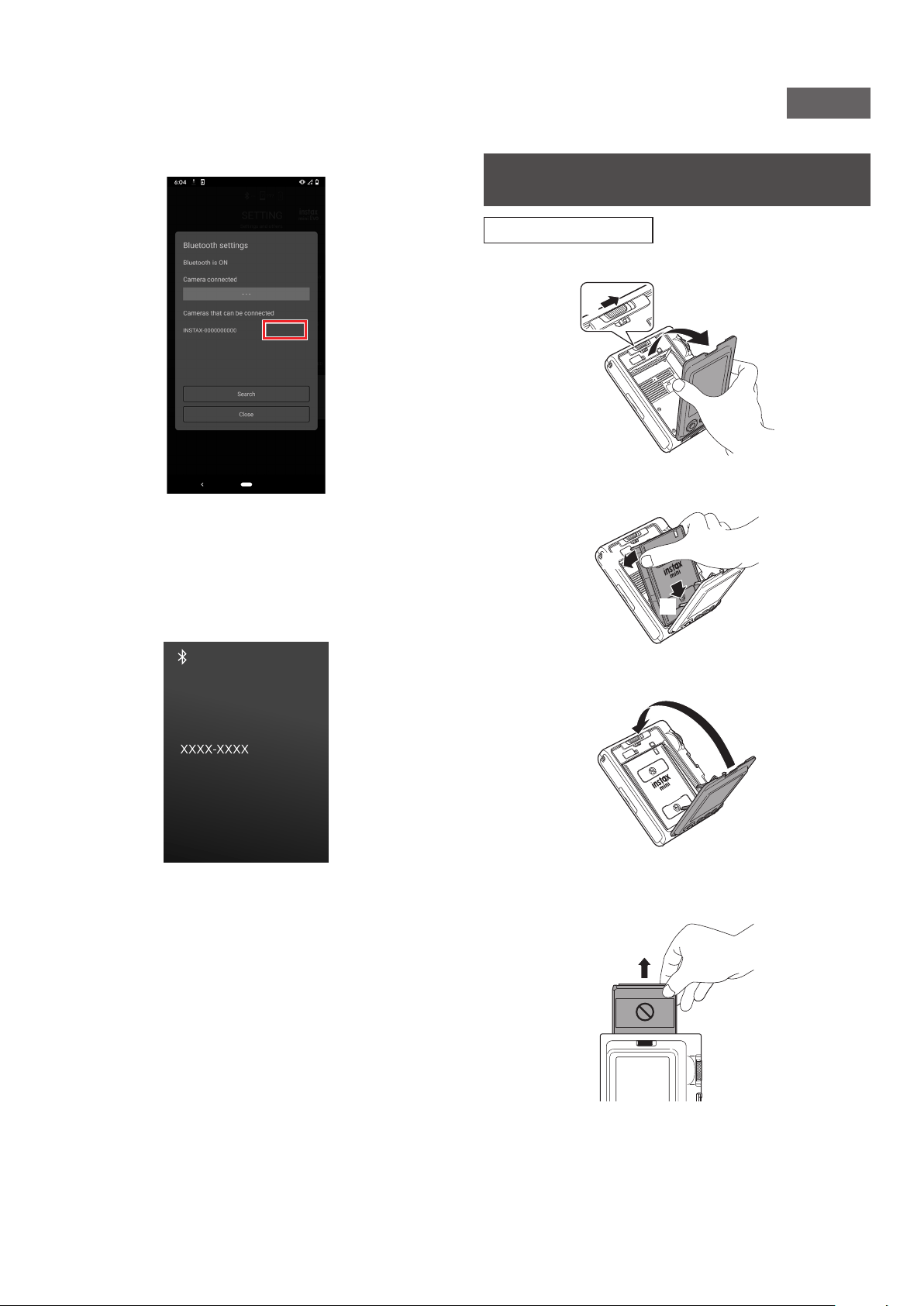
Loading the Film Pack
1
Slide the film door lock and open the film door�
1
2
2
Insert film pack by aligning the yellow marks�
2
1
3
Close the film door�
4
Remove the black film cover that is automatically
rejected�

12
Unloading a Used Film Pack
1
Slide the film door lock and open the film door�
1
2
2
Grasp the rectangular holes on the film pack, then
pull film pack out from the camera�
1
2
Basic Shooting and Playback
Taking Photos
This section explains the basic procedures to take photos.
1
Turn on the power�
2
Hold the camera�
3
Set effects and other settings as desired�
4
Compose the photo�
Press or to adjust the composition. Press to take a
larger image of a distant subject, or press to take a larger
area.
5
Press the Shutter button halfway to bring the
subject into focus�
When the subject is in focus
A beep is heard and a green AF frame appears on the LCD
Screen.
When [FACE DETECTION] is enabled, a green AF frame appears
over the face of the person when the camera recognizes their
face. (p. 22)
When the subject is not in focus
A red AF frame appears on the LCD Screen. Change the
composition or use AF/AE lock. (p. 20)
13
WW_EN
6
Hold the Shutter button halfway down and press it
in (all the way down)
After taking a photo, the image is stored in the internal
memory or on the memory card.
•See “Print” for the procedure to print photos you have
taken. (p. 14)
•When taking a photo, hold your arms tightly against your
body and hold the camera firmly with both hands.
•Be careful not to touch the camera lens when you press the
Shutter button.
•When fully pressing the Shutter button, press it gently to
prevent the camera from moving and causing the photo to
blur.
•Be careful not to let your fingers or the shoulder strap cover
the flash or lens.
•In dark or backlit conditions, the flash may fire when the
Shutter button is pressed fully. You can change the flash
settings to prevent the flash from firing. (p. 18)
Precautions regarding the internal memory
•If the internal memory is full, the shutter will not release and
you will not be able to take photos. Delete images or use a
memory card.
•If the camera malfunctions, images in the internal memory
may be damaged or lost.
•We recommend that you copy important images to another
media (hard disk, CD-R, CD-RW, DVD-R, etc.) for backup.
•If you send the camera in for repair, we cannot guarantee the
data in the internal memory.
•When the camera is repaired, we may need to check the data
in the internal memory.
Playing Back the Images You Have Taken
You can play back the images you have taken on the LCD Screen.
1
Turn on the power�
2
Press
(Playback)�
The last photo you took is displayed.
3
Press or to select the image you want to view�
•Press the Shutter button fully to return to the shooting
screen.
Changing the Display on the Playback Screen
You can zoom in on an image or change the number of frames
displayed on the LCD Screen.
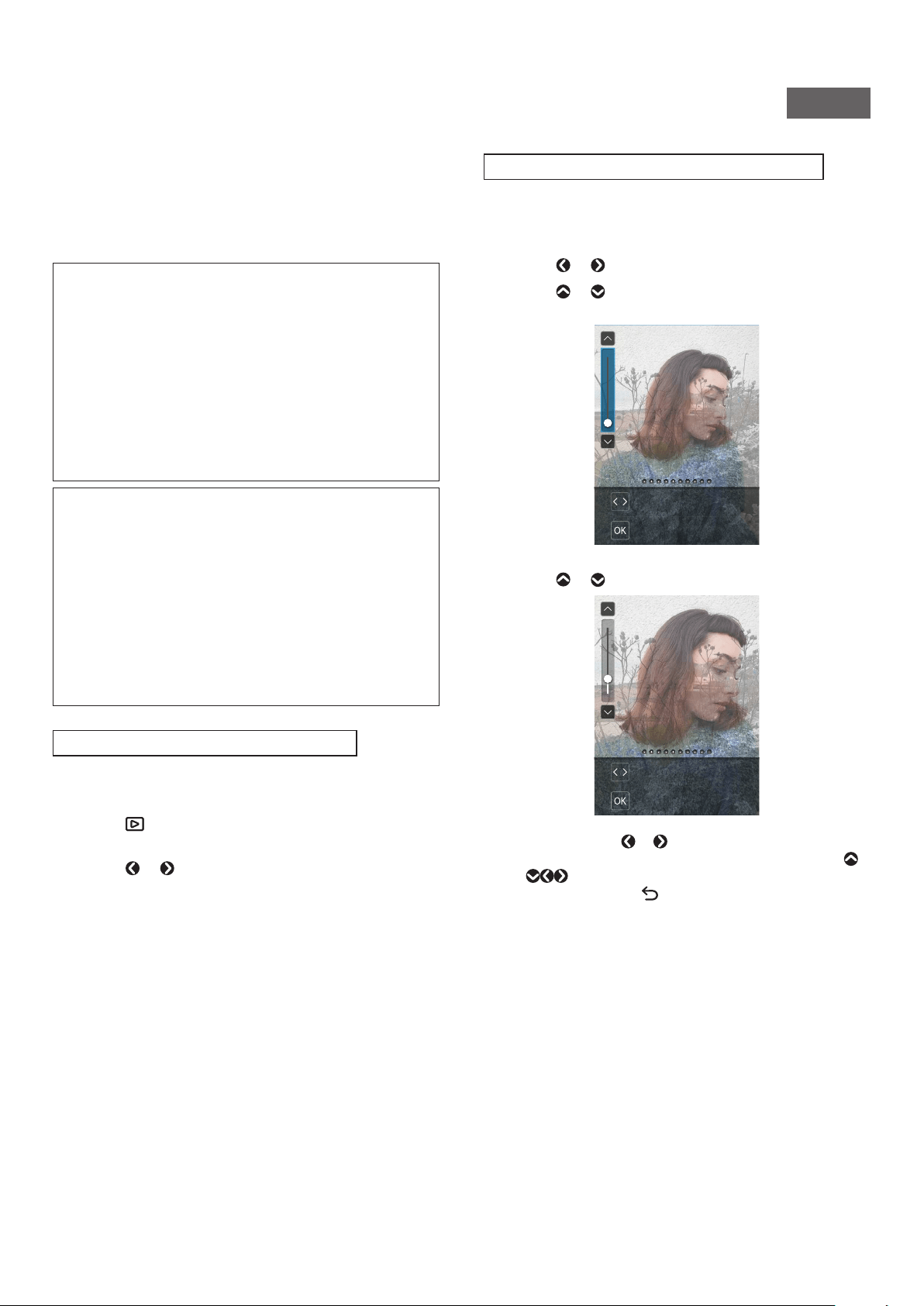
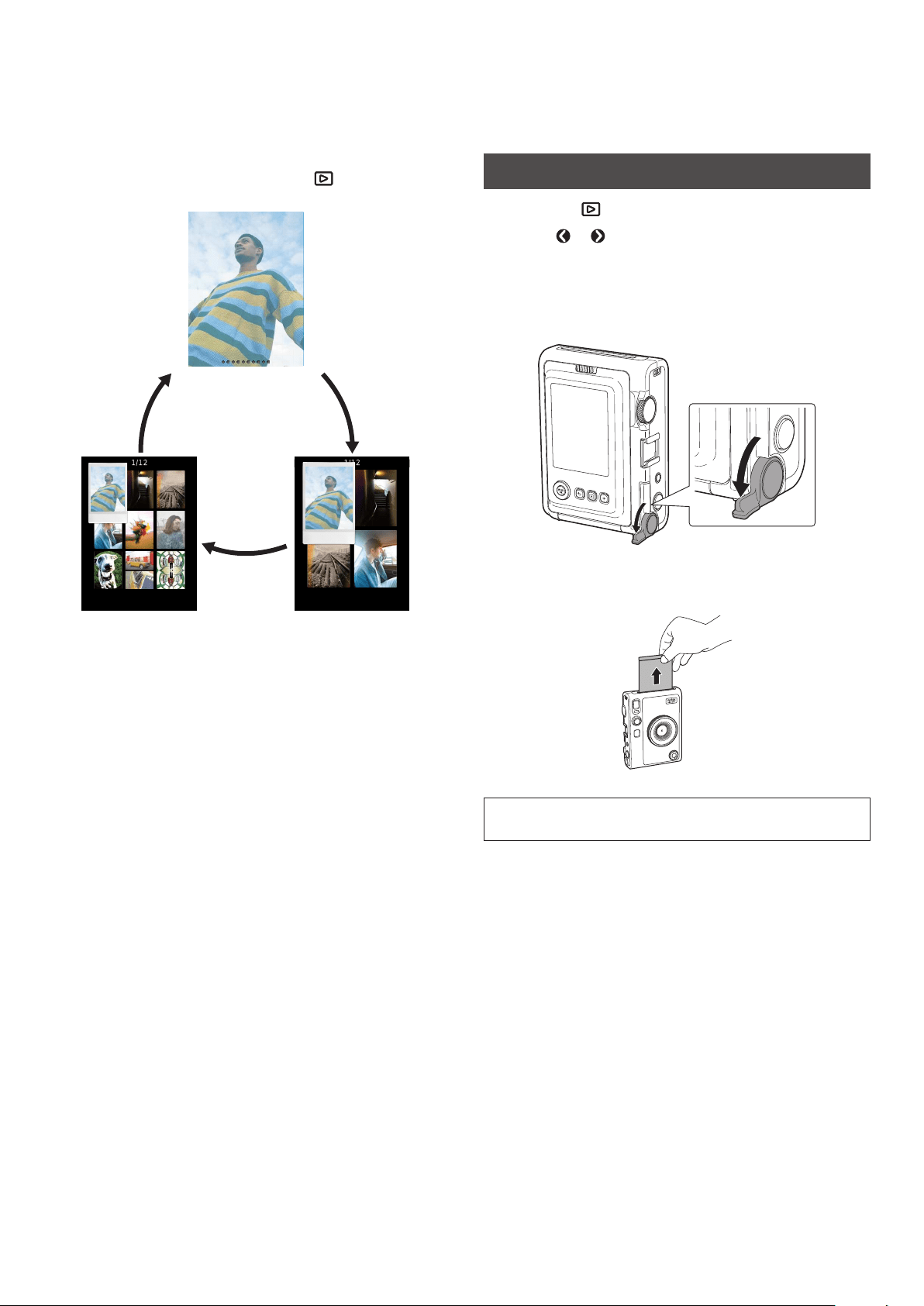
■ To Zoom In on an Image
1
Press or to select the image you want to view�
2
Press or �
The zoom in/out screen appears.
CONFIRM
Move
3
Press or to zoom in or out on the image�
CONFIRM
Move
•When you press or on the zoom in/out screen, the
screen switches to the move screen, and you can press
to move the screen position. To return to the zoom
in/out screen, press (Back).
4
Press [MENU/OK]�
•You can also print a zoomed-in or zoomed-out image.
14
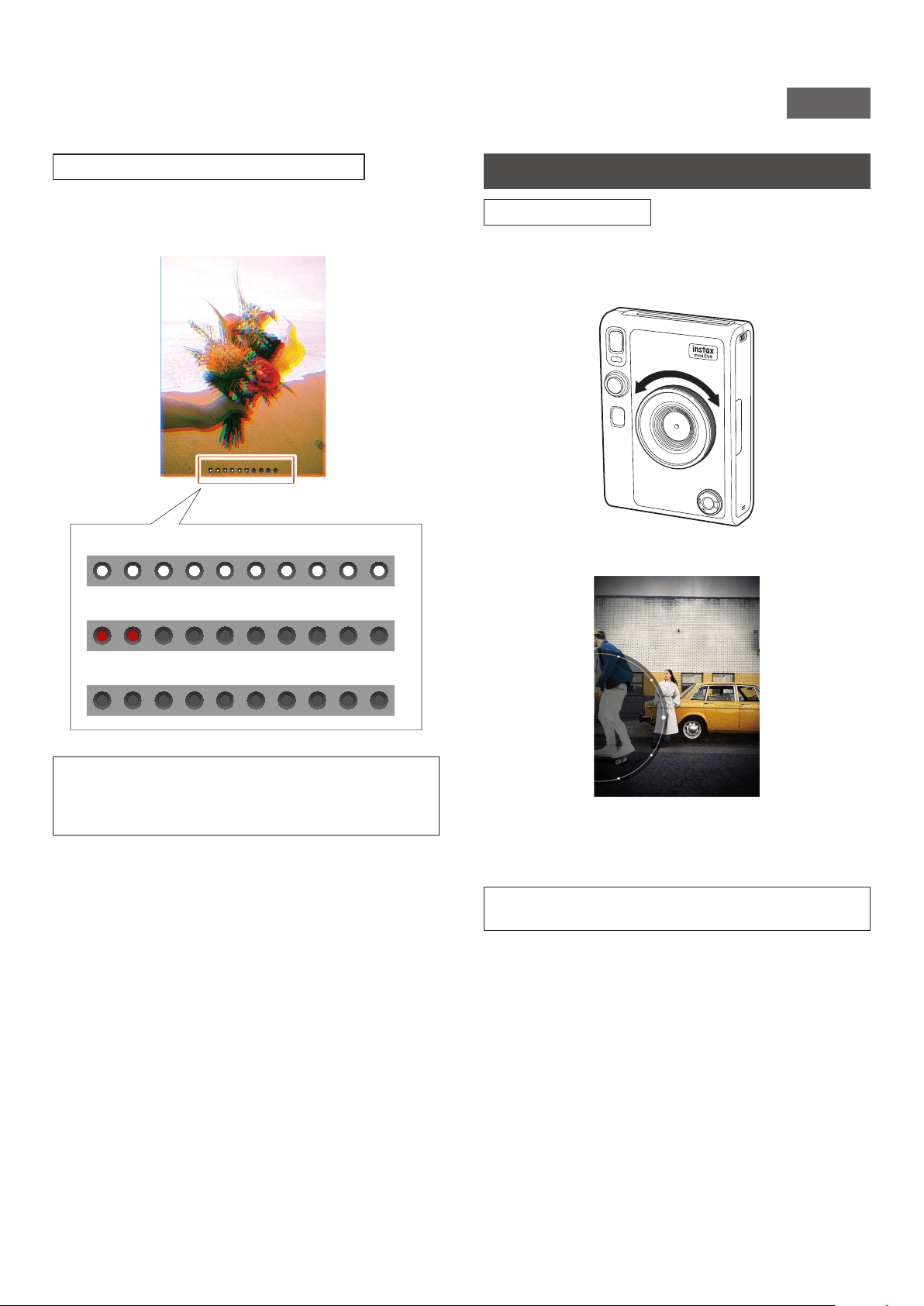
■ Changing the Number of Frames Displayed
When the playback screen is displayed, press
(Playback) to
change the number of frames displayed.
1 frame display
4 frame display9 frame display
Print
1
Press the (Playback) button�
2
Press or on the Select button to select the
photo you want to print�
3
You have the option to enlarge the photo, or make
other edits�
4
Turn the print lever to print�
5
After the sound of the film ejecting stops, hold the
tip of the ejected film and remove it�
Be careful not to let your fingers or the camera strap get caught
in the film ejection slot.
15
WW_EN
About the Remaining Film Sheets Display
The number of remaining film sheets is indicated by a white dot at
the bottom of the screen. Each time you finish a print, this dot
turns gray. When there are only two film sheets remaining, the dot
turns red.
10 sheets remaining display
2 sheets remaining display
0 sheets remaining display
•For details on the handling of film, see the instructions of
FUJIFILM Instant Film instax mini.
•Film develops in about 90 seconds (the time varies with
temperature).
Adding Effects to Your Photos
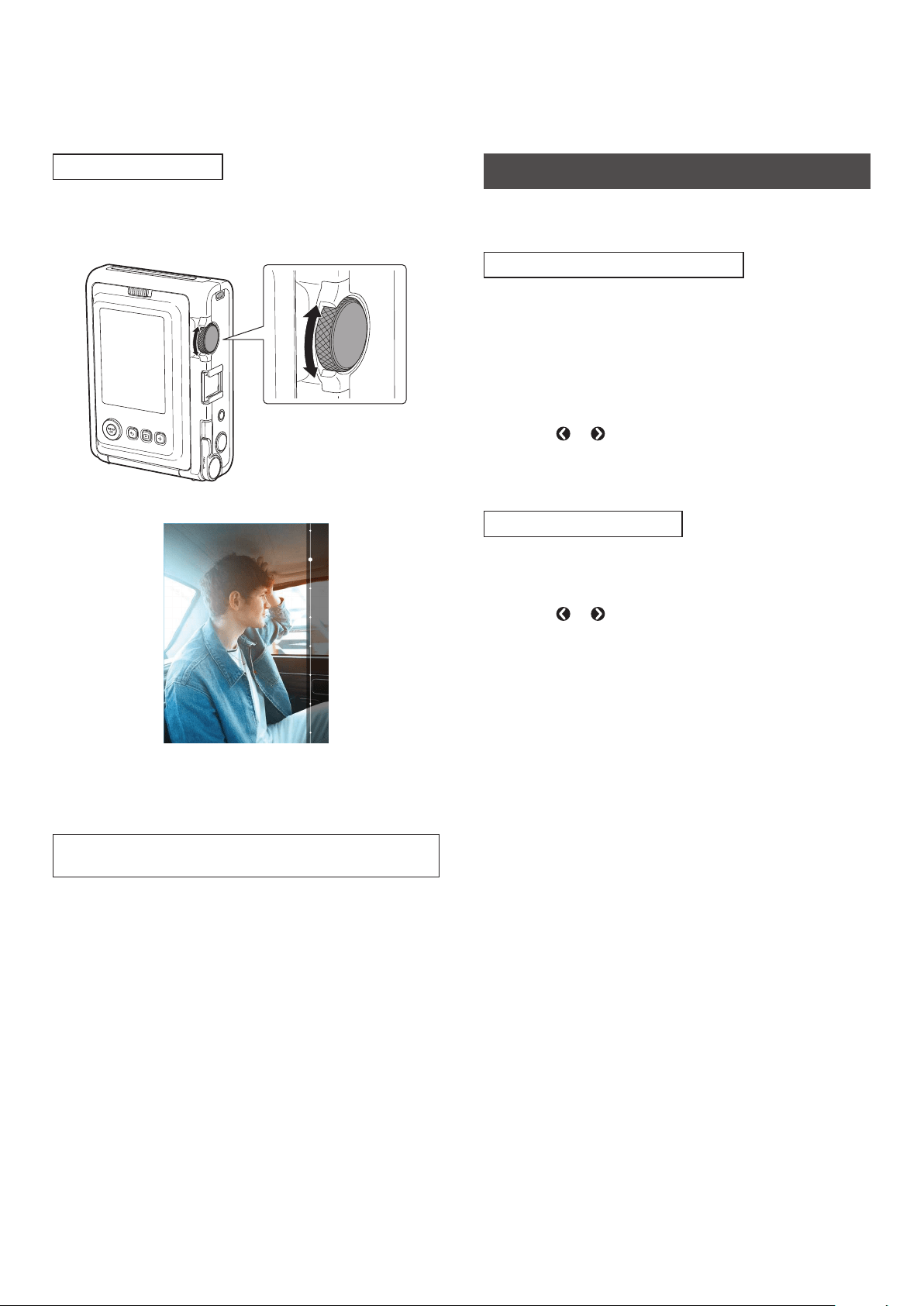
Selecting Lens Effects
Follow the steps below to select the type of lens effect to apply.
1
Display the shooting screen�
2
Rotate the Lens dial to select the type of lens effect�
The following guide appears.
LENS #1
Normal
•To cancel the set lens effect, select [Normal] from the lens
effect types.
•Press the Effect reset button to cancel the set lens effect
and film effect.
You can also press the + (Function) button to recall your favorite
registered lens effects and film effects.
16
Selecting a Film Effect
Follow the steps below to select the type of film effect.
1
Display the shooting screen�
2
Turn the film dial to select the type of film effect�
The following guide appears.
FILM #1 Normal
•To cancel the set film effect, select [Normal] from the film
effect types.
•Press the Effect reset button to cancel the set lens effect
and film effect.
You can also press the + (Function) button to recall your favorite
registered lens effects and film effects.
Specifying an Effect Combination
You can register a combination of your favorite effects. You can
recall a registered effect combination by pressing the + (Function)
button.
Registering an Effect Combination
1
Display the shooting screen�
2
Rotate the Lens dial to select the type of lens effect�
3
Turn the film dial to select the type of film effect�
4
Press the + (Function) button�
5
Press [MENU/OK]�
6
Press or to select [Favorite[1]] to [Favorite[3]]�
Up to three effect combinations can be registered.
7
Press [MENU/OK]�
The effect is registered.
Calling up Favorite Effects
1
Display the shooting screen�
2
Press the + (Function) button twice�
3
Press or to select [Favorite[1]] to [Favorite[3]]�
4
Press [MENU/OK]�
The effect is applied.
17
WW_EN
Various Shots
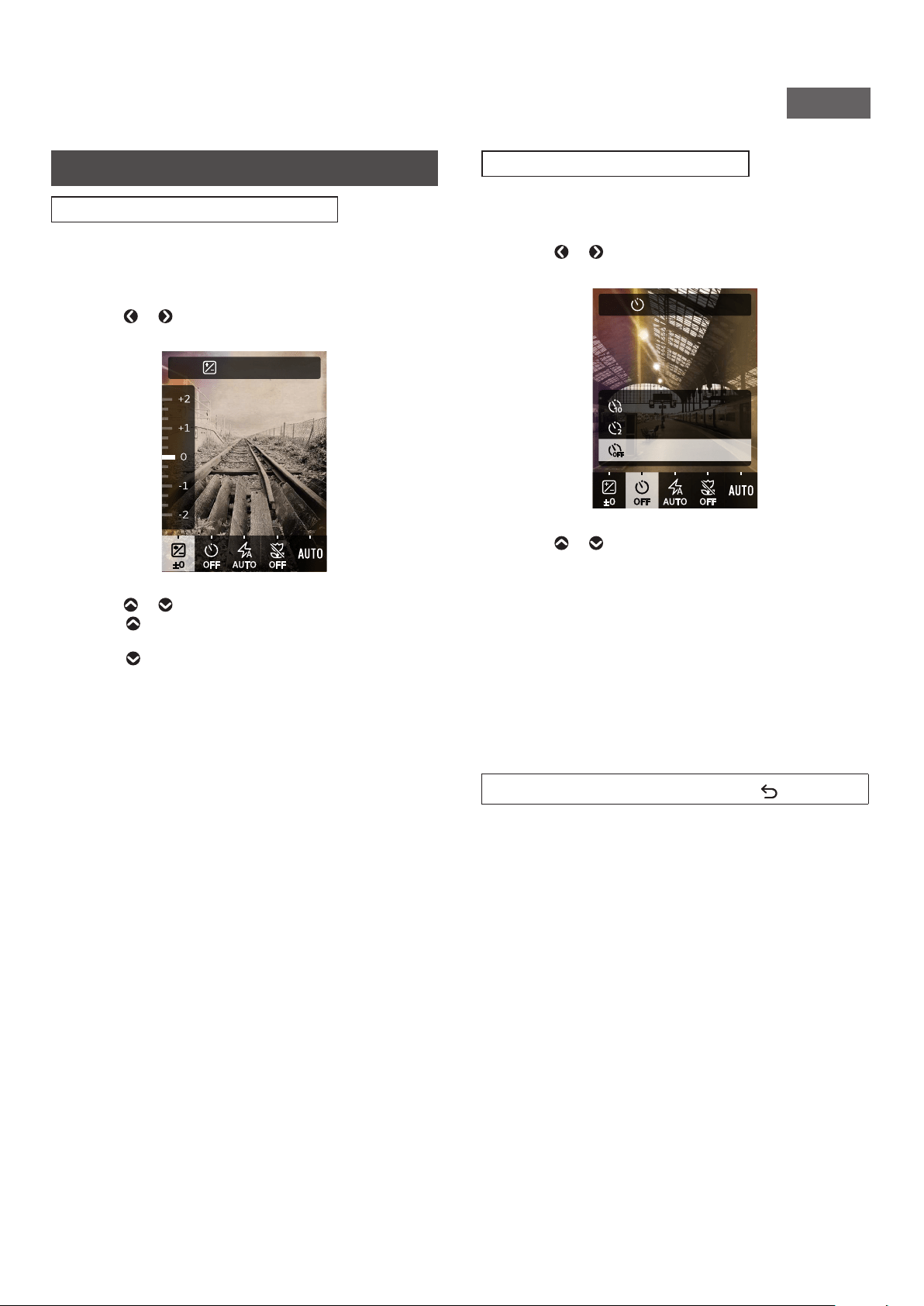
Changing the Brightness of the Image
Adjust the brightness of the image. Use this function when the
subject is too bright or too dark, or when the contrast (difference
between light and dark) between the subject and the background
is too great.
1
Press or until [EXPOSURE] appears on the
shooting screen�
EXPOSURE
2
Press or to correct the exposure�
•Press to correct the exposure to the + side to brighten
the entire image.
•Press to adjust the exposure to the - side to darken the
entire image.
3
Press the Shutter button all the way down�
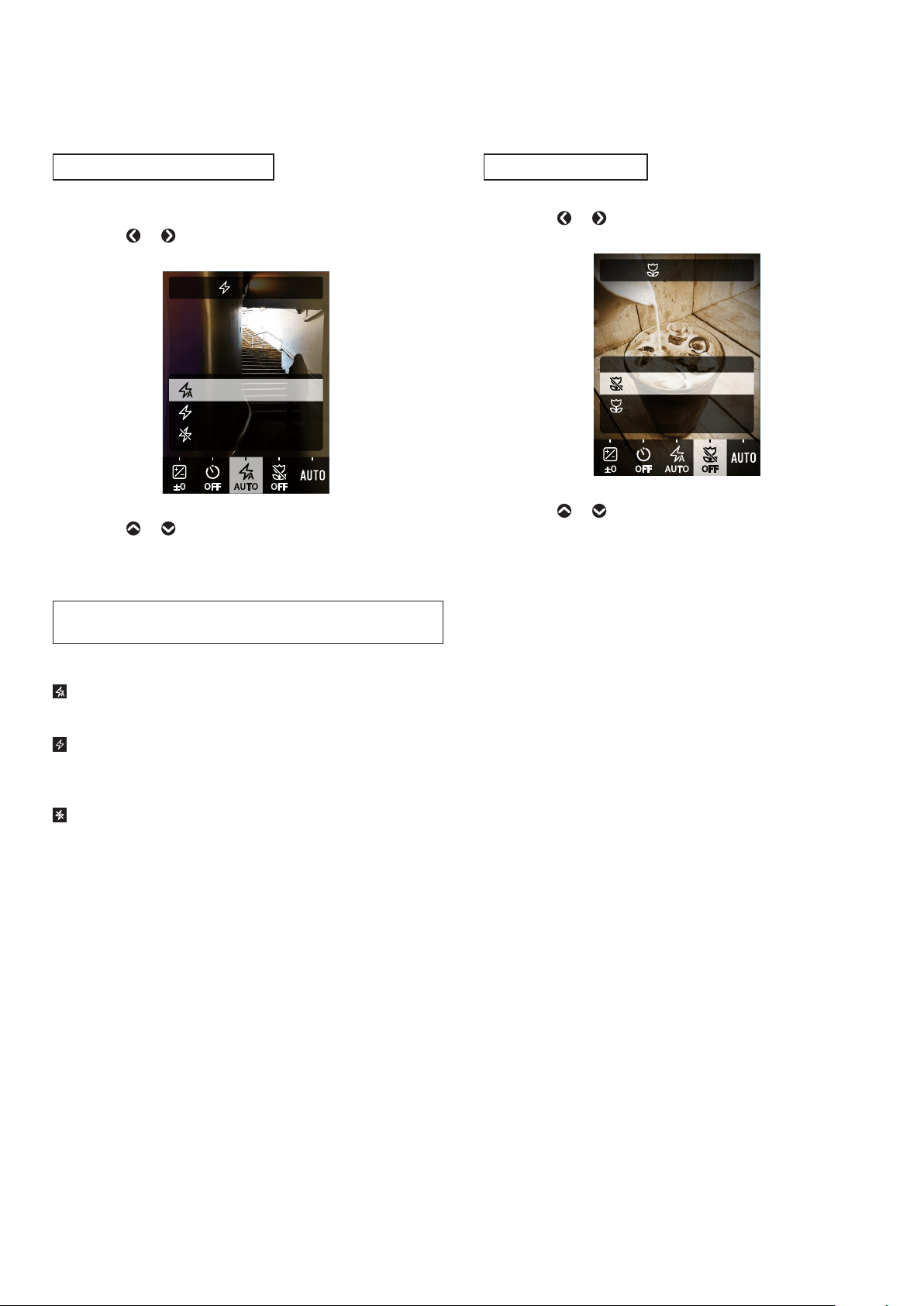
Using the Self-Timer to Take Photos
Use this function to take a group photo including the
photographer or to prevent the camera from moving while the
Shutter button is pressed.
1
Press or until [SELF-TIMER] appears on the
shooting screen�
SELF-TIMER
10 SEC
2 SEC
OFF
2
Press or to select [2 SEC] or [10 SEC]�
The icon corresponding to the set self-timer appears in the
center of the screen.
•If you do not want to set a self-timer, select [OFF].
3
Press the Shutter button all the way down�
The countdown starts.
When [2 SEC] is selected:
When you press the Shutter button, the self-timer light
flashes.
When [10 SEC] is selected:
When you press the Shutter button, the self-timer light lights
up and starts flashing three seconds before taking the
photo.
To cancel the self-timer halfway through, press (Back).
18
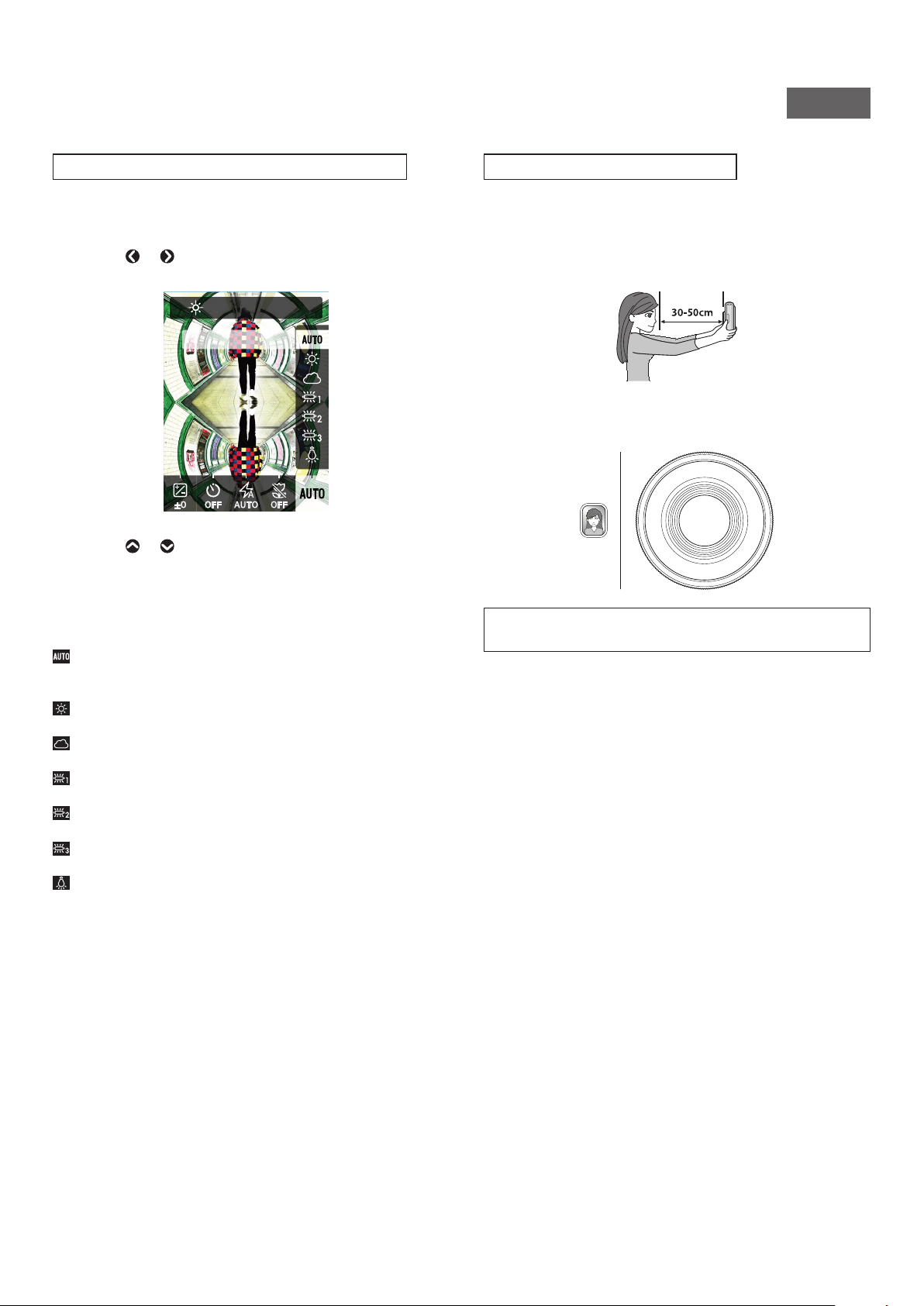
Taking Photos with the Flash
Use the flash when taking photos at night or in a dark room. You
can also set the camera so that the flash does not fire.
1
Press
or until [FLASH] appears on the shooting
screen�
FLASH
AUTO FLASH
FORCED FLASH
SUPPRESSED FLASH
2
Press or to select the flash setting�
•For more information on flash settings, see “Types of
Flash”.
3
Press the Shutter button all the way down�
•If you press the Shutter button while the flash is charging, the
self-timer light will flash and the shutter will not release.
■ Types of Flash
AUTO FLASH
The flash will fire automatically when the surroundings are
dark. This setting applies to most situations.
FORCED FLASH
The flash will fire regardless of the brightness of the
surroundings. Use this setting when the subject is dark due to
backlighting.
SUPPRESSED FLASH
The flash will not fire even if the surroundings are dark. This
setting is suitable for shooting in places where flash
photography is prohibited.
When shooting in dark places without using the flash, it is
recommended to steady the camera on a table or similar
surface.
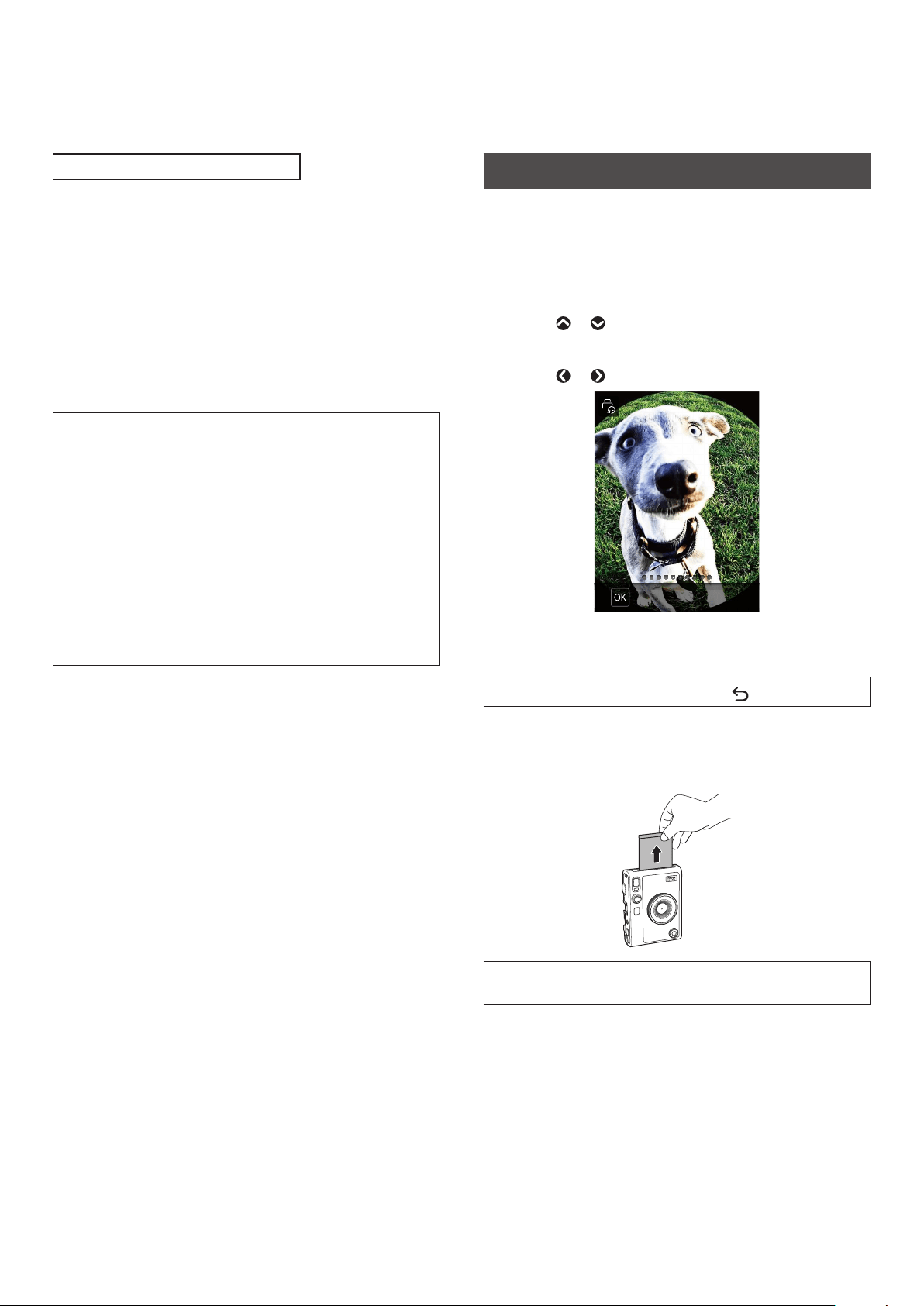
Taking Macro Photos
Use macro shooting when you want to get close to the subject.
1
Press
or until [MACRO] appears on the
shooting screen�
MACRO
OFF
ON
2
Press or and select [ON]�
3
Press the Shutter button all the way down�
Macro shooting is performed.
19
WW_EN
Matching the Light Source when Taking Photos
By setting the white balance to match the light source, such as
sunlight or artificial lighting, you can shoot with colors closer to
real life.
1
Press or until [WHITE BALANCE] appears on the
shooting screen�
WHITE BALANCE
AUTO
2
Press or to select one of the settings�
•For details on setting the white balance, see “Types of
White Balance”.
3
Press the Shutter button all the way down�
■ Types of White Balance
AUTO
The camera sets the white balance automatically.
AUTO is recommended for normal shooting.
FINE
For outdoor shooting in fine weather.
SHADE
For shooting on cloudy days or in the shade.
FLUORESCENT LIGHT-1
For shooting under daylight fluorescent lighting.
FLUORESCENT LIGHT-2
For shooting under daylight white fluorescent lighting.
FLUORESCENT LIGHT-3
For shooting under white fluorescent lighting.
INCANDESCENT
For shooting under light bulbs and incandescent lamps.
Taking a Photo of Yourself (Selfie)
You can use the selfie mirror to take photos of yourself.
1
Hold the camera securely so that your face comes
30to 50 cm away from the end of the lens�
•Hold the camera securely, as camera shake is especially
likely to occur in the dark.
2
Confirm the composition using the selfie mirror,
then take a photo�
•Do not stare at the flash when taking photos. Flash
afterimages may cause temporary blindness.
20
Using AF/AE Lock to Take Photos
When taking a photo, pressing and holding the Shutter button
halfway to lock the focus is called “AF lock,” and pressing and
holding the Shutter button to lock the brightness is called “AE
lock.” This is useful when you want to take a photo where the
subject is not in the center of the screen.
1
Press the Shutter button halfway to bring the
subject into focus�
Press the Shutter button halfway to lock AF or AE.
2
Press and hold the Shutter button halfway to change
the composition�
3
Press the Shutter button fully to take the photo�
It is recommended that you use AE/AF lock when taking photos
of the following objects, as they may be difficult to focus on.
•Shiny objects, such as mirrors and car bodies
•Subjects that are moving at high speed
•Subjects on the other side of glass
•Dark objects, such as hair or fur, that absorb light rather than
reflect it
•Insubstantial objects such as smoke or flames
•Subjects with little difference between light and dark (for
example, a person wearing clothes the same color as the
background)
•When there is a large contrast difference in the AF frame and
the subject is in that area (for example, a subject in front of a
high-contrast background)
Printing from Print History
You can recall images that you printed previously and retain the
settings (image effects, etc.) used at that time.
You can print the images you have taken by following the steps
below.
1
On the playback screen, press [MENU/OK]�
The playback menu appears.
2
Press or to select [PRINT HISTORY]�
3
Press [MENU/OK]�
4
Press or to select the image you want to print�
ERASE
5
Turn the Print lever�
Printing starts.
To cancel printing halfway through, press (Back).
6
When the sound of the film being ejected stops,
grasp the edge of the ejected film and take the film
out�
Be careful not to let your fingers or the shoulder strap cover the
Film ejection slot.
21
WW_EN
Using the Memory Card
The camera's internal memory can store about 45 still images, but
you can store more images by using a memory card. You will also
need a memory card to upgrade the firmware. Please prepare a
memory card in advance.
Precautions Regarding Memory Cards
•This camera is compatible with micro SD cards and micro SDHC
cards. Using other types of memory cards may cause damage to
the camera.
•Memory cards are small and may be accidentally swallowed by
infants. Keep them out of the reach of infants. In the unlikely
event that an infant swallows a memory card, consult a
physician immediately.
•Do not turn off the camera or remove the memory card
during formatting or while recording/deleting data� The
memory card may be damaged�
•Do not use or store memory cards in an environment that is
prone to strong static electricity or electrical noise.
•Inserting a memory card charged with static electricity into the
camera may cause the camera to malfunction. If this happens,
turn the camera off and then on again.
•Do not carry a memory card in the pocket of your pants. A
strong force may be applied when you sit down, which may
cause the memory card to break.
•The memory card may become hot to the touch after prolonged
use, but this is not a fault.
•Do not put any labels on memory cards. If the label comes off, it
may cause the camera to malfunction.
Precautions Regarding Using a Memory Card on a PC
•Always format an unused memory card or a memory card that
has been used on a PC or other device before using it in the
camera.
•When a memory card is formatted in the camera and used for
shooting and recording, folders are automatically created. Do
not use your PC to rename or delete folders or files on the
memory card. Doing so may make the memory card in the
camera unusable.
•Do not use your PC to delete images on the memory card.
Always use the camera.
•If you want to edit an image file, copy or move the image file to
a hard disk or similar device, and then edit the copied or moved
image file.
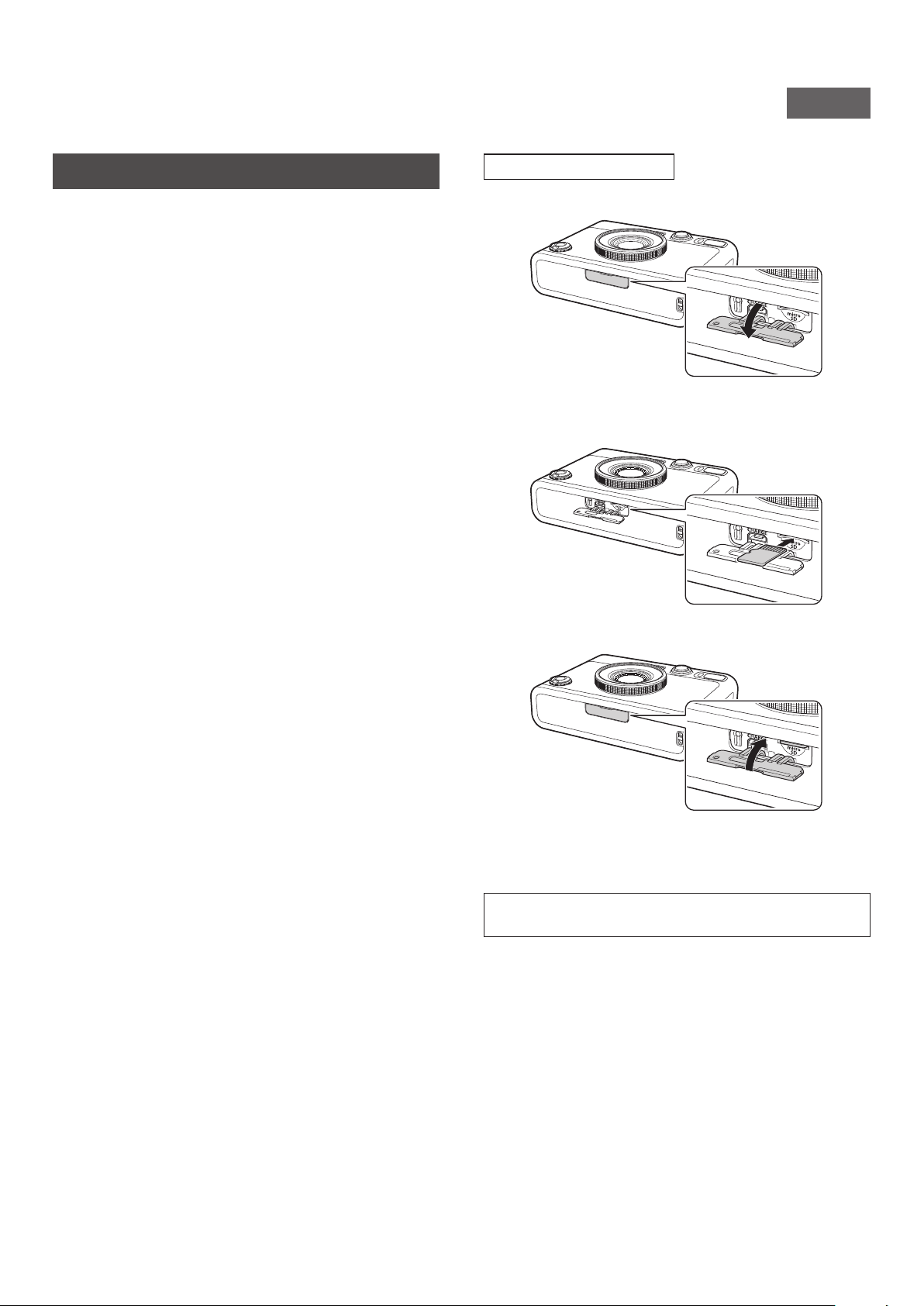
Inserting a Memory Card
1
Open the card slot cover�
2
Insert the memory card all the way in the correct
orientation as shown until you hear a “click”�
3
Close the card slot cover�
•To remove the memory card, push the card in with your finger
and then release your finger gently. The card will be unlocked
and ready to be removed.
If you suddenly release your finger while removing the memory
card, the card may pop out. Release your finger gently.
22
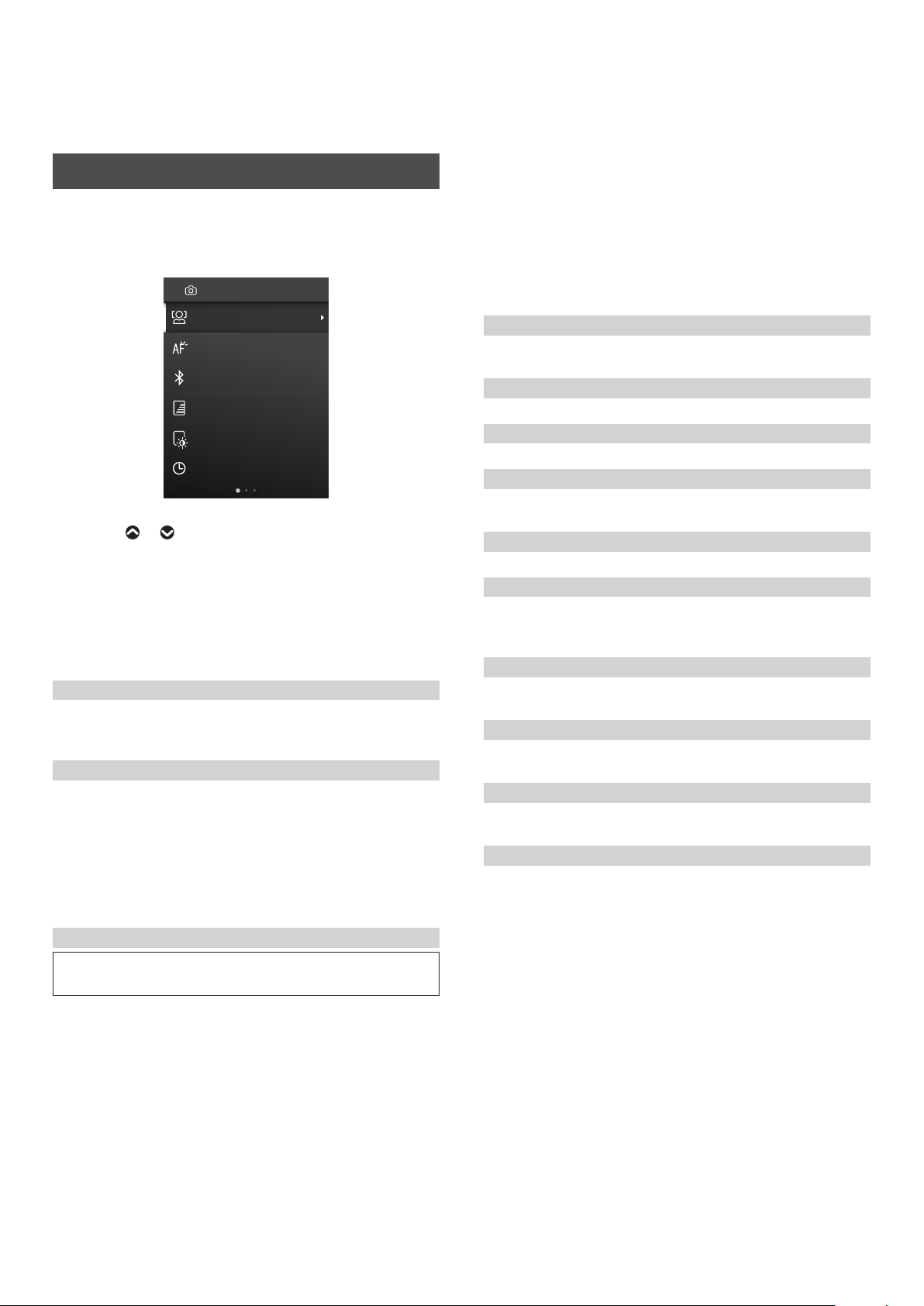
Using the Shooting Menu
You can use the shooting menu to change various settings related
to shooting.
1
On the shooting screen, press [MENU/OK]�
The shooting menu appears.
FACE DETECTION
AF ILLUMINATOR
BLUETOOTH SETTINGS
Print Brightness
PRINT QUALITY MODE
DATE/TIME
SHOOTING MENU
2
Press or to select an item�
•For details on each item, see “Shooting Menu Items”.
3
Changing the Settings�
4
Press [MENU/OK]�
The setting is applied and the display returns to the
shooting screen.
■ Shooting Menu Items
[FACE DETECTION]
When [FACE DETECTION] is turned on, the camera detects the
person's face and adjusts the focus and brightness to the face
instead of the background to make the person stand out brightly.
[AF ILLUMINATOR]
When set to ON, the AF ILLUMINATOR lights from the time the
Shutter button is pressed halfway until the subject is in focus,
making it easier to focus on a dark subject.
•Depending on the scene, it may be difficult to get the subject in
focus even when the AF ILLUMINATOR is activated.
•The AF ILLUMINATOR may not be fully effective when shooting
close to the subject.
•Do not flash the AF ILLUMINATOR close to the human eye.
[BLUETOOTH SETTINGS]
Install the smartphone app on your smartphone before pairing
the camera.
[PAIRING REGISTRATION]:
When connecting the camera to your smartphone via Bluetooth
for the first time, you will need to pair the devices together. Please
refer to the following procedure for pairing.
1.
Select [BLUETOOTH SETTINGS] from the SHOOTING MENU or
the PLAYBACK MENU.
2.
Select [PAIRING REGISTRATION] and press [MENU/OK]
3.
Press
[
SETTINGS
] on the
smartphone app
4.
Press [Bluetooth settings] on the
smartphone app
5.
Press [Connect] on the
smartphone app
6.
Allow pairing
[DELETE PAIRING REG�]:
You can delete the information of a paired smartphone.
[INFORMATION]:
Displays the Bluetooth address and name of the device and
information about the paired device.
[PRINT QUALITY MODE]
Set to [instax-Natural Mode] for regular quality, or [instax-Rich
Mode] for richer color representation (factory default).
[Print Brightness]
Set [×1 (standard)], [×1.5 (semi-bright)], or [×2.0 (bright)].
[DATE/TIME]
Sets the date and time.
[DATE STAMP]
Stamps the date on the image. If you want to erase the date
stamped on the image, set to [OFF].
[言語/LANG�]
Sets the language displayed on the LCD Screen.
[SOUND SET-UP]
Sets the volume of the operation sound, shutter volume, and
start-up sound.
If you want to turn off the sound, set this to [OFF].
[AUTO POWER OFF]
Sets the time to turn off automatically when the camera is not
operated.
[RESET]
Resets the settings to the factory default values.
The date and time set in DATE/TIME will not be reset.
[FORMAT]
Initializes the camera's internal memory or a memory card inserted
in the card slot. All stored images will be deleted.
[FIRMWARE UPGRADE]
Upgrades the firmware. There are two methods to upgrade the
firmware, as shown below.
A memory card is required to upgrade the firmware. Please
prepare a memory card in advance.
● Using the “instax mini Evo” Smartphone App
1.
Insert the memory card into the card slot of the camera
2.
Launch the “instax mini Evo” smartphone app
3.
Tap [SETTINGS] in “instax mini Evo”
4.
Click [Check for firmware update] in “instax mini Evo”
5.
Follow the on-screen instructions
23
WW_EN
● Using the Camera
1.
Download the latest firmware (FPUPDATE.DAT) from the
FUJIFILM website using a PC or other device, and copy it to the
root directory of the memory card
2.
Insert the memory card with the copied firmware into the
camera card slot
3.
Select [FIRMWARE UPGRADE] from the SHOOTING MENU or
PLAYBACK MENU
4.
Follow the on-screen instructions
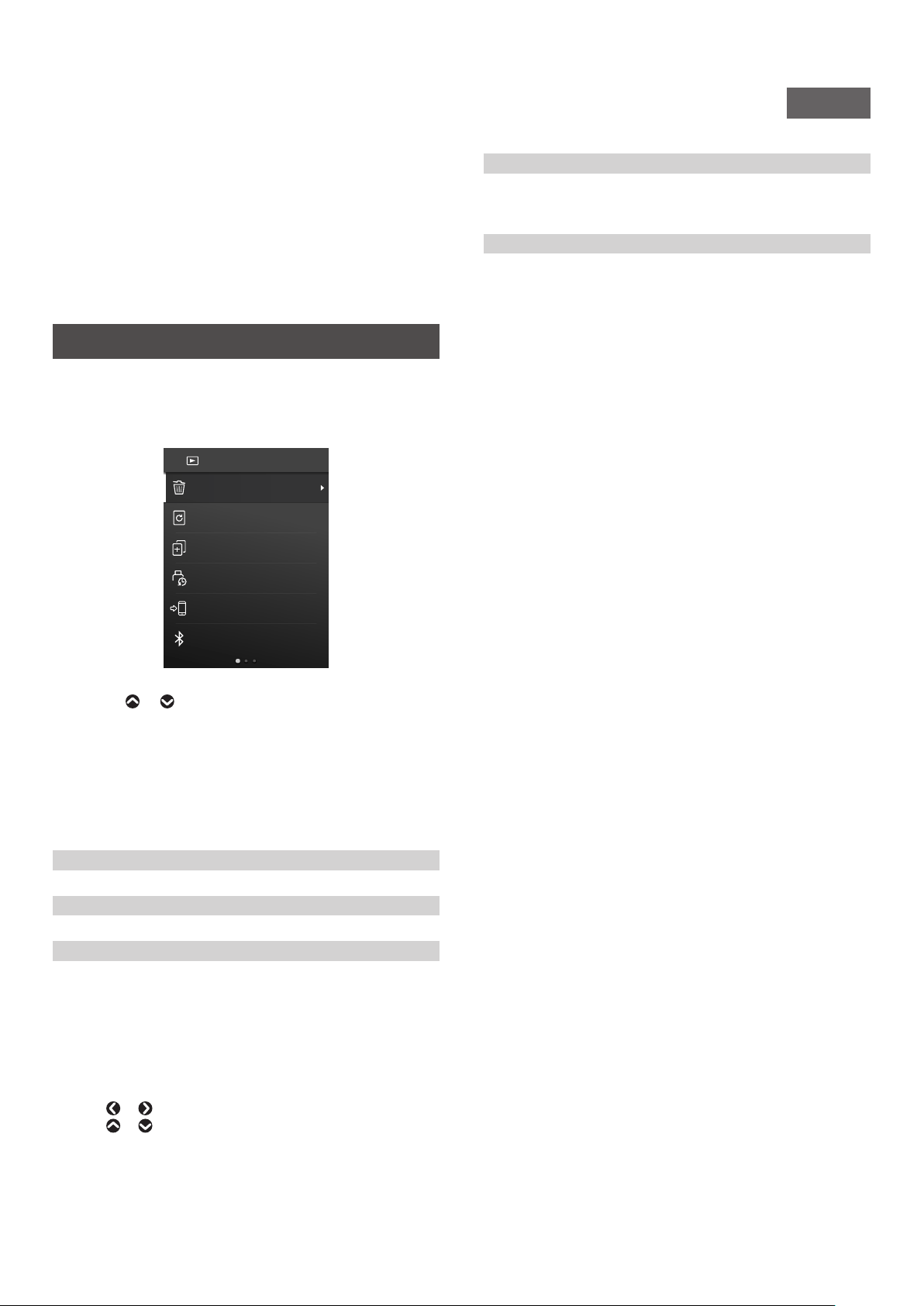
Using the PLAYBACK MENU
You can use the PLAYBACK MENU to change various playback-
related settings.
1
On the playback screen, press [MENU/OK]�
The playback menu appears.
ERASE
IMAGE ROTATE
COPY
PRINTED IMAGE
TRANSFER
PRINT HISTORY
BLUETOOTH SETTINGS
PLAYBACK MENU
2
Press or to select an item�
For details on each item, see “Items in the PLAYBACK MENU”.
3
Changing the Settings�
4
Press [MENU/OK]�
The settings are applied and the display returns to the
previous screen.
■ Items in the PLAYBACK MENU
[ERASE]
Erases images one frame at a time or all frames at once.
[IMAGE ROTATE]
Rotates the image in 90-degree increments and displays it.
[COPY]
Copies images from the internal memory to the memory card or
from the memory card to the internal memory.
Follow the steps below.
1.
Select [COPY] from the PLAYBACK MENU
2.
Select the copy destination and press [MENU/OK]
3.
Select [FRAME] or [ALL FRAMES] and press [MENU/OK]
If you selected [ALL FRAMES], copying starts. If you selected
[FRAME], go to step 4.
4.
Press
or to select the image you want to copy.
5.
Press
or and select [COPY]
6.
Press [MENU/OK]
[PRINT HISTORY]
•Displays up to 50 images that have been printed previously.
•Select an image and turn the Print lever to start printing.
•Press [MENU/OK] to clear the print history frame by frame.
[PRINTED IMAGE TRANSFER]
You can send images printed with the camera to the smartphone
app to save them as instax frame images on your smartphone.
For more information on the following items, please refer to the
same items in “Using the Shooting Menu”. (p. 22)
[BLUETOOTH SETTINGS]/[PRINT QUALITY MODE]/[Print Brightness]/
[DATE/TIME]/[DATE STAMP]/[言語/LANG.]/[SOUND SET-UP]/[AUTO
POWER OFF]/[RESET]/[FORMAT]/[FIRMWARE UPGRADE]
24
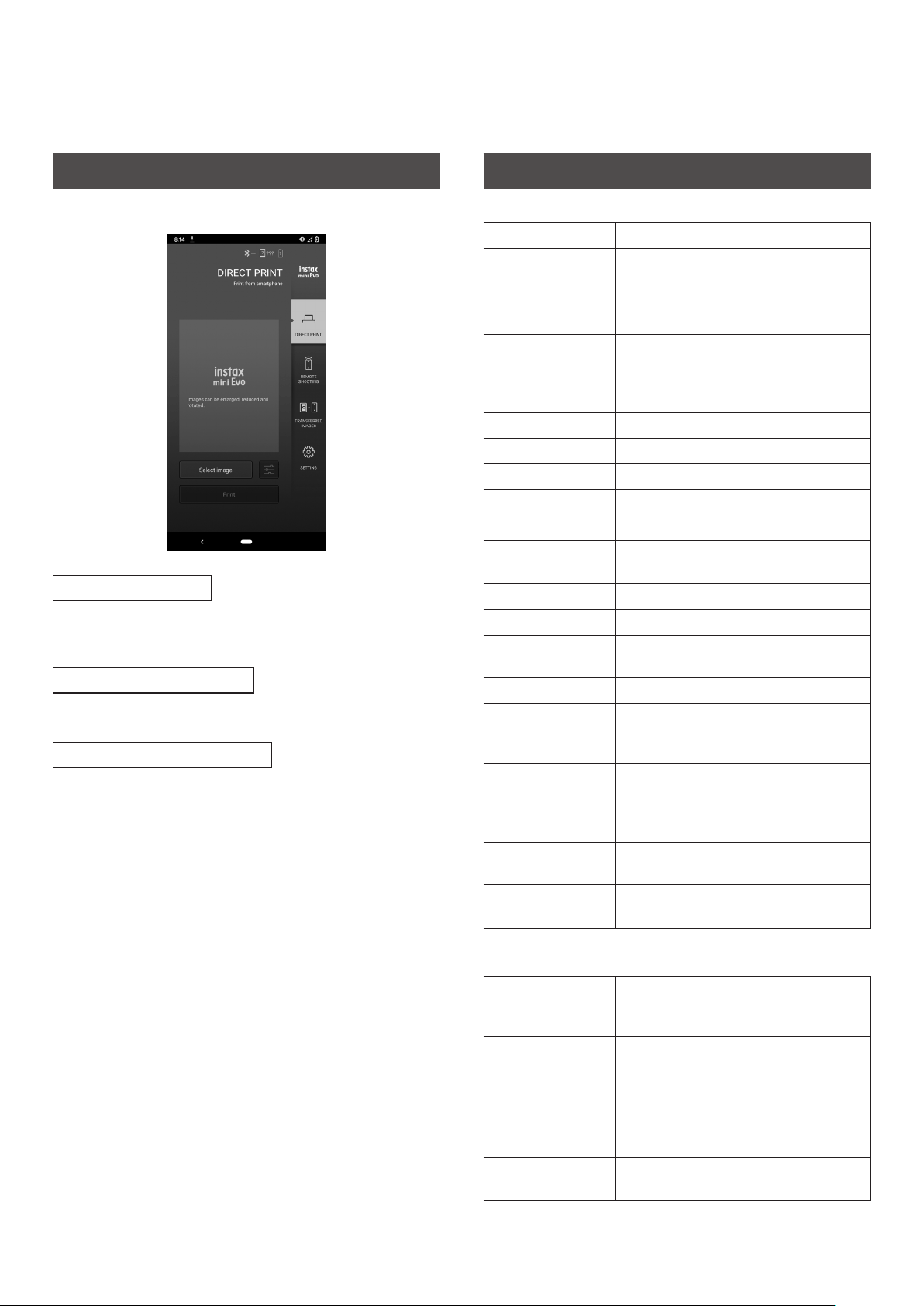
Smartphone App Linked Functions
The following functions are available when connected with the
“instax mini Evo” smartphone app.
Direct print function
This function allows you to send images from your smartphone to
the camera for instax printing. You can use the smartphone app to
move, rotate, and zoom the image before sending it.
Remote shooting function
You can set the flash and self-timer with the smartphone app and
take photos remotely.
Print image storage function
You can send images printed with the camera to the smartphone
app to save them as instax frame images on your smartphone.
Specifications
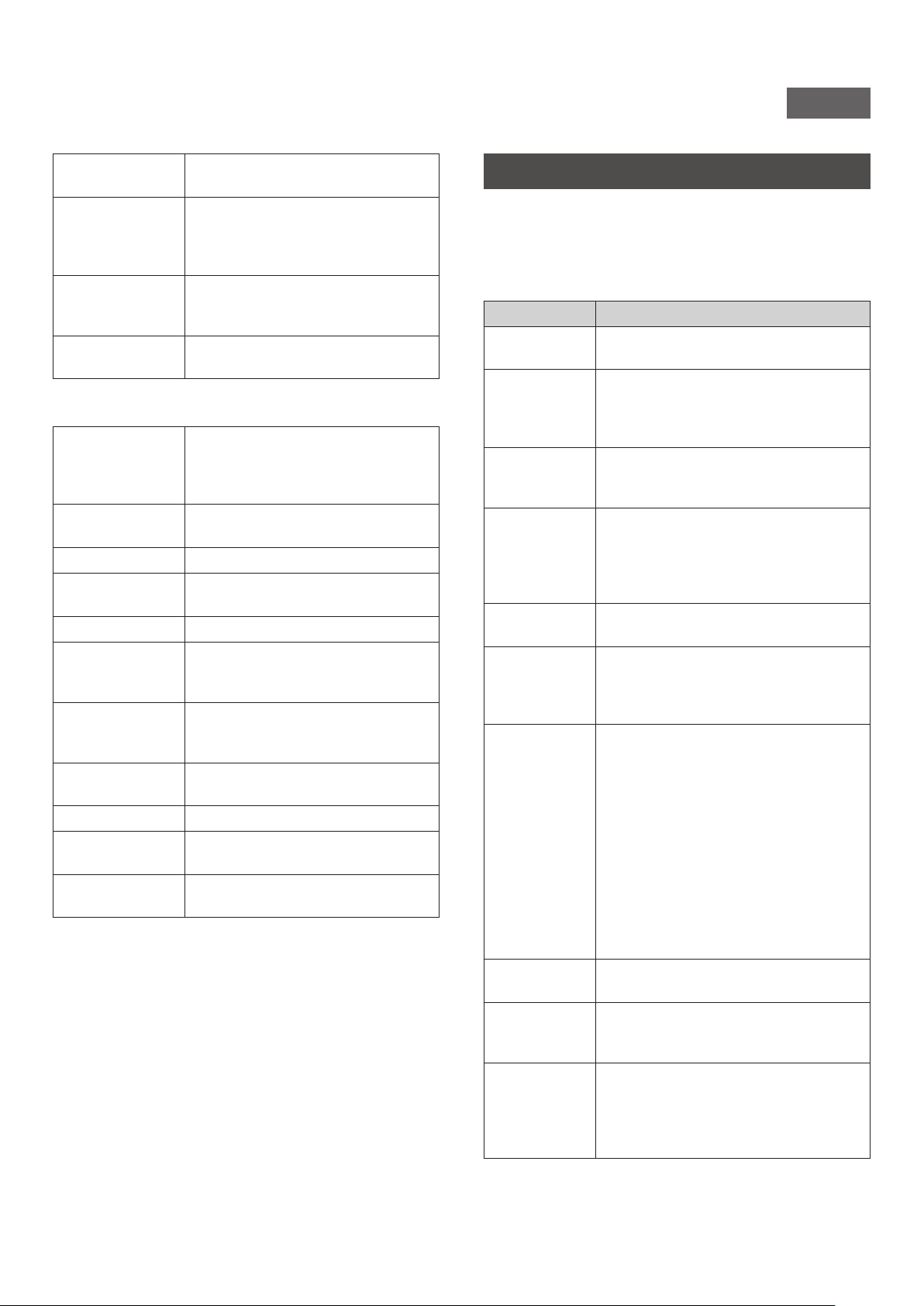
■ Camera Function
Image sensor 1/5-inch CMOS with primary color filter
Number of recorded
pixels
2560 × 1920
Storage media Internal memory,
microSD/microSDHC memory card
Storage capacity Approximately 45 images in internal
memory, approximately 850 images per
1GB in microSD/microSDHC memory
card
Recording method DCF compliant Exif Ver 2.3
Focus distance f = 28 mm (35 mm film equivalent)
Aperture F2.0
Auto focus Single AF (with AF Illuminator)
Shooting distance 10 cm to ∞
Shutter speed 1/4 second to 1/8000 second (automatic
switching)
Shooting sensitivity ISO100 to 1600 (automatic switching)
Exposure control Program AE
Exposure
compensation
−2.0 EV to +2.0 EV (1/3 EV step)
Metering method TTL 256 split metering, multi metering
White balance Auto, Fine, Shade, Fluorescent 1,
Fluorescent 2, Fluorescent 3,
Incandescent
Flash AUTO FLASH/FORCED FLASH/
SUPPRESSED FLASH
Shooting range with flash: Approximately
50 cm to 1.5 m
Self-timer Approximately 2 seconds / approximately
10 seconds
Image effects 10 lens effects, 10 film effects
Total of 100 effects by multiplying above
■ Print function
Exposure pixel
count
1600 × 600 dots
(800 × 600 dots when printed from
smartphone app)
Exposure resolution 25 dots/mm × 12.5 dots/mm
(635 × 318 dpi, 40 x 80 μm dot pitch)
12.5 dots/mm when printed from
smartphone app
(318 dpi, 80 μm dot pitch)
Exposure gradation RGB gradation of 256 colors
Interface Standard compliance: Bluetooth Ver. 4.2
(BLE)
25
WW_EN
Printable image
format
JPEG images taken with this unit
Print output time Approximately 16 seconds
* Plus 7 seconds when printed using
instax-Rich Mode immediately after
startup.
Print function Images in the internal memory and
images in the memory card can be
printed
Reprint Reprint is possible for images stored in
print history (up to 50)
■ Other
Smartphone app
linked functions
Smartphone image print function,
remote shooting function, printed image
transfer function, firmware upgrade
function
LCD screen 3.0-inch TFT color LCD screen
Pixel count: Approximately 460,000 dots
External interface Micro USB Micro-B (for charging only)
Power supply Lithium ion battery (internal type: not
removable)
Charging function Built-in
Possible number of
printed images
Approximately 100 (from full charge)
* The number of prints depends on the
usage conditions.
Charging time Approximately 2 to 3 hours
* Charging time depends on the
temperature.
Main unit
dimensions
87 mm × 122.9 mm × 36 mm (excluding
projecting parts)
Main unit weight Approximately 285 g
Operating
environment
Temperature: 5°C to 40°C
Humidity: 20% to 80% (no condensation)
Film used FUJIFILM instant film “instax mini” (sold
separately)
* The above specifications are subject to change for better
performance.
Troubleshooting
Please check the following items before considering a problem to
be a malfunction. If the problem persists even after taking action,
please contact our service center for repair or visit the website
below.
FUJIFILM website: https://www.fujifilm.com/
If the following problem occurs���
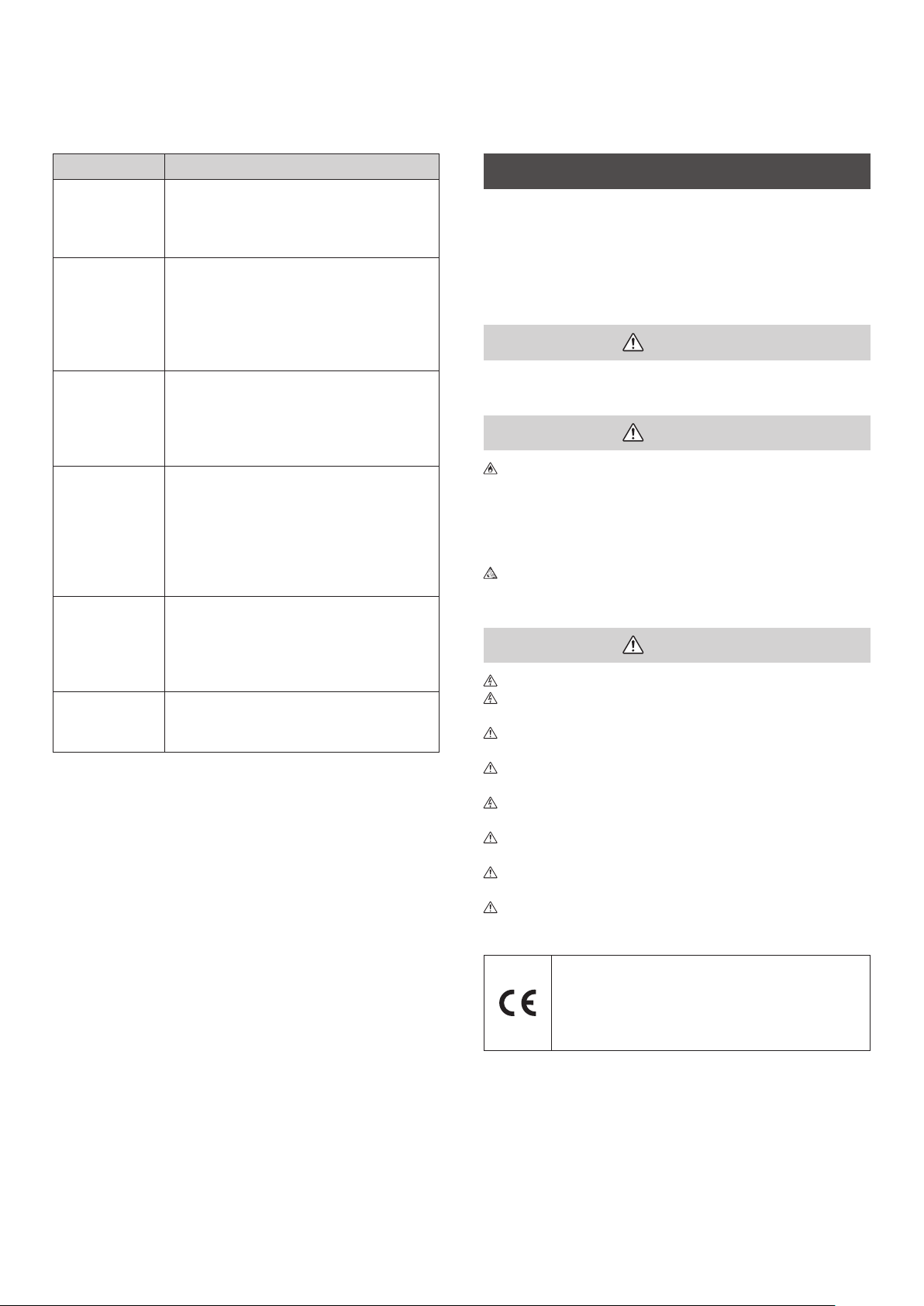
Problem Possible causes and solutions
I cannot turn on
the camera.
The battery may be exhausted. Please
charge the camera.
The battery is
exhausted
quickly.
If you use the camera in a very cold
environment, the battery will drain quickly.
Please keep the camera warm before
shooting.
Camera shuts
down during
use.
The battery level may be low. Please charge
the camera.
Charging does
not start.
•Make sure that the USB power adapter
plug is properly connected to the power
outlet.
•Turn off the camera when charging it. If
power is on camera will not charge.
It takes too long
to charge.
At low temperatures, charging may take
some time.
The self-timer
lamp flashes
while charging.
Charge the battery in a temperature range of
+5 °C to +40 °C. If you cannot charge the
battery within this range, please contact our
support center.
I cannot shoot
when I press the
shutter button.
•Make sure that the power is on.
•If the battery level is low, please charge
the camera.
•If the internal memory or memory card is
full, insert a new memory card or delete
unnecessary images.
•Use a memory card formatted with this
unit.
•If the contact surface of the memory card
(gold part) is dirty, wipe it with a soft, dry
cloth.
•The memory card may be broken. Please
insert a new memory card.
I cannot focus
the camera.
Use the AF/AE lock to shoot subjects that are
difficult to focus on.
The flash does
not fire.
Check that the suppressed flash setting has
not been selected. Select a setting other
than the suppressed flash setting.
Even though the
flash fired, the
image is dark.
•Check that you are not too far from the
subject. Please shoot within the flash
range. Approximately 50 cm to 1.5 m.
•Hold the camera correctly so that you do
not obstruct the flash with your fingers.
26
Problem Possible causes and solutions
The image is
blurred.
•If the lens has dirt on it such as
fingerprints, clean the lens.
•Make sure that the AF frame is green
before taking a photo.
The camera
does not work
properly.
•There may be a temporary malfunction.
Please press the reset button. If it still does
not work properly, please contact our
repair service center for repair.
•The battery may be exhausted. Please
charge the camera.
The film pack
does not load or
does not load
smoothly.
•Please use FUJIFILM instant film "INSTAX
mini" (other films cannot be used).
•Align the yellow mark on the film pack
with the yellow alignment mark on the
camera body to load the film.
The film does
not unload.
•The film may be misaligned due to shocks
such as vibration or dropping. Please load
a new film pack.
•If the film is jammed, turn off the camera
and turn it on again. If the problem
persists, remove the jammed film and
then load a new film pack.
Some or all of
the finished
prints are white.
Do not open the film door until all film
exposures have been used. Unexposed film
will be prematurely exposed if the door is
opened. Prematurely exposed film will be
white with no images.
The print is
uneven.
•Do not shake, bend, fold or hold the print
immediately after it is printed.
•Do not obstruct the film ejection slot.
IMPORTANT SAFETY NOTICE
This product has been designed to ensure the safety of the user
when handled correctly in accordance with the User’s Guide and
the instructions provided. It is important that both the product
and the “instax mini” film are handled properly and used only to
print pictures as instructed in the User’s Guide and in the “instax
mini” film instructions. For future reference keep the User’s Guide
in a safe, easy place.
WARNING
This symbol indicates danger, which could result in injury or death.
Please follow these instructions.
WARNING
If any of the following instances occur, immediately unplug
the Micro USB cable, turn the camera off and cease use�
•The camera becomes hot, emits smoke, emits a burnt smell or
is functioning abnormally�
•The camera is dropped into water or any foreign objects enter
the camera�
This device contains a built-in battery� Do not subject it to
heat, throw it into an open fire, drop or subject to impact�
Doing so could cause the camera to explode�
WARNING
Never attempt to take this product apart. You may be injured.
If the camera is not functioning correctly, to avoid injury do not
attempt to repair yourself.
If this product is dropped or damaged so that the internals are
visible, do not touch it. Contact your FUJIFILM dealer.
Do not touch any parts within the inside of the back cover. This
may cause injury.
Never get this product wet or handle it with wet hands. Doing
so may result in an electric shock.
Promptly unplug the Micro USB cable once battery is fully
charged.
Keep out of the reach of small children. This product could
cause injury in the hands of a child.
Do not cover or wrap the camera or the AC power adapter in a
cloth or blanket. This can cause heat to build up and distort the
casing or cause a fire.
The “CE” mark certifies that this product satisfies the
requirements of the EU (European Union) regarding
safety, public health, environment and consumer
protection. (“CE” is the abbreviation of Conformité
Européenne.)
Hereby, FUJIFILM declares that the radio equipment type “FI019” is
in compliance with Directive 2014/53/EU.
For more information, access the website below.
https://www.fujifilm.com/products/instant_photo/cameras/
instax_mini_evo/
27
WW_EN
The “UKCA” mark certifies that this product satisfies the
requirements of Great Britain (England, Scotland, Wales)
regarding safety, public health, environment and
consumer protection.
*UKCA: UK Conformity Assessed.
Simple Camera Care
■ Handling the Camera and Battery
•CAUTION - Do not expose to excessive heat such as sunshine,
fire or the like, that can result in an explosion or the leakage of
flammable liquid or gas during use, storage or transportation or
disposal.
•CAUTION - Do not dispose of a battery into fire or a hot oven, or
mechanically crush or cut the battery, as this may result in an
explosion.
•CAUTION - Do not subject to extremely low air pressure at high
altitude that may result in an explosion or the leakage of
flammable liquid or gas.
■ Camera Care
1.
Do not open the film door until all film exposures have been
used, doing so will prematurely expose the remaining film
and render it unusable�
2.
Your camera is a fragile object. Do not expose it to water, sand
or gritty materials.
3.
Do not use a strap made for cellular phones or other similar
electronic products. These straps are usually too weak to hold
your camera securely. For safety, only use straps designed for
your camera, and use only as specifically intended and
instructed.
4.
Do not use solvent such as thinner or alcohol to remove dirt.
5.
Do not leave your camera in direct sunlight or hot places such
as the inside of a car. Do not leave the camera in damp places
for prolonged periods.
6.
Moth repellent gas such as naphthalene may affect your
camera and prints. Take care to keep your camera and prints in
a safe, dry place.
7.
Note that the temperature range within which your camera
can be used is +5°C to +40°C.
8.
Take great care to ensure that printed materials do not violate
copyright, image rights, privacy or other personal rights and
do not offend public decency. Actions that violate the rights of
others, are contrary to public decency or constitute a nuisance
may be punishable by law or otherwise legally actionable.
■ Handling the LCD Screen
As the LCD Screen can be easily scratched or damaged by sharp
or solid objects, we recommend you attach a protective sheet
(commercially available) onto the LCD Screen.
■ Charging the Battery
The battery has not been charged during manufacture� Please
charge the battery fully before first use�
Charge the battery using the supplied Micro USB cable.
Charging times will increase at ambient temperatures below
+10°C or above +35°C. Do not attempt to charge the battery at
temperatures above +40°C or at temperatures below +5°C as
the battery will not charge.
■ Battery Life
At normal temperatures, the battery can be recharged about
300 times. A noticeable decrease in the length of time the
battery will hold a charge indicates that it has reached the end
of its service life.
■ Caution: Handling the Battery
The battery and camera body may become warm to the touch
after extended use. This is normal.
■ Certification marks are located inside the film chamber�
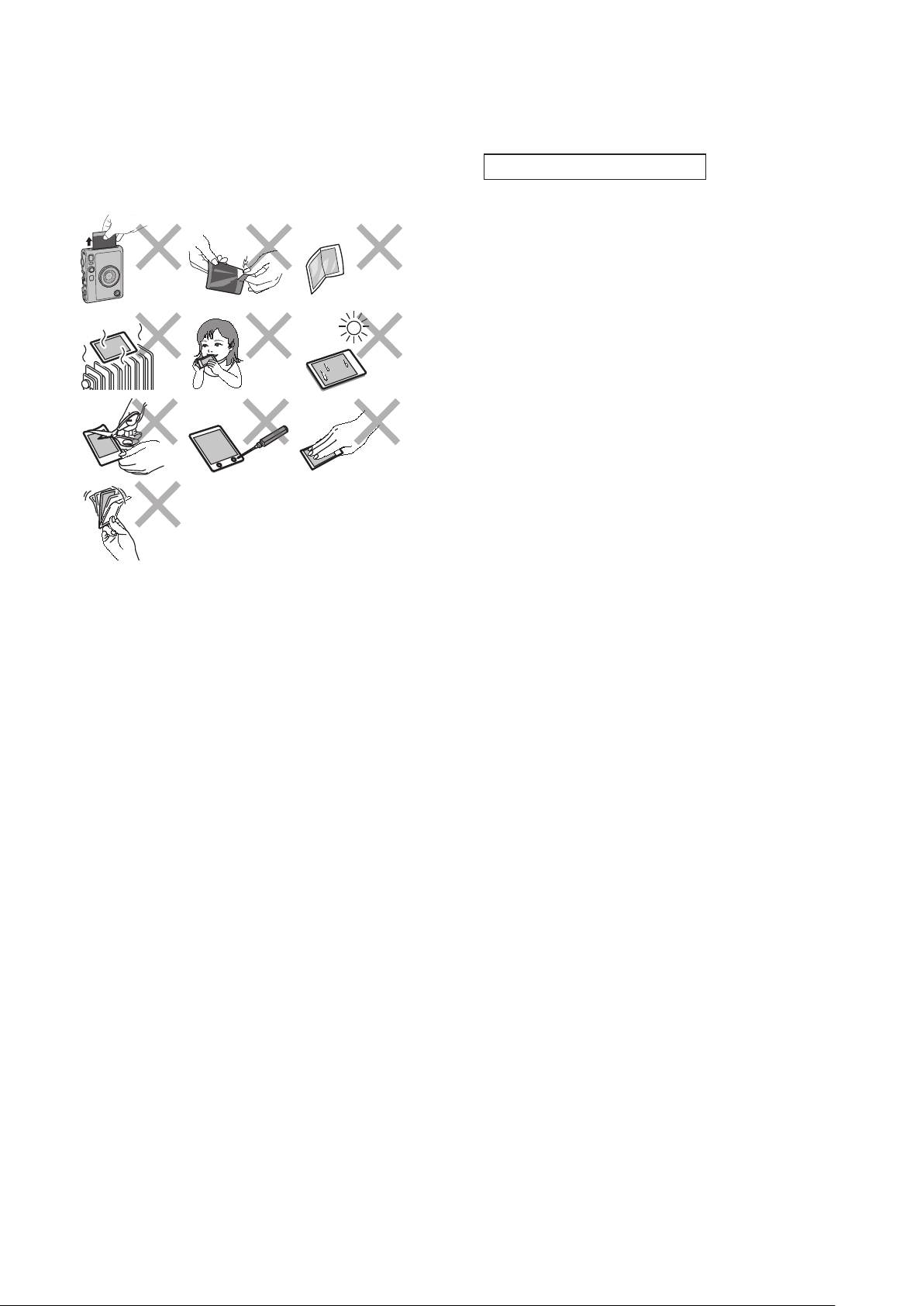
■ Cautions During Printing
■ “instax mini” Film and Print Care
See FUJIFILM Instant Film “instax mini” packaging for film use
instructions. Follow all instructions for safe and proper use.
1.
Keep the film in a cool place. Do not leave the film in a place
where the temperature is extremely high (e.g., in a closed car)
for many hours.
2.
Do not puncture, tear, or cut the film. If film becomes
damaged, do not use.
3.
When you load a film pack, use the film as soon as possible.
4.
If the film has been kept in a place where the temperature is
extremely high or low, bring it to room temperature before
starting to print pictures.
5.
Be sure to use the film before the expiration or “Use Before”
date.
6.
Avoid airport checked luggage scanning and other strong
X-ray exposure. The effect of fogging, etc. may appear on
unused film. We recommend that you carry the camera and/or
the film onto the aircraft as carry-on luggage. (Check with each
airport for more information.)
7.
Avoid strong light, and keep the developed prints in a cool and
dry place.
8.
Do not puncture or cut the film as it contains a small amount of
caustic paste (high alkaline). Never let children or animals put
the film into their mouth. Also ensure that the paste does not
come into contact with skin or clothes.
9.
Should the paste inside the film comes into contact with skin
or clothes, immediately wash off with plenty of water. If the
paste comes into contact with the eyes or mouth, immediately
wash the area with plenty of water and contact a doctor. Note
that the alkaline inside the film remains active for about 10
minutes after the picture has been printed.
28
■ Cautions on Handling the Film and Prints
For details, refer to the instructions and warnings on the
packaging of the FUJIFILM Instant Film “instax mini”.
Bluetooth® Devices: Cautions
IMPORTANT: Read the following notices before using the
product’s built-in Bluetooth transmitter�
■ Use only as part of a Bluetooth network�
FUJIFILM does not accept liability for damages resulting from
unauthorized use. Do not use in applications requiring a high
degree of reliability, for example in medical devices or other
systems that may directly or indirectly impact human life. When
using the device in computer and other systems that demand a
greater degree of reliability than Bluetooth networks, be sure to
take all necessary precautions to ensure safety and prevent
malfunction.
■ Use only in the country in which the device was purchased�
This device conforms to regulations governing Bluetooth
devices in the country in which it was purchased. Observe all
location regulations when using the device. FUJIFILM does not
accept liability for problems arising from use in other
jurisdictions.
■ Wireless data (images) may be intercepted by third parties�
The security of data transmitted over wireless networks is not
guaranteed.
■ Do not use the device in locations subject to magnetic fields,
static electricity, or radio interference�
Do not use the transmitter in the vicinity of microwave ovens or
in other locations subject to magnetic fields, static electricity, or
radio interference that may prevent reception of wireless
signals. Mutual interference may occur when the transmitter is
used in the vicinity of other wireless devices operating in the
2.4GHz band.
■ The Bluetooth transmitter operates in the 2�4 GHz band�
The standard output is approximately 3�16 mW�
■ This device operates on the same frequency as commercial,
educational, and medical devices and wireless transmitters�
It also operates on the same frequency as licensed transmitters
and special unlicensed low-voltage transmitters used in radio-
frequency identification tracking systems for assembly lines and
in other similar applications.
■ To prevent interference with the above devices, observe the
following precautions�
Confirm that the radio-frequency identification transmitter is
not in operation before using this device. If you notice that this
device causes interference in low-voltage radio-frequency
identification tracing systems, contact a FUJIFILM
representative.
■ The following may be punishable by law:
– Disassembly or modification of this device.
– Removal of device certification labels.
■ Trademark Information
The Bluetooth® word mark and logos are registered trademarks
owned by the Bluetooth SIG, Inc., and any use of such marks by
FUJIFILM is under license.
29
WW_EN
Information for traceability in Europe
Manufacturer: FUJIFILM Corporation
Address, City: 7-3, Akasaka 9-Chome, Minato-ku, Tokyo
Country: JAPAN
Authorized representative in Europe:
FUJIFILM EUROPE GMBH
Address, City: Dusseldorf Heesenstrasse 31, 40549
Country: Germany
Authorized Representative in UK:
FUJIFILM UK Limited
St Martins Business Centre, St Martins Way, Bedford, MK42 0LF
If you have any inquiries about this product, please contact a
FUJIFILM authorized dealer, or access the website below.
https://www.fujifilm.com/