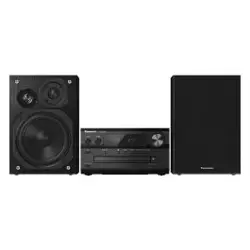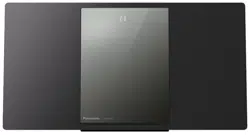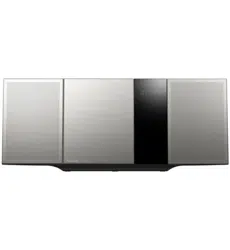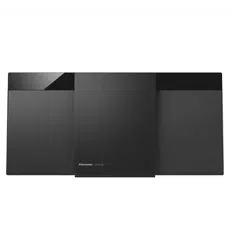
Operating Instructions
Compact Stereo System
Model No. SC-HC302
SC-HC300
Thank you for purchasing this product.
For optimum performance and safety, please read these instructions carefully.
Please keep this manual for future reference.
GN
TQBJ2074-1
GS
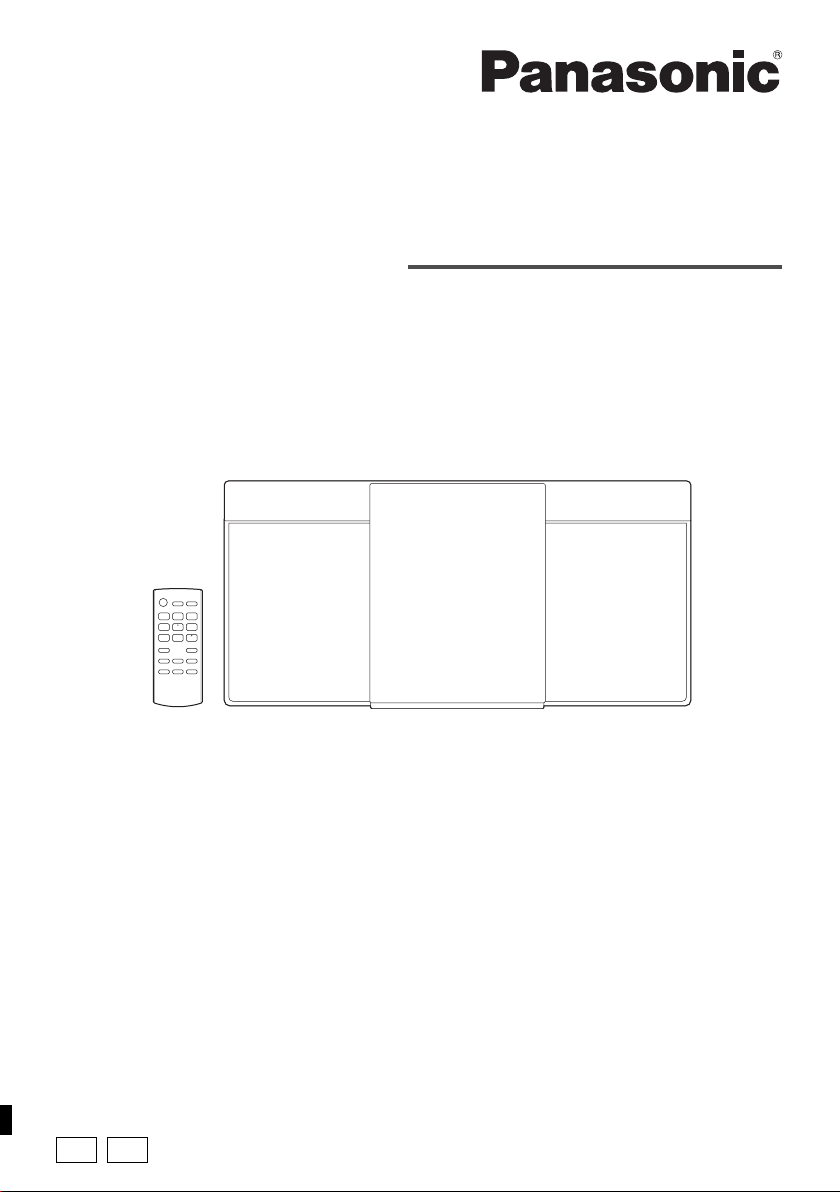
This illustration shows SC-HC302.
SC-HC302.300.GN.GS TQBJ2074 En_rev1.fm Page 1 Friday, March 23, 2018 9:59 AM
2
TQBJ2074
These operating instructions are applicable for models
SC-HC302 and SC-HC300.
Unless otherwise indicated, illustrations in these operating
instructions are of SC-HC302. Your system and the
illustrations can look differently.
Table of contents
Safety precautions . . . . . . . . . . . . . . . . . . . . . . . . . . . . . 2
Note on AC mains lead . . . . . . . . . . . . . . . . . . . . . . . . . . 3
Supplied accessories . . . . . . . . . . . . . . . . . . . . . . . . . . . 3
Making the connections . . . . . . . . . . . . . . . . . . . . . . . . . 4
Preparing the remote control . . . . . . . . . . . . . . . . . . . . . 4
Overview of controls . . . . . . . . . . . . . . . . . . . . . . . . . . . . 5
Preparing the media . . . . . . . . . . . . . . . . . . . . . . . . . . . . 6
Media playback . . . . . . . . . . . . . . . . . . . . . . . . . . . . . . . . 7
Radio. . . . . . . . . . . . . . . . . . . . . . . . . . . . . . . . . . . . . . . . 9
DAB/DAB+ . . . . . . . . . . . . . . . . . . . . . . . . . . . . . . . . . . 10
Clock and timers . . . . . . . . . . . . . . . . . . . . . . . . . . . . . . 11
Sound effects . . . . . . . . . . . . . . . . . . . . . . . . . . . . . . . . 12
External music device . . . . . . . . . . . . . . . . . . . . . . . . . . 12
Others . . . . . . . . . . . . . . . . . . . . . . . . . . . . . . . . . . . . . . 13
Troubleshooting . . . . . . . . . . . . . . . . . . . . . . . . . . . . . . 14
Maintenance . . . . . . . . . . . . . . . . . . . . . . . . . . . . . . . . . 16
Specifications . . . . . . . . . . . . . . . . . . . . . . . . . . . . . . . . 17
References . . . . . . . . . . . . . . . . . . . . . . . . . . . . . . . . . . 18
Limited Warranty (For Australia only) . . . . . . . . . . . . . . 19
Safety precautions
WARNING!
Unit
• To reduce the risk of fire, electric shock or product
damage,
– Do not expose this unit to rain, moisture, dripping or
splashing.
– Do not place objects filled with liquids, such as vases,
on this unit.
– Use the recommended accessories.
– Do not remove covers.
– Do not repair this unit by yourself. Refer servicing to
qualified service personnel.
– Do not let metal objects fall inside this unit.
CAUTION!
Unit
• To reduce the risk of fire, electric shock or product
damage,
– Do not install or place this unit in a bookcase, built-in
cabinet or in another confined space. Ensure this unit
is well ventilated.
– Do not obstruct this unit’s ventilation openings with
newspapers, tablecloths, curtains, and similar items.
– Do not place sources of naked flames, such as
lighted candles, on this unit.
• [HC302]
This unit is intended for use in moderate climates.
[HC300]
This unit is intended for use in tropical and moderate
climates.
• This unit may receive radio interference caused by
mobile telephones during use. If such interference
occurs, please increase separation between this unit
and the mobile telephone.
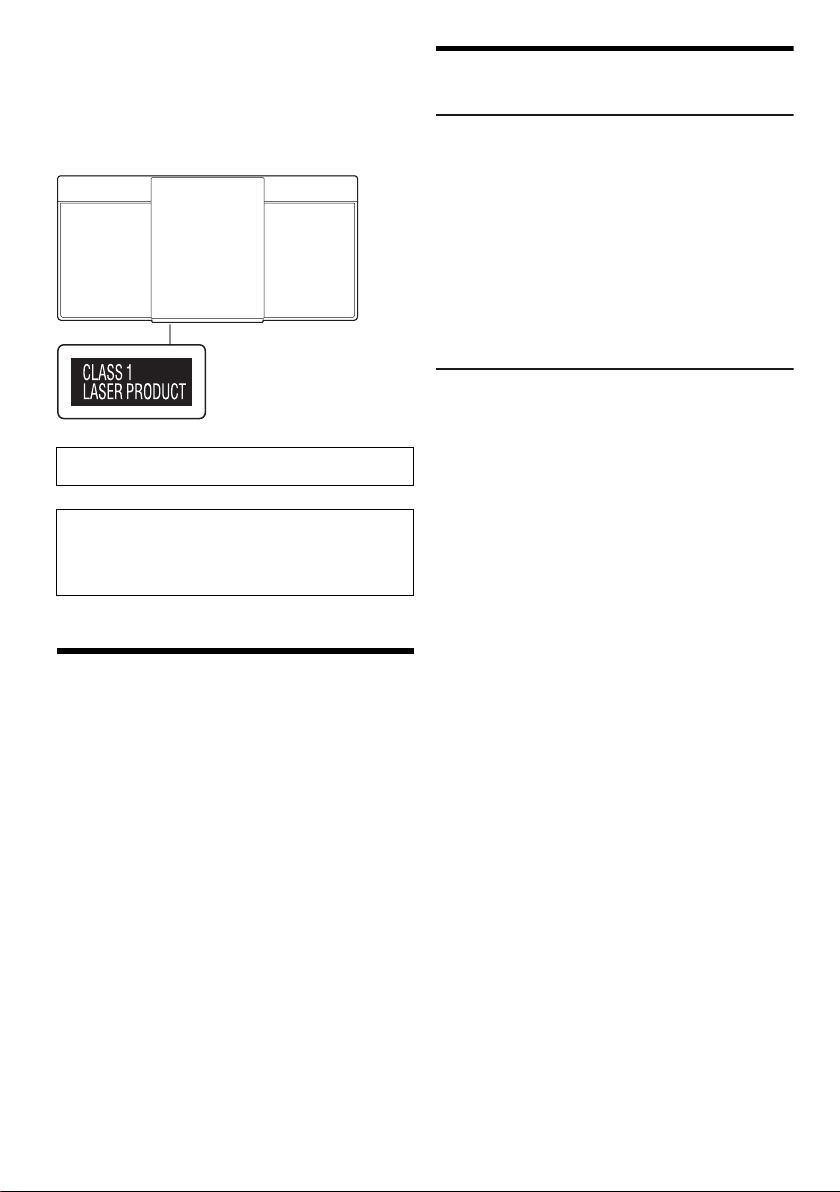
• This unit utilizes a laser. Use of controls or adjustments
or performance of procedures other than those
specified herein may result in hazardous radiation
exposure.
AC mains lead
• The mains plug is the disconnecting device. Install this
unit so that the mains plug can be unplugged from the
socket outlet immediately.
Battery
• Danger of explosion if battery is incorrectly replaced.
Replace only with the type recommended by the
manufacturer.
• When disposing of the batteries, please contact your
local authorities or dealer and ask for the correct
method of disposal.
• Do not heat or expose to flame.
• Do not leave the battery(ies) in a car exposed to direct
sunlight for a long period of time with doors and
windows closed.
• Do not break open or short-circuit the battery.
• Do not charge the alkaline or manganese battery.
• Do not use the battery if the cover has peeled off.
• Remove the battery if you do not use the remote control
for a long period of time. Keep in a cool, dark area.
[HC302]:
[HC300]:
Indicate features applicable to SC-HC302.
Indicate features applicable to SC-HC300.
Product Identification Marking is located on the bottom
of the unit.
The holes at the back are used only by the retailers for
product display purposes.
Panasonic cannot be held responsible for any property
damage and/or serious injury, including death resulting
from improper use of these holes.
SC-HC302.300.GN.GS TQBJ2074 En_rev1.fm Page 2 Friday, March 23, 2018 9:59 AM
3
TQBJ2074
Note on AC mains lead
(For the AC mains plug of three pins)
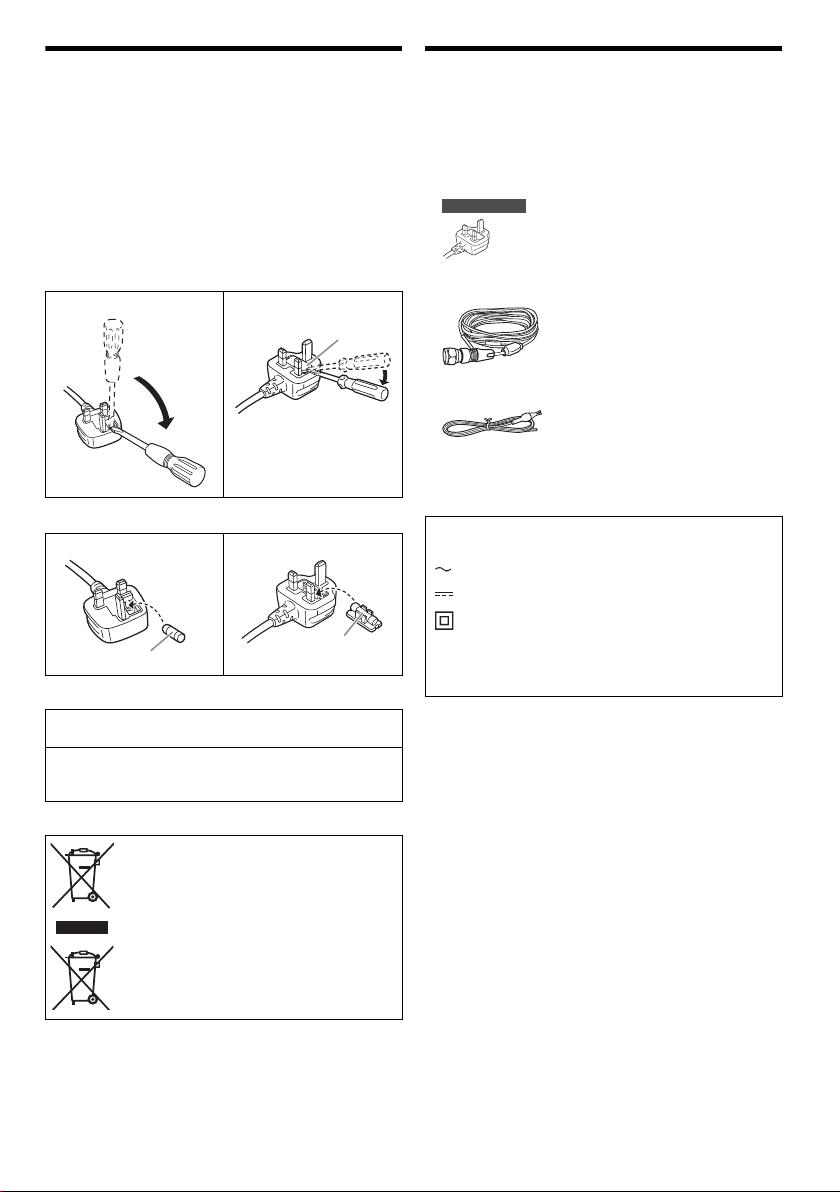
For your safety, please read the following text carefully.
Before use
Remove the connector cover.
How to replace the fuse
The location of the fuse differ according to the type of AC
mains plug (figures A and B). Confirm the AC mains plug
fitted and follow the instructions below.
Illustrations may differ from actual AC mains plug.
1. Open the fuse cover with a screwdriver.
2. Replace the fuse and close or attach the fuse cover.
[HC300]
[HC302]
Supplied accessories
Check and identify the supplied accessories.
[HC302]
1 AC mains lead
[HC300]
3 AC mains leads
For Saudi Arabia
[HC302]
1 DAB indoor antenna
[HC300]
1 FM indoor antenna
1 Remote control
(N2QAYB000944)
1 Remote control battery
Figure A Figure B
Figure A Figure B
This telecommunication equipment conforms to
NTC/NBTC technical requirement.
Connection and use of this communications equipment
is permitted by the Nigerian Communications
Commission.
Disposal of Old Equipment and Batteries
Only for European Union and countries
with recycling systems
This symbol is only valid in the European
Union.
If you wish to discard this product, please
contact your local authorities or dealer and
ask for the correct method of disposal.
Fuse cover
Fuse (5 ampere)
Fuse (5 ampere)
The symbols on this product (including the
accessories) represent the following:
AC
DC
Class II equipment (The construction of the
product is double-insulated.)
! ON
` Standby
SC-HC302.300.GN.GS TQBJ2074 En_rev1.fm Page 3 Friday, March 23, 2018 9:59 AM
4
TQBJ2074
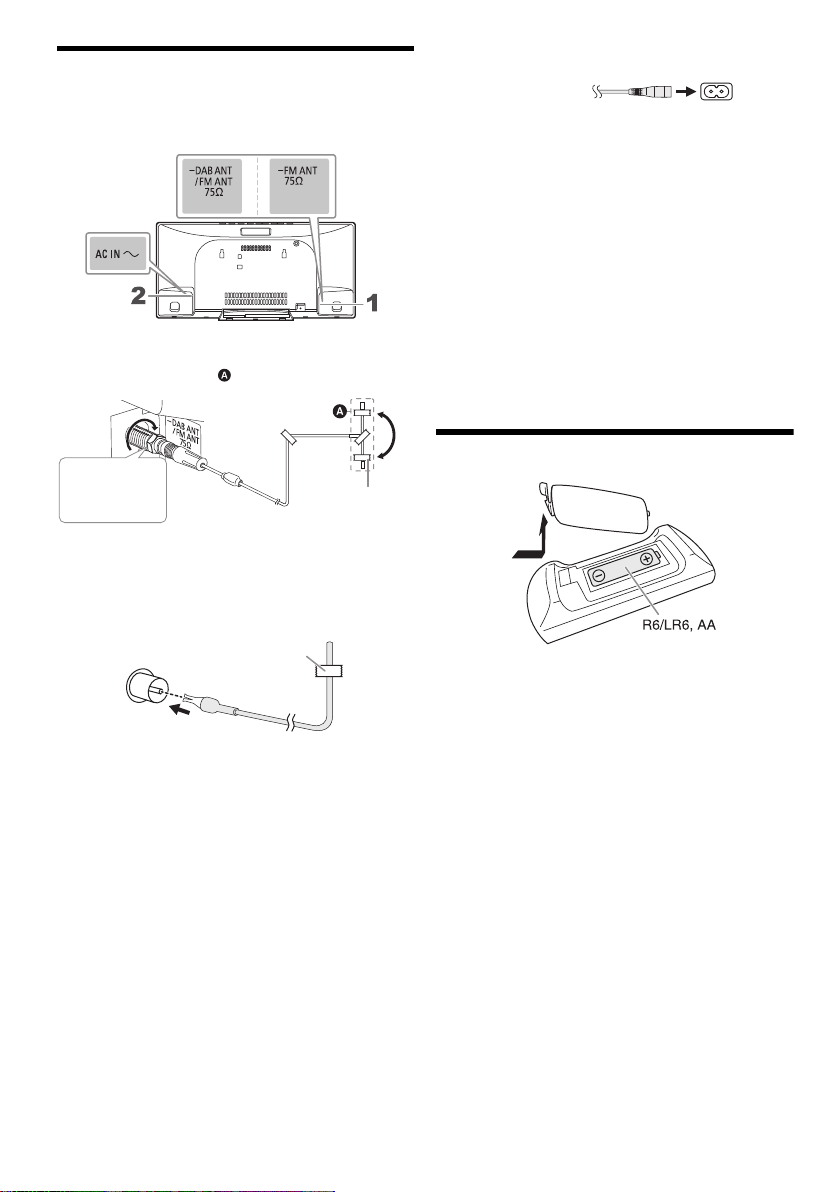
Making the connections
Connect the AC mains lead only after all the other
connections have been made.
1 [HC302]
Connect the DAB indoor antenna.
Rotate the antenna at to improve reception.
Note:
• Do not use any other DAB antenna except the supplied one.
• Do not mount the DAB antenna on metal objects such as
water pipes or any metal parts of the building.
[HC300]
Connect the FM indoor antenna.
2 Connect the AC mains lead.
Do not use any other AC mains lead except the
supplied one.
Conserving power
The system consumes a small amount of power
(~17) even when it is in standby mode. Disconnect
the power supply if you do not use the system.
Some settings will be lost after you disconnect the
system. You have to set them again.
Note:
• These speakers do not have magnetic shielding. Do not put
them near TVs, PCs or other equipment easily influenced by
magnetism.
• Tape the antenna to a wall with the least amount of
interference.
• Use an outdoor antenna (not supplied) if reception is poor.
Preparing the remote control
Use alkaline or manganese battery.
Install the battery so that the poles (+ and –) align with
those in the remote control.
Adhesive tape
(not supplied)
Be sure to
tighten the nut
fully.
Adhesive tape
(not supplied)
To household
mains socket
[HC300][HC302]
SC-HC302.300.GN.GS TQBJ2074 En_rev1.fm Page 4 Friday, March 23, 2018 9:59 AM
5
TQBJ2074
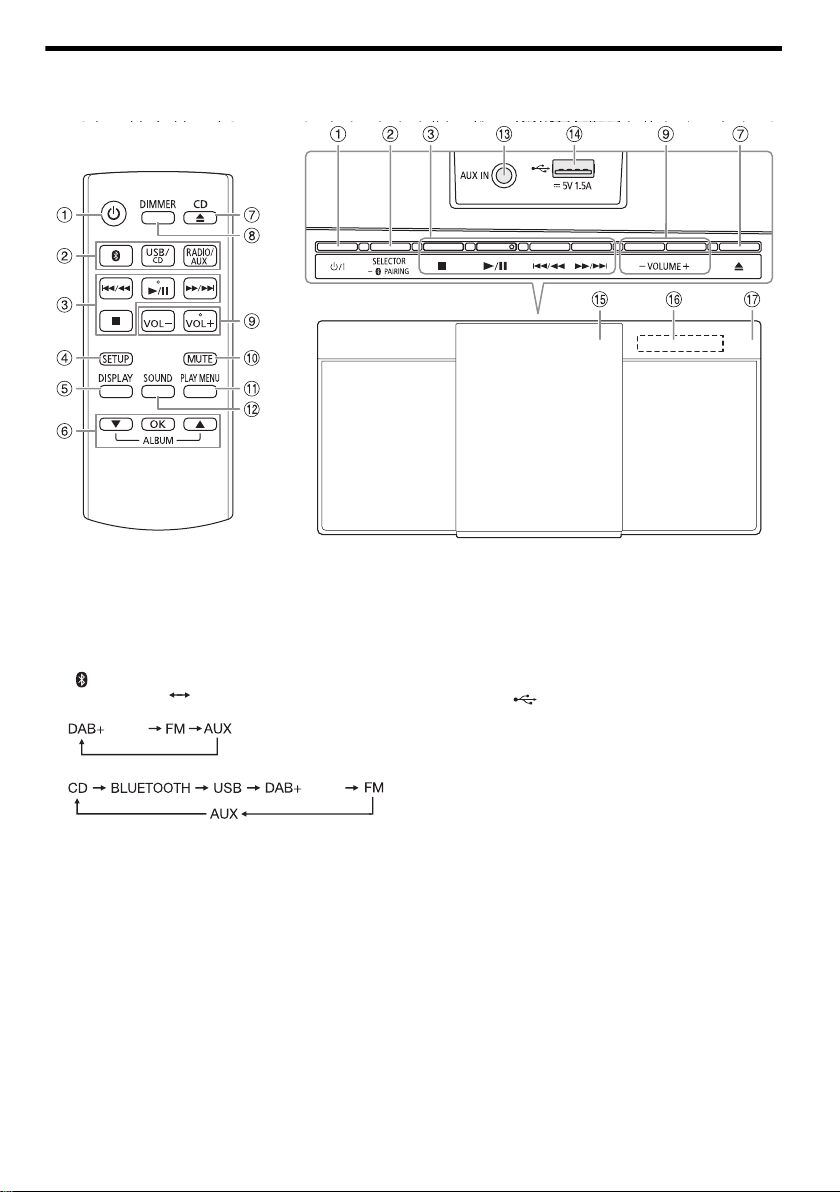
Overview of controls
Do the procedures with the remote control. You can also use the buttons on the main unit if they are the same.
A Standby/on switch [`], [1]
Press to switch the unit from on to standby mode or
vice versa. In standby mode, the unit is still consuming
a small amount of power.
B Select the audio source
On the remote control:
Press the corresponding button to select the source.
[ ]: BLUETOOTH
[USB/CD]: USB CD
[RADIO/AUX]:
On the main unit:
Select “BLUETOOTH” as the audio source
To start Bluetooth
®
pairing or disconnect a Bluetooth
device, press and hold the corresponding button.
C Basic playback control
D View the setup menu
E View the content information
F Select or confirm the option
G Open or close the sliding door
H Decrease the brightness of the display panel
To cancel, press the button again.
I Adjust the volume level
J Mute the sound
To cancel, press the button again.
“MUTE” is also cancelled when you adjust the volume
or when you switch off the system.
K View the play menu
L Select the sound effects
M AUX IN terminal (~12)
N USB port ( ) (~13)
O Sliding door
P Display panel
Q Remote control sensor
Distance: Within approximately 7 m
Angle: Approximately 20° up and down, 30° left
and right
Top view
[HC302]
[HC302]
SC-HC302.300.GN.GS TQBJ2074 En_rev1.fm Page 5 Friday, March 23, 2018 9:59 AM
6
TQBJ2074
Preparing the media
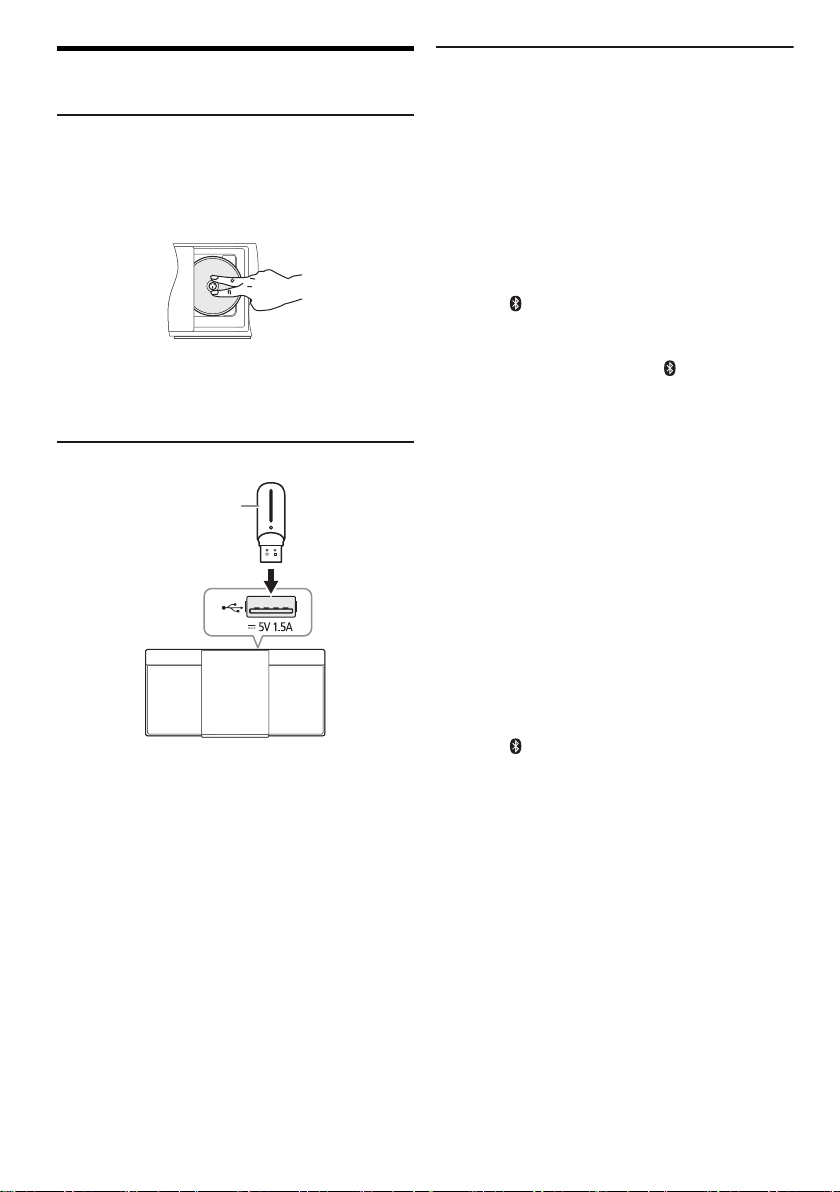
Disc
1 Press [USB/CD] to select “CD”.
2 Press [CD x] (main unit: [x]) to open the sliding
door.
Put in a disc with the label facing towards you.
3 Press [CD x] (main unit: [x]) again to close the
sliding door.
Keep fingers away from the sliding door when it is
closing.
USB
Press [USB/CD] to select “USB”.
Note:
Do not use a USB extension cable. The system cannot
recognise USB device connected through a cable.
Bluetooth
®
You can connect and play an audio device wirelessly
through Bluetooth
®
.
Preparation
• Switch on the Bluetooth
®
feature of the device and put
the device near the system.
• Read the operating instructions of the device for details.
█
Pairing a device
Preparation
If this system is connected to a Bluetooth
®
device,
disconnect it. (~7)
1 Press [ ] to select “BLUETOOTH”.
If “PAIRING” is shown, continue with step 3.
2 Press [PLAY MENU] to select “PAIRING”.
Or press and hold [SELECTOR/ – PAIRING] on the
main unit until “PAIRING” is shown.
3 Select “SC-HC302” or “SC-HC300” from the
Bluetooth
®
menu of the device.
If prompted for a passkey, input “0000”.
The device connects with this system automatically
after pairing is complete.
The MAC address (example: 6C:5A:B5:B3:1D:0F)
may be shown before “SC-HC302” or “SC-HC300” is
shown.
The name of the connected device is shown for a few
seconds.
Note:
You can pair up to 8 devices with this system. If a 9th device is
paired, the device that has not been used for the longest time
will be replaced.
█
Connecting a device
Preparation
If this system is connected to a Bluetooth
®
device,
disconnect it. (~7)
1 Press [ ] to select “BLUETOOTH”.
“BLUETOOTH READY” is shown.
2 Select “SC-HC302” or “SC-HC300” from the
Bluetooth
®
menu of the device.
The name of the connected device is shown for a few
seconds.
3 Start playback on the device.
Note:
• A device must be paired to connect.
• This system can only connect to one device at a time.
•
When “BLUETOOTH” is selected as the source, this system
will automatically try to connect to the last connected device.
(“LINKING” is shown during this process.)
USB device
(not supplied)
SC-HC302.300.GN.GS TQBJ2074 En_rev1.fm Page 6 Friday, March 23, 2018 9:59 AM
7
TQBJ2074
█
Disconnecting a device
1 Press [ ] to select “BLUETOOTH”.
2 Press [PLAY MENU] repeatedly to select
“DISCONNECT?”.
3 Press [R, T] to select “OK? YES” and then press
[OK].
Note:
A device is disconnected when you:
• Select a different source.
• Move the device out of the maximum range.
• Disable the Bluetooth
®
transmission of the device.
• Switch off the system or the device.
Link mode
You can change the link mode to suit the connection type.
Preparation
If this system is connected to a Bluetooth
®
device,
disconnect it. (~above)
1 Press [PLAY MENU] repeatedly to select
“LINK MODE”.
2 Press [R, T] to select the mode and then press
[OK].
Note:
• Depending on the device, the playback image and sound
may not be synchronised. In this case, select “MODE 1”.
• Select “MODE 1” if the sound is interrupted.
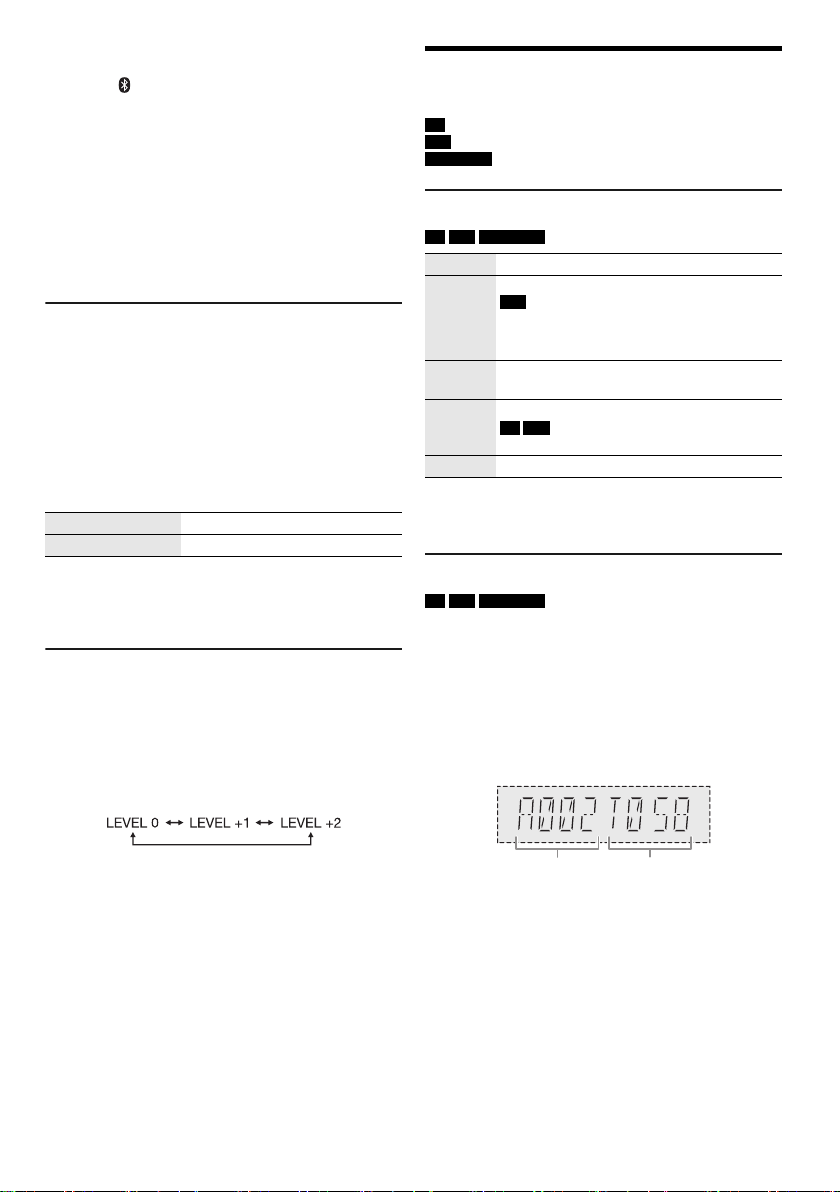
Input level
You can change the input level setting if the sound input
level of the Bluetooth
®
transmission is too low.
1 Press [PLAY MENU] repeatedly to select
“INPUT LEVEL”.
2 Press [R, T] to select the level and then press
[OK].
Note:
• The default setting is “LEVEL 0”.
• Select “LEVEL 0” if the sound is distorted.
Media playback
The following marks indicate the availability of the feature.
Basic playback
CD USB BLUETOOTH
Note:
Depending on the Bluetooth
®
device, some operations may
not work.
Viewing available information
CD USB BLUETOOTH
You can view the available information on the display
panel.
Press [DISPLAY] repeatedly.
Note:
• Maximum characters that can be shown: Approximately 32
• This system supports ver. 1.0, 1.1 and 2.3 ID3 tags.
• Text data that the system does not support can show
differently.
• Example: MP3 album and track number display.
MODE 1 Emphasis on connectivity.
MODE 2 (default) Emphasis on sound quality.
CD :
USB :
BLUETOOTH :
CD-R/RW in CD-DA format or with MP3 files.
USB device with MP3 files.
Bluetooth
®
device.
Play Press [4/9].
Stop Press [8].
USB
The position is memorised.
“RESUME” is shown.
Press again to stop fully.
Pause Press [4/9].
Press again to continue playback.
Skip Press [2/3] or [5/6] to skip track.
CD USB
Press [R, T] to skip MP3 album.
Search Press and hold [2/3] or [5/6].
Album
number
Track
number
SC-HC302.300.GN.GS TQBJ2074 En_rev1.fm Page 7 Friday, March 23, 2018 9:59 AM
8
TQBJ2074
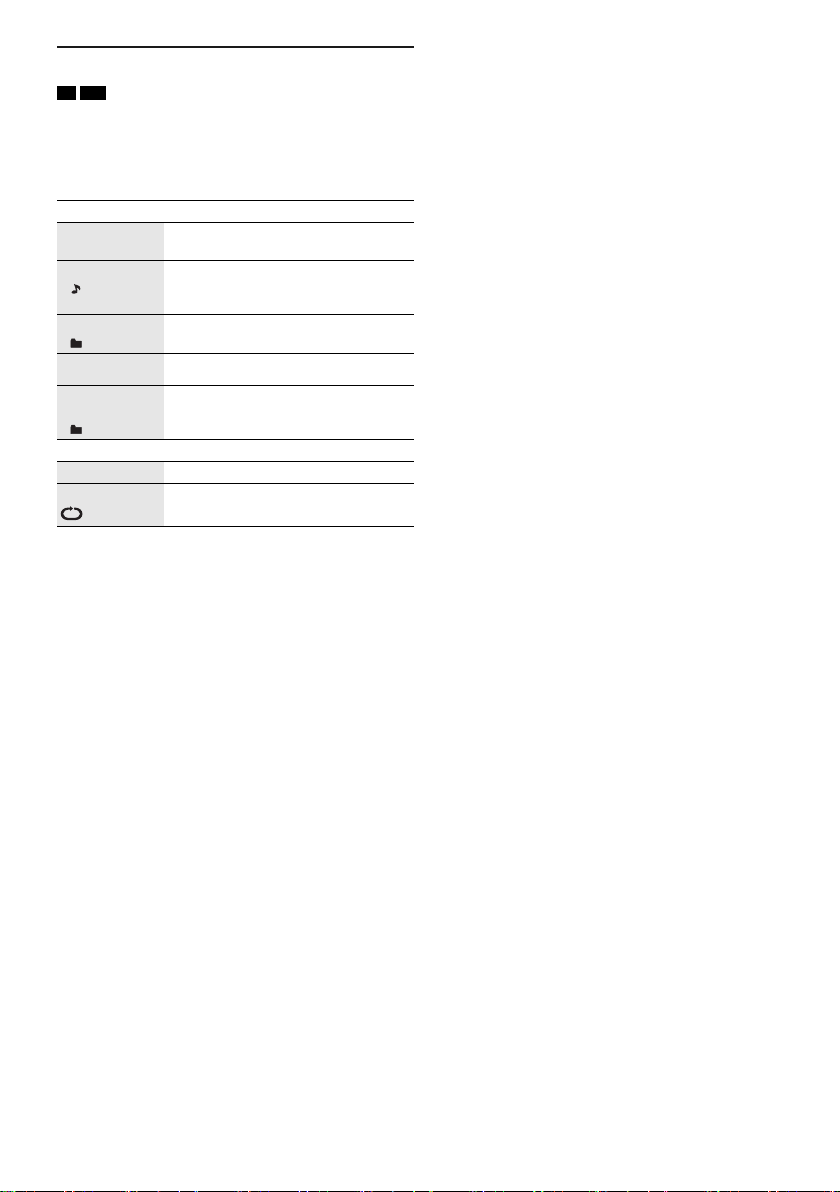
Play menu
CD USB
1 Press [PLAY MENU] repeatedly to select
“PLAYMODE” or “REPEAT”.
2 Press [R, T] to select the setting and then press
[OK].
Note:
• During random playback, you cannot skip to tracks which
have been played.
• The setting is cancelled when you open the sliding door or
disconnect the USB device.
█
Note on disc
• This system can play CD-R/RW with CD-DA or MP3
format content.
• This system can access up to:
– CD-DA: 99 tracks
• Before playback, finalise the disc on the device it was
recorded on.
• Some CD-R/RW cannot be played because of the
condition of the recording.
█
Note on USB device
• This system does not guarantee connection with all
USB devices.
• This system supports USB 2.0 full speed.
• This system can support USB devices of up to 32 GB.
• Only FAT 12/16/32 file system is supported.
█
Note on MP3 file
• Files are defined as tracks and folders are defined as
albums.
• Tracks must have the extension “.mp3” or “.MP3”.
• Tracks will not necessarily be played in the order you
recorded them.
• Some files can fail to work because of the sector size.
MP3 file on disc
• This system can access up to:
– 255 albums (including root folder)
– 999 tracks
– 20 sessions
• Disc must conform to ISO9660 level 1 or 2 (except for
extended formats).
MP3 file on USB device
• This system can access up to:
– 800 albums (including root folder)
– 8000 tracks
– 999 tracks in one album
PLAYMODE
OFF
PLAYMODE
Cancel the setting.
1-TRACK
1
Play one selected track.
Press [2/3] or [5/6] to
select the track.
1-ALBUM
1
Play one selected MP3 album.
Press [R, T] to select the MP3 album.
RANDOM
RND
Play all tracks randomly.
1-ALBUM
RANDOM
1 RND
Play all tracks in one selected MP3
album randomly.
Press [R, T] to select the MP3 album.
REPEAT
OFF REPEAT Cancel the setting.
ON REPEAT Repeat playback.
SC-HC302.300.GN.GS TQBJ2074 En_rev1.fm Page 8 Friday, March 23, 2018 9:59 AM

9
TQBJ2074
Radio
Press [RADIO/AUX] to select “FM”.
Manual tuning
1 Press [PLAY MENU] repeatedly to select
“TUNE MODE”.
2 Press [R, T] to select “MANUAL” and then press
[OK].
3 Press [2/3] or [5/6] to tune in to the
station.
To tune automatically, press and hold the button until
the frequency starts changing quickly.
“STEREO” is shown when a stereo broadcast is being
received.
Memory presetting
You can preset up to 30 FM stations.
█
Automatic presetting
1 Press [PLAY MENU] to select “A.PRESET”.
2 Press [R, T] to select “LOWEST” or “CURRENT”
and then press [OK].
The tuner presets all the stations it can receive into the
channels in ascending order.
To cancel, press [8].
█
Manual presetting
1 Press [PLAY MENU] repeatedly to select
“TUNE MODE”.
2 Press [R, T] to select “MANUAL” and then press
[OK].
3 Press [2/3] or [5/6] to tune in to the
station.
4 Press [OK].
5 Press [R, T] to select a preset number and then
press [OK].
Repeat steps 3 to 5 to preset more stations.
The new station replaces any station that occupies the
same preset number.
█
Selecting a preset station
1 Press [PLAY MENU] repeatedly to select
“TUNE MODE”.
2 Press [R, T] to select “PRESET” and then press
[OK].
3 Press [2/3] or [5/6] to select the preset
station.
Improving the sound quality
1 Press [PLAY MENU] repeatedly to select
“FM MODE”.
2 Press [R, T] to select “MONO” and then press
[OK].
To cancel, select “STEREO”.
“MONO” is also cancelled when you change the
frequency.
To memorise the setting
Continue with step 4 of “Manual presetting”. (~left)
Checking the signal status
Press [DISPLAY].
LOWEST Tuning begins from the lowest frequency.
CURRENT Tuning begins from the current frequency.
FM - - - - The FM signal is in monaural.
The system is not tuned in to a station.
FM ST The FM signal is in stereo.
FM MONO “MONO” is selected as the “FM MODE”.
SC-HC302.300.GN.GS TQBJ2074 En_rev1.fm Page 9 Friday, March 23, 2018 9:59 AM
10
TQBJ2074
DAB/DAB+
[HC302]
Preparation
Press [RADIO/AUX] to select “DAB+”.
Note:
If you select “DAB+” for the first time, the system will tune
automatically.
Manual tuning
1 Press [PLAY MENU] repeatedly to select
“MANUAL SCAN”.
2 Press [R, T] to select the frequency block and
then press [OK].
If no station is detected, “SCAN FAILED” is shown.
Adjust the antenna and try again.
To tune automatically
1 Press [PLAY MENU] to select “AUTOSCAN” and
then press [OK].
“START?” is shown.
2 Press [OK] to start tuning.
“DAB AUTO SCAN” is shown.
If no station is detected, “SCAN FAILED” is shown.
Do manual tuning.
Note:
Preset frequencies are erased after you do automatic tuning.
Memory presetting
You can preset up to 20 stations.
1 Press [PLAY MENU] repeatedly to select
“TUNE MODE”.
2 Press [R, T] to select “STATION” and then press
[OK].
3 Press [2/3] or [5/6] to tune in to the
station.
4 Press [OK].
5 Press [R, T] to select a preset number and then
press [OK].
Repeat steps 3 to 5 to preset more stations.
The new station replaces any station that occupies the
same preset number.
Note:
You cannot preset a station when the station is not
broadcasting or when you have selected a secondary service.
█
Selecting a preset station
1 Press [PLAY MENU] repeatedly to select
“TUNE MODE”.
2 Press [R, T] to select “PRESET” and then press
[OK].
3 Press [2/3] or [5/6] to select the preset
station.
Secondary service
You can listen to secondary services when “ ” is shown.
1 Press [PLAY MENU] repeatedly to select
“DAB SECONDARY”.
2 Press [R, T] to select the secondary service and
then press [OK].
To cancel, select “PRIMARY”.
Note:
The setting is cancelled when you select other stations.
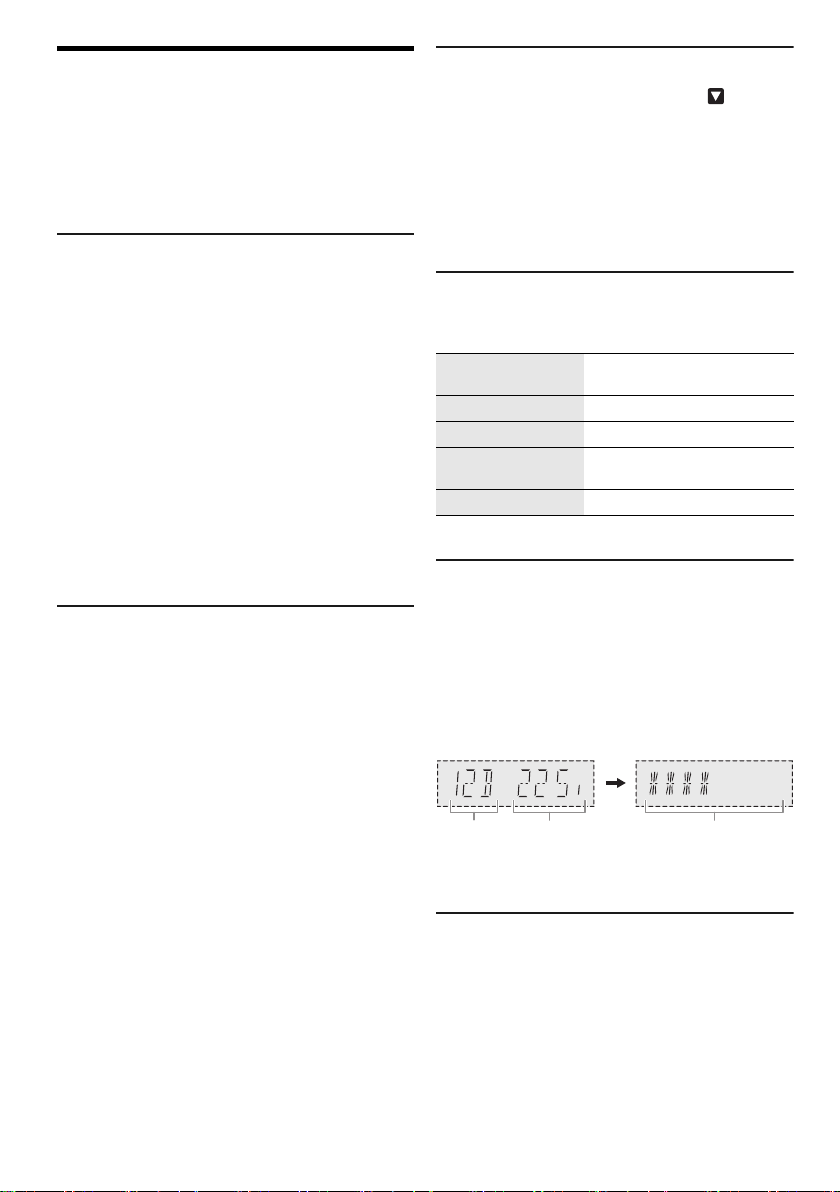
Viewing available information
You can view the following information on the display
panel:
Press [DISPLAY].
Checking the signal quality
You can check the signal quality when adjusting the
antenna.
1 Press [PLAY MENU] repeatedly to select
“SIGNAL QUALITY”.
2 Press [OK].
The frequency block followed by the reception quality
is shown.
To select other frequency blocks, press [R, T].
3 Press [OK] again to exit.
Automatic clock adjustment
You can set the clock to update automatically.
1 Press [PLAY MENU] repeatedly to select
“AUTO CLOCK ADJ”.
2 Press [R, T] to select “ON ADJUST” and then
press [OK].
To cancel, select “OFF ADJUST”.
Dynamic label Information about the DAB
broadcast
PTY display Programme type
Ensemble label The name of the ensemble
Frequency display The frequency block and
frequency is shown
Time display Current time
Frequency
block
Frequency Reception quality
0 (poor) to 8 (excellent)
SC-HC302.300.GN.GS TQBJ2074 En_rev1.fm Page 10 Friday, March 23, 2018 9:59 AM
11
TQBJ2074
Clock and timers
Setting the clock
This is a 24-hour clock.
1 Press [SETUP] repeatedly to select “CLOCK”.
2 Press [R, T] to set the time and then press [OK].
To check the time
Press [SETUP] repeatedly to select “CLOCK” and
then press [OK].
In standby mode, press [DISPLAY].
Note:
Reset the clock regularly to maintain accuracy.
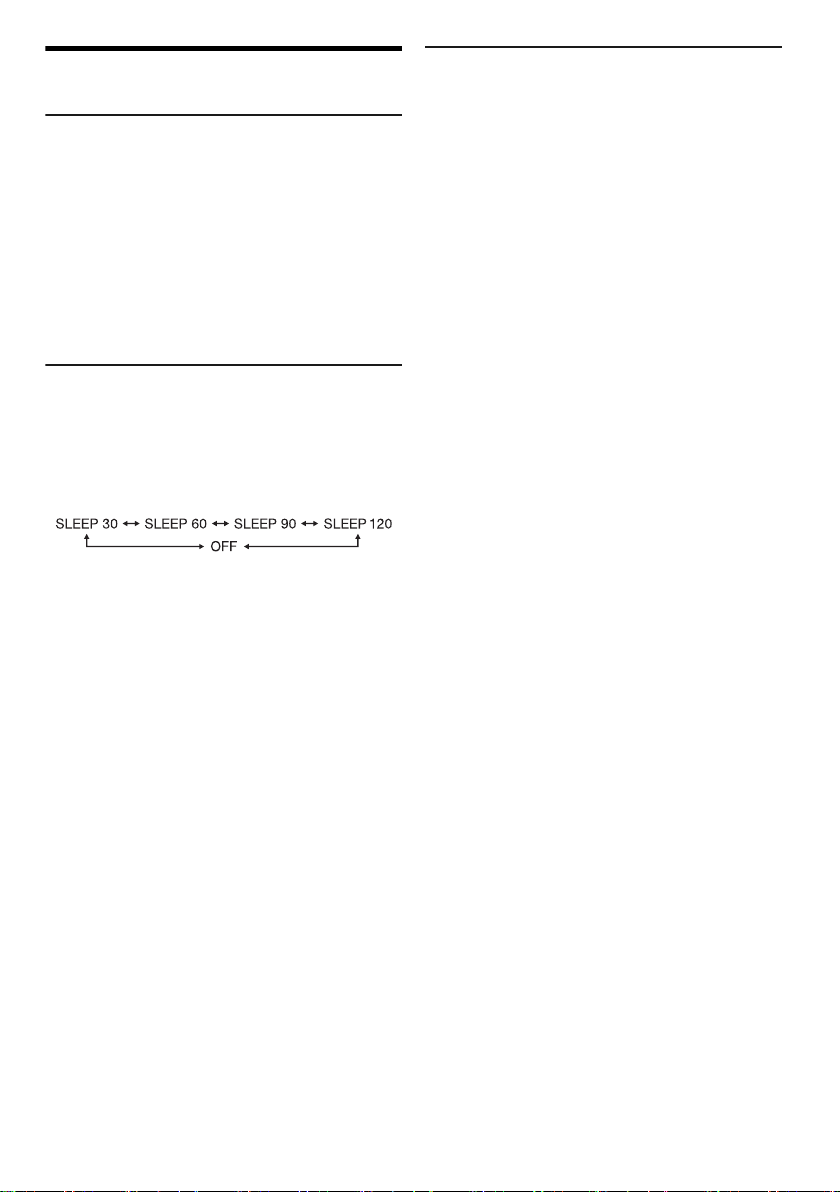
Sleep timer
The sleep timer switches off the system after the set time.
1 Press [SETUP] repeatedly to select “SLEEP”.
2 Press [R, T] to select the setting (in minutes) and
then press [OK].
To cancel, select “OFF”.
Note:
• The remaining time is shown at every minute except when
other operations are being performed.
“SLEEP 1” will always be shown when only 1 minute
remains.
• The sleep timer always comes first. Be sure not to set an
overlap of timers.
Play timer
You can set the timer to come on at a certain time to wake
you up.
Preparation
Set the clock.
1 Press [SETUP] repeatedly to select “TIMER ADJ”.
2 Press [R, T] to set the start time and then press
[OK].
3 Repeat step 2 to set the end time.
4 Press [R, T] to select the music source you want
to play and then press [OK].
To start the timer
1 Press [SETUP] repeatedly to select “TIMER SET”.
2 Press [R, T] to select “SET” and then press [OK].
“#” is shown.
To cancel, select “OFF”.
The system must be switched off for the timer to
operate.
To check the setting
Press [SETUP] repeatedly to select “TIMER ADJ” and
then press [OK].
In standby mode, press [DISPLAY] two times.
Note:
• The timer starts at a low volume and increases gradually to
the preset level.
• The timer comes on at the set time every day if the timer is
on.
• If you switch off the system and then switch on again while a
timer is in operation, the timer will not stop at the end time.
•“CD”, “USB”, “DAB+” (“SC-HC302”) and “FM” can be set as
the music source.
SC-HC302.300.GN.GS TQBJ2074 En_rev1.fm Page 11 Friday, March 23, 2018 9:59 AM
12
TQBJ2074
Sound effects
1 Press [SOUND] repeatedly to select the sound
effect.
2 Press [R, T] to select the setting and then press
[OK].
Note:
Changed settings will be kept until it is changed again, unless
otherwise indicated.
Saving the sound settings
You can save the current sound effects (up to
3 combinations).
Preparation
Select the sound effects.
1 Press [SETUP] to select “SAVE MY SOUND”.
2 Press [R, T] to select a sound setting number and
then press [OK].
“SAVED” is shown.
The new setting replaces the one existing in the same
sound setting number.
To recall the setting
1 Press [SOUND] to select “MY SOUND”.
2 Press [R, T] to select the sound setting number
and then press [OK].
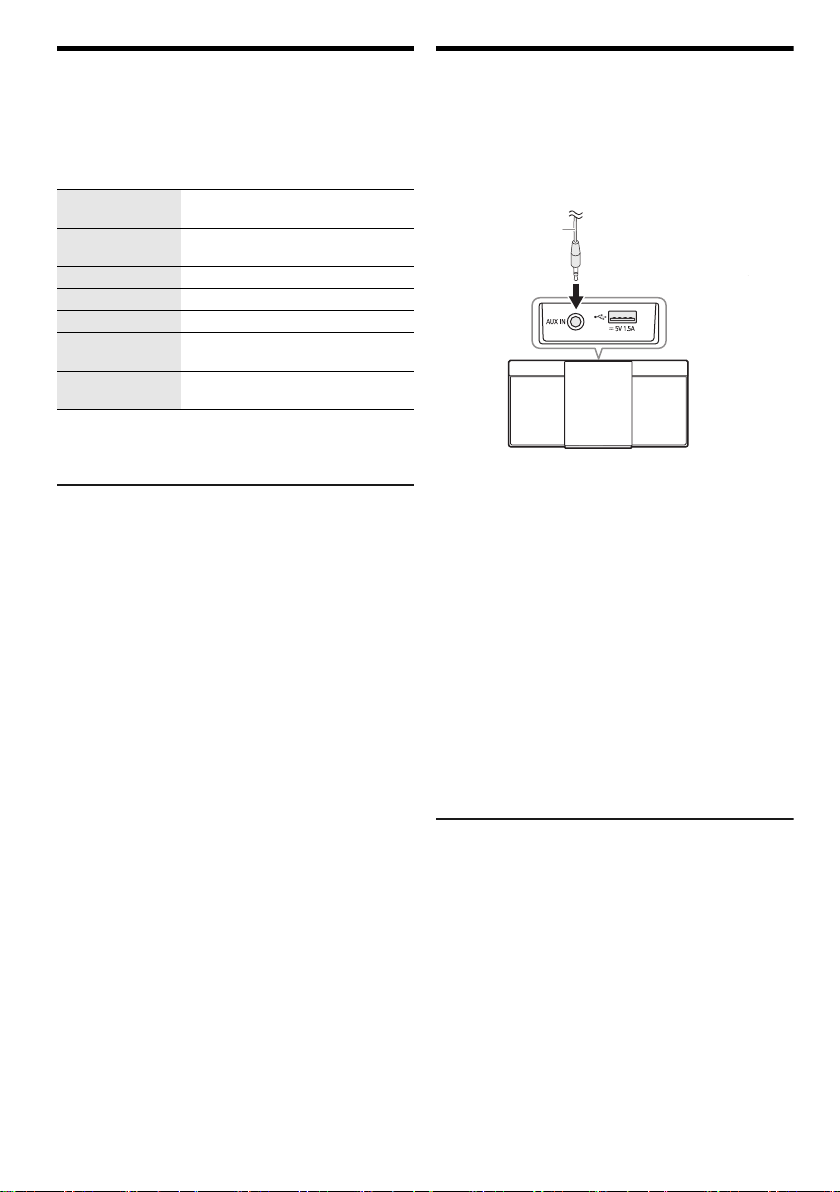
External music device
You can play music from an external music device.
Preparation
• Switch off the equaliser (if any) of the external music
device to prevent sound distortion.
• Decrease the volume of the system before you connect
or disconnect the external music device.
1 Connect the external music device using an audio
cable (not supplied).
Plug type: Ø 3.5 mm stereo
2 Press [RADIO/AUX] to select “AUX”.
3 Play the external music device.
To adjust the input level
1 Press
[SOUND]
repeatedly to select
“INPUT LEVEL”
.
2 Press [R, T] to select “LOW” or “HIGH” and then
press [OK].
Note:
• The default setting is “HIGH”.
• Select “LOW” if the sound is distorted during “HIGH” input
level.
• Read the operating instructions of the external music device
for details.
• Components and cables are sold separately.
AUX IN auto play
The system will automatically switch to AUX source when
it detects the signal from an external music device.
This function also works in standby mode.
1 Press [SETUP] repeatedly to select “AUX-IN AUTO
PLAY”.
2 Press [R, T] to select “ON” and then press [OK].
To cancel, select “OFF”.
Note:
• The default setting is “OFF”.
• When the function is switched off and every time you switch
to AUX source, “AUX-IN AUTO PLAY IS OFF” will be shown
once.
• This function does not work when the volume of the external
music device is low, increase its volume.
• Stop or pause the external music device before you change
to other music source or to standby mode so as to prevent
the automatic switch to AUX source.
MY SOUND “SOUND 1”, “SOUND 2” or
“SOUND 3” (~below)
PRESET EQ “HEAVY”, “SOFT”, “CLEAR”,
“VOCAL” or “FLAT”
BASS –4 to +4
TREBLE –4 to +4
D.BASS “ON D.BASS” or “OFF D.BASS”
SURROUND “ON SURROUND” or
“OFF SURROUND”
CLEAR-MODE
DIALOG
“ON CLEAR-MODE DIALOG” or
“OFF CLEAR-MODE DIALOG”
Audio cable
(not supplied)
SC-HC302.300.GN.GS TQBJ2074 En_rev1.fm Page 12 Friday, March 23, 2018 9:59 AM

13
TQBJ2074
Others
Auto off
This system automatically switches off when you do not
use it for approximately 20 minutes.
1 Press [SETUP] repeatedly to select “AUTO OFF”.
2 Press [R, T] to select “ON” and then press [OK].
To cancel, select “OFF”.
Note:
This function does not work when you are in radio source or
when a Bluetooth
®
device is connected.
Bluetooth
®
standby
This function automatically switches on the system when
you establish a Bluetooth
®
connection from a paired
device.
1 Press [SETUP] repeatedly to select
“BLUETOOTH STANDBY”.
2 Press [R, T] to select “ON” and then press [OK].
To cancel, select “OFF”.
Charging a device
This system can supply power to a device, such as a
smartphone, connected to the USB port.
Note:
• Use a cable compatible with the device.
• Use the charger supplied with the device if power is not
supplied to the device.
• Do not use a cable or connect a device that exceeds the
rated value of 5 V, 1.5 A.
• Examine the screen of the device to check if charging is
complete. Disconnect the device after charging.
• Once fully charged, remove the USB cable from the USB
port.
• After the device has started charging, you can switch the
unit to standby mode.
– When charging a depleted device, do not switch the unit
to standby mode until the device becomes operational.
• Depending on the device, power may not be supplied to it.
• Read the operating instructions of the device for details.
Software update
Occasionally, Panasonic may release updated software
for this unit that may add or improve the way a feature
operates. These updates are available free of charge.
For more details, refer to the following website.
http://panasonic.jp/support/global/cs/
(This site is in English only.)
█
Checking the software version
1 Press [SETUP] repeatedly to select “SW VER.”
and then press [OK].
The software version is shown.
2 Press [OK] again to exit.
SC-HC302.300.GN.GS TQBJ2074 En_rev1.fm Page 13 Friday, March 23, 2018 9:59 AM

14
TQBJ2074
Troubleshooting
Before requesting service, make the following checks. If
you are in doubt about some of the check points, or if the
solutions indicated do not solve the problem, consult your
dealer for instructions.
█
Common problems
The unit cannot be switched on.
• Connect the AC mains lead and wait for a minimum of
10 seconds before switching on the unit.
The unit does not work.
• The safety device has been activated. Do the following:
1. Press [1] on the main unit to switch the unit to standby
mode. If the unit does not switch to standby mode,
disconnect the AC mains lead and connect it again.
2. Press [1] again to switch on the unit. If the problem
persists, consult your dealer.
No operations can be done with the remote control.
• Examine that the battery is installed correctly.
Sound is distorted or no sound.
• Adjust the volume of the system.
• Switch off the system, determine and correct the cause, and
then switch on again. It can be caused by straining of the
speakers through excessive volume or power, and when
using the system in a hot environment.
A humming sound can be heard during playback.
• An AC mains lead or fluorescent light is near the cables.
Keep other appliances and cords away from the cables of
this system.
Noise is heard.
• Depending on the device, noise may be heard if the device
is connected to the AUX IN terminal and USB port at the
same time. Disconnect the cable from the USB port.
█
Disc
Display not shown correctly.
Playback does not start.
• You have not put in the disc correctly. Put it in correctly.
• Disc is dirty. Clean the disc.
• Replace the disc if it is scratched, warped, or non-standard.
• There is condensation. Let the system dry for 1 to 2 hours.
The total number of tracks displayed is incorrect.
The disc cannot be read.
Distorted sound is heard.
• You put in a disc that the system cannot play. Change to a
playable disc.
• You put in a disc that has not been finalised.
█
USB
No response when you press [4/9].
• Disconnect the USB device and then connect it again.
Alternatively, switch the unit off and on again.
The USB device or the contents in it cannot be read.
• The format of the USB device or the contents in it are not
compatible with the system.
• USB devices with storage capacity of more than 32 GB
cannot work in some conditions.
Slow operation of the USB device.
• Large content size or large memory USB device takes
longer time to read.
The elapsed time shown is different from the actual play
time.
• Transfer the data to another USB device or backup the data
and reformat the USB device.
█
Bluetooth
®
Pairing cannot be done.
• Check the Bluetooth
®
device condition.
• The device is out of the 10 m communication range.
Move the device nearer to the system.
The device cannot be connected.
• The pairing of the device was unsuccessful. Do pairing
again.
• The pairing of the device has been replaced. Do pairing
again.
• This system might be connected to a different device.
Disconnect the other device and try connecting the device
again.
• The system may have a problem. Switch off the system and
then switch on again.
• If “MODE 2” is selected in “LINK MODE”, select “MODE 1”.
(
~7)
The device is connected but audio cannot be heard
through the system.
• For some built-in Bluetooth
®
devices, you have to set the
audio output to “SC-HC302” or “SC-HC300” manually. Read
the operating instructions of the device for details.
Sound from the device is interrupted.
• The device is out of the 10 m communication range.
Move the device nearer to the system.
• Remove any obstacle between the system and the device.
• Other devices that use the 2.4 GHz frequency band
(wireless router, microwaves, cordless phones, etc.) are
interfering. Move the device nearer to the system and
distance it from the other devices.
• Select “MODE 1” for stable communication. (~7)
█
Radio, DAB/DAB+
Sound is distorted or static is heard.
• Check that the antenna(s) is properly connected. (~4)
• Adjust the position of the antenna.
• Keep a certain amount of distance between the antenna
and the AC mains lead.
• Use an outdoor antenna if there are buildings or mountains
nearby.
• Switch off the TV or other audio players or separate it from
the system.
• Keep the system away from mobile phones if there is
interference.
If there is excessive noise during FM reception.
• Change the audio output to monaural. (~9)
DAB/DAB+ reception is poor.
• Keep the antenna away from computers, TV, other cables
and cords.
█
AUX IN
“AUX-IN Auto Play” does not work.
• You have not connected the external music device correctly.
• Increase the volume of the external music device.
• If “OFF” was selected during “AUX-IN AUTO PLAY”, select
“ON”.
Unintentional automatic switch to AUX source.
• Connect the audio cable to the system only after all the
other connections have been made.
Noise may be detected when connecting the external music
device and it will cause the set to automatically switch to
AUX source.
SC-HC302.300.GN.GS TQBJ2074 En_rev1.fm Page 14 Friday, March 23, 2018 9:59 AM

15
TQBJ2074
█
Main unit displays
“--:--”
• You connected the AC mains lead for the first time or there
was a power failure recently. Set the clock.
“ADJUST CLOCK”
• The clock is not set. Adjust the clock.
“ADJUST TIMER”
• The play timer is not set. Adjust the play timer.
“AUTO OFF”
• The system has not been used for 20 minutes and will
switch off within a minute. To cancel, press any button.
“ERROR”
• An incorrect operation was done. Read the instructions and
try again.
“F61”
“F77”
• Disconnect the AC mains lead and consult your dealer.
“F703”
• Examine the Bluetooth
®
connection.
• Disconnect the Bluetooth
®
device. Switch off the system
and then switch on again.
“F76”
• There is a problem with the power supply.
• Disconnect the AC mains lead and consult your dealer.
“ILLEGAL OPEN”
• The sliding door is not in a correct position. Switch off the
system and then switch on again.
“NO DEVICE”
• The USB device is not connected. Examine the connection.
“NO DISC”
• You have not put in a disc.
“NO PRESET”
• DAB memory presetting has not been done.
“NO PLAY”
• Examine the content. You can only play supported format.
• The files in the USB device may be corrupted. Format the
USB device and try again.
• The system may have a problem. Switch off the system and
then switch on again.
“NO SIGNAL”
• The station cannot be received. Adjust the antenna.
“PLAYERROR”
• You played an unsupported MP3 file. The system will skip
that track and play the next one.
“LINKING”
• This system is trying to connect to the last connected
Bluetooth
®
device when “BLUETOOTH” is selected.
“READING”
• The unit is checking the “CD/USB” information. After this
display has disappeared, start operating.
“REMOTE 1”
“REMOTE 2”
• The remote control and the main unit are using different
codes. Change the code of the remote control.
– When “REMOTE 1” is shown, press and hold [OK] and
[ ] for a minimum of 4 seconds.
– When “REMOTE 2” is shown, press and hold [OK] and
[USB/CD] for a minimum of 4 seconds.
“SCAN FAILED”
• Stations cannot be received. Adjust the antenna or perform
the “AUTO SCAN” tuning function. (
~10)
If “SCAN FAILED” is still shown, find the best signal
reception with the “MANUAL SCAN” tuning function.
(
~10)
“SOUND 1 NOT SET”
“SOUND 2 NOT SET”
“SOUND 3 NOT SET”
• You have not saved the sound effects into the sound setting
number.
“USB OVER CURRENT ERROR”
• The USB device is using too much power. Disconnect the
USB device, switch off the system and then switch on again.
• Check the connection, it may be caused by a faulty USB
cable.
“VBR”
• The system cannot show the remaining play time for
variable bit rate (VBR) tracks.
“NOT SUPPORTED”
• You have connected an unsupported USB device.
SC-HC302.300.GN.GS TQBJ2074 En_rev1.fm Page 15 Friday, March 23, 2018 9:59 AM

16
TQBJ2074
Remote control code
When other Panasonic equipment responds to the remote
control of this system, change the remote control code for
this system.
Preparation
Press [USB/CD] to select “CD”.
█
To set the code to “REMOTE 2”
1 Press and hold [8] on the main unit and [USB/CD]
on the remote control.
“REMOTE 2” is shown.
2 Press and hold [OK] and [USB/CD] for a minimum
of 4 seconds.
█
To set the code to “REMOTE 1”
1 Press and hold [8] on the main unit and [ ] on
the remote control.
“REMOTE 1” is shown.
2 Press and hold [OK] and [ ] for a minimum of
4 seconds.
System memory reset
Reset the memory when the following situations occur:
• There is no response when buttons are pressed.
• You want to clear and reset the memory contents.
1 Disconnect the AC mains lead.
2 While you press and hold [1] on the main unit,
connect the AC mains lead again.
Continue to press and hold the button until
“–––––––––” is shown.
3 Release [1].
All the settings are set back to the factory preset.
It is necessary to set the memory items again.
Maintenance
Disconnect the AC mains lead before maintenance.
Clean this system with a soft, dry cloth.
• Never use alcohol, paint thinner or benzine to clean this
system.
• Before using chemically treated cloth, read the
instructions that came with the cloth carefully.
SC-HC302.300.GN.GS TQBJ2074 En_rev1.fm Page 16 Friday, March 23, 2018 9:59 AM

17
TQBJ2074
Specifications
█
General
Dimensions (W x H x D) 409 mm x 198 mm x 107 mm
Mass 2.5 kg
Operating temperature range 0°C to +40°C
Operating humidity range
35% to 80% RH (no condensation)
█
Amplifier section
RMS output power stereo mode
Front Ch (both ch driven)
10 W per channel (8 Ω), 1 kHz, 10% THD
Total RMS power 20 W
[HC300]
PMPO output power 200 W
█
Tuner, terminals section
Preset memory FM 30 stations
Frequency modulation (FM)
Frequency range
87.50 MHz to 108.00 MHz (50 kHz step)
Antenna terminals 75 Ω (unbalanced)
AUX input
Terminal Stereo, 3.5 mm jack
█
DAB section
[HC302]
DAB memories 20 channels
Frequency band (wavelength)
Band III 5A to 13F
(174.928 MHz to 239.200 MHz)
Sensitivity *BER 4x10
-4
Minimum requirement –98 dBm
DAB external antenna
Terminal F - Connector (75 Ω)
█
Disc section
Disc played (8 cm or 12 cm)
CD, CD-R/RW (CD-DA, MP3
2
)
Pick up
Wavelength 790 nm (CD)
█
USB section
USB port power WDC OUT 5 V 1.5 A
USB standard USB 2.0 full speed
Media file format support MP3 (*.mp3)
Audio support format MP3
2
Sampling frequency 32 kHz, 44.1 kHz, 48 kHz
Audio word size 16 bits
Channel count 2 ch
USB device file system FAT12, FAT16, FAT32
█
Bluetooth
®
section
Version Bluetooth
®
Ver. 2.1 + EDR
Class Class 2
Supported profiles A2DP, AVRCP
Frequency band 2.4 GHz band FH-SS
Operation distance 10 m line of sight
Supported codec SBC
█
Speaker section
Speaker unit(s)
Full range 8 cm cone type x 2
Note:
• Specifications are subject to change without notice.
Mass and dimensions are approximate.
• Total harmonic distortion is measured by the digital
spectrum analyser.
1
No device is connected to the USB port before switching to
standby mode.
2
MPEG-1 Layer 3, MPEG-2 Layer 3
Power supply
[HC302] AC 220 V to 240 V, 50 Hz
[HC300] AC 110 V to 240 V, 50/60 Hz
Power consumption
14 21 W
Power consumption in standby mode
1
(approximate)
With “BLUETOOTH STANDBY” set to “OFF” 0.2 W
With “BLUETOOTH STANDBY” set to “ON” 0.3 W
SC-HC302.300.GN.GS TQBJ2074 En_rev1.fm Page 17 Friday, March 23, 2018 9:59 AM
18
TQBJ2074
References
About Bluetooth
®
Frequency band
• This system uses the 2.4 GHz frequency band.
Certification
• This system conforms to the frequency restrictions and
has received certification based on frequency laws.
Thus, a wireless permit is not necessary.
• The actions below are punishable by law in some
countries:
– Taking apart or modifying the unit.
– Removing specification indications.
Restrictions of use
• Wireless transmission and/or usage with all Bluetooth
®
equipped devices is not guaranteed.
• All devices must conform to standards set by the
Bluetooth SIG, Inc.
• Depending on the specifications and settings of a
device, it can fail to connect or some operations can be
different.
• This system supports Bluetooth
®
security features. But
depending on the operating environment and/or
settings, this security is possibly not sufficient. Transmit
data wirelessly to this system with caution.
• This system cannot transmit data to a Bluetooth
®
device.
Range of use
• Use this device at a maximum range of 10 m.
• The range can decrease depending on the
environment, obstacles or interference.
Interference from other devices
• This system may not function properly and troubles
such as noise and sound jumps may arise due to radio
wave interference if this unit is located too close to
other Bluetooth
®
devices or the devices that use the
2.4 GHz band.
• This system may not function properly if radio waves
from a nearby broadcasting station, etc. is too strong.
Intended usage
• This system is for normal, general use only.
• Do not use this system near an equipment or in an
environment that is sensitive to radio frequency
interference (example: airports, hospitals, laboratories,
etc.).
License
Panasonic cannot be held responsible for data and/or
information that is compromised during a wireless
transmission.
The Bluetooth
®
word mark and logos are registered
trademarks owned by the Bluetooth SIG, Inc. and any
use of such marks by Panasonic Corporation is under
license. Other trademarks and trade names are those of
their respective owners.
SC-HC302.300.GN.GS TQBJ2074 En_rev1.fm Page 18 Friday, March 23, 2018 9:59 AM

19
TQBJ2074
Limited Warranty (For Australia only)
Panasonic Australia Pty. Limited
ACN 001 592 187 ABN 83 001 592 187
1 Innovation Road, Macquarie Park NSW 2113
www.panasonic.com.au
PRO-031-F11 Issue: 5.0 23-01-2018
If you require assistance regarding warranty conditions or any other enquiries, please visit the
Panasonic Australia website
www.panasonic.com.au or contact by phone on 132 600
If phoning in, please ensure you have your operating instructions available.
THIS WARRANTY CARD AND THE PURCHASE DOCKET (OR SIMILAR PROOF OF PURCHASE)
SHOULD BE RETAINED BY THE CUSTOMER AT ALL TIMES
Panasonic Authorised Service Centres are located in major metropolitan areas and most regional centres of Australia, however,
coverage will vary dependant on product. For advice on exact Authorised Service Centre locations for your product, please telephone
our Customer Care Centre on 132 600 or visit our website and use the Service Centre Locator.
In addition to your rights under this warranty, Panasonic products come with consumer guarantees that cannot be excluded under
the Australian Consumer Law. If there is a major failure with the product, you can reject the product and elect to have a refund or to
have the product replaced or if you wish you may elect to keep the goods and be compensated for the drop in value of the goods.
You are also entitled to have the product repaired or replaced if the product fails to be of acceptable quality and the failure does not
amount to a major failure.
If there is a major failure in regard to the product which cannot be remedied then you must notify us within a reasonable period by
contacting the Panasonic Customer Care Centre. If the failure in the product is not a major failure then Panasonic may choose to
repair or replace the product and will do so in a reasonable period of time from receiving notice from you.
Subject to the conditions of this warranty Panasonic or its Authorised Service Centre will perform necessary service on the product,
without charge for parts or labour, if in the opinion of Panasonic the product is found to have a manufacturing defect within
one (1) year or (12 months) (the “warranty period”) from the date of purchase appearing on your purchase receipt.
This warranty only applies to Panasonic products purchased in Australia and sold by Panasonic Australia, it’s Authorised
Distributors, or Dealers, and only where the products are used and serviced within Australia or its territories. Warranty cover only
applies to the services that are carried out by a Panasonic Authorised Service Centre and only if valid proof of purchase is presented
when the warranty service is requested.
This warranty only applies if the product has been installed and/or used in accordance with the manufacturer’s recommendations
(as noted in the operating instructions) under normal use and reasonable care (in the opinion of Panasonic). The warranty does not
cover damage, malfunction or failure resulting from use of incorrect voltages, incorrect installation, accident, misuse, neglect,
build-up of dirt or dust, abuse, maladjustment of customer controls, mains supply problems, thunderstorm activity, infestation by
insects or vermin, tampering or repair by unauthorised persons (including unauthorised alterations), exposure to abnormally
corrosive conditions, or any foreign object or matter having entered the product.
This warranty does not cover the following items unless the fault or defect existed at the time of purchase:
(a) Consumable parts
(b) Cosmetic parts
(c) Worn or damaged parts
(d) Information stored on Hard Disk Drives, Optical Discs, USB Devices, SD Cards, Tapes
(e) DTV reception issues caused by TV Aerial / Cabling / Wall socket(s)
Some products may be supplied with Ethernet connection hardware. The warranty is limited on such products and will not cover:
(a) Internet and or DLNA connection / setup related problems
(b) Access fees and or charges incurred for internet connection
(c) Incompatible software or software not specifically stipulated in the product operations manual; and
(d) Any indirect or consequential costs associated with the incorrect use or misuse of the hardware, its connection to
the internet or any other device.
To claim warranty service, when required, you should:
&RQWDFW3DQDVRQLF¶V&XVWRPHU&DUH&HQWUHRQIRU6HUYLFH&HQWUHLQIRUPDWLRQ
&RQILUPWKHRSHQLQJDQGDFFHSWDQFHWLPHVZLWKWKH$XWKRULVHG6HUYLFH&HQWUHWKDW\RXFKRRVH
7KHQVHQGRUWDNHWKHSURGXFWWRD3DQDVRQLF$XWKRULVHG6HUYLFH&HQWUHWRJHWKHUZLWK\RXUSURRIRISXUFKDVH
receipt.
$Q\IUHLJKWDQGLQVXUDQFHFRVWVDVVRFLDWHGZLWKWKHWUDQVSRUWRIWKHSURGXFWWRDQGRUIURP\RXUQHDUHVW$XWKRULVHG6HUYLFH
Centre must be arranged and paid for by you.
The warranties hereby conferred do not extend to, and exclude, any costs associated with the installation, de-installation or
re-installation of a product, including costs related to the mounting, de-mounting or remounting of any screen, (and any other
ancillary activities), delivery, handling, freighting, transportation or insurance of the product or any part thereof or replacement of
and do not extend to, and exclude, any damage or loss occurring by reason of, during, associated with, or related to such
installation, de-installation, re-installation or transit.
1.
2.
3.
4.
5.
6.
7.
Panasonic Warranty
SC-HC302.300.GN.GS TQBJ2074 En_rev1.fm Page 19 Friday, March 23, 2018 9:59 AM

Panasonic Corporation
Web Site: http://www.panasonic.com
© Panasonic Corporation 2018
TQBJ2074-1
L0218YS2038
En
SC-HC302.300.GN.GS TQBJ2074 En_rev1.fm Page 20 Friday, March 23, 2018 9:59 AM