Preparation
Unpacking
4
Features
5
Sound quality
5
Functions
5
Telephone Calls
5
Features and functions
6
Charging
7
Using Audio Guidance (Notification Sounds)
9
Connections
Bluetooth operation
11
Pairing
11
Registering (Pairing) and connecting a Bluetooth device
11
Reconnecting paired devices
13
Deleting pairing information
14
Turning the power on
15
Turning the power off
15
Wearing the headphones
16
Simultaneously connecting multiple Bluetooth devices (Multipoint
function)
17
Operation
Listening to music
19
Listening to music using a Bluetooth connection
19
Listening to music using a wired connection
20
Decreasing outside noise (Noise cancell function)
21
Conducting phone calls
22
Making a call
22
Answering an incoming call
22
Ending a call
22
Using the call waiting function
23
Ignoring an incoming call
23
Switching a call from the headphones to a mobile phone
23
Other operations
24
Information
25
Airplane use
25
Storage in the carrying case
25
Contents Preparation Connections
Operation
Troubleshooting
Appendix
Contents
2
Thank you for purchasing this product. To ensure proper operation, please read this Owner’s Manual carefully before using the product.
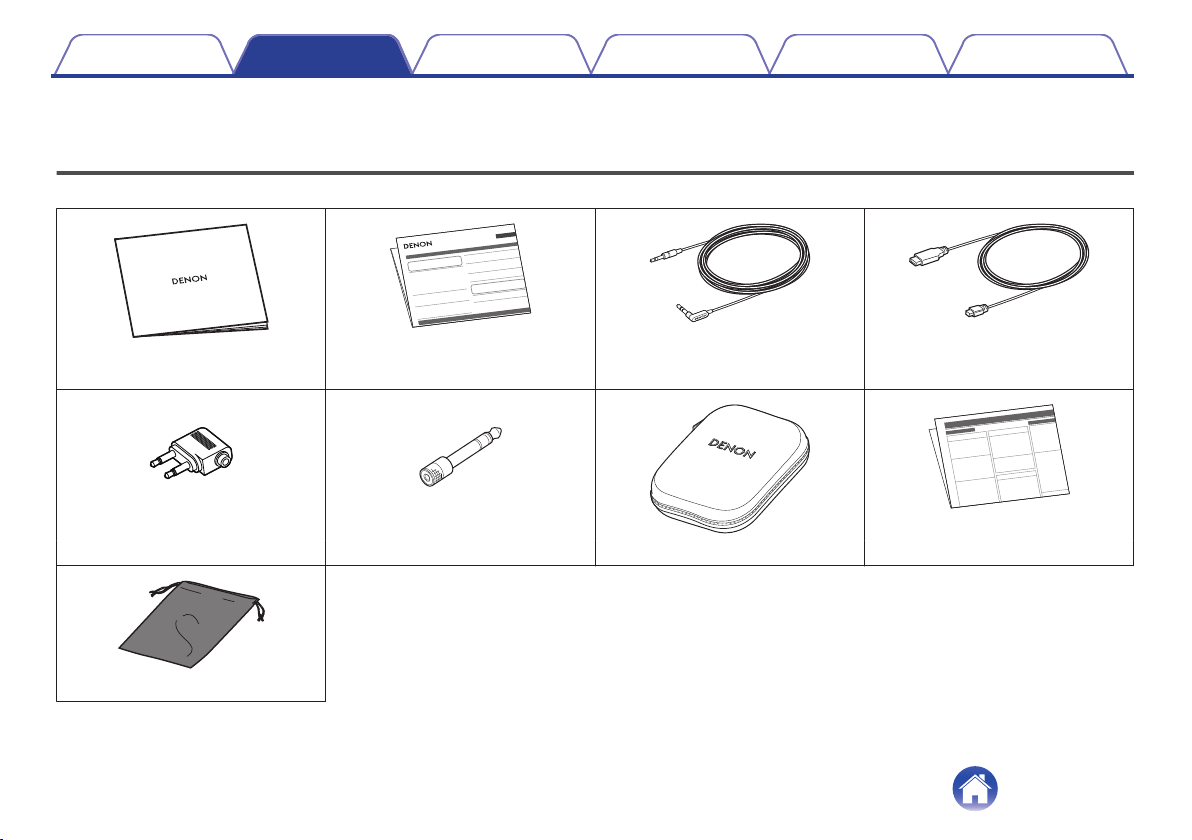
Unpacking
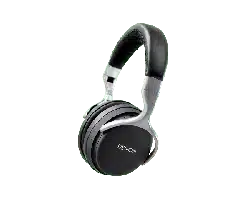
Unpack your new AH-GC20 and verify that the following items are included.
.
.
.
.
Quick Guide Precautions on the use of
headphones
Audio cable (approx. 1.3 m)
USB cable (for charging: Approx. 0.5 m)
.
.
.
.
Conversion plug for aircraft use 6.3 mm Conversion adapter Carrying case Notes on radio
.
DENON
Accessory pouch
Contents Preparation Connections
Operation
Troubleshooting
Appendix
Preparation
4
Features
Sound quality
0
These headphones are compatible with a wide range of codecs,
including the high sound quality aptX, AAC and SBC. These
headphones automatically select the optimum compatible codec
for your Bluetooth device (smartphone or tablet) so you can
enjoy high-grade wireless sound. Additionally, aptX is Low
Latency compatible so you can enjoy videos and gaming without
audio lag.
Functions
0
You can enjoy listening to music wirelessly by connecting these
headphones to your Bluetooth device. Playback operations and
volume adjustment can be performed for the paired audio device
using the headphones.
0
When the noise cancelling function is turned on, you can hear
clear audio sound even if you are in a noisy location such as
inside a train.
0
You can connect to an audio device that is not equipped with
Bluetooth using the supplied cable, or in case Bluetooth is not
allowed or the battery runs out.
Telephone Calls
0
You can also make hands-free phone calls by pairing these
headphones to a Bluetooth compatible mobile phone. Equipped
with CVC (Clear Voice Capture) technology which suppresses
echoes enabling low-noise phone calls.
Contents Preparation Connections
Operation
Troubleshooting
Appendix
5
Features and functions
.
Q1o
i
u
y
e
t
r
q w w q
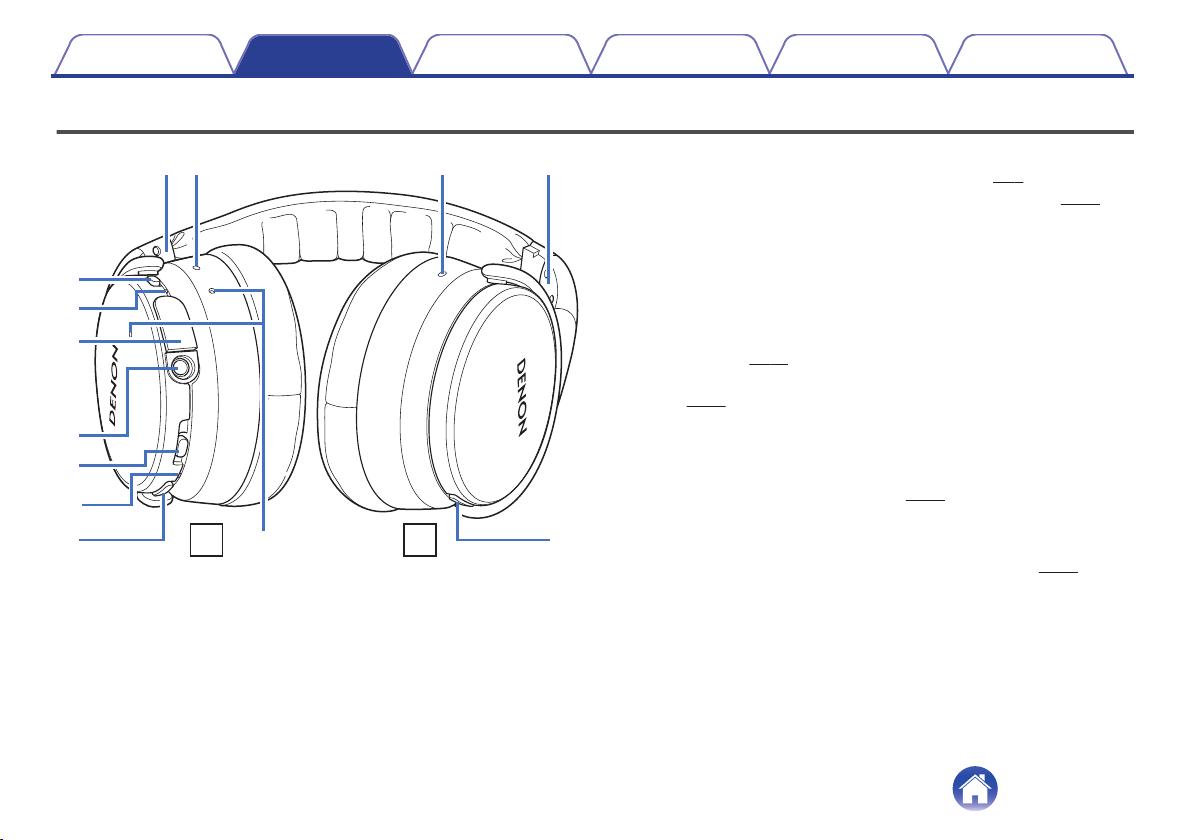
Q0
RL
A
L/R Indicator
B
Noise cancelling microphone
C
Noise cancelling function toggle switch
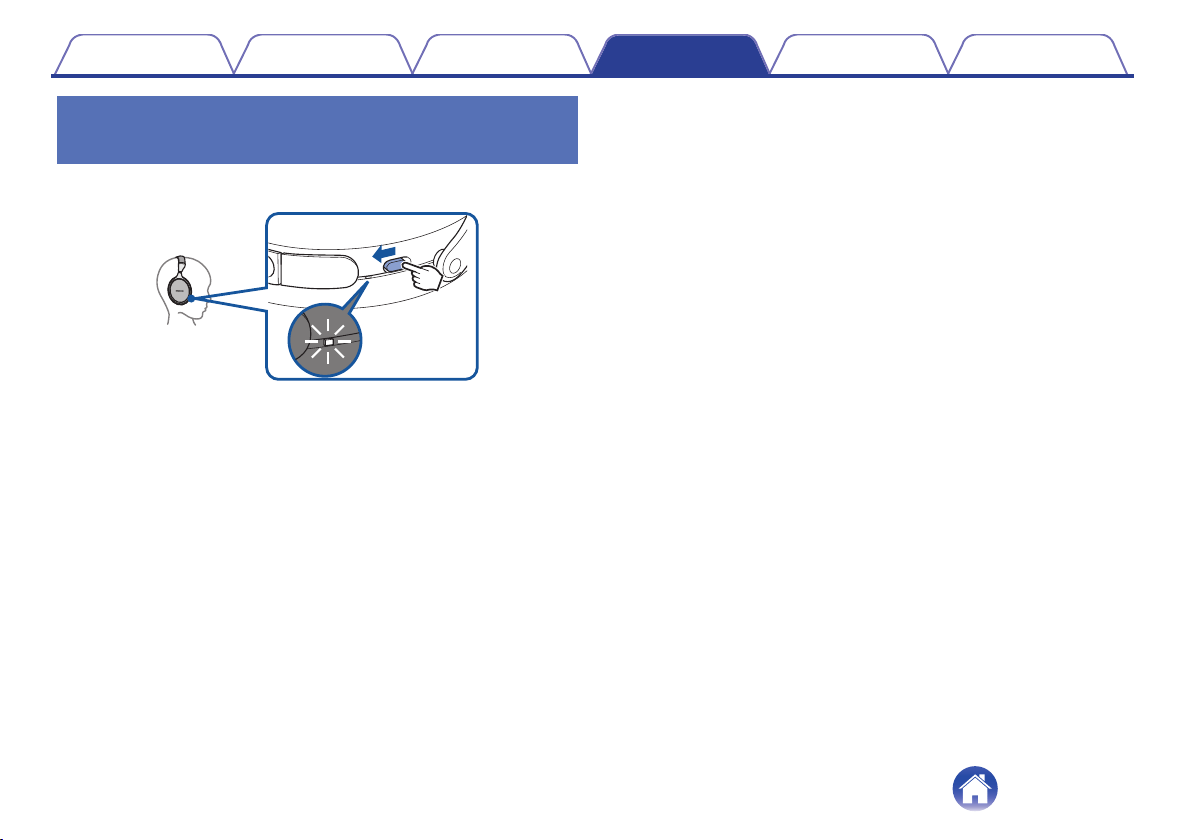
Turns the noise cancelling function on/off.
D
Charge/NC (Noise Cancell) indicator
0
Blinks red according to the charging status. (v
p. 7)
0
Lights white when the noise cancelling function is on. (v p. 21)
E
Charging port
Connect the supplied USB cable to charge the headphones.
F
Stereo mini jack (3.5 mm)
Connection socket for the supplied audio cable.
G
Control button
0
Turns the power on/off and pairs the headphones with Bluetooth
devices. (v
p. 11)
0
Operates the audio device that is connected using Bluetooth.
(v p. 19)
H
Bluetooth Indicator
Indicates the connection status with the Bluetooth device.
I
Volume button (+/–)
Adjusts the volume up and down. (v
p. 19)
J
Call microphone
K
Call button
Controls call operations on the paired mobile phone. (v
p. 22)
Contents
Preparation Connections
Operation
Troubleshooting
Appendix
6
Charging
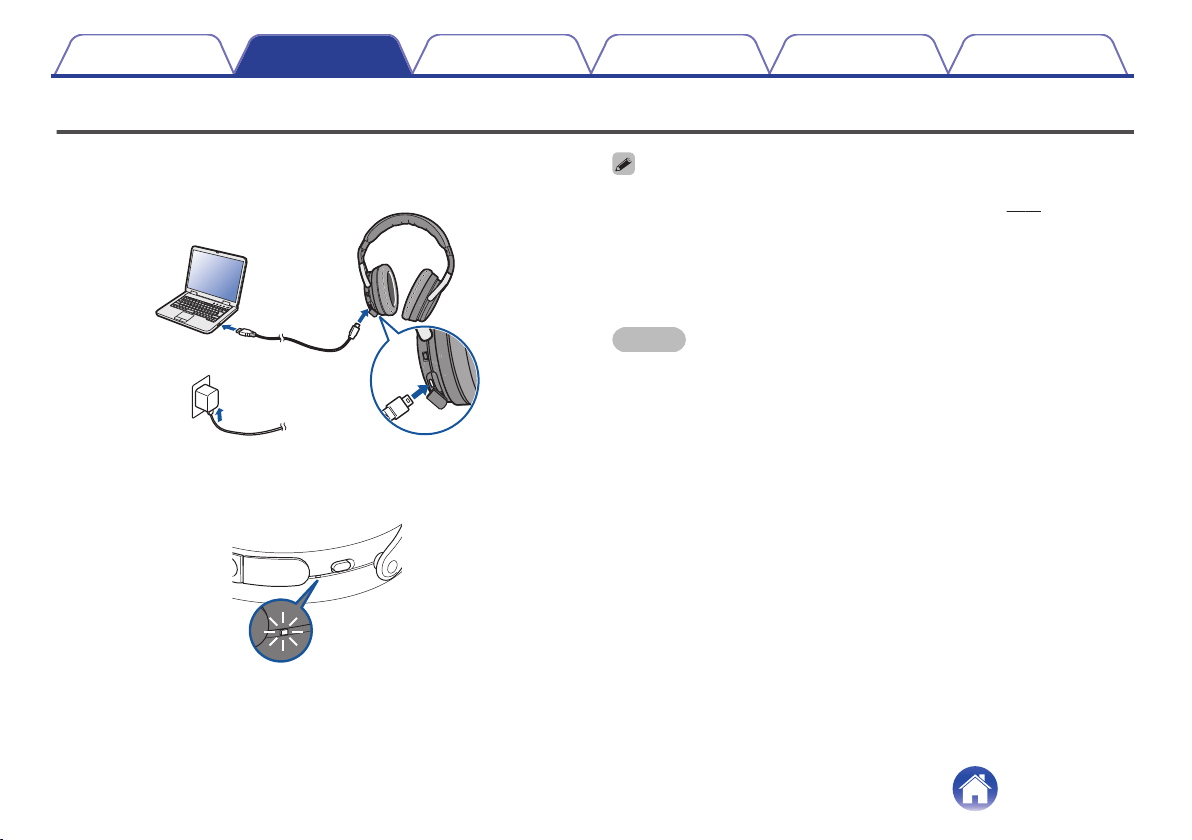
When using the headphones for the first time after purchase or when the
remaining battery is low, connect the headphones to a computer or a USB
to AC power adapter (not included) using the supplied USB cable.
.
or
The Charge/NC indicator blinks during charging. It takes approximately 3
hours to charge the headphones. (The duration time differs depending on
the charging output.)
.
ON
OFF
100 % charged : Lights red
50 - 99 % charged : Blinks red at 2-second intervals
0 - 49 % charged : Blinks red slowly
0
You can connect the headphones to a device using the supplied audio cable to
enjoy listening to music even if the batteries are drained. (v p. 20)
0
The headphones can be used for approximately 20 hours of music playback when
fully charged.
0
You can listen to music from a paired Bluetooth device or make phone calls even
during charging. In this case, noise may occur in the audio from the headphones
depending on the type of computer used.
NOTE
0
When connecting the USB cable to the charging port, be sure to match the cable
connector with the shape of the socket. Forcing the connector into the socket will
cause damage.
0
A rating of the charging output should be DC 5 V, 2.4 A or less.
0
The usable time of the headphones differs depending on the temperature of the
environment in which they are used and method of use.
0
The power turns off when the USB cable is connected to the headphones during
use. Turn on the power again to continue using the headphones.
Contents Preparation Connections
Operation
Troubleshooting
Appendix
7
o
Checking the remaining battery power
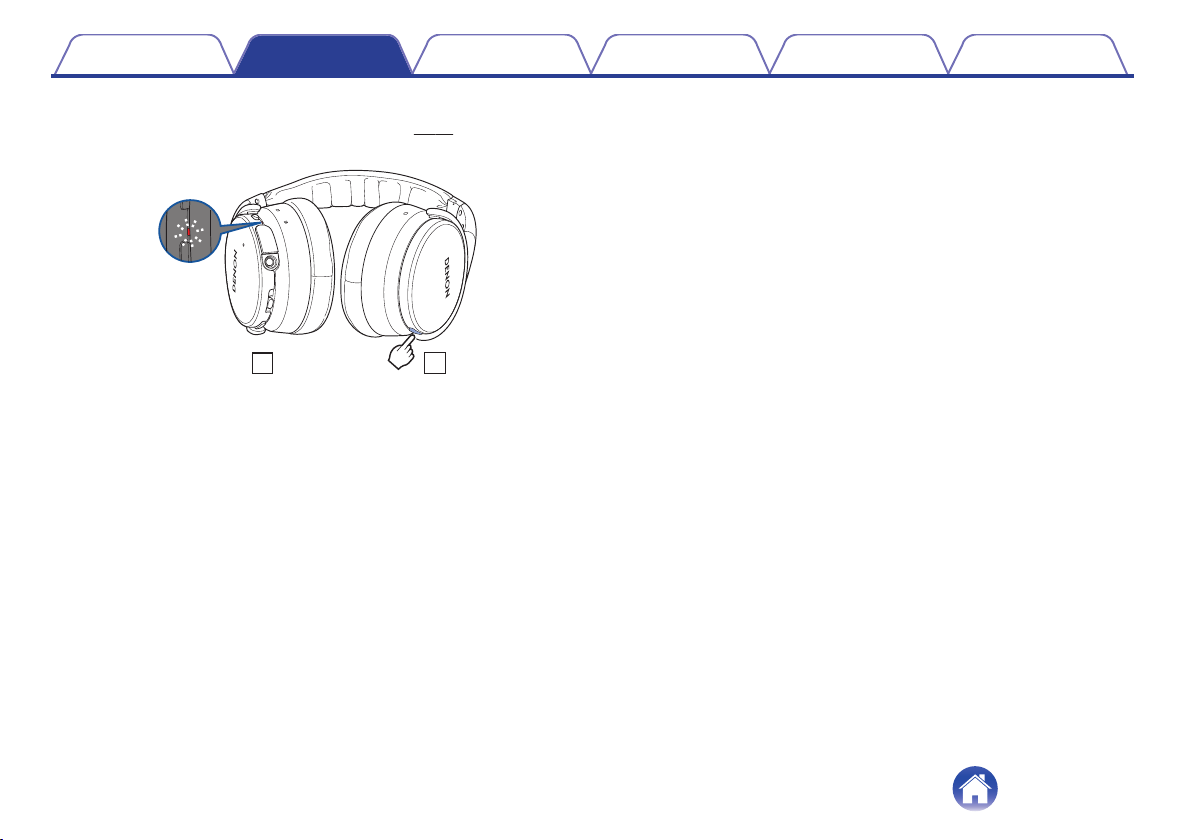
When the power is on (“Turning the power on” (v p. 15)), press the
Call button twice to check the remaining battery power.
.
R L
Remaining battery Indicator Beep sound
90 – 100 % Blinks four times Four times
60 – 89 % Blinks three times Three times
30 – 59 % Blinks twice Twice
10 – 29 % Blinks once Once
0
The remaining battery power cannot be checked when a phone call is in
progress.
0
When the amount of remaining battery is running low, the indicator
flashes red at three second intervals together with a beeping sound.
0
If the battery runs out during use, a beeping sound is heard and the
power of the headphones turns off.
Contents
Preparation Connections
Operation
Troubleshooting
Appendix
8
Using Audio Guidance (Notification Sounds)
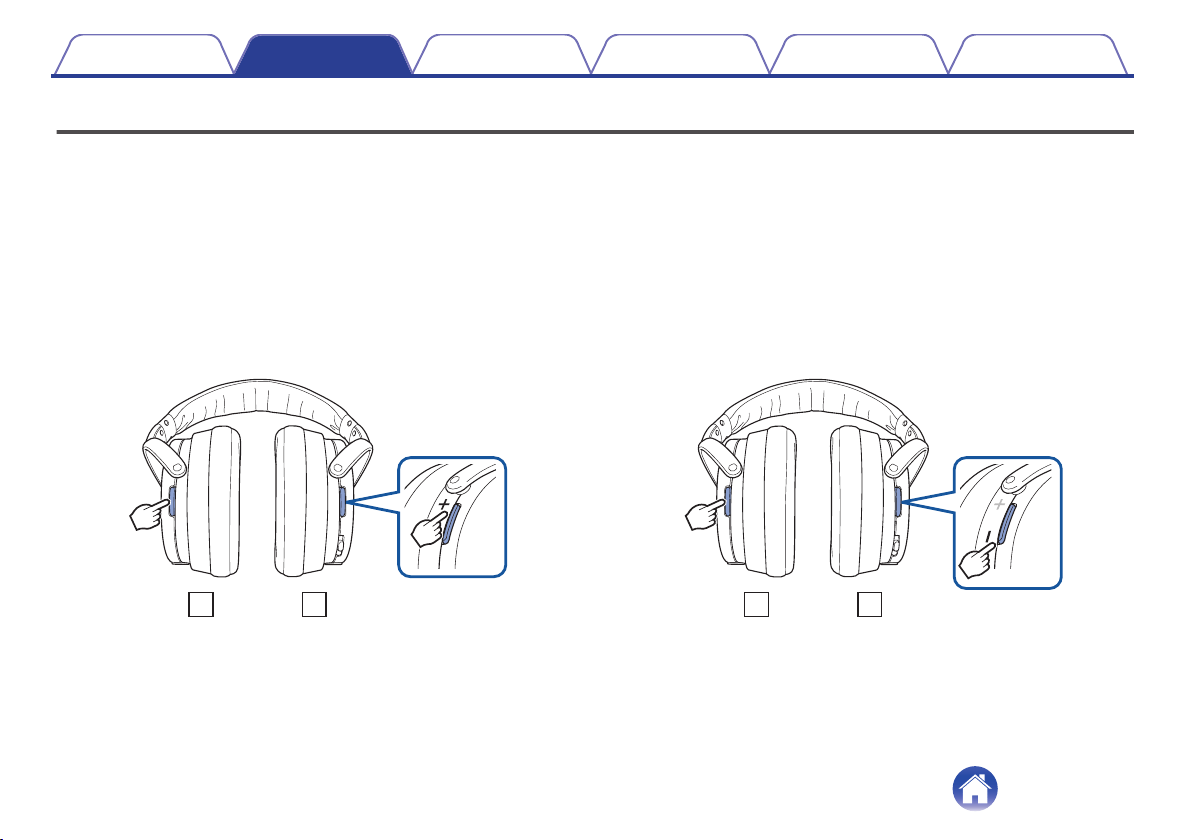
You are notified when an operation has completed correctly by a “beep” or “audio guidance”. The default notification sound is a “beep”. You can switch the
notification sound using the following procedure.
o
Switching to Audio Guidance Mode
1
End the audio playback or phone call on connected
Bluetooth device, or turn off the Bluetooth function of
the connected Bluetooth device.
2
Press and hold the call button and “+” volume button
together for more than 5 seconds.
0
The beep sound is heard and the notification sound is switched to
audio guidance.
.
R
L
o
Switching to beep mode
1
End the audio playback or phone call on connected
Bluetooth device, or turn off the Bluetooth function of
the connected Bluetooth device.
2
Press and hold the call button and “-” volume button
together for more than 5 seconds.
0
The beep sound is heard and the notification sound is switched to
the beep sound.
.
R
L
Contents
Preparation Connections
Operation
Troubleshooting
Appendix
9
o
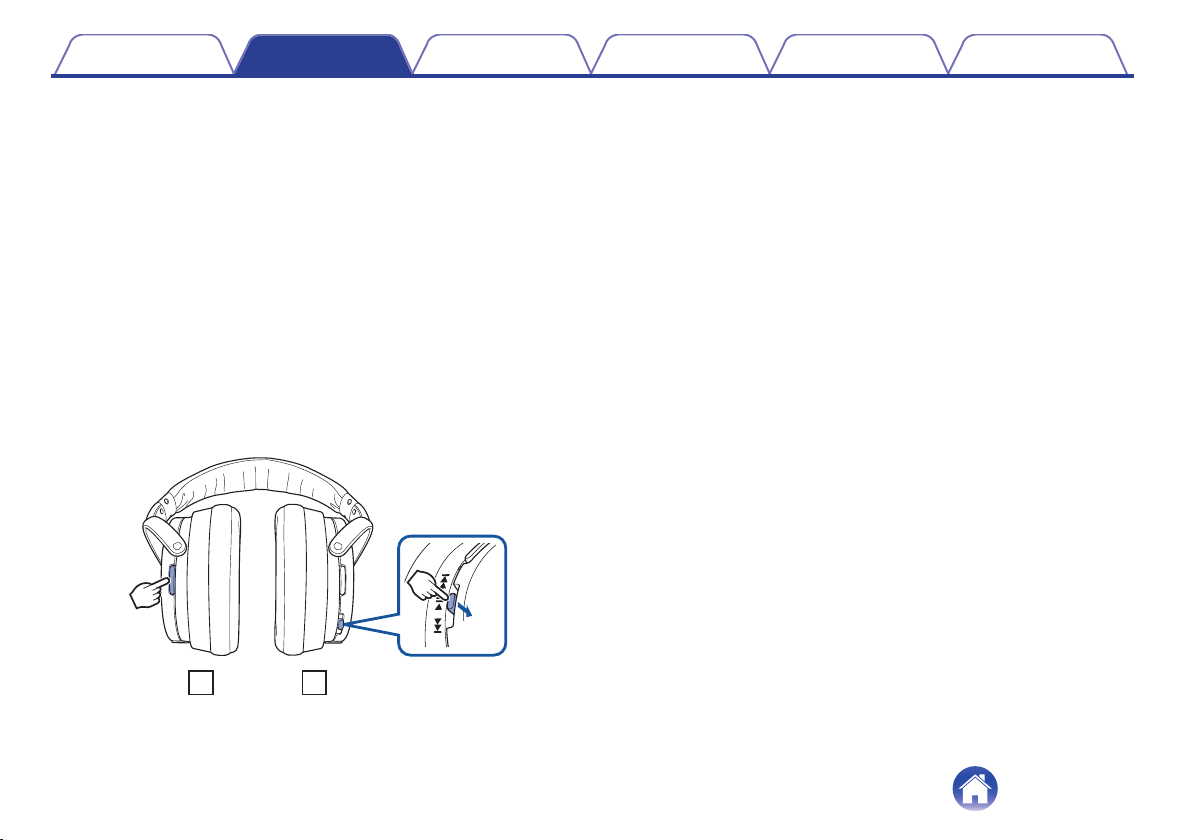
Switching the Audio Guidance Language
The audio guidance language can be selected from the following
languages. (The default audio guidance language is “English”)
English, Japanese, Chinese, German, French, Italian, Spanish
1
End the audio playback or phone call on connected
Bluetooth device, or turn off the Bluetooth function of
the connected Bluetooth device.
2
Press and hold the call button and control button
together.
0
Audio in each language is played in order while the buttons are
pressed down.
3
Release the buttons when the language that you want
to select is played.
0
A message informing you that the settings are complete is heard.
.
R
L
Push
Contents
Preparation Connections
Operation
Troubleshooting
Appendix
10
Bluetooth operation
Pairing
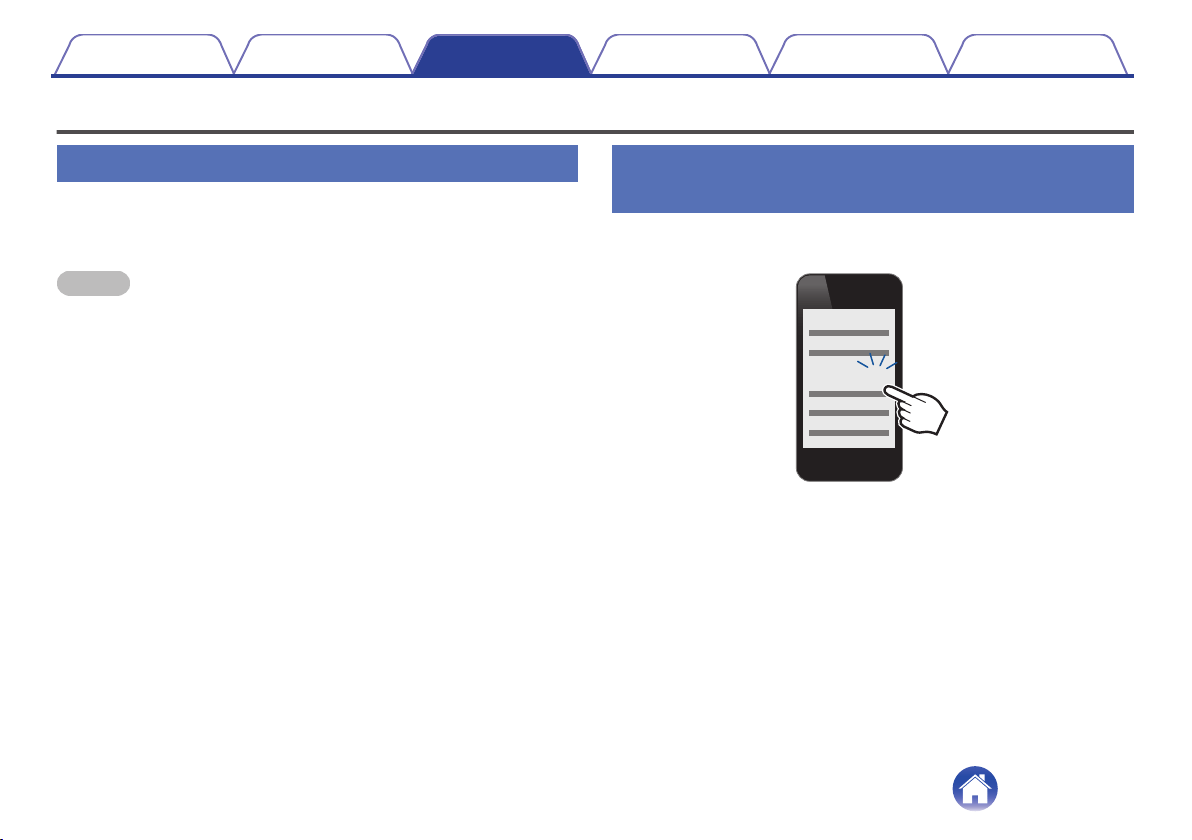
You need to register (pair) a Bluetooth device with the headphones in
advance in order to enjoy listening to wireless music or make phone calls.
You can connect to a Bluetooth device any time after it has been paired.
NOTE
Pairing needs to be done again in the following cases.
0
When 9 or more devices have been paired with the headphones
These headphones can store pairing information from a maximum of 8 devices.
When 9 or more devices are paired, the new pairing information overwrites the oldest
pairing information in order from the oldest information onwards.
Multiple Bluetooth devices cannot be played back at the same time.
Registering (Pairing) and connecting a
Bluetooth device
1
Turning on Bluetooth on your mobile device
.
Bluetooth ON
0
For details, see the Owner’s Manual of the Bluetooth device that
you want to connect.
Contents
Preparation Connections
Operation
Troubleshooting
Appendix
Connections
11
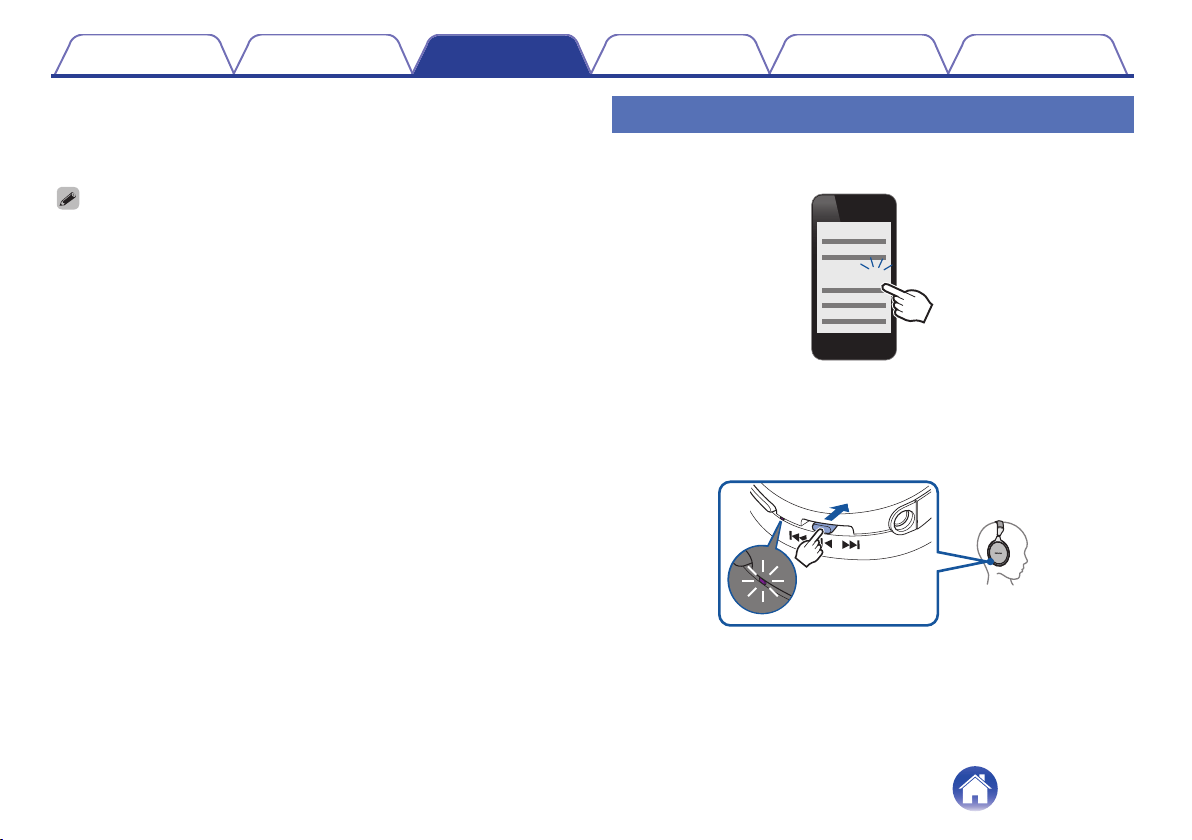
2
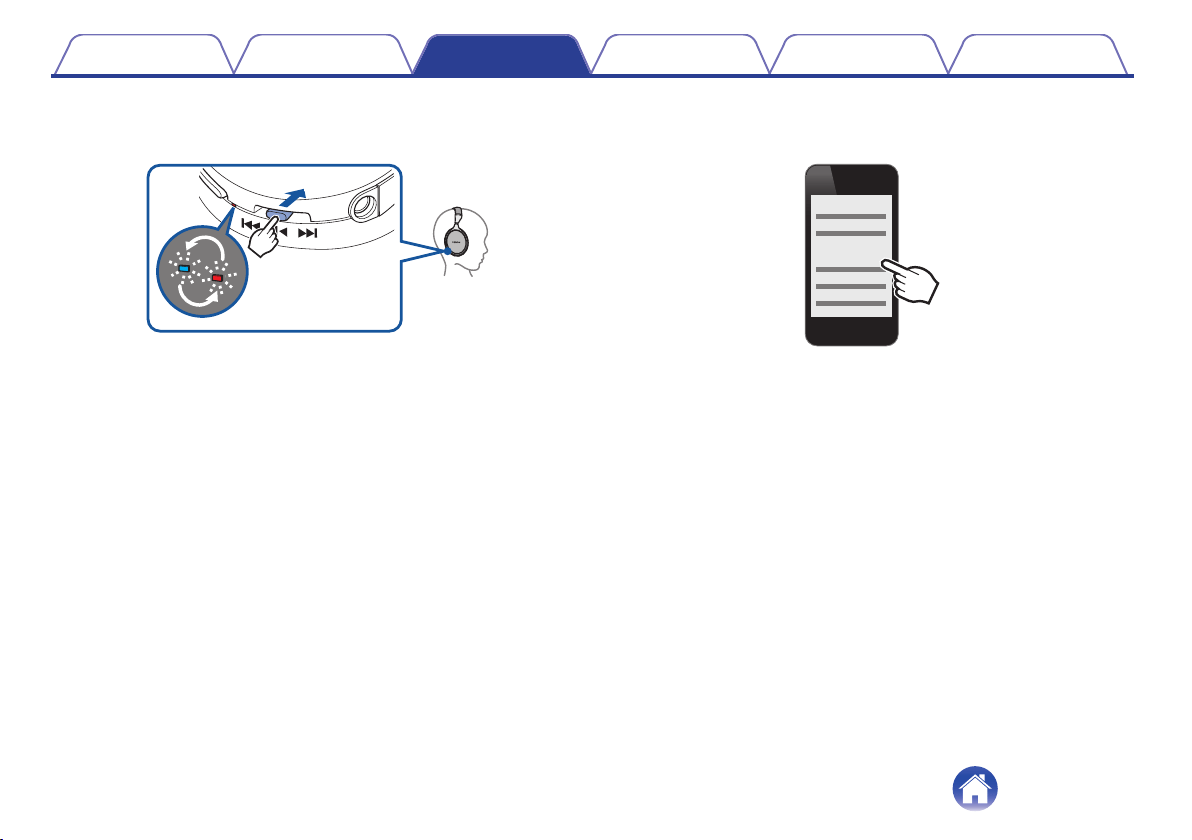
When the headphones power is off, press and hold the
control button for approximately 4 seconds
.
Push
4 Sec
0
The Bluetooth indicator flashes red and blue alternately indicating
that the headphones are in pairing registration mode.
3
Select “DENON AH-GC20” from the list of devices
displayed on the screen of your Bluetooth device
.
DENON AH-GC20
When the headphones are paired and connected to an audio device
by Bluetooth, the Bluetooth indicator on the headphones lights blue
for approximately 5 seconds to indicate that the Bluetooth
connection is complete.
Contents
Preparation Connections
Operation
Troubleshooting
Appendix
12
4
Playing back music on the Bluetooth device
Music played back on the connected Bluetooth device is output from
the headphones.
0
If the power is on, turn the power off before pairing.
0
The headphones pairing registration mode is cancelled if pairing is not completed
within 3 minutes. In this case, press and hold the control button for more than 5
seconds to turn the power off, and then try pairing again.
0
If you are requested to enter a PIN code (pass key), enter “0000” (four zeros).
Reconnecting paired devices
1
Turning on Bluetooth on your mobile device
.
Bluetooth ON
0
For details, see the Owner’s Manual of the Bluetooth device that
you want to connect.
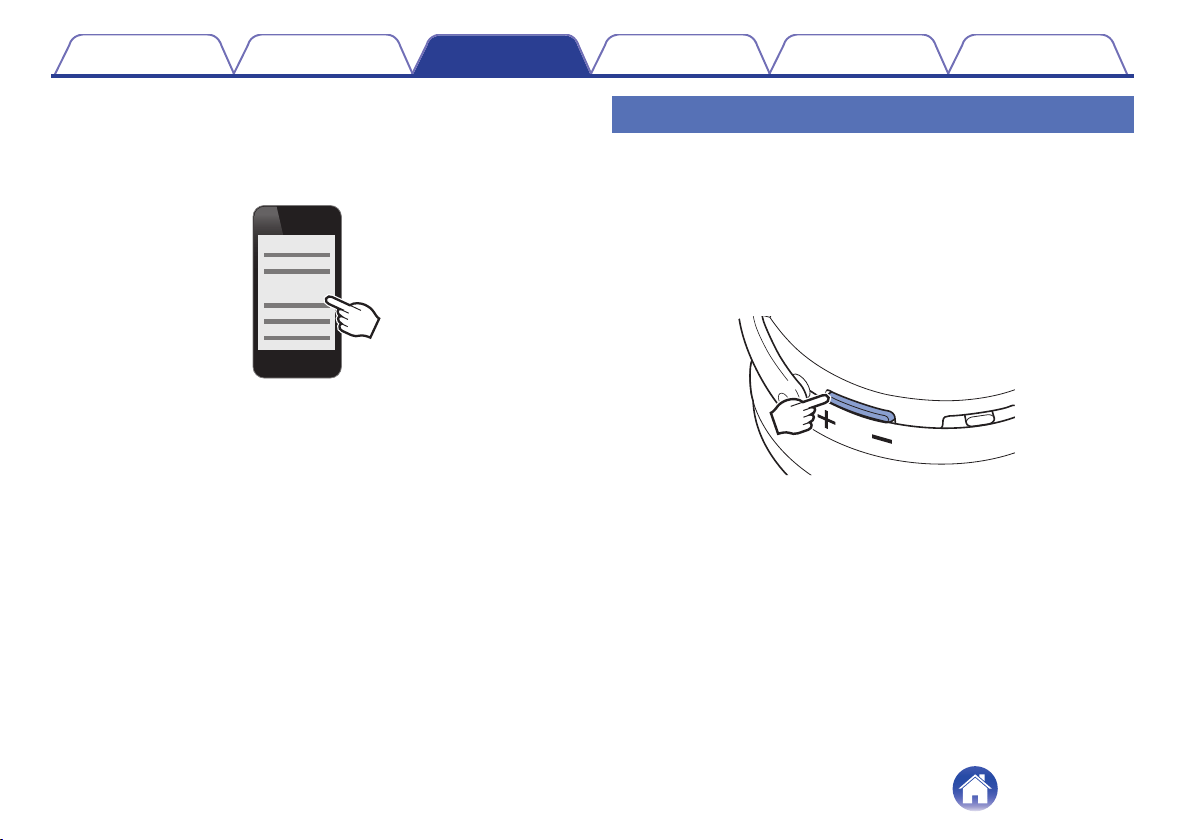
2
Press and hold the control button for 1 second to turn
the headphones power on
.
1 Sec
Push
0
A beep sound is heard and the Bluetooth indicator lights purple
for approximately 1 second.
0
The Bluetooth function turns on when the power is turned on.
Contents
Preparation Connections
Operation
Troubleshooting
Appendix
13
3
The headphones automatically connect via Bluetooth
to the Bluetooth device
If the device is not connected, select “DENON AH-GC20” from the
list of devices displayed on the screen of your Bluetooth device.
.
DENON AH-GC20
0
The Bluetooth indicator on the headphones lights blue for
approximately 5 seconds when the Bluetooth connection is
complete.
4
Playing back music on the Bluetooth device
Music played back on the connected Bluetooth device is output from
the headphones.
Deleting pairing information
Delete pairing information if you have made a mistake entering pairing
information or when re-pairing a device.
1
Press and hold the volume + button for more than 5
seconds when the headphones are in pairing
registration mode with the Bluetooth device
0
A beep sound is heard, the Bluetooth indicator flashes purple 5 times,
and the pairing information is deleted.
.
Contents
Preparation Connections
Operation
Troubleshooting
Appendix
14
Turning the power on
Turn on the Bluetooth function of the Bluetooth device that you want to
connect to beforehand.
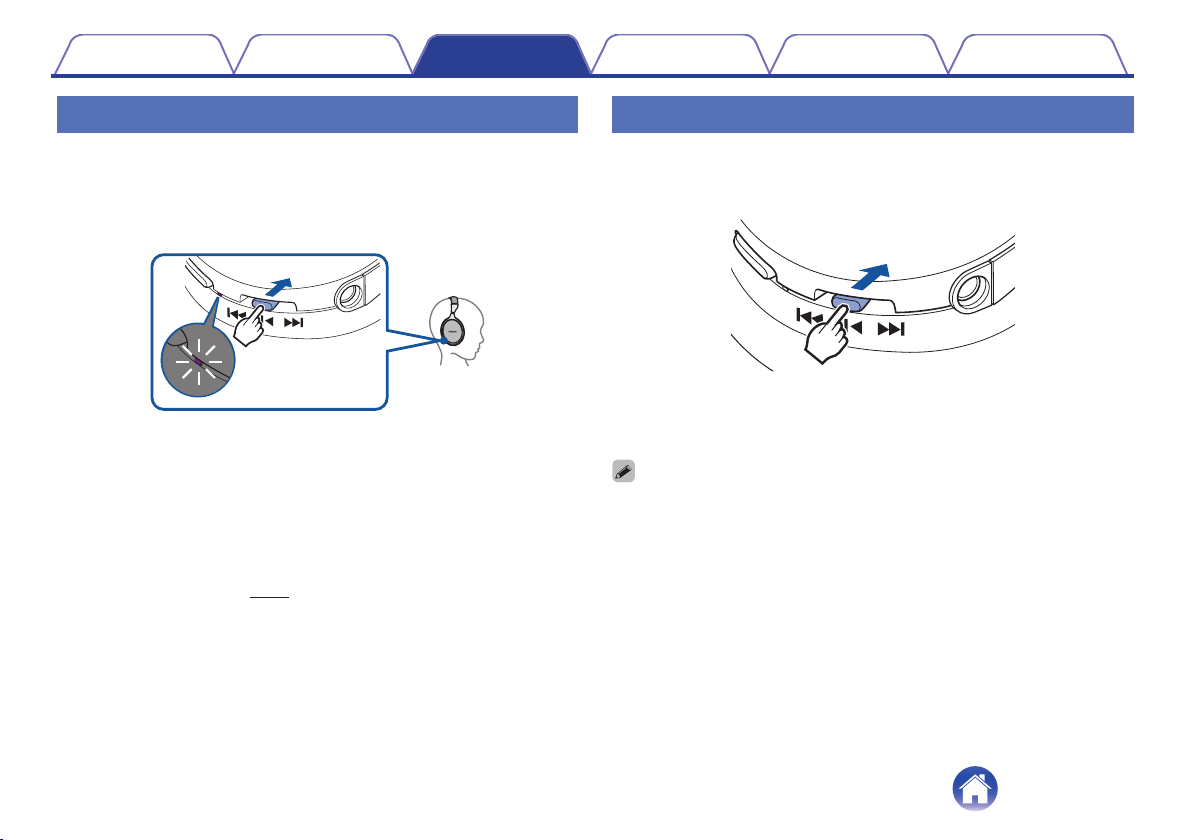
1
Press and hold the headphones control button for
approximately 1 second
.
1 Sec
Push
0
When the pairing information is deleted, the headphones
automatically switch to pairing registration mode when the power
is turned on.
0
A beep sound is heard and the Bluetooth indicator lights purple
for approximately 1 second.
0
The power turns on and Bluetooth function turns on.
0
The headphones automatically connect via Bluetooth to the
Bluetooth device when the device is already paired with the
headphones. (v
p. 13)
Turning the power off
1
Press and hold the control button for more than 5
seconds
.
Push
5 Sec
0
A beep sound is heard and the Bluetooth indicator lights purple
for approximately 1 second.
0
If the audio cable is connected when the headphones power is on, the power
automatically turns off.
0
A small amount of power is consumed even when the power is off.
0
If the indicator does not light even when the control button is pressed, the batteries
are exhausted. Charge the batteries.
Contents Preparation Connections
Operation
Troubleshooting
Appendix
15
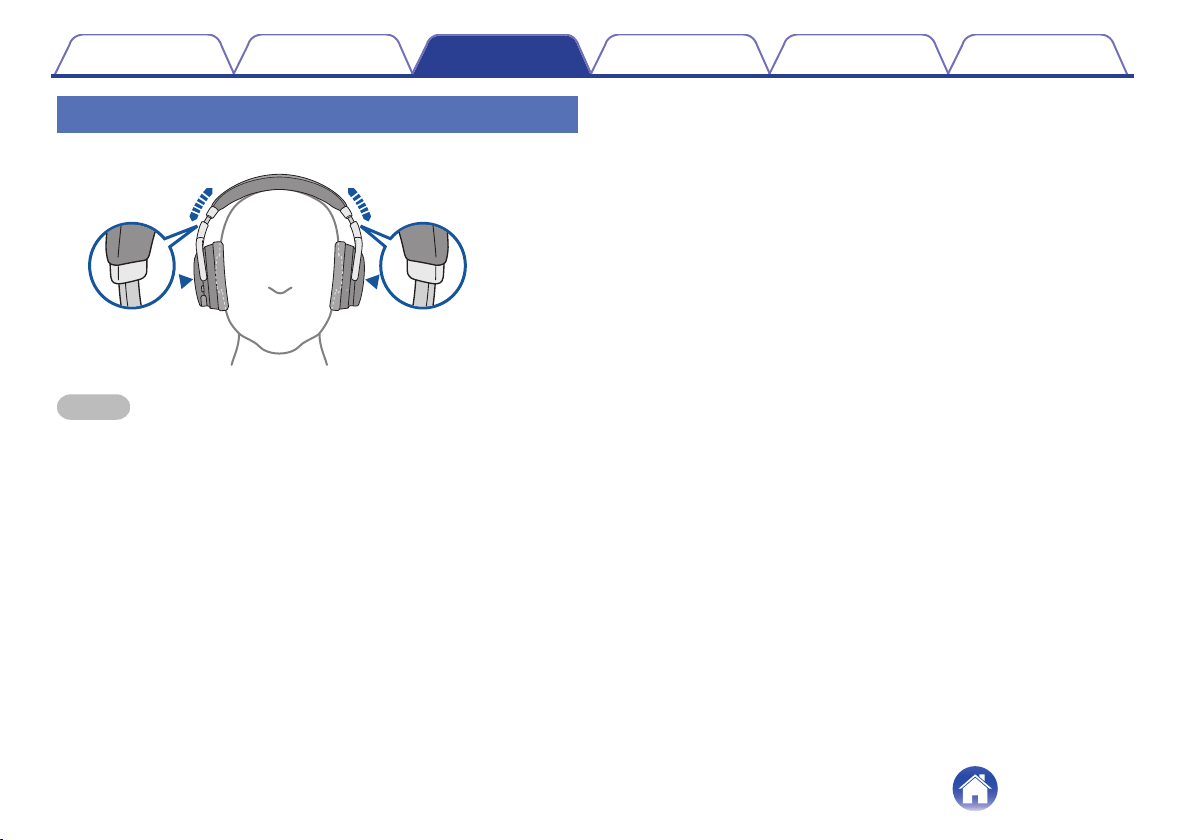
Wearing the headphones
Adjust the slider to the preferred length.
.
R
L
NOTE
0
Be careful not to trap your fingers, etc. in the moving parts.
0
Do not pull the slider too forcefully.
0
In order to hear the best quality sound, be sure that the ear pads correctly cover
both the left and right ears. If there are gaps between your ears and the
headphone ear pads, sound will leak and the bass level and effectiveness of the
noise cancelling function will be reduced.
Contents Preparation Connections
Operation
Troubleshooting
Appendix
16
Simultaneously connecting multiple
Bluetooth devices (Multipoint function)
Two Bluetooth devices can be simultaneously connected to the
headphones, but of these only one device can be used to listen to music
or make phone calls at any time. It is convenient to connect devices that
you use frequently so that you do not need to re-connect each time you
want to switch devices.
o
Connecting to a second Bluetooth device
1
Turn off the Bluetooth function of the paired (first)
Bluetooth device (For details, see the Owner's Manual
of the Bluetooth device that you connected.)
2
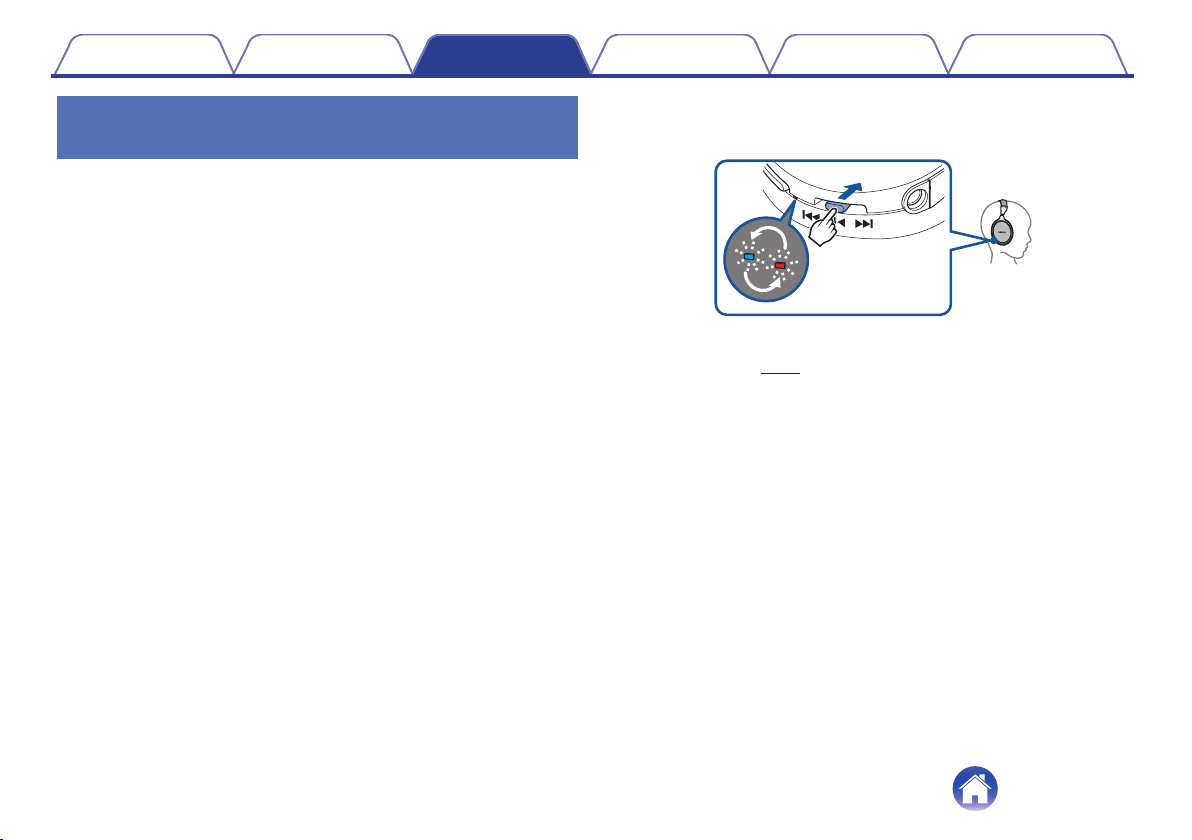
Turn off the Bluetooth function of the headphones and
then register (pair) the 2nd Bluetooth device
.
Push
4 Sec
0
See “Registering (Pairing) and connecting a Bluetooth
device” (v p. 11) for details on how to pair devices.
0
The Bluetooth indicator on the headphones lights blue for
approximately 5 seconds when the Bluetooth connection is
complete.
Contents
Preparation Connections
Operation
Troubleshooting
Appendix
17
3
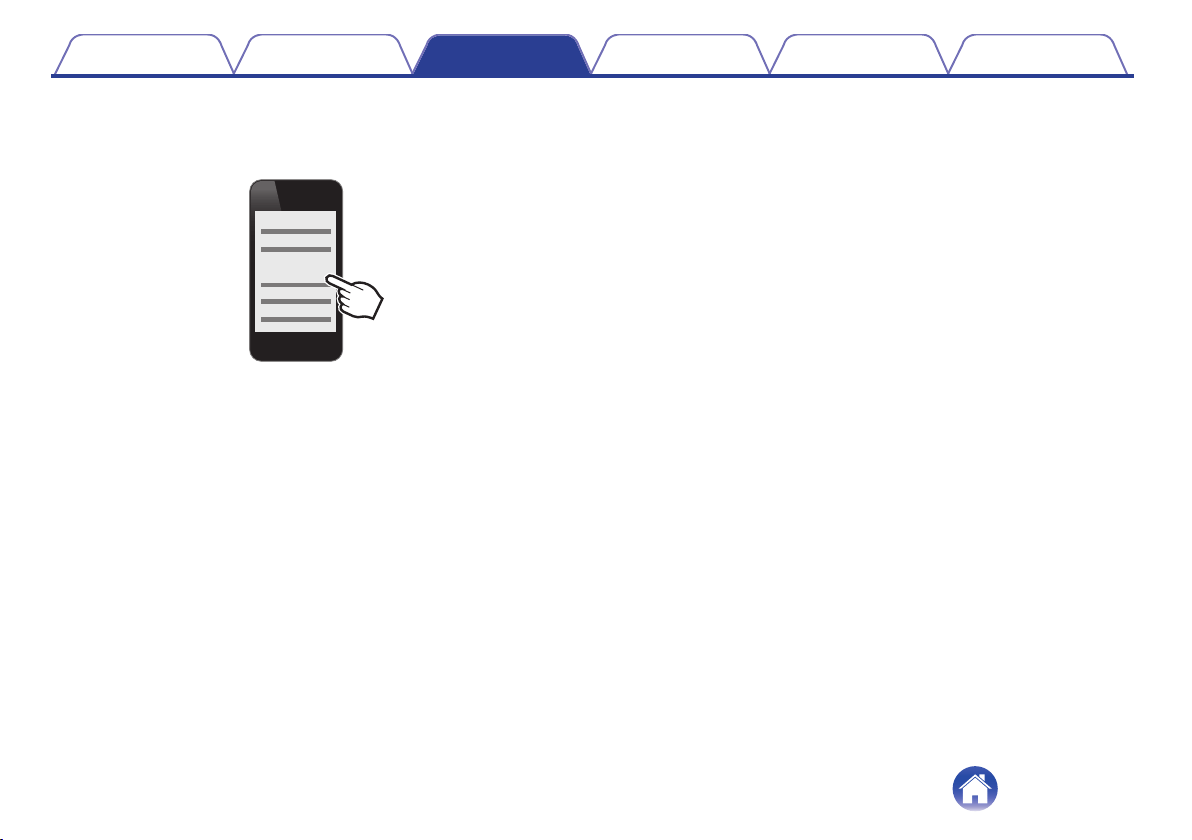
Turn on the Bluetooth function of the 1st Bluetooth
device, and select “DENON AH-GC20” from the list of
devices displayed on the screen
.
DENON AH-GC20
0
This procedure connects two Bluetooth devices to the
headphones.
o
Switching Bluetooth playback devices
1
Stop or pause playback on the current playback device
2
Start playback on the device that you want to listen to
o
Call standby
Simultaneous call standby is possible, but the device that receives the call
first takes priority. Calls cannot be made simultaneously.
Contents Preparation Connections
Operation
Troubleshooting
Appendix
18
Listening to music
When using the headphones wirelessly, make sure the Bluetooth function
is set to ON for the Bluetooth device. (For details, see the Owner's Manual
of the Bluetooth device that you connected.)
Listening to music using a Bluetooth
connection
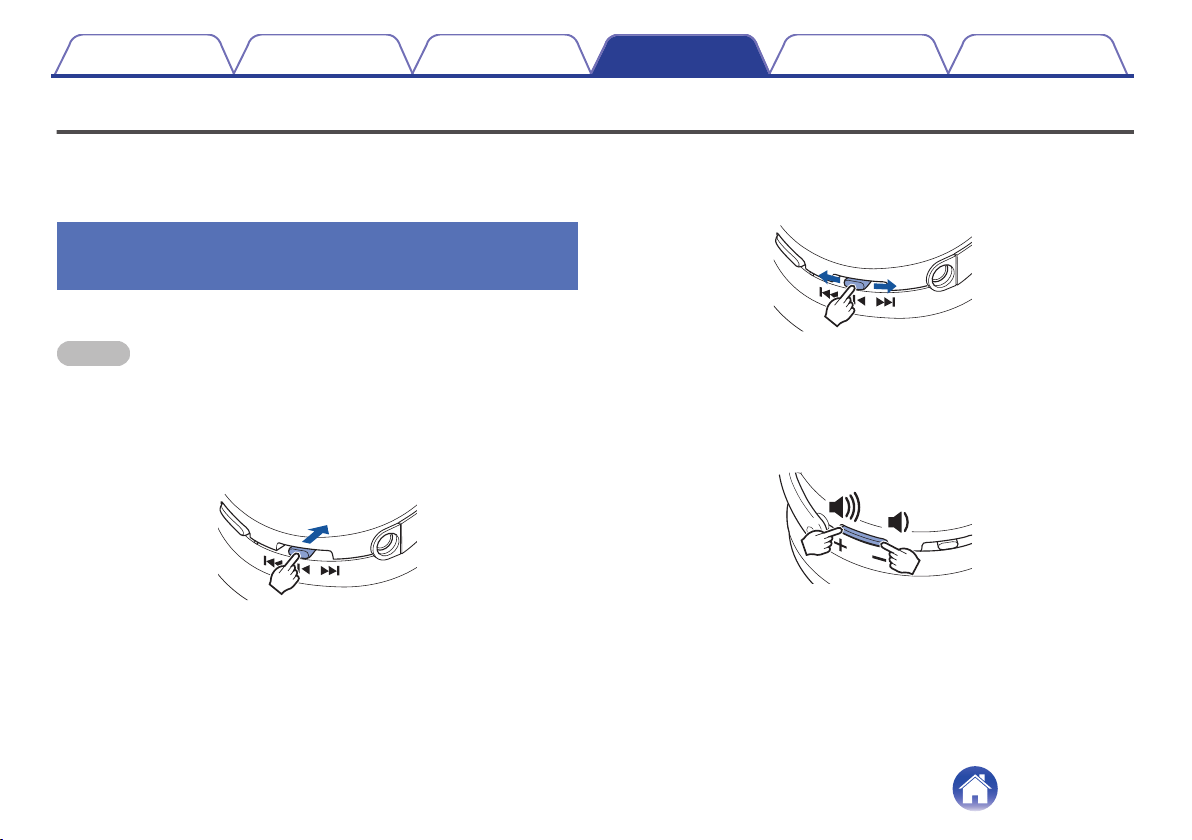
The paired Bluetooth device is controlled using the control button.
NOTE
When the headphones are connected using the audio cable, the Bluetooth function is
automatically turned off and the Bluetooth device cannot be controlled using the
headphones.
Playback/pause
Press A once
.
Push
q
Select track
Next track: Slide in the B direction (towards back of the head)
Previous track: Slide in the C direction (towards face)
.
w
e
Continue sliding towards B for fast-forward playback, and continue sliding
towards C for rewind playback.
Volume adjustment
Increase volume (*1): Press D
Decrease volume (*2): Press E
.
r
t
The Bluetooth indicator flashes blue during playback.
z1
When the maximum volume is reached, a “beep-beep” sound is heard. The
volume cannot be increased further.
z2
When the minimum volume is reached, a “beep-beep” sound is heard. The
volume cannot be decreased further.
Contents
Preparation Connections
Operation
Troubleshooting
Appendix
Operation
19
0
These headphones are compatible with SCMS-T content security standards. You
can use these headphones with SCMS-T compatible mobile phones or devices.
0
In order to listen to music via a Bluetooth connection, the connected Bluetooth
device needs to be A2DP (Advanced Audio Distribution Profile) compatible. (*)
0
In order to control playback on the Bluetooth device, the connected Bluetooth
device need to be AVRCP (Audio Video Remote Control Profile) compatible. (*)
z
For details on profiles that the Bluetooth device is compatible with, see the
Bluetooth device Owner’s Manual.
Listening to music using a wired
connection
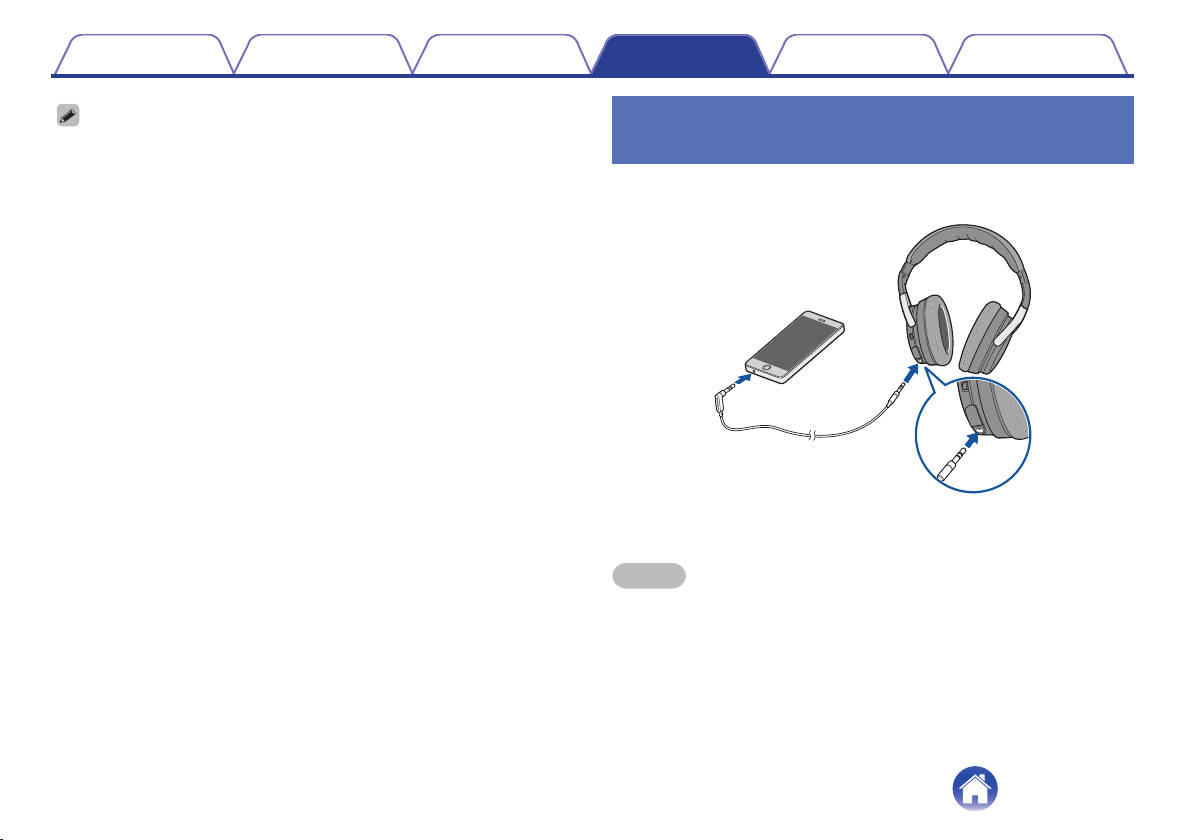
Use the provided audio cable when you are not allowed to use the
Bluetooth function or when the battery runs out.
.
0
The noise cancelling function can be used when the headphones are
connected by the cable as long as the battery remains charged.
NOTE
0
The call operations and audio device playback operations that are available when
connected using Bluetooth cannot be used when the headphones are connected
using the cable.
0
The noise cancellation function may not operate when the headphones are used
with certain portable devices that are equipped with a digital amplifier.
Contents Preparation Connections
Operation
Troubleshooting
Appendix
20
Conducting phone calls
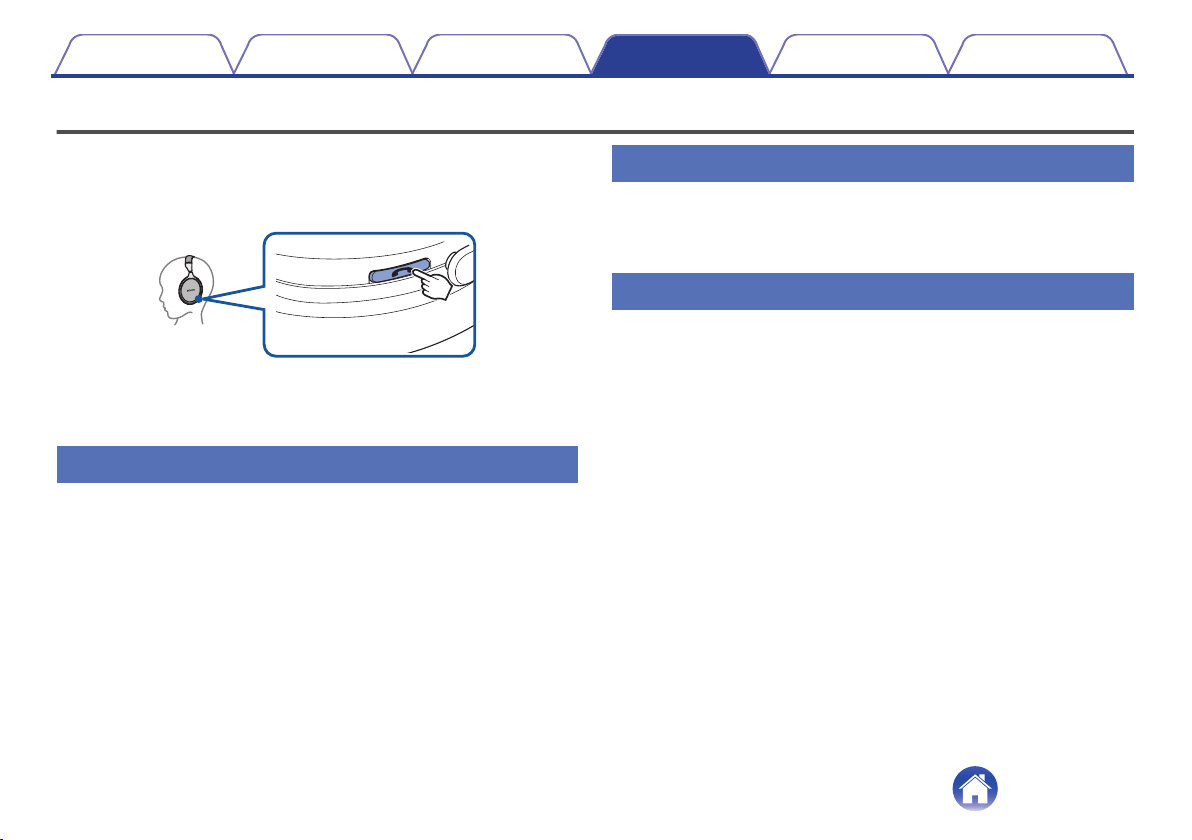
Calls can be made while you are wearing the headphones. You can hear
the caller’s voice through the headphones, and your voice is picked up by
the built-in microphone in the headphones. The paired Bluetooth
compatible mobile phone is controlled using the Call button.
.
When the headphones are connected using the audio cable, the Bluetooth
function is automatically turned off and calls cannot be made using the
headphones.
Making a call
Dial operations are done on the paired mobile phone. Audio playback is
paused and the call is connected.
Answering an incoming call
When an incoming call is received, audio playback is paused and the ring
tone is heard.
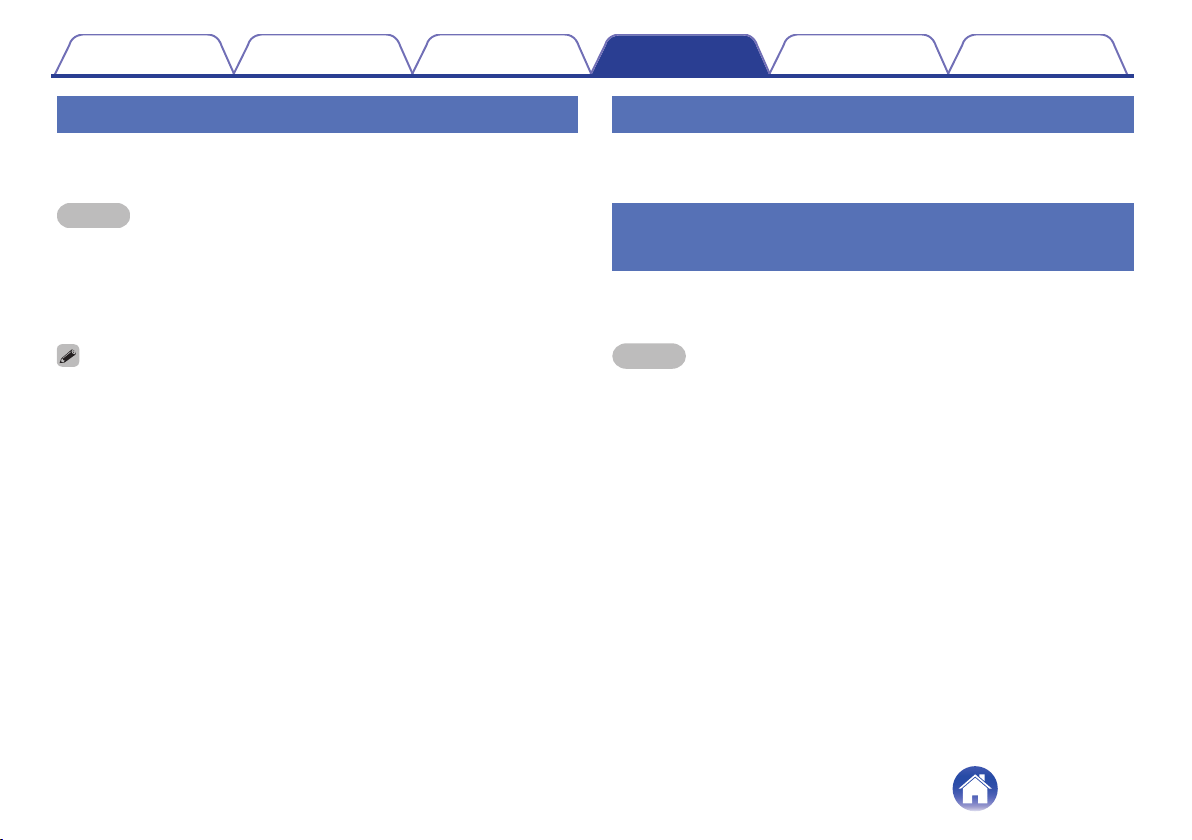
Press the call button once to answer the call.
Ending a call
Press the call button once during the call.
When a call is ended, playback of the paused track is restarted.
Contents Preparation Connections
Operation
Troubleshooting
Appendix
22
Using the call waiting function
If you receive a call while another call is already in progress, you can place
the current call (call A) on hold and switch to the new call (call B).
NOTE
Some of mobile phones may not be compatible with these functions.
1
Press the Call button once while the call is in progress.
0
This places the current call (call A) on hold and switches to the
new call (call B).
When the new call (call B) ends, the unit returns to the call that was on hold (call A).
o
To return to the call that is on hold (call A)
1
Press and hold the Call button for around 3 seconds
during the current call (call B).
0
This places the current call (call B) on hold and switches to the
call that was previously on hold (call A).
Ignoring an incoming call
Press and hold the call button for approximately 3 seconds when an
incoming call is received.
Switching a call from the headphones
to a mobile phone
Switch the current call to the mobile phone.
Press the call button three times.
NOTE
The switch operation cannot be used when a call waiting call is received. Switch
using the mobile phone.
Contents Preparation Connections
Operation
Troubleshooting
Appendix
23
Other operations
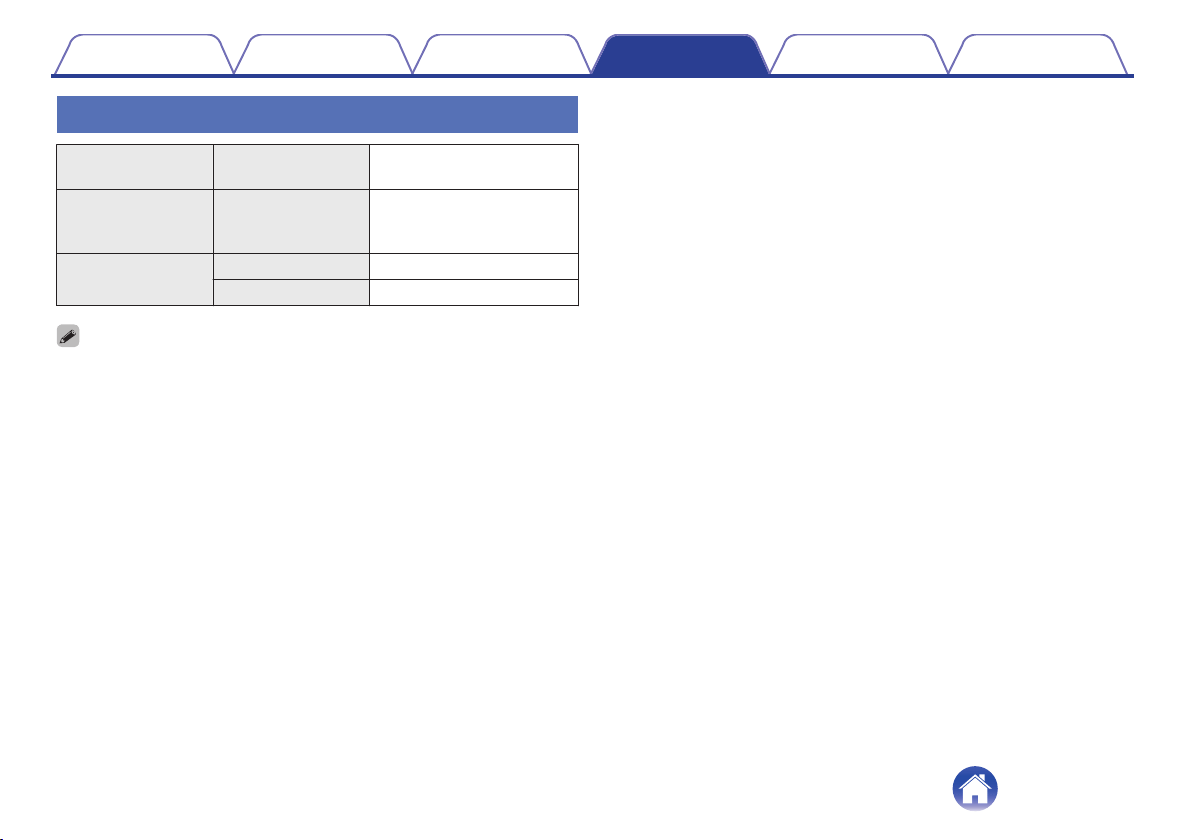
Incoming call
detected
Answer Press the call button once
In standby mode/
During audio
playback
Voice dial/
Voice activated call
Press and hold the call
button
Call in progress
End call Press the call button once
Mute on/off Press the call button twice
0
Press the volume button to adjust the volume of the caller’s voice.
0
The connected Bluetooth device needs to be compatible with either HSP (Headset
Profile) or HFP (Hands-free Profile) in order to use the headphones for conducting
phone calls. (*)
0
The Bluetooth device needs to be compatible with either HFP or HSP and A2DP in
order to conduct calls during audio playback. (*)
z
For details on profiles that the Bluetooth device is compatible with, see the
Bluetooth device Owner’s Manual.
Contents
Preparation Connections
Operation
Troubleshooting
Appendix
24
Information
Airplane use
Use the supplied audio cable and conversion plug for aircraft use in order
to listen to the on-board audio services on an aircraft.
NOTE
0
The supplied conversion plug may not be usable depending on the type of aircraft.
0
Do not use these headphones when the use of electric devices on the aircraft is
prohibited, or when the use of personal headphones to listen to on-board music
services is prohibited.
Storage in the carrying case
Remove the cable and plug from the headphones, fold and insert them
into the case.
NOTE
Do not force them into the carrying case. Doing so may damage the headphones.
Contents Preparation Connections
Operation
Troubleshooting
Appendix
25
Troubleshooting
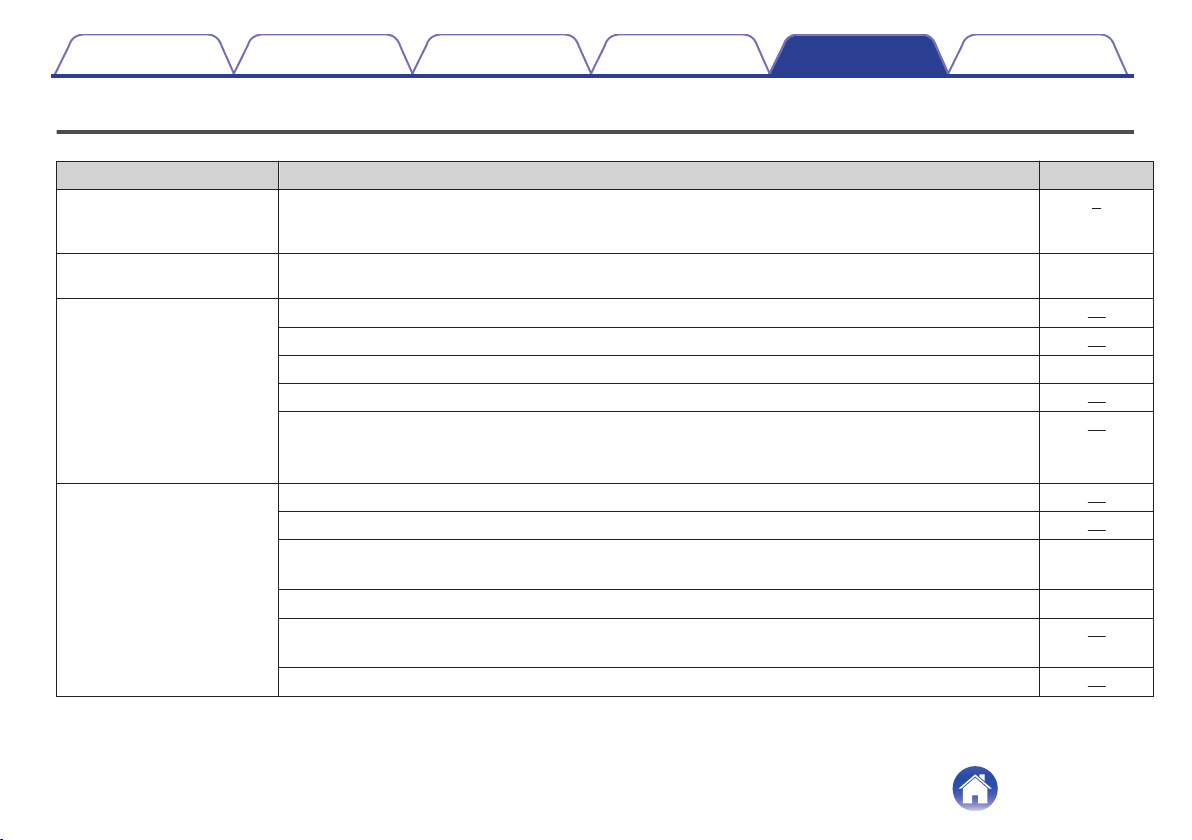
If the headphones do not operate correctly, first check the following items.
Symptom Cause / Solution Page
The Bluetooth function of the
headphones does not switch
on.
0
Connect the headphones to a computer using the supplied USB cable to charge the battery.
7
Cannot pair a Bluetooth
device.
0
Move the Bluetooth device that you want to connect closer to the headphones.
-
Cannot connect using
Bluetooth.
0
Check that the power of the headphones is switched on.
15
0
Check that the power of the Bluetooth device is on and the Bluetooth function is enabled.
11
0
Check whether the Bluetooth device is in sleep status.
-
0
Pair the devices again.
11
0
Remove the cable from the headphones if the headphones and Bluetooth device are connected using a
cable. The Bluetooth function of the headphones is automatically turned off when the headphones are
connected using a cable.
20
Sound is not output from the
headphones when connected
using Bluetooth.
0
Check that the power of the headphones is switched on.
15
0
Check that the power of the Bluetooth device is on and the Bluetooth function is enabled.
11
0
Select A2DP as the Bluetooth connection profile on the transmitting Bluetooth device. For details, see the
Owner’s Manual of the Bluetooth device.
-
0
Check that audio is being played back on the Bluetooth device.
-
0
Increase the volume. Increase the volume on the Bluetooth device if it is necessary to adjust the volume
on the Bluetooth device.
19
0
Pair the devices again.
11
Contents Preparation Connections
Operation
Troubleshooting
Appendix
Troubleshooting
26
Symptom Cause / Solution Page
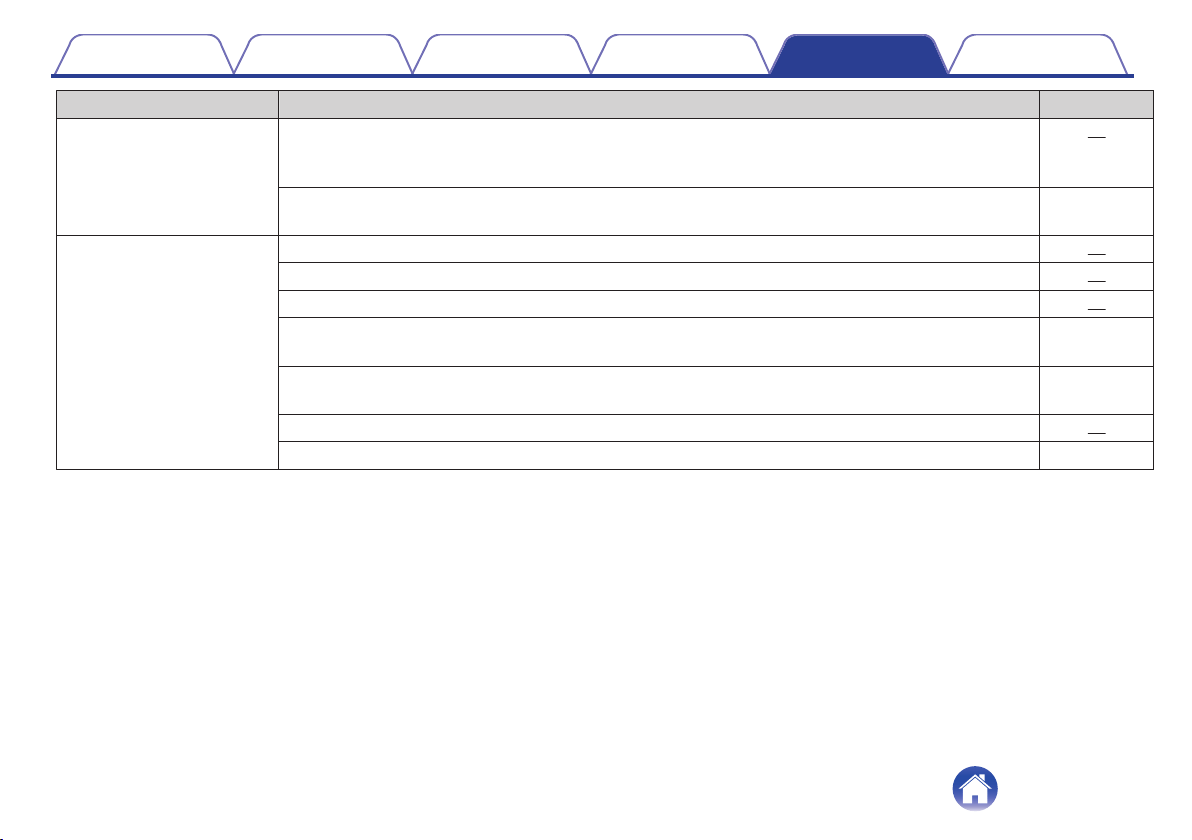
Cannot operate the Bluetooth
device using the headphones.
0
Remove the cable from the headphones if the headphones and Bluetooth device are connected using a
cable. The Bluetooth function of the headphones is automatically turned off when the headphones are
connected using a cable.
20
0
The headphones are reset when the supplied USB cable is connected to the headphones. Pairing
information with Bluetooth devices is not deleted even when the headphones are reset.
-
Cannot hear the caller’s voice.
0
When listening to audio through the headphones, press the call button to switch to the call.
22
0
Check that the power of the headphones is switched on.
15
0
Check that the power of the Bluetooth device is on and the Bluetooth function is enabled.
11
0
Select HSP or HFP as the Bluetooth connection profile on the transmitting Bluetooth device. For details,
see the Owner’s Manual of the Bluetooth device.
-
0
Check that the Bluetooth device is set to handle calls through the headphones. For details, see the
Owner’s Manual of the Bluetooth device.
-
0
Increase the incoming call volume.
24
0
Increase the volume on the Bluetooth compatible mobile phone.
-
Contents Preparation Connections
Operation
Troubleshooting
Appendix
27
Precautions for Use
0
Be sure to read the Owner’s Manual of the device that you want to connect.
0
Check the volume settings when using the headphones on public transport or in public places and make sure you do not disturb people around you.
0
These headphones are not guaranteed to work with all combinations of Bluetooth devices/mobile phones.
0
These headphones do not support connection with all Bluetooth devices/mobile phones.
0
Bluetooth wireless technology can communicate over a distance of approximately 10 m. However, obstructions (people, metallic objects, walls, etc.)
and radio wave conditions affect the range in which communication is possible.
0
The Bluetooth device that you want to connect must support the same profile as these headphones in order to use the Bluetooth function. For details on
profiles that the Bluetooth device is compatible with, see the Bluetooth device Owner’s Manual.
0
Due to features of Bluetooth wireless technology, playback of audio on the headphones is slightly delayed compared to the voice/audio playback on the
transmitting device.
Contents Preparation Connections
Operation
Troubleshooting
Appendix
Appendix
28
Disposal of these headphones
The rechargeable battery built into these headphones can be recycled.
Contact the Denon Customer Service Center for details on disposing of
these headphones.
Trademark information
.
The Bluetooth
®
word mark and logos are registered trademarks owned
by Bluetooth SIG, Inc. and any use of such marks by D&M Holdings Inc.
is under license. Other trademarks and trade names are those of their
respective owners.
.
©2013 CSR plc and its group companies.
Contents Preparation Connections
Operation
Troubleshooting
Appendix
29
Specifications
o
Headphone section
Type: Dynamic type
Drive units: 40 mm
Input impedance: 100 Ω/ohms (Power on)
Sensitivity: 102 dB/mW
Maximum input: 1,000 mW
Playback frequency: 5 – 40,000 Hz
o
Bluetooth section
Compatible standards: Bluetooth 4.0 dual mode
Transmission power: Max. transmission power 10 mW (Class 1)
Compatible profiles: A2DP/AVRCP/HSP/HFP
A2DP codec support: aptX Low Latency/aptX/AAC/SBC
Continuous playback time
Bluetooth function ON +
noise cancellation function ON:
Approx. 20 hours
Contents Preparation Connections
Operation
Troubleshooting
Appendix
30


www.denon.com
D&M Holdings Inc.
3520 10367 00ADB
32