IMPORTANT SAFEGUARDS 1 ]
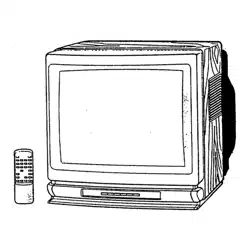
HITACHI
SOLID STATE COLOR TV OPERATING GUIDE
27CX21B
32CX32B
IMPORTANT SAFEGUARDS 2 ]
IMPORTANT SAFEGUARDS .................................................................................................................. 2
PICTURE CAUTIONS ............................................................................................................................... 7
ACCESSORIES .......................................................................................................................................... 7
REMOTE CONTROL BATTERY INSTALLATION AND REPLACEMENT ....................................... 8
HOW TO SET UP YOUR NEW HITACHI COLOR TV .......................................................................... 9
HOOK-UP CABLES AND CONNECTORS ............................................................................................. 9
FRONT PANEL CONTROLS FOR 27CX21B ........................................................................................ 11
FRONT PANEL CONTROLS FOR 32CX32B ........................................................................................ 11
FRONT PANEL CONTROLS .................................................................................................................. 11
FRONT PANEL JACKS AND CONNECTIONS FOR 32CX32B .......................................................... 12
REAR PANEL JACKS ............................................................................................................................. 12
TIPS ON REAR PANEL CONNECTIONS ...................................................................................... 12
EXTERNAL CONNECTIONS ................................................................................................................. 13
CONNECTING EXTERNAL VIDEO SOURCES .................................................................................. 13
AUDIO SYSTEM SET-UP ....................................................................................................................... 14
THE REMOTE CONTROL (CLU-362U) ................................................................................................ 15
HOW TO USE THE REMOTE TO CONTROL YOUR TV ................................................................... 15
USING THE REMOTE TO CONTROL VCR FUNCTIONS .................................................................. 18
USING THE REMOTE TO CONTROL CABLE/SATELLITE BOX FUNCTIONS ............................. 18
CABLE/SATELLITE AND VCR CODES ............................................................................................... 19
VCR BRAND CODES .................................................................................................................. 19
CABLE BOX BRAND CODES ....................................................................................................... 20
COLOR GRAPHIC GUIDE ..................................................................................................................... 20
SETUP ....................................................................................................................................................... 22
CUSTOMIZE ............................................................................................................................................ 25
VIDEO ...................................................................................................................................................... 29
AUDIO ...................................................................................................................................................... 29
AUDIO FOR MODEL 32CX32B ............................................................................................................. 32
INFO CENTER ......................................................................................................................................... 33
USEFUL INFO ......................................................................................................................................... 34
NOTES ...................................................................................................................................................... 36
Follow all warnings and instructions marked on this television receiver.
lllSK OF !_LECTRICSHiS_I_
NOT O_F_N
CAUTION: TO REDUCE THE RISK OF ELECTRIC SHOCK.
DO NOT REMOVE COVER (OR BACK).
NO LISER SERVICEABLE PARTS INSIDE.
REFER SERVICING TO QUALIFIED SERVICE PERSONNEL.
e lightning flash with arrowhead symbol, within an equilateral triangle is intended to alert the user to
the presence of uninsulated "dangerous voltage" within the product's enclosure that may be of sufficient
magnitude to constitute a risk of electric shock to persons.
IMPORTANT SAFEGUARDS 3
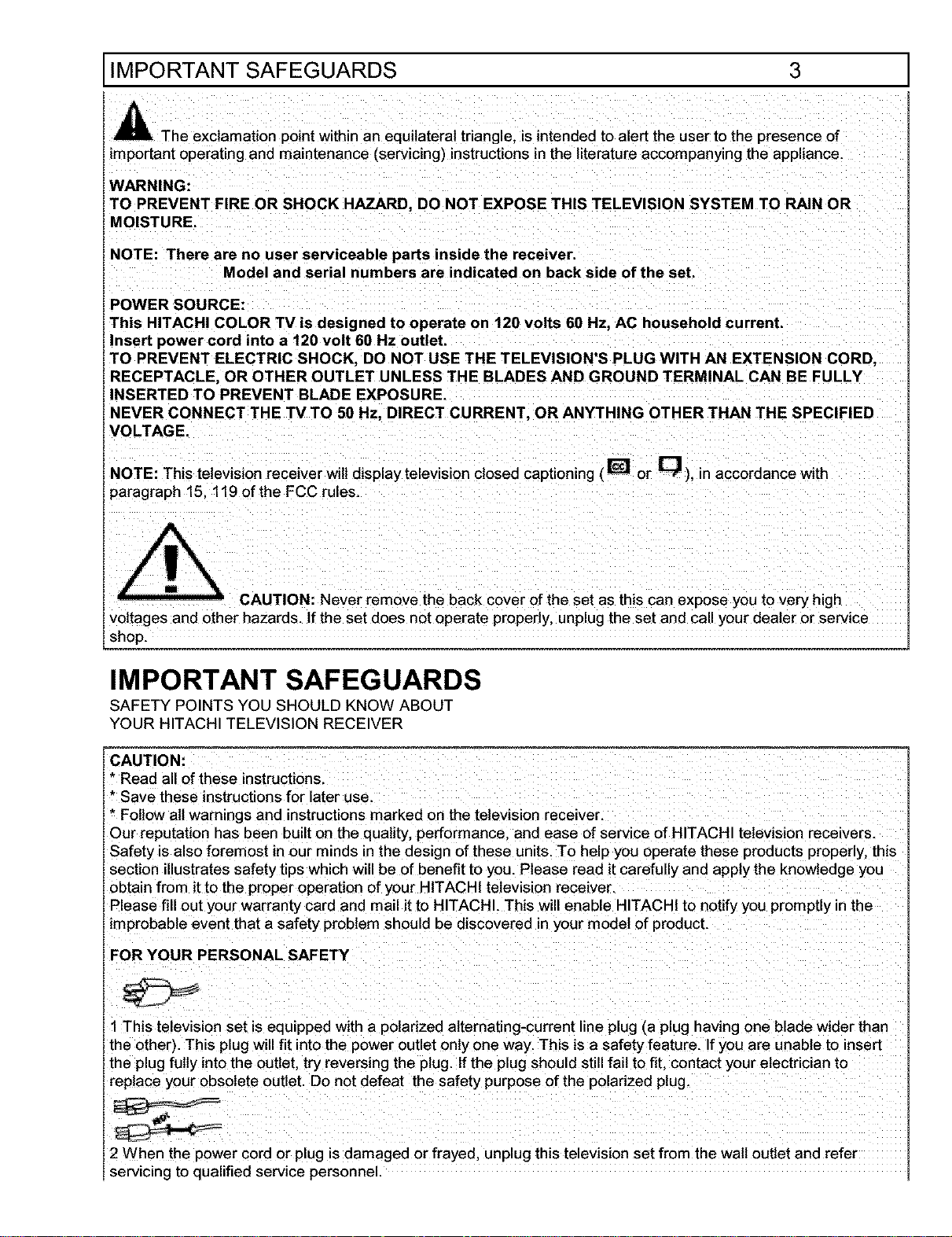
e exclamation point within an equilateral triangle, is intended to alert the user to the presence of
important operating and maintenance (servicing) instructions in the literature accompanying the appliance.
WARNING:
TO PREVENT FIRE OR SHOCK HAZARD, DO NOT EXPOSE THIS TELEVISION SYSTEM TO RAIN OR
MOISTURE.
NOTE: There are no user serviceable parts inside the receiver.
Model and serial numbers are indicated on back side of the set.
POWER SOURCE:
This HITACHI COLOR TV is designed to operate on 120 volts 60 Hz, AC household current.
Insert power cord into a 120 volt 60 Hz outlet.
TO PREVENT ELECTRIC SHOCK, DO NOT USE THE TELEVISION'S PLUG WITH AN EXTENSION CORD,
RECEPTACLE, OR OTHER OUTLET UNLESS THE BLADES AND GROUND TERMINAL CAN BE FULLY
INSERTED TO PREVENT BLADE EXPOSURE.
NEVER CONNECT THE TV TO 50 Hz, DIRECT CURRENT, OR ANYTHING OTHER THAN THE SPECIFIED
VOLTAGE.
NOTE: This television receiver will display television closed captioning (_ or [_ ), in accordance with
paragraph 15. 119 of the FCC rules.
as this can expose you to very high
voltages and other hazards. If the set does not operate properly, unplug the set and call your dealer or service
shop.
IMPORTANT SAFEGUARDS
SAFETY POINTS YOU SHOULD KNOW ABOUT
YOUR HITACHI TELEVISION RECEIVER
* Save these instructions for later use.
Fallow all Warnings and instructionsmarked on the television receiverl
Our reputation has been built Onthe quatity, performancel and ease of service of HITACH! television receivers.
Safety is also foremost in our minds in the design of these units, To help YOuoperate those products properly, this
section illustrates safety tips which will be of benefit to you. Please read it carefully and apply the knowledge you
obtain from it rathe proper operation of your HITACHI television receiver.
Please fill out your warranty Card and mail it to HITACHI. This will enable HITACHI to notify you promptly in the
improbable event that a safety problem should be discovered in your model of product.
1This television set is equipped with a polarized alternating-current line plug (a plug having one blade wider than
the other). This P!ug will fit into the power outlet only one way: This is a safety feature. !f you are unable to insert
the plug fully into the outlet, try reversing the plug. If the plug should still fail to fit, contact your electrician to
replace your obsolete outlet. Do not defeat the safety purpose of the polarized plug.
2 When the power cord or plug isdamaged or frayed, unplug this television set from the wall outlet and refer
servicing to qualified service personnel.
IMPORTANT SAFEGUARDS 4 ]
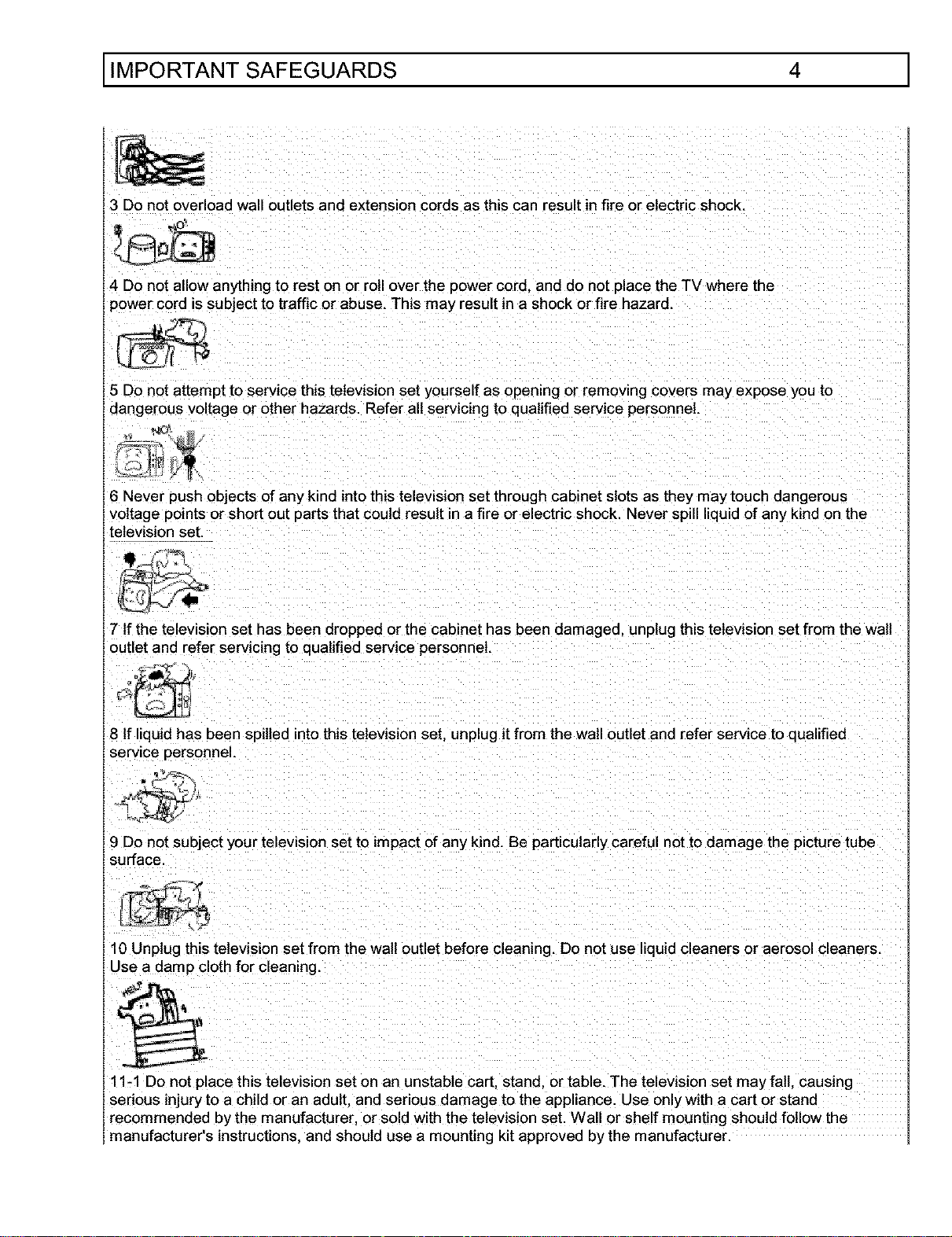
3 Do not overload wall outlets and extension cords as this can result in fire or electric shock.
4 Do not allow anything to rest on or roll over the power core. and do not place the TV where the
)ower cord is subject to traffic or abuse. This may result in a shock or fire hazard.
5 Do not attempt to service this television set yourself as opening or removing covers may expose you to
dangerous voltage or other hazards. Refer all servicing to qualified service personnel.
6 Never push objects of any kind into this television set through cabinet slots as they may touch dangerous
voltage points or short out parts that could result in a fire or electric shock. Never spill liquid of any kind on the
television set.
7 If the television set has been dropped or the cabinet has been damaged, unplug this television set from the wall
outlet and refer servicing to qualified service personnel.
8 If liquid has been spilled into this television set, unplug it from the wall outlet and refer service to qualified
se ,cepersonnel.
9 Do not subject your television set to impact of any kind. Be particularly careful not to damage the picture tube
surface
10 Unplug this television set from the wall outlet before cleaning. Do not use liquid cleaners or aerosol cleaners.
Use a damp cloth for cleaning.
11-1 Do not place this television set on an unstable cart. stand, or table. The television set may fall. causing
serious injury to a child or an adult, and serious damage to the appliance. Use only with a cart or stand
recommended by the manufacturer, or sold with the television set. Wall or shelf mounting should follow the
manufacturer's instructions, and should use a mounting kit approved by the manufacturer.
IMPORTANT SAFEGUARDS l
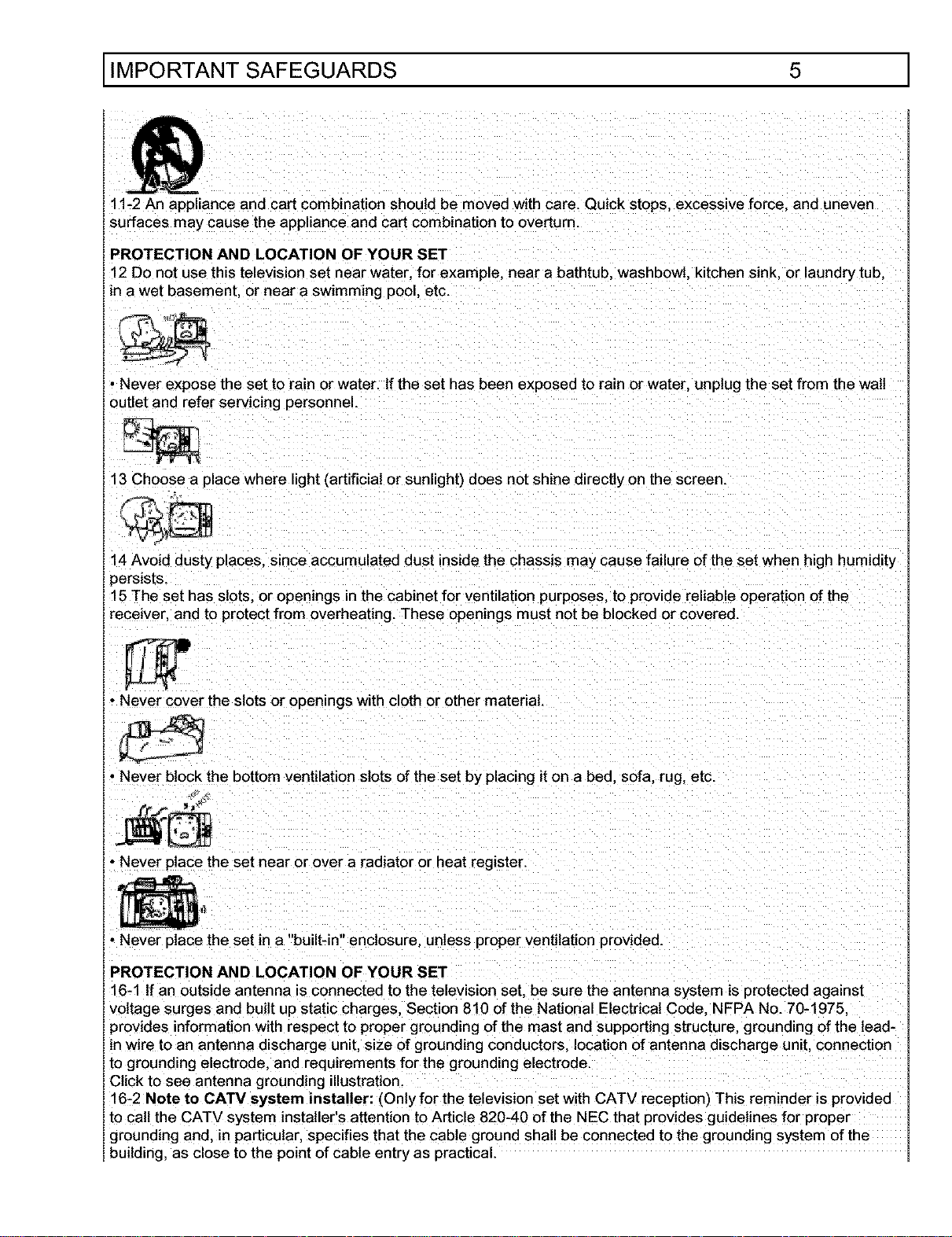
11-2 An appliance and cart combination should be moved with care. Quick stops, excessive force, and uneven
surfaces may cause the appliance and cart combination to overturn.
PROTECTION AND LOCATION OF YOUR SET
12 Do not use this television set near water, for example, near a bathtub washbowl, kitchen sink, or laundry tub,
in a wet basement, or near a swimming pool. etc.
• Never expose the set to rain or water. If the set has been exposed to rain or water, unplug the set from the wall
outlet and refer servicing personnel.
13 Choose a place where light (artificial or sunlight) does not shine directly on the screen.
14 Avoid dusty places, since accumulated dust inside the chassis may cause failure of the set when high humidity
)ersJsts.
15 The set has slots, or openings in the cabinet for ventilation purposes, to provide reliable operation of the
receiver, and to protect from overheating. These opentngs must not be blocked or covered.
• Never cover the slots or openings with cloth or other material.
• Never block the bottom ventilation slots of the set by placing it on a bed. sofa. rug. etc.
ff._ _'_
• Never place the set near or over a radiator or heat register.
• Never place the set in a "built-in" enclosure, unless proper ventilation provided,
PROTECTION AND LOCATION OF YOUR SET
16-1 If an outside antenna is connected to the television set. be sure the antenna system is protected against
voltage surges and built up static charges. Section 810 of the National Electrical Code. NFPA No. 70-1975.
)rovides information with respect to proper grounding of the mast and supporting structure, grounding of the lead-
in wire to an antenna discharge unit. size of grounding conductors location of antenna discharge unit. connection
to grounding electrode, and requirements for the grounding electrode
Click to see antenna grounding illustration.
16-2 Note to CATV system installer: (Only for the television set with CATV reception) This reminder is provided
to call the CATV system installer's attention to Article 820-40 of the NEC that provides guidelines for proper
grounding and, in particular, specifies that the cable ground shall be connected to the grounding system of the
building, as close to the point of cable entry as practical.
IMPORTANT SAFEGUARDS 6
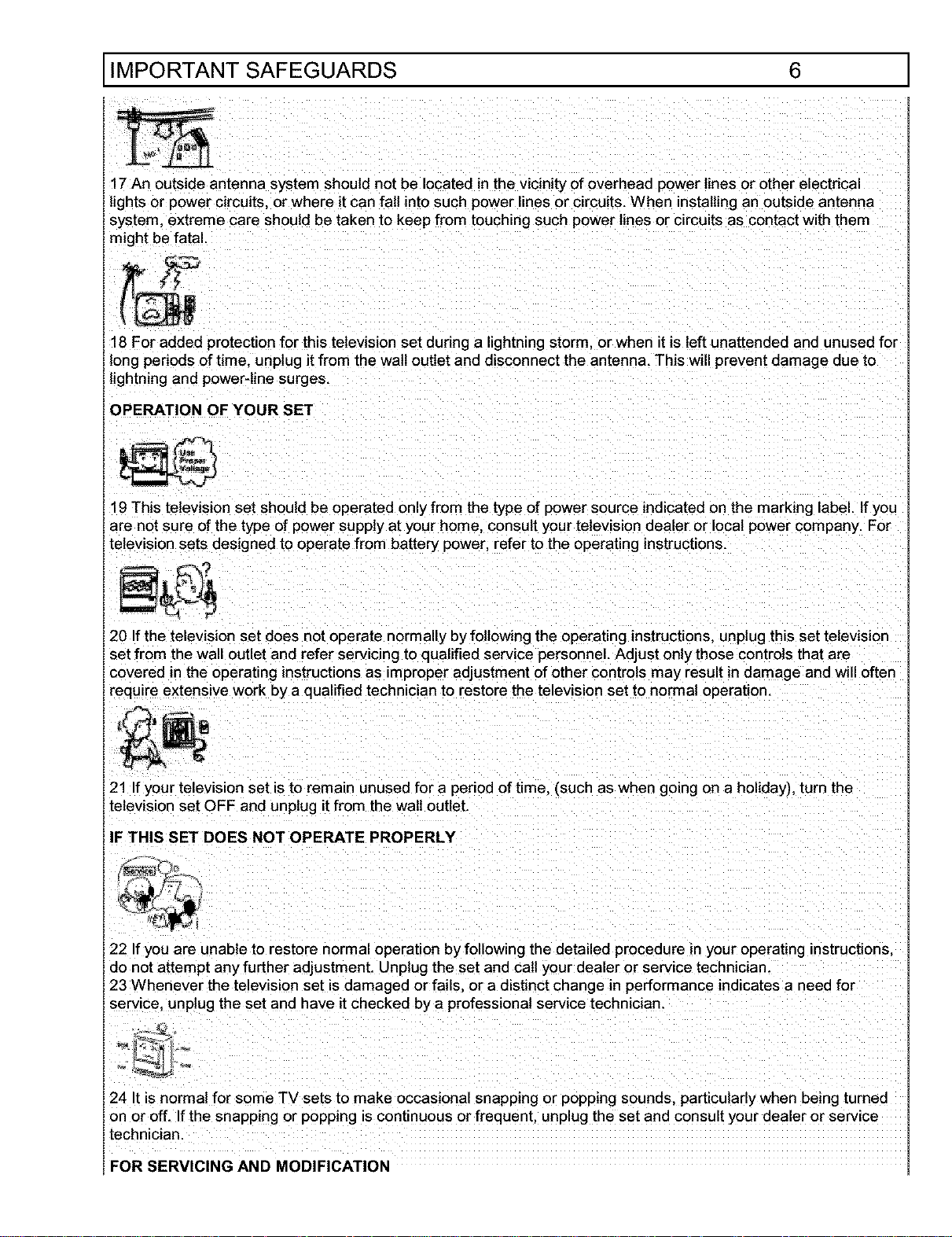
17 An outside antenna system should not be located in the vicinity of overhead power lines or other electrical
lights or power circuits, or where it can fall into such power lines or circuits. When installing an outside antenna
system, extreme care should be taken to keep from touching such power lines or circuits as contact with them
might be fatal.
18 For added protection for this television set during a lightning storm, or when it is left unattended and unused for
long periods of time. unplug it from the watt outlet and disconnect the antenna. This will prevent damage due to
lightning and power-line surges.
OPERATION OF YOUR SET
19 This television set should be operated only from the type of power source indicated on the marking label. If you
are not sure of the type of power supply at your home. consult your television dealer or local power company. For
television sets designed to operate from battery power, refer to the operating instructions.
20 Ifthe television set does not ooerate normally by following the operating instructions, unplug this set television
set from the wall outlet and refer servicing to qualified service personnel. Adjust only those controls that are
covered in the operating instructions as improper adjustment of other controls may result in damage and will often
require extensive work by a qualified technician to restore the television set to normal operation.
21 Ifyour television set is to remain unused for a period of time. isuch as when going on a holiday), turn the
television set OFF and unplug it from the wall outlet.
IF THIS SET DOES NOT OPERATE PROPERLY
22 Ifyou are unable to restore normal operation by following the detailed procedure in your operating instructions.
do not attempt any further adjustment. Unplug the set and call your dealer or service technician.
23 Whenever the television set is damaged or fails or a distinct change in performance indicates a need for
service, unplug the set and have it checked by a professional service technician.
24 It is normal for some TV sets to make occasional snapping or popping sounds, particularly when being turned
on or off. If the snapping or popping is continuous or frequent, unplug the set and consult your dealer or service
technician.
FOR SERVICING AND MODIFICATION
PICTURE CAUTIONS 7
,' j
25 Do not use attachments not recommended by the television set manufacturer as they may cause hazards.
26 When replacement parts are required be sure the service technician has used replacement parts specified by
the manufacturer that have the same characteristics as the original part. Unauthorized substitutions may result in
fire. electric shock, or other hazards.
27 Upon completion of any servtce or repairs to the television set. ask the service technician to perform routine
safety checks to determine that the television is in safe operating condition.
WARNING
Continuous On-Screen Displays such as video games, stock
market quotations, computer generated graphics, and other
fixed (non-moving) patterns can cause permanent damage to
Color Television Receivers. Such "PATTERN BURNS"
constitute misuse and are NOT COVERED by your HITACHI
Factory Warranty.
When using the Picture-in-Picture function, the sub-picture should not be left
permanently in one corner of the screen or a PATTERN BURN may develop over
a long period of time.
This color television receiver was intended mainly for the private viewing of
programs broadcast by TV stations, cable companies, and programs from other
video sources. Public viewing may require prior authorization from the
broadcaster or owner of the video program.
have the following accessories before disposing of the packing material.
1. Remote Control Unit (CLU-362U)
2. Two "AA" size, 1.5 V batteries (For Remote Control Unit).
For information regarding how to obtain these accessories, please call TOLL FREE 1-800-448-2244 for your
nearest HITACHI Authorized Parts Distributor in the continental United States. For Alaska and Hawaii, please
contact your nearest HITACHI regional office.
REMOTE CONTROL BATTERY INSTALLATION AND REPLACEMENT 8
27CX21B & 32CX32B
CLU-362U
Part No. HL00701 Remote Control CLU362U
32V Television Stand
SP316B Part No. H530022
32V Television Stand
SP317B Part No. H530023
27V Television Stand
SP271B Part No. H530021
(Not included, sold separately)
(Not included, sold separately)
(Not included, sold separately)
m
_1...._--:_CAUTION: Television stand model SP316B and SP317B are designed for use only with a 32 inch or
Smaller television set and television stand model SP217B is designed for use only With a 27 inch or smaller _
television set. use with Iarger equipment may reSUlt in instability, causing p0ssibie injuryl
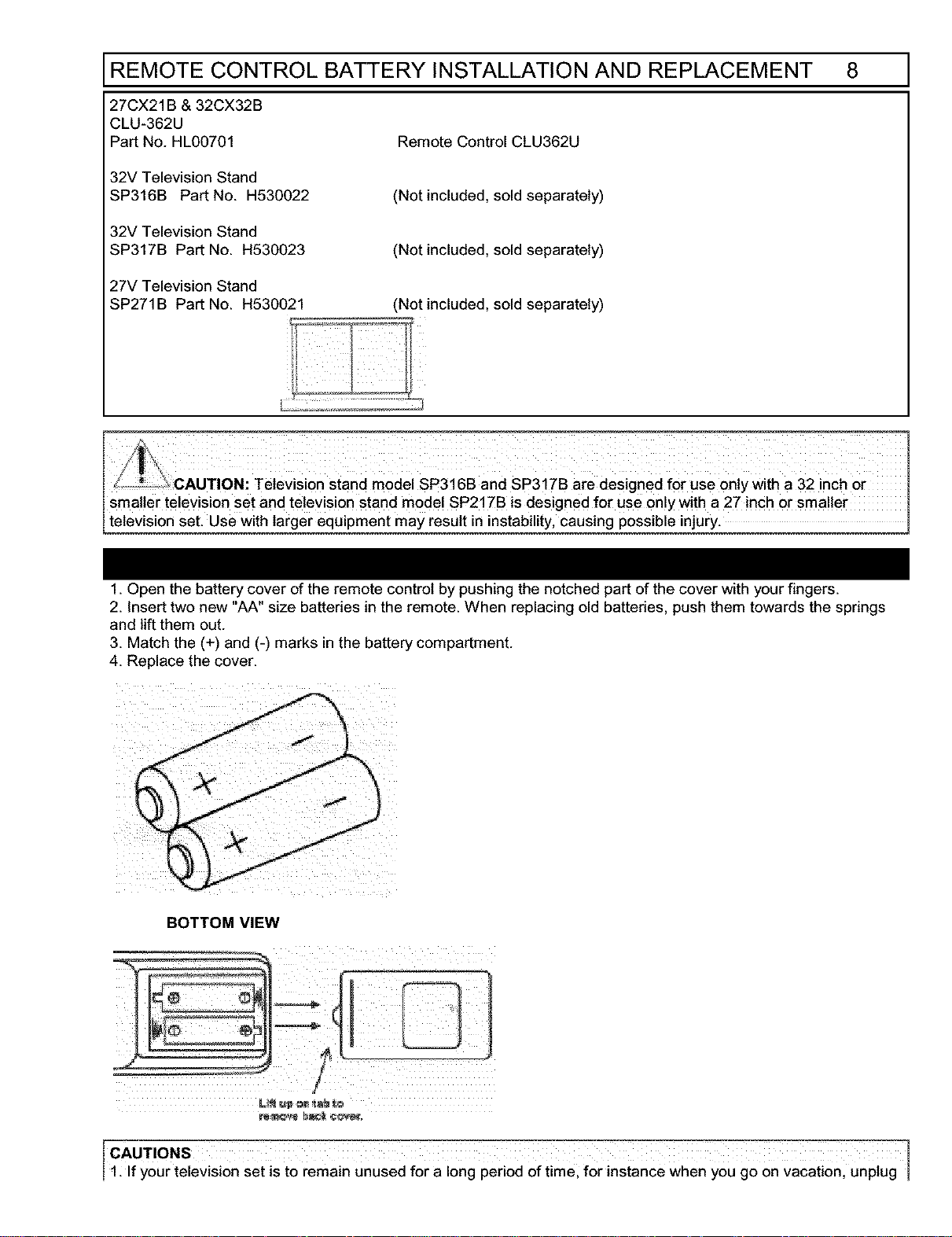
1. Open the battery cover of the remote control by pushing the notched part of the cover with your fingers.
2. Insert two new "AA" size batteries in the remote. When replacing old batteries, push them towards the springs
and lift them out.
3. Match the (+) and (-) marks in the battery compartment.
4. Replace the cover.
BOTTOM VIEW
1: f your te ev s on set s to rema n unused for a ong per od of t me, for nstance when you go on vacat on, unp ug I
HOW TO SET UP YOUR NEW HITACHI COLOR TV 9
the television fr0m the wall outlet.
2. DO not subject the remote control to shocks such as dropping it on the floor, etc. Precision parts may be
damaged,
3. Do not allow the remote Control to become wet and avoid placing it in areas of high humidity. Do not leave it on
or near a heater. Excess heat or moisture may cause the unit to (:ease operation.
4. If the batteries become exhausted, remote control operation may become erratic or stop altogether. Replace
the old batteries w!th new !!AA, typesl
NOTES:
!:The CHANNEL NO.I VOLUME, and OFF TIMER indicators are not displayed simultaneously,
2, To operate your TV, point the remote contro! at the remote sensor of the TV,
ANTENNA
Unless your TV is connected to a cable TV system or to a centralized antenna system, a good outdoor color TV
antenna is recommended for the best performance. However, if you are located in an exceptionally good signal
area that is free from interference, and multiple image ghosts, an indoor antenna may be sufficient.
LOCATION
Select an area where sunlight or bright indoor illumination wilt not fall directly on the picture screen. Also, be sure
that the location selected allows a free flow of air to and from the back cover of the set.
To avoid cabinet warping, cabinet color changes, and increased chance of set failure, do not place the TV where
temperatures can become excessively hot, for example, in direct sunlight or near a heating appliance, etc.
VIEWING
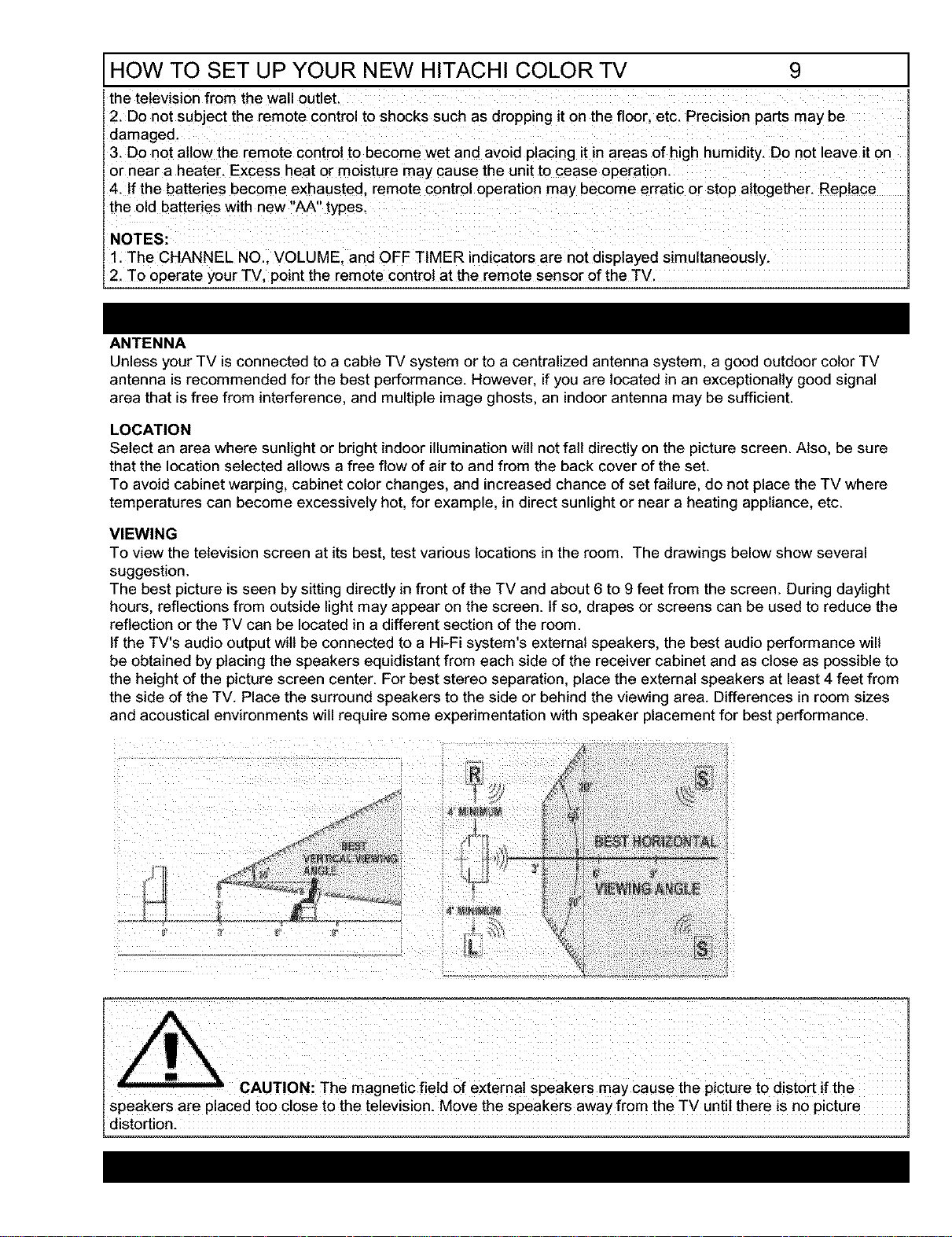
To view the television screen at its best, test various locations in the room. The drawings below show several
suggestion.
The best picture is seen by sitting directly in front of the TV and about 6 to 9 feet from the screen. During daylight
hours, reflections from outside light may appear on the screen. If so, drapes or screens can be used to reduce the
reflection or the TV can be located in a different section of the room.
If the TV's audio output will be connected to a Hi-Fi system's external speakers, the best audio performance will
be obtained by placing the speakers equidistant from each side of the receiver cabinet and as close as possible to
the height of the picture screen center. For best stereo separation, place the external speakers at least 4 feet from
the side of the TV. Place the surround speakers to the side or behind the viewing area. Differences in room sizes
and acoustical environments will require some experimentation with speaker placement for best performance.
I J $:'
CAUTION: The magnetic field of external speakers may cause the picture to distort if the
speakers are placed too close to the television. Move the speakers away from the TV until there is no picture
distortion.
HOOK-UP CABLES AND CONNECTORS 10 ]
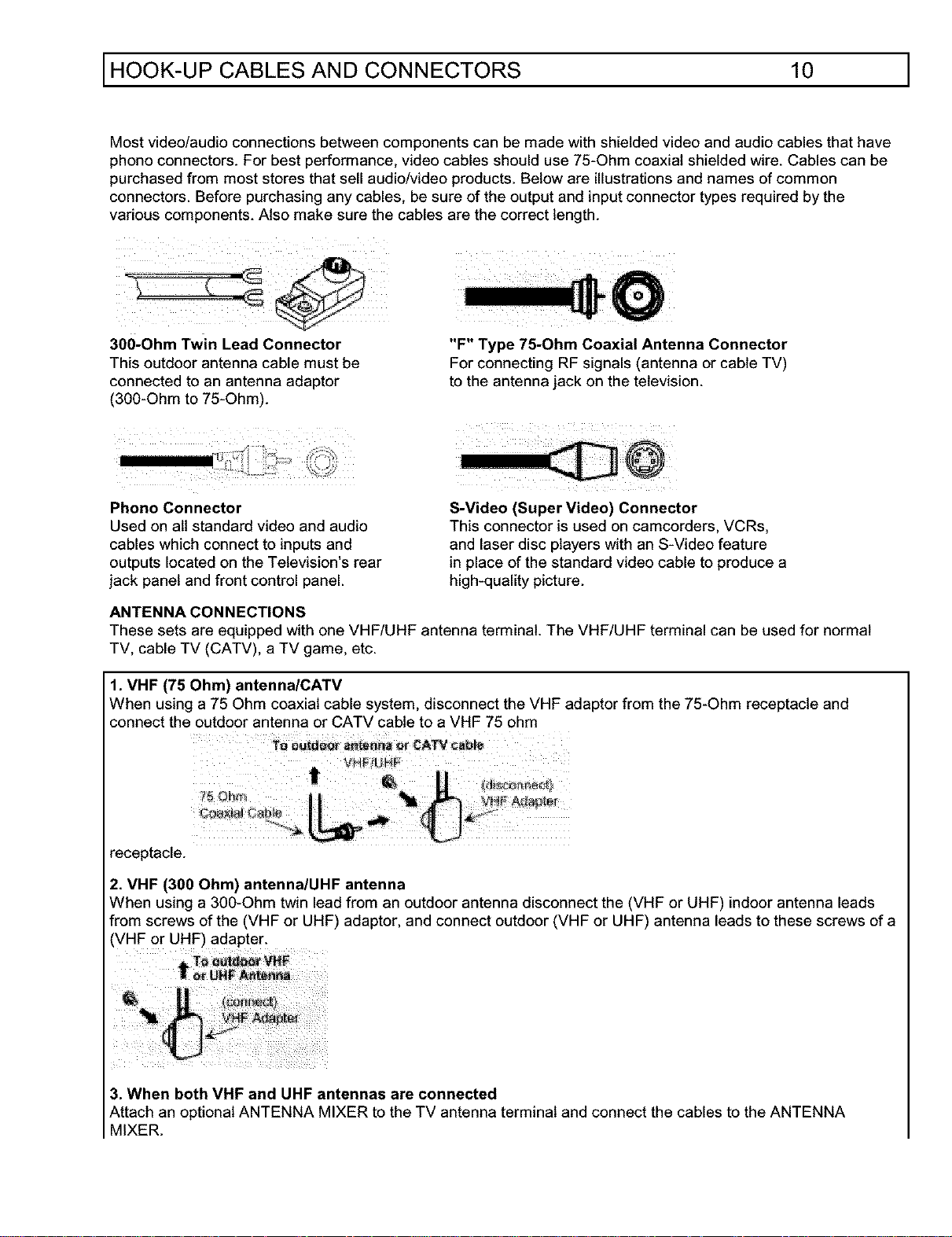
Most video/audio connections between components can be made with shielded video and audio cables that have
phono connectors. For best performance, video cables should use 75-Ohm coaxial shielded wire. Cables can be
purchased from most stores that sell audio/video products. Below are illustrations and names of common
connectors. Before purchasing any cables, be sure of the output and input connector types required by the
various components. Also make sure the cables are the correct length.
!i@!!i
300-Ohm Twin Lead Connector
This outdoor antenna cable must be
connected to an antenna adaptor
(300-Ohm to 75-Ohm).
"F" Type 75-Ohm Coaxial Antenna Connector
For connecting RF signals (antenna or cable TV)
to the antenna jack on the television.
Phono Connector
Used on all standard video and audio
cables which connect to inputs and
outputs located on the Television's rear
jack panel and front control panel.
7 x
S-Video (Super Video) Connector
This connector is used on camcorders, VCRs,
and laser disc players with an S-Video feature
in place of the standard video cable to produce a
high-quality picture.
ANTENNA CONNECTIONS
These sets are equipped with one VHF!UHF antenna terminal. The VHF/UHF terminal can be used for normal
TV, cable TV (CATV), a TV game, etc.
1. VHF (75 Ohm) antennalCATV
When using a 75 Ohm coaxial cable system, disconnect the VHF adaptor from the 75-Ohm receptacle and
connect the outdoor antenna or CATV cable to a VHF 75 ohm
VHFi_L}_F
ii
receptacle.
2. VHF (300 Ohm) antenna/UHF antenna
When using a 300-Ohm twin lead from an outdoor antenna disconnect the (VHF or UHF) indoor antenna leads
from screws of the (VHF or UHF) adaptor, and connect outdoor (VHF or UHF) antenna leads to these screws of a
(VHF or UHF) adapter.
x > x } ii!!_ !i_ _¸
3. When both VHF and UHF antennas are connected
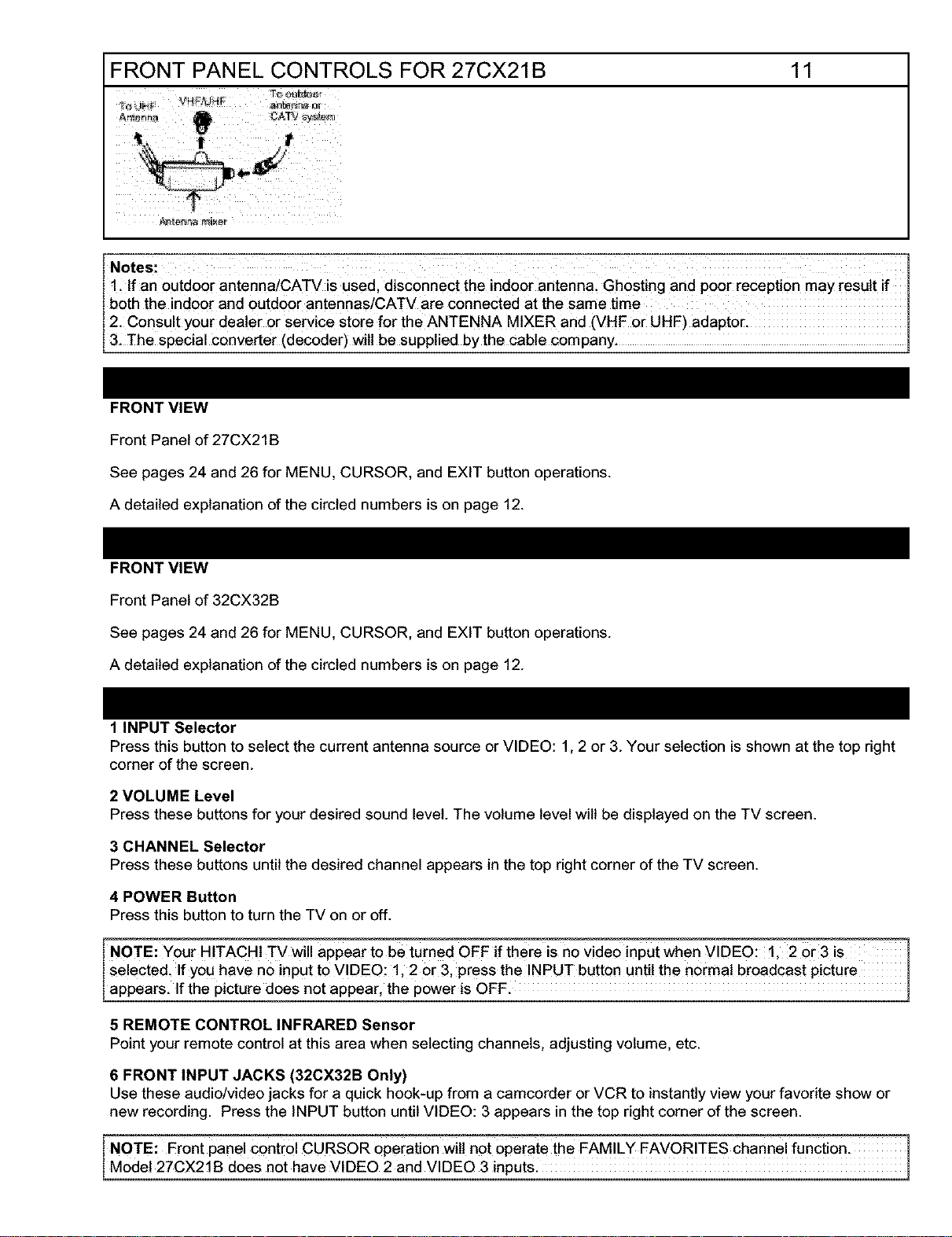
Attach an optional ANTENNA MIXER to the TV antenna terminal and connect the cables to the ANTENNA
MIXER.
FRONT PANEL CONTROLS FOR 27CX21B 11
Notes:
l ilf an outdoor antenna/CATV is used, disconnect theindoor antenna, Ghostng and POOrreception may result !f
both the indoor and outdoor antennas/CATV are connected at the same time I
2. Consult your dealer or service store for the ANTENNA MIXER and (VHF or UHF) adaptor.
I31The special C0nVerter(decoder)will be Supplied bythe cable
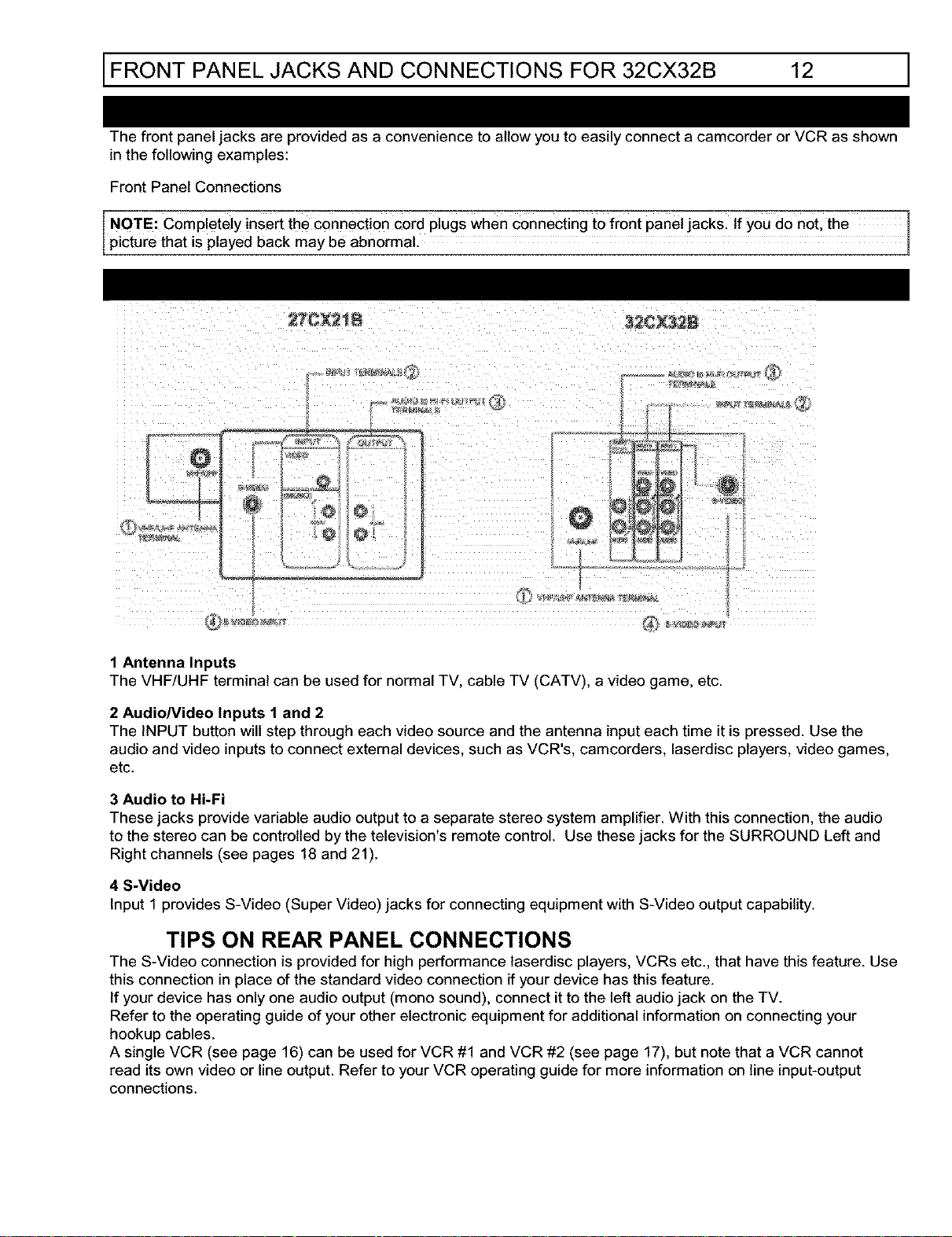
FRONT VIEW
Front Panel of 27CX21B
See pages 24 and 26 for MENU, CURSOR, and EXIT button operations.
A detailed explanation of the circled numbers is on page 12.
FRONT VIEW
Front Panel of 32CX32B
See pages 24 and 26 for MENU, CURSOR, and EXIT button operations.
A detailed explanation of the circled numbers is on page 12.
1 INPUT Selector
Press this button to select the current antenna source or VIDEO: 1,2 or 3. Your selection is shown at the top right
corner of the screen.
2 VOLUME Level
Press these buttons for your desired sound level. The volume level will be displayed on the TV screen.
3 CHANNEL Selector
Press these buttons until the desired channel appears in the top right corner of the TV screen.
4 POWER Button
Press this button to turn the TV on or off.
NOTE: Your HITACHI TV wil! appear to be turned OFF if there is no video input when VIDEO:l, 2 Or3 is
Se!ected_If you have n° input to VIDEO: 1,2 or 3,press the INPUT button until the normal broadcast picture
appears, f the p cture does not appear, the power s OFF.
5 REMOTE CONTROL INFRARED Sensor
Point your remote control at this area when selecting channels, adjusting volume, etc.
6 FRONT INPUT JACKS (32CX32B Only)
Use these audio/video jacks for a quick hook-up from a camcorder or VCR to instantly view your favorite show or
new recording. Press the INPUT button until VIDEO: 3 appears in the top right corner of the screen.
NOTE: Front panel control CURSOR operation Will not Operate the FAMILY FAVORITES channe I function.
Model 27CX21B does not have VIDEO 2 and VIDEO 3 inputs.
1
FRONT PANEL JACKS AND CONNECTIONS FOR 32CX32B 12 J
The front panel jacks are provided as a convenience to allow you to easily connect a camcorder or VCR as shown
in the following examples:
Front Panel Connections
NOTE: Completely insert the connection Cord plugs When Connecting to front panel jacksl If you do not the 1
Lp CtUrethat s p aged back may be abn0rma.
27CX2_B
32C_2B
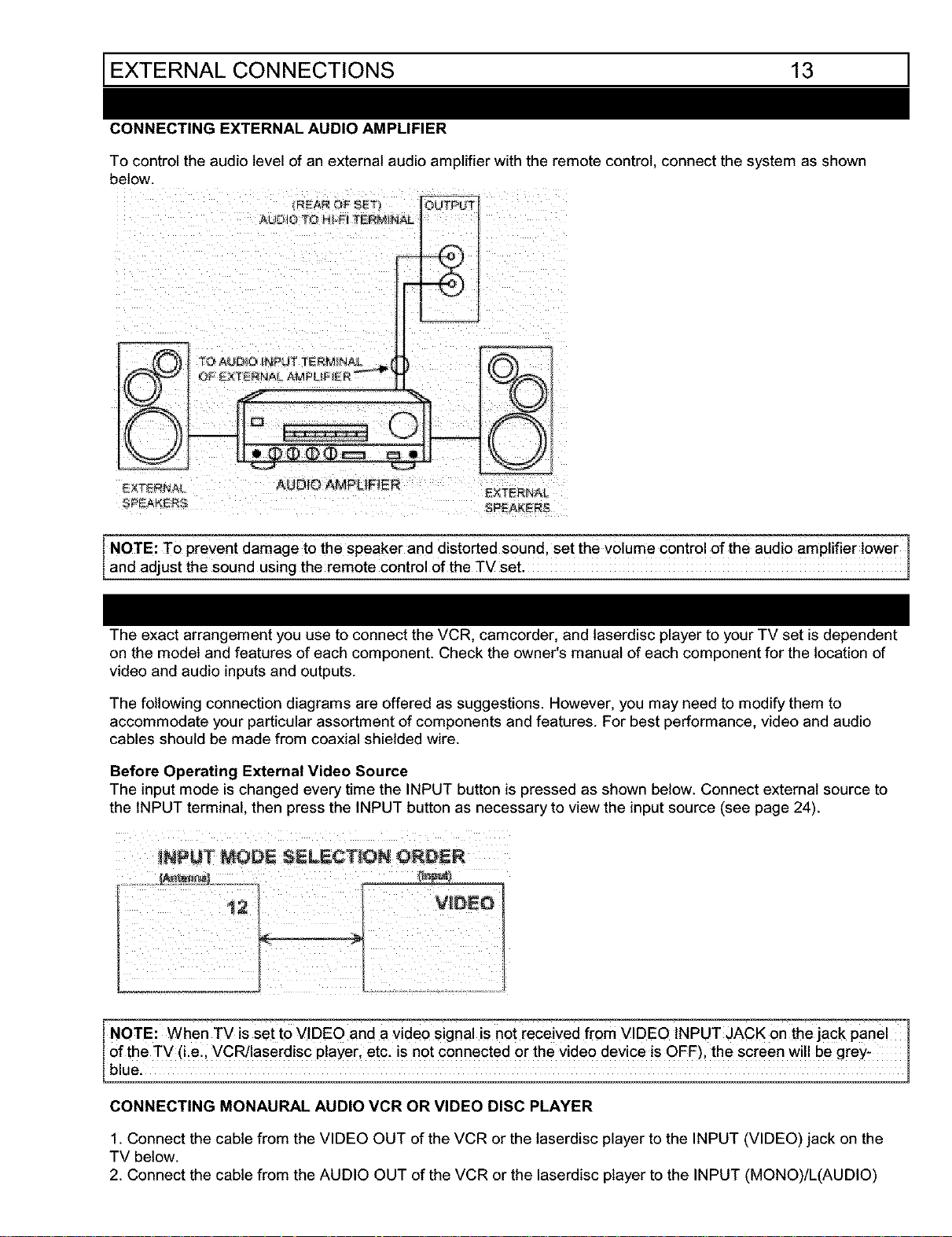
1 Antenna Inputs
The VHF/UHF terminal can be used for normal TV, cable TV (CATV), a video game, etc.
2 AudioNideo Inputs 1 and 2
The INPUT button will step through each video source and the antenna input each time it is pressed. Use the
audio and video inputs to connect external devices, such as VCR's, camcorders, laserdisc players, video games,
etc.
3 Audio to Hi-Fi
These jacks provide variable audio output to a separate stereo system amplifier. With this connection, the audio
to the stereo can be controlled by the television's remote control. Use these jacks for the SURROUND Left and
Right channels (see pages 18 and 21).
4 S-Video
Input 1provides S-Video (Super Video) jacks for connecting equipment with S-Video output capability.
TIPS ON REAR PANEL CONNECTIONS
The S-Video connection is provided for high performance laserdisc players, VCRs etc., that have this feature. Use
this connection in place of the standard video connection if your device has this feature.
If your device has only one audio output (mono sound), connect it to the left audio jack on the TV.
Refer to the operating guide of your other electronic equipment for additional information on connecting your
hookup cables.
A single VCR (see page 16) can be used for VCR #1 and VCR #2 (see page 17), but note that a VCR cannot
read its own video or line output. Refer to your VCR operating guide for more information on line input-output
connections.
EXTERNAL CONNECTIONS 13 1
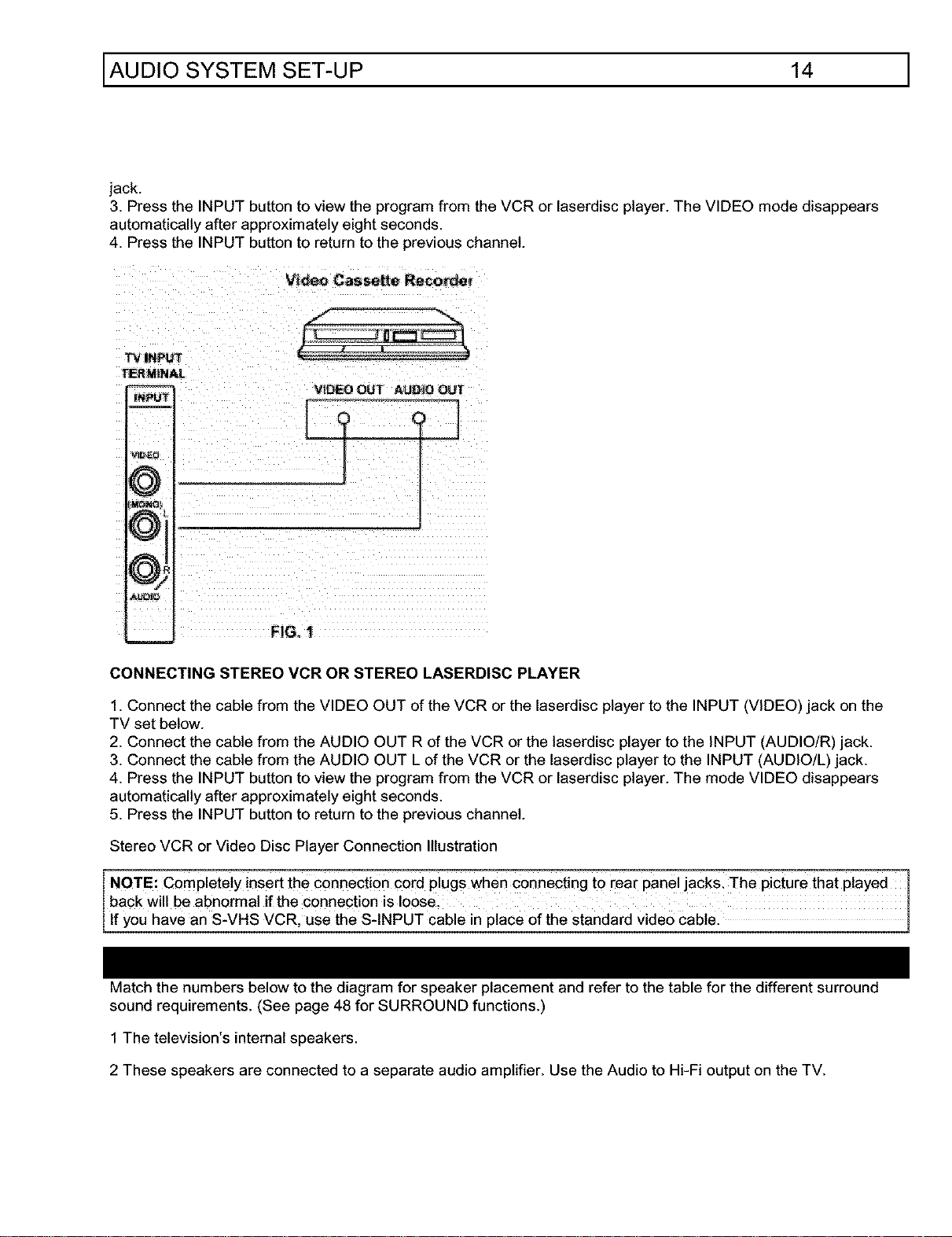
CONNECTING EXTERNAL AUDIO AMPLIFIER
To control the audio level of an external audio amplifier with the remote control, connect the system as shown
below.
REAR OF _ET_ OUTP JT
AUOIO "FO HI-_l _ER_INAL --_-0_" _
_vj
FXT_'RNAI AUDIO AMPLIFIER
FXTFRNA
SPE &KE R,S SF_EF_
NOTE: To prevent damage to the speaker and distorted sound, set the volume control of the audio amplifier lower
and adjust the sound using the remote control of the TV set.
The exact arrangement you use to connect the VCR, camcorder, and laserdisc player to your TV set is dependent
on the model and features of each component. Check the owner's manual of each component for the location of
video and audio inputs and outputs.
The following connection diagrams are offered as suggestions. However, you may need to modify them to
accommodate your particular assortment of components and features. For best performance, video and audio
cables should be made from coaxial shielded wire.
Before Operating External Video Source
The input mode ischanged every time the INPUT button is pressed as shown below. Connect external source to
the INPUT terminal, then press the INPUT button as necessary to view the input source (see page 24).
NOTE: Whe n TV is set to VIDEO and a Video signal is not received from VIDEO INPUT jACK on the Jack panel 1
of the TV (Le., vCR!laserd!sc player, etc-is not connected 0r the video devic e is OFF), the screen wi!Ibe grey:
bue. l
CONNECTING MONAURAL AUDIO VCR OR VIDEO DISC PLAYER
1. Connect the cable from the VIDEO OUT of the VCR or the laserdisc player to the INPUT (VIDEO) jack on the
TV below.
2. Connect the cable from the AUDIO OUT of the VCR or the laserdisc player to the INPUT (MONO)/L(AUDIO)
AUDIO SYSTEM SET-UP 14 ]
jack.
3. Press the INPUT button to view the program from the VCR or laserdisc player. The VIDEO mode disappears
automatically after approximately eight seconds.
4. Press the INPUT button to return to the previous channel.
Vi_ Casset_ Re_rde_
TV INPUl"
TERMINAL
VIDEO OUT AU_I_ O_?
CONNECTING STEREO VCR OR STEREO LASERDISC PLAYER
1. Connect the cable from the VIDEO OUT of the VCR or the laserdisc player to the INPUT (VIDEO) jack on the
TV set below.
2. Connect the cable from the AUDIO OUT R of the VCR or the laserdisc player to the INPUT (AUDIO!R) jack.
3. Connect the cable from the AUDIO OUT L of the VCR or the laserdisc player to the INPUT (AUDIO/L) jack.
4. Press the INPUT button to view the program from the VCR or laserdisc player. The mode VIDEO disappears
automatically after approximately eight seconds.
5. Press the INPUT button to return to the previous channel.
Stereo VCR or Video Disc Player Connection Illustration
NOTE: Completely insert the connection €oid plugs when connect ng to rear panel Jacks The pictur e that played
back will be abnormal if the connection is Ioose_
f you have an S-VHS VCR, use the S- NPUT cab e n p ace of the standard v deo cab e.
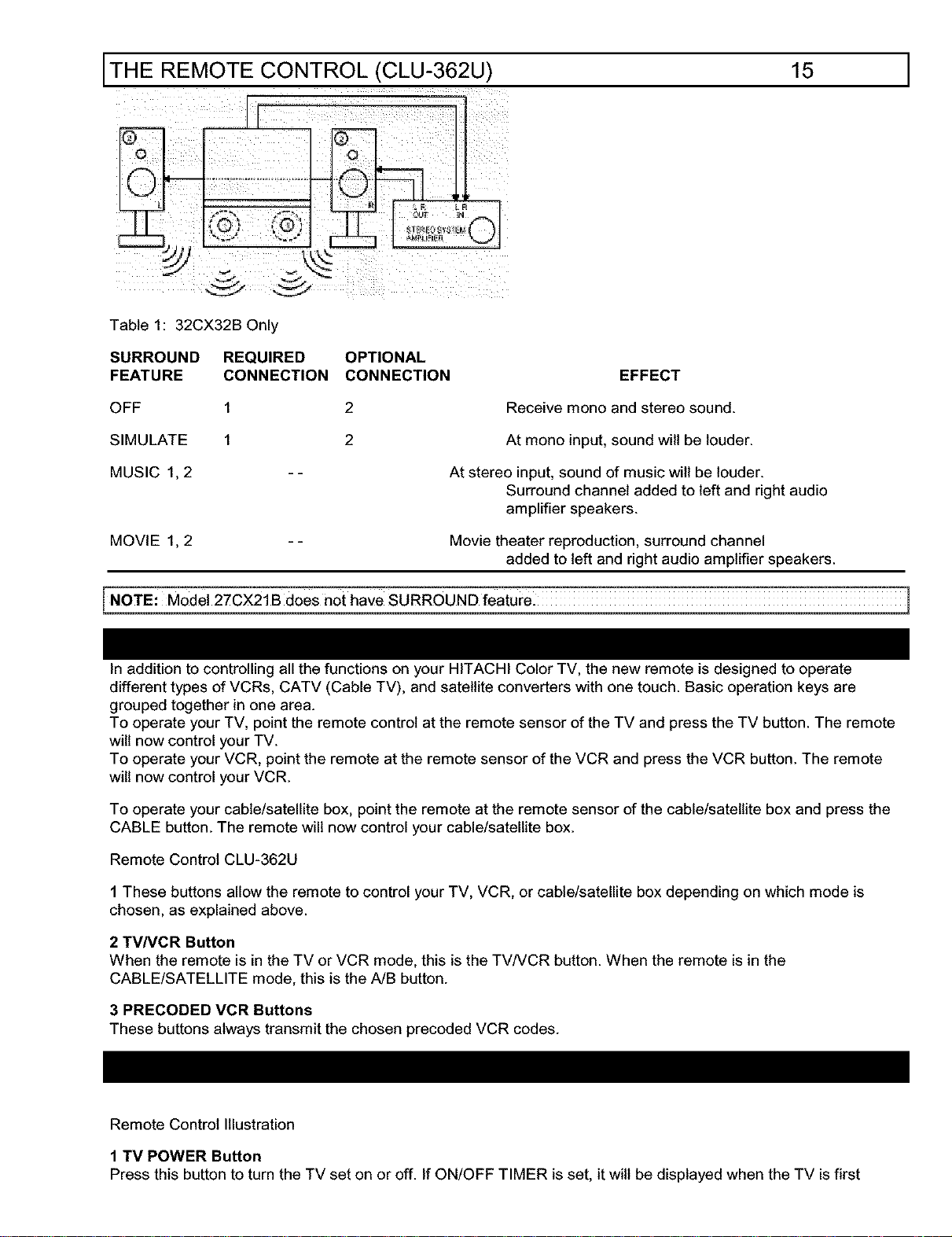
Match the numbers below to the diagram for speaker placement and refer to the table for the different surround
sound requirements. (See page 48 for SURROUND functions.)
1 The television's internal speakers.
2 These speakers are connected to a separate audio amplifier. Use the Audio to Hi-Fi output on the TV.
THE REMOTE CONTROL (CLU-362U) 15 ]
Table 1: 32CX32B Only
SURROUND REQUIRED OPTIONAL
FEATURE CONNECTION CONNECTION
OFF 1 2
SIMULATE 1 2
MUSIC 1,2 - -
EFFECT
Receive mono and stereo sound.
At mono input, sound wilt be louder.
At stereo input, sound of music wilt be louder.
MOVIE 1, 2
Surround channel added to left and right audio
amplifier speakers.
Movie theater reproduction, surround channel
added to left and right audio amplifier speakers.
In addition to controlling all the functions on your HITACHI Color TV, the new remote is designed to operate
different types of VCRs, CATV (Cable TV), and satellite converters with one touch. Basic operation keys are
grouped together in one area.
To operate your TV, point the remote control at the remote sensor of the TV and press the TV button. The remote
will now control your TV.
To operate your VCR, point the remote at the remote sensor of the VCR and press the VCR button. The remote
will now control your VCR.
To operate your cable/satellite box, point the remote at the remote sensor of the cable/satellite box and press the
CABLE button. The remote will now control your cable/satellite box.
Remote Control CLU-362U
1 These buttons allow the remote to control your TV, VCR, or cable/satellite box depending on which mode is
chosen, as explained above.
2 TVNCR Button
When the remote is inthe TV or VCR mode, this is the TVNCR button. When the remote is in the
CABLE/SATELLITE mode, this is the A/B button.
3 PRECODED VCR Buttons
These buttons always transmit the chosen precoded VCR codes.
Remote Control Illustration
1 TV POWER Button
Press this button to turn the TV set on or off. If ON/OFF TIMER is set, it willbe displayed when the TV is first
1
HOW TO USE THE REMOTE TO CONTROL YOUR TV 16 1
turned on.
2 SLEEP Button
Press this button to display the SLEEP TIMER in the lower left corner of the screen. Every subsequent press of
this button wilt add 15 minutes to the timer, up to a maximum of three hours.
3 MENU, CURSOR Buttons
All On-Screen Display features can be set or adjusted by using these buttons.
The MENU button will start the On-Screen Display.
The CURSOR buttons will highlight functions or adjust and set different features. Pressing the cursor button will
also give you access to the FAMILY FAVORITES CHANNELS On-Screen Display.
4 CHANNEL SELECTOR Buttons
Enter two or three numbers to select channels. Enter 0 first for channels 1 to 9. For channels 100 and above,
press the "1" button and wait four two seconds before pressing the last two digits of the channel.
Channel selection may also be performed by pressing CH up (A) or down ( V ).
You may also use these buttons for channel scanning. Press and hold the CH up (A) or down (V) buttons and
the TV will quickly scanning through the channels. Release the CH (A) or down(_) buttons when the TV scans
to the channel you wish to watch and the TV will tune to that channel.
NOTE: The Tv may not i'eceive s0me channels if you are not in the correct SIGNAL SOURCE mode. (see page 1
35.) J
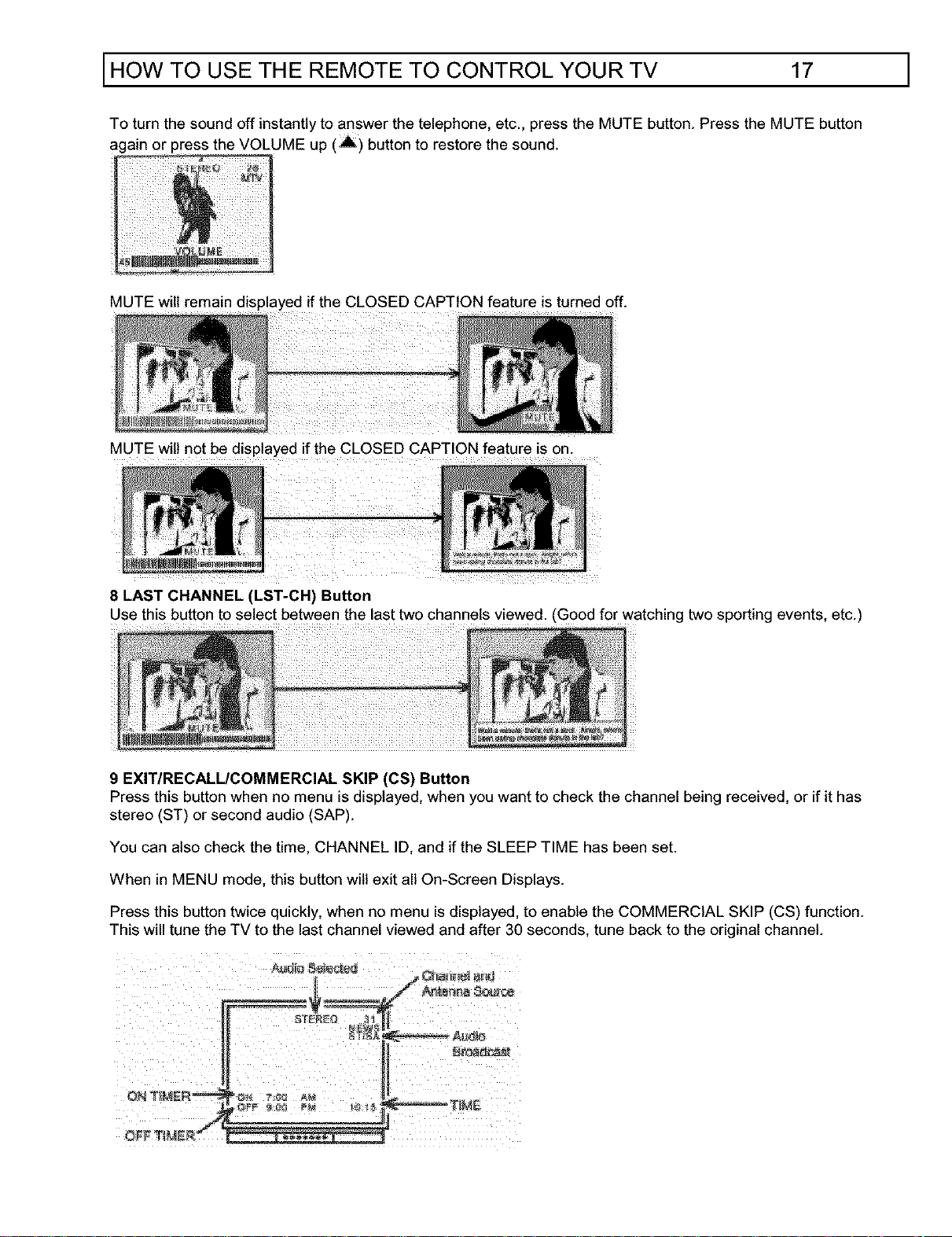
5 INPUT Button
The INPUT button will select between the antenna signal and the video input jacks each time the button is
pressed. (See picture below and page 27.)
FOR 32CX32B
FOR, 32CX328
FOR 27CX21B
6, 7 VOLUME, MUTE Buttons
Press the VOLUME up (A) or down ( V ) button until you obtain the desired sound level.
HOW TO USE THE REMOTE TO CONTROL YOUR TV 17 ]
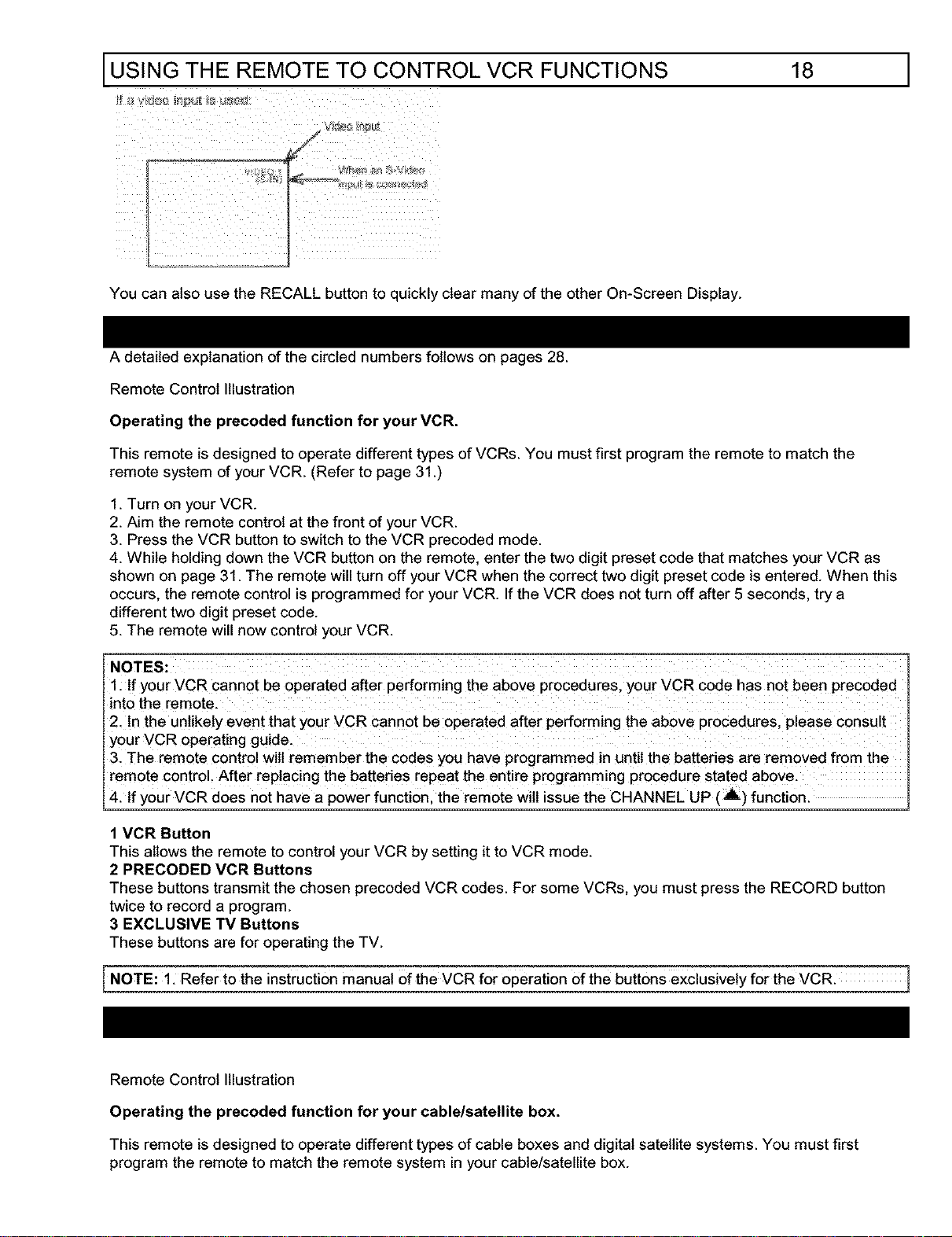
To turn the sound off instantly to answer the telephone, etc., press the MUTE button. Press the MUTE button
again or press the VOLUME up (A) button to restore the sound.
MUTE will remain
MUTE will not be displayed if the CLOSED CAPTION feature is on.
8 LAST CHANNEL (LST-CH) Button
Use this button to select between the last two channels viewed. (Good for watching two sporting events, etc.)
9 EXIT/RECALL/COMMERCIAL SKIP (CS) Button
Press this button when no menu is displayed, when you want to check the channel being received, or if it has
stereo (ST) or second audio (SAP).
You can also check the time, CHANNEL ID, and if the SLEEP TIME has been set.
When in MENU mode, this button will exit all On-Screen Displays.
Press this button twice quickly, when no menu is displayed, to enable the COMMERCIAL SKIP (CS) function.
This will tune the TV to the last channel viewed and after 30 seconds, tune back to the original channel.
USING THE REMOTE TO CONTROL VCR FUNCTIONS
18 1
You can also use the RECALL button to quickly clear many of the other On-Screen Display.
A detailed explanation of the circled numbers follows on pages 28.
Remote Control Illustration
Operating the preceded function for your VCR.
This remote is designed to operate different types of VCRs. You must first program the remote to match the
remote system of your VCR. (Refer to page 31.)
1. Turn on your VCR.
2. Aim the remote control at the front of your VCR.
3. Press the VCR button to switch to the VCR preceded mode.
4. While holding down the VCR button on the remote, enter the two digit preset code that matches your VCR as
shown on page 31. The remote will turn off your VCR when the correct two digit preset code is entered. When this
occurs, the remote control is programmed for your VCR. If the VCR does not turn off after 5 seconds, try a
different two digit preset code.
5. The remote will now control your VCR.
NOTES:
1. If your VCR cannot be operated after performing the above procedures, your VCR code has not been preceded
into the remote.
2. In the unlikely event that your VCR cannot be operated after performing the above procedures, please consult
your VCR operating guide.
3. The remote control will remember the codes you have programmed in until the batteries are removed from the
remote control. After replacing the batteries repeat the entire programming procedure stated above.
4. If your VCR does not have a power function, the remote will issue the CHANNEL UP (,A) function.
1 VCR Button
This allows the remote to control your VCR by setting it to VCR mode.
2 PRECEDED VGR Buttons
These buttons transmit the chosen preceded VCR codes. For some VCRs, you must press the RECORD button
twice to record a program.
3 EXCLUSIVE TV Buttons
These buttons are for operating the TV.
I NOTE: 1. Refer to the instruction manual of the VCR for operation Ofthe buttons eXClUSively for the VCR. ]
Remote Control Illustration
Operating the preceded function for your cable/satellite box.
This remote is designed to operate different types of cable boxes and digital satellite systems. You must first
program the remote to match the remote system in your cable/satellite box.
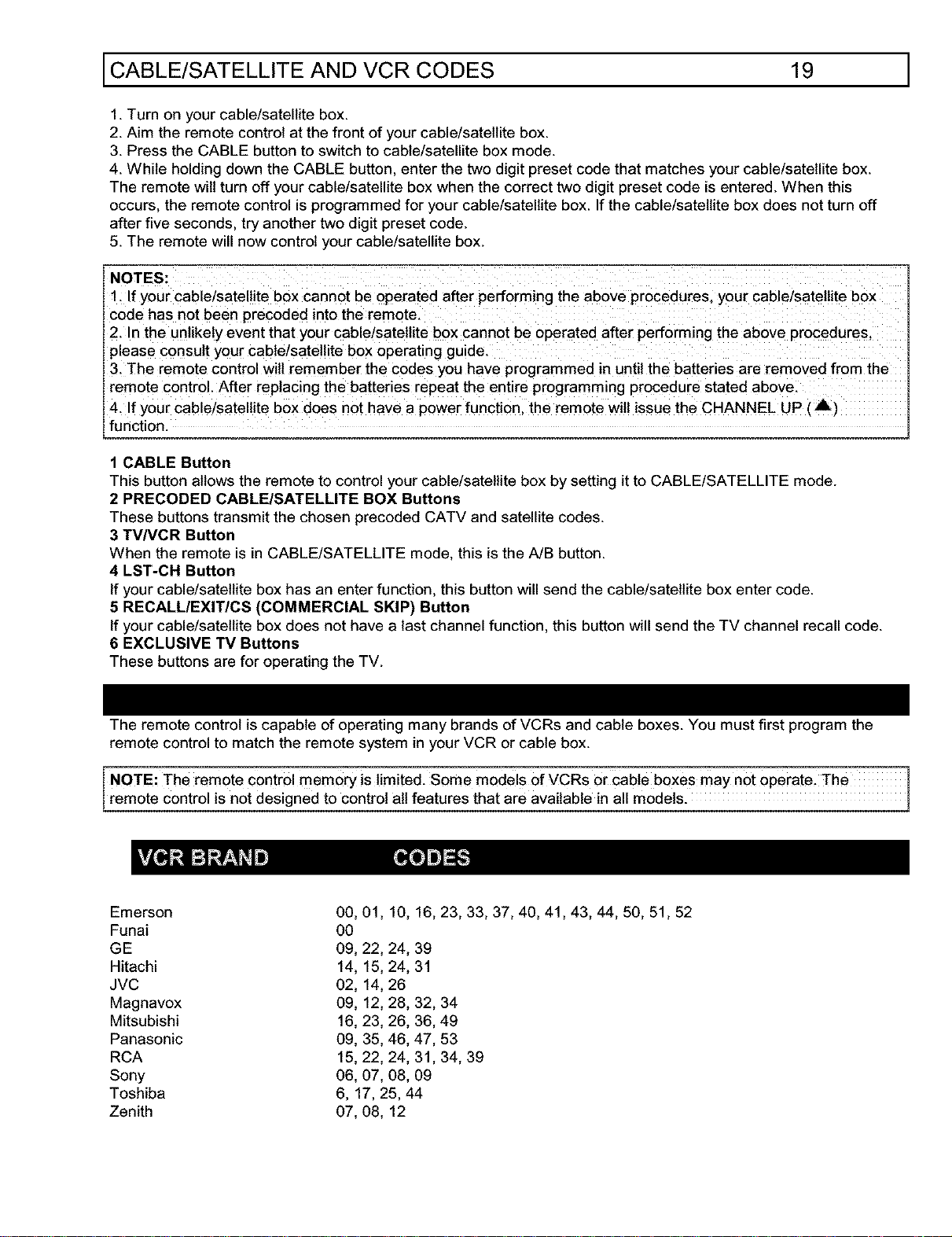
CABLE/SATELLITE AND VCR CODES 19 ]
1. Turn on your cable!satellite box.
2. Aim the remote control at the front of your cable/satellite box.
3. Press the CABLE button to switch to cable/satellite box mode.
4. While holding down the CABLE button, enter the two digit preset code that matches your cable/satellite box.
The remote wilt turn off your cable/satellite box when the correct two digit preset code is entered. When this
occurs, the remote control is programmed for your cable/satellite box. Ifthe cable/satellite box does not turn off
after five seconds, try another two digit preset code.
5. The remote will now control your cable/satellite box.
NOTES:
1. If your cable/satellite box cannot be operated after performing the above procedures, your cable/satellite box
code has not been precoded into the remote.
2. In the unlikely event that your cable/satellite box cannot be operated after performing the above procedures.
please consult your cable/satellite box operating guide.
3. The remote control will remember the codes you have programmed in until the batteries are removed from the
remote control. After replacing the batteries repeat the entire programming procedure stated above.
4. If your cable/satellite box does not have a power function, the remote will issue the CHANNEL UP (,Ilk)
function.
1 CABLE Button
This button allows the remote to control your cable!satellite box by setting it to CABLE/SATELLITE mode.
2 PRECODED CABLE/SATELLITE BOX Buttons
These buttons transmit the chosen precoded CATV and satellite codes.
3 TVNCR Button
When the remote is in CABLE/SATELLITE mode, this is the A/B button.
4 LST-CH Button
If your cable/satellite box has an enter function, this button will send the cable/satellite box enter code.
5 RECALL/EXlT/CS (COMMERCIAL SKIP) Button
If your cable/satellite box does not have a last channel function, this button will send the TV channel recall code.
6 EXCLUSIVE TV Buttons
These buttons are for operating the TV.
The remote control is capable of operating many brands of VCRs and cable boxes. You must first program the
remote control to match the remote system in your VCR or cable box.
The remote Control memory islimited. Some models of VCRs or Cable boxes may not operate, The 1
Iremote Control is not designed to control all features that are available in all models.
Emerson 00,
Funai 00
GE 09, 22, 24, 39
Hitachi 14, 15, 24, 31
JVC 02, 14, 26
Magnavox 09, 12, 28, 32, 34
Mitsubishi 16, 23, 26, 36, 49
Panasonic 09, 35, 46, 47, 53
RCA 15, 22, 24, 31,34, 39
Sony 06, 07, 08, 09
Toshiba 6, 17, 25, 44
Zenith 07, 08, 12
01,10,16,23,33,37,40,41,43,44,50,51,52
COLOR GRAPHIC GUIDE 20 ]
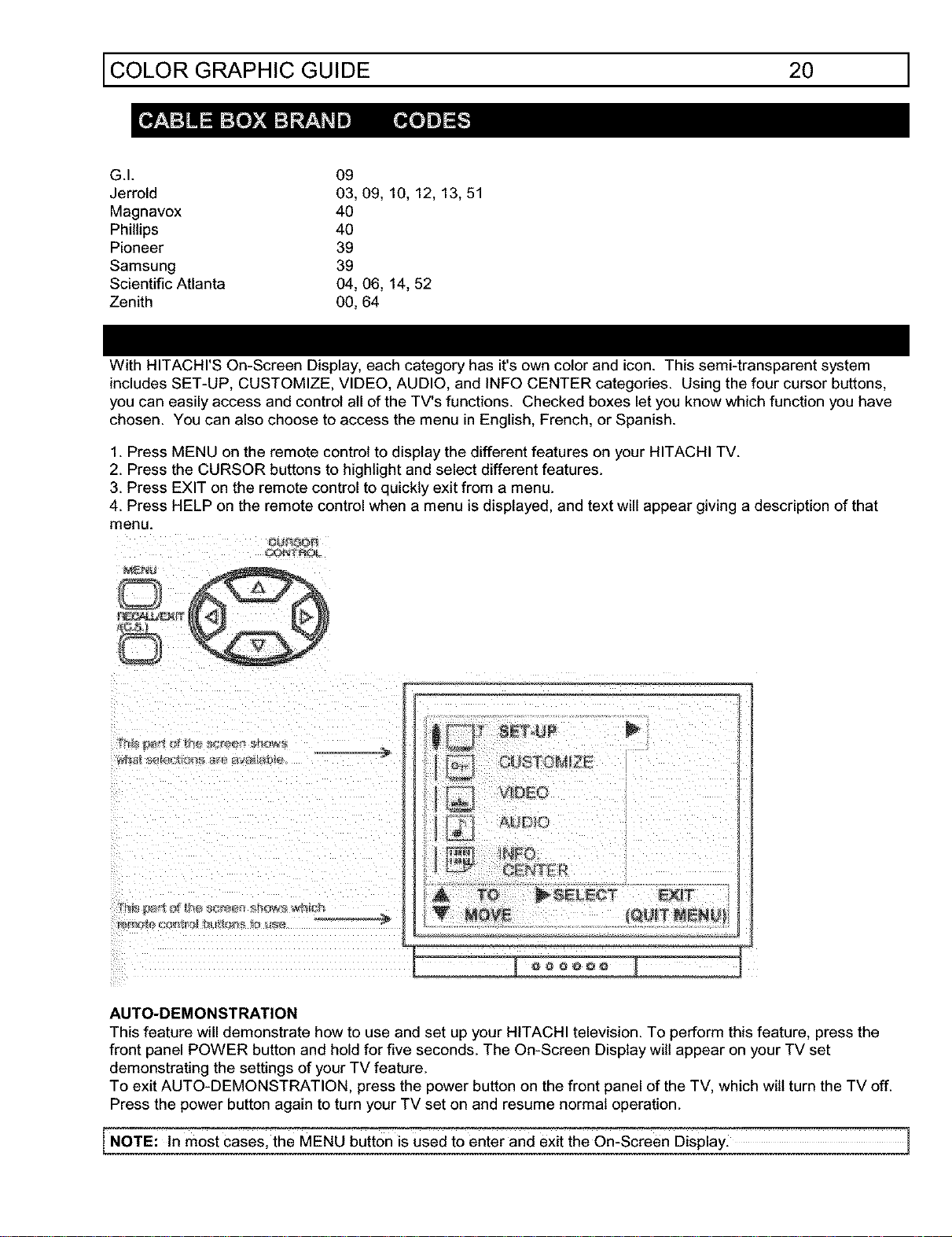
G.I. 09
Jerrold 03, 09, 10, 12, 13, 51
Magnavox 40
Phillips 40
Pioneer 39
Samsung 39
Scientific Atlanta 04, 06, 14, 52
Zenith 00, 64
With HITACHI'S On-Screen Display, each category has it's own color and icon. This semi-transparent system
includes SET-UP, CUSTOMIZE, VIDEO, AUDIO, and INFO CENTER categories. Using the four cursor buttons,
you can easily access and control all of the TV's functions. Checked boxes let you know which function you have
chosen. You can also choose to access the menu in English, French, or Spanish.
1. Press MENU on the remote control to display the different features on your HITACHI TV.
2. Press the CURSOR buttons to highlight and select different features.
3. Press EXIT on the remote control to quickly exit from a menu.
4. Press HELP on the remote control when a menu is displayed, and text will appear giving a description of that
menu.
r3u_f_
A_JD_©
AUTO-DEMONSTRATION
This feature will demonstrate how to use and set up your HITACHI television. To perform this feature, press the
front panel POWER button and hold for five seconds. The On-Screen Display will appear on your TV set
demonstrating the settings of your TV feature.
To exit AUTO-DEMONSTRATION, press the power button on the front panel of the TV, which will turn the TV off.
Press the power button again to turn your TV set on and resume normal operation.
I NOTE:In most casesl the MENU bUtton is used to enter and exit the on-screen Display.

COLOR GRAPHIC GUIDE 21 ]
MENULANGUAGE
SIGNALSOURCE
AUTO CHANNELSET
CHANNELADD!DEL
CHANNELLIST
CLOCK SET
Choose English, French, or Spanish language.
Select Antenna or Cable TV.
First time set up for channel buttons.
Add or delete channel.
Check channel name, scan, and child lock.
Set before using timer features.
CHANNEL ID Label channels PAY1, ABC, etc.
FAMILY FAVORITES Store family favorite channels.
CHILD LOCK OPTIONSBIock channel picture & sound.
ON!OFF TIMER Turn TV on or off once, daily, or weekly.
CLOSED CAPTION Feature to display dialogue/text.
CONTRAST
BRIGHTNESS
COLOR
TINT
SHARPNESS
COLOR TEMP.
RESET
Adjust contrast.
Adjust brightness.
Adjust color.
Adjust tint.
Adjust sharpness.
Select warm (red tones) or coot (blue tones).
Set VIDEO to factory preset condition.
BASS Adjust bass.
TREBLE Adjust treble.
BALANCE Adjust balance.
RESET Set AUDIO settings to factory preset condition.
ADVANCE SETTINGS Improve sound performance.
VOLUME CORRECTION Lower volume on selected channels.
SURROUND Special sound effects
NFO,
CENTER
MESSAGE
Use to leave message for daily reminder.
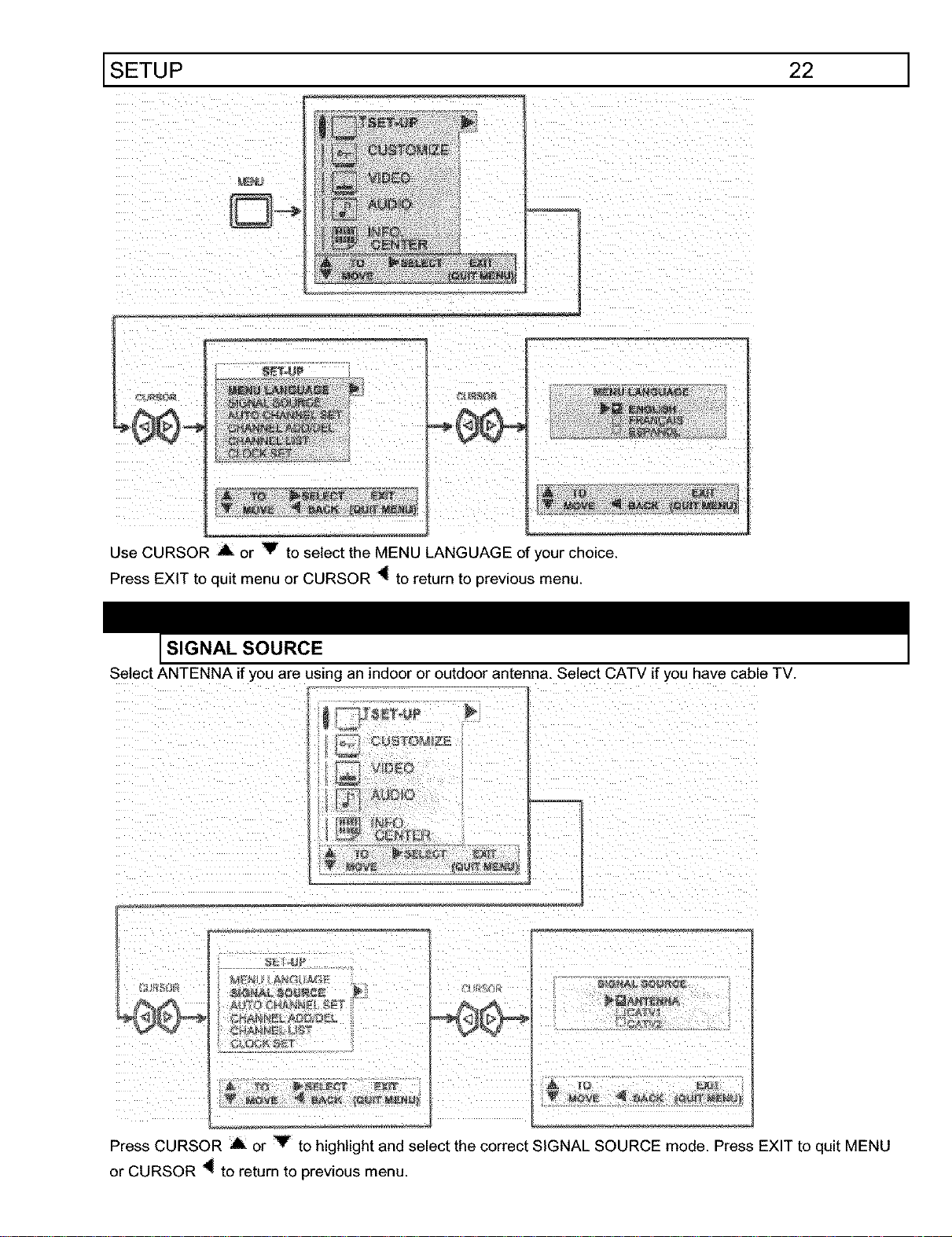
Select SET-UP when setting your TV up for the first time. Use the CURSOR A Y
buttons on the remote to highlight the function desired.
MENU LANGUAGE
This feature willallow you to select any one ofthree different languages for all On-Screen Displays.
SETUP
22 1
Use CURSOR A or V to select the MENU LANGUAGE of your choice.
Press EXIT to quit menu or CURSOR _ to return to previous menu.
SIGNAL SOURCE
Select ANTENNA if you are using an indoor or outdoor antenna. Select CATV ifyou have cable TV.
Press CURSOR ,dk or Y to highlight and select the correct SIGNAL SOURCE mode. Press EXIT to quit MENU
or CURSOR _ to return to previous menu.
SETUP 23 ]
I
W ,_,29,- W ÷_
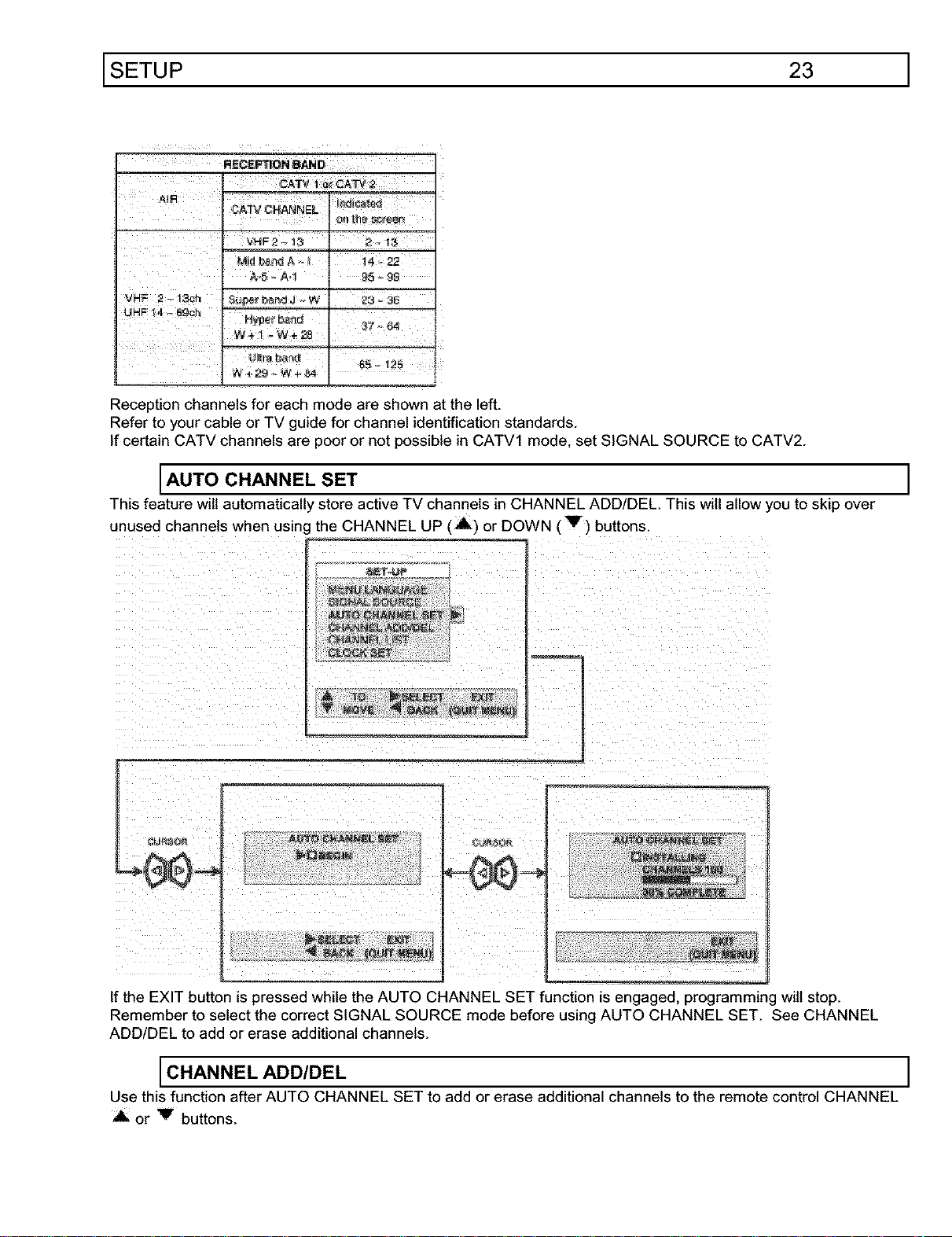
Reception channels for each mode are shown at the left.
Refer to your cable or TV guide for channel identification standards.
If certain CATV channels are poor or not possible in CATV1 mode, set SIGNAL SOURCE to CATV2.
AUTO CHANNEL SET
This feature will automatically store active TV channels in CHANNEL ADD/DEL. This will allow you to skip over
unused channels when using the CHANNEL UP (,iL) or DOWN ('V) buttons
_ ................
If the EXIT button is pressed while the AUTO CHANNEL SET function is engaged, programming will stop.
Remember to select the correct SIGNAL SOURCE mode before using AUTO CHANNEL SET. See CHANNEL
ADD/DEL to add or erase additional channels.
CHANNEL ADD/DEL
Use this function after AUTO CHANNEL SET to add or erase additional channels to the remote control CHANNEL
A or V buttons.
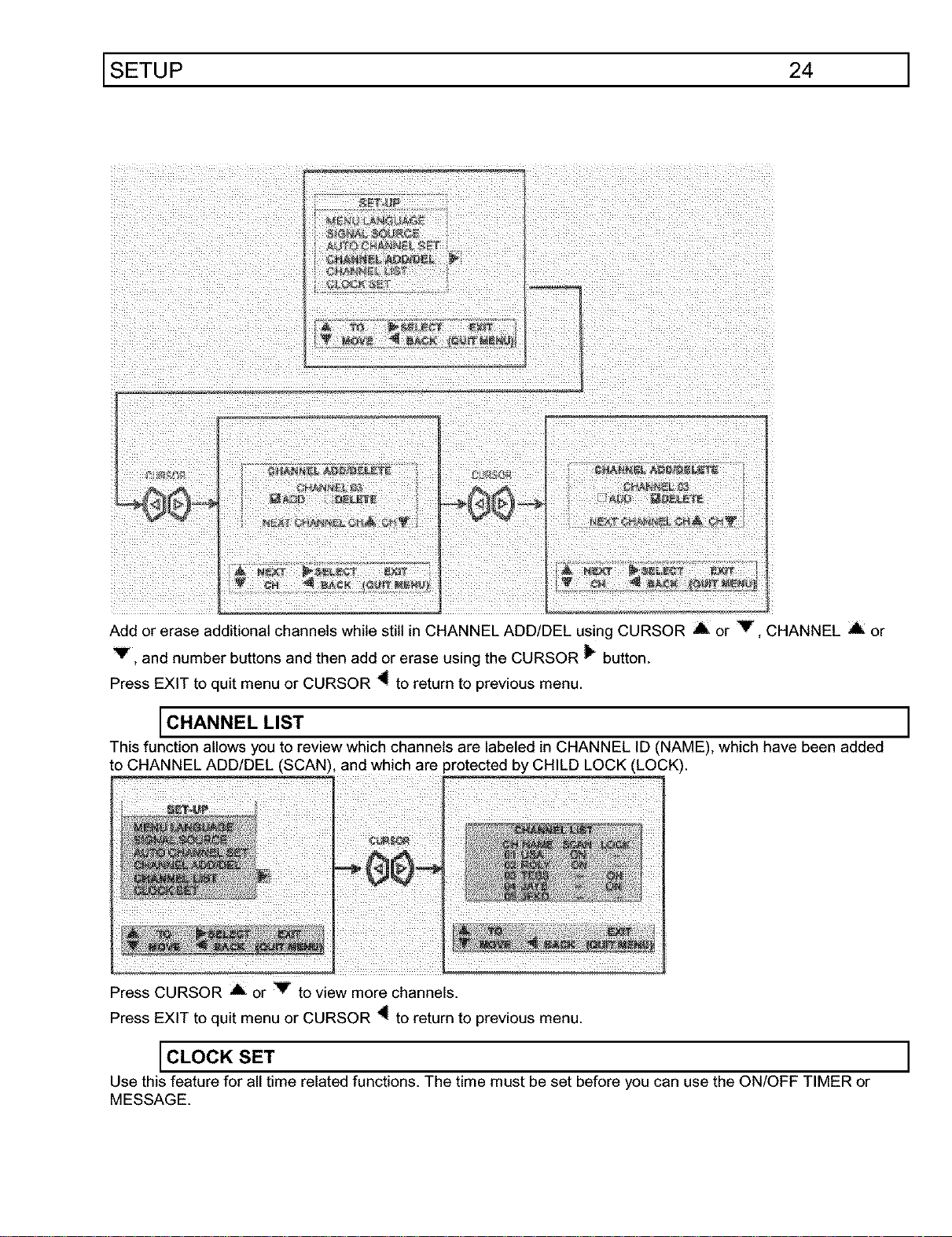
SETUP 24 ]
Add or erase additional channels while still in CHANNEL ADD/DEL using CURSOR A or Y, CHANNEL A or
_, and number buttons and then add or erase using the CURSOR _ button.
Press EXIT to quit menu or CURSOR _ to return to previous menu.
CHANNEL LIST
This function allows you to review which channels are labeled in CHANNEL ID (NAME), which have been added
to CHANNEL ADD/DEL (SCAN), and which are protected by CHILD LOCK (LOCK).
Press CURSOR A or V to view more channels.
Press EXIT to quit menu or CURSOR "_ to return to previous menu.
CLOCK SET
Use this feature for all time related functions. The time must be set before you can use the ON/OFF TIMER or
MESSAGE.
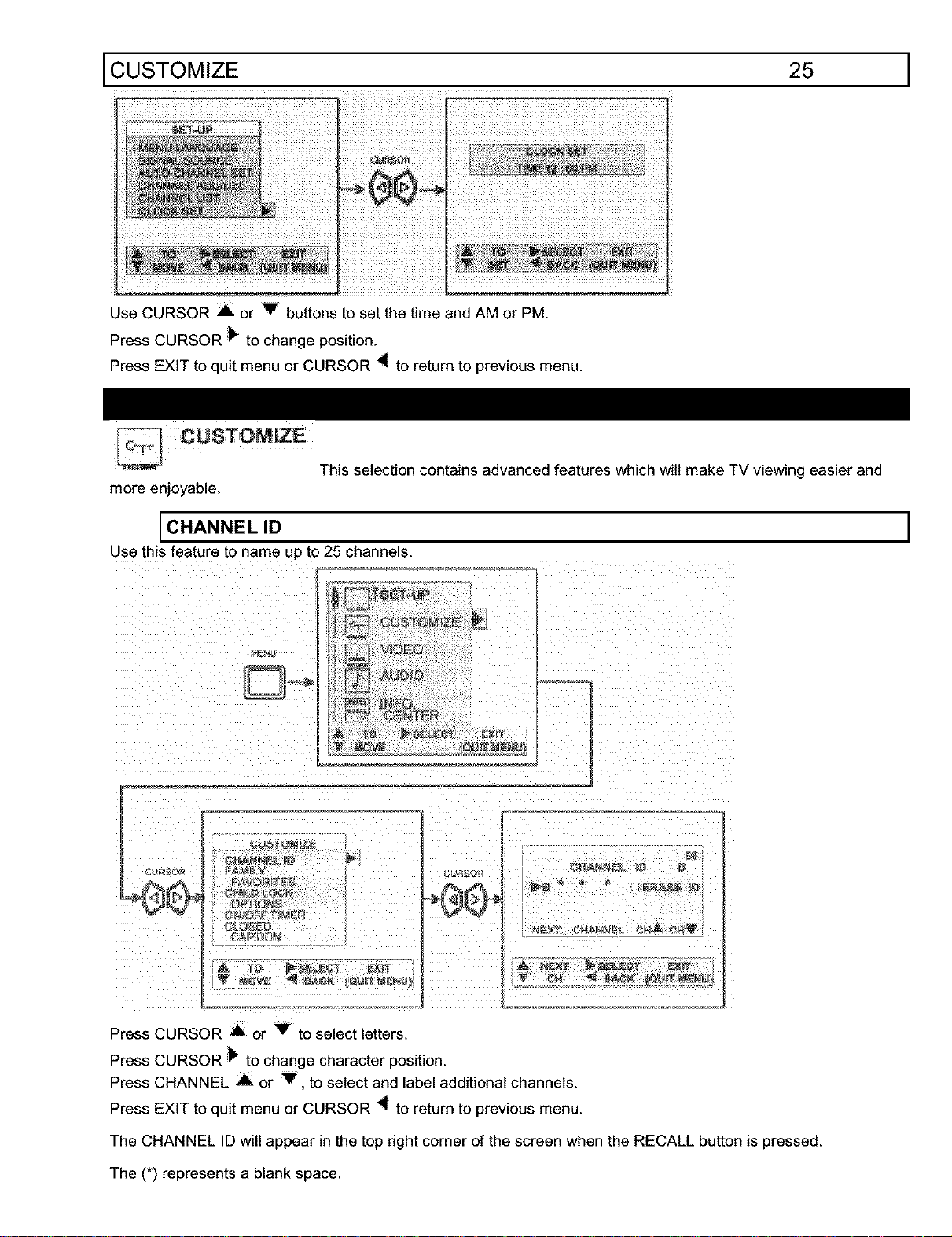
CUSTOMIZE 25 1
Use CURSOR A or V buttons to set the time and AM or PM.
Press CURSOR _ to change position.
Press EXIT to quit menu or CURSOR "_ to return to previous menu.
This selection contains advanced features which will make TV viewing easier and
more enjoyable.
CHANNEL ID
Use this feature to name up to 25 channels.
CUSTOM[ E
,#
_J
Press CURSOR _ or _ to select letters.
Press CURSOR _ to change character position.
Press CHANNEL ,L or "V to select and label additional channels.
Press EXIT to quit menu or CURSOR _ to return to previous menu.
The CHANNEL ID will appear in the top right corner of the screen when the RECALL button is pressed.
The (*) represents a blank space.
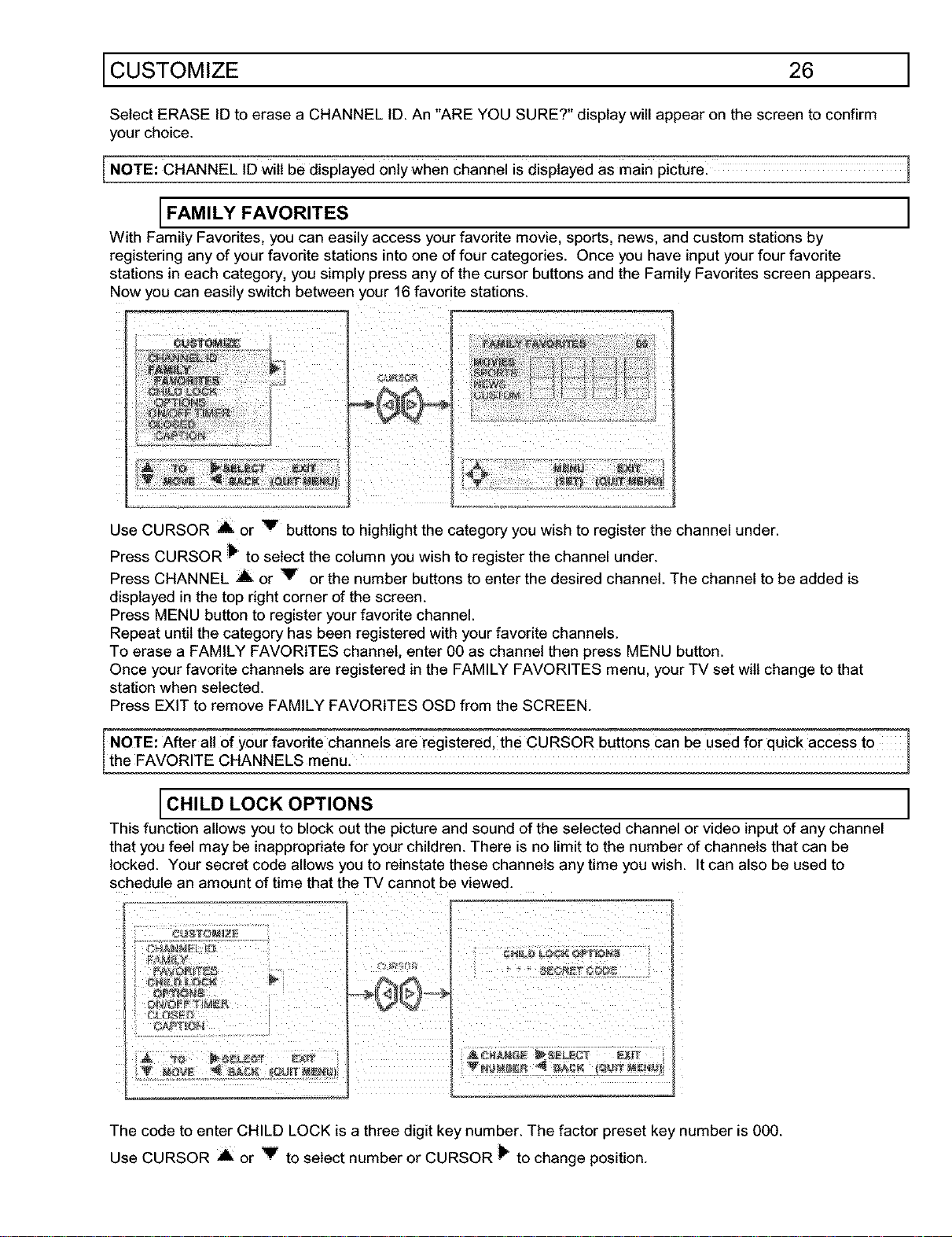
CUSTOMIZE 26 1
Select ERASE ID to erase a CHANNEL ID. An "ARE YOU SURE?" display will appear on the screen to confirm
your choice.
I NOTE: CHANNEL ID Will be displayed only When Channel is displayed as main picture. 1
[FAMILY FAVORITES ]
With Family Favorites, you can easily access your favorite movie, sports, news, and custom stations by
registering any of your favorite stations into one of four categories. Once you have input your four favorite
stations in each category, you simply press any of the cursor buttons and the Family Favorites screen appears.
Now you can easily switch between your 16 favorite stations.
Use CURSOR _ or V buttons to highlight the category you wish to register the channel under.
Press CURSOR _ to select the column you wish to register the channel under.
Press CHANNEL A or V or the number buttons to enter the desired channel. The channel to be added is
displayed in the top right corner of the screen.
Press MENU button to register your favorite channel.
Repeat until the category has been registered with your favorite channels.
To erase a FAMILY FAVORITES channel, enter 00 as channel then press MENU button.
Once your favorite channels are registered in the FAMILY FAVORITES menu, your TV set will change to that
station when selected.
Press EXIT to remove FAMILY FAVORITES OSD from the SCREEN.
NOTE: After all of your favodte channels are registered, the CURSOR buttons can be Used for quick access to 1
the FAVORITE CHANNELS menu. J
[CHILD LOCK OPTIONS l
This function allows you to block out the picture and sound of the selected channel or video input of any channel
that you feel may be inappropriate for your children. There is no limit to the number of channels that can be
locked. Your secret code allows you to reinstate these channels any time you wish. It can also be used to
schedule an amount of time that the TV cannot be viewed.
P
The code to enter CHILD LOCK is a three digit key number. The factor preset key number is 000.
Use CURSOR A or _ to select number or CURSOR _" to change position.
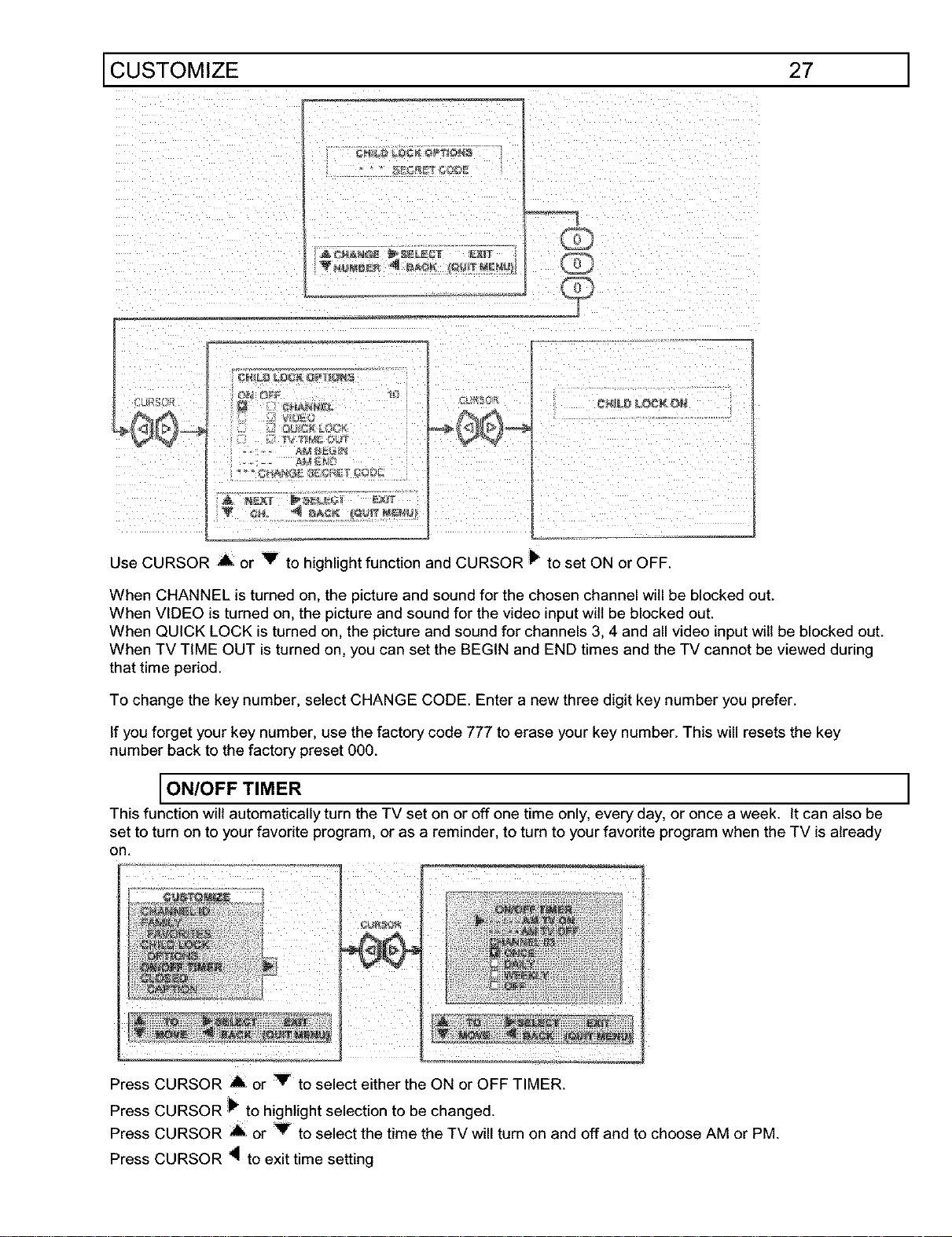
CUSTOMIZE 27 1
,. C_ILCA LHLK
Use CURSOR ,A or V to highlight function and CURSOR P to set ON or OFF.
When CHANNEL is turned on, the picture and sound for the chosen channel will be blocked out.
When VIDEO is turned on, the picture and sound for the video input will be blocked out.
When QUICK LOCK is turned on, the picture and sound for channels 3, 4 and all video input will be blocked out.
When TV TIME OUT is turned on, you can set the BEGIN and END times and the TV cannot be viewed during
that time pedod.
To change the key number, select CHANGE CODE. Enter a new three digit key number you prefer.
If you forget your key number, use the factory code 777 to erase your key number. This will resets the key
number back to the factory preset 000.
ON/OFF TIMER
This function will automatically turn the TV set on or off one time only, every day, or once a week. It can also be
set to turn on to your favorite program, or as a reminder, to turn to yourfavorite program when the TV is already
on.
i
Press CURSOR A or _ to select either the ON or OFF TIMER.
Press CURSOR _ to highlight selection to be changed.
Press CURSOR A or Y to select the time the TV will turn on and off and to choose AM or PM.
Press CURSOR _ to exit time setting
CUSTOMIZE 28
Select CHANNEL and press CHANNEL A or V to set the channel the TV will tune to when it automatically
turns on.
Press CURSOR _ to exit channel setting.
Press the CURSOR A or Y to highlight then CURSOR _ to select mode: ONCE (one time only), DAILY (every
day), or WEEKLY (once a week).
Press EXIT to quit menu or CURSOR _ to return to previous menu.
NOTE: You can set either on time only off time only. or both. The mode will be the same for both.
If the TV is turned on by LheON TIMER and there is no remote control operation in three hours or more. the TV
will automatically turn off.
J
Do not use your TV as a deterrent when away from home by using both the ON TIMER and
OFF TIMERS. For safety, the TV should be turned off when you are away from home.
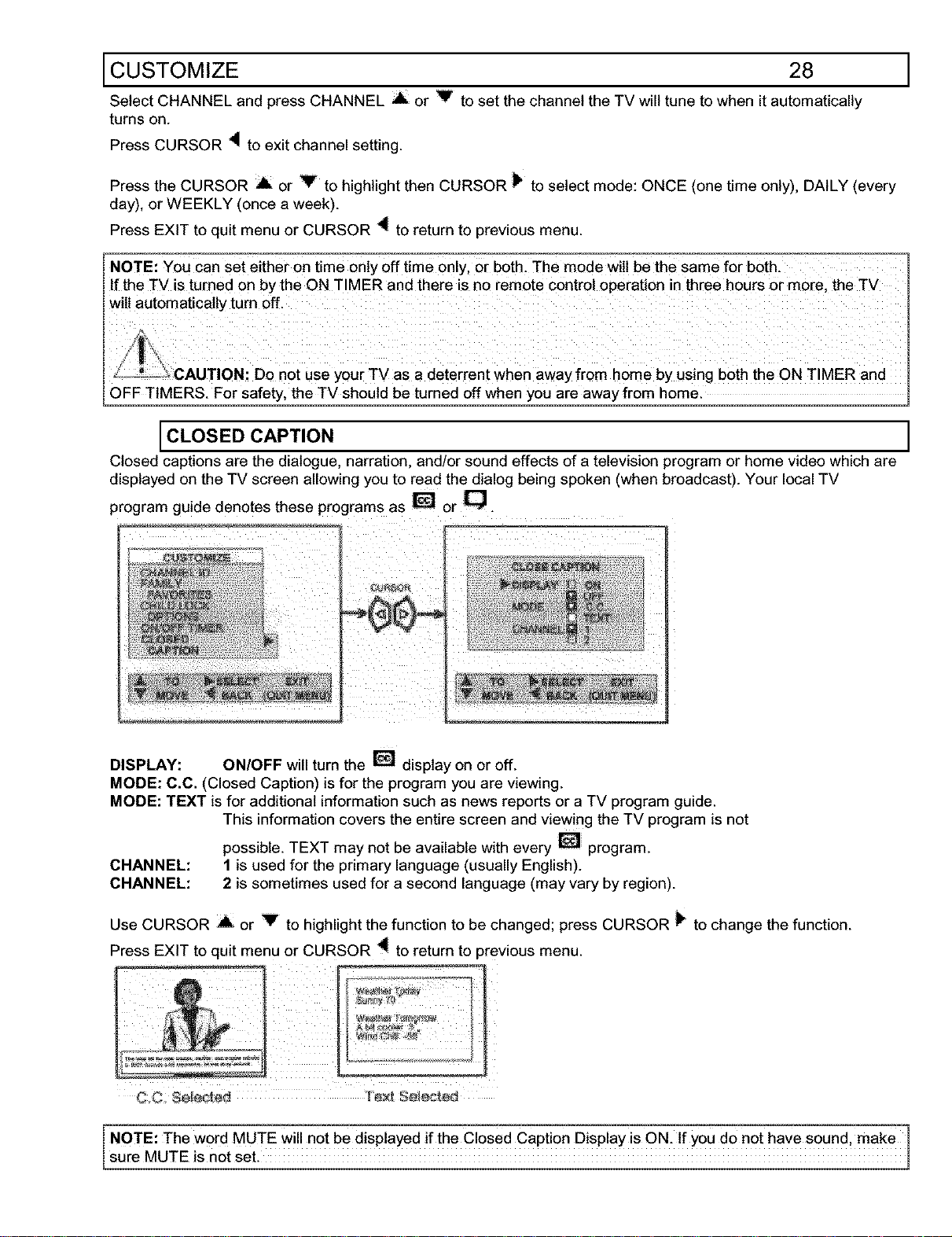
CLOSED CAPTION
Closed captions are the dialogue, narration, and/or sound effects of a television program or home video which are
displayed on the TV screen allowing you to read the dialog being spoken (when broadcast). Your local TV
program guide denotes these programs as [] or
DISPLAY: ON/OFF will turn the [] display on or off.
MODE: C.C. (Closed Caption) is for the program you are viewing.
MODE: TEXT is for additional information such as news reports or a TV program guide.
This information covers the entire screen and viewing the TV program is not
possible. TEXT may not be available with every [] program.
CHANNEL: 1 is used for the primary language (usually English).
CHANNEL: 2 is sometimes used for a second language (may vary by region).
Use CURSOR .A or V to highlight the function to be changed; press CURSOR _ to change the function.
Press EXIT to quit menu or CURSOR 4 to return to )revious menu.
i
NOTE: The word MUTE Will not be displayed if the Closed Caption Display is ON. If you do not have sound, make
sure MUTE is not set.
VIDEO 29 1
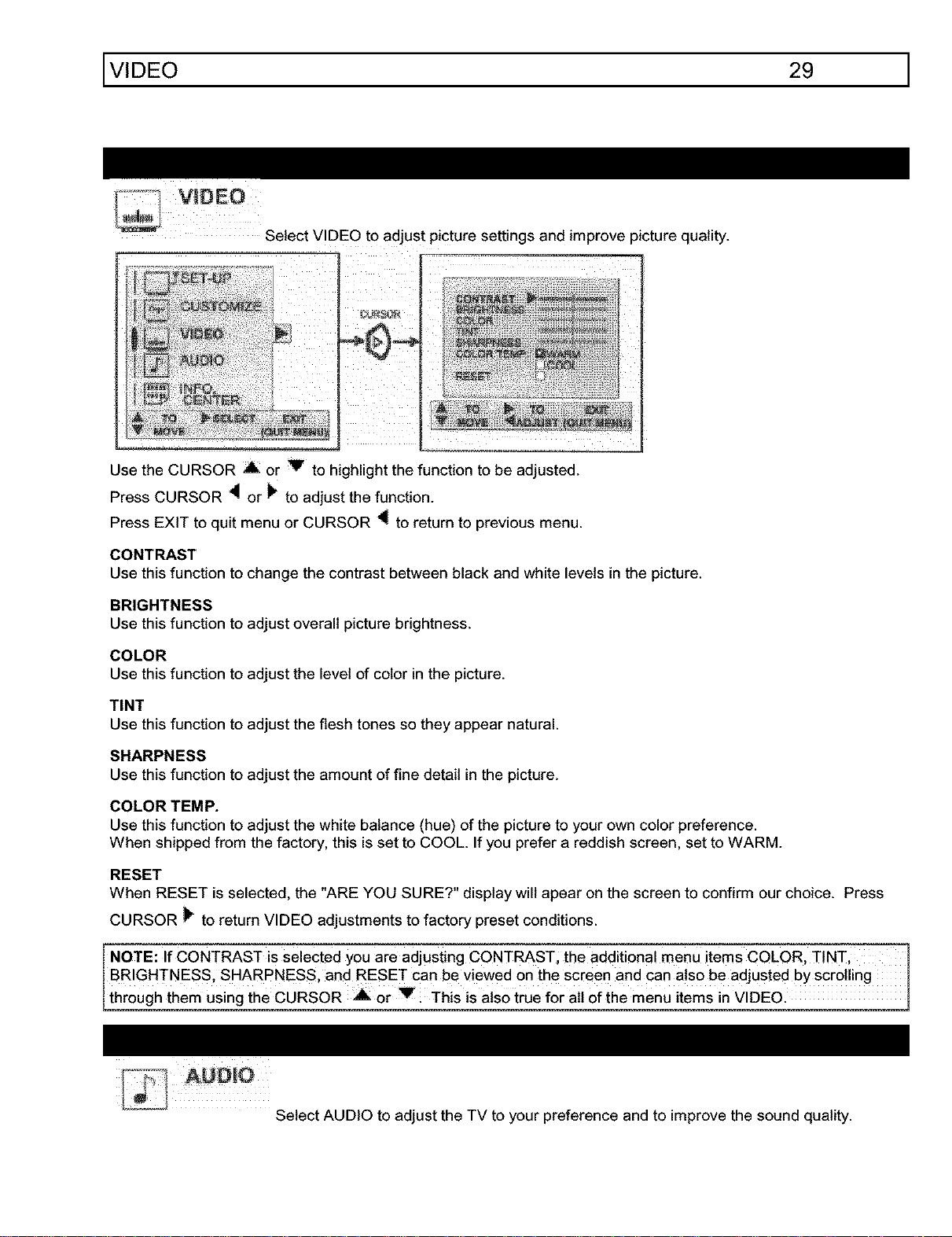
Select VIDEO to adjust picture settings and improve picture quality.
Use the CURSOR A or V to highlight the function to be adjusted.
Press CURSOR _ or _ to adjust the function.
Press EXIT to quit menu or CURSOR _ to return to previous menu.
CONTRAST
Use this function to change the contrast between black and white levels in the picture.
BRIGHTNESS
Use this function to adjust overall picture brightness.
COLOR
Use this function to adjust the level of color in the picture.
TINT
Use this function to adjust the flesh tones so they appear natural.
SHARPNESS
Use this function to adjust the amount of fine detail in the picture.
COLOR TEMP.
Use this function to adjust the white balance (hue) of the picture to your own color preference.
When shipped from the factory, this is set to COOL. If you prefer a reddish screen, set to WARM.
RESET
When RESET is selected, the "ARE YOU SURE?" display will apear on the screen to confirm our choice. Press
CURSOR _ to return VIDEO adjustments to factory preset conditions.
NOTE: If CONTRAST is seleCted you are adjusting CONTRAST; the additiona! menu items COLOR, T!NT, 1
BRIGHTNESS, SHARPNESS, and RESET can be viewed On the screen and can a!s0 be adJusted bYscrolling I
through them using the CURSOR Aor T This is als0 true for all of the menu items in VIDEO.
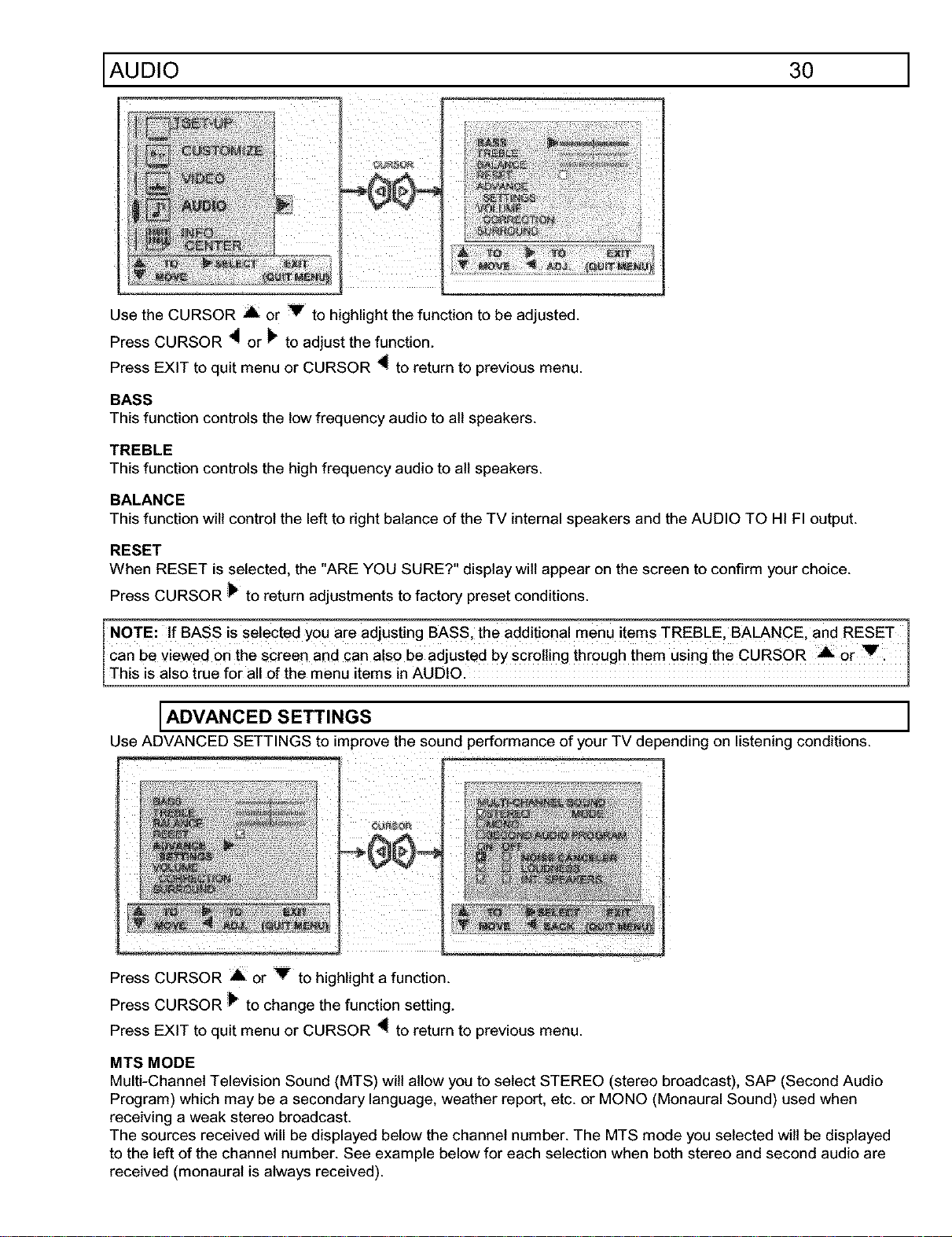
Select AUDIO to adjust the TV to your preference and to improve the sound quality.
AUDIO 30 1
Use the CURSOR _ or Y to highlight the function to be adjusted.
Press CURSOR _ or _ to adjust the function.
Press EXIT to quit menu or CURSOR 4{ to return to previous menu.
BASS
This function controls the low frequency audio to all speakers.
TREBLE
This function controls the high frequency audio to all speakers.
BALANCE
This function will control the left to right balance of the TV internal speakers and the AUDIO TO HI FI output.
RESET
When RESET is selected, the "ARE YOU SURE?" display wilt appear on the screen to confirm your choice.
Press CURSOR _ to return adjustments to factory preset conditions.
NOTE: I! BASS is selected you are adjusting BASS, the add!tiana! menu item s TREBLE, BALANCE, and RESET
Can be viewed on the screen and can a!so be adjusted by scrolling through them Using the CURSOR Or V i
Ths sasotruefora ofthemenu tems inAUDO.
[ADVANCED SETTINGS ]
Use ADVANCED SETTINGS to improve the sound performance of your TV depending on listening conditions.
Press CURSOR A or V to highlight a function.
Press CURSOR _ to change the function setting.
Press EXIT to quit menu or CURSOR _ to return to previous menu.
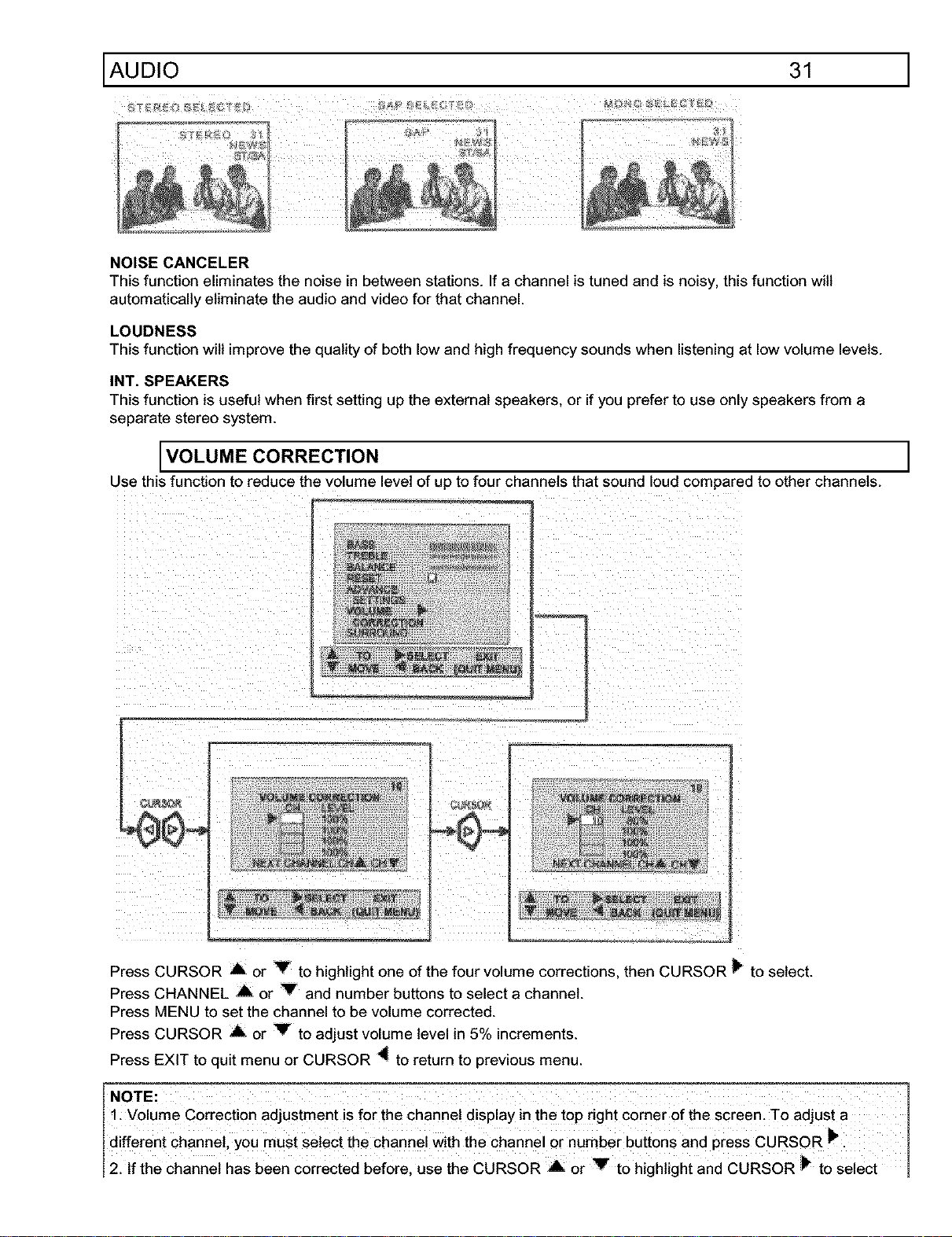
MTS MODE
Multi-Channel Television Sound (MTS) will allow you to select STEREO (stereo broadcast), SAP (Second Audio
Program) which may be a secondary language, weather report, etc. or MONO (Monaural Sound) used when
receiving a weak stereo broadcast.
The sources received will be displayed below the channel number. The MTS mode you selected wilt be displayed
to the left of the channel number. See example below for each selection when both stereo and second audio are
received (monaural is always received).
AUDIO 31 ]
NOISE CANCELER
This function eliminates the noise in between stations. If a channel is tuned and is noisy, this function will
automatically eliminate the audio and video for that channel.
LOUDNESS
This function will improve the quality of both low and high frequency sounds when listening at low volume levels.
INT. SPEAKERS
This function is useful when first setting up the external speakers, or if you prefer to use only speakers from a
separate stereo system.
VOLUME CORRECTION ]
Use this function to reduce the volume level of up to four channels that sound loud compared to other channels.
Press CURSOR A or Y to highlight one of the four volume corrections, then CURSOR _ to select.
Press CHANNEL A or _ and number buttons to select a channel.
Press MENU to set the channel to be volume corrected.
Press CURSOR A or Y to adjust volume level in 5% increments.
Press EXIT to quit menu or CURSOR _ to return to previous menu.
NOTE:
I: Volume Correction adjustment is for the channel display inthe top right corner of the screen. To adjust a I
different channel, you must select the channel Withthe channel or number buttons and press CURSOR
121If the Channel has been Corrected beforel Use the CURSOR A0r v t0 highiight and cuRsoR _ to select I
AUDIO FOR MODEL 32CX32B 32
that channe ,then use the CURSOR A or Yto Change the level.
3. To erase a channel from Volume correction, select channel oo and press MENU_
14.The volume level will change from 50% to 100% in increments of 5%.
[ u..ou.o 1
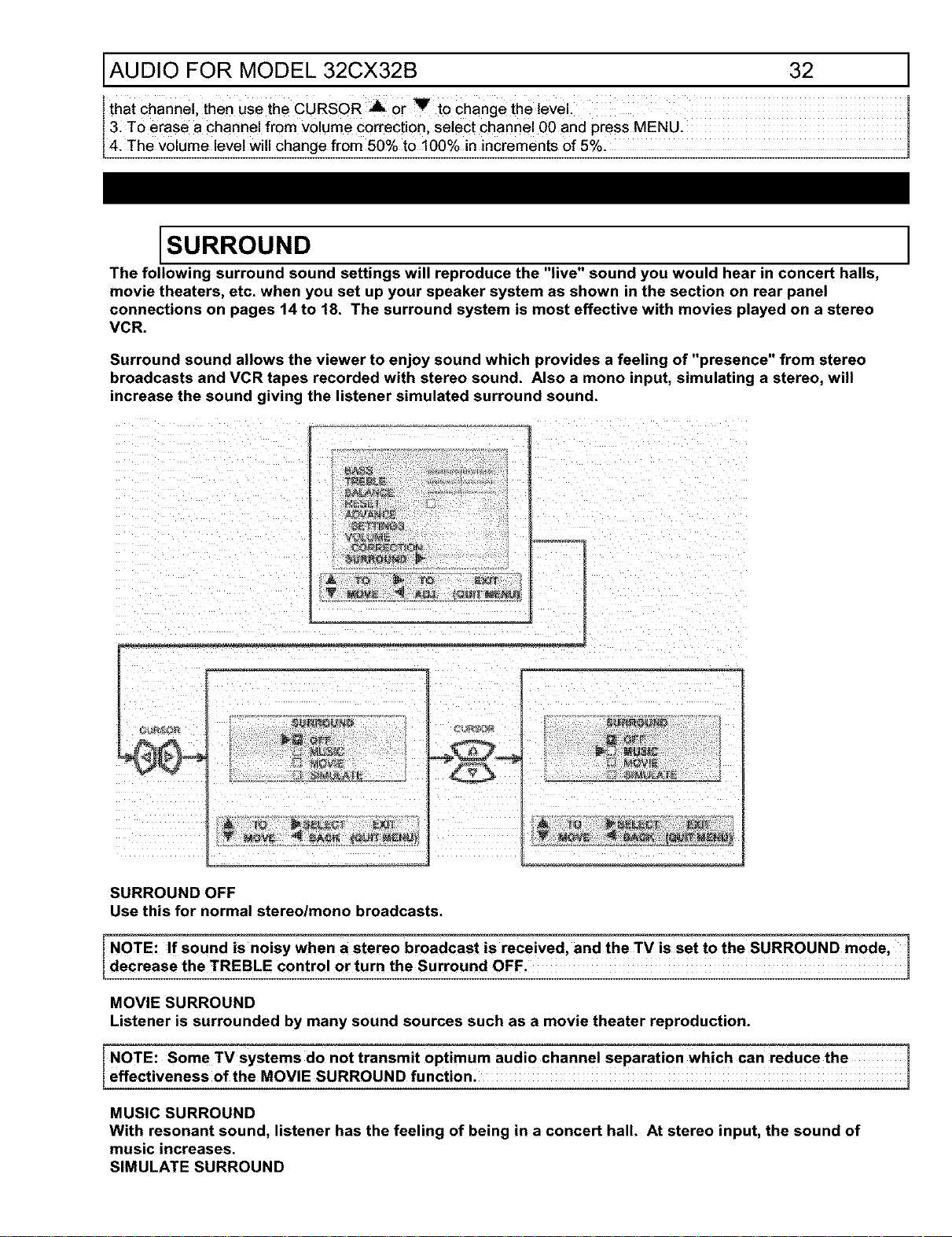
The following surround sound settings will reproduce the "live" sound you would hear in concert halls,
movie theaters, etc. when you set up your speaker system as shown in the section on rear panel
connections on pages 14 to 18. The surround system is most effective with movies played on a stereo
VCR.
Surround sound allows the viewer to enjoy sound which provides a feeling of "presence" from stereo
broadcasts and VCR tapes recorded with stereo sound. Also a mono input, simulating a stereo, will
increase the sound giving the listener simulated surround sound.
SURROUND OFF
Usethis _rnormalstereo/monobroadcasts.
MOVIE SURROUND
Listener is surrounded by many sound sources such as a movie theater reproduction.
NOTE:Some TV Systems do not transmit optimum audio channel separation which can reduce the I
effectiveness 0f the MOVIE SURROUND function.
MUSIC SURROUND
With resonant sound, listener has the feeling of being in a concert
music increases.
SIMULATE SURROUND
hall. At stereo input, the sound of
INFO CENTER
At mono input, sound is increased, simulating a stereo like Surround.
Your VCR must be a Hi-Fi or stereo unit. See page 20 for stereo VCR connection.
Set must be outputting stereo (see MTS Mode: STEREO on page 46).
33 1
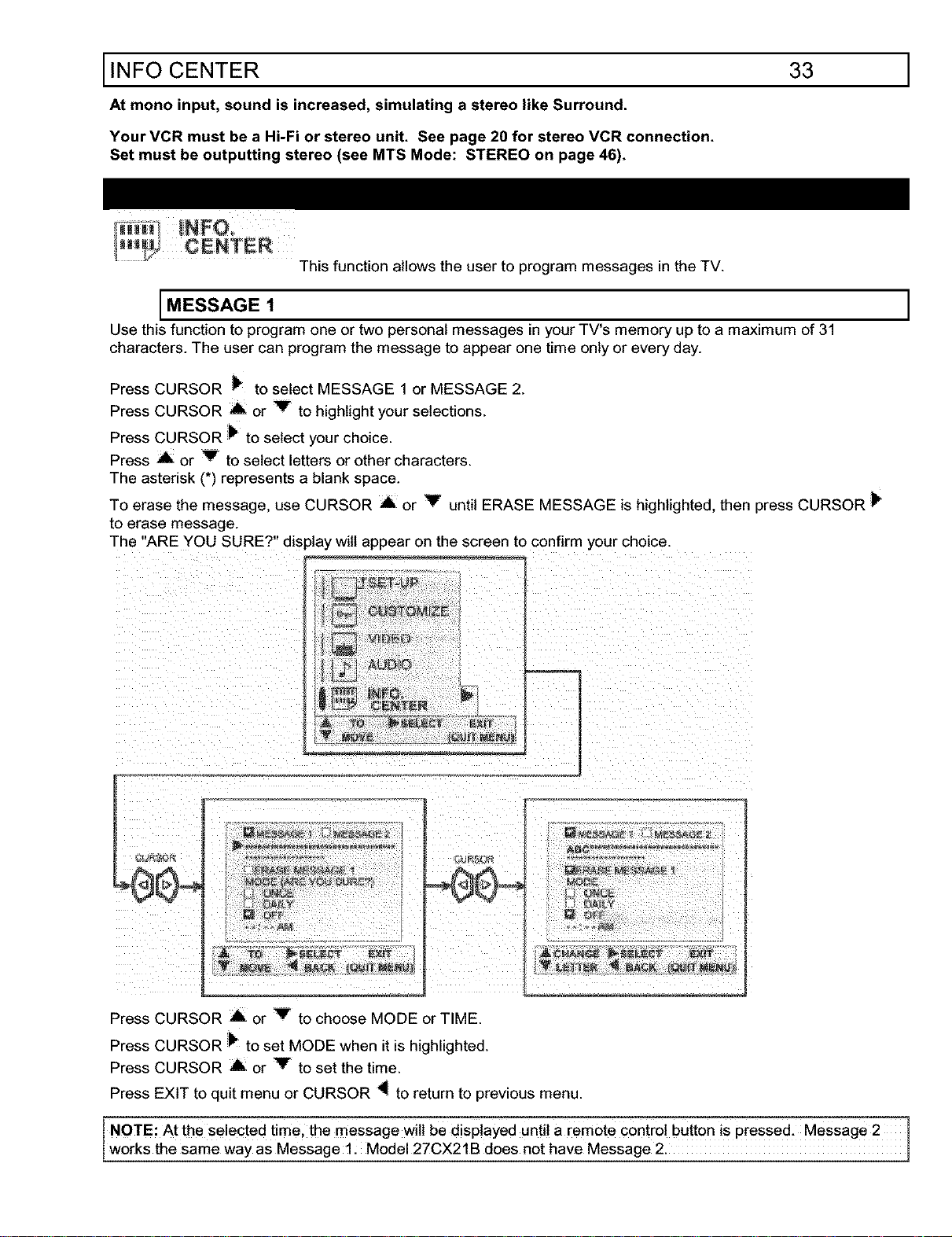
This function allows the user to program messages in the TV.
MESSAGE 1
Use this function to program one or two personal messages in your TV's memory up to a maximum of 31
characters. The user can program the message to appear one time only or every day.
Press CURSOR _ to select MESSAGE 1 or MESSAGE 2.
Press CURSOR A or V to highlight your selections.
Press CURSOR _ to select your choice.
Press ,4_ or V to select letters or other characters.
The asterisk (*) represents a blank space.
To erase the message, use CURSOR A or V until ERASE MESSAGE is highlighted, then press CURSOR
to erase message.
The "ARE YOU SURE?" display will appear on the screen to confirm your choice.
Press CURSOR A or _ to choose MODE or TIME.
Press CURSOR _ to set MODE when it is highlighted.
Press CURSOR A or Y to set the time.
Press EXIT to quit menu or CURSOR _ to return to previous menu.
NOTE: At the selected time, the message will be displayed until a remote control button is pressed. Message 2
works the same way as Message 1. Model 27CX21B does not have Message 2.
USEFULINFO 34 ]
DO
Make sure the TV is turned off when cleaning the screen.
Dust the screen and cabinet with a soft cloth.
Clean the screen with a soft cloth moistened with warm water and dry with a soft cloth. A mild soap may be used
if the screen isextremely dirty.
Place your TV and remote control away from extreme heat, humidity and extremely dusty places.
Remove the plug from the wall outlet if your television will not be used for a long period of time, for instance, when
you go on vacation
DO NOT
Do not clean your screen or cabinet with strong cleaners, polishes or a chemically treated cloth.
Do not place rubber or vinyl products or cellophane tape on your set.
Do not touch the screen too often.
Do not subject the remote control to shocks such as dropping it on the floor, etc. Physical damage to the precision
parts may result.
Avoid placing the remote control in a high humidity place or getting it wet. Don't leave it on or near a heater.
Excessive heat or moisture may cause the unit to cease operation.
When the batteries run down, remote control operation will become erratic or possibly stop altogether.
Replace the old batteries with two new "AA" size batteries.
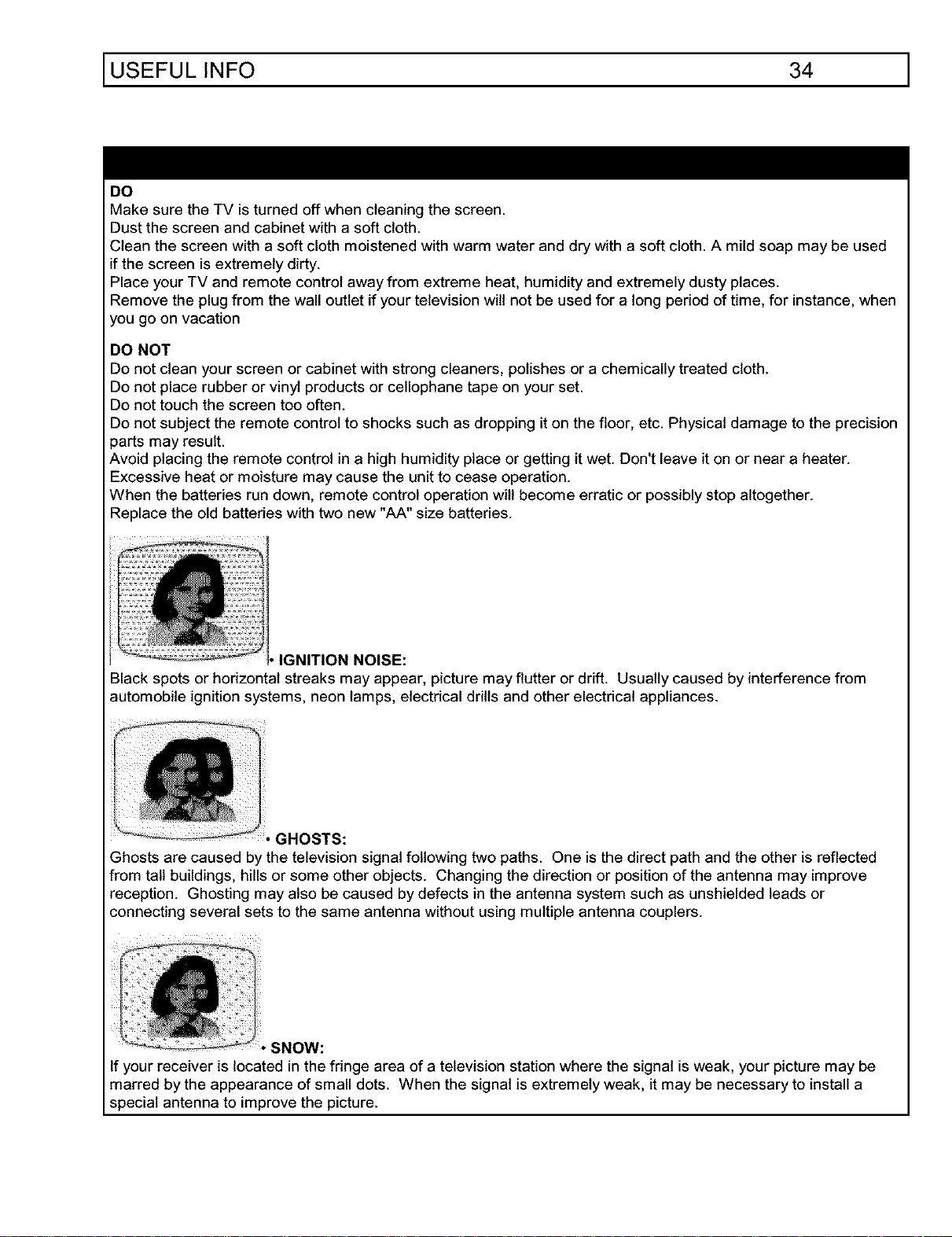
, IGNITION NOISE:
Black spots or horizontal streaks may appear, picture may flutter or drift. Usually caused by interference from
automobile ignition systems, neon lamps, electrical drills and other electrical appliances.
GHOSTS:
Ghosts are caused by the television signal following two paths. One is the direct path and the other is reflected
from tall buildings, hills or some other objects. Changing the direction or position of the antenna may improve
reception. Ghosting may also be caused by defects in the antenna system such as unshielded leads or
connecting several sets to the same antenna without using multiple antenna couplers.
SNOW:
is located in the fringe area of a television station where the signal is weak, your picture may be
marred by the appearance of small dots. When the signal is extremely weak, it may be necessary to install a
special antenna to improve the picture.
If your receiver
USEFUL INFO 35
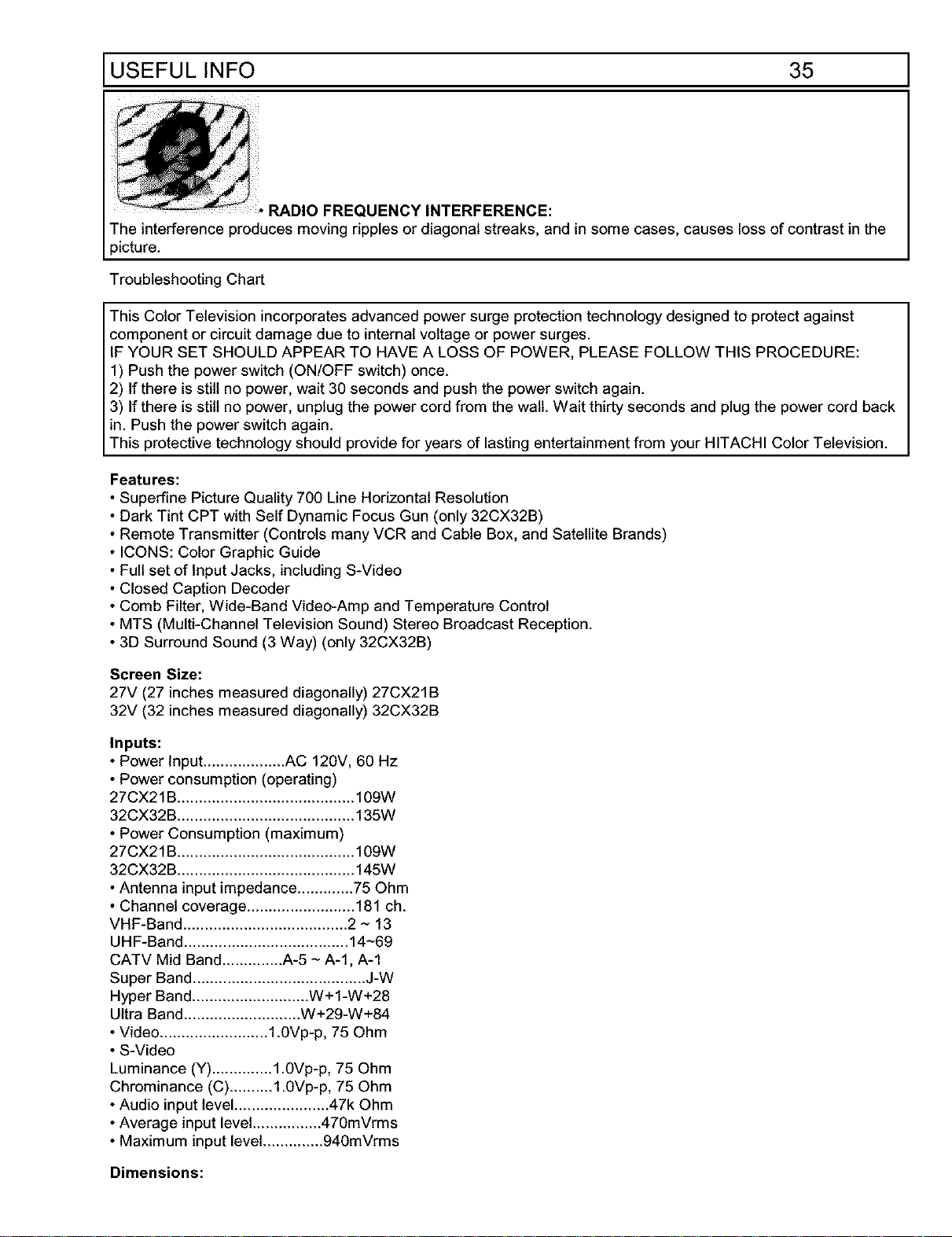
RADIO FREQUENCY INTERFERENCE:
The interference produces moving ripples or diagonal streaks, and in some cases, causes loss of contrast in the
picture.
Troubleshooting Chart
This Color Television incorporates advanced power surge protection technology designed to protect against
component or circuit damage due to internal voltage or power surges.
IF YOUR SET SHOULD APPEAR TO HAVE A LOSS OF POWER, PLEASE FOLLOW THIS PROCEDURE:
1) Push the power switch (ON!OFF switch) once.
2) Ifthere is still no power, wait 30 seconds and push the power switch again.
3) Ifthere is still no power, unplug the power cord from the walt. Wait thirty seconds and plug the power cord back
in. Push the power switch again.
This protective technology should provide for years of lasting entertainment from your HITACHI Color Television.
Features:
• Superfine Picture Quality 700 Line Horizontal Resolution
• Dark Tint CPT with Self Dynamic Focus Gun (only 32CX32B)
• Remote Transmitter (Controls many VCR and Cable Box, and Satellite Brands)
• ICONS: Color Graphic Guide
• Full set of Input Jacks, including S-Video
• Closed Caption Decoder
• Comb Filter, Wide-Band Video-Amp and Temperature Control
• MTS (Multi-Channel Television Sound) Stereo Broadcast Reception.
• 3D Surround Sound (3 Way) (only 32CX32B)
Screen Size:
27V (27 inches measured diagonally) 27CX21B
32V (32 inches measured diagonally) 32CX32B
Inputs:
• Power Input ................... AC 120V, 60 Hz
• Power consumption (operating)
27CX21 B......................................... 109W
32CX32B ......................................... 135W
• Power Consumption (maximum)
27CX21 B......................................... 109W
32CX32B ......................................... 145W
• Antenna input impedance ............. 75 Ohm
• Channel coverage ......................... 181 ch.
VHF-Band ...................................... 2 ~ 13
UHF-Band ...................................... 14~69
CATV Mid Band .............. A-5 ~ A-l, A-1
Super Band........................................ J-W
Hyper Band........................... W+1-W+28
Ultra Band ........................... W+29-W+84
• Video ......................... 1.0Vp-p, 75 Ohm
• S-Video
Luminance (Y) .............. 1.0Vp-p, 75 Ohm
Chrominance (C).......... 1.0Vp-p, 75 Ohm
• Audio input level ...................... 47k Ohm
• Average input level................ 470mVrms
• Maximum input level .............. 940mVrms
Dimensions:
NOTES 36 ]
27CX21 B 32CX32B
• Height (in.) 23 1/32 26 11/16
• Width (in.) 27 1/4 31 1/16
• Depth (in.) 20 3/16 22 33/64
• Weight (lbs.) 88 132
I NOTE: Duet0 improvements, specifications in this operating guide are subject to Change Without noticel
HITACHI SERVICE HOTLINE
To locate an authorized HITACHI service facility in the continental U.S.A. and Canada,
DIAL TOLL FREE
7 days a week, 24 hours a day
800 HITACHI
(1-800-448-2244)
Hitachi Home Electronics (America), Inc.
Hitachi has made every effort to assure you hours of trouble free operation from your unit. However, should you
require service, a network of Hitachi Authorized Service Facilities has been established in atl 50 states and Puerto
Rico. Each facility will provide you with convenient and expedient assistance. Our service hotline operator will
direct you to the Hitachi Authorized Service Facility nearest you. Just present proof of purchase and!or delivery
receipts to the Hitachi Authorized Service Facility, and service will be rendered in accordance with the terms of
the limited warranty as stated on your warranty card or operating guide.
Should you have any questions regarding warranty, service, operation or technical assistance, please
contact:
Hitachi Home Electronics (America), Inc
3890 Steve Reynolds Blvd
Norcross, GA 30093
Tel: 770-279-5600
Hitachi Sales Corporation of Hawaii
3219 Koapaka St.
Honolulu, HI 96819
Tel: 808-839-3621
For TV's purchased in Canada only_ please contact one of the Hitachi offices below, should you have any
questions regarding service, operation or technical assistance.
MONTREAL TORONTO VANCOUVER
9425 Trans Canada 6740 Campobello Road 20800 Westminster Hwy., Unit 1103
Saint-Laurent, Quebec Mississauga, Ontario Richmond, B.C.
H4S 1V3 L5N 2L8 V6V 2W3
Tel: (514)956-9882 Tel: (905) 821-4545 Tel: (604) 214-0777
Fax: (514)956-9761 Fax: (905) 826-6627 Fax: (604) 214-0772
(blank page for consumer notes)
Back Page