SOLID STATE COLOR TV
OPERATING GUIDE
IMPORTANT SAFEGUARDS 2-5
FIRST TIME USE
THE REMOTE CONTROL
COLOR GRAPHIC GUIDE
K
USEFUL INFORMATION
INDEX
6-15
16-28
29-44
45-51
IMPORTANT
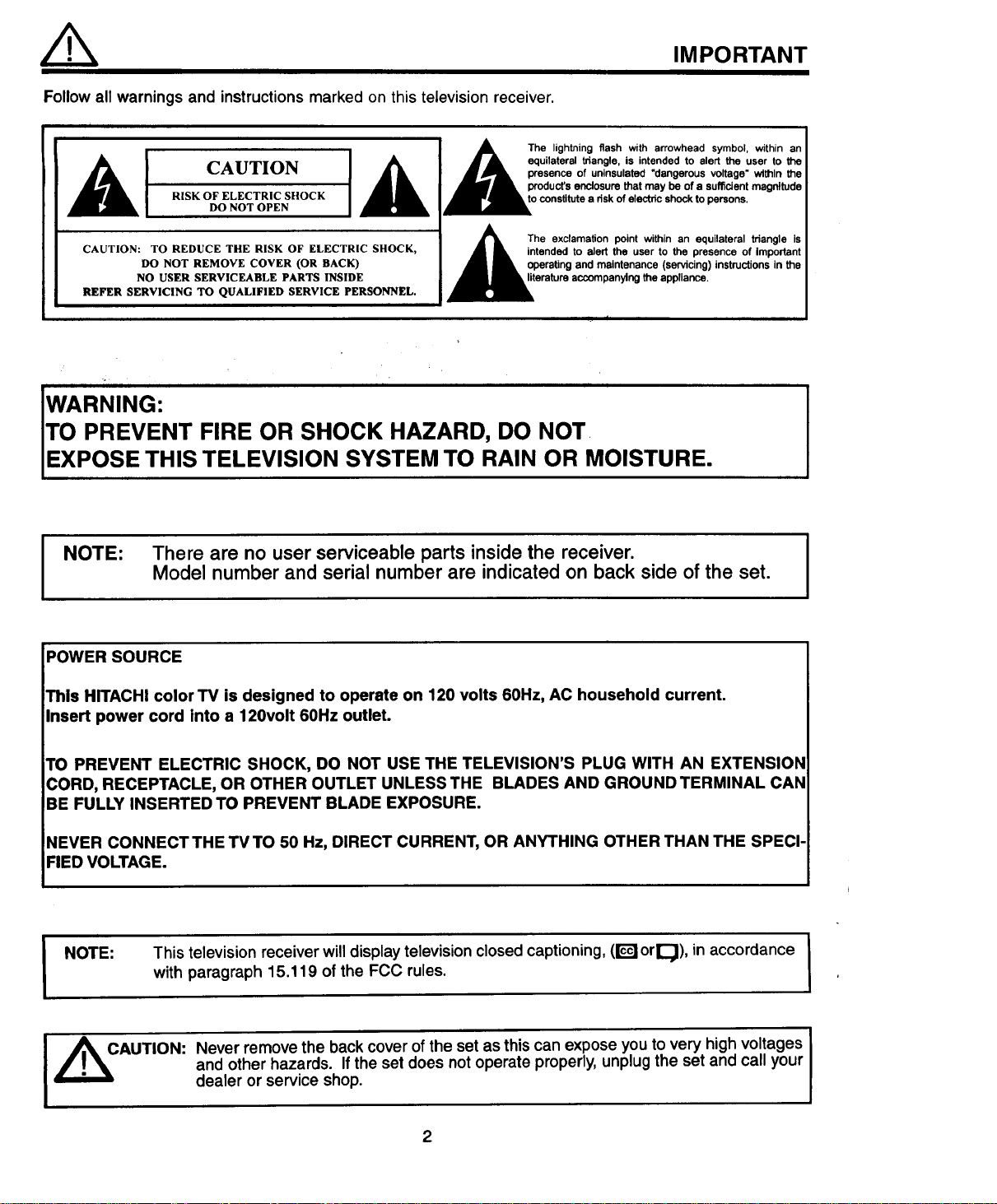
Follow all warnings and instructionsmarked on this television receiver.
RISK OF ELECTRIC SHOCK
DO NOT OPEN
CAUTION: TO REDUCE THE RISK OF ELECTRIC SHOCK,
DO NOT REMOVE COVER (OR BACK)
NO USER SERVICEABLE PARTS INSIDE
REFER SERVICING TO QUALIFIED SERVICE PERSONNEL.
A The lightning flash with arrowhead symbol, within an
• A equilateral triangle, is intended to alert the user to the
_',4111_ presence of uninsulated "dangerous voltage" within the
_. product'senclosure that may be of a sufficient magnitude
o constitutea risk ofelectricshockto persons.
The exclamation point within an equilateral triangle is
intended to alert the user to the presence of important
operating and maintenance (servicing) instructionsin the
erature accompanyingthe appliance.
i t
" i = i
IWARNING:
ITO PREVENT FIRE OR SHOCK HAZARD, DO NOT
IEXPOSETHIS TELEVISION SYSTEM TO RAIN OR MOISTURE.
NOTE:
There are no user serviceable parts inside the receiver.
Model number and serial number are indicated on back side of the set.
I
POWER SOURCE
This HITACHI color TV is designed to operate on 120 volts 60Hz, AC household current.
Insert power cord into a 120volt 60Hz outlet.
TO PREVENT ELECTRIC SHOCK, DO NOT USE THE TELEVISION'S PLUG WITH AN EXTENSION
CORD, RECEPTACLE, OR OTHER OUTLET UNLESS THE BLADES AND GROUND TERMINAL CAN
BE FULLY INSERTED TO PREVENT BLADE EXPOSURE.
NEVER CONNECT THE TV TO 50 Hz, DIRECT CURRENT, OR ANYTHING OTHER THAN THE SPECI-
FIED VOLTAGE.
NOTE:
This television receiver will display television closed captioning, (!'_i orl_), in accordance
with paragraph 15.119 of the FCC rules.
I
,_CAUTION: Never remove the back cover of the set as this can expose you to very high voltages
and other hazards. If the set does not operate properly, unplug the set and call your
dealer or service shop.
2
IMPORTANT
IMPORTANT SAFEGUARDS
CAUTION:
* Read all of these instructions
* Save these instructions for later use,
* Follow all warnings and instructions marked
on the television receiver.
SAFETY POINTS YOU SHOULD KNOW ABOUT
YOUR HITACHI TELEVISION RECEIVER
Our reputationhas been built on the quality, performance,and ease of service of HITACHI televisionreceivers.
Safety is also foremost in our minds in the design of these units. To help you operate these products properly, this section illustrates safety tips which will be ol
benefit to you. Please read it carefully and apply the knowledge you obtain from it to the proper operation of your HITACHI television receiver.
Please fill out your warranty card at once and mail it to HITACHI. This will enable HITACHI to notify you promptly in the improbable event that a safety problem
should be discovered inyour model of product.
FOR YOUR PERSONAL SAFETY 7.
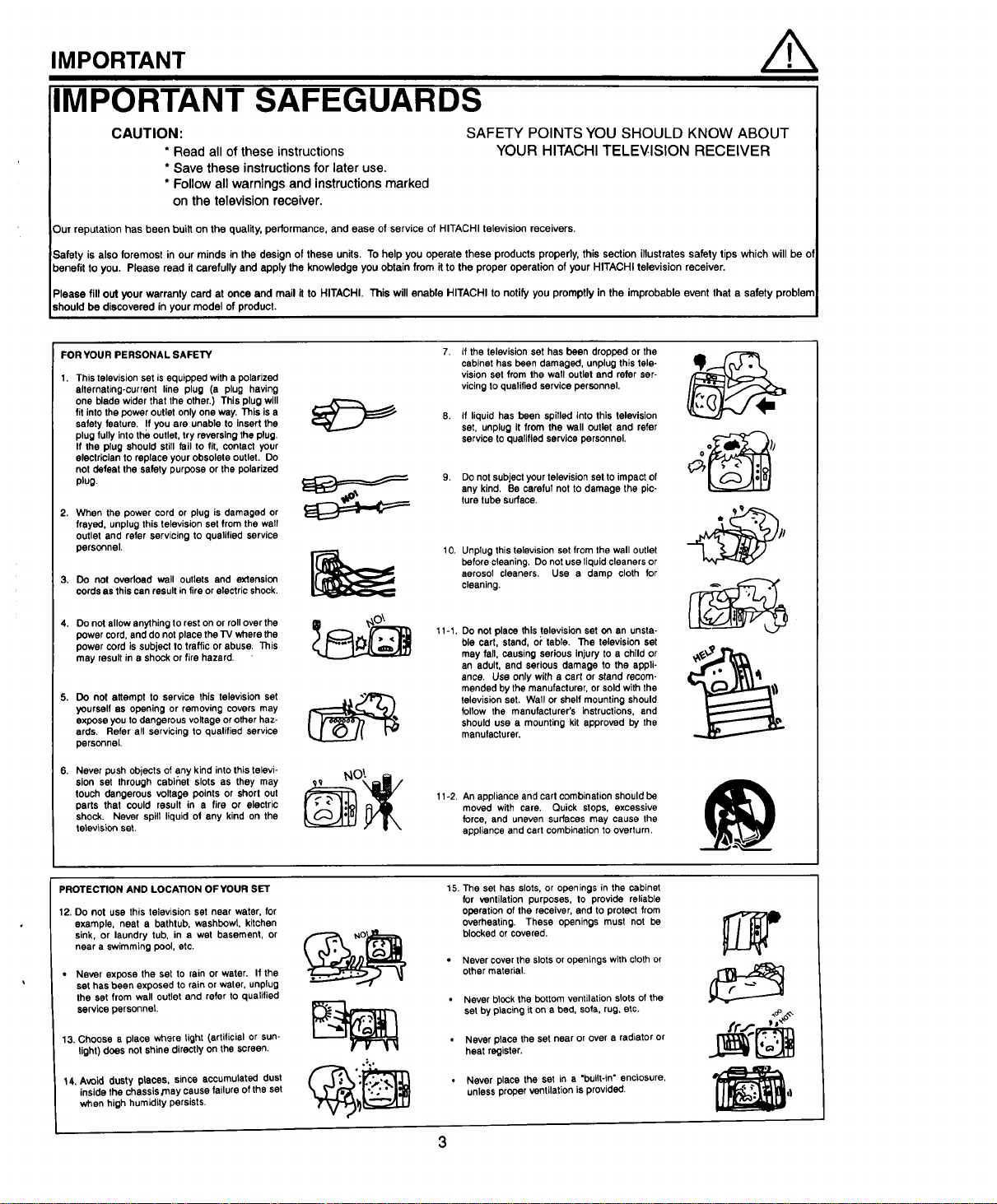
1. This television set is equipped with a polarized
alternating-current line plug (a plug having
one blade wider that the other.) This plug will
fit into the power outlet only one way. This is a
safety feature. !f you are unable to insert the
plug fully into the outlet, try reversing the plug.
If the plug should still fail to fit, contact your
electrician to replace your obsolete outlet. Do
not defeat the safety purpose or the polarized
plug.
2. When the power cord or plug is damaged or
frayed, unplug this television set from the wall
outlet and refer servicing to qualified service
personnel.
3. Do not overload wall outlets and extension
cords as this can result in fire or electric shock.
4. Do not allow anything to rest on or roll over the
power cord, and do not place the TV where the
power cord is subject to traffic or abuse, This
may result in a shock or fire hazard,
5. Do not attempt to service this television set
yourself as opening or removing covers may
expose you to dangerous voltage or other haz-
ards. Refer all servicing to qualified service
personnel.
6. Never push objects of any kind into this televi-
sion set through cabinet slots as they may
touch dangerous voltage points or short out
parts that could result in a fire or electric
shock. Never spill liquid of any kind on the
television set.
if the television set has been dropped or the
cabinet has been damaged, unplug this tele-
vision set from the wall outlet and refer ser-
vicing to qualified service personnel.
If liquid has been spilled into this television
set, unplug it from the wall outlet and refer
service to qualified service personnel.
9. Do not subject your television set to impact of
any kind, Be careful not to damage the pic-
ture tube surface.
10.
Unplug this television set from the wall outlet
before cleaning. Do not use liquid cleaners or
aerosol cleaners. Use a damp cloth for
cleaning.
11-1. DO not place this television set on an unsta-
ble cart, stand, oi"table. The television set
may fall, causing serious injury to a child or
an adult, and serious damage to the appli-
ance. Use only with a cart or stand recom-
mended by the manufacturer, or sold with the
television set. Wall or shelf mounting should
follow the manufacturer's instructions, and
should use a mounting kit approved by the
manufacturer.
11-2. An appliance and cart combination should be
moved with care. Quick stops, excessive
force, and uneven surfaces may cause the
appliance and cart combination to overturn.
PROTECTION AND LOCATION OFYOUR SET
12. DO not use this television set near water, for
example, neat a bathtub, washbowl, kitchen
sink, or laundry tub, in a wet basement, or
near a swimming pool, etc.
Never expose the set to rain or water. If the
set has been exposed to rain or water, unplug
the set from wall outlet and refer to qualified
service personnel.
13. Choose a place where light (artificial or sun-
light) does not shine directly on the screen.
14. Avoid dusty places, since accumulated dust
inside the chassis/nay cause failure of the set
when high humidity persists.
15. The set has slots, or openings in the cabinet
for ventilation purposes, to provide reliable
operation of the receiver, and to protect from
overheating. These openings must not be
blocked or covered.
Never cover the slots or openings with cloth or
other material.
Never block the bottom ventilation Slots of the
set by placing it on e bed, sofa, rug, etc.
Never place the set near or over a radiator or
heat register.
Never place the set in a "built-in" enclosure,
unless proper ventilation is provided.
3
PROTECTION AND LOCATION OF YOUR SET
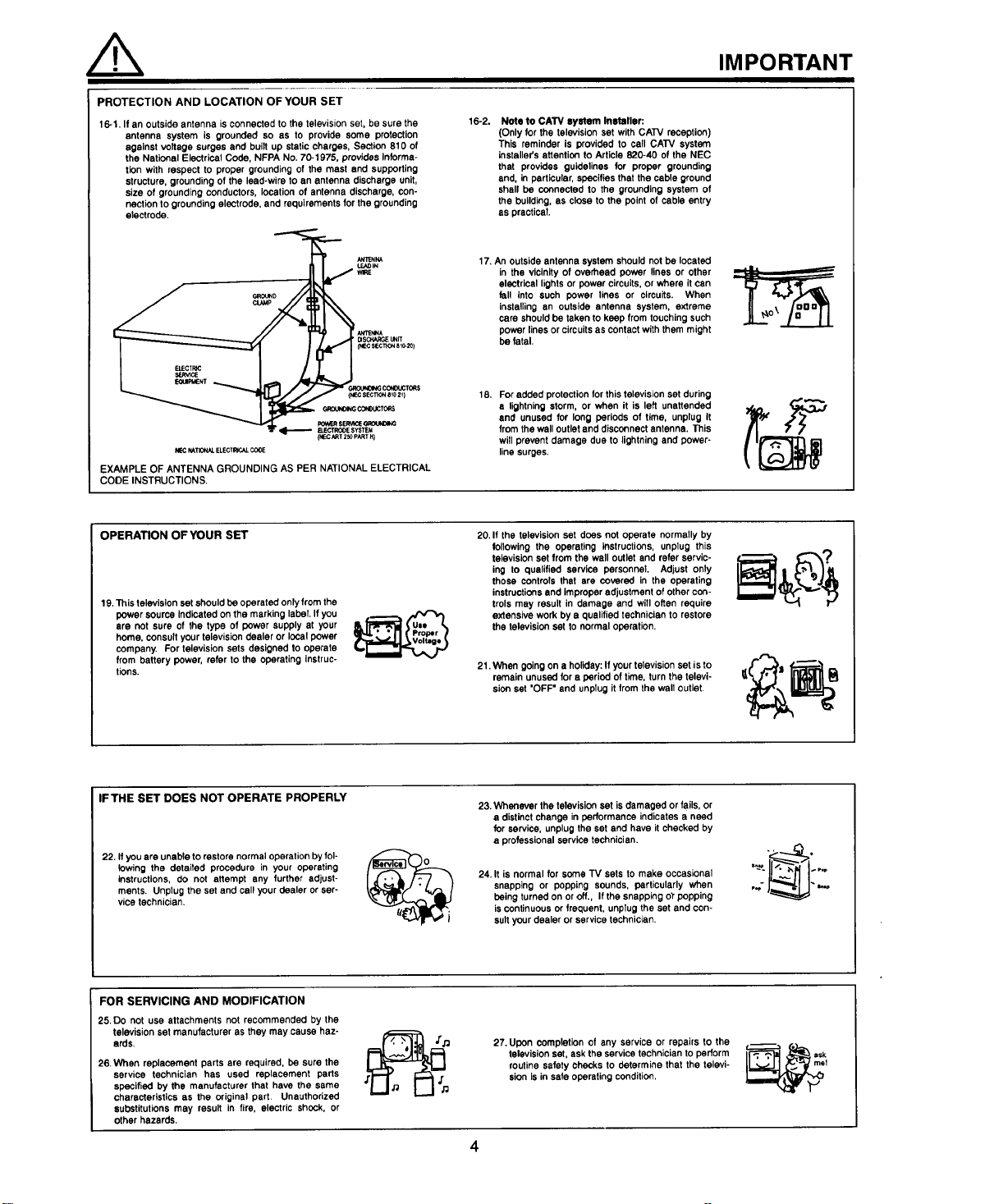
16-1. If an outside antenna is connected to the television set, be sure the
antenna system is grounded so as to provide some protection
against voltage surges and built up static charges, Section 810 of
the National Electrical Code, NFPA No. 70-1975, provides Informa-
tion with respect to proper grounding of the mast end supporting
structure, grounding of the lead-wire to an antenna discharge unit,
size of grounding conductors, location of antenna discharge, con-
nection to grounding electrode, and requirements for the grounding
electrode.
GROUNOINGCONDUCTORS
_c _T 2_PARTH)
NE-C K_,TIONAL ELECTI_A.L COOE
EXAMPLE OF ANTENNA GROUNDING AS PER NATIONAL ELECTRICAL
CODE INSTRUCTIONS.
16-2.
Note to CAW syetem Inetaller:
(Only for the television set with CATV reception)
This reminder is provided to call CATV system
installer's attention to Article 820-40 of the NEC
that provides guidelines for proper grounding
and, in particular, specifies that the cable ground
shall be connected to the grounding system of
the building, as close to the point of cable entry
as practical.
17. An outside antenna system should not be located
in the vicinity of overhead power lines or other
electrical lights or power circuits, or where it can
fall into such power lines or circuits. When
installing an outside antenna system, extreme
care should be taken to keep from touching such
power lines or circuits as contact with them might
be fatal.
18, For added protection for this television set during
s lightning storm, or when it is left unattended
and unused for long periods of time, unplug It
from the wall outlet and disconnect antenna. This
will prevent damage due to lightning and power-
line surges.
IMPORTANT
OPERATION OF YOUR SET
19, This television set should be operated only from the
power source Indicated on the marking label. If you
are not sure of the type of power supply at your
home, consult your television dealer or local power
company. For television sets designed to operate
from battery power, refer to the operating Instruc-
tions.
20. If the television set does not operate normally by
following the operating instructions, unplug this
television set from the wall outlet and refer servic-
ing to qualified service personnel. Adjust only
those controls that are covered in the operating
instructions end Improper adjustment of other con-
trols may result in damage and will often require
extensive work by a qualified technician to restore
the television set to normal operation.
21. When going on a holiday: If your television set isto
remain unused for a period of time, turn the televi-
sion set "OFF" and unplug it from the wall outlet.
IFTHE SET DOES NOT OPERATE PROPERLY
22. If you are unable to restore normal operation by fol-
lowing the detaited procedure in your operating
instructions, do not attempt any further adjust-
ments. Unplug the set and call your dealer or ser-
vice technician.
23. Whenever the television set is damaged or fails, or
a distinct change in performance indicates a need
for service, unplug the set and have it checked by
a professional service technician.
24, It is normal for some TV sets to make occasional
snapping or popping sounds, particularly when
being turned on or off., If the snapping o'rpopping
iscontinuous or frequent, unplug the set and con-
sult your dealer or service technician,
FOR SERVICING AND MODIFICATION
25. Do not use attachments not recommended by the
television set manufacturer as they may cause haz-
ards,
26.When replacement parts are required, be sure the
service technician has used replacement parts
specified by the manufacturer that have the same
characteristics as the original part. Unauthorized
substitutions may result in fire, electric shock, or
other hazards.
27. Upon completion of any service or repairs to the
television set, ask the service technician to perform
routine safety checks to determine that the televi-
sion isin safe operating condition,

PICTURE CAUTIONS
WARNING
Continuous on-screen displays such as
video games, stock market quotations,
computer generated graphics, and other
fixed (non-moving) patterns can cause per-
manent damage to color television
receivers. Such "PATTERN BURNS" con-
stitute misuse and are NOT COVERED by
your Hitachi Factory Warranty.
When using the Picture-in-Picture function, the sub-picture should not be left permanently
in one corner of the screen or a "PATTERN BURN" may develop over a long period of time.
This Color Television receiver was intended mainly for the private viewing of programs broad-
cast by TV stations, cable companies, and programs from other video sources. Public view-
ing may require prior authorization from the broadcaster or owner of the video program.
ACCESSORIES
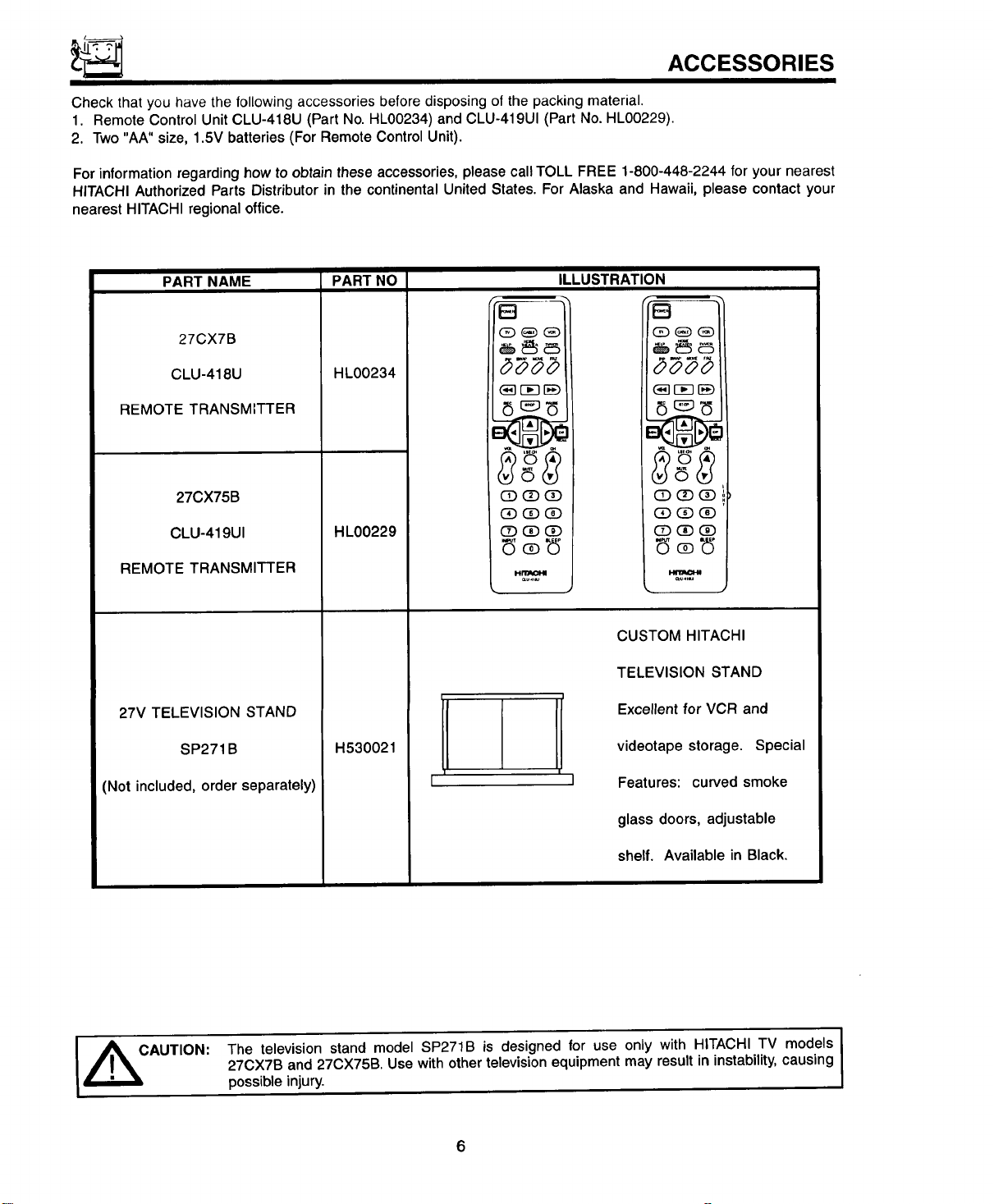
Check that you have the following accessories before disposing of the packing material.
1. Remote Control Unit CLU-418U (Part No. HL00234) and CLU-419UI (Part No. HL00229).
2. Two "AA" size, 1.5V batteries (For Remote Control Unit).
For information regarding how to obtain these accessories, please call TOLL FREE 1-800-448-2244 for your nearest
HITACHI Authorized Parts Distributor in the continental United States. For Alaska and Hawaii, please contact your
nearest HITACHI regional office.
PART NAME
27CX7B
CLU-418U
REMOTE TRANSMITTER
27CX75B
CLU-419UI
REMOTE TRANSMITTER
27V TELEVISION STAND
SP271B
(Not included, order separately)
PART NO
HL00234
HL00229
e_] r-_3[E)
CD (]D (3D
(_) (3D(]D
CE)e£)(]D
HllrAcI-N
H530021
ILLUSTRATION
_ r--_ [_
0(27(!)
CDQ®
Q_C!D
CUSTOM HITACHI
TELEVISION STAND
Excellent for VCR and
videotape storage. Special
Features: curved smoke
glass doors, adjustable
shelf. Available in Black.
I _CAUTION:
I
The television stand model SP271B is designed for use only with HITACHI TV models I
27CX7B and 27CX75B. Use with other television equipment may result in instability, causing
I
possible injury.
6
REMOTE CONTROL BATTERY INSTALLATION
AND REPLACEMENT
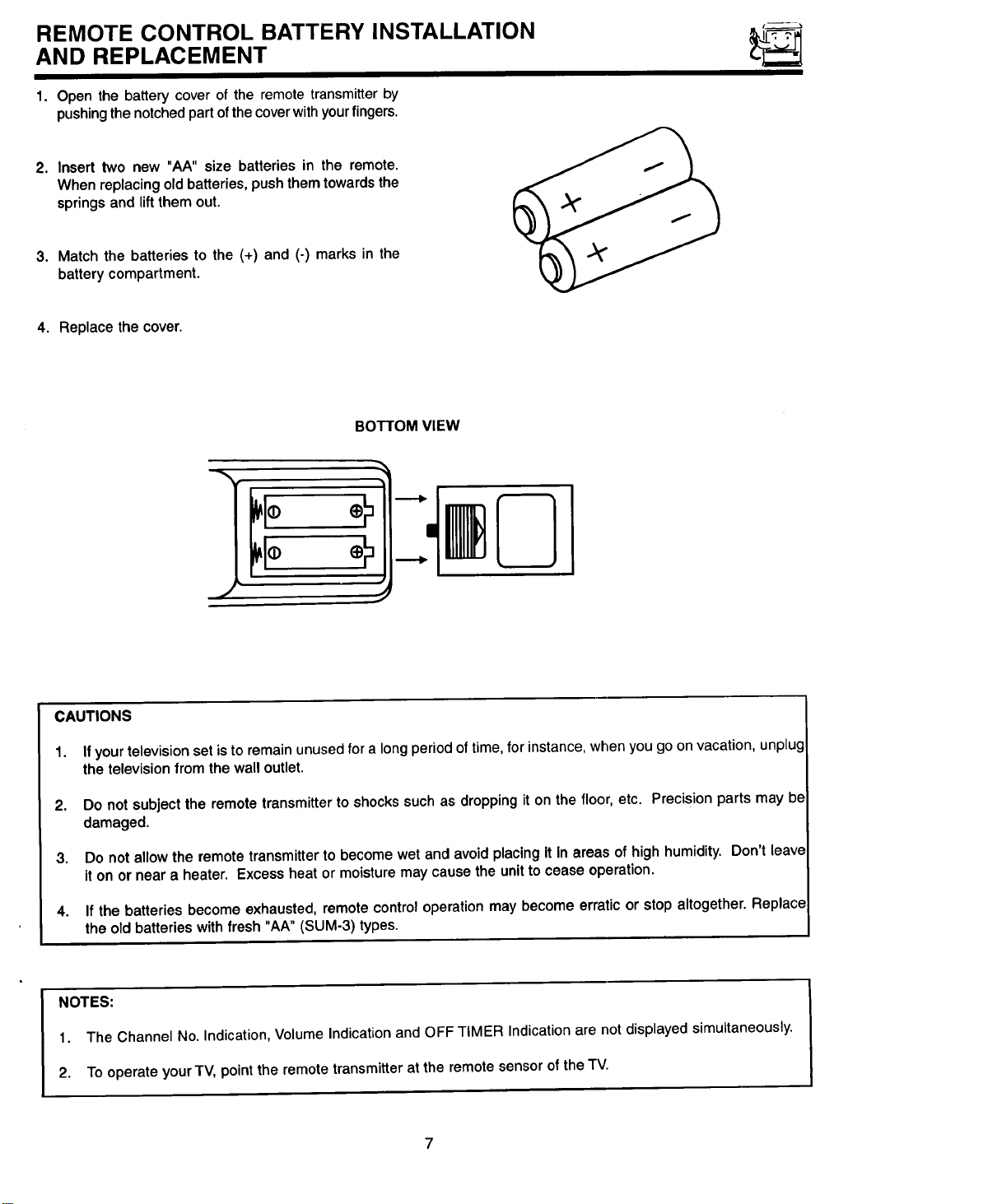
1. Open the battery cover of the remote transmitter by
pushing the notched part of the cover with your fingers.
2, Insert two new "AA" size batteries in the remote.
When replacing old batteries, push them towards the
springs and liftthem out.
3. Match the batteries to the (+) and (-) marks in the
battery compartment.
4. Replace the cover.
BOTTOM VIEW
J
CAUTIONS
1. If your television set is to remain unused for a long period of time, for instance, when you go on vacation, unplug
the television from the wall outlet.
2. Do not subject the remote transmitter to shocks such as dropping it on the floor, etc. Precision parts may be
damaged.
3. Do not allowthe remotetransmitterto becomewet and avoidplacing It In areasof highhumidity. Don't leave
iton or near a heater. Excessheatormoisturemaycausetheunittoceaseoperation.
4. If the batteries become exhausted, remote control operation may become erratic or stop altogether. Replace
the old batteries with fresh "AA" (SUM-3) types.
NOTES:
1. The Channel No. Indication, Volume Indication and OFF TIMER Indication are not displayed simultaneously.
2. To operate your TV, point the remote transmitter at the remote sensor of the TV.
7
HOW TO SET UP YOUR NEW HITACHI COLOR TV
ANTENNA
Unless your TV is connected to a cable TV system or to a centralized antenna system, a good outdoor color TV anten-
na is recommended for best performance. However, if you are located in an exceptionally good signal area that is free
from interference and multiple image ghosts, an indoor antenna may be sufficient.
LOCATION
Select an area where sunlight or bright indoor illuminationwill not fall directly on the picture screen. Also, be sure that
the location selected allows a free flow of air to and from the back cover of the set.
To avoid cabinet warping, cabinet color changes, and increased chance of set failure, do not place the TV where tem-
peratures can become excessively hot. For example, in direct sunlight or near a heating appliance, etc.
VIEWING
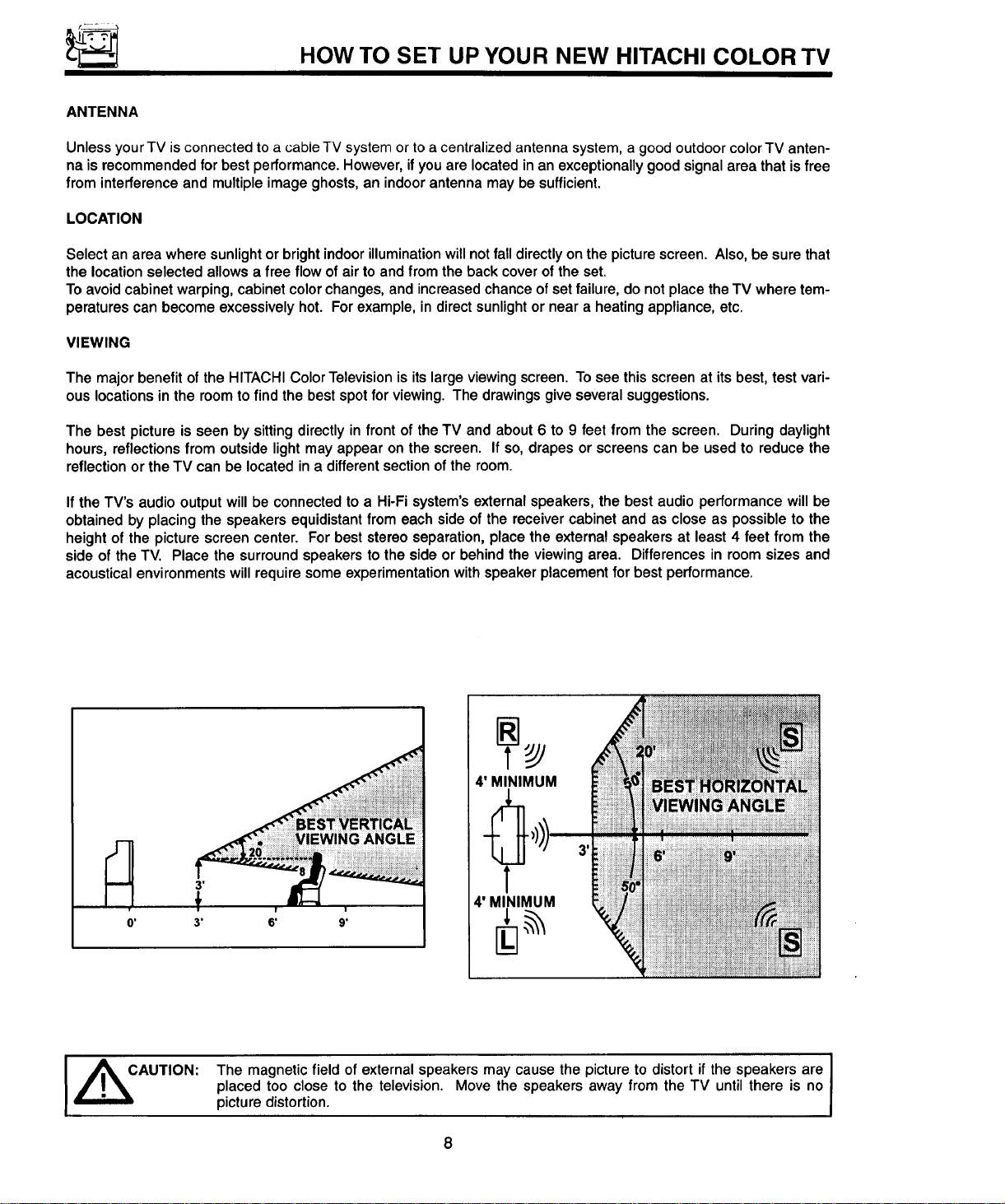
The major benefit of the HITACHI Color Television is its large viewing screen. To see this screen at its best, test vari-
ous locations in the room to find the best spot for viewing. The drawings give several suggestions.
The best picture is seen by sitting directly in front of the TV and about 6 to 9 feet from the screen. During daylight
hours, reflections from outside light may appear on the screen. If so, drapes or screens can be used to reduce the
reflection or the TV can be located in a different section of the room.
If the TV's audio output will be connected to a Hi-Fi system's external speakers, the best audio performance will be
obtained by placing the speakers equidistant from each side of the receiver cabinet and as close as possible to the
height of the picture screen center. For best stereo separation, place the external speakers at least 4 feet from the
side of the TV. Place the surround speakers to the side or behind the viewing area. Differences in room sizes and
acoustical environments will require some experimentation with speaker placement for best performance.
4' MINIMUM
3 g
÷
3' 6' 9'
T
4' MINIMUM
I ,_CAUTION: The magnetic field of external speakers may cause the picture to distort if the speakers are J
I
placed too close to the television. Move the speakers away from the TV until there is no
t
picture distortion.
8
HOOKUP CAULES AND CONNECTORS
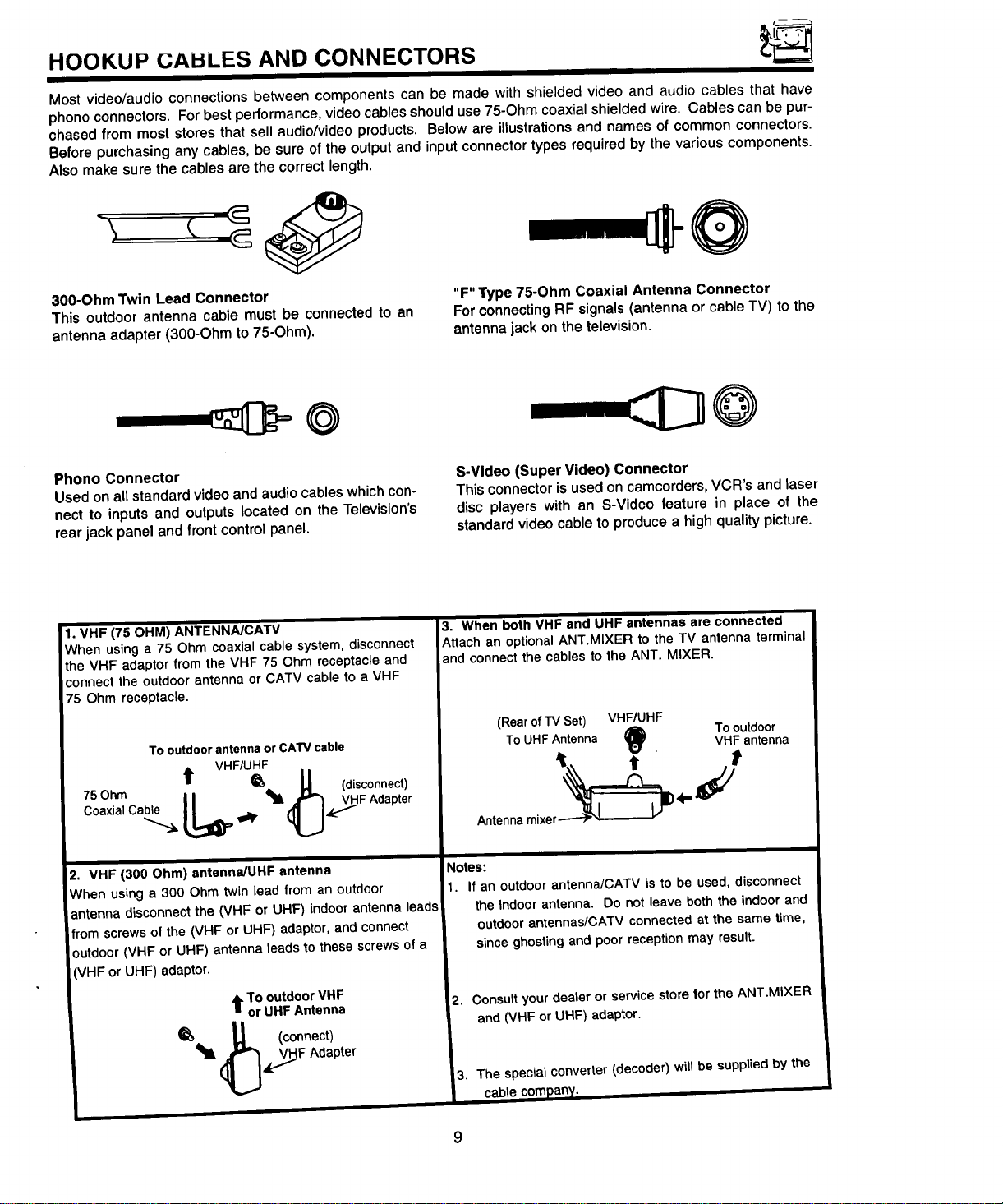
Most video/audio connections between components can be made with shielded video and audio cables that have
phono connectors. For best performance, video cables should use 75-Ohm coaxial shielded wire. Cables can be pur-
chased from most stores that sell audio/video products. Below are illustrations and names of common connectors.
Before purchasing any cables, be sure of the output and input connector types required by the various components.
Also make sure the cables are the correct length.
300-Ohm Twin Lead Connector
This outdoor antenna cable must be connected to an
antenna adapter (300-Ohm to 75-Ohm).
"F" Type 75-Ohm Coaxial Antenna Connector
For connecting RF signals (antenna or cable TV) to the
antenna jack on the television.
---::D@
Phono Connector
Used on all standard video and audio cables which con-
nect to inputs and outputs located on the Television's
rear jack panel and front control panel.
S-Video (Super Video) Connector
This connector isusedon camcorders,VCR's andlaser
disc playerswith an S-Video feature in place of the
standardvideocabletoproducea highquality picture.
1, VHF (75 OHM) ANTENNAJCATV
When using a 75 Ohm coaxial cable system, disconnect
the VHF adaptor from the VHF 75 Ohm receptacle and
connect the outdoor antenna or CATV cable to a VHF
75 Ohm receptacle.
To outdoor antenna or CATV cable
75 Ohm t VH FlUfF
CoaxialCa_j_ L_ _L. _'L (disconnect)
Adapter
2. VHF (300 Ohm) antenna/UHF antenna
When using a 300 Ohm twin lead from an outdoor
antenna disconnect the (VHF or UHF) indoorantenna leads
from screwsof the (VHF or UHF) adaptor,and connect
outdoor(VHF or UHF) antennaleads to these screws ofa
VHF or UHF) adaptor.
t To outdoor VHF
or UHFAntenna
_l_ (_ (connect)
_.._F Adapter
i3. When both VHF and UHF antennas are connected
Attach an optionalANT.MIXER to the TV antenna terminal
and connectthe cables to the ANT. MIXER.
(Rearof TVSet) VHF/UHF
(_ TooutdoorToUHFAntenna VHF antenna
t
Antennamixer_l tj_ d'' _//
Notes:
i1. If an outdoorantenna/CATV is to be used, disconnect
the indoorantenna. Do not leave boththe indoorand
outdoorantennas/CATV connected at the same time,
sinceghostingandpoor receptionmay result.
2. Consult your dealer or service store for the ANT,MiXER
and (VHF or UHF) adaptor.
3. The special converter (decoder) will be supplied by the
cable company.
9
FRONT PANEL CONTROLS FOR 27CX7B AND 27CX75B
"_JO000000_._ _
CENTER FRONT
PANEL CONTROLS
I
(!) © ®
__J I I I I
MENU 4 • • • Seepage19forMENUand
I I I I CURSORbuttonoperation.
EXIT
CURSOR
(_ Infrared Remote Sensor
I NOTE:
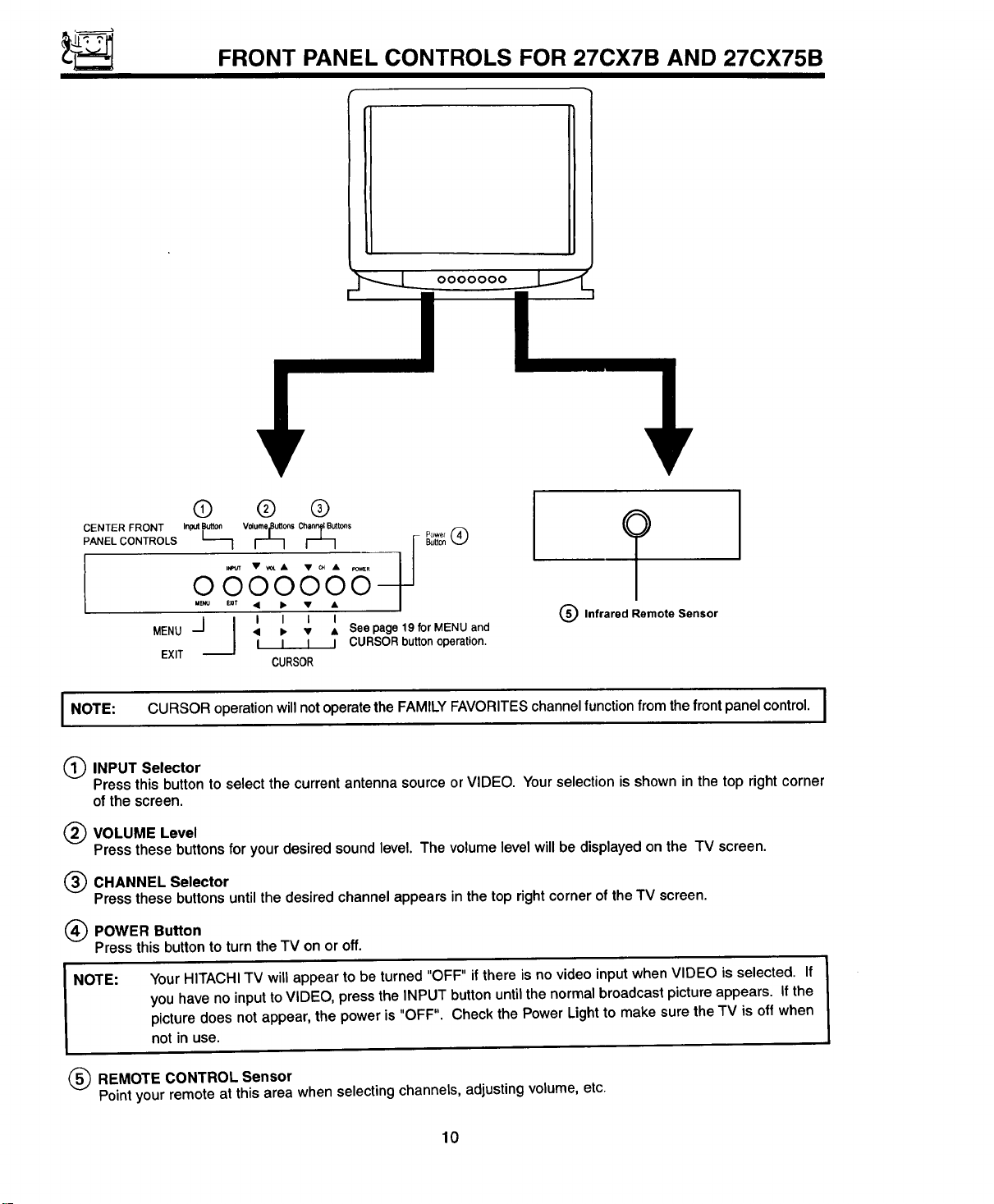
CURSOR operation willnot operate the FAMILY FAVORITES channel function from the front panel control.
(_) INPUT Selector
Press this button to select the current antenna source or VIDEO. Your selection is shown in the top right corner
of the screen.
(_ VOLUME Level
Press these buttons for your desired sound level. The volume level will be displayed on the TV screen.
(_ CHANNEL Selector
Press these buttons until the desired channel appears in the top right corner of the TV screen.
(_) POWER Button
Press this button to turn the TV on or off.
NOTE:
Your HITACHI TV will appear to be turned "OFF" if there is no video inputwhen VIDEO is selected. If
you have no input to VIDEO, press the INPUT button until the normal broadcast picture appears. If the
picture does not appear, the power is "OFF". Check the Power Light to make sure the TV is off when
not in use.
(_) REMOTECONTROL Sensor
Pointyourremote at this area when selectingchannels,adjustingvolume,etc
10
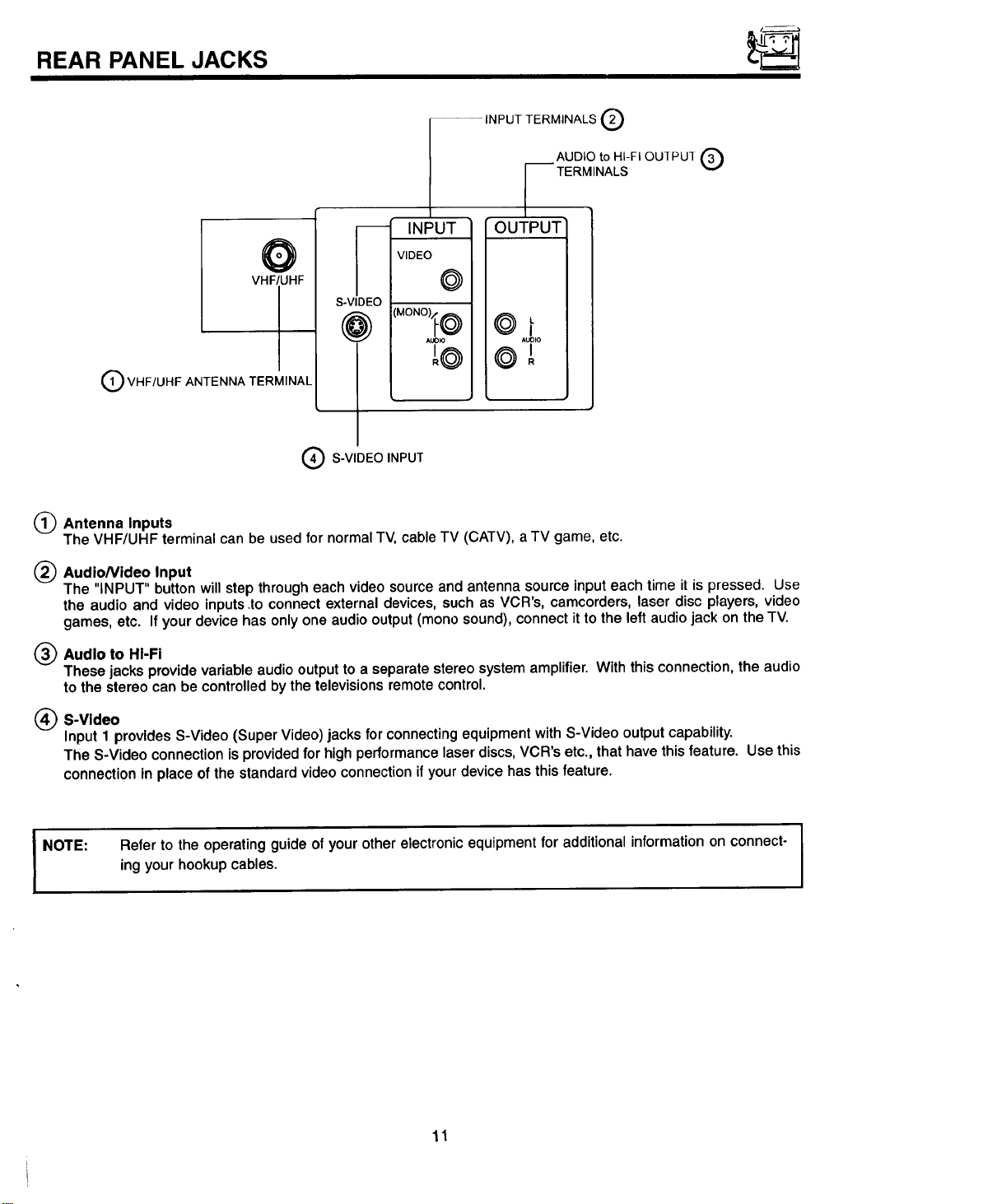
REAR PANEL JACKS
VHF/UHF
QVHF/UHF ANTENNA TERMINAL
-- INPUT TERMINALS Q
" INPUT
VIDEO
@
S-VIDEO
AUDIO to HI-FI OU]PU1 (_
_ TERMINALS
OUTPUT
Q S-VIDEO INPUT
®
Antenna Inputs
The VHF/UHF terminal can be used for normal TV, cable TV (CATV), a TV game, etc.
Audio/Video Input
The "INPUT" button will step through each video source and antenna source input each time it is pressed. Use
the audio and video inputs.to connect external devices, such as VCR's, camcorders, laser disc players, video
games, etc. If your device has only one audio output (mono sound), connect it to the left audio jack on the TV.
(_ Audio to HI-Fi
These jacks provide variable audio output to a separate stereo system amplifier. With this connection, the audio
to the stereo can be controlled by the televisions remote control.
®
S-Video
Input 1 provides S-Video (Super Video) jacks for connecting equipment with S-Video output capability.
The S-Video connection is provided for high performance laser discs, VCR's etc., that have this feature. Use this
connection in place of the standard video connection if your device has this feature.
NOTE: Referto theoperatingguideofyourotherelectronicequipmentfor additionalinformationon connect-
ingyourhookupcables.
11
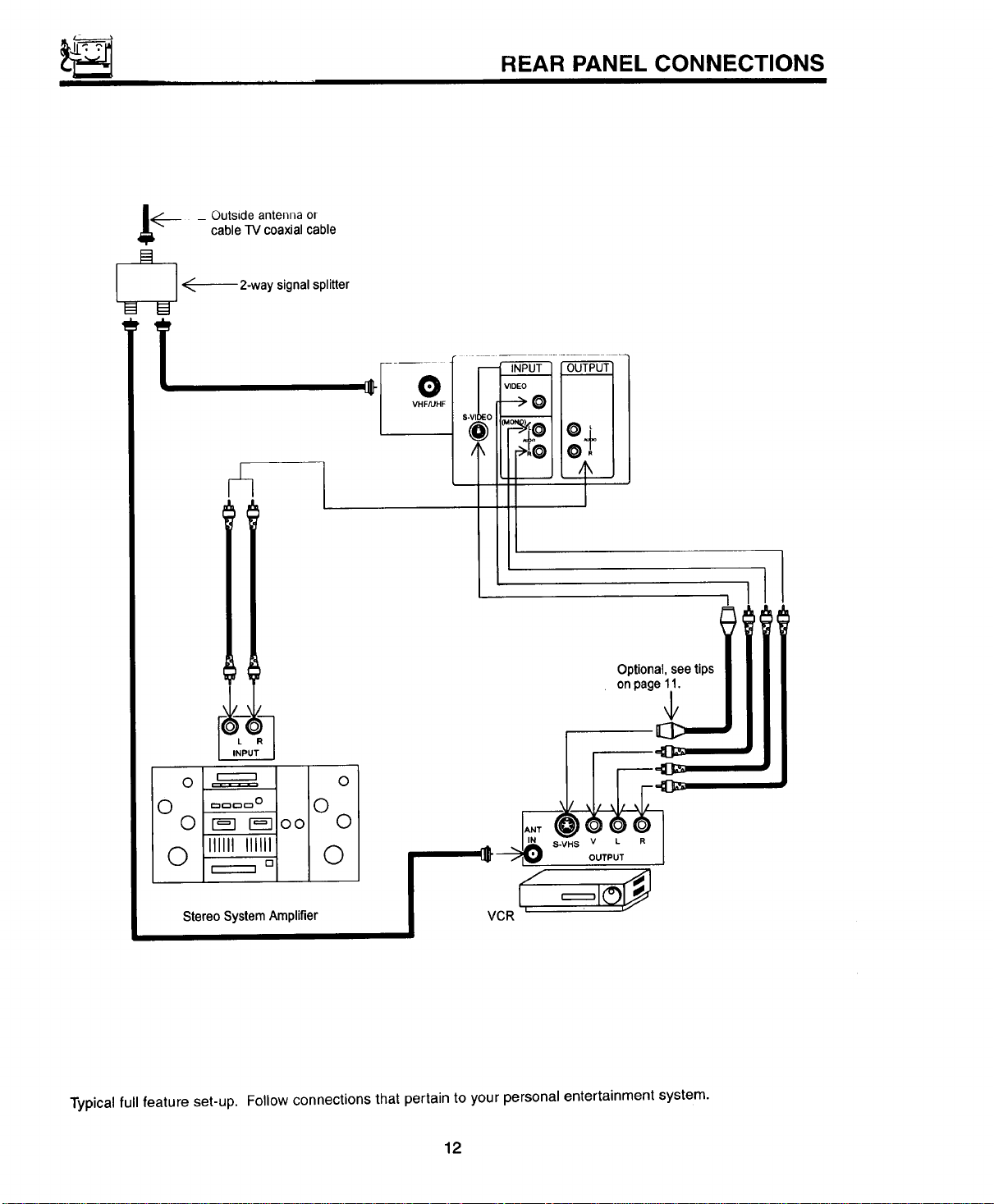
REAR PANEL CONNECTIONS
__ _ Outside antenna or
cable TV coaxial cable
@ @2-way signal splitter
- _ 'NP°TIouP°TI
VHF/UHF $-VI EO
' !1
/
]
Optional, see tips I i f
on page_
0 ======= 0
0 .... o 0
0 r-_] r_] o o 0
0 IIIIII IIIIII 0
D
r-----m
Stereo System Amplifier VCR
S-VHS V L R
OUTPUT
Typical full feature set-up. Follow connections that pertain to your personal entertainment system.
12
EXTERNAL CONNECTIONS
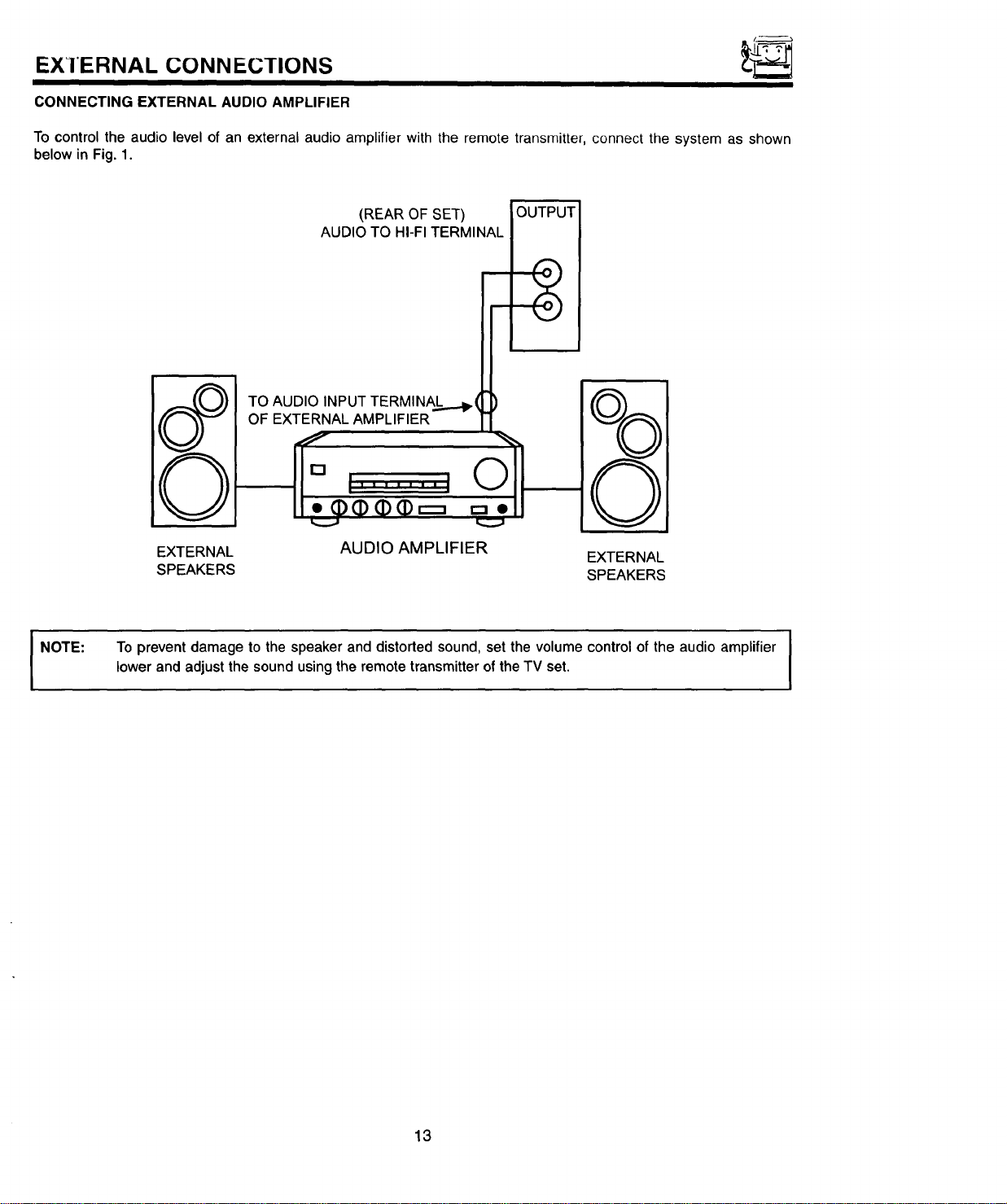
CONNECTING EXTERNAL AUDIO AMPLIFIER
To control the audio level of an external audio amplifier with the remote transmitter, connect the system as shown
below in Fig. 1.
(REAR OFSET)
AUDIOTO HI-FITERMINAL
OUTPUT
A
:_1
,-,_dl.,,€) I
v
EXTERNAL
SPEAKERS
TO AUDIO INPUT TERMINAL.._._._(
OF EXTERNAL AMPLIFIER
' ' " I I I I I
I
AUDIO AMPLIFIER
EXTERNAL
SPEAKERS
NOTE:
I
To prevent damage to the speaker and distorted sound, set the volume control of the audio amplifier J
lower and adjust the sound using the remote transmitter of the TV set.
I
13
CONNECTING EXTERNAL VIDEO SOURCES
The exact arrangement you use to connect the Video Cassette Recorder, Video Disc Player and Video Camera to your
TV set is dependent on the model and features of each component. Check the Owner's Manual of each component
for the location of its video and audio inputs and outputs. The following connection diagrams are offered as sugges-
tions. However, you may need to modify them to accommodate your particular assortment of components and fea-
tures. For best performance, video and audio cables should be made from coaxial shielded wire.
Before Operating External Video Source
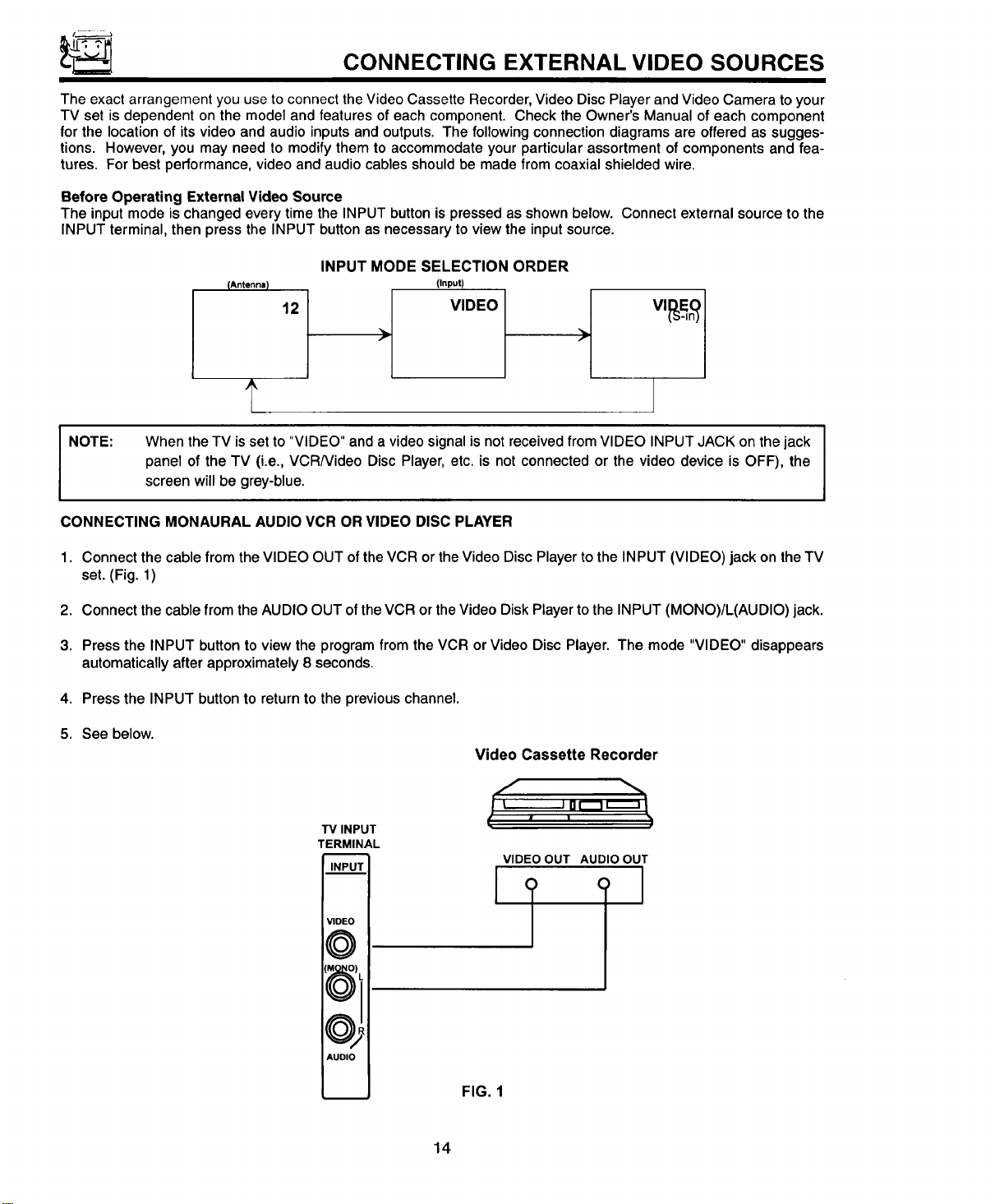
The input mode is changed every time the INPUT button is pressed as shown below. Connect external source to the
INPUT terminal, then press the INPUT button as necessary to view the input source.
INPUT MODE SELECTION ORDER
{Antenna) (Input)
12 VIDEO
>
NOTE:
When the TV is set to "VIDEO" and a video signal is not received from VIDEO INPUT JACK on the jack
panel of the TV (i.e., VCRNideo Disc Player, etc. is not connected or the video device is OFF), the
screen will be grey-blue.
CONNECTING MONAURAL AUDIO VCR OR VIDEO DISC PLAYER
1°
2,
3.
4.
5.
Connect the cable from the VIDEO OUT of the VCR or the Video Disc Player to the INPUT (VIDEO) jack on the TV
set. (Fig. 1)
Connect the cable from the AUDIO OUT of the VCR or the Video Disk Player to the INPUT (MONO)/L(AUDIO) jack.
Pressthe INPUT button to viewthe programfromtheVCR orVideo Disc Player.The mode"VIDEO" disappears
automaticallyafterapproximately8 seconds.
Press the INPUT button to return to the previous channel.
See below.
Video Cassette Recorder
TV INPUT
TERMINAL
INPUT
VIDEO
[M01_O)
@i
AUDIO
I _-------_ uu, ,1
VIDEO OUT AUDIO OUT
iT!
FIG. 1
14
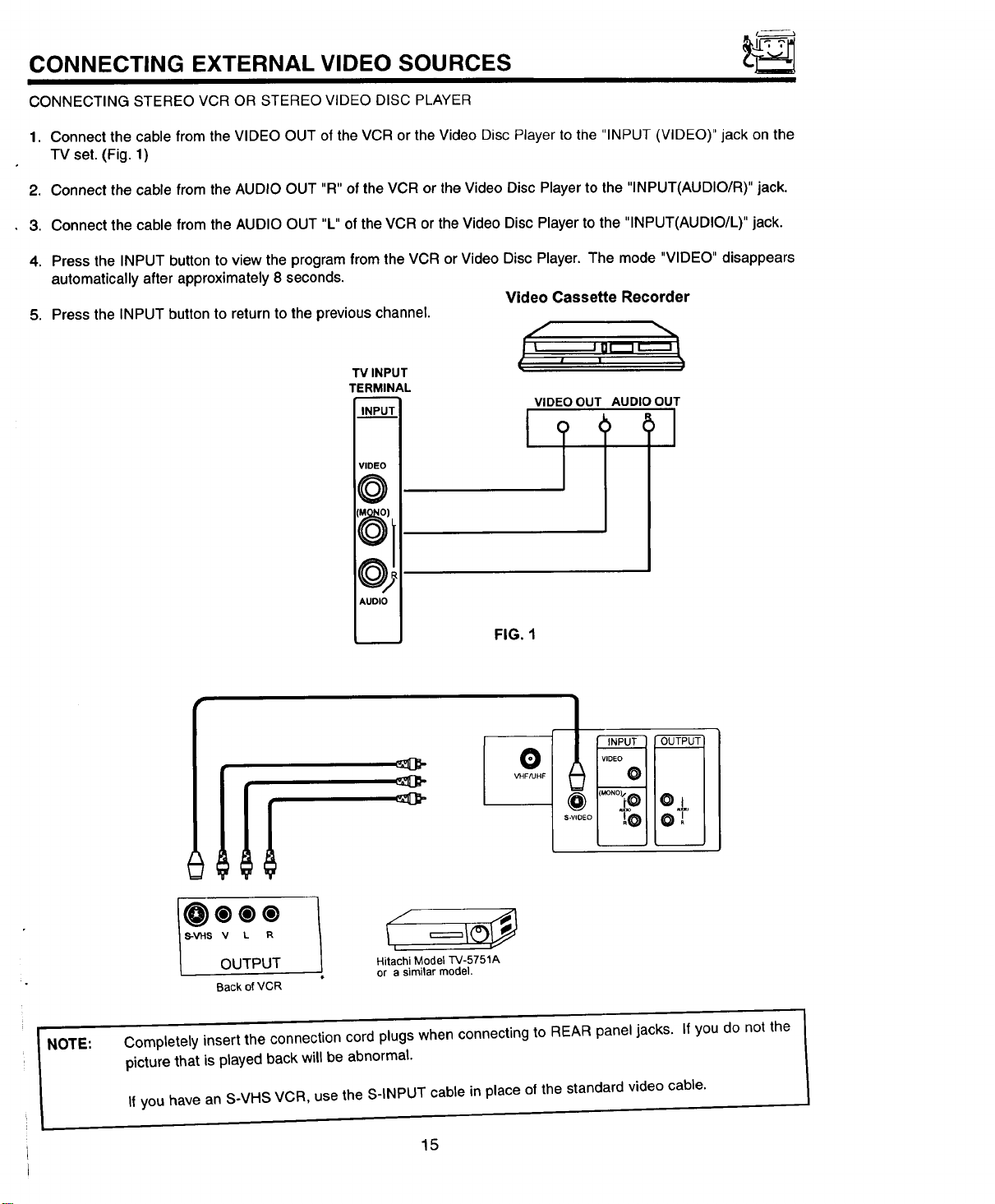
CONNECTING EXTERNAL VIDEO SOURCES
CONNECTING STEREO VCR OR STEREO VIDEO DISC PLAYER
1. Connect the cable from the VIDEO OUT of the VCR or the Video Disc Player to the "INPUT (VIDEO)" jack on the
TV set. (Fig. 1)
2. Connect the cable from the AUDIO OUT "R" of the VCR or the Video Disc Player to the "INPUT(AUDIO/R)" jack.
3. Connect the cable from the AUDIO OUT "L" of the VCR or the Video Disc Player to the "INPUT(AUDIO/L)" jack.
4. Press the INPUT button to view the program from the VCR or Video Disc Player. The mode "VIDEO" disappears
automatically after approximately 8 seconds.
Video Cassette Recorder
5. Press the INPUT button to return to the previous channel.
TV INPUT
TERMINAL
INPU'I
VIDEO
0
(MQ._O)
O
©,
AUDIO
VIDEO OUT AUDIO OUT
FIG. 1
®®®
S-VHS V L R
OUTPUT
Back of VCR
Hitachi Model TV-5751A
or a similar model.
NOTE:
Completely insert the connection cord plugs when connecting to REAR panel jacks. If you do not the
picture that is played back will be abnormal.
II you have an S-VHS VCR, use the S-INPUT cable in place of the standard video cable.
15
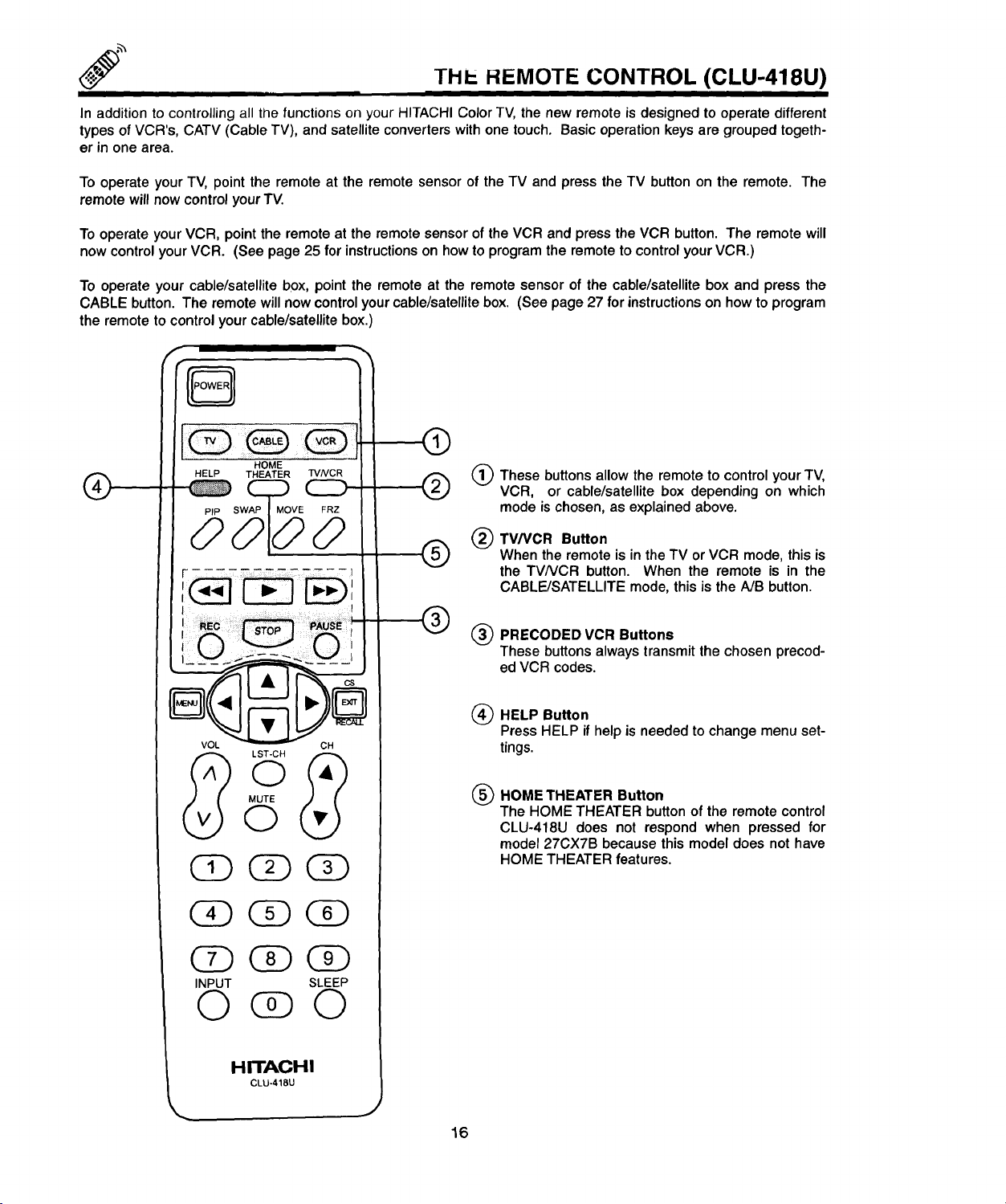
THE HEMOTE CONTROL (CLU-418U)
In addition to controlling all the functions on your HITACHI Color TV, the new remote is designed to operate different
types of VCR's, CATV (Cable TV), and satellite converters with one touch. Basic operation keys are grouped togeth-
er in one area.
To operate your TV, point the remote at the remote sensor of the TV and press the TV button on the remote. The
remote will now control your TV.
To operate your VCR, point the remote at the remote sensor of the VCR and press the VCR button. The remote will
now control your VCR. (See page 25 for instructions on how to program the remote to control your VCR.)
To operate your cable/satellite box, point the remote at the remote sensor of the cable/satellite box and press the
CABLE button. The remote will now control your cable/satellite box. (See page 27 for instructions on how to program
the remote to control your cable/satellite box.)
®
HOME
HELP THEATER TVNCR
_cp_
SPl;3
I¸_i.,_cx,ii_i,i_ _,i,_!i_71
VOL CH
$o
MUTE
O
(!) (_ (D
(_ GD (3D
(2_ (D (D
INPUT SLEEP
O@O
HITACHI
CLU-418U
®
®
®
®
@
®
®
®
®
These buttons allow the remote to control your TV,
VCR, or cable/satellite box depending on which
mode is chosen, as explained above.
TV/VCR Button
When the remote is in the TV or VCR mode, this is
the TVNCR button. When the remote is in the
CABLE/SATELLITE mode, this is the A/B button.
PRECODED VCR Buttons
These buttons always transmit the chosen precod-
ed VCR codes.
HELP Button
Press HELP if help is needed to change menu set-
tings.
HOME THEATER Button
The HOME THEATER button of the remote control
CLU-418U does not respond when pressed for
model 27CX7B because this model does not have
HOME THEATER features.
J
16
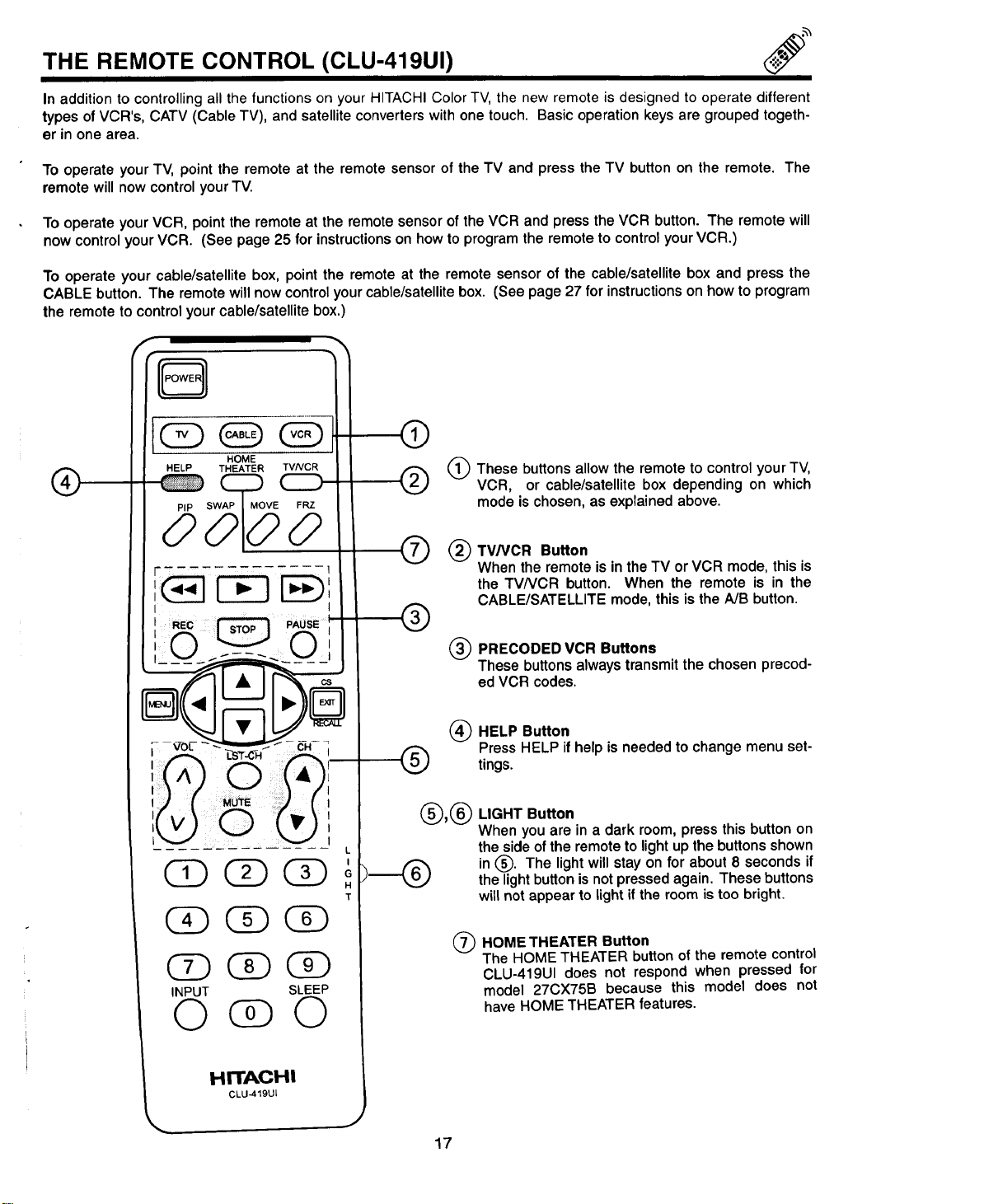
THE REMOTE CONTROL (CLU-419UI)
In addition to controlling all the functions on your HITACHI Color TV, the new remote is designed to operate different
types of VCR's, CATV (Cable TV), and satellite converters with one touch. Basic operation keys are grouped togeth-
er in one area.
To operate your TV, point the remote at the remote sensor of the TV and press the TV button on the remote. The
remote will now control your TV.
To operate your VCR, point the remote at the remote sensor of the VCR and press the VCR button. The remote will
now control your VCR. (See page 25 for instructions on how to program the remote to control your VCR.)
To operate your cable/satellite box, point the remote at the remote sensor of the cable/satellite box and press the
CABLE button. The remote will now control your cable/satellite box. (See page 27 for instructions on how to program
the remote to control your cable/satellite box.)
®
[Q_O
HOME
HELP THEATER TVNCR
.Ec _ pAUSE;_
,:(^) 0 (,A),
! I
,) (.0.. (,
',(v)O (_') ',
t_ _1 L
(D (3DCD
T
(3DC£)CD
CD CD CD
INPUT SLEEP
©@©
k
HITACHI
CLU-419U[
®
®
®
These allow the remote to control TV,
buttons
your
VCR, or cable/satellite box depending on which
mode is chosen, as explained above.
®
®
®
®
®
®,®
TV/VCR Button
Whenthe remoteisinthe TV orVCR mode, thisis
the TVNCR button. When the remote is in the
CABLE/SATELLITEmode,thisisthe A/Bbutton.
PRECODEDVCR Buttons
These buttonsalwaystransmitthechosenprecod-
ed VCR codes.
HELP Button
Press HELP if help is needed to change menu set-
tings.
LIGHT Button
When you are in a dark room, press this button on
the side of the remote to light up the buttons shown
in (_). The light will stay on for about 8 seconds if
the light button is not pressed again. These buttons
will not appear to light if the room is too bright.
®
HOME THEATER Button
The HOME THEATER button of the remote control
CLU-419UI does not respond when pressed for
model 27CX75B because this model does not
have HOME THEATER features.
17
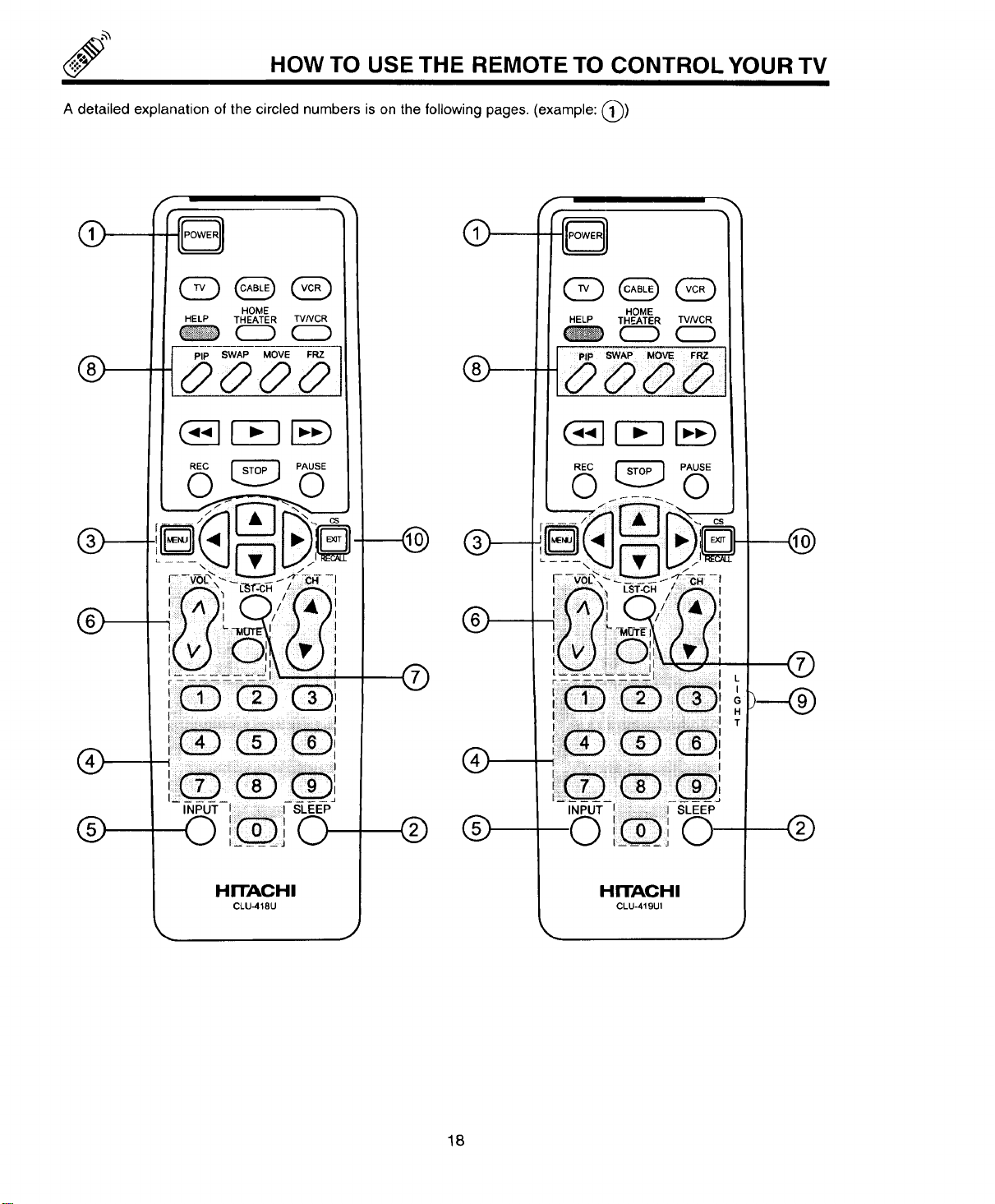
<_ HOW TO USE THE REMOTE TO CONTROL YOUR TV
A detailed explanation of the circled numbers is on the following pages. (example: @)
@
®
®
®
®
INPUT I: I SLEEP
! ..................I,Q, 0
I I
HITACHI
CLU-418U
©
®
--@
®
®
®
® ®
HrrACHI
CLU-419UI
18
HOW TO USE THE REMOTE TO CONTROL YOUR TV
(_) TV POWER Button
Press this button to turn the TV set on or off. If a message is set, it will be displayed when the TV is first turned
on. (See page 44.)
(_ SLEEP Button
Press this button to display the SLEEP TIMER in the lower left corner of the screen. Every subsequent press of
this button will add 15 minutes to the timer, up to a maximum of 3 hours.
(_) MENU, CURSOR
All the On-Screen Display features can be set or adjusted by using these buttons.
The "MENU" button will start the On-Screen Display.
The "CURSOR" buttons will highlight functions or adjust and set different features. Pressing the cursor button will
also give you access to the FAMILY FAVORITES CHANNELS on-screen display.
(_) CHANNEL SELECTOR Buttons
Enter two or three numbers to select channels. Enter "0" first for channels 1 to 9.
For channels 100 and above, press the 1 button and wait for 2 seconds before pressing the last two digits of the
channel.
Channel selection may also be performed by pressing CH up (&) or down (V).
You may also use these buttons for channel scanning. Press and hold the CH up (A) or down (V) button and
the TV will start quickly scanning through the channels. Release the CH up (A) or down (51') button when the TV
scans to the channel you wish to watch and the TV will tune to that channel.
NOTE:
I
The TV may not receive some channels if you are not in the correct SIGNAL SOURCE mode. (See I
page 32.)
I
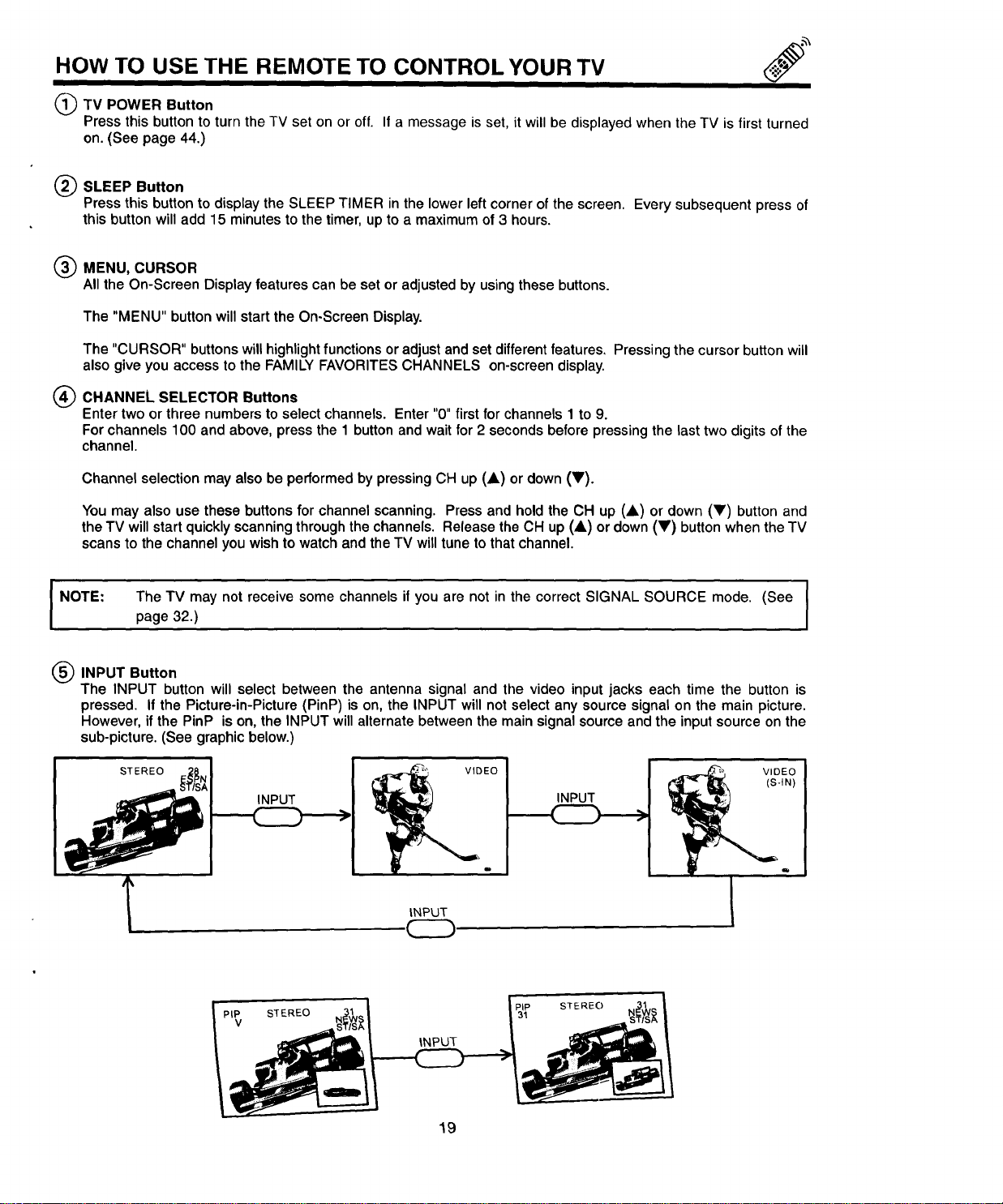
(_) INPUT Button
The INPUT button will select between the antenna signal and the video input jacks each time the button is
pressed. If the Picture-in-Picture (PinP) is on, the INPUT will not select any source signal on the main picture.
However, if the PinP is on, the INPUT will alternate between the main signal source and the input source on the
sub-picture. (See graphic below.)
l INPUT
INPUT
VIDEO
(s-m)
19
HOW TO USE THE REMOTE TO CONTROL YOUR TV
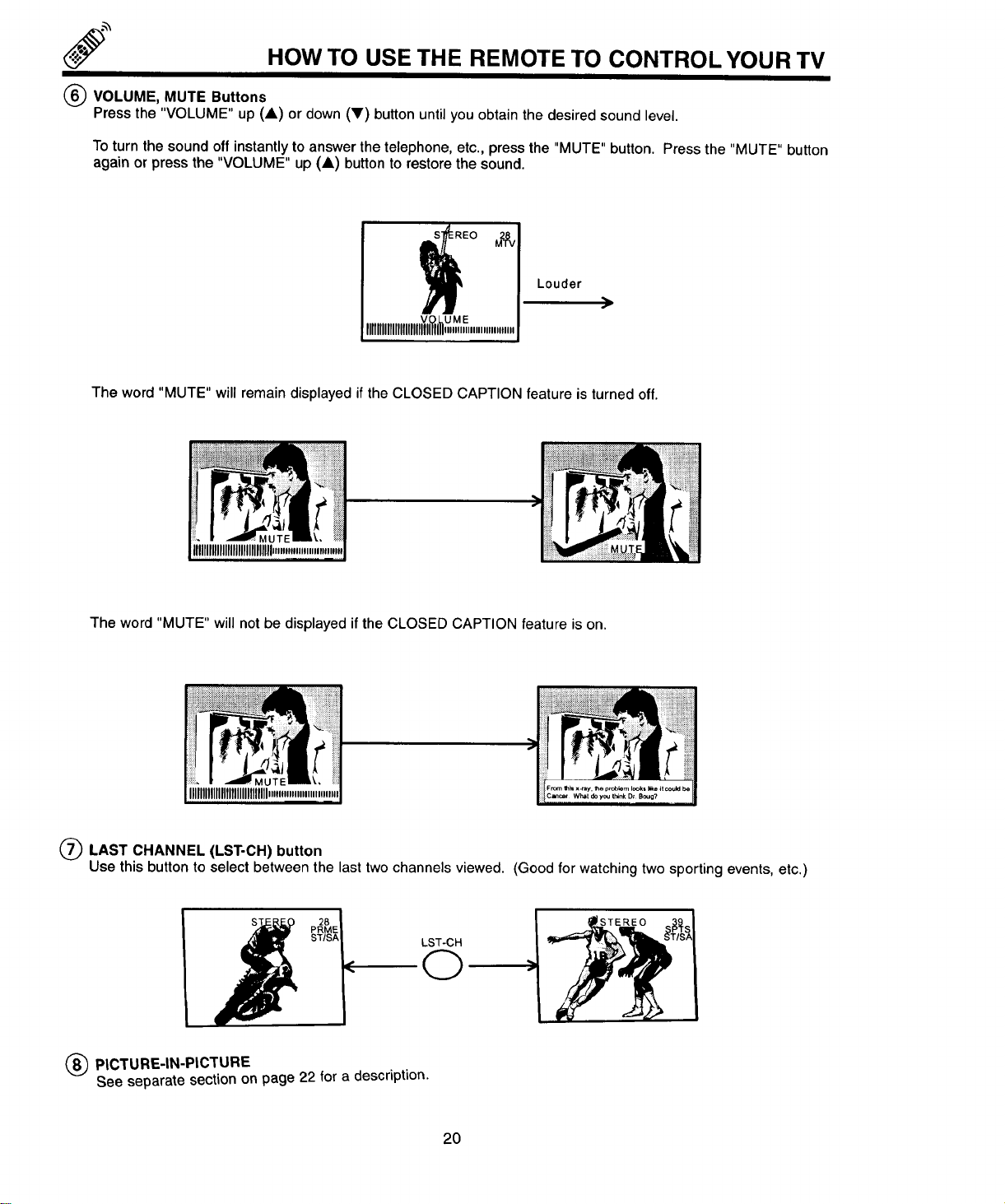
(_) VOLUME, MUTE Buttons
Press the "VOLUME" up (A) or down (V) button until you obtain the desired sound level.
To turn the sound off instantly to answer the telephone, etc.. press the "MUTE" button. Press the "MUTE" button
again or press the "VOLUME" up (A) button to restore the sound.
EO _V
V UME
IIIIIIIIIIIIIIIIIIlUlIII_I_,,,,",,,,,,,,,,,,,,,,
Louder
)
The word "MUTE" will remain displayed if the CLOSED CAPTION feature is turned off.
IHIIIIIIIIIIIIIIIIIIlllll
The word "MUTE" will not be displayed if the CLOSED CAPTION feature is on.
(_ LAST CHANNEL (LST-CH) button
Usethis button to select between the last twochannels viewed. (Good for watching twosporting events, etc.)
ST/SAL
F
LST-CH
©
(_ PICTURE-IN-PICTURE
See separate section on page22 for a description.
2O
HOW TO USE THE REMOTE TO CONTROL YOUR TV
I
(_ LIGHT CHANNEL (CLU-418U does not have a light button.)
When you are in a dark room, press this button to light up the volume and channel buttons The light will stay on
for about 8 seconds if no buttons are pressed The buttons will not appear to light if the room is too bright
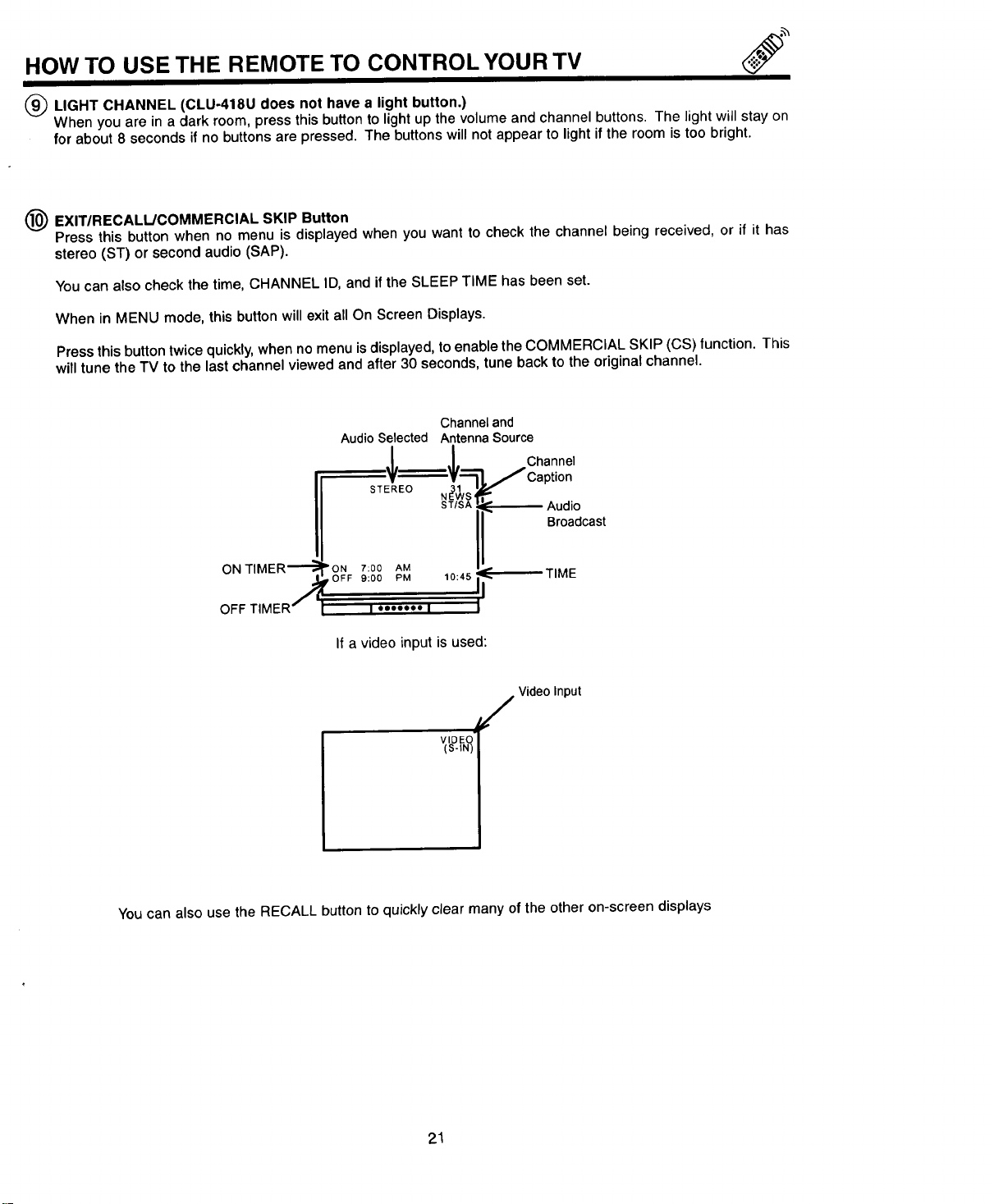
(_ EXIT/RECALIJCOMMERCIAL SKIP Button
Press this button when no menu is displayed when you want to check the channel being received, or if it has
stereo (ST) or second audio (SAP).
You can also check the time, CHANNEL ID, and ifthe SLEEP TIME has been set.
When in MENU mode, this button will exit all On Screen Displays
Press this button twice quickly, when no menu is displayed, to enable the COMMERCIAL SKIP (CS) function. This
will tune the TV to the last channel viewed and after 30 seconds, tune back to the original channel.
ON TIMER--'_
OFF TIMER '_
Audio Selected
N ;vs
ST/SA
ON 7:00 AM
OFF 9:00 PM 10:45 _'_
II
I "'""" I J
Channel and
Antenna Source
Channel
Caption
Audio
Broadcast
TIME
If a video input is used:
F VideoInput
You can also use the RECALL button to quickly clear many of the other on-screen displays
21
PICTURE-IN-PICTURE
II i ii I
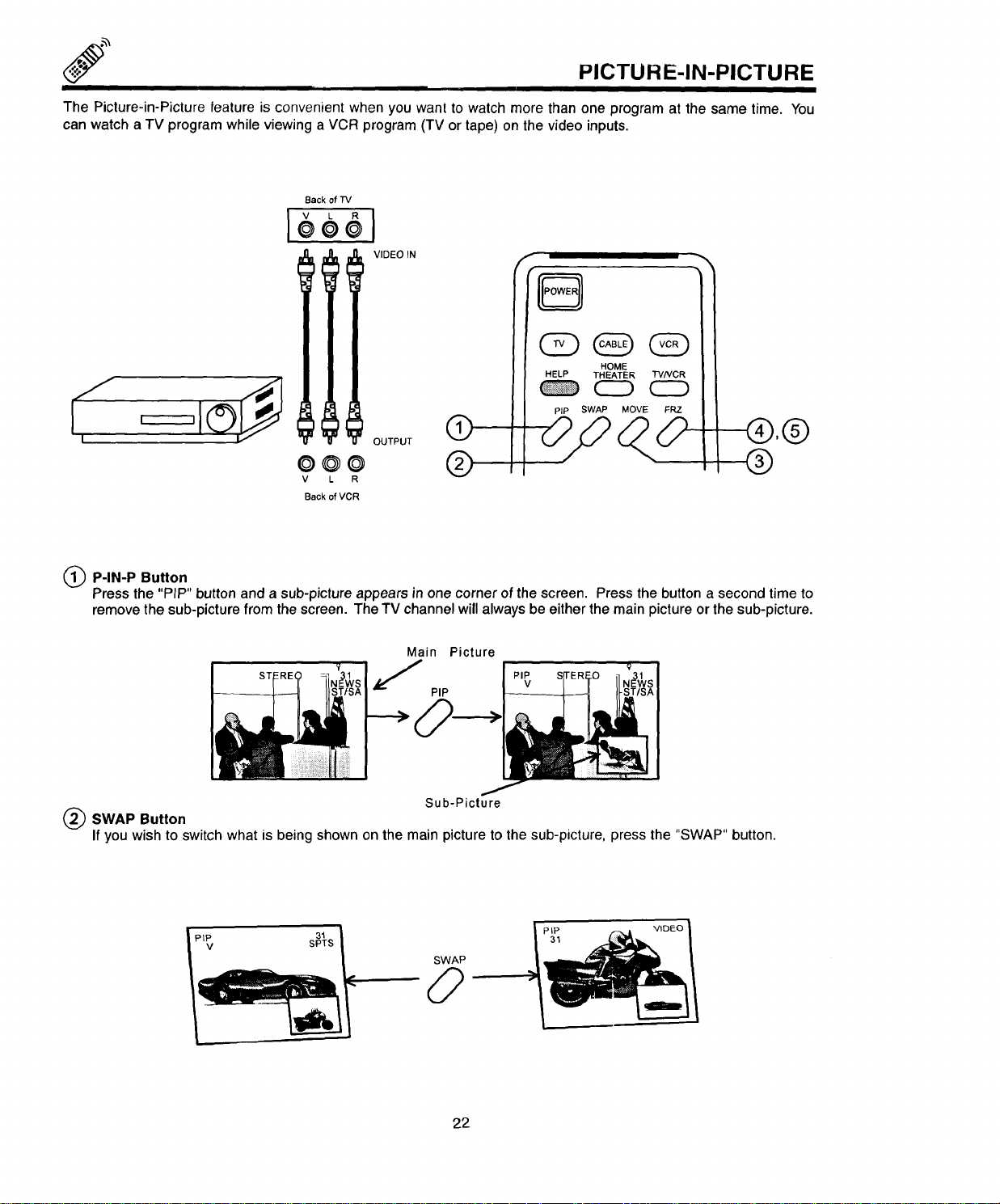
The Picture-in-Picture feature is convenient when you want to watch more than one program at the same time. You
can watch a TV program while viewing a VCR program (TV or tape) on the video inputs.
I
Back of "IV
VIDEO IN
0@0 @
V L R
Back of VCR
I
I
@,@
@
P-IN-P Button
Press the "PIP" button and a sub-picture appears in one corner of the screen. Press the button a second time to
remove the sub-picture from the screen. The TV channel will always be either the main picture or the sub-picture.
Main Picture
J
PIP
Sub-Picture
SWAP Button
If you wish to switch what is being shown on the main picture to the sub-picture, press the "SWAP" button,
PIP 31
V SPTS
22
PICTURE-IN-PICTURE
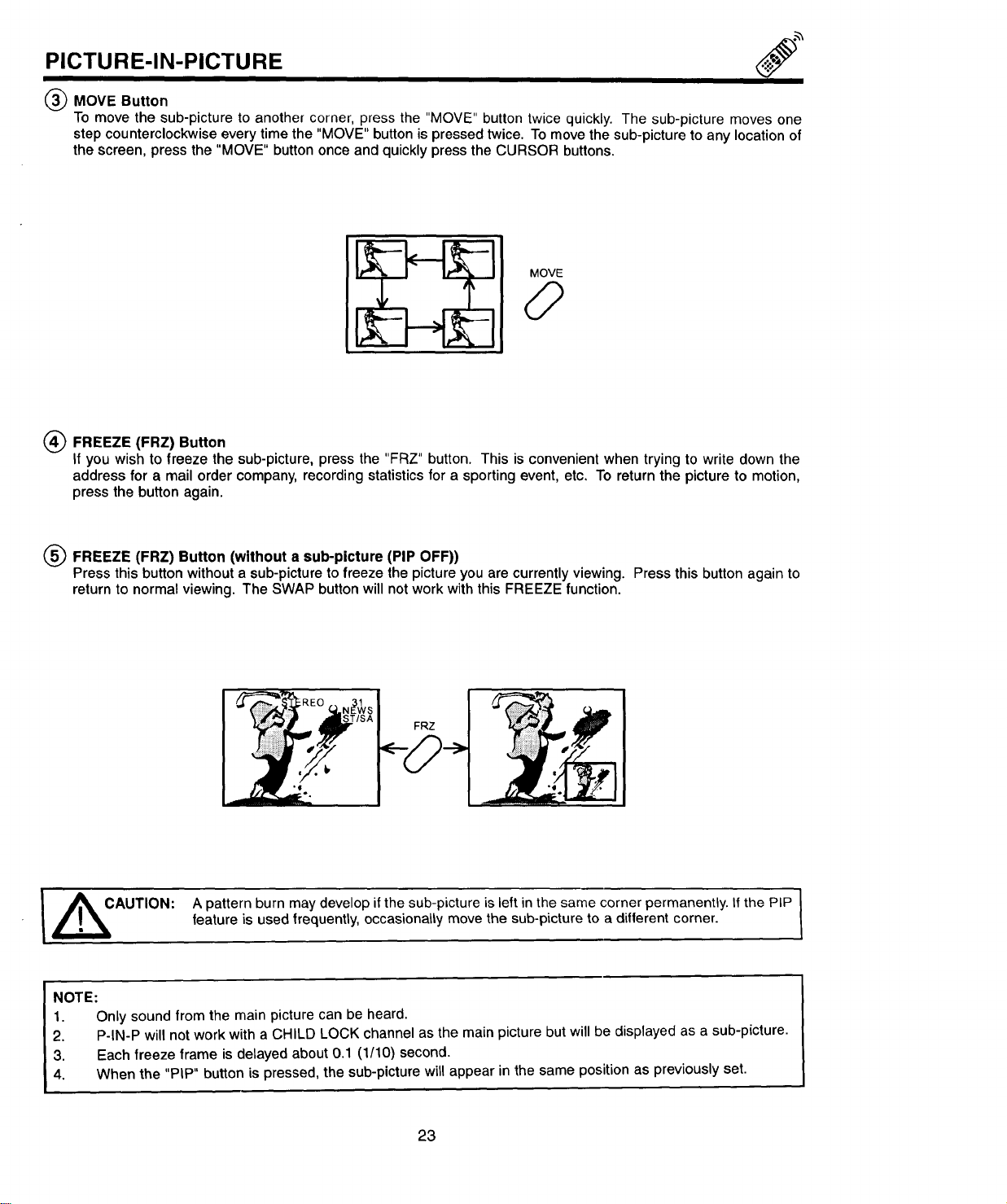
(_ MOVE Button
To move the sub-picture to another corner, press the "MOVE" button twice quickly. The sub-picture moves one
step counterclockwise every time the "MOVE" button is pressed twice. To move the sub-picture to any location of
the screen, press the "MOVE" button once and quickly press the CURSOR buttons.
MOVE
0
FREEZE (FRZ) Button
If you wish to freeze the sub-picture, press the "FRZ" button. This is convenient when trying to write down the
address for a mail order company, recording statistics for a sporting event, etc. To return the picture to motion,
press the button again.
(_ FREEZE (FRZ) Button (without a sub-picture (PIP OFF))
Press this button without a sub-picture to freeze the picture you are currently viewing. Press this button again to
return to normal viewing. The SWAP button will not work with this FREEZE function.
FRZ
I ACAUTION: A pattern burn may develop if the sub-picture is left in the same corner permanently. Ifthe PIP I
/
feature is used frequently, occasionally move the sub-picture to a different corner.
I
NOTE:
1. Only sound from the main picture can be heard.
2. P-IN-P will not work with a CHILD LOCK channel as the main picture but will be displayed as a sub-picture.
3. Each freeze frame is delayed about 0.1 (1/10) second.
4. When the "PIP" button is pressed, the sub-picture will appear in the same position as previously set.
23
_;_ USING THE REMOTE TO CONTROL VCR FUNCTIONS
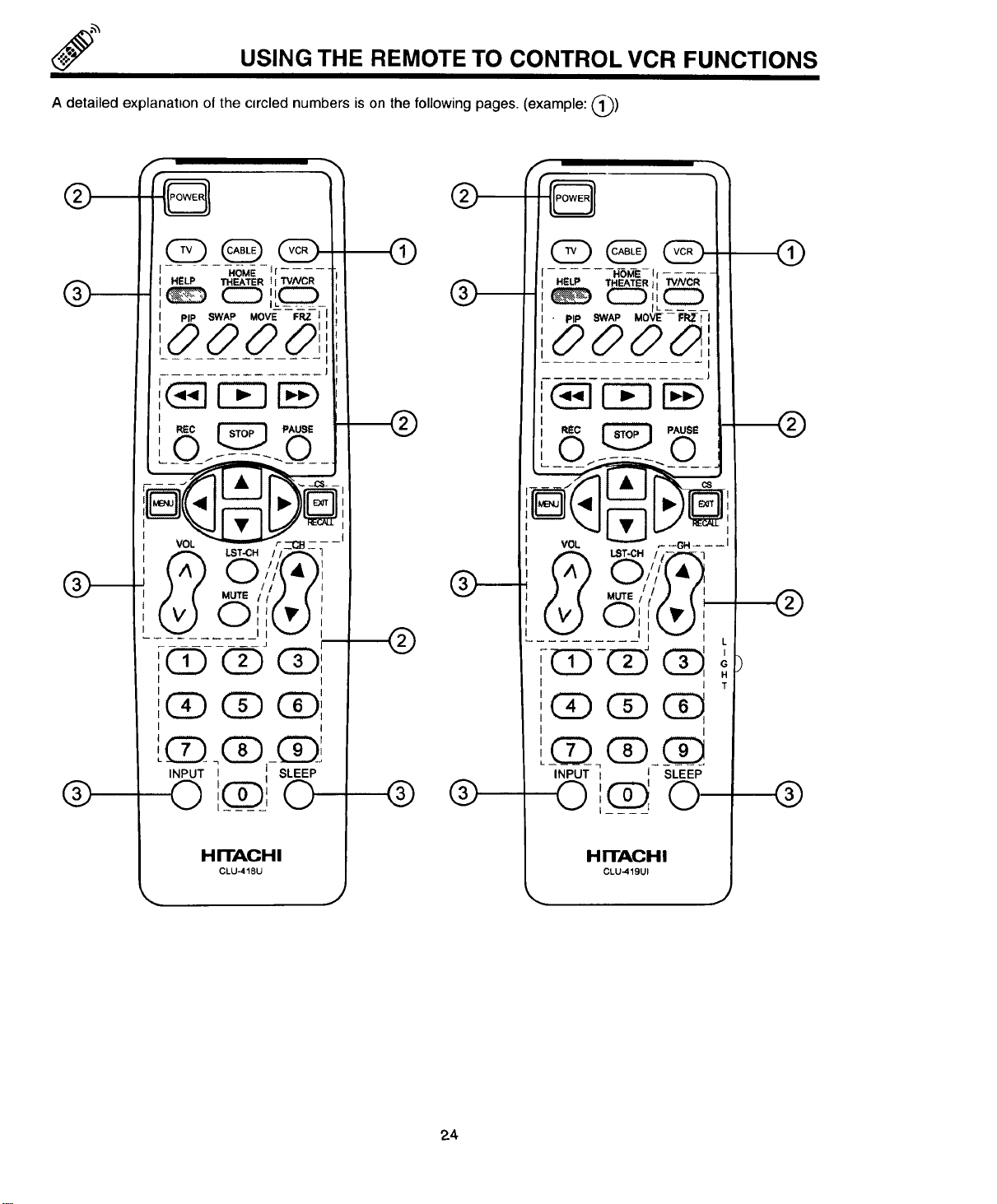
A detailed explanation of the circled numbers is on the following pages. (example: @)
®
®
.... -.6Mi-_r .....
HEL_' "r._TER_l"rVNCR
II
cz) ,L_C:__
PIP SWAP MOVE FRZ 1
00001
REC _ PAus_
CD(1)_Qi
I
QO0
I
INPUT I I SLEEP
0 ,,__@_j0
HITACHI
CLU..418U
®
®
®
®
®
r
8
HOME If....
HELP THEATER}I 'TV/VCR
• PIP SWAP MOVE--k'=_,_ll
ooo_r
I
J
R_c _ P_sE
___o.-_._0__.
VOL _ _--GH---- I
.
vQ-c!_ Q _
I T
I
L_Q_Q)__C!]_
INPUTo [(__1 SLEEPo
HITACHI
CLU-419UI
®
®
®
24
USING THE REMOTE TO CONTROL VCR FUNCTIONS
Operating the pre-coded function for your VCR
This remote is designed to operate different types of VCR's. You must first program the remote to match the remote
system of your VCR. (Refer to page 28.)
1. Turn on your VCR.
2. Aim the remote control at the front of your VCR.
3. Press the VCR button to switch to the VCR pre-coded mode.
4. While holding down the VCR button on the remote, enter the 2 digit preset code that matches your VCR as shown
on page 28. The remote will turn off your VCR when the correct 2 digitpreset code isentered. When this occurs,
the remote control is programmed for your VCR. If the VCR does not turn off after 5 seconds, try a different 2
digit preset code.
5. The remote will now control your VCR.
NOTES:
1. If your VCR cannot be operated after performing the above procedures, this means that your VCR code has not
been precoded into the remote.
2. In the unlikely event that your VCR cannot be operated after performing the above procedures, please consult
your VCR operating guide.
3. The remote control will remember the codes you have programmed in until the batteries are removed from the
remote control. After replacing the batteries repeat the entire programming procedure stated above.
4. If your VCR does not have a power function, the remote will issue the CHANNEL UP function.
(_) VCR Button
This allowsthe remotetocontrolyourVCR bysettingittoVCR mode.
(_ PRECODED VCR buttons
These buttons transmit the chosen precoded VCR codes. For some VCR's, you must press the RECORD button
twice to record a program.
(___)EXCLUSIVE TV buttons
These buttons are for operating the TV.
I NOTE: 1. Refer to the instruction manuat of the VCR tor operation o_the buttons exclusively tot the VCR. I
25
USINL_ IHE REMOTE TO CONTROL
CABLE/SATELLITE BOX FUNCTIONS
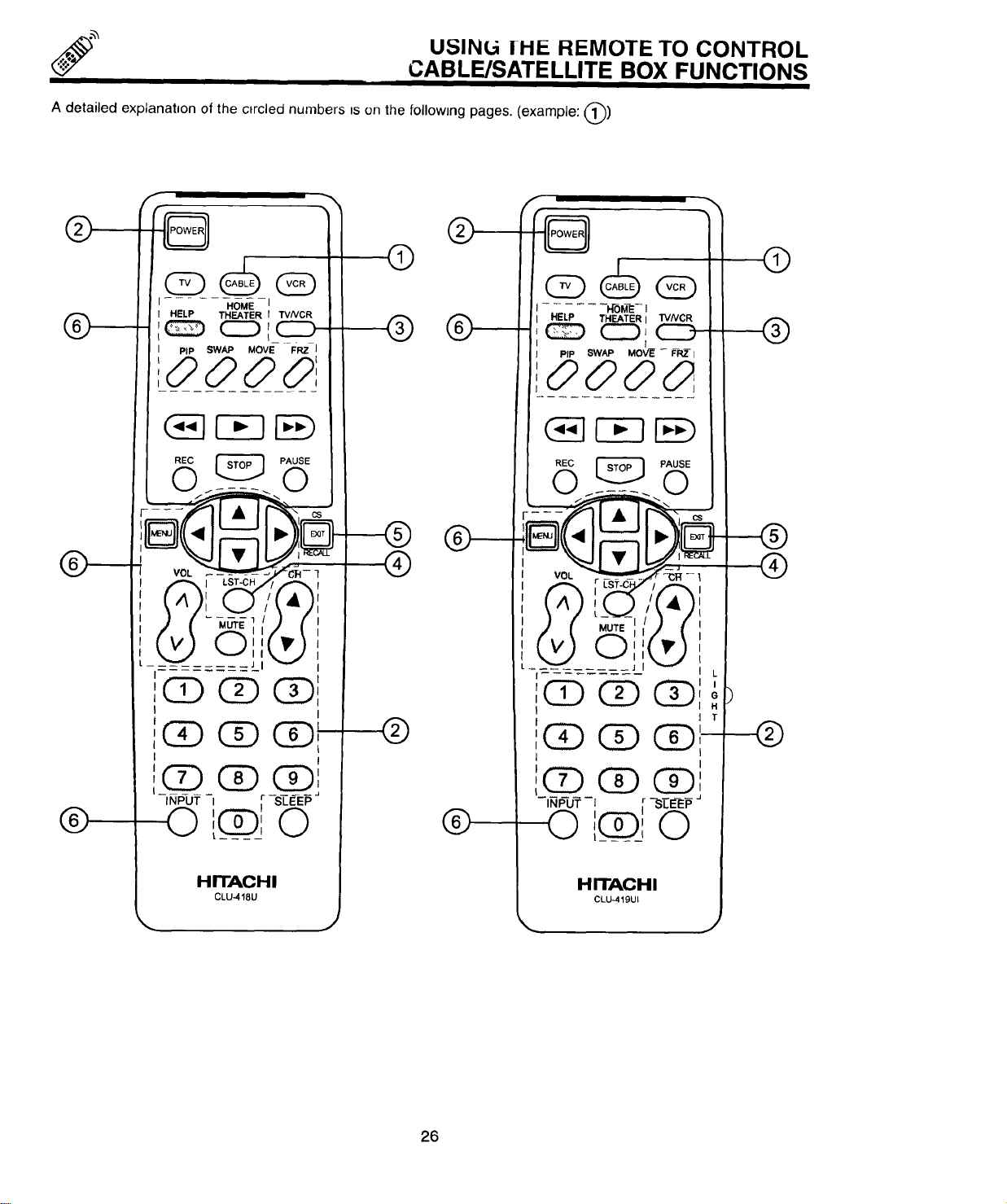
A detailed explanatuon of the circled numbers is on the following pages. (example: @)
®
@_
@--_
®
I
o@(D]
INPUT I ,r -S-LE-EP
[L.ZJ, k_.)
HITACHI
CLU-418U
®
@
®
®
@
i(X) (X) (X)_
INPUT [ ,r --SEETEP
HITACHI
CLU-419UI
®
@
26
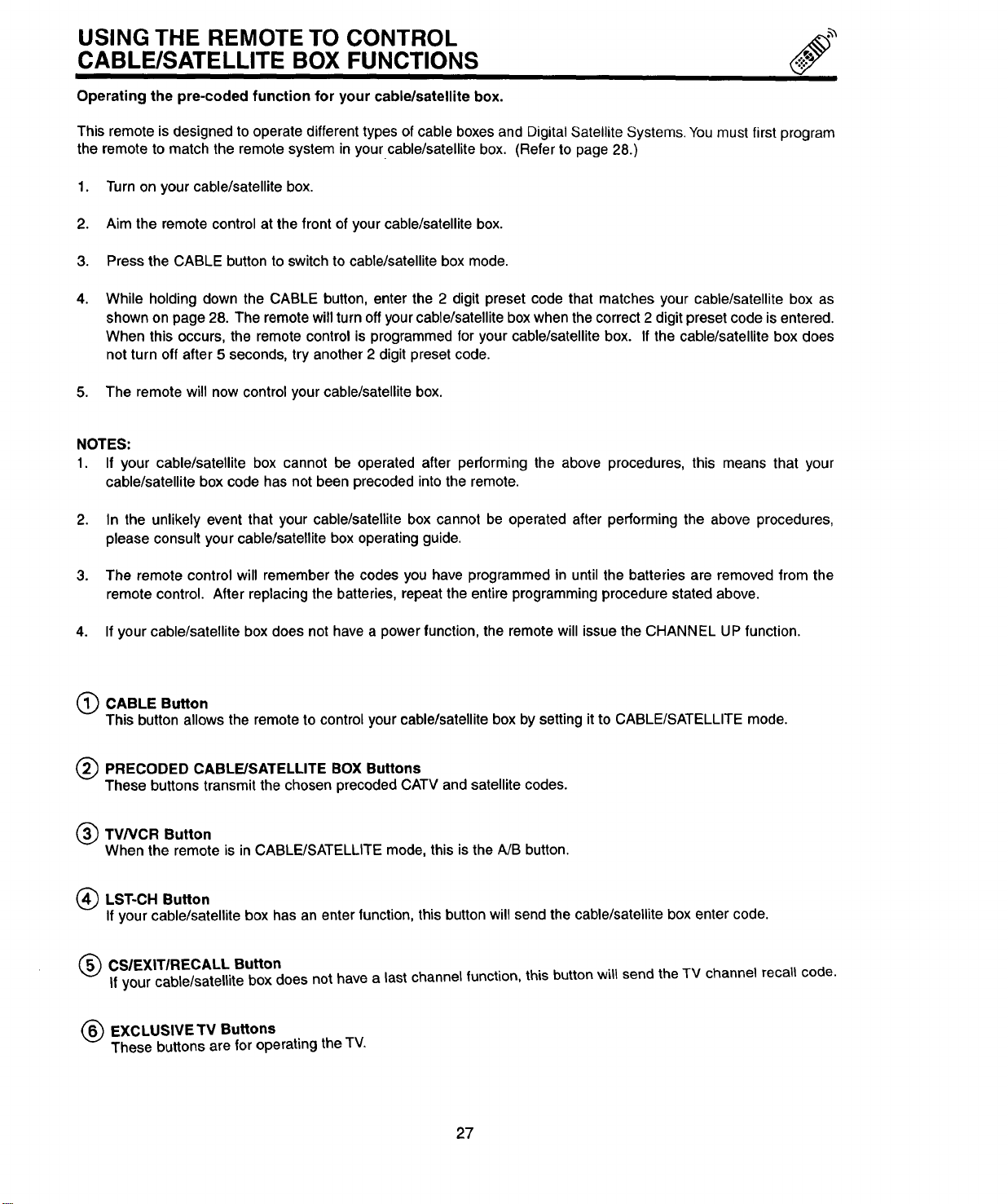
USING THE REMOTE TO CONTROL
CABLE/SATELLITE BOX FUNCTIONS
Operating the pre-coded function for your cable/satellite box.
This remote is designed to operate different types of cable boxes and Digital Satellite Systems. You must first program
the remote to match the remote system in your cable/satellite box. (Refer to page 28.)
1. Turn on your cable/satellite box.
2. Aim the remote control at the front of your cable/satellite box.
3. Press the CABLE button to switch to cable/satellite box mode.
4. While holding down the CABLE button, enter the 2 digit preset code that matches your cable/satellite box as
shown on page 28. The remote will turn off yourcable/satellite box when the correct 2 digit preset code is entered.
When this occurs, the remote control is programmed for your cable/satellite box. If the cable/satellite box does
not turn off after 5 seconds, try another 2 digit preset code.
5. The remote will now control your cable/satellite box.
NOTES:
1. If your cable/satellite box cannot be operated after performing the above procedures, this means that your
cable/satellite box code has not been precoded intothe remote.
2. In the unlikely event that your cable/satellite box cannot be operated after performing the above procedures,
please consult your cable/satellite box operating guide.
3. The remote control will remember the codes you have programmed in until the batteries are removed from the
remote control. After replacing the batteries, repeat the entire programming procedure stated above.
4. If your cable/satellite box does not have a power function, the remote will issue the CHANNEL UP function.
(_ CABLE Button
This button allows the remote to control your cable/satellite box by setting it to CABLE/SATELLITE mode.
(_ PRECODED BOX Buttons
CABLE/SATELLITE
These buttons transmit the chosen precoded CATV and satellite codes.
(_) TV/VCR Button
When the remote is inCABLE/SATELLITEmode, thisistheAJBbutton.
(_ LST-CH Button
If your cable/satellite box has an enter function, this button will send the cable/satellite box enter code.
(_) CSIEXIT/RECALL Button
If your cable/satellite box does not have a last channel function, this button will send the TV channel recall code.
(_ EXCLUSIVETV Buttons
These buttons are for operatingtheTV.
27

CABLE/SATELLITE AND VCR CODES
CABLE BRAND CODES
ABC . .01, 03, 05, 06, 09, 11, 12, 14, 30
Antronix ....................... 44
Archer .................. 28, 40, 44
Belcor ........................ 31
Cable Star ..................... 31
Century ....................... 40
Citizen ........................ 40
Colour Voice ................ 19, 25
Comtronics ................. 29, 34
Contec ....................... 15
Dae Ryung .................... 06
Eastern ....................... 02
Electricord ..................... 37
Everquest ..................... 13
Focus ........................ 57
Garrard ....................... 40
GC Electronics ............... 31, 44
Gemini ............... 13, 32, 36, 46
General Instrument ........... 09, 51
GoldStar ................... 29, 39
Hamlin ............ 08, 16, 27, 49, 50
Hitachi ........................ 09
Hytex ......................... 05
Jasco ........................ 40
Jerrold ...... 03, 09, 10, 12, 13, 30, 51
Macom ....................... 26
Magnavox ..................... 21
Memorex ...................... 00
Movie Time .............. 35, 37, 42
NSC ................... 35, 37, 42
Oak .................... 05, 15, 47
Panasonic ............... 00, 17, 38
Paragon ....................... 00
Philips ............ 19, 21, 22, 23, 24,
................... 25, 40, 46, 54
Pioneer ................. 18, 39, 65
Popular Mechanics .............. 57
Pulsar ........................ 00
RCA ......................... 17
Realistic ...................... 44
Recoton ....................... 57
Regal ................ 16, 49, 50, 53
Regency ...................... 02
Rembrandt .................. 09, 36
Runco ........................ 00
Samsung ................... 29, 39
Scientific Atlanta ....... 04, 06, 14, 52
Signal ..................... 13, 29
Signature ...................... 09
SL Marx ....................... 29
Sprucer .................... 17, 55
Starcom ................. 03, 13, 30
Stargate .................... 13, 29
Starquest ...................... 13
StarSight ................... 58, 59
Sylvania ...................... 01
Teleview ...................... 29
Texscan ....................... 01
Tocom .................. 10, 11, 33
Toshiba ....................... 00
Tusa ......................... 13
TV86 ......................... 35
Unika ...................... 40, 44
United Artists ................... 05
United Cable ................... 03
Universal ....... 28, 31,37, 40, 43, 44
Videoway ...................... 48
Viewstar .............. 21,34, 35, 45
Zenith ..................... 00, 64
Zentek ........................ 57
SATELLITE BRAND CODES
General Instrument .............. 61
Jerrold ..................... 61, 62
Primestar ................... 61, 62
RCA ......................... 60
Sony ......................... 63
TELEVISION BRAND CODES
Hitachi ........................ 00
Megatron ...................... 00
VCR BRAND CODES
Adventura ..................... 00
Aiko .......................... 50
Aiwa ......................... 00
Akai .................... 14, 23, 49
American High .................. 09
Asha ......................... 48
Audiovox ...................... 10
Beaumark ..................... 48
Belt & Howell ................... 30
Brandt ........................ 38
Broksonic .......... 33, 37, 43, 51, 52
Calix ......................... 10
Canon ........................ 09
Capehart ...................... 05
Carver ........................ 28
CCE ...................... 27, 50
Citizen ..................... 10, 50
Colt .......................... 27
Craig ................ 10, 19, 27, 48
Curtis Mathes ............ 09, 14, 22
Cybernex ...................... 48
Daewoo ........... 03, 05, 17, 29, 50
Daytron ....................... 05
Dynatech ...................... 00
Electrohome ................... 10
Electrophonic ................... 10
Emerex ........................ 06
Emerson .... 00, 01, 10, 16, 23, 33, 37,
........... 40, 41,43, 44, 50, 51, 52
Fisher ............... 19, 21, 25, 30
Fuji ....................... 07, 09
Funai ......................... 00
Garrad ........................ 00
GE .................. 09, 22, 24, 39
Goldstar ................. 04, 10, 11
Gradiente ..................... 00
Harley Davidson ................ 00
Harman/Kardon ................. 11
Harwood ...................... 27
Headquarter ................... 18
HI-Q ......................... 19
Hitachi ............... 14, 15, 24, 31
Jensen ....................... 14
JVC .................... 02, 14, 26
KEC ...................... 10, 50
Kenwood ................ 11, 14, 26
KLH .......................... 27
Kodak ...................... 9, 10
Lloyd ......................... 00
Lloyd's ........................ 40
Logik ......................... 27
LXI .......................... 10
Magnovox .......... 09, 12, 28, 32, 34
Magnin ....................... 48
Marantz .................... 09, 28
.10
Marta .......................
Matsushita ..................... 09
VCR BRAND CODES
(Cont,)
MEI .......................... 09
Memorex .......... 00, 09, 10, 12, 18,
................... 19, 20, 30, 48
MGA ...................... 16, 23
MGN Technology ................ 48
Minolta .................... 15, 31
Mitsubishi .......... 16, 23, 26, 36, 49
Motorola ................... 09, 20
MTC ...................... 00, 48
Multitech ................... 00, 27
NEC .............. 11, 13, 14, 26, 30
Nikko ......................... 10
Noblex ........................ 48
Olympus ................... 09, 47
Optimus ................. 10, 20, 30
Orion ......................... 51
Panasonic ......... 09, 35, 46, 47, 53
Penney ...... 09, 10, 11, 13, 15, 21,48
Pentax .................. 15, 24, 31
Philco ........................ 09
Philips .................. 09, 28, 32
Pilot .......................... 10
Pioneer ....................... 26
Portland ....................... 05
Protec ........................ 27
Pulsar ........................ 12
Quarter ....................... 18
Quartz ........................ 18
Quasar ....................... 09
Radio Shack ................ 00, 10
Radix ......................... 10
Randex ....................... 10
RCA ........... 15, 22, 24, 31, 34, 39
Realistic .......... 00, 09, 10, 18, 19,
................... 20, 25, 30, 48
Ricoh ......................... 08
Runco ........................ 12
Samsung ................... 17, 48
Sanky ..................... 12, 20
Sansui ..................... 14, 26
Sanyo ............... 18, 19, 30, 48
Scott .......... 16, 17, 33, 37, 43, 44
Sears ............ 09, 10, 15, 18, 19,
................... 21,25, 30, 31
Sharp ........................ 20
Shintom ....................... 27
Shogun ....................... 48
Singer ........................ 27
Sony ................ 06, 07, 08, 09
STS .......................... 15
Sylvania ........... 00, 09, 16, 28, 32
Symphonic .................... 00
Tatung . : ...................... 14
Teac ...................... 00, 14
Technics ................... 09, 35
Teknika ................. 00, 09, 10
Telefunken ..................... 38
TMK ...................... 40, 48
Toshiba .............. 16, 17, 25, 44
Totevision .................. 10, 48
Unitech ....................... 48
Vector ........................ 17
Vector Research ............. 11, 13
Video Concepts ........... 13, 17, 23
Videosonic ..................... 48
Wards .......... 00, 09, 15, 19,20, 22,
.................... 27,34, 44, 48
XR-1000 ................ 00, 09, 27
Yamaha ....................... 11
Zenith .................. 07, 08, 12
28
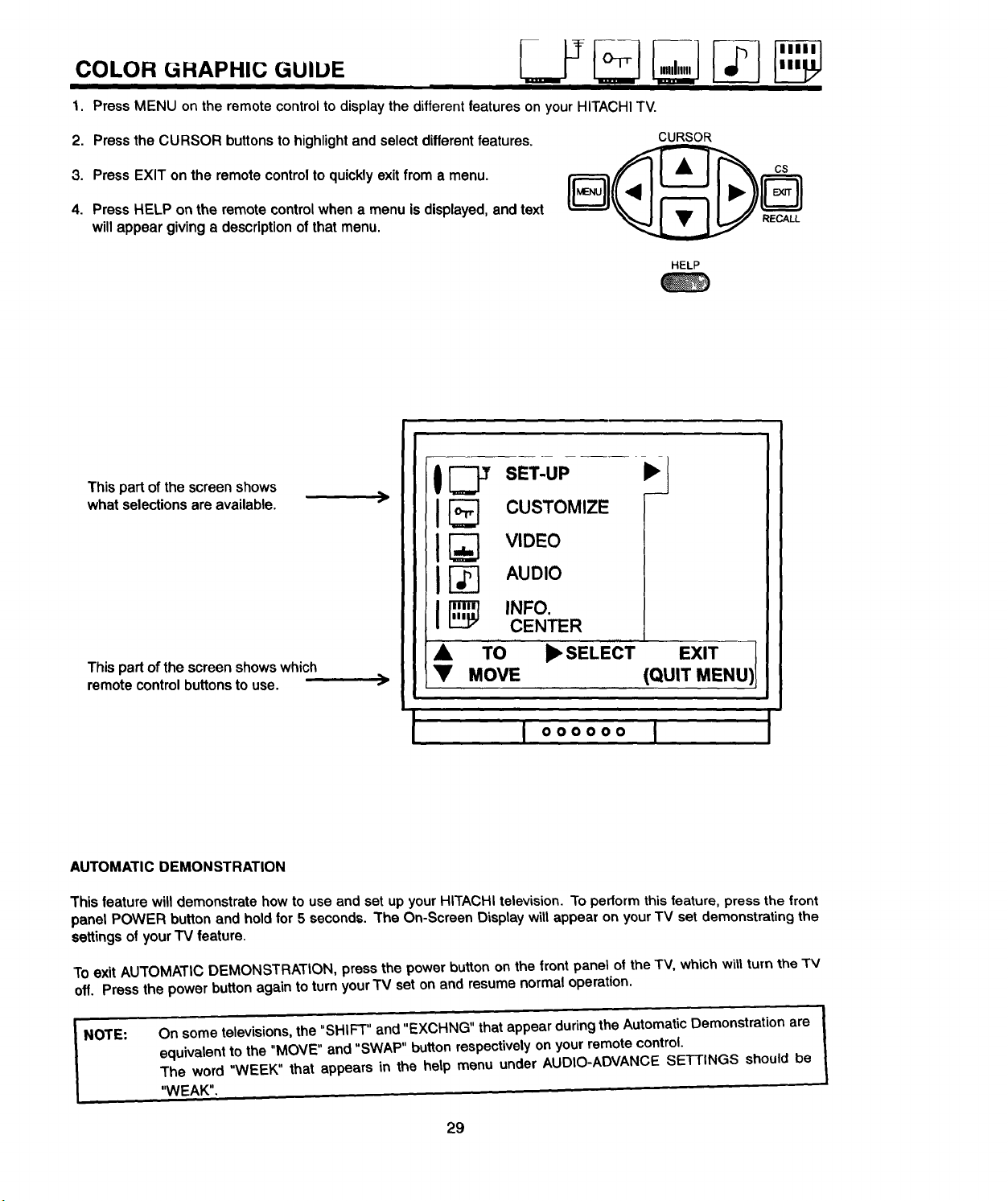
co.o.o..P.,cDo,DE
i
1. Press MENU on the remote control to display the different features on your HITACHI TV.
2. PresstheCURSOR buttonsto highlightand selectdifferentfeatures.
3. PressEXIT onthe remotecontroltoquicklyexitfrom a menu.
4. PressHELP on the remotecontrolwhena menuisdisplayed,andtext
willappeargivinga descriptionofthatmenu.
CURSOR
_ RECALL
HELP
This part of the screen shows
what selections are available.
Thispart ofthescreenshowswhich
remotecontrolbuttonstouse.
[_ SET-UP
I_ CUSTOMIZE
[_ VIDEO
[_ AUDIO
INFO.
CENTER
I_SELECT
A TO EXIT
Y MOVE (QUIT MENU
I 000000 [
AUTOMATIC DEMONSTRATION
This feature will demonstrate how to use and set up your HITACHI television. To perform this feature, press the front
panel POWER button and hold for 5 seconds. The On-Screen Display will appear on your TV set demonstrating the
settings of your "IV feature.
To exit AUTOMATIC DEMONSTRATION, press the power button on the front panel of the TV, which will turn the TV
off. Press the power button again to turn your TV set on and resume normal operation.
NOTE:
On some telev's'ons, the 'SHIFT" and "EXCHNG" that appear during the Automatic Demonstration are
equivalent to the "MOVE" and "SWAP" button respectively on your remote control.
The word "WEEK" that appears in the help menu under AUDIO-ADVANCE SETTINGS should be
"WEAK",
29
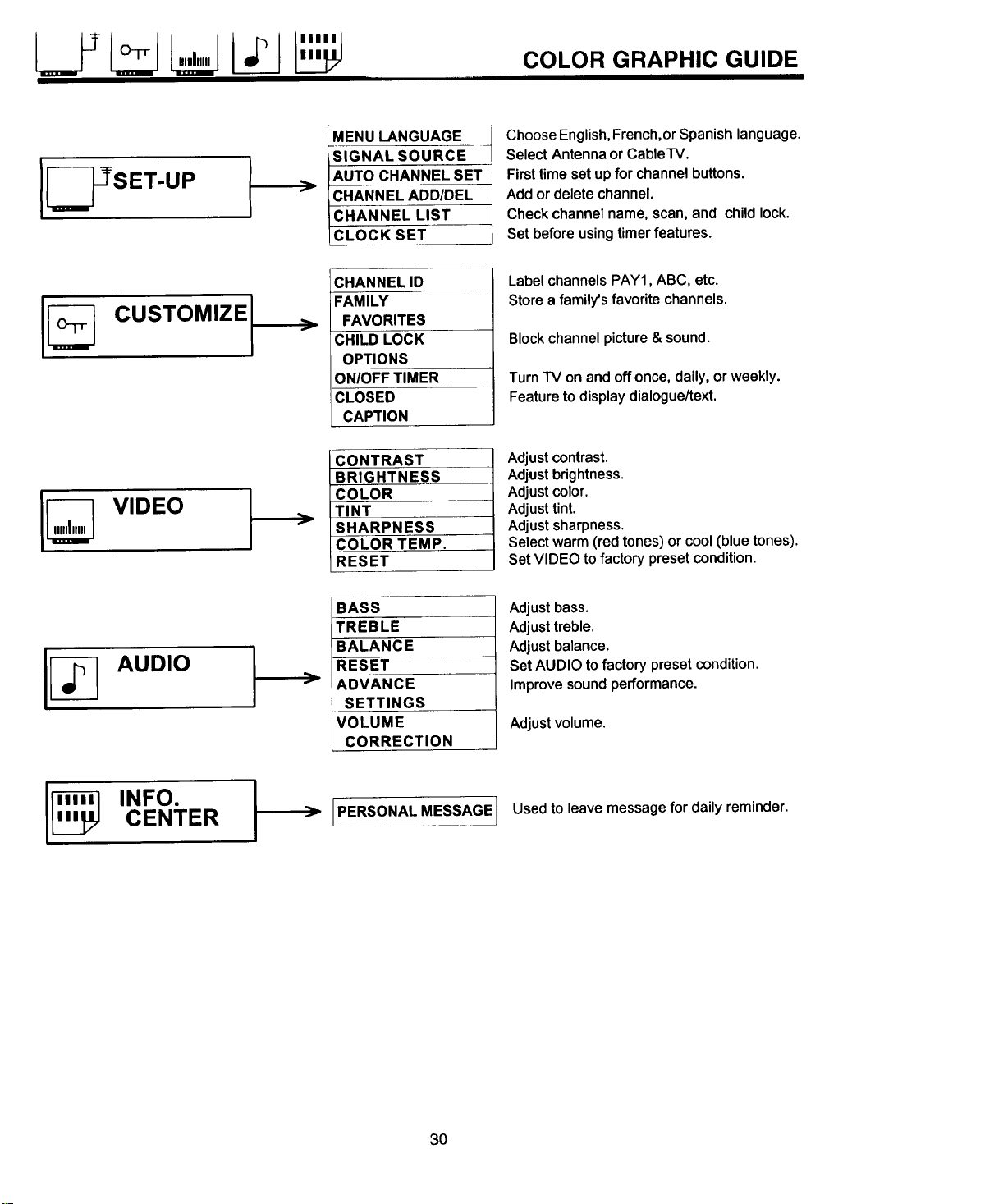
COLOR GRAPHIC GUIDE
MENU LANGUAGE
SIGNAL SOURCE
AUTO CHANNEL SET
CHANNEL ADD/DEL
CHANNEL LIST
CLOCK SET
CHANNEL ID
FAMILY
FAVORITES
CHILD LOCK
OPTIONS
ON/OFF TIMER
CLOSED
CAPTION
CONTRAST
BRIGHTNESS
COLOR
TINT
SHARPNESS
COLOR TEMP.
RESET
Choose English, French,or Spanish language.
Select Antenna or CableTV.
First time set up for channel buttons.
Add or delete channel.
Check channel name, scan, and child lock.
Set before using timer features.
CUST°"'z'l
r
Label channels PAY1, ABC, etc.
Store a family's favorite channels.
Block channel picture & sound.
Turn TV on and off once, daily, or weekly.
Feature to display dialogue/text.
I_ VIDEO
r
Adjust contrast.
Adjust brightness.
Adjust color.
Adjust tint.
Adjust sharpness.
Select warm (red tones) or cool (blue tones).
Set VIDEO to factory preset condition.
BASS
tREBLE
BALANCE
RESET
f ADVANCE
SETTINGS
VOLUME
CORRECTION
Adjust bass.
Adjust treble.
Adjust balance.
Set AUDIO to factory preset condition.
Improve sound performance.
Adjust volume.
I_ INFO.
CENTER ]
{PERSONAL MESSAGE Used to leave message for daily reminder.
3O
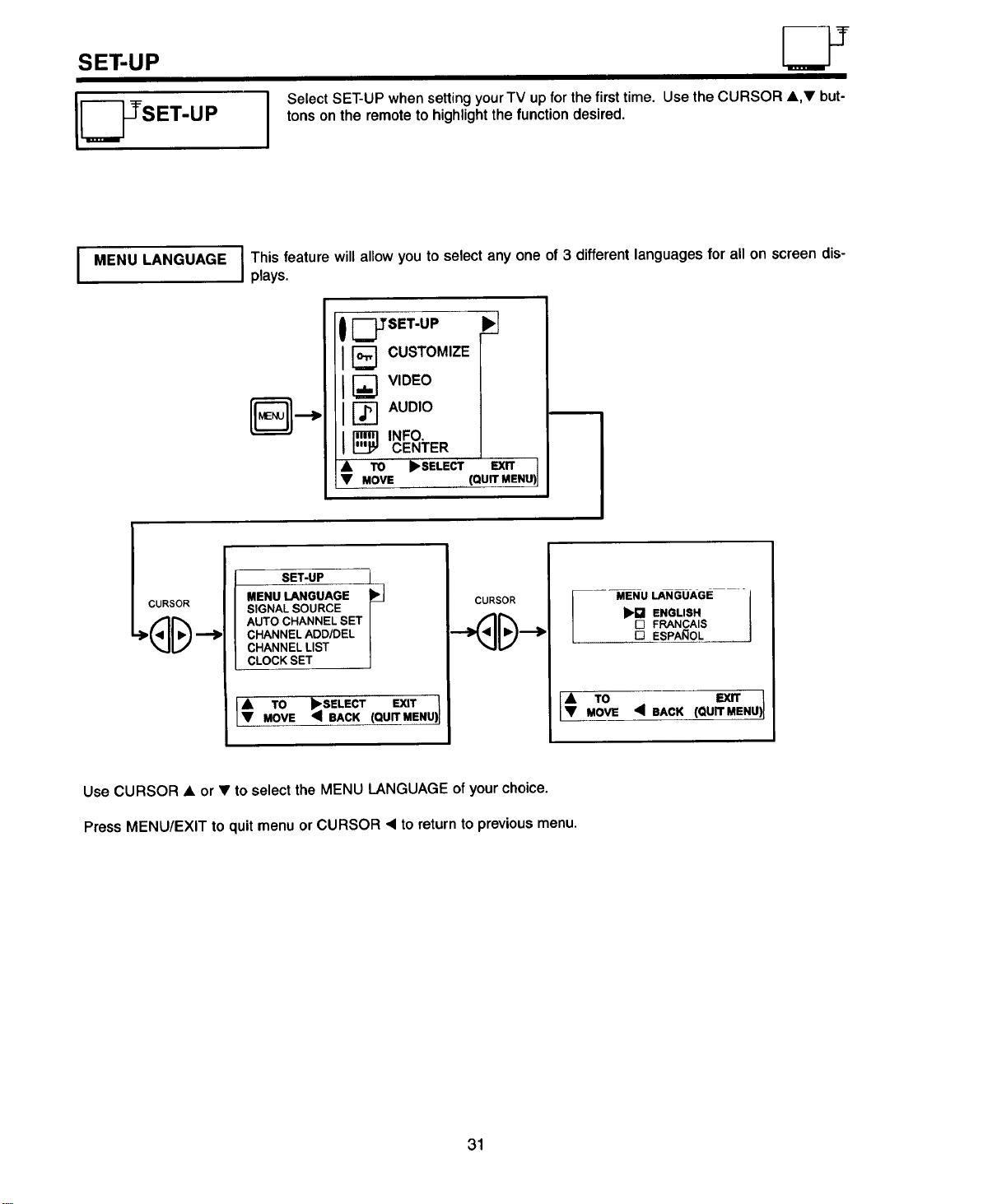
SETUP
Select SET-UP when setting your TV up for the first time. Use the CURSOR •,V but-
tons on the remote to highlight the function desired.
MENU LANGUAGE I This feature will allow you to select any one of 3 different languages for all on screen dis-
I plays.
[_SET-UP 1
_ CUSTOMIZE
[_ VIDEO
r_ AUDIO
1_ INFO.
CENTER .
•• MovETO _SELECT (QuEX_MENU)
ICURSOR
SET-UP I
MENU LANGUAGE I
SIGNAL SOURCE
AUTO CHANNEL SET
CHANNEL ADD/DEL
CHANNEL LIST
CLOCK SET
TO )_SELECT EXIT )1
MOVE • BACK (QUIT MENU
CURSOR
[
MENU LAN GUAGE ,
_._1 ENGLISH
[] FRANCAIS
[] ESPAROL
TO
EYJT
(QUITMENU)
MOvE • BACK
Use CURSOR • or • to select the MENU LANGUAGE of your choice.
Press MENU/EXIT to quit menu or CURSOR • to return to previous menu.
31
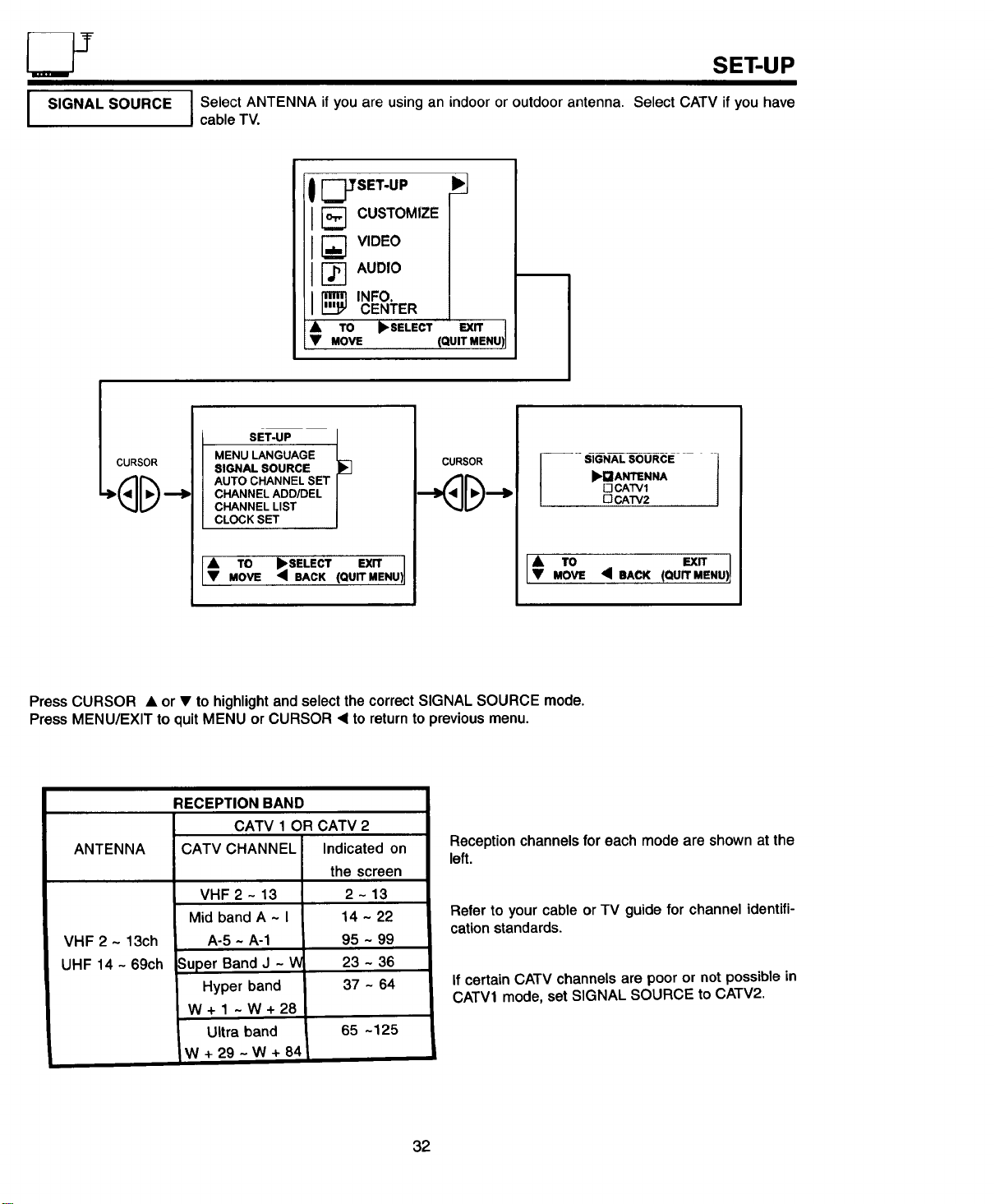
LY
I SIGNAL SOURCE
SET-UP
I Select ANTENNA if you are using an indoor or outdoor antenna. Select CATV if you have
cable TV.
1
I[_ CUSTOMIZE
v,o o
_ AUDIO
I ,N O.
CENTER
• TO ,SELECT EXIT
• MOVE (QUIT MENU
LCURSOR
SET-UP l
MENU LANGUAGE
SIGNAL SOURCE
AUTO CHANNEL SET
CHANNEL ADD/DEL
CHANNEL LIST
CLOCK SET
TO ,SELECT EXIT
MOVE q BACK (QUIT MENU)
CURSOR
SIGNAL SOURCE 1
,_ANTENNA
O CATV1
O CATV2
TO (Qu_.X_Nu)MOVE _ BACK
Press CURSOR • or V to highlight and select the correct SIGNAL SOURCE mode.
Press MENU/EXIT to quit MENU or CURSOR • to return to previous menu.
ANTENNA
VHF 2 ~ 13ch
UHF 14 - 69ch
RECEPTION BAND
CATV 1 OR CATV 2
CATV CHANNEL
VHF 2 - 13
Mid bandA~l
A-5 ~ A-1
_uper Band J - V_
Hyper band
W+I ~W+28
Ultra band
W+29~W+84
Indicated on
the screen
2-13
14 ~ 22
95 - 99
23 ~ 36
37 ~ 64
65 -125
Receptionchannelsfor each modeare shown at the
left.
Refer to your cable or TV guide for channel identifi-
cation standards.
If certain CATV channels are poor or not possible in
CATV1 mode, set SIGNAL SOURCE to CATV2.
32

SETUP
I AUTO CHANNEL SET I This feature will automatically store active TV channels in CHANNEL ADD/DEL. This will
I
allow you to skip over unused channels when using the CHANNEL UP (&) or DOWN (V)
buttons.
SET-UP t
MENU LANGUAGE
SIGNAL SOURCE
AUTO CHANNEL SET
CHANNEL ADD/DEL
CHANNEL LIST
CLOCK SET
t TO _SELECT EXITMOVE _IBACK (QUITMENU)
I AUTO CHANNEL SET
b.neEQtN
l
SELECT EXIT
BACK (QUIT MENU)
CURSOR -- -/_UTOCH_,NNEL SET I
rlINSTALLING
CHANNELS 100
I
50% COMPLETE
,OUIT%NU)
If the MENU/EXIT button is pressed while the AUTO CHANNEL SET function is engaged, programming will stop.
See CHANNEL MEMORY to add or erase additional channels.
I CHANNEL ADD/DEL I Use this function after AUTO CHANNEL SET to add or erase additional channels to the
I remote control CHANNEL • or • buttons.
SET-UP i
MENU LANGUAGE
SIGNAL SOURCE
AUTO CHANNEL SET
CHANNEL ADD/DEL
CHANNEL LIST
CLOCK SET
]1 ,o SELECTEX"'!MOVE _ BACK (QUITMENU
CURSOR
CHANNEL ADDIDELETE I
CHANNEL 03
{_ADD CIDELETE
NEXT CHANNEL cHA, CHeF
€ NEXT •SELECT EXIT
CH ;_ BACK (QUITMENU) I
Add or erase additional channels while stillin CHANNEL ADD/DEL using CURSOR • or •, CHANNEL • or V, and
number buttons and then add or erase using the CURSOR • button.
Press MENU/EXIT to quit menu or CURSOR <1to return to previous menu.
33
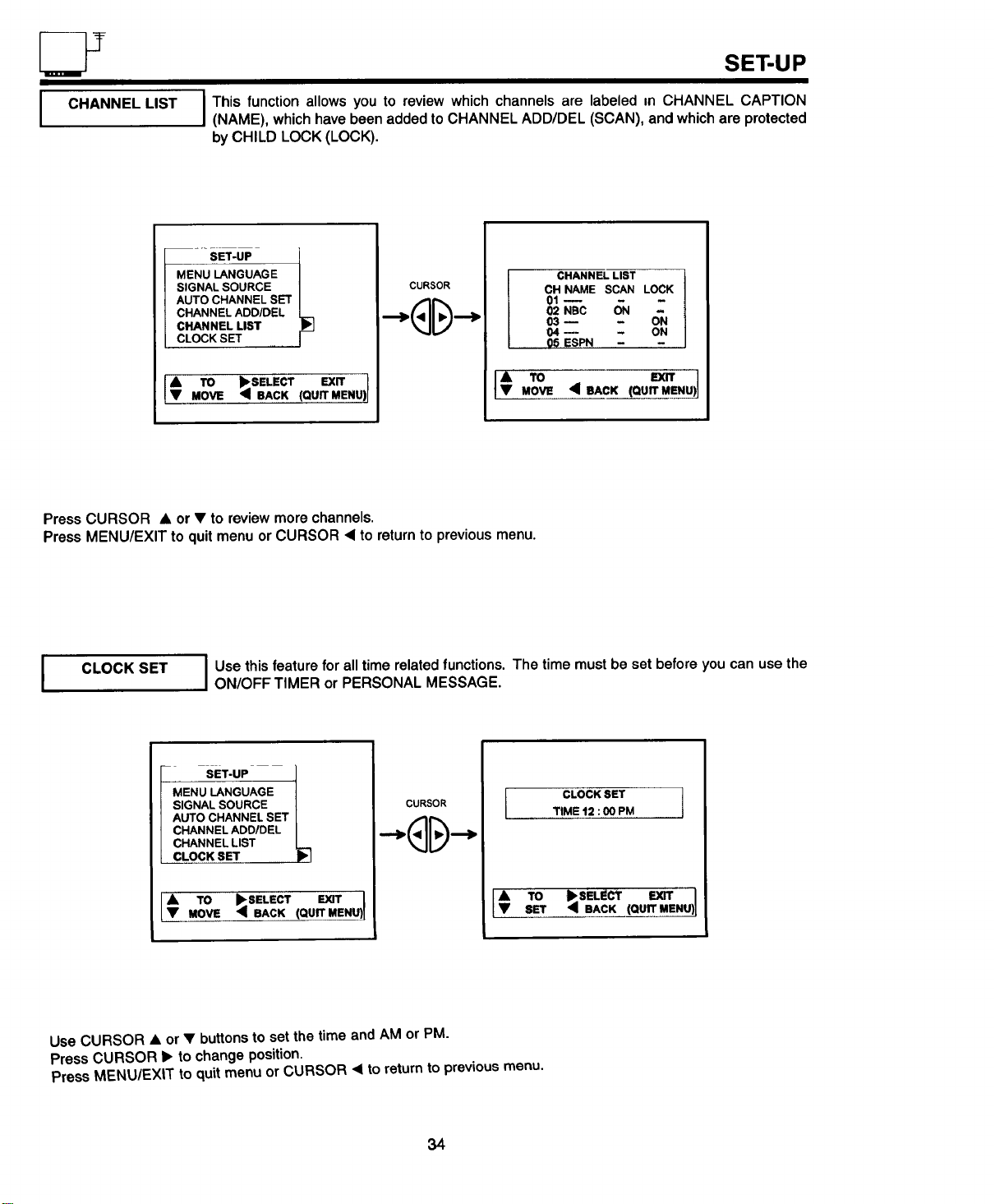
I CHANNELLIST
SET-UP
JThis function allows you to review which channels are labeled in CHANNEL CAPTION
(NAME), which have been added to CHANNEL ADD/DEL (SCAN), and which are protected
by CHILD LOCK (LOCK).
SET-UP 1
MENU LANGUAGE
SIGNAL SOURCE
AUTO CHANNEL SET
CHANNEL ADD/DEL
CHANNEL LIST
CLOCK SET
[#,o,Ove•SELECT, rr
• BACK (QUIT MENU)
CURSOR
CHANNEL LIST
CH NAME SCAN LOCK
01_
02 NBC I_N
03 m - ON
04_ - ON
05 ESPN
EXIT
PressCURSOR • or • toreviewmorechannels.
Press MENU/EXIT toquitmenuorCURSOR • to returnto previous menu.
CLOCK SET
I Use this feature for all time related functions. The time must be set before you can use the
ON/OFF TIMER or PERSONAL MESSAGE.
I sET-uP l
MENU LANGUAGE
SIGNAL SOURCE
AUTO CHANNEL SET
CHANNEL ADD/DEL
CHANNEL LIST
CLOCK SET
/• TO •SELECT E)OT
Lv
MOVE • SACK (QUIT MENU)
CURSOR
CLOCK SET I
TIME 12 :00 PM
[€ .o =I
SET • SACK (QUIT MENU)
Use CURSOR • or • buttons to set the time and AM or PM.
Press CURSOR • to change position.
Press MENU/EXIT to quit menu or CURSOR • to return to previous menu.
34
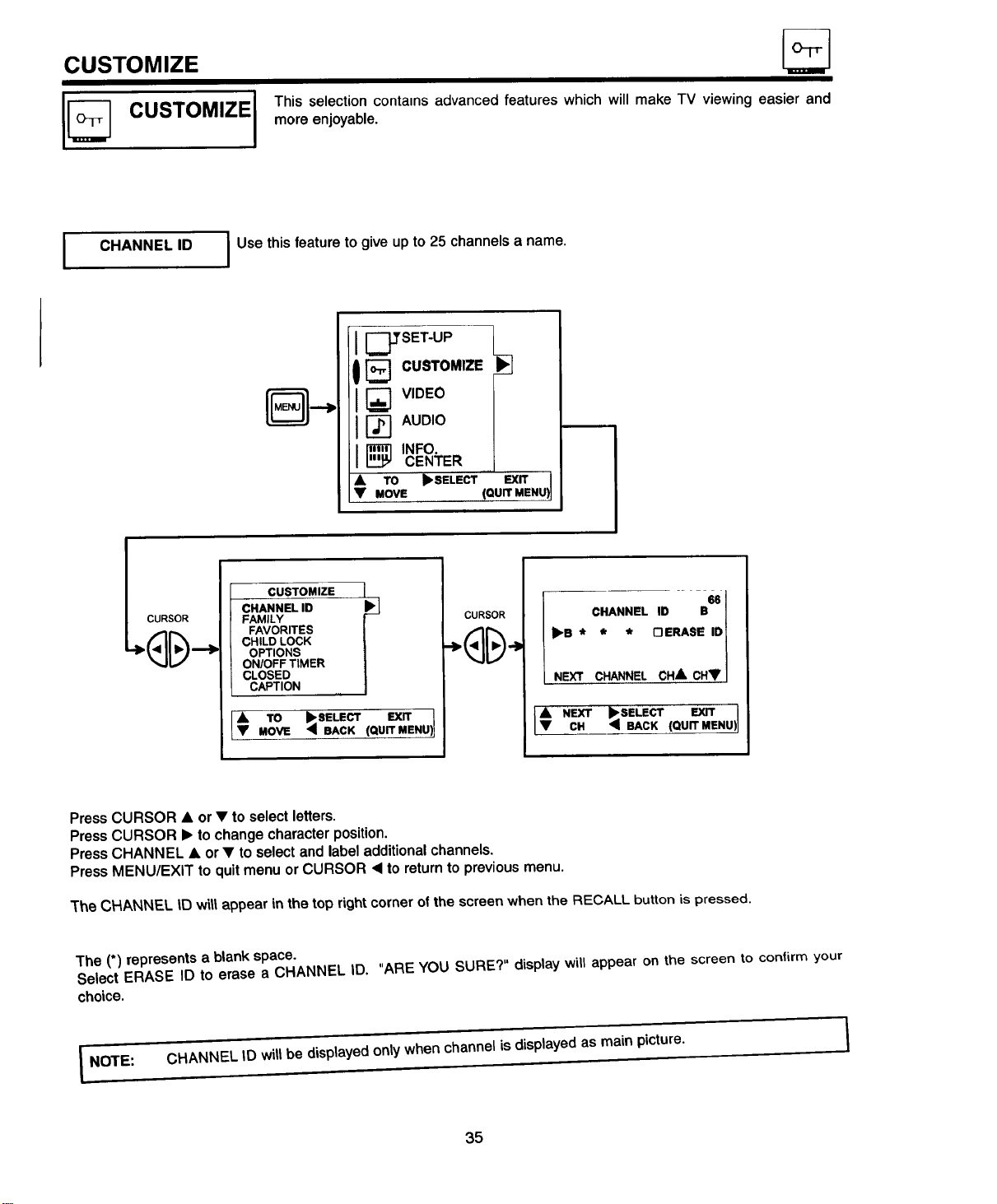
CUSTOMIZE
CUSTOMIZE I
I III
This selection contams advanced features which will make TV viewing easier and
more enjoyable.
CHANNEL ID Use this feature to give up to 25 channels a name.
_TSET-UP
J CUSTOMIZE
_ VIDEO
_1 AUDIO
[_ INFO.
CENTER
J, TO Ib.SELECT EXIT )1
V MOVE (QUIT MENU
_ CURSOR
CUSTOMIZE 1
CHANNEL ID
FAMILY
FAVORITES
CHILD LOCK
OPTIONS
ON/OFF TIMER
CLOSED
CAPTION
[; ,o sE,E=EX,,
MOVE ;_ BACK (QUITMEN
CURSOR
CHANNEL ID B68
_B * * * OERASE IDI
NEXT CHANNEL CH & CHTJ
_ NEXT _SELECT EXITCH <1 BACK (QUITMENU_
Press CURSOR • or • to selectletters.
PressCURSOR I_ tochangecharacterposition.
PressCHANNEL • or • toselectand labeladditionalchannels.
PressMENU/EXIT toquitmenu orCURSOR • to returntopreviousmenu.
The CHANNEL 113will appear in the top right corner ofthe screen when the RECALL button is pressed.
The (*) represents a blank space.
Select ERASE ID to erase a CHANNEL ID. "ARE YOU SURE?" display will appear on the screen to confirm your
choice.
I NOTE:
CHANNEL ID will be displayed only when channel is displayed as main picture.
35
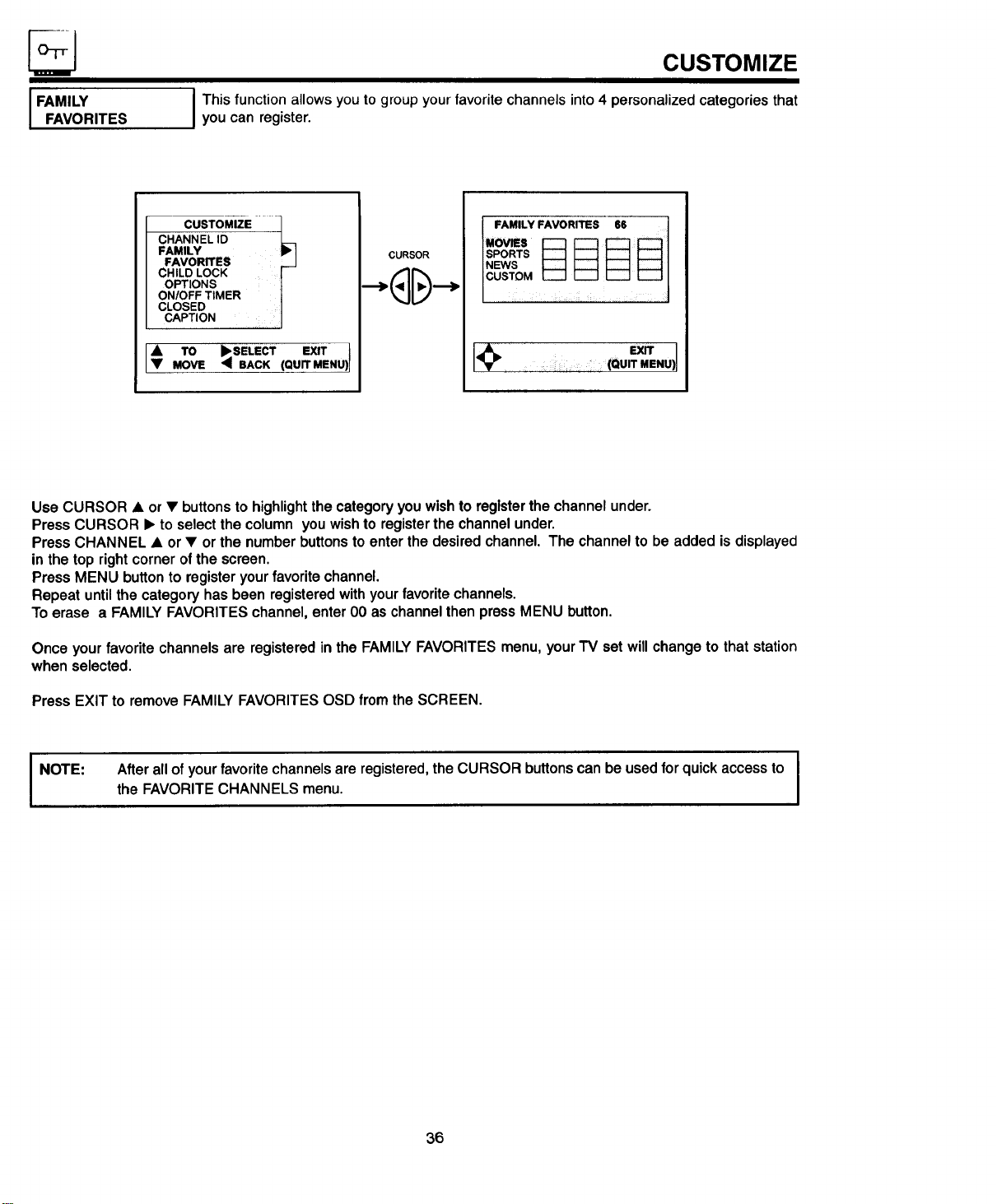
IFAMILYFAVORITES
CUSTOMIZE
I This function allows you to group your favorite channels into 4 personalized categories that
you can register.
CUSTOMIZE I
CHANNEL ID
FAMILY
FAVORITES
CHILD LOCK
OPTIONS
ON/OFF TIMER
CLOSED
CAPTION
t TO _ SELECT EXIT
MOVE _ BACK (QUIT MENU)
CURSOR
FAMILY FAVORITES 66
"°-
SPORTS
NEWS
CUSTOM
(QUIT M%NU)
Use CURSOR • or • buttons to highlightthecategoryyouwishto registerthe channelunder.
PressCURSOR • to selectthe column youwishto registerthechannelunder.
PressCHANNEL • or• or the numberbuttonsto enterthedesiredchannel.The channelto be addedisdisplayed
in thetop rightcornerofthescreen.
PressMENU buttonto registeryourfavoritechannel.
Repeat untilthe categoryhasbeen registeredwithyourfavoritechannels.
Toerase a FAMILYFAVORITESchannel,enterO0as channelthen pressMENU button.
Once your favorite channels are registeredin the FAMILYFAVORITESmenu,yourTV setwillchangeto thatstation
whenselected.
PressEXIT to removeFAMILYFAVORITESOSDfromthe SCREEN.
I NOTE:
I
Afterall ofyourfavorite channelsare registered,theCURSOR buttonscanbeusedforquickaccessto I
the FAVORITECHANNELS menu.
I
36
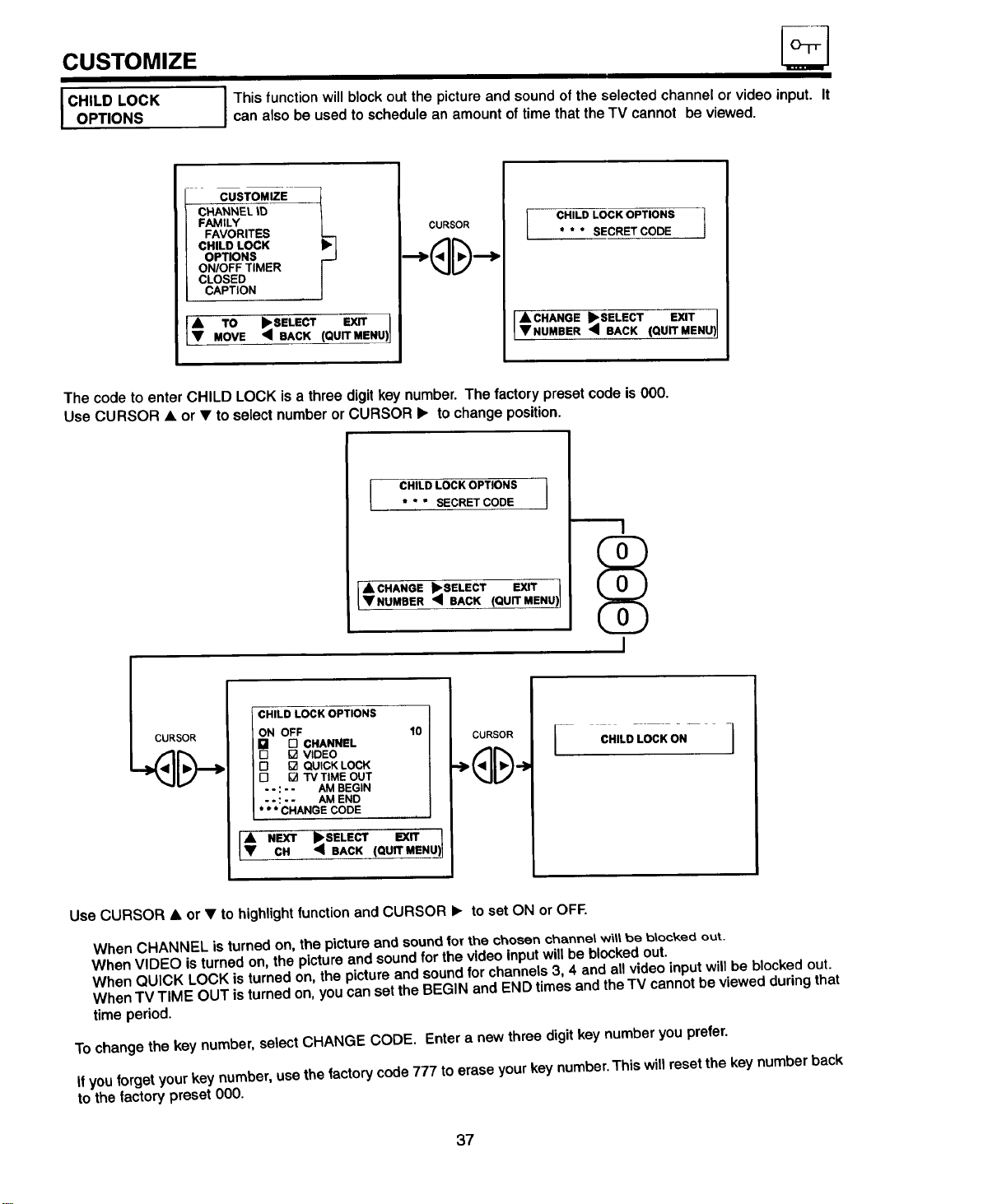
CUSTOMIZE
I CHILD LOCK
OPTIONS
I This function will block out the picture and sound of the selected channel or video input. Itcan also be used to schedule an amount of time that the TV cannot be viewed.
CUSTOMIZE i
CHANNEL kD
FAMILY
FAVORITES
CHILD LOCK
OPTIONS
ON/OFF TIMER
CLOSED
CAPTION
[# To •SELECT(=u Nu)MOVE • BACK
CURSOR
I CHILD LOCK OPTIONS t
* * * SECRET CODE
I• CHANGE •SELECT EXIT ]
VNUMBER • BACK (QUITMENU) I
The code to enter CHILD LOCK is a three digit key number. The factory preset code is 000.
Use CURSOR • or • to select number or CURSOR • to change position.
SOR
I CHILD LOCK OPTIONS* ° " SECRET CODE
l• CHANGE •SELECT EXIT I
VNUMBER • BACK (QUIT MENU)J
CHILD LOCK OPTIONS
ON OFF
I [] [] CHANNEL
I [] [] VIDEO
1I-1 [] QUICK LOCK
I r7 [] TVTIMEOUT
/ "" :"- AM BEGIN
I --:-- AM END
* * * CHANGE CODE
10
EXIT
I€ NEXTcH •SELECT(QuITMENU_)•BACK
CURSOR
I
C., D.OCKO.---J
Use CURSOR • or • to highlight function and CURSOR • to set ON or OFF.
When CHANNEL is turned on, the picture and sound for the chosen channet wit| be btocked out.
When VIDEO is turned on, the picture and sound for the video input will be blocked out.
When QUICK LOCK is turned on, the picture and sound for channels 3, 4 and all video input will be blocked out.
When TV TIME OUT is turned on, you can set the BEGIN and END times and the TV cannot be viewed during that
time period.
To change the key number, select CHANGE CODE. Enter a new three digit key number you prefer.
If you forget your key number, use the factory code 777 to erase your key number. This will reset the key number back
to the factory preset 000.
37
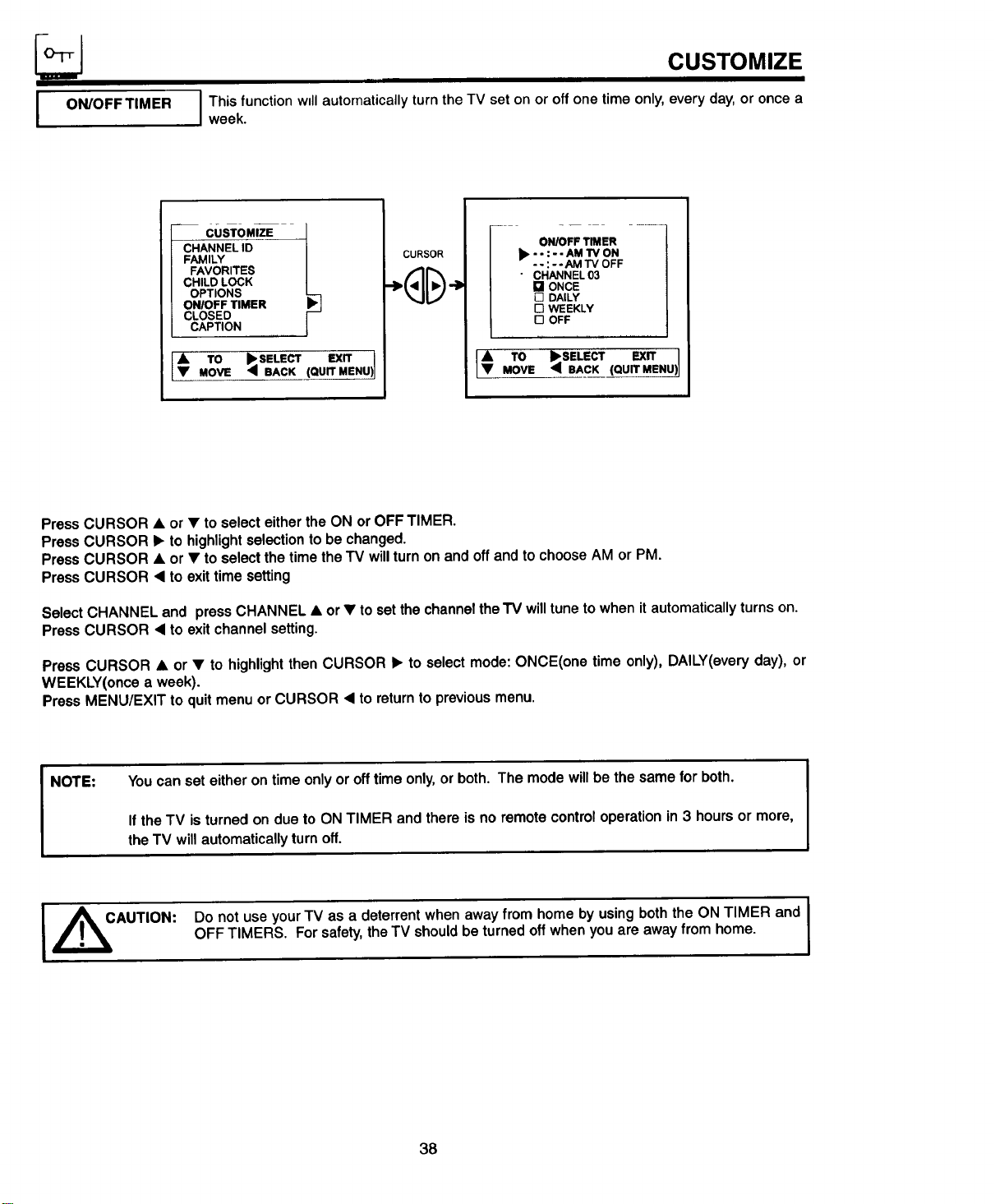
I ON/OFF TIM ER
CUSTOMIZE
iml
This function will automaticallyturn theTV set on or offone timeonly,everyday, or once a
week.
CUSTOMIZE t
CHANNEL ID
FAMILY
FAVORITES
CHILD LOCK
OPTIONS
ONIOFF TIMER
CLOSED
CAPTION
• TO _ SELECT EXIT )1• MOVE • BACK (QUIT MENU
CURSOR
......
_- ON/OFF TIMER
/ _ ..:-.AM'rV ON
/ --:--AM TV OFF
/ " CHANNEL 03
| [] ONCE
/ [] DAILY
/ [] WEEKLY
t [] OFF
•_ TO •SELECT EXIT
MOVE • BACK (QUIT MENU)
PressCURSOR • or • to selecteither the ON orOFF TIMER.
PressCURSOR • to highlightselectionto bechanged.
PressCURSOR • or • toselectthetimetheTV willturnon and offand tochooseAM or PM.
PressCURSOR • to exittimesetting
SelectCHANNELand pressCHANNEL• or • to setthechanneltheTV willtunetowhen itautomaticallyturnson.
PressCURSOR • to exitchannelsetting.
Press CURSOR • or • to highlightthen CURSOR • to selectmode:ONCE(one time only),DAILY(everyday), or
WEEKLY(oncea week).
PressMENU/EXIT to quitmenuor CURSOR • to returnto previousmenu.
NOTE: You can set either on time only or off time only,or both. The mode will be the same for both.
If the TV is turned on due to ON TIMER and there is no remote control operation in 3 hours or more,
the TV will automatically turn off.
Do not use yourTV as a deterrentwhen awayfrom home by usingboththe ON TIMER and
OFF TIMERS. Forsafety,theTV shouldbeturnedoffwhenyouare awayfrom home.
I
38
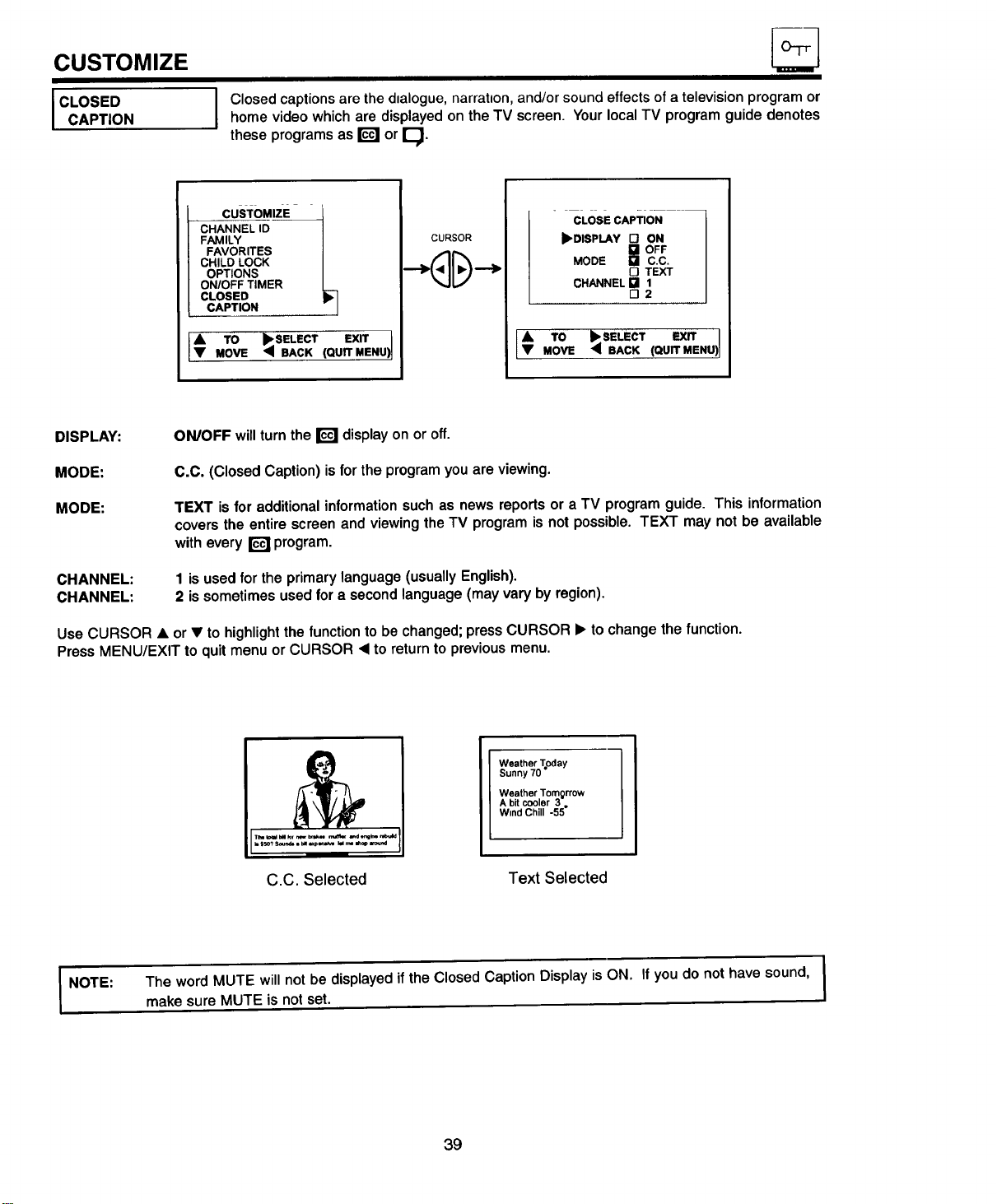
CUSTOMIZE
I CLOSED
CAPTION
Closed captions are the dialogue, narration, andtor sound effects of a television program or
home video which are displayed on the TV screen. Your local TV program guide denotes
these programs as _ or I_.
CUSTOMIZE 1
CHANNEL ID
FAMILY
FAVORITES
CHILD LOCK
OPTIONS
ON/OFF TIMER
CLOSED
CAPTION
IA TO _SELECT EXIT I
iv
MOVE q BACK (QUIT MENU)I
CURSOR
CLOSE CAPTION
• DISPLAY D ON
I_OFF
MODE C.C,
O TEXT
CHANNEL [] 1
r-12
EXIT
l_ MoVETO•_ SELECTBAcK(QUITMENU)
DISPLAY: ON/OFF will turn the _ display on or off.
MODE: C.C. (ClosedCaption) isfor theprogramyou are viewing.
MODE:
TEXT is foradditionalinformationsuchas news reportsor a TV programguide. This information
coversthe entirescreenand viewingtheTV programisnot possible.TEXT may not be available
witheveryr_! program.
CHANNEL:
CHANNEL:
1 is used for the primary language (usually English).
2 is sometimes used for a second language (may vary by region).
Use CURSOR • or • to highlight the function to be changed; press CURSOR • to change the function.
Press MENU/EXIT to quit menu or CURSOR 4 to return to previous menu.
C.C. Selected
I her Today
Sunny 70"
Weather Tomgrrow
A bit cooler 3.
Wmd Chill -55
Text Selected
I NOTE: The word MUTE willnot be displayedifthe Closed Caption Display is ON. Ifyou do not have sound,
makesureMUTE isnotset.
39
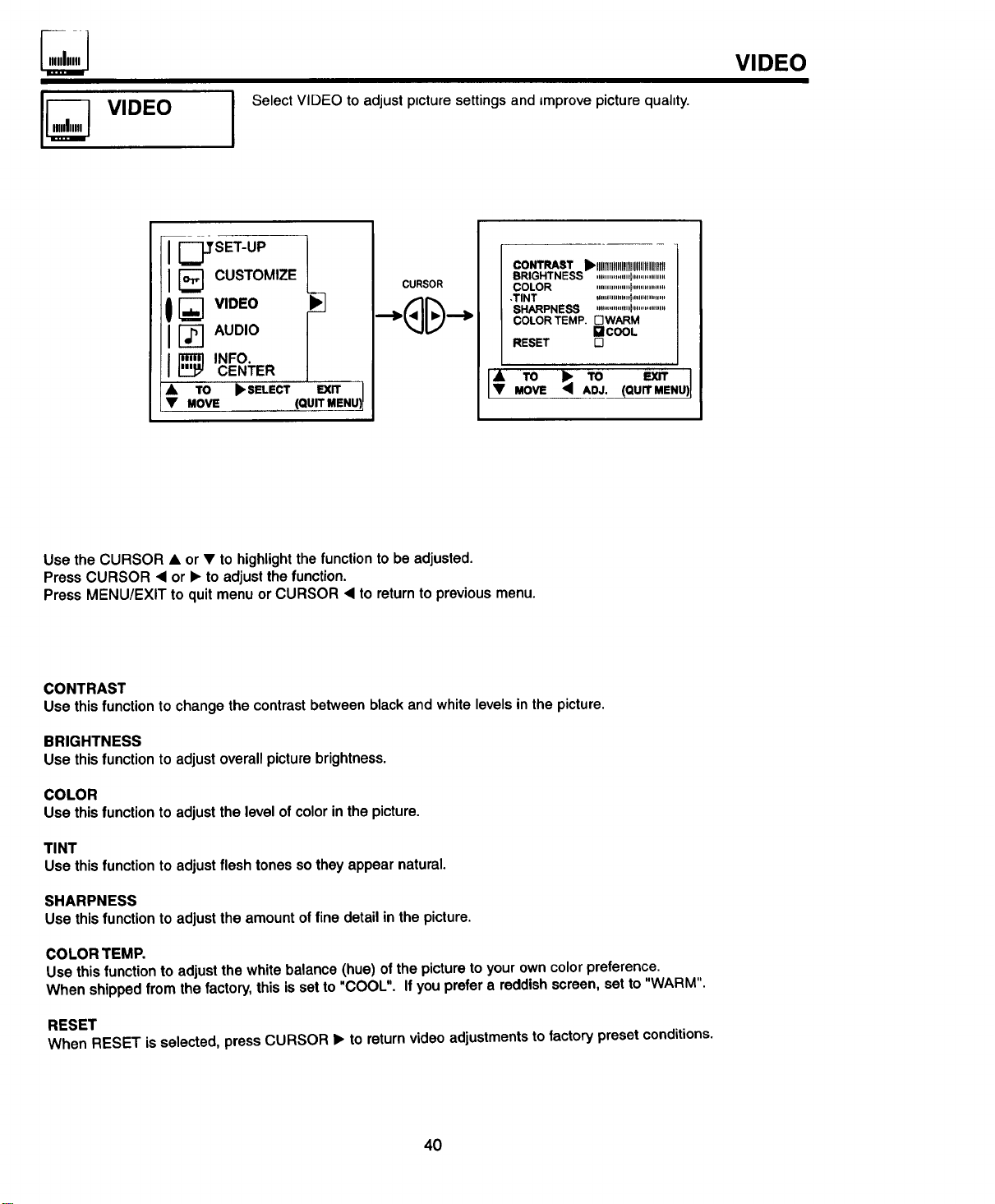
I Select VIDEO to adjust ptcture settings and improve picture quahty.
VIDEO
i I_SET°P t
[_ CUSTOMIZE
![_ v,o_o
I1_Auo,o
I[_ ,._o
CENTER
•• .ov_TO•S_L_CTt=u_._NU)
CURSOR
CONTRAST _I_IIIINIIIIIIItlIIIIIIIIItllUtlII
BRIGHTNESS '"'""",'""1'""'"'""'"
COLOR '"'""""""1'"'"""'"'"
.TINT """""""I'""'""""'
SHARPNESS; """'""'"1'" ..........'"
COLOR TEMP. F-IWARM
[]COOL
RESET n
EXIT
,oo....°,]
Use the CURSOR • or • to highlight the function to be adjusted.
Press CURSOR _1or • to adjust the function.
Press MENU/EXIT to quit menu or CURSOR _1to return to previous menu.
CONTRAST
Use thisfunctionto changethe contrast betweenblack andwhitelevels inthe picture.
BRIGHTNESS
Use this function to adjust overallpicture brightness.
COLOR
Use this function to adjust the level of color in the picture.
TINT
Use this function to adjust flesh tones so they appear natural.
SHARPNESS
Usethis function to adjustthe amountoffine detailinthe picture.
COLOR TEMP.
Use this function to adjust the white balance (hue) of the picture to your own color preference.
When shipped from the factory, this is set to "COOL". If you prefer a reddish screen, set to "WARM".
RESET
When RESET isselected,pressCURSOR • to returnvideoadjustmentstofactorypreset conditions.
40
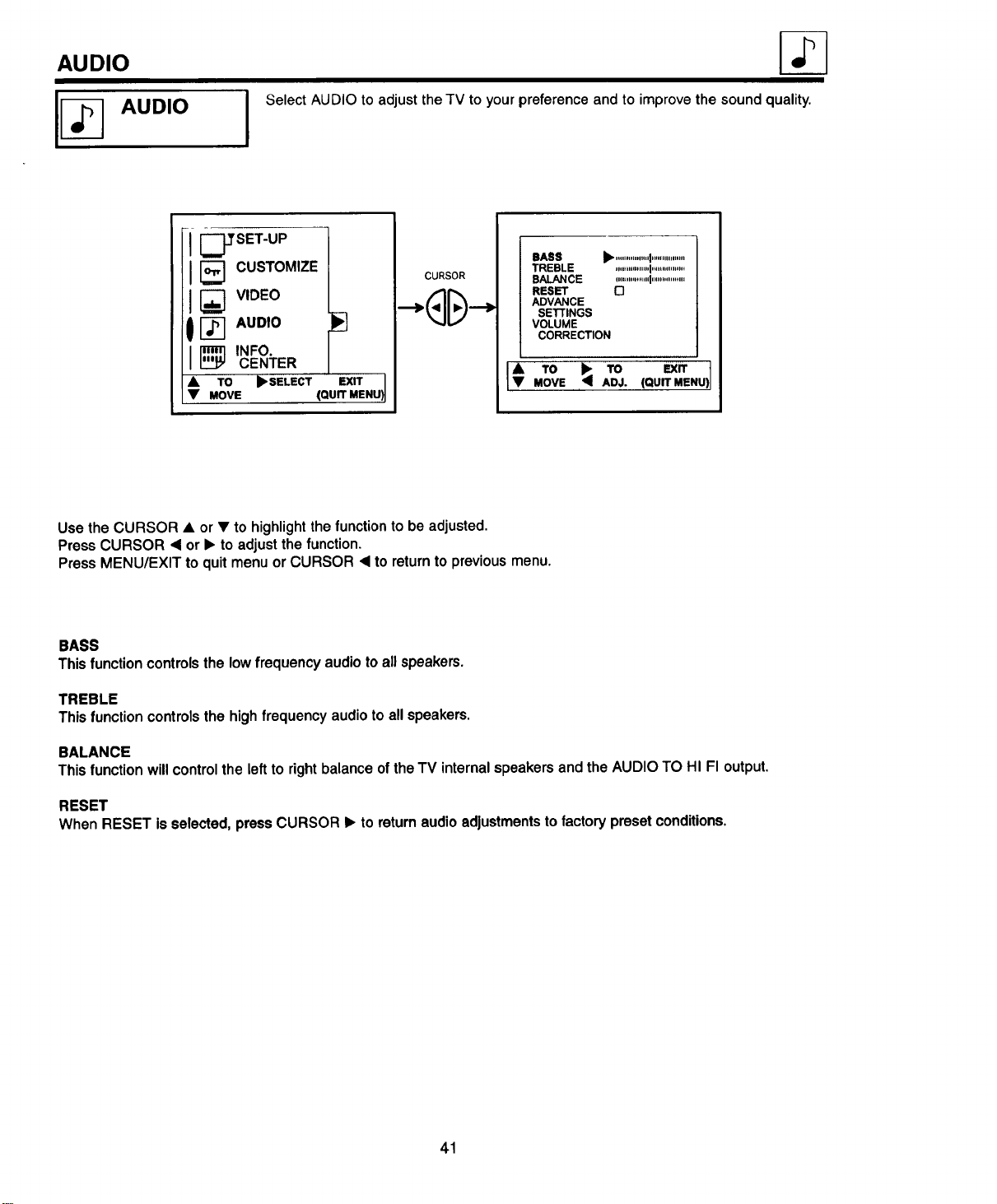
AUDIO
I
Select AUDIO to adjust the TV to your preference and to improve the sound quality.
I IZY'__"
J l_ CUSTOMIZE
I1_ v,o_o
tI_1,uo,o
I[_ ,.FO
CENTER
[]
TO _. SELECT EXIT J
MOVE (QUIT MENU
BASS b"................I................
TREBLE "" """""'1'""'"""'"'
BALANCE ""'""""'1'"""'"'"'"
RESET
ADVANCE
SETI'INGS
VOLUME
CORRECTION
1€_°_ _° _,1
MOVE ADJ. (QUIT MENU
Use the CURSOR • or • to highlight the function to be adjusted.
Press CURSOR • or • to adjust the function.
Press MENU/EXIT to quit menu or CURSOR • to return to previous menu.
BASS
Thisfunctioncontrolsthe lowfrequency audiotoallspeakers.
TREBLE
This function controls the high frequency audio to all speakers.
BALANCE
This functionwillcontrolthe left to right balance oftheTV internalspeakersand the AUDIOTO HI FI output.
RESET
When RESET is selected, press CURSOR • to return audio adjustments to factory preset conditions.
41
I ADVANCED
SETTINGS
AUDIO
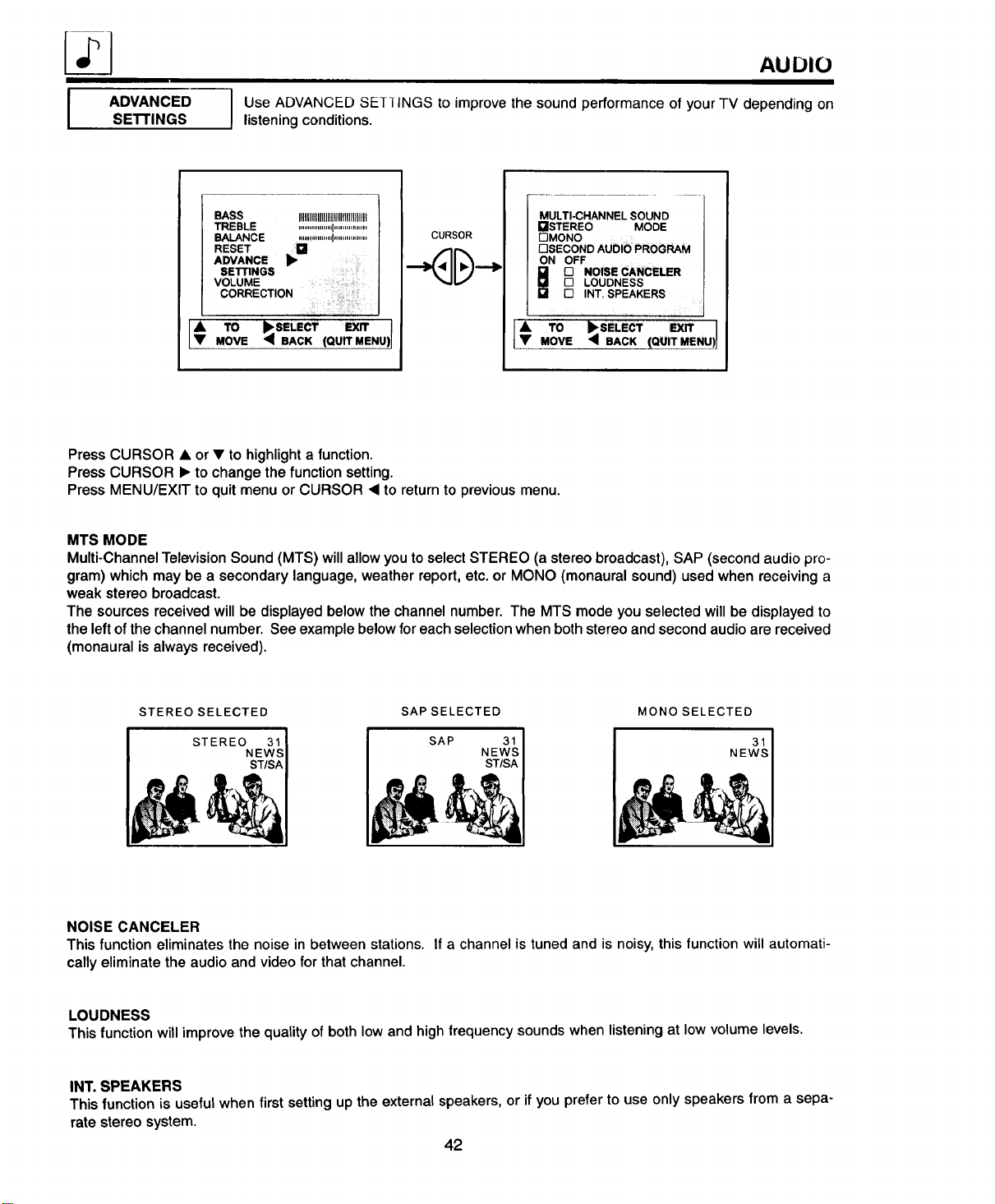
I se ADVANCED SE_-I INGS to improve the sound performance of your TV depending on
listening conditions.
BASS IIIIIIIIIIIIIIIIIIIIIIIIIIIit1111
TREBLE ,"'"'"".'"1'""""',,,"'
BALANCE .'.'"'""'"1"'"'"'"""'
RESET l a
ADVANCE
SETTINGS ::
VOLUME
CORRECTION
TO _I_SELECT (QUIT MENU)lMOVE • BACK
CURSOR
MULTI-CHANNEL SOUND
[]STEREO MODE
DMONO .....
DSECOND AUDIO PROGRAM
ON OFF
_ NOISE CANCELER
LOUDNESS
[] INT. SPEAKERS
y, TO I_SELECT EXIT I
MOVE • BACK (QUIT MENU)I
Press CURSOR • or • to highlight a function.
Press CURSOR • to change the function setting.
Press MENU/EXIT to quit menu or CURSOR _1to return to previous menu.
MTS MODE
Multi-Channel Television Sound (MTS) will allow you to select STEREO (a stereo broadcast), SAP (second audio pro-
gram) which may be a secondary language, weather report, etc. or MONO (monaural sound) used when receiving a
weak stereo broadcast.
The sources received will be displayed below the channel number. The MTS mode you selected will be displayed to
the left of the channel number. See example below for each selection when bothstereo and second audio are received
(monaural is always received).
STEREO SELECTED
STEREO 31
NEWS
ST/SA
SAPSELECTED
SAP 31
NEWS
ST/SA
MONO SELECTED
31
NEWS
NOISE CANCELER
This function eliminates the noise in between stations. If a channel is tuned and is noisy, this function will automati-
cally eliminate the audio and video for that channel.
LOUDNESS
This function will improve the quality of both low and high frequency sounds when listening at low volume levels.
INT. SPEAKERS
Thisfunctionisusefulwhenfirstsettingup the external speakers,or ifyouprefer touseonly speakers froma sepa-
ratestereosystem.
42
AUDIO
I VOLUME
CORRECTION
I
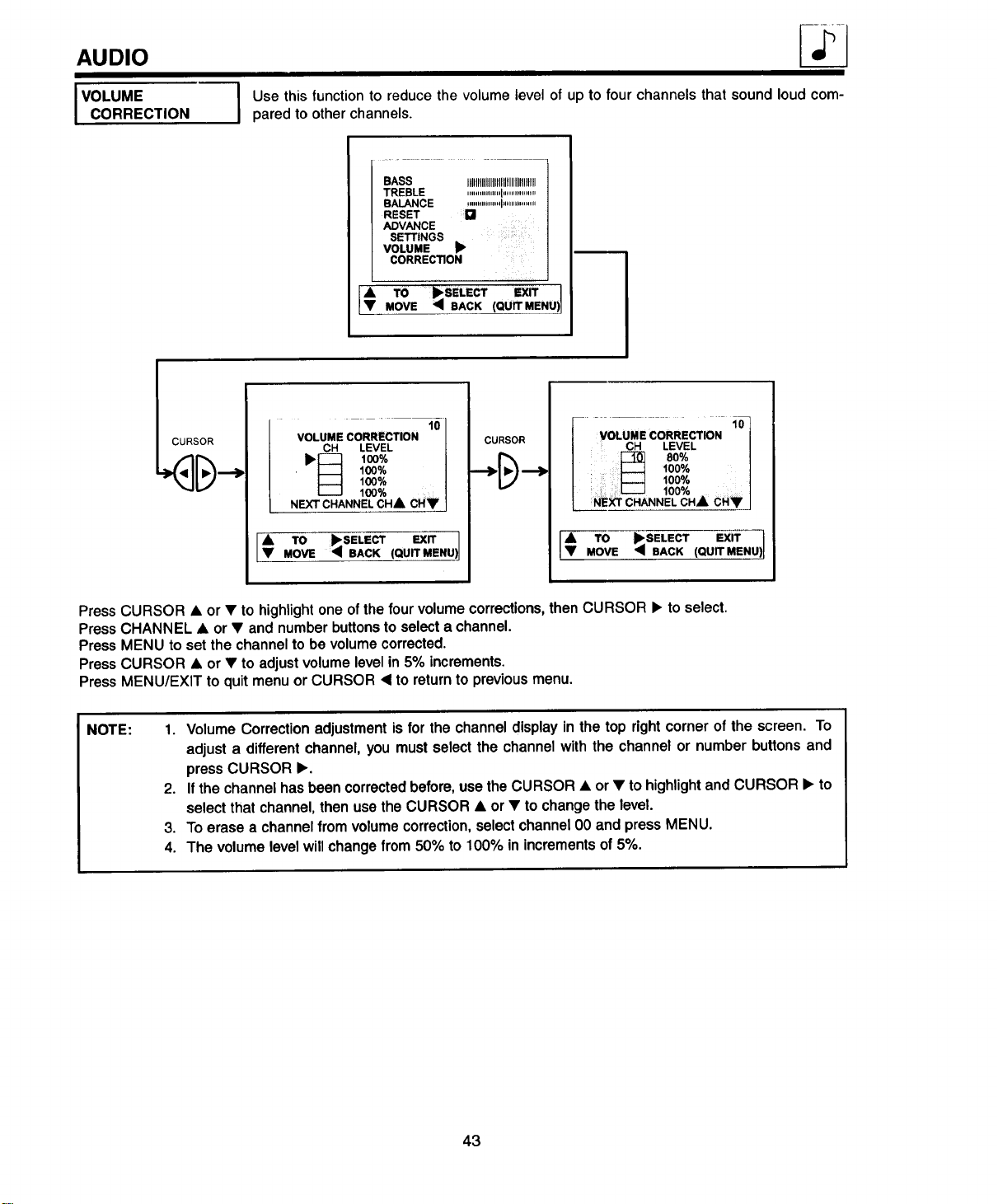
Use this function to reduce the volume level of up to four channels that sound loud com-
pared to other channels.
BASS IIIIIIIIIllllllllUfllllllUlllll
TREBLE .......'"'"'"1'""""'"""
BALANCE """"'"'"1"'""'""'"
RESET
VANCE
SETTINGS ....
VOLUME _"
CORRECTION
II To 'SELEC,,X,, I
MOVE q BACK (QUIT MENU)]
lO
VOLUMECORRECTION
CH LEVEL
I_IZ] 1oo%
_ 100%
100%
L__J 100%
NEXT CHANNEL CH_, CHT
TO _SELECT EXITMOVE '41 BACK (QUIT MENUI
CURSOR
.... 10
VOLUMECORRECTION0]
| CH LEVEL /
| _ 80% /
/ 100% |
| 100%
| ii L--J 100%
| NE_ CHANNEL CH A CH• I
A TO _SELECT EXIT
• MOVE _ BACK (QUIT MENU)
i
Press CURSOR • or • to highlight one of the four volume corrections, then CURSOR • to select.
Press CHANNEL • or • and number buttons to select a channel.
Press MENU to set the channel to be volume corrected.
Press CURSOR • or • to adjust volume level in 5% increments.
Press MENU/EXIT to quit menu or CURSOR < to return to previous menu.
NOTE: 1. VolumeCorrection adjustmentisforthe channeldisplayin thetop rightcornerof the screen. To
adjusta differentchannel,you mustselectthe channelwith the channelor numberbuttonsand
pressCURSOR _.
2. Ifthe channelhasbeen correctedbefore,usetheCURSOR • or• tohighlightand CURSOR I_ to
selectthatchannel,then usetheCURSOR • or • tochangethelevel.
3. Toerasea channelfromvolumecorrection,selectchannel00 and pressMENU.
4. The volumelevelwillchangefrom50% to100% inincrementsof 5%.
43
INFO.
CENTER
I
INFO CENTER
• =i ill i t
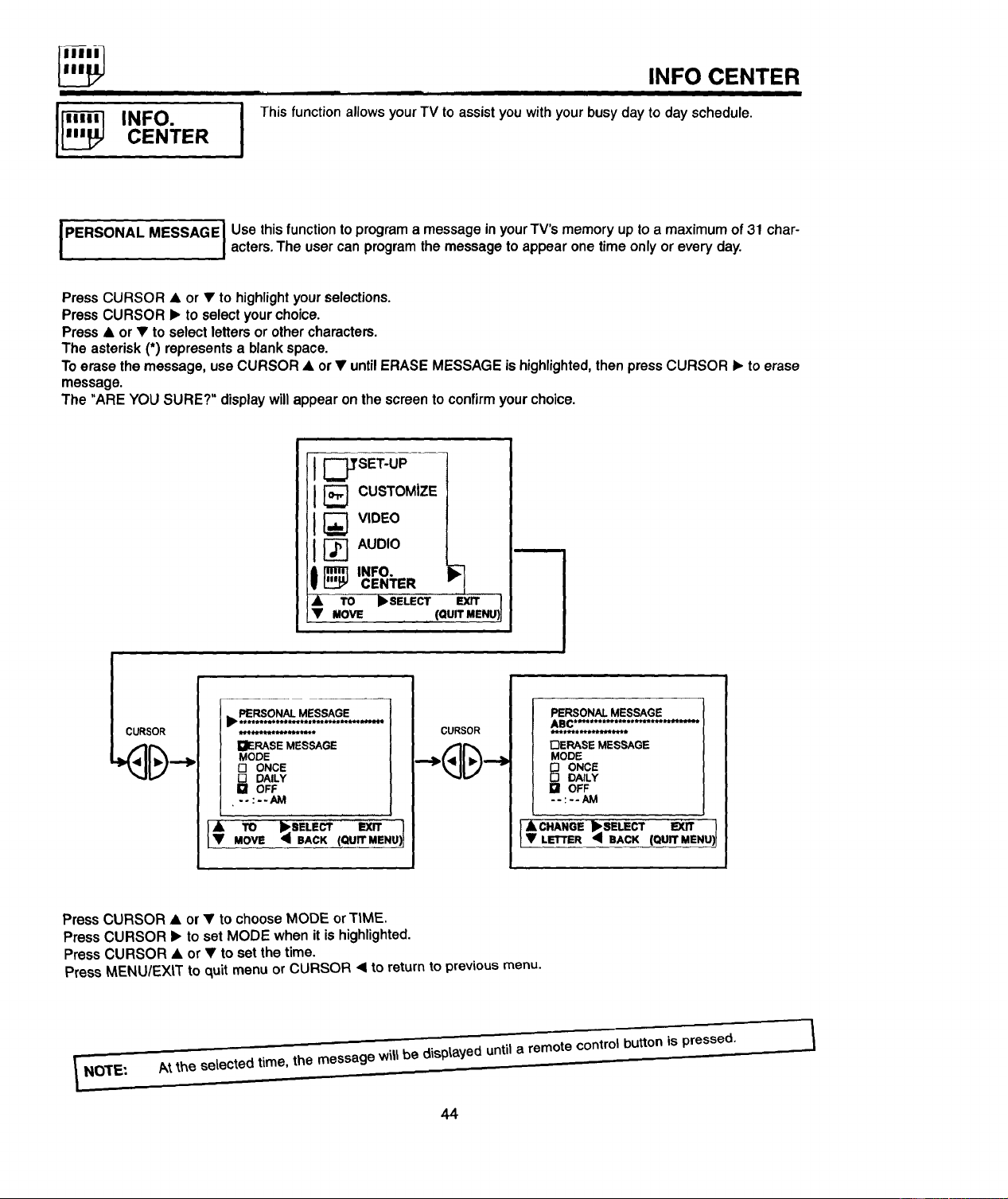
This function allows your TV to assist you with your busy day to day schedule.
PERSONAL MESSAGEI Use this function to program a message in yourTV's memory up to a maximum of 31 char-
I
acters. The user can program the message to appear one time only or every day.
PressCURSOR • or • tohighlightyourselections.
PressCURSOR • to selectyourchoice.
Press• or • toselectlettersorothercharacters.
The asterisk(*) representsa blankspace.
Toerasethemessage,useCURSOR • or• untilERASE MESSAGEishighlighted,thenpressCURSOR • toerase
message.
The "AREYOUSURE?"displaywillappearonthescreento confirmyourchoice.
I _'SET-UP
I[_ CUSTOMIZE
I
CENTER
TO I_SELECT EXIT I
MOVE (QUIT MENU) I
I
_ PERSONAL MESSAGE
E_ERASE MESSAGE
MODE
F'I ONCE
[] DAILY
El OFF
• --:--AM
v* ,o .,E=(Qu .ENUIMOVE • BACK
CURSOR
PERSONAL MESSAGE
ABC,,-,°.. *****..°.******,.m.....
DERASE MESSAGE
MODE
BIll ONCE
DAILY
OFF
--:--AM
,k CHANOE _I_SELECT EXIT )
• LETTER '41 SACK (QUrFMENU)]
Press CURSOR • or • to choose MODE or TIME.
Press CURSOR • to set MODE when it is highlighted.
Press CURSOR • or • to set the time.
Press MENU/EXIT to quit menu or CURSOR • to return to previous menu.
At the selected time, the message will be displ.aYed untila remote control button is pressed.
44
USEFUL INFO
DO
Make sure the TV is turned off when cleaning the screen.
Dust the screen and cabinet with a soft cloth.
Clean the screenwitha softclothmoistenedin warmwater. Dry witha softcloth( A mildsoap maybe used ifthe
screenis extremelydirty).
PlaceyourTV and remote controlawayfrom extremeheat, humidityandextremelydusty places.
Removethe plug from thewall outlet ifyour televisionwillnot beusedfor a longperiod oftime, for instance,when
yougo on vacation.
DO NOT
Do not clean your screen or cabinet with strong cleaners, polishes, or chemically treated cloth.
Do not place rubber or vinyl products or cellophane tape on your set.
Do not touch the screen too often.
Do not subject the remote control to shocks such as dropping iton the floor, etc. Physical damage to the precision
parts may result.
lkvo'td_3\_.cl_o_the remote control in a high humidity place or getting it wet. Don't leave it on or near a heater.
Excess\ve heat or mo_s\ure may cause the un'_tto cease operation.
When the batteries run down, remote control operation will become erratic or possibly stop altogether. Replace the
old batteries with two fresh "AA" size batteries.
45
USEFUL INFO
f
iii
• IGNITION NOISE:
Black spots or horizontal streaks may appear, picture may flutter or drift.
Usually caused by interference from automobile ignition systems, neon
lamps, electrical drills, and other electrical appliances.
• GHOSTS:
Ghosts are caused by the television signal following two paths. One is the
direct path and the other is reflected from tall buildings, hills or some other
objects. Changing the direction or position of the antenna may improve
reception. Ghosting may also be caused by defects in the antenna system
such as unshielded leads or committing several sets to the same antenna
without using multiple antenna couplers.
• SNOW:
If your receiver islocated in the fringe area of a television station where the
signal is weak, your picture may be marred by the appearance of small
dots. When the signal is extremely weak, it may be necessary to install a
special antenna to improve the picture.
• RADIO FREQUENCY INTERFERENCE
The interference produces moving ripples or diagonal streaks, and in some
cases, causes loss of contrast in the picture.
46
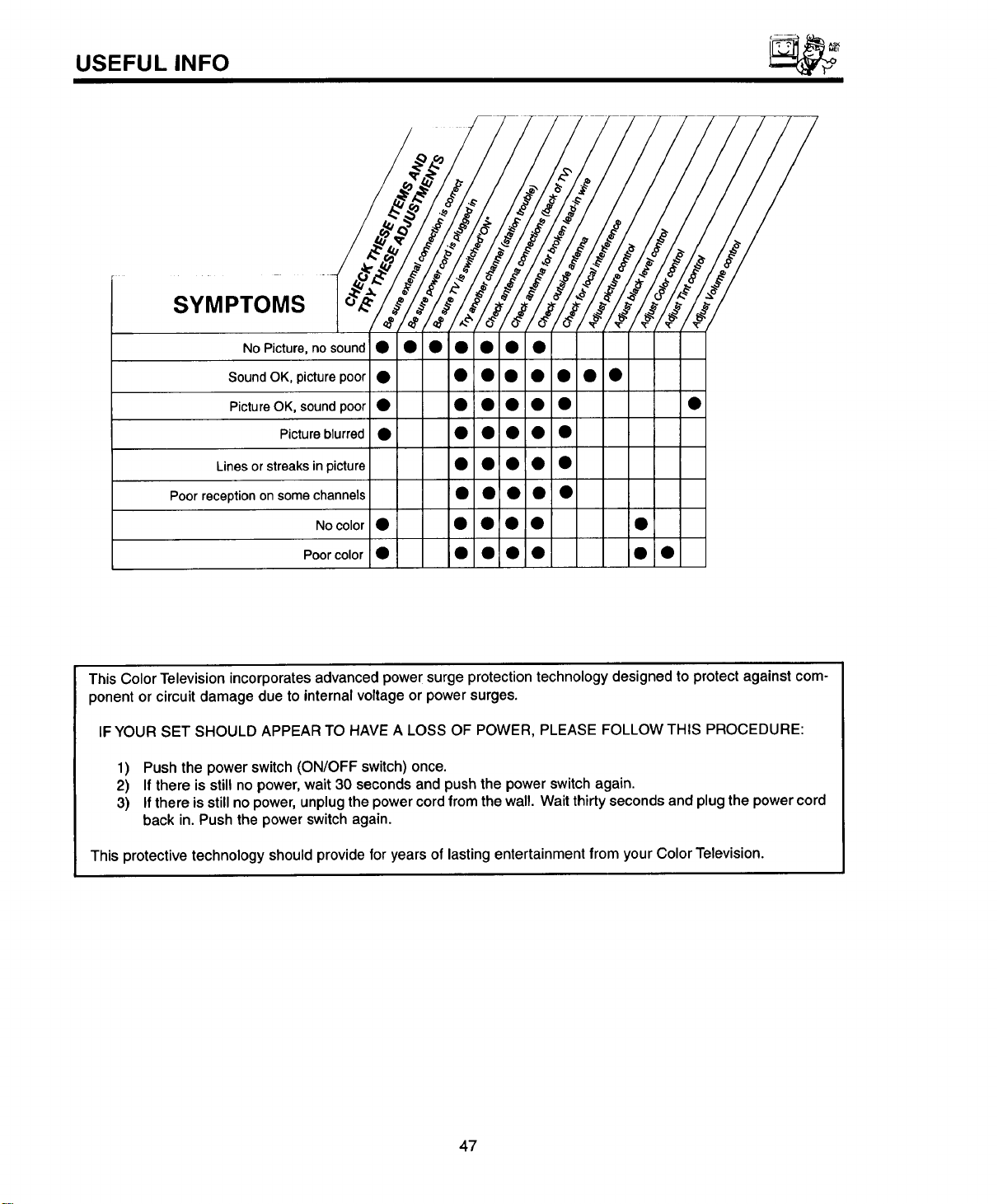
USEFUL INFO
NO Picture, no sound • • • • • • •
Sound OK, picture poor • • • • • • • •
Picture OK, sound poor • • • • • • •
Picture blurred • • • • • •
Lines or streaks in picture • • • •
Poor reception on some channels • • • •
No color • • • • I• •
Poor color • • • • • • •
This Color Television incorporates advanced power surge protection technology designed to protect against com-
ponent or circuit damage due to internal voltage or power surges.
IF YOUR SET SHOULD APPEAR TO HAVE A LOSS OF POWER, PLEASE FOLLOW THIS PROCEDURE:
1) Push the power switch (ON/OFF switch) once.
2) If there is still no power, wait 30 seconds and push the power switch again.
3) If there is still no power, unplug the power cord from the wall. Wait thirty seconds and plug the power cord
back in. Push the power switch again.
This protective technology should provide for years of lasting entertainment from your Color Television.
47
Features:
USEFULINFO
• Superfine Picture Quality
600 Line Horizontal Resolution
• DarkTint CPT
• Remote Transmitter
(Controls many VCR, Cable Box, and Satellite brands)
• P-in-P Functions
• ICONS: Color Graphic Guide
• Fullset of Input Jacks, including S-Video
• Closed Caption Decoder
• Comb Filter,Wide-Band Video-Amp
• MTS (Multi-Channel Television Sound) Stereo Broadcast Reception
Screen Size: 27V (27 inches measured diagonally) 27CX7B and 27CX75B
Inputs: Dimensions:
• Power Input .................. AC 120V, 60Hz
• Power Consumption (operating)
27CX7B ............................ 109W
27CX75B ........................... 109W
• Power Consumption(Maximum)
27CX7B ............................ 145W
27CX75B ........................... 145W
Antenna input impedance ............. 75 Ohm
Channel coverage ................... 181 ch.
VHF-Band .......................... 2 ~ 13
UHF-Band ......................... 14 ~ 69
CATV Mid Band ................... A-5 ~ A-1
................................. A-I
Super Band ........................... J-W
Hyper Band .................... W+I - W+28
Ultra Band .................... W+29 -W+84
• Video ..................... 1.0Vp-p, 75 Ohm
• S-Video
Luminance (Y) ............... 1.0Vp-p, 75 Ohm
Chrominance (C) ............. 1.0Vp-p, 75 Ohm
• Audio input level ................... 47k Ohm
• Average input level ................ 470mVrms
• Maximum input level ............... 940mVrms
27CX7B
• Height (in.) 231/32
• Width (in.) 271/4
• Depth (in.) 203/16
• Weight (Ibs.) 88
27CX75B
231/32
271/4
203/16
88
48
USEFULINFO
HITACHI
To locate an authorized
HITACHI service facility
in the continental U.S.AI
and Canada,
DIAL TOLL FREE
7 days a week, 24 hours a day
1-800-448-2244
Hitachi Home Electronics (America), Inc.
Hitachi has made every effort to assure you hours of trouble free operation from your unit. However, should you
require service, a network of Hitachi Authorized Service Facilities has been established in all 50 states and Puerto
Rico. Each facility will provide you with convenient and expedient assistance. Our service "Hotline" operator will
direct you to the Hitachi Authorized Service Facility nearest you. Just present proof of purchase and/or delivery
receipts to the Hitachi Authorized Service Facility, and service will be rendered in accordance with the terms of the
limited warranty as stated on your warranty card or operating guide.
Should you have any questions regarding in-warranty service, operation or technical assistance,
please contact:
Hitachi Home Electronics (America), Inc.
3890 Steve Reynolds Blvd.
Norcross, GA 30093
Tel: 770-279-5600
Hitachi Sales Corporation of Hawaii
3219 Koapaka St.
Honolulu, HI 96819
Tel: 808-839-3621
For TV's purchased in Canada only, please contact one of the Hitachi offices below, should you
have any questions regarding service, operation or technical assistance.
TORONTO VANCOUVER
MONTREAL
3300 Trans Canada
Pointe Claire, Quebec
_9P, 1B1
Tel: (514) 697-9150
Fax: (514) 697-2209
6740 Campobello Road
Mississauga, Ontario
L5N 2LB
Tel: (905) B21-4545
Fax: (905) 826-6627
54 Humber Place, Annacia Industrial Estate
New Westminister, B.C.
V3M 6A6
Tel: (604) 526-8,566
Fx: (604) 526-8127
49

NOTES
50

NOTES
51

HITACHI
QR07401