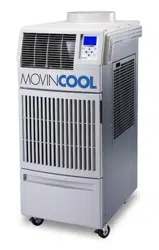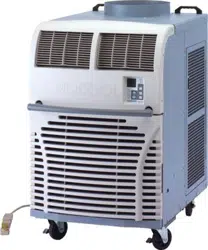
OPERATION MANUAL
OFFICE PRO 12 / OFFICE PRO 18 / OFFICE PRO 24
Unit Serial Number Range: 0711XXXX### to Present
(From July 2011 to Present)
READ THIS MANUAL CAREFULLY FOR INSTRUCTIONS ON CORRECT
INSTALLATION AND USAGE, AND READ ALL SAFEGUARDS
SECCIÓN EN ESPAÑOL
SECTION EN FRANÇAIS
AVAILABLE AT WWW.MOVINCOOL.COM
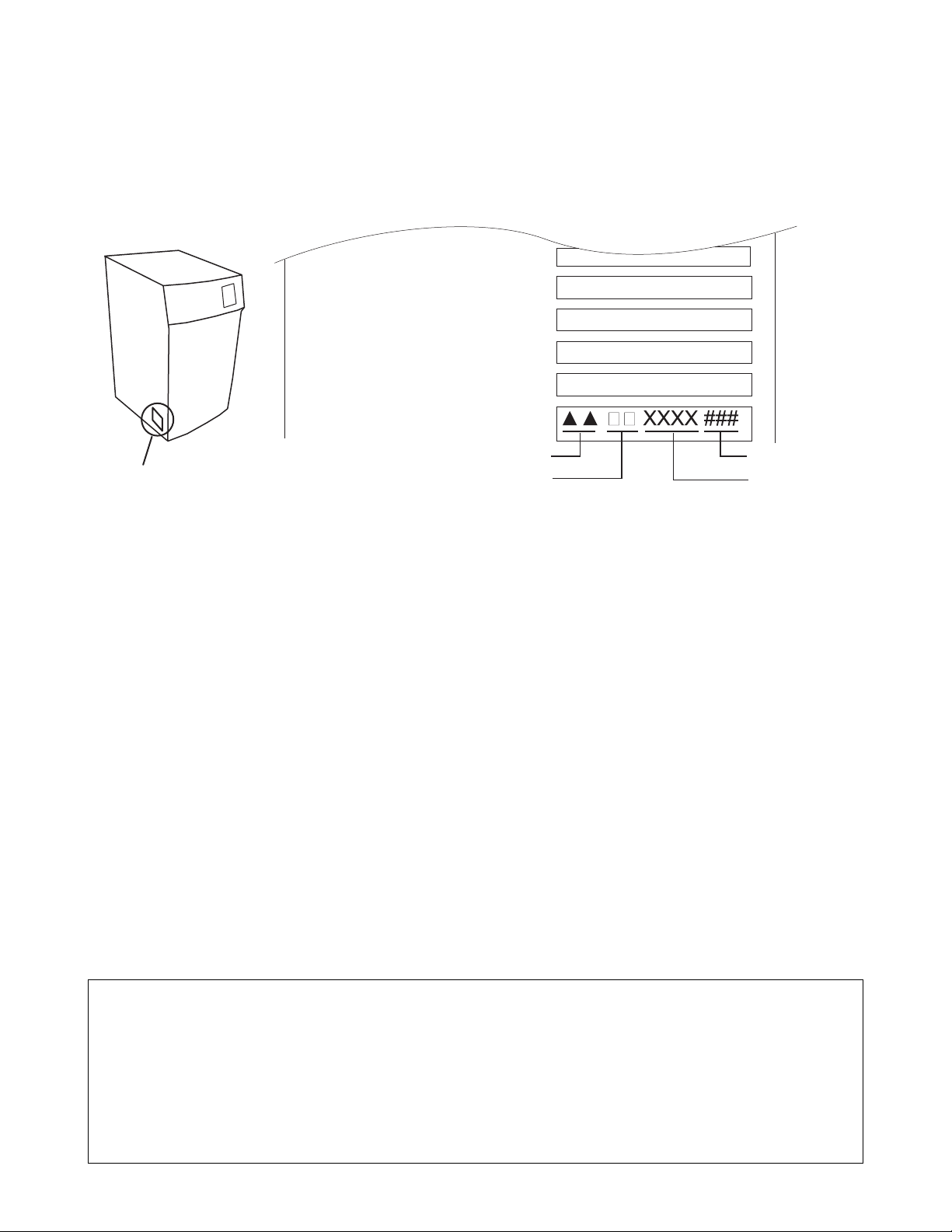
SERIAL NUMBER LOCATION AND IDENTIFICATION
Nameplate Label Position
Nameplate Label
COOLING AMPS. WITH PUMP
COMPR. OUTPUT
REFRIGERANT/TOTAL CHARGE
DESIGN PRESSURE LO/HI
PART NO./WEIGHT
SERIAL NO.
Month
Model
Sequential
Number
Year
© 2013 DENSO PRODUCTS AND SERVICES AMERICAS, INC.
All rights reserved. This book may not be reproduced or copied, in
whole or in part, without the written permission of the publisher. DENSO
PRODUCTS AND SERVICES AMERICAS, INC. reserves the right to
make changes without prior notice. MovinCool®, Office Pro®, and
SpotCool® are registered trademarks of DENSO Corporation.

OPERATION MANUAL
OFFICE PRO 12 / OFFICE PRO 18 / OFFICE PRO 24

Table of Contents
SERIAL NUMBER LOCATION AND IDENTIFICATION....................................2
FOREWORD.......................................................................................................5
Definition of Terms............................................................................................5
GENERAL WARNINGS & CAUTIONS ..............................................................6
INVENTORY .......................................................................................................7
INSTALLATION..................................................................................................8
Choosing an Installation Site ...........................................................................8
Moving the Unit .................................................................................................9
Plugging in the Unit ........................................................................................10
Warning Signal Connection ...........................................................................12
Fire Alarm Control Panel Connection ...........................................................13
LCDI Power Cord Instruction .........................................................................14
FEATURES.......................................................................................................15
OPERATION.....................................................................................................16
Control Panel ...................................................................................................16
LCD Indicators.................................................................................................17
Operating Modes .............................................................................................18
Set Clock ..........................................................................................................19
Operating in COOL Mode ...............................................................................19
Operating in FAN ONLY Mode .......................................................................20
Changing from FAN ONLY Mode to COOL Mode.........................................20
Keypad Lock ....................................................................................................20
How to Set a Program .....................................................................................21
How to View and Delete Program ..................................................................22
How to Run and Stop Program ......................................................................22
Self-Diagnostic Codes ....................................................................................23
Empty the Drain Tank .....................................................................................24
Condensate Pump Kit (Optional) ...................................................................25
DAILY INSPECTION & MAINTENANCE .........................................................26
Empty the Drain Tank .....................................................................................26
Clean the Air Filters ........................................................................................26
Filter Removal Method....................................................................................26
Filter Cleaning Method....................................................................................26
In-Season/Off-Season Inspection & Maintenance........................................27
TROUBLESHOOTING .....................................................................................28
TECHNICAL SPECIFICATIONS ......................................................................29
5
FOREWORD
Congratulations on purchasing the MovinCool portable air conditioner. This
manual explains how to install and operate the MovinCool Office Pro 12, Office
Pro 18, and Office Pro 24 portable air conditioning units. Please read this
operation manual thoroughly to familiarize yourself with the features of the unit
and to ensure years of reliable operation.
You may also find it useful to keep this operation manual on hand for reference.
Components and/or procedures are subject to change without prior notice.
Definition of Terms
WARNING: Describes precautions that should be observed in order to
prevent injury to the user during installation or unit operation.
CAUTION: Describes precautions that should be observed in order to
prevent damage to the unit or its components, which may occur during
installation or unit operation if sufficient care is not taken.
Note: Provides additional information that facilitates installation or unit operation.

6
GENERAL WARNINGS & CAUTIONS
1. All electrical work, if necessary, should only be performed by qualified
electrical personnel. Repair to electrical components by non-certified
technicians may result in personal injury and/or damage to the unit. All
electrical components replaced must be genuine MovinCool parts, purchased
from an authorized reseller.
2. The proper electrical outlet for MovinCool units must be equipped with a UL
recognized circuit breaker.
3. Because of potential safety hazards under a certain condition, we strongly
recommend against the use of an extension cord.
However, if you still elect to use an extension cord, it is absolutely necessary
that it is a UL listed, 3-wire grounding type appliance extension cord, having a
3-blade and a 3-slot receptacle that plugs into the appliance.
The marked rating of the extension cord should be 115 V, 15 A for Office Pro
12, and 115 V, 20 A for Office Pro 18 and 230 V, 20 A for Office Pro 24 or
equivalent.
4. The Office Pro 12 and Office Pro 18 are equipped with a 10 feet (3 m) UL
recognized LCDI power cords. The Office Pro 24 is equipped with a 6 feet (1.8
m) UL recognized LCDI power cord. For replacement, fixed location (hard
wired) or power cord lengthening (extension cord) cords are required, contact
your reseller or a qualified electrician for approved replacement methods.
5. Never fold or place heavy objects on the power cord.
This could result in damage to the power cord causing electrical shock or fire.
6. Do not place water or any other liquid on the unit. This can cause damage to
the unit and increase the risk of electrical shock.
7. Do not sit or stand on the unit.
7
INVENTORY
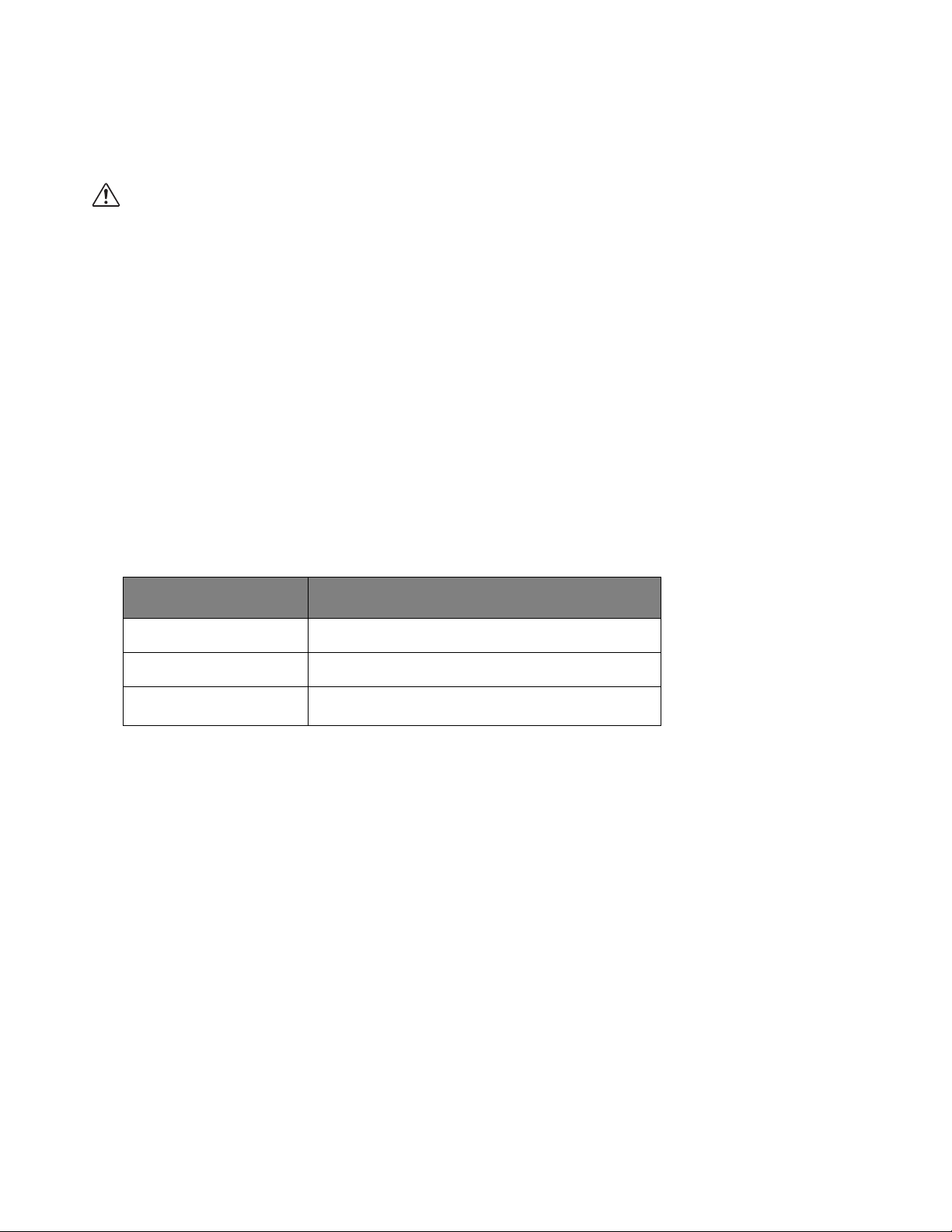
After unpacking your MovinCool unit, please check to make sure you have the
following items:
1. Office Pro 12 or Office Pro 18 or Office Pro 24 MovinCool Unit (1)
2. Operation Manual/Product Registration (1)
Note: If any of these items were not included in the box or appear damaged,
please contact your MovinCool reseller for replacement.
OPERATION MANUAL /
PRODUCT REGISTRATION
MOVINCOOL
O
MOVINCOOL
O
OFFICE PRO 24 UNIT OFFICE PRO 12 UNIT
OFFICE PRO 18 UNIT
8
INSTALLATION
Choosing an Installation Site
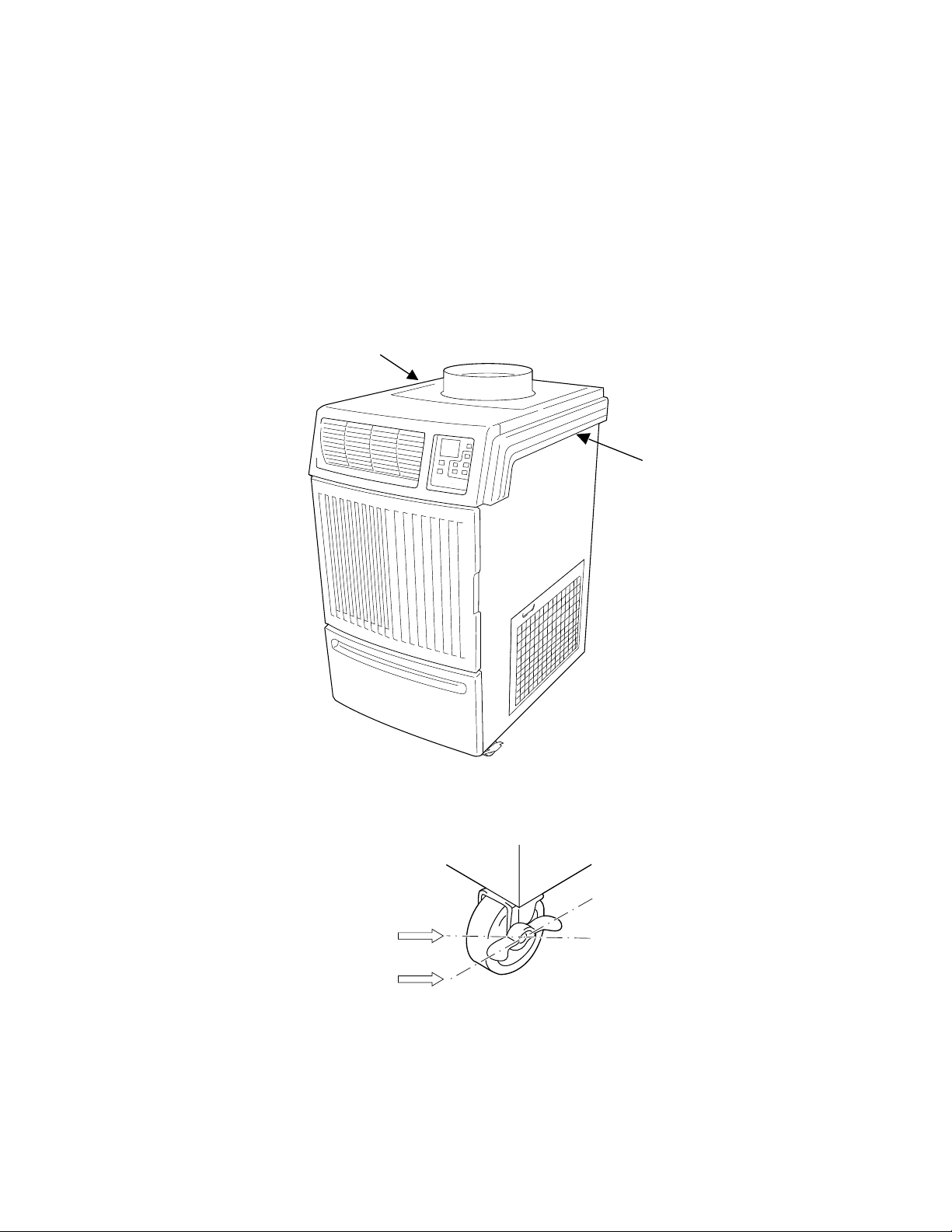
CAUTION: Following are some precautions to consider before
choosing your installation site. Please review carefully as improper
installation may result in personal injury or damage to the unit.
1. Do not use the unit in areas where leakage of flammable gas may occur.
2. Do not use the unit in areas where it is exposed to rain or water.
3. Do not use the unit in an environment which contains excessive amounts of
corrosive gas or vapour.
4. Do not use in areas where the temperature is outside the allowable operating
range.
5. Do not install the unit in sloping areas. The unit may move or topple over even
if the casters are set to the LOCKED position.
6. Install the unit in areas that can with-stand the weight of the unit.
*1: Approximate weight when the drain tank is full of water.
7. Allow 18 inch of unobstructed airflow for both the air inlets and outlets.
8. Do not use the unit at condition above 95 °F (35 °C) 60 %RH.
MODEL
UNIT WEIGHT
*1
Office Pro 12 186 lb (85 kg)
Office Pro 18 205 lb (93 kg)
Office Pro 24
240 lb (109 kg)
9
INSTALLATION (cont.)
Moving the Unit
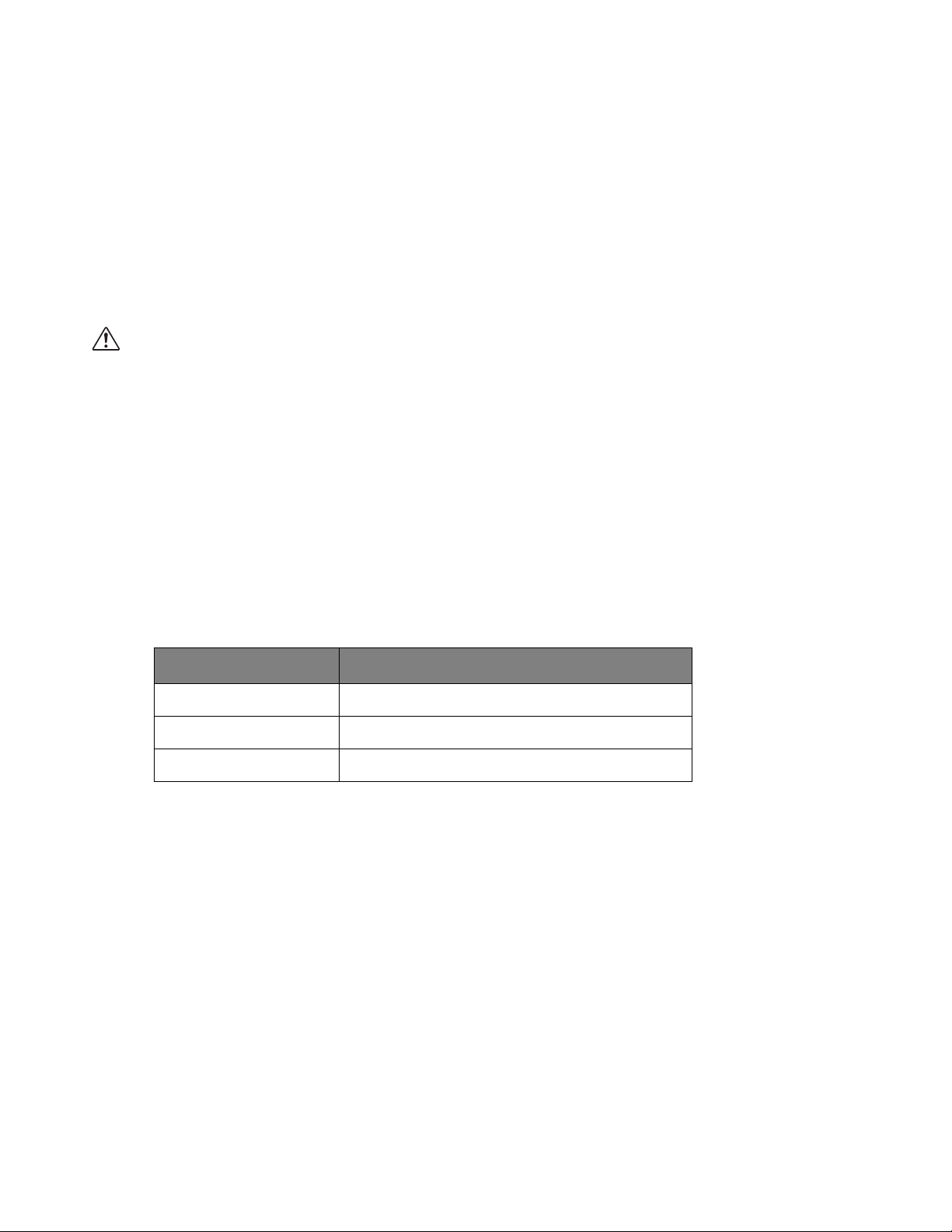
Unlock the casters and push the MovinCool unit using the side handles to a flat,
level surface and set the casters back to the LOCKED position.
MOVINCOOL
O
Right Side Handle
Left Side Handle
UNLOCKED
LOCKED
10
INSTALLATION (cont.)
Plugging in the Unit
1. Check the prongs and surface of the power cord plug for dust/dirt. If dust and/
or dirt are present, wipe off with a clean, dry cloth.
2. Check the power cord, plug and prongs for damage or excess play. If any
damage or excess play is found, contact your MovinCool reseller or a qualified
technician for repair.
WARNING:
1. If the power cord or plug is damaged, replacement should only be
performed by qualified electrical personnel.
2. Do not connect/disconnect the power cord or attempt to operate
buttons with wet hands. This could result in electrical shock.
3. Because of potential safety hazards under a certain condition, we
strongly recommend against the use of an extension cord. However,
if you still elect to use an extension cord, it is absolutely necessary
that it is a UL listed, 3-wire grounding type appliance extension cord,
having a 3-blade and a 3-slot receptacle that plugs into the appliance.
The marked rating of the extension cord should be the following
rating or equivalent.
MODEL RATING OF EXTENSION CORD
Office Pro 12 115 V, 15 A
Office Pro 18 115 V, 20 A
Office Pro 24 208/230 V, 20 A
11
INSTALLATION (cont.)
Plugging in the Unit (cont.)
CAUTION: The power source should be a dedicated single outlet
circuit with UL recognized short-circuit and ground fault protective
breaker. Do not share the AC outlet with any other instrument or
equipment. The minimum power supply rating and the maximum fuse
size for each corresponding model are listed below.
Note:
1. Make sure the AC outlet is free of dirt, dust, oil, water, or any other foreign
matter.
2. The Office Pro 12 is equipped with UL recognized LCDI cord and NEMA plug
configuration (5-15). The appropriate outlet must be used for this plug type.
3. The Office Pro 18 is equipped with UL recognized LCDI cord and NEMA plug
configuration (5-20). The appropriate outlet must be used for this plug type.
4. The Office Pro 24 is equipped with UL recognized LCDI cord and NEMA plug
configuration (6-20). The appropriate outlet must be used for this plug type.
MODEL MINIMUM POWER SUPPLY RATING RECOMMENDED
FUSE SIZE
Office Pro 12 115 V, single phase, 60 Hz, 15 A 15 A maximum
Office Pro 18 115 V, single phase, 60 Hz, 20 A 20 A maximum
Office Pro 24 208/230 V, single phase, 60 Hz, 20 A 20 A maximum
12
INSTALLATION (cont.)
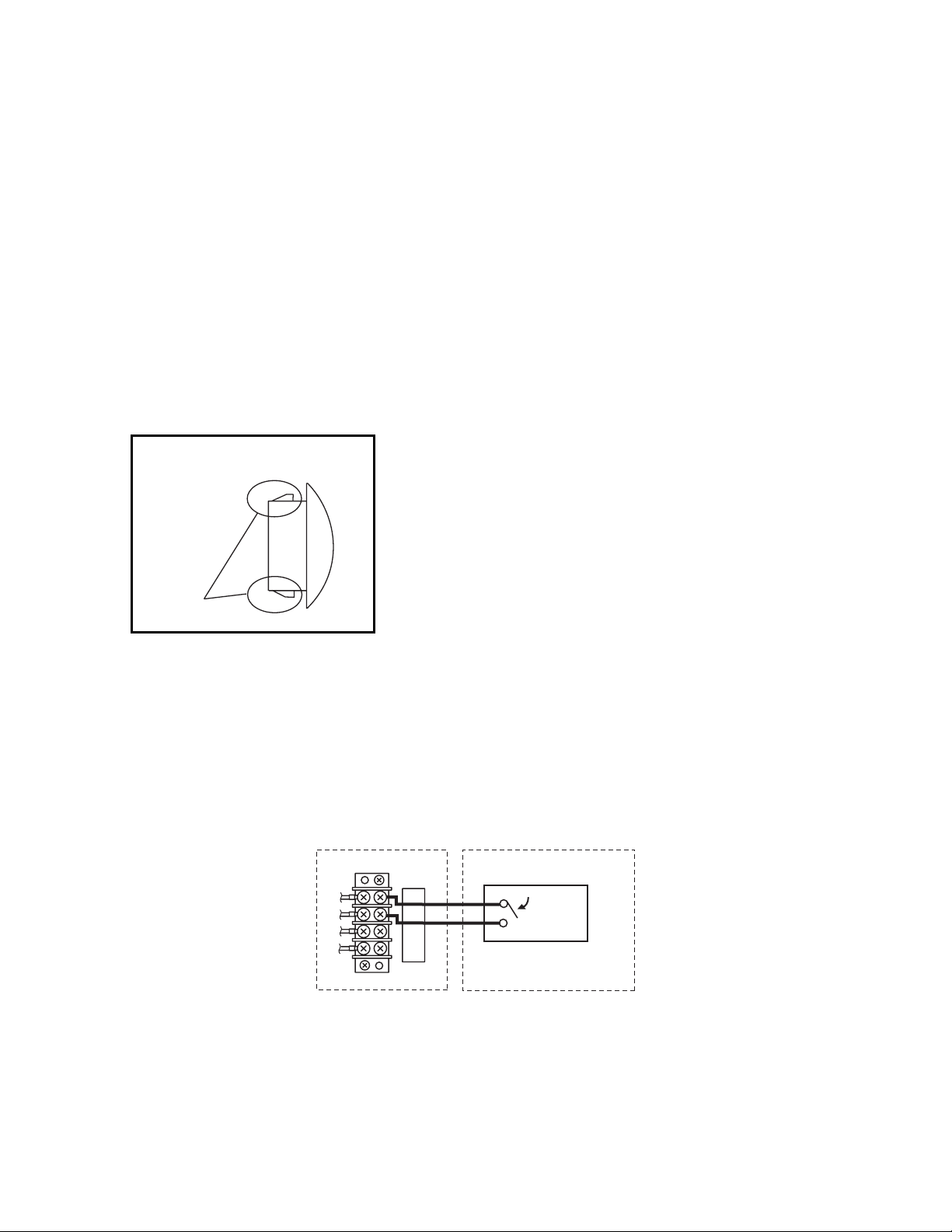
Warning Signal Connection
(Output Signal Terminal L+ and L-)
The controller is equipped with a warning signal output relay type (Form C, normal
open dry contact) which can be used to monitor the failure condition.
Relay contactor is closed when the following condition has occurred:
a. Tank full
b. Temperature sensor fails
c. High pressure switch error (Office Pro 24 ONLY)
The relay output contactor is rated 2 A at 30 VDC or 2 A at 30 VAC (resistive load)
and it is compatible with various warning devices such as alarm speaker, light
indicators, etc.
Connecting Warning Signal From Controller
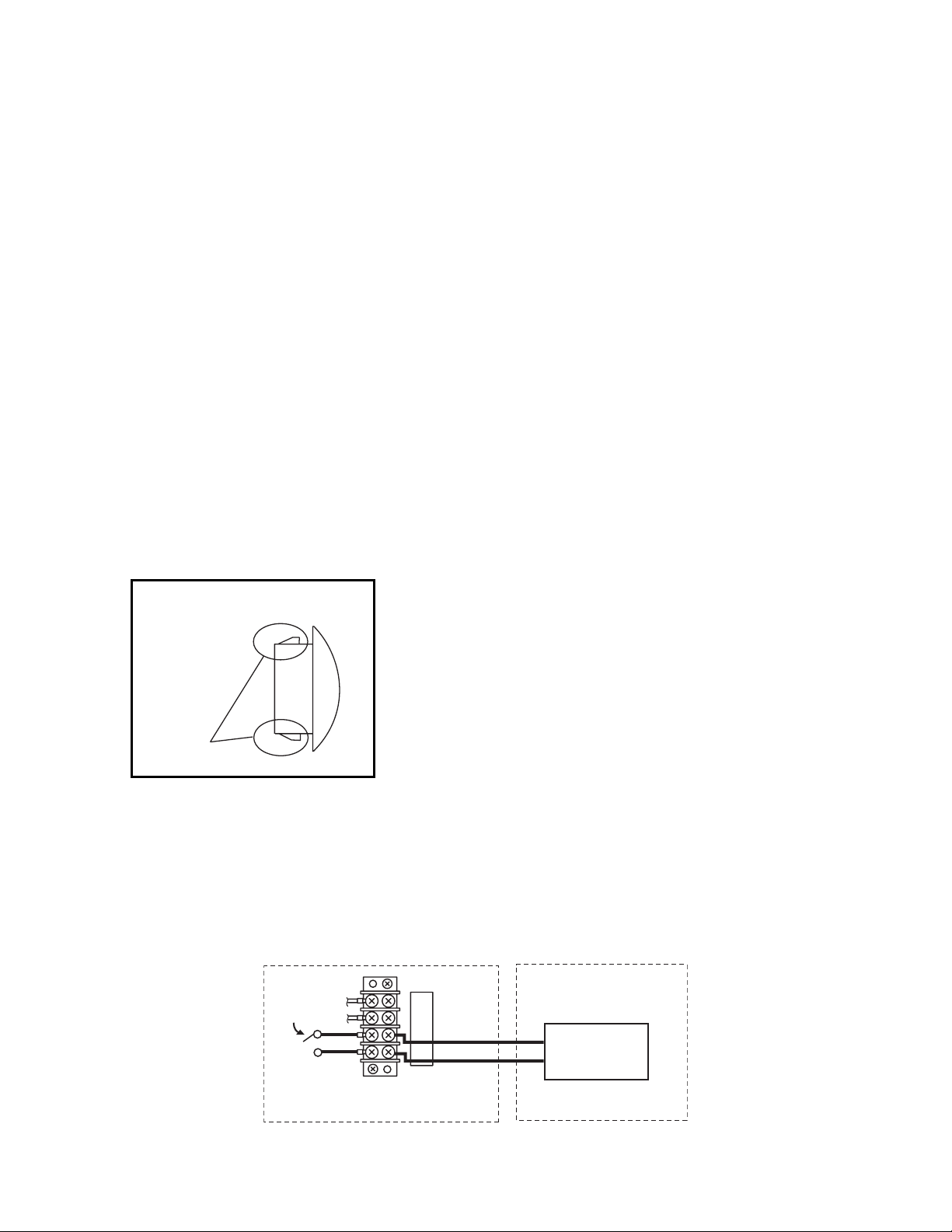
1. Remove service panel from the rear of the unit.
2. Squeeze the inner latches and push out the black cap from inside the panel.
3. Insert the warning signal wire through the hole in the rear panel.
Note: Use recommended warning signal wire size from 16AWG to 26 AWG for
a solid wire, or 16 AWG to 22 AWG for a stranded wire with ring terminal for
#6 stud size.
4. Connect the warning device to terminal L+ and L- according to its polarities.
Cap
Latch
UNIT TERMINAL
INPUT SIGNALRELAY OUTPUT CONTACTOR
WARNING DEVICE
E+
E-
L+
L-
13
INSTALLATION (cont.)
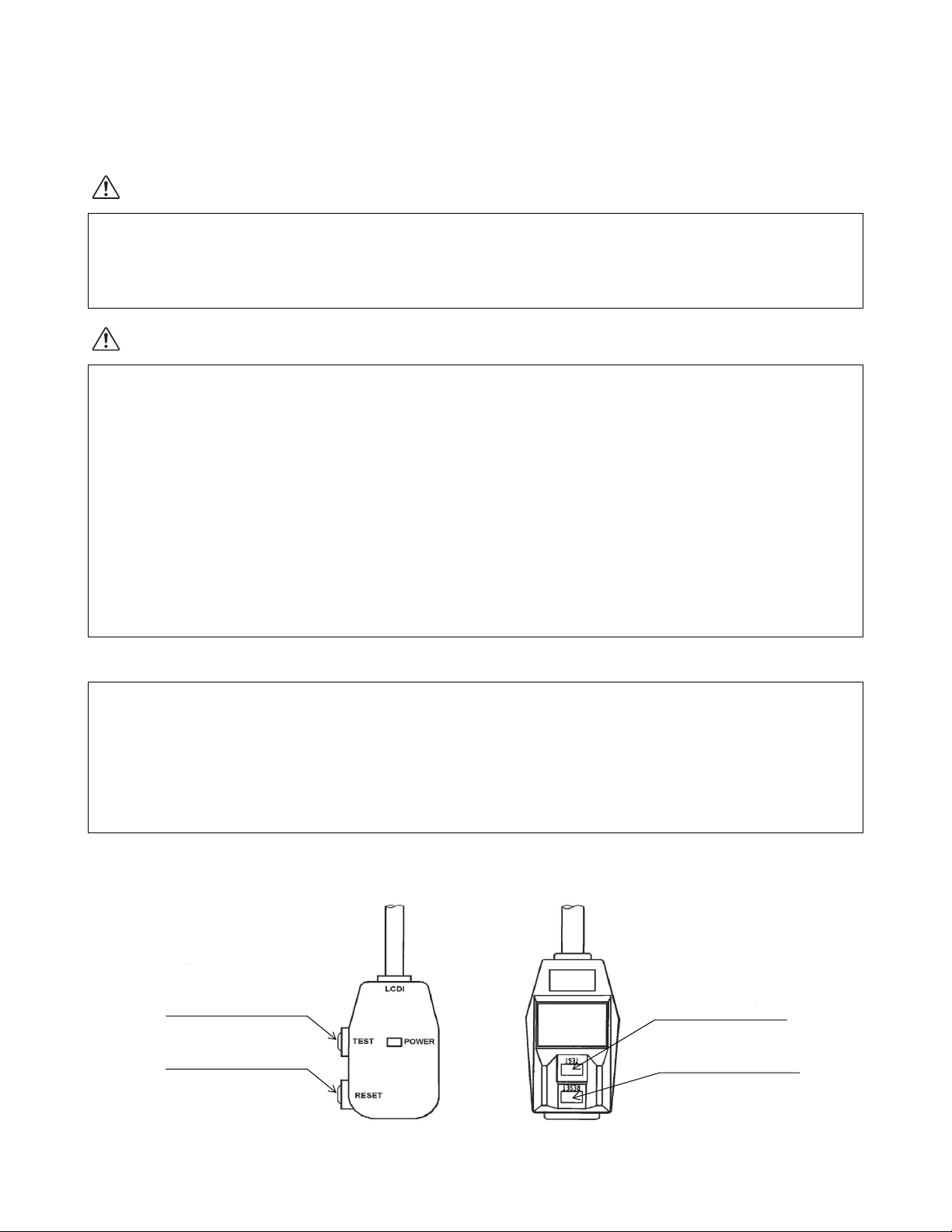
Fire Alarm Control Panel Connection
(Input Signal Terminal E+ and E-)
The controller is equipped with a normal open input signal connection, which can
be connected directly from the fire alarm control panel. This input signal terminal
should only be connected to a close or open dry contact signal. When receiving
the signal from the fire alarm control panel, the unit turns off and does not turn
back on until it has been RESET.
Connecting Fire Alarm Control Panel to Controller
1. Remove service panel from the rear of the unit.
2. Squeeze the inner latches and push out the black cap from inside the panel.
3. Insert the fire alarm signal wire through the hole in the rear panel.
Note: Use recommended warning signal wire size from 16 AWG to 26 AWG
for a solid wire, or 16 AWG to 22 AWG for a stranded wire with ring terminal
for #6 stud size.
4. Connect the fire alarm device to terminal E+ and E- according to its polarities.
Cap
Latch
UNIT TERMINAL
OUTPUT SIGNAL
FIRE ALARM DEVICE
E+
E-
L+
L-
OPEN DRY CONTACT
14
INSTALLATION (cont.)
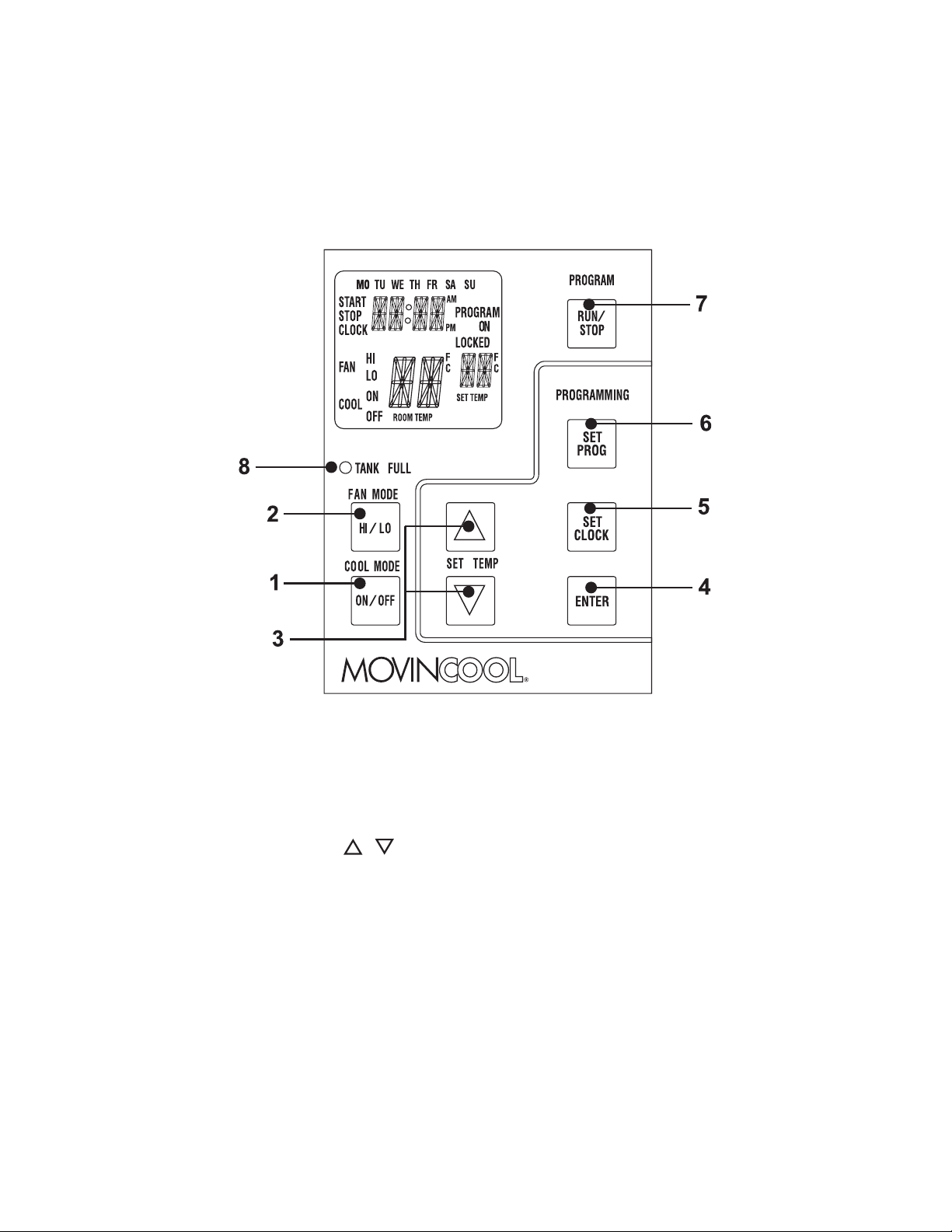
LCDI Power Cord Instruction
WARNING
CAUTION
Procedure
<FRONT VIEW>
The LCDI device is a non-serviceable device.
Attempting to open the device may expose the user to the hazards of electric shock, and
could void warranties of this product.
Manufacturer’s reliability is limited to the replacement of the device.
1. Read the attention printed on the device for proper use and handling of this device.
2. This device is used for monitoring leakage current.
3. Do not immerse in water.
4. This device must only be plugged into an appropriate wall outlet.
Do not use on extension cords or adapter. Do not remove ground prong.
5. In the event that this device trips, the cause of malfunction should be corrected first before
further use.
6. Using the device beyond recommended voltage poses risk to users.
7. Conductors inside this cord are surrounded by shields, which monitor leakage current.
These shields are not grounded, and they are periodically examined the cord for any
damage. Do not use this product in the event the shields become exposed.
8. Do not push TEST and/or RESET buttons in a short period.
Test device once when AC is installed to assure proper operation.
1. Plug into grounded power receptacle.
2. If light is not on, press RESET button once. Light should turn on.
3. Press TEST button once, light must turn off.
4. Press RESET button once again for use. Light should turn on.
5. If test fails, do not use.
TYPE 1
TYPE 2
TEST Button
RESET Button
TEST Button
RESET Button

15
FEATURES
For all models:
1. A digital electronic control panel, which allows the user to easily control the
unit’s operation.
2. Dual fan speeds (either HIGH or LOW) in both COOL and FAN ONLY modes.
3. Digital LCD display with blue backlight that indicates:
a. Clock with day and time
b. Room temperature and set point temperature
(either Fahrenheit or Celsius)
c. Fan speed status
d. Cool mode status
e. Program start time and stop time
f. Program run and stop
g. Status codes
h. Keypad lock
4. The set point temperature can be adjusted between 65 °F (18.3 °C) and 90 °F
(32.2 °C) by the SET TEMP buttons ( / ).
5. Fire alarm control panel connection with automatic shut off.
6. Automatic shut off, warning signal output and alarm for temperature sensor
failure, loss of cooling, and conditions of self-diagnostic codes.
7. Condensate drain “TANK FULL” indicator (LED) and display (LCD).
8. Automatic restart feature when the power is lost and regained. The unit returns
to the operating mode it was in prior to the loss of power. Any preset program
is retained in the memory in the event power loss occurs.
9. Programmable clock/timer function. This function allows the user to program
a specific time and day at which the unit begins to operate/start and turn off
(Automatic Operation).
16
OPERATION
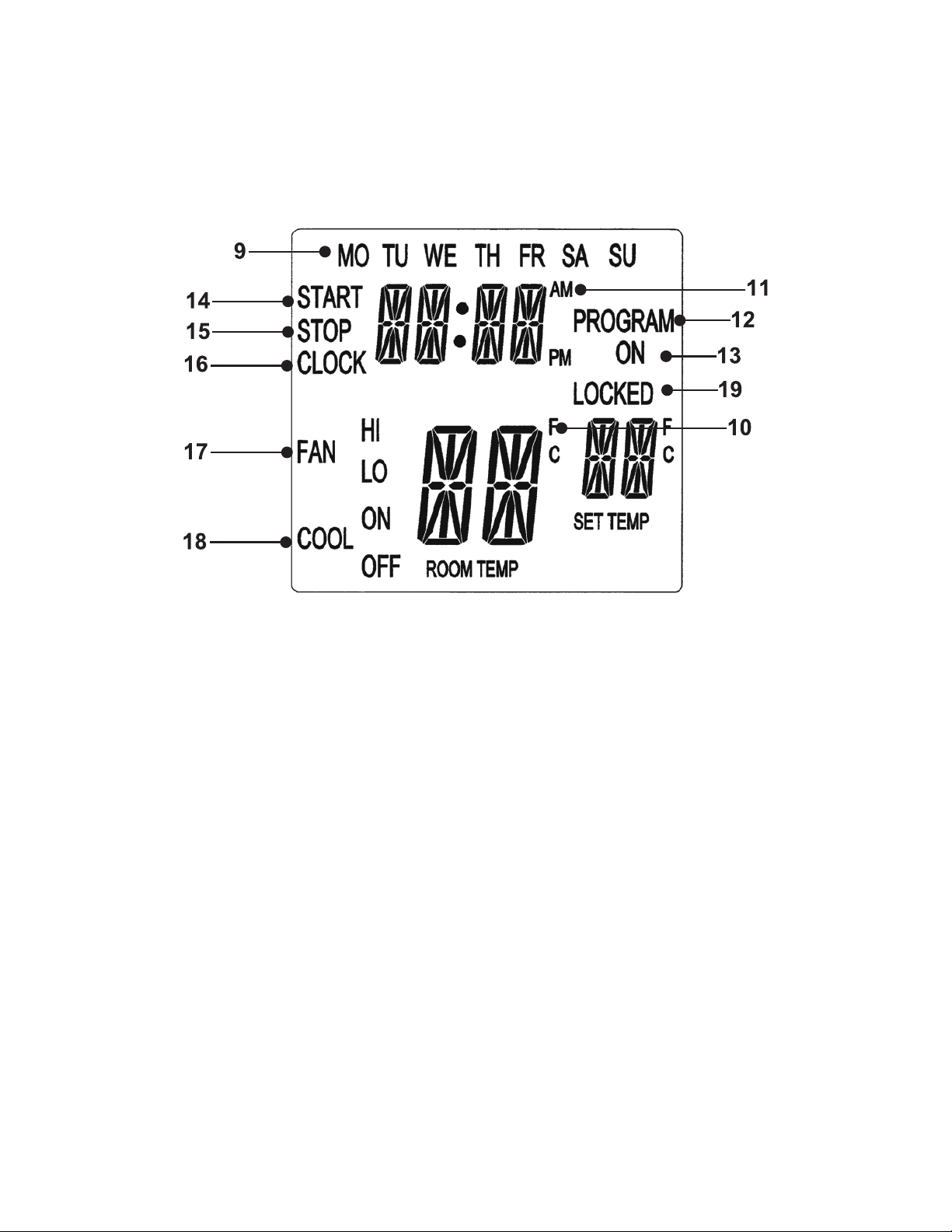
Control Panel
Before operating the unit, it is important to familiarize yourself with the basic
controls located on the control panel.
1. COOL Mode Button
Activates/deactivates the COOL mode/turns the
unit off.
2. FAN Mode Button
Activates/deactivates the high, low, and off fan
speed.
3. SET TEMP Buttons ( / )
Temperature scale illuminates to indicate the
current LED temperatures being displayed are
either in °C or °F; also displays the clock when
programming.
4. ENTER Button
Press to select set value.
5. SET CLOCK Button
Press to set clock (day and time).
6. SET PROG Button
Press to set or view program.
7. RUN/STOP Button
Activates/deactivates program(s).
8. TANK FULL LED
Flashes when the drain tank is full.
17
OPERATION (cont.)
Control Panel (cont.)
LCD Indicators
Note: ROOM TEMP display range is from 16 °F to 109 °F (-9 °C to 42 °C). When the
display value is greater than 99 °F, it displays values of +0F (for 100 °F), +1F (for 101
°F) and +9F (for 109 °F). (This only applies to Farenheit values.)
9. MO...SU
Illuminates to indicate selected day of the week.
10. °C or °F
Temperature displayed in either Fahrenheit or
Celsius (see Note).
11. AM/PM
Illuminates to indicate AM or PM time of day.
12. PROGRAM
Blinking during program editing mode.
13. PROGRAM ON
Illuminates to indicate program is running.
14. START
Illuminates to indicate program start time.
15. STOP
Illuminates to indicate program stop time.
16. CLOCK
Illuminates to indicate clock status.
17. FAN HI/LO
Illuminates to indicate selected fan speed.
18. COOL ON/OFF
Illuminates to indicate cool on or off.
19. LOCKED
Illuminates to indicate keypad locked.

18
OPERATION (cont.)
Operating Modes
The Office Pro 12, Office Pro 18, and Office Pro 24 can be operated in two modes,
FAN ONLY and COOL. When in FAN ONLY mode, the unit circulates the
surrounding air. When in COOL mode, the compressor is operated and cool air is
circulated.
1. COOL Mode
Once the compressor has been disengaged for more than 120 seconds, the unit
operates in FAN ONLY mode for approximately 5 seconds before the compressor
re-engages.
2. Temperature Control
The room temperature thermistor monitors the inlet temperature versus set point
temperature and switches the unit automatically between COOL and FAN ONLY
modes.
3. Fan Mode Control DIP Switch
The fan mode control DIP switch determines whether the fan continues to operate
or stop when the compressor cycles off. (Set point temperature below the inlet air or
room temperature.) The unit has been preset at the factory for continuous fan
operation.
Note: If you want to change the fan mode operation (from OPERATE to STOP),
contact your MovinCool reseller.
4. Temperature Scale Display DIP Switch
The temperature scale display DIP switch changes the temperature(s) that are
displayed to either °C or °F. The unit has been preset at the factory to display the
temperature(s) in °F.
Note: If you want to change the temperature scale display (°F to °C), contact your
MovinCool reseller.
19
OPERATION (cont.)
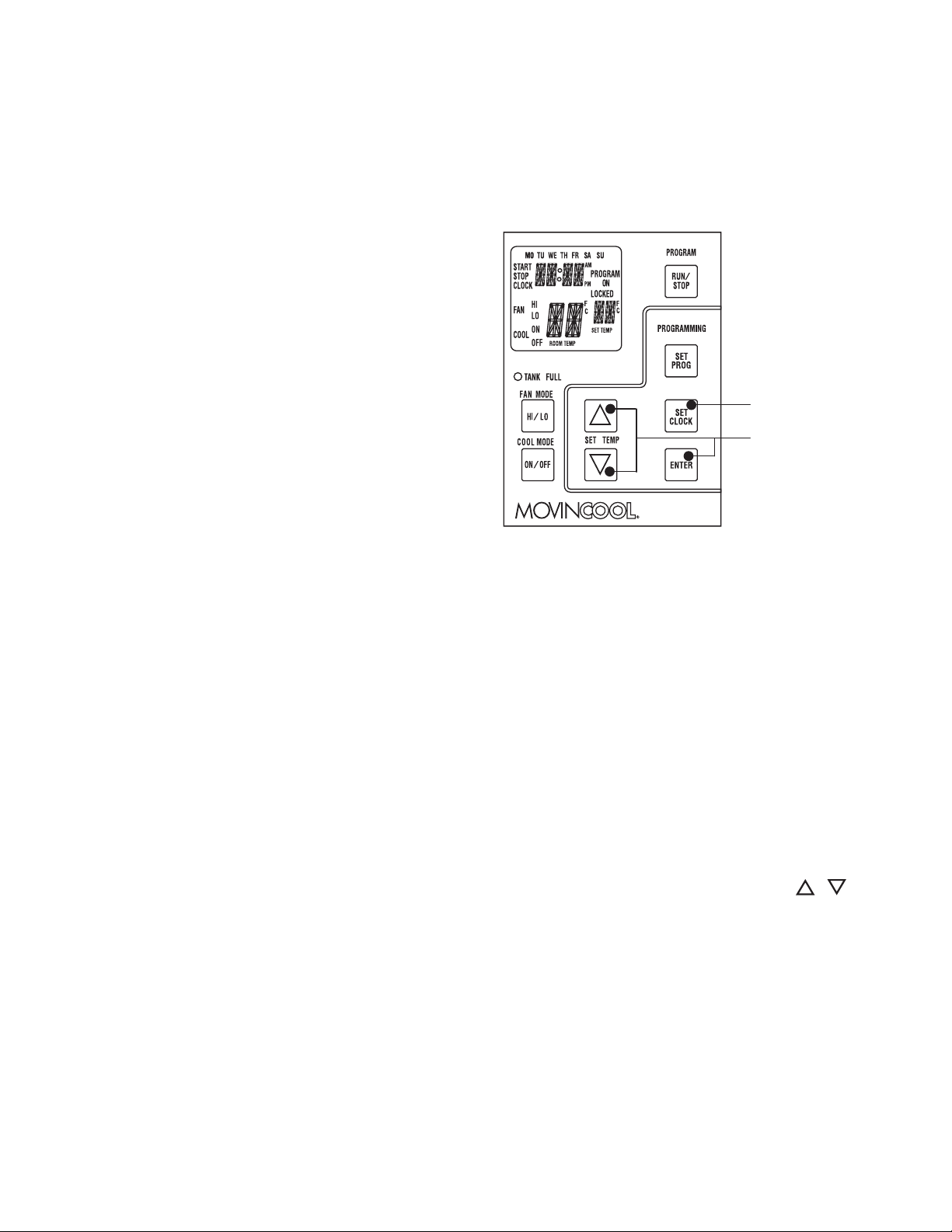
Set Clock
Prior to operating the Office Pro 12, Office Pro 18, or Office Pro 24 users should
set the clock of the controller to the correct time as shown in the following steps:
1. Press and hold the SET CLOCK button
for 3 seconds or until beep.
(LCD indicates blinking “CLOCK” and
blinking “day of the week”.)
2. Press SET TEMP buttons to scroll day
of the week.
3. Press ENTER button.
4. Press SET TEMP buttons to select
correct hour.
5. Press ENTER button.
6. Press SET TEMP buttons to select
correct minute. Press SET CLOCK
button to exit clock mode.
Note: User should check clock periodically to confirm clock accuracy.
Operating in COOL Mode
1. The unit can be operated in COOL mode by pressing the COOL ON/OFF
button (LCD indicates “COOL ON”).
Note: In COOL mode the unit can only be turned off by pressing the COOL ON/OFF
button.
2. Change the fan speed by pressing the FAN HI/LO button.
3. Change the temperature set point by pressing the SET TEMP buttons ( / ).
Note: When turning the unit on, the set point and fan speed are determined by the
last operating mode. (This function does not apply to PROGRAM mode.)
Step 1 & 6
Step 2 to 5

20
OPERATION (cont.)
Operating in FAN ONLY Mode
1. The unit can also be operated in FAN ONLY mode by pressing FAN HI/LO
button (LCD indicates “FAN HI/LO” and “COOL OFF”).
2. The unit can then be turned off by pressing the FAN HI/LO button until fan
turns off (FAN ONLY mode speed sequences are HI→LO→OFF).
Changing from FAN ONLY Mode to COOL Mode
The COOL mode can be activated while the unit is operating in FAN ONLY mode.
To do this, simply press the COOL ON/OFF button (LCD indicates “COOL ON”).
Note: The FAN ONLY mode does not operate after the COOL mode has been activated.
The unit can only be turned off by pressing the COOL ON/OFF button.
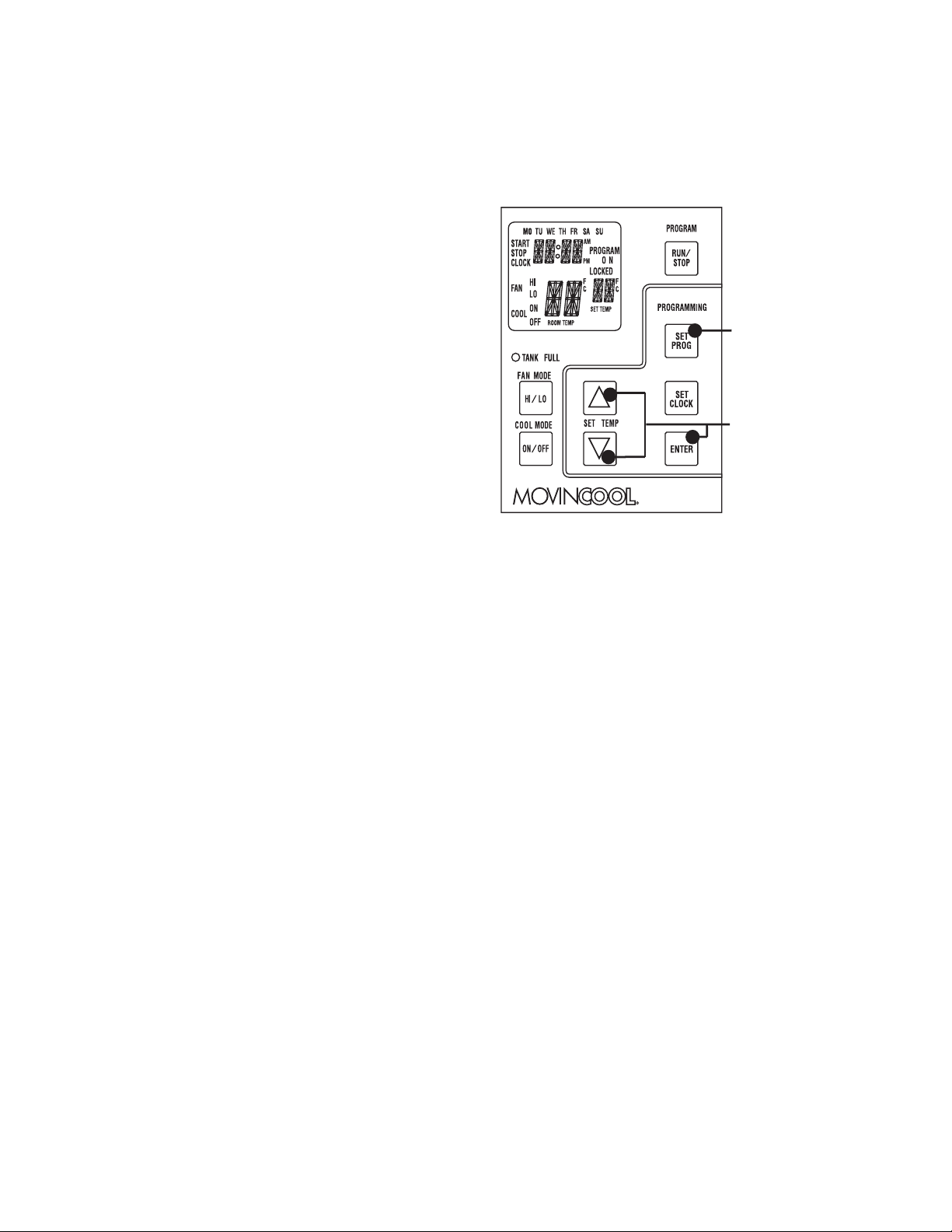
Keypad Lock
Keypad lock disables all buttons on the controller panel except keypad lock and
unlock operations.
1. To lock, press and hold ENTER and SET CLOCK buttons simultaneously for
5 seconds.
2. To unlock, press and hold ENTER and SET CLOCK buttons simultaneously
for 5 seconds again.
Note: When the unit detects operation failure, keypad is unlocked automatically and self-
diagnostic code illuminates.
21
OPERATION (cont.)
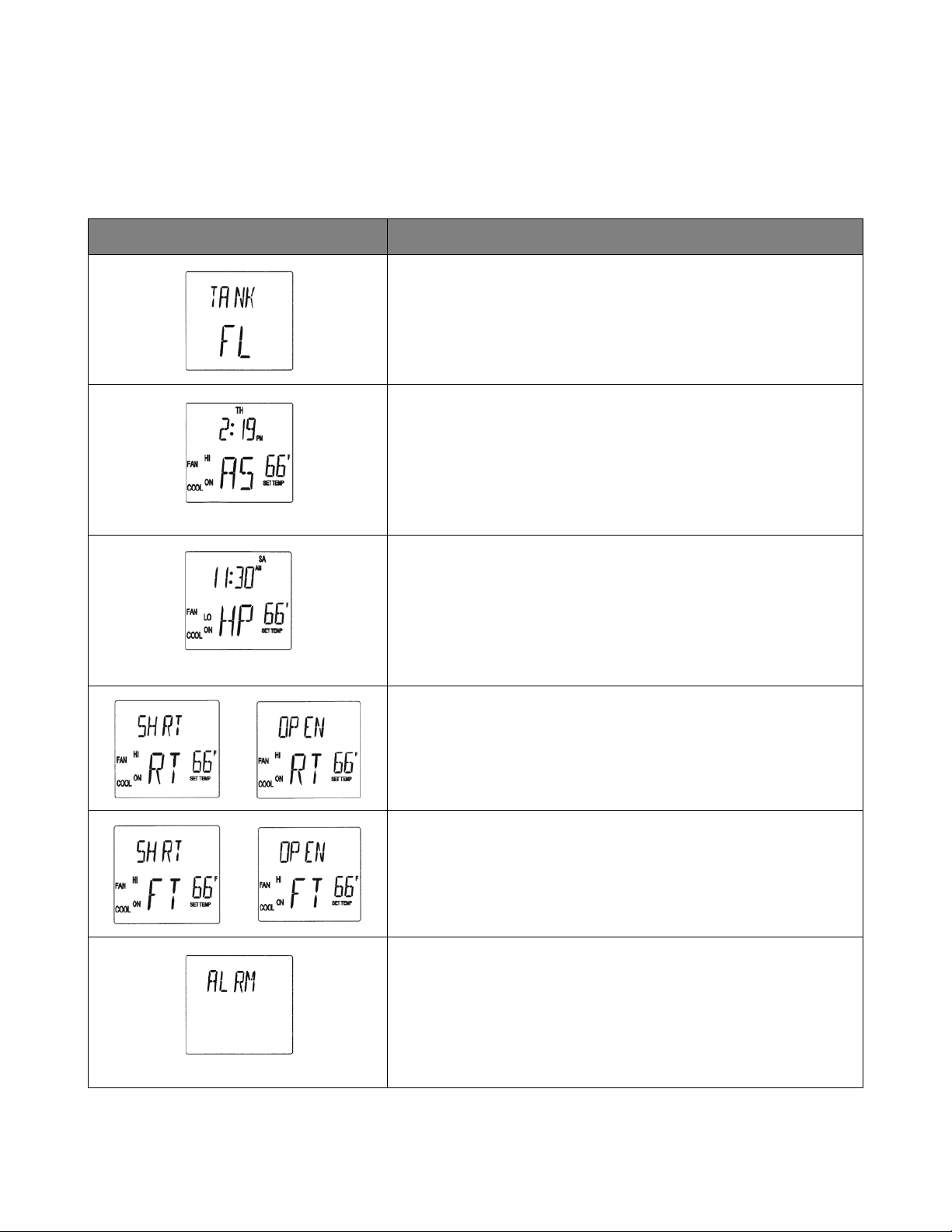
How to Set a Program
SET START TIME
1. Press and hold the SET PROG button
for 3 seconds or until beep.
2. Press SET TEMP buttons to scroll day
of the week.
3. Press ENTER button.
4. Press SET TEMP buttons to select
desired hour.
5. Press ENTER button.
6. Press SET TEMP buttons to select
desired minute.
7. Press ENTER button.
SET STOP TIME
8. Press SET TEMP buttons to scroll day of the week.
9. Press ENTER button.
10. Press SET TEMP buttons to select desired hour.
11. Press ENTER button.
12. Press SET TEMP buttons to select desired minute.
13. Press ENTER button.
SET FAN SPEED
14. Press SET TEMP buttons to select desired fan speed.
15. Press ENTER button.
SET SET-POINT TEMPERATURE
16. Press SET TEMP buttons to select desired temperature.
17. Press ENTER button.
EXIT PROGRAM EDITING MODE
18. Press SET PROG button to exit program editing mode.
EDIT MULTIPLE PROGRAMS
19. Repeat step 1. to 18. to set up multiple programs.
Note: Maximum 7 programming sequences
Step 1 & 18
Step 2 to 17

22
OPERATION (cont.)
How to View and Delete Program
1. Press and hold the SET PROG button for 3 seconds or until beep.
2. To view edited program - While pressing and holding the SET PROG button,
press SET TEMP buttons ( / ) to scroll program sequence.
3. To delete a program - Press ENTER and SET PROG buttons once
simultaneously.
4. To delete multiple program - Press and hold ENTER and SET PROG buttons
simultaneously.
How to Run and Stop Program
1. Press RUN/STOP button to activate preset program (LCD indicates
“PROGRAM ON”). During PROGRAM RUN mode, if you RESET (press FAN
HI/LO and COOL ON/OFF buttons simultaneously for 5 seconds), PROGRAM
RUN mode is terminated. To resume PROGRAM RUN mode, you must push
RUN/STOP button again.
2. Press RUN/STOP button to stop program.
Note:
1. The unit returns to the previous mode if a program is turned off while it is
running.
2. The LCD continues to indicate “PROGRAM ON” during program activating.
3. Program can be set during power on standby, during unit running, or during
program running.
4. During programming, the unit returns to the previous mode if no activity occurs
within approximately 3 minutes.
23
OPERATION (cont.)
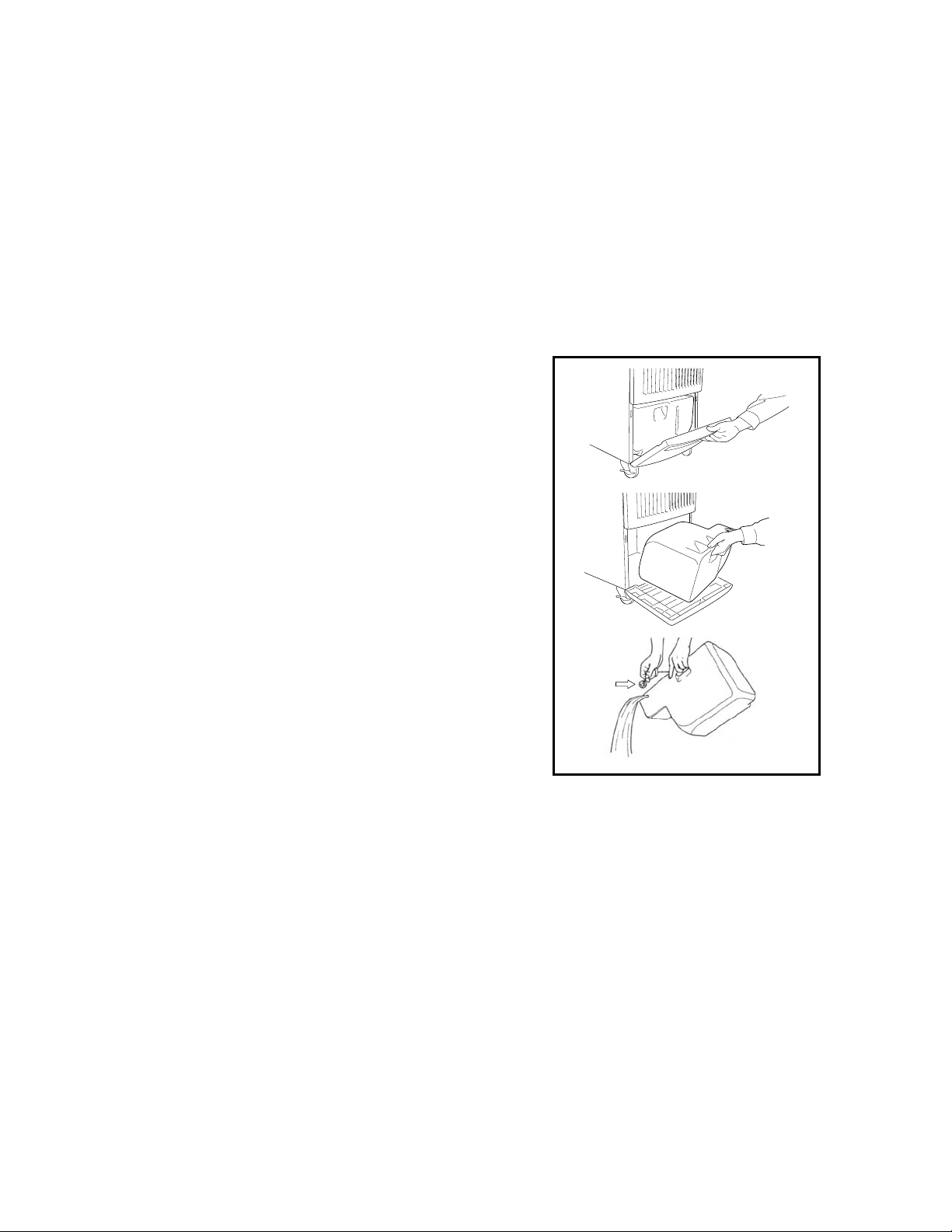
Self-Diagnostic Codes
Self-diagnostic codes are displayed on the control board under the following
conditions.
Contact your MovinCool reseller or a qualified technician if problem persists.
LCD Display Codes Condition
When the drain tank switch shuts off the unit, LCD displays
“TANK FL” and “TANK FULL” LED flashes.
Once emptying the drain tank procedure is completed and
ON/OFF has been pushed, unit returns to normal operation.
When the condensate pump stops pumping water due to any
kink and/or blockage in the drain line or due to improper
routing of the drain line, the compressor shuts off, and the
LCD displays “AS”. Once the condition is fixed and unit has
been RESET, the unit returns to normal operation.
To RESET: Press FAN HI/LO and COOL ON/OFF buttons
simultaneously for 5 seconds.
< Office Pro 24 ONLY > When high pressure switch is
activated, display shows “HP” if high pressure switch is
activated 3 times in 24 hours, unit displays blinking “HP” and
a buzzer turns on (see page 28). Unit returns to normal
operation after problem is fixed and controller is RESET.
To RESET: Press FAN HI/LO and COOL ON/OFF buttons
simultaneously for 5 seconds.
When room thermistor becomes open or shorted, display
shows “OPEN RT” or “SHRT RT” and cool mode operation is
off. Display and cool mode operation are returned to normal
operation after room thermistor is fixed.
When freeze thermistor becomes open or shorted, display
shows “OPEN FT” or “SHRT FT” and cool mode operation is
off. Display and cool mode operation are returned to normal
operation after freeze thermistor is fixed.
When the unit detects a signal from the fire alarm system, the
display shows "ALRM" and a buzzer turns on. Check the fire
alarm system and confirm that there is no signal input to the
unit. The unit returns to the normal operation after the
problem is fixed and the controller is RESET.
To RESET: Press FAN HI/LO and COOL ON/OFF buttons
simultaneously for 5 seconds.
24
OPERATION (cont.)
Empty the Drain Tank
During COOL mode, condensate water accumulates in the drain tank.
When the drain tank becomes full, the “TANK FULL” LED flashes and the LCD
displays “TANK FL” and the unit turns off automatically.
Note: If you want to empty the drain tank, while the unit is in operation, press the COOL
ON/OFF button to turn the unit off. If a program is running, you must first stop the
program by pressing the RUN/STOP button.
1. Open the drain tank door.
2. Pull the drain tank from the unit.
3. Remove the cap and empty the drain
tank.
4. Replace the cap and return the drain
tank to the unit.
5. Close the drain tank door.
6. Press the COOL ON/OFF or FAN ON/OFF button to restart the unit.
7. If the LCD indicates “PROGRAM ON”, press the COOL ON/OFF button to
continue running the program. If the LCD indicates “PROGRAM ON” is
illuminated continuously, no further steps are necessary. If no program exists
or the program was deactivated, press the COOL ON/OFF button to restart the
unit.
CAP
25
OPERATION (cont.)
Condensate Pump Kit (Optional)
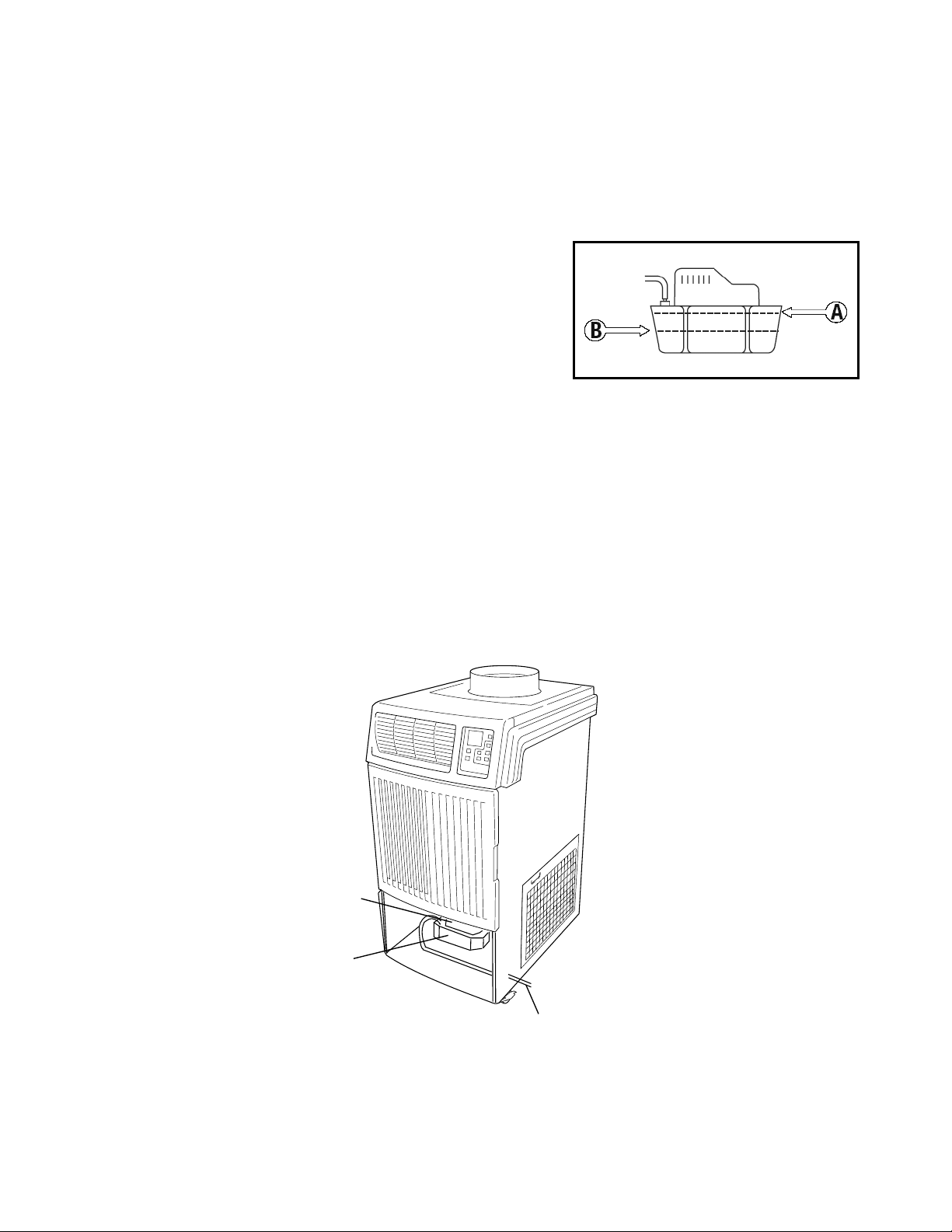
A condensate pump kits are available to allow continuous operation and to
eliminate the need for a drain tank.
When the water collects to level (A) in the pump
reservoir, the condensate pump begins to
operate and discharge the water.
Note: The compressor does not operate while the condensate pump is discharging the
water for the Office Pro 12 and Office Pro 18.
When the water level drops below level (B), the condensate pump stops, and the
compressor restarts.
Note: If for any reason the water level exceeds that of level (A) in the pump reservoir, an
over flow drain switch stops the compressor operation, and the LCD displays “AS”.
Note: If the fan mode control DIP switch (see page 18) is set to the STOP position, the
entire unit (including fan operation) turns off either due to the over flow drain switch or
while the condensate pump is discharging the water.
MOVIN
COOL
O
O
CONDENSATE PUMP
DISCHARGE HOSE
CONDENSATE PUMP
RESERVOIR
26
DAILY INSPECTION & MAINTENANCE
Empty the Drain Tank
To empty the drain tank, refer to instructions on page 24.
Clean the Air Filters
Clean the air filters once a week. If the unit is used in a dusty environment, more
frequent cleaning may be required. A dirty air filter can reduce air output resulting
in a decrease in the cooling capacity.
Filter Removal Method
1. Turn the unit off by pressing the COOL ON/OFF button.
If a program is running, you must first press the PROGRAM RUN button.
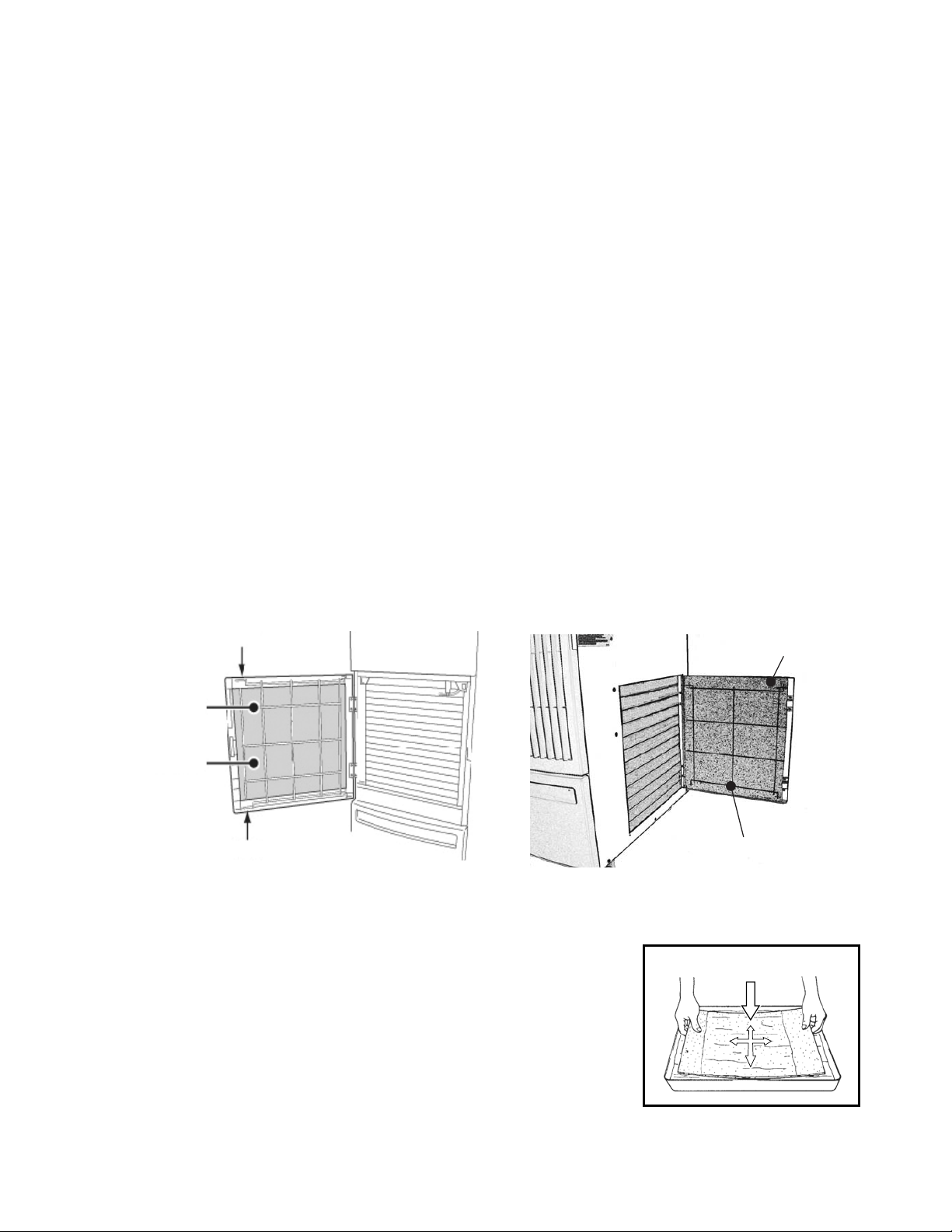
2. Remove the two air filters.
Note: To remove the filter from the Office Pro models, open the front panel and
side panel filter doors. On the front panel door, carefully remove the filter
retainer from its clips by pulling on the retainer at those two points. On the side
panel door, carefully remove the filter element from the wire frame.
Filter Cleaning Method
1. Remove dust from the element with a vacuum
cleaner, or rinse in cold or lukewarm water. If the
element is extremely dirty, wash with a neutral
detergent.
2. After the element has been cleaned, rinse with
clean running water, allow to dry, then reinstall.
CLIP
RETAINER
FILTER
CLIP
FILTER
WIRE FRAME
SIDE PANEL FILTER DOORFRONT PANEL FILTER DOOR
FILTER

27
DAILY INSPECTION & MAINTENANCE (cont.)
In-Season/Off-Season Inspection & Maintenance
In-Season
WARNING: To prevent an accident due to electrical shock, perform
inspection and maintenance only after unplugging the power cord.
1. Check the prongs and surface of the power cord plug for dust and/or dirt. If
dust and/or dirt are present, wipe off with a clean dry cloth.
2. Check the power cord, plug and prongs for damage or excess play. If any
damage or excess play is found, contact your MovinCool reseller or a qualified
technician for repair.
3. Check the air filters and drain tank.
4. Clean the outside of the unit(s) with a damp cloth or mild nonabrasive cleaner.
Off-Season
1. Operate the unit in FAN ONLY mode for 8 hours.
Note: Operation is necessary to dry out the inside of the unit.
2. Disconnect the power cord from the AC outlet.
3. Check the prongs and surface of the power cord plug for dust and/or dirt. If
dust and/or dirt are present, wipe off with a clean dry cloth.
4. Check the power cord, plug and prongs for damage or excess play. If any
damage or excess play is found, contact your MovinCool reseller or a qualified
technician for repair.
5. Clean the air filters.
6. Empty all water from the drain tank.
28
TROUBLESHOOTING
Check the following items before calling your MovinCool reseller or a qualified
technician.
If conditions persist after the above actions have been taken, turn the unit off,
disconnect the power and contact your MovinCool reseller or a qualified
technician.
CONDITION POSSIBLE CAUSE REMEDY
Unit does not operate.
1. Ground fault breaker trip or
LCDI power cord trip.
Reset breaker or reset power
cord.
2. Drain tank is full.
(“TANK FULL” LED flashes.)
Empty the drain tank.
3. High pressure switch
activated 10 times in 24
hours.
1. Clean air filter.
2. Check inlet and outlet air to
make sure that there are no
objects preventing the air
flow into or out from the unit.
3. Check environmental
condition whether it is within
operation range or not.
4. Reset controller.
To RESET: Press FAN HI/LO
and COOL ON/OFF buttons
simultaneously for 5
seconds, controller returns to
normal operation.
Insufficient cooling.
1. Dirty/Blocked air filters. Clean air filter.
2. Air inlet/outlet blocked. Clean air inlet/outlet.
3. Improper temperature setting. Adjust temperature setting.
29
TECHNICAL SPECIFICATIONS
..
*1: Serial number from April 2007 (0407) to September 2010 (0910)
*2: Serial number from October 2010 (1010) to present
*3: Serial number from April 2007 (0407) to December 2011 (1211)
*4: Serial number from January 2012 (0112) to present
ITEMS/FEATURES Office Pro 12 Office Pro 18 Office Pro 24
Rating Conditions
Dry bulb
Wet bulb
Humidity
95 °F(35 °C)
83 °F(28.2 °C)
(60 %)
95 °F(35 °C)
83 °F(28.2 °C)
(60 %)
95 °F(35 °C)
83 °F(28.2 °C)
(60 %)
Specifications
Power frequency
Line voltage
Power consumption
Current consumption
Power factor
Starting current
Power wiring
60 Hz
Single Phase 115 V
1.3 kW
11.9 A
95 %
52 A
14(3-core) AWG
60 Hz
Single Phase 115 V
1.7 kW
15.6 A
95 %
65 A
12(3-core) AWG
60 Hz
Single Phase 208/230 V
2.9/2.9 kW
14.2/13.1 A
99 %/96 %
62 A
12(3-core) AWG
Cooling Unit
Cooling capability
Cooling system
12,000 Btu/h
(3,510 W)
Direct Expansion
16,800 Btu/h
(4,920 W)
Direct Expansion
23,600/24,000 Btu/h
(6,900/7,020 W)
Direct Expansion
Blower
Type of fan
Air volume:Evaporator (high speed)
Condenser (high speed)
Motor output: High
Low
Centrifugal Fan
410 CFM (697 m³/h)
820 CFM (1,398 m³/h)
0.14 kW
0.08 kW
Centrifugal Fan
540 CFM (917 m³/h)
770 CFM (1,308 m³/h)
0.24 kW
0.17 kW
Centrifugal Fan
630 CFM (1,070 m³/h)
870 CFM (1,478 m³/h)
0.57 kW
0.40 kW
Compressor
Type
Output
Refrigerant type
Refrigerant capacity
Hermetic Rotary
0.91 kW
R-410A
1.06 lb (0.48 kg)
Hermetic Rotary
1.16 kW
R-410A
1.70 lb (0.77 kg)
*1
1.63 lb (0.74 kg)
*2
Hermetic Rotary
1.83 kW
R-410A
1.98 lb (0.90 kg)
*3
2.05 lb (0.93 kg)
*4
Safety Devices
Compressor overload protector
Fan motor protector
Anti-freezing thermistor
Full drain tank switch
Automatic restart (power
interruption)
Compressor time delay program
High pressure interruption
Signal input/output
Include
Include
Include
Include
Include
Include
N/A
Include
Include
Include
Include
Include
Include
Include
N/A
Include
Include
Include
Include
Include
Include
Include
Include
Include
Dimensions & Weight
W×D×H (in)
W×D×H (mm)
Weight (lb/kg)
21 × 27 × 44
538 × 685 × 1,118
151/69
21 × 27 × 44
538 × 685 × 1,118
170/77
21 × 27 × 49
538 × 685 × 1,245
205/93
30
TECHNICAL SPECIFICATIONS (cont.)
ITEMS/FEATURES Office Pro 12 Office Pro 18 Office Pro 24
Operating Conditions
Inlet air: Maximum
Minimum
95°F(35°C), 60%RH
65°F(18.3°C),
50%RH
95°F(35°C), 60%RH
65°F(18.3°C),
50%RH
95°F(35°C), 60%RH
65°F(18.3°C), 50%RH
Control Device
Temperature control
Programmable timer
Two speed fan
Include
Include
Include
Include
Include
Include
Include
Include
Include

WARRANTY STATEMENT
DENSO PRODUCTS AND SERVICES AMERICAS, INC. ("DENSO") warrants its MOVINCOOL
Products only to the extent stated in its official written warranties. Unless otherwise specifically
provided in writing by DENSO, DENSO warrants to the original end-user that the products shall
be free of defects in materials or workmanship and will function in accordance with DENSO's
published specifications under ordinary intended use and service for a period listed below
beginning from the date of purchase on the invoice to the end-user:
Model(s): Office Pro 12, Office Pro 18, Office Pro 24
Warranty: 3 Years with warranty registration OR
1 Year for unregistered units.
DENSO shall, at its sole discretion, repair or replace any defective product covered by this
warranty. Such remedy shall be end-user's sole remedy with respect to any particular defect in
the products.
This warranty does not cover defects or malfunctions which result from causes beyond DENSO's
control, including, without limitation, (i) unusual physical or electrical stress; (ii) accident, neglect,
abuse, misuse or other abnormal use; (iii) failure to perform routine maintenance in accordance
with DENSO's recommended procedures; (iv) normal wear and tear; (v) repairs or attempted
repairs by an unauthorized person; (vi) modifications or alterations to the products; (vii) use with
parts or devices not supplied or approved by DENSO; (viii) improper installation or service; (ix)
shipping damage to any units or spare parts during shipping. This includes and is not limited to
compressors, evaporators and condenser coils. This warranty shall extend only to the original
end-user and shall be void if any labels or other identifying marks permanently affixed to products
when shipped by DENSO are removed, altered, defaced or obliterated.
TO THE EXTENT PERMITTED BY LAW, THIS WARRANTY, AS LIMITED HEREIN, SHALL BE
IN LIEU OF AND EXCLUSIVE OF ALL OTHER WARRANTIES, EITHER EXPRESSED OR
IMPLIED, ON THE PART OF DENSO PRODUCTS AND SERVICES AMERICAS, INC., OR
DENSO CORPORATION, WHETHER ARISING FROM LAW, COURSE OF DEALING, USAGE
OF TRADE, OR OTHERWISE, INCLUDING WITHOUT LIMITATION ANY IMPLIED
WARRANTY OF MERCHANTABILITY OR FITNESS OF A PARTICULAR PURPOSE OR ANY
LIABILITY FOR COMMERCIAL LOSSES BASED UPON NEGLIGENCE OR
MANUFACTURER'S STRICT LIABILITY. EXCEPT AS EXPRESSLY PROVIDED HEREIN,
NEITHER DENSO PRODUCTS AND SERVICES AMERICAS, INC., NOR DENSO
CORPORATION WILL, IN ANY EVENT, BE LIABLE FOR LOST PROFITS, COSTS OF
PROCESSING, INJURY, GOODWILL, OR ANY OTHER CONSEQUENTIAL DAMAGES OF
ANY KIND ARISING FROM BREACH OF THIS WARRANTY.
PURCHASE DATE:
SERIAL NUMBER:
DENSO PRODUCTS AND SERVICES AMERICAS, INC. reserves the right to make changes
without prior notice. MovinCool®, Office Pro® and SpotCool® are registered trademarks of
DENSO Corporation.

P/N: 484007-3582EN Third Issue: April 2013