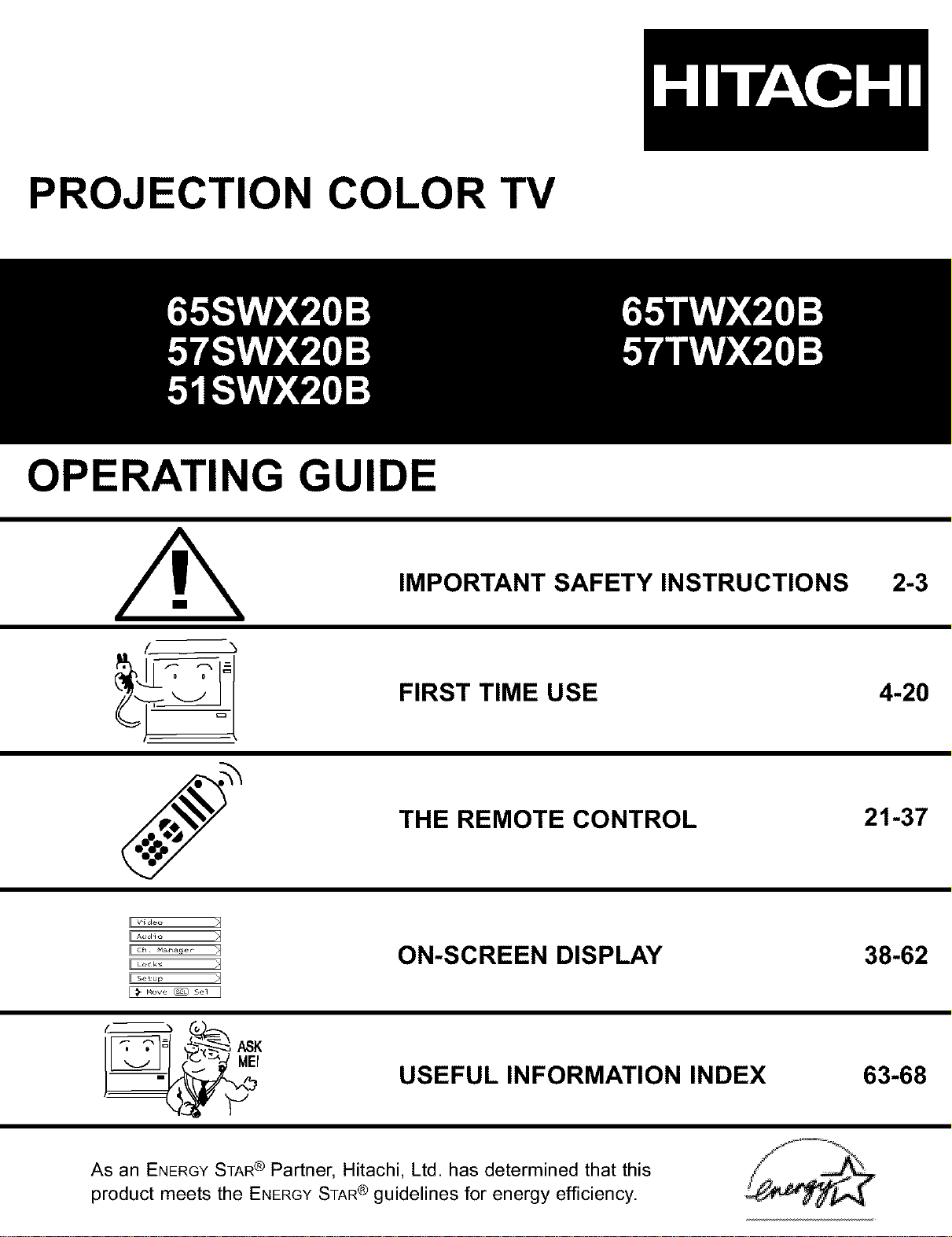
PROJECTION COLOR TV
OPERATING GUIDE
IMPORTANT SAFETY INSTRUCTIONS
FIRST TIME USE
THE REMOTE CONTROL
2-3
4-20
21-37
V ¸_deo
L c_ _ace_ d
ON-SCREEN DISPLAY
USEFUL INFORMATION INDEX
38-62
63-68
As an ENERGYSTAR @ Partner, Hitachi, Ltd. has determined that this
product meets the ENERGYSTAR @ guidelines for energy efficiency.
IMPORTANT
SAFETY POINTS YOU SHOULD KNOW ABOUT
YOUR HITACHI TELEVISION
Our reputation has been built on the quality, performance, and ease of service of HITACHI televisions.
Safety is also foremost in our minds in the design of these units. To help you operate these products properly, this
section illustrates safety tips which will be of benefit to you. Please read it carefully and apply the knowledge you
obtain from it to the proper operation of your HITACHI television.
Please fill out your warranty card and mail it to HITACHI. This will enable HITACHI to notify you promptly in the improb-
able event that a safety problem should be discovered in your product model.
Follow all warnings and instructions marked on this color television.
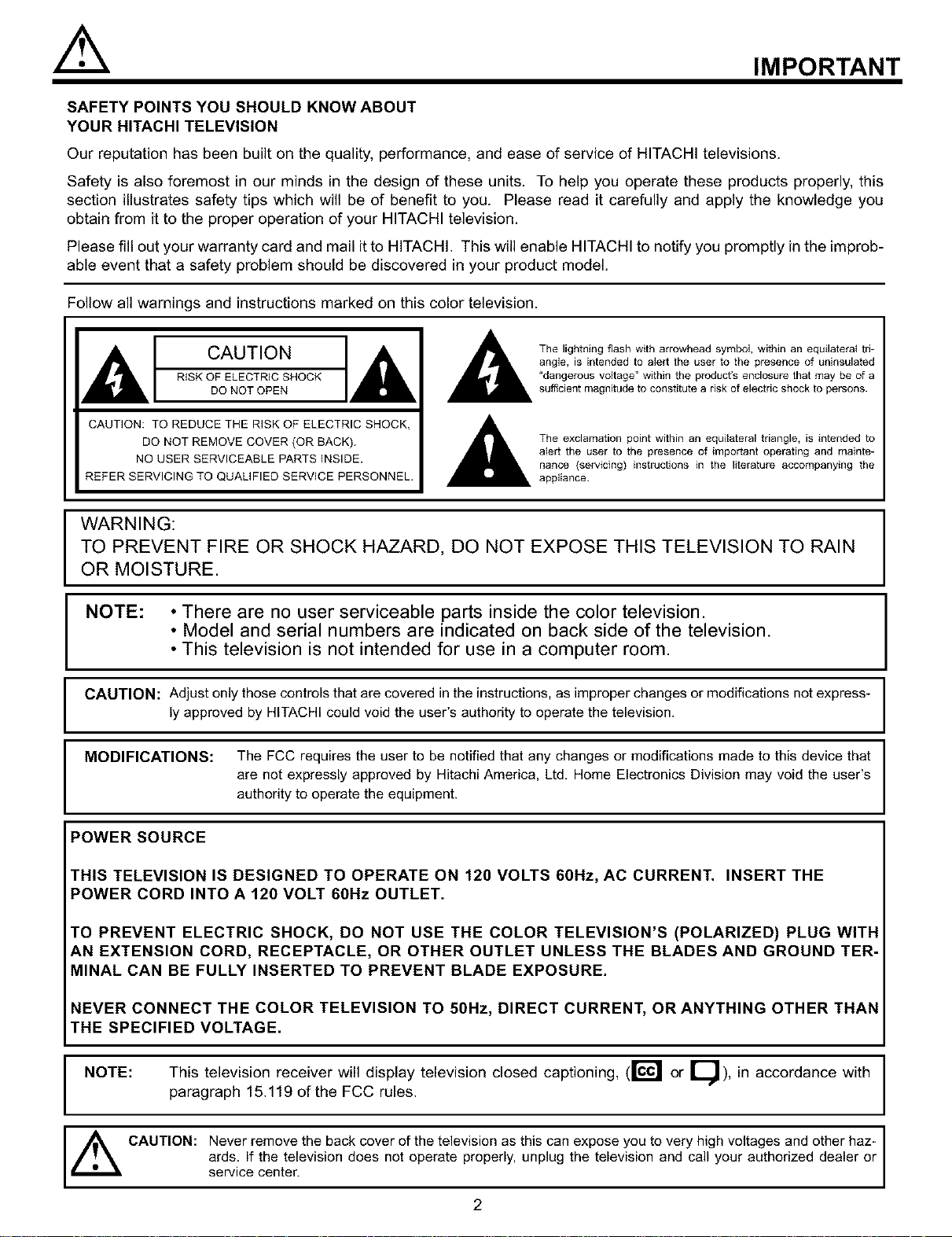
CAUTION
RISK OF ELECTRIC SHOCK
DO NOT OPEN
CAUTION: TO REDUCE THE RISK OF ELECTRIC SHOCK,
DO NOT REMOVE COVER (OR SACK).
NO USER SERVICEABLE PARTS INSIDE.
REFER SERVICING TO QUALIFIED SERVICE PERSONNEL.
The lightning flash with arrowhead symbol, within an equilatera{ tri-
angle, is intended to alert the user to the presence of unJnsulated
"dangerous voltage" within the product's enclosure that may be of a
sufficient magnitude to constitute a risk of electric shock to persons.
The exclamation point within an equilateral triangle, is intended to
alert the user to the presence of important operating and mainte-
nance (servicing) instructions in the literature accompanying the
appliance.
WARNING:
TO PREVENT FIRE OR SHOCK HAZARD, DO NOT EXPOSE THIS TELEVISION TO RAIN
OR MOISTURE.
NOTE: • There are no user serviceable parts inside the color television.
• Model and serial numbers are indicated on back side of the television.
• This television is not intended for use in a computer room.
CAUTION: Adjust onlythose controlsthat are covered in the instructions, as improperchanges ormodifications not express-
ly approved by HITACHI could void the user's authority to operate the television.
MODIFICATIONS: The FCC requires the user to be notified that any changes or modifications made to this device that
are not expressly approved by Hitachi America, Ltd. Home Electronics Division may void the user's
authority to operate the equipment.
POWER SOURCE
THIS TELEVISION IS DESIGNED TO OPERATE ON 120 VOLTS 60Hz, AC CURRENT. INSERT THE
POWER CORD INTO A 120 VOLT 60Hz OUTLET.
TO PREVENT ELECTRIC SHOCK, DO NOT USE THE COLOR TELEVISION'S(POLARIZED) PLUG WITH
AN EXTENSION CORD, RECEPTACLE, OR OTHER OUTLET UNLESS THE BLADES AND GROUND TER-
MINAL CAN BE FULLY INSERTED TO PREVENT BLADE EXPOSURE.
NEVER CONNECT THE COLOR TELEVISION TO 50Hz, DIRECT CURRENT, OR ANYTHING OTHER THAN
THE SPECIFIED VOLTAGE.
NOTE: This television receiver will display television closed captioning, (1¢01 or I !), in accordance with
B.
paragraph 15.119 of the FCC rules.
_ CAUTION: Never remove the back cover of the television as this can expose you to very high voltages and other haz-
ards. If the television does not operate properly, unplug the television and call your authorized dealer or
service center.
2
IMPORTANT
Read before operating equipment
Follow all warnings and instructions marked on this television.
1. Read these instructions.
2. Keep these instructions.
3. Heed all warnings.
4. Follow all instructions.
5. Do not use this apparatus near water.
6. Clean only with a dry cloth.
7. Do not block any ventilation openings. Install in accor-
dance with the manufacturer's instructions.
8. Do not install near any heat sources such as radiators,
heat registers, stoves, or other apparatus (including
amplifiers) that produce heat.
9. Do not defeat the safety purpose of the polarized or
grounding-type plug. A polarized plug has two blades
with one wider than the other. A grounding type plug
has two blades and a third grounding prong. The wide
blade or the third prong are provided for your safety. If
the provided plug does not fit into your outlet, consult
an electrician for replacement of the obsolete outlet.
10. Protect the power cord from being walked on or
pinched particularly at plugs, convenience receptacles,
and the point where they exit from the apparatus.
11. Only use the attachments/accessories specified by the
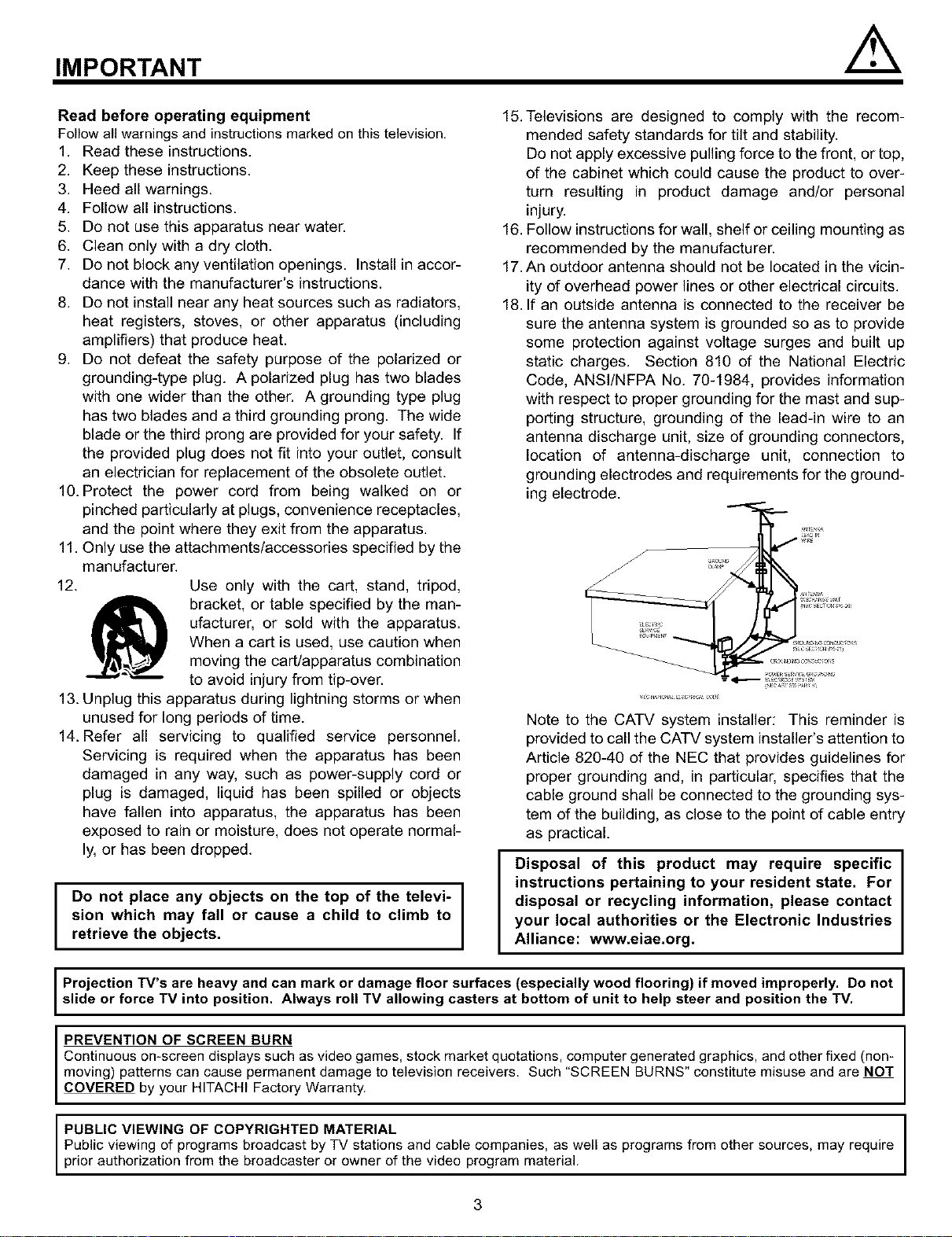
Use only with the cart, stand, tripod,
bracket, or table specified by the man-
ufacturer, or sold with the apparatus.
When a cart is used, use caution when
moving the cart/apparatus combination
to avoid injury from tip-over.
13. Unplug this apparatus during lightning storms or when
unused for long periods of time.
14. Refer all servicing to qualified service personnel.
Servicing is required when the apparatus has been
damaged in any way, such as power-supply cord or
plug is damaged, liquid has been spilled or objects
have fallen into apparatus, the apparatus has been
exposed to rain or moisture, does not operate normal-
ly, or has been dropped.
manufacturer.
12.
Do not place any objects on the top of the televi- J
sion which may fall or cause a child to climb to
Iretrieve the objects.
15. Televisions are designed to comply with the recom-
mended safety standards for tilt and stability.
Do not apply excessive pulling force to the front, or top,
of the cabinet which could cause the product to over-
turn resulting in product damage and/or personal
injury.
16. Follow instructions for wall, shelf or ceiling mounting as
recommended by the manufacturer.
17. An outdoor antenna should not be located in the vicin-
ity of overhead power lines or other electrical circuits.
18. If an outside antenna is connected to the receiver be
sure the antenna system is grounded so as to provide
some protection against voltage surges and built up
static charges. Section 810 of the National Electric
Code, ANSI/NFPA No. 70-1984, provides information
with respect to proper grounding for the mast and sup-
porting structure, grounding of the lead-in wire to an
antenna discharge unit, size of grounding connectors,
location of antenna-discharge unit, connection to
grounding electrodes and requirements for the ground-
ing electrode.
Note to the CATV system installer: This reminder is
provided to call the CATV system installer's attention to
Article 820-40 of the NEC that provides guidelines for
proper grounding and, in particular, specifies that the
cable ground shall be connected to the grounding sys-
tem of the building, as close to the point of cable entry
as practical.
Disposal of this product may require specific
instructions pertaining to your resident state. For
disposal or recycling information, please contact
your local authorities or the Electronic Industries
Alliance: www.eiae.org.
Projection TV's are heavy and can mark or damage floor surfaces (especially wood flooring) if moved improperly. Do not
slide or force TV into position. Always roll TV allowing casters at bottom of unit to help steer and position the TV.
PREVENTION OF SCREEN BURN
Continuous on-screen displays such as video games, stock market quotations, computer generated graphics, and other fixed (non-
moving) patterns can cause permanent damage to television receivers. Such "SCREEN BURNS" constitute misuse and are NOT
COVERED by your HITACHI Factory Warranty.
PUBLIC VIEWING OF COPYRIGHTED MATERIAL
Public viewing of programs broadcast by TV stations and cable companies, as well as programs from other sources, may require
prior authorization from the broadcaster or owner of the video program material.
3
ACCESSORIES
Check to make sure you have the following accessories before disposing of the packing material.
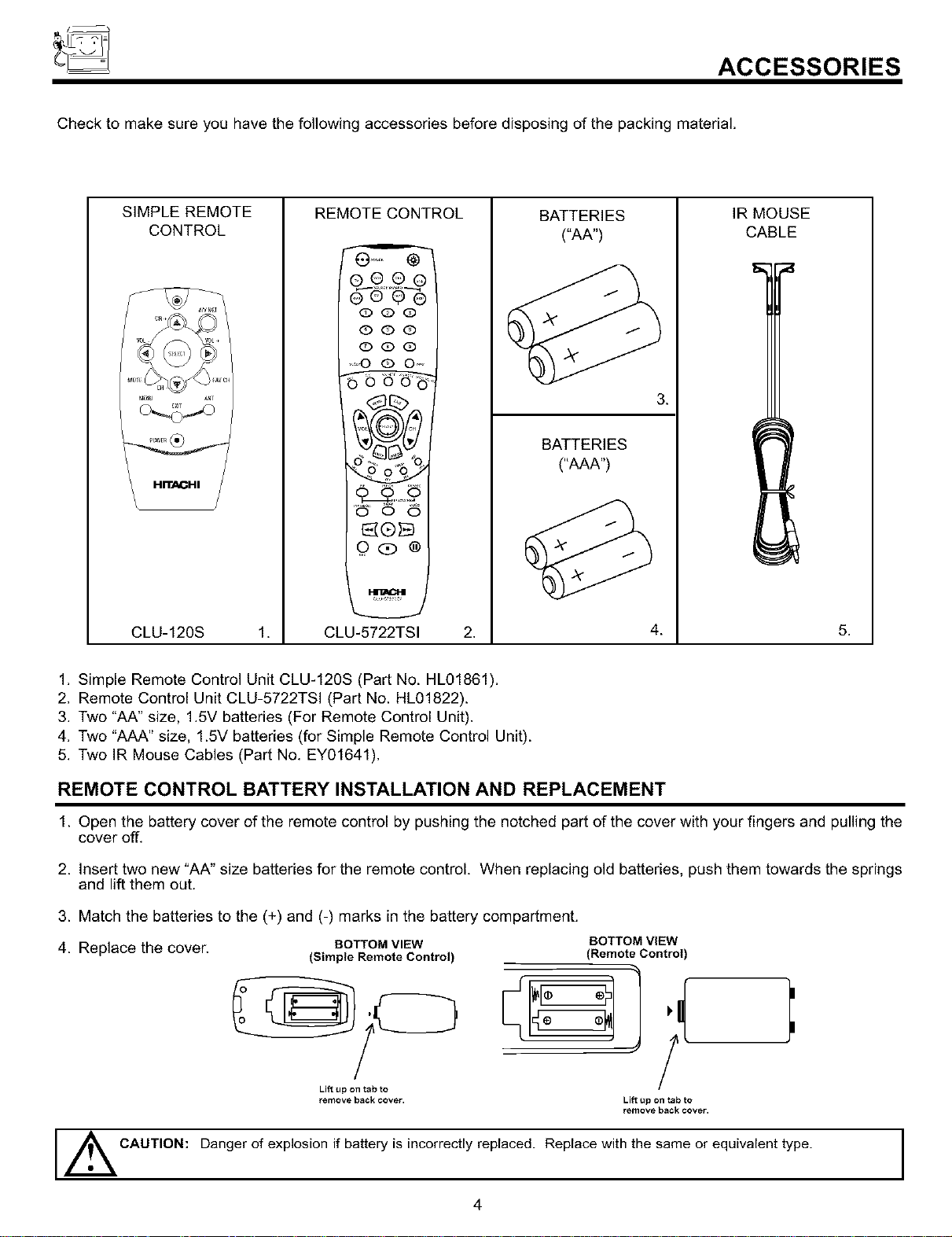
SIMPLE REMOTE
CONTROL
CLU-120S 1.
REMOTE CONTROL
@.... @
®9,°9®
Q@@
@@@
OQ@
O G) O°
o o o
N®I_
CLU-5722TSI 2.
BATTERIES
("AA")
BATTERIES
("AAA")
3.
4.
IR MOUSE
CABLE
5.
1. Simple Remote Control Unit CLU-120S (Part No. HL01861).
2. Remote Control Unit CLU-5722TSI (Part No. HL01822).
3. Two "AA" size, 1.5V batteries (For Remote Control Unit).
4. Two "AAA" size, 1.SV batteries (for Simple Remote Control Unit).
5. Two IR Mouse Cables (Part No. EY01641).
REMOTE CONTROL BATTERY INSTALLATION AND REPLACEMENT
1. Open the battery cover of the remote control by pushing the notched part of the cover with your fingers and pulling the
cover off.
2. Insert two new "AA" size batteries for the remote control. When replacing old batteries, push them towards the springs
and lift them out.
3. Match the batteries to the (+) and (-) marks in the battery compartment.
4. Replace the cover.
BOTTOM VIEW
(Simple Remote Control)
BOTTOM ViEW
(Remote Control)
Lift up on tab to
remove back cover.
/
Lift up on tab to
remove back cover.
l _CAUTION: Danger of explosion if battery is incorrectly replaced. Replace with the same or equivalent type.
4
HOW TO SET UP YOUR NEW HITACHI PROJECTION TV
ANTENNA
Unless your TV is connected to a cable TV system or to a centralized antenna system, a good outdoor color TV antenna is
recommended for best performance. However, if you are located in an exceptionally good signal area that is free from interference and
multiple image ghosts, an indoor antenna may be sufficient.
LOCATION
Select an area where sunlight or bright indoor illumination will not fall directly on the picture screen. Also, be sure that the location
selected allows a free flow of air to and from the perforated back cover of the set.
To avoid cabinet warping, cabinet color changes, and increased chance of set failure, do not place the TV where temperatures can
become excessively hot, for example, in direct sunlight or near a heating appliance, etc.
VIEWING
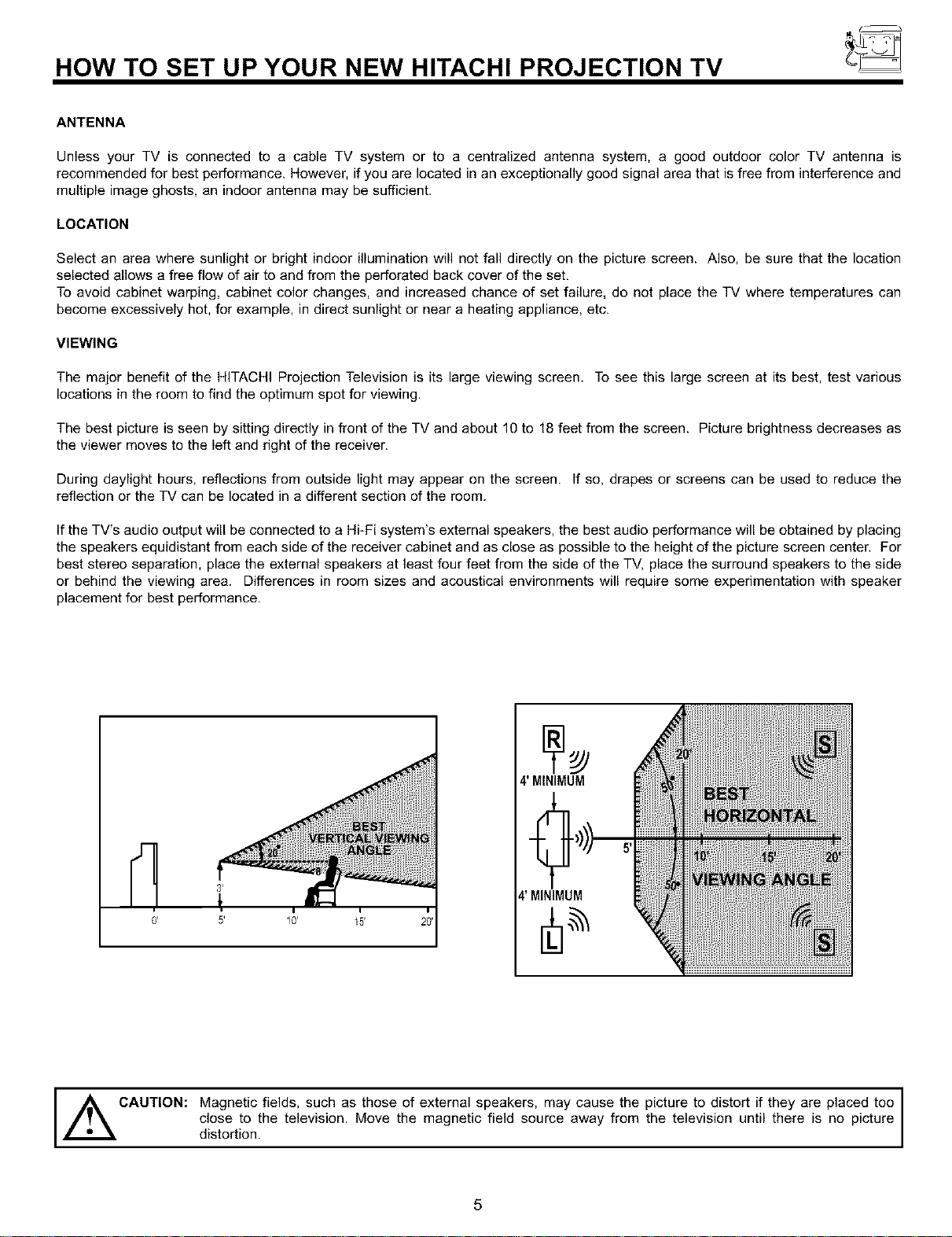
The major benefit of the HITACHI Projection Television is its large viewing screen. To see this large screen at its best, test various
locations in the room to find the optimum spot for viewing.
The best picture is seen by sitting directly in front of the TV and about 10 to 18 feet from the screen. Picture brightness decreases as
the viewer moves to the left and right of the receiver.
During daylight hours, reflections from outside light may appear on the screen. If so, drapes or screens can be used to reduce the
reflection or the TV can be located in a different section of the room.
If the TV's audio output will be connected to a Hi-Fi system's external speakers, the best audio performance will be obtained by placing
the speakers equidistant from each side of the receiver cabinet and as close as possible to the height of the picture screen center. For
best stereo separation, place the external speakers at least four feet from the side of the TV, place the surround speakers to the side
or behind the viewing area. Differences in room sizes and acoustical environments will require some experimentation with speaker
placement for best performance.
0' 5'
I
4' MINIMUM
4' MINIMUM
I
,_ picture to distort if they are placed too I
CAUTION: Magnetic fields, such as those of external speakers, may cause the
distortion,closeto the television. Move the magnetic field source away from the television until there is no picture
5
HOOK-UP CABLES AND CONNECTORS
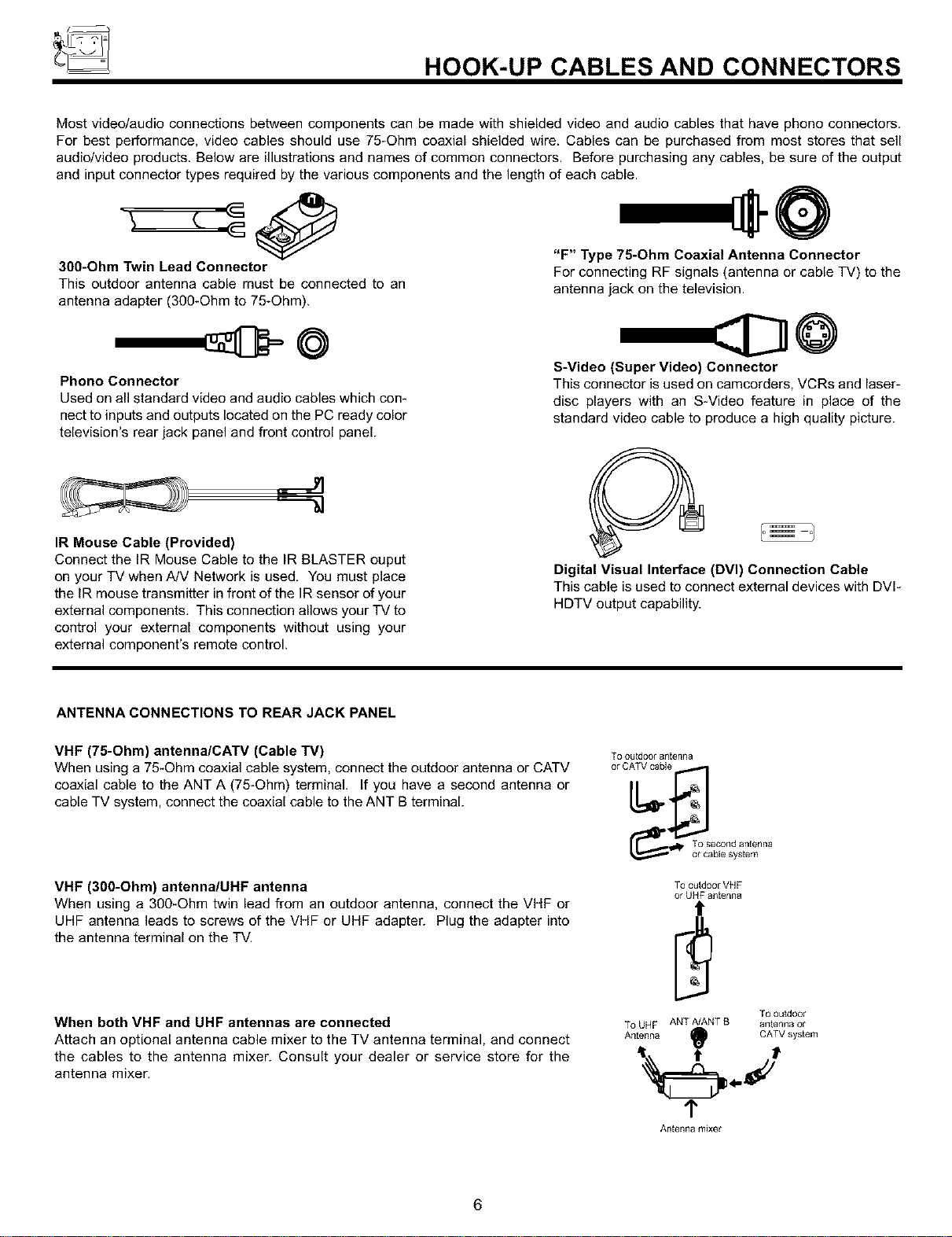
Most video/audio connections between components can be made with shielded video and audio cables that have phono connectors.
For best performance, video cables should use 75_Ohm coaxial shielded wire. Cables can be purchased from most stores that sell
audio/video products. Below are illustrations and names of common connectors. Before purchasing any cables, be sure of the output
and input connector types required by the various components and the length of each cable.
300-Ohm Twin Lead Connector
This outdoor antenna cable must be connected to an
antenna adapter (300-Ohm to 75-Ohm).
©
Phono Connector
Used on all standard video and audio cables which con-
nect to inputs and outputs located on the PC ready color
television's rear jack panel and front control panel.
' d
IR Mouse Cable (Provided)
Connect the IR Mouse Cable to the IR BLASTER ouput
on your TV when A/V Network is used, You must place
the IR mouse transmitter in front of the IR sensor of your
external components, This connection allows your TV to
control your external components without using your
external component's remote control.
"F" Type 75-Ohm Coaxial Antenna Connector
For connecting RF signals (antenna or cable TV) to the
antenna jack on the television.
S-Video (Super Video) Connector
This connector is used on camcorders, VCRs and laser-
disc players with an S-Video feature in place of the
standard video cable to produce a high quality picture.
Digital Visual Interface (DVI) Connection Cable
This cable is used to connect external devices with DVI-
HDTV output capability.
ANTENNA CONNECTIONS TO REAR JACK PANEL
VHF (75-Ohm) antenna/CATV (Cable TV)
When using a 75-Ohm coaxial cable system, connect the outdoor antenna or CATV
coaxial cable to the ANT A (75-Ohm) terminal. If you have a second antenna or
cable TV system, connect the coaxial cable to the ANT B terminal.
VHF (300-Ohm) antenna/UHF antenna
When using a 3O0-Ohm twin lead from an outdoor antenna, connect the VHF or
UHF antenna leads to screws of the VHF or UHF adapter. Plug the adapter into
the antenna terminal on the TV.
When both VHF and UHF antennas are connected
Attach an optional antenna cable mixer to the TV antenna terminal, and connect
the cables to the antenna mixer. Consult your dealer or service store for the
antenna mixer.
To outdoor antenna
To outdoor VHF
or UHF antenna
To outdoor
To UHF ANT A/ANT B antenna or
Antenna _ CATV system
¢
An[e_na mixer
6
FRONT PANEL CONTROLS
Illlllllllll
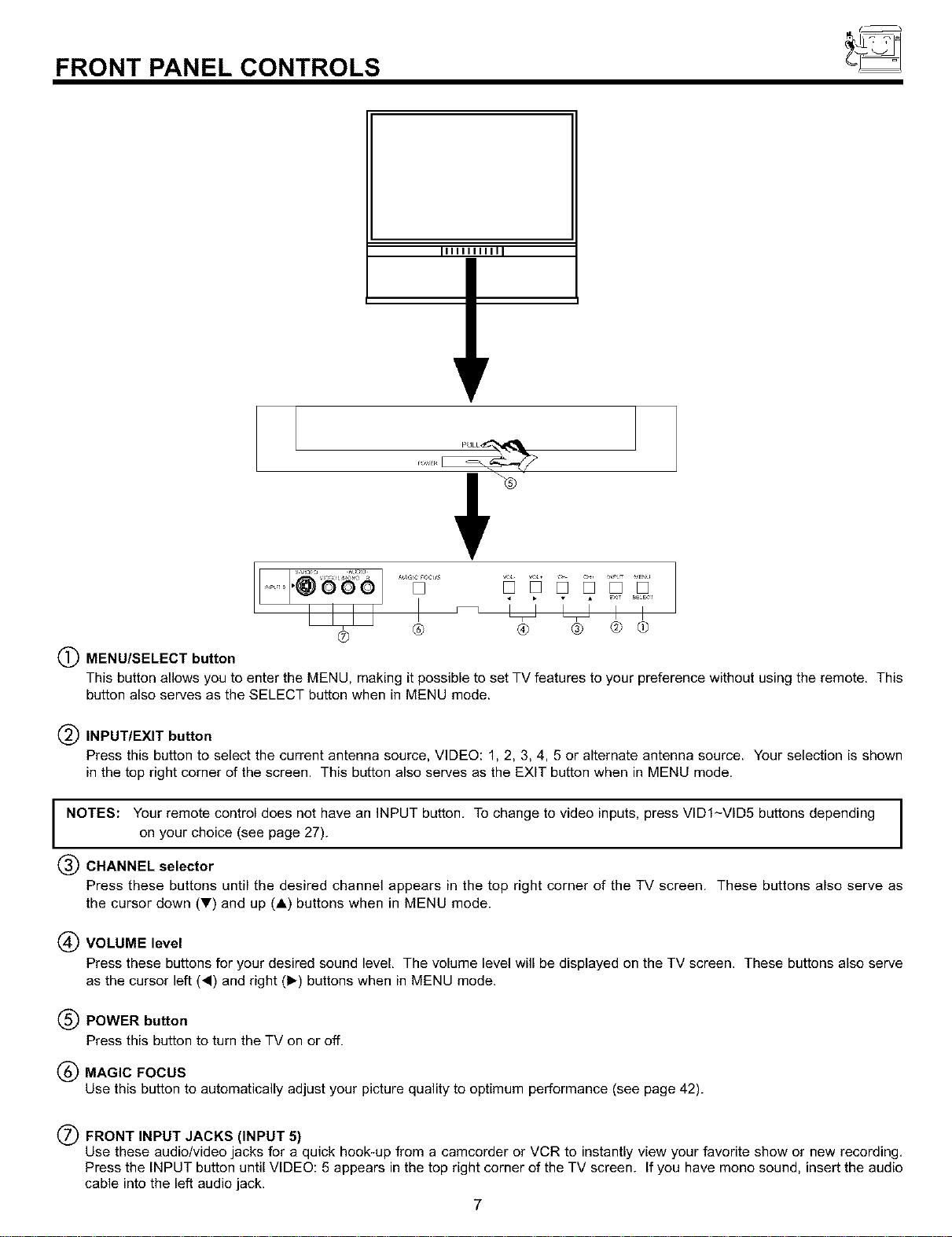
(_) MENU/SELECT button
I
® ®
........[]
® ® @ @
This button allows you to enter the MENU, making it possible to set TV features to your preference without using the remote. This
button also serves as the SELECT button when in MENU mode.
INPUT/EXIT button
Press this button to select the current antenna source, VIDEO: 1, 2, 3, 4, 5 or alternate antenna source. Your selection is shown
in the top right corner of the screen. This button also serves as the EXIT button when in MENU mode.
I
NOTES: Your remote control does not have an INPUT button. To change to video inputs, press VID1-VID5 buttons depending I
I
on your choice (see page 27).
CHANNEL selector
Press these buttons until the desired channel appears in the top right corner of the TV screen. These buttons also serve as
the cursor down (T) and up (A) buttons when in MENU mode.
(_ VOLUME level
Press these buttons for your desired sound level, The volume level will be displayed on the TV screen. These buttons also serve
as the cursor left (,) and right (1_) buttons when in MENU mode.
(_ POWER button
Press this button to turn the TV on or off.
(_) MAGIC FOCUS
Use this button to automatically adjust your picture quality to optimum performance (see page 42).
(_) FRONT INPUT JACKS (INPUT 5)
Use these audio/video jacks for a quick hook-up from a camcorder or VCR to instantly view your favorite show or new recording,
Press the INPUT button until VIDEO: 5 appears in the top right corner of the TV screen. If you have mono sound, insert the audio
cable into the left audio jack.
7
FRONT PANEL JACKS AND CONNECTORS
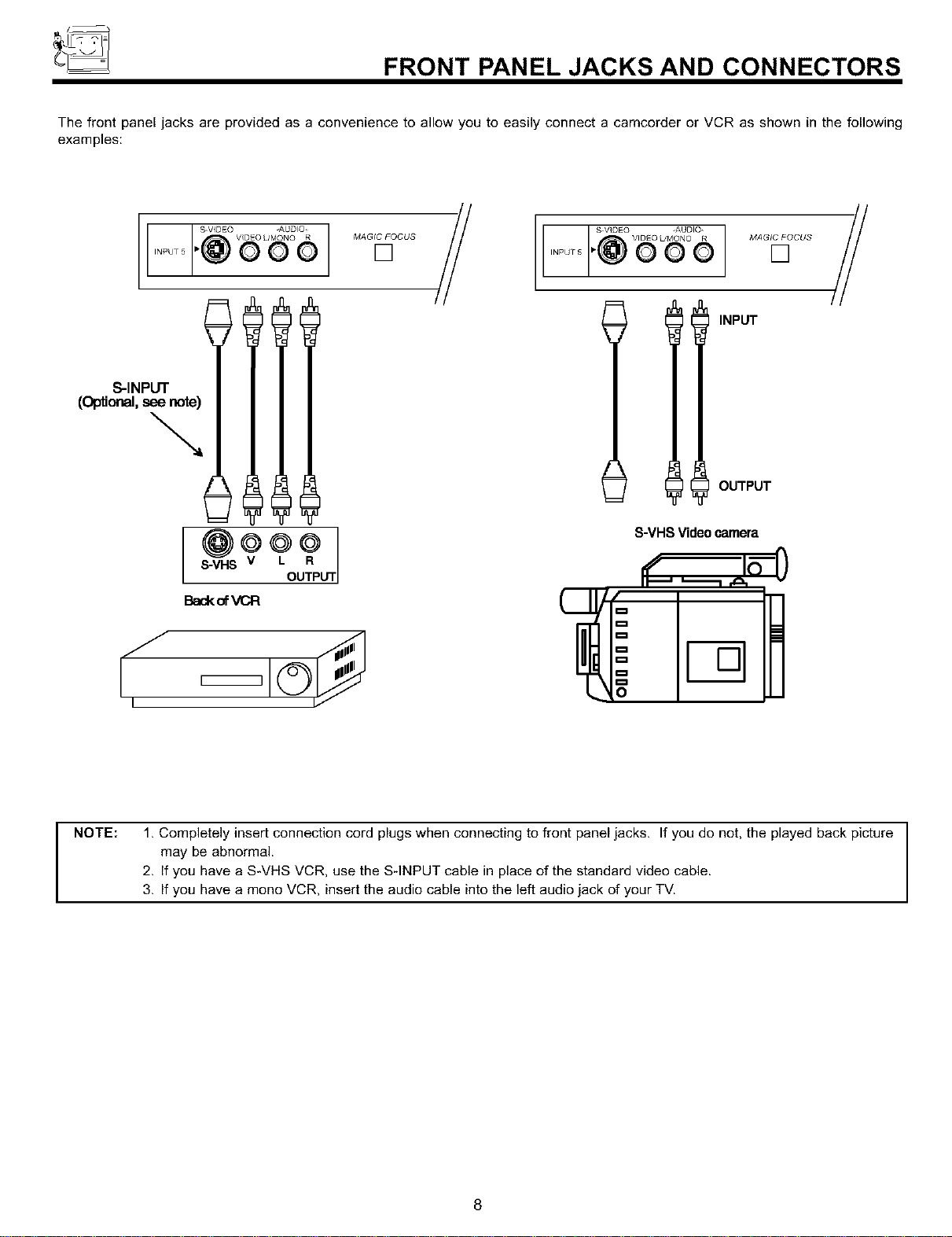
The front panel jacks are provided as a convenience to allow you to easily connect a camcorder or VCR as shown in the following
examples:
S.VIDEO -AUDIO
VIDEO L/MON© R
N"uTs"@OOO
÷%otj
S-VHS
BackofVCR
MAGIC FOCUS
[]
L
/ S'V]DEO _AUDIO- //
VIDEO L/MONO R MAGICFOCUS
NP_r_.@oo o []
I I INPUT
OUTPUT
S-VHS Video camera
NOTE: 1. Completely insert connection cord plugs when connecting to front panel jacks. If you do not, the played back picture
may be abnormal.
2. If you have a S*VHS VCR, use the SqNPUT cable in place of the standard video cable.
3. If you have a mono VCR, insert the audio cable into the left audio jack of your TV.
8
REAR PANEL JACKS
T0
CC}NvE_rE_
tO
f _gHo
IO_11Iq
@
L@
®®
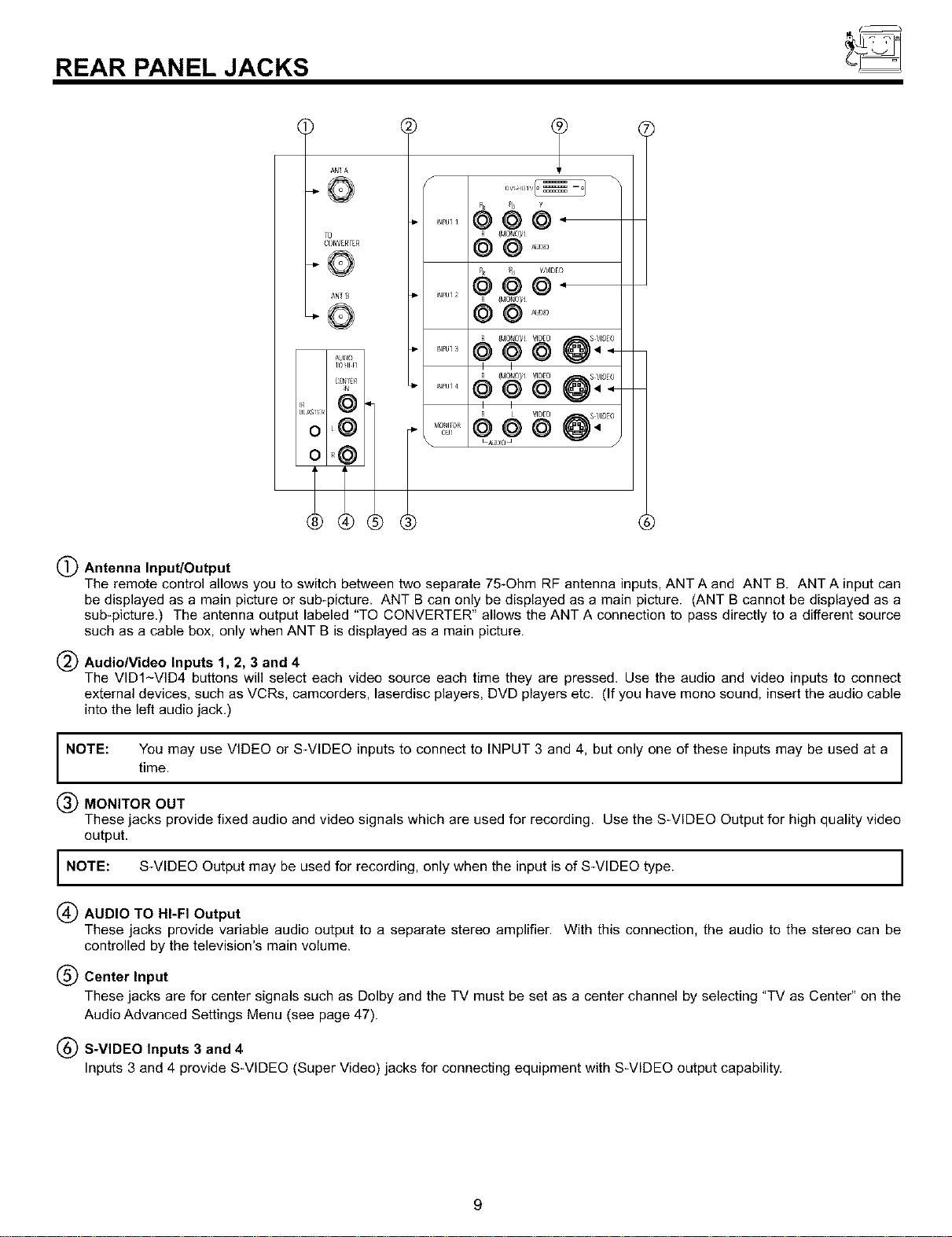
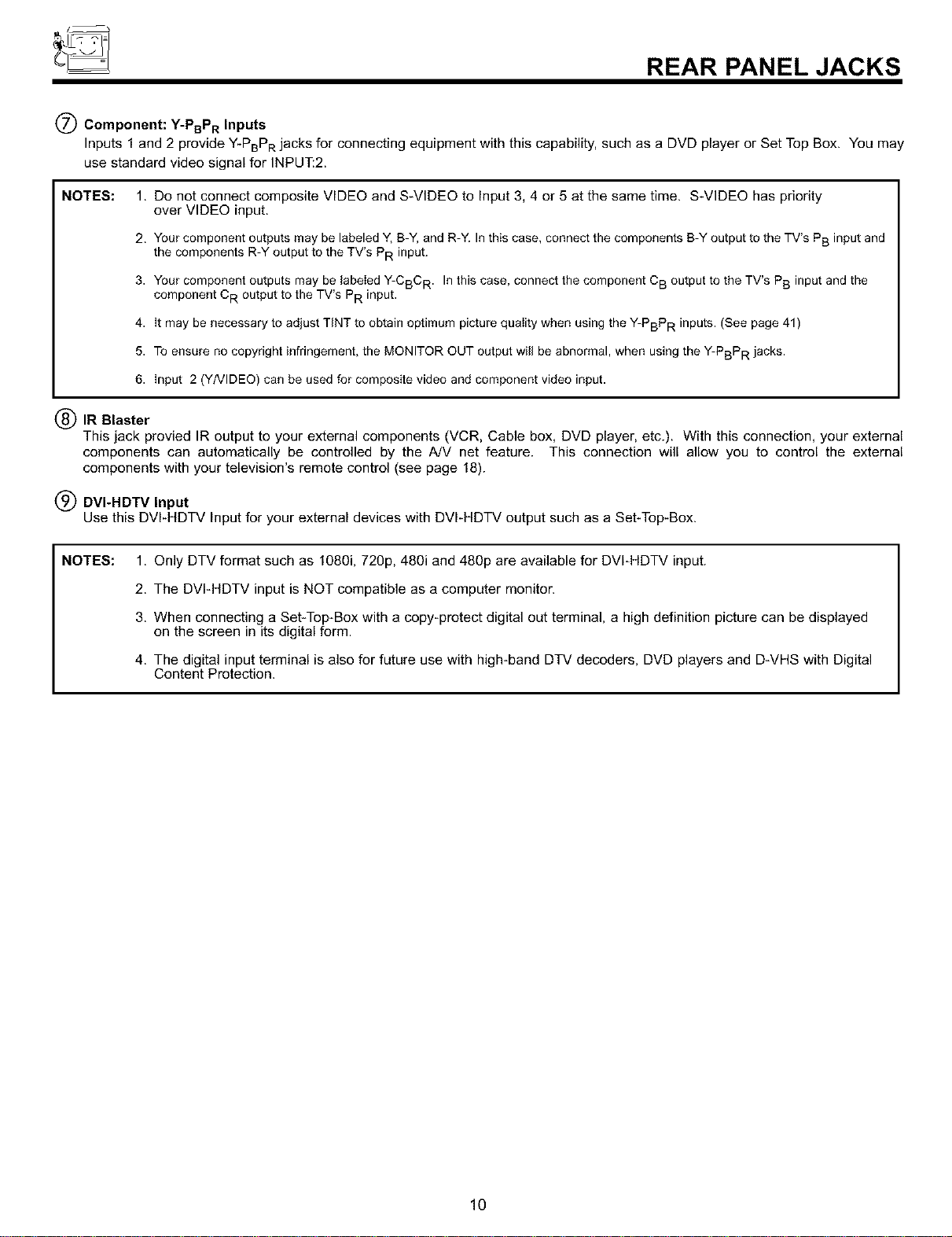
(_) Antenna Input/Output
The remote control allows you to switch between two separate 75-Ohm RF antenna inputs, ANT A and ANT B. ANT A input can
be displayed as a main picture or sub-picture. ANT B can only be displayed as a main picture. (ANT B cannot be displayed as a
sub-picture.) The antenna output labeled "TO CONVERTER" allows the ANT A connection to pass directly to a different source
such as a cable box, only when ANT B is displayed as a main picture.
(_) Audio/Video Inputs 1, 2, 3 and 4
The VIDI-VID4 buttons will select each video source each time they are pressed. Use the audio and video inputs to connect
external devices, such as VCRs, camcorders, laserdisc players, DVD players etc. (If you have mono sound, insert the audio cable
into the left audio jack.)
NOTE: You may use VIDEO or S-VIDEO inputs to connect to INPUT 3 and 4, but only one of these inputs may be used at a
time.
MONITOR OUT
These jacks provide fixed audio and video signals which are used for recording. Use the S-VIDEO Output for high quality video
output.
I NOTE: S-VIDEO Output may be used for recording, only when the input is of S-VIDEO type.
(_) AUDIO TO HI-FI Output
These jacks provide variable audio output to a separate stereo amplifier. With this connection, the audio to the stereo can be
controlled by the television's main volume.
(_) Center Input
These jacks are for center signals such as Dolby and the TV must be set as a center channel by selecting "TV as Center" on the
Audio Advanced Settings Menu (see page 47).
(_) S-VIDEO Inputs 3 and 4
Inputs 3 and 4 provide S-VIDEO (Super Video) jacks for connecting equipment with S-VIDEO output capability.
9
REAR PANELJACKS
(_) Component: Y-PBPR Inputs
Inputs 1 and 2 provide Y-PBPR jacks for connecting equipment with this capability, such as a DVD player or Set Top Box. You may
use standard video signal for INPUT:2.
NOTES:
1. Do not connect composite VIDEO and S-VIDEO to Input 3, 4 or 5 at the same time. S-VIDEO has priority
over VIDEO input.
2. Your component outputs may be labeled Y, B-Y, and R-Y. In this case, connect the components B-Y output to the TV's PB input and
the components R-Y output to the TV's PR input.
3. Your component outputs may be labeled Y-CBC R. In this case, connect the component C B output to the TV's PB input and the
component CR output to the TV's PR input.
4. It may be necessary to adjust TINT to obtain optimum picture quality when using the Y-PBPR inputs. (See page 41)
5. To ensure no copyright infringement, the MONITOR OUT output will be abnormal, when using the Y-PBPR jacks.
6. Input 2 (Y/VIDEO) can be used for composite video and component video input.
(_IR Blaster
This jack provied IR output to your external components (VCR, Cable box, DVD player, etc.). With this connection, your external
components can automatically be controlled by the A/V net feature. This connection will allow you to control the external
components with your television's remote control (see page 18).
(_) DVI-HDTV Input
Use this DVI-HDTV Input for your external devices with DVI-HDTV output such as a Set-Top-Box.
NOTES:
1. Only DTV format such as 1080i, 720p, 480i and 480p are available for DVI-HDTV input.
2. The DVI-HDTV input is NOT compatible as a computer monitor.
3. When connecting a Set-Top-Box with a copy-protect digital out terminal, a high definition picture can be displayed
on the screen in its digital form.
4. The digital input terminal is also for future use with high-band DTV decoders, DVD players and D-VHS with Digital
Content Protection.
10
REAR PANEL CONNECTIONS
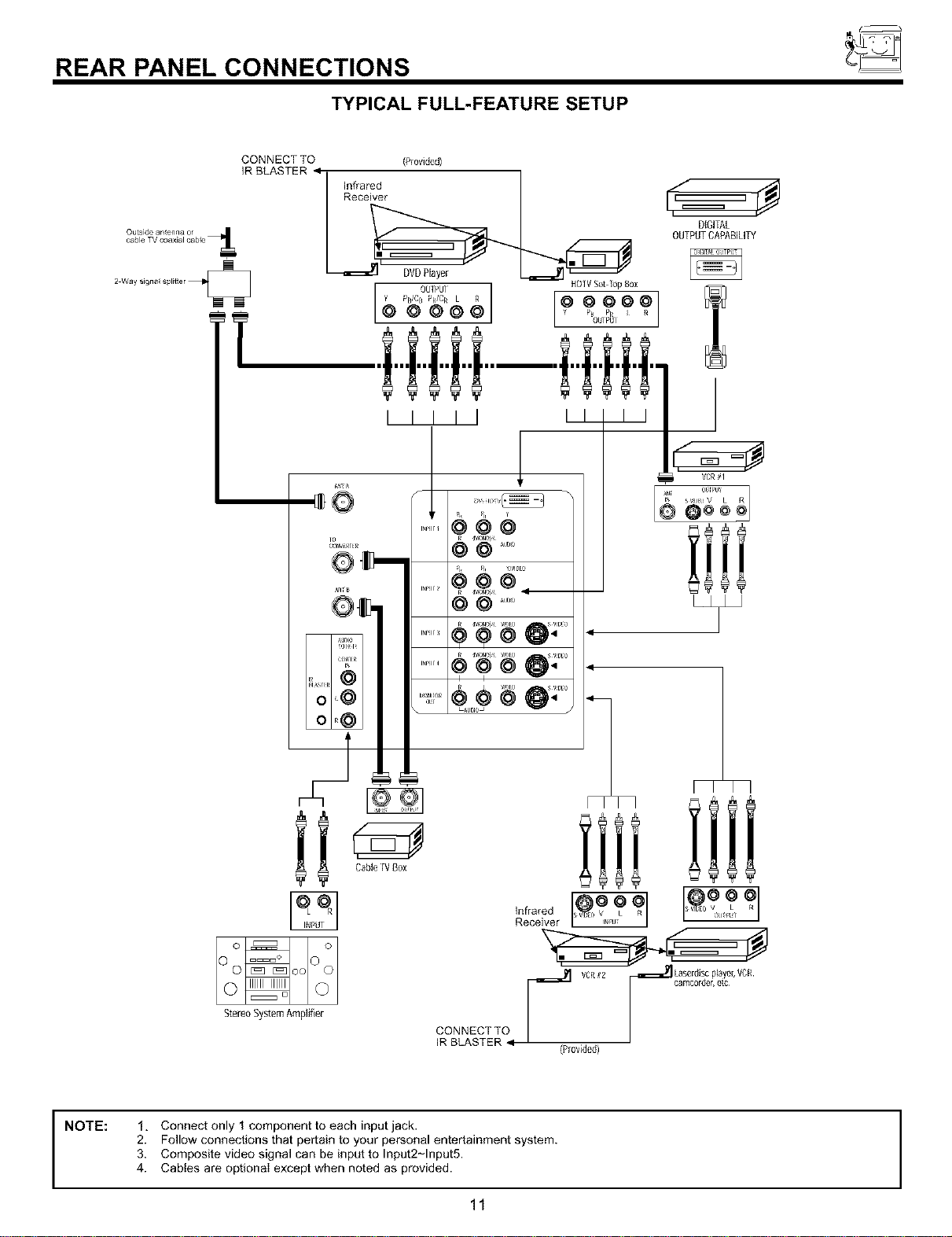
TYPICAL FULL-FEATURE SETUP
CONNECT TO (Provided)
IR BLASTER 9
Infrared
Receiver
DIGITAL
OUTPUTCAPABILITY
T
Io
Loo
Stereo SystemAmplifier
I I I I I II
1
Cable[VBox
Infrared
Receiver
CONNECT TO
IR BLASTER
(Provided)
NOTE: 1, Connect only I component to each input jack.
2. Follow connections that pertain to your personal entertainment system.
3. Composite video signal can be input to Input2~lnput5.
4. Cables are optional except when noted as provided.
11
TIPS ON REAR PANEL CONNECTIONS
S-VIDEO connections are provided for high performance laserdisc players, VCRs etc. that have this feature. Use these connec-
tions in place of the standard video connection if your device has this feature.
If your device has only one audio output (mono sound), connect it to the left audio jack on the television.
Refer to the operating guide of your other electronic equipment for additional information on connecting your hook-up cables.
A single VCR can be used for VCR #1 and VCR #2, but note that a VCR cannot record its own video or line output (INPUT: 3 in the
example on page 11). Refer to your VCR operating guide for more information on line input-output connections.
You may use VIDEO or S-VIDEO inputs to connect to Input 3, Input 4 or Input 5, but only one of these may be used at a time.
Connect only 1 component (VCR, DVD player, camcorder, etc.) to each input jack.
COMPONENT: Y-PBPR (Input 1 &2) connections are provided for high performance components, such as DVD players and set-
top-boxes. Use these connections in place of the standard video connection if your device has this feature. Input 2 accepts both
composite and component video signals.
Your component outputs may be labeled Y, B-Y, and R-Y. In this case, connect the components B-Y output to the TV's PB input
and the components R-Y output to the TV's PR input.
Your component outputs may be labeled Y-CBC R. In this case, connect the components CB output to the TV's PB input and the
components CR output to the TV's PR input.
You may use composite video signal for Input 2-Input 5.
It may be necessary to adjust TINT to obtain optimum picture quality when using the Y-PBPR inputs. (See page 41)
To ensure no copyright infringement, the MONITOR OUT output will be abnormal, when using the Y-PBPR jacks.
12
CONNECTION EXTERNAL AUDIO SOURCES
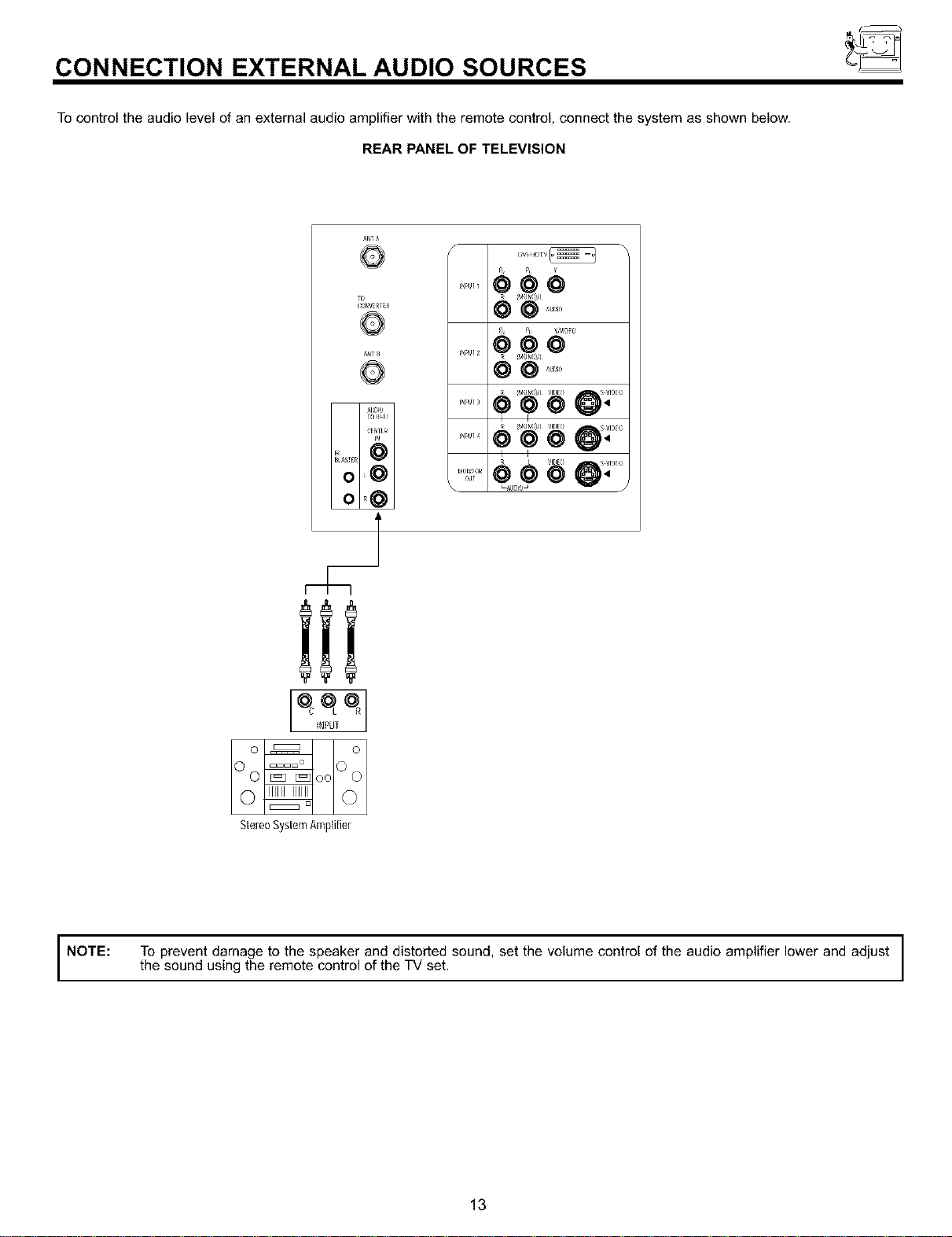
To control the audio level of an external audio amplifier with the remote control, connect the system as shown below.
REAR PANEL OF TELEVISION
r0
I ol_q
I Olj
+++++
MON I)][
_ _u[io
.......OO0
,, {d_INII)/L
@@ ......
I I
+¢ +........@:....
u_U+++l u /
StereoSystemAmpiifier
NOTE: theT°preventsoundusingdamagethetOremotethespeakercontrolofandthedist°rtedTvset. sound, set the volume control of the audio amplifier lower and adjust
13
CONNECTING EXTERNAL VIDEO SOURCES
The exact arrangement you use to connect the VCR, camcorder, laserdisc player, DVD player, or HDTV Set Top Box to your TV set is
dependent on the model and features of each component. Check the owner's manual of each component for the location of video
and audio inputs and outputs.
The following connection diagrams are offered as suggestions. However, you may need to modify them to accommodate your partic-
ular assortment of components and features. For best performance, video and audio cables should be made from coaxial shielded
wire.
Before Operating External Video Source
The input mode is changed every time the VIDI-VID5 button is pressed as shown below. Connect an external source to the INPUT
terminal, then press the VIDI-VID5 button as necessary to view the input source. (See page 27)
INPUT MODE SELECTION ORDER
(ANTENNA)
Ant A
ANT
0
NOTE:
I
When the TV is set to VIDEO and a video signal is not received from the VIDEO INPUT JACK on the back panel of the I
TV (i.e., VCR/laserdisc player, etc. is not connected or the video device is OFF), the set will appear to be OFF.
I
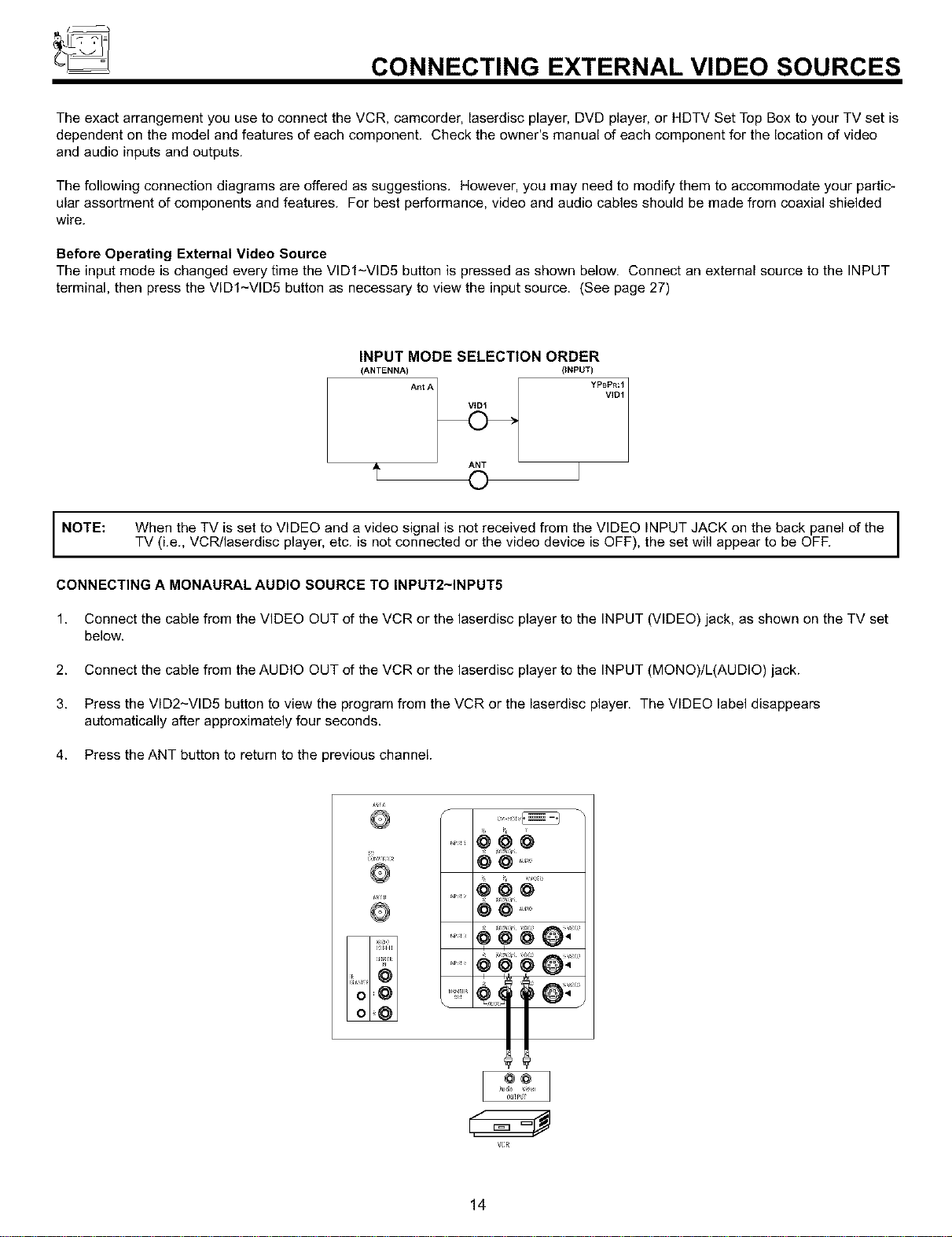
CONNECTING A MONAURAL AUDIO SOURCE TO INPUT2~INPUT5
1. Connect the cable from the VIDEO OUT of the VCR or the laserdisc player to the INPUT (VIDEO) jack, as shown on the TV set
below.
2. Connect the cable from the AUDIO OUT of the VCR or the laserdisc player to the INPUT (MONO)/L(AUDIO) jack.
3. Press the VID2_VID5 button to view the program from the VCR or the laserdisc player. The VIDEO label disappears
automatically after approximately four seconds.
4. Press the ANT button to return to the previous channel.
°°]
VI;R
14
CONNECTING EXTERNAL VIDEO SOURCES
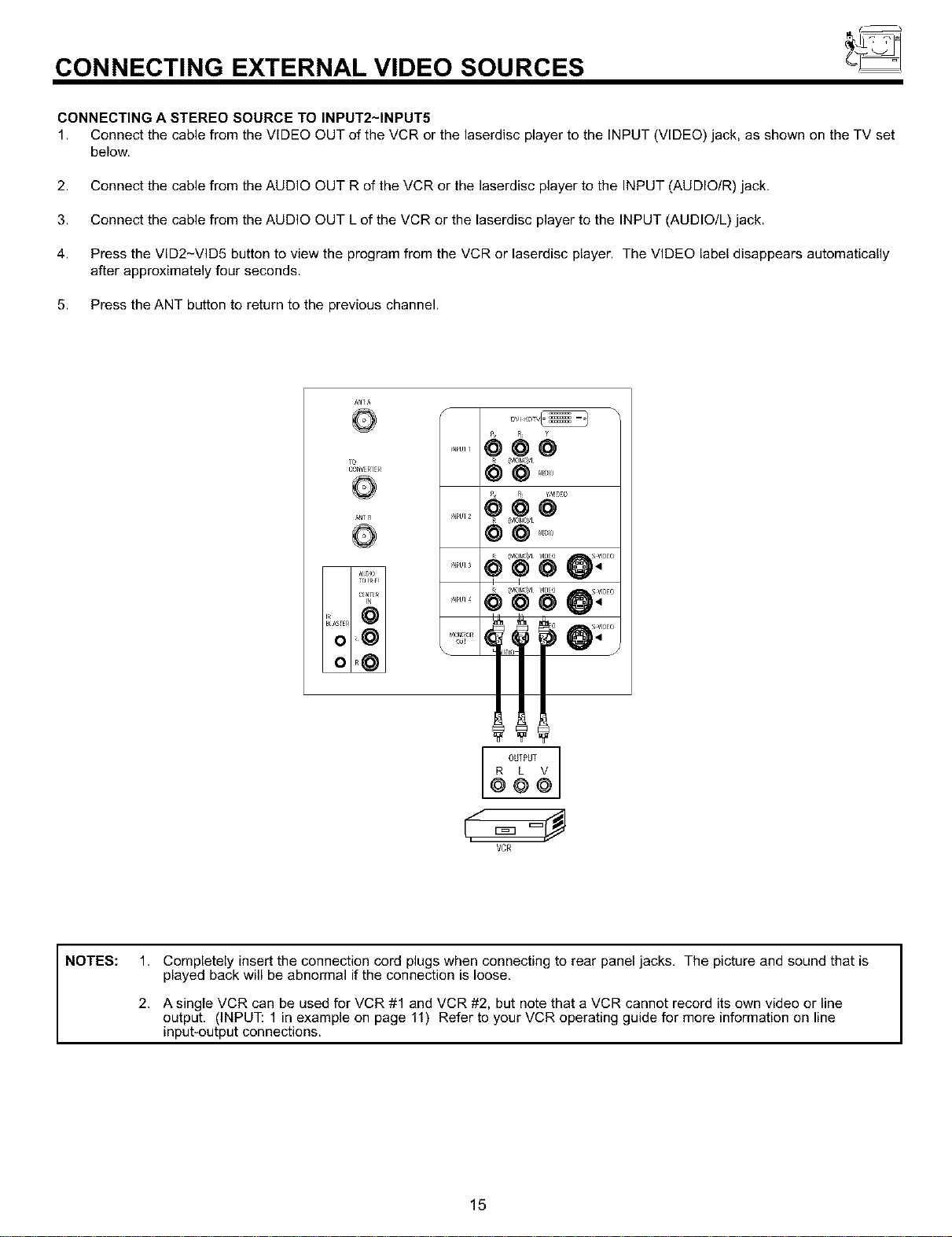
CONNECTING A STEREO SOURCE TO INPUT2~INPUT5
1. Connect the cable from the VIDEO OUT of the VCR or the laserdisc player to the INPUT (VIDEO) jack, as shown on the TV set
below.
2. Connect the cable from the AUDIO OUT R of the VCR or the laserdisc player to the INPUT (AUDIO/R) jack.
3. Connect the cable from the AUDIO OUT L of the VCR or the laserdisc player to the INPUT (AUDIO/L) jack.
4. Press the VID2-VID5 button to view the program from the VCR or laserdisc player. The VIDEO label disappears automatically
after approximately four seconds.
5. Press the ANT button to return to the previous channel.
l0
_:_NVERrER
/-
_PU_ 1
_PU_ 4
0_Jr
\
OUTPUT
R L V
@@@
VCR
NOTES: 1.
2.
Completely insert the connection cord plugs when connecting to rear panel jacks. The picture and sound that is
played back will be abnormal if the connection is loose.
A single VCR can be used for VCR #1 and VCR #2, but note that a VCR cannot record its own video or line
output. (INPUT: 1 in example on page 11) Refer to your VCR operating guide for more information on line
input+output connections.
15
CONNECTING EXTERNAL VIDEO SOURCES
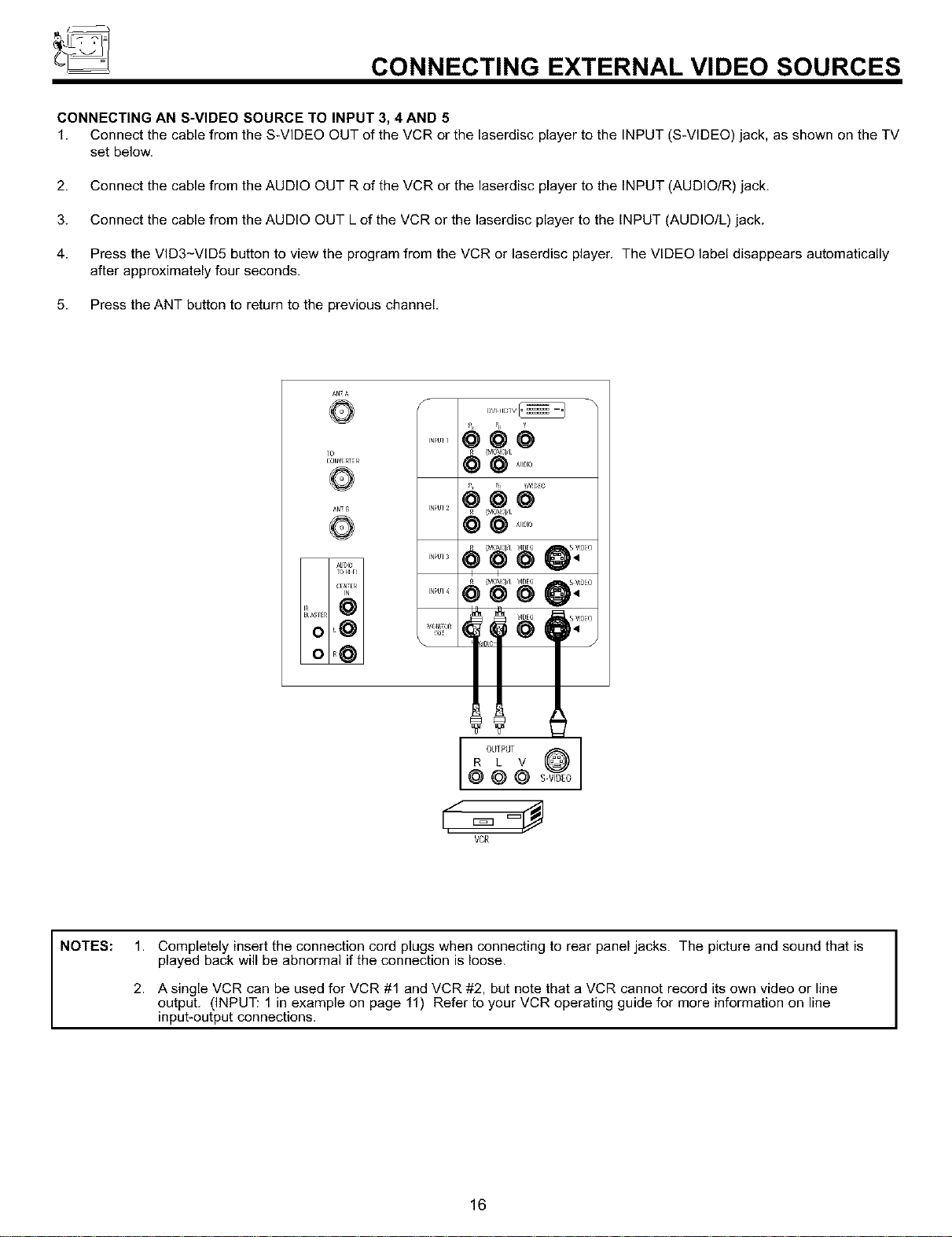
CONNECTING AN S-VIDEO SOURCE TO INPUT 3, 4AND 5
1. Connect the cable from the S-VIDEO OUT of the VCR or the laserdisc player to the INPUT (S-VIDEO) jack, as shown on the TV
set below.
2. Connect the cable from the AUDIO OUT R of the VCR or the laserdisc player to the INPUT (AUDIOIR) jack.
3. Connect the cable from the AUDIO OUT L of the VCR or the laserdisc player to the INPUT (AUDIO/L) jack.
4. Press the VlD3-VID5 button to view the program from the VCR or laserdisc player. The VIDEO label disappears automatically
after approximately four seconds.
5. Press the ANT button to return to the previous channel.
]0
0_Jr
P' _= 0
@@
@@@
I I
OUTPUT S_
R L V
@©©
vc_
NOTES:
1. Completely insert the connection cord plugs when connecting to rear panel jacks. The picture and sound that is
played back will be abnormal if the connection is loose.
2. A single VCR can be used for VCR #1 and VCR #2, but note that a VCR cannot record its own video or line
output. (INPUT: 1 in example on page 11) Refer to your VCR operating guide for more information on line
input+output connections.
16
CONNECTING EXTERNAL VIDEO SOURCES
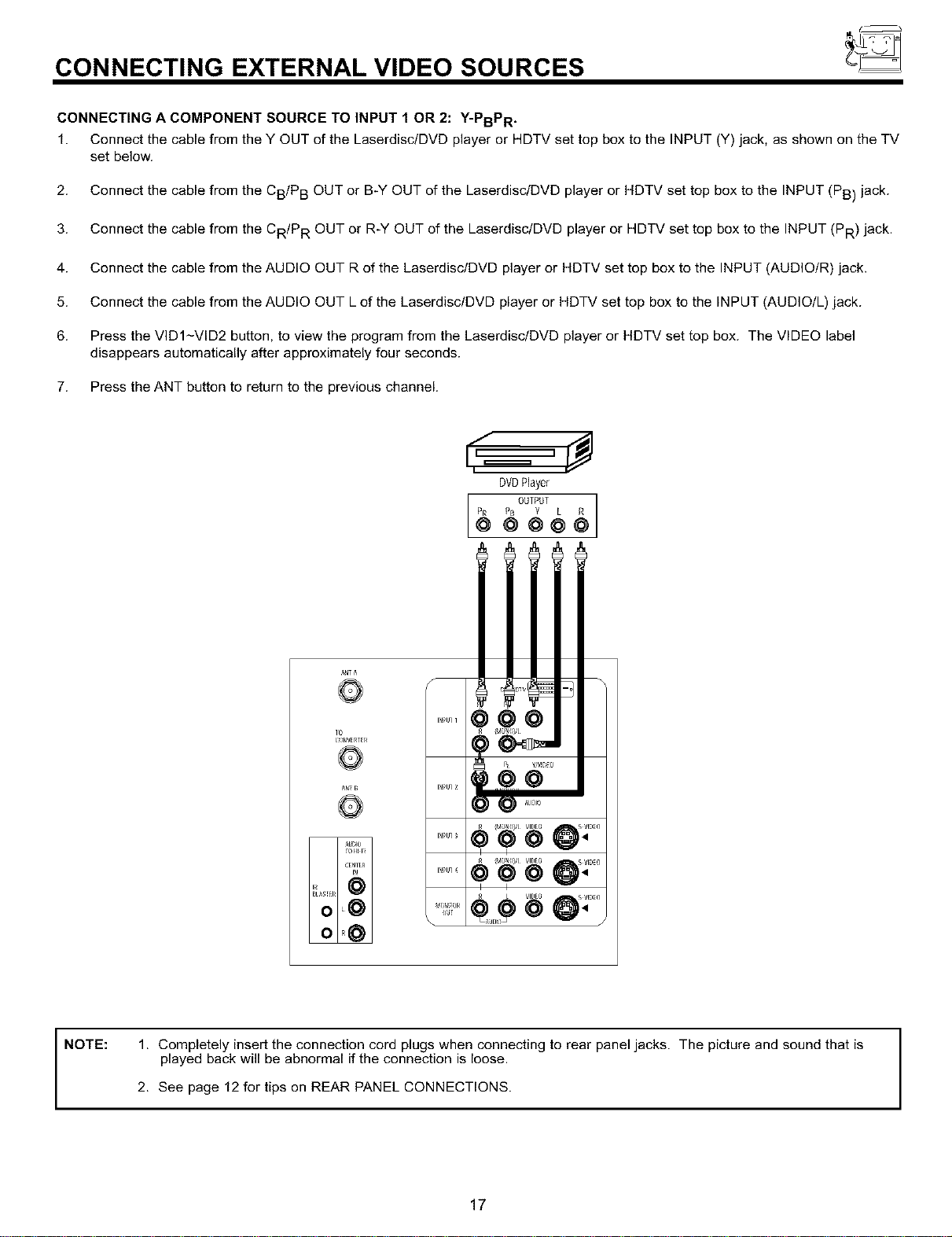
CONNECTING A COMPONENT SOURCE TO INPUT 1 OR 2: Y-PBPR .
1. Connect the cable from the Y OUT of the Laserdisc/DVD player or HDTV set top box to the INPUT (Y) jack, as shown on the TV
set below.
2. Connect the cable from the CBIP B OUT or B-Y OUT of the Laserdisc/DVD player or HDTV set top box to the INPUT (PB) jack.
3. Connect the cable from the CR/P R OUT or R-Y OUT of the Laserdisc/DVD player or HDTV set top box to the INPUT (PR) jack.
4. Connect the cable from the AUDIO OUT R of the LaserdisclDVD player or HDTV set top box to the INPUT (AUDIO/R) jack.
5. Connect the cable from the AUDIO OUT L of the LaserdisclDVD player or HDTV set top box to the INPUT (AUDIO/L) jack.
6. Press the VlDI-VID2 button, to view the program from the Laserdisc/DVD player or HDTV set top box. The VIDEO label
disappears automatically after approximately four seconds.
7. Press the ANT button to return to the previous channel.
Y
p,pul 1
10
CONVERIER
p,pu1
p,pu14
0_Jr
\
DVDPlayer
OUTPUT ]
PR P_ Y L R
@ @@@@
_5
@@
R ¥v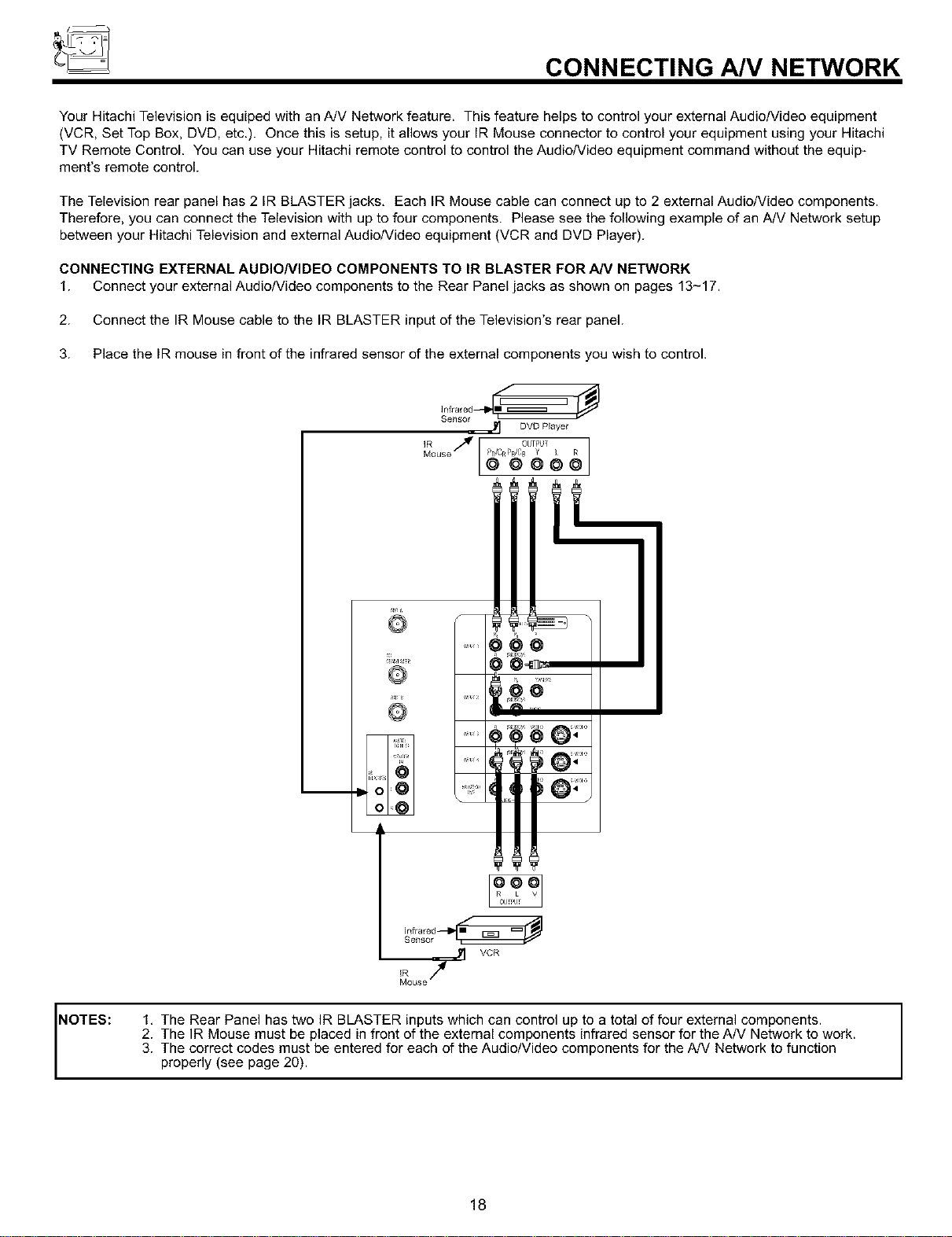
CONNECTING A/V NETWORK
Your Hitachi Television is equiped with an A/V Network feature. This feature helps to control your external Audio/Video equipment
(VCR, Set Top Box, DVD, etc.). Once this is setup, it allows your IR Mouse connector to control your equipment using your Hitachi
TV Remote Control. You can use your Hitachi remote control to control the Audio/Video equipment command without the equip-
ment's remote control.
The Television rear panel has 2 IR BLASTER jacks, Each IR Mouse cable can connect up to 2 external Audio/Video components.
Therefore, you can connect the Television with up to four components. Please see the following example of an A/V Network setup
between your Hitachi Television and external Audio/Video equipment (VCR and DVD Player).
CONNECTING EXTERNAL AUDIONIDEO COMPONENTS TO IR BLASTER FOR A/V NETWORK
1. Connect your external Audio/Video components to the Rear Panel jacks as shown on pages 13-17.
2. Connect the IR Mouse cable to the IR BLASTER input of the Television's rear panel.
3. Place the IR mouse in front of the infrared sensor of the external components you wish to control.
]rffraled •
Sensor ._ DVD Player
N/ll{I
O .....
NOTES:
VCR
Mot+se
1, The Rear Panel has two IR BLASTER inputs which can control up to a total of four external components.
2. The IR Mouse must be placed in front of the external components infrared sensor for the AN Network to work.
3. The correct codes must be entered for each of the Audio/Video components for the A/V Network to function
properly (see page 20).
18
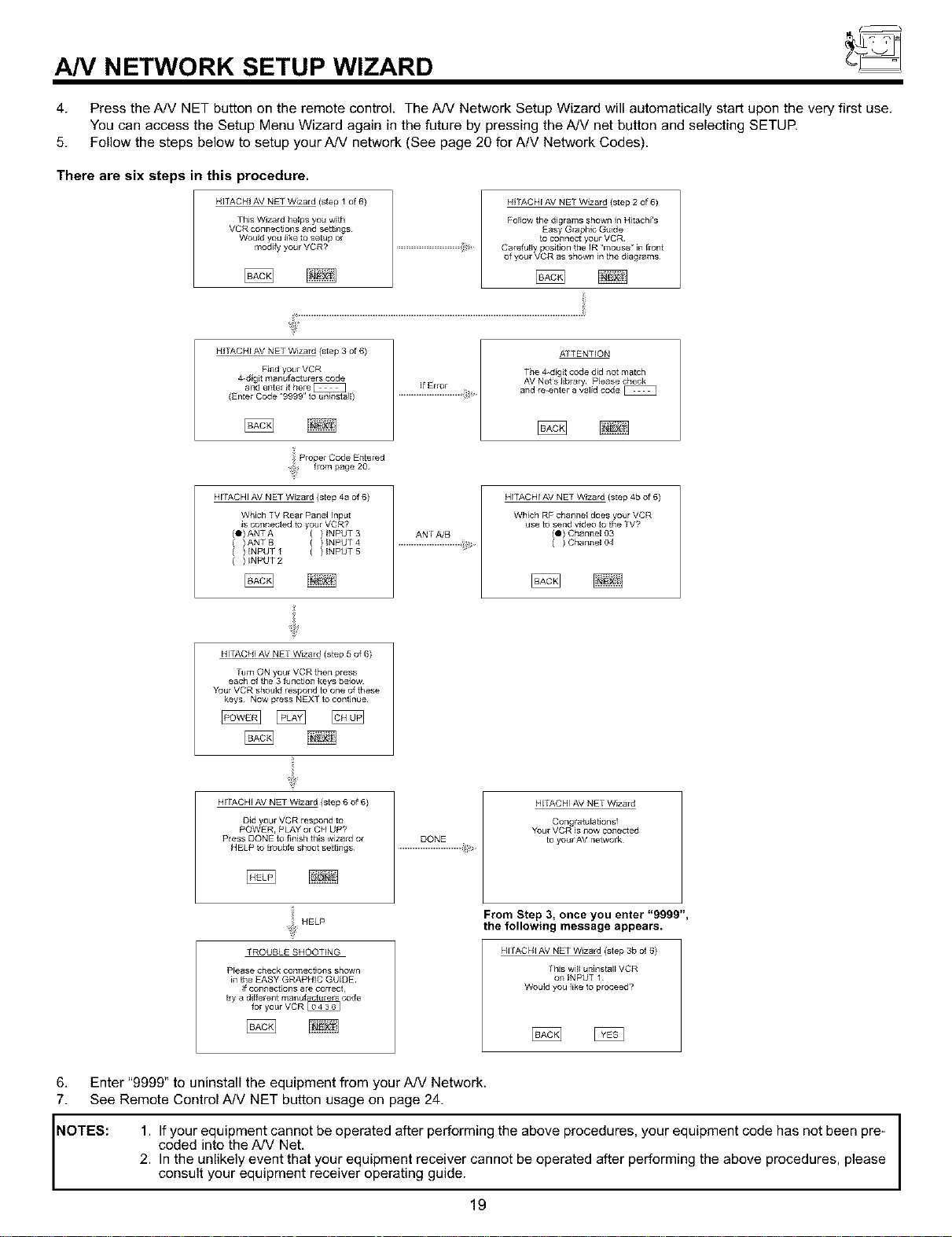
AN NETWORK SETUP WIZARD
4. Press the A/V NET button on the remote control. The AN Network Setup Wizard will automatically start upon the very first use.
You can access the Setup Menu Wizard again in the future by pressing the A/V net button and selecting SETUP.
5. Follow the steps below to setup your AN network (See page 20 for A/V Network Codes).
There are six steps in this procedure,
HI]ACHI AV NET Wizard (step 1 of 6)
This W_zard helps you w_th
VCR connections and settings
HI [ACH[ AV NE[ Wizard (step 2 of 6)
HI FACH[ AV NE] Wizard (step 3 of 6)
HITACHI AV NET Wizard (step 4a of 6)
ATTENTION
Which TV Rear Panel Input
is connected to your VCR?
(0) ANT A {
( )ANTB (
( ) INPUT 1 {
( ) INPUT 2
HITACHI AV NET Wizard (step 5 of 6)
ANf AZB
HITACHI AV NET Wizard (step 4b of 6)
keys Now press NEX] to continue
HITACHI AV NET Wizard (step 6 of 6)
Press DONE to finish this wizard or
HELP to trouble shoot settings
DONE
H[TACHIAV NET Wizam
yourAV network
]ROUBLE SHOOTING
Please check connections shown
in the EASY GRAPHIC GUIDE
If connections are correct,
try a different manufacturers code
for your VCR
From Step 3, once you enter "9999",
the following message appears.
HI] ACH] AV NET Wizard (step 3b of 6)
]his will unlnsta][ VCR
on INPUT 1
Would you like to proceed'?
6, Enter "9999" to uninstall the equipment from your A/V Network.
7. See Remote Control A/V NET button usage on page 24.
NOTES: 1. codedlfyour equipmentintothe A/Vcann°tNet,be operated after performing the above procedures, your equipment code has not been pre-
2. In the unlikely event that your equipment receiver cannot be operated after performing the above procedures, please
consult your equipment receiver operating guide.
19
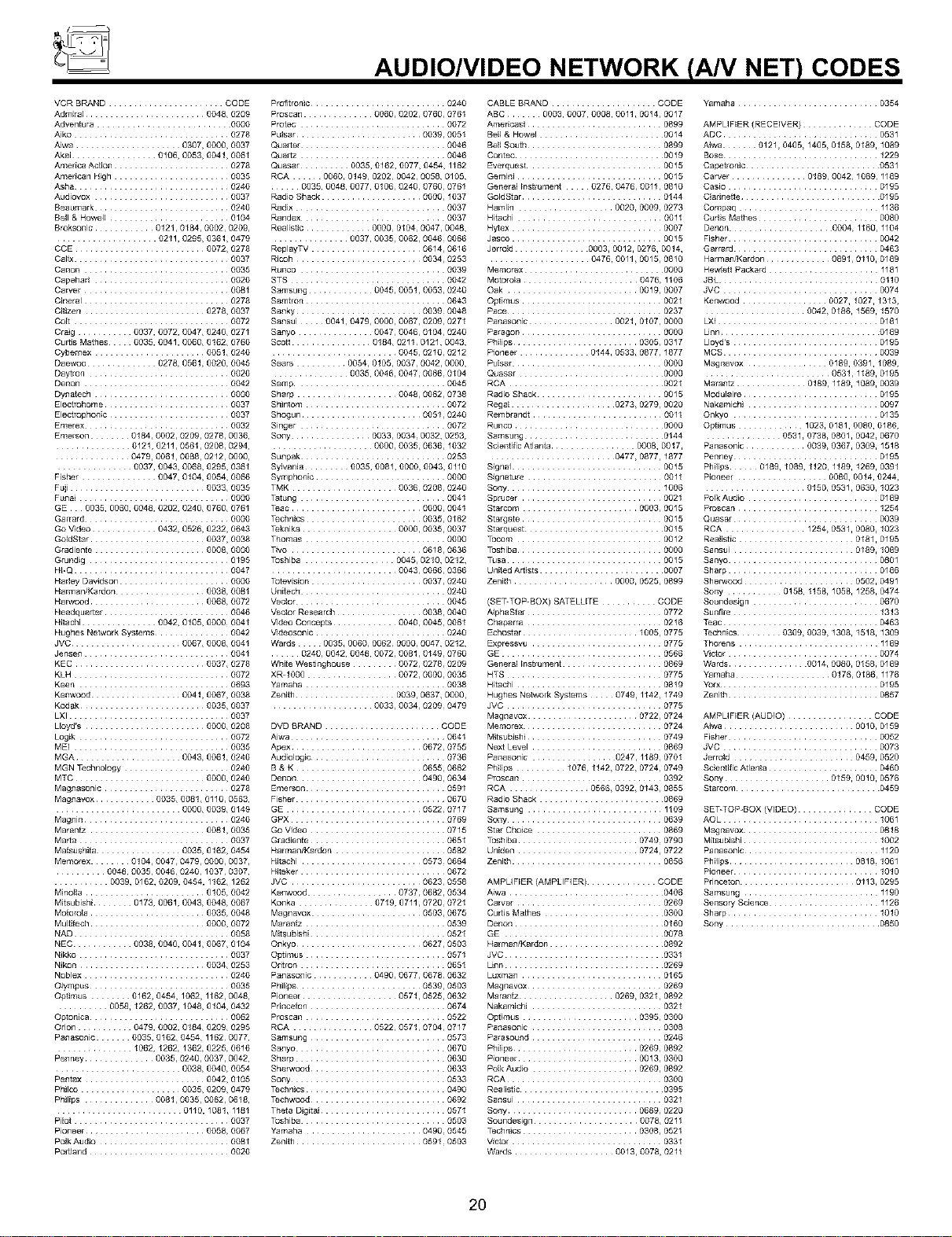
AUDIO/VIDEO NETWORK (AN NET) CODES
VCR BRAND ...... CODE
Admiral ....... 0048, 0209
Adventura ...... 0000
Aiko ......... 0278
Aiwa ..... 0307_ 0000_ 0037
Akai 0106_ 0053_ 0041_ 0061
America Action ...... 0278
American High ...... 0035
Asha .......... 0240
Audiovox ......... 0037
Beaumark ......... 0240
Bell & Howe4_ ........ 0104
Broksonic 0121_ 0184, 0002¸ 0209,
Profitronic ......... 0240
Proscan 0060,0202,0760,0761
Protec ........ 0072
Pulsar ........ 0039, 0051
Qua_er ......... 0046
Quartz ........... 0046
Quasar 0035,0162,0077_0454_1162
RCA 0060_0149_0202,0042,0058,0105,
0035,0048,0077,0106_0240_0760,0761
Radio Shack ...... 0000,1037
Radix ......... 0037
Randex ......... 0037
Realistic .... 0000 0104¸ 0047, 0048,
.... 0211,0295,0361,0479 0037,0035,0062,00460066
CCE ........ 0072,0278
CaHx ......... 0037
Canon ......... 0035
Capeha_ ......... 0020
Carver .......... 0081
CJneral .......... 0278
Citizen ...... 0278,0037
Colt ............... 0072
Craig .... 0037,0072,0047,0240,0271
Curtis Mathes 0035, 0041,0060,0162,0760
CABLE BRAND ........ CODE
ABC 0003,0007,0008,0011,0014,0017
Americast ........ 0899
BeN & Howe1 ...... 0014
Bell South ........ 0899
Contec ...... 0019
Ever_uesl ........ 0015
Gemini ........... 0015
GeneraHnstrument 0276,0476,0011,0810
GoldStar ......... 0144
Hamlin .... 0020,0009, 0273
Hitachi ......... 0011
H_ex .......... 0007
Jasco ............ 0015
ReplayTV ...... 0614,0616 Jerrold 0003,0012,0276,0014,
Ricoh ........ 0034,0253 ...... 0476,0011,0015,0810
Runco ........ 0039 Memorex ..... 0000
STS ......... 0042 Motorola ...... 0476,1106
Samsung 0045,0051,0053,0240 Oak ......... 0019,0007
Samtron ........ 0643 Optimus ......... 0021
Sanky ........... 00390048
Sansui 0041,0479,0000,0067,0209,0271
Sanyo 0047,0046,0104,0240
Scott .... 0184,02110121,0043,
Yamaha .............. 0354
AMPUF_ER {RECEIVER) CODE
ADC ............. 0531
Aiwa 0121,0405_1405_0158,0189,1089
Bose ......... 1229
Capetronic ........ 0531
Carver 0189_0042_1089,1189
Casio ......... 0195
Cladnette ....... 0195
Compaq ......... 1136
Cu_is Mathes ..... 0080
Denon ..... 0004_1160,1104
Fisher ......... 0042
Garrard .......... 0463
Harman/Kardon ....... 0891_0110,0189
Hewlett Packard ..... 1181
JBL ......... 0110
JVC ......... 0074
Kenwood ..... 0027,1027,1313,
Pace ......... 0237 .... 0042,0186,1569,1570
Panasonic ..... 0021,0107,0000 LXI ......... 0181
Paragon ......... 0000 Linn ......... 0189
Philips ........ 0305, 0317 Lloyd's ....... 0195
Cybemex .... 0051,0240 ....... 0045,0210,0212
Daewoo 027&0561_0020_0045 Sears 0054_0105,00370042,0000,
DaCron ......... 0020 0035,0046_0047_00660104
Denon ......... 0042 Semp .......... 0645
Dynatech ......... 0000 Sharp .... 004&0062,0738
Elec{rohome ........ 0037 Shintom ........ 0072
Electrophonic ....... 0037 ShOgun ....... 0051, 0240
Emerex .......... 0032 Singer ........ 0072
Emerson 0184_0002_0209,0278,0036, Sony ...... 0033,00340032,0253,
0121,0211_0561,0208,0294, • 0000_0035_0636,1032
..... 0479,0061,0088,0212,0000,
0037,0043,0068,0295,0361
Fisher 0047,0104,0054,0066
Fuji ........ 0033,0035
Funai .......... 0000
GE 0035, D060,0048,0202,0240,0760,0761
Garrard .......... 0000
Go Video 0432,0526,0232,0643
GoldStar ...... 0037,0038
Gradiente ..... 0008,0000
Grundig ......... 0195
Pioneer 0144,0533,0877,1877 MCS .......... 0039
Pulsar .......... 0000 Magnavox .... 0189,0391,1089,
Quasar ..... 0000 ......... 0531_1189,0195
RCA ....... 0021 Maran_ 0189_1189,1089,0039
Radio Shack ........ 0015 M0dulaire ........ 0195
Rega_ ...... 0273_0279,0020 Nakamichi ..... 0097
Rembrandt ......... 0011 Onkyo ............ 0135
Runco ........ 0000 Optimus 1023,0181,0080,0186,
Samsung ....... 0144 .... 0531_073&0801,00420670
Scientific Atlanta ..... 0008, 0017, Panasonic 0039_ 0367, 0309, 1518
Sunpak ........... 0253 ...... 0477_0877,1877 Penney ......... 0195
Sylvania 0035,0081,0009,0043,0110
Symphonic ....... 0000
TMK .... 0036_0208,0240
Tatun_ ........ 0041
Teac ......... 0000,0041
Technics ...... 0035, 0162
Teknika .... 0000_0035, 0037
Thomas ........ 0000
Tivo .......... 0618,0636
Toshiba ...... 0045, 0210, 0212,
Signal ......... 0015 Philips 0189,1089,1120,1189,1269,0391
Signature ......... 0011 Pioneer ..... 0080,0014,0244,
Sony ......... 1006 ...... 0150_0531,0630,1023
Sprucer .......... 0021 PolkAudio ..... 0189
Starcom ...... 0003,0015 Proscan ........ 1254
Stargate ......... 0015 Quasar ......... 0039
Starquest ..... 0015 RCA .... 1254_0531,00801023
Tocom ......... 0012 Realistic ...... 0181, 0195
Toshiba .......... 0000 Sansui ....... 0189,1089
Tusa ......... 0015 Sanyo .......... 0801
HI-Q ........... 0047 ........ 0043,0066,0366
Harley Davidson ...... 0000
Harman/Kardon .... 0038,0081
Harwood ...... 006&0072
Headqua_er ........ 0046
Hitachi 0042_0105_00000041
Hughes Network Systems ....... 0042
JVC ..... 0067_000&0041
Jensen ......... 0041
KEC ......... 0037_0278
KLH ......... 0072
Keen ......... 0693
Kenwood .... 0041_0067_0038
Totevision ...... 0037, 0240
Unitech ........ 0240
Vector ......... 0045
VectorResearch ...... 0038,0040
Video Concepts .... 0040_0045, 0061
Videosonic ......... 0240
Wards 0035_0060_00620000,0047,0212,
0240,0042,0048,0072_0081_0149,0760
White Westinghouse 0072_0278, 0209
XR-1000 ..... 0072_0000,0035
Yamaha ........ 0038
Zenith ...... 0039, 0637, 0000,
Kodak ....... 0035,0037 ........ 0033,0034,02090479
LXI ......... 0037
Uoyd's ...... 0000,0208
Logik ......... 0072
MEI ......... 0035
MGA .... 0043_0061_0240
MGNTechnology ...... 0240
MTC ........ 0000_0240
Ma_nasonlc ......... 0278
Ma_navox 0035_0081_0110,0563,
..... 0000,0039,0149
Ma#nln .......... 0240
Maranfz ...... 0081,0035
Ma_a .......... 0037
Matsushita .... 0035,0162,0454
Memorex 0104,0047,0479,0000,0037,
0048,0035,0046,0240,1037,0307,
0039,0162,0269,0454,1162,1262
Minolta ....... 0105,0042
Mitsubishi 0173,0061,0043,0048,0067
Motorola ...... 0035,0048
Mul_tech ..... 0000,0072
NAD .......... 0058
NEC 0038,0040,0041,0067,0104
Nikko ......... 0037
Nikon ....... 0034,0253
Noblex ......... 0240
Olympus .......... 0035
Optimus 0162,0454,1062,1162, 0048,
0058,1262,0037,1048,0104,0432
Optonica .......... 0062
Orion 0479, 0002, 0184, 0209, 0295
Panasonic 0035, 0162, 0454, 1162 0077,
1062,1262,1362,0225,0616
Penney ...... 0035,0240,0037,0042,
....... 0038,0040,0054
Pentax ...... 0042,0105
philco .... 0035,0209,0479
Philips ..... 0081,0035, 0062, 0618,
...... 0110,1081,1181
PiEot ......... 0037
Pioneer .......... 0058,0067
PolkAudio ............ 0081
Po_land ....................... 0020
DVD BRAND ...... CODE
Aiwa ......... 0641
Apex ......... 0672, 0755
Audio4og_c ......... 0736
B & K ........ 0655, 0662
Denon ........ 0490, 0634
Emerson ........ 0591
Fisher ......... 0670
GE ......... 0522, 0717
GPX ........ 0769
Go Video ........ 0715
Gradiente ........ 0651
Harman/Kardon ...... 0582
Hitachi ....... 0573¸ 0664
Hiteker ......... 0672
JVC ......... 0623, 0558
Kenwood ...... 0737_ 0682, 0534
Konka 0719, 0711_ 0720¸ 0721
Ma_navox ...... 0503, 0675
Marantz ........ 0539
Mitsubishi ......... 0521
Onkyo ........ 0627, 0503
Optimus ........ 0571
Odtron ........ 0651
Panasonic 0490_ 0677_ 0678¸ 0632
Philips ........ 0539, 0503
Pioneer .... 0571_ 0525, 0632
Princeton ........ 0674
Proscan ........ 0522
RCA .... 0522_ 0571_ 0704, 0717
Samsung ........ 0573
Sanyo ........ 0670
Sharp ........ 0630
SherWood ........ 0633
Sony ........ 0533
Technics ......... 0490
Techwood ........ 0692
Theta Digital ........ 0571
Toshiba ......... 0503
Yamaha .......... 0490¸ 0545
Zenith ................... 0591¸ 0503
United Art[sis ....... 0007
Zenith ......... 0000, 052510899
(SET-TOP-BOX) SATELLITE CODE
AIphaStar ........ 0772
Chaparra ........ 0216
Echostar ...... 1005,0775
Expressvu ....... 0775
GE .......... 0566
GeneraHnstrument ...... 0869
HTS ......... 0775
Hitachi ............ 0819
Hughes Network Systems 0749_1142,1749
JVC .......... 0775
Magnavox ...... 0722,0724
Memorex ........ 0724
Mi_ubJshi ........ 0749
NextLeve4 ....... 0869
Panasonic ...... 0247_11890701
Philips 1076,1142_0722_0724, 0749
Proscan ........... 0392
RCA .... 0566_0392_0143,0855
Radio Shack ...... 0869
Samsung ......... 1109
Sony ......... 0639
Star Choice ...... 0869
Toshiba ....... 0749¸ 0790
Uniden ....... 0724,0722
Zenith .......... 0856
AMPLIFIER (AMPLIFIER) CODE
Aiwa ........ 0406
Carver .......... 0269
Cu_is Mathes ..... 0300
Denon ...... 0160
GE ....... 0078
Harman/Kardon ..... 0892
JVC ....... 0331
Linn ....... 0269
Luxman ......... 0165
Magnavox ......... 0269
Marantz .... 0269_0321,0892
Nakamichi ....... 0321
Optimus ....... 0395, 0300
Panasonic ....... 0308
Parasound ....... 0246
Philips ........ 0269¸ 0892
Pioneer ........ 0013,0300
Polk Audio ...... 0269, 0892
RCA ......... 0300
Realistic ....... 0395
Sansui ........... 0321
Sony ......... 0689,0220
Soundesign .... 0078_0211
Technics ...... 0308, 0521
Victor ............ 0331
Wards .............. 0013_007&0211
Sharp ......... 0186
Sherwood ...... 0502,0491
Sony ..... 0158,1158_1058,1258,0474
Soundesign ..... 0670
Sunfire ......... 1313
Teac ........... 0463
Technics 0309_0039_1308,1518,1309
Thorens ......... 1189
Victor ......... 0074
Wards ...... 0014_0080,01580189
Yamaha .... 0176_0186,1176
yo_x ........... 0195
Zenith .......... 0857
AMPLIFIER (AUDIO) .... CODE
Aiwa ........ 0010,0159
Fisher ......... 0052
JVC .......... 0073
Jerrold ....... 0459,0520
Scientific Atlanta ...... 0460
Sony ....... 0159,0010,0576
Starcom ....... 0459
SET-TOP-BOX (VIDEO) CODE
AOL ......... 1061
Magnavox ....... 0818
Mitsubishi ...... 1002
Panasonic ........ 1120
Philips ......... 0818 1061
Pioneer .......... 1010
Princeton ...... 0113,0295
Samsung ......... 1190
Senso_ Science ...... 1126
Sharp .............. 1010
Sony ........................ 0850
20
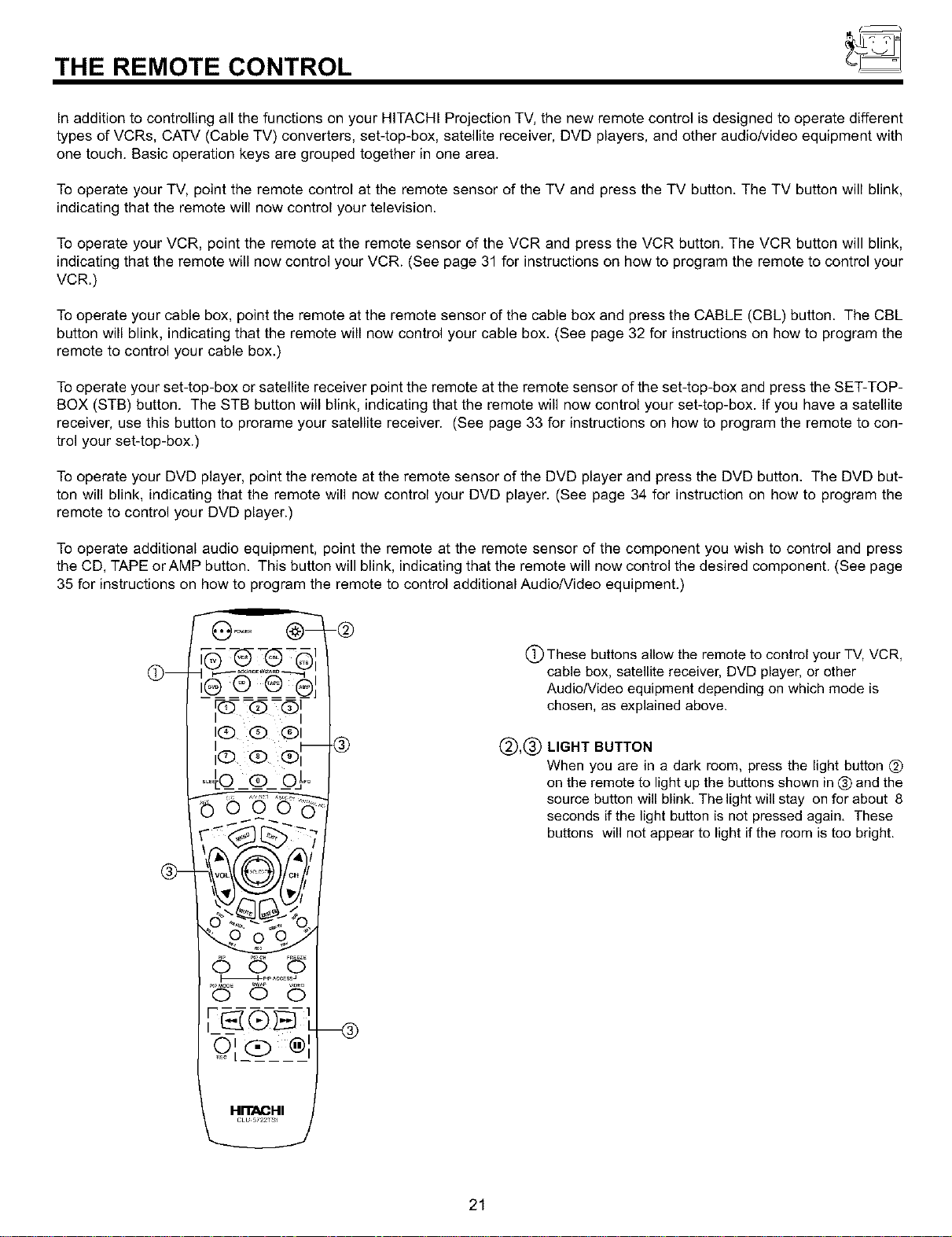
THE REMOTE CONTROL
In addition to controlling all the functions on your HITACHI Projection TV, the new remote control is designed to operate different
types of VCRs, CATV (Cable TV) converters, set-top-box, satellite receiver, DVD players, and other audiotvideo equipment with
one touch. Basic operation keys are grouped together in one area.
To operate your TV, point the remote control at the remote sensor of the TV and press the TV button. The TV button will blink,
indicating that the remote will now control your television.
To operate your VCR, point the remote at the remote sensor of the VCR and press the VCR button. The VCR button will blink,
indicating that the remote will now control your VCR. (See page 31 for instructions on how to program the remote to control your
VCR.)
Tooperate your cable box, point the remote at the remote sensor of the cable box and press the CABLE (CBL) button. The CBL
button will blink, indicating that the remote will now control your cable box. (See page 32 for instructions on how to program the
remote to control your cable box.)
To operate your set-top-box or satellite receiver point the remote at the remote sensor of the set-top-box and press the SET-TOP-
BOX (STB) button. The STB button will blink, indicating that the remote will now control your set-top-box. If you have a satellite
receiver, use this button to prorame your satellite receiver. (See page 33 for instructions on how to program the remote to con-
trol your set-top-box.)
To operate your DVD player, point the remote at the remote sensor of the DVD player and press the DVD button. The DVD but-
ton will blink, indicating that the remote will now control your DVD player. (See page 34 for instruction on how to program the
remote to control your DVD player.)
To operate additional audio equipment, point the remote at the remote sensor of the component you wish to control and press
the CD, TAPE orAMP button. This button will blink, indicating that the remote will now control the desired component. (See page
35 for instructions on how to program the remote to control additional Audio/Video equipment.)
Om
@-
rQ Q QI
I
IQ Q Qi
i ® t- -®
IQ QI
"pog °"
_-p_p _ccEssJ
©
HFFACHI
(_ These buttons allow the remote to control your TV, VCR,
cable box, satellite receiver, DVD player, or other
Audio/video equipment depending on which mode is
chosen, as explained above.
(_),(_) LIGHT BUTTON
When you are in a dark room, press the light button (_)
on the remote to light up the buttons shown in (_)and the
source button will blink, Thelight will stay on for about 8
seconds if the light button is not pressed again, These
buttons will not appear to light if the room is too bright.
21
HOW TO USE THE REMOTE TO CONTROL YOUR TV
i°O:l O-
O(D ®
HITACHI
CLU 5722TSI
®
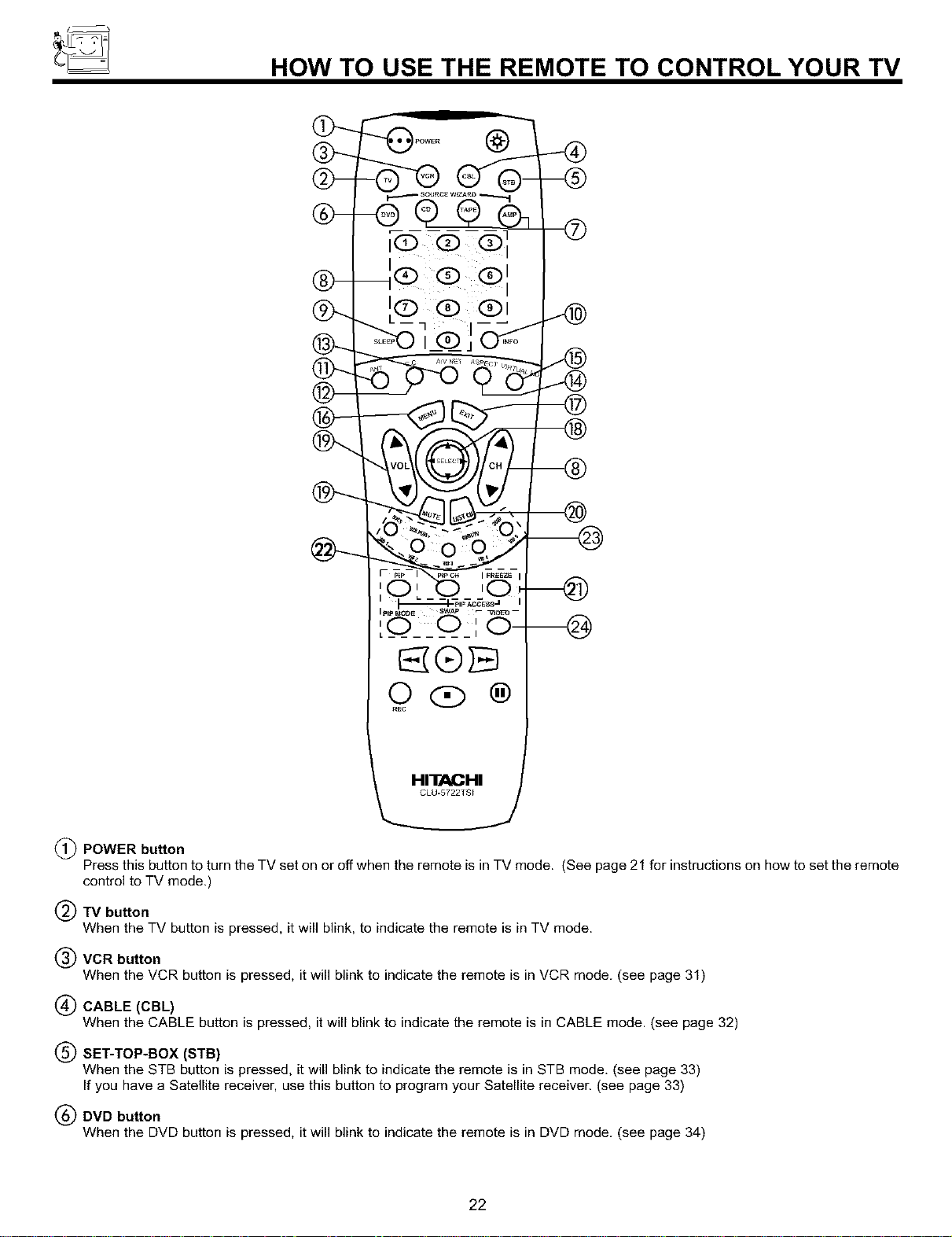
(_ POWER button
Press this button to turn the TV set on or off when the remote is in TV mode, (See page 21 for instructions on how to set the remote
control to TV mode.)
(_) "IV button
When the TV button is pressed, it will blink, to indicate the remote is in TV mode,
(_) VCR button
When the VCR button is pressed, it will blink to indicate the remote is in VCR mode. (see page 31)
(_ CABLE (CBL)
When the CABLE button is pressed, it will blink to indicate the remote is in CABLE mode. (see page 32)
(_) SET-TOP-BOX (STB)
When the STB button is pressed, it will blink to indicate the remote is in STB mode, (see page 33)
If you have a Satellite receiver, use this button to program your Satellite receiver. (see page 33)
(_) DVD button
When the DVD button is pressed, it will blink to indicate the remote is in DVD mode. (see page 34)
22
HOW TO USE THE REMOTE TO CONTROL YOUR TV
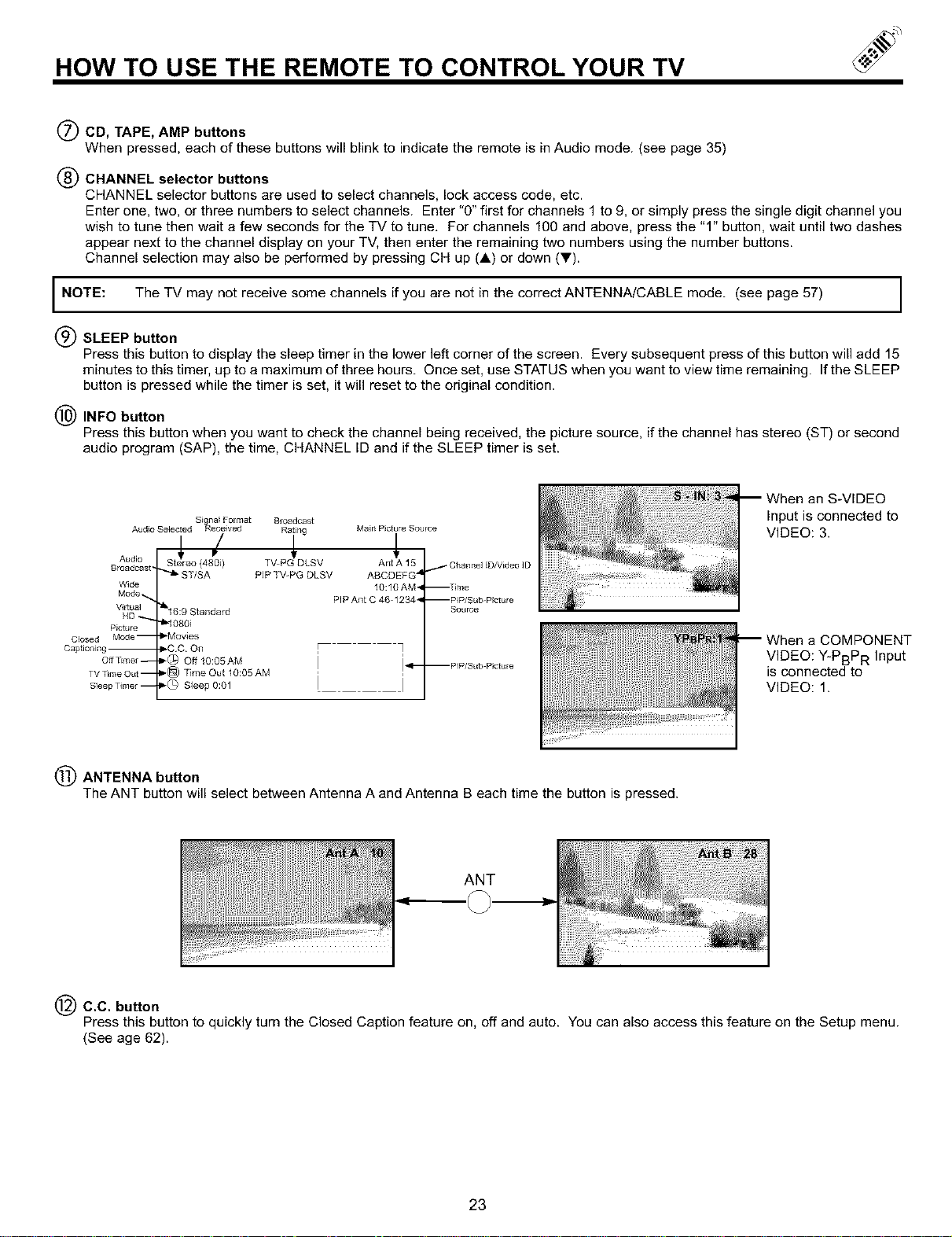
(_) CD, TAPE, AMP buttons
When pressed, each of these buttons will blink to indicate the remote is in Audio mode. (see page 35)
(_ CHANNEL selector buttons
CHANNEL selector buttons are used to select channels, lock access code, etc.
Enter one, two, or three numbers to select channels. Enter "0" first for channels 1 to 9, or simply press the single digit channel you
wish to tune then wait a few seconds for the TV to tune. For channels 100 and above, press the "1" button, wait until two dashes
appear next to the channel display on your TV, then enter the remaining two numbers using the number buttons.
Channel selection may also be performed by pressing CH up (A) or down (_').
I NOTE: The TV may not receive some channels if you are not in the correct ANTENNA/CABLE mode. (see page 57) I
(_) SLEEP button
Press this button to display the sleep timer in the lower left corner of the screen. Every subsequent press of this button will add 15
minutes to this timer, up to a maximum of three hours. Once set, use STATUS when you want to view time remaining. If the SLEEP
button is pressed while the timer is set, it will reset to the original condition.
(_) INFO button
Press this button when you want to check the channel being received, the picture source, if the channel has stereo (ST) or second
audio program (SAP), the time, CHANNEL ID and if the SLEEP timer is set.
Audio
Broadcast,
Wide
Mode.
Vwtua]
HD_
Picture
Closed Mode --
Captioning --
off Timer --
TV Time Out m
Sleep Timer m
Broadcast
Ratil_g Main Picture Source
/ ,wLLsv
Stereo (480i) Ant A 15 / Channel iD/Video ID
ST/SA PIP TV-PG DLSV ABCDEFG "a
10:10AM'_ --Tree
PiP Ant C 46 1234 "4 --PiP/Sub Picture
SoE_rce
"_16:9 Standard
"_1080i
_'Movies
_-CC On _ q
_) Off 10:05AM !
I_ _ime Out 10:05 AM
_'(_ Sleep 0:01 I j
--pip/Sub-Picture
When an S-VIDEO
Input is connected to
VIDEO: 3.
When a COMPONENT
VIDEO: Y-PBPR Input
is connected to
VIDEO: 1.
ANTENNA button
The ANT button will select between Antenna A and Antenna B each time the button is pressed.
ANT
C.C. button
Press this button to quickly turn the Closed Caption feature on, off and auto. You can also access this feature on the Setup menu.
(See age 62).
23
HOW TO USE THE REMOTE TO
CONTROL YOUR TV
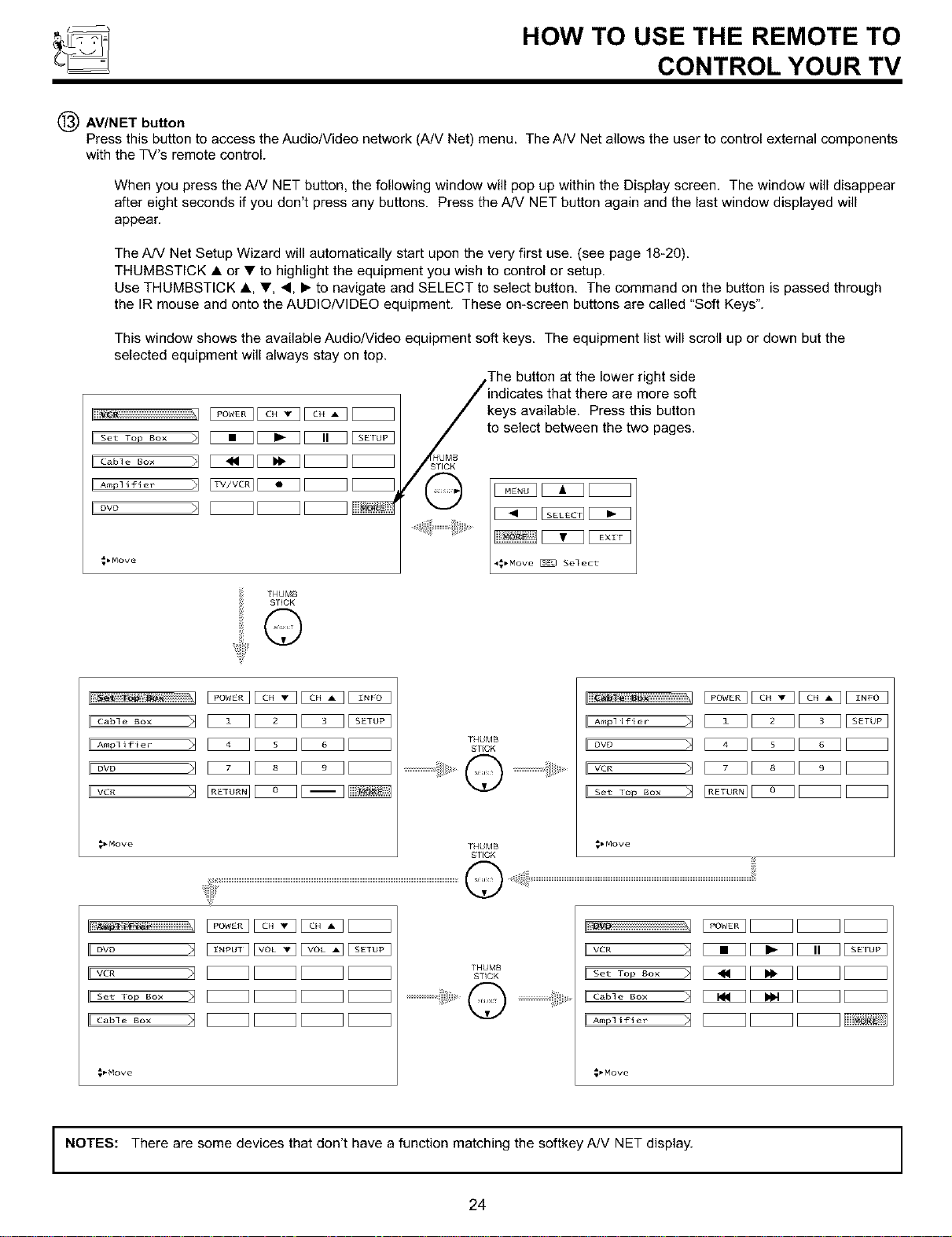
!_ AV/NET button
Press this button to access the Audio/Video network (A/V Net) menu. The A/V Net allows the user to control external components
with the TV's remote control.
When you press the A/V NET button, the following window will pop up within the Display screen. The window will disappear
after eight seconds if you don't press any buttons. Press the A/V NET button again and the last window displayed will
appear.
The A/V Net Setup Wizard will automatically start upon the very first use, (see page 18-20).
THUMBSTICK • or • to highlight the equipment you wish to control or setup.
Use THUMBSTICK A, •, ,, I_ to navigate and SELECT to select button, The command on the button is passed through
the IR mouse and onto the AUDIONIDEO equipment. These on-screen buttons are called "Soft Keys".
This window shows the available Audio/Video equipment soft keys. The equipment list will scroll up or down but the
selected equipment will always stay on top.
_,Move
The button at the lower right side
indicates that there are more soft
keys available. Press this button
to select between the two pages.
4_pMOVe _ Select
THUMB
STICK
THUMB
STCK
THUMB
STICK
_bMove
THUMB
STICK
_Move
NOTES: There are some devices that don't have a function matching the softkey A/V NET display.
24
HOW TO USE THE REMOTE TO
CONTROL YOUR TV
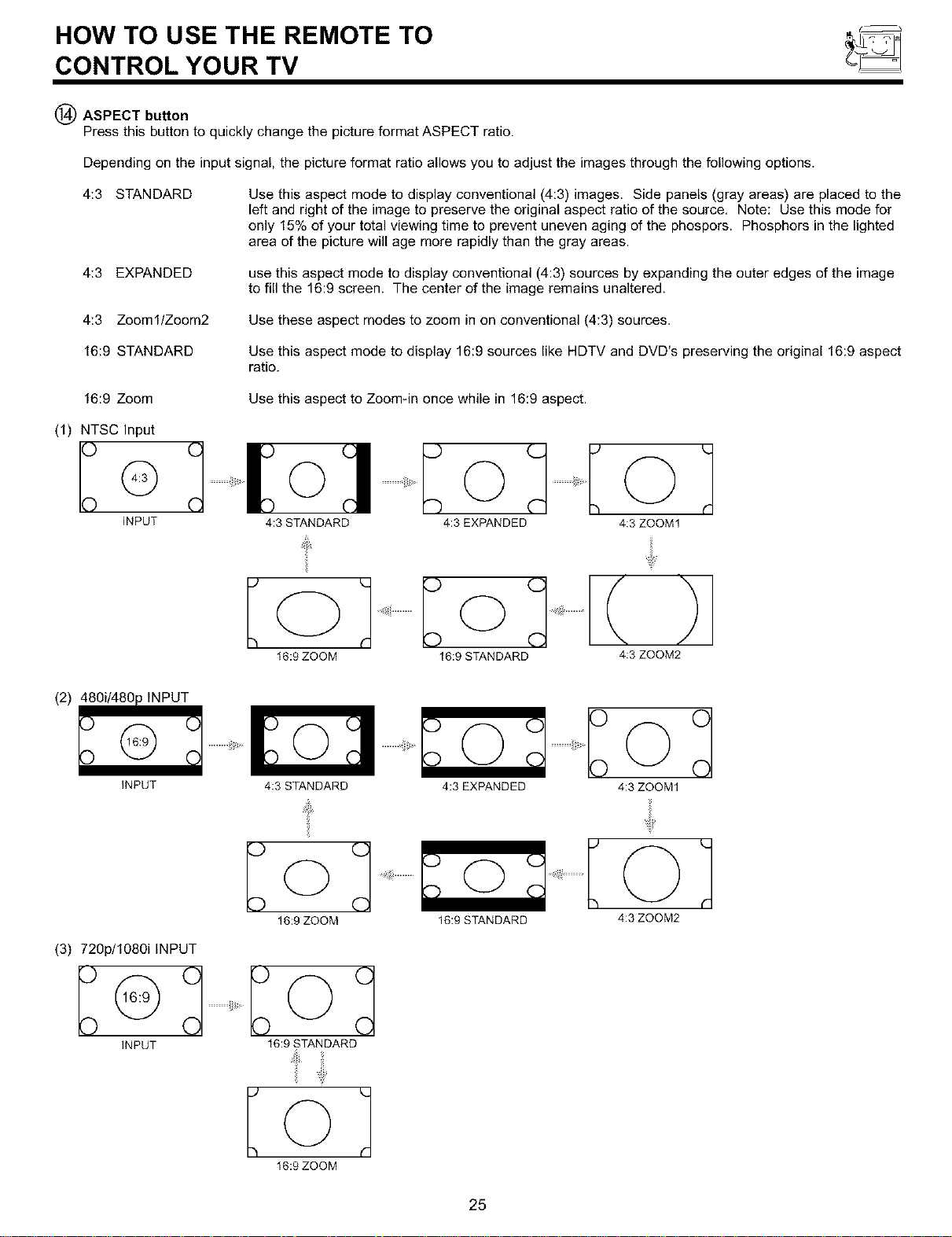
(_) ASPECT button
Press this button to quickly change the picture format ASPECT ratio.
Depending on the input signal, the picture format ratio allows you to adjust the images through the following options.
4:3 STANDARD
Use this aspect mode to display conventional (4:3) images. Side panels (gray areas) are placed to the
left and right of the image to preserve the original aspect ratio of the source. Note: Use this mode for
only 15% of your total viewing time to prevent uneven aging of the phospors. Phosphors in the lighted
area of the picture will age more rapidly than the gray areas.
4:3 EXPANDED
use this aspect mode to display conventional (4:3) sources by expanding the outer edges of the image
to fill the 16:9 screen. The center of the image remains unaltered.
4:3 ZoomllZoom2 Use these aspect modes to zoom in on conventional (4:3) sources.
16:9 STANDARD
Use this aspect mode to display 16:9 sources like HDTV and DVD's preserving the original 16:9 aspect
ratio.
16:9 Zoom
Use this aspect to Zoomqn once while in 16:9 aspect.
(1) NTSC Input
INPUT
...............o o ]
4:3 STANDARD 4:3 EXPANDED 4:3 ZOOM1
o] ................................( )
16:9ZOOM 16:9STANDARD 4:3 ZOOM2
(2) _INPUT
..................!iiD_
INPUT 4:3 STANDARD 4:3 EXPANDED
16:9ZOOM
16:9 STANDARD
Io]
19:9 ZOOM
(3) 720p/1080i INPUT
INPUT
16:9 STANDARD
.................
4:3 ZOOM1
4:3 ZOOM2
25
HOW TO USE THE REMOTE TO CONTROL YOUR TV
NOTES: 1. Depending on the input signal, some of the aspect features will not be available.
2. Set up a Component signal (connect component to Y-PBPR inputs) and switch to VIDEO:I or 2 by pressing the VID1
or VID2 button on the Remote Control when planning to use all picture formats features.
VIRTUAL HD button
Press this button to toggel between 1O8Oiand 540p.
MENU button
The MENU button will start the On-Screen Display.
EXIT button
When in MENU mode, this button will exit all On-Screen Displays.
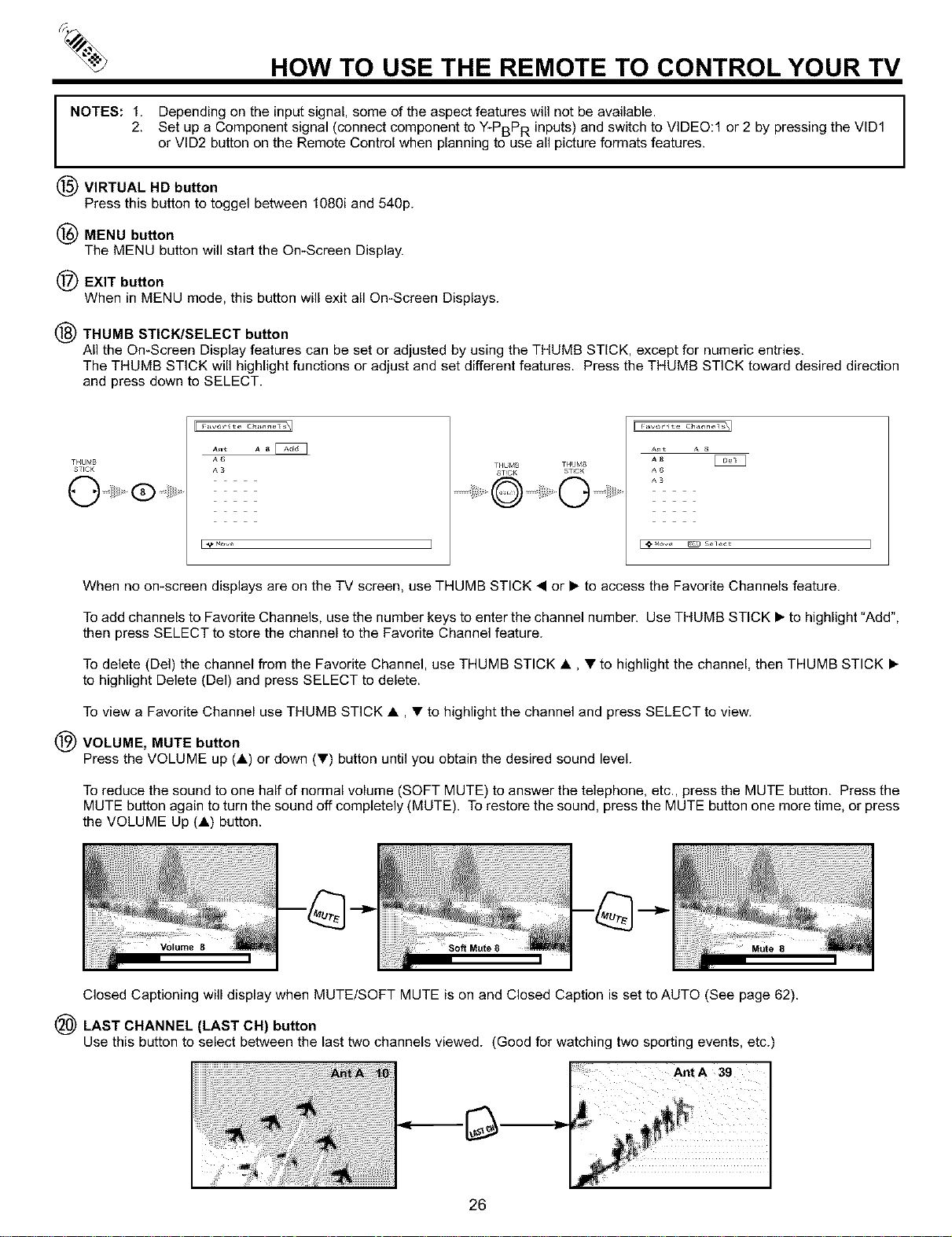
THUMB STICK/SELECT button
All the On-Screen Display features can be set or adjusted by using the THUMB STICK, except for numeric entries.
The THUMB STICK will highlight functions or adjust and set different features. Press the THUMB STICK toward desired direction
and press down to SELECT.
T_4UMB
STICK
_,nt A 8
A6
f, 3
THUMB THU_,_8
ST_OK ST_CK
f,nl_ A
When no on-screen displays are on the TV screen, use THUMB STICK • or • to access the Favorite Channels feature.
To add channels to Favorite Channels, use the number keys to enter the channel number. Use THUMB STICK • to highlight "Add",
then press SELECT to store the channel to the Favorite Channel feature.
To delete (Del) the channel from the Favorite Channel, use THUMB STICK •, • to highlight the channel, then THUMB STICK •
to highlight Delete (De{) and press SELECT to delete.
To view a Favorite Channel use THUMB STICK •, • to highlight the channel and press SELECT to view.
VOLUME, MUTE button
Press the VOLUME up (•) or down (•) button until you obtain the desired sound level.
To reduce the sound to one half of normal volume (SOFT MUTE) to answer the telephone, etc., press the MUTE button. Press the
MUTE button again to turn the sound off completely (MUTE). To restore the sound, press the MUTE button one more time, or press
the VOLUME Up (•) button.
Closed Captioning will display when MUTE/SOFT MUTE is on and Closed Caption is set to AUTO (See page 62).
(_ LAST CHANNEL (LAST CH) button
Use this button to select between the last two channels viewed. (Good for watching two sporting events, etc.)
Ant A 39
26
HOW TO USE THE REMOTE TO CONTROL YOUR TV
(_ PICTURE-IN-PICTURE buttons
See separate section on pages 28-30 for a description.
PIP CH button
Use the PIP CH button to select between main picture and sub-picture tuning. The channel number which is highlighted indicates
what channel is being controlled.
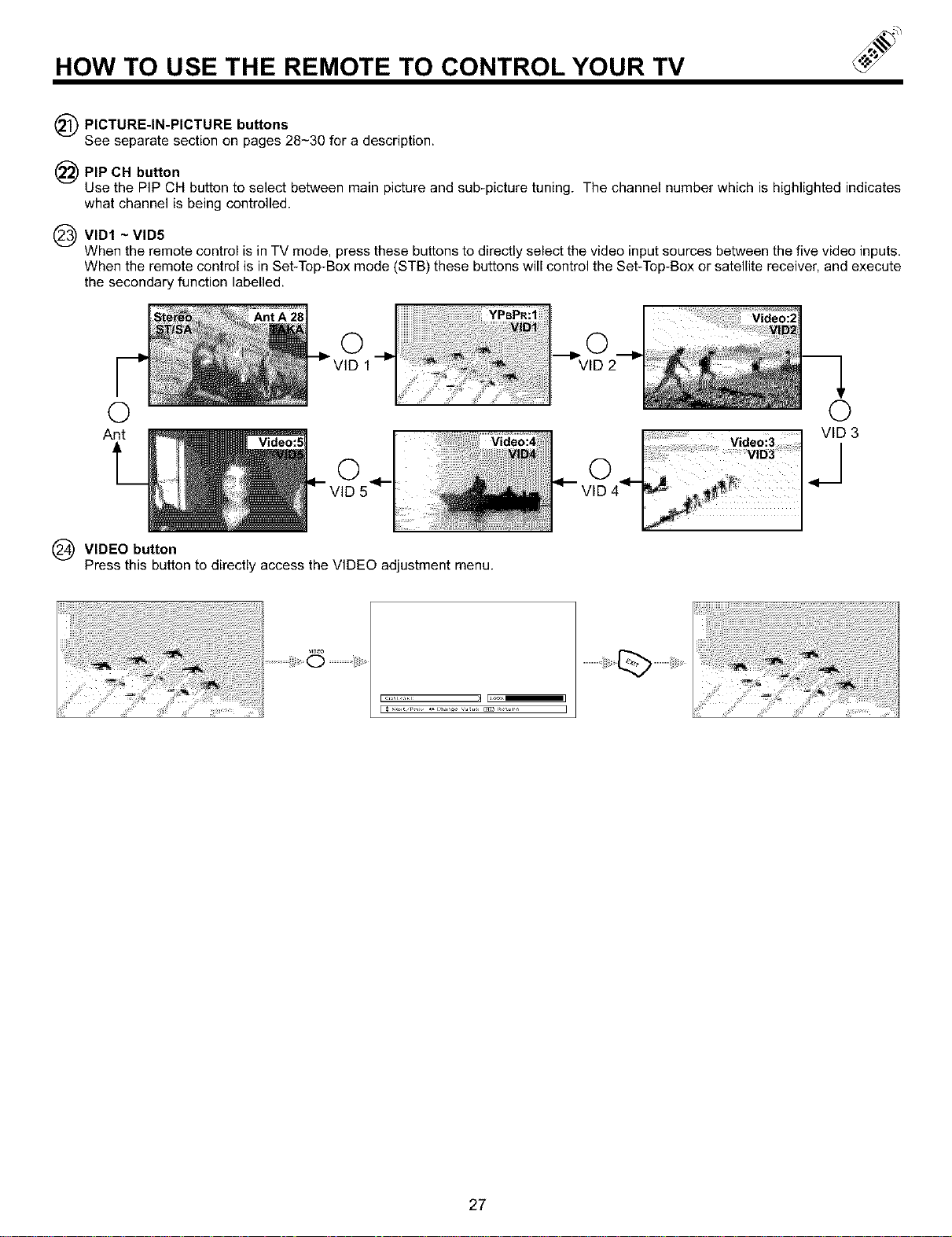
_VID1 ~VID5
When the remote control is in TV mode, press these buttons to directly select the video input sources between the five video inputs,
When the remote control is in Set-Top-Box mode (STB) these buttons will control the Set-Top-Box or satellite receiver, and execute
the secondary function labelled.
O O
Ant VID 3
, J
(_ VIDEO button
Press this button to directly access the VIDEO adjustment menu.
27
PICTURE-IN-PICTURE (PIP)
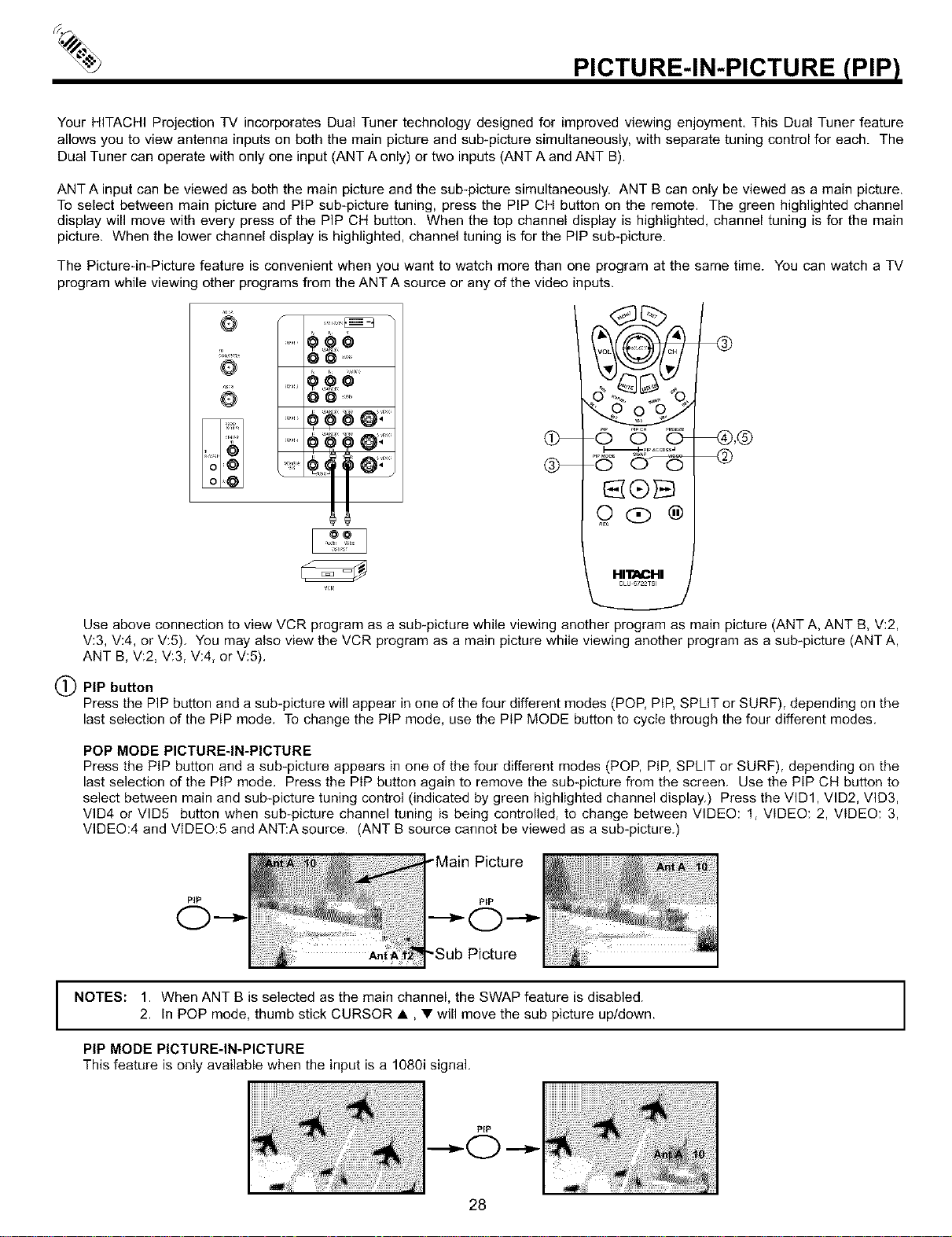
Your HITACHI Projection TV incorporates Dual Tuner technology designed for improved viewing enjoyment, This Dual Tuner feature
allows you to view antenna inputs on both the main picture and sub-picture simultaneously, with separate tuning control for each. The
Dual Tuner can operate with only one input (ANT A only) or two inputs (ANT A and ANT B).
ANT A input can be viewed as both the main picture and the sub-picture simultaneously. ANT B can only be viewed as a main picture.
To select between main picture and PIP sub-picture tuning, press the PIP CH button on the remote. The green highlighted channel
display will move with every press of the PIP CH button. When the top channel display is highlighted, channel tuning is for the main
picture. When the lower channel display is highlighted, channel tuning is for the PIP sub-picture.
The Picture-in-Picture feature is convenient when you want to watch more than one program at the same time. You can watch a TV
program while viewing other programs from the ANT A source or any of the video inputs.
"'Q
8@ ......
....
8@ ......
.... @;
..... O;
It
_cR
Use above connection to view VCR program as a sub-picture while viewing another program as main picture (ANT A, ANT B, V:2,
V:3, V:4, or V:5). You may also view the VCR program as a main picture while viewing another program as a sub-picture (ANT A,
ANT B, V:2, V:3, V:4, or V:5).
(_) PIP button
Press the PIP button and a sub-picture will appear in one of the four different modes (POP, PIP, SPLIT or SURF), depending on the
last selection of the PIP mode. To change the PIP mode, use the PIP MODE button to cycle through the four different modes.
POP MODE PICTURE-IN-PICTURE
Press the PIP button and a sub-picture appears in one of the four different modes (POP, PIP, SPLIT or SURF), depending on the
last selection of the PIP mode. Press the PIP button again to remove the sub-picture from the screen. Use the PIP CH button to
select between main and sub-picture tuning control (indicated by green highlighted channel display.) Press the VlD1, VlD2, VID3,
VlD4 or VID5 button when sub-picture channel tuning is being controlled, to change between VIDEO: 1, VIDEO: 2, VIDEO: 3,
VIDEO:4 and VIDEO:5 and ANT:Asource. (ANT B source cannot be viewed as a sub-picture.)
PIP
NOTES: 1. When ANT B is selected as the main channel, the SWAP feature is disabled.
2. In POP mode, thumb stick CURSOR •, • will move the sub picture up/down.
PIP MODE PICTURE-IN-PICTURE
This feature is oniy available when the input is a 1080i signal.
PIP
28
PICTURE-IN-PICTURE (PIP)
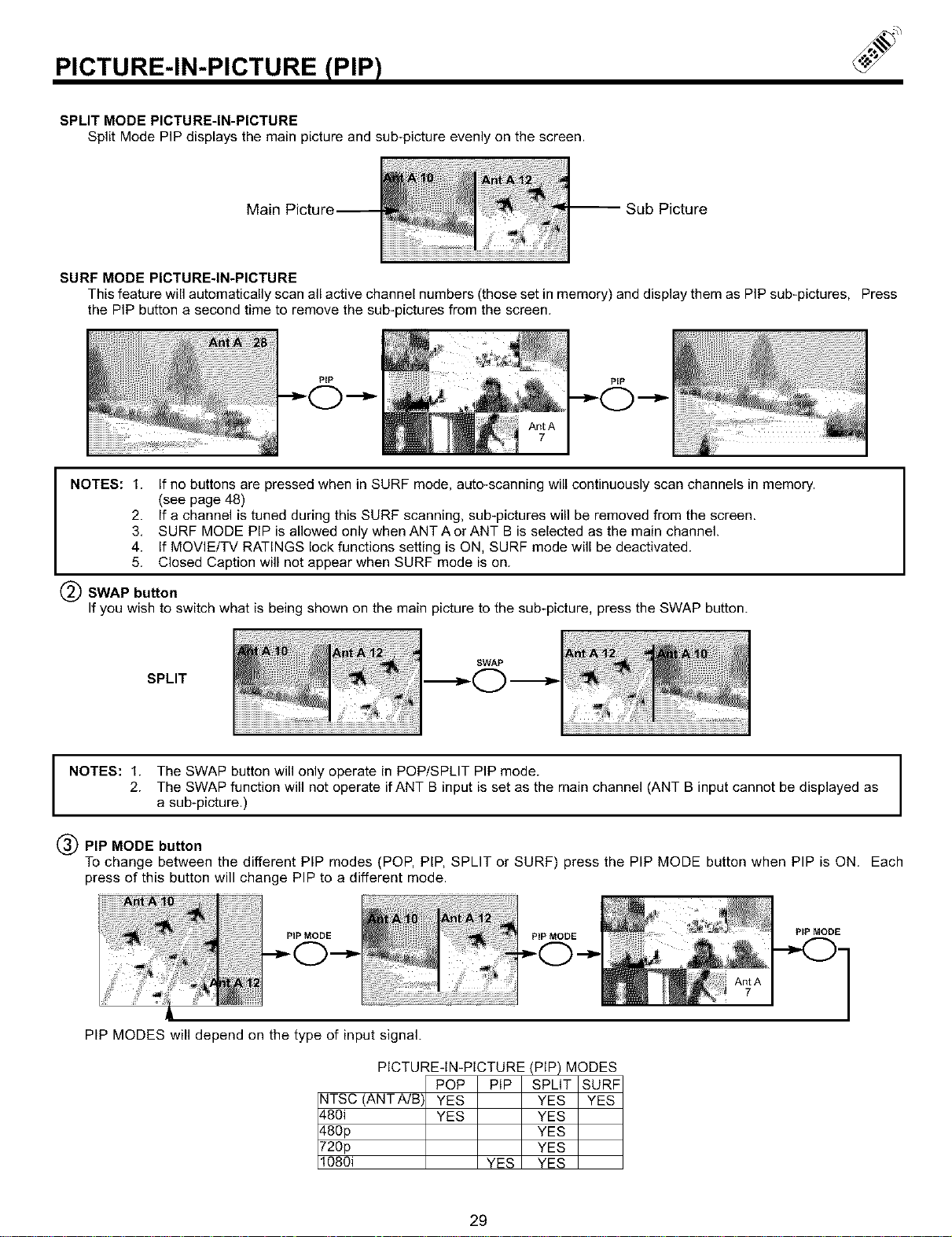
SPLIT MODE PICTURE-IN-PICTURE
Split Mode PIP displays the main picture and sub-picture evenly on the screen.
Main
-- Sub Picture
SURF MODE PICTURE-IN-PICTURE
This feature will automatically scan all active channel numbers (those set in memory) and display them as PIP sub-pictures, Press
the PIP button a second time to remove the sub-pictures from the screen.
NOTES: 1.
If no buttons are pressed when in SURF mode, auto-scanning will continuously scan channels in memory.
(see page 48)
2. If a channel is tuned during this SURF scanning, sub-pictures will be removed from the screen.
3, SURF MODE PIP is allowed only when ANT A or ANT B is selected as the main channel.
4. If MOVIE/TV RATINGS lock functions setting is ON, SURF mode will be deactivated.
5. Closed Caption will not appear when SURF mode is on.
(_) SWAP button
If you wish to switch what is being shown on the main picture to the sub-picture, press the SWAP button.
SPLIT
SWAP
NOTES: 1. The SWAP button will only operate in POP/SPLIT PIP mode.
2. The SWAP function will not operate if ANT B input is set as the main channel (ANT B input cannot be displayed as
a sub-picture.)
(_PIP MODE button
To change between the different PIP modes (POP, PIP, SPLIT or SURF) press the PIP MODE button when PIP is ON. Each
press of this button will change PIP to a different mode.
PiP MODE PiP MODE
PIP MODE
PIP MODES will depend on the type of input signal.
PICTURE-IN-PICTURE (PIP) MODES
POP PIP SPLIT SURF
tTSC (ANTA/B YES YES YES
$80i YES YES
$80p YES
720p YES
1080i YES YES
29
PICTURE-IN-PICTURE (PIP)
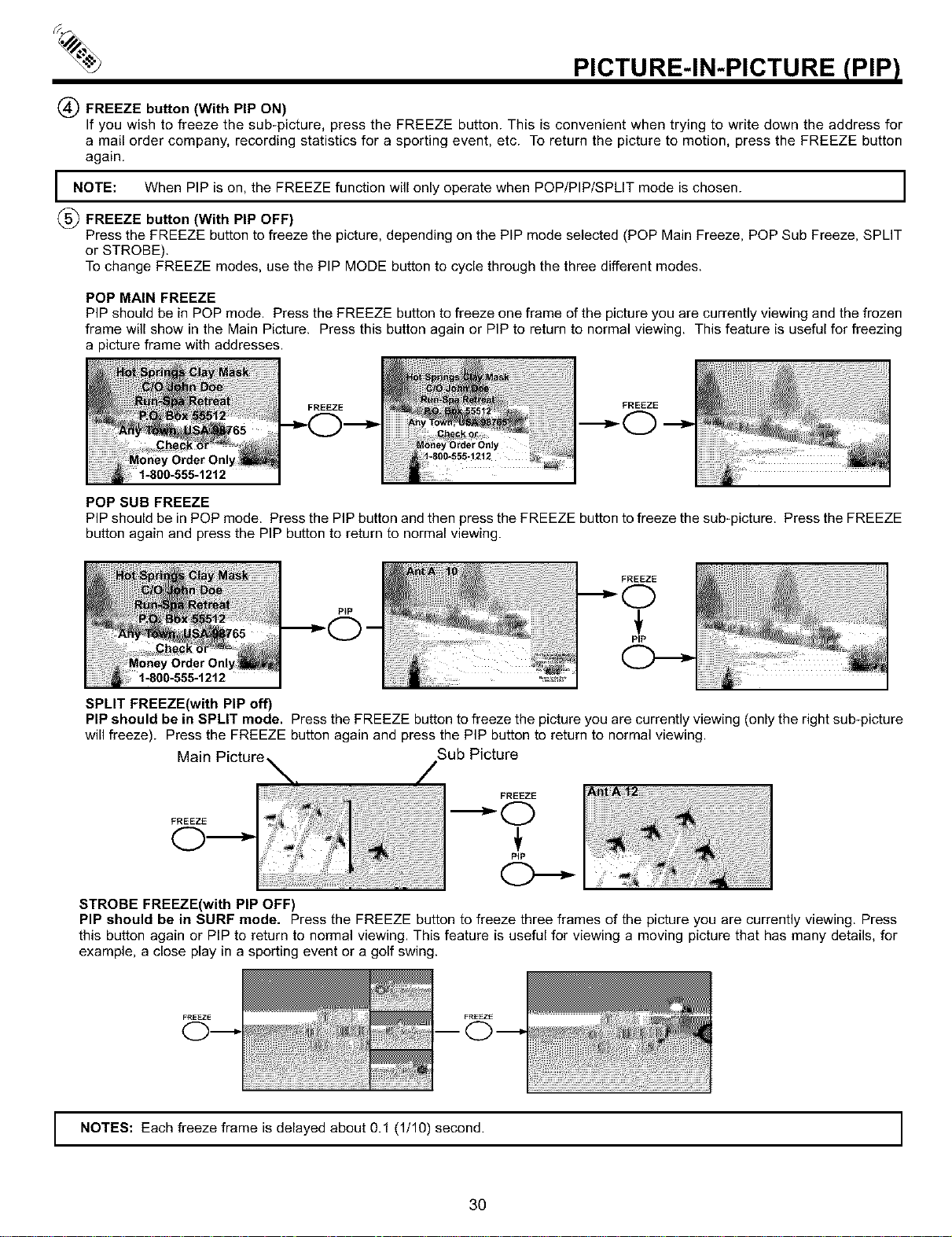
(_ FREEZE button (With PIP ON)
If you wish to freeze the sub-picture, press the FREEZE button. This is convenient when trying to write down the address for
a mail order company, recording statistics for a sporting event, etc. To return the picture to motion, press the FREEZE button
again.
m
l NOTE: When PIP is on, the FREEZE function will only operate when POP/PIP/SPLIT mode is chosen. J
m
(_ FREEZE button (With PIP OFF}
Press the FREEZE button to freeze the picture, depending on the PIP mode selected (POP Main Freeze, POP Sub Freeze, SPLIT
or STROBE).
To change FREEZE modes, use the PIP MODE button to cycle through the three different modes.
POP MAIN FREEZE
PIP should be in POP mode. Press the FREEZE button to freeze one frame of the picture you are currently viewing and the frozen
frame will show in the Main Picture. Press this button again or PIP to return to normal viewing. This feature is useful for freezing
a picture frame with addresses.
FREEZE
FREEZE
POP SUB FREEZE
PIP should be in POP mode. Press the PIP button and then press the FREEZE button to freeze the sub-picture. Press the FREEZE
button again and press the PIP button to return to normal viewing.
SPLIT FREEZE(with PIP off)
PIP should be in SPLIT mode. Press the FREEZE button to freeze the picture you are currently viewing (only the right sub-picture
will freeze). Press the FREEZE button again and press the PIP button to return to normal viewing.
Main Picture, Sub Picture
FREEZE
FREEZE
---'-O
€
PIP
STROBE FREEZE(with PIP OFF)
PIP should be in SURF mode. Press the FREEZE button to freeze three frames of the picture you are currently viewing. Press
this button again or PIP to return to normal viewing. This feature is useful for viewing a moving picture that has many details, for
example, a close play in a sporting event or a golf swing.
FREEZ_
FREEZ_
I NOTES: Each freeze frame is delayed about 0.1 (1/10) second. I
3O
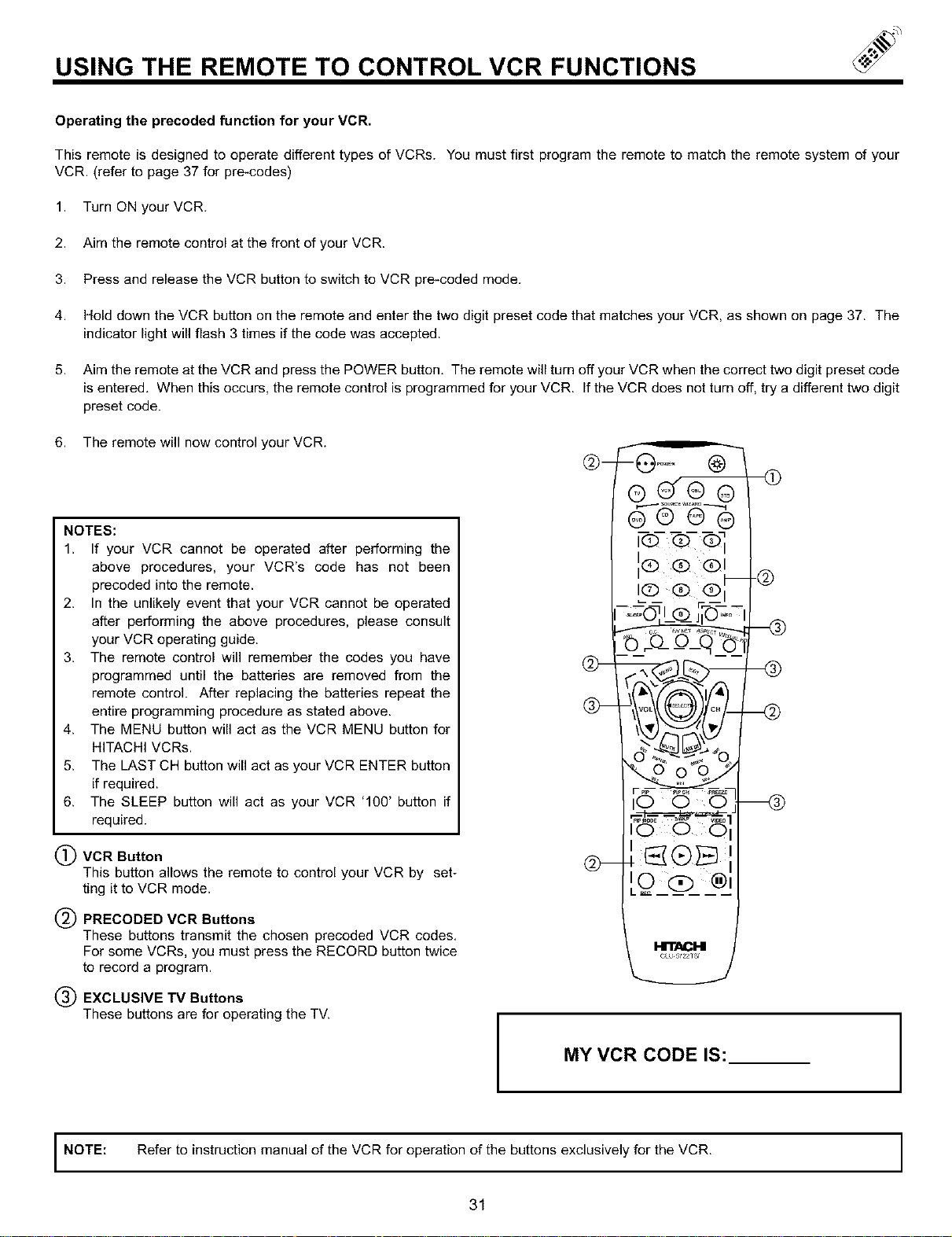
USING THE REMOTE TO CONTROL VCR FUNCTIONS
Operating the precoded function for your VCR.
This remote is designed to operate different types of VCRs. You must first program the remote to match the remote system of your
VCR. (refer to page 37 for pre-codes)
1. Turn ON your VCR.
2. Aim the remote control at the front of your VCR.
3. Press and release the VCR button to switch to VCR pre-coded mode.
4. Hold down the VCR button on the remote and enter the two digit preset code that matches your VCR, as shown on page 37. The
indicator light will flash 3 times if the code was accepted.
5. Aim the remote at the VCR and press the POWER button. The remote will turn off your VCR when the correct two digit preset code
is entered. When this occurs, the remote control is programmed for your VCR. If the VCR does not turn off, try a different two digit
preset code.
6. The remote will now control your VCR.
NOTES:
1. If your VCR cannot be operated after performing the
above procedures, your VCR's code has not been
precoded into the remote.
2. In the unlikely event that your VCR cannot be operated
after performing the above procedures, please consult
your VCR operating guide.
3. The remote control will remember the codes you have
programmed until the batteries are removed from the
remote control. After replacing the batteries repeat the
entire programming procedure as stated above.
4. The MENU button will act as the VCR MENU button for
HITACHI VCRs.
5. The LAST CH button will act as your VCR ENTER button
if required.
6. The SLEEP button will act as your VCR '100' button if
required.
(_) VCR Button
This button allows the remote to control your VCR by set-
ting it to VCR mode.
(_) PRECODED VCR Buttons
These buttons transmit the chosen precoded VCR codes,
For some VCRs, you must press the RECORD button twice
to record a program.
(_ EXCLUSIVE TV Buttons
These buttons are for operating the TV.
I
MY VCR CODE IS:
I NOTE: Refer to instruction manual of the VCR for operation of the buttons exclusively for the VCR.
31
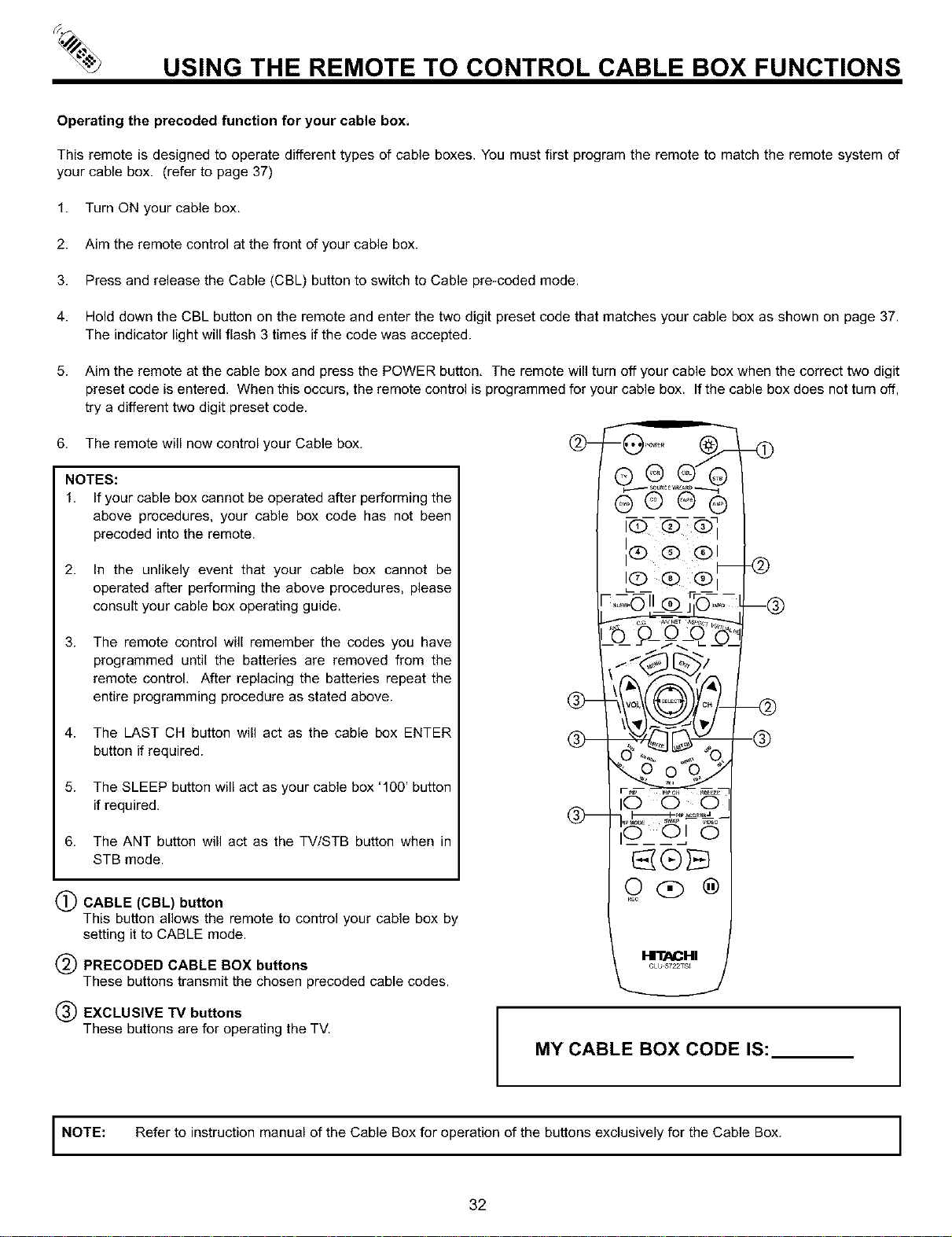
USING THE REMOTE TO CONTROL CABLE BOX FUNCTIONS
Operating the precoded function for your cable box.
This remote is designed to operate different types of cable boxes. You must first program the remote to match the remote system of
your cable box. (refer to page 37)
1. Turn ON your cable box.
2. Aim the remote control at the front of your cable box.
3. Press and release the Cable (CBL) button to switch to Cable pre-coded mode.
4. Hold down the CBL button on the remote and enter the two digit preset code that matches your cable box as shown on page 37.
The indicator light will flash 3 times if the code was accepted.
5.
Aim the remote at the cable box and press the POWER button, The remote will turn off your cable box when the correct two digit
preset code is entered. When this occurs, the remote control is programmed for your cable box. If the cable box does not turn off,
try a different two digit preset code.
6. The remote will now control your Cable box.
NOTES:
1. If your cable box cannot be operated after performing the
above procedures, your cable box code has not been
precoded into the remote.
2. In the unlikely event that your cable box cannot be
operated after performing the above procedures, please
consult your cable box operating guide.
The remote control will remember the codes you have
programmed until the batteries are removed from the
remote control, After replacing the batteries repeat the
entire programming procedure as stated above.
3.
4. The LAST CH button will act as the cable box ENTER
button if required.
5. The SLEEP button will act as your cable box '100' button
if required.
6. The ANT button will act as the TV/STB button when in
STB mode.
(£)
(_) CABLE (CBL) button
This button allows the remote to control your cable box by
setting it to CABLE mode.
(_) PRECODED CABLE BOX buttons
These buttons transmit the chosen precoded cable codes.
(_) EXCLUSIVE TV buttons
These buttons are for operating the TV.
MY CABLE BOX CODE IS:
I NOTE: Refer to instruction manual of the Cable Box for operation of the buttons exclusively for the Cable Box. ]
32
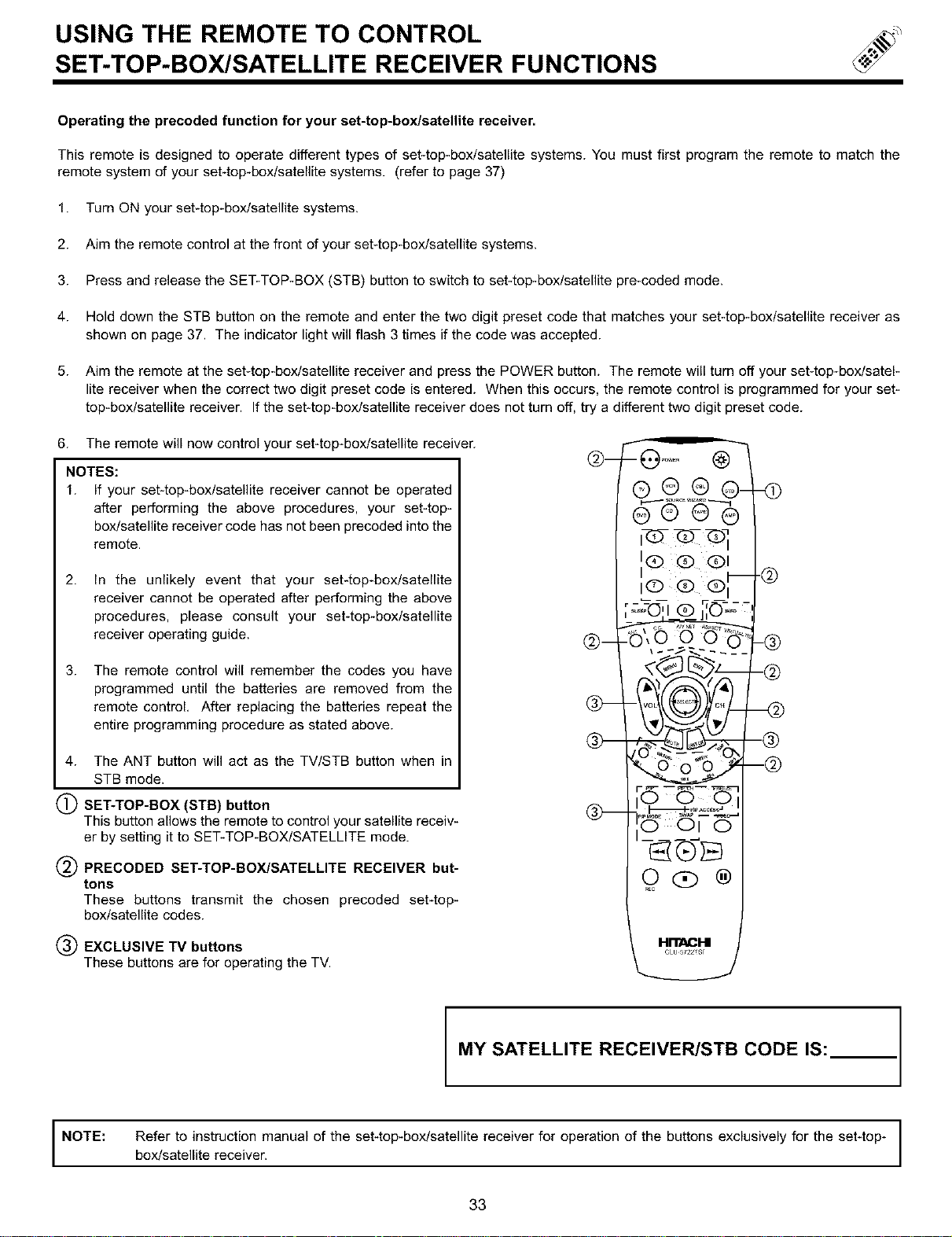
USING THE REMOTE TO CONTROL
SET-TOP-BOX/SATELLITE RECEIVER FUNCTIONS
Operating the precoded function for your set-top-box/satellite receiver.
This remote is designed to operate different types of set-top-box/satellite systems. You must first program the remote to match the
remote system of your set-top-boxlsatellite systems. (refer to page 37)
1. Turn ON your set-top-box/satellite systems.
2. Aim the remote control at the front of your set-top-box/satellite systems.
3. Press and release the SET-TOP-BOX (STB) button to switch to set-top-box/satellite pre-coded mode.
4. Hold down the STB button on the remote and enter the two digit preset code that matches your set-top-box/satellite receiver as
shown on page 37. The indicator light will flash 3 times if the code was accepted.
5. Aim the remote at the set-top-box/satellite receiver and press the POWER button. The remote will turn off your set-top-box/satel-
lite receiver when the correct two digit preset code is entered. When this occurs, the remote control is programmed for your set-
top-box/satellite receiver. If the set-top-box/satellite receiver does not turn off, try a different two digit preset code.
6. The remote will now control your set-top-box/satellite receiver.
NOTES:
1. If your set-top-box/satellite receiver cannot be operated
after performing the above procedures, your set-top-
box/satellite receiver code has not been precoded into the
remote.
2.
In the unlikely event that your set-top-box/satellite
receiver cannot be operated after performing the above
procedures, please consult your set-top-box/satellite
receiver operating guide.
3.
The remote control will remember the codes you have
programmed until the batteries are removed from the
remote control. After replacing the batteries repeat the
entire programming procedure as stated above.
4. The ANT button will act as the TV/STB button when in
STB mode.
(_) SET-TOP-BOX (STB) button
This button allows the remote to control your satellite receiv-
er by setting it to SET-TOP-BOX/SATELLITE mode.
(_) PRECODED SET-TOP-BOX/SATELLITE RECEIVER but-
tons
These buttons transmit the chosen precoded set-top-
box/satellite codes.
(_) EXCLUSIVE TV buttons
These buttons are for operating the TV.
MY SATELLITE RECEIVER/STB CODE IS:
NOTE: Refer to instruction manual of the set-top-box/satellite receiver for operation of the buttons exclusively for the set-top-
box/satellite receiver.
33
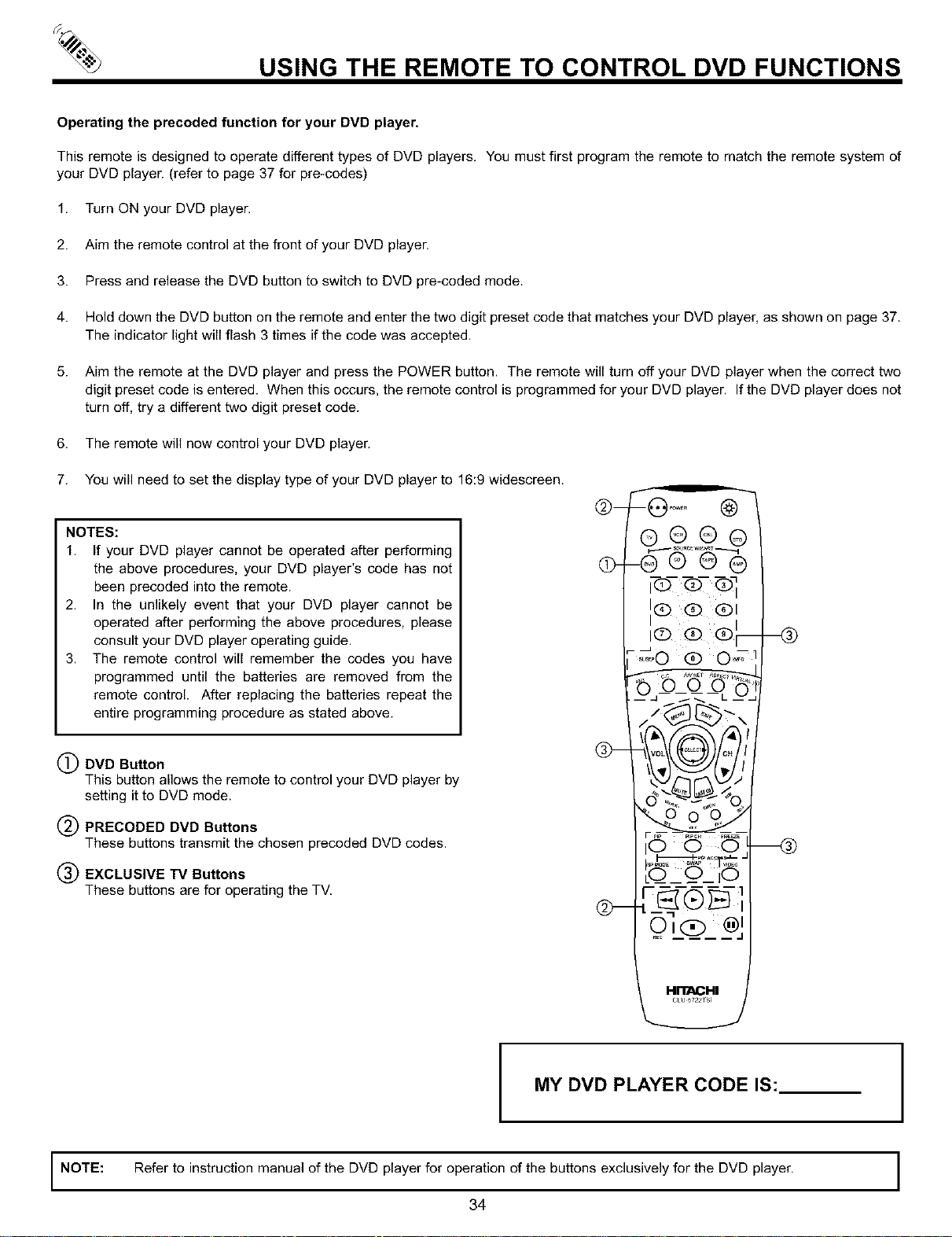
USING THE REMOTE TO CONTROL DVD FUNCTIONS
Operating the precoded function for your DVD player,
This remote is designed to operate different types of DVD players. You must first program the remote to match the remote system of
your DVD player. (refer to page 37 for pre-codes)
1. Turn ON your DVD player.
2. Aim the remote control at the front of your DVD player.
3. Press and release the DVD button to switch to DVD pre-coded mode.
4. Hold down the DVD button on the remote and enter the two digit preset code that matches your DVD player, as shown on page 37.
The indicator light will flash 3 times if the code was accepted.
5. Aim the remote at the DVD player and press the POWER button. The remote will turn off your DVD player when the correct two
digit preset code is entered. When this occurs, the remote control is programmed for your DVD player. If the DVD player does not
turn off, try a different two digit preset code.
6. The remote will now control your DVD player.
7. You will need to set the display type of your DVD player to 16:9 widescreen.
NOTES:
1. If your DVD player cannot be operated after performing
the above procedures, your DVD player's code has not
been precoded into the remote.
2. In the unlikely event that your DVD player cannot be
operated after performing the above procedures, please
consult your DVD player operating guide.
3. The remote control will remember the codes you have
programmed until the batteries are removed from the
remote control. After replacing the batteries repeat the
entire programming procedure as stated above.
(_) DVD Button
This button allows the remote to control your DVD player by
setting it to DVD mode.
(_) PRECODED DVD Buttons
These buttons transmit the chosen precoded DVD codes.
(_) EXCLUSIVE TV Buttons
These buttons are for operating the TV.
...... @-
_®N®6%
i@ @ @]
in® @ ®l
i® @ ®_--@
-r_O ® OJ1
o 6
Qi___jO
H_HI
CLU 5722 S]
MY DVD PLAYER CODE IS:
I
NOTE: Refer to instruction manual of the DVD player for operation of the buttons exclusively for the DVD player. I
I
I
34
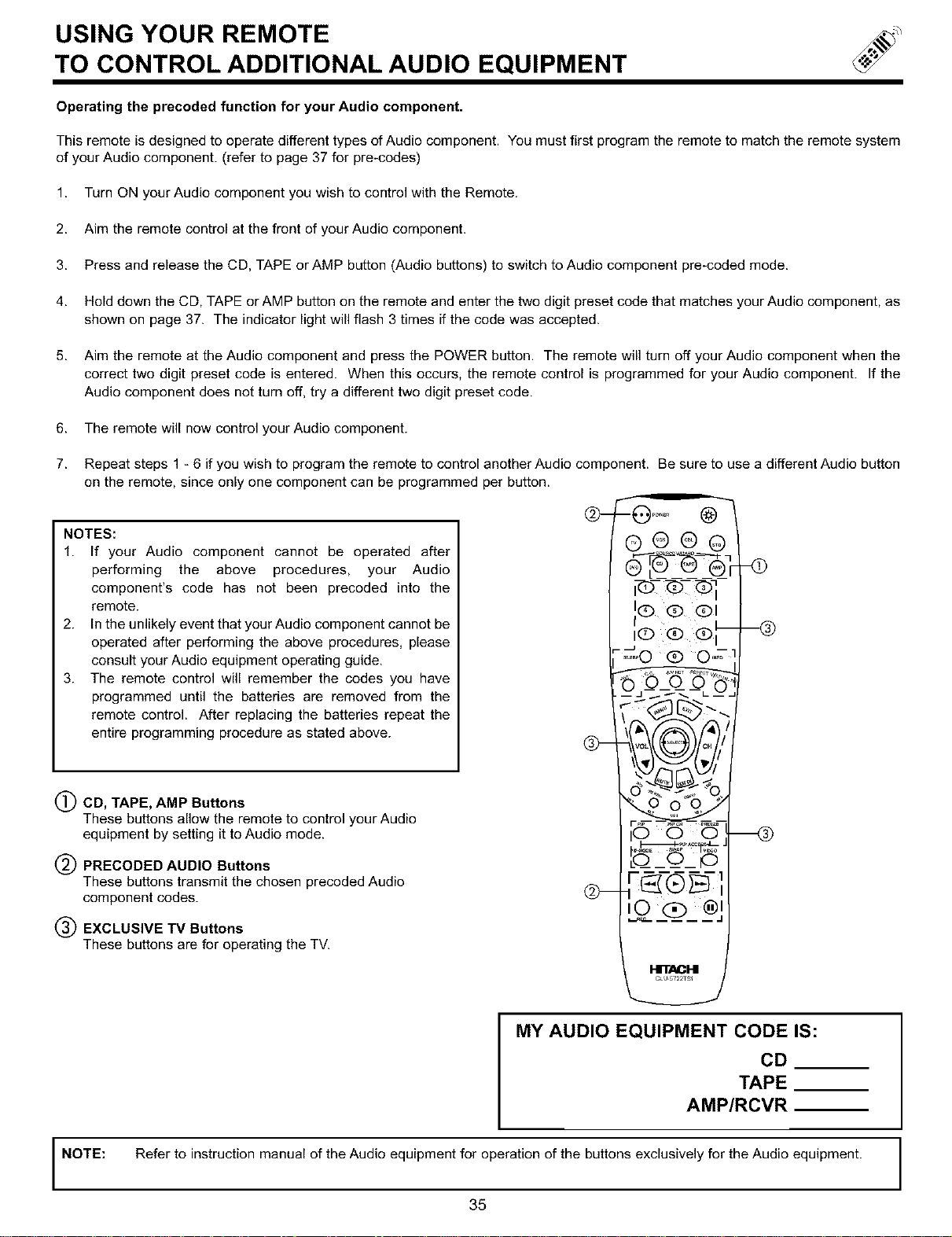
USING YOUR REMOTE
TO CONTROL ADDITIONAL AUDIO EQUIPMENT
Operating the precoded function for your Audio component.
This remote is designed to operate different types of Audio component. You must first program the remote to match the remote system
of your Audio component. (refer to page 37 for pre-codes)
1. Turn ON your Audio component you wish to control with the Remote.
2. Aim the remote control at the front of your Audio component.
3. Press and release the CD, TAPE or AMP button (Audio buttons) to switch to Audio component pre-coded mode.
4. Hold down the CD, TAPE or AMP button on the remote and enter the two digit preset code that matches your Audio component, as
shown on page 37. The indicator light will flash 3 times if the code was accepted.
5. Aim the remote at the Audio component and press the POWER button. The remote will turn off your Audio component when the
correct two digit preset code is entered. When this occurs, the remote control is programmed for your Audio component. If the
Audio component does not turn off, try a different two digit preset code.
6. The remote will now control your Audio component.
7. Repeat steps 1 - 6 if you wish to program the remote to control another Audio component. Be sure to use a different Audio button
on the remote, since only one component can be programmed per button.
NOTES:
1. If your Audio component cannot be operated after
performing the above procedures, your Audio
component's code has not been precoded into the
remote.
2. In the unlikely event that your Audio component cannot be
operated after performing the above procedures, please
consult your Audio equipment operating guide,
3. The remote control will remember the codes you have
programmed until the batteries are removed from the
remote control. After replacing the batteries repeat the
entire programming procedure as stated above.
(_CD, TAPE, AMP Buttons
These buttons allow the remote to control your Audio
equipment by setting it to Audio mode.
(_) PRECODED AUDIO Buttons
These buttons transmit the chosen precoded Audio
component codes.
(_ EXCLUSIVE TV Buttons
These buttons are for operating the TV.
O O
(Z) ®
MY AUDIO EQUIPMENT CODE IS:
CD
TAPE
AMP/RCVR
NOTE: Refer to instruction manual of the Audio equipment for operation of the buttons exclusively for the Audio equipment.
35
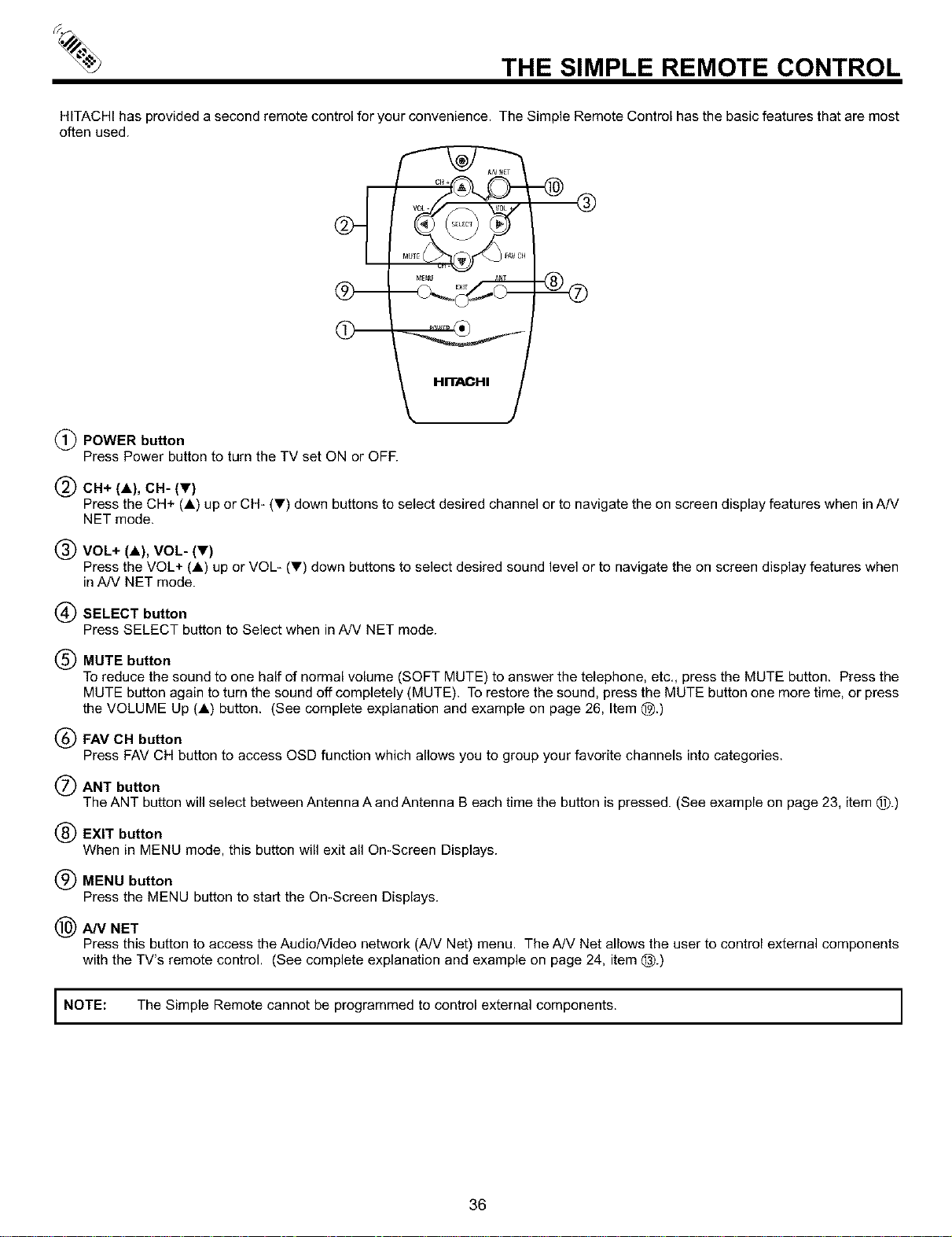
THE SIMPLE REMOTE CONTROL
HITACHI has provided a second remote control for your convenience. The Simple Remote Control has the basic features that are most
often used.
O
k
(_) POWER button
Press Power button to turn the TV set ON or OFF.
HIT._CHI
I_ CH+ (A), CH- (Y)
Press the CH+ (A) up or CH- (Y) down buttons to select desired channel or to navigate the on screen display features when in AIV
NET mode.
1,_ VOL+ (A), VOL- (V)
Press the VOL+ (a) up or VOL- (_') down buttons to select desired sound level or to navigate the on screen display features when
in A/V NET mode.
(_) SELECT button
Press SELECT button to Select when in A/V NET mode.
(_) MUTE button
To reduce the sound to one half of normal volume (SOFT MUTE) to answer the telephone, etc,, press the MUTE button. Press the
MUTE button again to turn the sound off completely (MUTE). To restore the sound, press the MUTE button one more time, or press
the VOLUME Up (A) button. (See complete explanation and example on page 26, Item (_).)
(_) FAV CH button
Press FAV CH button to access OSD function which allows you to group your favorite channels into categories.
(_ANT button
The ANT button will select between Antenna A and Antenna B each time the button is pressed. (See example on page 23, item @.)
(_ EXIT button
When in MENU mode, this button will exit all On-Screen Displays.
(_ MENU button
Press the MENU button to start the On-Screen Displays.
(_) AIM NET
Press this button to access the AudiolVideo network (A/V Net) menu. The A/V Net allows the user to control external components
with the TV's remote control. (See complete explanation and example on page 24, item @.)
I NOTE: The Simple Remote cannot be programmed to control external components. I
36
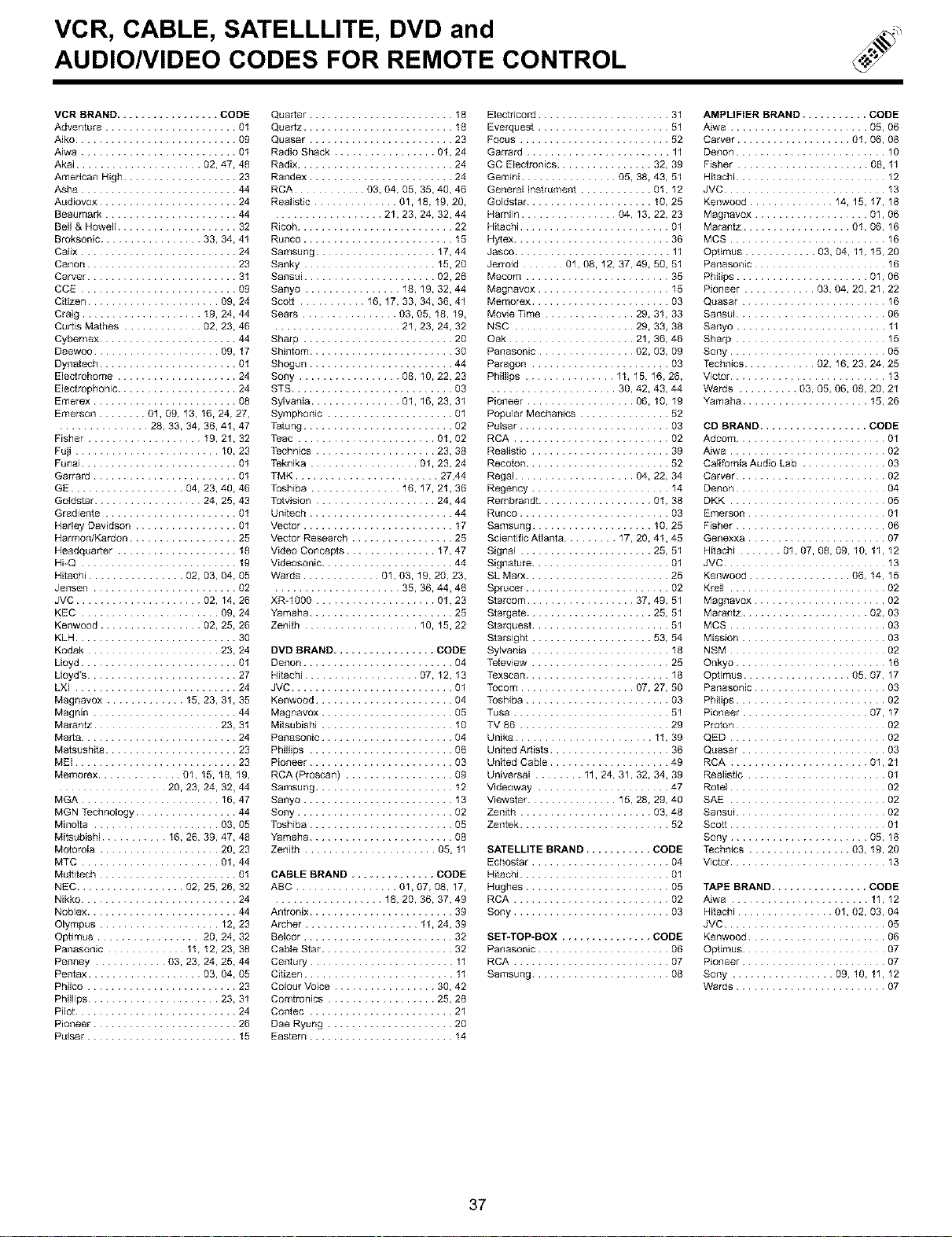
VCR, CABLE, SATELLLITE, DVD and
AUDIO/VIDEO CODES FOR REMOTE CONTROL
VCR BRAND ................. CODE
Adventura...................... 01
Aiko........................... 09
Aiwa .......................... 01
Akai..................... 02,47,48
Amencan High................... 23
Asha .......................... 44
Audiovox....................... 24
Beaumark ...................... 44
Bell& Howell.................... 32
Broksonic................. 33,34,41
Calix.......................... 24
Canon ......................... 23
Carver......................... 31
CCE .......................... 09
Citizen...................... 09,24
Craig.................... 19,24,44
Quarter ........................ 18
Quartz ......................... 18
Quasar ........................ 23
Radio Shack ................. 01,24
Radix .......................... 24
Randex ........................ 24
RCA ............ 03, 04, 05, 35, 40, 46
Realistic .............. 01, 18, 19, 20,
.................. 21,23, 24, 32, 44
Ricoh .......................... 22
Runco ......................... 15
Samsung .................... 17, 44
Sanky ...................... 15, 20
Sansui ...................... 02, 26
Sanyo ................ 18, 19, 32, 44
Scott ........... 16, 17, 33, 34, 36, 41
Sears ................ 03, 05, 18, 19,
Curtis Mathes ............. 02, 23, 46 ..................... 21, 23, 24, 32
Cybernex ....................... 44 Sharp ......................... 20
Daewoo ..................... 09, 17 Shintom ........................ 30
Dynatech ....................... 01 Shogun ........................ 44
Electrohome .................... 24 Sony ................. 08, 10, 22, 23
Electdcord ...................... 31
Everquest ...................... 51
Focus ......................... 52
Garrard ........................ 11
GC Electronics ................ 32, 39
Gemini ................ 05, 38, 43, 51
General Instrument ............ 01, 12
Goldstar ..................... 10, 25
Hamlin ................ 04, 13, 22, 23
Hitachi ......................... 01
Hytex .......................... 36
Jasco .......................... 11
Jerrold ....... 01, 08, 12, 37, 49, 50, 51
Macom ........................ 35
Magnavox ...................... 15
Memorex ....................... 03
Movie Time ............... 29, 31, 33
NSC .................... 29, 33, 39
Oak ..................... 21, 36, 46
Panasonic ................ 02, 03, 09
Paragon ....................... 03
Phillips ............... 11, 15, 16, 26,
Electrophonic .................... 24
Emerex ........................ 08
Emerson ........ 01, 09, 13, 16, 24, 27,
............... 28, 33, 34, 36, 41,47
Fisher ................... 19, 21, 32
Fuji ........................ 10, 23
Funai .......................... 01
Garrard ........................ 01
GE ................... 04, 23, 40, 46
Goldstar .................. 24, 25, 43
Gradiente ...................... 01
Harley Davidson ................. 01
Harmon/Kardon .................. 25
Headquarter .................... 18
Hi-Q .......................... 19
Hitachi ................ 02, 03, 04, 05
STS ........................... 03 ..................... 30,42,43,44
Sylvania ............... 01, 16, 23, 31
Symphonic ..................... 01
Tatung ......................... 02
Teac ....................... 01, 02
Technics .................... 23, 39
Teknika .................. 01, 23, 24
TMK ........................ 27,44
Toshiba ............... 16, 17, 21, 36
Totvision .................... 24, 44
Unitech ........................ 44
Vector ......................... 17
Vector Research ................. 25
Video Concepts ............... 17, 47
Videosonic ...................... 44
Wards ............. 01, 03, 19, 20, 23,
Pioneer .................. 06,10,19
Popular Mechanics ............... 52
Pulsar ......................... 03
RCA .......................... 02
Realistic ....................... 39
Recoton ........................ 52
Regal .................... 04, 22, 34
Regency ....................... 14
Remb_ndt ................... 01,38
Runco ......................... 03
Samsung .................... 10,25
Scientific Atlanta ......... 17,20,41,45
Signal ...................... 25,51
Signature ....................... 01
SL Marx ........................ 25
Jensen ........................ 02 ..................... 35,36,44,46
JVC ..................... 02,14,26
KEC ....................... 09,24
Kenwood ................. 02,25,26
KLH ........................... 30
Kodak ...................... 23,24
Lloyd .......................... 01
Lloyd's ......................... 27
LXI ........................... 24
Magnavox ............. 15,23,31,35
Magotn ........................ 44
Maran_ ..................... 23,31
Marta .......................... 24
Matsushita ...................... 23
MEI ........................... 23
Memomx .............. 01,15,18,19,
.................. 20,23,24,32,44
MGA ....................... 16,47
MGNTechnotogy ................. 44
Mino]ta ..................... 03,05
Mi_ubishi ........... 16, 26, 39, 47, 48
Motorola .................... 20, 23
MTC ....................... 01,44
Multitech ....................... 01
NEC .................. 02, 25, 26, 32
Nikko .......................... 24
Noblex ......................... 44
Olympus .................... 12,23
O_imus ................. 20,24,32
Panasonic ............. 11,12,23,38
Penney ............ 03,23,24,25,44
Pentax ................... 03, 04, 05
Philco ......................... 23
Phillips ...................... 23, 31
Pitot ........................... 24
Pioneer ........................ 26
Pulsar ......................... 15
XR-1000 .................... 01,23
Yamaha ........................ 25
Zenith ................... 10,15,22
DVD BRAND ................. CODE
Denon ......................... 04
Hitachi ................... 07, 12, 13
JVC ........................... 01
Kenwood ....................... 04
Magnavox ...................... 05
Mitsubishi ...................... 10
Panasonic ...................... 04
Phillips ........................ 06
Pioneer ........................ 03
RCA (Proscan) .................. 09
Samsung ....................... 12
Sanyo ......................... 13
Sony .......................... 02
Toshiba ........................ 05
Yamaha ........................ 08
Zenith ...................... 05, 11
CABLE BRAND .............. CODE
ABC ................. 01,07, 08, 17,
.................. 18,20, 36, 37, 49
Aotrootx ........................ 39
Archer ................... 11, 24, 39
Belcor ......................... 32
Cable Star ...................... 32
Century ........................ 11
Citizen ......................... 11
Cotour Voice ................. 30, 42
Comtronics .................. 25, 28
Contec ........................ 21
Dae Ryung ..................... 20
Eastern ........................ 14
Sprucer ........................ 02
Starcom .................. 37, 49, 51
Stargate ..................... 25, 51
Starquest ....................... 51
Starsight .................... 53, 54
Sylvaota ....................... 18
Teleview ....................... 25
Texscan ........................ 18
Tecom ................... 07, 27, 50
Toshiba ........................ 03
Tusa .......................... 51
TV 86 ......................... 29
Unika ....................... 11, 39
United Artists .................... 36
United Cable .................... 49
Universal ........ 11, 24, 31, 32, 34, 39
Wdeoway ...................... 47
Viewstar ............... 15, 28, 29, 40
Zenith ...................... 03, 48
Zentek ......................... 52
SATELLITE BRAND ........... CODE
Echostar ....................... 04
Hitachi ......................... 01
Hughes ........................ 05
RCA .......................... 02
Sony .......................... 03
SET-TOP-BOX ............... CODE
Panasonic ...................... 06
RCA .......................... 07
Samsung ....................... 08
AMPLIFIER BRAND ........... CODE
Aiwa ....................... 06
Carver ................... 01, 06, 08
Denon ......................... 10
Fisher ...................... 08,11
Hitachi ......................... 12
JVC ........................... 13
Kenwood .............. 14,15,17,18
Magnavox ................... 06
Marantz .................. 01, 06, 16
MCS .......................... 16
Optimus ............ 03, 04, 11, 15, 20
Panasonic ...................... 16
Philips ...................... 06
Pioneer ............ 03,04,20,21,22
Quasar ........................ 16
Sansui ......................... 06
Sanyo ......................... 11
Sharp ......................... 15
Sony .......................... 05
Technics ............ 02, 16, 23, 24, 25
Victor .......................... 13
Wards .......... 03,05,06,08,20,21
Yamaha ..................... 15,26
CD BRAND .................. CODE
Adcom ......................... 01
Nwa .......................... 02
Calitorota Audio Lab .............. 03
Carver ......................... 02
Denon ......................... 04
DKK .......................... 05
Emerson ....................... 01
Fisher ......................... 06
Genexxa ....................... 07
Hitachi ....... 01, 07, 08, 09, 10, 11, 12
JVC ........................... 13
Kenwood ................. 06, 14, 15
Krell .......................... 02
Magnavox ...................... 02
Marantz ..................... 02, 03
MCS .......................... 03
Mission ........................ 03
NSM .......................... 02
Onkyo ......................... 16
Optimus .................. 05, 07, 17
Panasonic ...................... 03
Philips ......................... 02
Pioneer ..................... 07, 17
Proton ......................... 02
QED .......................... 02
Quasar ........................ 03
RCA ....................... 01, 21
Realistic ....................... 01
Rotel .......................... 02
SAE .......................... 02
Sansui ......................... 02
Scott .......................... 01
Sony ....................... 05, 18
Technics ................. 03, 19, 20
Victor .......................... 13
TAPE BRAND ................ CODE
Aiwa ....................... 11, 12
Hitachi ................ 01, 02, 03, 04
JVC ........................... 05
Kenwood ....................... 06
Optimus ........................ 07
Pioneer ........................ 07
Sony ................. 09, 10, 11, 12
Wards ......................... 07
37
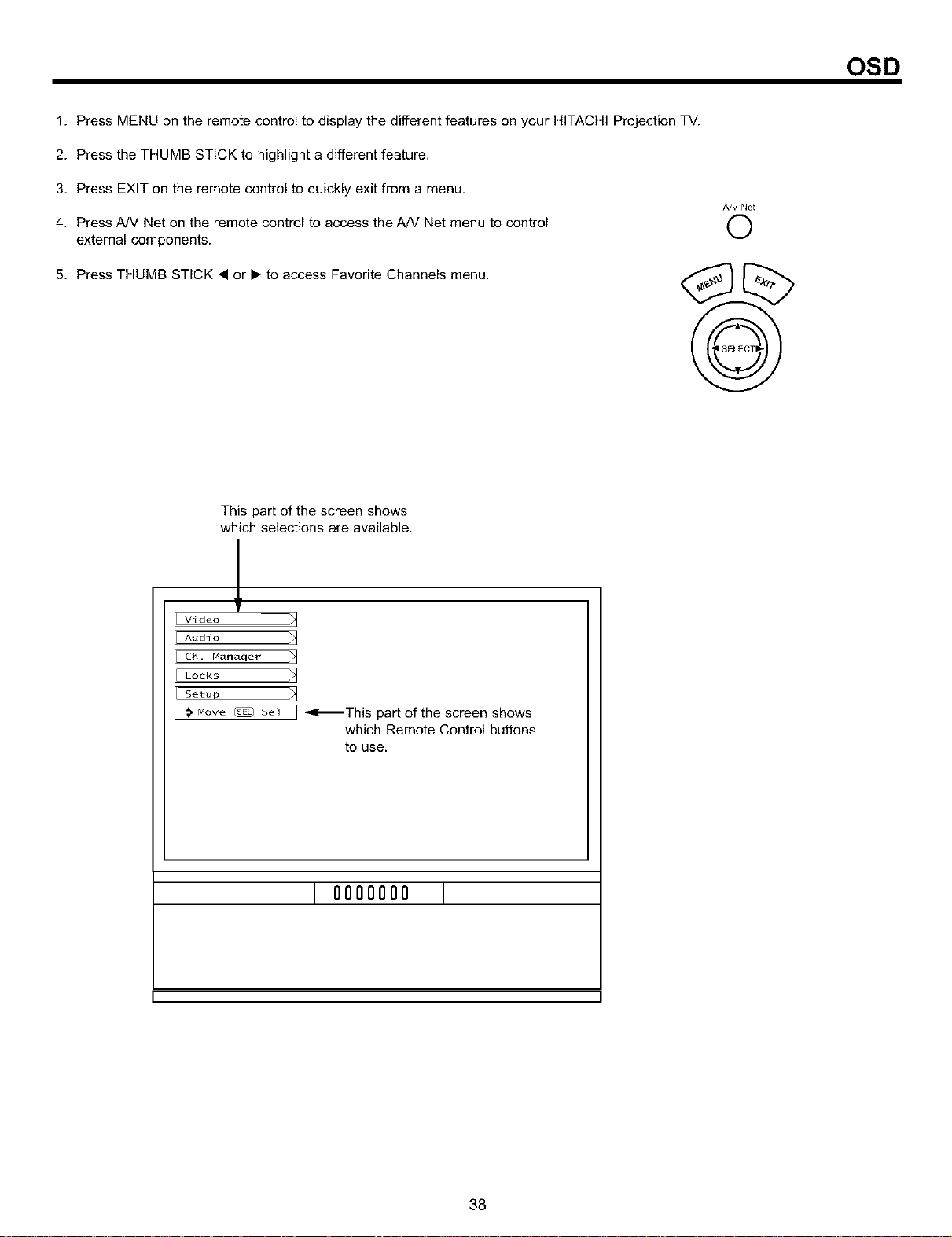
OSD
1. Press MENU on the remote control to display the different features on your HITACHI Projection TV.
2. Press the THUMB STICK to highlight a different feature.
3. Press EXIT on the remote control to quickly exit from a menu.
4. Press A/V Net on the remote control to access the A/M Net menu to control
external components.
5. Press THUMB STICK • or I_ to access Favorite Channels menu.
A/V Net
O
This part of the screen shows
which selections are available.
L
Video
Audio
Ch, Manager
Locks
Setup
Move _ Sel ] _This part of the screen shows
which Remote Control buttons
to use.
I oooooooI
38
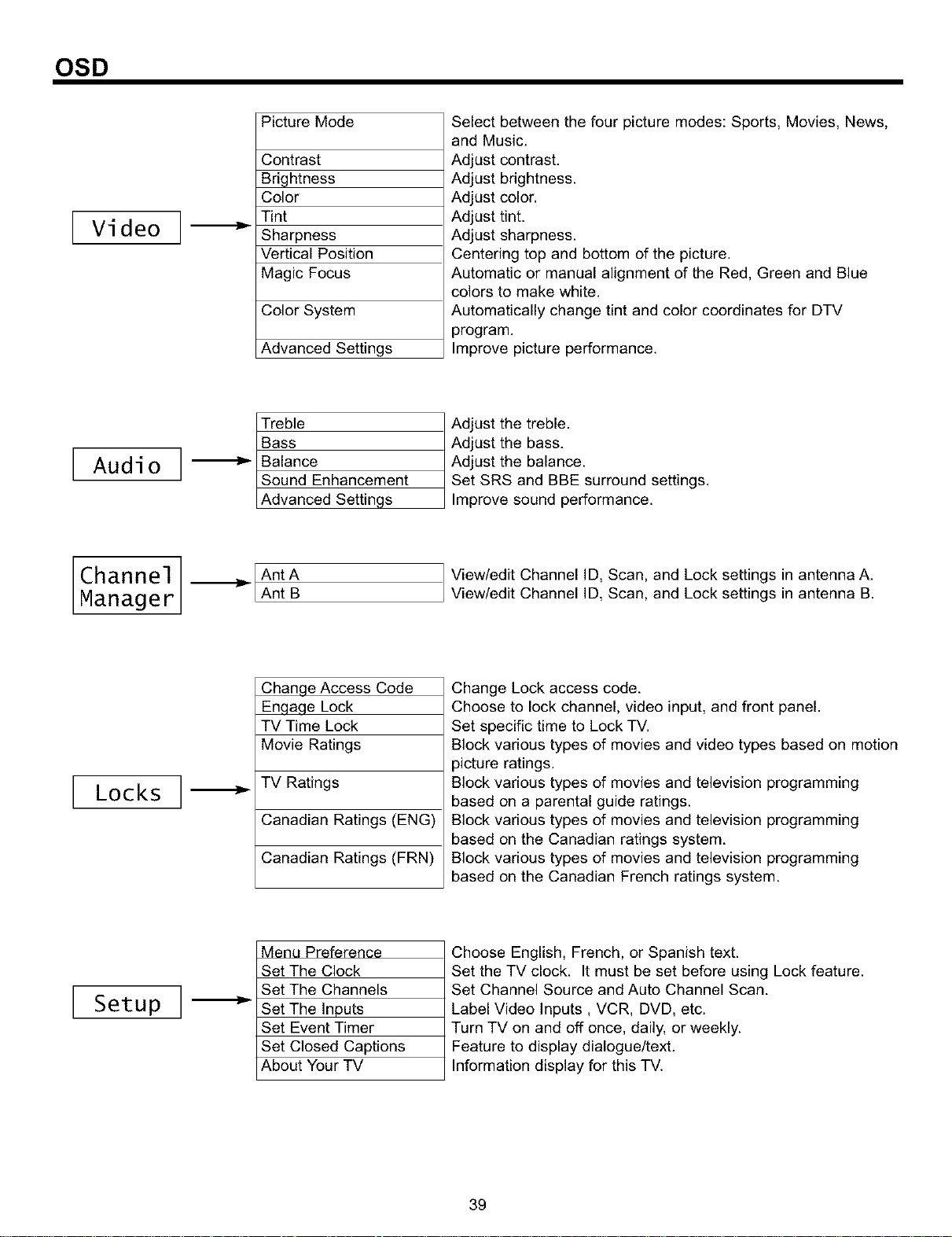
OSD
I Video
Picture Mode
Contrast
Brightness
Color
Tint
Sharpness
Vertical Position
Magic Focus
Color System
Advanced Settings
Select between the four picture modes: Sports, Movies, News,
and Music.
Adjust contrast.
Adjust bdghtness.
Adjust color.
Adjust tint.
Adjust sharpness.
Centering top and bottom of the picture.
Automatic or manual alignment of the Red, Green and Blue
colors to make white.
Automatically change tint and color coordinates for DTV
program.
Improve picture performance.
IAudioI
_hancement
Advanced Settings
Adjust the treble.
Adjust the bass.
Adjust the balance.
Set SRS and BBE surround settings.
mprove sound performance.
Channel
Manager LAnt B
View/edit Channel ID, Scan, and Lock settings in antenna A.
View/edit Channel ID, Scan, and Lock settings in antenna B.
Locks
Chan#e Access Code
Engage Lock
TV Time Lock
Movie Ratings
TV Ratings
Canadian Ratings (ENG)
Canadian Ratings (FRN)
Menu Preference
Set The Clock
Set The Channels
Set The Inputs
Set Event Timer
Set Closed Captions
About Your TV
Change Lock access code.
Choose to lock channel, video input, and front panel.
Set specific time to Lock TV.
Block various types of movies and video types based on motion
picture ratings.
Block various types of movies and television programming
based on a parental guide ratings.
Block various types of movies and television programming
based on the Canadian ratings system.
Block various types of movies and television programming
based on the Canadian French ratings system.
Setup
Choose English, French, or Spanish text.
Set the TV clock. It must be set before using Lock feature.
Set Channel Source and Auto Channel Scan.
Label Video Inputs, VCR, DVD, etc.
Turn TV on and off once, daily, or weekly.
Feature to display dialogue/text.
Information display for this TV.
39
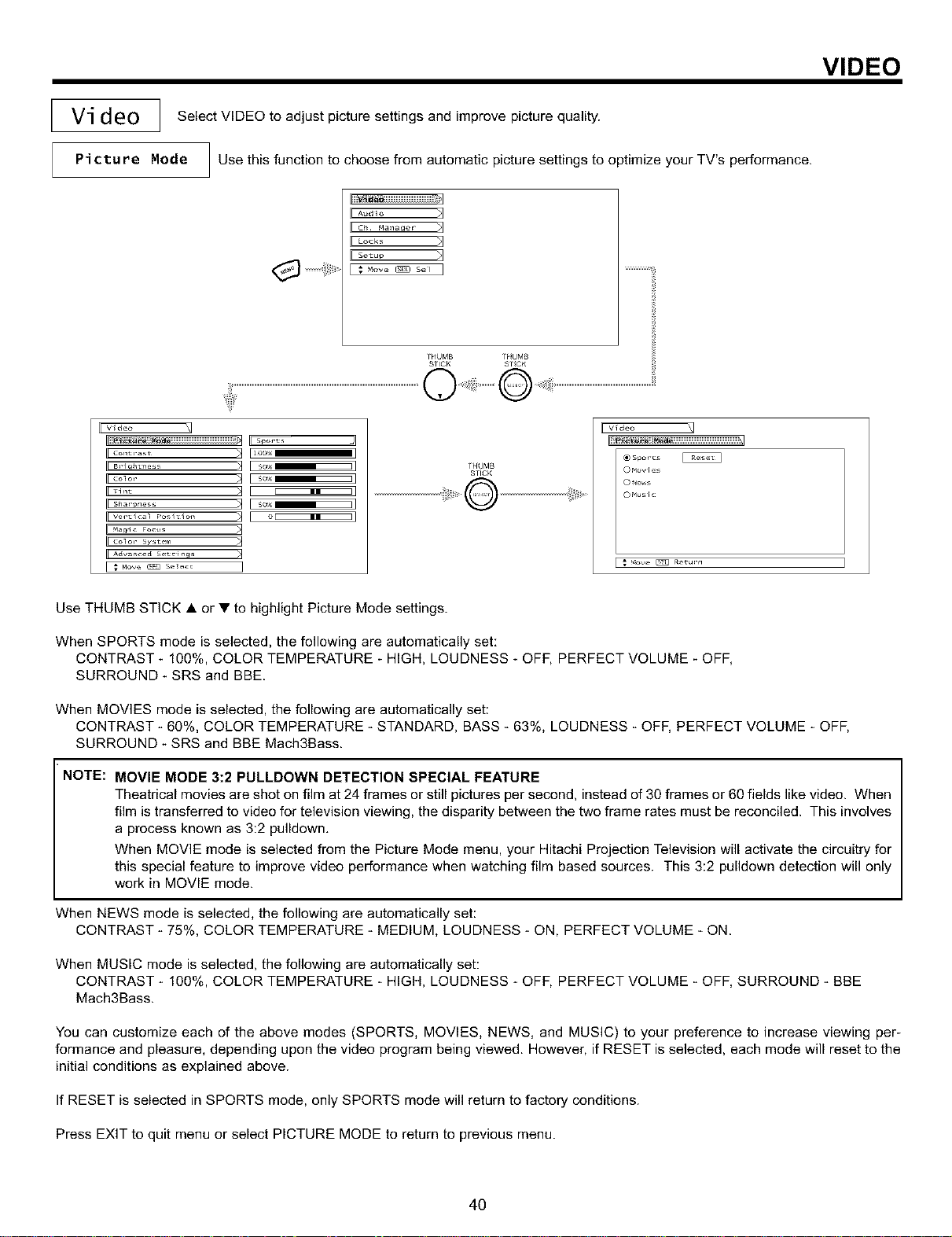
Vi deo ] Select VIDEO to adjust picture settings and improve picture quality.
Pi ctu re Mode Use this function to choose from automatic picture settings to optimize your TV's performance.
I I
L c_ '4a_a er J
fHUMB TNUMB
SrlCK Sf_CK
VIDEO
IFv_d_o _1
rEsport, q
II co_o,- :q [ so_]
col o_- sw t_-m b]
IIAdvanced Set_h_gs }{
TNUMB
STICK
@>@
IIv_a_o _1
@ s_or_s
0 Novies
0 ae_s
0 Nusic
_ve _ netu_'n
Use THUMB STICK • or • to highlight Picture Mode settings.
When SPORTS mode is selected, the following are automatically set:
CONTRAST - 100%, COLOR TEMPERATURE - HIGH, LOUDNESS - OFF, PERFECT VOLUME - OFF,
SURROUND- SRS and BBE.
When MOVIES mode is selected, the following are automatically set:
CONTRAST - 60%, COLOR TEMPERATURE - STANDARD, BASS - 63%, LOUDNESS - OFF, PERFECT VOLUME - OFF,
SURROUND - SRS and BBE Mach3Bass.
NOTE: MOVIE MODE 3:2 PULLDOWN DETECTION SPECIAL FEATURE
Theatrical movies are shot on film at 24 frames or still pictures per second, instead of 30 frames or 60 fields like video. When
film is transferred to video for television viewing, the disparity between the two frame rates must be reconciled. This involves
a process known as 3:2 pulldown,
When MOVIE mode is selected from the Picture Mode menu, your Hitachi Projection Television will activate the circuitry for
this special feature to improve video performance when watching film based sources. This 3:2 pulldown detection will only
work in MOVIE mode.
When NEWS mode is selected, the following are automatically set:
CONTRAST - 75%, COLOR TEMPERATURE - MEDIUM, LOUDNESS - ON, PERFECT VOLUME - ON.
When MUSIC mode is selected, the following are automatically set:
CONTRAST - 100%, COLOR TEMPERATURE - HIGH, LOUDNESS - OFF, PERFECT VOLUME - OFF, SURROUND - BBE
Mach3Bass.
You can customize each of the above modes (SPORTS, MOVIES, NEWS, and MUSIC) to your preference to increase viewing per-
formance and pleasure, depending upon the video program being viewed. However, if RESET is selected, each mode will reset to the
initial conditions as explained above.
If RESET is selected in SPORTS mode, only SPORTS mode will return to factory conditions.
Press EXIT to quit menu or select PICTURE MODE to return to previous menu.
4O
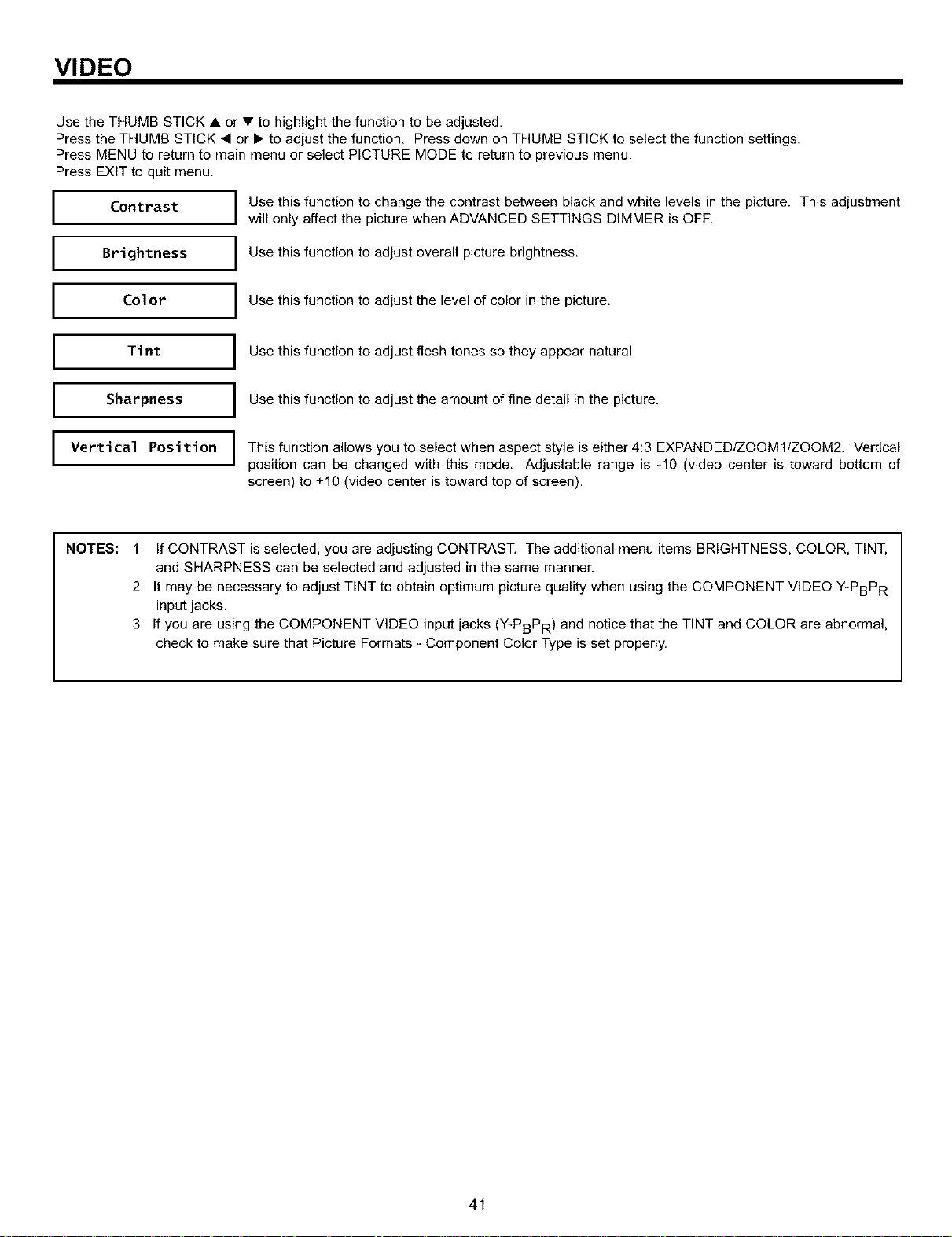
VIDEO
Use the THUMB STICK • or • to highlight the function to be adjusted.
Press the THUMB STICK • or • to adjust the function, Press down on THUMB STICK to select the function settings.
Press MENU to return to main menu or select PICTURE MODE to return to previous menu.
Press EXIT to quit menu.
I Contrast I
I Brightness I
I ColorI
Use this function to change the contrast between black and white levels in the picture. This adjustment
will only affect the picture when ADVANCED SETTINGS DIMMER is OFF.
Use this function to adjust overall picture brightness.
Use this function to adjust the level of color in the picture.
I Tint
I Sharpness
I Vertical Position
I Use this function to adjust flesh tones so they appear natural.
I se this function to adjust the amount of fine detail in the picture.
This function allows you to select when aspect style is either 4:3 EXPANDED/ZOOMllZOOM2, Vertical
position can be changed with this mode. Adjustable range is -10 (video center is toward bottom of
screen) to +10 (video center is toward top of screen).
NOTES:
1. If CONTRAST is selected, you are adjusting CONTRAST, The additional menu items BRIGHTNESS, COLOR, TINT,
and SHARPNESS can be selected and adjusted in the same manner.
2. It may be necessary to adjust TINT to obtain optimum picture quality when using the COMPONENT VIDEO Y-PBPR
input jacks.
3. If you are using the COMPONENT VIDEO input jacks (Y-PBPR) and notice that the TINT and COLOR are abnormal,
check to make sure that Picture Formats - Component Color Type is set properly.
41
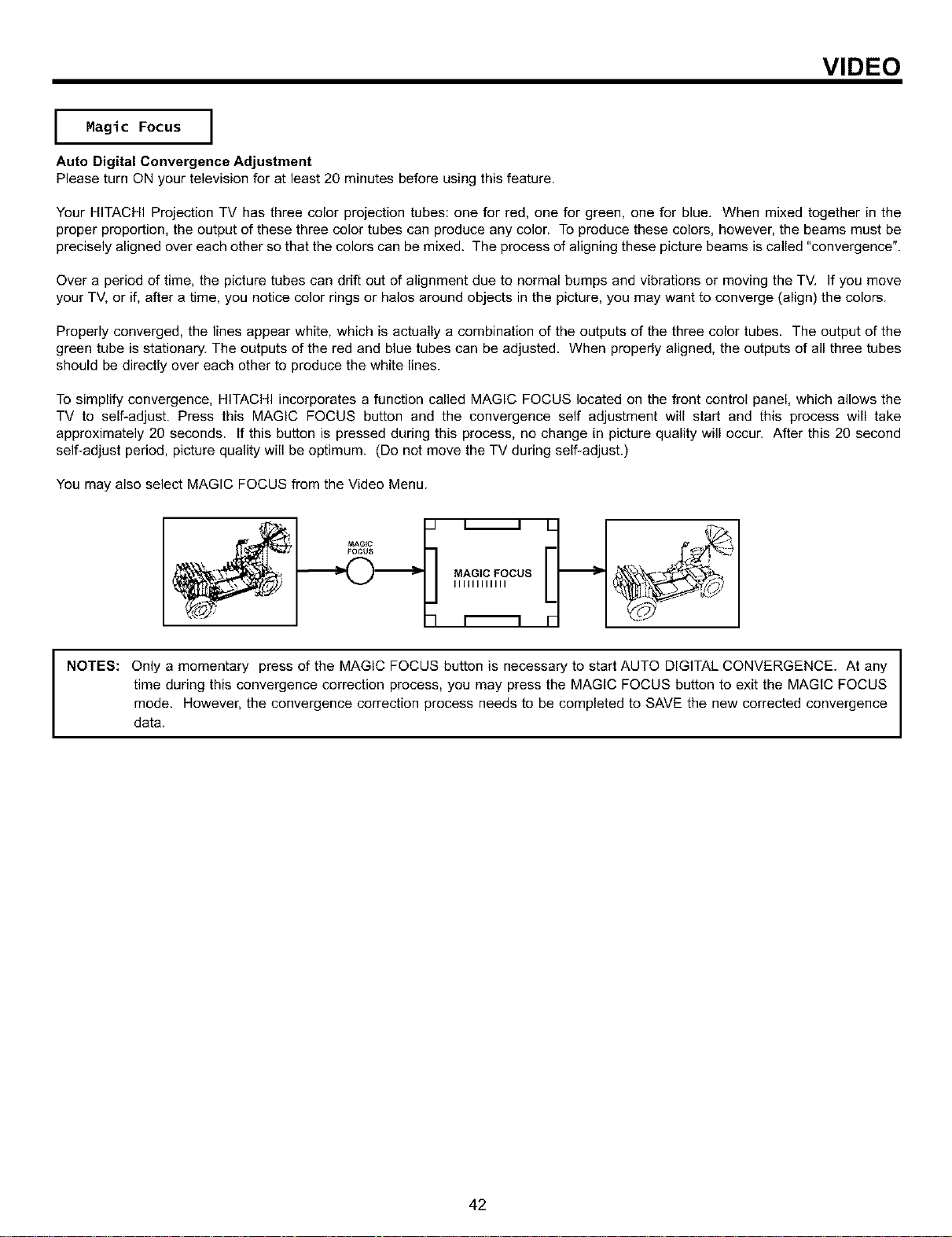
VIDEO
I agic Focus I
Auto Digital Convergence Adjustment
Please turn ON your television for at least 20 minutes before using this feature.
Your HITACHI Projection TV has three color projection tubes: one for red, one for green, one for blue, When mixed together in the
proper proportion, the output of these three color tubes can produce any color. To produce these colors, however, the beams must be
precisely aligned over each other so that the colors can be mixed. The process of aligning these picture beams is called "convergence".
Over a period of time, the picture tubes can drift out of alignment due to normal bumps and vibrations or moving the TV, If you move
your TV, or if, after a time, you notice color rings or halos around objects in the picture, you may want to converge (align) the colors.
Properly converged, the lines appear white, which is actually a combination of the outputs of the three color tubes. The output of the
green tube is stationary. The outputs of the red and blue tubes can be adjusted. When properly aligned, the outputs of all three tubes
should be directly over each other to produce the white lines.
To simplify convergence, HITACHI incorporates a function called MAGIC FOCUS located on the front control panel, which allows the
TV to self-adjust. Press this MAGIC FOCUS button and the convergence self adjustment will start and this process will take
approximately 20 seconds. If this button is pressed during this process, no change in picture quality will occur. After this 20 second
self-adjust period, picture quality will be optimum. (Do not move the TV during self-adjust.)
You may also select MAGIC FOCUS from the Video Menu.
NOTES: Only a momentary press of the MAGIC FOCUS button is necessary to start AUTO DIGITAL CONVERGENCE. At any
time during this convergence correction process, you may press the MAGIC FOCUS button to exit the MAGIC FOCUS
mode. However, the convergence correction process needs to be completed to SAVE the new corrected convergence
data.
42
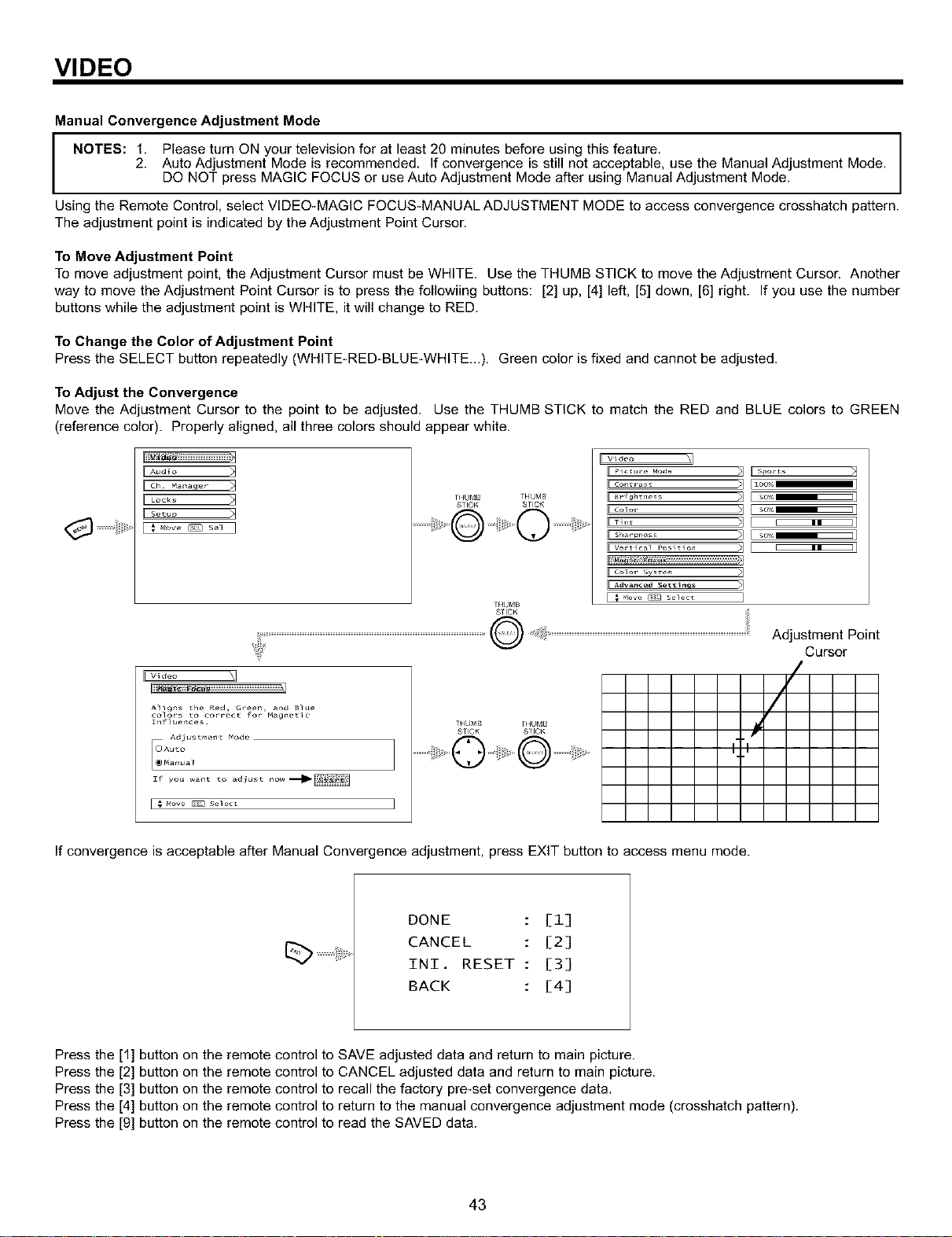
VIDEO
Manual Convergence Adjustment Mode
NOTES: 1. Please turn ON your television for at least 20 minutes before using this feature.
2. Auto Adjustment Mode is recommended. If convergence is still not acceptable, use the Manual Adjustment Mode.
DO NOT press MAGIC FOCUS or use Auto Adjustment Mode after using Manual Adjustment Mode.
Using the Remote Control, select VIDEO-MAGIC FOCUS-MANUAL ADJUSTMENT MODE to access convergence crosshatch pattern.
The adjustment point is indicated by the Adjustment Point Cursor.
To Move Adjustment Point
To move adjustment point, the Adjustment Cursor must be WHITE. Use the THUMB STICK to move the Adjustment Cursor. Another
way to move the Adjustment Point Cursor is to press the followiing buttons: [2] up, [4] left, [5] down, [6] right. If you use the number
buttons while the adjustment point is WHITE, it will change to RED.
To Change the Color of Adjustment Point
Press the SELECT button repeatedly (WHITE-RED-BLUE-WHITE...). Green color is fixed and cannot be adjusted.
To Adjust the Convergence
Move the Adjustment Cursor to the point to be adjusted. Use the THUMB STICK to match the RED and BLUE colors to GREEN
(reference color). Properly aligned, all three colors should appear white.
I[^ud_o 71
?HUM,B ?_{UMB
STICK S?ICK
?f4UMB
I Video
II Pict_lr_ Mode
FEco_o,- _q
FrT_,I_ _q
II _h_ .... >1
II I
A_va_c_d s_tti_s
>1 spo,-t_ >1
>q
>1 so_ E I
so%E I
so%_ I
Adiust_e_t _ode
_1 Auto
_ar_ua_
I_ you wan_ _o adiust r_ow_
I _ Mow _ se_ec_
?HUMB ?HUMB
STICK S?ICK
Adjustment Point
Cursor
(
/
I I
If convergence is acceptable after Manual Convergence adjustment, press EXIT button to access menu mode.
DONE [1]
CANCEL : [2]
INI. RESET : [3]
BACK : [4]
Press the [1] button on the remote control to SAVE adjusted data and return to main picture.
Press the [2] button on the remote control to CANCEL adjusted data and return to main picture.
Press the [3] button on the remote control to recall the factory pre-set convergence data.
Press the [4] button on the remote control to return to the manual convergence adjustment mode (crosshatch pattern).
Press the [9] button on the remote control to read the SAVED data.
43
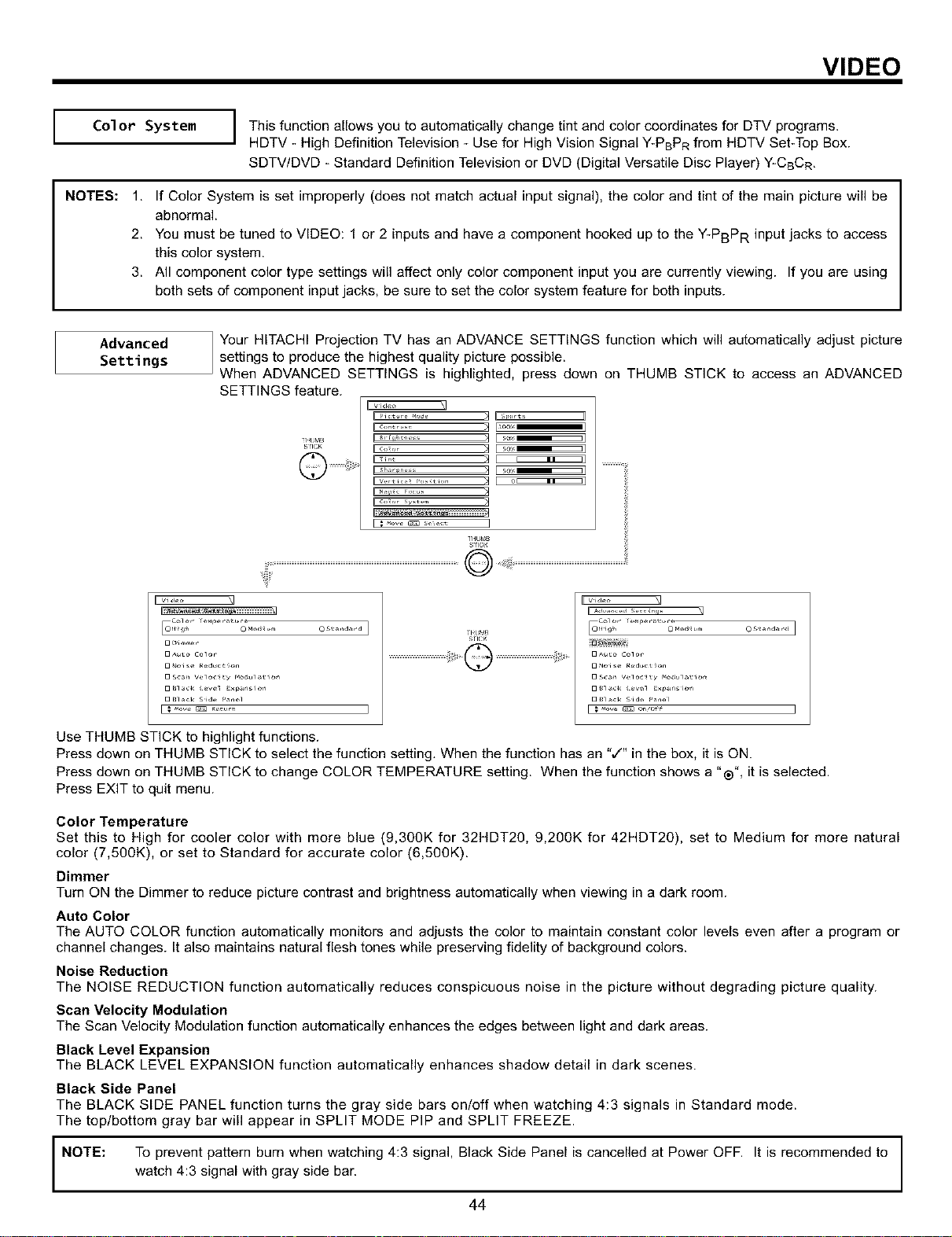
VIDEO
Color System
This function allows you to automatically change tint and color coordinates for DTV programs.
HDTV - High Definition Television - Use for High Vision Signal Y-PBPR from HDTV Set-Top Box.
SDTV/DVD - Standard Definition Television or DVD (Digital Versatile Disc Player) Y-CBCR,
NOTES:
1. If Color System is set improperly (does not match actual input signal), the color and tint of the main picture will be
abnormal.
2. You must be tuned to VIDEO: 1 or 2 inputs and have a component hooked up to the Y-PBPR input jacks to access
this color system,
3. All component color type settings will affect only color component input you are currently viewing. If you are using
both sets of component input jacks, be sure to set the color system feature for both inputs.
Advanced
Settings
Your HITACHI Projection TV has an ADVANCE SETTINGS function which will automatically adjust picture
settings to produce the highest quality picture possible.
When ADVANCED SETTINGS is highlighted, press down on THUMB STICK to access an ADVANCED
SETTINGS feature.
Ev,,,_,, :_
smm IIcoo, ;_ Es_-o
_IlUMB
STIC,<
_ Video :_
O st _'_d_rd ]
O^_to Color
rl_bMB
sncK
...................................................i;;_G ...................................................i;;_
[ video
Use THUMB STICK to highlight functions.
Press down on THUMB STICK to select the function setting. When the function has an ",/" in the box, it is ON.
Press down on THUMB STICK to change COLOR TEMPERATURE setting. When the function shows a "®", it is selected.
Press EXIT to quit menu.
Color Temperature
Set this to High for cooler color with more blue (9,300K for 32HDT20, 9,200K for 42HDT20), set to Medium for more natural
color (7,500K), or set to Standard for accurate color (6,500K).
Dimmer
Turn ON the Dimmer to reduce picture contrast and brightness automatically when viewing in a dark room.
Auto Color
The AUTO COLOR function automatically monitors and adjusts the color to maintain constant color levels even after a program or
channel changes. It also maintains natural flesh tones while preserving fidelity of background colors.
Noise Reduction
The NOISE REDUCTION function automatically reduces conspicuous noise in the picture without degrading picture quality.
Scan Velocity Modulation
The Scan Velocity Modulation function automatically enhances the edges between light and dark areas.
Black Level Expansion
The BLACK LEVEL EXPANSION function automatically enhances shadow detail in dark scenes.
Black Side Panel
The BLACK SIDE PANEL function turns the gray side bars on/off when watching 4:3 signals in Standard mode.
The top/bottom gray bar will appear in SPLIT MODE PIP and SPLIT FREEZE.
NOTE:
To prevent pattern burn when watching 4:3 signal, Black Side Panel is cancelled at Power OFF. It is recommended to
watch 4:3 signal with gray side bar.
44
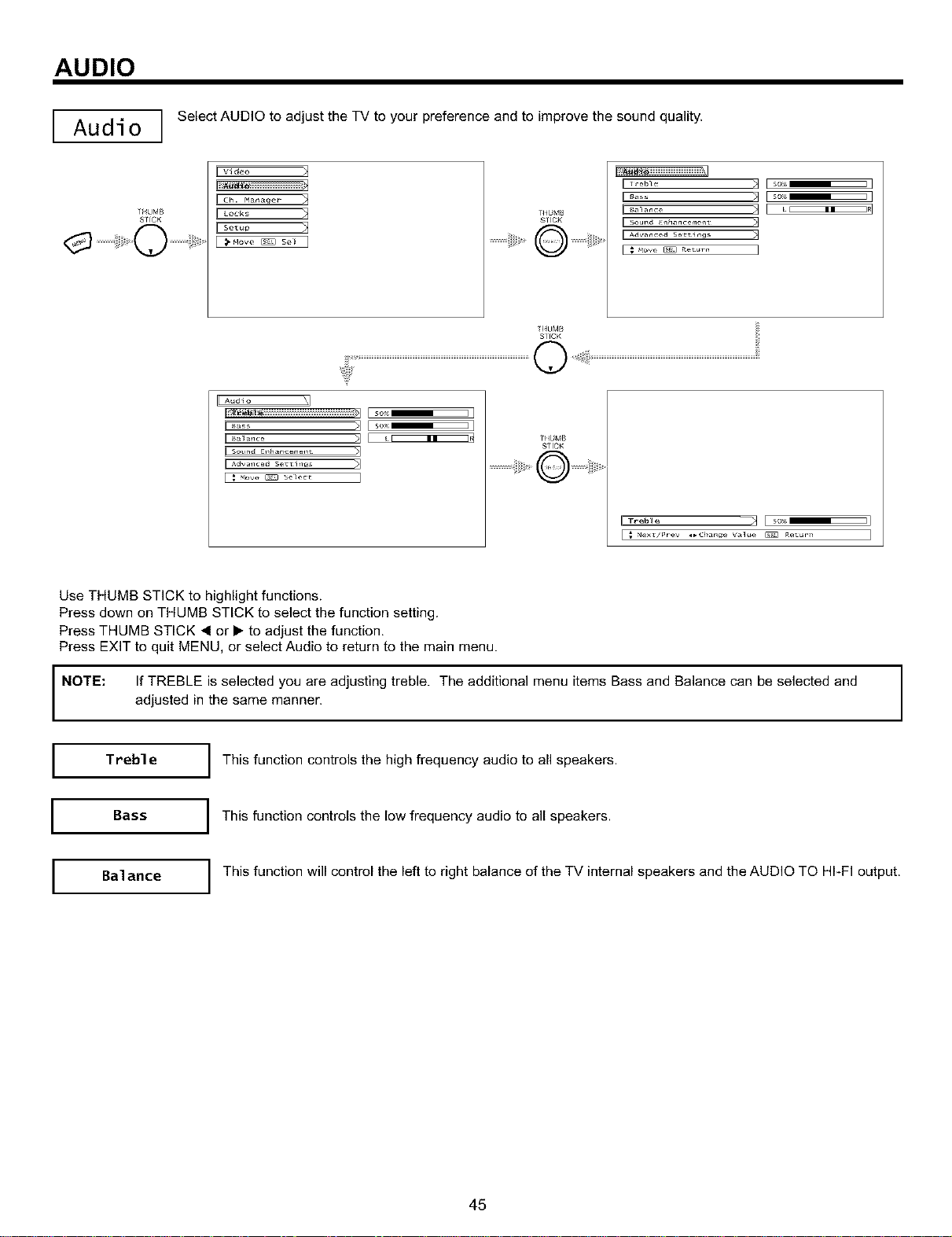
AUDIO
I Audio ]
_HUMB
SlfCK
Select AUDIO to adjust the TV to your preference and to improve the sound quality.
IIv_d_o _1
I C_ r_ar_a er
II uocks
THU_,_
STICK
................iiiii!J>@ @i+_,
_+_.... >] E _
THUMB
SlfCK
Audio
SOlnd £1_lancemel_t _]
Adv <_lced Se +tl rigs )1
_love _ Se}eCL ]
THUMB
STICK
IITreble _ Iso_+
I ._ mext/_+_ev _*Chan_e Va_ue _ _et_rn
Use THUMB STICK to highlight functions.
Press down on THUMB STICK to select the function setting.
Press THUMB STICK 4 or • to adjust the function.
Press EXIT to quit MENU, or select Audio to return to the main menu.
NOTE:
If TREBLE is selected you are adjusting treble. The additional menu items Bass and Balance can be selected and
adjusted in the same manner.
I
I
Treble
Bass
I This function controls the high frequency audio to all speakers.
I This function controls the low frequency audio to all speakers.
I Balance I This function will control the left to right balance of the TV internal speakers and the AUDIO TO HI-FI output.
45
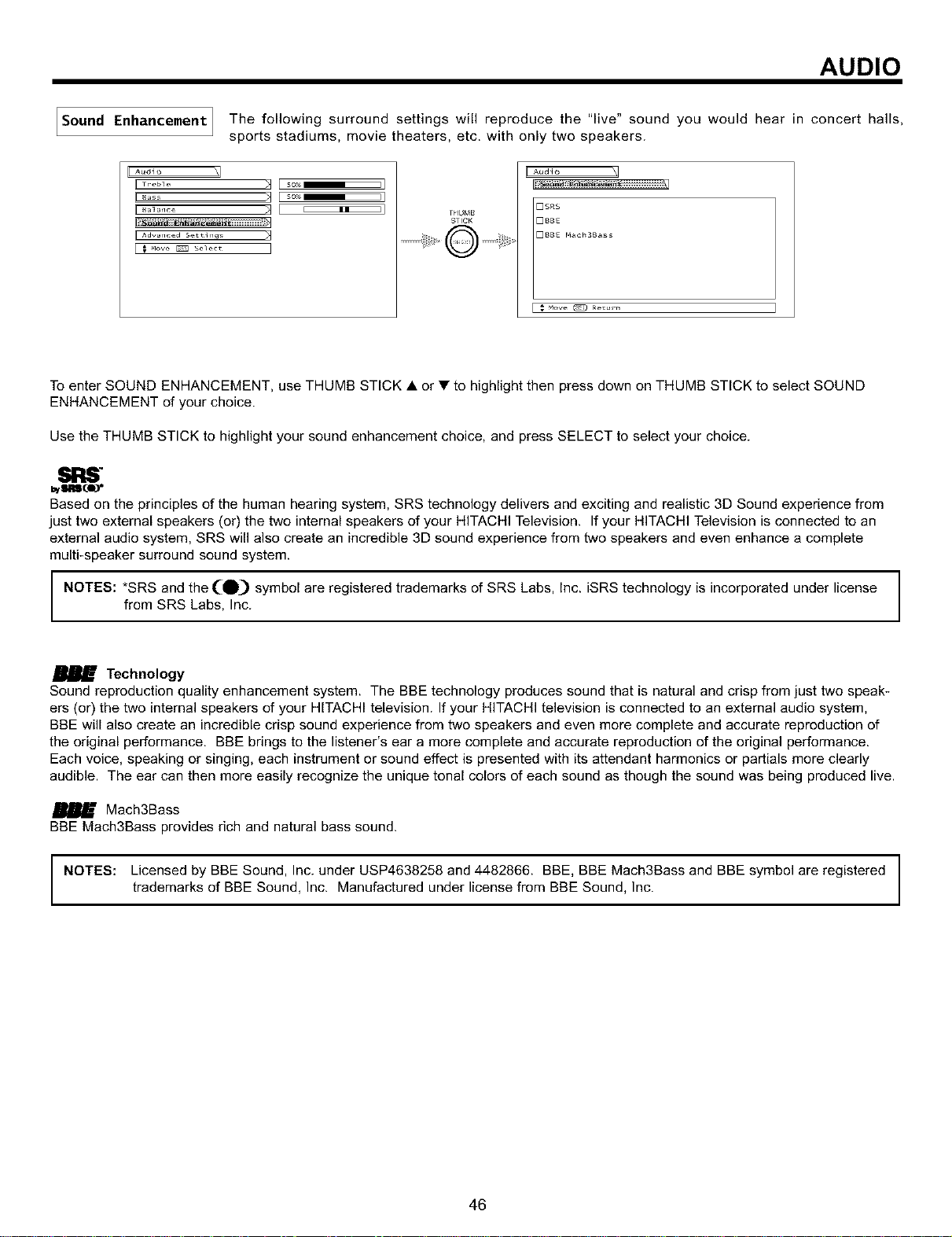
AUDIO
JSound Enhancement J The following surround settings will reproduce the "live" sound you would hear in concert halls,
i
sports stadiums, movie theaters, etc. with only two speakers.
Aud ¸io
JJ Adv_lced Se_i_lgs
THUMB
STICK
DSRS
DBBE
BBE Mach3Bass
Hove _ Re_urn
To enter SOUND ENHANCEMENT, use THUMB STICK • or • to highlight then press down on THUMB STICK to select SOUND
ENHANCEMENT of your choice.
Use the THUMB STICK to highlight your sound enhancement choice, and press SELECT to select your choice.
Based on the principles of the human hearing system, SRS technology delivers and exciting and realistic 3D Sound experience from
just two external speakers (or) the two internal speakers of your HITACHI Television. If your HITACHI Television is connected to an
external audio system, SRS will also create an incredible 3D sound experience from two speakers and even enhance a complete
multi-speaker surround sound system.
NOTES: *SIRS and the (_ symbol are registered trademarks of SRS Labs, Inc. iSRS technology is incorporated under license
from SRS Labs, Inc.
Technology
Sound reproduction quality enhancement system. The BBE technology produces sound that is natural and crisp from just two speak-
ers (or) the two internal speakers of your HITACHI television. If your HITACHI television is connected to an external audio system,
BBE will also create an incredible crisp sound experience from two speakers and even more complete and accurate reproduction of
the original performance. BBE brings to the listener's ear a more complete and accurate reproduction of the original performance.
Each voice, speaking or singing, each instrument or sound effect is presented with its attendant harmonics or partials more clearly
audible. The ear can then more easily recognize the unique tonal colors of each sound as though the sound was being produced live.
Mach3Bass
BBE Mach3Bass provides rich and natural bass sound.
NOTES: Licensed by BBE Sound, Inc. under USP4638258 and 4482866. BBE, BBE Mach3Bass and BBE symbol are registered
trademarks of BBE Sound, Inc. Manufactured under license from BBE Sound, Inc.
46
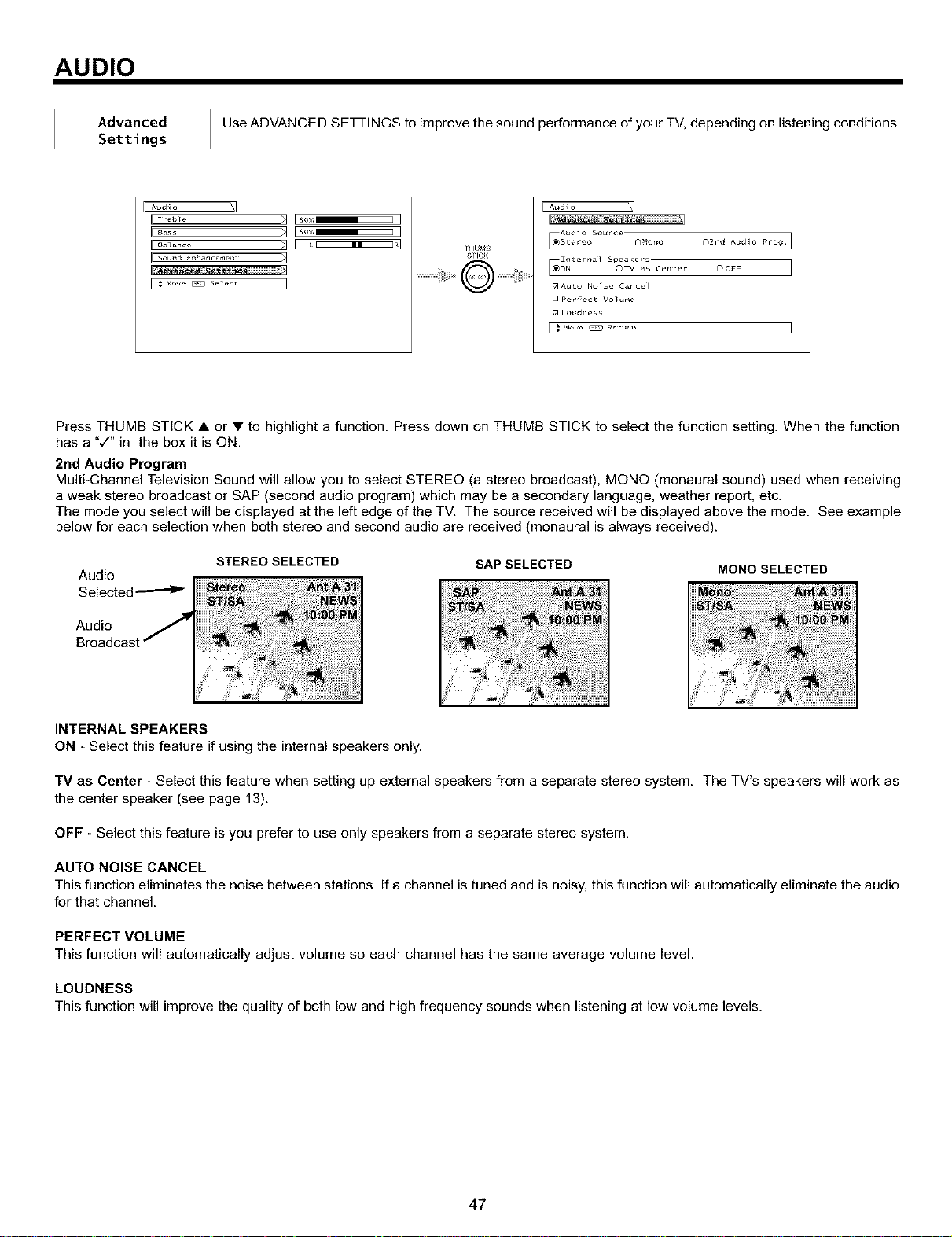
AUDIO
Advanced
Settings
Use ADVANCED SETTINGS to improve the sound performance of your TV, depending on listening conditions.
HAudio \1
[ 5ou_'d _ll_lanCenlellt _]
TI4U_A_
STICK
I Audio _]
Audio Sou¢ce
_I_e_al Spe_ke_-sON ©TV as Ce_e_
[] Auto No_se Ca_ce_
[] perfect Vo_ur_e
[] LoudT_ess
I _ Mow _ _1_
Press THUMB STICK • or • to highlight a function. Press down on THUMB STICK to select the function setting. When the function
has a "¢'" in the box it is ON.
2nd Audio Program
Multi-Channel Television Sound will allow you to select STEREO (a stereo broadcast), MONO (monaural sound) used when receiving
a weak stereo broadcast or SAP (second audio program) which may be a secondary language, weather report, etc,
The mode you select will be displayed at the left edge of the TV, The source received will be displayed above the mode. See example
below for each selection when both stereo and second audio are received (monaural is always received).
STEREO SELECTED
SAP SELECTED
MONO SELECTED
Audio
INTERNALSPEAKERS
ON-Selectthisfeatureifusingtheinternalspeakersonly.
"IV as Center - Select this feature when setting up external speakers from a separate stereo system. The TV's speakers will work as
the center speaker (see page 13).
OFF - Select this feature is you prefer to use only speakers from a separate stereo system.
AUTO NOISE CANCEL
This function eliminates the noise between stations. If a channel is tuned and is noisy, this function will automatically eliminate the audio
for that channel.
PERFECT VOLUME
This function will automatically adjust volume so each channel has the same average volume level.
LOUDNESS
This function will improve the quality of both low and high frequency sounds when listening at low volume levels.
47
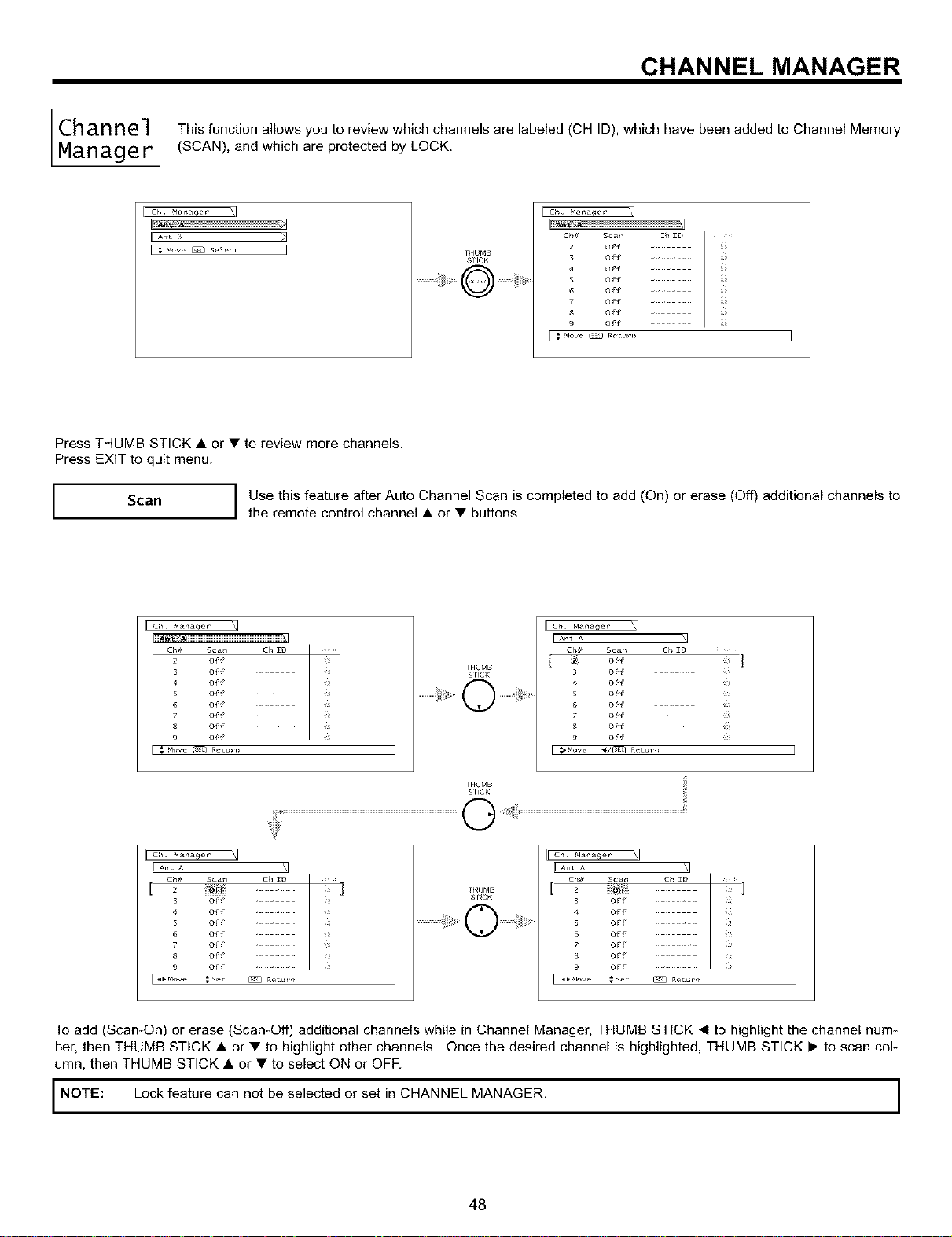
CHANNEL MANAGER
Channel This function allows you to review which channels are labeled (CH ID), which have been added to Channel Memory
Manage r (SCAN), and which are protected by LOCK.
_i;1 __sA _
THUf_B
STICK
Off
5 (Wf . i,_;;
6 Off .... _L_
I _ Mow _ r_e_url_
Press THUMB STICK • or • to review more channels.
Press EXIT to quit menu.
I
Scan
I Use this feature after Auto Channel Scan is completed to add (On) or erase (Off) additional channels to
the remote control channel • or • buttons.
Ch#82S Sca_offoffoffoffoffoffoff.""."C__ID_ _ _ ,
9 Off . . .
[ _ Mow _ _e,url_
THUMB
STICK
Ch Ma_a0e_
IIAn_A \1
[ _2 of+' J
3 o{f
4 o{f
S o{f
o{f
o{f
8 0{1 _
9 Of
tHUMB
SrlCK
]
3 Of -
Off
S Off
Off
Off
8 Off
Off9
[ 9_ Move _Se, _ _et _IIl
_HUMB
SI_CK
[_I
[ An_A \]
Ch# Scan Ch ID _ _
o_°_ _ 7!11
°" : ii:
To add (Scan-On) or erase (Scan-Off) additional channels while in Channel Manager, THUMB STICK _1to highlight the channel num-
ber, then THUMB STICK • or • to highlight other channels. Once the desired channel is highlighted, THUMB STICK I_ to scan col-
umn, then THUMB STICK • or • to select ON or OFF.
I NOTE: Lock feature can not be selected or set in CHANNEL MANAGER. I
I
48
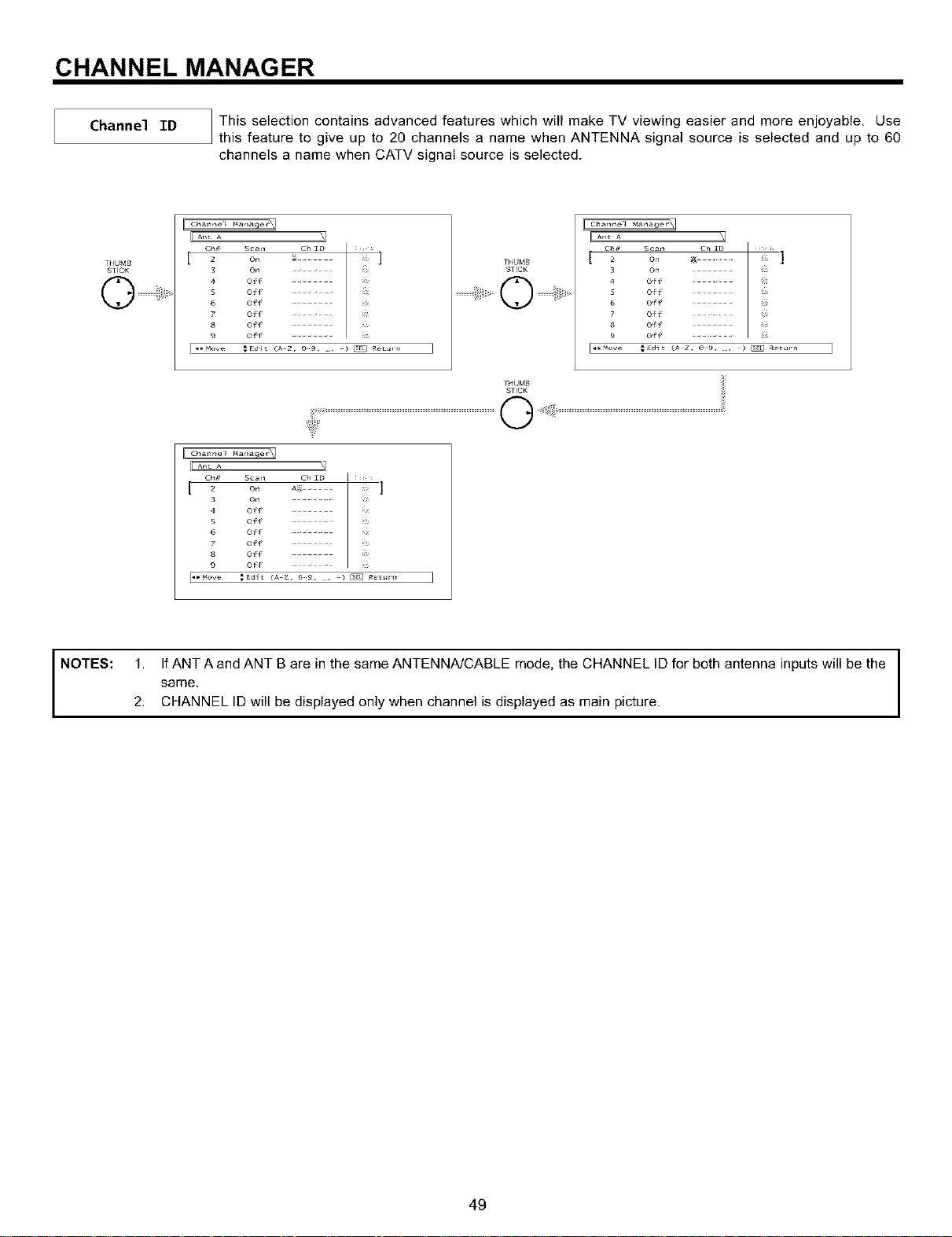
CHANNEL MANAGER
Channel ID
This selection contains advanced features which will make TV viewing easier and more enjoyable, Use
this feature to give up to 20 channels a name when ANTENNA signal source is selected and up to 60
channels a name when CATV signal source is selected.
THUMB
STICK
rr.... _q
[ 2 O_ _
3 O_ .. .
4 Off .
S Off . . .
6 Off ....
Off . .
Off
9 OPf . . .
I "'Move ;Edit (A Z O 9 • _ _ _et_r_
THUMB
STICK
I ¢ha_nel _a_ I
Oh# Sca_ Ch ZD I _ _,_ _,
[ 2 on _ J
3 On
of
of
6 of
of
of
o f
2 o_ A_ -
4 Off . _
S Off . . .
6 Off ....
Off . .
Off .
Opf . . .9
NOTES: 1. If ANT A and ANT B are in the same ANTENNA/CABLE mode, the CHANNEL ID for both antenna inputs will be the
same.
2. CHANNEL ID will be displayed only when channel is displayed as main picture.
49
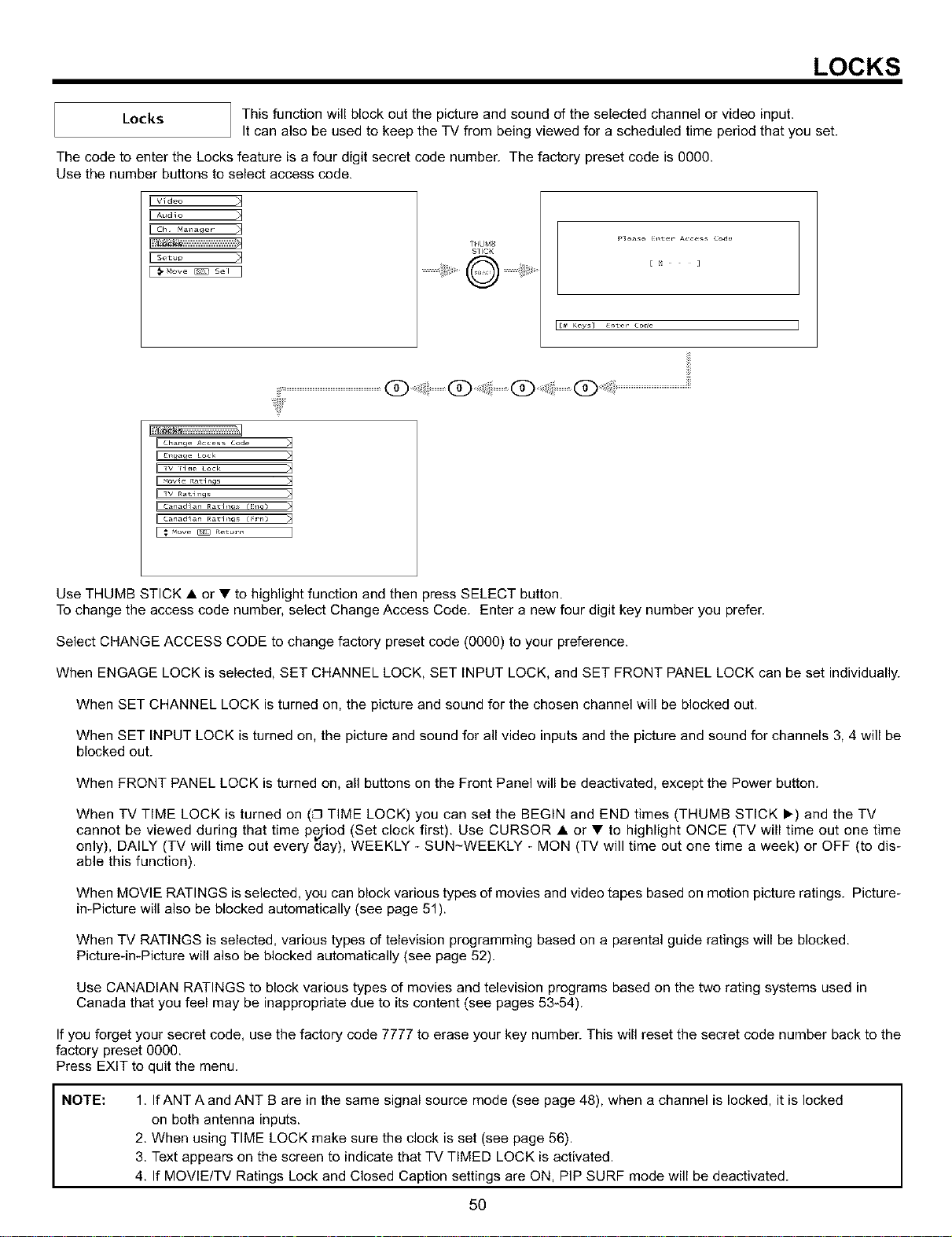
LOCKS
Locks
This function will block out the picture and sound of the selected channel or video input.
It can also be used to keep the TV from being viewed for a scheduled time period that you set.
The code to enter the Locks feature is a four digit secret code number. The factory preset code is 0000.
Use the number buttons to select access code.
Video
Audio
i I THUM_
S?ICK
I>lease £1_t,-r Access coae
[ ]
[[# Keys] £11ter Code ]
Chan_ Access Code _]
1V rlme lock _]
cana_ian Ra_h_ _E:_I_ _]
Cana_ian Ra_h_ (_=-n) >1
Use THUMB STICK • or • to highlight function and then press SELECT button.
To change the access code number, select Change Access Code. Enter a new four digit key number you prefer.
Select CHANGE ACCESS CODE to change factory preset code (O000) to your preference.
When ENGAGE LOCK is selected, SET CHANNEL LOCK, SET INPUT LOCK, and SET FRONT PANEL LOCK can be set individually.
When SET CHANNEL LOCK is turned on, the picture and sound for the chosen channel will be blocked out.
When SET INPUT LOCK is turned on, the picture and sound for all video inputs and the picture and sound for channels 3, 4 will be
blocked out.
When FRONT PANEL LOCK is turned on, all buttons on the Front Panel will be deactivated, except the Power button.
When TV TIME LOCK is turned on (_ TIME LOCK) you can set the BEGIN and END times (THUMB STICK _-) and the TV
cannot be viewed during that time pejiod (Set clock first). Use CURSOR • or • to highlight ONCE (TV will time out one time
only), DAILY (TV will time out every day), WEEKLY - SUN-WEEKLY - MON (TV will time out one time a week) or OFF (to dis-
able this function).
When MOVIE RATINGS is selected, you can block various types of movies and video tapes based on motion picture ratings. Picture-
in-Picture will also be blocked automatically (see page 51).
When TV RATINGS is selected, various types of television programming based on a parental guide ratings will be blocked.
Picture-in-Picture will also be blocked automatically (see page 52).
Use CANADIAN RATINGS to block various types of movies and television programs based on the two rating systems used in
Canada that you feel may be inappropriate due to its content (see pages 53-54).
If you forget your secret code, use the factory code 7777 to erase your key number. This will reset the secret code number back to the
factory preset OOOO.
Press EXIT to quit the menu.
NOTE: 1. IfANT A and ANT B are in the same signal source mode (see page 48), when a channel is locked, it is locked
on both antenna inputs.
2. When using TIME LOCK make sure the clock is set (see page 56).
3. Text appears on the screen to indicate that TV TIMED LOCK is activated.
4. If MOVlE/TV Ratings Lock and Closed Caption settings are ON, PIP SURF mode will be deactivated.
50
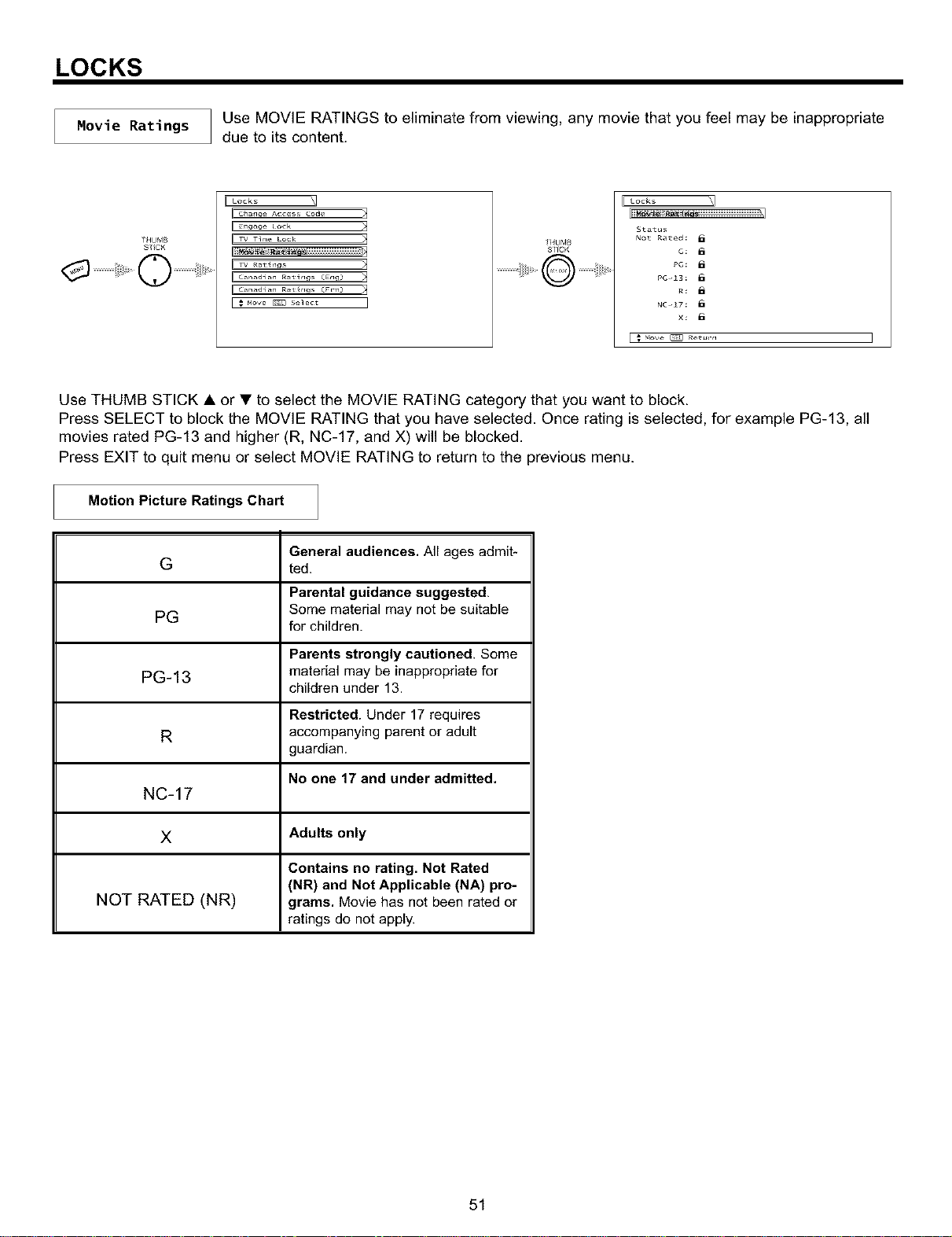
LOCKS
Movie Ratings
Use MOVIE RATINGS to eliminate from viewing, any movie that you feel may be inappropriate
due to its content.
ST_CK
_rv Tim_ Loc_
_canadi_n R_tlngs _Eng!
E; M°w_s_ I
_/4UMB
SLICK
c:
PG :
PG 13:
NC 17:
x:
Use THUMB STICK • or • to select the MOVIE RATING category that you want to block.
Press SELECT to block the MOVIE RATING that you have selected. Once rating is selected, for example PG-13, all
movies rated PG-13 and higher (R, NC-17, and X) will be blocked.
Press EXIT to quit menu or select MOVIE RATING to return to the previous menu.
Motion Picture Ratings Chart
General audiences. All ages admit*
ted.
G
Parental guidance suggested.
PG Some material may not be suitable
for children.
Parents strongly cautioned. Some
PG-13 material may be inappropriate for
children under 13.
Restricted. Under 17 requires
R accompanying parent or adult
guardian.
No one 17 and under admitted.
NC-17
X Adults only
Contains no rating. Not Rated
(NR) and Not Applicable (NA) pro-
NOT RATED (NR) grams. Movie has not been rated or
ratings do not apply.
51
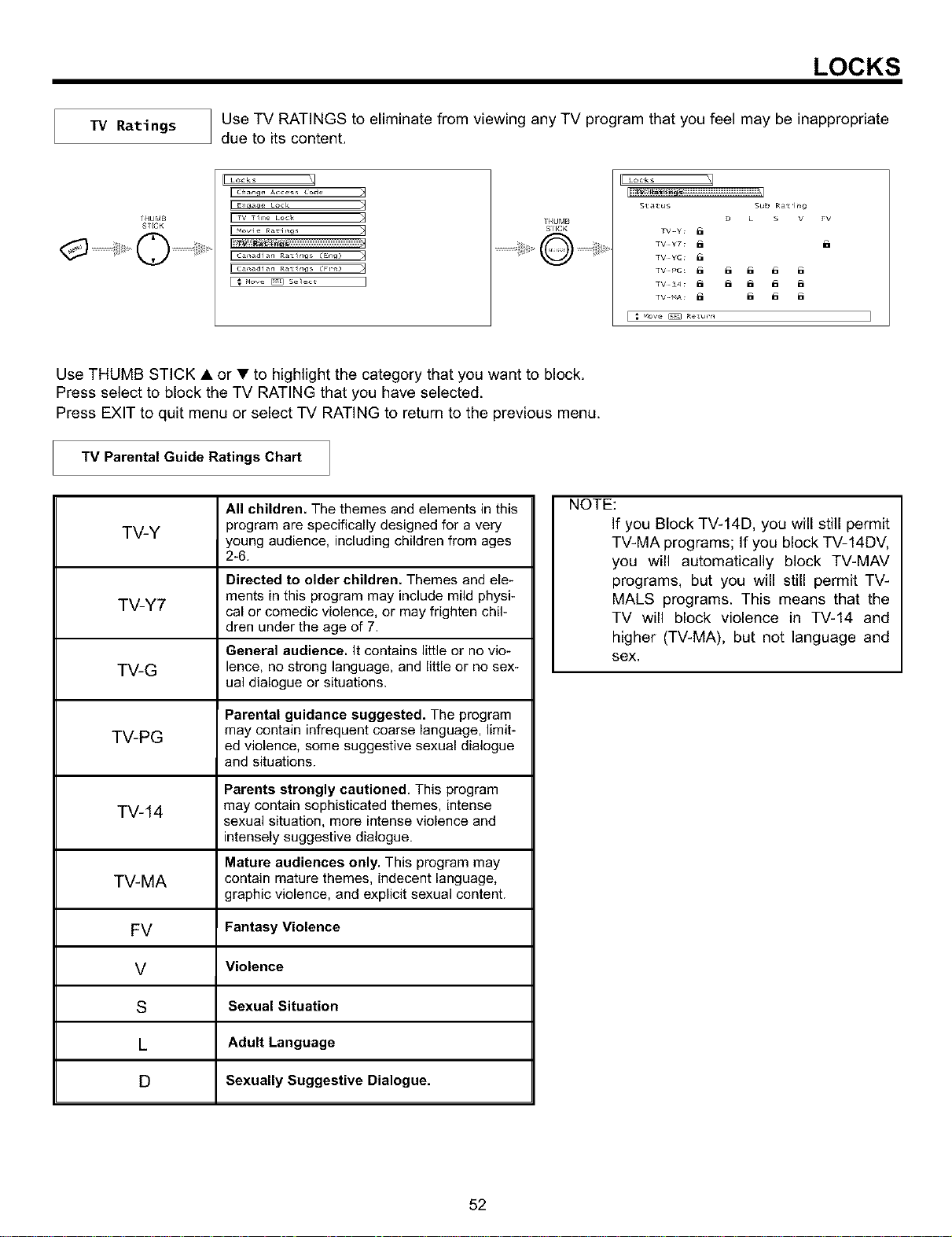
LOCKS
TV Ratings
Use TV RATINGS to eliminate from viewing any TV program that you feel may be inappropriate
due to its content.
1NUMB
ST_CK
[ Locks _]
II c_lang_ Acc_s, co_1_
II cana ai_n r_tlngs _Eng}
i Cana ai_n r_tlngs _Fm_} _3
_HUbIB
Ef [CK
Locks _]
Stat_s Sub Rat i_9
D • • V
TV Y:
TV YT:
TV YC:
TV 14 ; _ _ _ _
_ve _ Rotu_-tl
FV
Use THUMB STICK • or • to highlight the category that you want to block.
Press select to block the TV RATING that you have selected.
Press EXIT to quit menu or select TV RATING to return to the previous menu.
TV Parental Guide Ratings Chart
TV-Y
TV-Y7
TV-G
TV-PG
All children. The themes and elements in this
program are specifically designed for a very
young audience, including children from ages
2-6.
Directed to older children. Themes and ele-
ments in this program may include mild physi-
cal or comedic violence, or may frighten chil-
dren under the age of 7.
General audience. It contains little or no vio-
lence, no strong language, and little or no sex-
ual dialogue or situations.
Parental guidance suggested. The program
may contain infrequent coarse language, limit-
ed violence, some suggestive sexual dialogue
and situations.
Parents strongly cautioned, This program
TV-14 may contain sophisticated themes, intense
sexual situation, more intense violence and
intensely suggestive dialogue.
Mature audiences only. This program may
TV-MA contain mature themes, indecent language,
graphic violence, and explicit sexual content.
FV Fantasy Violence
V Violence
S Sexual Situation
L Adult Language
D Sexually Suggestive Dialogue.
NOTE:
If you Block TV-14D, you will still permit
TV-MA programs; If you block TV-14DV,
you will automatically block TV-MAV
programs, but you will still permit TV-
MALS programs. This means that the
TV will block violence in TV-14 and
higher (TV-MA), but not language and
sex.
52
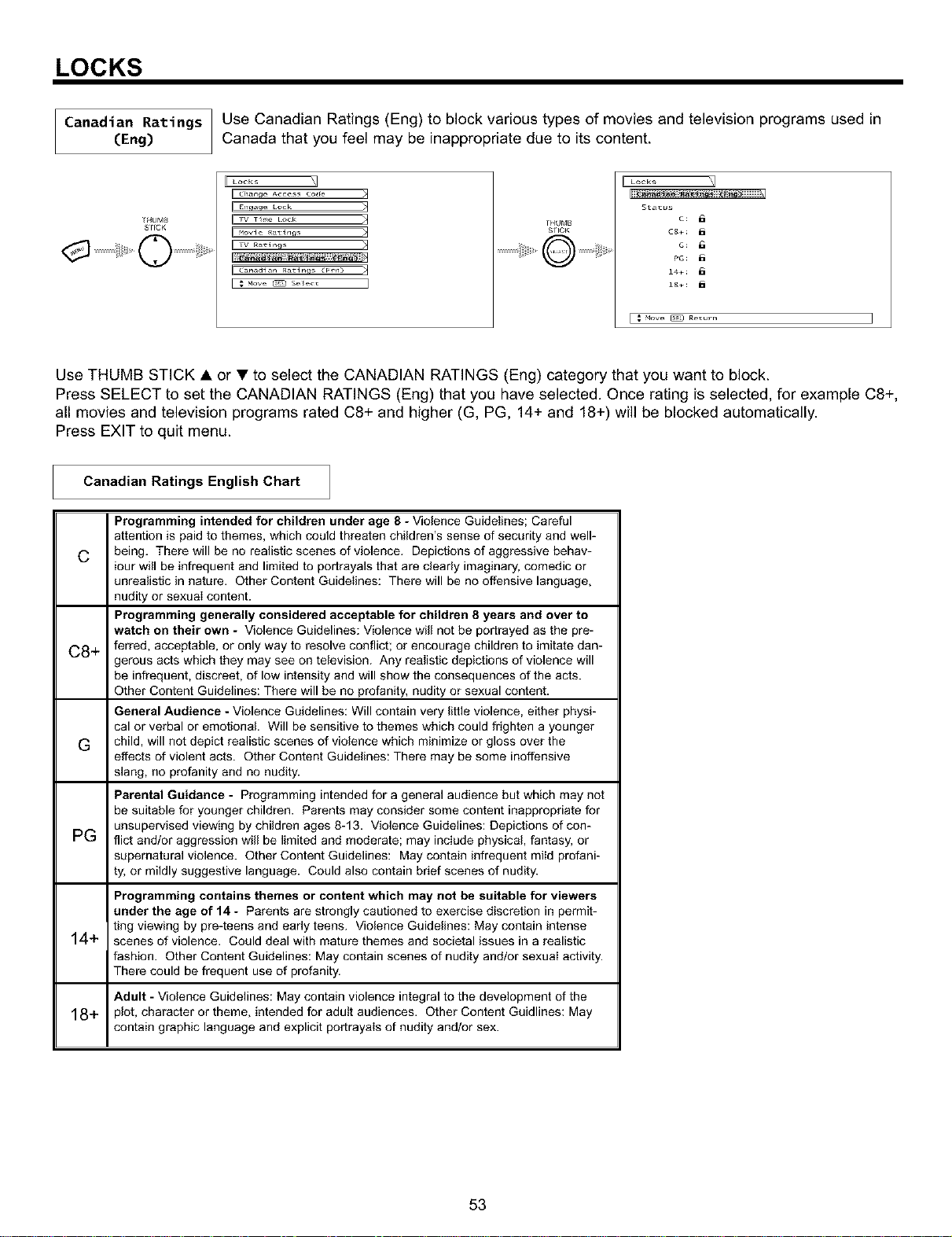
LOCKS
Canadian Ratings Use Canadian Ratings (Eng) to block various types of movies and television programs used in
(Eng) Canada that you feel may be inappropriate due to its content.
_HUMB
S'f {CK
H Locks
I C_l_ng_ Acce,, Co_
TH_JMB
STICK
I Locks
Sta_u_
C8÷:
PG:
14÷:
18÷:
Use THUMB STICK • or • to select the CANADIAN RATINGS (Eng) category that you want to block.
Press SELECT to set the CANADIAN RATINGS (Eng) that you have selected. Once rating is selected, for example C8+,
all movies and television programs rated C8+ and higher (G, PG, 14+ and 18+) will be blocked automatically.
Press EXIT to quit menu.
Canadian Ratings English Chart
Programming intended for children under age 8 - Violence Guidelines; Careful
attention is paid to themes, which could threaten children's sense of security and well-
C being. There will be no realistic scones of violence. Depictions of aggressive behav-
iour will be infrequent and limited to portrayals that are cieady imaginary, comedic or
unrealistic in nature. Other Content Guidelines: There will be no offensive language,
nudity or sexuai content.
Programming generally considered acceptable for children 8 years and over to
watch on their own - Violence Guidelines: Violence wiil not be portrayed as the pre-
C8+ ferred, acceptable, or only way to resolve conflict; or encourage children to imitate dan-
gerous acts which they may see on television. Any realistic depictions of violence will
be infrequent, discreet, of low intensity and will show the consequences of the acts.
Other Content Guidelines: There will be no profanity, nudity or sexual content.
General Audience - Violence Guidelines: Will contain very little violence, either physi-
cal or verbal or emotional Will be sensitive to themes which could frighten a younger
G child, will not depict realistic scenes of violence which minimize or gloss over the
effects of violent acts. Other Content Guidelines: There may be some inoffensive
slang, no profanity and no nudity.
Parental Guidance - Programming intended for a general audience but which may not
be suitable for younger children. Parents may consider some content inappropriate for
unsupervised viewing by children ages 8-13. Violence Guidelines: Depictions of con-
PG flict and/or aggression wiil be limited and moderate; may include physical, fantasy, or
supernatural violence. Other Content Guidelines: May contain infrequent miid profani-
ty, or mildly suggestive language. Could also contain brief scenes of nudity.
Programming contains themes or content which may not be suitable for viewers
under the age of 14 - Parents are strongly cautioned to exercise discretion in permit-
ting viewing by pre-teens and early teens. Violence Guidelines: May contain intense
14+ scenes of violence. Could deal with mature themes and societal issues in a realistic
fashion. Other Content Guidelines: May contain scenes of nudity and/or sexuai activity.
There could be frequent use of profanity.
Adult - Violence Guidelines: May contain violence integral to the development of the
18+ p_ot,character or theme, intended for adult audiences. Other Content Guidlines: May
contain graphic language and explicit portrayais of nudity and/or sex.
53
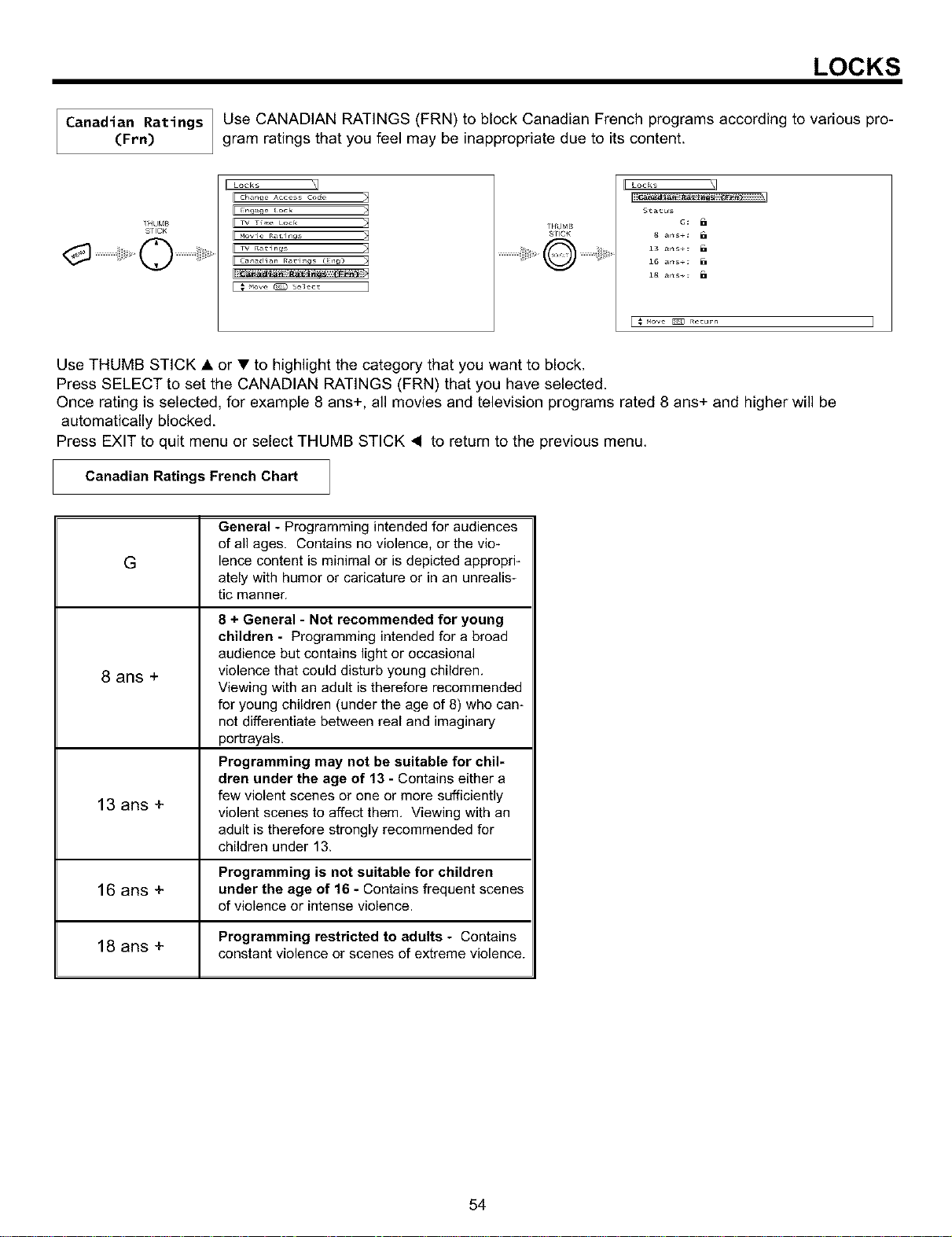
LOCKS
Canadian Ratings Use CANADIAN RATINGS (FRN) to block Canadian French programs according to various pro-
(Fen) gram ratings that you feel may be inappropriate due to its content.
_HUMB
SLICK
........._ii_J_,¸¸I
?F{VMB
S?ICK
S_a_us
i3 arts÷:
i6 arts÷:
i8 arts÷:
Use THUMB STICK • or • to highlight the category that you want to block.
Press SELECT to set the CANADIAN RATINGS (FRN) that you have selected.
Once rating is selected, for example 8 ans+, all movies and television programs rated 8 ans+ and higher will be
automatically blocked.
Press EXIT to quit menu or select THUMB STICK _1 to return to the previous menu.
Canadian Ratings French Chart
G
8 ans +
General - Programming intended for audiences
of all ages. Contains no violence, or the vio-
lence content is minimal or is depicted appropri-
ately with humor or caricature or in an unrealis-
tic manner.
8 + General - Not recommended for young
children - Programming intended for a broad
audience but contains light or occasional
violence that could disturb young children.
Viewing with an adult is therefore recommended
for young children (under the age of 8) who can-
not differentiate between real and imaginary
portrayals.
Programming may not be suitable for chil-
dren under the age of 13 - Contains either a
few violent scenes or one or more sufficiently
violent scenes to affect them. Viewing with an
adult is therefore strongly recommended for
children under 13.
13 arts +
Programming is not suitable for children
16 arts + under the age of 16 - Contains frequent scenes
of violence or intense violence.
Programming restricted to adults - Contains
18 arts + constant violence or scenes of extreme violence.
54
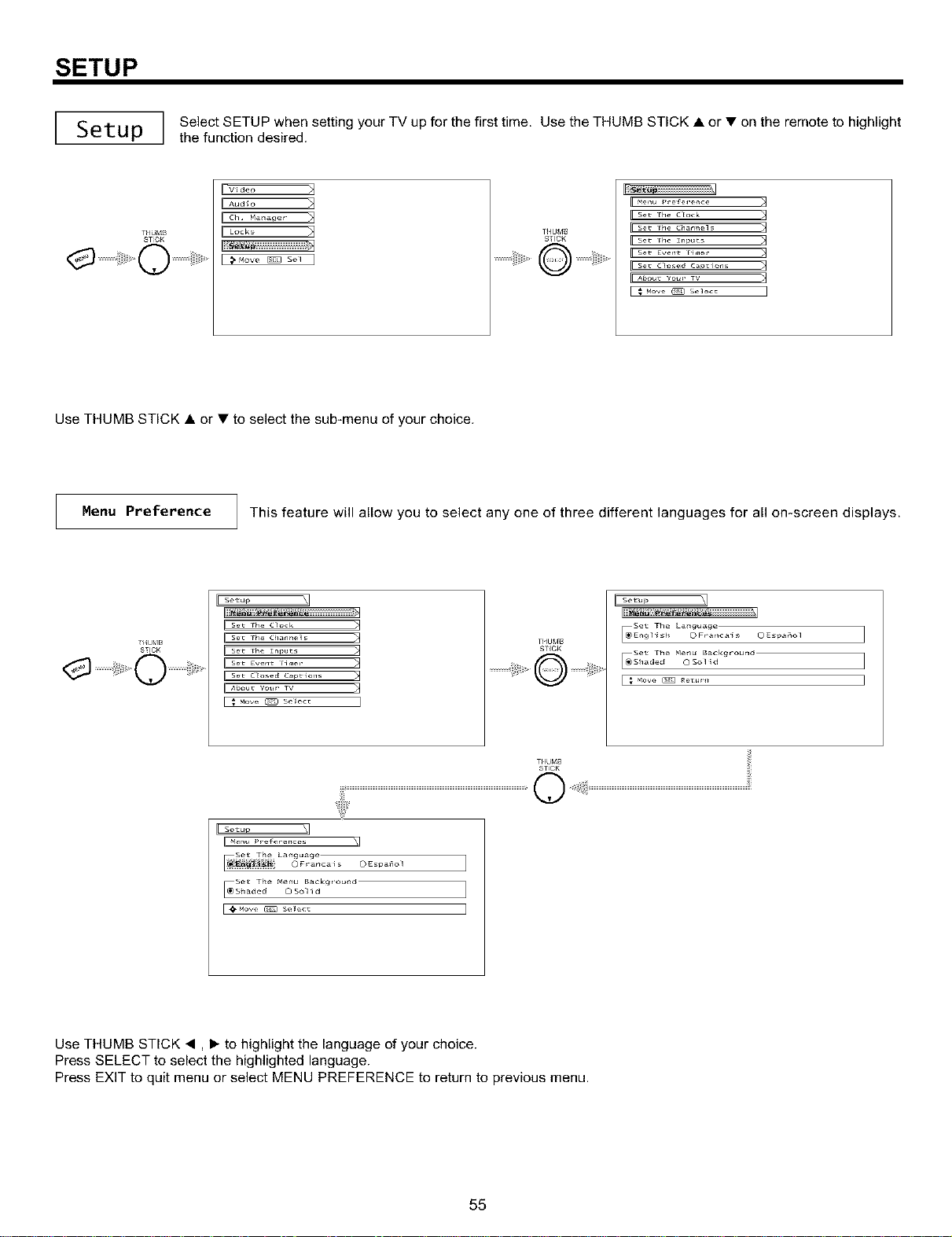
SETUP
I _ ,-,, I Select SETUP when setting your TV up for the first time. Use the THUMB STICK • or • on the remote to highlight
et
UJ
IJ
I
the function desired.
THUMS
ST_CK
1HUM_
ST_CK
II s_t Fh_ d_ock
E s_t Fh_ dh_n_l,
II s_t Fh_ Zn_uts
II s_t Ewnt Fim_-
About Yot.- 1V ){
Use THUMB STICK • or • to select the sub-menu of your choice.
Menu Preference This feature will allow you to select any one of three different languages for all omscreen displays.
II Abou_ Your _V
1HUM_
ST_CK
I setup _1
I
THUMS
ST_CK
Y_n_ prefo_e_c_
OEspa_ol
Set The menu BackgroundS_aded OSol_d
[e_o_. _ s_._ ]
Use THUMB STICK •, I_ to highlight the language of your choice.
Press SELECT to select the highlighted language.
Press EXIT to quit menu or select MENU PREFERENCE to return to previous menu.
55
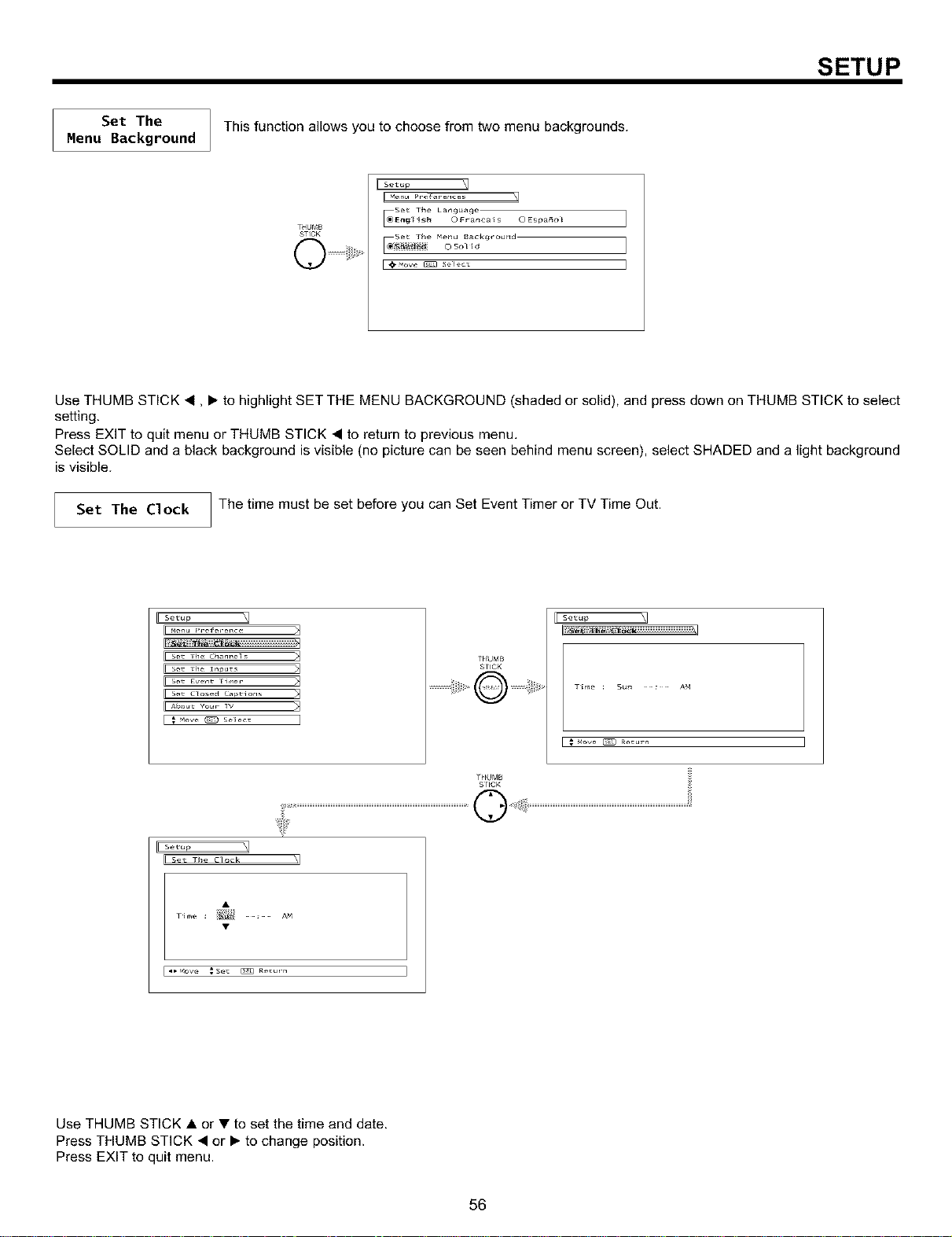
SETUP
Set The
Menu Background
This function allows you to choose from two menu backgrounds.
THUMB
STICK
Set T_e Lar_gua_e
Use THUMB STICK •, I_ to highlight SET THE MENU BACKGROUND (shaded or solid), and press down on THUMB STICK to select
setting.
Press EXIT to quit menu or THUMB STICK • to return to previous menu,
Select SOLID and a black background is visible (no picture can be seen behind menu screen), select SHADED and a light background
is visible.
Set The Clock The time must be set before you can Set Event Timer or TV Time Out.
H sel_uP _]
s_t rh_ znl_uts >{
_s_t Event rlm_-
T_/_JMB
STICK
THUMB
STICK
Setup
I _ Move _ R_u_-n
iiiiiii
H s_up
se_ The clock _l
Use THUMB STICK • or • to set the time and date.
Press THUMB STICK • or I_ to change position.
Press EXIT to quit menu.
56
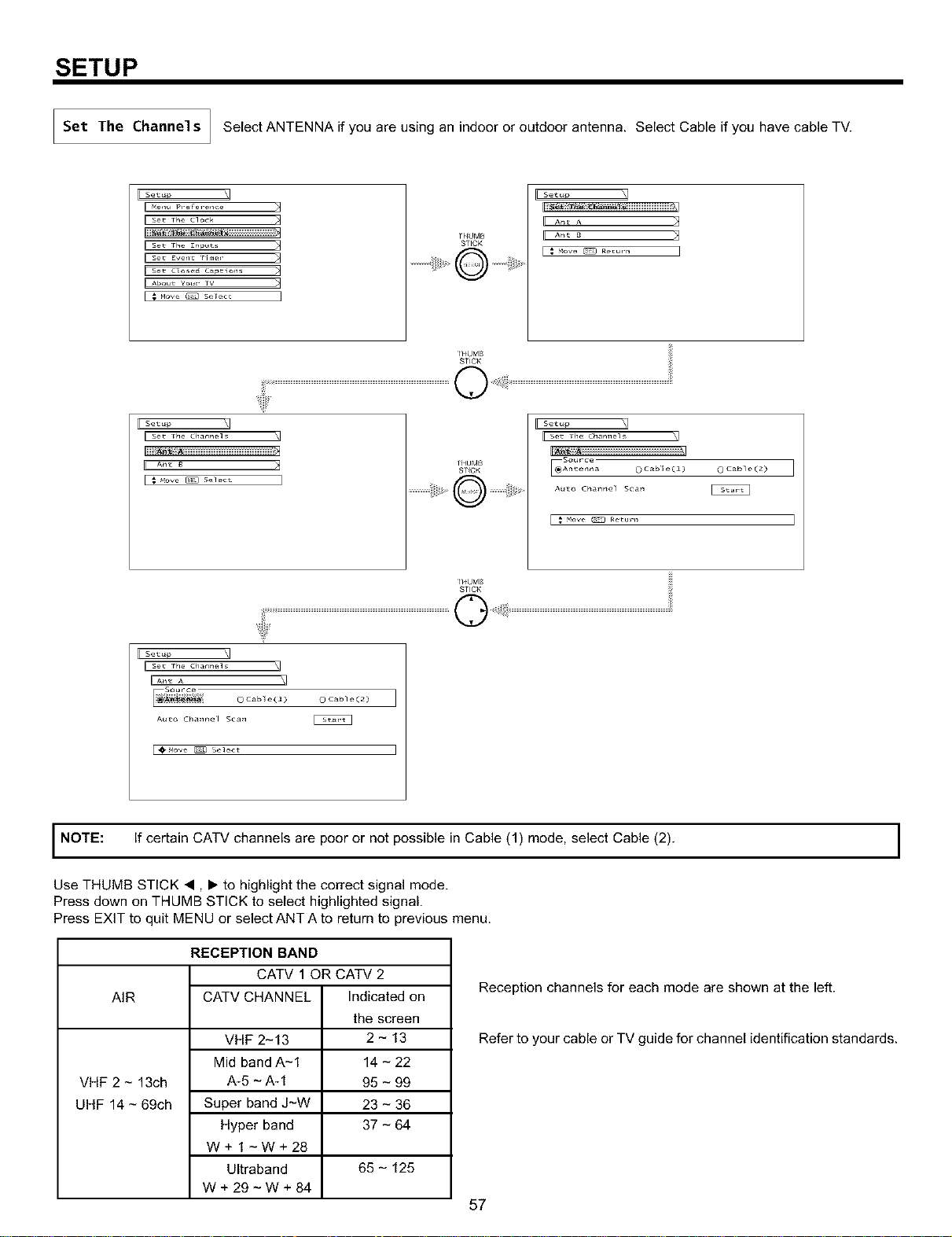
SETUP
Set The Channels Select ANTENNA if you are using an indoor or outdoor antenna. Select Cable if you have cable TV.
Setup
IIs_ Thc Cloc
THUMB
STICK
Setup \1
[ ; Mov_ _ R_u_-n
Setup
Iliiii_ss_
1HUbIB
S?_CK
Setup _]
Sou_ ce
[_SAntenrla oCab e(2) O Cable(2)
AU£O Chanrtel Sca_
STICK iii
irs_ _1
iiA_ ^ \1
OCab e(2) 0 Cable(2)
AU£O Chanr_el Sca_
I NOTE: If certain CATV channels are poor or not possible in Cable (1) mode, select Cable (2). I
Use THUMB STICK <, • to highlight the correct signal mode.
Press down on THUMB STICK to select highlighted signal.
Press EXIT to quit MENU or select ANT A to return to previous menu.
AIR
VHF 2 - 13ch
UHF 14 - 69ch
RECEPTION BAND
CATV 1 OR CATV 2
CATV CHANNEL Indicated on
VHF 2-13
Mid band A-1
A-5 - A- 1
Super band J_W
Hyper band
W+1_W+28
Ultraband
W+29_W+84
the screen
2-13
14 - 22
95 - 99
23 - 36
37 - 64
65 - 125
Reception channels for each mode are shown at the left.
Refer to your cable or TV guide for channel identification standards.
57
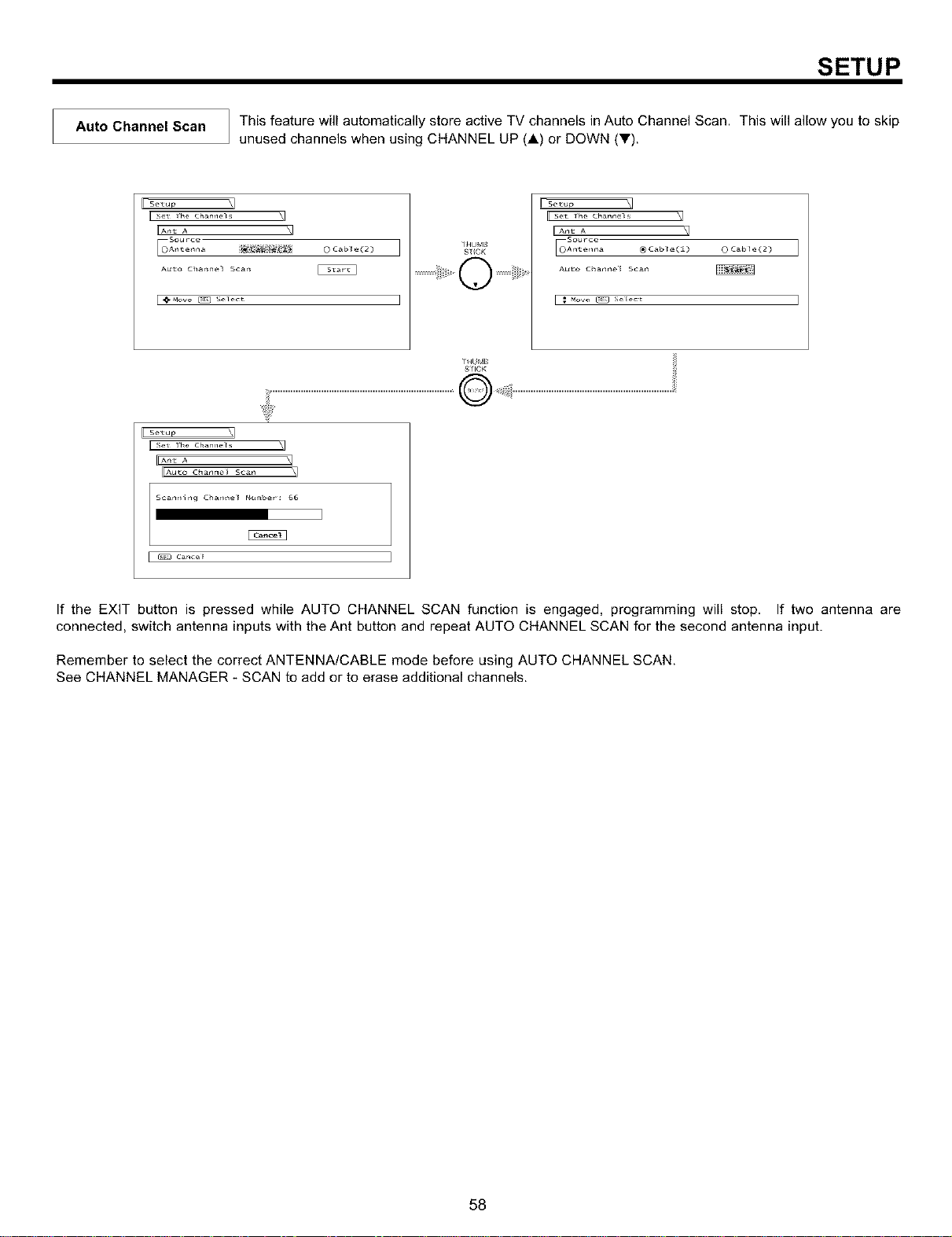
SETUP
Auto Channel Scan
This feature will automatically store active TV channels in Auto Channel Scan. This will allow you to skip
unused channels when using CHANNEL UP (A) or DOWN (V).
[ setup
IIA_tA \1
Sou¢ce
AU'LO Char_ne] Scar_
_NUM_
S?_CK
[ Setup _]
IIA_t A \1
Sou_-ce
[OA l£e lna _6 Cab}e(i) OCab e(2)
AU'LO C _ar_ne Scar_
rHUf_IB
SliCK
[ Setup
Scar_r_ir_g Char_e_ Nu_be_-: 66
I
cance_
If the EXIT button is pressed while AUTO CHANNEL SCAN function is engaged, programming will stop, If two antenna are
connected, switch antenna inputs with the Ant button and repeat AUTO CHANNEL SCAN for the second antenna input.
Remember to select the correct ANTENNA/CABLE mode before using AUTO CHANNEL SCAN.
See CHANNEL MANAGER - SCAN to add or to erase additional channels.
58
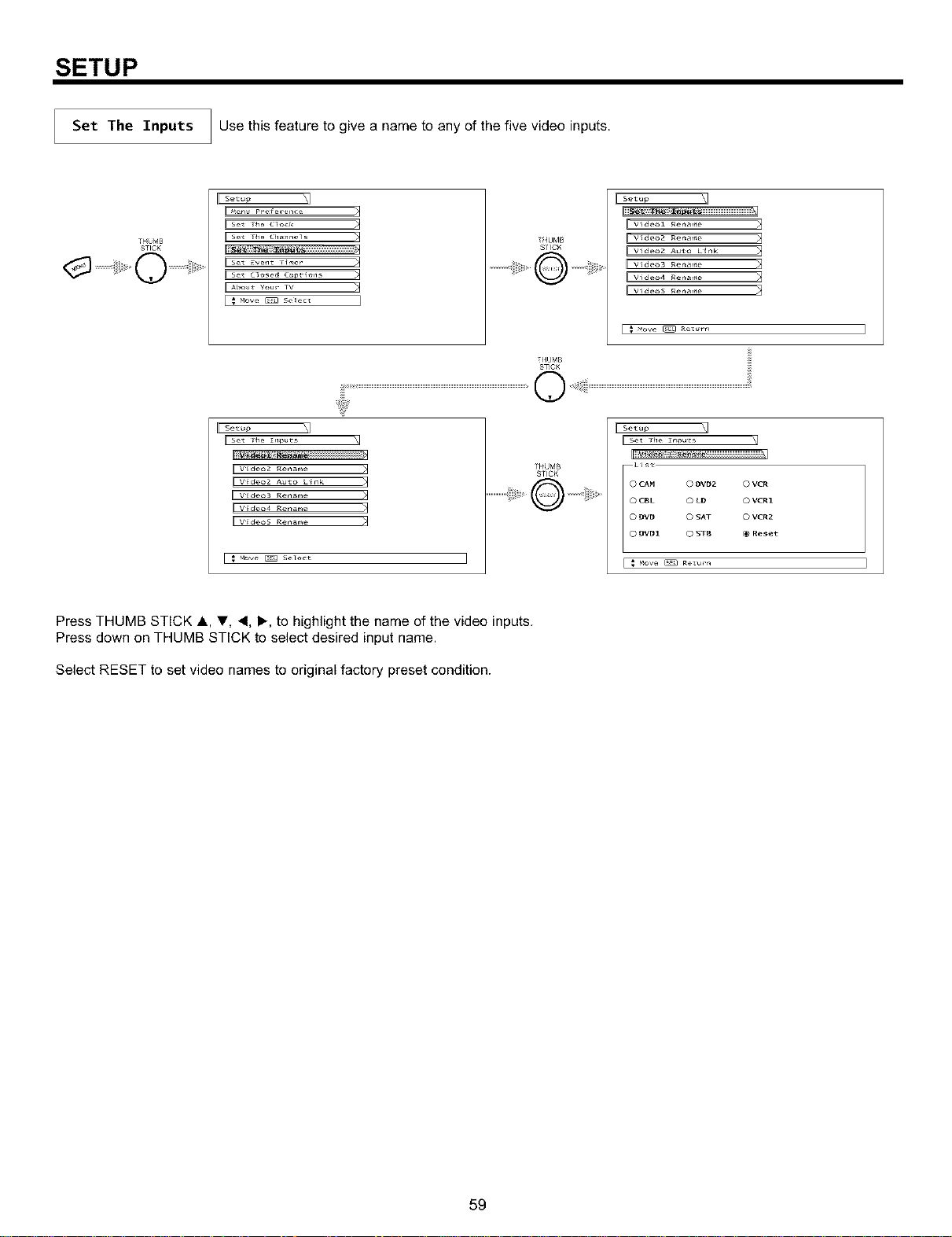
SETUP
Set The Inputs Use this feature to give a name to any of the five video inputs.
T_MB
STICK
[ set Eve_l_ r_er _]
[ Set Clo,e_ Ca_fo_ls _]
II A_ou_ Y_>ur TV )]
_HUMB
Sf[CK
]
[ VideoZ Re_a_.e >]
[Video2 Auto Link )_
II Video3 Re_ar_e )]
Video4 Re_a_.e )_
II Videos Re_ar_e )]
E ; _ve _ Return ]
THUM£
ST!C_
IIv_deo2Re_,_e
[ Video2 Auto Lnk )_
[L video3 Rer_rme
V i deo4 Rer_rme
[L videos Rer_r_e
L ; _ove _ select ]
THUMB
STICK
Ilii_*#_ I
0 CAH 0 #VB2 0 VCR
0 CBL 0 LD 0 VCR1
0 DVD 0 SAT 0 VCRZ
orB1 O ST_ _} Reset
Press THUMB STICK _, T, <, I_, to highlight the name of the video inputs.
Press down on THUMB STICK to select desired input name.
Select RESET to set video names to original factory preset condition.
59
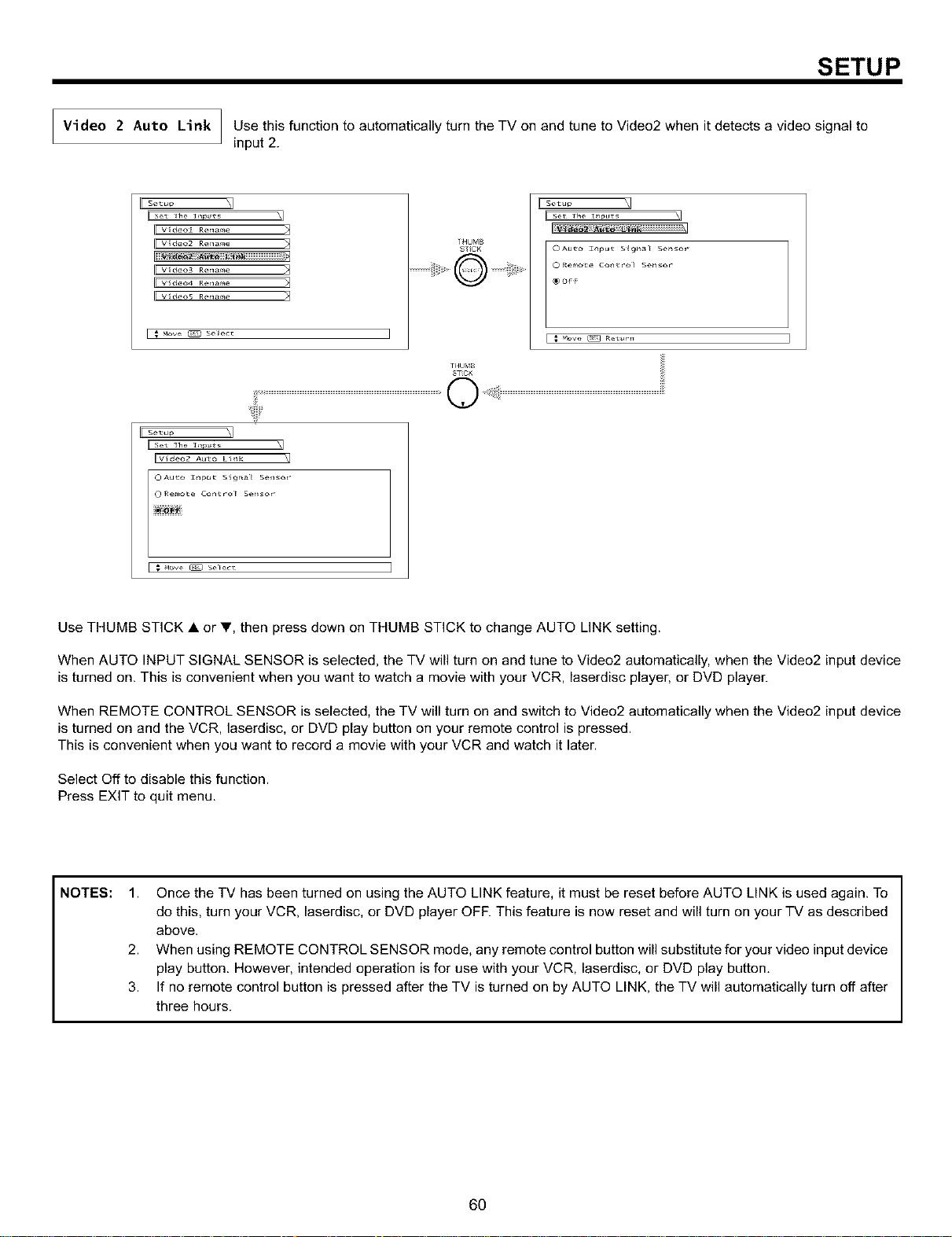
SETUP
]
Video 2 Auto Link / Use this function to automatically turn the TV on and tune to Video2 when it detects a video signal to
J
input 2.
Setup _]
set 1he ]_p_Ft, _]
II Video1 Rename >1
II Video2 Rename >1
II Video3 Rename
[EVideo4 Rename
[["Videos Rename _]
Mow _ ,_l_c, I
_l_urvIB
S?ICK
©Remo_e C_l_ro_ 5e_,r
THUMB
ST_C_
IIvide_,2 A_o Li_k \1
Use THUMB STICK • or _', then press down on THUMB STICK to change AUTO LINK setting.
When AUTO INPUT SIGNAL SENSOR is selected, the TV will turn on and tune to Video2 automatically, when the Video2 input device
is turned on. This is convenient when you want to watch a movie with your VCR, laserdisc player, or DVD player.
When REMOTE CONTROL SENSOR is selected, the TV will turn on and switch to Video2 automatically when the Video2 input device
is turned on and the VCR, laserdisc, or DVD play button on your remote control is pressed.
This is convenient when you want to record a movie with your MCR and watch it later.
Select Off to disable this function.
Press EXIT to quit menu.
NOTES:
1. Once the TV has been turned on using the AUTO LINK feature, it must be reset before AUTO LINK is used again. To
do this, turn your MCR, laserdisc, or DMD player OFR This feature is now reset and will turn on your TV as described
above.
2. When using REMOTE CONTROL SENSOR mode, any remote control button will substitute for your video input device
play button. However, intended operation is for use with your VCR, laserdisc, or DVD play button,
3. If no remote control button is pressed after the TM is turned on by AUTO LINK, the TM will automatically turn off after
three hours.
6O
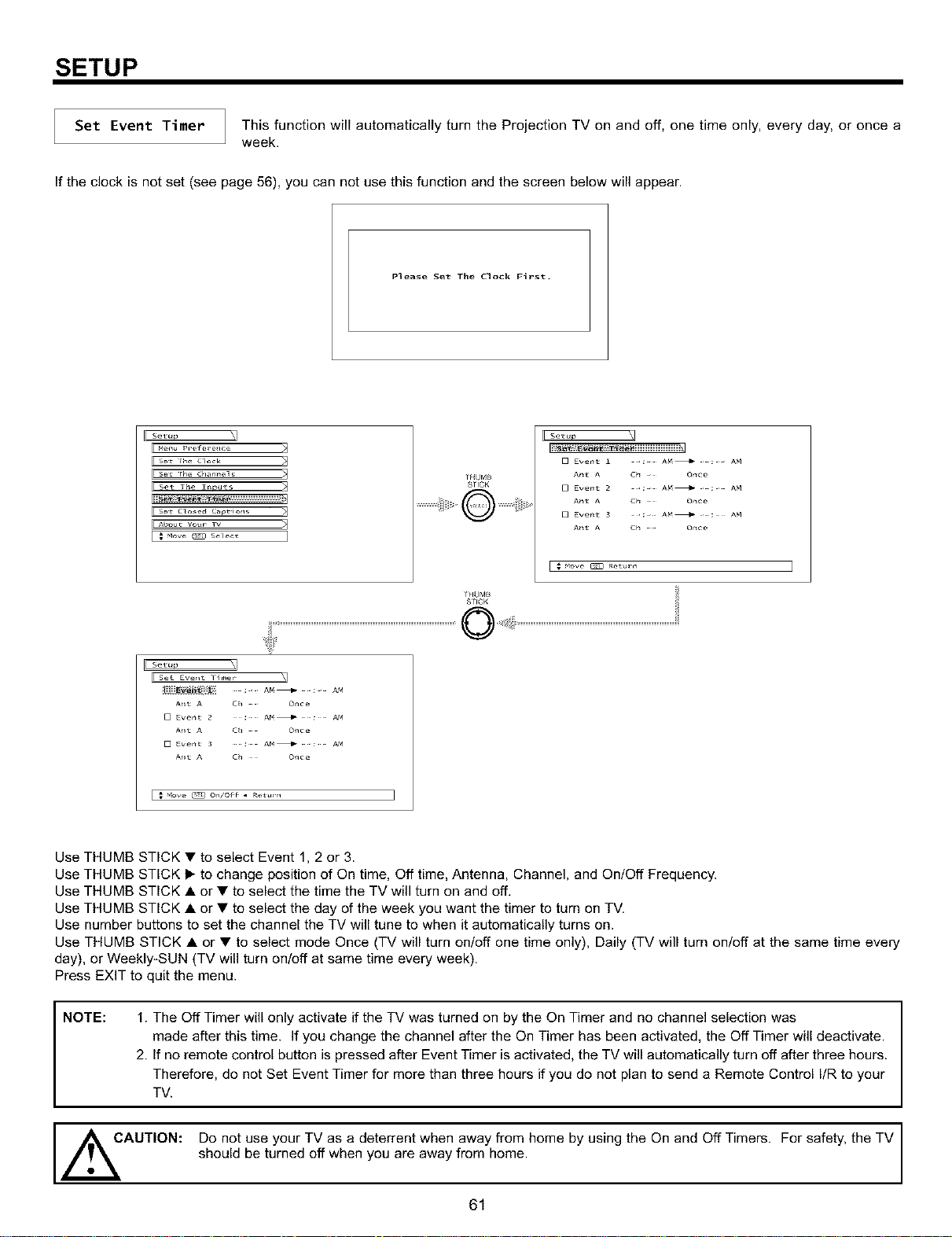
SETUP
Set Event Timer
This function will automatically turn the Projection TV on and off, one time only, every day, or once a
week.
If the clock is not set (see page 56), you can not use this function and the screen below will appear.
Please Set The Clock F_rst.
I s_p \J
II s_t rh_ d_ock
II Set The In_ulzs
About voter 1V _]
THUMB
STICK
LIs_ \1
[] Eve_'L i : A_ : AM
At_t A Ch Or_ce
[] Eve_'L 2 : A_ : AM
At_t A Ch Or_ce
[] Eve_'L 3 : At_ : AM
At_t A C_ Or_ce
[ ; Move _ Retu_-n
I S_ \J
get Even_ lir_er _]
A_I _ A Ch O_¢e
[] Even_ 2 : At_ : AH
A_I _ A Ch O_¢e
A_I _ A Ch O_¢e
Use THUMB STICK • to select Event 1, 2 or 3.
Use THUMB STICK • to change position of On time, Off time, Antenna, Channel, and On/Off Frequency.
Use THUMB STICK • or • to select the time the TV will turn on and off.
Use THUMB STICK • or • to select the day of the week you want the timer to turn on TV.
Use number buttons to set the channel the TV will tune to when it automatically turns on.
Use THUMB STICK • or • to select mode Once (TV will turn on/off one time only), Daily (TV will turn on/off at the same time every
day), or Weekly-SUN (TV will turn on/off at same time every week).
Press EXIT to quit the menu.
NOTE: 1. The Off Timer will only activate if the TV was turned on by the On Timer and no channel selection was
made after this time. If you change the channel after the On Timer has been activated, the Off Timer will deactivate.
2. If no remote control button is pressed after Event Timer is activated, the TV will automatically turn off after three hours.
Therefore, do not Set Event Timer for more than three hours if you do not plan to send a Remote Control I/R to your
TV.
AUTION: Do not use your TV as a deterrent when away from home by using the On and Off Timers. For safety, the TV
should be turned off when you are away from home.
61
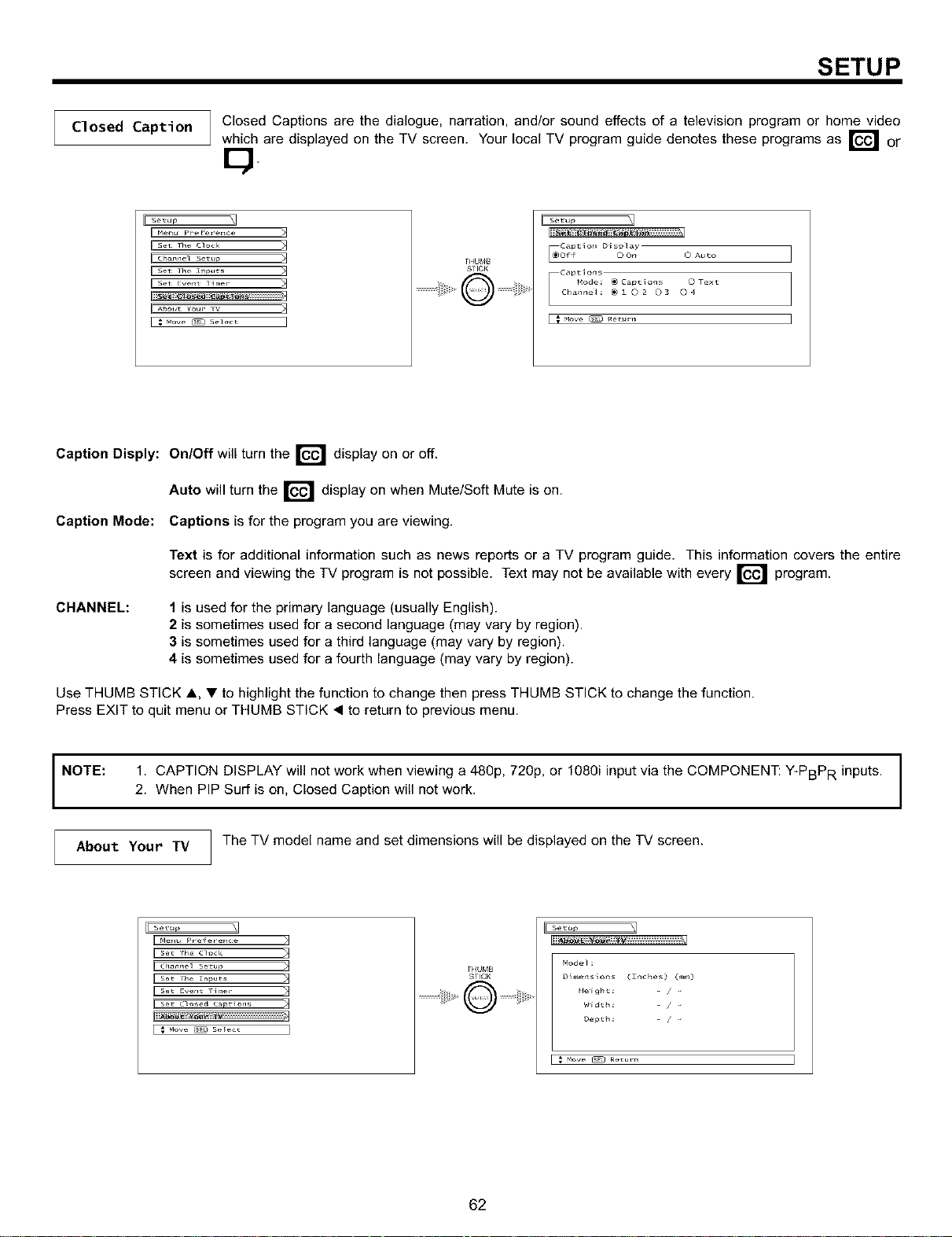
SETUP
Closed Caption
Closed Captions are the dialogue, narration, and/or sound effects of a television program or home video
which are displayed on the TV screen. Your local TV program guide denotes these programs as _ or
I setup _1
II Menu prefe_er_ce >1
chann_ s_tL_p _]
Abot_t Your rv _]
THUM_
STICK
I Setup _q
_c_pt_o_ Display
offf © on O Auto
C_ptio_s
_ode: _ Cap_ions © Text
Cha_ne_: @ _ O 20 3 O 4
I € Move _ _e_rn I
Caption Disply: On/Off will turn the _ display on or off.
Auto will turn the _ display on when Mute/Soft Mute is on.
Caption Mode: Captions is for the program you are viewing.
Text is for additional information such as news reports or a TV program guide. This information covers the entire
and viewing the TM program is not possible. Text may not be available with every
screen
program.
CHANNEL: 1 is used for the primary language (usually English).
2 is sometimes used for a second language (may vary by region).
3 is sometimes used for a third language (may vary by region).
4 is sometimes used for a fourth language (may vary by region).
Use THUMB STICK A, • to highlight the function to change then press THUMB STICK to change the function.
Press EXIT to quit menu or THUMB STICK • to return to previous menu.
NOTE: 1. CAPTION DISPLAY will not work when viewing a 480p, 720p, or 1080i input via the COMPONENT: Y-PBPR inputs.
2. When PIP Surf is on, Closed Caption will not work.
About Your TV The TV model name and set dimensions will be displayed on the TV screen.
E setup _]
i Channel s_ul_
iiiii
T_{VMB
STICK
Se_Qp \]
Node}:
Dimenslons (Znc_es) (_m)
HeighL: /
Width: /
Depth: /
€ Move _ _uvn
62
CARE OF YOUR HITACHI TELEVISION
AND YOUR REMOTE CONTROL
DO
Dust the screen and cabinet with a soft cloth.
Clean the screen with a soft cloth moistened in warm water and dry with a soft cloth. A mild soap may be used if
the screen is extremely dirty.
Place your Television away from extreme heat, humidity, and extremely dusty places.
Remove the plug from the wall outlet if your Television will not be used for a long period of time, for instances,
when you go on vacation.
DO NOT
Do not clean your screen or cabinet with strong cleaners, polishes or a chemically treated cloth.
Do not place rubber or vinyl products or cellophane tape on your Television.
Do not touch the screen too often.
Do not subject the remote control to shocks such as dropping it on the floor, etc. Physical damage to the precision
parts may result.
Avoid placing the remote control or the Simple Remote Control in a high humidity place or getting it wet. Do not leave
it on or near a heater. Excessive heat or moisture may cause the unit to cease operation.
When the batteries run down, remote control operation will become erratic or possibly stop altogether. Replace the
old batteries with two new "AA" or "AAA" size batteries. Do not use an old battery with a new battery.
Exposure of the viewing screen to prolonged direct sunlight or heat may cause the screen to permanently warp,
resulting in a distorted picture.
63
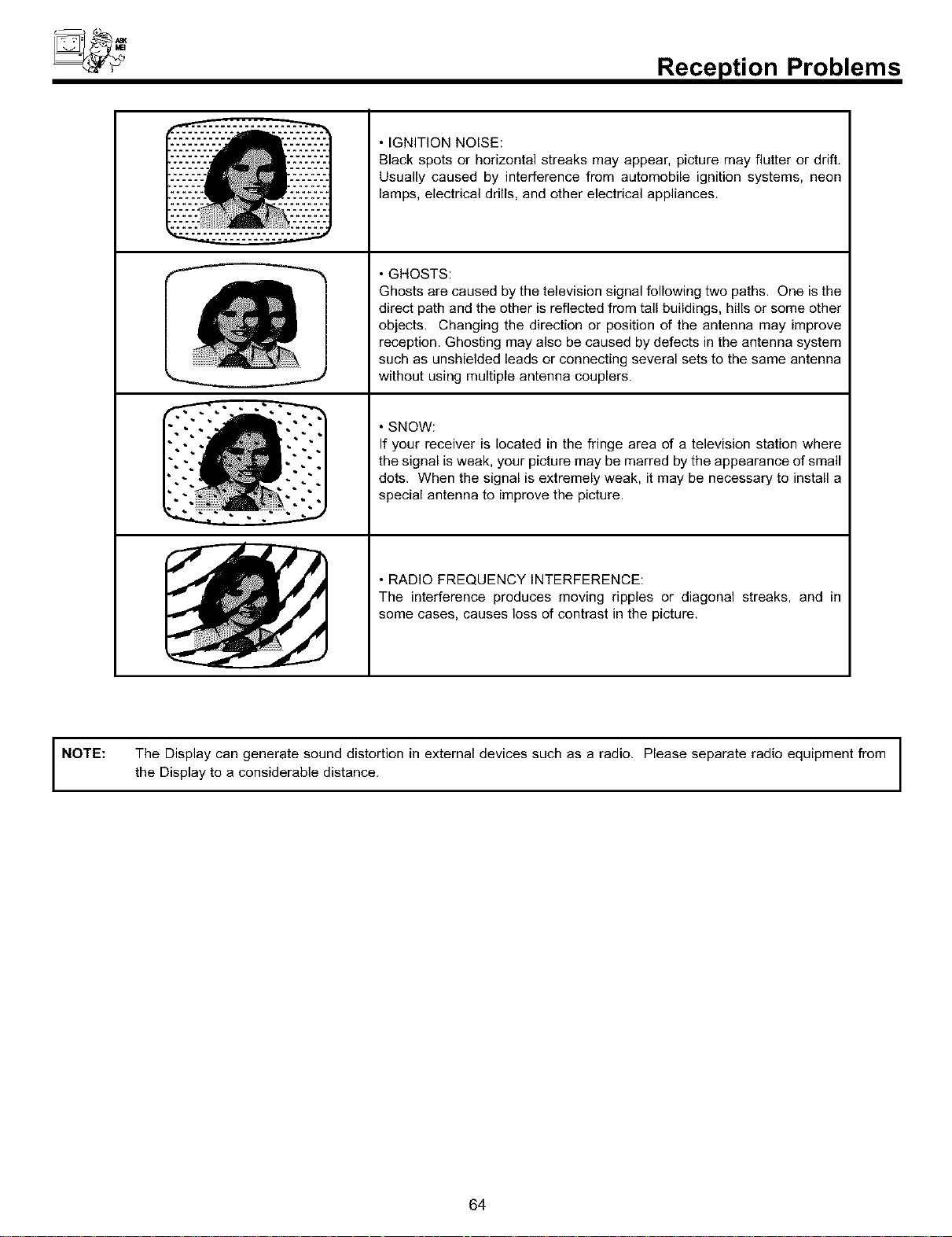
Reception Problems
7
• IGNITION NOISE:
Black spots or horizontal streaks may appear, picture may flutter or drift,
Usually caused by interference from automobile ignition systems, neon
lamps, electrical drills, and other electrical appliances.
• GHOSTS:
Ghosts are caused by the television signal following two paths. One is the
direct path and the other is reflected from tall buildings, hills or some other
objects. Changing the direction or position of the antenna may improve
reception. Ghosting may also be caused by defects in the antenna system
such as unshielded leads or connecting several sets to the same antenna
without using multiple antenna couplers.
• SNOW:
If your receiver is located in the fringe area of a television station where
the signal is weak, your picture may be marred by the appearance of small
dots. When the signal is extremely weak, it may be necessary to install a
special antenna to improve the picture.
• RADIO FREQUENCY INTERFERENCE:
The interference produces moving ripples or diagonal streaks, and in
some cases, causes loss of contrast in the picture.
NOTE: The Display can generate sound distortion in external devices such as a radio. Please separate radio equipment from
the Display to a considerable distance.
64
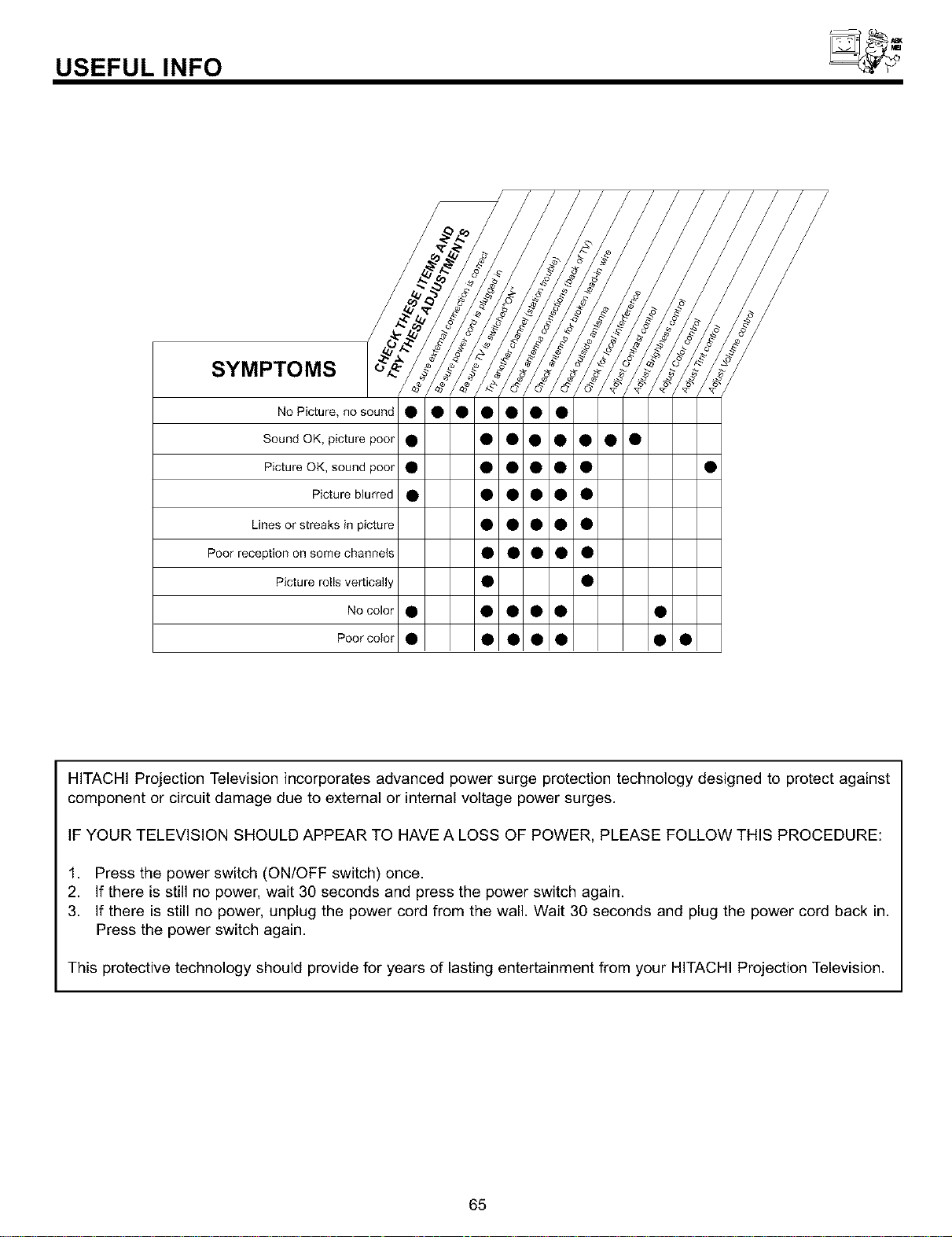
USEFULINFO
SYMPTOMS
No Picture, no sound • • • • • • •
Sound OK, picture poor • • • • • • • •
Picture OK, sound poor • • • • • • •
Picture blurred • • • • • •
Lines or streaks in picture • • • • •
Poor reception on some channels • • • • •
Picture rolls vertically • •
No color • • • • • •
Poor color • • • • • • •
HITACHI Projection Television incorporates advanced power surge protection technology designed to protect against
component or circuit damage due to external or internal voltage power surges.
IF YOUR TELEVISION SHOULD APPEAR TO HAVE A LOSS OF POWER, PLEASE FOLLOW THIS PROCEDURE:
1. Press the power switch (ON/OFF switch) once.
2. If there is still no power, wait 30 seconds and press the power switch again.
3. If there is still no power, unplug the power cord from the wall. Wait 30 seconds and plug the power cord back in.
Press the power switch again.
This protective technology should provide for years of lasting entertainment from your HITACHI Projection Television.
65
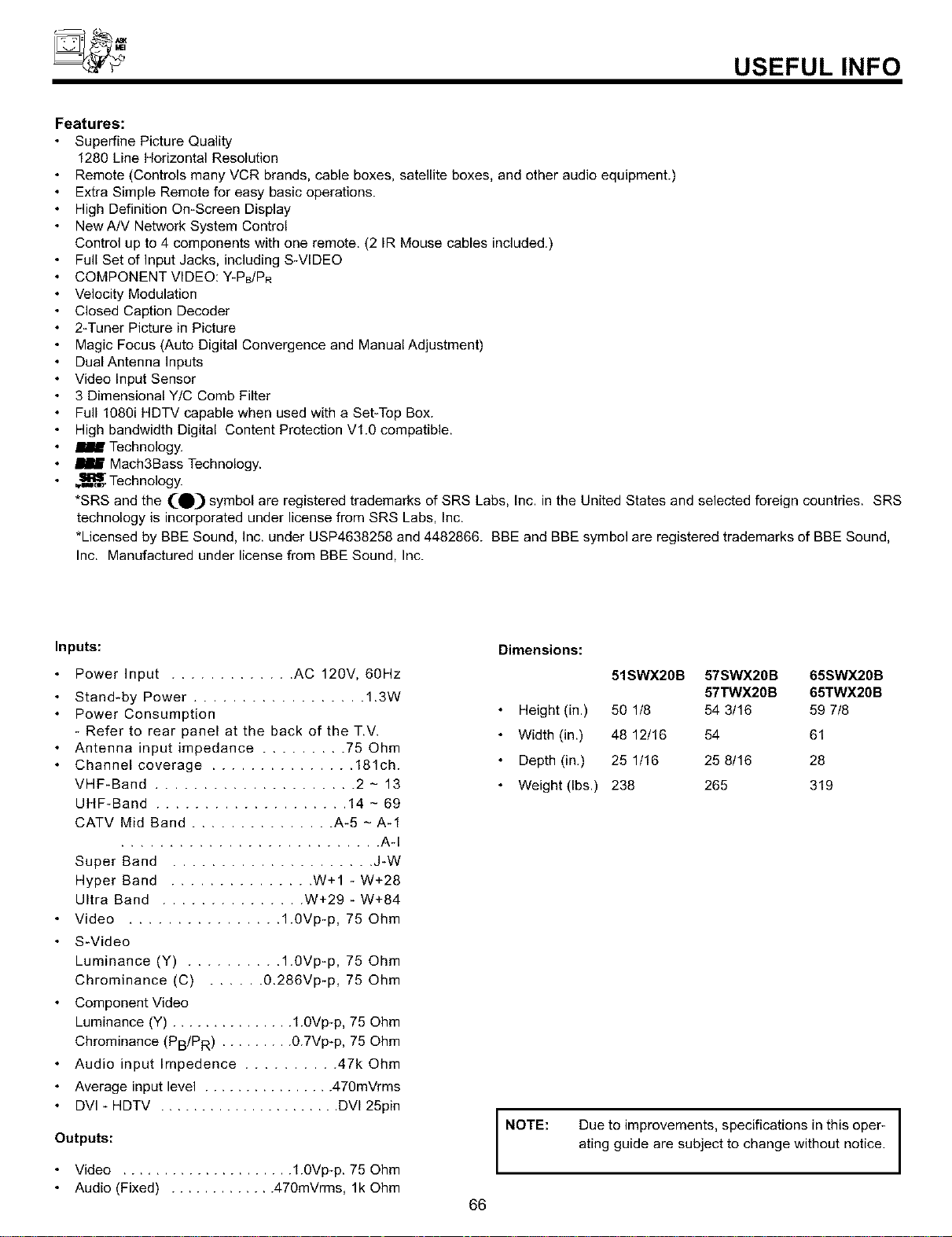
USEFULINFO
Features:
Superfine Picture Quality
1280 Line Horizontal Resolution
Remote (Controls many VCR brands, cable boxes, satellite boxes, and other audio equipment.)
Extra Simple Remote for easy basic operations.
High Definition On+Screen Display
New A/V Network System Control
Control up to 4 components with one remote. (2 IR Mouse cables included.)
Full Set of Input Jacks, including S-VIDEO
COMPONENT VIDEO: Y'PB/PR
Velocity Modulation
Closed Caption Decoder
2-Tuner Picture in Picture
Magic Focus (Auto Digital Convergence and Manual Adjustment)
Dual Antenna Inputs
Video Input Sensor
3 Dimensional Y/C Comb Filter
Full 1O8Oi HDTV capable when used with a Set-Top Box.
High bandwidth Digital Content Protection Vl.O compatible.
Technology.
Mach3Bass Technology.
.11_._Technology.
*SRS and the (-O) symbol are registered trademarks of SRS Labs, Inc. in the United States and selected foreign countries. SRS
technology is incorporated under license from SRS Labs, Inc.
*Licensed by BBE Sound, Inc. under USP4638258 and 4482866. BBE and BBE symbol are registered trademarks of BBE Sound,
Inc. Manufactured under license from BBE Sound, Inc.
Inputs: Dimensions:
Power Input ............. AC 120V, 60Hz
Stand+by Power .................. 1.3W
Power Consumption
- Refer to rear panel at the back of the T.V.
Antenna input impedance ......... 75 Ohm
Channel coverage ............... 181ch.
VHF-Band ..................... 2 - 13
UHF-Band .................... 14 - 69
CATV Mid Band ............... A-5 - A-1
........................... A-I
Super Band ..................... J-W
Hyper Band ............... W+I - W+28
Ultra Band ............... W+29 - W+84
Video ................ 1.0Vp-p, 75 Ohm
S-Video
Luminance (Y) .......... 1.0Vp-p, 75 Ohm
Chrominance (C) ...... 0.286Vp-p, 75 Ohm
Component Video
Luminance (Y) ............... 1.0Vp-p, 75 Ohm
Chrominance (PB/PR) ......... 0.7Vp-p, 75 Ohm
Audio input Impedence .......... 47k Ohm
Average input level ................ 470mVrms
DVl - HDTV ...................... DV125pin
Outputs:
51SWX20B 57SWX2OB 65SWX20B
57TWX20B 65TWX20B
Height (in.) 50 1/8 54 3116 59 7/8
Width (in.) 48 12/16 54 61
Depth (in.) 25 1/16 25 8/16 28
Weight (Ibs.) 238 265 319
NOTE: Due to improvements, specifications in this oper-
ating guide are subject to change without notice.
Video ..................... 1.OVp-p. 75 Ohm
Audio (Fixed) ............. 470mVrms, lk Ohm
66
USEFULINFO
H ITAC H I
To locate an authorized
HITACHI service facility
in the continental U.S.A.
and Canada,
DIAL TOLL FREE
7 days a week, 24 hours a day
(1-800-448-2244)
Hitachi America, LTD.
Home Electronics Division
Hitachi has made every effort to assure you hours of trouble free operation from your unit. However, should you require service,
a network of Hitachi Authorized Service Facilities has been established in all 50 states and Puerto Rico. Each facility will provide
you with convenient and expedient assistance. Our service hotline operator will direct you to the Hitachi Authorized Service
Facility nearest you, Just present proof of purchase and/or delivery receipts to the Hitachi Authorized Service Facility, and serv-
ice will be rendered in accordance with the terms of the limited warranty as stated on your warranty card or operating guide.
Should you have any questions regarding warranty, service, operation, or technical assistance, please con-
tact:
Hitachi America, LTD.
Home Electronics Division
1855 Dornoch Court
San Diego, CA 92154
67
USEFULINFO
Hitachi Canada, LTD.
Digital Media Division
Should you have any questions regarding warranty, service, operation, or technical assistance, please
contact:
In Canada:
1-800-HITACHI
(1-800-448-2244)
Monday - Friday EST 9:00am - 7:00pm
Saturday EST 9:00am - 5:00pm
Look for your French Manual on the outside of the box.
If the manual is missing, carl
1-800-HITACHI
(1-800-448-2244)
for a copy.
Pour de plus amples renseignements sur le service durant la p_riode couverte par la garantie, sur le fonc-
tionnement ou pour de I'assistance technique communiquez avec:
Au Canada:
1-800-HITACHI
(1-800-448-2244)
Lundi - Vendredi L'EST 9:00am - 7:00pm
Samedi L'EST 9:00am - 5:00pm
La version fran_aise de votre manual se trouve _ I'ext_rieur de la bolte.
Si le manuel est manquant, coposez le
1-800-HITACHI
(1-800-448-2244)
pour obenir votre copie.
HITACHI CANADA, LTD.
6740 Campobello Road
Mississauga, ON L5N 2L8
68

NOTES
69

NOTES
70

NOTES
71

HITACHI
QR51881